Philips_ Service Manual_230E1HSB V2 230E1HSB
User Manual: 230E1HSB
Open the PDF directly: View PDF  .
.
Page Count: 76
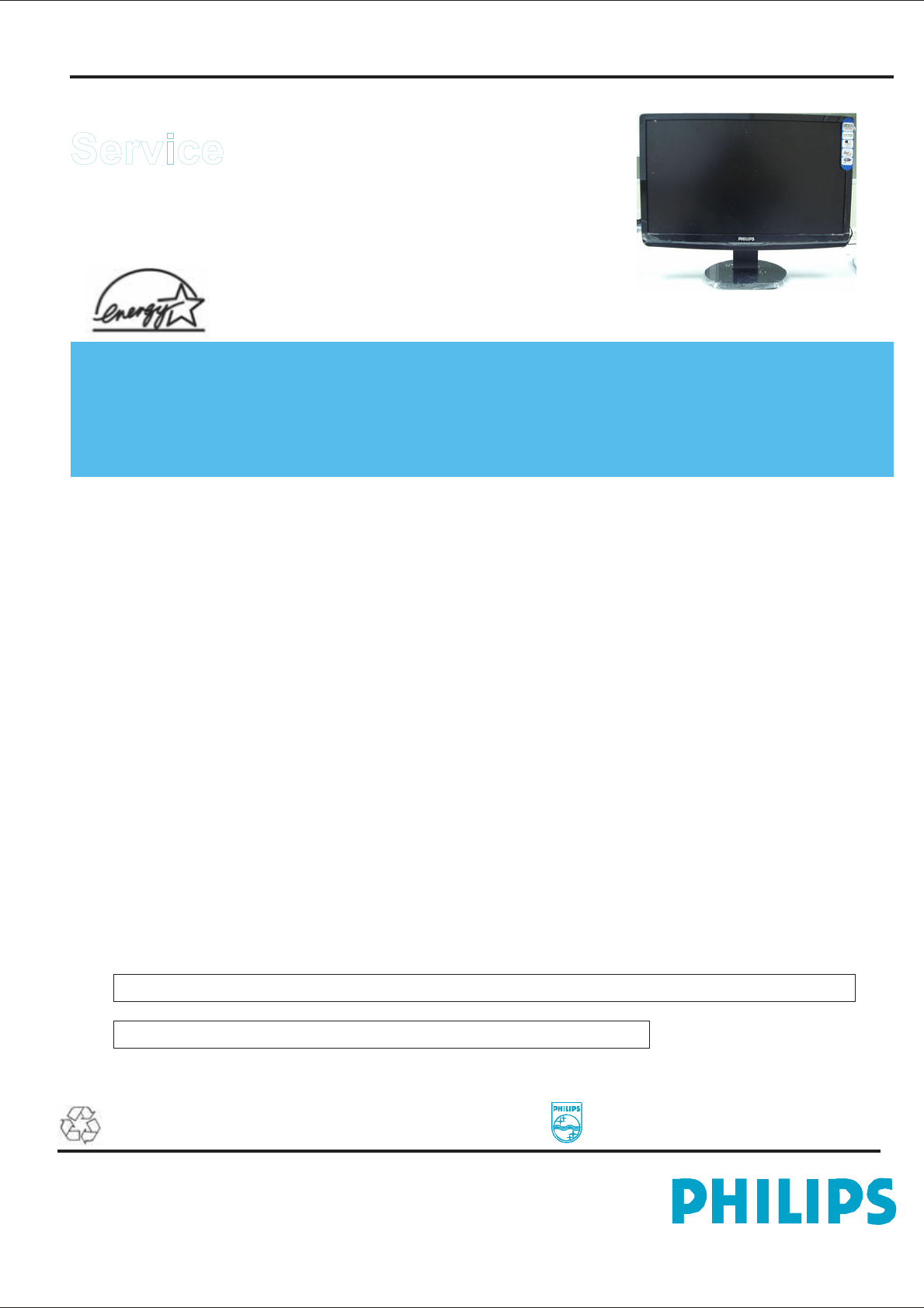
230E
LCD
1
23” TFT LCD COLOR MONITOR
Service
Service
230E1HSB/00
230E1HSB/62
230E1HSB/97
230E1HSB/69
230E1HSB/75
230E1HSB/93
Service
Manual
TABLE OF CONTENTS
Description
Page
Description
Page
Important
Safety
Notice
.............................................
2
Technical
Data
&
Power
Management
.......................
3
~
4
Connection
to
PC
.......................................................
5
OSD
Menu
Control
Level
Structure
...........................
6
Advanced
OSD
Adjustment
.......................................
7
OSD
Attention
Signal
.................................................
8
Safety
and
troubleshooting
information
....................
9
Definition
of
Pixel
Defects
..........................................
10
~
11
Wiring
Diagram
..........................................................
12
Mechanical
Instructions
.............................................
13
~
14
F/W
Upload
Instructions
............................................
15
~
16
DDC
Instructions
........................................................
17 ~ 20
DDC
DATA
.................................................................
21 ~ 25
Safety
Instructions,
Warnings
and
Notes
...................
26
Block
Diagram
...........................................................
27
Scaler
power
Board
Schematic
Diagram
................... 28
VGA DVI HDMI
Schematic
Diagram
..........................29
~
31
Scaler Board
Schematic
Diagram
.................... .32
HDMI Audio
Board
Schematic
Diagram
.....................33
Power
Board
Schematic
Diagram
..................... 34
Scaler
Board
Layout
Side
View
.................................
35~36
Power
Board
Layout
Side
View
.................................
37
Exploded
View
...........................................................38
Recommended
Parts
List
..........................................
39~42
Different
Parts
List
.................................................... 43
General
Trouble
Shooting
Guide
...............................
44~57
General
Product
Specification
...................................
58~
72
Safety
Check
Process
...............................................
73
SAFETY NOTICE
ANY PERSON ATTEMPTING TO SERVICE THIS CHASSIS MUST FAMILIARIZE HIMSELF WITH THE CHASSIS
AND BE AWARE OF THE NECESSARY SAFETY PRECAUTIONS TO BE USED WHEN SERVICING ELECTRONIC
EQUIPMENT CONTAINING HIGH VOLTAGES.
CAUTION:
USE
A
SEPARATE
ISOLATION
TRANSFORMER
FOR
THIS
UNIT
WHEN
SERVICING.
REFER
TO
BACK
COVER
FOR
IMPORTANT
SAFETY
GUIDELINE.
Subject
to
modification
Jan
.
5th.
2009
Copyright 2008 Philips Consumer Lifestyle. All rights reserved. No part of this publication
may be reproduced, stored in a retrieval system or transmitted, in any form or by means,
electronic ,mechanical, photocopying, or otherwise without the prior permission of Philips.
Safety regulations require that the set is restored to its original condition and that parts
which are identical with those specified are used.
EN:
312278518420
230E1
LCD
2
Important Safety Notice
Proper
service
and
repair
is
important
to
the
safe,
reliable
operation
of
all
Philips
Consumer
Electronics
Company**
Equipment.
The
service
procedures
recommended
by
Philips
and
described
in
this
service
manual
are
effective
methods
of
performing
service
operations.
Some
of
these
service
operations
require
the
use
of
tools
specially
designed
for
the
purpose.
The
special
tools
should
be
used
when
and
as
recommended.
It
is
important
to
note
that
this
manual
contains
various
CAUTIONS
and
NOTICES
which
should
be
carefully
read
in
order
to
minimize
the
risk
of
personal
injury
to
service
personnel.
The
possibility
exists
that
improper
service
methods
may
damage
the
equipment.
It
is
also
important
to
understand
that
these
CAUTIONS
and
NOTICES
ARE
NOT
EXHAUSTIVE.
Philips
could
not
possibly
know,
evaluate
and
advise
the
service
trade
of
all
conceivable
ways
in
which
service
might
be
done
or
of
the
possible
hazardous
consequences
of
each
way.
Consequently,
Philips
has
not
undertaken
any
such
broad
evaluation.
Accordingly
,
a
servicer
who
uses
a
service
procedure
or
tool
which
is
not
recommended
by
Philips
must
first
satisfy
himself
thoroughly
that
neither
his
safety
nor
the
safe
operation
of
the
equipment
will
be
jeopardized
by
the
service
method
selected.
*
*
Hereafter
throughout
this
manual,
Philips
Consumer
Electronics
Company
will
be
referred
to
as
Philips.
WARNING
Critical
components
having
special
safety
characteristics
are
identified
with
a
by
the
Ref.
No.in
the
parts
list
and
enclosed
within
a
broken
line*
(where
several
critical
components
are
grouped
in
one
area)
along
with
the
safety
symbol
on
the
schematics
or exploded
views.
Use
of
substitute
replacement
parts
which
do
not
have
the
same
specified
safety
characteristics
may
create
shock,
fire,
or
other
hazards.
Under
no
circumstances
should
the
original
design
be
modified
or
altered
without
written
permission
from
Philips.
Philips
assumes
no
liability
,
express
or
implied,
arising
out
of
any
unauthorized
modification
of
design.
Servicer
assumes
all
liability
.
Broken
Line
FOR
PRODUCTS
CONTAINING
LASER
:
DANGER
-
In
visible
laser
radiation
when
open.
AVOID
DIRECT
EXPOSURE
TO
BEAM.
CAUTION
-
Use
of
controls
or
adjustments
or
performance
of
procedures
other
than
those
specified
herein
may
result
in
hazardous
radiation
exposure.
CAUTION
-
The
use
of
optical
instruments
with
this
Product
will
increase
eye
hazard.
TO
ENSURE
THE
CONTINUED
RELIABILITY
OF
THIS
PRODUCT,
USE
ONLY
ORIGINAL
MANUFACTURER'S
REPLACEMENT
PARTS,
WHICH
ARE
LISTED
WITH
THEIR
PART
NUMBERS
IN
THE
PARTS
LIST
SECTION
OF
THIS
SERVICE
MANUAL.
Take
care
during
handling
the
LCD
module
with
backlight
unit
-
Must
mount
the
module
using
mounting
holes
arranged
in
four
corners.
-
Do
not
press
on
the
panel,
edge
of
the
frame
strongly
or
electric
shock
as
this
will
result
in
damage
to
the
screen.
-
Do
not
scratch
or
press
on
the
panel
with
any
sharp
objects,
such
as
pencil
or
pen
as
this
may
result
in
damage
to
the
panel.
-
Protect
the
module
from
the
ESD
as
it
may
damage
the
electronic
circuit
(C-MOS).
-
Make
certain
that
treatment
persons
body
are
grounded
through
wrist
band.
-
Do
not
leave
the
module
in
high
temperature
and
in
areas
of
high
humidity
for
a
long
time.
-
Avoid
contact
with
water
as
it
may
a
short
circuit
within
the
module.
-
If
the
surface
of
panel
become
dirty,
please
wipe
it
off
with
a
soft
material.(
Cleaning
with
a
dirty
or
rough
cloth
may
damage
the
panel.)

230E
LCD
3
Technical Data (
EE/ME)
1. General Specification (EE)
1.1 Panel characteristic
Panel source
Screen type Screen
dimensions
LGD LM230WF1
Resolution
Outside dimensions(mm)
Pixel pitch (mm)
: LGD LM230WF1
: LGD
: TN+film
: 23 inches (diagonal)
: 1920 x 1080 (WUXGA)
: 533.2(H) x 312.0(V) x 16.5(D)
: 0.265x0.265
Input signal levels
Sync. input signals
Input impedance (Digital)
Video interface
1.5 Physical characteristics
: 700 mVpp
: Analog R/G/B separate inputs
Separate horizontal and vertical /
Composite (H+V) TTL level,
Sync On Green (SOG) sync
0.3Vp-p Negative
: 100 ohm
: Analog, DVI ,HDMI
(ME)
Color pixel arrangement : R. G. B. Vertical Stripe
Display surface
Color depth
Backlight
Active area (mm) View
angle (CR>10) Contrast
ratio
White luminance
Color gamut
Response time
1.2 Scanning frequencies
Horizontal scan range
Vertical scan range
1.3 Video
Video dot rate
Input impedance
(Analog signal input)
- video
- Sync
: Hard-coating (3H), Anti-Glare
: 16.7M colors
: 4 lamps
: 509.184 (H) x 286.216(V),
: 170/160 (H)/(V) (typical)
: 1000 : 1 (typical)
: 300 nits (typical)
: 72% (typical)
: 5 ms
: 30 - 83 K Hz (automatic)
: 56 - 76 Hz (automatic)
: Analog < 205 MHz
Digital < 165MHz
HDMI < 225 MHZ
: 75 ohm
: 2.2K ohm
Unit dimensions
- Width
- Height
- Depth
Packed unit dimensions
- Width
- Height
- Depth
Packed unit dimensions
(China only)
- Width
- Height
- Depth
Weight (monitor only)
Title angel
Swivel angel Height
adjustment Portrait
display
AC input: - voltage
- frequency
Power consumption
Ambient temperature
Operating
- Temperature
- Humidity
- Altitude
Storage
- Temperature
- Humidity
- Altitude
System MTBF
: 547.2 mm
: 432.8mm
: 201.4 mm
: 596 mm
: 495mm
: 134mm
: 596 mm
: 495mm
: 134mm
: 5.46 Kg
: - 5 ° + 2 / - 0 ° ( forward )
+ 20 ° + 0 / - 2 ° ( backward )
: nil
: nil
: nil
: 100 - 240 V,
: 50 / 60 + 2 Hz
: 60W maximum
:0 to 40 degree C
: 5°C to 40°C
: 20% to 80%
: 0 to 5000 M
: -20 to 60 degree C
: 10% to 80%
: 0 to 12000M
: 50,000 Hrs
230E1
LCD
4
Technical Data
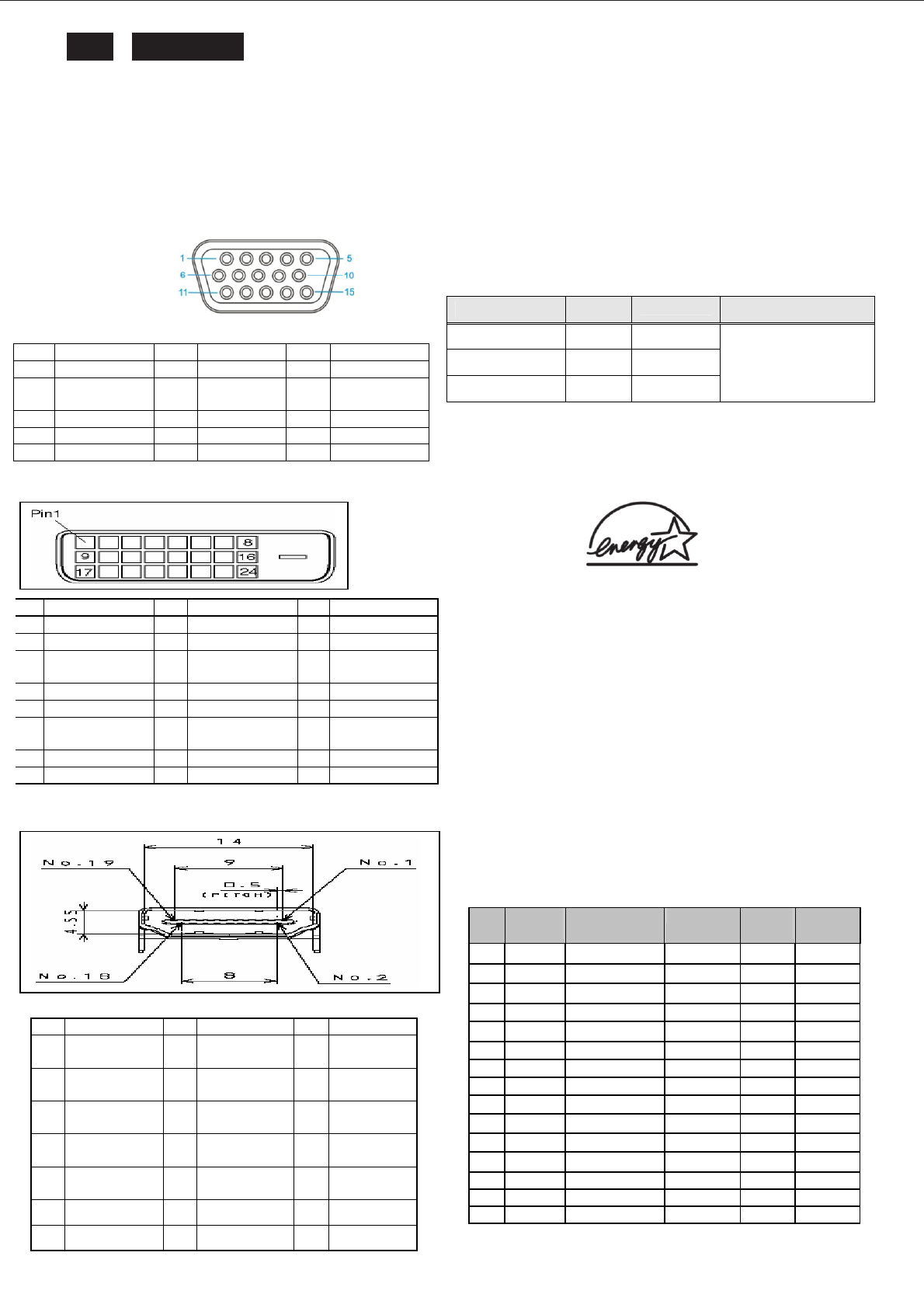
2. Pin Assignment
2.1 PC analog video input with D - sub connector.
Connector type of analog signal cable :
D - Sub male with DDC2B pin assignment.
Blue connector with thumb-operated jackscrews.
Pin assignment :
.
2.2 PC digital video input with DVI-D connector
2.4 HDMI Type A cable pin out
Automatic
Power
Saving
If
you
have
VESA
/
DPMS
compliance
display
card
or
software
installed
in
your
PC,
the
monitor
can
automatically
reduce
power
consumption
when
power
saving
function
active.
And
if
an
input
from
keyboard,
mouse
or
other
devices
is
detected,
the
monitor
will
automatically
wake
up.
The
following
table
shows
the
power
consumption
and
signaling
of
this
automatic
power
saving
feature:
Status Power
LED Remark
Power On ≤ 60W
Blue
Power Saving
≤0.5W
Blinking Blue
Power Off ≤ 0.5W
Off
The volume should
be minimum when
test power saving.
This
monitor
must
comply
with
the
Microsoft
On
Now
specification,
with
two
power
management
states,
as
defined
by
the
VESA
DPMS
document.
And
must
appropriately
display
the
DPMS
states.
Also
comply
with
Environmental
Protection
Agency
(EPA)
Energy
Star
and
TCO03
power
management
standard
strictly
ENERGY
STAR
is
a
U.S.
Registered
mark.
AS
AN
ENERGY
STAR
PARTNER,
PHILIPS
HAS
DETERMINED
THAT
THIS
PRODUCT
MEETS
THE
ENERGY
STAR
GUIDELINES
OF
ENERGY
EFFICIENCY.
Factory preset mode:
This monitor has 15 factory-preset modes as indicated in the
following table
Pin
Symbol
Pin
Symbol
Pin
Symbol
1 Red 6 Red GND
11 GND
2 Green/SOG
7 Green
GND 12 Bi-directional
data
3 Blue 8 Blue GND
13 H sync
4 GND 9 +5V 14 V sync
5 CableDetect
10 Open 15 Data clock
Item
H.Freq.
(KHz)
Mode Resolution
V.Freq.
(Hz)
BW(MHz)
1
31.469
IBM VGA 3H
720x400
70.087
28.3
2
31.469
IBM VGA 12H
640x480
59.94
25.175
3
35 MACINTOSH
640x480
67 30.24
4
37.5 VESA 640x480
75 31.5
5
35.156
VESA 800x600
56.25
36
6
37.879
VESA 800x600
60.317
40
7
46.875
VESA 800x600
75 49.5
8
48.363
VESA 1024x768
60.004
65
9
60.023
VESA 1024x768
75.029
78.75
10
63.981
VESA 1280x1024
60.02
108
11
79.976
VESA 1280x1024
75.025
135
12
66.587
CVT 2.3MA-R
1920x1080
60 138.5
13
67.5 CEA 861 1920x1080
60 148.5
14
65.29
CVT1.76MW
1680X1050
60 146.25
15
70.635
CVT1.76MW-R
1680X1050
60 119
Pin
Symbol Pin
Symbol Pin
Symbol
1
T.M.D.S. data2-
9 T.M.D.S. data1-
17 T.M.D.S. data0-
2
T.M.D.S. data2+
10 T.M.D.S. data1+
18 T.M.D.S. data0+
3
T.M.D.S. data2
shield 11 T.M.D.S. data1
shield 19 T.M.D.S. data0
shield
4
No Connect 12 No Connect 20 No Connect
5
No Connect 13 No Connect 21 No Connect
6
DDC clock 14 +5V Power 22 T.M.D.S clock
shield
7
DDC data 15
Ground (for +5V)
23 T.M.D.S. clock+
8
No Connect 16 Hot plug detect
24 T.M.D.S. clock-
PIN
Signal PIN
Signal PIN
Signal
1 TMDS Data2+
8 TMDS Data0
Shield 15 SCL
2 TMDS Data2
Shield 9 TMDS Data0-
16 SDA
3 TMDS Data2-
10 TMDS Clock+
17 DDC/CEC
Ground
4 TMDS Data1+
11 TMDS Clock
Shield 18
Power+5V
5 TMDS Data1
Shield 12 TMDS Clock-
19 Hot Plug
Detect
6 TMDS Data1-
13 CEC
7 TMDS Data0+
14 NC
230E
LCD
5
Connection to PC
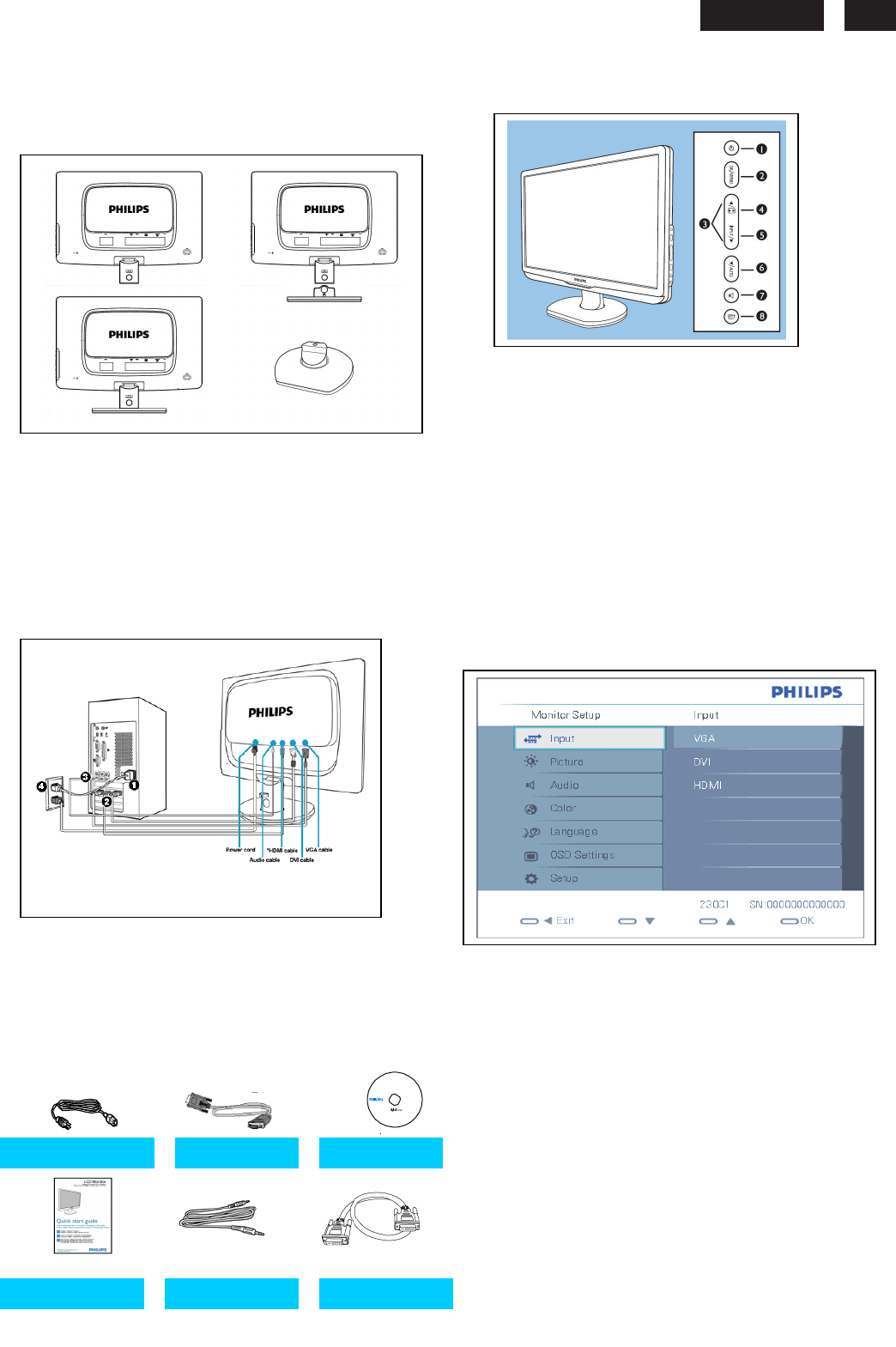
1. Connection to PC
Please follow the steps to connect your LCD Monitor to
PC.
a. Assembly LCD Monitor with base
b. Connect to PC
(1) Turn off your computer and unplug its power cable.
(2) Connect the monitor signal cable to the video
connector on the back of your computer.
(3) Connect the audio cable to the audio port of your
computer
(4) Plug the power cord of your computer and your
monitor
(5) Turn on your computer and monitor. If the monitor
displays an image, installation is complete
Port definition:
(1) Earphone output (2) VGA input
(3) DVI input (4) HDMI input
(5) Audio input (6) AC power input
(7)Kensington anti-thief lock
For best performance, use your Analog input and
ensure that your disolay settings are set at
1920*1080@60Hz
c. Accessory Pack
2. Function key definition
(1) To switch monitor's power On and Off
(2) To access the OSD menu.
(3) To adjust the OSD menu
(4)Change to 4:3 display
(5) To change the signal input source
(6) Automatically adjust the horizontal position, vertical position, phase
and clock settings / Return to previous OSD level
(7) To adjust volume of the display
(8) SmartImage. There are five modes to be selected: Office Work,
Image Viewing, Entertainment, Economy, and Off
3. Description of the On Screen Display
On-Screen Display(OSD) is a feature in all Philips LCD monitors. It
allows and end user to adjust screen performance or select functions
of the monitors directly through an on-screen instruction window. A
user friendly on screen display interface is shown as below:
Basic and simple instruction on the control keys
According to the above OSD structure, users can
press UP or DOWN buttons to move the cursor,
press MENU button to confirm the choice or change
press UP or DOWN button to adjust the value
press MENU button to save the changes
press AUTO button to automatically adjust the horizontal position,
vertical position,phase and clock setting
Power cord
VGA cable
EDFU CD
Quick start
guide
guide
Audio cable
DVI cable
230E1
LCD
6
OSD Menu Control Structure
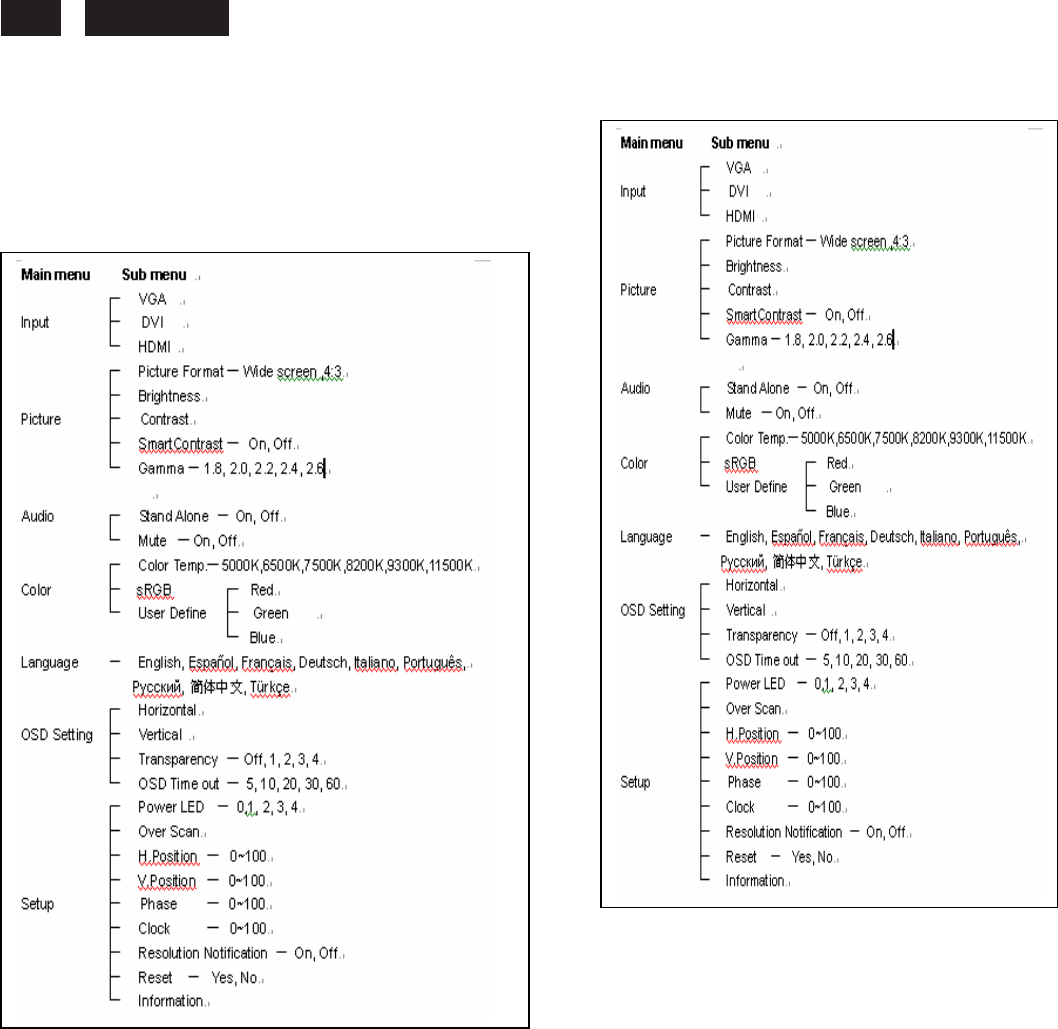
4.The OSD tree.
Below is an overall view of the structure of the On-Screen
Display. You can use this as a reference when you want to
work your way around the different adjustments later on.
4.1 Available for EU/AP Mode
4.2 Available for China Model
Note:
sRGB is a standard for ensuring correct exchange of
colors
between different devices(e. g. Digital cameras,
monitor,
printers, scanners, etc.)
Using a standard unified color space, sRGB will help
represent pictures taken by an sRGB compatible device
correctly on your sRGB enabled Philips monitor. In that
way,
the colors are calibrated and you can rely on the
correctness
of the colors shown on your screen.
Important with the use of sRGB is that the brightness
and
contrast of your monitor is fixed to a predefined setting
as
well as the color gamut. Therefore it is important to
select the
sRGB setting in the monitor’s OSD.
To do so, open the OSD by pressing the OK button on the
side f your monitor. More the down button to go to color
and ress OK again. Use the right button to go to sRGB.
Then ove the down button and press OK again to exit
the OSD.
After this, please do not change the brightness or
contrast etting of your monitor. If you change either of
these, the onitor will exit the sRGB mode and go to a
color emperature setting of 6500K.
230E
LCD
7
Advanced OSD Adjustment
Advanced OSD Adjustment
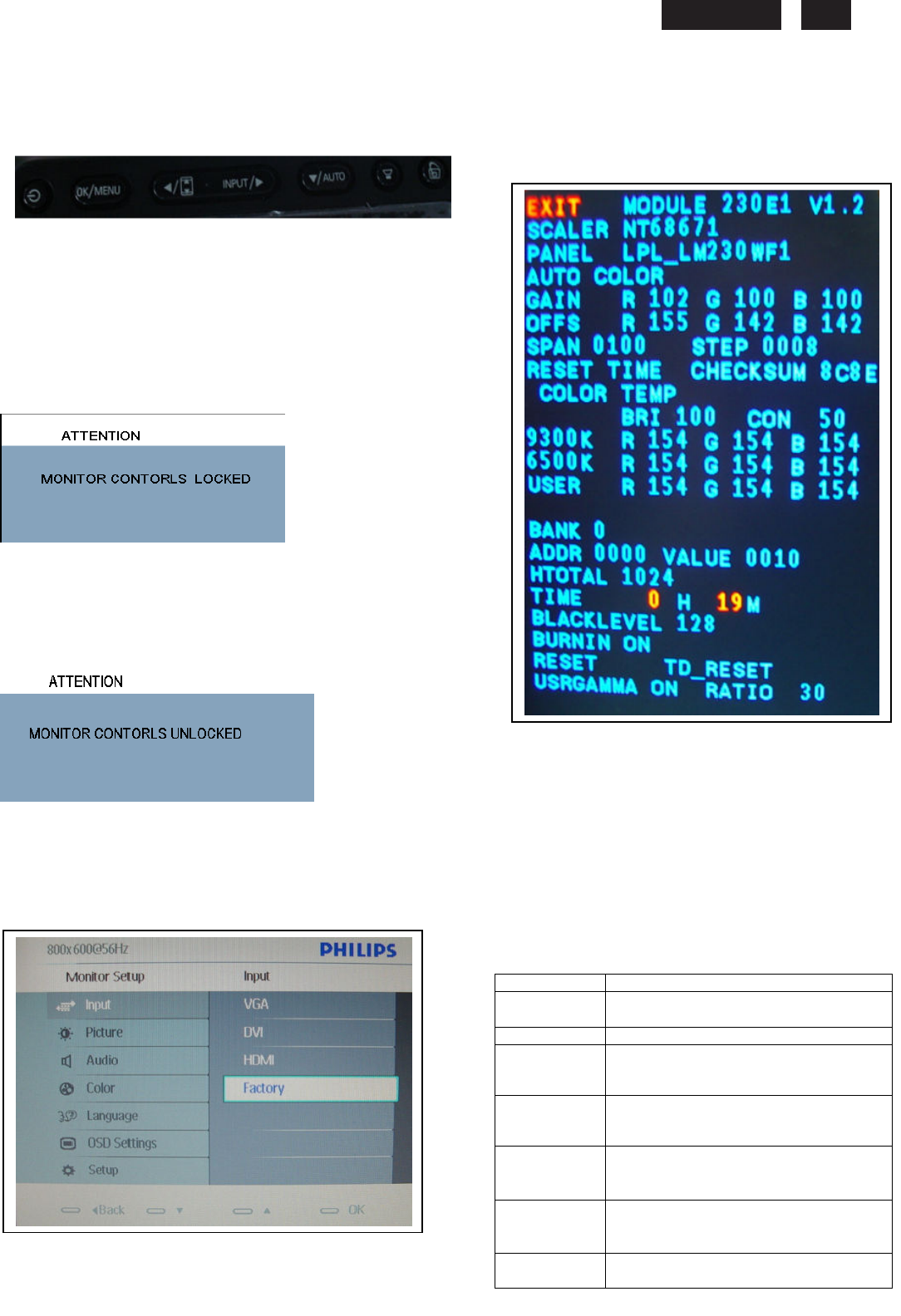
1. Front control panel
`
2. To Lock/Unlock OSD function
The OSD function can be locked by pressing MENU button
for more than 6 seconds, the screen shows following windows for
5 seconds.
Every time when you press any button, this message
appears on the screen automatically.
Locked OSD function can be released by pressing MENU
button for more than 6 seconds. While press MENU button
for OSD unlocked purpose, the screen will keep showing OSD
MAIN MENU LOCKED until OSD function unlocked and
screen automatically shows following window for 5 seconds.
3. Access Factory Mode
Press POWER button to Power off, then Press AUTO + MENU
at the same time, and then press [POWER] for DC power on.
OSD menu will be shown with “Factory” on the sub –menu of
Input.. Select “Factory” for entering factory mode.
If this message appeared, means monitor already entered
the factory mode.
4. Entering Burn-in mode and others
If you access into factory mode, press MENU,
Select Input-Factory,then press MENU to confirm,
OSD menu willconvert into another format as below:
Move the cursor by MENU button, and press the UP or
DOWN button to change the burn-in mode from On to
Off.
Leave factory mode by simply power off(DC off) the
monitor.
Warming:
* If you only want to enter burn in mode, please don’t
change
any other setting items as above listed.
Appendix:
Explanation of above listed selections.
Selection Description
Burn in
On/Off
Enter Aging Mode
Auto Color Auto Color Adjustment
Gain ADC Gain Value Adjustment
(Auto adjustment by H/W when
implement Auto Color function)
Offset ADC Offset Value Adjustment
(Auto adjustment by H/W when
implement Auto Color function)
9300K 9300K Color Temperature Gain Value
Adjustment
6500K 6500K Color Temperature Gain Value
Adjustment
Reset Memory Racall To Factory Default
Settings
230E1
LCD
8
OSD Attention Signals
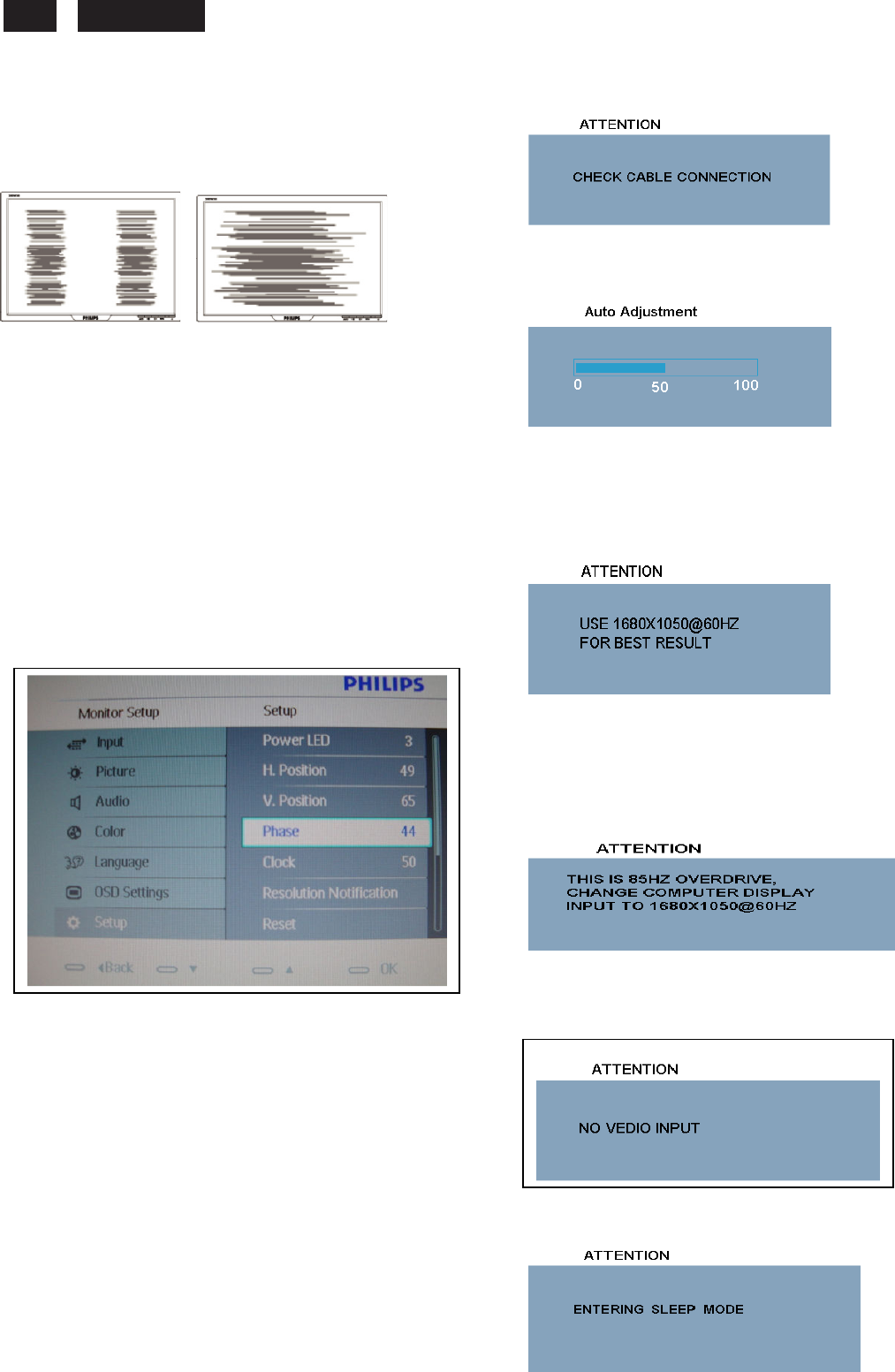
Clock & Phase Adjustment
Due to the different quality of video signal generated from
graphics cards. It is necessary to adjust CLOCK and PHASE
functions for the optimal video display of LCD monitor. So
maybe some flicker appeared as Fig.1 & 2.
Fig.1 Fig.2
Following steps will guide you to make correct adjustment of
CLOCK and PHASE:
a. Restart your computer.
b. Press MENU to bring up OSD menu after the OS
(Operation System) boot up.
c. Press UP or DOWN to select the option of setup
and then press MENU to bring up its submenu as shown in
Fig.3.
d. Select the Clock or Phase adjustment items in submenu
and press UP or DOWN to adjust.
(If the phenomenon as Fig.1, you should adjust “Phase”)
(If the phenomenon as Fig.2, you should adjust “Clock”)
e. Quit OSD by press MENU button to save the settings.
Fig.3
However, CLOCK and PHASE functions are only available while
analog video signal is supplied. Operating unit under digital signal
state, the video clock information can be obtained from graphics
cards directly. So, it is unnecessary to adjust these functions.
OSD Attention signal
The monitor will detect various display situation automatically.
When the monitor detects the problems, the screen will show the
different warning signals to remind you what is happen to your
monitor.
1. CHECK CABLE CONNECTION
This screen appears if there is no video signal input. Please
check that the signal cable is properly connected to the video
card of PC and make sure PC is on.
2. AUTO ADJUSTMENT
This screen appears when you touch the AUTO button.
It will disappear when the monitor is properly adjusted.
3. USE 1920X1080@60HZ FOR BEST RESULT
This message appears when the video mode input is not
the recommended 1920*1080@ 60Hz. Other modes
may result in some picture distortion. Please adjust the
video mode to 1920*1080 @ 60Hz for best display
quality.
4. 85HZ OVERDRIVE MESSAGE
This message appears when the video mode input is
more than 85 HZ. The message “THIS IS 85HZ
OVERDRIVE,CHANGE COMPUTER DISPLAY INPUT TO
1920X1080@60HZ”
is warmed, around 5 seconds in each minutes, after 10
minutes will go into power saving mode.
5. NO VIDEO
INPUT( ENTERING SLEEP MODE
If input VGA you are selecting is not signal input, following
message will appear on the screen.
After 5 s, the monitor will go into power saving mode,
following message will appear on the screen.
Please check that the signal available is properly
connected to the video card of PC and make sure PC is
on.
230E
LCD
9
Troubleshooting Information and Safety
Safety
precautions
and
maintenance
WARNING:
Use
of
controls,
adjustments
or
procedures
other
than
those
specified
in
this
documentation
may
result
in
exposure
to
shock,
electrical
hazards
and/or
mechanical
hazards.
Read
and
follow
these
instructions
when
connecting
and
using
your
computer
monitor:
a.
To
protect
your
display
from
possible
damage,
do
not
put
excessive
pressure
on
the
LCD
panel.
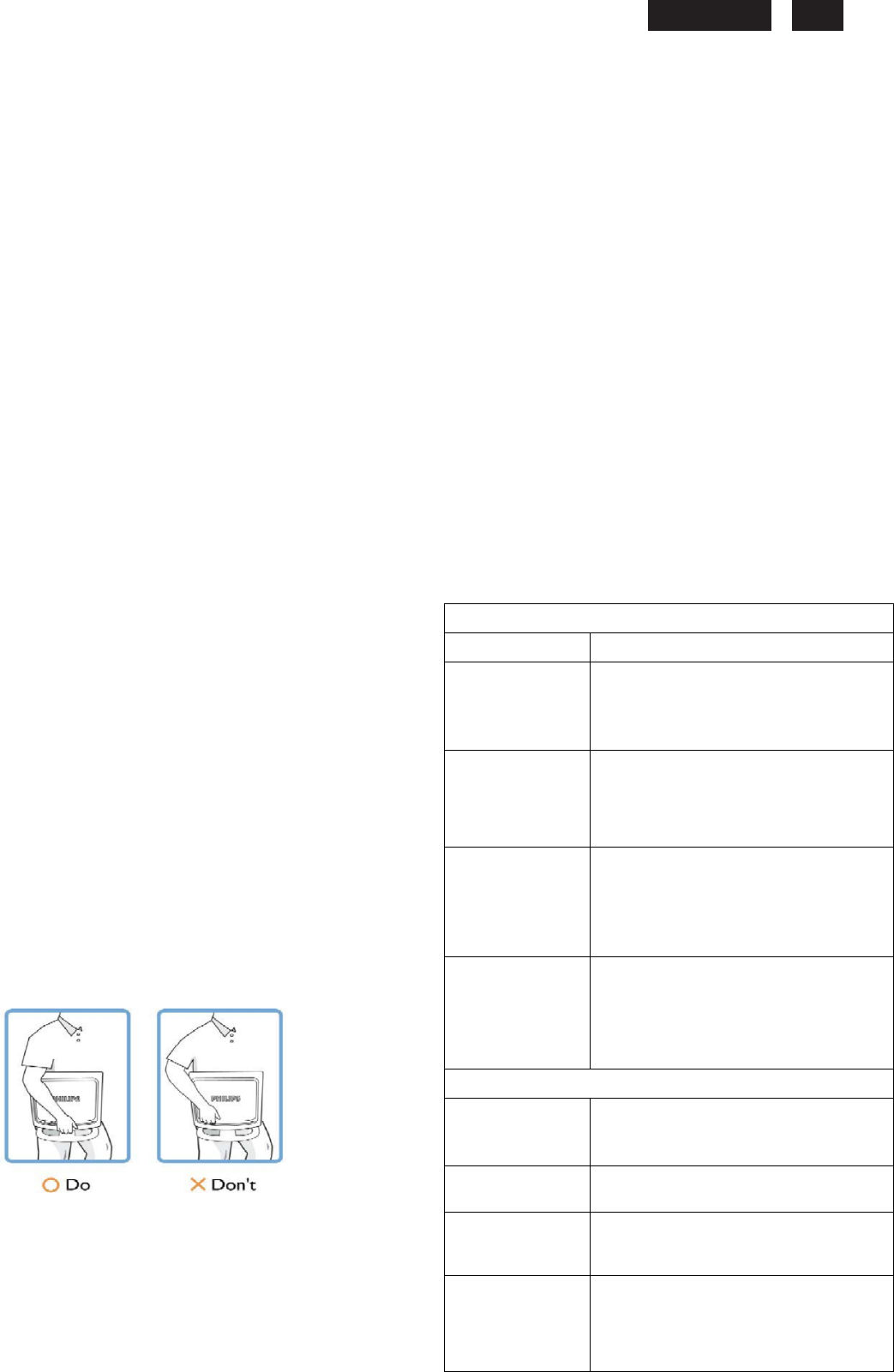
When
moving
your
monitor,
grasp
the
frame
to
lift;
do
not
lift
the
monitor
by
placing
your
hand
or
fingers
on
the
LCD
panel.
b.
Unplug
the
monitor
if
you
are
not
going
to
use
it
for
an extensive
period
of
time.
c.
Unplug
the
monitor
if
you
need
to
clean
it
with
a
slightly
damp
cloth.
The
screen
may
be
wiped
with
a
dry
cloth
when
the
power
is
off.
However,
never
use
alcohol,
solvents
or
ammonia-based
liquids.
d.
Consult
a
service
technician
if
the
monitor
does
not
operate
normally
when
you
have
followed
the
instructions
in
this
manual.
e.
The
casing
cover
should
be
opened
only
by
qualified
service
personnel.
f.
Keep
the
monitor
out
of
direct
sunlight
and
away
from
stoves or
any
other
heat
source.
g.
Remove
any
object
that
could
fall
into
the
vents
or
prevent
proper
cooling
of
the
monitor’s
electronics.
h.
Do
not
block
the
ventilation
holes
on
the
cabinet.
i.
Keep
the
monitor
dry.
To
avoid
electric
shock,
do
not
expose it
to
rain
or
excessive
moisture.
j.
When
positioning
the
monitor,
make
sure
the
power
plug
and outlet
are
easily
accessible.
Installation
Locations
Avoid
exposure
to
heat
and
extreme
cold.
Do
not
store
or
use
the
LCD
monitor
in
locations
exposed
to
heat,
direct
sunlight
or
extreme
cold.
Avoid
moving
the
LCD
monitor
between
locations
with
large
temperature
differences.
Choose
a
site
that
falls
within
the
following
temperature
and
humidity
ranges.
Temperature:
0-35°C
32-95°F
Humidity:
20-80%
RH
Do
not
subject
the
LCD
monitor
to
severe
vibration
or
high
impact
conditions.
Do
not
place
the
LCD
monitor
in
the
trunk
of
a
car.
Take
care
not
to
mishandle
this
product
by
either
knocking
or
dropping
it
during
operation
or
transportation.
Do
not
store
or
use
the
LCD
monitor
in
locations
where
there
is
a
high
level
of
humidity
or
in
dusty
environments.
Do
not
allow
water
or
other
liquids
to
spill
on
or
into
the
LCD
monitor.
Trouble
Shooting
This
page
deals
with
problems
that
can
be
corrected
by
the
user.
If
the
problem
still
persists
after
you
have
tried
these
solutions,
contact
your
nearest
Philips
dealer.
k.
If
turning
off
the
monitor
by
detaching
the
power
cable
or
DC
power
cord,
wait
for
6
seconds
before
attaching
the
power
cable
or
DC
power
cord
for
normal
operation.
l.
To
avoid
the
risk
of
shock
or
permanent
damage
to
the
set,
do
not
expose
the
monitor
to
rain
or
excessive
moisture.
m.
IMPORTANT:
Always
activate
a
screen
saver
program
during
your
application.
If
a
still
image
in
high
contrast
remains
on
the
screen
for
an
extended
period
of
time,
it
may
leave
an
'after-image'
or
'ghost
image'
on
front
of
the
screen.
This
is
a
well-known
phenomenon
that
is
caused
by
the
shortcomings
inherent
in
LCD
technology.
In
most
cases,
the
afterimage will
disappear
gradually
over
a
period
of
time
after
the
power has
been
switched
off.
Be
aware,
that
the
afterimage symptom
cannot
be
repaired
and
is
not
covered
under warranty.
o. Warning
for
lifting
monitor
-
Do
not
use
the
area
underneath
the
logo
cover
to
grip
or
lift
the
monitor.
Placing
weight
on
the logo
cover
can
cause
it
to
break
away
from
the
body
and
cause
the
monitor
to
fall.
When
lifting
the
monitor,
place
one
hand
under
the
monitor's
frame.
*Consult
a
service
technician
if
the
monitor
does
not
operate
normally
when
the
operating
instructions
given
in
this
manual
have
been
followed.
Common Problems
Having this problem
Check these items
No Picture
(Power LED not lit)
a. Make sure the power cord is plugged into the
power outlet and into the back of the monitor.
b. First, ensure that the power button on the front
of the monitor is in the OFF position, then
press it to the ON position.
No Picture
(Power LED is amber
or yellow)
a. Make sure the computer is turned on.
b. Make sure the signal cable is properly
b. connected to your computer.
c. Check to see if the monitor cable has
bent pins. d. The Energy Saving feature
may be activated.
Screen says
a. Make sure the monitor cable is properly
connected to your computer.(Also refer to the
Quick Set-Up Guide).
b. Check to see if the monitor cable has bent
pins.
c. Make sure the computer is turned on.
AUTO button not
working properly
a. The Auto Function is designed for use on
standard Macintosh or IBM-compatible PCs
running Microsoft Windows.
b. It may not work properly if using nonstandard
PC or video card.
c. Make sure the computer is turned on.
Imaging Problems
Display position is
incorrect
a. Press the Auto button.
b. Adjust the image position using the
Phase/Clock of More Settings in OSD Main
Controls.
Image vibrates on the
screen
a. Check that the signal cable is properly
connected to the graphics board or PC.
Vertical flicker appears
a. Press the Auto button.
b. Eliminate the vertical bars using the
Phase/Clock of More Settings in OSD Main
Controls.
Horizontal flicker
appears
a. Press the Auto button.
b.Eliminate the vertical bars using the
b. Phase/Clock of More Settings in OSD Main
Controls.
230E1
LCD
10
W
Definition of Pixel Defects
The screen is too bright or
too dark
An after-image appears
An after-image remains
after
the power has been
turned off
Green, red, blue, dark,
and white dots remains
Adjust the contrast and brightness on On-Screen
Display.(The backlight of the LCD monitor has a fixed life
span. When the screen becomes dark or begins to flicked,
please contact your sales representative).
If an image remains on the screen for an extended
period of time, it may be imprinted in the screen and
leave an after-image. This usually disappears after a
few hours.
This is characteristic of liquid crystal and is not
caused by a malfunction or deterioration of the
liquid crystal. The after-image will disappear after a
peroid of time.
The remaining dots are normal characteristic of
the liquid crystal used in today’s technology.
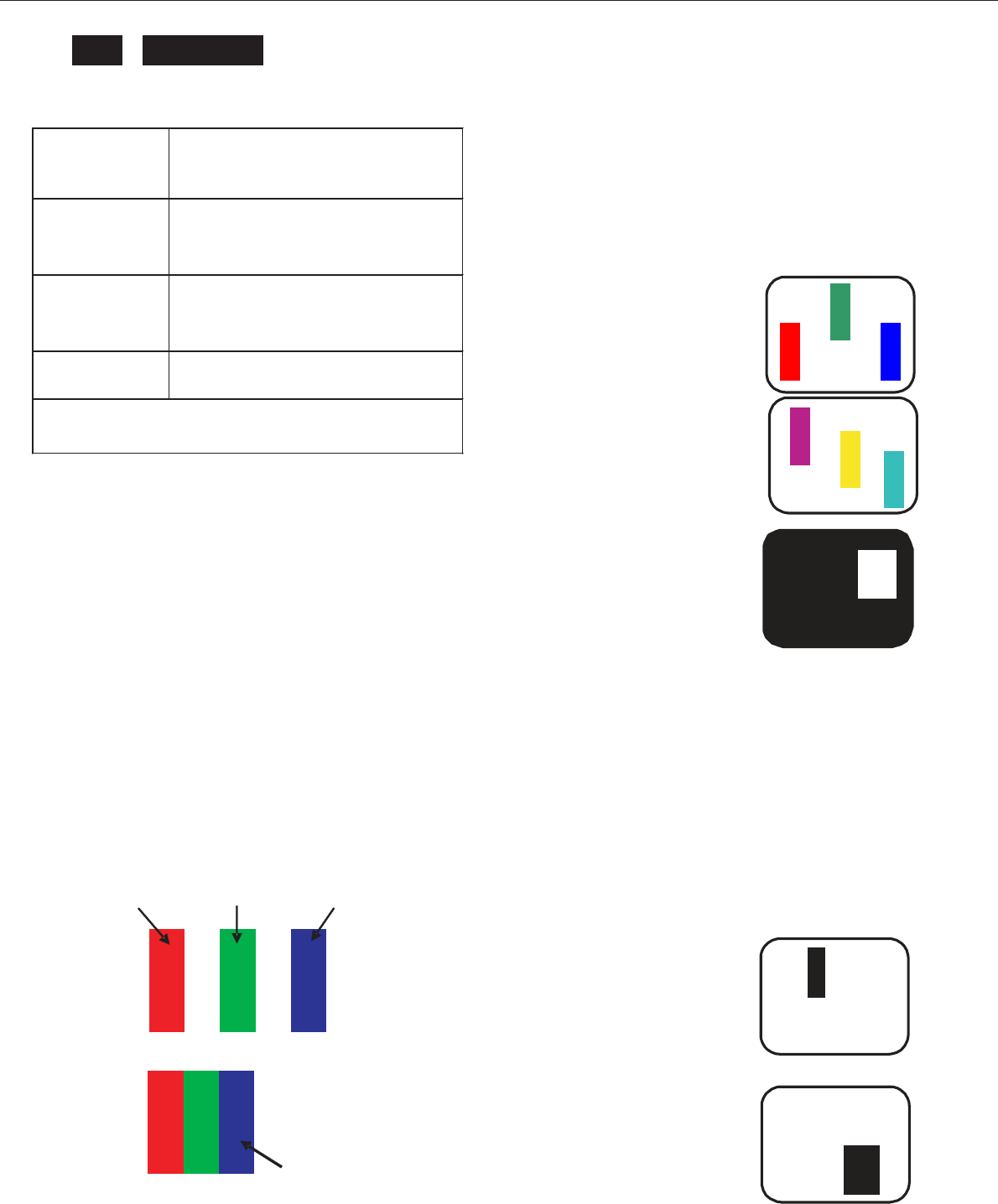
Bright Dot Defects
Bright dot defects appear as pixels or sub pixels that are
always lit or 'on'. That is, a bright dot is a sub-pixel that
stands out on the screen when the monitor displays a dark
pattern. There are the types of bright dot defects:
One lit red, green or blue sub pixel
For further assistance, refer to the Consumer Information Centers list
and contact your local Philips distributor.
Definition of Pixel Defects
This section explains the different types of pixel defects and
defines acceptable defect levels of each type. In order to
quality for repair or replacement under warranty, the number
of pixel defects on a TFT LCD panel must exceed these
acceptable levels.
1. Definition of Pixels and Sub-pixels
A pixel, or picture element, is composed of three sub pixels in
the primary colors of red, green and blue. Many pixels
together form an image. When all sub pixels of a pixel are lit,
the three colored sub pixels together appear as a single white
pixel. When all are dark, the three colored sub pixels together
appear as a single black pixel. Other combinations of lit and
dark sub pixels appear as single pixels of other colors.
subpixel
subpixel
subpixel
R
G
B
Two adjacent lit sub pixels:
Red + Blue = Purple
Red + Green = Yellow
Green + Blue = Cyan (Light Blue)
Three adjacent lit sub pixels
(one white pixel)
A red or blue bright dot must be more than 50
percent brighter than neighboring dots while a
green bright dot is 30 percent brighter than
neighboring dots.
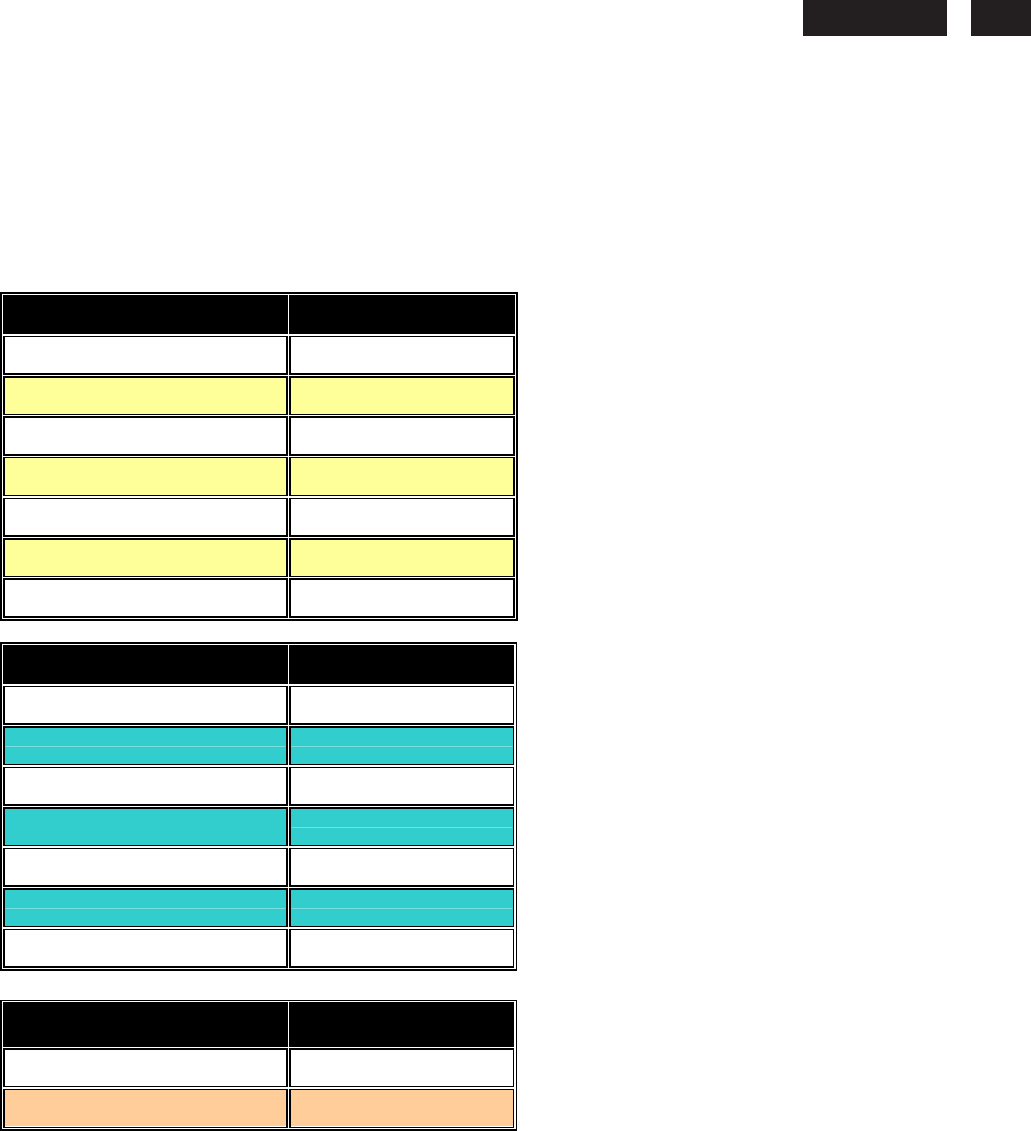
Black Dot Defects
Black dot defects appear as pixels or sub pixels that are
always dark or 'off'. That is, a dark dot is a sub-pixel that
stands out on the screen when the monitor displays a light
pattern. These are the types of black dot defects:
One dark sub pixel
R
G
B
Pixel
Two or three adjacent
dark sub pixels
2. Types of Pixel Defects
Pixel and sub pixel defects appear on the screen in different
ways. There are two categories of pixel defects and several
types of sub pixel defects within each category.
R
G
B
P
Y
C
230E
LCD
11
Definition of pixel defects
3. Proximity of Pixel Defects
Because pixel and sub pixels defects of the same type that
are near to one another may be more noticeable, Philips also
specifies tolerances for the proximity of pixel defects.
Perfect Panel - ISO 13406-2 Class II compliant do-defect-
free-display.
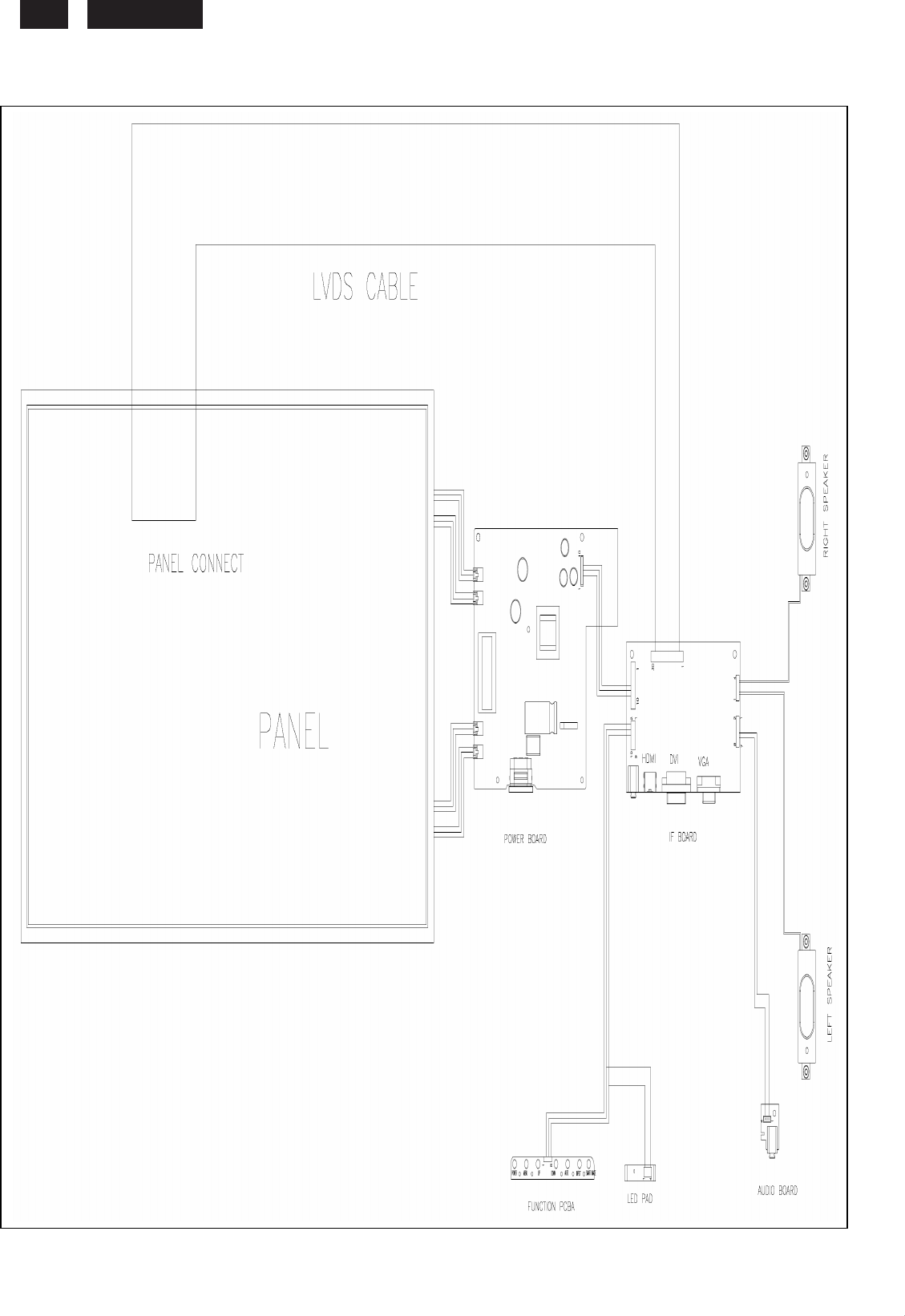
BRIGHT DOT DEFECTS ACCEPTABLE LEVEL
MODEL 230E
1 lit subpixel 3
2 adjacent lit subpixels 1
3 adjacent lit subpixels (one white pixel)
0
Distance between two bright dot defects*
15mm
Bright dot defects within 20 mm circle
0
Total bright dot defects of all types
3
BRIGHT DOT DEFECTS ACCEPTABLE LEVEL
MODEL 230E
1 dark subpixel 5
2 adjacent dark subpixels 2
3 adjacent dark subpixels (one white
pixel) 1
Distance between two dark dot defects*
15mm
Black dot defects within 20 mm circle
1
Total black dot defects of all types
5
TOTAL DOT DEFECTS
ACCEPTABLE LEVEL
MODEL 230E
Total bright or black dot defects of all
types 5
Note:
*
1
or
2
adjacent
sub
pixel
defects
=
1
dot
defect
230E1
LCD
12
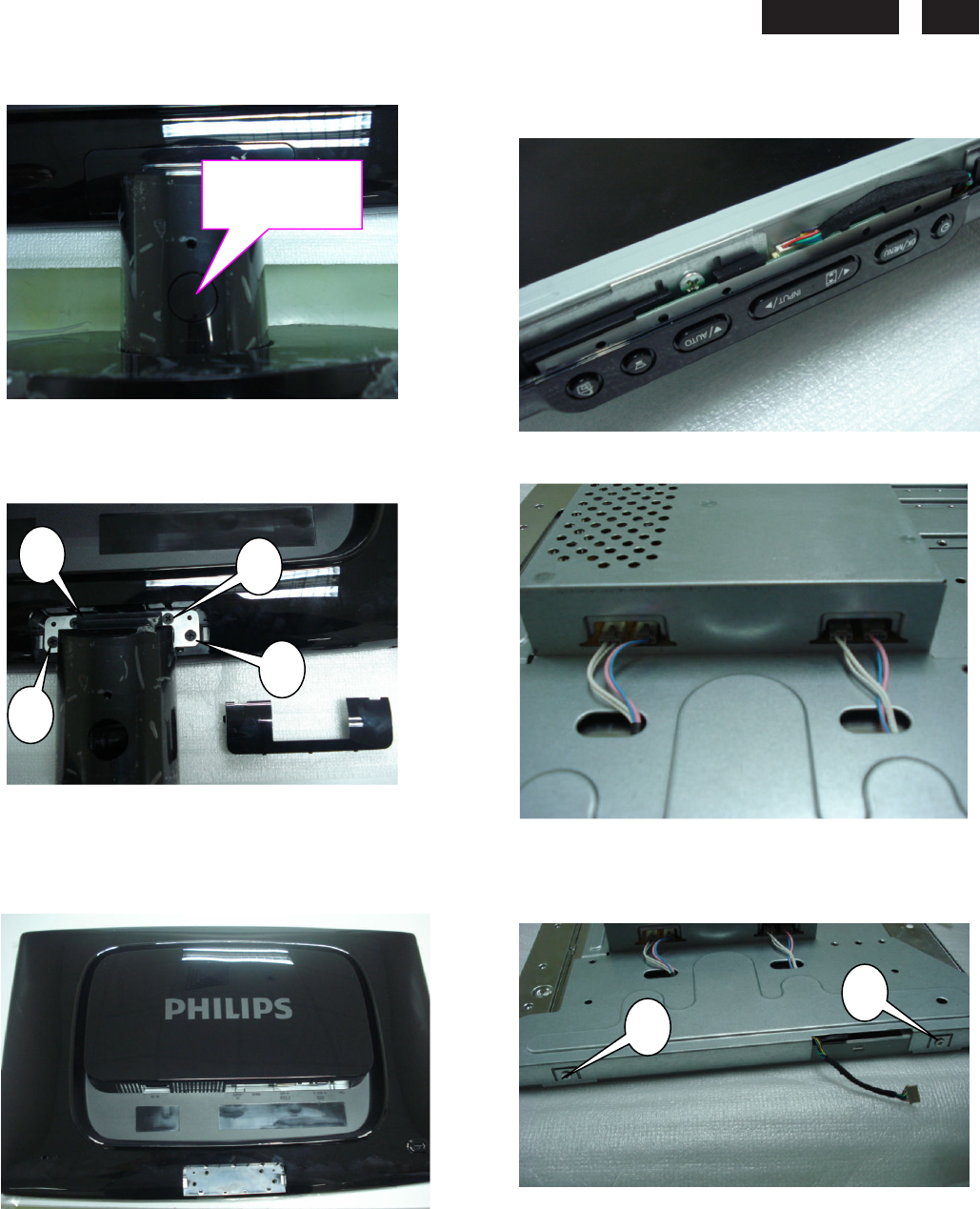
Wiring diagram
230E
LCD
13
Mechnical instructions
1. Press the release button, Then take
off the base.
2. Remove 4pcs screw from the join of
hinge & back cover, Than take off the
hinge
3.Take off the back cover.
4. Disconnect the cable of function key.
5.Disconnect the lamp cable form power
board.
6.Take off the 4 screws which fixed the
chassis and panel.. The other 2 screws
locate on the other side.
Release
button
1
2
3
4
1
2
230E1
LCD
14
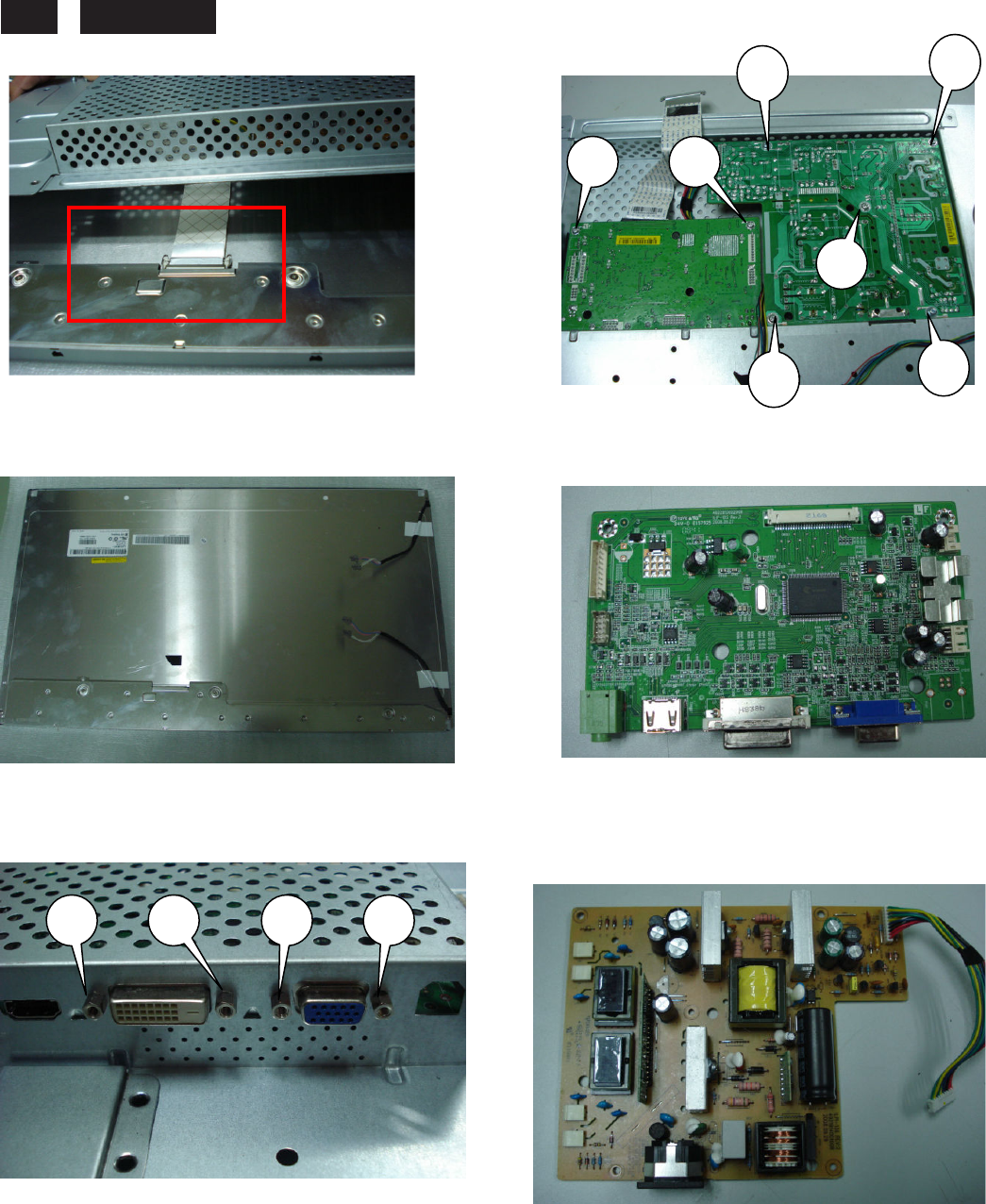
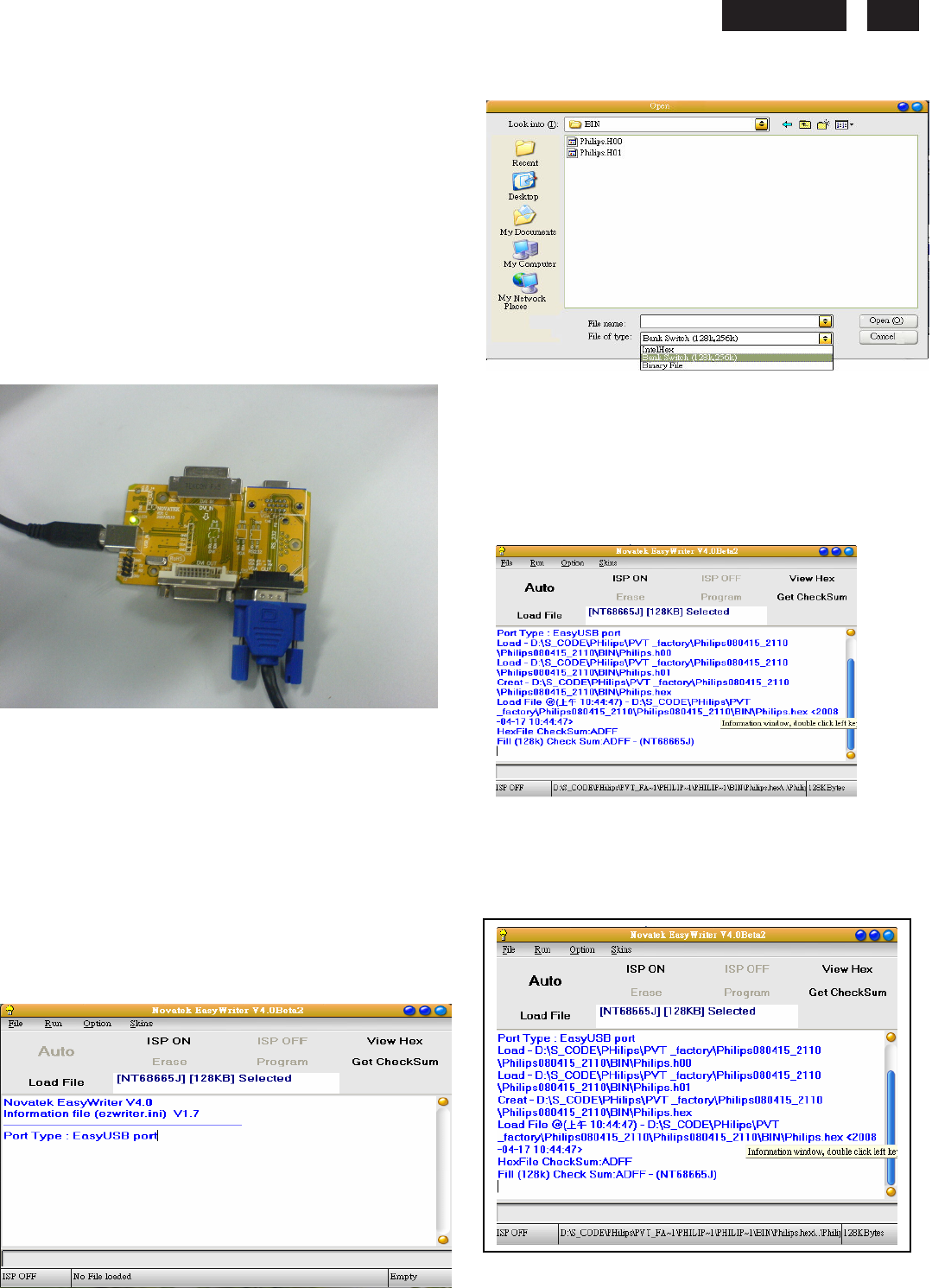
7.Tear off the tape then disconnect the
LVDS cable.
8. .Reserve the Monitor then take the
panel out off the chassis.
9.Remove 4PCS screws attach VGA connect
and DVI connect.
10.Release 7pcs screws form P/BD &
IF/BD
11. Interface board
12. Power board
2
3
7
6
1
2
3
4
1
5
4
230E
LCD
15
Electrical
instructions
F/W upload instruction
Configuration and procedure (ISP Tool)
"ISP Tool" software is provided by NOVATEK to upgrade
the firmware of Scaler IC. It is a windows-based program,
which cannot be run in MS-DOS.
System and equipment requirements:
1. An i486 (or above) personal computer or compatible.
2. Microsoft operation system Windows 98/2000/XP.
3. ISP software " EasyUSB Writer V4.0 ".
(Need to install, it can not be performed directly.Double
press“EasyUSB Writer V4.0.exe”to start installing,then
chose the path that you want to install ,then it will perform
automatically.)
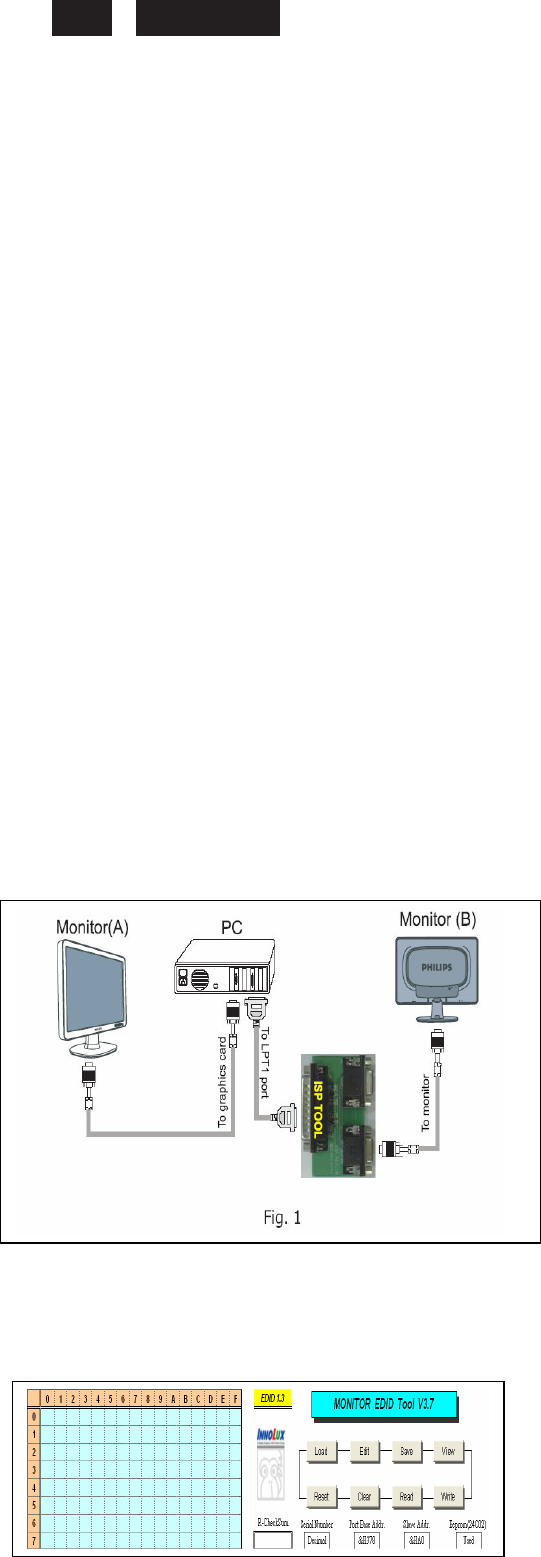
4. Firmware uploading tool, as shown in Fig1.
Fig1
* Connect the firmware uploading tool as Fig.1 shown.
* Before the servicer perform the ISP Tool program, the
Communicating connection must be well done.The USB
port connects to the computer. VGA port connects to the
Monitor.
* When the connection fixed, power on the monitor.
Setup and perform the ISP Tool program
1. Save the software in your PC, and create a shortcut
on the desktop.
2. Double click the ISP Tool. exe icon at the desktop then
appears window as shown in Fig. 2.
Fig.
2
3. Press the “Load File”button then select the path that
save hex file , then chose file type as “Bank
Switch(128K,256K)”as shown:
Fig3
4. Double press the “H00” file or “H01 file” ,then it acquires
the hex file automatically, and a message will be showed in
the dialog box to notice the operator. At this moment,
please verify the checksum of the hex file with the firmware
control table to make sure the suitable file will be used.
Mentioned firmware control table will be provided by
suppliers shown in Fig. 4.
Fig4
5. Press the “ISP ON” button ,then the dialog box will has the
information “ISP ON”,else has the information “ISP Fail”.If the
information is“ISP Fail ,check the connectivity ,then try it
again as shown in Fig. 5.
Fig. 5.
6. Press “Auto”button of the toolbox. Program will perform
the loading process automatically. When the loading process
completed, and the dialog box appeared the message of
Programing Success. If Program perform fail ,resume step 5.
230E1
LCD
16
DDC instructions
General
DDC Data Re-programming
In case the DDC data main EEPROM which
storage all factory settings were replaced due to a defect,
the
serial numbers have to be re-programmed
It is advised to re-soldered DDC IC and main EEPROM from
the old board onto the new board if circuit board have been
replaced, in this case the DDC data does not need to be re-
programmed.
* According to the design concept of this product,
DDC data of VGA/DVI/HDMI interface are saved in
EEPROM(IC 24C02)
Additional information
Additional
information
about
DDC
(Display
Data
Channel)
may
be
obtained
from
Video
Electronics
Standards
Association
(VESA).
Extended
Display
Identification
Data(EDID)
information
may
be
also
obtained
from
VESA.
System and equipment requirements
1. An i486 (or above) personal computer or compatible
2. Microsoft operation system Windows 98/2000/XP
3. Installation software of "EDID_Tool_3.7"( for VGA and
DVI EDID) or "EDID_Tool_4.2" ( for HDMI)
4. Executive program "EDID_Tool_3.7"( for VGA and DVI
EDID) or "EDID_Tool_4.2" ( for HDMI)
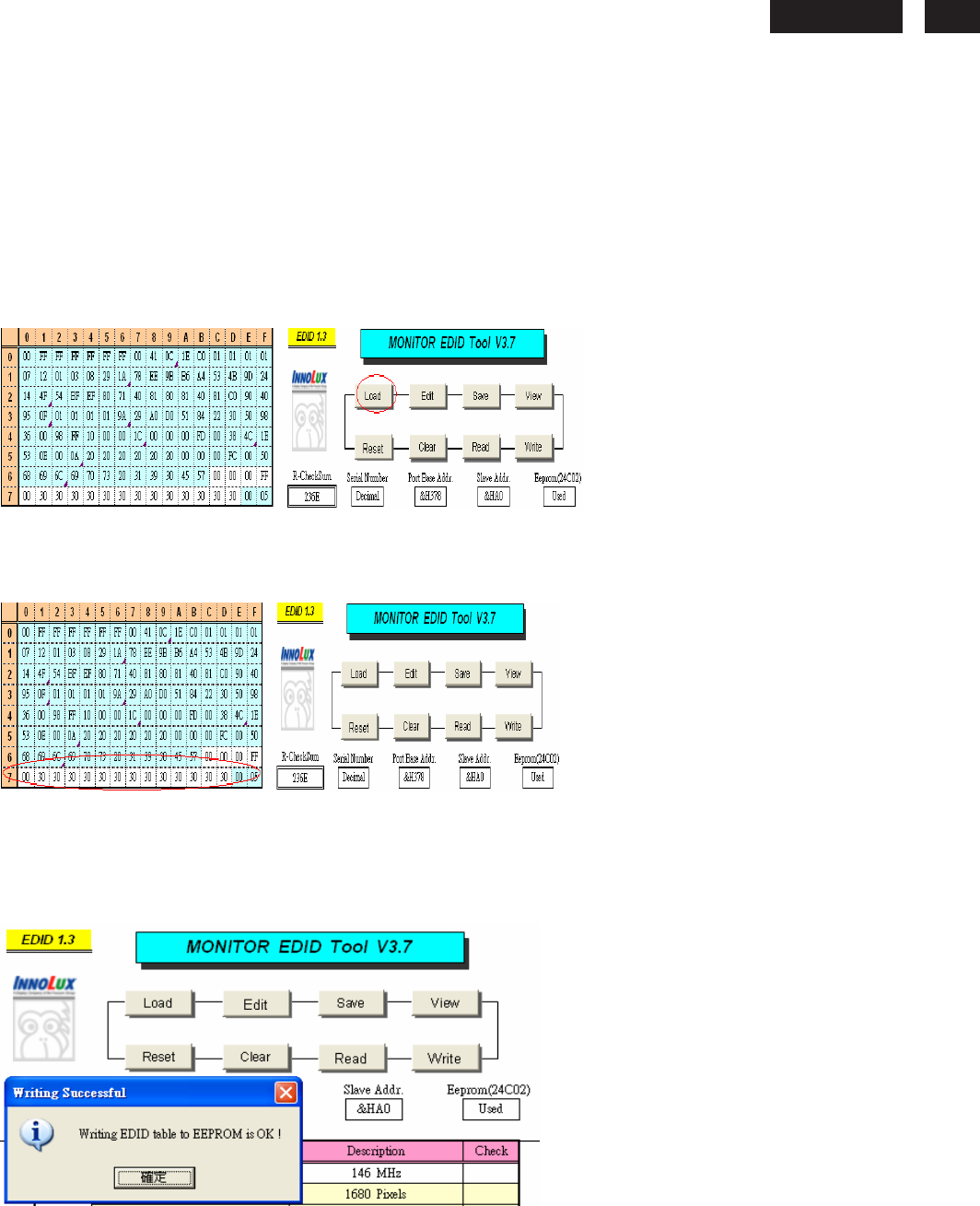
5. ISP tool kit, as shown in Fig1
Connect the EDID tool as follow in Fig1: The parallel port
connects to the computer. VGA or DVI or HDMI port
connects to the Monitor.
Including: a. Alignment fixture x 1
b. Printer cable (LPT type) x 1
c. D-sub to D-sub cable x 1 or DVI to DVI Cable x
1 or DVI to HDMI x 1
Fig 1
Install and setup EDID_Tool_3.7 program
Step 1: Double press the “EDID_Tool_3.7.exe”,as follow:
Step 2: The EDID Tool Install finished.
Fig 2
+
230E
LCD
17
Re-programming DDC IC
For VGA/DVI:
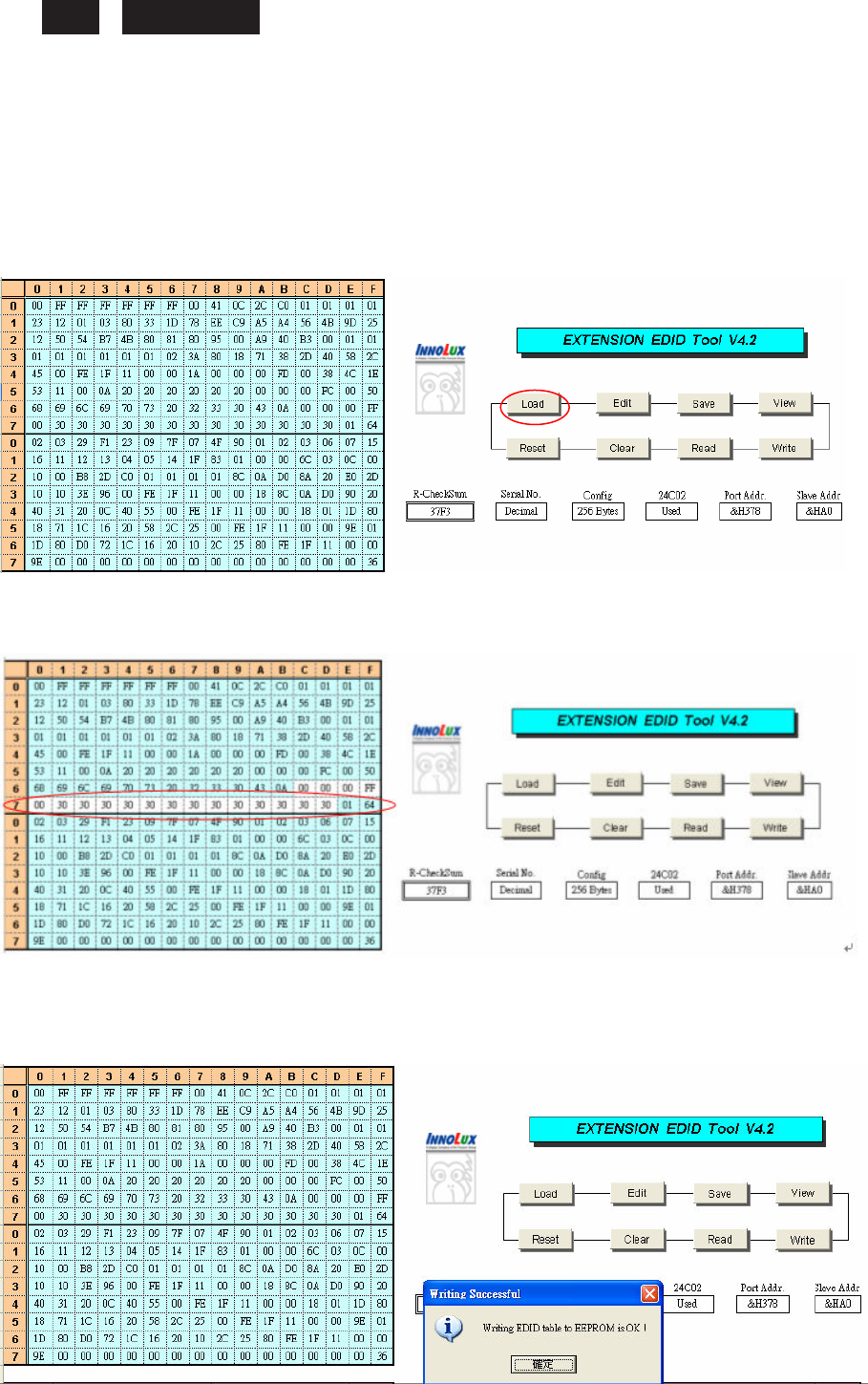
Step 1: After initialize the alignment fixture, connecting all cables. Be using VGA or DVI port from monitor.
Step 2: Connect the power code of monitor and power on it.
Step 3: Double check the EDID_Tool_3.7 icon to run the EDID_Tool_3.7.exe.
Step 4: Click the LOAD icon at the main menu to open the DDC files, load the files into EDID Tool, The
EDID table will be appeared automatically as shown in below photos.
Fig 4
Step 5: In the “Detailed Timings”, key in the monitor serial number.
Fig 5
Step 6: Press “Write” button in the tool main ,when the DDC data download into the monitor, the message will be appeared
automatically as shown in below photos.
Fig 6
230E1
LCD
18
For HDMI:
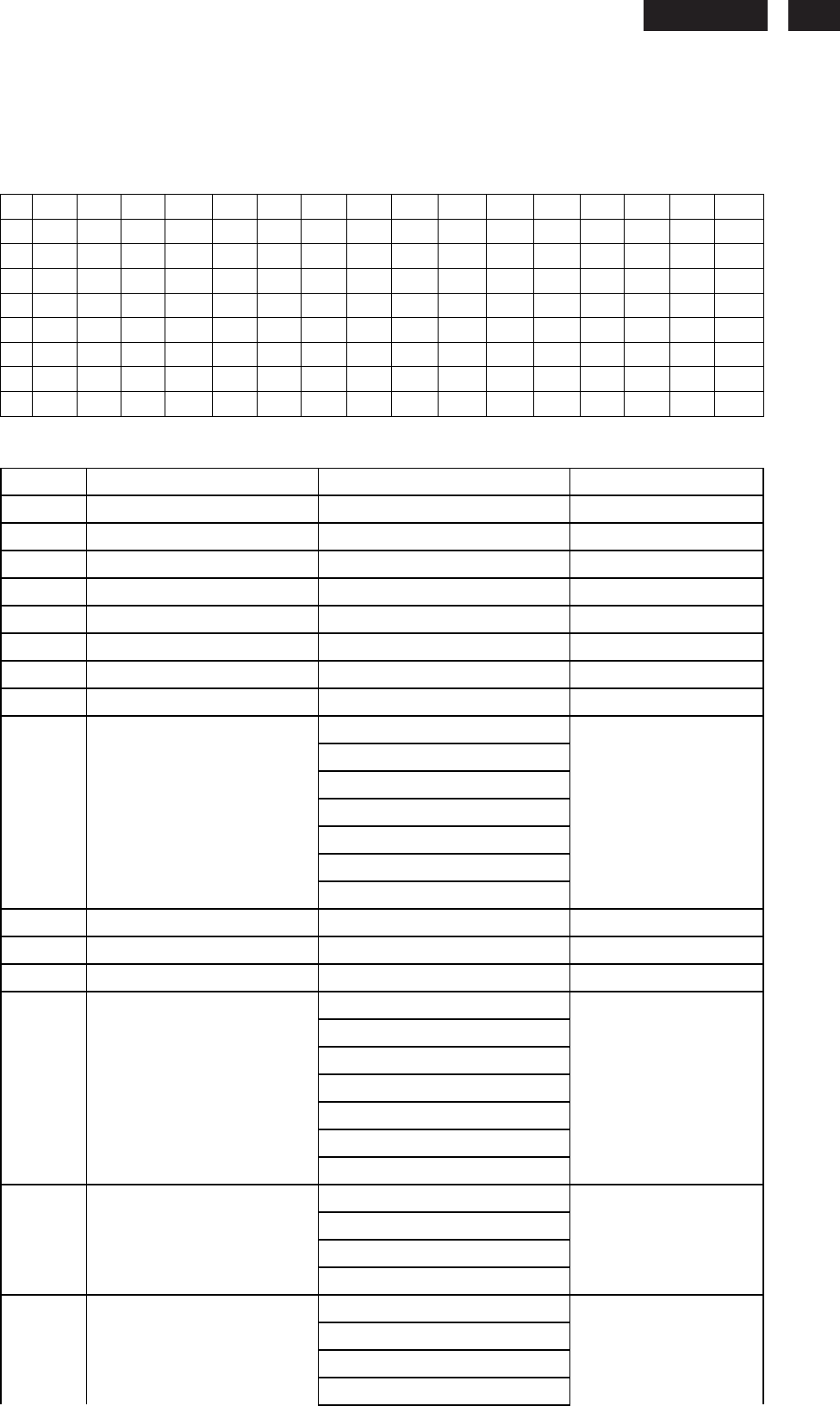
Step 1: After initialize the alignment fixture, connecting all cables. Be using HDMI port from monitor.
Step 2: Connect the power code of monitor and power on it.
Step 3: Double check the EDID_Tool_4.2 icon to run the EDID_Tool_4.2.exe.
Step 4: Click the LOAD icon at the main menu to open the DDC files, load the files into EDID Tool, The EDID table will be
appeared automatically as shown in below photos.
Fig 4
Step 5: In the “Detailed Timings”, key in the monitor serial number.
Fig 5
Step 6: Press “Write” button in the tool main ,when the DDC data download into the monitor, the message will be appeared
automatically as shown in below photos.
Fig 6
230E
LCD
19
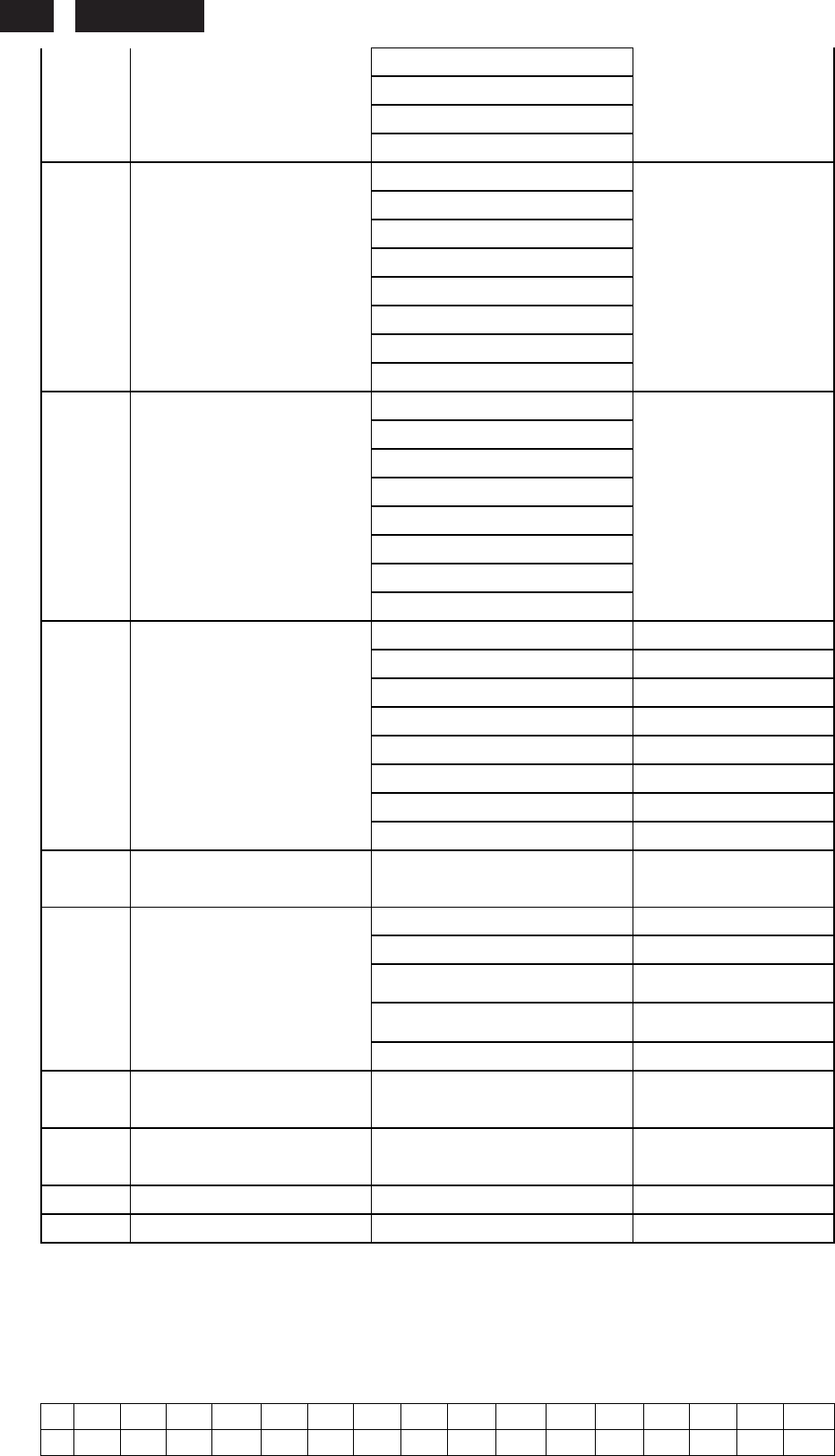
DDC Data
THE
DISPLAY
DATA
CHANNEL
(DDC_2B)
CONTENT
INCLUDING:
Analog mode:
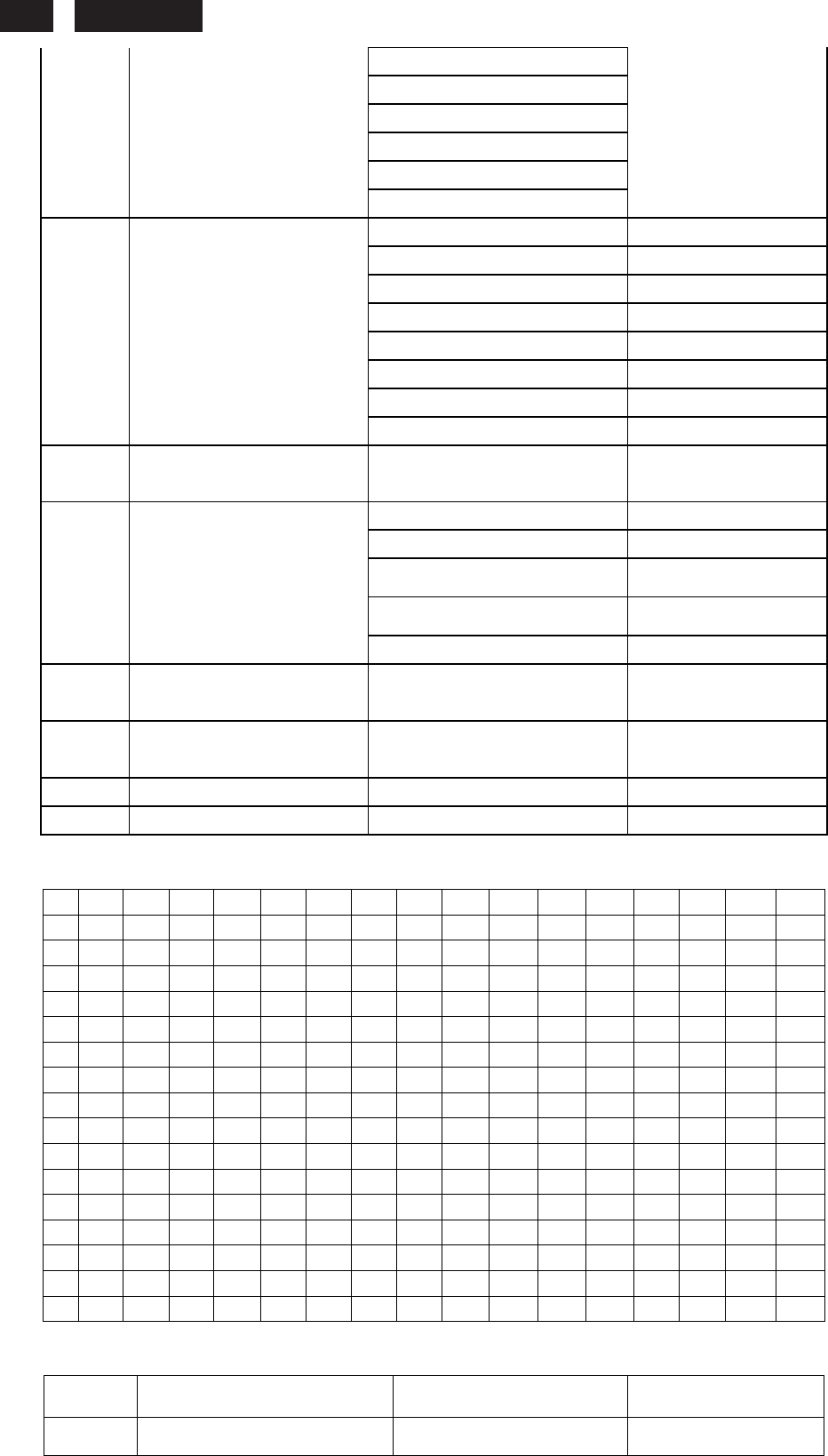
0 1 2 3 4 5 6 7 8 9 A B C D E F
0
00
FF
FF
FF
FF
FF
FF
00
41
0C
2B
C0
01
01
01
01
1
23
12
01
03
0E
33
1D
78
EE
C9
A5
A4
56
4B
9D
25
2
12
50
54
B7
4B
80
81
80
95
00 A9
40
B3
00
01
01
3
01
01
01
01
01
01
02
3A
80
18 71
38
2D
40
58
2C
4
45
00
FE
1F
11
00
00
1A
00
00 00
FD
00
38
4C
1E
5
53
14
00
0A
20
20
20
20
20
20 00
00
00
FC
00
50
6
68
69
6C
69
70
73
20
32
33
30 45
0A
00
00
00
FF
7
00
30
30
30
30
30
30
30
30
30 30
30
30
30
00
D3
Byte(Hex)
Field Name and Comments
Description EDID
00~07h Head Information 00,FF,FF,FF,FF,FF,FF,00
08~09h ID Manufacturer Name PHL 41,0C
0A~0Bh Product ID Code C02B 2B,C0
0C~0Fh Last 5 Digits of Serial Number Not used 01,01,01,01
10h Week of Manufacture 35 23
11h Year of Manufacture 2008 12
12h EDID Version Number 1 01
13h EDID Revision Number 3 03
Analog Signal Level
0.700, 0.300 (1.000Vp-p)
No Blank -to-black Setup
Separate Syncs. Supported
Composite Sync. Supported
Sync. on Green Supported
14h Video Input Definition
No Serration Required
0E
15h Max Horizontal Image Size 51 cm 33
16h Max Vertical Image Size 29 cm 1D
17h Display Gamma 2.2 78
Standby
Suspend
Active Off/Very Low Power
RGB Color Display
sRGB Color Space
Preferred Timing Mode
18h Power Management and
Supported Feature(s)
No Default GTF Supported
EE
R (x, y) 0.644, 0.336
G (x, y) 0.295, 0.614
B (x, y) 0.146, 0.072
19~22h Chroma Info
W (x, y) 0.313, 0.329
C9,A5,A4,56,4B,9D,25,12,
50,54
720 x 400 @ 70Hz
720 x 400 @ 88Hz (N/A)
640 x 480 @ 60Hz
23h Established Timing I
640 x 480 @ 67Hz
B7
230E1
LCD
20
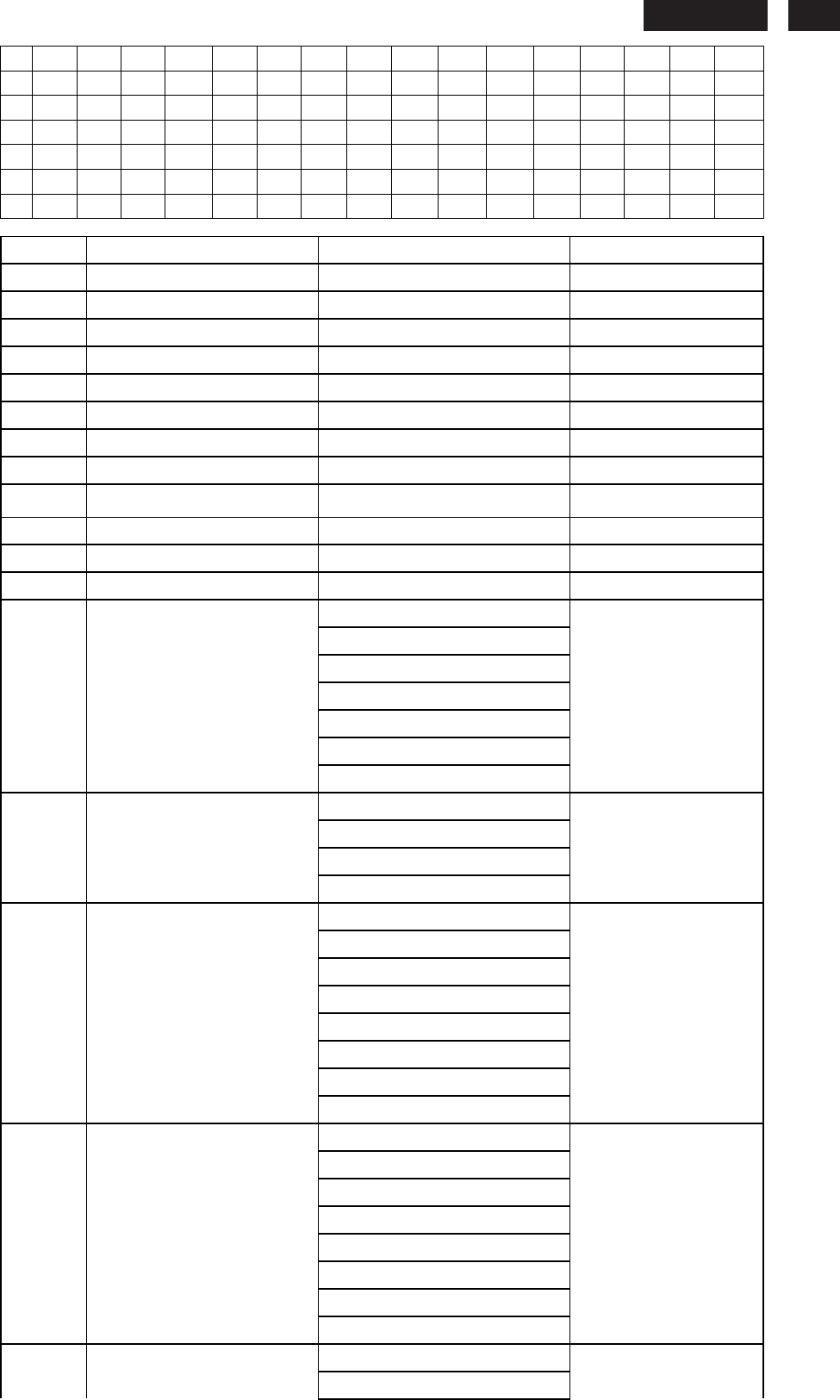
640 x 480 @ 72Hz(N/A)
640 x 480 @ 75Hz
800 x 600 @ 56Hz
800 x 600 @ 60Hz
800 x 600 @ 72Hz(N/A)
800 x 600 @ 75Hz
832 x 624 @ 75Hz(N/A)
1024 x 768 @ 87Hz(I) (N/A)
1024 x 768 @ 60Hz
1024 x 768 @ 70Hz(N/A)
1024 x 768 @ 75Hz
24h Established Timing II
1280 x 1024 @ 75Hz
4B
1152 x 870 @ 75Hz
800 x 600 @ 85Hz (N/A)
1024 x 768 @ 85Hz (N/A)
1280 x 1024 @ 60Hz (N/A)
1280 x 1024 @ 85Hz (N/A)
1600 x 1024 @ 60Hz (N/A)
1600 x 1200 @ 75Hz (N/A)
25h Manufacturers Reserved
Timings
1600 x 1200 @ 85Hz (N/A)
80
1280 x 1024 @ 60Hz 5: 4
81,80
1440 x 900@60Hz 16:10
95,00
1600 x 1200 @ 60Hz 4:3 A9,40
1680 x 1050 @ 60Hz 16:10 B3,00
No Application
01,01
No Application
01,01
No Application
01,01
26~35h Standard Timing Identification
No Application
01,01
36~47h Detailed Timing / Descriptor
Block 1
1920x1080 @ 60Hz
148.5 MHz
02,3A,80,18,71,38,2D,40,5
8,2C,45,00,
FE,1F,11,00,00,1A
Min. Vertical Frequency: 56 Hz 38
Max. Vertical Frequency: 76 Hz
4C
Min. Horizontal Frequency: 30
KHz 1E
Max. Horizontal Frequency: 83
KHz 53
48~59h Detailed Timing / Descriptor
Block 2
Max. Pixel Clock: 200 MHz 14
5A~6Bh Detailed Timing / Descriptor
Block 3 Monitor Name: Philips 230E
00,00,00,FC,00,50,68,69,6
C,69,70,73,20,32,33,30,45,
0A
6C~7Dh Detailed Timing / Descriptor
Block 4
Monitor Serial Number:
0000000000000
00,00,00,FF,00,30,30,30,3
0,30,30,30,30,30,30,30,30,
30
7Eh Extension flag 00
7Fh Checksum D3
For DVI:
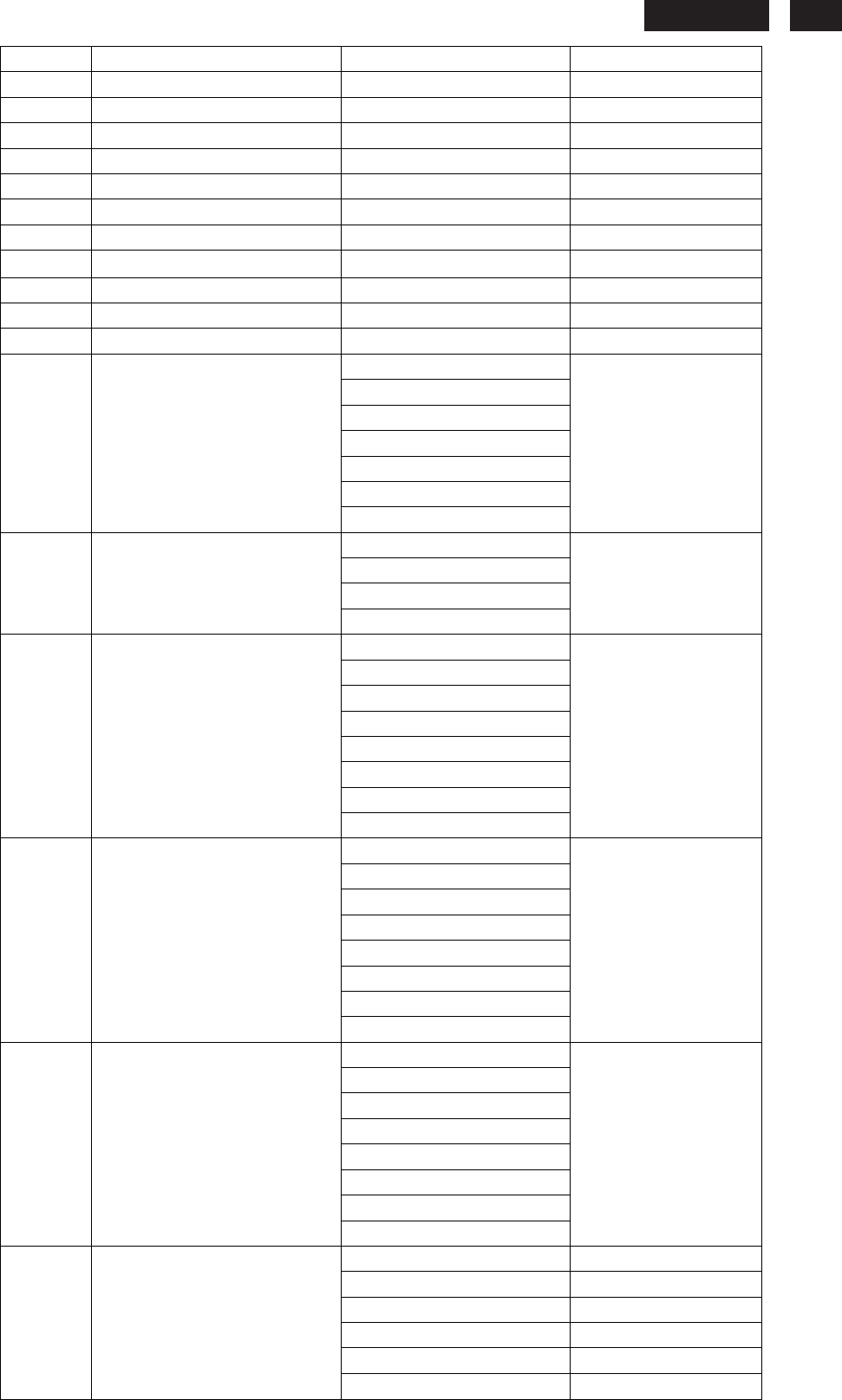
0 1 2 3 4 5 6 7 8 9 A B C D E F
0
00
FF
FF
FF
FF
FF
FF
00
41
0C
2B
C0
01
01
01
01
230E
LCD
21
1
23
12
01
03
80
33
1D
78
EE
C9
A5
A4
56
4B
9D
25
2
12
50
54
B7
4B
80
81
80
95
00 A9
40
B3
00
01
01
3
01
01
01
01
01
01
02
3A
80
18 71
38
2D
40
58
2C
4
45
00
FE
1F
11
00
00
1A
00
00 00
FD
00
38
4C
1E
5
53
11
00
0A
20
20
20
20
20
20 00
00
00
FC
00
50
6
68
69
6C
69
70
73
20
32
33
30 45
0A
00
00
00
FF
7
00
30
30
30
30
30
30
30
30
30 30
30
30
30
00
64
Byte(Hex)
Field Name and Comments
Description EDID
00~07h Head Information 00,FF,FF,FF,FF,FF,FF,00
08~09h ID Manufacturer Name PHL 41,0C
0A~0Bh Product ID Code C02B 2B,C0
0C~0Fh Last 5 Digits of Serial Number Not used 01,01,01,01
10h Week of Manufacture 35 23
11h Year of Manufacture 2008 12
12h EDID Version Number 1 01
13h EDID Revision Number 3 03
14h Video Input Definition Digital Signal Level 80
15h Max Horizontal Image Size 51 cm 33
16h Max Vertical Image Size 29 cm 1D
17h Display Gamma 2.2 78
Standby
Suspend
Active Off/Very Low Power
RGB Color Display
sRGB Color Space
Preferred Timing Mode
18h Power Management and
Supported Feature(s)
No Default GTF Supported
EE
R (x, y) 0.644, 0.336
G (x, y) 0.295, 0.614
B (x, y) 0.146, 0.072
19~22h Chroma Info
W (x, y) 0.313, 0.329
C9,A5,A4,56,4B,9D,25,12,
50,54
720 x 400 @ 70Hz
720 x 400 @ 88Hz (N/A)
640 x 480 @ 60Hz
640 x 480 @ 67Hz
640 x 480 @ 72Hz(N/A)
640 x 480 @ 75Hz
800 x 600 @ 56Hz
23h Established Timing I
800 x 600 @ 60Hz
B7
800 x 600 @ 72Hz(N/A)
800 x 600 @ 75Hz
832 x 624 @ 75Hz(N/A)
1024 x 768 @ 87Hz(I) (N/A)
1024 x 768 @ 60Hz
1024 x 768 @ 70Hz(N/A)
1024 x 768 @ 75Hz
24h Established Timing II
1280 x 1024 @ 75Hz
4B
1152 x 870 @ 75Hz
25h Manufacturers Reserved
Timings 800 x 600 @ 85Hz (N/A)
80
230E1
LCD
22
1024 x 768 @ 85Hz (N/A)
1280 x 1024 @ 60Hz (N/A)
1280 x 1024 @ 85Hz (N/A)
1600 x 1024 @ 60Hz (N/A)
1600 x 1200 @ 75Hz (N/A)
1600 x 1200 @ 85Hz (N/A)
1280 x 1024 @ 60Hz 5: 4
81,80
1440 x 900@60Hz 16:10
95,00
1600 x 1200 @ 60Hz 4:3 A9,40
1680 x 1050 @ 60Hz 16:10 B3,00
No Application
01,01
No Application
01,01
No Application
01,01
26~35h Standard Timing Identification
No Application
01,01
36~47h Detailed Timing / Descriptor
Block 1
1920x1080 @ 60Hz
148.5 MHz
02,3A,80,18,71,38,2D,40,5
8,2C,45,00,
FE,1F,11,00,00,1A
Min. Vertical Frequency: 56 Hz 38
Max. Vertical Frequency: 76 Hz
4C
Min. Horizontal Frequency: 30
KHz 1E
Max. Horizontal Frequency: 83
KHz 53
48~59h Detailed Timing / Descriptor
Block 2
Max. Pixel Clock: 170 MHz 11
5A~6Bh Detailed Timing / Descriptor
Block 3 Monitor Name: Philips 230E
00,00,00,FC,00,50,68,69,6
C,69,70,73,20,32,33,30,45,
0A
6C~7Dh Detailed Timing / Descriptor
Block 4
Monitor Serial Number:
0000000000000
00,00,00,FF,00,30,30,30,3
0,30,30,30,30,30,30,30,30,
30
7Eh Extension flag 00
7Fh Checksum 64
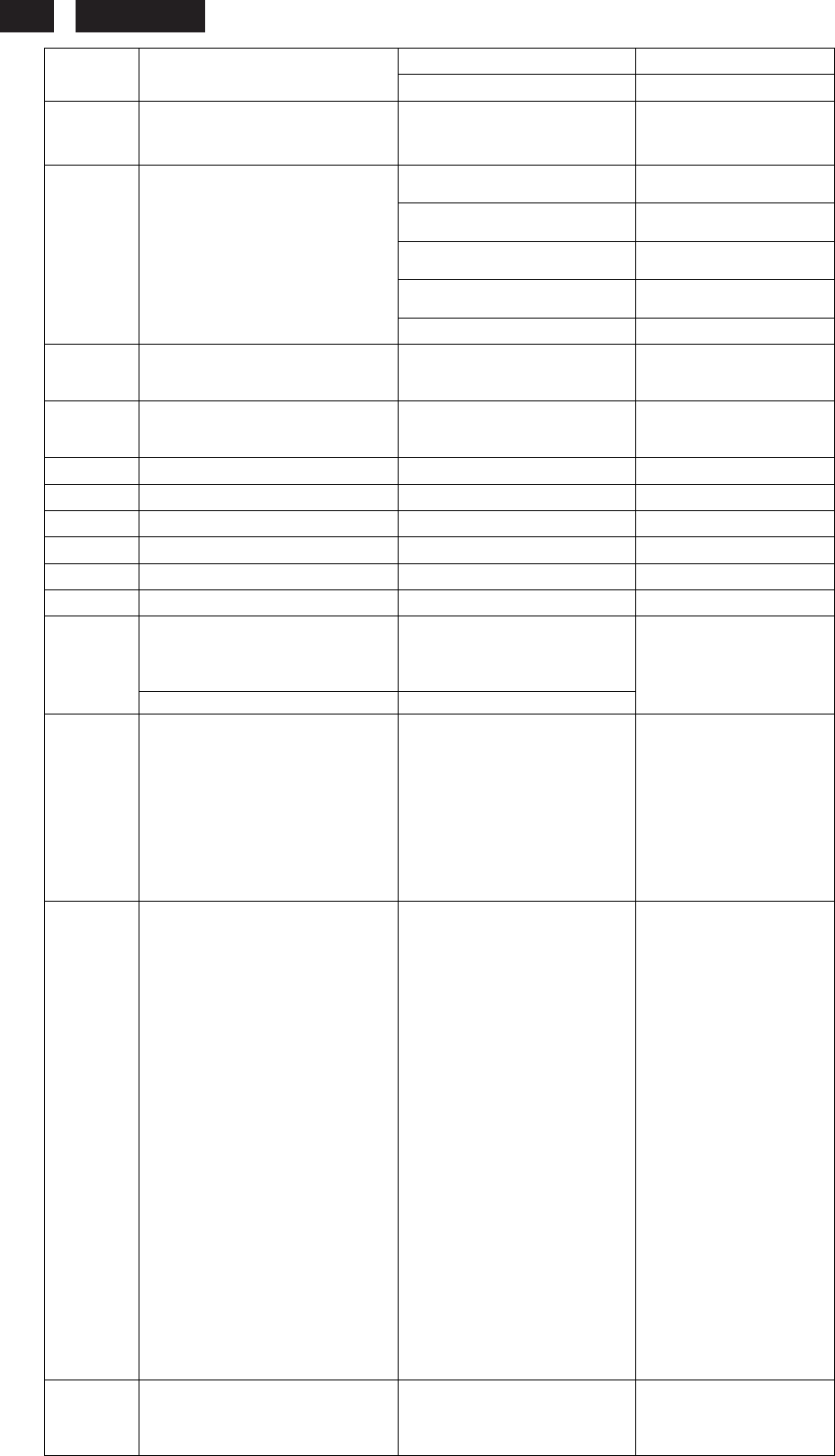
For HDMI :
0 1 2 3 4 5 6 7 8 9 A B C D E F
0
00
FF
FF
FF
FF
FF
FF
00
41
0C
2B
C0
01
01
01
01
1
23
12
01
03
80
33
1D
78
EE
C9
A5
A4
56
4B
9D
25
2
12
50
54
B7
4B
80
81
80
95
00
A9
40
B3
00
01
01
3
01
01
01
01
01
01
02
3A
80
18
71
38
2D
40
58
2C
4
45
00
FE
1F
11
00
00
1A
00
00
00
FD
00
38
4C
1E
5
53
11
00
0A
20
20
20
20
20
20
00
00
00
FC
00
50
6
68
69
6C
69
70
73
20
32
33
30
45
0A
00
00
00
FF
7
00
30
30
30
30
30
30
30
30
30
30
30
30
30
01
63
8
02
03
29
F1
23
09
7F
07
4F
90
01
02
03
06
07
15
9
16
11
12
13
04
05
14
1F
83
01
00
00
6C
03
0C
00
A
10
00
B8
2D
C0
01
01
01
01
8C
0A
D0
8A
20
E0
2D
B
10
10
3E
96
00
FE
1F
11
00
00
18
8C
0A
D0
90
20
C
40
31
20
0C
40
55
00
FE
1F
11
00
00
18
01
1D
80
D
18
71
1C
16
20
58
2C
25
00
FE
1F
11
00
00
9E
01
E
1D
80
D0
72
1C
16
20
10
2C
25
80
FE
1F
11
00
00
F
9E
00
00
00
00
00
00
00
00
00
00
00
00
00
00
36
Byte(He
x) Field Name and Comments
Description EDID
00~07h Head Information
00,FF,FF,FF,FF,FF,FF,0
230E
LCD
23
0
08~09h ID Manufacturer Name PHL 41,0C
0A~0Bh Product ID Code C02B 2B,C0
0C~0Fh Last 5 Digits of Serial Number Not used 01,01,01,01
10h Week of Manufacture 35 23
11h Year of Manufacture 2008 12
12h EDID Version Number 1 01
13h EDID Revision Number 3 03
14h Video Input Definition Digital Signal Level 80
15h Max Horizontal Image Size 51 cm 33
16h Max Vertical Image Size 29 cm 1D
17h Display Gamma 2.2 78
Standby
Suspend
Active Off/Very Low Power
RGB Color Display
sRGB Color Space
Preferred Timing Mode
18h Power Management and
Supported Feature(s)
No Default GTF Supported
EE
R (x, y) 0.644, 0.336
G (x, y) 0.295, 0.614
B (x, y) 0.146, 0.072
19~22h Chroma Info
W (x, y) 0.313, 0.329
C9,A5,A4,56,4B,9D,25,1
2,50,54
720 x 400 @ 70Hz
720 x 400 @ 88Hz (N/A)
640 x 480 @ 60Hz
640 x 480 @ 67Hz
640 x 480 @ 72Hz(N/A)
640 x 480 @ 75Hz
800 x 600 @ 56Hz
23h Established Timing I
800 x 600 @ 60Hz
B7
800 x 600 @ 72Hz(N/A)
800 x 600 @ 75Hz
832 x 624 @ 75Hz(N/A)
1024 x 768 @ 87Hz(I) (N/A)
1024 x 768 @ 60Hz
1024 x 768 @ 70Hz(N/A)
1024 x 768 @ 75Hz
24h Established Timing II
1280 x 1024 @ 75Hz
4B
1152 x 870 @ 75Hz
800 x 600 @ 85Hz (N/A)
1024 x 768 @ 85Hz (N/A)
1280 x 1024 @ 60Hz (N/A)
1280 x 1024 @ 85Hz (N/A)
1600 x 1024 @ 60Hz (N/A)
1600 x 1200 @ 75Hz (N/A)
25h Manufacturers Reserved
Timings
1600 x 1200 @ 85Hz (N/A)
80
1280 x 1024 @ 60Hz 5: 4
81,80
1440 x 900@60Hz 16:10
95,00
1600 x 1200 @ 60Hz 4:3
A9,40
1680 x 1050 @ 60Hz 16:10
B3,00
No Application
01,01
26~35h Standard Timing Identification
No Application
01,01
230E1
LCD
24
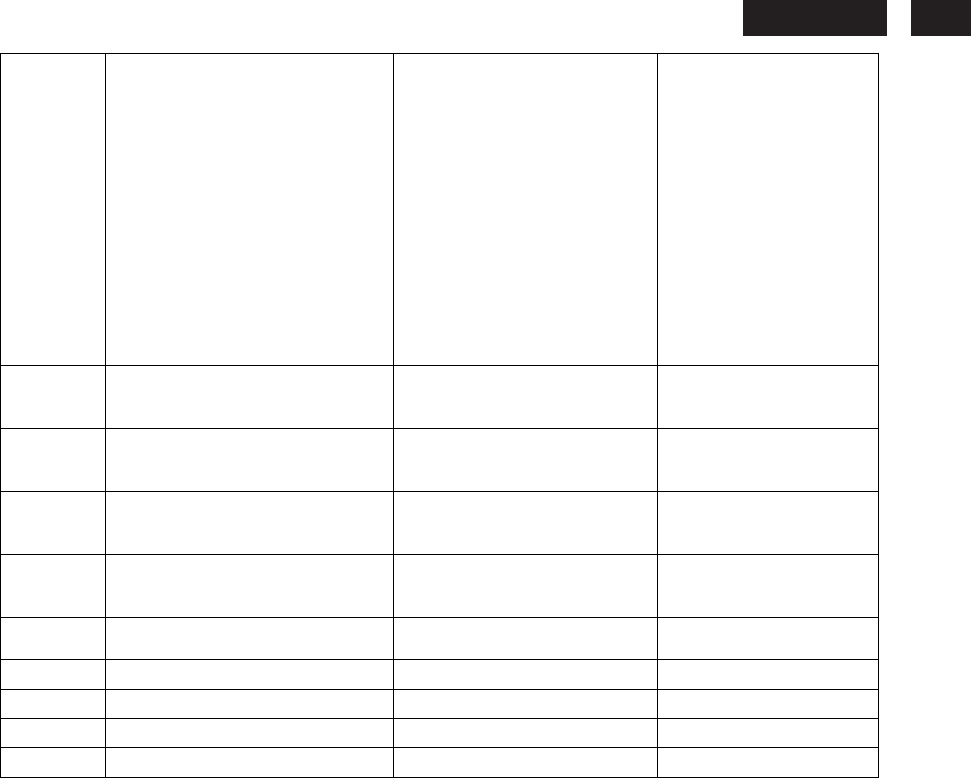
No Application
01,01
No Application
01,01
36~47h Detailed Timing / Descriptor
Block 1
1920x1080 @ 60Hz
148.5 MHz
02,3A,80,18,71,38,2D,40,58,
2C,45,00,FE,1F,11,
00,00,1A
Min. Vertical Frequency: 56
Hz 38
Max. Vertical Frequency:
76 Hz 4C
Min. Horizontal Frequency:
30 KHz 1E
Max. Horizontal Frequency:
83 KHz 53
48~59h Detailed Timing / Descriptor
Block 2
Max. Pixel Clock: 170 MHz
11
5A~6Bh Detailed Timing / Descriptor
Block 3 Monitor Name: Philips 230E
00,00,00,FC,00,50,68,69
,6C,69,70,73,20,32,33,3
0,45,0A
6C~7Dh Detailed Timing / Descriptor
Block 4
Monitor Serial Number:
0000000000000
00,00,00,FF,00,30,30,30
,30,30,30,30,30,30,30,3
0,30,30
7Eh Extension flag 01
7Fh Checksum 63
80 Tag 2 02
81 CEA EDID Timing Extension Ver. 3 03
82 Detail Timing Blocks Start at Byte 128 + 41 29
DTV Monitor support Underscan support;
Basic Audio support;
Support YCbCr4:4:4;
Support YCbCr4:2:2;
83
Native (Preferred) Mode Number 1
F1
84--87 Audio data block
Audio tag code--1;
Bytes length of audio data
block--3;
Linear PCM;
Two channels;
Sampling Rate
32KHz/44KHz/48KHz/88KHz/
96KHz/176KHz/192KHz
Audio Bit Rate 16 Bit/20 Bit/24
Bit;
23,09,7F,07
88--97 Video Data Block (Bytes length of video data
block--15;)
1920X1080p 59.94/60Hz 16:9
Native
640x480p 59.94/60Hz 4:3;
720x480p 59.94/60Hz 4:3;
720x480p 59.94/60Hz 16:9;
720(1440)x480i 59.94/60Hz
4:3;
720(1440)x480i 59.94/60Hz
16:9;
720(1440)x576i 50Hz 4:3;
720(1440)x576i 50Hz 16:9;
720x576p 50Hz 4:3;
720x576p 50Hz 16:9;
1280x720p 50Hz 16:9;
1280x720p 59.94/60Hz 16:9;
1920x1080i 59.94/60Hz 16:9;
1920x1080I 50Hz 16:9;
1920x1080p 50Hz 16:9;
720x576p 50Hz 4:3
720(1440)x576i 50Hz 16:9
640x480p 59.94/60Hz 4:3
4F,90,01,02,03,06,07,15
,16,11,12,13,04,05,14,1
F
98—9B Speaker Allocation Data Block; Tag code--4;
Bytes length of video data
block--3;
Right and Left placement;
83,01,00,00
230E
LCD
25
9C—A8 Vendor Specific Data Block Speaker tag code--3;
Bytes length of video data
block--6;
24 bit IEEE Registration
Identifier--0x000C03;
Supports_AI DC_36bit
DC_30bit DC_Y444
Max_TMDS_clock=225(Max
rate)/5
Latency_Fields_Present,I_Lat
ency_Fields_Present
Video_Latency
Audeo_Latency
Interlaced_Video_Latency
Interlaced_Audeo_Latency
6C,03,0C,00,10,00,B8,2
D,C0,01,01,01,01
A9—BA Detailed Timing / Descriptor
Block 1
720x480p/59.94Hz, 16:9 8C,0A,D0,8A,20,E0,2D,
10,10,3E,96,00, FE, 1F,
11,00,00,18
BB—CC Detailed Timing / Descriptor
Block 2
720x576p/50Hz, 4:3 8C,0A,D0,90,20,40,31,2
0,0C,40,55,00, FE, 1F,
11,00,00,18
CD—DE Detailed Timing / Descriptor
Block 3
1920x1080i/60Hz, 16:9 01,1D,80,18,71,1C,16,2
0,58,2C,25,00, FE, 1F,
11,00,00,9E
DF—F0 Detailed Timing / Descriptor
Block 4
1920x1080i/50Hz, 16:9 01,1D,80,D0,72,1C,16,2
0,10,2C,25,80, FE, 1F,
11,00,00,9E
F1—FC Not use 00,00,00,00,00,00,00,00
,00,00,00,00
FD Beginning of padding 00
FE End of padding 00
FF Checksum 36
230E1
LCD
26
Safety Instruction,
Satety instruction,warnings and notes
index
of
this
chapter:
1
Safety
Instructions
2
Warnings
3
Notes
1
Safety
Instructions
Safety
regulations
require
that
during
a
repair:
a.
Connect
the
set
to
the
AC
Power
via
an
isolation
transformer
(>
800
VA).
b.
Replace
safety
components,
indicated
by
the
symbol
,
only
by
components
identical
to
the
original
ones.
Any
other component
substitution
(other
than
original
type)
may increase
risk
of
fire
or
electrical
shock
hazard.
Safety
regulations
require
that
after
a
repair,
the
set
must
be returned
in
its
original
condition.
Pay
in
particular
attention
to the
following
points:
a.
Route
the
wire
trees
correctly
and
fix
them
with
the
mounted cable
clamps.
b.
Check
the
insulation
of
the
AC
Power
lead
for
external damage.
c.
Check
the
strain
relief
of
the
AC
Power
cord
for
proper function.
d.
Check
the
electrical
DC
resistance
between
the
AC
Power
plug
and
the
secondary
side
(only
for
sets
which
have
a
AC Power
isolated
power
supply):
*
Unplug
the
AC
Power
cord
and
connect
a
wire
between
the two
pins
of
the
AC
Power
plug.
*
Set
the
AC
Power
switch
to
the
"on"
position
(keep
the
AC Power
cord
unplugged!).
*
Measure
the
resistance
value
between
the
pins
of
the
AC
Power
plug
and
the
metal
shielding
of
the
tuner
or
the
aerial connection
on
the
set.
The
reading
should
be
between
4.5
Mohm
and
12
Mohm.
*
Switch
"off"
the
set,
and
remove
the
wire
between
the
two
Pins
of
the
AC
Power
plug.
e.
Check
the
cabinet
for
defects,
to
avoid
touching
of
any
inner parts
by
the
customer.
2
Warnings
a.
All
ICs
and
many
other
semiconductors
are
susceptible
to
electrostatic
discharges
(ESD
).
Careless
handling
during repair
can
reduce
life
drastically.
Make
sure
that,
during
repair,
you
are
connected
with
the
same
potential
as
the
mass
of
the
set
by
a
wristband
with
resistance.
Keep
components
and
tools
also
at
this
same
potential.
b.
Be
careful
during
measurements
in
the
high
voltage
section.
c.
Never
replace
modules
or
other
components
while
the
unit
is
switched
"on".
d.
When
you
align
the
set,
use
plastic
rather
than
metal
tools.
This
will
prevent
any
short
circuits
and
the
danger
of
a
circuit becoming
unstable.
3
Notes
3.1
General
Measure
the
voltages
and
waveforms
with
regard
to
the
chassis
ground
or
hot
ground,
depending
on
the
tested
area
of circuitry.
The
voltages
and
waveforms
shown
in
the
diagrams are
indicative.
The
semiconductors
indicated
in
the
circuit
diagram
and
in
the
parts
lists,
are
interchangeable
per
position
with
the
semiconductors
in
the
unit,
irrespective
of
the
type
indication
on
Warnings and Notes
3.2
Schematic
Notes
All
resistor
values
are
in
ohms
and
the
value
multiplier
is
often
used
to
indicate
the
decimal
point
location
(e.g.
2K2
indicates
2.2
Kohm).
Resistor
values
with
no
multiplier
may
be
indicated
with
either
an
"E"
or
an
"R"
(e.g.
220E
or
220R
indicates
220
ohm).
All
capacitor
values
are
given
in
micro-farads
(
X10
-6
),
nano-farads
(n=
X10
-9
),
or
pico-farads
(p=
X10
-12
).
Capacitor
values
may
also
use
the
value
multiplier
as
the
decimal
point
indication
(e.g.
2p2
indicates
2.2
pF).
An
"asterisk"
(*)
indicates
component
usage
varies.
Refer
to
the
diversity
tables
for
the
correct
values.
The
correct
component
values
are
listed
in
the
Electrical
Replacement
Parts
List.
Therefore,
always
check
this
list
when
there
is
any
doubt.
3.3
Lead
Free
Solder
Philips
CE
is
going
to
produce
lead-free
sets
(PBF)
from
1.1.2005
onwards.
Lead-free
sets
will
be
indicated
by
the
PHILIPS-lead-free
logo
on
the
Printed
Wiring
Boards
(PWB):
This
sign
normally
has
a
diameter
of
6
mm,
but
if
there
is
less
space
on
a
board
also
3
mm
is
possible.
In
case
of
doubt
wether
the
board
is
lead-free
or
not
(or
with
mixed
technologies),
you
can
use
the
following
method:
*
Always
use
the
highest
temperature
to
solder,
when
using
SAC305
(see
also
instructions
below).
*
De-solder
thoroughly
(clean
solder
joints
to
avoid
mix
of
two
alloys).
Caution: For
BGA-ICs,
you
must
use
the
correct
temperature
profile,
which
is
coupled
to
the
12NC.
For
an
overview
of
these
profiles,
visit
the
website
http://www.atyourservice.ce.philips.com/
You
will
find
this
and
more
technical
information
within
the
"Magazine",
chapter
"Workshop
information".
For
additional
questions
please
contact
your
local
repair
desk.
Due
to
lead-free
technology
some
rules
have
to
be
respected
by
the
workshop
during
a
repair:
Use
only
lead-free
soldering
tin
Philips
SAC305
with
order
code
0622
149
00106.
If
lead-free
solder
paste
is
required,
please
contact
the
manufacturer
of
your
soldering
equipment.
In
general,
use
of
solder
paste
within
workshops
should
be
avoided
because
paste
is
not
easy
to
store
and
to
handle.
Use
only
adequate
solder
tools
applicable
for
lead-free
soldering
tin.
The
solder
tool
must
be
able
-
To
reach
at
least
a
solder-tip
temperature
of
400
degree
C.
-
To
stabilise
the
adjusted
temperature
at
the
solder-tip.
-
To
exchange
solder-tips
for
different
applications.
230E
LCD
27
22
0EW9 LCD
27
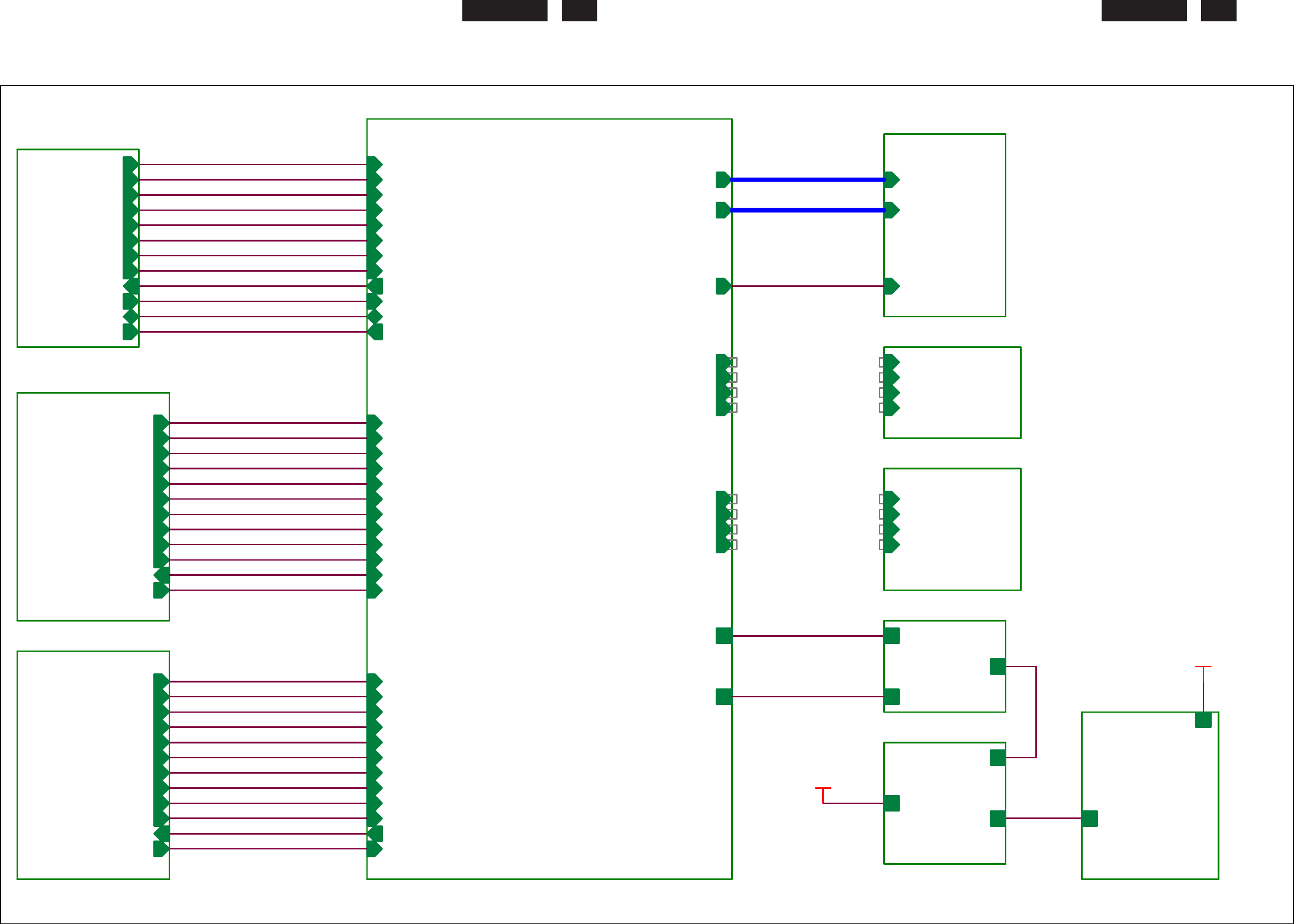
Block Diagram
5.PANEL INTERFACE
LVDS_O[0..9]
LVDS_E[0..9]
onPANEL
2.DVI INPUT
DVT_RX2+
DVT_RX2-
DVT_RX1+
DVT_RX1-
DVT_RX0+
DVI_SCL
DVT_RX0-
DVI_SDA
DVI_HPD
DVI_DET
DVT_RXC+
DVT_RXC-
AC 220V input
7.POWER INTERFACE
CCFL_ON/OFF
BRIGHTNESS
PSC
PID
4.SCALER
RIN
GIN
BIN
GNDR
GNDG
GNDB
H_SYNC
V_SYNC
LVDS_E[0..9]
LVDS_O[0..9]
WP_VGA_EDID
VGA_DET
DDC_DAT
DDC_CLK
DVT_RX2+
DVT_RX2-
DVT_RX1+
DVT_RX1-
DVT_RX0+
DVT_RX0-
DVI_SCL
DVI_SDA
DVI_HPD
DVI_DET
DVT_RXC+
DVT_RXC-
HDMI_RX2+
HDMI_RX2-
HDMI_RX1+
HDMI_RX1-
HDMI_RX0-
HDMI_RX0+
HDMI_RXC+
HDMI_RXC-
HDMI_SCL
HDMI_HPD
HDMI_SDA
HDMI_DET
onPANEL
KEY1
ADC_KEY1
ADC_KEY2
LED_A
CCFL_ON/OFF
BRIGHTNESS
PID
PSC
VCC+3.3V
VCC+1.2V
LVDS_O[0..9]
1.VGA INPUT
RIN
GIN
BIN
V_SYNC
GNDR
GNDG
GNDB
H_SYNC
DDC_CLK
DDC_DAT
WP
VGA_DET
6.KEY&LED
KEY1
ADC_KEY1
ADC_KEY2
LED_A
3.HDMI INPUT
HDMI_RX2+
HDMI_RX2-
HDMI_RX1+
HDMI_RX1-
HDMI_RX0+
HDMI_SCL
HDMI_RX0-
HDMI_SDA
HDMI_HPD
HDMI_DET
HDMI_RXC+
HDMI_RXC-
LVDS_E[0..9]
8. DC TO DC
VCC+5V
VCC+3.3V
VCC+1.2V
POWER TO CCFL
9.POWER BD
VCC16V
VCC5V
AC
10.INVERTER
VCC16V
POWER TO CCFL
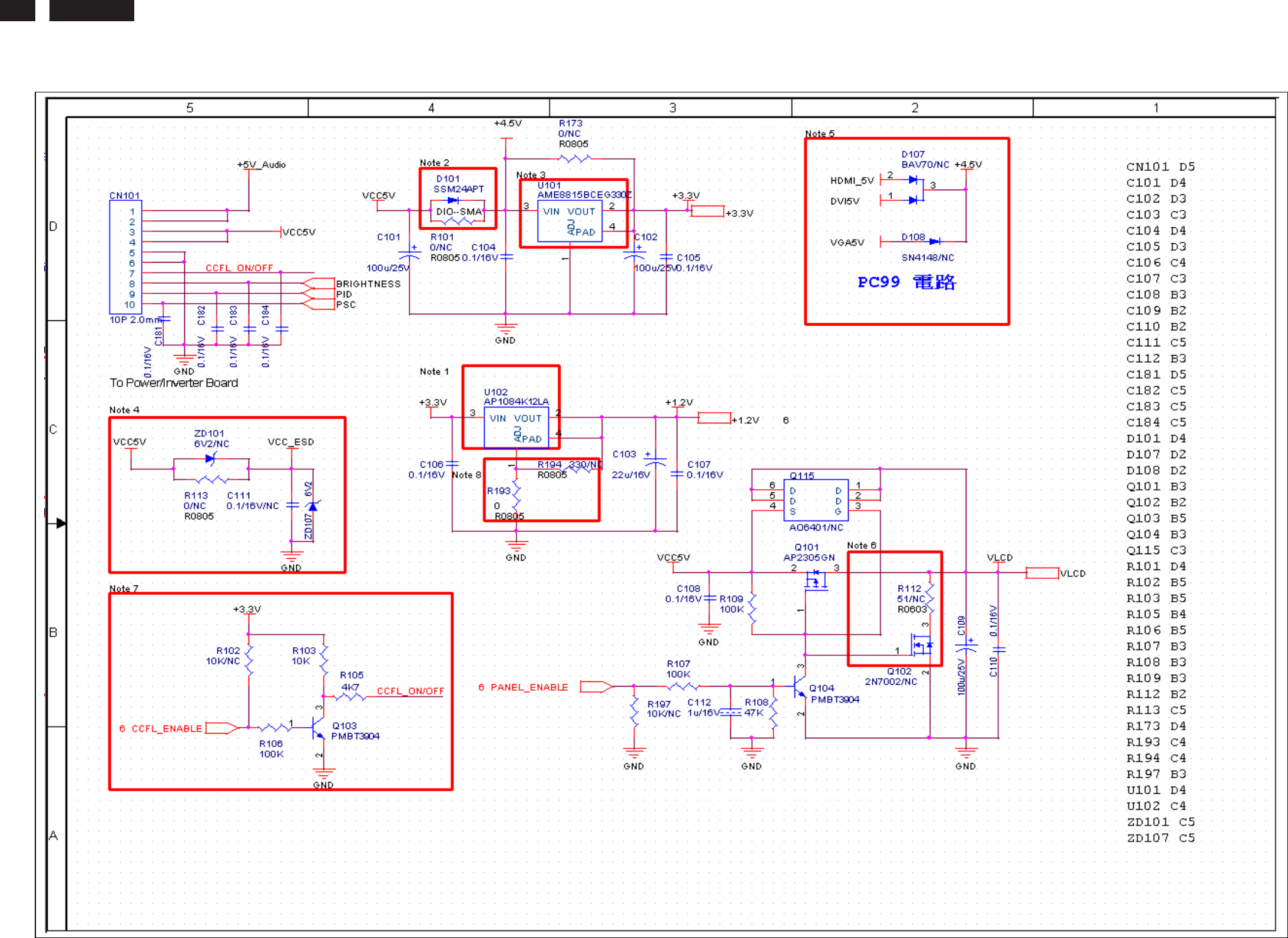
230E1
LCD
28
Schematic Diagram (Scaler Board - Power)
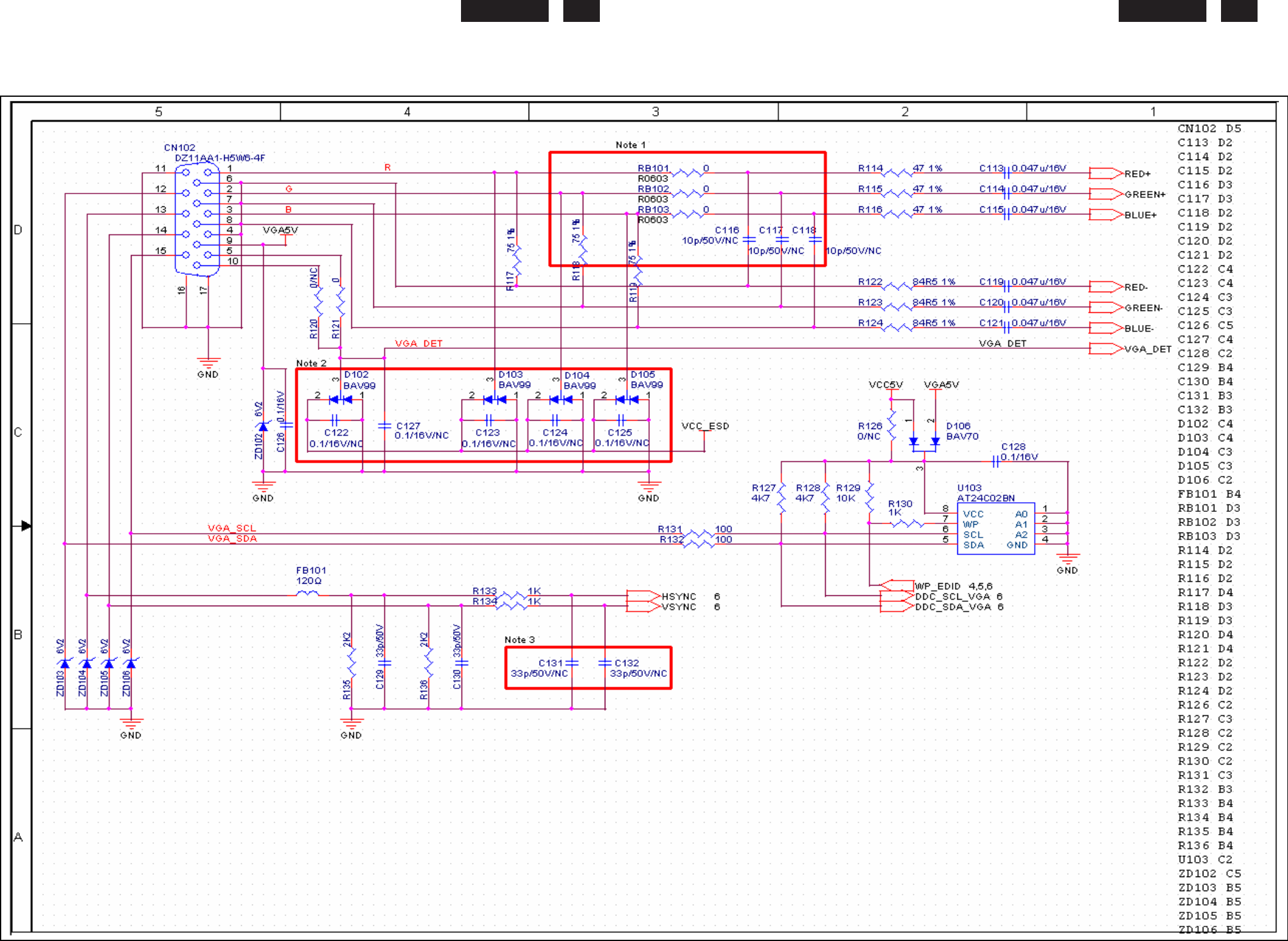
230E
LCD
29
22
0EW9 LCD
29
Schematic Diagram(VGA -Input)
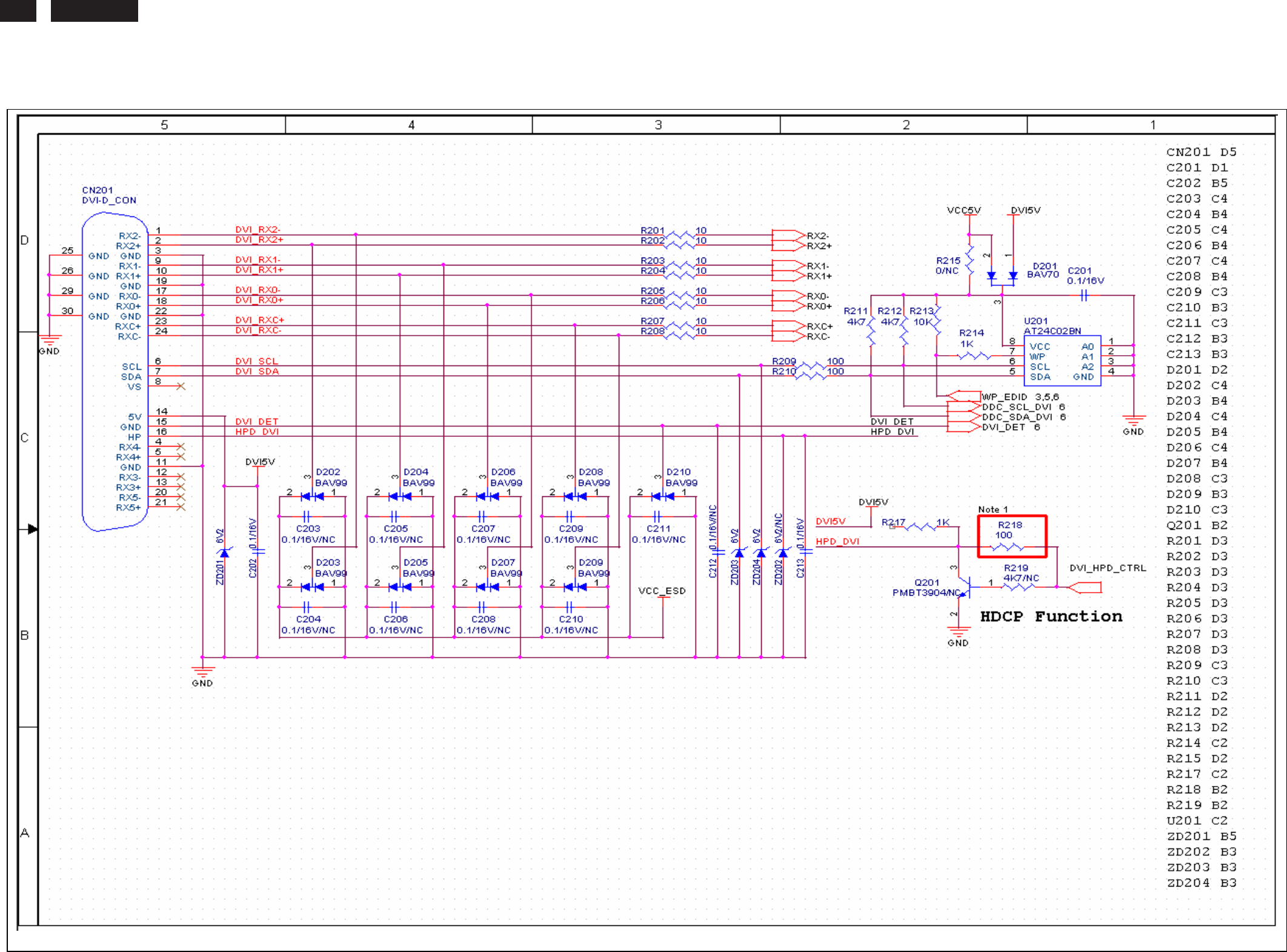
230E1
LCD
30
Schematic Diagram(DVI -Input)
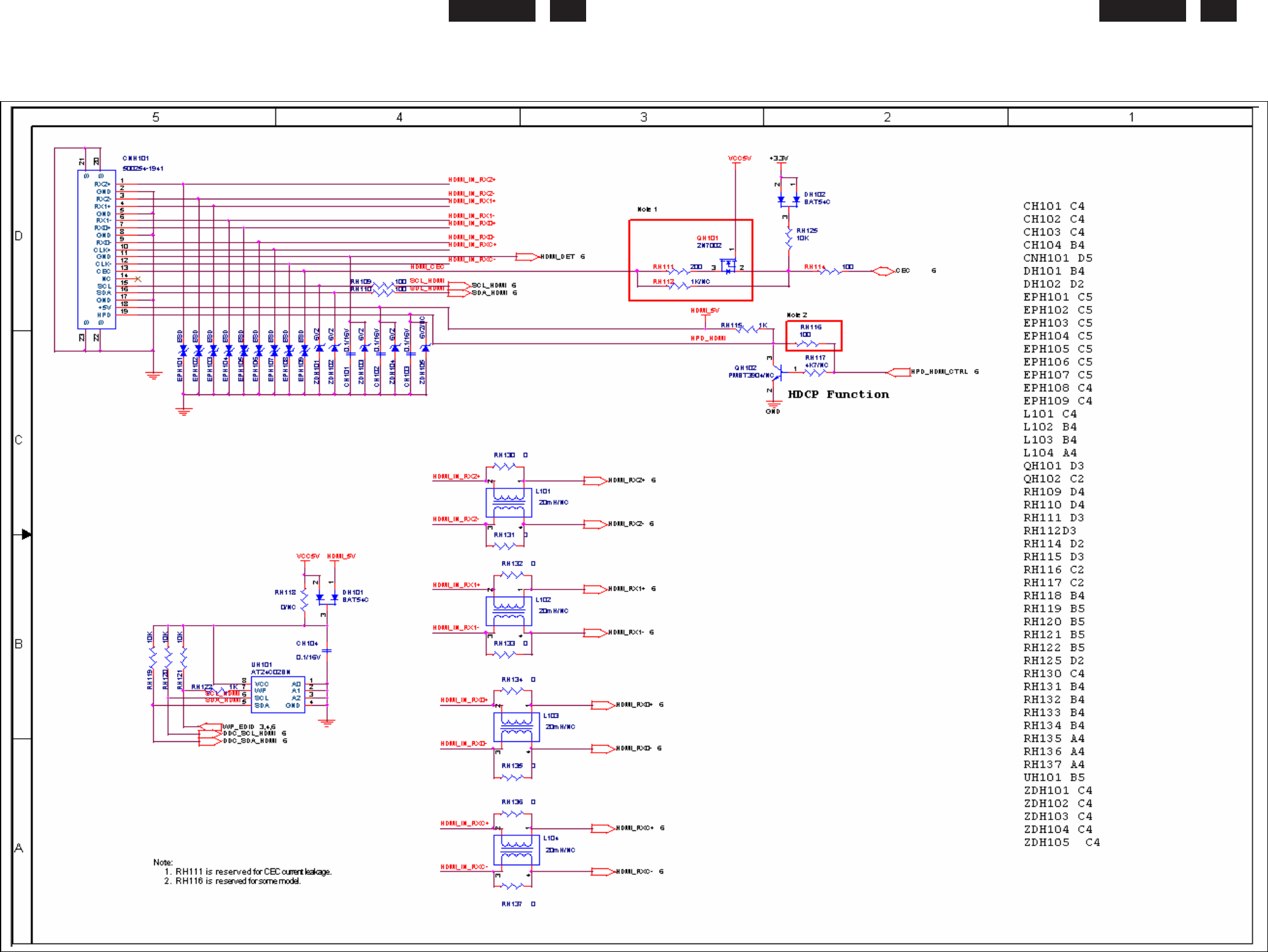
230E
LCD
31
22
0EW9 LCD
31
Schematic Diagram(HDMI -Input)
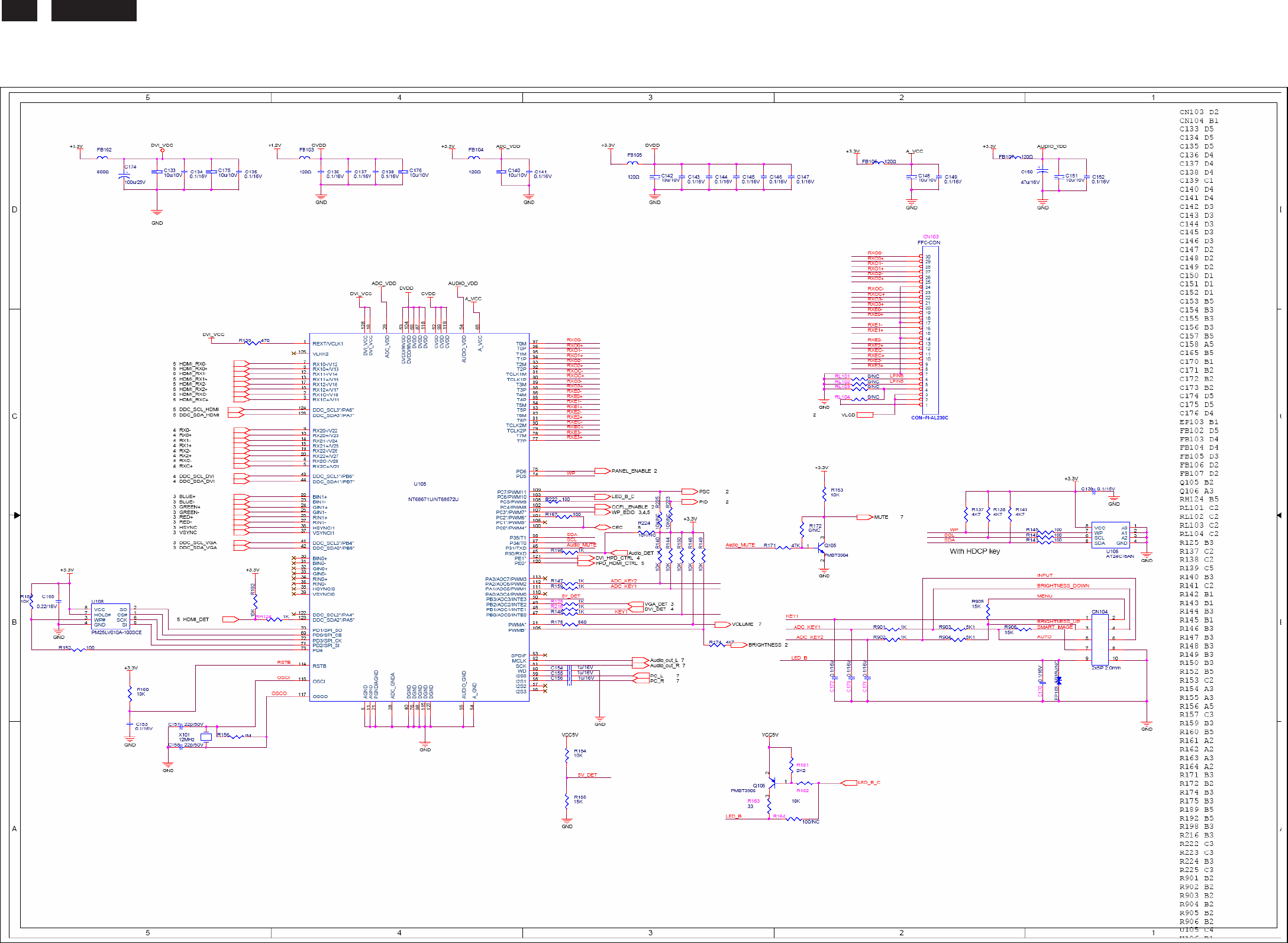
230E1
LCD
32
Schematic Diagram(Scaler Board - Scaler)
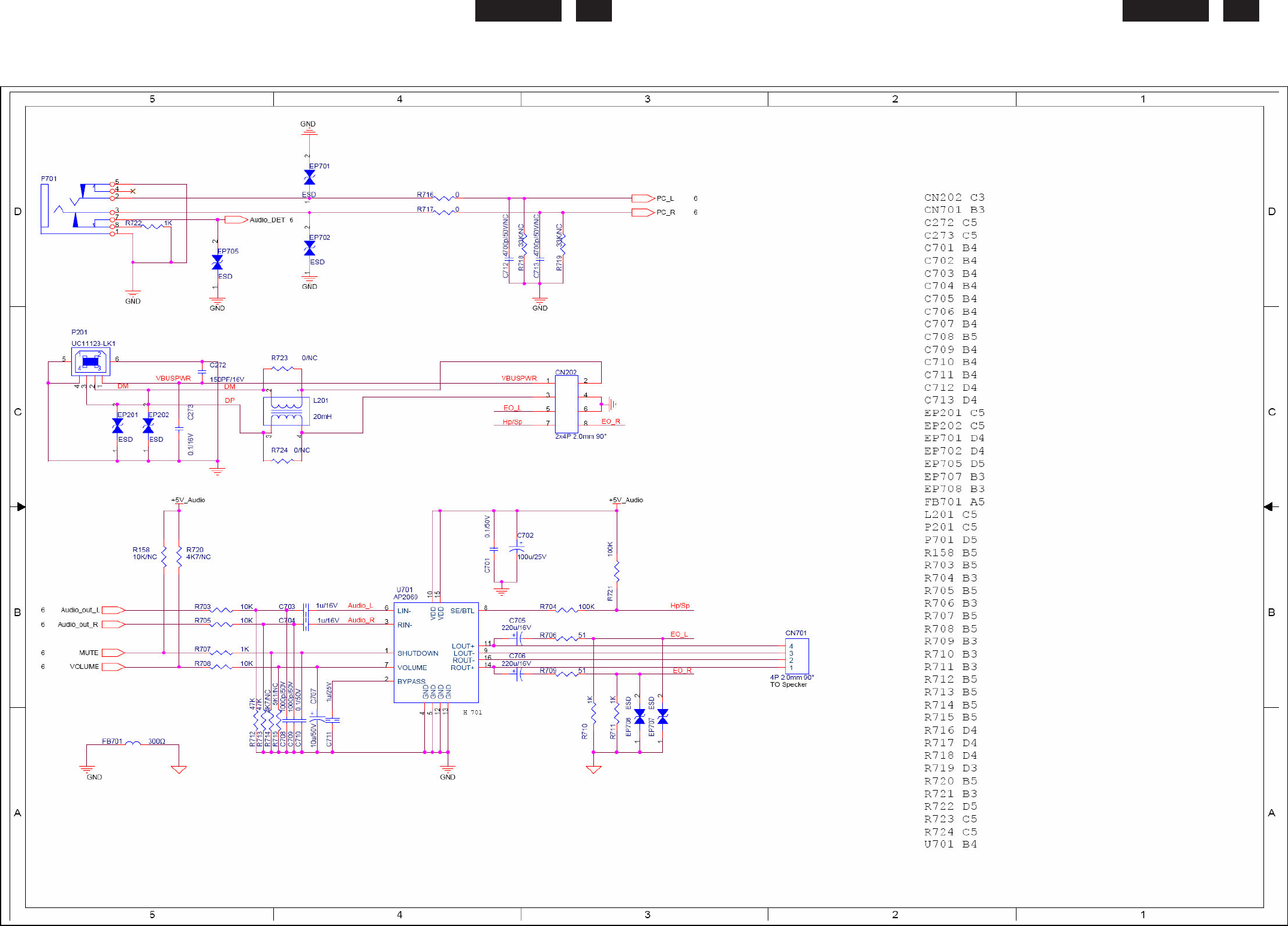
230E
LCD
33
22
0EW9 LCD
33
Schematic Diagram(HDMI Audio Board)
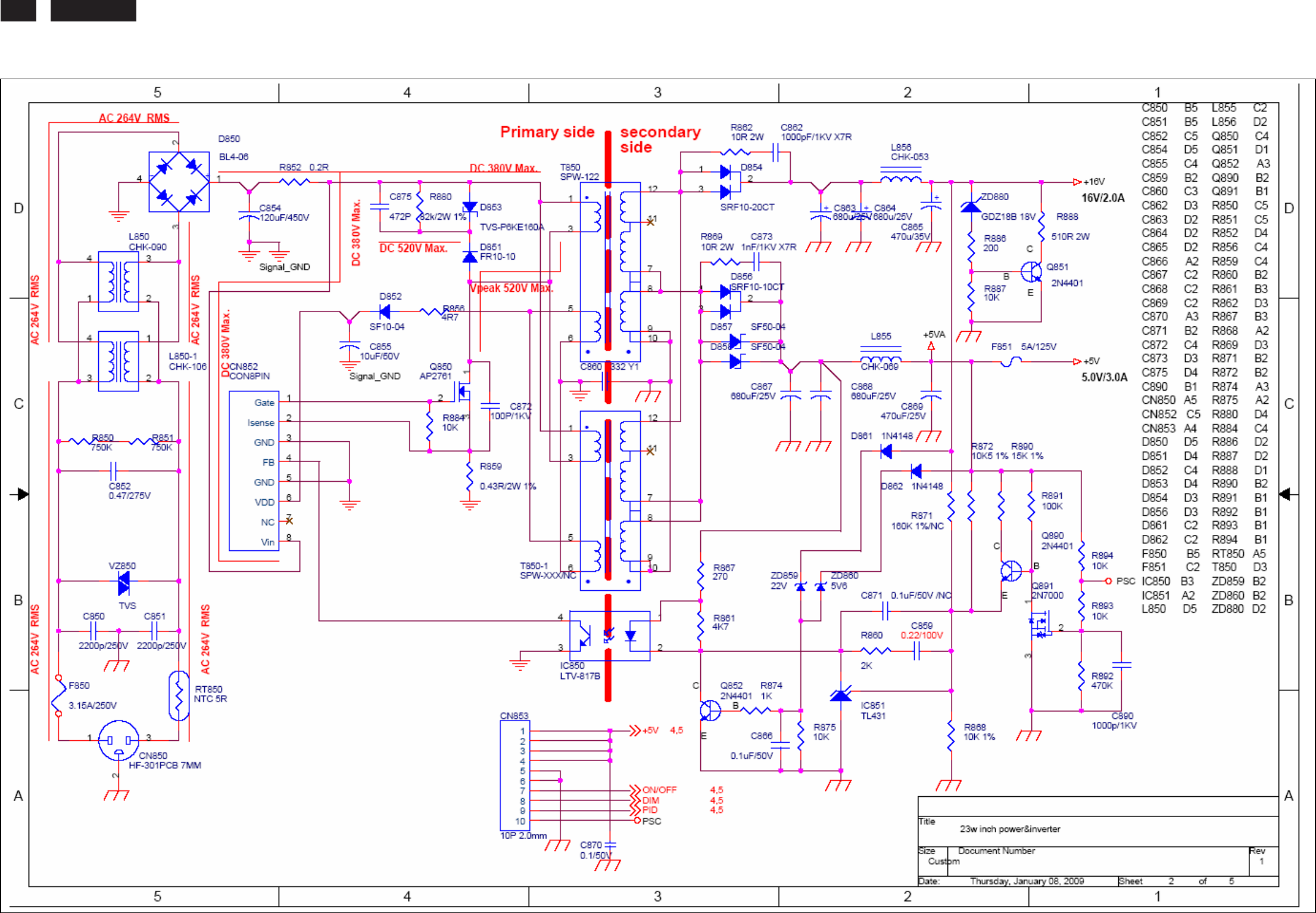
230E1
LCD
34
Schematic Diagram(Power Board)
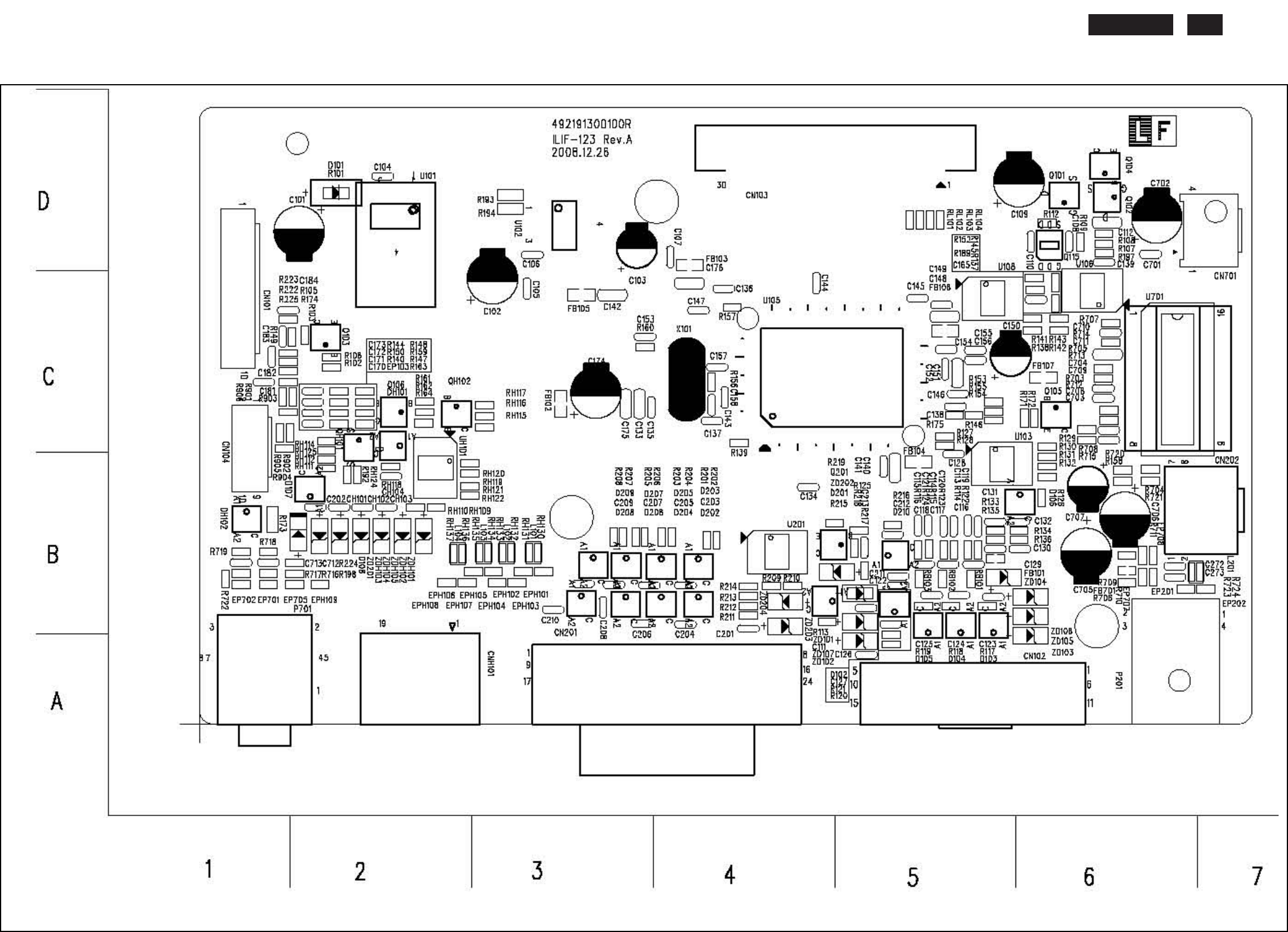
230E
LCD
35
22
0EW9 LCD
35
Layout side View(Scaler Board-1)
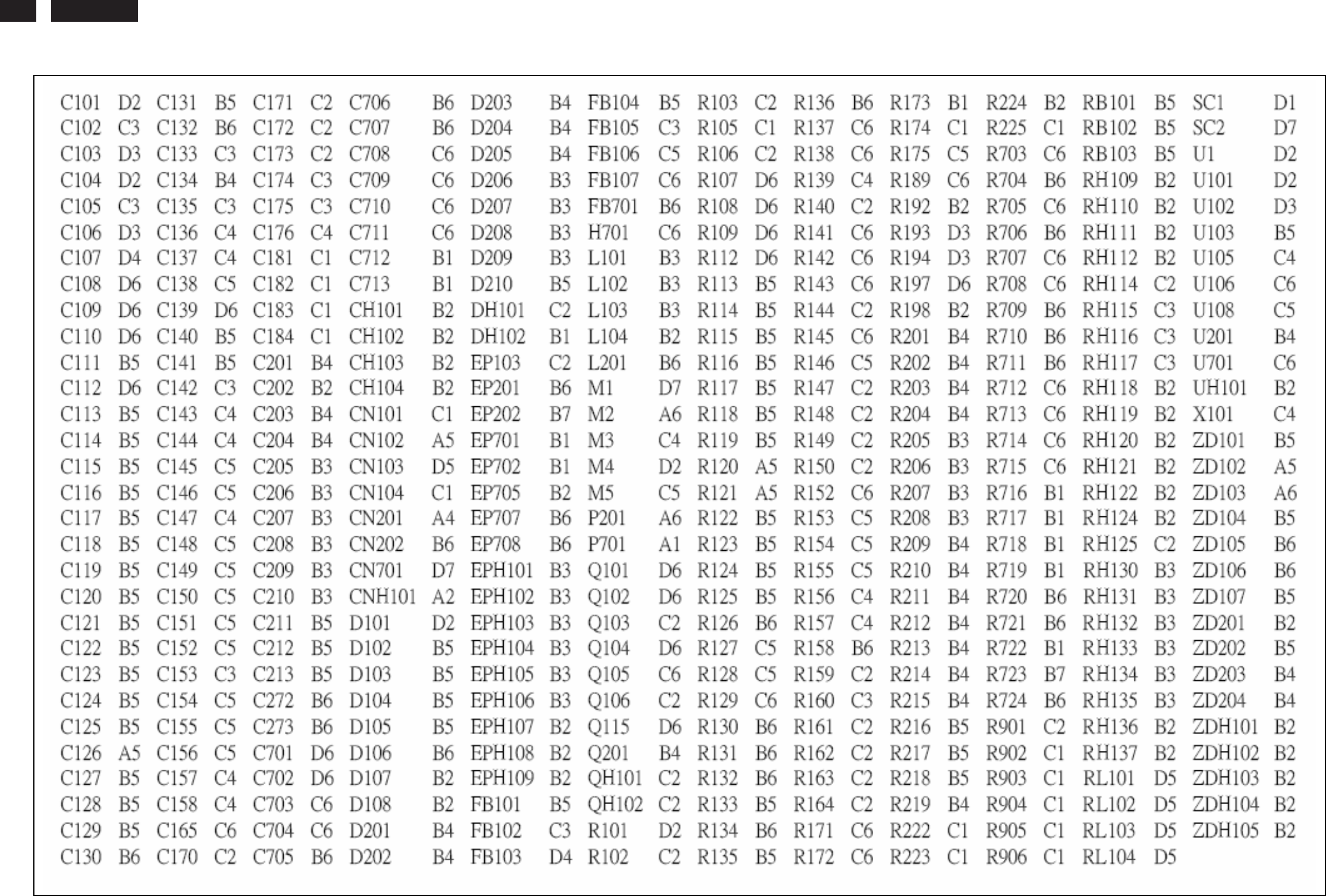
230E1
LCD
36
Layout side View(Scaler Board-2)
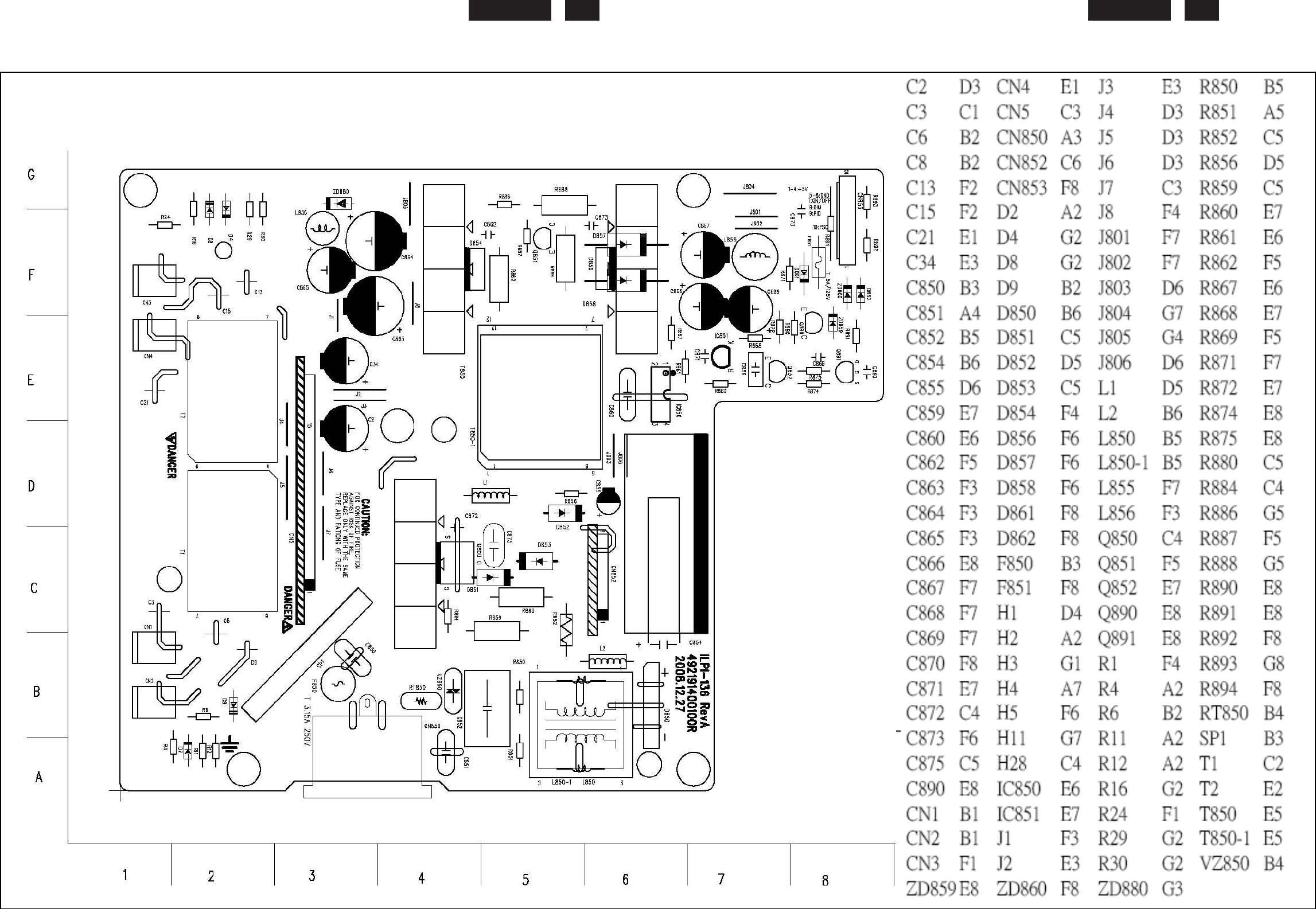
230E
LCD
37
22
0EW9 LCD
37
Layout side View(Power Board)
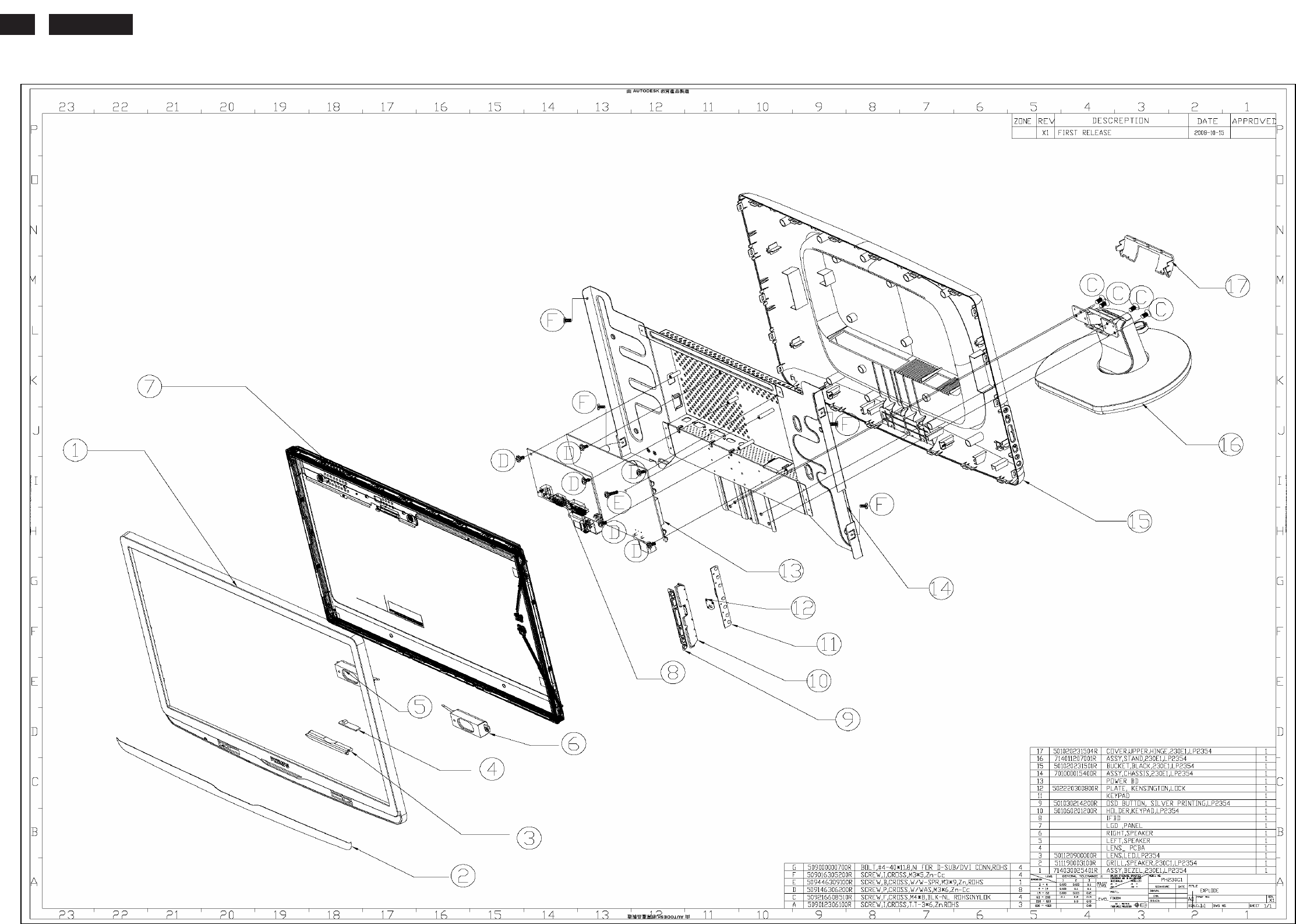
230E1
LCD
38
Exploded View
230E
LCD
39
Recommended Spare Part List
230E1HSB/93
PN:823254A1W160R(LG)
Part Name PHILIPS P/N PCM CODE Description Q'ty
Location Remark
LCD panel 631102230080RP
PANEL LM230WF1-TLA3(A)(LGD) 1 E7 LG PANEL
MB-LCD cable 430303002300R HRN LVDS FFC 30P 196M 1 34
MB-EB 430300802650R HRN ASSY 2x4P/190mm/4P 1 33
MB-SB,LB 430301000270R HRN ASSY 2x5P/220MM440MM/4P8P
1 35
MB-SPEAKER 430300400420R HRN ASSY 4P/230MM395MM/2P 1 36
IC 412000435481R IC AT24C02BN-SH-T 1 UH101,U103,U201
ATMEL,
IC 412000702950R IC NT68671UFG QFP128L 1 U105 NOVATEK,
IC 412000224480R IC AT24C16AN-10SU-2.7 16K 1 U103 ATMEL,
TRANSISTOR 426000091220R Transf ERL28 550uH SPW-122 1 T850 FOXCONN,FRONTIER,LISHIN,MEIKAI,
Electronic
Components:
TRANSISTOR 426000091060R Transf EEL19 P4 DIP SPW-106 1 T1,T2 DARFON,FOXCONN,HUALON,LISHIN,
STAND 714011207001R STAND ASSEMBLY 1 E16
OSD BUTTON 714080001100R OSD BUTTON SLIVER PRINTING 1 E9
HOLDER KEYPAD 501060201200R HOLDER KEYPAD 1 E10
Hinge 501020231504R COVER UPPER HINGE 1 E17
Speaker 618100200310R SPEAKER LEFT RED 1 E5
Speaker 618100200311R SPEAKER LEFT RED 0 E5
Speaker 618100200312R SPEAKER LEFT RED 0 E5
Speaker 618100200300R SPEAKER RIGHT GREEN 1 E6
Speaker 618100200301R SPEAKER RIGHT GREEN 0 E6
Speaker 618100200302R SPEAKER RIGHT GREEN 0 E6
DVI&D-SUB to shielding 509000000700R BOLT,#4-40x11.8,Ni 4 G
Mechanical
Componenents :
PCBAs to metal shielding
509146306200R SCREW,P,CROSS,W/WAS,M3*6,Zn-Cc
8 D
Power board 792451400A00R POWER BOARD PCBA 1 E13
Interface board 792451300A00R INTERFACE BOARD PCBA 1 E8
Switch board 792451500000R SWITCH BOARD PCBA 1 E11
Led board 792450500000R LED BOARD PCBA 1 E4
PCBA:
Eraphoe board 792450400000R ERAPHOE BOARD PCBA 1 39
Front bezel 714030025401R FRONT BEZELassembly 1 E1
Cabinets:
Back cover 714050023300R BACK-COVER assembly 1 E15
VGA CABLE 453010100320R CABLE D-SUB BLACK/BLUE 1 22
POWER CORD 453070800170R PWRCORD 10A/250V BLK 6FT CHINA
1 20
DVI CABLE 453030300400R CABLE DVI-D BLACK 1 21
AUDIO CABLE 453030300120R CABLE AUDIO BLACK/GREEN 1 23
CD 506070121801R USER'S(CD) manual 1 30
GUIDE QUICK 506280113701R GUIDE QUICK SETUP 1 31
Accessories:
CARD WARRANTY 506092007200R CARD WARRANTY 1 32
EpE bag 506120011300R PE BAG 1 27
EpE bag 506120304900R PE BAG 1 28
Carton 506020031503R CARTON 1 29
Cusion 506040014700R CUSHION,EPS-TOP 1 25
Packing
Material:
Cusion 506040014701R CUSHION ,EPS-BOTTOM 1 26
230E1
LCD
40
Recommended Spare Part List
230E1HSB/75
PN:823254A1W130R(LG)
Part Name PHILIPS P/N PCM CODE Description Q'ty
Location Remark
LCD panel 631102230080RP
PANEL LM230WF1-TLA3(A)(LGD) 1 E7 LG PANEL
MB-LCD cable 430303002300R HRN LVDS FFC 30P 196M 1 34
MB-EB 430300802650R HRN ASSY 2x4P/190mm/4P 1 33
MB-SB,LB 430301000270R HRN ASSY 2x5P/220MM440MM/4P8P 1 35
MB-SPEAKER 430300400420R HRN ASSY 4P/230MM395MM/2P 1 36
IC 412000435481R IC AT24C02BN-SH-T 1 UH101,U103,U201 ATMEL,
IC 412000702950R IC NT68671UFG QFP128L 1 U105 NOVATEK,
IC 412000224480R IC AT24C16AN-10SU-2.7 16K 1 U103 ATMEL,
TRANSISTOR 426000091220R Transf ERL28 550uH SPW-122 1 T850 FOXCONN,FRONTIER,LISHIN,MEIKAI,
Electronic
Components:
TRANSISTOR 426000091060R Transf EEL19 P4 DIP SPW-106 1 T1,T2 DARFON,FOXCONN,HUALON,LISHIN,
STAND 714011207001R STAND ASSEMBLY 1 E16
OSD BUTTON 714080001100R OSD BUTTON SLIVER PRINTING 1 E9
HOLDER KEYPAD 501060201200R HOLDER KEYPAD 1 E10
Hinge 501020231504R COVER UPPER HINGE 1 E17
Speaker 618100200310R SPEAKER LEFT RED 1 E5
Speaker 618100200311R SPEAKER LEFT RED 0 E5
Speaker 618100200312R SPEAKER LEFT RED 0 E5
Speaker 618100200300R SPEAKER RIGHT GREEN 1 E6
Speaker 618100200301R SPEAKER RIGHT GREEN 0 E6
Speaker 618100200302R SPEAKER RIGHT GREEN 0 E6
DVI&D-SUB to shielding 509000000700R BOLT,#4-40x11.8,Ni 4 G
Mechanical
Componenents :
PCBAs to metal shielding
509146306200R SCREW,P,CROSS,W/WAS,M3*6,Zn-Cc
8 D
Power board 792451400A00R POWER BOARD PCBA 1 E13
Interface board 792451300A00R INTERFACE BOARD PCBA 1 E8
Switch board 792451500000R SWITCH BOARD PCBA 1 E11
Led board 792450500000R LED BOARD PCBA 1 E4
PCBA:
Eraphoe board 792450400000R ERAPHOE BOARD PCBA 1 39
Front bezel 714030025401R FRONT BEZELassembly 1 E1
Cabinets:
Back cover 714050023300R BACK-COVER assembly 1 E15
VGA CABLE 453010100320R CABLE D-SUB BLACK/BLUE 1 22
POWER CORD 453070800460R PWRCORD 10A/250V BLK 6.3FT SAA 1 20
DVI CABLE 453030300400R CABLE DVI-D BLACK 1 21
AUDIO CABLE 453030300120R CABLE AUDIO BLACK/GREEN 1 23
CD 506070121801R USER'S(CD) manual 1 30
Accessories:
GUIDE QUICK 506280113701R GUIDE QUICK SETUP 1 31
EpE bag 506120011300R PE BAG 1 27
EpE bag 506120304900R PE BAG 1 28
Carton 506020031502R CARTON 1 29
Cusion 506040014700R CUSHION,EPS-TOP 1 25
Packing
Material:
Cusion 506040014701R CUSHION ,EPS-BOTTOM 1 26
230E
LCD
41
230E1HSB/69
PN:823254A1W150R(LG)
Part Name PHILIPS P/N PCM CODE Description Q'ty
Location Remark
LCD panel 631102230080RP PANEL LM230WF1-TLA3(A)(LGD) 1 E7 LG PANEL
MB-LCD cable 430303002300R HRN LVDS FFC 30P 196M 1 34
MB-EB 430300802650R HRN ASSY 2x4P/190mm/4P 1 33
MB-SB,LB 430301000270R HRN ASSY 2x5P/220MM440MM/4P8P 1 35
MB-SPEAKER 430300400420R HRN ASSY 4P/230MM395MM/2P 1 36
IC 412000435481R IC AT24C02BN-SH-T 1 UH101,U103,U201 ATMEL,
IC 412000702950R IC NT68671UFG QFP128L 1 U105 NOVATEK,
IC 412000224480R IC AT24C16AN-10SU-2.7 16K 1 U103 ATMEL,
TRANSISTOR 426000091220R Transf ERL28 550uH SPW-122 1 T850 FOXCONN,FRONTIER,LISHIN,MEIKAI,
Electronic
Components:
TRANSISTOR 426000091060R Transf EEL19 P4 DIP SPW-106 1 T1,T2 DARFON,FOXCONN,HUALON,LISHIN,
STAND 714011207001R STAND ASSEMBLY 1 E16
OSD BUTTON 714080001100R OSD BUTTON SLIVER PRINTING 1 E9
HOLDER KEYPAD 501060201200R HOLDER KEYPAD 1 E10
Hinge 501020231504R COVER UPPER HINGE 1 E17
Speaker 618100200310R SPEAKER LEFT RED 1 E5
Speaker 618100200311R SPEAKER LEFT RED 0 E5
Speaker 618100200312R SPEAKER LEFT RED 0 E5
Speaker 618100200300R SPEAKER RIGHT GREEN 1 E6
Speaker 618100200301R SPEAKER RIGHT GREEN 0 E6
Speaker 618100200302R SPEAKER RIGHT GREEN 0 E6
DVI&D-SUB to shielding
509000000700R BOLT,#4-40x11.8,Ni 4 G
Mechanical
Componenents :
PCBAs to metal
shielding 509146306200R SCREW,P,CROSS,W/WAS,M3*6,Zn-Cc 8 D
Power board 792451400A00R POWER BOARD PCBA 1 E13
Interface board 792451300A00R INTERFACE BOARD PCBA 1 E8
Switch board 792451500000R SWITCH BOARD PCBA 1 E11
Led board 792450500000R LED BOARD PCBA 1 E4
PCBA:
Eraphoe board 792450400000R ERAPHOE BOARD PCBA 1 39
Front bezel 714030025401R FRONT BEZELassembly 1 E1
Cabinets:
Back cover 714050023300R BACK-COVER assembly 1 E15
VGA CABLE 453010100320R CABLE D-SUB BLACK/BLUE 1 22
POWER CORD 453070800450R PWRCORD 10A/250V BLK 6.3FT UK 1 20
DVI CABLE 453030300400R CABLE DVI-D BLACK 1 21
AUDIO CABLE 453030300120R CABLE AUDIO BLACK/GREEN 1 23
CD 506070121801R USER'S(CD) manual 1 30
Accessories:
GUIDE QUICK 506280113701R GUIDE QUICK SETUP 1 31
EpE bag 506120011300R PE BAG 1 27
EpE bag 506120304900R PE BAG 1 28
Carton 506020031502R CARTON 1 29
Cusion 506040014700R CUSHION,EPS-TOP 1 25
Packing
Material:
Cusion 506040014701R CUSHION ,EPS-BOTTOM 1 26
230E1
LCD
42
230E1HSB/62
PN:823254A1W121R(LG)
Part Name PHILIPS P/N
PCM CODE Description Q'ty
Location Remark
LCD panel 631102230080RP PANEL LM230WF1-TLA3(A)(LGD) 1 E7 LG PANEL
MB-LCD cable 430303002300R HRN LVDS FFC 30P 196M 1 34
MB-EB 430300802650R HRN ASSY 2x4P/190mm/4P 1 33
MB-SB,LB 430301000270R HRN ASSY 2x5P/220MM440MM/4P8P
1 35
MB-SPEAKER 430300400420R HRN ASSY 4P/230MM395MM/2P 1 36
IC 412000435481R IC AT24C02BN-SH-T 1 UH101,U103,U201
ATMEL,
IC 412000702950R IC NT68671UFG QFP128L 1 U105 NOVATEK,
IC 412000224480R IC AT24C16AN-10SU-2.7 16K 1 U103 ATMEL,
TRANSISTOR 426000091220R Transf ERL28 550uH SPW-122 1 T850
FOXCONN,FRONTIER,LISHIN,MEIKAI,
Electronic
Components:
TRANSISTOR 426000091060R Transf EEL19 P4 DIP SPW-106 1 T1,T2
DARFON,FOXCONN,HUALON,LISHIN,
STAND 714011207001R STAND ASSEMBLY 1 E16
OSD BUTTON 714080001100R OSD BUTTON SLIVER PRINTING 1 E9
HOLDER KEYPAD 501060201200R HOLDER KEYPAD 1 E10
Hinge 501020231504R COVER UPPER HINGE 1 E17
Speaker 618100200310R SPEAKER LEFT RED 1 E5
Speaker 618100200311R SPEAKER LEFT RED 0 E5
Speaker 618100200312R SPEAKER LEFT RED 0 E5
Speaker 618100200300R SPEAKER RIGHT GREEN 1 E6
Speaker 618100200301R SPEAKER RIGHT GREEN 0 E6
Speaker 618100200302R SPEAKER RIGHT GREEN 0 E6
DVI&D-SUB to shielding 509000000700R BOLT,#4-40x11.8,Ni 4 G
Mechanical
Componenents :
PCBAs to metal shielding 509146306200R SCREW,P,CROSS,W/WAS,M3*6,Zn-Cc
8 D
Power board 792451400A00R POWER BOARD PCBA 1 E13
Interface board 792451300A00R INTERFACE BOARD PCBA 1 E8
Switch board 792451500000R SWITCH BOARD PCBA 1 E11
Led board 792450500000R LED BOARD PCBA 1 E4
PCBA:
Eraphoe board 792450400000R ERAPHOE BOARD PCBA 1 39
Front bezel 714030025401R FRONT BEZELassembly 1 E1
Cabinets:
Back cover 714050023300R BACK-COVER assembly 1 E15
VGA CABLE 453010100320R CABLE D-SUB BLACK/BLUE 1 22
POWER CORD 453070800210R PWRCORD 16A/250V BLK 6FT VDE 1 20
DVI CABLE 453030300400R CABLE DVI-D BLACK 1 21
AUDIO CABLE 453030300120R CABLE AUDIO BLACK/GREEN 1 23
CD 506070121801R USER'S(CD) manual 1 30
GUIDE QUICK 506280113701R GUIDE QUICK SETUP 1 31
CARD WARRANTY 506092007201R CARD WARRANTY TUR 1 32
CARD SERVICE 506092007202R CARD SERVICE TUR 1 40
Accessories:
CARD QSG 506092007203R CARD QSG TUR 1 41
EpE bag 506120004701R PE BAG 1 27
EpE bag 506120304900R PE BAG 1 28
Carton 506020031502R CARTON 1 29
Cusion 506040014700R CUSHION,EPS-TOP 1 25
Packing
Material:
Cusion 506040014701R CUSHION ,EPS-BOTTOM 1 26
230E
LCD
43
230E1HSB/97
PN:823254A1W122R(LG)
Part Name PHILIPS P/N
PCM CODE Description Q'ty
Location Remark
LCD panel 631102230080RP
PANEL LM230WF1-TLA3(A)(LGD) 1 E7 LG PANEL
MB-LCD cable 430303002300R HRN LVDS FFC 30P 196M 1 34
MB-EB 430300802650R HRN ASSY 2x4P/190mm/4P 1 33
MB-SB,LB 430301000270R HRN ASSY 2x5P/220MM440MM/4P8P 1 35
MB-SPEAKER 430300400420R HRN ASSY 4P/230MM395MM/2P 1 36
IC 412000435481R IC AT24C02BN-SH-T 1 UH101,U103,U201
ATMEL,
IC 412000702950R IC NT68671UFG QFP128L 1 U105 NOVATEK,
IC 412000224480R IC AT24C16AN-10SU-2.7 16K 1 U103 ATMEL,
TRANSISTOR 426000091220R Transf ERL28 550uH SPW-122 1 T850
FOXCONN,FRONTIER,LISHIN,MEIKAI,
Electronic
Components:
TRANSISTOR 426000091060R Transf EEL19 P4 DIP SPW-106 1 T1,T2
DARFON,FOXCONN,HUALON,LISHIN,
STAND 714011207001R STAND ASSEMBLY 1 E16
OSD BUTTON 714080001100R OSD BUTTON SLIVER PRINTING 1 E9
HOLDER KEYPAD 501060201200R HOLDER KEYPAD 1 E10
Hinge 501020231504R COVER UPPER HINGE 1 E17
Speaker 618100200310R SPEAKER LEFT RED 1 E5
Speaker 618100200311R SPEAKER LEFT RED 0 E5
Speaker 618100200312R SPEAKER LEFT RED 0 E5
Speaker 618100200300R SPEAKER RIGHT GREEN 1 E6
Speaker 618100200301R SPEAKER RIGHT GREEN 0 E6
Speaker 618100200302R SPEAKER RIGHT GREEN 0 E6
DVI&D-SUB to shielding 509000000700R BOLT,#4-40x11.8,Ni 4 G
Mechanical
Componenents :
PCBAs to metal shielding 509146306200R SCREW,P,CROSS,W/WAS,M3*6,Zn-Cc
8 D
Power board 792451400A00R
POWER BOARD PCBA 1 E13
Interface board 792451300A00R
INTERFACE BOARD PCBA 1 E8
Switch board 792451500000R SWITCH BOARD PCBA 1 E11
Led board 792450500000R LED BOARD PCBA 1 E4
PCBA:
Eraphoe board 792450400000R ERAPHOE BOARD PCBA 1 39
Front bezel 714030025401R FRONT BEZELassembly 1 E1
Cabinets:
Back cover 714050023300R BACK-COVER assembly 1 E15
VGA CABLE 453010100320R CABLE D-SUB BLACK/BLUE 1 22
POWER CORD 453070800210R PWRCORD 16A/250V BLK 6FT VDE 1 20
DVI CABLE 453030300400R CABLE DVI-D BLACK 1 21
AUDIO CABLE 453030300120R CABLE AUDIO BLACK/GREEN 1 23
CD 506070121801R USER'S(CD) manual 1 30
Accessories:
GUIDE QUICK 506280113701R GUIDE QUICK SETUP 1 31
EpE bag 506120004701R PE BAG 1 27
EpE bag 506120304900R PE BAG 1 28
Carton 506020031502R CARTON 1 29
Cusion 506040014700R CUSHION,EPS-TOP 1 25
Packing
Material:
Cusion 506040014701R CUSHION ,EPS-BOTTOM 1 26
230E1
LCD
44
230E1HSB/00
PN:823254A1W120R(LG)
Part Name PHILIPS P/N
PCM CODE Description Q'ty
Location Remark
LCD panel 631102230080RP
PANEL LM230WF1-TLA3(A)(LGD) 1 E7 LG PANEL
MB-LCD cable 430303002300R HRN LVDS FFC 30P 196M 1 34
MB-EB 430300802650R HRN ASSY 2x4P/190mm/4P 1 33
MB-SB,LB 430301000270R HRN ASSY 2x5P/220MM440MM/4P8P 1 35
MB-SPEAKER 430300400420R HRN ASSY 4P/230MM395MM/2P 1 36
IC 412000435481R IC AT24C02BN-SH-T 1 UH101,U103,U201
ATMEL,
IC 412000702950R IC NT68671UFG QFP128L 1 U105 NOVATEK,
IC 412000224480R IC AT24C16AN-10SU-2.7 16K 1 U103 ATMEL,
TRANSISTOR 426000091220R Transf ERL28 550uH SPW-122 1 T850
FOXCONN,FRONTIER,LISHIN,MEIKAI,
Electronic
Components:
TRANSISTOR 426000091060R Transf EEL19 P4 DIP SPW-106 1 T1,T2
DARFON,FOXCONN,HUALON,LISHIN,
STAND 714011207001R STAND ASSEMBLY 1 E16
OSD BUTTON 714080001100R OSD BUTTON SLIVER PRINTING 1 E9
HOLDER KEYPAD 501060201200R HOLDER KEYPAD 1 E10
Hinge 501020231504R COVER UPPER HINGE 1 E17
Speaker 618100200310R SPEAKER LEFT RED 1 E5
Speaker 618100200311R SPEAKER LEFT RED 0 E5
Speaker 618100200312R SPEAKER LEFT RED 0 E5
Speaker 618100200300R SPEAKER RIGHT GREEN 1 E6
Speaker 618100200301R SPEAKER RIGHT GREEN 0 E6
Speaker 618100200302R SPEAKER RIGHT GREEN 0 E6
DVI&D-SUB to shielding 509000000700R BOLT,#4-40x11.8,Ni 4 G
Mechanical
Componenents :
PCBAs to metal shielding
509146306200R SCREW,P,CROSS,W/WAS,M3*6,Zn-Cc
8 D
Power board 792451400A00R
POWER BOARD PCBA 1 E13
Interface board 792451300A00R
INTERFACE BOARD PCBA 1 E8
Switch board 792451500000R SWITCH BOARD PCBA 1 E11
Led board 792450500000R LED BOARD PCBA 1 E4
PCBA:
Eraphoe board 792450400000R ERAPHOE BOARD PCBA 1 39
Front bezel 714030025401R FRONT BEZELassembly 1 E1
Cabinets:
Back cover 714050023300R BACK-COVER assembly 1 E15
VGA CABLE 453010100320R CABLE D-SUB BLACK/BLUE 1 22
POWER CORD 453070800210R PWRCORD 16A/250V BLK 6FT VDE 1 20
DVI CABLE 453030300400R CABLE DVI-D BLACK 1 21
AUDIO CABLE 453030300120R CABLE AUDIO BLACK/GREEN 1 23
CD 506070121801R USER'S(CD) manual 1 30
Accessories:
GUIDE QUICK 506280113701R GUIDE QUICK SETUP 1 31
EpE bag 506120004701R PE BAG 1 27
EpE bag 506120304900R PE BAG 1 28
Carton 506020031502R CARTON 1 29
Cusion 506040014700R CUSHION,EPS-TOP 1 25
Packing
Material:
Cusion 506040014701R CUSHION ,EPS-BOTTOM 1 26
230E
LCD
45
23 inch monitor different parts list
23 inch monitor different parts list23 inch monitor different parts list
23 inch monitor different parts list
230E1HSB/69(LP2354
230E1HSB/69(LP2354
230E1HSB/69(LP2354
230E1HSB/69(LP2354-
-
-
-A17)
A17)
A17)
A17)
230E1HSB/75(LP2354
230E1HSB/75(LP2354
230E1HSB/75(LP2354
230E1HSB/75(LP2354-
-
-
-A17)
A17)
A17)
A17)
230E1HSB/93(LP2354
230E1HSB/93(LP2354
230E1HSB/93(LP2354
230E1HSB/93(LP2354-
-
-
-A17)
A17)
A17)
A17)
230E1HSB/97(LP2354
230E1HSB/97(LP2354
230E1HSB/97(LP2354
230E1HSB/97(LP2354-
-
-
-A17)
A17)
A17)
A17)
230E1HSB/00(LP2354
230E1HSB/00(LP2354
230E1HSB/00(LP2354
230E1HSB/00(LP2354-
-
-
-A17)
A17)
A17)
A17)
230E1HSB/62(LP2354
230E1HSB/62(LP2354
230E1HSB/62(LP2354
230E1HSB/62(LP2354-
-
-
-A17)
A17)
A17)
A17)
Item
ItemItem
Item
Part Number
Part NumberPart Number
Part Number
Par
ParPar
Part Description
t Description t Description
t Description
2nd source
2nd source2nd source
2nd source
1 453070800170R
PWRCORD 10A/250V BLK 6FT CHINA.RVV 3Gx0.
v
453070800450R
PWRCORD 10A/250V BLK 6.3FT UK, H05VV-F 3 v
453070800460R
PWRCORD 10A/250V BLK 6.3FT SAAH05VV-F 3G
v
453070800210R
PWR CORD 16A/250V BLK 6FT VDE H05VV-F 3G
V V V
2 506020031502R
CARTON,PHILIPS(WW),LP2354 (230E1) v v
V V V
506020031503R
CARTON,PHILIPS(CHN),LP2354 (230E1)
v
3 506092007200R
CARD,WARRANTY,PHILIPS-PRC,LE19E3
v
4 506092007201R
CARD,WARRANTY,PHILIPS-TUR,LE19E3
V
5 506092007202R
CARD,SERVICE,PHILIPS-TUR,LE19E3
V
6 506092007203R
CARD,QSG,PHILIPS-TUR,LE19E3
V
7 506310001601R
CHINA ENERGY LABEL,LP2354(230E1)
v
8 506390000500R
LABEL,QC-PASS, LE1709
v
9 713100013603R
ASSY, PACKAGE, PACK, PRC, LP2354 (230E1)
v
713100013608R
ASSY, PACKAGE, PACK, AP, LP2354 (230E1) v v
V
713100013602R
ASSY, PACKAGE, PACK, EU, LP2354 (230E1)
V V
713100013607R
ASSY, PACKAGE, PACK, TURKEY, LP2354 (230
V
10
713000099605R
ASSY PACKING, EU 1200*800,20"STD,LP2354
V V
11
713000099606R
ASSY PACKING, EU 1200*1000,20"STD,LP2354
V
713100013604R
ASSY PACKING, EU 1200*800,40"STD/HQ,LP23
V V
713100013605R
ASSY PACKING, EU 1200*1000,40"STD/HQ,LP2
V
12
506036006201R
CARDBOARD,L1120*W880*T4mm,LP2050
V
506036007402R
CARDBOARD L1050xW680xT4mm ,LP2354
V V
13
506039008500R
CORNER PAPER 600x50x50xT3mm LE1512
V V
14
506120400100R
BAG AIR DUNNAGE 2000x1000mmLE1X03 ROHS
V V
15
506150001500R
PALLET 1200x1000x120mm LE1908 ROHS
V
506150012400R
PALLET,L1200*W800*H130,LE22E4
V V
16
506431009400R
PROTECT,FILM,BEZEL,LOWER,LP2354
V V V
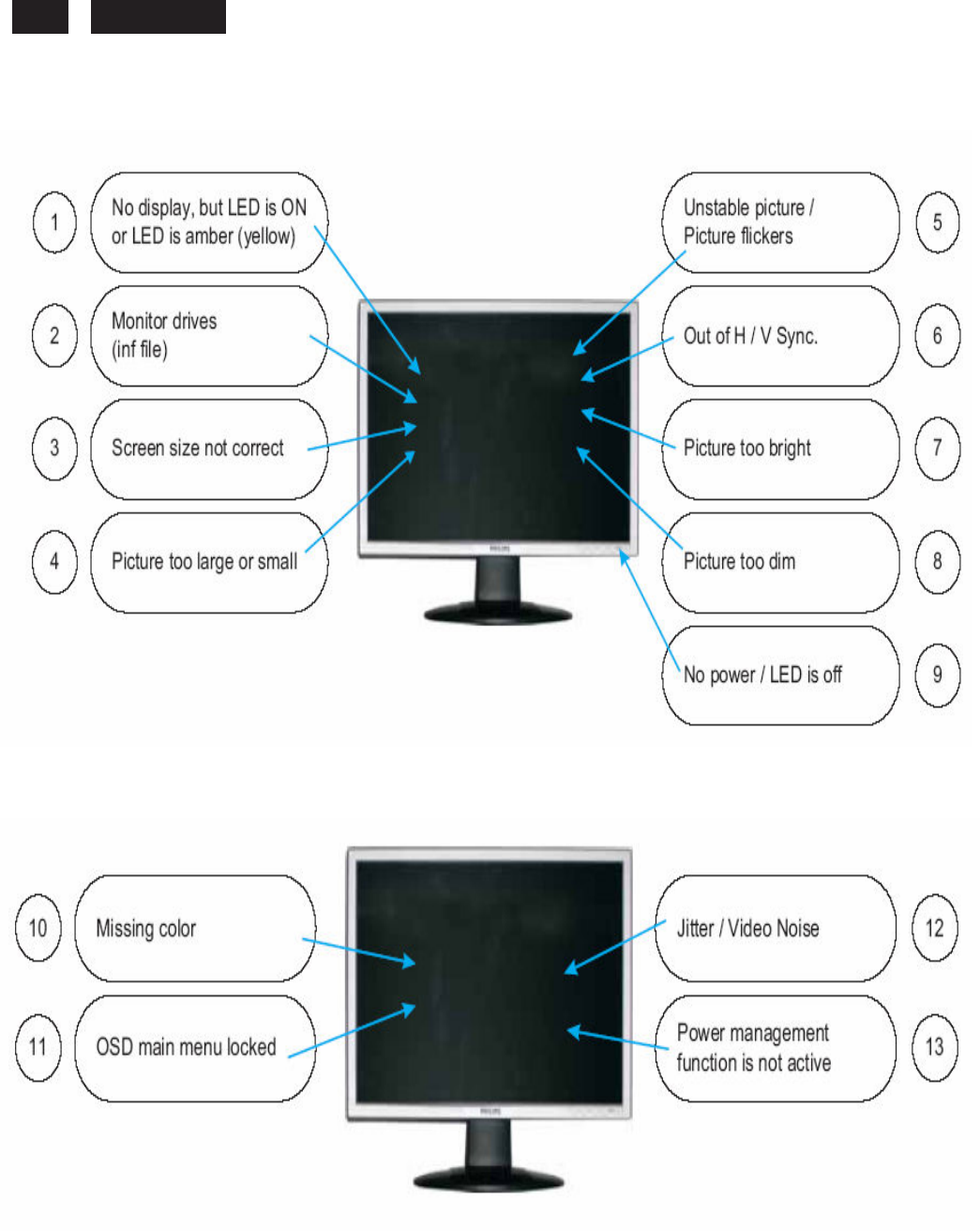
230E1
LCD
46
General Trouble Shooting Guide
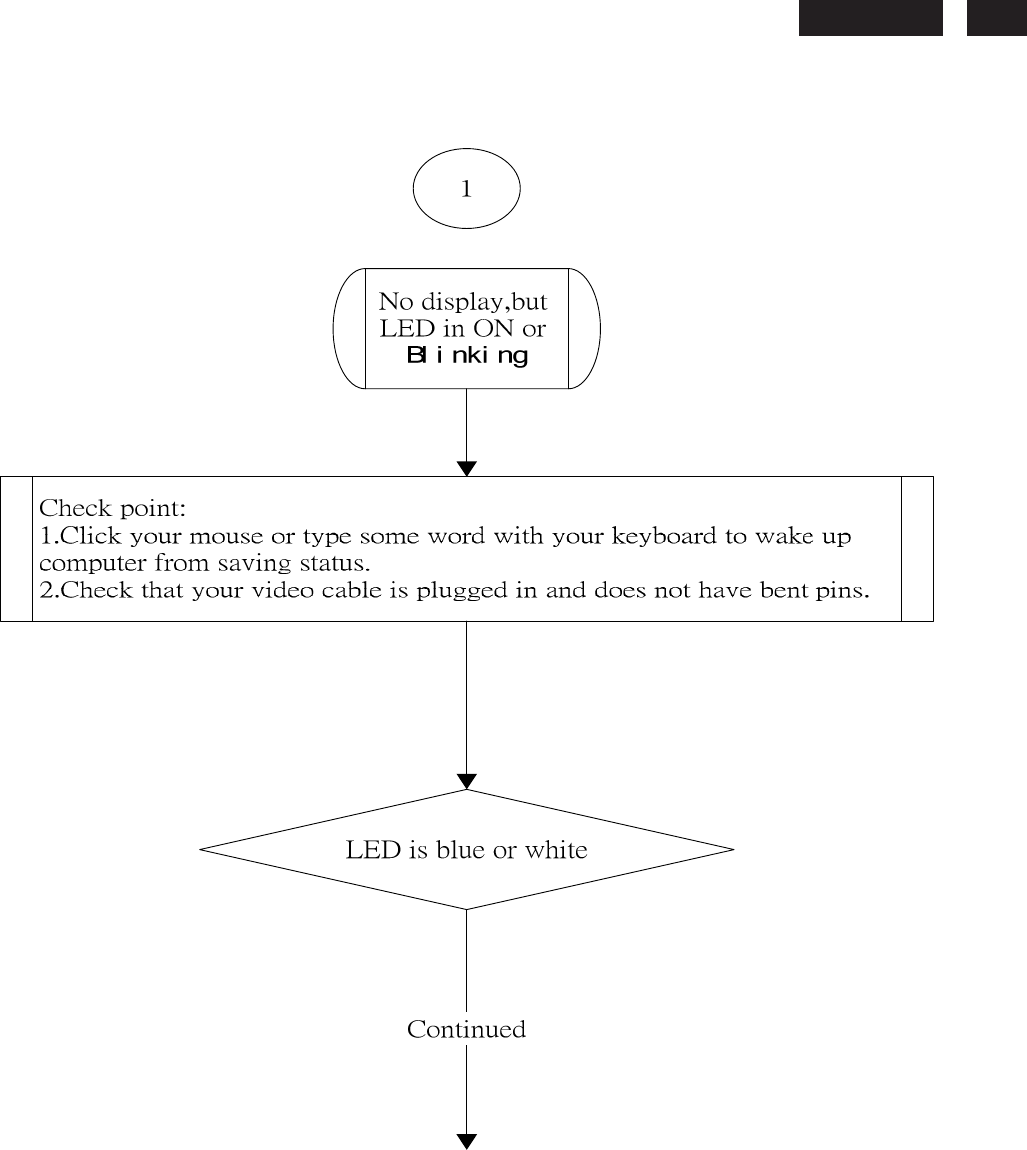
230E
LCD
47
General Trouble Shooting Guide
NOTE:
::
:Do not set screen saver.
It will cause “no display” problem as above mentioned.
Action: Change timer setting of screen saver or disable screen aver.
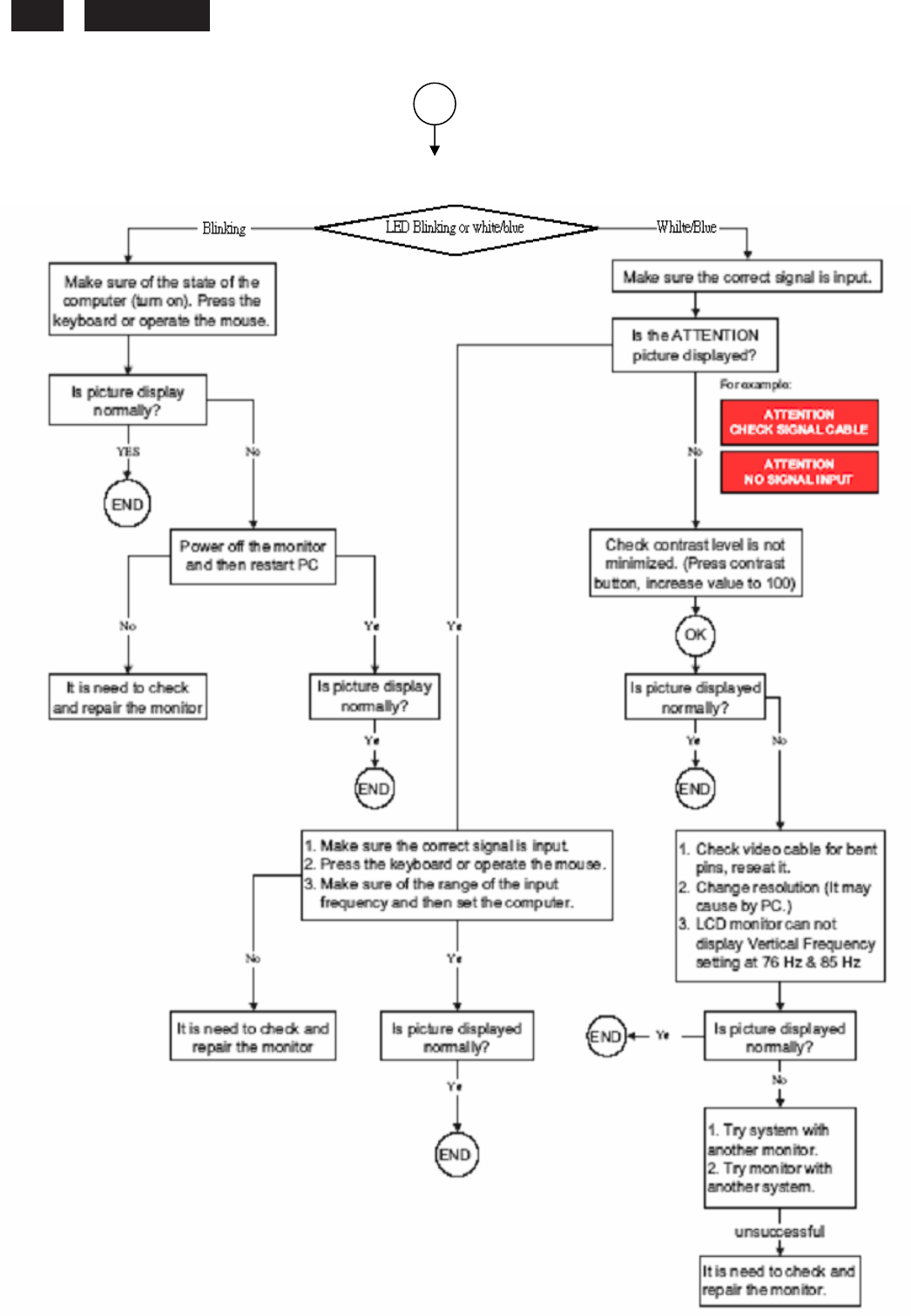
230E1
LCD
48
General Trouble Shooting Guide
Continued
1
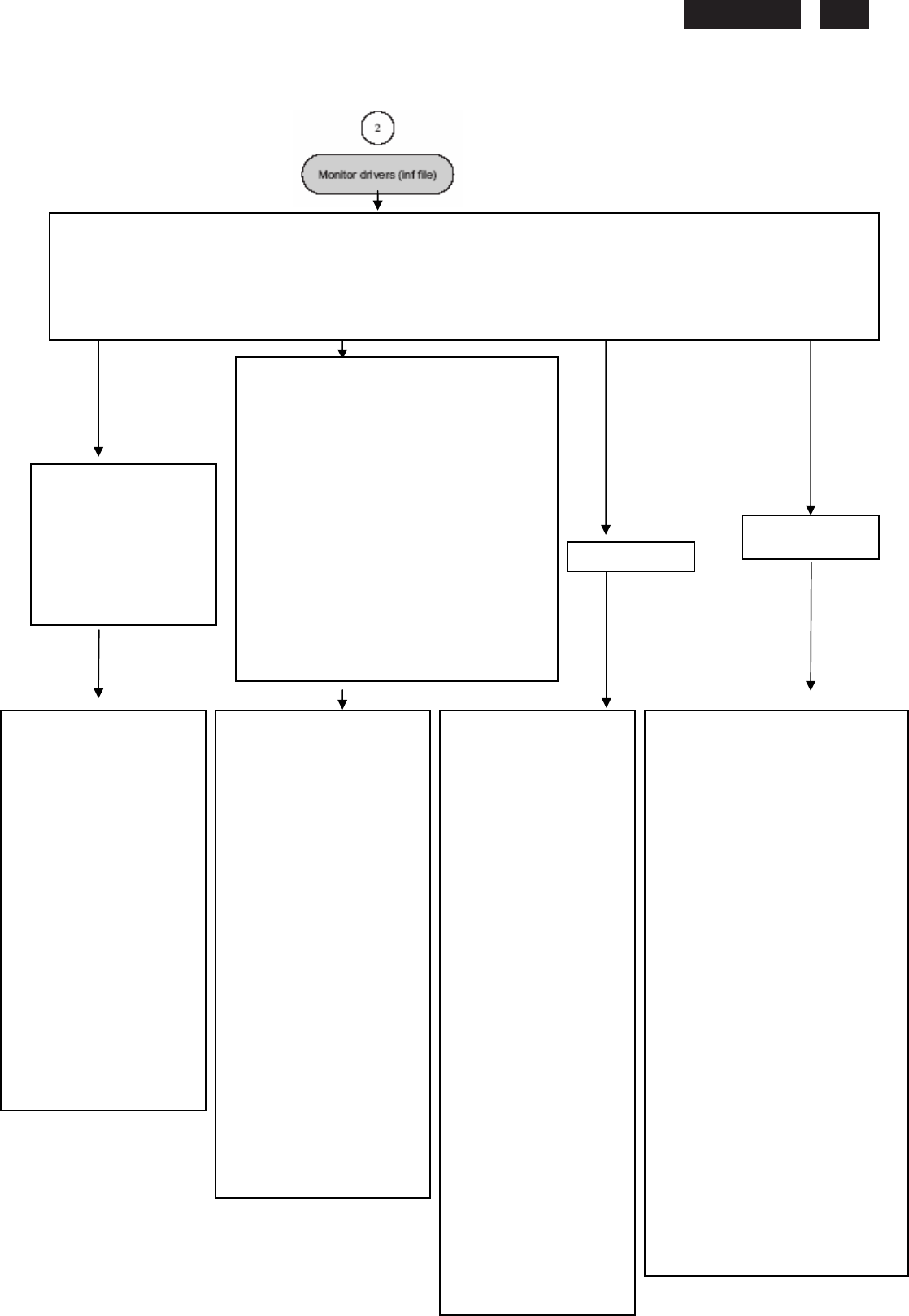
230E
LCD
49
General Trouble Shooting Guide
For Windows 95
For Windows 95 drivers,
your monitor is listed under
manufacture name “Philips
Business Electronics Co.”.
For Window Me
FOR WINDOWS 95/98/2000/ME OR LATER
Philips’s monitors build in VESA DDC2B feature to support Plug & Play requirement for Windows 95/98/2000/Me. You can install the
information file(.inf) in order to select your Philips monitor from “Monitor” dialog box in Windows 95/98/2000/Me to activate Plug &Play
application. The installation procedure based on Windows 95 OEM Release 2, 98, Me and 2000 is specified as follows, (in case of
connecting the monitor to the PC compliant with VESA standard with the designated signal cable, the PC reads display pixels ,frequency
and color feature of this monitor to optimize t
he picture for the monitor automatically.)DDC: Abbreviation for Display Data Channel
For Windows 2000
1. Start Windows 95
2. Click the ‘Start’ button, point
to ‘setting’, and then click
‘control panel’.
3. Double click the’ display’
lcon.
4. Choose the ‘setting’ tab then
click ‘advanced…’
5. Choose ‘monitor’ button,
point to ‘change…’ then click’
have disk…’.
6. Click ‘browse…’ button then
choose the appropriate drive
F:(CD-ROM Drive) then click
‘ok’ button.
7. Click the ‘ok’ button then
choose your monitor mode
land click the ‘ok’.
8. Click ‘close’ button.
1. Start Windows 98
2. Click the ‘Start’ button, point
to ‘setting’, and then click’
control panel’.
3. Double click the ‘display’ lcon.
4. Choose the ‘setting’ tab then
click ‘advanced…’
5. Choose ‘monitor’ button, point
to ‘change…’ then click ‘next’.
6. Choose ‘display a list of all the
drivers in a specify location, so
you can select the driver you
want’, then click ‘next’ and then
click ‘have disk…’
7. Click ‘browse…’ button then
choose the appropriate drive
F: (RD-ROM Drive)
then click
‘ok” button.
8. Click the ‘ok’ button then
choose your monitor model and
click the ‘next’ button.
9. Click ‘finish’ button then click
‘close’ button.
1. Start Window Me
2. Click the ‘start’ button,
point to ‘setting’ , and then
click ‘control panel’.
3. Double click the ‘display’
lcon.
4. Choose the ‘setting’ tab
then click ‘advanced…’.
5. Choose ‘monitor’ button,
then click ‘change…’ button.
6. Choose ‘specify the
location of the driver
(advanced)’ and click the
‘next’ button.
7. Choose ‘display a list of all
the drivers in a specific
location, so you can select
the driver you want’, then
click ‘next’ and then click
‘have disk.’.
8. Click ‘browse…’ button
then choose the appropriate
drive
F: (CD-ROM Drive)
then click ‘ok’ button.
9. Click the ‘ok’ button then
choose your monitor model
and click the ‘next’ button.
10. Click ‘finish’ button then
click ‘close’ button.
1. Start Windows 2000
2. Click the ‘start’ button, point to ‘setting’, and
then click ‘control panel’.
3. Double click the ‘display’ lcon.
4. Choose the ‘setting’ tab then click
‘advanced…’.
5. Choose ‘monitor;
- If the ‘properties’ button is inactive, it means
your monitor is properly configured.
Please stop installation.
- If the ‘properties’ button is active, click
‘properties’ button.
6. Click ‘driver’ and then click on ‘update
driver…’ then click on the ‘next’ button.
7. Choose ‘display a list of the known drivers
for this device. so that I can choose a specific
driver’ then click ‘next’ and then click ‘have
disk…’.
8. Click ‘browse…’ button then choose the
appropriate drive F: (CD-ROM Drive).
9. Click the ‘open’ button then click the ‘ok’
button.
10. Choose your monitor model and click the
‘next’ button.
11. Click ‘finish’ button and then click the
‘close’ button. If you can see the ‘digital
signature not found’ window then click the ‘yes’
button.
For Windows 98
For Windows 98 drivers, our monitors are listed
under 2 manufactures name “Philips”, and “Philips
Consumer Electronics Co.” Please select
“Philips"when you would like to set up your monitor
in Windows setting, if you can not find the right
model name just as the label indication on the back
of set.
For those set that have been issued since the
release of Window 98, drivers can be found in
CD-ROM under the directory path of “\pc\driver\” or
it may be downloaded at http://www.philips.com.
Once you
have installed the new driver, Windows will add a
new manufacture name “Philips Business
Electronics” in your system.
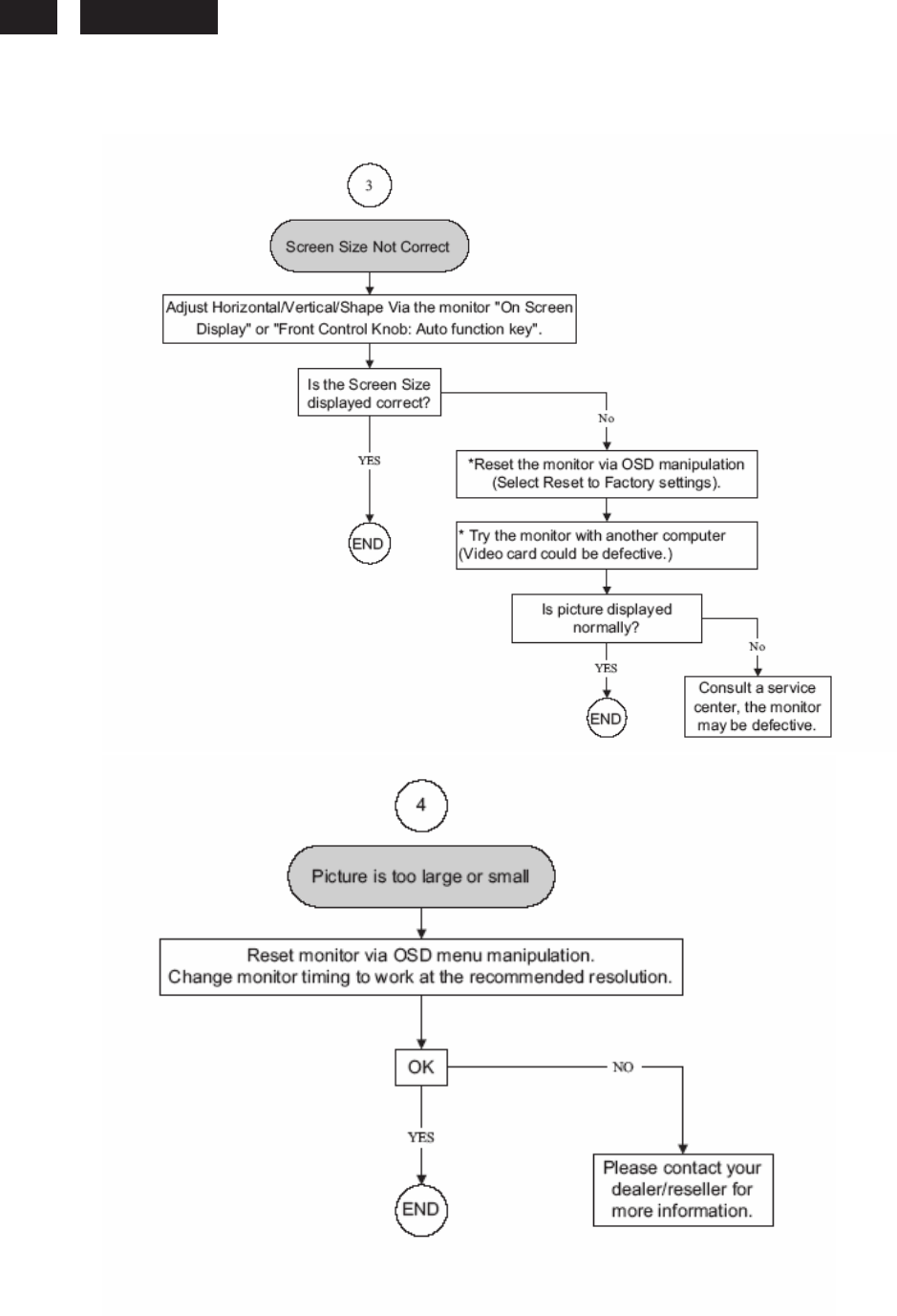
230E1
LCD
50
General Trouble Shooting Guide
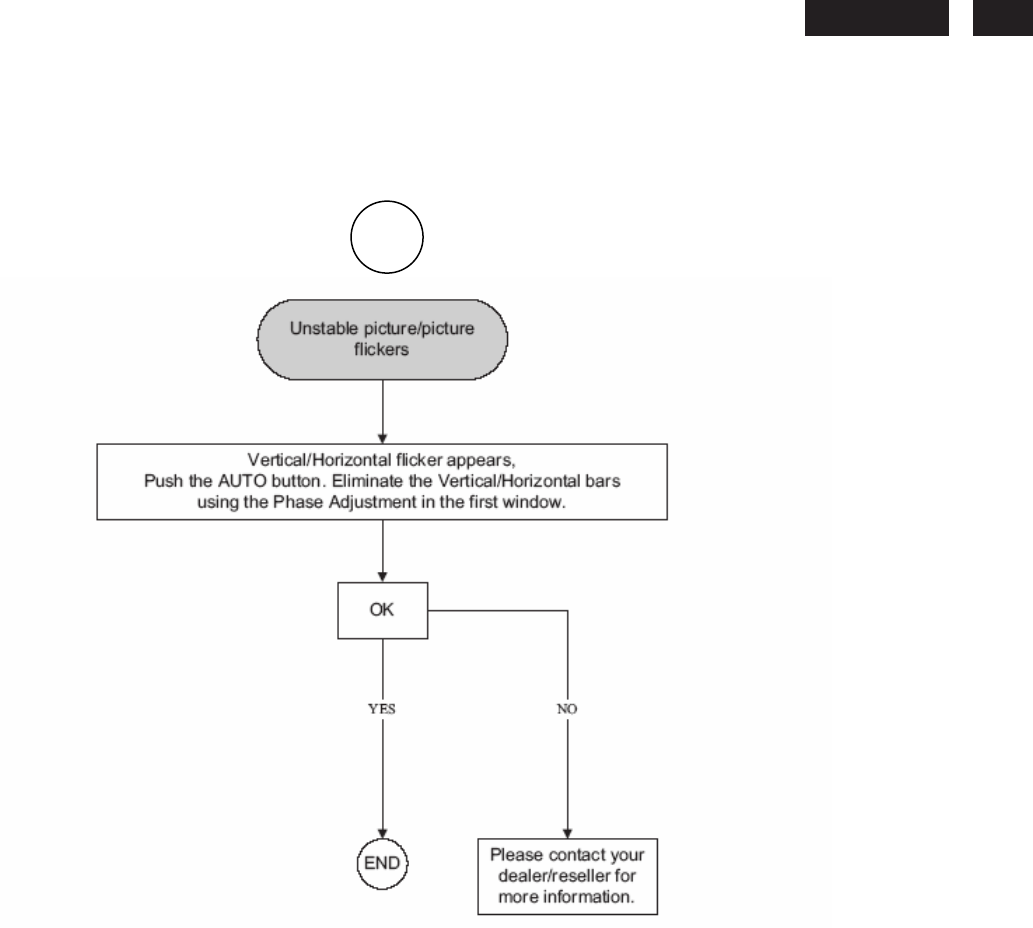
230E
LCD
51
General Trouble Shooting Guide
5
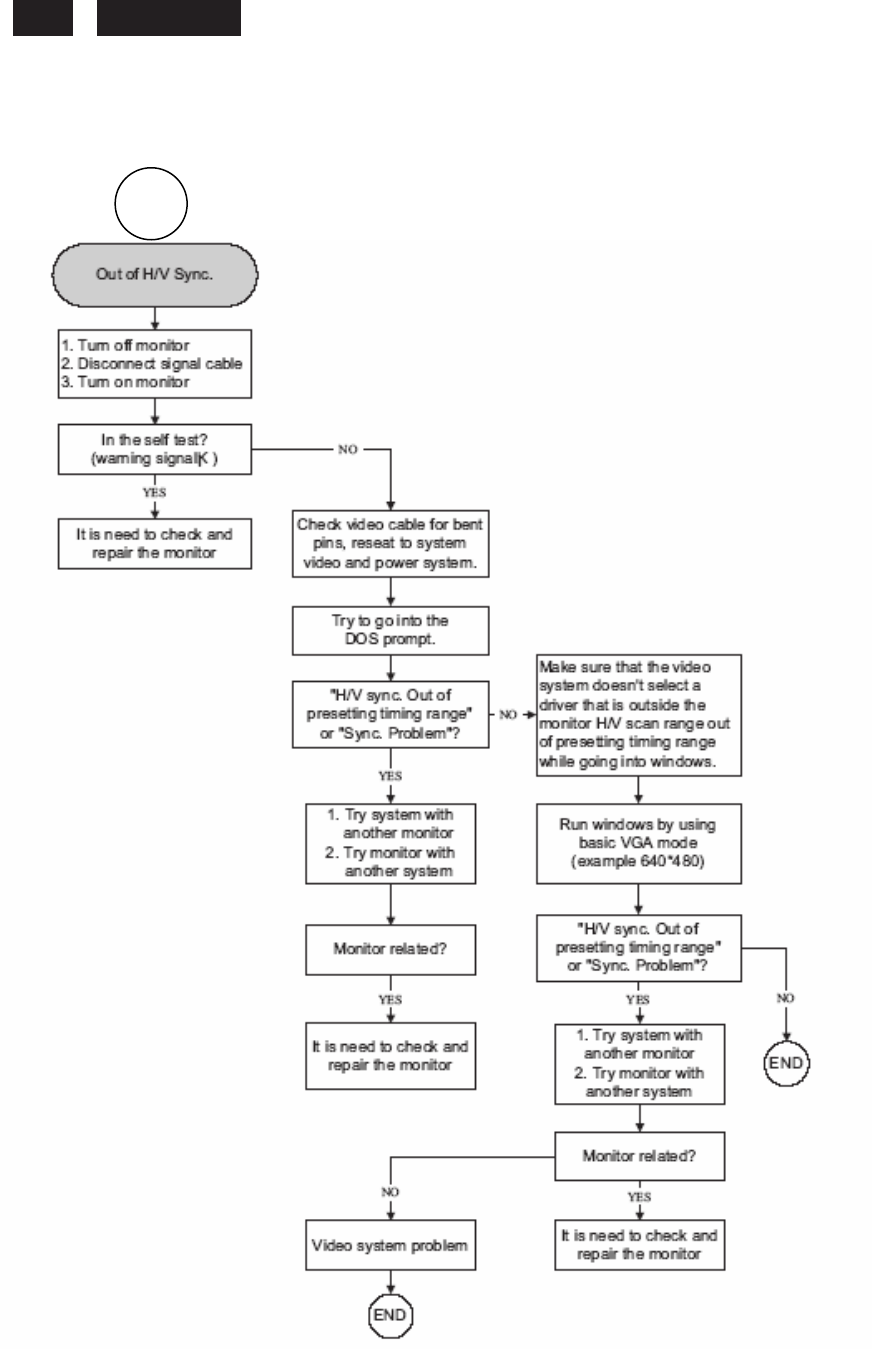
230E1
LCD
52
General Trouble Shooting Guide
6
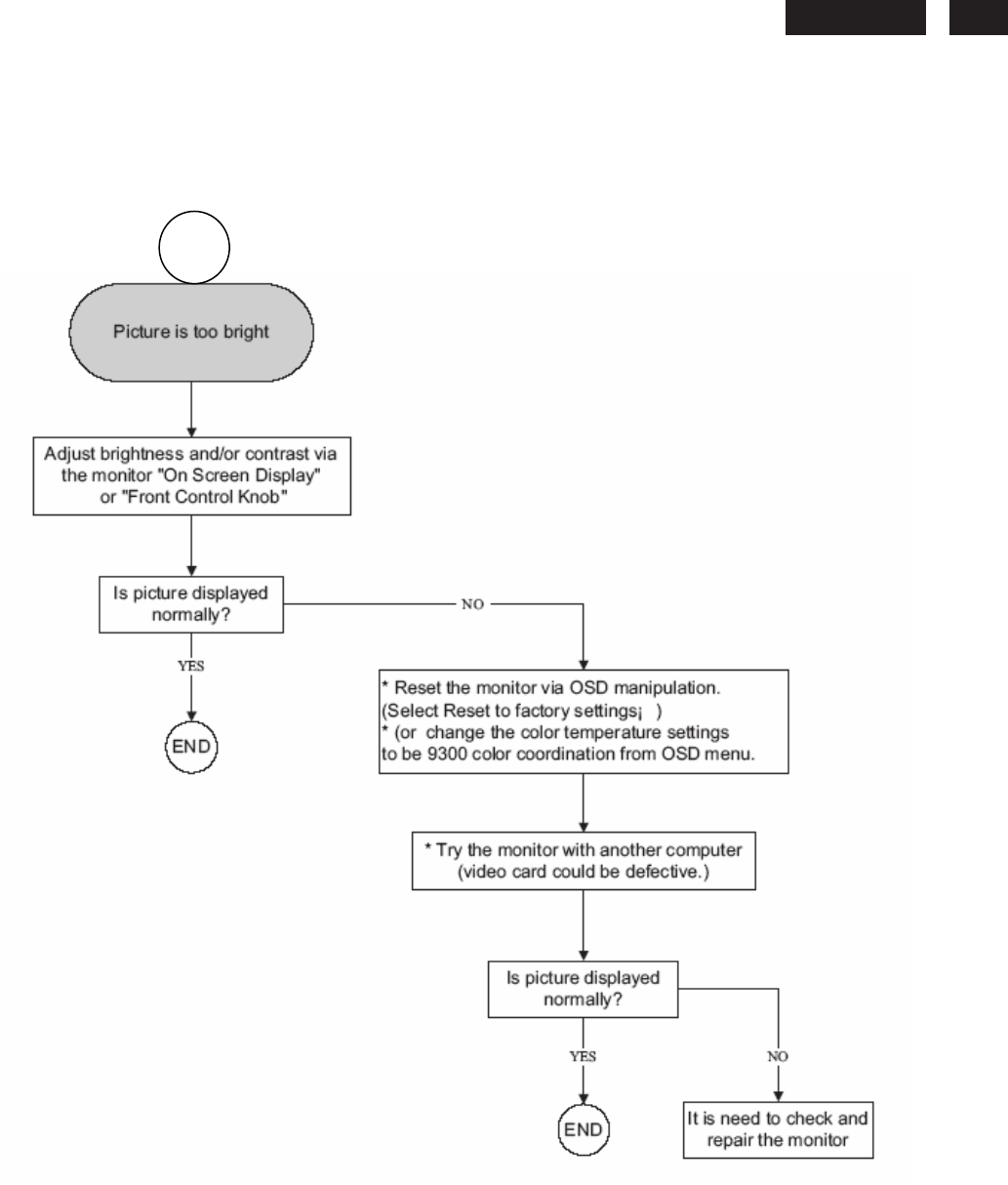
230E
LCD
53
General Trouble Shooting Guide
7
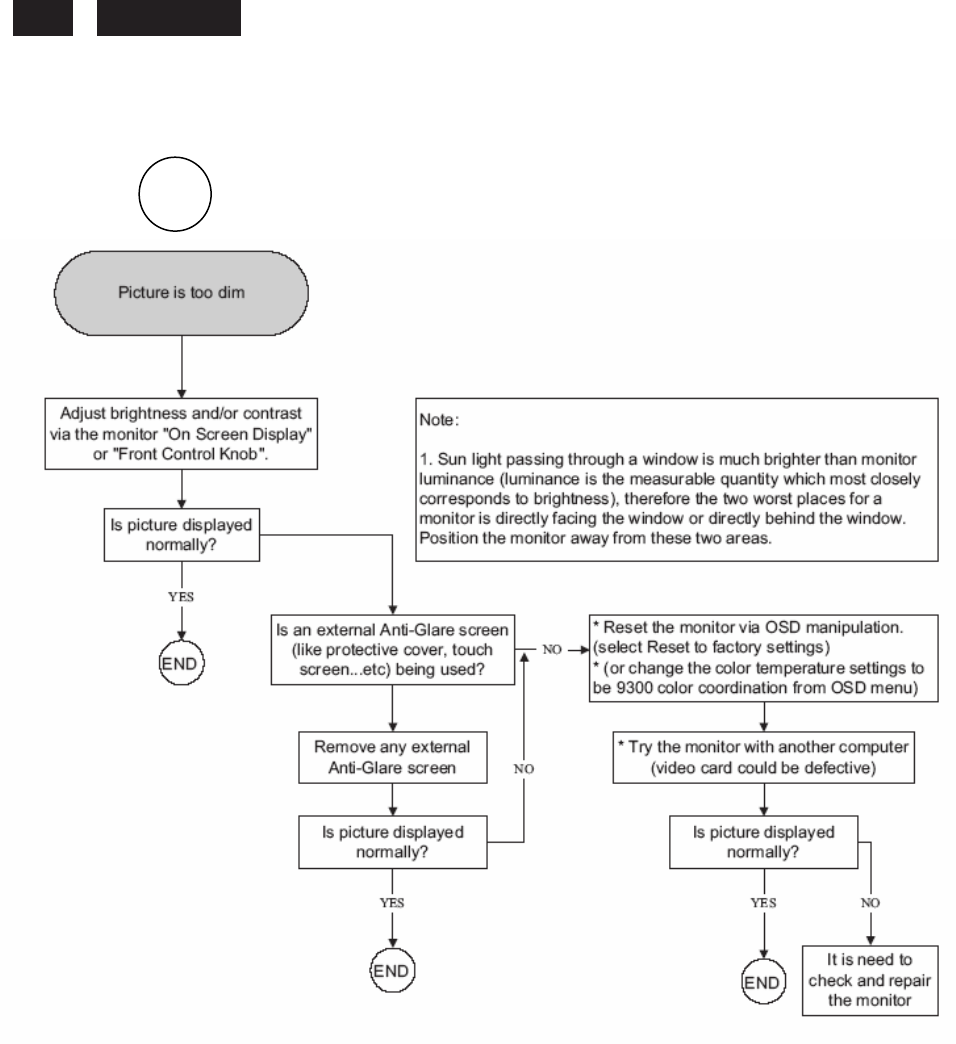
230E1
LCD
54
General Trouble Shooting Guide
8
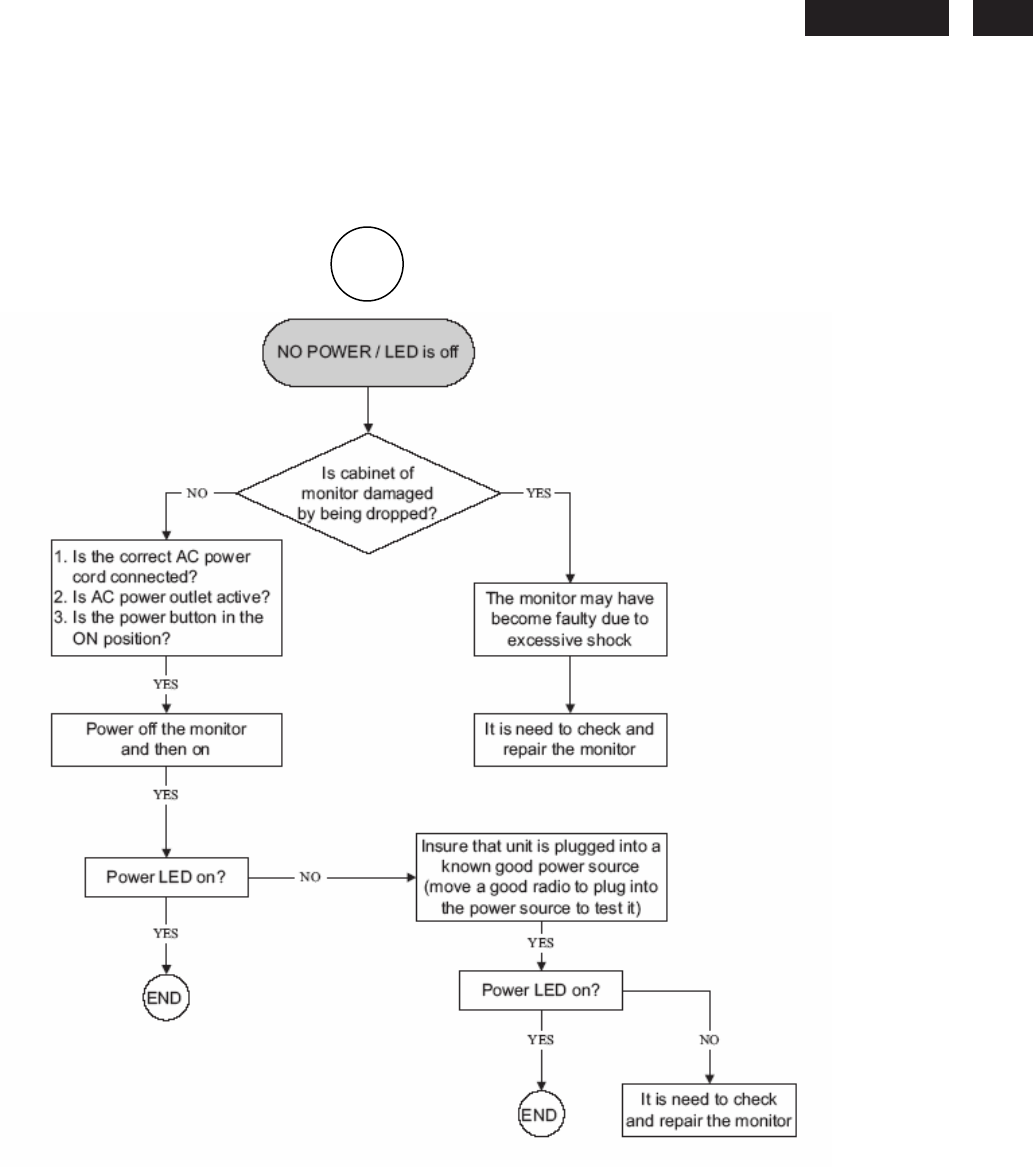
230E
LCD
55
General Trouble Shooting Guide
9
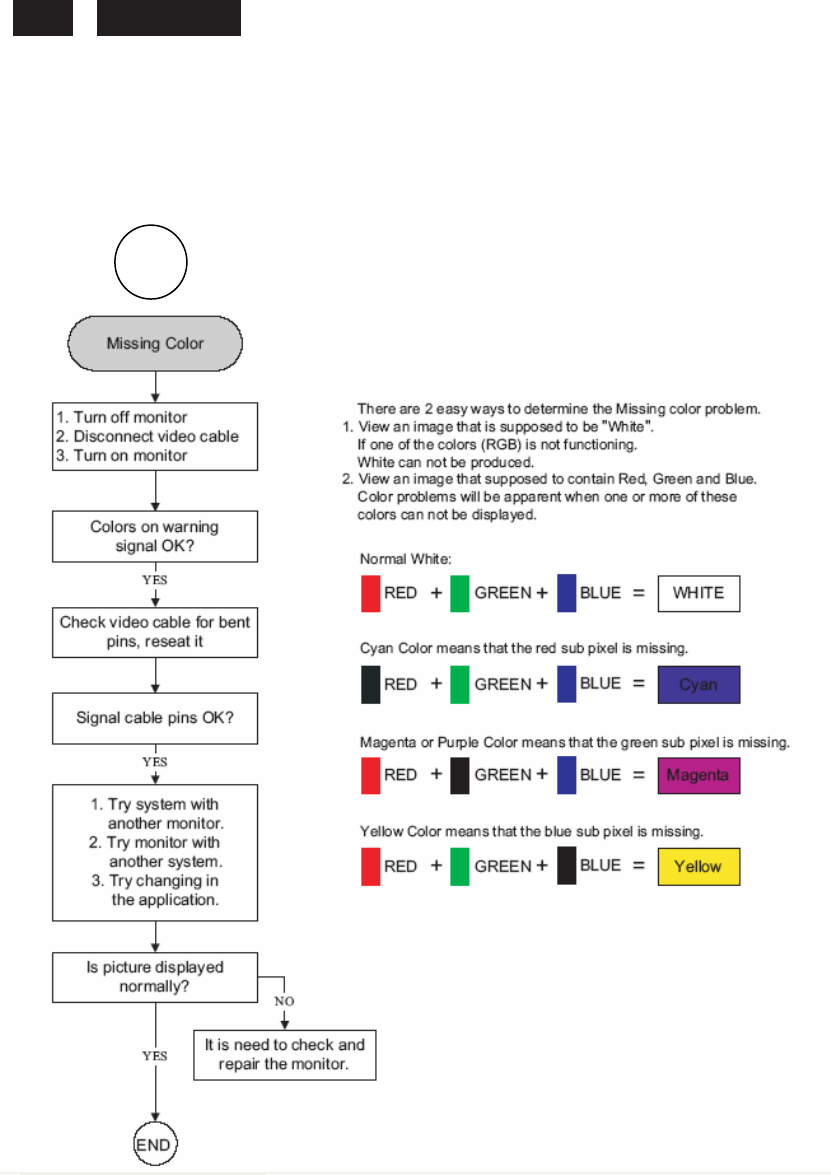
230E1
LCD
56
General Trouble Shooting Guide
10
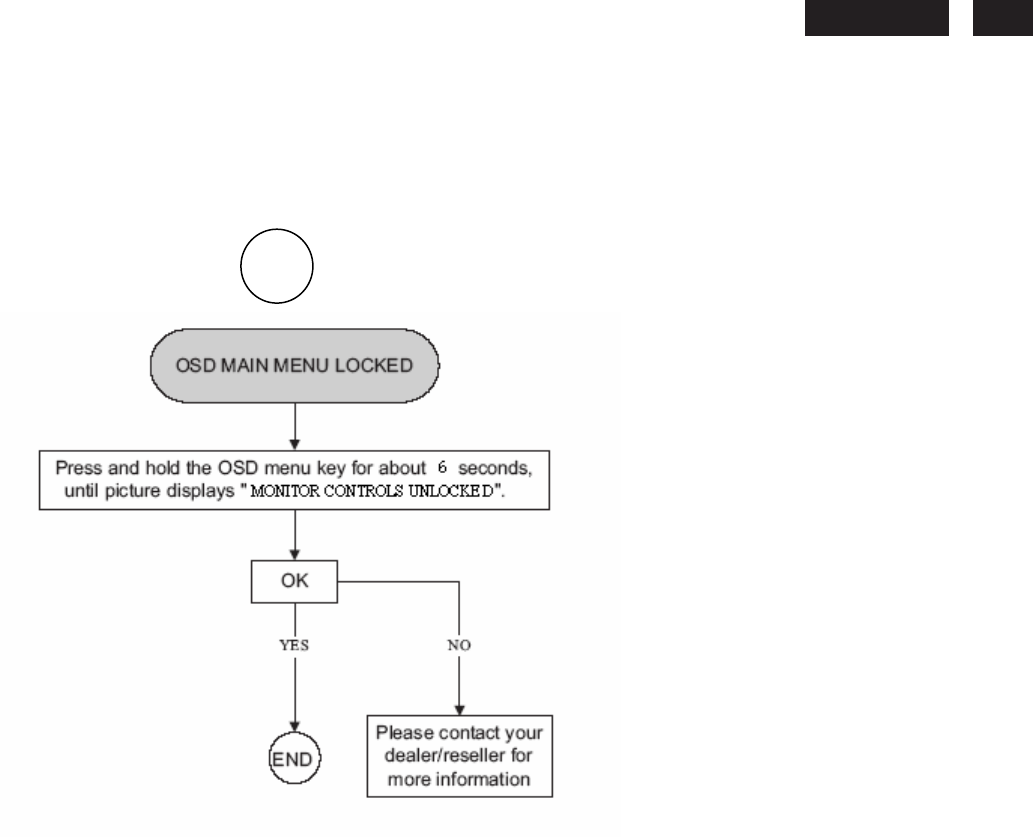
230E
LCD
57
General Trouble Shooting Guide
11
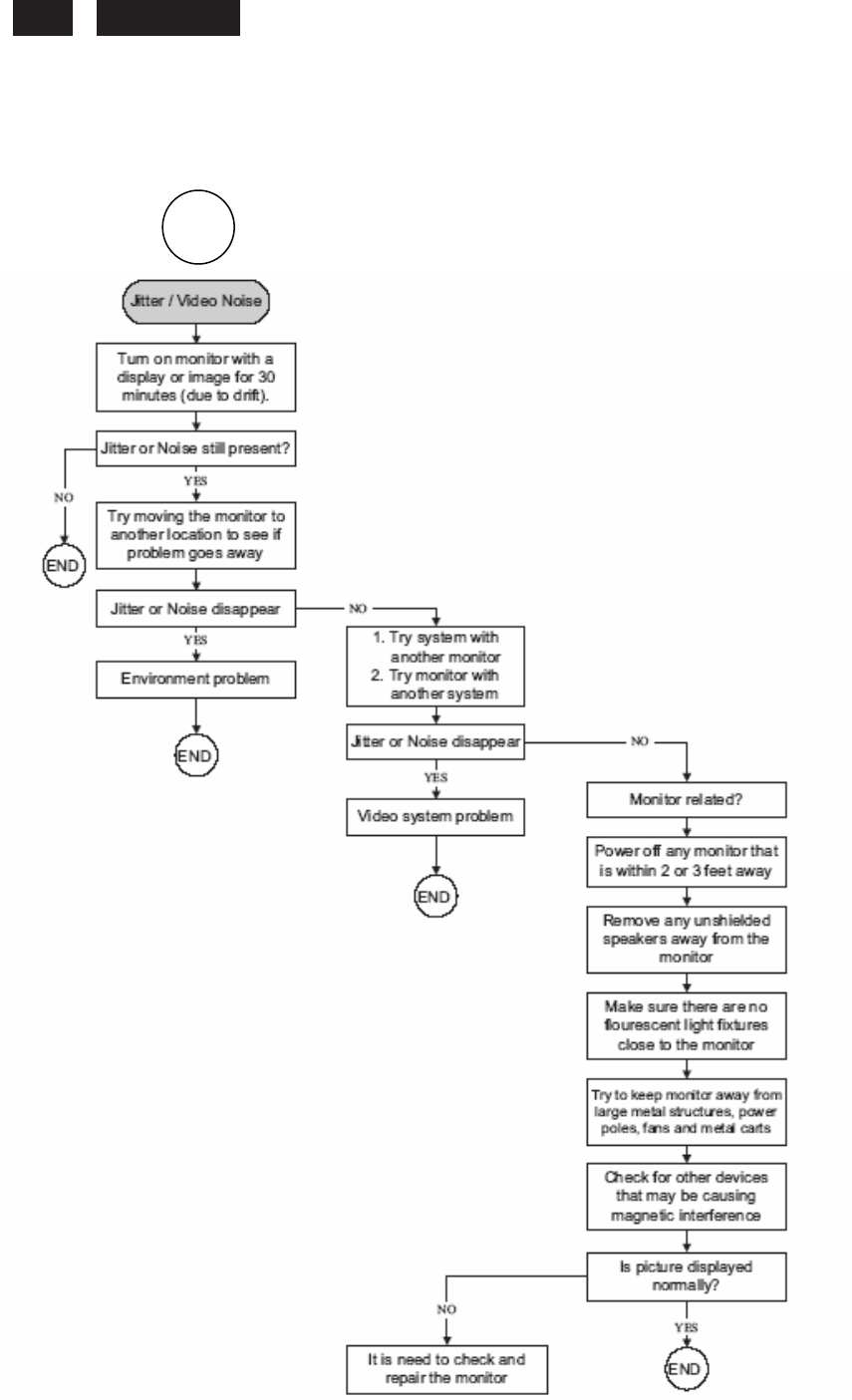
230E1
LCD
58
General Trouble Shooting Guide
12
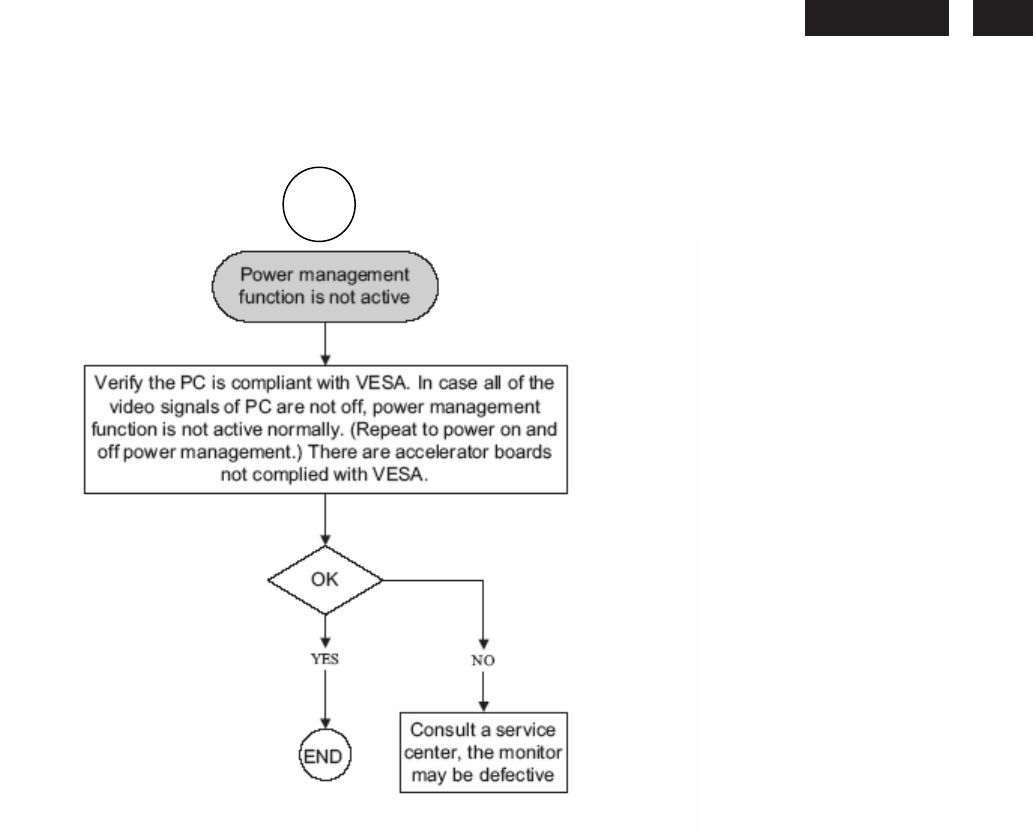
230E
LCD
59
General Trouble Shooting Guide
13
230E1
LCD
60
General Product Specification
Specification for
Philips 230E1HSB
23’’W TFT LCD Monitor,
30 - 83 kHz, 56 - 76 Hz, Analog,DVI HDMI input
(EE)
Table of Contents
1.
PRODUCT
SPECIFICATION
1.1
Relationship
1.2
Product
Data
2.
MECHANICAL
SPECIFICATION
2.1.1
Monitor
Housing
2.1.2
VESA mounting holes
2.1.3
Kensington
Slot
2.2
Tilt / Swivel base of the monitor
2.3
Dimensions of monitor
2.4
Dimensions of pallet and quantity
3.
LCD
SPECIFICATION
3.1
LCD
specification
4.
COSMETICS
APPEARANCE
4.1
GAP
definition
4.2
Panel
Offset
4.3
Horizontal
tilt
5.
CONNECTORS
5.1
Video
Connection
5.2
PIN
Assignment
5.2.1
15 pin mini D-Sub connector
6.
OSD
6.1
Control of OSD
6.2
Adjustment
Parameters
7.
ELECTRICAL
SPECIFICATION
7.1
Power
Specification
7.1.1
AC-DC
converter
7.1.2
Power
Management
7.2
Standard
Test
conditions
7.3
Test
equipment
7.4
Video Generator test
sequence
7.5
Analog
input
7.6
Optical response time
7.7
Protection
circuit
7.8
DDC
7.8.1
DDC
Details
7.9
Timings
7.10
Audio
Specification

230E
LCD
61
8.
DISPLAY
PERFORMANCE
8.1
Picture
performance
8.2
Geometric
defects
8.3
Picture stability during warm up
8.4
Scratches
8.5
Viewing
angle
8.6
Jitter
8.7
Missing Pixels / missing subpixel
8.8
Newton
Ring
8.9
Luminance
Output
8.9.1
Luminance
Output
8.9.2
Brightness
8.9.3
Brightness
Uniformity
8.10
White
Uniformity
8.11
Contrast
ratio
8.12
White color adjustment
8.13
Distance between
TFT LCD monitor and CRT/TFT monitor
9.
ENVIRONMENT
9.1
Environmental
conditions
10.
REGULATORY
STANDARDS
10.1
Safety
approvals
10.2
Power
management
10.3
Certificates, Reports for the production start
11.
RELIABILITY
11.1
Reliability of the monitor
12.
CUSTOMIZATION
12.1
Identity
Customization
12.2
EAN /SAP Identification
12.3
Plastic
12.4
Definition of
serial number
12.5
Definition of the barcode label
12.6
Accessories
13.
ECR-HANDLING
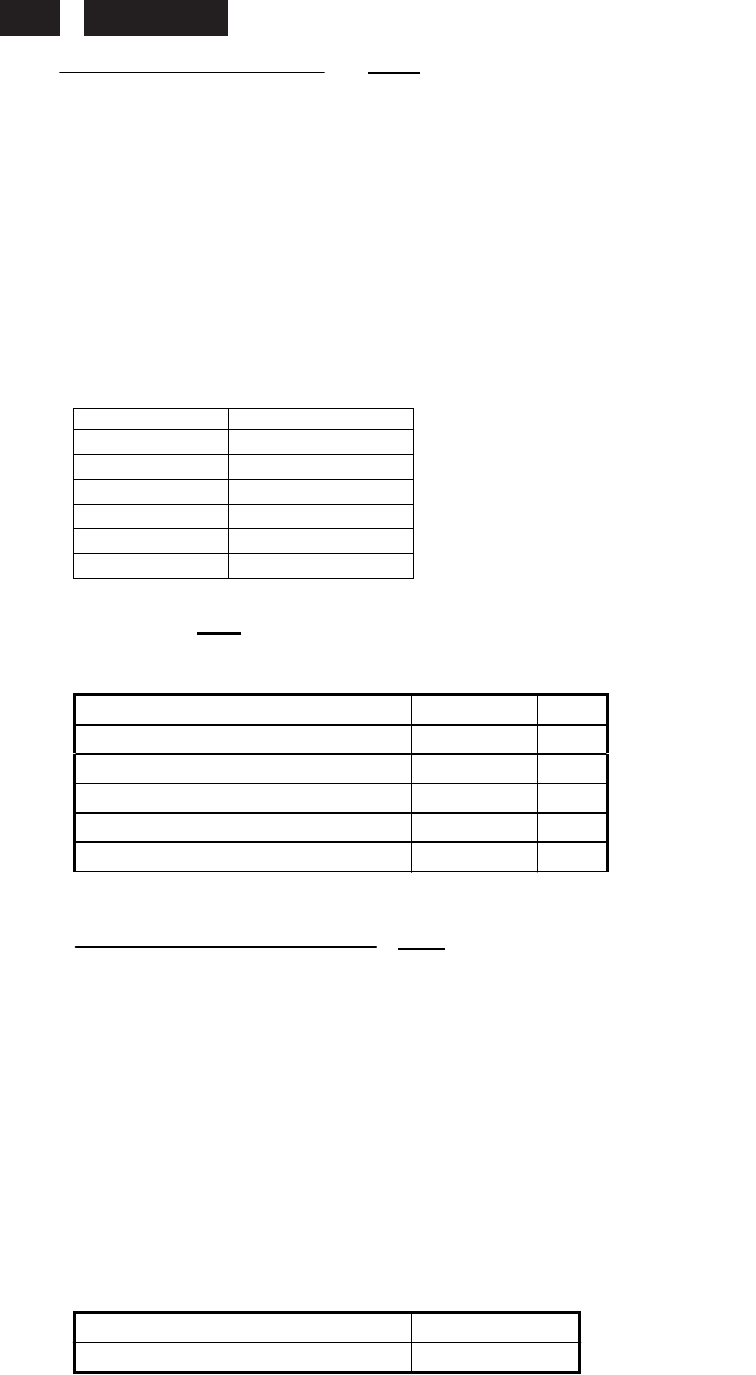
230E1
LCD
62
1.
PRODUCT
SPECIFICATION
(PM)
1.1 Relationship
Model:
LM230WF1-TLA3
Customer:
Philips
Model:
230E1HSB
*
Monitor No:
HWE1230F
*
Monitor ID:
230E1HSB/00
230E1HSB/62
230E1HSB/97
230E1HSB/69
230E1HSB/75
230E1HSB/93
*
EAN No.:
CTN
UPC/EAN
230E1HSB/00
87 12581 47638 0
230E1HSB/62
87 12581 47661 8
230E1HSB/97
87 12581 47658 8
230E1HSB/69
87 12581 47639 7
230E1HSB/75
87 12581 47640 3
230E1HSB/93
87 12581 47641 0
1.2
Product Data
(EE)
23” W TFT LCD monitor
Horizontal frequency
30 - 83
KHz
Vertical frequency
56 – 76
Hz
Screen diagonal
23
Inch
Viewing Angle(CR>10)(H/V)
170/160
°
Max. active horizontal picture size
509.18
mm
Max. active vertical picture size
286.21
mm
2. MECHANICAL
SPECIFICATION
(ME)
2.1.1
Monitor Housing
The front bezel and the back cabinet are based on Innolux OEM tooling and Philips design chin.
2.1.2
VESA mounting holes
Nil
2.1.3 Kensington Slot
The monitor is equipped with a 7 mm x
3 mm slot.
2.2
Tilt of the monitor
Forward
-5
q
+2/-0
Backward
+20
q
+0/-2
q
2.3
Dimensions of
monitor
The monitor
has the following dimensions:
Unit dimension : 547.2mm (W) * 432.8mm (H) * 201.4mm (D)
Packed unit dimension : 596mm (W) *495mm (H) * 134mm (D) for WW
: 596mm (W) *495mm (H) * 134mm (D) for China
Net weight : 5.4 Kg (Including I/F cable 240 g)
Gross weight : 6.636 Kg for WW
: 6.636 Kg for China
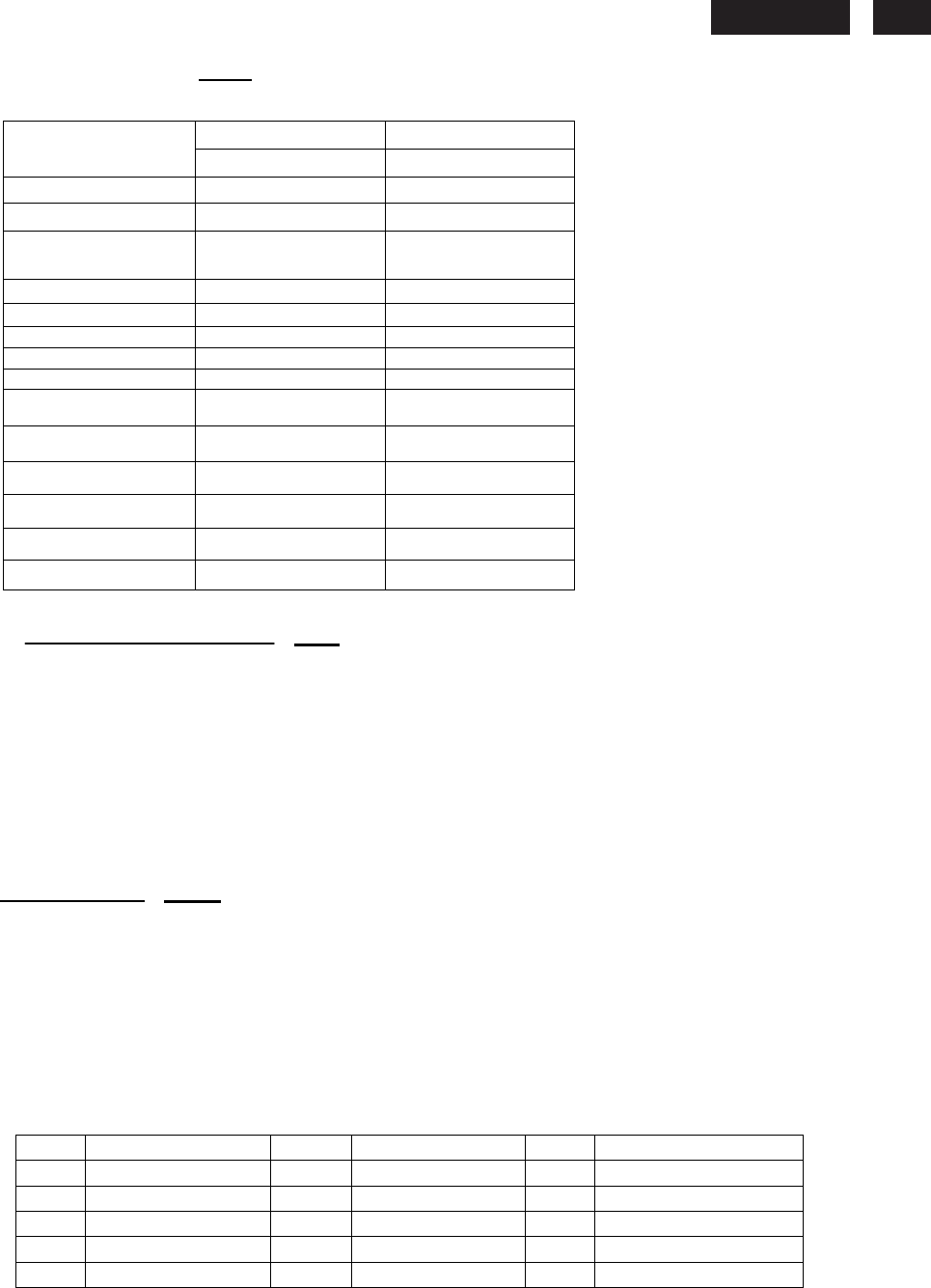
230E
LCD
63
3.
LCD
SPECIFICATION
(EE)
3.1
LCD specification
LGD
Panel LM230WF1-TLA3
Resolution 1920(H) X 1080(V)
Active area(HxV) 509.184 x 286.216
Outside
dimensions(WxHxD)
533.2 x 312.0 x
16.5 mm
Pitch(mm) 0.265 x 0.265
Display surface Anti-Glare type
Color depth 16.7M colors
Backlight 4CCFL
Viewing angle 170/160 for H/V
Contrast ratio 1000:1(Typ)
White luminance 300nit(Typ)
Color gamut 75%
Gate IC GIP
Source IC Lusem
Response time 5ms
4
COSMETICS APPEARANCE
(ME)
4.1 GAP definition
The gap between LCD and front bezel must be
<= 1.2mm
4.2
Panel
Offset
Panel Offset:
Panel disposition tolerance
inside the front bezel must be <=1.0mm
4.2 Horizontal tilt
Horizontal tilt between front bezel & LCD shall be <= 1.0mm
5. CONNECTORS
(FW)
5.1 Video Connection
The monitor is equipped with a 15 pin mini D-SUB connector.
5.2 PIN
Assignment
5.2.1
15 pin mini D-Sub connector
The PIN assignment of the 15 pin mini D-SUB connector / cable is as follows:
Pin Symbol Pin Symbol Pin Symbol
1 Red 6 Red GND 11 GND
2 Green/SOG 7 Green GND 12 Bi-directional data
3 Blue 8 Blue GND 13 H sync
4 GND 9 +5V 14 V sync
5 CableDetect 10 Open 15 Data clock
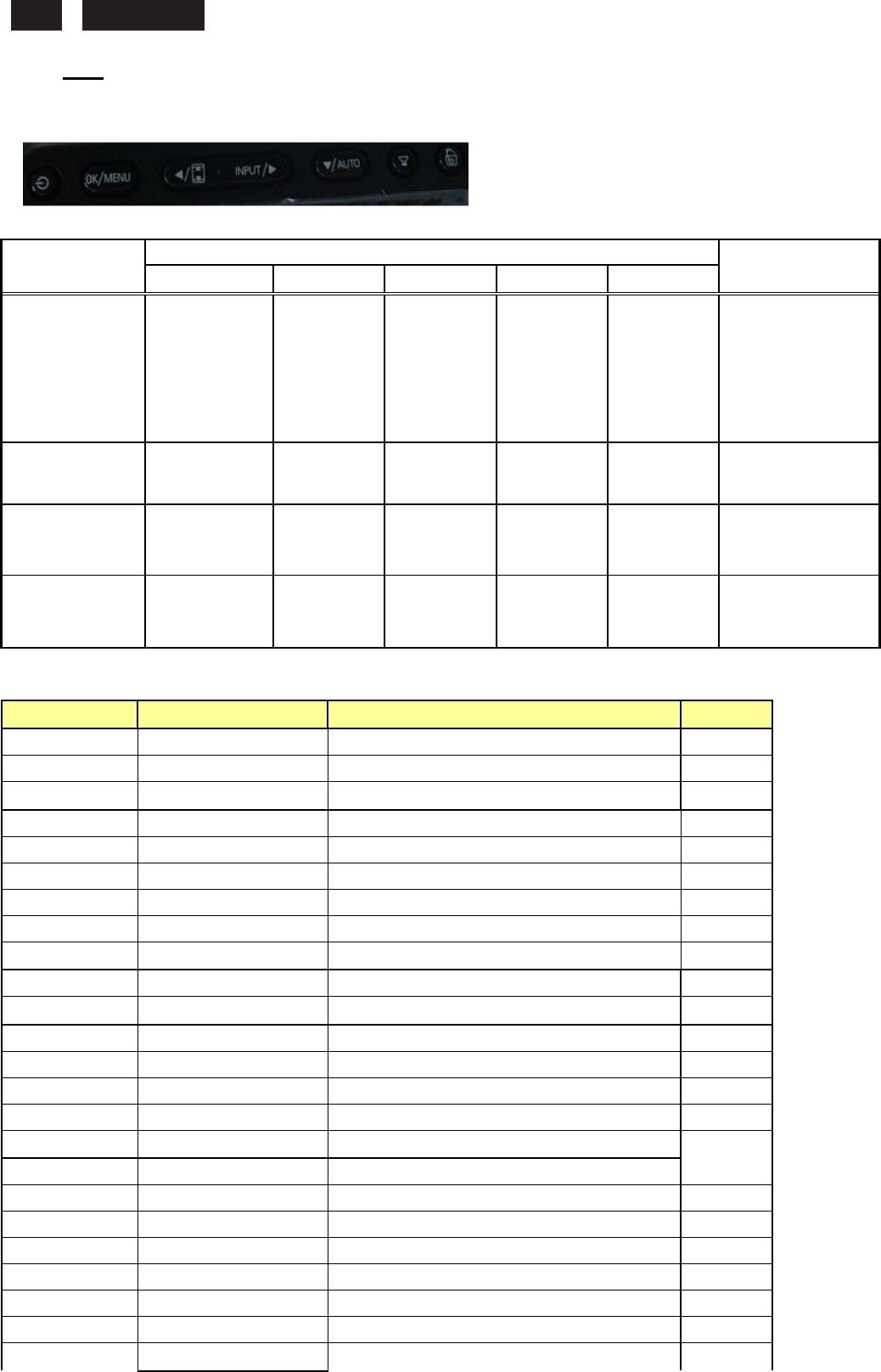
230E1
LCD
64
6. OSD
(FW)
6.1 control of OSD
The positions and functions of the buttons are defined as below.
6.2 Adjustment parameters
Hot-key definition
HOT KEY OPERATION
FUNCTION Smart Image Auto/Back Input
Input Input
Input \
\\
\▼
▼▼
▼
MENU\OK POWER DESCRIPTION
FACTORY MODE ● ● ●
Press
AUTO + Menu
at the same time, and
then press [POWER]
for DC power on. OSD
menu will be shown
with “Factory” on the
sub –menu of picture.
Demo mode ●
To enter Demo
mode(3 seconds
ON/OFF)
Monitor Controls
Lock ●
Lock/Unlock Monitor
control when press
Menu (6 seconds).
DDC/CI On/OFF
● ●
DDC/CI On/OFF
when press Menu+▼
▼▼
▼
(6 seconds).
OSD Tree
Level 1 Level 2 Level 3 Default
Input VGA
DVI
HDMI
Picture Picture Format (Wide screen, 4:3) Wide
Brightness (0~100) 100
Contrast (0~100) 50
SmartResponse (On, Off) Off
SmartContrast (On, Off) Off
Gamma (1.8, 2.0, 2.2, 2.4, 2.6) 2.2
Audio Stand Alone (On, Off) Off
Mute (On, Off) Off
Color Color Temp. (5000K,6500K,7500K,8200K,9300K,11500K)
6500K
sRGB
User Define (Red:0~100) 100
(Green:0~100) 100
(Blue:0~100) 100
Language English English
Español
Français
Deutsch
Italiano
Português
Русский
简体中文
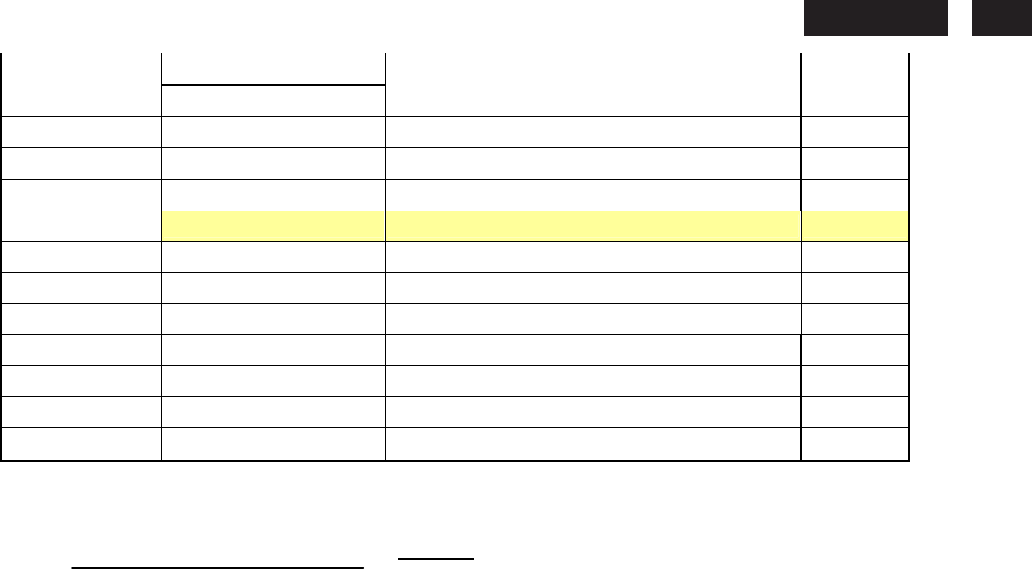
230E
LCD
65
Türkçe (only for 230E1)
OSD Setting Horizontal (0~100) 50
Vertical (0~100) 50
Transparency (Off, 1, 2, 3, 4) Off
OSD Time out (5, 10, 20, 30, 60) 20
Setup Power LED (0, 1, 2, 3, 4) 3
H.Position (0~100)
V.Position (0~100)
Phase (0~100)
Clock (0~100)
Resolution Notification (On, Off) Off
Reset (Yes, No) No
Information
7.
ELECTRICAL
SPECIFICATION
(EE)
7.1 Power Specification
7.1.1
AC-DC converter
Input
voltage
100-
240V
Frequency range
50~ 60HZ
Inrush current
Shall be less than the ratings of critical
components
(including fuse, rectifiers
and surge limiting device)
for all conditions
of line in voltage.
consumption:
≤ 58W
(Max.)
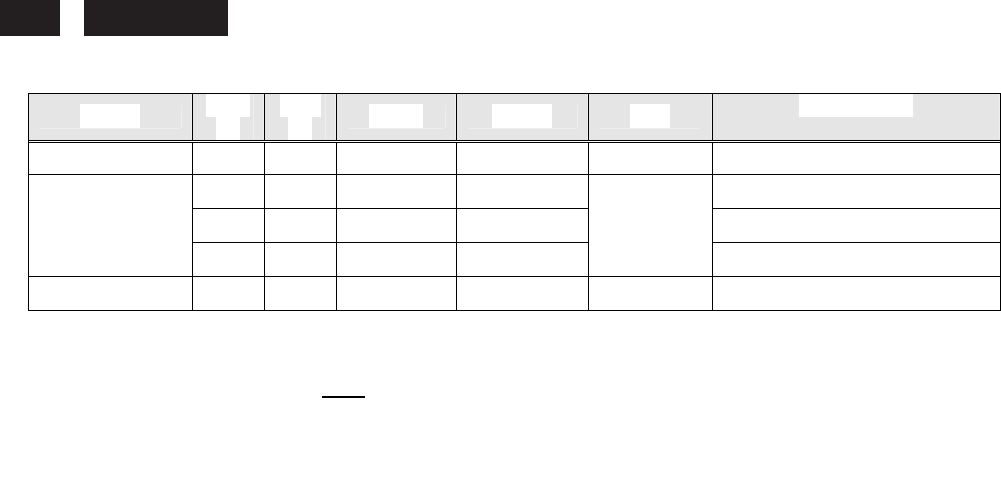
230E1
LCD
66
7.1.2 Power Management
Status H-sy
nc
V-sy
nc Video Power LED Test voltage
Power On on
on
active ≤ 60W Blue 90V/60HZ-264V/50Hz
off
on
blanked ≤0.5W
110V/60Hz and 220V/50Hz
on
off
blanked ≤ 0.5W
110V/60Hz and 220V/50Hz
Power Saving
off
off
blanked ≤ 0.5W
Blinking Blue
LED
Period: 3sec
On, 3sec Off
110V/60Hz and 220V/50Hz
Power Off -- -- -- ≤ 0.5W Off 90V/60HZ-264V/50Hz
7.2 Standard Test conditions
(EE)
Unless
otherwise
specified, this
specification is defined under the
following conditions.
(1) Input signal:
As defined in Timing table, 1920 x 1080
non-interlaced mode (
1920 x 1080 @60Hz
),
signal
sources must have 75 ohm
output impedance.
(2) Luminance setting: controls
to be set to 300 nits with full screen 100 % duty cycle white
signal
(3)
Warm up:
more than 30 minutes
after power
on with
signal supplied.
(4) Ambient light:
400 – 600 lux.
(5) Ambient temperature: 20 ± 5
q
C
7.3 Test equipment
Personal computer with Windows 98/2000/XP/VISTA
Luminance meter Minolta
CA210
Videogenerator: Chroma 2227, 2230 or equivalent
Colour analyzer: Minolta or Chroma
10 times magnifier
Ruler / Template
Thickness gauge
Watt / Power
Meter
7.4 Video Generator test sequence
Will be defined by Innolux or its subcontracted quality providers.
7.5
Analog input
Analog input R,G,B level:
0 - 700 mV max.
Polarity:
positive,
negative
Impedance:
75
:
± 1%
Sync:
HV separate sync,
composite
sync,
7.6
Optical response time
Video Bandwidth:
205MHz (dot rate)
Typical
Response Time
(CPT)
5ms
7.7 Protection circuit
The monitor
will not be damaged by:
improper vertical or horizontal sync pulse (picture must be black
at improper signals, unsynchronized pictures
are not allowed
)
230E
LCD
67
7.8 DDC (
FW)
The monitor can support DDC 2 B and DDC-CI according to the latest VESA standard.
7.8.1 DDC Details
for VGA:
1
User visible strings on .inf file Philips 230E1
2
Manufacturer ID ( EDID data) PHL
3
Product ID, "xxxx" 4 codes MSB(byte 12): C0
LSB (byte 11): 2B
4
maximum resolution 1920x1080
5
Horizontal Frequency Range 30~83 KHz
6
Vertical Frequency Range 56~76Hz
7
Monitor Name (13 characteries max.) Philips 230E
For DVI:
1
User visible strings on .inf file Philips 230E1
2
Manufacturer ID ( EDID data) PHL
3
Product ID, "xxxx" 4 codes MSB(byte 12): C0
LSB (byte 11): 2C
4
maximum resolution 1920x1080
5
Horizontal Frequency Range 30~83 KHz
6
Vertical Frequency Range 56~76Hz
7
Monitor Name (13 characteries max.) Philips 230E
For HDMI:
1
User visible strings on .inf file Philips 230E1
2
Manufacturer ID ( EDID data) PHL
3
Product ID, "xxxx" 4 codes MSB(byte 12): C0
LSB (byte 11): 2C
4
maximum resolution 1920x1080
5
Horizontal Frequency Range 30~83 KHz
6
Vertical Frequency Range 56~76Hz
7
Monitor Name (13 characteries max.) Philips 230E
7.9 Timings
For VGA INPUT :
Factory preset modes: 15
Preset modes : 54
User modes : 10
Note: 1.screen displays perfect picture at 15 factory-preset modes.
2.screen displays visible picture with OSD warning when input modes are the 54 preset modes.
Mode Resolution H.Freq. (KHz)
V.Freq. (Hz) BW(MHz)
IBM VGA 10H 640x350 31.469 70.086
IBM VGA 3H 720x400 31.469 70.087
IBM VGA 12H 640x480 31.469 59.94
MACINTOSH 640x480 35 67
VESA 640x480 37.861 72.809
230E1
LCD
68
VESA 640x480 37.5 75
VESA 640x480 43.269 85.008
VESA 800x600 35.156 56.25
VESA 800x600 37.879 60.317
VESA 800x600 48.077 72.188
VESA 800x600 46.875 75
VESA 800x600 53.674 85.061
MACINTOSH 832x624 49.7 75
- 960x720 56.4 75
- 960x720 44.75 60
VESA 1024x768 48.363 60.004
VESA 1024x768 56.476 70.069
VESA 1024x768 60.023 75.029
IBM XGA-2 1024x768 61.08 75.781
VESA 1024x768 68.677 84.997
CVT 2.3MA 1280 x768 60
CVT 2.3MA 1280 x768 60.289 75
1152x864 54.1 60
VESA 1152x864 63.851 70.012
VESA 1152x864 67.5 75
MACINTOSH 1152x870 68.7 75
SUN WS 1152x900 61.845 66.004
SUN WS 1152x900 71.81 76.15
CVT 1280x800 49.7 59.81
CVT 1280x800 62.8 74.93
VESA 1280x960 60 60
VESA 1280x960 75 75
VESA 1280x1024 63.981 60.02
SUN WS 1280x1024 71.691 67.189
DOS/V 1280x1024 76 72
VESA 1280x1024 79.976 75.025
SUN WS 1280x1024 81.13 76.11
VESA 1280x1024 91.1 85
- 1280x720 44.772 60
- 1280x720 52.5 70
CVT-reduced
blanking
1400x1050 64 60
CVT 1400x1050 80 75
CVT 1400x1050 91.1 85
VESA-reduced
blanking mode
1440x900 55.469 59.901 88.75
VESA 1440x900 55.935 59.887 106.5
VESA 1440x900 70.635 74.984 136.75
VESA 1600x1200 75 60
CVT 2.3MA 1920x1080 67.05 60.0 173
CEA861 1920x1080 67.5 60 148.5
CVT 2.3MA-R 1920x1080 66.587 60 138.5
CVT1.76MW 1680x1050 65.29 60 146.25
CVT1.76MW-R 1680x1050 60 119
230E
LCD
69
CVT 2.3MA 1920x1200 74.56 60.0 193
CVT 2.3MA-R 1920x1200 74.52 60 154
Remark: Timing with light blue are factory mode.
FOR HDMI&DVI:
Factory preset modes: 15
Preset modes : 52
User modes : 10
Note: 1.screen displays perfect picture at 15 factory-preset modes.
2.screen displays visible picture with OSD warning when input modes are the 52 preset modes.
Mode Resolution H.Freq. (KHz)
V.Freq. (Hz) BW(MHz)
IBM VGA 10H 640x350 31.469 70.086
IBM VGA 3H 720x400 31.469 70.087
IBM VGA 12H 640x480 31.469 59.94
MACINTOSH 640x480 35 67
VESA 640x480 37.861 72.809
VESA 640x480 37.5 75
VESA 640x480 43.269 85.008
VESA 800x600 35.156 56.25
VESA 800x600 37.879 60.317
VESA 800x600 48.077 72.188
VESA 800x600 46.875 75
VESA 800x600 53.674 85.061
MACINTOSH 832x624 49.7 75
- 960x720 56.4 75
- 960x720 44.75 60
VESA 1024x768 48.363 60.004
VESA 1024x768 56.476 70.069
VESA 1024x768 60.023 75.029
IBM XGA-2 1024x768 61.08 75.781
VESA 1024x768 68.677 84.997
CVT 2.3MA 1280 x768 60
CVT 2.3MA 1280 x768 60.289 75
1152x864 54.1 60
VESA 1152x864 63.851 70.012
VESA 1152x864 67.5 75
MACINTOSH 1152x870 68.7 75
SUN WS 1152x900 61.845 66.004
SUN WS 1152x900 71.81 76.15
CVT 1280x800 49.7 59.81
CVT 1280x800 62.8 74.93
230E1
LCD
70
VESA 1280x960 60 60
VESA 1280x960 75 75
VESA 1280x1024 63.981 60.02
SUN WS 1280x1024 71.691 67.189
DOS/V 1280x1024 76 72
VESA 1280x1024 79.976 75.025
SUN WS 1280x1024 81.13 76.11
VESA 1280x1024 91.1 85
- 1280x720 44.772 60
- 1280x720 52.5 70
CVT-reduced
blanking
1400x1050 64 60
CVT 1400x1050 80 75
CVT 1400x1050 91.1 85
VESA-reduced
blanking mode
1440x900 55.469 59.901 88.75
VESA 1440x900 55.935 59.887 106.5
VESA 1440x900 70.635 74.984 136.75
VESA 1600x1200 75 60
CEA861 1920x1080 67.5 60 148.5
CVT 2.3MA-R 1920x1080 66.587 60 138.5
CVT1.76MW 1680x1050 65.29 60 146.25
CVT1.76MW-R 1680x1050 60 119
CVT 2.3MA-R 1920x1200 74.52 60 154
Remark: Timing with light blue are factory mode.
FOR HDMI (Video timing) :
Resolution Pixel Clock
MHz
Hsync KHz Vsync Hz
480i 720 x 480 13.50 15.73 60
480p 720 x 480 27.00 31.47 60
576i 720 x 576 13.50 15.63 50
576p 720 x 576 27.00 31.27 50
720p 1280 x 720 74.25 44.96 60
720p 1280 x 720 74.25 37.5 50
1080i 1920 x 1080
74.25 33.75 60
1080P 1920 x 1080
148.50 67.50 60
1080i 1920 x 1080
74.25 28.125 50
1080P 1920 x 1080
148.50 56.25 50
7.10 Audio Specification
N/A
8. DISPLAY PERFORMANCE
(EE)
8.1
Picture performance
Optical performance test must be done in a dark room.
Note:
Test under standard
test conditions unless otherwise
specified
Active Image
Size (all modes)
8.2
Geometric defects
No vertical
or/and horizontal line defect.
No cross line
defect.
230E
LCD
71
8.3
Picture stability during
warm up
During 10 - 30 minutes warm up time from cold condition of the monitor
at ambient temperature (25°C
r
5°C) the decrease
of brightness must be less
than 6 Fl.
8.4
Scratches
No scratches
and foreign particles visible.
3.5
Viewing angle
Typical(10:1)
Horizental (Right + Left)
170°
Vertical (Up
+ Down)
160°
8.6
Jitter
No jitter visible in each condition. In case
of problem
a limit sample has to be defined.
8.7
Missing Pixels / missing subpixel
(PM)
BRIGHT DOT DEFECTS ACCEPTABLE LEVEL
MODEL 230E
1 lit subpixel 3
2 adjacent lit subpixels 1
3 adjacent lit subpixels (one white pixel)
0
Distance between two bright dot defects*
15mm
Bright dot defects within 20 mm circle
0
Total bright dot defects of all types
3
TOTAL DOT DEFECTS
ACCEPTABLE LEVEL
MODEL 230E
Total bright or black dot defects of all
types 5
8.8
Newton Ring
No Newton Rings visible.
8.9
Luminance
Output
8.9.1
Luminance Output
(EE)
Test resolution:
1920 x 1080 @60Hz
Test condition:
video input (RGB) = maximum white
8.9.2
Brightness
BRIGHT DOT DEFECTS ACCEPTABLE LEVEL
MODEL 230E
1 dark subpixel 5
2 adjacent dark subpixels 2
3 adjacent dark subpixels (one white
pixel) 1
Distance between two dark dot defects*
15mm
Black dot defects within 20 mm circle
1
Total black dot defects of all types
5
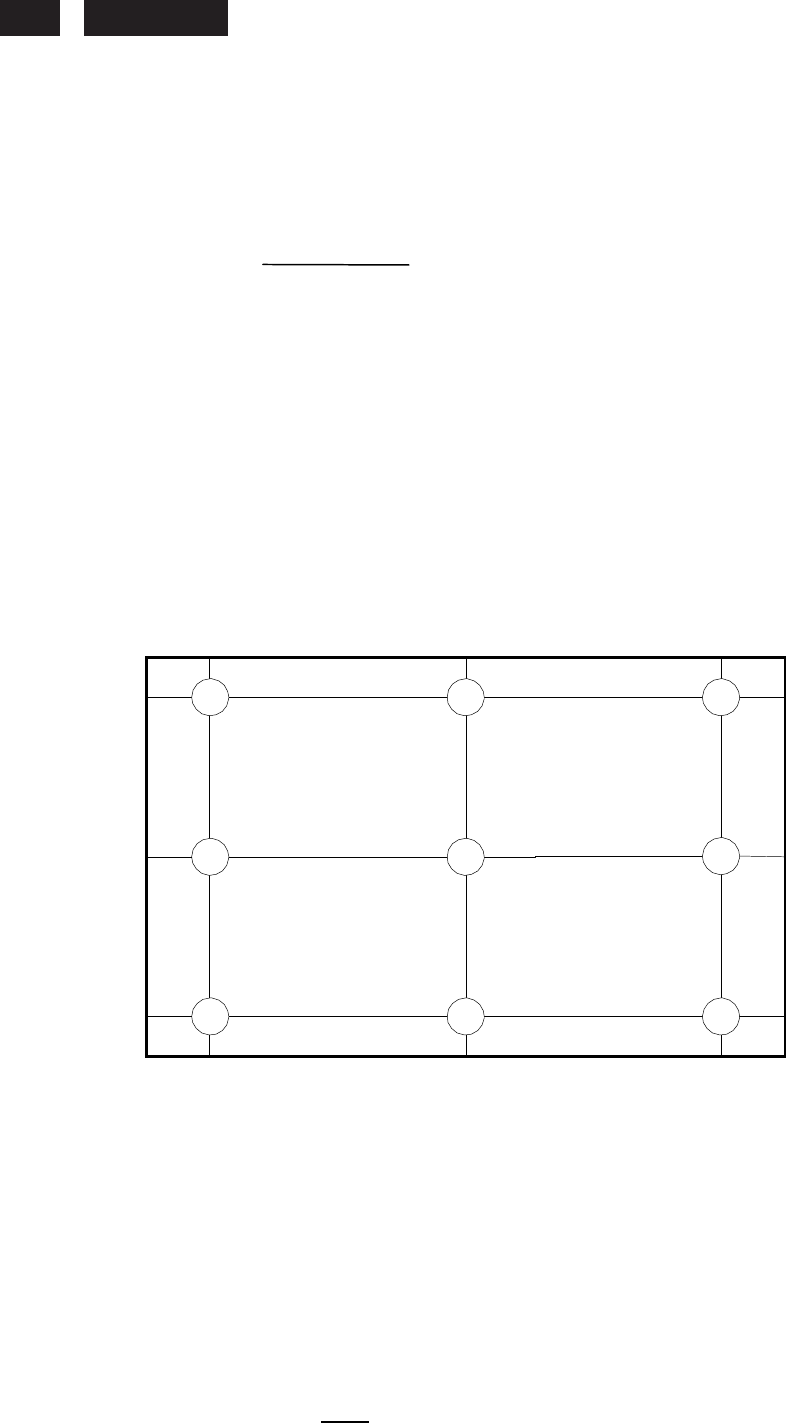
230E1
LCD
72
To follow Panel specification. sRGB = 80 ± 10 nits.
8.9.3
Brightness uniformity
Set contrast
at 100% and turn the brightness to get average above 300 nits at centre of
the screen. Apply the
Fig 1, it should comply with the following formula:
B_min
X
100%>75%
B_max
Where B_max = Maximum brightness
B_min = Minimum brightness
8.10
White Uniformity
Definition of White Variation (W):
Measure the luminance of gray level 255 at
9 points
W = Maximum [L(1), L(2)
…… L(9)] /
Minimum [L(1), L(2) …… L(9)]
90%
50%
10%
10%
1 2 3
4
5
6
7 8 9
50%
90%
Spec : =< 1.33 (In all ranges)
8.11
Contrast ratio
The
contrast ration can be calculated by following expression.
Contrast Ratio (CR) = L255 / L0
L255 : Luminance of gray level 255
L0 : Luminance of gray level 0
Typical value:
1000:1
8.12
White color adjustment
(FW)
There
are three factory preset white color 9300K, 6500K, sRGB.
Apply full gray 64 pattern, with brightness in 100 % position and the contrast control at 50 %
position. The 1931 CIE Chromaticity
(color triangle) diagram (x,y) coordinate for the screen
center
should be:
Product specification:
230E
LCD
73
Mode Chromaticity Coordinate
OSD setting
Temp. x y Remark
0.313 ±0.020 0.329 ±0.020 For product Spec(DQA test)
0.313 ±0.015 0.329 ±0.015 For OQC Test:
Warm 6500K
0.313 ±0.005 0.329 ±0.005 For production alignment test
0.283 ±0.020 0.298±0.020 For product Spec(DQA test)
0.283 ±0.015 0.298±0.015 For OQC Test:
Cool 9300K
0.283 ±0.005 0.298±0.005 For production alignment test
User Panel White x
Panel White y
The test standard condition :Brightness control is at 100 contrast control is at 50
8.13
Distance between TFT
LCD monitor and CRT/TFT monitor
Conducted with different modes
or frequencies.
No interference in a distance down to 25 cm.
9.
ENVIRONMENT
(EE)
9.1
Environmental characteristics
The following sections define the interference and susceptibility condition limits
that might occur between external
environment
and the display device.
Operating:
- Temperature :
5°C to 40°C
- Humidity :
20% to 80%
- Altitude :
0 to 5000 M
Storage:
- Temperature : -20 to 60 degree C
- Humidity
:
10% to 80%
- Altitude
:
0 to 12000M
Note: recommend at 5 to
35
q
C, Humidity less
than 60 %
10.
REGULATORY STANDARDS
(Safety)
Note:
All certificates must be raised under the
name of Philips
10.1
Safety approvals
;
CB report
;
CE
10.2
Power management
;
Energy Star
10.3
Certificates, Reports for the production start
When the first production
of the monitor starts
the following documents must be sent to Philips by mail. All reports
must be raised under “Philips”
and have to
show W0ZR model name .
;
CB report
;
CE
;
FCC
;
Service manual

230E1
LCD
74
11
RELIABILITY
(EE)
11.1 Reliability of the monitor
The MTBF of
the monitor has to be greater than 50.000 hours.
12. CUSTOMIZATION
(PM)
12.1 Identity Customization
Refer to SKU
12.2 EAN /SAP Identification
Refer to SKU
12.3 Plastic
The plastic material of the monitor must be ABS-HB (base/Front/ back). Plastic type and
color is released as follows:
Refer to MakeUp sheet/ Graphic sheet
12.4 Definition of serial number
Refer to Philips’ definition
12.5 Definition of the barcode label
Refer to Philips’ definition
12.6 Accessories
Refer to SKU
13. ECR-HANDLING
Not any change without approved ECR.
Every ECR to the golden “ samples” must be approved by PHILIPS, Even ECR for minor changes must be released
by PHILIPS.
For the ECR procedure the vendor has to send an ECR formular, necessary spec updates, datasheets and a photo
documentation. On based on documents, PHILIPS has to decide if samples are necessary till release to changes. The
vendor also has to proof be certificates and test reports, that the change has no effect on safety, EMI and TCO03.
After testing, PHILIPS has to release or reject the change request.
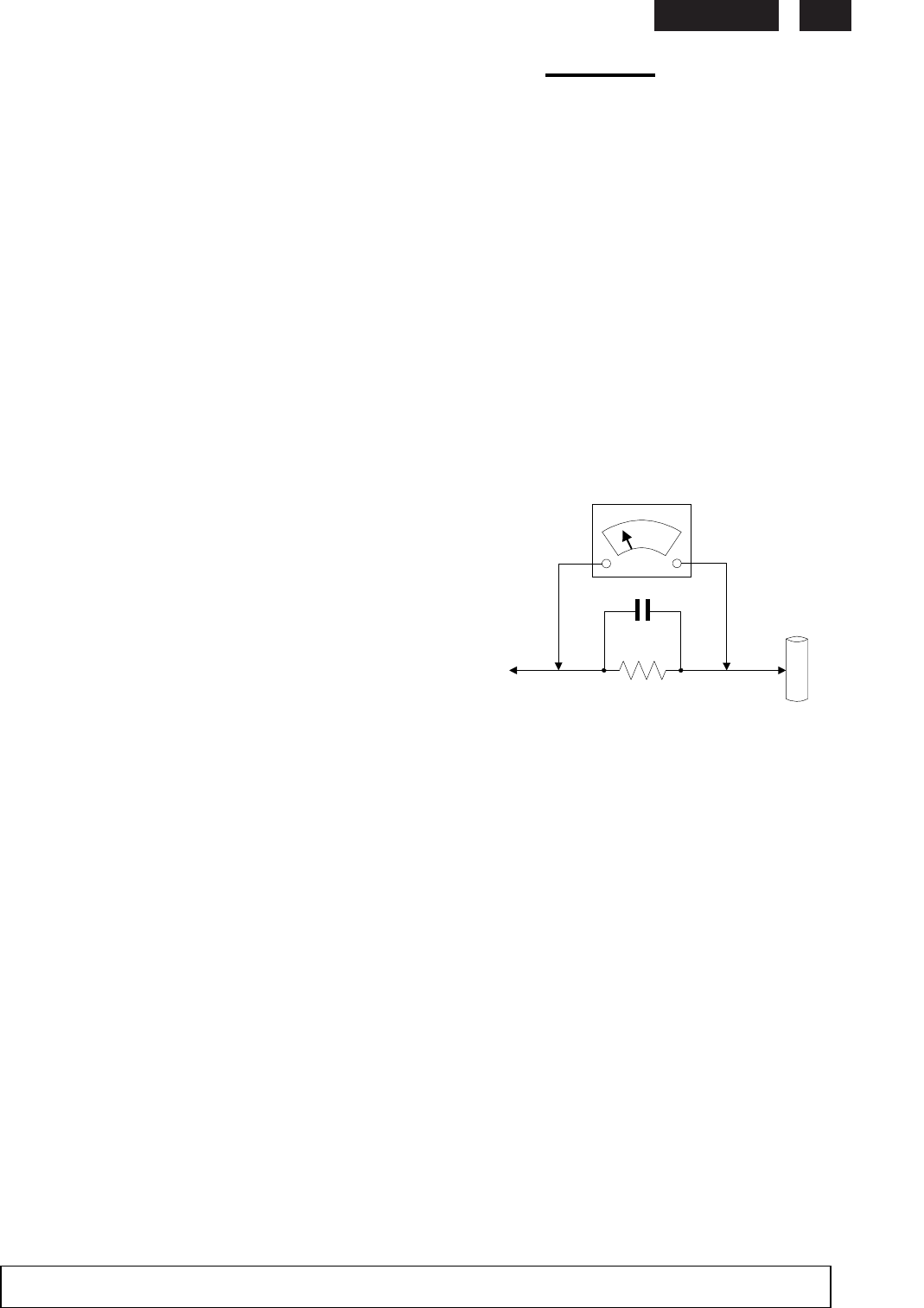
230E
LCD
75
Safety
Check
Process
(safety)
Safety
Checks
After
the
original
service
problem
has
been
corrected,
a
complete
safety
check should
be
made.
Be
sure
to
check
over
the
entire
set,
not
just
the
areas
where
you
have
worked.
Some
previous
service
may
have
left
an
unsafe
condition,
which
could
be
unknowingly
passed
on
to
your
customer.
Be
sure
to
check
all of
the
following:
Fire
and
Shock
Hazard
1.
Be
sure
all
components
are
positioned
in
such
a
way
as
to
avoid
the
possibility
of
adjacent
component
shorts.
This
is
especially
important
on
those
chassis
which
are
transported
to
and
form
the
service
shop.
2.
Never
release
a
repaired
unit
unless
all
protective
devices
such
as
insulators,
barries,
covers,
strain
reliefs,
and
other
hardware
have
been
installed
in
accordance
with
the
original
design.
3.
Soldering
and
wiring
must
be
inspected
to
locate
possible
cold
solder
joints,
solder
splashes,
sharp
solder
points,
frayed
leads,
pinched
leads,
or
damaged
insulation(including
the
accord).
Be
certain
to
remove
loose
solder
balls
and
all
other
loose
foreign
particles.
4.
Check
across-the-line
components
and
other
components
for
physical
evidence
of
damage
or
deteriortion
and
replace
if
necessary
.
Follow
original
layout,
lead
length
and
dress.
5.
No
lead
or
component
should
touch
a
receiving
tube
or
a
resistor
rated
at
1watt
or
more.
Lead
tension
around
protruding
metal
surfaces
or
edges
must
be
avoided.
6.
Critical
components
having
special
safety
characteristics
are
identified
with
ans
bythe
Ref.No
in
the
parts
list
and
enclosed
within
a
broken
line
*(
Where
several
critical
components
are
grouped
in
one
area)
along
with
the
safety symbols
on
the
schematic
diagrams
and/or
exploded
views.
7.When
servicing
any
unit,
always
use
a
separate
isolation
transformer
for
the
chassis
failure
to
use
a
separate
isolation
transformer
may
expose
you
to
possible
shock
hazard,
and
may
cause
damage
to
servicing
instruments.
8.
Many
electronic
products
use
a
polarized
ac
line
cord(one
wide
pin
on
the
plug).
Defeating
this
safety
feature
may
create
a
potential
hazard
to
the
service
and
the
user
.
Extension
cords
which
do
not
incorporate
the
polarizing
feature
should
never
be
used.
9.
After
reassembly
of
the
unit,
always
perform
an
leakage
test
or
resistance test
from
the
line
cord
to
all
exposed
metal
parts
of
the
cabinets.
Also
check
all
metal
control
shafts(with
knobs
removed),
antenna
terminals,
handles,
screws, etc.
To
be
sure
the
unit
may
be
safety
operated
without
danger
of
electrical
shock.
Broken
line
Implosion
1.
All
picture
tubes
used
in
current
model
receivers
are
equipped
with
an
intergral
implosion
system
care
should
always
be
used,
and
safety
glasses
worn,
whenever
handling
any
picture
tube.
Av
o
i
d
scratching
or
other
wise
damaging
the
picture
tube
during
installation.
2.
Use
only
replacement
tubes
specified
by
the
manufacturer.
X-radiation
1.
Be
sure
procedures
and
instructions
to
all
your
service
personal
cover
the
subject
of
X-radiation.
Potential
sources
of
X-rays
in
TV
receivers
are
the
picture
tube
and
the
high
voltage
circuits.
The
basic
precaution
which
must
be
exercised
is
to
keep
the
high
voltage
at
the
factory
recommended
level.
2.
To
avoid
possible
exposure
to
X-radiation
and
electrical
shock,
only
the
manufacturer
’
s
s
p
ecified
anode
connectors
must
be
used.
3.
It
is
essential
that
the
service
technician
has
an
accurate
HV
meter
available
at
all
times.
The
calibration
of
this
meter
should
be
checked
periodically
against
a
reference
standard.
4.
When
the
HV
circuitry
isoperating
properly
there
is
no
possibility
of
an
X-
radiation
problem.
High
voltage
should
always
be
kept
at
the
manufacture,
rated
value-no
higher-
for
optimum
performance.
Every
time
a
color
set
is
serviced,
the
brightness
should
be
run
up
and
while
monitoring
the
HV
with
a
meter
to
be
certain
that
the
HV
is
requation
correctly
and
does
not
exceed
the
specified
value.
We
s
uggest
that
you
and
your
technicians
review
test
procedures
so
that
HV
requation
are
always
checked
as
a
standard
servicing
procedure,
and
the
reason
for
this
prudent
routine
is
cleanly
understood
by
everyone.
It
is
important
ot
use
an
accurate
and
reliable
HV
meter.
It
is
recommended
that
the
HV
recorded
on
each
customer
’
s
i
nvoice,
which
will
demonstrate
a
proper
concern
for
the
customer
’
s
s
a
fety
.
5.
When
troubleshooting
and
making
test
measurements
in
a
receiver
with
a
problem
of
excessive
high
voltage,
reduce
the
line
voltage
by
means
of
a
variac to
bring
the
HV
into
acceptable
limits
while
troubleshooting.
Do
not
operate
the
chassis
loner
than
necessary
to
locate
the
cause
of
the
excessive
HV
.
6.
New
picture
tubes
are
specifically
designed
to
withstand
higher
operating
voltages
without
creating
undesirable
X-radiation.
It
is
strongly
recommended that
any
shop
test
fixture
which
is
to
be
used
with
the
new
higher
voltage
chassis
be
equipped
with
one
of
the
new
type
tubes
designed
for
this
service.
Addition
of
a
permanently
connected
HV
meter
to
the
shop
test
fixture
is
advisable.
The
CR
T
ty
p
e
s
used
in
these
new
sets
should
never
be
replaced
with
any
other
types,
as
this
may
result
in
excessive
X-radiation.
7.
It
is
essential
to
use
the
specified
picture
tube
to
avoid
a
possible
X-radiation
problem.
8.
Most
TV
receivers
contain
come
types
of
emergency”
Hold
Down”
circuit
to
prevent
HV
from
rising
to
excessive
levels
in
the
presence
of
a
failure
mode.
These
various
circuits
should
be
understood
by
all
technicians
servicing
them,
especially
since
many
hold
down
circuits
are
inoperative
as
long
as
the
receiver
performs
normally
.
Leakage
Current
Cold
Check
1.
Unplug
the
ac
line
cord
and
connect
a
jumper
between
the
two
prongs
of
the
plug.
2.
Tu
r
n
on
the
power
switch.
3.
Measure
the
resistance
value
between
the
jumpered
ac
plug
and
all
exposed
cabinet
parts
of
the
receiver,
such
as
screw
heads,
antennas,
and
control
shafts.
When
the
exposed
metallic
part
has
a
return
path
to
the
chassis,
the
reading
should
be
between
1
megohm
and
5.2
megohms.
When
the
exposed
metal
does
not
have
a
return
path
to
the
chassis,
the
reading
must
be
infinity
. Remove
the
jumper
from
the
ac
line
cord.
To
INSTRUMEN
TS
EXPOSE
D
METAL
PA
RTS
1500
ohm
,
10
W
0.15
uF
Leakage Current Hot Check
1.
Do
not
use
an
isolation
transformer
for
this
test.
Plug
the
completely
reassembled
receiver
directly
into
the
ac
outlet.
2.
Connect
a
1.5k,
10w
resistor
paralleled
by
a
0.15uf
capacitor
between
each
exposed
metallic
cabinet
part
and
a
good
earth
ground
such
as
a
water
pipe,
as
shown
above.
3.
Use
an
ac
voltmeter
with
at
least
5000
ohms
volt
sensitivity
to
measure
the
potential
across
the
resistor.
4.
The
potential
at
any
point
should
not
exceed
0.75
volts.
A
leakage
current
tester
may
be
used
to
make
this
test;
leakage
current
must
not
exceed
a
possibility
of
shock
hazard.
The
receiver
should
be
repaired
and
rechecked
before
returning
it
to
the
customer.
5.
Repeat
the
above
procedure
with
the
ac
plug
reversed.(note:
an
ac
adapter
is
necessary
when
a
polarized
plug
is
used.
Do
not
defeat
the
polarizing
feature
of
the
plug.)
Picture Tube Replacement
The
primary
source
of
X-radiation
in
this
television
receiver
is
the
picture
tube. The
picture
tube
utilized
in
this
chassis
is
specially
constructed
to
limit
X-
radiation
emissions.
For
continued
X-radiation
protection,
the
replacement
tube
must
be
the
same
types
as
the
original,
including
suf
f
i
x
letter
,
or
a
Philips
approved
tube.
Parts
Replacement
Many
electrical
and
mechanical
parts
in
Philips
television
sets
have
specialsafety
related
characteristics.
These
characteristics
are
often
not
evident
from
visual
inspection
nor
can
the
protection
af
f
orded
by
them
necessarily
be
obtained
by
using
replacement
components
r=ated
for
higher
voltage,
wattage,
etc.
The
use
of
a
substitute
part
which
does
not
have
the
same
safety
characteristics
as
the
Philips
recommended
replacement
part
should
in
this
service
manual
may
create
shock,
fire,
or
other
hazards
W
A
RNING:
Before
removing
the
back
cover
,
turn
the
unit
OFF
and
short
the
HIGH
VOL
T
AGE
to
the
ground.
WATER
PIPE
EARTH
GROUND

230E1
LCD
76
~END~
