280ErGB ML 280 Elite Technical Reference Guide 280Er GB2
User Manual: ML 280 Elite Technical Reference Guide La Biblioteca de los 8 bits
Open the PDF directly: View PDF  .
.
Page Count: 319 [warning: Documents this large are best viewed by clicking the View PDF Link!]
- INTRODUCTION
- Using this Guide
- Printer Drivers
- Operator Controls
- Command Detail
- Horizontal Controls
- Carriage return execute
- Backspace
- Delete
- Print direction
- Print position
- Execute print position from the left margin
- Define print position from Home Position
- Define right relative position
- Logical limitation:
- Define left relative position
- Define indexed position – by dot column
- Define relative dot position
- Set print position
- Define stops – by characters
- Horizontal tab execute
- Define stops – default values
- Define stops – by characters
- Define stops – by dot column
- Horizontal tab execute
- Margins – define left margin
- Margins – define right margin
- Margins – define left & right margin
- Print-Line justification – select
- Margins – define left margin
- Margins – right margin
- Relative move inline forward
- Horizontal tabs – define stop – by characters
- Vertical Control
- Line spacing – select fixed amount
- 1/6 inch
- 1/6 inch
- 1/8 inch
- 1/8 inch
- 7/72 inch
- Define amount – n/72 inch
- Define amount – n/72 inch
- Define amount – n/216 inch
- Activate amount defined by n/72 inch
- Fine LF – execute – n/144 inch
- Line spacing – define amount – n/144 inch
- Line feed – execute forward LF with CR
- Line feed – automatic LF—ON/OFF
- Line feed – W/O carriage return
- Line feed – execute direct skip
- Form length – define amount – by inches
- Form length – define amount – by lines
- Form length – define amount – by 1/2 inch
- Form length – define amount – by lines
- Form feed—execute
- Form feed—execute
- Top of form—define
- Margins—define bottom margin (auto skip)
- Top of form—define
- Margins—define bottom margin (auto skip)
- Margins – cancel bottom margin (auto skip)
- Vertical tabs – select channel
- Vertical tabs – define tab stops
- Vertical tabs – define tab stops in channels
- Vertical tab—execute
- Vertical tabs – define tab stops in channels (VFU)
- Vertical tabs — execute
- Paper-out sensor – enable
- Paper-out sensor – disable
- Paper-out detection override – enable/disable
- Cut-sheet feeder – single sheet insert
- Cut-sheet feeder – single sheet eject
- Cut-sheet feeder – single sheet insert
- Cut-sheet feeder – single sheet eject
- Cut-sheet feeder – Dual bin CSF bin select
- Dual bin CSF, bin select
- Composite command for setting line feed quantity
- CSF Control
- Range and Meaning of sd
- Set Page Length in defined unit
- Set Page format
- Vertical tabs—execute
- Line spacing – select fixed amount
- Horizontal Controls
- Command Summary
- Command Tables
- Symbol Sets
- IBM
- Char set 1 – select
- Char set II – select
- Char set III (all characters) – continuous – select
- IBM char set III (all characters) – print one char only
- OKIDATA (ML) –standard – select
- OKIDATA (ML) – Block – select
- OKIDATA – IBM – select
- International language character set—select
- Code page set—select
- Slant/graphics character table—select
- Control codes or printable characters – ON/OFF
- Control codes or printable characters – ON
- Control codes or printable characters – OFF
- Italic character set – select
- Italic character set—cancel
- Character table designation
- Font Description
- Print quality – select mode – UTLINLQ
- Print quality – select HSD
- Print quality – select HSD
- Print quality – select font
- Print quality – select HSD
- Print quality – select utility
- Print quality – select NLQ
- Print quality – select NLQ – Gothic
- Custom font – select UTL DLL font
- Custom font – select synthetic–NLQ DLL font
- Typestyles – select
- Custom font – create – copy ROM data to RAM
- Custom font – create – copy ROM data to RAM
- Custom font – create character pattern – UTL DLL
- Custom font – create character pattern – UTL/NLQ DLL
- Custom font — select DLL font
- Character pitch — select 10 CPI
- Character pitch — select 10 CPI
- Character pitch —s elect 12 CPI
- Character pitch — select 12 CPI
- Character pitch — select 15 CPI
- Character pitch — select condensed (17, 20 CPI)
- Character pitch – cancel condensed (17, 20 CPI)
- Character pitch — select 10 CPI
- Character pitch — select 12 CPI
- Character pitch — select 17.1 CPI
- Character pitch — select 20 CPI
- Character density – define inter-character clearance – by dot column
- Character pitch select 20 CPI
- Inter-character clearance – define amount by dot column
- Inter-character clearance – define amount – by dot column
- Character cell size – proportional width – ON / OFF
- Character cell size – proportional width – ON/OFF
- Character cell size – proportional width – ON
- Character cell size – proportional width – OFF
- Custom font – create pattern – UTL DLL – ascender
- Select Font by Pitch and Point
- Select Font by Pitch and Point
- Set Print Quality
- Select font
- Select font
- Text Print Features
- Underlined – ON/OFF
- Overscore – ON / OFF
- Underline – ON
- Underline – OFF
- Emphasized – ON
- Emphasized – OFF
- Enhanced (double strike) – ON
- Emphasized – ON
- Enhanced – ON
- Emphasized and enhanced – OFF
- Double wide – select
- Double high – select
- Enhanced (double strike) – OFF
- Double wide (expanded) – ON/OFF
- Double wide (expanded) – one line only – ON
- Double wide (expanded) – one line only – ON
- Double wide (expanded) – one line only – OFF
- Double height – ON/OFF
- Double height and width – ON/OFF
- Scripts – super/sub – select
- Scripts – super/sub – cancel
- Subscripts – ON
- Subscripts – OFF
- Superscript – ON
- Superscript – OFF
- Slant – ON
- Slant – OFF
- Slant – ON
- Slant – OFF
- Graphics Mode
- Bit image graphics – select density and enter graphics
- 8 pin graphics (1 byte/column)
- Bit image graphics – select 9 pin mode
- Bit image graphics – reassign graphic’s density commands
- Bit image graphics — single horizontal density
- Bit image graphics – double horizontal density – normal speed
- Bit image graphics – double horzontal density – high speed
- Bit image graphics – quadruple horizontal density
- Bit image graphics – enter
- Bit image graphics – exit
- Bit image graphics – true single horizontal density
- Bit image graphics – true single horizontal density
- Bit image graphics – true double horizontal density
- Bit image graphics – double speed, quasi quadruple horizontal density
- Bit image graphics – execute LF WI CR – text amount
- Bit image graphics – execute LW W/O CR – text amount
- Bit Image graphics – execute LF with CR – graphics amount
- Bit image graphics – execute LF W/O CR – graphics amount
- Composite Commands
- General Control
- Reset – clear print buffer
- Reset – clear buffer and initialize printer
- MSB control – set MSB equal to 1
- MSB control – set MSB equal to 0
- MSB control – cancel MSB control
- Print suppress – ON
- Print suppress – ON
- Print suppress – OFF
- Print speed – half – ON/OFF
- Cancel
- Printer Initialization
- Print suppress – ON
- Print suppress – OFF
- Print speed – half
- Print speed – full
- Stop Print
- Emulation mode switching
- Printer initialisation
- Set initial condition
- Incremental Print
- Set Unit
- Quiet mode – ON/OFF
- Bar codes
- IBM
- Code Page Tables
- Media Specification
- About paper:
- Pre-printed paper
- Paper storage conditions
- Media type and specification
- Paper specification - overview
- Paper specification - detail
- Cut-Sheet Paper
- Roll Paper
- Label paper
- Bit image Graphics – Dot density
- Machine Specifications
- Factory Default Settings
- Index

ML 280 Elite
Technical Reference Guide

PREFACE > 2
Every effort has been made to ensure that the information in this document is complete,
accurate, and up-to-date. The manufacturer assumes no responsibility for the results of
errors beyond its control. The manufacturer also cannot guarantee that changes in
software and equipment made by other manufacturers and referred to in this Guide will
not affect the applicability of the information in it. Mention of software products
manufactured by other companies does not necessarily constitute endorsement by the
manufacturer.
While all reasonable efforts have been made to make this document as accurate and
helpful as possible, we make no warranty of any kind, expressed or implied, as to the
accuracy or completeness of the information contained herein.
The most up-to-date drivers and manuals are available from the Oki Europe website:
http://www.okieurope.com
Copyright © 2004. All rights reserved.
Oki and Microline are registered trademarks of Oki Electric Industry Company Ltd.
Energy Star is a trademark of the United States Environmental Protection Agency.
IBM is the registered trademark of the International Business Machines Corporation.
Epson is the registered trademark of the Epson Corporation.
Hewlett-Packard, HP, and LaserJet are registered trademarks of Hewlett-Packard
Company.
Microsoft, MS-DOS and Windows are registered trademarks of Microsoft Corporation.
Apple, Macintosh and Mac OS are registered trademarks of Apple Computer Inc.
Other product names and brand names are registered trademarks or trademarks of
their proprietors.
As an Energy Star Program Participant, the manufacturer has
determined that this product meets the Energy Star guidelines for
energy efficiency.
This product complies with the requirements of the Council Directives
89/336/EEC (EMC) and 73/23/EEC (LVD) as amended where applicable
on the approximation of the laws of the member states relating to
electromagnetic compatibility and low voltage.
280ErGB.book Page 2 Monday, June 21, 2004 10:30 AM
CONTENTS > 3
CONTENTS
INTRODUCTION . . . . . . . . . . . . . . . . . . . . . . . . . . . . . . . . . . . . . . . 7
Features. . . . . . . . . . . . . . . . . . . . . . . . . . . . . . . . . . . . . . . . . . 7
Using this Guide . . . . . . . . . . . . . . . . . . . . . . . . . . . . . . . . . . . . . . 9
Online usage. . . . . . . . . . . . . . . . . . . . . . . . . . . . . . . . . . . . . . 9
Printing Pages . . . . . . . . . . . . . . . . . . . . . . . . . . . . . . . . . . 9
Conventions Used in this Manual . . . . . . . . . . . . . . . . . 10
Abbreviations & Acronyms . . . . . . . . . . . . . . . . . . . . . . . 11
Printer Drivers . . . . . . . . . . . . . . . . . . . . . . . . . . . . . . . . . . . . . . .12
Working with Commercial Software . . . . . . . . . . . . . . . . . . 12
Printer Drivers . . . . . . . . . . . . . . . . . . . . . . . . . . . . . . . . . 12
Software Driver Selection. . . . . . . . . . . . . . . . . . . . . . . . 13
Embedded Commands . . . . . . . . . . . . . . . . . . . . . . . . . . 13
Emulations. . . . . . . . . . . . . . . . . . . . . . . . . . . . . . . . . . . . 14
Driver installation . . . . . . . . . . . . . . . . . . . . . . . . . . . . . . 14
Interfaces . . . . . . . . . . . . . . . . . . . . . . . . . . . . . . . . . . . . . . . 15
General . . . . . . . . . . . . . . . . . . . . . . . . . . . . . . . . . . . . . . 15
USB . . . . . . . . . . . . . . . . . . . . . . . . . . . . . . . . . . . . . . . . . 15
Operator Controls . . . . . . . . . . . . . . . . . . . . . . . . . . . . . . . . . . . .18
Control Switches and Indicators . . . . . . . . . . . . . . . . . . . . . 18
Operator Panel . . . . . . . . . . . . . . . . . . . . . . . . . . . . . . . . 18
MENU . . . . . . . . . . . . . . . . . . . . . . . . . . . . . . . . . . . . . . . . 22
Command Detail . . . . . . . . . . . . . . . . . . . . . . . . . . . . . . . . . . . . .32
Horizontal Controls. . . . . . . . . . . . . . . . . . . . . . . . . . . . . . . . 32
Carriage return execute . . . . . . . . . . . . . . . . . . . . . . . . . 32
Backspace . . . . . . . . . . . . . . . . . . . . . . . . . . . . . . . . . . . . 32
Delete. . . . . . . . . . . . . . . . . . . . . . . . . . . . . . . . . . . . . . . . 34
Print direction . . . . . . . . . . . . . . . . . . . . . . . . . . . . . . . . . 35
Print position. . . . . . . . . . . . . . . . . . . . . . . . . . . . . . . . . . 36
Vertical Control. . . . . . . . . . . . . . . . . . . . . . . . . . . . . . . . . . . 59
Line spacing – select fixed amount . . . . . . . . . . . . . . . . 59
Command Summary . . . . . . . . . . . . . . . . . . . . . . . . . . . . . . . . . .98
Epson (EPS). . . . . . . . . . . . . . . . . . . . . . . . . . . . . . . . . . . . . . 98
Horizontal Control. . . . . . . . . . . . . . . . . . . . . . . . . . . . . . 98
Vertical Control . . . . . . . . . . . . . . . . . . . . . . . . . . . . . . . . 98
Symbol Sets . . . . . . . . . . . . . . . . . . . . . . . . . . . . . . . . . . 99
280ErGB.book Page 3 Monday, June 21, 2004 10:30 AM
CONTENTS > 4
Font Description . . . . . . . . . . . . . . . . . . . . . . . . . . . . . . . 99
Text Print Features . . . . . . . . . . . . . . . . . . . . . . . . . . . . 100
Graphics Mode . . . . . . . . . . . . . . . . . . . . . . . . . . . . . . .100
Composite Command . . . . . . . . . . . . . . . . . . . . . . . . . .100
General Control . . . . . . . . . . . . . . . . . . . . . . . . . . . . . . .101
IBM . . . . . . . . . . . . . . . . . . . . . . . . . . . . . . . . . . . . . . . . . . .102
Horizontal Control. . . . . . . . . . . . . . . . . . . . . . . . . . . . .102
Vertical Control . . . . . . . . . . . . . . . . . . . . . . . . . . . . . . .102
Symbol Sets . . . . . . . . . . . . . . . . . . . . . . . . . . . . . . . . .103
Font Description . . . . . . . . . . . . . . . . . . . . . . . . . . . . . .103
Text Print Features . . . . . . . . . . . . . . . . . . . . . . . . . . . . 104
Graphics Mode . . . . . . . . . . . . . . . . . . . . . . . . . . . . . . .104
General Control . . . . . . . . . . . . . . . . . . . . . . . . . . . . . . .104
Barcode . . . . . . . . . . . . . . . . . . . . . . . . . . . . . . . . . . . . . 105
Microline (ML) . . . . . . . . . . . . . . . . . . . . . . . . . . . . . . . . . . .106
Horizontal Control. . . . . . . . . . . . . . . . . . . . . . . . . . . . .106
Vertical Control . . . . . . . . . . . . . . . . . . . . . . . . . . . . . . .106
Symbol Sets . . . . . . . . . . . . . . . . . . . . . . . . . . . . . . . . .107
Font Description . . . . . . . . . . . . . . . . . . . . . . . . . . . . . .107
Text Print Features . . . . . . . . . . . . . . . . . . . . . . . . . . . . 108
Graphics Mode . . . . . . . . . . . . . . . . . . . . . . . . . . . . . . .108
Composite Commands . . . . . . . . . . . . . . . . . . . . . . . . .109
General Control . . . . . . . . . . . . . . . . . . . . . . . . . . . . . . .109
Command Tables. . . . . . . . . . . . . . . . . . . . . . . . . . . . . . . . . . . .110
IBM emulation. . . . . . . . . . . . . . . . . . . . . . . . . . . . . . . . . . .110
Epson emulation. . . . . . . . . . . . . . . . . . . . . . . . . . . . . . . . .114
ML emulation . . . . . . . . . . . . . . . . . . . . . . . . . . . . . . . . . . .118
Symbol Sets. . . . . . . . . . . . . . . . . . . . . . . . . . . . . . . . . . . . . . . .122
IBM . . . . . . . . . . . . . . . . . . . . . . . . . . . . . . . . . . . . . . . . . . .122
Char set 1 – select . . . . . . . . . . . . . . . . . . . . . . . . . . . .122
Char set II – select . . . . . . . . . . . . . . . . . . . . . . . . . . . . 122
Char set III (all characters) – continuous – select. . . .122
IBM char set III (all characters) – print one char only . 123
OKIDATA (ML) –standard – select . . . . . . . . . . . . . . . .123
OKIDATA (ML) – Block – select. . . . . . . . . . . . . . . . . . .124
OKIDATA – IBM – select . . . . . . . . . . . . . . . . . . . . . . . .125
International language character set—select . . . . . . .126
Code page set—select . . . . . . . . . . . . . . . . . . . . . . . . .127
Slant/graphics character table—select. . . . . . . . . . . .130
280ErGB.book Page 4 Monday, June 21, 2004 10:30 AM
CONTENTS > 5
Control codes or printable characters – ON/OFF . . . . 130
Control codes or printable characters – ON . . . . . . . . 131
Control codes or printable characters – OFF . . . . . . . .131
Italic character set – select . . . . . . . . . . . . . . . . . . . . .131
Italic character set—cancel . . . . . . . . . . . . . . . . . . . . .132
Character table designation. . . . . . . . . . . . . . . . . . . . .132
Font Description . . . . . . . . . . . . . . . . . . . . . . . . . . . . . .135
Text Print Features . . . . . . . . . . . . . . . . . . . . . . . . . . . . 172
Graphics Mode . . . . . . . . . . . . . . . . . . . . . . . . . . . . . . .195
Composite Commands . . . . . . . . . . . . . . . . . . . . . . . . .217
General Control . . . . . . . . . . . . . . . . . . . . . . . . . . . . . . .225
Bar codes. . . . . . . . . . . . . . . . . . . . . . . . . . . . . . . . . . . . 242
Code Page Tables . . . . . . . . . . . . . . . . . . . . . . . . . . . . . . . . . . .261
Media Specification . . . . . . . . . . . . . . . . . . . . . . . . . . . . . . . . .275
About paper: . . . . . . . . . . . . . . . . . . . . . . . . . . . . . . . . . . . . 275
Pre-printed paper . . . . . . . . . . . . . . . . . . . . . . . . . . . . . . . .275
Paper storage conditions . . . . . . . . . . . . . . . . . . . . . . . . . .276
Media type and specification. . . . . . . . . . . . . . . . . . . . . . .276
Ribbon Specifications. . . . . . . . . . . . . . . . . . . . . . . . . . 277
Paper specification - overview. . . . . . . . . . . . . . . . . . . . . . 277
Cut-sheet paper. . . . . . . . . . . . . . . . . . . . . . . . . . . . . . . 277
Sprocket fed paper . . . . . . . . . . . . . . . . . . . . . . . . . . . . 278
Roll paper . . . . . . . . . . . . . . . . . . . . . . . . . . . . . . . . . . . 280
Paper specification - detail . . . . . . . . . . . . . . . . . . . . . . . . 281
Continuous paper . . . . . . . . . . . . . . . . . . . . . . . . . . . . .281
Paper Size and Print area . . . . . . . . . . . . . . . . . . . . . . . 283
Paper ream weight . . . . . . . . . . . . . . . . . . . . . . . . . . . . 285
Maximum paper thickness . . . . . . . . . . . . . . . . . . . . . .286
Laminating copy forms . . . . . . . . . . . . . . . . . . . . . . . . . 286
Sprocket holes . . . . . . . . . . . . . . . . . . . . . . . . . . . . . . .289
Projections on horizontal perforations . . . . . . . . . . . . 289
Wrinkles and folded lines. . . . . . . . . . . . . . . . . . . . . . .289
Folded ends of the paper . . . . . . . . . . . . . . . . . . . . . . .290
Binding hole . . . . . . . . . . . . . . . . . . . . . . . . . . . . . . . . .290
Cut Corners . . . . . . . . . . . . . . . . . . . . . . . . . . . . . . . . . . 291
Cut-Sheet Paper . . . . . . . . . . . . . . . . . . . . . . . . . . . . . . . . .292
Paper size and printable range . . . . . . . . . . . . . . . . . .292
Paper quality . . . . . . . . . . . . . . . . . . . . . . . . . . . . . . . . . 293
Perforated lines. . . . . . . . . . . . . . . . . . . . . . . . . . . . . . .294
280ErGB.book Page 5 Monday, June 21, 2004 10:30 AM
CONTENTS > 6
Rules for folds, bends, and curls in cut-sheet paper .295
Roll Paper . . . . . . . . . . . . . . . . . . . . . . . . . . . . . . . . . . . . . . 296
Label paper . . . . . . . . . . . . . . . . . . . . . . . . . . . . . . . . . . . . . 297
Bit image Graphics – Dot density . . . . . . . . . . . . . . . . . . . . . .301
Symbol set Table . . . . . . . . . . . . . . . . . . . . . . . . . . . . . . . . 301
Machine Specifications . . . . . . . . . . . . . . . . . . . . . . . . . . . . . .302
Outside dimensions . . . . . . . . . . . . . . . . . . . . . . . . . . . . . . 302
Power Requirements . . . . . . . . . . . . . . . . . . . . . . . . . . . . .302
Environmental Conditions . . . . . . . . . . . . . . . . . . . . . . . . .303
Print Specification . . . . . . . . . . . . . . . . . . . . . . . . . . . . . . .303
Paper Feed Specifications . . . . . . . . . . . . . . . . . . . . . . . . .305
Reliability . . . . . . . . . . . . . . . . . . . . . . . . . . . . . . . . . . . . . .306
Standard Interface Specifications . . . . . . . . . . . . . . . . . . .307
IEEE1284 Parallel Interface . . . . . . . . . . . . . . . . . . . . . 307
Universal Serial Bus (USB) Interface . . . . . . . . . . . . . .309
Factory Default Settings . . . . . . . . . . . . . . . . . . . . . . . . . . . . . .311
Index. . . . . . . . . . . . . . . . . . . . . . . . . . . . . . . . . . . . . . . . . . . . . .312
Oki contact details . . . . . . . . . . . . . . . . . . . . . . . . . . . . . . . . . .318
280ErGB.book Page 6 Monday, June 21, 2004 10:30 AM

INTRODUCTION > 7
INTRODUCTION
This ML/Epson/lBM compatible printer is a highly reliable, rugged,
high performance desk-top dot matrix printer, designed for strong,
feature-rich paper handling, fast throughput, and user friendliness.
FEATURES
lEmulation Compatibility
l9-pin single arrangement operator replaceable printhead.
lDirect access control panel.
lStructured direct access menu for easy set up.
lPrinthead life: 200M characters (average) in 10 CPl Utility
mode at normal 25% duty, 35% page density.
lBidirectional short-line-seeking printing.
lPrint speed: 333 CPS HSD (all CPl’s)
375 CPS SSD (12 CPI Only)
250 CPS Utility (all CPl’s)
62.5 CPS NLQ (all CPl’s) *
* This value is available when the “Mechanical
Speed” of the technical menu is set to “High”.
lPaper feed: Top Friction.
Rear Pin Platen.
Bottom path (with optional pull tractor).
Optional pull tractor.
Optional Roll Paper Stand.
Optional Cut-Sheet Feeder.
IBM Epson ML
Extension IBM2480 ESC/P2 OKI ML
Upper IBM Graphics + Epson LX + OKI ML
Original IBM Graphics Printer Epson LX OKi ML
280ErGB.book Page 7 Monday, June 21, 2004 10:30 AM
INTRODUCTION > 8
lPaper handling: Semi-Auto-loading for single sheet.
lPaper copies: 9 – 11 Ib, 4 part.
lRe-inking cartridge ribbon.
lStandard IEEE1284 parallel interface, USB interface, optional
serial interfaces.
lQuiet operation at 51 dBA in quiet mode and 58 dBA in normal
mode.
l128 kbytes max. receive buffer.
lLine feed resolution:
1/6 inch, 1/8 inch, n/72 inch, n/144 n/144 inch, n/216
l Agency approvals: DC and 230V model – CE, GS, PSB.
lOptions: RS232C and RS422 Serial Interfaces, Current loop.
Pull tractor (with acoustic cover)
Cut-Sheet Feeder (CSF)
Roll paper stand
lBarcode data printing.
lPostnet bar code data printing.
280ErGB.book Page 8 Monday, June 21, 2004 10:30 AM
USING THIS GUIDE > 9
USING THIS GUIDE
This Technical Reference Guide is a supplement to the manuals for the
various models of Microline printers. It contains additional
information on selecting printer drivers and on the printer commands,
as well as interfacing specifications.
ONLINE USAGE
This manual is intended to be read on screen using Adobe Acrobat
Reader. Use the navigation and viewing tools provided in Acrobat.
You can access specific information in two ways:
lIn the list of bookmarks down the left hand side of your screen,
click on the topic of interest to jump to the required topic. (If
the bookmarks are not available, use the Table of Contents).
lIn the list of bookmarks click on Index to jump to the Index. (If
the bookmarks are not available, use the Table of Contents).
Find the term of interest in the alphabetically arranged index
and click on the associated page number to jump to the page
containing the subject.
PRINTING PAGES
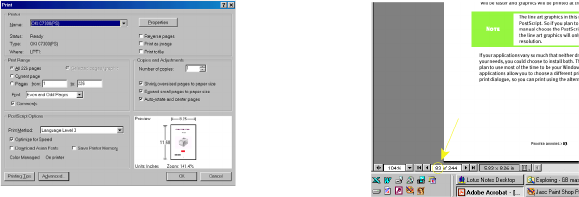
The whole book, Individual pages, or sections may be printed. The
procedure is:
1. From the toolbar, select [File], then [Print] (or press the
Ctrl + P keys).
2. Choose which pages you wish to print:
(a) All pages, for the entire manual.
(b) Current page for the page at which you are looking.
280ErGB.book Page 9 Monday, June 21, 2004 10:30 AM

USING THIS GUIDE > 10
(c) Pages from and to for the range of pages you specify by
entering their page numbers.
3. Select the Properties for the printer you are using and check/
select/set up the parameters such as duplex printing, page
size etc.
4. Click on OK.
CONVENTIONS USED IN THIS MANUAL
The following conventions are used in the command chapters of this
manual:
lThe emulation(s) to which each command applies is given in
parentheses at the end of the heading for the command. The
emulations (IBM = IBM Proprinter, E = Epson FX, and ML = Oki
Data MICROLINE Standard) are described later in this Guide.
For example:
Proportional Spacing Commands (IBM/E/ML)
lText denoting lines of BASIC programming is set in a sans serif
font.
For example:
LPRINTCHR$(27);CHR$(4);CHR$(0);CHR$(0);CHR$(0);
CHR$(34);CHR$(0)
NOTE
A note appears like this. A note provides additional information to
supplement the main text.
280ErGB.book Page 10 Monday, June 21, 2004 10:30 AM
USING THIS GUIDE > 11
ABBREVIATIONS & ACRONYMS
The following abbreviations and acronyms are used in this manual:
ASCII: American Standard Codes for Information Interchange
Cpi: Characters per inch
Cpl: Characters per line
CSF: Cut Sheet Feeder
Dec:Decimal
DLL: Down Line Loading
Dpi: Dots per inch
E/I: Epson/IBM Compatible Model
EPS: Epson FX Emulation
Hex: Hexadecimal
HSD: High Speed Draft
IBM: IBM Proprinter Emulation
ML:Oki Data MICROLINE Standard Emulation
NLQ: Near Letter Quality
ROM:Read Only Memory
RAM: Random Access Memory
Std.:Oki Data MICROLINE Standard Model
TOF: Top of Form
UTL: Utility
280ErGB.book Page 11 Monday, June 21, 2004 10:30 AM

PRINTER DRIVERS > 12
PRINTER DRIVERS
WORKING WITH COMMERCIAL SOFTWARE
PRINTER DRIVERS
The tables below summarise usable drivers for each printer
emulation. They are listed in order of decreasing compatibility. As you
go down the list, select one from as high up on the list as possible,
based on what is available from among the drivers supplied with your
software.
Oki constantly enhances its printer drivers. For details and availability
of the latest drivers for your printer please check the Oki Europe Web
Site at:
www.okieurope.com
Because there are some differences in characteristics such as speed
or access to various features, you may wish to experiment with
different drivers.
If you must select a driver that is not listed in the table, check it
thoroughly for print features such as boldface, underline and changes
in pitch.
Boldfaced items printed twice, underlines misplaced, wide spaces left
between lines or the printer behaves chaotically (turn off the printer if
the latter occurs) are all characteristics of an incompatible driver
selection.
IBM Proprinter
Emulation
Epson Emulation Okidata ML Standard
Emulation
IBM Proprinter III
IBM Proprinter II
IBM Proprinter
IBM Graphics Printer
Epson FX850/1050
Epson FX86/286
Epson FX
Epson EX800/1000
Okidata Microline 280 Elite
Okidata Microline 320/321
Okidata Microline 292/293
Okidata Microline 192/193
Okidata Microline 182/183
Okidata Microline 92/93
Okidata Microline 82A/83A
280ErGB.book Page 12 Monday, June 21, 2004 10:30 AM

PRINTER DRIVERS > 13
SOFTWARE DRIVER SELECTION
Selecting a software printer driver is usually a part of the program
installation process. Changing printers may require use of an external
routine, or may be possible from within the program through menu
selection.
EMBEDDED COMMANDS
In some cases, commercial software packages will permit you to
create and/or modify the printer driver. Even if a driver specifically
designed for the printer is available, this option can provide
additional room for customisation.
Typically, the driver modification routine will present a list of
operations with some method for entering printer commands,
permitting substitution, such as entering the italic command in place
of the underline command. It also permits modification of an existing
driver to better fit your printer. Driver modification does require a
basic familiarity with your printer's command set, so you should study
the control codes in the chapters which follow thoroughly before
attempting it.
Some programs also permit you to control your printer directly
through embedded commands. Usage of these commands in some
programs can provide access to a wide range of printer capabilities
that are not ordinarily supported, or can be entered as an initialisation
string to set the basic format for a document.
NOTE
Refer to your software documentation for information on installing printer
drivers.
280ErGB.book Page 13 Monday, June 21, 2004 10:30 AM

PRINTER DRIVERS > 14
EMULATIONS
The printer can be operated with one of three emulations, IBM, Epson
or ML (Microline).
DRIVER INSTALLATION
CD1 contains the printer drivers, all of which come with
comprehensive help files explaining the operation of the driver
functions.
1. Insert the CD into your CD-ROM drive.
2. Select your Language.
3. When the Menu Installer window appears, click the Driver
Installation button.
4. Follow the on-screen instructions.
Please refer to the readme file on this CD for the latest information on
printer driver installation.
OR:
1. When the [Add Printer] window appears, click [Next].
2. Select the directory on the CD where the drivers are located.
X:\Drivers\WinVer\CodePage
where
X:
is CD drive letter;
WinVer
is the Windows versions, and
CodePage
is the selected
option.
3. After files have finished copying, click [Finish].
4. Switch your printer ON.
NOTE
If the CD does not AutoPlay, click Start / Run / Browse. Then browse to
your CD-ROM drive, double-click Install.exe and click OK.
NOTE
Installation of the Oki USB driver is only required for Windows 98. You
may be asked for your original Windows 98 CD. Please have this
available.
280ErGB.book Page 14 Monday, June 21, 2004 10:30 AM
PRINTER DRIVERS > 15
INTERFACES
GENERAL
Your printer is equipped with a selection of data interfaces:
Under no circumstances attempt to use both parallel and USB ports
simultaneously.
1. Parallel – For direct connection to a PC. This port requires a
bi-directional (IEEE 1284 compliant) parallel cable.
2. USB – For connection to a PC running Windows 98 SE or above
(not Windows 95 upgraded to Windows 98) or Macintosh.
USB
This port requires a cable conforming to USB version 1.1 or
above. A genuine cable displays the Trident symbol on both
connectors.
Using an inferior cable can cause printing problems and
special cables are needed for longer runs than five metres.
The operation of a printer is not assured if a USB compatible
device is connected concurrently with other USB compatible
machines.
When connecting multiple printers of the same type, they
appear as *****, ***** (2), ***** (3), etc. These numbers
depend on the order of connecting or turning on each printer.
Connecting the USB Cable
Due to the number of possible variants of operating systems it is not
possible to describe every combination.
Terminology may vary between Windows operating systems and some
knowledge is assumed. If you are unsure how to proceed, you should
NOTES
Windows NT 4.0 does not support USB.
Administrator privileges are necessary for Windows 2000 and Windows
XP installations
280ErGB.book Page 15 Monday, June 21, 2004 10:30 AM
PRINTER DRIVERS > 16
consult your computer documentation or system manager for details.
This example uses Windows 2000 Professional.
1. Ensure the printer and computer are easily accessible and turn
both units off. This is not strictly necessary but may prevent
any problems being caused by the accidental dislodging of
power or other cables.
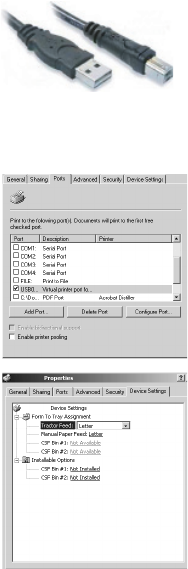
2. Plug the Series A male connector (a) into
the computer’s USB port or into a
suitable USB hub.
3. Plug the Series B Male connector (b) into
the printer’s USB port.
4. Switch on both the computer and printer.
5. The printer will be identified
immediately by the New Hardware
Wizard and install itself in the Printer
folder. An additional item, USB Printing
Support will also appear in the Device
Manager each time the printer is
switched ON and connected.
6. Check that the default paper size has
been correctly set by looking at the
settings in the Settings > Printers folder.
Under the printer's Properties > General
tab, the current paper selection is
shown. The printer picks up its initial
setting from the Locale settings on the
host computer. The paper size can be
altered by using the drop down arrow
and selecting an alternative size.
7. If the printer had formerly been used as a parallel or serial
device and there is no output from the printer once a USB
cable has been connected, check to see that the correct port
has been selected. This information can also be found in the
Properties folder but under the Ports tab. Amend as necessary.
8. If there are printing problems, check to see whether there is a
USB connection active in the Control Panel. If there is no USB
a
b
280ErGB.book Page 16 Monday, June 21, 2004 10:30 AM
PRINTER DRIVERS > 17
connection shown, you must install the hub.
Alternatively, there may be a problem if the printer is
connected via a USB hub. Disconnect the printer cable from the
hub and connect it directly to the computer.
280ErGB.book Page 17 Monday, June 21, 2004 10:30 AM
OPERATOR CONTROLS > 18
OPERATOR CONTROLS
CONTROL SWITCHES AND INDICATORS
OPERATOR PANEL
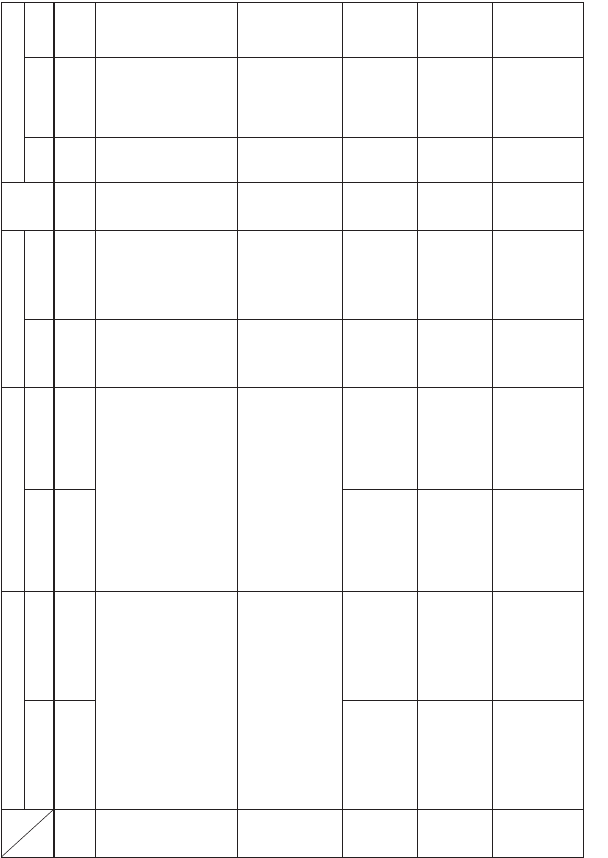
Functions at “switch on”
Switch
Function Line
Feed
Form
Feed
TOF
SET
SELECT PITCH MODE
Enters Primary Menu Mode 3
Enters Maintenance Menu Mode 3 3
Starts Demo Pattern self–test 3
Starts Rolling ASCII self–test 3 3
Starts Hex–dump function 33
Runs 17.1 CP! character pitch 3
Runs NLQ 3
17.1 CPI character pitch + NLQ 3 3
Executes default setting for menu/paper
feed. All CPI LEDs flash for 400ms
33
Executes default setting for menu. All CPI
LEDs flash for 400ms
3 3
Executes default setting for paper feed. All
CPI LEDs flash for 400ms
33
LINE
FEED
FORM
FEED
TOF
SET
10
12
17
SELECT ALARM POWER PITCH MODE
HSD
NLQ
UTILITY
280ErGB.book Page 18 Monday, June 21, 2004 10:30 AM
OPERATOR CONTROLS > 19
Switch Functions
MODE
SW
Print Mode Hex Dump Mode Te st
Mode
Select Deselect Select Deselect Full Semi Limited
Menu Mode Operator Panel Function
Main
(by itself)
Sub
(press PITCH together)
SELECT
LINE
FEED
FORM
FEED
TOF
SET
PITCH
MODE
Sets the printer off
line.
-
Selects a character
pitch.
Selects a print quality
mode.
Sets the printer on
line.
Executes TOF
setting.
Makes TOF setting to
its default if paper
hasn t been loaded.
Selects a character
pitch.
Resets the printer by
pressing the TOF SET
switch together. *1
Selects a print quality
mode.
Sets the printer off
line.
-
-
-
Sets the printer on
line.
Executes TOF
setting.
Makes TOF setting
to its default if paper
hasn t been loaded.
-
-
Prints out a
menu item.
Goes to the
next group
title.
Goes to the
next item
title.
Goes to the
next setting
value.
(Switches a
function.)
Clears a paper
end status oc-
cured in the
Menu mode
and returns to
the Menu mode.
Prints out all the
menu items.
Goes back to the
previous group
title.
Goes back to the
previous item
title.
Goes back to the
previous setting
value.
(Switches a
function.)
Exits Menu
Mode.
Exit Test
Mode.
-
-
-
-
-
Enabled
Enabled
Enabled
Enabled
Enabled
Enabled
Enabled
Enabled only
when in the
Deselect mode.
Enabled only
when in the
Deselect mode.
Enabled
Enabled only
when in the
Deselect mode.
Enabled only
when in the
Deselect mode.
Enabled
Enabled
only when
in the
Deselect
mode.
Enabled
only when
in the
Deselect
mode.
Disabled
Disabled
Disabled
*1 When the "Reset Switch" of the technical menu is set to "Enable" .
Performs linefeed. Continuous linefeed is
performed if this switch is held down for over
400ms.
In CSF mode:
If paper hasn t been loaded, paper is fed.
Paper is ejected if line-feed makes the page-
length exceed the set one.
Reverse minute linefeed is executed by
simultaneously pressing the TOF SET
switch, so TOF position setting is possible.
Paper is fed to the next TOF position.
In CSF mode:
If paper hasn t been loaded, paper is fed;
already loaded, it is ejected.
Forward minute linefeed is executed by
simultaneously pressing the TOF SET
switch, so TOF position setting is possible.
Performs linefeed. Continuous linefeed is
performed if this switch is held down for
over 400ms.
In CSF mode:
If paper hasn t been loaded, paper is fed.
Paper is ejected if line-feed makes the
page-length exceed the set one.
Reverse minute linefeed is executed by
simultaneously pressing the TOF SET
switch, so TOF position setting is possible.
Paper is fed to the next TOF position.
In CSF mode:
If paper hasn't been loaded, paper is fed;
already loaded, it is ejected.
Forward minute linefeed is executed by
simultaneously pressing the TOF SET
switch, so TOF position setting is possible.
280ErGB.book Page 19 Monday, June 21, 2004 10:30 AM
OPERATOR CONTROLS > 20
Indicator light Functions
If the printhead temperature becomes high, the printer will stop printing. It will
resume printing automatically when the printhead cools down.
Key: 3 = LED ON; Blank = LED OFF; – = LED maintains current status.
*1 When the 15/20 cpi select switch of the technical menu is set to Enable.
*2 When the Draft Mode of the menu is set to SSD.
*3 When in the EPSON mode, or when the 15/20 cpi select by SW of the technical
menu is set to Enable.
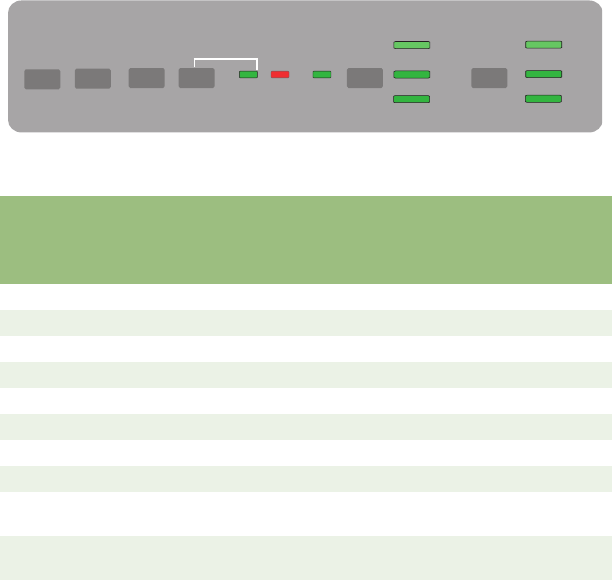
LED Colour Function
POWER GREEN Indicates that Power is ON
ALARM RED Lit when an alarm condition is present. Also Indicates
“Paper out”
SELECT GREEN Lit when in SELECT mode.
PRINT MODE:
HSD
Utility
NLQ
GREEN
GREEN
GREEN
See table below
PRINT PITCH
10 CPI
12 CPI
17 CPI
GREEN
GREEN
GREEN
See table below
LED: SELECT ALARM HSD UTILITY NLQ 10 12 17 Note
Printer
Status
SELECT 3––––––
DESELECT – – – – – – –
HSD ––
3–––
Utility – – 3– – –
NLQ –– 3–––
SSD – – 3 3 *2
10 CPI –––––
3
12 CPI – – – – – 3
15 CPI –––– 33 *1
17 CPI – – – – – 3
20 CPI ––––– *3
280ErGB.book Page 20 Monday, June 21, 2004 10:30 AM

OPERATOR CONTROLS > 21
Alarm/Error Indications
The following table summarises LED indications during alarm states.
1. Alarm LED – Recoverable Error
Key: 3 = LED ON; Blank = LED OFF; X = LED Flashes– = LED maintains current status.
2. Alarm LED – Irrecoverable Error
Key: 3 = LED ON; Blank = LED OFF; X = LED Flashes.
LED: SELECT ALARM HSD UTILITY NLQ 10 12 17
Alarm
Paper end 3–– ––––
Paper jam 3– – – – – –
Thermal alarm –X–– ––––
Print suppress X–– – – – – –
LED: SELECT ALARM HSD UTILITY NLQ 10 12 17
Alarm
Printer and internal RAM X33
PRG. ROM X3 3
EEPROM X33333
WDT X3 3 3
NMI X33 3
BRK command X3 3 3
Printer and internal RAM X33
SPACING X3 3
HOMING X33
Head A/D error X3 3 3
280ErGB.book Page 21 Monday, June 21, 2004 10:30 AM

OPERATOR CONTROLS > 22
MENU
Overview
Features selected in the MENU mode become the default features for
the printer each time it is powered on. The Menu function allows
activation of features without the use of software commands.
Software commands will override MENU settings.
1. Key functions
Pressing these keys while the PITCH key is pressed, selects the items in reverse
order.
2. Operation
(a) To enter Menu mode, turn on the power while holding
the SELECT switch down.
(b) When entering Menu mode, press the LINE FEED key,
FORM FEED key, or TOF SET key to print the first line of
MENU. Press the SELECT key to print the whole MENU.
See Key functions above for description of operation within Menu
mode.
(c) To exit MENU mode, press the PITCH + MODE.
(d) If conflicting features/functions are set in menu mode,
the printer will treat these function/features according
to the priority table.
Name Function
LINE FEED General categorisation of functions/features.
Selects next GROUP title. Once the complete list has been selected,
cycles back to the first GROUP. When first entering MENU, the first line
of the MENU will be printed.
FORM FEED Direct name of functions/features.
Selects next ITEM title. Once the complete list has been selected, cycles
back to the first ITEM in the current GROUP. When first entering MENU,
the first line of the MENU will be printed.
TOF SET Value (setting) of the ITEM.
Selects next SETTING value. Once the complete list has been selected,
cycles back to the beginning of the list. When first entering MENU, the
first line of the MENU will be printed.
SELECT Prints the entire MENU and cycles back to the beginning.
280ErGB.book Page 22 Monday, June 21, 2004 10:30 AM

OPERATOR CONTROLS > 23
(e) The TOF position is not affected by MENU mode. (When
the page length is changed, reset the TOF.)
(f) Depressing the FF and LF keys or the SEL and TOF keys
simultaneously while powering on the printer will reset
the menu back to its factory defaults. (See “Factory
Default Settings” on page 311for further details.)
During the Menu mode, both LEDs of PRINT MODE and PRINT PITCH flash.
Complete Menu listing
(Factory default settings in bold italic text.)
Group Item Sets
Printer Control Emulation Mode IBM
Epson
ML
Font Print Mode
Draft Mode
Pitch
Proportional Spacing
Style
Size (see note 1.)
Utility
NLQ Courier
NLQ Gothic
NLQ OCR-B
DRAFT
HSD
SSD
10CPI *
12 CPI
15 CPI
17.1 CPI
20 CPI
No, Yes
Normal, Italics
Single, Double
280ErGB.book Page 23 Monday, June 21, 2004 10:30 AM

OPERATOR CONTROLS > 24
Symbol Sets Character Set
Language Set
Zero Character
Code Page
Slashed Letter 0
Set I
Set II
Standard, Line Graphics,
Block Graphics (ML Mode only)
ASCII, French, German, British, Danish I,
Swedish I, Italian, Spanish I, Japanese,
Norwegian, Danish II, Spanish II, Latin
American, French Canadian, Dutch,
TRS 80, Swedish II, Swedish III,
Swedish IV, Turkish Swiss I, Swiss II,
Publisher
Slashed, Unslashed
USA, Canada French, Multilingual,
Portugal, Norway, Turkey, Greek_437,
Greek_869, Greek_928, Greek_437
CYPRUS, Polska Mazovia, Serbo Croatic I,
Serbo Croatic II, ECMA-94, Hungarian CWI,
Windows Greek, Windows East Europe,
Windows Cyrillic,
East Europe Latin II - 852, Cyrillic I - 855,
Cyrillic II - 866, Kamenicky (MJK),
ISO Latin 2, Hebrew NC (862), Hebrew OC,
Turkey_857, Latin 5 (Windows Trukey),
Windows Hebrew, Ukrainian, Bulgarian,
ISO Latin 6 (8859/10), Windows Baltic,
Baltic_774,KBL-Lithuanian, Cyrillic
Latvian, Roman-8, Icelandic-861,
Multilingual 858, ISO 8859-15,
Greek_737
No, Yes
Vertical Control Line Spacing
Skip Over Perforation
Page Length
6 LPI, 8 LPI
No, Yes
11", 11 2/3", 12" *, 14", 17", 5", 3", 3.5",
4", 5.5", 6", 7", 8", 8.5",
Group Item Sets
280ErGB.book Page 24 Monday, June 21, 2004 10:30 AM

OPERATOR CONTROLS > 25
1) Selects both double width and double height characters OR single width and
single height characters.
2) When “1 Line” is selected, the receiving buffer size is set to 2K bytes.
3) When “Limited Operation” is selected, after exiting MENU, only the SEL, LF and
FF switches are valid. PRINT QUALITY, TOF and PITCH are invalid.
4) Displayed only for ML emulation.
5) Displayed only for IBM emulation.
6) Displayed only for EPSON emulation.
Set Up Graphics
7 or 8 Bits Graphics
(see note 4.)
Receive Buffer Size
(see note 2.)
Paper Out Override
Print Registration
7 or 8 Bits Data Word
Operator Panel Function
(see note 3.)
Reset Inhibit
Print Suppress effective
Auto LF
Auto CR (see note 5.)
Print DEL Code (see note 4.)
Sl Select Pitch (10 CPI)
(see note 5.)
Sl Select Pitch (12 CPI)
(see note 5.)
Time Out Print
Auto Select
ESC SI Pitch (see note 5.)
Select Language Set
(see note 6)
CSF/RPS Select
Impact Mode
Bi-directional, Uni-directional
8, 7
1 Line, 32K, 64K, 128K
No, Yes
Right 0.25, 0.20, 0.15, 0.10, 0.05 mm,0
0.05, 0.10, 0.15, 0.20, 0.25 mm Left
8, 7
Full Operation, Semi Operation, Limited
Operation
No, Yes
No, Yes
No, Yes
No, Yes
No, Yes
15 CPI, 17.1 CPI
12 CPI, 20 CPI
Valid, Invalid
No, Yes
17.1 CPI, 20CPI
Combined, Code Page Only
RPS, CSF
Normal, Quiet
Parallel I/F I-Prime
Pin 18
Auto Feed XT (see note 6.)
Bi-Direction
Invalid, Buffer Print, Buffer Clear
+ 5V, Open
Valid, Invalid
Enable, Disable
CSF Line Spacing
Bottom Margin
Page Length
6 LPI, 8 LPI
Valid. Invalid
11", 11 2/3", 12" , 14", 16.57", 5", 3.5",
4", 5.5", 6", 7", 8", 8.5"
Group Item Sets
280ErGB.book Page 25 Monday, June 21, 2004 10:30 AM

OPERATOR CONTROLS > 26
Sample Print Self-test
1. To Start:
Depress and hold the LF switch, while switching the power ON.
2. To Stop:
Depress SEL switch.
The printer will finish printing the current line before stopping and
returning to its default state.
3. Print header
At the beginning of Self Test, the product description header will be
printed as follows:
aaaaa bbb P F/W ee.ff gggggggYR-ii
CG jj. kk
Where.........
4. Test pattern
The test pattern is the consecutive printing of all ASCII characters
(20H to 7EH) in all print mode combinations with their corresponding
pitches.
HSD 10, 12, 17.1 CPI
UTL 10, 12, 17.1 CPI
NLQ 10, 12 CPI
Scalable Font
Position &
Char. Count
Description Data Printed Comments
aaaaa Model name ML280Elite
bbb Compatibility MEI ML/EPSON/IBM compatible
ee.ff Revision number 00.00-99.99 Firmware revision
gggggggg Part Number 42434401 YR Number
ii Part Number 01-99 ROM-FD Number
jj.kk Revision number 00.00-99.99 CG revision
280ErGB.book Page 26 Monday, June 21, 2004 10:30 AM
OPERATOR CONTROLS > 27
lNumber of Characters Printed per Line:
CPI Narrow
5 40
10 80
12 96
17.1 137
5. Operator panel display
While in the Self Test mode...
(a) SEL LED = off
(b) CPI LEDs = change when CPI changes
(c) Print Quality LEDs = change when Print Quality changes
6. Communication interface
Printer is in the deselect state.
Data cannot be received during self test mode.
Rolling ASCII Self-test
1. To Start:
Depress and hold the SEL + LF switch, while switching the power ON.
2. To Stop:
Stop the test by depressing the SEL switch.
3. Print header
aaaaa bbb P F/W ee.ff gggggggYR-ii
CG jj. kk
280ErGB.book Page 27 Monday, June 21, 2004 10:30 AM

OPERATOR CONTROLS > 28
Where.........
4. Test pattern
(a) Printing features/modes = Current Menu value.
(b) Pattern is the continuous printing of all ASCII
characters. (20H to 7EH)
(c) Number of Characters Printed per Line
CPI Narrow
10 80
12 96
17.1 137
20 160
5. Operator panel display
While in the Self Test mode...
(a) SEL LED = off
(b) CPI LEDs = Current Menu value
(c) Print Quality LEDs = Current Menu value
6. Communication interface
Printer must not be selected for printing as Data cannot be received in
the Rolling ASCII Self-test mode.
Position &
Char. Count
Description Data Printed Comments
aaaaa Model name ML280Elite
bbb Compatibility MEI ML/EPSON/IBM compatible
ee.ff Revision number 00.00-99.99 Firmware revision
gggggggg Part Number 42434401 YR Number
ii Part Number 01-99 ROM-FD Number
jj.kk Revision number 00.00-99.99 CG revision
280ErGB.book Page 28 Monday, June 21, 2004 10:30 AM
OPERATOR CONTROLS > 29
Hex-dump
Overview
This mode allows the you to diagnose problems in your program or
application by printing the hexadecimal and ASCII equivalent number
of the data that was sent to the printer.
Normally, this data is interpreted by the printer to be a command or
printable character, however in this mode, all data is just converted to
the hex and ASCII equivalent and printed in the “Hex-Dump” format.
Operation
1. To Start:
Depress and hold the SEL and FF switches simultaneously, while
switching the power ON.
2. To Stop
Switch the power OFF, or press the Reset switch.
3. Print pattern
Hex equivalent of received data ASCII equivalent
Hex Data Dump
< LF>
XX XX XX XX XX XX XX XX XX XX XX ................. ..................
XX XX XX XX XX XX XX XX XX XX XX ................. ..................
XX XX XX XX XX XX XX XX XX XX XX ................. ..................
etc.
All ASCII control codes are printed as a period (.).
4. ASCII equivalent of incoming data
00H — 1FH= ASCII “period”
20H — 7EH= normal ASCII equivalent
7FH = ASCII “period”
80H — 9FH= ASCII “period”
A0H — FEH = normal ASCll equivalent
FFH = ASCII “period”
280ErGB.book Page 29 Monday, June 21, 2004 10:30 AM
OPERATOR CONTROLS > 30
5. Details
(a) Printing features/modes = Utility/10 CPI.
(b) This function operates with both the serial and parallel
communication interfaces.
(c) When using cut-sheet paper, printing will stop 1 line
from the bottom edge of the page. Hex-dump print
action is initiated when more than 16 bytes of data is
received (one full Hex-dump print line). If less than 16
bytes of data is received, the data will be printed
automatically after a “time out” condition is detected
(approximately 150 ms).
(d) HEX dump prints bi-directionally.
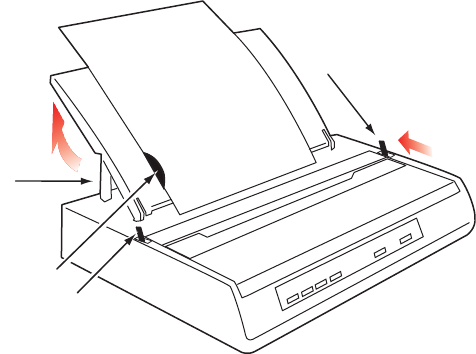
Semi Automatic Paper Loading
1. Function:
To feed paper to the printing position. Available for cut sheet paper.
2. Operation:
(a) Place the paper release lever (1) to the rear (closed)
position.
(b) Place the printer OFF LINE. (Press the SEL switch).
(c) Close the paper bail lever (4). (Place it in its rearward
position).
280ErGB.book Page 30 Monday, June 21, 2004 10:30 AM
OPERATOR CONTROLS > 31
(d) Raise the paper separator as shown in the figure. Lower
the paper separator supports (2) to prevent the paper
separator from falling.
(e) Adjust the cut sheet guide (3) on the paper separator for
the paper being used.
(f) Insert a single sheet along the cut sheet guide until it
reaches the pinch roller. Ensure the paper is inside the
platen ends. Otherwise the sprocket pins will tear it.
(g) Open the paper bail lever (4) (place it in its forward
position).
(h) After confirming that the single sheet has been grasped,
close the paper bail lever (4) . Ensure that the paper bail
lever is closed completely, otherwise the paper will jam.
(i) Press the SEL switch after confirming that the paper is
fed up to the first-line printing position. Then place the
printer ON LINE.
1
2
3
4
280ErGB.book Page 31 Monday, June 21, 2004 10:30 AM
COMMAND DETAIL > 32
COMMAND DETAIL
HORIZONTAL CONTROLS
CARRIAGE RETURN EXECUTE
Code: CR
Compatibility: Epson/IBM/ML
Function:
Initiate printing action. Print the data in the print buffer by causing a
print block change and sets the next printable data’s print position to
the left margin.
Additional details:
lIf Auto-LF is activated, a CR will also cause a LF to execute. This
action will take place whether there is data in the print buffer
or not.
l“Double Wide (expanded) - one line only” designated by SO
will be reset. (IBM)
l“Double Wide (expanded) - one line only” designated by SO
and ESC SO will not be reset when “Emulation Compatibility”
of the technical menu is set to “Extension”. (EPSON)
l“Double Wide (expanded) - one line only” designated by SO
and ESC SO will be reset when “Emulation Compatibility” of
the technical menu is set to “Upper” or “Original”. (EPSON)
BACKSPACE
Code: BS
Compatibility: Epson/IBM
Function:
Print the data in the print buffer and move the printhead one current
character width to the left.
Details:
280ErGB.book Page 32 Monday, June 21, 2004 10:30 AM
COMMAND DETAIL > 33
lSize (distance) of the BS are as follows:
BS + DBL-Width – double width BS
BS + char. pitch – BS the amount of the current
character pitch
BS + Inter-char clearance – BS normal char width +
clearance
BS + Proportional – Causes the print head to
backspace a 10 CPI character width.
lIf a multipass character (ex. double height characters) is in the
print buffer, when BS is executed, the paper is reverse feed
back to the original printing position of the multipass
character, and the character is printed. (Precise printing is not
guaranteed).
lOnce the current print position has reached the left margin, BS
will be ignored. (Epson)
lThe print head backspaces to the left margin position. (IBM)
lBS + right, center, full justification – BS is ignored.
Compatibility: ML
Function:
Move the printhead one current matrix cell width (character cell and
Inter-character clearance columns) to the left.
Details
lIf a multipass character (ex. double height characters) is in the
print buffer, when BS is executed, the paper is reverse feed
back to the original printing position of the multipass
character, and the character is printed. (Precise printing
position is not guaranteed).
280ErGB.book Page 33 Monday, June 21, 2004 10:30 AM
COMMAND DETAIL > 34
lIf no “printable” data (including space) has been previously
received by the printer, the BS is ignored.
lIf there is character data on a line formed by 12 vertical dots,
such as Line Graphics, and a BS command is executed, the
printer performs a line feed to the printing position of the next
data block and prints.
lThe left margin is the limit to the positioning of the printhead
when multiple BS commands are executed. Any subsequent
BS commands, processed after this limit is reached, are
ignored.
lRegardless of any CPI change in the middle of the print line,
the distance that the printhead moves backward is the same
as the width of the matrix cell (which includes Inter-character
clearance columns) of the CPI that was active previous to the
processing of the BS command.
lBackspace does not initiate printing action (block change); it is
executed when character data or a “initiate printing action”
command is received.
BS + DBL-Width – double width BS
BS + Inter-char clearance – BS normal char width +
clearance
BS + Proportional – Current CPI character width
without proportional.
DELETE
Code: DEL
Compatibility: Epson
Function:
Delete the last printable character data in the print buffer.
Details:
lIf the data which is to be deleted is a SP code, (20) H or (32) D,
one SP code is deleted by this command.
280ErGB.book Page 34 Monday, June 21, 2004 10:30 AM

COMMAND DETAIL > 35
lIf the data which is to be deleted is in bit image graphics, this
command is ignored.
lH-TABs are not deleted.
PRINT DIRECTION
Code: ESC U n
Compatibility: Epson/IBM
Function:
Select between left-to-right (unidirectional) printing which achieves
improved interline print registration, or bi–directional printing which
achieves faster throughput.
Range:
Out of Range:
This command will be ignored if n equals any other values except for
the values mentioned above.
Details:
lShort-Line-Seeking is performed in both unidirectional and
bidirectional print modes.
lWhen the first thermal threshold of the printhead is sensed,
the printer automatically enters unidirectional printing mode.
Unidirectional print – one line only
Code: ESC <
Compatibility: Epson
Function:
For one print line only. Choose left-to-right (Unidirectional) printing
for improved interline print registration.
Details:
Subsequent lines will be printed bi–directionally, according to short
line logic seeking priorities.
Uni–directional Bi–directional
Epson 01H, 31H, 81H, or B1H 00H, 30H, 80H, or B0H
IBM Odd numbers Even numbers
280ErGB.book Page 35 Monday, June 21, 2004 10:30 AM
COMMAND DETAIL > 36
Uni-directional
Code: ESC.
Compatibility: ML
Function:
Print while moving the carriage from left to right only. Used to improve
dot alignment between print lines.
Details:
lUni-directional short line seeking is performed.
Bi-directional
Code: ESC =
Compatibility: ML
Function
Cancel Uni-directional print and returns to Bi-directional print for
quicker throughput.
Details:
lBi-directional printing is the power-up default and the normal
mode of printing.
PRINT POSITION
Execute print position from the left margin
Code: ESC $ n1 n2
Compatibility: Epson
Function:
Initiate printing action by starting to print at the position specified
from the left margin.
Range:
n1 is a decimal number value 0 . 255.
n2 is a decimal number value 0 . 255.
280ErGB.book Page 36 Monday, June 21, 2004 10:30 AM
COMMAND DETAIL > 37
Out of range:
Any position specified beyond the right margin is ignored.
Details:
lDot position = (n1 + n2*256)/60 to the right of the left margin.
lThe position specified as n 1 = n2 = 0 is the left margin.
lPhysical Upper Limit
(n1 + n2*256)/60" 8.0 (inches)
lLogical Upper Limit
Absolute position equal to or less than the right margin
lNo underlines are made in the print line area skipped by the
positioning.
Define print position from Home Position
Code: ESC % B n1 n2 n3 n4
Compatibility: IBM/ML
Function:
Set the next printing position, by dot columns, relative to the home
position.
ln1 is a decimal number value 48 . 57 (ASCII 0 . 9)
ln2 is a decimal number value 48 . 57 (ASCII 0 . 9)
ln3 is a decimal number value 48 . 57 (ASCII 0 . 9)
ln4 is a decimal number value 48 . 57 (ASCII 0 . 9)
l0000 is equal to or less than 1 n2 n3 n4 and is equal to or less
than the right margin.
Right margin in units of dot/columns
CPI
10 961
12 1153
280ErGB.book Page 37 Monday, June 21, 2004 10:30 AM
COMMAND DETAIL > 38
15 1441
17.1 1646
20 1921
Details:
ln1 . n4 is a 4 digit ASCII number; leading zeros must be input
even if the number is less than 1000.
Example: 250 ¡æ 0250
lThis command will be ignored if print position set by this
command exceeds the right margin or left margin.
lNo underlines are made in the print line area skipped by the
positioning.
Define right relative position
Code: ESC% E n1n2n3n4
Compatibility: ML
Function:
Move the next print position by a number of dot columns (specified by
n1n2n3n4) to the right from the current print position.
Variable range:
ASCIIDecimalHexadecimal
n1 0 – 9 48 – 57 30H – 39H
n2 0 – 9 48 – 57 30H – 39H
n3 0 – 9 48 – 57 30H – 39H
n4 0 – 9 48 – 57 30H – 39H
Out of range:
lIf the code for n1n2n3n4 is other than the above, this
command is ignored.
280ErGB.book Page 38 Monday, June 21, 2004 10:30 AM
COMMAND DETAIL > 39
Logical limitation:
lThe printer ignores this command if the command attempts to
set a print position exceeding the right margin.
Details:
lThe number n1n2n3n4 is a 4-digit decimal number. Since all
digits must be defined, any number that does not use all digits
must be “padded” with leading zeros.
EXAMPLE: 25 = 0025
lIf n1n2n3n4 = 0000 is specified, this command is ignored and
the printer maintains the current print position.
lNo underlines are printed in the print line areas skipped by
this command.
Define left relative position
Code: ESC % F n1n2n3n4
Compatibility: ML
Function:
Move the next print position by a number of dot columns (specified by
n1n2n3n4) to the left from the current print position.
Variable range:
ASCII Decimal Hexadecimal
n1 0 – 9 48 – 57 30H – 39H
n2 0 – 9 48 – 57 30H – 39H
n3 0 – 9 48 – 57 30H – 39H
n4 0 – 9 48 – 57 30H – 39H
Out of range:
lIf the code for n1n2n3n4 is other than the above, this
command is ignored.
Logical limitation:
280ErGB.book Page 39 Monday, June 21, 2004 10:30 AM
COMMAND DETAIL > 40
The printer ignores this command if the command attempts to set a
print position exceeding the left margin.
Details:
lNumber n1n2n3n4 is a 4-digit decimal number. Since all digits
must be defined, any number that does not use all digits must
be padded with leading zeros.
EXAMPLE: 25 = 0025
lIf n1n2n3n4 = 0000 is specified, this command is ignored and
the printer maintains the current print position.
lNo underlines are printed in the print line areas skipped by
this command.
lWhen the printer receives a valid n1n2n3n4 number, it prints
out the data stored in the printer buffer.
Define indexed position – by dot column
Code: ESC \ n1 n2
Compatibility: Epson
Function:
Set the next printing position, by dot columns, indexed from current
print position.
Range:
ln1 and n2 specify a signed 16 bit binary number of dot
columns to move. The lower byte is n1, and the upper byte is
n2.
lRange n1 and n2 = 0 . 255
Logical limitation:
lValue defined beyond the left or right margins are ignored.
Details:
lThe new print position is indexed from the current printing
position and may be either to the left or the right of the current
position.
280ErGB.book Page 40 Monday, June 21, 2004 10:30 AM
COMMAND DETAIL > 41
lPositive values move the print position to the right, negative
values move it to the left.
lDot position = n1 + n2*256
lValues are shown as follows:
Narrow – FCH, 40H equal to or less than n2, n1 equal to or less
than 03H, COH
lUnderlined printing is enabled only when the print head
moves to the right.
lA position defined to the left of the current position initiates
printing action by causing a block change.
lThe amount of print position cannot be deleted by the DEL
command.
Define relative dot position
Code: ESC | n1 n2
Compatibility: IBM
Function:
Move the current logical horizontal print position by n/120 inch from
the current print position.
Range:
lThe number n1 is the low byte and n2 is the high byte in the
dot position setting code.
lThe number n1n2 is a decimal number between 0 and 255 (if
n1 = n2 = 0 is specified, the printer maintains the current
position).
lLimit
FC40H equal to or less than n1 + n2 equal to or less than 256
03C0H
Out of range:
lThe printer ignores this command if the command attempts to
set a print position exceeding the left/right margin.
280ErGB.book Page 41 Monday, June 21, 2004 10:30 AM
COMMAND DETAIL > 42
Details:
lScores can be added only when the print head moves to the
right from the current print position.
lWhen the print head moves to the left from the current print
position, the printer prints out the data stored in the printer
buffer.
Set print position
Code: ESC DLE @ n A1 A2 P1P2P3P4
Compatibility: Epson/IBM/ML
Function:
Set the next horizontal print position. The data received after the
printer receives this command is printed from the new print position.
Range:
lThe number n is used to specify the number of bytes of the
parameters which follow n.
0 equal to or less than n equal to or less than 255
lThe number A1 is used to specify the type of print position.
0 equal to or less than A1 equal to or less than 255
Specify an even number for A1 to specify a print position
relative to the left margin. Specify an odd number for A1 to
specify a relative print position from the current print position.
lThe number A2 is used to specify the direction of movement of
the relative print position.
0 equal to or less than A2 equal to or less than 255
Specify an even number for A2 to specify movement toward the
right margin (forward). Specify an odd number for A2 to specify
movement toward the left margin (reverse). The number
P1P2P3P4 is used to specify the print position.
l0 equal to or less than P1P2P3P4 equal to or less than 255 (a
number between 0 and 9 specified for the lower 4 bits is valid.
The printer ignores the upper 4 bits). The number P1P2P3P4
280ErGB.book Page 42 Monday, June 21, 2004 10:30 AM
COMMAND DETAIL > 43
should be specified with a 4-digit decimal number where: P1 =
thousands digit, P2 = hundreds digit, P3 = tens digit, and P1 =
units digit.
Out of range:
lThe printer ignores this command if the command attempts to
set a print position exceeding the left/right margin.
Details:
lWhen the print head moves toward the left margin (reverse)
from the current print position, the printer prints out the data
stored in the printer buffer. Scores can be added when print
head movement toward the right margin (forward) from the
current print position is specified while the score mode is set.
Define stops – by characters
Code: ESC D x1, x2, x3 ... xk NUL
Compatibility: Epson/IBM
Function:
Set, by character columns, up to a maximum of 32 tab (Epson) or 28
tab (IBM) positions.
Range:
k = 1 – 32 (Epson)
= 1 – 28 (IBM
x = 1 – 265 (Epson)
= 1 – 255 (IBM)
Epson IBM
CPI Narrow Narrow
10 79 80
12 95 96
15 119 120
17.1 137 138
20 159 160
280ErGB.book Page 43 Monday, June 21, 2004 10:30 AM
COMMAND DETAIL > 44
Out of range:
lIf k>32 (Epson) or k>28 (IBM) the following value of x will be
ignored.
lMaximum x value in each CPI, values larger than maximum are
ignored.
Details:
lTabs are set at every 8 characters after: powering up the
printer, receiving an I PRIME (INIT) signal or executing an ESC
@ (Epson), ESC R (IBM), ESC } NUL and ESC { n.
lThe entire command string is terminated with a NUL [CHR$(0)]
or a number less than the last tab setting specified. (Epson)
lThe tab settings n1, n2, n3 nk must be entered in ascending
order.
lTabs are a relative position. However, if the left margin is
changed, HT position is changed according to the left margin.
(IBM)
lTabs are not reset to default if Left margin is changed. (EPSON)
lIf n = 0, clear all tabs set.
lIf there is not a nul at the 33rd (Epson)
lThis command is disregarded while nk-1 ¡Â nk or the printer
encounters a null character. A maximum of 32 tab stops can be
set. If there is no null character at the 29th value of n, this
command is disregarded until the printer encounters a null
character. Tab positions set up to the 28th n value are enabled.
(IBM)
Example: If ESC D n1 n2 n4 n3 NUL:
n1 < n2 < n3 < n4 – valid n1 . n4.
n1 < n2 = n3 < n4 – valid n1 . n2 (Epson)
280ErGB.book Page 44 Monday, June 21, 2004 10:30 AM
COMMAND DETAIL > 45
Horizontal tab execute
Code: HT
Compatibility: Epson/IBM
Function:
Advance from the current print position to the next Horizontal Tab
position.
Details:
lTab positions are based on the character pitch in force at the
time the horizontal tab is set (IBM).
lTab position is relative. If the character pitch is changed,
including double width, the tabs will remain in the same
relative locations. (Epson)
lOn power up the default tabs are set at columns 9, 17, 25, 33
... and every eight spaces after that.
lHT will become invalid when it exceeds right margin setting. If
an HT is executed past the right margin, if will cause the next
character to be printed immediately after the last. All
subsequent HT¡¯s will correspond to the beginning of the TAB
setting sequence.
lNo underline will be appear in the “skipped” area.
Define stops – default values
Code: ESC R
Compatibility: IBM
Function:
lSet horizontal tabs at every 8th position starting at column 9
and clears all vertical tabs.
280ErGB.book Page 45 Monday, June 21, 2004 10:30 AM
COMMAND DETAIL > 46
Define stops – by characters
Code: ESC, HT X1 Y1 Z1, ... , Xm Ym Zm CR
Compatibility: ML
Function:
Clear all previously defined H-tabs and defines up to 16 new
horizontal tab stop positions from the left-most physical print
position in, units of character columns.
Range:
lVariables
ASCII Decimal Hexadecimal
X1 0 . 9 48 . 57 30 . 39
Y1 0 . 9 48 . 57 30 . 39
Z1 0 . 9 48 . 57 30 . 39
m (number of tabs) = 0.16
lArgument “X1Y1Z1”
10 cpi 12 cpi 17.1 cpi 20 cpi
80 96 137 160
Out of range:
lThe command will be ignored.
Logical limitations:
XmYmZm represents a 3 digit number where each consecutive
XmYmZm number must be greater than the previous one. If this
is not true, Xm Ym Zm is ignored.
X1 Y1 Z1 < X2 Y2 Z2 < ... < Xmax Ymax Zmax
Details:
lMaximum of 16 HT stops maybe defined.
lHorizontal tab settings can be cleared by:
ESC HT CR (defining no tabs)
280ErGB.book Page 46 Monday, June 21, 2004 10:30 AM

COMMAND DETAIL > 47
ESC HT 000 CR (defining no tabs)
ESC HT 001 CR (defining no tabs)
lX1 Y1 Z1 is a 3-digit ASCII numeric. A 2-digit or 1-digit X1Y1Z1
number can be specified, however, by separating it from the
subsequent parameters with a comma.
lOn Power-Up and reset conditions, such as l-Prime, the default
tabs are set at character columns 9, 17, 25, 33 ... and every
eight character columns after that.
lHorizontal Tab positions are relative to the character pitch.
While in 10 cpi, an Htab of 10 characters will represent a
physical distance of 1 (10/10th) inch. This same 10 character
H-tab in 12 cpi will represent a physical distance of 11/12th of
an inch.
lRefer to the Illustration attachments for further details.
lThis command is available when ¡°Emulation Compatibility¡±
of the technical menu is set to “Extension”.
Define stops – by dot column
Code: ESC ETX X1 Y1 Z1 W1, ... , Xm Ym Zm Wm CR
Compatibility: ML
Function:
Clear all previously defined H-tabs and define up to 16 new horizontal
tab stop positions from the left-most physical print position in units of
dot columns.
NOTE:
Tab position “0” and tab position “1” both represent the first column
position on the print line.
280ErGB.book Page 47 Monday, June 21, 2004 10:30 AM

COMMAND DETAIL > 48
Range:
lVariables
ASCII Decimal Hexadecimal
X1 0 – 9 48 – 57 30 – 39
Y1 0 – 9 48 – 57 30 – 39
Z1 0 – 9 48 – 57 30 – 39
W1 0 – 9 48 – 57 30 – 39
m (number of tabs) = 0.16
lArgument “x1y1z1w1”
10 cpi 12 cpi 17.1 cpi 20 cpi
960 1152 1644 1920
Out of range:
The command will be ignored.
Logical limitations:
XmYmZmWm represents a 4 digit number where each
consecutive XmYmZmWm number must be greater than the
previous one. If this is not true, Xm Ym Zm is ignored.
Details:
lMaximum of 16 HT stops may be defined.
lEach tab must be defined in ascending order.
lHorizontal tab setting can be cleared by:
. ESC ETX CR (defining no tabs)
. ESC ETX 0000 CR (defining no tabs)
. ESC EtX 0001 CR (defining no tabs)
NOTE
Tab position “0” and tab position “1” both represented the first column
position on the print line.
280ErGB.book Page 48 Monday, June 21, 2004 10:30 AM
COMMAND DETAIL > 49
lX1 Y1 Z1 W1 is a 4 digit ASCII numeric.
lX1Y1Z1W1 should be a 4-digit ASCII number. An X1Y1Z1W1
number of 3-digits or less can be specified, however, by
separating it from the subsequent parameters with a comma.
lOn Power-Up and reset conditions, such as l-Prime, the default
tabs are set at columns 97, 193, 289 ... and every 96 dot
columns after that.
lHorizontal Tab positions are relative to the character pitch.
While in 10 cpi, a Htab of 120 columns will represent a
physical distance of 1 inch. This same 120 columns H-tab in 12
cpi will represent a physical distance of 120/144th of an inch.
lH-TABS by dot column are valid when combined with Bit Image
Graphics and Proportional Width Characters.
Horizontal tab execute
Code: HT
Compatibility: ML
Function:
Advance from the current print position to the next Horizontal Tab
position.
Logical limitations:
lAn HT cannot be executed beyond the right margin.
Details:
lHT execution will cause an advance to the next tab stop
position defined by the “H-TAB by characters” or “H-TAB by
columns” definition commands, which ever HT command was
most recently defined.
lWhen the character pitch is changed, the tab position will be
recalculated based on the new pitch.
280ErGB.book Page 49 Monday, June 21, 2004 10:30 AM

COMMAND DETAIL > 50
lHT will become invalid when it exceeds the right margin
setting. If an HT is attempted past the right margin, it will
cause the next character to be printed immediately after the
last. All subsequent HT’s will correspond to the beginning of
the TAB setting sequence.
lIf the Underline print feature is “ON”, the area of the page that
the HT skips over will not be underlined.
Margins – define left margin
Code: ESC n
Compatibility: Epson
Function:
Set left margin is at (n) characters from the left-most physical print
position.
Range:
lRange n = 0 . 255
Out of range:
lIf n exceeds the right margin, the left margin command will be
ignored.
Details:
lLeft margin positions are based on the character pitch which is
in force at the time the left margin is set. Left Margin’s position
is absolute. If the character pitch is changed, the margin will
NOT move to accommodate the change.
lWhile in proportional mode, the print column width of the
margin will be set in pica character size.
Name Pitch Narrow
PICA/PROPORTIONAL 10 1 – 79
ELITE 12
15
1 – 94
1 – 118
COMPRESSED 17.1 1 – 135
COMPRESSED ELITE 20 1 – 157
280ErGB.book Page 50 Monday, June 21, 2004 10:30 AM

COMMAND DETAIL > 51
lThe left margin will remain at value set unless reset by some
software code or the printer is turned off.
lInput of the ESC/ code with a valid left margin parameter
causes the horizontal TAB positions previously set to be
cleared, and the subsequent horizontal TAB will default to
every 8 character positions starting with the new left margin as
position 0.
lThere must be a difference of at least 25 characters between
the left margin and the right margin values for 10 CPI when
“Emulation Compatibility” of the technical menu is set to
“Extension” or “Upper”.
lThere must be a difference of at least 2 characters between the
left margin and the right margin values for 10 CPI when
“Emulation Compatibility” of the technical menu is set to
“Original”.
Margins – define right margin
Code: ESC Q n
Compatibility: Epson
Function:
Set right margin is at (n) characters from the left-most physical print
position.
Range:
lRange n = 1 -255
Out of range:
lThe number “n” must be within the ranges given above,
otherwise it will be ignored.
Name Pitch Narrow
PICA 10 2 – 80
ELITE 12
15
3 – 96
3 – 120
COMPRESSED 17.1 4 – 138
COMPRESSED ELITE 20 4 – 160
280ErGB.book Page 51 Monday, June 21, 2004 10:30 AM
COMMAND DETAIL > 52
lIf n = 0, or is less than or equal to the left margin this
command is ignored.
Details:
lRight margin positions are based on the character pitch which
is in force at the time the right margin is set.
lRight margin’s position is absolute. If the character pitch is
changed, the margin will NOT move to accommodate the
change.
lWhile in proportional mode, the print column width of the
margin will be set in pica character size.
lSetting Right margin clears the print buffer.
lThere must be a difference of at least 25 characters between
the left margin and the right margin values for 10 CPI when
“Emulation Compatibility” of the technical menu is set to
“Extension” or “Upper”.
lThere must be a difference of at least 2 characters between the
left margin and the right margin values for 10 CPI when
“Emulation Compatibility” of the technical menu is set to
“Original”.
lIf you attempt to print a character beyond the right margin the
character will be printed on the next line after a line feed and
carriage return are executed.
Margins – define left & right margin
Code: ESC X n1 n2
Compatibility: IBM
Function:
Set the Left Margin to (n1) characters and Right Margin to (n2)
characters from the left-most physical print position.
280ErGB.book Page 52 Monday, June 21, 2004 10:30 AM

COMMAND DETAIL > 53
Range:
lThe ranges for n1 and n2 are:
1 equal to or less than n1 equal to or less than 255
25 equal to or less than n2 equal to or less than 255
24 equal to or less than n2 - n1
Out of range:
lIf n1 or n2 = 0 then the current margin setting is used.
lIf n2 exceeds the default range n2 shall be converted to the
default value.
Details:
lThe default value of the left margin is the 1st character.
lThe margin’s positions are absolute. If the character pitch is
changed, the margins will NOT move to accommodate the
change.
lCharacter pitch changes afterwards do not affect the distance
from the home position.
ln1 n2 indicates the left and right edges of printable area. For
example if n1 = 10, n2 = 100, a printable area is from the 10th
column to the 100th column: 91 characters are printable.
Print-Line justification – select
Code: ESC a n
Compatibility: Epson
Function:
The text position/alignment will be set according to one of the four
given modes assigned by n (n is a Binary value).
CPI 10 12 15 17.1 20
Narrow Column 80 96 120 138 160
280ErGB.book Page 53 Monday, June 21, 2004 10:30 AM

COMMAND DETAIL > 54
Range:
n Justification
0Left
1Center
2Right
3Full
Details:
ln = 0 Left justification is the default or standard format, in
which the left margin is even and the right margin is not.
ln = 1 The centering command centers a line of text between
the margins. This command is used for headings, titles and
captions.
ln = 2 Right justification is the opposite of left justification. The
right margin however is even, the left is not.
ln =3 Full justification puts extra spaces where necessary so
that both the left and right margins are aligned.
Full justification (n = 3) is performed when the printer receives
(at the time when printing starts) data exceeding 75% of the
maximum number of characters to be printed in a line.
lPrint position will be affected by the commands which set the
left/right margin.
lThis command causes a print block change. If there is data in
the print buffer and this command is sent, the data will be
printed before the justification takes affect.
NOTE:
When you use Auto Justification, use carriage returns at the end of
paragraphs only, not at the end of each line of text.
280ErGB.book Page 54 Monday, June 21, 2004 10:30 AM
COMMAND DETAIL > 55
Margins – define left margin
Code: ESC % C n1 n2 n3
Compatibility: ML
Function:
Define the logical left-most printing position limitation from the left
most-physical print position in units of 1/120 inch.
Range:
Variable
ASCII Decimal Hexadecimal
n1 0 – 9 48 – 57 30 – 39
n2 0 – 9 48 – 57 30 – 39
n3 0 – 9 48 – 57 30 – 39
lArgument “n1n2n3”
narrow chassis – 000-900 x1/120 inches (approx. 7.5 inches max.)
Out of range:
lIf any digit is out of range, the command is ignored.
Logical limitation:
lIf n1n2n3 exceeds the maximum value, the command will also
be ignored.
lSet number difference between the left margin and the right
margin must be 300 and more when “Emulation
Compatibility” of the technical menu is set to “Extension” or
“Upper”.
lSet number difference between the left margin and the right
margin must be 60 and more when “Emulation Compatibility”
of the technical menu is set to “Original”.
280ErGB.book Page 55 Monday, June 21, 2004 10:30 AM
COMMAND DETAIL > 56
Details:
ln1n2n3 is a 3 digit ASCll number. Since all digits must be
defined, any number that does not use all digits must be
padded with leading zeros.
EXAMPLE: 8 = 008.
lWhen n1n2n3 = 000, the command will be ignored.
lWhen n1n2n3 = 001, the left margin will be cleared.
lIf the left margin is defined after one or more characters have
been sent to the current print line, the left margin will not
become valid for the current print line, but will be valid on the
next print line.
Margins – right margin
Code: ESC % R n1 n2 n3 n4
Compatibility: ML
Function:
Define the logical right-most printing position limitation from the left
most-physical print position in units of 1/120 inch.
Range:
Variable:
ASCII Decimal Hexadecimal
n1 0 – 9 48 – 57 30 – 39
n2 0 – 9 48 – 57 30 – 39
n3 0 – 9 48 – 57 30 – 39
n4 0 – 9 48 – 57 30 – 39
lArgument
Without left margin 300 <RM equal to or less than 960
With left margin LM + 300 <RM equal to or less than 960
280ErGB.book Page 56 Monday, June 21, 2004 10:30 AM
COMMAND DETAIL > 57
Out of range:
lIf any digit is out of range, the command is ignored.
Logical limitation:
lIf n1n2n3 exceeds the maximum value, the command will also
be ignored.
lSet number difference between the left margin and the right
margin must be 300 and more when “Emulation
Compatibility” of the technical menu is set to “Extension” or
“Upper”.
lSet number difference between the left margin and the right
margin must be 60 and more when “Emulation Compatibility”
of the technical menu is set to “Original”.
Relative move inline forward
Code: ESC d Ln Hn
Compatibility: IBM
Function:
Move the print position n/120" to the right from the current printhead
position.
Range:
lSpecify dot position following n1 and n2.
ln1 and n2 range = 0 . 255
lLimit 0 equal to or less than n1 + (n2*255) equal to or less
than 1632
Out of range:
lValues beyond the right margin will be ignored.
Details:
lIf score is set, any horizontal positioning is scored.
280ErGB.book Page 57 Monday, June 21, 2004 10:30 AM
COMMAND DETAIL > 58
Horizontal tabs – define stop – by characters
Code: ESC HT n
Compatibility: ML
Function:
Set n horizontal tabs for each channel n.
Range:
lRange n = 0 - 255 (Bit 7 of n is ignored.)
Details:
lThis command is available when the Emulation Compatibility
of the technical menu is set to “Upper” or “Original”.
280ErGB.book Page 58 Monday, June 21, 2004 10:30 AM
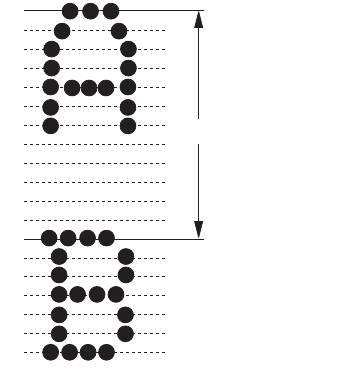
COMMAND DETAIL > 59
VERTICAL CONTROL
LINE SPACING – SELECT FIXED AMOUNT
1/6 inch
Code: ESC 2
Compatibility: Epson
Function:
Set the line spacing to 1/6 inch units (6 LPI).
Details:
lThis command will remain in effect until a new line spacing
command is sent to the printer.
lThis command does not set the top of form position.
lLF, VT, or CR (if Auto F is on) execute in units of 1/6 inch when
this function is active.
Related functions:
lLF, VT, CR (and Auto LF)
0
1
2
3
4
5
6
7
8
9
10
11
12
13
14
15
16
17
18
19
1/6 inch (24/144 inch)
280ErGB.book Page 59 Monday, June 21, 2004 10:30 AM
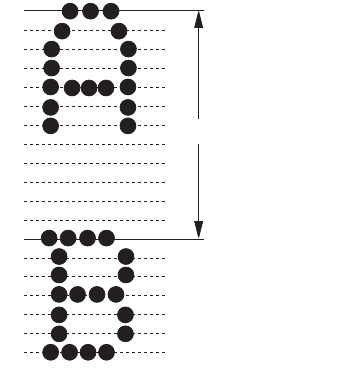
COMMAND DETAIL > 60
1/6 inch
Code: ESC 6
Compatibility: ML
Function:
Set the line spacing to 1/6 inch units (6 LPI).
Details:
lThis command will remain in effect until a new line spacing
command is sent to the printer.
lThis command does not set the top of form position.
lLF, VT, or CR (if Auto F is on) execute in units of 1/6 inch when
this function is active.
Related functions:
lLF, VT, CR (and Auto LF)
0
1
2
3
4
5
6
7
8
9
10
11
12
13
14
15
16
17
18
19
1/6 inch (24/144 inch)
280ErGB.book Page 60 Monday, June 21, 2004 10:30 AM
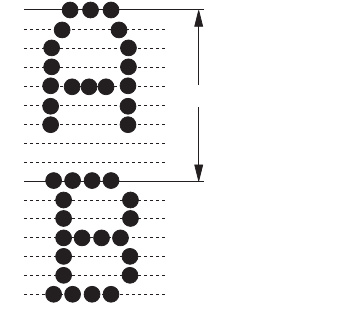
COMMAND DETAIL > 61
1/8 inch
Code: ESC 0
Compatibility: Epson/IBM
Function:
Set the line spacing to 1/8 inch units (8 LPI).
Details:
lThis command will remain in effect until a new line spacing
command is sent to the printer.
lThis command does not set the top of form position.
lLF, VT, or CR (if Auto F is on) execute in units of 1/8 inch when
this function is active.
Related functions:
lLF, VT, CR (and Auto LF)
0
1
2
3
4
5
6
7
8
9
10
11
12
13
14
15
16
1/8 inch (18/144 inch)
280ErGB.book Page 61 Monday, June 21, 2004 10:30 AM
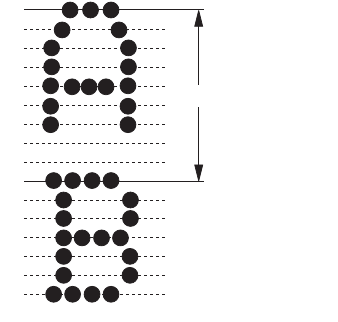
COMMAND DETAIL > 62
1/8 inch
Code: ESC 8
Compatibility: ML
Function:
Set the line spacing to 1/8 inch units (8 LPI).
Details:
lThis command will remain in effect until a new line spacing
command is sent to the printer.
lThis command does not set the top of form position.
lLF, VT, or CR (if Auto F is on) execute in units of 1/8 inch when
this function is active.
Related functions:
lLF, VT, CR (and Auto LF)
0
1
2
3
4
5
6
7
8
9
10
11
12
13
14
15
16
1/8 inch (18/144 inch)
280ErGB.book Page 62 Monday, June 21, 2004 10:30 AM
COMMAND DETAIL > 63
7/72 inch
Code: ESC 1
Compatibility: Epson/IBM
Function:
Set the line spacing to 7/72 inch units.
Details:
lThis command remains in effect until a new line spacing
command is sent to the printer.
lThis command does not set the top of form position.
lLF, VT or CR (if Auto LF is on) execute in units of 7/72 inch when
this function is active.
Related functions:
lLF, VT, CR (and Auto LF)
Define amount – n/72 inch
Code: ESC A n
Compatibility: IBM
Function:
Store the line feed amount in 1/72-inch units.
Range:
n = 0 – 255
Out of range:
Not applicable—cannot receive a value larger than 255 (FFH).
Details:
lIf n = 0, the line feed amount is 0 and subsequent print-line
will overprint over the same print-line.
lThis command does not set the top of form position.
lThe ESC 2 command sets the line feed amount stored by this
command.
280ErGB.book Page 63 Monday, June 21, 2004 10:30 AM
COMMAND DETAIL > 64
Define amount – n/72 inch
Code: ESC An
Compatibility: Epson
Function:
Set the line spacing to n/72 inch.
Range:
n= 0 to 85, n = 128 to 213 (Bit 7 of the n code is invalid.)
Out of range:
Any value of n not within the allowable range will be ignored.
Details:
lIf n = 0, the line feed amount is 0 and subsequent print-lines
will overprint over the same print-line.
lThis command does not set the top of form position.
lPower on default or the I-Prime signal resets the LF unit to the
current MENU value.
Define amount – n/216 inch
Code: ESC 3 n
Compatibility: Epson/IBM
Function:
Set line spacing to n/216 inch.
Range:
n = 0 – 255 (Epson), n = 1 – 255 (IBM)
Details:
lIf n = 0, the line feed amount is 0 and subsequent characters
will print over the same print-line (Epson). If n = 0 is specified,
this command will be invalid and the previously set line feed
amount remains effective (IBM).
lThis command does not set the top of form position.
280ErGB.book Page 64 Monday, June 21, 2004 10:30 AM
COMMAND DETAIL > 65
lPower on default or the I-Prime signal resets the LF unit to the
current MENU value.
lLF, VT, or CR (if Auto LF is on) execute in units of n/72 inch
when this function is active.
Related functions:
lLF, CT, CR (and Auto LF)
Activate amount defined by n/72 inch
Code: ESC 2
Compatibility: IBM
Function:
Activate the line feed amount defined by the ESC A “n” command.
Details:
lIf no ESC A n sequence has been defined, the line spacing
amount will be according to current MENU value.
Related functions:
lESC A n
Line feed – execute amount – n/216 inch
Code: ESC J n
Compatibility: Epson/IBM
Function:
Execute an n/216 inch line feed without changing the currently stored
line spacing value.
Range:
n = 0 – 255 (Epson), n = 1 – 255 (IBM)
280ErGB.book Page 65 Monday, June 21, 2004 10:30 AM

COMMAND DETAIL > 66
Details:
lThe printer prints the contents of the buffer without a carriage
return (Epson).
Moves the current print position to the print start position of
next line (left margin position) when the “Auto CR” feature is
set to “Yes” in MENU mode (IBM).
lThis command does not need a cancel code, since it is
executed only once.
lNo feed is performed when n = 0 (Epson).
lIf n = 0 is specified, this command will be invalid (IBM).
Related functions:
l“Double Wide (expanded) - one line only” designated by SO
and ESC SO will not be reset when the “Emulation
Compatibility” of the technical menu is set to “Extension”.
l“Double Wide (expanded) - one line only” designated by SO
and ESC SO will be reset when the “Emulation Compatibility”
of the technical menu is set to “Upper” or “Original”.
Fine LF – execute – n/144 inch
Code: ESC % 5 n
Compatibility: Epson/IBM/ML
Function:
Initiate printing action; print data in the print buffer by causing a print
block change and execute a n/144 inch line feed, then a carriage
return.
Range:
As the eight bit (b7) is ignored,the effective range of n1 is as follows ..
Decimal Hexadecimal
n 0 – 2556 00 – FF
Decimal Hexadecimal n
0 – 127
128 – 255
00 – 7FH
80 – FFH 0 – 127 (0/144” – 127/144”)
280ErGB.book Page 66 Monday, June 21, 2004 10:30 AM

COMMAND DETAIL > 67
Out of range:
Not applicable, cannot receive a value larger than 255 (FF)H or
smaller than 0.
Details:
lIf n = 0 the line spacing will be set to a distance of zero, upon
execution of a LF.
lIf the line spacing is set to zero (n1 = 0), no paper feeding will
occur when a LF is executed, but any data in the print buffer
will be printed (just as if only a CR was executed.)
Line spacing – define amount – n/144 inch
Code: ESC % 9 n
Compatibility: Epson/IBM/ML
Function:
Set the line spacing to n/144 units.
Range:
The eight bit (b7) is ignored so the effective range of n1 is as follows ...
Out of range:
Not applicable, cannot receive a value larger than 255 (FF)H or
smaller than 0.
Details:
lIf n = 0 the line spacing will be set to a distance zero, upon
execution of a LF.
lIf the line spacing is set to zero (n = 0), no paper feeding will
occur when a LF is executed, but any data in the print buffer
will be printed (just as if only a CR was executed).
Decimal Hexadecimal
n 0 – 2556 00 – FF
Decimal Hexadecimal n
0 – 127
128 – 255
00 – 7FH
80 – FFH 0 – 127 (0/144” – 127/144”)
280ErGB.book Page 67 Monday, June 21, 2004 10:30 AM
COMMAND DETAIL > 68
Line feed – execute forward LF with CR
Code: LF
Compatibility: Epson/IBM
Function:
Initiate printing action; print data in the print buffer by causing a print
block change and execute a line feed, then a carriage return. Moves
the current print position to the print start position of next line (left
margin position) when the “Auto CR” feature is set to “Yes” in MENU
mode. (IBM)
Details:
lLine spacing pitch will be set by ESC A n, ESC 0, ESC 2, ESC 3 n,
ESC 1, ESC % 9 n. Otherwise, the LF pitch will be set by the
current MENU when power is on or I-Prime signal is received.
lThis code will cancel enlarged character mode set by the ESC
SO (Epson mode only) and SO code before the LF code or only
spaces before this code, only line feed is performed.
Code: LF
Compatibility: ML
Function:
Initiate printing action. Print data in the print buffer by causing a print
block change and execute a line feed, then a carriage return.
Details:
lThis command is equivalent to the composite command
(ESC.?.N:) where n = (23) H.
lThe line spacing is set by ESC.6, ESC.8 or ESC.%.9.n
command. The line spacing will be set to the default line pitch
after a default sequence (power up, I-Prime, and CAN.)
Line feed – automatic LF—ON/OFF
Code: ESC 5 n
Compatibility: IBM
280ErGB.book Page 68 Monday, June 21, 2004 10:30 AM
COMMAND DETAIL > 69
Function:
Enables/disables the automatic Line Feed. The printer performs an
automatic LF each time it receives a carriage return (CR).
Range:
n = 0 – 255
odd numbers = Automatic LF enabled
even numbers = Automatic LF disabled
Line feed – W/O carriage return
Code: ESC DC2
Compatibility: ML
Function:
Initiate printing action. Print data in the print buffer by causing a print
block change, feed the paper the pre-defined line spacing amount,
and set the next printable data’s print position to the last position of
the previous line (no CR performed).
Line feed – execute direct skip
Code: ESC VT n1 n2
Compatibility: ML
Function:
Initiate printing action. Print data in the print buffer by causing a block
change, feed the paper the number of lines defined by this command,
and set the next printable data’s print position to the left margin.
Range:
ASCII Decimal Hexadecimal
n1 0 – 9 48 – 57 30 – 39
n2 0 – 9 48 – 57 30 – 39
Out of range:
The command will be ignored.
280ErGB.book Page 69 Monday, June 21, 2004 10:30 AM
COMMAND DETAIL > 70
Details:
lIf n1 n2 = 00, no paper feeding is performed.
Form length – define amount – by inches
Code: ESC C nul n
Compatibility: Epson/IBM
Function:
Sets the form length to n inches.
Range:
n = 1– 22 (Epson)
1– 255 (IBM)
Out of range:
ln = 0 or n > 22 (Epson) will last valid setting and ignore the
command.
Details:
lThis command does not affect vertical tab settings. (IBM) This
command will reset vertical tab settings to their default values
(Epson).
lWhen this command is valid, it cancels the “Skip Over
Perforation” feature even if the feature has been selected in
the MENU mode.
lTop of form position is set by this command.
Form length – define amount – by lines
Code: ESC C n
Compatibility: Epson/IBM
Function:
Set the form length to n lines length to n lines.
Range:
n = 1 – 127 (Epson)
1 – 255 (IBM)
280ErGB.book Page 70 Monday, June 21, 2004 10:30 AM
COMMAND DETAIL > 71
Out of range:
lIf n = n > 127 (Epson), bit 7 is cleared and set that value as is.
Details:
lThis command does not affect vertical tab settings (IBM). It will
reset vertical tab settings to their default values (Epson).
lTop of form will be set.
lWhen this command is valid, it cancels the “Skip Over
Perforation” feature even if the feature has been set in the
MENU mode.
lThe amount of each line defined by this command, is equal to
the current LF spacing defined by ESC 0, ESC 2, ESC A n, ESC 3
n, ESC 1, ESC % 9n.
lIf n = 0 or 128 (Epson), this command is treated as
ESC C NUL n.
Related functions:
lESC 0, ESC 2, ESC A n and ESC 3 n, ESC 1, ESC % 9 n.
Form length – define amount – by 1/2 inch
Code: ESC G n1 n2
Compatibility: ML
Function:
Define the logical form length by the amount of n1n2 × 1/2 inch and
set the TOF position.
Range:
lVariables
ASCII Decimal Hexadecimal
n1 0 – 9 48 – 57 30 – 39
n2 0 – 9 48 – 57 30 – 39
Argument:
n1n2 range = 00 – 99
280ErGB.book Page 71 Monday, June 21, 2004 10:30 AM
COMMAND DETAIL > 72
Out of range:
The command will be ignored.
Details:
lIf n1n2 = 00, the page length will default to the value defined
by MENU.
lMaximum form length, 1/2 × 99 = 49.5 inches.
lFactory setting: 1/2 × 22 = 11 inches.
Form length – define amount – by lines
Code: ESC F n1 n2
Compatibility: ML
Function:
Define the logical form length by number of lines, and set the TOF
position.
Range:
lVariables
ASCII Decimal Hexadecimal
n1 0 – 9 48 – 57 30 – 39
n2 0 – 9 48 – 57 30 – 39
Argument:
n1n2 range = 00 – 99
Out of range:
The command will be ignored.
Details:
lIf n1n2 = 00, the page length will default to the value defined
by MENU.
280ErGB.book Page 72 Monday, June 21, 2004 10:30 AM
COMMAND DETAIL > 73
lMaximum form length is based upon current LF spacing. If this
spacing is set to 144/144 inch (maximum value for line
spacing), the maximum form length will be 99 × 1 inch = 99
inches.
lIf line spacing defined, by ESC % 9 n, is zero, this command
will effectively be ignored.
ESC % 9 0 = 0 line spacing.
ESC F n1 n2 where n1 n2 = any value.
Line Spacing Form Length
0 × (any value) = form length.
lThis command will set the top of form and the top of VFU.
lFactory setting: 11 inches.
Form feed—execute
Code: FF
Compatibility: Epson/IBM
Function:
Prints the data in the print buffer followed by a carriage return, then
feeds the paper to the next TOF position.
Details:
lFactory setting of form length is eleven (11) inches. (MENU)
lPressing FORM FEED button on the operator panel feeds the
paper forward to the next top of form position.
lA Form feed will be performed to the next top of form position
even when the FF is received at the top of form position.
lDouble width by ESC SO (Epson mode only) and SO will be
reset.
lPower up or 1 Prime will set TOF.
280ErGB.book Page 73 Monday, June 21, 2004 10:30 AM
COMMAND DETAIL > 74
Form feed—execute
Code: FF
Compatibility: ML
Function:
Initiate printing action. Print data in the print buffer by causing a print
block change, feed the paper the defined form length amount and set
the next printable data’s print position to the left-margin.
Details:
lPaper length can be set by the ESC F n1 n2 or the ESC G n1 n2
commands.
lUpon power-up, or reception of a reset command, the page
length will default to the value set in MENU.
lFactory setting of Form Length is 11 inches.
Top of form—define
Code: ESC 5
Compatibility: ML
Function:
Define the top of the form (logical page) and the top of the VFU by
logically “marking” the current vertical print position.
Details:
lThis command does not affect the CSF or SASF function.
Margins—define bottom margin (auto skip)
Code: ESC % S n
Compatibility: ML
Function:
Define the size of the area at the bottom of the logical page which will
automatically be skipped over by feeding the paper until the next TOF
position.
280ErGB.book Page 74 Monday, June 21, 2004 10:30 AM
COMMAND DETAIL > 75
lRange:
ASCII Decimal Hexadecimal
n1 0 – 9 48 – 57 30 – 39
Out of range:
The command will be ignored.
Details:
lIf n = 0, the Auto-skip function is enabled.
lThe distance that is skipped is twice the value of “n”
multiplied by 1/6 inch (6 LPI).
“n” × 2 × 1/6 = Auto-skip distance.
lIf Auto-skip (Skip Over Perforation) function is selected in
Menu, the distance that will be skipped is 1 inch.
lWhen in the Hex-Dump secondary mode, the Auto-skip
function will operate according to the MENU selection.
lForm length and TOF must be set before the Auto-skip area is
defined.
lRefer to the table following, for further details.
lAny printing operation which encroaches upon the bottom
margin area, such as LF, Print Data + LF, Print Data + CR will
cause the paper to be fed over the margin area. Printing will
then will resume on the next page .
lWhen the current line spacing is defined by ESC ( (8 LPI) or ESC
% 9 n, (n/144 LPI) the auto skip function is performed when
the remaining amount of the logical page is as follows...
280ErGB.book Page 75 Monday, June 21, 2004 10:30 AM
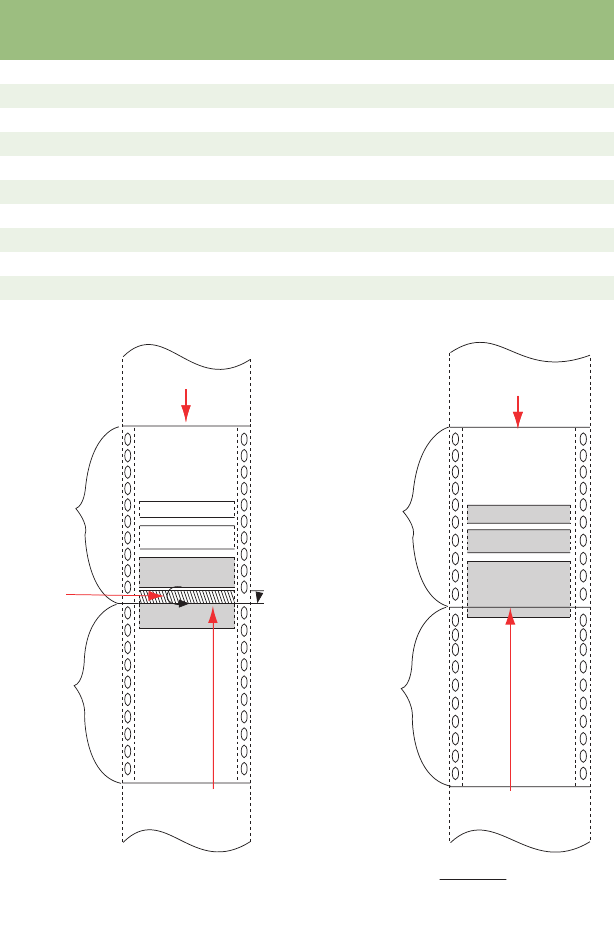
COMMAND DETAIL > 76
Variable
n1
Inches
(n1 x 2 x 1/6)
Equivalent
no. of 6 LPI
No. of steps of
the LF motor
Comment
00 0 0No skip
12/6 248 Skip
24/6 4 96 Skip
36/6 6144 Skip
48/6 8 192 Skip
510/6 10 240 Skip
612/6 12 288 Skip
714/6 14 336 Skip
816/6 16 384 Skip
918/6 18 432 Skip
A
B
C
C
Page 1
Page 2
TOF
Logical top of form
Logical bottom of form
Skip over
perforation area
Description:
Data "C" that encroaches on the
"Skip Over Perf" area is printed
at the next TOF.
A
B
C
Page 1
Page 2
Description:
No area of the logical for
m
is skipped. Data A, B and
C are
p
rinted as
p
ictured.
Logical top of form
Logical bottom of form
280ErGB.book Page 76 Monday, June 21, 2004 10:30 AM
COMMAND DETAIL > 77
Top of form—define
Code: ESC 4
Compatibility: IBM
Function:
Logically “mark” the current vertical print position.
Details:
lThis command does not affect the CSF or SASF function.
Margins—define bottom margin (auto skip)
Code: ESC N n
Compatibility: Epson/IBM
Function:
Set the skip-over perforation to n lines, according to the current LF
value.
Range:
lRange n = 0 – 127 (Epson)
0 – 255 (IBM)
Out of range:
Epson
lThe n value has to be less than the current form length.
If n is equal to or greater than the form length, this function will
be ignored.
lIf n = 0 or n = 128, the last skip over perforation value will
remain as previously set.
lIf n > 127, bit 7 is cleared and the length is set to the resulting
value of 4.
IBM
lThe n value can be set regardless of paper length.
lNot applicable—cannot receive value larger than 255 (FFH).
280ErGB.book Page 77 Monday, June 21, 2004 10:30 AM
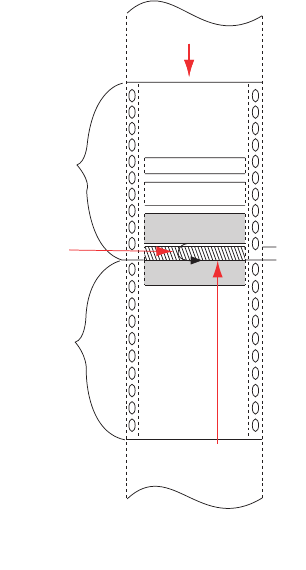
COMMAND DETAIL > 78
Details:
lThe skip over perforation will be reset by ESC O or page length
set command.
lSkip over perforation distance will not be affected by a change
in the line pitch.
lEntering to the area of skip over perforation by LF, VT, CR (with
LF), ESC J n and auto line feed will cause the skip over
perforation and feed to the top of form.
Related functions:
lLine length value is based on ESC 0, ESC 2, ESC A n, or ESC 3 n,
ESC 1, ESC % 9 n.
A
B
C
C
Page 1
Page 2
TOF
Logical top of form
Logical bottom of form
Skip over
perforation area
Description:
Data "C" that encroaches on the
"Skip Over Perf" area is printed
at the next TOF.
280ErGB.book Page 78 Monday, June 21, 2004 10:30 AM
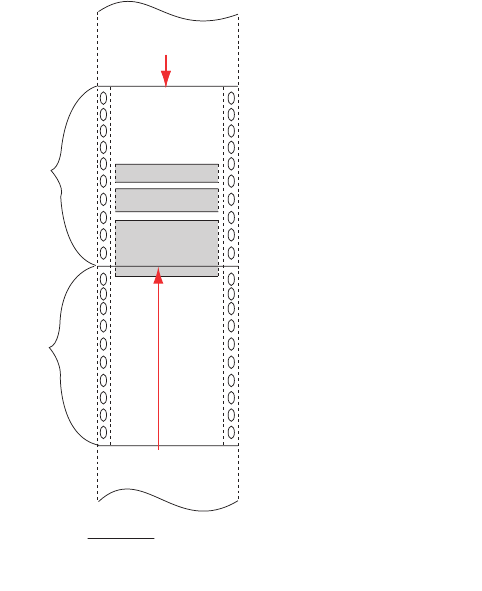
COMMAND DETAIL > 79
Margins – cancel bottom margin (auto skip)
Code: ESC O
Compatibility: Epson/IBM
Function:
Cancel Skip-Over Perforation.
Details:
lSkip over perforation is cleared when power down/power up I
Prime occurs.
lSkip over perforation is canceled when the form length is
changed by the following codes:
ESC C n and ESC C nul n.
A
B
C
Page 1
Page 2
Description:
No area of the logical form
is skipped. Data A, B and
C are printed as pictured.
Logical top of form
Logical bottom of form
280ErGB.book Page 79 Monday, June 21, 2004 10:30 AM
COMMAND DETAIL > 80
Vertical tabs – select channel
Code: ESC / n
Compatibility: Epson
Function:
Select a vertical tab channel, specified by n.
Range:
ln = 0 – 7, n = 128 – 135
Out of range:
lIf n is not a number between 0 and 7 nor between 128 and
135, the command value will be ignored.
Details:
lWithin each channel there can be up to 16 vertical tabs which
are independently set.
lIn order to access the vertical tabs within each channel VT or
CHR$(11) can be used.
lTabs set by the ESC B command correspond to channel #0.
Related functions:
lVertical Tab
Vertical tabs – define tab stops
Code: ESC B n1 n2 ... nk NUL
Compatibility: Epson/IBM
Function:
Set the specified number of vertical tabs.
Range:
lk specifies the number of vertical tabs.
k = 1 – 16 (Epson)
1 – 64 (IBM)
280ErGB.book Page 80 Monday, June 21, 2004 10:30 AM
COMMAND DETAIL > 81
ln is the specific line number at which each vertical tab is to be
set.
n = 1 – 255
Out of range:
lValue of k and n which exceed the maximum will be ignored.
lPaper will be loaded on printer even if the vertical tab setting
exceeds the number of lines between TOFs (one page length).
Details:
lTo use n setting of 255 the line spacing must be set at less
than 3/72 inch.
lVertical tab stops are absolute, they are not changed by
changing the line spacing (Epson). If the line feed amount
value is changed after the vertical tab setting declaration,
vertical tab stops will be executed according to the new line
spacing (IBM). They remain at the same distance from TOF.
lThe tab sequence must be terminated by CHR$(0) or any
number less than the last tab or nk (Epson). The ESC sequence
is terminated by CHR$(0). (IBM)
lThe vertical tabs set by this command correspond to channel
#0.
ln value must be increasing. n1<n2<n3< ... <nk.
Related functions:
lESC B nul will reset the TAB setting.
Vertical tabs – define tab stops in channels
Code: ESC b n m1 m2 ... mk NUL
Compatibility: Epson
Function:
Set m vertical tabs for each channel n.
Range:
m = 0 – 255 (Bit 7 of m is ignored.)
n = 0 – 7
280ErGB.book Page 81 Monday, June 21, 2004 10:30 AM
COMMAND DETAIL > 82
Out of range:
lIf n>7, the command will be ignored.
Details:
lThe VFU has 8 channels n = (0 to 7) and up to 16 tab stops
(m = 1 to 16). The vertical tab setting may exceed the number
of lines between TOFs (one page length).
lThis sequence must be terminated by CHR$(0), or any number
less than mk.
lTab settings are not affected by subsequent changes in line
spacing.
lm value must be increasing. m1<m2<m3< ... <mk.
Related functions:
lOn power up n is set to channel no. 0. This means the same as
ESC B.
Vertical tab—execute
Code: VT
Compatibility: Epson/IBM
Function:
Print the data in the buffer and advance the paper to the next tab stop.
Details:
lIf vertical tabs are default set, this command will function the
same as LF.
lExecuting more than the legal number of vertical tabs set will
cause execution of the first vertical tab of the channel on the
next page.
Related functions:
lDouble width mode set by ESC SO (Epson mode only) or SO
will be reset.
280ErGB.book Page 82 Monday, June 21, 2004 10:30 AM
COMMAND DETAIL > 83
Vertical tabs – define tab stops in channels (VFU)
Code: Part 1 Part 2 Part 3
DC4 sp ... sp n1
Compatibility: ML
Function:
Define up to a total of 54 vertical tab stops in a maximum of 12
channels.
Range:
Variable ASCII Decimal Hexidecimal
n1 (Chan. Number) = 1 – < 49 – 60 31 – 3C
Argument
TAB STOP (argument) = 1 to 54 occurrence
Repeating constant = s1 ... sx = 1 to 127 spaces
Details:
lThis command is composed of 3 parts ...
– Part 1 is the initiator and is sent once.
– Part 2 consists of a variable number of spaces, each representing 1
print line, and a tab channel number “n1”. This part can be sent
multiple times.
– Part 3 is the terminator, and is only sent once.
lThe maximum number of spaces “SP” in all arguments is 127.
This number is the total sum of all “SP”s even if the “SP”s are
associated with difference arguments.
lThe maximum number of tab stops (Part 2) or arguments is 54.
lThe same tab channel can be defined more than once.
lVFU loading sets the top form.
Part 1
(initiator)
Part 2
(argument)
Part 3
(terminator
DC4 SP...SP n1
(repeat)
?
280ErGB.book Page 83 Monday, June 21, 2004 10:30 AM
COMMAND DETAIL > 84
Vertical tabs — execute
Code: VT n
Compatibility: ML
Function:
Initiate printing action. Print data in the print buffer by causing a print
block change and feed the paper to the next channel stop specified by
“n”.
Range:
Out of range:
The command will be ignored.
Logical limitation:
lIf a channel number which is not defined in the VFU load
sequence, is specified in this command, this command will be
ignored.
Details:
lThis command is available when “Emulation Compatibility” of
the technical menu is set to “Extension”.
ASCII
(channel no.)
Decimal Hexidecimal
149 31
250 32
351 33
452 34
553 35
654 36
755 37
856 38
957 39
:58 3A
;59 3B
<60 3C
280ErGB.book Page 84 Monday, June 21, 2004 10:30 AM
COMMAND DETAIL > 85
Paper-out sensor – enable
Code: ESC 9
Compatibility: Epson/IBM
Function:
Enable the paper out sensor. This activates an alarm lamp when 0.5
inch or less of paper remains.
Details:
lUpon detection, the alram lamp is lit and the printer is
deselected.
lPaper out detector can also be enabled by MENU.
lManual Paper Out Override.
While the paper end lamp is on, if the SEL switch is depressed,
1 line of data is printed, and line feed is executed.
Paper override function is valid until the next TOF position is
reached. After the next TOF is reached, the function becomes
invalid.
When SEL switch is depressed after paper is reset (paper end
switch off), the following states return and the printer is in the
select mode:
SEL lamp light on.
Paper lamp light off.
I/F becomes select (receivable) state.
lWhile Paper Out Override is active, if multiple line feeds are
received by the printer, the printer executes the line feeds until
the TOF position is reached. If there are line feeds that couldn’t
be executed because the TOF was reached, they are “saved”
and will execute after new paper is inserted.
lUnprinted data will be saved in the buffer and printed after
paper is replaced and the SEL switch is depressed. If data in
the print buffer is not printed because paper out was detected,
the data will not be lost and can be printed after the paper is
replaced and the SEL switch is depressed.
280ErGB.book Page 85 Monday, June 21, 2004 10:30 AM
COMMAND DETAIL > 86
Paper-out sensor – disable
Code: ESC 8
Compatibility: Epson/IBM
Function:
Disables the paper out sensor.
Details:
lPaper error detector can also be disabled by MENU.
lPrinter prints up to TOF, then stops. Paper End LED turns ON.
Paper-out detection override – enable/disable
Code: ESC E n
Compatibility: ML
Function:
Enable/disable the paper out detection override function in which
even though the printer has detected that only 1 inch of paper
remains to be printed on, printing action can still execute until the
next TOF is reached.
Range:
n = 1 Paper Out Detection Override = Disabled.
n < > 1 Paper Out Detection Override = Enabled.
Out of range:
The command will be ignored.
Details:
lWhen the printer’s paper sensor switch detects that only 1
inch of paper remains in the platen path and the “Paper Out
Detection Override” function is disabled (i.e. the printer is in
the normal paper detection mode), the printer:
– stops printing
– immediately turns on PE/FAULT signals
280ErGB.book Page 86 Monday, June 21, 2004 10:30 AM
COMMAND DETAIL > 87
– switches itself OFF LINE
– switches the SEL LED = OFF
– switches the ALARM LED = On (Paper end is detected).
lWhile this condition exists, you can continue to print by
pressing the SEL switch. When this happens, the SEL LED = on
and only one line of text is printed followed by a LF. After the 1
line is printed the SEL LED = OFF and the printer returns to the
deselect state it was in before the SEL switch was pressed.
This process can be repeated until the next TOF is reached.
lDuring Paper-out detection override process (described
above), if continuous LFs are executed, the printer will advance
the paper until the next TOF is reached. Once the next TOF is
reached, all remaining feeds will be negated.
lWhen the Paper Out Detection Override = enabled, when 1
inch of paper is detected in the platen path, the paper-out
condition is overridden, and printing continues normally. If
there is enough data, the printer will continue to print beyond
the physical edge of the paper and will continue to print on the
platen until the next TOF is reached.
lThe alarm (paper-out) LED will turn on regardless of if the
Paper-Out Override function is enabled or disable.
lThe TOF will be maintained even if paper out switch is
disabled.
lThis function is not available when the CSF is connected.
Cut-sheet feeder – single sheet insert
Code: ESC EM I
Compatibility: Epson/IBM
Function:
Feed a single cut-sheet into the printer.
Details:
lThis command starts printing and performs carriage returns
regardless of the paper mode.
280ErGB.book Page 87 Monday, June 21, 2004 10:30 AM
COMMAND DETAIL > 88
lIf paper is already loaded, the printer will eject that sheet and
feed another sheet to the TOF position.
lIf there is data in the print buffer and paper is already loaded,
this command causes the data to be printed, the current sheet
ejected and then the new sheet inserted.
Cut-sheet feeder – single sheet eject
Code: ESC EM R
Compatibility: Epson/IBM
Function:
If a CSF is installed, paper already in the platen path is ejected.
Details:
lThis command starts printing and performs carriage returns
regardless of the paper mode.
lAn LF code at the end of the page automatically causes the
next sheet to be loaded.
lIf data is in the print buffer, it is printed before the sheet is
ejected.
Cut-sheet feeder – single sheet insert
Code: ESC S
Compatibility: ML
Function:
Feed a single Cut-Sheet into the printer.
Details:
lIf a CSF is not installed, this command is ignored.
lIf paper is already loaded, the printer will eject that sheet and
feed another sheet to the TOF position.
lIf there is data in the print buffer and paper is already loaded,
this command causes the data to be printed, the current sheet
ejected and then the new sheet inserted.
280ErGB.book Page 88 Monday, June 21, 2004 10:30 AM
COMMAND DETAIL > 89
Cut-sheet feeder – single sheet eject
Code: ESC V
Compatibility: ML
Function:
Eject the cut-sheet paper that is currently in the platen path.
Details:
lThis command is ignored when a CSF is not installed.
lAny vertical feed command (LF, VT, FF, Direct Skip etc.) that
advances the logical page beyond the physical page will cause
the next sheet to be loaded.
lIf data is in the print buffer, it is printed before the sheet is
ejected.
Cut-sheet feeder – Dual bin CSF bin select
Code: ESC EM n
Compatibility: ML
Function:
Select a sheet bin on Dual Bin CSF
Details:
n = 01H, 31H, 81H, B1H – Set a sheet bin on Dual Bin CSF to bin 1
n = 02H, 32H, 82H, B2H – Set a sheet bin on Dual Bin CSF to bin 2
Out of range
The command will be ignored.
Details:
lThis command is ignored when Dual Bin CSF is not installed.
lOn receiving this command, a sheet is inserted from the bin
selected.
lThis command cannot function to perform sheet insertion/
ejection.
280ErGB.book Page 89 Monday, June 21, 2004 10:30 AM
COMMAND DETAIL > 90
lIn the following instances, the default bin selected by the
menu is set:
– Turning on the power
– Receiving I-PRIME signals
– Receiving the ESC CAN command
Dual bin CSF, bin select
Code: ESC EM n
Compatibility: Epson/IBM
Function:
Form loading bin is set for dual bin CSF.
Range:
n = 01H, 31H, 81H, B1H ... The form loading bin from dual bin
CSF is set on bin 1.
n = 02H, 32H, 82H, B2H ... The form loading bin from dual bin
CSF is set on bin 2.
Out of range:
This command becomes invalid, and the previously established mode
remains.
Details:
lThe loading/ejection of the form is not performed on reception
of the command.
lThe form is loaded from the bin set for form loading after
reception of this command.
lThis command is valid regardless of the paper mode. The
command, however,functions when the dual bin CSF is
installed.
280ErGB.book Page 90 Monday, June 21, 2004 10:30 AM
COMMAND DETAIL > 91
Composite command for setting line feed quantity
ESC DLE H Pno A1 A2 P1 P2 P3
Code: 1B 10 48 in hexadecimal, 27 16 72 in decimal
Compatibility: ML
Functions:
This command specifies the quantity of line feeding by parameter A1
(Basic LF Quantity) and feeds paper by the specified quantity.
lValid ranges and meanings of parameters:
(a) Pno: Specifies the length (in bytes) of parameters
following the “Pro” parameter. The most significant bit
(MSB) is voided.
00H equal to or less than Pno equal to or less than FFH
Pno < 05H: This command is voided and the number of
bytes specified by the “Pno” parameter are discarded.
(b) A1: Specifies a basic line feeding pitch. The most
significant bit (MSB) is voided.
00H equal to or less than A1 equal to or less than FFH
A1=00H, 30H 1/60" pitch (Reserved)
A1=01H, 31H 1/72" pitch
A1=02H, 32H 1/144" pitch (Reserved)
A1=03H, 33H 1/180" pitch
A1=04H, 34H 1/216" pitch
A1=05H, 35H 1/360" pitch (Reserved)
When any other parameter value is specified, the
number of bytes specified by the “Pno” parameter are
discarded.
(c) A2: Specifies setting of parameters or execution of this
command. The most significant bit (MSB) is voided.
00H equal to or less than A2 equal to or less than FFH.
280ErGB.book Page 91 Monday, June 21, 2004 10:30 AM
COMMAND DETAIL > 92
A2 = even number: Sets the quantity of line feeding.
A3 = odd number: Feeds paper by the specified quantity
of line feeding.
(d) P1 to P3: Specifies the quantity of line feeding according
to the specified line feed pitch (by parameter A1). Each
parameter uses the lower four bits of a byte to indicate a
value of 1 to 9. (The higher four bits of each byte are
ignored.)
P1 – Hundreds digit of the LF quantity
P2 – Tens digit of the LF quantity
P3 – Ones digit of the LF quantity
The LF quantity must always be three digits long.
lThis command can be entered anywhere on a line.
lThis command will not set TOF.
lWhen an even value is specified for the A2 parameter (to set
parameters of this command), the following items are enabled:
(a) The specified LF quantity is referenced by the following
operations: LF, VT, CR (with LF), automatic carriage
return, setting of page length, perforation skip, etc.
(b) The LF quantity of “000” can be specified (by
parameters P1 to P3).
(c) The printer does not start printing.
(d) The LF quantity specified on the menu is used in the
following cases:
lWhen the printer receives an INITIALIZE command (ESC
@) (or when “Reset Inhibit” on the menu is “No”)
lWhen the printer receives a software I-PRIME command
(ESC } NUL)
lWhen the printer receives an Emulation Change
command (ESC { Pn) (except for identical simulation)
280ErGB.book Page 92 Monday, June 21, 2004 10:30 AM
COMMAND DETAIL > 93
lWhen the printer receives an I/F I-PRIME-N signal (or
when “I-Prime” on the menu is not “Invalid”)
lWhen a setting is made on the menu
lWhen the printer is reset by a switch
lWhen the printer is powered on
lWhen the printer receives a Menu Factory Value Load
command (ESC DLE 02H)
l When the printer receives a Menu Set command
(ESC DLE D)
lWhen an odd value is specified for the A2 parameter (to
execute the command), the printer performs the following:
(a) Reads data in the print buffer, prints it out, then moves
the print head to the top of the next line.
(b) Releases the 1-line Wide mode by SO/ESCSO.
(c) Prints and return the print head to the top of the line
even when an LF quantity of “000” is specified by
parameters P1 to P3.
(d) Skips to the next TOF when a Perforation Skip command
is entered.
(e) The LF quantity is not affected by the specified LF
quantity.
(f) Moves the print head to the left margin to indicate the
next print position when the Incremental Print mode is
set.
CSF Control
Code: ESC [ D Ln Hn pft fc sd
Compatibility: IBM
Function:
Controls the CSF function.
Range and Meaning of Ln Hn:
280ErGB.book Page 93 Monday, June 21, 2004 10:30 AM
COMMAND DETAIL > 94
lMeaning (Setting of Parameter Value)
Ln, Hn shows a parameter value after it.
Ln, Hn = Ln+Hn x256
lRanges
0 equal to or less than Ln equal to or less than Ln 255,
0 equal to or less than Hn equal to or less than 255
lRelationship between Ln and Hn Values, and Command
Sequence
– Ln = Hn = 00H
Up to ESC [ Ln Hn is received and discarded, and data
following it is treated as print data.
– 01H Ln+Hn × 256 03H
Up to the parameter of a value specified by Ln+Hnx256
is valid (the setting of that number is also valid).
Example: At Ln+Hn × 256 = 1, up to pft is valid.
– 04H Ln+Hn × 256 FFFFH
Up to sd is valid, and data beyond it is received and
discarded by (Ln+Hnx256)-3 bytes.
Range and Meaning of pft
lMeaning (Paperfeed mode Turning)
pft=01H .. The system is placed in single paperfeed mode to
cause one-off page ejection.
pft=03H .. The system is placed in auto paperfeed mode.
A pft that takes on a value other than the above becomes invalid, and
the paperfeed mode remains unchanged.
Range:
0 equal to or less than pft equal to or less than 255
Single Paperfeed Mode only for One Page
lThis mode is established at pft=01H.
280ErGB.book Page 94 Monday, June 21, 2004 10:30 AM
COMMAND DETAIL > 95
lSingle paperfeed is valid for the next page.
When paperfeed is finished ... Single paperfeed will apply to
the next page to be fed.
After the printing and ejection of the page, single paperfeed is
disabled from the data that follows the page.
When paperfeed has yet to be performed .. Single paperfeed is
valid for a page to be fed.
When the sheet that follows the affected page is fed with data
after the reception of a command, or fed by the LF or FF
command or another means, single paperfeed is disabled.
lIF, with the reception of data for the next page, a paper
jam condition occurs, paperfeed or printing will not
resume until the paper jam is cleared using the SEL
switch (clearing the paper jam. The use of the SEL
switch, makes the system feed paper automatically and
print).
lSingle paperfeed is valid only for one page. Auto
paperfeed mode is used from the next page.
lThis mode does not have any effect on switch-selected
paperfeed (single paperfeed control is not performed).
Paperfeed using commands (including FF code) is under
single paperfeed mode control, as for paperfeed with
normal data.
lAuto paperfeed mode:
A page-over function automatically feeds the next sheet.
Range and Meaning of sd
lMeaning (Selection of CSF Bin)
sd=01H: CSF 1 Bin is set.
sd=02H: CSF 2 Bin is set.
sd that takes on a value other than the above becomes invalid, the
setting remains the same.
280ErGB.book Page 95 Monday, June 21, 2004 10:30 AM
COMMAND DETAIL > 96
Range
0 equal to or less than sd equal to or less than 255
Set Page Length in defined unit
Code: ESC ( C Ln Hn Lp Hp
Compatibility: Epson
Function:
Set page length for the currently selected paper mode. Paper modes
are Top, Rear, Bottom and CSF.
Range:
Ln : 0 ~ 255
Hn : 0 ~ 255
Lp : 0 ~ 255
Hp : 0 ~ 255
Page Length = (Lp + Hp equal to or less than 256) x defined unit
0 < Page Length equal to or less than 22 inch.
Details
lDefault basic unit is 1/216 inch.
lWhen the page length set by the command equals 0 inch or
exceeds 22 inch, the command becomes invalid. Page length
previously defined is effective.
Set Page format
Code: ESC ( c Ln Hn Lt Ht Lb Hb
Compatibility: Epson
Function:
Sets the Top and Bottom Margins in the defined unit.
Range:
Ln : 0 ~ 255 Hn : 0 ~ 255
280ErGB.book Page 96 Monday, June 21, 2004 10:30 AM
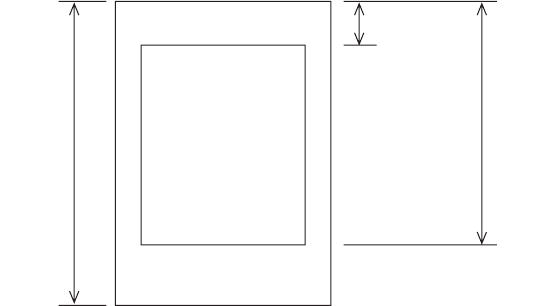
COMMAND DETAIL > 97
Lt : 0 ~ 255 Ht : 0 ~ 255
Lb : 0 ~ 255 Hb : 0 ~ 255
Top margin = (Lt + Ht x 256) x defined unit
Bottom margin = (Lb + Hb x 256) x defined unit
Details:
lTop margin < bottom magin
lBottom margin < 22 inches
lDefault unit is 1/216 inch.
Vertical tabs—execute
Code: VT
Compatibility: ML
Function:
Print the data in the buffer and advance the paper to the next tab stop.
Details:
This command is available when the “Emulation Compatibility” of the
technical menu is set to “Upper” or “Original”.
Printing
Area
Page
Length
Top margin
Bottom
margin
280ErGB.book Page 97 Monday, June 21, 2004 10:30 AM
COMMAND SUMMARY > 98
COMMAND SUMMARY
EPSON (EPS)
HORIZONTAL CONTROL
VERTICAL CONTROL
ASCII Code Function Name
CR CARRIAGE RETURN – EXECUTE
BS BACKSPACE
DEL DELETE
ESC U n PRINT DIRECTION – SELECT UNI/DIRECTIONAL PRINT
ESC < PRINT DIRECTION – UNIDIRECTIONAL PRINT_ONE LINE
ONLY
ESC $ n1 n2 PRINT POSITION – EXECUTE PRINT POSITION FROM
LEFT MARGIN
ESC \ n1 n2 PRINT POSITION – DEFINE INDEXED POSITION – BY
DOT COLUMN
ESC | n1 n2 PRINT POSITION–DEFINE RELATIVE DOT POSITION
ESC DLE @n A1 A2 P1 P2 P3 SET PRINT POSITION
ESC D x1 x2 x3...xk NUL HORIZONTAL TABS – DEFINE STOPS – BY CHARACTERS
HT HORIZONTAL TAB – EXECUTE
ESC n MARGINS – DEFINE LEFT MARGIN
ESC Q n MARGINS – DEFINE RIGHT MARGIN
ESC a n PRINT – LINE JUSTIFICATION – SELECT
ASCII Code Function Name
ESC 2 LINE SPACING – SELECT FIXED AMOUNT – 1/6 "
ESC 0 LINE SPACING – SELECT FIXED AMOUNT – 1/8 "
ESC 1 LINE SPACING – SELECT FIXED AMOUNT – 7/72 "
ESC A n LINE SPACING – DEFINE AMOUNT – n/72 "
ESC 3 n LINE SPACING – DEFINE AMOUNT – n/216 "
ESC J n LINE FEED – EXECUTE AMOUNT – n/216 "
ESC % 5 n FINE LF – EXECUTE – n/144 " AMOUNT
ESC % 9 n LINE SPACING – DEFINE AMOUNT – n/144 "
LF LINE FEED –EXECUTE FORWARD LF WITH CR
ESC C nul n FORM LENGTH – DEFINE AMOUNT – BY INCHES
ESC C n FORM LENGTH – DEFINE AMOUNT – BY LINES
FF FORM FEED – EXECUTE
ESC N n MARGINS – DEFINE BOTTOM MARGIN (AUTO SKIP)
ESC 0 MARGINS – CANCEL BOTTOM MARGIN (AUTO SKIP)
ESC / n VERTICAL TABS – SELECT CHANNEL
ESC B n1 n2...nk NUL VERTICAL TABS – DEFINE TAB STOPS
ESC b n m1 m2... mk NUL VERTICAL TABS – DEFINE TAB STOPS IN CHANNELS
280ErGB.book Page 98 Monday, June 21, 2004 10:30 AM

COMMAND SUMMARY > 99
SYMBOL SETS
FONT DESCRIPTION
VT VERTICAL TAB – EXECUTE
ESC 9 PAPER – OUT SENSOR – ENABLE
ESC 8 PAPER – OUT SENSOR – DISABLE
ESC EM I CUT – SHEET FEEDER – SINGLE SHEET INSERT
ESC EM R CUT – SHEET FEEDER – SINGLE SHEET EJECT
ESC DLE H Pno A1 A2 LINE SPACING SELECT/EXECUTION P1 P2 P3
COMPOUND COMMAND
ESC ( C Ln Hn Lp Hp SET PAGE LENGTH IN DEFINED UNITS
ESC ( c Ln Hn Lt Ht Lb Hb SET PAGE FORMAT
ASCII Code Function Name
ESC R n INTERNATIONAL LANGUAGE CHARACTER SET – SELECT
ESC t n CHARACTER TABLE – SELECT
ESC I n CONTROL CODES OR PRINTABLE CHARACTERS – ON/
OFF
ESC 6 CONTROL CODES OR PRINTABLE CHARACTERS – ON
ESC 7 CONTROL CODES OR PRINTABLE CHARACTERS – OFF
ESC 4 ITALIC CHARACTER SET – SELECT
ESC 5 ITALIC CHARACTER SET – CANCEL
ESC ( t Ln Hn Pn1 Pn2 Pn3 EPSON CHARACTER TABLE SELECT
ASCII Code Function Name
ESC x n PRINT QUALITY – SELECT MODE – UTL/NLQ
ESC ( n PRINT QUALITY – SELECT HIGH SPEED DRAFT
ESC k n TYPESTYLES – SELECT
ESC : NUL n NUL CUSTOM FONT – CREATE – COPY ROM DATA TO RAM
ESC & m n1 n2 a d1...d11 CUSTOM FONT – CREATE – CHAR – a d1...d11 PATTERN
– UTL DLL
ESC % n CUSTOM FONT – SELECT DLL FONT
ESC P CHARACTER PITCH – SELECT 10 CPI
DC2 CHARACTER PITCH – SELECT 10 CPI
ESC M CHARACTER PITCH – SELECT 12 CPI
ESC : CHARACTER PITCH – SELECT 12 CPI
ESC g CHARACTER PITCH – SELECT 15 CPI
SI CHARACTER PITCH – SELECT CONDENSED (17, 20 CPI)
ESC SI CHARACTER PITCH – SELECT CONDENSED (17, 20 CPI)
DC2 CHARACTER PITCH – CANCEL CONDENSED (17, 20 CPI)
ESC SP n INTER – CHARACTER CLEARANCE – DEFINE AMOUNT –
BY DOT COLUMN
ASCII Code Function Name
280ErGB.book Page 99 Monday, June 21, 2004 10:30 AM
COMMAND SUMMARY > 100
TEXT PRINT FEATURES
GRAPHICS MODE
COMPOSITE COMMAND
ESC p n CHARACTER CELL SIZE – PROPORTIONAL WIDTH – ON/
OFF
ESC X Pn Lp Hp SELECT FONT BY PITCH AND POINT
ESC y n SELECT FONT
ASCII Code Function Name
ESC – n UNDERLINE – ON/OFF
ESC E EMPHASIZED – ON
ESC F EMPHASIZED – OFF
ESC G ENHANCED (DOUBLE STRIKE) – ON
ESC H ENHANCED (DOUBLE STRIKE) – OFF
ESC W n DOUBLE WIDE (EXPANDED) – ON/OFF
SO DOUBLE WIDE (EXPANDED) – ONE LINE ONLY - ON
ESC SO DOUBLE WIDE (EXPANDED) – ONE LINE ONLY - ON
DC4 DOUBLE WIDE (EXPANDED) – ONE LINE ONLY - OFF
ESC w n DOUBLE HEIGHT – ON/OFF
ESC S n SCRIPT – SUPER/SUB – SELECT
ESC T SCRIPTS – SUPER/SUB – CANCEL
ASCII Code Function Name
ESC * m n1 n2 (GRAPHICS DATA) BIT IMAGE GRAPHICS – SELECT DENSITY AND
ENTER GRAPHICS
ESC ^ m n1 n2 (GRAPHICS DATA) BIT IMAGE GRAPHICS – SELECT 9 PIN MODE
ESC ? m n BIT IMAGE GRAPHICS – REASSIGN GRAPHIC’S DENSITY
COMMANDS
ESC K n1 n2 (GRAPHICS DATA) BIT IMAGE GRAPHICS – DOUBLE HORIZONTAL DENSITY
ESC L n1 n2 (GRAPHICS DATA) BIT IMAGE GRAPHICS – DOUBLE HORIZONTAL DENSITY
–NORMAL SPEED
ESC Y n1 n2 (GRAPHICS DATA) BIT IMAGE GRAPHICS – DOUBLE HORZONTAL DENSITY –
HIGH SPEED
ESC Z n1 n2 (GRAPHICS DATA) BIT IMAGE GRAPHICS – QUADRUPLE HORIZONTAL
DENSITY
ASCII Code Function Name
ESC ! n COMPOSITE COMMANDS – SELECT PRINT FEATURES
AND PITCH
ASCII Code Function Name
280ErGB.book Page 100 Monday, June 21, 2004 10:30 AM

COMMAND SUMMARY > 101
GENERAL CONTROL
ASCII Code Function Name
CAN RESET – CLEAR PRINT BUFFER
ESC @ RESET – CLEAR BUFFER AND INITIALIZE PRINTER
ESC > MSB CONTROL – SET MSB EQUAL TO 1
ESC = MSB CONTROL – SET MSB EQUAL TO 0
ESC # MSB CONTROL – CANCEL MSB CONTROL
DC3 PRINT SUPPRESS – ON
ESC Q ETX PRINT SUPPRESS – ON
ESC Q SYN PRINT SUPPRESS – ON
DC1 PRINT SUPPRESS – OFF
ESC s n PRINT SPEED – HALF – ON/OFF
ESC { n EMULATION MODE SWITCHING
ESC } NUL PRINTER INITIALIZATION
ESC i INCREMENTAL PRINT SELECT
ESC ( U Ln Hn data SET UNIT
ESC DLE O Pno Pn Quiet mode – ON/OFF
280ErGB.book Page 101 Monday, June 21, 2004 10:30 AM
COMMAND SUMMARY > 102
IBM
HORIZONTAL CONTROL
VERTICAL CONTROL
ASCII Code Function Name
CR CARRIAGE RETURN – EXECUTE
BS BACKSPACE
ESC U n PRINT DIRECTION – SELECT UNI/DIRECTIONAL PRINT
ESC % B n1 n2 n3 n4 PRINT POSITION–DEFINE PRINT POSITION FROM LEFT
MARGIN
ESC | n1 n2 PRINT POSITION–DEFINE RELATIVE DOT POSITION
ESC DLE @n A1 A2 P1 P2 P3 SET PRINT POSITION
ESC D x1 x2 x3...xk NUL HORIZONTAL TABS – DEFINE STOPS – BY CHARACTERS
HT HORIZONTAL TAB – EXECUTE
ESC R HORIZONTAL TABS – DEFINE STOPS – DEFAULT VALUES
ESC X n1 n2 MARGINS – DEFINE LEFT & RIGHT MARGIN
ESC d Ln Hn RELATIVE MOVE INLINE FORWARD
ASCII Code Function Name
ESC 0 LINE SPACING – SELECT FIXED AMOUNT – 1/8 "
ESC 1 LINE SPACING – SELECT FIXED AMOUNT – 7/72 "
ESC A n LINE SPACING –DEFINE AMOUNT – n/72 "
ON/OFF
ESC 3 n LINE SPACING – DEFINE AMOUNT – n/216 "
ESC 2 LINE SPACING – ACTIVATE AMOUNT DEFINED BY n/72 "
ESC J n LINE FEED – EXECUTE AMOUNT – n/216 "
ESC % 5 n FINE LF – EXECUTE – n/144 " AMOUNT
ESC % 9 n LINE SPACING – DEFINE AMOUNT – n/144 "
LF LINE FEED –EXECUTE FORWARD LF WITH CR
ESC 5 n LINE FEED – AUTOMATIC LF – ON/OFF
ESC C nul n FORM LENGTH – DEFINE AMOUNT – BY INCHES
ESC C n FORM LENGTH – DEFINE AMOUNT – BY LINES
FF FORM FEED – EXECUTE
ESC 4 TOP OF FORM – DEFINE
ESC N n MARGINS – DEFINE BOTTOM MARGIN (AUTO SKIP)
ESC 0 MARGINS – CANCEL BOTTOM MARGIN
(AUTO SKIP)
ESC B n1 n2...nk NUL VERTICAL TABS – DEFINE TAB STOPS
VT VERTICAL TAB – EXECUTE
ESC 9 PAPER – OUT SENSOR – ENABLE
ESC 8 PAPER – OUT SENSOR – DISABLE
ESC EM I CUT – SHEET FEEDER – SINGLE SHEET INSERT
ESC EM R CUT – SHEET FEEDER – SINGLE SHEET EJECT
280ErGB.book Page 102 Monday, June 21, 2004 10:30 AM
COMMAND SUMMARY > 103
SYMBOL SETS
FONT DESCRIPTION
ESC DLE H Pno A1 A2 LINE SPACING SELECT/EXECUTION P1 P2 P3
COMPOUND COMMAND
ESC [ F Ln Hm pft fc sd CUT – SHEET FEEDER CONTROL
ASCII Code Function Name
ESC 7 IBM CHAR SET I – SELECT
ESC 6 IBM CHAR SET II – SELECT
ESC \ n1 n2 IBM CHAR SET III (ALL CHAR) – CONTINUOUS SELECT
ESC ^ IBM CHAR SET III (ALL CHAR) – PRINT ONE CHARACTER
ONLY
ESC ! n INTERNATIONAL LANGUAGE CHARACTER SET – SELECT
ESC [T Ln Hn NUL NUL Hcp
Lcp NUL
SELECT CODE PAGE
ASCII Code Function Name
ESC # 0 PRINT QUALITY – SELECT HIGH SPEED DRAFT
ESC I n PRINT QUALITY – SELECT FONT
ESC [ d 01H 00H n SET PRINT QUALITY
ESC [ I Ln Hn data SELECT FONT
ESC k n TYPESTYLES – SELECT
ESC $ CUSTOM FONT – CREATE – COPY ROM DATA TO RAM
ESC = c1 c2 m n
a1 a2 d1...d11 a1 a2 d1...d11...
CUSTOM FONT – CREATE – CHAR – PATTERN – UTL/NLQ
DLL
DC2 CHARACTER PITCH – SELECT 10 CPI
ESC : CHARACTER PITCH – SELECT 12 CPI
ESC g CHARACTER PITCH – SELECT 15 CPI
SI CHARACTER PITCH – SELECT CONDENSED (17, 20 CPI)
ESC SI CHARACTER PITCH SELECT – 20 CPI
ESC V n INTER – CHARACTER CLEARANCE – DEFINE AMOUNT –
BY DOT COLUMN
ESC P n CHARACTER CELL SIZE – PROPORTIONAL WIDTH – ON/
OFF
ESC DLE F Pro Pn Lp Hp SELECT FONT BY PITCH AND POINT
ASCII Code Function Name
280ErGB.book Page 103 Monday, June 21, 2004 10:30 AM
COMMAND SUMMARY > 104
TEXT PRINT FEATURES
GRAPHICS MODE
GENERAL CONTROL
ASCII Code Function Name
ESC – n UNDERLINE – ON/OFF
ESC__n OVERSCORE – ON/OFF
ESC E EMPHASIZED – ON
ESC F EMPHASIZED – OFF
ESC G ENHANCED (DOUBLE STRIKE) – ON
ESC H ENHANCED (DOUBLE STRIKE) – OFF
ESC W n DOUBLE WIDE (EXPANDED) – ON/OFF
SO DOUBLE WIDE (EXPANDED) – ONE LINE ONLY - ON
DC4 DOUBLE WIDE (EXPANDED) – ONE LINE ONLY - OFF
ESC [@n1 n2 m1 m2 m3 m4 DOUBLE HEIGHT AND WIDTH –ON/OFF
ESC S n SCRIPT – SUPER/SUB – SELECT
ESC T SCRIPTS – SUPER/SUB – CANCEL
ESC % G SLANT – ON
ESC % H SLANT – OFF
ASCII Code Function Name
ESC K n1 n2 (GRAPHICS DATA) BIT IMAGE GRAPHICS – DOUBLE HORIZONTAL DENSITY
ESC L n1 n2 (GRAPHICS DATA) BIT IMAGE GRAPHICS – DOUBLE HORIZONTAL DENSITY
–NORMAL SPEED
ESC Y n1 n2 (GRAPHICS DATA) BIT IMAGE GRAPHICS – DOUBLE HORZONTAL DENSITY –
HIGH SPEED
ESC Z n1 n2 (GRAPHICS DATA) BIT IMAGE GRAPHICS – QUADRUPLE HORIZONTAL
DENSITY
ASCII Code Function Name
CAN RESET – CLEAR PRINT BUFFER
ESC Q ETX PRINT SUPPRESS – ON
ESC Q SYN PRINT SUPPRESS – ON
DC1 PRINT SUPPRESS – OFF
ESC j STOP PRINT
ESC { n EMULATION MODE SWITCHING
ESC } NUL PRINTER INITIALIZATION
ESC [ K Ln Hn Init Id Parm 1 Parm 2 SET INITIAL CONDITION
ESC i INCREMENTAL PRINT SELECT
ESC DLE O Pno Pn Quiet mode – ON/OFF
280ErGB.book Page 104 Monday, June 21, 2004 10:30 AM

COMMAND SUMMARY > 105
BARCODE
The following table details the validity of commands for the IBM
emulation. The “Emulation Compatibility” of the technical menu
should be set to “Extension”, “Upper” or “Original”.
ASCII Code Function Name
ESC DLE A P1 N1 N2 N3 N4 SELECT BARCODE N5 N6 N7 N8
ESC DLE B P1 Pm [DATA] PRINT BARCODE DATA
ESC DLE C P1 [DATA] PRINT POSTNET BARCODE DATA
ESC [ f 06H 00H k m s v1 v2 c SETUP BARCODE PARAMETER EAN13/8, CODE39/128,
I2of5, UPC-A, PostNet
ESC [ p n1 n2 d1 d2 SETUP BARCODE PARAMETER EAN13/8, CODE39/128,
I2of5, UPC-A, POSTNET
280ErGB.book Page 105 Monday, June 21, 2004 10:30 AM
COMMAND SUMMARY > 106
MICROLINE (ML)
HORIZONTAL CONTROL
VERTICAL CONTROL
ASCII Code Function Name
CR CARRIAGE RETURN – EXECUTE
BS BACKSPACE
ESC — PRINT DIRECTION – UNI–DIRECTIONAL
ESC = PRINT DIRECTION – BI–DIRECTIONAL
ESC % B n1 n2 n3 n4 PRINT POSITION–DEFINE PRINT POSITION FROM LEFT
MARGIN
ESC % E n1 n2 n3 n4 PRINT POSITION–DEFINE RIGHT RELATIVE POSITION
ESC % F n1 n2 n3 n4 PRINT POSITION–DEFINE LEFT RELATIVE POSITION
ESC DLE @n A1 A2 P1 P2 P3 SET PRINT POSITION
ESC HT X1, Y1 Z1,...,
Xm Ym Zm CR
HORIZONTAL TABS – DEFINE STOPS – BY CHARACTERS
ESC ETX X1 Y1 Z1 W1,..., Xm Ym
Zm Wm CR
HORIZONTAL TABS – DEFINE STOPS – BY DOT COLUMN
HT HORIZONTAL TAB – EXECUTE
ESC % C n1 n2 n3 MARGINS – DEFINE LEFT MARGIN
ESC % R n1 n2 n3 n4 MARGINS – RIGHT MARGIN
ASCII Code Function Name
ESC 6 LINE SPACING – SELECT FIXED AMOUNT – 1/6 "
ESC 8 LINE SPACING – SELECT FIXED AMOUNT – 1/8 "
ESC % 5 n FINE LF – EXECUTE – n/144 " AMOUNT
ESC % 9 n LINE SPACING – DEFINE AMOUNT – n/144 "
LF LINE FEED – EXECUTE FORWARD LF WITH CR
ESC DC2 LINE FEED – W/O CARRIAGE RETURN
ESC VT n1 n2 LINE FEED – EXECUTE DIRECT SKIP
ESC G n1 n2 FORM LENGTH – DEFINE AMOUNT – BY 1/2 "
ESC F n1 n2 FORM LENGTH – DEFINE AMOUNT – BY LINES
FF FORM FEED – EXECUTE
ESC 5 TOP OF FORM – DEFINE
ESC % S n MARGIN – DEFINE BOTTOM MARGIN (AUTO SKIP)
DC4 SP...SP n1 ? VERTICAL TABS –DEFINE TAB STOPS IN CHANNELS (VFU)
VT n VERTICAL TABS – EXECUTE
ESC E n PAPER – OUT DETECTION OVERRIDE – ENABLE/DISABLE
ESC S CUT – SHEET FEEDER – SINGLE SHEET INSERT
ESC V CUT – SHEET FEEDER – SINGLE SHEET EJECT
ESC DLE H Pno A1 A2 LINE SPACING SELECT/EXECUTION P1 P2 P3
COMPOUND COMMAND
280ErGB.book Page 106 Monday, June 21, 2004 10:30 AM
COMMAND SUMMARY > 107
SYMBOL SETS
FONT DESCRIPTION
ASCII Code Function Name
ESC ! 0 SYMBOL SET – OKIDATA –STANDARD – SELECT
ESC ! 1 BLOCK GRAPHICS TABLE SELECT
ESC ! 2 SYMBOL SET – OKIDATA – IBM – SELECT
ESC ! n INTERNATIONAL LANGUAGE CHARACTER SET – SELECT
ESC [T Ln Hn NUL NUL Hcp
Lcp NUL
SELECT CODE PAGE
ASCII Code Function Name
ESC # 0 PRINT QUALITY – SELECT HIGH SPEED DRAFT
ESC 0 PRINT QUALITY – SELECT UTILITY
ESC 1 PRINT QUALITY – SELECT NLQ
ESC 3 PRINT QUALITY – SELECT NLQ – GOTHIC
ESC 2 CUSTOM FONT – SELECT UTL DLL FONT
ESC 7 CUSTOM FONT – SELECT SYNTHETIC – NLQ DLL FONT
ESC k n TYPESTYLES – SELECT
ESC $ CUSTOM FONT – CREATE – COPY ROM DATA TO RAM
ESC g CHARACTER PITCH – SELECT 15 CPI
RS CHARACTER PITCH – SELECT 10 CPI
FS CHARACTER PITCH – SELECT 12 CPI
GS CHARACTER PITCH – SELECT 17.1 CPI
ESC # 3 CHARACTER PITCH – SELECT 20 CPI
ESC N n CHARACTER DENSITY – DEFINE INTER – CHARACTER
CLEARANCE – BY DOT COLUMN
ESC Y CHARACTER CELL SIZE – PROPORTIONAL WIDTH – ON
ESC Z CHARACTER CELL SIZE – PROPORTIONAL WIDTH – OFF
ESC % A m n1...n11 CUSTOM FONT – CREATE PATTERN – UTL DLL –
ASCENDER
ESC % D m n1...n11 CUSTOM FONT – CREATE PATTERN – UTL DLL –
DESCENDER
ESC DLE F Pro Pn Lp Hp SELECT FONT BY PITCH AND POINT
280ErGB.book Page 107 Monday, June 21, 2004 10:30 AM
COMMAND SUMMARY > 108
TEXT PRINT FEATURES
GRAPHICS MODE
ASCII Code Function Name
ESC C UNDERLINE – ON
ESC D UNDERLINE – OFF
ESC T EMPHASIZE – ON
ESC H ENHANCED – ON
ESC I EMPHASIZED AND ENHANCED – OFF
US DOUBLE WIDE – SELECT
ESC US n DOUBLE HIGH – SELECT
ESC L SUBSCRIPTS – ON
ESC M SUBSCRIPTS – OFF
ESC J SUPERSCRIPT – ON
ESC K SUPERSCRIPT – OFF
ESC ! / SLANT – ON
ESC ! * SLANT – OFF
ASCII Code Function Name
ETX BIT IMAGE GRAPHICS – ENTER
ETX STX BIT IMAGE GRAPHICS – EXIT
ESC P BIT IMAGE GRAPHICS – TRUE SINGLE HORIZONTAL
DENSITY
ESC Q BIT IMAGE GRAPHICS – TRUE SINGLE HORIZONTAL
DENSITY
ESC R BIT IMAGE GRAPHICS – TRUE DOUBLE HORIZONTAL
DENSITY
ESC # Q BIT IMAGE GRAPHICS – DOUBLE SPEED QUASI–
QUADRUPLE HORIZONTAL DENSITY
ETX LF BIT IMAGE GRAPHICS – EXECUTE LF WITH CR – TEXT
AMOUNT
ETX DC2 BIT IMAGE GRAPHICS – EXECUTE LF WITHOUT CR – TEXT
AMOUNT
ETX SO BIT IMAGE GRAPHICS – EXECUTE LF WITH CR –
GRAPHICS AMOUNT
ETX DC4 BIT IMAGE GRAPHICS – EXECUTE LF WITHOUT CR –
GRAPHICS AMOUNT
280ErGB.book Page 108 Monday, June 21, 2004 10:30 AM

COMMAND SUMMARY > 109
COMPOSITE COMMANDS
GENERAL CONTROL
BARCODE
ASCII Code Function Name
ESC & n1 n2 n3 n4 : SELECT PRINT MODES AND FEATURES
ESC * n : BIT IMAGE GRAPHICS MODES AND FEATURES
ESC ? n : CARRIAGE RETURN AND LINE FEED CONTROL
ASCII Code Function Name
CAN RESET – CLEAR PRINT BUFFER
ESC CAN RESET – PRINT DATA AND INITIALIZE PRINTER
DC3 PRINT SUPPRESS – ON
DC1 PRINT SUPPRESS – OFF
ESC < PRINT SPEED – HALF
ESC > PRINT SPEED – FULL
ESC { n EMULATION MODE SWITCHING
ESC } NUL PRINTER INITIALIZATION
ESC i INCREMENTAL PRINT SELECT
ESC DLE O Pno Pn Quiet mode – ON/OFF
ASCII Code Function Name
ESC DLE A P1 N1 N2 N3 N4 SELECT BARCODE N5 N6 N7 N8
ESC DLE B P1 Pm [DATA] PRINT BARCODE DATA
ESC DLE C P1 [DATA] PRINT POSTNET BARCODE DATA
280ErGB.book Page 109 Monday, June 21, 2004 10:30 AM

COMMAND TABLES > 110
COMMAND TABLES
The tables following detail the validity of commands for each
emulation. The “Emulation Compatibility” of the technical menu
should be set to “Extension”, “Upper” or “Original”.
IBM EMULATION
(3 = Valid command; 2 = Invalid command; T = Trap command).
Command Hex Function Emulation Compatibility
Extension Upper Original
BS 8 Backspace 33
T
HT 9Horizontal tab 3 3 3
LF 0A line feed 333
VT 0B Vertical tab 3 3 3
FF 0C Form feed 333
CR 0D Carriage return 3 3 3
SO 0E Select double-wide
mode (1 line)
333
SI 0F Select condensed mode 3 3 3
DC1 11 Cancel print suppress
mode
33
2
DC2 12 Select 10 CPI 3 3 3
DC4 14 Cancel double-wide
mode (1 line)
333
CAN 18 Cancel Data 3 3 3
ESC DLE @ 1B to 40 Set print position 33
T
ESC DLE A 1B to 41 Select barcode 3 3 T
ESC DLE B 1B to 42 Print barcode data 33
T
ESC DLE C 1B to 43 Print postnet barcode
data
3 3 T
ESC DLE F 1B to 46 Select font by pitch and
point
33
T
ESC DLE H 1B to 48 Select / Perform Line
Feed
3 3 T
ESC DLE O 1B to 4F Quiet mode - ON/OFF 33
T
ESC SI 1B 0F Select condensed mode
(20 CPI)
3 3 2
280ErGB.book Page 110 Monday, June 21, 2004 10:30 AM

COMMAND TABLES > 111
ESC EM 1B 19 Cut-sheet feeder
control
333
ESC ! 1B 21 International character
set
3 3 3
ESC # 1B 23 Select HSD mode 333
ESC $ 1B 24 Copy std set to DLL CG 3 3 T
ESC % 5 1B 25 35 Perform n/144-" LF 33
2
ESC % 9 1B 25 39 Select n/144-" line
spacing
3 3 2
ESC % B 1B 25 42 Set print position by
dot
33
T
ESC % G 1B 25 47 Select italic mode 3 3 2
ESC % H 1B 25 48 Cancel italic mode 33
2
ESC – 1B 2D Turn underlining mode
ON/OFF
3 3 3
ESC 0 1B 30 Select 1/8-" line
spacing
333
ESC 1 1B 31 Select 7/72-" line
spacing
3 3 3
ESC 2 1B 32 Start n/72-" line
spacing
333
ESC 3 1B 33 Select n/216-" line
spacing
3 3 3
ESC 4 1B 34 Set TOF 33
2
ESC 5 1B 35 Automatic LF 32 2
ESC 6 1B 36 Select character set 2 333
ESC 7 1B 37 Select character set 1 3 3 3
ESC 8 1B 38 Disable paper-out
sensor
333
ESC 9 1B 39 Enable paper-out
sensor
3 3 3
ESC : 1B 3A Select 12 CPI 333
ESC = 1B 3D Character font image
download
3 3 2
ESC A 1B 41 Select n/72-" line
spacing
333
Command Hex Function Emulation Compatibility
Extension Upper Original
280ErGB.book Page 111 Monday, June 21, 2004 10:30 AM
COMMAND TABLES > 112
ESC B 1B 42 Set VT 3 3 3
ESC C 1B 43 Set page length in lines 333
ESC C NUL 1B 43 00 Set page length in "es 3 3 3
ESC D 1B 44 Set HT 333
ESC E 1B 45 Select emphasized
mode
3 3 3
ESC F 1B 46 Cancel emphasized
mode
333
ESC G 1B 47 Select double-strike
mode
3 3 3
ESC H 1B 48 Cancel double-strike
mode
333
ESC I 1B 49 Select Print mode 3 3 3
ESC J 1B 4A Perform n/216-" LF 333
ESC K 1B 4B Select single-density
graphics
3 3 3
ESC L 1B 4C Select double-density
graphics
333
ESC N 1B 4E Set skip over
perforation
3 3 3
ESC O 1B 4F Cancel skip over
perforation
333
ESC P 1B 50 Turn proportional mode
ON/OFF
3 3 2
ESC Q 1B 51 Select print suppress
mode
33
2
ESC R 1B 52 Set all tabs to power on
settings
3 3 2
ESC S 1B 53 Select superscript /
subscript mode
333
ESC T 1B 54 Cancel superscript /
subscript mode
3 3 3
ESC U 1B 55 Turn unidirectional
mode ON/OFF
333
ESC V 1B 56 Set intercharacter
space
3 3 T
ESC W 1B 57 Turn double-wide mode
ON/OFF
333
ESC X 1B 58 Set left/right Margins 3 3 T
Command Hex Function Emulation Compatibility
Extension Upper Original
280ErGB.book Page 112 Monday, June 21, 2004 10:30 AM

COMMAND TABLES > 113
ESC Y 1B 59 Select high-speed
double-density graphic
333
ESC Z 1B 5A Select quadruple-
density graphics
3 3 3
ESC [ @ 1B 5B 40 Turn double-high wide,
line spacing mode ON/
OFF
33T
ESC [ F 1B 5B 46 CSF Control 3 3 T
ESC [ I 1B 5B 49 Select font 33T
ESC [ K 1B 5B 4B Set initial condition 3 3 T
ESC [ T 1B 5B 54 Set code page 333
ESC [ d 1B 5B 64 Set Print Quality 3 3 T
ESC [ f 1B 5B 66 Set Barcode parameter 33T
ESC [ p 1B 5B 70 Set Barcode data 3 3 T
ESC ¥1B 5C Print continuously from
all characters chart
33
2
ESC ^ 1B 5E Print single character
from all characters
chart
3 3 2
ESC 1B 5F Turn overscore mode
ON/OFF
ESC d 1B 64 Relative move inline
forward
ESC g 1B 67 Select 15 CPI
ESC i 1B 69 Turn incremental print
mode ON/OFF
ESC j 1B 6A Stop printing
ESC k 1B 6B Select NLQ Font
ESC { 1B 7B Change emulation
mode
ESC | 1B 7C Set relative print
position
ESC } 1B 7D Software I-PRIME
Command Hex Function Emulation Compatibility
Extension Upper Original
280ErGB.book Page 113 Monday, June 21, 2004 10:30 AM
COMMAND TABLES > 114
EPSON EMULATION
(3 = Valid command; X = Invalid command; T = Trap command).
Command Hex Function Emulation Compatibility
Extension Upper Original
BS 8 Backspace 333
HT 9Horizontal tab 3 3 3
LF 0A line feed 333
VT 0B Vertical tab 3 3 3
FF 0C Form feed 333
CR 0D Carriage return 3 3 3
SO (ESC SO) 0E
(1B 0E)
Select double-wide
mode (1 line)
333
SI (ESC S1) 0F
(1b 0F)
Select condensed mode 3 3 3
DC1 11 Cancel print suppress
mode
333
DC2 12 Cancel condensd mode 3 3 3
DC3 13 Select print suppress
mode
33
3
DC4 14 Cancel double-wide
mode (1 line)
3 3 3
CAN 18 Cancel Data 333
DEL 7F Delete character 3 3 3
ESC DLE @ 1B to 40 Set print position 33
T
ESC DLE A 1B to 41 Select barcode 3 3 T
ESC DLE B 1B to 42 Print barcode data 33
T
ESC DLE C 1B to 43 Print postnet barcode
data
3 3 T
ESC DLE H 1B to 48 Select / Perform Line
Feed
33
T
ESC DLE O 1B to 4F Quiet mode - ON/OFF 3 3 T
ESC EM 1B 19 Cut-sheet feeder
control
T33
ESC SP 1B 20 Set inter–character
space
3 3 T
ESC ! 1B 21 Master select 333
ESC # 1B 23 Cancel MSB mode 3 3 3
ESC $ 1B 24 Set absolute print
position
33
T
280ErGB.book Page 114 Monday, June 21, 2004 10:30 AM

COMMAND TABLES > 115
ESC % 1B 25 Select user–defined set 3 3 T
ESC % 5 1B 25 35 Perform n/144-" LF 33
2
ESC % 9 1B 25 39 Select n/144-" line
spacing
3 3 2
ESC & 1B 26 Define user–defined
characters
33
T
ESC ( 1B 28 Select HSD mode 3 3 3
ESC ( B 1B 28 42 Print barcode 33
2
ESC ( C 1B 28 43 Set page length in
defined unit
3 3 T
ESC ( U 1B 28 55 Set unit 33T
ESC ( c 1B 28 63 Set page format 3 3 T
ESC ( t 1B 28 74 Assign character table 333
ESC * 1B 2A Select graphics mode 3 3 3
ESC – 1B 2D Turn underlining mode
ON/OFF
333
ESC / 1B 2F Select VT channel 3 3 T
ESC 0 1B 30 Select 1/8-" line
spacing
333
ESC 1 1B 31 Select 7/72-" line
spacing
3 3 3
ESC 2 1B 32 Start 1/6-" line spacing 333
ESC 3 1B 33 Select n/216-" line
spacing
3 3 3
ESC 4 1B 34 Set italic mode 333
ESC 5 1B 35 Cancel italic mode 3 3 3
ESC 6 1B 36 Printable code area
expansion
333
ESC 7 1B 37 Cancel ESC 6 3 3 3
ESC 8 1B 38 Disable paper-out
sensor
333
ESC 9 1B 39 Enable paper-out
sensor
3 3 3
ESC : 1B 3A Copy ROM into RAM 33T
ESC < 1B 3C Select uni-directional
mode (1 line)
3 3 3
ESC = 1B 3D Set MSB to 0 333
Command Hex Function Emulation Compatibility
Extension Upper Original
280ErGB.book Page 115 Monday, June 21, 2004 10:30 AM
COMMAND TABLES > 116
ESC > 1B 3E Set MSB to 1 3 3 3
ESC ? 1B 3F Reassign graphics
mode
333
ESC @ 1B 40 Initialise printer 3 3 3
ESC A 1B 41 Select n/72-" line
spacing
333
ESC B 1B 42 Set VT 3 3 3
ESC C 1B 43 Set page length in lines 333
ESC C NUL 1B 43 00 Set page length in "es 3 3 3
ESC D 1B 44 Set HT 333
ESC E 1B 45 Select emphasised
mode
3 3 3
ESC F 1B 46 Cancel emphasised
mode
333
ESC G 1B 47 Select double-strike
mode
3 3 3
ESC H 1B 48 Cancel double-strike
mode
333
ESC I 1B 49 Printable code area
expansion
3 3 3
ESC J 1B 4A Perform n/216-" LF 333
ESC K 1B 4B Select single-density
graphics
3 3 3
ESC L 1B 4C Select double-density
graphics
333
ESC M 1B 4D Select 12 CPI 3 3 3
ESC N 1B 4E Set skip over
perforation
333
ESC O 1B 4F Cancel skip over
perforation
3 3 3
ESC P 1B 50 Select 10 CPI 333
ESC Q 1B 51 Set right margin 3 3 3
ESC R 1B 52 International character
set (set code page)
333
ESC S 1B 53 Select superscript /
subscript mode
3 3 3
ESC T 1B 54 Cancel superscript /
subscript mode
333
Command Hex Function Emulation Compatibility
Extension Upper Original
280ErGB.book Page 116 Monday, June 21, 2004 10:30 AM
COMMAND TABLES > 117
ESC U 1B 55 Turn unidirectional
mode ON/OFF
3 3 3
ESC W 1B 57 Turn double-wide mode
ON/OFF
333
ESC X 1B 58 Select font by pitch and
point
3 3 2
ESC Y 1B 59 Select high-speed
double-density graphic
333
ESC Z 1B 5A Select quadruple-
density graphics
3 3 3
ESC ¥1B 5C Set relative position 33
T
ESC ^ 1B 5E Select 9 pin graphics 3 3 3
ESC a 1B 61 Select justification 33
T
ESC b 1B 62 Se VT in channels 3 3 T
ESC e 1B 65 Set relative tab stop T 33
ESC f 1B 66 Set relative print
position
T3 3
ESC g 1B 67 Select 15 CPI 33
2
ESC i 1B 69 Turn incremental print
mode ON/OFF
3 3 T
ESC k 1B 6B Select NLQ Font 33T
ESC l 1B 6C Set left margin 3 3
ESC p 1B 70 Turn proportional mode
ON/OFF
33T
ESC s 1B 73 Turn half speed mode
ON/OFF
3 3 3
ESC t 1B 74 Select character table 333
ESC w 1B 77 Turn double height
mode ON/OFF
3 3 T
ESC x 1B 78 Select NLQ or draft 333
ESC y 1B 79 Select font 3 3 2
ESC { 1B 7B Change emulation
mode
33
2
ESC } 1B 7D Software I-PRIME 3 3 2
Command Hex Function Emulation Compatibility
Extension Upper Original
280ErGB.book Page 117 Monday, June 21, 2004 10:30 AM

COMMAND TABLES > 118
ML EMULATION
(3 = Valid command; X = Invalid command; T = Trap command).
Command Hex Function Emulation Compatibility
Extension Upper Original
ETX 3 Start graphics mode 333
BS 8Backspace 3 3 2
HT 9 Horizontal tab 333
LF 0A line feed with CR 3 3 3
VT 0B Vertical tab (VFU) 333
FF 0C Form feed 3 3 3
CR 0D Carriage return 333
DC1 11 Cancel print suppress
mode
3 3 2
DC3 13 Select print suppress
mode
33
2
DC4 14 Set VT 3 3 2
CAN 18 Cancel Data 333
FS 1C Select 12 CPI 3 3 3
GS 1D Select 17.1 CPI 333
RS 1E Select 10 CPI 3 3 3
US 1F Selectr double width
mode
333
ETX STX 03 02 Cancel graphics mode 3 3 3
ETX LF 03 0A Perform graphics LF
with CR
33
3
ETX SO 03 0E Perform 14 (16)/144 "
graphics LF with CR
3 3 3
ETX DC2 03 12 Perform graphics LF 333
ETX DC4 03 14 Perform 14 (16)/144 "
graphics LF
3 3 3
ESC ETX 1B 03 Set HT by dot 33
2
ESC HT 1B 09 Set HT by character 3 3 3
ESC HT CR 1B 09 0D Clear HT memory 322
ESC VT 1B 0B Vertical skip 3 3 3
ESC DLE @ 1B 10 40 Set print position 33
T
ESC DLE A 1B 10 41 Select barcode 3 3 T
280ErGB.book Page 118 Monday, June 21, 2004 10:30 AM

COMMAND TABLES > 119
ESC DLE B 1B 10 42 Print barcode data 33
T
ESC DLE C 1B 10 43 Print postnet barcode
data
3 3 T
ESC DLE F 1B 10 46 Select font by pitch and
point
33
T
ESC DLE H 1B 10 48 Select / Perform Line
Feed
3 3 T
ESC DLE O 1B 10 4F Quiet mode - ON/OFF 33
T
ESC DC2 1B 12 Line feed 3 3 3
ESC CAN 1B 18 Initialise printer 33
2
ESC US 1B 1F Turn double high mode
ON/OFF
3 3 2
ESC ! 1B 21 International character
set
333
ESC ! * 1B 21 2A Cancel italic mode 3 3 2
ESC ! / 1B 21 2F Select italic mode 33
2
ESC ! 0 1B 21 30 Select standard
character
3 3 3
ESC ! 1 1B 21 31 Selecvt block graphics
character
333
ESC ! 2 1B 21 32 Select IBM character 3 3 2
ESC # 0 1B 23 30 Select HSD mode 333
ESC # 3 1B 23 33 Select 20 CPI 3 3 2
ESC # Q 1B23 51 Select quadruple
density graphics
33
2
ESC $ 1B 24 Copy standard set to
DLL CG
3 3 2
ESC % 5 1B 25 35 Perform n/144-" LF 333
ESC % 9 1B 25 39 Select n/144-" line
spacing
3 3 3
ESC % A 1B 25 41 Load DLL ascender 33
2
ESC % B 1B 25 42 Set print position by
dot
3 3 2
ESC % C 1B 25 43 Set left margin 333
ESC % D 1B 25 44 Load DLL descender 3 3 2
Command Hex Function Emulation Compatibility
Extension Upper Original
280ErGB.book Page 119 Monday, June 21, 2004 10:30 AM

COMMAND TABLES > 120
ESC % E 1B 25 45 Relative move inline
forward
33
2
ESC % F 1B 25 46 Relative move inline
backward
3 3 2
ESC % R 1B 25 52 Set right margin 33
2
ESC % S 1B 25 53 Set skip over
perforation
3 3 3
ESC & 1B 26 Master select 33
2
ESC * 1B 2A Select graphics mode 3 3 2
ESC – 1B 2D Select uni-directional
mode
333
ESC 0 1B 30 Select UTL font 3 3 3
ESC 1 1B 31 Select 7/72-" line
spacing
333
ESC 2 1B 32 Start NLQ-courier font 3 3 2
ESC 3 1B 33 Select DLL-UTL font 33
2
ESC 5 1B 35 Set TOF 3 3 3
ESC 6 1B 36 Select 1/6 " line
spacing
333
ESC 7 1B 37 Select DLL-NLQ font 3 3 2
ESC 8 1B 38 Select 1/8 " line
spacing
333
ESC < 1B 3C Select half speed mode 3 3 2
ESC = 1B 3D Cancel uni-directional
mode
333
ESC > 1B 3E Cancel half speed mode 3 3 2
ESC ? 1B 3F Select CR/LF mode 33
2
ESC C 1B 43 Select underlining
mode
3 3 3
ESC D 1B 44 Cancel underlining
mode
333
ESC E 1B 45 Select paper-out sensor
disable/enable
3 3 3
ESC F 1B 46 Set page length in lines 333
Command Hex Function Emulation Compatibility
Extension Upper Original
280ErGB.book Page 120 Monday, June 21, 2004 10:30 AM

COMMAND TABLES > 121
ESC G 1B 47 Set page length in "es 3 3 2
ESC H 1B 48 Select double-strike
mode
333
ESC I 1B 49 Cancel emphasized /
double-strike mode
3 3 3
ESC J 1B 4A Select superscript
mode
333
ESC K 1B 4B Cancel superscript
mode
3 3 3
ESC L 1B 4C Select subscript mode 333
ESC M 1B 4D Cancel subscript mode 3 3 3
ESC N 1B 4E Set intercharacter
space
33
2
ESC P 1B 50 Select single-density
graphics
3 3 3
ESC Q 1B 51 Select single-density
graphics
333
ESC R 1B 52 Select double-density
graphics
3 3 3
ESC S 1B 53 CSF single sheet insert 333
ESC T 1B 54 Select emphasised
mode
3 3 3
ESC V 1B 56 CSF single sheet eject 333
ESC Y 1B 59 Select proportional
spacing mode
3 3 2
ESC Z 1B 5A Cancel proportional
spacing mode
33
2
ESC [ T 1B 5B 54 Set codepage 3 3 3
ESC g 1B 67 Select 15 CPI 33
2
ESC i 1B 69 Turn incremental print
mode ON/OFF
3 3 2
ESC k 1B 6B Select NLQ Font 33
2
ESC { 1B 7B Change emulation
mode
T
ESC } 1B 7D Software I-PRIME 2
Command Hex Function Emulation Compatibility
Extension Upper Original
280ErGB.book Page 121 Monday, June 21, 2004 10:30 AM
SYMBOL SETS > 122
SYMBOL SETS
IBM
CHAR SET 1 – SELECT
Code: ESC7
Compatibility: IBM
Function:
Selects IBM Character Set 1.
CHAR SET II – SELECT
Code: ESC 6
Compatibility: IBM
Function:
Selects IBM character set 2
CHAR SET III (ALL CHARACTERS) – CONTINUOUS – SELECT
Code: ESC \ n1 n2
Compatibility: IBM
Function:
Selects IBM character Set II. (All Characters Chart).
Range:
ln1 and n2 are equal to the total number of characters that are
desired to be printed.
ie: total count = n1 + (n2*256)
Details:
lAll codes including control codes, specified after this
command is sent are printable characters.
lAfter the character count is reached, the printer no longer
interprets the control codes as printable characters.
280ErGB.book Page 122 Monday, June 21, 2004 10:30 AM

SYMBOL SETS > 123
IBM CHAR SET III (ALL CHARACTERS) – PRINT ONE CHAR ONLY
Code: ESC ^
Compatibility: IBM
Function:
Select IBM Set III (All characters chart) and print only one
character.
Details:
lThis command functions exactly the same as the “ESC\n1 n2”
where n1 = 1 and n2 = 0.
OKIDATA (ML) –STANDARD – SELECT
Code: ESC ! 0
Compatibility: ML
Function:
Select the OKIDATA – Standard Symbol set.
Details:
lDescription of OKIDATA – Standard symbol set.
l16 locations in this character set are used as International
Language substitute locations. When an international
language is selected by the ESC ! n1 command, the
appropriate International language character pattern is
printed.
Location Description Count
00H – 1FH ASCII Control Codes 32
20H – 7FH ASCII Printable Characters 96
90H – 9FH ASCII Control Codes 32
A0H – FFH IBM Printable Characters 96
280ErGB.book Page 123 Monday, June 21, 2004 10:30 AM

SYMBOL SETS > 124
OKIDATA (ML) – BLOCK – SELECT
Code: ESC ! 1
Compatibility: ML
Function:
Select the OKIDATA – Block Graphics Symbol set.
Details:
lDescription of OKIDATA – Block Graphics symbol set:
7 Bit Modet
8 Bit Mode
l16 locations in this character set are used as International
Language substitute locations. When an International
language is selected by the ESC ! n1 command, the
appropriate International language character pattern is
printed.
Location Description Count
(S1)
00H – 1FH
ASCII Control Codes 32
20H – 7FH ASCII Printable Characters 96
(S0)
00H – 1FH
ASCII Control Codes 32
20H – 5FH ASCII Printable Characters 96
60H – 7FH Trapped Codes 32
Location Description Count
00H – 1FH ASCII Control Codes 32
20H – 7FH ASCII Printable Characters 96
80H – FFH OKIDATA Block Graphics 128
280ErGB.book Page 124 Monday, June 21, 2004 10:30 AM

SYMBOL SETS > 125
OKIDATA – IBM – SELECT
Code: ESC ! 2
Compatibility: ML
Function:
Select the OKIDATA-IBM symbol set.
Details:
lDescription of OKIDATA—IBM symbol set:
l16 locations in this character set are used as International
Language substitute locations. When an International
language is selected by the ESC ! n1 command, the
appropriate International language character pattern is
printed.
Location Description Count
00H – 02H ASCII Control Codes 3
03H – 06H IBMI Printable Characters 4
07H – 14H ASCII Control Codes 14
15H IBMI Printable Characters 1
16H – 1FH ASCII Control Codes 10
20H – FFH IBMI Printable Characters 224
280ErGB.book Page 125 Monday, June 21, 2004 10:30 AM

SYMBOL SETS > 126
INTERNATIONAL LANGUAGE CHARACTER SET—SELECT
Code: ESC R n
Compatibility: Epson
Function:
Selects an international language character set and code page
specified by the number n.
Range:
Pn International
Character Set
Pn International
Character Set
0 (00H) American, ASCII 11 (0BH) Spanish II
1 (01H) French 12 (0CH) Latin American
2 (02H) German 13 (0DH) French Canadian
3 (03H) British 14 (0EH) Dutch
4 (04H) Danish I 15 (0FH) Swedish II
5 (05H) Swedish I 16 (10H) Swedish III
6 (06H) Italian 17 (11H) Swedish IV
7 (07H) Spanish I 18 (12H) Turkish
8 (08H) Japanese 19 (13H) Swiss I
9 (09H) Norwegian 20 (14H) Swiss II
10 (0AH) Danish II 64 (40H) Publisher
Pn Code page Set Pn Code page Set
21 (15H) Cyrillic II-866 34 (22H) Greek SYS 25 (Reserved)
22 (16H) Polska Mazovia 35 (23H) Greek ME 29 (Reserved)
23 (17H) ISO Latin2 36 (24H) Greek 927 mod (Reserved)
24 (18H) Serbo Croatic I 37 (25H) Greek 927 (Reserved)
25 (19H) Serbo Croatic II 38 (26H) Greek 437
26 (1AH) Multilingual 850 39 (27H) Greek 928
27 (1BH) Norway 865 40 (28H) Greek 851 (Reserved)
28 (1CH) Portugal 860 41 (29H) Greek 437 CYPRUS
29 (1DH) Turkey 42 (2AH) ECMA-94
30 (1EH) Greek ABG (Reserved) 43 (2BH) Canada French
31 (1FH) Greek ABC (Reserved) 44 (2CH) Cyrillic I - 855
32 (20H) Greek DEG (Reserved) 45 (2DH) Cyrillic II - 866
33 (21H) Greek Quattro (Reserved) 46 (2EH) East Europe Latin II - 852
280ErGB.book Page 126 Monday, June 21, 2004 10:30 AM

SYMBOL SETS > 127
Code: ESC ! n
Compatibility: IBM/ML
Range:
CODE PAGE SET—SELECT
Code: ESC [ T Ln Hn NUL NUL Hcp Lcp NUL
Compatibility: IBM/ML
Function:
Select the code page.
Pn Code page Set Pn Code page Set
47 (2FH) Greek 869 66 (42H) Ukrainian
49 (31H) Windows East Europe 67 (43H) ISO Latin 6 (8859/10)
50 (32H) Windows Greek 68 (44H) Windows Baltic
51 (33H) Latin 5 (Windows Turkey) 69 (45H) Cyrillic Latvian
52 (34H) Windows Cyrillic 72 (48H) Bulgarian
54 (36H) Hungarian CWI 73 (49H) Icelandic-861
55 (37H) Kamenicky (MJK) 74 (4AH) Baltic 774
57 (39H) Turkey 857 80 (50H) BRASCII
58 (3AH) Roman-8 81 (51H) Abicomp
60 (3CH) Hebrew NC (862) 82 (52H) ISO8859-15
61 (3DH) Hebrew OC 83 (53H) Multilingual858
62 (3EH) Windows Hebrew 85 (55H) Greek_737
63 (3FH) KBL-Lithuanian
No. Pn Language No. Pn Language
1 (40)H (64)D ASCII (ø) (4A)H (74)D TRS-80
2(41)H (65)D ASCII (O) (4B)H (75)D Spanish
3 (42)H (66)D British (4C)H (76)D Swedish II
4(43)H (67)D German (4D)H (77)D Swedish III
5 (44)H (68)D French (4E)H (78)D Swedish IV
6(45)H (69)D Swedish I (4F)H (79)D Turkish
7 (46)H (70)D Danish I (50)H (80)D Swiss I
8(47)H (71)D Norwegian (51)H (81)D Swiss II
9 (48)H (72)D Dutch (5A)H (90)D Publisher
10 (49)H (73)D Italian
280ErGB.book Page 127 Monday, June 21, 2004 10:30 AM

SYMBOL SETS > 128
Range:
lLn, Hn specifies the subsequent data amount
Data amount = (Ln + Hn*256)
lLn, Hn = 0 to 255
When Ln = 0, 0 Hn 3 are specified, the currently selected code
page will remain effective and this command is discarded.
lNUL = 0 to 255
lHcp, Lcp are used to specify the code page ID number.
ID No. = (Hcp*255 + Lcp)
lHcp, Lcp = 0 to 255
Out of range:
The command is ignored.
Details:
lNo international language character conversion is performed
except for the USA character code.
lThe ID number causes the printer to select the corresponding
code page directly.
ID (Hcp, Lcp) Code Page
437 (1B5H) USA
737 (2E1H) Greek_737
774 (306H) Baltic 774
850 (352H) Multilingual
852 (354H) East Europe Latin II - 852
855 (357H) Cyrillic I - 855
857 (359H) Turkey 857
858 (35AH) Multilingual858
860 (35CH) Portugual
861 (35DH) Icelandic-861
862 (35EH) Hebrew NC (862) (same as 406)
863 (35FH) Canada French
865 (361H) Norway
866 (362H) Cyrillic II - 866
280ErGB.book Page 128 Monday, June 21, 2004 10:30 AM
SYMBOL SETS > 129
869 (365H) Greek 869
895 (37FH) Kamenickey (MJK)
1000 (3E8H) Greek ABG (Reserved)
1001 (3E9H) Greek ABC (Reserved)
1002 (3EAH) Greek DEC (Reserved)
1003 (3EBH) Greek Quattro (Reserved)
1004 (3ECH) Greek SYS 25 (Reserved)
1005 (3EDH) Greek ME 29 (Reserved)
1006 (3EEH) Greek 927 mod (Reserve)d
1007 (3EFH) Greek 927 (Reserved)
1008 (3F0H) Greek 437
1009 (3F1H) Greek 928
1010 (3F2H) Greek 851 (Reserved)
1011 (3F3H) Greek 437 CYPRUS
1012 (3F4H) Turkey
1013 (3F5H) Cyrillic II - 866 (same as 866)
1014 (3F6H) Polska Mazovia
1015 (3F7H) ISO Latin 2
1016 (3F8H) Serbo Croatic I
1017 (3F9H) Serbo Croatic II
1018 (3FAH) ECMA-94
1019 (3FBH) Windows East Europe
1020 (3FCH) Windows Greek
1021 (3FDH) Windows Turkey
1022 (3FEH) Windows Cyrillic
1024 (400H) Hungarian CWI
1027 (403H) Ukrainian
1028 (404H) Roman-8
1029 (405H) ISO Latin6 (8859/10)
1030 (406H) Hebrew NC
1031 (407H) Hebrew OC
1032 (408H) Windows Hebrew
1033 (409H) KBL-Lithuanian
1034 (40AH) Windows Baltic
1035 (40BH) Cyrillic Latvian
1072 (430H) Bulgarian
1081 (439H) ISO8859-15
ID (Hcp, Lcp) Code Page
280ErGB.book Page 129 Monday, June 21, 2004 10:30 AM
SYMBOL SETS > 130
SLANT/GRAPHICS CHARACTER TABLE—SELECT
Code: ESC t n
Compatibility: Epson
Function:
Select the type of character table, setting by the command
ESC(tLnHnPn1Pn2Pn3.
Range:
ln = 00H ... selects character table 0.
ln = 01H ... selects character table 1.
CONTROL CODES OR PRINTABLE CHARACTERS – ON/OFF
Code: ESC I n
Compatibility: Epson
Function:
Enables the printer to print the characters stored in decimal
locations 0-6, 16-17, 21-23, 25-26, 28-31 and 128-134, 144-
145, 149-151, 153-154, 156-159 as printable characters, not
control codes.
Range:
ln = 1 Interprets code 0-6, 16-17, 21-23, 25-26, 28-31 and
128-134, 144-145, 149-151, 153-154, 156-159 as printable
characters.
ln = 0 Interprets code 0-6, 16-17, 21-23, 25-26, 28-31 and
128-134, 144-145, 149-151, 153-154, 156-159 as non-
printable characters, i.e. control codes.
Details:
lThis function allows the user to store User-defined characters
in locations that normally correlate to control codes.
280ErGB.book Page 130 Monday, June 21, 2004 10:30 AM
SYMBOL SETS > 131
CONTROL CODES OR PRINTABLE CHARACTERS – ON
Code: ESC 6
Compatibility: Epson
Function:
Enable the printer to interpret the decimal locations 128 – 159,
255 as printable characters, not as control codes.
Details:
lThis function allows the user to store User-defined characters
in locations that normally correlate to control codes.
CONTROL CODES OR PRINTABLE CHARACTERS – OFF
Code: ESC 7
ompatibility: Epson
Function:
Cancel ESC 6. Decimal locations 128-159, 255 are interpreted
as control codes, not as printable characters.
Details:
lThis function allows the user to store User-defined characters
in locations that normally correlate to control codes.
ITALIC CHARACTER SET – SELECT
Code: ESC 4
Compatibility: Epson
Function:
Select the alternate character set composed of an italicised
character.
Details:
lItalic characters are printed using a slat algorithm.
lSee priority table for detail command combination.
lItalic characters may be overlapped on the next character cell.
280ErGB.book Page 131 Monday, June 21, 2004 10:30 AM
SYMBOL SETS > 132
Related functions:
lThis mode can also be selected by the ESC ! n command.
ITALIC CHARACTER SET—CANCEL
Code: ESC 5
Compatibility: Epson
Function:
Cancel the Alternate Character Set (Italics characters).
Related functions:
lThis mode can also be reset by the ESC ! n command.
CHARACTER TABLE DESIGNATION
Code: ESC ( t Ln Hn Pn1 Pn2 Pn3
Compatibility: Epson
Function:
Store character tables, which are set in Pn2 and Pn3, each in
Pn1-indicated areas (two types, tables 1 and 2).
ESC t sets either of the two areas to makes one table
selectable.
Ranges:
Effective Ranges and Meanings of Ln Hn.
0(00H)=<Ln=<255(FFH)
0(00H)=<Hn=<255(FFH) MSB is invalid
Ln Hn shows the number of bytes of parameters after it.
Number of Bytes of these Parameters = Ln+Hn×256.
At Ln+Hn×256=<2, this command is invalid and data of Ln+Hn
x256 bytes is received and discarded.
At Ln+Hn×256 >3, data of (Ln+Hn×256)-3 bytes is received and
discarded after the reception of Pn1, Pn2 and Pn3.
280ErGB.book Page 132 Monday, June 21, 2004 10:30 AM

SYMBOL SETS > 133
This parameter is specified usually with a value, e.g.
Ln+Hn x256 =3.
lEffective Ranges, Effective Values and Meanings of Pn1, Pn2
and Pn2
0(00H) Pn1 255(FFH) MBS is invalid.
0(00H) Pn2 255(FFH) MBS is invalid.
0(00H) Pn3 255(FFH) MBS is invalid.
lA table is selected according to each combination of Pn2 and
Pn3 and specified based on Pn1.
Effective values of Pn1: Pn1=00H, 01H, 30H, 31H
Effective values of Pn2 and Pn3 are shown in the following
table.
Varying combinations of Pn2 and Pn3, and Tables Selected
For Pn1, Pn2 and Pn3 that take on values other than effective ones
Immediately following power-on ..... The default setting shown in (4)
is active (menu setting).
Except for the above ...................... The setting is left as set in the
previously table.
Detail
lVarying the value of Pn1 permits the specification of up to two
types of tables.
lThe value of Pn1 that corresponds to a table desired to be used
is assigned to Pn to select, using ESC t Pn, either of specified
two types of tables.
Pn2 (Hex) Pn3 (Hex) Character Table
00Italic
1 0 PC437
3 0 PC850 (Muliti-lingual)
7 0 PC860 (Portugese)
8 0 PC863 (Canadian French)
9 0 PC865 (Norway)
280ErGB.book Page 133 Monday, June 21, 2004 10:30 AM

SYMBOL SETS > 134
Example: Two types of tables are stored in two areas.
lThe following shows tables that are defined as defaults after
power–on:
Menu-selectable Tables (Code Page)
– USA
– Multilingual
– Portuguese
– Canada-French
– Norway
lDLL Copy is used to copy the mode where printing is being
performed.
lWhen a table change is made by ESC t Pn, international
character settings remain unchanged.
lWhen a code page set by ESC ( t is selected by ESC t Pn, the
selected code page becomes effective and international
character conversion is performed.
lFor Code Page Setting by ESC R Pn (Pn = 26 to 28, 43)
When effective code page setting is performed by the ESC R
command, the code page is set to table 1 of ESC t. For a code
page to be effective by ESC R, ESC t 1 must be set.
International character conversion is not performed (the
setting remains the same).
When international character setting is performed by ESC R Pn
(Pn = 0 to 14, 64), the code page is “USA.”
Value of Pn Table slected
Table 0 00H (30H) Italic
Table 1 01H (31H) Menu selected
280ErGB.book Page 134 Monday, June 21, 2004 10:30 AM
SYMBOL SETS > 135
FONT DESCRIPTION
Print quality – select mode – UTLINLQ
Code: ESC × n
Compatibility: Epson
Function:
Either Utility or NLQ print quality mode.
Range:
lRange n = 01H, 31H, 81H, B1H selects NLQ character font.
lRange n = 00H, 30H, 80H, B0H selects Utility character font.
Out of range:
lThis command will be ignored when the value is:
02H – 2FH or 32H – 7FH or 82H – AFH or B2H – FFH
Details:
lNLQ and UTILITY Modes are printed in 10, 12, 15, 17.1, and 20
CPI.
lUtility 10 CPI mode is the factory default setting.
lSee attachments for UTL & NLQ Print Mode/Features
Combination Priority Chart
Print quality – select HSD
Code: ESC # 0
Compatibility: IBM
Function:
Select High Speed Draft Character Set.
Details:
lIf inter-character clearance is defined while the High Speed
Draft (HSD) mode is selected, additional blank dot columns
will be suppressed.
280ErGB.book Page 135 Monday, June 21, 2004 10:30 AM
SYMBOL SETS > 136
lThe HSD mode will be suppressed during the proportional
print mode.
lAccessible addresses:
03H — 06H
15H
20H — 7FH
80H — AFH
E0H — F3H
F6H — FFH
Other areas will not be printed in High Speed draft mode.
lSee attachments for UTL & NLQ Print Mode/Features
Combination Priority Charts.
Print quality – select HSD
Code: ESC ( n
Compatibility: Epson
Function:
Select High Speed Draft Character Set.
Range:
n = 00H, 30H, 80H, or B0H HSD is selected.
n = any other value The current mode will remain effective.
Details:
lIf inter-character clearance is defined while the High Speed
Draft (HSD) mode is selected, additional blank dot columns
will be suppressed.
lThe HSD mode will be suppressed during the proportional
print mode.
lAccessible addresses:
03 — 06H
280ErGB.book Page 136 Monday, June 21, 2004 10:30 AM

SYMBOL SETS > 137
15H
20H — 7FH
80H — AFH
EOH — F3H
F6H — FFH
Other addresses will not be printed in High Speed draft mode.
lSee attachments for UTL & NLQ Print Mode/Features
Combination Priority Charts.
Print quality – select font
Code: ESC I n
Compatibility: IBM
Function:
Select print mode according to the value of n.
Range:
Pn is set as 0 (00H)<=Pn<=255 (FFH)
Out of Range:
This command will be ignored and the last set will remain.
MSB value of
n LSB
Print mode
XXXX0000B Print following letters in ROM UTL
XXXX0001B Print following letters in Fast Font (HSD 12 CPI
XXXX0010B Print following letters in ROM NLQ (Sans Serif)
EXXXX0011B Print following letters in NLQ II (Courier)
S XXXX0100B Print following letters in DLL UTL
CXXXX0101B Print following letters in Fast Font (DLL UTL 12 CPI
XXXX0110B Print following letters in DLL NLQ
!XXXX0111B Print following letters in DLL NLQ II
XXXX1011B Print following letters in Alternate ROM NLQ II (Courier)
XXXX1111B Print following letters in Alternate DLL NLQ I
280ErGB.book Page 137 Monday, June 21, 2004 10:30 AM
SYMBOL SETS > 138
Print quality – select HSD
Code: ESC # 0
Compatibility: ML
Function:
Select the High Speed Draft (HSD) Print Quality Mode which
prints a print speed of 433 CPS, for fast througput.
Details:
lThe HSD mode can be combined with all other print features
except proportional and inter-character clearance print modes.
lOnly normal Alpha-numeric printable characters can be
printed in the HSD mode.
lHSD mode is mutually exclusive with the other print quality
modes, NLQ and utility.
lRefer to the illustration attachments “Print Mode/Feature
Combination Chart” for details of the valid combination of
Print Quality Modes and Print Features.
lHSD prints in one pass of the print head.
Print quality – select utility
Code: ESC 0
Compatibility: ML
Function:
Select the Utility Print Quality Mode which prints at a speed of
325 CPS and provides speed with good print quality.
Details:
lThe Utility (UTL) Print Quality Mode is considered the “normal”
mode of printing and can be combined with most Print
Features.
lUtility mode is mutually exclusive with the other print quality
modes, NLQ and HSD.
280ErGB.book Page 138 Monday, June 21, 2004 10:30 AM
SYMBOL SETS > 139
lRefer to the illustration attachments “Print Mode/Features
Combination Chart” for details of legal combinations of Print
Quality Modes and Print Features.
lUTL prints in one pass of the print head.
Print quality – select NLQ
Code: ESC 1
Compatibility: ML
Function:
Selectsthe Near Letter Quality (NLQ) Print Quality Mode which
prints at 81 CPS, but provides the best print quality.
Details:
lNLQ Print Quality is achieved by printing twice the number of
dots, both vertically and horizontally, compared to UTL Print
Quality in the same physical space.
lNLQ is mutually exclusive with the other print quality modes,
UTL and HSD.
lRefer to the illustration attachments “Print Mode/Features
Combination Chart” for details of legal combinations of Print
Quality Modes and Print Features.
lNLQ prints in two passes of the print head. The second pass is
shifted downward 1/144 inch.
lNLQ is printed in 10, 12, 15, 17.1 and 20 CPI.
Print quality – select NLQ – Gothic
Code: ESC 3
Compatibility: ML
Function:
Select the Near Letter Quality (NLQ) Print Quality Mode which
prints a Gothic typestyle at 81 CPS.
Details:
280ErGB.book Page 139 Monday, June 21, 2004 10:30 AM
SYMBOL SETS > 140
lNLQ Print Quality is achieved by printing twice the number of
dots, both vertically and horizontally, compared to UTL Print
Quality in the same physical space.
lNLQ Gothic is mutually exclusive with the other print quality
modes, NLQ Courier, UTL and HSD.
lRefer to the illustration attachments “Print Mode/Features
Combination Chart” for details of legal combinations of Print
Quality Modes and Print Features.
lNLQ prints in two passes of the printhead. The second pass is
shifted downward 1/144 inch.
lNLQ is printed in 10, 12, 15, 17.1, and 20 CPI.
Custom font – select UTL DLL font
Code: ESC 2
Compatibility: ML
Details:
l256 characters can be loaded. However, DLL characters fonts
cannot be printed since the following character codes are
handled as a function.
00H to 02H, 07H to 14H, 16H to 1FH
lSince UTL custom characters (DLL) are stored in RAM, they will
be lost if power to the printer is turned off.
lUTL Custom Characters definition commands are:
ascender characters = ESC % A m n1 ... n11
descender characters = ESC % D m n1 ... n11
copy ROM to RAM
lThis command is equivalent to the composite command
(ESC.&.n:), where:
n3 – n2 = 1
280ErGB.book Page 140 Monday, June 21, 2004 10:30 AM

SYMBOL SETS > 141
If an International language is specified (ESC ! n command) while the
UTL Custom Character Font is active, the International language does
not become effective until the UTL Custom Character Font is
deactivated.
lIf an International language is specific (ESC ! n command)
while the UTL custom character font is active, the commands
that deactivate UTL Custom Characters have the following
affect on the International Language command ...
Custom font – select synthetic–NLQ DLL font
Code: ESC 7
Compatibility: ML
Function:
Select the NLQ print quality custom character font (DLL) which
is synthesized from the UTL custom character data.
Details:
l256 characters can be loaded. However, DLL characters fonts
cannot be printed since the following character codes are
handled as a function.
00H to 02H, 07H to 14H, 16H to 1FH
lThis font is created by reading the UTL custom character data,
that was previously loaded, and algorithmycally synthesizing
extra dots so that the effective print quality of the characters is
NLQ quality. Refer to the “Illustration/Attachments” for
details.
lThe synthetic NLQ custom character font is deactivated by
selection of either UTL (ESC 0), NLQ (ESC 1) or UTL Custom
characters (ESC 2).
Command to deactivate ESC 2 results
UTL (ESC 0) International Language is active and Print Quality = UTL
NLQ (ESC 1) International Language is active and Print Quality = NLQ
NLQ – DLL (ESC 7) International Language is not activated. Synthetic NLQ
Quality Custom Characters are selected.
280ErGB.book Page 141 Monday, June 21, 2004 10:30 AM

SYMBOL SETS > 142
lIf an International language is specified (ESC ! n command)
while the Synthetic NLQ custom character font is active, the
commands that deactivate Synthetic custom characters have
the following affect on the International Language command...
Typestyles – select
Code: ESC k n
Compatibility: Epson / IBM / ML
Function:
Select a NLQ typestyle.
Range:
n = 00H, 30H, 80H, B0H Courier
n = 01H, 31H, 81H, B1H Gothic
n = 05H, 35H, 85H, B5H OCR-B (OEL only)
Out of range:
lThis command will be ignored if n does not equal one of the
above values.
Custom font – create – copy ROM data to RAM
Code: ESC : NUL n NUL
Compatibility: Epson
Function:
Access the pre-defined ROM character patterns as if they were
copied to DLL RAM.
Command to deactivate ESC 2 results
UTL (ESC 0) International Language is active and Print Quality = UTL
NLQ (ESC 1) International Language is active and Print Quality = NLQ
NLQ – DLL (ESC 7) International Language is not activated. Synthetic NLQ
Quality Custom Characters are selected.
280ErGB.book Page 142 Monday, June 21, 2004 10:30 AM
SYMBOL SETS > 143
Range:
lThe number n indicates the NLQ font typeface number when
they are copied to RAM.
n = 00H, 80H NLQ Courier.
n = 01H, 81H NLQ Gothic.
n = 05H, 85H NLQ OCR-B.
Details:
lThis command actually does not cause the pre-defined ROM
character data to be transferred to the RAM DLL area, rather,
for all characters (addresses) not defined by the user, the data
is actually read from ROM. The only time that the data is read
from RAM is when the character pattern is created by the user.
By the user creating the character data and defining its
address, this causes the F/W to reroute the “data read” from
the normal ROM data, to the DLL RAM data.
lAny previously defined DLL data will be erased if this command
is executed.
lThe character patterns are stored in the volatile RAM.
Custom font – create – copy ROM data to RAM
Code: ESC $
Compatibility: IBM/ML
Function:
Access the pre-defined ROM character patterns as if they were
copied to DLL RAM.
280ErGB.book Page 143 Monday, June 21, 2004 10:30 AM
SYMBOL SETS > 144
Details:
lThis command does not actually cause the pre-defined ROM
character data to be transferred to the RAM DLL area, rather for
all characters (addresses) not defined by the user, the data is
actually read from ROM. The only time that the data is read
from RAM is when the character pattern is created by the user.
By the user creating the character data and defining its
address, this causes the F/W to re-route the “data read” from
the normal ROM data, to the DLL RAM data.
lAny previously defined DLL data will be erased if this command
is executed.
lThe character patterns are stored in the volatile RAM.
lBoth Utility and NLQ Courier ROM characters are “copied” to
DLL RAM.
Custom font – create character pattern – UTL DLL
Code: part 1 part 2 part 2’ ESC & m n1 n2 a d1 ... d11 a d1 ... d11
Compatibility: Epson
Function:
Define up to 256 character patterns using a 11H × 8V matrix
and store the pattern in RAM.
Range:
m = decimal 0
n1 = decimal 0 – 255
n2 = decimal 0 – 255
a = decimal 0 – 255, decimal representation of a 8 bit binary
number (see explanation below).
d1 = decimal 0 – 255
d2 = decimal 0 – 255
280ErGB.book Page 144 Monday, June 21, 2004 10:30 AM
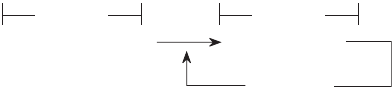
SYMBOL SETS > 145
Variable purpose:
lm = area of RAM in which to store DLL, currently only 1 area is
available (i.e. “m” is a constant value equal to zero).
ln1 = Starting character (address) to be redefined by the user.
ln2 = Ending character (address) to be redefined by the user.
la = attribute byte “a” bit definition (bits 7-0) ...
b7 = 1 = ascender, dot rows 1-8
0 = descender, dot rows 2-9
b6-b4 = Interpreted as a binary number. Specifies the
left offset (starting column to print) of the first
dot column to be printed. Used to reduced
leading white space. Maximum of 7 bytes can
be ignored.
The count begins with byte #1.
b3-b0 = Interpreted as a binary number. Specifies the
ending column to print of the last column of
data to be printed. The difference between
this number and the left-offset is equal to the
character’s width. Maximum ending column is
12.
ld1-d11 = column data, each column of data = 1 byte. Column
#1 = byte #1.
Details:
lThis command is composed of 2 parts ...
Part 1, which is “ESC & m n1 n2” is only sent once, while part 2,
“a1d1 ... d11” is repeated for each character pattern that is required
to be defined.
part 1
ESC $ m n1 n2
part 2
a d1 ... d11
(repeat)
280ErGB.book Page 145 Monday, June 21, 2004 10:30 AM
SYMBOL SETS > 146
lCharacter locations that can be defined:
1. normal operation DLL
(20)H — (7F)H 96 characters
(A0)H — (FF)H 64 characters
Total 160 characters
2. with ESC 6 (print code expansion area) ...
(20)H — (7F)H 96 characters
(80)H — (9F)H 32 characters
(A0)H — (FF)H 64 characters
Total 192 characters
3. with ESC I (print code expansion area) ...
(00)H — (1F)H 32 characters
(20)H — (7F)H 96 characters
(80)H — (9F)H 32 characters
(A0)H — (FF)H 96 characters
Total 256 characters
lIf less than 256 characters are to be defined, all character
locations (address) must be consecutive from the starting
character.
lDownloading data to one code position does not affect any
other code position that has already been loaded.
lSince the DLL character reside in volatile RAM, they are not
saved when power is turned off.
lThis command initiates printing action (print block).
lDLL characters can be combined with most print features,
emphasized, enhanced, double width. For exact combinations,
refer to attachments Print Mode/Features Combination Chart.
lThe NLQ print feature used in conjunction with this command
will cause utility character interpolation printing.
280ErGB.book Page 146 Monday, June 21, 2004 10:30 AM
SYMBOL SETS > 147
lChanging the “Emulation Mode” setting in MENU mode will
cause all stored DLL data to be copied.
lAscender characters can be defined in rows 1 through 8, and
column 1 through 11.
lAscender characters can be defined in rows 2 through 9, and
column 1 through 11.
lWhen underlining a descender DLL character, the underline
occupies the same row as the bottom row of the character.
Custom font – create character pattern – UTL/NLQ DLL
Code: part 1 part 2 part 2’ ESC = c1 c2 m n a1 a2 d1 ... d11 a1 a2 d1
... d11 ...
Compatibility: IBM
Function:
To define up to 256 character patterns for a 11 H × 8V (UTL), 23
× 8V (NLQ) matrix and store the pattern in RAM.
Range:
• c1 = decimal 0 – 255
• c2 = decimal 0 – 13
• m = decimal 20 or 21
• n = decimal 0 – 255
• a1 = decimal 0 – 255 (see a1’s bit definition below)
• a2 = decimal 0 – 255 (see a2’s bit definition below)
• d1 = decimal 0 – 255
• d11 = decimal 0 – 255
Variable purpose:
c1 = Low byte of total data count.
c2 = High byte of total data count.
m = print ID, selects print quality i.e. 20 = UTL or 21 = NLQ II/
Alternate NLQ II
n = starting character (address) to be redefined by the user.
280ErGB.book Page 147 Monday, June 21, 2004 10:30 AM
SYMBOL SETS > 148
al = Attribute #1’s bit definition (bits 7 – 0)...
b7 = 0 = ascender, dot rows 1 – 8
1 = descender, dot rows 2 – 9
b6 – b2 = ignored
– Utility DLL (b1 – b0):
b1 – b0 = 00 = No 12-high expansion. Bit 7 is valid.
01 = Line graphics char. Bottom dot will be
expanded down to rows 9, 10, & 12. Bit
7 is ignored. NLQ used in conjunction
with this command will cause vertical,
horizontal, and diagonal line
enhancment.
10 = Shading character. The bottom dots in
col 1,2, 3 & 4 will be expand downward
to rows 9,10, 11 & 12. NLQ is ignored.
11 = NUL is expanded 4 dots downward.
Bit 7 of a 1 is ignored.
– NLQ DLL (b1-b0):
b1 – b0 = 00 = No 12-high expansion. Bit 7 is valid
01 = Line graphics char. Bottom dot will be
expanded down to rows 9, 10, & 12. Bit
7 is ignored. NLQ used in conjunction
with this command will cause vertical,
horizontal, and diagonal line
enhancment.
10 = Shading character. The top dots in col.
1, 4, 5 & 7 will be expanded downward
to rows 17, 19, 21, & 23. Bit 7 is
ignored (ascender/descender).
11 = Same as 01.
280ErGB.book Page 148 Monday, June 21, 2004 10:30 AM
SYMBOL SETS > 149
— Utility DLL (b1-b0):
a2 = Attribute #2’s bit definition (bits 7–0)
b7 = unknown
b6 – b4 = Interpreted as a binary number.
Specifies the left offset of first
dot column to be printed.
Used to reduce leading white
space. Maximum of 7 bytes can
be ignored. The count begins
with byte #1.
b3 – b0 = Interpreted as a binary number.
Specifies the number of dot
columns to be printed
(width of the printable dot
columns). Each character is
followed by a mandatory blank
column which cannot be
removed. This bank column is
not included in the character
width. Specified widths greater
than 11 will be interpreted as
11 (max. value).
— NLQ DLL (b1 – b0): reserved
d1–d11 = column data, each column of
data = 1 byte
Column #1 = byte #1.
UTL’s 12th column data always
= blank
NLQ’s 24th column data always
= blank
NLQ’s MSB = top pin, adjacent
dots are not allowed.
280ErGB.book Page 149 Monday, June 21, 2004 10:30 AM
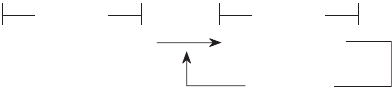
SYMBOL SETS > 150
Details:
lThis command is composed of 2 parts ...
Part 1, which is “ESC = c1 c2 m n” is only sent once, while part
2, “a1 a2 d1 ... d11” is repeated for each character pattern that
is desired to be defined.
UTL NLQ’s Part 2 = 13 (2 + 11) bytes of data
NLQ NLQ’s Part 2 = 48 (2 + 46) bytes of data
lc1 and c2 define the number of bytes (a1, a2, d1-d11),
of the characters pattern, to download:
Total count = (# of characters*13) + 2
c2 = total count/256 with no remainder
c1 = remainder
ex: total count = (94*13) + 2 = 1224
1224/256 = 4 200/256
c1 = 200
c2 = 4
lIf less than 256 characters are to be defined, all character
locations (address) must be consecutive from the starting
character.
lDownloading data to one code position does not affect any
other code position that has already been loaded.
lSince the DLL characters reside in volatile RAM, they are not
saved when power is turned off.
lThis command initiates printing action (print block).
part 1
ESC c1 c2 m n
part 2
a1 a2 d1 ... d11
(repeat)
280ErGB.book Page 150 Monday, June 21, 2004 10:30 AM
SYMBOL SETS > 151
lTo clear the DLL RAM area, send only Part 1 of the command
with:
ASCII..... ESC = NUL NUL
Hex........ 1B 3D 00 00
Decimal .. 27 61 0 0
lChanging the emulation mode in MENU will cause stored DLL
data to be erased.
l256 DLL characters location (00) H—(FF)H, can be defined by
the user.
Custom font — select DLL font
Code: ESC % n
Compatibility: Epson
Function:
Select the user-defined font.
Range:
l• When n = 01H, 31H, 81H, B1H, the DLL character set will be
selected.
n = 00H, 30H, 80H, B0H the DLL character set mode will be
reset and the pre-defined character set will be selected.
Out of range:
lIf n does not equal the above values this command is ignored.
Character pitch — select 10 CPI
Code: ESC P
Compatibility: Epson
Function:
10 CPI, 12 CPI, or 15 CPI mode: 10 characters per inch
15 CPI, (condense suppress), 17.1 CPI, or 20 CPI mode: 17.1
characters per inch.
280ErGB.book Page 151 Monday, June 21, 2004 10:30 AM
SYMBOL SETS > 152
Details:
lSince all character pitches are mutually exclusive, this pitch
will be “turned-off” if another pitch command is received.
l10 CPI is the factory default for character pitch.
lThis commands will not cancel double width mode.
l10 CPI and compress = 17.1 CPI.
Character pitch — select 10 CPI
Code: DC2
Compatibility: IBM
Function:
Select 10 CPI character pitch which positions each dot column
of the character 1/120 inch apart.
Details:
lSince all character pitches are mutually exclusive, this pitch
will be “turned-off” if another pitch command is received.
lThis command will not cancel the double width mode.
Character pitch —s elect 12 CPI
Code: ESC M
Compatibility: Epson
Function:
10 CPI, 12 CPI, or 15 CPI mode: 12 characters per inch
15 CPI (condense suppress), 17.1 CPI, or 20 CPI mode: 20
characters per inch
Details:
lSince all character pitches are mutually exclusive, this pitch
will be “turned-off” if another pitch command is received.
lThis command does not cancel double width.
lIn the compress mode, 20 CPI is selected.
280ErGB.book Page 152 Monday, June 21, 2004 10:30 AM

SYMBOL SETS > 153
Character pitch — select 12 CPI
Code: ESC :
Compatibility: IBM
Function:
10 CPI, 12 CPI, or 15 CPI mode: 12 characters per inch.
17.1 CPI or 20 CPI mode: 12 or 20 characters per inch (in
accordance with the “SI Select Pitch (12 CPI)” setting in MENU
mode.
Details:
lSince all character pitches are mutually exclusive, this pitch
will be “turned-off” if another pitch command is received.
lPrinting does not start if ESC : is received during 12 CPI.
lCharacter pitch commands become effective immediately
upon receipt, thereby allowing a pitch change within a line.
lThis command will not cancel the double width mode.
Character pitch — select 15 CPI
Code: ESC g
Compatibility: Epson / IBM / ML
Function:
Selects 15 characters per inch (15CPI).
Epson
10 CPI mode: 15 CPI
12 CPI mode: 15 CPI
15 CPI mode: 15 CPI
15 CPI (condense suppress) mode: 15 CPI (condense suppress)
17.1 CPI mode: 15 CPI (condense suppress)
20CPI mode: 15 CPI (condense suppress)
280ErGB.book Page 153 Monday, June 21, 2004 10:30 AM

SYMBOL SETS > 154
IBM / ML
Details:
lThis command does not clear the elongated character mode
(double width printed character) (Epson, IBM).
lThis command clears elongated character mode (ML).
lThis command does not start printing.
Character pitch — select condensed (17, 20 CPI)
Code: SI
Compatibility: Epson
Function:
Compress the current character pitch.n
Epson
IBM
When the printer receives this command in the following CPI modes,
the comand sets the character pitch as given below (in accordance
with the “SI Select Pitch (10 CPI)” and “SI Select Pitch (12 CPI)”
settings in MENU mode).
10 CPI mode: 15 CPI
12 CPI mode: 15 CPI
15 CPI mode: 15 CPI
17.1 CPI mode: 15 CPI
20CPI mode: 15 CPI
10 CPI mode: 17.1 CPI
12 CPI mode: 20 CPI
15 CPI mode: 15 CPI (condense suppress)
15 CPI (condense suppress) mode: 15 CPI (condense suppress)
17.1 CPI mode: 17.1 CPI
20CPI mode: 20 CPI
10 CPI mode: 15 or 17.1 CPI
12 CPI mode: 12 or 20 CPI
15 CPI mode: 15 or 17.1 CPI
17.1 CPI mode: 15 C or 17.1 CPI
20CPI mode: 15, 17 or 20 CPI
280ErGB.book Page 154 Monday, June 21, 2004 10:30 AM

SYMBOL SETS > 155
Details:
lThis command does not cancel double width.
Related functions:
lESC SI and SI are function identically.
Character pitch – cancel condensed (17, 20 CPI)
Code: DC2
Compatibility: Epson
Function:
Cancels condensed pitch, returns pitch to the pitch that was
selected before the condensed pitch was activated.
Character pitch — select 10 CPI
Code: RS
Compatibility: ML
Function:
Select 10 CPI (120 DPI) character pitch.
Details
lSince all charcter pitches are mutually exclusive, this pitch will
be “turned-off” if another pitch command is received.
l10 CPI is the factory default for character pitch.
lThis command cancels double width mode.
lWhen character pitch (CPI) is changed, the printer will change
the character pitch of the printing block data when it receives
the next print data, and will print the data in the printer buffer.
lPitch changes are allowed anywhere on the print line.
10 CPI mode: 10 CPI
12 CPI mode: 12 CPI
15 CPI mode: 15 CPI
15 CPI (condense suppress) mode: 15 CPI
17.1 CPI mode: 10 CPI
20CPI mode: 12 CPI
280ErGB.book Page 155 Monday, June 21, 2004 10:30 AM
SYMBOL SETS > 156
Character pitch — select 12 CPI
Code: FS
Compatibility: ML
Function:
Select 12 CPI (144 DPI) character pitch.
Details:
lSince all character pitches are mutually exclusive, this pitch
will be “turned-off” if another pitch command is received.
lThis command cancels double width.
lWhen character pitch (CPI) is changed, the printer will change
the character pitch of the printing block data when it receives
the next print data, and will print the data in the printer buffer.
lPitch changes are allowed anywhere on the print line.
Character pitch — select 17.1 CPI
ode: GS
Compatibility: ML
Function:
Select 17.1 CPI (206 DPI) character pitch.
Details:
lSince all character pitches are mutually exclusive, this pitch
will be “turned-off” if another pitch command is received.
lThis command cancels double width.
lIf the printer is in 17.1 CPI (206 DPI) previous to entering Bit
Image Graphics will be 60 DPI (10 CPI).
lWhen character pitch (CPI) is changed, the printer will change
the character pitch of the printing block data when it receives
the next print data, and will print the data in the print buffer.
lPitch changes are allowed anywhere on the print line.
280ErGB.book Page 156 Monday, June 21, 2004 10:30 AM
SYMBOL SETS > 157
Character pitch — select 20 CPI
Code: ESC # 3
Compatibility: ML
Function:
Select 20 CPI (144 DPI) character pitch.
Details:
lSince all character pitches are mutually exclusive, this pitch
will be “turned-off” if another pitch command is received.
lThis command and cancels double width.
lIf the printer is in 20 CPI (240 DPI) previous to entering Bit
Image Graphics, the resultant density in Bits Image Graphics
will be 60 DPI (10 CPI).
lWhen character pitch (CPI) is changed, the printer will change
the character pitch of the printing block data when it receives
the next print data, and will print the data in the printer buffer.
lPitch changes are allowed anywhere on the print line.
Character density – define inter-character clearance – by dot column
Code: ESC N n
Compatibility: ML
Function:
Define the number of blank dot columns (n) to be added on to
the end of the normal character cell matrix.
Range:
Decimal Hexadecimal
n = 0 – 11 00 – 0B
Out of range:
The command will be ignored.
280ErGB.book Page 157 Monday, June 21, 2004 10:30 AM

SYMBOL SETS > 158
Details:
lIf the double width print feature is specified while this
command is active, the number of additional blank dot
columns will be doubled.
Example: Normal Width (9 + 3) + 5 = 17 columns.
Double Width (9 + 3 + 5) × 2 = 34 columns.
lThis command is not effective in the following print modes:
— Bit Image Graphics.
— HSD
lThe normal character cell matrix has 3 blank dot columns that
are pre-defined and cannot be changed by the user. The
additional blank dot columns defined by this command are
added to this normal cell.
Example:
lThis command remains in effect until one of the following
commands are received:
— Next ESC.N.n command.
— CAN
— ESC CAN
— I-Prime
lThis command is effective in both the Utility Mode and NLQ
mode. Any value of “n” will produce the same physical amount
of trailing white space after the characters for both NLQ and
UTL.
lPre-defined (default) inter-char clearance is as follows:
3/120 inch for 10 CPI
3/144 inch for 12 CPI
Normal Cell Additional Blank Columns Total Cell
1. n = 0 (9 + 3) + 0 12
2. n = 5 (9 + 3) +5 17
280ErGB.book Page 158 Monday, June 21, 2004 10:30 AM
SYMBOL SETS > 159
3/180 inch for 15 CPI
3/206 inch for 17.1 CPI
3/240 for 20 CPI
lMaximum inter character clearance:
n = 11 (max. value)
14/120 inch for 10 CPI
14/144 inch for 12 CPI
14/180 inch for 15 CPI
14/206 inch for 17.1 CPI
14/240 inch for 20 CPI
Character pitch select 20 CPI
Code: ESC SI
Compatibility: IBM
Function:
Selects 20 characters per inch (20 CPI).
Details
lThis command does not clear the elongated character mode
(double width printed character).
lThis command does not start printing.
Inter-character clearance – define amount by dot column
Code: ESC SP n
Compatibility: Epson
Function:
Defines the number of blank dot columns to add to the right
side of each character.
Range:
lRange n = 0 to 255 (Bit 7 of n is ignored.)
280ErGB.book Page 159 Monday, June 21, 2004 10:30 AM
SYMBOL SETS > 160
Details:
ln is the number of dots to be added to the right of each
character.
lIn double width, the value of clearance will be automatically
doubled.
Example:
1 dot column is added to the right side of a normal size
character. When double width is activated, the 1 dot column
will be doubled.
lDots width of clearance is:
10 CPI – 1/120¡±
12 CPI – 1/144¡±
15 CPI – 1/180¡±
17 CPI – 1/206¡±
20 CPI – 1/240¡±
lOnce set, the clearance does not change until reset.
lThe command to set clearance between characters is executed
immediately upon recognition by the printer.
lThis command is not effective for Graphics modes.
Inter-character clearance – define amount – by dot column
Code: ESC V n
Compatibility: IBM
Function:
Defines the number of blank dot columns to add to the right
side of each character.
Range:
0 n 11
Out of range:
280ErGB.book Page 160 Monday, June 21, 2004 10:30 AM
SYMBOL SETS > 161
If n > 11 is specified, n will be truncated to 11. Any value of n >
11 will be truncated.
Details:
lOnce set, the clearance does not change until reset.
lThe command to set clearance between characters is executed
immediately upon recognition by the printer.
lThe pre-defined character cell matrix has 3 blank dot columns
as part of the character option. Using this command only
additional blank dot columns can be added to the character.
lThis command is not effective for Graphics modes.
Character cell size – proportional width – ON / OFF
Code: ESC p n
Compatibility: Epson
Function:
Turns on/off the proportional character pitch in which each
character has a different cell width in order to unify the “white
space” between characters.
Range:
n = 01H, 31H, 81H, or B1H Proportional Spacing = On
n = 00H, 30H, 80H, or B0H Proportional Spacing = Off
Out of range:
If n does not equal the above values this command is ignored.
Details:
lPrevious print mode (print quality and pitch) will be
maintained.
lProportional spacing can also be designated by ESC ! n, the
Master select command.
lProportional spacing set by ESC ! n can be reset by ESC p 0.
280ErGB.book Page 161 Monday, June 21, 2004 10:30 AM
SYMBOL SETS > 162
Character cell size – proportional width – ON/OFF
Code: ESC P n
Compatibility: IBM
Function:
Turn on/off the proportional character pitch in which each
character has a different cell width in order to unify the “white
space” between characters.
Range:
If n = odd valued numbers, proportional Mode = ON.
If n = even valued numbers, proportional Mode = OFF.
Out of range:
If n does not equal the above values this command is ignored.
Details:
lNLQ Proportional mode has priority over other print qualities
and character pitches.
lWhen Proportional mode is cancelled, the printer returns to
the previous setting.
Character cell size – proportional width – ON
Code: ESC Y
Compatibility: ML
Function:
Turn off the proportional character cell print feature which
unifies the amount of white space surrounding each character
for better overall print quality.
Details:
lProportional Character Cells are available for all Print Quality
modes except HSD.
lCommand can be activated anywhere within a print line.
280ErGB.book Page 162 Monday, June 21, 2004 10:30 AM

SYMBOL SETS > 163
Character cell size – proportional width – OFF
Code: ESC Z
Compatibility: ML
Function:
Turn off the Proportional Character Cell print feature.
This command is ignored if the Proportional Character Cell
print feature is not activated.
Custom font – create pattern – UTL DLL – ascender
Code: ESC % A m n1 ... n11
Compatibility: ML
Function:
Define up to 256 ascender character patterns using an
11H × 7V character matrix.
(Data loaded with the following character codes cannot be
printed).
00H to 02H, 07H to 14H, 16H to 1FH
Range
Variable purpose:
m = address of defined pattern
1 – n11 = Column data, each column of data = 1 byte.
Out of range.
lSince the 8 bit of n1 – n11 is ignored, data defined as (80)H –
(FF)H will be interpreted as (00)H – (7F)H.
Details:
lSince UTL custom characters (DLL) are stored in RAM.
Decimal Hex-decimal Char. count
m = 0 – 255 00 – FF 256
1 – n11 0 – 270 0 – 7F
280ErGB.book Page 163 Monday, June 21, 2004 10:30 AM

SYMBOL SETS > 164
lPattern data definition:
– Adjacent “dots” in the same row are not allowed.
– The 8th bit of n1 – n11 is ignored.
– All column data (n1 – n11) must be defined.
Custom font – create pattern – UTL DLL – descender.
Code: ESC % D m n1...n11
Compatibility: ML
Function:
Define up to 256 descender character patterns using a 11H x
7V character matrix.
However, data loaded with the following character codes
cannot be printed.
00H to 02H, 07H to 14H, 16H to 1FH
Range:
Variable Purpose:
m = address of defined pattern.
n1 – n11 = column data, each column of data = 1 byte.
Out of range:
lSince the 8 bit of n1 – n11 is ignored, data defined as (80)H –
(FF)H will be interpreted as (00)H – (7F)H.
Details:
lSince UTL custom characters (DLL) are stored in RAM, they will
be lost if power to the printer is turned off.
lPattern data definition:
– Adjacent “dots” in the same row are not allowed.
Decimal Hex-decimal Char. count
m = 0 – 255 00 – FF 256
n1 – n11 0 – 1270 0 – 7F
280ErGB.book Page 164 Monday, June 21, 2004 10:30 AM
SYMBOL SETS > 165
– The 8th bit of n1 – n11 is ignored.
– All column data (n1 – n11) must be defined.
Select Font by Pitch and Point
Code: ESC X Pn Lp Hp
Compatibility: Epson
Function:
Selects a font according to the specified character pitch and
point.
Range:
Pn = 00H ~ FFH
Lp = 00H ~ FFH
Hp = 00H ~ FFH
Details:
lPn: Specifies the proportional spacing.
Pn = 0 Fixed spacing.
Pn = 1 Proportional spacing.
lLp Hp: Specifies a point.
Np value = (Lp + Hp x 256).
Point = Np x 0.5.
Np value Point
0 ~ 43 Setting ignored
44 ~ 431 22 ~ 215
432~ 216
280ErGB.book Page 165 Monday, June 21, 2004 10:30 AM
SYMBOL SETS > 166
Select Font by Pitch and Point
Code: ESC DLE F Pn0 Pn Lp Hp
Compatibility: IBM/ML
Function:
Select a font according to the specified character pitch and
point.
Range:
Pn0 = 00H ~ FFH
Pn = 00H ~ FFH
Lp = 00H ~ FFH
Hp = 00H ~ FFH
Details:
lPn0: Specifies the number of bytes of the succeeding
parameter (usually Pn0 = 3).
lPn: Specifies the proportional spacing.
Pn = 0 Fixed spacing.
Pn = 1 Proportional spacing.
lLp Hp: Specifies a point.
Np value = (Lp + Hp x 256).
Point = Np x 0.5.
Np value Point
0 ~ 43 Setting ignored
44 ~ 431 22 ~ 215
432~ 216
280ErGB.book Page 166 Monday, June 21, 2004 10:30 AM

SYMBOL SETS > 167
Set Print Quality
Code: ESC [ d 01H 00H n
Compatibility: IBM
Function:
Set print quality.
Range:
00H Ln·Hn FFFFH
00H Pn FFH
Details:
lSets the parameter bytes after Ln·Hn by Ln·Hn.
Parameter bytes = Ln + Hn × 256(byte).
When Ln + Hn x 256 > 2, data of (Ln + Hn × 256) – 1 byte is
received and discarded after receiving Pn.
lMeaning of Pn is shown in the table below:
Pn Meaning
00H Invalid
01H ~ 3FH HSD
40H ~ 7FH Utility
80H ~ FFH NLQ
FFH Follows the menu setting
280ErGB.book Page 167 Monday, June 21, 2004 10:30 AM

SYMBOL SETS > 168
Select font
Code: ESC [ I Ln Hn Hfid Lfid Hfwd Lfwd fa Nul Hcp Lcp
Compatibility: IBM
Function:
Set font typeface, character pitch, spacing attributes and code
page.
Range:
lLn and Hn set the parameter bytes after Ln and Hn.
Ln, Hn = Ln + Hn x 256 (Byte).
Valid range:
0H =< Ln, Hn =< FFFFH
lThe font ID designated by Hfid and Lfid sets a font typeface.
Hfid, Lfid = Hfid x 256 + Lfid
Valid range:
01H =< Hfid, Lfid =< FFFFH
Ln, Hn =< 01H Makes this command invalid
Ln, Hn = 02H, 03H Makes fid setting valid and
keeps other modes
unchanged
Ln, Hn =< 04H Makes fid and fwd settings
valid and keeps fa mode
unchanged
Ln, Hn = 05H, 06H, 07H Makes fid, fwd and fa settings
valid and keeps cp unchanged
Ln, Hn = 08H Makes all of fid, fwd, fa and cp
settings valid
Ln, Hn =< 09H Makes all of fid, fwd, fa and cp
settings valid, and receives
and discards parameter data
after 9 bytes
280ErGB.book Page 168 Monday, June 21, 2004 10:30 AM

SYMBOL SETS > 169
Typeface setting is invalid if Hfid, Lfid = OOH. Setting is also
invalid if a font ID is set which is not listed in the following
table:
Footnote: DW = Double Wide, DH = Double Height, PS = Proportional Spacing
Font ID
(Hfid-Lfid)
Font Name (Target
Pr)
Font ID
(Hfid-Lfid)
Font Name (Target
Pr)
011 Courier 10 036 Gothic 10
018 Courier 10 Italic 039 Gothic 10 Emphasise
046 Courier 10 Emphasise 087 Gothic 12
057 Courier 10 Emphasise Italic 109 Gothic 12 Italic
085 Courier 12 110 Gothic 12 Emphasise
092 Courier 12 Italic 157 Gothic PS
108 Courier 12 Emphasize 162 Gothic PS Italic
116 Courier 12 Emphasize Italic 174 Gothic PS
171 Courier PS 220 Gothic 15 Emphasize
172 Courier PS Italic 222 Gothic 15
184 Courier PS Emphasize 241 Gothic 10 DW DH
185 Courier PS Emphasize Italic 242 Gothic 10 DW DH
Emphasize
214 Courier 15 Emphasize 243 Gothic 10 DW DH
Emphasize
215 Courier 15 Italic 255 Gothic 17
216 Courier 15 Emphasize Italic 281 Gothic 20
223 Courier 15 396 Gothic 20
244 Courier 10 DW DH 397 Gothic 17
245 Courier 10 DW DH
Emphasize
398 Gothic 15
246 Courier 10 DW DH 399 Gothic 12
253 Courier 17 Emphasize
254 Courier 17
454 Courier 20
491 Courier 12
492 Courier 15
493 Courier 17
491 Courier 20
280ErGB.book Page 169 Monday, June 21, 2004 10:30 AM
SYMBOL SETS > 170
lHfwd and Lfwd set character pitch (CPI).
Hfwd, Lfwd = Hfwd × 256 + Lfwd
Character pitch = Hfwd, Lfwd inch (unit: 1/1440”)/1440
Valid range:
01HHfwd, LfwdFFFFH
The character pitch does not change if Hfwd, Lfwd = 0H.
Hfwd-Lfwd: Set value:
0109H~FFFFH 10CPI DW DH
00D9H~0108H 12CPI DW
00B5H~00D8H 15CPI DW
009DH~00B4H 17CPI DW
0085H~009CH 10CPI
006DH~0084H 12CPI
005BH~006CH 15CPI
004FH~005AH 17CPI
0000H~004EH 20CPI SubScript
lThe fa sets the following spacing attributes:
When fid is valid, the settings of fwd and fa will be invalid.
fa = 01H : follows the settings of fwd
fa = 02H, 03H : Makes fwd setting invalid and prints by
proportional.
fa = parameters other than above : Makes fwd setting invalid.
280ErGB.book Page 170 Monday, June 21, 2004 10:30 AM

SYMBOL SETS > 171
lThe font ID designated by Hfid and Lfid sets a font typeface.
00 =< Hfid, Lfid =< 0FFFFH
Select font
Code: ESC y n
Compatibility: Epson
Function:
Select HSD font or UTL font.
Range:
00Hf”Pnf”FFH
Detail:
Code Page
ID (Hfid-
Lfid) (Hex)
Code page Name Code Page
ID (Hfid-
Lfid) (Hex)
Code page Name
1B5 USA 3F6 Polska Mozovia
2E1 Greek_737 3F7 ISO Latin 2
306 Baltic_774 3F8 Serbo Croatic I
352 Multilingual 3F9 Serbo Croatic II
354 East Europe Latin II-852 3FA ECMA-94
357 Cyrillic I-855 3FB Windows East Europe
359 Turkey_857 3FC Windows Greek
35A Multilingual 858 3FD Latin 5 (Windows Turkey)
35C Portugal 3FE Windows Gyrillic
35D Icelandic-861 400 Hungarian CWI
35E Hebrew NC (862) 403 Ukrainian
35F Canada French 404 Roman-8
361 Norway 405 ISO Latin 6 (8859/10)
362 Cyrillic II-866 404 Hebrew NC (862)
365 Greek 407 Hebrew OC
37F Kamenicky (MJK) 408 Windows Hebrew
3F0 Greek_439 409 KBL-Lithuanian
3F1 Greek_928 40A Windows Baltic
3F3 Greek_437 CYPRUS 40B Cyrillic Latvian
3F4 Turkey 430 Bulgarian
3F5 Cyrillic II-866 439 ISO 8859-15
280ErGB.book Page 171 Monday, June 21, 2004 10:30 AM
SYMBOL SETS > 172
lWhen Pn = 00H, 30H, 80H, B0H, selects UTL(normal) font.
lWhen Pn = 01H, 31H, 81H, B1H, selects HSD(high speed) font.
lThis command is only valid in UTL and HSD mode and
suppressed in NLQ mode.
TEXT PRINT FEATURES
Underlined – ON/OFF
Code: ESC - n
Compatibility: Epson/IBM
Function:
Turn ON/OFF the underline printing feature which prints a
continuous line under the characters, spaces and punctuations
of entire text.
Range:
Epson
If n = 01H, 31H, 81H, B1H Underline = ON.
If n = 00H, 30H, 80H, B0H Underline = OFF.
IBM
If n = odd valued numbers, Underline = ON.
If n = even valued numbers, Underline = OFF.
Out of range:
lIf n does not equal the above values this command is ignored.
Details:
lThe underline is printed at the same time that the character is
printed, by logically “ORing” the 9 pin (bottom pin) with rest of
the characters column data.
lUnderline prints under the bottom row of descenders.
280ErGB.book Page 172 Monday, June 21, 2004 10:30 AM
SYMBOL SETS > 173
lThe underline command does not underline graphics or any
horizontal printhead positioning commands such as HTs, Print
Start Position, Indexed Print Position or Left/Right Margins.
The white space created by Indexed Print Position (ESC\) is
underlined.
lUnderline for Super/Subscript will be placed in the same
position as for normal characters.
lThis command does not initiate printing action (block change).
lSpace (20H) will be underlined.
lMultiple underline characters (5FH) produce a continuous
unbroken underline.
Overscore – ON / OFF
Code: ESC _ n
Compatibility: IBM
Function:
Turn on/off the overscore printing feature which prints a
continuous line above the characters, spaces and punctuation
of entire text.
Range:
lIf n = odd valued numbers, Overscore = ON.
lIf n = even valued numbers, Overscore = OFF.
Out of range:
lIf n does not equal the above values this command is ignored.
Details:
l The overscore is printed at the same time that the character is
printed by logically “ORing” the # 1 pin (top pin) with the rest
of the characters column data.
l The overscore command does not overscore graphics or any
horizontal printhead positioning commands such as HTs, Start
Position, Indexed Print Position or Left/ Right Margins.
280ErGB.book Page 173 Monday, June 21, 2004 10:30 AM
SYMBOL SETS > 174
l Overscore for Super/Subscript will be placed in the same
position as for normal characters.
l This command does not initiate printing action (block
change).
Underline – ON
Code: ESC C
Compatibility: ML
Function:
Turn on the underline printing feature which prints a
continuous line under the characters, spaces and punctuations
of entire text.
Details
lThe underline is printed at the same time that the character is
printed, by logically “ORing” the 9th pin (bottom pin) with rest
of the characters column data.
lUnderline prints under the bottom row of descenders.
lUnderlining is not available when combined with the following
modes, feature, and characters.
— Line Graphics and the Integral sign.
— Horizontal spacing specified by following commands...
— Horizontal Tab
— Horizontal Positioning (Print Positioning etc.)
— Bit Image Graphics
lUnderline for Super/Subscript will be placed in the same
position as for normal characters.
lThis command does not initiate printing action (block change).
lSpace (&H20) will be underlined.
280ErGB.book Page 174 Monday, June 21, 2004 10:30 AM
SYMBOL SETS > 175
lThis command is equivalent to the composite command
(ESC.&.n.:), where:
n4 – b2 = 1 Underlining ON
n4 – b2 = 0 Underlining OFF
lThe 5FH code can also be used to underline.
lThis command remains in effect until one of the following reset
commands/conditions are executed...
— Default command I-PRIME
— CAN
— ESC CAN
— Power up
lThe underlining of double height characters will occur 2/72
inch lower than the underlining of single height characters.
Both characters, however, sit on the same baseline.
lRefer to the illustration attachments for further details.
Underline – OFF
Code: ESC D
Compatibility: ML
Function:
Turn on the underline printing feature which prints a
continuous line under the characters, spaces and punctuations
of entire text.
Emphasized – ON
Code: ESC E
Compatibility: Epson/IBM
Function:
Turn on Emphasized printing feature which logically duplicates
each column of the character data, printing the data slightly
shifted to the right from the original column data position.
280ErGB.book Page 175 Monday, June 21, 2004 10:30 AM
SYMBOL SETS > 176
Details:
lEmphasized mode is printed at half the normal print speed.
lEmphasized printing can be selected at the same time as
Enhanced printing.
lThis command does not initiate printing action (block change).
lEmphasized printing is printed in 1 pass by logically
duplicating each column of the character’s column data and
printing that data 1/2 the distance to the right of the original
positions of column #1 and #2.
column data
lEmphasized print remains on until it is turned off by the ESC F
command.
lGraphics data cannot be emphasized; this is only a text
printing feature.
Related functions:
lEmphasized printing can also be selected by the ESC! n
command (Epson).
Emphasized – OFF
Code: ESC F
Compatibility: Epson/IBM
Function:
Turn off the Emphasized printing feature.
Related functions:
This command also resets the Emphasized mode set by ESC ! n
(Epson).
1211’22’
000000
000
000
000000
280ErGB.book Page 176 Monday, June 21, 2004 10:30 AM
SYMBOL SETS > 177
Enhanced (double strike) – ON
Code: ESC G
Compatibility: Epson/IBM
Function:
Turns on the Enhanced printing feature which logically
duplicates each column of the character data, printing the
second data slightly shifted vertically downward from the
original column data position.
Details:
lEnhanced printing can be selected at the same time as
Emphasized printing.
lThis command does not initiate printing action (block change).
lEnhanced printing is printed in 2 passes by printing the
original line of data, then executing a 1/144–inch LF and
printing the same data again.
lEnhanced print remains on until it is turned off by the ESC H
command.
lGraphics data cannot be enhanced, this is only a text printing
feature.
Related functions:
lEnhanced printing can also be set by ESC! n command (Epson).
Emphasized – ON
Code: ESC T
Compatibility: ML
Function:
Turn on the Emphasized printing feature which logically
duplicates each column of the character data, printing the data
slightly shifted to the right from the original column data
position.
Details:
280ErGB.book Page 177 Monday, June 21, 2004 10:30 AM
SYMBOL SETS > 178
lEmphasized mode is printed at half the normal print speed:
This command does not initiate printing action (block change).
lEmphasized printing is printed in 1 pass by logically
duplicating each column of the character’s column data and
printing that data 1/2 the distance to the right of the original
position of column #1 and #2.
column data
lEmphasized print remains on until it is turned off by the ESC I
command.
lGraphics data cannot be emphasized; this is only a text
printing feature.
lEmphasized printing can be combined with Custom Characters
(DLL), NLQ and Enhanced print. Refer to Illustration
attachments “Print Mode/Features Combination Table” for
more details.
Related functions:
lThis command is equivalent to the composite command
(ESC.&.n.:)
where:
n2 – b3 = 1.
1211’22’
000000
000
000
000000
280ErGB.book Page 178 Monday, June 21, 2004 10:30 AM
SYMBOL SETS > 179
Enhanced – ON
Code: ESC H
Compatibility: ML
Function:
Turns on the Enhanced printing feature which logical
duplicates each column of the character data, printing the
second data slightly shifted vertically downward from the
original row data position.
Details
l This command does not initiate printing action (block
change).
lEnhanced printing is printed in 2 passes by printing the
original line of data, then executing a 1/144 inch LF and
printing the same data again.
lEnhanced print remains on until it is turned off by the ESC I
command.
lEnhanced data cannot be enhanced; this is only a text printing
feature.
lGraphics printing can be combined with Custom Characters
(DLL) and Emphasized print. Refer to Illustration attachments
“Print Mode/Features Combination Table” for more details.
Related functions:
This command is equivalent to the composite command
(ESC.&.n.:)
where:
n2 – b4 = 1 Set
n2 – b4 = 0 Reset
280ErGB.book Page 179 Monday, June 21, 2004 10:30 AM
SYMBOL SETS > 180
Emphasized and enhanced – OFF
Code: ESC I
Compatibility: ML
Function:
Turns off both the Enhanced and Emphasized printing features
(return to normal printing).
Details:
lEnhanced and Emphasized printing will also be canceled by
the following...
— CAN
— ESC CAN
— I-PRIME Interface signal
Double wide – select
Code: US
Compatibility: ML
Function:
Turns on the Double Wide printing feature which makes each
character twice as wide as it’s normal width.
Details:
lDouble width characters are algorithmically created by
doubling each column data of the character and printing the
double data to the right of the original column data.
lDouble width can be combined with any character pitch.
lEven though the dot column spacing is the same as normal
width characters, half the number of characters per inch are
produced.
Related functions:
lThis command is equivalent to the composite command
(ESC.&.n.:)
where:
280ErGB.book Page 180 Monday, June 21, 2004 10:30 AM
SYMBOL SETS > 181
n1 – b4 = 1
Double high – select
Code: ESC US n
Compatibility: ML
Function:
Turn on/off Double High printing feature which makes each
character twice as high as its normal height.
Range:
ASCII DEC HEX
n = 1 49 31 = function ON.
n = any other value = function OFF.
Out of range:
Command will be ignored.
Details:
lDouble High characters are algorithmically created by
vertically doubling each dot of the character data, and
expanding the character upward.
lDouble High Characters are printed in 2 passes and sit on the
same baseline as normal size characters.
lSee attachments Print Modes/Features chart for details on
which features can be combined with the Double High
Characters, and for the Double High Character illustration.
lThis command can be used with the double width command to
print double size characters.
lDouble height characters can be mixed with normal height
characters within the same line.
lDouble High characters will have an underline position that is
2/72 inch lower than the normal size character’s underline
position.
280ErGB.book Page 181 Monday, June 21, 2004 10:30 AM
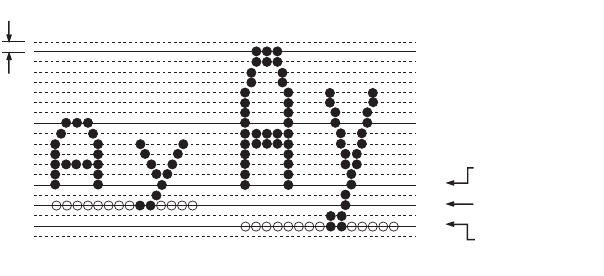
SYMBOL SETS > 182
Related functions:
lThis command is equivalent to the composite command
ESC.&.n
where:
n4 – b3 =1.
Enhanced (double strike) – OFF
Code: ESC H
Compatibility: Epson/IBM
Function:
Turn off the Enhanced printing feature.
Related functions:
lEnhanced mode set by ESC ! n will be reset by ESC H (Epson).
Double wide (expanded) – ON/OFF
Code: ESC W n
Compatibility: Epson/IBM
Function:
Turn ON/OFF the Double Wide printing feature which makes
each character twice as wide as it’s normal width.
1/72 inch Single (normal)
High Character Double
High Character
1
2
3
4
5
6
7
8
9
1
2
3
4
5
6
7
8
9
1
2
3
4
5
6
7
8
9
baseline
single high
underline position
character
double high
character
underline
p
osition
280ErGB.book Page 182 Monday, June 21, 2004 10:30 AM
SYMBOL SETS > 183
Range:
Epson
If n = 01H, 31H, 81H, BAH Double Width = ON.
If n = 00H, 30H, 80H, B0H Double Width = OFF.
IBM
If n = odd valued numbers, Double Width = ON.
If n = even valued numbers, Double Width = OFF.
Out of range:
lIf n does not equal the above values this command is ignored.
Details
lDouble width characters are algorithmically created by
doubling each column data of the character and printing the
double data to the right of the original column data.
lCan be used with any character pitch.
lEven though the dot column spacing is the same as normal
width characters, half the number of characters per inch are
produced.
Related functions:
lThis mode can also be set by the ESC ! n command (Epson).
Double wide (expanded) – one line only – ON
Code: SO
Compatibility: Epson/IBM
Function:
Toggle the Double Wide printing feature ON / OFF. After
activation the command remains in effect for the length of the
print line.
Details:
lDouble width characters are printed for the length of one line
(assuming no command was sent to turn Double Width OFF).
280ErGB.book Page 183 Monday, June 21, 2004 10:30 AM
SYMBOL SETS > 184
The next text line will be printed with normal width characters
since Double Width automatically turns OFF.
lIf SO and ESC W1 are active, ESC W1 will take precedence.
lSO can be canceled by DC4, ESC w n, ESC ! n, LF or CR.
Double wide (expanded) – one line only – ON
Code: ESC SO
Compatibility: Epson
Function:
Toggle the Double Wide printing feature on and off. After
activation the command remains in effect for the length of the
print line.
Details:
lDouble width characters are printed for the length of one line
(assuming no command was sent to turn Double Width off).
The next text line will be printed with normal width characters
since Double Width automatically turns OFF.
lIf ESC SO and ESC W1 are active, ESC W1 will take precedence.
lESC SO can be canceled by DC4, ESC w n, ESC ! n, LF or CR.
Double wide (expanded) – one line only – OFF
Code: DC4
Compatibility: Epson/IBM
Function:
Turn OFF the Double Wide printing feature which was turned ON
by SO or ESC SO.
Details:
lDoes not cancel double width set by ESC W n or ESC ! n
(Epson).
280ErGB.book Page 184 Monday, June 21, 2004 10:30 AM
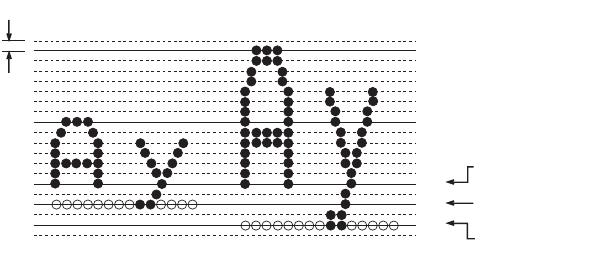
SYMBOL SETS > 185
Double height – ON/OFF
Code: ESC w n
Compatibility: Epson
Function:
Turns ON/OFF Double High printing feature which makes each
character twice as high as it’s normal height.
Range:
If n = 01H, 31H, 81H, BAH Double High = ON.
If n = 00H, 30H, 80H, B0H Double High = OFF.
Out of range:
lIf n does not equal the above values this command is ignored.
Details:
lDouble High characters are algorithmically created by
doubling each row of the character data and printing the new
data above the original.
lDouble High Characters are printed in 2 passes and sit on the
same baseline as normal size characters.
lSee attachments Print Modes/Features chart for information
on which features can be combines within Double High
feature.
1/72 inch Single (normal)
High Character Double
High Character
1
2
3
4
5
6
7
8
9
1
2
3
4
5
6
7
8
9
1
2
3
4
5
6
7
8
9
baseline
single high
underline position
character
double high
character
underline
p
osition
280ErGB.book Page 185 Monday, June 21, 2004 10:30 AM
SYMBOL SETS > 186
Double height and width – ON/OFF
Code: ESC [ @ n1 n2 m1 m2 m3 m4
Compatibility: IBM
Function:
Turns ON/OFF Double High and Double Wide writing features or
any combination of the two, and selects single or double line
spacing.
Range:
n1 = 0 – 255 (normally n1 = 4)
n2 = 0 – 255 (normally n2 = 0)
m1 = 0 – 255
m2 = 0 – 255
m3 = decimal 0 – 255 (see details).
m4 = decimal 0 – 255 (see details).
Purpose of variables:
n1 = lowbyte of total data count
n2 = highbyte of total data count
m1 = unknown (future functionality)
m2 = unknown (future functionality)
m3 = upper nibble = line spacing, low nibble = character
height.
m4 = upper nibble = ignored, low nibble = character width.
Out of range:
lInvalid for command of n1 n2 = 0 – 2.
lIgnored for numbers entered after m4 for specified bytes for
n1 n2>4.
Details:
280ErGB.book Page 186 Monday, June 21, 2004 10:30 AM

SYMBOL SETS > 187
lm3 explanation table
For cases other than described above, the line feed and character
height will remain in previous mode.
lm4 explanation table
For cases other than described above, the character width wi;l remain
in previous mode.
lThis command is a composite command that functionally
operates the same as the singular line spacing, character
height and character width commands. Both this command
and the singular commands can override each other’s
selections.
Related functions:
lLine spacing – ESC A
lCharacter Width – SO, ESC SO, DC4, ESC W.
Upper
nibble
Lower
nibble
Decimal
equiv.
Function
000 No change
0 1 1 Line feeds unchanged, single – high character
0 2 2 Line feeds unchanged, double – high character
1 0 16 Single line feeds, character height unchanged
1 1 17 Single line feeds, single – high character
1 2 18 Single line feeds, double – high character
2 0 32 Double line feeds, character height unchanged
2 1 33 Double line feeds, single – high character
2 2 34 Double line feeds, double – high character
Upper
nibble
Lower
nibble
Decimal
equiv.
Function
011 Single wide character
0 2 2 Double wide character
280ErGB.book Page 187 Monday, June 21, 2004 10:30 AM

SYMBOL SETS > 188
Scripts – super/sub – select
Code: ESC S n
Compatibility: Epson/IBM
Function:
Select Super/Subscript size characters.
Range:
Epson
lIf n = 01H, 31H, 81H, B1H Subscript = ON (Superscript off)
lf n = 00H, 30H, 80H, B0H Superscript = ON (Subscript off)
IBM
lIf n = odd valued numbers, Subscript = ON (Superscript off)
lIf n = even valued numbers, Superscript = ON (Subscript off)
Out of range:
lIf n does not equal the above values this command is ignored.
Related functions:
lESC T, cancel Scripts.
lSuper/Subscripts can be printed in Utility and NLQ print
quality modes as follows:
lSuper/Subscripts are algorithmically created by reading the
ROM font data and compressing the character by reading every
other dot (both column and row) and reassembling the data
starting in the upper left corner of the basic (9 + 3) H × 9v cell
matrix.
Mode Script
HSD HSD Super/Subscripts 1/2 high, full width for all CPIs
Utility Utility Super/Subscripts 1/2 high, full width for all CPIs
NLQ Courier NLQ Courier Super/Sub scripts 1/2 high, full width for all CPIs
NLQ Sans Serif Same as NLQ Courier
280ErGB.book Page 188 Monday, June 21, 2004 10:30 AM
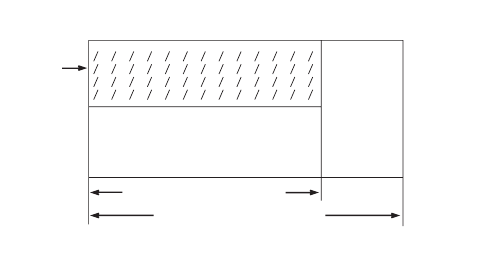
SYMBOL SETS > 189
lSee attachments Print Mode/Combination chart for
information concerning Super/ Sub script combinations with
other print modes/features.
Scripts – super/sub – cancel
Code: ESC T
Compatibility: Epson/IBM
Function:
Cancel the Super/Subscript printing command.
Subscripts – ON
Code: ESC L
Compatibility: ML
Function:
Select Subscript characters, or if currently printing superscript
characters, return to normal size characters.
Details:
lThis command is equivalent to the composite command
(ESC.&.n.:), where:
n2 – b1 = 1 Set
n2 – b0 = 1 Reset
1/2 high, full width = (9 + 3)H x 4V
Normal Size Char. Cell
Normal Size Matrix Cell
Trailing
blank
dot column s
Super/Sub
script
Character
cell
Note: figure is not to scale
280ErGB.book Page 189 Monday, June 21, 2004 10:30 AM
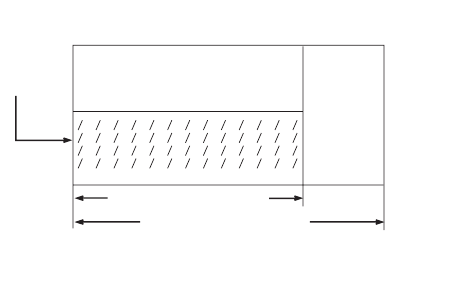
SYMBOL SETS > 190
lThe script commands are not legal, and will be ignored when
combined with the following...
— Bit Image Graphics
— Line Graphics (B0)H – (DF)H and (F4)H, (F5)H characters.
lScripts will be printed in the Print Quality modes as follows...
HSD = HSD Super/Subscripts 1/2 high, full width for
all CPIs.
Utility = Utility Super/Subscripts 1/2 high, full width
for all CPIs.
NLQ Courier = NLQ Courier Super/Subscripts 1/2 high, full
width for all CPIs.
NLQ Sans Serif = NLQ Sans Serif Super/Subscript 1/2 high,
full width for all CPIs.
lSubscripts are algorithmically created by reading the ROM font
data and compressing the character by reading every other dot
(both column and row) and reassembling the data starting in
the lower left corner of the basic (9+3) H x 9V cell matrix.
lSee attachments Print Mode/Combination chart for
information concerning Super/Subscript combinations with
other print modes/features.
1/2 high, full width = (9 + 3) H X 4V
Note: Figure is not to scale.
Normal Size Char. Cell
Normal Size Matrix Cell
Trailing
blank
dot colums
Subscript
Character
cell
280ErGB.book Page 190 Monday, June 21, 2004 10:30 AM
SYMBOL SETS > 191
Subscripts – OFF
Code: ESC M
Compatibility: ML
Function:
Turn subscript OFF (returns to normal size characters).
Superscript – ON
Code: ESC J
Compatibility: ML
Function:
Select Superscript characters, or if currently printing subscript
characters, return to normal size characters.
Details:
lThis command is equivalent to the composite command
(ESC.&.n.:)
where:
n2 – b2 = 1 Set
n2 – b0 = 1 Reset
lThe script commands are not legal, and will be ignored when
combined with the following...
— Bit Image Graphics
— Line Graphics B0H – DFH and F4H, F5H characters.
lScripts will be printed in the Print Quality modes as follows:
HSD = HSD Super/Subscripts 1/2 high, full width for
all CPIs.
Utility = Utility Super/Subscripts 1/2 high, full width
for all CPIs.
NLQ Courier = NLQ Courier Super/Subscripts 1/2 high, full
width for all CPIs.
280ErGB.book Page 191 Monday, June 21, 2004 10:30 AM
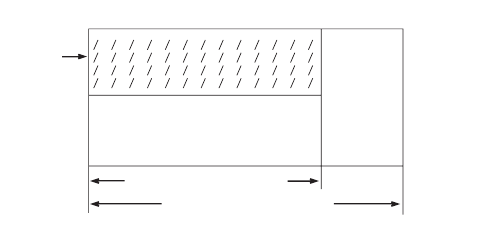
SYMBOL SETS > 192
NLQ Sans Serif =NLQ Sans Serif Super/Subscripts 1/2 high,
full width for all CPIs.
lSuper/Subscripts are algorithmically created by reading the
ROM font data and compressing the character by reading every
dot (both column and row) and reassembling the data starting
in the upper left corner of the basic (9 + 3)H × 9V cell matrix.
lSee attachments Print Mode/Combination chart for
information concerning Super/Subscript combinations with
other print models/features.
Superscript – OFF
Code: ESC K
Compatibility: ML
Function:
Turn superscripts OFF (returns to normal size characters).
Slant – ON
Code: ESC % G
Compatibility: IBM
Function:
Turn on the slant character feature, which reads normal text
character from Font ROM and algorithmically slants then.
1/2 high, full width = (9 + 3)H x 4V
Note: Figure is not to scale.
Normal Size Char. Cell
Normal Size Matrix Cell
Trailing
blank
dot colums
Superscript
Character
cell
280ErGB.book Page 192 Monday, June 21, 2004 10:30 AM
SYMBOL SETS > 193
Details:
Slanted text characters can be printed in HSD Utility, and NLQ print
quality modes.
HSD : Slant
Utility : Slant
NLQ Courier : Slant
NLQ San Serif : Slant
lOnly text type characters can be slanted. Line graphics, math
integral sign (structured by 12 vertical dots) cannot be
slanted.
lSlanted characters are created by the following algorithm:
For 8 dot high characters ...
1st dot row : shifted (1/4 dot × 7) to the right
2nd dot row : shifted (1/4 dot × 6) to the right
7th dot row : shifted (1/4 dot × 1) to the right
8th dot row : shifted (1/4 dot × 0) to the right
lIf a slanted character is printed next to a normal upright
character, the last dot columns of the slanted character are
logically “ORed” into one column.
pin upright
data slanted
data
0 1 2 3 4 5 6 7
1
2
3
4
5
6
7
8
0
0
0
0
0
0
0
00
0
0
0
0
0
0
0
1/4 dot distanc
e
280ErGB.book Page 193 Monday, June 21, 2004 10:30 AM
SYMBOL SETS > 194
Slant – OFF
Code: ESC % H
Compatibility: IBM
Function:
Turns off the slant character feature.
Slant – ON
Code: ESC ! /
Compatibility: ML
Function:
Turn on the Slant character feature, which reads normal text
character from Font ROM and algorithmically slants then.
Details:
Slanted text characters can be printed in HSD, Utility, and NLQ print
quality modes.
HSD : Slant
Utility : Slant
NLQ Courier : Slant
NLQ San Serif : Slant
lOnly text type characters can be slanted. Line graphics, the
math integral sign cannot be slanted.
lRefer to the “Print Mode Combinations” for details of the print
mode in which the Italics chars. can be printed by receiving
this command.
lSlanted characters are created from UTL font ROM data.
280ErGB.book Page 194 Monday, June 21, 2004 10:30 AM

SYMBOL SETS > 195
Slant – OFF
Code: ESC ! *
Compatibility: ML
Function:
Turn off the Slant character feature, return to upright character
printing.
GRAPHICS MODE
Bit image graphics – select density and enter graphics
Code: ESC * m n1 n2 (graphics data)
Compatibility: Epson
Function:
Select the graphics density specified by m, and prints graphics
data.
Range:
ln1 in conjunction with n2 specifies the total number of dot
columns to be printed in graphics.
n1 = 0 – 255 (decimal number).
n2 = 0 – 255 (decimal number).
lm selects the graphic mode. See table shown below:
Note: * Mode is printed in Quasi density.
Mode Pins mHor. Density
(dots/in)
Single density 8 0 60
Double density
High – speed double density*
Quadruple — density*
CRT 1
Plotter (1:1)
CRT II
Double Density Plotter
280ErGB.book Page 195 Monday, June 21, 2004 10:30 AM

SYMBOL SETS > 196
Out of range:
lIf m does not equal to the range of n1, n2 = 0 – 255 command
is ignored.
Details:
lPin numbering system.
8 pin graphics (1 byte/column)
lThe decimal value which is used for the data elements can be
calculated by adding the equivalent decimal values of the dots
that need to be printed.
Example:
ln2 is used when you want to reserve more than 255 columns
for graphics n2 represents a number of groups, each group
contains 256 dots.
Example:
Pin No. Decimal
value
Top pin 1 128
264
332
416
58
6 4
72
Bottom pin 8 1
128 O 128
64 X
32 O 32
16 X
8O8
4X
2O2
1X O = print dot
total = 170 X = not print dot
280ErGB.book Page 196 Monday, June 21, 2004 10:30 AM
SYMBOL SETS > 197
When n2 = 0 it selects the first group of 256 dots from 0 to
255.
When n2 = 1 it reserves the next group of 256 dots from 256
to 512 plus the number of dots in n1.
n2 can be calculated as follows:
n = total number of dots to be printed.
n2 = INT (n/256)
The value of n1 can be calculated as follows:
n1 = n – (n2 × 256) OR = n MOD 256
Bit image graphics – select 9 pin mode
Code ESC ^ m n1 n2 (Graphics data)
Compatibility: Epson
Function:
Select nine pin graphics for the number of columns specified
by n1 and n2.
Range:
m is a decimal number where:
m = 0 Single density graphics.
m = 1 Double density graphics.
m = 2 High-speed double density graphics.
m = 3 Quadruple density graphics.
ln1, in conjunction with n2, specifies the total number of dot
columns to be printed in graphics.
ln1 is a decimal number between 0 and 255.
ln2 is a decimal number between 0 and 255 (Bit7 is ignored).
Out of range:
lm > 3 ... Command is ignored.
n1, n2 ... not applicable, cannot receive value greater than 255 (FFH).
280ErGB.book Page 197 Monday, June 21, 2004 10:30 AM
SYMBOL SETS > 198
Details:
lPin numbering system:
1. 9 pin graphics (2 bytes/column)
ln2 is used when you want to reserve more than 255 columns
for graphics. n2 represents a number of groups, each group
contains 256 dots.
Example:
When n2 = 0 it selects the first group of 256 dots from 0 to 255.
When n2 = 1 it reserves the next group of 256 dots from 256 to
512 plus the number of dots in n1.
And so on, until n = 7 which reserves up to 1792 dots plus
whatever is equal to n1.
n2 can be calculated as follows:
n = total number of dots to be printed.
n2 = INT (n/256)
n1 can be calculated as follows:
n1 = n – (n2 × 256) OR = n MOD 256
byte 1
byte 2
Weight
Bottom pin
decimal value
Note: Bits 0-6 of data b
y
te 2 are i
g
nored.
1
2
3
4
5
6
7
8
9
Pin
128
64
32
16
8
4
2
1
128
64
32
16
8
4
2
1
Top pin
280ErGB.book Page 198 Monday, June 21, 2004 10:30 AM
SYMBOL SETS > 199
lUsed for graphics intensive applications such as screen
dumps.
lEach print pattern requires two bytes of data instead of one, as
in 8 pin graphics.
Example: To print 70 columns of data,140 bytes must be sent.
Bit image graphics – reassign graphic’s density commands
Code: ESC ? m n
Compatibility: Epson
Function:
Reassign one of the graphic density command to another
graphic density command.
Range:
l“m” represents one of the following four graphic modes.
K Single Density
L Low Speed Double Density
Y High Speed Double Density
Z Quadruple Density.
ln is decimal value 0–7.
0 60 dpi
1 120 dpi
2 120 dpi (Quasi density)
3 240 dpi (Quasi density)
4 80 dpi
5 72 dpi
6 90 dpi
7 144 dpi
280ErGB.book Page 199 Monday, June 21, 2004 10:30 AM
SYMBOL SETS > 200
Out of range:
lIf n does not equal a value which is specified in the above
table, “ESC ? m n” is ignored and data is not printed as
Graphics data.
Bit image graphics — single horizontal density
Code: ESC K n1 n2 (graphical data)
Compatibility: Epson/IBM
Function:
Select normal speed single density graphics (60 DPI
horizontal) for the number of columns specified by n1 and n2.
Range:
ln1 in conjunction with n2 specifies the total number of dot
columns to be printed in graphics.
lRange n1, n2 = 0 – 255.
lNumber of dot/line:
Narrow
Dots/line n1 n2
480 224 1
Out of range:
lNot applicable, cannot receive a value greater than 255
(FFH).
Details:
ln2 is used when you want to reserve more than 255 columns
for graphics n2 represents a number of groups, each group
contains 256 dots.
280ErGB.book Page 200 Monday, June 21, 2004 10:30 AM
SYMBOL SETS > 201
Example:
When n2 = 0 it selects the first group of 256 dots from 0 to 255.
When n2 = 1 it reserves the next group of 256 dots from 256 to
512 plus the number of dots in n1.
n2 can be calculated as follows:
n = total number of dots to be printed.
n2 = INT (n/256)
n1 can be calculated as follows:
n1 = n – (n2 × 256) OR = n MOD 256
n2 = INT (n/256)
lLow speed single density graphics prints at a density of 60
dots/inch.
lDots spacing example.
Related functions:
lThis command is equivalent to the 8 pin graphic mode
command specified by ESC * “0” n1 n2 (Epson).
MSB
bit 7
bit 6
bit 1
bit 0
LSB
1/60 inch
1/72 inch
8
7
1
2
Head pin
280ErGB.book Page 201 Monday, June 21, 2004 10:30 AM
SYMBOL SETS > 202
Bit image graphics – double horizontal density – normal speed
Code: ESC L n1 n2 (graphics data)
Compatibility: Epson/IBM
Function:
Select normal speed double density graphics (120 DPI
horizontal) for the number of columns specified by n1 and n2.
Range:
ln1 in conjunction with n2 specifies the total number of dot
columns to be printed in graphics.
lRange n1, n2 = 0 – 255.
lNumber of dot/line.
Narrow
Dots/line n1 n2
960 192 3
Out of range:
lNot applicable, cannot receive a value greater than 255 (FFH).
Details:
ln2 is used when it is required to reserve more than 255
columns for graphics. n2 represents a number of groups, each
group contains 256 dots.
Example:
When n2 = 0 it selects the first group of 256 dots from 0 to 255.
When n2 = 1 it reserves the next group of 256 dots from 256 to
512 plus the number of dots in n1.
n2 can be calculated as follows:
n = total number of dots to be printed.
n2 = INT (n/256)
280ErGB.book Page 202 Monday, June 21, 2004 10:30 AM
SYMBOL SETS > 203
n1 can be calculated as follows:
n1 = n – (n2 × 256) OR = n MOD 256
n2 = INT (n/256)
lLow speed double density graphics prints at a density of 120
dots/inch.
lDot spacing example.
Related functions:
lThis command is equivalent to the 8 pin graphic mode
command specified by ESC * “1” n1 n2 (Epson).
Bit image graphics – double horzontal density – high speed
Code: ESC Y n1 n2 (graphic data)
Compatibility: Epson/IBM
Function:
Selects high speed double density graphics (120 DPI
Horizontal) for the number of columns specified by n1 and n2.
Range:
ln1 in conjunction with n2 specifies the total number of dot
columns to be printed in graphics.
ln1, n2 = 0 – 255.
MSB
bit 7
bit 6
bit 1
bit 0
LSB
1/60 inch
1/72 inch
8
7
1
2
Head pin
280ErGB.book Page 203 Monday, June 21, 2004 10:30 AM
SYMBOL SETS > 204
lNumber of dots/line:
Narrow
Dots/line n1 n2
960 192 3
Out of range:
lNot applicable; cannot receive value greater than 255 (FFH).
Details:
ln2 is used when you want to reserve more than 255 columns
for graphics. n2 represents a number of groups, each group
contains 256 dots.
Example:
When n2 = 0 it selects the first group of 256 dots from 0 to 255.
When n2 = 1 it reserves the next group of 256 dots from 256 to
512 plus the number of dots in n1.
n2 can be calculated as follows:
n = total number of dots to be printed.
n2 = INT (n/256)
n1 can be calculated as follows:
n1 = n – (n2 × 256) OR = n MOD 256
n2 = INT (n/256)
lHigh speed double density prints at a density of 120 dots per
inch.
lThis is the same density as low speed double density graphics,
but the printer cannot place two adjacent dots in the same row
(quasi-density).
280ErGB.book Page 204 Monday, June 21, 2004 10:30 AM
SYMBOL SETS > 205
lDot spacing example.
(Related functions:
This command is equivalent to the 8 pin graphic mode command
specified by ESC * “2” n1 n2 (Epson).
Bit image graphics – quadruple horizontal density
Code: ESC Z n1 n2 (graphics data)
Compatibility: Epson/IBM
Function:
Select normal Speed Quadruple density graphics (240 DPI
Horizontal) for the number of columns specified by n1 and n2.
Range:
n1 in conjunction with n2 specifies the total number of dot columns to
be printed in graphics.
lRange n1, n2 = 0 – 255.
lMaximum number of dot/line:
Narrow
Dots/line n1 n2
1920 128 7
Out of range:
MSB
bit 7
bit 6
bit 1
bit 0
LSB
1/120 inch
1/72 inch
8
7
1
2
Head pin
280ErGB.book Page 205 Monday, June 21, 2004 10:30 AM
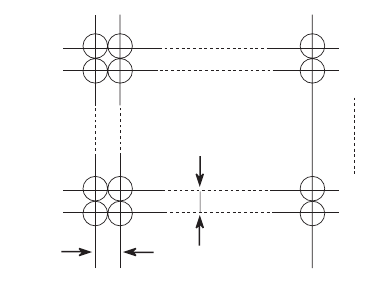
SYMBOL SETS > 206
lNot applicable, cannot receive value greater than 255 (FFH).
lDetails:
n2 is used when you want to reserve more than 255 columns
for graphics. n2 represents a number of groups, each group
contains 256 dots.
Example:
When n2 = 0 it selects the first group of 256 dots from 0 to 255.
When n2 = 1 it reserves the next group of 256 dots from 256 to
512 plus the number of dots in n1.
n2 can be calculated as follows:
n = total number of dots to be printed.
n2 = INT (n/256)
n1 can be calculated as follows:
n1 = n – (n2 × 256) OR = n MOD 256
n2 = INT (n/256)
lQuadruple density graphics prints at a density of 240 dots per
inch (Quasi-density).
lDot spacing example.
MSB
bit 7
bit 6
bit 1
bit 0
LSB
1/240 inch
1/72 inch
8
7
1
2
Head pin
280ErGB.book Page 206 Monday, June 21, 2004 10:30 AM

SYMBOL SETS > 207
Related functions:
lThis command is equivalent to the 8 pin graphic mode
command specified by ESC * “3” n1 n2 (Epson).
Bit image graphics – enter
Code: ETX
Compatibility: ML
Function:
Enter bit image graphics.
Details:
lPin / Data numbering system.
X = cannot use
lSince 03H is used as an initiator for commands executed while
in the bit image graphics mode, in order to print graphics data
represented by 03H, two 03H must be sent to the printer.
Example...
In the “d” above. In order to print the 03H as one column of
graphic data, send 03H, 03H.
Printhead
Pin No.
Equivalent
decimal value
8 bit
mode
7 bit
mode
Top pin (LSB) 1 1 1 1
2 2 2 2
3444
4 8 8 8
5161616
632 32 32
7646464
8128 128 X
Bottom pin (MSB) 9 X X X
280ErGB.book Page 207 Monday, June 21, 2004 10:30 AM

SYMBOL SETS > 208
lThe decimal value which is used for the data elements can be
calculated by adding the equivalent decimal values of the dots
that need to be printed.
Example (8 bit mode)
1 0 1
2 0 2
4 ×
8 ×
16 ×
32 ×
64 ×
128 ×
(0 = print dot; × = not print dot)
3 decimal or 03 hex
lThe explanation of the dot density transitions from text, to
graphics, back to text is as follows ...
Related functions:
lComposite command “ESC * n:”
Text dot density
before entering
graphics
Resultant
primary dot
density
Upon returning to text
CPI DPI DPI CPI DPI
10 120 60 10 120
12 144 72 12 144
15 180 60 15 180
17.1 206 60 17.1 206
20 240 60 20 240
280ErGB.book Page 208 Monday, June 21, 2004 10:30 AM

SYMBOL SETS > 209
Bit image graphics – exit
Code: ETX STX
Compatibility: ML
Function:
Exit bit image graphics (return to text mode).
Details:
lAny Print Quality modes and Print Features that were active
before entering Bit Image Graphics will be reactivated upon
exiting Bit Image Graphics.
Bit image graphics – true single horizontal density
Code: ESC P
Compatibility: ML
Function:
Select true single density graphics based on the text dot
density which was previously set.
Details:
lDot density ...
Text dot density Resultant Graphics dot density
CPI DPI DPI
10 120 60 (adjacent dots allowed)
12 144 72
15 180 60
17.1 206 60
20 240 60
280ErGB.book Page 209 Monday, June 21, 2004 10:30 AM
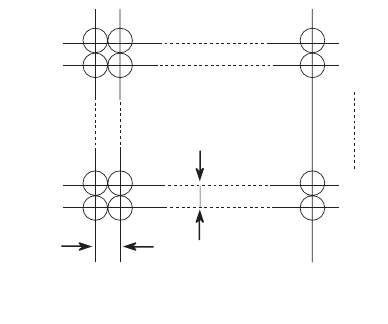
SYMBOL SETS > 210
lDot spacing example.
lThis command must be sent prior to entering graphics mode.
l Single Density prints at what is labeled as “full” speed and is
used as a reference to explain all the other graphics print
speeds.
Related functions:
lComposite command “ESC * n1 :”
Bit image graphics – true single horizontal density
Code: ESC Q
Compatibility: ML
Function:
Select true single density graphics based on the text dot
density which was previously set.
Details:
Head pin
LSB
bit 0
bit 1
bit 6
bit 7
MSB
1/60 inch
or
1/72 inch
1/72 inch
8
7
1
2
280ErGB.book Page 210 Monday, June 21, 2004 10:30 AM
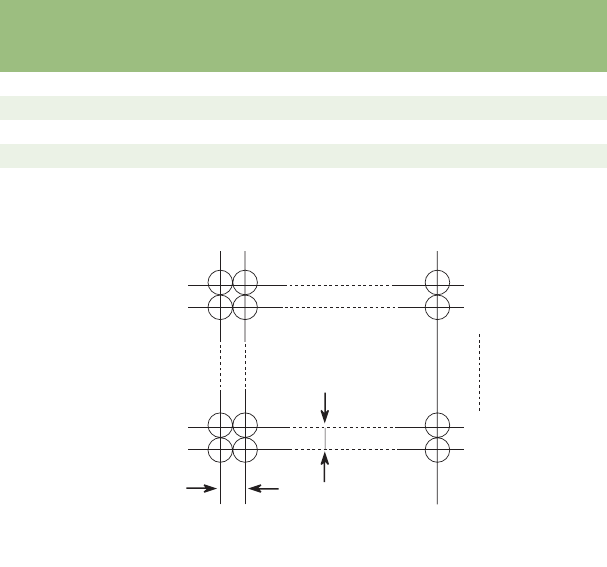
SYMBOL SETS > 211
lDot Density ...
lDot spacing example.
lThis command must be sent prior to entering graphics mode.
lSingle Density prints at what is labeled as “full” speed and is
used as a reference to explain all the other graphics print
speeds.
Related functions:
lComposite command “ESC * n1 :”
Text dot density Resultant Graphics dot density
CPI DPI DPI
10 120 60 (adjacent dots allowed)
12 144 72
15 180 60
17.1 206 60
20 240 60
Head pin
LSB
bit 0
bit 1
bit 6
bit 7
MSB
1/60 inch
or
1/72 inch
1/72 inch
8
7
1
2
280ErGB.book Page 211 Monday, June 21, 2004 10:30 AM
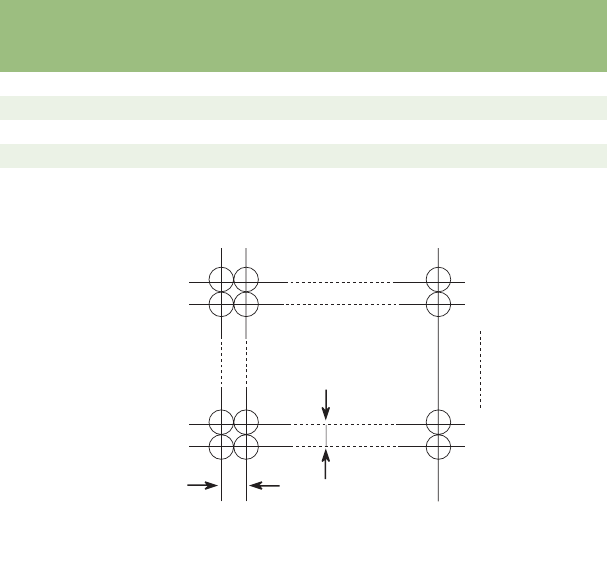
SYMBOL SETS > 212
Bit image graphics – true double horizontal density
Code: ESC R
Compatibility: ML
Function:
Select true single density graphics based on the text dot
density which was previously set.
Details:
lDot Density ...
lDot spacing example.
lAdjacent dots will not be printed when double speed is
speficied (ESC* n1 :).
lThis command must be sent prior to entering graphics mode.
Text dot density Resultant Graphics dot density
CPI DPI DPI
10 120 120
12 144 144
15 180 120
17.1 206 120
20 240 120
LSB
bit 0
bit 1
bit 6
bit 7
MSB
1/120 inch
or
1/144 inch
1/72 inch
8
7
1
2
Head pin
280ErGB.book Page 212 Monday, June 21, 2004 10:30 AM

SYMBOL SETS > 213
lDouble Density prints at half the speed of Single density.
lRefer to the Illustration attachments for further details.
Related functions:
lComposite command “ESC* n1 :”
Bit image graphics – double speed, quasi quadruple horizontal
density
Code: ESC # Q
Compatibility: ML
Function:
Selects double speed, quadruple density graphics based on
the text dot density which was previously set.
Details:
lDot Density ...
Text dot density Resultant Graphics dot density
CPI DPI DPI
10 120 240 (adjacent dots on the same row are not allowed)
12 144 288
15 180 240
17.1 206 240
20 240 240
280ErGB.book Page 213 Monday, June 21, 2004 10:30 AM
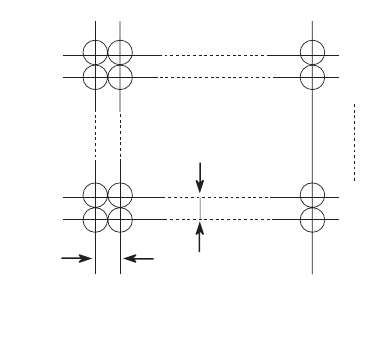
SYMBOL SETS > 214
• Dot spacing example.
lThis command must be sent prior to entering graphics mode.
lQuadruple density will print at half the speed of Single
density.
lRefer to the illustration attachments for further details.
Related functions:
lComposite command “ESC* n1 :”
Bit image graphics – execute LF WI CR – text amount
Code: ETX LF
Compatibility: ML
Function:
Initiate printing action, print data in the print buffer by causing
a print block change and execute a pre-defined text amount
line feed then execute a carriage return.
Details:
lThe distance of the pre-defined text line feed is as follows...
if, in 6 LPI, the text LF = 24/144 inch
if, in 8 LPI, the text LF = 18/144 inch
LSB
bit 0
bit 1
bit 6
bit 7
MSB
1/240 inch
or
1/288 inch
1/72 inch
8
7
1
2
Head pin
280ErGB.book Page 214 Monday, June 21, 2004 10:30 AM
SYMBOL SETS > 215
Bit image graphics – execute LW W/O CR – text amount
Code: ETX DC2
Compatibility: ML
Function:
Initiate printing action, print data in the print buffer by causing
a print block change and execute a pre-defined text amount
line feed, but do not execute a carriage return.
Details:
lThe distance of the pre-defined text line feed is as follows...
if, in 6 LPI, the text LF = 24/144 inch
if, in 8 LPI, the text LF = 18/144 inch
Bit Image graphics – execute LF with CR – graphics amount
Code: ETX SO
Compatibility: ML
Function:
Initiate printing action, print data in the print buffer by causing
a print block change and execute a graphics line feed (so that
consecutive graphic print lines touch each other) then execute
a carriage return.
Details:
lThe distance of the graphic line feed is as follows...
if, in 7 bit graphics mode, the graphic LF = 14/144 inch
if, in 8 bit graphics mode, the graphic LF = 16/144 inch
280ErGB.book Page 215 Monday, June 21, 2004 10:30 AM
SYMBOL SETS > 216
Bit image graphics – execute LF W/O CR – graphics amount
Code: ETX DC4
Compatibility: ML
Function:
Initiate printing action, print data in the print buffer by causing
a print block change and execute a graphics line feed (so that
consecutive graphic print lines touch each other) but do not
execute a carriage return.
Details:
lThe distance of the graphic line feed is as follows...
if in 7 bit graphics mode, the graphic LF = 14/144 inch.
if, in 8 bit graphics mode, the graphic LF = 16/144 inch.
lBecause there is no CR executed, the second print line’s
horizontal starting position will be where the first print line
ended.
280ErGB.book Page 216 Monday, June 21, 2004 10:30 AM
SYMBOL SETS > 217
COMPOSITE COMMANDS
Select print features and pitch
Code: ESC ! n
Compatibility: Epson
Function:
Select print feature and CPI according to binary value of “n”.
Range:
lRange n = 0 – 255.
lThe value of “n” is composed by selecting a feature or CPI,
each of which represents 1 bit of “n”.
Out of range:
lNot applicable; cannot define a value less than 0 or greater
than 255 (FFH).
Details:
lThe features/CPI selectable by this command are the same as
the features/CPI that are selected by individual commands.
lAny feature/CPI select or reset by this function will override
the same feature/CPI selected by an individual command. The
opposite is also true. If a feature/CPI was originally selected
by this composite command, but then reset by an individual
command, the feature will not turn off.
lAny invalid combination of features will be set according to the
printer’s priority tables. (See “attachments” Print Modes/
Features Combination Tables).
280ErGB.book Page 217 Monday, June 21, 2004 10:30 AM

SYMBOL SETS > 218
lThe selectable modes are shown as follows:
n = an 8 bit binary number, each bit having the following
definition:
Select print modes and features
Code: ESC & n1 n2 n3 n4 :
Compatibility: ML
Select Print Quality modes, Print Pitch with one command.
Function:
n1 – n4 are defined by calculating the decimal, or hexadecimal
equivalent of the binary number which is defined as follows:
1. Any bits defined as literal 0 or 1 should be set as indicated in the above table.
These bits identify which “n” is being defined.
2. “x” means” don’t care” and can be either 0 or 1.
3. When both b1 (12 CPI) and b2 (17.1 CPI) are specified for n1, the 15 CPI print
mode is selected.
bit 1 0
b7 Set underline Reset underline
b6 Set Italics Reset Italics
b5 Set Double Width Reset Double width
b4 Set Enhanced Reset Enhanced
b3 Set Emphasized Reset Emphasized
b2 Set Compressed Reset Compressed
b1 Set Proportional Reset Proportional
b0 Set 12 CPI Set 10 CPI
n/bit b7 b6 b5 b4 b3 b2 b1 b0
n1 X 0 1 Double width 20
CPI
17.1
CPI* 3
12
CPI *3
10
CPI
n2 X 1 0 Enhancement Emphasize SuperScript SubScript No
Scripts
n3 X 1 1 0 Slant DLL Mode NLQ
P. Qual ity
Normal
P. Qual i t y
n4 X 1 1 1 Double
Height
Underline
line XHSD
P. Qual i t y
280ErGB.book Page 218 Monday, June 21, 2004 10:30 AM
SYMBOL SETS > 219
Out of range:
lIf either n2, n3 or n4 is invalid, the command is terminated,
but the mode/features related to all previous “n” s will be set.
In the case where n1 is invalid, the command is terminated
and no modes/features will be set. See below for examples of
invalid usage.
Details:
lOrder does not matter when n1 – n4 are defined. Any order is
valid because b5 and b6 identify each variable “nx”.
lThe quantity of “n” s being defined also does not matter (up to
a maximum of 4).
All four “n”s or any number of “n”s less than four may be defined.
Example of valid uses of this command:
ESC & n4 :
ESC & n3 n2 :
ESC & n2 n4 n3 :
ESC & n1 n3 n2 n4 :
lThe functions selected by this command are the same as the
function that are selected by individual commands.
lAny function selected or reset by this function will override the
same function selected by the individual command. The
opposite is also true. If a function was originally selected by
this composite command, but then reset by an individual
command, the function will be OFF.
lAny invalid combination of functions will be set according to
the printer’s priority tables.
(See “attachments” Print Modes/Features Combination Tables).
280ErGB.book Page 219 Monday, June 21, 2004 10:30 AM

SYMBOL SETS > 220
lCommand equivalent table:
* When both b1 (FS) and b2 (GS) are specified for n1, this code achieves a function
equivalent to the ESC g code.
b0 of n2 cancels both super/subscript.
lIf less than 4 “n”s are defined, the priorities of the table above
are still followed. In the event that the same “n” is repeated
twice, the last value will have precedence.
lEach bit on n1 – n4 will be processed in order from b0 to b7 as
if individual commands were input.
Example:
In the above example, 12 CPI magnifying mode will be defined as the
same as if the result of RS, FS and US were input.
lExamples ...
KEY: “×” = invalid value
Data Stream Result
n/bit b7 b6 b5 b4 b3 b2 b1 b0
n1 – 0 1 US ESC #3 GS * FS * RS
n2 – 1 0 ESC H ESC T ESC J ESC L ESC K *
ESC M
n3 – 1 1 0 ESC ! / ESC 2 ESC 1 ESC 0
n4 – 1 1 1 ESC US ESC C –ESC #0
b7 b6 b5 b4 b3 b2 b1 b0
n1 (37H) / 0 1 1 0 0 1 1
Data Stream Result
X
ESC & n1:
The command is invalid and “:” is interpreted as normal data.
X
ESC & n1 n2 n3:
n1’s modes/features are set, and the data after n3 (in this
case just “:”) is interpreted as normal data.
ESC & n1 n1 n1: The last n1’s modes features are set.
ESC & n4 n3 n2 n1: All modes/features are set
X
ESC & n1 n2 n3 n4 z1 z2
If the terminator is not “:”, n1, n2, n3, n4 are valid, the
composite command is terminated, z1 is discarded and z2 is
processed as normal data.
X
ESC & n1 n1’ n2 n3 n4
n2, n3 and the last n1, are valid, the command is
terminated and n4 is discarded.
280ErGB.book Page 220 Monday, June 21, 2004 10:30 AM

SYMBOL SETS > 221
Bit image graphics modes and features
Code: ESC * n :
Compatibility: ML
Function:
Select Bit Image Graphics density and word size with one
command.
Range:
n1 – n2 are defined by calculating the decimal or hexadecimal
equivalent of the binary number which is defined as follows...
Any bits defined as a literal 0 or 1 should be set as indicated in the above table.
These bits identify which “n” is being defined.
“×” means “don’t care” and can be either 0 or 1.
Out of range:
If n2, is invalid, the command is terminated, but the functions
defined in n1 remain valid. Where n1 is invalid, the command
is terminated and no functions are valid. Refer to “Additional
Details:” for examples of invalid usage.
Details:
lOrder does not matter when n1 – n2 are defined. Any order is
valid because b5 and b6 identify each variable “n×.”
lThe quantity of “n”s being defined also does not matter. Either
1 or 2 “n”s may be defined.
Example of valid uses of this command:
ESC * n2 :
ESC * n1 :
ESC * n2 n1 :
ESC * n1 n2 *
n/bit b7 b6 b5 b4 b3 b2 b1 b0
n1 X 1 1 Quad
Density
Double
Density
Single
Density
72
DPI
60
DPI
n2 X 1 0 8 bit Double
Speed
XXX
280ErGB.book Page 221 Monday, June 21, 2004 10:30 AM

SYMBOL SETS > 222
lThe functions selected by this command are the same as the
function that are selected by individual commands.
lAny function selected or reset by this function will override the
same function selected by the individual command. The
opposite is also true. If a function was originally selected by
this composite command, but then reset by an individual
command, the function will be “off”.
lAny invalid combination of functions will be set according to
the printer’s priority tables. (See “attachments” Print Modes/
Features Combination Tables).
lEach bit of n1 and n2 are processed in order from b0 to b7.
Example:
In the above example, quadruple density of 72 DPI mode will be
defined.
lIf less than 2 “n” are defined, the priorities in the table above
is still followed. In the event that the same “n” is repeated, the
last value will have precedence.
lUsage Examples...
KEY:“×” = invalid valuet
lThis command must be defined before entering Bit Image
Graphics.
b7 b6 b5 b4 b3 b2 b1 b0
n1:(7H) – 1 1 1 1 1 1 1
Data Stream Result
X
ESC * n1 n2:
The command is invalid, n2 is ignored and “:” is processed as
normal data.
X
ESC * n1 n2:
n is valid, n2 terminates the command sequence and “:”
is processed as a normal data.
ESC * n1 n1 n1: The last n1’s modes features are set.
X
ESC * n1 n2 z1 z2
If the terminator is not “:”, n1, n2, n3, n4 are valid, the
composite command is terminated, z1 is discarded and z2 is
processed as normal data.
X
ESC * n1 n1 n2:
The last n1 becomes valid, n2 terminates the command and is
discarded, and “:” is processed as a normal data.
280ErGB.book Page 222 Monday, June 21, 2004 10:30 AM

SYMBOL SETS > 223
lIf Double (n1 – b3) or Quadruple (n1 – b4) density is defined,
Double Speed (n2 – b3) is selectable.
— Normal speed
Single Density
Double Density
— Double Speed
Double density (no consecutive dots allowed)
Quadruple density (no consecutive dots allowed)
Carriage return and line feed control
Code: ESC ? n :
Compatibility: ML
Function:
Execute carriage return and line feed operation with one
command.
Range:
n1 is defined by calculating the decimal, or hexadecimal
equivalent of the binary number which is defined as follows...
Any bits defined as a literal 0 or 1 should be set as indicated in the above table.
These bits identify which “n” is being defined.
“×” means “don’t care” and can be either 0 or 1.
Out of range:
Command is ignored.
Details:
lThe functions selected by this command are the same as the
function that are selected by individual commands.
n/bit b7 b6 b5 b4 b3 b2 b1 b0
n1 X 0 1 reverse
LF
0 X Forward
LF
CR
280ErGB.book Page 223 Monday, June 21, 2004 10:30 AM

SYMBOL SETS > 224
l Any function selected or reset by this function will override the
same function selected by the individual command. The
opposite is also true. If a function was originally selected by
this composite command, but then reset by an individual
command, the function will be OFF.
l Any invalid combination of functions will be set according to
the printer’s priority tables. (See “attachments” Print Modes/
Features Combination Tables).
lCommand equivalent table:
lb0(CR) and b1 (FOW LF) can be selected simultaneously,
however b4 (rev LF) and b1 (FWD LF) cannot be selected
simultaneously.
lThe command scanning sequence is b0 to b7. The last valid bit
(command) will have precedence in the event of conflict.
Usage Examples...
KEY:“×” = invalid valuet
lDo not execute reverse line feed.
n/bit b7 b6 b5 b4 b3 b2 b1 b0
n1 – 0 1 ESC LF – – LF CR
Data Stream Result
X
ESC ? n :
If a column (:) following n is omitted, the mode specified by n
will be valid and the next data will be discarded.
X
ESC ? n1 z1 z2 :
If the terminator is not “:”, n is valid the composite command
is terminated, z1 is discarded and z2 is processed as normal
data.
280ErGB.book Page 224 Monday, June 21, 2004 10:30 AM
SYMBOL SETS > 225
GENERAL CONTROL
Reset – clear print buffer
Code: CAN
Compatibility: Epson/IBM
Function:
Clear all printable data in the print buffer.
Details:
lThis code does not clear or affect the control codes which are
resident in the receive buffer (Epson).
This command clears the expanded character mode (double
width printer character selected by SO code (IBM).
lFunctions such as BS, HT, VT etc. (Head positioning
commands) are not clear since this command only works on
printable data.
Reset – clear buffer and initialize printer
Code: ESC @
Compatibility: Epson
Function:
Initialize the printer features/modes and clear the print buffer.
Details:
l List of Items Reset:
1. Communication interface signals are reset and printer is put
on-line.
2. Print Buffer is cleared.
3. Left Margin = clear (left-most print position).
4. Right Margin = clear (right-most print position). ML521:
current menu mode.
5. Horizontal tabs = every 8 characters.
280ErGB.book Page 225 Monday, June 21, 2004 10:30 AM
SYMBOL SETS > 226
6. Vertical Tabs = all tabs in each channel are cleared and tap
channel 0 is selected.
7. Line spacing = Current setting in MENU mode.
8. Page length = current menu value.
9. Skip Over Perforation = current menu value.
10. TOF = current line.
11. DLL = off (ROM characters selected).
12. Print Quality = Current menu value.
13. Typestyle = Current menu value.
14. Character Set = Current menu value.
15. All other features = current menu setting, or if they do not
appear in the menu, they are OFF.
MSB control – set MSB equal to 1
Code: ESC >
Compatibility: Epson
Function:
Set the Bit 7 of data to 1, regardless of the value of receiving
data.
Details:
lThis code limits the range of received data from 80H to FFH.
MSB control – set MSB equal to 0
Code: ESC =
Compatibility: Epson
Function:
Set the bit 7 of data to 0.
Details:
lThis code limits the range of received data from 00H to 7FH.
280ErGB.book Page 226 Monday, June 21, 2004 10:30 AM
SYMBOL SETS > 227
MSB control – cancel MSB control
Code: ESC #
Compatibility: Epson
Function:
Cancel MSB control; interpret the received data literally.
Details:
lThe printer accepts the eight bit “as is” from the computer. (8
bit mode)
Related function:
ESC > , set MSB = 1
ESC = , set MSB = 0
Print suppress – ON
Code: DC3
Compatibility: Epson
Function:
Deselect the printer and sets the printer in a state that will not
allow the printer to receive any data except DC1.
Details:
lThe printer cannot be re-selected by using the select button.
lIn print suppress mode, SEL lamp will flash when the printer is
selected. When the printer is deselected, SEL lamp will remain
off.
Related function:
lDC1, Print Supress-off.
280ErGB.book Page 227 Monday, June 21, 2004 10:30 AM
SYMBOL SETS > 228
Print suppress – ON
Code: ESC Q ETX or ESC Q SYN
Compatibility: IBM
Function:
Deselect the printer and sets the printer in a state that will not
allow the printer to receive any data except DC1.
Details:
lThe printer can be re-selected by using the select button.
lSEL lamp will flash while in print suppress mode.
Print suppress – OFF
Code: DC1
Compatibility: Epson/IBM
Function:
Re-selects the printer and set the printer to its normal mode
where in all data can be received
Details:
lThe printer processes all the data sent to it.
Print speed – half – ON/OFF
Code: ESC s n
Compatibility: Epson
Function:
Turn ON/OFF the mode where printing is executed at 50% of
normal speed depending on the value of n.
Range:
lRange n = 01H, 31H, 81H Half-speed printing = On.
lRange n = 00H, 30H, 80H, or B0H Full speed printing = Off.
Out of range
280ErGB.book Page 228 Monday, June 21, 2004 10:30 AM

SYMBOL SETS > 229
lThis command will be ignored if n equals any other values
except for the values mentioned above.
Details:
lHalf speed mode is used to reduce printer noise.
lIf the print speed is slower than the printer’s physical lower
speed, the half speed command is ignored and data is printed
at that lowest speed.
lItems not cleared...
— Custom characters (DLL) are not cleared.
Cancel
Code: CAN
Compatibility: ML
Function:
lCancel data within the same line before the entry of this code
as, and after, that for which printing is initiated.
lSets the following modes in response to the entry of this code:
Item initialised Initialised condition
Character Pitch Conforms to a menu-set value.
Linefeed Pitch Conforms to a menu-set value.
Horizontal Tab Unaffected.
VFU Unaffected.
Character Modification
Horizontal Expansion
Vertical Expansion
Underline
Horizontal Enhancement
Vertical Enhancement
(Double Strike)
Super/Sub Script
Italics
Conforms to a menu-set value.
Conforms to a menu-set value.
Cancelled.
Cancelled.
Cancelled.
Cancelled.
Conforms to a menu-set value.
Unidirectional Printing Setting
Character
Bit Image Graphics
Prints bi–directionally.
Conforms to a menu–set value.
Half-speed Printing Cancelled.
280ErGB.book Page 229 Monday, June 21, 2004 10:30 AM

SYMBOL SETS > 230
Printer Initialization
Code: ESC CAN
Compatibility: ML
Function:
lPrint any data stored in the print buffer and brings the system
to a state at power-on.
lRetains data in the receive buffer, resumes operation
automatically after the execution of initialization setting by
this command, and processes the data without losing it.
Menu-set “Reset Inhibit” has effect on this command as
follows:
Clearance between Characters Cancelled.
Graphics Mode Switched to a single density setting.
CG
Font
ROM/RAM
Character Table
Code Page Setting
International Character Set
Zero Font
Conforms to a menu-set value.
Set to ROM.
Conforms to a menu-set value.
Conforms to a menu-set value.
Conforms to a menu-set value.
Conforms to a menu-set value.
NLQ Font Unaffected.
Left Margin Unaffected.
Right Margin Unaffected.
Paper Position Unaffected.
Print Position Unaffected.
Page Length (Front/Rear) Unaffected.
Perforation Skip (Front/Rear) Unaffected.
Paper End Detection Enabling/
Disabling
Unaffected.
Print Suppression Enabling/
Disabling
Unaffected.
Impact Mode Conforms to a menu-set value.
Emulation Mode Unaffected.
Barcode Assumes the default condition
SI/SO Set to S1.
Item initialised Initialised condition
280ErGB.book Page 230 Monday, June 21, 2004 10:30 AM

SYMBOL SETS > 231
Item initialised Initialised condition
Character Pitch Conforms to a menu-set value.
Linefeed Pitch Conforms to a menu-set value.
Horizontal Tab Assumes it’s default.
VFU Cancelled.
Character Modification
Horizontal Expansion
Vertical Expansion
Underline
Horizontal Enhancement
Vertical Enhancement
(Double Strike)
Super/Sub Script
Italics
Conforms to a menu-set value.
Conforms to a menu-set value.
Cancelled.
Cancelled.
Cancelled.
Cancelled.
Conforms to a menu-set value.
Unidirectional Printing Setting
Character
Bit Image Graphics
Prints bi–directionally.
Conforms to a menu–set value.
Half-speed Printing Cancelled.
Clearance between Characters Cancelled.
Graphics Mode Switched to a single density setting
CG
Font
ROM/RAM
Character Table
Code Page Setting
International Character Set
Zero Font
Conforms to a menu-set value.
Set to ROM
Conforms to a menu-set value.
Conforms to a menu-set value.
Conforms to a menu-set value.
Conforms to a menu-set value.
NLQ Font Conforms to a menu-set value.
Left Margin Assumes it’s default (home position).
Right Margin Conforms to a menu-set value.
Paper Position Set to the TOF position.
Print Position Set to the left margin.
Page Length (Front/Rear) Conforms to a menu-set value.
Perforation Skip (Front/Rear) Conforms to a menu-set value.
Paper End Detection Enabling/
Disabling
Conforms to a menu-set value.
Print Suppression Enabling/
Disabling
Conforms to a menu-set value.
Impact Mode Conforms to a menu-set value.
Emulation Mode Unaffected
Barcode Assumes the default condition
SI/SO Set to S1
280ErGB.book Page 231 Monday, June 21, 2004 10:30 AM
SYMBOL SETS > 232
Print suppress – ON
Code: DC3
Compatibility: ML
Function:
Activate the print suppress mode in which all data is ignored.
(except DC1)
Details:
lThe SEL LED will blink to indicate that this function was
activated.
lAll interface signal lines will operate normally.
lIf this function is indicated in MENU as not effective, then this
command will be ignored.
Print suppress – OFF
Code: DC1
Compatibility: ML
Function:
Deactivate the print suppress mode and accept all data.
Details:
lThis function CANNOT be deactivated by pressing the SEL
switch.
lIf the printer is not set to “print suppress mode effective”, this
function code is ignored.
Print speed – half
Code: ESC <
Compatibility: ML
Function:
Turn on the mode where printing is executed at 50% of normal
speed.
280ErGB.book Page 232 Monday, June 21, 2004 10:30 AM
SYMBOL SETS > 233
Details:
lHalf speed mode is used to reduce printer noise.
lIf the print speed is slower than the printer’s physical lower
speed, the half speed command is ignored and data is printed
at that lowest speed.
Print speed – full
Code: ESC >
Compatibility: ML
Function:
Turn off the mode where printing is executed at 50% of normal
speed; return to normal (full) speed printing.
Details:
lFull speed mode when throughput is more important than
noise.
Stop Print
Code: ESC j
Compatibility: IBM
Function:
Execution of this code puts the printer in DESEL mode. (SEL LED
turns OFF.)
Details:
lThe DESEL mode is selected by pressing the SEL switch or
loading paper (when the “Auto Select” feature is set to “Yes”
in MENU mode).
lPrints out data in the printer receiving buffer received prior to
the ESC j code.
280ErGB.book Page 233 Monday, June 21, 2004 10:30 AM
SYMBOL SETS > 234
Emulation mode switching
Code: ESC { n
Compatibility: Epson/IBM/ML
Function:
Switch Emulation mode.
Range:
n = 00H, 02H ... Proprinter mode is selected.
n = 40, 41H ... Epson mode is selected.
n = 20H, 21H ... ML mode is selected.
Out of range:
This command is invalid if any value out of the above mentioned range
is specified, and the previously set emulation remains.
Details:
lPrinting is started by this command.
lThe printer is set into the default state. (Not affected by bin
selection of dual bin CSF)
lThis command has no effect on the MENU items.
lThe DLL data is set into the default state except when the same
emulation as the current one is set.
Printer initialisation
Code: ESC } NUL
Compatibility: Epson/IBM/ML
Function:
Printer is initialised, with the print buffer cleared.
Details:
lItems initialised:
1. Print buffer clear
280ErGB.book Page 234 Monday, June 21, 2004 10:30 AM
SYMBOL SETS > 235
2. Left margin = Default
3. Right margin = Default
4. Horizontal tab = Default (for each 8 character)
5. Vertical tab = Default
6. VFU = Default
VFU channel = Channel 0
7. Line feed pitch = Determined by menu
8. Page length = Determined by menu
9. Perforation skip = Determined by menu
10. Form position = TOF
11. FOM/RAM = ROM
12. Print quality = Determined by menu
13. Character set = Determined by menu
14. Emulation mode = Determined by menu
Set initial condition
Code: ESC [ K Ln Hn Init Id Parm 1 Parm 2
Compatibility: IBM
Function:
Set the initial state of printer.
Range:
lLn, Hn specify the number of subsequent parameter bytes.
00H Ln FFH
00H Hn FFH
The number of subsequent parameter bytes will be Ln + (Hn ×
256) bytes.
When Ln = Hn = 00H is specified, the code between ESC and Hn
is discarded and this command mode will be cleared.
Normally, Hn = 00H and Ln = 01H to 04H are used.
280ErGB.book Page 235 Monday, June 21, 2004 10:30 AM
SYMBOL SETS > 236
lInit sets the initial state of printer.
Init = 00H
Retains the settings of MENU item A features.
Sets Parm 1 and Parm 2 features for each mode.
Retains DLL font data.
The DLL mode is not cleared. (Retains ROM/RAM set by the
ESC I n code. However, the print mode complies with the
settings of MENU items.)
Init = 01H
Retains the settings of MENU item A features.
Sets Parm 1 and Parm 2 features for each mode.
Sets DLL copy font feature to entire area copy mode.
Init = 04H
Clears the modes of MENU item A features.
Sets Parm 1 and Parm 2 features for each mode.
Clears DLL mode.
Init = 05H
Clears the modes of MENU item A features.
Sets Parm 1 and Parm 2 features for each mode.
Sets DLL copy font feature to entire area copy mode.
Init = FEH
Retains the settings of MENU item A features.
Sets Parm 1 and Parm 2 features for each mode.
Sets DLL copy font feature to entire area copy mode.
Init = FFH
Clears the modes of MENU item A features.
Sets Parm 1 and Parm 2 features for each mode.
Sets DLL copy font feature to entire area copy mode.
280ErGB.book Page 236 Monday, June 21, 2004 10:30 AM

SYMBOL SETS > 237
Init specifications other than 00H, 01H, 04H, 05H, FEH, and FFH
have the same operations as Init = 00H.
lId specifies the printer ID number.
Id = 03H or Id = 16H is
lParm 1 specifies MENU item B features.
lParm 2 specifies MENU item C features.
bit Items set OFF (O) ON (I)
7 Parameter
enabled/disabled
Enabled Disabled
6Not used . . – –
5 Paper end alarm
buzzer ON/OFF
None
(Always set to OFF)
4Auto CR mode Disabled (LF only) Enabled (LF + CR)
3 Auto LF mode Disabled (CR only) Enabled (CR + LF)
2Page length 11 inches 12 inches
1 Zero character Non-slashed Slashed
0Character set Set I Set II
bit Items set OFF (O) ON (I)
7 Parameter
enabled/disabled
Enabled Disabled
6DDL copy font Copies ROM code page
font
Copies Multi-lingual
font
5NLQ print
direction (10 CPI)
None (always uses bi-
directional printing)
–
4CPI mode when
12 CPI +
compressed data
is received
20 CPI 12 CPI
3Font when NLQ
font is selected by
switch
NLQ II (Courier) NLQ (Gothic)
2Operation of FF
code at TOF
position
FF operation is
performed
FF operation is not
performed
1 Page print width 13.6 inches 8 inches
0CSF mode ON/OFF None (current mode) –
280ErGB.book Page 237 Monday, June 21, 2004 10:30 AM

SYMBOL SETS > 238
Details:
lThis command will be valid when the “Reset Inhibit” feature is
set to “No” in MENU mode. If the feature is set to “Yes”, this
command is ignored.
lIf print data exists when the printer received this command,
the printer starts printing. Carriage return will occur, but there
will be no line feeds.
lDLL copy of the code page is executed in accordance with the
bit 6 setting of Parm2.
lThe table below summarizes MENU items to be set and their
corresponding parameters.
MENU item A
No IBM PPR Printer
1Fast font ON/OFF Complies with the Print Mode setting in
MENU mode. Utility
2Italic font ON/OFF Complies with the Style setting in MENU
mode. Normal
3Emphaised print ON/OFF None (Always set to OFF).
4Double–high print ON/OFF Complies with the Size setting in MENU
mode. Normal
5Double–wide print ON/OFF Complies with the Size setting in MENU
mode. Normal
6Pitch 10/12/17.1/20/Prop. Complies with the Pitch setting in MENU
mode. 10 CPI
7NLQ ON/OFF Complies with the Print Mode setting in
MENU mode. Utility.
NOTE
Emboldened items in the above table indicate settings of the mode clear
state.
280ErGB.book Page 238 Monday, June 21, 2004 10:30 AM

SYMBOL SETS > 239
MENU item B
MENU item C
Incremental Print
Code: ESC i Pn
Compatibility: Epson/IBM/ ML
Function:
Sets or resets the Incremental Print mode.
Range:
Pn = 00H, 01H, 30H, 31H, 80H, 81H, B0H, and B1H
No IBM PPR Printer
1 Paper end alarm buzzer ON/OFF None (Always set to OFF).
2Auto CR mode Complies with the Auto CR setting in
MENU mode.
3 Auto LF mode Complies with the Auto LF setting in
MENU mode.
4Page Length Complies with the Page Length setting
in MENU mode.
5 Zero character Complies with the Zero Character
setting in MENU mode.
6Character set Complies with the Character Set setting
in MENU mode.
No IBM PPR Printer
1 DLL copy font Copies in accordance with the Code
Page setting in MENU mode.
2NLQ print direction (10 CPI) None (always uses bi-directional
printing).
3 CPI mode when 12 CPI + compressed
data is received.
Complies with the SI Select (12 CPI)
setting in MENU mode.
4Font when NLQ font is selected by
switch
Complies with the Print Mode setting in
MENU mode.
5 Operation of FF code at TOF position. None (FF operation is always enabled).
Page print width Complies with the Page Width setting in
MENU mode.
6 CSF mode ON/OFF None (Maintains current printer mode.)
280ErGB.book Page 239 Monday, June 21, 2004 10:30 AM
SYMBOL SETS > 240
Details:
lPn
01H, 31H, 81H, or B1H to set the Incremental Print mode.
00H, 30H, 80H, or B0H to reset the Incremental Print mode.
lIn the Incremental Print mode, print starting occurs under the
conditions shown below and the next print start position is
indicated by the hot stamp which is in the left end of the
ribbon protector.
Operating space code: FFH (Note 1)
BS code: 08H
HT code: 09H (Note 1)
CR code: 0DH
LF code: 0AH
FF code: 0CH
LF execution command
Positioning command (Note 1)
Write-margin over
Cancel command (Note 3)
1-character deletion (DEL) (Note 3)
Left/right margin set command (Note 3)
(a) Operating space code “FFH,” HT code “09H,” and
positioning command
These codes cause the printer to start and indicate the
next print position only when the code is placed at the
top of a block. Code placed anywhere except the top of
a block is treated as part of the text.)
However, when an underscore is added, this code is
treated as a character (without indicating the next print
position).
280ErGB.book Page 240 Monday, June 21, 2004 10:30 AM

SYMBOL SETS > 241
Example
(b) The timeout printing is specified by “Time Out Print” on
the menu.
(c) This command indicates the next print start position
(without starting printing).
Set Unit
Code: ESC ( U Ln Hn Pn
Compatibility: Epson
Function:
Set the Unit to Pn/4320 inch.
Range:
lRange of Ln and Hn
Ln : 0 ~ 255
Hn : 0 ~ 255
Data quantity = Ln + (Hn*256)
lWith Pn, basic unit is selected.
Pn : 0 ~ 255
Pn Unit
0 =<Pn=< 9 No change
10 =< Pn =< 19 1/432 inch
20 =< Pn =< 29 1/216 inch
30 =< Pn =< 39 No change
[SP][SP][SP][SP]
ABC
[SP]
EFG
[SP] O
p
eratin
g
s
p
ace code
Treated as part of a text
(as the SP code is not at the top of the block).
Starts printing and indicates the next print position
(as the SP code is placed at the top of the block).
280ErGB.book Page 241 Monday, June 21, 2004 10:30 AM
SYMBOL SETS > 242
40 =< Pn =< 49 No change
50 =< Pn =< 59 No change
60 =< Pn =< 69 No change
70 =< Pn 127 No change
lCommands affected with this command and default basic unit
ESC ( c (SET PAGE FORMAT) 1/216 inch
ESC (C (PAGE LENGTH IN DEFINED UNIT) 1/216 inch
Quiet mode – ON/OFF
Code: ESC DLE O Pno Pn
Compatibility: Epson/IBM/ML
Function:
Set or reset the Quiet mode.
Range:
lPno specifies the number of subsequent parameter bytes.
0=<Pno=<FFH (The MSB is ignored).
This command is ignored when Pno = 0.
lPn selects whether to set or reset the Quiet mode.
Pn = 00H, 30H, 80H, B0H to reset the Quiet mode
Pn = 01H, 31H, 81H, B1H to set the Quiet mode
When another type is specified, this command is ignored.
BAR CODES
Select bar code
Code: ESC DLE A P1 N1 N2 N3 N4 N5 N6 N7 N8
Compatibility: Epson/IBM/ML
Function:
Select the bar code type and size.
280ErGB.book Page 242 Monday, June 21, 2004 10:30 AM
SYMBOL SETS > 243
Range:
lP1 specifies the subsequent data amount (the MSB is
ignored).
P1 = 0, 1, or 3: This command is ignored.
P1 = 2, 4, 5, 6, 7, or 8: This command is valid.
P1 =< 9: Data between N1 and N8 are
valid and data from N9 to P1 will
be discarded.
lN1 and N2 select the bar code type (the upper 4 bits are
ignored).
N1 N2 Bar code type
0 1 EAN8
02EAN13
10UPC-A
14UPC-E
20CODE39
3 0 Interleaved 2 of 5
4 0 Code 128
When values other than the above are specified for N1 and N2, this
command is ignored and the data amount specified by P1 is
discarded.
lN3 and N4 specify the vertical bar code length. Specify the
length by 6/72-inch units (the upper 4 bits are ignored).
Vertical bar code length: (N3 × 10 + N4) × (6/72) inch.
N3 = N4 = 0: Maintains the current setting.
N3 × 10 + N4 25: Sets to 24.
lN5 specifies the black bar width.
The minimum black bar width is 1/72 inch.
N5 = 0: Maintains the current setting.
280ErGB.book Page 243 Monday, June 21, 2004 10:30 AM
SYMBOL SETS > 244
N5 8: Sets to 7.
lN6 specifies the space width.
The minimum space width is 1/72 inch.
N6 = 0: Maintains the current setting.
N6 =< 8: Sets to 7.
lN7 specifies the ratio between wide element and narrow
element.
N7 Ratio between wide and narrow elements.
1 2:1
2 2.5:1
3 3:1
4 3.5:1
5 4:1
6 4.5:1
7 5:1
N7 = 0: Maintains the current setting.
N7 =< 8: Sets to 7.
lN8d specifies the character type.
N8 = 0: Appends no character.
N8 = 1: Appends Utility character.
N8 = 2: Appends NLQ character.
The character size is fixed at 12 CPI.
Details:
Default settings of this parameter are listed below.
N1N2 = 10(UPC-A)
N3N4 = 09 (3/4 inch)
N5 = 1(1/72 inch)
280ErGB.book Page 244 Monday, June 21, 2004 10:30 AM
SYMBOL SETS > 245
N6 = 1(1/72 inch)
N7 = 2(2.5:1)
N8 = 2 (NLQ character)
Print bar code data
Code: ESC DLE B P1 Pm [DATA]
Compatibility: Epson/IBM/ML
Function:
Prints the bar code data.
Range:
l P1 specifies the subsequent data amount (the MSB is
ignored).
lPm selects mode A, B, or C of CODE128. This parameter is
effective only when the CODE128 bar code is selected. When
another bar code type is selected, the Pm parameter is
ignored.
Pm = 65: Selects CODE128 mode A.
Pm = 66: Selects CODE128 mode B.
Pm = 67: Selects CODE128 mode C.
When data other than the above is specified this command is ignored
and the entire code is discarded.
l [DATA] indicates the bar code data.
Details:
The valid number of characters (number of data) for this command is
listed below.
Bar code type Number of characters
EAN8 8
EAN13 13
UPC-A 12
280ErGB.book Page 245 Monday, June 21, 2004 10:30 AM
SYMBOL SETS > 246
UPC-E 6
CODE39 1 to 50
Interleaved 2 of 5 1 to 50
Code 128 (A, B, C) 1 to 50
Print postnet bar code data
Code: ESC DLE C P1 [DATA]
Compatibility: Epson/IBM/ML
Function:
Print the postnet bar code data.
Range:
lP1 specifies the subsequent data amount (the MSB is
ignored).
P1: 1 to 20
When data other than the above is specified, this command is
ignored and discarded.
l[DATA] indicates the postnet bar code data.
The external code table of bar code data is given in the
following pages. Any data not included in the external code
table will be ignored.
280ErGB.book Page 246 Monday, June 21, 2004 10:30 AM
SYMBOL SETS > 247
0
1
Bar Code External Code Table UPC-A
EAN8
EAN13
Interleaved 2 of 5
Postnet
0
1
2
3
4
5
6
7
8
9
A
B
C
D
E
F
2
3
4
5
6
7
8
9
@
(Check digit)
H
L0 1 2 3 4 5 6 7
280ErGB.book Page 247 Monday, June 21, 2004 10:30 AM

SYMBOL SETS > 248
0
1
Bar Code External Code Table UPC-E
0
1
2
3
4
5
6
7
8
9
A
B
C
D
E
F
2
3
4
5
6
7
8
9
H
L0 1 2 3 4 5 6 7
280ErGB.book Page 248 Monday, June 21, 2004 10:30 AM
SYMBOL SETS > 249
0
1
Bar Code External Code Table CODE 39
0
1
2
3
4
5
6
7
8
9
A
B
C
D
E
F
2
3
4
5
6
7
8
9
@
(Check digit)
H
L0 1 2 3 4 5 6 7
SP
A
B
C
D
E
F
G
H
I
J
K
L
M
N
O
P
Q
R
S
T
U
V
W
X
Y
Z
%
$
*
+
/
–
280ErGB.book Page 249 Monday, June 21, 2004 10:30 AM
SYMBOL SETS > 250
0
1
Bar Code External Code Table CODE 128
0
1
2
3
4
5
6
7
8
9
A
B
C
D
E
F
2
3
4
5
6
7
8
9
@
(Check digit)
H
L0 1 2 3 4 5 6 7
SP
A
B
C
D
E
F
G
H
I
J
K
L
M
N
O
P
Q
R
S
T
U
V
W
X
Y
Z
%
$
*
+
/
–
!
"
#
&
'
(
)
,
.
:
;
<
=
>
?
[
\
^
]
–
FNC3
FNC2
SHIFT
CODE C
CODE B
FNC 4
FNC 1
Code type: A
NUL
SOH
STX
ETX
EOT
ENQ
ACK
BEL
BS
HT
LF
VT
FF
CR
SO
SI
DLE
DC1
DC2
DC3
DC4
NAK
SYN
ETB
CAN
EM
SUB
ESC
FS
GS
RS
US
280ErGB.book Page 250 Monday, June 21, 2004 10:30 AM
SYMBOL SETS > 251
0
1
Bar Code External Code Table CODE 128
0
1
2
3
4
5
6
7
8
9
A
B
C
D
E
F
2
3
4
5
6
7
8
9
@
(Check digit)
H
L0 1 2 3 4 5 6 7
SP
A
B
C
D
E
F
G
H
I
J
K
L
M
N
O
P
Q
R
S
T
U
V
W
X
Y
Z
%
$
*
+
/
–
!
"
#
&
'
(
)
,
.
:
;
<
=
>
?
[
\
^
]
–
FNC3
FNC2
SHIFT
CODE C
CODE B
FNC 4
FNC 1
Code type: B
'
a
b
c
d
e
f
g
h
i
j
k
l
m
n
o
p
q
r
s
t
u
v
w
x
y
z
{
}
~
DEL
280ErGB.book Page 251 Monday, June 21, 2004 10:30 AM
SYMBOL SETS > 252
0
1
Bar Code External Code Table
0
1
2
3
4
5
6
7
8
9
A
B
C
D
E
F
2
3
4
5
6
7
8
9
@
(Check digit)
H
L0 1 2 3 4 5 6 7
CODE B
CODE A
FNC1
Code type C
280ErGB.book Page 252 Monday, June 21, 2004 10:30 AM

SYMBOL SETS > 253
Print Barcode
Code: ESC ( B Ln Hn Pk Pm Ps Lv Hv Pc [DATA]
Compatibility: Epson
Function:
Print barcode data.
Valid range and meaning of Ln and Hn.
0(00H) Ln 255(FFH)
0(00H) Hn 255(FFH) MSB will be invalid.
Indicates the number of further parameter bytes.
Number of parameter bytes = Ln + Hn x 256.
This parameter will be valid only when set by further parameter
bytes (6 bytes) + the number of data bytes (differs depending
on barcode type). For the settings other than this, the
command will be invalid and the data after the number of bytes
designated by this parameter will be received and discarded.
lSets barcode type by parameter Pk.
Pk (Hex) Barcode type
(MSB valid)
When a barcode type other than above is designated, this
command will be invalid and the number of bytes indicated by
Ln and Hn will be received and discarded.
Pk (Hex) Barcode type
00 EAN–13
01 EAN–18
02 Interleaved 2 of 5
03 UPC–A
04 UPC–E
05 Code 39
06 Code 128
07 Postnet
280ErGB.book Page 253 Monday, June 21, 2004 10:30 AM

SYMBOL SETS > 254
lSets module (black bar and SP bar) width by parameter
Pm.
(MSB valid)
For settings other than the than above, width will be 2 dots.
lSets SP bar width on the basis of parameter Pm setting by
parameter Ps.
(MSB valid)
For the settings other than the above, value will be 0 setting.
Pm Module width
(1/120")
02 2 Dots
03 3 Dots
04 4 Dots
05 5 Dots
Ps Adjustment value for the standard
width of SP bar (1/240" unit)
FDH -3
FEH -2
FFH -1
00H 0 (default)
01H +1
02H +2
03H +3
280ErGB.book Page 254 Monday, June 21, 2004 10:30 AM

SYMBOL SETS > 255
lSets height (1/72" unit) of black bar by parameter Lv and Hv.
(Black bar height = Lv + Hv × 256).
0(00H) Lv 255(FFH)
0(00H) Hv 255(FFH)
Maximum setting value for height is 2 inches.
(Can be set in 6/72" unit)
lPc: Sets control information.
Setting range Set value Setting range Set value
1 >= Lv·Hv >= 6 6/72 " 79 >= Lv·Hv >= 84 84/72 "
7 >= Lv·Hv >= 12 12/72 " 85 >= Lv·Hv >= 90 90/72"
13 >= Lv·Hv >= 18 18/72 " 91 >= Lv·Hv >= 96 90/72"
19 >= Lv·Hv >= 24 24/72" 97 >= Lv·Hv >= 102 102/72"
25 >= Lv·Hv >= 30 30/72 " 103 >= Lv·Hv >= 108 108/72"
31 >= Lv·Hv >= 36 6 36/72" 109 >= Lv·Hv >= 114 114/72"
37 >= Lv·Hv >= 42 42/72" 115 >= Lv·Hv >= 120 120/72"
43 >= Lv·Hv >= 48 48/72 " 121 >= Lv·Hv >= 126 126/72 "
49 >= Lv·Hv >= 54 54/72" 127 >= Lv·Hv >= 132 132/72 "
55 >= Lv·Hv >= 60 60/72 " 133 >= Lv·Hv >= 138 138/72"
61 >= Lv·Hv >= 66 66/72" 139 >= Lv·Hv >= 144 144/72"
67 >= Lv·Hv >= 72 72/72 " 145 >= Lv·Hv 144/72"
73 >= Lv·Hv >= 78 78/72"
Pc Module width
bit 0 Sets check digit
0: Does not add check digit
1: Adds check digit
bit 1 Sets human readable character
0: Prints
1: Does not print
bit 2 Sets flag character print position (Setting invalid)
0: Prints in center
1: Prints in lower line
bit 3 (reserved)
bit 4 (reserved)
bit 5 (reserved)
bit 6 (reserved)
bit 7 (reserved)
280ErGB.book Page 255 Monday, June 21, 2004 10:30 AM

SYMBOL SETS > 256
lDATA: Transmits barcode data.
(The following table shows number of barcode data).
Set-up Barcode Parameter
Code: ESC [ f Ln Hn Pk Pm Ps Lv Hv Pc [DATA]
Compatibility: IBM
Function:
lSets barcode type.
Valid range and meaning of Ln and Hn.
0(00H) Ln 255(FFH)
0(00H) Hn 255(FFH) MSB will be invalid.
Indicates number of further parameter bytes.
Number of parameter bytes = Ln + Hn x 256
This parameter shall be valid only when set by further
parameter bytes (6 bytes) + the number of data bytes
(differs depending on barcode type). For the settings other
than this, this command will be invalid and the data after
the number of bytes designated by this parameter will be
received and discarded.
Barcode type When check digit is
not added
When check digit is added
EAN-13 ODH OCH
EAN-18 O8H 07H
Interleaved 2 of 5 01H TO 32H 01H to 32H
UPC-A OCH 0BH
UPC-E 06H 06H
Code 39 01H to 32H 01H to 32H
Code 128 02H to 32H 02H to 32H
POSTNET 06H or 0AH or OCH 05H or 09H or OBH
280ErGB.book Page 256 Monday, June 21, 2004 10:30 AM

SYMBOL SETS > 257
lSets barcode type by parameter Pk
(MSB valid)
When a barcode type other than above is designated, this
command will be invalid and the number of bytes indicated by
Ln and Hn will be received and discarded.
lSets module (black bar and SP bar) width by parameter
Pm.
(MSB valid)
For settings other than above, width will be 2 dots.
Pk (Hex) Barcode type
B2H EAN–13
B3H EAN–8
B4H Code 39
B6H Interleaved 2 of 5
B7H UPC–E
B9H Postnet
BAH Code 128
Pm Module width
(1/120")
00H 2 Dots
01H 1 Dot
02H 2 Dots
03H 3 Dots
04H 4 Dots
280ErGB.book Page 257 Monday, June 21, 2004 10:30 AM

SYMBOL SETS > 258
lSets SP bar width on the basis of parameter Pm setting
by parameter Ps.
(MSB valid)
For the settings other than the above, value will be 0
setting.
lSets height (1/2160" unit) of black bar by parameter Lv
and Hv.
(Black bar height = Lv + Hv × 256)
0(00H) Lv 255(FFH)
0(00H) Hv 255(FFH)
Maximum setting value for height is 2 inches. (Possible to be
set in 6/72" unit)
Ps Adjustment value for the standard
width of SP bar (1/240" unit)
FDH -3
FEH -2
FFH -1
00H 0 (default)
01H +1
02H +2
03H +3
Setting range Set value Setting range Set value
1 >= Lv·Hv >= 180 6/72 " 2341 >= Lv·Hv >= 2520 84/72 "
181 >= Lv·Hv >= 360 12/72 " 2521 >= Lv·Hv >= 2700 90/72"
361 >= Lv·Hv >= 540 18/72 " 2701 >= Lv·Hv >= 2880 90/72"
541 >= Lv·Hv >= 720 24/72" 2881 >= Lv·Hv >= 3060 102/72"
721 >= Lv·Hv >= 900 30/72 " 3061 >= Lv·Hv >= 3240 108/72"
901 >= Lv·Hv >= 1080 6 36/72" 3241 >= Lv·Hv >= 3420 114/72"
1080 >= Lv·Hv >= 1260 42/72" 3421 >= Lv·Hv >= 3600 120/72"
1261 >= Lv·Hv >= 1440 48/72 " 3601 >= Lv·Hv >= 3780 126/72 "
1441 >= Lv·Hv >= 1620 54/72" 3781 >= Lv·Hv >= 3960 132/72 "
1621 >= Lv·Hv >= 1800 60/72 " 3961 >= Lv·Hv >= 4140 138/72"
1801 >= Lv·Hv >= 1980 66/72" 4141 >= Lv·Hv >= 4320 144/72"
1981 >= Lv·Hv >= 2160 72/72 " 4321 >= Lv·Hv 144/72"
2161 >= Lv·Hv >= 2340 78/72"
280ErGB.book Page 258 Monday, June 21, 2004 10:30 AM

SYMBOL SETS > 259
lPc: Sets control information.
Print postnet bar code data
Code: ESC [ p Ln Hn [DATA]
Compatibility: IBM
Function:
Print barcode.
Valid range and meaning of Ln and Hn.
0(00H) Ln 255(FFH)
0(00H) Hn 255(FFH)
Indicates number of further parameter bytes.
Number of parameter bytes = Ln + Hn x 256
This parameter shall be valid only when set by further
parameter bytes (6 bytes) + the number of data
bytes(differs depending on barcode type). For the settings
other than this, this command shall be invalid and the data
after the number of bytes designated by this parameter will
be received and discarded.
Pc Module width
bit 0 Sets check digit
0: Does not add check digit
1: Adds check digit
bit 1 Sets human readable character
0: Prints
1: Does not print
bit 2 Sets flag character print position (Setting invalid)
0: Prints in center
1: Prints in lower line
bit 3 (reserved)
bit 4 (reserved)
bit 5 (reserved)
bit 6 (reserved)
bit 7 (reserved)
280ErGB.book Page 259 Monday, June 21, 2004 10:30 AM

SYMBOL SETS > 260
DATA: Transmits barcode data.
The following table shows number of barcode data.
Barcode type When check digit is
not added
When check digit is added
EAN-13 ODH OCH
EAN-8 O8H 07H
Code 39 01H to 32H 01H to 32H
Interleaved 2 of 5 01H TO 32H 01H to 32H
UPC-A OCH 0BH
POSTNET 0AH 09H
Code 128 02H to 32H 02H to 32H
280ErGB.book Page 260 Monday, June 21, 2004 10:30 AM
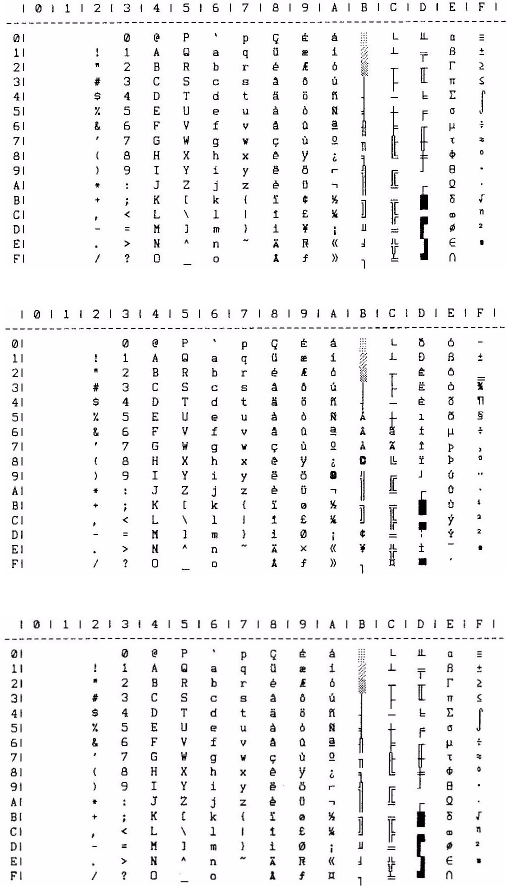
CODE PAGE TABLES > 261
CODE PAGE TABLES
USA
Multilingual
Norway
280ErGB.book Page 261 Monday, June 21, 2004 10:30 AM
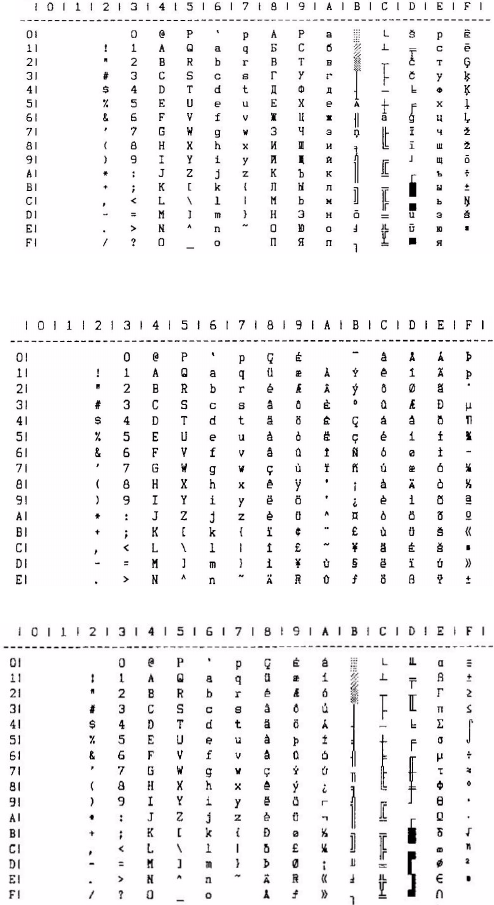
CODE PAGE TABLES > 262
Cyrillic Latvian
Roman - 8
Icelandic
280ErGB.book Page 262 Monday, June 21, 2004 10:30 AM
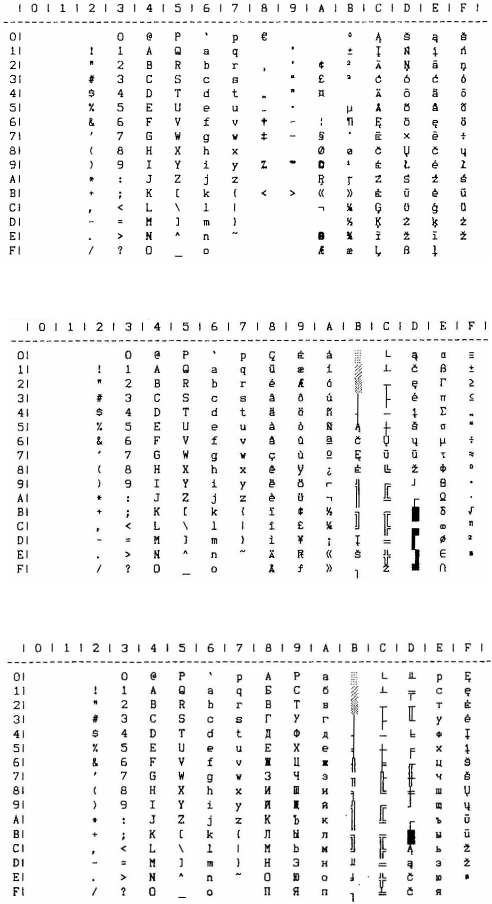
CODE PAGE TABLES > 263
Windows Baltic
Baltic 774
KBL - Lithuanian
280ErGB.book Page 263 Monday, June 21, 2004 10:30 AM
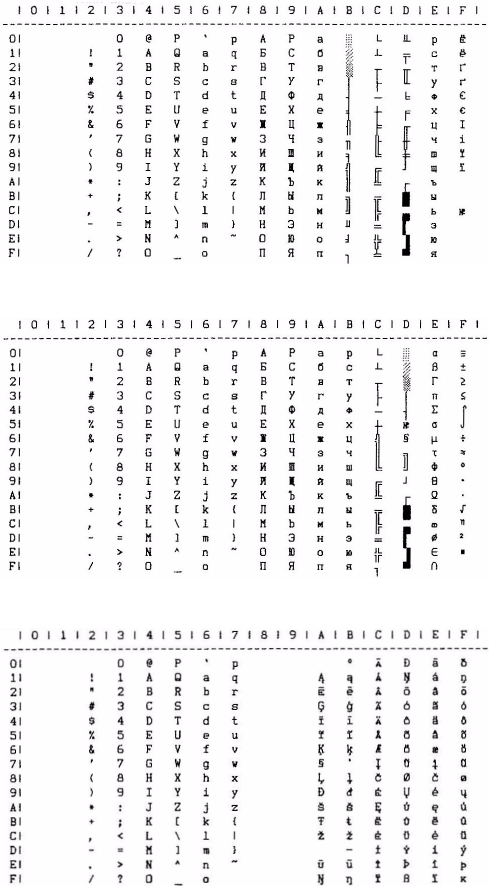
CODE PAGE TABLES > 264
Ukranian
Bulgarian
ISO Latin 6
280ErGB.book Page 264 Monday, June 21, 2004 10:30 AM
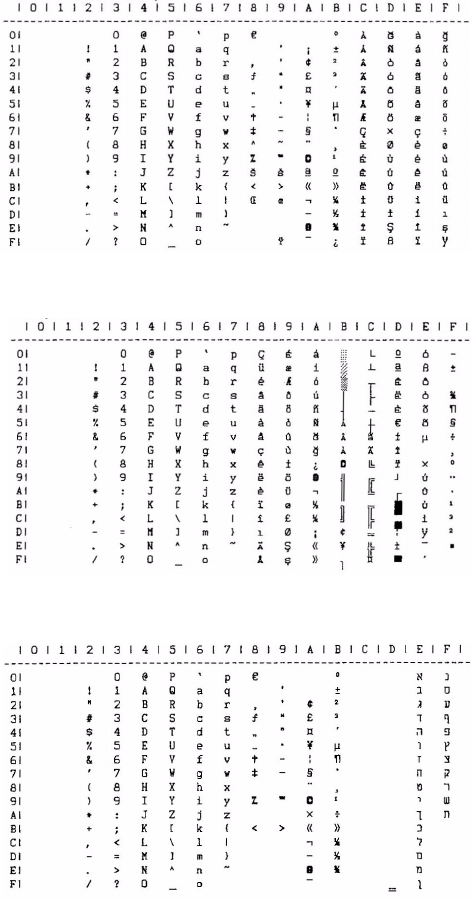
CODE PAGE TABLES > 265
Latin 5 (Windows Turkey)
Turkey 857
Windows Hebrew
280ErGB.book Page 265 Monday, June 21, 2004 10:30 AM
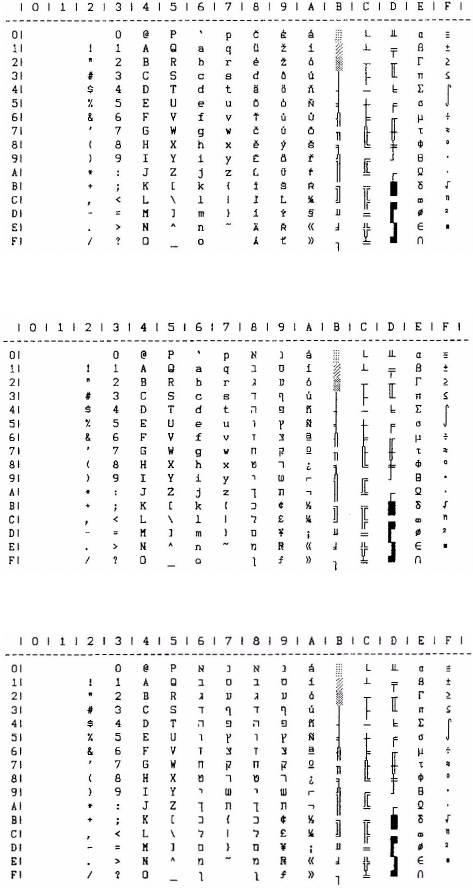
CODE PAGE TABLES > 266
Kamennicky (MJK)
Hebrew NC (862)
Hebrew OC
280ErGB.book Page 266 Monday, June 21, 2004 10:30 AM
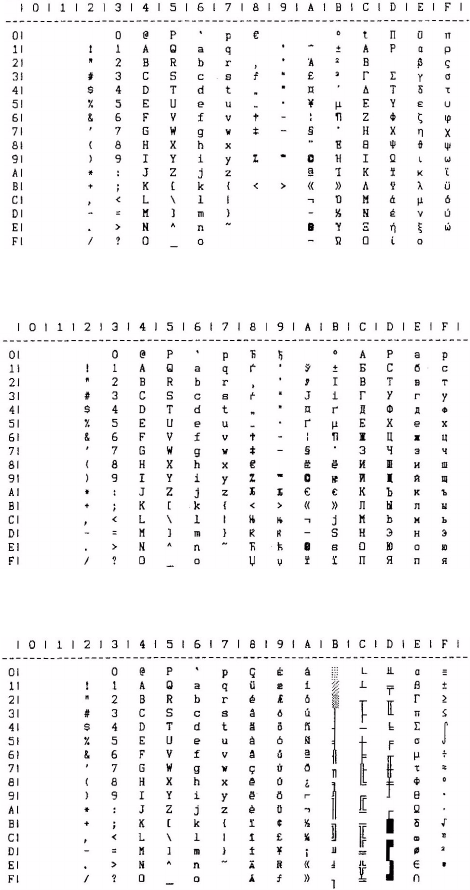
CODE PAGE TABLES > 267
Windows Greek
Windows Cyrillic
Hungarian CWI
280ErGB.book Page 267 Monday, June 21, 2004 10:30 AM
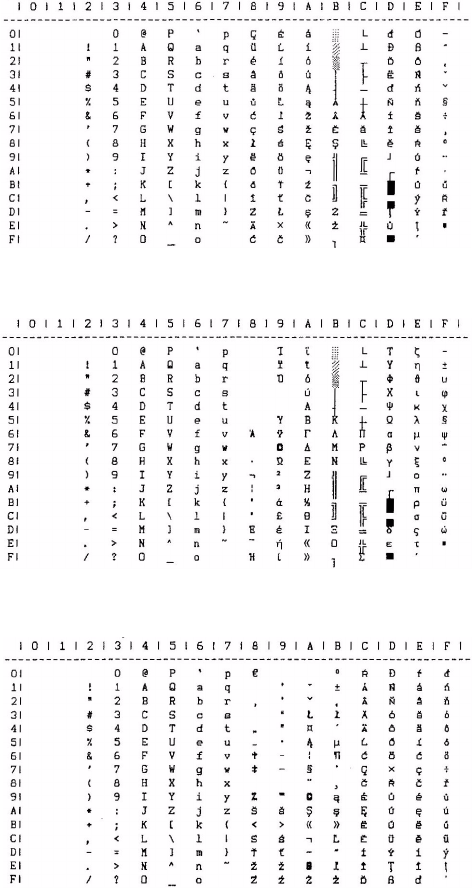
CODE PAGE TABLES > 268
E_E_Latin II–852
Greek_869
Windows East Europe
280ErGB.book Page 268 Monday, June 21, 2004 10:30 AM
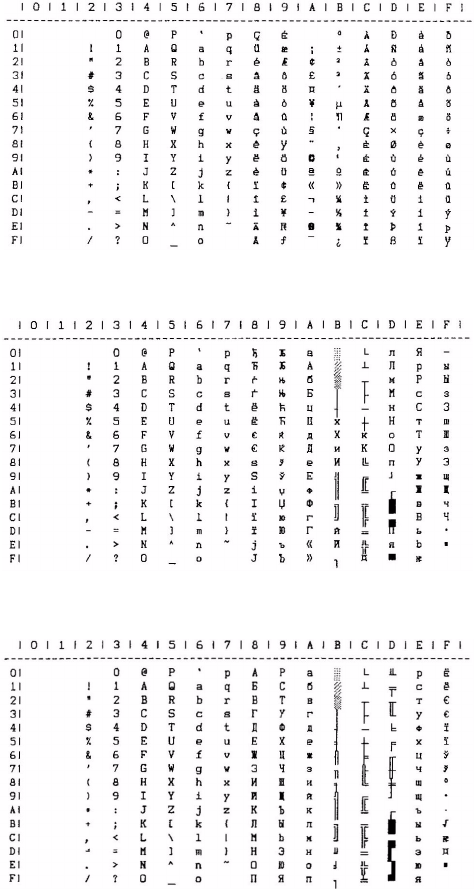
CODE PAGE TABLES > 269
ECMA–94
Cyrillic I–855
Cyrillic II–866
280ErGB.book Page 269 Monday, June 21, 2004 10:30 AM
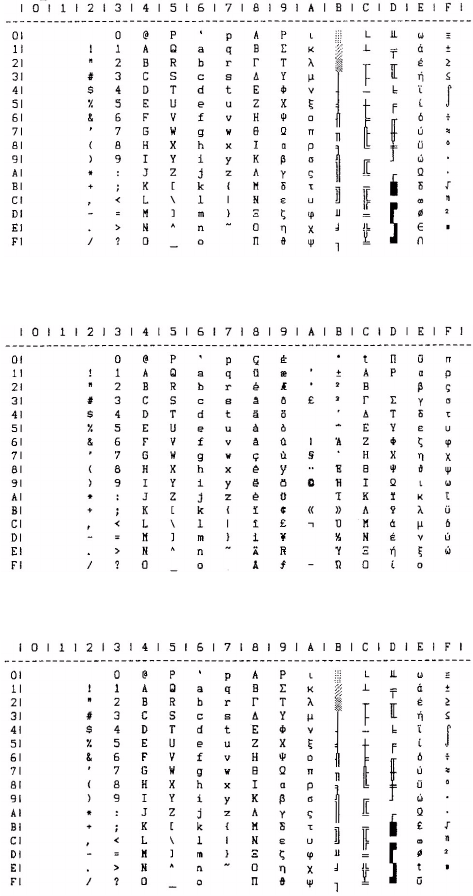
CODE PAGE TABLES > 270
Greek_437
Greek_928
Greek_437 Cyprus
280ErGB.book Page 270 Monday, June 21, 2004 10:30 AM
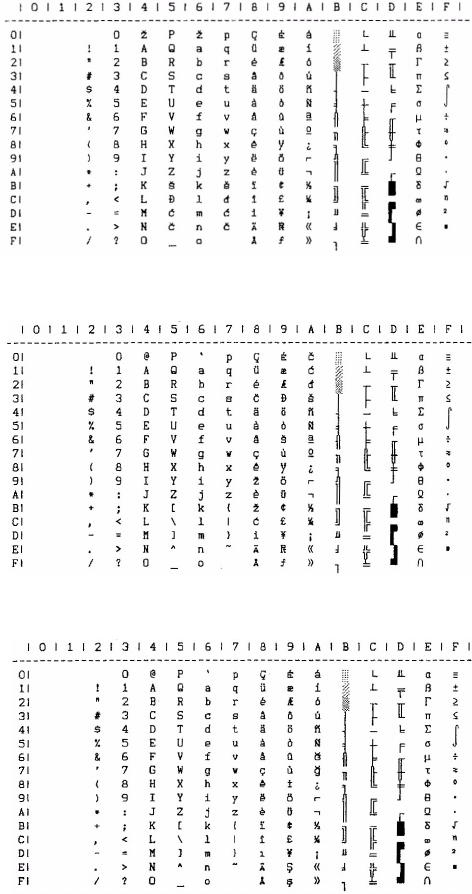
CODE PAGE TABLES > 271
Serbo Croatic I
Serbo Croatic II
Turkey
280ErGB.book Page 271 Monday, June 21, 2004 10:30 AM
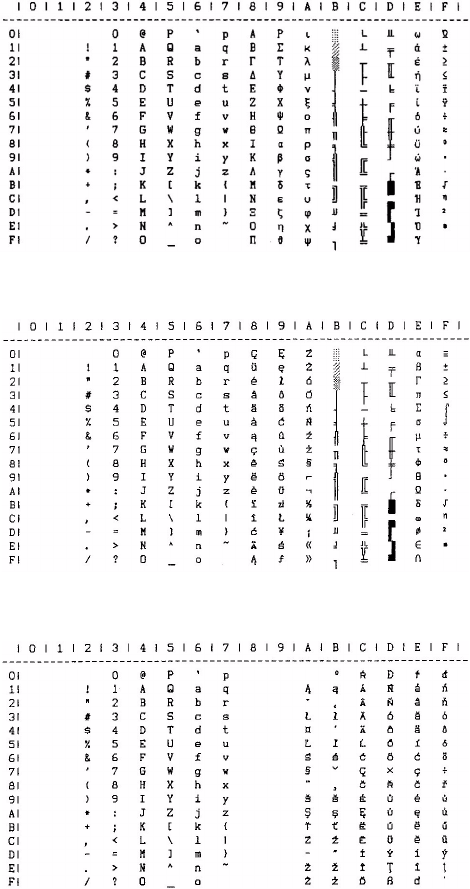
CODE PAGE TABLES > 272
Greek_737
Polska Mazovia
ISO Latin 2
280ErGB.book Page 272 Monday, June 21, 2004 10:30 AM
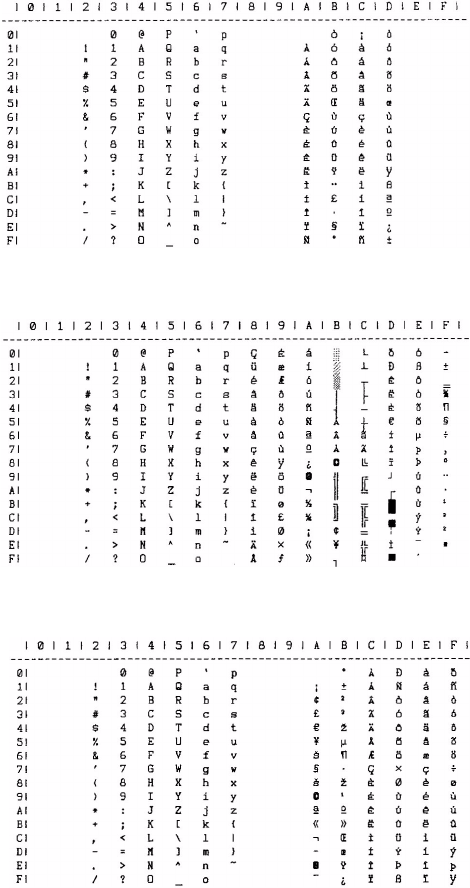
CODE PAGE TABLES > 273
Abicomp
Multi lingual 858
ISO 8859/15
280ErGB.book Page 273 Monday, June 21, 2004 10:30 AM
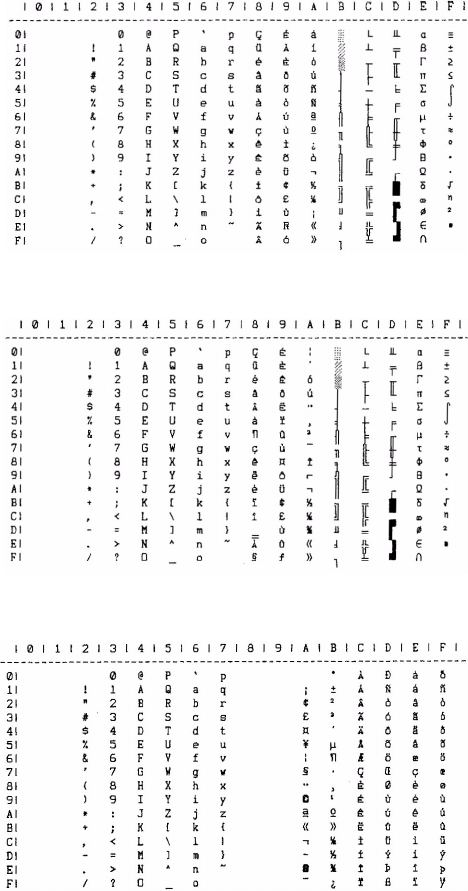
CODE PAGE TABLES > 274
Portugal
Canada French
BRASCII
280ErGB.book Page 274 Monday, June 21, 2004 10:30 AM
MEDIA SPECIFICATION > 275
MEDIA SPECIFICATION
ABOUT PAPER:
Using unsuitable or damaged paper will result in the paper feed
becoming unstable, and a paper jam, paperfold or printing deviation
may occur. In an extreme case, this can break the dot wire pin.
Do not use paper that:
lIs extremely thin or thick paper (does not satisfy the paper
specification)
lIs too small or big paper (does not satisfy the paper
specification)
lHas a cut-out or window (envelopes)
lIs pinned together by pin, clip or staple
lHas its’ glued surface exposed, or is wrinkled or peeled apart
lHas a raised surface (with a relief)
lIs continuous paper which is folded at a line other than the
normal horizontal perforation line
lIs copy paper having different-size original and carbon papers,
or a set of copy papers in which the number of copy papers is
different
lHas its edge or corners torn
PRE-PRINTED PAPER
On pre-printed paper, pay particular attention to the following points:
lWhen printing on a pre-printed paper, check that there are no
problems with print quality, by testing it in advance (If the
reflectance of a part of the pre-printed section becomes 60%
or less (especially on black), paper detection sensors in the
printer may not detect the paper).
280ErGB.book Page 275 Monday, June 21, 2004 10:30 AM
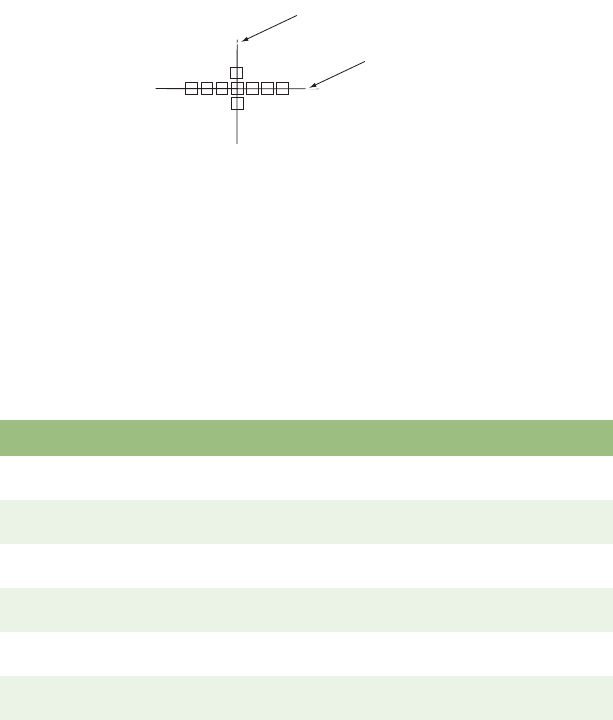
MEDIA SPECIFICATION > 276
lPaper sheets must not stick to each other. This can occur if the
printing ink of the pre-painted papers is gummy or its drying is
incomplete.
lWhen pre-printing a vertical or horizontal border, allow space
for the borders to be positioned at the center of characters and
lines (as shown below). This provides easy setting of the paper
position in the printer and allows for paper misalignment.
PAPER STORAGE CONDITIONS
lStore paper under correct environmental conditions (10 –
30 °C and 30 – 70% relative humidity).
lWhen there is a difference between the environmental
conditions of the storage and usage locations, only use the
paper after conditioning it to the usage environment.
MEDIA TYPE AND SPECIFICATION
Type of paper Guaranteed Comments
Continuous paper YES See “Continuous paper” on
page 281.
Continuous paper with
binding holes
Should be OK, but not
guaranteed
See “Binding hole” on page 290.
Continuous paper with
corner cut
Should be OK, but not
guaranteed
See “Cut Corners” on page 291.
Cut-Sheet paper Yes See “Cut-Sheet Paper” on
page 292.
Cut-Sheet paper with
horizontal perforation line
Should be OK, but not
guaranteed
See “Perforations” on page 282.
Label Paper Should be OK, but not
guaranteed
See “Label paper” on page 297.
123
ABC123
ABC
Vertical Border
Horizontal Border
280ErGB.book Page 276 Monday, June 21, 2004 10:30 AM
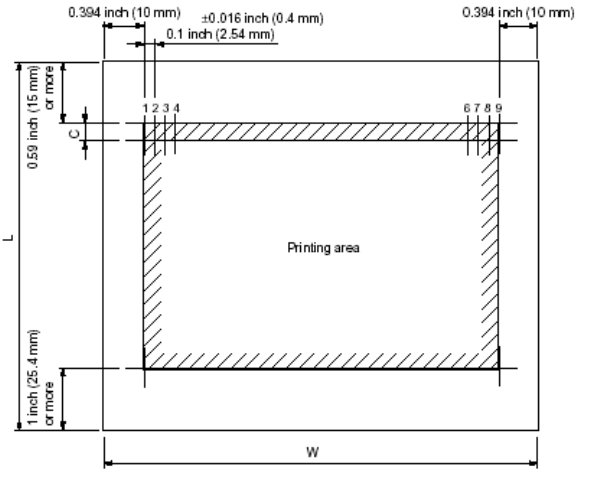
MEDIA SPECIFICATION > 277
RIBBON SPECIFICATIONS
Use genuine OKI cartridge ribbons.
Ink colour: Black.
Ribbon life: Approximately 3 million characters (Re-inking
cartridge). (Utility mode)
PAPER SPECIFICATION - OVERVIEW
CUT-SHEET PAPER
Standard size:
8.5 inches (wide) × 11 inches (long) (U.S).
A4: 10 mm (wide) × 297 mm (long)] (Europe).
When paper width is 8.5 inches or less, a weight 16 to 20 lb. (60 to
75 g/m²) is preferable. Multiple-part cut-sheet cannot be used.
280ErGB.book Page 277 Monday, June 21, 2004 10:30 AM

MEDIA SPECIFICATION > 278
SPROCKET FED PAPER
The tractor feed unit can handle sprocket paper of the following width:
3 to 9.5 inches (76.2 to 241.3 mm) (option)
Use the variable pin platen for sprocket paper width of 9.5 to 10
inches (241.3 to 254 mm) edge-to-edge.
One-part paper:
Weight: 14 to 20 lb. (52 to 75 g/m²)
Multiple-part paper:
0.011 inch (0.28 mm) or less total thickness .
Multiple-part paper should be fastened by spot-pasting or crimping on both sides,
and should be free of wrinkles.
NOTES
lStandard paper size:
A4; 8.268 inches × 11.693 inches (210 × 297 mm) – Europe
8.5 inches × 11 inches (215.9 × 279.4 mm) – U.S.A.
lPaper width (W): 7.2 inches (182 mm) to 8.5 inches (215.9 mm)
lPaper length (L): 14 inches (356 mm) or less
lPaper weight: 16 to 24 lb. (60 to 90 g/m²)
lLine feed pitch (C): 0.167 inch (4.23 mm) (6 LPI)
0.125 inch (3.18 mm) (8 LPI) is selectable.
lPaper must be free of folds and bends.
lNo multiple-part cut-sheet paper can be used.
Ream weight Number of sheets
Carbon lined paper 9 to 11lbs.
(35 to 40g/m²)
Up to 4 (including the original)
Pressure sensitive paper 9 to 11lbs.
(35 to 40g/m²)
Up to 4 (including the original)
Interleaved paper 14lbs.
(52g/m²)
9lbs.
(35g/m²)
Up to 3 (including the original)
Up to 4 (including the original)
280ErGB.book Page 278 Monday, June 21, 2004 10:30 AM
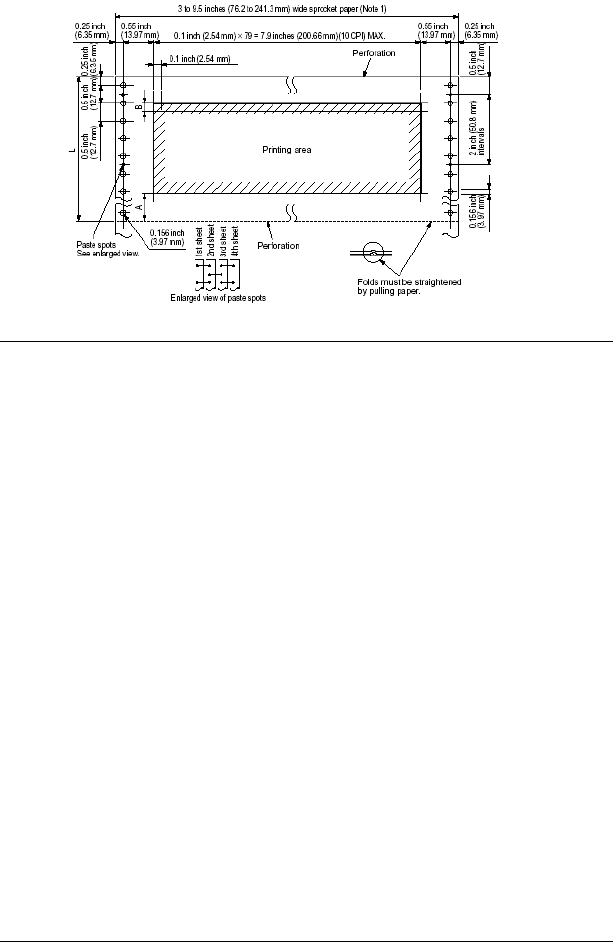
MEDIA SPECIFICATION > 279
NOTES
lUse the tractor feed unit for paper that is 3 inches (76.2 mm) to 9.5
inches (241.3 mm) wide. Use the variable pin platen for paper of 9.5
inches (241.3 mm) to 10 inches (25.4mm) width.
lL: An integer multiple of 1 inch (25.4 mm).
lA: Allow a margin of 0.665 inch (16.9 mm, four lines in 6-LPI mode)
before and after perforations to prevent printout from being affected
by perforations.
When the paper cutter (access cover) is used, the margin between the
printing line and cut line is 0.917 inch (23.28 mm).
lA line feed pitch of 0.167 inch (4.23 mm) (6 LPI) or 0.125 inch (3.18
mm) (8 LPI) is selectable.
lThe right margin sprocket holes can only be horizontally oval.
lWeight:
(a) One-part paper: 14 to 20 lb. (52 to 75 g/m2).
(b) Multiple-part paper: Carbon-lined paper or pressure-sensitive
paper of 9 to 11 lb. (35 to 40 g/m2) ream weight – up to four sheets,
including the original, can be used.
The thickness of multiple-part paper should be 0.011 inch (0.28 mm)
or less.
lMultiple-part paper should be fastened by spot-pasting or crimping
on both sides, and should be free of wrinkles.
280ErGB.book Page 279 Monday, June 21, 2004 10:30 AM
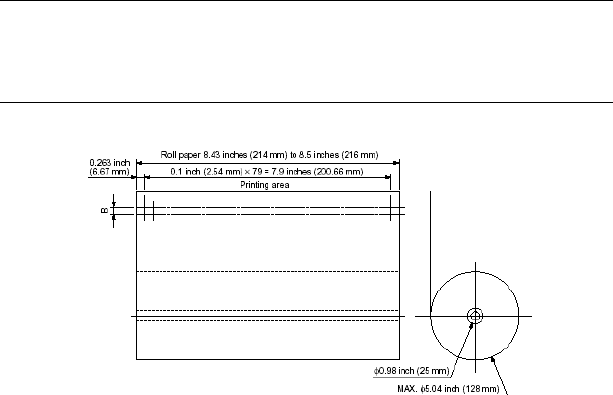
MEDIA SPECIFICATION > 280
ROLL PAPER
Outside diameter: 5.04 inches (128 mm), maximum
Paper path: 8.43- to 8.5-inch (214 to 216 mm)
Core inside diameter: 0.98 inch (25 mm)
Weight: 14 to 17 lb. (52 to 64 g/m2)
Line feed pitch (B): 0.167 inch (4.23mm)(6LPI) or 0.125 inch
(3.18mm)(8LPI) is selectable.
NOTE
lMulti-part paper cannot be used.
lThe roll paper stand (option) must be used.
280ErGB.book Page 280 Monday, June 21, 2004 10:30 AM
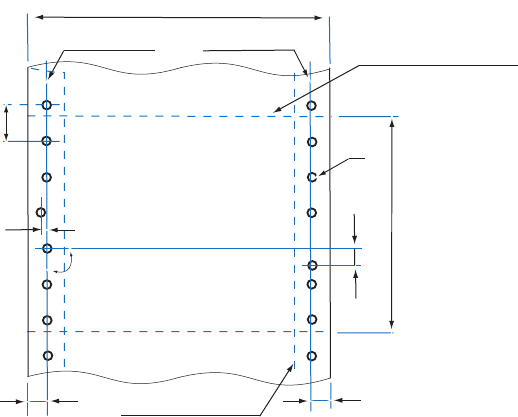
MEDIA SPECIFICATION > 281
PAPER SPECIFICATION - DETAIL
CONTINUOUS PAPER
Continuous paper should be folded paper with sprocket holes.
Vertical and horizontal dimensions
(Measurement conditions: Temperature 20 °± 2%C; Humidity 65 % ± 2%)
1. Vertical dimension (T)
Standard – 279.4mm (11"); Tolerance ±0.5mm.
See “Paper size and printing range” later in this chapter, about the
available area.
2. Horizontal dimension (Y)
Standard 1 – 254.0mm (10"); Tolerance ±0.5mm.
Standard 2 – 381.0mm (15"); Tolerance ±0.5mm.
See “Paper size and printing range” later in this chapter, about
available area.
3. Fold dimension
Y
A
B
C
D
E
A
Centre Line Horizontal perforation line
Vertical perforation line
T
90˚
280ErGB.book Page 281 Monday, June 21, 2004 10:30 AM
MEDIA SPECIFICATION > 282
The vertical dimension should be standard and the horizontal
perforation line should be used for zigzag folding.
Position and size of feed (sprocket) holes
Footnotes:
1. The centre line is a line produced by linking 2 arbitrary sprocket holes approx.
254mm apart vertically.
2. The shape of sprocket should be circular at both right and left sides. However,
a slight ovality is permitted on the right-hand side.
3. The maximum permitted left – to – right ovality is:
4. Make sure that the paper does not have any residue from sprocket hole
punching (punch dust).
Perforations
The dimensions of perforations should be able to withstand maximum
paper feed speed but should be able to be cut easily.
Continuous paper between perforations should be sound and should
not be torn. Folded lines of blank forms tend to tear easily and paper
should be inspected for this.
Item Size (mm) Remarks
Measurement between the
centre line of the sprocket
holes and the edge of the
paper
A 6.35 ± 0.7 6.35mm average
Sprocket hole diameter D4.0 ± 0.1 Diameter of sprocket holes.
Vertical distance between
sprocket hole centres
B 12.70 ± 0.05 Vertical distance between centres of
adjacent sprocket holes.
Total error of measurement –± 0.3 or less Between the sprocket holes chosen
Sprocket hole centre
horizontal deviation
C <0.1 Deviation between sprocket hole
centre and the average vertical centre
line
Sprocket hole centre vertical
deviation
C<0.1 Deviation between a sprocket hole
centre and the centre line of the left/
right corresponding sprocket hole
4 - 0.1
6 - 0.1
(mm)
280ErGB.book Page 282 Monday, June 21, 2004 10:30 AM
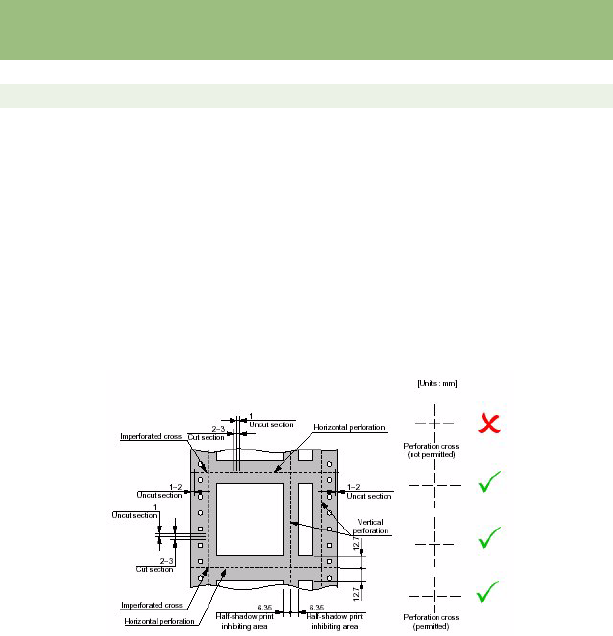
MEDIA SPECIFICATION > 283
The most appropriate ratio of the perforated area to the continuous
area of scored forms should consider the paper quality, ream weight
and number of copies required. The following choices are
recommended:
Horizontal perforation
Ensure unperforated margins of 1 – 2mm at top and bottom.
Vertical perforation
Where vertical perforations are made within the printing range,
ensure an unprintable margin of 6.35mm (1/4inch) on both side of the
perforation line.
In order to prevent tearing, ensure that the vertical and horizontal
perforation lines do not cross at a perforation.
PAPER SIZE AND PRINT AREA
Continuous sprocket fed paper (fan fold paper)
The tractor feed unit can handle sprocket paper of the following width:
3 to 9.5 inches (76.2 to 241.3 mm) (option)
Number of
copies
Length of each
perforation
Length of each
continuous section
Horizontal perforation 1 ~ 6 2 ~ 3mm 1mm
Vertical perforation 1 ~ 6 3mm 1mm
280ErGB.book Page 283 Monday, June 21, 2004 10:30 AM
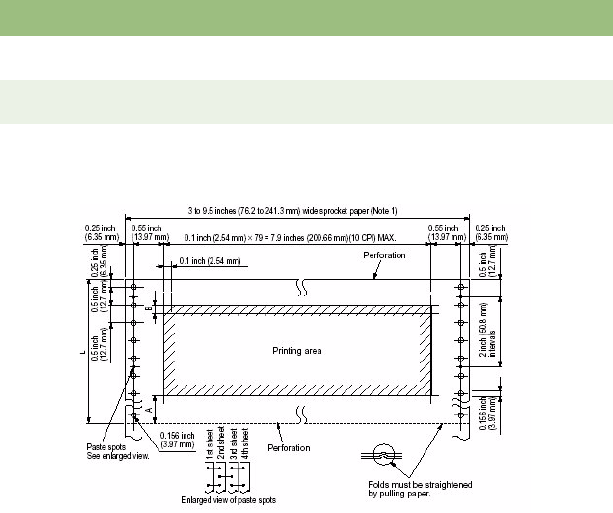
MEDIA SPECIFICATION > 284
Single–part paper:
Weight: 14 to 20 lb. (52 to 75 g/m²)
Multiple-part paper:
Use 0.011 inch (0.28 mm), or less, total thickness.
Type of paper Ream Weight Number of sheets
Carbon lined 9 to 11lb
(35 to 40g/m²)
Up to 4 (including the original)
Pressure sensitive 9 to 11lb
(35 to 40g/m²)
Up to 4 (including the original)
Interleaved paper 14lb (52g/m²
9lb (36g/m²
Up to 3 (including original)
Up to 4 (including original)
280ErGB.book Page 284 Monday, June 21, 2004 10:30 AM

MEDIA SPECIFICATION > 285
PAPER REAM WEIGHT
1. Single-part paper
(a) Ream weight:
52 to 75 g/m² (14 to 20 lbs)
(b) Surface coarseness:
Sheffield 75 ~ 300 sec
Beek 90 ~ 7 sec
(c) Paper thickness:
0.07 – 0.1mm (0.003 – 0.004 inches)
NOTES
lUse the tractor feed unit for paper that is 3 inches (76.2 mm) to 9.5
inches (241.3mm) wide. Use the variable pin platen for paper of 9.5
inches (241.3mm) to 10inches (25.4mm) wide.
lL = An integer multiple of 1 inch (25.4 mm).
lA = Allow a margin of 0.665 inch (16.9 mm, four lines in 6-LPI mode)
before and after perforations to prevent printout from being affected.
When the paper cutter (access cover) is used, the margin between
the printed line and cut line is 0.917 inch (23.28 mm).
lB = Line feed pitch is 0.167 inch (4.23 mm) for 6 LPI, or 0.125 inch
(3.18 mm) if 8 LPI is selected.
lThe right margin sprocket holes must meet the specification for
horizontal ovality.
lWeight
(a) Single-part paper: 14 to 20 lb. (52 to 75 g/m²).
(b) Multiple-part paper: Carbon-lined paper or pressure-sensitive
paper of 9 to 11 lb. (35 to 40 g/m²) ream weight: Up to four sheets,
including the original, can be used.
The thickness of multiple-part paper should be 0.011 inch (0.28
mm) or less.
lMultiple-part paper should be fastened by spot-pasting or crimping
on both sides, and should be free of wrinkles.
280ErGB.book Page 285 Monday, June 21, 2004 10:30 AM
MEDIA SPECIFICATION > 286
2. Multiple-part paper:
MAXIMUM PAPER THICKNESS
Rear feed – 0.36mm (0.014 inches).
Bottom feed – 0.44mm (0.017 inches).
LAMINATING COPY FORMS
There are two methods laminating copy forms, either dot gluing or
stapling.
If there is a problem with layer deviation (print deviation between the
top and bottom layers), employ the dot gluing method (Paper staple
method may cause a layer deviation of about 4mm).
The use of metallic staples is strictly prohibited.
Paper type Ream weight Number of sheets
Carbon-lined paper 9 to 11lb
(35 to 40g/m²)
Up to 4 (including the original) with rear feed
Pressure sensitive 9 to 11lb
(35 to 40g/m²)
Up to 6 (including the original) with bottom
feed
Interleaved paper
With carbon paper
9 to 11lb
(35 to 40g/m²)
9lb (35g/m²)
Up to 4 (including original) with rear feed
Up to 5 (including the original) with bottom
feed
NOTES
lThe printer can handle multi-part continuous forms with a total
thickness of 0.36mm (0.014 inches) or less with rear feed, 0.44mm
(0.017 inches) or less with bottom feed.
lCarbon paper should be of 35 g/m² (9 lbs) with a thickness of
0.04mm or less.
lMultiple-part paper should be fastened by spot-pasting or crimping
on both sides, and should be free of wrinkles.
280ErGB.book Page 286 Monday, June 21, 2004 10:30 AM
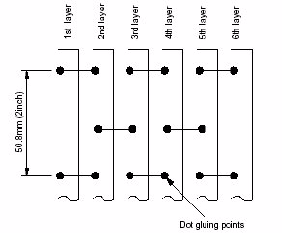
MEDIA SPECIFICATION > 287
1. Dot gluing
(a) When using the dot gluing method, always glue both
ends. Single end gluing should not be used.
(b) Dot glued sections should be uniform and the area
should be 3 to 5mm. Dot glued sections should always
be pressed to eliminate bubbles. Avoid any prominent
wrinkles.
(c) Refer to the drawing below for advice on dot gluing
positions.
(d) Layout dot gluing in offset lines on alternate layers.
280ErGB.book Page 287 Monday, June 21, 2004 10:30 AM
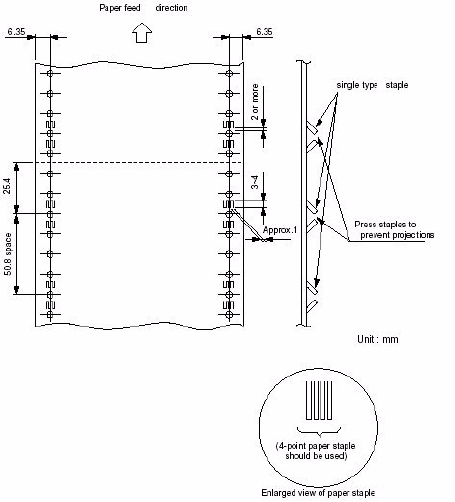
MEDIA SPECIFICATION > 288
2. Paper staples
(a) When using paper staples, always staple both ends.
(b) Always apply paper staples from the front of blank forms
and ensure that no projection remains on the front
surface of the paper.
(c) Paper staples should always be securely fixed and
paper should be perfectly flat.
(d) Use single paper staples, in the paper feed direction.
(e) When stapling is complete, press the stapled layers to
prevent projections.
280ErGB.book Page 288 Monday, June 21, 2004 10:30 AM
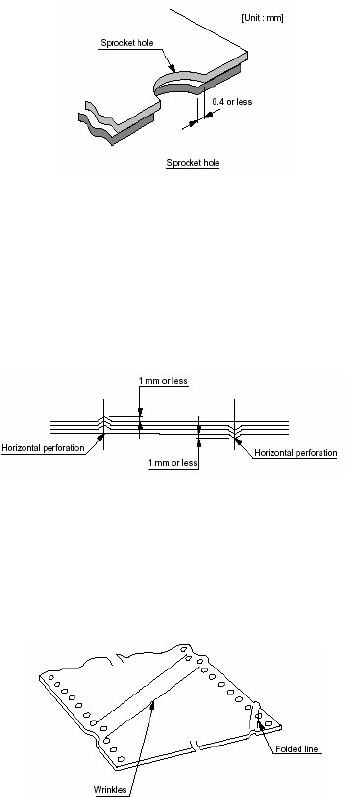
MEDIA SPECIFICATION > 289
SPROCKET HOLES
The shape of sprocket holes should be a true circle although the
peripheral edges may be toothed. The edges should be flat.
Ensure that the deviation of sprocket holes between layers or carbon
papers is 0.4 mm or less.
PROJECTIONS ON HORIZONTAL PERFORATIONS
When using carbon papers, projections on the horizontal perforation
line should be 1 mm or less in height.
If there are projections, the quality of print may deteriorate, the paper
feed become unstable, or a paper jam occur.
WRINKLES AND FOLDED LINES
Always use paper free from wrinkles and folded lines, especially, with
new paper. Discard a few pages at the beginning and end of a paper
stack since this is where wrinkles and folded lines tend to occur.
280ErGB.book Page 289 Monday, June 21, 2004 10:30 AM
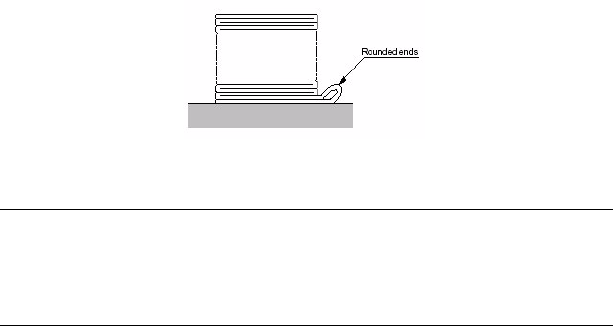
MEDIA SPECIFICATION > 290
FOLDED ENDS OF THE PAPER
Fold paper alternately at the horizontal perforation line. Do not use
paper where the ends have become rounded after folding (as
illustrated below) since it will have an adverse effect on paper feeds.
BINDING HOLE
When use of it is unavoidable, check that there are no problems by
testing it in advance.
Notes on using paper with binding holes are given below.
(a) Do not print within surrounding 5 mm of binding hole.
(b) Check that no punch dust from binding holes remains on
the paper.
(c) If the paper detection switch recognises a binding hole,
it may interpret this hole as the paper end. This may also
be interpreted as a paper thickness error.
(d) Check it there are no projections on the edge of any
binding holes. If there are projections, they may be
caught on the carriage.
(e) See the figure below regarding the position of binding
holes.
NOTE
Wherever possible, do not use paper with binding holes as it will
invalidate the printer warranty. Should a problem arise due to it’s use,
the equipment or its performance cannot be guaranteed.
280ErGB.book Page 290 Monday, June 21, 2004 10:30 AM
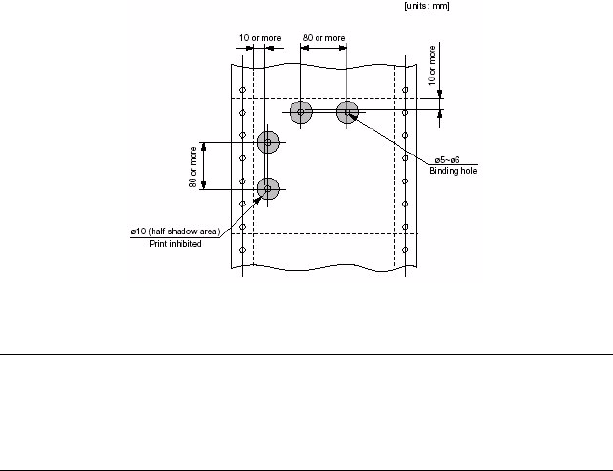
MEDIA SPECIFICATION > 291
CUT CORNERS
When use of it is unavoidable, check that there are no problems by
testing it in advance.
Notes on using paper with cut corners are given below.
(a) Do not print within the shaded area around a cut corner
(shown in the figure below).
(b) Check that no punch dust from the corner cut remains on
the paper.
(c) Do not connect horizontal/vertical perforation area to
the surroundings of a corner cut in order to prevent
paper peeling.
(d) If the paper detection switch recognises a corner cut, it
may interpret this area as the paper end or a paper jam.
This may also be interpreted as a paper thickness
measuring error.
(e) See the figure below regarding the position of corner
cuts.
NOTE
Wherever possible, do not use paper with cut corners as it will invalidate
the printer warranty. Should a problem arise due to it’s use, the
equipment or its performance cannot be guaranteed.
280ErGB.book Page 291 Monday, June 21, 2004 10:30 AM
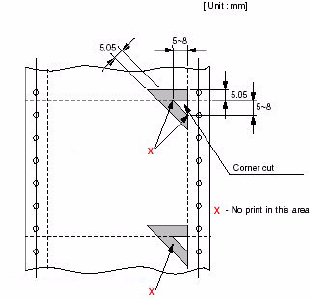
MEDIA SPECIFICATION > 292
CUT-SHEET PAPER
PAPER SIZE AND PRINTABLE RANGE
Standard size: 8.5 inches (wide) × 11 inches (long) – U.S.
A4 size 210 mm (wide) × 297 mm (long)] –
Europe
If paper width is 8.5 inches or less, a weight 16 to 20 lb. (60 – 75 g/
m²) is preferable.
280ErGB.book Page 292 Monday, June 21, 2004 10:30 AM
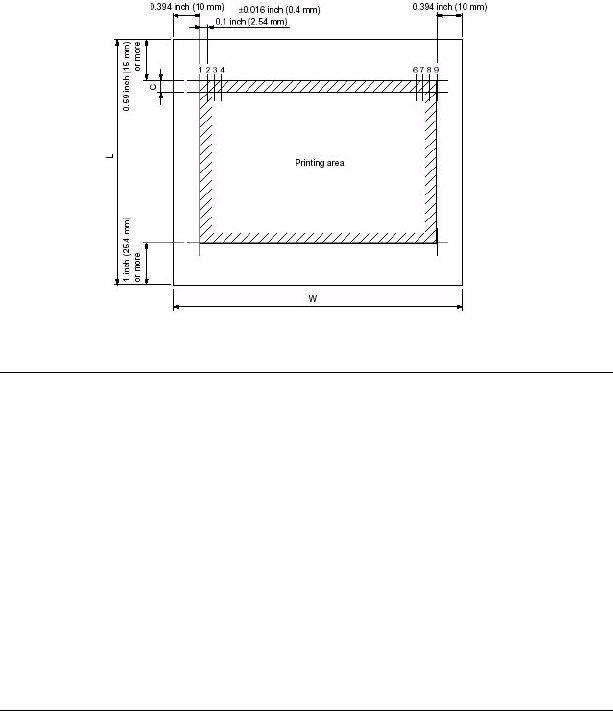
MEDIA SPECIFICATION > 293
Multiple-part cut-sheet cannot be used.
PAPER QUALITY
Using friction feed SASF
(a) Ream Weight
60 ~ 90 g/m2 (16 – 24 lbs)
(b) Surface coarseness
NOTES
lStandard paper size:
A4; 8.268 inches × 11.693 inches (210 × 297 mm) – Europe
8.5 inches × 11 inches (215.9 × 279.4 mm) – U.S.A.
lPaper width (W): 7.2 inches (182 mm) to 8.5 inches (215.9 mm).
lPaper length (L): 14 inches (356 mm) or less.
lPaper weight: 16 to 24 lb. (60 to 90 g/m²).
lLine feed pitch (C): 0.167 inch (4.23 mm) (6 LPI) or 0.125 inch (3.18
mm) (8 LPI) can be selected.
lPaper must be free of folds and bends.
lMultiple-part cut-sheet paper cannot be used.
280ErGB.book Page 293 Monday, June 21, 2004 10:30 AM
MEDIA SPECIFICATION > 294
Sheffield: 75 ~ 300 sec
Beek: 7 ~ 90 sec
(c) Paper thickness
0.08 ~ 0.11 mm (0.003 ~0.004 inches)
Using a CSF
(a) Ream Weight
60 ~ 90 g/m2 (16 – 24 lbs)
(b) Surface coarseness
Sheffield: 75 ~ 300 sec
Beek: 7 ~ 90 sec
(c) Paper thickness
0.08 ~ 0.11 mm (0.003 ~0.004 inches)
PERFORATED LINES
When use of it is unavoidable, check that there are no problems by
testing it in advance.
Notes on using paper with perforated lines are shown below.
1. Specifications for perforated lines in cut–sheet paper are the
same as those for perforated lines in fan-fold paper.
2. Do not print within the shaded area around the perforated
lines.
NOTES
lUse white, fine-quality paper.
lDo not use folded paper or malformed paper.
NOTE
Wherever possible, do not use paper with perforated lines as it will
invalidate the printer warranty. Should a problem arise due to its’ use,
the equipment or its performance cannot be guaranteed.
280ErGB.book Page 294 Monday, June 21, 2004 10:30 AM
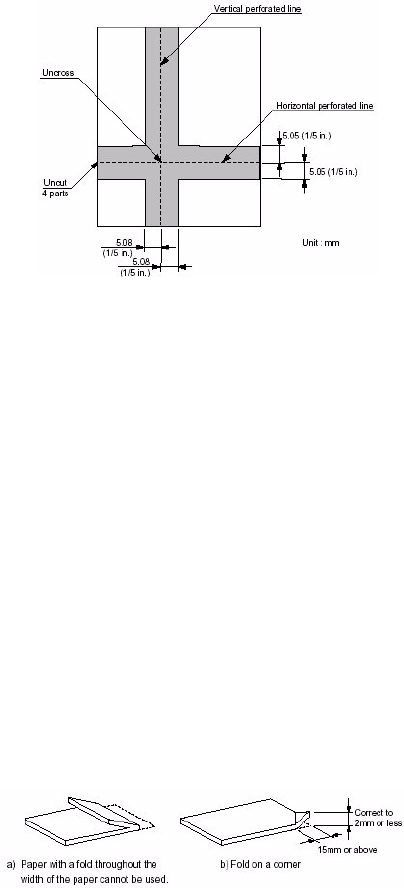
MEDIA SPECIFICATION > 295
The figure below shows an example of a paper with perforated lines.
RULES FOR FOLDS, BENDS, AND CURLS IN CUT-SHEET PAPER
Cut-sheet paper can easily fold, bend, or curl when being handled,
carried, or stacked.
Asses the condition of the paper to the following specifications.
Do not use paper that is outside these specifications, as it could
adversely affect paper feed. The printer or its’ performance cannot be
guaranteed in this instance.
1. Folds
(a) Paper with a fold that runs throughout the width of the
paper cannot be used. (Such a condition cannot be
corrected entirely).
(b) For folded corners, paper can be used if the fold is 2mm
or less after being corrected.
However, such paper cannot be used with automatic
feeders, such as a cut-sheet feeder, even after
correcting.
280ErGB.book Page 295 Monday, June 21, 2004 10:30 AM
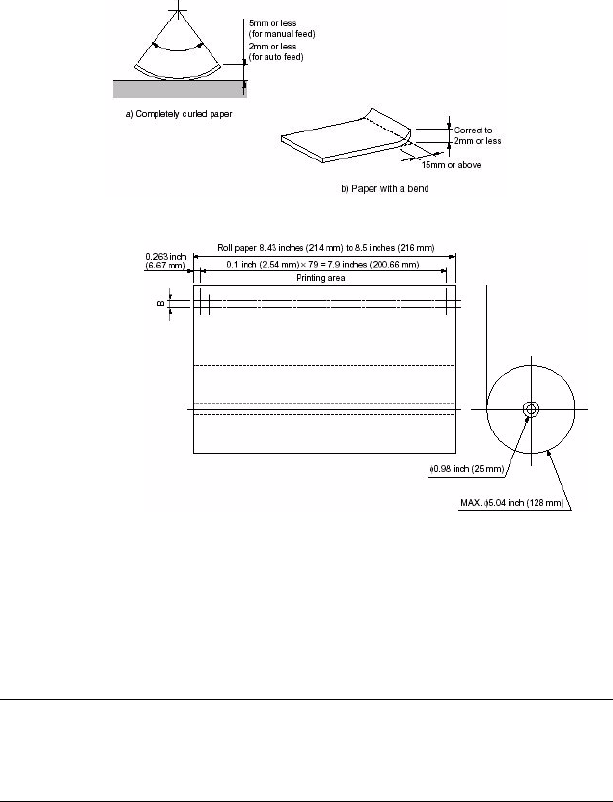
MEDIA SPECIFICATION > 296
2. Bends and curls
(a) Paper that curls in a natural state can be used if the curl
is 5mm or less using manual feed and 2mm or less using
auto-feed such as a CSF.
(b) Paper where the bend is 2mm or above within 15mm
from the bend point cannot be used.
ROLL PAPER
Outside diameter 5.04 inches (128 mm), maximum
Paper path 8.43- to 8.5-inch (214 to 216 mm)
Core inside diameter 0.98 inch (25 mm)
Weight 14 to 17 lb. (52 to 64 g/m2)
Line feed pitch (B)
(selectable
0.167 inch (4.23mm)(6LPI) or
0.125 inch (3.18mm)(8LPI)
NOTE
lMultiple-part paper cannot be used.
lThe roll paper stand (option) must be used.
280ErGB.book Page 296 Monday, June 21, 2004 10:30 AM
MEDIA SPECIFICATION > 297
LABEL PAPER
Label paper is a base single continuous paper to which an adhesive
coating is applied. This coating is also applied to the labels which are
fixed on it. It is essential that the shrinkage difference due to
temperature change between the labels and base paper is low, and
stickiness and durability is higher and the entire adhesive layer is
uniform.
1. Size
Base paper size:
Maximum: 216mm (8.5 inches) x 83mm (3.25 inches).
Label should be 50 mm or more in width and 25 mm or more in
length.
Other dimensions and specifications should conform to the
specifications for Continues forms –“Sprocket holes” on
page 289.
2. Paper Thickness
Maximum 0.28mm (0.011 inches)
(Including the base paper thickness)
280ErGB.book Page 297 Monday, June 21, 2004 10:30 AM
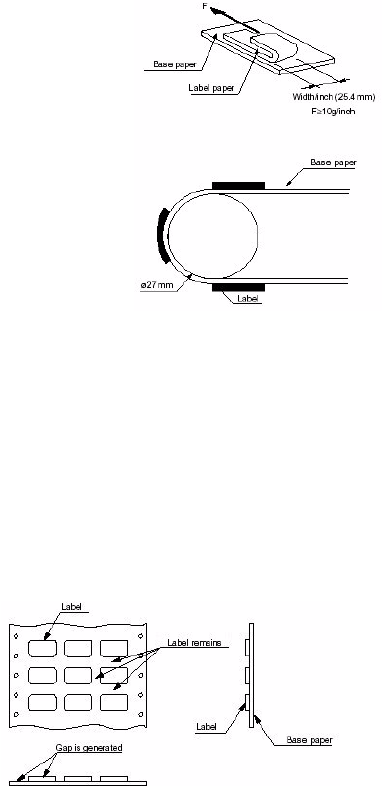
MEDIA SPECIFICATION > 298
3. Glue
Peel strength: 10g/inch or more.
The base paper choice shall be such that, when the labelled
paper is wound around 180° of a cylinder of diameter ø27, the
labels may not peel off from the base paper. In addition, the
choice of base paper must be such that labels must not peel off
during printing or paper feed.
4. Printing must not extend beyond the label edges. If it does, the
print head may be damaged. Labels must not have
perforations.
5. The paper feed route must be achieved using the pull tractor
(option) or bottom push tractor (option) only.
6. Removal of labels
Do not remove label remains from the sheet (this leaves a gap,
as shown in the figure below).
Label paper which has had the label remains removed must not
be used.
280ErGB.book Page 298 Monday, June 21, 2004 10:30 AM
MEDIA SPECIFICATION > 299
7. Label corner radius: 4.0 – 5.0 mm
8. The cut.....
(a) .....must be to the label (surface paper) only.
(b) .....corresponding to the horizontal perforation line
should be the same as the horizontal perforation line
with 1 – 2 mm uncut area from both edges.
(c) .....must provide 0.5 – 1 mm uncut area near the right
and left corner in the upper section of the label.
9. Label glue should not bleed to the surface of the label.
10. Cloth labels must not be used.
11. Do not load continuous paper with labels that are damaged,
curled or wrinkled.
12. Do not leave labels loaded in the printer between jobs. They
may curl around the platen and jam when you resume printing.
13. Because labels are sensitive to temperature and humidity, use
them only under normal operating conditions, as follows:
15 ~ 25°C (50 to 77°F) / 30 to 60%RH
280ErGB.book Page 299 Monday, June 21, 2004 10:30 AM
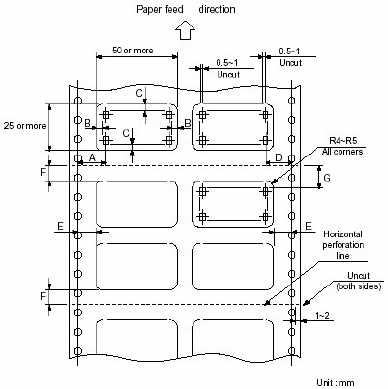
MEDIA SPECIFICATION > 300
14. Label paper must only be used with the pull-up tractor (for
bottom feed).
Paper size must conform to the specification for “Continuous paper”
on page 281.
A: 12.7 ~ 25.4 mm (1/2 ~ 1 inch)
B: 3.81 mm
C: 4 mm or more
D: 12.7 mm (1/2 inches) or more
E: 6.35 mm (1/4 inches) or more
F: 6.35 mm (1/4 inches) or more (12.7 mm or
more is desirable)
G: 10.58 mm (5/12 inches) or more (25.4 mm or
more guaranteed range for line feed precision)
280ErGB.book Page 300 Monday, June 21, 2004 10:30 AM
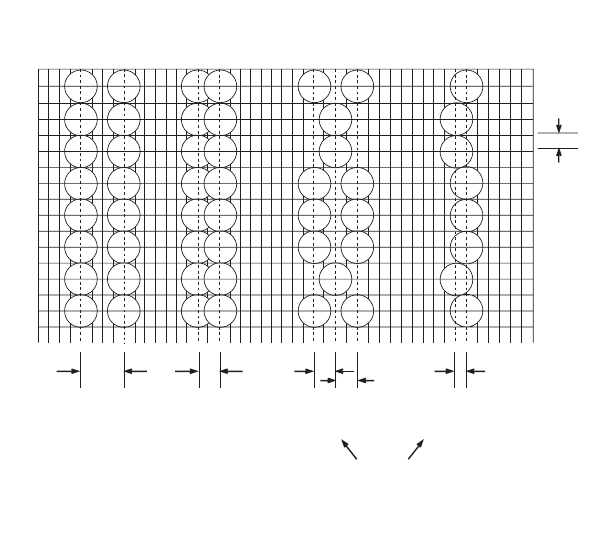
BIT IMAGE GRAPHICS – DOT DENSITY > 301
BIT IMAGE GRAPHICS – DOT DENSITY
SYMBOL SET TABLE
(No adjacent dots allowed)
1/144 inch
Double speed
quad density
Double speed
double density
DoubleSingle
D
1/60 inch DOT
D/2
1/120 inch DOT
D/2
1/120 inch DOT
D/4
1/240 inch DOT
D = 1/60 inch
280ErGB.book Page 301 Monday, June 21, 2004 10:30 AM
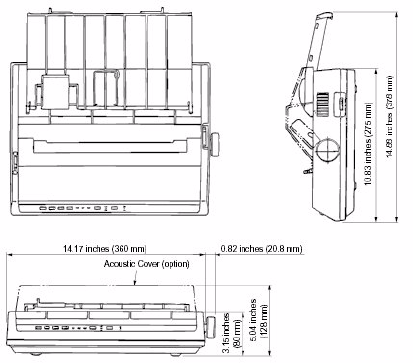
MACHINE SPECIFICATIONS > 302
MACHINE SPECIFICATIONS
OUTSIDE DIMENSIONS
14.17 inches (360 mm) (Width) × 5.04 inches (128 mm) (Height) ×
10.96 inches (278.5 mm) (Depth).
These dimensions include the platen knob, tractor feed unit and acoustic cover.
Weight: 4.5Kgs
POWER REQUIREMENTS
AC VERSION
Single phase AC
Input Voltage:
120V model:120 VAC +6%, –15%
230V model:230 VAC +15%, –14%
Frequency: 50/60Hz ±2%
280ErGB.book Page 302 Monday, June 21, 2004 10:30 AM

MACHINE SPECIFICATIONS > 303
Power consumption:
Typical:60W (Rolling ASCII, Utility)
Idle: Max. 28W
DC VERSION
Input Voltage:
9.6 to 31.2 VDC
Power consumption:
4.0 to 1.8A
ENVIRONMENTAL CONDITIONS
Ambient temperature and relative humidity.
Avoid condensation at all times.
PRINT SPECIFICATION
1. Print method: Impact dot matrix.
2. Number of dot wires: 9.
3. Dot wire diameter: 0.013 inch (0.34 mm).
4. Print Direction Bi–directional, uni–directional printing.
Short–line seeking printing.
Operating Non-
operating
Transportation Storage Unit
Temperature 41to 95
(5 to 35)
32 to 109.4
(0 to 43)
-40 to 158
(-114 to 70)
14 to 122
(-10 to 50)
°F
(°C)
Relative
Humidity
20 to 80 10 to 90 5 to 95 5 to 95 % RH
280ErGB.book Page 303 Monday, June 21, 2004 10:30 AM

MACHINE SPECIFICATIONS > 304
5. Print Speed.
Footnote: When the “Mechanical Speed” of the technical menu is set to “High”.
6. Throughput rate (ISO 10561 Letter test - Pattern B -).
Note: * Figures are given for values measured at a room temperature of 25°C.
* When the “Mechanical Speed” of the technical menu is set to “High”.
7. Character sets:
Standard ASCII.
EPSON Character Set (Italics / Graphics).
IBM Character Set I & II.
ML Character Set (Standard / Line Graphics / Block
Graphics).
Foreign Character Set: 23 types.
Code Page: 40 types.
Bar Code.
8. Selectable Character Pitches
Print Mode Character Pitch
10 cpi 12 cpi 15 cpi 17.1cpi 20 cpi
HSD 333 CPS 333 CPS 333 CPS 333 CPS 333 CPS
NLQ 62.5 CPS 62.5 CPS 62.5 CPS 62.5 CPS 62.5 CPS
UTILITY 250 CPS 250 CPS 250 CPS 250 CPS 250 CPS
SSD –375 CPS – – –
HSD Utility NLQ
Letter Performance five pages (10 cpi) 75 secs. 85 secs. 210 secs
Letter endurance 1h (10 cpi) 240 pages 218 pages 85 pages
5 cpi 6cpi 7.5cpi 8.5cpi 10cpi 12cpi 15cpi 17.1cpi 20cpi
0.2inch
5.08mm
0.167inch
4.23mm
0.133inch
3.39mm
0.117inch
2.96mm
0.1inch
2.54mm
0.083inch
2.12mm
0.067inch
1.69mm
0.2058inch
1.48mm
0.05inch
1.27mm
280ErGB.book Page 304 Monday, June 21, 2004 10:30 AM

MACHINE SPECIFICATIONS > 305
9. Maximum Number of Dot Columns per Line.
(a) Graphics.
(b) Text.
10. Maximum Number of Characters per Line.
11. Line Feed Pitches.
6 LPI 0.167 inch (4.23 mm).
8 LPI 0.125 inch (3.175 mm).
A variable line feed pitch of n/216 inch, 7/72 inch and n/72 inch can
also be specified.
12. Line Feed Speed.
6 LPI spacing, one LF = 86 ms or less.
8 LPI spacing, one LF = 71 ms or less.
Continuous paper feed rate is at 3 inches per second.
* When the “Mechanical Speed” of the technical menu is set to “High”.
Single Density Double Density Quadruple Density
480 960 1920
Character Pitch
Print mode 10 CPI 12 CPI 15 CPI 17.1 CPI 20 CPI
UTILITY 960 1152 1440 1646 1920
NLQ 1920 2304 2880 3292 3840
HSD 720 864 1080 1234 1440
SSD 768
Character Pitch
5 6 7.5 8.5 10 12 15 17.1 20
Number of
characters
40 48 60 68 80 96 120 137 160
280ErGB.book Page 305 Monday, June 21, 2004 10:30 AM
MACHINE SPECIFICATIONS > 306
PAPER FEED SPECIFICATIONS
1. Paper insertion.
(a) Rear paper feed.
(b) Bottom paper feed.
2. Paper feed method.
(a) Friction feed: Standard
An optional roll paper stand and Cut Sheet Feeder is available.
(b) Variable pin platen feed: Standard
A pin platen with variable sprocket paper width (9.5 to 10
inches) is standard equipment. An optional Tractor unit is
available.
3. Paper tear-off.
The paper can be torn off 11/12 inch (23.3 mm) above the last
printed line.
A sharp edge is provided on the access cover for paper tear-off.
4. Paper end detection.
(a) With rear paper feed, the paper end is detected when
the remaining paper length is about 1 inch (25.4 mm)
from the last printed line.
(b) With bottom paper feed, the paper end is detected when
the remaining paper length is about 1 inch (25.4 mm)
from the last printed line.
When the paper end is detected, the printer stops printing and
sends a paper end signal to the interface.
5. Automatic carriage centering function.
When inserting the paper, the carriage automatically moves to
the center position for ease of paper insertion.
RELIABILITY
280ErGB.book Page 306 Monday, June 21, 2004 10:30 AM
MACHINE SPECIFICATIONS > 307
MTBF (mean time between failures):
20,000 hours of power-on time.
(Page density: 35%; Duty cycle: 25%).
Printhead life
200 million characters (average).
2500 million dot.
(Page density: 35%; Duty cycle: 25%).
Printer life
12,000 hours of power-on time, or 5 years.
(Page density: 35%; Duty cycle: 25%).
MTTR
15 minutes, major Sub-assembly level.
Definition of terms
Page density: The proportion in area of characters and
spaces within the printhead movable area.
Duty cycle: Actual operation rate.
Power on time: 8H/day, 25 days/month and 12 months/year.
STANDARD INTERFACE SPECIFICATIONS
IEEE1284 PARALLEL INTERFACE
1. Connectors and cable.
(a) Printer input socket:
36-pin receptacle “Centronics” type.
(b) Interconnect Cable:
Printer end: 36-pin plug “Centronics” type.
Non-printer end: Typically 25way “D” sub-min., male
Use a cable less than 6 ft (1.8 m) in total length.
(A shielded cable is required, and the use of twisted-pair wires is recommended for
noise prevention.)
280ErGB.book Page 307 Monday, June 21, 2004 10:30 AM

MACHINE SPECIFICATIONS > 308
2. Interface signal specification.
Pin No. Signal Direction Description
Compatible Nibble
1 –STROBE To printer Samples input data
when changing from
low level to high level.
2Data Bit 1 To printer
Input data: High level
indicates “1”
and low level “0”
HostClk
3Data Bit 2To printer I
4Data Bit 3 To printer I
5Data Bit 4To printer I
6Data Bit 5 To printer I
7Data Bit 6To printer I
8Data Bit 7 To printer I
9Data Bit 8To printer I
10 –ACKNOWLEDGE From printer At low level: Indicates
character input
completion, or
function operation end
PrtClk
11 BUSY From printer At high level: Indicates
data cannot be
received At low level:
Data can be received
PrtBusy
12 PAPER END From printer High level: indicates
paper end
AckDataReq
13 SELECT From printer High level indicates
select (on line)
condition
Xflag
14 –AUTO FEED To printer When “Auto Feed” in
the menu is set as
VALID under EPSON
mode, this
signal goes low and
the printer generates a
line feed after
receiving CR code.
HostBusy
16, 33 0V – Signal Ground I
17 CHASSIS
GROUND
–Frame Ground I
280ErGB.book Page 308 Monday, June 21, 2004 10:30 AM
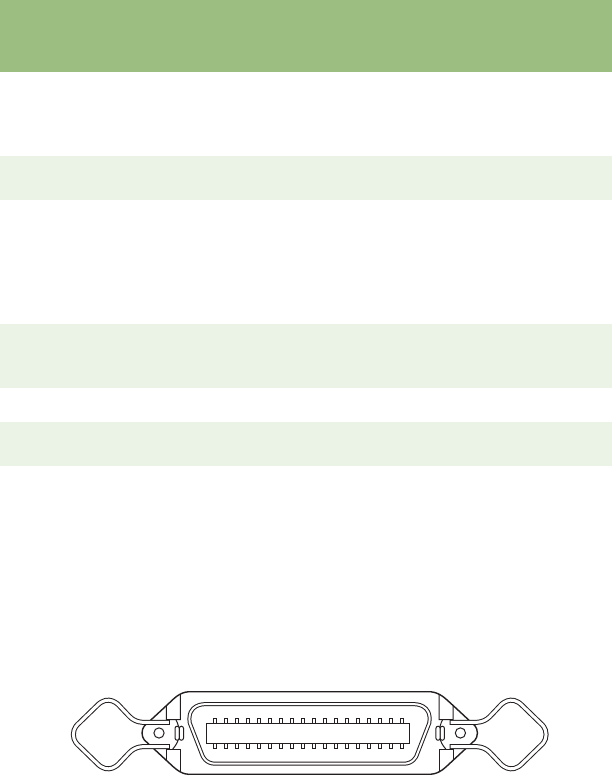
MACHINE SPECIFICATIONS > 309
3. Pin arrangement:
4. Interface levels:
Low: 0.0V to + 0.8V; high level: +2.4V to +5.0v.
5. Support Mode:
Compatible.
Nibble (PnP device ID only).
18 +5V From printer +5V supply (1.2 mA
maximum)
+5V on/off is
selectable in MENU.
I
19 to 30 OV –Twisted pair return (for
pins 1 to11) I
31 –INPUT-PRIME To printer When this signal goes
low, the printer
controller is initialised.
The low level should
be held for more than
0.5 ms.
I
32 –FAULT From printer This signal goes from
high to low level when
the paper runs out.
nDataAvail
15, 34 – – Unused I
35 – – Connected High (to
+5V) via a 3.3 K ohm) I
36 –SELECT-IN To printer In the EPSON mode,
when menu
item “Print Suppress
Effective” is Yes, and
the SELECT-IN signal is
high, the DC1/DC3
code is valid. It is
invalid when the signal
is low.
IEEE1284
active
Pin No. Signal Direction Description
Compatible Nibble
18
36
1
19
280ErGB.book Page 309 Monday, June 21, 2004 10:30 AM
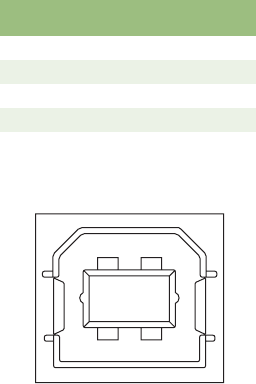
MACHINE SPECIFICATIONS > 310
UNIVERSAL SERIAL BUS (USB) INTERFACE
Universal Serial Bus Specification Revision 1.1 compliant.
1. Connectors and cable.
(a) Printer input socket:
“B” Receptacle (Upstream Input to the USB Device).
(b) Interconnect Cable:
Printer end: Series “B” Plug.
Non-printer end: Series “A” Plug.
Cable Length: Max 5 m (Cable must be met USB Spec Rev 2.0 for
normal operation).
2. Interface signal specification.
3. Pin arrangement.
4. Mode & Class of Device.
Full - speed Driver
Self - powered Device
5. Data Signalling Rate.
Full - speed function - 12Mb/s
Pin number Signal name
1Vbus
2D-
3D+
4Ground
Sell Shield
2
34
1
280ErGB.book Page 310 Monday, June 21, 2004 10:30 AM

FACTORY DEFAULT SETTINGS > 311
FACTORY DEFAULT SETTINGS
Printer Control Emulation Mode IBM
Font Print mode
DRAFT mode
Pitch
Proportional Spacing
Style
Size
Utility
SSD
10CPI
No
Normal
Single
Symbol Sets Character Set
Language Set
Zero Character
Code Page
Slashed Letter o
Set II
ASCII
Unslashed
USA
No
Vertical Control Line Spacing
Skip Over Perforation
Page Length
6 LPI
No
12"
Set-Up Graphics
7 or 8 Bits Graphics
Receive Buffer Size
Paper Out Override
Print Registration
7 or 8 Bits Data Word
Operator Panel Function
Reset Inhibit
Print Suppress Effective
Auto LF No
Auto CR Yes
Print DEL Code No
Sl Select Pitch (10CPI)
Sl Select Pitch (12CPI)
Time Out Print Invalid
Auto Select No
ESC SI Pitch
Select Language Set
CSF/RPS Select
Impact Mode
Uni-directional
7
64K
No
0
8
Semi Operation
No
Yes
No
No
No
17.1 CPI
20 CPI
Invalid
No
17.1 CPI
Combined
RPS
Normal
Parallel I/F I-Prime
Pin 18
Auto Feed XT
Bi-directional
Buffer Print
+ 5V
Invalid
Enable
CSF Line Spacing
Bottom Margin
Page Length
6 LPI
Valid
12"
280ErGB.book Page 311 Monday, June 21, 2004 10:30 AM
> 312
INDEX
A
Abbreviations & Acronyms. . . . . .11
B
Bit image Graphics
– Dot density . . . . . . . . . . . . . .301
Bit image Graphics – Dot density
Symbol set Table . . . . . . . . . . .301
C
Code Page Tables . . . . . . . . . . . .261
Abicomp . . . . . . . . . . . . . . . . . .273
Baltic 774. . . . . . . . . . . . . . . . .263
BRASCII . . . . . . . . . . . . . . . . . .274
Bulgarian . . . . . . . . . . . . . . . . .264
Canada French . . . . . . . . . . . . .274
Cyrillic I–855 . . . . . . . . . . . . . .269
Cyrillic II–866. . . . . . . . . . . . . .269
Cyrillic Latvian . . . . . . . . . . . . .262
E_E_Latin II–852 . . . . . . . . . . .268
ECMA–94 . . . . . . . . . . . . . . . . .269
Greek_437 . . . . . . . . . . . . . . . .270
Greek_437 Cyprus. . . . . . . . . .270
Greek_737 . . . . . . . . . . . . . . . .272
Greek_869 . . . . . . . . . . . . . . . .268
Greek_928 . . . . . . . . . . . . . . . .270
Hebrew NC (862) . . . . . . . . . . .266
Hebrew OC . . . . . . . . . . . . . . . .266
Hungarian CWI . . . . . . . . . . . . .267
Icelandic. . . . . . . . . . . . . . . . . .262
ISO 8859/15 . . . . . . . . . . . . . .273
ISO Latin 2 . . . . . . . . . . . . . . . .272
ISO Latin 6 . . . . . . . . . . . . . . . .264
Kamennicky (MJK) . . . . . . . . . .266
KBL - Lithuanian. . . . . . . . . . . .263
Latin 5 (Windows Turkey) . . . .265
Multi lingual 858 . . . . . . . . . . 273
Multilingual . . . . . . . . . . . . . . 261
Norway . . . . . . . . . . . . . . . . . . 261
Polska Mazovia . . . . . . . . . . . 272
Portugal . . . . . . . . . . . . . . . . . 274
Roman - 8 . . . . . . . . . . . . . . . . 262
Serbo Croatic I . . . . . . . . . . . . 271
Serbo Croatic II. . . . . . . . . . . . 271
Turkey . . . . . . . . . . . . . . . . . . . 271
Turkey 857 . . . . . . . . . . . . . . . 265
Ukranian . . . . . . . . . . . . . . . . . 264
USA . . . . . . . . . . . . . . . . . . . . . 261
Windows Baltic. . . . . . . . . . . . 263
Windows Cyrillic. . . . . . . . . . . 267
Windows East Europe. . . . . . . 268
Windows Greek . . . . . . . . . . . 267
Windows Hebrew . . . . . . . . . . 265
Command Information. . . . . . . . . 32
Horizontal Controls . . . . . . . . . 32
Backspace. . . . . . . . . . . . . . . 32
Carriage return . . . . . . . . . . . 32
Delete . . . . . . . . . . . . . . . . . . 34
Print direction. . . . . . . . . . . . 35
Bi-directional . . . . . . . . . . . 36
Uni-directional . . . . . . . . . . 36
Unidirectional print
– one line only . . . . . . . . . 35
Print position . . . . . . . . . . . . 36
– by characters. . . . . . . 43, 46
– by dot column . . . . . . . . . 47
– default values . . . . . . . . . 45
– define left margin . . . 50, 55
– define right margin. . . . . 51
– define stop
– by characters . . . . . . . . 58
Define
indexed position
– by dot column. . . . . . . . 40
280ErGB.book Page 312 Monday, June 21, 2004 10:30 AM
> 313
left relative position . . . . .39
relative dot position . . . . .41
right relative position . . . .38
from Home Position. . . . . . .37
from left margin. . . . . . . . . .36
Horizontal tab
execute . . . . . . . . . . . 45, 49
Logical limitation. . . . . . . . .39
Margins – define left
& right margin. . . . . . . . . .52
Print-Line justification
– select . . . . . . . . . . . . . . .53
Relative move inline
forward . . . . . . . . . . . . . . .57
Set print position. . . . . . . . .42
Vertical Control . . . . . . . . . . . . .59
Line spacing
Define amount
– n/216 inch . . . . . . . . . . .64
– n/72 inch . . . . . . . . 63, 64
Line spacing – select fixed
amount
1/6 inch (EPS) . . . . . . . . . . .59
1/6 inch (ML) . . . . . . . . . . . .60
1/8 inch (EPS/IBM) . . . . . . .61
1/8 inch (ML) . . . . . . . . . . . .62
7/72 inch (EPS/IBM) . . . . . .63
Activate amount defined
by n/72 inch (IBM) . . . . . .65
Composite command for
line feed quantity . . . . . . .91
CSF Control . . . . . . . . . . . . .93
Cut-sheet feeder
– Dual bin bin select. . . . .89
– single sheet eject. . 88, 89
– single sheet insert. 87, 88
Dual bin bin select . . . . . .90
Fine LF – execute
– n/144 inch . . . . . . . . . . .66
Form feed—execute. . . 73, 74
Form length
– by 1/2 inch (ML). . . . . . .71
– by inches (Epson/IBM). 70
— by lines. . . . . . . . . . . . . 70
– by lines (Epson/IBM) . . 70
– by lines (ML) . . . . . . . . . 72
Line feed
– automatic LF
—ON/OFF . . . . . . . . . . . . . 68
– define amount
– n/144 inch . . . . . . . . . . 67
– execute amount
– n/216 inch . . . . . . . . . . 65
– execute direct skip. . . . 69
– execute forward
LF with CR. . . . . . . . . . . . . 68
– W/O carriage return . . . 69
Margins—cancel bottom
margin (auto skip) . . . . . . 79
Margins—define bottom
margin (auto skip) . . . 74, 77
Paper-out detection
override
– enable/disable. . . . . . . 86
Paper-out sensor
– disable . . . . . . . . . . . . . 86
– enable . . . . . . . . . . . . . . 85
Range and Meaning of sd . 95
Set Page format . . . . . . . . . 96
Set Page Length in
defined unit . . . . . . . . . . . 96
Top of form—define . . . 74, 77
Vertical tabs
– define tab stops . . . . . . 80
– define tab stops in
channels. . . . . . . . . . . . . . 81
channels (VFU). . . . . . . . . 83
– execute . . . . . . 82, 84, 97
– select channel . . . . . . . 80
Command Summary . . . . . . . . . . 98
Epson (EPS). . . . . . . . . . . . . . . . 98
Composite Command. . . . . 100
Font Description . . . . . . . . . . 99
General Control. . . . . . . . . . 101
280ErGB.book Page 313 Monday, June 21, 2004 10:30 AM
> 314
Graphics Mode. . . . . . . . . . .100
Horizontal Control . . . . . . . . .98
Symbol Sets . . . . . . . . . . . . . .99
Text Print Features . . . . . . . .100
Vertical Control . . . . . . . . . . .98
IBM . . . . . . . . . . . . . . . . . . . . . .102
Barcode . . . . . . . . . . . . . . . .105
Command Table . . . . . . . . . .106
Font Description. . . . . . . . . .103
General Contro. . . . . . . . . . .104
Graphics Mode. . . . . . . . . . .104
Horizontal Control . . . . . . . .102
Text Print Features . . . . . . . .104
Vertical Control . . . . . . . . . .102
Microline (ML) . . . . . . . . . . . . .106
Barcode . . . . . . . . . . . . . . . .109
Composite Commands . . . .109
Font Description. . . . . . . . . .107
General Control . . . . . . . . . .109
Graphics Mode. . . . . . . . . . .108
Horizontal Control . . . . . . . .106
Symbol Sets . . . . . . . . . . . . .107
Text Print Features . . . . . . . .108
Vertical Control . . . . . . . . . .106
Conventions Used in this
Manual . . . . . . . . . . . . . . . . . . . .10
E
Emulation Compatibility. . . . . . . . .7
M
Machine Specifications
Environmental Conditions. . . .303
Outside dimensions . . . . . . . .302
Paper Feed Specifications. . . .305
Power Requirements . . . . . . . .302
Print Specification . . . . . . . . . .303
Reliability . . . . . . . . . . . . . . . . .306
Standard Interface Specifications.
307
IEEE1284 Parallel Interface 307
Universal Serial Bus (USB)
Interface . . . . . . . . . . . . . . . 309
Media Specification
About paper . . . . . . . . . . . . . . 275
Continuous paper. . . . . . . . . . 281
Folded ends of the paper . . 290
Lamination copy forms. . . . 286
Dot gluing. . . . . . . . . . . . . 287
Paper staples . . . . . . . . . . 288
Maximum paper thickness. 286
Paper ream weight . . . . . . . 285
Multiple-part paper . . . . . 286
Single-part paper. . . . . . . 285
Paper Size and Print area. . 283
Perforations . . . . . . . . . . . . 282
Projections on horizontal
perforations . . . . . . . . . . . . 289
Sprocket holes . . . . . . . . . . 289
Wrinkles and folded lines . 289
Cut-Sheet Paper . . . . . . . . . . . 292
folds, bends, and curls . . . 295
Bends and curls . . . . . . . . 296
Folds . . . . . . . . . . . . . . . . . 295
Paper quality. . . . . . . . . . . . 293
Using a CSF. . . . . . . . . . . . 294
Using friction feed SASF . 293
Perforated lines . . . . . . . . . 294
Label paper. . . . . . . . . . . . . . . 297
Paper specification - detail
Fold dimension . . . . . . . . . . 281
Horizontal dimension. . . . . 281
Position and size of feed
(sprocket) holes . . . . . . . . . 282
Vertical dimension . . . . . . . 281
Paper specification - overview 277
280ErGB.book Page 314 Monday, June 21, 2004 10:30 AM
> 315
Cut-sheet paper . . . . . . . . . .277
Roll paper . . . . . . . . . . . . . . .280
Sprocket fed paper . . . . . . .278
Paper storage conditions . . . .276
Pre-printed paper . . . . . . . . . .275
Ribbon Specifications . . . . . . .277
Roll Paper. . . . . . . . . . . . . . . . .296
O
Online usage . . . . . . . . . . . . . . . . . .9
Printing Pages . . . . . . . . . . . . . . .9
Operator Controls . . . . . . . . . . . . .18
Control Switches
and Indicators . . . . . . . . . . . .18
Control Switches and Indicators
Alarm/Error Indications. . . . .21
Irrecoverable Error. . . . . . . .21
Recoverable Error . . . . . . . .21
Complete Menu listing . . . . .23
Functions at “switch on” . . . .18
Hex-dump. . . . . . . . . . . . . . . .29
Indicator light Functions . . . .20
Key functions . . . . . . . . . . . . .22
MENU . . . . . . . . . . . . . . . . . . .22
Operation . . . . . . . . . . . . . . . .22
Operator Panel. . . . . . . . . . . .18
Overview. . . . . . . . . . . . . . . . .22
Rolling ASCII Self-test . . . . . .27
Sample Print Self-test . . . . . .26
Semi Automatic
Paper Loading . . . . . . . . . . .30
Switch Functions . . . . . . . . . .19
P
Paperfeed . . . . . . . . . . . . . . . . . . . .7
Printer Drivers . . . . . . . . . . . . . . . .12
Embedded Commands . . . . . . .13
Software Driver Selection . . . . .13
S
Symbol Sets. . . . . . . . . . . . . . . . 122
Bar codes . . . . . . . . . . . . . . . . 242
Print bar code data. . . . . . . 245
Print Barcode . . . . . . . . . . . 253
Print postnet bar code
data. . . . . . . . . . . . . . . . . . 246
Print postnet bar code data 259
Select bar code. . . . . . . . . . 242
Set-up Barcode Parameter. 256
Character table designation . 132
Code page set. . . . . . . . . . . . . 127
Composite Commands. . . . . . 217
Bit image graphics
modes and features. . . . . 221
Carriage return and
line feed control . . . . . . . . 223
Select print features
and pitch. . . . . . . . . . . . . . 217
Select print modes
and features . . . . . . . . . . . 218
Control codes or printable
characters – ON/OFF . . . . . 130
Font Description . . . . . . . . . . . 135
Character cell size
– proportional width
– OFF. . . . . . . . . . . . . . . . 163
– ON . . . . . . . . . . . . . . . . 162
– ON / OFF . . . . . . . . . . . 161
Character density – define
inter-character clearance
– by dot column. . . . . . . 157
Character pitch
10 CPI . . . . . . . 151, 152, 155
12 CPI . . . . . . . 152, 153, 156
15 CPI . . . . . . . . . . . . . . . . 153
17.1 CPI . . . . . . . . . . . . . . 156
20 CPI . . . . . . . . . . . .157, 159
cancel condensed
(17, 20 CPI) . . . . . . . . . . 155
280ErGB.book Page 315 Monday, June 21, 2004 10:30 AM
> 316
condensed (17, 20 CPI). . .154
Custom font
– create
– copy ROM data
to RAM . . . . . . . . . . 142, 143
character pattern
– UTL DLL. . . . . . . . . . . . .144
– UTL/NLQ DLL . . . . . . . .147
– create pattern
– UTL DLL – ascender . . .163
– select DLL font . . . . . . . .151
– select synthetic
–NLQ DLL font . . . . . . . . .141
– select UTL DLL font. . . . .140
Inter-character clearance –
define amount
by dot column (Epson . . . .159
by dot column (IBM) . . . . .160
Print quality
– select HSD . . . . . . . . . . .135
Print quality – select font . .137
Print quality – select HSD . 136,
138
Print quality – select mode
– UTLINLQ. . . . . . . . . . . . . . .135
Print quality – select NLQ . .139
Print quality – select NLQ
– Gothic . . . . . . . . . . . . . . . .139
Print quality – select utility .138
Select font . . . . . . . . . 168, 171
Select Font by
Pitch and Point . . . . 165, 166
Set Print Quality. . . . . . . . . .167
Text Print Features . . . . . . . .172
Double height
– ON/OFF . . . . . . . . . . . . . .185
Double height and
width– ON/OFF . . . . . . . .186
Double high – select . . . . .181
Double wide – select. . . . .180
Double wide (expanded)
– ON/OFF . . . . . . . . . . . . 182
– one line only
– OFF. . . . . . . . . . . . . . . . 184
– ON . . . . . . . . . . . . . . . . 184
– one line only – ON . . . 183
Emphasized – OFF . . . . . . 176
Emphasized – ON. . .175, 177
Emphasized and
enhanced – OFF . . . . . . . 180
Enhanced
(double strike) – OFF . . . 182
(double strike) – ON . . . 177
Enhanced – ON. . . . . . . . . 179
Overscore – ON / OFF. . . . 173
Scripts – super/sub
– cancel . . . . . . . . . . . . . 189
– select. . . . . . . . . . . . . . 188
Slant – OFF . . . . . . . .194, 195
Slant – ON . . . . . . . .192, 194
Subscripts – OFF . . . . . . . 191
Subscripts – ON . . . . . . . . 189
Superscript – OFF. . . . . . . 192
Superscript – ON . . . . . . . 191
Underline – OFF . . . . . . . . 175
Underline – ON. . . . . . . . . 174
Underlined – ON/OFF. . . . 172
Typestyles. . . . . . . . . . . . . . 142
General Control . . . . . . . . . . . 225
Cancel . . . . . . . . . . . . . . . . . 229
Emulation mode switching 234
Incremental Print . . . . . . . . 239
MSB control
– cancel . . . . . . . . . . . . . . 227
– set MSB equal to 0 . . . . 226
– set MSB equal to 1 . . . . 226
Print speed – full (ML) . . . . 233
Print speed – half
– ON/OFF . . . . . . . . . . . . . 228
Print speed – half (ML). . . . 232
280ErGB.book Page 316 Monday, June 21, 2004 10:30 AM
> 317
Print suppress – OFF . . . . . .228
Print suppress – OFF (ML) . .232
Print suppress – ON. . 227, 228
Print suppress – ON (ML). . .232
Printer initialisation. . . . . . .234
Printer Initialization. . . . . . .230
Quiet mode – ON/OFF . . . . .242
Reset – clear buffer and
initialize printer . . . . . . . . . .225
Reset – clear print buffer. . .225
Set initial condition . . . . . . .235
Set Unit. . . . . . . . . . . . . . . . .241
Stop Print . . . . . . . . . . . . . . .233
Graphics Mode. . . . . . . . . . . . .195
8 pin graphics
(1 byte/column). . . . . . . . .196
Bit image graphics
– double horizontal density
– normal speed. . . . . . . .202
– double horzontal density
– high speed . . . . . . . . . .203
– double speed, quasi
quadruple horizontal
density. . . . . . . . . . . . . . .213
– enter . . . . . . . . . . . . . . . .207
– execute LF W/O CR
– graphics amount . . . . .216
– execute LF WI CR
– text amount . . . . . . . . .214
– execute LF with CR
– graphics amount . . . . 215
– execute LW W/O CR
– text amount. . . . . . . . . 215
– exit. . . . . . . . . . . . . . . . . 209
– quadruple horizontal
density . . . . . . . . . . . . . . 205
– reassign graphic’s
density commands . . . . 199
– select 9 pin mode . . . . . 197
— select density and
enter graphics . . . . . . . . 195
— single horizontal
density . . . . . . . . . . . . . . 200
– true double horizontal
density . . . . . . . . . . . . . . 212
– true single horizontal
density . . . . . . . . . .209, 210
IBM . . . . . . . . . . . . . . . . . . . . . 122
International language
character set. . . . . . . . . . . . 126
MENU item A. . . . . . . . . . . . . . 238
MENU item B. . . . . . . . . . . . . . 239
MENU item C. . . . . . . . . . . . . . 239
OKIDATA (ML) – Block . . . . . . 124
OKIDATA (ML) –standard . . . . 123
Slant/graphics character
table . . . . . . . . . . . . . . . . . . 130
W
Working with
Commercial Software. . . . . . 12
280ErGB.book Page 317 Monday, June 21, 2004 10:30 AM
OKI CONTACT DETAILS > 318
OKI CONTACT DETAILS
Oki Systems (UK) Limited
550 Dundee Road
Slough Trading Estate
Slough, SL1 4LE
Tel :44 (0) 1753 819819
Fax :44 (0) 1753 819899
http://www.oki.co.uk
Oki Systems Ireland Limited
The Square Industrial Complex
Tallaght, Dublin 24, Ireland
Tel :+353 1 4049590
Fax :+353 1 4049591
http://www.oki.ie
OKI Systems (Ireland) Ltd
40 Sydenham Park
Belfast, BT4 1PW
Tel :+44 44 (0)28 90 20 1110
http://www.oki.ie
Technical Support for all of
Ireland:
Tel : +353 1 4049570
Fax : +353 1 4049555
E-mail: tech.support@oki.ie
Oki Data Corporation
4-11-22 Shibaura, Minato-ku,
Tokyo 108-8551, Japan
Tel : (81) 3 5445 6158
Fax : (81) 3 5445 6189
http://www.okidata.co.jp
Oki Data (Singapore) Pte. Ltd.
78 Shenton Way, #09-01,
Singapore 079120
Tel : (65) 221 3722
Fax : (65)421 1688
http://www.okidata.com.sg
Oki Systems (Thailand) Ltd.
956 Udomvidhya Building 6th
Floor, Rama IV Rd., Bangkok
10500, Thailand
Tel : (662) 636 2535
Fax : (662) 636 2536
http://www.okisysthai.com
Oki Hong Kong Limited
Suite 1909, Tower3,
China Hong Kong City,
33 Canton Rd., Tsimshatsui,
Kowloon, Hong Kong
Tel : (852) 2736 0130
Fax : (852) 2376 3725
The IPL Group
63-85 Victoria Street
Beaconsfield NSW 2015,
Australia
Tel : (61) 2 9690 8200
Fax : (61) 2 9690 8300
http://www.oki.com.au
Comworth Systems Ltd.
10 Constellation Drive Marring
Bay, Auckland,
New Zealand
Tel : (64) 9 477 0500
Fax : (64) 9 477 0549
http://www.comworth.co.nz
280ErGB.book Page 318 Monday, June 21, 2004 10:30 AM

Central House
Balfour Road, Hounslow
TW3 1HY
United Kingdom
tel +44 (0) 20 8219 2190
Fax +44 (0) 20 8219 2199
ML280 Elite
07051401 ISS.02
