Amazon Kinesis Data Firehose Developer Guide 2.Dev
User Manual:
Open the PDF directly: View PDF  .
.
Page Count: 95
- Amazon Kinesis Data Firehose
- Table of Contents
- What Is Amazon Kinesis Data Firehose?
- Setting Up for Amazon Kinesis Data Firehose
- Creating an Amazon Kinesis Data Firehose Delivery Stream
- Testing Your Delivery Stream Using Sample Data
- Sending Data to an Amazon Kinesis Data Firehose Delivery Stream
- Writing to Kinesis Data Firehose Using Kinesis Data Streams
- Writing to Kinesis Data Firehose Using Kinesis Agent
- Writing to Kinesis Data Firehose Using the AWS SDK
- Writing to Kinesis Data Firehose Using CloudWatch Logs
- Writing to Kinesis Data Firehose Using CloudWatch Events
- Writing to Kinesis Data Firehose Using AWS IoT
- Amazon Kinesis Data Firehose Data Transformation
- Converting Your Input Record Format in Kinesis Data Firehose
- Amazon Kinesis Data Firehose Data Delivery
- Custom Prefixes for Amazon S3 Objects
- Using Server-Side Encryption with Amazon Kinesis Data Firehose
- Tagging Your Delivery Streams in Amazon Kinesis Data Firehose
- Monitoring Amazon Kinesis Data Firehose
- Controlling Access with Amazon Kinesis Data Firehose
- Grant Your Application Access to Your Kinesis Data Firehose Resources
- Grant Kinesis Data Firehose Access to an Amazon S3 Destination
- Grant Kinesis Data Firehose Access to an Amazon Redshift Destination
- Grant Kinesis Data Firehose Access to an Amazon ES Destination
- Grant Kinesis Data Firehose Access to a Splunk Destination
- Access to Splunk in VPC
- Cross-Account Delivery
- Using Tags to Control Access
- Tutorial: Sending VPC Flow Logs to Splunk Using Amazon Kinesis Data Firehose
- Troubleshooting Amazon Kinesis Data Firehose
- Amazon Kinesis Data Firehose Limits
- Document History
- AWS Glossary

Amazon Kinesis Data Firehose
Developer Guide

Amazon Kinesis Data Firehose Developer Guide
Amazon Kinesis Data Firehose: Developer Guide
Copyright © 2019 Amazon Web Services, Inc. and/or its affiliates. All rights reserved.
Amazon's trademarks and trade dress may not be used in connection with any product or service that is not Amazon's, in any manner
that is likely to cause confusion among customers, or in any manner that disparages or discredits Amazon. All other trademarks not
owned by Amazon are the property of their respective owners, who may or may not be affiliated with, connected to, or sponsored by
Amazon.

Amazon Kinesis Data Firehose Developer Guide
Table of Contents
What Is Amazon Kinesis Data Firehose? ................................................................................................ 1
Key Concepts ............................................................................................................................. 1
Data Flow ................................................................................................................................. 1
Setting Up ........................................................................................................................................ 4
Sign Up for AWS ........................................................................................................................ 4
Optional: Download Libraries and Tools ........................................................................................ 4
Creating a Kinesis Data Firehose Delivery Stream ................................................................................... 5
Name and source ....................................................................................................................... 5
Transform records ...................................................................................................................... 6
Choose destination ..................................................................................................................... 6
Choose Amazon S3 for Your Destination ............................................................................... 6
Choose Amazon Redshift for Your Destination ....................................................................... 7
Choose Amazon ES for Your Destination ............................................................................... 8
Choose Splunk for Your Destination ..................................................................................... 9
Configure settings .................................................................................................................... 10
Testing Your Delivery Stream ............................................................................................................. 12
Prerequisites ............................................................................................................................ 12
Test Using Amazon S3 as the Destination .................................................................................... 12
Test Using Amazon Redshift as the Destination ............................................................................ 12
Test Using Amazon ES as the Destination .................................................................................... 13
Test Using Splunk as the Destination .......................................................................................... 13
Sending Data to a Kinesis Data Firehose Delivery Stream ...................................................................... 15
Writing Using Kinesis Data Streams ............................................................................................ 15
Writing Using the Agent ............................................................................................................ 16
Prerequisites .................................................................................................................... 17
Download and Install the Agent ......................................................................................... 17
Configure and Start the Agent ........................................................................................... 18
Agent Configuration Settings ............................................................................................. 18
Monitor Multiple File Directories and Write to Multiple Streams .............................................. 20
Use the Agent to Preprocess Data ...................................................................................... 21
Agent CLI Commands ....................................................................................................... 24
Writing Using the AWS SDK ....................................................................................................... 24
Single Write Operations Using PutRecord ............................................................................ 25
Batch Write Operations Using PutRecordBatch ..................................................................... 25
Writing Using CloudWatch Logs ................................................................................................. 25
Writing Using CloudWatch Events ............................................................................................... 26
Writing Using AWS IoT .............................................................................................................. 26
Data Transformation ......................................................................................................................... 27
Data Transformation Flow ......................................................................................................... 27
Data Transformation and Status Model ....................................................................................... 27
Lambda Blueprints ................................................................................................................... 27
Data Transformation Failure Handling ......................................................................................... 28
Source Record Backup ............................................................................................................... 29
Record Format Conversion ................................................................................................................. 30
Record Format Conversion Requirements ..................................................................................... 30
Choosing the JSON Deserializer ................................................................................................. 30
Choosing the Serializer ............................................................................................................. 31
Converting Input Record Format (Console) ................................................................................... 31
Converting Input Record Format (API) ......................................................................................... 32
Record Format Conversion Error Handling ................................................................................... 32
Data Delivery ................................................................................................................................... 33
Data Delivery Format ................................................................................................................ 33
Data Delivery Frequency ........................................................................................................... 34
Data Delivery Failure Handling ................................................................................................... 34
iii

Amazon Kinesis Data Firehose Developer Guide
Amazon S3 Object Name Format ............................................................................................... 36
Index Rotation for the Amazon ES Destination ............................................................................. 36
Custom Amazon S3 Prefixes .............................................................................................................. 37
The timestamp namespace ...................................................................................................... 37
The firehose namespace ........................................................................................................ 37
Semantic rules ......................................................................................................................... 38
Example prefixes ...................................................................................................................... 39
Server-Side Encryption ...................................................................................................................... 40
Server-Side Encryption with Kinesis Data Streams as the Data Source ............................................. 40
Server-Side Encryption with Direct PUT or Other Data Sources ....................................................... 40
Tagging Your Delivery Streams .......................................................................................................... 41
Tag Basics ............................................................................................................................... 41
Tracking Costs Using Tagging .................................................................................................... 41
Tag Restrictions ........................................................................................................................ 42
Tagging Delivery Streams Using the Amazon Kinesis Data Firehose API ............................................ 42
Monitoring ....................................................................................................................................... 43
Monitoring with CloudWatch Metrics .......................................................................................... 43
Service-level CloudWatch Metrics ....................................................................................... 43
API-Level CloudWatch Metrics ............................................................................................ 46
Data Transformation CloudWatch Metrics ............................................................................ 47
Format Conversion CloudWatch Metrics .............................................................................. 48
Dimensions for Kinesis Data Firehose .................................................................................. 48
Accessing CloudWatch Metrics for Kinesis Data Firehose ........................................................ 48
Monitoring with CloudWatch Logs .............................................................................................. 49
Data Delivery Errors .......................................................................................................... 50
Lambda Invocation Errors .................................................................................................. 53
Accessing CloudWatch Logs for Kinesis Data Firehose ............................................................ 54
Monitoring Agent Health ........................................................................................................... 54
Monitoring with CloudWatch ............................................................................................. 55
Logging Kinesis Data Firehose API Calls with AWS CloudTrail ......................................................... 55
Kinesis Data Firehose Information in CloudTrail .................................................................... 56
Example: Kinesis Data Firehose Log File Entries .................................................................... 56
Controlling Access ............................................................................................................................ 60
Grant Your Application Access to Your Kinesis Data Firehose Resources ............................................ 60
Grant Kinesis Data Firehose Access to an Amazon S3 Destination .................................................... 61
Grant Kinesis Data Firehose Access to an Amazon Redshift Destination ............................................ 62
IAM Role and Access Policy ................................................................................................ 63
VPC Access to an Amazon Redshift Cluster .......................................................................... 64
Grant Kinesis Data Firehose Access to an Amazon ES Destination .................................................... 65
Grant Kinesis Data Firehose Access to a Splunk Destination ........................................................... 67
Access to Splunk in VPC ............................................................................................................ 69
Cross-Account Delivery .............................................................................................................. 70
Using Tags to Control Access ..................................................................................................... 70
CreateDeliveryStream and TagDeliveryStream ...................................................................... 71
UntagDeliveryStream ........................................................................................................ 71
ListDeliveryStreams .......................................................................................................... 71
Other Kinesis Data Firehose Operations .............................................................................. 71
Tutorial: Sending VPC Flow Logs to Splunk ......................................................................................... 73
Step 1: Send Log Data to CloudWatch ........................................................................................ 74
Step 2: Create the Delivery Stream ............................................................................................. 77
Step 3: Send Data to the Delivery Stream ................................................................................... 80
Step 4: Check the Results .......................................................................................................... 81
Troubleshooting ............................................................................................................................... 83
Data Not Delivered to Amazon S3 .............................................................................................. 83
Data Not Delivered to Amazon Redshift ...................................................................................... 83
Data Not Delivered to Amazon Elasticsearch Service ..................................................................... 84
Data Not Delivered to Splunk .................................................................................................... 85
iv

Amazon Kinesis Data Firehose Developer Guide
Delivery Stream Not Available as a Target for CloudWatch Logs, CloudWatch Events, or AWS IoT
Action ..................................................................................................................................... 86
Limits ............................................................................................................................................. 87
Document History ............................................................................................................................ 88
AWS Glossary .................................................................................................................................. 90
v

Amazon Kinesis Data Firehose Developer Guide
Key Concepts
What Is Amazon Kinesis Data
Firehose?
Amazon Kinesis Data Firehose is a fully managed service for delivering real-time streaming data
to destinations such as Amazon Simple Storage Service (Amazon S3), Amazon Redshift, Amazon
Elasticsearch Service (Amazon ES), and Splunk. Kinesis Data Firehose is part of the Kinesis streaming data
platform, along with Kinesis Data Streams, Kinesis Video Streams, and Amazon Kinesis Data Analytics.
With Kinesis Data Firehose, you don't need to write applications or manage resources. You configure
your data producers to send data to Kinesis Data Firehose, and it automatically delivers the data to
the destination that you specified. You can also configure Kinesis Data Firehose to transform your data
before delivering it.
For more information about AWS big data solutions, see Big Data on AWS. For more information about
AWS streaming data solutions, see What is Streaming Data?
Key Concepts
As you get started with Kinesis Data Firehose, you can benefit from understanding the following
concepts:
Kinesis Data Firehose delivery stream
The underlying entity of Kinesis Data Firehose. You use Kinesis Data Firehose by creating a Kinesis
Data Firehose delivery stream and then sending data to it. For more information, see Creating an
Amazon Kinesis Data Firehose Delivery Stream (p. 5) and Sending Data to an Amazon Kinesis
Data Firehose Delivery Stream (p. 15).
record
The data of interest that your data producer sends to a Kinesis Data Firehose delivery stream. A
record can be as large as 1,000 KB.
data producer
Producers send records to Kinesis Data Firehose delivery streams. For example, a web server that
sends log data to a delivery stream is a data producer. You can also configure your Kinesis Data
Firehose delivery stream to automatically read data from an existing Kinesis data stream, and load
it into destinations. For more information, see Sending Data to an Amazon Kinesis Data Firehose
Delivery Stream (p. 15).
buffer size and buffer interval
Kinesis Data Firehose buffers incoming streaming data to a certain size or for a certain period of time
before delivering it to destinations. Buffer Size is in MBs and Buffer Interval is in seconds.
Data Flow
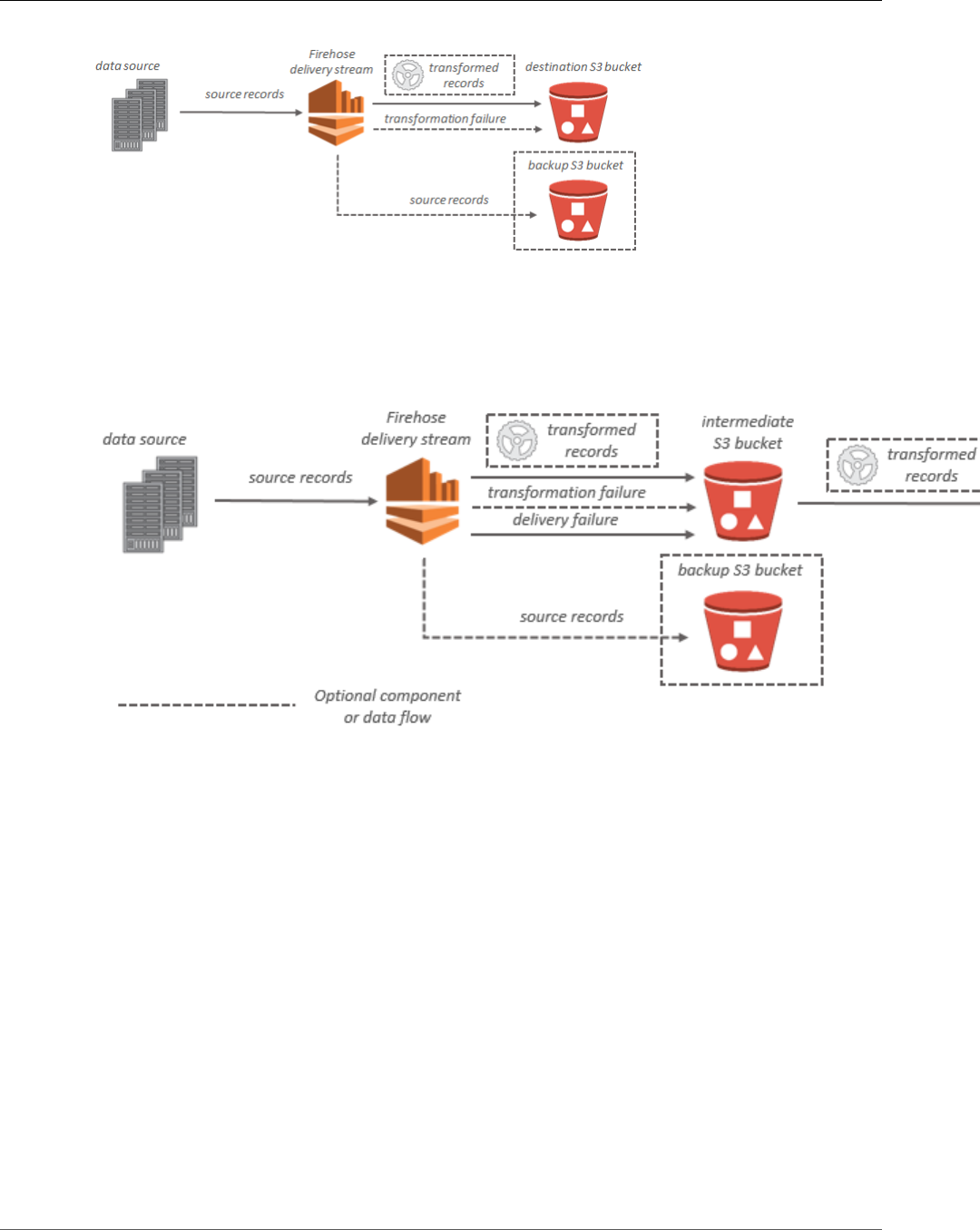
For Amazon S3 destinations, streaming data is delivered to your S3 bucket. If data transformation is
enabled, you can optionally back up source data to another Amazon S3 bucket.
1
Amazon Kinesis Data Firehose Developer Guide
Data Flow
For Amazon Redshift destinations, streaming data is delivered to your S3 bucket first. Kinesis Data
Firehose then issues an Amazon Redshift COPY command to load data from your S3 bucket to your
Amazon Redshift cluster. If data transformation is enabled, you can optionally back up source data to
another Amazon S3 bucket.
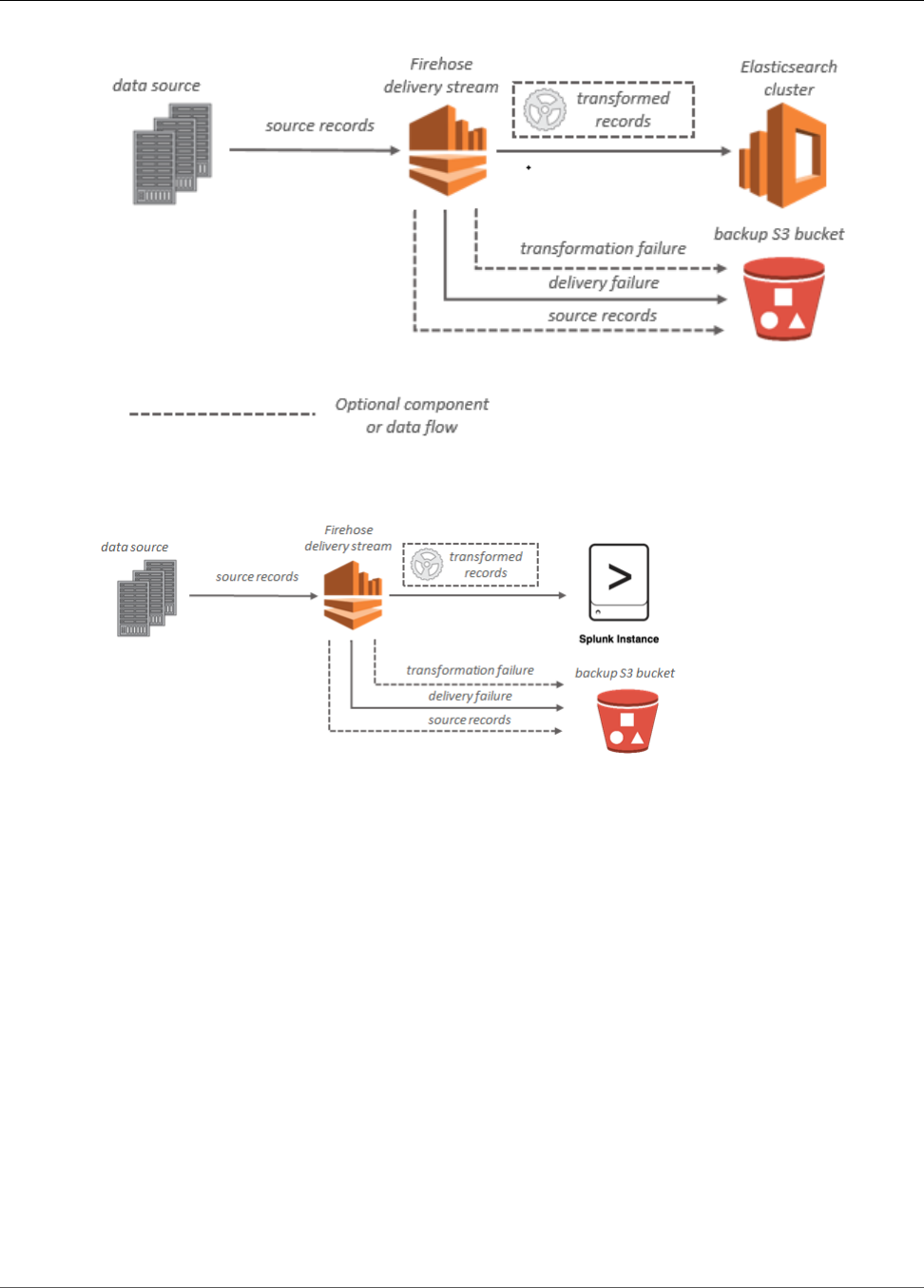
For Amazon ES destinations, streaming data is delivered to your Amazon ES cluster, and it can optionally
be backed up to your S3 bucket concurrently.
2
Amazon Kinesis Data Firehose Developer Guide
Data Flow
For Splunk destinations, streaming data is delivered to Splunk, and it can optionally be backed up to your
S3 bucket concurrently.
3

Amazon Kinesis Data Firehose Developer Guide
Sign Up for AWS
Setting Up for Amazon Kinesis Data
Firehose
Before you use Kinesis Data Firehose for the first time, complete the following tasks.
Tasks
•Sign Up for AWS (p. 4)
•Optional: Download Libraries and Tools (p. 4)
Sign Up for AWS
When you sign up for Amazon Web Services (AWS), your AWS account is automatically signed up for all
services in AWS, including Kinesis Data Firehose. You are charged only for the services that you use.
If you have an AWS account already, skip to the next task. If you don't have an AWS account, use the
following procedure to create one.
To sign up for an AWS account
1. Open https://aws.amazon.com/, and then choose Create an AWS Account.
Note
If you previously signed in to the AWS Management Console using AWS account root user
credentials, choose Sign in to a different account. If you previously signed in to the console
using IAM credentials, choose Sign-in using root account credentials. Then choose Create
a new AWS account.
2. Follow the online instructions.
Part of the sign-up procedure involves receiving a phone call and entering a verification code using
the phone keypad.
Optional: Download Libraries and Tools
The following libraries and tools will help you work with Kinesis Data Firehose programmatically and
from the command line:
• The Amazon Kinesis Data Firehose API Reference is the basic set of operations that Kinesis Data
Firehose supports.
• The AWS SDKs for Go, Java, .NET, Node.js, Python, and Ruby include Kinesis Data Firehose support and
samples.
If your version of the AWS SDK for Java does not include samples for Kinesis Data Firehose, you can
also download the latest AWS SDK from GitHub.
• The AWS Command Line Interface supports Kinesis Data Firehose. The AWS CLI enables you to control
multiple AWS services from the command line and automate them through scripts.
4

Amazon Kinesis Data Firehose Developer Guide
Name and source
Creating an Amazon Kinesis Data
Firehose Delivery Stream
You can use the AWS Management Console or an AWS SDK to create a Kinesis Data Firehose delivery
stream to your chosen destination.
You can update the configuration of your delivery stream at any time after it’s created, using the Kinesis
Data Firehose console or UpdateDestination. Your Kinesis Data Firehose delivery stream remains in the
ACTIVE state while your configuration is updated, and you can continue to send data. The updated
configuration normally takes effect within a few minutes. The version number of a Kinesis Data Firehose
delivery stream is increased by a value of 1 after you update the configuration. It is reflected in the
delivered Amazon S3 object name. For more information, see Amazon S3 Object Name Format (p. 36).
The following topics describe how to create a Kinesis Data Firehose delivery stream:
Topics
•Name and source (p. 5)
•Transform records (p. 6)
•Choose destination (p. 6)
•Configure settings (p. 10)
Name and source
This topic describes the Name and source page of the Create Delivery Stream wizard in Amazon Kinesis
Data Firehose.
Name and source
1. Sign in to the AWS Management Console and open the Kinesis console at https://
console.aws.amazon.com/kinesis.
2. Choose Data Firehose in the navigation pane.
3. Choose Create Delivery Stream.
4. On the Name and source page, enter values for the following fields:
Delivery stream name
The name of your Kinesis Data Firehose delivery stream.
Source
•Direct PUT or other sources: Choose this option to create a Kinesis Data Firehose delivery
stream that producer applications write directly to.
•Kinesis stream: Choose this option to configure a Kinesis Data Firehose delivery stream
that uses a Kinesis data stream as a data source. You can then use Kinesis Data Firehose to
read data easily from an existing Kinesis data stream and load it into destinations. For more
information about using Kinesis Data Streams as your data source, see Writing to Amazon
Kinesis Data Firehose Using Kinesis Data Streams.
5. Choose Next to go to the Transform records (p. 6) page.
5

Amazon Kinesis Data Firehose Developer Guide
Transform records
Transform records
This topic describes the Transform records page of the Create Delivery Stream wizard in Amazon
Kinesis Data Firehose.
Transform records
1. On the Transform records with AWS Lambda page, provide values for the following fields:
Record transformation
To create a Kinesis Data Firehose delivery stream that does not transform incoming data, choose
Disabled.
To specify a Lambda function that Kinesis Data Firehose can invoke to transform incoming data
before delivering it, choose Enabled. You can configure a new Lambda function using one of the
Lambda blueprints or choose an existing Lambda function. Your Lambda function must contain
the status model that is required by Kinesis Data Firehose. For more information, see Amazon
Kinesis Data Firehose Data Transformation (p. 27).
2. Choose Next to go to the Choose destination (p. 6) page.
Choose destination
This topic describes the Choose destination page of the Create Delivery Stream wizard in Amazon
Kinesis Data Firehose.
Kinesis Data Firehose can send records to Amazon Simple Storage Service (Amazon S3), Amazon
Redshift, or Amazon Elasticsearch Service (Amazon ES).
Topics
•Choose Amazon S3 for Your Destination (p. 6)
•Choose Amazon Redshift for Your Destination (p. 7)
•Choose Amazon ES for Your Destination (p. 8)
•Choose Splunk for Your Destination (p. 9)
Choose Amazon S3 for Your Destination
This section describes options for using Amazon S3 for your destination.
To choose Amazon S3 for your destination
• On the Choose destination page, enter values for the following fields:
Destination
Choose Amazon S3.
Destination S3 bucket
Choose an S3 bucket that you own where the streaming data should be delivered. You can
create a new S3 bucket or choose an existing one.
Destination S3 bucket prefix
(Optional) To use the default prefix for Amazon S3 objects, leave this option blank. Kinesis
Data Firehose automatically uses a prefix in "YYYY/MM/DD/HH" UTC time format for delivered
6

Amazon Kinesis Data Firehose Developer Guide
Choose Amazon Redshift for Your Destination
Amazon S3 objects. You can add to the start of this prefix. For more information, see Amazon S3
Object Name Format (p. 36).
Source record S3 backup
Choose Disabled to disable source record backup. If you enable data transformation with AWS
Lambda, you can enable source record backup to deliver untransformed incoming data to a
separate S3 bucket. You can add to the start of the "YYYY/MM/DD/HH" UTC time prefix that is
generated by Kinesis Data Firehose. You cannot disable source record backup after you enable it.
Choose Amazon Redshift for Your Destination
This section describes options for using Amazon Redshift for your destination.
To choose Amazon Redshift for your destination
• On the Choose destination page, enter values for the following fields:
Destination
Choose Amazon Redshift.
Cluster
The Amazon Redshift cluster to which S3 bucket data is copied. Configure the Amazon Redshift
cluster to be publicly accessible and unblock Kinesis Data Firehose IP addresses. For more
information, see Grant Kinesis Data Firehose Access to an Amazon Redshift Destination
(p. 62).
User name
An Amazon Redshift user with permissions to access the Amazon Redshift cluster. This user
must have the Amazon Redshift INSERT permission for copying data from the S3 bucket to the
Amazon Redshift cluster.
Password
The password for the user who has permissions to access the cluster.
Database
The Amazon Redshift database to where the data is copied.
Table
The Amazon Redshift table to where the data is copied.
Columns
(Optional) The specific columns of the table to which the data is copied. Use this option if the
number of columns defined in your Amazon S3 objects is less than the number of columns
within the Amazon Redshift table.
Intermediate S3 bucket
Kinesis Data Firehose delivers your data to your S3 bucket first and then issues an Amazon
Redshift COPY command to load the data into your Amazon Redshift cluster. Specify an S3
bucket that you own where the streaming data should be delivered. Create a new S3 bucket, or
choose an existing bucket that you own.
Kinesis Data Firehose doesn't delete the data from your S3 bucket after loading it to your
Amazon Redshift cluster. You can manage the data in your S3 bucket using a lifecycle
configuration. For more information, see Object Lifecycle Management in the Amazon Simple
Storage Service Developer Guide.
7

Amazon Kinesis Data Firehose Developer Guide
Choose Amazon ES for Your Destination
Intermediate S3 bucket prefix
(Optional) To use the default prefix for Amazon S3 objects, leave this option blank. Kinesis
Data Firehose automatically uses a prefix in "YYYY/MM/DD/HH" UTC time format for delivered
Amazon S3 objects. You can add to the start of this prefix. For more information, see Amazon S3
Object Name Format (p. 36).
COPY options
Parameters that you can specify in the Amazon Redshift COPY command. These might be
required for your configuration. For example, "GZIP" is required if Amazon S3 data compression
is enabled. "REGION" is required if your S3 bucket isn't in the same AWS Region as your Amazon
Redshift cluster. For more information, see COPY in the Amazon Redshift Database Developer
Guide.
COPY command
The Amazon Redshift COPY command. For more information, see COPY in the Amazon Redshift
Database Developer Guide.
Retry duration
Time duration (0–7200 seconds) for Kinesis Data Firehose to retry if data COPY to your Amazon
Redshift cluster fails. Kinesis Data Firehose retries every 5 minutes until the retry duration ends.
If you set the retry duration to 0 (zero) seconds, Kinesis Data Firehose does not retry upon a
COPY command failure.
Source record S3 backup
If you enable data transformation using AWS Lambda, you can enable source record backup to
deliver untransformed incoming data to a separate S3 bucket. You cannot disable source record
backup after you enable it.
Backup S3 bucket
The S3 bucket to receive the untransformed data.
Backup S3 bucket prefix
To use the default prefix for source record backup, leave this option blank. Kinesis Data Firehose
automatically uses a prefix in "YYYY/MM/DD/HH" UTC time format for delivered Amazon S3
objects. You can add to the start of this prefix. For more information, see Amazon S3 Object
Name Format (p. 36). This value is optional.
Choose Amazon ES for Your Destination
This section describes options for using Amazon ES for your destination.
To choose Amazon ES for your destination
1. On the Choose destination page, enter values for the following fields:
Destination
Choose Amazon Elasticsearch Service.
Domain
The Amazon ES domain to which your data is delivered.
Index
The Elasticsearch index name to be used when indexing data to your Amazon ES cluster.
8

Amazon Kinesis Data Firehose Developer Guide
Choose Splunk for Your Destination
Index rotation
Choose whether and how often the Elasticsearch index should be rotated. If index rotation
is enabled, Kinesis Data Firehose appends the corresponding timestamp to the specified
index name and rotates. For more information, see Index Rotation for the Amazon ES
Destination (p. 36).
Type
The Amazon ES type name to be used when indexing data to your Amazon ES cluster. For
Elasticsearch 6.x, there can be only one type per index. If you try to specify a new type for
an existing index that already has another type, Kinesis Data Firehose returns an error during
runtime.
Retry duration
Time duration (0–7200 seconds) for Kinesis Data Firehose to retry if an index request to your
Amazon ES cluster fails. Kinesis Data Firehose retries every 5 minutes until the retry duration
ends. If you set the retry duration to 0 (zero) seconds, Kinesis Data Firehose does not retry upon
an index request failure.
Backup mode
You can choose to either back up failed records only or all records. If you choose failed
records only, any data that Kinesis Data Firehose can't deliver to your Amazon ES cluster or
that your Lambda function can't transform is backed up to the specified S3 bucket. If you
choose all records, Kinesis Data Firehose backs up all incoming source data to your S3 bucket
concurrently with data delivery to Amazon ES. For more information, see Data Delivery Failure
Handling (p. 34) and Data Transformation Failure Handling (p. 28).
Backup S3 bucket
An S3 bucket you own that is the target of the backup data. Create a new S3 bucket, or choose
an existing bucket that you own.
Backup S3 bucket prefix
(Optional) To use the default prefix for Amazon S3 objects, leave this option blank. Kinesis
Data Firehose automatically uses a prefix in "YYYY/MM/DD/HH" UTC time format for delivered
Amazon S3 objects. You can add to the start of this prefix. For more information, see Amazon S3
Object Name Format (p. 36). This value is optional.
2. Choose Next to go to the Configure settings (p. 10) page.
Choose Splunk for Your Destination
This section describes options for using Splunk for your destination.
To choose Splunk for your destination
• On the Choose destination page, provide values for the following fields:
Destination
Choose Splunk.
Splunk cluster endpoint
To determine the endpoint, see Configure Amazon Kinesis Firehose to Send Data to the Splunk
Platform in the Splunk documentation.
9

Amazon Kinesis Data Firehose Developer Guide
Configure settings
Splunk endpoint type
Choose Raw in most cases. Choose Event if you preprocessed your data using AWS Lambda
to send data to different indexes by event type. For information about what endpoint to use,
see Configure Amazon Kinesis Firehose to send data to the Splunk platform in the Splunk
documentation.
Authentication token
To set up a Splunk endpoint that can receive data from Kinesis Data Firehose, see Installation
and configuration overview for the Splunk Add-on for Amazon Kinesis Firehose in the Splunk
documentation. Save the token that you get from Splunk when you set up the endpoint for this
delivery stream, and add it here.
HEC acknowledgement timeout
Specify how long Kinesis Data Firehose waits for the index acknowledgement from Splunk. If
Splunk doesn’t send the acknowledgment before the timeout is reached, Kinesis Data Firehose
considers it a data delivery failure. Kinesis Data Firehose then either retries or backs up the data
to your Amazon S3 bucket, depending on the retry duration value that you set.
Retry duration
Specify how long Kinesis Data Firehose retries sending data to Splunk.
After sending data, Kinesis Data Firehose first waits for an acknowledgment from Splunk. If an
error occurs or the acknowledgment doesn’t arrive within the acknowledgment timeout period,
Kinesis Data Firehose starts the retry duration counter. It keeps retrying until the retry duration
expires. After that, Kinesis Data Firehose considers it a data delivery failure and backs up the
data to your Amazon S3 bucket.
Every time that Kinesis Data Firehose sends data to Splunk (either the initial attempt or a retry),
it restarts the acknowledgement timeout counter and waits for an acknowledgement from
Splunk.
Even if the retry duration expires, Kinesis Data Firehose still waits for the acknowledgment
until it receives it or the acknowledgement timeout period is reached. If the acknowledgment
times out, Kinesis Data Firehose determines whether there's time left in the retry counter. If
there is time left, it retries again and repeats the logic until it receives an acknowledgment or
determines that the retry time has expired.
If you don't want Kinesis Data Firehose to retry sending data, set this value to 0.
S3 backup mode
Choose whether to back up all the events that Kinesis Data Firehose sends to Splunk or only the
ones for which delivery to Splunk fails. If you require high data durability, turn on this backup
mode for all events. Also consider backing up all events initially, until you verify that your data is
getting indexed correctly in Splunk.
S3 backup bucket
Choose an existing backup bucket or create a new one.
S3 backup bucket prefix
You can specify a prefix for your Amazon S3 backup bucket.
Configure settings
This topic describes the Configure settings page of the Create Delivery Stream wizard.
10

Amazon Kinesis Data Firehose Developer Guide
Configure settings
Configure settings
1. On the Configure settings page, provide values for the following fields:
Buffer size, Buffer interval
Kinesis Data Firehose buffers incoming data before delivering it to Amazon S3. You can choose
a buffer size (1–128 MBs) or buffer interval (60–900 seconds). The condition that is satisfied
first triggers data delivery to Amazon S3. If you enable data transformation, the buffer interval
applies from the time transformed data is received by Kinesis Data Firehose to the data delivery
to Amazon S3. If data delivery to the destination falls behind data writing to the delivery
stream, Kinesis Data Firehose raises the buffer size dynamically to catch up. This action helps
ensure that all data is delivered to the destination.
Compression
Choose GZIP, Snappy, or Zip data compression, or no data compression. Snappy or Zip
compression is not available for delivery streams with Amazon Redshift as the destination.
Encryption
Kinesis Data Firehose supports Amazon S3 server-side encryption with AWS Key Management
Service (AWS KMS) for encrypting delivered data in Amazon S3. You can choose to not encrypt
the data or to encrypt with a key from the list of AWS KMS keys that you own. For more
information, see Protecting Data Using Server-Side Encryption with AWS KMS–Managed Keys
(SSE-KMS).
Error logging
If data transformation is enabled, Kinesis Data Firehose can log the Lambda invocation, and
send data delivery errors to CloudWatch Logs. Then you can view the specific error logs if the
Lambda invocation or data delivery fails. For more information, see Monitoring Kinesis Data
Firehose Using CloudWatch Logs (p. 49).
IAM role
You can choose to create a new role where required permissions are assigned automatically,
or choose an existing role created for Kinesis Data Firehose. The role is used to grant Kinesis
Data Firehose access to your S3 bucket, AWS KMS key (if data encryption is enabled), and
Lambda function (if data transformation is enabled). The console might create a role with
placeholders. You can safely ignore or safely delete lines with %FIREHOSE_BUCKET_NAME
%, %FIREHOSE_DEFAULT_FUNCTION%, or %FIREHOSE_DEFAULT_VERSION%. For more
information, see Grant Kinesis Data Firehose Access to an Amazon S3 Destination (p. 61).
2. Review the settings and choose Create Delivery Stream.
The new Kinesis Data Firehose delivery stream takes a few moments in the Creating state before it is
available. After your Kinesis Data Firehose delivery stream is in an Active state, you can start sending
data to it from your producer.
11
Amazon Kinesis Data Firehose Developer Guide
Prerequisites
Testing Your Delivery Stream Using
Sample Data
You can use the AWS Management Console to ingest simulated stock ticker data. The console runs a
script in your browser to put sample records in your Kinesis Data Firehose delivery stream. This enables
you to test the configuration of your delivery stream without having to generate your own test data.
The following is an example from the simulated data:
{"TICKER_SYMBOL":"QXZ","SECTOR":"HEALTHCARE","CHANGE":-0.05,"PRICE":84.51}
Note that standard Amazon Kinesis Data Firehose charges apply when your delivery stream transmits the
data, but there is no charge when the data is generated. To stop incurring these charges, you can stop
the sample stream from the console at any time.
Contents
•Prerequisites (p. 12)
•Test Using Amazon S3 as the Destination (p. 12)
•Test Using Amazon Redshift as the Destination (p. 12)
•Test Using Amazon ES as the Destination (p. 13)
•Test Using Splunk as the Destination (p. 13)
Prerequisites
Before you begin, create a delivery stream. For more information, see Creating an Amazon Kinesis Data
Firehose Delivery Stream (p. 5).
Test Using Amazon S3 as the Destination
Use the following procedure to test your delivery stream using Amazon Simple Storage Service (Amazon
S3) as the destination.
To test a delivery stream using Amazon S3
1. Open the Kinesis Data Firehose console at https://console.aws.amazon.com/firehose/.
2. Choose the delivery stream.
3. Under Test with demo data, choose Start sending demo data to generate sample stock ticker data.
4. Follow the onscreen instructions to verify that data is being delivered to your S3 bucket. Note
that it might take a few minutes for new objects to appear in your bucket, based on the buffering
configuration of your bucket.
5. When the test is complete, choose Stop sending demo data to stop incurring usage charges.
Test Using Amazon Redshift as the Destination
Use the following procedure to test your delivery stream using Amazon Redshift as the destination.
12

Amazon Kinesis Data Firehose Developer Guide
Test Using Amazon ES as the Destination
To test a delivery stream using Amazon Redshift
1. Your delivery stream expects a table to be present in your Amazon Redshift cluster. Connect to
Amazon Redshift through a SQL interface and run the following statement to create a table that
accepts the sample data.
create table firehose_test_table
(
TICKER_SYMBOL varchar(4),
SECTOR varchar(16),
CHANGE float,
PRICE float
);
2. Open the Kinesis Data Firehose console at https://console.aws.amazon.com/firehose/.
3. Choose the delivery stream.
4. Edit the destination details for your delivery stream to point to the newly created
firehose_test_table table.
5. Under Test with demo data, choose Start sending demo data to generate sample stock ticker data.
6. Follow the onscreen instructions to verify that data is being delivered to your table. Note
that it might take a few minutes for new rows to appear in your table, based on the buffering
configuration.
7. When the test is complete, choose Stop sending demo data to stop incurring usage charges.
8. Edit the destination details for your Kinesis Data Firehose delivery stream to point to another table.
9. (Optional) Delete the firehose_test_table table.
Test Using Amazon ES as the Destination
Use the following procedure to test your delivery stream using Amazon Elasticsearch Service (Amazon
ES) as the destination.
To test a delivery stream using Amazon ES
1. Open the Kinesis Data Firehose console at https://console.aws.amazon.com/firehose/.
2. Choose the delivery stream.
3. Under Test with demo data, choose Start sending demo data to generate sample stock ticker data.
4. Follow the onscreen instructions to verify that data is being delivered to your Amazon ES domain.
For more information, see Searching Documents in an Amazon ES Domain in the Amazon
Elasticsearch Service Developer Guide.
5. When the test is complete, choose Stop sending demo data to stop incurring usage charges.
Test Using Splunk as the Destination
Use the following procedure to test your delivery stream using Splunk as the destination.
To test a delivery stream using Splunk
1. Open the Kinesis Data Firehose console at https://console.aws.amazon.com/firehose/.
2. Choose the delivery stream.
3. Under Test with demo data, choose Start sending demo data to generate sample stock ticker data.
13

Amazon Kinesis Data Firehose Developer Guide
Test Using Splunk as the Destination
4. Check whether the data is being delivered to your Splunk index. Example search terms in Splunk
are sourcetype="aws:firehose:json" and index="name-of-your-splunk-index". For
more information about how to search for events in Splunk, see Search Manual in the Splunk
documentation.
If the test data doesn't appear in your Splunk index, check your Amazon S3 bucket for failed events.
Also see Data Not Delivered to Splunk.
5. When you finish testing, choose Stop sending demo data to stop incurring usage charges.
14

Amazon Kinesis Data Firehose Developer Guide
Writing Using Kinesis Data Streams
Sending Data to an Amazon Kinesis
Data Firehose Delivery Stream
You can send data to your Kinesis Data Firehose Delivery stream using different types of sources: You
can use a Kinesis data stream, the Kinesis Agent, or the Kinesis Data Firehose API using the AWS SDK.
You can also use Amazon CloudWatch Logs, CloudWatch Events, or AWS IoT as your data source. If you
are new to Kinesis Data Firehose, take some time to become familiar with the concepts and terminology
presented in What Is Amazon Kinesis Data Firehose? (p. 1).
Note
Some AWS services can only send messages and events to a Kinesis Data Firehose delivery
stream that is in the same Region. If your delivery stream doesn't appear as an option when
you're configuring a target for Amazon CloudWatch Logs, CloudWatch Events, or AWS IoT, verify
that your Kinesis Data Firehose delivery stream is in the same Region as your other services.
Topics
•Writing to Kinesis Data Firehose Using Kinesis Data Streams (p. 15)
•Writing to Kinesis Data Firehose Using Kinesis Agent (p. 16)
•Writing to Kinesis Data Firehose Using the AWS SDK (p. 24)
•Writing to Kinesis Data Firehose Using CloudWatch Logs (p. 25)
•Writing to Kinesis Data Firehose Using CloudWatch Events (p. 26)
•Writing to Kinesis Data Firehose Using AWS IoT (p. 26)
Writing to Kinesis Data Firehose Using Kinesis Data
Streams
You can configure Amazon Kinesis Data Streams to send information to a Kinesis Data Firehose delivery
stream.
Important
If you use the Kinesis Producer Library (KPL) to write data to a Kinesis data stream, you can
use aggregation to combine the records that you write to that Kinesis data stream. If you then
use that data stream as a source for your Kinesis Data Firehose delivery stream, Kinesis Data
Firehose de-aggregates the records before it delivers them to the destination. If you configure
your delivery stream to transform the data, Kinesis Data Firehose de-aggregates the records
before it delivers them to AWS Lambda. For more information, see Developing Amazon Kinesis
Data Streams Producers Using the Kinesis Producer Library and Aggregation.
1. Sign in to the AWS Management Console and open the Kinesis Data Firehose console at https://
console.aws.amazon.com/firehose/.
2. Choose Create Delivery Stream. On the Name and source page, provide values for the following
fields:
Delivery stream name
The name of your Kinesis Data Firehose delivery stream.
15

Amazon Kinesis Data Firehose Developer Guide
Writing Using the Agent
Source
Choose Kinesis stream to configure a Kinesis Data Firehose delivery stream that uses a Kinesis
data stream as a data source. You can then use Kinesis Data Firehose to read data easily from an
existing data stream and load it into destinations.
To use a Kinesis data stream as a source, choose an existing stream in the Kinesis stream list, or
choose Create new to create a new Kinesis data stream. After you create a new stream, choose
Refresh to update the Kinesis stream list. If you have a large number of streams, filter the list
using Filter by name.
Note
When you configure a Kinesis data stream as the source of a Kinesis Data Firehose
delivery stream, the Kinesis Data Firehose PutRecord and PutRecordBatch
operations are disabled. To add data to your Kinesis Data Firehose delivery stream in
this case, use the Kinesis Data Streams PutRecord and PutRecords operations.
Kinesis Data Firehose starts reading data from the LATEST position of your Kinesis stream. For
more information about Kinesis Data Streams positions, see GetShardIterator. Kinesis Data
Firehose calls the Kinesis Data Streams GetRecords operation once per second for each shard.
More than one Kinesis Data Firehose delivery stream can read from the same Kinesis stream.
Other Kinesis applications (consumers) can also read from the same stream. Each call from any
Kinesis Data Firehose delivery stream or other consumer application counts against the overall
throttling limit for the shard. To avoid getting throttled, plan your applications carefully. For
more information about Kinesis Data Streams limits, see Amazon Kinesis Streams Limits.
3. Choose Next to advance to the Transform records (p. 6) page.
Writing to Kinesis Data Firehose Using Kinesis
Agent
Amazon Kinesis Agent is a standalone Java software application that offers an easy way to collect and
send data to Kinesis Data Firehose. The agent continuously monitors a set of files and sends new data
to your Kinesis Data Firehose delivery stream. The agent handles file rotation, checkpointing, and retry
upon failures. It delivers all of your data in a reliable, timely, and simple manner. It also emits Amazon
CloudWatch metrics to help you better monitor and troubleshoot the streaming process.
By default, records are parsed from each file based on the newline ('\n') character. However, the agent
can also be configured to parse multi-line records (see Agent Configuration Settings (p. 18)).
You can install the agent on Linux-based server environments such as web servers, log servers, and
database servers. After installing the agent, configure it by specifying the files to monitor and the
delivery stream for the data. After the agent is configured, it durably collects data from the files and
reliably sends it to the delivery stream.
Topics
•Prerequisites (p. 17)
•Download and Install the Agent (p. 17)
•Configure and Start the Agent (p. 18)
•Agent Configuration Settings (p. 18)
•Monitor Multiple File Directories and Write to Multiple Streams (p. 20)
•Use the Agent to Preprocess Data (p. 21)
16
Amazon Kinesis Data Firehose Developer Guide
Prerequisites
•Agent CLI Commands (p. 24)
Prerequisites
• Your operating system must be either Amazon Linux AMI with version 2015.09 or later, or Red Hat
Enterprise Linux version 7 or later.
• If you are using Amazon EC2 to run your agent, launch your EC2 instance.
• Manage your AWS credentials using one of the following methods:
• Specify an IAM role when you launch your EC2 instance.
• Specify AWS credentials when you configure the agent (see the entries for awsAccessKeyId and
awsSecretAccessKey in the configuration table under the section called “Agent Configuration
Settings” (p. 18)).
• Edit /etc/sysconfig/aws-kinesis-agent to specify your AWS Region and AWS access keys.
• If your EC2 instance is in a different AWS account, create an IAM role to provide access to the Kinesis
Data Firehose service. Specify that role when you configure the agent (see assumeRoleARN (p. )
and assumeRoleExternalId (p. )). Use one of the previous methods to specify the AWS
credentials of a user in the other account who has permission to assume this role.
• The IAM role or AWS credentials that you specify must have permission to perform the Kinesis
Data Firehose PutRecordBatch operation for the agent to send data to your delivery stream. If you
enable CloudWatch monitoring for the agent, permission to perform the CloudWatch PutMetricData
operation is also needed. For more information, see Controlling Access with Amazon Kinesis Data
Firehose (p. 60), Monitoring Kinesis Agent Health (p. 54), and Authentication and Access Control
for Amazon CloudWatch.
Download and Install the Agent
First, connect to your instance. For more information, see Connect to Your Instance in the Amazon EC2
User Guide for Linux Instances. If you have trouble connecting, see Troubleshooting Connecting to Your
Instance in the Amazon EC2 User Guide for Linux Instances.
Next, install the agent using one of the following methods.
To set up the agent using the Amazon Linux AMI
Use the following command to download and install the agent:
sudo yum install –y aws-kinesis-agent
To set up the agent using Red Hat Enterprise Linux
Use the following command to download and install the agent:
sudo yum install –y https://s3.amazonaws.com/streaming-data-agent/aws-kinesis-agent-
latest.amzn1.noarch.rpm
To set up the agent using GitHub
1. Download the agent from awslabs/amazon-kinesis-agent.
2. Install the agent by navigating to the download directory and running the following command:
sudo ./setup --install
17
Amazon Kinesis Data Firehose Developer Guide
Configure and Start the Agent
Configure and Start the Agent
To configure and start the agent
1. Open and edit the configuration file (as superuser if using default file access permissions): /etc/
aws-kinesis/agent.json
In this configuration file, specify the files ( "filePattern" ) from which the agent collects data,
and the name of the delivery stream ( "deliveryStream" ) to which the agent sends data. The file
name is a pattern, and the agent recognizes file rotations. You can rotate files or create new files no
more than once per second. The agent uses the file creation time stamp to determine which files
to track and tail into your delivery stream. Creating new files or rotating files more frequently than
once per second does not allow the agent to differentiate properly between them.
{
"flows": [
{
"filePattern": "/tmp/app.log*",
"deliveryStream": "yourdeliverystream"
}
]
}
The default AWS Region is us-east-1. If you are using a different Region, add the
firehose.endpoint setting to the configuration file, specifying the endpoint for your Region. For
more information, see Agent Configuration Settings (p. 18).
2. Start the agent manually:
sudo service aws-kinesis-agent start
3. (Optional) Configure the agent to start on system startup:
sudo chkconfig aws-kinesis-agent on
The agent is now running as a system service in the background. It continuously monitors the specified
files and sends data to the specified delivery stream. Agent activity is logged in /var/log/aws-
kinesis-agent/aws-kinesis-agent.log.
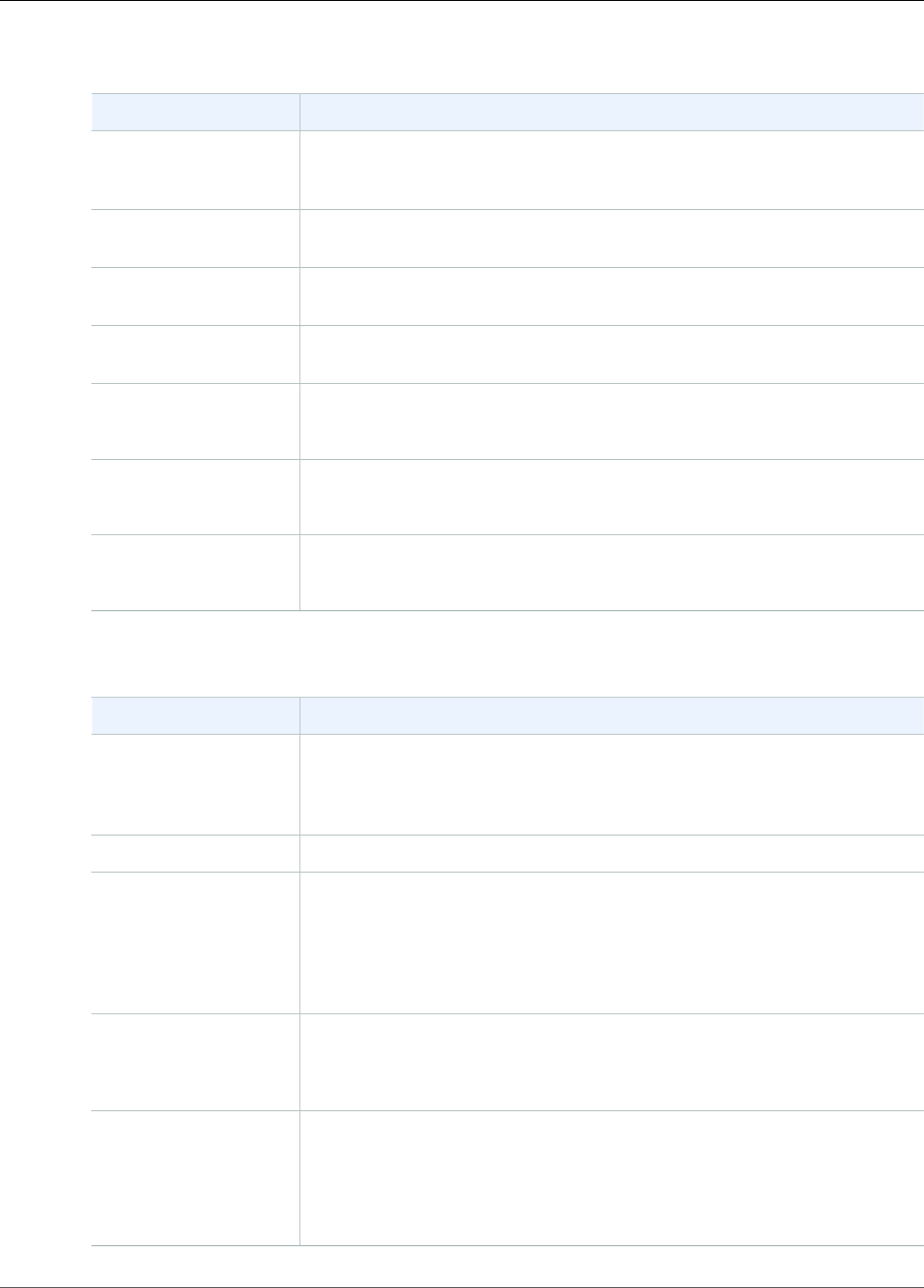
Agent Configuration Settings
The agent supports two mandatory configuration settings, filePattern and deliveryStream, plus
optional configuration settings for additional features. You can specify both mandatory and optional
configuration settings in /etc/aws-kinesis/agent.json.
Whenever you change the configuration file, you must stop and start the agent, using the following
commands:
sudo service aws-kinesis-agent stop
sudo service aws-kinesis-agent start
Alternatively, you could use the following command:
sudo service aws-kinesis-agent restart
18
Amazon Kinesis Data Firehose Developer Guide
Agent Configuration Settings
The following are the general configuration settings.
Configuration Setting Description
assumeRoleARN The Amazon Resource Name (ARN) of the role to be assumed by the user.
For more information, see Delegate Access Across AWS Accounts Using IAM
Roles in the IAM User Guide.
assumeRoleExternalIdAn optional identifier that determines who can assume the role. For more
information, see How to Use an External ID in the IAM User Guide.
awsAccessKeyId AWS access key ID that overrides the default credentials. This setting takes
precedence over all other credential providers.
awsSecretAccessKey AWS secret key that overrides the default credentials. This setting takes
precedence over all other credential providers.
cloudwatch.emitMetricsEnables the agent to emit metrics to CloudWatch if set (true).
Default: true
cloudwatch.endpoint The regional endpoint for CloudWatch.
Default: monitoring.us-east-1.amazonaws.com
firehose.endpoint The regional endpoint for Kinesis Data Firehose.
Default: firehose.us-east-1.amazonaws.com
The following are the flow configuration settings.
Configuration Setting Description
dataProcessingOptionsThe list of processing options applied to each parsed record before it is
sent to the delivery stream. The processing options are performed in the
specified order. For more information, see Use the Agent to Preprocess
Data (p. 21).
deliveryStream [Required] The name of the delivery stream.
filePattern [Required] A glob for the files that need to be monitored by the agent.
Any file that matches this pattern is picked up by the agent automatically
and monitored. For all files matching this pattern, read permission must
be granted to aws-kinesis-agent-user. For the directory containing
the files, read and execute permissions must be granted to aws-kinesis-
agent-user.
initialPosition The initial position from which the file started to be parsed. Valid values are
START_OF_FILE and END_OF_FILE.
Default: END_OF_FILE
maxBufferAgeMillis The maximum time, in milliseconds, for which the agent buffers data before
sending it to the delivery stream.
Value range: 1,000–900,000 (1 second to 15 minutes)
Default: 60,000 (1 minute)
19

Amazon Kinesis Data Firehose Developer Guide
Monitor Multiple File Directories
and Write to Multiple Streams
Configuration Setting Description
maxBufferSizeBytes The maximum size, in bytes, for which the agent buffers data before sending
it to the delivery stream.
Value range: 1–4,194,304 (4 MB)
Default: 4,194,304 (4 MB)
maxBufferSizeRecordsThe maximum number of records for which the agent buffers data before
sending it to the delivery stream.
Value range: 1–500
Default: 500
minTimeBetweenFilePollsMillisThe time interval, in milliseconds, at which the agent polls and parses the
monitored files for new data.
Value range: 1 or more
Default: 100
multiLineStartPatternThe pattern for identifying the start of a record. A record is made of a line
that matches the pattern and any following lines that don't match the
pattern. The valid values are regular expressions. By default, each new line in
the log files is parsed as one record.
skipHeaderLines The number of lines for the agent to skip parsing at the beginning of
monitored files.
Value range: 0 or more
Default: 0 (zero)
truncatedRecordTerminatorThe string that the agent uses to truncate a parsed record when the record
size exceeds the Kinesis Data Firehose record size limit. (1,000 KB)
Default: '\n' (newline)
Monitor Multiple File Directories and Write to
Multiple Streams
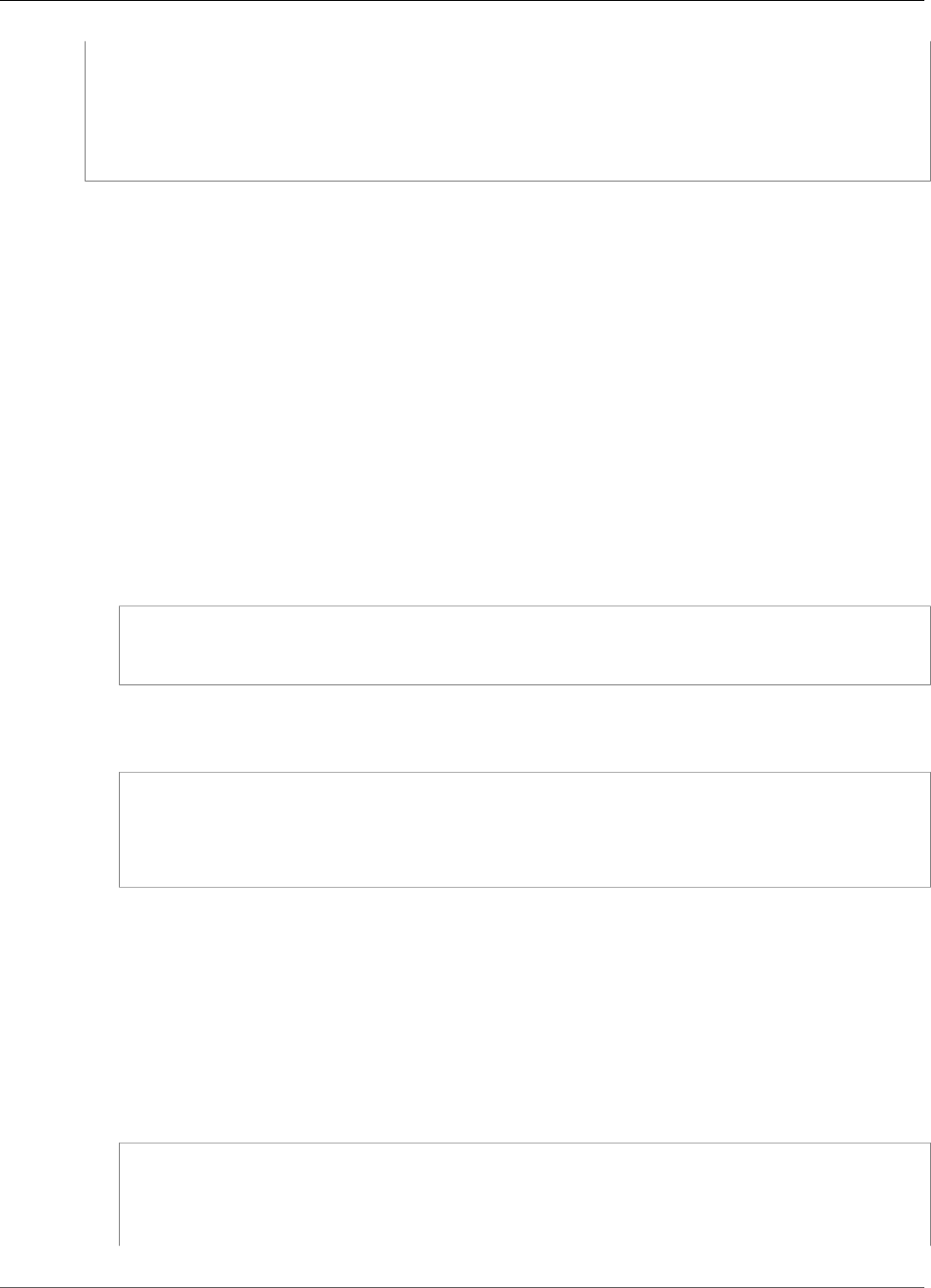
By specifying multiple flow configuration settings, you can configure the agent to monitor multiple
file directories and send data to multiple streams. In the following configuration example, the agent
monitors two file directories and sends data to a Kinesis data stream and a Kinesis Data Firehose delivery
stream respectively. You can specify different endpoints for Kinesis Data Streams and Kinesis Data
Firehose so that your data stream and Kinesis Data Firehose delivery stream don’t need to be in the same
Region.
{
"cloudwatch.emitMetrics": true,
"kinesis.endpoint": "https://your/kinesis/endpoint",
"firehose.endpoint": "https://your/firehose/endpoint",
"flows": [
{
"filePattern": "/tmp/app1.log*",
"kinesisStream": "yourkinesisstream"
20
Amazon Kinesis Data Firehose Developer Guide
Use the Agent to Preprocess Data
},
{
"filePattern": "/tmp/app2.log*",
"deliveryStream": "yourfirehosedeliverystream"
}
]
}
For more detailed information about using the agent with Amazon Kinesis Data Streams, see Writing to
Amazon Kinesis Data Streams with Kinesis Agent.
Use the Agent to Preprocess Data
The agent can pre-process the records parsed from monitored files before sending them to your delivery
stream. You can enable this feature by adding the dataProcessingOptions configuration setting to
your file flow. One or more processing options can be added, and they are performed in the specified
order.
The agent supports the following processing options. Because the agent is open source, you can further
develop and extend its processing options. You can download the agent from Kinesis Agent.
Processing Options
SINGLELINE
Converts a multi-line record to a single-line record by removing newline characters, leading spaces,
and trailing spaces.
{
"optionName": "SINGLELINE"
}
CSVTOJSON
Converts a record from delimiter-separated format to JSON format.
{
"optionName": "CSVTOJSON",
"customFieldNames": [ "field1", "field2", ... ],
"delimiter": "yourdelimiter"
}
customFieldNames
[Required] The field names used as keys in each JSON key value pair. For example, if you specify
["f1", "f2"], the record "v1, v2" is converted to {"f1":"v1","f2":"v2"}.
delimiter
The string used as the delimiter in the record. The default is a comma (,).
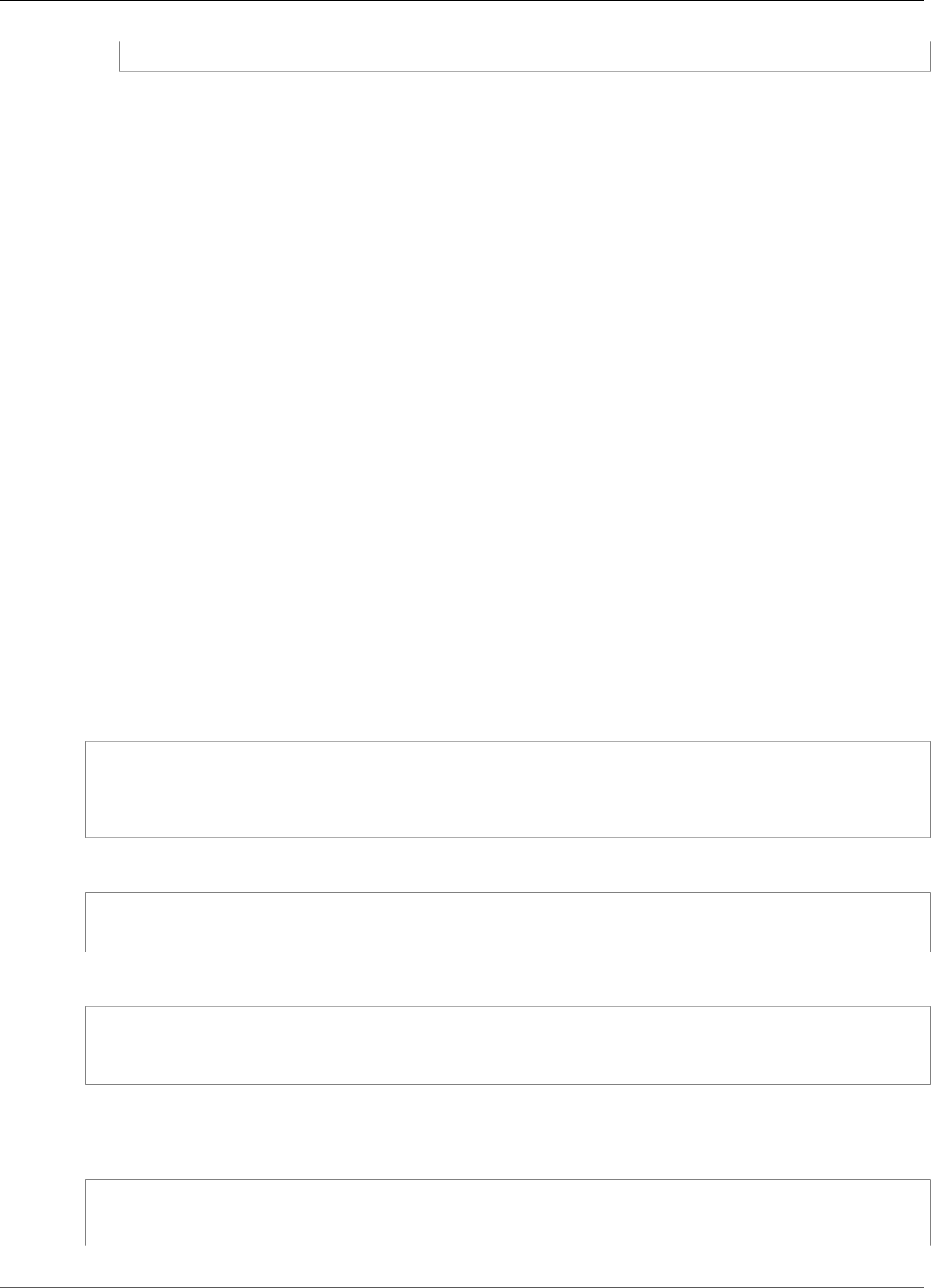
LOGTOJSON
Converts a record from a log format to JSON format. The supported log formats are Apache
Common Log, Apache Combined Log, Apache Error Log, and RFC3164 Syslog.
{
"optionName": "LOGTOJSON",
"logFormat": "logformat",
"matchPattern": "yourregexpattern",
"customFieldNames": [ "field1", "field2", … ]
21
Amazon Kinesis Data Firehose Developer Guide
Use the Agent to Preprocess Data
}
logFormat
[Required] The log entry format. The following are possible values:
•COMMONAPACHELOG — The Apache Common Log format. Each log entry has the
following pattern by default: "%{host} %{ident} %{authuser} [%{datetime}]
\"%{request}\" %{response} %{bytes}".
•COMBINEDAPACHELOG — The Apache Combined Log format. Each log entry has the
following pattern by default: "%{host} %{ident} %{authuser} [%{datetime}]
\"%{request}\" %{response} %{bytes} %{referrer} %{agent}".
•APACHEERRORLOG — The Apache Error Log format. Each log entry has the following pattern
by default: "[%{timestamp}] [%{module}:%{severity}] [pid %{processid}:tid
%{threadid}] [client: %{client}] %{message}".
•SYSLOG — The RFC3164 Syslog format. Each log entry has the following pattern by default:
"%{timestamp} %{hostname} %{program}[%{processid}]: %{message}".
matchPattern
Overrides the default pattern for the specified log format. Use this setting to extract values
from log entries if they use a custom format. If you specify matchPattern, you must also
specify customFieldNames.
customFieldNames
The custom field names used as keys in each JSON key value pair. You can use this setting to
define field names for values extracted from matchPattern, or override the default field
names of predefined log formats.
Example : LOGTOJSON Configuration
Here is one example of a LOGTOJSON configuration for an Apache Common Log entry converted to JSON
format:
{
"optionName": "LOGTOJSON",
"logFormat": "COMMONAPACHELOG"
}
Before conversion:
64.242.88.10 - - [07/Mar/2004:16:10:02 -0800] "GET /mailman/listinfo/hsdivision HTTP/1.1"
200 6291
After conversion:
{"host":"64.242.88.10","ident":null,"authuser":null,"datetime":"07/
Mar/2004:16:10:02 -0800","request":"GET /mailman/listinfo/hsdivision
HTTP/1.1","response":"200","bytes":"6291"}
Example : LOGTOJSON Configuration With Custom Fields
Here is another example LOGTOJSON configuration:
{
"optionName": "LOGTOJSON",
"logFormat": "COMMONAPACHELOG",
22
Amazon Kinesis Data Firehose Developer Guide
Use the Agent to Preprocess Data
"customFieldNames": ["f1", "f2", "f3", "f4", "f5", "f6", "f7"]
}
With this configuration setting, the same Apache Common Log entry from the previous example is
converted to JSON format as follows:
{"f1":"64.242.88.10","f2":null,"f3":null,"f4":"07/Mar/2004:16:10:02 -0800","f5":"GET /
mailman/listinfo/hsdivision HTTP/1.1","f6":"200","f7":"6291"}
Example : Convert Apache Common Log Entry
The following flow configuration converts an Apache Common Log entry to a single-line record in JSON
format:
{
"flows": [
{
"filePattern": "/tmp/app.log*",
"deliveryStream": "my-delivery-stream",
"dataProcessingOptions": [
{
"optionName": "LOGTOJSON",
"logFormat": "COMMONAPACHELOG"
}
]
}
]
}
Example : Convert Multi-Line Records
The following flow configuration parses multi-line records whose first line starts with "[SEQUENCE=".
Each record is first converted to a single-line record. Then, values are extracted from the record based on
a tab delimiter. Extracted values are mapped to specified customFieldNames values to form a single-
line record in JSON format.
{
"flows": [
{
"filePattern": "/tmp/app.log*",
"deliveryStream": "my-delivery-stream",
"multiLineStartPattern": "\\[SEQUENCE=",
"dataProcessingOptions": [
{
"optionName": "SINGLELINE"
},
{
"optionName": "CSVTOJSON",
"customFieldNames": [ "field1", "field2", "field3" ],
"delimiter": "\\t"
}
]
}
]
}
Example : LOGTOJSON Configuration with Match Pattern
Here is one example of a LOGTOJSON configuration for an Apache Common Log entry converted to JSON
format, with the last field (bytes) omitted:
23
Amazon Kinesis Data Firehose Developer Guide
Agent CLI Commands
{
"optionName": "LOGTOJSON",
"logFormat": "COMMONAPACHELOG",
"matchPattern": "^([\\d.]+) (\\S+) (\\S+) \\[([\\w:/]+\\s[+\\-]\\d{4})\\] \"(.+?)\" (\
\d{3})",
"customFieldNames": ["host", "ident", "authuser", "datetime", "request", "response"]
}
Before conversion:
123.45.67.89 - - [27/Oct/2000:09:27:09 -0400] "GET /java/javaResources.html HTTP/1.0" 200
After conversion:
{"host":"123.45.67.89","ident":null,"authuser":null,"datetime":"27/Oct/2000:09:27:09
-0400","request":"GET /java/javaResources.html HTTP/1.0","response":"200"}
Agent CLI Commands
Automatically start the agent on system startup:
sudo chkconfig aws-kinesis-agent on
Check the status of the agent:
sudo service aws-kinesis-agent status
Stop the agent:
sudo service aws-kinesis-agent stop
Read the agent's log file from this location:
/var/log/aws-kinesis-agent/aws-kinesis-agent.log
Uninstall the agent:
sudo yum remove aws-kinesis-agent
Writing to Kinesis Data Firehose Using the AWS
SDK
You can use the Amazon Kinesis Data Firehose API to send data to a Kinesis Data Firehose delivery
stream using the AWS SDK for Java, .NET, Node.js, Python, or Ruby. If you are new to Kinesis Data
Firehose, take some time to become familiar with the concepts and terminology presented in What Is
Amazon Kinesis Data Firehose? (p. 1). For more information, see Start Developing with Amazon Web
Services.
These examples do not represent production-ready code, in that they do not check for all possible
exceptions, or account for all possible security or performance considerations.
24
Amazon Kinesis Data Firehose Developer Guide
Single Write Operations Using PutRecord
The Kinesis Data Firehose API offers two operations for sending data to your delivery stream: PutRecord
and PutRecordBatch. PutRecord() sends one data record within one call and PutRecordBatch() can
send multiple data records within one call.
Topics
•Single Write Operations Using PutRecord (p. 25)
•Batch Write Operations Using PutRecordBatch (p. 25)
Single Write Operations Using PutRecord
Putting data requires only the Kinesis Data Firehose delivery stream name and a byte buffer (<=1000
KB). Because Kinesis Data Firehose batches multiple records before loading the file into Amazon S3, you
may want to add a record separator. To put data one record at a time into a delivery stream, use the
following code:
PutRecordRequest putRecordRequest = new PutRecordRequest();
putRecordRequest.setDeliveryStreamName(deliveryStreamName);
String data = line + "\n";
Record record = new Record().withData(ByteBuffer.wrap(data.getBytes()));
putRecordRequest.setRecord(record);
// Put record into the DeliveryStream
firehoseClient.putRecord(putRecordRequest);
For more code context, see the sample code included in the AWS SDK. For information about request and
response syntax, see the relevant topic in Amazon Kinesis Data Firehose API Operations.
Batch Write Operations Using PutRecordBatch
Putting data requires only the Kinesis Data Firehose delivery stream name and a list of records. Because
Kinesis Data Firehose batches multiple records before loading the file into Amazon S3, you may want to
add a record separator. To put data records in batches into a delivery stream, use the following code:
PutRecordBatchRequest putRecordBatchRequest = new PutRecordBatchRequest();
putRecordBatchRequest.setDeliveryStreamName(deliveryStreamName);
putRecordBatchRequest.setRecords(recordList);
// Put Record Batch records. Max No.Of Records we can put in a
// single put record batch request is 500
firehoseClient.putRecordBatch(putRecordBatchRequest);
recordList.clear();
For more code context, see the sample code included in the AWS SDK. For information about request and
response syntax, see the relevant topic in Amazon Kinesis Data Firehose API Operations.
Writing to Kinesis Data Firehose Using CloudWatch
Logs
For information about how to create a CloudWatch Logs subscription that sends log events to Kinesis
Data Firehose, see Subscription Filters with Amazon Kinesis Firehose.
25

Amazon Kinesis Data Firehose Developer Guide
Writing Using CloudWatch Events
Writing to Kinesis Data Firehose Using CloudWatch
Events
You can configure Amazon CloudWatch to send events to a Kinesis Data Firehose delivery stream by
adding a target to a CloudWatch Events rule.
To create a target for a CloudWatch Events rule that sends events to an existing delivery
stream
1. Sign in to the AWS Management Console and open the CloudWatch console at https://
console.aws.amazon.com/cloudwatch/.
2. Choose Create rule.
3. On the Step 1: Create rule page, for Targets, choose Add target, and then choose Firehose delivery
stream.
4. For Delivery stream, choose an existing Kinesis Data Firehose delivery stream.
For more information about creating CloudWatch Events rules, see Getting Started with Amazon
CloudWatch Events.
Writing to Kinesis Data Firehose Using AWS IoT
You can configure AWS IoT to send information to a Amazon Kinesis Data Firehose delivery stream by
adding an action.
To create an action that sends events to an existing Kinesis Data Firehose delivery stream
1. When creating a rule in the AWS IoT console, on the Create a rule page, under Set one or more
actions, choose Add action.
2. Choose Send messages to an Amazon Kinesis Firehose stream.
3. Choose Configure action.
4. For Stream name, choose an existing Kinesis Data Firehose delivery stream.
5. For Separator, choose a separator character to be inserted between records.
6. For IAM role name, choose an existing IAM role or choose Create a new role.
7. Choose Add action.
For more information about creating AWS IoT rules, see AWS IoT Rule Tutorials.
26

Amazon Kinesis Data Firehose Developer Guide
Data Transformation Flow
Amazon Kinesis Data Firehose Data
Transformation
Kinesis Data Firehose can invoke your Lambda function to transform incoming source data and deliver
the transformed data to destinations. You can enable Kinesis Data Firehose data transformation when
you create your delivery stream.
Data Transformation Flow
When you enable Kinesis Data Firehose data transformation, Kinesis Data Firehose buffers incoming
data up to 3 MB by default. (To adjust the buffering size, use the ProcessingConfiguration API
with the ProcessorParameter called BufferSizeInMBs.) Kinesis Data Firehose then invokes the
specified Lambda function asynchronously with each buffered batch using the AWS Lambda synchronous
invocation mode. The transformed data is sent from Lambda to Kinesis Data Firehose. Kinesis Data
Firehose then sends it to the destination when the specified destination buffering size or buffering
interval is reached, whichever happens first.
Important
The Lambda synchronous invocation mode has a payload size limit of 6 MB for both the request
and the response. Make sure that your buffering size for sending the request to the function
is less than or equal to 6 MB. Also ensure that the response that your function returns doesn't
exceed 6 MB.
Data Transformation and Status Model
All transformed records from Lambda must contain the following parameters, or Kinesis Data Firehose
rejects them and treats that as a data transformation failure.
recordId
The record ID is passed from Kinesis Data Firehose to Lambda during the invocation. The
transformed record must contain the same record ID. Any mismatch between the ID of the original
record and the ID of the transformed record is treated as a data transformation failure.
result
The status of the data transformation of the record. The possible values are: Ok (the record was
transformed successfully), Dropped (the record was dropped intentionally by your processing logic),
and ProcessingFailed (the record could not be transformed). If a record has a status of Ok or
Dropped, Kinesis Data Firehose considers it successfully processed. Otherwise, Kinesis Data Firehose
considers it unsuccessfully processed.
data
The transformed data payload, after base64-encoding.
Lambda Blueprints
Kinesis Data Firehose provides the following Lambda blueprints that you can use to create a Lambda
function for data transformation.
27

Amazon Kinesis Data Firehose Developer Guide
Data Transformation Failure Handling
•General Firehose Processing — Contains the data transformation and status model described in the
previous section. Use this blueprint for any custom transformation logic.
•Apache Log to JSON — Parses and converts Apache log lines to JSON objects, using predefined JSON
field names.
•Apache Log to CSV — Parses and converts Apache log lines to CSV format.
•Syslog to JSON — Parses and converts Syslog lines to JSON objects, using predefined JSON field
names.
•Syslog to CSV — Parses and converts Syslog lines to CSV format.
•Kinesis Data Firehose Process Record Streams as source — Accesses the Kinesis Data Streams records
in the input and returns them with a processing status.
•Kinesis Data Firehose CloudWatch Logs Processor — Parses and extracts individual log events from
records sent by CloudWatch Logs subscription filters.
Lambda blueprints are only available in the Node.js and Python languages. You can implement your own
functions in other supported languages. For information about AWS Lambda supported languages, see
Introduction: Building Lambda Functions.
To see all the Lambda blueprints for Kinesis Data Firehose, with examples in Python and
Node.js
1. Sign in to the AWS Management Console and open the AWS Lambda console at https://
console.aws.amazon.com/lambda/.
2. Choose Create function, and then choose Blueprints.
3. Search for the keyword "firehose" to find the Kinesis Data Firehose Lambda Blueprints.
Data Transformation Failure Handling
If your Lambda function invocation fails because of a network timeout or because you've reached the
Lambda invocation limit, Kinesis Data Firehose retries the invocation three times by default. If the
invocation does not succeed, Kinesis Data Firehose then skips that batch of records. The skipped records
are treated as unsuccessfully processed records. You can specify or override the retry options using the
CreateDeliveryStream or UpdateDestination API. For this type of failure, you can log invocation
errors to Amazon CloudWatch Logs. For more information, see Monitoring Kinesis Data Firehose Using
CloudWatch Logs (p. 49).
If the status of the data transformation of a record is ProcessingFailed, Kinesis Data Firehose treats
the record as unsuccessfully processed. For this type of failure, you can emit error logs to Amazon
CloudWatch Logs from your Lambda function. For more information, see Accessing Amazon CloudWatch
Logs for AWS Lambda in the AWS Lambda Developer Guide.
If data transformation fails, the unsuccessfully processed records are delivered to your S3 bucket in the
processing-failed folder. The records have the following format:
{
"attemptsMade": "count",
"arrivalTimestamp": "timestamp",
"errorCode": "code",
"errorMessage": "message",
"attemptEndingTimestamp": "timestamp",
"rawData": "data",
"lambdaArn": "arn"
}
28

Amazon Kinesis Data Firehose Developer Guide
Source Record Backup
attemptsMade
The number of invocation requests attempted.
arrivalTimestamp
The time that the record was received by Kinesis Data Firehose.
errorCode
The HTTP error code returned by Lambda.
errorMessage
The error message returned by Lambda.
attemptEndingTimestamp
The time that Kinesis Data Firehose stopped attempting Lambda invocations.
rawData
The base64-encoded record data.
lambdaArn
The Amazon Resource Name (ARN) of the Lambda function.
Source Record Backup
Kinesis Data Firehose can back up all untransformed records to your S3 bucket concurrently while
delivering transformed records to the destination. You can enable source record backup when you create
or update your delivery stream. You cannot disable source record backup after you enable it.
29

Amazon Kinesis Data Firehose Developer Guide
Record Format Conversion Requirements
Converting Your Input Record
Format in Kinesis Data Firehose
Amazon Kinesis Data Firehose can convert the format of your input data from JSON to Apache Parquet
or Apache ORC before storing the data in Amazon S3. Parquet and ORC are columnar data formats that
save space and enable faster queries compared to row-oriented formats like JSON. If you want to convert
an input format other than JSON, such as comma-separated values (CSV) or structured text, you can use
AWS Lambda to transform it to JSON first. For more information, see Data Transformation (p. 27).
Topics
•Record Format Conversion Requirements (p. 30)
•Choosing the JSON Deserializer (p. 30)
•Choosing the Serializer (p. 31)
•Converting Input Record Format (Console) (p. 31)
•Converting Input Record Format (API) (p. 32)
•Record Format Conversion Error Handling (p. 32)
Record Format Conversion Requirements
Kinesis Data Firehose requires the following three elements to convert the format of your record data:
•A deserializer to read the JSON of your input data – You can choose one of two types of deserializers:
Apache Hive JSON SerDe or OpenX JSON SerDe.
•A schema to determine how to interpret that data – Use AWS Glue to create a schema in the AWS
Glue Data Catalog. Kinesis Data Firehose then references that schema and uses it to interpret your
input data. You can use the same schema to configure both Kinesis Data Firehose and your analytics
software. For more information, see Populating the AWS Glue Data Catalog in the AWS Glue Developer
Guide.
•A serializer to convert the data to the target columnar storage format (Parquet or ORC) – You can
choose one of two types of serializers: ORC SerDe or Parquet SerDe.
Important
If you enable record format conversion, you can't set your Kinesis Data Firehose destination
to be Amazon Elasticsearch Service (Amazon ES), Amazon Redshift, or Splunk. With format
conversion enabled, Amazon S3 is the only destination that you can use for your Kinesis Data
Firehose delivery stream.
You can convert the format of your data even if you aggregate your records before sending them to
Kinesis Data Firehose.
Choosing the JSON Deserializer
Choose the OpenX JSON SerDe if your input JSON contains time stamps in the following formats:
• yyyy-MM-dd'T'HH:mm:ss[.S]'Z', where the fraction can have up to 9 digits – For example,
2017-02-07T15:13:01.39256Z.
30

Amazon Kinesis Data Firehose Developer Guide
Choosing the Serializer
• yyyy-[M]M-[d]d HH:mm:ss[.S], where the fraction can have up to 9 digits – For example, 2017-02-07
15:13:01.14.
• Epoch seconds – For example, 1518033528.
• Epoch milliseconds – For example, 1518033528123.
• Floating point epoch seconds – For example, 1518033528.123.
The OpenX JSON SerDe can convert periods (.) to underscores (_). It can also convert JSON keys to
lowercase before deserializing them. For more information about the options that are available with this
deserializer through Kinesis Data Firehose, see OpenXJsonSerDe.
If you're not sure which deserializer to choose, use the OpenX JSON SerDe, unless you have time stamps
that it doesn't support.
If you have time stamps in formats other than those listed previously, use the Apache Hive JSON SerDe.
When you choose this deserializer, you can specify the time stamp formats to use. To do this, follow
the pattern syntax of the Joda-Time DateTimeFormat format strings. For more information, see Class
DateTimeFormat.
You can also use the special value millis to parse time stamps in epoch milliseconds. If you don't
specify a format, Kinesis Data Firehose uses java.sql.Timestamp::valueOf by default.
The Hive JSON SerDe doesn't allow the following:
• Periods (.) in column names.
• Fields whose type is uniontype.
• Fields that have numerical types in the schema, but that are strings in the JSON. For example, if the
schema is (an int), and the JSON is {"a":"123"}, the Hive SerDe gives an error.
The Hive SerDe doesn't convert nested JSON into strings. For example, if you have {"a":
{"inner":1}}, it doesn't treat {"inner":1} as a string.
Choosing the Serializer
The serializer that you choose depends on your business needs. To learn more about the two serializer
options, see ORC SerDe and Parquet SerDe.
Converting Input Record Format (Console)
You can enable data format conversion on the console when you create or update a Kinesis delivery
stream. With data format conversion enabled, Amazon S3 is the only destination that you can configure
for the delivery stream. Also, Amazon S3 compression gets disabled when you enable format conversion.
However, Snappy compression happens automatically as part of the conversion process. The framing
format for Snappy that Kinesis Data Firehose uses in this case is compatible with Hadoop. This means
that you can use the results of the Snappy compression and run queries on this data in Athena. For the
Snappy framing format that Hadoop relies on, see BlockCompressorStream.java.
To enable data format conversion for a data delivery stream
1. Sign in to the AWS Management Console, and open the Kinesis Data Firehose console at https://
console.aws.amazon.com/firehose/.
2. Choose a Kinesis Data Firehose delivery stream to update, or create a new delivery stream by
following the steps in Creating an Amazon Kinesis Data Firehose Delivery Stream (p. 5).
31

Amazon Kinesis Data Firehose Developer Guide
Converting Input Record Format (API)
3. Under Convert record format, set Record format conversion to Enabled.
4. Choose the output format that you want. For more information about the two options, see Apache
Parquet and Apache ORC.
5. Choose an AWS Glue table to specify a schema for your source records. Set the Region, database,
table, and table version.
Converting Input Record Format (API)
If you want Kinesis Data Firehose to convert the format of your input data from JSON
to Parquet or ORC, specify the optional DataFormatConversionConfiguration element in
ExtendedS3DestinationConfiguration or in ExtendedS3DestinationUpdate. If you specify
DataFormatConversionConfiguration, the following restrictions apply:
• In BufferingHints, you can't set SizeInMBs to a value less than 64 if you enable record format
conversion. Also, when format conversion isn't enabled, the default value is 5. The value becomes 128
when you enable it.
• You must set CompressionFormat in ExtendedS3DestinationConfiguration or in
ExtendedS3DestinationUpdate to UNCOMPRESSED. The default value for CompressionFormat is
UNCOMPRESSED. Therefore, you can also leave it unspecified in ExtendedS3DestinationConfiguration.
The data still gets compressed as part of the serialization process, using Snappy compression by
default. The framing format for Snappy that Kinesis Data Firehose uses in this case is compatible
with Hadoop. This means that you can use the results of the Snappy compression and run
queries on this data in Athena. For the Snappy framing format that Hadoop relies on, see
BlockCompressorStream.java. When you configure the serializer, you can choose other types of
compression.
Record Format Conversion Error Handling
When Kinesis Data Firehose can't parse or deserialize a record (for example, when the data doesn't match
the schema), it writes it to Amazon S3 with an error prefix. If this write fails, Kinesis Data Firehose retries
it forever, blocking further delivery. For each failed record, Kinesis Data Firehose writes a JSON document
with the following schema:
{
"attemptsMade": long,
"arrivalTimestamp": long,
"lastErrorCode": string,
"lastErrorMessage": string,
"attemptEndingTimestamp": long,
"rawData": string,
"sequenceNumber": string,
"subSequenceNumber": long,
"dataCatalogTable": {
"catalogId": string,
"databaseName": string,
"tableName": string,
"region": string,
"versionId": string,
"catalogArn": string
}
}
32

Amazon Kinesis Data Firehose Developer Guide
Data Delivery Format
Amazon Kinesis Data Firehose Data
Delivery
After data is sent to your delivery stream, it is automatically delivered to the destination you choose.
Important
If you use the Kinesis Producer Library (KPL) to write data to a Kinesis data stream, you can
use aggregation to combine the records that you write to that Kinesis data stream. If you then
use that data stream as a source for your Kinesis Data Firehose delivery stream, Kinesis Data
Firehose de-aggregates the records before it delivers them to the destination. If you configure
your delivery stream to transform the data, Kinesis Data Firehose de-aggregates the records
before it delivers them to AWS Lambda. For more information, see Developing Amazon Kinesis
Data Streams Producers Using the Kinesis Producer Library and Aggregation in the Amazon
Kinesis Data Streams Developer Guide.
Topics
•Data Delivery Format (p. 33)
•Data Delivery Frequency (p. 34)
•Data Delivery Failure Handling (p. 34)
•Amazon S3 Object Name Format (p. 36)
•Index Rotation for the Amazon ES Destination (p. 36)
Data Delivery Format
For data delivery to Amazon Simple Storage Service (Amazon S3), Kinesis Data Firehose concatenates
multiple incoming records based on the buffering configuration of your delivery stream. It then delivers
the records to Amazon S3 as an Amazon S3 object. You might want to add a record separator at the end
of each record before you send it to Kinesis Data Firehose. Then you can divide a delivered Amazon S3
object to individual records.
For data delivery to Amazon Redshift, Kinesis Data Firehose first delivers incoming data to your S3
bucket in the format described earlier. Kinesis Data Firehose then issues an Amazon Redshift COPY
command to load the data from your S3 bucket to your Amazon Redshift cluster. Ensure that after
Kinesis Data Firehose concatenates multiple incoming records to an Amazon S3 object, the Amazon S3
object can be copied to your Amazon Redshift cluster. For more information, see Amazon Redshift COPY
Command Data Format Parameters.
For data delivery to Amazon ES, Kinesis Data Firehose buffers incoming records based on the
buffering configuration of your delivery stream. It then generates an Elasticsearch bulk request to
index multiple records to your Elasticsearch cluster. Make sure that your record is UTF-8 encoded
and flattened to a single-line JSON object before you send it to Kinesis Data Firehose. Also, the
rest.action.multi.allow_explicit_index option for your Elasticsearch cluster must be set to
true (default) to take bulk requests with an explicit index that is set per record. For more information, see
Amazon ES Configure Advanced Options in the Amazon Elasticsearch Service Developer Guide.
For data delivery to Splunk, Kinesis Data Firehose concatenates the bytes that you send. If you want
delimiters in your data, such as a new line character, you must insert them yourself. Make sure that
Splunk is configured to parse any such delimiters.
33

Amazon Kinesis Data Firehose Developer Guide
Data Delivery Frequency
Data Delivery Frequency
Each Kinesis Data Firehose destination has its own data delivery frequency.
Amazon S3
The frequency of data delivery to Amazon S3 is determined by the Amazon S3 Buffer size and
Buffer interval value that you configured for your delivery stream. Kinesis Data Firehose buffers
incoming data before it delivers it to Amazon S3. You can configure the values for Amazon S3
Buffer size (1–128 MB) or Buffer interval (60–900 seconds). The condition satisfied first triggers
data delivery to Amazon S3. When data delivery to the destination falls behind data writing to the
delivery stream, Kinesis Data Firehose raises the buffer size dynamically. It can then catch up and
ensure that all data is delivered to the destination.
Amazon Redshift
The frequency of data COPY operations from Amazon S3 to Amazon Redshift is determined by how
fast your Amazon Redshift cluster can finish the COPY command. If there is still data to copy, Kinesis
Data Firehose issues a new COPY command as soon as the previous COPY command is successfully
finished by Amazon Redshift.
Amazon Elasticsearch Service
The frequency of data delivery to Amazon ES is determined by the Elasticsearch Buffer size and
Buffer interval values that you configured for your delivery stream. Kinesis Data Firehose buffers
incoming data before delivering it to Amazon ES. You can configure the values for Elasticsearch
Buffer size (1–100 MB) or Buffer interval (60–900 seconds), and the condition satisfied first triggers
data delivery to Amazon ES.
Splunk
Kinesis Data Firehose buffers incoming data before delivering it to Splunk. The buffer size is 5 MB,
and the buffer interval is 60 seconds. The condition satisfied first triggers data delivery to Splunk.
The buffer size and interval aren't configurable. These numbers are optimal.
Data Delivery Failure Handling
Each Kinesis Data Firehose destination has its own data delivery failure handling.
Amazon S3
Data delivery to your S3 bucket might fail for various reasons. For example, the bucket might not
exist anymore, the IAM role that Kinesis Data Firehose assumes might not have access to the bucket,
the network failed, or similar events. Under these conditions, Kinesis Data Firehose keeps retrying
for up to 24 hours until the delivery succeeds. The maximum data storage time of Kinesis Data
Firehose is 24 hours. If data delivery fails for more than 24 hours, your data is lost.
Amazon Redshift
For an Amazon Redshift destination, you can specify a retry duration (0–7200 seconds) when
creating a delivery stream.
Data delivery to your Amazon Redshift cluster might fail for several reasons. For example, you might
have an incorrect cluster configuration of your delivery stream, a cluster under maintenance, or a
network failure. Under these conditions, Kinesis Data Firehose retries for the specified time duration
and skips that particular batch of Amazon S3 objects. The skipped objects' information is delivered
to your S3 bucket as a manifest file in the errors/ folder, which you can use for manual backfill.
For information about how to COPY data manually with manifest files, see Using a Manifest to
Specify Data Files.
34
Amazon Kinesis Data Firehose Developer Guide
Data Delivery Failure Handling
Amazon Elasticsearch Service
For the Amazon ES destination, you can specify a retry duration (0–7200 seconds) when creating a
delivery stream.
Data delivery to your Amazon ES cluster might fail for several reasons. For example, you might have
an incorrect Amazon ES cluster configuration of your delivery stream, an Amazon ES cluster under
maintenance, a network failure, or similar events. Under these conditions, Kinesis Data Firehose
retries for the specified time duration and then skips that particular index request. The skipped
documents are delivered to your S3 bucket in the elasticsearch_failed/ folder, which you can
use for manual backfill. Each document has the following JSON format:
{
"attemptsMade": "(number of index requests attempted)",
"arrivalTimestamp": "(the time when the document was received by Firehose)",
"errorCode": "(http error code returned by Elasticsearch)",
"errorMessage": "(error message returned by Elasticsearch)",
"attemptEndingTimestamp": "(the time when Firehose stopped attempting index
request)",
"esDocumentId": "(intended Elasticsearch document ID)",
"esIndexName": "(intended Elasticsearch index name)",
"esTypeName": "(intended Elasticsearch type name)",
"rawData": "(base64-encoded document data)"
}
Splunk
When Kinesis Data Firehose sends data to Splunk, it waits for an acknowledgment from Splunk. If
an error occurs, or the acknowledgment doesn’t arrive within the acknowledgment timeout period,
Kinesis Data Firehose starts the retry duration counter. It keeps retrying until the retry duration
expires. After that, Kinesis Data Firehose considers it a data delivery failure and backs up the data to
your Amazon S3 bucket.
Every time Kinesis Data Firehose sends data to Splunk, whether it's the initial attempt or a retry, it
restarts the acknowledgement timeout counter. It then waits for an acknowledgement to arrive from
Splunk. Even if the retry duration expires, Kinesis Data Firehose still waits for the acknowledgment
until it receives it or the acknowledgement timeout is reached. If the acknowledgment times out,
Kinesis Data Firehose checks to determine whether there's time left in the retry counter. If there is
time left, it retries again and repeats the logic until it receives an acknowledgment or determines
that the retry time has expired.
A failure to receive an acknowledgement isn't the only type of data delivery error that can occur. For
information about the other types of data delivery errors, see Splunk Data Delivery Errors. Any data
delivery error triggers the retry logic if your retry duration is greater than 0.
The following is an example error record.
{
"attemptsMade": 0,
"arrivalTimestamp": 1506035354675,
"errorCode": "Splunk.AckTimeout",
"errorMessage": "Did not receive an acknowledgement from HEC before the HEC
acknowledgement timeout expired. Despite the acknowledgement timeout, it's possible
the data was indexed successfully in Splunk. Kinesis Firehose backs up in Amazon S3
data for which the acknowledgement timeout expired.",
"attemptEndingTimestamp": 13626284715507,
"rawData":
"MiAyNTE2MjAyNzIyMDkgZW5pLTA1ZjMyMmQ1IDIxOC45Mi4xODguMjE0IDE3Mi4xNi4xLjE2NyAyNTIzMyAxNDMzIDYgMSA0MCAxNTA2MDM0NzM0IDE1MDYwMzQ3OTQgUkVKRUNUIE9LCg==",
"EventId": "49577193928114147339600778471082492393164139877200035842.0"
}
35
Amazon Kinesis Data Firehose Developer Guide
Amazon S3 Object Name Format
Amazon S3 Object Name Format
Kinesis Data Firehose adds a UTC time prefix in the format YYYY/MM/DD/HH before writing objects to
Amazon S3. This prefix creates a logical hierarchy in the bucket, where each forward slash (/) creates a
level in the hierarchy. You can modify this structure by specifying a custom prefix. For information about
how to specify a custom prefix, see Custom Amazon S3 Prefixes (p. 37).
The Amazon S3 object name follows the pattern DeliveryStreamName-DeliveryStreamVersion-
YYYY-MM-DD-HH-MM-SS-RandomString, where DeliveryStreamVersion begins with 1 and
increases by 1 for every configuration change of the Kinesis Data Firehose delivery stream. You can
change delivery stream configurations (for example, the name of the S3 bucket, buffering hints,
compression, and encryption). You can do so by using the Kinesis Data Firehose console or the
UpdateDestination API operation.
Index Rotation for the Amazon ES Destination
For the Amazon ES destination, you can specify a time-based index rotation option from one of the
following five options: NoRotation, OneHour, OneDay, OneWeek, or OneMonth.
Depending on the rotation option you choose, Kinesis Data Firehose appends a portion of the UTC
arrival timestamp to your specified index name. It rotates the appended timestamp accordingly. The
following example shows the resulting index name in Amazon ES for each index rotation option, where
the specified index name is myindex and the arrival timestamp is 2016-02-25T13:00:00Z.
RotationPeriod IndexName
NoRotation myindex
OneHour myindex-2016-02-25-13
OneDay myindex-2016-02-25
OneWeek myindex-2016-w08
OneMonth myindex-2016-02
36
Amazon Kinesis Data Firehose Developer Guide
The timestamp namespace
Custom Prefixes for Amazon S3
Objects
If your destination is Amazon S3, Amazon Elasticsearch Service, or Splunk, you can configure the Amazon
S3 object keys used for delivering data from Kinesis Data Firehose. To do this, you specify expressions
that Kinesis Data Firehose evaluates at delivery time. The final object keys have the format <evaluated
prefix><suffix>, where the suffix has the format <delivery stream name>-<delivery stream
version>-<year>-<month>-<day>-<hour>-<minute>-<second>-<uuid><file extension>.
You can't change the suffix field.
You can use expressions of the following forms in your custom prefix: !{namespace:value}, where
namespace can be either firehose or timestamp, as explained in the following sections.
If a prefix ends with a slash, it appears as a folder in the Amazon S3 bucket. For more information, see
Amazon S3 Object Name Format in the Amazon Kinesis Data Firehose Developer Guide.
The timestamp namespace
Valid values for this namespace are strings that are valid Java DateTimeFormatter strings. As an example,
in the year 2018, the expression !{timestamp:yyyy} evaluates to 2018.
When evaluating timestamps, Kinesis Data Firehose uses the approximate arrival timestamp of the oldest
record that's contained in the Amazon S3 object being written.
The timestamp is always in UTC.
If you use the timestamp namespace more than once in the same prefix expression, every instance
evaluates to the same instant in time.
The firehose namespace
There are two values that you can use with this namespace: error-output-type and random-string.
The following table explains how to use them.
The firehose namespace values
Conversion Description Example input Example output Notes
error-output-
type
Evaluates to
one of the
following strings,
depending on
the configuration
of your delivery
stream, and the
reason of failure:
{processing-failed,
elasticsearch-
myPrefix/
result=!
{firehose:error-
output-type}/!
{timestamp:yyyy/
MM/dd}
myPrefix/
result=processing-
failed/2018/08/03
The error-
output-type
value can only
be used in the
ErrorOutputPrefix
field.
37
Amazon Kinesis Data Firehose Developer Guide
Semantic rules
Conversion Description Example input Example output Notes
failed, splunk-
failed, format-
conversion-failed}.
If you use it more
than once in the
same expression,
every instance
evaluates to the
same error string..
random-string Evaluates to a
random string of
11 characters. If
you use it more
than once in the
same expression,
every instance
evaluates to a new
random string.
myPrefix/!
{firehose:random-
string}/
myPrefix/046b6c7f-0b/You can use it with
both prefix types.
You can place it
at the beginning
of the format
string to get
a randomized
prefix, which
is sometimes
necessary
for attaining
extremely high
throughput with
Amazon S3.
Semantic rules
The following rules apply to Prefix and ErrorOutputPrefix expressions.
• For the timestamp namespace, any character that isn't in single quotes is evaluated. In other words,
any string escaped with single quotes in the value field is taken literally.
• If you specify a prefix that doesn't contain a timestamp namespace expression, Kinesis Data Firehose
appends the expression !{timestamp:yyyy/MM/dd/HH/}to the value in the Prefix field.
• The sequence !{ can only appear in !{namespace:value} expressions.
•ErrorOutputPrefix can be null only if Prefix contains no expressions. In this case, Prefix
evaluates to <specified-prefix>YYYY/MM/DD/HH/ and ErrorOutputPrefix evaluates to
<specified-prefix><error-output-type>YYYY/MM/DD/HH/.
• If you specify an expression for ErrorOutputPrefix, you must include at least one instance of !
{firehose:error-output-type}.
•Prefix can't contain !{firehose:error-output-type}.
• Neither Prefix nor ErrorOutputPrefix can be greater than 512 characters after they're evaluated.
• If the destination is Amazon Redshift, Prefix must not contain expressions and
ErrorOutputPrefix must be null.
• When the destination is Amazon Elasticsearch Service or Splunk, and no ErrorOutputPrefix is
specified, Kinesis Data Firehose uses the Prefix field for failed records.
• When the destination is Amazon S3, and you specify an Amazon S3 backup configuration, the Prefix
and ErrorOutputPrefix in the Amazon S3 destination configuration are used for successful recrods
and failed recrods, respectively. In the Amazon S3 backup configuration, the Prefix is used for
backing up the raw data, whereas the ErrorOutputPrefix is ignored.
38
Amazon Kinesis Data Firehose Developer Guide
Example prefixes
Example prefixes
Prefix and ErrorOutputPrefix examples
Input Evaluated prefix (at 10:30 AM UTC on Aug 27,
2018)
Prefix: Unspecified
ErrorOutputPrefix: myFirehoseFailures/!
{firehose:error-output-type}/
Prefix: 2018/08/10/
ErrorOutputPrefix: myFirehoseFailures/
processing-failed/
Prefix: !{timestamp:yyyy/MM/dd}
ErrorOutputPrefix: Unspecified
Invalid input: ErrorOutputPrefix can't be null
when Prefix contains expressions
Prefix: myFirehose/DeliveredYear=!
{timestamp:yyyy}/anyMonth/rand=!
{firehose:random-string}
ErrorOutputPrefix: myFirehoseFailures/!
{firehose:error-output-type}/!
{timestamp:yyyy}/anyMonth/!
{timestamp:dd}
Prefix: myFirehose/DeliveredYear=2018/
anyMonth/rand=5abf82daaa5
ErrorOutputPrefix: myFirehoseFailures/
processing-failed/2018/anyMonth/10
Prefix: myPrefix/year=!
{timestamp:yyyy}/month=!
{timestamp:MM}/day=!{timestamp:dd}/
hour=!{timestamp:HH}/
ErrorOutputPrefix: myErrorPrefix/!
{timestamp:'year='yyyy'/month='MM'/
day='dd'/hour='HH'}/!{firehose:error-
output-type}
Prefix: myPrefix/year=2018/month=07/
day=06/hour=23/
ErrorOutputPrefix: myErrorPrefix/
year=2018/month=07/day=06/hour=23/
processing-failed
Prefix: myFirehosePrefix
ErrorOutputPrefix: Unspecified
Prefix: myFirehosePrefix/2018/08/27/
ErrorOutputPrefix: myFirehosePrefix/
processing-failed/2018/08/27/
39

Amazon Kinesis Data Firehose Developer Guide
Server-Side Encryption with Kinesis
Data Streams as the Data Source
Using Server-Side Encryption with
Amazon Kinesis Data Firehose
If you have sensitive data, you can enable server-side data encryption when you use Amazon Kinesis Data
Firehose. How you do this depends on the source of your data.
Server-Side Encryption with Kinesis Data Streams
as the Data Source
When you configure a Kinesis data stream as the data source of a Kinesis Data Firehose delivery stream,
Kinesis Data Firehose no longer stores the data at rest. Instead, the data is stored in the data stream.
When you send data from your data producers to your data stream, Kinesis Data Streams encrypts your
data using an AWS Key Management Service (AWS KMS) key before storing the data at rest. When your
Kinesis Data Firehose delivery stream reads the data from your data stream, Kinesis Data Streams first
decrypts the data and then sends it to Kinesis Data Firehose. Kinesis Data Firehose buffers the data in
memory based on the buffering hints that you specify. It then delivers it to your destinations without
storing the unencrypted data at rest.
For information about how to enable server-side encryption for Kinesis Data Streams, see Using Server-
Side Encryption in the Amazon Kinesis Data Streams Developer Guide.
Server-Side Encryption with Direct PUT or Other
Data Sources
If you send data to your delivery stream using PutRecord or PutRecordBatch, or if you send the data
using AWS IoT, Amazon CloudWatch Logs, or CloudWatch Events, you can turn on server-side encryption
by using the StartDeliveryStreamEncryption operation.
To stop server-side-encryption, use the StopDeliveryStreamEncryption operation.
40

Amazon Kinesis Data Firehose Developer Guide
Tag Basics
Tagging Your Delivery Streams in
Amazon Kinesis Data Firehose
You can assign your own metadata to delivery streams that you create in Amazon Kinesis Data Firehose
in the form of tags. A tag is a key-value pair that you define for a stream. Using tags is a simple yet
powerful way to manage AWS resources and organize data, including billing data.
Topics
•Tag Basics (p. 41)
•Tracking Costs Using Tagging (p. 41)
•Tag Restrictions (p. 42)
•Tagging Delivery Streams Using the Amazon Kinesis Data Firehose API (p. 42)
Tag Basics
You can use the Amazon Kinesis Data Firehose API to complete the following tasks:
• Add tags to a delivery stream.
• List the tags for your delivery streams.
• Remove tags from a delivery stream.
You can use tags to categorize your Kinesis Data Firehose delivery streams. For example, you can
categorize delivery streams by purpose, owner, or environment. Because you define the key and value for
each tag, you can create a custom set of categories to meet your specific needs. For example, you might
define a set of tags that helps you track delivery streams by owner and associated application.
The following are several examples of tags:
•Project: Project name
•Owner: Name
•Purpose: Load testing
•Application: Application name
•Environment: Production
Tracking Costs Using Tagging
You can use tags to categorize and track your AWS costs. When you apply tags to your AWS resources,
including Kinesis Data Firehose delivery streams, your AWS cost allocation report includes usage and
costs aggregated by tags. You can organize your costs across multiple services by applying tags that
represent business categories (such as cost centers, application names, or owners). For more information,
see Use Cost Allocation Tags for Custom Billing Reports in the AWS Billing and Cost Management User
Guide.
41

Amazon Kinesis Data Firehose Developer Guide
Tag Restrictions
Tag Restrictions
The following restrictions apply to tags in Kinesis Data Firehose.
Basic restrictions
• The maximum number of tags per resource (stream) is 50.
• Tag keys and values are case-sensitive.
• You can't change or edit tags for a deleted stream.
Tag key restrictions
• Each tag key must be unique. If you add a tag with a key that's already in use, your new tag overwrites
the existing key-value pair.
• You can't start a tag key with aws: because this prefix is reserved for use by AWS. AWS creates tags
that begin with this prefix on your behalf, but you can't edit or delete them.
• Tag keys must be between 1 and 128 Unicode characters in length.
• Tag keys must consist of the following characters: Unicode letters, digits, white space, and the
following special characters: _ . / = + - @.
Tag value restrictions
• Tag values must be between 0 and 255 Unicode characters in length.
• Tag values can be blank. Otherwise, they must consist of the following characters: Unicode letters,
digits, white space, and any of the following special characters: _ . / = + - @.
Tagging Delivery Streams Using the Amazon
Kinesis Data Firehose API
To add, list, and remove tags, use the following three operations:
•TagDeliveryStream
•ListTagsForDeliveryStream
•UntagDeliveryStream
42

Amazon Kinesis Data Firehose Developer Guide
Monitoring with CloudWatch Metrics
Monitoring Amazon Kinesis Data
Firehose
You can monitor Amazon Kinesis Data Firehose using the following features:
•Amazon CloudWatch metrics (p. 43)— Kinesis Data Firehose sends Amazon CloudWatch custom
metrics with detailed monitoring for each delivery stream.
•Amazon CloudWatch Logs (p. 49)— Kinesis Data Firehose sends CloudWatch custom logs with
detailed monitoring for each delivery stream.
•Kinesis Agent (p. 54)— Kinesis Agent publishes custom CloudWatch metrics to help assess whether
the agent is working as expected.
•API logging and history (p. 55)— Kinesis Data Firehose uses AWS CloudTrail to log API calls and
store the data in an Amazon S3 bucket, and to maintain API call history.
Monitoring Kinesis Data Firehose Using
CloudWatch Metrics
Kinesis Data Firehose integrates with Amazon CloudWatch metrics so that you can collect, view, and
analyze CloudWatch metrics for your Kinesis Data Firehose delivery streams. For example, you can
monitor the IncomingBytes and IncomingRecords metrics to keep track of data ingested into Kinesis
Data Firehose from data producers.
The metrics that you configure for your Kinesis Data Firehose delivery streams and agents are
automatically collected and pushed to CloudWatch every five minutes. Metrics are archived for two
weeks; after that period, the data is discarded.
The metrics collected for Kinesis Data Firehose delivery streams are free of charge. For information about
Kinesis agent metrics, see Monitoring Kinesis Agent Health (p. 54).
Topics
•Service-level CloudWatch Metrics (p. 43)
•API-Level CloudWatch Metrics (p. 46)
•Data Transformation CloudWatch Metrics (p. 47)
•Format Conversion CloudWatch Metrics (p. 48)
•Dimensions for Kinesis Data Firehose (p. 48)
•Accessing CloudWatch Metrics for Kinesis Data Firehose (p. 48)
Service-level CloudWatch Metrics
The AWS/Firehose namespace includes the following service-level metrics.
43

Amazon Kinesis Data Firehose Developer Guide
Service-level CloudWatch Metrics
Metric Description
BackupToS3.Bytes The number of bytes delivered to Amazon S3 for backup
over the specified time period. Kinesis Data Firehose emits
this metric when data transformation is enabled for Amazon
S3 or Amazon Redshift destinations.
Units: Bytes
BackupToS3.DataFreshness Age (from getting into Kinesis Data Firehose to now) of
the oldest record in Kinesis Data Firehose. Any record older
than this age has been delivered to the Amazon S3 bucket
for backup. Kinesis Data Firehose emits this metric when
data transformation is enabled for Amazon S3 or Amazon
Redshift destinations.
Units: Seconds
BackupToS3.Records The number of records delivered to Amazon S3 for backup
over the specified time period. Kinesis Data Firehose emits
this metric when data transformation is enabled for Amazon
S3 or Amazon Redshift destinations.
Units: Count
BackupToS3.Success Sum of successful Amazon S3 put commands for backup
over sum of all Amazon S3 backup put commands. Kinesis
Data Firehose emits this metric when data transformation is
enabled for Amazon S3 or Amazon Redshift destinations.
DataReadFromKinesisStream.Bytes When the data source is a Kinesis data stream, this metric
indicates the number of bytes read from that data stream.
This number includes rereads due to failovers.
Units: Bytes
DataReadFromKinesisStream.RecordsWhen the data source is a Kinesis data stream, this metric
indicates the number of records read from that data stream.
This number includes rereads due to failovers.
Units: Count
DeliveryToElasticsearch.Bytes The number of bytes indexed to Amazon ES over the
specified time period.
Units: Bytes
DeliveryToElasticsearch.Records The number of records indexed to Amazon ES over the
specified time period.
Units: Count
DeliveryToElasticsearch.Success The sum of the successfully indexed records over the sum of
records that were attempted.
DeliveryToRedshift.Bytes The number of bytes copied to Amazon Redshift over the
specified time period.
Units: Bytes
44

Amazon Kinesis Data Firehose Developer Guide
Service-level CloudWatch Metrics
Metric Description
DeliveryToRedshift.Records The number of records copied to Amazon Redshift over the
specified time period.
Units: Count
DeliveryToRedshift.Success The sum of successful Amazon Redshift COPY commands
over the sum of all Amazon Redshift COPY commands.
DeliveryToS3.Bytes The number of bytes delivered to Amazon S3 over the
specified time period.
Units: Bytes
DeliveryToS3.DataFreshness The age (from getting into Kinesis Data Firehose to now) of
the oldest record in Kinesis Data Firehose. Any record older
than this age has been delivered to the S3 bucket.
Units: Seconds
DeliveryToS3.Records The number of records delivered to Amazon S3 over the
specified time period.
Units: Count
DeliveryToS3.Success The sum of successful Amazon S3 put commands over the
sum of all Amazon S3 put commands.
DeliveryToSplunk.Bytes The number of bytes delivered to Splunk over the specified
time period.
Units: Bytes
DeliveryToSplunk.DataAckLatency The approximate duration it takes to receive an
acknowledgement from Splunk after Kinesis Data Firehose
sends it data. The increasing or decreasing trend for this
metric is more useful than the absolute approximate
value. Increasing trends can indicate slower indexing and
acknowledgement rates from Splunk indexers.
Units: Seconds
DeliveryToSplunk.DataFreshness Age (from getting into Kinesis Data Firehose to now) of the
oldest record in Kinesis Data Firehose. Any record older than
this age has been delivered to Splunk.
Units: Seconds
DeliveryToSplunk.Records The number of records delivered to Splunk over the specified
time period.
Units: Count
DeliveryToSplunk.Success The sum of the successfully indexed records over the sum of
records that were attempted.
45
Amazon Kinesis Data Firehose Developer Guide
API-Level CloudWatch Metrics
Metric Description
IncomingBytes The number of bytes ingested into the Kinesis Data Firehose
stream over the specified time period.
Units: Bytes
IncomingRecords The number of records ingested into the Kinesis Data
Firehose stream over the specified time period.
Units: Count
KinesisMillisBehindLatest When the data source is a Kinesis data stream, this metric
indicates the number of milliseconds that the last read
record is behind the newest record in the Kinesis data
stream.
Units: Millisecond
API-Level CloudWatch Metrics
The AWS/Firehose namespace includes the following API-level metrics.
Metric Description
DescribeDeliveryStream.Latency The time taken per DescribeDeliveryStream operation,
measured over the specified time period.
Units: Milliseconds
DescribeDeliveryStream.Requests The total number of DescribeDeliveryStream requests.
Units: Count
ListDeliveryStreams.Latency The time taken per ListDeliveryStream operation,
measured over the specified time period.
Units: Milliseconds
ListDeliveryStreams.Requests The total number of ListFirehose requests.
Units: Count
PutRecord.Bytes The number of bytes put to the Kinesis Data Firehose
delivery stream using PutRecord over the specified time
period.
Units: Bytes
PutRecord.Latency The time taken per PutRecord operation, measured over
the specified time period.
Units: Milliseconds
PutRecord.Requests The total number of PutRecord requests, which is equal to
total number of records from PutRecord operations.
Units: Count
46
Amazon Kinesis Data Firehose Developer Guide
Data Transformation CloudWatch Metrics
Metric Description
PutRecordBatch.Bytes The number of bytes put to the Kinesis Data Firehose
delivery stream using PutRecordBatch over the specified
time period.
Units: Bytes
PutRecordBatch.Latency The time taken per PutRecordBatch operation, measured
over the specified time period.
Units: Milliseconds
PutRecordBatch.Records The total number of records from PutRecordBatch
operations.
Units: Count
PutRecordBatch.Requests The total number of PutRecordBatch requests.
Units: Count
ThrottledDescribeStream The total number of times the DescribeStream operation
is throttled when the data source is a Kinesis data stream.
Units: Count
ThrottledGetRecords The total number of times the GetRecords operation is
throttled when the data source is a Kinesis data stream.
Units: Count
ThrottledGetShardIterator The total number of times the GetShardIterator
operation is throttled when the data source is a Kinesis data
stream.
Units: Count
UpdateDeliveryStream.Latency The time taken per UpdateDeliveryStream operation,
measured over the specified time period.
Units: Milliseconds
UpdateDeliveryStream.Requests The total number of UpdateDeliveryStream requests.
Units: Count
Data Transformation CloudWatch Metrics
If data transformation with Lambda is enabled, the AWS/Firehose namespace includes the following
metrics.
Metric Description
ExecuteProcessing.DurationThe time it takes for each Lambda function invocation performed by Kinesis
Data Firehose.
Units: Milliseconds
47
Amazon Kinesis Data Firehose Developer Guide
Format Conversion CloudWatch Metrics
Metric Description
ExecuteProcessing.SuccessThe sum of the successful Lambda function invocations over the sum of the
total Lambda function invocations.
SucceedProcessing.RecordsThe number of successfully processed records over the specified time period.
Units: Count
SucceedProcessing.BytesThe number of successfully processed bytes over the specified time period.
Units: Bytes
Format Conversion CloudWatch Metrics
If format conversion is enabled, the AWS/Firehose namespace includes the following metrics.
Metric Description
SucceedConversion.RecordsThe number of successfully converted records.
Units: Count
SucceedConversion.BytesThe size of the successfully converted records.
Units: Bytes
FailedConversion.RecordsThe number of records that could not be converted.
Units: Count
FailedConversion.BytesThe size of the records that could not be converted.
Units: Bytes
Dimensions for Kinesis Data Firehose
To filter metrics by delivery stream, use the DeliveryStreamName dimension.
Accessing CloudWatch Metrics for Kinesis Data
Firehose
You can monitor metrics for Kinesis Data Firehose using the CloudWatch console, command line,
or CloudWatch API. The following procedures show you how to access metrics using these different
methods.
To access metrics using the CloudWatch console
1. Open the CloudWatch console at https://console.aws.amazon.com/cloudwatch/.
2. On the navigation bar, choose a region.
3. In the navigation pane, choose Metrics.
4. Choose the Firehose namespace.
48
Amazon Kinesis Data Firehose Developer Guide
Monitoring with CloudWatch Logs
5. Choose Delivery Stream Metrics or Firehose Metrics.
6. Select a metric to add to the graph.
To access metrics using the AWS CLI
Use the list-metrics and get-metric-statistics commands.
aws cloudwatch list-metrics --namespace "AWS/Firehose"
aws cloudwatch get-metric-statistics --namespace "AWS/Firehose" \
--metric-name DescribeDeliveryStream.Latency --statistics Average --period 3600 \
--start-time 2017-06-01T00:00:00Z --end-time 2017-06-30T00:00:00Z
Monitoring Kinesis Data Firehose Using
CloudWatch Logs
Kinesis Data Firehose integrates with Amazon CloudWatch Logs so that you can view the specific error
logs when the Lambda invocation for data transformation or data delivery fails. You can enable Kinesis
Data Firehose error logging when you create your delivery stream.
If you enable Kinesis Data Firehose error logging in the Kinesis Data Firehose console, a log group and
corresponding log streams are created for the delivery stream on your behalf. The format of the log
group name is /aws/kinesisfirehose/delivery-stream-name, where delivery-stream-name
is the name of the corresponding delivery stream. The log stream name is S3Delivery, RedshiftDelivery,
or ElasticsearchDelivery, depending on the delivery destination. Lambda invocation errors for data
transformation are also logged to the log stream used for data delivery errors.
For example, if you create a delivery stream "MyStream" with Amazon Redshift as the destination and
enable Kinesis Data Firehose error logging, the following are created on your behalf: a log group named
aws/kinesisfirehose/MyStream and two log streams named S3Delivery and RedshiftDelivery.
In this example, the S3Delivery log stream is used for logging errors related to delivery failure to the
intermediate S3 bucket. The RedshiftDelivery log stream is used for logging errors related to Lambda
invocation failure and delivery failure to your Amazon Redshift cluster.
If you enable Kinesis Data Firehose error logging through the AWS CLI or an AWS SDK using the
CloudWatchLoggingOptions configuration, you must create a log group and a log stream in advance.
We recommend reserving that log group and log stream for Kinesis Data Firehose error logging
exclusively. Also ensure that the associated IAM policy has "logs:putLogEvents" permission. For more
information, see Controlling Access with Amazon Kinesis Data Firehose (p. 60).
Note that Kinesis Data Firehose does not guarantee that all delivery error logs are sent to CloudWatch
Logs. In circumstances where delivery failure rate is high, Kinesis Data Firehose samples delivery error
logs before sending them to CloudWatch Logs.
There is a nominal charge for error logs sent to CloudWatch Logs. For more information, see Amazon
CloudWatch Pricing.
Contents
•Data Delivery Errors (p. 50)
•Lambda Invocation Errors (p. 53)
•Accessing CloudWatch Logs for Kinesis Data Firehose (p. 54)
49
Amazon Kinesis Data Firehose Developer Guide
Data Delivery Errors
Data Delivery Errors
The following is a list of data delivery error codes and messages for each Kinesis Data Firehose
destination. Each error message also describes the proper action to take to fix the issue.
Errors
•Amazon S3 Data Delivery Errors (p. 50)
•Amazon Redshift Data Delivery Errors (p. 50)
•Splunk Data Delivery Errors (p. 52)
•Amazon Elasticsearch Service Data Delivery Errors (p. 53)
Amazon S3 Data Delivery Errors
Kinesis Data Firehose can send the following Amazon S3-related errors to CloudWatch Logs.
Error Code Error Message and Information
S3.KMS.NotFoundException"The provided AWS KMS key was not found. If you are using what you
believe to be a valid AWS KMS key with the correct role, check if there is a
problem with the account to which the AWS KMS key is attached."
S3.KMS.RequestLimitExceeded"The KMS request per second limit was exceeded while attempting to
encrypt S3 objects. Increase the request per second limit."
For more information, see Limits in the AWS Key Management Service
Developer Guide.
S3.AccessDenied "Access was denied. Ensure that the trust policy for the provided IAM role
allows Kinesis Data Firehose to assume the role, and the access policy allows
access to the S3 bucket."
S3.AccountProblem "There is a problem with your AWS account that prevents the operation from
completing successfully. Contact AWS Support."
S3.AllAccessDisabled"Access to the account provided has been disabled. Contact AWS Support."
S3.InvalidPayer "Access to the account provided has been disabled. Contact AWS Support."
S3.NotSignedUp "The account is not signed up for Amazon S3. Sign the account up or use a
different account."
S3.NoSuchBucket "The specified bucket does not exist. Create the bucket or use a different
bucket that does exist."
S3.MethodNotAllowed "The specified method is not allowed against this resource. Modify the
bucket’s policy to allow the correct Amazon S3 operation permissions."
InternalError "An internal error occurred while attempting to deliver data. Delivery will be
retried; if the error persists, then it will be reported to AWS for resolution."
Amazon Redshift Data Delivery Errors
Kinesis Data Firehose can send the following Amazon Redshift-related errors to CloudWatch Logs.
50

Amazon Kinesis Data Firehose Developer Guide
Data Delivery Errors
Error Code Error Message and Information
Redshift.TableNotFound"The table to which to load data was not found. Ensure that the specified
table exists."
The destination table in Amazon Redshift to which data should be copied
from S3 was not found. Note that Kinesis Data Firehose does not create the
Amazon Redshift table if it does not exist.
Redshift.SyntaxError"The COPY command contains a syntax error. Retry the command."
Redshift.AuthenticationFailed"The provided user name and password failed authentication. Provide a valid
user name and password."
Redshift.AccessDenied"Access was denied. Ensure that the trust policy for the provided IAM role
allows Kinesis Data Firehose to assume the role."
Redshift.S3BucketAccessDenied"The COPY command was unable to access the S3 bucket. Ensure that the
access policy for the provided IAM role allows access to the S3 bucket."
Redshift.DataLoadFailed"Loading data into the table failed. Check STL_LOAD_ERRORS system table
for details."
Redshift.ColumnNotFound"A column in the COPY command does not exist in the table. Specify a valid
column name."
Redshift.DatabaseNotFound"The database specified in the Amazon Redshift destination configuration or
JDBC URL was not found. Specify a valid database name."
Redshift.IncorrectCopyOptions"Conflicting or redundant COPY options were provided. Some options
are not compatible in certain combinations. Check the COPY command
reference for more info."
For more information, see the Amazon Redshift COPY command in the
Amazon Redshift Database Developer Guide.
Redshift.MissingColumn"There is a column defined in the table schema as NOT NULL without a
DEFAULT value and not included in the column list. Exclude this column,
ensure that the loaded data always provides a value for this column, or add
a default value to the Amazon Redshift schema for this table."
Redshift.ConnectionFailed"The connection to the specified Amazon Redshift cluster failed. Ensure that
security settings allow Kinesis Data Firehose connections, that the cluster or
database specified in the Amazon Redshift destination configuration or JDBC
URL is correct, and that the cluster is available."
Redshift.ColumnMismatch"The number of jsonpaths in the COPY command and the number of
columns in the destination table should match. Retry the command."
Redshift.IncorrectOrMissingRegion"Amazon Redshift attempted to use the wrong region endpoint for accessing
the S3 bucket. Either specify a correct region value in the COPY command
options or ensure that the S3 bucket is in the same region as the Amazon
Redshift database."
Redshift.IncorrectJsonPathsFile"The provided jsonpaths file is not in a supported JSON format. Retry the
command."
Redshift.MissingS3File"One or more S3 files required by Amazon Redshift have been removed
from the S3 bucket. Check the S3 bucket policies to remove any automatic
deletion of S3 files."
51
Amazon Kinesis Data Firehose Developer Guide
Data Delivery Errors
Error Code Error Message and Information
Redshift.InsufficientPrivilege"The user does not have permissions to load data into the table. Check the
Amazon Redshift user permissions for the INSERT privilege."
Redshift.ReadOnlyCluster"The query cannot be executed because the system is in resize mode. Try the
query again later."
Redshift.DiskFull "Data could not be loaded because the disk is full. Increase the capacity of
the Amazon Redshift cluster or delete unused data to free disk space."
InternalError "An internal error occurred while attempting to deliver data. Delivery will be
retried; if the error persists, then it will be reported to AWS for resolution."
Splunk Data Delivery Errors
Kinesis Data Firehose can send the following Splunk-related errors to CloudWatch Logs.
Error Code Error Message and Information
Splunk.ProxyWithoutStickySessions"If you have a proxy (ELB or other) between Kinesis Data Firehose and the
HEC node, you must enable sticky sessions to support HEC ACKs."
Splunk.DisabledToken"The HEC token is disabled. Enable the token to allow data delivery to
Splunk."
Splunk.InvalidToken "The HEC token is invalid. Update Kinesis Data Firehose with a valid HEC
token."
Splunk.InvalidDataFormat"The data is not formatted correctly. To see how to properly format data for
Raw or Event HEC endpoints, see Splunk Event Data."
Splunk.InvalidIndex "The HEC token or input is configured with an invalid index. Check your
index configuration and try again."
Splunk.ServerError "Data delivery to Splunk failed due to a server error from the HEC node.
Kinesis Data Firehose will retry sending the data if the retry duration in your
Kinesis Data Firehose is greater than 0. If all the retries fail, Kinesis Data
Firehose backs up the data to Amazon S3."
Splunk.DisabledAck "Indexer acknowledgement is disabled for the HEC token. Enable indexer
acknowledgement and try again. For more info, see Enable indexer
acknowledgement."
Splunk.AckTimeout "Did not receive an acknowledgement from HEC before the HEC
acknowledgement timeout expired. Despite the acknowledgement timeout,
it's possible the data was indexed successfully in Splunk. Kinesis Data
Firehose backs up in Amazon S3 data for which the acknowledgement
timeout expired."
Splunk.MaxRetriesFailed"Failed to deliver data to Splunk or to receive acknowledgment. Check your
HEC health and try again."
Splunk.ConnectionTimeout"The connection to Splunk timed out. This might be a transient error and the
request will be retried. Kinesis Data Firehose backs up the data to Amazon
S3 if all retries fail."
52
Amazon Kinesis Data Firehose Developer Guide
Lambda Invocation Errors
Error Code Error Message and Information
Splunk.InvalidEndpoint"Could not connect to the HEC endpoint. Make sure that the HEC endpoint
URL is valid and reachable from Kinesis Data Firehose."
Splunk.ConnectionClosed"Unable to send data to Splunk due to a connection failure. This might be
a transient error. Increasing the retry duration in your Kinesis Data Firehose
configuration might guard against such transient failures."
Splunk.SSLUnverified"Could not connect to the HEC endpoint. The host does not match the
certificate provided by the peer. Make sure that the certificate and the host
are valid."
Splunk.SSLHandshake "Could not connect to the HEC endpoint. Make sure that the certificate and
the host are valid."
Amazon Elasticsearch Service Data Delivery Errors
For the Amazon ES destination, Kinesis Data Firehose sends errors to CloudWatch Logs as they are
returned by Elasticsearch.
Lambda Invocation Errors
Kinesis Data Firehose can send the following Lambda invocation errors to CloudWatch Logs.
Error Code Error Message and Information
Lambda.AssumeRoleAccessDenied"Access was denied. Ensure that the trust policy for the provided IAM role
allows Kinesis Data Firehose to assume the role."
Lambda.InvokeAccessDenied"Access was denied. Ensure that the access policy allows access to the
Lambda function."
Lambda.JsonProcessingException"There was an error parsing returned records from the Lambda function.
Ensure that the returned records follow the status model required by Kinesis
Data Firehose."
For more information, see Data Transformation and Status Model (p. 27).
Lambda.InvokeLimitExceeded"The Lambda concurrent execution limit is exceeded. Increase the concurrent
execution limit."
For more information, see AWS Lambda Limits in the AWS Lambda Developer
Guide.
Lambda.DuplicatedRecordId"Multiple records were returned with the same record ID. Ensure that the
Lambda function returns unique record IDs for each record."
For more information, see Data Transformation and Status Model (p. 27).
Lambda.MissingRecordId"One or more record IDs were not returned. Ensure that the Lambda function
returns all received record IDs."
For more information, see Data Transformation and Status Model (p. 27).
Lambda.ResourceNotFound"The specified Lambda function does not exist. Use a different function that
does exist."
53
Amazon Kinesis Data Firehose Developer Guide
Accessing CloudWatch Logs for Kinesis Data Firehose
Error Code Error Message and Information
Lambda.InvalidSubnetIDException"The specified subnet ID in the Lambda function VPC configuration is invalid.
Ensure that the subnet ID is valid."
Lambda.InvalidSecurityGroupIDException"The specified security group ID in the Lambda function VPC configuration is
invalid. Ensure that the security group ID is valid."
Lambda.SubnetIPAddressLimitReachedException"AWS Lambda was not able to set up the VPC access for the Lambda
function because one or more configured subnets have no available IP
addresses. Increase the IP address limit."
For more information, see Amazon VPC Limits - VPC and Subnets in the
Amazon VPC User Guide.
Lambda.ENILimitReachedException"AWS Lambda was not able to create an Elastic Network Interface (ENI) in
the VPC, specified as part of the Lambda function configuration, because
the limit for network interfaces has been reached. Increase the network
interface limit."
For more information, see Amazon VPC Limits - Network Interfaces in the
Amazon VPC User Guide.
Accessing CloudWatch Logs for Kinesis Data Firehose
You can view the error logs related to Kinesis Data Firehose data delivery failure using the Kinesis Data
Firehose console or the CloudWatch console. The following procedures show you how to access error logs
using these two methods.
To access error logs using the Kinesis Data Firehose console
1. Sign in to the AWS Management Console and open the Kinesis console at https://
console.aws.amazon.com/kinesis.
2. Choose Data Firehose in the navigation pane.
3. On the navigation bar, choose an AWS Region.
4. Choose a delivery stream name to go to the delivery stream details page.
5. Choose Error Log to view a list of error logs related to data delivery failure.
To access error logs using the CloudWatch console
1. Open the CloudWatch console at https://console.aws.amazon.com/cloudwatch/.
2. On the navigation bar, choose a Region.
3. In the navigation pane, choose Logs.
4. Choose a log group and log stream to view a list of error logs related to data delivery failure.
Monitoring Kinesis Agent Health
Kinesis Agent publishes custom CloudWatch metrics with a namespace of AWSKinesisAgent. It helps
assess whether the agent is healthy, submitting data into Kinesis Data Firehose as specified, and
consuming the appropriate amount of CPU and memory resources on the data producer.
Metrics such as number of records and bytes sent are useful to understand the rate at which the agent
is submitting data to the Kinesis Data Firehose delivery stream. When these metrics fall below expected
54
Amazon Kinesis Data Firehose Developer Guide
Monitoring with CloudWatch
thresholds by some percentage or drop to zero, it could indicate configuration issues, network errors, or
agent health issues. Metrics such as on-host CPU and memory consumption and agent error counters
indicate data producer resource usage, and provide insights into potential configuration or host errors.
Finally, the agent also logs service exceptions to help investigate agent issues.
The agent metrics are reported in the region specified in the agent configuration setting
cloudwatch.endpoint. For more information, see Agent Configuration Settings (p. 18).
There is a nominal charge for metrics emitted from Kinesis Agent, which are enabled by default. For
more information, see Amazon CloudWatch Pricing.
Monitoring with CloudWatch
Kinesis Agent sends the following metrics to CloudWatch.
Metric Description
BytesSent The number of bytes sent to the Kinesis Data Firehose delivery stream over
the specified time period.
Units: Bytes
RecordSendAttempts The number of records attempted (either first time, or as a retry) in a call to
PutRecordBatch over the specified time period.
Units: Count
RecordSendErrors The number of records that returned failure status in a call to
PutRecordBatch, including retries, over the specified time period.
Units: Count
ServiceErrors The number of calls to PutRecordBatch that resulted in a service error
(other than a throttling error) over the specified time period.
Units: Count
Logging Kinesis Data Firehose API Calls with AWS
CloudTrail
Amazon Kinesis Data Firehose is integrated with AWS CloudTrail, a service that provides a record of
actions taken by a user, role, or an AWS service in Kinesis Data Firehose. CloudTrail captures all API
calls for Kinesis Data Firehose as events. The calls captured include calls from the Kinesis Data Firehose
console and code calls to the Kinesis Data Firehose API operations. If you create a trail, you can enable
continuous delivery of CloudTrail events to an Amazon S3 bucket, including events for Kinesis Data
Firehose. If you don't configure a trail, you can still view the most recent events in the CloudTrail console
in Event history. Using the information collected by CloudTrail, you can determine the request that was
made to Kinesis Data Firehose, the IP address from which the request was made, who made the request,
when it was made, and additional details.
To learn more about CloudTrail, including how to configure and enable it, see the AWS CloudTrail User
Guide.
55

Amazon Kinesis Data Firehose Developer Guide
Kinesis Data Firehose Information in CloudTrail
Kinesis Data Firehose Information in CloudTrail
CloudTrail is enabled on your AWS account when you create the account. When supported event activity
occurs in Kinesis Data Firehose, that activity is recorded in a CloudTrail event along with other AWS
service events in Event history. You can view, search, and download recent events in your AWS account.
For more information, see Viewing Events with CloudTrail Event History.
For an ongoing record of events in your AWS account, including events for Kinesis Data Firehose, create
a trail. A trail enables CloudTrail to deliver log files to an Amazon S3 bucket. By default, when you create
a trail in the console, the trail applies to all AWS Regions. The trail logs events from all Regions in the
AWS partition and delivers the log files to the Amazon S3 bucket that you specify. Additionally, you can
configure other AWS services to further analyze and act upon the event data collected in CloudTrail logs.
For more information, see the following:
•Overview for Creating a Trail
•CloudTrail Supported Services and Integrations
•Configuring Amazon SNS Notifications for CloudTrail
•Receiving CloudTrail Log Files from Multiple Regions and Receiving CloudTrail Log Files from Multiple
Accounts
Kinesis Data Firehose supports logging the following actions as events in CloudTrail log files:
•CreateDeliveryStream
•DeleteDeliveryStream
•DescribeDeliveryStream
•ListDeliveryStreams
•ListTagsForDeliveryStream
•TagDeliveryStream
•UntagDeliveryStream
•UpdateDestination
Every event or log entry contains information about who generated the request. The identity
information helps you determine the following:
• Whether the request was made with root or AWS Identity and Access Management (IAM) user
credentials.
• Whether the request was made with temporary security credentials for a role or federated user.
• Whether the request was made by another AWS service.
For more information, see the CloudTrail userIdentity Element.
Example: Kinesis Data Firehose Log File Entries
A trail is a configuration that enables delivery of events as log files to an Amazon S3 bucket that you
specify. CloudTrail log files contain one or more log entries. An event represents a single request from
any source and includes information about the requested action, the date and time of the action, request
parameters, and so on. CloudTrail log files aren't an ordered stack trace of the public API calls, so they
don't appear in any specific order.
The following example shows a CloudTrail log entry that demonstrates the CreateDeliveryStream,
DescribeDeliveryStream, ListDeliveryStreams, UpdateDestination, and
DeleteDeliveryStream actions.
56

Amazon Kinesis Data Firehose Developer Guide
Example: Kinesis Data Firehose Log File Entries
{
"Records":[
{
"eventVersion":"1.02",
"userIdentity":{
"type":"IAMUser",
"principalId":"AKIAIOSFODNN7EXAMPLE",
"arn":"arn:aws:iam::111122223333:user/CloudTrail_Test_User",
"accountId":"111122223333",
"accessKeyId":"AKIAI44QH8DHBEXAMPLE",
"userName":"CloudTrail_Test_User"
},
"eventTime":"2016-02-24T18:08:22Z",
"eventSource":"firehose.amazonaws.com",
"eventName":"CreateDeliveryStream",
"awsRegion":"us-east-1",
"sourceIPAddress":"127.0.0.1",
"userAgent":"aws-internal/3",
"requestParameters":{
"deliveryStreamName":"TestRedshiftStream",
"redshiftDestinationConfiguration":{
"s3Configuration":{
"compressionFormat":"GZIP",
"prefix":"prefix",
"bucketARN":"arn:aws:s3:::firehose-cloudtrail-test-bucket",
"roleARN":"arn:aws:iam::111122223333:role/Firehose",
"bufferingHints":{
"sizeInMBs":3,
"intervalInSeconds":900
},
"encryptionConfiguration":{
"kMSEncryptionConfig":{
"aWSKMSKeyARN":"arn:aws:kms:us-east-1:key"
}
}
},
"clusterJDBCURL":"jdbc:redshift://example.abc123.us-
west-2.redshift.amazonaws.com:5439/dev",
"copyCommand":{
"copyOptions":"copyOptions",
"dataTableName":"dataTable"
},
"password":"",
"username":"",
"roleARN":"arn:aws:iam::111122223333:role/Firehose"
}
},
"responseElements":{
"deliveryStreamARN":"arn:aws:firehose:us-east-1:111122223333:deliverystream/
TestRedshiftStream"
},
"requestID":"958abf6a-db21-11e5-bb88-91ae9617edf5",
"eventID":"875d2d68-476c-4ad5-bbc6-d02872cfc884",
"eventType":"AwsApiCall",
"recipientAccountId":"111122223333"
},
{
"eventVersion":"1.02",
"userIdentity":{
"type":"IAMUser",
"principalId":"AKIAIOSFODNN7EXAMPLE",
"arn":"arn:aws:iam::111122223333:user/CloudTrail_Test_User",
"accountId":"111122223333",
"accessKeyId":"AKIAI44QH8DHBEXAMPLE",
"userName":"CloudTrail_Test_User"
57

Amazon Kinesis Data Firehose Developer Guide
Example: Kinesis Data Firehose Log File Entries
},
"eventTime":"2016-02-24T18:08:54Z",
"eventSource":"firehose.amazonaws.com",
"eventName":"DescribeDeliveryStream",
"awsRegion":"us-east-1",
"sourceIPAddress":"127.0.0.1",
"userAgent":"aws-internal/3",
"requestParameters":{
"deliveryStreamName":"TestRedshiftStream"
},
"responseElements":null,
"requestID":"aa6ea5ed-db21-11e5-bb88-91ae9617edf5",
"eventID":"d9b285d8-d690-4d5c-b9fe-d1ad5ab03f14",
"eventType":"AwsApiCall",
"recipientAccountId":"111122223333"
},
{
"eventVersion":"1.02",
"userIdentity":{
"type":"IAMUser",
"principalId":"AKIAIOSFODNN7EXAMPLE",
"arn":"arn:aws:iam::111122223333:user/CloudTrail_Test_User",
"accountId":"111122223333",
"accessKeyId":"AKIAI44QH8DHBEXAMPLE",
"userName":"CloudTrail_Test_User"
},
"eventTime":"2016-02-24T18:10:00Z",
"eventSource":"firehose.amazonaws.com",
"eventName":"ListDeliveryStreams",
"awsRegion":"us-east-1",
"sourceIPAddress":"127.0.0.1",
"userAgent":"aws-internal/3",
"requestParameters":{
"limit":10
},
"responseElements":null,
"requestID":"d1bf7f86-db21-11e5-bb88-91ae9617edf5",
"eventID":"67f63c74-4335-48c0-9004-4ba35ce00128",
"eventType":"AwsApiCall",
"recipientAccountId":"111122223333"
},
{
"eventVersion":"1.02",
"userIdentity":{
"type":"IAMUser",
"principalId":"AKIAIOSFODNN7EXAMPLE",
"arn":"arn:aws:iam::111122223333:user/CloudTrail_Test_User",
"accountId":"111122223333",
"accessKeyId":"AKIAI44QH8DHBEXAMPLE",
"userName":"CloudTrail_Test_User"
},
"eventTime":"2016-02-24T18:10:09Z",
"eventSource":"firehose.amazonaws.com",
"eventName":"UpdateDestination",
"awsRegion":"us-east-1",
"sourceIPAddress":"127.0.0.1",
"userAgent":"aws-internal/3",
"requestParameters":{
"destinationId":"destinationId-000000000001",
"deliveryStreamName":"TestRedshiftStream",
"currentDeliveryStreamVersionId":"1",
"redshiftDestinationUpdate":{
"roleARN":"arn:aws:iam::111122223333:role/Firehose",
"clusterJDBCURL":"jdbc:redshift://example.abc123.us-
west-2.redshift.amazonaws.com:5439/dev",
"password":"",
58

Amazon Kinesis Data Firehose Developer Guide
Example: Kinesis Data Firehose Log File Entries
"username":"",
"copyCommand":{
"copyOptions":"copyOptions",
"dataTableName":"dataTable"
},
"s3Update":{
"bucketARN":"arn:aws:s3:::firehose-cloudtrail-test-bucket-update",
"roleARN":"arn:aws:iam::111122223333:role/Firehose",
"compressionFormat":"GZIP",
"bufferingHints":{
"sizeInMBs":3,
"intervalInSeconds":900
},
"encryptionConfiguration":{
"kMSEncryptionConfig":{
"aWSKMSKeyARN":"arn:aws:kms:us-east-1:key"
}
},
"prefix":"arn:aws:s3:::firehose-cloudtrail-test-bucket"
}
}
},
"responseElements":null,
"requestID":"d549428d-db21-11e5-bb88-91ae9617edf5",
"eventID":"1cb21e0b-416a-415d-bbf9-769b152a6585",
"eventType":"AwsApiCall",
"recipientAccountId":"111122223333"
},
{
"eventVersion":"1.02",
"userIdentity":{
"type":"IAMUser",
"principalId":"AKIAIOSFODNN7EXAMPLE",
"arn":"arn:aws:iam::111122223333:user/CloudTrail_Test_User",
"accountId":"111122223333",
"accessKeyId":"AKIAI44QH8DHBEXAMPLE",
"userName":"CloudTrail_Test_User"
},
"eventTime":"2016-02-24T18:10:12Z",
"eventSource":"firehose.amazonaws.com",
"eventName":"DeleteDeliveryStream",
"awsRegion":"us-east-1",
"sourceIPAddress":"127.0.0.1",
"userAgent":"aws-internal/3",
"requestParameters":{
"deliveryStreamName":"TestRedshiftStream"
},
"responseElements":null,
"requestID":"d85968c1-db21-11e5-bb88-91ae9617edf5",
"eventID":"dd46bb98-b4e9-42ff-a6af-32d57e636ad1",
"eventType":"AwsApiCall",
"recipientAccountId":"111122223333"
}
]
}
59

Amazon Kinesis Data Firehose Developer Guide
Grant Your Application Access to
Your Kinesis Data Firehose Resources
Controlling Access with Amazon
Kinesis Data Firehose
The following sections cover how to control access to and from your Kinesis Data Firehose resources. The
information they cover includes how to grant your application access so it can send data to your Kinesis
Data Firehose delivery stream. They also describe how you can grant Kinesis Data Firehose access to your
Amazon Simple Storage Service (Amazon S3) bucket, Amazon Redshift cluster, or Amazon Elasticsearch
Service cluster, as well as the access permissions you need if you use Splunk as your destination. Finally,
you'll find in this topic guidance on how to configure Kinesis Data Firehose so it can deliver data to a
destination that belongs to a different AWS account. The technology for managing all these forms of
access is AWS Identity and Access Management (IAM). For more information about IAM, see What is IAM?.
Contents
•Grant Your Application Access to Your Kinesis Data Firehose Resources (p. 60)
•Grant Kinesis Data Firehose Access to an Amazon S3 Destination (p. 61)
•Grant Kinesis Data Firehose Access to an Amazon Redshift Destination (p. 62)
•Grant Kinesis Data Firehose Access to an Amazon ES Destination (p. 65)
•Grant Kinesis Data Firehose Access to a Splunk Destination (p. 67)
•Access to Splunk in VPC (p. 69)
•Cross-Account Delivery (p. 70)
•Using Tags to Control Access (p. 70)
Grant Your Application Access to Your Kinesis Data
Firehose Resources
To give your application access to your Kinesis Data Firehose delivery stream, use a policy similar to
this example. You can adjust the individual API operations to which you grant access by modifying the
Action section, or grant access to all operations with "firehose:*".
{
"Version": "2012-10-17",
"Statement": [
{
"Effect": "Allow",
"Action": [
"firehose:DeleteDeliveryStream",
"firehose:PutRecord",
"firehose:PutRecordBatch",
"firehose:UpdateDestination"
],
"Resource": [
"arn:aws:firehose:region:account-id:deliverystream/delivery-stream-name"
]
}
]
60

Amazon Kinesis Data Firehose Developer Guide
Grant Kinesis Data Firehose Access
to an Amazon S3 Destination
}
Grant Kinesis Data Firehose Access to an Amazon
S3 Destination
When you're using an Amazon S3 destination, Kinesis Data Firehose delivers data to your S3 bucket
and can optionally use an AWS KMS key that you own for data encryption. If error logging is enabled,
Kinesis Data Firehose also sends data delivery errors to your CloudWatch log group and streams. You are
required to have an IAM role when creating a delivery stream. Kinesis Data Firehose assumes that IAM
role and gains access to the specified bucket, key, and CloudWatch log group and streams.
Use the following trust policy to enable Kinesis Data Firehose to assume the role. Edit the policy to
replace account-id with your AWS account ID. This ensures that only you can request Kinesis Data
Firehose to assume the IAM role.
{
"Version": "2012-10-17",
"Statement": [
{
"Effect": "Allow",
"Principal": {
"Service": "firehose.amazonaws.com"
},
"Action": "sts:AssumeRole",
"Condition": {
"StringEquals": {
"sts:ExternalId":"account-id"
}
}
}
]
}
Use the following access policy to enable Kinesis Data Firehose to access your S3 bucket and AWS KMS
key. If you don't own the S3 bucket, add s3:PutObjectAcl to the list of Amazon S3 actions. This grants
the bucket owner full access to the objects delivered by Kinesis Data Firehose. This policy also has a
statement that allows access to Amazon Kinesis Data Streams. If you don't use Kinesis Data Streams as
your data source, you can remove that statement.
{
"Version": "2012-10-17",
"Statement":
[
{
"Effect": "Allow",
"Action": [
"s3:AbortMultipartUpload",
"s3:GetBucketLocation",
"s3:GetObject",
"s3:ListBucket",
"s3:ListBucketMultipartUploads",
"s3:PutObject"
],
"Resource": [
"arn:aws:s3:::bucket-name",
"arn:aws:s3:::bucket-name/*"
]
},
61

Amazon Kinesis Data Firehose Developer Guide
Grant Kinesis Data Firehose Access
to an Amazon Redshift Destination
{
"Effect": "Allow",
"Action": [
"kinesis:DescribeStream",
"kinesis:GetShardIterator",
"kinesis:GetRecords"
],
"Resource": "arn:aws:kinesis:region:account-id:stream/stream-name"
},
{
"Effect": "Allow",
"Action": [
"kms:Decrypt",
"kms:GenerateDataKey"
],
"Resource": [
"arn:aws:kms:region:account-id:key/key-id"
],
"Condition": {
"StringEquals": {
"kms:ViaService": "s3.region.amazonaws.com"
},
"StringLike": {
"kms:EncryptionContext:aws:s3:arn": "arn:aws:s3:::bucket-name/prefix*"
}
}
},
{
"Effect": "Allow",
"Action": [
"logs:PutLogEvents"
],
"Resource": [
"arn:aws:logs:region:account-id:log-group:log-group-name:log-stream:log-
stream-name"
]
},
{
"Effect": "Allow",
"Action": [
"lambda:InvokeFunction",
"lambda:GetFunctionConfiguration"
],
"Resource": [
"arn:aws:lambda:region:account-id:function:function-name:function-version"
]
}
]
}
For more information about allowing other AWS services to access your AWS resources, see Creating a
Role to Delegate Permissions to an AWS Service in the IAM User Guide.
Grant Kinesis Data Firehose Access to an Amazon
Redshift Destination
Refer to the following when you are granting access to Kinesis Data Firehose when using an Amazon
Redshift destination.
Topics
62

Amazon Kinesis Data Firehose Developer Guide
IAM Role and Access Policy
•IAM Role and Access Policy (p. 63)
•VPC Access to an Amazon Redshift Cluster (p. 64)
IAM Role and Access Policy
When you're using an Amazon Redshift destination, Kinesis Data Firehose delivers data to your S3
bucket as an intermediate location. It can optionally use an AWS KMS key you own for data encryption.
Kinesis Data Firehose then loads the data from the S3 bucket to your Amazon Redshift cluster. If error
logging is enabled, Kinesis Data Firehose also sends data delivery errors to your CloudWatch log group
and streams. Kinesis Data Firehose uses the specified Amazon Redshift user name and password to
access your cluster, and uses an IAM role to access the specified bucket, key, CloudWatch log group, and
streams. You are required to have an IAM role when creating a delivery stream.
Use the following trust policy to enable Kinesis Data Firehose to assume the role. Edit the policy to
replace account-id with your AWS account ID. This is so that only you can request Kinesis Data
Firehose to assume the IAM role.
{
"Version": "2012-10-17",
"Statement": [
{
"Effect": "Allow",
"Principal": {
"Service": "firehose.amazonaws.com"
},
"Action": "sts:AssumeRole",
"Condition": {
"StringEquals": {
"sts:ExternalId":"account-id"
}
}
}
]
}
Use the following access policy to enable Kinesis Data Firehose to access your S3 bucket and AWS KMS
key. If you don't own the S3 bucket, add s3:PutObjectAcl to the list of Amazon S3 actions, which
grants the bucket owner full access to the objects delivered by Kinesis Data Firehose. This policy also has
a statement that allows access to Amazon Kinesis Data Streams. If you don't use Kinesis Data Streams as
your data source, you can remove that statement.
{
"Version": "2012-10-17",
"Statement":
[
{
"Effect": "Allow",
"Action": [
"s3:AbortMultipartUpload",
"s3:GetBucketLocation",
"s3:GetObject",
"s3:ListBucket",
"s3:ListBucketMultipartUploads",
"s3:PutObject"
],
"Resource": [
"arn:aws:s3:::bucket-name",
"arn:aws:s3:::bucket-name/*"
]
63

Amazon Kinesis Data Firehose Developer Guide
VPC Access to an Amazon Redshift Cluster
},
{
"Effect": "Allow",
"Action": [
"kms:Decrypt",
"kms:GenerateDataKey"
],
"Resource": [
"arn:aws:kms:region:account-id:key/key-id"
],
"Condition": {
"StringEquals": {
"kms:ViaService": "s3.region.amazonaws.com"
},
"StringLike": {
"kms:EncryptionContext:aws:s3:arn": "arn:aws:s3:::bucket-name/prefix*"
}
}
},
{
"Effect": "Allow",
"Action": [
"kinesis:DescribeStream",
"kinesis:GetShardIterator",
"kinesis:GetRecords"
],
"Resource": "arn:aws:kinesis:region:account-id:stream/stream-name"
},
{
"Effect": "Allow",
"Action": [
"logs:PutLogEvents"
],
"Resource": [
"arn:aws:logs:region:account-id:log-group:log-group-name:log-stream:log-
stream-name"
]
},
{
"Effect": "Allow",
"Action": [
"lambda:InvokeFunction",
"lambda:GetFunctionConfiguration"
],
"Resource": [
"arn:aws:lambda:region:account-id:function:function-name:function-version"
]
}
]
}
For more information about allowing other AWS services to access your AWS resources, see Creating a
Role to Delegate Permissions to an AWS Service in the IAM User Guide.
VPC Access to an Amazon Redshift Cluster
If your Amazon Redshift cluster is in a virtual private cloud (VPC), it must be publicly accessible with a
public IP address. Also, grant Kinesis Data Firehose access to your Amazon Redshift cluster by unblocking
the Kinesis Data Firehose IP addresses. Kinesis Data Firehose currently uses one CIDR block for each
available Region:
•52.89.255.224/27 for US West (Oregon)
•35.180.1.96/27 for EU (Paris)
64

Amazon Kinesis Data Firehose Developer Guide
Grant Kinesis Data Firehose Access
to an Amazon ES Destination
•52.70.63.192/27 for US East (N. Virginia)
•52.19.239.192/27 for EU (Ireland)
•13.232.67.32/27 for Asia Pacific (Mumbai)
•13.58.135.96/27 for US East (Ohio)
•35.158.127.160/27 for EU (Frankfurt)
•18.228.1.128/27 for South America (São Paulo)
•13.209.1.64/27 for Asia Pacific (Seoul)
•18.130.1.96/27 for EU (London)
•13.113.196.224/27 for Asia Pacific (Tokyo)
•13.57.135.192/27 for US West (N. California)
•13.228.64.192/27 for Asia Pacific (Singapore)
•13.210.67.224/27 for Asia Pacific (Sydney)
•35.183.92.128/27 for Canada (Central)
For more information about how to unblock IP addresses, see the step Authorize Access to the Cluster in
the Amazon Redshift Getting Started guide.
Grant Kinesis Data Firehose Access to an Amazon
ES Destination
When you're using an Amazon ES destination, Kinesis Data Firehose delivers data to your Amazon ES
cluster, and concurrently backs up failed or all documents to your S3 bucket. If error logging is enabled,
Kinesis Data Firehose also sends data delivery errors to your CloudWatch log group and streams. Kinesis
Data Firehose uses an IAM role to access the specified Elasticsearch domain, S3 bucket, AWS KMS key,
and CloudWatch log group and streams. You are required to have an IAM role when creating a delivery
stream.
Use the following trust policy to enable Kinesis Data Firehose to assume the role. Edit the following
policy to replace account-id with your AWS account ID. This is so that only you can request Kinesis
Data Firehose to assume the IAM role.
{
"Version": "2012-10-17",
"Statement": [
{
"Effect": "Allow",
"Principal": {
"Service": "firehose.amazonaws.com"
},
"Action": "sts:AssumeRole",
"Condition": {
"StringEquals": {
"sts:ExternalId":"account-id"
}
}
}
]
}
Use the following access policy to enable Kinesis Data Firehose to access your S3 bucket, Amazon ES
domain, and AWS KMS key. If you do not own the S3 bucket, add s3:PutObjectAcl to the list of
65

Amazon Kinesis Data Firehose Developer Guide
Grant Kinesis Data Firehose Access
to an Amazon ES Destination
Amazon S3 actions, which grants the bucket owner full access to the objects delivered by Kinesis Data
Firehose. This policy also has a statement that allows access to Amazon Kinesis Data Streams. If you
don't use Kinesis Data Streams as your data source, you can remove that statement.
{
"Version": "2012-10-17",
"Statement": [
{
"Effect": "Allow",
"Action": [
"s3:AbortMultipartUpload",
"s3:GetBucketLocation",
"s3:GetObject",
"s3:ListBucket",
"s3:ListBucketMultipartUploads",
"s3:PutObject"
],
"Resource": [
"arn:aws:s3:::bucket-name",
"arn:aws:s3:::bucket-name/*"
]
},
{
"Effect": "Allow",
"Action": [
"kms:Decrypt",
"kms:GenerateDataKey"
],
"Resource": [
"arn:aws:kms:region:account-id:key/key-id"
],
"Condition": {
"StringEquals": {
"kms:ViaService": "s3.region.amazonaws.com"
},
"StringLike": {
"kms:EncryptionContext:aws:s3:arn": "arn:aws:s3:::bucket-name/prefix*"
}
}
},
{
"Effect": "Allow",
"Action": [
"es:DescribeElasticsearchDomain",
"es:DescribeElasticsearchDomains",
"es:DescribeElasticsearchDomainConfig",
"es:ESHttpPost",
"es:ESHttpPut"
],
"Resource": [
"arn:aws:es:region:account-id:domain/domain-name",
"arn:aws:es:region:account-id:domain/domain-name/*"
]
},
{
"Effect": "Allow",
"Action": [
"es:ESHttpGet"
],
"Resource": [
"arn:aws:es:region:account-id:domain/domain-name/_all/_settings",
"arn:aws:es:region:account-id:domain/domain-name/_cluster/stats",
"arn:aws:es:region:account-id:domain/domain-name/index-name*/_mapping/type-
name",
"arn:aws:es:region:account-id:domain/domain-name/_nodes",
66

Amazon Kinesis Data Firehose Developer Guide
Grant Kinesis Data Firehose Access to a Splunk Destination
"arn:aws:es:region:account-id:domain/domain-name/_nodes/stats",
"arn:aws:es:region:account-id:domain/domain-name/_nodes/*/stats",
"arn:aws:es:region:account-id:domain/domain-name/_stats",
"arn:aws:es:region:account-id:domain/domain-name/index-name*/_stats"
]
},
{
"Effect": "Allow",
"Action": [
"kinesis:DescribeStream",
"kinesis:GetShardIterator",
"kinesis:GetRecords"
],
"Resource": "arn:aws:kinesis:region:account-id:stream/stream-name"
},
{
"Effect": "Allow",
"Action": [
"logs:PutLogEvents"
],
"Resource": [
"arn:aws:logs:region:account-id:log-group:log-group-name:log-stream:log-
stream-name"
]
},
{
"Effect": "Allow",
"Action": [
"lambda:InvokeFunction",
"lambda:GetFunctionConfiguration"
],
"Resource": [
"arn:aws:lambda:region:account-id:function:function-name:function-version"
]
}
]
}
For more information about allowing other AWS services to access your AWS resources, see Creating a
Role to Delegate Permissions to an AWS Service in the IAM User Guide.
Grant Kinesis Data Firehose Access to a Splunk
Destination
When you're using a Splunk destination, Kinesis Data Firehose delivers data to your Splunk HTTP Event
Collector (HEC) endpoint. It also backs up that data to the Amazon S3 bucket that you specify, and you
can optionally use an AWS KMS key that you own for Amazon S3 server-side encryption. If error logging
is enabled, Kinesis Data Firehose sends data delivery errors to your CloudWatch log streams. You can also
use AWS Lambda for data transformation. If you use an AWS load balancer, make sure that it is a Classic
Load Balancer. Kinesis Data Firehose supports neither Application Load Balancers nor Network Load
Balancers. Also, enable duration-based sticky sessions with cookie expiration disabled. For information
about how to do this, see Duration-Based Session Stickiness.
You are required to have an IAM role when creating a delivery stream. Kinesis Data Firehose assumes that
IAM role and gains access to the specified bucket, key, and CloudWatch log group and streams.
Use the following trust policy to enable Kinesis Data Firehose to assume the role. Edit the policy to
replace account-id with your AWS account ID. This ensures that only you can request Kinesis Data
Firehose to assume the IAM role.
67

Amazon Kinesis Data Firehose Developer Guide
Grant Kinesis Data Firehose Access to a Splunk Destination
{
"Version": "2012-10-17",
"Statement": [
{
"Effect": "Allow",
"Principal": {
"Service": "firehose.amazonaws.com"
},
"Action": "sts:AssumeRole",
"Condition": {
"StringEquals": {
"sts:ExternalId":"account-id"
}
}
}
]
}
Use the following access policy to enable Kinesis Data Firehose to access your S3 bucket. If you don't own
the S3 bucket, add s3:PutObjectAcl to the list of Amazon S3 actions, which grants the bucket owner
full access to the objects delivered by Kinesis Data Firehose. This policy also grants Kinesis Data Firehose
access to CloudWatch for error logging and to AWS Lambda for data transformation. The policy also has
a statement that allows access to Amazon Kinesis Data Streams. If you don't use Kinesis Data Streams as
your data source, you can remove that statement. Kinesis Data Firehose doesn't use IAM to access Splunk.
For accessing Splunk, it uses your HEC token.
{
"Version": "2012-10-17",
"Statement":
[
{
"Effect": "Allow",
"Action": [
"s3:AbortMultipartUpload",
"s3:GetBucketLocation",
"s3:GetObject",
"s3:ListBucket",
"s3:ListBucketMultipartUploads",
"s3:PutObject"
],
"Resource": [
"arn:aws:s3:::bucket-name",
"arn:aws:s3:::bucket-name/*"
]
},
{
"Effect": "Allow",
"Action": [
"kms:Decrypt",
"kms:GenerateDataKey"
],
"Resource": [
"arn:aws:kms:region:account-id:key/key-id"
],
"Condition": {
"StringEquals": {
"kms:ViaService": "s3.region.amazonaws.com"
},
"StringLike": {
"kms:EncryptionContext:aws:s3:arn": "arn:aws:s3:::bucket-name/prefix*"
}
}
},
68

Amazon Kinesis Data Firehose Developer Guide
Access to Splunk in VPC
{
"Effect": "Allow",
"Action": [
"kinesis:DescribeStream",
"kinesis:GetShardIterator",
"kinesis:GetRecords"
],
"Resource": "arn:aws:kinesis:region:account-id:stream/stream-name"
},
{
"Effect": "Allow",
"Action": [
"logs:PutLogEvents"
],
"Resource": [
"arn:aws:logs:region:account-id:log-group:log-group-name:log-stream:*"
]
},
{
"Effect": "Allow",
"Action": [
"lambda:InvokeFunction",
"lambda:GetFunctionConfiguration"
],
"Resource": [
"arn:aws:lambda:region:account-id:function:function-name:function-version"
]
}
]
}
For more information about allowing other AWS services to access your AWS resources, see Creating a
Role to Delegate Permissions to an AWS Service in the IAM User Guide.
Access to Splunk in VPC
If your Splunk platform is in a VPC, it must be publicly accessible with a public IP address. Also, grant
Kinesis Data Firehose access to your Splunk platform by unblocking the Kinesis Data Firehose IP
addresses. Kinesis Data Firehose currently uses the following CIDR blocks.
•34.216.24.32/27, 34.216.24.192/27, 34.216.24.224/27 for US West (Oregon)
•35.180.112.0/26 for EU (Paris)
•34.238.188.128/26, 34.238.188.192/26, 34.238.195.0/26 for US East (N. Virginia)
•34.241.197.32/27, 34.241.197.64/27, 34.241.197.96/27 for EU (Ireland)
•13.232.67.64/26 for Asia Pacific (Mumbai)
•18.216.68.160/27, 18.216.170.64/27, 18.216.170.96/27 for US East (Ohio)
•18.194.95.192/27, 18.194.95.224/27, 18.195.48.0/27 for EU (Frankfurt)
•18.228.1.192/26 for South America (São Paulo)
•13.209.71.0/26 for Asia Pacific (Seoul)
•18.130.91.0/26 for EU (London)
•13.230.21.0/27, 13.230.21.32/27 for Asia Pacific (Tokyo)
•13.57.180.0/26 for US West (N. California)
•13.229.187.128/26 for Asia Pacific (Singapore)
•13.211.12.0/26 for Asia Pacific (Sydney)
•35.183.92.64/26 for Canada (Central)
69

Amazon Kinesis Data Firehose Developer Guide
Cross-Account Delivery
Cross-Account Delivery
You can configure your Kinesis Data Firehose delivery stream to deliver data to a destination that
belongs to a different AWS account, as long as the destination supports resource-based permissions. For
more information about resource-based permissions, see Identity-Based (IAM) Permissions and Resource-
Based Permissions. For a list of AWS services that support resource-based permissions, see AWS Services
That Work with IAM.
The following procedure shows an example of configuring a Kinesis Data Firehose delivery stream owned
by account A to deliver data to an Amazon S3 bucket owned by account B.
1. Create an IAM role under account A using steps described in Grant Kinesis Firehose Access to an
Amazon S3 Destination.
Note
The Amazon S3 bucket specified in the access policy is owned by account B in this case.
Make sure you add s3:PutObjectAcl to the list of Amazon S3 actions in the access policy,
which grants account B full access to the objects delivered by Amazon Kinesis Data Firehose.
2. To allow access from the IAM role previously created, create an S3 bucket policy under account
B. The following code is an example of the bucket policy. For more information, see Using Bucket
Policies and User Policies.
{
"Version": "2012-10-17",
"Id": "PolicyID",
"Statement": [
{
"Sid": "StmtID",
"Effect": "Allow",
"Principal": {
"AWS": "arn:aws:iam::accountA-id:role/iam-role-name"
},
"Action": [
"s3:AbortMultipartUpload",
"s3:GetBucketLocation",
"s3:GetObject",
"s3:ListBucket",
"s3:ListBucketMultipartUploads",
"s3:PutObject",
"s3:PutObjectAcl"
],
"Resource": [
"arn:aws:s3:::bucket-name",
"arn:aws:s3:::bucket-name/*"
]
}
]
}
3. Create a Kinesis Data Firehose delivery stream under account A using the IAM role that you created
in step 1.
Using Tags to Control Access
You can use the optional Condition element (or Condition block) in an IAM policy to fine-tune access
to Kinesis Data Firehose operations based on tag keys and values. The following subsections describe
70

Amazon Kinesis Data Firehose Developer Guide
CreateDeliveryStream and TagDeliveryStream
how to do this for the different Kinesis Data Firehose operations. For more on the use of the Condition
element and the operators that you can use within it, see IAM JSON Policy Elements: Condition.
CreateDeliveryStream and TagDeliveryStream
For the CreateDeliveryStream and TagDeliveryStream operations, use the aws:RequestTag
condition key. In the following example, MyKey and MyValue represent the key and corresponding value
for a tag.
{
"Version": "2012-10-17",
"Statement": [
{
"Effect": "Allow",
"Action": "firehose:CreateDeliveryStream",
"Resource": "*",
"Condition": {
"StringEquals": {
"aws:RequestTag/MyKey": "MyValue"
}
}
}
]
}
UntagDeliveryStream
For the UntagDeliveryStream operation, use the aws:TagKeys condition key. In the following
example, MyKey is an example tag key.
{
"Version": "2012-10-17",
"Statement": [
{
"Effect": "Allow",
"Action": "firehose:UntagDeliveryStream",
"Resource": "*",
"Condition": {
"ForAnyValue:StringEquals": {
"aws:TagKeys": "MyKey"
}
}
}
]
}
ListDeliveryStreams
You can't use tag-based access control with ListDeliveryStreams.
Other Kinesis Data Firehose Operations
For all Kinesis Data Firehose operations other than CreateDeliveryStream, TagDeliveryStream,
UntagDeliveryStream, and ListDeliveryStreams, use the aws:RequestTag condition key. In the
following example, MyKey and MyValue represent the key and corresponding value for a tag.
{
71

Amazon Kinesis Data Firehose Developer Guide
Other Kinesis Data Firehose Operations
"Version": "2012-10-17",
"Statement": [
{
"Effect": "Deny",
"Action": "firehose:DescribeDeliveryStream",
"Resource": "*",
"Condition": {
"Null": {
"firehose:ResourceTag/MyKey": "MyValue"
}
}
]
}
72
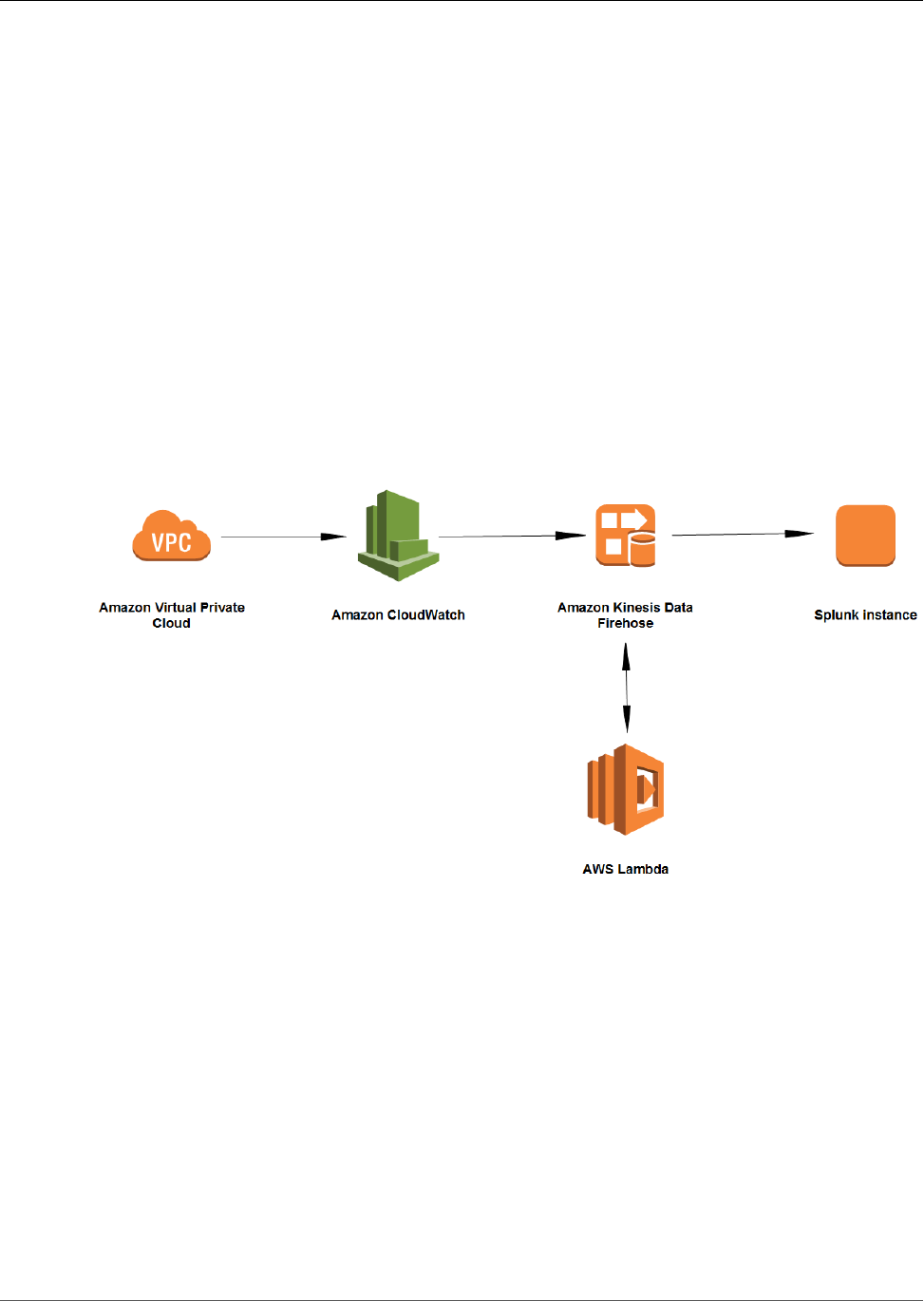
Amazon Kinesis Data Firehose Developer Guide
Tutorial: Sending VPC Flow Logs to
Splunk Using Amazon Kinesis Data
Firehose
In this tutorial, you learn how to capture information about the IP traffic going to and from network
interfaces in an Amazon Virtual Private Cloud (Amazon VPC). You then use Amazon Kinesis Data Firehose
to send that information to Splunk. For more information about VPC network traffic, see VPC Flow Logs
in the Amazon VPC User Guide.
The following diagram shows the flow of data that is demonstrated in this tutorial.
As the diagram shows, first you send the Amazon VPC flow logs to Amazon CloudWatch. Then from
CloudWatch, the data goes to a Kinesis Data Firehose delivery stream. Kinesis Data Firehose then invokes
an AWS Lambda function to decompress the data, and sends the decompressed log data to Splunk.
Prerequisites
Before you begin, ensure that you have the following prerequisites:
•AWS account—If you don't have an AWS account, create one at http://aws.amazon.com. For more
information, see Setting Up for Amazon Kinesis Data Firehose (p. 4).
•AWS CLI—Parts of this tutorial require that you use the AWS Command Line Interface (AWS CLI).
To install the AWS CLI, see Installing the AWS Command Line Interface in the AWS Command Line
Interface User Guide.
•HEC token—In your Splunk deployment, set up an HTTP Event Collector (HEC) token with the source
type aws:cloudwatchlogs:vpcflow. For more information, see Installation and configuration
overview for the Splunk Add-on for Amazon Kinesis Firehose in the Splunk documentation.
73
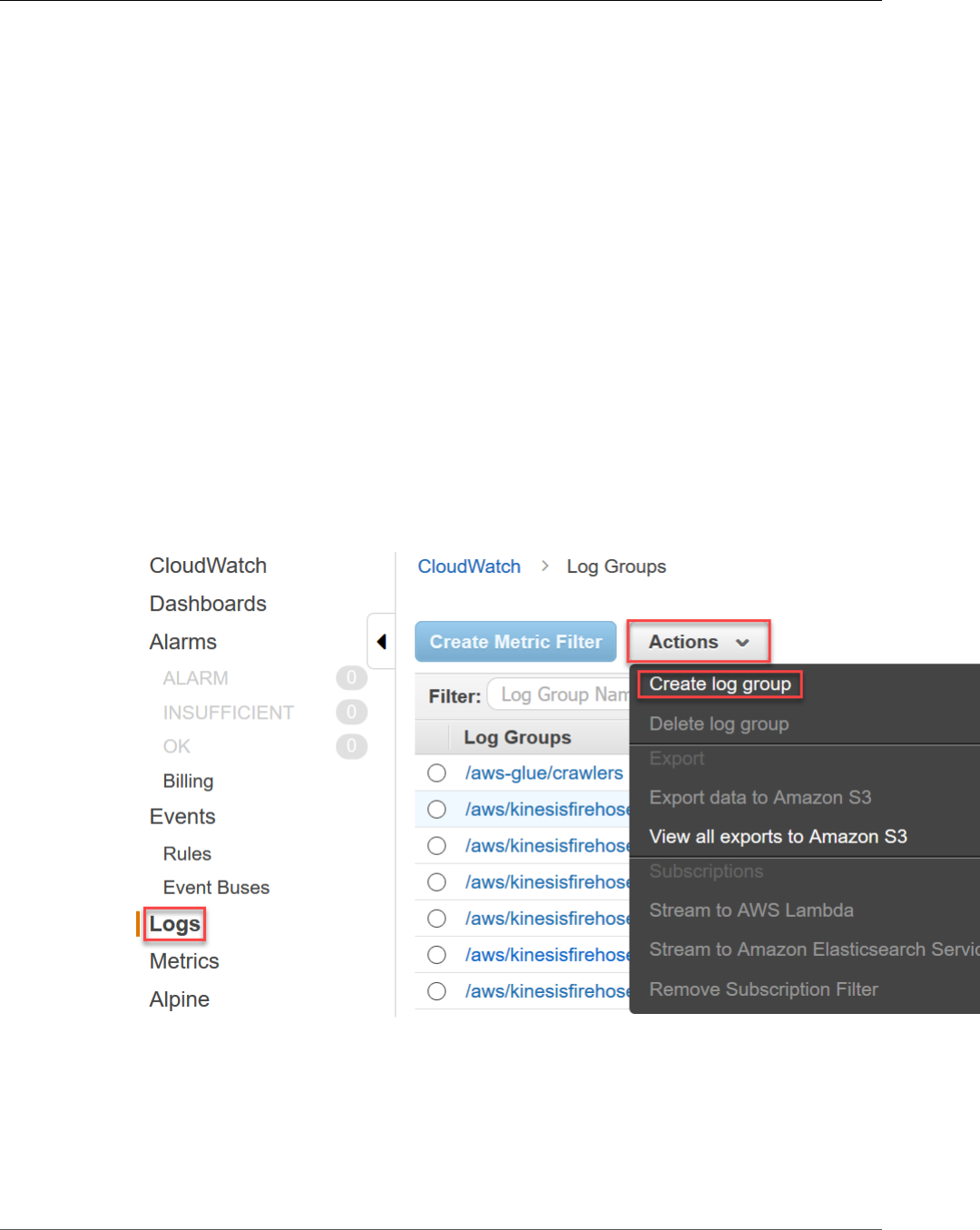
Amazon Kinesis Data Firehose Developer Guide
Step 1: Send Log Data to CloudWatch
Topics
•Step 1: Send Log Data from Amazon VPC to Amazon CloudWatch (p. 74)
•Step 2: Create a Kinesis Data Firehose Delivery Stream with Splunk as a Destination (p. 77)
•Step 3: Send the Data from Amazon CloudWatch to Kinesis Data Firehose (p. 80)
•Step 4: Check the Results in Splunk and in Kinesis Data Firehose (p. 81)
Step 1: Send Log Data from Amazon VPC to
Amazon CloudWatch
In the first part of this Kinesis Data Firehose tutorial (p. 73), you create an Amazon CloudWatch log
group to receive your Amazon VPC flow logs. Then, you create flow logs for your Amazon VPC and send
them to the CloudWatch log group that you created.
To create a CloudWatch log group to receive your Amazon VPC flow logs
1. Sign in to the AWS Management Console and open the CloudWatch console at https://
console.aws.amazon.com/cloudwatch/.
2. In the navigation pane, choose Logs.
3. Choose Actions, and then choose Create log group.
4. Enter the name VPCtoSplunkLogGroup, and choose Create log group.
To create a VPC flow log
1. Open the Amazon VPC console at https://console.aws.amazon.com/vpc/.
2. In the navigation pane, choose Your VPCs. Then choose your VPC from the list by selecting the check
box next to it.
74
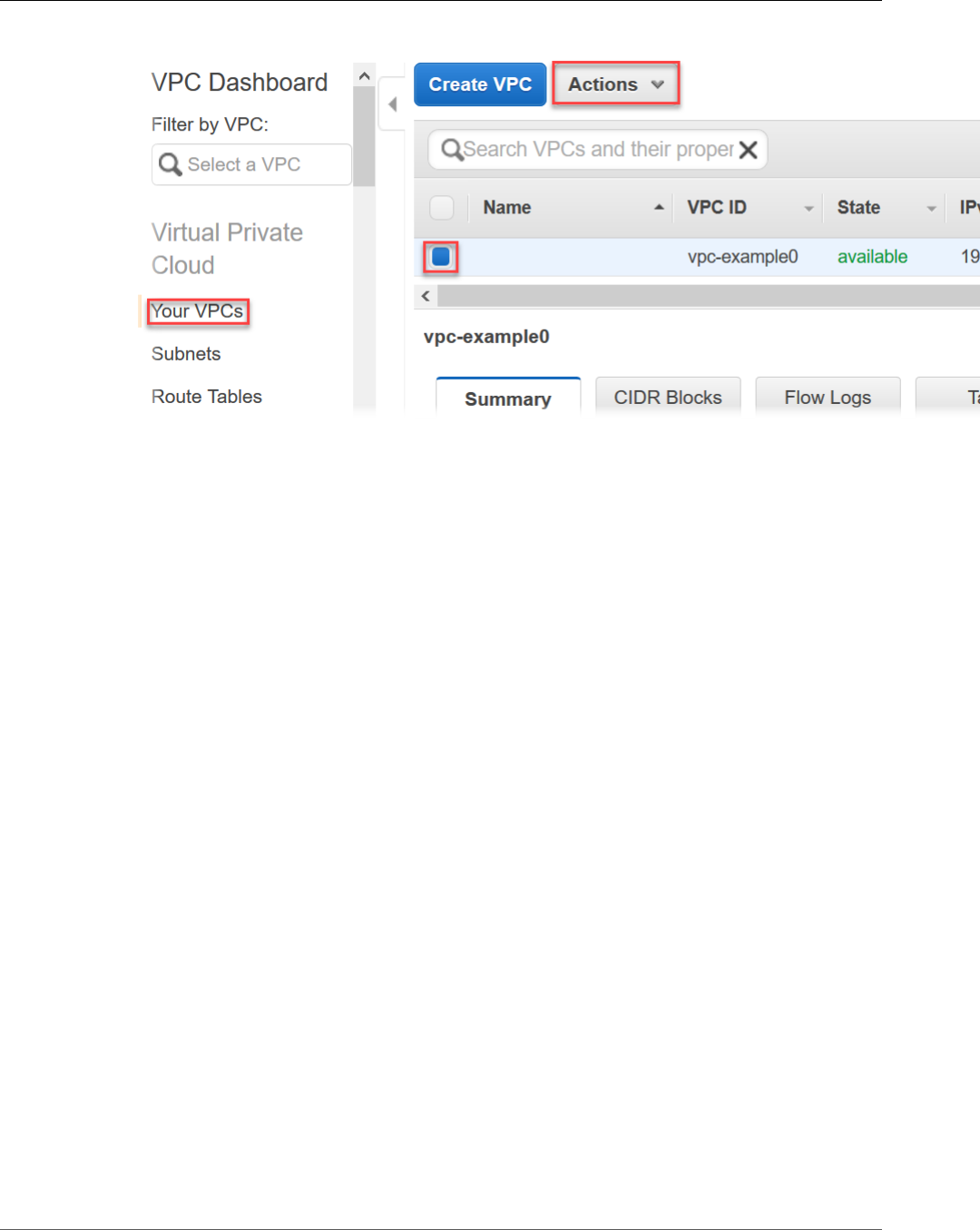
Amazon Kinesis Data Firehose Developer Guide
Step 1: Send Log Data to CloudWatch
3. Choose Actions, and then choose Create flow log.
4. In the Filter* list, choose All.
5. Keep the destination set to Send to CloudWatch Logs.
6. For Destination log group*, choose VPCtoSplunkLogGroup, which is the log group that you created
in the previous procedure.
7. To set up an IAM role, choose Set Up Permissions.
75
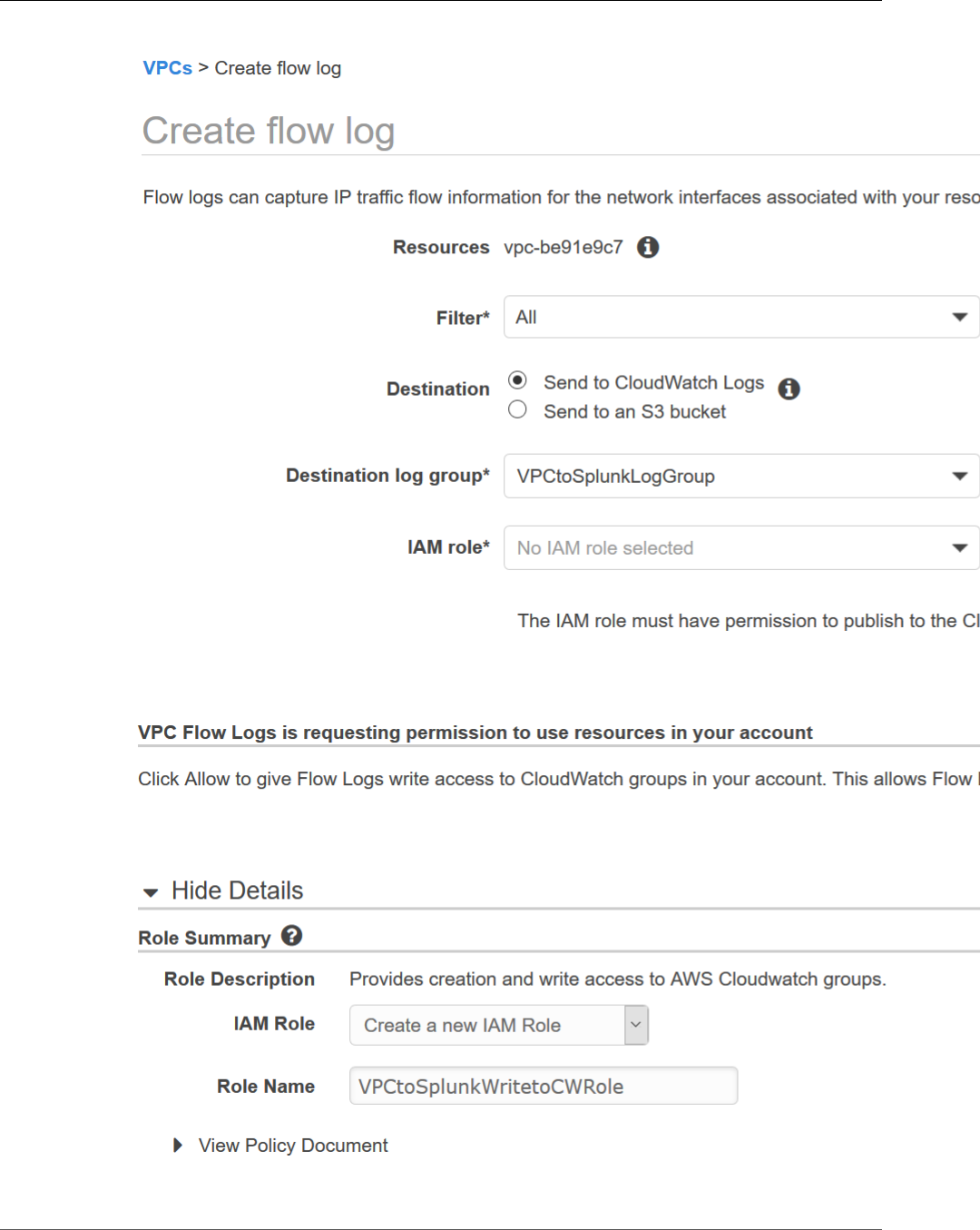
Amazon Kinesis Data Firehose Developer Guide
Step 1: Send Log Data to CloudWatch
8. In the new window that appears, keep IAM Role set to Create a new IAM Role. In the Role Name
box, enter VPCtoSplunkWritetoCWRole. Then choose Allow.
76

Amazon Kinesis Data Firehose Developer Guide
Step 2: Create the Delivery Stream
9. Return to the Create flow log browser tab, and refresh the IAM role* box. Then choose
VPCtoSplunkWritetoCWRole in the list.
10. Choose Create, and then choose Close.
11. Back on the Amazon VPC dashboard, choose Your VPCs in the navigation pane. Then select the
check box next to your VPC.
12. Scroll down and choose the Flow Logs tab, and look for the flow log that you created in the
preceding steps. Ensure that its status is Active. If it is not, review the previous steps.
Proceed to Step 2: Create a Kinesis Data Firehose Delivery Stream with Splunk as a Destination (p. 77).
Step 2: Create a Kinesis Data Firehose Delivery
Stream with Splunk as a Destination
In this part of the Kinesis Data Firehose tutorial (p. 73), you create an Amazon Kinesis Data Firehose
delivery stream to receive the log data from Amazon CloudWatch and deliver that data to Splunk.
The logs that CloudWatch sends to the delivery stream are in a compressed format. However, Kinesis
Data Firehose can't send compressed logs to Splunk. Therefore, when you create the delivery stream
in the following procedure, you enable data transformation and configure an AWS Lambda function to
uncompress the log data. Kinesis Data Firehose then sends the uncompressed data to Splunk.
To create a Kinesis Data Firehose delivery stream with Splunk as a destination
1. Open the Kinesis Data Firehose console at https://console.aws.amazon.com/firehose/.
2. Choose Create delivery stream.
3. For the name of the delivery stream, enter VPCtoSplunkStream. Then scroll to the bottom, and
choose Next.
4. For Record transformation*, choose Enabled.
5. For Lambda function*, choose Create new.
6. In the Choose Lambda blueprint pane, scroll down and choose Kinesis Firehose Cloudwatch Logs
Processor. This opens the AWS Lambda console.
77
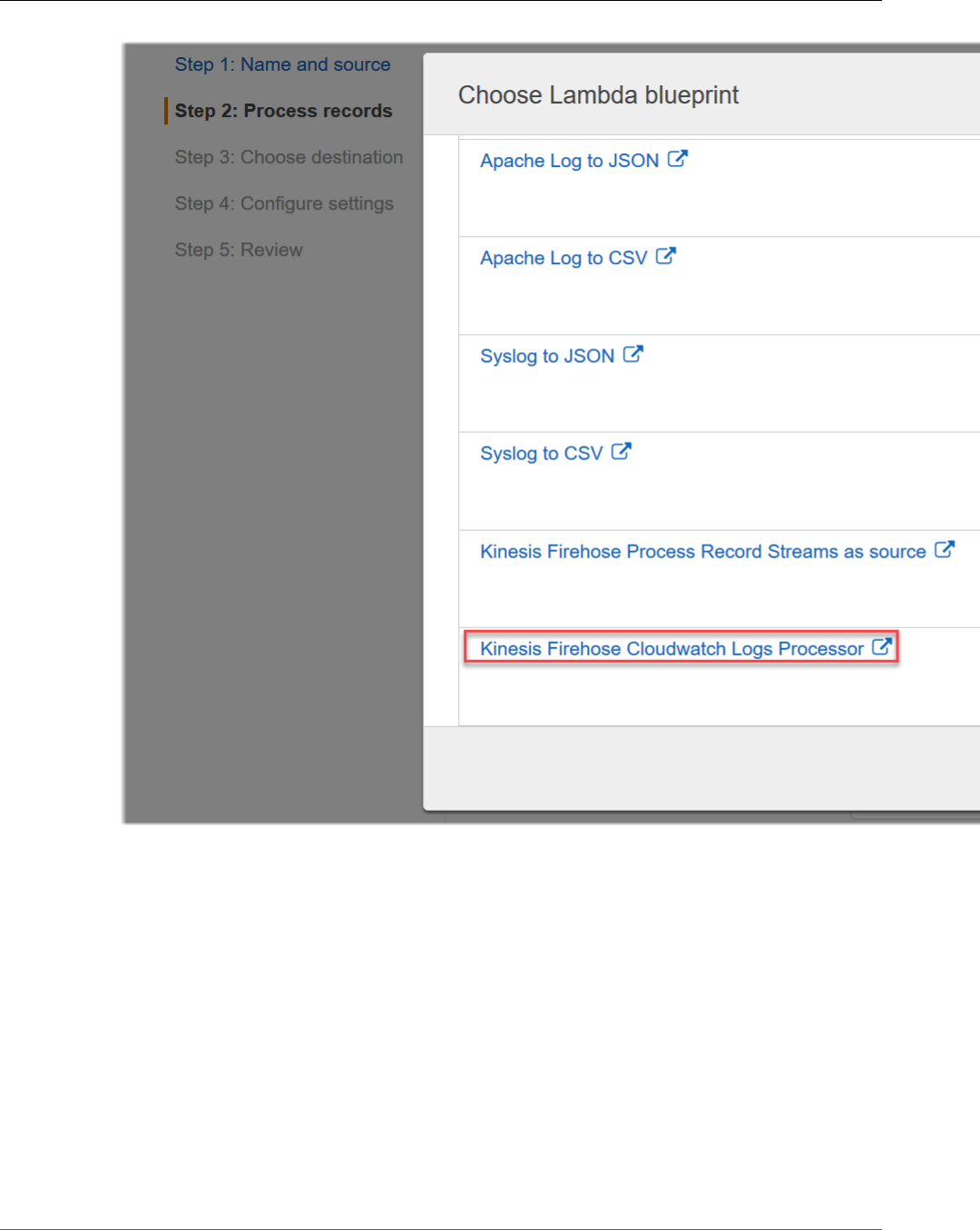
Amazon Kinesis Data Firehose Developer Guide
Step 2: Create the Delivery Stream
7. On the AWS Lambda console, for the function name, enter VPCtoSplunkLambda.
8. For Role, choose Create a custom role in the drop-down list. This opens the AWS Identity and Access
Management (IAM) console.
9. In the IAM console, in the IAM Role list, choose Create a new IAM Role.
10. For Role Name, enter VPCtoSplunkLambdaRole.
11. Choose the arrow next to View Policy Document to expand the policy.
78
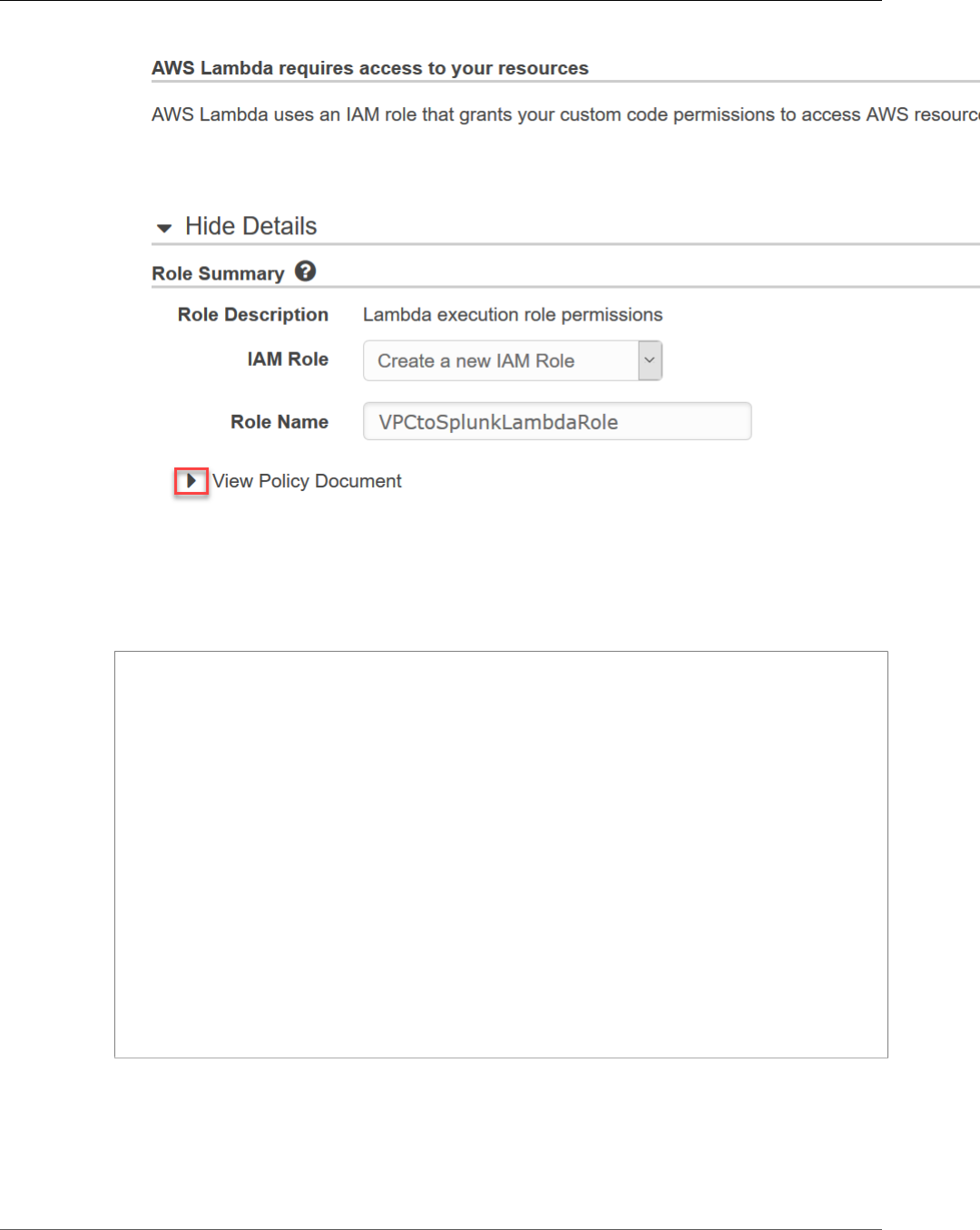
Amazon Kinesis Data Firehose Developer Guide
Step 2: Create the Delivery Stream
12. Choose Edit to the right of the policy, and then choose Ok.
13. In the policy field, delete the existing policy. Then paste the following policy. Be sure to replace the
your-region and your-aws-account-id placeholders with your AWS Region code and account
ID. Don't include any hyphens or dashes in the account ID. For a list of AWS Region codes, see AWS
Regions and Endpoints.
{
"Version": "2012-10-17",
"Statement": [
{
"Effect": "Allow",
"Action": [
"logs:GetLogEvents"
],
"Resource": "arn:aws:logs:*:*:*"
},
{
"Effect": "Allow",
"Action": [
"firehose:PutRecordBatch"
],
"Resource": [
"arn:aws:firehose:your-region:your-aws-account-id:deliverystream/
VPCtoSplunkStream"
]
}
]
}
This policy allows the Lambda function to put data back into the delivery stream by invoking the
PutRecordBatch operation. This step is needed because a Lambda function can only return up to 6
MiB of data every time Kinesis Data Firehose invokes it. If the size of the uncompressed data exceeds
6 MiB, the function invokes PutRecordBatch to put some of the data back into the delivery stream
for future processing.
79

Amazon Kinesis Data Firehose Developer Guide
Step 3: Send Data to the Delivery Stream
14. Choose Allow. This takes you back to the AWS Lambda console.
15. Scroll down and choose Create function.
16. In the Lambda function pane, scroll down to the Basic settings section, and increase the timeout to
3 minutes.
17. Scroll up and choose Save.
18. Back in the Choose Lambda blueprint dialog box, choose Close.
19. On the delivery stream creation page, under the Transform source records with AWS Lambda
section, choose the refresh button. Then choose VPCtoSplunkLambda in the list of functions.
20. Scroll down and choose Next.
21. For Destination*, choose Splunk.
22. For Splunk cluster endpoint, see the information at Configure Amazon Kinesis Firehose to send
data to the Splunk platform in the Splunk documentation.
23. Keep Splunk endpoint type set to Raw endpoint.
24. Enter the value (and not the name) of your Splunk HTTP Event Collector (HEC) token.
25. For S3 backup mode*, choose Backup all events.
26. Choose an existing Amazon S3 bucket (or create a new one if you want), and choose Next.
27. On the Configure settings page, scroll down to the IAM role section, and choose Create new or
choose.
28. In the IAM role list, choose Create a new IAM role. For Role Name, enter
VPCtoSplunkLambdaFirehoseRole, and then choose Allow.
29. Choose Next, and review the configuration that you chose for the delivery stream. Then choose
Create delivery stream.
Proceed to Step 3: Send the Data from Amazon CloudWatch to Kinesis Data Firehose (p. 80).
Step 3: Send the Data from Amazon CloudWatch
to Kinesis Data Firehose
In this step of this Kinesis Data Firehose tutorial (p. 73), you subscribe the delivery stream to the
Amazon CloudWatch log group. This step causes the log data to flow from the log group to the delivery
stream.
To send log data from CloudWatch Logs to your delivery stream
In this procedure, you use the AWS Command Line Interface (AWS CLI) to create a CloudWatch Logs
subscription that sends log events to your delivery stream.
1. Save the following trust policy to a local file, and name the file
VPCtoSplunkCWtoFHTrustPolicy.json. Be sure to replace the your-region placeholder with
your AWS Region code.
{
"Statement": {
"Effect": "Allow",
"Principal": { "Service": "logs.your-region.amazonaws.com" },
"Action": "sts:AssumeRole"
}
}
2. In a command window, go to the directory where you saved VPCtoSplunkCWtoFHPolicy.json,
and run the following AWS CLI command.
80
Amazon Kinesis Data Firehose Developer Guide
Step 4: Check the Results
aws iam create-role --role-name VPCtoSplunkCWtoFHRole --assume-role-policy-document
file://VPCtoSplunkCWtoFHTrustPolicy.json
3. Save the following access policy to a local file, and name the file
VPCtoSplunkCWtoFHAccessPolicy.json. Be sure to replace the your-region and your-aws-
account-id placeholders with your AWS Region code and account ID.
{
"Statement":[
{
"Effect":"Allow",
"Action":["firehose:*"],
"Resource":["arn:aws:firehose:your-region:your-aws-account-id:deliverystream/
VPCtoSplunkStream"]
},
{
"Effect":"Allow",
"Action":["iam:PassRole"],
"Resource":["arn:aws:iam::your-aws-account-id:role/VPCtoSplunkCWtoFHRole"]
}
]
}
4. In a command window, go to the directory where you saved
VPCtoSplunkCWtoFHAccessPolicy.json, and run the following AWS CLI command.
aws iam put-role-policy --role-name VPCtoSplunkCWtoFHRole --
policy-name VPCtoSplunkCWtoFHAccessPolicy --policy-document file://
VPCtoSplunkCWtoFHAccessPolicy.json
5. Replace the your-region and your-aws-account-id placeholders in the following AWS CLI
command with your AWS Region code and account ID, and then run the command.
aws logs put-subscription-filter --log-group-name "VPCtoSplunkLogGroup" --filter-
name "Destination" --filter-pattern "" --destination-arn "arn:aws:firehose:your-
region:your-aws-account-id:deliverystream/VPCtoSplunkStream" --role-arn
"arn:aws:iam::your-aws-account-id:role/VPCtoSplunkCWtoFHRole"
Proceed to Step 4: Check the Results in Splunk and in Kinesis Data Firehose (p. 81).
Step 4: Check the Results in Splunk and in Kinesis
Data Firehose
You can monitor the flow of data at several points in this example. In this step of the Kinesis Data
Firehose tutorial (p. 73), you check the data in Splunk, the final destination, and you also monitor its
flow through Kinesis Data Firehose.
To check the results in AWS and in Splunk
1. Open the Kinesis Data Firehose console at https://console.aws.amazon.com/firehose/.
2. In the list of delivery streams, choose VPCtoSplunkStream.
3. Choose the Monitoring tab, and view the graphs. Be sure to adjust the time range and to use the
refresh button periodically.
4. If you don't see your data in Splunk, see Data Not Delivered to Splunk.
81

Amazon Kinesis Data Firehose Developer Guide
Step 4: Check the Results
Important
After you verify your results, delete any AWS resources that you don't need to keep, so as not to
incur ongoing charges.
82

Amazon Kinesis Data Firehose Developer Guide
Data Not Delivered to Amazon S3
Troubleshooting Amazon Kinesis
Data Firehose
Sometimes you might not see data delivered to your specified destinations. Use the troubleshooting
steps in this topic to solve common issues you might encounter while using Kinesis Data Firehose. For
further troubleshooting, see Monitoring with CloudWatch Logs (p. 49).
Issues
•Data Not Delivered to Amazon S3 (p. 83)
•Data Not Delivered to Amazon Redshift (p. 83)
•Data Not Delivered to Amazon Elasticsearch Service (p. 84)
•Data Not Delivered to Splunk (p. 85)
•Delivery Stream Not Available as a Target for CloudWatch Logs, CloudWatch Events, or AWS IoT
Action (p. 86)
Data Not Delivered to Amazon S3
Check the following if data is not delivered to your Amazon Simple Storage Service (Amazon S3) bucket.
• Check the Kinesis Data Firehose IncomingBytes and IncomingRecords metrics to make sure that
data is sent to your Kinesis Data Firehose delivery stream successfully. For more information, see
Monitoring Kinesis Data Firehose Using CloudWatch Metrics (p. 43).
• If data transformation with Lambda is enabled, check the Kinesis Data Firehose
ExecuteProcessingSuccess metric to make sure that Kinesis Data Firehose has tried to invoke
your Lambda function. For more information, see Monitoring Kinesis Data Firehose Using CloudWatch
Metrics (p. 43).
• Check the Kinesis Data Firehose DeliveryToS3.Success metric to make sure that Kinesis Data
Firehose has tried putting data to your Amazon S3 bucket. For more information, see Monitoring
Kinesis Data Firehose Using CloudWatch Metrics (p. 43).
• Enable error logging if it is not already enabled, and check error logs for delivery failure. For more
information, see Monitoring Kinesis Data Firehose Using CloudWatch Logs (p. 49).
• Make sure that the Amazon S3 bucket that is specified in your Kinesis Data Firehose delivery stream
still exists.
• If data transformation with Lambda is enabled, make sure that the Lambda function that is specified in
your delivery stream still exists.
• Make sure that the IAM role that is specified in your Kinesis Data Firehose delivery stream has access to
your S3 bucket and your Lambda function (if data transformation is enabled). For more information,
see Grant Kinesis Data Firehose Access to an Amazon S3 Destination (p. 61).
• If you're using data transformation, make sure that your Lambda function never returns responses
whose payload size exceeds 6 MB. For more information, see Amazon Kinesis Data Firehose Data
Transformation.
Data Not Delivered to Amazon Redshift
Check the following if data is not delivered to your Amazon Redshift cluster.
83

Amazon Kinesis Data Firehose Developer Guide
Data Not Delivered to Amazon Elasticsearch Service
Data is delivered to your S3 bucket before loading into Amazon Redshift. If the data was not delivered to
your S3 bucket, see Data Not Delivered to Amazon S3 (p. 83).
• Check the Kinesis Data Firehose DeliveryToRedshift.Success metric to make sure that Kinesis
Data Firehose has tried to copy data from your S3 bucket to the Amazon Redshift cluster. For more
information, see Monitoring Kinesis Data Firehose Using CloudWatch Metrics (p. 43).
• Enable error logging if it is not already enabled, and check error logs for delivery failure. For more
information, see Monitoring Kinesis Data Firehose Using CloudWatch Logs (p. 49).
• Check the Amazon Redshift STL_CONNECTION_LOG table to see if Kinesis Data Firehose can make
successful connections. In this table, you should be able to see connections and their status based
on a user name. For more information, see STL_CONNECTION_LOG in the Amazon Redshift Database
Developer Guide.
• If the previous check shows that connections are being established, check the Amazon Redshift
STL_LOAD_ERRORS table to verify the reason for the COPY failure. For more information, see
STL_LOAD_ERRORS in the Amazon Redshift Database Developer Guide.
• Make sure that the Amazon Redshift configuration in your Kinesis Data Firehose delivery stream is
accurate and valid.
• Make sure that the IAM role that is specified in your Kinesis Data Firehose delivery stream can
access the S3 bucket that Amazon Redshift copies data from, and also the Lambda function for data
transformation (if data transformation is enabled). For more information, see Grant Kinesis Data
Firehose Access to an Amazon S3 Destination (p. 61).
• If your Amazon Redshift cluster is in a virtual private cloud (VPC), make sure that the cluster allows
access from Kinesis Data Firehose IP addresses. For more information, see Grant Kinesis Data Firehose
Access to an Amazon Redshift Destination (p. 62).
• Make sure that the Amazon Redshift cluster is publicly available.
• If you're using data transformation, make sure that your Lambda function never returns responses
whose payload size exceeds 6 MB. For more information, see Amazon Kinesis Data Firehose Data
Transformation.
Data Not Delivered to Amazon Elasticsearch
Service
Check the following if data is not delivered to your Elasticsearch domain.
Data can be backed up to your Amazon S3 bucket concurrently. If data was not delivered to your S3
bucket, see Data Not Delivered to Amazon S3 (p. 83).
• Check the Kinesis Data Firehose IncomingBytes and IncomingRecords metrics to make sure that
data is sent to your Kinesis Data Firehose delivery stream successfully. For more information, see
Monitoring Kinesis Data Firehose Using CloudWatch Metrics (p. 43).
• If data transformation with Lambda is enabled, check the Kinesis Data Firehose
ExecuteProcessingSuccess metric to make sure that Kinesis Data Firehose has tried to invoke
your Lambda function. For more information, see Monitoring Kinesis Data Firehose Using CloudWatch
Metrics (p. 43).
• Check the Kinesis Data Firehose DeliveryToElasticsearch.Success metric to make sure that
Kinesis Data Firehose has tried to index data to the Amazon ES cluster. For more information, see
Monitoring Kinesis Data Firehose Using CloudWatch Metrics (p. 43).
• Enable error logging if it is not already enabled, and check error logs for delivery failure. For more
information, see Monitoring Kinesis Data Firehose Using CloudWatch Logs (p. 49).
• Make sure that the Amazon ES configuration in your delivery stream is accurate and valid.
84

Amazon Kinesis Data Firehose Developer Guide
Data Not Delivered to Splunk
• If data transformation with Lambda is enabled, make sure that the Lambda function that is specified in
your delivery stream still exists.
• Make sure that the IAM role that is specified in your delivery stream can access your Amazon ES cluster
and Lambda function (if data transformation is enabled). For more information, see Grant Kinesis Data
Firehose Access to an Amazon ES Destination (p. 65).
• If you're using data transformation, make sure that your Lambda function never returns responses
whose payload size exceeds 6 MB. For more information, see Amazon Kinesis Data Firehose Data
Transformation.
Data Not Delivered to Splunk
Check the following if data is not delivered to your Splunk endpoint.
• If your Splunk platform is in a VPC, make sure that Kinesis Data Firehose can access it. For more
information, see Access to Splunk in VPC.
• If you use an AWS load balancer, make sure that it is a Classic Load Balancer. Kinesis Data Firehose
does not support Application Load Balancers or Network Load Balancers. Also, enable duration-based
sticky sessions with cookie expiration disabled. For information about how to do this, see Duration-
Based Session Stickiness.
• Review the Splunk platform requirements. The Splunk add-on for Kinesis Data Firehose requires
Splunk platform version 6.6.X or later. For more information, see Splunk Add-on for Amazon Kinesis
Firehose.
• If you have a proxy (Elastic Load Balancing or other) between Kinesis Data Firehose and the HTTP
Event Collector (HEC) node, enable sticky sessions to support HEC acknowledgements (ACKs).
• Make sure that you are using a valid HEC token.
• Ensure that the HEC token is enabled. See Enable and disable Event Collector tokens.
• Check whether the data that you're sending to Splunk is formatted correctly. For more information,
see Format events for HTTP Event Collector.
• Make sure that the HEC token and input event are configured with a valid index.
• When an upload to Splunk fails due to a server error from the HEC node, the request is automatically
retried. If all retries fail, the data gets backed up to Amazon S3. Check if your data appears in Amazon
S3, which is an indication of such a failure.
• Make sure that you enabled indexer acknowledgment on your HEC token. For more information, see
Enable indexer acknowledgement.
• Increase the value of HECAcknowledgmentTimeoutInSeconds in the Splunk destination
configuration of your Kinesis Data Firehose delivery stream.
• Increase the value of DurationInSeconds under RetryOptions in the Splunk destination
configuration of your Kinesis Data Firehose delivery stream.
• Check your HEC health.
• If you're using data transformation, make sure that your Lambda function never returns responses
whose payload size exceeds 6 MB. For more information, see Amazon Kinesis Data Firehose Data
Transformation.
• Make sure that the Splunk parameter named ackIdleCleanup is set to true. It is false by default. To
set this parameter to true, do the following:
• For a managed Splunk Cloud deployment, submit a case using the Splunk support portal. In this
case, ask Splunk support to enable the HTTP event collector, set ackIdleCleanup to true in
inputs.conf, and create or modify a load balancer to use with this add-on.
• For a distributed Splunk Enterprise deployment, set the ackIdleCleanup parameter to true
in the inputs.conf file. For *nix users, this file is located under $SPLUNK_HOME/etc/apps/
splunk_httpinput/local/. For Windows users, it is under %SPLUNK_HOME%\etc\apps
\splunk_httpinput\local\.
85

Amazon Kinesis Data Firehose Developer Guide
Delivery Stream Not Available as a Target for
CloudWatch Logs, CloudWatch Events, or AWS IoT Action
• For a single-instance Splunk Enterprise deployment, set the ackIdleCleanup parameter to
true in the inputs.conf file. For *nix users, this file is located under $SPLUNK_HOME/etc/
apps/splunk_httpinput/local/. For Windows users, it is under %SPLUNK_HOME%\etc\apps
\splunk_httpinput\local\.
• See Troubleshoot the Splunk Add-on for Amazon Kinesis Firehose.
Delivery Stream Not Available as a Target for
CloudWatch Logs, CloudWatch Events, or AWS IoT
Action
Some AWS services can only send messages and events to a Kinesis Data Firehose delivery stream that
is in the same AWS Region. Verify that your Kinesis Data Firehose delivery stream is located in the same
Region as your other services.
86

Amazon Kinesis Data Firehose Developer Guide
Amazon Kinesis Data Firehose Limits
Amazon Kinesis Data Firehose has the following limits.
• By default, each account can have up to 50 Kinesis Data Firehose delivery streams per Region. If
you exceed this limit, a call to CreateDeliveryStream results in a LimitExceededException
exception. This limit can be increased using the Amazon Kinesis Data Firehose Limits form.
• When Direct PUT is configured as the data source, each Kinesis Data Firehose delivery stream is
subject to the following limits:
• For US East (N. Virginia), US West (Oregon), and EU (Ireland): 5,000 records/second, 2,000
transactions/second, and 5 MiB/second.
• For EU (Paris), Asia Pacific (Mumbai), US East (Ohio), EU (Frankfurt), South America (São Paulo), Asia
Pacific (Seoul), EU (London), Asia Pacific (Tokyo), US West (N. California), Asia Pacific (Singapore),
Asia Pacific (Sydney), and Canada (Central): 1,000 records/second, 1,000 transactions/second, and 1
MiB/second.
You can submit a limit increase request using the Amazon Kinesis Data Firehose Limits form. The three
limits scale proportionally. For example, if you increase the throughput limit in US East (N. Virginia), US
West (Oregon), or EU (Ireland) to 10 MiB/second, the other two limits increase to 4,000 transactions/
second and 10,000 records/second.
Important
If the increased limit is much higher than the running traffic, it causes small delivery batches
to destinations. This is inefficient and can result in higher costs at the destination services. Be
sure to increase the limit only to match current running traffic, and increase the limit further if
traffic increases.
Note
When Kinesis Data Streams is configured as the data source, this limit doesn't apply, and
Kinesis Data Firehose scales up and down with no limit.
• Each Kinesis Data Firehose delivery stream stores data records for up to 24 hours in case the delivery
destination is unavailable.
• The maximum size of a record sent to Kinesis Data Firehose, before base64-encoding, is 1,000 KiB.
• The PutRecordBatch operation can take up to 500 records per call or 4 MiB per call, whichever is
smaller. This limit cannot be changed.
• The following operations can provide up to five transactions per second: CreateDeliveryStream,
DeleteDeliveryStream, DescribeDeliveryStream, ListDeliveryStreams,
UpdateDestination, TagDeliveryStream, UntagDeluveryStream,
ListTagsForDeliveryStream, StartDeliveryStreamEncryption,
StopDeliveryStreamEncryption.
• The buffer sizes hints range from 1 MiB to 128 MiB for Amazon S3 delivery. For Amazon Elasticsearch
Service (Amazon ES) delivery, they range from 1 MiB to 100 MiB. For AWS Lambda processing, you can
set a buffering hint between 1 MiB and 3 MiB using the BufferSizeInMBs processor parameter. The
size threshold is applied to the buffer before compression. These options are treated as hints. Kinesis
Data Firehose might choose to use different values when it is optimal.
• The buffer interval hints range from 60 seconds to 900 seconds.
• For delivery from Kinesis Data Firehose to Amazon Redshift, only publicly accessible Amazon Redshift
clusters are supported.
• The retry duration range is from 0 seconds to 7,200 seconds for Amazon Redshift and Amazon ES
delivery.
• Kinesis Data Firehose supports Elasticsearch versions 1.5, 2.3, 5.1, 5.3, 5.5, 5.6, 6.0, 6.2, and 6.3.
• Kinesis Data Firehose doesn't support delivery to Elasticsearch domains in a virtual private cloud (VPC).
87

Amazon Kinesis Data Firehose Developer Guide
Document History
The following table describes the important changes to the Amazon Kinesis Data Firehose
documentation.
Change Description Date Changed
Added a topic on
custom prefixes.
Added a topic about the expressions that you can use
when building a custom prefix for data that is delivered
to Amazon S3. See Custom Amazon S3 Prefixes (p. 37).
December 20, 2018
Added New Kinesis
Data Firehose
Tutorial
Added a tutorial that demonstrates how to send Amazon
VPC flow logs to Splunk through Kinesis Data Firehose.
See Tutorial: Sending VPC Flow Logs to Splunk Using
Amazon Kinesis Data Firehose (p. 73).
October 30, 2018
Added Four New
Kinesis Data Firehose
Regions
Added Paris, Mumbai, Sao Paulo, and London. For
more information, see Amazon Kinesis Data Firehose
Limits (p. 87).
June 27, 2018
Added Two New
Kinesis Data Firehose
Regions
Added Seoul and Montreal. For more information, see
Amazon Kinesis Data Firehose Limits (p. 87).
June 13, 2018
New Kinesis Streams
as Source feature
Added Kinesis Streams as a potential source for records
for a Firehose Delivery Stream. For more information,
see Name and source (p. 5).
August 18, 2017
Update to console
documentation
The delivery stream creation wizard was updated. For
more information, see Creating an Amazon Kinesis Data
Firehose Delivery Stream (p. 5).
July 19, 2017
New data
transformation
You can configure Kinesis Data Firehose to
transform your data before data delivery. For more
information, see Amazon Kinesis Data Firehose Data
Transformation (p. 27).
December 19, 2016
New Amazon
Redshift COPY retry
You can configure Kinesis Data Firehose to retry a COPY
command to your Amazon Redshift cluster if it fails. For
more information, see Creating an Amazon Kinesis Data
Firehose Delivery Stream (p. 5), Amazon Kinesis Data
Firehose Data Delivery (p. 33), and Amazon Kinesis Data
Firehose Limits (p. 87).
May 18, 2016
New Kinesis
Data Firehose
destination, Amazon
Elasticsearch Service
You can create a delivery stream with Amazon
Elasticsearch Service as the destination. For more
information, see Creating an Amazon Kinesis Data
Firehose Delivery Stream (p. 5), Amazon Kinesis Data
Firehose Data Delivery (p. 33), and Grant Kinesis Data
Firehose Access to an Amazon ES Destination (p. 65).
April 19, 2016
New enhanced
CloudWatch metrics
and troubleshooting
features
Updated Monitoring Amazon Kinesis Data
Firehose (p. 43) and Troubleshooting Amazon Kinesis
Data Firehose (p. 83).
April 19, 2016
88
Amazon Kinesis Data Firehose Developer Guide
Change Description Date Changed
New enhanced
Kinesis agent
Updated Writing to Kinesis Data Firehose Using Kinesis
Agent (p. 16).
April 11, 2016
New Kinesis agents Added Writing to Kinesis Data Firehose Using Kinesis
Agent (p. 16).
October 2, 2015
Initial release Initial release of the Amazon Kinesis Data Firehose
Developer Guide.
October 4, 2015
89