A Guide To Flexbox CSS Tricks
User Manual:
Open the PDF directly: View PDF  .
.
Page Count: 17
24/08/2018 A Complete Guide to Flexbox | CSS-Tricks
https://css-tricks.com/snippets/css/a-guide-to-flexbox/ 1/17
BY CHRIS COYIER LAST UPDATED ON AUGUST 22, 2018
FLEXBOX, LAYOUT
Home » Code Snippets » CSS »
▶
▶
container
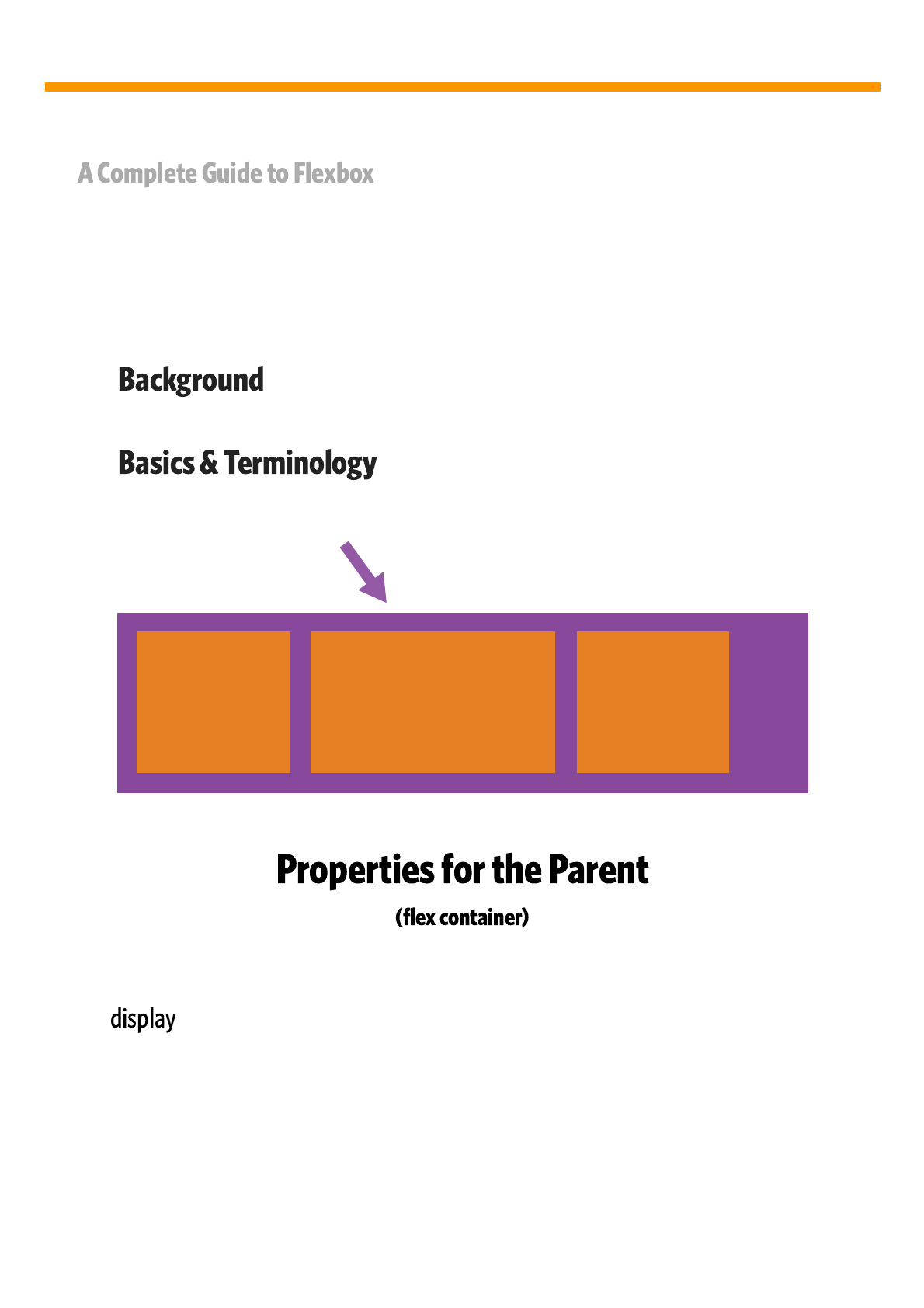
This defines a flex container; inline or block depending on the given value. It enables a
flex context for all its direct children.
#
.container {
display: flex; /* or inline-flex */
}
CSS
24/08/2018 A Complete Guide to Flexbox | CSS-Tricks
https://css-tricks.com/snippets/css/a-guide-to-flexbox/ 2/17
Note that CSS columns have no effect on a flex container.
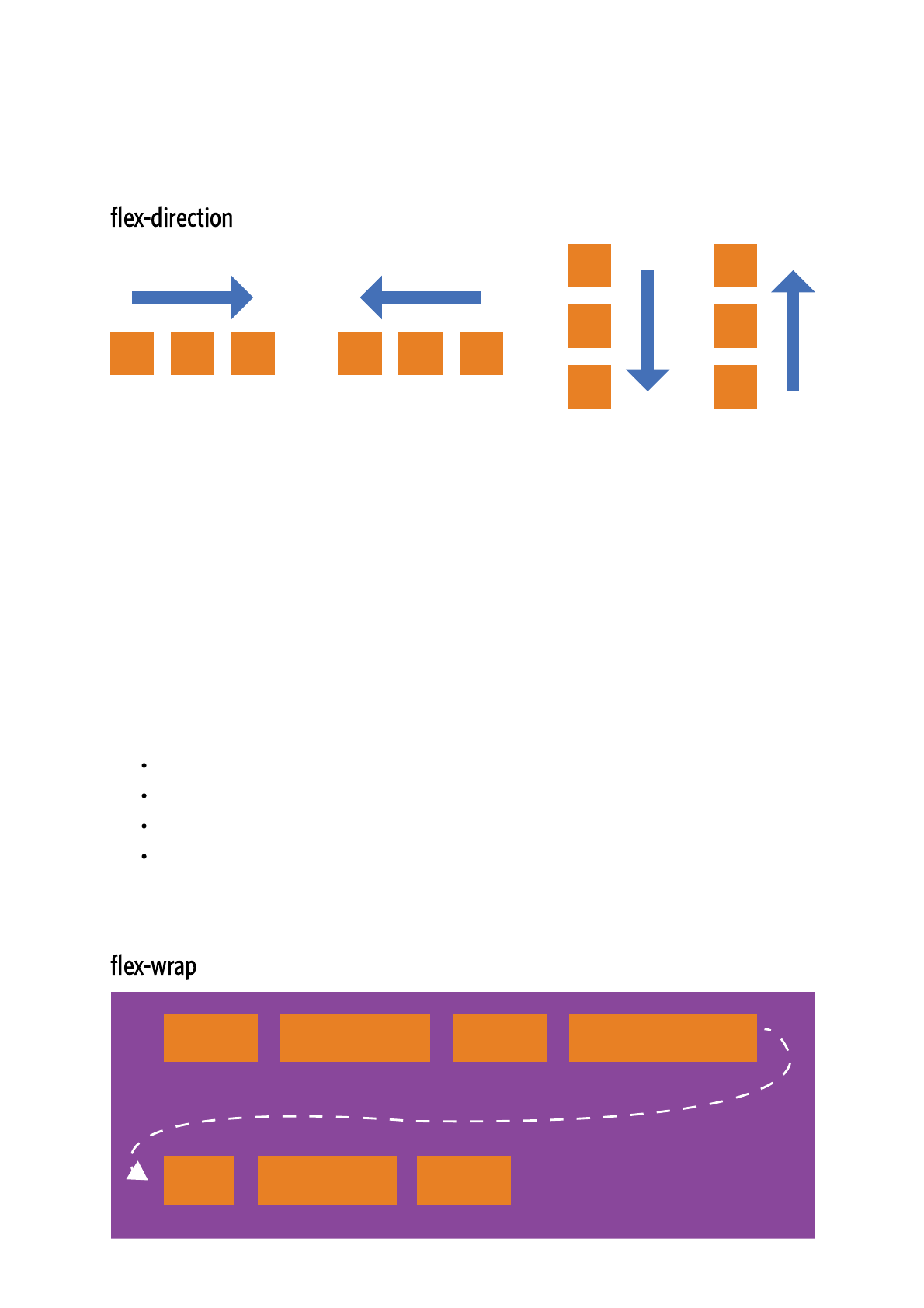
This establishes the main-axis, thus defining the direction flex items are placed in the
flex container. Flexbox is (aside from optional wrapping) a single-direction layout
concept. Think of flex items as primarily laying out either in horizontal rows or vertical
columns.
(default): left to right in ; right to left in
: right to left in ; left to right in
: same as but top to bottom
: same as but bottom to top
#
.container {
flex-direction: row | row-reverse | column | column-rever
}
CSS
row ltr rtl
row-reverse ltr rtl
column row
column-reverse row-reverse
#
24/08/2018 A Complete Guide to Flexbox | CSS-Tricks
https://css-tricks.com/snippets/css/a-guide-to-flexbox/ 3/17
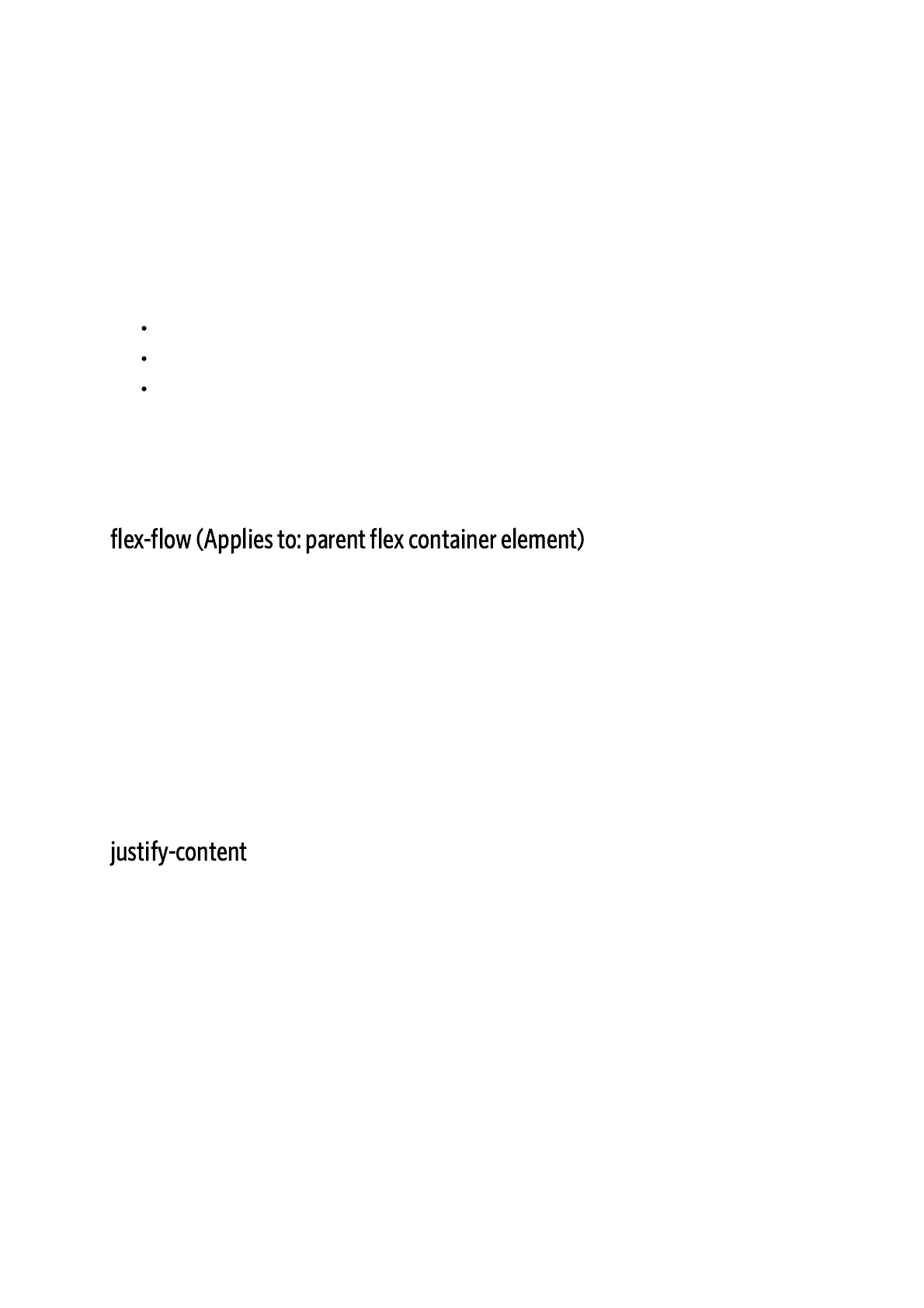
By default, flex items will all try to fit onto one line. You can change that and allow the
items to wrap as needed with this property.
(default): all flex items will be on one line
: flex items will wrap onto multiple lines, from top to bottom.
: flex items will wrap onto multiple lines from bottom to top.
There are some visual demos of flex-wrap here.
This is a shorthand and properties, which together define
the flex container's main and cross axes. Default is .
.container{
flex-wrap: nowrap | wrap | wrap-reverse;
}
CSS
nowrap
wrap
wrap-reverse
#
flex-direction flex-wrap
row nowrap
flex-flow: <‘flex-direction’> || <‘flex-wrap’>
CSS
#
24/08/2018 A Complete Guide to Flexbox | CSS-Tricks
https://css-tricks.com/snippets/css/a-guide-to-flexbox/ 4/17
flex-start
flex-end
center
space-between
space-around
space-evenly
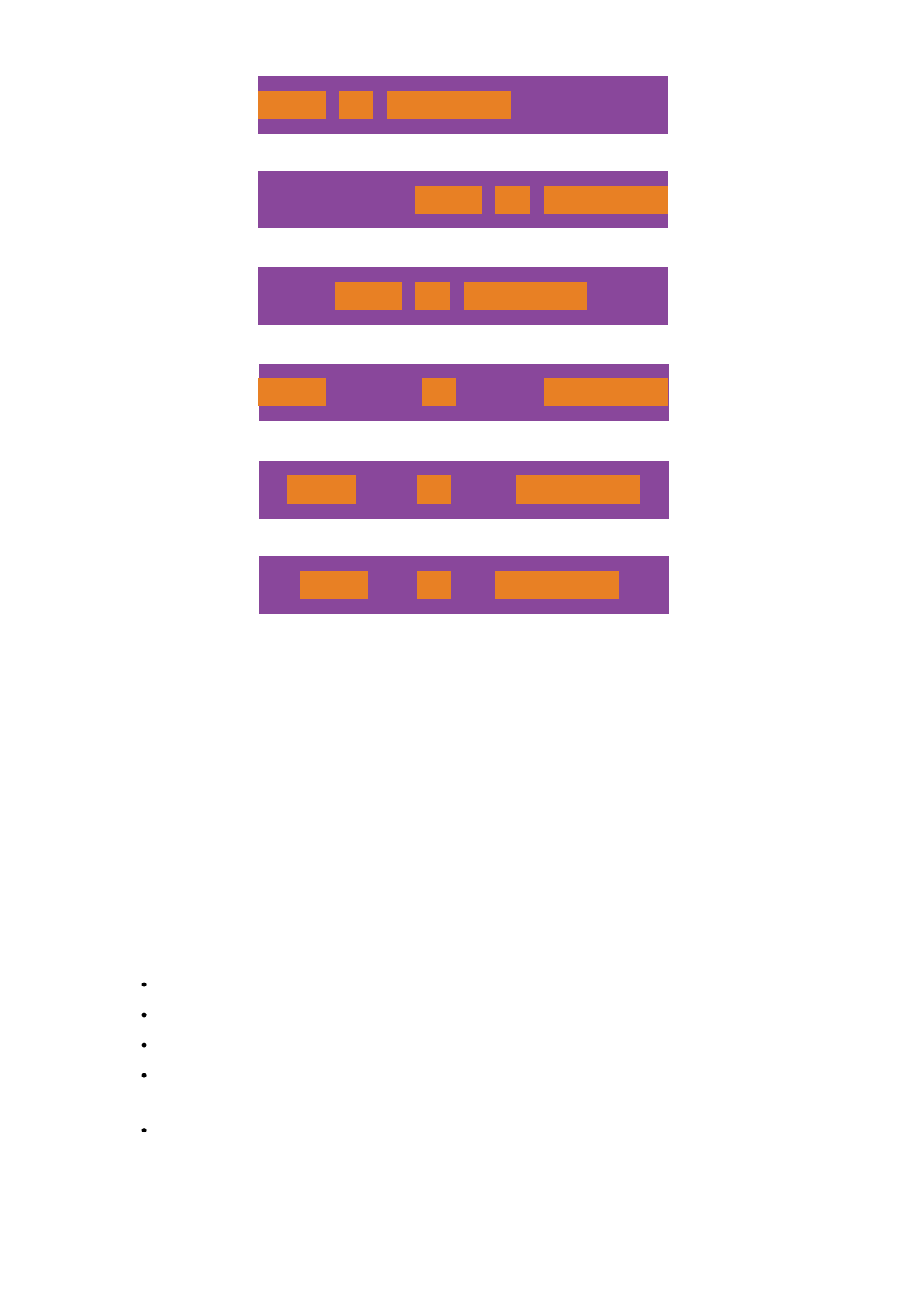
This defines the alignment along the main axis. It helps distribute extra free space left
over when either all the flex items on a line are inflexible, or are flexible but have reached
their maximum size. It also exerts some control over the alignment of items when they
overflow the line.
(default): items are packed toward the start line
: items are packed toward to end line
: items are centered along the line
: items are evenly distributed in the line; first item is on the start
line, last item on the end line
: items are evenly distributed in the line with equal space around
them. Note that visually the spaces aren't equal, since all the items have equal
space on both sides. The first item will have one unit of space against the
container edge, but two units of space between the next item because that next
item has its own spacing that applies.
.container {
justify-content: flex-start | flex-end | center | space-b
}
CSS
flex-start
flex-end
center
space-between
space-around
24/08/2018 A Complete Guide to Flexbox | CSS-Tricks
https://css-tricks.com/snippets/css/a-guide-to-flexbox/ 5/17
: items are distributed so that the spacing between any two items
(and the space to the edges) is equal.
flex-start
center
baseline
stretch
flex-end
text text text text
text text text text
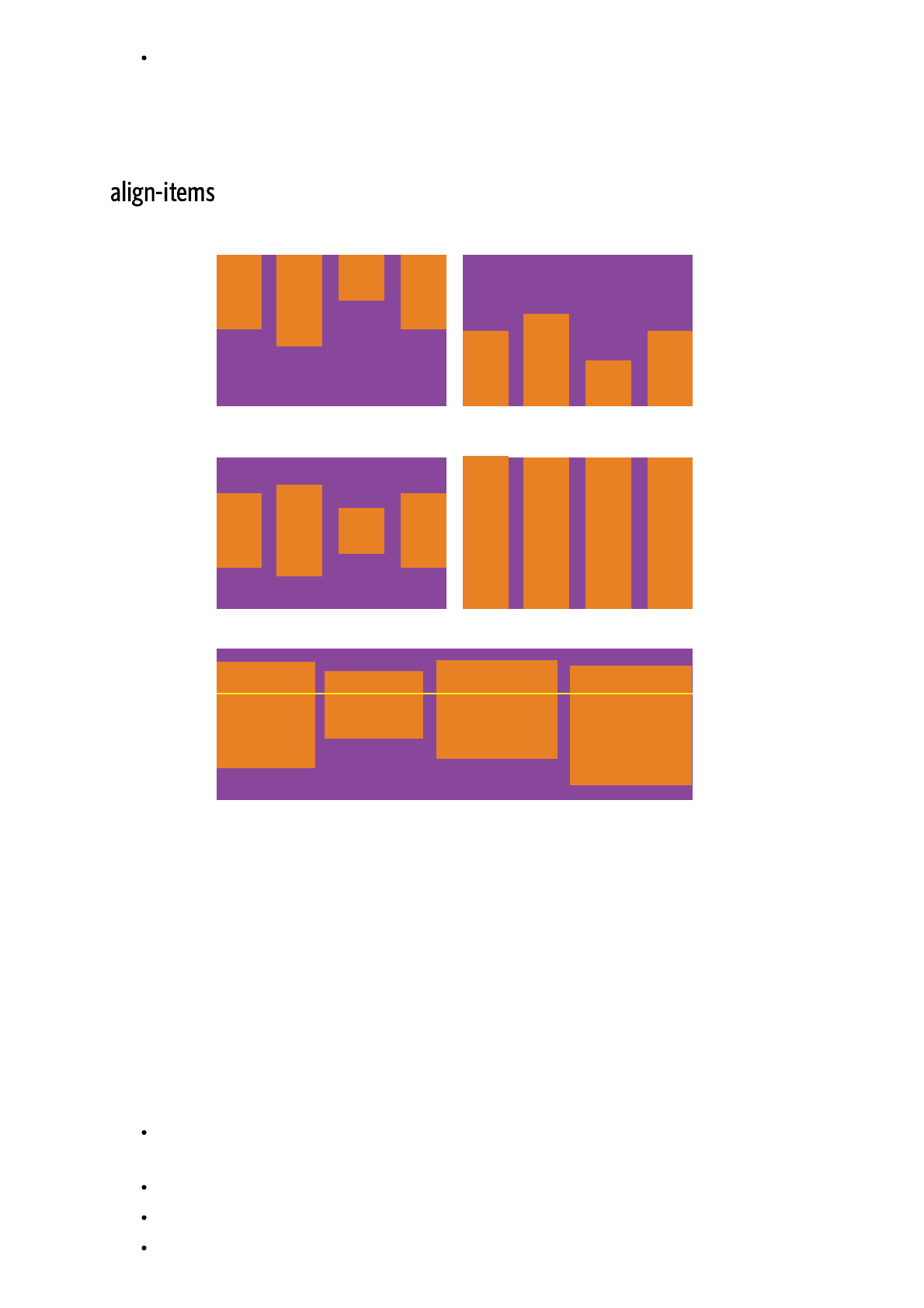
This defines the default behaviour for how flex items are laid out along the cross axis on
the current line. Think of it as the version for the cross-axis
(perpendicular to the main-axis).
: cross-start margin edge of the items is placed on the cross-start
line
: cross-end margin edge of the items is placed on the cross-end line
: items are centered in the cross-axis
: items are aligned such as their baselines align
space-evenly
#
justify-content
.container {
align-items: flex-start | flex-end | center | baseline |
}
CSS
flex-start
flex-end
center
baseline
24/08/2018 A Complete Guide to Flexbox | CSS-Tricks
https://css-tricks.com/snippets/css/a-guide-to-flexbox/ 6/17
(default): stretch to fill the container (still respect min-width/max-
width)
flex-start
center
space-between
stretch
space-around
flex-end
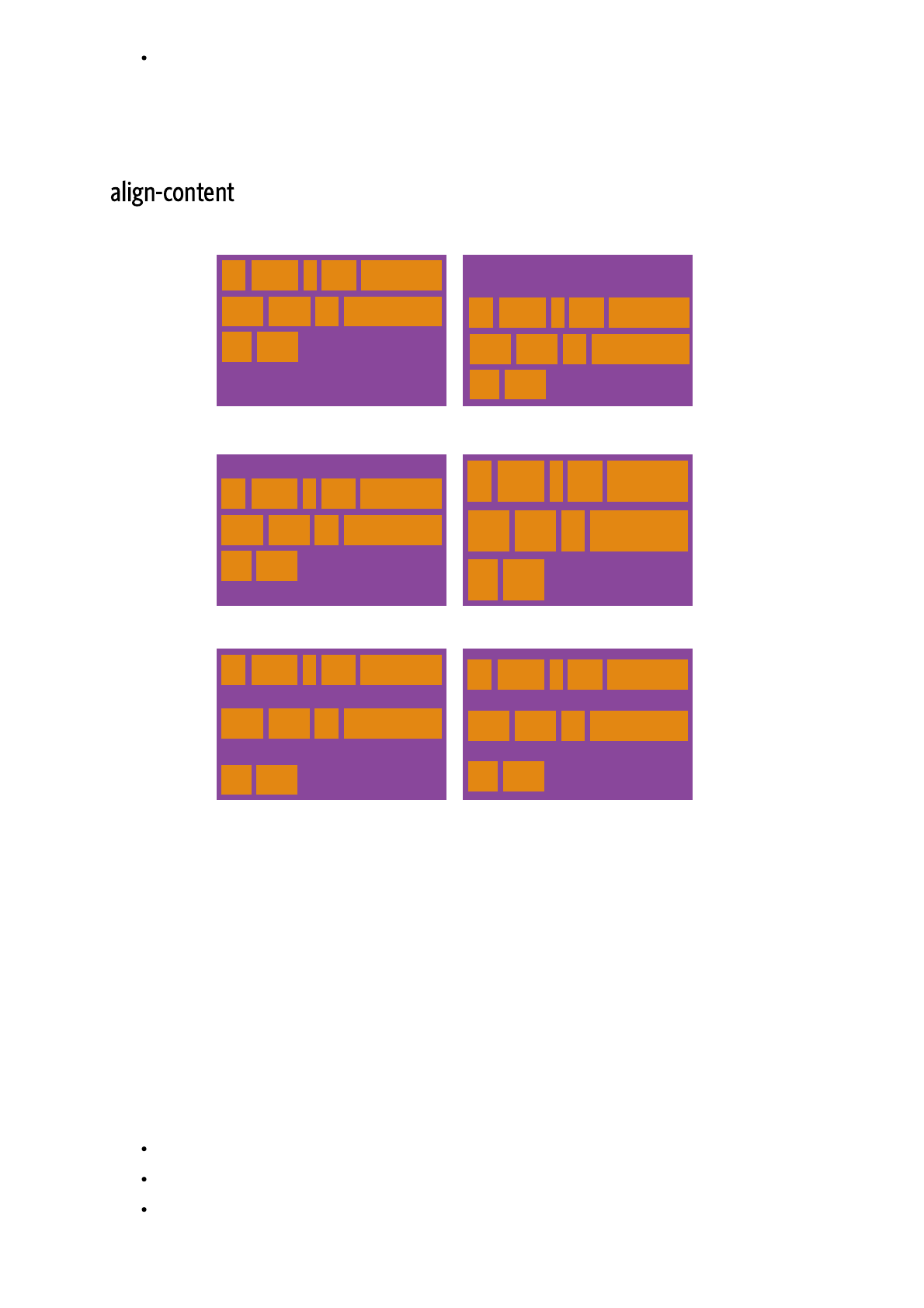
This aligns a flex container's lines within when there is extra space in the cross-axis,
similar to how aligns individual items within the main-axis.
Note: this property has no effect when there is only one line of flex items.
: lines packed to the start of the container
: lines packed to the end of the container
: lines packed to the center of the container
stretch
#
justify-content
.container {
align-content: flex-start | flex-end | center | space-bet
}
CSS
flex-start
flex-end
center
24/08/2018 A Complete Guide to Flexbox | CSS-Tricks
https://css-tricks.com/snippets/css/a-guide-to-flexbox/ 7/17
: lines evenly distributed; the first line is at the start of the
container while the last one is at the end
: lines evenly distributed with equal space around each line
(default): lines stretch to take up the remaining space
items
1
-1 1 2 5
1 1 2 3
2
2
99
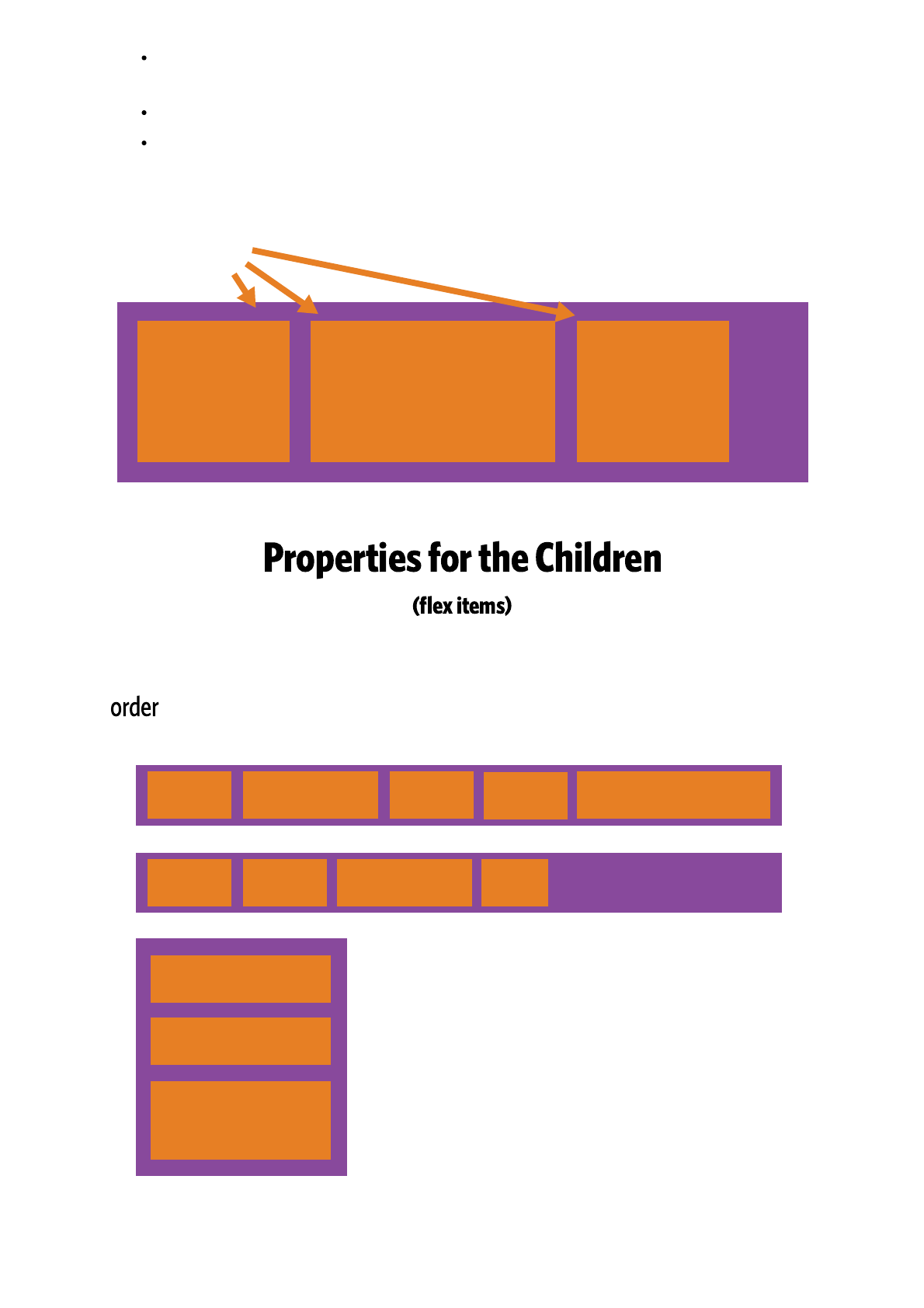
By default, flex items are laid out in the source order. However, the property
space-between
space-around
stretch
#
order
24/08/2018 A Complete Guide to Flexbox | CSS-Tricks
https://css-tricks.com/snippets/css/a-guide-to-flexbox/ 8/17
controls the order in which they appear in the flex container.
1 1 1
1 2 1
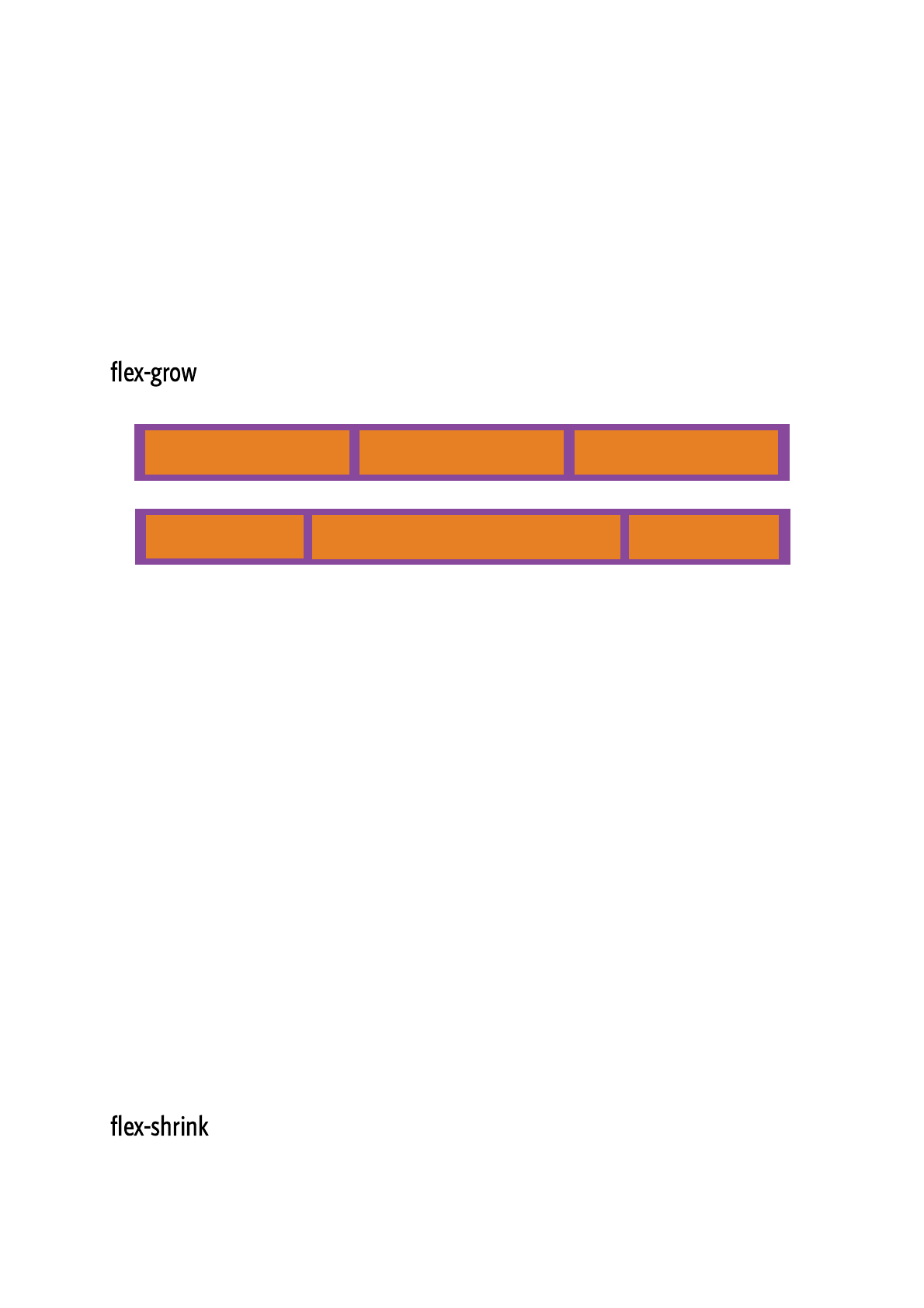
This defines the ability for a flex item to grow if necessary. It accepts a unitless value that
serves as a proportion. It dictates what amount of the available space inside the flex
container the item should take up.
If all items have set to 1, the remaining space in the container will be
distributed equally to all children. If one of the children has a value of 2, the remaining
space would take up twice as much space as the others (or it will try to, at least).
Negative numbers are invalid.
This defines the ability for a flex item to shrink if necessary.
.item {
order: <integer>; /* default is 0 */
}
CSS
#
flex-grow
.item {
flex-grow: <number>; /* default 0 */
}
CSS
#

24/08/2018 A Complete Guide to Flexbox | CSS-Tricks
https://css-tricks.com/snippets/css/a-guide-to-flexbox/ 9/17
Negative numbers are invalid.
This defines the default size of an element before the remaining space is distributed. It
can be a length (e.g. 20%, 5rem, etc.) or a keyword. The keyword means "look at
my width or height property" (which was temporarily done by the keyword
until deprecated). The keyword means "size it based on the item's content" -
this keyword isn't well supported yet, so it's hard to test and harder to know what its
brethren , , and do.
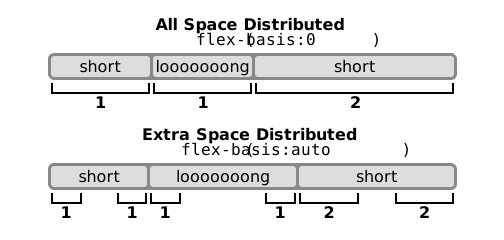
If set to , the extra space around content isn't factored in. If set to , the extra
space is distributed based on its value. See this graphic.
This is the shorthand for and combined. The
second and third parameters ( and ) are optional. Default is
.
.item {
flex-shrink: <number>; /* default 1 */
}
CSS
#
auto
main-size
content
max-content min-content fit-content
.item {
flex-basis: <length> | auto; /* default auto */
}
CSS
0 auto
flex-grow
#
flex-grow, flex-shrink flex-basis
flex-shrink flex-basis
0 1 auto
.item {
flex: none | [ <'flex-grow'> <'flex-shrink'>? || <'flex-b
}
CSS
24/08/2018 A Complete Guide to Flexbox | CSS-Tricks
https://css-tricks.com/snippets/css/a-guide-to-flexbox/ 10/17
It is recommended that you use this shorthand property rather than set the individual
properties. The short hand sets the other values intelligently.
flex-end
flex-start
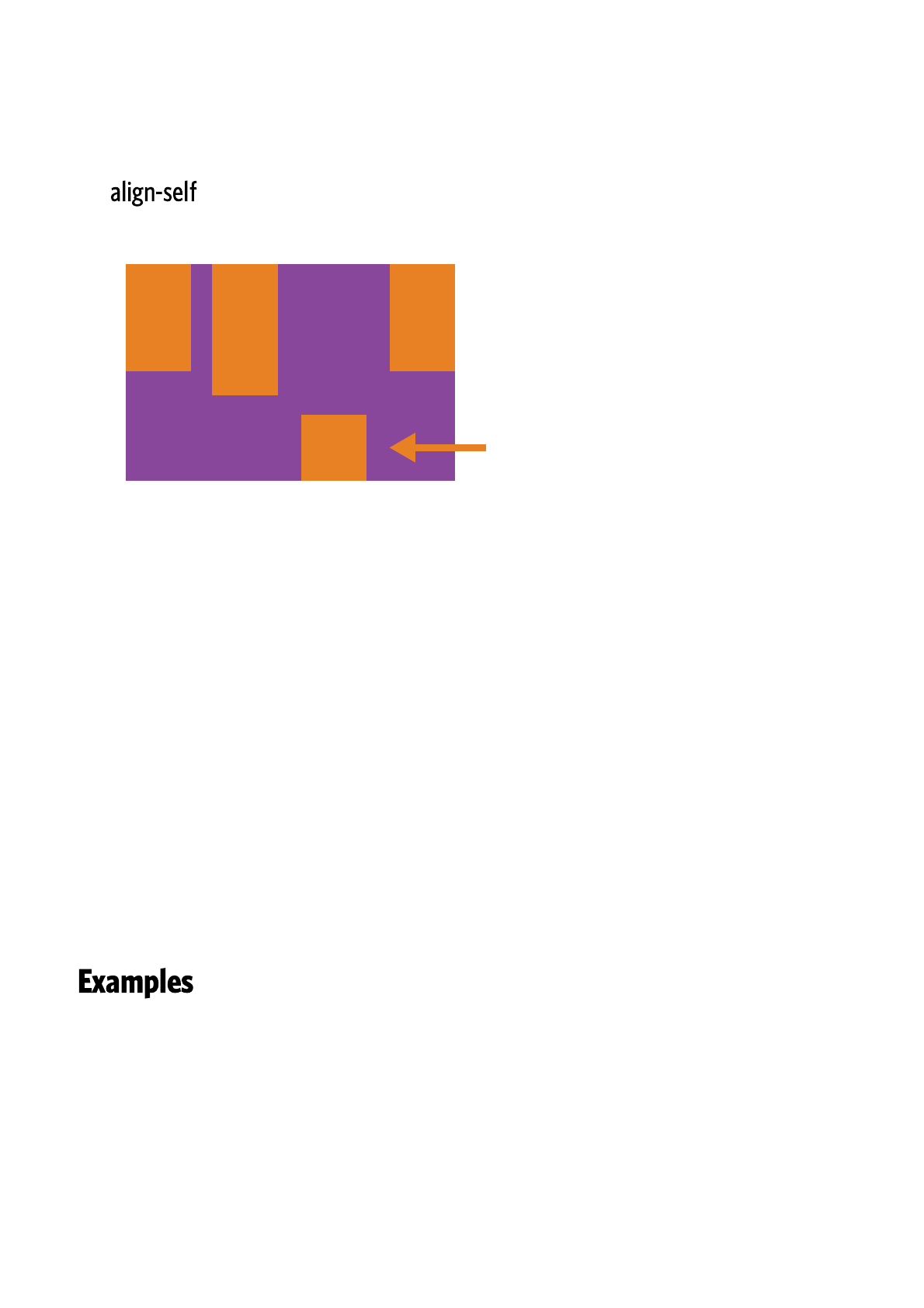
This allows the default alignment (or the one specified by ) to be
overridden for individual flex items.
Please see the explanation to understand the available values.
Note that , and have no effect on a flex item.
Let's start with a very very simple example, solving an almost daily problem: perfect centering. It
couldn't be any simpler if you use flexbox.
#
align-items
align-items
.item {
align-self: auto | flex-start | flex-end | center | basel
}
CSS
float clear vertical-align
#
.parent {
display: flex;
height: 300px; /* Or whatever */
CSS

24/08/2018 A Complete Guide to Flexbox | CSS-Tricks
https://css-tricks.com/snippets/css/a-guide-to-flexbox/ 11/17
This relies on the fact a margin set to `auto` in a flex container absorb extra space. So setting a
vertical margin of will make the item perfectly centered in both axis.
Now let's use some more properties. Consider a list of 6 items, all with a fixed dimensions in a
matter of aesthetics but they could be auto-sized. We want them to be evenly and nicely
distributed on the horizontal axis so that when we resize the browser, everything is fine (without
media queries!).
Done. Everything else is just some styling concern. Below is a pen featuring this example. Be sure
to go to CodePen and try resizing your windows to see what happens.
}
.child {
width: 100px; /* Or whatever */
height: 100px; /* Or whatever */
margin: auto; /* Magic! */
}
auto
.flex-container {
/* We first create a flex layout context */
display: flex;
/* Then we define the flow direction
and if we allow the items to wrap
* Remember this is the same as:
* flex-direction: row;
* flex-wrap: wrap;
*/
flex-flow: row wrap;
/* Then we define how is distributed the remaining space */
justify-content: space-around;
}
CSS

24/08/2018 A Complete Guide to Flexbox | CSS-Tricks
https://css-tricks.com/snippets/css/a-guide-to-flexbox/ 12/17
Let's try something else. Imagine we have a right-aligned navigation on the very top of our
website, but we want it to be centered on medium-sized screens and single-columned on small
devices. Easy enough.
/* Large */
.navigation {
display: flex;
flex-flow: row wrap;
/* This aligns items to the end line on main-axis */
justify-content: flex-end;
}
/* Medium screens */
@media all and (max-width: 800px) {
.navigation {
/* When on medium sized screens, we center it by evenly dist
justify-content: space-around;
}
}
/* Small screens */
CSS

24/08/2018 A Complete Guide to Flexbox | CSS-Tricks
https://css-tricks.com/snippets/css/a-guide-to-flexbox/ 13/17
Let's try something even better by playing with flex items flexibility! What about a mobile-first 3-
columns layout with full-width header and footer. And independent from source order.
@media all and (max-width: 500px) {
.navigation {
/* On small screens, we are no longer using row direction bu
flex-direction: column;
}
}
.wrapper {
display: flex;
flex-flow: row wrap;
}
/* We tell all items to be 100% width, via flex-basis */
.wrapper > * {
flex: 1 100%;
}
/* We rely on source order for mobile-first approach
* in this case:
* 1. header
* 2. article
* 3. aside 1
CSS

24/08/2018 A Complete Guide to Flexbox | CSS-Tricks
https://css-tricks.com/snippets/css/a-guide-to-flexbox/ 14/17
* 4. aside 2
* 5. footer
*/
/* Medium screens */
@media all and (min-width: 600px) {
/* We tell both sidebars to share a row */
.aside { flex: 1 auto; }
}
/* Large screens */
@media all and (min-width: 800px) {
/* We invert order of first sidebar and main
* And tell the main element to take twice as much width as th
*/
.main { flex: 2 0px; }
.aside-1 { order: 1; }
.main { order: 2; }
.aside-2 { order: 3; }
.footer { order: 4; }
}
24/08/2018 A Complete Guide to Flexbox | CSS-Tricks
https://css-tricks.com/snippets/css/a-guide-to-flexbox/ 15/17
▶
▶
▶
▶
Broken up by "version" of flexbox:
(new) means the recent syntax from the specification (e.g. )
(tweener) means an odd unofficial syntax from 2011 (e.g. )
(old) means the old syntax from 2009 (e.g. )
Chrome: 20- (old)
21+ (new)
Safari: 3.1+ (old)
6.1+ (new)
Firefox: 2-21 (old)
22+ (new)
Opera: 12.1+ (new)
IE: 10 (tweener)
11+ (new)
Edge: 17+ (new) Android: 2.1+ (old)
4.4+ (new)
iOS: 3.2+ (old)
7.1+ (new)
#
display: flex;
display: flexbox;
display: box;

24/08/2018 A Complete Guide to Flexbox | CSS-Tricks
https://css-tricks.com/snippets/css/a-guide-to-flexbox/ 16/17
Blackberry browser 10+ supports the new syntax.
For more informations about how to mix syntaxes in order to get the best browser support,
please refer to this article (CSS-Tricks) or this article (DevOpera).

24/08/2018 A Complete Guide to Flexbox | CSS-Tricks
https://css-tricks.com/snippets/css/a-guide-to-flexbox/ 17/17
