ACURA 2007 RL Navigation Manual (unlinked)
User Manual: ACURA 2007 RL Navigation Manual (unlinked)
Open the PDF directly: View PDF  .
.
Page Count: 162 [warning: Documents this large are best viewed by clicking the View PDF Link!]
2007 RL
Manual Navigation
(Unlinked)
This document does not contain hyperlinks and may be formatted for printing instead of web us. This is
due to changes in content and specifications of the vehicle that happen throughout the model year. This
manual will be replaced with a hyperlinked version at the end of the model year.
© 2007 Honda Motor Co., Ltd. P/N 31SJA8000

Navigation System 1
Table of Contents
Introduction ..................................4
Manual Overview ............................4
System Overview ............................4
Accessories Precautions ..................5
Important Safety Information..........5
Map Overview.................................6
Current Street .................................... 6
Verified/Unverified Street.................. 6
User Agreement ............................8
Getting Started ...........................10
System Controls ............................10
Voice Control Basics.....................13
Using the Voice Control System ...... 14
Improving Voice Recognition .......... 14
Selecting an Item (Button) on the
Screen .........................................15
Selecting an Item in a List .............15
Entering Information .....................16
System Start-up ............................17
HandsFreeLink™ ..........................18
Remote Keyless Entry Setting ......18
Map Screen Legend.......................20
Map Screen Description ................21
Zoom In/Out..................................... 21
Map Scrolling .................................. 21
Displaying Current Location .........21
Traffic Display Legend..................22
Real Time Traffic Display.............23
Viewing Flow Data .......................... 23
Viewing Incident Reports................. 24
System Function Diagram .............26
Entering a Destination .............. 27
By Address ....................................28
Selecting the State or Province........ 28
Selecting the City ............................. 28
Selecting the Street .......................... 30
Entering the Street Number ............. 32
By Address Book ..........................32
Adding Addresses to the Personal
Address Book................................ 33
By Places .......................................33
Finding the Place by Category ........ 34
Finding the Place by Name.............. 38
Finding the Place by Phone
Number ......................................... 38
Finding the Place by Zagat 2006..... 38
By Intersection...............................39
Selecting the State or Province........ 39
Selecting the City ............................. 40
Selecting the Street .......................... 41
By Previous Destinations...............44
By Map Input.................................45
Showing the Map of Current
Position......................................... 45
Showing the Map of City.................. 46
Showing the Map of State ................ 46
Showing the Map of Continental
USA............................................... 47
By Today’s Destinations................47
Editing Today’s Destination List ..... 48
Adding Destinations to the List........ 48
By Go Home .................................49
Driving to Your Destination ..... 50
Driving to Your Destination ..........50
Calculate Route to Screen..............50
Changing the Routing Method......... 51
Viewing the Routes........................... 51
Viewing the Destination Map .......... 53
Map Screen ....................................53
Route Line ........................................ 53
Map Screen Legend ......................... 54
Guidance Screen ............................55
Guidance Screen Legend ................. 55
Distance and Time to
Destination..................................56
Map Menu......................................56
Voice Guidance Prompts ................. 57

2Navigation System
Table of Contents
Direction List.................................57
EXIT INFO
(Freeway Exit Information).......... 58
Split Screen Guidance ..................58
Map Scale ......................................60
Map Orientation ............................61
Destination Icon ............................62
Landmark and Incident Icons ........62
Showing Icons on the Map .............. 65
Icon Options .................................... 65
Going Off the Route ......................67
Off-road Tracking..........................67
Viewing/Saving the Current
Location......................................68
Pop-ups and Disclaimers ...............69
Changing the Route .......................70
Change Route By Screen ................. 70
Cancel Current Route...................... 70
Change Routing Method .................. 70
Detour.............................................. 70
Avoid Streets .................................... 71
Search Waypoint on Route .............. 71
Back to Current Route ..................... 72
Changing Your Destination...........73
Find Nearest (Voice command)....... 73
Go Home (Voice command) ............ 73
Using Interface Dial to Change
Destination ................................... 73
Entering a Destination from the Menu
Screen (while on route) ................ 74
Continue Trip Screen.....................74
AcuraLink Messages .....................75
Information Features ................ 76
Information Screen ........................76
Messages........................................76
Voice Command Help ...................76
Trip Computer ...............................77
Map Legend...................................78
Calendar ........................................78
Entering Your Schedule ................... 79
Key to Zagat Ratings .....................80
Calculator.......................................81
Unit Conversion............................... 81
Roadside Assistance ......................82
System Set-up............................. 83
Setup Mode ...................................83
Setup Screen (first) ........................83
Brightness ....................................... 83
Contrast .......................................... 84
Black Level ...................................... 84
Volume ............................................ 84
Interface Dial Feedback ................. 84
Guidance Prompts .......................... 84
Setup Screen (second)....................85
Personal Information .....................85
Address Book .................................. 86
Home Address ................................. 89
PIN Number .................................... 89
Previous Destinations ...................... 90
Basic Settings ................................91
Units (mile or km) ........................... 91
Voice Recognition Feedback ..........91
Voice ............................................... 91
Routing & Guidance .....................92
Rerouting ........................................ 92
Unverified Area Routing .................93
Edit Avoid Area................................ 97
Edit Waypoint Search Area .............99
Guidance Mode ............................. 100
Clock Adjustment .......................100
Auto Daylight ................................ 101
Auto Time Zone ............................. 101
Time Adjustment ........................... 102
Vehicle.........................................102
Off-road Tracking ......................... 102
Correct Vehicle Position................ 103
Verbal Reminder ........................... 103
Color ............................................104
Map Color ..................................... 104
Menu Color ................................... 104

Navigation System 3
Table of Contents
Switching Display Mode ................ 105
AcuraLink/Messages ...................108
System Information .....................108
Rear View Camera ......................108
Rear View Camera Brightness
Adjustment.................................. 109
System Initialization.................110
System Initialization....................110
Entering the Security Code..........110
GPS Initialization ........................111
Map Matching .............................111
System Limitations...................112
Database Limitations ...............114
Customer Assistance ................115
Reporting Errors ..........................115
Acura Automobile Customer
Service ......................................115
Visiting Your Dealer ...................116
Obtaining a Navigation Update
DVD .........................................117
Changing the DVD ......................117
PC Card .......................................118
Coverage Areas........................ 119
Map Coverage..............................119
U.S. Detailed Coverage Areas....... 119
Canada Detailed Coverage
Areas........................................... 123
Operation in Alaska.....................128
Operation in Hawaii.....................128
Information screen differences ...... 130
Shipping a Vehicle To or From
Hawaii ........................................ 130
Frequently Asked Questions... 131
Troubleshooting....................... 139
Glossary.................................... 140
Glossary .......................................140
Voice Command Index............ 143
Global Commands .......................143
Navigation General
Commands................................143
Navigation Display
Commands................................144
Find Place Commands.................145
Climate Control Commands ........146
Temperature Voice
Commands................................147
Radio Voice Commands..............148
CD Voice Commands
(for 6 Disc Changer) .................148
DVD Voice Commands
(for 6 Disc Changer) .................149
MP3/WMA Voice Commands
(for 6 Disc Changer) .................149
Information Screen Voice
Commands ................................150
Setup Screen (first)
Commands ................................151
On-Screen Commands .................151
On-Screen Spelling Assist.............. 152
Index ........................................ 156

4Navigation System
Introduction
Manual Overview
The manual is divided into the
following sections:
• Getting started - A basic introduction
that discusses the controls and how to
communicate with the system.
• Entering a Destination - How to enter
an address or locate a point of interest
(POI).
• Driving to your Destination - An
explanation of the map features,
guidance, and cautions.
• Information Features - Message,
Voice Command Help, Trip
Computer, Map Legend, Calendar,
Key to Zagat Ratings, Calculator, and
Roadside Assistance.
• System Set-up - How to set up and
tailor the system for your personal
use and use the Address Book.
The back of this manual contains:
• Map Coverage (page 119)
• Cities with Traffic Coverage
(page 128)
• Frequently Asked Questions (FAQs)
(page 131)
• Troubleshooting Guide (page 139)
• Glossary of Terms (page 140)
• Voice Command List (page 143)
• Operation specific to Alaska and
Hawaii (page 128)
System Overview
Your navigation system is a highly
sophisticated location system with voice
control that uses satellites and a map
database to show you where you are and
to help guide you to a desired
destination.
The navigation system receives signals
from the global positioning system
(GPS), a network of 24 satellites in orbit
around the earth. By receiving signals
from several of these satellites, the
navigation system can determine the
latitude, longitude, and elevation of
your vehicle. In addition, a gyroscopic
yaw sensor and a vehicle speed sensor
in your vehicle keep track of the
direction and speed of travel at all times.
The navigation system applies this
location, direction, and speed
information to the maps and calculates a
route to the destination you enter. As
you drive to that destination, the system
provides map and voice guidance.

Navigation System 5
Introduction
The navigation system is easy to use.
The locations of many places of
business and entertainment are already
entered in the system. You can select
any of them as a destination by using the
Interface Dial or voice control.
There are several ways to enter a
destination, such as by point of interest
(POI), by address, by phone number,
and by selecting it from the map. The
last 50 destinations are saved for reuse
at a later date. The system also allows
you to store a home address to simplify
returning home from your destination.
Accessories Precautions
If you have rear window tinting
installed, be aware that if the tint has
metallic properties, it can seriously
degrade or prevent GPS reception. This
is because the GPS antenna is located
under the rear window beneath the rear
shelf.
If you plan to install electronic
components such as radar detectors,
vehicle location devices, remote
starters, additional amplifiers, or other
audio components, ensure that they are
not located near the navigation control
unit in the trunk, near the navigation
display in the dash, or near the GPS
antenna under the rear window. Signal
noise emanating from these devices can
cause intermittent disruption of the
navigation system.
Important Safety Information
The navigation system can distract your
attention from the road if you focus on
the screen or operate the system’s
controls while driving.
Enter as much information as possible
into the system before you begin
driving, or when the vehicle is stopped.
Then, as you drive, listen to the audio
instructions and use voice commands
when possible.
6Navigation System
While driving, do not look at the screen
or operate the system controls for more
than a second or so at a time, and only
after deciding you can do so safely. Pull
to the side of the road if you need more
time to look at the screen or operate the
controls.
The navigation system is designed to
provide route information to help you
reach your destination. However, this
route guidance may sometimes conflict
with current road conditions such as
street closures, road construction,
detours, and out-of-date map data.
Additionally, the system itself has
certain limitations (see page 112).
Therefore, you must verify the audio
and visual route information provided
by the system by carefully observing the
roadway, signs and signals, etc. If you
are unsure, proceed with caution.
Always use your own good judgment,
and obey traffic laws while driving.
Map Overview
Current Street
The current street on which your vehicle
is, appears at the bottom of the map
screen (see page 20). A message saying
“Not on a digitized road” may appear
instead when you drive half a mile away
from a mapped road. For more details,
see Off-road Tracking on page 67
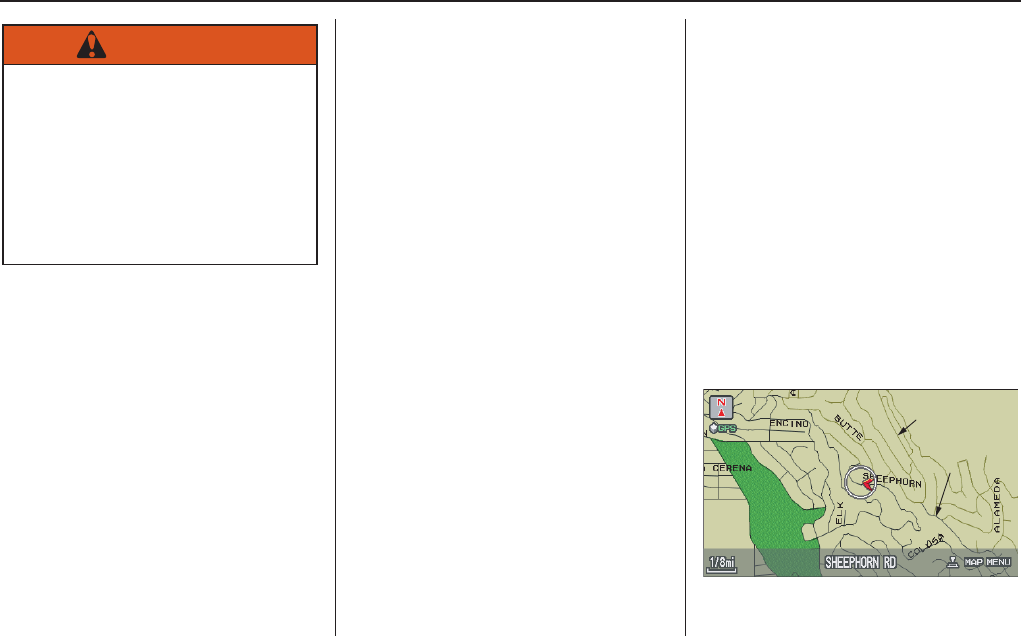
Verified/Unverified Street
Your navigation system has two kinds
of streets: verified (dark colored) and
unverified (light colored). The
differences between the two types of
streets are contrasted in the chart on
page 7.
Using the navigation system
while driving can take your
attention away from the road,
causing a crash in which you
could be seriously injured or
killed.
Follow all operating instructions
and safety information in this
manual.
WARNING
“Unverified” Road
“Verified” Road
Introduction

Navigation System 7
Introduction
Verified streets (dark colored) Unverified streets (light colored)
When
displayed
These roads are found within metropolitan areas, and
include interstate freeways and major roads connecting
cities.
These roads are found in rural areas, and typically include
residential streets away from the center of a town.
Street color Shown on daytime map screen as black or red, such as
interstate freeways.
Shown on the daytime map screen as light brown.
Map Quality
The database vendor has verified these streets.
Information like turn restrictions, average speed, and
whether it is a one way street have been gathered and
used when creating your route to a destination.
These streets have not been verified by the database vendor.
The system does not contain information on one-way streets,
turn restrictions, or the road’s average speed. They are shown
on the map for reference and can have errors in map location,
naming, and address range.
Routing
differences
While driving to your destination, the displayed route
line is solid blue. The system provides voice and map
guidance to your destination.
Your route line is either a blue dotted “vector line,” or a dashed
pink/blue line. For information on selecting this option, and the
routing differences, see Unverified Area Routing on page 93.
Cautions
There are no pop up boxes urging extra caution during a
route. However, because roads constantly change, you
are urged to use common sense, and always obey
posted traffic restrictions.
Regardless of whether the user chooses route guidance, there
are cautionary screens before and during the route urging the
user to be extra cautious, and obey all traffic restrictions. see
Unverified Area Routing on page 93.
Guidance
voice Voice guidance issues maneuvers such as “In a half
mile make a right turn.”
The suffix “if possible” is added to each guidance maneuver.
For example: “In a half mile make a right turn, if possible.”
Time and
distance
“to go”
The time and distance “to go,” displayed while on route
to a destination, is based on the average speed and
distance for the roads used for your route.
Because the average speed of these roads is not known, the time
and distance “to go” is based on a fixed average speed of
25 mph for these roads.

8Navigation System
User Agreement
In using this DVD “Satellite Linked
Navigation System” (the “DVD”),
which includes HONDA MOTOR CO.,
LTD. software, ALPINE
ELECTRONICS, INC. software,
NAVTEQ database contents, INFO
USA CORPORATION database,
ZAGAT SURVEY database contents,
and ZENRIN CO. database contents
(hereinafter referred to as “Licensors”),
you are bound by the terms and
conditions set forth below.
By using your copy of the DVD, you
have expressed your Agreement to the
terms and conditions of this Agreement.
You should, therefore, make sure that
you read and understand the following
provisions. If for any reason you do not
wish to be bound by the terms of this
Agreement, please return the DVD to
your dealer.
• The DVD may not be copied,
duplicated, or otherwise modified, in
whole or in part, without the express
written permission of the Licensors.
• The DVD may not be transferred or
sublicensed to any third party for
profit, rent or loan, or licensed for
reuse in any manner.
• The DVD may not be decompiled,
reverse engineered or otherwise
disassembled, in whole or in part.
• The DVD may not be used in a
network or by any other manner of
simultaneous use in multiple systems.
• The DVD is intended solely for
personal use (or internal use where
the end-user is a business) by the
consumer. The DVD is not to be used
for commercial purposes.
• The Licensors do not guarantee to the
customer that the functions included
in the DVD meet the specific
objectives of the user.
• Licensor shall not be responsible for
any damages caused by the use of the
DVD to the actual user or to any third
party.
• The warranty on the DVD shall not
extend to an exchange or refund due
to misspelling, omission of letters, or
any other cosmetic discrepancy in the
contents of the DVD.
• The right to use the DVD shall expire
either when the user destroys the
DVD or software, or when any of the
terms of this Agreement are violated
and the Licensors exercise the option
to revoke the license to use the DVD
or software.

Navigation System 9
User Agreement
• The terms and conditions hereof
apply to all subsequent users and
owners as well as to the original
purchaser.
• The use of oil company logos in the
display are for your information and
convenience, and in no way implies
any sponsorship, approval or
endorsement of these companies, or
their products. The logos are
trademarks of their respective
owners.
The user shall indemnify and save
harmless the Licensors, and their
officers, employees and agents, from
and against any claim, demand or
action, irrespective of the nature of the
cause of the claim, demand or action,
alleging loss, costs, expense, damages
or injuries (including injuries resulting
in death) arising out of the use or
possession of the DVD or software.
Use, duplication, or disclosure of this
DVD by or on behalf of the United
States government is subject to
“Restricted Rights” as set forth at FAR
52.227-14, -19 or DFARS 252.227-
7013, as applicable. Manufacturers are
the Licensors, including HONDA
MOTOR CO., LTD., 2-1-1 Minami
Aoyama Minato-Ku Tokyo 107-8556
JAPAN., Alpine Electronics, Inc., 20-1
Yoshima Kogyodanchi, Iwaki,
Fukushima 970-1192 JAPAN.,
NAVTEQ Corporation, 222
Merchandise Mart, Suite 900, Chicago,
IL, 60654, INFO USA
CORPORATION, 5711 South 86th
Circle, Omaha, NE 68127.,
Zagat Survey, LLC, 4 Columbus Circle,
New York, NY, 10019., and ZENRIN
CO., LTD., 1-1-1 Muromachi,
Kokurakita-ku, Kitakyushu, Fukuoka
803-8630, JAPAN.
10 Navigation System
Getting Started
System Controls
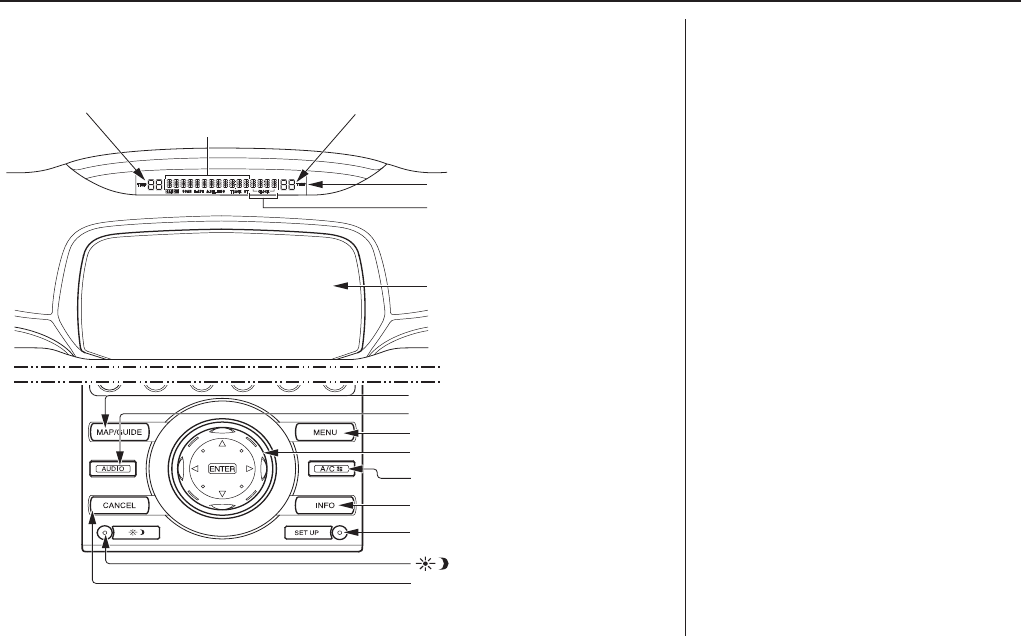
CANCEL button
(Display mode) button
SET UP button
INFO button
A/C button
Interface Dial/ENTER button
MENU button
AUDIO button
MAP/GUIDE button
Screen
Upper Display
Passenger’s Temperature
Time (set by Navigation system)
Time (set by Navigation system)
Time
(set by Navigation system)
Driver
Driver
’s Temperature
s Temperature
Driver’s Temperature
Audio Functions
Audio Functions
Audio Functions
MAP/GUIDE button
Displays the map. When on a route,
switches between the map and
guidance screens. See page 20 or 54.
AUDIO button
Press to display the audio screen.
For more information on audio system
features, see the Audio section of the
Owner’s manual.
MENU button
Displays the Enter destination by
screen. When on a route, displays the
Change route by screen. See page 27.
A/C button
Press to display the climate screen.
INFO button
Displays the screen for selecting
Message, Voice Command Help,
Trip Computer, Map Legend,
Calendar, Key to Zagat Ratings,
Calculator, and Roadside
Assistance. See page 76.
Navigation System 11
Getting Started
SET UP button
Displays the Setup screens to change
and update information in the system.
See page 83.
(Display mode) button
Switches the display between Day
mode, Night mode, and OFF. See
page 105.
CANCEL button
Cancels the current screen and returns to
the previous screen display.
NOTE:
The NAVI BACK button performs the
same basic function.
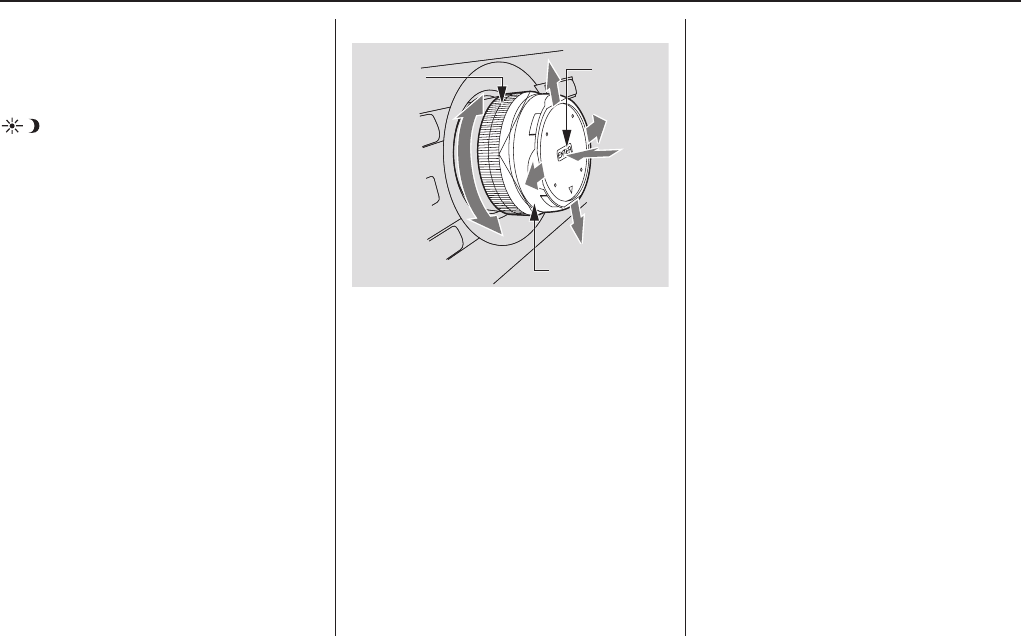
Interface Dial/ENTER button
The Interface Dial moves left, right,
up, and down. Use the Interface Dial
to look around a displayed map. Moving
the Interface Dial up or down can also
be used to scroll up or down a page in a
list. You can also rotate the Interface
Dial knob to move the highlighting
around the display or to scroll through a
list. After making a selection in a menu
or list, push in on the Interface Dial
(ENTER button) to enter the selection
into the system.
In almost all cases, you can enter a
selection into the system by pushing in
on the Interface Dial.
When you are displaying a map, rotating
the Interface Dial knob allows you to
change the scale. Rotating it clockwise
reduces the scale, showing less area
with greater detail. Rotating it
counterclockwise increases the scale,
showing more area with less detail.
Selector
ENTER
Knob

12 Navigation System
Getting Started
Screen
All selections and instructions are
displayed on the screen. The Display is
not a “touch screen” - you enter
information into the system either by
voice or by using the Interface Dial.
Clean the screen with a soft, damp cloth.
You may use a mild cleanser intended
for use on liquid crystal displays
(LCDs). Harsher chemicals may
damage the screen.
NOTE:
Whenever you shift to R (reverse), the
rear view is shown on the navigation
system screen. See page 108.
Upper Display
Shows a summary of the audio and
climate control information, as well as
the time. This summary is helpful as a
confirmation when adjusting audio or
climate by voice.
The audio summary consists of the
radio, frequency, and volume. For XM
radio, a brief description of the station
and current music.
The climate status consists of the
driver’s and passenger’s temperature
displays. The time is automatically set
by the navigation system. Settings can
be adjusted in Setup (see Time
Adjustment on page 102).
Navigation System 13
Getting Started
Voice Control Basics
Your vehicle has a voice control system
that allows hands-free operation of most
of the navigation system functions. You
can also control the audio system and
the climate control system. The voice
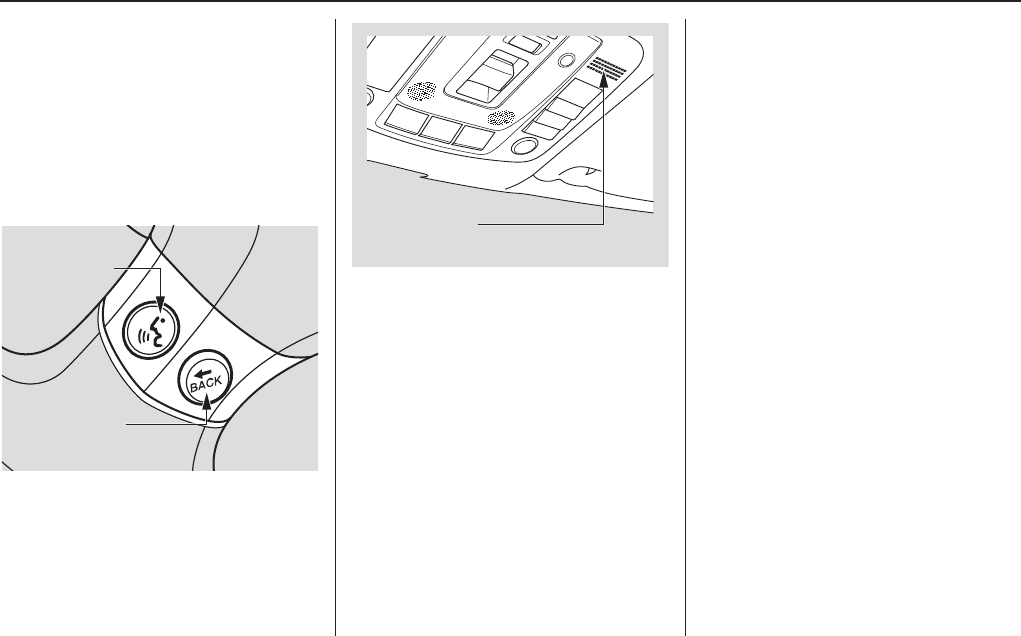
control system uses the NAVI TALK
and NAVI BACK buttons on the
steering wheel and a microphone near
the map light on the ceiling.
NOTE:
While using the voice control system, all
of the speakers are muted.
NAVI TALK button
This button activates the voice control
system. Press and release it when you
want to give a voice command. See
Voice Command Index on page 143 for
a list of voice commands.
NAVI BACK button
This button has the same function as the
CANCEL button. When you press and
release it, the display returns to the
previous screen. When the previous
screen appears, the system replays the
last prompt. This button is enabled for
the navigation system commands only.
However, it can be used to cancel an
audio or climate control voice command
up to one second after the command
confirmation.
NOTE:
The NAVI TALK and NAVI BACK
buttons are deactivated while using the
HandsFreeLink feature. See your
vehicle Owner’s manual and the official
web site (www.handsfreelink.com) for
information on this system.
NAVI TALK
button
NAVI BACK
button
Navi/HFL
Microphone (on the ceiling)

14 Navigation System
Getting Started
Using the Voice Control System
You should use the voice control system
as much as possible, and consider
manual entry using the Interface Dial
as a “back-up” method of entry.
Most of the system’s functions can be
controlled by voice commands activated
with the NAVI TALK button. To
control your navigation system by
voice:
• Press and release the NAVI TALK
button.
• Wait for the beep.
• Give a voice command.
Once the microphone picks up your
command, the system changes the
display in response to the command and
prompts you for the next command.
Using the NAVI TALK button, answer
the prompts as required.
If the system does not understand a
command or you wait too long to give a
command, it responds with “Pardon,”
“Please repeat,” or “Would you say
again.” If the system cannot perform a
command or the command is not
appropriate for the screen you are on, it
sounds a beep.
Anytime you are not sure of what voice
commands are available on a screen,
you can always say “Help” at any
screen. The system can then read the list
of commands to you.
When you speak a command, the system
generally either repeats the command as
a confirmation or asks you for further
information. If you do not wish to hear
this feedback, you can turn it off.
However, hearing the feedback will
familiarize you with the way the system
expects commands to be phrased. See
the Voice Recognition Feedback
setting in Setup.
If you hear a prompt such as “Please use
the Interface Dial to...” or “Please
choose an area with the Interface Dial,”
the system is asking for input that
cannot be performed using the voice
control system.
Improving Voice Recognition
To achieve optimum voice recognition
when using either the Navigation or
HandsFreeLink voice control system,
the following guidelines should be
followed:
NOTE:
Make sure the correct screen is
displayed for the voice command that
you are using. See Voice Command
Index on page 143.
• Adjust the air flow from both the
dashboard and side vents so they do
not blow against the microphone on
the ceiling. Place your hand over the
microphone; if you feel any airflow,
adjust the vents.
• Close the windows and the sunroof.
• The fan speed will be automatically
adjusted to low during voice
recognition.

Navigation System 15
Getting Started
• After pressing the NAVI TALK
button, wait for the beep, then give a
voice command.
• Give a voice command in a clear,
natural speaking voice without
pausing between words.
• If the system cannot recognize your
command because of background
noise, speak louder.
• If more than one person is speaking at
the same time, the system may
misinterpret your command.
• If you are still having trouble with the
voice control system, refer to Voice
Command Help on the
Information screen.
Selecting an Item (Button)
on the Screen
On most screens, there are items that
can be selected (like buttons with titles
such as OK or Return). To select an
item on any screen, do one of the
following:
• Use the voice control system and say
the name of the desired item. Almost
all selectable items on the screen,
including some listed items, are
recognized by the voice control
system.
• Move the highlighting to the desired
item with the Interface Dial or its
knob, then push in on the Interface
Dial.
Tip:
If items are grayed out (very dark
colored), this means that they cannot be
selected.
Selecting an Item in a List
To scroll through a list, do one of the
following:
• Rotate the Interface Dial knob to
scroll one item at a time.
• Use the voice control system to scroll
page by page. For example, to scroll
up, say, “Up” or “Previous.” To scroll
down, say “Next” or “Down.”
• Move the Interface Dial up or down
to scroll through the list page by
page.
If you cannot find the desired name, or
have made an error, return to the
previous screen by pressing the
CANCEL or the NAVI BACK button.
To select the desired item in the list, do
one of the following:
• Use the voice control system, and say
the item number of the desired item.
• Rotate the Interface Dial knob to
move the highlighting to the item,
then push in on the Interface Dial.
16 Navigation System
Getting Started
Entering Information
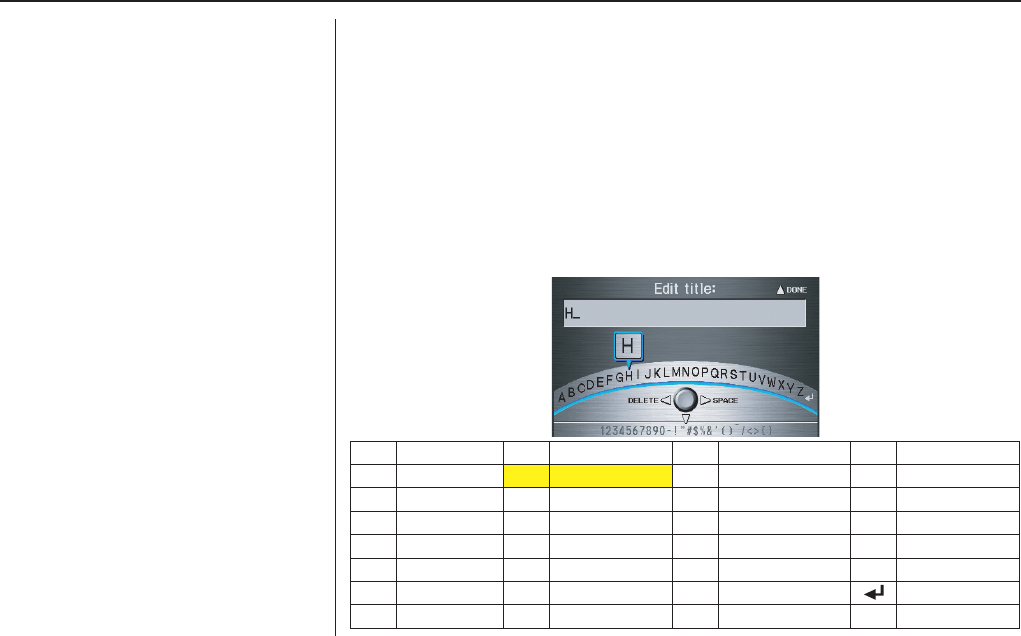
When the system needs input from you,
the display changes to a screen similar
to the one at the right. You can then use
the displayed letters, numbers, or
symbols to enter information. You can
enter your keyboard input in either of
the following ways:
• Say the desired letter, number, or
symbol on the screen if you are
entering a City Street name.
• Move the highlighting to the desired
letter, number, or symbol by rotating
the Interface Dial knob, then push
in on the Interface Dial.
Each entered letter will appear at the top
of the display. Move the Interface Dial
right to enter a space between words. If
necessary, move it to the left to delete
an entry.
When entering an address, the system
searches the database for words that
match the letters you are entering.
As a result, you will notice that some
letters are no longer available.
When the system finds only one entry that matches, it completes the name entry for
you. If the system finds more than one entry that matches your input, a list of these
matches is displayed.
Tip:
When entering a name of city, street, or place, if you are unsure of the spelling of the
name, enter the letters that you are sure of, then move the Interface Dial up to
select LIST. The system will display a list of names that most closely match your
input.
NOTE:
The voice command names that can be used for each letter are shown below. For
additional keyboard symbols, see page 152.
Say Or say “...” Say Or say “...” Say Or say “...” Say Or say “...”
AAlpha/Apple HHotel/Henry OOscar VVictor
BBravo/Boy IIndia/Igloo PPapa/Paul WWhiskey/William
CCharlie JJuliet/John QQuebec/Queen XX-Ray
DDelta/Dog KKilo/King RRomeo/Robert YYankee/Yellow
EEcho/Edward LLima/Larry SSierra/Sam ZZulu/Zebra
FFoxtrot/Frank MMike/Mary TTango/Tom Enter
GGolf/George NNovember/Nancy UUniform/Uncle
Navigation System 17
Getting Started
System Start-up
When you turn the ignition to ON (II), it
takes several seconds for the navigation
system to boot up.
The first screen to appear is the
navigation system globe screen. The
screen then changes to the Disclaimer
screen:
NOTE:
•The OK button does not appear
immediately. It appears after the
software is loaded.
• The symbol is explained on
page 18.
Read this disclaimer carefully so you
understand it before continuing. Push in
on the Interface Dial to select OK, and
the map screen will appear on the
display. The “OK” cannot be activated
by voice.
If you do not push in on the Interface
Dial, the screen will go dark after 30
seconds. To return to the Disclaimer
screen, press any navigation or voice
control button.
NOTE:
If you do not select OK, and then enter
the Setup or Information screens, some
items are not available, and will show
up as darkened buttons (grayed out).
See System Function Diagram on
page 26.
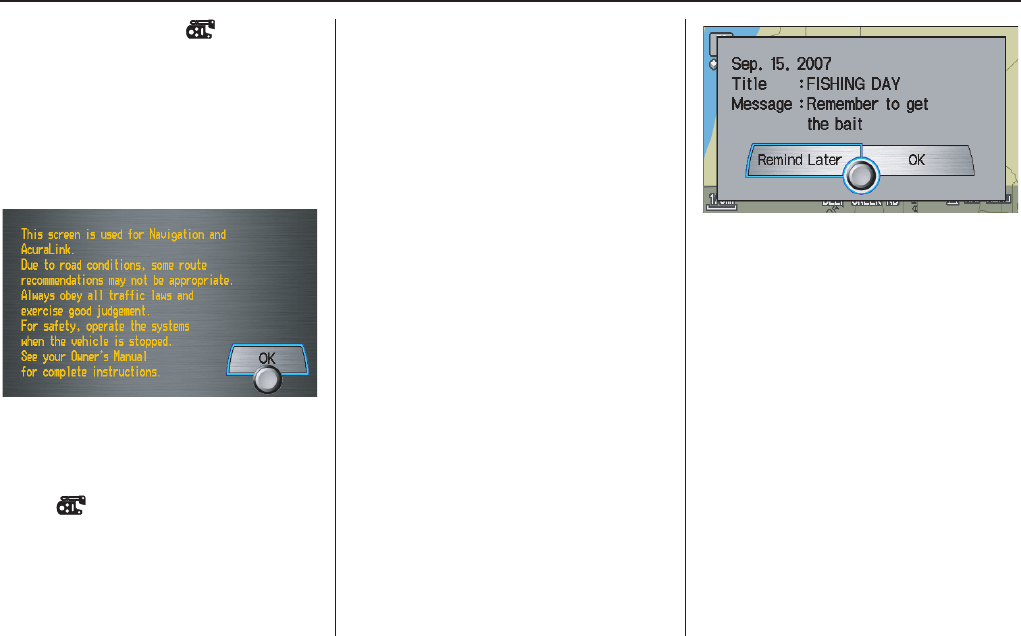
If you have entered any Calendar
reminders, they are displayed after you
select OK.
The Calendar reminder screen
remains displayed until you select OK
or Remind Later by rotating the
Interface Dial knob and pushing in
on the Interface Dial, or press the
CANCEL button.
If you select OK and push in on the
Interface Dial, the reminder will not
show up again. If you wish to have the
reminder show up again later in the day,
select Remind Later and push in on
the Interface Dial.
18 Navigation System
Getting Started
If you press the CANCEL button, the
message will be displayed the next time
you start the vehicle.
NOTE:
The system will display the current
message and any older or previously
unread messages, with the newest
message listed first.
HandsFreeLink™
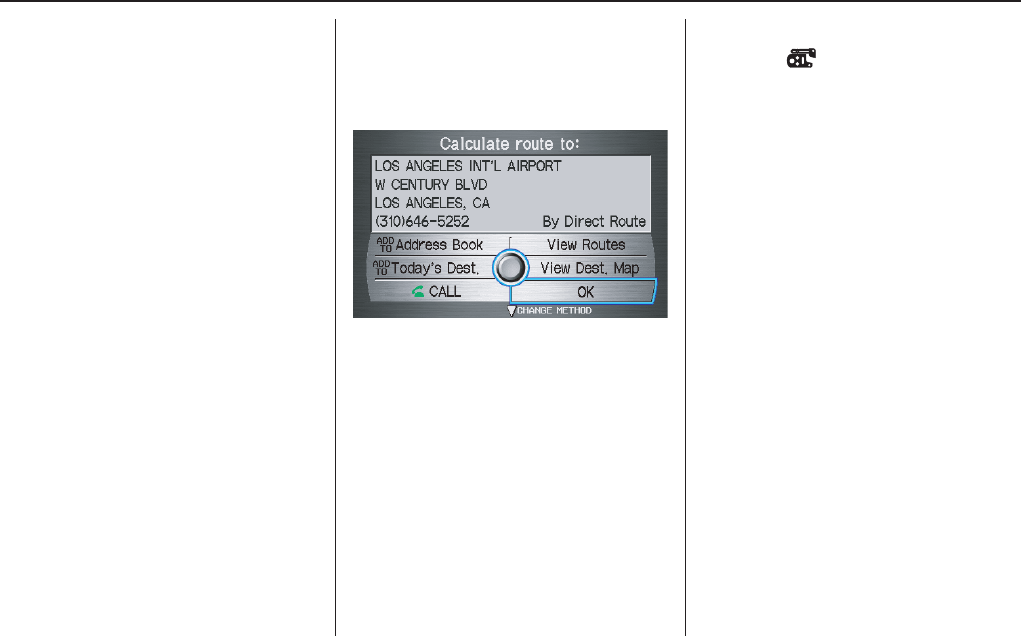
If you have a Bluetooth compatible cell
phone that is “linked,” then CALL on
the Calculate route to screen is
enabled.
When you select CALL, the system
dials the number shown on the screen. If
CALL is not available (grayed out), and
your phone is “linked,” then make sure
the phone has service or that HFL is not
in use; press the HFL BACK button.
For more information on
HandsFreeLink™, see the vehicle
Owner’s manual and the official web
site (www.handsfreelink.com).
Remote Keyless Entry
Setting
When you unlock the door and enter the
vehicle, the Multi-Information Display
(MID) in the gauge assembly welcomes
you with one of the following displays:
“Welcome Driver 1,” “Welcome Driver
2,” or just “Welcome.” The vehicle
“senses” the driver number, based on
which Remote Keyless Entry is used to
unlock the vehicle. If both drivers
approach the vehicle with remotes, the
welcome display and related settings are
based on which remote the vehicle first
“senses.”
NOTE:
• If both remotes come within range
simultaneously, the “Welcome”
display may be unpredictable.
• If only “Welcome” is displayed, then
all Setup settings revert to factory
defaults, and all personal data (such
as Address Book or Calendar) are not
available.

Navigation System 19
Getting Started
The navigation system uses the driver
number (as recognized by the MID) to
personalize the navigation system. For
example, if Driver 1 unlocks the
vehicle, the “Driver 1” Personal address
book and other navigation settings are
automatically loaded when the vehicle
is started. There is no way to change
from one driver’s settings to the others
while driving.
Throughout this manual, the icon “ ”
is used to indicate features that are
dependent on the “Driver number” as
displayed on the MID “Welcome”
display.
When the Remote Keyless Entry is
deliberately “unlinked,” (as when giving
the key to a valet) the MID will display
“Welcome.” Then the following occurs:
• Some settings (e.g., the “Personal
Address Book” and the “Calendar”
Information feature), are not
selectable (buttons grayed out).
• Setup values (like volume,
brightness, etc.) may be changed but
are not remembered the next time you
restart the vehicle.
NOTE:
The RL Owner’s manual has additional
information regarding “linking” and
“unlinking” for the Remote Keyless
Entry.
20 Navigation System
Getting Started
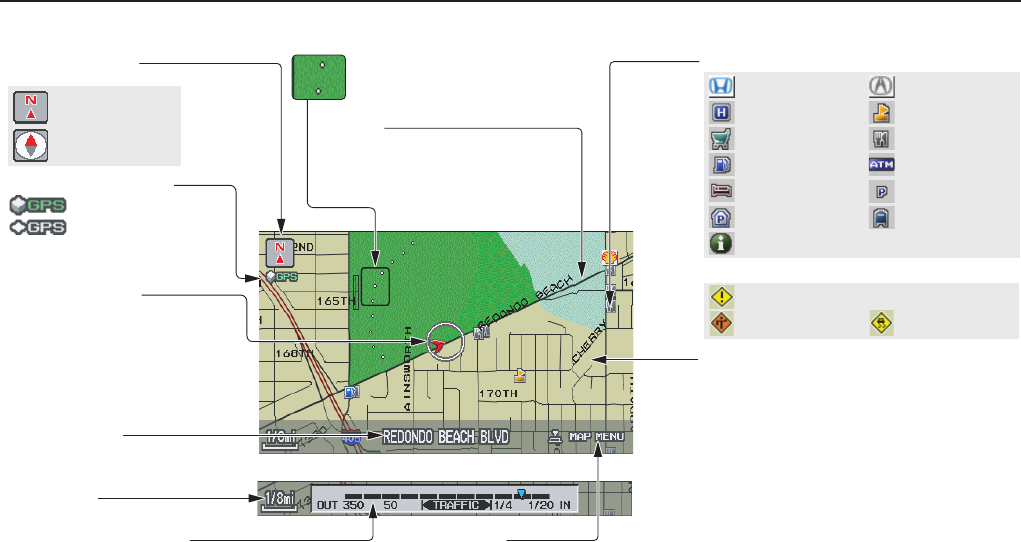
Map Screen Legend
Acura Dealer
School
Restaurant
AT M
Parking Lot
Post Office
Honda Dealer
Hospital
Grocery Store
Gas Station
Hotel/Lodging
Parking Garage
Freeway Exit Information
Vehicle Position
(see page 68)
(Use voice command
“Display the current location.” or
use the Interface Dial to show
current location.)
Landmark Icon (see page 62)
Map Scale
(see page 60)
Map Features
Dark Green: Park
Light Blue: Hospital
Brown: Shopping Mall
Light Brown: Indian Reservation
Green: Golf Course
Gray: Airport/Stadium/Business
Blue: Body of Water
Blue/Green: Cemetery
Matte Blue: University
NOTE:
If you move the Interface Dial over an
area (map features shown above), the
name is displayed on the screen.
Incident Icon
Weather
Accident / Incident (other)
Construction
Streets
(see Map Overview on page 6)
Dark Red: Interstates or Freeways
Black: Verified Streets
Light Brown: Unverified Streets
Current Street
(see page 6)
NOTE:
See Map Legend on the Information screen for further explanation.
“Breadcrumbs”
(see Off-road Tracking on page 67)
GPS Signal Strength
: Best Reception
: Good Reception
Missing: Poor/No Reception
“North Up”
“Heading Up”
Map Orientation
(see page 61)
Map Menu
(see page 60)
(Push in on the Interface Dial to view.)
Map Scale Adjustment
(Mile or km per half inch appears only when you
zoom in or out by rotating the Interface Dial knob.)
Navigation System 21
Getting Started
Map Screen Description
Zoom In/Out
Rotate the Interface Dial knob to
change the map scale. Zooming in
increases the detail, while zooming out
gives you a wide area view. After
changing the scale, give the system a
few moments to update the display.
Map Scrolling
To view other map areas, move the
Interface Dial left, right, up, or down.
The map will shift in that direction. To
return the map to your current location,
press either the MAP/GUIDE, the
CANCEL, or the NAVI BACK button.
The display automatically changes to
the map screen when you reach your
destination. Press the MENU button to
return to the Enter destination by
screen.
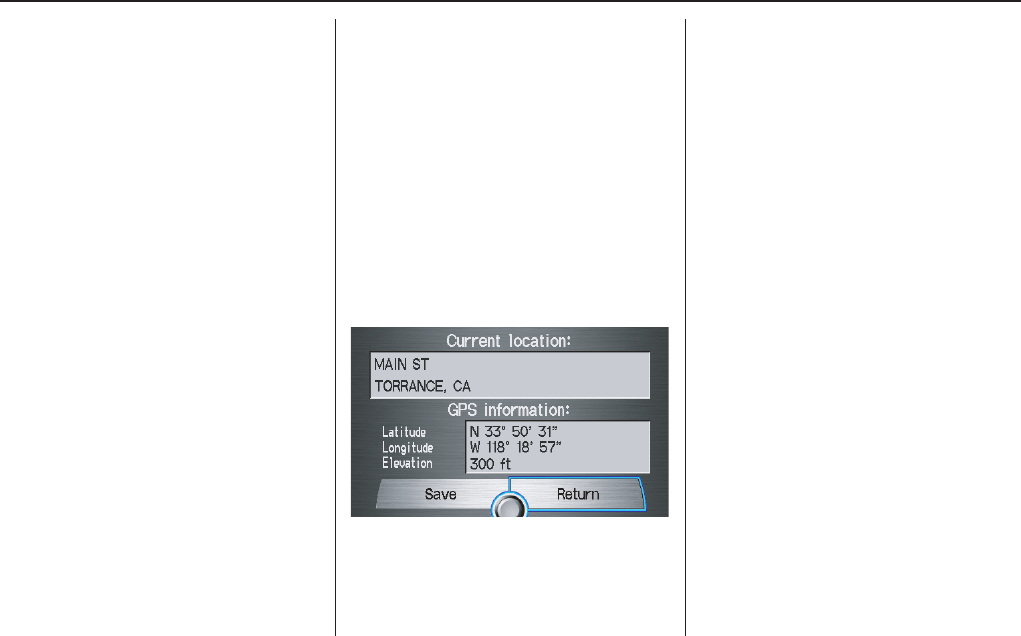
Displaying Current Location
You can see the current address,
latitude, longitude and elevation at any
time by doing one of the following:
• Use the voice control system and say
“Display current location.”
• Push in on the Interface Dial, select
Show Icon on Map, push in on the
Interface Dial again, and then move
the Interface Dial left to select the
CURRENT LOCATION.
The Current location screen will
appear on the display.
NOTE:
The elevation will not appear when the
system is temporarily lacking proper
GPS information. The system elevation
may not agree with elevations shown on
roadside elevation signs, and may
fluctuate plus or minus 100 feet or more.
You can save the current location in
your Address Book by doing one of the
following:
• Use the voice control system and say
“Save current position.”
• Push in on the Interface Dial and
select Save, and then push in on the
Interface Dial again.
Select Return to return to the previous
screen.
22 Navigation System
Getting Started
Traffic Display Legend
NOTE:
When driving to a destination on freeways that have traffic flow data, the route line is
used to display moderate and heavy traffic flow status instead of the colored bands
on the side of the road. The route line color indicates the following conditions:
•Free Flow Traffic - a section of the blue route line will be bordered with a light
green line (this may be difficult to see)
•Moderate Traffic Flow - a section of the route line will change from blue to
orange
•Heavy Traffic Flow - a section of the route line will change from blue to red
•Unknown Traffic Flow - a section of the route line is blue
Map Scale
Traffic flow and incident icons are
only displayed for the following
scales: 1/2, 1, 2, 5 mile (or 800m,
1600m, 3km, 8km).
Incident Icons
Incident Icon Update Details:
• Typically M–F, 5:00 AM – 7:00
PM (varies by metropolitan area)
• Continuously updated signal is
received.
Accident / Incident (other)
Construction
Weather
Traffic Flow Data
(using bands parallel to the road)
Heavy traffic: 0 – 27 mph
(approx.)
Moderate traffic: 27 – 52 mph
(approx.)
Free flow traffic: 52 + mph
(approx.)
(shown for both sides of the freeway where
available)
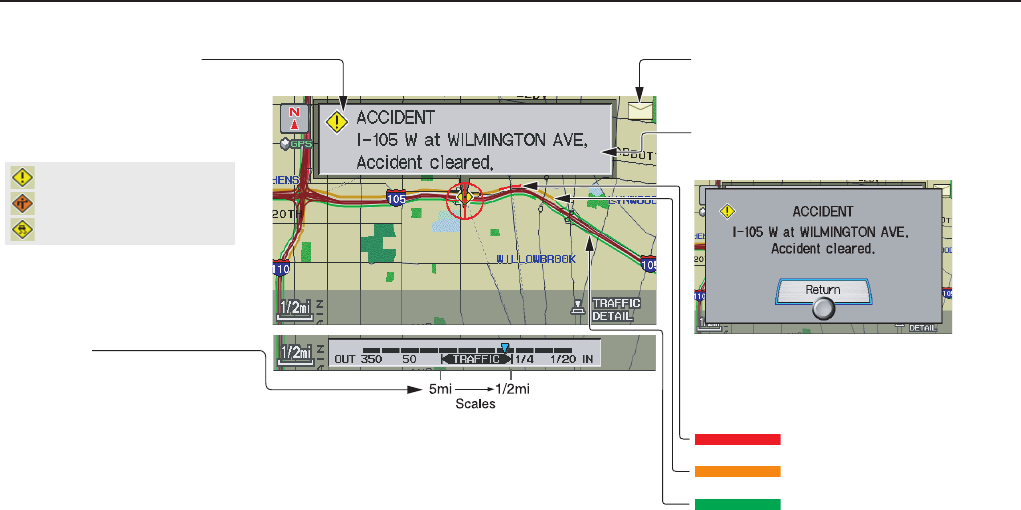
Viewing Incident Details:
To view the incident details, use the
Interface Dial to position the cursor
(round red circle below) over an
incident icon and push in. Hearing Incident Details:
To have the message read to you, push in on
the Interface Dial a second time.
To return to current position, say, or select
Return.
Message Icon
Indicates that you have a message. View
messages by pushing in on the Interface Dial.
See page 75.
Traffic Flow Data Update Details:
• Available 24 hrs a day, 7 days a week
• Continuously updated

Navigation System 23
Getting Started
Real Time Traffic Display
The navigation screen can display up-
to-the-minute traffic information when
available including flow (traffic speed),
accidents, and construction on freeways
in more than 40 major metro areas. See
page 128 for a list of the current US
cities that offer traffic information.
The display of traffic flow and incidents
on your map screen is optional and can
be turned On/Off by selecting the
“Traffic” icon on the Icon bar (see
Showing Icons on the Map on page 65).
The current metropolitan areas that have
traffic coverage can be seen on page
117. For more current metro coverage
information, go to www.acura.com/
realtimetraffic. This link offers
additional information on real-time
information, including the following:
• The latest list of metro areas that have
Nav-Traffic
• Detailed coverage information for
each metro area showing what roads
have traffic speeds, traffic icons, or
both
• An XM-Nav-Traffic demonstration
• Frequently asked questions (FAQs)
Viewing Flow Data
Traffic flow data is displayed as colored
bands on either side of the freeway (see
Traffic Display Legend on page 22).
The different color bands represent the
average road speeds as determined by
“under-road sensors.”
While driving to your destination on a
road, that has traffic flow data, your
route line color is used to display the
traffic flow data. This means that when
the map scale is set to one of the traffic
scales (1/2 through 5 mile scale), your
blue route line may appear as alternating
orange, red or blue segments (see
Traffic Display Legend on page 22).
NOTE:
A blue route line segment on a freeway
can mean one of two things:
• The under road sensors indicate free
flow traffic.
• The road has no sensors, and traffic
conditions are unknown (they could
be congested).
24 Navigation System
Getting Started
Naturally, only roads with these sensors
will show traffic information. The
amount of flow data varies considerably
from one city to another. This map
display is refreshed continuously. You
can only view traffic information in the
city where you are located.
NOTE:
• Traffic flow, and incident icons are
only displayed the 1/2, 1, 2, and 5
mile scales (800m, 1600m, 3km, 8km
scales)
• Not all freeways within a
metropolitan area have traffic flow
data (colored bands on the side of the
freeways) - this is normal, and you
cannot assume that a lack of data
implies no traffic.
• Not all cities have traffic flow
information. See cities listed on
page 128.
• Due to freeway maintenance and
construction, traffic flow may be
available only for one side of a road,
or to be missing entirely for some
portion of the freeway.
• The displayed traffic flow may
disagree with the information from
other audio or Internet based traffic
displays.
• If traffic flow is not showing, verify
that the “TRAFFIC” selection for the
Icon Bar is ON, and that the icon
options for traffic are both ON. (see
page 65).
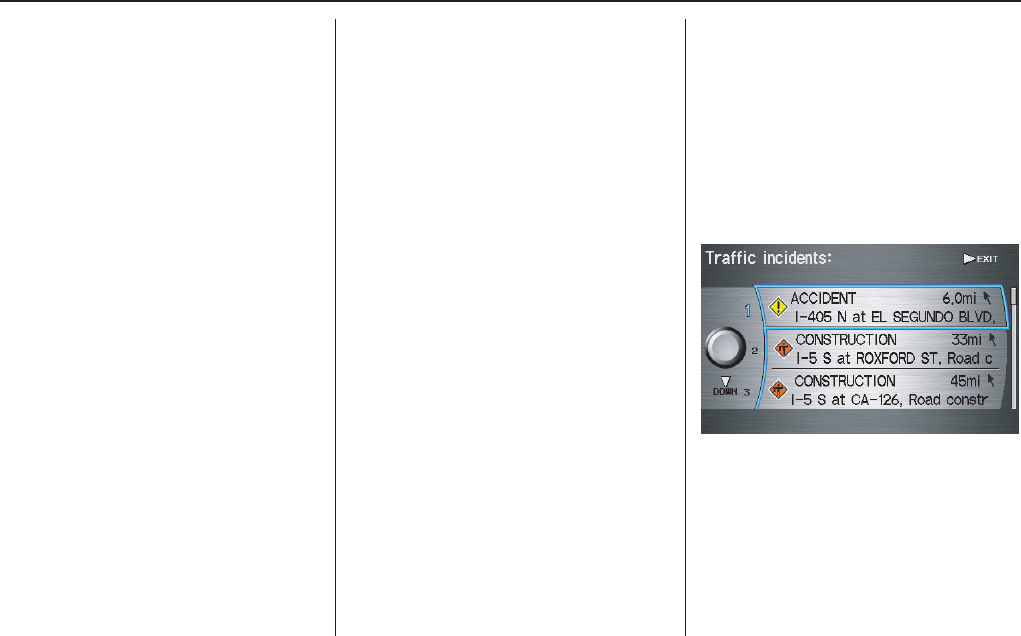
Viewing Incident Reports
Incident reports appear as small
diamond shaped icons (see Traffic
Display Legend on page 22 for
examples). There are three ways to view
traffic incidents:
• By voice control, say “Display traffic
incidents.”
• Select Traffic Incidents from the
map menu.
• Selects an incident icon from the map
NOTE:
The first method is recommended
because it works on any scale, and
requires the minimum input.
Listing Traffic Incidents by Voice
Control
From the map screen (any scale), say
“Display traffic incidents,” or “Display
traffic list.” A list of all incidents within
the metro traffic area will be displayed.
Incidents are listed by distance from
your current position outward in all
directions. To view an incident details,
select an incident from the list, and push
in on the Interface Dial.
Navigation System 25
Getting Started
Listing Traffic Incidents from the
“Map Menu”
Select Traffic Incidents from the Map
menu. A list of all incidents within the
metro traffic area will be displayed. See
Map Menu on page 56.
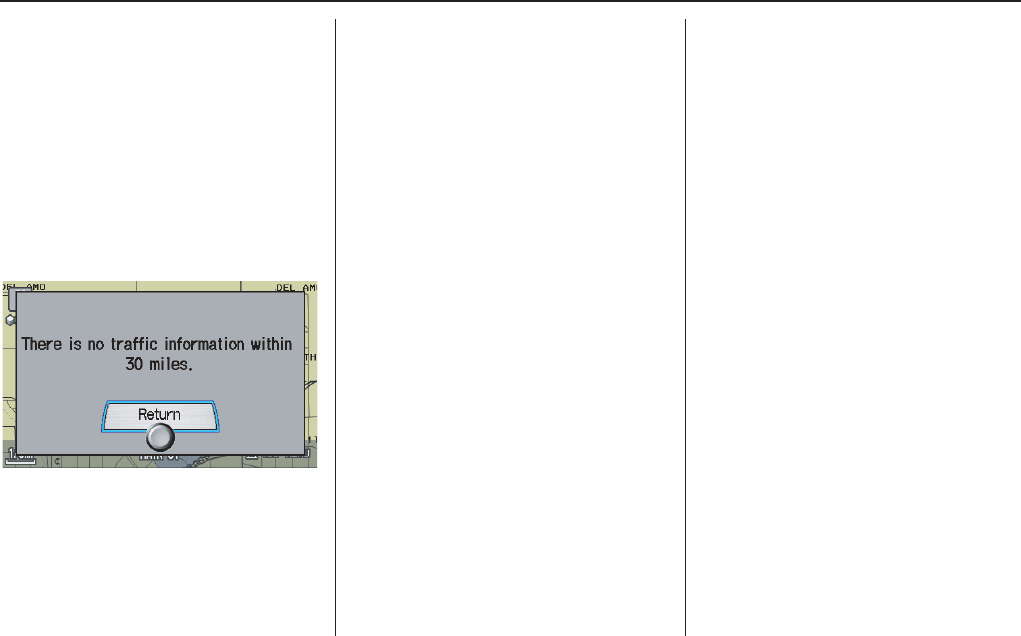
No Traffic within 30 Miles
If you say “Display traffic incidents” or
select Traffic Incidents but there are
no incidents within 30 miles of your
current location, the following screen
will be displayed.
Selecting an Incident Icon from the
Map Screen
Zoom in or out so that you are between
the 1/2 and 5 mile scales. (The map
must be on the 1/2 to 5 mile scales to
view the incident icons.) To view the
details of a specific incident, use the
Interface Dial to position the cursor
(round red circle) over the incident icon
you are interested in. Then push in on
the Interface Dial to view a pop-up
box summary describing the incident.
To see and hear the incident details,
push in on the Interface Dial a second
time. To return to your current position
map screen, say or select Return. To
continue viewing incidents in your
“scrolled to” location, press the
CANCEL button.
NOTE:
• Incident reports may be displayed on
roads that have no traffic flow data
available
• Freeway incident reports can lag
behind the actual incident, or remain
displayed after an incident has
cleared. This is normal, and is
dependant on the reporting agency,
and the speed at which the data is
updated.
• The displayed incidents may disagree
with the information from other audio
or internet based traffic information
displays.
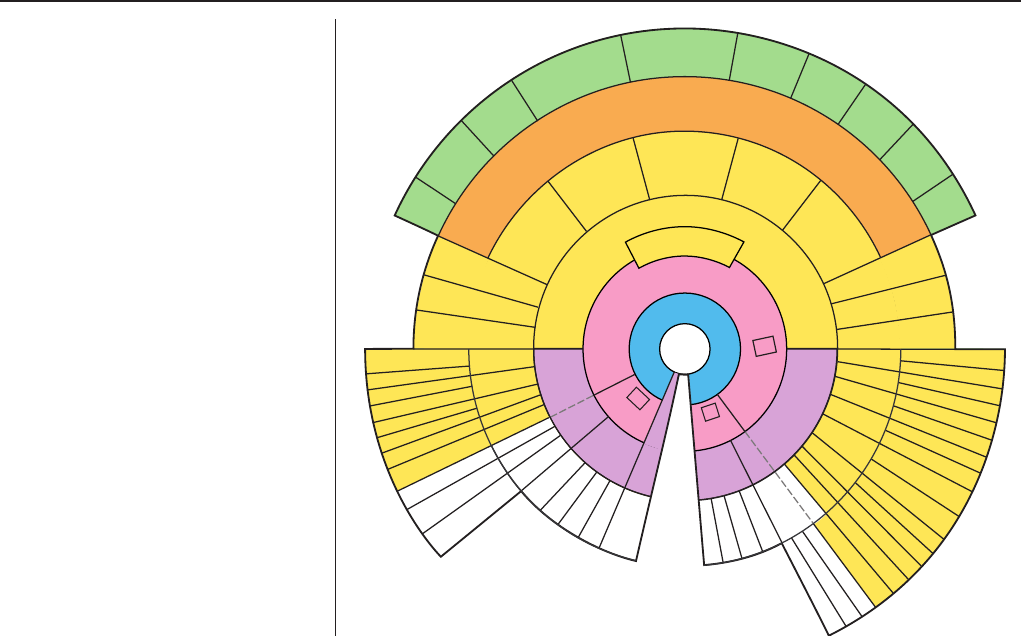
26 Navigation System
Getting Started
System Function Diagram
This diagram shows the navigation
system features, starting at the center
and working outward in layers. The
navigation program starts at “Key ON,”
and then displays the globe screen
(blue). If OK is selected on the
Disclaimer screen, the functions in the
yellow segments of the diagram become
available in the Setup and Information
screens. The white segments of the
diagram are available anytime, even if
you do not select OK.
The items above the map screen show
various methods to begin driving to
your destination (orange). You are
provided with map/voice guidance,
routing cautions, and a direction list.
While driving to your destination, use
the voice control system as much as
possible to interact with the navigation,
audio, and climate control systems
(green).
R
E
M
I
N
D
E
R
S
(
p
g
.
1
7
)
C
A
L
E
N
D
A
R
-
T
H
E
M
A
P
S
C
R
E
E
N
(
p
g
.
2
0
)
-
(
M
A
P
/
V
O
I
C
E
G
U
I
D
A
N
C
E
,
R
O
U
T
I
N
G
C
A
U
T
I
O
N
S
,
D
I
R
E
C
T
I
O
N
S
L
I
S
T
)
-
D
R
I
V
I
N
G
T
O
Y
O
U
R
D
E
S
T
I
N
A
T
I
O
N
-
VOICE:
"HELP"
(ALL)
(pg. 143)
VOICE:
"INFORMATION
SCREEN"
(pg. 76)
VOICE:
"MENU" (to
change route)
(pg. 70)
VOICE:
"HOW FAR OR LONG
TO THE DESTINATION?"
(pg. 143)
VOICE:
"DISPLAY (OR SAVE)
CURRENT LOCATION"
(pg. 68)
VOICE:
"WHAT TIME
IS IT?"
(pg. 143)
VOICE:
"AUDIO"
(pg. 148, 149)
VOICE:
CLIMATE
FAN, TEMP
(pg. 146, 147)
ENTER
WAYPOINTS
(pg. 71)
VIEW
TRAFFIC
(pg. 22)
VOICE:
"ZOOM IN/ZOOM OUT"
(pg. 61, 137)
VOICE:
"HIDE/DISPLAY ICONS"
(pg. 64, 65)
VIEW TRAFFIC
(pg. 23)
ADD BOOK (pg. 86)
PINs (pg. 89)
UNITS MI/KM (pg. 91)
VOICE MALE/F (pg. 91)
UNVERIFIED (pg. 93)
AVOID AREAS (pg. 97)
TIME ZONE (pg. 101)
DAYLIGHT SAV. (pg. 101)
OFF-ROAD TRACKING
(pg. 67, 102)
CORRECT VEHICLE
POSITION (pg. 103)
MAP COLOR (pg. 104)
MENU COLOR (pg. 104)
GUIDE. PROMPTS (pg. 84)
VERSION (pg. 108)
MESSAGES (pg. 108)
BRIGHTNESS (pg. 83)
VOLUME (pg. 84)
INTERFACE DIAL (pg. 84)
CALL (pg. 82)
COST (pg. 80)
NUMERIC RATING
(pg. 80)
ENTER (pg. 79)
LIST (pg. 78)
MATH (pg. 81)
CONVERT (pg. 81)
LIST (pg. 78)
NAVI, AUDIO,
CLIMATE (pg. 76)
SELECT CAT E GORY
(PG. 76)
VIEW CURRENT (pg. 77)
PRESS
OK
NOT
SELECTED
OK
NOT
SELECTED
OK
ROADSIDE
ASSISTANCE
KEY TO ZAGAT
RATINGS
CALENDAR
CALCULATOR
MAP LEGEND
TRIP COMPUTER
MESSAGE
VOICE HELP
SELECT BAND/
FREQUENCY
VOL BALANCE
CD
FUNCTIONS
OTHER
AUDIO
BRIGHTNESS
ZOOM IN/OUT
SET UP
BUTTON
(pg. 83)
A/C
BUTTON
(pg. 10)
AUDIO
BUTTON
(pg. 10)
INFO
BUTTON
(pg. 76)
REAR CAMERA (REVERSE)
T
H
E
D
I
S
C
L
A
I
M
E
R
S
C
R
E
E
N
(
p
g
.
1
7
)
VOICE: "FIND
NEAREST..."
ATM, ETC.
(pg. 145)
SELECT A
DESTINATION
WITH
INTERFACE DIAL
(pg. 73)
VOICE:
"GO HOME"
(pg. 49)
VOICE:
"MENU" FOR
ENTER
DESTINATION
SCREEN
(pg. 27)
CONTINUE
TO THE
DESTINATION
(RESUME)
AFTER RESTART
(pg. 74)
G
L
O
B
E
S
C
R
E
E
N
KEY
ON
F
o
r
m
o
r
e
i
n
f
o
r
m
a
t
i
o
n
,
s
e
e
PERSONAL
BASIC
ROUTING
GUIDANCE
CLOCK
ADJUSTMENT
VEHICLE
COLOR
SET TEMP
AC ON/OFF
VENT
FAN
ACURALINK
SYSTEM INFO.
SETUP
SCREEN
(FIRST)
t
h
e
v
e
h
i
c
l
e
o
w
n
e
r
'
s
m
a
n
u
a
l
.
V
O
I
C
E
C
O
M
M
A
N
D
S
INFO
SCREEN (pg. 150)
AUDIO (pg. 148, 149)
CLIMATE CONTROL
(pg. 146, 147)
Navigation System 27
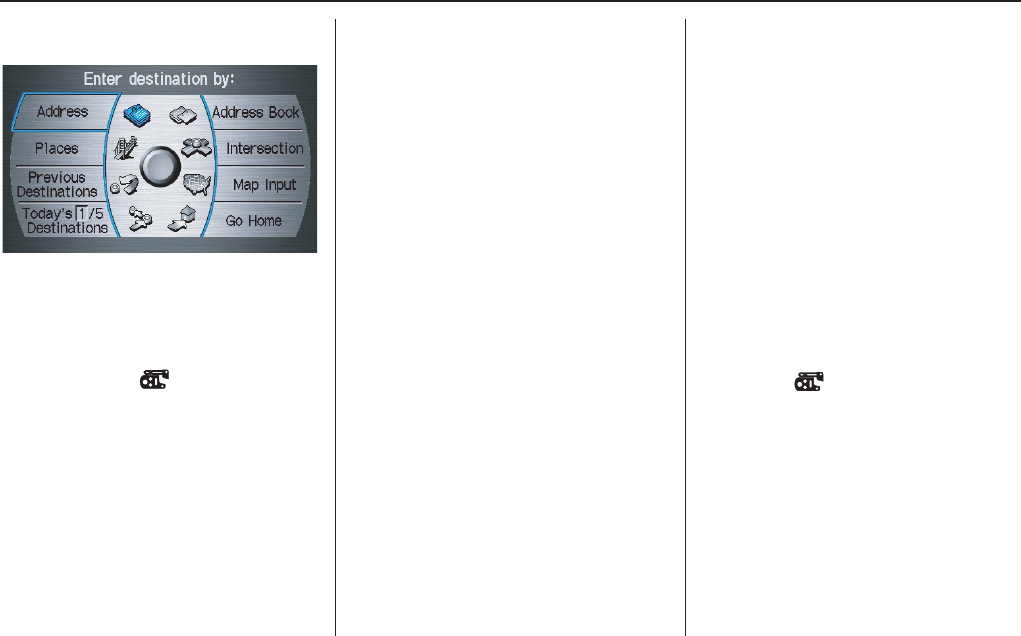
When you press the MENU button, the
display changes to:
Address (see page 28)
This selection requires you to enter the
city (and possibly the state), and the
address that you want to go to.
Address Book (see page 32)
This selection allows you to select a
stored address. The system can store up
to a combined total of 200 Driver 1 and
Driver 2 addresses.
Places (see page 33)
The system has been programmed with
the locations of many businesses, parks,
hospitals, etc. This selection lets you
search these by category, name, phone
number, or Zagat 2006 (for restaurant).
Intersection (see page 39)
This selection allows you to enter the
names of two intersecting streets in a
city. This is useful if you know the
general location of your destination, but
not the exact address.
Previous Destinations (see page 44)
When you enter a destination with any
of the available selections (except
Address Book and Go Home), the
last 50 destinations are saved by the
system. Use this selection to choose a
destination again.
NOTE:
If Previous Destinations is grayed
out, there is no Previous Destination
entered.
Map Input (see page 45)
This selection allows you to point to a
destination on the map using the
Interface Dial. This allows you to
enter a destination or address that may
not be listed in the database.
Today’s Destinations (see page 47)
You can enter and sort up to five
destinations and store them in the
Today’s Destination list. You can then
use the Today’s Destinations selection.
NOTE:
If Today’s Destinations is grayed
out, there is no Today’s Destination
entered.
Go Home (see page 49)
This selection allows you to select your
home or a common place as a
destination.
NOTE:
If you have no home address entered,
the system prompts you for one.
Entering a Destination
28 Navigation System
By Address
After you select Address from the
Enter destination by screen, the
display changes to:
Tip:
• When entering an address by voice, it
is more efficient to say the city name
first, then the street name.
• When entering an address by the
Interface Dial, it is usually easier to
enter the street first. A city or cities
that the street appears in will be
displayed. For your convenience, you
do not have to enter both city and
street.
NOTE:
• If you find that your city is not listed,
it may be part of a larger
metropolitan area. Try entering the
street first.
• Prior to departure, you can set areas
to avoid. The system then includes
them in its calculations for the
destination you have entered. See
Edit Avoid Area on page 97.
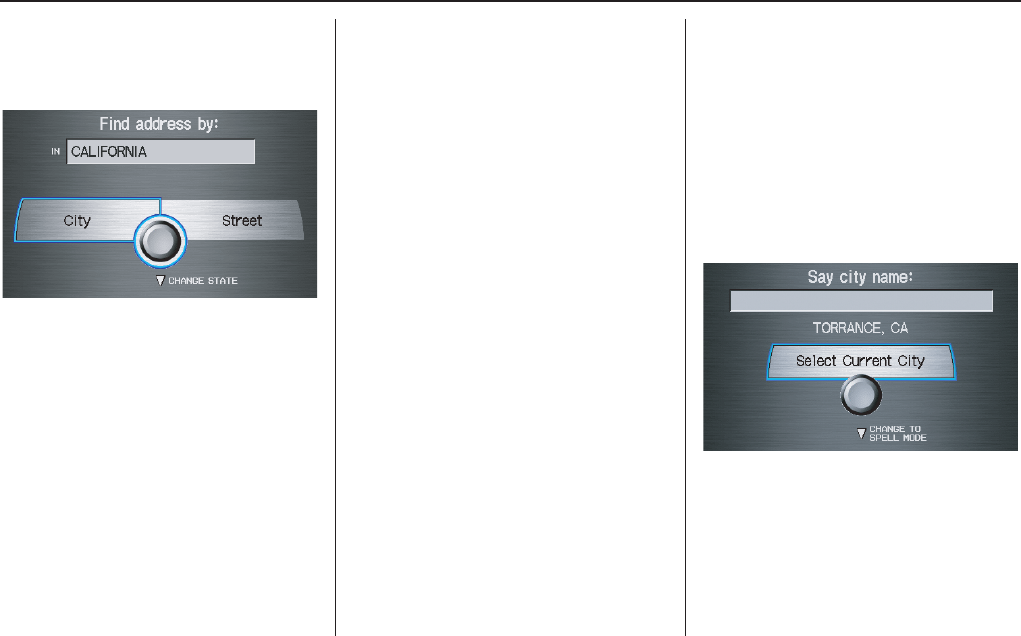
Selecting the State or Province
The state you are in is displayed at the
top of the screen. If your desired
destination is in another state, select
CHANGE STATE by moving the
Interface Dial down.
The display then changes to the Select
a state screen. Use the voice control
system and say the name of the state, or
rotate the Interface Dial knob to
select the state.
Selecting the City
The city you are in is displayed on the
screen. If the city you want is displayed
on the screen, say “Select current city.”
If your desired destination is in another
city, say or enter that city.
By Voice Control:
Say “City” on the Find address by
screen, and the display changes to the
Say city name screen. Say the city
name and the searching will begin.
NOTE:
To improve voice recognition, when
saying the city name, pronounce the
syllables as clearly as possible.
Entering a Destination
Navigation System 29
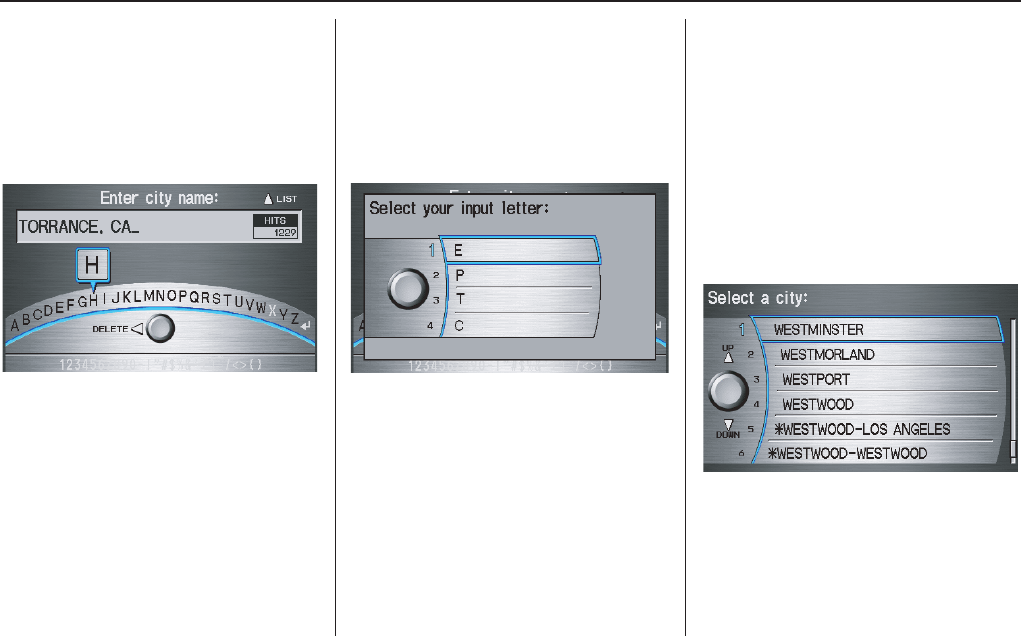
To enter the city name by voice spelling,
say or select CHANGE TO SPELL
MODE on the Say city name screen,
and the display will change to the Enter
city name screen.
Say the city name by saying individual
letters, or words that represent the
letters, one at a time.
The system has a talkback function. If
your spoken letter is not recognized, the
system will talk back to you. For
example, if you say “E” but the system
does not recognize the command, it will
ask you “Please select the number of the
input letter from the list” and the
following pop-up box will appear:
You should select a letter by saying the
number.
Alternately, to improve voice
recognition, you can say “Echo” or
“Edward” instead of “E.” See page 16
for a list of available words for each
letter.
By Interface Dial:
This is helpful if the street runs through
several cities, and you know what city
the street is in. Select City, and the
display then changes to the Enter city
name screen. Use the Interface Dial
to enter the name of the city.
The system will display a list of city
names, with the closest match to the
name you entered at the top of the list.
Select the number (1-6) of the desired
city from the list.
Entering a Destination
30 Navigation System
If the system does not find an exact
match, select LIST when you finish
entering the name of the city. Most of
the cities and towns for that state are
listed.
Listings of cities and towns in the non-
detailed coverage area may have an
asterisk “*” next to their names. If you
select one, a pop-up box is displayed
saying; “No detailed street data is
available...”, and a street address cannot
be entered (see Map Coverage on
page 119). Try entering the street first,
and then select the city if available.
Select View Dest. Map and use the
Interface Dial to select an icon,
approximate area, or street you wish to
choose as your destination. Otherwise, a
central location of the city will be
selected. If you select a point of interest
(POI) or road in an unverified area, you
may or may not have routing in these
areas. See Map Overview on page 6.
Selecting the Street
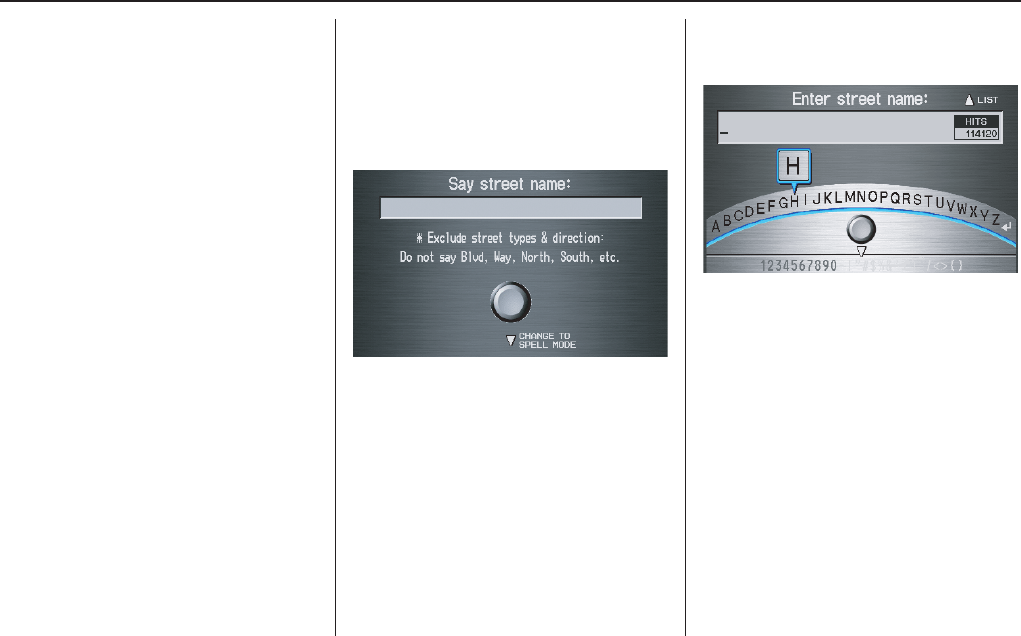
By Voice Control:
After you have selected the city, or if
you say “Street” on the Find address
by screen, the display changes to the
Say street name screen. Say the street
name and the searching will begin.
To enter the street name by voice
spelling, say or select CHANGE TO
SPELL MODE on the Say street
name screen, and the display will
change to the Enter street name
screen.
Say the street name by saying individual
letters or numbers, or words that
represent the letters, one at a time.
Entering a Destination
Navigation System 31
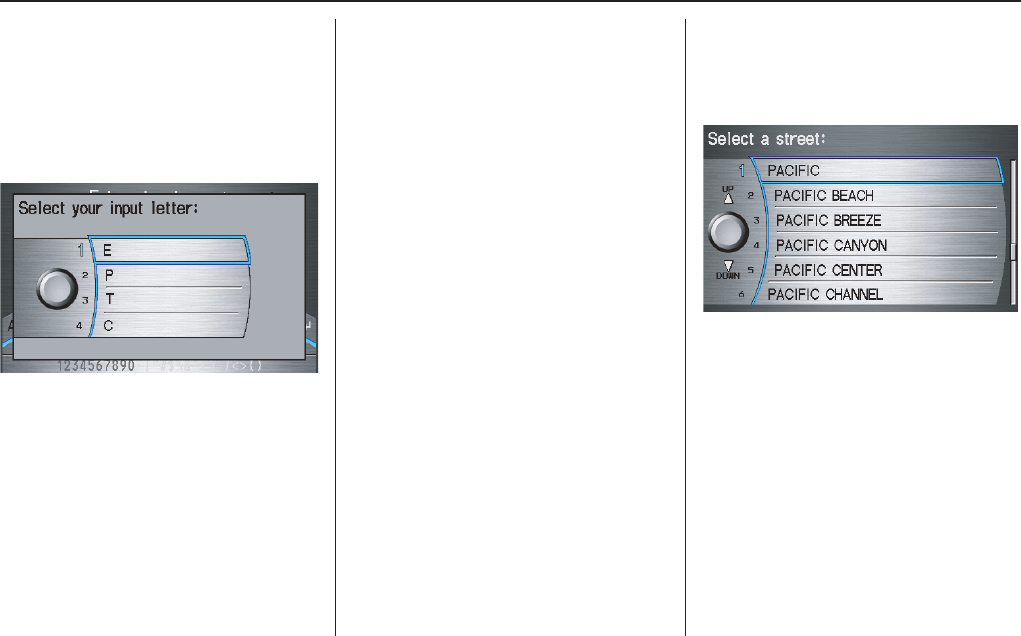
The system has a talkback function. If
your spoken letter is not recognized, the
system will talk back to you. For
example, if you say “E” but the system
does not recognize the command, it will
ask you “Please select the number of the
input letter from the list” and the
following pop-up box will appear:
You should select a letter by saying the
number.
Alternately, to improve voice
recognition, you can say “Echo” or
“Edward” instead of “E.” See page 16
for a list of available words for each
letter.
By Interface Dial:
After you have selected the city, or if
you selected Street in the beginning,
the display changes to the Enter street
name screen. Use the Interface Dial
to enter the name of the street (like ELM
or 42ND) that is your destination.
To enter the name of a major highway,
you must use the full name, including a
hyphen. For interstates, use an “I” (I-
10). For U.S. highways, use US (US-
18). For state highways, use the two
character state designation (CA-101).
For county roads, use the appropriate
designation (G-2, for example).
Tip:
When entering a street, you do not need
to enter the direction (N, S, E, W) or the
type (St, Ave, etc.). The system will
automatically determine that for you,
based on your entered city and street
number.
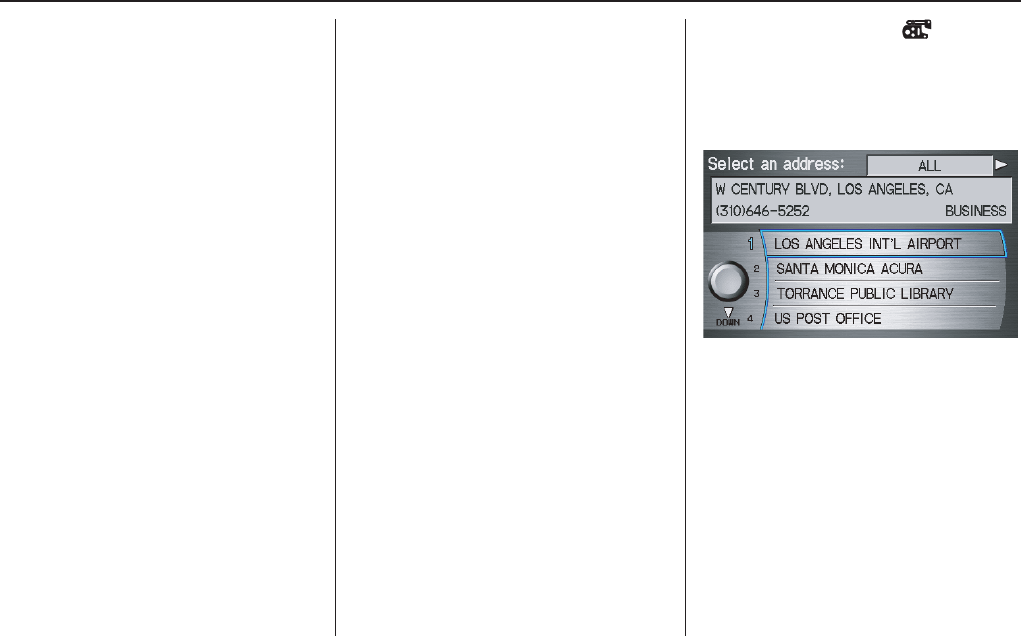
The system will display a list of street
names, with the closest match to the
name you entered at the top of the list.
Select the number (1-6) of the desired
street from the list.
Entering a Destination
32 Navigation System
Entering the Street Number
After you have completed the street
name, the display changes to the Enter
street number screen. Use the voice
control system and say the address
number as a continuous string of
numbers. For example, the address 1527
should be spoken as “One, five, two,
seven.” You can also use the Interface
Dial to enter the street number.
If you try to enter a number outside that
range using the voice control system,
you will hear beeps. The system
displays the acceptable address range.
If you did not select a city in the
beginning, the street name you selected
might appear in more than one city. The
system will give you a list of cities that
the street appears in. Select the desired
city from the list. The system then
displays the Calculate route to screen
(see Driving to Your Destination on
page 50).
Tip:
If the particular address you want
cannot be found, select Map Input on
the Enter destination by screen and
use the Interface Dial to select the
appropriate location on the map (see By
Map Input on page 45).
Select View Dest. Map and use the
Interface Dial to select an icon,
approximate area, or street you wish to
choose as your destination. Otherwise, a
central location of the street will be
selected. If you select a point of interest
(POI) or road in an unverified area, you
may or may not have routing in these
areas. See Map Overview on page 6.
By Address Book
This selection allows you to choose a
personal address entry for a destination.
After you select Address Book from
the Enter destination by screen, the
display changes to:
If you have entered a PIN Number in
Setup, the system prompts you to enter
your PIN.
The system then displays a list of the
places entered in your personal Address
Book. You can sort the displayed
addresses by Category: ALL,
BUSINESS, PERSONAL, or by other
categories you may create.
Entering a Destination
Navigation System 33
Scroll through the list to find your
desired destination. After you select it,
the system then displays the Calculate
route to screen (see Driving to Your
Destination on page 50).
Adding Addresses to the
Personal Address Book
There are two ways to enter addresses to
the personal Address Book:
• Entering them in the personal
Address Book feature in Setup (see
page 86).
• Adding them in the Address Book
directly from the Calculate route to
screen (see page 50).
NOTE:
• Destinations chosen from the Address
Book do not show up in Previous
Destinations.
• Prior to departure, you can set areas
to avoid. The system then includes
them in its calculations for the
destination you have entered. See
Edit Avoid Area on page 97.
• For information on the available
voice commands, see Voice
Command Index on page 143.
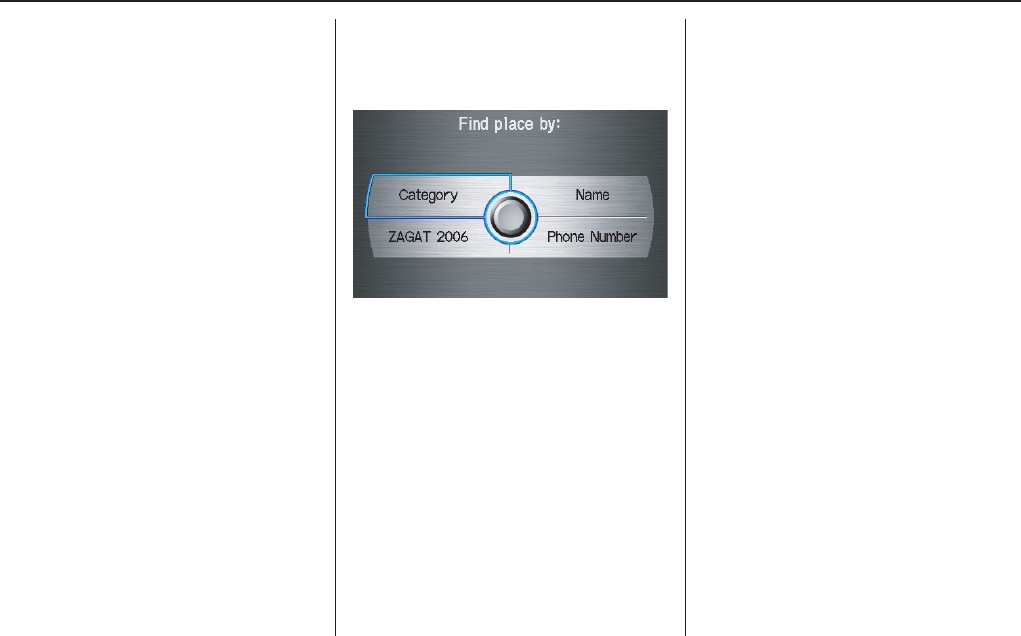
By Places
After you select Places from the Enter
destination by screen, the display
changes to:
There are four ways to find a place or
point of interest (POI), by Category,
Name, Phone Number, or ZAGAT
2006.
Let’s assume you want to find a coffee
shop (restaurant) called “Bucks.”
• If you know the phone number of the
coffee shop, select Phone Number,
then enter the 10-digit number with
area code. This is the quickest way to
find it.
• The second best method is to select
Category, then Restaurant, and
enter the keyword “Bucks.” The list
will include all restaurants that have
the letters “bucks” anywhere in the
name.
• You can try to enter “Bucks” using
Name, but you may have to search
through a list that might include
Bucks Welding, Bucks Surplus, etc.
NOTE:
• Prior to departure, you can set areas
to avoid. The system then includes
them in its calculations for the
destination you have entered. See
Edit Avoid Area on page 97.
• You can enter the desired destination
using the voice control system. For
information on the available voice
commands, see Voice Command
Index on page 143.
Entering a Destination
34 Navigation System
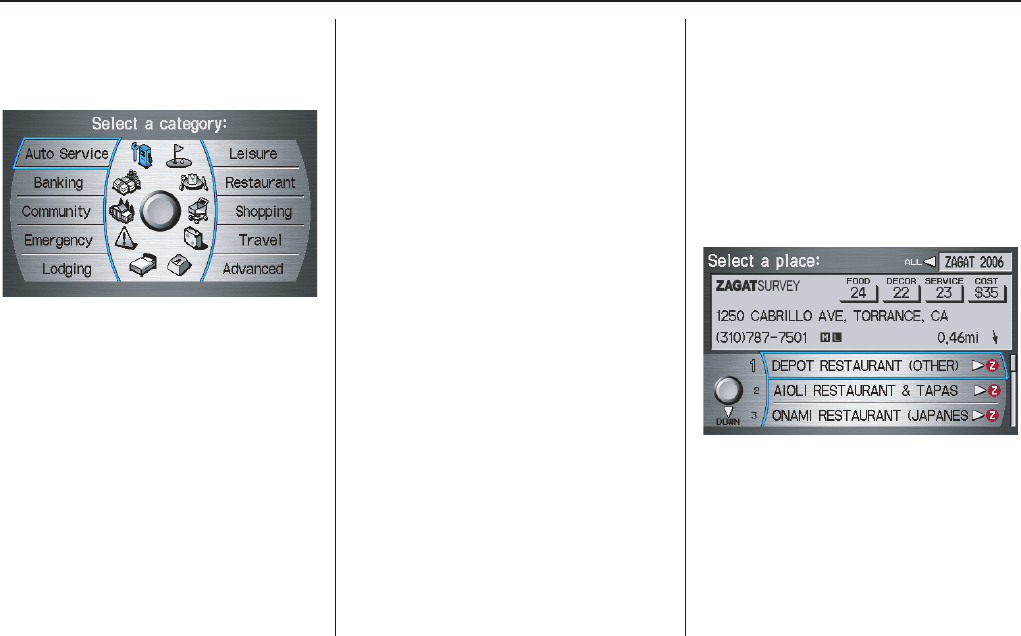
Finding the Place by Category
The Category option gives you a list of
categories or types of businesses to
select from with the following screen:
Tip:
If you are not sure of the spelling of a
place, the best way to find it is to use the
keyword search. Select Category,
choose a category and subcategory
from the menus, then select Place
Name by Keyword, and enter the
partial name.
Auto Service
The subcategories are: Acura Dealers,
Honda Dealers, Gas Stations, etc.
Banking
The subcategories are: ATM, Bank, etc.
Community
The subcategories are: City Hall, Civic/
Community Center, Convention/
Exhibition Center, Court House, Higher
Education, Library, Post Office, and
School, etc.
Emergency
The subcategories are: Hospital, Police
Station, Roadside Assistance, etc.
Lodging
The subcategories are: Bed & Breakfast,
Hotel/Motel, etc.
Leisure
The subcategories are: Amusement
Park, Golf Course, Historical
Monument, Marina, Movie Theater,
Museum, Park/Recreation Area,
Performing Arts, Sports Complex, and
Tourist Attraction.
Restaurant
This category is broken down into types
of food, giving you a selection by each
type: All Types, American, French,
Japanese, etc.
The ZAGAT SURVEY for some
restaurants is available in the system.
See the Information screen, “Key to
Zagat Ratings” for an explanation of
these ratings (see page 80).
On the Select a place screen,
restaurants with a Zagat Rating have a
“Z” icon at the end of the line. To list
only restaurants with Zagat Reviews,
say “Zagat” or select ZAGAT 2006.
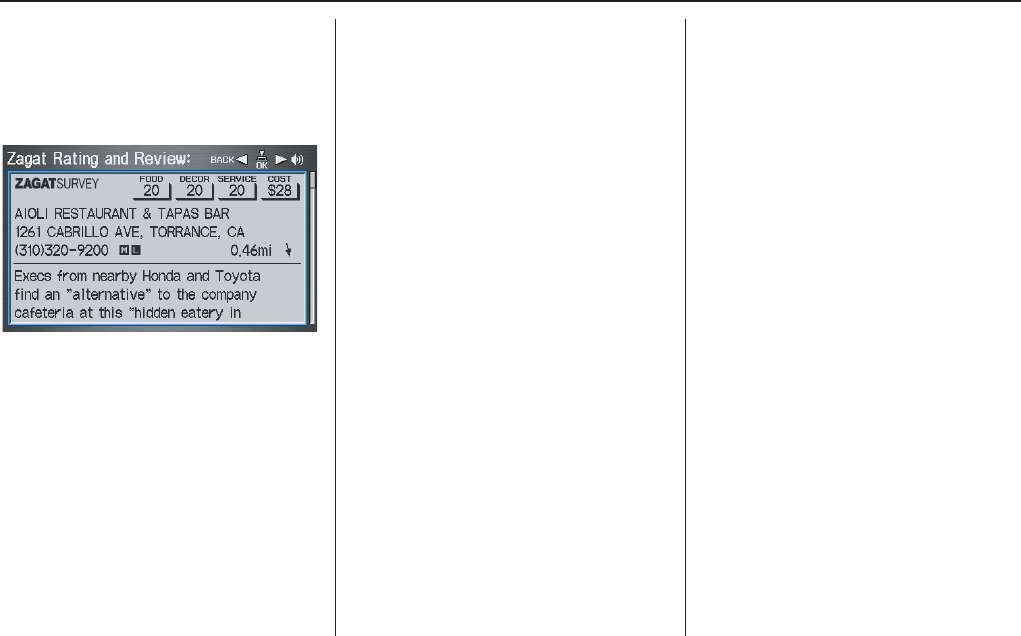
You can view the complete Zagat
Review for a selected restaurant by
selecting the “Z” icon.
Entering a Destination
Navigation System 35
By voice, select the “Z” icon by saying
“Zagat list number X” (where x is the
line number 1-3). Alternately use the
Interface Dial to first select the line
item, and push the dial to the right to
view the survey.
Say “Read List” or move the Interface
Dial right, and the review will be read to
you. Say OK or push in on the
Interface Dial to display the
Calculate route to screen. See Key to
Zagat Ratings on page 80 for details on
the key to ratings.
Tip:
When trying to find a specific
restaurant, select the category “All
Types.” Some restaurants may be
miscategorized.
Shopping (Retail)
The subcategories are: All Shopping,
Accessories/Jewelry, Auto Parts &
Electronics, Books/Music/Video,
Clothing, Groceries, Home
Improvement, Mall/Department Store,
Office Supplies/Electronics, Pharmacy/
Drug Store, Pet Food/Supplies, Sewing/
Linen, Shoes/Bags, Sporting Goods, and
Toys/Arts/Crafts.
Tip:
When trying to find a specific shopping
store, select the category “All
Shopping.” Some stores may not be in
the right category.
Travel
The subcategories are: Airport,
Automobile Club, Bed & Breakfast, Bus
Station, Camping, Commuter Rail
Station, Ferry Terminal, Hotel/Motel,
Named Place, Park & Ride, Parking
Garage/House, Parking Lot, Rental Car
Agency, Resort, Rest Area, Ski Area,
Tourist Attraction, Tourist Information,
Train Station, Travel Agency, Track
Stop/Plaza.
Advanced (Wholesale and Misc.
Retail)
If you do not find the category or
subcategory you need in the other
options, you can find the categories with
a keyword. When you select this option,
the display changes to the Enter
keyword for category screen. Enter the
keyword using the Interface Dial.
When the system finds the categories
with the keyword you entered, the
display changes to the Select a
category screen. Select the desired
category.
Entering a Destination
36 Navigation System
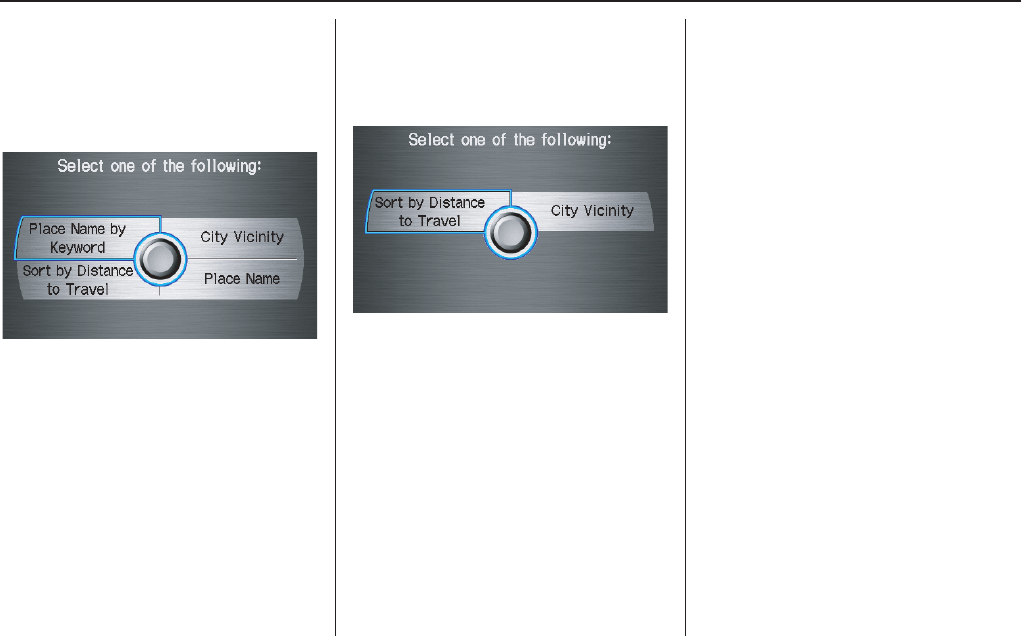
After selecting a category, the system
will give you the options of Place
Name by Keyword, Sort by
Distance to Travel, City Vicinity, or
Place Name.
With the following screen:
Place Name by Keyword
If you do not know the exact name of
the destination, you can find the place
with a keyword. When you select this
option, the display changes to:
You can find your destination with
keyword using the Sort by Distance
to Travel option or City Vicinity
option.
If you select the Sort by Distance to
Travel option, the Enter keyword for
place screen appears. Enter the
keyword using the Interface Dial. If
the system does not find an exact match,
select LIST when you finish entering
the keyword. The system starts
searching for places that match the
entered keyword. If you see your
desired place, select it from the list. If
not, scroll through the list to find the
desired place.
If you select the City Vicinity option,
the Enter city name screen appears.
Enter the name of the city using the
Interface Dial. The system will
display a list of city names, with the
closest match to the name you entered at
the top of the list. Select your desired
city name from the list. Once you have
selected your desired city name, the
Enter keyword for place screen
appears. Enter the keyword using the
Interface Dial to specify the desired
place.
Once you select a place, the system then
displays the Calculate route to screen
(see Driving to Your Destination on
page 50).
Entering a Destination
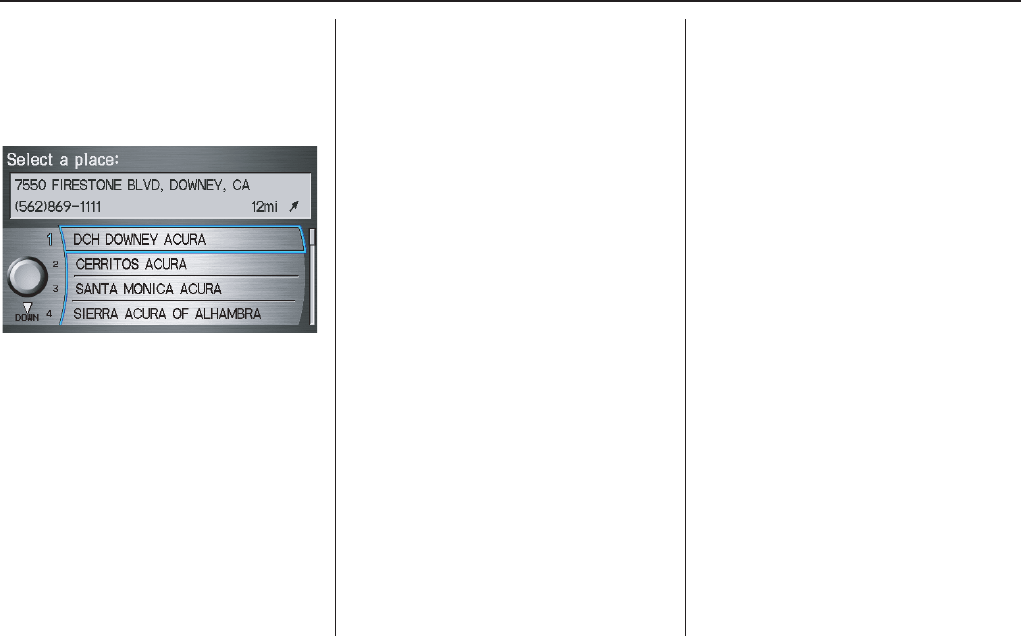
Navigation System 37
Sort by Distance to Travel
When you select this option, the system
gives you a list of all the places in the
subcategory. This list is arranged by
distance from your current location,
with the closest at the top of the list.
The distance and direction to the
destination at the top of the list are
shown in the screen. The distance
shown is straight line distance (as the
crow flies), not driving distance. Say or
select the number (1-4) of the desired
destination from the list.
Once you select a place, the system then
displays the Calculate route to screen
(see Driving to Your Destination on
page 50).
City Vicinity
The system allows you to find points of
interest in the vicinity of the city you
entered. When you select this option,
the display changes to Enter city name
screen. Enter the name of the city using
the Interface Dial. If the system does
not find an exact match, select LIST
when you finish entering the name of
the city. Select a desired city from the
list.
Once you have selected the city, the
display changes to Enter a place name
screen. Enter the name of the place
using the Interface Dial.
Once you select a place, the system then
displays the Calculate route to screen
(see Driving to Your Destination on
page 50).
Place Name
When you select this option, the display
changes to Enter a place name screen.
Enter your selection, using the
Interface Dial.
Once you select a place, the system then
displays the Calculate route to screen
(see Driving to Your Destination on
page 50).
Entering a Destination
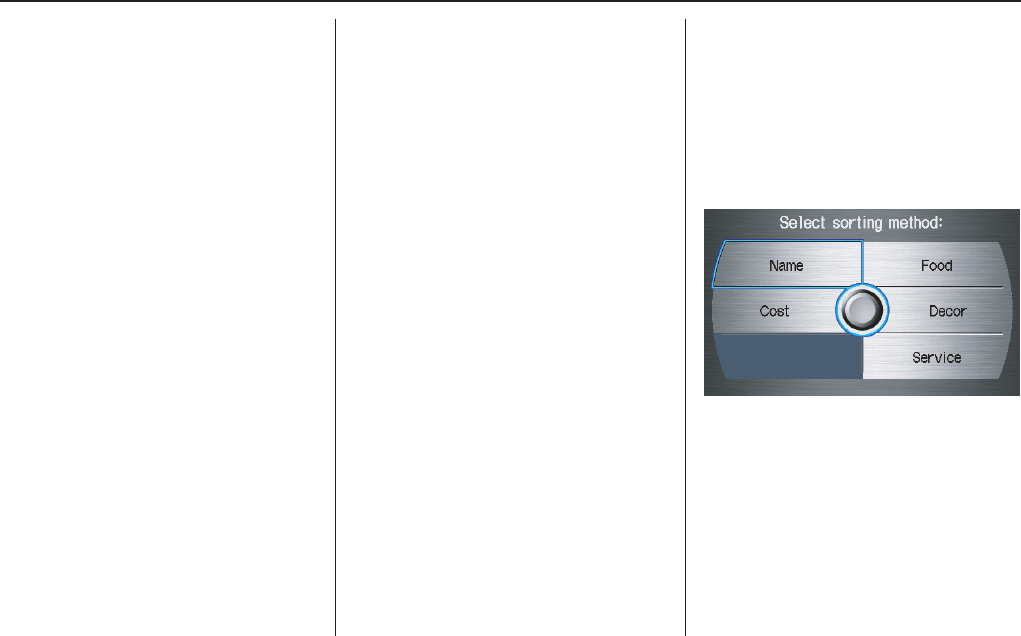
38 Navigation System
Finding the Place by Name
The Name option allows you to enter
the name of a business, and then shows
you a list of businesses with the same or
similar names to select from. Use the
name option only if you know the exact
spelling of the place. If unsure, use the
Category option.
Finding the Place by Phone
Number
The Phone Number option allows
you to select a destination by its
telephone number. Only telephone
numbers stored in the system under the
Places (of business) option are
recognized. The system does not contain
residential telephone numbers, or
numbers you may have entered in your
personal Address Book.
Tip:
If you know the phone number of a point
of interest (POI), its uniqueness makes it
the fastest entry method. When using the
voice control system, the entry should be
spoken as a continuous string of
numbers. For example, the telephone
number (310) 555-4000 should be
spoken as “Three, one, zero, five, five,
five, four, zero, zero, zero.”
Finding the Place by Zagat 2006
The ZAGAT 2006 option allows you to
find a restaurant by the Zagat Rating
information.
The system lets you select several items
(such as metro area, region, and
neighborhood) to search the restaurant
you like. When you select a type of
food, the following display appears:
Name - When you select Name, the
restaurants will be listed by alphabetical
order.
Food, Decor, Service - When you
select Food, Decor, or Service, the
restaurant will be listed by rating value.
Cost - When you select Cost, the
restaurant will be listed by the average
cost of a meal (including drink and tip).
Entering a Destination
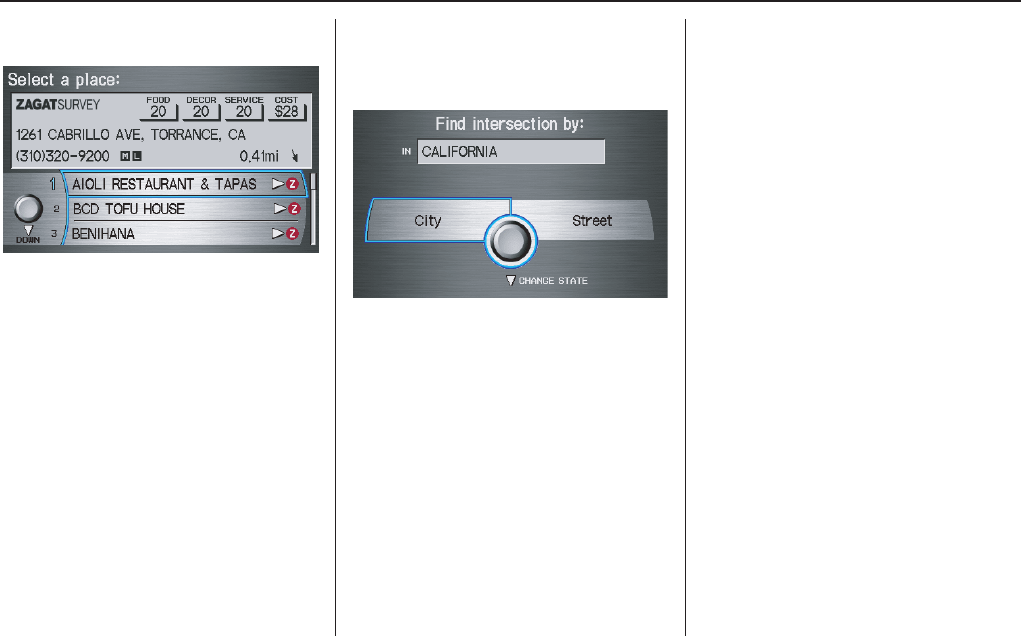
Navigation System 39
When you select a sorting method, the
list of restaurants will appear.
You can see the survey for a listed item
by moving the dial to the right, or by
saying “Zagat list number X” (where X
is the number 1-3).
Once you select a restaurant, the system
then displays the Calculate route to
screen (see Driving to Your Destination
on page 50).
NOTE
See Key to Zagat Ratings on page 80 for
details on the key to ratings.
By Intersection
After you select Intersection from the
Enter destination by screen, the
display changes to:
Tip:
When entering an address, it is usually
easier to enter the street first. A city or
cities that the street appears in will be
displayed. For your convenience, you
do not have to enter both city and street.
NOTE:
• If you find that your city is not listed,
it may be part of a larger
metropolitan area. Try entering the
street first.
• Prior to departure, you can set areas
to avoid. The system then includes
them in its calculations for the
destination you have entered. See
Edit Avoid Area on page 97.
Selecting the State or Province
The state you are in is displayed at the
top of the screen. If your desired
destination is in another state, select
CHANGE STATE by moving the
Interface Dial down.
The display then changes to the Select
a state screen. Use the voice control
system and say the name of the state, or
rotate the Interface Dial knob to
select the state.
Entering a Destination
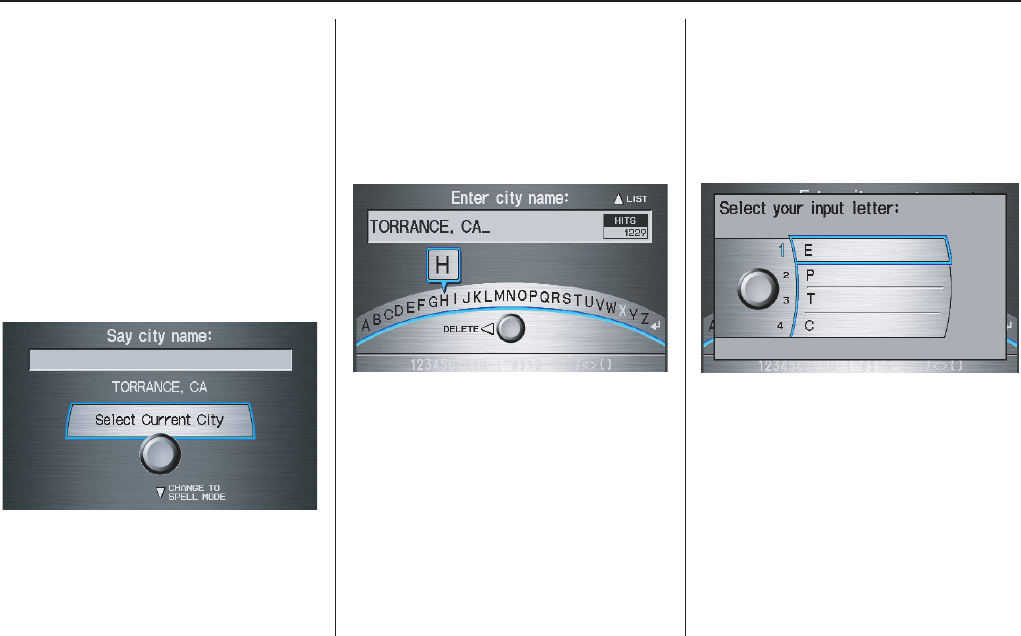
40 Navigation System
Selecting the City
This is helpful if the street runs through
several cities, and you know what city
includes the street. The city you are in is
displayed on the screen. If the city you
want is displayed on the screen, say
“Select current city.” If your desired
destination is in another city, say or
enter another city.
By Voice Control:
Say “City” on the Find intersection by
screen, and the display changes to the
Say city name screen. Say the city
name and searching will begin.
To enter the city name by voice spelling,
say or select CHANGE TO SPELL
MODE on the Say city name screen,
and the display will change to the Enter
city name screen.
Say the city name by saying individual
letters, or words that represents the
letters, one at a time.
The system has a talkback function. If
your spoken letter is not recognized, the
system will talk back to you. For
example, if you say “E” but the system
does not recognize the command, it will
ask you “Please select the number of the
input letter from the list” and the
following pop-up box will appear:
You should select a letter by saying the
number.
Alternately, to improve voice
recognition, you can say “Echo” or
“Edward” instead of “E.”
See page 16 for a list of available words
for each letter.
Entering a Destination
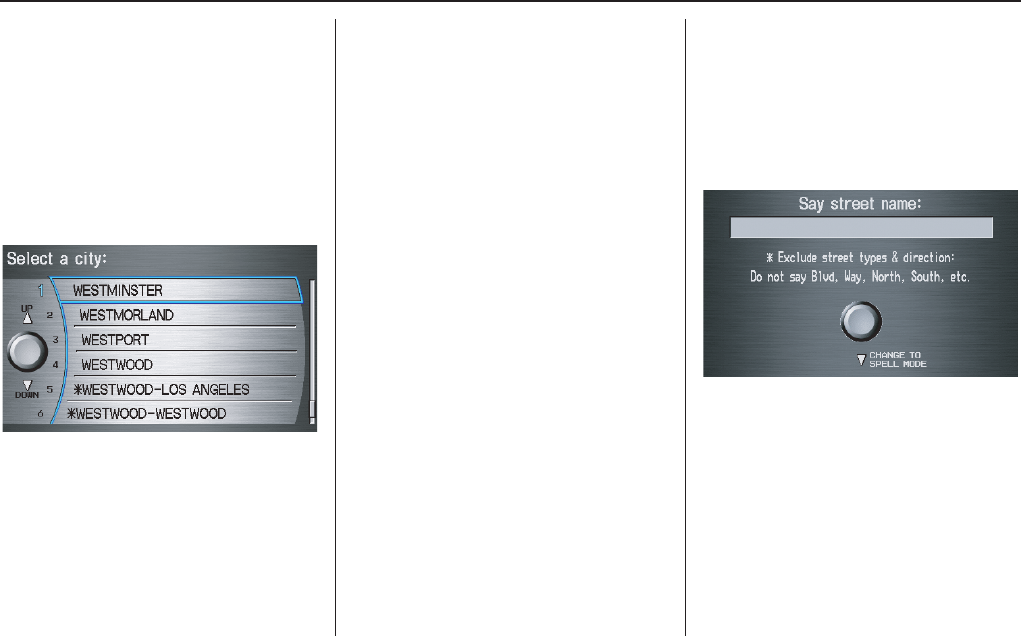
Navigation System 41
By Interface Dial:
Select City, and the display then
changes to the Enter city name screen.
Use the Interface Dial to enter the
name of the city.
The system will display a list of city
names, with the closest match to the
name you entered at the top of the list.
Select the number (1-6) of the desired
city from the list.
If the system does not find an exact
match, select LIST when you finish
entering the name of the city. Most of
the cities and towns for that state are
listed.
Listings of cities and towns in the non-
detailed coverage area may have an
asterisk “*” next to their names. If you
select one, no detail street data is
available, and an address cannot be
entered. See Map Coverage on
page 119.
Select View Dest. Map and use the
Interface Dial to select an icon,
approximate area, or street you wish to
choose as your destination. Otherwise, a
central location of the city will be
selected. If you select a point of interest
(POI) or road in an unverified area, you
may or may not have routing in these
areas. See Map Overview on page 6
Selecting the Street
By Voice Control:
After you have selected the city, or if
you say “Street” on the Find
intersection by screen, the display
changes to the Say street name screen.
Say the street name and the searching
will begin.
To enter the street name by voice
spelling, say or select CHANGE TO
SPELL MODE on the Say street
name screen, and the display will
change to the Enter street name
screen.
Entering a Destination
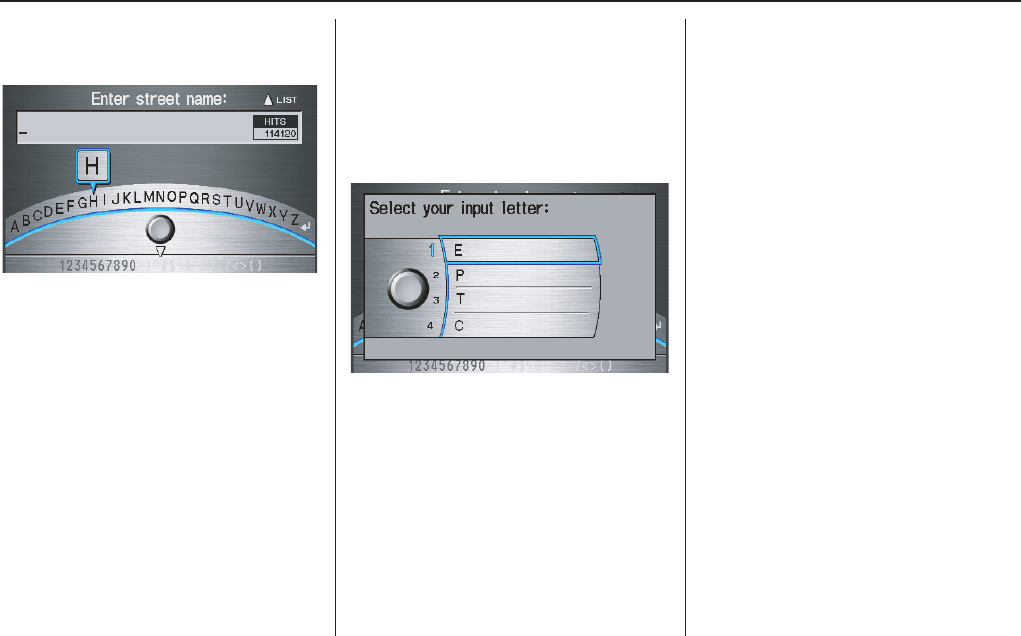
42 Navigation System
Say the street name by saying individual
letters or numbers, or words that
represents the letters, one at a time.
The system has a talkback function. If
your spoken letter is not recognized, the
system will talk back to you. For
example, if you say “E” but the system
does not recognize the command, it will
ask you “Please select the number of the
input letter from the list” and the
following pop-up box will appear:
You should select a letter by saying the
number.
Alternately, to improve voice
recognition, you can say “Echo” or
“Edward” instead of “E.”
See page 16 for a list of available words
for each letter.
By Interface Dial:
After you have selected the city, or if
you select Street in the beginning, the
display changes to the Enter street
name screen. Use the Interface Dial
to enter one of the names (like ELM or
42ND) of the intersecting streets.
To enter the name of a major highway,
you must use the full name, including a
hyphen. For interstates, use an “I” (I-
10). For U.S. highways, use US (US-
18). For state highways, use the two
character state designation (CA-101).
For county roads, use the appropriate
designation (G-2, for example).
Tip:
When entering a street, you do not need
to enter the direction (N, S, E, W) or the
type (St, Ave, etc.). The system will
automatically determine that for you.
Entering a Destination
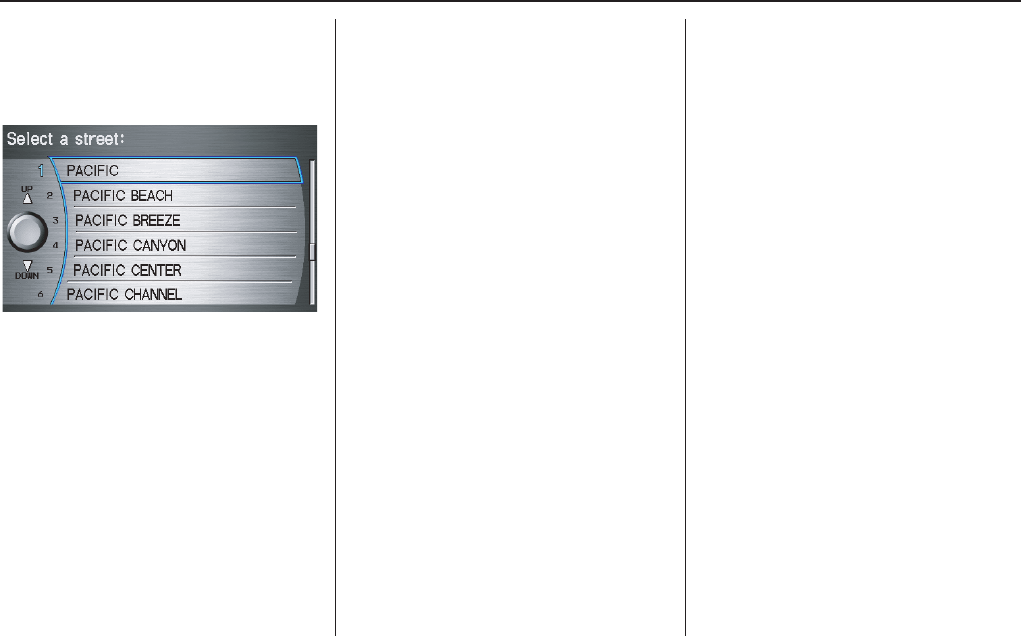
Navigation System 43
The system will display a list of street
names, with the closest match to the
name you entered at the top of the list.
Select the number (1-6) of the desired
street from the list.
After you have completed the first street
name, the display changes to the Enter
intersecting street screen.
Enter the name of the other intersecting
street by saying the item number, or
selecting the item number using the
Interface Dial.
If you did not select a city in the
beginning, and the intersection appears
in more than one city, you will see the
Select a city screen. The system will
give you a list of cities that the
intersection appears in. Select the
desired city from the list. If more than
one intersection appears in the city,
select the desired intersection from the
Select an intersection screen. The
system then displays the Calculate
route to screen (see Driving to Your
Destination on page 50).
Tip:
If the particular intersection you want
cannot be found, select Map Input and
use the Interface Dial to select the
appropriate location on the map (see By
Map Input on page 45).
Select View Dest. Map and use the
Interface Dial to select an icon,
approximate area, or street you wish to
choose as your destination. Otherwise, a
central location of the street will be
selected. If you select a point of interest
(POI) or road in an unverified area, you
may or may not have routing in these
areas. See Map Overview on page 6.
Entering a Destination
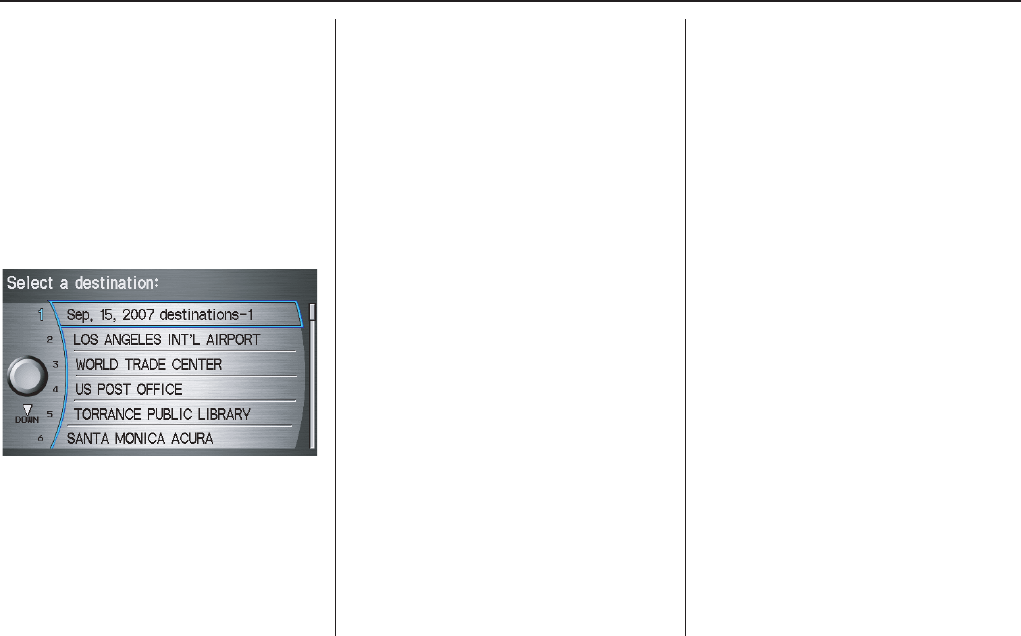
44 Navigation System
By Previous Destinations
Every time you route to a destination,
that destination is saved by the system.
Up to 50 destinations can be stored.
Select Previous Destinations from
the Enter destination by screen to
choose one of those destinations.
After you select Previous
Destinations, the display lists the last
50 destinations entered, with the most
recent appearing first.
NOTE:
•If Previous Destinations is
grayed out, there is no Previous
Destination entered.
• When finishing a “Today’s
Destinations” trip, the Today’s
Destination list entries are stored to
this list, beginning with the date (e.g.,
item 1 shown above).
• Because both the Home and personal
Address Book list can be protected by
a PIN, they do not show up in the
previous destination list.
Scroll through the list and say the line
number (1-6) of the destination, or
select the desired destination you want.
Once you select the desired destination,
the system then displays the Calculate
route to screen (see Driving to Your
Destination on page 50).
NOTE:
• Prior to departure, you can set areas
to avoid. The system then includes
them in its calculations for the
destination you have entered. See
Edit Avoid Area on page 97.
• For information on the available
voice commands, see Voice
Command Index on page 143.
Entering a Destination
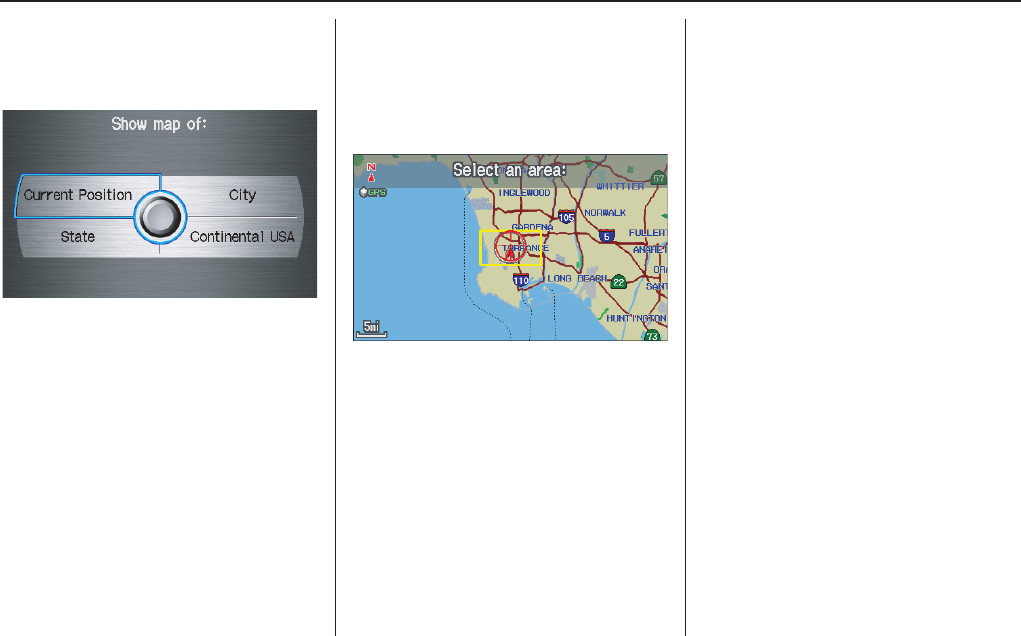
Navigation System 45
By Map Input
After you select Map Input from the
Enter destination by screen, the
display changes to:
NOTE:
• Prior to departure, you can set areas
to avoid. The system then includes
them in its calculations for the
destination you have entered. See
Edit Avoid Area on page 97.
• For information on the available
voice commands, see Voice
Command Index on page 143.
Showing the Map of Current
Position
The Current Position selection
assumes that you are looking for a
destination in the immediate area. The
display changes to:
The red arrow indicates your vehicle
position. Find your desired destination
by moving the Interface Dial left,
right, up, or down. The map and cross
hairs will move in the same direction.
If desired, rotate the
Interface Dial
knob
to change the map scale. When you
have the cross hairs in the desired icon,
map feature, or road. Then push in on the
Interface Dial
. The address of the
location will appear at the top of the
screen.
The yellow box indicates the area you
will see when you click on the current
map with the Interface Dial.
NOTE:
The address of the road segment will be
displayed on the 1/20, 1/8, 1/4, or 1/2
mile (80, 200, 400, or 800 meter) scale
map.
If this is the desired address, push in on
the Interface Dial again. If not, use the
Interface Dial to reposition the cross
hairs, then push in on the Interface
Dial again to display the new address.
Once you select an address, the system
then displays the Calculate route to
screen (see Driving to Your Destination
on page 50).
Entering a Destination
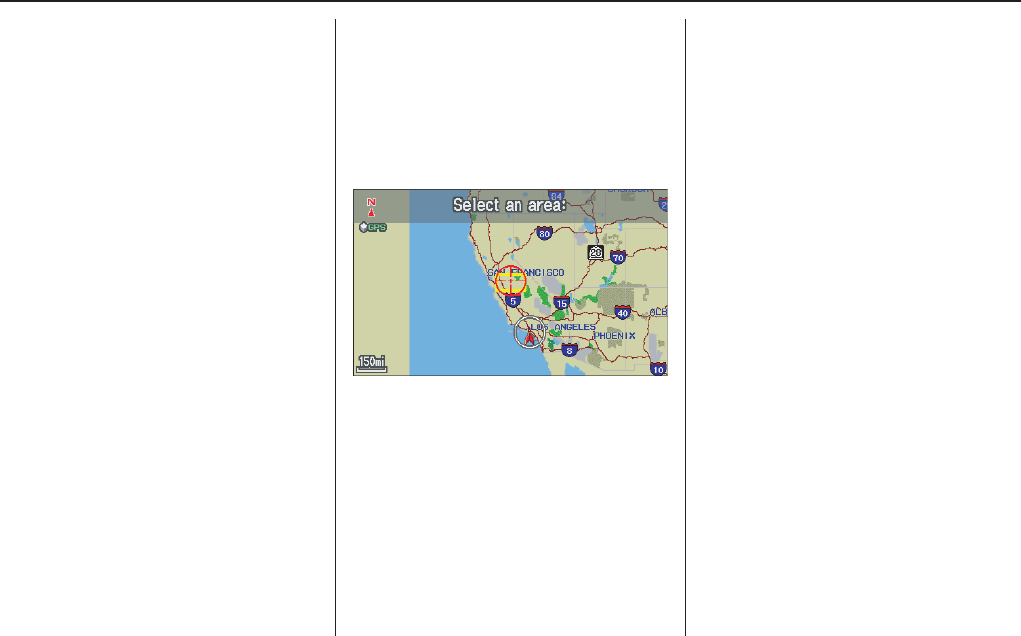
46 Navigation System
Showing the Map of City
With the City selection, the display
changes to the Enter city name screen.
When you have entered the desired city,
the display changes to a map. The
starting location will be the central
position in the selected city.
See Showing the Map of Current
Position on page 45 for instructions on
finding and entering your desired
destination.
Showing the Map of State
With the State selection, the display
changes to the Select a state screen.
After you select the desired state, the
display changes to a map of the state,
with the cross hairs located near the
middle.
Use the Interface Dial to move the
cross hairs to the area of the state close
to your intended destination. If desired,
rotate the Interface Dial knob to
change the map scale. When you have
the cross hairs in the desired area, push
in on the Interface Dial. The map scale
changes to a closer view.
Move the cross hairs to the desired
destination, then push in on the
Interface Dial. The address of the
location you have selected will appear at
the top of the screen.
The yellow box indicates the area you
will see when you click on the current
map with the Interface Dial.
NOTE:
The address of the location will be
displayed on the 1/20, 1/8, 1/4, or 1/2
mile (80, 200, 400, or 800 m) scale map.
If this is the desired address, push in on
the Interface Dial again. If not, use the
Interface Dial to reposition the cross
hairs, then push in on the Interface
Dial again to display the new address.
Once you select an address, the system
then displays the Calculate route to
screen (see Driving to Your Destination
on page 50).
Entering a Destination
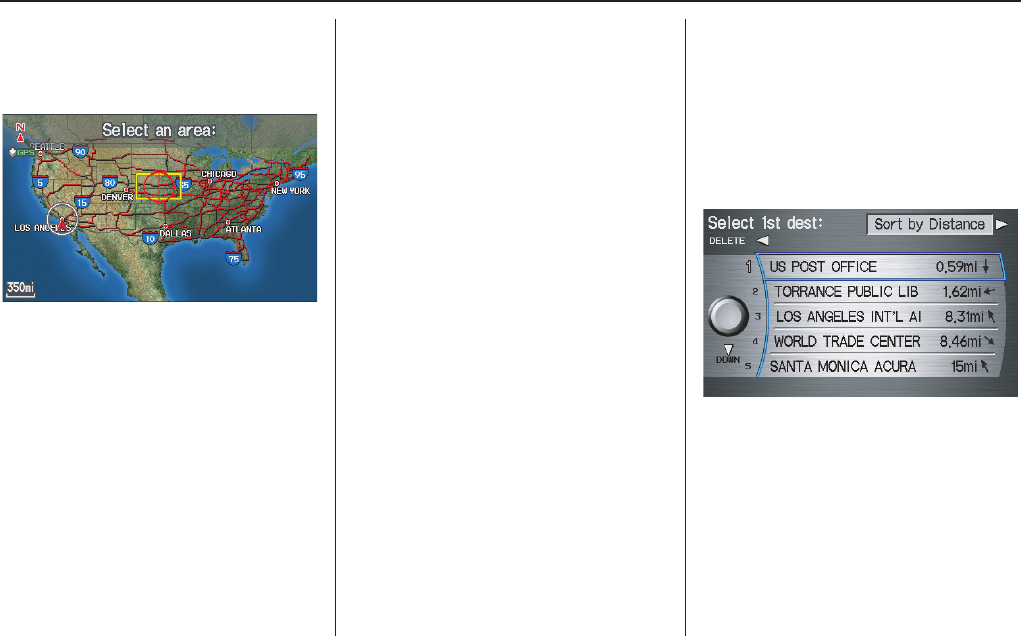
Navigation System 47
Entering a Destination
Showing the Map of Continental
USA
With the Continental USA selection,
the display changes to:
Use the Interface Dial to move the
cross hairs to the area of the country
close to your intended destination. Then
push in on the Interface Dial. The map
scale changes to display a closer view of
the area you selected.
If desired, rotate the Interface Dial
knob to change the map scale. Use the
Interface Dial to move the cross hairs
on the desired icon, map feature, or
road, then push in on the Interface
Dial. The address of the location you
have selected will appear at the top of
the screen.
The yellow box indicates the area you
will see when you click on the current
map with the Interface Dial.
NOTE:
The address of the location will be
displayed on the 1/20, 1/8, 1/4, or 1/2
mile (80, 200, 400, or 800 meter) scale
map.
If this is the desired address, push in on
the Interface Dial again. If not, use the
Interface Dial to reposition the cross
hairs, then push in on the Interface
Dial again to display the new address.
Once you select an address, the system
then displays the Calculate route to
screen (see Driving to Your Destination
on page 50).
By Today’s Destinations
You can create a “trip” by combining
multiple destinations previously
selected on the Calculate route to
screen.
Select Today’s Destinations from
the Enter destination by screen and the
display changes to:
NOTE:
If Today’s Destinations is grayed
out, there is no Today’s Destination
entered.
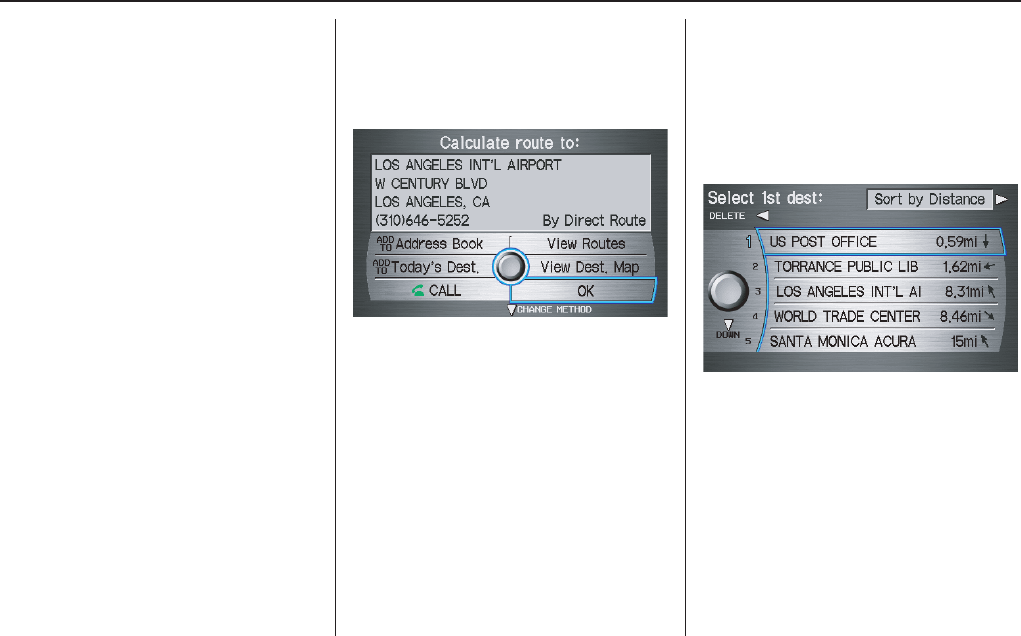
48 Navigation System
Entering a Destination
Editing Today’s Destination List
If you change your plans, you can
modify the Today’s Destination list
order by distance, or by order of entry.
Say or select Sort by Entry to sort the
list by the entry order, and say or select
Sort by Distance to sort the list by the
distance order. To delete a destination,
say or select DELETE and the display
changes to Select a destination to
delete screen. Select the destination to
delete. Say or select DONE to perform
the deletion, and the display returns to
the previous screen. To cancel the
deletion, press the CANCEL button.
NOTE:
For information on the available voice
commands, see Voice Command Index
on page 143.
Adding Destinations to the List
After you have used any of the other
selections from the Enter destination
by screen to select a destination, the
display changes to:
To add this to the Today’s Destination
list, select ADD TO Today's Dest.
NOTE:
If ADD TO Today’s Dest. is grayed
out, you already have the maximum
numbered (5) of today’s destinations
entered.
The display then changes to show you
all the current entries on the Today’s
Destination list. Select DONE to return
to the Enter destination by screen.
The system automatically sorts the
destinations stored in the Today’s
Destination list for the best path.
If the displayed list shows your plans,
select the first destination. The system
will guide you to the destination
according to the order of the list. When
you reach the destination, it will be
automatically removed from the list.
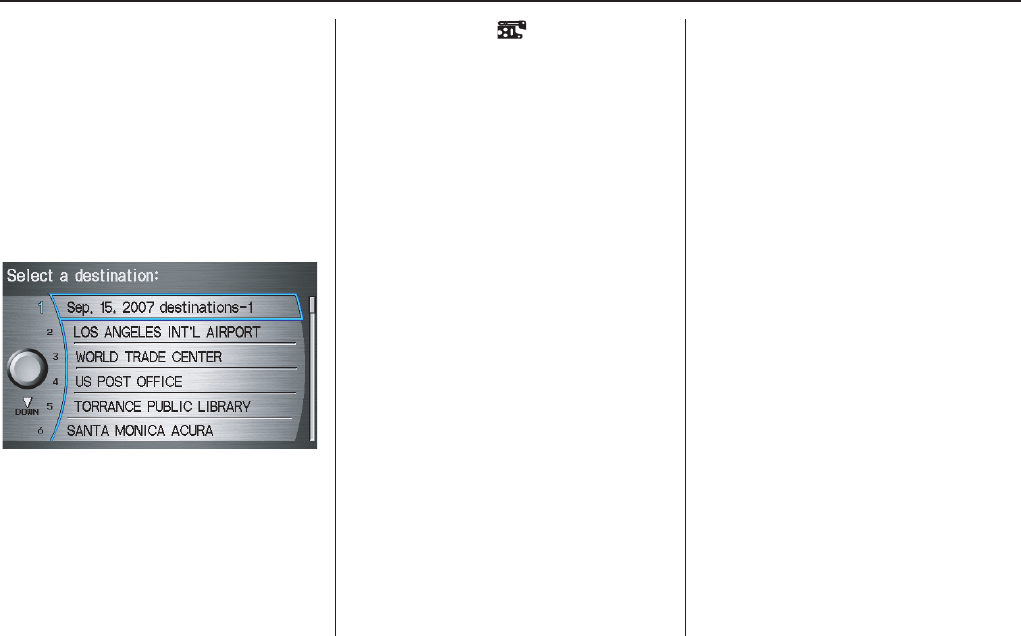
Navigation System 49
Entering a Destination
NOTE:
When finishing a “Today’s
Destinations” trip, the Today’s
Destination list entries are stored to the
Previous Destination list, beginning
with the date (e.g., item 1 shown below).
This entry contains all the destinations
that were included in the Today’s
Destinations itinerary. This allows you
to re-select the entire Today’s
Destinations content at a later date.
By Go Home
Selecting Go Home from the Enter
destination by screen takes you home
or to a frequently used address you have
chosen. The displayed address will
correspond to which Remote Keyless
Entry (Driver 1, Driver 2) is being used.
If a PIN Number has been set, the
system prompts you to enter your PIN.
Say or enter your PIN, and say or select
DONE. The system will then display
the Calculate route to screen (see
Driving to Your Destination on
page 50).
If a PIN Number has not been set, the
system displays the Calculate route to
screen after you select Go Home (see
Driving to Your Destination on
page 50).
NOTE:
• To edit Home Address, see Home
Address in System Set-up on page 89.
• Prior to departure, you can set areas
to avoid. The system then includes
them in its calculations for the
destination you have entered. See
Edit Avoid Area on page 97.
• PINs are optional. If you choose to
use a PIN, make sure you remember
it. If you forget your PIN, your dealer
will have to reset it for you.
• If a PIN is desired, enter it using the
Personal preference PIN number
feature in Setup. See page 89 for
information on entering your PIN
number.
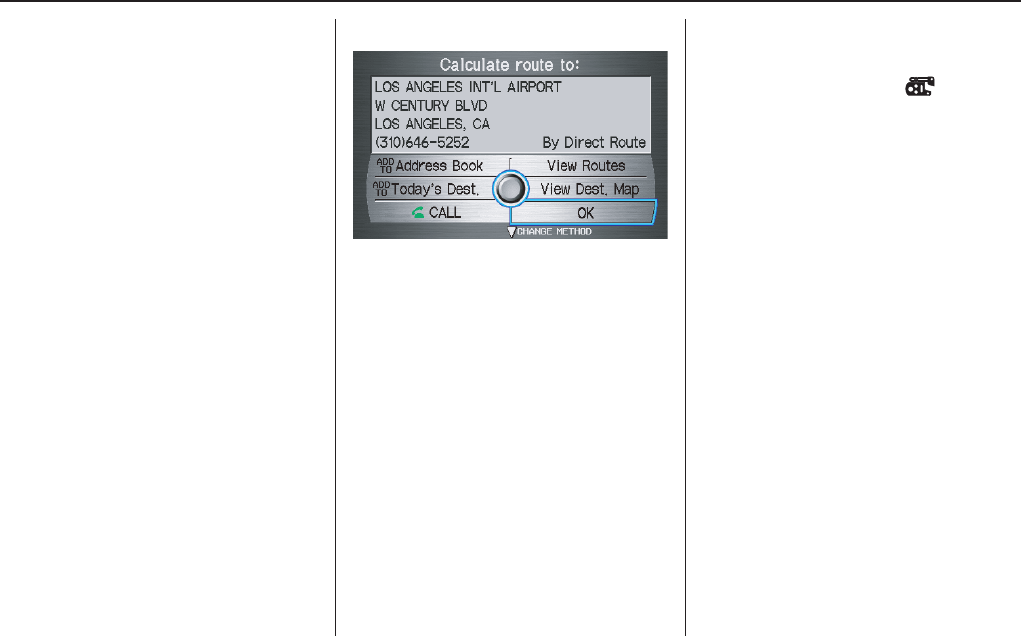
50 Navigation System
Driving to Your Destination
Driving to Your Destination
A route typically has 3 phases.
• Initial route calculation (Calculate
route to screen) (see page 50)
• Change the route while on route
(see page 70).
• Resume the route when restarting the
engine (see page 75).
Calculate Route to Screen
Say or select OK. The system calculates
the route using the method shown on the
screen (see Map Screen on page 53).
NOTE:
• Prior to departure, you can set areas
to avoid. The system then includes
them in its calculations for the
destination you have entered. See
Edit Avoid Area on page 97.
• For information on the available
voice commands, see Voice
Commands Index on page 143.
Further selections from the Calculate
route to screen include:
ADD TO Address Book
Allows you to add the destination to
your Address Book. See By Address
Book on page 32.
NOTE:
If the button is grayed out, the
destination is already in your Address
Book.
ADD TO Today’s Destinations
Allows you to add the destination to
your Today’s Destination list. See By
Today’s Destinations on page 47.
NOTE:
If the button is grayed out, the Today’s
Destination list is already full (5
destinations have been stored).
CALL
Dials the number on the screen when
available. See HandsFreeLink™ on
page 18.
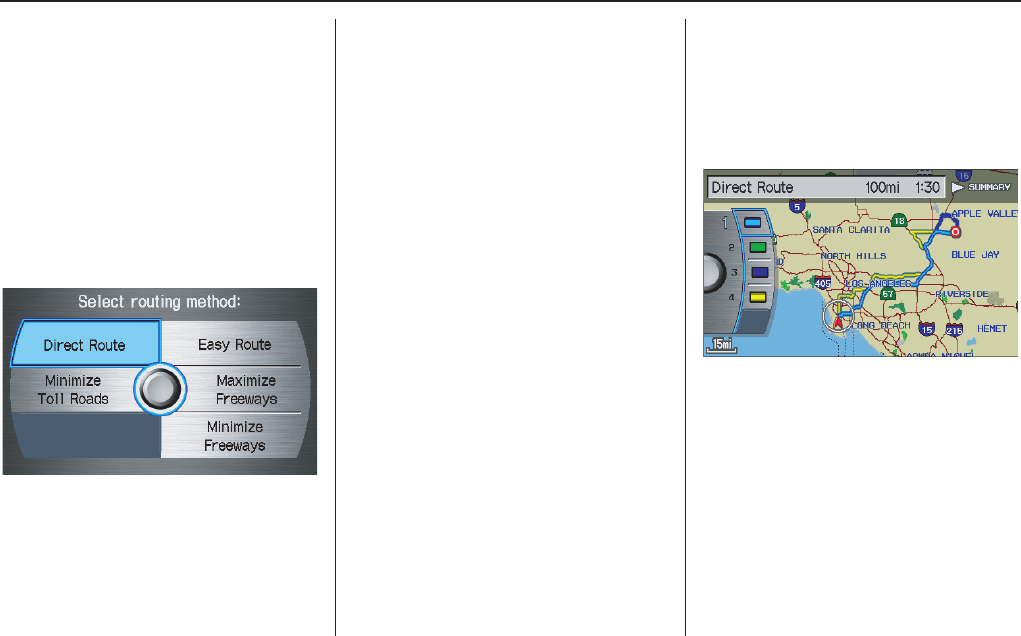
Navigation System 51
Driving to Your Destination
Changing the Routing Method
The system lets you select the way you
want to drive to your destination. Select
CHANGE METHOD by moving the
Interface Dial down.
The following methods are available to
change after you have set a destination:
While on a map screen, press the
MENU button. The Change route by
screen will be displayed. Say or select
Change Routing Method, and the
screen changes to:
NOTE:
• The “Direct Route” is usually the
best choice. If you choose any other
method, it becomes the new default
for all future routing. Make sure to
check the routing method if the
displayed route is not what you
expected to see.
• If the trip is greater than 100 miles,
then “Minimize Toll Roads” and
“Minimize Freeways” may be grayed
out. This is normal.
Viewing the Routes
Selecting View Routes allows you to
scroll through and view the various
routes (Direct, Easy, Maximize
Freeways, etc.) to your destination. If
you select View Routes, the display
changes to:
You can change the method for
calculating the route by using the
Interface Dial. The system will
display another calculated route.
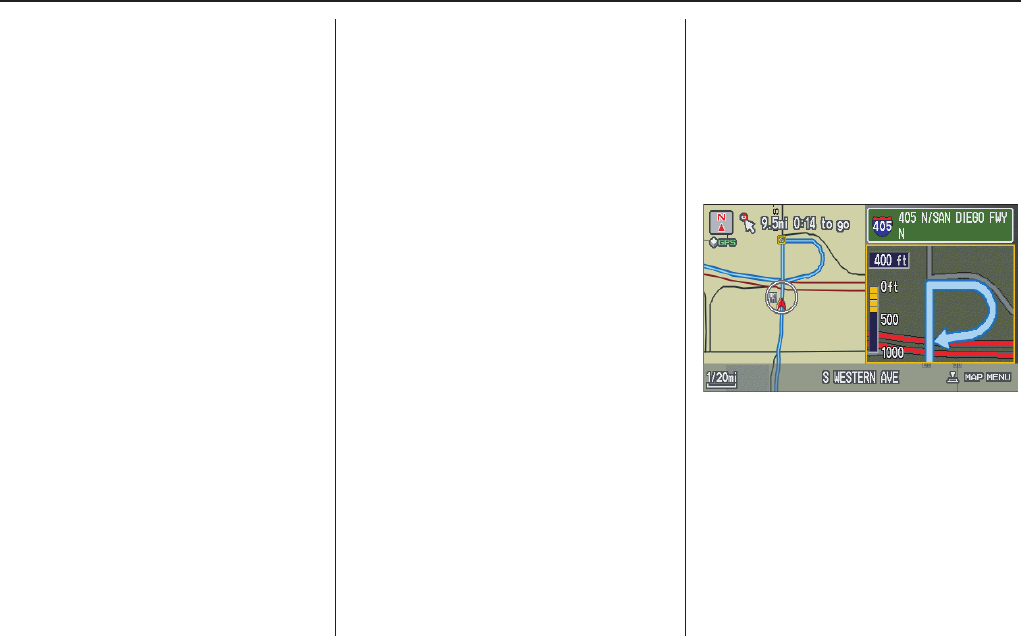
52 Navigation System
NOTE:
• It may take several minutes (the
system displays an hour glass while it
is calculating) to show all route
methods, and it is not unusual for the
different methods to pick the same
route. Voice commands cannot be
used while the system is calculating.
• If the trip is greater than 100 miles,
then “Minimize Toll Roads” and
“Minimize Freeways” way be grayed
out. This is normal.
• Zoom IN/OUT to view route details
or traffic conditions is not available
on this screen. After you choose a
“route method,” you can then zoom
in or out on the map screen to view
your route in details.
Say or select SUMMARY to display the
distance and time to go for each route.
Based on the summary data, you can
change the routing method by rotating
the Interface Dial knob.
Once you confirm your selection, say
the number of the desired routing
method or push in on the Interface
Dial.
NOTE:
Distances and times show for each
method in the Summary are
approximate.
After calculating the route with the new
method, the system displays a map of
your current location. The calculated
route will be highlighted as a blue line,
and a voice prompt will tell you how to
proceed along the highlighted route.
Push in on the Interface Dial and
select Voice to have the guidance
repeated.
Driving to Your Destination
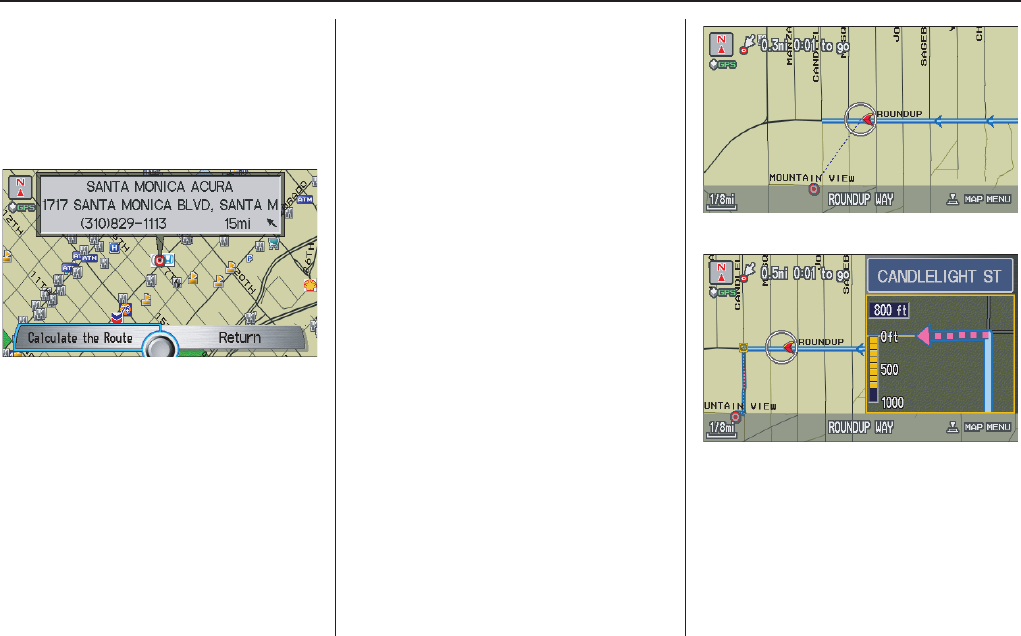
Navigation System 53
Driving to Your Destination
Viewing the Destination Map
Selecting View Dest. Map displays a
map of the destination vicinity. Press the
CANCEL or NAVI BACK button to
return. You can view the destination
map anytime while on route saying
“Display destination map.”
Map Screen
When you select OK on the Calculate
route to screen, the map screen
appears, showing your highlighted route
in real time.
Route Line
When driving to a destination on
verified roads in a metropolitan area, the
route line is displayed as a blue line.
When driving in rural areas on
unverified streets (light brown color),
the route line changes to either a blue
dotted “vector line” pointing to your
destination, or a blue-pink line. See
Unverified Area Routing on page 93 for
a detailed explanation of how to enable
unverified routing, and the related
cautions and disclaimers.
NOTE:
• You can always view the entire route
by simply saying, “Display entire
route.”
• When your route line uses streets that
display traffic information, the route
line may consist of orange or red
segments. This is normal. See Traffic
Display Legend on page 22, and
Viewing Flow Data on page 23.
“Vector line” (unverified routing off)
Blue-pink unverified route line
(unverified routing on)
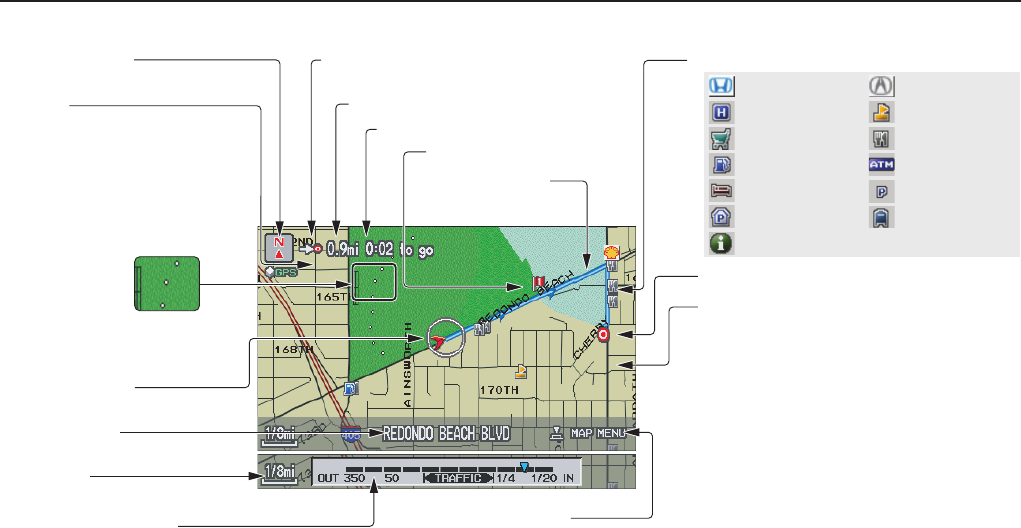
54 Navigation System
Map Screen Legend
Acura Dealer
School
Restaurant
AT M
Parking Lot
Post Office
Honda Dealer
Hospital
Grocery Store
Gas Station
Hotel/Lodging
Parking Garage
Freeway Exit Information
Landmark Icon (see page 62)
Destination Icon (see page 62)
Map Features
Dark Green: Park
Light Blue: Hospital
Brown: Shopping Mall
Light Brown: Indian Reservation
Green: Golf Course
Gray: Airport/Stadium/Business
Blue: Body of Water
Blue/Green: Cemetery
Matte Blue: University
NOTE:
If you move the Interface Dial over an area (map
features shown above), the name is displayed on
the screen.
Map Scale Adjustment
(Mile or km per half inch appears
only when you zoom in or out by
rotating the Interface Dial knob.)
(see page 60) NOTE:
See Map Legend on the Information screen for further explanation. (see page 78)
Map Scale
(see page 60)
Current Street
(see page 68)
Vehicle Position
(see page 68)
“Breadcrumbs”
(see Off-road Tracking on page 67)
Streets
(see Map Overview on page 84, or
Unverified Area Routing on page 93)
Dark Red: Interstates or Freeways
Black: Verified Street
Light Brown: Unverified Street
Direction of Destination (when on route)
(see page 56)
Map Orientation
(see page 61)
Distance to Destination (see page 56)
Time to Destination (see page 56)
Waypoint (see page 71)
Blue Line
Calculated route
(see page 53)
Map Menu (see page 56)
(Push in on the Interface Dial to view.)
Driving to Your Destination
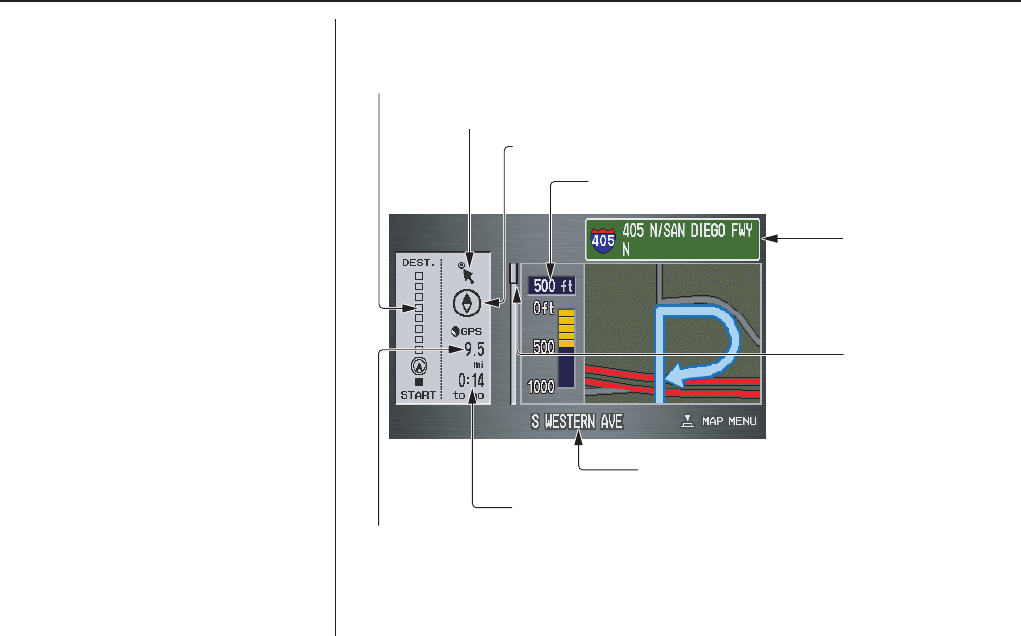
Navigation System 55
Driving to Your Destination
Guidance Screen
The guidance screen offers an
alternative way to view your route
information. Many of the icons and
screen features are similar to those on
the map screen. While driving to your
destination, press the MAP/GUIDE
button to switch between the map and
guidance screens. The guidance
screen shows you:
Milestone to Destination - the position
of the small circular icon shows your
trip progress. As you get closer to your
destination, the indicator will approach
“DEST.”
Vehicle Heading - the black portion of
the compass symbol indicates north.
NOTE:
• The map and voice guidance in
unverified areas differ from those in
verified areas.
• Current maneuvers and those within
1000 feet will show on the
Countdown bar, indicating the
distance until the next maneuver.
Guidance Screen Legend
Milestone to Destination (see page 55)
Vehicle Heading (black indicates North) (see page 61)
Distance to Next Driving Maneuver
Street Name of Next
Driving Maneuver
Scroll: to view
guidance maneuvers
(move Interface Dial up
or down)
Current Street (see page 6)
Time to Destination (see page 56)
Distance to Destination (see page 56)
Direction of Destination, “as the crow flies” (see page 56)
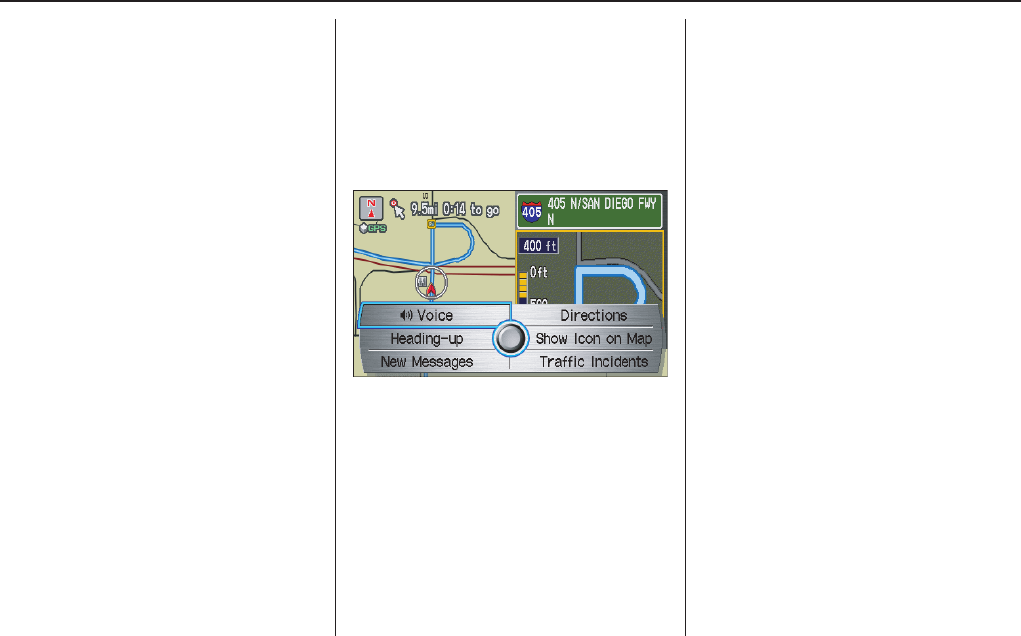
56 Navigation System
Distance and Time to
Destination
When you select a destination, the
distance to the destination is the actual
road distance of the calculated route,
and “not as the crow flies.” When
viewing a list of destinations (points of
interest), such as restaurants, the
distance is “as the crow flies” (see Sort
by Distance to Travel on page 37).
The displayed time to destination may
differ from the actual travel time
because the time is calculated based on
the posted road speed data and your
current speed. If part of your route
includes unverified roads, the “distance”
and “time to go” for that portion is
estimated using 25 mph as an average
speed.
Map Menu
When the map screen is displayed,
pressing in on the Interface Dial
displays the Map menu. If the map is
scrolled, the Map menu will not
appear. Move the Interface Dial left,
and press the CANCEL button to return
to the basic map screen.
Voice - button shown if currently on a
route. Select to hear the next guidance
maneuver (see page 57).
Directions - button shown if currently
on a route. Select to see a list of
directions to your destination (see
page 57).
North-up/Heading-up - Select
Heading-up or North-up button to
change map orientation. See Map
Orientation on page 61 for details. On
scales greater than 1 mile, this button is
“grayed out” (North up only mode).
Show Icon on Map - allows you to
select the icons displayed on the map
(for a thorough description of this
feature, see Showing Icons on the Map
on page 65).
New Messages - button indicates that
there are AcuraLink messages for you to
read. These messages consist of quick
tips, and other information
communicated to you by Acura. If the
button is grayed out, you have no
messages. See page 75 for more
information on this feature.
Traffic Incidents - select this button to
display a list of the traffic incidents
within a 30-mile radius of your current
position. You can view this same list by
saying “Display traffic incidents.” See
page 24 for a discussion of this feature.
Driving to Your Destination
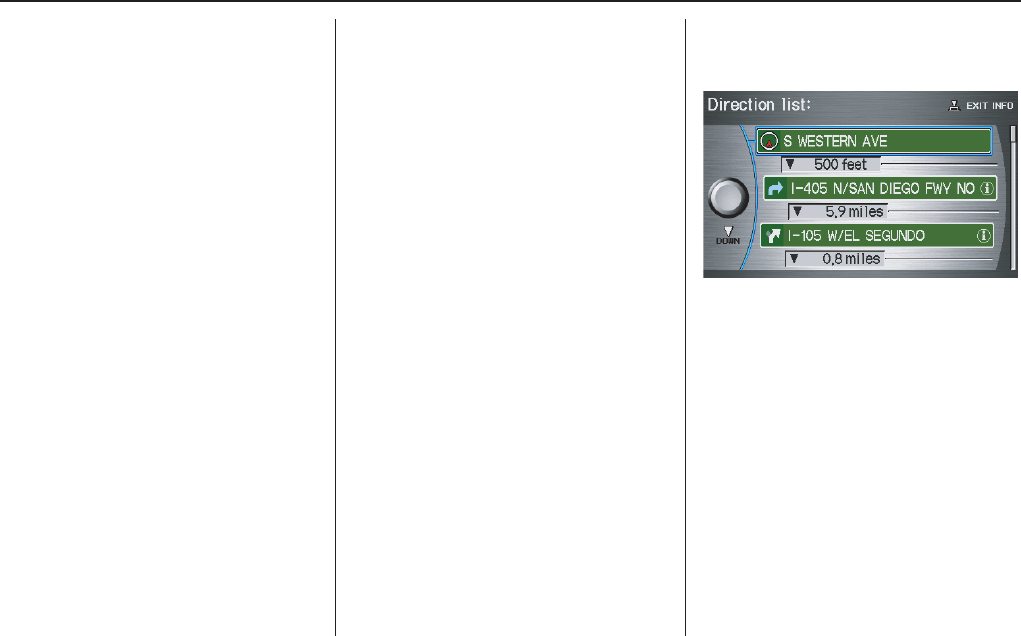
Navigation System 57
Driving to Your Destination
Voice Guidance Prompts
As you get near the maneuver, you will
hear a voice reminder, and see a pop-up
window showing you the maneuver.
The number of reminders that you will
hear before a maneuver is determined
by Guidance Prompts in Setup on
page 84.
With the factory default (NORMAL),
typically you will hear two prompts:
• The first is about 1/4 mile from the
maneuver.
• The final prompt is close to your
actual turn.
If the distance between the next two
driving maneuvers is very small, both
maneuvers are displayed on the screen
in a single window, and the voice will
remind you of both of them at the same
time.
NOTE:
• You can say “Voice” at any time, or
select Voice after pushing on the
Interface Dial to be reminded of the
next maneuver.
• Typically a pop-up guidance window
shows your next turn, and a voice
guidance prompt is heard. The timing
of these prompts varies, depending on
the type of road you are on, and the
distance to your next maneuver.
When given guidance in unverified
areas, the words, “If Possible,” are
inserted before each guidance prompt.
See Unverified Area Routing on page 93
for more details about unverified
routing.
Direction List
If you select Directions from the Map
menu, the display changes to:
NOTE:
• The map and voice guidance in
unverified areas differ from those in
verified areas. See Unverified Area
Routing on page 93.
• Only maneuvers that occur at
freeway exits or contain freeway exit
information will show the exit info
icon (“i” icon) on the right end of the
items in the direction list. If no exit
info icon is shown on the list, the
EXIT INFO is not displayed.

58 Navigation System
You can see the direction list and the
distance to each maneuver. Press the
MAP/GUIDE button to return to the
previous screen.
You can scroll through the direction list
screen by screen by moving the
Interface Dial up or down, or one
instruction at a time by rotating the
Interface Dial knob.
EXIT INFO (Freeway Exit
Information)
You can search freeway exit
information and add new destinations or
waypoints to the calculated route as a
new destination or waypoint. The exit
info icon (“i” icon) on the right end of
the items in the direction list indicates
that there is freeway exit information
available. Say or select EXIT INFO, and
choose the exit and place to set as a new
destination or waypoint.
On the map screen, you can display
freeway exit information using the
Interface Dial. The exit info icon will
only be displayed on the map screen if
there is any freeway exit information
available. Choose the 1/4, 1/2, and
1 mile scale, then move the cross hairs
to the desired exit info icon and push in
on the Interface Dial. Choose a place
from the list and set as a new destination
or waypoint.
NOTE:
To turn on “Freeway exit information”
on the map screen, display the icon bar
and select the“i” icon (see page 65).
Split Screen Guidance
When on route to a destination, you
have two display options: single screen
mode (the factory default) and the split
screen mode.
Single screen mode - a map is
displayed with occasional guidance
pop-up windows as you approach a
maneuver.
Split screen mode - the map is always
displayed on the left of the screen, and
the maneuver or direction list is
displayed on the right hand side of the
screen.
Guidance mode can be changed in either
Setup (see Guidance Mode on
page 100), or by accessing the icon bar
(see CHANGE GUIDANCE MODE on
page 65).
Driving to Your Destination
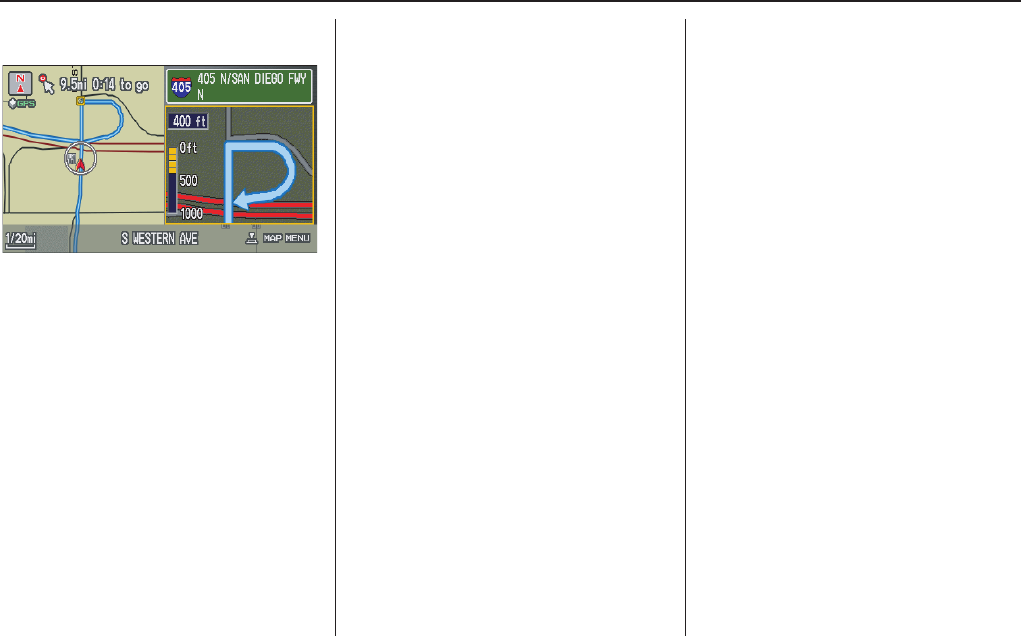
Navigation System 59
Driving to Your Destination
When you get near the maneuver, the
map screen changes to:
On the map screen, the location of the
maneuver is marked with a small yellow
square. The guidance window is simply
an enlargement of the area indicated by
the yellow square. After you complete
the maneuver, the display returns to a
full map screen when the single screen
mode is set, or to a map and direction
list screen when the split screen mode is
set.
60 Navigation System
Map Scale
Rotate the Interface Dial knob or a voice command such as “Display 1/2 mile scale” (see page 144) to change the scale of the
map. Zooming in increases the detail, while zooming out gives you a view of a wider area. After changing the scale, give the
system a few moments to update the display.
Functions available at various map scales
NOTE:
• You can change between miles or kilometers in Setup (see Units on page 91).
• For information on the available voice commands, see Voice Command Index on page 143.
Map Scale (English and Metric)
For selecting units, see page 91.
1/20 mi. 1/8 mi. 1/4 mi. 1/2 mi. 1 mi. 2 mi. 5 mi. 15 mi. 50 mi. 150 mi. 350 mi.
80 m 200 m 400 m 800 m
1.6 km
3 km 8 km 24 km 80 km
240 km 560 km
POI icon symbols (like ATM) page 62 XX
Breadcrumbs (off-road tracking dots) page 67 XXXX
Freeway exit information icons page 62 XXX
Unverified road display (light brown) page 93 XXX
Map orientation “Heading up” page 61 XXXXX
Map orientation “North up” page 61 XXXXXXXXXXX
Map features (like park, golf course) page 54 XXXXXXXXXX
Avoid area shown on map page 97 XXX
Avoid area scales (when creating) page 97 XXX
Waypoint “flag” icons page 70 XXXXXXXXXXX
Traffic speed page 22 XXXX
Traffic incident page 22 XXXX
Driving to Your Destination
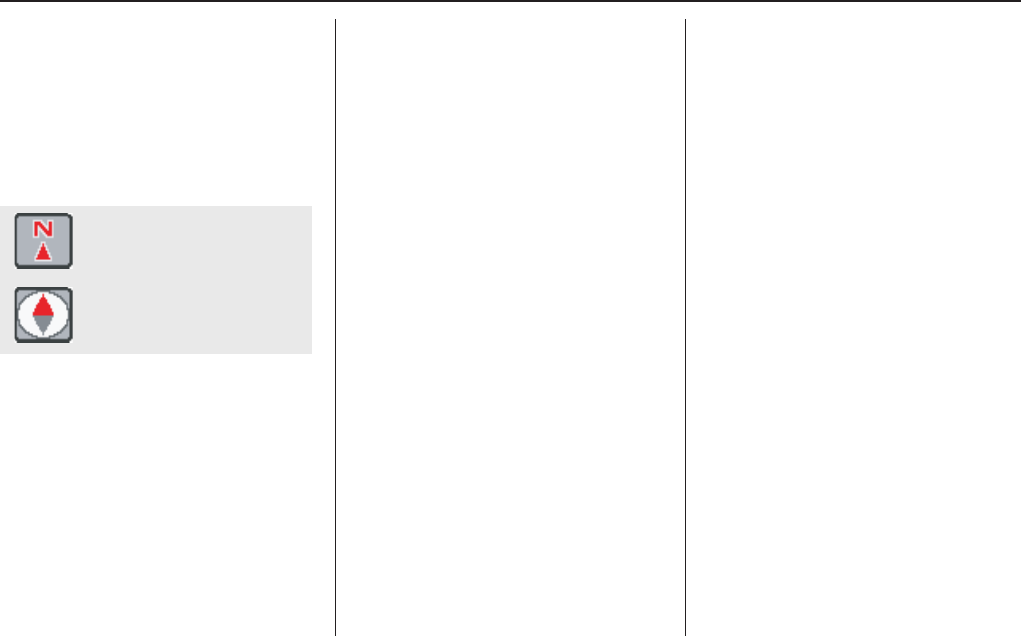
Navigation System 61
Driving to Your Destination
Map Orientation
The map can be orientated two ways:
• North-up: North pointing up as you
would normally view a paper map.
• Heading-up: The map constantly
rotates so the road you are driving on
always points up (as you see the road
through your front windshield).
NOTE:
The red arrow in both heading symbols
always shows the direction north.
Push in on the Interface Dial on the
map or guidance screen and select
North-up or Heading-up to switch
between the available orientation, or say
“Display heading up,” or “Display north
up.”
In the larger map scales (above 1 mile or
1.6 kilometer), the map is always
oriented with north facing upward. You
cannot change the orientation.
To view other areas on the map, move
the Interface Dial left, right, up, or
down. The map will shift in that
direction. To return the map to your
current location, press either the MAP/
GUIDE, the CANCEL, or the NAVI
BACK button on the steering wheel.
The display automatically changes to
the map screen when you reach your
destination. Press the MENU button to
return to the Enter destination by
screen.
NOTE:
• For information on the available
voice commands, see Voice
Command Index on page 143.
• If you are on a route and the
Interface Dial is moved, the “Time
to Destination” and “Distance to
Destination” indications are
replaced with an indicator showing
distance from the current vehicle
location.
“North Up”
“Heading Up”
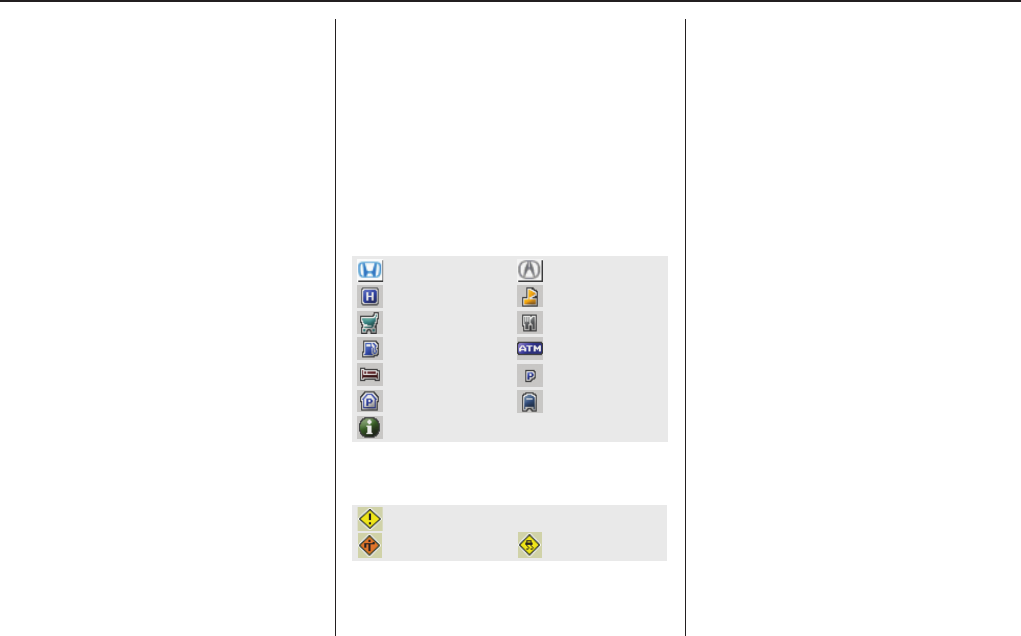
62 Navigation System
Destination Icon
The destination icon only shows the
approximate location of the destination.
This occurs because a city block can
have as many as 100 possible addresses
(for example, the 1400 block is followed
by the 1500 block.) Since most cities
use only a portion of the 100 possible
addresses (for example, in the 1400
block, the addresses may only go up to
1425 before the 1500 block starts).
Therefore, the address 1425 will be
shown a quarter of the way down the
block by the system instead of near the
end of the block where the destination is
actually located.
Tip:
When on a route, you can view a map
showing your destination. Using voice
control, say “Display destination map.”
Landmark and Incident
Icons
Landmark icons are shown in the map
screen on 1/20 and 1/8 mile scale, or 80
and 200 meter scale. The Freeway exit
information is displayed on the 1/4, 1/2,
and 1 mile scales. Incident icons are
displayed on the 1/2 through 5 mile
scales. The icons are:
Landmark icon
Incident icon
Some icons can be turned on or off;
you can either display them or hide
them by pushing in on the Interface
Dial on the map or guidance screen
and select Show Icon on Map (see
page 65), or by using voice commands
(see page 143).
You can select most landmark and
incident icons with the Interface Dial
to display the icon’s information. See
the table on the following page for
exceptions.
NOTE:
• The same icon list can be viewed on
the screen by selecting Map Legend
from the Information screen.
• When there are overlapping
landmark icons, a list of the points of
interest (POIs) is displayed.
• For information on the available
voice commands, see Voice
Command Index on page 143.
Acura Dealer
School
Restaurant
AT M
Parking Lot
Post Office
Honda Dealer
Hospital
Grocery Store
Gas Station
Hotel/Lodging
Parking Garage
Freeway Exit Information
Weather
Accident / Incident (other)
Construction
Driving to Your Destination
Navigation System 63
Driving to Your Destination
For some icons you can choose either to show or hide them on the map, while others like Acura Dealers, are always shown. The
table below shows the features for each icon type. Some Points of Interest (POIs) like Police Stations are not shown as an icon,
but you can still locate the nearest one with the voice command, “Find nearest Police station.”
Landmark icon
POI type Icon can be
manually
displayed
Icon can be
manually
hidden
Icon
selection by
voice
Icon can be selected as
a destination on the
map screen with the
Interface Dial
POI can be found on
the map screen using
voice command
“Find...”
Honda/Acura dealer Yes, always No No Yes Yes
Hospital Yes Yes Yes Yes Yes
School Yes Yes Yes Yes Yes
ATM Yes Yes Yes Yes Yes
Gas station*1 Yes Yes Yes Yes Yes
Restaurants*2 Yes Yes Yes Yes Yes
Post office Yes Yes Yes Yes Yes
Grocery store Yes Yes Yes Yes Yes
Hotel/ Lodging Yes Yes Yes Yes Yes
Police station No icon No icon No No Yes
Shopping, Tourist attraction, Bank No icon No icon No No Yes
Parking garage Yes Yes Yes Yes Yes
Parking lot Yes Yes Yes Yes Yes
Freeway exit information Yes Yes Yes Yes (choose POI) No

64 Navigation System
Incident icon
*1. When gas station icons are selected for view on the map, some icons are shown as “brand icons.”
*2. When selecting Restaurant on the Select category for icon settings screen (see Icon Options on page 65), specialty types
of restaurants, like Chinese or Italian, can be individually displayed or hidden. See Show Icon on Map on page 142. Also see
the Voice Command Index on page 143 for the “Display,” “Hide,” and “Find” commands.
*3. You can display the nearest traffic incidents by saying, “Display traffic incidents.”
POI type Icon can be
manually
displayed
Icon can be
manually
hidden
Icon
selection by
voice
Icon can be selected as
a destination on the
map screen with the
Interface Dial
POI can be found on
the map screen using
voice command
“Find...”
Traffic speed Yes Yes Yes No No
Traffic incident Yes Yes Yes No Yes*3
Driving to Your Destination
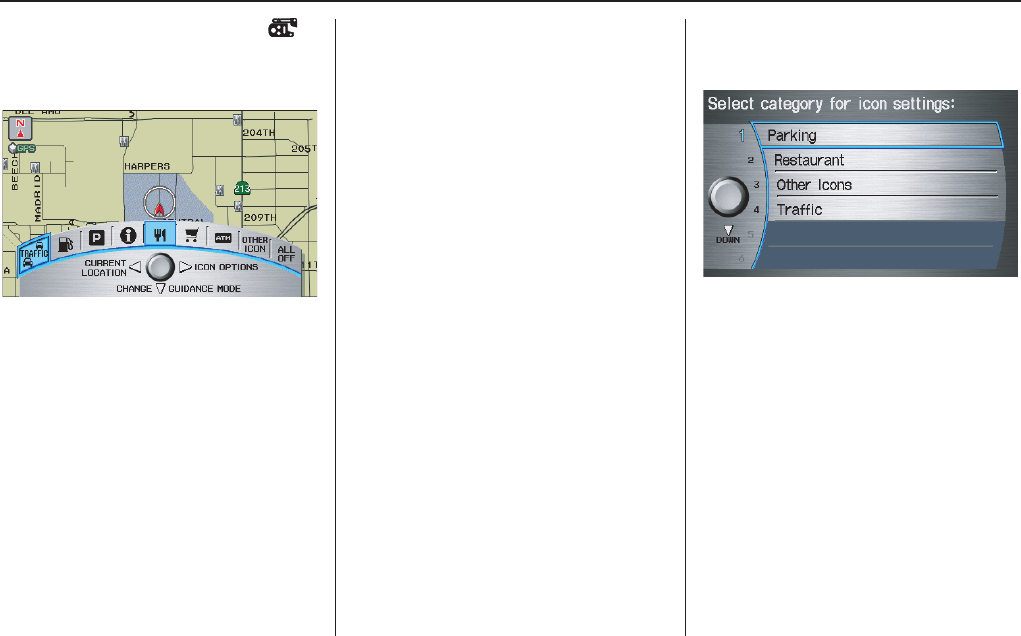
Navigation System 65
Driving to Your Destination
Showing Icons on the Map
Selecting Show Icon on Map from
the Map menu (see page 56) displays
the following screen:
The screen consists of the following
items:
Icon Bar (curved row of icon
symbols)
Allows you manually select the icons
that are displayed on the map (see
page 62 for a list of these icons).
In the screen above, both traffic and
restaurants are selected. Rotate the
Interface Dial knob and push in to
select (goes blue) or remove them
(symbol is gray). You can also display
or hide the same icons by using the
“Display” or “Hide” voice commands
(see page 144)
CURRENT LOCATION
(Interface
Dial Left)
This allows you to display and/or save
your current location. See page 68 for
more information.
ICON OPTIONS
(Interface Dial
Right)
This feature allows you to “fine tune”
some of the icons on the Icon bar (See
Icon Options below for more
information).
CHANGE GUIDANCE MODE
(Interface Dial Down)
When on route, this item allows you to
select between a single screen (with
occasional pop-up guidance windows),
or a split screen (containing one half
map, and one half guidance/directions
list window). See page 58 for an
explanation of this feature, and see
page 100 for Setup.
Exit Screen
Press the CANCEL button to return to
the map screen.
Icon Options
Selecting ICON OPTIONS from the
Icon bar displays the following screen:
This feature allows you to “fine tune”
some of the icons on the Icon bar. The
four icon choices, “Parking” (lot or
garage), “Restaurant” (specific type or
types of food), “Other icons” (hospitals,
schools, etc.), and “Traffic” (traffic
speeds or traffic icons), can each be
tailored to your needs.
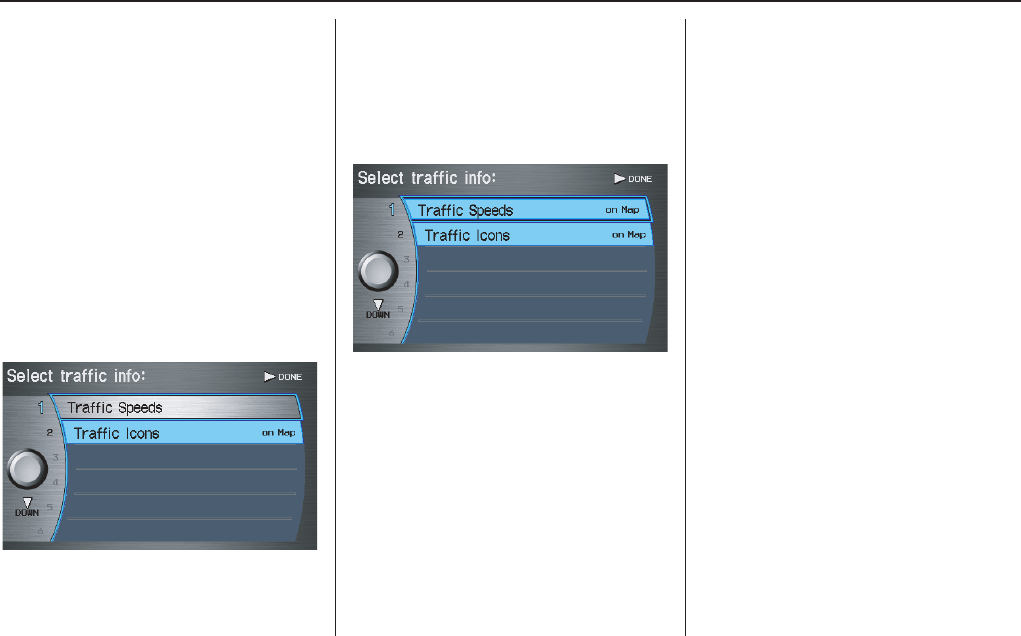
66 Navigation System
For instance, let’s assume that your real-
time traffic is not displayed on the map,
and you want to make sure that your
settings are correct. You would do the
following:
• First you would ensure that the
“Traffic” button on the Icon bar is
blue (See Icon Bar above).
• Second, you select ICON OPTIONS
and verify that both traffic options are
also on (blue). This procedure is
explained below.
If you select Traffic from the Select
category for icon settings screen, the
traffic icon options are displayed:
In the example above, only Traffic
Icons is selected and will show up on
the map. To also see Traffic Speeds
flow on the map, this would need to be
turned on by first selecting it and then
pushing in on the Interface Dial to
select it so it appears as below.
Exit, and save your settings by moving
the Interface Dial to the right
(DONE).
NOTE:
• When viewing the map screen, you
can turn some icons on using voice
control.
• “Traffic Speeds” and “Traffic Icons”
must be selected in the “Traffic”
choice of “Icon options” to enable
the traffic display on the map screen.
• You can use voice commands,
“Display (or hide) traffic icons,” or
“Display (or hide) traffic speeds.”
See page 144.
Driving to Your Destination
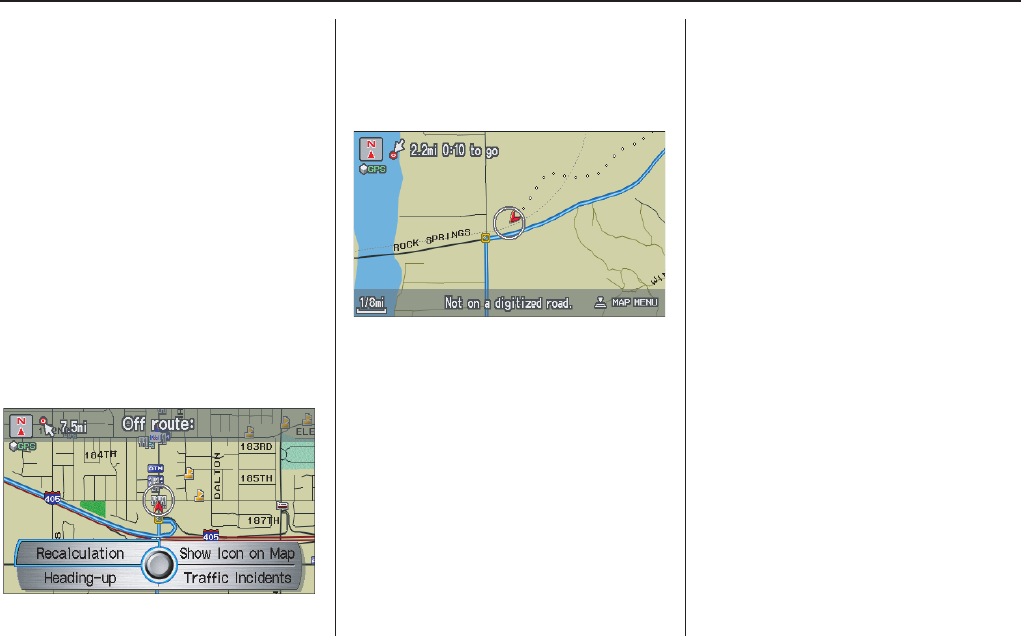
Navigation System 67
Driving to Your Destination
Going Off the Route
If you leave the calculated route,
“Recalculating...” is displayed at the top
of the screen. The system will
recalculate the route from your current
location and direction to the desired
destination then give you a new route
instruction. This is done automatically if
you have set Rerouting to
AUTOMATIC
on the
Setup
screen
(second)
(see page 92).
If the Rerouting option in Setup is set
to MANUAL, “Off route” appears at the
top of the screen when you leave the
calculated route. Say “Recalculate,” or
select Recalculation whenever you
wish the system to perform a
recalculation.
Off-road Tracking
If you drive more than half a mile from
a mapped road, “Not on a digitized
road.” appears at the bottom of the
screen.
The
map
screen starts displaying a
series of dots (breadcrumbs) to show the
path you have taken if
Off-road
Tracking
on the
Setup
screen (second)
is set to
ON
(see page 102).
By following the dots, you can backtrack
to the mapped road you originally left.
“Breadcrumbs” may occasionally be
displayed in urban areas, such as large
parking lots in shopping malls, or in new
subdivisions where the roads are not yet
in the database. In other cases you may
see dots, if the system temporary goes
off route, like in a parking garage where
the GPS signal is unavailable.
These dots appear only in the 1/20, 1/8,
1/4, and 1/2 mile (or 80, 200, 400, and
800 meter) map scales. Rotate the
Interface Dial knob to change scales
if necessary.
Tracking continues for approximately
150 miles; dots at the beginning of the
trail will start disappearing when you
exceed that distance. When you reach a
mapped road, the system stops
displaying dots.
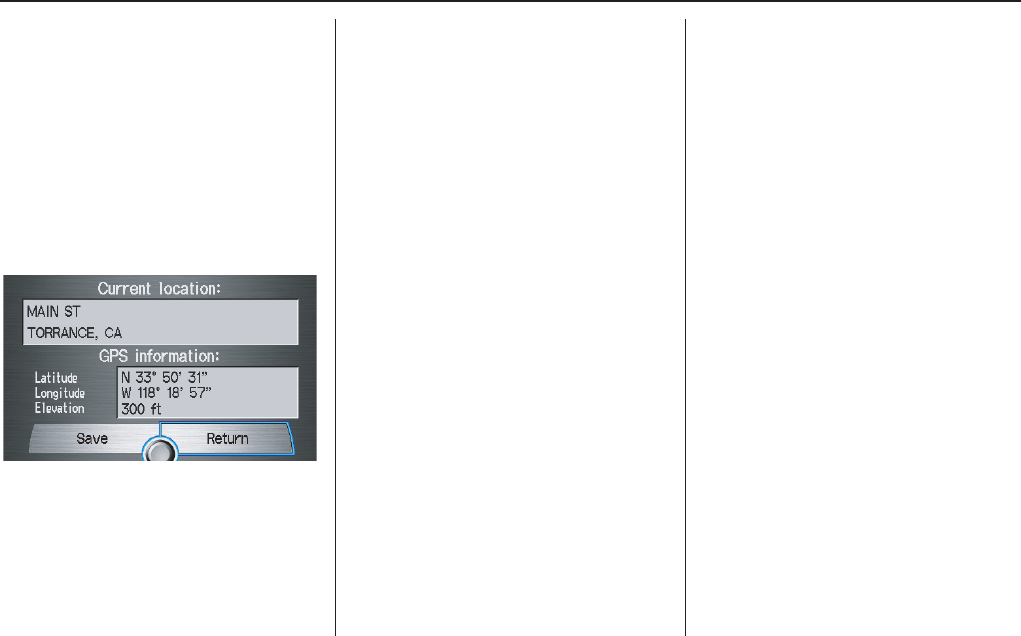
68 Navigation System
Viewing/Saving the Current
Location
Whenever you are on a map screen, you
can always obtain your current location
either by pushing in on the Interface
Dial, selecting Show Icon on Map,
and selecting Current Location, or by
using the voice control system and
saying “Display current location.” A
screen pops up which shows the address
of your current location, as well as the
latitude, longitude, and elevation.
NOTE:
The elevation will not appear when the
system is temporarily lacking proper
GPS information. The system elevation
may not agree with elevations shown on
roadside elevation signs, and may
fluctuate plus or minus 100 feet or more.
You can store the current location for
later use. It does not change or cancel
your current route.
For example, you are following the
system’s directions to get to a
destination. While sitting at a stoplight
you notice a curio shop on the corner,
but do not have time to visit it right now.
You can save the location to select as a
destination at a later date.
To save the location, say “Save current
location,” or select Save on the
Current location screen. The Edit
address book screen with the current
location data will appear. You can edit
the name, phone number, or category
name to be saved in your personal
Address Book.
After the location is saved, select
Return to return to the map screen.
You can then use Address Book from
the Enter destination by screen to
select the saved location, and return to
the same spot.
Driving to Your Destination
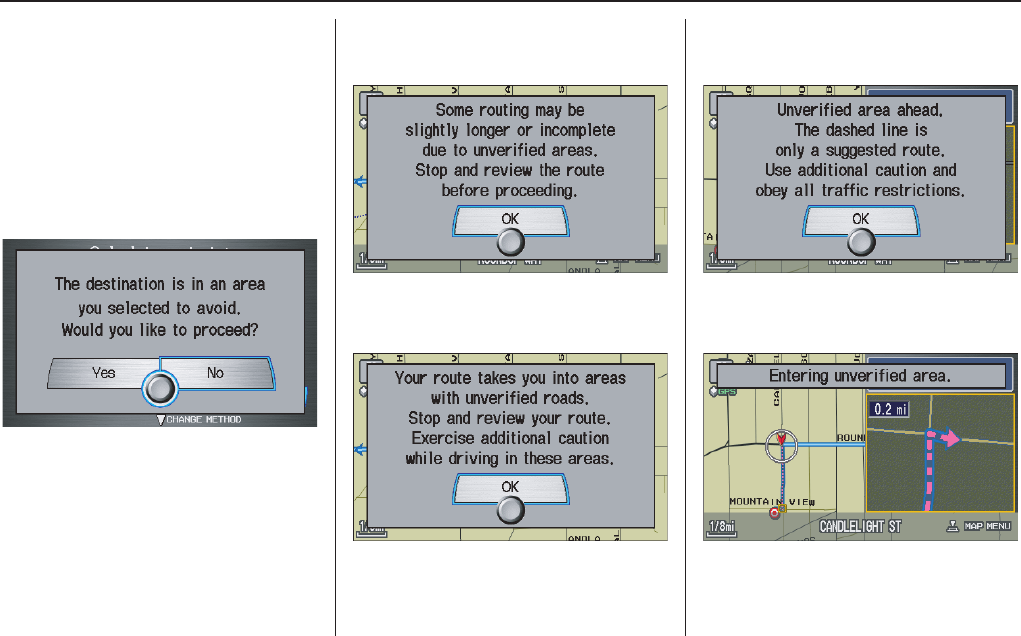
Navigation System 69
Driving to Your Destination
Pop-ups and Disclaimers
When you say “OK” in the Calculate
Route to screen, or if you change your
route, the system checks your route and
provides you with “pop-up” messages
for the following situation:
• Your route takes you into an area that
you previously set as an “Avoid
Area” (see Edit Avoid Area on
page 97).
• Your route passes near or bypasses
unverified areas (see Unverified Area
Routing on page 93).
• Your route includes unverified areas
(see Unverified Area Routing on
page 93).
• You are about to enter an unverified
area (see Unverified Area Routing on
page 93).
• You actually entered an unverified
area (see Unverified Area Routing on
page 93).
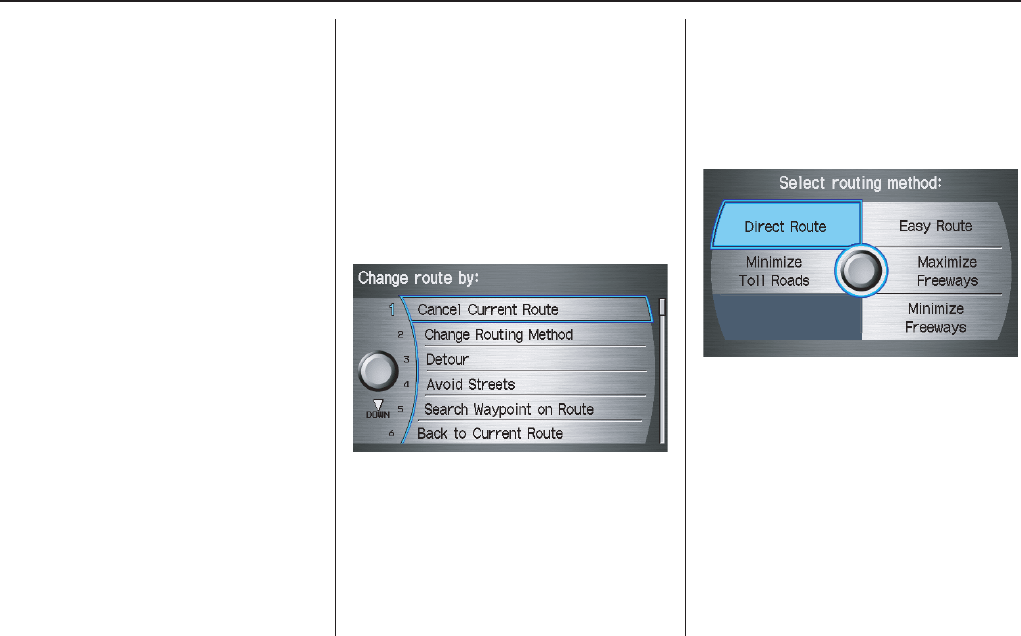
70 Navigation System
Changing the Route
While on route, you may wish to alter
your route, add an interim “Waypoint”
(pit stop), choose a different destination,
or cancel your current destination.
To change your present route, you can
do any of the following:
Say “Menu,” or press the MENU button
to view the Change route by screen:
• Cancel the current route (page 70).
• Change routing method (page 70).
• Detour (page 70).
• Avoid a certain street or streets
(page 71).
• Add a Waypoint or pit stop (page 71).
• Back to the current route (page 72).
Choose a different destination (other
methods):
• Saying, “Find nearest...” to find a POI
(page 73).
• Saying, “Go home” (page 73).
• Using the Interface Dial to select a
different POI or address on the map
(page 73).
•Pressing the MENU button twice to
get to the Enter destination by
screen (page 74).
Change Route By Screen
Pressing the MENU button displays the
Change route by screen:
Cancel Current Route
Cancels the current route (and any
waypoints) and returns you to the map
screen.
Change Routing Method
From the Change route by screen, if
you say or select Change Routing
Method, then the Select routing
method screen is displayed. See
Changing the Routing Method on
page 51 for details.
Detour
Calculates a detour route for you if you
encounter an unexpected obstacle such
as a closed road or extremely heavy
traffic congestion. If detour is selected,
the system will attempt to re-calculate a
new route, avoiding the next 2 miles
(while on a freeway) or
1/2 mile (while on a surface street).
Driving to Your Destination
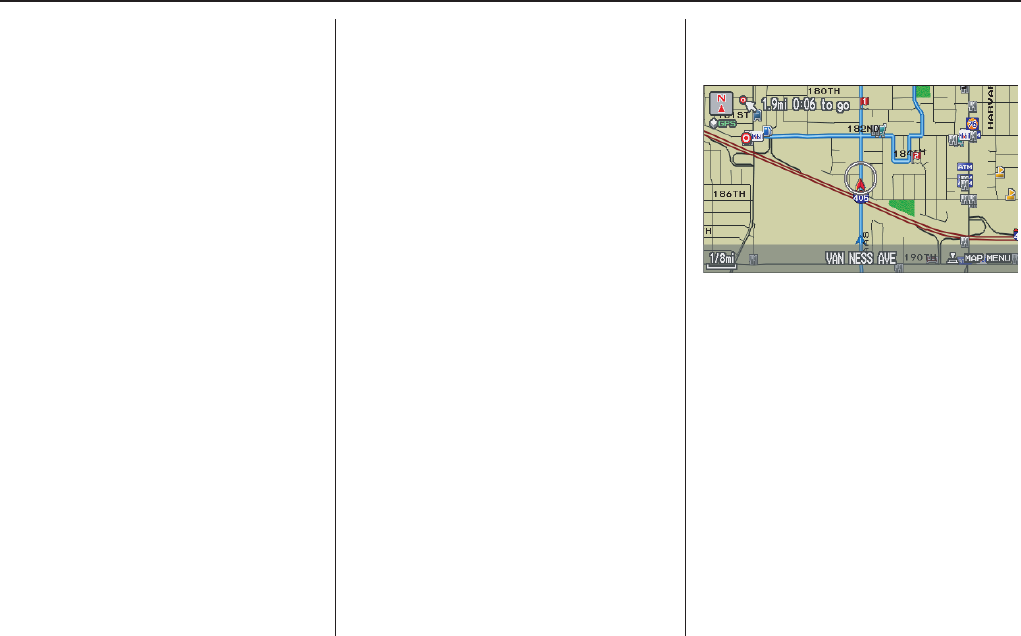
Navigation System 71
Driving to Your Destination
Avoid Streets
From the Change route by screen, if
you say or select Avoid Streets, the
system displays a list of streets that will
get you to your destination. This feature
allows you to avoid a street or streets
along your route. This is helpful if you
know of road construction, closures, or
excessive traffic along the route. Simply
select the street or streets you wish to
avoid. You cannot avoid your current
street, or the streets of your waypoint(s)
or destination (system beeps if selected).
NOTE:
Although you can choose streets to
avoid, you cannot choose specific
streets you want to use.
Search Waypoint on Route
Waypoints allow you to add an interim
“pit stop” while traveling to a
destination. For instance, you may want
to stop for gas or food, and then
continue on to your destination.
Although you can enter up to 5
waypoints at a time, typically you may
never use more than one at a time.
Waypoints are routed to in the order
they were entered (number 1 first, etc.),
with your final destination routed to last.
If you wish to create a custom route of
several destinations, and then control
the order of routing, the function
“Today’s Destinations” is probably a
better choice (see By Today’s
Destinations on page 47).
When you enter waypoints, they appear
on the map screen as small red flags
numbered 1-5.
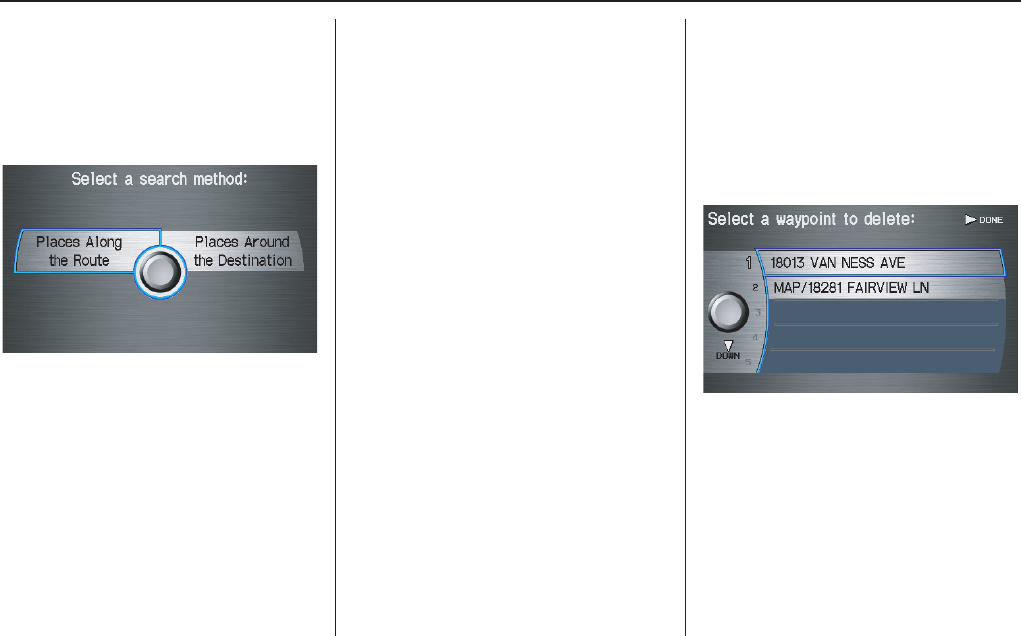
72 Navigation System
Adding Waypoints
From the Change route by screen, if
you say or select Search Waypoint
on Route, then the Select a search
method screen is displayed. Select
either Places Along the Route or
Places Around the Destination.
Next, select your “Waypoint Category,”
then follow the menu prompts to select a
destination. When the system performs
a search from Places Along the
Route, it displays matches that lie
within a corridor on either side and in
front of you, along your route. From
Places Around the Destination, the
system displays matches in a spiral
pattern outward from the destination.
The search “corridor” distance value
can be changed in Edit Waypoint
Search Area in Setup (see page 99).
To add another waypoint, press the
MENU button and repeat the procedure.
If Search Waypoint on Route is
grayed out, the maximum of 5
waypoints has been entered.
NOTE:
The system does not allow you to select
the roads you want to use to get to a
destination. However, after you enter a
destination, you can select intersections
or POI “waypoints” that the system will
use to “tailor” your route.
Deleting Waypoints
From the Change route by screen, if
you say “Delete” or select Delete
Waypoint, then the Select a waypoint
to delete screen is displayed. Say the
line number of the waypoint(s) you wish
to delete, or select them by using the
Interface Dial. Say or select DONE to
return to the map screen.
The route is re-calculated to reflect the
changes you made to the waypoint(s).
Back to Current Route
Returns you to the original map screen.
Driving to Your Destination
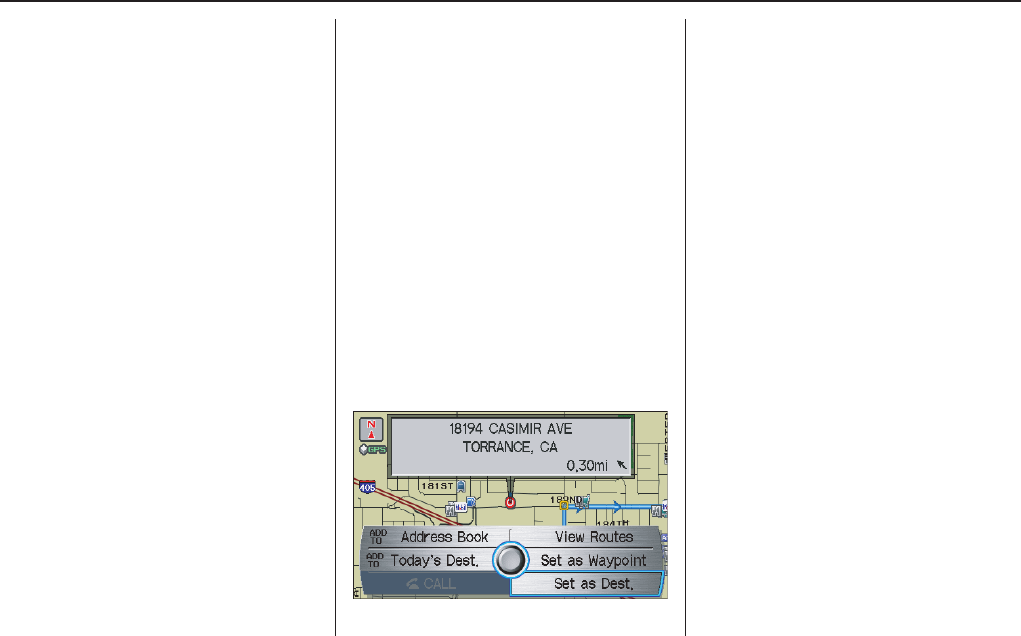
Navigation System 73
Driving to Your Destination
Changing Your Destination
There are other methods by which you
can change or add a waypoint to your
route. These are:
Find Nearest (Voice command)
From the map screen, say one of the
“Find Nearest...” voice commands to
locate the nearest gas station, ATM,
restaurant or other point of interest. See
the “Find Nearest” voice commands
listing on page 145.
Go Home (Voice command)
From the map screen, say, “Go home.”
If you have entered a “Go home”
address, then the system will display a
confirmation screen.
Using Interface Dial to Change
Destination
While following a calculated route, you
can select a new destination with the
map screen and the Interface Dial.
With the map screen displayed, use the
Interface Dial to move the position
icon. It will change to cross hairs. Use
the Interface Dial to position the cross
hair on your desired new destination,
street, or icon, then push in on the
Interface Dial. The address within the
cross hairs will be displayed. If this is
not your desired new destination,
reposition the cross hairs with the
Interface Dial, then push in on the
Interface Dial again to see the new
address.
When you push in on the Interface
Dial on a new destination, you will see a
pop-up menu as well as the address
display. Say or select either Set as
Dest., or Set as Waypoint on the
pop-up menu. The system will return to
the map screen, and recalculate the
route to your new destination or
waypoint.
NOTE:
When you scroll the map screen while
on route to a destination, some voice
controls will not function. These
include:
• Display “Heading up”
• Display “North up”
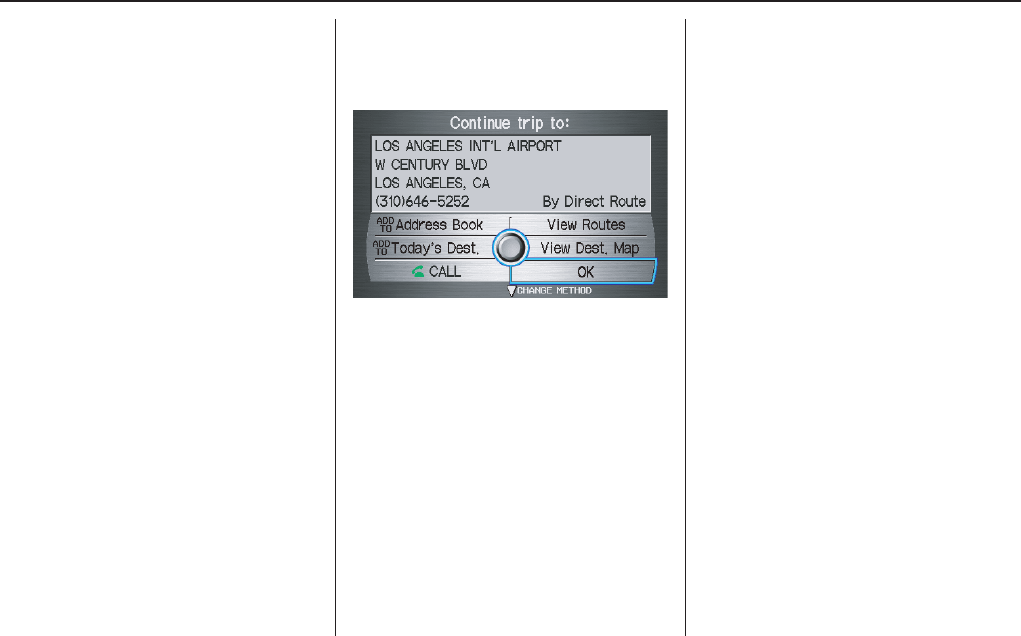
74 Navigation System
Entering a Destination from the
Menu Screen (while on route)
If you say “Menu” or press the MENU
button twice, the system displays the
Enter destination by screen. Follow
the procedure described in Entering a
Destination, which begins on page 27.
After selecting OK to the Calculate
route to screen, your new location can
be used either as a waypoint or as a
replacement destination.
Continue Trip Screen
If you restart the vehicle, without having
completed your prior trip, you will see
the following screen:
• To continue to your destination or
other waypoints, say or select OK.
• To cancel your destination, press the
CANCEL button or the NAVI
BACK button on the steering wheel,
or using the voice control system, say
“Cancel” or “Back.”
• If you wish to change the routing
method, say or select CHANGE
METHOD by moving the Interface
Dial down.
• For additional information on
changing the routing method, see
Changing the Routing Method on
page 51.
Driving to Your Destination
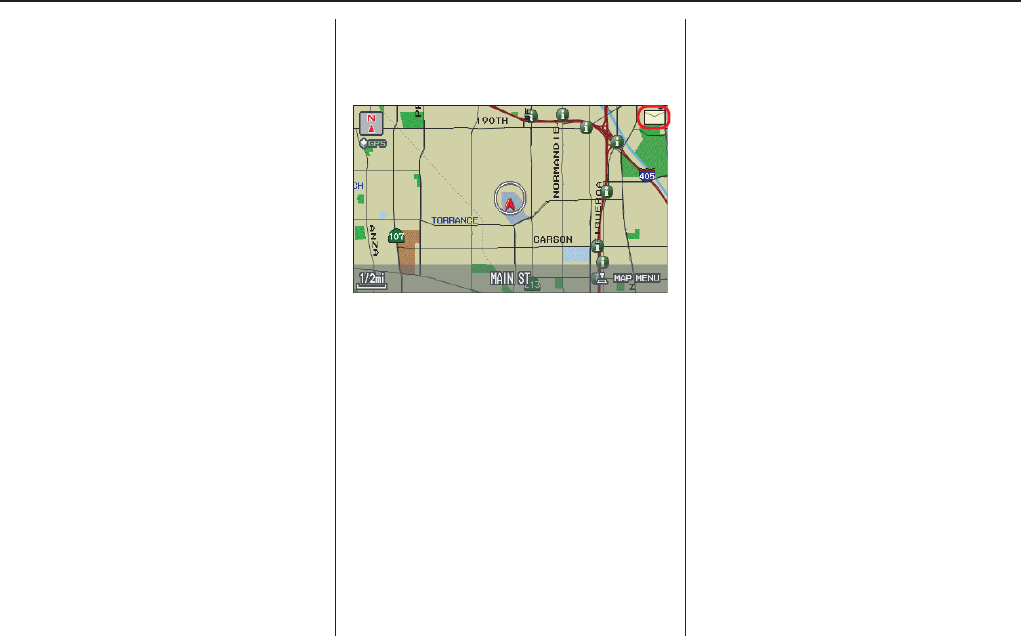
Navigation System 75
Driving to Your Destination
AcuraLink Messages
AcuraLink enhances your ownership
experience by providing a direct
communication link between you and
Acura. AcuraLink messages are
displayed on the Navigation screen.
Working through the XM Satellite
Radio, AcuraLink works in conjunction
with your vehicle’s Navigation,
HandsFreeLinkTM (HFL), and audio
systems to send and receive several
kinds of message. These include:
• Operating tips and information on
your vehicle’s features.
• Important recall and safety
information.
• Maintenance information to keep
your vehicle in top condition.
• Diagnostic information to provide
information about any problems with
your vehicle.
NOTE :
See your vehicle’s Owner’s manual for
more details on this feature.
When service information is received
from your vehicle or AcuraLink, an
envelope icon is displayed in the upper
right corner of the Navigation screen.
The Interface Dial controls most
AcuraLink functions. For more
information on AcuraLink, refer to:
• The Quick Start Guide for features
and a function overview.
• The vehicle Owner’s manual for a
detailed explanation of the system.
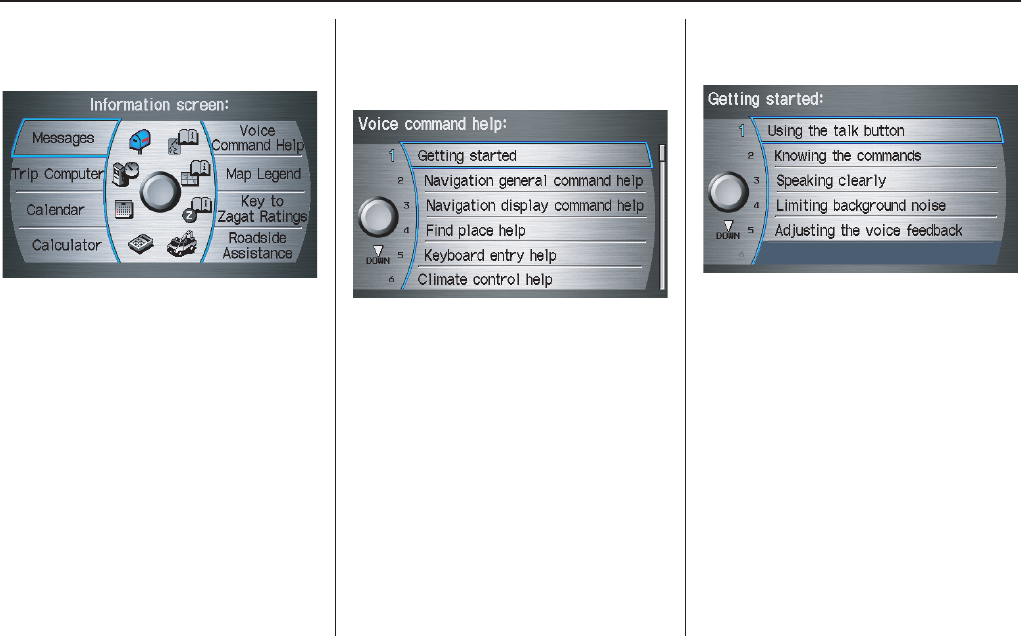
76 Navigation System
Information Features
Information Screen
When you say “Information” or press
the INFO button, the display changes to:
NOTE:
If some items appear to be grayed out,
and cannot be selected, it is because you
did not select OK on the initial
Disclaimer screen. See System Start-up
on page 17.
Messages
See AcuraLink Messages on page 75.
Voice Command Help
When you say or select Voice
Command Help, you will see the
following screen:
NOTE:
You can select an item by saying either
the line number or the item name.
There is a tutorial available for the voice
command help. Say or select Getting
started, and the display changes to:
Select the line number of the desired
tutorial you want to view, and the
tutorial will automatically be read out.
Select STOP by moving the Interface
Dial right to stop the reading.
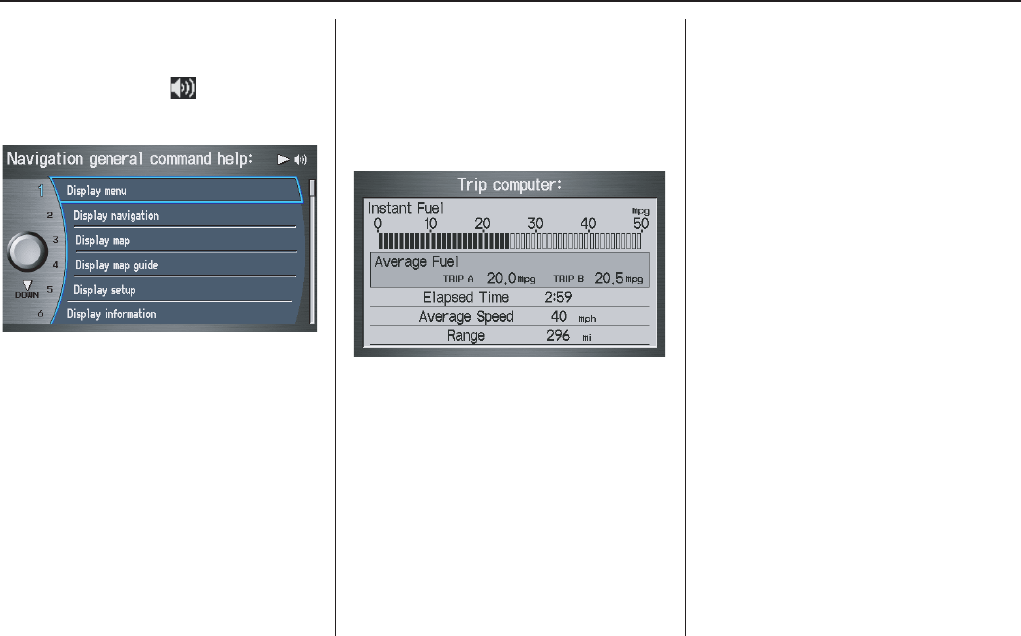
Navigation System 77
Information Features
When you make a selection, you will
see the help commands that can be used
with the voice control. You can say
“Read List” or select by moving the
Interface Dial right, and the system
will read the list to you.
For a listing of all voice commands, see
Voice Command Index on page 143.
Trip Computer
The Trip computer screen displays the
trip information from the MID display
in the gauge assembly.
When you say or select Trip
Computer, the display changes to:
Instant Fuel
Shows you the current instantaneous
fuel economy in miles per gallon (mpg).
Average Fuel
Shows you the average fuel economy in
miles per gallon (mpg) since the display
was last reset.
Elapsed Time
Shows the elapsed time that the ignition
has been on since the display was last
reset.
Average Speed
Shows you the average speed in miles
per hour since the display was last reset.
Range
Shows the estimated distance you can
travel on the fuel remaining in the tank.
This distance is estimated from the
average fuel economy over the last
several miles, so it will vary with
changes in speed, traffic, etc.
NOTE:
• The “Instant Fuel” and “Average
Fuel” may vary from actual fuel
consumed. These values are estimates
only.
• The “Range” is only an estimate.
Always monitor your vehicle’s fuel
gauge to determine the appropriate
time to refuel.
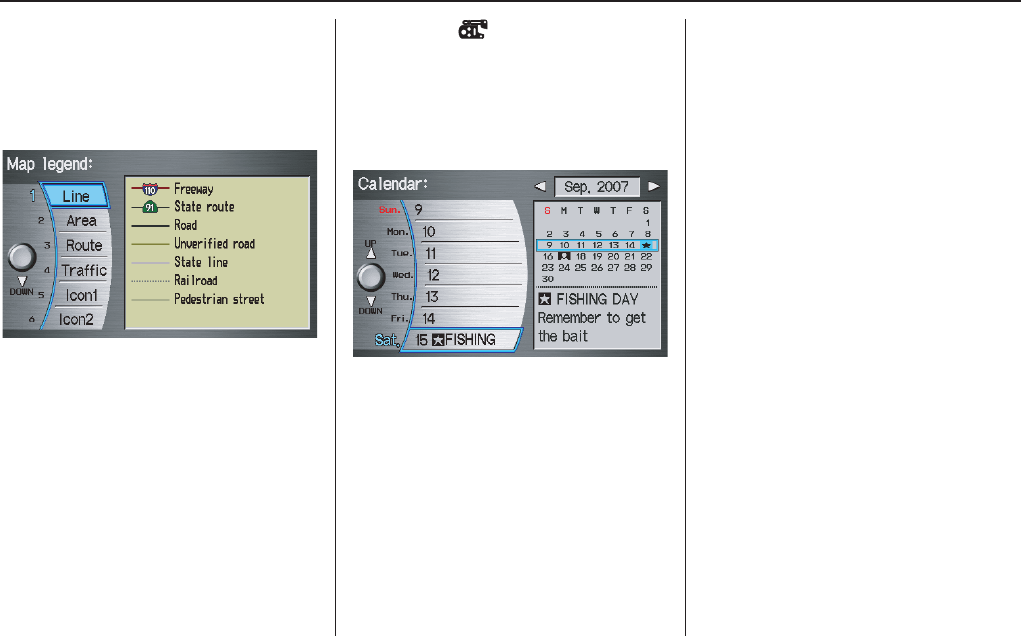
78 Navigation System
Information Features
Map Legend
You can use the Map legend screens to
learn the meaning of map features,
icons, colors, etc. used in this system.
When you say or select Map Legend,
the display changes to:
Say or select the desired item or item
number to view each section of the map
legend.
Calendar
The Calendar option allows you to
enter events and be reminded of them in
the future. When you say or select
Calendar, the system shows the
calendar with the current calendar day
highlighted.
Dates with an icon indicate there is a
schedule entry for that date.
You can scroll through the calendar day
by day by rotating the Interface Dial
knob, or select the day by voice. When
you move the Interface Dial up or
down, you can also scroll through the
calendar week by week. To change the
month, say “Next month” or “Previous
month,” or move the Interface Dial
right or left.
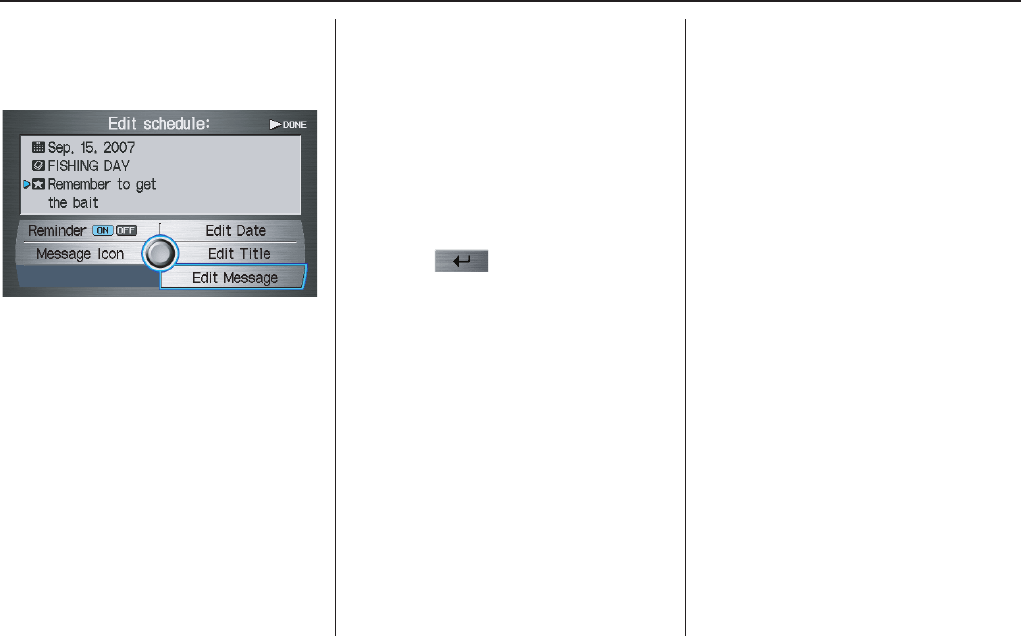
Navigation System 79
Information Features
Entering Your Schedule
Set your schedule by selecting the day
on the calendar, and the display changes
to:
Reminder
The default for Reminder is ON. This
allows the system to remind you of the
calendar item the next time you start the
vehicle. See System Start-up on page 17.
Edit Date
This allows you to move your calendar
entry to a different date. If you say or
select Edit Date, the Calendar screen
is displayed with existing entries grayed
out. Select a new day and the Edit
schedule screen is re-displayed with
the new date.
Edit Title
Say or select Edit Title, then enter the
name of your title using the Interface
Dial. Once you have entered the title,
say or select DONE. The title will be
displayed on the specified date of the
Calendar screen.
Edit Message
Say or select Edit Message, and the
system will show the Edit Message
screen. You can enter a message on two
lines. Use to change the line.
Once you have entered the message, say
or select DONE. The message will be
displayed on the specified date of the
Calendar screen.
Message Icon
Say or select Message Icon, and the
system displays a list of icons you can
select to help identify the type of
message you entered. The message icon
you choose will be displayed alongside
the specified date on the Calendar
screen.
Delete
From the Calendar screen, select the
date of the schedule you wish to
remove. To remove the schedule, say or
select DELETE.
Done
Once you have finished entering the
schedule, say or select DONE. The
Calendar screen is re-displayed and the
entered schedule is displayed.
NOTE:
• You can only enter one message per
day.
• A maximum of 50 entries can be
stored in the schdule.
• To re-activate a previous message,
turn the Reminder setting from OFF
to ON. If it is not turned on, the
reminder will not be displayed when
you start vehicle.
• The system displays active calendar
entries only after you answer OK on
the Disclaimer screen.
• For more information, refer to
System Start-up on page 17.
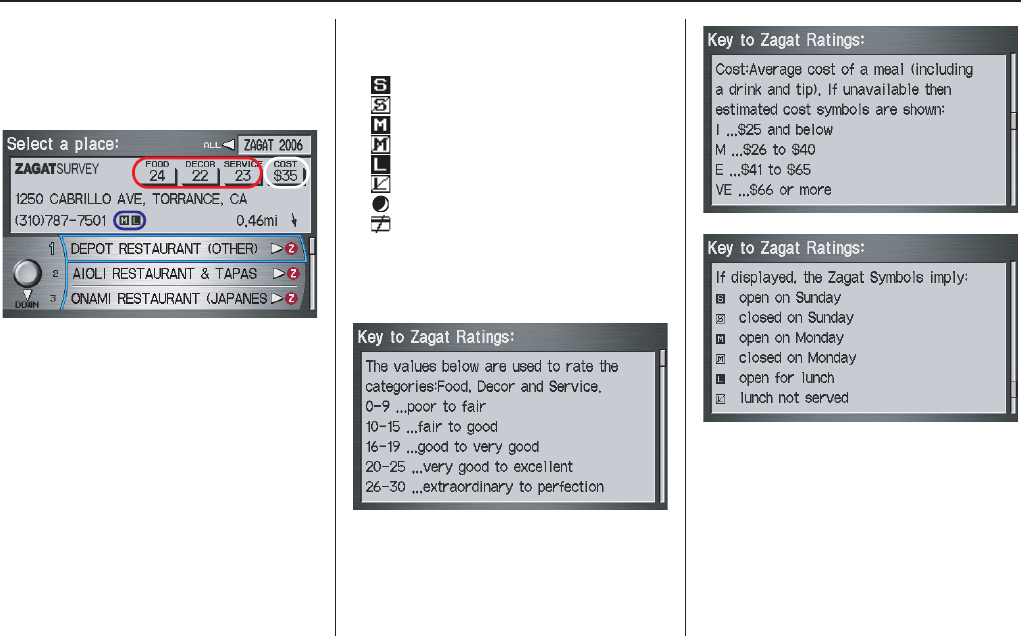
80 Navigation System
Information Features
Key to Zagat Ratings
When you display data for a Zagat
surveyed restaurant on the Select a
place screen, you will see the
description of ratings as follows:
By saying or selecting Key to Zagat
Ratings on the Information screen,
you can see the explanation of the data
displayed for the Zagat surveyed
restaurants.
• “Food,” “Decor,” and “Service”
categories (red circle) are rated using
numbered values (e.g., 0-9, 10-15,
etc.)
• “Cost” (white circle) is the average
cost of a meal (including drink and
tip).
• The symbols, if displayed (blue
circle), indicates the following
information:
open on Sunday
closed on Sunday
open on Monday
closed on Monday
open for lunch
lunch not served
serving after 11 PM
no credit card accepted
Use the Interface Dial to scroll
through the Key to Zagat Ratings
screens.
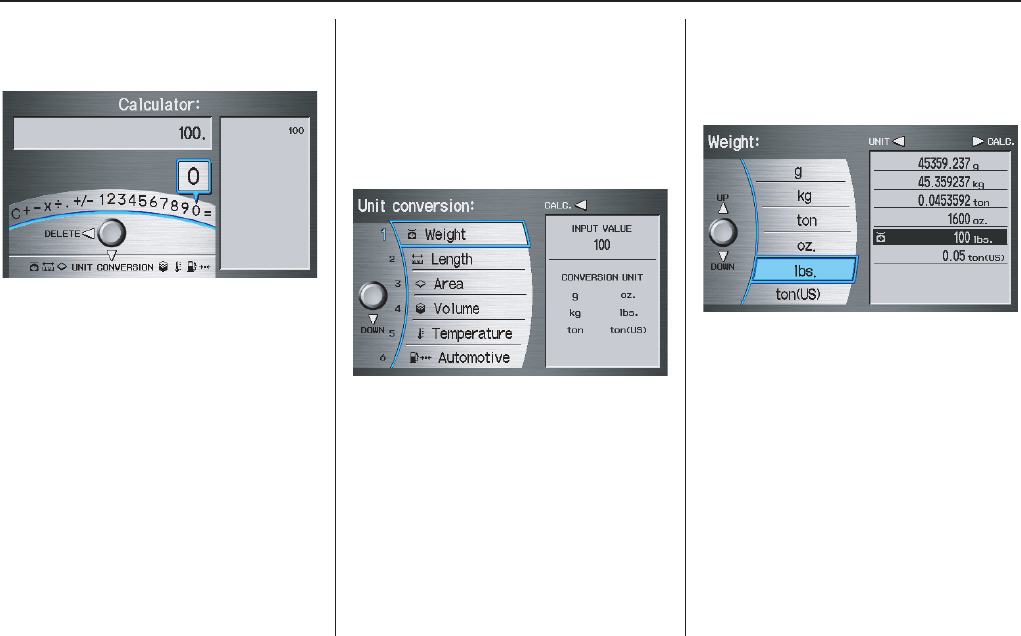
Navigation System 81
Information Features
Calculator
When you say or select Calculator, the
display changes to:
Use the Interface Dial and its Knob to
use the following features:
Calculator
The calculator function operates like a
standard hand held calculator.
Unit Conversion
Values entered on the calculator can be
converted from one unit to another (e.g.,
inches-to-millimeters).
Unit Conversion
To perform a conversion:
1. Enter a numeric value to be converted
(for example, 100).
2. Move the Interface Dial down to
select UNIT CONVERSION. The
screen changes to:
3. Rotate the Interface Dial knob to
select the type of unit you want to
convert (for example, weight) and
push in on the dial to select. The
screen for that conversion type
appears (see illustration in step 4).
4. Select the base unit (like pounds) that
you wish to convert to some other
unit. So, in the example below, 100
lbs converts to 1600 ounces, 0.05 ton
(US), etc.
NOTE:
• If you do not enter a value to be
converted, only “Temperature” units
are selectable.
• Conversions using negative values
may produce meaningless or
physically impossible values.
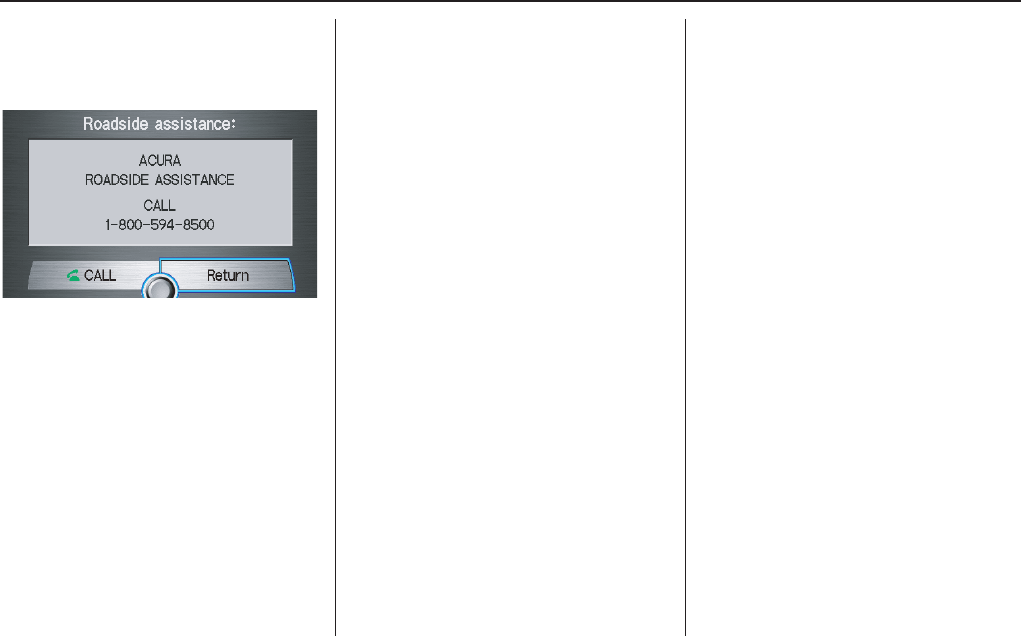
82 Navigation System
Information Features
Roadside Assistance
When you say or select Roadside
Assistance, you will see the following
screen:
An Acura Roadside Assistance number
is provided as a courtesy to Acura
clients. If you have a “paired” Bluetooth
phone and it is ON, then you can call
Acura Roadside Assistance by using
your system. Select CALL by voice or
by using the Interface Dial, and then
select Yes on the confirmation screen.
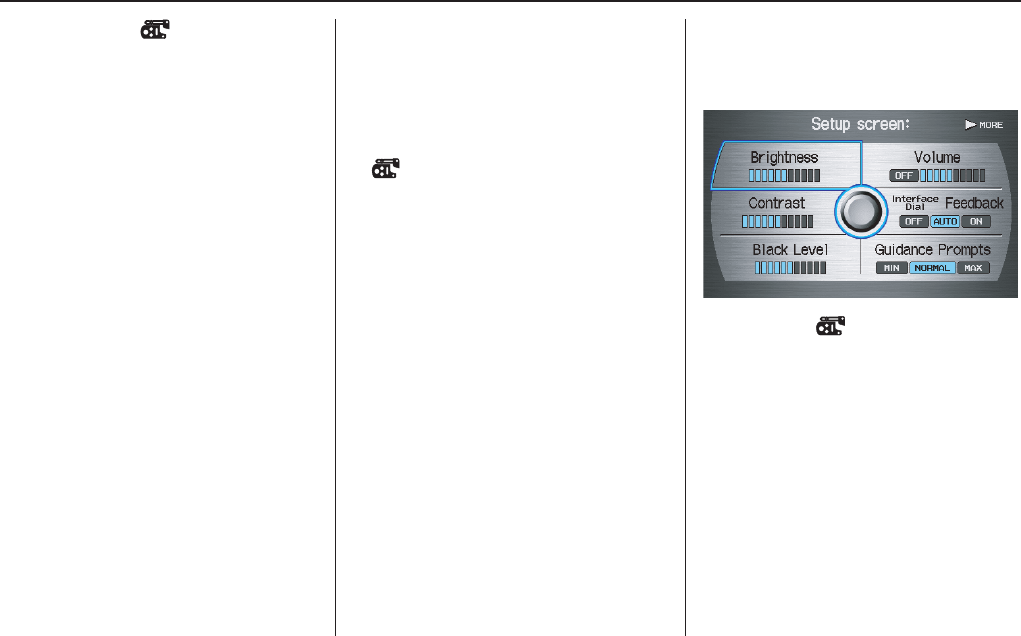
Navigation System 83
System Set-up
Setup Mode
The Setup function consists of two main
screens, that allows you to change and
update information in the system. To
display the Setup screens, use the voice
control system and say “Setup” or press
the SET UP button, and then select an
item, or say or select MORE in the
upper right corner of the screen.
On any of the Setup screens, you can
use the voice control system to select
any item on the screen.
NOTE:
• If some items appear to be grayed
out, and cannot be selected, it is
because you did not select OK on the
initial Disclaimer screen. See System
Start-up on page 17.
• Setup items in this manual with the
symbol indicate that the display
settings depend on what “Driver #”
was displayed on the MID when the
vehicle was started. See Remote
Keyless Entry Setting on page 18.
• If only “Welcome” is displayed, then
all Setup settings revert to factory
defaults, and all personal data (such
as Address Book or Calendar) are not
available.
• For information on the available
voice commands, see Voice
Command Index on page 151.
Setup Screen (first)
From any screen, say “Setup screen” or
press the SET UP button, and the
following screen appears:
Brightness
The screen brightness has 11 settings.
To change the brightness, use the voice
control system and say “Brightness up”
or “Brightness down.” You can also
select Brightness and change the
setting by rotating the Interface Dial
knob.
Tip:
If you are having trouble viewing the
screen in bright lighting conditions, try
increasing the brightness.
84 Navigation System
System Set-up
Contrast
The screen contrast has 11 settings. To
adjust the contrast, use the voice control
system and say “Contrast up” or
“Contrast down.” You can also select
Contrast and change the setting by
rotating the Interface Dial knob.
Black Level
The screen black level has 11 settings.
To change the black level, use the voice
control system and say “Black level up”
or “Black level down.” You can also
select Black Level and change the
setting by rotating the Interface Dial
knob.
NOTE:
You can have separate daytime and
nighttime settings for Brightness,
Contrast, and Black Level. Adjust each
setting when the display is in either
daytime or nighttime mode. Use the
(Display mode) button (page 11
and 105) to select Daytime or Nighttime
mode.
Volume
The navigation voice volume can be
adjusted by:
• Using the voice control system and
saying “Volume up” or “Volume
down.”
• Selecting Volume and changing the
setting by rotating the Interface
Dial knob.
• Saying “Volume Off,” or selecting
Volume and then OFF.
NOTE:
If you turn the volume off, you will not
hear route guidance or voice command
confirmations.
Interface Dial Feedback
This setting allows you to control when
(and if) the system will read the current
selection you choose with the Interface
Dial. The purpose of this feature is to
minimize the need to look at the screen
while operating the dial. You can set the
one of three settings explained in the
following table. The factory default is
AUTO.
Guidance Prompts
While you drive to your destination, the
system displays and announces
guidance prompts for your next
maneuver. This setting allows you to
adjust the number of guidance prompts
before each maneuver. The settings
MIN, NORMAL, and MAX are
described below. The factory default is
NORMAL, so you can adequately
prepare for the next maneuver. If you
wish to change the number of guidance
prompts, select your preferred setting,
as shown in the following table.
Setting Degree of assistance
ON When selection is made,
the system always reads
what is selected.
AUTO
(factory default)
The system reads
selection only when
moving.
OFF No voice assistance when
selecting.
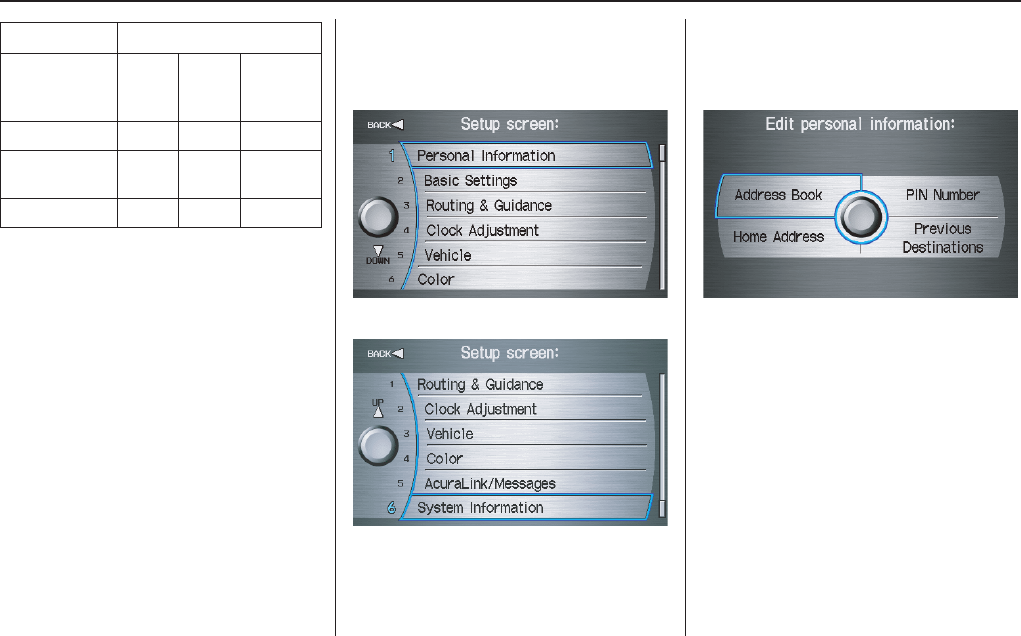
Navigation System 85
System Set-up
* Uses street name in guidance phrase.
NOTE:
To temporarily turn off voice guidance
prompts, select OFF for the Volume
setting in Set up.
Setup Screen (second)
Say or select MORE to view additional
Setup functions and the following
screen appears:
to
Personal Information
From the Setup screen (second), say or
select Personal Information and the
following screen appears:
NOTE:
If the most items in “Personal
Information” are grayed out, then you
must link the Remote Keyless Entry.
Setup settings will not be saved if the
Remote Keyless Entry is unlinked (see
page 18).
Setting
Distance before maneuver
About
1/2
mile
About
1/4
mile
Just
before
maneuver
MIN Yes
NORMAL
(factory default)
Yes Yes
MAX Yes* Yes* Yes
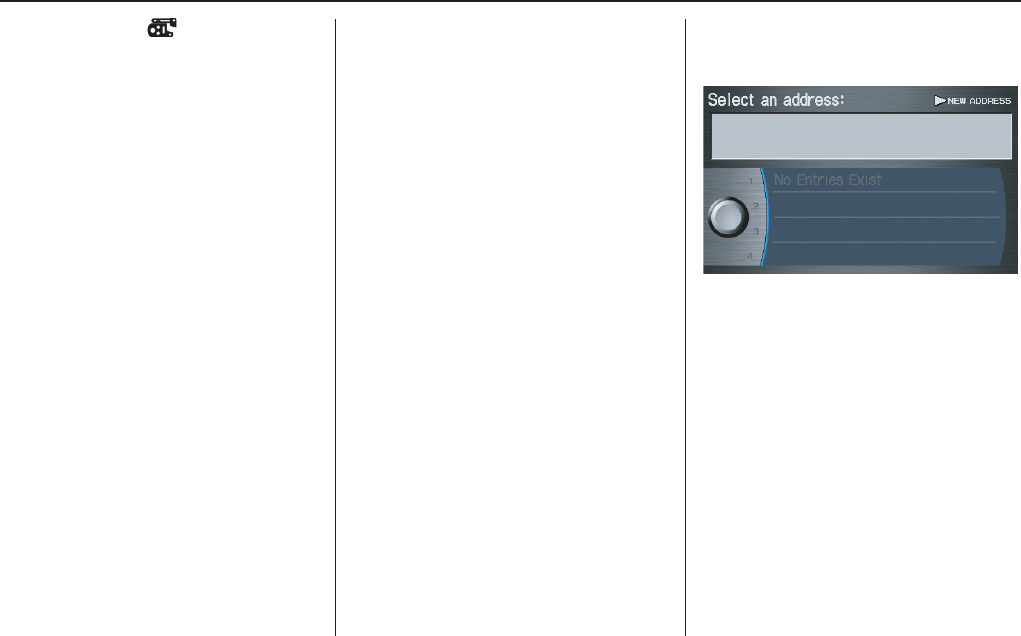
86 Navigation System
System Set-up
Address Book
The Address Book function allows for
up to a total of 200 address entries. After
200 entries, the ADD TO Address
Book button is grayed out. The 200
addresses are shared between Driver 1
and Driver 2. For example, if Driver 1
has 150 addresses, Driver 2 can only
have 50.
You can add, modify, and delete
information in the personal Address
Book list.
You may choose to use a Personal
Identification Number (PIN) to protect
your privacy. However, PINs are
optional, and if you decide to use one,
record it in case you forget the number
(see page 89).
You can do the following functions in
the address book:
• Entering an address (see page 86)
• Edit an existing address (see page 89)
• Delete an existing address (see
page 89)
Accessing the Address Book List
After selecting Address Book, if an
PIN has been set, the system prompts
you to enter your PIN. After entering
your PIN correctly by voice or by using
the Interface Dial, and the system
displays your Address Book.
If no PIN has been set, the system
displays your Address Book after
selecting Address Book.
NOTE:
• If the Remote Keyless Entey is
unlinked, this feature is unavailable.
• Personal information cannot be
backed up or moved to another
Navigation system
Entering an Address Book
After you select Address Book, your
Address Book list appears:
Select NEW ADDRESS in the upper
right corner on the screen by moving the
Interface Dial right when beginning to
build your Address Book list.
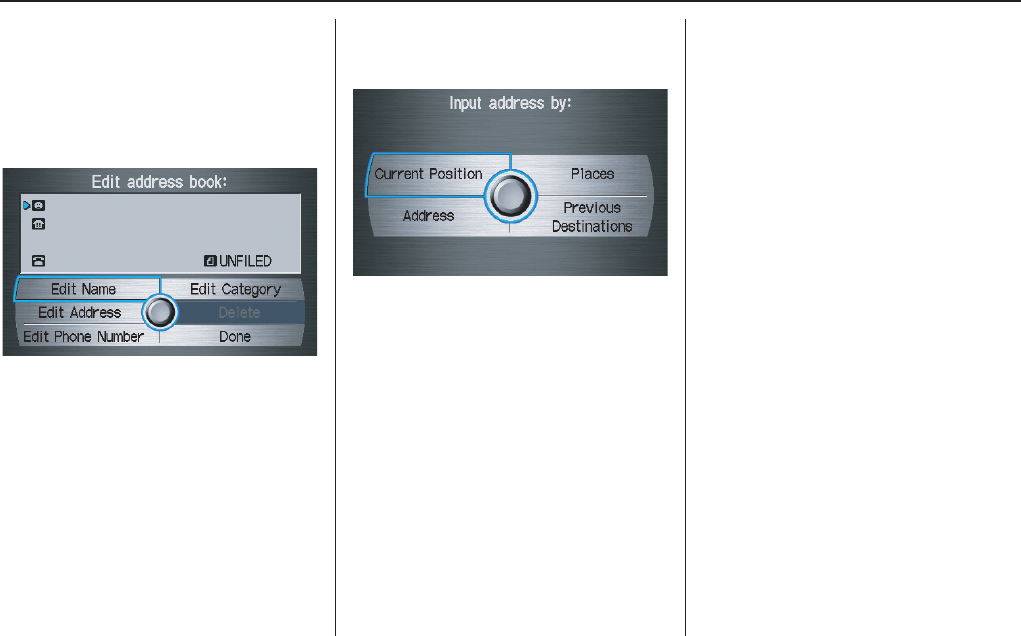
Navigation System 87
System Set-up
Edit Name
You may use the “Name” field to give
the entry a name or title that you will
recognize later, such as “Doctor Smith”
or “Broadway Theatre.” If you do not
give the address a name, the system will
assign one (Address 001, etc.).
Say or select Edit Name. Then use the
Interface Dial to enter the name.
Select DONE when finished.
NOTE:
You can always re-enter, edit, or make
changes to any entry. “Address” is the
only required field.
Edit Address
When you say or select Edit Address,
the display changes to:
Current Position - Allows you to use
your current position as the address.
Address - Requires you to enter the city
and address you wish to store. The
operation is the same as selecting
Address from the Enter destination
by screen (see page 27).
Places - Allows you to select one of the
Point of Interest (POI) locations already
stored in the system as one of your
personal addresses. This operation is the
same as selecting Places from the
Enter destination by screen (see
page 33).
Previous Destinations - Allows you to
choose one of the locations in the
Previous Destination list for your
Address Book list. This operation is the
same as selecting Previous
Destinations from the Enter
destination by screen (see page 44).
After you have used one of these four
options to enter the address, the initial
screen for entering the personal address
is re-displayed, with the address shown
in the “Address” field. If you have
entered the address using Places, the
phone number corresponding to the
address also appears in the “Phone
Number” field.
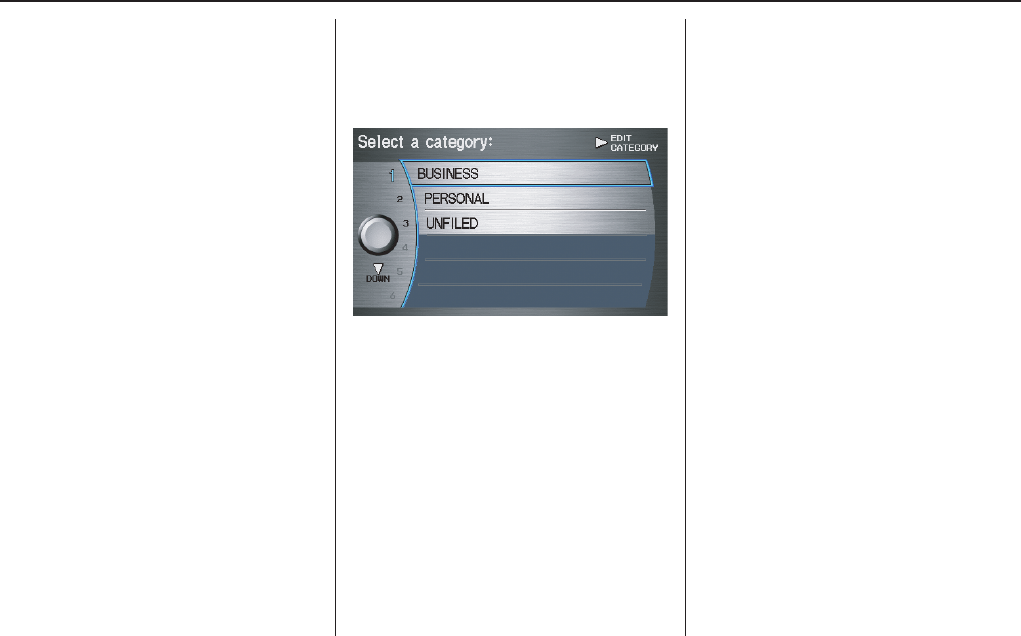
88 Navigation System
System Set-up
Edit Phone Number
You can enter the telephone number of
the address. If the address was chosen
with Places, and it has a telephone
number, that number is entered
automatically.
Say or select Edit Phone Number to
display the Enter phone number
screen. Enter the telephone number,
including the area code, by using the
voice control system (say the entire
phone number one digit at a time), or by
using the Interface Dial. Say or select
DONE when finished.
Edit Category
If desired, you can specify the category
of the address. Say or select Edit
Category to display the Select a
category screen.
Scroll the screen and select a category
by saying the number next to your
choice, or by pushing in on the
Interface Dial.
If you wish to set, add, or edit a new
category, select EDIT CATEGORY in
the upper right corner on the screen. The
system will show the Select a
category to edit screen. Follow the on-
screen prompts to add, change or delete
a category. If you delete a category that
was used to categorize addresses, the
category for those addresses becomes
“UNFILED.”
NOTE:
You may have up to 100 categories.
These are shared between Driver 1 and
Driver 2.
The system will then display everything
that you have entered.
If all the information is correct, say or
select Done. This will return you to the
Address Book list.
If you want to enter another address,
select NEW ADDRESS in the upper
right corner on the screen, then repeat
the procedures above. If not, press the
CANCEL button.
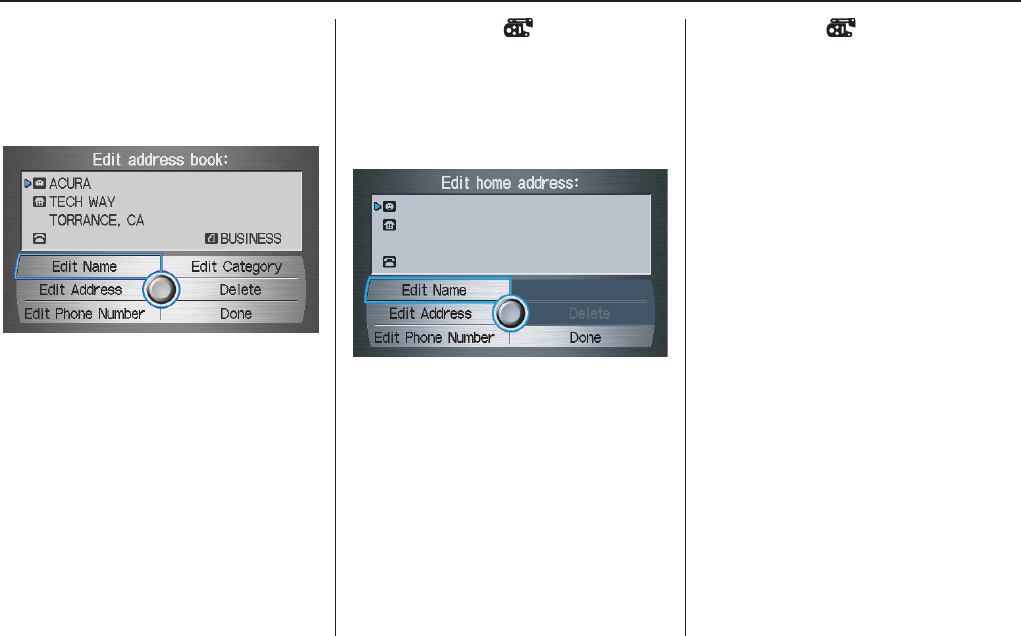
Navigation System 89
System Set-up
Edit/Delete an Address
This feature allows you to select an
address to edit or delete. Once an
address is selected, choose the
appropriate function and push in on the
Interface Dial to select.
Home Address
This feature lets you return “Home”
from any location simply by saying “Go
home” at the map screen. Alternately,
you can select Go Home on the Enter
destination by screen (see By Go Home
on page 49).
Enter the Name, address, and phone
number in the same way as entering a
personal address, then say or select
Done. To leave the screen, press the
CANCEL button.
NOTE:
If your Home address cannot be found
in the system then, while located on the
street close to your home, select
“Current Position” when entering the
“Edit Address” field.
PIN Number
You can set a four-digit PIN (Personal
Identification Number) for accessing the
following features, if desired:
•Setup:
- Address Book
- Home Address
-PIN Number
•Enter destination by screen:
- Address Book
-Go Home
•Map screen:
- Go Home (by voice control)
•Information screen
- Calendar
Once you set your PIN, the system will
ask you to enter the PIN when you
access these features.
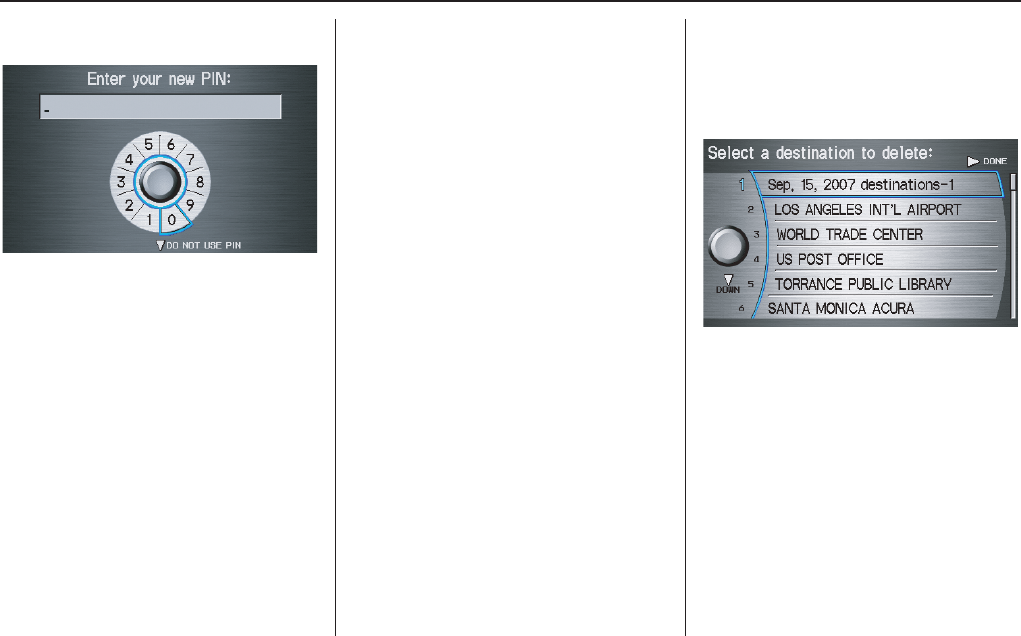
90 Navigation System
System Set-up
1. Select PIN Number. The display
changes to:
2. Enter your new four-digit PIN. If you
do not wish to use a PIN, select DO
NOT USE PIN.
NOTE:
The factory default is no PIN.
3. When you have entered your PIN, the
display changes to the Please re-
enter new PIN screen. Enter the
same number to validate the number
you have selected.
4. If you have entered the same number
both times, the display returns to the
Edit personal information screen. If
not, “INCORRECT PIN” appears.
Enter your PIN again.
NOTE:
• If you start the vehicle and the MID
displays only “Welcome,” this
function is unavailable.
• If you wish to remove your PIN,
return to the same screen and, after
entering your PIN correctly, select
DO NOT USE PIN.
• PINs are optional. If you choose to
use a PIN, make sure you remember
it. If you forget your PIN, your dealer
will have to reset it for you.
Previous Destinations
Allows you to delete some or all of your
previous destinations.
1. Select this option, and the display
changes to:
NOTE:
Normally, moving the Interface Dial
left exits most screens. However, for this
screen, moving the dial left deletes all of
your previous destinations.
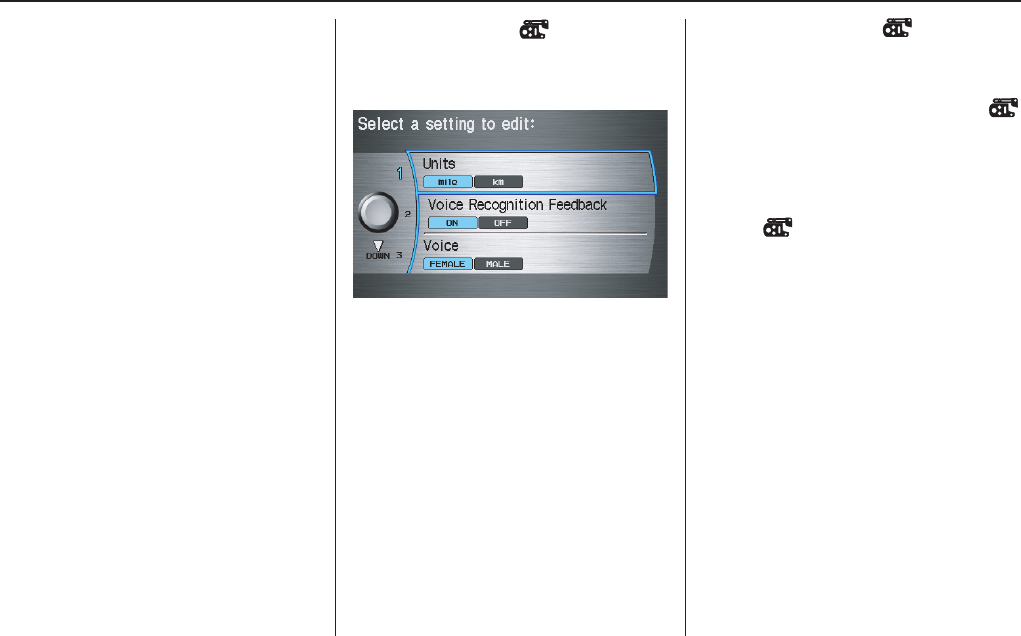
Navigation System 91
System Set-up
2. Scroll through the list and find the
address you want to delete.
3. Select the address to delete by saying
the line number, or by using the
Interface Dial.
NOTE:
To cancel the deletion of Previous
Destinations, press the CANCEL
button before performing step 4.
4. Say or select DONE to perform the
deletion, and the display returns to
the previous screen.
Tip:
You can delete all addresses by
selecting DELETE ALL.
Basic Settings
From the Setup screen (second), say or
select Basic Settings and the
following screen appears:
Units (mile or km)
Allows you to select the units for the
entire system (mile or km).
Voice Recognition Feedback
Allows you to turn voice control system
prompts ON or OFF. When OFF, you
will not hear the voice control system
confirmations or prompts.
Voice
Allows you to select the guidance voice:
FEMALE or MALE.
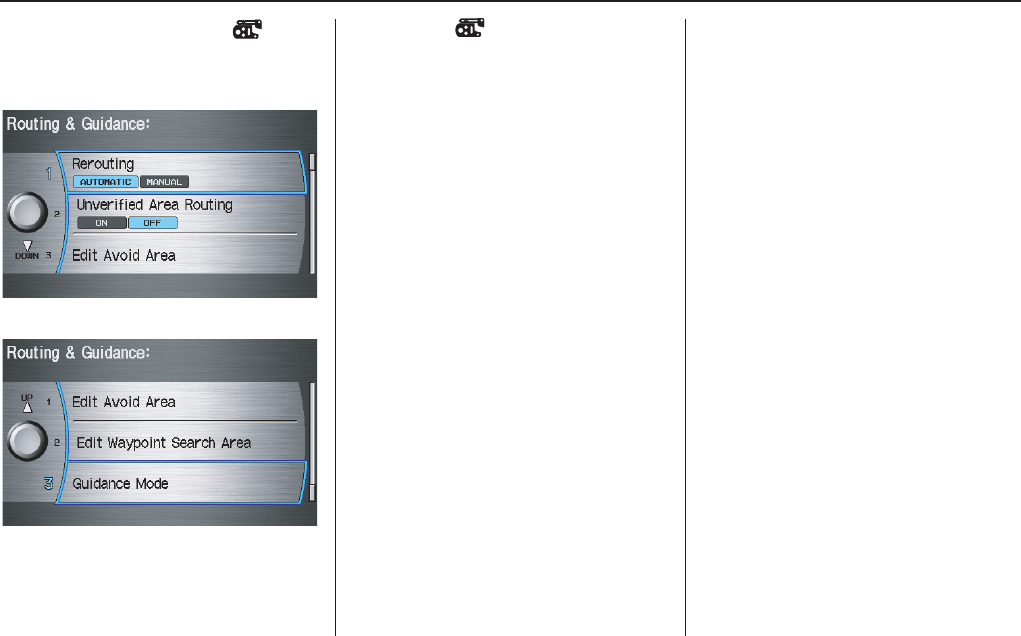
92 Navigation System
System Set-up
Routing & Guidance
From the Setup screen (second), say or
select Routing & Guidance and the
following screen appears:
to
Rerouting
If Rerouting is set to AUTOMATIC
and you deviate from the route, you will
see “Recalculating...” at the top of the
screen for several seconds as the system
calculates a new route. This is followed
by new routing instructions.
If Rerouting is set to MANUAL, you
will hear a tone when the “Off route”
message is displayed. Say “Recalculate”
or select Recalculation on the screen
to make the system recalculate your new
route.
NOTE:
• If you live in an area with poor
mapping, you may wish to set
Rerouting to MANUAL to avoid
constant recalculation. However, you
will have to manually select
Recalculation on the screen to have
the system plot a new route.
• It is strongly recommended that you
leave the system set to the factory
default (Automatic).
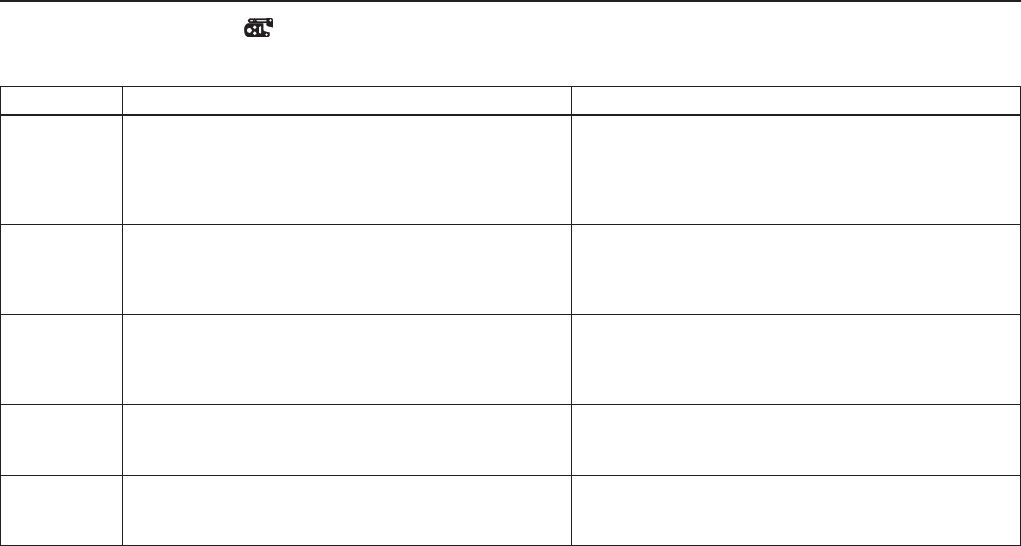
Navigation System 93
System Set-up
Unverified Area Routing
Allows you to receive turn-by-turn map and voice guidance in unverified areas when on route to a destination (see Map Overview
on page 6). The chart below illustrates the routing differences with this setting ON or OFF.
Unverified Area Routing: OFF (factory default) Unverified Area Routing: ON
Decision:
Why choose
ON or OFF?
The driver wishes to navigate manually by using the
navigation map and choosing the streets that lead to the
destination. The driver understands that unverified
roads may not be accurate, and can contain errors in
location, naming, and address range.
The driver chooses to let the navigation system suggest
possible routing. The driver understands that in some
cases guidance may not be appropriate. Unverified
roads may not be accurate, and can contain errors in
location, naming, and address range.
What you will
see...
A blue dotted vector line is displayed on the map that
continually points to your destination. The driver
should stop and then use the map to select streets that
lead to the destination.
A blue-pink dashed route line highlights suggested
unverified streets on the map while traveling to your
destination. This is in sharp contrast to the normal blue
route line displayed in verified areas.
Cautionary
messages
There are cautionary pop-up screens and voice
announcements, before and during the route. These
serve as reminders that you should obey all traffic
restrictions.
There are cautionary pop-up screens and voice
announcements, before and during the route. These
serve as reminders that you should exercise additional
caution, and obey all traffic restrictions.
Guidance
(map/voice)
There is no turn-by-turn map or voice guidance. Voice guidance commands end with the words “If
possible.” This is to remind the driver to verify all
traffic restrictions before making a maneuver.
Directions list A direction list is typically not available. However,
depending on your route, directions are provided to
help you reach the first available verified road.
A direction list is provided showing street names and
turn symbols in pink.
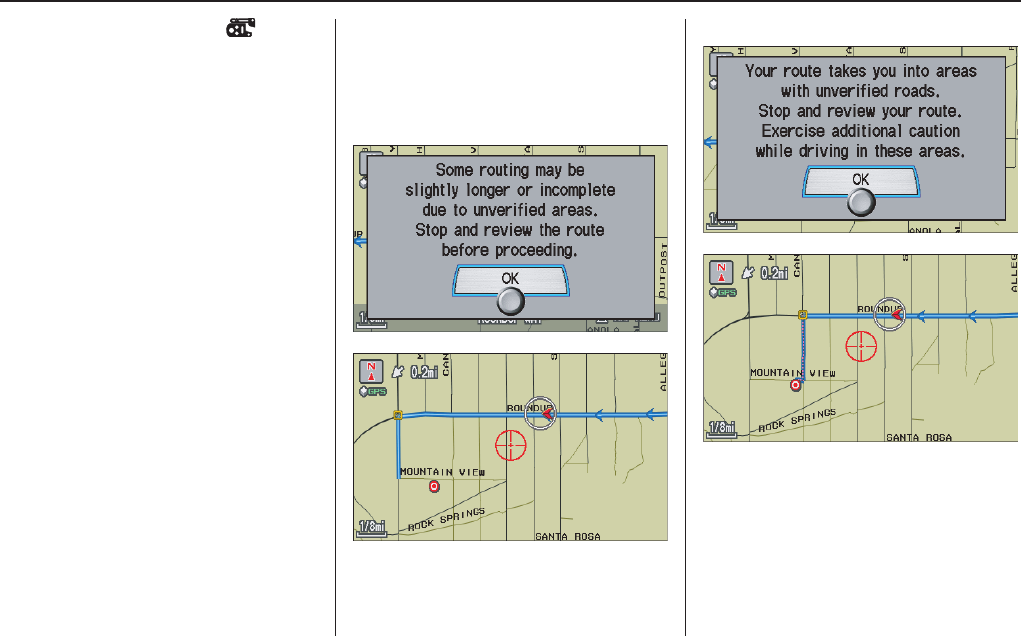
94 Navigation System
System Set-up
Unverified Area Routing
When driving to your destination, you
have the choice of using or not using
“unverified” roads. You make this
choice in the Setup screen. The next
few pages contain an example of a route
to a destination in an unverified area
explaining the routing differences found
in unverified areas.
With Unverified Area Routing OFF,
the system tries to use verified roads
whenever possible. In this example,
since only verified streets are used, it
created a longer route than necessary.
With Unverified Area Routing ON,
the route is shorter, but consists of
unverified (light colored) streets that
may not be accurate. Because the streets
are unverified, there may be errors in
street location, name, or address range.
Additional caution is recommended in
these areas. Always obey posted traffic
restrictions.
Because both routes bypass or use
unverified streets, an initial Disclaimer
screen is provided. It is recommended
that you stop and review the map.
Unverified Area Routing “OFF”
Unverified Area Routing “ON”
NOTE:
Unverified roads are shown only when
viewing the map in the 1/20, 1/8, and 1/
4 mile map scales, or the 80, 200, and
400 meter map scales.
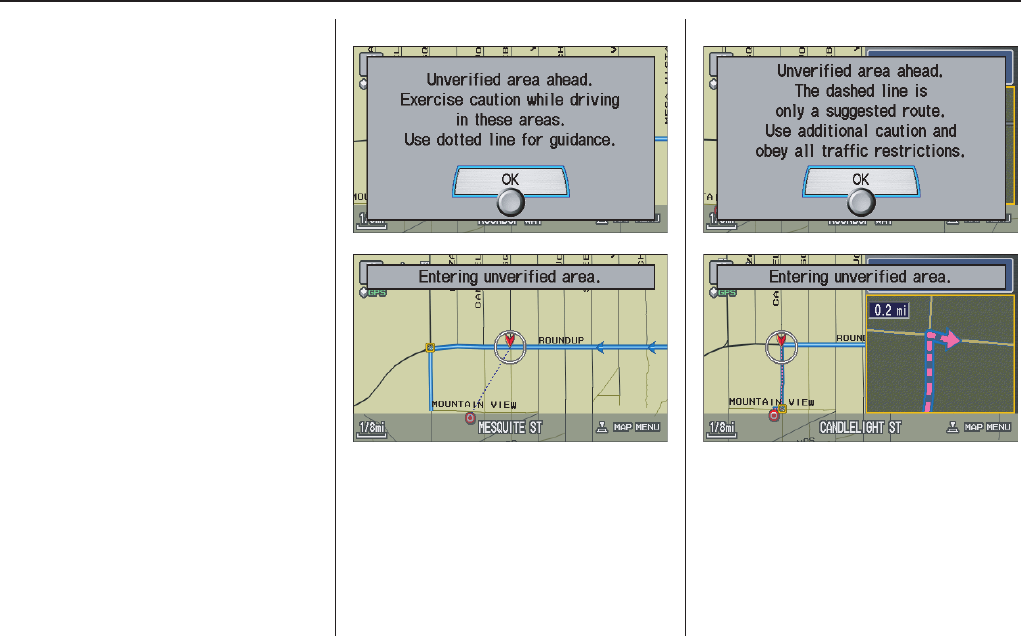
Navigation System 95
System Set-up
With Unverified Area Routing OFF,
the driver chose to take a shortcut, and
avoid the long route. The moment you
enter an unverified street, a caution box
appears on the screen, and is read by the
voice. This lets you know that you are
about to enter an unverified area and
that you will be following a dotted
“vector line” that points to your
destination.
With Unverified Area Routing ON,
a caution box appears on the screen and
is read by the voice. In this case you will
be presented with a dashed blue/pink
line instead of the regular blue route
line. You cannot assume that all
guidance is appropriate. This is your
signal to pay attention to posted traffic
restrictions.
In both cases, when you actually enter
the unverified street, a short caution will
remind you. You will see and hear this
short caution message whenever you
enter unverified areas.
Unverified Area Routing “OFF” Unverified Area Routing “ON”
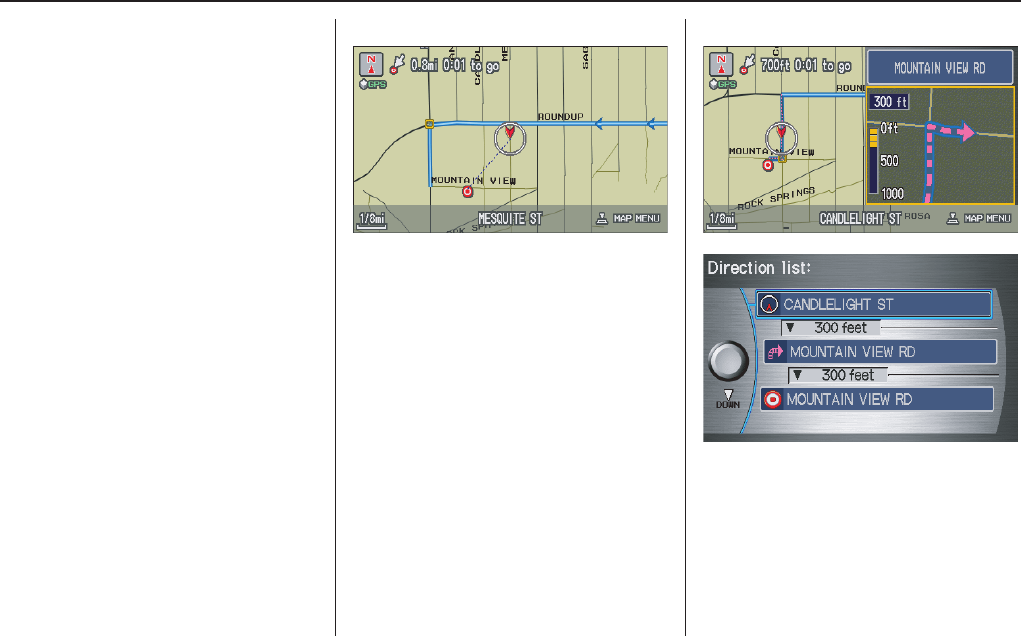
96 Navigation System
System Set-up
With Unverified Area Routing OFF,
you are presented with a blue “vector
line” that always points to the
destination. You must manually choose
streets from the map that will lead to
your destination. No guidance is
provided, and there are no directions to
the destination.
With Unverified Area Routing ON,
a blue/pink route line is shown for
unverified segments. Voice guidance
commands in unverified areas always
end with “if possible.” This is your
signal that you should use additional
caution, and obey all traffic restrictions.
The maneuver window “arrow” shows
any portions of unverified turns in blue/
pink dashes.
These guidance maneuvers are only a
suggestion. You should always confirm
that the maneuver is possible. A
directions list is also provided that
shows any unverified roads in a blue
color, with pink arrows pointing to the
next maneuver.
Unverified Area Routing “OFF”
NOTE:
For the pop-up menu displayed when
pushing in on the Interface Dial from
the map screen, Voice and
Directions are grayed out. With
Unverified Area Routing “OFF,” no
Direction List is provided.
Unverified Area Routing “ON”
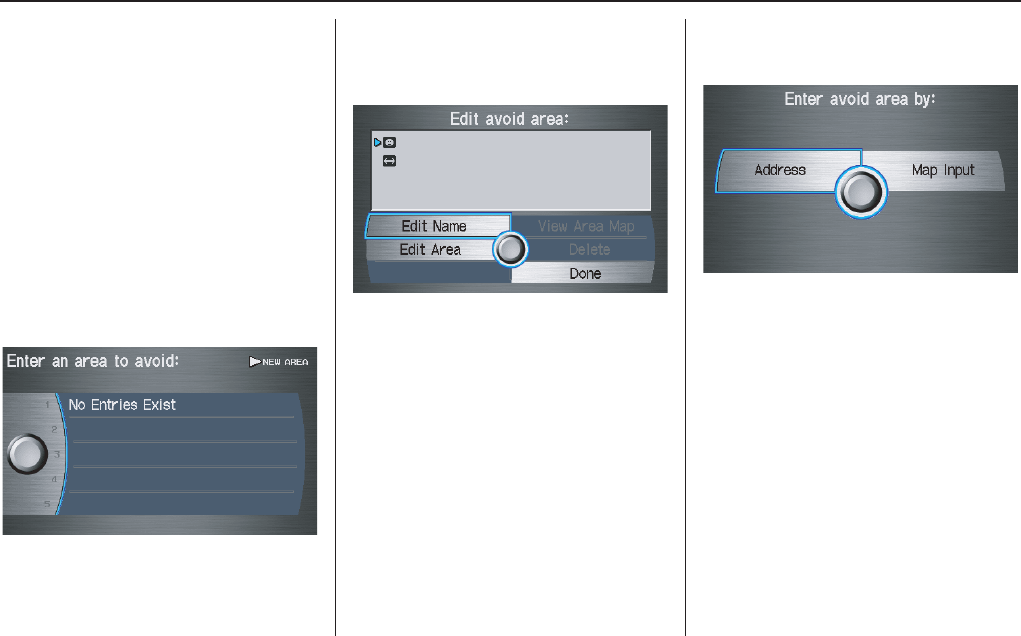
Navigation System 97
System Set-up
Edit Avoid Area
This function allows you to select areas
you wish to avoid when calculating a
route to your destination. You can select
up to 5 areas to avoid. You may wish to
set up an “avoid area” to route around
long term road construction, closures, or
any area you wish to avoid. If you enter
a route that takes you through or into an
“avoid area,” a pop-up box will warn
you that your route takes you into one of
these areas. However, you can still
choose destinations in an avoided area.
When you select Edit Avoid Area, the
following list screen is displayed.
You can select NEW AREA, or select
one of your existing areas to modify. If
you choose NEW AREA, the following
screen is displayed:
Say or select Edit Name, and use the
Interface Dial to enter the name on the
Enter avoid area name screen (19
characters max). Say or select DONE to
return to the previous screen.
Say or select Edit Area, to create the
area to be avoided. The following screen
appears.
Either select Address or Map Input
on the Enter avoid area by screen.
Each choice provides a slightly different
way to locate the approximate map
display for drawing the area you wish to
avoid.
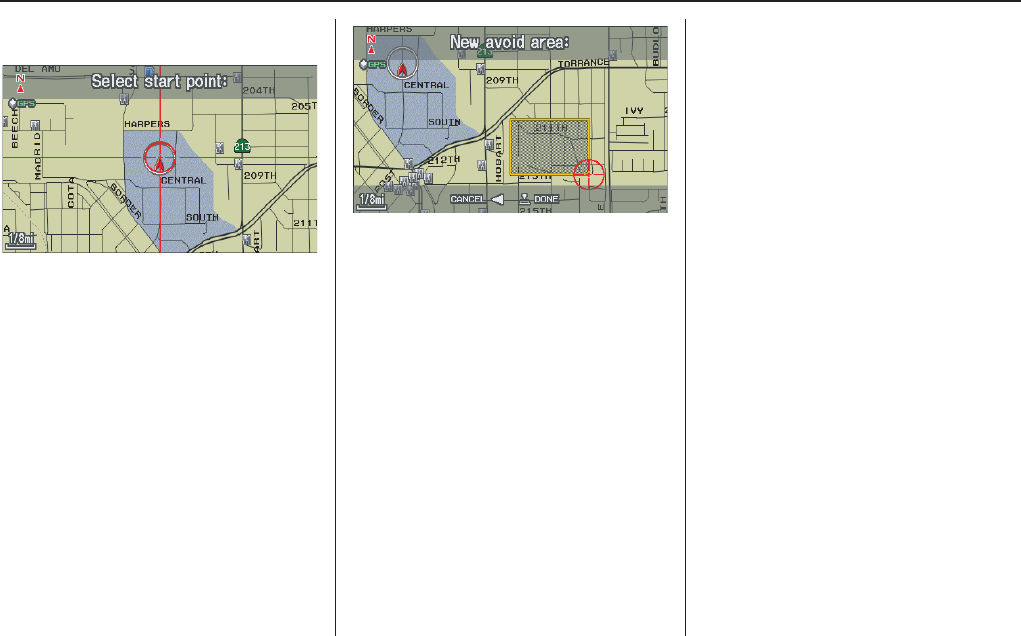
98 Navigation System
System Set-up
After selecting the choice, a map screen
will be displayed.
Rotate the Interface Dial knob to
select the map scale (available scales are
1/20, 1/8, and 1/4 mile scales). Use the
Interface Dial to move the crosshairs
(red circle) to the desired start point and
push in on the Interface Dial to “set”
the start point. Then move the
Interface Dial in a straight or diagonal
direction to encompass the area to be
avoided.
NOTE:
The maximum size of the “Avoid area”
is 1/4 of the navigation display screen
regardless of the map scale setting.
The selected area will be displayed as a
shaded box with an orange border. Push
in on the Interface Dial to set the end
point of the avoided area.
To “re-draw” the area, select CANCEL
and repeat the area selection process.
Say or select DONE to return to the
Edit avoid area screen.
If your selected area contains a freeway,
the system will prompt you with a pop-
up box saying, “Do you want to avoid
freeways?” Answering “No” allows you
to enter a route through an avoided area
on a freeway, and skip the “Avoid area
caution box” (See Pop-ups and
Disclaimers on page 69).
When you return to the Edit avoid area
screen, the “Vicinity” field is
automatically filled in by the system.
Re-edit the area “Name” if desired.
Select Done on the Edit avoid area
screen to finish editing. Your new
avoided area will now appear on the
“Avoid area” list, and be viewable on
the map screen.
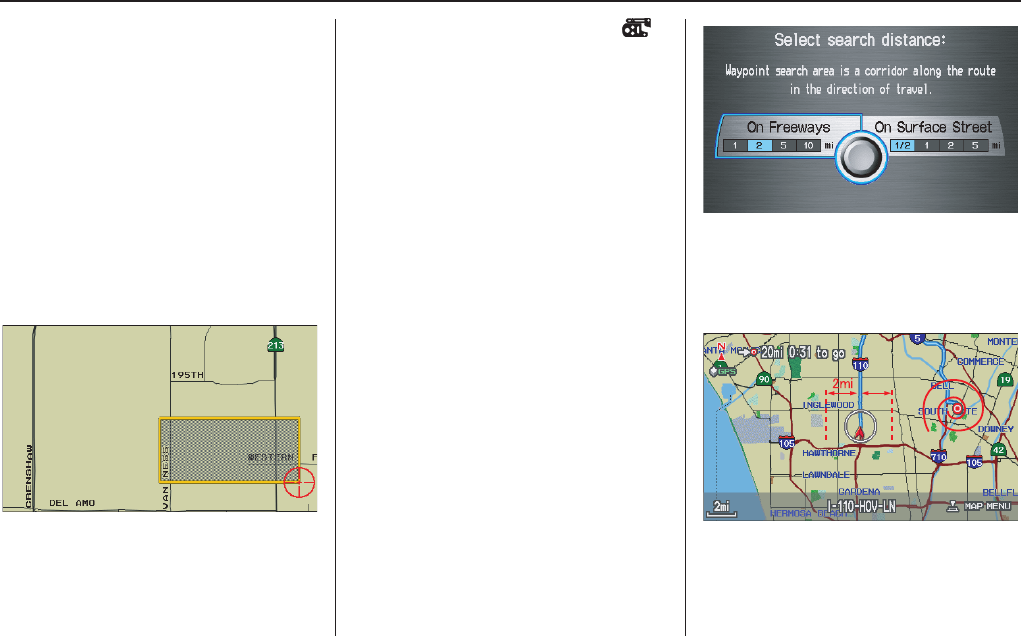
Navigation System 99
System Set-up
NOTE:
• You can select areas to avoid,
however you cannot select roads or
areas that you want the system to use
for routing.
• If you are drawing a box around a
road as an area to avoid, ensure the
following: When you draw the box,
make sure that the road or portion of
a road that you encircled includes an
intersection. For instance, in the
example below, highway 213 will be
avoided, but Van Ness will not be
avoided because it lacks an
intersection in the enclosed box.
Edit Waypoint Search Area
When driving on route to your
destination, you can select a temporary
destination “waypoint” (marked with a
small flag on the map) along your route
for gas, a restaurant, or other POI. When
you resume your trip from the
“waypoint,” the system continues the
trip to your original destination. To use
this feature, see Search Waypoint on
Route on page 71.
This Setup item allows you to select the
distance from your highlighted route
line (on either side of your route), that
the system will search for a “waypoint.”
From the Routing & Guidance screen,
select Edit Waypoint Search Area,
and then choose the desired search
distance for either “On Freeways” or
“On Surface Street.”
The diagram below shows how the
system handles the search for places
“Along the route” or “Around the
destination” (see Search Waypoint on
Route on page 71).
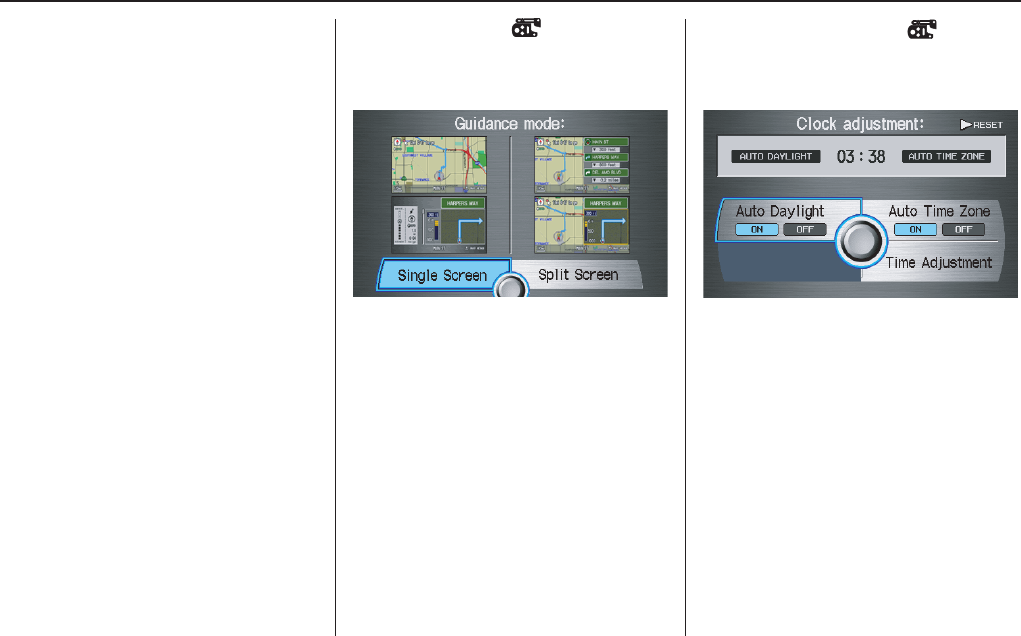
100 Navigation System
System Set-up
For “Places along the route,” the system
looks in front of you within a corridor
width specified by your values for “On
Freeways” or “On Surface Street.” The
system checks the upcoming area, based
on your input.
For “Places around the destination,” the
system searches outwards in a spiral
from the destination. In this case,
specific search values are not needed;
the matches are displayed in order of
distance from destination.
NOTE:
These settings do not affect the search
range used for the voice commands like,
“Find nearest gas station,” that are
also available when viewing the map
screen.
Guidance Mode
Allows you to select the guidance
display mode: Single Screen or Split
Screen.
The factry default is Single Screen.
NOTE:
The Guidance Mode can also be
selected on the Icon Selection screen.
See Showing Icons on the Map on
page 65.
Clock Adjustment
From the Setup screen (second), say or
select Clock Adjustment and the
following screen appears:
Clock Adjustment allows you to set
Auto Daylight Savings, Auto Time
Zone, and Time Adjustment. The
factory setting is ON for both.

Navigation System 101
System Set-up
Auto Daylight
Sets automatic daylight saving time ON
or OFF. If you reside in a state or area
where daylight saving time is not used,
then you may want to turn this feature
off.
NOTE:
If you set Auto Daylight to ON, the Auto
Daylight function is activated even in an
area that does not adopt the Auto
Daylight system.
The federal government has mandated
that, starting in 2007, daylight savings
time will change in March & November
instead of the old schedule in April &
October. The new government daylight
savings time schedule is subject to
review and possible cancellation in
2008.
At the time your navi DVD was
produced, the navi is programmed to
change its clock in April/October. The
dates that the navi switches between
standard and daylight savings time are
stored in the navi software, and is not
triggered by GPS satellite signals.
Therefore your navi clock will change
based on the old daylight savings time
schedule (April/October). To minimize
inconvenience caused by the new law,
we recommend the following:
1. The Clock adjustment screen in the
Setup, set Auto Daylight to OFF.
2. When it is time to adjust the clock for
daylight savings time, go to the Clock
adjustment screen in the Setup.
3. Select Time Adjustment and
simply adjust the navi time using the
Interface Dial by one hour.
Auto Time Zone
Sets automatic time zone selection by
GPS ON or OFF. If you are driving
across the country and passing through
time zones, then this feature will
automatically set the time to the time
zone you are traveling through.
However, if you live and work in two
different time zones, you may want to
turn this feature off.
NOTE:
When driving near a time zone
boundary, the displayed time zone may
fluctuate between the two zone times.
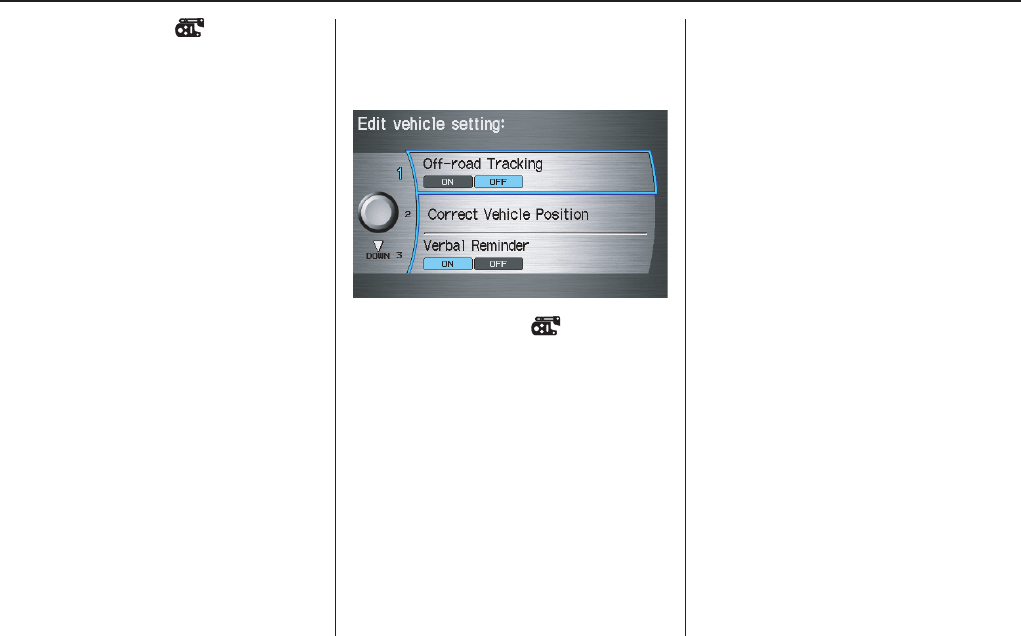
102 Navigation System
System Set-up
Time Adjustment
Adjusts the current time in hours and
minutes. Switch HOUR and MINUTE
by moving the Interface Dial left or
right, and change value by rotating the
Interface Dial knob. Selecting
DONE returns you to the previous
screen. You can reset the adjustment by
selecting RESET.
NOTE:
Selecting RESET also clears any
changes you made to “Auto Daylight”
or “Auto Time Zone” settings.
Depending on your location, you may
need to adjust these settings.
Vehicle
From the Setup screen (second), say or
select Vehicle and the following screen
appears:
Off-road Tracking
With this ON, the system will provide
white off-road tracking dots
(“breadcrumbs”) on the map screen
whenever you drive into an area where
the map does not show any roads. See
Map Screen Legend on page 20.
After you have traveled approximately
1/2 mile away from a mapped road, the
system will display a series of white
dots on the map screen to show the path
you have traveled. This is provided so
you can follow the dots to backtrack to
the mapped road you originally left.
Tracking continues until you reach a
mapped road. See Off-road Tracking on
page 67.
Tracking is shown only in the 1/20, 1/8,
1/4, and 1/2 mile, or the 80, 200, 400,
and 800 meter scales. Rotate the
Interface Dial knob to change the
scales if necessary.
NOTE:
To clear existing dots, turn this feature
off and exit Setup. To re-enable this
feature, return to Setup and turn it on
again.
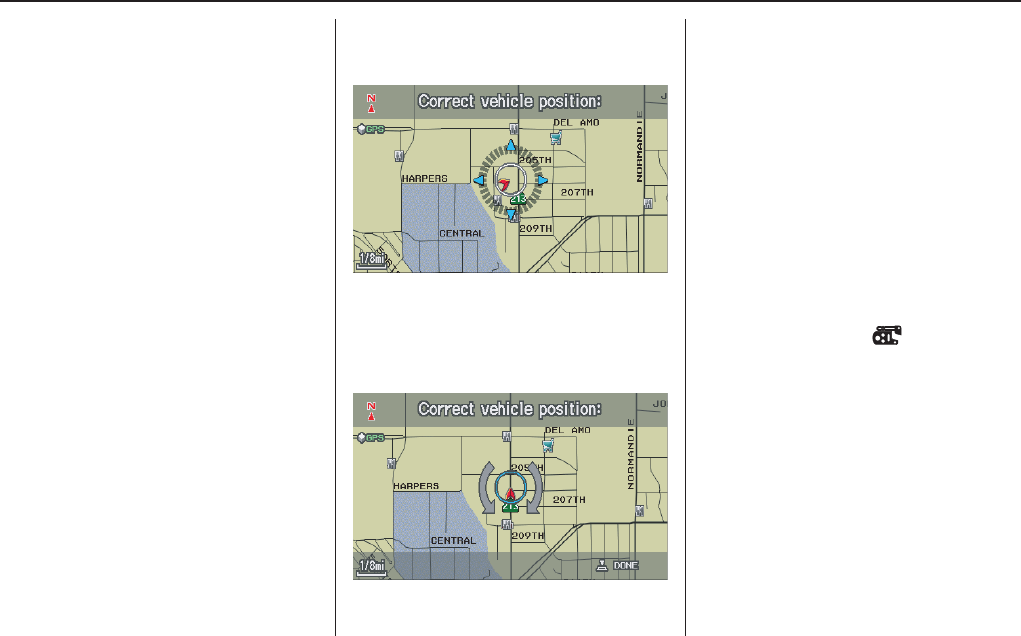
Navigation System 103
System Set-up
Correct Vehicle Position
The system relies on satellites for
positioning information. Buildings,
tunnels, and other objects can block or
reflect these signals, requiring the
system to use “dead reckoning” to
determine your location and direction.
This can sometimes lead to small errors
in positioning, such as showing you on
an adjacent street.
NOTE:
Using this function to adjust vehicle
position is not recommended. When the
system acquires a GPS signal, it will
automatically place the vehicle in the
correct location.
If you choose to do this, follow these
steps:
1. Stop the vehicle.
2. Select Correct Vehicle Position,
and the system will display a map
adjustment screen.
3. Use the Interface Dial to move the
vehicle position arrowhead to the
correct location, and push in on the
Interface Dial. The display will
change to:
4. Rotate the Interface Dial knob so
the vehicle position arrowhead is
pointing in the correct direction, and
push in on the Interface Dial. The
display will return to the previous
screen.
NOTE:
If you continually have to do this, there
are either problems in the database or
GPS reception problems. See
Accessories Precautions on page 5.
5. As you drive, the current road will be
displayed at the bottom of the screen.
Verbal Reminder
This function allows you to turn ON or
OFF verbal reminders. Examples of
these reminders include:
• Driving with the parking brake on
• Driving with the trunk or a door open
• A reminder to fasten your seat belt
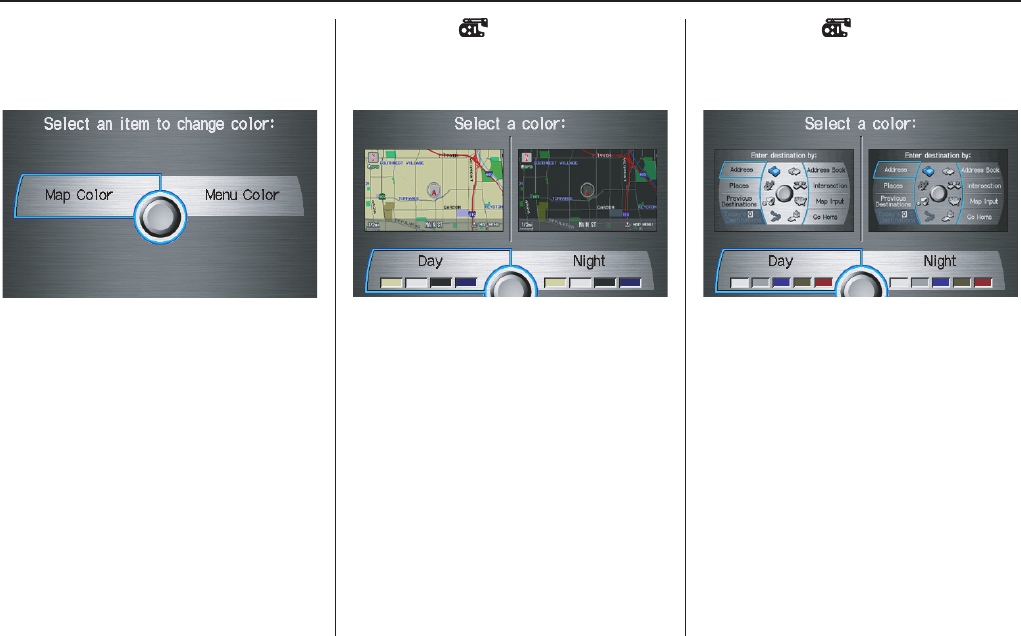
104 Navigation System
System Set-up
Color
From the Setup screen (second), say or
select Color and the following screen
appears:
Map Color
Allows you to choose the map color
from one of four colors for the Day and
Night mode.
Say “Return” or press the CANCEL
button to return to the previous screen.
NOTE:
• Choose “White” (factory default is
Beige) as the Day color to obtain the
best daytime display contrast.
• Choose “Black” (factory default) as
the Night color to obtain the best
nighttime display contrast.
Menu Color
Allows you to choose the menu color
from one of five colors for the Day and
Night mode.
Say “Return” or press the CANCEL
button to return to the previous screen.
NOTE:
• Choose “Silver metal” (factory
default) as the Day color to obtain
the best daytime display contrast.
• Choose “Black metal” (factory
default) as the Night color to obtain
the best nighttime display contrast.
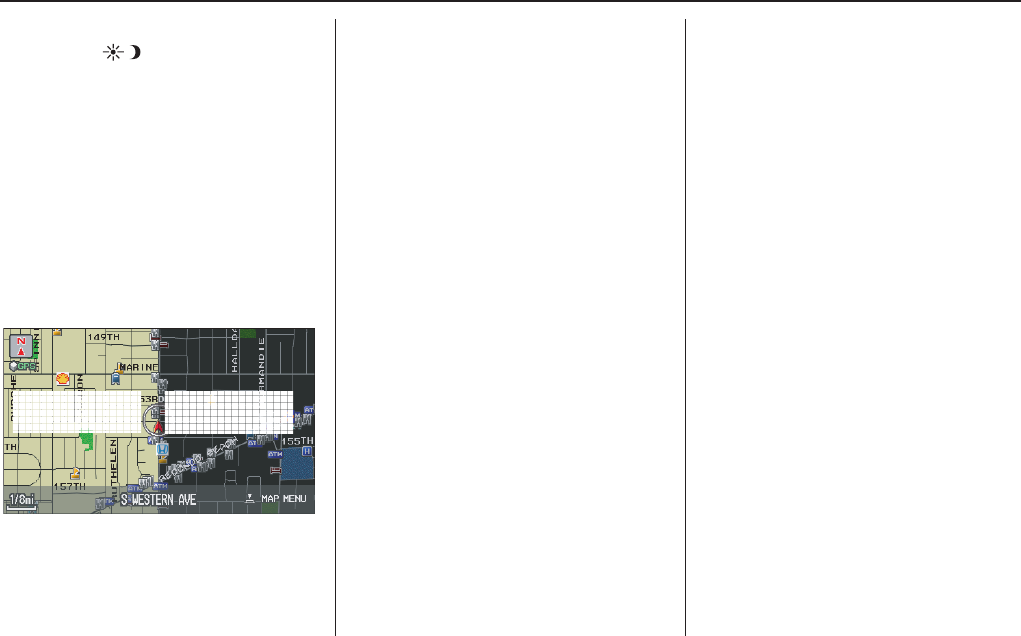
Navigation System 105
System Set-up
Switching Display Mode
Pressing the (Display mode)
button allows you to toggle through the
screen display modes: Day, Night or
Off. This button is the overriding
control for the day/night display mode,
and is the simplest way to control the
display mode. If the display is turned
Off, press any navi button to cancel the
Off position.
See the chart below for an explanation
of other day/night display mode
adjustment and how they interact with
each other.
(Factory default screen colors shown)
Day Mode Night Mode
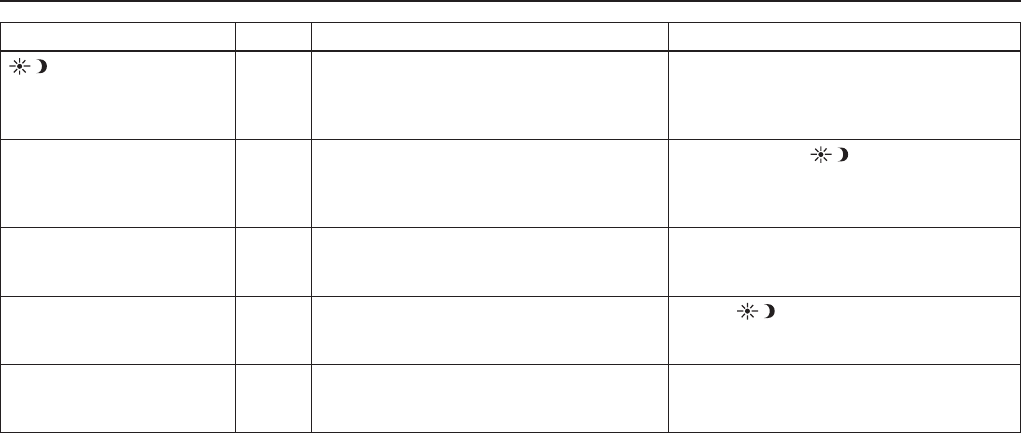
106 Navigation System
System Set-up
I
Recommended Display mode Day/Night settings:
• With the headlights on, select mid range for the dash illumination (see Owner’s manual for location of knob).
• With the headlights off, select mid range for the dash illumination (see Owner’s manual for location of knob).
• On the Setup “Color” adjustment screen, choose White for the map Day display, and black for the map Night display (see
page 105). Inappropriate adjustment of these colors can cause the Day/Night modes to appear inoperative.
llumination control Priority Operation Override conditions
(Display mode)
button (see page 11)
1 Allows selection of Day, Night or Off display
mode. This button has the highest priority and
overrides all other display control adjustments
listed below.
When the car is restarted, the display mode
previously selected by this button is canceled,
and the display mode is determined by one of
the controls below.
Sunlight Sensor (Middle of
dash near the windshield).
(See owner's manual for
location)
2 If the sunlight sensor detects daylight and the
headlights are turned on, the navi automatically
overrides (cancels) the Night display and
displays the Day display mode.
If desired, use the (Display mode)
button to override this automatic choice.
Dash illumination adjustment
button (See owner's manual
for location)
3 When headlights are turned on, and you wish to
have the Day display mode, then adjust the
illumination to the full bright setting (beeps).
When the headlights are turned ON, adjust the
dash brightness down (counterclockwise) from
the maximum brightness position.
Headlights (On/Off) 4 When turned on, it changes the display to the
Night display mode. The previous 3 controls
listed above can “cancel” this function.
Use the (Display mode) button, or
adjust the dash illumination to full bright to set
the display to your desired choice.
Map Day/Night screen color
choice (see page 105 for the
Day and Night color choices)
N/A The user can select the color of the screen that
will be displayed for the Day, and Night
display modes described above.
For best contrast, ensure that the Map “color”
is white for Day, and black for Night.

Navigation System 107
System Set-up
• To allow the Sunlight sensor to function properly, avoid blocking the sensor with loose articles (see Owner’s manual for
location of sensor).
• Remember that once the (Display mode) button is selected, the other display mode controls are overridden until the
vehicle is restarted.
NOTE:
Loose articles in the center dash can block or interfere with the operation of the sunlight sensor. See the RDX Owner’s Manual
for additional information regarding the dash brightness adjustment.
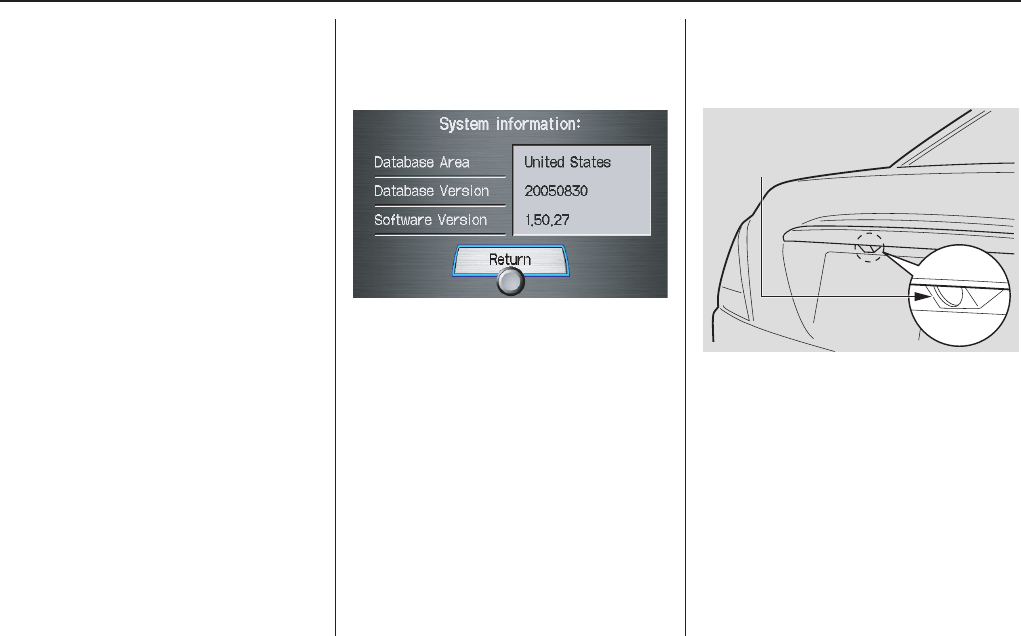
108 Navigation System
System Set-up
AcuraLink/Messages
For complete details on setting up your
AcuraLink messaging, refer to the
AcuraLink section in your Owner’s
manual. Or, you can go to the Owner
Link section on the RL page in
www.acura.com.
System Information
From the Setup screen (second), say or
select System Information and the
following screen appears:
Displays the information on the
navigation system software. This
information is for dealer use only. For
ordering updates, use the version
number stamped on the label (as Ver.
X.XX) of the navigation DVD. See
Obtaining a Navigation Update DVD on
page 117.
When finished, say or select Return to
return to the previous screen.
Rear View Camera
Your vehicle is equipped with a rear
view camera as shown in the
illustration.
Whenever you shift to R (Reverse) with
the ignition switch in the ON (II)
position, the rear view is shown on the
navigation system screen. For the best
image, always keep the rear view
camera lens clean, and be sure it is not
covered.
Since the rear view camera display area
is limited, you should always back up
slowly and carefully, and look behind
you for obstacles.
Rear View
Camera

Navigation System 109
System Set-up
Rear View Camera Brightness
Adjustment
When in reverse, the Navi “hard”
buttons are locked out, except the
rotating portion of the Interface Dial
(knob). Rotate the knob clockwise to
make the camera image brighter, and
counterclockwise to darken the image.
This brightness adjustment is
independent of the screen brightness
adjustment in Setup.
NOTE:
• The camera brightness cannot be
adjusted by voice control.
• Slight delays can occur when
switching to the camera image, or
switching back to the map/menu
screen. This is normal.
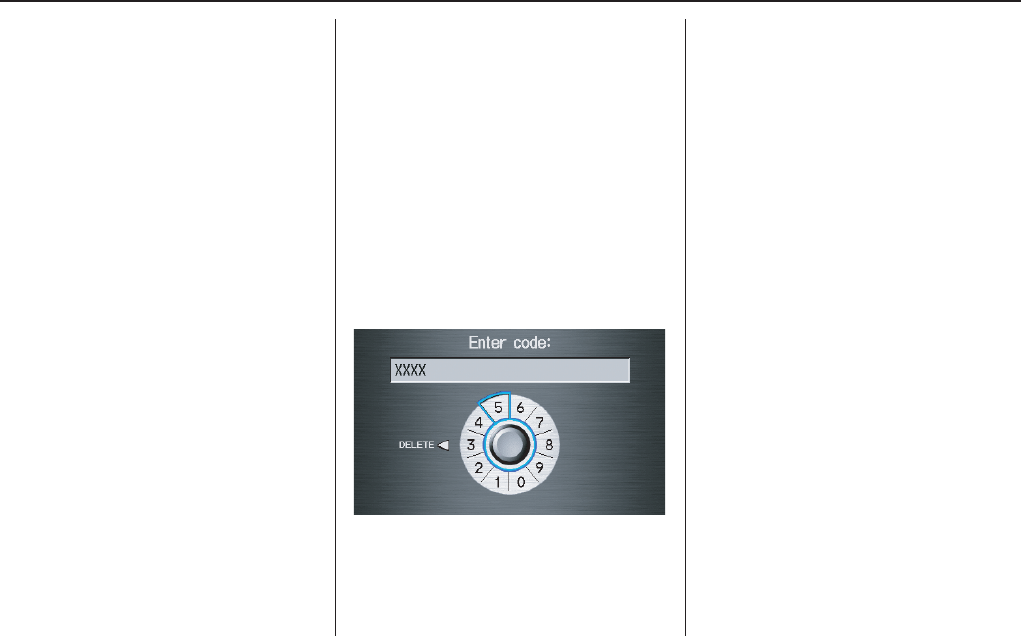
110 Navigation System
System Initialization
System Initialization
If for any reason, you lose power to the
navigation system (like the battery was
disconnected), the navigation system
will require initialization. Once
completed, your system will be ready to
use.
This initialization requires the
following:
• Entry of the 4-digit anti-theft security
code to “unlock” the navigation
system.
• GPS initialization (may not be needed
depending on the length of time the
system was without power).
• Map matching to align the GPS
coordinates to a place on the map
(displays current street at the bottom
of the map).
Entering the Security Code
If the battery goes dead or is
disconnected for any reason, you will
have to enter a security code for both the
audio system and the navigation system
before you can use it again.
When you purchased the vehicle, you
should have received two cards that
have the audio and navigation system’s
security codes and serial numbers. Keep
these cards in a safe place in case you
need the codes. If you lose the cards,
you must obtain the security codes from
your dealer.
Enter the four-digit security code. If you
have entered it correctly, the display
changes to the Disclaimer screen. If
you make a mistake, the system will
display “INCORRECT PIN.” Re-enter
your 4-digit security code. You have ten
chances to enter the correct code. If all
ten are incorrect, turn the ignition to
OFF, then back to ON (II) to have ten
more chances to enter the correct code.
Follow the instructions in the vehicle
Owner’s manual to enter the 5-digit
audio code. The navigation voice will
not operate if the audio code is not
entered.
NOTE:
The anti-theft security code is unrelated
to your optional Navigation system PIN
(for Personal or Home Address).
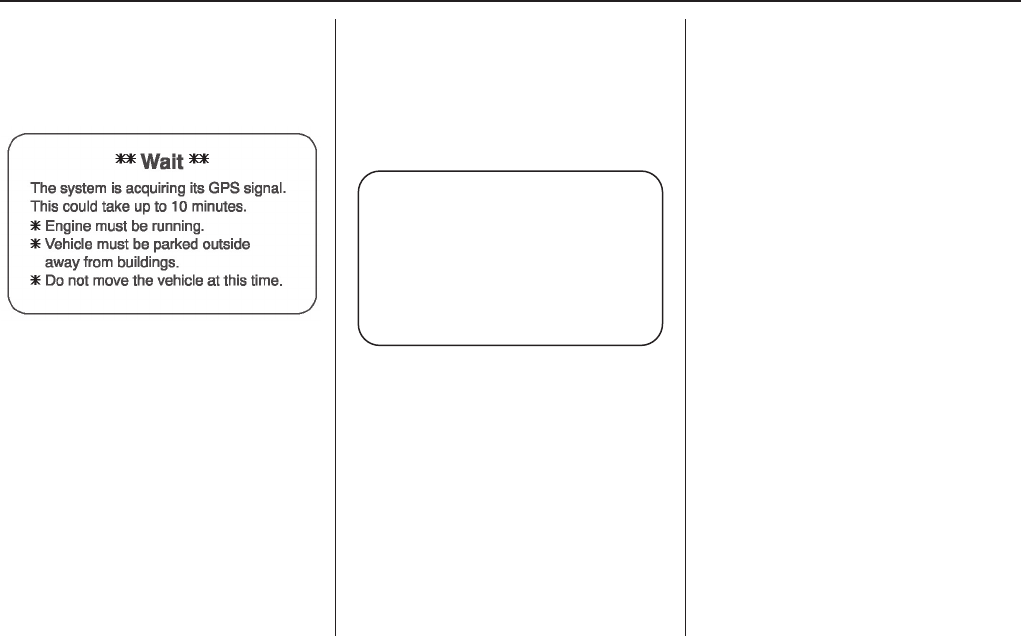
Navigation System 111
System Initialization
GPS Initialization
Depending on the length of time the
battery was disconnected, your system
may require GPS initialization. If it
does, the following screen appears:
If this procedure is not necessary, the
system proceeds directly to the
Disclaimer screen (see page 17).
During initialization, the system
searches for all available GPS satellites,
and obtains their orbital information.
During this procedure the vehicle
should be out in the open with a clear
view of the sky.
If the navigation system finds the
satellites properly, this box clears, and
changes to the Disclaimer screen. If
within ten minutes the system fails to
locate a sufficient number of satellites to
locate your position, the following
screen appears:
After 30 minutes with this screen
displayed, turn off the engine and restart
the car. If you now see the Disclaimer
screen, the GPS initialization is
complete. The green GPS icon should
appear in the upper left corner of the
screen.
NOTE:
• The average acquiring time is less
than 10 minutes, but it can take as
long as 45 minutes.
• If the system is still unable to acquire
a signal, follow the instructions on
the screen, or contact your local
dealer for assistance.
Map Matching
This part of the initialization matches
the GPS coordinates found above with a
road on the map screen. To perform this
part of the procedure, ensure that the
navigation system is displaying a map,
and drive the vehicle on a mapped road
(a road shown on the map screen). Do
not enter a destination at this time.
When the name of the current road you
are driving on appears at the bottom of
the screen, the entire procedure is
complete. Your system is now ready to
use.
Navigation system is unable to acquire
a proper GPS signal.
- Move vehicle to another location.
- Turn the ignition switch off.
- Disconnect the battery for 30 minutes
to clear the GPS receiver’s memory.
- Reconnect the battery and follow
the screen prompts.

112 Navigation System
System Limitations
Although your navigation system is one
of the most highly sophisticated pieces
of equipment you will find in a modern
automobile, you may find during its use
that it has certain limitations.
The system uses signals from the Global
Positioning System (GPS) to aid in
determining its current location. The
GPS is operated by the U.S.
Department of Defense. For security
reasons, there are certain inaccuracies
built into the GPS that the navigation
system must constantly compensate for.
This can cause occasional positioning
errors of up to several hundred feet.
For example, in urban areas where
streets are close together, this could
cause the system to show that you are
traveling on a street that parallels the
street you are actually on. The system
will, under most circumstances, correct
itself while you drive.
Also, depending on your current view of
the sky and the position of the satellites,
the elevation may be shown incorrectly.
You may also notice some delay of the
vehicle position icon at intersections;
this is normal.
GPS Reception Issues
The signals received from the GPS
satellites are extremely weak (less than
a millionth of the strength of a local FM
station), and require an unobstructed
view of sky. The signal can easily be
interrupted or interfered with by the
following:
• After-market metallic window tint
above or to the sides of the GPS
antenna (located under the center of
the rear shelf)
• Cell phones, PDAs, or other
electronic devices docked in a cradle
or laying loose on the rear shelf
• Radar detectors mounted on the rear
shelf
• Remote starters, or “hidden” vehicle
location systems mounted near the
navigation unit
• Other after-market audio electronic
devices mounted near the navigation
unit
• Trees, tall buildings, freeway
overpasses, tunnels or overhead
electrical power wires
Although the system will direct you to
your desired destination, it may not
always generate what you consider to be
the most direct route. Try changing the
method of routing. See Changing the
Routing Method on page 51. You may
also have Unverified Area Routing set
to “OFF.” See Unverified Area Routing
on page 93.
Additionally, the mapping database
contains verified and unverified maps.
See Map Overview on page 6.
A Disclaimer screen will warn you if
your route includes unverified streets.
Unverified streets may be missing from
the map, in the wrong location, or have
an incorrect name or address range.
Exercise additional caution when
driving in these unverified areas.

Navigation System 113
System Limitations
The destination icon shows the
approximate location of the destination.
This occurs because a city block can
have as many as 100 possible addresses
(for example, the 1400 block is followed
by the 1500 block.) Since most cities
use only a portion of the 100 possible
addresses (for example, in the 1400
block, the addresses may only go up to
1425 before the 1500 block starts), the
address 1425 will be shown a quarter of
the way down the block by the system
instead of at the end of the block where
the destination is actually located.
You may find that the system
occasionally “reboots.” This is indicated
by the display returning to the globe
screen. A reboot can be caused by a
number of things, such as extreme
temperatures or shock from bumpy
roads. It does not necessarily indicate a
problem that requires service. If this
happens frequently, please see your
dealer.

114 Navigation System
Database Limitations
You will find that some points of
interest (POI) may be missing when you
search the database. This can be caused
if at the time the database was gathered,
the name was misspelled, the place was
improperly categorized, or the POI
change is not yet in the database. This
means you may not find places listed
that you know exist. This is also true for
police agencies and hospitals. In
outlying areas, facilities listed may not
be the closest. Always check with local
information sources if you need law
enforcement or hospital services.
Every effort has been made to verify
that the system’s database was accurate
at the time it was created. However,
businesses do fail or move to new
locations, and new businesses start in
the old locations. For this reason, you
may occasionally find “inaccurate”
information when you select and drive
to a point of interest (for example, a
restaurant is now a jewelry store). The
number of these inaccuracies increases
the longer you go without an update.
The digitized map database reflects
conditions as they existed at various
points in time before production.
Accordingly, your DVD may contain
inaccurate or incomplete data or
information due to the passage of time,
road construction, changing conditions,
or other causes.
In addition, this database does not
include, analyze, process, consider, or
reflect any of the following categories
of information:
• Neighborhood quality or safety
• Population density
• Availability or proximity of law
enforcement
• Emergency, rescue, medical, or other
assistance
• Construction work, zones, or hazards
• Road and lane closures
• Legal restrictions (such as vehicular
type, weight, load, height, and speed
restrictions)
• Road slope or grade
• Bridge height, width, weight, or other
limits
• Road, traffic or traffic facilities
safety, or conditions
• Weather conditions
• Special events
• Pavement characteristics or
conditions
• Traffic congestion
• Travel time
We assume no liability for any incident
that may result from an error in the
program, or from changed conditions
not noted above.
Copyrights
• infoUSA-Data: Certain business data
provided by infoUSA, Inc., Omaha,
Nebraska, Copyright © 2003, All
Rights Reserved.
• EXIT-Data: © ZENRIN CO., LTD.
2003. All Rights Reserved.
• ZAGAT SURVEY: Copyright ©
[2003] Zagat Survey, LLC. All rights
reserved.

Navigation System 115
Customer Assistance
Reporting Errors
Occasionally, you may encounter
database errors.
• If the error pertains to freeways and
main “verified” roads shown in black
on the map, then report it either
online at
http://update.navteq.com/, or to
Acura Customer Services.
• If the error involves a light brown
“unverified” road, then do not report
it. These areas have not been verified,
and are provided for reference only
(see Map Overview on page 6).
• For errors in points of interest (POI),
like a business that has changed their
name, do not report them. Keep in
mind that depending on when the data
was collected, and when your DVD
was purchased, the database can be
out of date. The business may have
not reported the change(s), or not be
in the database at all. Update
Navigation DVDs are available for
purchase, usually in the fall of each
year.
• If the error does not involve the
database, such as if the vehicle
position icon does not follow the
road, screen error messages, or other
GPS related errors, see Frequently
Asked Questions on page 131, System
Limitations on page 112, or
Troubleshooting on page 139.
Acura Automobile Customer
Service
Telephone: (800) 382-2238
Fax: (310) 783-3535
Acura Navi
America Honda Motor Co., Inc.
Acura Client Services
MS 500-2N-7E
1919 Torrance Blvd.
Torrance, CA 90501-2746
If you desire more detailed information
on detailed map coverage, contact any
Acura dealer. Map coverage
information is at the Navigation DVD
order link, “ordering a Navigation
DVD” at: www.acura.com. The link is
found in “ACURA STORE.” Check the
“Coverage MAPS” link.

116 Navigation System
Customer Assistance
Visiting Your Dealer
We strive to make this manual as
complete as possible and to answer all
questions regarding operation of the
system. Occasionally you may run into a
specific issue that you cannot find in the
book. You may save yourself a trip to
the dealer by first consulting the
following resources:
• The Troubleshooting section (see
page 139)
• The Frequently Asked Questions
(FAQs) section (see page 131)
• The navi FAQs found on the on-line
DVD order site (see “Obtaining a
DVD”)
• For detailed questions regarding
HFL, audio, or other systems that
interact with the navigation system,
see the main vehicle Owner’s
manual, or the Quick Start Guide
• For traffic related issues, see the
“Real Time Traffic Display” section
(on page 23) and FAQs (on page 131)
• Call Acura Customer Relations (see
“Acura Automobile Customer
Service”)
• For database or POI issues, follow the
guidelines in the “Reporting Errors”
section (see page 115)
If your question is still unanswered and
you wish to visit the dealer, please be
prepared to demonstrate the issue to the
service writer. That way, the writer can
document the issue for the factory to
allow more efficient troubleshooting.
Some issues may at first seem random,
but you may notice a pattern, like it only
occurs when you enter some specific
address, or when driving on a certain
road, or just when it’s cold. This
information is very useful to the service
writer. Be patient, the tech may be
unfamiliar with your specific issue.
If you need to visit your Acura dealer
for a navigation related issue, ensure
that you have the “Key Fob” that was in
use when the problem occurred. Each
driver (1, or 2) can have their own
navigation and other vehicle settings. In
order for the dealer to properly diagnose
the problem, the correct key fob is
necessary to troubleshoot the issue.
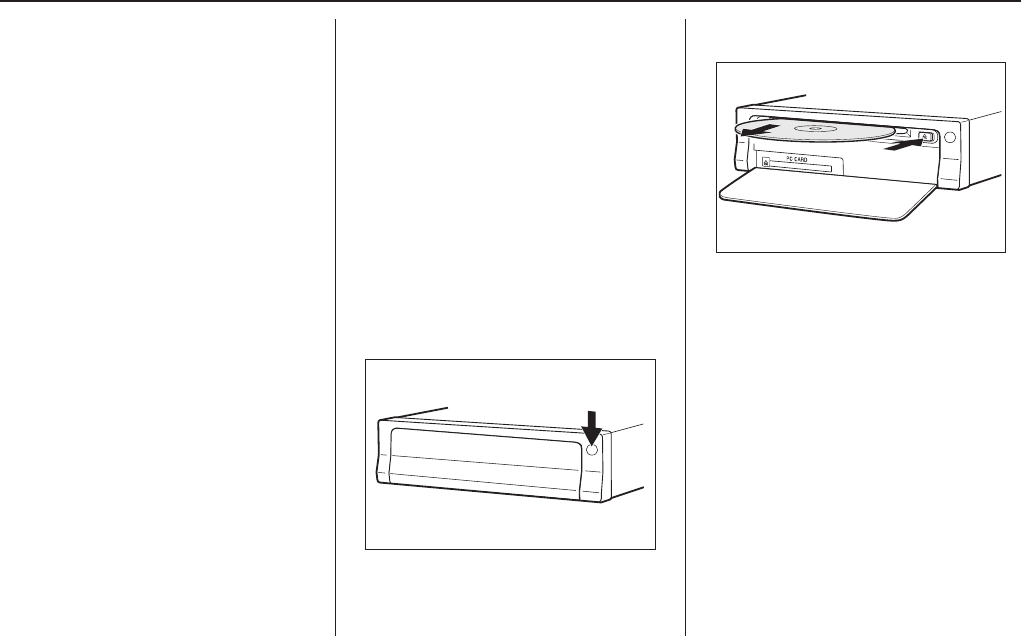
Navigation System 117
Customer Assistance
Obtaining a Navigation
Update DVD
Acura is continually expanding the
scope of the navigation system.
Upgraded software may be made
available to navigation system owners
periodically, usually in the fall of each
year.
To purchase an updated DVD or a
replacement DVD, call (888) 549- 3798.
You can also order on-line at the
Navigation DVD order link, “ordering a
Navigation DVD” at: www.acura.com
The link is found in “ACURA STORE.”
NOTE:
• DVDs are not available at your
dealer. However, the dealer may
order a DVD for you as a courtesy.
There is no program for free DVD
updates.
• The DVD order line staff cannot
answer technical questions regarding
navigation operation, coverage, or
POIs.
Changing the DVD
NOTE:
The system’s database is stored on a
removable DVD. The system will not
work without the DVD. Ensure the door
remains closed at all times.
1. Remove the DVD while the ignition
switch is in the Accessory (I) position
or in the ON (II) position.
2. Locate the control unit. It is in the
trunk.
3. Push the OPEN button. An error
message will display on the screen.
This is normal.
4. Push the Eject button. The DVD will
automatically come out.
5. Pull the DVD straight out. Hold the
DVD by the edges. Fingerprints,
scratches, or other contamination on
the playing surface can make the
DVD unreadable.
To install the Navigation DVD, make
sure the white label is facing up. Slide
the DVD into the slot. The DVD is
automatically pulled into the control
unit. Make sure you close the door.
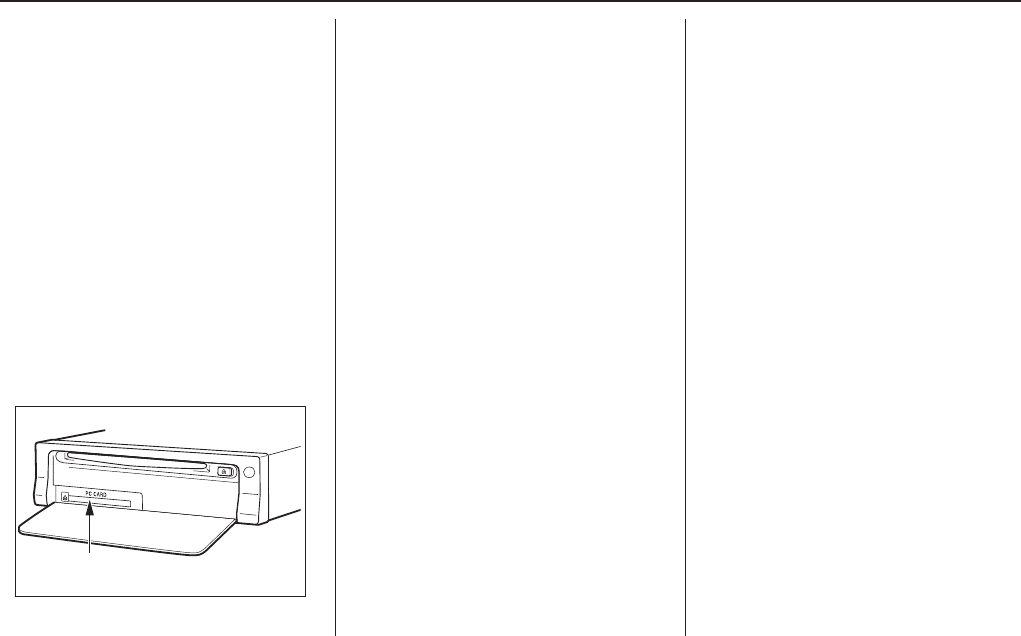
118 Navigation System
Customer Assistance
NOTE:
• The system will not play movies or
other video/audio discs.
• Never “sneak preview” a newer
white labeled DVD in the system
unless you plan to keep it. The system
cannot automatically “revert back”
to a prior version DVD. If you must
revert to a previous version DVD, see
your dealer for assistance.
• If you see the error message
“Navigation unit door is open...,”
close the door. The system will
reboot. This is normal.
PC Card
A PC card is not supplied. The PC card
slot is for factory use only. This slot
cannot be used to play audio files.
PC card slot

Navigation System 119
Coverage Areas
Map Coverage
The system provides map coverage for
the following 48 US states, Hawaii, and
southern Canada. The US map coverage
consists of accurately mapped (verified)
metropolitan areas (in the following
list), and a less accurate (unverified)
rural database. Canada coverage
consists of major metropolitan areas,
and major roads connecting the
metropolitan areas within about 100
miles north of the U.S. border. If you
need additional North Canada coverage,
you may purchase the gray Canadian
DVD (see Obtaining a Navigation
Update DVD on page 117). See Map
Overview on page 6 for a discussion of
map coverage.
The cities and metropolitan areas in the
following list are fully mapped. Only
major streets, roads, and freeways have
been verified outside these areas. If your
route passes through these areas, routing
may be limited in these areas, depending
on your routing choices. See Unverified
Area Routing on page 93.
U.S. Detailed Coverage Areas
Alabama
Birmingham/Tuscaloosa
Huntsville
Mobile
Arizona
Phoenix Metro
Sedona
Tucson
Arkansas
Fayetteville
Hot Springs
Little Rock
California
Bakersfield
Fresno
Los Angeles/San Diego Metro
Merced
Modesto
Sacramento Metro
San Francisco Bay (approximately
Monterey to Sonoma) - including
Monterey County and Hollister
San Luis Obispo
Stockton
Colorado
Denver/Boulder/Colorado
Springs/Ski Resorts Metro area -
including Ft. Collins
Connecticut
Bridgeport
Danbury
Hartford Metro
New Haven Metro
Norwalk
Stamford
Delaware
Entire state - including Dover,
Wilmington Metro area, New Castle
County

120 Navigation System
Coverage Areas
Florida
Cape Canaveral/Cocoa Beach/
Titusville
Florida Keys
Fort Myers Metro area - including
Naples
Fort Pierce
Gainesville
Jacksonville Metro - including St.
Johns County
Miami/Fort Lauderdale/West Palm
Beach Metro
Orlando/Daytona Beach/Melbourne
area - including Osceola County
Pensacola
Tallahassee
Tampa Bay/St. Petersburg Metro -
including Pasco and Manatee
Counties
Vero Beach
Georgia
Athens
Atlanta Metro
Augusta/Aiken Metro
Macon
Hawaii
(all cities for the following islands)
Hawaii
Honolulu
Kauai
Lanai
Maui
Molokai
Idaho
Boise
Sun Valley Ski Resorts
Illinois
Chicago Metro (to Wisconsin border)
- including Lake County, IN and
Dekalb County, IL
East St. Louis Metro
Moline
Rock Island
Rockford
Springfield
Indiana
Fort Wayne
Gary/Hammond Metro
Indianapolis Metro
Kokomo Metro
Northwest Indiana
South Bend/Elkhart/Goshen
Iowa
Cedar Rapids
Davenport
Des Moines
Iowa City
Kansas
Kansas City/Leavenworth Metro
Wichita
Kentucky
Lexington
Louisville
Louisiana
Baton Rouge
New Orleans Metro
Shreveport
Maine
Bangor
Bar Harbor/Acadia National Park
Portland/Lewiston/Auburn
Maryland
Baltimore/Washington D.C. Metro -
including Charles and Carroll
Counties
Ocean City

Navigation System 121
Coverage Areas
Massachusetts
Boston/Cape Cod Metro
Cape Cod
Springfield Metro area
Complete coverage of all cities in
Barnstable, Berkshire, Bristol, Essex,
Hampshire, Hampden, Middlesex,
Norfolk, Plymouth, Suffolk, and
Worcester Counties
Michigan
Detroit Metro area - including Ann
Arbor, Pontiac, Flint, Clinton, Eaton,
and Monroe Counties
Grand Rapids Metro
Kalamazoo
Lansing Metro
Northern Michigan Resort area -
including Traverse City, Elk Rapids,
Petoskey, Charlevoix, Boyne City,
and Harbor Springs
Minnesota
Minneapolis/St. Paul Metro -
including cities in Anoka Scott and
Carver Counties
Moorhead
Rochester
Mississippi
Biloxi/Gulfport
Jackson
Missouri
Branson
Columbia
Kansas City (KS-MO) Metro -
including Platte County
St Louis Metro (IL-MO) - including
additional cities in Jefferson County
Montana
Billings
Nebraska
Lincoln (Lancaster County)
Omaha
Nevada
Las Vegas Metro
Reno/Lake Tahoe
New Hampshire
Manchester
Nashua
New Jersey
Southern New Jersey - including
Atlantic City/Cape May/Cumberland
Metro
Camden Metro
Newark Metro
Trenton Metro - including Ocean and
Hunterdon Counties
New Mexico
Albuquerque
Santa Fe
Taos Ski Resorts
New York
The Adirondack
Binghamton
Buffalo - including Erie and Niagara
Counties
Cooperstown
Eastern New York - including New
York City Metro, Albany, Glen Falls,
Schenectady, Troy
Ithaca
Lake Placid
Oneonta
Rochester - including cities in
Monroe County
Syracuse
Utica
North Carolina
Asheville
Charlotte Metro
Hickory
Morgantown
Raleigh-Durham Metro
Wilmington
Winston-Salem/Greensboro Metro

122 Navigation System
Coverage Areas
North Dakota
Fargo Metro
Ohio
Akron
Columbus/Marysville Metro
Cincinnati Metro - including Butler
County
Cleveland Metro - including Geauga
County
Dayton
Toledo (Lucas County)
Oklahoma
Oklahoma City
Tulsa
Oregon
Bend
Eugene
Portland/Salem Metro
Pennsylvania
Allentown
Erie
Gettysburg
Harrisburg
Lancaster
Philadelphia Metro
Pittsburgh Metro - including
Washington County
Reading
State College/University Park
Wilkes-Barre/Scranton
York
Rhode Island
Newport
Providence Metro
South Carolina
Beaufort
Charleston
Columbia
Greenville/Spartanburg - including
additional cities in Greenville and
Spartanburg Counties
Myrtle Beach Metro
Rock Hill Metro
South Dakota
Sioux Falls
Tennessee
Chattanooga
Johnson City/Kingsport/Bristol
Knoxville/Farragut Metro
Memphis Metro - including Desoto
and Tunica Counties
Nashville
Texas
Austin Metro
Big Bend
Bryan/College Station
Corpus Christi
Dallas/Fort Worth Metro - including
additional cities in Grayson County
El Paso
Houston Metro - including additional
cities in Galveston County
Midland/Odessa Metro
San Antonio Metro
South Padre Island
Utah
Moab
Ogden
Park City
Salt Lake City Metro
Vermont
Burlington
Montpelier
Virginia
Washington D.C. detailed area -
including Alexandria, Arlington,
Fairfax, Falls Church, Fauquier
County, Fredericksburg City,
Manassas, and additional cities in
Loudoun and Prince William
Counties

Navigation System 123
Coverage Areas
Bristol
Charlottesville
Lynchburg
Richmond Metro
Roanoke
Shenandoah National Park
Williamsburg/Norfolk/Virginia
Beach Metro - including Charles
City, Hopewell, Kent, and Prince
George Counties
Winchester
Washington
Bellingham
Seattle/Tacoma/Olympia Metro -
including Island County
Spokane
Tri-Cities
Whatcom
Point Roberts (community)
West Virginia
Charleston
Harper’s Ferry Metro
Wisconsin
Appleton
Beloit
Green Bay
Janesville
Kenosha County
Madison
Lake Geneva
Milwaukee Metro - including
Milwaukee, Ozaukee, Washington,
and Waukesha Counties
Neenah
Oshkosh
Racine
Sheboygan
Wausau
Wyoming
Cheyenne
Jackson Ski Resorts
Canada Detailed Coverage
Areas
NOTE:
The blue colored city names are not
included in the USA South DVD. To
obtain coverage for cities listed in blue,
you may purchase the gray Canada
DVD (see Obtaining a Navigation
Update DVD on page 117). DVDs are
not available at your dealer.
ALBERTA
Banff
Canmore
Airdrie
Calgary
Cochrane
Crossfield
Chestermere
Edmonton
Lethbridge
Medicine Hat

124 Navigation System
Coverage Areas
BRITISH COLUMBIA
Greater Vancouver
Anmore
Belcarra
Bowen Island
Burnaby
Coquitlam
Delta
Langley
Langley Twp
Lions Bay
Maple Ridge
New Westminster
North Vancouver
North Vancouver District
Pitt Meadows
Port Coquitlam
Port Moody
Richmond
Surrey
Squamish
Vancouver
West Vancouver
White Rock
Whatcom, WA
Point Roberts (Community) also
listed in USA Washington St Cities
Fraser Valley
Abbottsford
Chilliwack
Mission
Victoria
Capital
Central Saanich
Colwood
Esquimalt
Highlands
Langford
Metchosin
North Saanich
Oak Bay
Saanich
Sidney
Sooke
Victoria
View Royal
Squamish-Lillooet
Whistler
Kamloops
MANITOBA
East St Paul
Headingley
West St Paul
Winnipeg
NOVA SCOTIA
Halifax (partial)
ONTARIO
Barrie
Kingston
Ottawa-Gatineau
Stratford
Dufferin
Orangeville
Durham
Ajax
Brock
Clarington
Oshawa
Pickering
Scugog
Uxbridge
Whitby
Halton
Burlington
Halton Mills
Milton
Oakville
Hamilton
Hamilton

Navigation System 125
Coverage Areas
Niagara
Fort Erie
Grimsby
Lincoln
Niagara-on-the-Lake
Niagara Falls
Pelham
Port Colborne
St Catharines
Thorold
Wainfleet
Welland
West Lincoln
Peel
Brampton
Caledon
Mississauga
Simcoe
Bradford West Gwillimbury
Toronto
Toronto
Waterloo
Cambridge
Kitchener
North Dumfries
Waterloo
Wellington
Guelph
Puslinch
York
Aurora
East Gwillimbury
Georgina
King
Markham
Newmarket
Richmond Hill
Vaughan
Whitchurch-Stouffville
Windsor
Essex
Lasalle
Tecumseh
Windsor
Inter-Town (partial) Coverage
Counties/Districts/Regional
Municipalities
Brant
Bruce
Chatham-Kent
Dufferin
Elgin
Essex
Frontenac
Gray
Haldimand-Norfolk
Haliburton
Hastings
Huron
Kawartha Lakes
Lambton
Lanark
Leeds and Granville
Lennox and Addington
Middlesex
Muskoka
Northumberland
Oxford
Perth
Peterborough
Prescott and Russell
Prince Edward
Simcoe
Stormont, Dundas and Glengarry
Waterloo
Wellington

126 Navigation System
Coverage Areas
QUÉBEC
Municipalites Regionales de Comte
Beauharnois-Salaberry
Brome-Missisquoi
Coaticook
La Haute-Yamaska
La Vallee-du-Richelieu
Le Haut-Richelieu
Le Haut-St-Laurent
Les Jardins-de-Napierville
Memphremagog
Roussillon
Rouville
Vaudreuil-Soulanges
Montreal
Deux-Montagnes
Deux-Montagnes
Oka
Oka Paroisse
Pointe-Calumet
St-Eustache
St-Joseph-du-Lac
Ste-Marthe-sur-le-Lac
L’assomption
Charlemagne
Le Gardeur
Repentigny
La Vallee-du-Richelieu
Beloeil
Caringnan
Chambly
Longueuil
McMasterville
Mont-St-Hilaire
Otterburn Park
St-Basile-le-Grand
St-Mathieu-de-Beloeil
Longueuil
Ste-Julie
Laval
Laval
Les Moulins
Lachenaie
Mascouche
Terrebonne
Longueuil
Longueuil
Montreal
Montreal
Rousillon
Candiac
Chateauguay
Delson
La Prairie
Lery
Ste-Catherine
St-Constant
Therese-de-Blainville
Blainville
Boisbriand
Bois-des-Filion
Lorraine
Rosemere
Ste-Therese
Vaudreuil-Soulanges
Hudson
L’Ile-Cadieux
L’Ile-Perrot
Notre-Dame-de-l’Ile-Perrot
Pincourt
St-Lazare
Terrasse-Vaudreuil
Vaudreuil-Dorion
Vaudreuil-sur-le-Lac
Québec
Québec

Navigation System 127
CANADA CONNECTOR ROADS
The Cross-Canada Connector Road
allows for travel between the
provinces of British Columbia and
Quebec in DCA 11. Major
metropolitan city Points of interest
are also included.
Road Inclusion
Roads in the province of British
Columbia
Hwy-1/Trans Canada Hwy from
Alberta/BC boundary to Vancouver
detailed city.
Hwy-3/Crowsnest Hwy from Hwy-1/
Trans Canada Hwy (Hope) to Hwy-5/
Coquihalla Hwy (Hope)
Hwy-5/Coquihalla Hwy (in Hope) to
Hwy-1/Trans Canada Hwy (in
Kamloops)
Hwy-99 between Vancouver and
Whistler
Roads in the province of Alberta
Hwy-1/Trans Canada Hwy across
whole province
Hwy-1A from Cochrane to Canmore
Hwy-1X from Hwy-1A to Hwy-1/
Trans Canada Hwy
Morley Road from Hwy-1/Trans
Canada Hwy
Hwy-3/Crowsnest Hwy (at Medicine
Hat) to Lethbridge
Hwy-4 (at Lethbridge) to 1-15 (US
border)
Hwy-36 between Hwy-3 (in Taber)
and Hwy-4 (in Warner)
Hwy-3/Crowsnest Hwy (in
Lethbridge) to Hwy-2 (in Fort
Macleod)
Hwy-2 (in Fort Macleod) to Hwy-1/
Trans Canada Hwy (in Calgary)
Roads in the province of Saskatchewan
Hwy-1/Trans Canada Hwy across
whole province
Roads in the province of Manitoba
Hwy-1/Trans Canada Hwy across
whole province
Hwy-100/Trans Canada Hwy in
Winnipeg (partial beltway)
Hwy-75 from Hwy-100/Trans
Canada Hwy (Winnipeg) south to
link with 1-29 (US border)
Roads in the province of Ontario
Hwy-69/Trans Canada Hwy from
Muskoka district to Sudbury
Hwy-17/Trans Canada Hwy from
Ottawa Detailed Area Coverage to
Manitoba border
Hwy-17B at Sault Ste Marie to link
with 1-75 (US border)
Hwy-61 from Hwy-17 at Thunder
Bay to link with US-61 (US border)
Hwy-11 from Muskoka district to
North Bay
Hwy-60 and Hwy-127 in Nipissing
County
Coverage Areas

128 Navigation System
Coverage Areas
Cities with available real-time in-
car traffic information
The following cities currently have
available real-time traffic information.
Atlanta, GA
Austin, TX
Baltimore, MD
Boston, MA
Buffalo - Niagara Falls, NY
Charlotte, NC
Chicago, IL
Cincinnati, OH
Cleveland, OH
Columbus, OH
Dallas - Ft. Worth, TX
Denver - Boulder, CO
Detroit, MI
Hartford - New Britain - Middle
town, CT
Houston - Galveston, TX
Indianapolis, IN
Kansas City, KS
Las Vegas, NV
Los Angeles, CA
Memphis, TN
Miami - Ft. Lauderdale - Hollywood, FL
Milwaukee - Racine, WI
Minneapolis - St. Paul, MN
Nashville, TN
New York, NY
Newfork - Virginia Beach - Newport
News, VA
Orlando, FL
Philadelphia, PA
Phoenix, AZ
Pittsburgh, PA
Portland, OR
Providence - Warwick - Pawtucket, RI
Sacramento, CA
Sarasota - Bradenton, FL
San Antonio, TX
San Diego, CA
San Francisco - Oakland, CA
San Jose, CA
Seattle - Tacoma, WA
St. Louis, MO
Tampa - St. Petersburg - Clearwater, FL
Washington, DC
West Palm Beach - Boca Ranton, FL
Wilmington, DE
Coverage may expand to other cities as
traffic information in those cities
becomes available. For the latest traffic
coverage details for each metropolitan
area, check www.acura.com/
realtimetraffic. This site provides traffic
coverage for each city, a demonstration
video and FAQs.
Operation in Alaska
If the vehicle was purchased in the
Lower 48 states and driven to Alaska,
the system cannot display maps. The
map screen will be blank and only
display the red Vehicle position icon.
Operation in Hawaii
This section describes the differences in
Navigation System operation for
vehicles delivered in Hawaii.
XM Radio
Vehicles delivered to Hawaii are not
equipped with XM hardware; therefore
sections of the manual that mention XM
audio, traffic displays, and AcuraLink
features, do not apply. Vehicles
originally delivered to the US mainland,
and shipped to Hawaii have XM, but
will not function because the XM
satellites (located above the US
mainland) are too far away to obtain
reception.

Navigation System 129
Map coverage
All roads displayed on the Hawaii map
screens are detailed coverage roads.
Text related to “unverified” roads are
not applicable. The following topics do
not apply in Hawaii:
• Unverified road descriptions (see
page 6, 94)
• Cautions and pop-up windows related
to unverified roads (see page 95)
• Setup entries that relate to turning on
or off unverified routing (See
page 95)
Other map issues
• See the coverage section for a list of
islands with coverage (see page 119)
• The map scale “traffic” indicator,
shown beneath the map scale bar, will
not be present. This is normal.
Address and POI entry screens
When in Hawaii, the following
differences occur for map, address, and
POI selection:
• It is not possible to enter US
mainland addresses or scroll the map
east to the US mainland.
• Selection of the “State” is confined to
Hawaii only
• Entry of a destination address or POI
on an island other than your current
island results in a screen caution
message. This is normal because
there are no “ferry” routes between
islands available in the database.
Setup screen differences
The Setup screen differences are minor,
and are listed below. See the Setup
section (page 84) in this manual for
additional Setup information.
Routing and Guidance (Unverified
Area Routing On/Off)
This feature is unavailable. All roads
displayed on the map are verified.
Clock adjust screen
Hawaii only has one time zone, so the
Setup screen Clock Adjustment
lacks the items “Auto Time Zone,” and
“Auto Daylight” (See page 101).
Coverage Areas
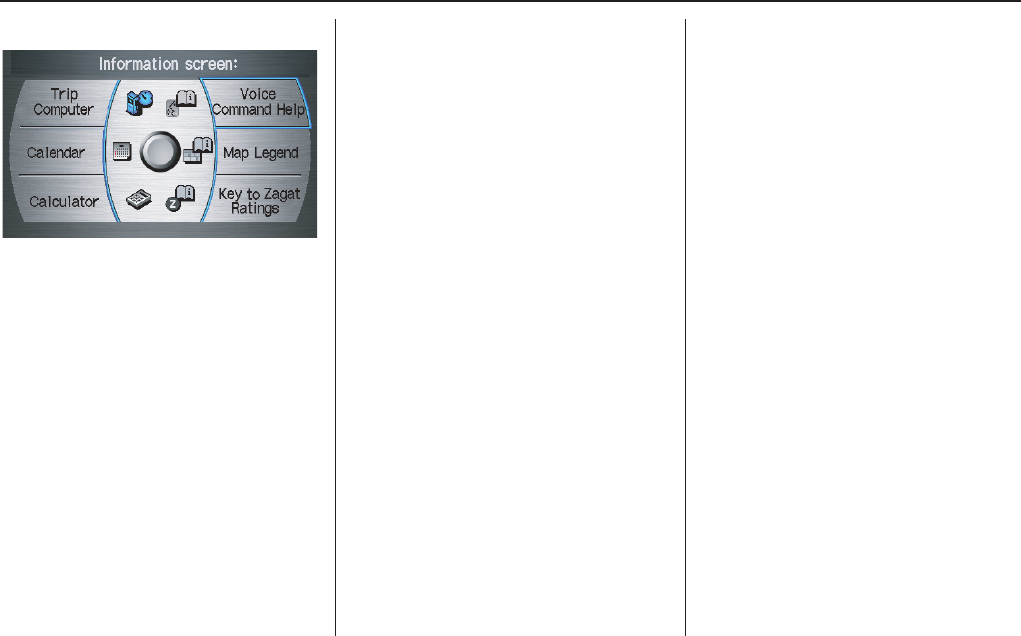
130 Navigation System
Coverage Areas
Information screen differences
Messages
The Information screen Messages
feature utilizes XM, and therefore it is
not shown on the Hawaii Information
screen. These are not available in
Hawaii. In addition, the “Map menu”
item New Messages will appear
grayed out. This is normal.
Roadside Assistance
This selection is also not shown. The
number can be found in the navigation
owner’s manual (see the Information
screen Roadside Assistance).
Additionally this number is listed in the
“Auto Service” category in the Places
menu.
Map Legend
The map legend “Traffic” descriptions
are unavailable.
Shipping a Vehicle To or From
Hawaii
Although the DVD in the vehicle
contains maps for both US mainland
and Hawaii, the dealer must perform the
selection of “US mainland” or “Hawaii”
for you.
NOTE:
• When your dealer makes the switch
from US mainland to Hawaii or vice
versa, the system clears all user data.
Make sure to record any information
that you do not want to loose.
• Vehicles delivered to Hawaii dealers
lack XM receivers. Therefore if your
vehicle is shipped to the continental
US, there is no XM or Traffic
coverage available. In this case,
sections of this manual that discuss
XM or Real-Time Traffic are not
applicable.
• If a US mainland delivered vehicle is
shipped to Hawaii, there is no XM
reception. It is necessary to see your
Hawaii dealer to allow viewing of
local Hawaii maps. If the vehicle is
shipped back to the continental US,
return to your dealer for access to US
mainland maps.
Navigation System 131
Frequently Asked Questions
Map, and Features, Voice Operation, Entering Addresses
Problem Solution
Why does the Disclaimer screen need to be displayed every
time I start the car? I am the only driver.
The Disclaimer screen reminds you and your guest drivers to always
operate the navigation system in a safe manner.
The Setup or Information screen has “grayed out” items that
I cannot select. Why?
You need to select OK on the Disclaimer screen to view these items. See
System Function Diagram on page 26.
I tried entering an address, but the city or street could not be
found. Is there any other way to route to the location?
Some cities are lumped in with a major metro area Try entering the street
first. In rural “unverified” areas or new subdivisions, streets may be
missing, or only partially numbered. Try selecting the destination directly
from the map. See By Map Input on page 45.
When I enter an address, some letters become grayed out. Is
this normal?
Yes, as you enter each letter in an address or a point of interest (POI), the
system looks in the database to see what letters are possible and “grays out”
letters that do not apply.
How do I delete Personal Address, Previous Destinations, or
the Home Address?
This is done in Setup, under “Personal Information.” See page 85.
I cannot hear the navigation system voice. 1) Ensure that Volume in the Setup screen (first) is not OFF. See page 84.
2) Go to “Basic Settings” in the Setup screen (second), and set Voice
Recognition Feedback to ON. See page 91.
The voice control system is having difficulty recognizing my
Voice commands.
Ensure that the center and side vents are not blowing on the microphone on
the ceiling, place your hand over the microphone; if you feel any airflow,
adjust the vents. Ensure the vehicle is as quiet as possible, and that you are
using the correct command when speaking (See Improving Voice
Recognition on page 14). Say “Help” at any screen to see a list of the
applicable voice commands.
When the system pronounces the street name in the guidance
command, or reads the destination address it sounds strange.
What causes this?
The basic guidance phrase uses a studio-recorded voice, but the street name
is pronounced by the system using a machine-generated voice.
Consequently, the name may be mispronounced or sound strange at times.
132 Navigation System
Frequently Asked Questions
When I drive at night, the screen is bright and will not switch
to the night display mode. Why?
Verify the following: The display mode in Setup is set to Night mode, the
dash brightness is not set to maximum, and Map Color in Setup is set to
Black for Night. See Switching Display Mode on page 105.
The daytime map screen is dark like the night display mode,
and it is hard to see. Why?
Verify the following: The display mode in Setup is set to Day mode, and
Map Color in Setup is set to White for Day. See Switching Display Mode
on page 105.
During the day, I turned on the lights because it started to
rain, but the screen went dark. How can I make it still display
day mode?
Adjust the dash brightness (+) button to full brightness. Remember to set it
back to a medium setting, or at night, the screen will be bright. See
Switching Display Mode on page 105.
How can I input my destination using map coordinates? The navigation system was not designed for this. However, you can view
the coordinates of an address by touching the vehicle position icon on the
map. See Map Screen Legend on page 54.
How do I change or remove my PIN? Go to “Personal Information” in the Setup screen (second), and select PIN
Number. Enter your existing PIN, and then you have the choice to change
or remove the PIN. See page 89.
I forget the PIN for Home, or the PIN for personal addresses.
How do I reset it?
PINs are optional. See information regarding PINs on page 89. Your dealer
can reset the PIN for you.
I change my setup settings, but they are not saved when I
restart the vehicle.
Verify that your Remote Keyless Entry is linked (The MID shows
"Welcome drive 1" or "Welcome driver 2"). See page 18 for additional
information.
I cannot access my Calendar or Address Book. Why?
CALL is not available on the Calculate route to screen. Why? Your phone is not “paired” to the HFL, or if your phone is “paired,” it is in
use; press HFL BACK button.
Problem Solution
Navigation System 133
Frequently Asked Questions
Traffic
Problem Solution
My Real-Time Traffic is missing and is not displaying
properly. What is wrong?
Verify the following:
• Check the traffic icon on the icon bar, and the icon options for traffic.
page 65 walks you through the verification steps.
• Ensure that you have the correct remote (the settings for driver 1 and
driver 2 are set independently by each driver).
• Your XM “Nav Traffic” subscription may have expired. Call XM at (800)
967-2346 and verify your account status. If your subscription has lapsed,
you may need to request a “rapid refresh” after XM performs the refresh,
then leave the vehicle running outside for 30 minutes to receive the
refresh.
• It is possible that there is a temporary technical problem with your
metropolitan area traffic. You can call Acura Client Services to see if there
is an outage (page 115).
• If the situation persists, see your Acura dealer for assistance.
134 Navigation System
Frequently Asked Questions
Guidance, Routing
Problem Solution
The navi does not route me the same way I would go, or the
way some other mapping program displays. Why is this?
The navigation system attempts to generate the optimum route. See
Changing the Routing Method on page 51.
Why is the street I’m on not shown on the map? It has been
here for more than a year.
The mapping database is constantly undergoing revision. See page 117 for
ways to obtain the latest detailed coverage information.
The vehicle position icon is not following the road and the
“GPS icon” text in the upper left hand corner of the screen is
white or missing.
• The GPS antenna (located under the rear window beneath the rear shelf)
may be blocked by personal items. For best reception, remove items from
the rear shelf, such as radar detectors, cell phones, or loose articles.
• Metallic tinting or other after-market devices can interfere with the GPS
reception. Please see your dealer. Also see System Limitations on
page 112.
I entered a destination, but the blue highlighted route and
voice guidance stopped, or turned into a blue/purple dashed
line before I got to my destination. Why is this?
Your route has entered an unverified area. See Unverified Area Routing on
page 93.
The map rotates while I make a turns, How can I stop this? Select the “North-up” map orientation by touching the map compass icon on
the map screen. See Map Orientation on page 61.
Sometimes I cannot select between the North-up, and
Heading-up map orientations, why is this?
The “Heading-up” map orientation can only be shown in the lower scales
(1/20 - 1 mile scales). See Map Scale on page 60.
While driving to my destination, the “time to go” display
sometimes increases even though I am getting closer.
The “Time to go” is based on actual road speeds. However if you speed
slows down when you encounter slower traffic, the system updates the
“Time to go” based of your actual speed to give you a better estimate of
arrival time.
The vehicle position icon on the map “lags” a short distance
behind especially when I arrive at an intersection. Is there
anything wrong?
No, when at an intersection, the system is unaware of the width of the
intersecting road. Large differences is vehicle position can indicate a
temporary loss of the GPS signal. See GPS Reception Issues on page 112.

Navigation System 135
Frequently Asked Questions
While I drive, my screen shows white dots (“breadcrumbs”)
on it. What do they mean?
These are called “breadcrumbs.” If you drive more than 1/2 mile from
mapped roads, the off-road tracking feature begins to function. See Off-road
Tracking on page 67 and 102.
How can I get rid of the white dots (“breadcrumbs”) from my
screen?
Go to “Vehicle” in the Setup screen (second), and set Off-road Tracking
to OFF, then return to the map. See page 102.
A road that I selected to avoid is being used when routing.
What is wrong?
When you “draw” your area to avoid, make sure to select sections of roads
that include at least one intersection. See page 97.
When I arrive at my destination, the “bulls-eye” is shown at a
different location on the street. Why?
The system calculates the “bulls-eye” location based on the street address
range allocated for that street. See Destination Icon on page 62 for an
example.
My elevation (shown when I touch the vehicle position icon)
seems to fluctuate even though my elevation has not changed.
This is normal, and due to errors in satellite position. The elevation can vary
+/- 100 feet. See System Limitations on page 112.
My elevation is missing on the “current position” screen.
Why?
If the GPS antenna cannot receive at least 4 satellites, the elevation is not
displayed. Try moving the vehicle into an open area. If the elevation is zero,
or below sea level, the elevation is also not displayed.
Problem Solution
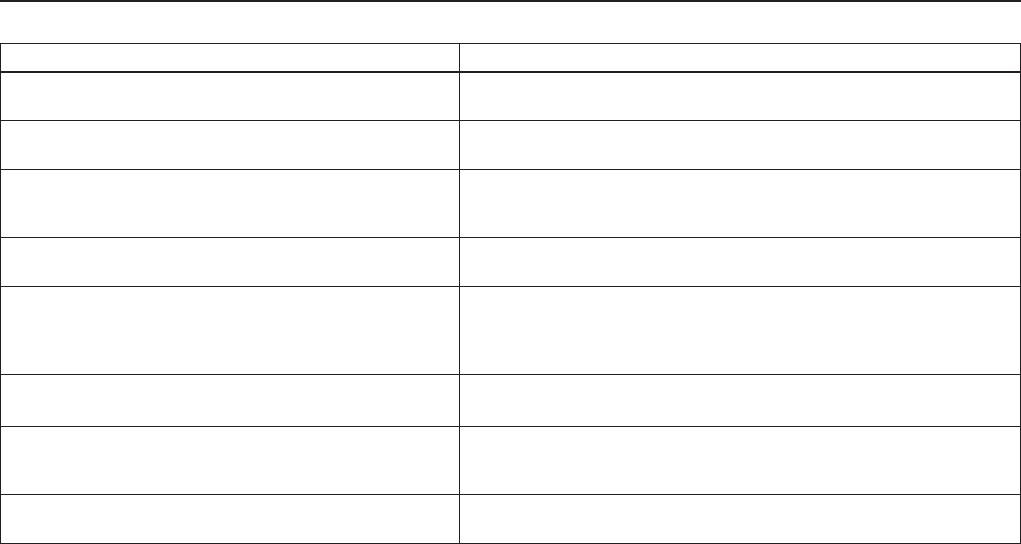
136 Navigation System
Frequently Asked Questions
Ordering a Navi DVD, Coverage, Map Errors, Limitations
Problem Solution
I want to buy a new DVD. How do I purchase one? You cannot obtain a new DVD from the dealer. See Obtaining a Navigation
Update DVD on page 117.
I want to order a DVD. How can I determine the DVD version
in my navigation system?
The version is on the label of your DVD. It starts with “Ver:.” See Changing
the DVD on page 117.
I got a Navi DVD from a “friend,” but it does not work. Why? Your vehicle was designed to use a white color DVD. DVDs with different
colored labels, or from different manufacturers, will not operate correctly.
Always obtain DVDs from the DVD order desk. See page 117.
When is my city going to become part of a fully verified
detailed coverage area?
The mapping database vender is constantly revising map coverage. See
page 117 for ways to obtain the latest detailed coverage information.
Will the navigation system work outside North America? The navigation system contains maps only for the lower 48 states, Hawaii
and portions of southern Canada. The system will not work in Mexico,
Alaska, or overseas. Canada coverage is limited. See Map Coverage on
page 119.
I moved my vehicle from the mainland to Hawaii. Why
does not my navigation system show the correct map?
The coverage area (Hawaii or U.S. mainland) must be selected by
your dealer.
Can I play video DVDs in my navigation system? No. The navigation system is designed only to read the white DVD provided
with your vehicle. Map discs for other vehicle manufacturers, or PC map
programs will not work.
I found some errors in the database. How do I report them? Minor errors are bound to occur in a large database. If you encounter major
errors, you can report them following the instructions on page 115.
Navigation System 137
Frequently Asked Questions
Display, Accessories
Rear Camera
Miscellaneous Other Questions
Problem Solution
The display appears dim when starting the car in real cold
weather. Is there a problem?
No, this is normal, and will become brighter after a few minutes.
Problem Solution
When I shift gears, the rear camera image is delayed. When shifting into or out of reverse, you may experience delays when the
screen image switches between the navi screen and the rear camera image.
This is normal.
The rear camera image is too dark or too bright, how do I
adjust the brightness.
While the camera image is displayed, use the Zoom In/Zoom Out controls to
adjust the brightness. This adjustment does not affect the Setup screen
brightness adjustments.
Problem Solution
My clock frequently changes forward and backward by one
hour. Why is this?
The clock is being automatically set based on your GPS location. If you live
and work on the boundary between two time zones, you can turn off this
feature. See page 101.
When driving near a time zone border, the time changes even
though I am not near the time zone. Why is this?
The time zone borders are only approximated in the system. Depending on
the geography of the time zone boundary, the switch to a different zone can
be erratic. See page 101.
My state does not observe daylight savings time. How do I
turn off this feature?
You can turn off this feature. See page 101.

138 Navigation System
Frequently Asked Questions
Daylight savings time occurred, but the navigation system did
not change time even though Setup shows “Auto Daylight” is
“ON.”
Go to the Clock Adjustment screen in Setup and simply turn off the auto
daylight savings time feature, Select Time Adjustment, and adjust your
clock using the Interface Dial by one hour. For more information, see
Clock Adjustment on page 100.
The navigation system automatic daylight time feature is not
switching the navigation system clock on the correct dates.
Why is this?
The Navigation system is designed to switch to daylight savings time in
April/October. For more information, see Clock Adjustment on page 100.
The navigation system clock switched by one hour for no
apparent reason. What can cause this?
1) You may be near a time zone boundary…(Covered in the other “clock”
FAQs)
2) The navigation system is still switching per the old Daylight savings
schedule (April/October). Set the “Auto Daylight” to “OFF” on the
Clock Adjustment screen in Setup. Manually adjust the clock by one
hour as needed. See page 100 for more information.
My battery was disconnected, or went dead, and the
navigation system is asking for a code. Where do I find this
code?
There should have been a card in the glove box with the anti-theft code for
the navigation/audio system. This card contains the 4-digit security code
and serial number. If you cannot find it, your dealer can help you out.
I speak a language other than English. When will other
languages be available for the navigation system?
This is being considered as a future enhancement.
Problem Solution
Navigation System 139
Troubleshooting
* If the error persists, or is shown for a wide area, see your dealer.
Screen Error Message Solution
Navigation system is unable to acquire a proper GPS
signal.
Make sure there is nothing on the rear shelf blocking the GPS antenna (after-
market metallic window tinting or after-market devices placed on the rear shelf like
radar detectors, cell phones, or loose items). If the rear shelf is clear of objects,
move the vehicle to an open space away from tall buildings, trees, etc.
Navigation unit door is open or No DVD disc is
inserted. Please check system.
Make sure that the navigation DVD disc is inserted with the label side up and the
navigation unit door is fully snapped closed (see page 117).
No DVD disc. Please check system. Check that the navigation DVD disc is inserted with the label side up (page 117). If
the problem persists, see your dealer.
DVD disc reading error (unformatted). Please consult
your dealer.
Check the DVD disc surface for deep scratches or other damage. Make sure you are
using a Navigation DVD (white colored label). The system cannot read other
mapping databases or video DVDs. If the problem persists, see your dealer.
Display temp is too high. System will shut down until
display cools down.
This message will appear briefly when the display temperature is too high, and then
the display will turn off until the temperature cools down. The system will turn
back on when the display cools down.
Outside temperature is low. System will take awhile to
start up.
The temperature is below -22°F and the navigation ECU has difficulty reading the
DVD. The system will start up when the temperature warms up.
Route has not been completed. Please try again from a
different location.
This message will appear when you are routing to or from a place (new area) that is
not in the database. Try planning a different route to or from a different location.*
No alternate route found. Original route will be
followed.
No alternative route method was found. The original route method will be used.*
Ensure that a road name is displayed at the bottom of the map.
This destination cannot be found in database. The destination was not found in the database. Try another destination nearby, or
select the destination with the Interface Dial.*

140 Navigation System
Glossary
Glossary
The following is a glossary of terms
pertaining to the voice recognition
navigation system.
Average Fuel - The average fuel
economy value as displayed by the
Trip computer screen.
Avoid Area - Areas you wish to avoid
can be entered into the system, and
will be avoided while routing.
Breadcrumbs - Off road tracking dots
that can be followed on the map to
retrace your route back to a mapped
(digitized) road. This function can be
turned on/off in Setup screen
(second).
Database - This consists of the map
data, and the POI (Points Of Interest)
data stored on the DVD.
DCA - Detailed Coverage Area. The
main metropolitan areas in the lower
48 states, Hawaii, and southern
Canada are mapped to this level. See
page 119 for a list of these areas.
Digitized Road - A road that appears on
the navigation screen. The road name
will appear at the bottom of the
navigation screen. If the user drives
“off road,” the navigation system will
display “breadcrumbs,” depending on
how far you drive from a mapped
road.
Disclaimer Screen - Screen containing
cautionary information. It is meant to
be read carefully and acknowledged
by the customer when using the
navigation system.
DVD or DVD-ROM - Digital Versatile
Disc. The navigation program and
database resides on this disc. For
information on how to order a
replacement or update DVD, see
page 117.
Elapsed Time - Elapsed Time for the
current trip as displayed by the Trip
computer screen.
FAQ - Frequently Asked Questions. See
page 131 for a list of the customer
FAQs, and troubleshooting
information.
GPS - Global Positioning System. A
network of 24 satellites in orbit
around the earth. The navigation
system can simultaneously receive
signals from up to 12 satellites to
accurately position the vehicle on the
map.
GPS Antenna - Located in the center of
the rear shelf. Electronic items
operating in this general location can
interfere with the GPS signal.
HFL - HandsFreeLink. Your vehicle is
equipped with this feature, which
uses Bluetooth technology as a
wireless link between the vehicle and
your Bluetooth compatible cell
phone.
Icon - Symbol representing Points of
Interest (POI) that can be displayed
on the map.

Navigation System 141
Glossary
Initialization - This refers to the period
needed to reacquire the GPS satellite
orbital information whenever the
navigation system power has been
disconnected. This can take 10 to 45
minutes with the vehicle out in an
open area.
Instant Fuel - The current
instantaneous fuel economy value as
displayed by the Trip computer
screen.
LCD - Liquid Crystal Display. The
navigation screen.
Map Matching - The received GPS
information allows the navigation
system to position the vehicle on the
map. Map matching has occurred if
the map screen is displaying the
current street name in the bottom-
shaded area.
Mic - Abbreviation for the microphone
used for receiving voice commands.
It is located near the map light in the
ceiling.
Multi-Information Display (MID) -
Located in the gauge assembly. See
the Owner’s manual for additional
information.
MW - Maneuver Window. While on-
route to a destination, this window
displays information about the next
maneuver.
Navi - Abbreviation for the navigation
system.
North Pointer -The map symbol
showing the map orientation. See
page 61
Off Route - This occurs when the user
leaves mapped roads. Off road
tracking dots (“breadcrumbs”) are
displayed if the option is enabled in
the Setup screen. The user can use
them to return to a mapped road. The
bottom of the navigation screen will
say “Not on a digitized road”
Outlying Areas - These are rural areas
that typically have only their main
roads mapped. All other roads are
shown in light brown for reference
only, since they have not been
verified.
PIN - Personal Identification Number.
A random 4-digit number created by
the customer to protect personal
information.
POI - Point Of Interest. These are the
businesses, schools etc. found under
the Places option on the Enter
destination by screen. See page 54.
Polygon - Colored areas on the map
screen denoting parks, schools etc.
See Map Screen “features” for a list
of the assigned colors. See page 54.
Reminder - Automatic “pop-up”
Calendar message. See Calendar on
page 78.
Remote Keyless Entry - Allows you to
lock/unlock the doors, unlock the
trunk, and link/unlink Driver 1/Driver
2 settings.
Security Code - Code needed to
activate the navigation system or
audio system. See Entering the
Security Code on page 110.
Unverified Streets - These streets have
not been verified for turn restrictions,
one-way, etc. They are shown in light
brown on the map. Unverified streets
may be missing from the map, shown
in the wrong location, or have an
incorrect name or address range.

142 Navigation System
Glossary
Vehicle Speed Sensor - Provides speed
signal to the navigation system for
moving the VP icon on the map.
Verified Streets - These streets consist
of the detailed metropolitan coverage
areas, and all other inter-town
connection roads. These roads are
shown in black on the map.
Voice Control - See VR.
VP - Vehicle Position. When in map
mode, this circular icon shows the
vehicle position on the map. Push in
on the Interface Dial, select Show
Icon on Map, move the Interface
Dial left to select Current
Position. It shows the latitude,
longitude, and elevation of your
current position.
VR - Voice Recognition. This allows
voice control of many of the
navigation functions. The hardware
consists of the microphone, voice
control switch (NAVI TALK/NAVI
BACK buttons), and the front
speakers.
Waypoint - A temporary destination
you may enter with on route (e.g., a
gas station, ATM, etc.). See page 71.
Yaw Rate Sensor - Senses when the
vehicle makes a turn, which makes
the VP change direction on the map
as you turn.
Zagat Ratings - Restaurant ratings
information provided by Zagat
Survey. See the Information screen
on page 76 for an explanation of the
ratings.

Navigation System 143
Voice Command Index
Global Commands
The system accepts these commands on
any screen.
Help (reads list of the commands for
the displayed screen)
Setup (displays Setup screen (first))
Display map (displays the map
screen)
Display menu (displays the Enter
destination by screen)
Display audio screen
Information (displays the
Information screen)
Trip Computer
Back (to previous screen, same as
CANCEL or NAVI BACK button)
Cancel (cancels current activity)
What time is it?
The “Voice Command Help” option on
the Information screen lists many of the
following controls. To avoid distraction
while you are driving, the system can
read the commands for you.
The commands are accessible at any
time while driving and can be read to
you so that you do not need to memorize
all of them.
Navigation General
Commands
The system accepts these commands on
a map/guidance screen.
Display menu (if on route, displays
the Change route by screen)
Display navigation (if on route,
displays the Change route by
screen)
Display map
Display map guide (when on route,
shows the next maneuver)
Display setup (or just Setup)
Display information (or just
Information)
Display audio screen
Display climate control screen
Trip computer
Cancel
Backward (or just Back)
What time is it?
Repeat voice (repeats the screen
prompt)
Help (reads list of Navigation
General and Navigation Display
Commands at any screen)

144 Navigation System
Voice Command Index
Voice command help
How long to the destination? (when
on route, tells the time to
destination)*
How far to the destination? (when on
route, tells the distance to
destination)*
Display destination map (when on
route, shows the map of the
destination)
Display entire route (when on route,
adjusts the map scale so that the
entire route is displayed)
Display current location (shows
current latitude, longitude, and
elevation)
Register the current location (puts
current location in the personal
Address Book)
Display traffic incidents (or Display
traffic list)
* These commands are not available if
you scroll the map while on route to
a destination.
Navigation Display
Commands
The system accepts these commands on
a map/guidance screen.
Display current location
Display north up
Display heading up
Display zoom in
Display zoom out
Display: (the selected scale)
1/20 mile (80 m) scale
1/8 mile (200 m) scale
1/4 mile (400 m) scale
1/2 mile (800 m) scale
1 mile (1600 m) scale
2 mile (3 km) scale
5 mile (8 km) scale
15 mile (24 km) scale
50 mile (80 km) scale
150 mile (240 km) scale
350 mile (560 km) scale
Max zoom in
Max zoom out
Go home
Messages
Display: (display the selected icon on
the screen)
ATM
gas station
restaurant
post office
grocery store
lodging (hotel, motel)
parking garage
parking lot
school
hospital
freeway exit information
Traffic (displays both traffic icons
and speed flow. See page 22)
Traffic speeds (displays the traffic
flow bands alongside the road.
See page 22)
Traffic icons (shows traffic icons.
See page 22)
Traffic incidents (displays a list of
traffic incidents. See page 24)

Navigation System 145
Voice Command Index
Hide: (hide the selected icon from the
screen)
ATM
gas station
restaurant
post office
grocery store
lodging (hotel, motel)
parking garage
parking lot
school
hospital
freeway exit information
Traffic (hides both traffic icons
and speed flow. See page 22)
Traffic speeds (hides the traffic
flow bands alongside the road.
See page 22)
Traffic icons (hides the traffic
icons. See page 22)
Find Place Commands
The system accepts these commands on
a map/guidance screen.
Find nearest: (find the nearest
selection)
ACURA dealers
HONDA dealers
gas station
hydrogen station
ATM
bank
post office
hospital
police station
hotel
tourist attraction
shopping (all shopping types)
parking garage
parking lot
other car dealers
auto parts & electronics
auto repair & maintenance
car wash & detailing
motorcycle dealers
roadside assistance
check cashing
currency exchange
veterinarian
business
civic center
convention center
library
school
city hall
court house
higher education
amusement park
golf course
historical monument
marina
movie theater
museum
park
performing arts
sports complex
bed & breakfast
accessory store
book store
clothing store
grocery store
home improvement store
mall

146 Navigation System
Voice Command Index
office supply store
pharmacy
pet food store
sewing store
shoe store
sporting goods store
toy store
airport
automobile club
bus station
camping
commuter rail station
ferry terminal
named place
park & ride
rental car agency
resort
rest area
ski area
tourist information
train station
travel agency
truck stop
restaurant (all restaurant types)
American restaurant
Californian restaurant
Chinese restaurant
continental restaurant
fast food
French restaurant
German restaurant
Greek restaurant
Indian restaurant
Italian restaurant
Japanese restaurant
Korean restaurant
Mexican restaurant
seafood restaurant
Thai restaurant
vegetarian restaurant
Vietnamese restaurant
Zagat restaurant
other restaurant
Climate Control Commands
The system accepts these commands on
most screens.
Climate control full automatic
(controls temperature to 72
degrees F)
Climate control automatic (controls
temperature to your selection)
Climate control off
Air conditioner on
Air conditioner off
Air conditioner*
Climate control defrost on
Climate control defrost off
Climate control defrost*
Rear defrost on
Rear defrost off
Rear defrost*
Climate control fresh air
Climate control recirculate
Climate control vent
Climate control bi-level (vent and
floor)
Climate control floor
Climate control floor and defrost
Fan speed up
Fan speed down

Navigation System 147
Voice Command Index
Fan speed # (#:1-7) (for best voice
control, keep fan speed at 1 or 2)
* Repeating these commands switches
(toggles) the function between On
and Off.
Temperature Voice
Commands
The system accepts these commands on
most screens.
Temperature # degrees (#: 57 to 87
degrees F)
Temperature up
Temperature down
Temperature max hot (displays HI)
Temperature max cold (displays LO)
Temperature balance
Temperature dual mode on
Temperature dual mode off
Temperature dual mode*
Driver temperature # degrees
(#: 57 to 87 degrees F)
Passenger temperature # degrees (#:
57 to 87 degrees F)
Driver vent temperature adjustment
Passenger vent temperature
adjustment
Vent temperature up
Vent temperature down
Vent temperature max
Vent temperature minimum
Vent temperature normal
* Repeating these commands switches
(toggles) the function between On
and Off.
NOTE:
The commands for vent temperature
settings are available in the climate
control screen.

148 Navigation System
Voice Command Index
Radio Voice Commands
The system accepts these commands on
most screens.
Audio on
Audio off
Audio*
Radio on (or Radio play)
Radio off
Radio*
Radio select FM1
Radio select FM2
Radio select AM
Radio # FM (#: frequency. Example
Radio 95.5 FM)
Radio # AM (#: frequency. Example
Radio 1020 AM)
Radio seek up
Radio seek down
Radio next station (same as Radio
seek)
Radio preset # (#: 1-6)
Radio FM preset # (#: 1-6)
Radio FM1 preset # (#: 1-6)
Radio FM2 preset # (#: 1-6)
Radio AM preset # (#: 1-6)
Radio auto select*
Radio scan*
Radio select XM1
Radio select XM2
XM channel # (#: 1-255)
XM channel up
XM channel down
XM category up
XM category down
XM preset # (#: 1-6)
XM1 preset # (#: 1-6)
XM2 preset # (#: 1-6)
XM scan*
XM category scan*
XM channel scan*
XM category mode
XM channel mode
* Repeating these commands switches
(toggles) the function between On
and Off.
CD Voice Commands (for 6
Disc Changer)
The system accepts these commands on
most screens.
CD play
CD play disc # (#: 1-6)
CD play track # (#: 1-30)
CD play disc #1 track #2 (#1: 1-6, #2:
1-30)
CD skip forward
CD skip back
CD play next disc
CD play previous disc
CD track random*
CD track repeat*
CD disc repeat*
CD track scan*
CD disc scan*
CD normal play (resumes “Play”
from these commands: “CD track
random,” “CD track repeat,” and
“CD track scan”)
CD track list
CD folder random*
CD folder repeat*
CD folder scan*
CD folder list

Navigation System 149
Voice Command Index
* Repeating these commands switches
(toggles) the function between On
and Off.
DVD Voice Commands (for 6
Disc Changer)
The system accepts these commands on
most screens.
DVD play
DVD play disc # (#: 1-6)
DVD play track # (#: 1-30)
DVD play disc #1 track #2 (#1: 1-6,
#2: 1-30)
DVD skip forward
DVD skip back
DVD play next disc
DVD play previous disc
DVD track random*
DVD track repeat*
DVD disc repeat*
DVD track scan*
DVD disc scan*
DVD normal play (resumes “Play”
from these commands: “DVD
track random,” “DVD track
repeat,” and “DVD track scan”
DVD track list
* Repeating these commands switches
(toggles) the function between On
and Off.
MP3/WMA Voice Commands
(for 6 Disc Changer)
The system accepts these commands on
most screens.
MP3 play
MP3 play disc # (#: 1-6)
MP3 play track # (#: 1-30)
MP3 play disc #1 track #2 (#1: 1-6,
#2: 1-30)
MP3 skip forward
MP3 skip back
MP3 play next disc
MP3 play previous disc
MP3 track random*
MP3 track repeat*
MP3 disc repeat*
MP3 track scan*
MP3 disc scan*
MP3 normal play (resumes “Play”
from these commands: “MP3 track
random,” “MP3 track repeat,”
“MP3 track scan,” “MP3 folder
random,” and “MP3 folder repeat”)
MP3 track list
MP3 folder random*
MP3 folder repeat*

150 Navigation System
Voice Command Index
MP3 folder list
WMA play
WMA play disc # (#: 1-6)
WMA play track # (#: 1-30)
WMA play disc #1 track #2 (#1: 1-6,
#2: 1-30)
WMA skip forward
WMA skip back
WMA play next disc
WMA play previous disc
WMA track random*
WMA track repeat*
WMA disc repeat*
WMA track scan*
WMA disc scan*
WMA normal play (resumes “Play”
from these commands: “WMA
track random,” “WMA track
repeat,” “WMA track scan,”
“WMA folder random,” and
“WMA folder repeat”)
WMA track list
WMA folder random*
WMA folder repeat*
WMA folder list
* Repeating these commands switches
(toggles) the function between On
and Off.
Information Screen Voice
Commands
These are additional commands not
found on the Voice Command Help
screen available when viewing the
Information screen. Follow the voice
prompts.
Messages
Voice command help (the system read
and lists all of the commands,
starting with Navigation General
Commands)
Trip computer
Map legend
Calendar
Key to Zagat ratings
Calculator
Roadside assistance

Navigation System 151
Voice Command Index
Setup Screen (first)
Commands
The system accepts these commands on
Setup screen (first). (For Setup screen
(second), simply say what is written on
the screen, and follow the voice
prompts)
Brightness up
Brightness down
Brightness minimum/min.
Brightness maximum/max.
Contrast up
Contrast down
Contrast minimum/min.
Contrast maximum/max.
Black level up
Black level down
Black level minimum/min.
Black level maximum/max.
Volume up (tone indicates volume)
Volume down (tone indicates volume)
Volume minimum/min. (tone indicates
volume)
Volume maximum/max.(tone
indicates volume)
Volume off
Interface dial feedback off
Interface dial feedback auto
Interface dial feedback on
Guidance prompts minimum/min.
Guidance prompts normal
Guidance prompts maximum/max.
On-Screen Commands
The system accepts these commands on
any screen. There are over 100 on-
screen commands. Just say what is
written on the screen (this excludes
listed items).
Next (or “Down”)
Previous (or “Up”)
Return
OK (except at Disclaimer screen)
Delete
Done
etc.

152 Navigation System
Voice Command Index
On-Screen Spelling Assist
When speaking the letters or using
“spell mode,” you can substitute the
name that represents each letter or
symbol. This improves recognition. For
example:
• To select the letter “A”:
Say “A,” “Alpha,” or “Apple.”
• To select the letter “M”:
Say “M,” “Mary,” or “Mike.”
The system will respond to the names
shown in the following tables.
NOTE:
• The system will only respond to the
names shown in the following tables.
• To select the letter “A,” you can also;
select the “A” by using the Interface
Dial.
• To select the number “1,” say “One”
or “Number One,” or select the “1”
by using the Interface Dial.
• To select the symbol “- (hyphen),”
say “Hyphen” or “Symbol Hyphen,”
or select the “-” by using the
Interface Dial.
• When selecting letters using the voice
control system, a confirmation box
may pop up to confirm the letter.
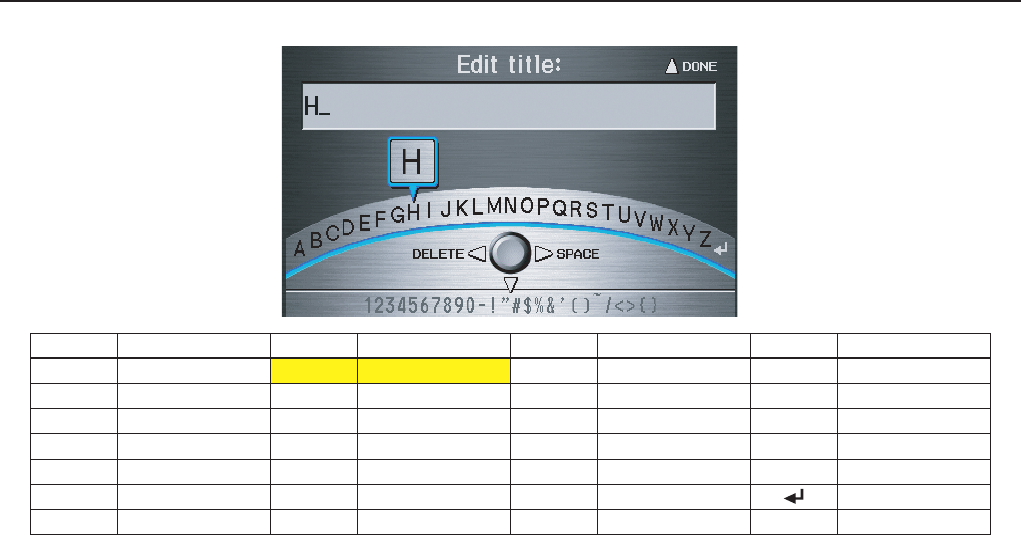
Navigation System 153
Voice Command Index
Letters Assist Definitions:
Say Or say “...” Say Or say “...” Say Or say “...” Say Or say “...”
AAlpha/Apple HHotel/Henry OOscar VVictor
BBravo/Boy IIndia/Igloo PPapa/Paul WWhiskey/William
CCharlie JJuliet/John QQuebec/Queen XX-Ray
DDelta/Dog KKilo/King RRomeo/Robert YYankee/Yellow
EEcho/Edward LLima/Larry SSierra/Sam ZZulu/Zebra
FFoxtrot/Frank MMike/Mary TTango/Tom Enter
GGolf/George NNovember/Nancy UUniform/Uncle
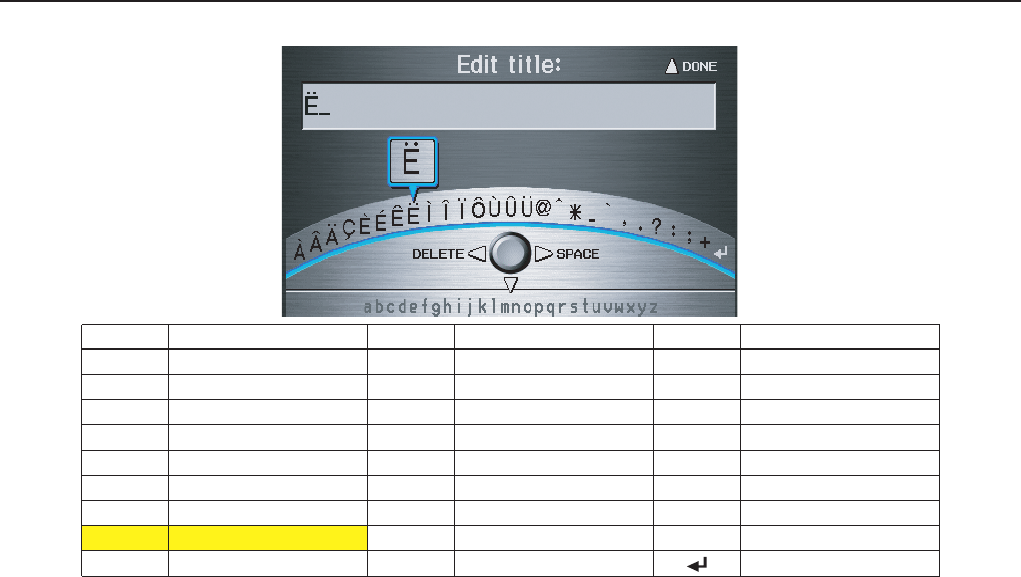
154 Navigation System
Voice Command Index
Symbol Assist Definitions:
NOTE:
The term “grave” (used for symbols À, È, Ì, and Ù) is pronounced like “save.”
Symbols Say “...” or “Symbol ...” Symbols Say “...” or “Symbol ...” Symbols Say “...” or “Symbol ...”
ÀA grave îI circumflex _Underscore
ÂA circumflex ïI umlaut `Back quote
ÄA umlaut ÔO circumflex ,Comma
ÇC cedilla ÙU grave .Dot
ÈE grave ÛU circumflex ?Question Mark
ÉE acute ÜU umlaut :Colon
ÊE circumflex @At sign ;Semi colon
ËE umlaut ^Caret +Plus
ìI grave *Asterisk Enter
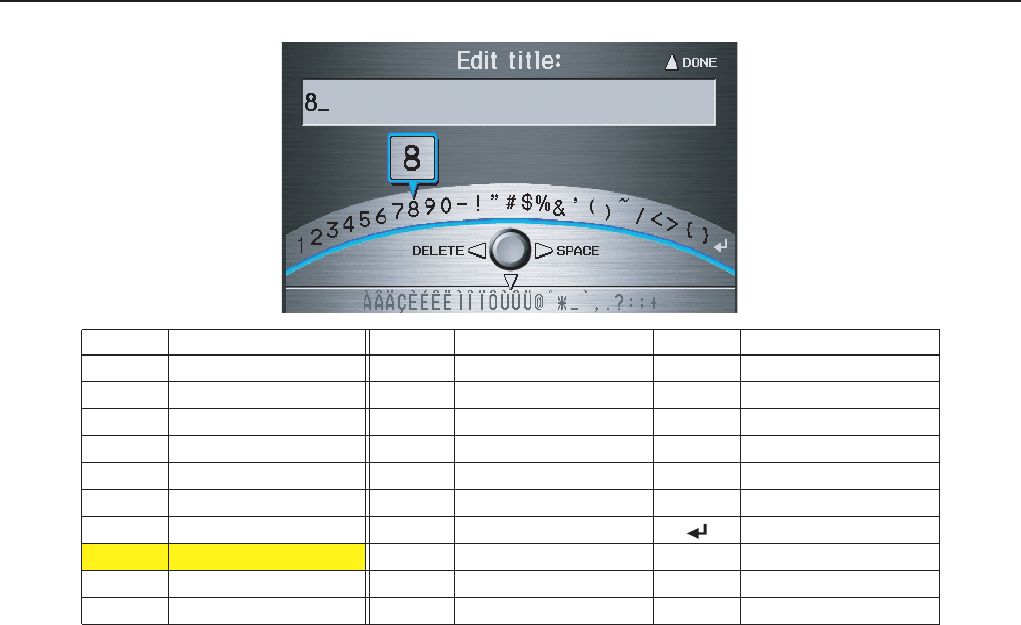
Navigation System 155
Voice Command Index
Numbers and Additional Symbol Assist Definitions:
Numbers Say “...” or “Number ...” Symbols Say “...” or “Symbol ...” Symbols Say “...” or “Symbol ...”
1One -Hyphen ~Tilde
2Two !Exclamation point /Slash
3Three ”Double quote <Less than
4Four #Pound >Greater than
5Five $Dollar {Open brace
6Six %Percent }Close brace
7Seven &Ampersand Enter
8Eight ’Apostrophe
9Nine (Open parenthesis
0Zero )Close parenthesis
156 Navigation System
Index
A
Accessing the Address Book List .....86
AcuraLink/Messages.........75, 76, 108
ADD TO Today’s
Destinations ...........................48, 50
Adding Destinations to the List ........48
Address ..............................27, 28, 87
Address Book .....................27, 32, 86
Advanced .......................................35
Alaska (Operation)........................128
Auto Daylight ...............................101
Auto Service...................................34
Auto Time Zone............................101
Avoid Streets ..................................71
B
Back to Current Route .....................72
Banking..........................................34
Basic Settings .................................91
Black Level ....................................84
Breadcrumbs.............................20, 67
Brightness ......................................83
By Address.....................................28
By Address Book ............................32
By Go Home...................................49
By Intersection................................39
By Map Input .................................45
By Places....................................... 33
By Previous Destinations................ 44
By Today’s Destinations................. 47
C
Calculator...................................... 81
Calendar.................................. 17, 78
CALL...................................... 18, 50
CANCEL button ............................ 11
Cancel Current Route ..................... 70
Category............................ 33, 34, 88
CD Voice Commands................... 148
Change Method.............................. 51
Change Routing Method ................. 70
Change State............................ 28, 39
Changing the DVD....................... 117
Changing the Route........................ 70
Changing the Routing Method ........ 51
Changing Your Destination............. 73
City................................... 28, 40, 46
City Vicinity.................................. 37
Climate Control Commands.......... 146
Clock Adjustment ........................ 100
Color........................................... 104
Community.................................... 34
Continental USA............................ 47
Contrast......................................... 84
Convert (Unit) ............................... 81
Correct Vehicle Position ............... 103
Coverage Areas............................ 119
Current Location ...................... 21, 68
Current Position ....................... 45, 87
Current Street................................... 6
Customer Assistance .................... 115
D
Database Limitations.................... 114
Delete Previous Destinations........... 90
Delete Waypoints........................... 72
Destination ........................ 27, 50, 73
Destination Icon ............................. 62
Destination Map............................. 53
Detailed Coverage Areas ...... 119, 123
Detour ........................................... 70
Direct Route .................................. 51
Direction List................................. 57
Display mode button ...................... 11
Driving to Your Destination............ 50
DVD Voice Commands ................ 149
E
Easy Route .................................... 51
Edit Avoid Area ............................. 97
Edit Waypoint Search Area............. 99
Edit/Delete Address........................ 89
Navigation System 157
Index
Editing Today’s Destination List......48
Emergency .....................................34
Entering a Destination .....................27
Entering Address Book....................86
Entering Schedule ...........................79
Entering Security Code..................110
Entering the Street Number..............32
Entering Your Schedule...................79
Error Message...............................139
Exit Info.........................................58
F
Find Place Commands...................145
Frequently Asked Questions ..........131
G
Getting Started................................10
Global Commands ........................143
Glossary .......................................140
Go Home..................................27, 49
Going Off the Route........................67
GPS Initialization..........................111
Guidance Mode.............................100
Guidance Prompts.....................57, 84
Guidance Screen .............................55
H
HandsFreeLink™........................... 18
Hawaii (Operation)....................... 128
Home Address ............................... 89
Hotel/Motel (Lodging) ................... 34
I
Icon Bar ........................................ 65
Incident Icons .......................... 20, 62
INFO button ............................ 10, 76
Information Screen......................... 76
Information Screen Voice
Commands................................ 150
Interface Dial................................. 11
Interface Dial Feedback .................. 84
Interface Dial knob......................... 11
Intersection.............................. 27, 39
K
Key to Zagat Ratings...................... 80
L
Landmark Icons ............................. 62
Leisure .......................................... 34
Lodging (Hotel/Motel) ................... 34
M
Map Color ................................... 104
Map Coverage.............................. 119
Map Input................................ 27, 45
Map Legend....................... 20, 54, 78
Map Matching.............................. 111
Map Orientation ............................. 61
Map Scale...................................... 60
Map Screen.............................. 20, 54
MAP/GUIDE button................. 10, 55
Maximize Freeways ....................... 51
MENU button ................................ 10
Menu Color ................................. 104
Message ........................................ 79
Messages ......................... 75, 76, 108
Microphone ................................... 13
Minimize Freeways ........................ 51
Minimize Tool Roads ..................... 51
MP3/WMA Voice Commands ...... 149
N
Name ...................................... 33, 38
NAVI BACK button....................... 13
NAVI TALK button ....................... 13
Navigation Display Commands ..... 144
Navigation General Commands..... 143
158 Navigation System
Index
O
Off-road Tracking ...................67, 102
On-Screen Commands...................151
On-Screen Spelling Assist .............152
P
PC Card........................................118
Personal Information .......................85
Phone Number ..........................33, 38
PIN Number ...................................89
Place Name ..............................36, 37
Place Name by Keyword .................36
Places.................................27, 33, 87
Previous Destinations ..........27, 44, 87
R
Radio Voice Commands ................148
Read List..................................35, 77
Rear View Camera ..................12, 108
Recalculation............................67, 92
Reporting Errors ...........................115
Rerouting .......................................92
Restaurant ......................................34
Roadside Assistance........................82
Route ...........................50, 53, 67, 70
Routing & Guidance........................92
Routing Method ............................. 51
S
Save Current Location.................... 68
Schedule........................................ 79
Screen ........................................... 12
Search Waypoint on Route.............. 71
Security Code .............................. 110
Selecting the City..................... 28, 40
Selecting the State.................... 28, 39
Selecting the Street................... 30, 41
SET UP button............................... 11
Setup Screen (first) Commands ..... 151
Shopping ....................................... 35
Show Icon on Map ......................... 62
Sort by Distance to Travel .............. 37
Split Screen Guidance .................... 58
State.................................. 28, 39, 46
Street....................................... 30, 41
Switching Display Mode .............. 105
System Controls............................. 10
System Function Diagram............... 26
System Information...................... 108
System Initialization..................... 110
System Limitations....................... 112
System Set-up................................ 83
System Start-up.............................. 17
T
Temperature Voice Commands ..... 147
Time Adjustment ......................... 102
Today’s Destination List................. 48
Today’s Destinations ................ 27, 47
Traffic Display Legend................... 22
Traffic Flow................................... 23
Traffic Incident ........................ 24, 64
Traffic Speed ................................. 64
Travel............................................ 35
Trip Computer ............................... 77
Troubleshooting ........................... 139
U
Unit Conversion ............................. 81
Units (mile or km).......................... 91
Unverified Area Routing................. 93
Unverified streets ............................. 7
Update DVD................................ 117
Upper Display................................ 12
Using the Voice Control System...... 14
V
Vehicle........................................ 102
Verbal Reminder.......................... 103
Verified streets................................. 7

Navigation System 159
Index
View Routes ...................................51
Visiting Your Dealer .....................116
Voice .............................................91
Voice Command Help .....................76
Voice Command Index..................143
Voice Control Basics.......................13
Voice Recognition Feedback............91
Voice Recognition, Improving .........14
Volume ..........................................84
W
Waypoints ......................................99
WMA Voice Commands ...............149
Z
Zagat 2006 ...............................34, 38

160 Navigation System
License notice
You have acquired a device (“DEVICE”)
that includes software licensed by ALPINE
ELECTRONICS, INC., from an affiliate of
Microsoft Corporation (collectively “MS”).
Those installed software products of MS
origin, as well as associated media, printed
materials, and “online” or electronic
documentation (“SOFTWARE”) are
protected by international intellectual
property laws and treaties. The
SOFTWARE is licensed, not sold. All rights
reserved.
IF YOU DO NOT AGREE TO THIS END
USER LICENSE AGREEMENT
(“EULA”), DO NOT USE THE DEVICE
OR COPY THE SOFTWARE. INSTEAD,
PROMPTLY CONTACT ALPINE
ELECTRONICS,INC., FOR
INSTRUCTIONS ON RETURN OF THE
UNUSED DEVICE(S) FOR A REFUND.
ANY USE OF THE SOFTWARE,
INCLUDING BUT NOT LIMITED TO
USE ON THE DEVICE, WILL
CONSTITUTE YOUR AGREEMENT TO
THIS EULA (OR RATIFICATION OF
ANY PREVIOUS CONSENT).
GRANT OF SOFTWARE LICENSE.
This EULA grants you the following
license;
You may use the SOFTWARE only on the
DEVICE.
NOT FAULT TOLERANT. THE
SOFTWARE IS NOT FAULT
TOLERANT. ALPINE ELECTRONICS,
INC., HAS INDEPENDENTLY
DETERMINED HOW TO USE THE
SOFTWARE IN THE DEVICE, AND MS
HAS RELIED UPON ALPINE
ELECTRONICS, INC., TO CONDUCT
SUFFICIENT TESTING TO DETERMINE
THAT THE SOFTWARE IS SUITABLE
FOR SUCH USE.
NO WARRANTIES FOR THE
SOFTWARE. THE SOFTWARE is
provided “AS IS” and with all faults. THE
ENTIRE RISK AS TO SATISFACTORY
QUALITY, PERFORMANCE,
ACCURACY, AND EFFORT
(INCLUDING LACK OF NEGLIGENCE)
IS WITH YOU. ALSO, THERE IS NO
WARRANTY AGAINST
INTERFERENCE WITH YOUR
ENJOYMENT OF THE SOFTWARE OR
AGAINST INFRINGEMENT. IF YOU
HAVE RECEIVED ANY WARRANTIES
REGARDING THE DEVICE OR THE
SOFTWARE, THOSE WARRANTIES DO
NOT ORIGINATE FROM, AND ARE
NOT BINDING ON, MS.
No Liability for Certain Damages. EXCEPT
AS PROHIBITED BY LAW, MS SHALL
HAVE NO LIABILITY FOR ANY
INDIRECT, SPECIAL,
CONSEQUENTIAL OR INCIDENTAL
DAMAGES ARISING FROM OR IN
CONNECTION WITH THE USE OR
PERFORMANCE OF THE SOFTWARE.
THIS LIMITATION SHALL APPLY
EVEN IF ANY REMEDY FAILS OF ITS
ESSENTIAL PURPOSE. IN NO EVENT
SHALL MS BE LIABLE FOR ANY
AMOUNT IN EXCESS OF U.S.TWO
HUNDRED FIFTY DOLLARS
(U.S.$250.00).
Limitations on Reverse Engineering,
Decompilation, and Disassembly. You may
not reverse engineer, decompile, or
disassemble the SOFTWARE, except and
only to the extent that such activity is
expressly permitted by applicable law
notwithstanding this limitation.
Additional Software/Services. The
SOFTWARE may permit ALPINE
ELECTRONICS,INC.,, MS, Microsoft
Corporation or their affiliates to provide or
make available to you SOFTWARE
updates, supplements, add-on components,
or Internet-based services components of

Navigation System 161
the SOFTWARE after the date you obtain
your initial copy of the SOFTWARE
(“Supplemental Components”).
• If ALPINE ELECTRONICS,INC.,
provides or makes available to you
Supplemental Components and no other
EULA terms are provided along with the
Supplemental Components, then the
terms of this EULA shall apply.
• If MS, Microsoft Corporation or their
affiliates make available Supplemental
Components, and no other EULA terms
are provided, then the terms of this
EULA shall apply, except that the MS,
Microsoft Corporation or affiliate entity
providing the Supplemental
Component(s) shall be the licensor of the
Supplemental Component(s).
ALPINE ELECTRONICS,INC.,, MS,
Microsoft Corporation and their affiliates
reserve the right to discontinue any Internet-
based services provided to you or made
available to you through the use of the
SOFTWARE.
RECOVERY MEDIA. If SOFTWARE is
provided by ALPINE
ELECTRONICS,INC., on separate media
and labeled “Recovery Media” you may use
the Recovery Media solely to restore or
reinstall the SOFTWARE originally
installed on the DEVICE.
SOFTWARE TRANSFER ALLOWED
BUT WITH RESTRICTIONS. You may
permanently transfer rights under this
EULA only as part of a permanent sale or
transfer of the Device, and only is the
recipient agrees to this EULA. If the
SOFTWARE is an upgrade, any transfer
must also include all prior versions of the
SOFTWARE.
EXPORT RESTRICTIONS. You
acknowledge that SOFTWARE is of US-
origin. You agree to comply with all
applicable international and national laws
that apply to the SOFTWARE, including the
U.S.Export Administration Regulations, as
well as end-user, end-use and country
destination restrictions issued by U.S. and
other governments.
For additional information on exporting the
SOFTWARE, see http://
www.microsoft.com/exporting/.
