AMY Robot Basic User Manual
User Manual:
Open the PDF directly: View PDF  .
.
Page Count: 53
- 1.First Boot
- 2.Function List
- 3. Custom Robot Configuration
杭州艾米机器人有限公司
Hangzhou Amy Robot Co., Ltd.
第Page 1 of 53
Amina 2.0 User Manual
Document Version Record
No.
notes
date
name
A1_2.0_ZH_2.0.148
Software Manual
2018-03-04
miaoxf
A2_2.0_ZH_2.0.133
A2
2018-03-04
miaoxf
A2_2.0_ZH_2.0.133
Update words
2018-03-08
miaxf
Applicable to machine version
Component
Version No.
Android System Version
AmyOS Amina 2.0
IPC System Firmware
V1.5.6 and above
Acquisition Board Firmware
V2.5.1 and above
Bottom Motor Driver
v1.2.2 and above
Head Control Board
v1.2.6
Head Light Ring Board
v1.2
iFLY Core Firmware
iflytek_XFM10521_1.0.2.1005/XFM10521_1.0.9.1020
Android Mobile App Version
v3.5.2.2 or above
Ios Mobile App Version
N/A

杭州艾米机器人有限公司
Hangzhou Amy Robot Co., Ltd.
第Page 2 of 53
目录
Contents
1. First Boot................................................................................................................ 5
1.1. First Boot Setting..........................................................................................5
1.1.1. First Boot........................................................................................... 5
1.1.2. First Boot........................................................................................... 8
2. Function List.........................................................................................................10
2.1. Account Settings........................................................................................ 11
2.1.1. Bind administrator account--[Administrator mode]........................11
2.1.2. Login [Administrator Mode]........................................................... 17
2.1.3. Logout [Guest Mode]........................................................................ 18
2.1.4 Change Administrator Nickname....................................................... 19
2.1.5 Unbind [Guest Mode].........................................................................21
2.2 Robot Management....................................................................................... 23
2.2.1 Robot Information.............................................................................. 23
2.2.2. App Permission Management............................................................26
2.2.3 Custom Settings..................................................................................28
2.2.4 App List.............................................................................................. 32
2.3. Voice Interaction...........................................................................................33
2.3.1. Voice Wake-up...................................................................................33

杭州艾米机器人有限公司
Hangzhou Amy Robot Co., Ltd.
第Page 3 of 53
2.3.2. Voice Desktop....................................................................................34
2.3.3. Voice Command List...................................................................... 36
2.4. System Upgrade............................................................................................40
2.4.1. View Current System Version............................................................40
2.4.2. View App Version Information..........................................................41
2.4.3. Online Upgrade................................................................................. 42
2.4.4. USB Disk Upgrade (Amy A1 and M1 only)..................................... 42
2.5. File Browser................................................................................................. 43
2.5.1. Category Browsing............................................................................44
2.5.2. Document Management.....................................................................45
2.5.3. Remote Management.........................................................................46
2.6. Remote Control............................................................................................ 47
2.7. Quick Settings.............................................................................................. 48
3. Custom Robot Configuration.................................................................................. 49
3.1. Customize Folder Template..........................................................................49
3.1.1. Configure Local Audio...................................................................... 50
3.1.2. Configure Standby Mission Content................................................. 50
3.1.3 Configure "Wake-Up Word Display", "Desktop Display Q&A
Content".......................................................................................................50
3.1.4. Configure Desktop App Display....................................................... 50

杭州艾米机器人有限公司
Hangzhou Amy Robot Co., Ltd.
第Page 4 of 53
3.1.5. Replace with Your Own ASR and Dialogflow Account....................51
3.1.6. Develop your own voice interaction and sports APP completely......53
3.1.7. Notes..................................................................................................53
杭州艾米机器人有限公司
Hangzhou Amy Robot Co., Ltd.
第Page 5 of 53
1. First Boot
1.1. First Boot Setting
1.1.1. First Boot
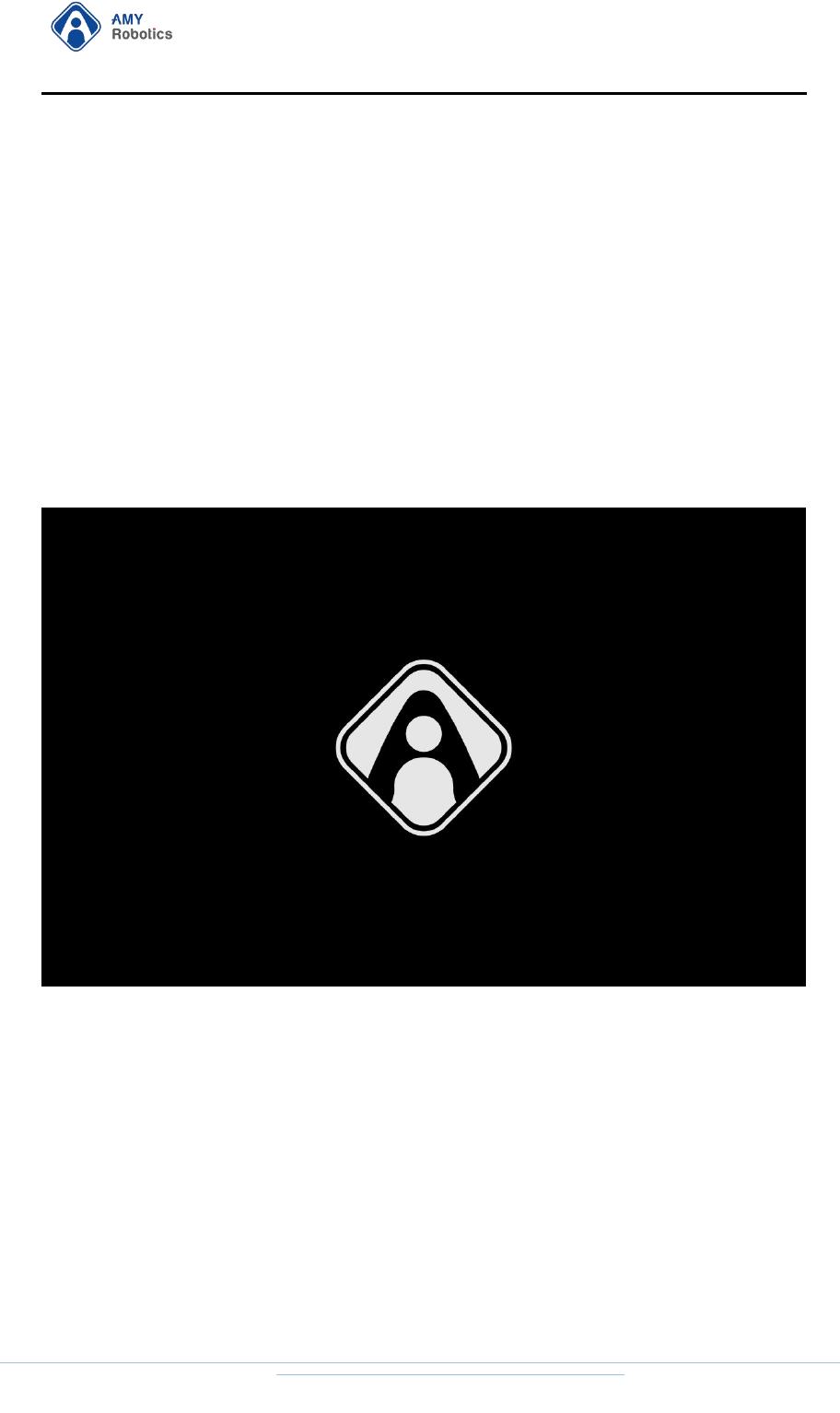
Boot Screen 1
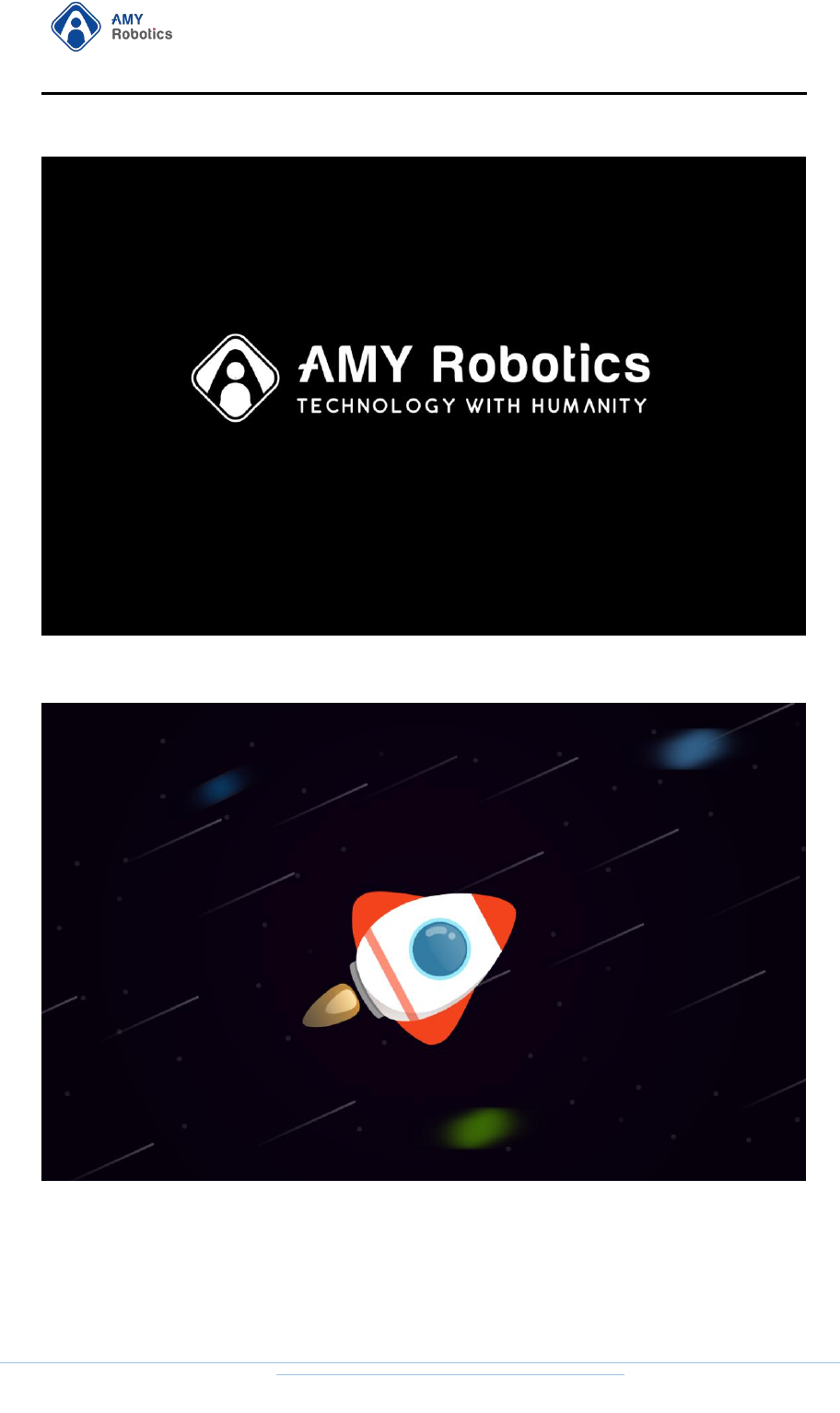
Boot Screen 2
杭州艾米机器人有限公司
Hangzhou Amy Robot Co., Ltd.
第Page 6 of 53
Boot Screen 3
After entering the system, click "Settings" to start initial setup.
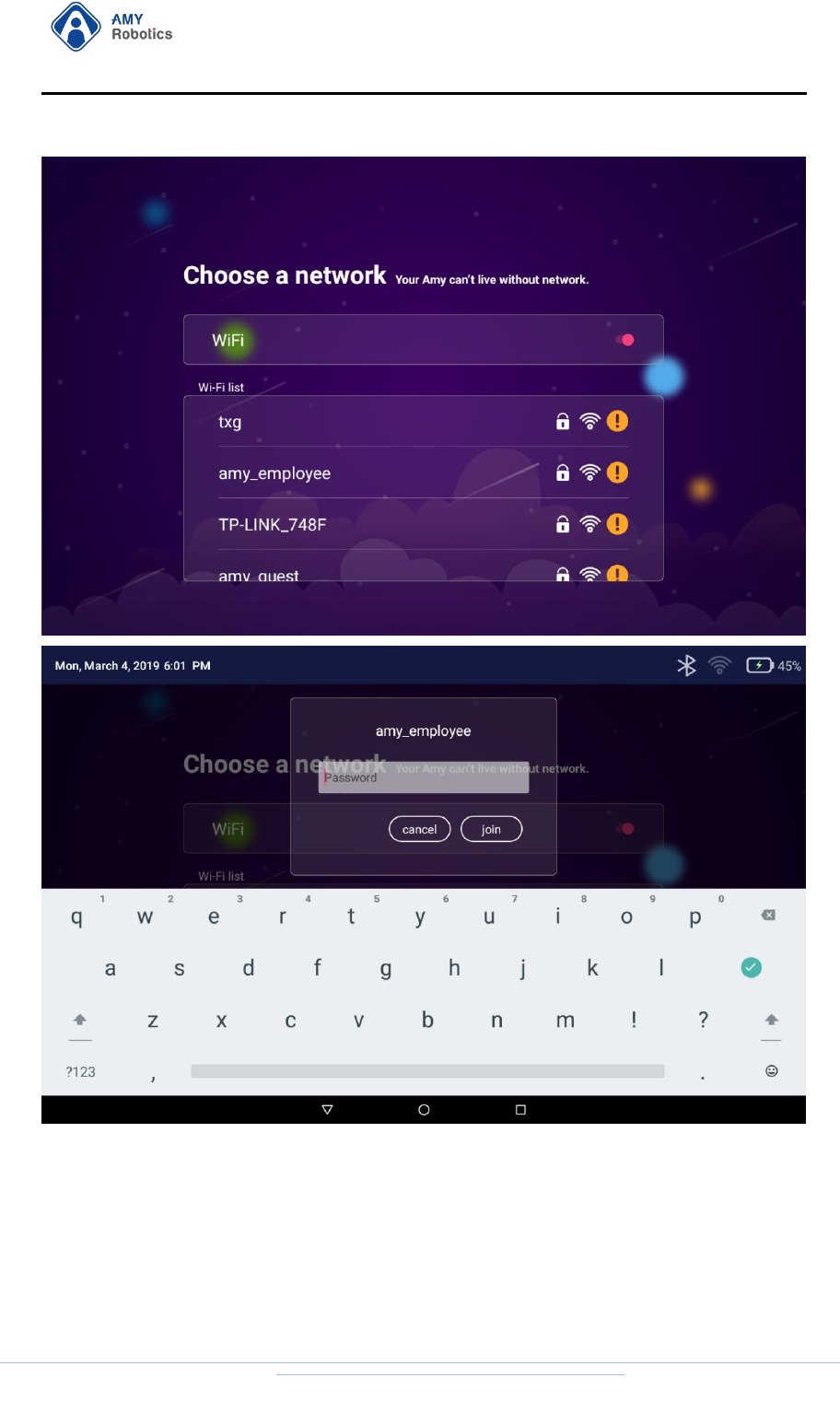
Step1 Connect to network
杭州艾米机器人有限公司
Hangzhou Amy Robot Co., Ltd.
第Page 7 of 53
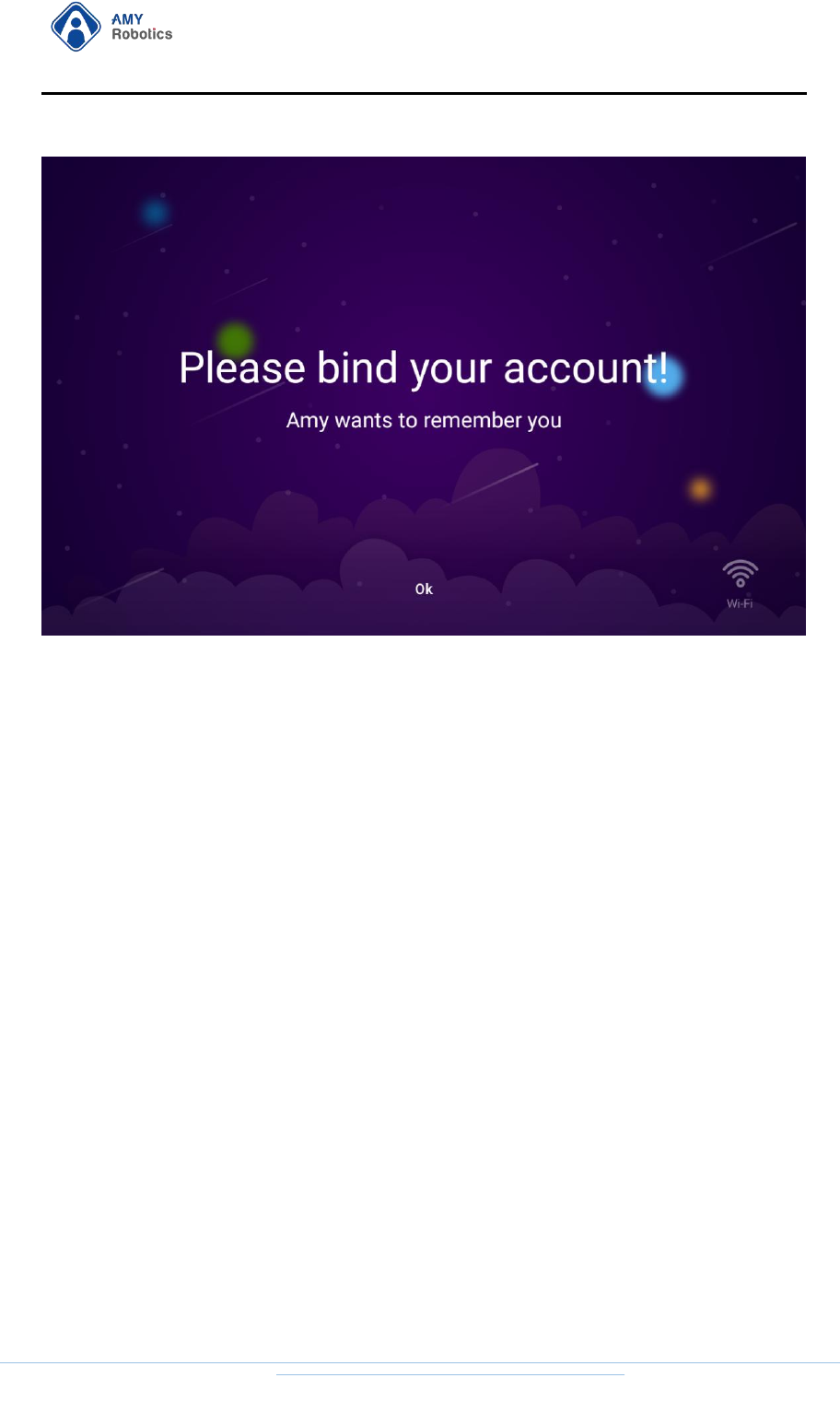
Step2 Bind administrator account
杭州艾米机器人有限公司
Hangzhou Amy Robot Co., Ltd.
第Page 8 of 53
For binding administrator account, please refer to Chapter 2.1 Account
Settings.
1.1.2. First Boot
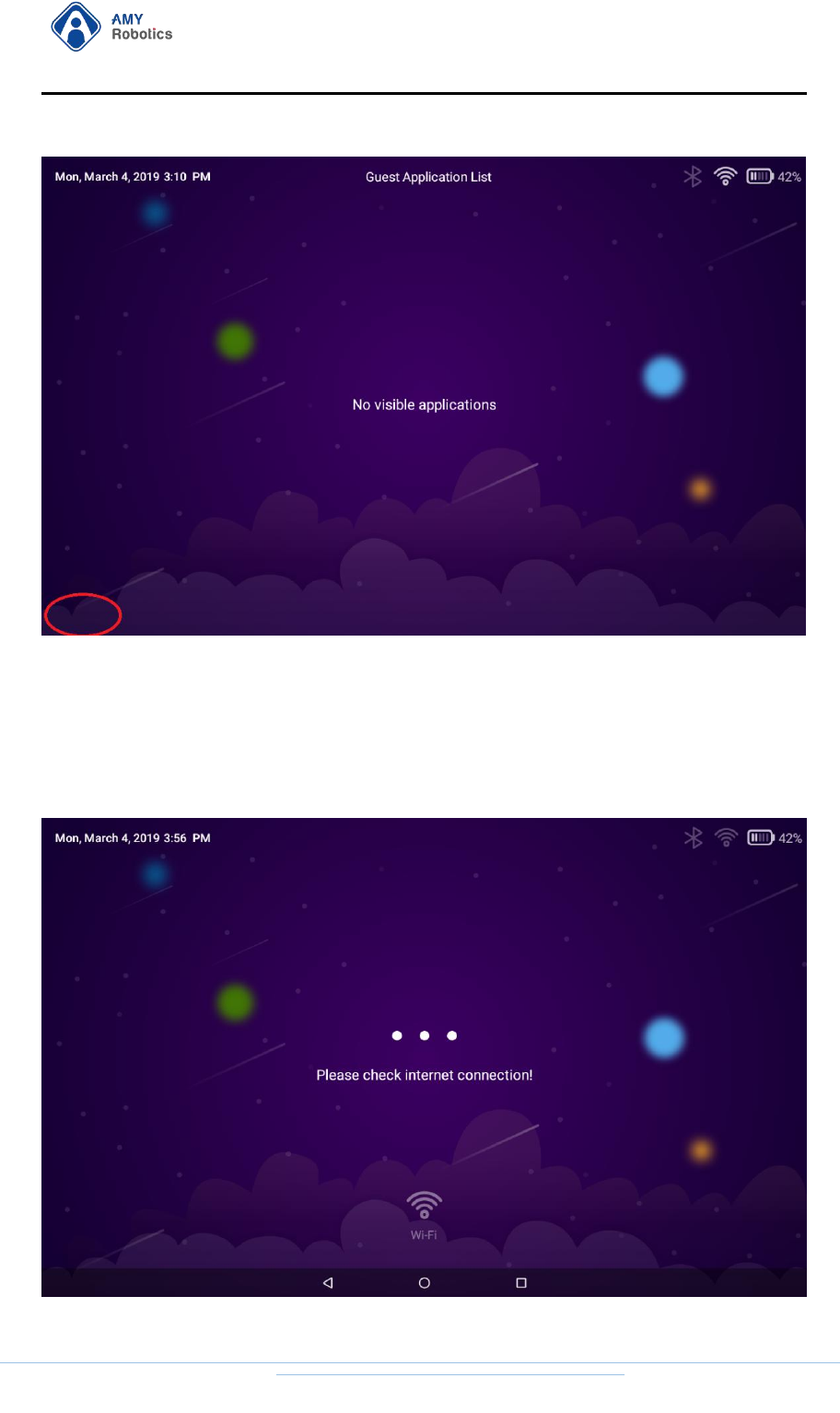
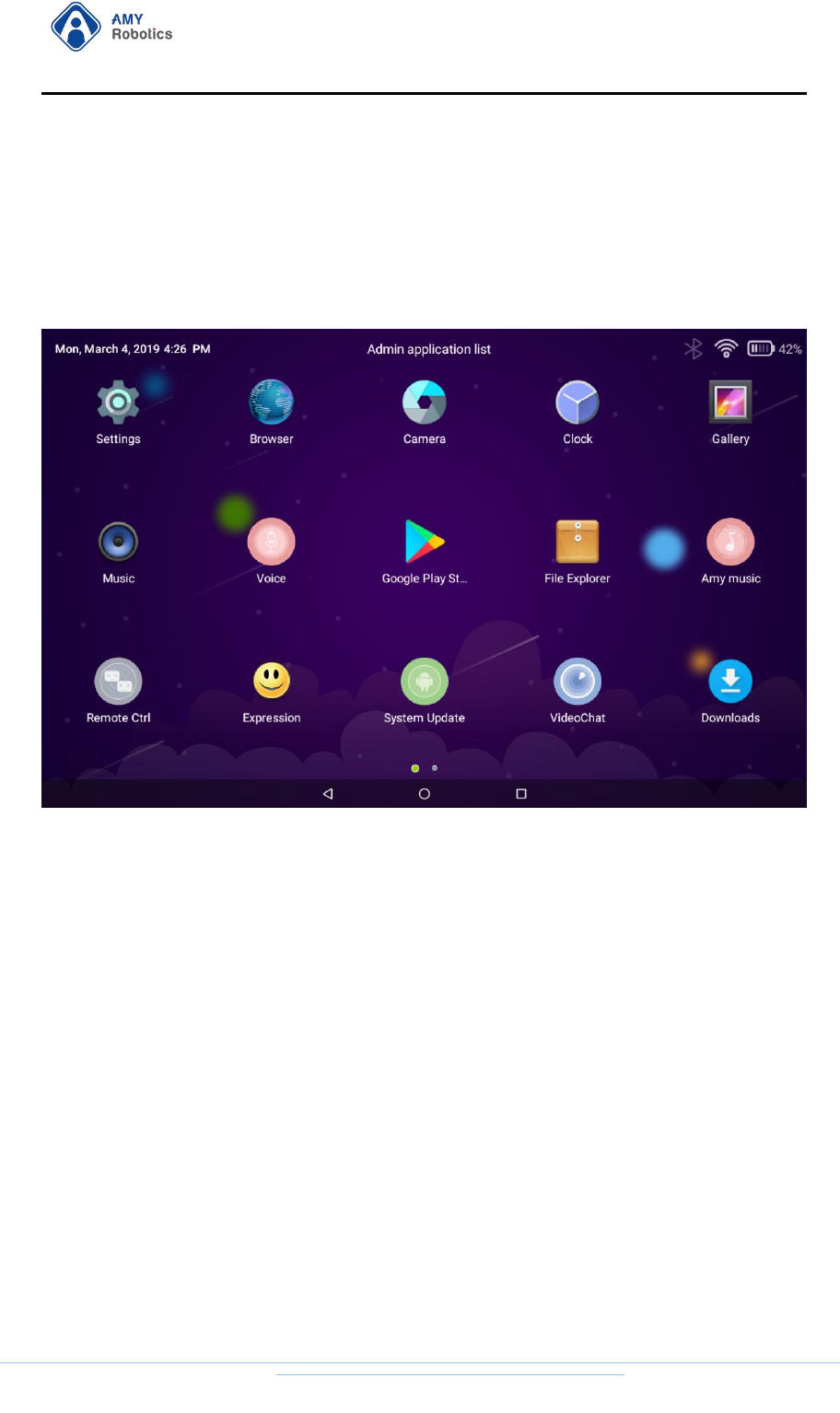
After booting, directly enter into the desktop, the default is App List
mode.
杭州艾米机器人有限公司
Hangzhou Amy Robot Co., Ltd.
第Page 9 of 53
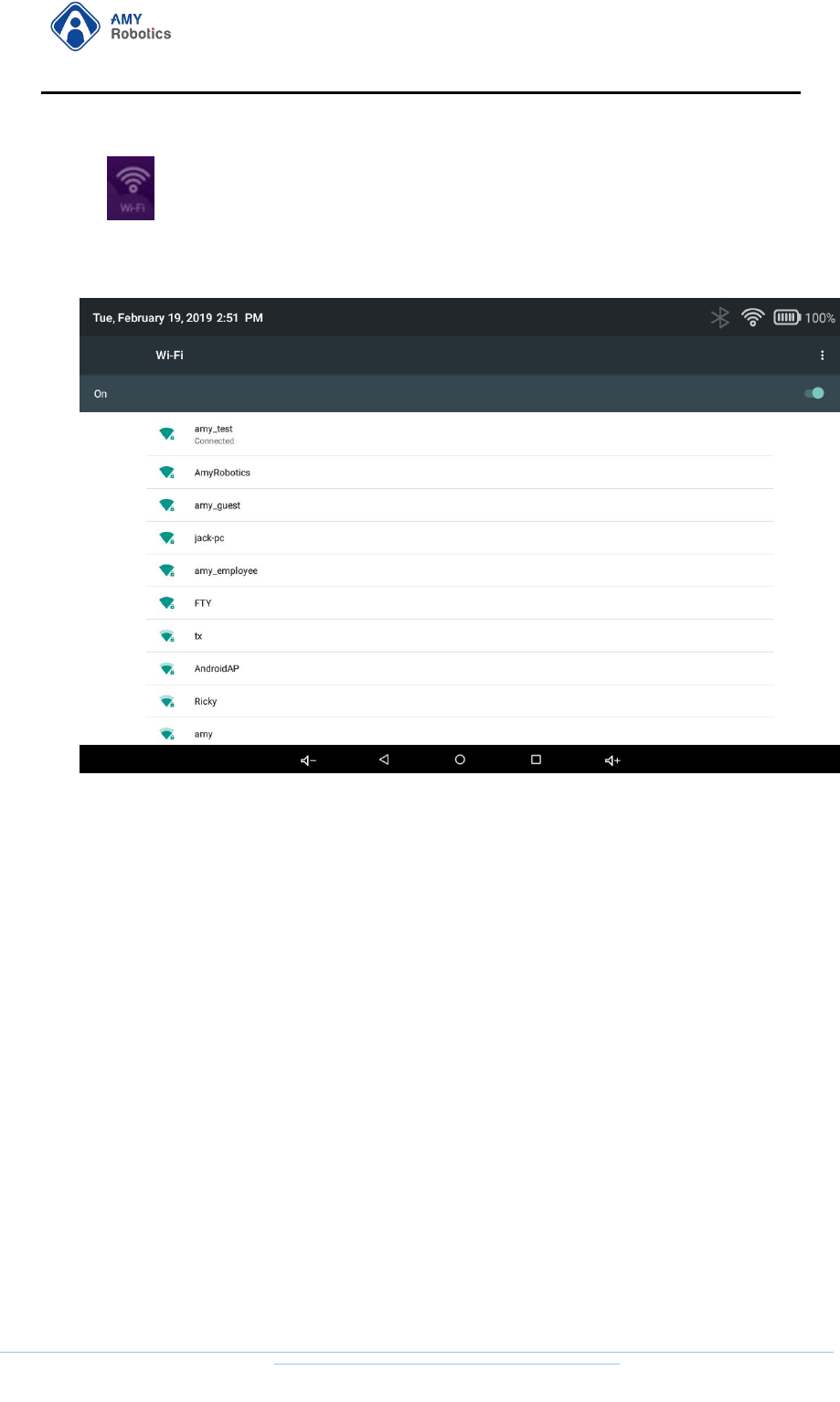
First boot to set Wi-Fi.
Click on the bottom left corner of the desktop four times to enter the
network detection page.
杭州艾米机器人有限公司
Hangzhou Amy Robot Co., Ltd.
第Page 10 of 53
Click icon to enter WLAN settings page. Just complete Wi-Fi
configuration.
Before use, please ensure that the robot is connected via Wi-Fi. The
network is recommended to be configured with a bandwidth of more
than 20Mbps. This device's Wi-Fi only supports 2.4G band.
2. Function List
This chapter will provide detailed instructions for all functions of Amina
2.0 Robot, including text descriptions and operational illustrations.

杭州艾米机器人有限公司
Hangzhou Amy Robot Co., Ltd.
第Page 11 of 53
2.1. Account Settings
The robot provides two modes: 1. Guest; 2. Administrator.
Guest Mode:
The administrator account is not bound, or the administrator account is
not logged in. You can only experience authorized functions.
Administrator Mode:
The robot has logged into the administrator account. You can experience
all the functions by managing robot information and user information
via account rights.
(A robot can only be bound to an administrator
account)
2.1.1. Bind administrator account--[Administrator mode]
[Account binding prerequisite]: The robot has not been bound to an
account and is connected to Wi-Fi.
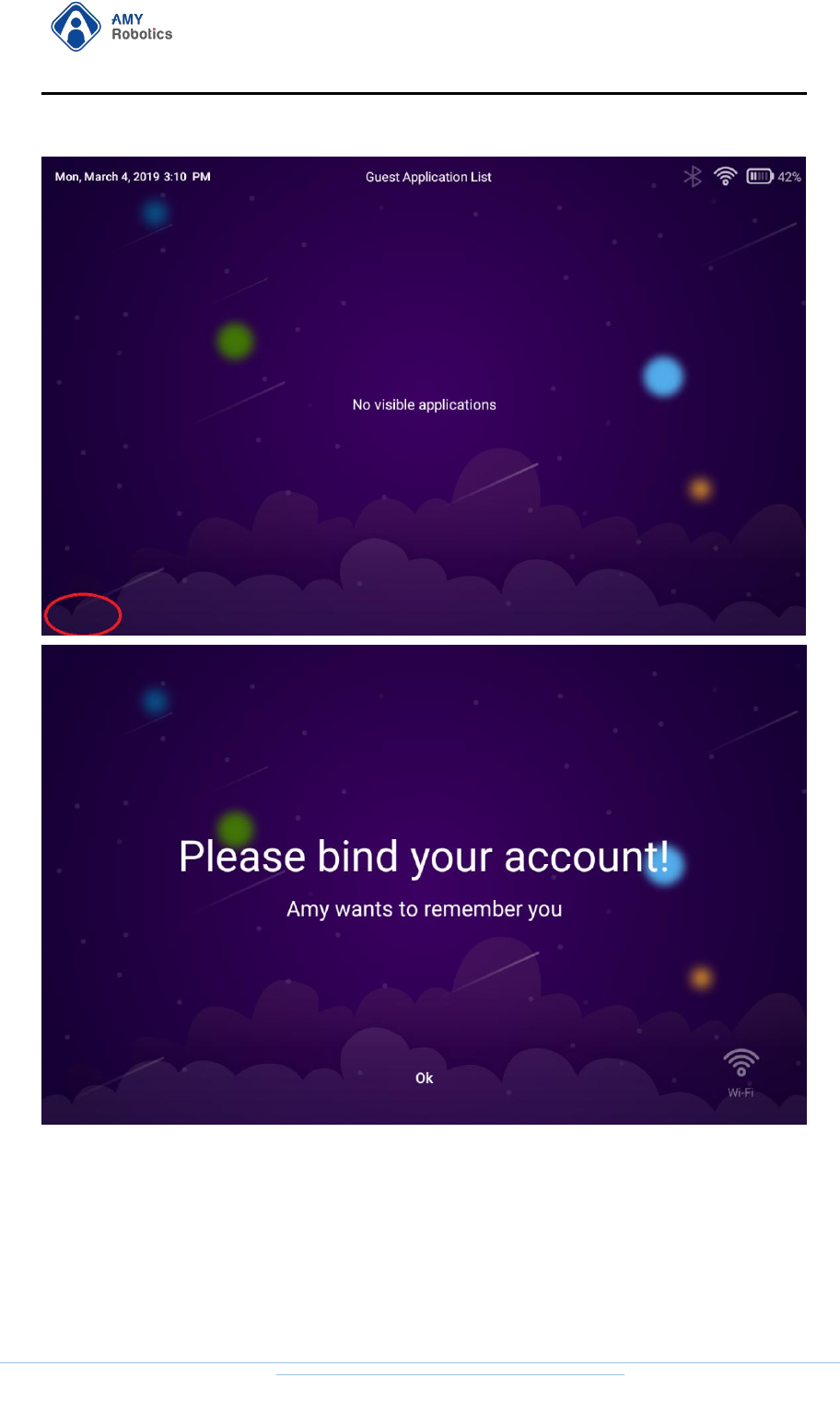
1. In the home interface, click on the bottom left corner four times to
open the "Account Binding" process.
杭州艾米机器人有限公司
Hangzhou Amy Robot Co., Ltd.
第Page 12 of 53
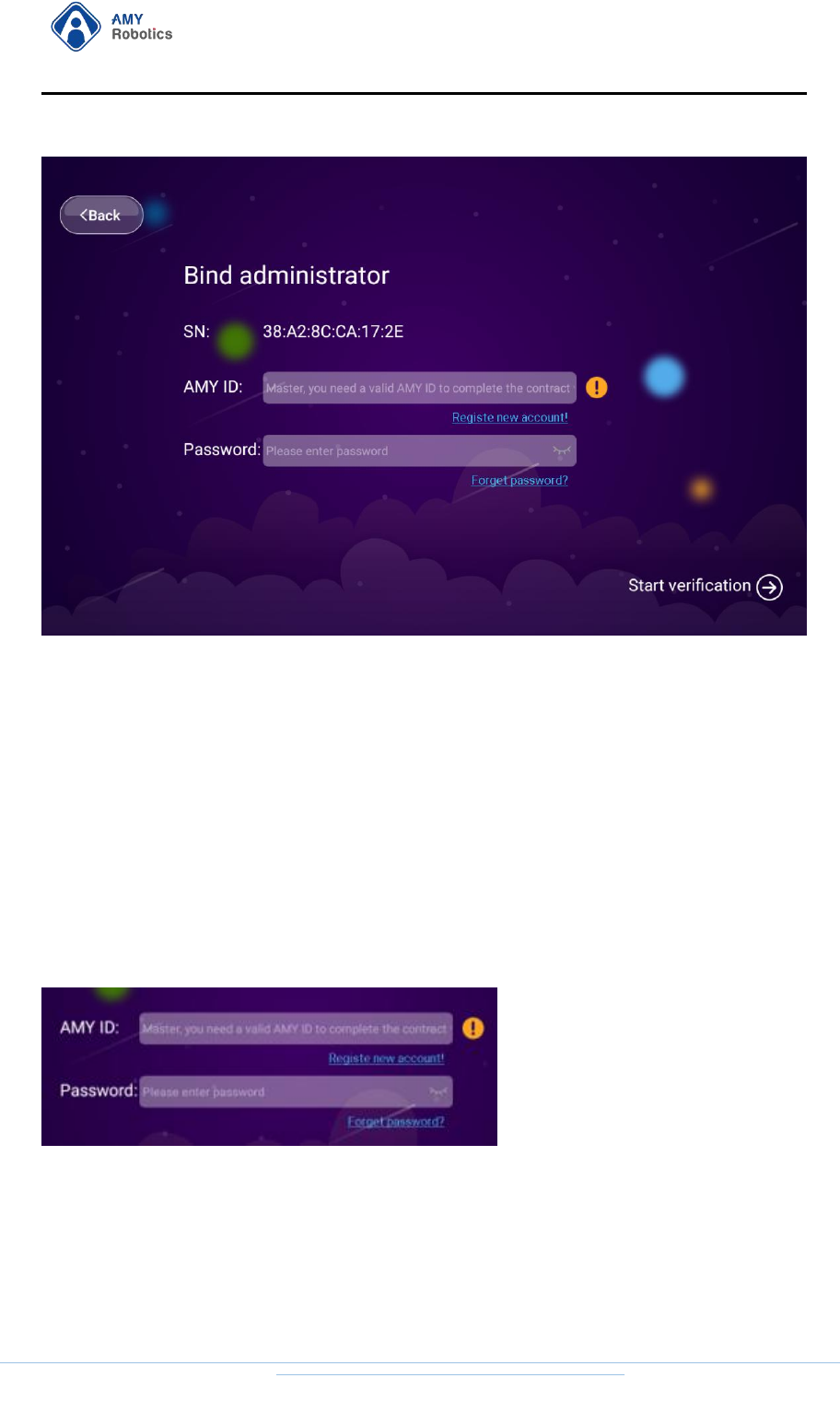
2. Click "OK" button to enter the "Bind Administrator" operation page.
杭州艾米机器人有限公司
Hangzhou Amy Robot Co., Ltd.
第Page 13 of 53
3. You can select "Bind an Existing Account" or click the "Register New
Account" button to register a new user and bind.
2.1.1.1.Bind an existing account
1. Enter username and password
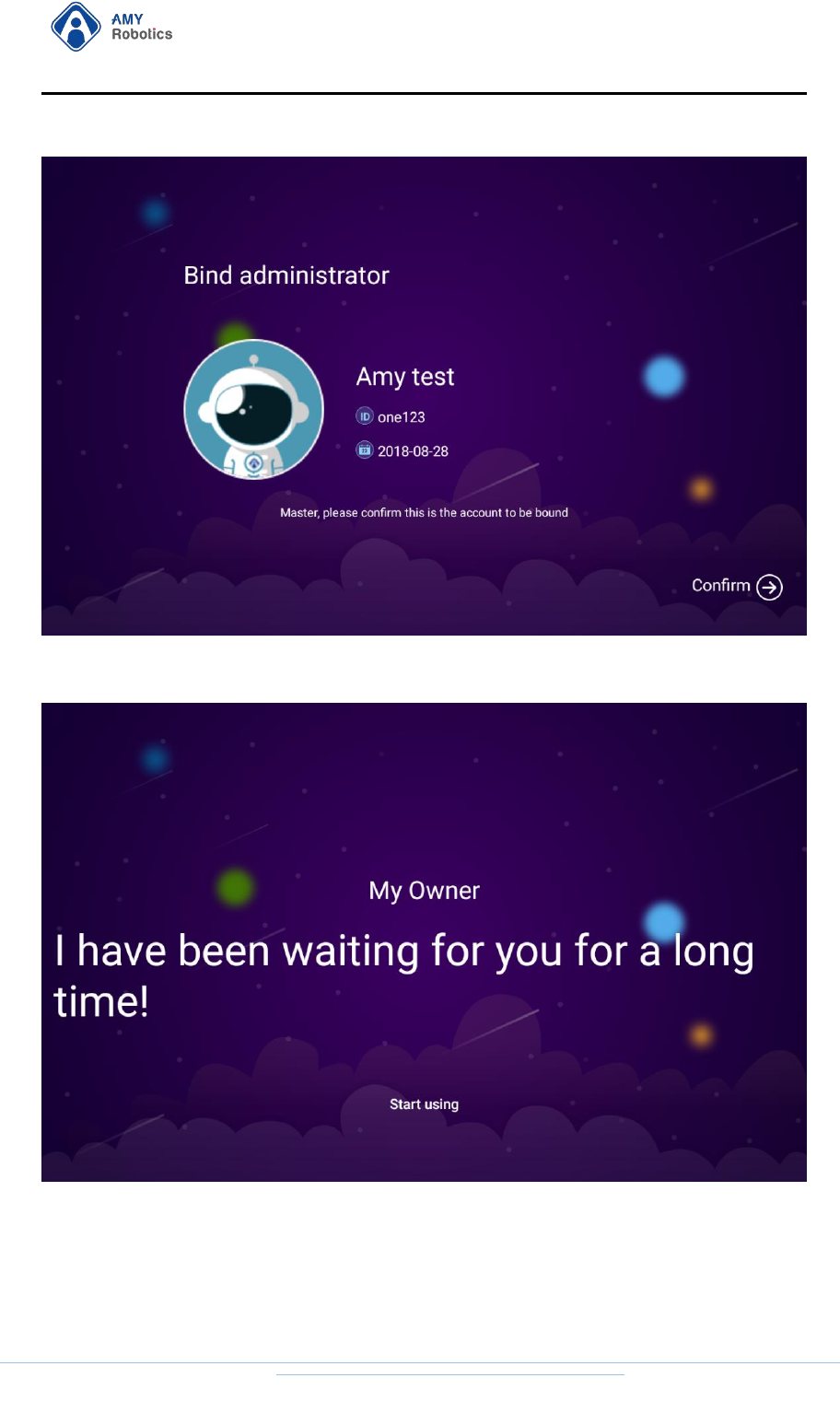
2. Click the "Start Verification" button to enter the administrator account
confirmation page.
杭州艾米机器人有限公司
Hangzhou Amy Robot Co., Ltd.
第Page 14 of 53
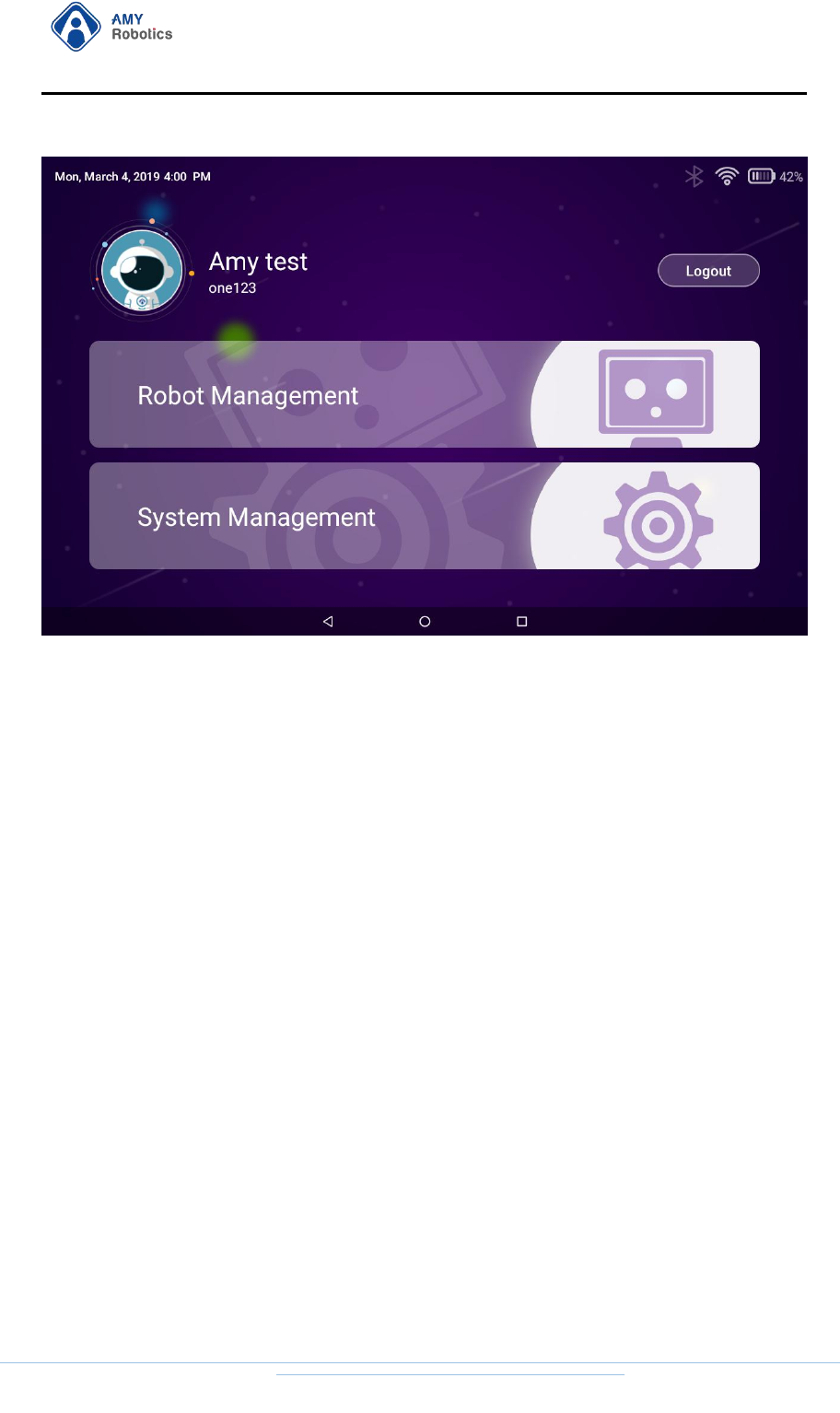
3. Click the "Confirm" button, the binding is successful.
4. Click the "Start using" button to enter the administrator page. You can
experience all the functions of the robot.
杭州艾米机器人有限公司
Hangzhou Amy Robot Co., Ltd.
第Page 15 of 53
2.1.1.2.Change Password
If you forget your password during the process of binding your account,
you can click the “Forgot Password” button and change it via the email
link.
2.1.1.3.Register New Account
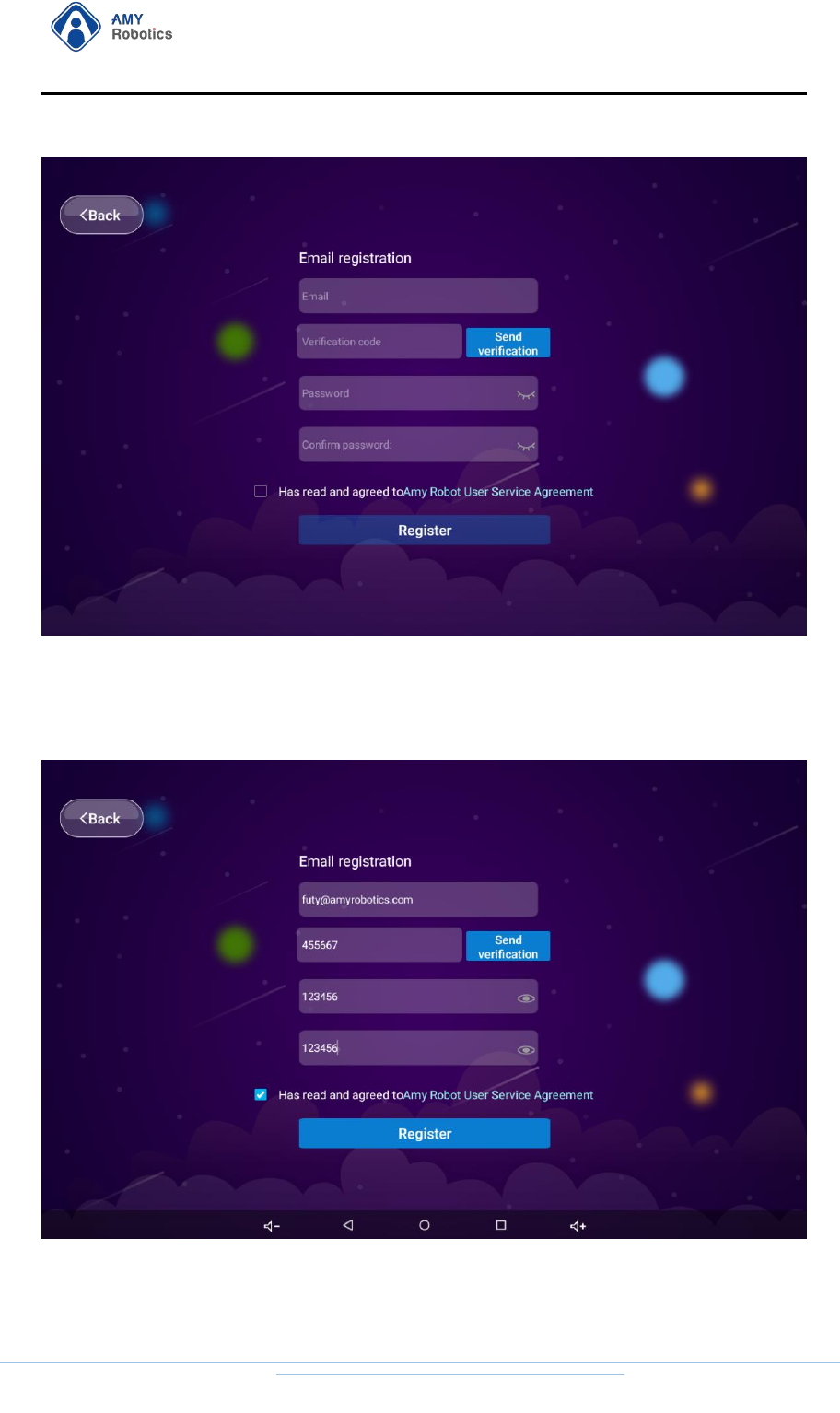
1. Click the "Register New Account" button on the "Bind Administrator"
page to enter the "Email registration" page.
杭州艾米机器人有限公司
Hangzhou Amy Robot Co., Ltd.
第Page 16 of 53
2. Enter the corresponding registration information as prompted and
click the "Register" button.
3. After successful registration, jump to the information perfect page and
follow the prompts to enter the information.
(Account name: 6-digit or
杭州艾米机器人有限公司
Hangzhou Amy Robot Co., Ltd.
第Page 17 of 53
above numbers or letters Password: 6-digit and above numbers and
letters)
2.1.2. Login [Administrator Mode]
[Administrator Account Login Prerequisite]: The robot has registered an
administrator account and connected to Wi-Fi.
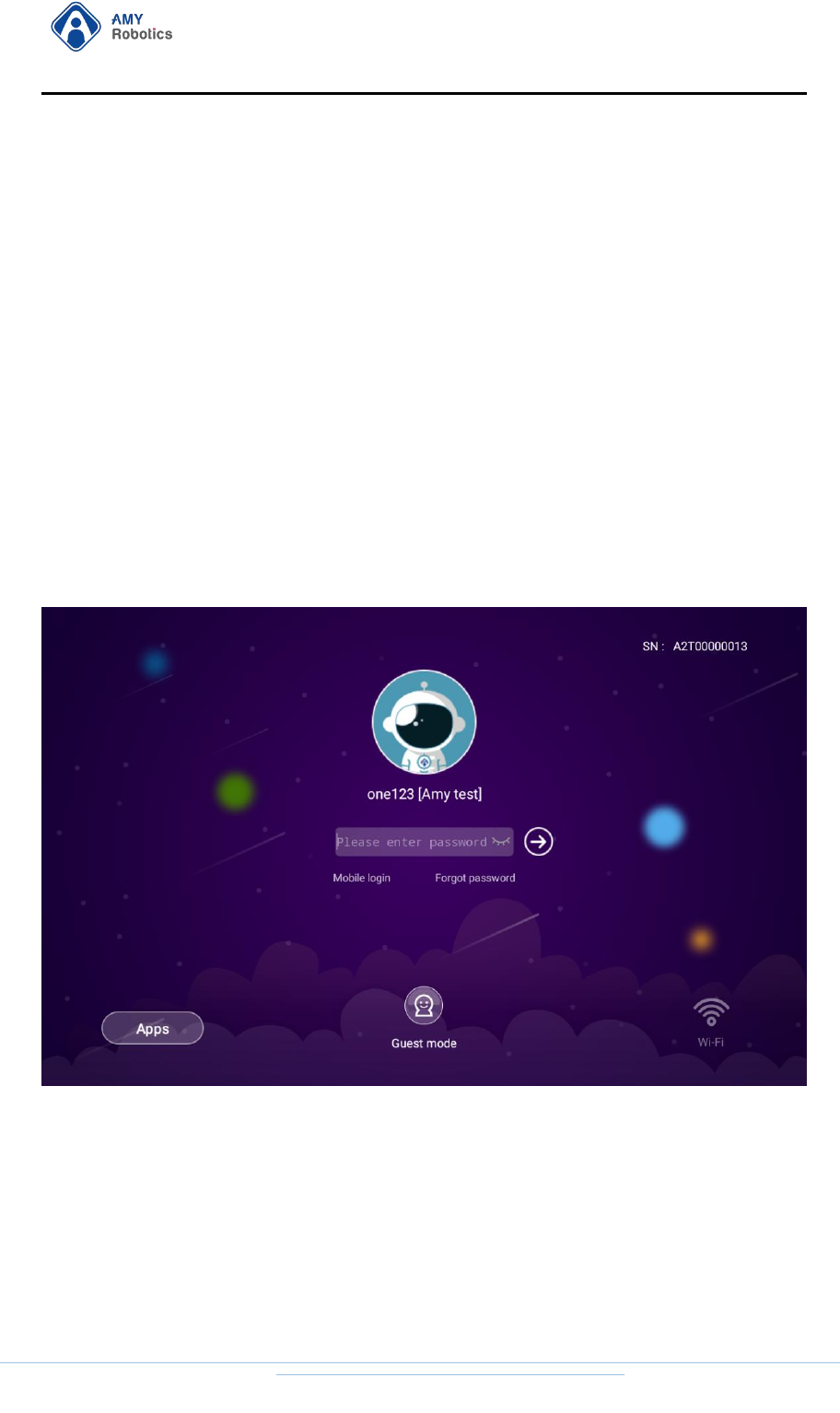
In the home interface, click on the bottom left corner four times to enter
the login page.
2.1.2.1. Change Password
If you forget your password during login, click the “Forgot Password” button to
change your password via the email link.
杭州艾米机器人有限公司
Hangzhou Amy Robot Co., Ltd.
第Page 18 of 53
2.1.3. Logout [Guest Mode]
[Administrator Account Logout Prerequisite]: The robot has logged in to the account
and connected to Wi-Fi
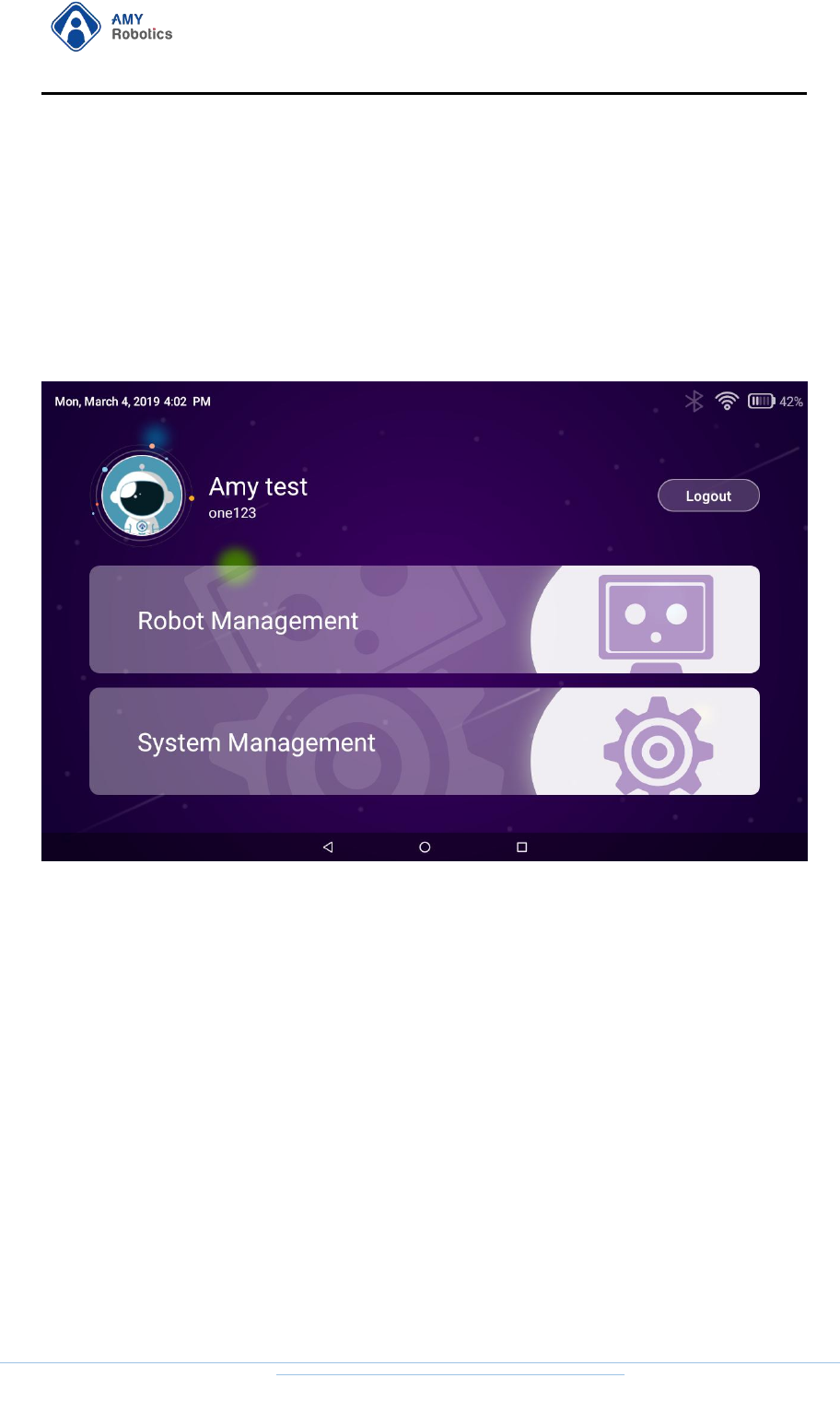
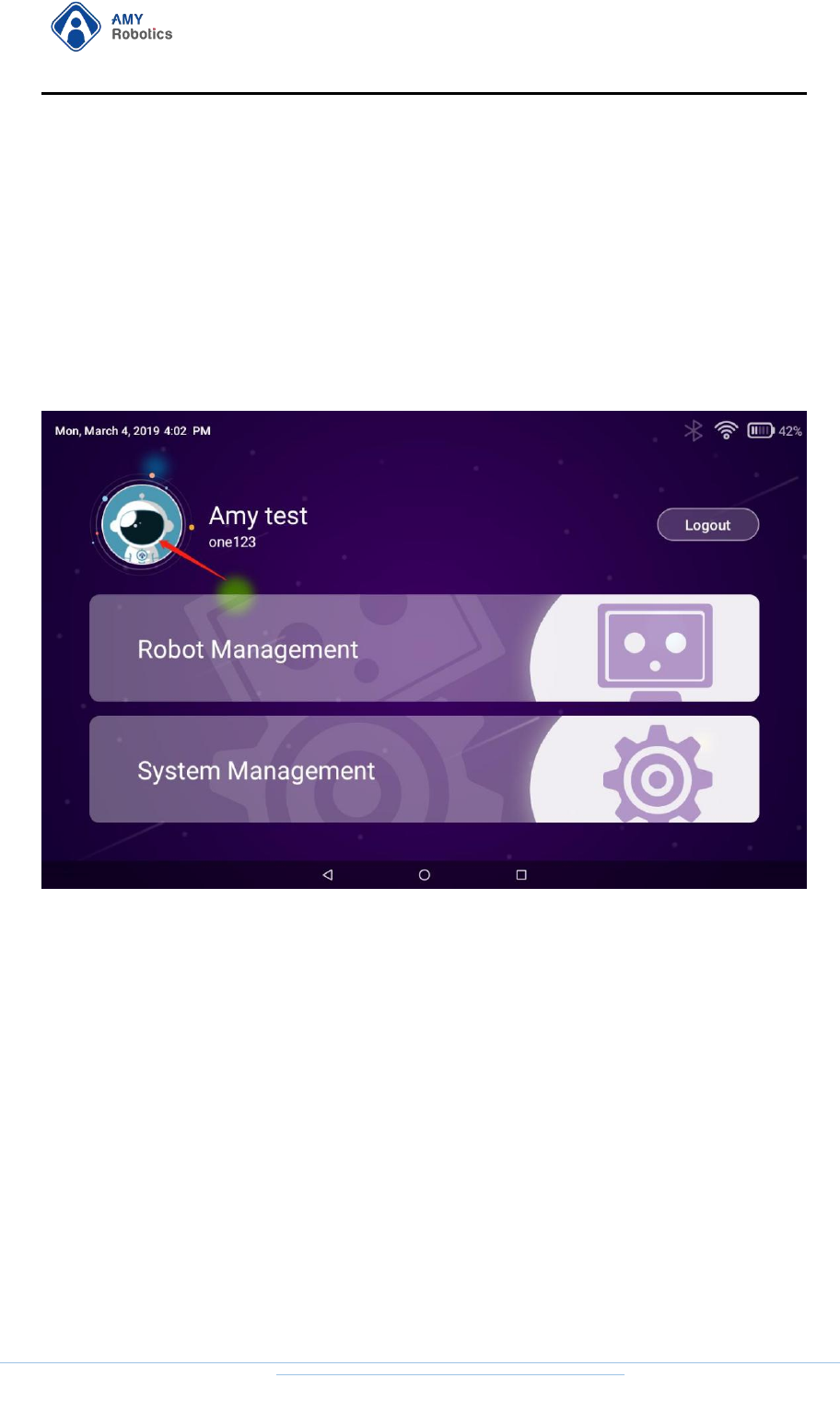
1. On the "Voice Desktop" interface, click the bottom left corner four times to
enter the "Administrator Management" page.
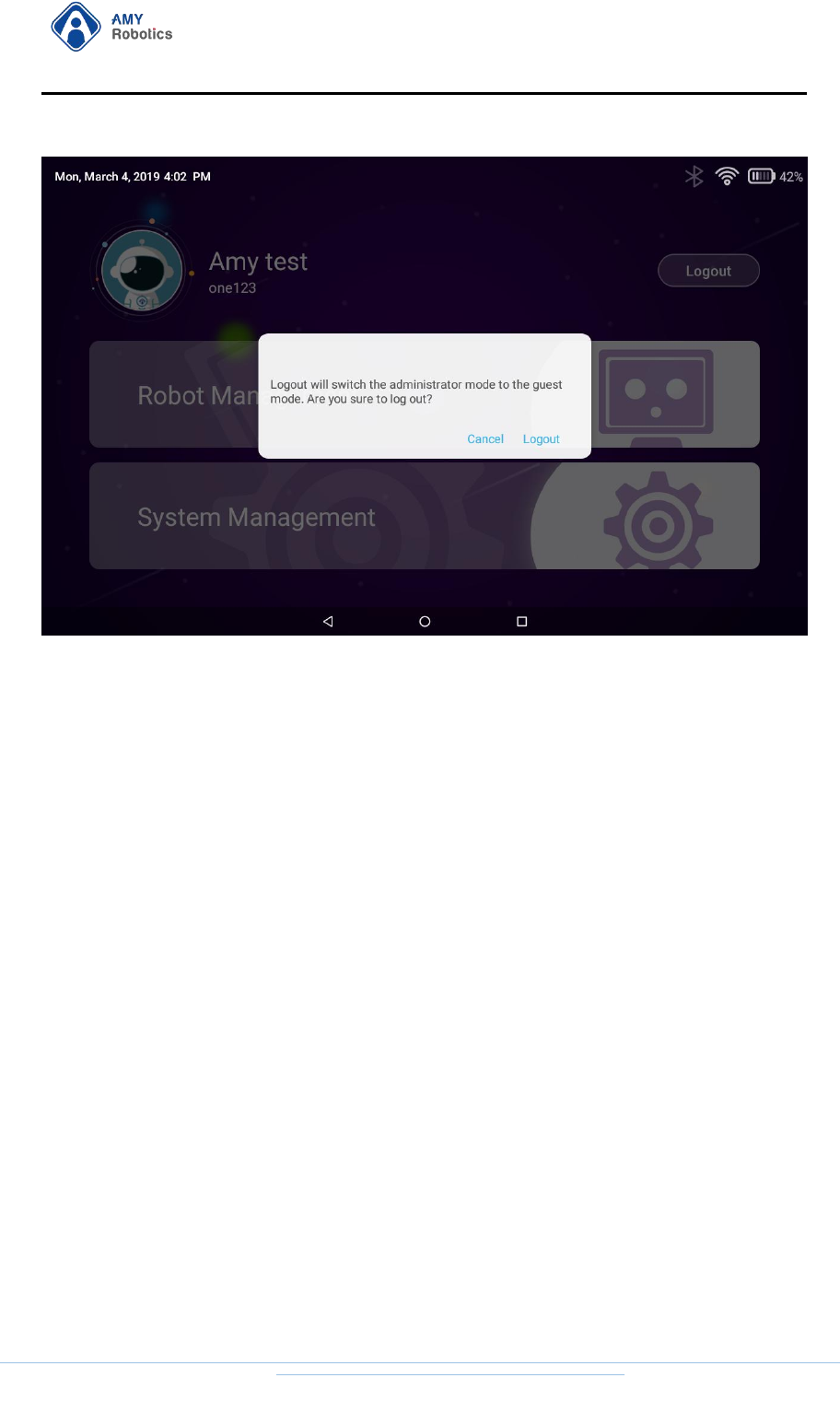
2. Click the "Logout" button to confirm the logout and the robot switches to the
Guest Mode.
杭州艾米机器人有限公司
Hangzhou Amy Robot Co., Ltd.
第Page 19 of 53
2.1.4 Change Administrator Nickname
[Prerequisites for viewing account information]: The robot has logged in to the
account and entered the Administrator Management page.
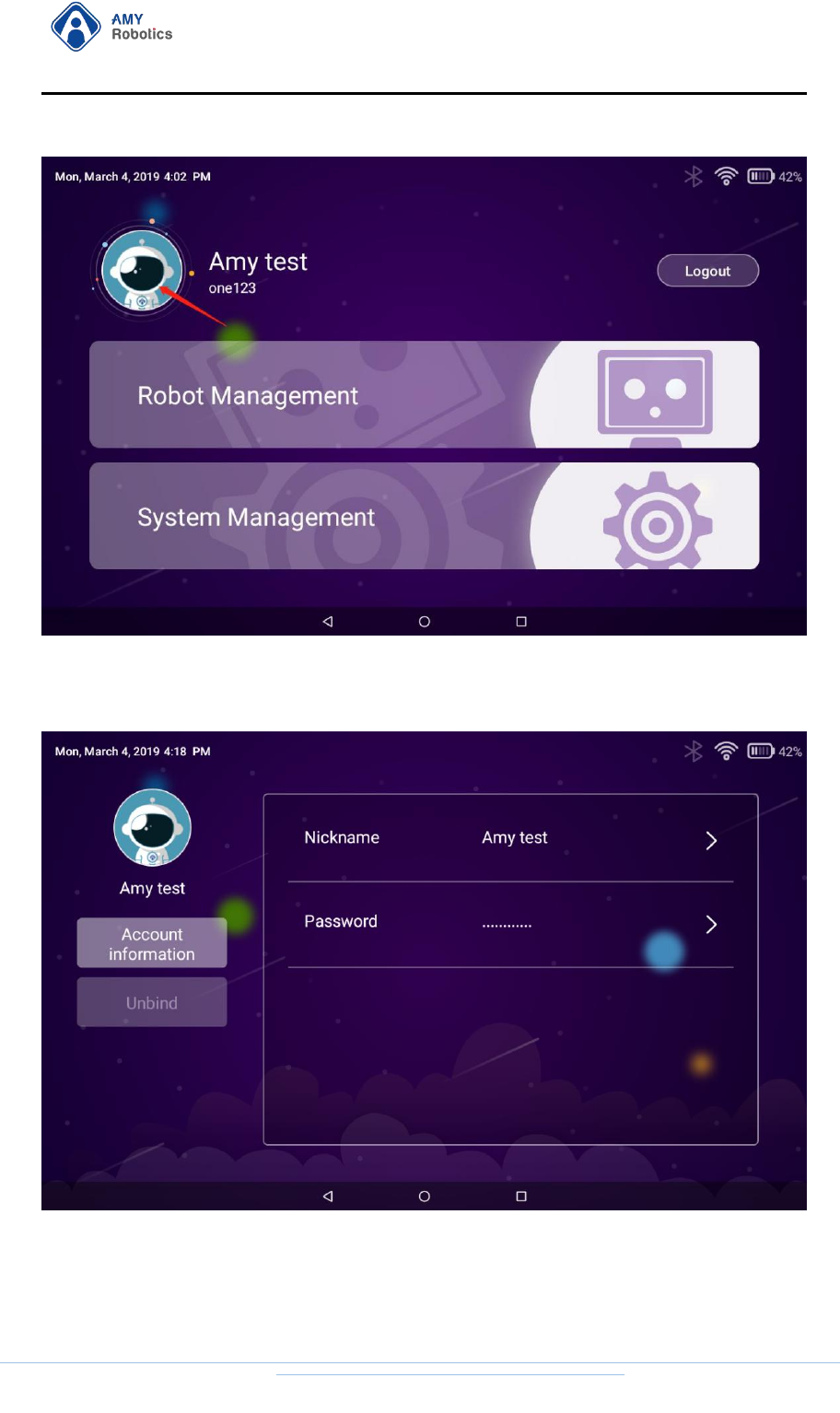
1. Enter the "Administrator Management" page, click on the robot avatar in the
upper left corner to enter the "Account Information" page
杭州艾米机器人有限公司
Hangzhou Amy Robot Co., Ltd.
第Page 20 of 53
2. Click on the "Nickname" field and change it. (12 Chinese or 24 English characters
at most for nickname)
杭州艾米机器人有限公司
Hangzhou Amy Robot Co., Ltd.
第Page 21 of 53
2.1.5 Unbind [Guest Mode]
[Prerequisites for unbinding administrator account]: The administrator account has
been logged in (Administrator Mode).
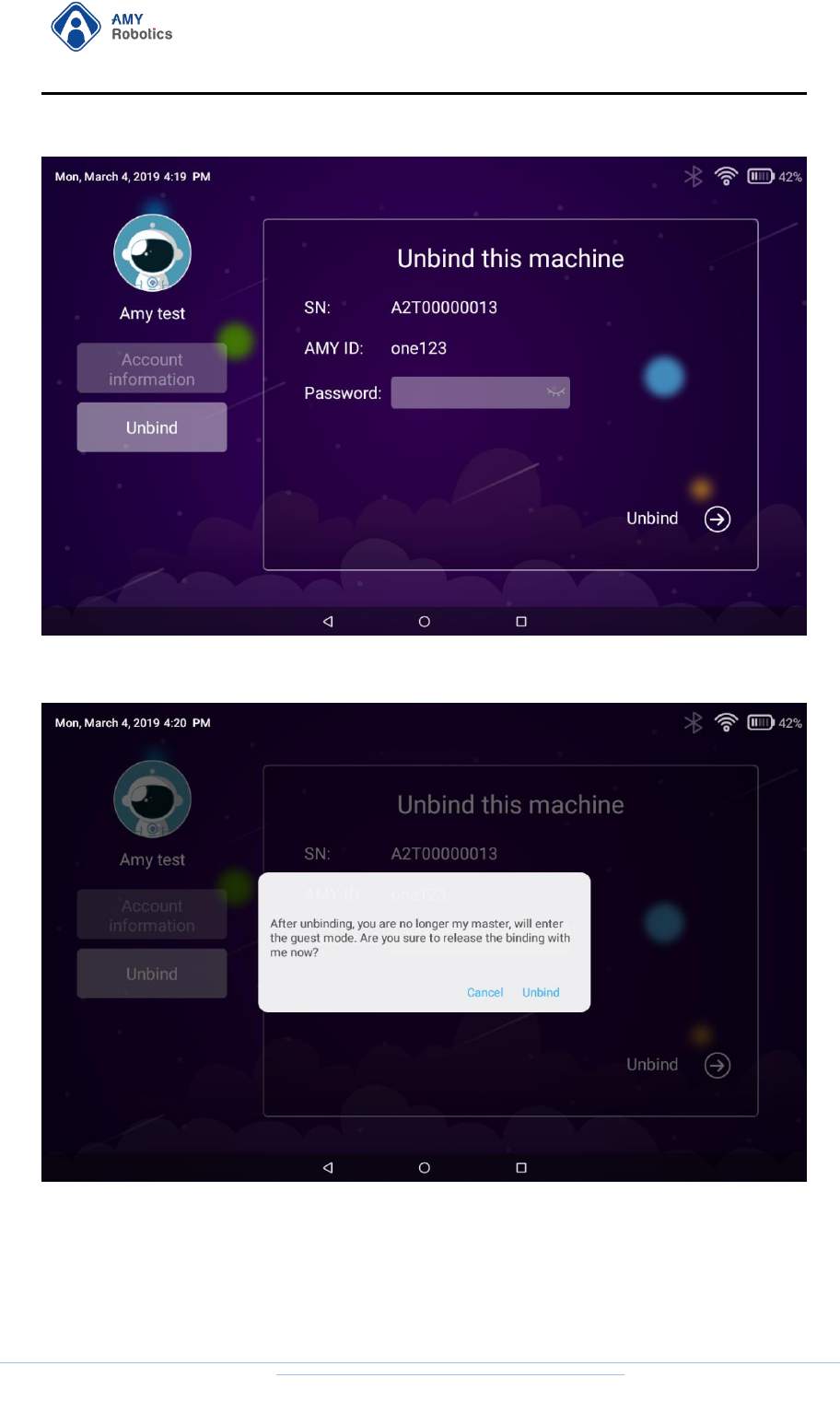
1. Click the bottom left corner of the voice desktop four times to enter the
Administrator Management page.
2. Click on the robot avatar in the upper left corner to enter the account information
page.
3. Click the "Unbind" button.
杭州艾米机器人有限公司
Hangzhou Amy Robot Co., Ltd.
第Page 22 of 53
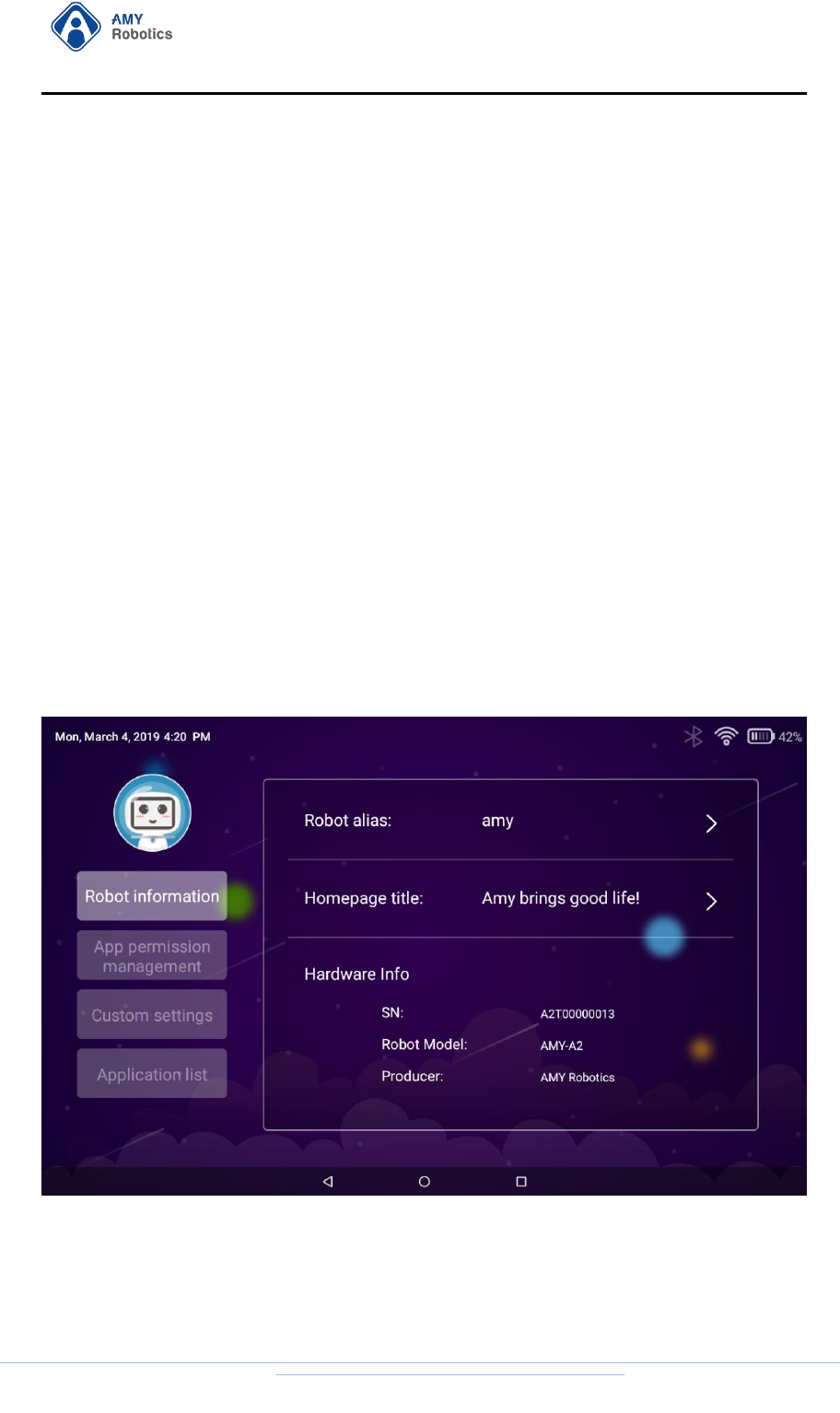
4. Enter the account password and click the "Unbind" button to confirm the unbind.
5. After unbinding, your account will not have management rights to this robot, you
can re-bind the administrator account as required.
杭州艾米机器人有限公司
Hangzhou Amy Robot Co., Ltd.
第Page 23 of 53
2.2 Robot Management
This section details the administrator's executable management projects for the
robot and how to manage the robot information.
2.2.1 Robot Information
2.2.1.1 Change Robot Memo Name
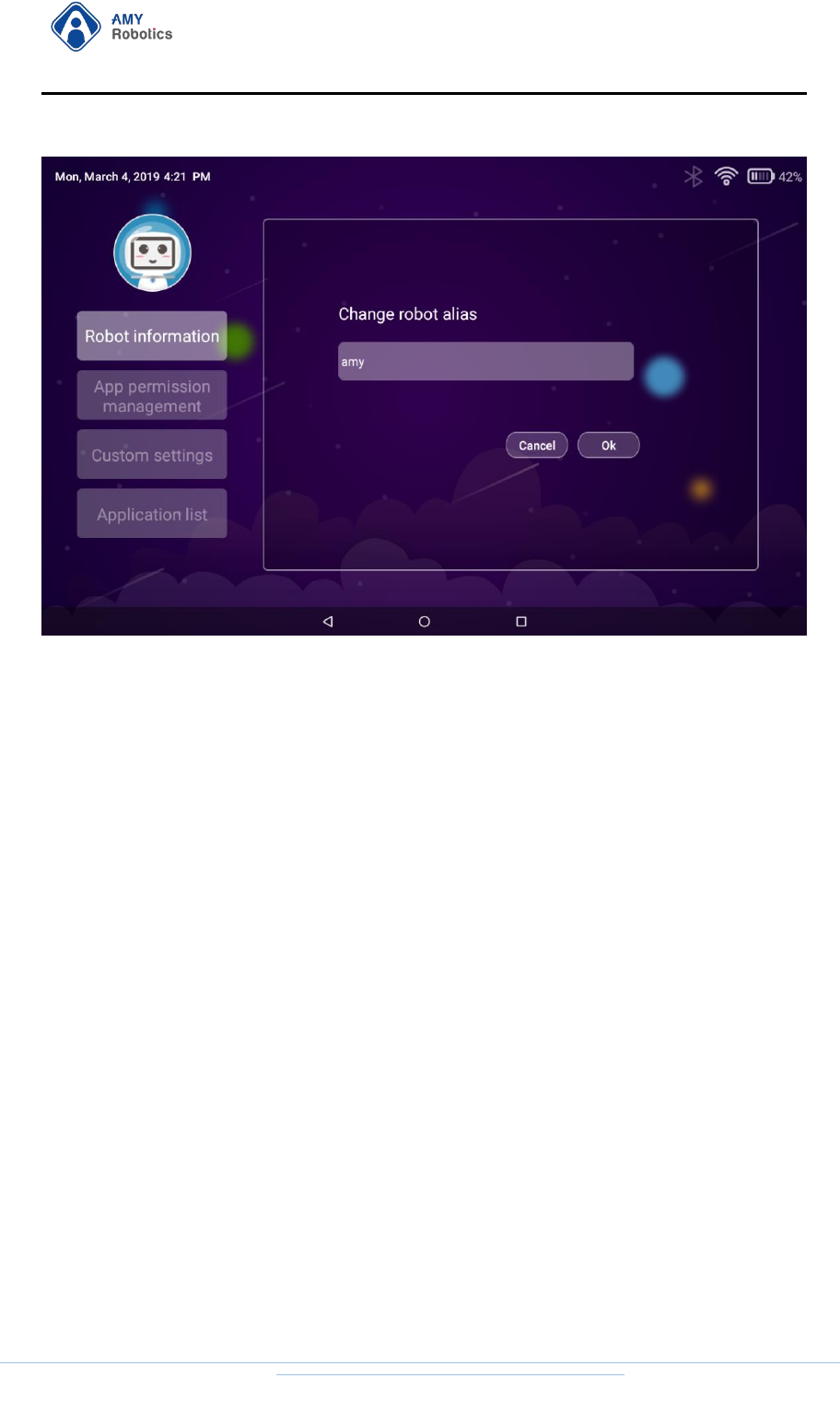
The "Robot Memo Name" can be used on the Amy Robot "Web Management"
page to distinguish between multiple different robots under the same administrator
account name.
[Prerequisites for changing memo name]: The robot has logged in to the account
and connected to Wi-Fi. Enter the “Administrator Management” page.
1. Click the "Robot Management" button on the "Administrator Management" page.
2. Click the "Robot Memo Name" button and enter a new memo name. (26
Chinese or 52 English characters at most)
杭州艾米机器人有限公司
Hangzhou Amy Robot Co., Ltd.
第Page 24 of 53
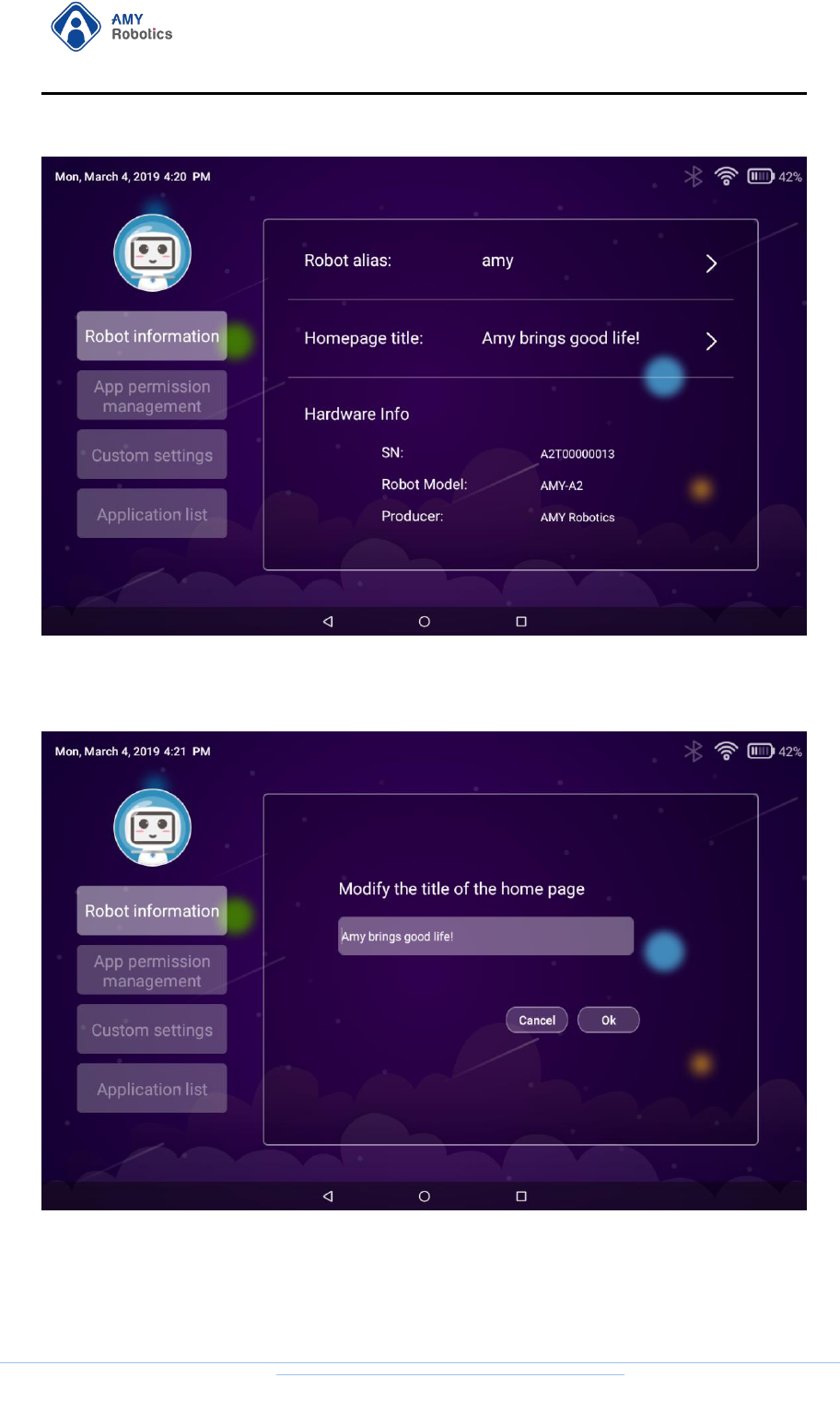
2.2.1.2. Change Title
[Prerequisites for "changing title"]: The robot has logged in to the account and
connected to Wi-Fi. Enter the “Administrator Management” page.
1. Click the "Robot Management" button on the "Administrator Management"
page.
杭州艾米机器人有限公司
Hangzhou Amy Robot Co., Ltd.
第Page 25 of 53
2. Click the "Homepage Title" button and enter a new title. (52 English
characters at most)
杭州艾米机器人有限公司
Hangzhou Amy Robot Co., Ltd.
第Page 26 of 53
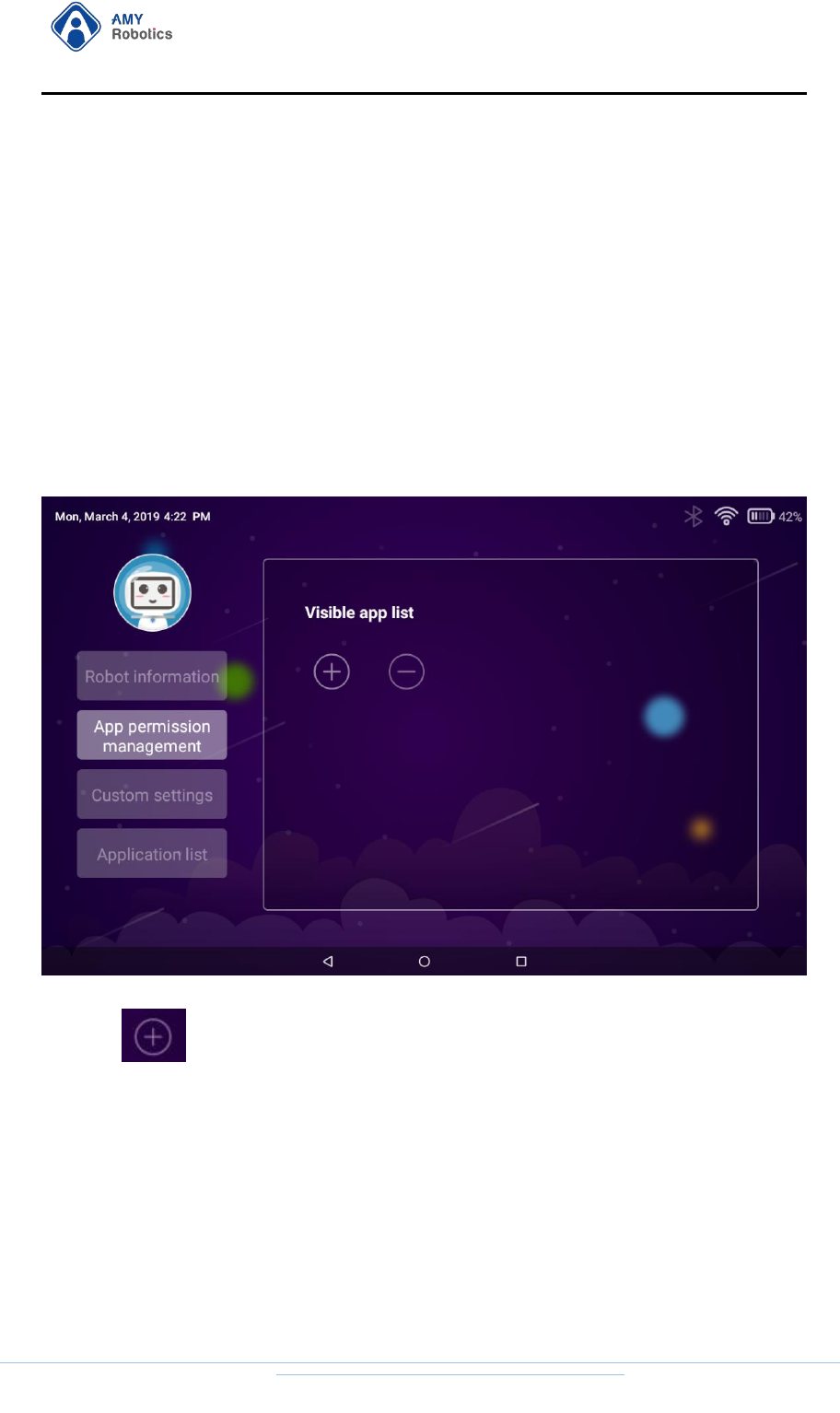
2.2.2. App Permission Management
"App Permission Management" is used to set the "Guest Visible" app, only the
app added here is allowed to be accessed in the guest mode.
[Prerequisites for changing "App permission management"]: The robot has
logged in to the account and connected to Wi-Fi. Enter the “Administrator
Management” page.
1. Click the "Robot Management" button on the "Administrator Management" page.
2. Click the "App Permission Management" button.
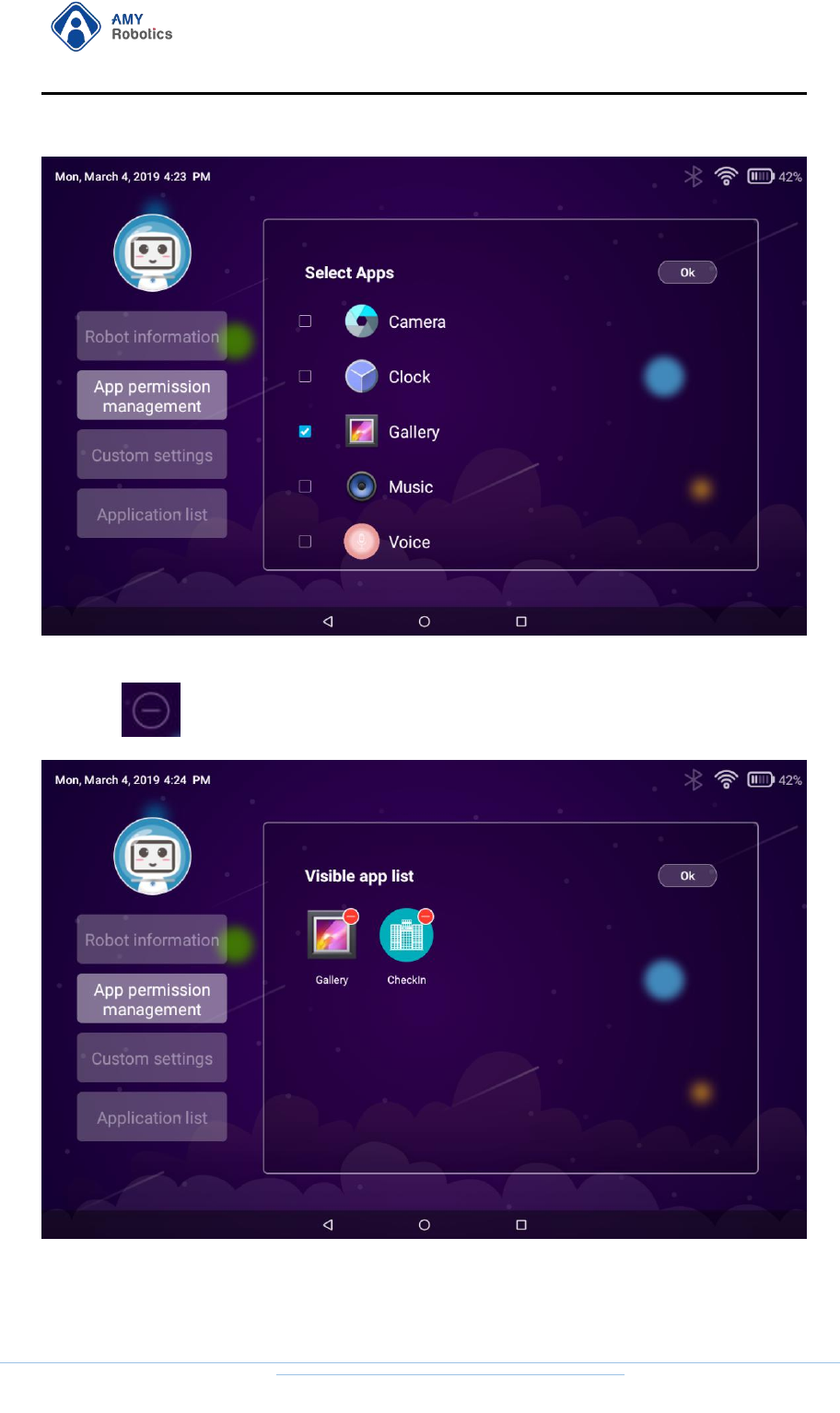
3. Click to add guests to use APP.
杭州艾米机器人有限公司
Hangzhou Amy Robot Co., Ltd.
第Page 27 of 53
4. Click to remove guests to use APP.
5. After the configuration is completed, the App List visible in "Guest Mode" will be
updated.

杭州艾米机器人有限公司
Hangzhou Amy Robot Co., Ltd.
第Page 28 of 53
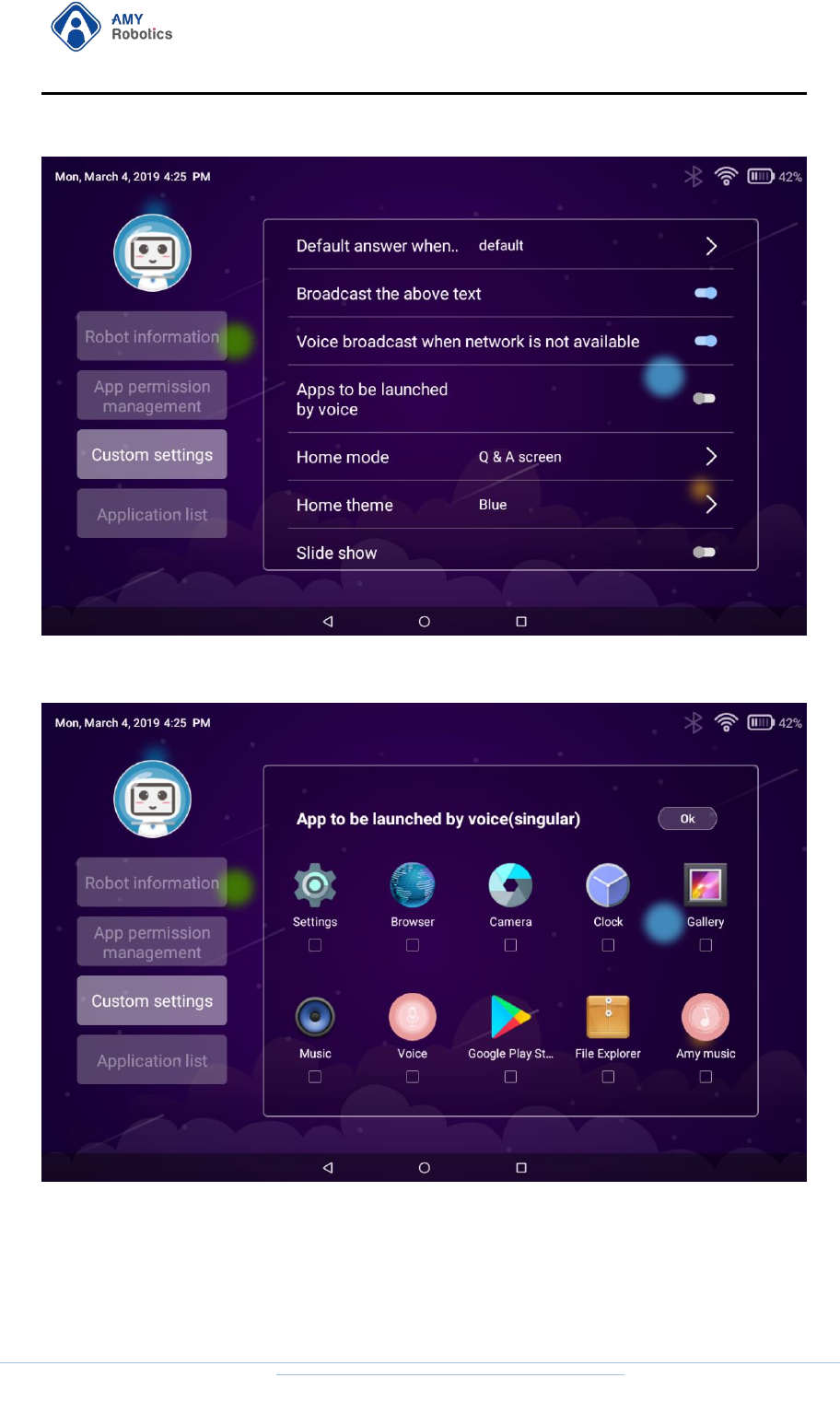
2.2.3 Custom Settings
2.2.3.1. Respond text when confronted with unanswerable questions
Enter the "Custom Settings" page, click the "Respond text when confronted with
unanswerable questions" button, you can set the robot's default answer of "I need
continued learning" when confronted with unanswerable questions.
Turn on the "Broadcasting the above text", when the robot encounters an
unanswerable question, the above text will be broadcast.
Turn off the "Broadcasting the above text", when the robot encounters an
unanswerable question, only the response text is displayed, and the voice broadcast is
no longer performed.
2.2.3.2. Voice broadcast when network is not available
When network is not available, "Amy" will prompt the user “Poor Network
Signal” with voice by default. If you want to close this prompt, you can close it in the
custom settings.
2.2.3.3. Apps to be launched by voice
"Amy" wakes up by voice and automatically enters "Listen Mode". You can set
"Amy" to “Apps to be launched by voice”to automatically open an app after voice
wake-up.
1. Click the "Apps to be launched by voice" button
杭州艾米机器人有限公司
Hangzhou Amy Robot Co., Ltd.
第Page 29 of 53
2. Set the app to be launched (radio) and click "OK" button.
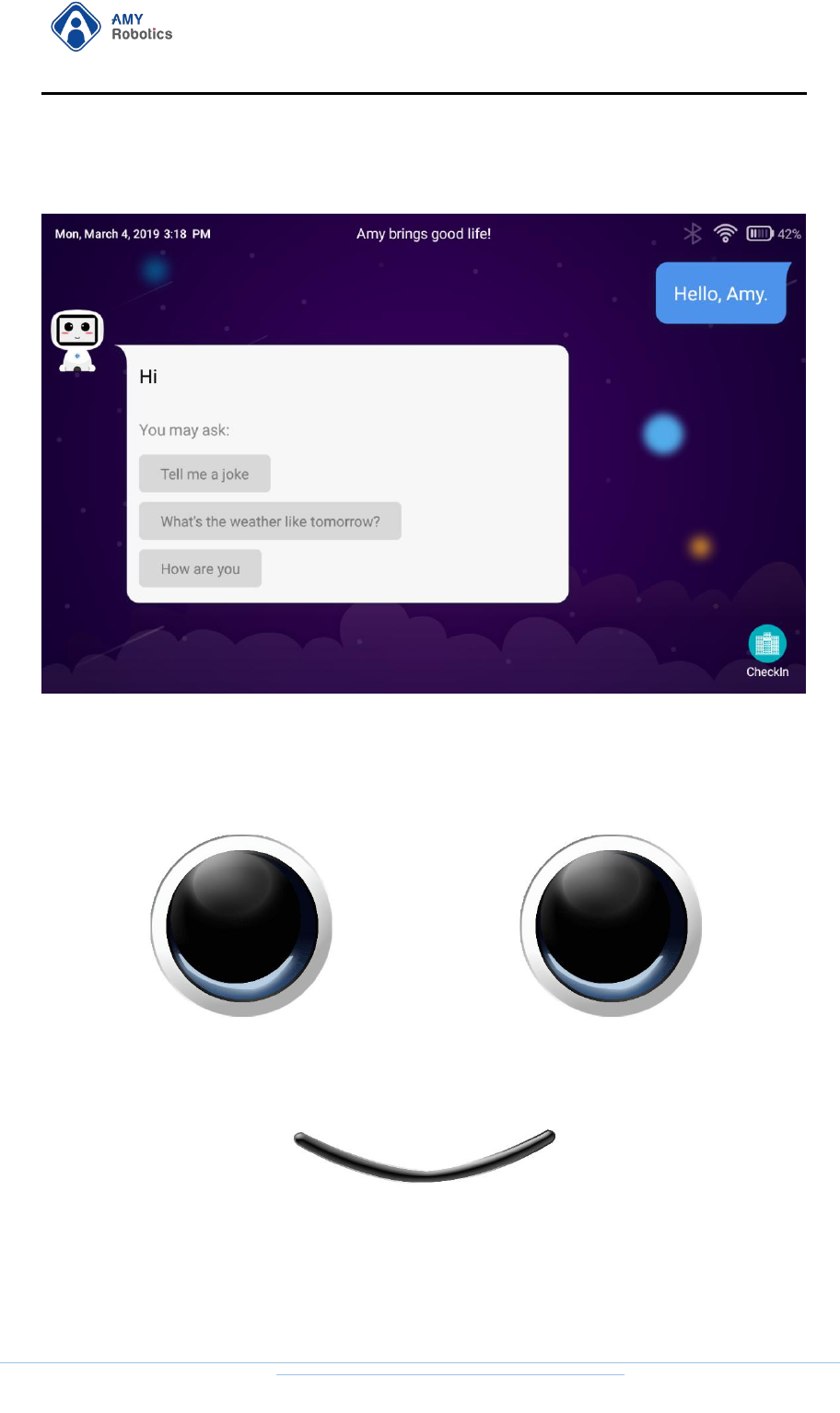
2.2.3.4. Desktop Mode
Enter the "Custom Settings" page to set the desktop mode.
杭州艾米机器人有限公司
Hangzhou Amy Robot Co., Ltd.
第Page 30 of 53
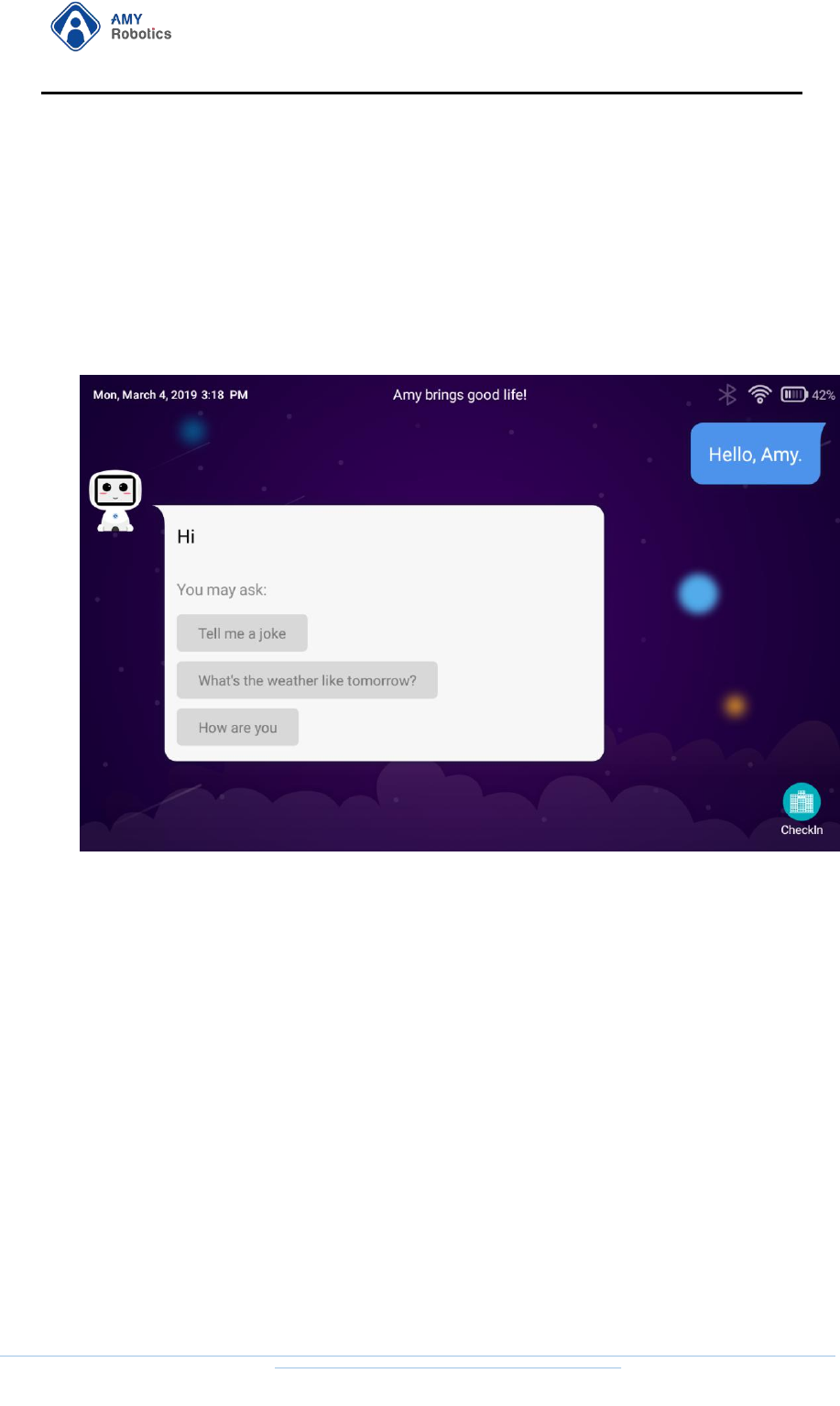
Q&A Desktop: The robot displays the process of voice interaction in the dialog
box.
Smiley Desktop: The robot displays the process of voice interaction in the form
of facial expressions.
List Desktop: The robot displays the list of currently visible APPs. At this time,
the robot "home screen" does not support voice interactive dialogue.
杭州艾米机器人有限公司
Hangzhou Amy Robot Co., Ltd.
第Page 31 of 53
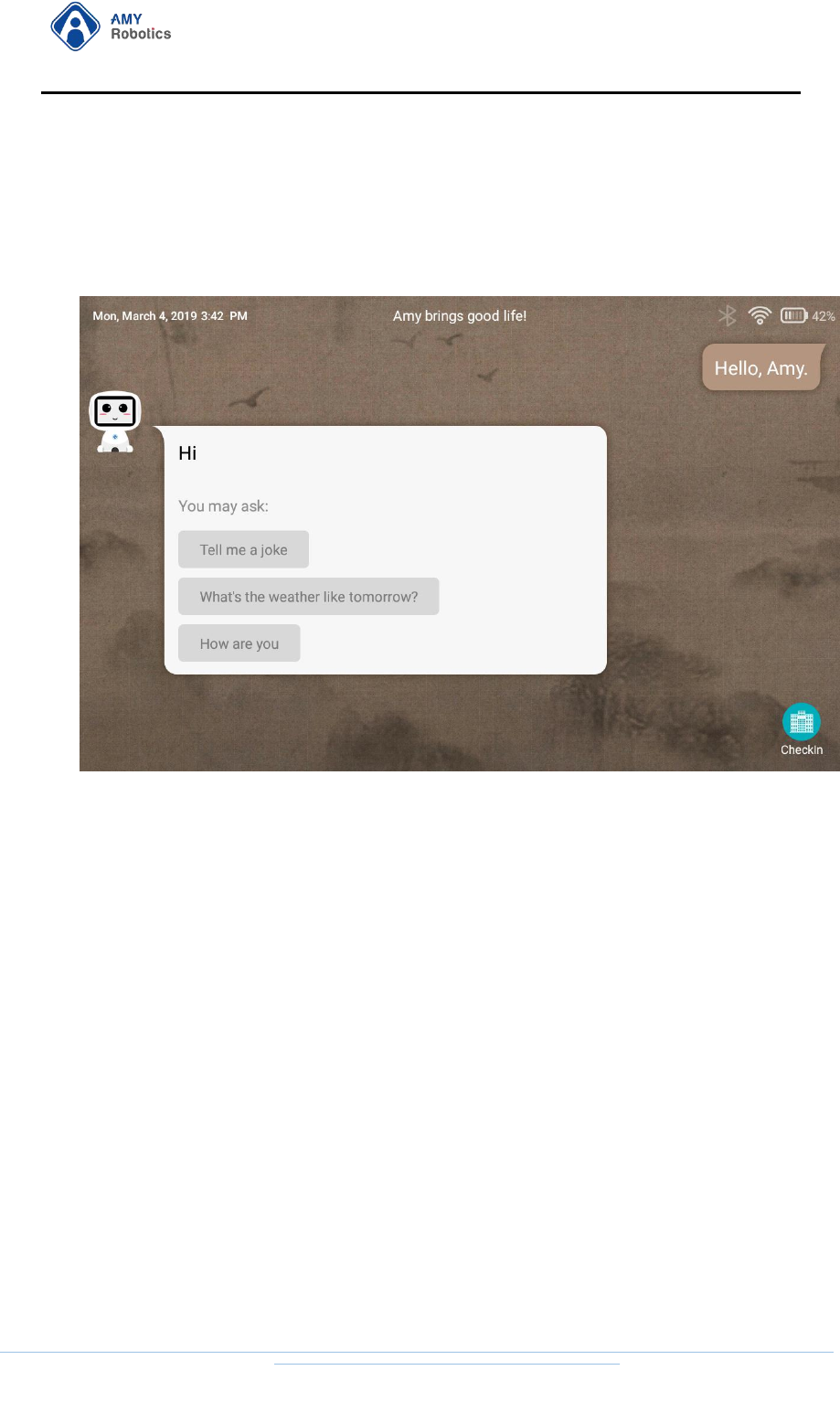
2.2.3.5. Dialog Desktop Theme Style
Enter the Custom Settings page, you can set the "Dialog Desktop Theme Style",
"Blue" style by default, which can be adjusted to the "Chinese" style.
2.2.3.6. Standby Mission
Standby mission refers to the robot entering the video or picture slideshow mode
one minute after the voice desktop enters the idle state (no voice interaction, or action)
until the user exits the idle state.
Conditions for "Standby Mission" to auto start:
1.The "Voice Desktop" screen is displayed;
2. No voice interaction in one minute;
3. No remote control command in one minute;
4. Currently no "timing task" set;
5. The robot is at rest.
Standby mission active start method:
Start by Voice: Say "Open Standby Mission / Start Standby Mission / Standby

杭州艾米机器人有限公司
Hangzhou Amy Robot Co., Ltd.
第Page 32 of 53
Mission” to Amy
Start by Click: If the voice desktop has the "Standby Mission" question option,
you can directly click on this question to start.
Standby mission exit conditions:
1. "Timing Task" is started
2. Screen is clicked
3. "Amy" is woken up by voice
4. The robot energy level is under 15% and is not currently charging.
Note:
-If the energy level is under 15%, the standby mission cannot be started.
-If the robot is performing a timing task, the standby mission cannot be
started.
-For the content configuration of standby mission, see Section 3.1.2.
2.2.3.7 Guest Mode Voice Start Roaming / Navigation/Guide
Enter the "Custom Settings" page, open the "Guest Mode Voice Start
Roaming/Navigation/Guide" function, "Guest Mode" can support "Voice
Navigation/Voice Roaming/Voice Guide" command; close "Guest Mode Voice Start
Roaming/Navigation/Guide" function, "Guest Mode" will not support "Voice
Navigation/Voice Roaming/Voice Guide" command.
2.2.3.8. Positioning by Sound
Open the "Positioning by Sound" function, the robot can position the rotor
according to the direction of the sound source; close the "Positioning by Sound"
function, the robot will not turn the head when voice interaction.
2.2.4 App List
Guest Mode Entry: Click on the bottom left corner of the voice desktop four
times to enter the login page, click on the “Enter App List” in the bottom left corner.
杭州艾米机器人有限公司
Hangzhou Amy Robot Co., Ltd.
第Page 33 of 53
Administrator Mode Entry: Click on the "Robot Management" field of the
administrator management page and click on "App List".
[Note]:
The robot not bound to an administrator cannot enter the App List.
The robot that logs out can only view the guest permission application.
2.3. Voice Interaction
The voice interaction effect depends on a stable network environment, and only
the administrator mode can experience all the functions of voice interaction. Voice
interaction not only supports the commands in the "Voice Command List", but also
supports the user's "Custom Q&A" content.
2.3.1. Voice Wake-up
1) The robot needs to be woken up before voice interaction. The wake-up word
defaults to “hi amy” “hello amy” (if you need to change the wake-up words, please
contact Amy Official After-Sales Service). Amy replies “what can i do for you” after
wake-up, enter the listen mode (green light ring) from the standby mode (blue light
ring).
2) You can wake it up within 5 meters from the robot, but it may be affected by
杭州艾米机器人有限公司
Hangzhou Amy Robot Co., Ltd.
第Page 34 of 53
environmental noise. The best wake-up position is "about 1 meter to the robot".
3) After wake-up, the robot chest light changes to green.
2.3.2. Voice Desktop
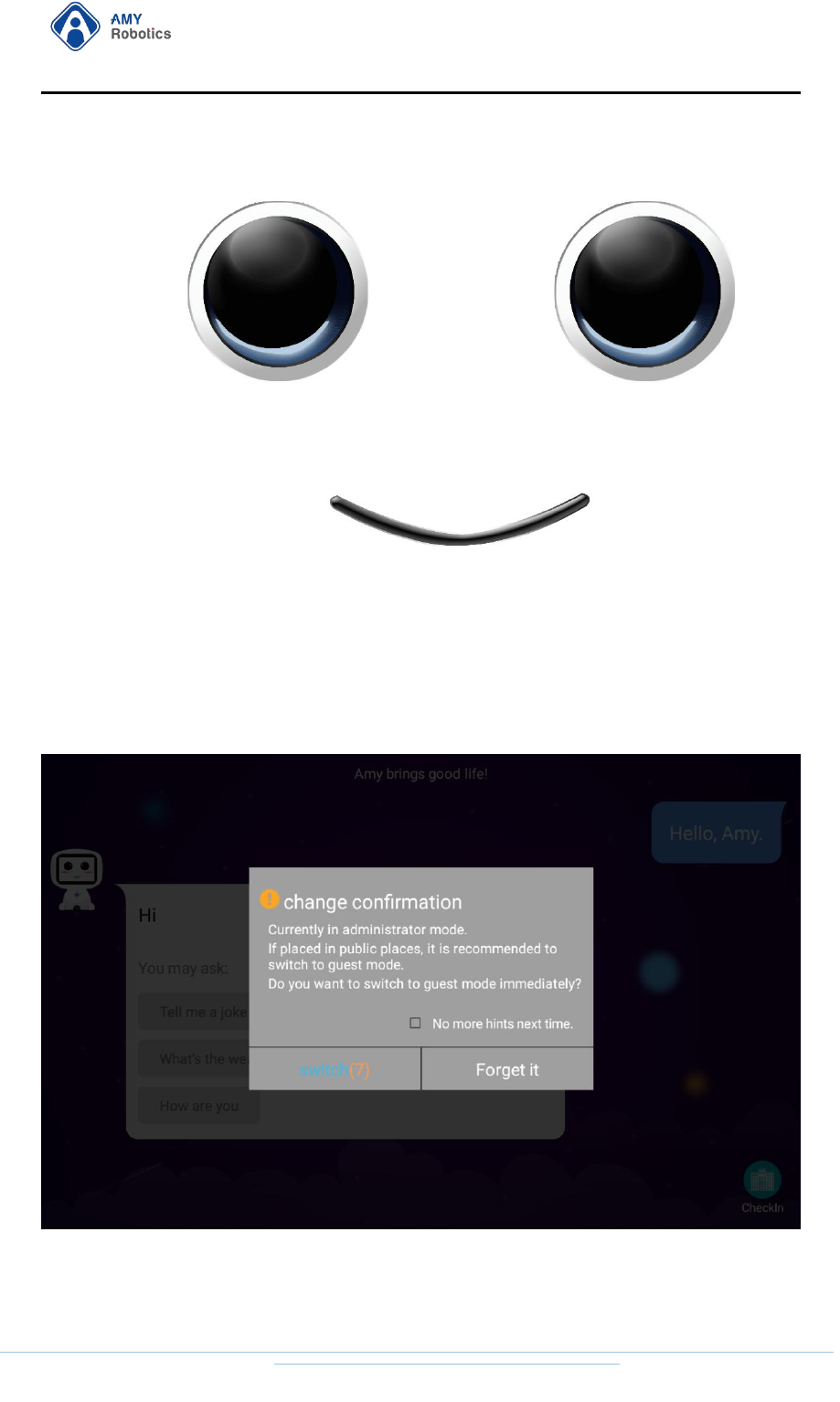
The system provides two display modes of voice interaction:
Dialog Desktop: Display identified content, and reply.
Smiley Desktop: Display expressions, speak expressions when speaking, and
smile expressions when not speaking.
杭州艾米机器人有限公司
Hangzhou Amy Robot Co., Ltd.
第Page 35 of 53
The voice desktop defaults to "Guest Mode". If you switch to "Voice Desktop"
from "Administrator Management" page, the robot will prompt the user "Do you
want to switch to guest mode?" If there is no command within 10s, it will
automatically switch to "Guest Mode".

杭州艾米机器人有限公司
Hangzhou Amy Robot Co., Ltd.
第Page 36 of 53
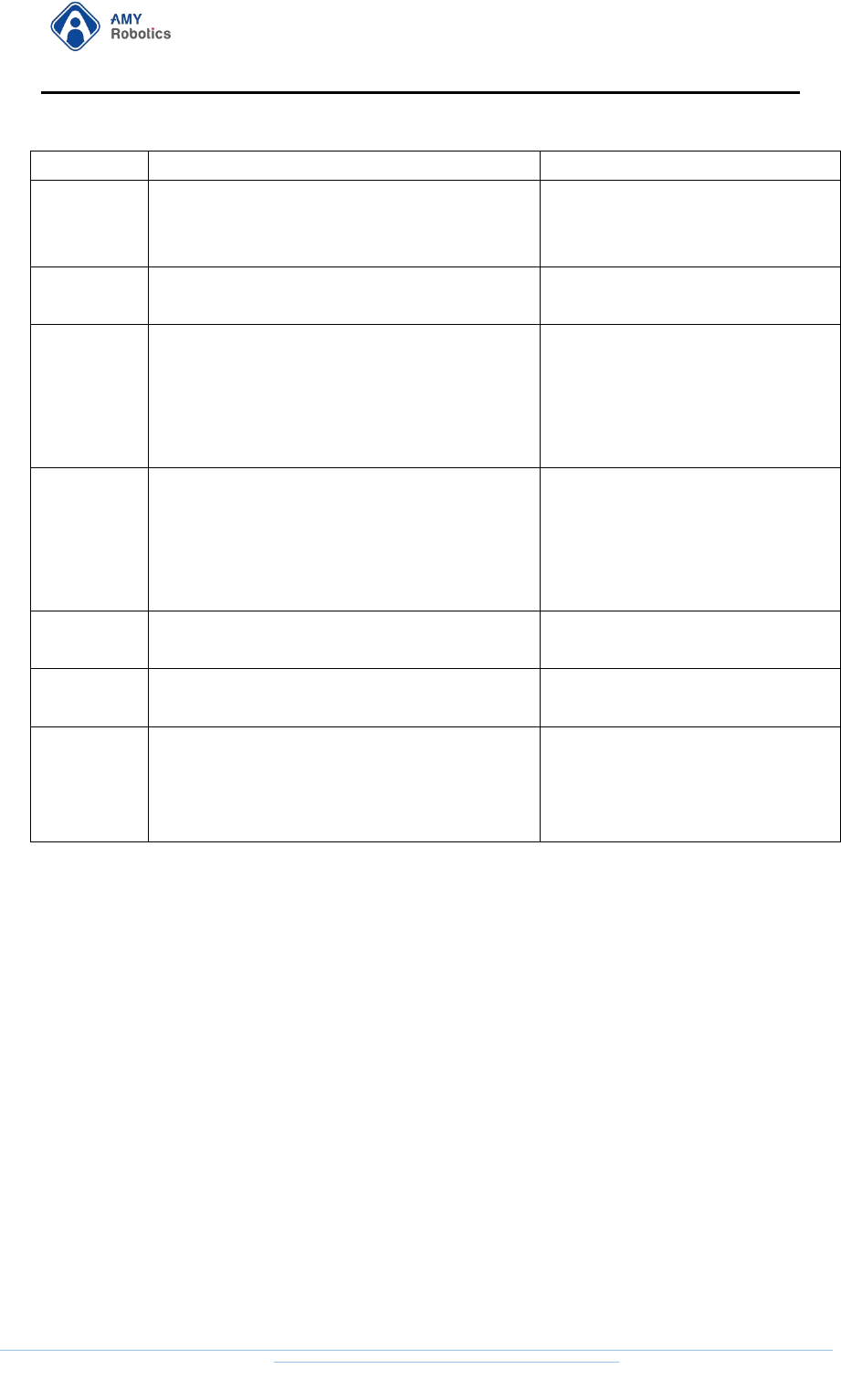
2.3.3. Voice Command List
Function
Command word
Command effect
Take photo
equals:
take a photo、take a picture、take a photograph、Take a
picture for me、Can you take a picture for me
equals:
take a photo、take a picture、take a photograph、Take a
picture for me、Can you take a picture for me
Open the camera, take a photo,
close the camera app when done
Go forward
equals:
go forward
equals:
go forward
The robot goes forward
Go back
equals:go back
equals:go back
The robot goes back
Turn left
equals:turn left
equals:turn left
The robot turns left
Turn left
equals:turn left
equals:turn left
The robot turns left
Turn right
equals:turn right
equals:turn right
The robot turns right
Turn around
equals:turn around
equals:turn around
The robot turns around
Follow me
equals:follow me、you can also follow you
Open the depth camera and follow
the dynamic object in front

杭州艾米机器人有限公司
Hangzhou Amy Robot Co., Ltd.
第Page 37 of 53
equals:follow me、you can also follow you
Stop follow
equals:stop following、stop follow
equals:stop following、stop follow
Close the depth camera and stop
moving
Dance
equals:can you dance、dance for me、go to dance、
Dance、Go dancing、Please dance
equals:can you dance、dance for me、go to dance、
Dance、Go dancing、Please dance
The robot dances (note whether the
head movement is set in the remote
control)
Stop dance
equals:stop dance
equals:stop dance
The robot stops dancing
Open
roaming
equals:
start the guide、
start the guide mode、
open the
guide、
open the guide mode、
start roaming mode、
start
cruise、open roaming mode、open cruise mode、open
cruise、start cruise mode、open roaming、start roaming
equals:
start the guide、
start the guide mode、
open the
guide、
open the guide mode、
start roaming mode、
start
cruise、open roaming mode、open cruise mode、open
cruise、start cruise mode、open roaming、start roaming
If no emergency stop is opened,
Amy replies: OK, please wait,
roaming mode fails to open.
If there is no default roaming task,
Amy replies: OK, please wait,
roaming mode fails to open.
Under normal conditions, Amy
replies: OK , please wait, roaming
mode is on
Close
roaming
equals:
close cruise mode、
close cruise、
close roaming
mode、close roaming、stop cruise mode、stop cruise、
stop roaming mode、stop roaming
equals:
close cruise mode、
close cruise、
close roaming
mode、close roaming、stop cruise mode、stop cruise、
stop roaming mode、stop roaming
Amy replies: OK, please wait,
roaming mode is off. And stop
moving. (Only close roaming, not
navigation)
Open
navigation
equals:start navigation mode、go in to navigation
mode、open navigation、start navigation
If no emergency stop is opened,
Amy replies: Sorry, I failed to open
the navigation mode. I can't move.
If there is no default navigation

杭州艾米机器人有限公司
Hangzhou Amy Robot Co., Ltd.
第Page 38 of 53
equals:start navigation mode、go in to navigation
mode、open navigation、start navigation
map, Amy replies: Please select the
default map first.
Under normal conditions, Amy
replies: OK, I'll start the navigation
mode. Please give me 20 seconds
and make sure I am on the charging
station. Open the navigation mode
successfully, please don't press the
emergency stop button, now you
can tell me, take me somewhere
Close (stop)
navigation
equals:stop navigation mode、stop navigation、close
navigation、close navigation mode
equals:stop navigation mode、stop navigation、close
navigation、close navigation mode
Amy replies: OK, please wait,
navigation mode is off.
Navigate to
a place
equals: take me to
equals: take me to
If there is no such place, Amy
replies: OK, please wait a moment,
I am sorry, I don't have this place in
my memory, please try again.
Under normal conditions, OK,
please wait a moment (you need to
start navigation mode first)
Cancel
(suspend)
navigation
equals:please cancel the navigation、cancel
navigation、cancel the navigation
equals:please cancel the navigation、cancel
navigation、cancel the navigation
Amy replies: OK, please wait a
moment. Cancel the navigation
mode successfully. Suspend the task
to a mark
Volume up
equals:it's too quiet、increase the volume、I’d like to
turn up the volume、could you turn the volume up、
sound up、turn up the volume、volume up
equals:it's too quiet、increase the volume、I’d like to
turn up the volume、could you turn the volume up、
sound up、turn up the volume、volume up
Volume is getting louder

杭州艾米机器人有限公司
Hangzhou Amy Robot Co., Ltd.
第Page 39 of 53
Volume
down
equals:the volume is disturbing me、set the volume
down、how do I reduce the volume、turn the device
volume down、how can I decrease the volume
equals:the volume is disturbing me、set the volume
down、how do I reduce the volume、turn the device
volume down、how can I decrease the volume
Volume is getting quieter
Weather
how’s the weather today、what’s the weather in beijing、
what’s the weather today、how is the weather、what's the
weather like today、show me weather for today、what is
the weather tomorrow in Canberra
how’s the weather today、what’s the weather in beijing、
what’s the weather today、how is the weather、what's the
weather like today、show me weather for today、what is
the weather tomorrow in Canberra
Broadcast weather
Joke
Tell me a joke、Tell me something funny、joke
Tell me a joke、Tell me something funny、joke
Broadcast joke
Album/phot
o album
(open)album/(open) photo album/I want to see
(watch)pictures(photos)
(open)album/(open) photo album/I want to see
(watch)pictures(photos)
Open album/photo album
app
Open
download
app
Download/open APP store/open download app/open the
download application
Download/open APP store/open download app/open the
download application
Open download app
Open assess
test app
Assessment test/ open assessment test-/start assess
test/open assess test APP
Assessment test/ open assessment test-/start assess
test/open assess test APP
Open assess test app
app
Start system
upgrade app
Update/system update/open system update/system
upgrade/start system upgrade
Update/system update/open system update/system
upgrade/start system upgrade
Start system upgrade app
app
Open
remote
Remote control/ open remote control/ start remote
control
Remote control/ open remote control/ start remote
Open remote control app
杭州艾米机器人有限公司
Hangzhou Amy Robot Co., Ltd.
第Page 40 of 53
control app
control
Open file
manager
app
File manager/Open file manager/ Explorer /open folder
File manager/Open file manager/ Explorer /open folder
Open file manager app
Open setting
app
Setting/open settings/Enter settings
Setting/open settings/Enter settings
Open setting app
Open
standby
mission
standby mission- open standby mission -start standby
mission
standby mission- open standby mission -start standby
mission
Open standby mission
Switch
desktop
Change the dialogue/change text/switch text/switch
interface/dialogue interface
Change the dialogue/change text/switch text/switch
interface/dialogue interface
switch desktop/change desk top
Switch desktop
Reload
Reload/load again
Reload/load again
Load again
Bigger
fonts
Bigger fonts /Bigger word /make the font bigger
Bigger fonts /Bigger word /make the font bigger
Make the font of dialog desktop
bigger
Smaller
fonts
Smaller font/Smaller word/A smaller font/ A little bit
smaller/Make it smaller
Smaller font/Smaller word/A smaller font/ A little bit
smaller/Make it smaller
Make the font of dialog desktop
smaller
2.4. System Upgrade
The A1 upgrade mode includes 1. U disk upgrade; 2. Online upgrade.
The A2 upgrade method is Online upgrade.
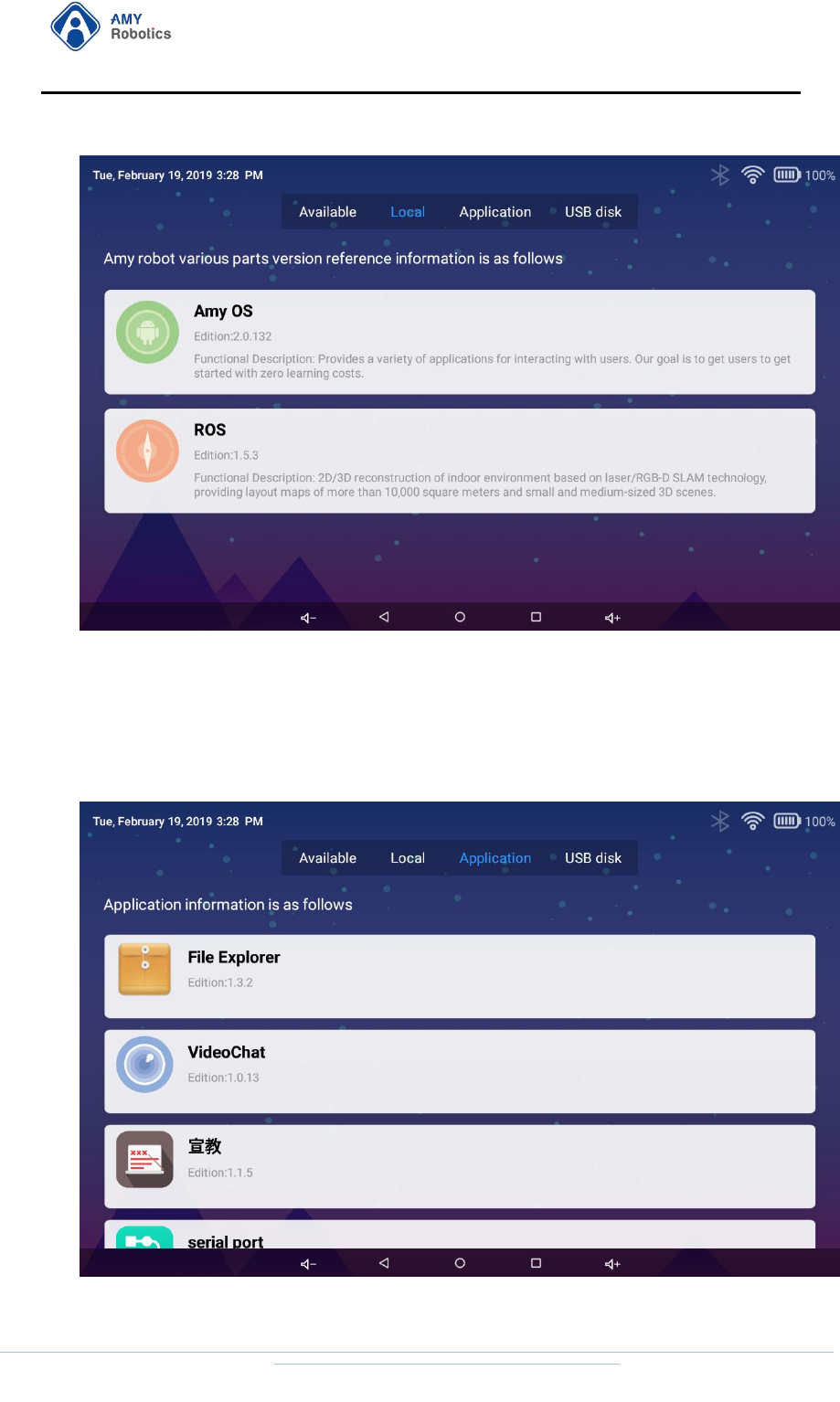
2.4.1. View Current System Version
Open the "System Upgrade" app in the App List and click "Current System
Version" to view the current system version information.
杭州艾米机器人有限公司
Hangzhou Amy Robot Co., Ltd.
第Page 41 of 53
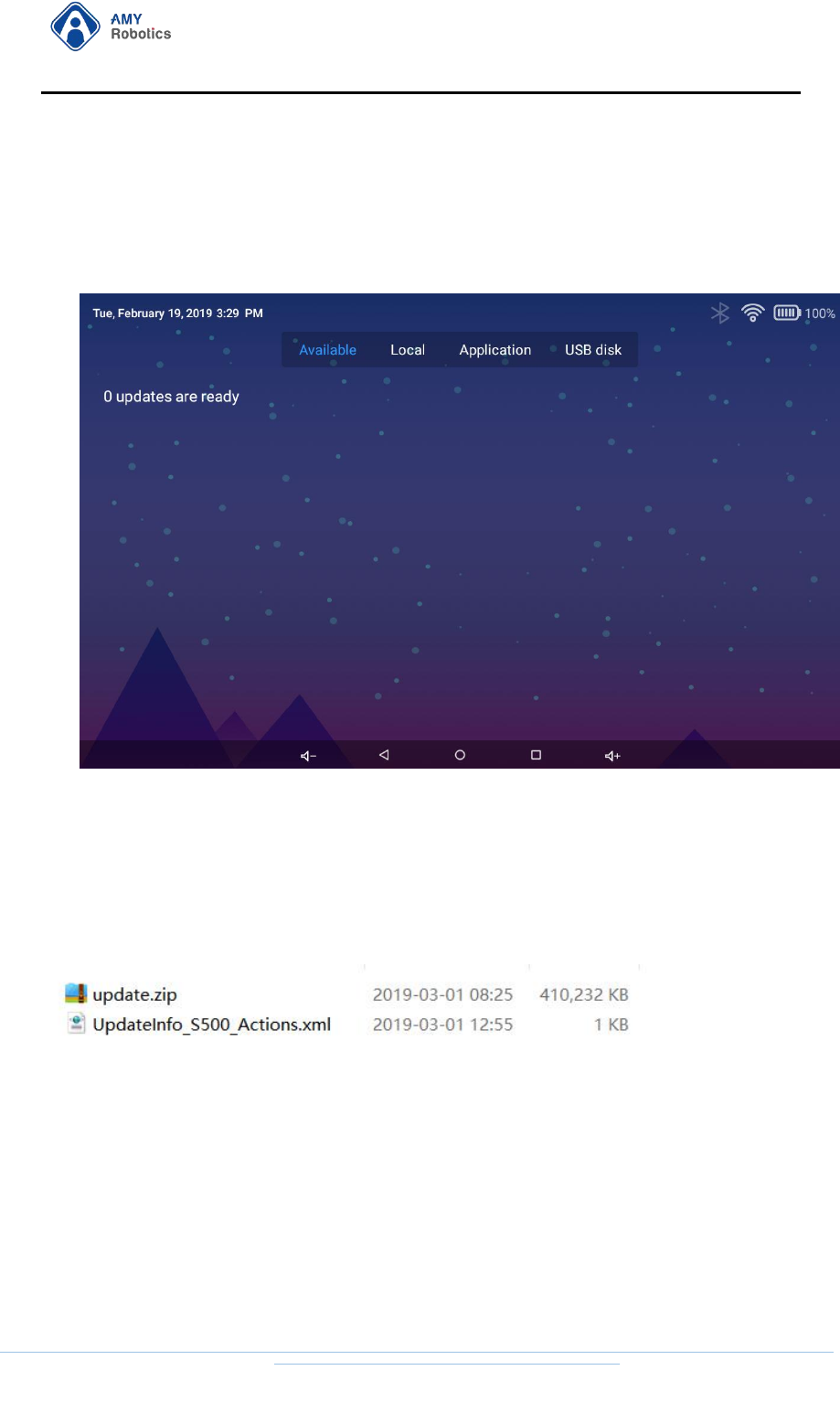
2.4.2. View App Version Information
Open the "System Upgrade" app in the App List and click "App Information" to
view the current system application version information.
杭州艾米机器人有限公司
Hangzhou Amy Robot Co., Ltd.
第Page 42 of 53
2.4.3. Online Upgrade
Open the "System Upgrade" app in the App List and click "Available System
Update" to see if the current system has updates.
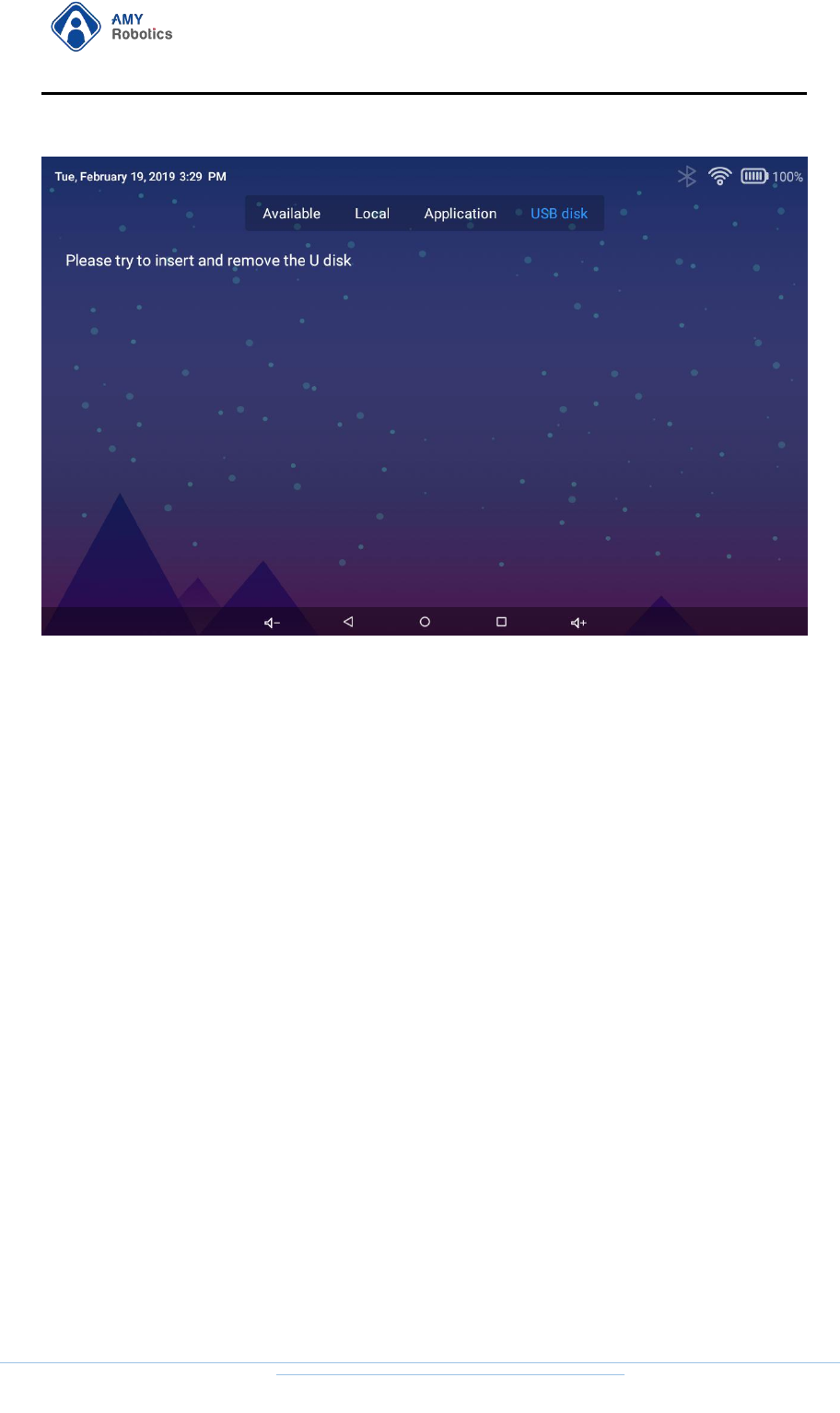
2.4.4. USB Disk Upgrade (Amy A1 and M1 only)
1. Put the upgrade file update.zip and UpdateInfo_S500_Actions.xml into the root
directory of U disk (U disk format: fat32) and plug to the usb interface of A1 robot.
2. Open the "System Update" app, click "U Disk Upgrade", then click the upgrade
button.
杭州艾米机器人有限公司
Hangzhou Amy Robot Co., Ltd.
第Page 43 of 53
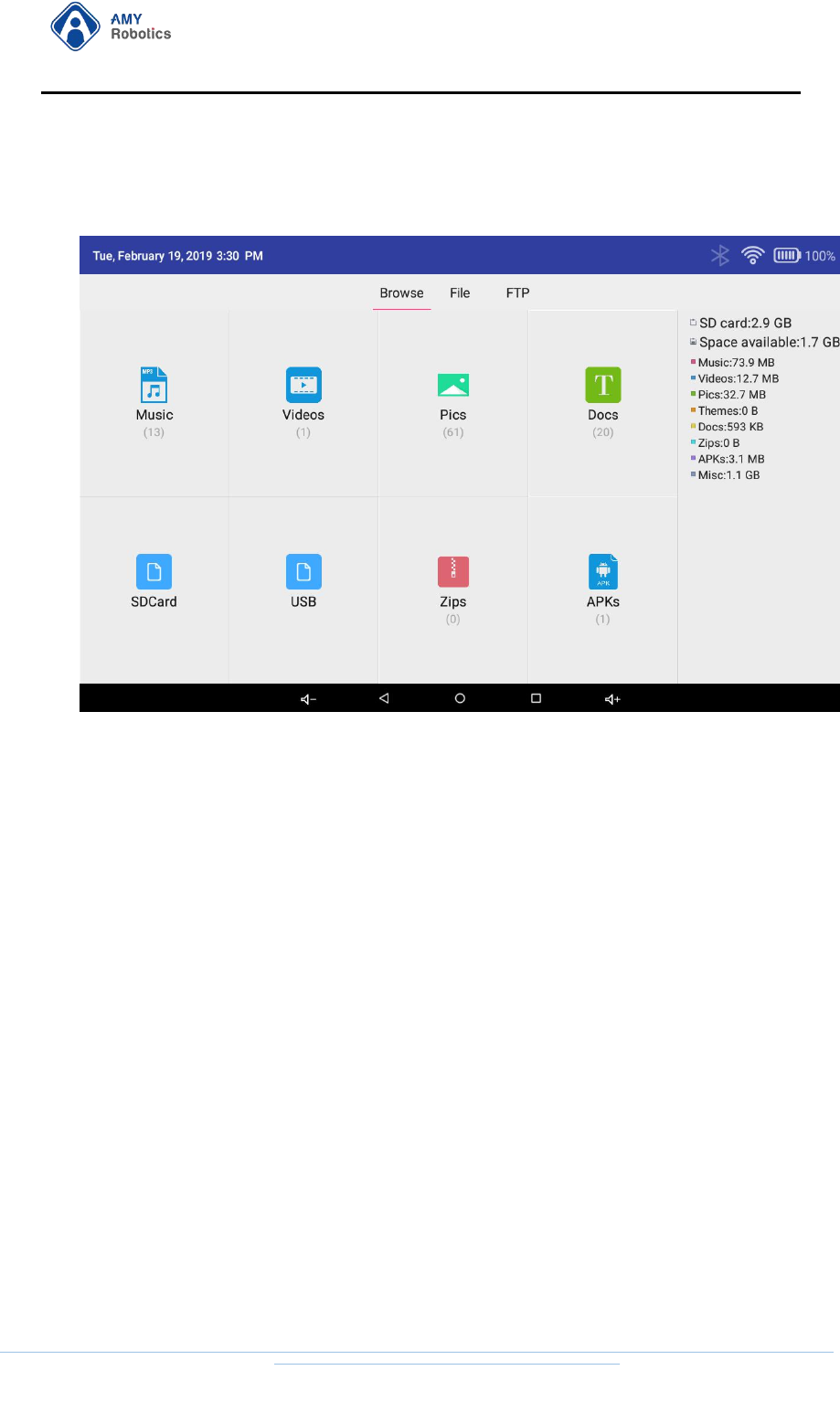
2.5. File Browser
The "File Browser" is used to manage files stored on the robot, and files can be
imported and exported via a USB disk or "Remote Management”.
杭州艾米机器人有限公司
Hangzhou Amy Robot Co., Ltd.
第Page 44 of 53
2.5.1. Category Browsing
Click on the file manager app to sort and display the files stored in the system in
different formats such as music/videos/pics/docs. You can click on a category to view
the file details.
杭州艾米机器人有限公司
Hangzhou Amy Robot Co., Ltd.
第Page 45 of 53
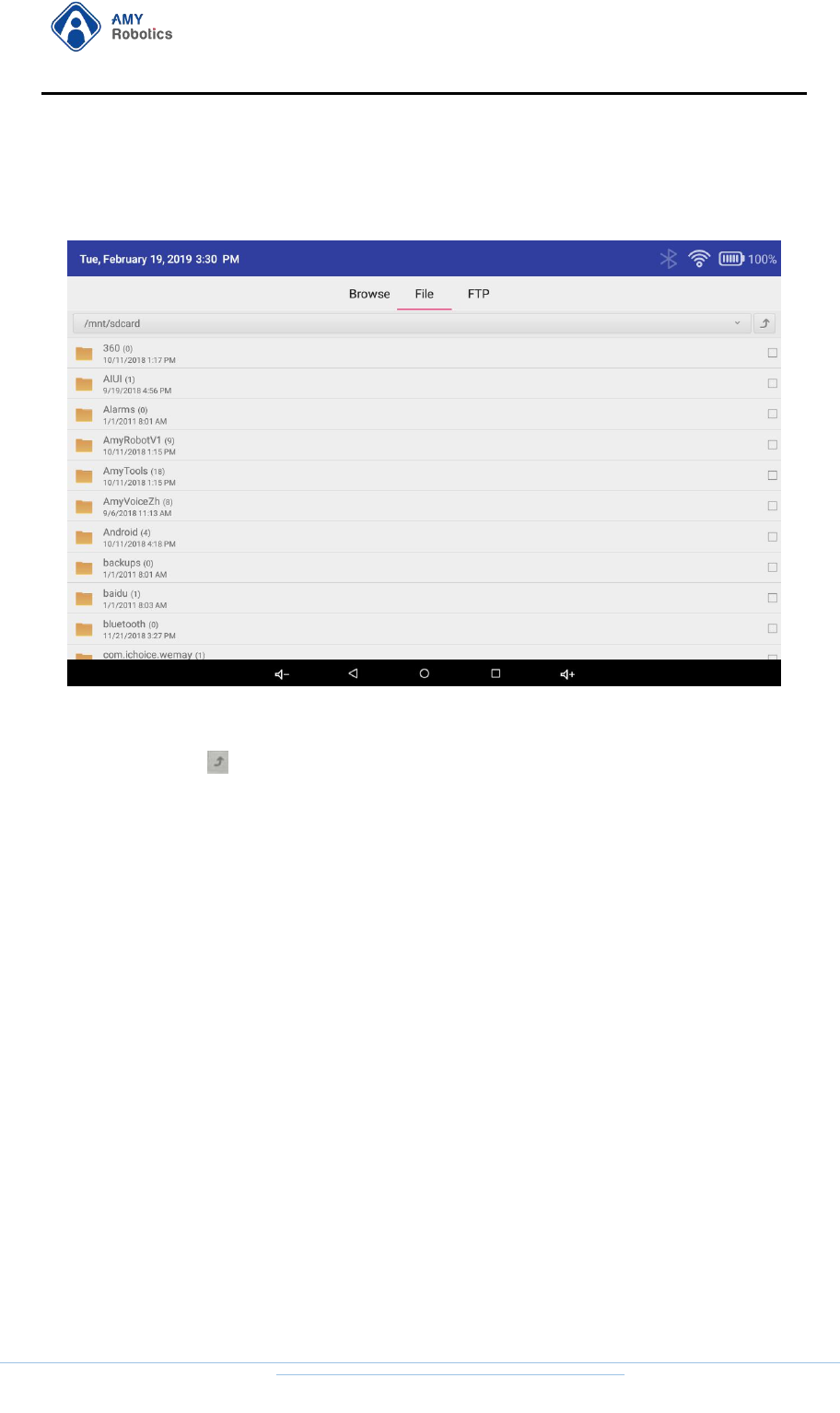
2.5.2. Document Management
Click the "File Management" button to display the files stored in the system
according to the directory. By default, the files in the "/mnt/sdcard" directory are
displayed. Click button to switch directories.
杭州艾米机器人有限公司
Hangzhou Amy Robot Co., Ltd.
第Page 46 of 53
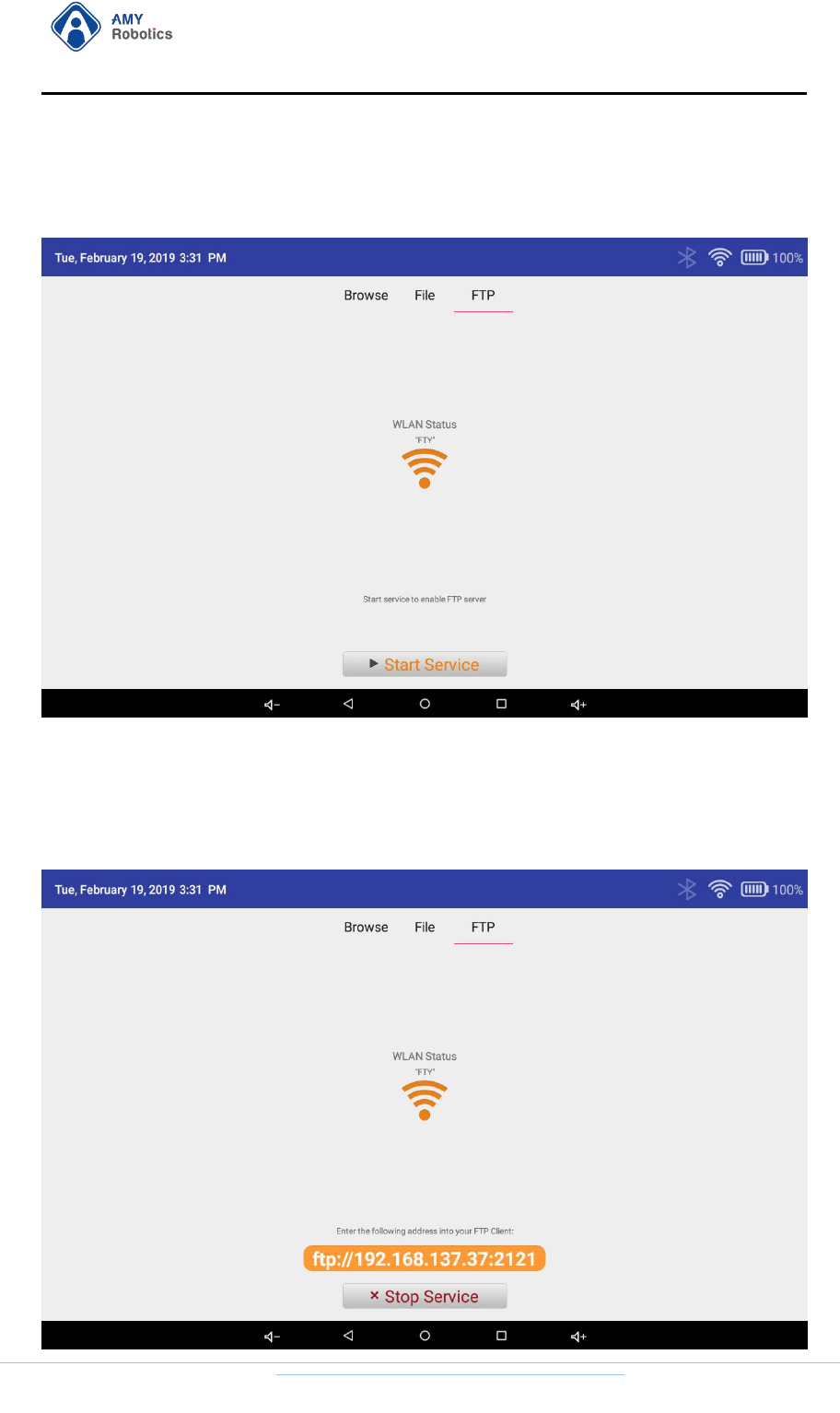
2.5.3. Remote Management
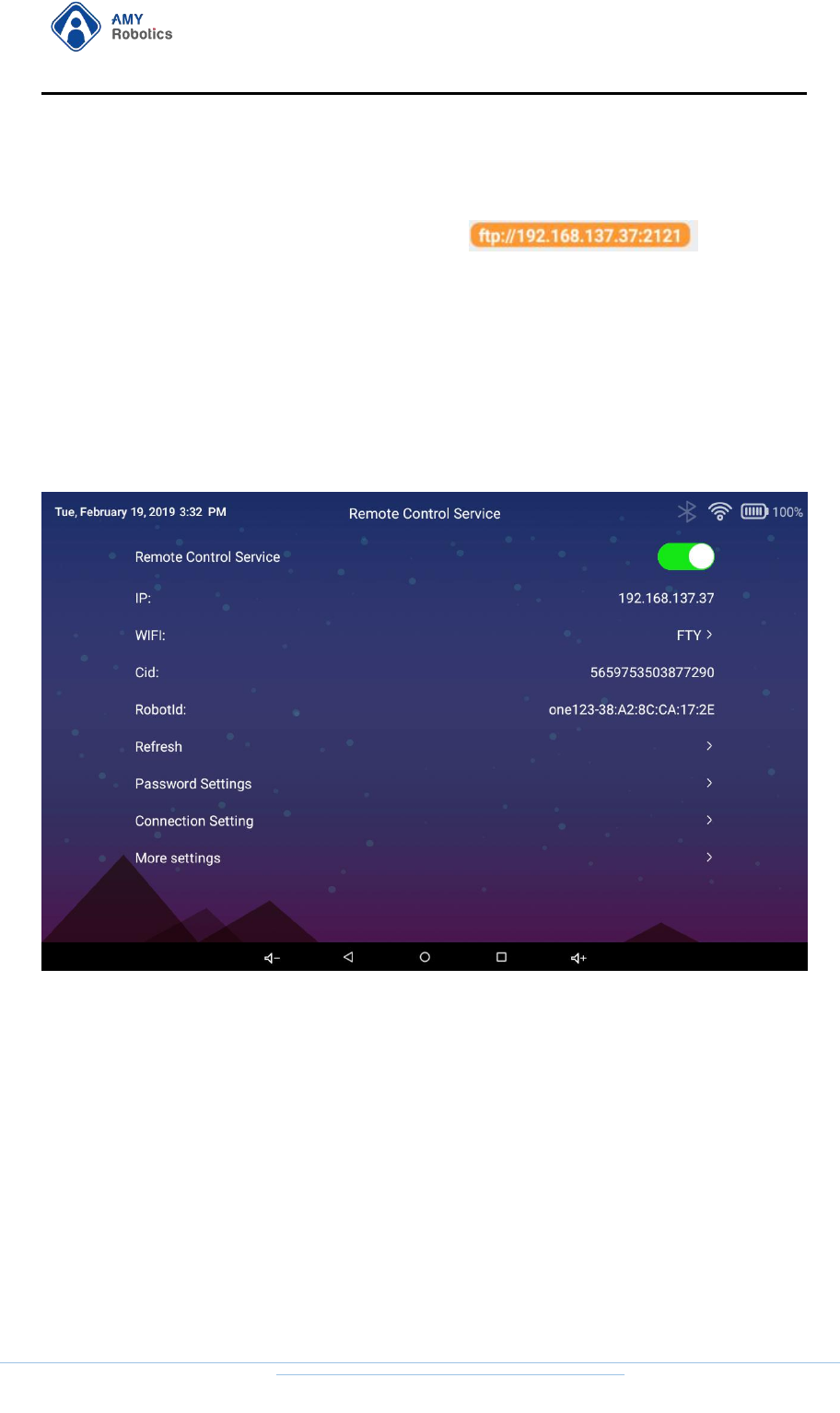
Click the “Remote Management” button to display the Wi-Fi status of the current
robot. If you need to remotely manage the files stored on the robot via the computer,
just:
1. Open the "Start Service" button, and the page is shown below:
杭州艾米机器人有限公司
Hangzhou Amy Robot Co., Ltd.
第Page 47 of 53
2. Connect the computer to the Wi-Fi connected by the robot, and enter the address
displayed on the robot in "My Computer", e.g.:
3. This allows you to remotely manage the files on the robot from your computer.
2.6. Remote Control
1. Open the "Remote Control" app in the App List and open the "Remote Control"
function.
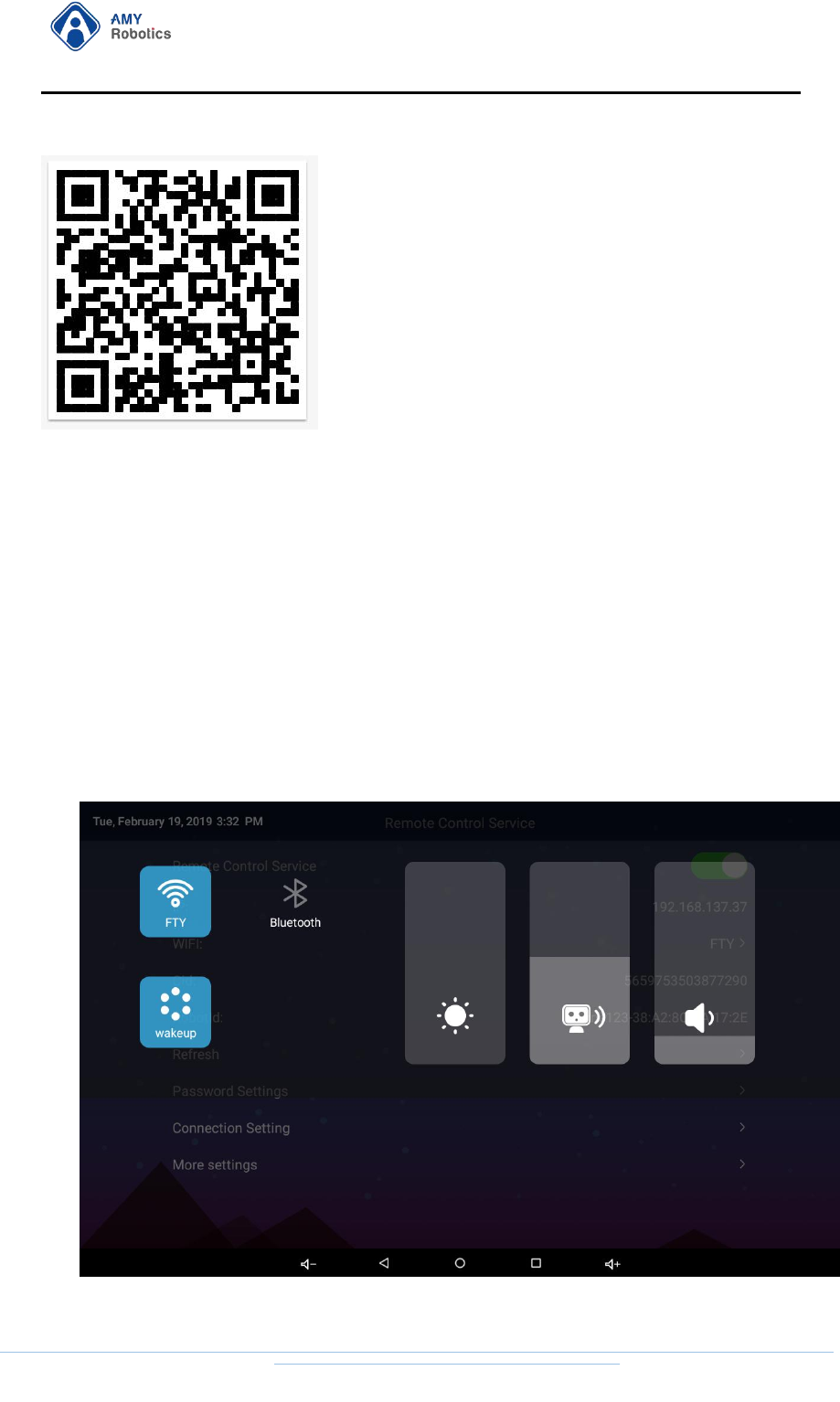
2. Download and install the "Robot Remote Control" app (Mobile) on the mobile
phone
[Android APP downloads] Scan QR code to download (support Android 4.3 or above)
杭州艾米机器人有限公司
Hangzhou Amy Robot Co., Ltd.
第Page 48 of 53
After logging in to the "Remote Control" APP "AMYRobotics" on the mobile phone,
you can remotely control the functions of the robot, including mapping, navigation,
roaming, remote speech, remote control, etc. For details, see Instructions for Remote
Control of Amy Robot.
2.7. Quick Settings
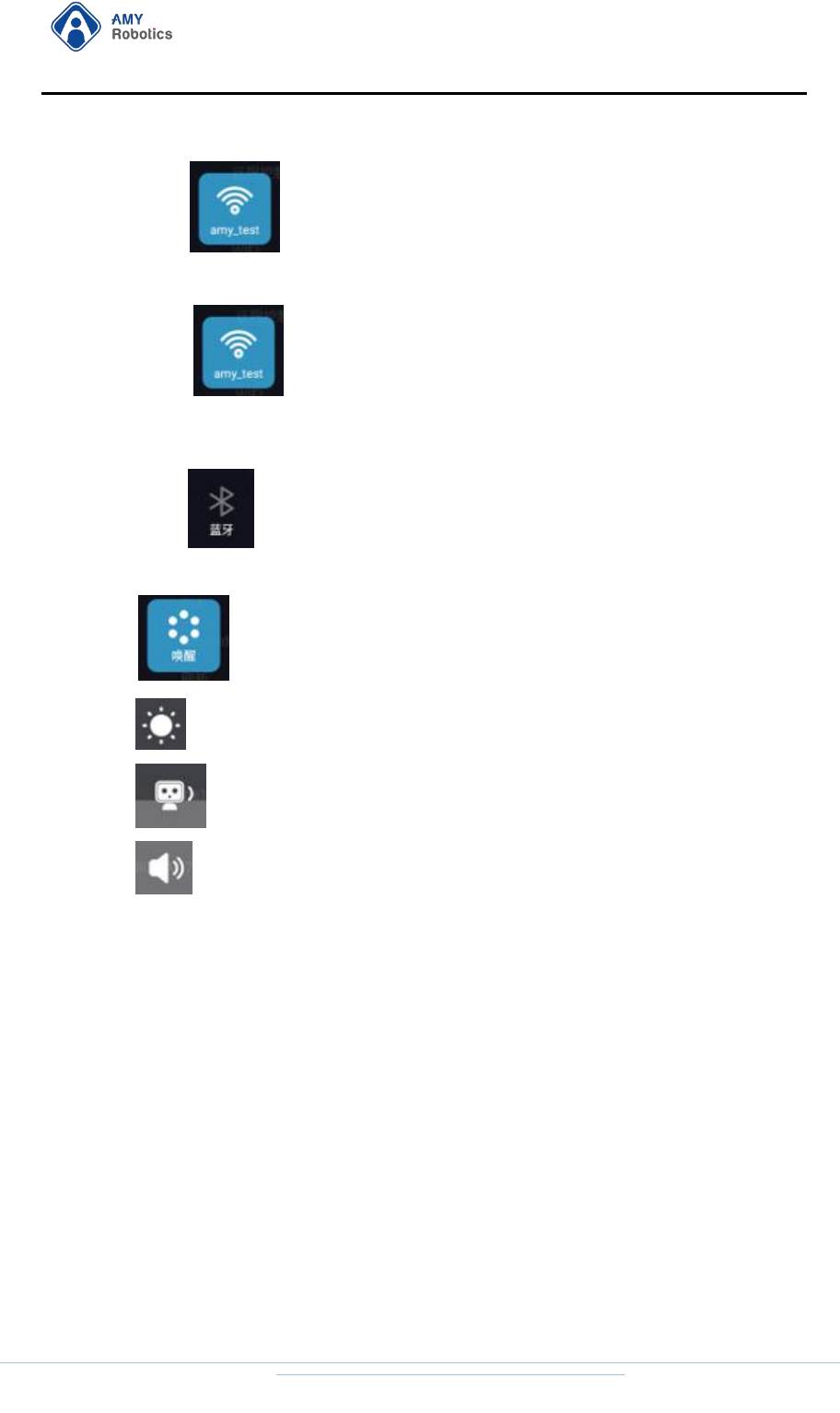
Drop the “Hide Menu” on the robot screen to display the “Quick Settings” page,
which provides some quick setting functions.
[Note]: You can access the quick settings only in the administrator mode.
杭州艾米机器人有限公司
Hangzhou Amy Robot Co., Ltd.
第Page 49 of 53
Short press button to quickly open/close "WLAN".
Long press button to enter the WLAN settings page to set Wi-Fi in
detail.
Long press button to enter the Bluetooth settings page.
Click button to open/close the microphone.
Drag bar to directly adjust the "Screen Brightness".
Drag bar to directly adjust Amy "Play Volume".
Drag bar to directly adjust the "System Volume".
3. Custom Robot Configuration
3.1. Customize Folder Template
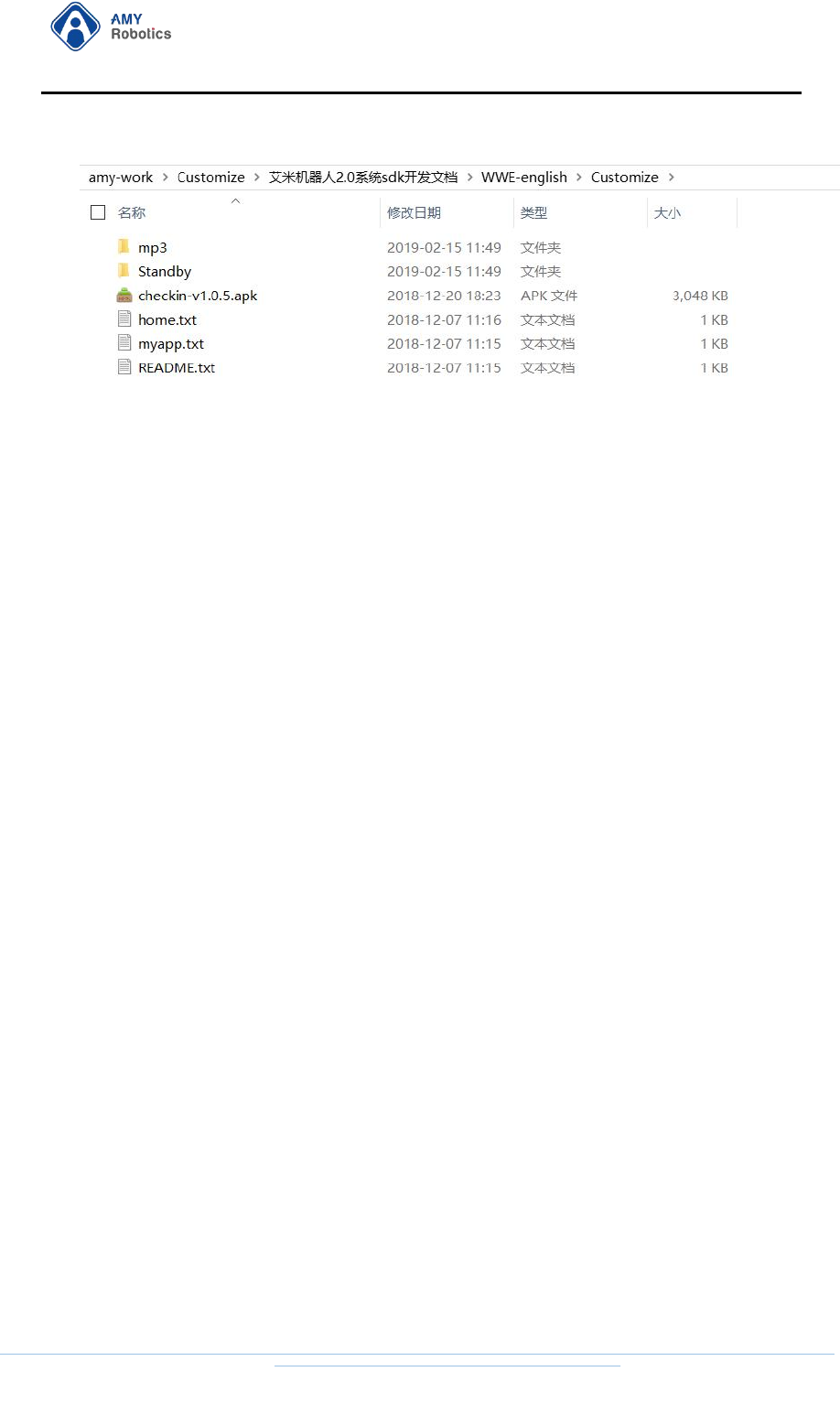
Amy provides the Customize Folder Template, which can be modified by the user
as required.
杭州艾米机器人有限公司
Hangzhou Amy Robot Co., Ltd.
第Page 50 of 53
3.1.1. Configure Local Audio
If you need to “Play Song” or audio, save the songs or audio files you want
to play to the specified directory (\Customize\mp3 folder). When the user
says "Play Song" to Amy robot, the audio files contained in this folder are
randomly played.
3.1.2. Configure Standby Mission Content
When you enable the Standby Mission function, you need to configure the
Standby directory. For details, see the Standby description.txt.
( \Customize\Standby is the resource and configuration for standby mission)
3.1.3 Configure "Wake-Up Word Display", "Desktop Display
Q&A Content"
If you want to display 3 prompt questions on the desktop of Custom Q&A, or
if the user has customized the wake-up words and needs to display the
corresponding wake-up words on the desktop, you need to modify this file.
For details, see the home.txt template. [home.txt is suitable for configuring
and displaying customized wake-up words on the desktop (provided that the
user has customized wake-up words), and prompting the user Q&A
method]
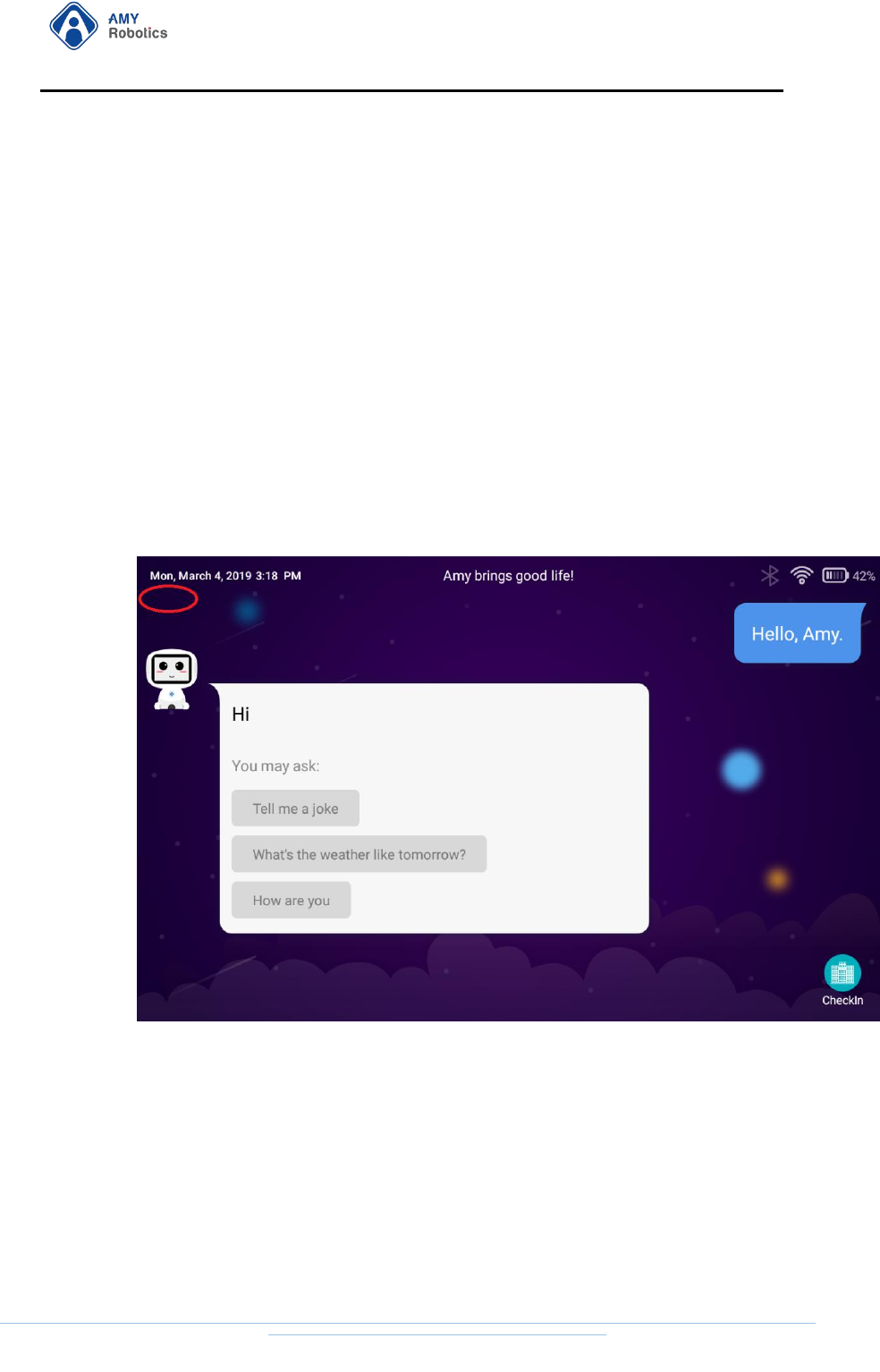
3.1.4. Configure Desktop App Display
To display several app icons on the desktop of Custom Q&A, you need to
modify this file. For details, see the myapp.txt template. (myapp.txt is
杭州艾米机器人有限公司
Hangzhou Amy Robot Co., Ltd.
第Page 51 of 53
suitable for configuring the app displayed on the voice dialog desktop and the
startup words corresponding to the app)
3.1.5. Replace with Your Own ASR and Dialogflow Account
The Q&A function of the dialog desktop or smiley desktop is the demo version
provided by Amy. If customers need to use this page to display their questions and
answers, they needs to switch to their own ASR and dialogflow accounts.
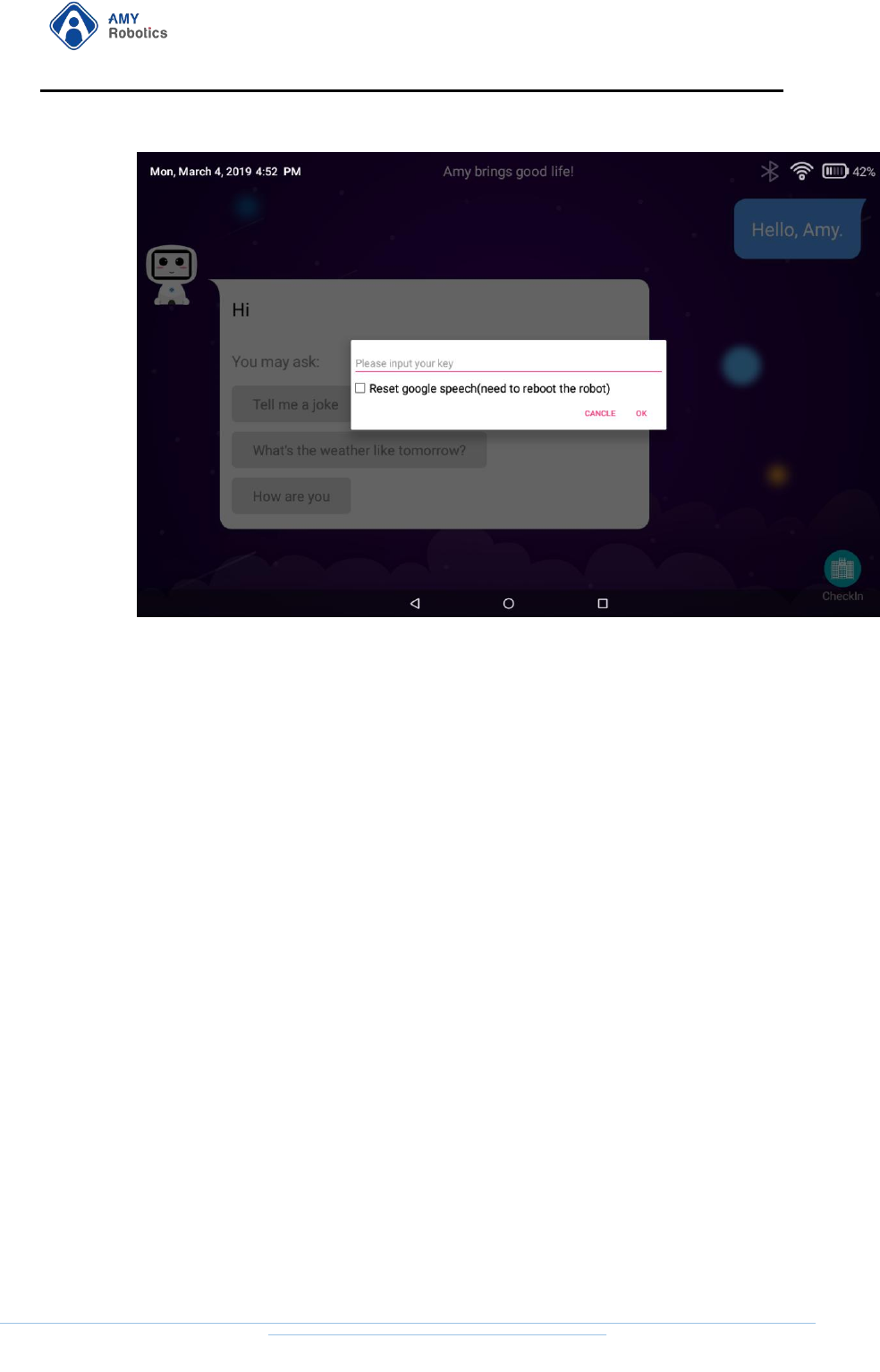
3.1.5.1 Replace with Your Own Dialogflow Account:
Long press the top left corner on the dialog or smiley desktop to pop up the dialog
box.
杭州艾米机器人有限公司
Hangzhou Amy Robot Co., Ltd.
第Page 52 of 53
Enter your dialogflow client id in the input box and click OK to save.
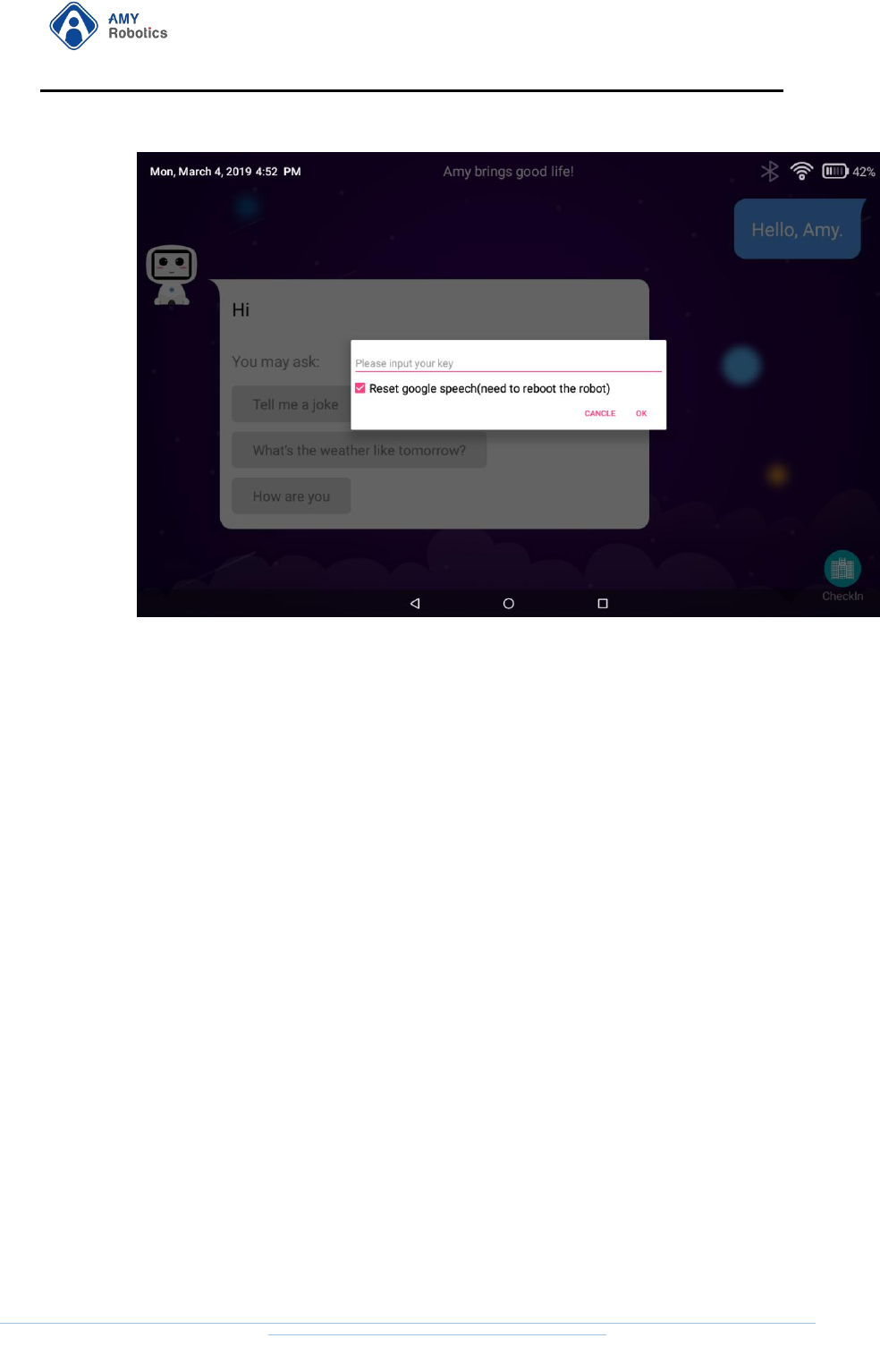
3.1.5.2 Replace with your own google ASR:
Rename your google ASR certification file xxx.json to GoogleSpeech.json
and put the file in the robot path below:
sdcard/Customize/GoogleSpeech/GoogleSpeech.json
Long press the top left corner of the screen, the following dialog box pops
up, select the check box, and click OK.
杭州艾米机器人有限公司
Hangzhou Amy Robot Co., Ltd.
第Page 53 of 53
3.1.6. Develop your own voice interaction and sports APP
completely.
The user switches the desktop to the APP List mode, and it is equivalent to an
Android PAD. Developers can develop their own voice APP, use their own ASR and
dialogflow accounts or other ASR, NLP platforms, and control the robot movement
with the help of AmyRobot SDK to achieve a complete user scenario.
3.1.7. Notes
After the above configuration is modified, copy the entire Customize Folder
to the root directory where the robot SD card is located. Return to the
desktop and say "Reload" to the robot. The above configuration will take
effect immediately.
