Activation Rockwell Software Products Instructions
User Manual:
Open the PDF directly: View PDF  .
.
Page Count: 4
FactoryTalk Activation is a trademark of Rockwell Automation, Inc.
All trademarks and registered trademarks are property of their respective companies
Publication FTA-QS002B-EN-P July 2010 Copyright © 2010 Rockwell Automation Technologies, Inc.
All Rights Reserved. v 3.30 (CPR 9 Service Release 3) Printed in USA.
Modified 7/8/10 12:09 p.m.
ACTIVATE
Rockwell Software Products
Rockwell Automation software products no longer ship
with a physical master disk for activating software.
Instead, these software products use activation files
generated by Rockwell Automation and distributed over
the Internet. All Rockwell Automation software products
use the new electronic process, called FactoryTalk®
Activation. Check the Activation Certificate document
enclosed with your Rockwell Automation software to find
the type of Factory Talk Activation to use.
IMPORTANT: This version of Rockwell's activation
software, known as FactoryTalk Activation Manager, has
been revised and replaces the Activation Tool, Activation
Transfer Tool and the Activation Wizard. Uninstall
previous versions of activation software and then
re-install the new FactoryTalk Activation Manager.
What do I need to activate my Rockwell Automation software products?
Have these items before you begin
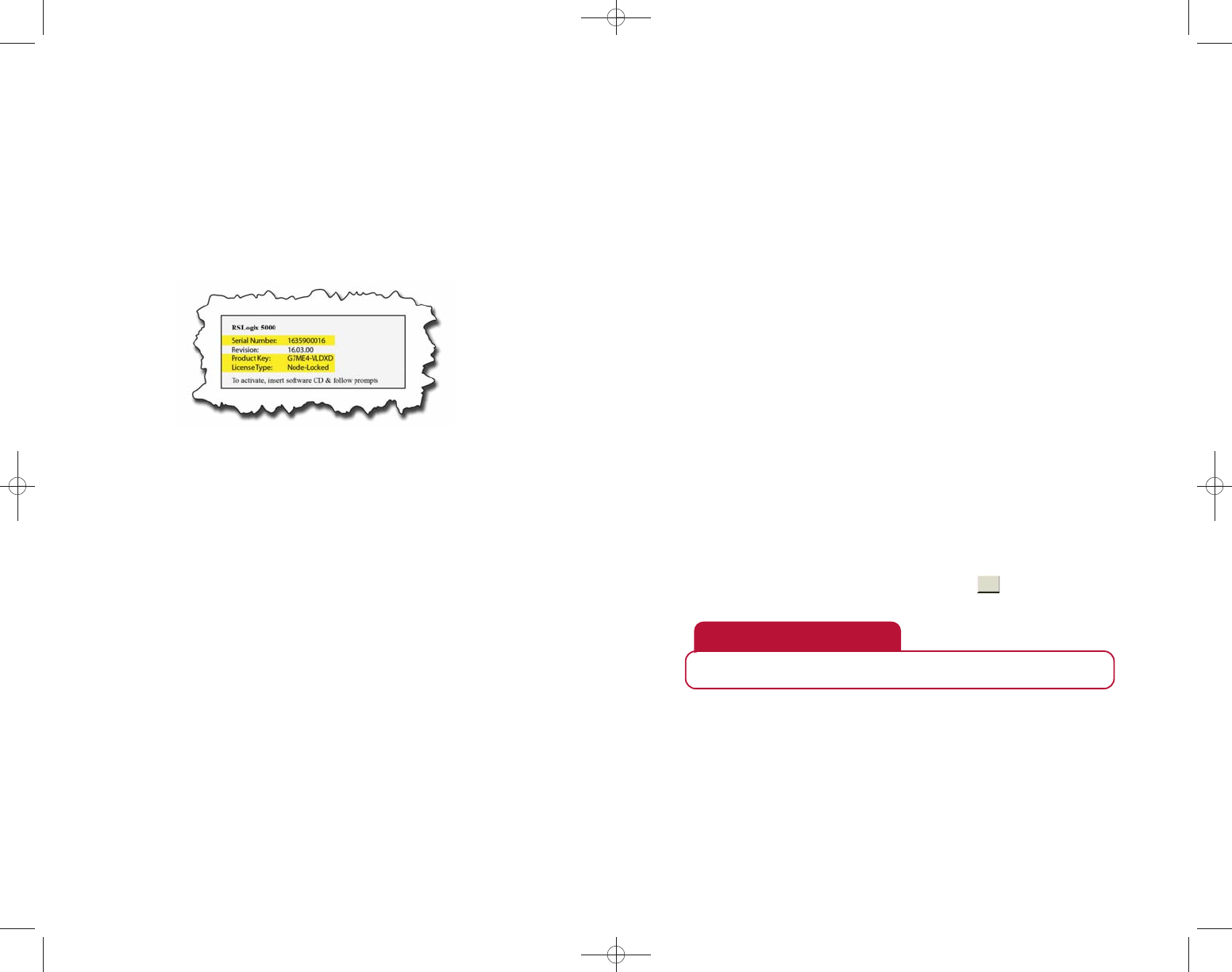
Activation Certificate, which is enclosed in a red envelope with the Rockwell
Automation software product and contains the following information:
-Serial Number
-Product Key
-License Type
FactoryTalk Activation Manager software, which is available
-
On your Rockwell Automation software product CD, or
-
On the FactoryTalk Services CD, or
-
On the http://licensing.software.rockwell.com website and can be downloaded
At least one of the following methods for acquiring activations:
-
Internet access from the computer the software products will be installed on, or
-I
nternet access from another computer at the site, or
- If the site does not have Internet access, you can get the activation information
by telephone or fax. See the “For additional help.”
What are Activation Types?
Following are the two different types of activations for Rockwell Automation
Software products.
Node-Locked activation – locked to a single piece of hardware such as a local
computer or a dongle with no ability to share the activation.
Concurrent activation – locked to a computer that manages a pool of
activations and shares them with other computers over a network connection.
Different computers can share the Factory Talk product.
1 2
What is a host ID?
A host ID is an identification (ID) code that uniquely identifies a hardware device.
FactoryTalk Activation uses the host ID to "lock" each activation file to a specific
hardware device such as a stand-alone computer, a computer hosting the activations or a
dongle. For a computer, the host ID uses the hard disk drive or Ethernet card to identify
the computer.
Guidelines for selecting an appropriate host ID
Do not lock activations to virtual network adapters, such as those used for
virtual private networks (VPN) or virtual machines.
Do lock activations to the host IDs of fixed devices such as hardware network
adapters or hard disk serial numbers.
%o notuse the host ID of the network adapter in the docking station or you
will not beable torun your software product when the laptop is undocked.
Get new activations
Follow these instructions to get new activations for a Rockwell Automation software
product or group of software products.
1. Install and launch FactoryTalk Activation Manager.
2. On the Home screen, click Get New Activations.
3. Select I have Internet access from this computer.
Note: If the computer is not connected to the Internet, see “What if I don’t have
Internet access on my computer?”
4. Click Enter Activation Information.
5. Enter the Serial # and Product Key for the software product you want to activate.
6. Click in the Host ID column and click the browse button.
7. Select a host ID from the table, and click Select.
Caution
Select the Host ID based on the “Guidelines for selecting an appropriate Host ID.”
3
4
Get new activations cont.
8. To activate additional software products, click"EE, and repeat steps 5through
7 for each software product you want to activate on this computer.
9. Click Validate Activation. Factory Talk Manager connects to the Rockwell
License Server and validates the activation information.
10. Enter the number of activations to download for each software product.
Note: e number for node-located activations cannot be changed.
11. Click Download Activation.
12. Print a copy of your license information, and save it in a secure place.
Tip
If you will be using this computer to host activations for Rockwell Automation
software products located on other computers, see “Find available activations.”
Find available activations
Follow these instructions to identify the location of the computer that will
provide activations.
1. Install and launch FactoryTalk Activation Manager.
2. On the Home screen, click Find Available Activations.
Note: Only concurrent activation types will be available.
3. Click Add Server.
4. Identify the location that will provide activations:
- Click the browse button.
- Navigate to the Activation Server location, select the server and click OK.
- Click the Selected checkbox for the Activation Server.
5. Repeat steps 3 and 4 to add any additional servers that will be accessed
from this computer.
What if I don’t have Internet access on my computer?
If Internet access is not available on the computer where you want to activate your
new software, but you do have Internet access at your site, follow these instructions to:
Create a Host ID file (FTAManagerData.xml) on the non-Internet aDDess computer.
Import the Host ID file and create an activation file.
Activate the software on the non-*nternet access computer.
If you do not have Internet access at your site, see “For additional help”
Create a data le on the non-Internet access computer
On each computer that does not have Internet access, follow these instructions to
create a data file that contains the computer’s host ID. e data file, which has a
default name of FTAManagerData.xml, is used when you create an activation file.
1. Install and launch FactoryTalk Activation Manager.
2. On the Home screen, click Get New Activations.
3. Select I have internet access from another computer at this site.
4. Click Specify Data File.
5. If you are creating a new data file:
- Click the browse button and navigate to the location you want to save the
data file to, or leave the default.
- Type in a new data file name or leave the default.
6. If you are adding host IDs to an existing data file:
- Click the browse button and navigate to UIFEBUBGJMFMPDBUJPn.
- Type in the existing data file name.
7. Click Get Host IDs.
8. Select the check box for each host ID you want to use to identify the
computer, and type a descriptive name in the Name column.
N
Note:
e name serves as a memory aid when you import the host IDs.
Caution
Select the host ID based on the “Guidelines for selecting an appropriate host ID.”
9. Click Create Data File.
10. Click Go to Data File Location and move or copy the data file to a network
drive or portable media.
Tip
Repeat this procedure on each computer that does not have Internet access to add
the computer’s host ID information to the data file.
5
6
Import the data le and create an activation le
From the computer that does have Internet access, follow these instructions to import
the data file and create an activation file.
1. Install FactoryTalk Activation Manager.
2. On the Home screen, click Get New Activations.
3. Select the I have internet access from this computer.
4. Click Enter Activation Information.
5. Click Import Host IDs, navigate to the location of the data file you created,
and click Open.
6. Enter the Serial # and Product Key for the software product you want
to activate.
7. Click in the Host ID column and click the browse button.
8. Select the Host ID from the table.
9. Click Select.
10. To activate additional software products, click Add and repeat steps 6
through 9 for each software product to be activated on each computer.
11. Click Validate Activation. Factory Talk Manager validates the
activation information.
12. Enter the number of activations you want to download for each software
product and host ID in the # to Download column.
13. Click Download Activation. Factory Talk Manager downloads the
activation file to the location indicated.
14. Copy the activation file to a network drive or portable media.
15. Print a copy of your license information, and save it in a secure place.
Activate the software on the non-Internet access computer
From the computer that does not have Internet access, follow these instructions to
activate the software using the activation file you previously created.
1. Launch FactoryTalk Activation Manager.
2. Identify the default location of Rockwell Automation activation files:
- Click the Advanced tab.
- Click File Access.
-Click Browse Activation Folder.
3. Copy the activation file you previously created to the default location
for Rockwell Automation activation files.
Note: Make sure you copy only the activation files created for this
computer to the activation folder.
After you copy the activation file, Rockwell Automation software
products will activate when you run the software.
For additional help:
For help with activations, click Help in the upper right corner of the
FactoryTalk Activation Manager or click the Help link on the
Rockwell Automation Software Activation website:
https://licensing.software.rockwell.com, or, if that site is unavailable,
https://licensing2.software.rockwell.com
For additional support, go to the Rockwell Automation support website:
http://www.rockwellautomation.com/support/index.html
If you don’t have Internet access at your site, you can get activations by
contacting Rockwell Automation Technical Support.
Phone: 440-646-3434 in North America. Outside of North America,
call your local support organization.
