Azure_Transit_vNet_Deployment_GuideRev1 13x Azure Transit VNet Deployment Guide
Azure_Transit_VNet_Deployment_Guide
User Manual:
Open the PDF directly: View PDF  .
.
Page Count: 32

© 2018 Palo Alto Networks. Proprietary and Confidential Last Update: Feb 2018
Transit VNet with the VM-
Series
Deployment Guide
How to deploy a Transit VNet solution in Azure
http://www.paloaltonetworks.com

Palo Alto Networks Transit VNet with the VM-Series Deployment Guide
v1.0 Page 2
Table of Contents
Version History ....................................................................................................... 3
1. About ................................................................................................................. 4
2. Topology ........................................................................................................... 4
3. Support Policy .................................................................................................. 7
4. Prerequisites .................................................................................................... 7
5. Launch the Transit VNet Hub Template .......................................................... 8
6. Launch the Transit VNet Spoke Template .................................................... 17
7. VNet Peering Verification ............................................................................... 25
8. Inbound and Outbound Traffic Tests ............................................................ 27
9. Cleanup ........................................................................................................... 31
10. Gotchas ........................................................................................................... 31

Palo Alto Networks Transit VNet with the VM-Series Deployment Guide
v1.0 Page 3
Version History
Version number
Comments
1.0 Initial GitHub check-in

Palo Alto Networks Transit VNet with the VM-Series Deployment Guide
v1.0 Page 4
1. About
This document will guideline how to deploy a Transit VNet solution on Azure with the VM-Series. The
Transit VNet uses a hub and spoke architecture to centralize commonly used services such as security and
connectivity. For more details about the advantages of the hub and spoke topology please refer to this
link:
https://docs.microsoft.com/en-us/azure/architecture/reference-architectures/hybrid-networking/hub-
spoke
Note: The Transit VNet with the VM-Series solution is considered advanced. It requires familiarity with
Azure and the VM-Series next generation firewall. This deployment has NOT been tested in Government.
The deployment guide walks through the Palo Alto Networks ARM Templates to deploy a Transit VNet
solution with the VM-Series firewalls in conjunction with, Application Gateways, Standard Load Balancers,
Basic Load Balancers, and User Defined Route Tables. This solution does not include native bootstrapping,
so you will be provided firewall configuration files for both the Hub and Spoke firewall pairs as well as
detailed steps on how to apply the configuration files. The configuration files will be applied manually after
the firewalls have been deployed.
The Transit VNet provides centralized secured outbound internet access and connectivity for all your Azure
VNets. This secured outbound internet access is provided by two VM-Series firewall pairs positioned
behind an Azure Standard any port load balancer in the Hub VNet. All outbound traffic originating from
your Azure VNets will be provided with a secure single point of exit from your cloud architecture by way of
the Hub VNet. User Define Routes are used to route spoke traffic to the Hub internal load balancer for
packet forwarding to the Hub VM-Series Firewalls. Traffic flowing through the VM-Series is protected from
inbound threats, outbound command-and-control and data exfiltration security becomes complex and
cumbersome, oftentimes slowing deployments.
2. Topology
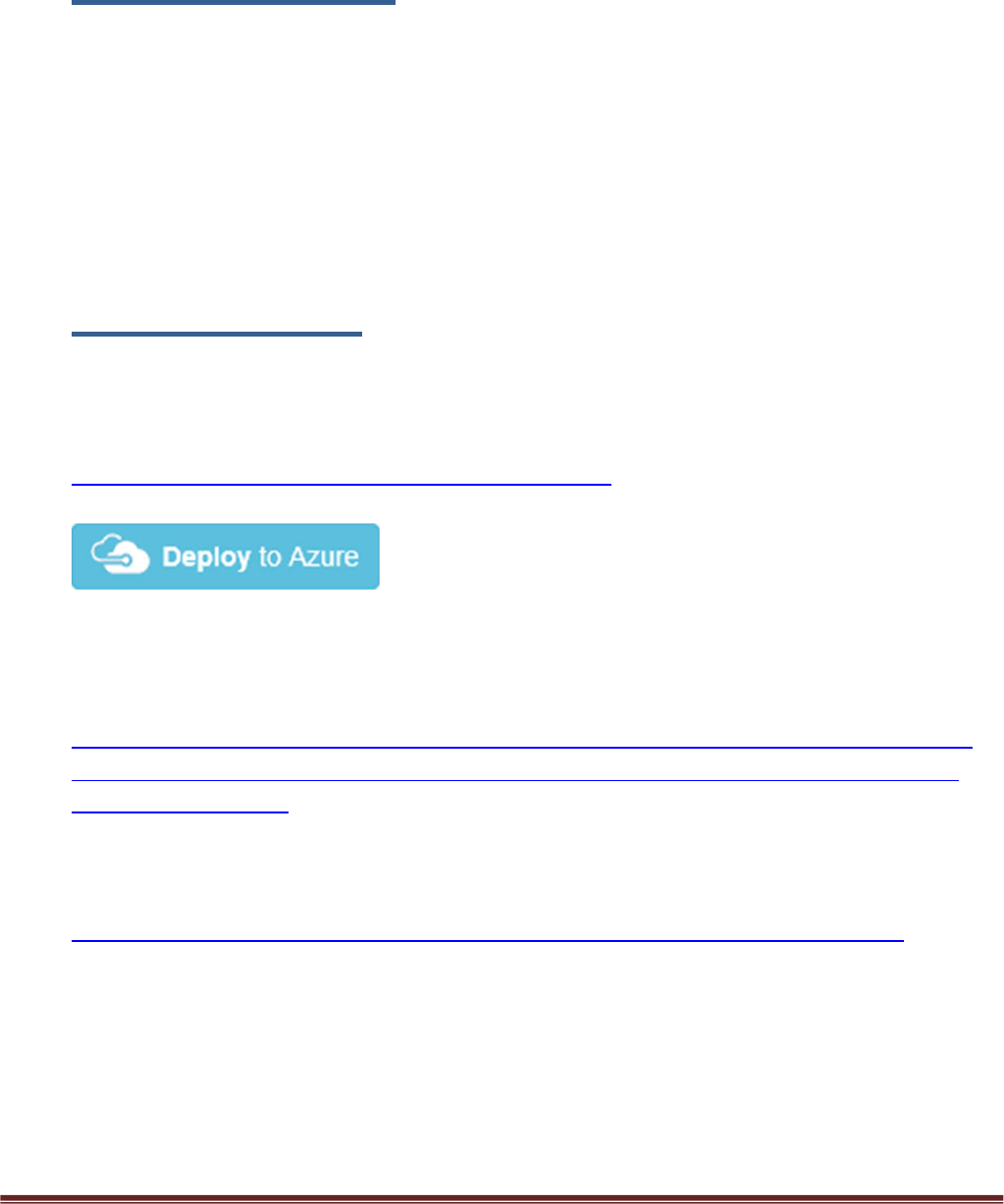
The Transit VNet solution deploys a classic hub-and-spoke architecture where the Hub and each spoke are
deployed in separate VNets.
VNet Peering
For the different VNets to talk to each other, they must be peered in both the directions. VNet Peering
works under the assumption that the peering networks do not have overlapping subnets. In this topology,
when a VNet spoke is deployed, we will dynamically peer the spoke's VNet and the hub's VNet enabling
traffic to flow between them. For additional information on VNet Peering please reference the link below
Palo Alto Networks Transit VNet with the VM-Series Deployment Guide
v1.0 Page 5
https://docs.microsoft.com/en-us/azure/virtual-network/virtual-network-peering-overview
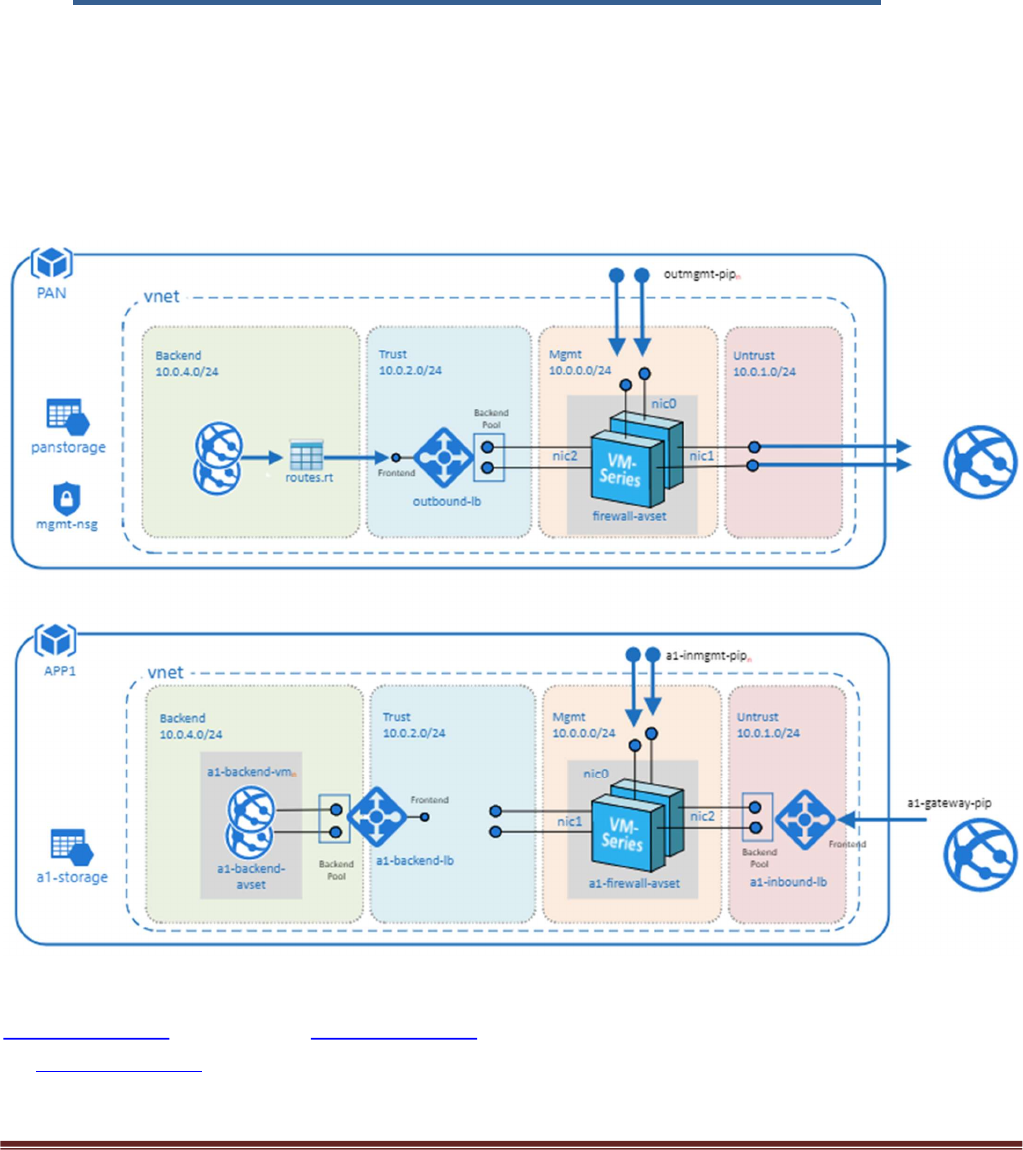
Figure 1
Hub Topology
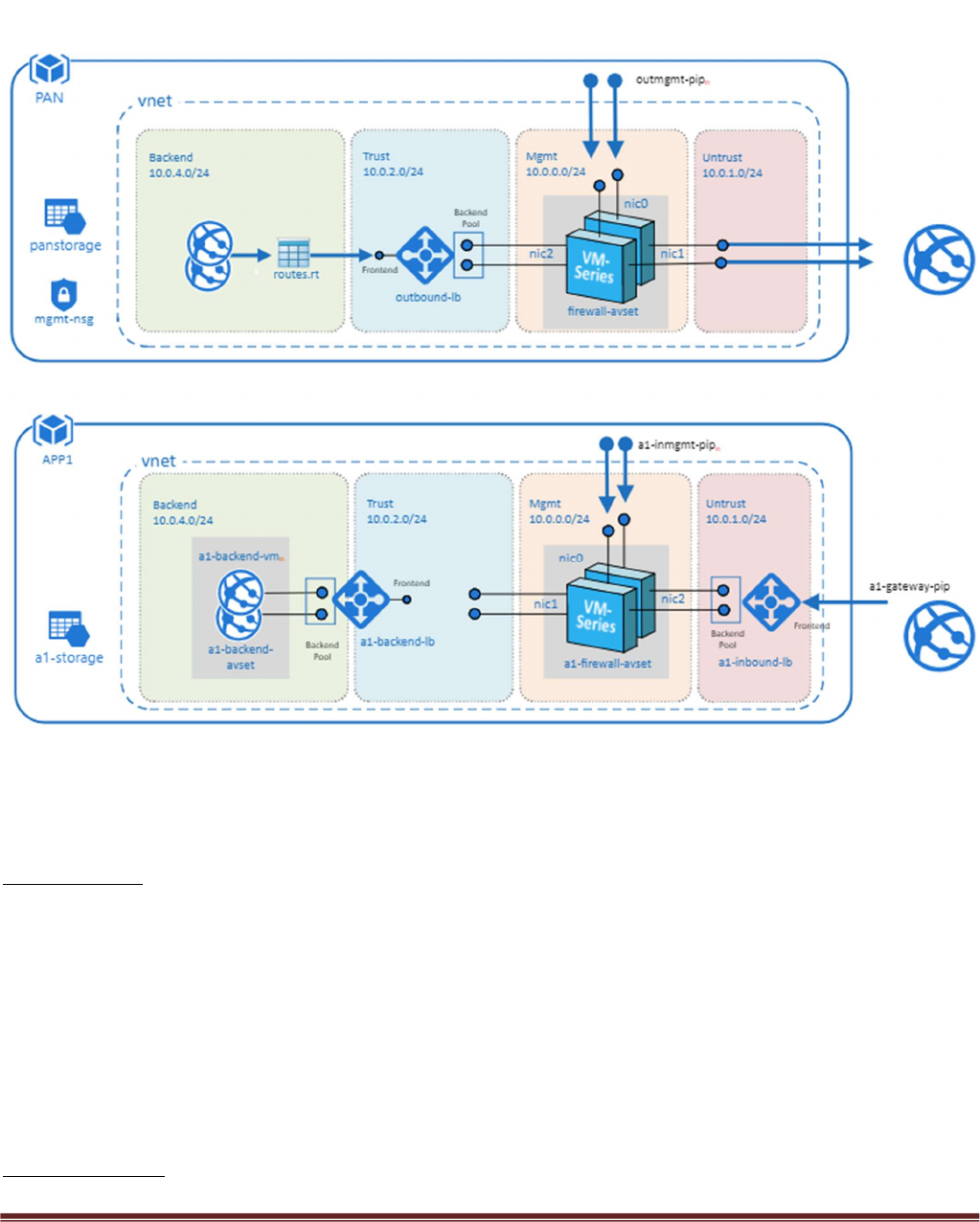
In Figure 1 PAN represents the Hub VNet. The Hub VNet consists of Mgmt , Untrust and Trust subnets. An
Azure internal LB[Outbound-LB] used for outbound traffic and a pair of VM-Series FWs in an availability
set. The Hub topology serves as the exit point of all non-return traffic for the Hub and Spoke topology.
The Hub topology consists of
2 VM-Series Firewalls
1 Standard internal Load Balancer
Spoke Topology
Palo Alto Networks Transit VNet with the VM-Series Deployment Guide
v1.0 Page 6
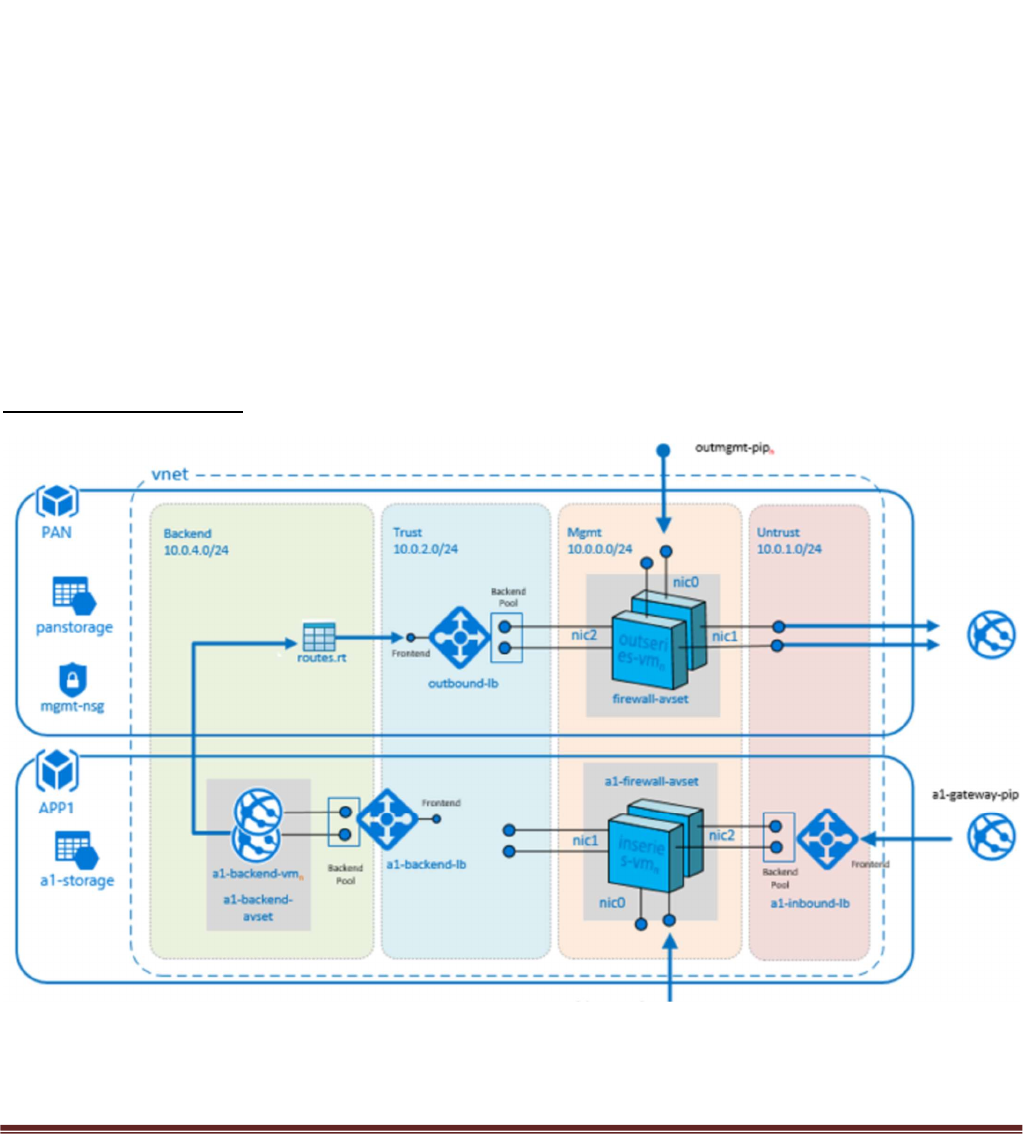
In Figure 1 APP1 represents the Spoke VNet. The spoke VNet allows an ingress point for all traffic destined
to public facing resources. The subnets consist of Mgmt, Untrust, Trust and Backend Subnets for the
application servers. An Application Gateway doubles as a public facing load balancer and sits on the front
end. A pair of VM-Series FWs in an availability set receive traffic from the public facing LB. An Internal LB
sits behind the firewalls and sends traffic to the backend application servers. All return traffic egresses this
same path. When a spoke subscribes to a hub, a UDR is also defined which has a default route to the Hub's
Interal Load Balancer. This is so all packets that are not destined to the spoke's VNet gets forwarded to the
Hub Internal LB for routing.
The Spoke topology consists of
1 Application Gateway functioning as an external load balancer listening on port 80.
Spoke subnets are 192.168.0.0/21 Spoke1, 192.168.8.0/21 Spoke2 and so on.
2 VM-Series Firewalls
1 Internal Load Balancer
2 Linux Web servers
1 UDR sending all default route traffic to the Hub VNet Standard Load Balancer.
Hub & Spoke Topology
Figure 2
Palo Alto Networks Transit VNet with the VM-Series Deployment Guide
v1.0 Page 7
3. Support Policy
This solution is released under an as-is, best effort, support policy. These scripts should be seen as
community supported and Palo Alto Networks will contribute our expertise as and when possible. We do
not provide technical support or help in using or troubleshooting the components of the project through
our normal support options such as Palo Alto Networks support teams, or ASC (Authorized Support
Centers) partners and backline support options. The underlying product used (the VM-Series firewall) by
the scripts or templates are still supported, but the support is only for the product functionality and not for
help in deploying or using the template or script itself.
4. Prerequisites
Here are the prerequisites required to successfully launch this template:
1. AZURE account with appropriate permissions.
2. Clone or download the files from the following GitHub repository on to your local machine:
https://github.com/PaloAltoNetworks/Azure-transit-VNet
3. If the GitHub Repository has a deploy button you can deploy your templates using the button.
4. To utilize the VM-Series logging features you must have a valid license. Without a valid VM-Series
Firewall license you will not see any data in the traffic logs. If you don’t have a license provided by
Palo Alto Networks, please select bundle1 or bundle2 in the template parameters for licensing. For
more information on licensing please see the link below.
https://www.paloaltonetworks.com/documentation/80/virtualization/virtualization/license-the-
vm-series-firewall/license-typesvm-series-firewalls/vm-series-firewall-in-amazon-web-services-
aws-and-azure-licenses
5. Please note that the Azure Standard Load Balancer is still in preview and you will need to sign up
with Azure to access this resource before launching the template. For further information on this
see the link below.
https://docs.microsoft.com/en-us/azure/load-balancer/load-balancer-standard-overview
Palo Alto Networks Transit VNet with the VM-Series Deployment Guide
v1.0 Page 8
5. Launch the Transit VNet Hub Template
There are multiple ways to deploy your template. You can use Azure CLI, PowerShell, Deploy to Azure
button or you can deploy the template manually. If the GitHub Repository has a Deploy to Azure button
you can deploy the template by clicking the deploy button for each template. The steps below will walk
you through how to launch the ARM template manually.
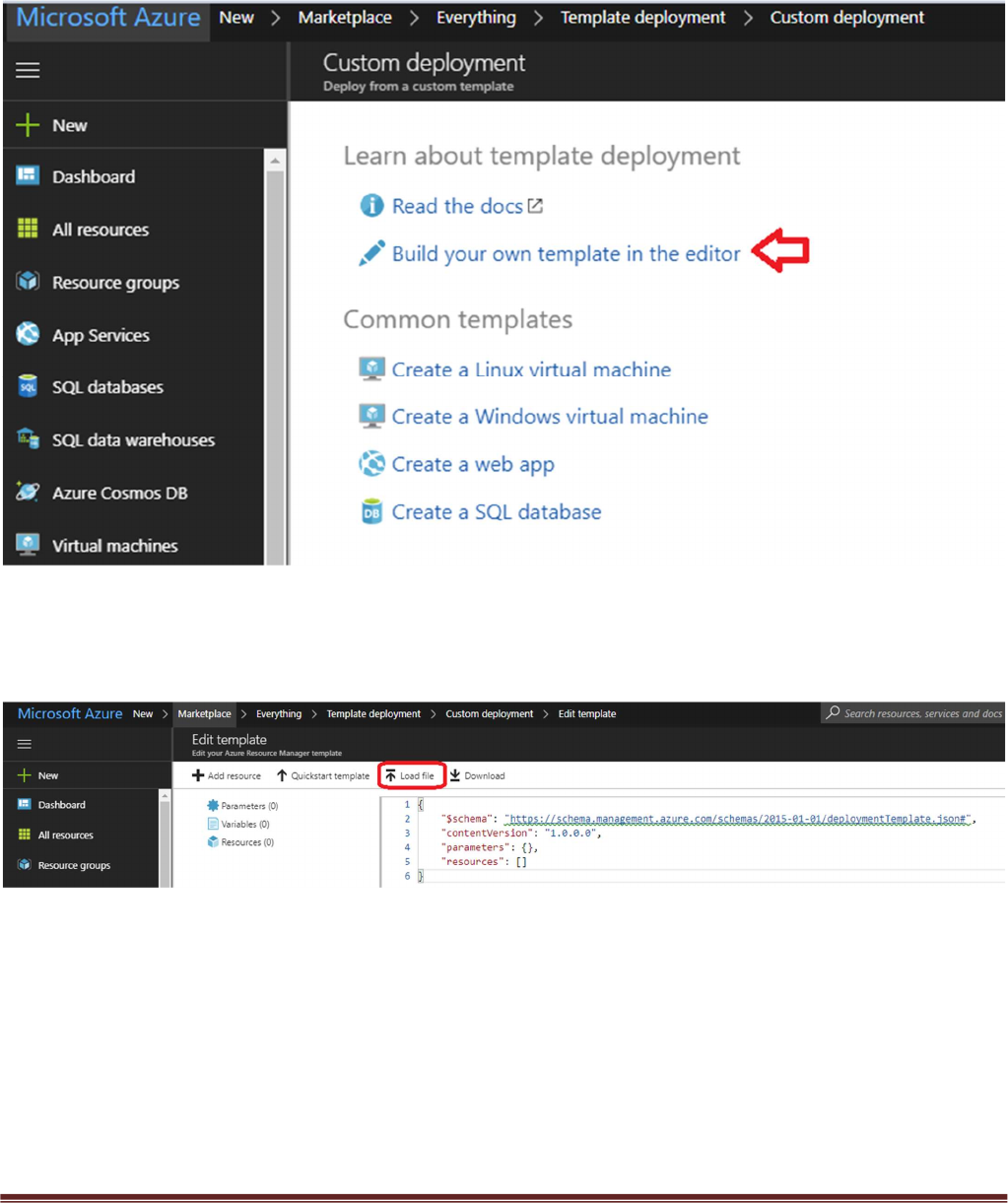
In the Azure Resource Manager console you can launch the azureDeployInfra.json file directly from the
Azure Portal. To do this click “New” then search “Template Deployment”, click the Template Deployment
icon an select “Create”.
Palo Alto Networks Transit VNet with the VM-Series Deployment Guide
v1.0 Page 9
In the next screen click “Build your own template in the editor”
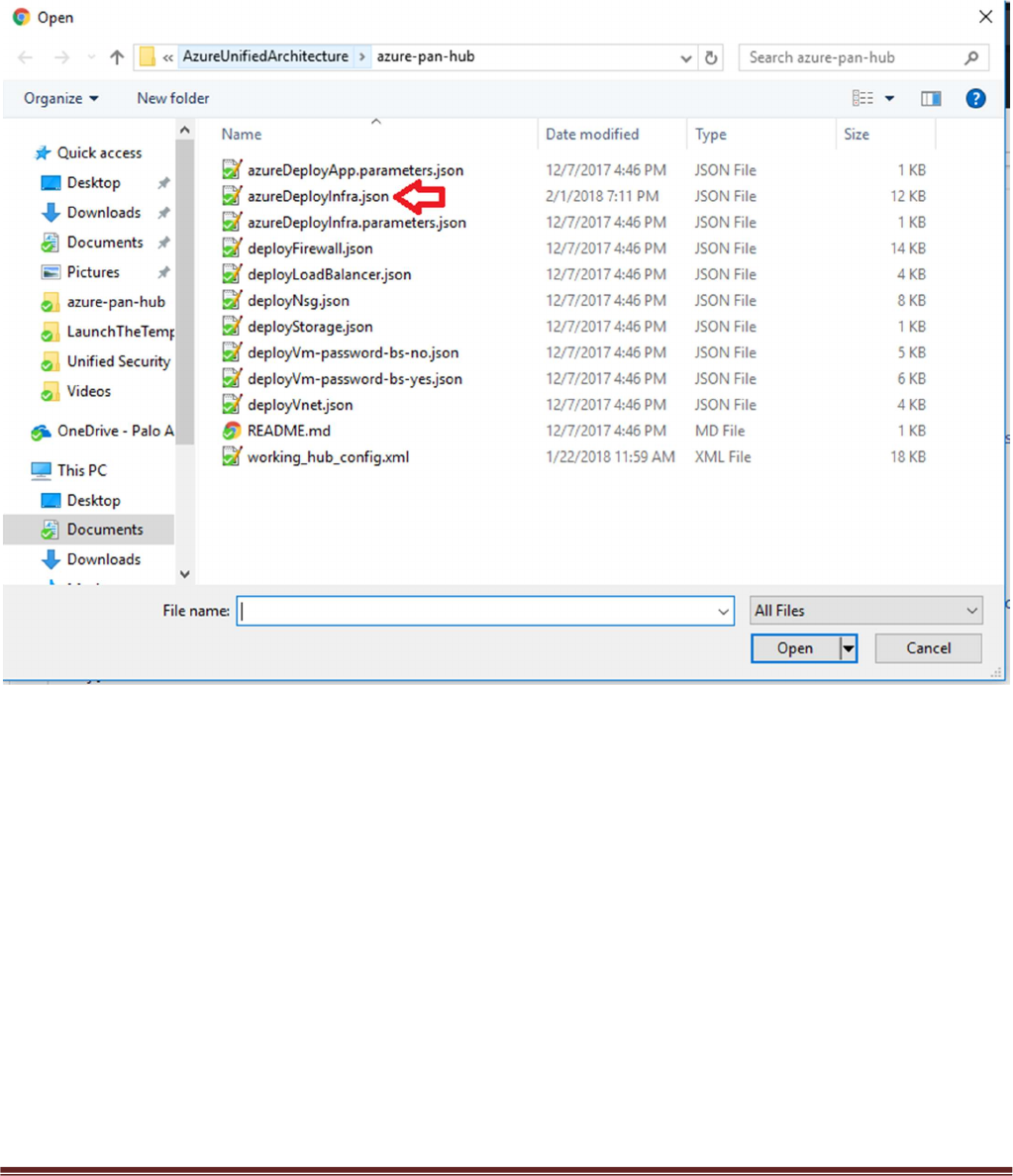
Select “Load File”
6
Palo Alto Networks Transit VNet with the VM-Series Deployment Guide
v1.0 Page 10
Select “azureDeployInfra.json“ file from the Azure-Transit-VNet/azure-pan-hub directory that you cloned
from GitHub, then click “Save” to bring up the parameters.
Palo Alto Networks Transit VNet with the VM-Series Deployment Guide
v1.0 Page 11
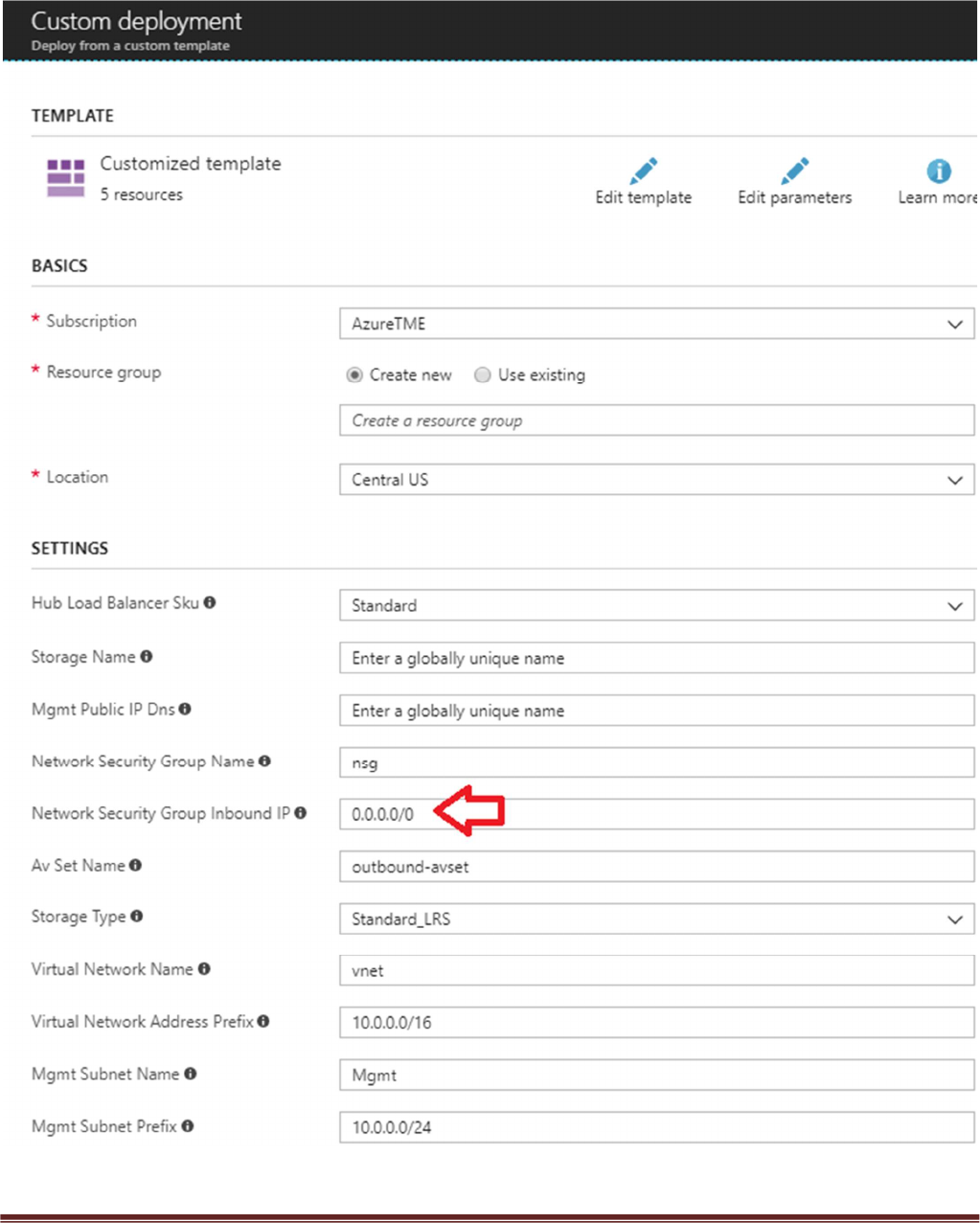
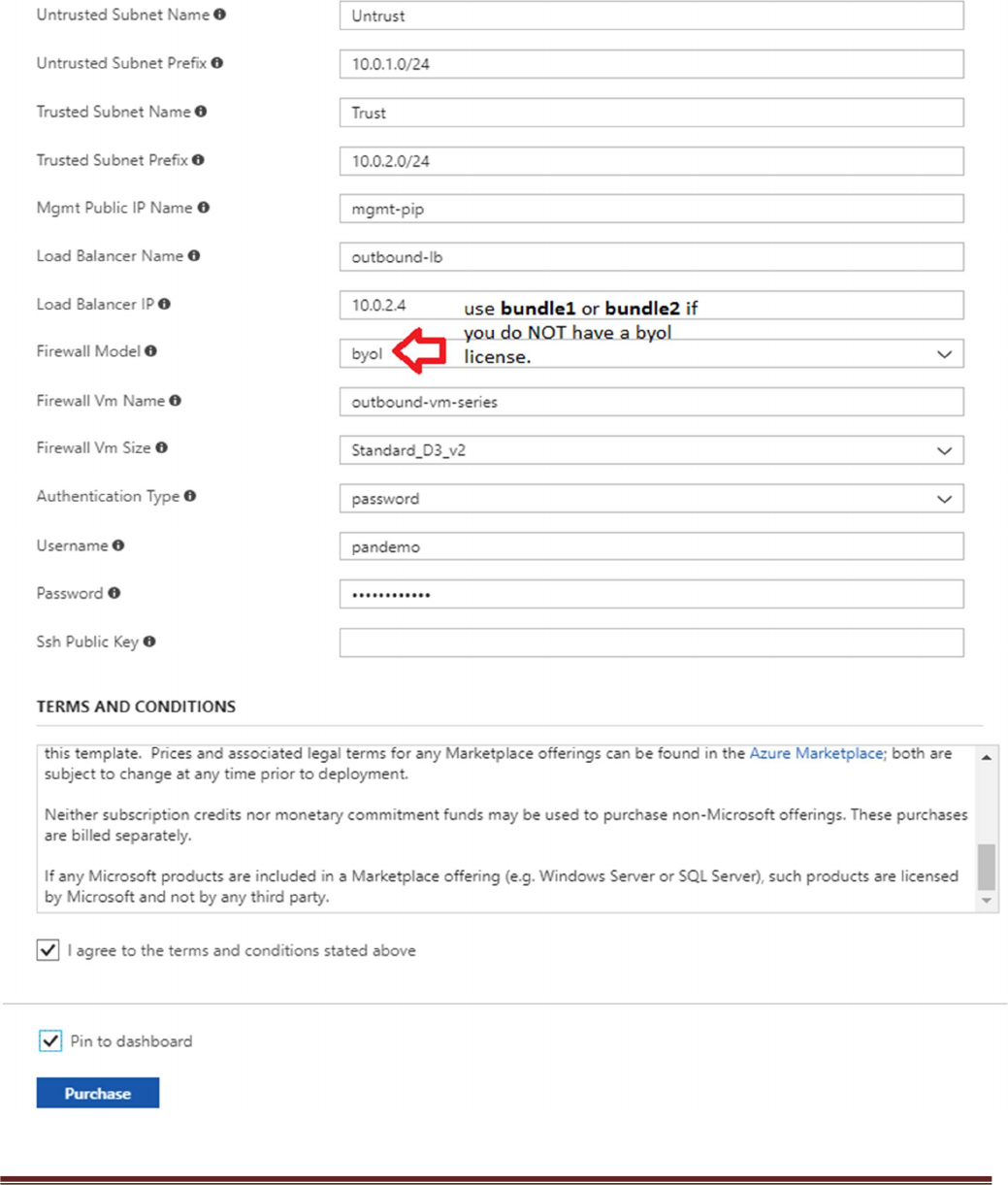
a. Most of the parameters are self-explanatory and should be left at the defaults
b. Resource Group – Always create a new resource Group. The hub template does not work in an
existing resource group
c. Location – Use a location where Standard Load Balancer Preview feature is enabled. List of regions
is found here - https://docs.microsoft.com/en-us/azure/load-balancer/load-balancer-standard-
overview#region-availability
d. Hub Load Balancer Sku – Use the Standard SKU type which will load balance all outbound TCP
traffic.
e. Network Security Group Name is the NSG that is attached to the Firewall’s Management subnet
f. Network Security Group Inbound Src IP – This is the IP you will allow explicit access to the
management interface of the virtual machines.
g. Virtual Network Name – Use a unique name which will not be used in the spoke VNet deployment.
Remember this name since it is an input parameter for the spoke template.
h. For security purposes be sure to set Security Group Inbound IP for mgmt access to the firewall.
i. Virtual Network Address Prefix – Use a network address which will not be used in the spoke
deployment.
j. Virtual Network Name – Use a unique name which will not be used in the spoke VNet deployment.
Remember this name since it is an input parameter for the spoke template.
k. Virtual Network Address Prefix – Use a network address which will not be used in the spoke
deployment.
l. Load Balancer IP – Use a static IP for Load Balancer in the Trust network. Remember this address
since it is used as an input parameter for the spoke template.
m. Firewall Model – The template default will work unless a larger size is required.
n. It could take up to 5 minutes to complete the launch or It could take longer depending on Azure.
o. Username and password that is entered by default for the devices is:
user:pandemo password:Dem0pa$$w0rd
Palo Alto Networks Transit VNet with the VM-Series Deployment Guide
v1.0 Page 12
Palo Alto Networks Transit VNet with the VM-Series Deployment Guide
v1.0 Page 13
Acknowledge the terms and conditions and click “Purchase”
Palo Alto Networks Transit VNet with the VM-Series Deployment Guide
v1.0 Page 14
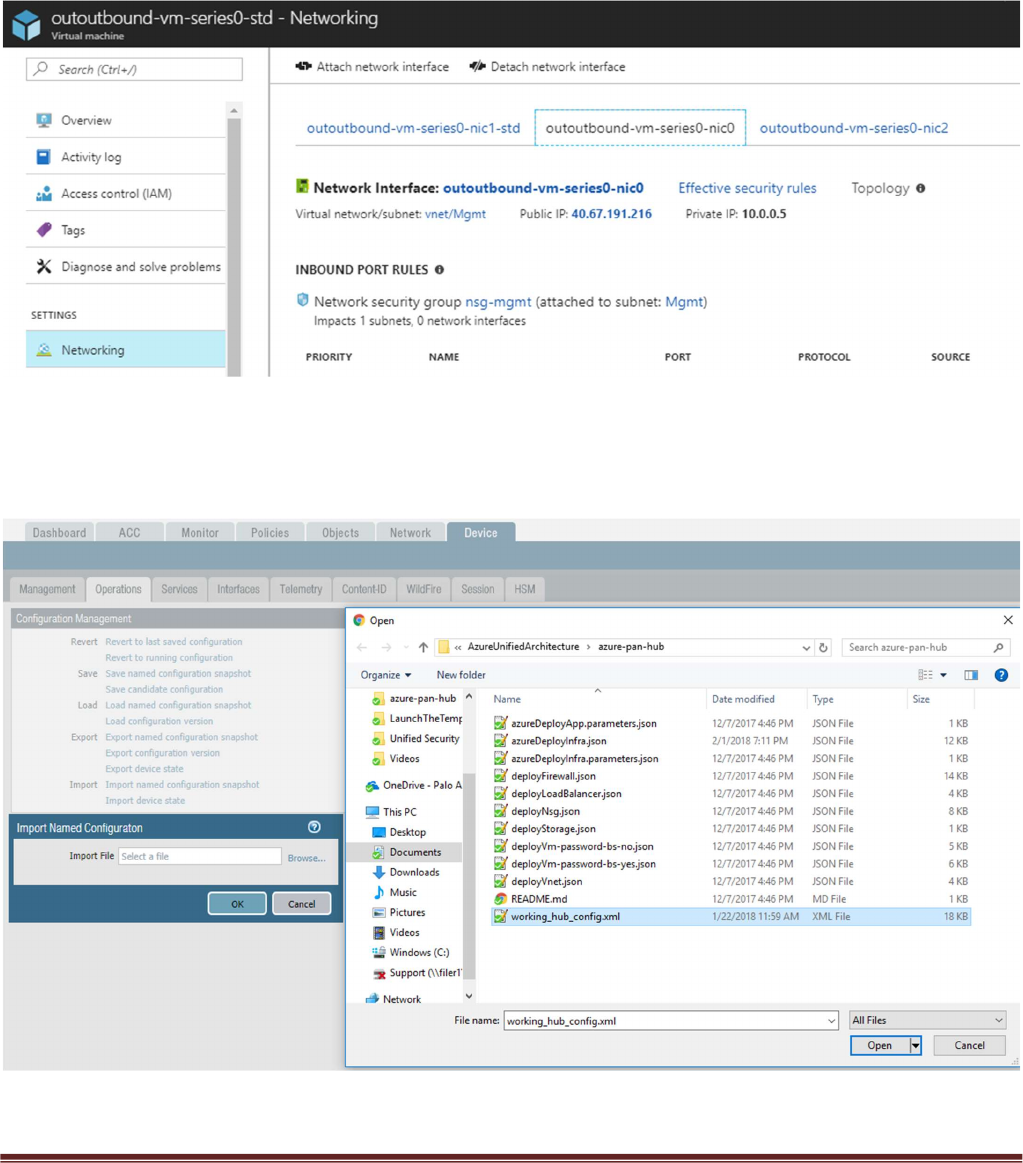
Once the firewalls have launched, locate the Management interface public IP address in Azure.
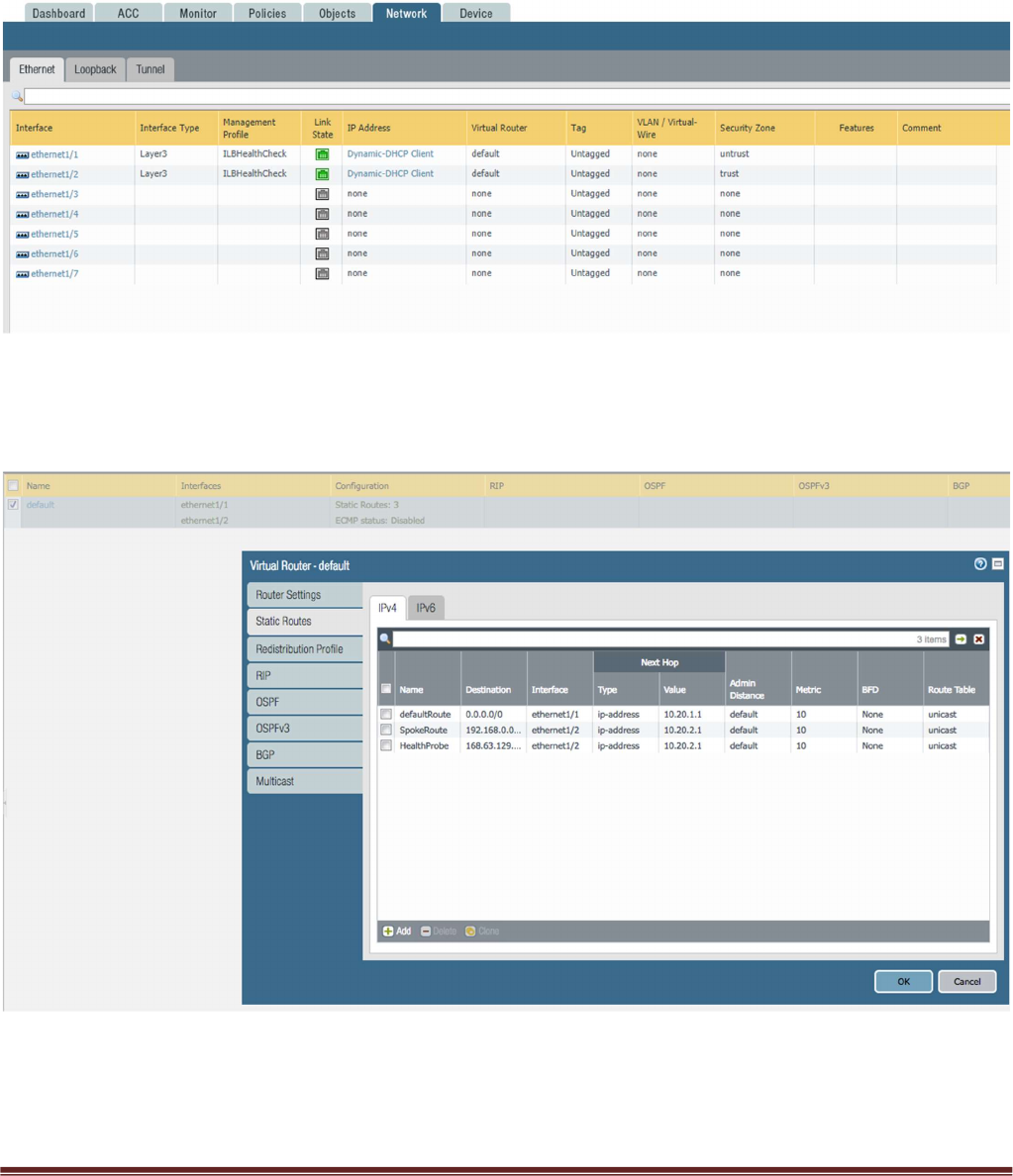
Log into the hub firewalls using HTTPS. Locate the working_hub_config.xml configuration snapshot and
import this configuration into both firewalls. This is in the Hub directory that you exported from GitHub.
Palo Alto Networks Transit VNet with the VM-Series Deployment Guide
v1.0 Page 15
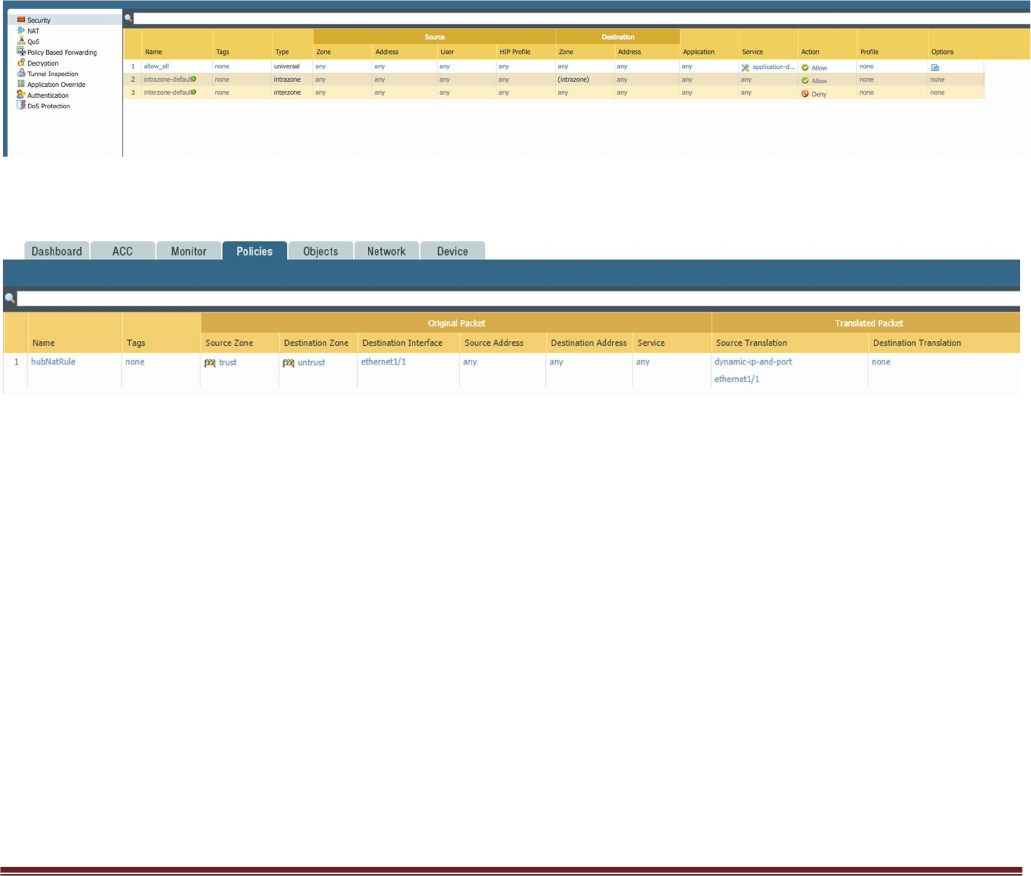
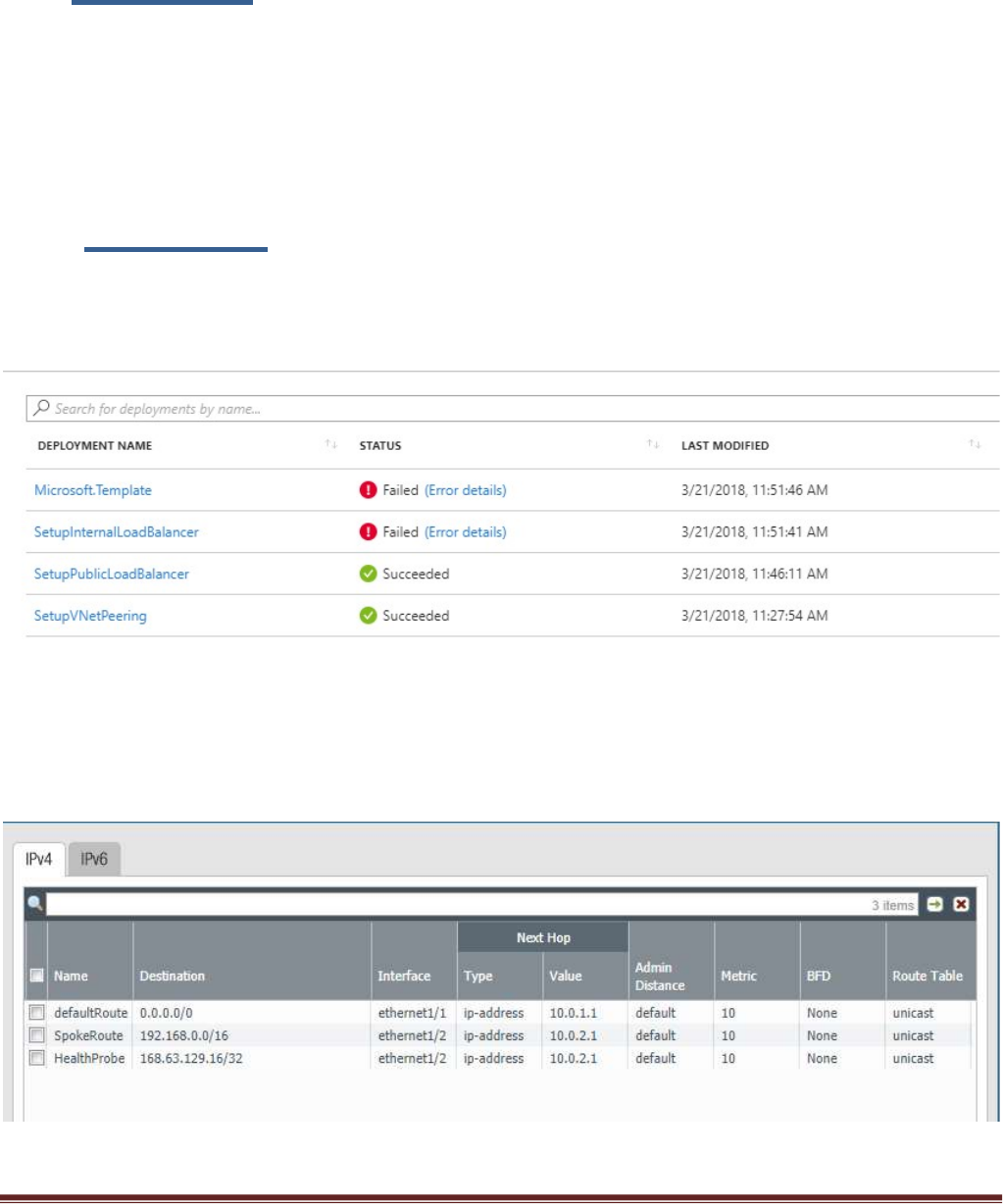
Once you load the configuration and commit the changes make sure your ethernet1/1 and Ethernet1/2
interfaces now show green.
Verify the virtual router has the following configuration.
DefaultRoute: is to forward all outbound traffic to the untrust interface so that it egresses out of the Azure
network.
Palo Alto Networks Transit VNet with the VM-Series Deployment Guide
v1.0 Page 16
SpokeRoute: is to forward all the inbound traffic and inter-spoke traffic back to the Trust interface so that
it reaches the appropriate Spoke (application server). Note that the Network address of the all the spokes
VNets should be part of this network address. If a new spoke is added whose network address is not part of
this network address, then a new route needs to be added in the config to forward that traffic to the Trust
interface.
HealthProbe: is to respond to the health probe packets generated by the Internal Load Balancer. For this lab
the health check is configured to port 22 on the firewall Trust interface.
An allow-all security policy is created to forward all traffic. This should be modified to accommodate your
policy preferences.
Verify that you have a NAT rule on the hub firewall for outbound traffic
Palo Alto Networks Transit VNet with the VM-Series Deployment Guide
v1.0 Page 17
6. Launch the Transit VNet Spoke Template
Spoke Template Options
Azuredeploy.json – This launches the spoke template with VM-Series firewalls sandwiched between an
external and internal load balancer. This provides secured external access to public facing workloads with
return traffic egressing the spoke VNet. All internal originating traffic will be forwarded to the Hub VNet as
the exit route to provide secure outbound access.
Azuredeploy-no-firewall.json – Launches the spoke template with no firewalls but still launches
application servers. This scenario would NOT provide security using the VM-Series for public facing
workloads. All internal originating traffic will be forwarded to the Hub VNet as the exit route to provide
secure outbound access. This template will be available soon.
There are multiple ways to deploy your template. You can use Azure CLI, PowerShell, Deploy to Azure
button or you can deploy the template manually. If the GitHub Repository has a Deploy to Azure button
you can deploy your template by clicking the deploy button for each template. Below I will walk you
through how to launch your ARM template manually.
From the Azure-Transit-VNet/azure-pan-spoke GitHub repository that you cloned, launch the
azuredeploy.json file directly from the Azure Portal. You may need to bring up two azure portal browsers
in order to locate information needed to fill out the parameters when launching this template. To do this
click “New” then search “Template Deployment”, click the Template Deployment icon an select “Create”.
Palo Alto Networks Transit VNet with the VM-Series Deployment Guide
v1.0 Page 18
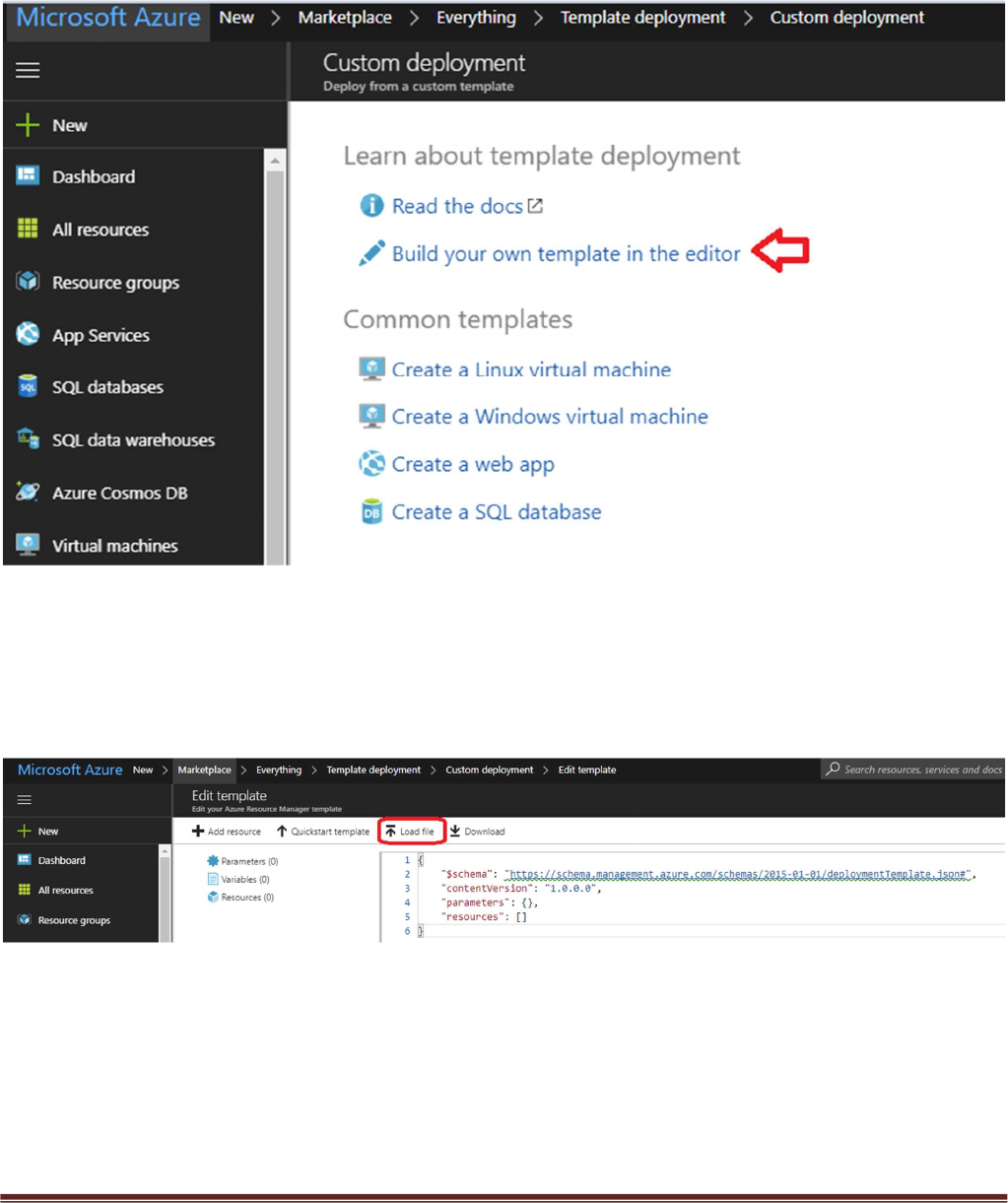
In the next screen click “Build your own template in the editor”
Select “Load File”
Palo Alto Networks Transit VNet with the VM-Series Deployment Guide
v1.0 Page 19
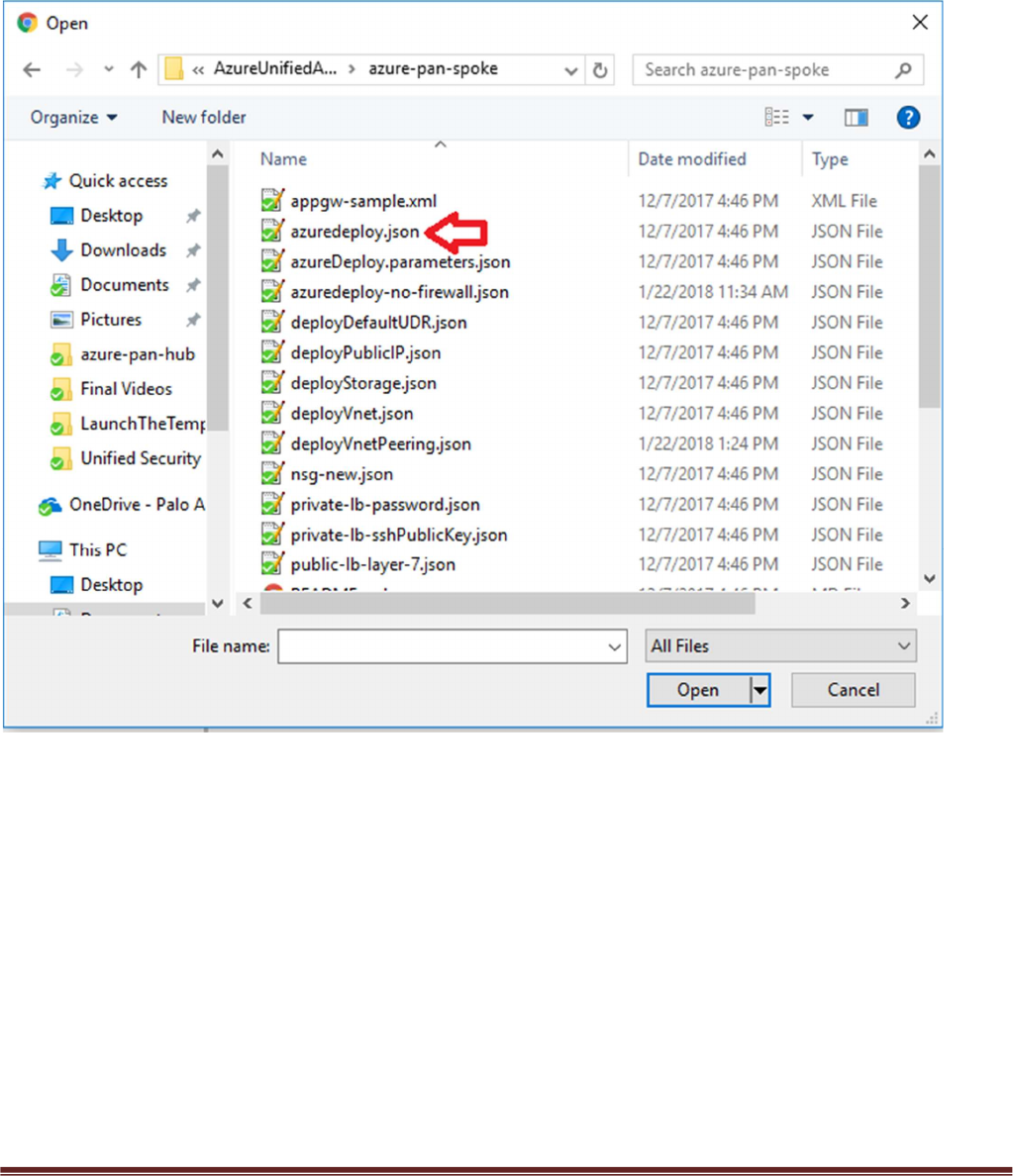
Select “azuredeploy.json“ file from the Azure-Transit-VNet/azure-pan-spoke directory that you cloned
from GitHub, then click “Save” to bring up the parameters.

Palo Alto Networks Transit VNet with the VM-Series Deployment Guide
v1.0 Page 20
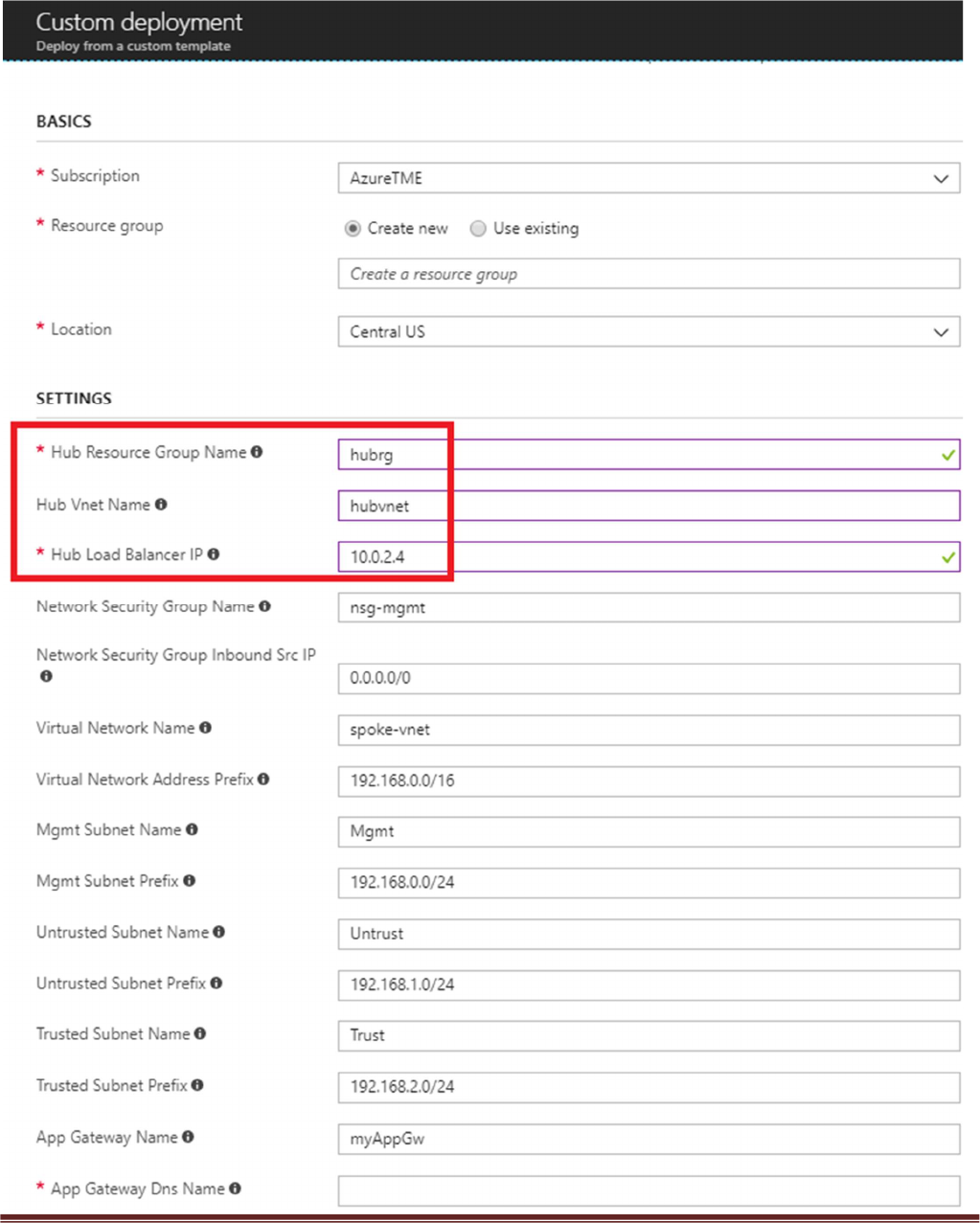
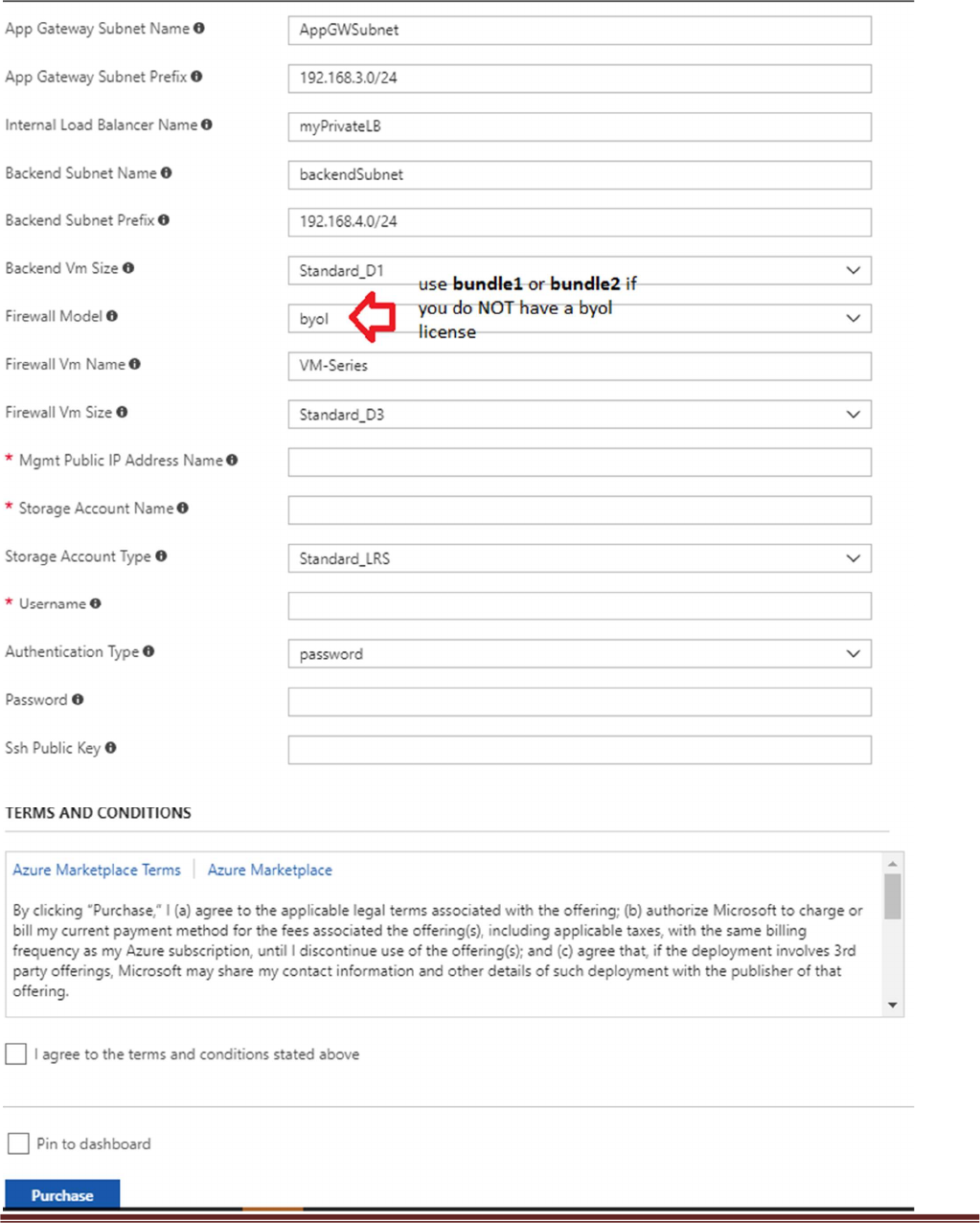
a. Most of the parameters are self-explanatory and should be left at the defaults
b. Resource Group – Create a new Resource Group. This template does not work with existing
resource groups.
c. Location – It should be the same location as the hub since VNet peering does not work well across
regions.
d. Hub Resource Group Name – Give the Resource Group name of the hub created resource group.
e. Hub VNet Name – Use the exact VNet name of the hub created earlier.
f. Hub Load Balancer IP – Use the static IP given to the Load Balancer in the created in the hub
template. You can find this information in the load balancer settings
g. Network Security Group Name – The security group name for mgmt access
h. Network Security Group Inbound Src IP – This is the IP you will allow explicit access to the
management interface of the virtual machines.
i. Virtual Network Address Prefix – This network address should be the subnet of the network
address given in the “SpokeRoute” in the hub’s firewall configuration.
j. Mgmt, Trust and Untrust subnets should be subnets of the VNet subnet created in the previous
step.
k. Firewall VM Size - Choose the Firewall Model and Size based on requirements. Use Standard D3 or
D3 v2.
l. SSH Public Key – If using a password then leave this section blank.
Palo Alto Networks Transit VNet with the VM-Series Deployment Guide
v1.0 Page 21
Palo Alto Networks Transit VNet with the VM-Series Deployment Guide
v1.0 Page 22
Palo Alto Networks Transit VNet with the VM-Series Deployment Guide
v1.0 Page 23
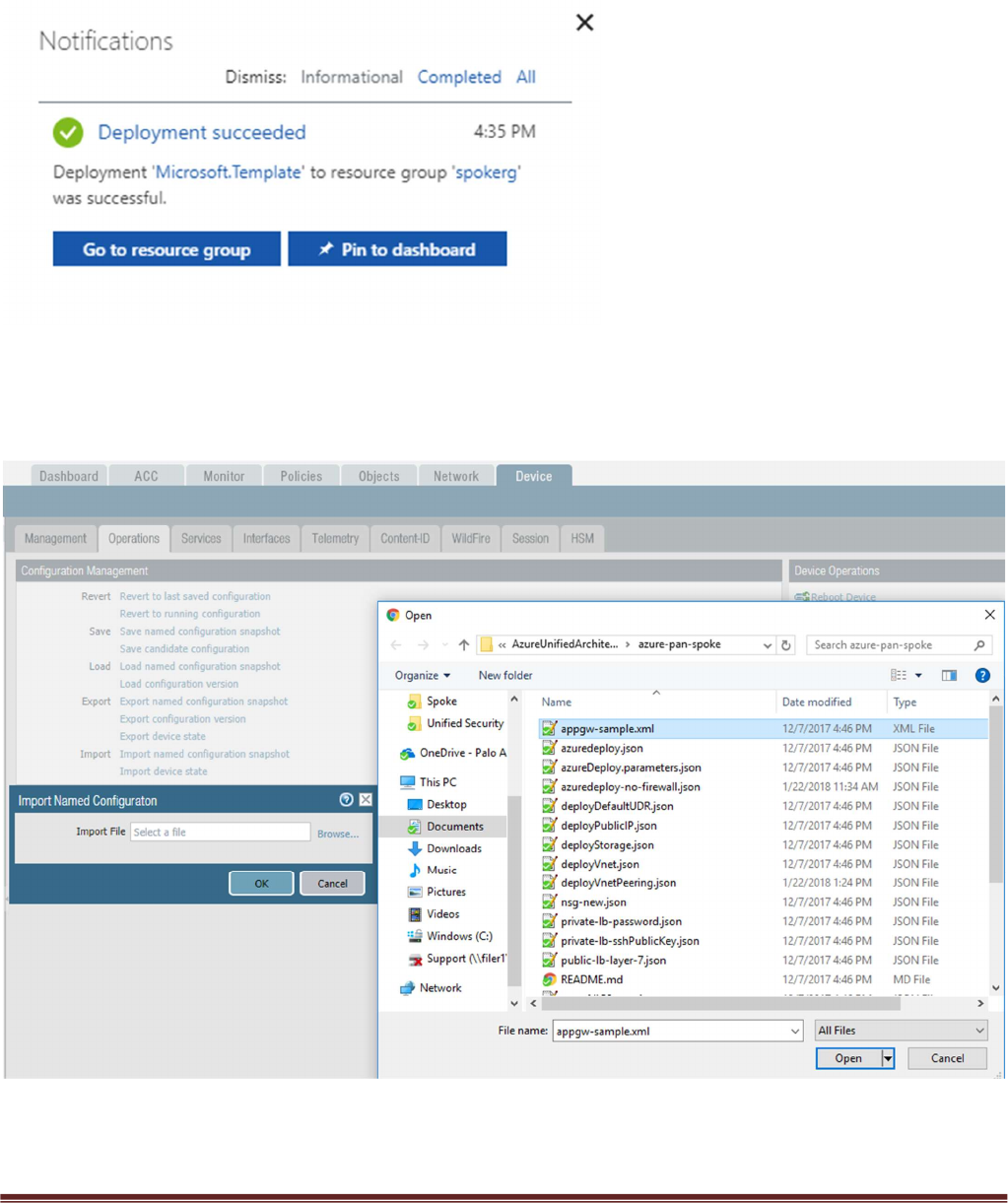
Once the Spoke template has successfully launched you will see Deployment succeeded.
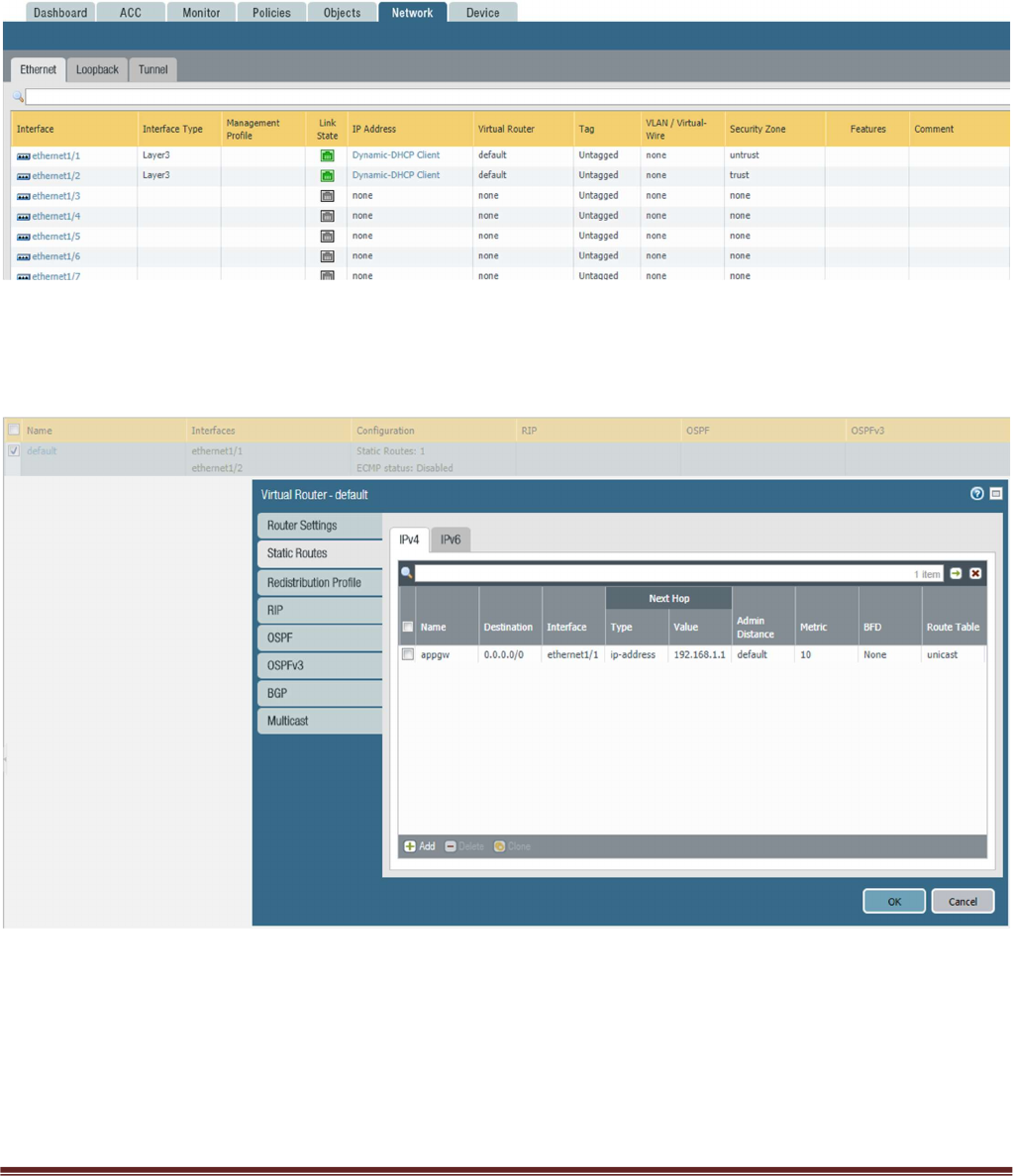
Log into the spoke firewalls using HTTPS. Locate the appgw-sample.xml configuration snapshot and
import this configuration into both firewalls. This is in the Spoke directory that you exported from GitHub.
For Spoke2 use the appgw-sample2.xml configure file.
Palo Alto Networks Transit VNet with the VM-Series Deployment Guide
v1.0 Page 24
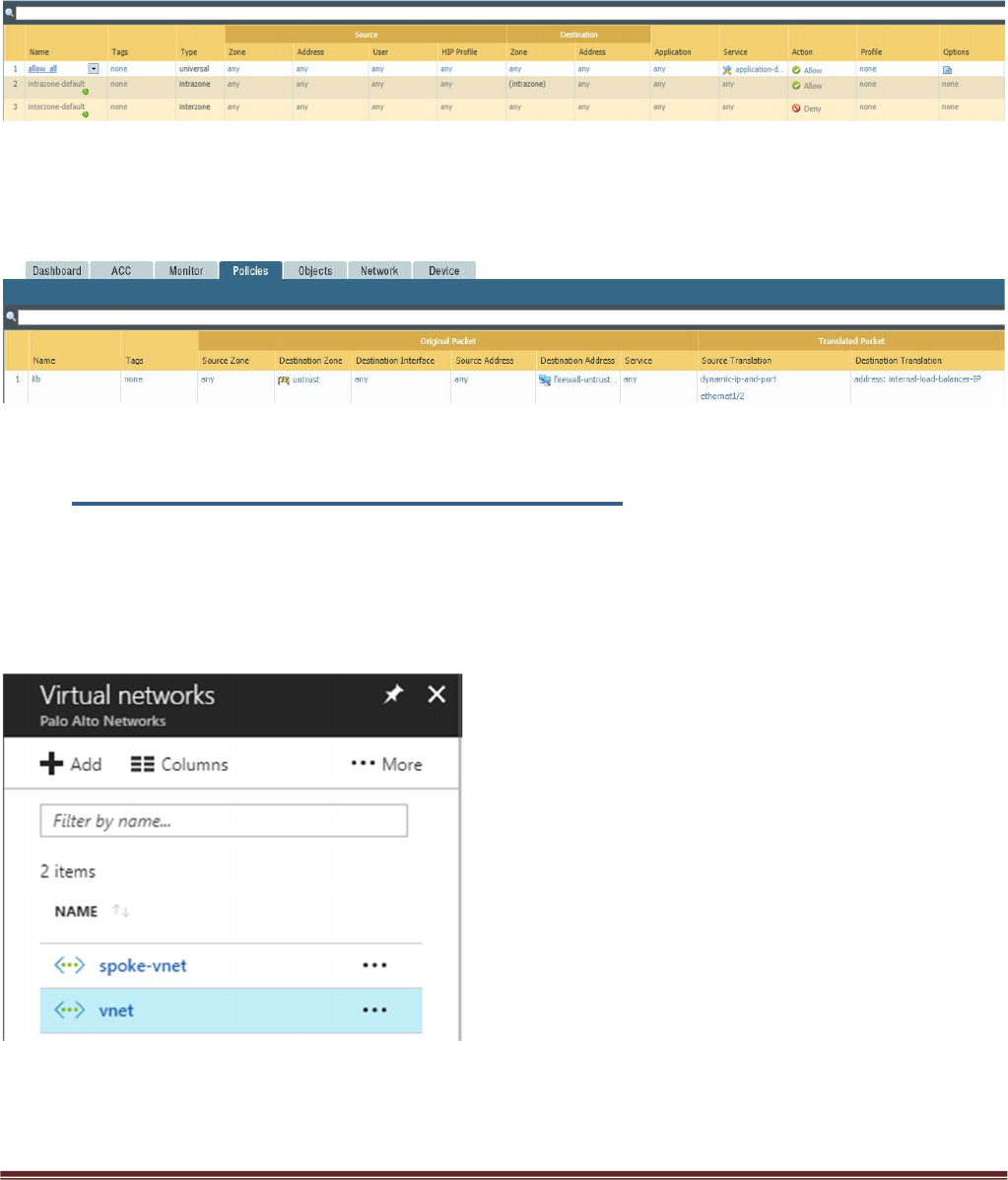
Once you load the configuration and commit the changes. Once you have committed the changes make
sure your ethernet1/1 and Ethernet1/2 interfaces now show green
Verify the spoke firewall virtual router has the following configuration.
appgw: is to forward all traffic originating from the firewall to the untrust interface. Traffic originating
from spoke resources behind the firewall will egress through the Hub VNet.
Palo Alto Networks Transit VNet with the VM-Series Deployment Guide
v1.0 Page 25
An allow-all security policy on the firewall is created to receive all traffic although the application gateway
load balancer only listens for port 80. This should be modified to accommodate your policy preferences.
Verify that you have a NAT rule on the spoke firewall for inbound traffic
7. VNet Peering Verification
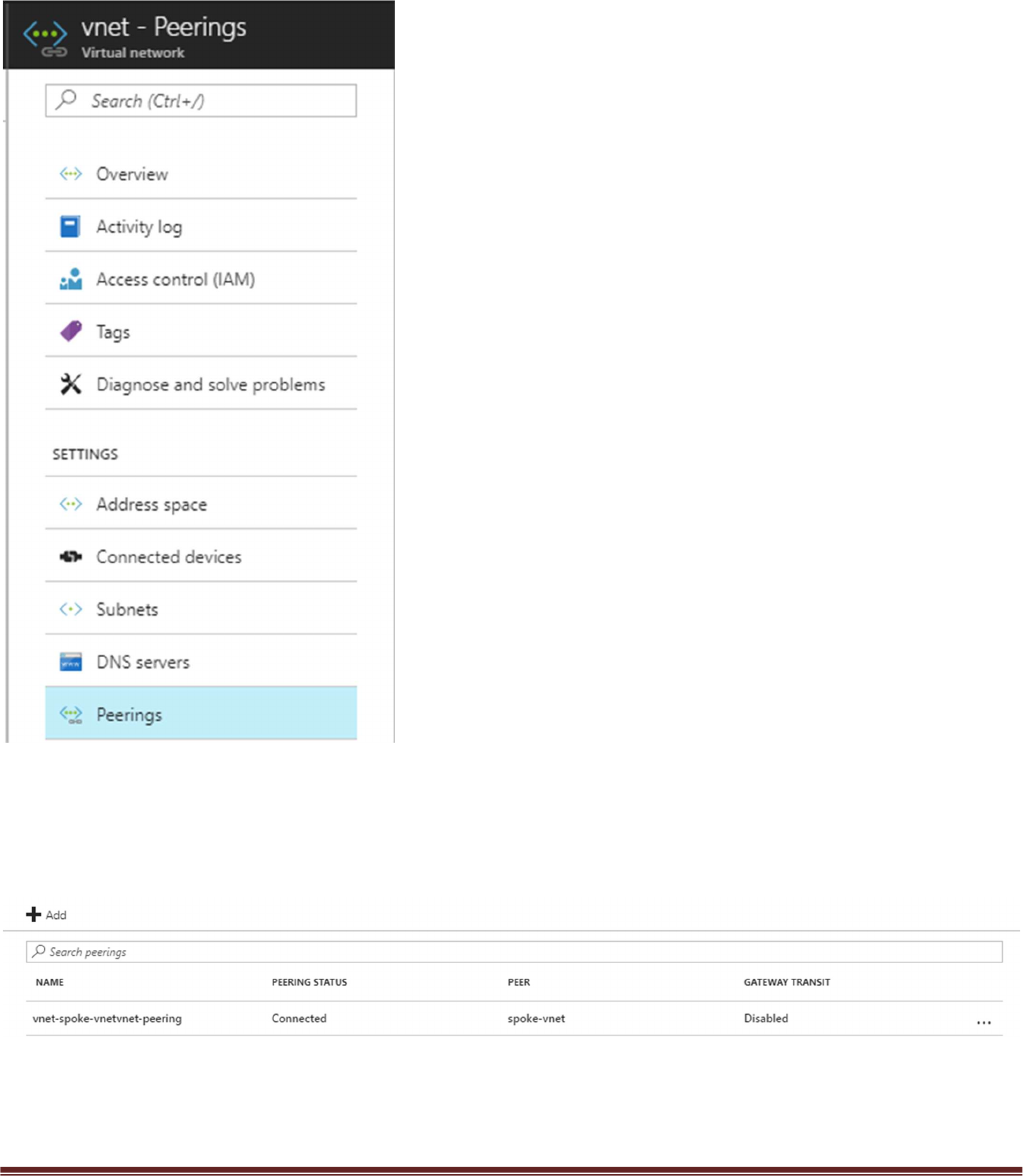
Within Azure Portal verify that VNet Peering has been configured automatically between the Hub
VNet and Spoke VNet. To check this in Azure navigate to Virtual Networks > select the VNet
name.
Palo Alto Networks Transit VNet with the VM-Series Deployment Guide
v1.0 Page 26
Then select Peerings
Here you should see the name of the peer VNet with a status of connected. Gateway Transit
should be disabled. Check this on both the hub and spoke VNet.
Palo Alto Networks Transit VNet with the VM-Series Deployment Guide
v1.0 Page 27
8. Inbound and Outbound Traffic Tests
Once you have confirmed that both the Hub and Spoke templates were successfully deployed, you have
imported and loaded the firewall configuration and confirmed VNet Peering, you will want to test your
proof of concept with live traffic.
Outbound Traffic Test
As per the diagram all traffic originating from within the Azure VNets will exit through the Hub VNet.
One way to test this setup is to originate traffic from a backend Linux VM deployed in the spoke to
www.google.com by using wget www.google.com. From there check the traffic logs of the Hub firewalls
for www.google.com traffic or web-browsing traffic if using another port 80 based website for wget tests.
You will need a license to see logs in the traffic logs or you can edit the template to use PAYG1 or PAYG2.
Palo Alto Networks Transit VNet with the VM-Series Deployment Guide
v1.0 Page 28
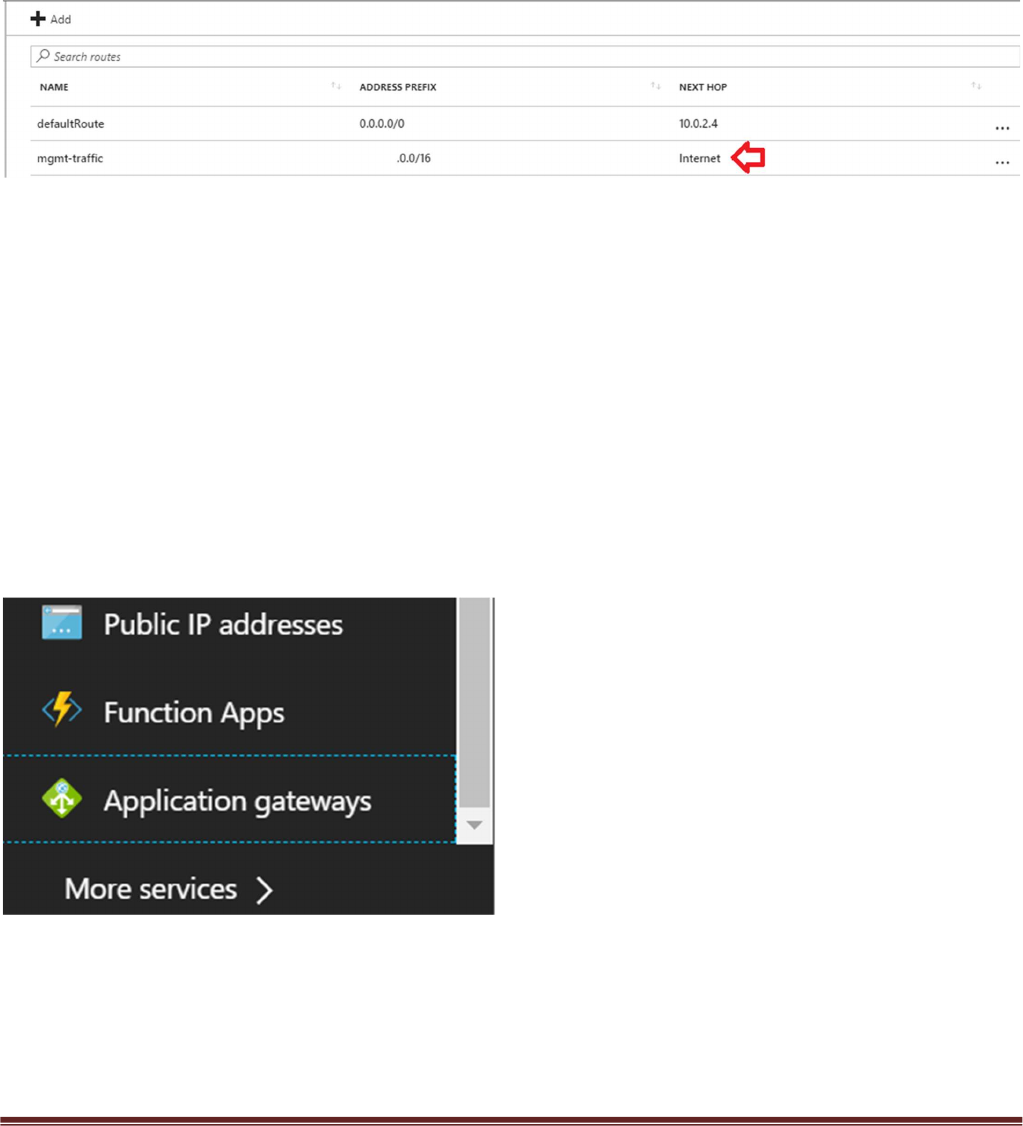
By default you will not be able to access the Linux servers in the spoke. To access the Linux devices you will
need to add a public IP address to one of the Spoke backend Linux servers. Then add a route on the UDR
named “defaultBackendUDR” for mgmt traffic, that will allow your public IP address with a next hop of
“Internet”
Another way to accomplish this would be to install a Bastion Host or Jump Box into the Backend Subnet
and SSH from that device.
Inbound Traffic Test
When launching the spoke template with firewalls, the spoke VNet will have an Application Gateway
(External LB), A set of firewalls and an internal Load balancer. This allows the spoke to host its own public
facing workloads. Once you have launched the Spoke template with firewalls you can test access to the
public facing workload by
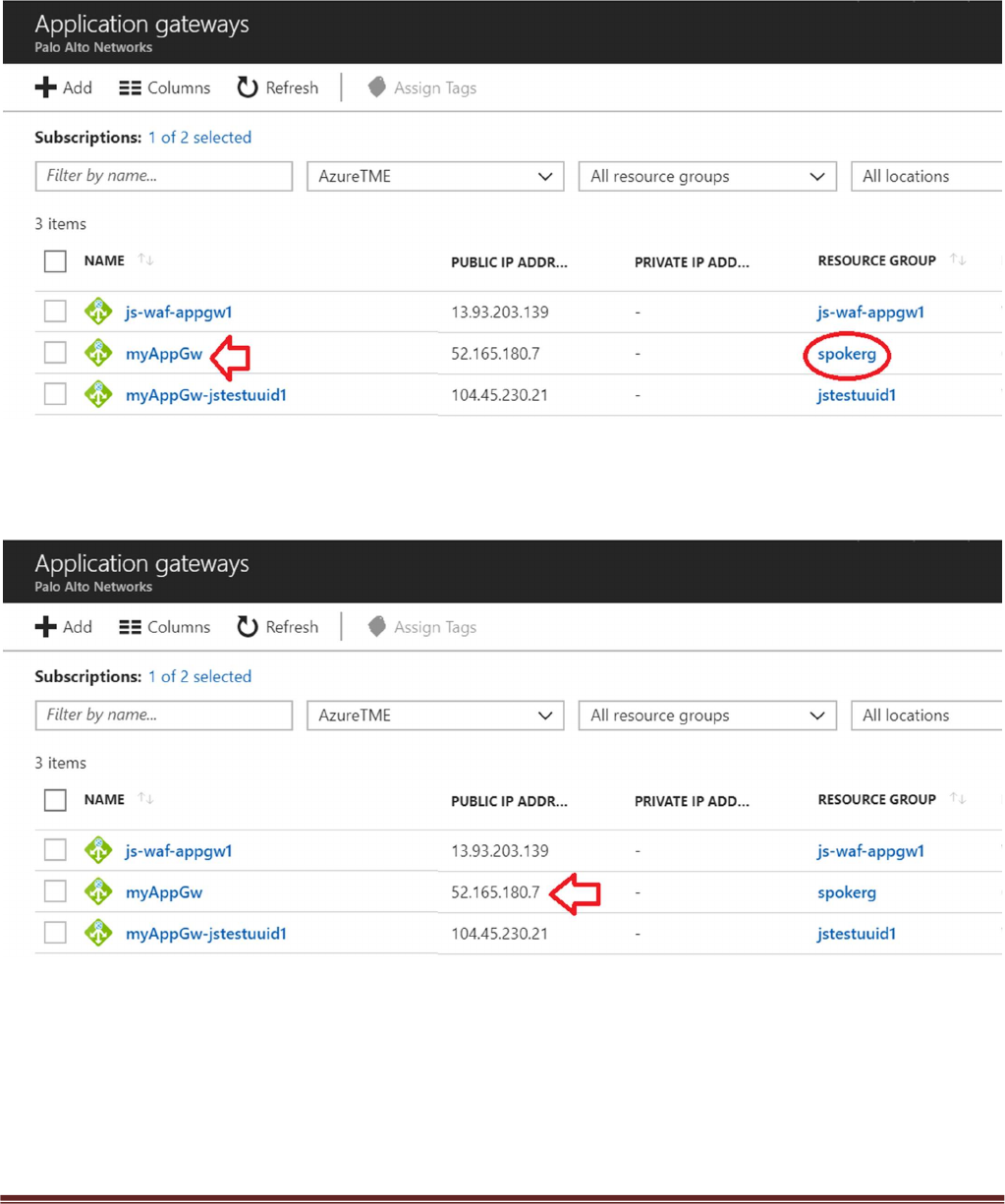
Navigating to “Application gateways” within the Azure Portal
Selecting the name of your Application Gateway that was created when you launched the Transit VNet
Spoke template. You can find the name of your Resource Group to help you differentiate from any other
Application Gateways.
Palo Alto Networks Transit VNet with the VM-Series Deployment Guide
v1.0 Page 29
Locale the Public IP address for your Application Gateway.
Palo Alto Networks Transit VNet with the VM-Series Deployment Guide
v1.0 Page 30
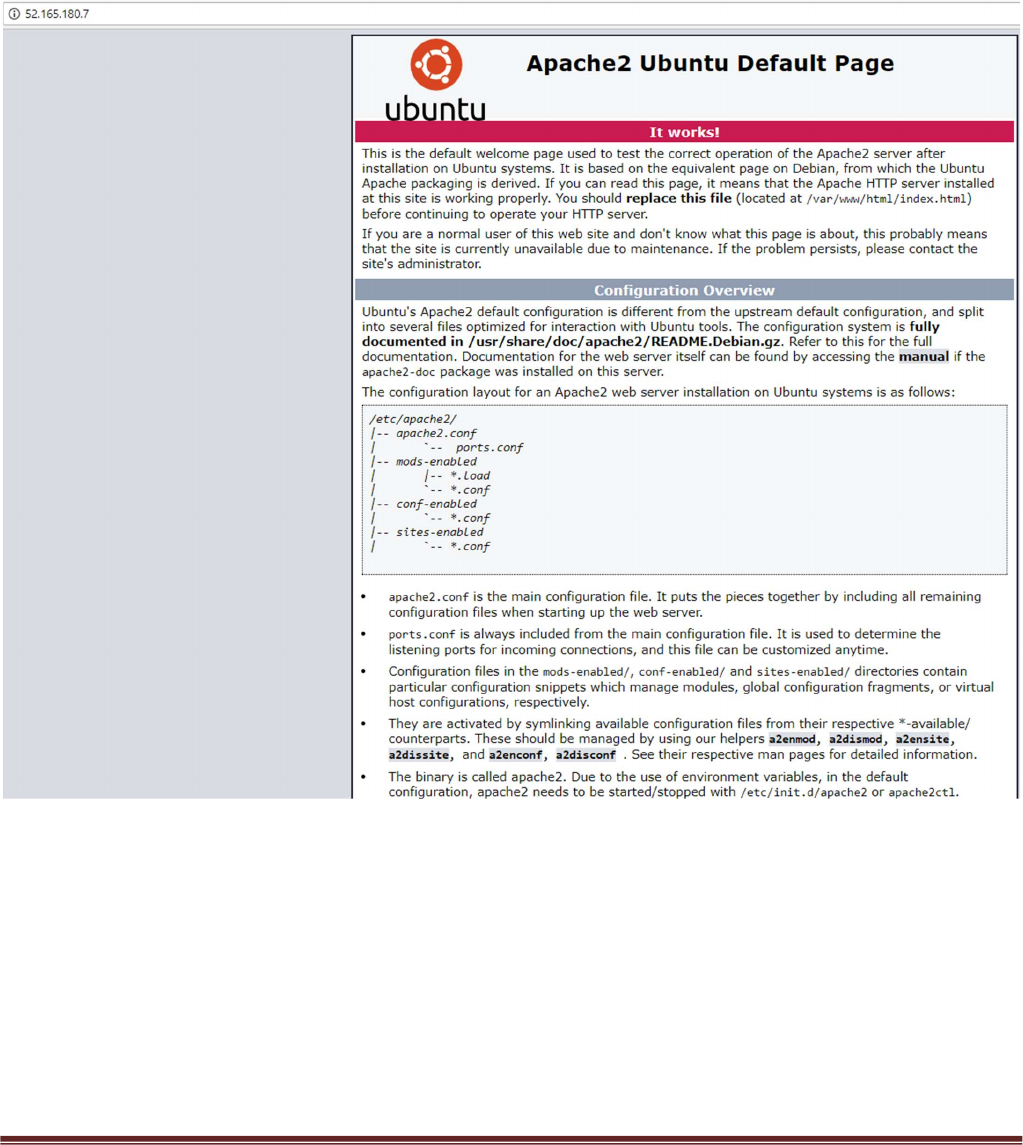
Place the Public IP address in your web browser. This IP address is the public facing IP of the
Application Gateway Load Balancer. You will see the default Ubuntu Page.
Palo Alto Networks Transit VNet with the VM-Series Deployment Guide
v1.0 Page 31
9. Cleanup
You can clean up the setup by deleting the resource groups for both the hub and spoke
deployments. Once you have deleted the resource groups for both the hub and spoke you will
have successfully deleted all resources created in this deployment.
10. Gotchas
To successfully deploy your spoke template, the hub VM-Series firewalls must but up, running
and configured or the deployment will fail. This means you must import your configuration
snapshot file before launching your spoke template.
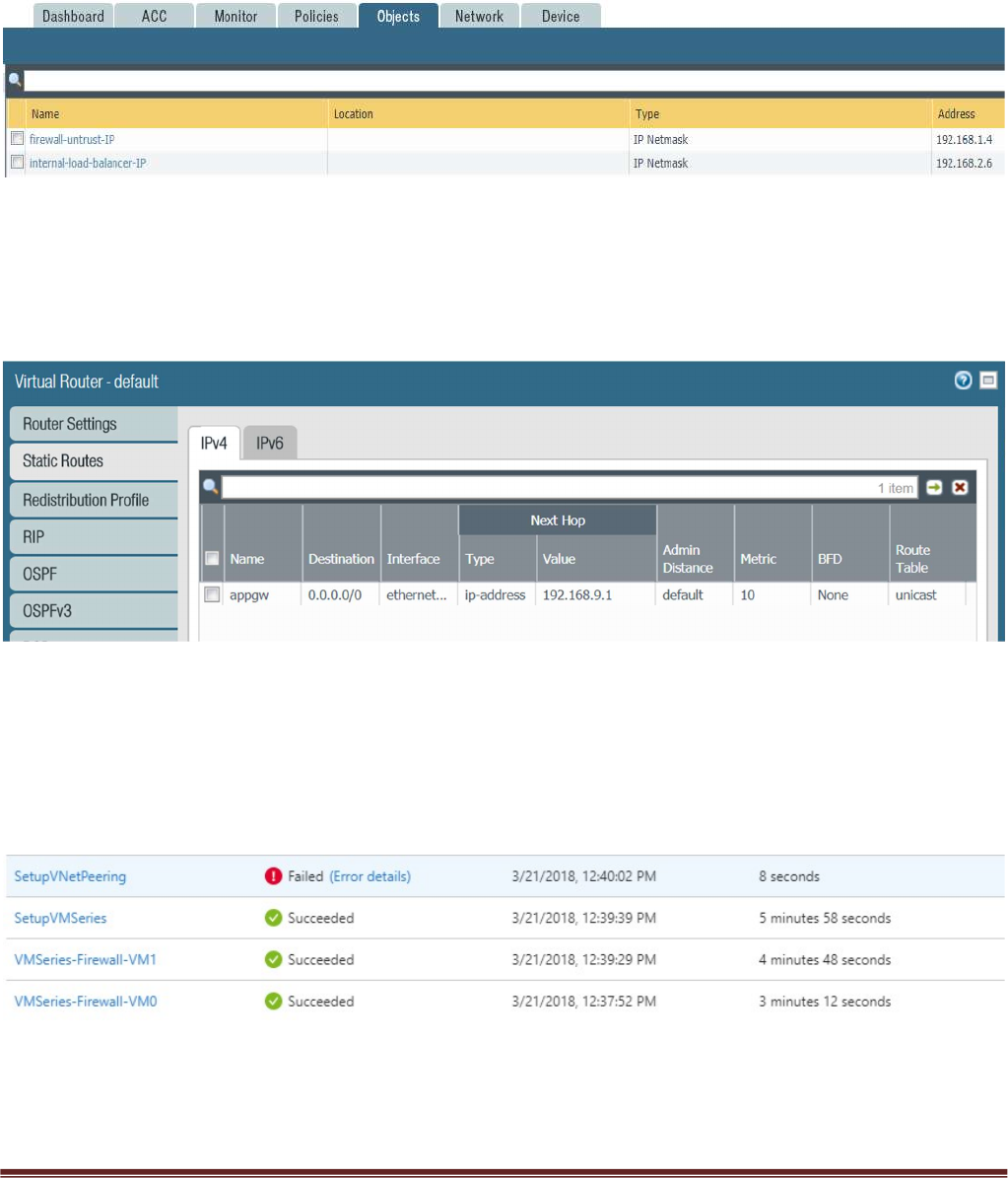
When adding a new spoke, if the subnet does not fall within the 192.168.0.0/16 pre-configured
route, be sure to add the new spoke subnet to the hub firewall VM-Series static route table. Clone
the spoke route configuration and change the destination route
Palo Alto Networks Transit VNet with the VM-Series Deployment Guide
v1.0 Page 32
Address objects are statically defined in the configuration snapshot file. They must be manually
updated in each subsequent spoke deployment or traffic will NOT route properly.
When adding additional spokes using the firewall template you must change the spoke firewall
Default Route to point to the untrust Azure system gateway for the subnet of the Untrust
Interface.
Anytime you delete and redeploy a spoke VNet, it’s always best practice to delete the peering
configuration from within the hub VNet. The Azure system route table re-calculates after peering is
established. To add new routes, you must remove the peering association, add the new routes
then recreate the peering association.
