BC To ESO Process Overview And Spreadsheet Instructions
User Manual:
Open the PDF directly: View PDF  .
.
Page Count: 11
BlueCube to ESO
Data Extraction and Loading
Page 2
Overview
This document describes the processes and user integration that are required in order to extract
data from the Speedway specific version of Bluecube Enterprise and import the data into the latest
version of JDA Enterprise Site Operations.
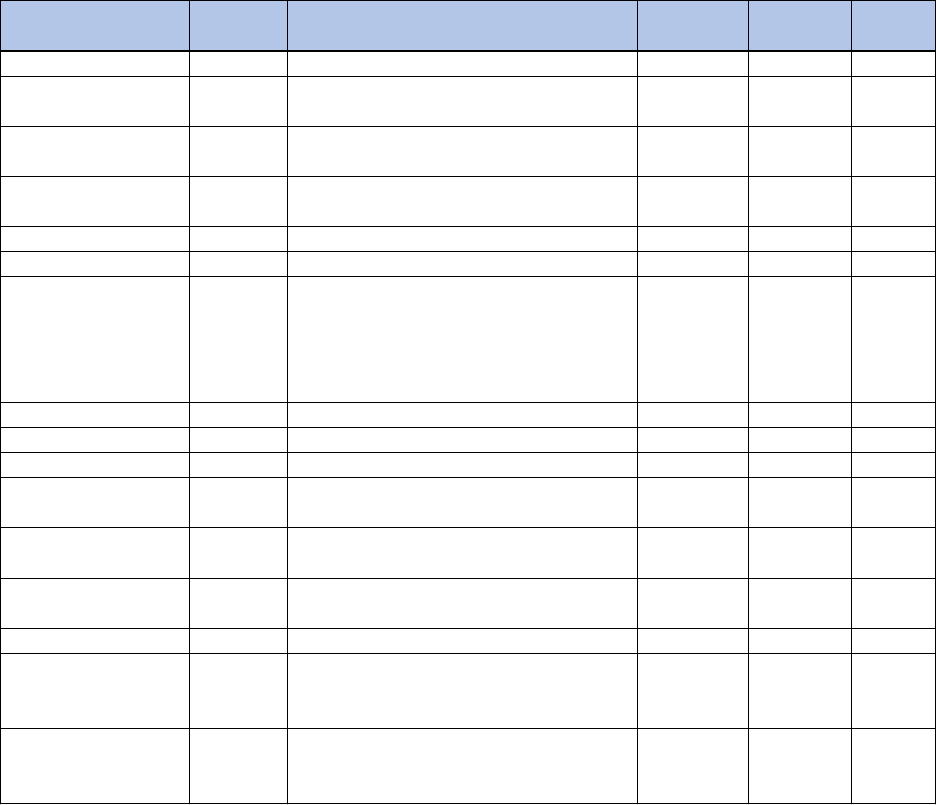
Datasets to Extract and Load
The following data sets will be extracted and loaded. Note: as of 8/7 the filtering is not final and is
subject to further review.
Import Name Type Filtering Conditions
Batch
Method
Number of
Files
Review
Step
Business Units E&L Open business units N/A 1 No
Business Unit Groups E&L
Group has at least one not closed business
unit assigned to it. Name starts "zsBUG".
50 Groups
per batch
TBD No
Organizational
Hierarchy
E&L
Nodes that have at least one open site
assigned to the lowest level.
N/A 1 No
Item Hierarchy E&L
Nodes that have at least one item assigned
to the lowest level.
N/A 1 No
Manufacturer
DB Script N/A
Retail Strategies DB Script N/A
Retail Items E&L
Items that are not purged, active, Xref code
filtering, both unpurged and purged.
By
Department,
then 1,000
items per
batch.
60 Yes
Retail Item Groups
DB Script N/A
Specials E&L
Supplier E&L Active Supplier with Supplier Item filter. N/A 1 No
Supplier Assignment to
Business Unit
E&L
Active Supplier with Supplier Item filter,
business units not closed.
N/A 1 No
Supplier Assignment to
Business Unit Groups
E&L
Active Supplier with Supplier Item filter,
business unit group filter.
N/A 1 No
Supplier Items E&L
Active and linked to and Item based upon
Item Filters.
By Supplier &
batches
1777 Yes
GL Accounts XML N/A
Price Events E&L
Events that contain prices currently in effect,
and only those prices that are in effect.
By Event TBD No
BU Pricing for Cigs and
Alcohol
E&L
Events that contain prices currently in effect,
and only those prices that are in effect.
By groups of
4-5 Business
Units
TBD No
Page 3
Process Flow
There are two types of extraction and loading:
• Direct mode where the data is extracted, transformed, and imported into ESO.
• Review mode where someone will verify and cleanse the data before submitting it to be
imported.
Direct Mode
Process for Direct Mode, no user review.
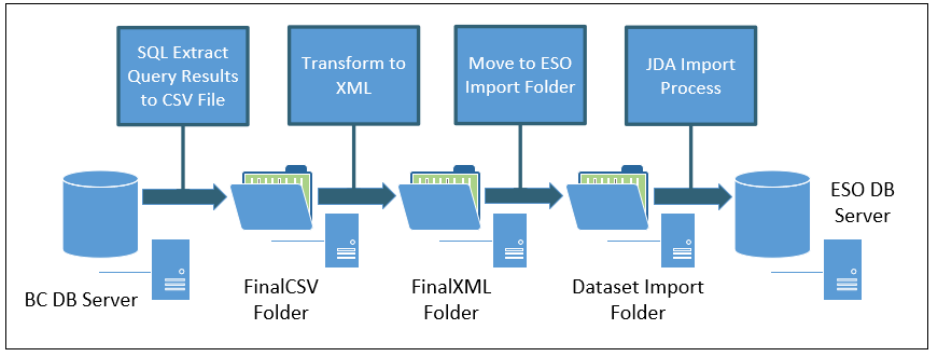
Direct mode uses 3 folders and 4 processes
FinalCSV – A SQLCmd program will process a query and generate a comma delimited file. Because
there is no review step, the extracted CSV is considered final.
FinalXML – A Jscript program and an XSL Transform will take final CSV files and convert the data into
and XML file that matches the JDA ESO schema.
Dataset Import Folder – This is the standard JDA ESO folder that has directories for the client and
each supported dataset. Files will be moved from FinalXML into the import folder either manually or
via a command line script.
Page 4
Review Mode
Process Flow for Review Mode
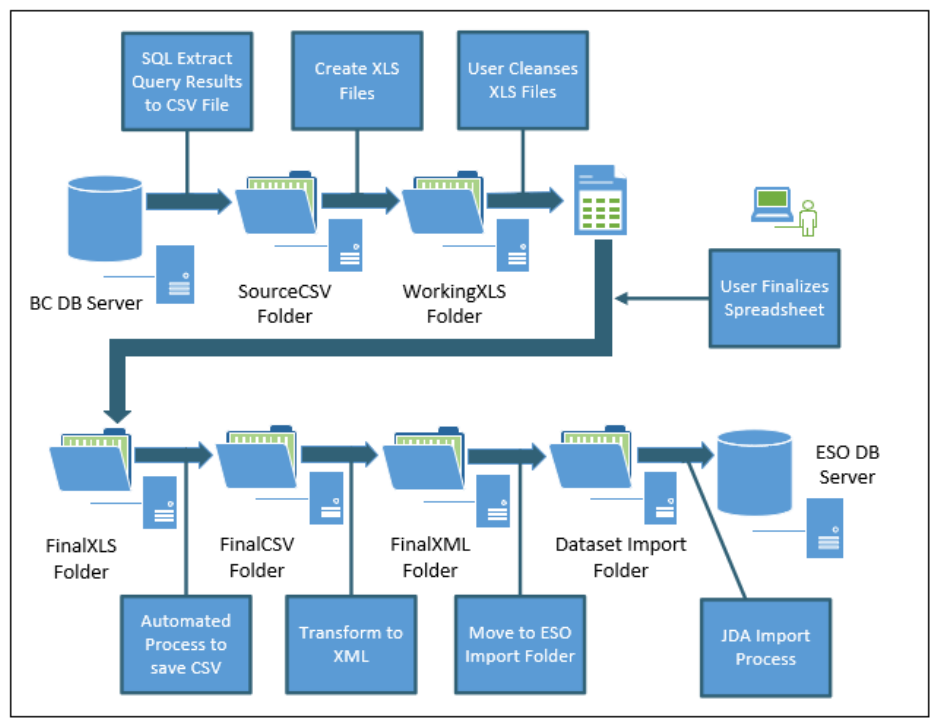
Review mode uses 6 folders and 7 processes
SourceCSV – A SQLCmd program will process a query and generate a comma delimited file. Because
there is a review step, the extracted CSV is not considered final.
WorkingXLS – A Jscript program will convert the source CSV to an XLS file and place it in a working
directory. In this directory the user can edit and save changes until the spreadsheet is finalized.
FinalXLS – Once the spreadsheet is final, the user must save it to a final folder.
FinalCSV – A Jscript program will convert the final XLS into a CSV and place it in the Final CSV folder.
FinalXML – A Jscript program and an XSL Transform will take final CSV files and convert the data into
and XML file that matches the JDA ESO schema.
Dataset Import Folder – This is the standard JDA ESO folder that has directories for the client and
each supported dataset. Files will be moved from FinalXML into the import folder, either manually or
via a command line script.
Page 5
Review Spreadsheets
Special Characters
Due to limitations and challenges with CSV files and Excel, special characters are used as place
holders:
The underbar “_”
This character is used in front of a value that can be a number and have leading zeros. For example,
a Business Unit Code of 009455 would be shown as _009455. These underbars should be ignored
and left alone. If a value is entered into a column that uses this technique (i.e., adding a new
Barcode) the underbar must be entered by the user.
The tilde “~”
Tildes are placeholders for commas within the actual data. For example - Enon, OH would be
represented as Enon~OH. The tilde will be converted back into a comma during the transformation
to XML. Technically tildes can be added or removed but should generally be left alone except to
correct an error.
Asterisk “*”
If an asterisk appears in a column heading it generally means that the value is required for the first
row of the Item, Retail Pack, or Supplier Item. There are more details described in each section, but a
good rule of thumb is that if a column with an asterisk in the header already has a value, it should be
retained or changed to another valid value, but not cleared out.
Page 6
Item
The Item spreadsheet allows a user to review the list of Items that have been extracted from the BC
data. The extract process will create files per department with some of the larger departments
segmented into smaller files. There will be an addition file for the list of Items that at not flagged for
sale.
The spreadsheet template is hierarchical with 5 groups of rows
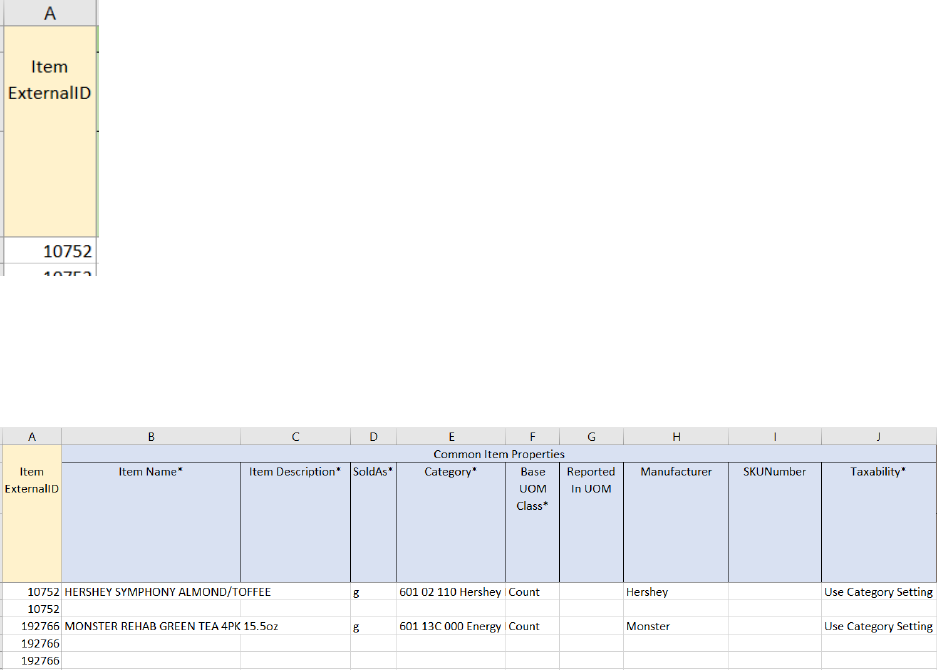
Item ExternalID Key
Column A is the Item External ID. It must always have a value. The value is used to indicate rows that
are related to the same Item. To remove an Item from the spreadsheet, all of the rows for the
External Id must be deleted or an import error may occur.
Common Item Properties
Common Items properties are those fields that are common for all Items even the Items that are not
sold or tracked. When the row is blank it indicates that there are additional values to the right of the
common properties.
Notes:
The sold as flag is there for reference and should not be changed.
The Category should already exist before this spreadsheet can be saved to the final XLS folder.
Base UOM can only be Count, Weight, or Volume.
Taxability can only be, Use Category Setting, Taxable, and Non-taxable.
Page 7
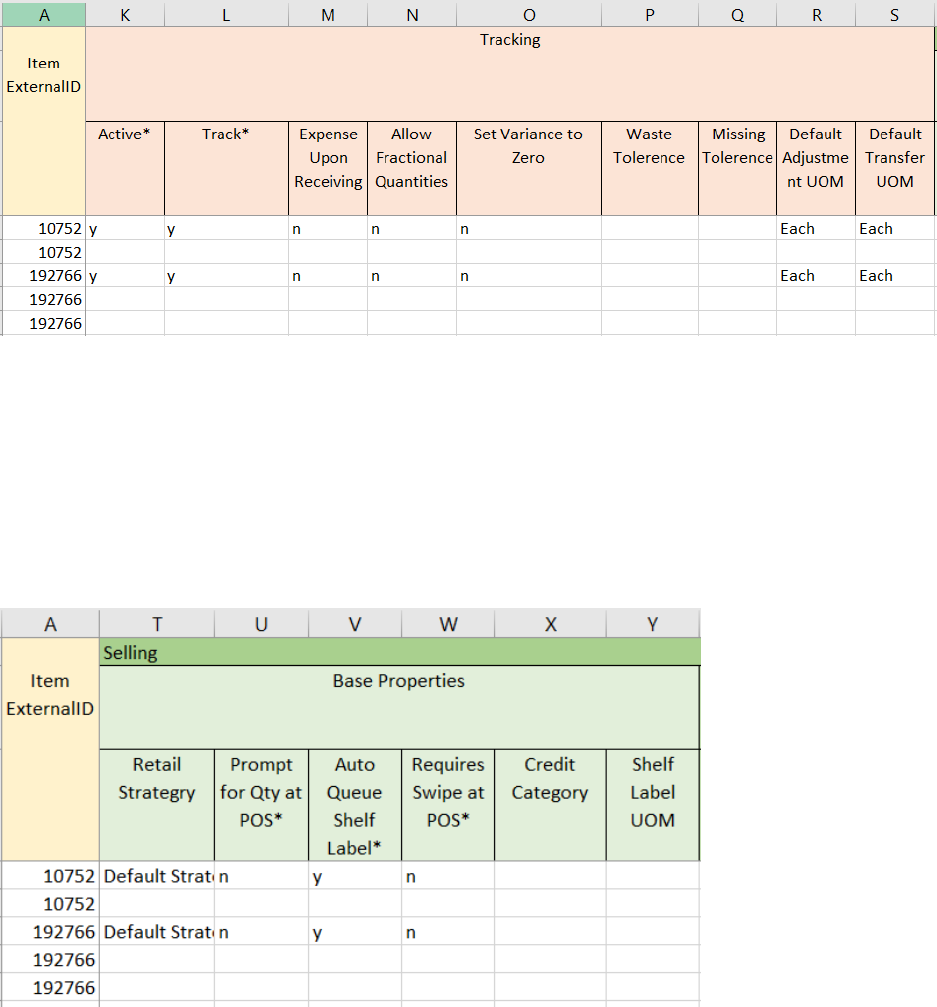
Tracking
If an Item is configured for inventory, the values will be imported into the tracking section.
Notes:
Unless these values are incorrect, the values should be left alone. If an Item needs to be marked
inactive, it is probably better to remove the Item altogether.
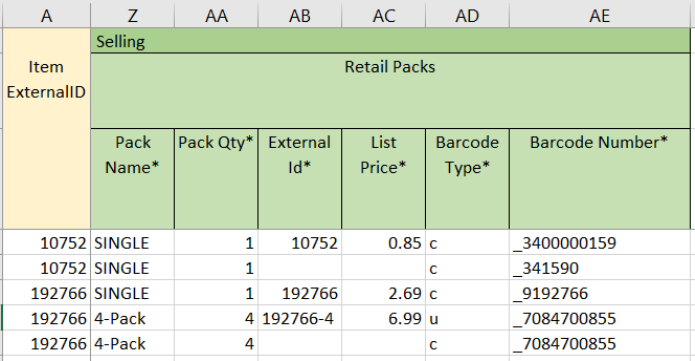
Selling – Base Properties
The base properties for Items that are sold are in a separate section. There will be a single separate
spreadsheet for the Items that are not sold, so nearly all of the spreadsheets will have selling
properties set.
Notes:
Unless a value is incorrect, the value should be left alone. If a retail strategy change is needed, the
ramifications to Price Event import need to be considered in order to prevent the loss of existing
retail prices.
Page 8
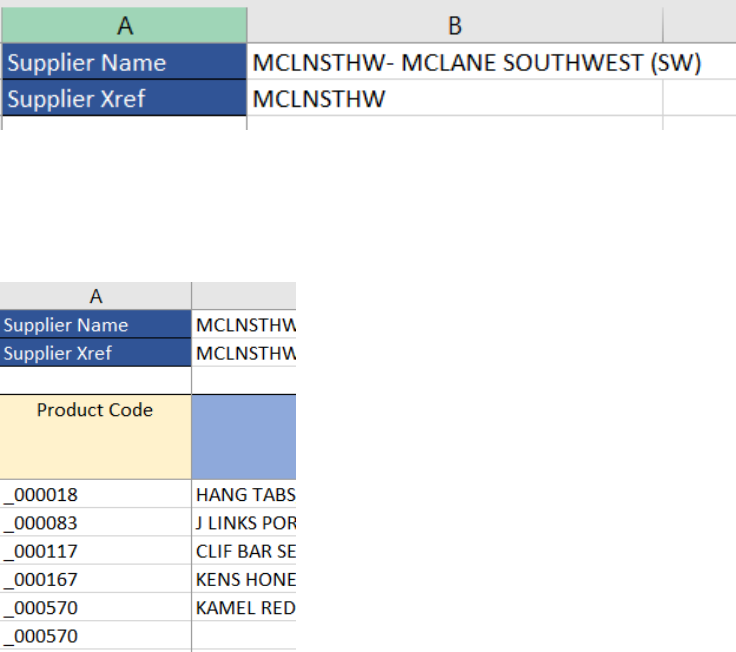
Selling – Retail Packs
A sellable Item must have at least one retail pack.
Notes:
The Pack Name and Pack Qty must always have a value.
If the value of the List Price column is not empty, the row must have a value for the External Id for
the Retail Pack. The source data will set this value and it should not be altered.
There is only one List Price allowed for the Retail Pack.
Barcodes are listed for each pack, they can be removed or added to.
If Barcode Number is present it should have a Type (c, e, g, u). UPC (u) and Custom (c) should be the
most frequently used.
At a minimum a Barcode line must have the Pack Name and Pack Qty. The other values can be left
blank.
If a Pack Name and Pack Qty are duplicated due to multiple Barcodes, the rows must still be grouped
together.
Page 9
Supplier Item/Catalog
The Supplier Item spreadsheet allows a user to review the list of Supplier Items that have been
extracted from the BC data. The extract process will create files per supplier with some of the larger
suppliers segmented into smaller files.
The spreadsheet template is hierarchical with 5 groups of rows
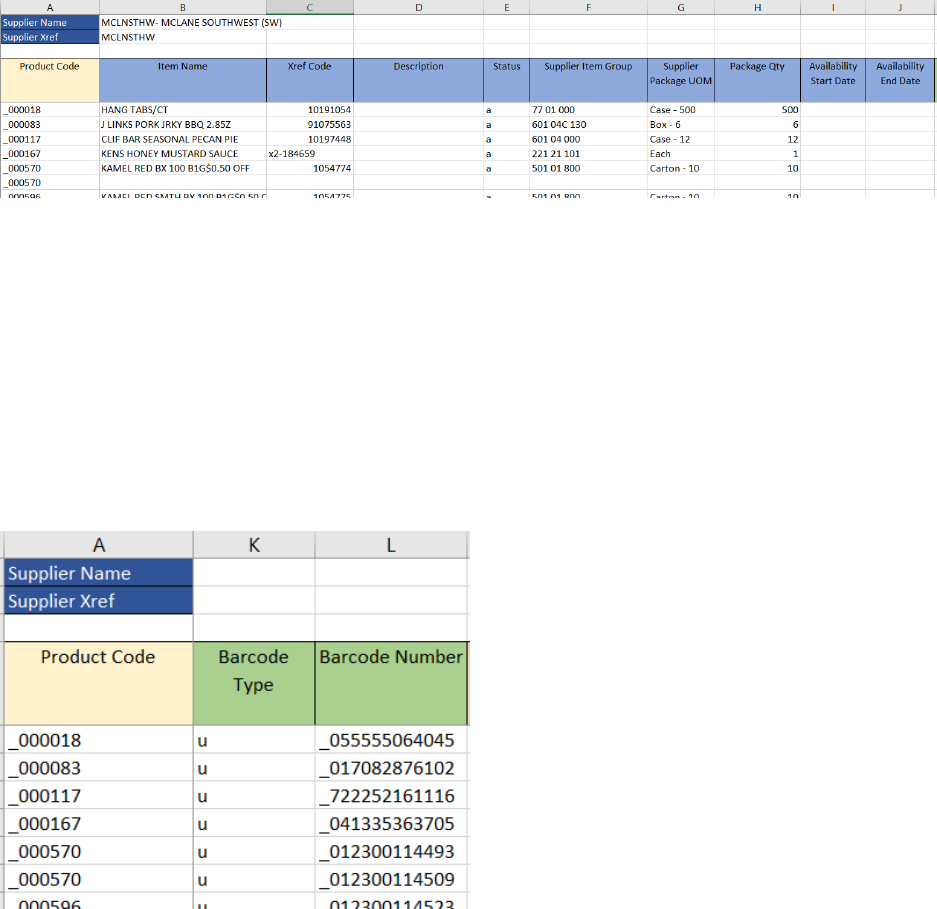
Supplier Identification
The Name and Xref of the Supplier will be at the top of the Spreadsheets. These values are for
information only and should not be altered or an import error may occur.
Product Code Key
Column A is the Supplier Item Product Code. It must always have a value. The value is used to
indicate rows that are related to the same Supplier Item. To remove a Supplier Item from the
spreadsheet, all of the rows for the Product Code must be deleted or an import error may occur.
Page 10
Common Supplier Item Properties
Common properties identify the Supplier Item. When the line is blank it indicates that there is
additional information in rows to the right of the common properties.
Notes:
All of the fields can be modified, however unless there is an error the values should generally be left
alone.
Supplier Groups will be created if not already present.
Package data will be created if not already present.
Supplier Item Barcodes
A Supplier Item can have no Barcodes or multiple Barcodes. If there are multiple barcodes the
Product Code line is repeated.
Notes:
Since this information is usually provided by the supplier it is unlikely that this data should be edited.
If a Barcode should be removed, the best approach would be to clear the field values without
removing the row. If I Barcode needs to be added, the Product Code value must be set manually.
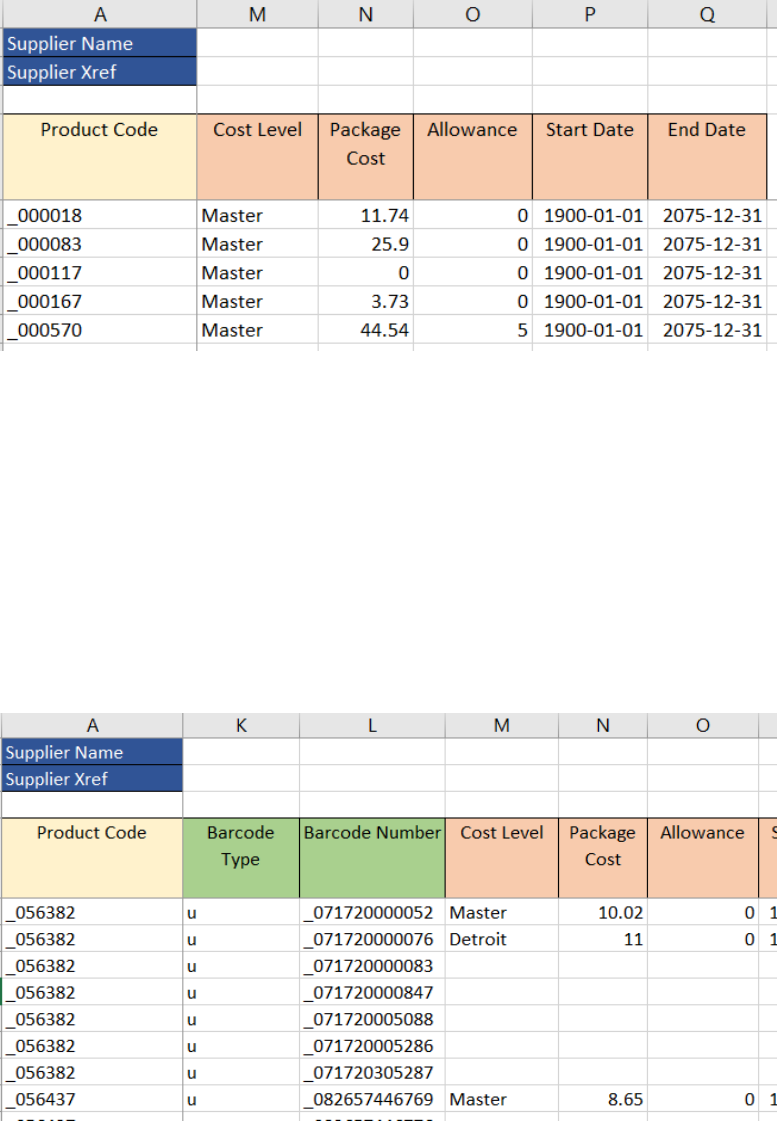
The screen example indicates the usage of the underbar “_”. It must be preserved if any data is
altered or new data is entered.
Page 11
Supplier Item Cost Levels
Each Supplier Item can have multiple Cost Levels and multiple prices for the cost level.
Notes:
This information is provided by the supplier and should generally not be edited.
The spreadsheet can not be used to add cost for an unknown Cost Level.
Adding new costs can be accomplished, however the user must pay close attention to make sure
that the cost Start Date and End Dates do not overlap for the same Cost Level.
Relationship between Barcodes and Cost Levels
It is important to understand that the Barcode and Cost Level sections are independent lists. There
is no relationship between the two. The example below indicates this. Product code 056382 has
multiple Barcodes and 2 Cost Levels, but there is no relationship between the two groups.
