Big Parser Guide
User Manual:
Open the PDF directly: View PDF  .
.
Page Count: 39

BigParser Guide
What is BigParser?
We’re glad you are here! BigParser is the Community of Grid Creators. Grid
Creators are people who are helping make data more open and accessible for
all.
It’s powered by a digital brain called “Blue”. Blue sifts through millions of pieces
of data and keeps it connected — so you can get things done.
Basics
The BigParser Community
The community is comprised of the following people:
Grid Creators
Contributors
Mentors
Community Leaders
How it works: A Grid Creator chooses a topic to create a Grid for. E.g. Drones.
Mentors help the Grid Creator define the Model for the Grid. Anyone can request
a Grid Creators to add them as a contributor. Community Leaders help support
and govern the community.
Using BigParser
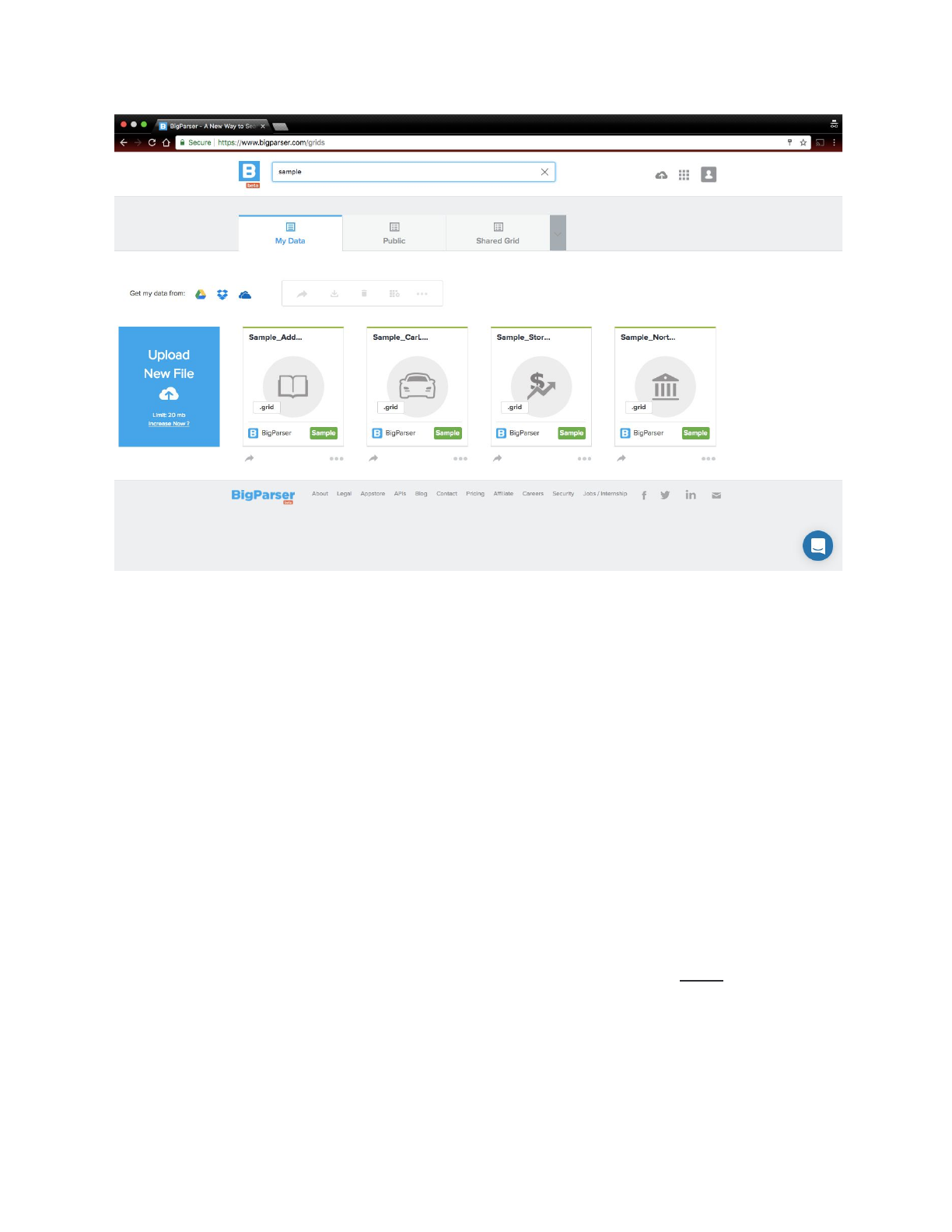
When you create an account and login to BigParser you will see a typical screen
as shown below:
BigParser Guide
And here are the main components we'll break down for you, piece-by-piece:
My Data
Grid
Apps
Shared
Public
My Data
My Data is a place to bring in your data from anywhere, so that Blue can convert
it into a Grid.
What does Blue do to my files ?

BigParser Guide
Blue takes each file you add and parses it into a Grid, once Blue is done parsing,
your file is marked with a thin green line as show below:
< show two icons of cards side by side, one on left that is not parsed without the
green bar, one that is parsed with the green bar on the right side> <write below
the card > Not Yet Parsed | Parsed
Grid
Grid is where things are in order. Unlike, a web page which does not follow any
specific pattern, Grids always follow a unique pattern. It’s a pattern that Blue likes
and understands really well.
What is the pattern of a Grid?
A Grid is composed of rows and columns of data. A column always has a Header
that defines what each column contains.
<show image of a Grid which has labels on it showing Header, Row, Column.
Is there a Limit?
A Grid can be of any size. It can have any number of rows and columns.
However, the size of Grids that you can create depends on the nature of your
BigParser Account.
(Icon) Already
have
a
BigParser
Account
?
View
your
limit
on
www.bigparser.com/pricing
You can always increase the limit by upgrading your BigParser account.
Does my file need to be in a specific format ?
BigParser can parse multiple files formats including CSV, TXT, XLS, PDF and
more.
BigParser Guide
Apps
BigParser apps can be found in the BigParser app store. These app help you do
more with your grids, like Sharing, Plugging in data on your site, importing data in
from various cloud drives like Google, Dropbox and OneDrive. You can find
available apps at www.bigparser.com/apps
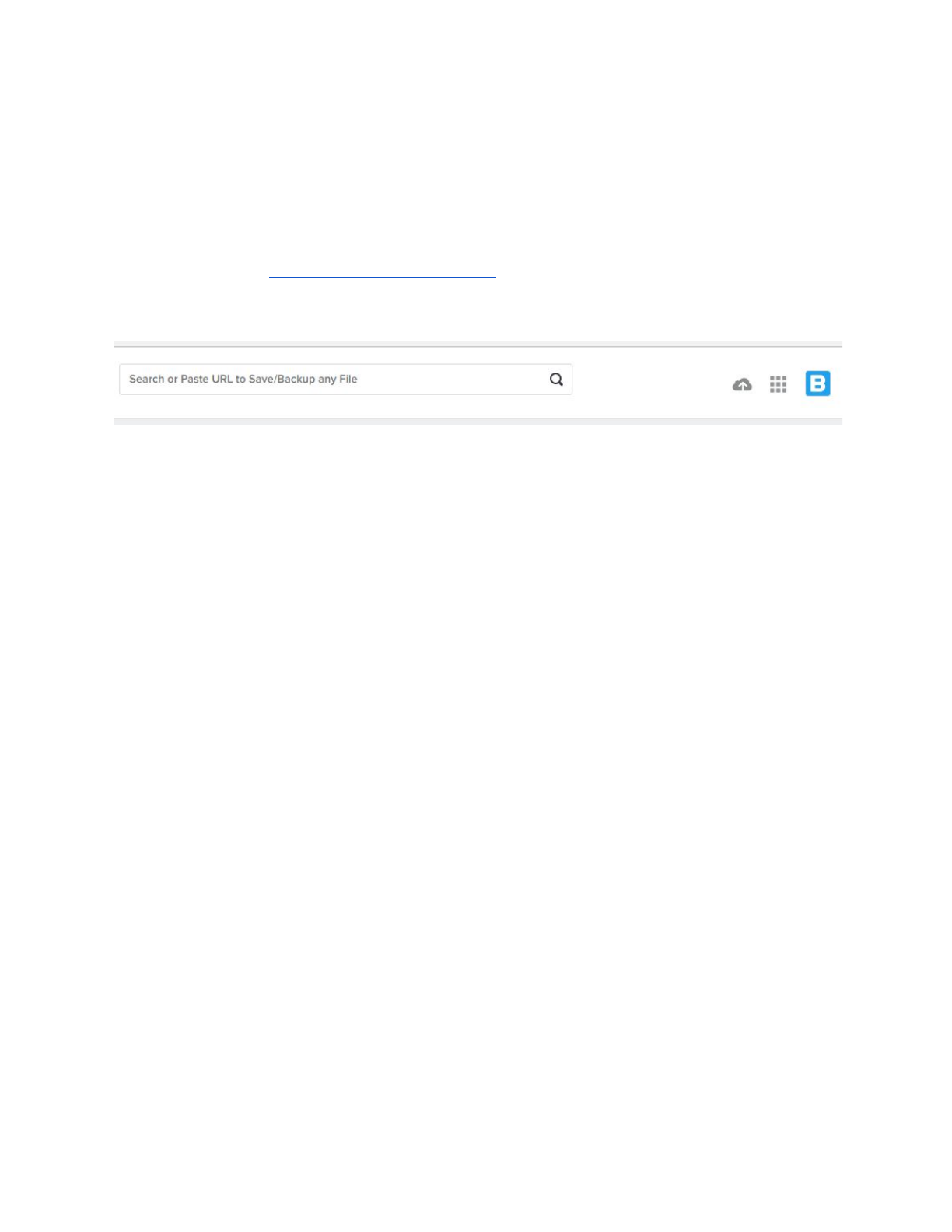
You can view all available apps by clicking on the Apps icon.
There are a few different types of Apps available to the BigParser community, as
explained below.
Core Apps
These apps are part of the core BigParser.com experience. There are 3 popular
apps Grids, Share and Plug.
<show apps Grids, Share, Plug> icons and below that words 3 Powerful Apps
Grids is an app that allows you to browse and search grids using any device.
Share is an app that allows you to share parts of your grid or the entire grid.
Plug is an app that allows you to embed your grid within your page or app.
Connector Apps
Connector Apps allow you to easily connect to any drive or source where your
data can be imported from.
What are the sources i can connect to?
You can bring in your data from popular cloud file sharing systems like Google
Drive, Dropbox and OneDrive (Office 365).

BigParser Guide
<App icons from our app store> Google | Dropbox | Office
With text labels below
(icon) Need a different connector app ? Pre-Order (links to appstore)
How many apps can i install ?
The number of apps you can install in your account depends on the nature of
your BigParser Account.
(Icon) Already have a BigParser Account ? View your app limit on
www.bigparser.com/pricing
You can always increase the number of apps you can install by upgrading your
BigParser account.
Shared
You can share your Grids with others. Blue keeps track of all your Shared grids,
by first organizing them under Shared.
<Show a screen of shared tab> label (Grid Shared by me with Sam), Grid Shared
by Sam with me.
Shared Grids include:
(icon) Grids that you make Public
(icon) Grids that you share Privately with others using their email
(icon) Grids that others share with you Privately

BigParser Guide
Public
This is where you can find all grids that have been made public by anyone in the
Community.
You can search for Grids by Grid Name, Description or the Name of the Person
who made the Grid public.
<Show Global search for Public tab here>
You can favorite grids you like and support the good work done by Grid Creators.
To favorite a grid simply click on the Heart (Heart icon) icon.
To view a Public Grid simply tap or click on it to open the Grid.
Ask Blue
Blue is always there to answer any questions for you. If any of your questions
are still not answered you can continue working or simply ask Blue by clicking on
the Chat icon or use an Ask Blue device.
Getting started for first time users
Now that you know what BigParser is, let’s show you how you can start using
BigParser. You will need to start with creating your BigParser account. You can
BigParser Guide
do this in two different ways, we have shown both the ways you can sign-up. Lets
go!
Sign-up using your email
Simply use the sign-up form at www.bigparser.com and enter your details as
show below.
<Show image of the sign-up form> with option to enter Full Name, Email, Phone,
etc and check the box>
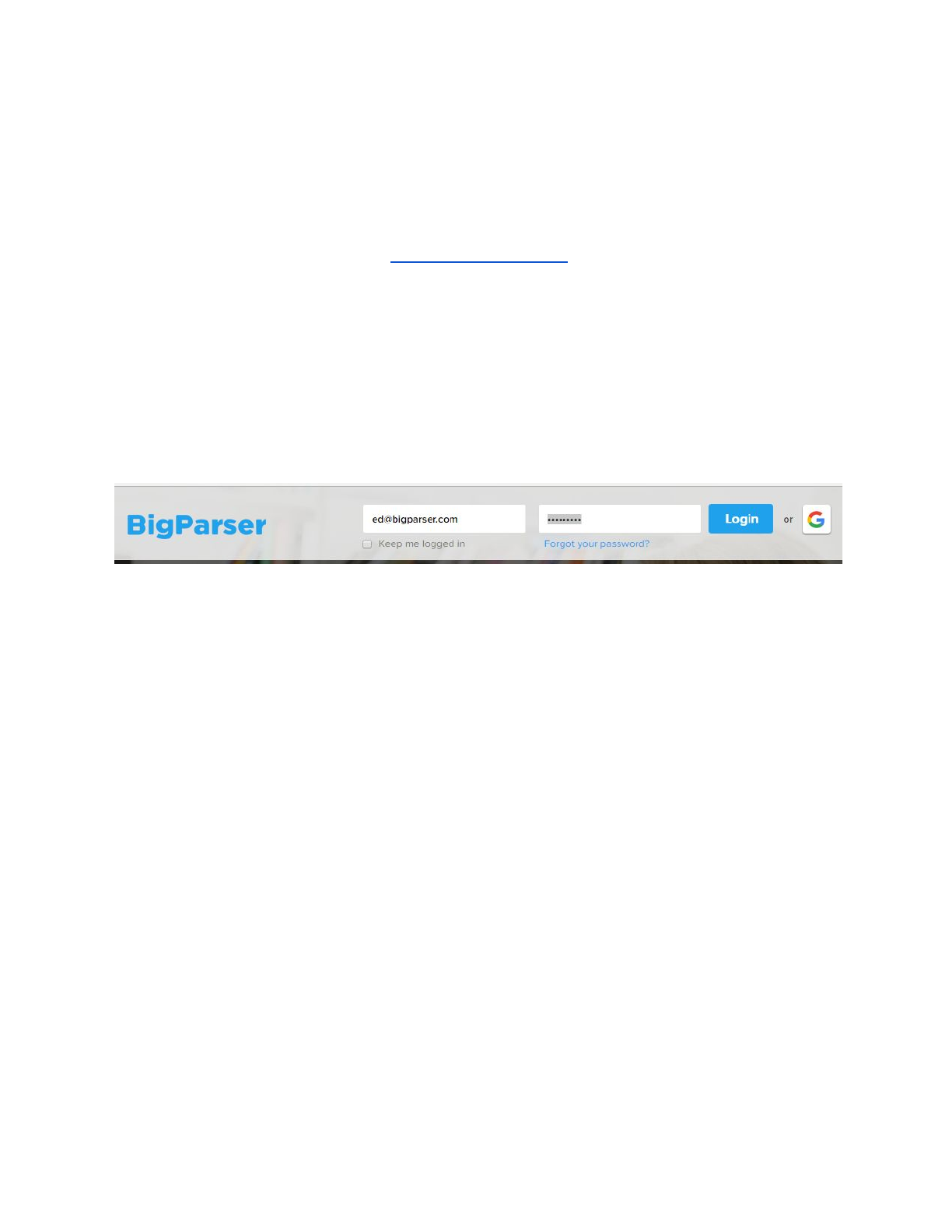
Sign-up using your Google Account
Simply click on the G icon (Login with Google button) and then follow the steps:
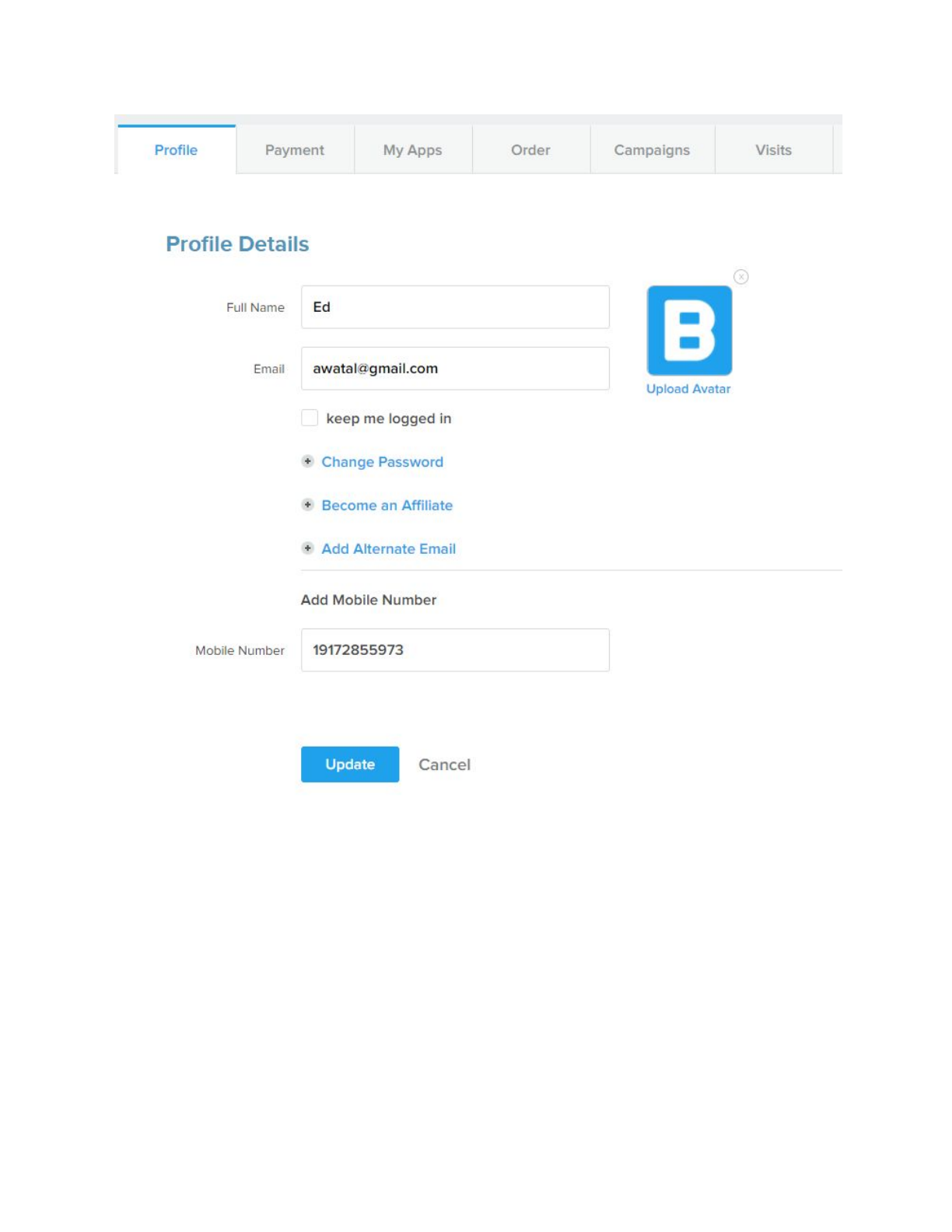
Complete your profile set-up
Now that you have logged in, let’s start with personalizing the avatar.
Tap on the blank avatar icon on the top right corner.<Show avatar dropdown>
and then tap on the Settings option in the Menu.
This will bring your to the profile screen, where you can upload your Avatar
photo.
BigParser Guide
Install Connector Apps
Since you know all about BigParser apps, we can simply get started by the steps
on installing them within your BigParser account.
Install once, that’s it!
BigParser Guide
BigParser connector apps are installed in your account, not on your device. So
once you install them you can access them from any of your devices, using your
BigParser account.
To install an app simply click on the Install button
<show app icon inside the app store with the mouse clicking on the install button
>
Then login using your account details for the connector (Google, Dropbox or
Office 365)
Then click on the Allow button to give BigParser access to your data source.
<show allow screen>
Then select preferences for the account and click ok.
Ask Blue
You are now all set to start using BigParser.
Go to Using BigParser Or Ask Blue
We are here to help you and make your BigParser experience awesome. Reach
out to us if you need any help!
BigParser Guide
Using BigParser
Now that you have created your BigParser account. Let us show you how to use
the different BigParser apps.
Grids App
The Girds app allows you to view and search grids within BigParser.com. The
Grids app is simply installed in your account and works across all Desktop,
Tablet and Mobile devices.
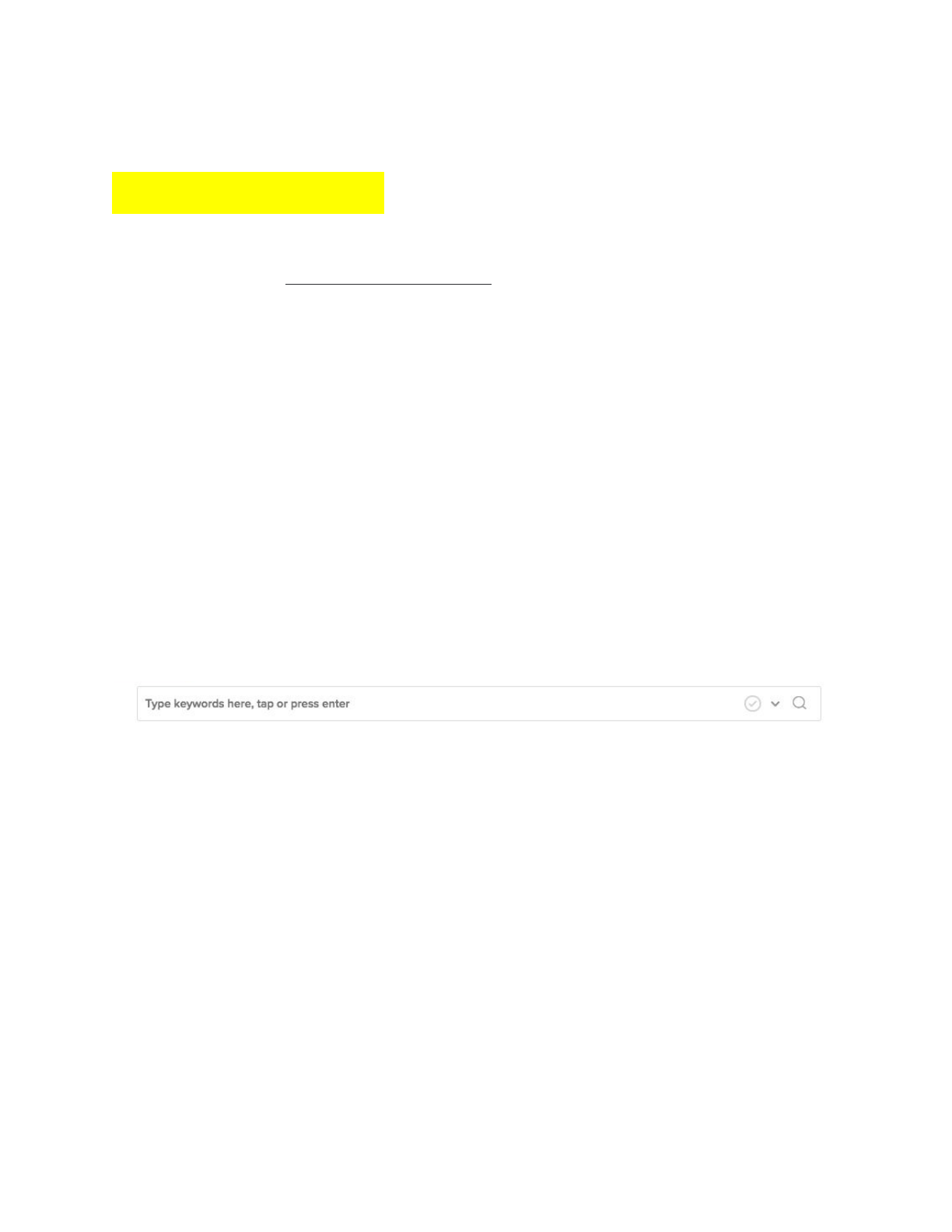
You can search across the entire Grid or inside 1 or more columns in the Grid.
Global Search
Simply click inside the search box, type in your keywords and hit return.
The global search allows you to search across the entire grid, which could be
millions of rows and hundreds of columns.
Column Search
Every column of the Grid is searchable. Simply click inside the search box for
any column. Type in the keywords and hit return.
<Show example of Column Search : three images of the movies grid>
<Cursor inside Column Search : Year Column : “Tap inside Column Search”>
< Keywords typed in Column Search: 201 : “Type in Words or Numbers” >

BigParser Guide
< Show results : Hit return to see matches >
Filters
You can save your frequently used Global or Column searches as Filters.
A Filter is a saved search.
<icon> Tap the Save Filter icon to save your current search
<icon> Tap the View Filters icon to View a list of all your Filters.
Share app
Share app provides you controls so you can keep your data private and secure
or make it public.
Sharing a grid
You can launch the share app from multiple places to quickly share your grid.
<show cut outs of screens same size as cards>
<My Data highlight the Share button, Grids highlight the share button, Mobile
Right Menu highlight the Share button>
<text below: From My Data, From the Grids App, via your Mobile >
Sharing a Filter
To Share a Filter simply view the Filter in the Grid and then launch the share app.
<Show two card size images : Switching Filter in filters dropdown, then Clicking
on Share>
Or

BigParser Guide
You can select the Filter you want to Share inside the share app.
<Show two card size images: Launching the Share app, Then selecting Filters
from dropdown>
Hiding Columns and Sheets
You can also Hide columns or entire Sheets that you do not wish to share with
others.
<Show card size images : Show Hide columns dropdown, Select Columns to
Hide, click on Done >
Then click on the button in the Share App to share the Grid.
<Show screenshot of that section of the page zoomed in >
Permissions
You can set a Grid to Public, Unlisted or Private permissions.
(icon) Public Grids : These can be accessed by anyone on the web and are also
listed for the community to find under www.bigparser.com/Public.
(icon) Unlisted Grids : These can be accessed by someone as long as they have
the URL for the Grid. The viewer does not require login to view the grid.
(icon) Private Grids : These can be accessed only by people who you explicitly
share with using their email address. The viewer can see these grids only when
they are logged in.
Copy URL
You can Copy a URL of a Grid using the Copy URL button in the share app.
<Show screenshot and highlight the Copy URL button>

BigParser Guide
NOTE: Some browsers, devices may prevent this button from working. Please
select the entire text and use the native copy feature of the browser or device to
copy the URL.
More Settings
You can prevent others from Downloading, Copying or Sharing the grid further
with others.
To do this simply use the appropriate switch:
<
NOTE: these setting changes will be active only if you click on the Share button
Overwrite / Create New
You can share the Same Grid / Filter with different Settings and Hiding Different
Columns with the same or different people. Each Time you Share you have the
option to Modify (Overwrite) the existing Share or Create a New Share.
You can change the Name of your Shared grid each time, if you do not wish to
overwrite an existing Share.
<Show card size images: Create New / Overwrite, Share Name, Change Share
Name>
Plug app
Share app provides you controls so you can keep your data private and secure
or make it public.
Sharing a grid

BigParser Guide
You can launch the share app from multiple places to quickly share your grid.
Google app
Share app provides you controls so you can keep your data private and secure
or make it public.
Sharing a grid
You can launch the share app from multiple places to quickly share your grid.
Dropbox app
Share app provides you controls so you can keep your data private and secure
or make it public.
Sharing a grid
You can launch the share app from multiple places to quickly share your grid.
BigParser Guide
Getting Started for Grid Creators
Now that you have become familiar with Using BigParser, let us show you how to
create a grid.
Uploading a Grid
There are currently four supported file types (Excel, Google Sheets, CSV, and
PDF) that can be converted into a grid.
Excel to Grid
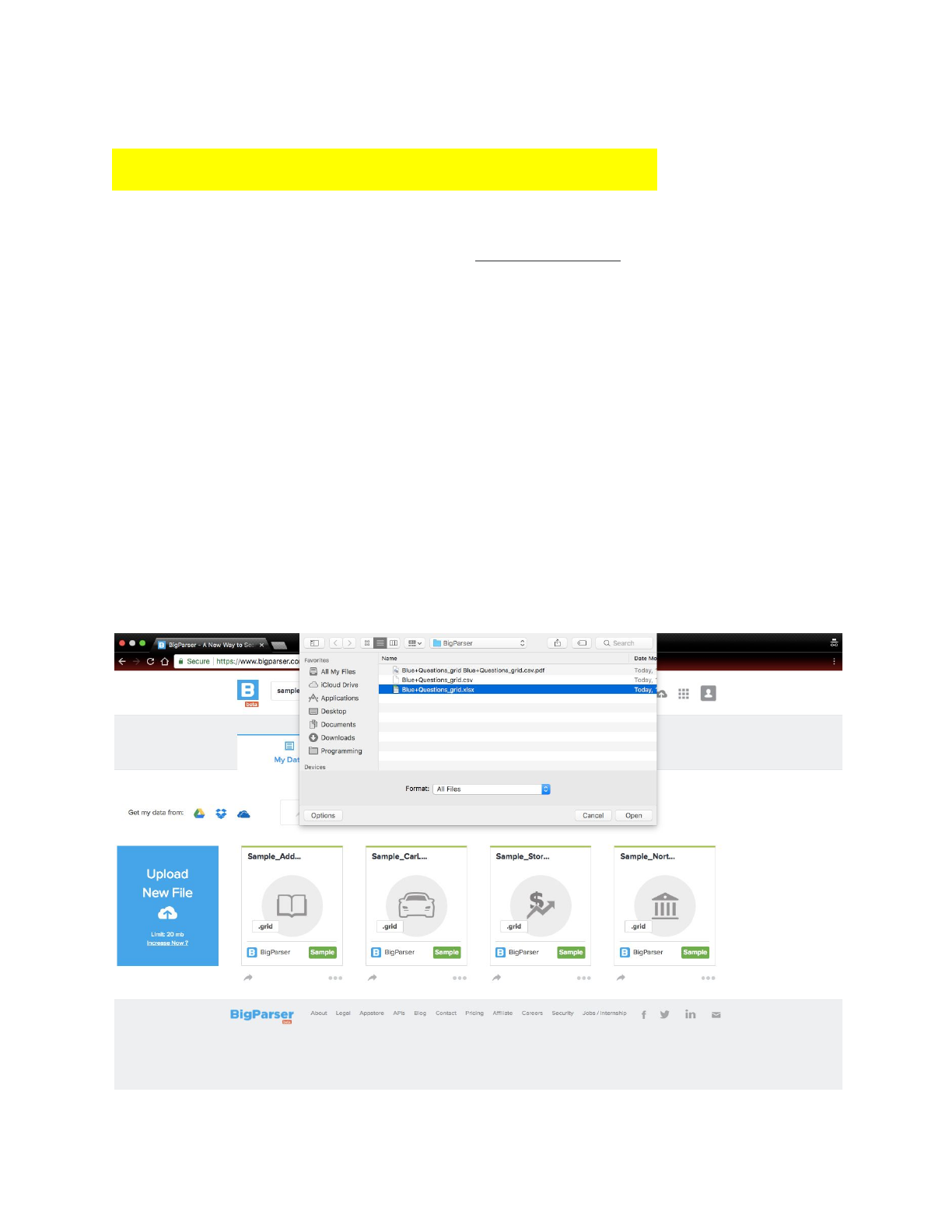
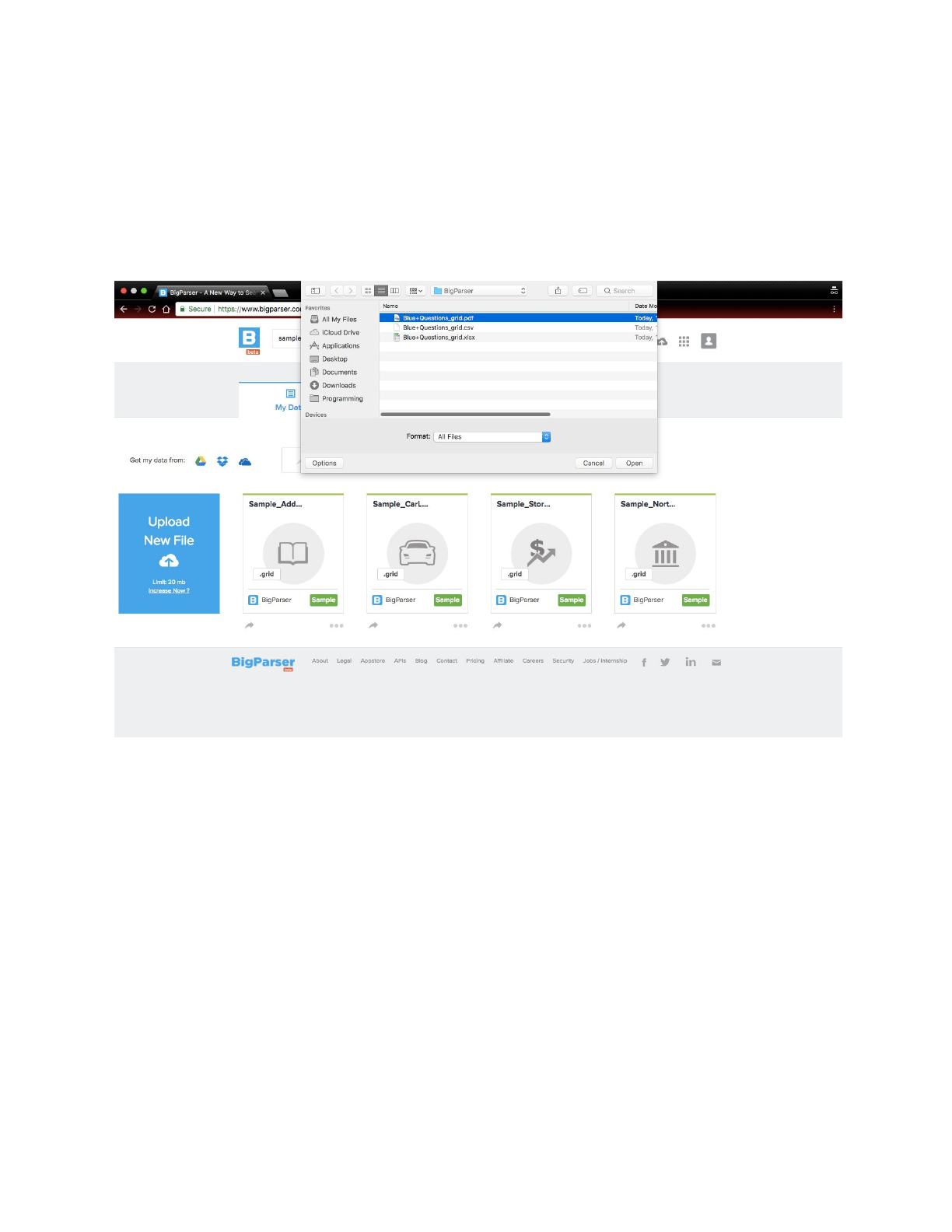
To convert an excel file into a grid click the Upload
New
File
button, select your
excel file, and click open. If there is a green bar over your file, the file has
successfully been converted.
BigParser Guide
CSV to Grid
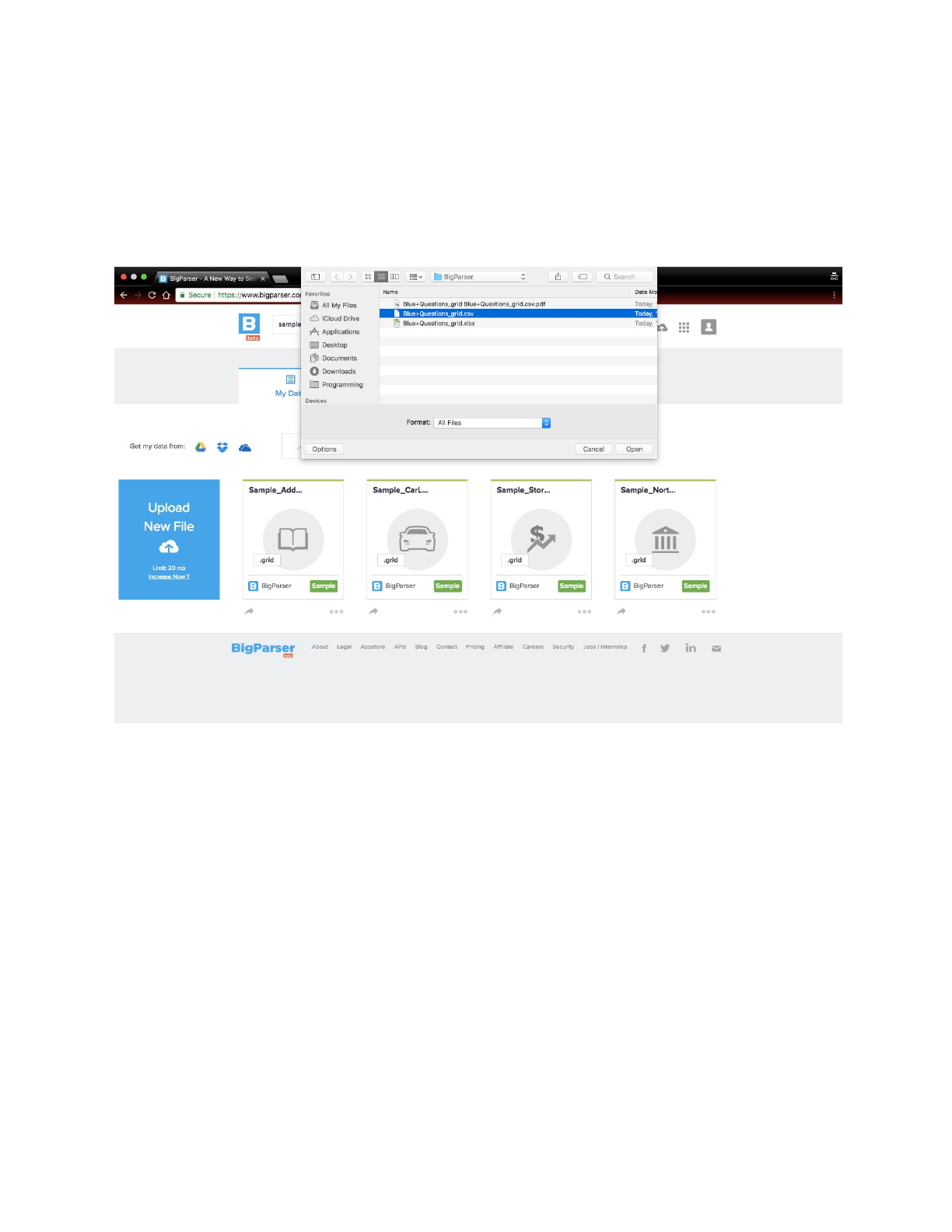
To convert an CSV file into a grid click the Upload
New
File
button, select your
CSV file, and click open. If there is a green bar over your file, the file has
successfully been converted.
BigParser Guide
PDF to Grid
To convert an CSV file into a grid click the Upload
New
File
button, select your
PDF file, and click open. If there is a green bar over your file, the file has
successfully been converted.
Google Sheets to Grid
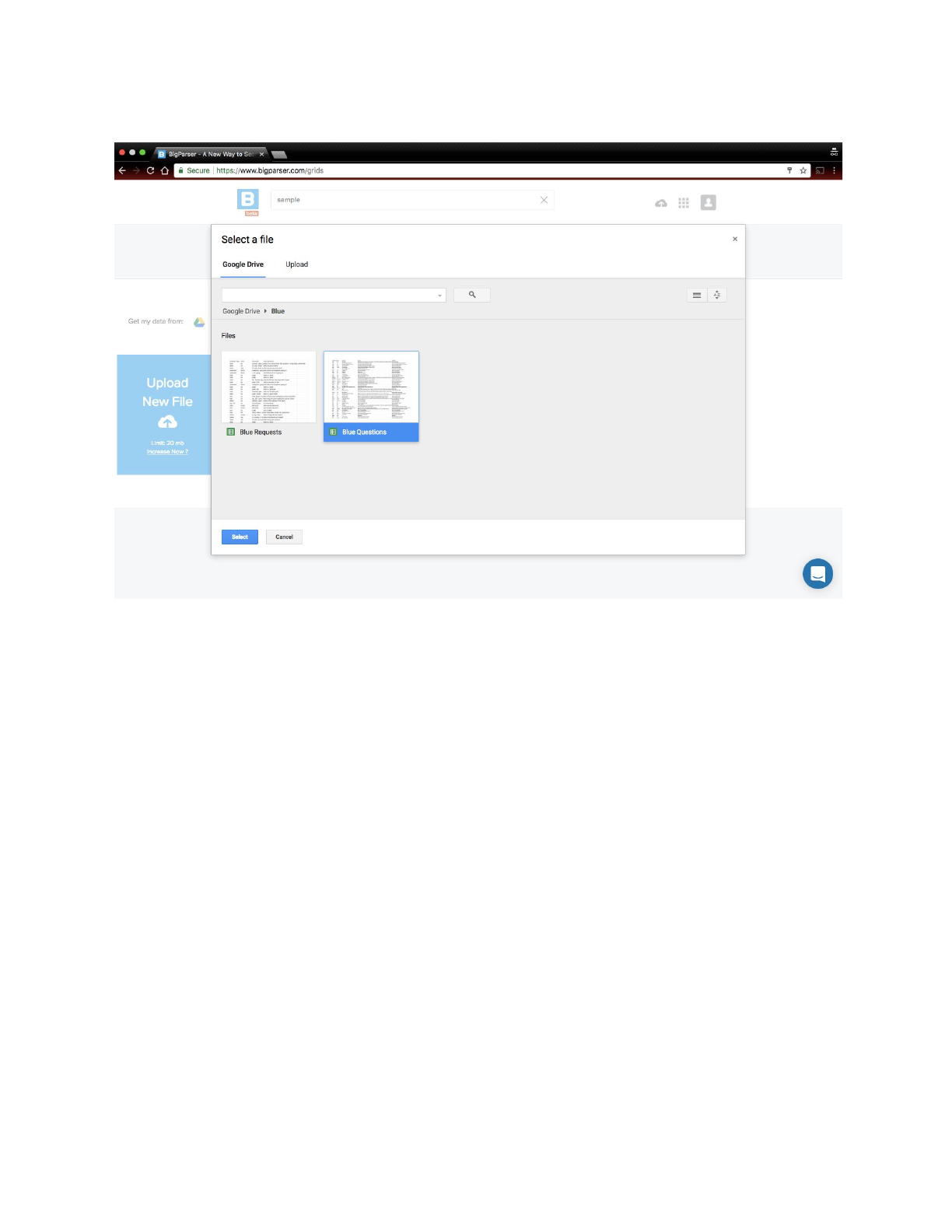
To convert an Google Sheets file into a grid click on the Google Drive icon,
located above the Upload New File button. If prompted to login, login with your
google account and continue. Click View
Recent
Files
or Search
for
Files
to
access your file. Select your file a and click select. If there is a green bar over
BigParser Guide
your file, the file has successfully been converted.
Naming a Grid
It is important for each grid to have a clear, specific name, along with a coherent
description of its contents. In many cases, this is the only content that people will
view before either viewing your grid or moving on to the next one. If you want to
publish a grid to the public tab, you must have both a name and description, and
follow the following guidelines
Select a Name
It is important that each grid is named in a concise and specific manner. For
example Dogs “Dogs” would not be considered an acceptable grid name, as it is
too broad. “Dog Breeds In North America,” is an acceptable name as it is specific
to the grid and also concise.
BigParser Guide
Give a Description
It is important that each grid is given a clear, coherent, and cohesive description.
This description must efficiently encapsulate the content of the grid without being
too excessive.
Data Model
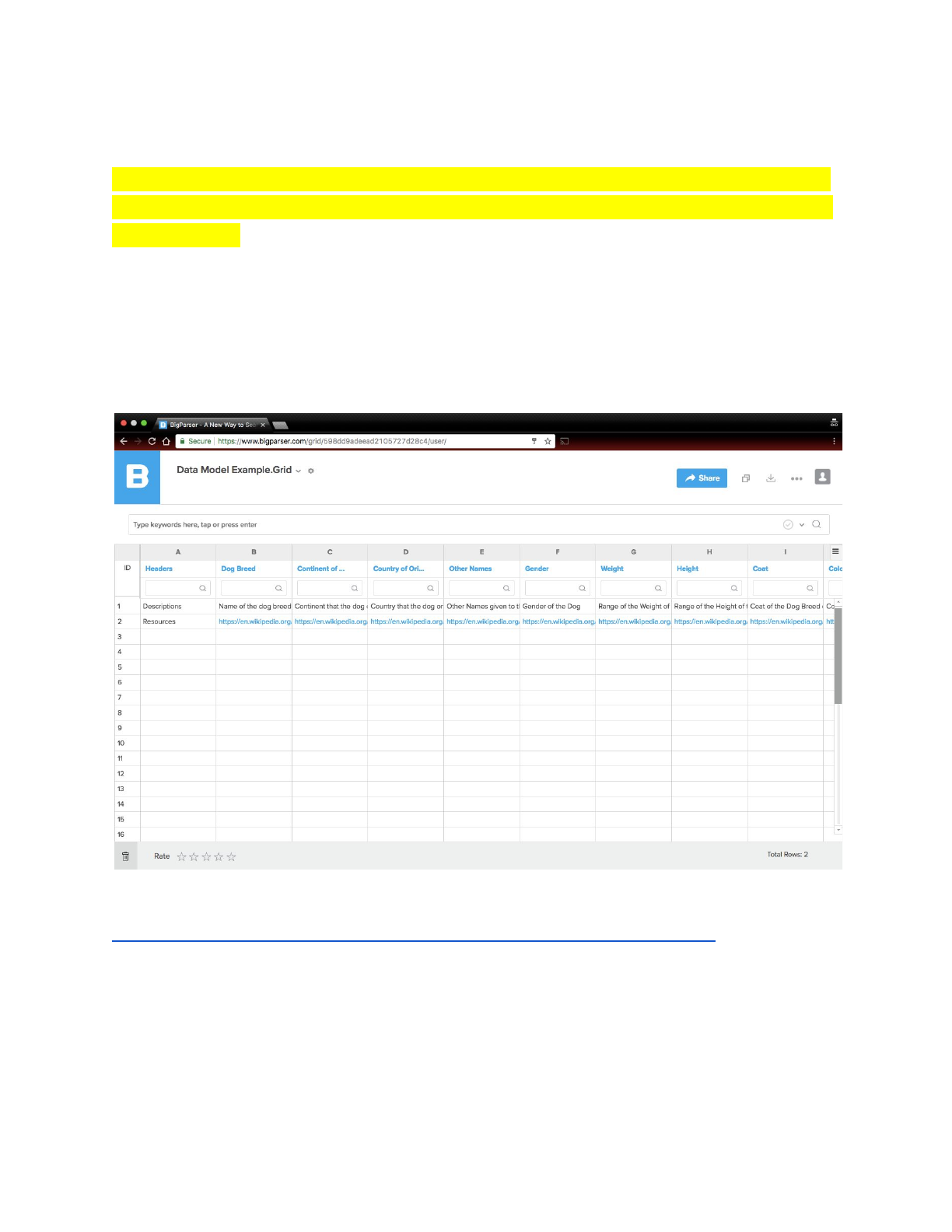
Every Grid has a data model. The data model consists of three things: headers,
descriptions, and resources. Submitting a data model is a necessary step for
getting your grid published.
An example of a data model can be found here:
https://www.bigparser.com/share/u/598dd9adeead2105727d28c4-1

BigParser Guide
Header
A header defines what data falls under that column. In the above example Dog
Breed is a header of a column which contains names of the dog breeds.
Description
The description defines what the data in each cell is. In the above example
“Name of the Dog Breed” is the description of the data that falls under the Dog
Breed header.
Resources
The resource is the source of the data that is placed in the grid. It is
recommended that this source be found online, as this makes it easier for the
data to be verified by a Community Leader. However if the source is not available
online, do not leave the resource cell empty. Leaving this cell empty may cause
your grid to be rejected by a Community Leader.
Publishing your Grid***waiting for release
Share with a Group***
Share with Everyone***
Getting Started for Skill Creators
Now that you are familiar with the concept of grids and know how to create them,
let us show you how to apply this knowledge to creating skills for the alexa.

BigParser Guide
Understanding Skills
What is a Skill
Alexa Skills allow an alexa to interpret your speech and perform an operation
based on your command.
Grids and Skills
You can connect an Alexa skill to a grid, to allow an Alexa to access and utilize
the data in your grid.
Types of Skills
There are two types of skills: Basic Skills and Power Skills.
What is a Basic Skill
Basic Skills are skills that require little to no programming to create and deploy.
In many cases only a grid is required for the skill to be deployed. The most
common Basic Skill is the Q&A Skill.
Q&A Skill
The Q&A Skill is one type of basic skill. A Grid Creator inputs questions and
answers into a grid. The grid is converted into a Q&A Skill that allows users to
ask an alexa those questions and receive an answer.
Other Basic Skills****Unsure
What is a Power Skill
Unlike Basic Skills that require little to no programming, Power Skills require
knowledge of the BigParser Libraries and API, along with essential programming
knowledge. Power Skills are suited towards complex grids that have multiple
columns of data. By using a power skill you allow your skill to answer complex
questions for your grid.

BigParser Guide
What are Complex Questions
Unlike the Q&A grid, which has each question paired with one concrete answer,
complex questions use the data in the grid to formulate a response. For example
the question, “Wh
at
is
the
average
rating
of
Now
You
See
Me?,”
is a complex
question for Movies.grid, whereas the question “Is
there
a
Movies.grid?,”
is a
basic question.
Examples*****Unsure
Creating a Q&A Skill
A Q&A skill is one of the simplest and most common basic skill used to combine
a grid with an alexa device.
Q&A Grid
There is only one thing necessary to create a Q&A skill: The Q&A grid, a grid of
questions and answers.
Q&A Grid Data Model
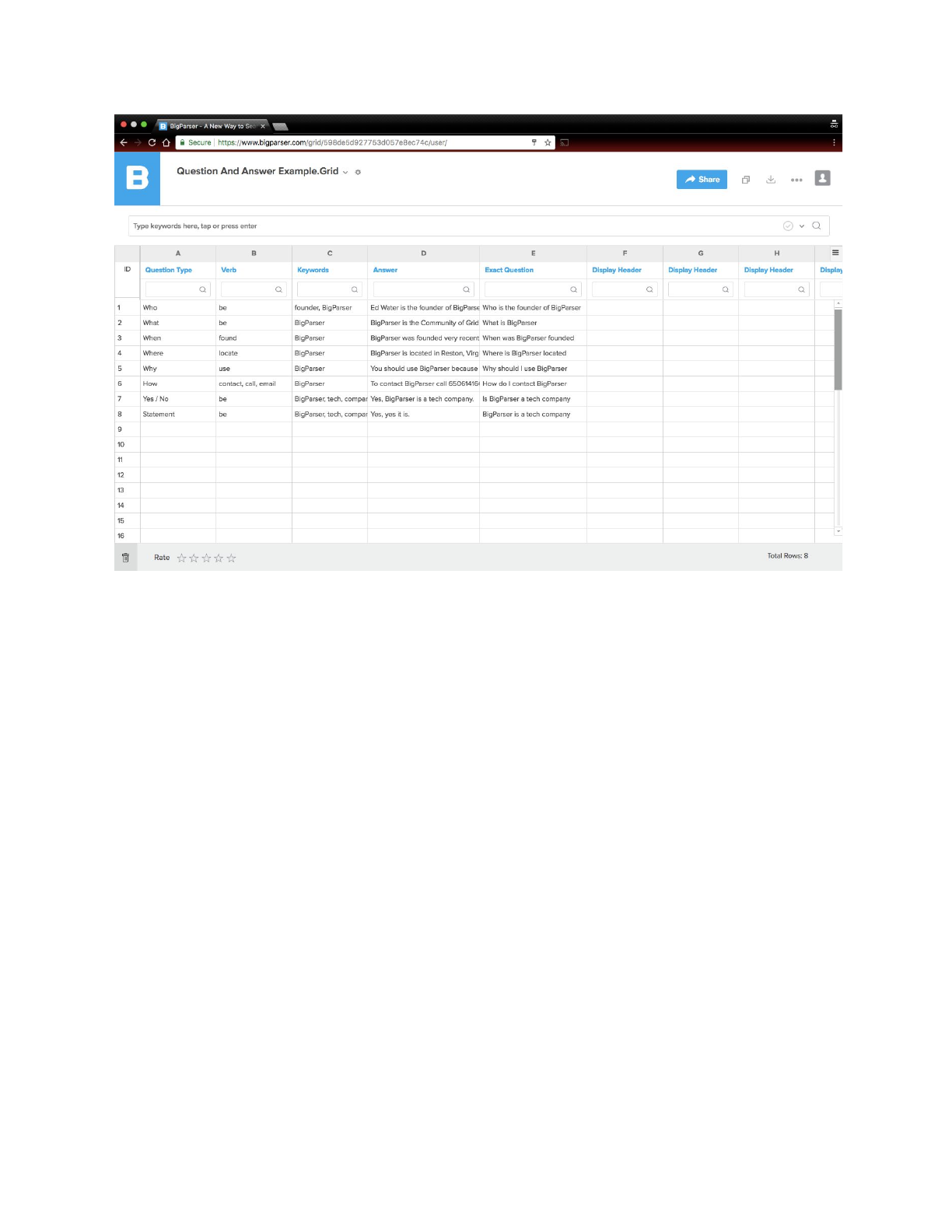
There are only 5 headers in Q&A Grid data model: Question Type, Verb,
Keywords, Answer, and Exact Question.
BigParser Guide
Question Type: Includes types like Who, What, When, Where, Why, How, Yes or
No, and Statement. Yes or No types are used for questions, that would have a
yes or no as the answer answer, such as “Is
BigParser
a
tech
company?,”
and
must be written as Yes / No in the grid. Statement type indicates that the phrase
that is spoken is not a question, but still needs a response. For example
“BigParser
is
a
tech
company,”
is a statement.
Verb: This is the main verb of the question. The verb is always expressed in the
infinitive. For example is becomes be and has becomes have.
Keywords: Keywords are used to differentiate questions. Keywords should
always be written in the plural to guarantee the best results.
Answer: The answer to the question.
Exact Question: The exact question without punctuation.
How to write Questions
Questions are written in three different columns Q&A grid: Question Type, Verb,
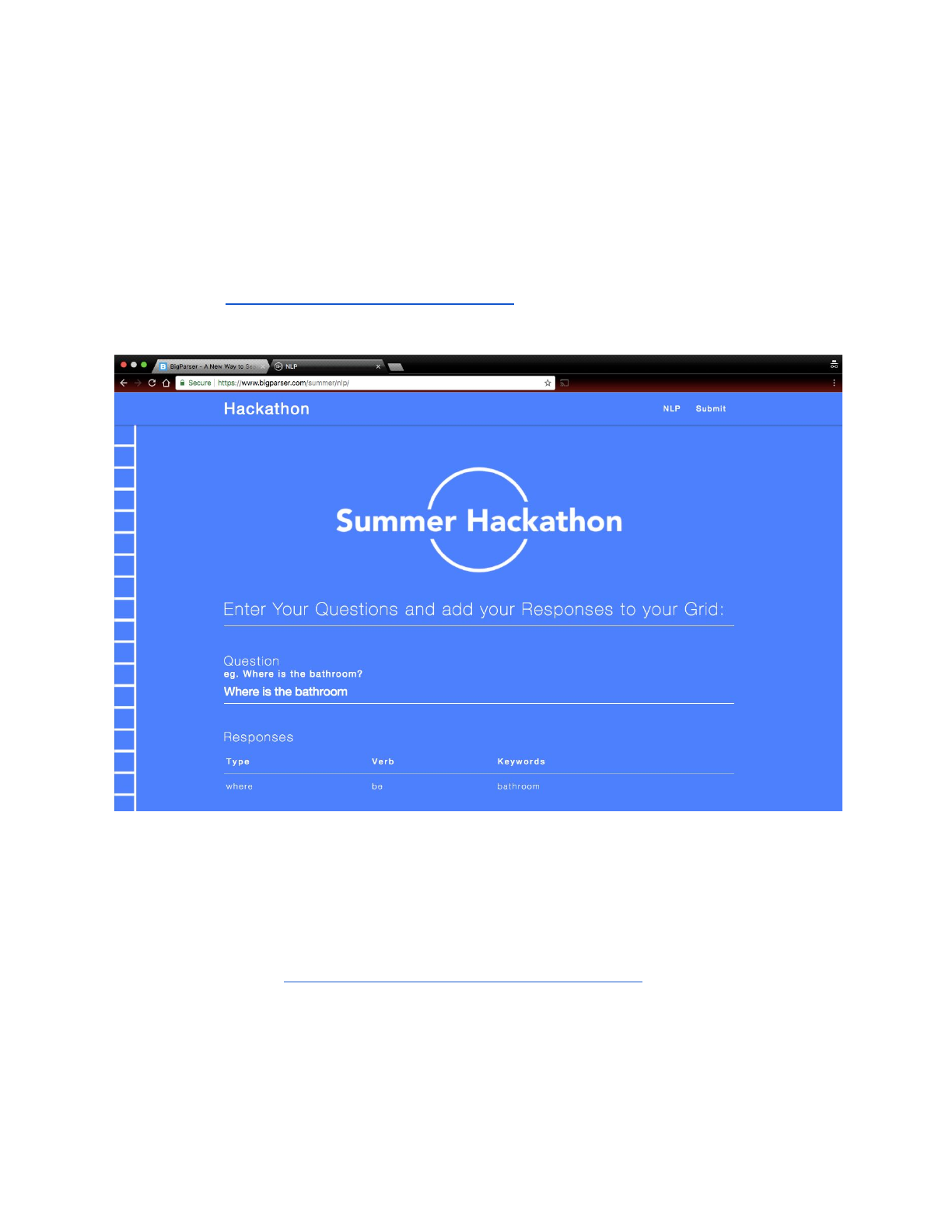
Keywords, as defined above. Take, for example, “Where
is
BigParser?”
The
BigParser Guide
question type would be “Where”, the verb would be “be,” and the keyword would
be “BigParser.” However there is no need to do this manually as this process is
made easier using BigParser’s NLP service.
NLP
The first three columns can be filled using BigParser's free NLP service which is
available on www.bigparser.com/summer/nlp. Simply enter the exact question
without punctuation and you will receive the question type, verb, and keywords.
How to write Answers*****Unsure
Converting the Q&A Grid into a Q&A Skill
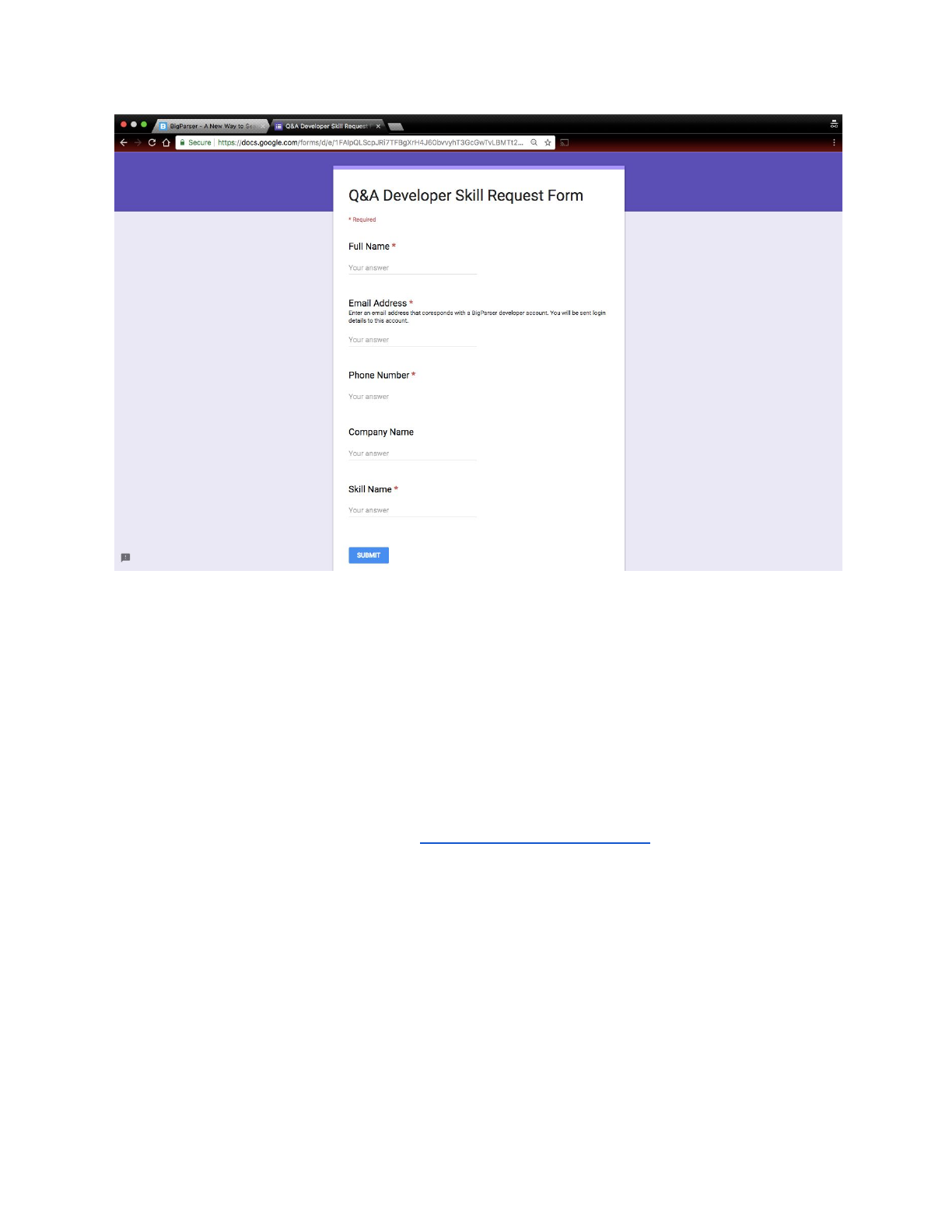
To convert your Q&A grid into a Q&A skill, simply fill out this google form with all
the required fields: https://goo.gl/forms/oTaRdcjelLmvTTld2.
BigParser Guide
You will receive an email with the login credentials for an amazon account. This
may take some time. Do not expect to immediately receive this email. If you do
not receive this email within an hour, please contact our support team. This
amazon account will come with your alexa skill.
Setting Up The Q&A Skill
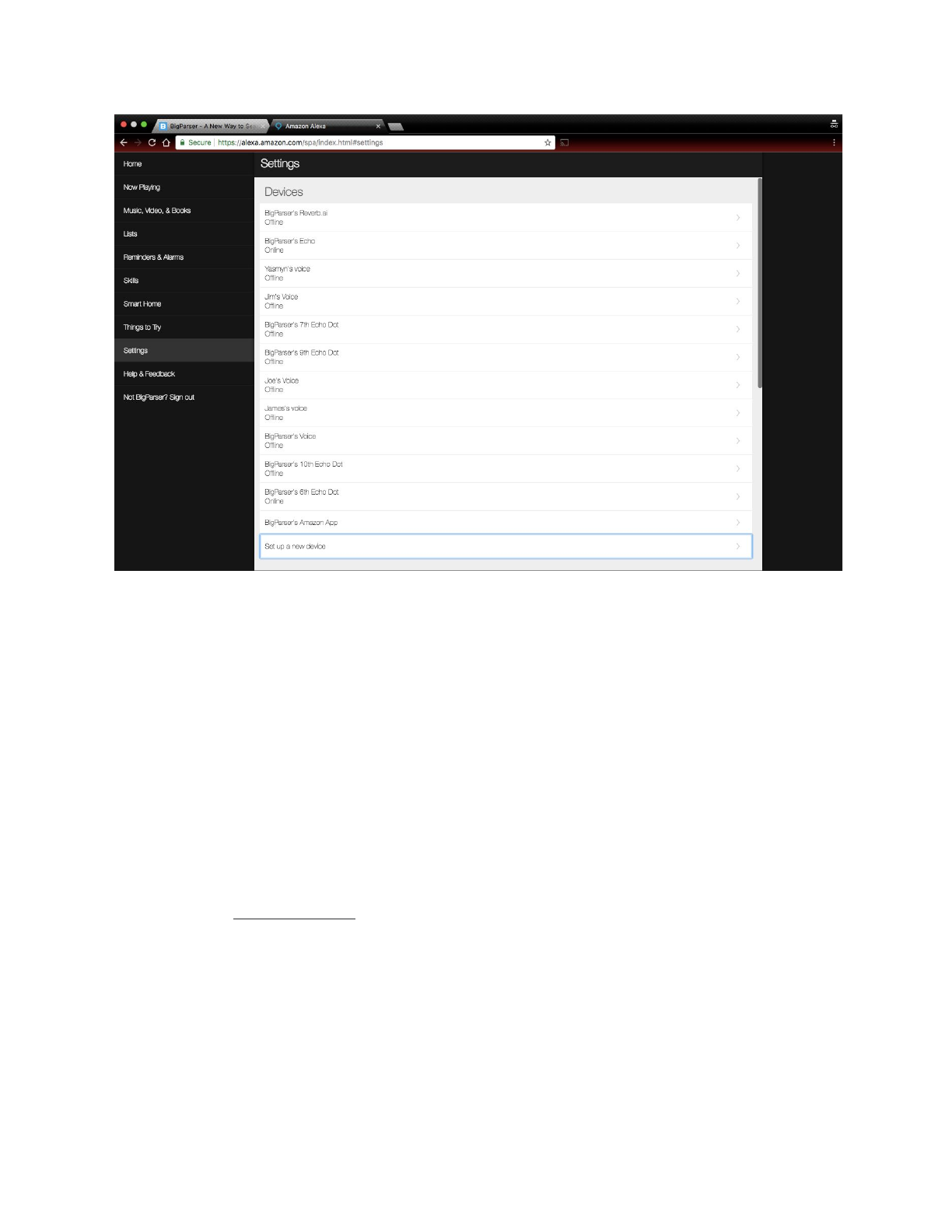
To setup your alexa you must have an phone, tablet, or have access to the
internet. If you are using a phone or tablet use the alexa app to proceed. If you
are using an internet browser visit https://alexa.amazon.com.
BigParser Guide
Login using the login credentials that were sent to your email. Click on the
settings tab. Under the devices header, click on Set
Up
a
New
Device.
Choose
the correct device from the list, and set the language to English (United States).
Click Connect
To
WIFI
and follow the directions on the screen and finish the
setup.
Creating a Power Skill
A Power skill is a complex skill, and it requires a lot more programming than a
basic skill, but it can handle complex questions, and has more use cases than a
basic skill. It is recommended that before you complete this section, you should
complete the API Overview section.
Select Grid (s)***Unsure
You can launch the share app from multiple places to quickly share your grid.
Developer Setup
BigParser Guide
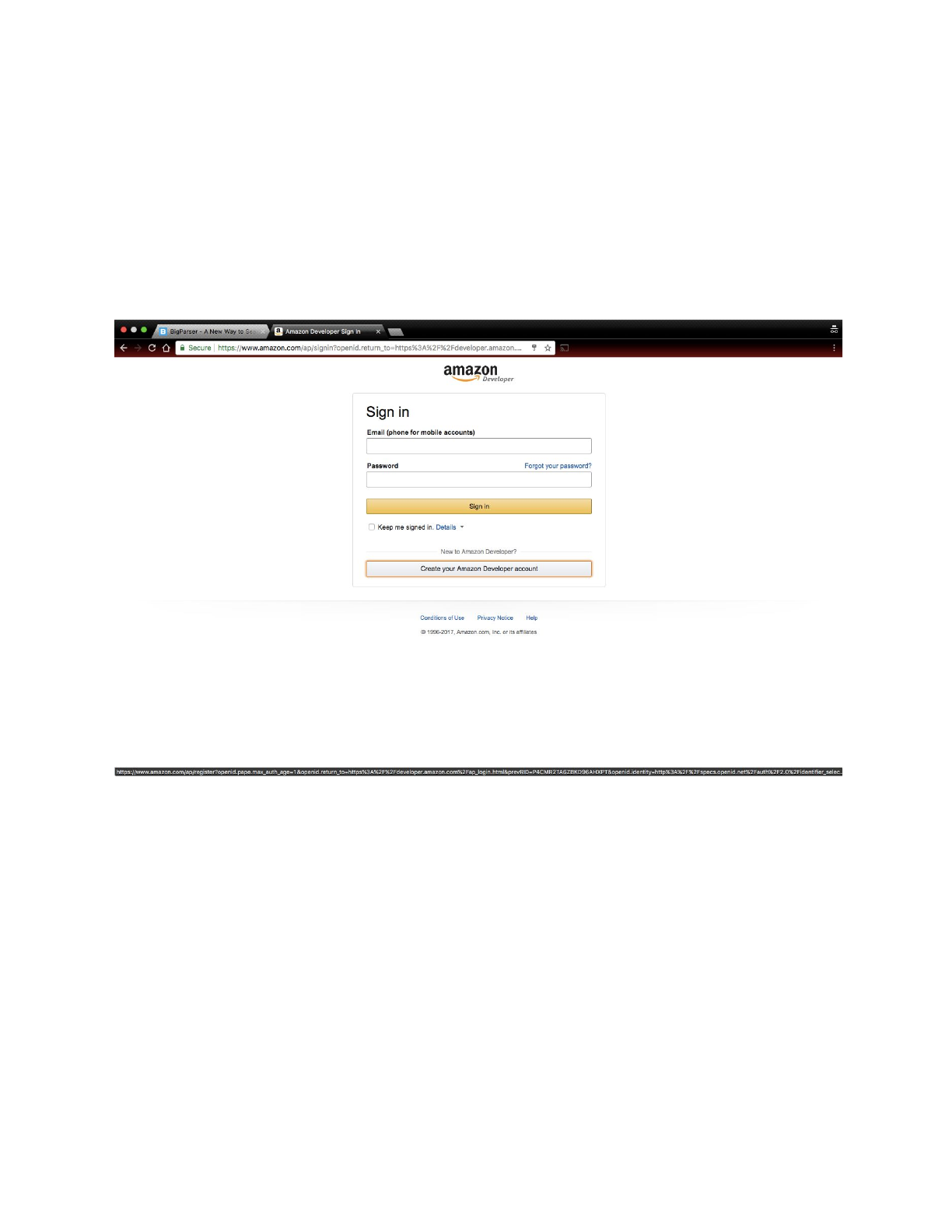
In order to make a power skill, Skill Creators must make an amazon developer
account and an aws account.
Amazon Developer Account
First, visit the developer.amazon.com website and click the sign in button. Click
the grey button labeled Create Your Amazon Developer Account.
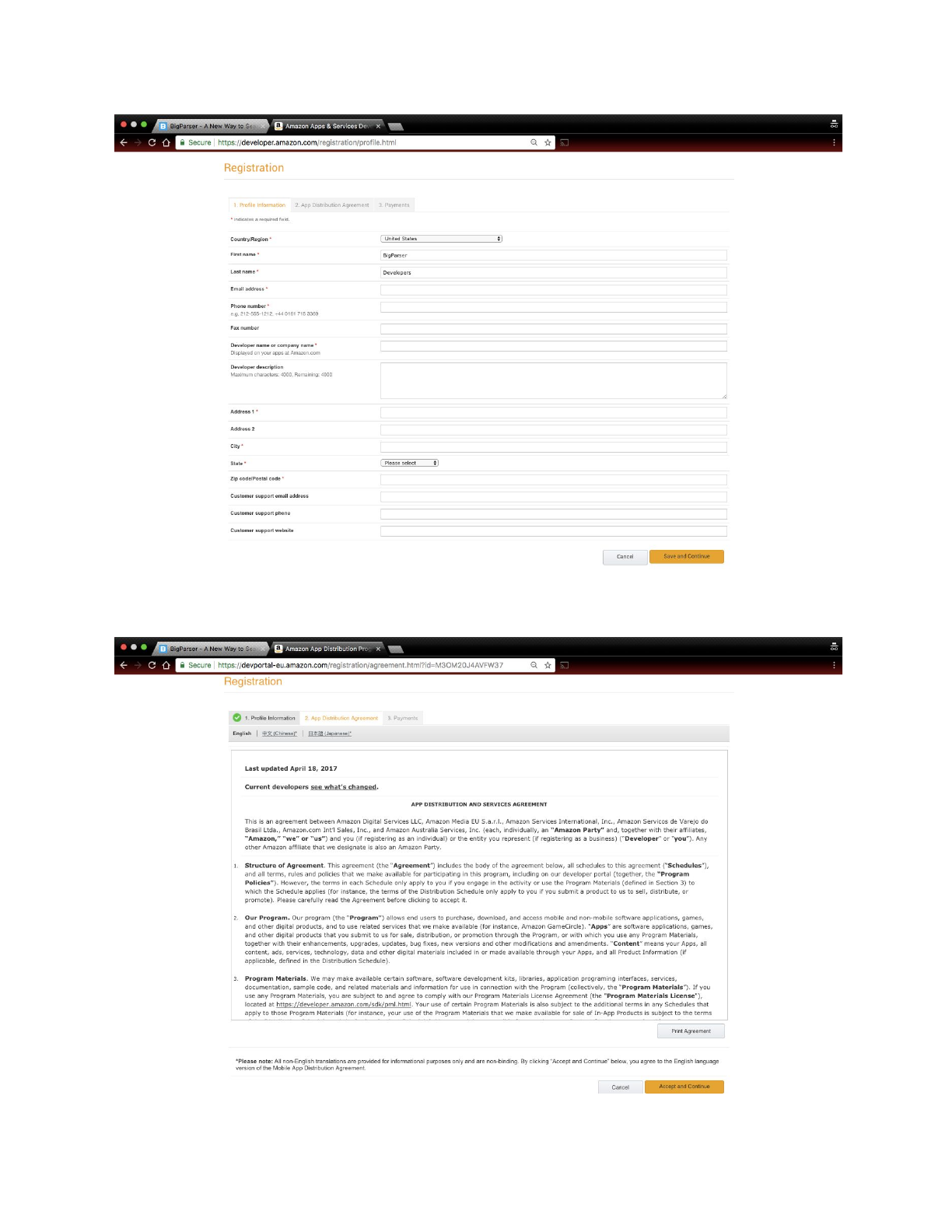
Enter your information and click the button to proceed. Fill in all required fields on
the registration page. For the company field you may enter a screen name.
Click save and continue.
BigParser Guide
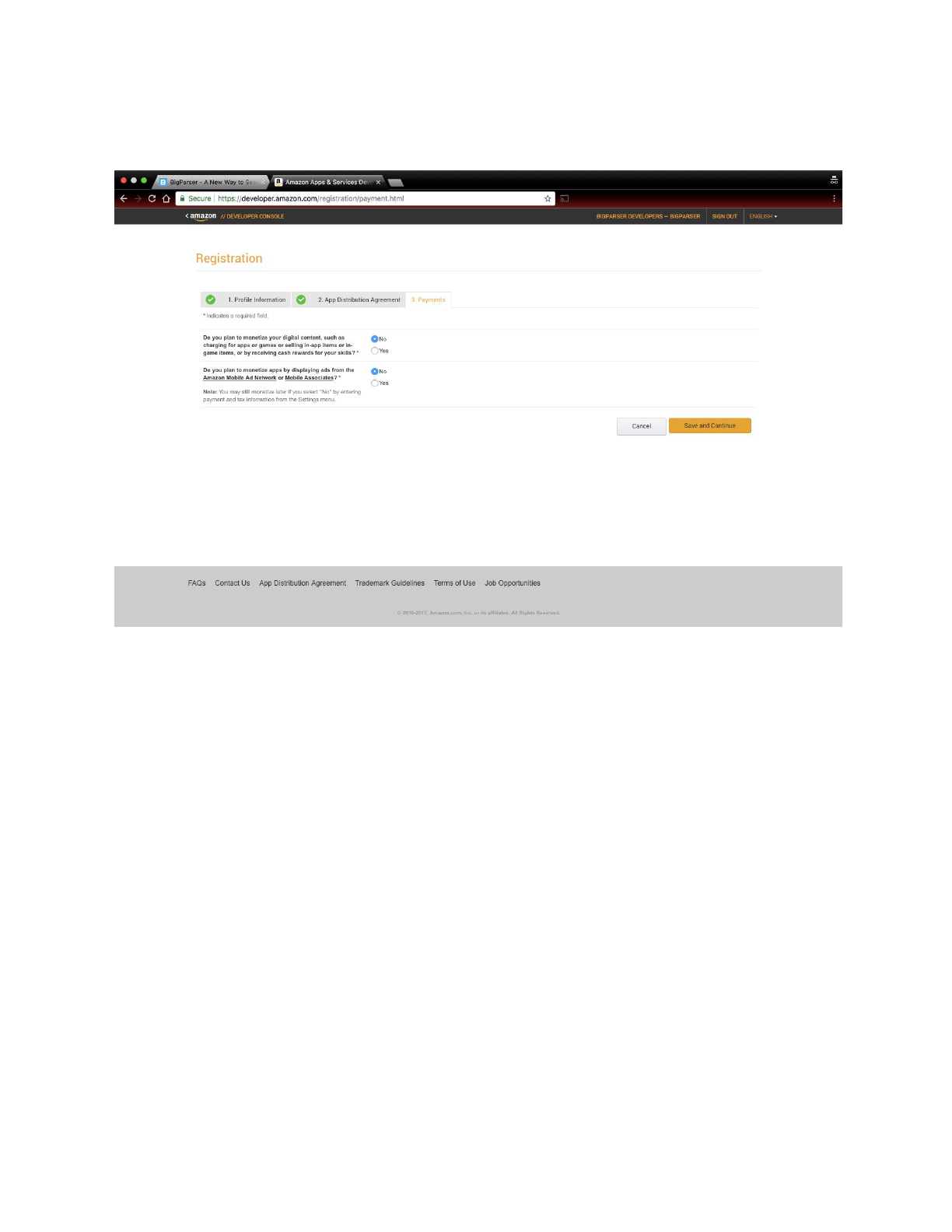
Accept the App Distribution Agreement and continue to the next page.
BigParser Guide
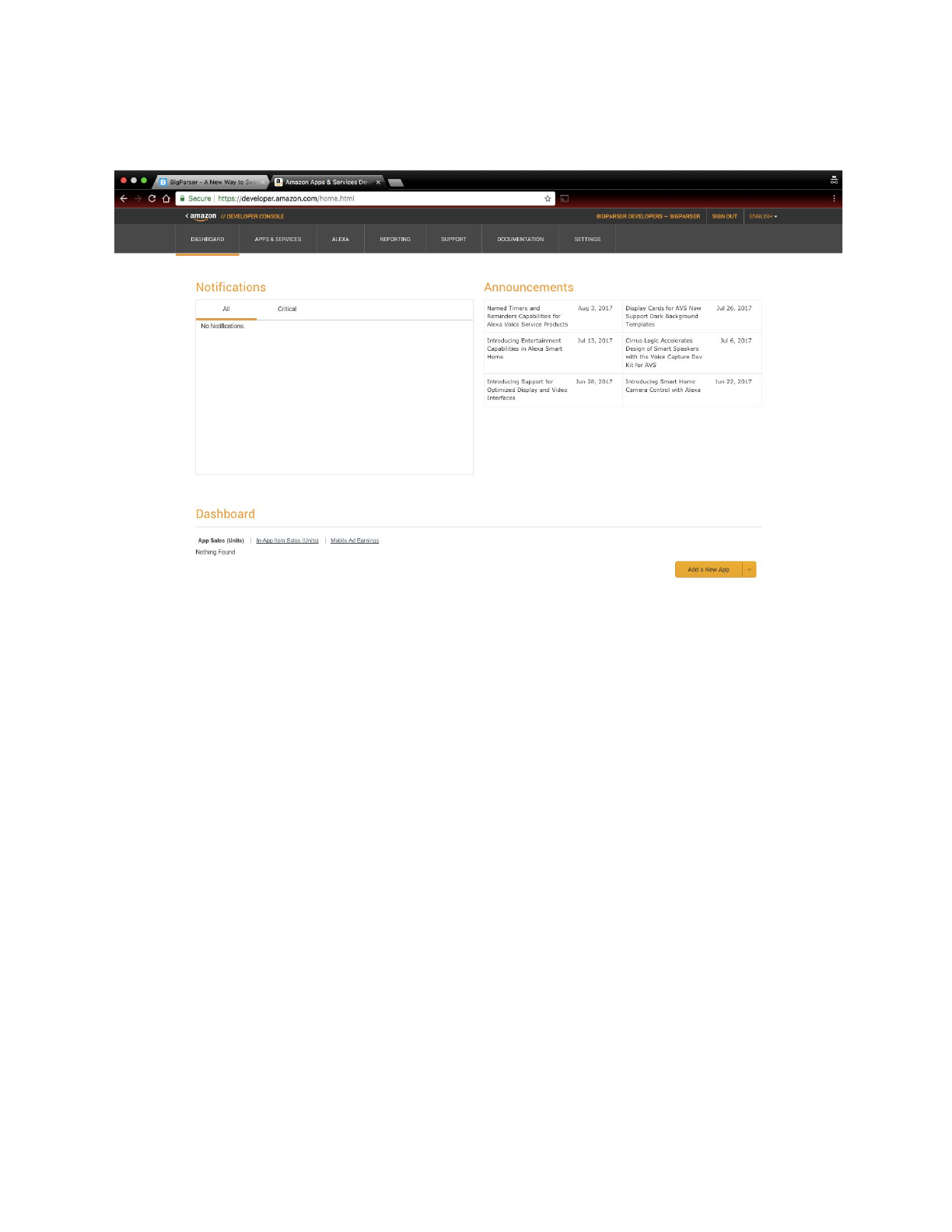
Answer the questions on the payments page and enter further fields if prompted.
Click save and continue to complete the signup process.
BigParser Guide
You should at your developer dashboard once you are completely setup
AWS Account
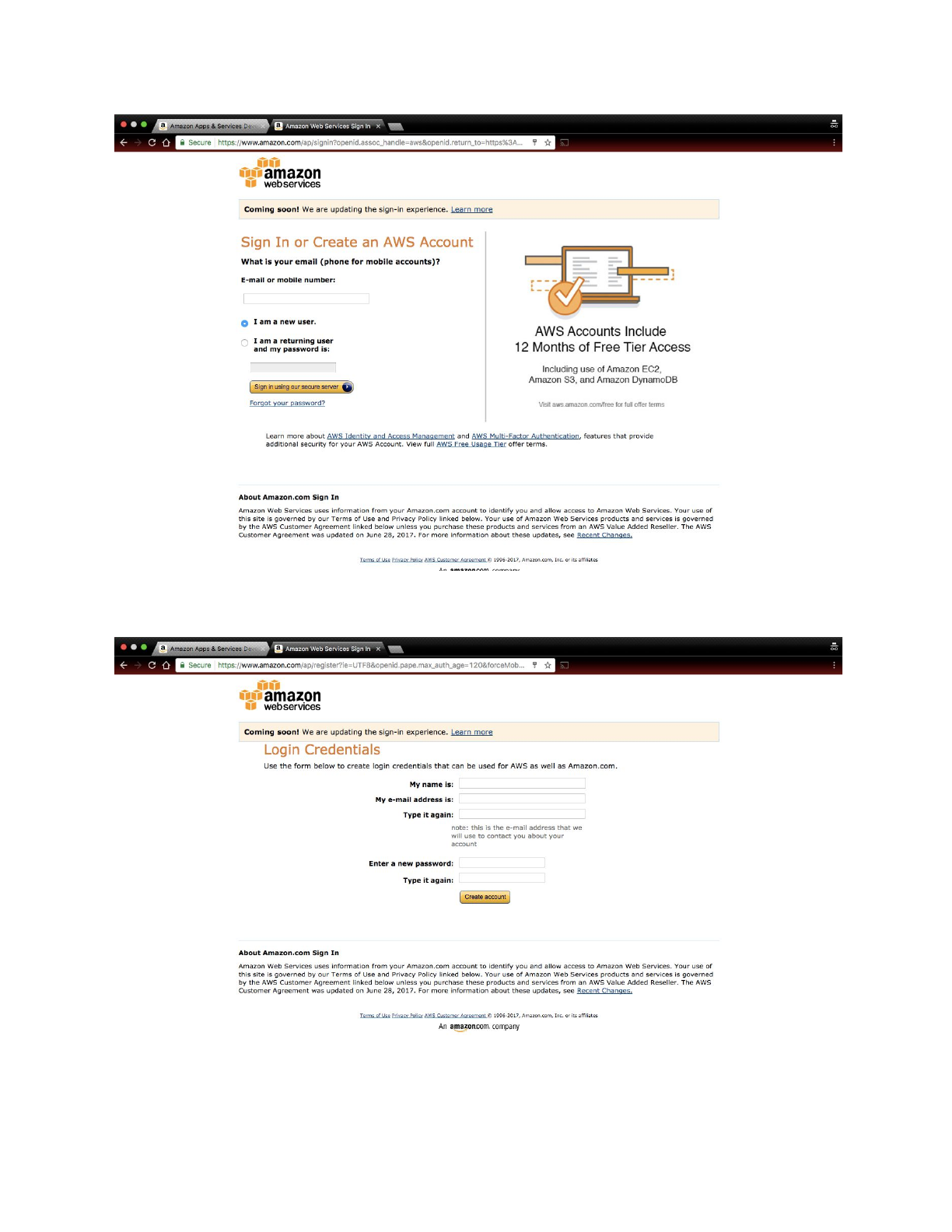
Visit console.aws.amazon.com. Enter your email address, select I am a New
User and click Sign in Using our Secure Server.
BigParser Guide
Enter your information and click Create Account.
BigParser Guide
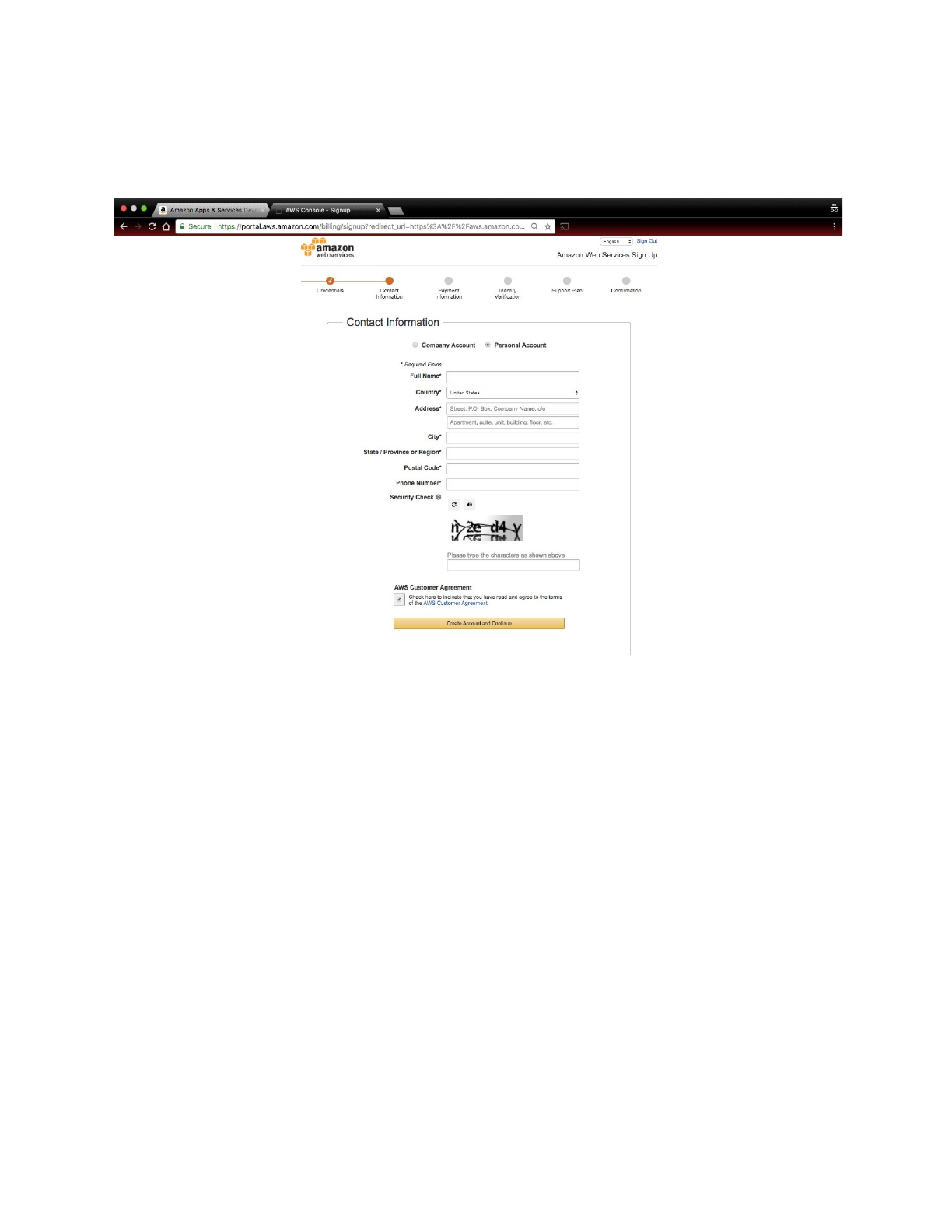
Select Personal account, fill in your contact information, complete the security
check, and check the aws customer agreement. Click Create Account and
Continue.
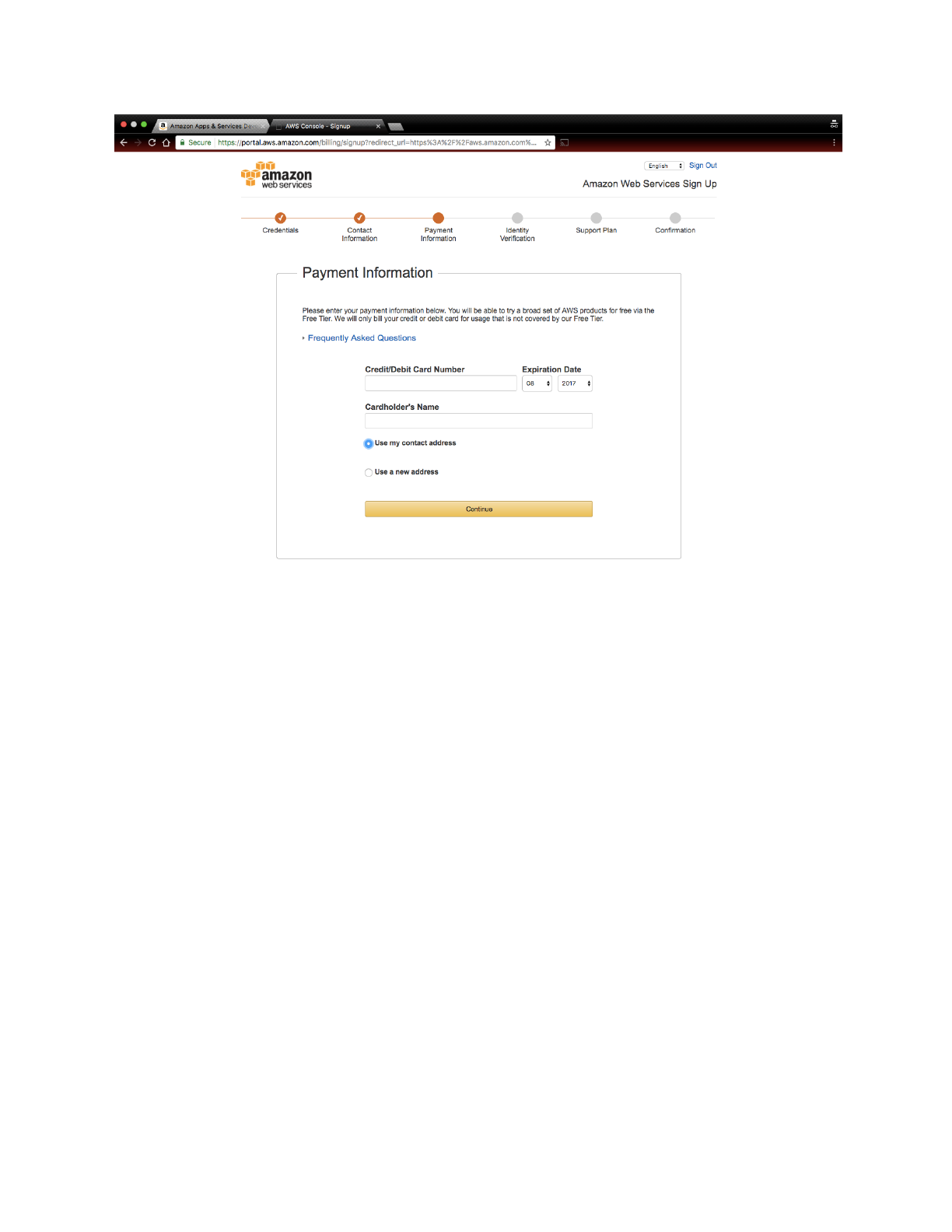
Enter your credit card information. If you do not have a credit card ask a parent,
guardian, or friend for their credit card. You will not be charged as long as you do
not exceed the limits of the free tier. This information is required to verify your
identity. The address must match the cardholder’s address.FINISH THIS
BigParser Guide
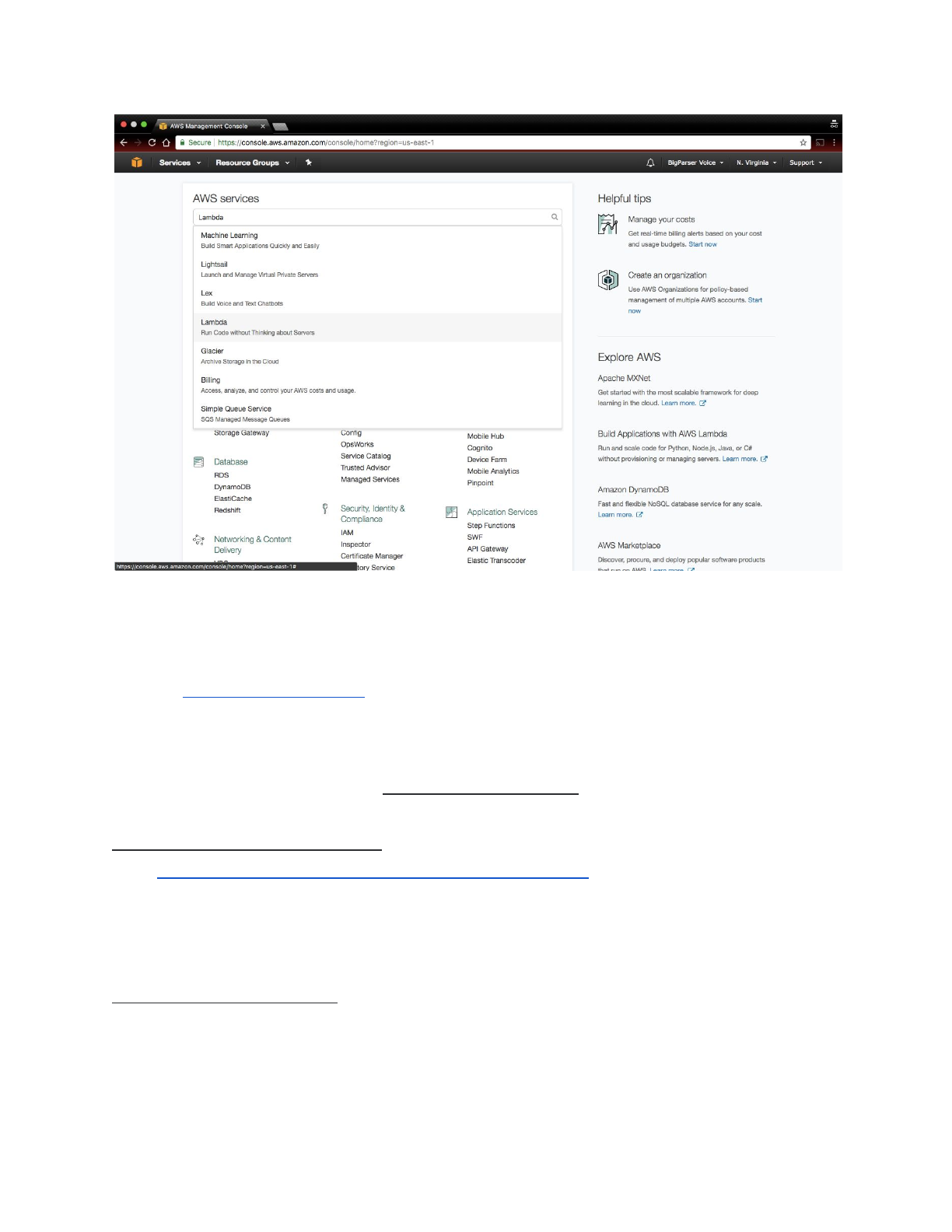
Once you have completed the entire sign up process, you should arrive to a
screen that looks like this.
BigParser Guide
Getting Started
If you are new to alexa skills and lambda functions follow this tutorial found on
Github: http://bit.ly/2wIXALC.
Creating Functions***Waiting for Product Team
If you have not completed the API Overview Section, it is highly recommended
you complete it before you continue. Creating lambda functions will require using
BigParser’s Node JS Libraries. Use this example to create a functioning power
skill: www.githublinkwillgoherethisisaplaceholder.com
Configure
To configure your power skill to an Alexa, simply follow the directions given in the
Setting Up The Q&A Skill section.

BigParser Guide
Publish
To publish your Alexa skill, view this guide provided by Amazon:
http://amzn.to/2jWCS49. Amazon has strict guidelines, and will reject your skill if
it does not follow those guidelines. If
you
publish
an
Alexa
skill
in
the
month
of
August,
Amazon
will
give
you
a
free
alexa:
http://amzn.to/2rgpnTh
.

BigParser Guide
Getting Started for API Users
API Overview
Developer Setup
In order to become a BigParser Developer, all you need to do is Create a
BigParser Account.
Libraries***Waiting for oficial word
Currently there are three languages that support the BigParser Library: Node JS,
Python, and Java. Syntax and Instructions on how to use these libraries can be
found in the ReadMe files in the git repositories below.
Java:
Python:
Node JS:
*If
you
are
creating
alexa
skills
and
lambda
functions,
you
should
focus
on
the
Node
JS
Libraries.
Using Search***Unsure
Using Crud***Unsure
Publish Your App
Publishing your app is an important, but optional step, in allowing your app to
reach a widespread audience.
Website / Web App
To publish a website, you need a domain and a hosting. If you are not
familiar with these concepts, visit https://mzl.la/2nec5RZ. You can find
these services for free from websites like Wordpress or Github, but if you
are looking toward publishing a long term website, you should look into

BigParser Guide
buying a domain and renting a hosting space on services such as
domain.com.
Android App
To publish a mobile app for Android follow this guide provided by Google:
http://bit.ly/2wIZmfU. You should have a Google developer account to
publish an app: http://bit.ly/1kmTwIf
IOS App
To publish a mobile app for IOS follow this guide provided by Apple:
http://apple.co/2fmB96o. You should have an Apple developer account to
publish an app: http://apple.co/KkpkO3
Outline
1. Basics
a. Lesson 1: Why BigParser? (Ed)
b. Lesson 2: What are Grids? (Ed)
i. What’s a Grid
ii. Why Grids are important ?
iii. Where can I find Grids ?
c. Lesson 3: Using Grids ***
i. Sample Grids
ii. My Data
iii. Public Grids
iv. Opening a Grid
v. Searching inside a Grid
1. Global Search
2. Column Search
d. Lesson 4: Uploading a Grid
i. Using Excel
ii. Using Google Sheets
iii. Using a CSV or other Text File
iv. Paste a URL
v. Use an API (see the API videos)
e. Lesson 5: Share a Grid
i. Create a Filter
ii. Share a Filter
iii. Hide Columns
iv. More Settings

BigParser Guide
2. Grid Creator
a. Lesson 1: ***
i. Create a data model based on searching
ii. Row data vs column data for searching
iii. Good grid model
iv. Bad Grid model
b. Lesson 2: How to collect data
i. Identify sources
ii. Licensing Data
iii. Public data
c. Grid Submission
d. Grid Creator Certification
i. Certified Grid Creator badge on profile
3. Skill Creator
a. Lesson 1: What’s a Skill
i. What are skills
ii. Types of Skills (Basic, Power)
b. Lesson 2: Create a Basic Skill ***
i. Get or Create a Q&A Grid
ii. Configure your Grid
iii. Test your Skill
c. Lesson 3: Create a Power Skill
i. Create your Grid
ii. Creating an amazon developer account and aws account
iii. Configure your Skill Settings
iv. Create a Lambda Function
v. Deploy your Skill
vi. Test your Skill
4. Creating Apps
a. Lesson 1: Get Started
i. Create a BigParser Account
ii. Get your AuthID
b. Lesson 2: How to call
i. Install Libraries (Python, Java)
c. Lesson 3: Sandbox
i. Sandbox URL
ii. How to Find an API Method
iii. How to Browse an API Method
d. Lesson 3: Utilizing the BigParser API / BigParser Libraries
e. App submission
f. App Creator Certification
i. Certified App Creator .

BigParser Guide
5. Creating Skills
a. Lesson 1: Creating an amazon developer account and aws account
b. Lesson 2: Creating a skill
c. Lesson 3: Creating a lambda function
d. Lesson 4: Deploying your skill
e. Skill Submission
f. Skill Creator Certification
i. Certified Skill Creator
