CCS Series Spectrometer CCS200 M Manual
User Manual:
Open the PDF directly: View PDF  .
.
Page Count: 82
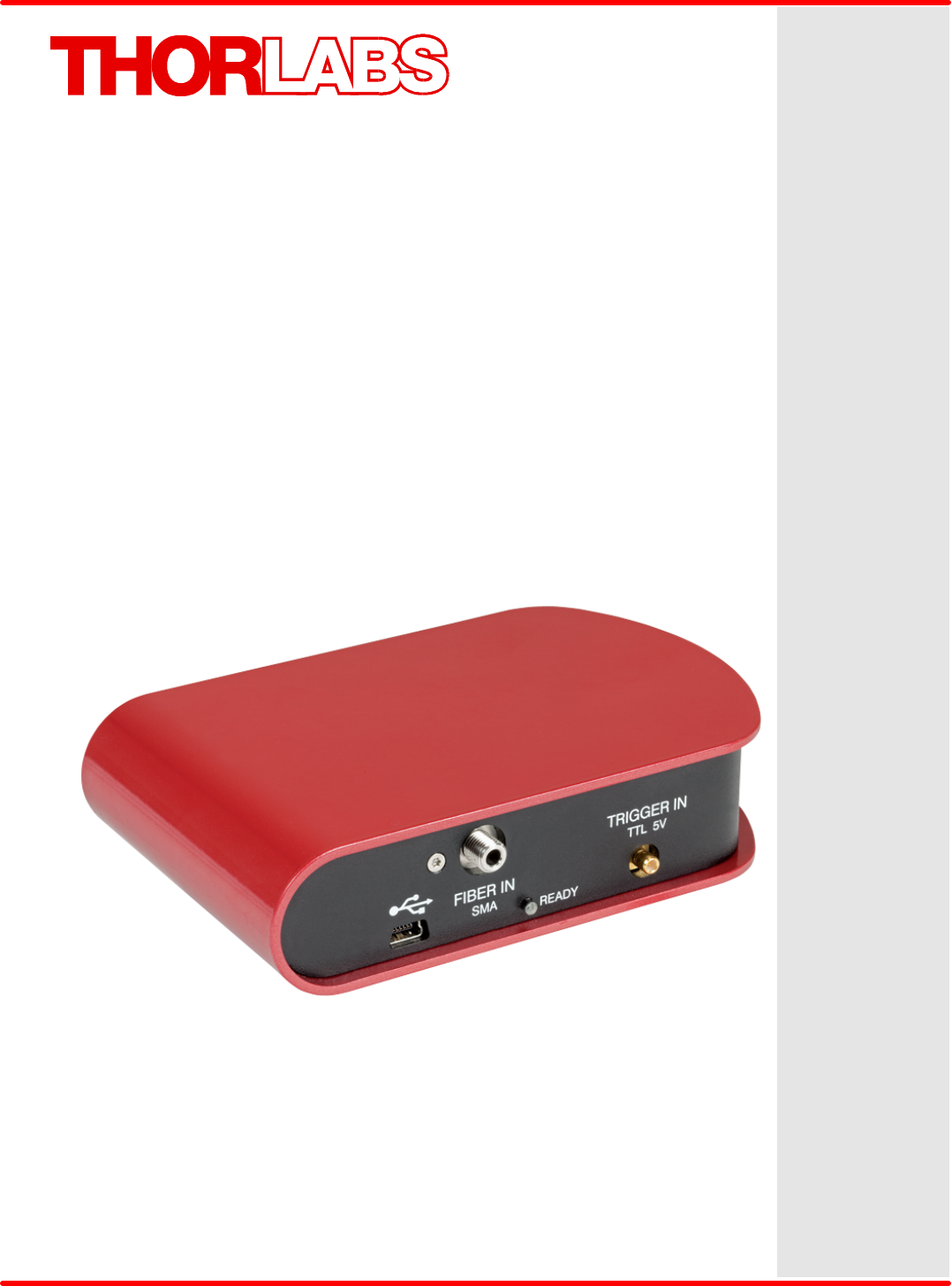
Spectrometer
CCS Series Spectrometer
Operation Manual
2018
Version:
Date:
2.1
09-Jul-2018
Copyright © 2018 Thorlabs

Foreword
Contents
3
1General Information 4
41.1 Safety
61.2 Ordering Codes and Accessories
61.3 Requirements
2 Installation 7
72.1 Parts List
82.2 Installing Software
3Getting Started 13
4Operating Instruction 15
164.1 Main Menu
164.1.1 File
194.1.2 Sweep
224.1.3 Display
254.1.4 Level
264.1.5 Marker
264.1.5.1 Movable Markers
284.1.5.2 Fixed Markers
304.1.6 Analysis
304.1.6.1 Peak Track Analysis
324.1.6.2 Color Analysis
334.1.6.3 Statistics
344.1.6.4 Long Term Analysis
374.1.7 Math
434.1.8 Setup
434.1.8.1 Tab Active Device
484.1.8.2 Tab Display
494.1.8.3 Tab Peak Track
504.1.8.4 Tab Reset
504.1.9 Help
514.2 Settings Bar
524.3 Trace Controls
5Write Your Own Application 55
565.1 NI VISA Instrument driver 32bit on 32bit systems
585.2 NI VISA Instrument driver 32bit on 64bit systems
605.3 NI VISA Instrument driver 64bit on 64bit systems
6Maintenance and Service 62
626.1 Version Information
636.2 Troubleshooting
7 Appendix 64
647.1 Technical Data
657.2 Dimensions
667.3 Tutorial
707.4 Shortcuts Used in OSA Software
717.5 Certifications and Compliances
727.6 Warranty
737.7 Copyright and Exclusion of Reliability
747.8 Thorlabs 'End of Life' Policy (WEEE)
757.9 List of Acronyms
767.10 Thorlabs Worldwide Contacts
© 2018 Thorlabs
We aim to develop and produce the best solution for your application
in the field of optical measurement technique. To help us to live up to
your expectations and improve our products permanently we need
your ideas and suggestions. Therefore, please let us know about
possible criticism or ideas. We and our international partners are
looking forward to hearing from you.
Thorlabs GmbH
Warning
Sections marked by this symbol explain dangers that might result in
personal injury or death. Always read the associated information
carefully, before performing the indicated procedure.
Please read these advices carefully!
This manual also contains "NOTES" and "HINTS" written in this form.
Attention
Paragraphs preceded by this symbol explain hazards that could
damage the instrument and the connected equipment or may cause
loss of data.
Note
3
© 2018 Thorlabs4
CCS Series Spectrometer
1 General Information
The CCS Series Spectrometer is designed for general laboratory use. Integrated routines allow
averaging, smoothing, peak indexing, as well as saving and recalling data sets.
Attention
Do not connect the CCS Series Spectrometer to a PC prior to installingh the OSA-SW
Application! The installation package includes CCS Series Spectrometer specific drivers and
software that must be installed before the CCS Series Spectrometer is connected to the PC for the
first time.
A troubleshooting section and detailed specifications of the various components are provided in
this manual. The description of the instrument driver commands can be found in the VXIpnp VISA
instrument driver package.
Application software OSA-SW
OSA-SW is an acronym for "Optical Spectrum Analyzer Software". This software can be used for
acquiring direct, transmittance and absorbance measurements in conjunction with Thorlabs' optical
spectrum analyzers and CCD spectrometers.
After the installation, the software is able to communicate with all Thorlabs CCD based CCS
Series Spectrometers and OSA20x Optical Spectrum Analyzers. Additionally, a number of virtual
devices are included to demonstrate the functionality of OSA-SW: five for OSA20x Analyzers and
one for CCS spectrometers.
1.1 Safety
Attention
The safety of any system incorporating the equipment is the responsibility of the
assembler of the system.
All statements regarding safety of operation and technical data in this instruction manual
will only apply when the unit is operated correctly as it was designed for.
The CCS Series Spectrometer must not be operated in explosion endangered
environments!
Do not obstruct the air ventilation slots in the housing!
Do not remove covers!
Do not open the cabinet. There are no parts serviceable by the operator inside!
This precision device is only serviceable if properly packed into the complete original
packaging including the plastic foam sleeves. If necessary, ask for replacement
packaging.
Refer servicing to qualified personnel!
Only with written consent from Thorlabs may changes to single components be made or
components not supplied by Thorlabs be used.
Attention
The following statement applies to the products covered in this manual, unless otherwise
specified herein. The statement for other products will appear in the accompanying
documentation.
© 2018 Thorlabs
1 General Information
5
Note This equipment has been tested and found to comply with the limits for a Class A
digital device, pursuant to part 15 of the FCC Rules. These limits are designed to provide
reasonable protection against harmful interference when the equipment is operated in a
commercial environment. This equipment generates, uses, and can radiate radio
frequency energy and, if not installed and used in accordance with the instruction
manual, may cause harmful interference to radio communications. Operation of this
equipment in a residential area is likely to cause harmful interference in which case the
user will be required to correct the interference at his own expense.
Users that change or modify the product described in this manual in a way not expressly
approved by Thorlabs (party responsible for compliance) could void the user’s authority
to operate the equipment.
Thorlabs is not responsible for any radio television interference caused by modifications
of this equipment or the substitution or attachment of connecting cables and equipment
other than those specified by Thorlabs. The correction of interference caused by such
unauthorized modification, substitution or attachment will be the responsibility of the
user.
The use of shielded I/O cables is required when connecting this equipment to any and all
optional peripheral or host devices. Failure to do so may violate FCC and ICES rules.
Attention
Mobile telephones, cellular phones or other radio transmitters are not to be used within
the range of three meters of this unit since the electromagnetic field intensity may then
exceed the maximum allowed disturbance values according to IEC61326-1.
This product has been tested and found to comply with the limits according to IEC61326-
1 for using connection cables shorter than 3 meters (9.8 feet).
© 2018 Thorlabs6
CCS Series Spectrometer
1.2 Ordering Codes and Accessories
Ordering code
Short description
CCS100(/M) 1)
CCS spectrometer, 350 - 700 nm
CCS175(/M) 1)
CCS spectrometer, 500 - 1000 nm
CCS200(/M) 1)
CCS spectrometer, 200 - 1000nm
M14L01
1 m SMA MMF Patch Cable, 50µm / 0.22 NA (to CCS100 and
CCS175)
FG200UCC
1 m SMA MMF Patch cable, 200µm / 0.22 NA, High OH (to
CCS200)
CVH100; CVH100/M
Cuvette holder (imperial and metric versions)
1) CCSxxx = imperial version, mounting holes 1/4-20;
CCSxxx/M = metric version, mounting holes M6x1
Attention
Make sure to use your CCS spectrometer only with the included fiber (see above table). If using a
different fiber, the Amplitude Correction Calibration will be affected!
1.3 Requirements
These are the requirements to the PC intended to be used for remote operation of the CCS Series
Spectrometer.
Minimum Hardware and Software Requirements
• Operating System: Windows Vista or Windows 7 (32 or 64 bit)
• Free USB 2.0 high speed port (Notice that a USB 1.1 port cannot be used)
• Processor: Intel Pentium 4 or AMD Athlon 64 3000+
• 2.0 GB RAM
• .NET framework 4.0 or higher
Recommended Hardware and Software Requirement
• Operating System: Windows 7, 64 bit
• Free USB 2.0 high speed port (Notice that a USB 1.1 port cannot be used)
• Processor: Intel Core i5 or AMD Athlon II
• 6.0 GB RAM
• .NET framework 4.0 or higher
Note
Please be aware that the OSA software requires a number of third party software installed on your
system. The installer checks for these software components and, if necessary, will install them
automatically. You will be notified accordingly.
© 2018 Thorlabs
2 Installation
7
2 Installation
Attention
Do not connect the CCS Series Spectrometer to a PC prior to install the OSA-SW Application!
The installation package includes CCS Series Spectrometer specific drivers and software that
must be installed before the CCS Series Spectrometer is connected to the PC for the first time.
2.1 Parts List
Inspect the shipping container for damage. If the shipping container seems to be damaged, keep it
until you have inspected the contents and you have inspected the CCS Series Spectrometer
mechanically and electrically.
Verify that you have received the following items within the package:
1x
CCS Series Spectrometer
1x
This CCS Series Spectrometer Quick Reference
1x
CD-ROM with application software OSA-SW, drivers and PDF User Manual
1x
USB 2.0 A-B mini cable, 1.5 meters
1x
Optical Fiber, SMA to SMA, 50µm / 0.22 NA, 1 meter (CCS100, CCS175)
Quartz Fiber, SMA to SMA, 200µm / 0.22 NA, 1 meter (CCS200)
1x
Trigger Input cable SMB to BNC
Attention
Make sure to use your CCS spectrometer only with the included fiber (see above table). If using a
different fiber, the Amplitude Correction Calibration will be affected.
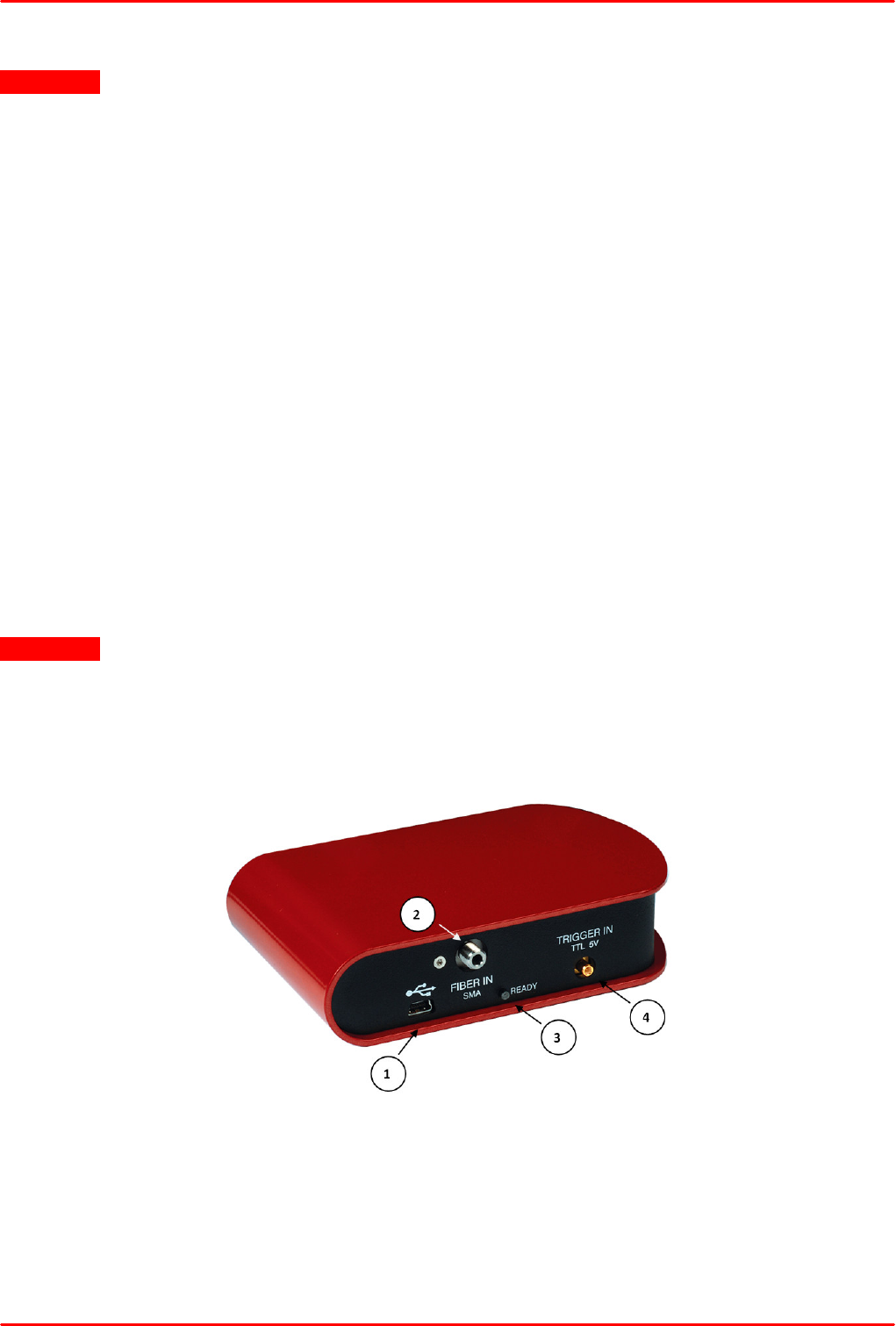
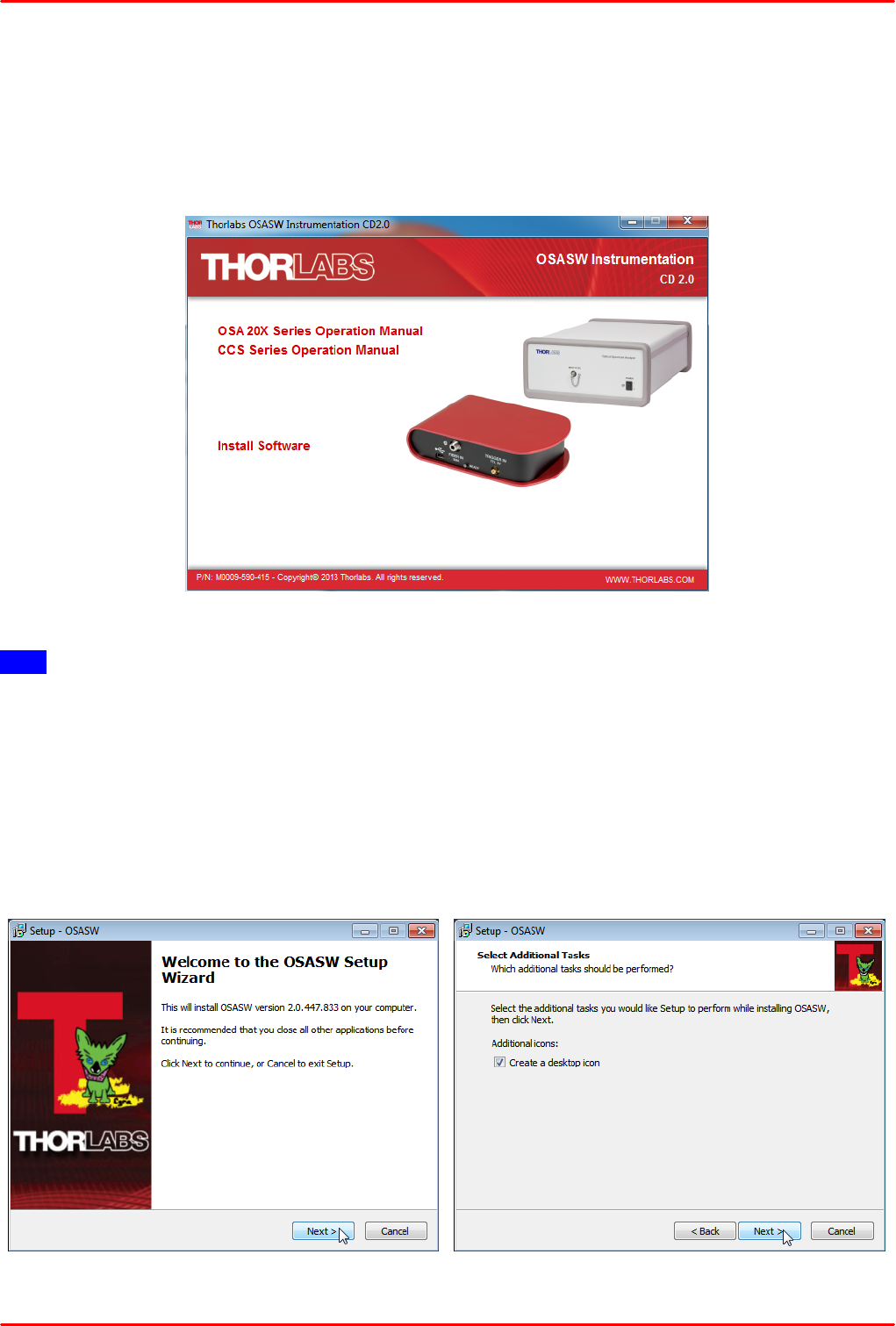
CCS Spectrometer - Ports and Signal LEDs
(1)
USB port
(2)
Fiber input (SMA connector)
(3)
Status LED
(4)
Trigger Input (SMB connector)
© 2018 Thorlabs8
CCS Series Spectrometer
2.2 Installing Software
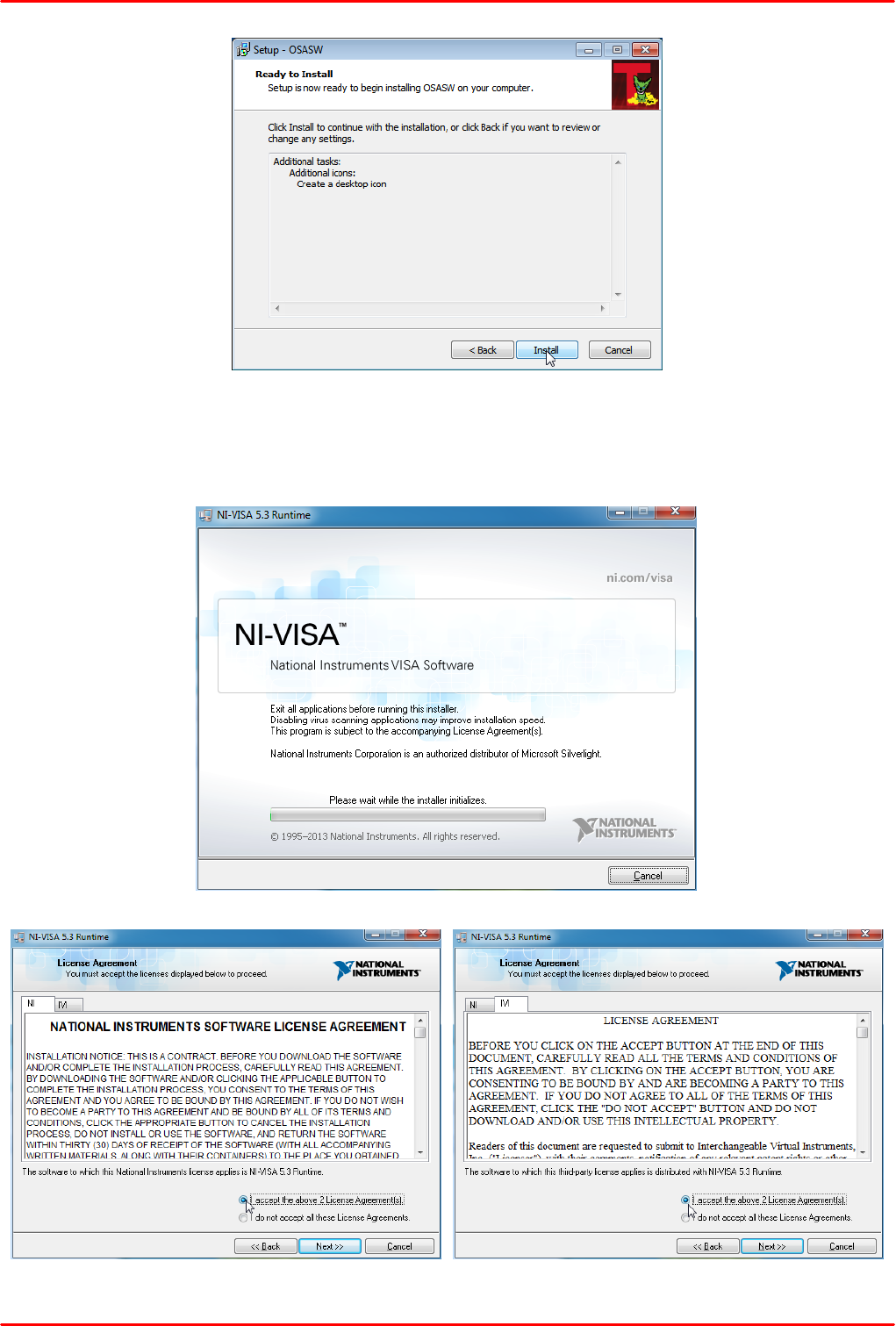
Before installing OSA Software, please make sure that no CCS Series Spectrometer is
connected. After you insert the OSA Software installation CD an autorun menu will appear (see
figure below). If autorun is disabled on your system, you will have to browse the installation CD and
run
"[CD-Drive]:\Autorun\Autorun.exe":
Click to "Install Software":
Note
Please be aware that the OSA software requires a number of third party software installed on your
system. The installer checks for these software components and, if necessary, will install them
automatically. You will be notified accordingly.
Administrator privileges are required for installation. Please contact your system administrator if
you get an error message.
Installation steps are shown below in detail for an installation on a Windows 7© operating system.
After selecting "Install Software", the installer checks your system and determines the software
components that need to be installed.
© 2018 Thorlabs
2 Installation
9
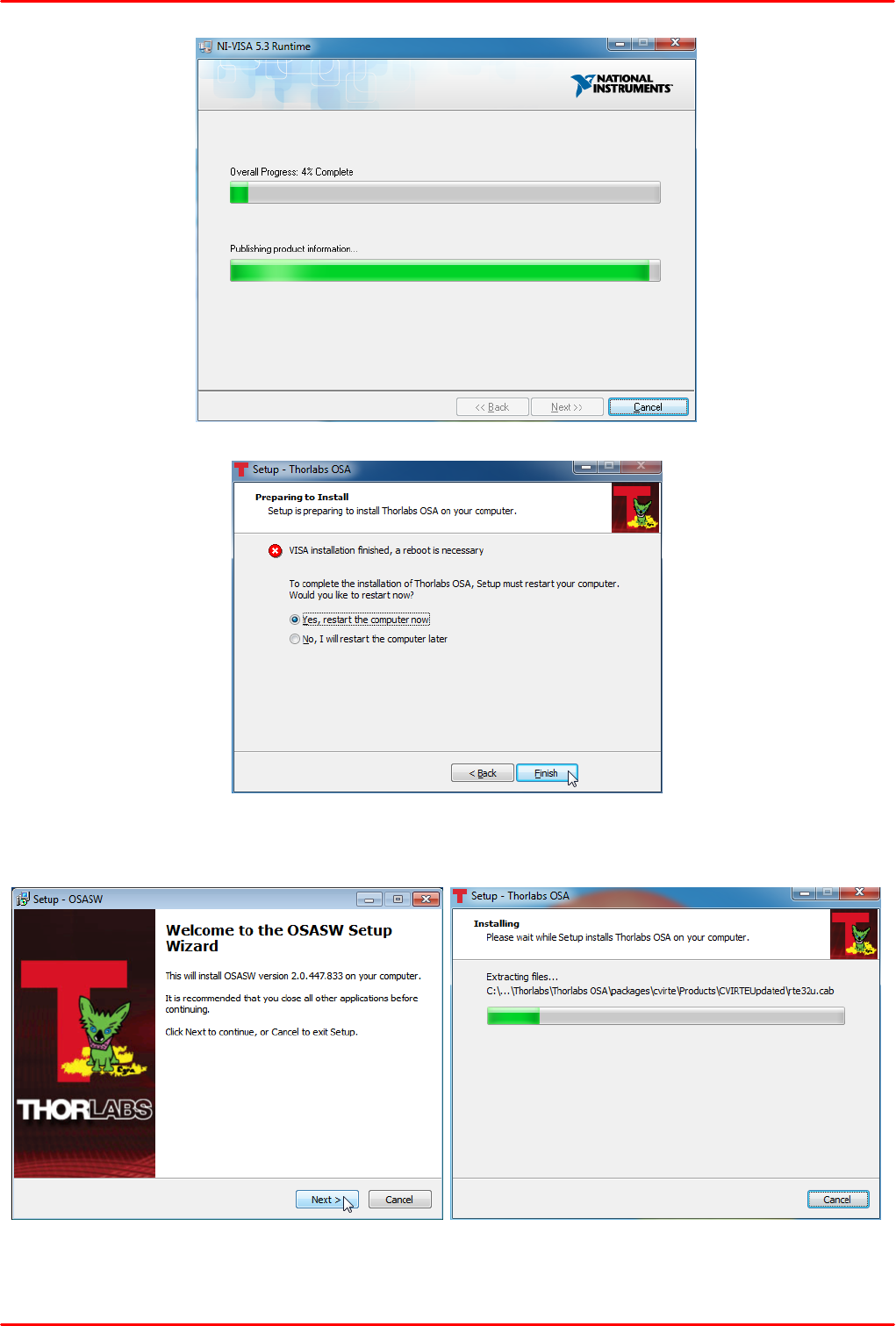
Click "Install" to continue. The necessary software components are being installed, followed by
installation of device driver software. The installation of all components is described below.
NI VISA installation
Click "I accept...", then "Next>>" to continue:
© 2018 Thorlabs10
CCS Series Spectrometer
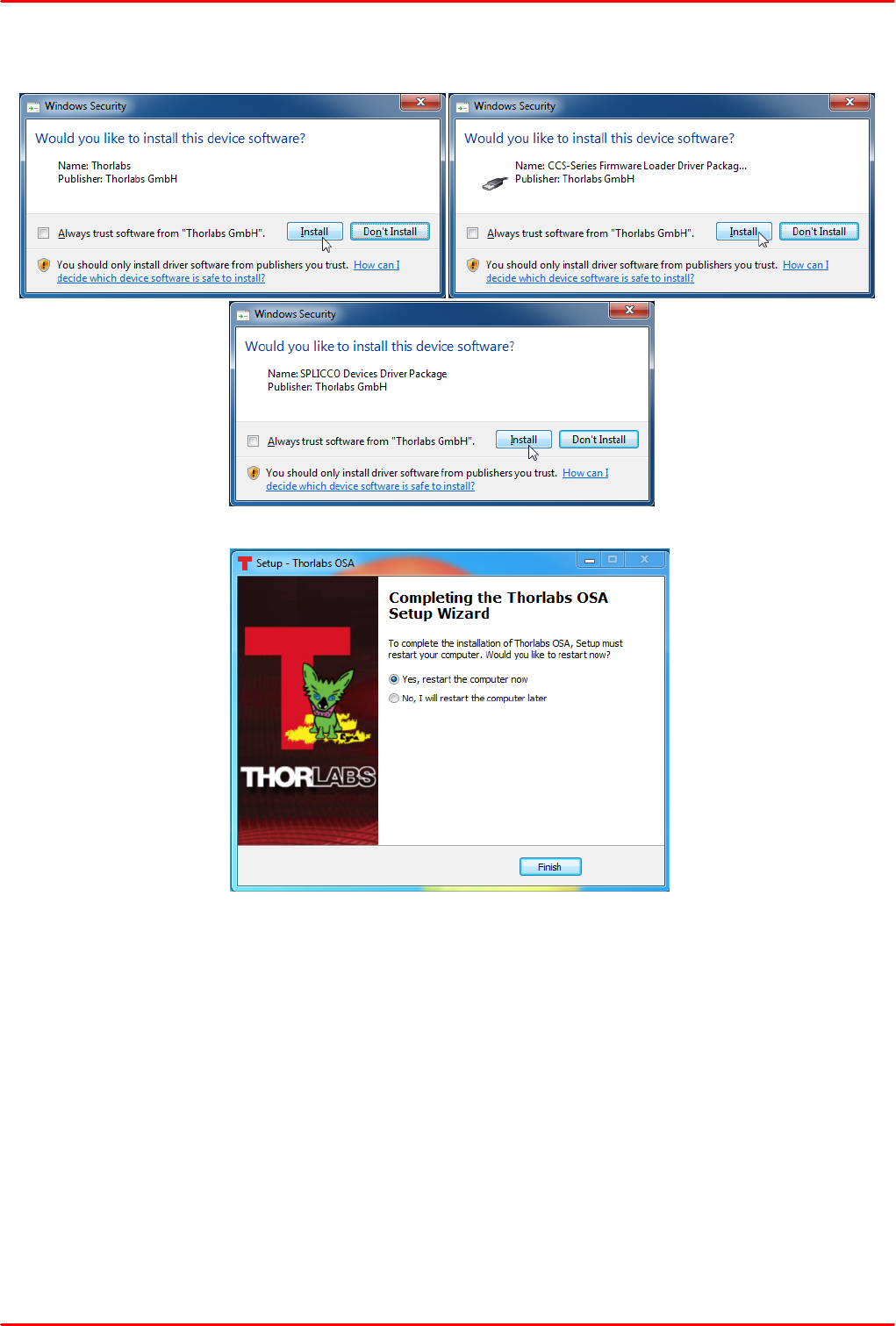
After NI-VISA Installation, the computer must be restarted. After reboot, the setup wizard restarts
automatically and continues to install further software components:

© 2018 Thorlabs
2 Installation
11
Click "I accept...", then "Next>>" to continue:
© 2018 Thorlabs12
CCS Series Spectrometer
Depending on the set up security level, the Installation Wizard might ask to allow to install the driver
software:
To finalize the OSA Software installation, the computer must be restarted. Click "Finish" to restart
and complete installation.
© 2018 Thorlabs
3 Getting Started
13
3 Getting Started
Attention
Do not connect the CCS Series Spectrometer to a PC prior to installing the OSA-SW Application!
The installation package includes CCS Series Spectrometer specific drivers and software that
must be installed before the CCS Series Spectrometer is connected the first time to the PC.
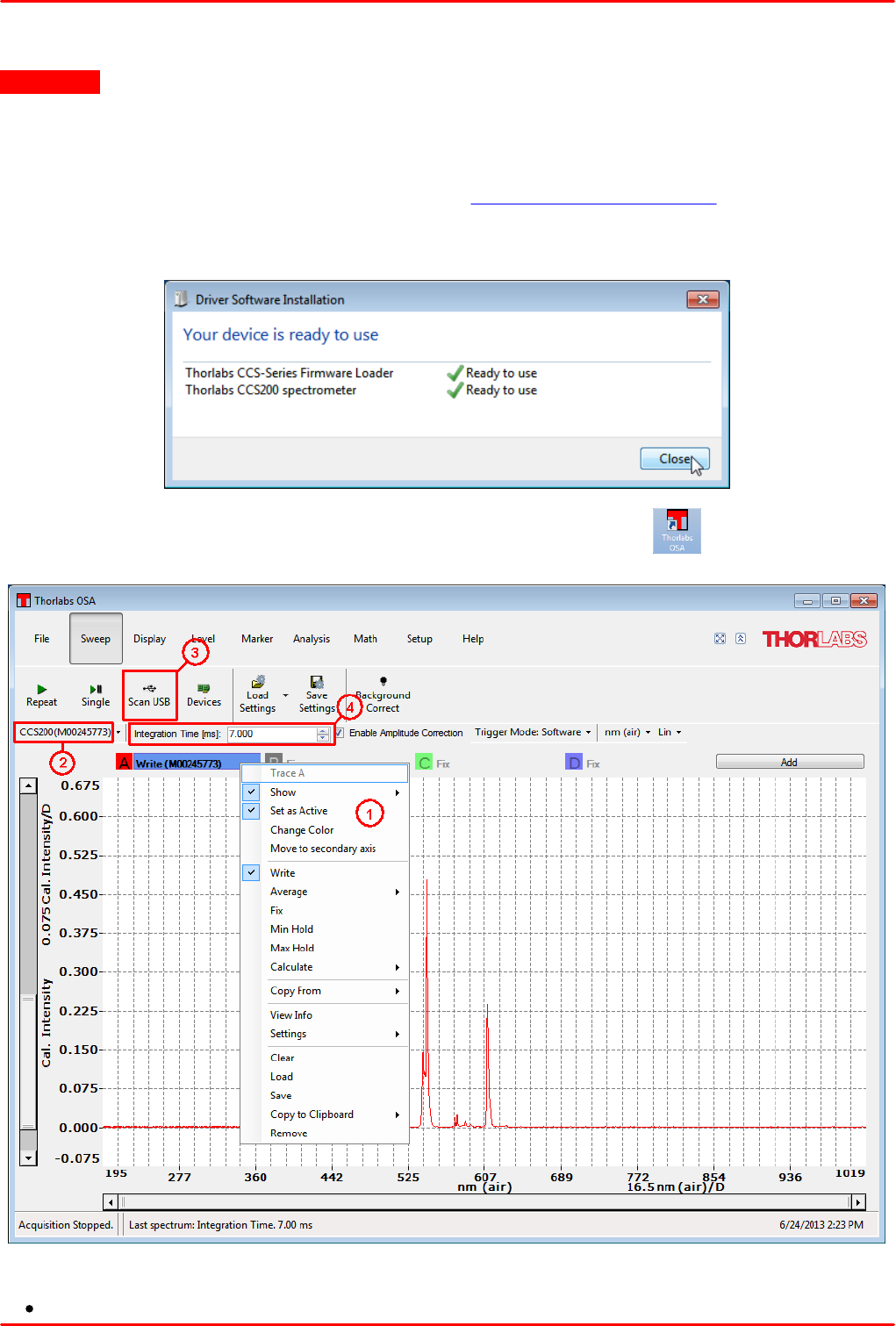
The initial setup is simple to complete. Following installation of the software, connect the CCS
Series Spectrometer to a USB 2.0 port. The operating system recognizes the new hardware and
installs the firmware loader and the driver:
Then run the application software OSA-SW either from the desktop icon
1. Click to trace A and make sure that the topics below are checked.
Show
© 2018 Thorlabs14
CCS Series Spectrometer
Set as Active
Write
2. Check that the connected spectrometer is recognized. If not, click to
"Scan USB"
3. Apply an optical input signal to the fiber input. Increase the integration time until the spectrum is
displayed. A right click into the data display area zooms in the intensity axis to it's best fit to the
spectrum.
Note
If you are using a CCS200 broadband spectrometer and a continuous spectrum (e.g. of a white
light lamp) shall be measured, please note the following recommendation:
Due to the eccentricity between the fiber core and the ferrule of the delivered FG200UCC MMF
and the geometry of the input slit of the spectrometer, the displayed spectral intensity may vary
when the SMA connector of the fiber is rotated within the input receptacle of the CCS200. Please
find the maximum intensity by rotation and then fix the fiber connector with the lock bush. This
ensures best measurement results.
The remainder of this manual is devoted to the setup procedure and features of the CCS Series
Spectrometer.
© 2018 Thorlabs
4 Operating Instruction
15
4 Operating Instruction
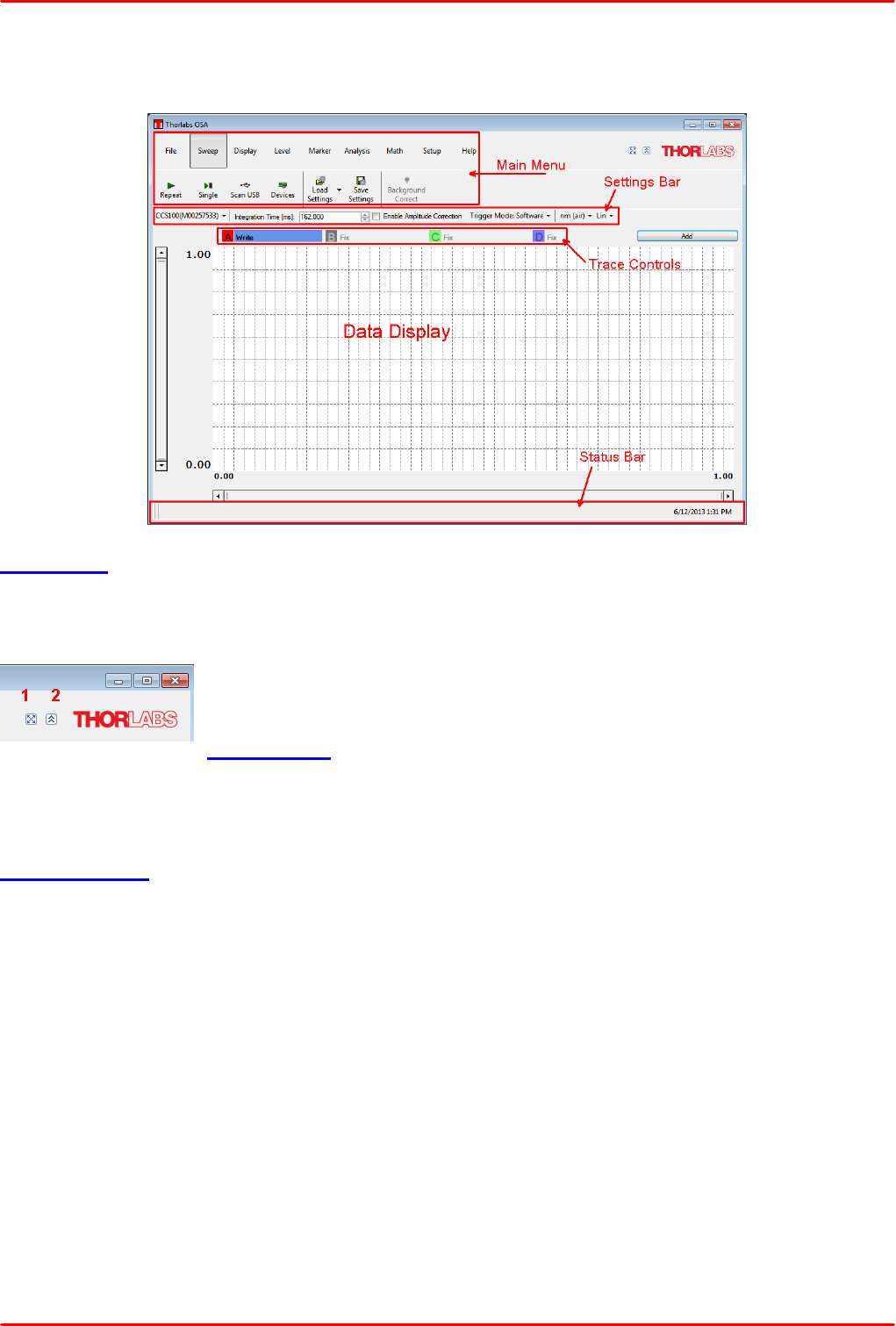
The OSA Software GUI is divided into 5 functional areas:
Main Menu
Depending on the selected main topic in the upper part of the bar, the lower bar will show particular
sub-topics. These topics are explained with references to the section explaining their functionality
in detail.
The GUI can be expanded to full size using button 1, button 2 minimizes the
main menu.
Settings Bar
The Settings Bar offers quick access to important control features: The active spectrometer can be
selected; the integration time, amplitude correction, trigger mode and display properties can be
set.
Trace Controls
The OSA software GUI displays spectra using multiple "Traces". For each trace, both the settings
of the GUI and the used spectrometer are saved. The trace can be used for numerous functions
and calculations, hence traces are a powerful tool for measurement and data handling. Up to 26
traces, marked with A to Z, can be enabled. To the right of the trace letter (“A”, “B”, etc.) the update
option for the trace is displayed. This option determines what will happen with the trace during the
next data acquisition. Only one trace can be active, as shown above in the screenshot of trace A.
The active trace's update option is shown with a blue background.
Data Display
Here the acquired spectral data are displayed in graphic view. The intensity and the wavelength
axes can be zoomed and panned numerically via a dialog or using the graphic zoom bars.
Additionally, the intensity axis can be displayed in linear or logarithmic scale.
Status Bar
The status bar displays information about the measurement status and the current date and time.
© 2018 Thorlabs16
CCS Series Spectrometer
4.1 Main Menu
In the next sections the main menu items are explained in detail:
File Menu
Display Menu
Sweep Menu
Level Menu
Marker Menu
Analysis Menu
Math Menu
Setup Menu
Help Menu
There are a number of keyboard shortcuts listed in the Appendix.
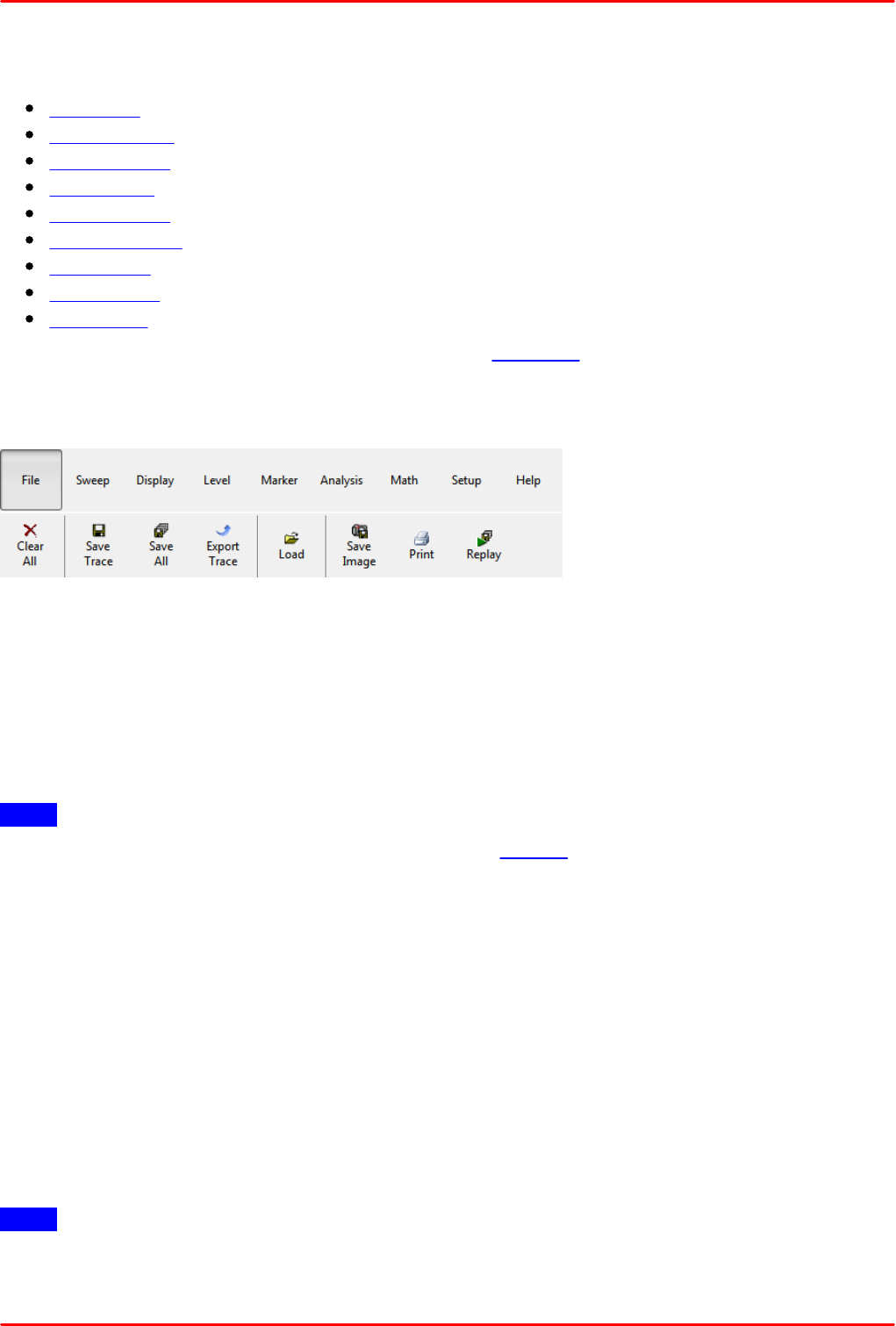
4.1.1 File
The File Menu allows to save, load, print and delete spectra from the GUI.
Clear All
clears all traces in the display.
Save Trace (shortcut: Ctrl + S)
Saves only the currently active trace, all other traces are ignored.
Possible file formats: Thorlabs OSA spectrum files (*.spf2); Comma Separated Values (*.csv)
Note
For details on the supported spectrum file formats, see Tutorial.
Save All (shortcut: Ctrl + Shift + S)
Saves all shown traces.
Possible file formats: Thorlabs OSA spectrum files (*.spf2) only.
Export Trace
Exports the currently active trace for use in other software environment.
Possible export formats: Galactic (*.spc), JCAMP-DX (*.jdx), Matlab level 5 (*.mat). Additionally,
the trace can be exported to a text file (*.txt) and to ZIP archives (*.txt.zip; *.csv.zip).
Load (shortcut: Ctrl +O)
Loads previously saved spectrum file(s) to the graphic diagram into free traces. The trace (traces)
is (are) loaded in the next free trace (traces).
Note
Numbers in the file to be loaded, must have the standard format - decimal point, not a decimal
comma.
© 2018 Thorlabs
4 Operating Instruction
17
Save Image
Saves the current view of the data display as an image. This allows you to quickly save a
measurement result for documentation purposes.
Print (shortcut: Ctrl +P)
Prints the current view of the data display to a Windows printer.
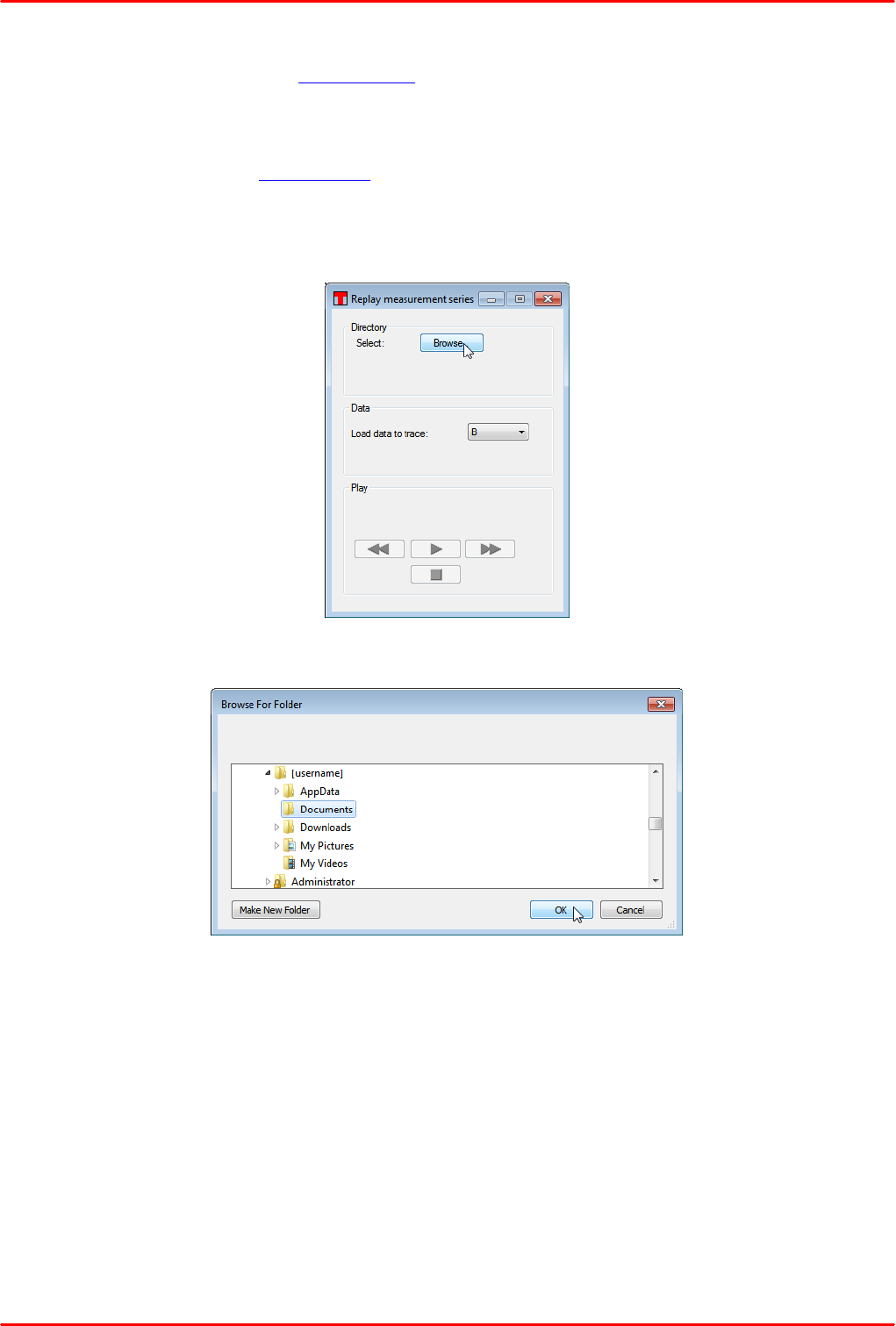
Replay
Replays a series of saved single traces. This button opens a dialog window.
Click Browse
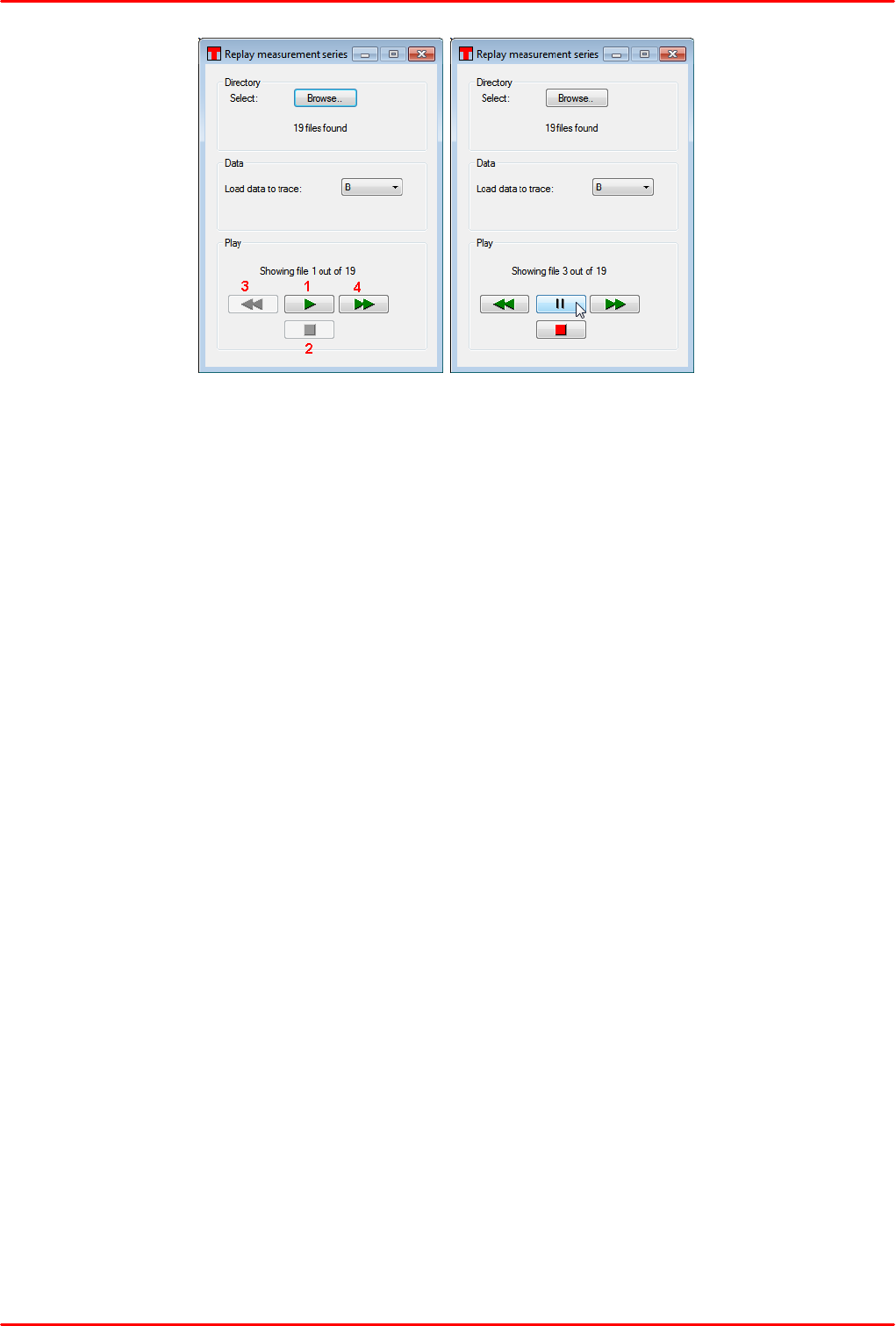
Select the folder with the saved *.spf2 files, then click OK.
© 2018 Thorlabs18
CCS Series Spectrometer
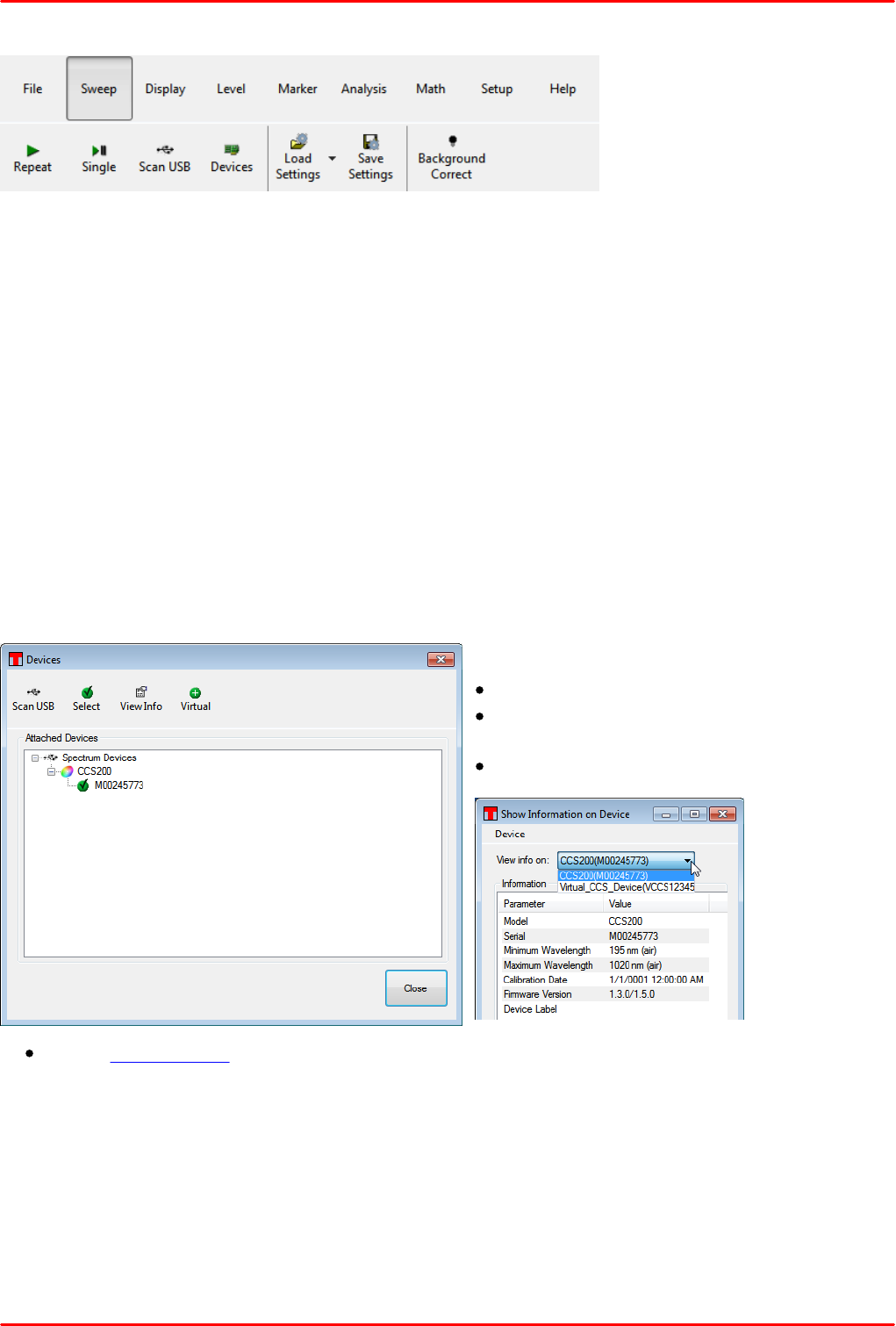
You may change the trace to load the data to. The "Play" button (1) loads the located files
sequentially like a slide show. The replay can be stopped (button 2) or paused. Buttons 3 and 4
allow you to manually load the spectrum files.
© 2018 Thorlabs
4 Operating Instruction
19
4.1.2 Sweep
The Sweep menu controls start, stop and the type of spectrum sweep. Settings that were made for
the sweep can be saved and loaded. Additional features of the Sweep menu are enabling a
background correction, scanning the USB interface for new devices and selecting them for a
sweep.
Repeat (shortcut Ctrl + R)
Starts repeated spectrum measurements. The sweep is executed and a status bar message
informs about the started continuous acquisition and the integration time of the recent spectrum.
The repeated sweep is terminated by pressing the Stop button.
Single (shortcut Ctrl + N)
Starts a single spectrum acquisition with the given integration time.
Scan USB
Scans the USB interface for connected devices.
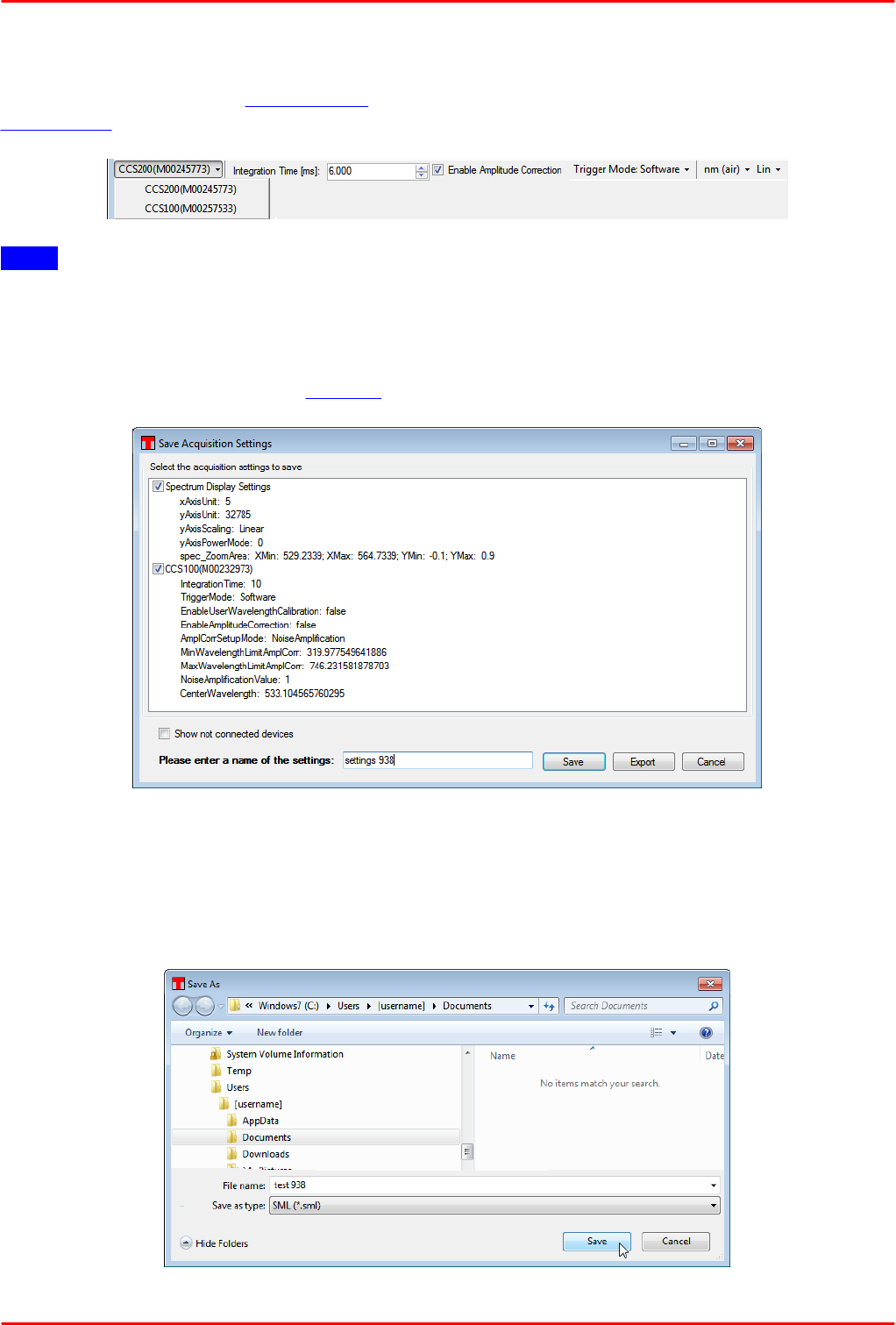
Devices
Opens the device dialog:
Functions:
Scan USB for connected devices
Select from the list a device to be the active
one
View Info about the selected device
Add a virtual device.
© 2018 Thorlabs20
CCS Series Spectrometer
Switch between connected instruments
If more than one spectrum device is connected and recognized, you can switch between them by
using the Select button in Device menu or by using the the quick select drop down menu in the
Settings bar:
Note
Prior to switching the active instrument, please make sure that the spectrum acquisition is stopped!
Save Settings
The actual application configuration - the settings of the spectrum display and / or of the active
spectrometer - can be saved to a SML file. Click the Save Settings button to open the dialog:
Enter a name and click the Save button. The configuration is saved to
C:\Users\[username]
\AppData\Local\Thorlabs\OSA\Settings_YYYY_MM_DD_hh_mm_ss.sml
The above entered name of the settings is written to the XML code. Alternatively, the current
application configuration can be saved to any other required location by pressing the Export button:
Select the desired file location, enter a valid file name and press Save.
© 2018 Thorlabs
4 Operating Instruction
21
Load Settings
Previously saved configurations can be loaded (from C:\Users\[username]
\AppData\Local\Thorlabs\OSA\) or imported (from any other folder):
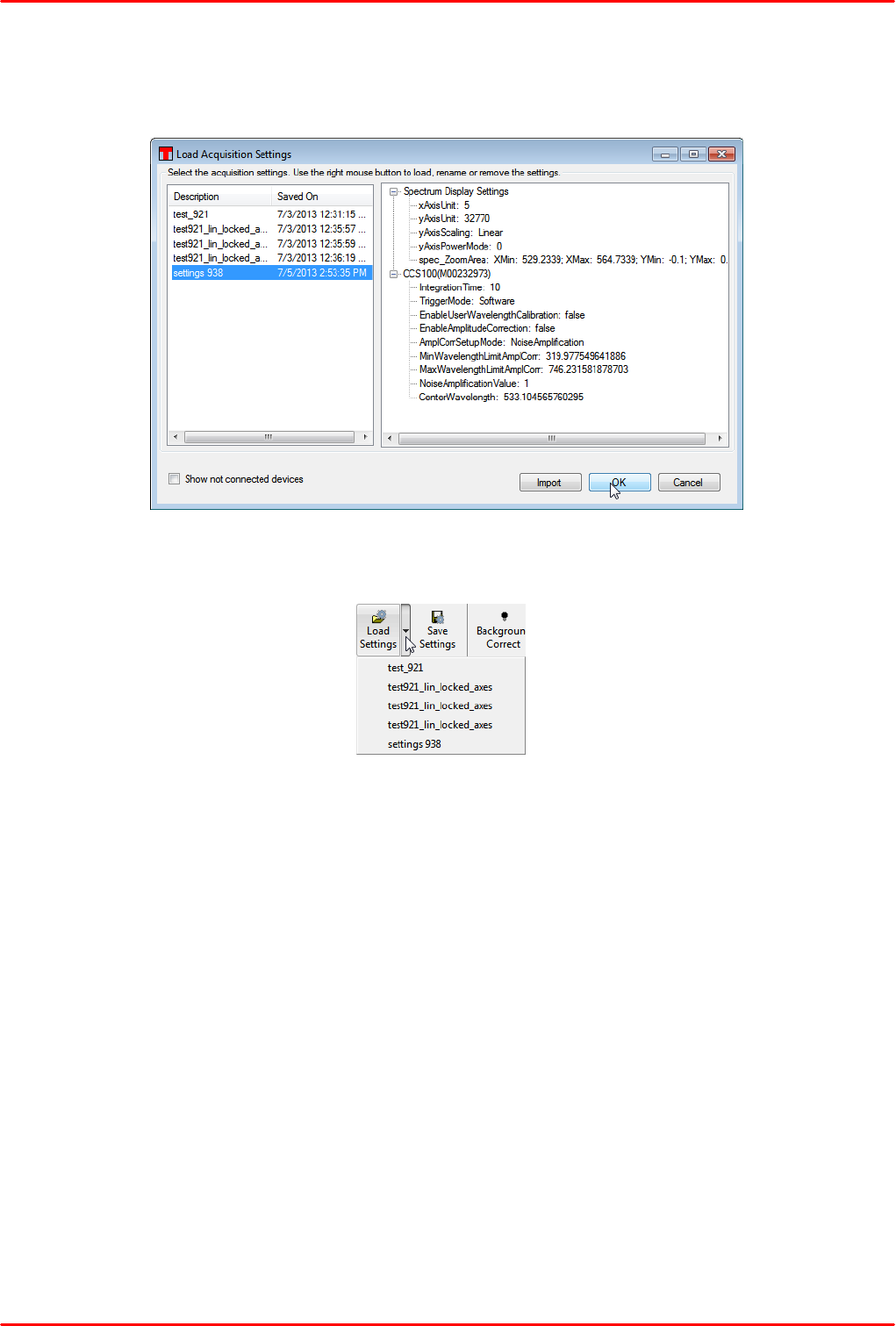
Using the drop down arrow, a list of saved (not exported) settings is displayed and can be quickly
selected:
Background Correct
When pressing this button, the actual spectrum is saved as background spectrum. Starting from the
next spectrum acquisition, the difference between the actual and the background data will be
displayed. This feature is useful to eliminate environmental stray light or noise.
© 2018 Thorlabs22
CCS Series Spectrometer
4.1.3 Display
In the Display menu, the wavelength axis display can be configured.
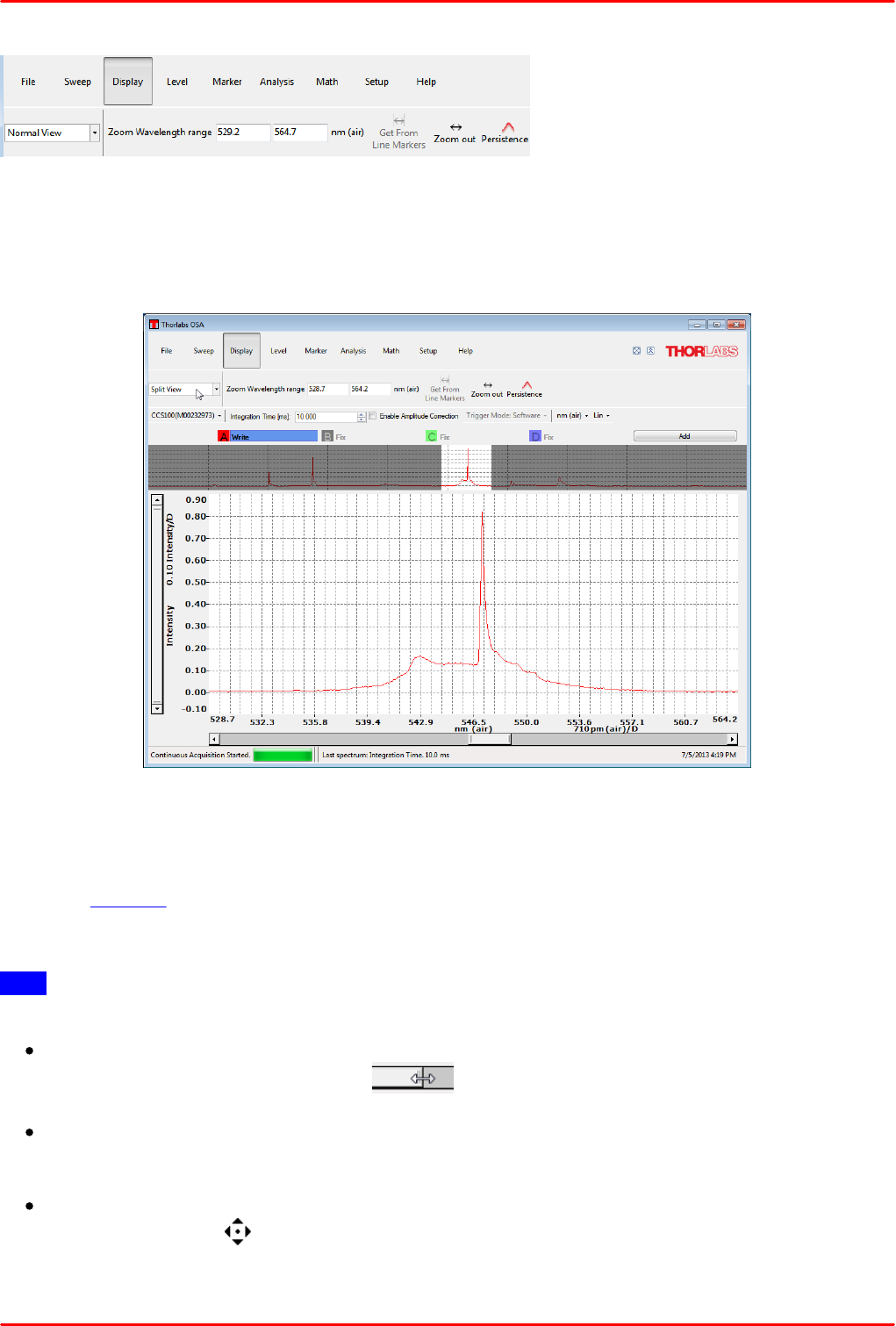
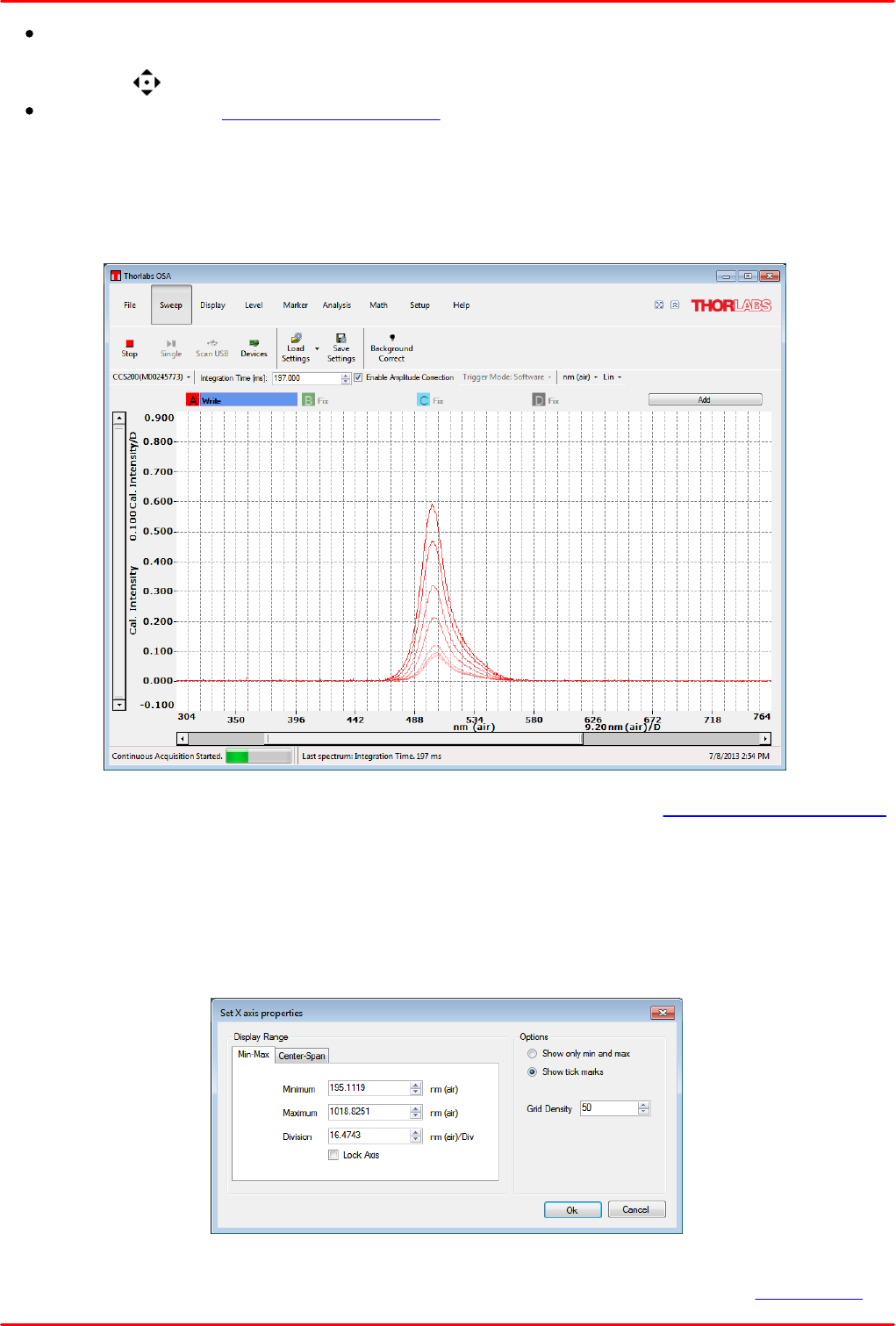
Normal / Split View
The Normal View shows the spectrum display only. The Split View adds an overview that marks the
actual zoom window within the entire operating wavelength range of the connected spectrometer:
Zoom Wavelength Range
The zoom wavelength range can be set numerically in the appropriate boxes. As soon as a valid
number has been recognized, the display is updated.
If vertical markers are enabled (markers 1 and 2), the display can be zoomed in on the range
between the 2 markers ("Get from Line Markers"). "Zoom out" returns the display to the entire
operating wavelength of the connected device.
Note
There are several additional methods to zoom and pan wavelength axis of the spectrum display:
Zooming using the X axis scroll bar: Place the mouse pointer over one of the two edges of the
scroll bar, the pointer will change to , click left and drag&drop this edge to achieve
the desired zoom.
Panning using the scroll bar: Place the mouse pointer over the scroll bar, then click and
drag&drop the display to the desired position. The wavelength zoom does not change in this
case.
Panning using the mouse: Place the mouse pointer into the diagram area and click left, the
pointer changes to . Hold the mouse button pressed and move the entire display to the
desired position .
© 2018 Thorlabs
4 Operating Instruction
23
Zooming using the scroll wheel of the mouse: Place the mouse pointer into the diagram area
and click once left mouse button (the pointer changes for the time of pressing left mouse
button to ). Now, using the scroll wheel the zoom factor can be set visually.
Zooming using the X axis properties dialog.
Persistence
Enabling persistence in repeat sweep mode, a finished scan won't be overwritten with the next
spectrum acquisition, but it will remain decreasing in brightness:
,
The persistence speed, i.e. how fast previous scans cease, can be set in Setup menu, tab Display.
X Axis Properties Dialog
The settings of the wavelength axis can be set in an extended way.
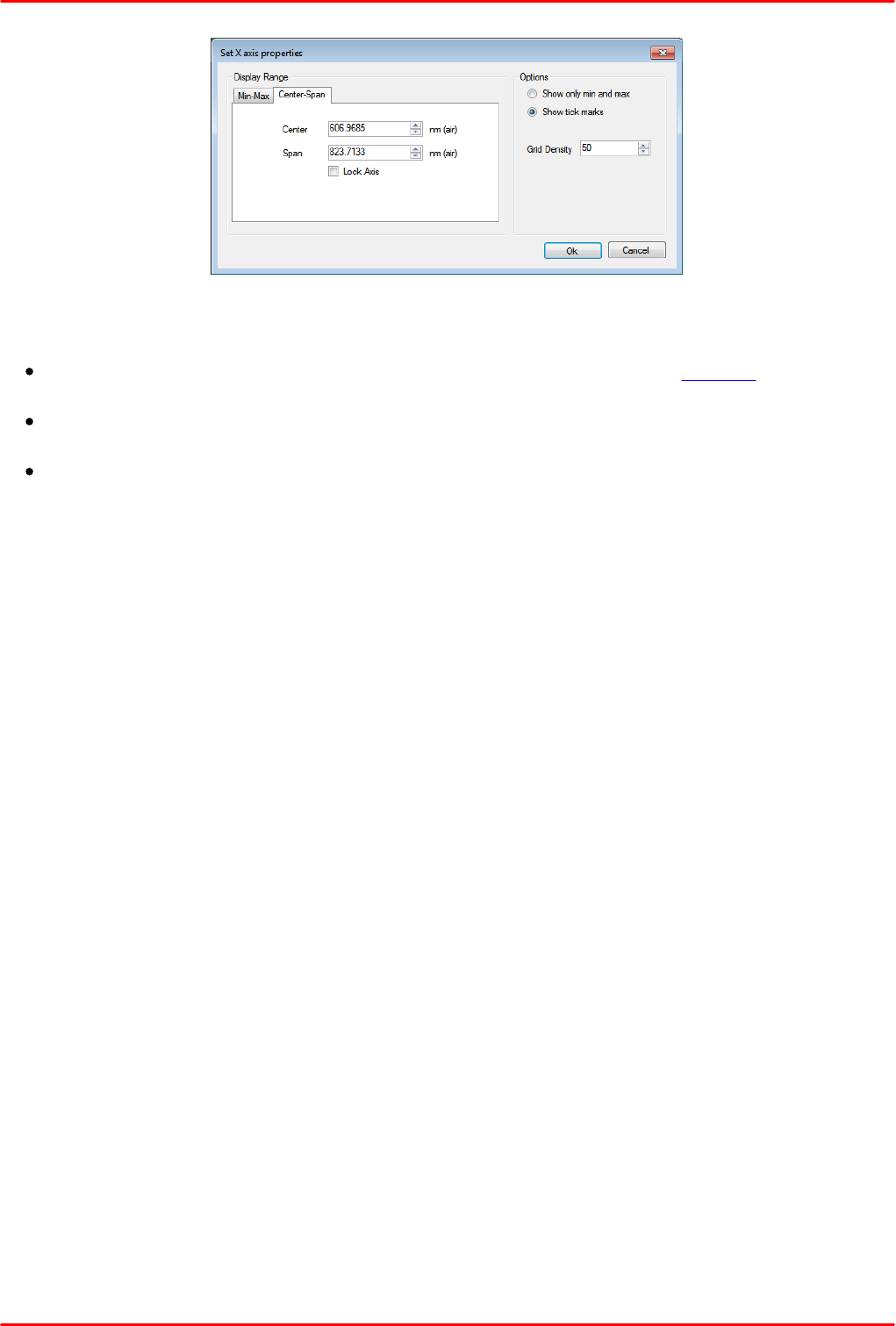
Left click to the numbers' area of the wavelength axis and the "Set X Axis Properties" dialog
comes up. It has two tabs - one for setting the axis' minimum and maximum, the 2nd to set the
center wavelength and the wavelength span.
Display range: Here can be entered two values, the 3rd value is being calculated from the two
entered and the grid density. The units are corresponding to the choice made in the settings bar.
© 2018 Thorlabs24
CCS Series Spectrometer
In the Center - Span tab the central wavelength and the entire span can be defined.
Common controls:
Lock axis: When this box is checked, the wavelength range cannot be zoomed using the
scroll wheel, only numerical entries are accepted.
Options: Here the selection can be made to display only min and max wavelength or min, max
and intermediate wavelength numbers.
Grid density: Select, how many grid are distributed over the wavelength display range.
© 2018 Thorlabs
4 Operating Instruction
25
4.1.4 Level
In the Level menu the intensity axis display can be configured. From the drop down menu a quick
selection of the display preferences can be made - either set the min and max intensity, or set a
min intensity and the display division. Further, if level markers are enabled (markers 3 and 4), the
display can be zoomed in on the range between the 2 markers ("Get from Level Markers").
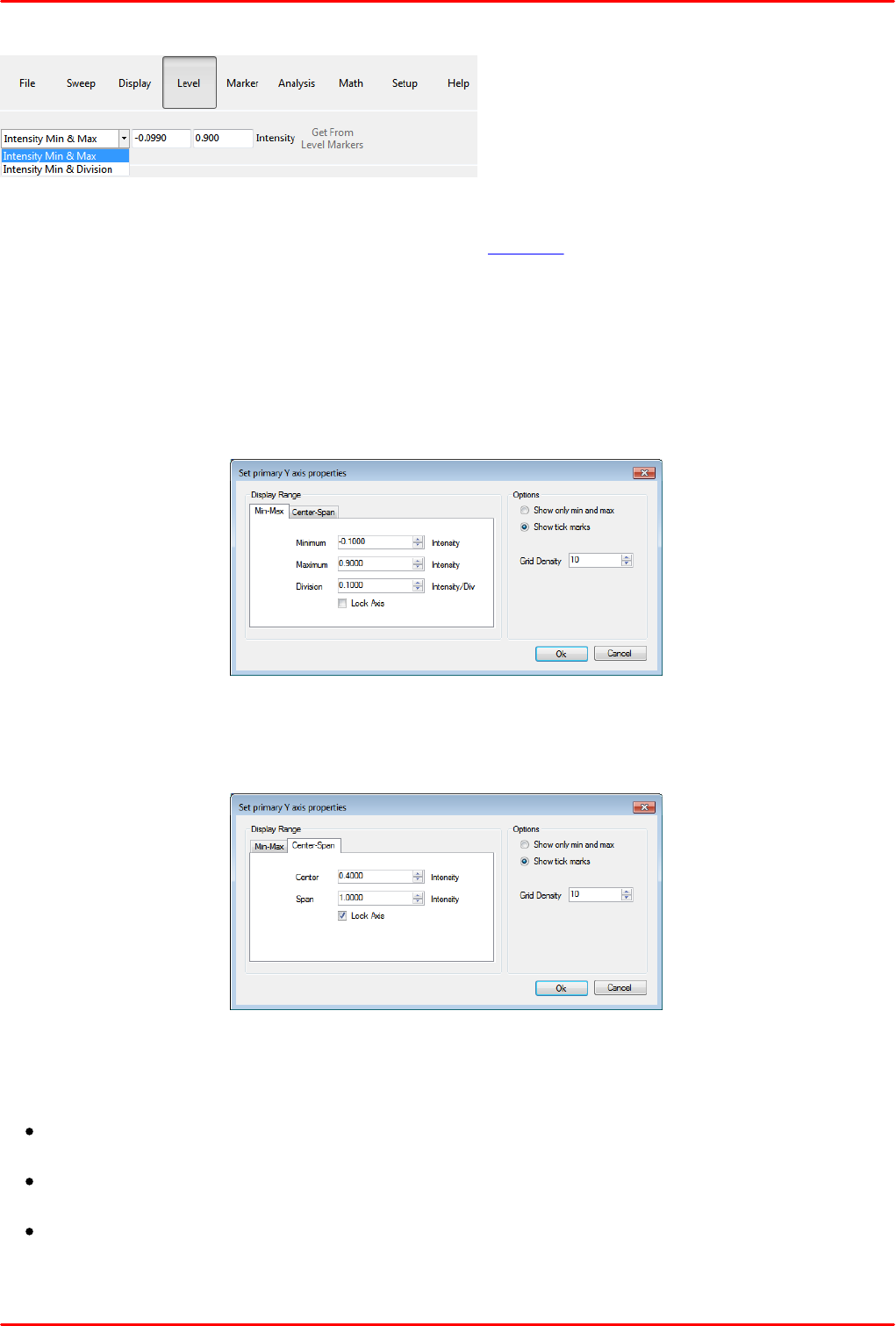
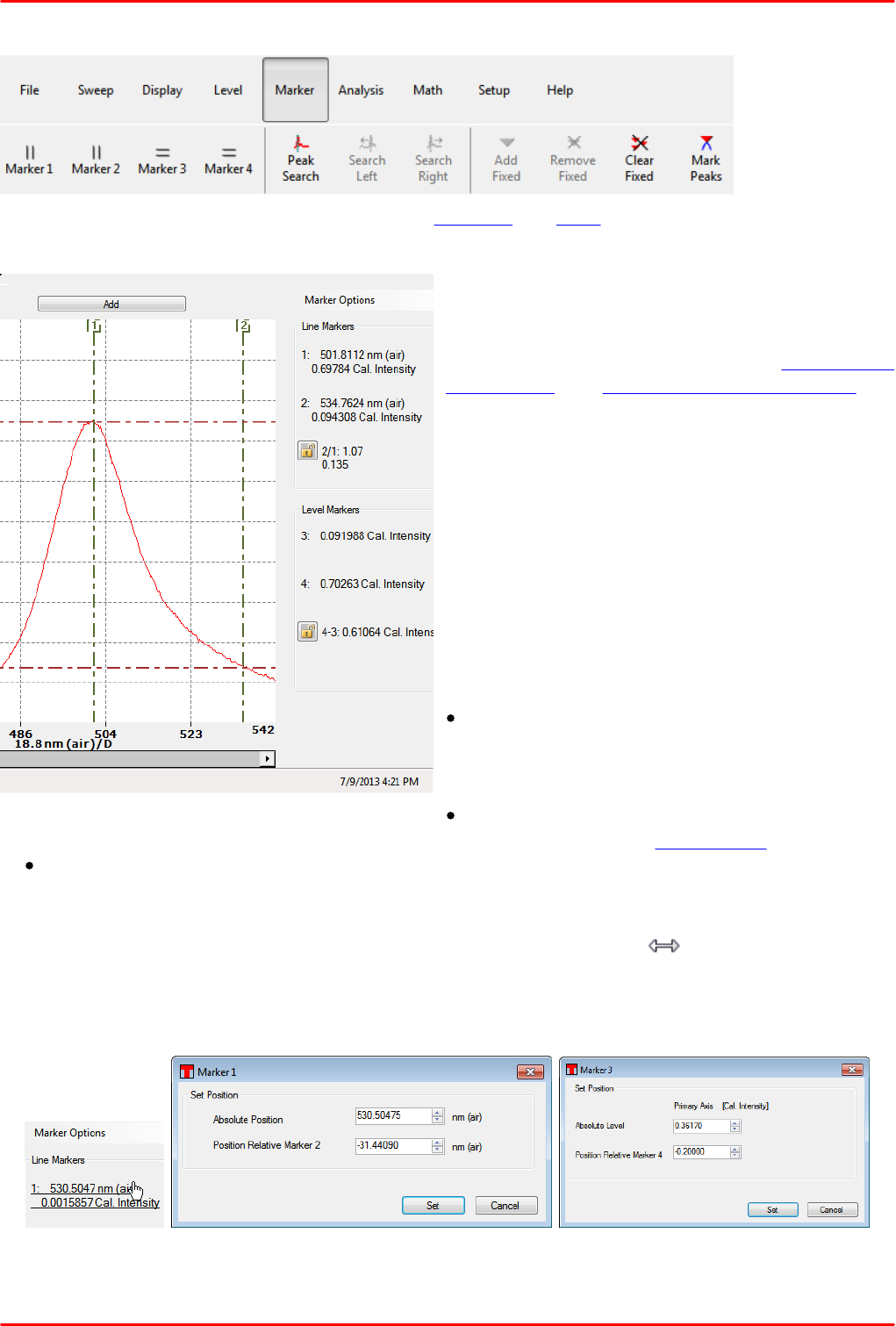
Y Axis Properties Dialog
The settings of the intensity axis can be set in detail.
Left click to the numbers' area of the intensity axis. The "Set Primary Y Axis Properties" dialog
comes up. It has two tabs - one for setting the axis' minimum and maximum and another to set the
center wavelength and the wavelength span.
Display range: Two values can be entered here. The 3rd value is calculated from the grid density
and the two entered values. The units are intensity or calibrated intensity values (if amplitude
correction is disabled or enabled, accordingly).
In the Center - Span tab, the central intensity and a span around this central intensity can be
defined.
Common controls:
Lock axis: When this box is checked, the intensity auto zoom function (right click into the
display area) is disabled; only numerical entries are accepted.
Options: Here the selection can be made to display only min. and max. intensities or min.,
max. and intermediate intensity values.
Grid density: Select how many grids are distributed over the intensity display range.
© 2018 Thorlabs26
CCS Series Spectrometer
4.1.5 Marker
The OSA software offers two types of markers - movable and fixed.
4.1.5.1 Movable Markers
Movable Markers
Movable Markers
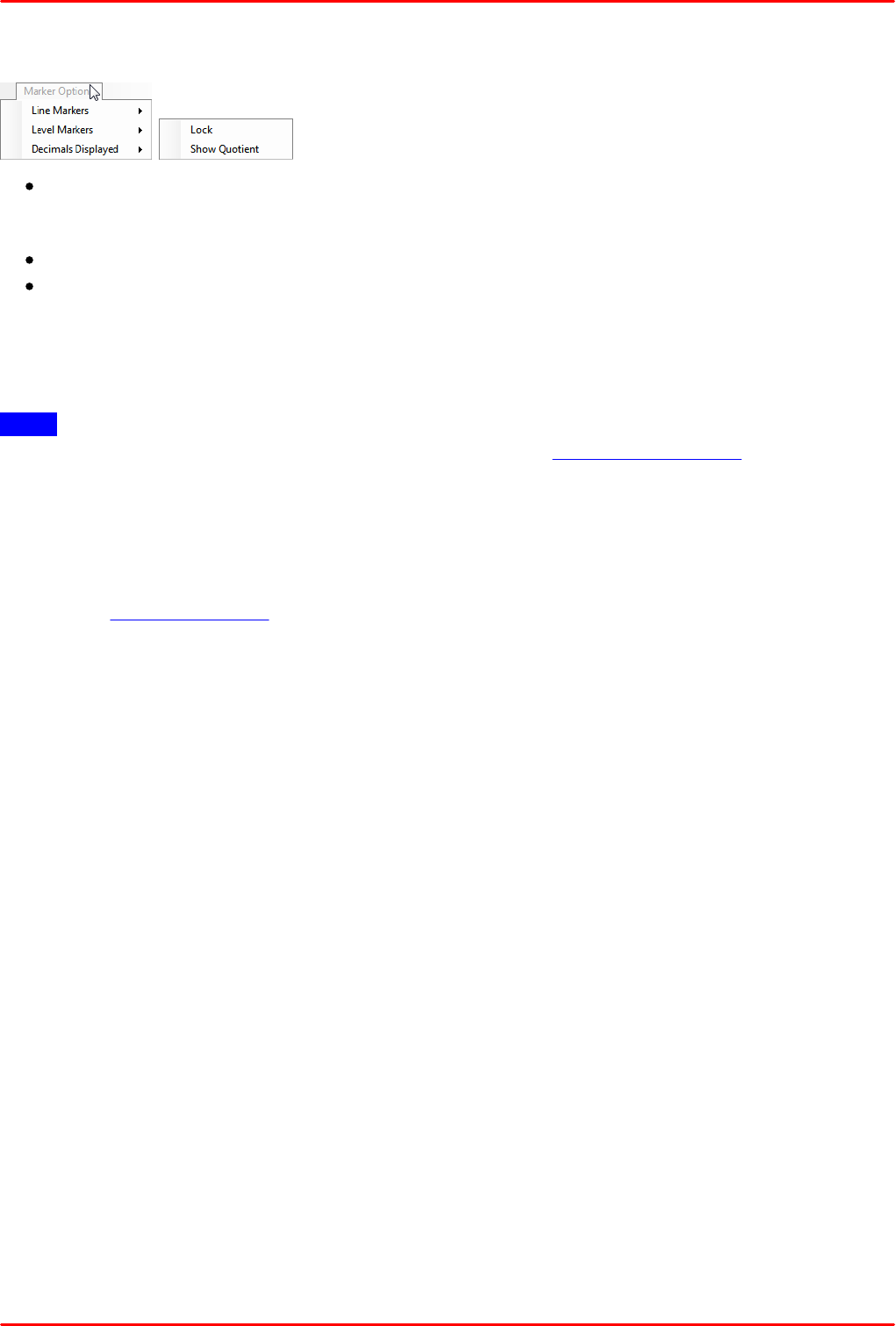
The movable markers can be used to inspect the
value of the data at different positions, to change
the displayed area of the graph (see zooming the
vertical axis and zooming the horizontal axis), or
to place fixed markers.
There are four movable markers: two line
markers - Markers 1 and 2 - and two level
markers - Markers 3 and 4. Enable and disable
them by pressing the respective buttons in the
“Marker” menu. The markers can also be enabled
and disabled by pressing Ctrl and their
respective number on the keyboard.
As soon as at least one movable marker is
enabled, the marker panel appears to the right of
the spectrum display. It contains detailed
information:
for line markers: wavelength and
corresponding intensity value of the active trace
for each marker and (selectable) the difference or
quotient of their wavelengths
for level markers: intensity value level and
(selectable) the difference or quotient of their intensity levels on the primary axis.
difference / quotient are displayed only if both appropriate markers are enabled.
Moving
Place the mouse cursor over the marker, the mouse pointer changes to . Press and hold the left
mouse button down to drag the movable marker to the desired position.The position of the
movable markers can also be changed by clicking on the number of a marker to move in the cursor
panel. This brings up a dialog to set the position of the marker numerically:
For the actual marker, either it's absolute position or it's position relative to the the paired marker
can be entered numerically.
© 2018 Thorlabs
4 Operating Instruction
27
Marker Options
Clicking to Marker Options, some additional marker features can be configured:
Both the line and level markers can be locked / unlocked. When locking a marker pair, their
distance will remain constant when moving one of them. By clicking the pad lock icon, the lock
status can be toggled.
The relation between the 2 markers can be displayed as their quotient (ratio) or difference.
"Decimals Displayed" allows to select 1 to 11 decimals or "auto".
Automated Peak Search functions
The Peak Search and Search Left (Right) buttons allow to quickly set line marker #1 to a peak.
Note : Prior to using this button, the peak search criteria, such as search wavelength range,
threshold and minimum peak height, must be set in the menu Setup -> Peak Track!
Press Peak Search to find the highest peak within the selected wavelength range. When pressing
Peak Search repeatedly, the line marker #1 will jump to the next lower peak, after finding the last
peak, it jumps back to highest. Search Left and Search Right buttons move the cursor to the next
adjacent peak in the stated direction.
For each peak position, the wavelength and correlated intensity will be shown numerically as shown
in the figure Movable Markers.
© 2018 Thorlabs28
CCS Series Spectrometer
4.1.5.2 Fixed Markers
The Thorlabs OSA software can handle up to 2048 fixed markers. A fixed marker has a fixed
position, is connected to a single trace (not necessarily the active trace) and will track the intensity
value at the given wavelength. The fixed markers are identified by a number, starting with 0 for the
first fixed marker added. The levels of the fixed markers can be tracked in a time series analysis.
Each fixed marker added is shown in the spectrum display as a triangle with its identifying number
above it. The location of the triangle is determined by the position of the fixed marker and the value
of the connected trace at the given position.
The values of the fixed markers and their positions can be stored to file or copied to clip board for
processing in other software.
Adding
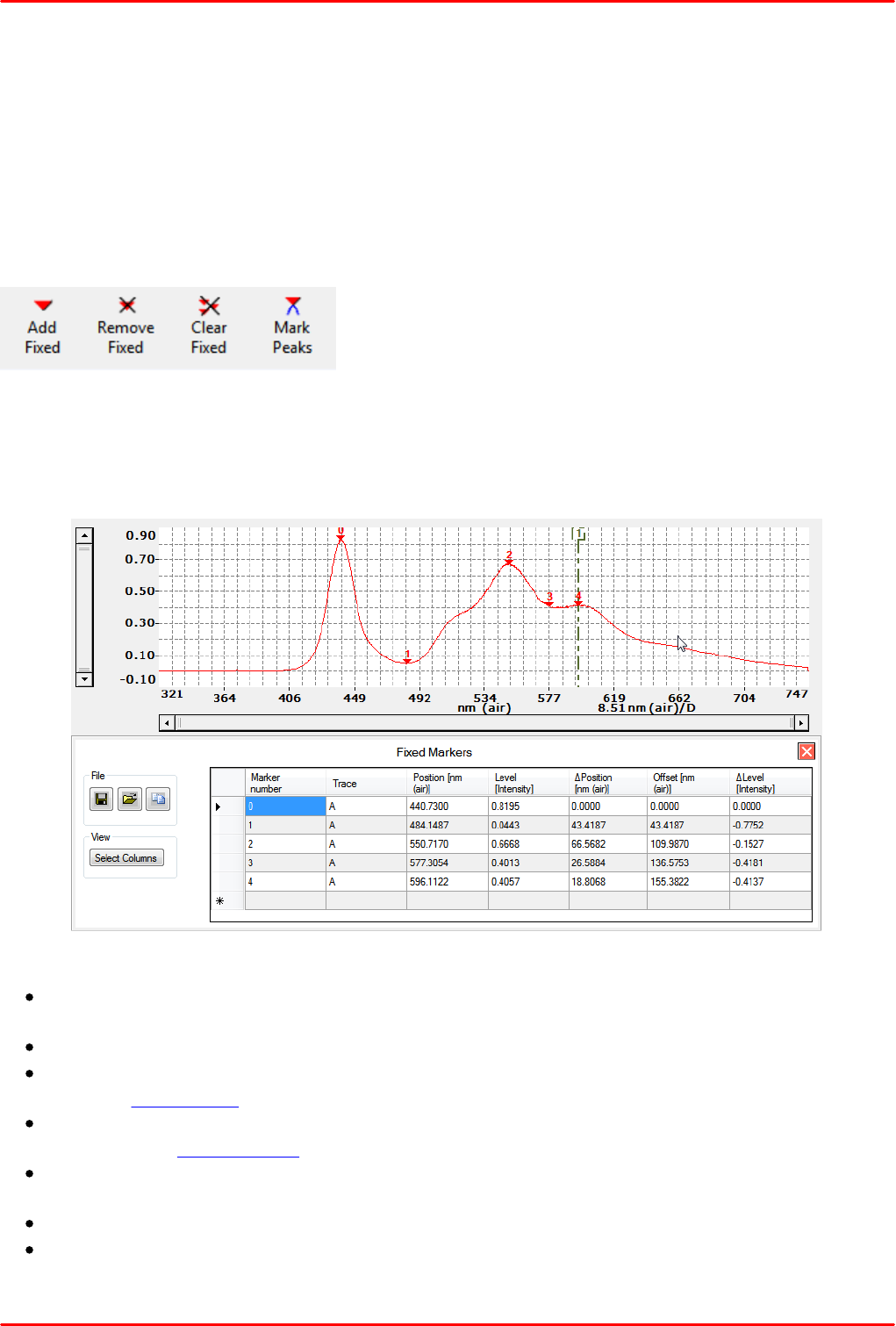
In the currently active trace, a fixed marker can be derived from line marker 1 - just press the button
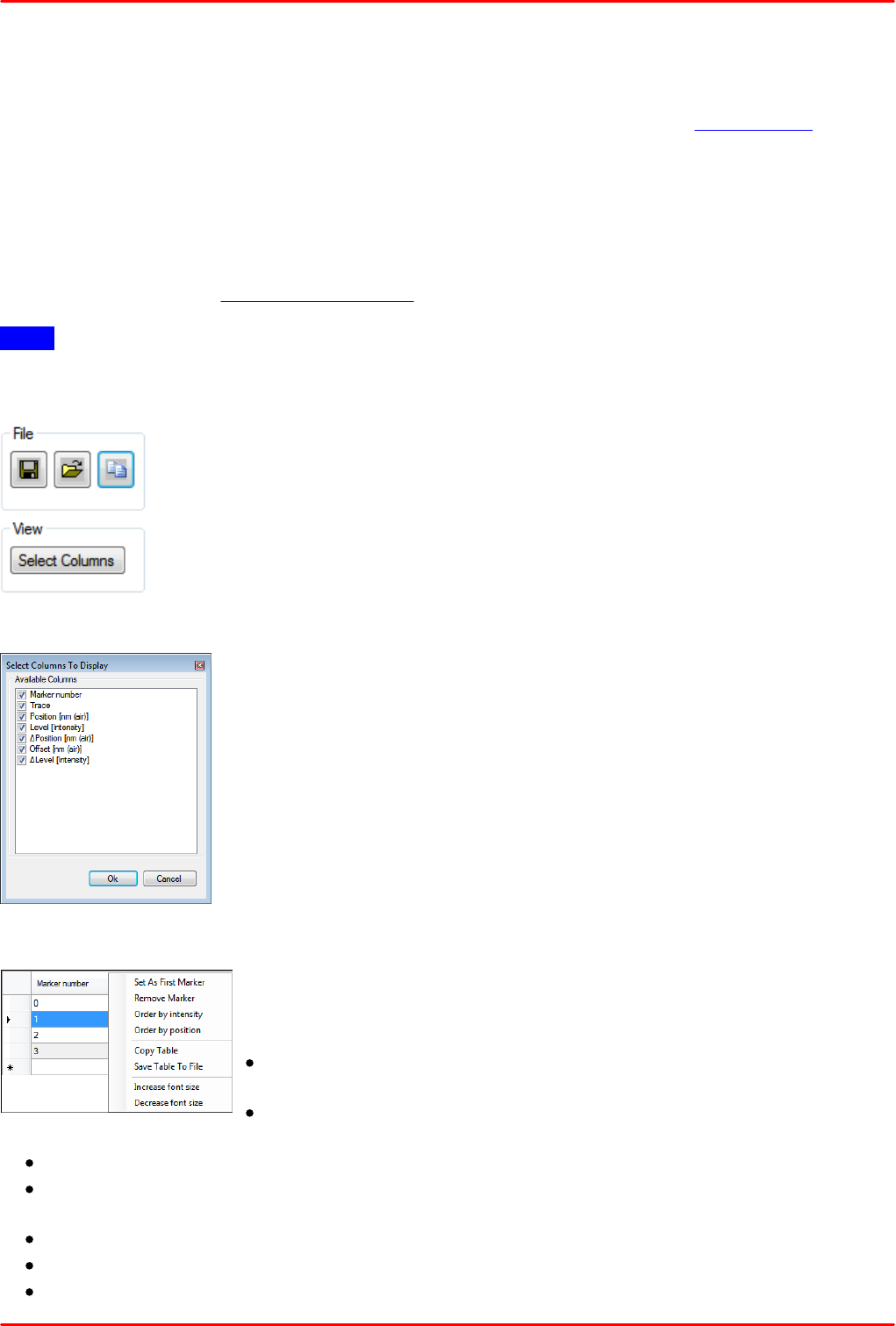
“Add Fixed”. The fixed marker is added to the trace, and below the trace a table comes up with
detailed numerical characteristics of the fixed markers:
Table Columns:
Marker number - the number displayed in the diagram above the appropriate fixed marker.
The first marker (number 0) is the reference marker.
Trace - the correlated trace character is displayed (not necessarily the active trace!)
Position - X axis position, at which the marker is located. The header states the unit, as set
up in the settings bar.
Level - the level of the trace at the marker's position. The header shows the unit, depending
on the current trace function.
Δ Position - the distance to the position of the previous marker, in the same unit as column
Position
Offset - the distance to the reference marker (# 0), in the same unit as column Position.
Δ Level - level difference between the actual and the reference marker, in the same unit as
column Level
© 2018 Thorlabs
4 Operating Instruction
29
Remove Fixed
Any fixed marker can be removed individually by moving line marker 1 to the position of the fixed
marker and pressing the button “Remove Fixed”. Alternatively, right click in the table to the line of
the fixed marker that shall be removed and select "Remove Marker" from the table options.
Clear Fixed
This button removes all fixed markers from the trace.
Mark Peaks
Pressing the button “Mark Peaks” will add one fixed marker to each automatically detected peak
that corresponds to the peak finding settings in the currently active trace. The first marker will be
added to the highest peak in the spectrum, the second marker to the second highest peak, etc.
Note: This will add fixed markers to the found peaks in the currently active spectrum; the positions
of these markers will not change until they are removed.
Table Options Menues
The menu "Save Table to File" opens a dialog to store the fixed marker table in
CSV format. This can be done also by right clicking to the table and selecting
“Save Table to File”.
A previously saved table can be opened using the "Load Table from File"
button.
The very right button copies the table to the clipboard, this way the table can
be quickly pasted to other software (e.g. EXCEL). This can be done also by right clicking to the
table and selecting "Copy Table".
The columns of the table to be displayed can be selected from the Select
Columns button:
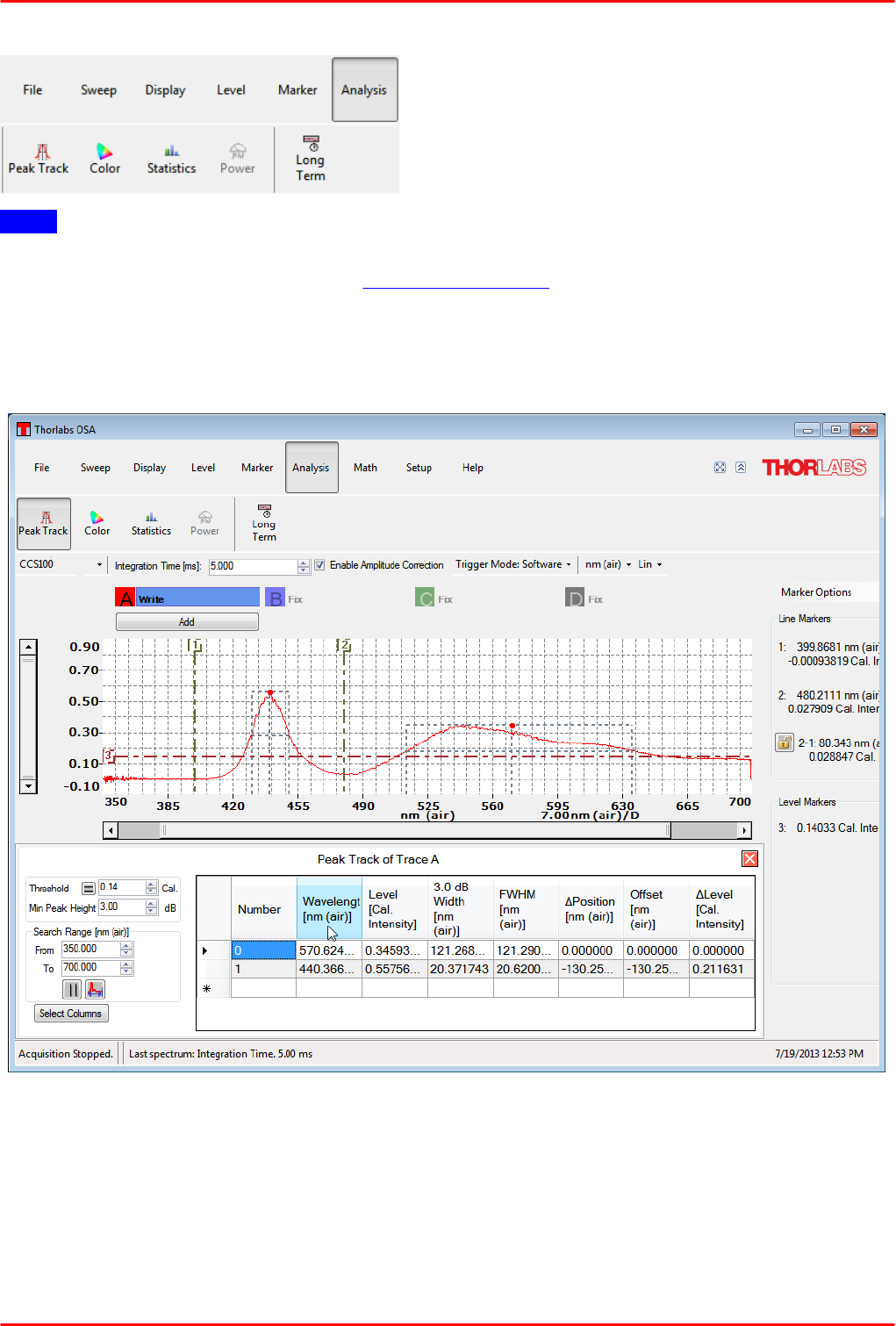
Quick access to marker table
Click to a marker table element, the marked line will be highlighted and
an ► appears to the left of the marked line. Right click to the table and
an options menu comes up:
Set As First Marker moves the marked line up to position #0, this
way making this marker to reference.
Remove Marker deletes the current marker from the list and from
the display.
Order by intensity rearranges the table by increasing / decreasing intensity
Order by Position rearranges the table by the markers' positions on the X axis (increasing /
decreasing)
Copy Table copies the entire table to the clipboard
Save Table To File opens a dialog to store the table in CSV format
Increase (Decrease) font size can be used to improve the visibility of the table's content.
© 2018 Thorlabs30
CCS Series Spectrometer
4.1.6 Analysis
Note
The grayed-out features are available only for if the active device is an OSA20x spectrometer.
Color Analysis button is shown only with amplitude correction enabled.
4.1.6.1 Peak Track Analysis
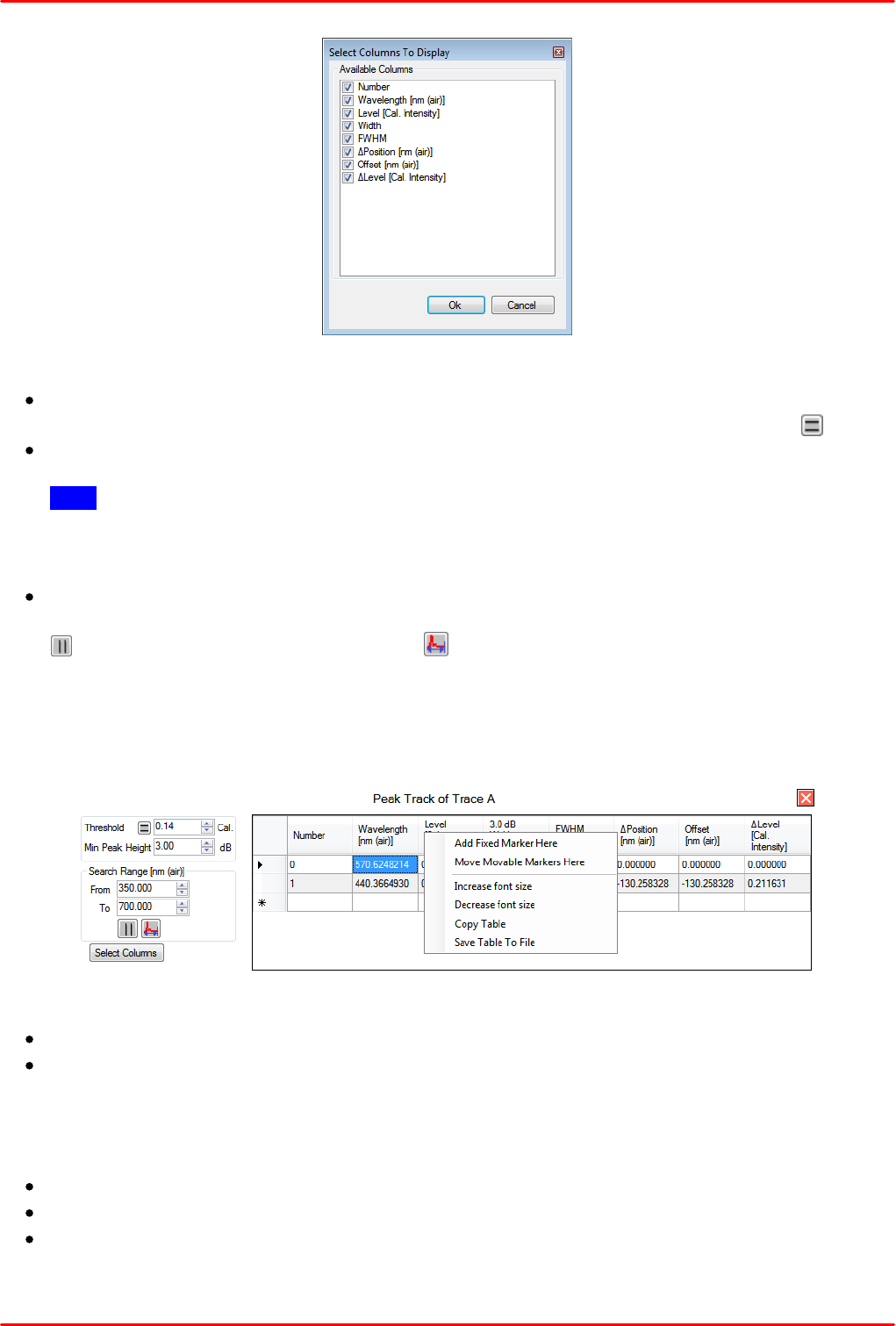
In Peak Track analysis mode, the position, amplitude, and width of peaks in the spectrum can be
tracked over time.
As long as the Track Peak mode is active, the Track Peak analysis area will be displayed below
the data display. Here, a data table shows information about the peaks and as well as a small
toolbox with the settings that used to find the peaks. It is also possible to select which columns can
be displayed in the data table by clicking on the button “Select Columns”.
© 2018 Thorlabs
4 Operating Instruction
31
The parameters used to find the peaks are:
Threshold: Only data points with intensity above this level will be used when searching for
peaks. Threshold can be entered manually or retrieved from a level marker (click to )
Min Peak Height: Only peaks that have a peak-to-base ratio of at least this value will be
found.
Note The Minimum Peak Height affects the reported width of the peaks - it's the width of the
peak at this level from the maximum value. For example, a value of 3 dB here will give the
FWHM of the peak and a value of 6 dB here will give the width of the peak and a quarter of
the maximum value.
Search Range: (Wavelength / Wave number / Frequency): Limits the x-axis range in which
the search for peaks is performed. It can be entered numerically, retrieved from line markers (
) or from the currently displayed range ( ).
In Track Peak mode, the currently active spectrum is checked for peaks upon the collection of a
new spectrum from the instrument. The peaks are by default sorted in order of decreasing intensity.
The sorting can be changed by left clicking to the parameter. In above screenshot the peaks can be
sorted by increasing / decreasing wavelength (toggling).
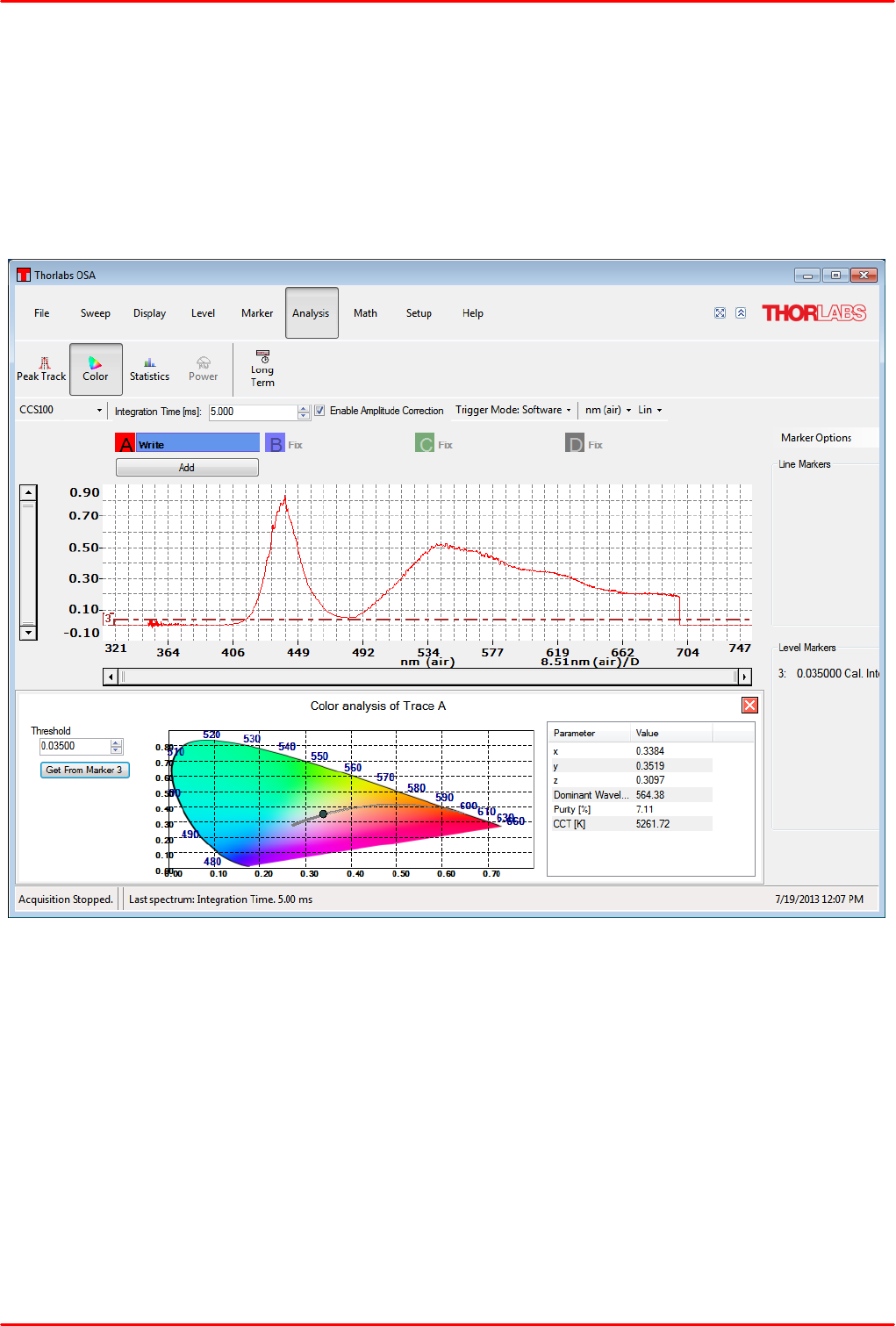
Right clicking in the data table brings up a dialog to:
add a fixed marker at the highlighted peak;
Move movable markers to this peak:
Line marker 1 will be set to the peak wavelength
Line marker 2 displaced from peak wavelength for + half the FWHM
Level marker 3 to the peak level
Level marker 4 to the FWHM level
increase / decrease font size in the table
copy the table - it can be pasted then directly to other applications like Microsoft EXCEL
save the table to file (CSV file with selectable separator)
The peaks found in Track Peak mode can be tracked over time in a time series analysis (see the
Long Term Tests) if the Track Peak analysis mode is started before the time series analysis is
© 2018 Thorlabs32
CCS Series Spectrometer
started. Notice that since the peaks are ordered by decreasing intensity, they can be rearranged if
the relative intensity of the peaks in the spectrum is changed.
If no peaks are found in the Track Peak mode, check the settings for the threshold and min-peak
height to make sure that the expected peaks in the spectrum are higher than this. The settings can
be changed either in the Setup Dialog or directly in the Options Control box found to the right of the
data table in the Peak Track Analysis area.
4.1.6.2 Color Analysis
Color Analysis of a Thorlabs MCWHL4 cold-white LED
The Color Analysis performs a color analysis of the currently active trace. The analysis calculates
the chromaticity coordinates (x, y, and z) and the main wavelength in the spectrum.
The Thorlabs OSA software calculates the correlation between the collected spectrum and the
three color matching functions x(λ), y(λ), and z(λ) defined from the CIE 1931 2° standard observer
to obtain the tri-stimulus values X, Y, and Z. These are then normalized to obtain the chromaticity
coordinates x, y, and z.
The calculated chromaticity coordinates x and y are displayed in the CIE 1931 color space
chromaticity diagram as a dark circle as well as displayed numerically next to the diagram.
The dominant wavelength is calculated as the interception between the straight line from the white
point (1/3, 1/3) through the calculated chromaticity point (x, y) and the edge of the chromaticity
diagram.
© 2018 Thorlabs
4 Operating Instruction
33
The purity is calculated as the portion of the distance from the white point (1/3, 1/3) to the edge of
the chromaticity diagram that the distance from the white point (1/3, 1/3) to the calculated
chromaticity represents. A purity of 100% represents a point on the edge of the chromaticity
diagram, i.e. a pure color, and a purity of 0% represents a mix of all colors, i.e. the white point
itself.
The Correlated Color Temperature (CCT) can be calculated for a light source that is close enough
to the Planckian locus in the 1960 UCS. The CCT is calculated by converting the calculated
chromaticity point (x, y) into a point in the CIE 1960 color space (u, v) and finding the closest
Planckian locus. If the distance to the closest Planckian locus (Δu,v) is larger than 0.05 then a
temperature of -1 Kelvin is returned as an error code.
The threshold option makes it possible to ignore data points in the spectrum with low intensity; this
can be useful e.g. if the spectrum is very noisy. For easy handling, the threshold can be defined by
a level marker.
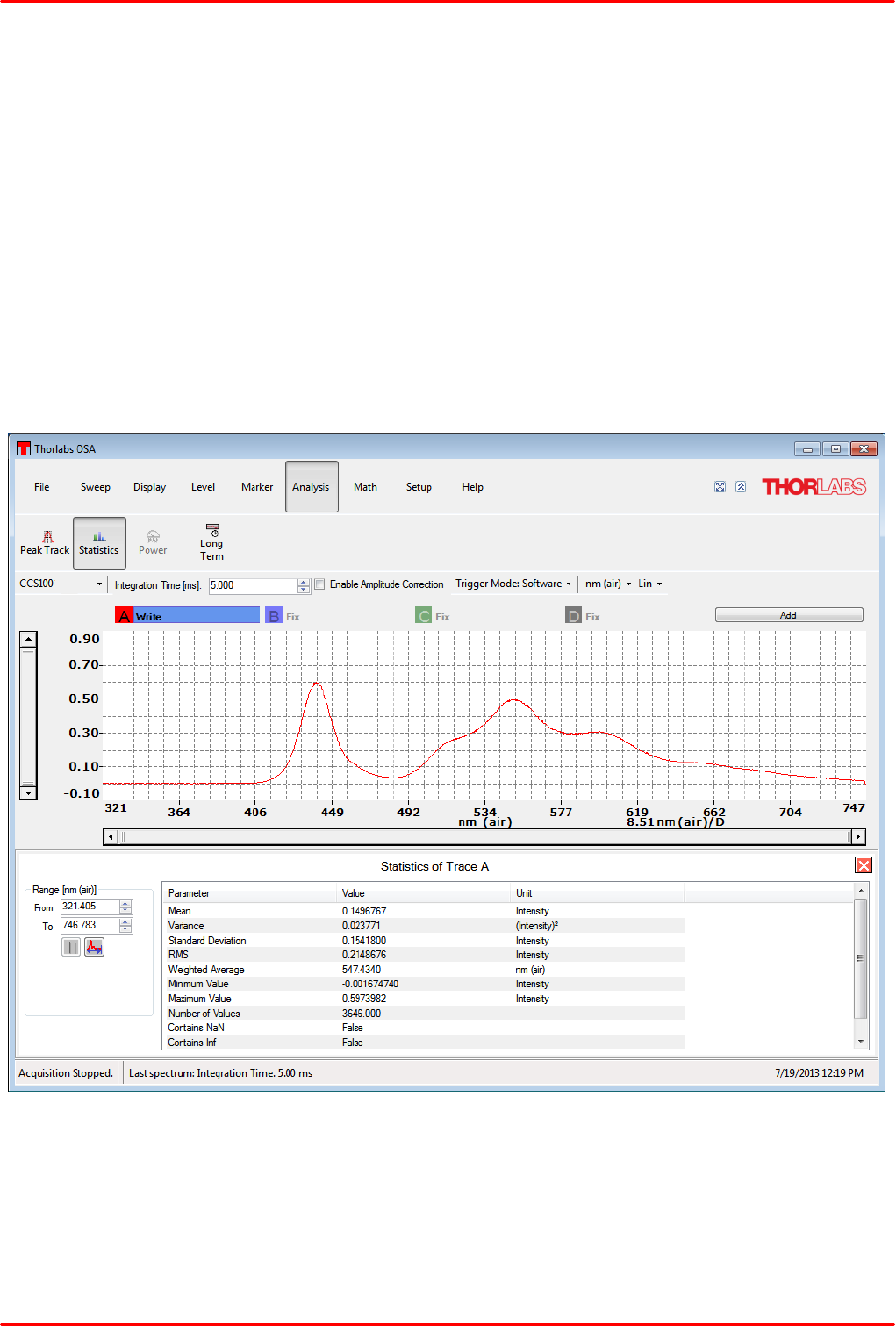
4.1.6.3 Statistics
The Statistics function displays statistical values of the acquired spectral intensities over the
specified wavelength range.
© 2018 Thorlabs34
CCS Series Spectrometer
4.1.6.4 Long Term Analysis
Long Term Analysis allows to record selectable spectral data over a selectable period of time.
Note
Make sure that prior to starting the Long Term Analysis the OSA software executes repeated
sweeps, otherwise the active trace won't be updated!
Click the button "Long Term" to enter the dialog on duration, output file and parameters to be
observed.
Tab Setup
,
Duration: Select the time between two updates, the possible interval is 1 ms to 1,048.576 s.
"0 ms" disables update. The data collection can be limited - check the box "Collect Data for"
and enter the desired analysis time
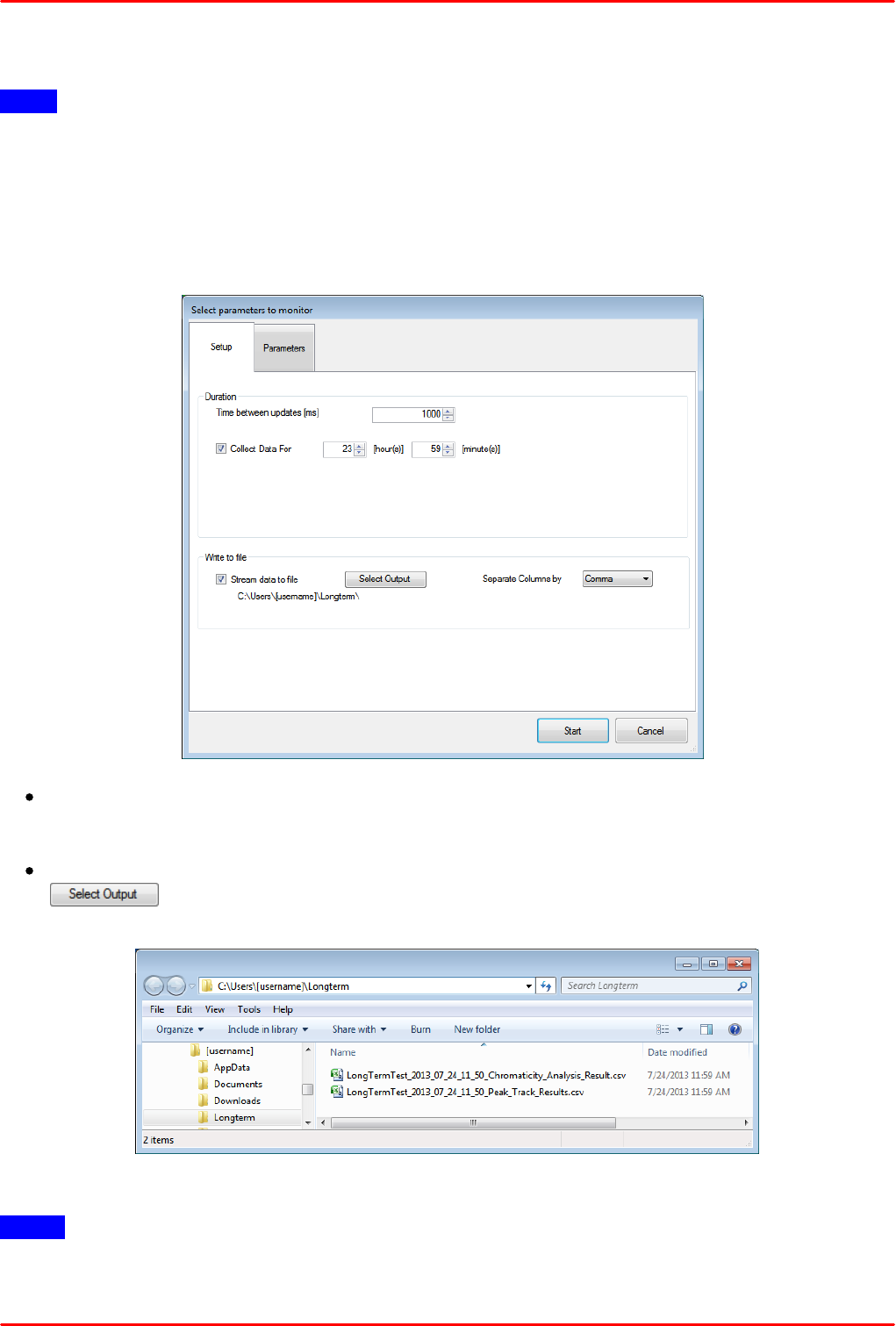
Write to file: The collected data are streamed to a CSV file. Select the output folder (
) and the separator. The data will be saved to individual for each parameter files,
for example:
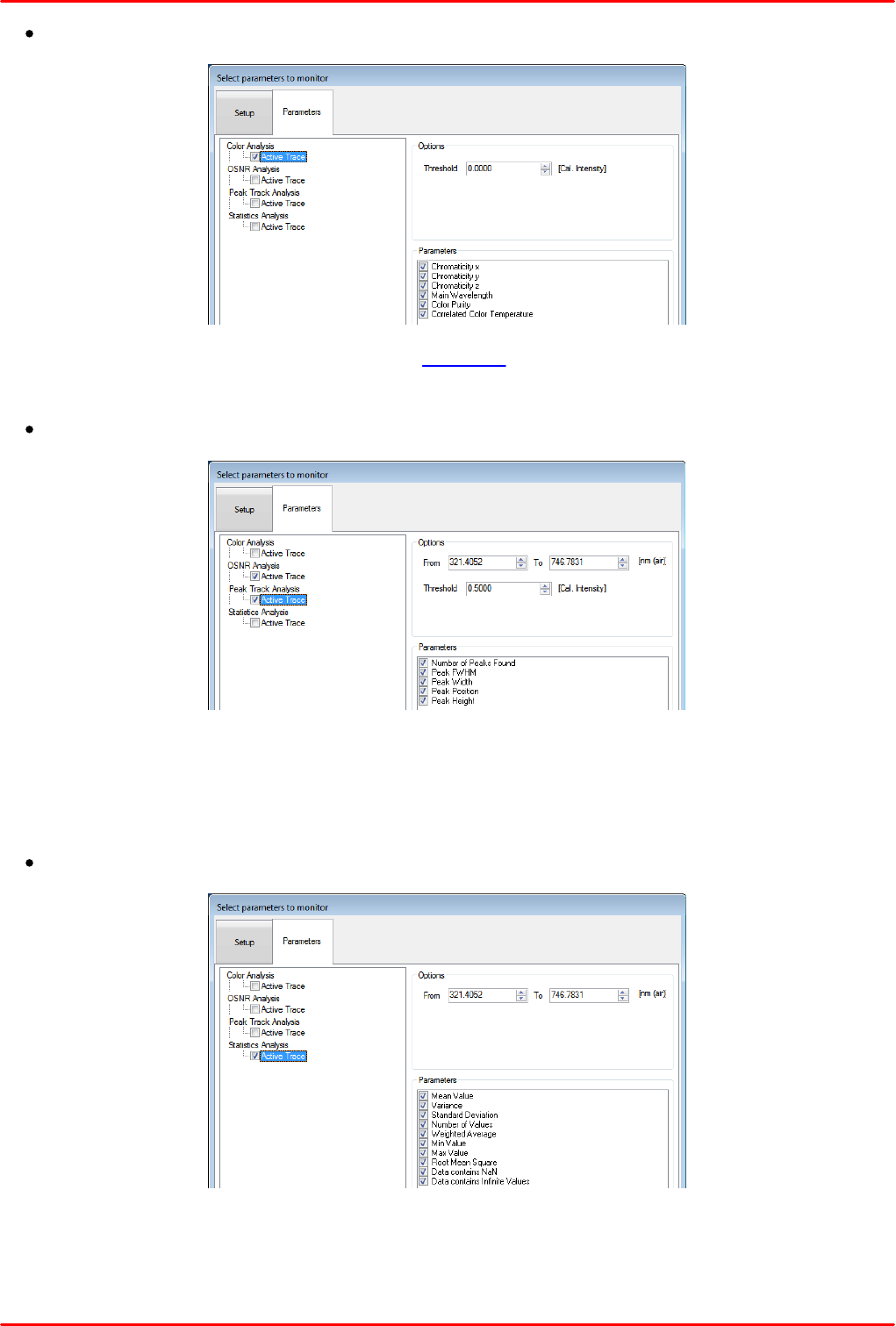
Tab Parameters
Note: Only parameters from the active trace can be logged!
In order to enable a parameter to be logged, check the box "Active trace". For each parameter
some additional settings can be made.
© 2018 Thorlabs
4 Operating Instruction
35
Color Analysis:
Options: Enter the desired intensity threshold
Parameters: Select the Color Analysis parameters that should be logged.
Peak Track Analysis:
Options: Select the wavelength range. By default, the entire operating wavelength range
of the recognized CCS spectrometer is stated.
Select the desired intensity threshold.
Parameters: Select the Peak Track Analysis parameters to be logged
Statistics Analysis:
Options: Select the wavelength range. By default, the entire operating wavelength range
of the recognized CCS spectrometer is stated.
Parameters: Select the Statistics parameters to be logged.

© 2018 Thorlabs36
CCS Series Spectrometer
Note
The more parameters are logged, the higher the CPU load caused by Long Term Analysis. This
can lead to delays in graphic display updates and reaction time to controls of the OSA software!
After all selections were made, start the logging ( ). The Long Term Measurement window
opens showing the progress:
Stop (Continue) The current data collection can be interrupted and continued.
Save Saves the measurement results as a CSV file
Save Image Saves the measurement results as an image. Available formats: PNG,
JPG, BMP
Print Image Prints the measurement results to any installed printer.
Clear Data Deletes the collected in the display data
Show Statistics Current statistic values for each parameter can be displayed by clicking to
the appropriate button in the header:
- Length: Expired time
- Mean value
- Standard deviation of the mean value
© 2018 Thorlabs
4 Operating Instruction
37
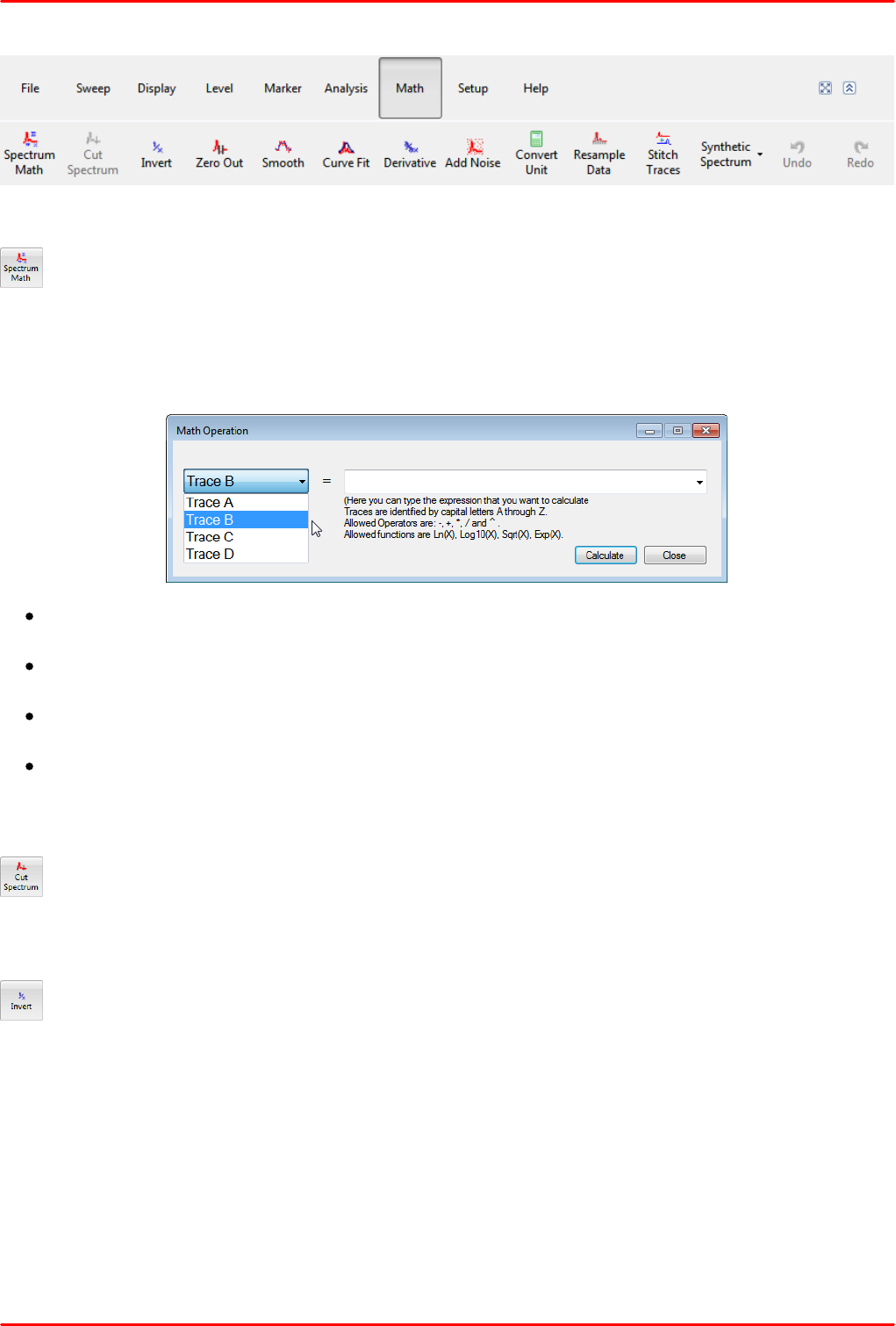
4.1.7 Math
The buttons on the math menu all work on the currently active trace and are disabled while
collecting spectra. The math operations can be undone by pressing the “Undo” button.
Spectrum Math
This brings up a dialog making it possible to perform mathematical operations on one or several
spectra, e.g. multiplying a spectrum with a scalar, adding together two spectra or dividing one
spectrum by another. The expression to be calculated is typed into the text box of the dialog that is
opened with the following rules for formatting
Traces are identified by capital letters A through Z. Only the traces which can be seen in the
trace controls area can be used.
Scalars with decimal fractions are entered using a decimal point to separate the integers
from the decimals.
Allowed operators are, + (indicating addition), - (indicating subtraction), * (multiplication) and /
(division).
Operations can be grouped using round parentheses.
The calculation will be performed when the button ‘Calculate’ is pressed. Pressing the button
‘Close’ will close the window without doing anything more.
Cut Spectrum
This function is available only if the two movable line markers are enabled and will cut the currently
active trace to the region between the two line markers, removing all data outside the selected
range.
Invert
Calculates and displays the reciprocal of the currently active trace.
© 2018 Thorlabs38
CCS Series Spectrometer
Zero Out
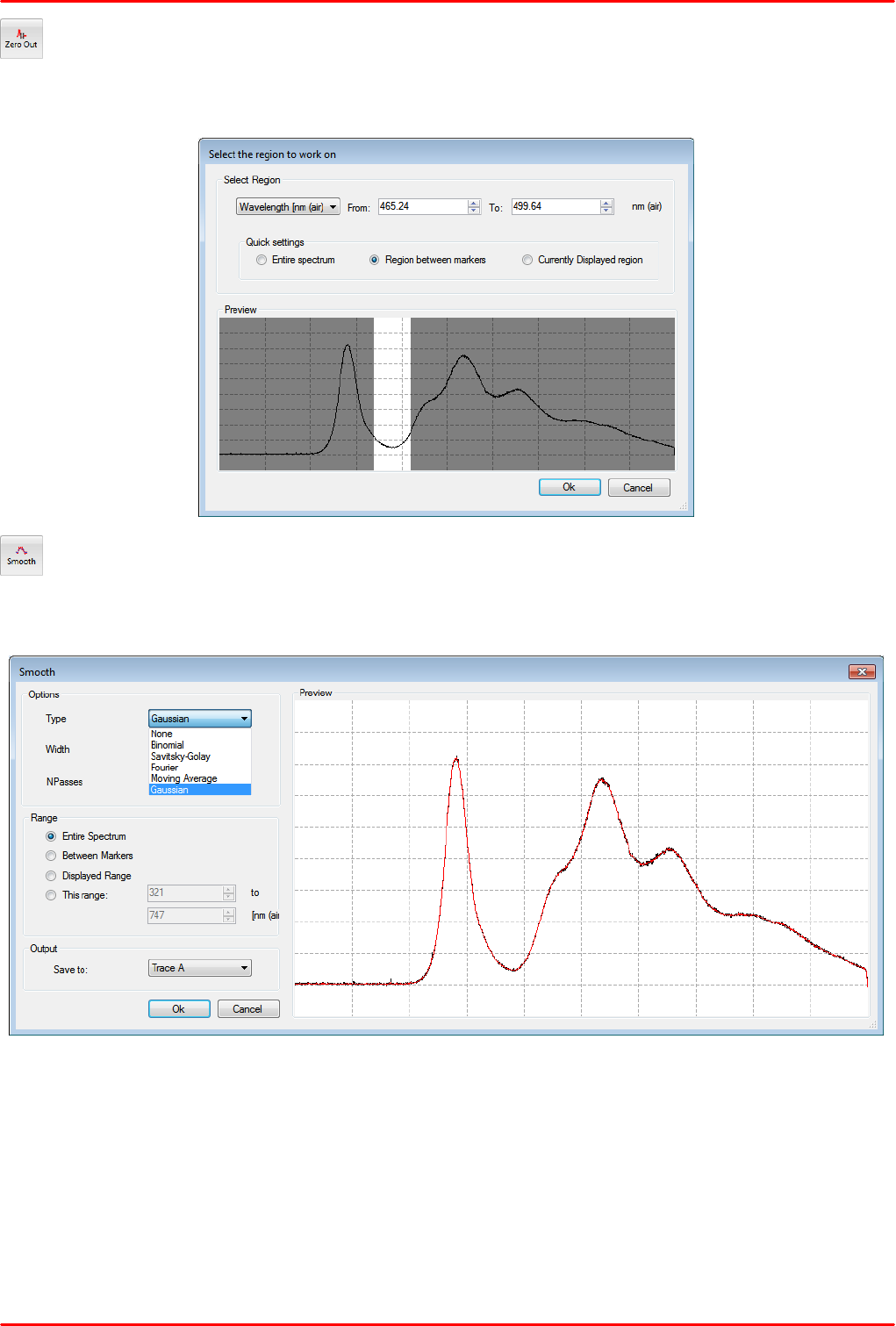
Sets all values between in a specified region of the spectrum/interferogram to zero. This brings up
a dialog where the region can be specified.
Smooth
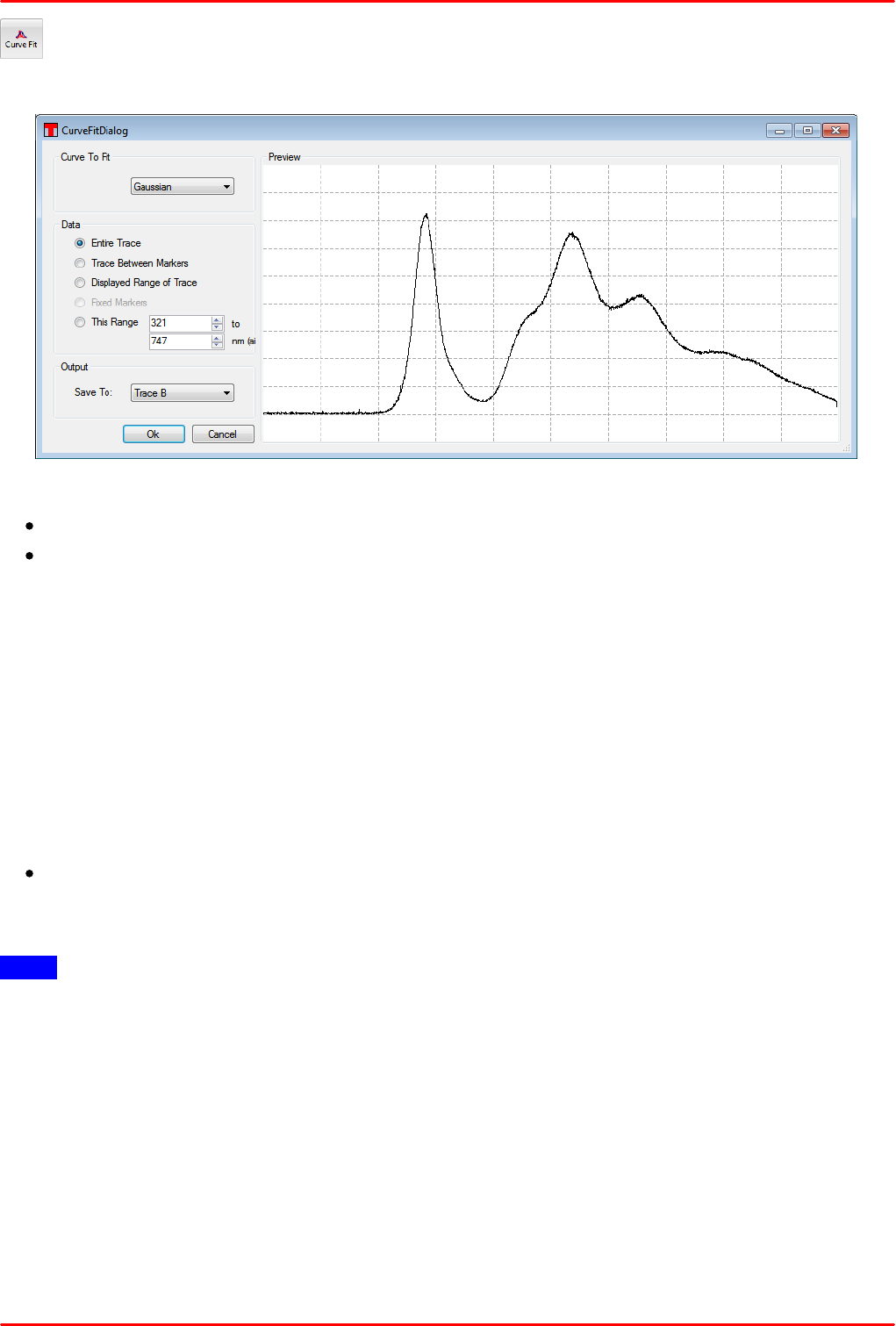
Performs a smoothing operation on the currently active trace and brings out a dialog in which it is
possible to select a smoothing algorithm to use and to set the parameters for the smoothing.
The trace to operate on is displayed in black in this dialog and the smoothed spectrum is displayed
in red. Beside the displayed by default Gaussian smoothing, there are available a number of
alternative smoothing methods.
Further, the wavelength range to be smoothed and the output trace for the smoothed spectrum can
be selected
© 2018 Thorlabs
4 Operating Instruction
39
Curve Fit
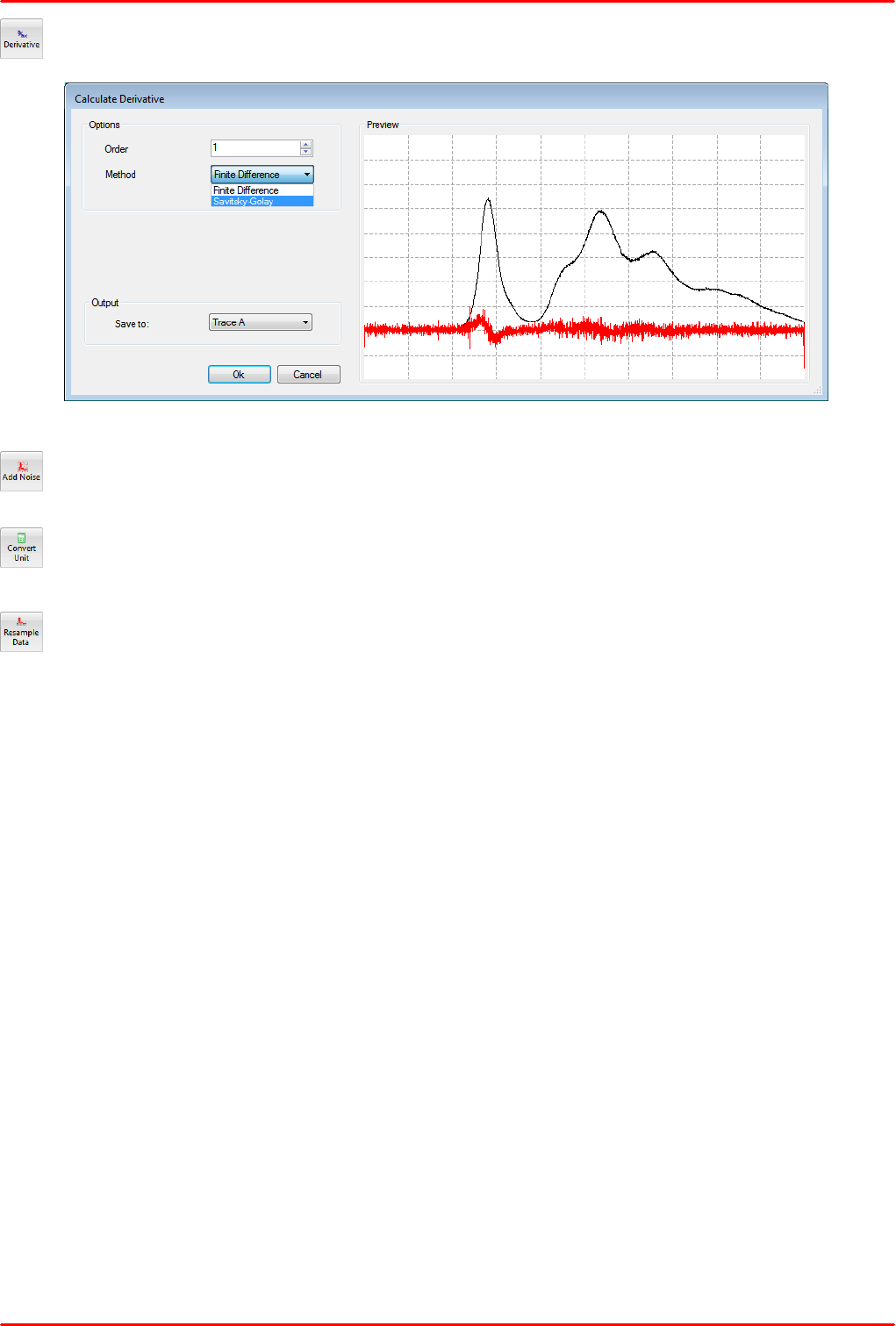
This function allows to fit a mathematical curve to the currently active trace or a portion of it.
In the "Curve Fit Dialog" you can select:
The mathematical fit function (Gaussian, Lorentzian and Polynomial)
The data range to be used for fitting:
-Entire trace: Every data point in the currently active trace will be used to fit the function.
-Trace Between Markers: (only available if both Line Marker 1 and 2 are shown). Every
data point between the two line markers will be used in the fit.
-Displayed Range of Trace: Every data point which is currently visible in the main
window data display will be used in the fit (NOTE: this is not the region currently
displayed in the curve fit dialog).
-Fixed Markers: (only available if at least one fixed marker is shown). Only the data
points at the currently set fixed markers will be used in the fit. Use this option to e.g. fit
a curve to a set of peaks in the spectrum.
-This Range: Makes it possible to specify a given x-axis range that will be used in the
fit.
The output trace where the fit result shall be stored.
Pressing the ‘Ok’ button will start the fit. If the fit failed then the status bar will display the error
message ‘Fit Failed’.
Note
The fitted function will be applied only for the x-axis (data) range that was used to create the
function.
© 2018 Thorlabs40
CCS Series Spectrometer
Derivative
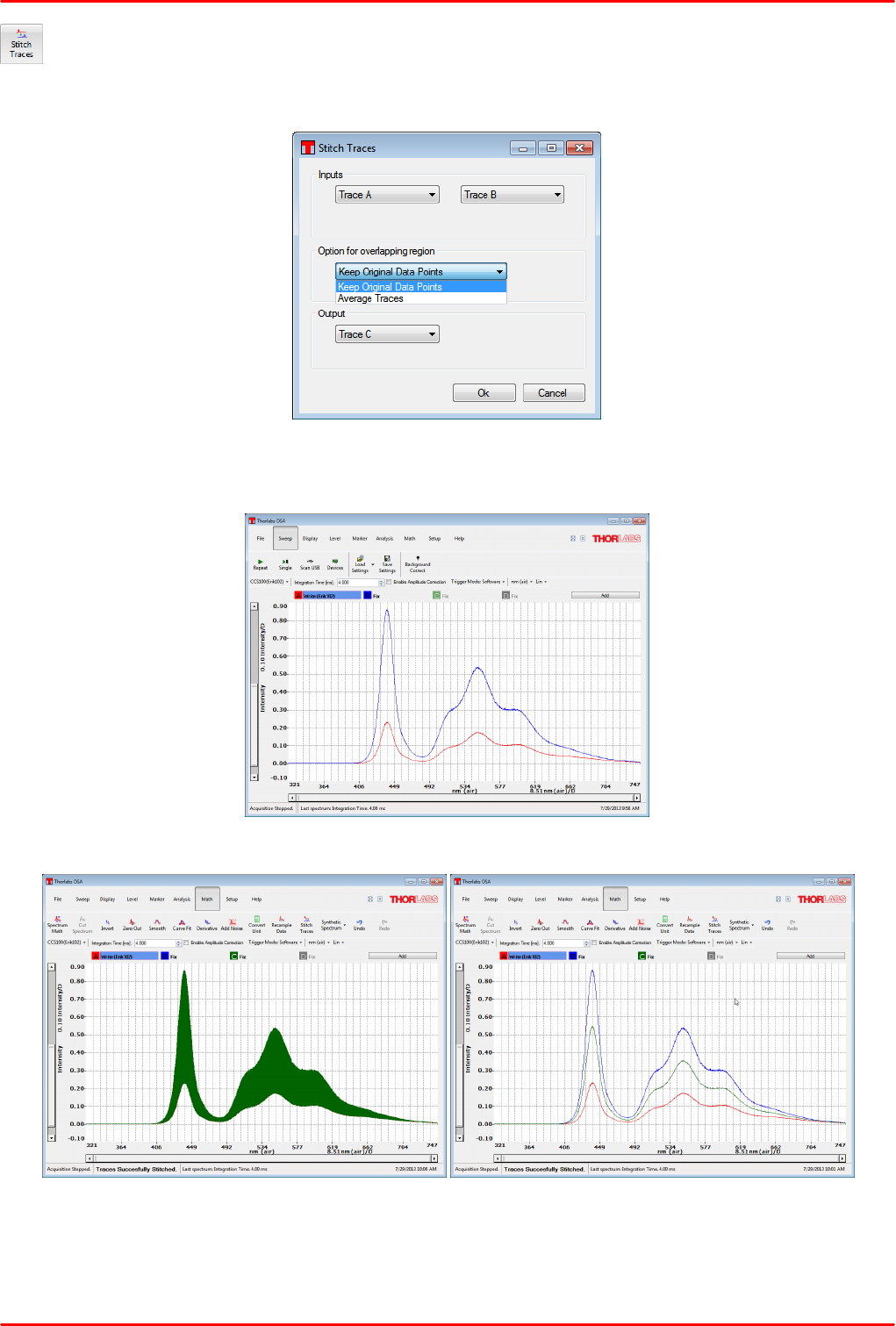
Calculates the derivative of the current trace. Derivatives are available up to the fifth order.
Add Noise
White noise with a selectable SNR can be added to the spectrum.
Convert Unit
Calculator to convert units used by the software each into the other.
Resample Data
Change the sample points in the current trace. Brings up a dialog to select the resampling factor.
The resampling factor is the desired length of the trace divided by the current length of the trace.
Example:
-Selecting a resampling factor of 0.5 reduces the length of the trace by a factor of two
-A resampling factor of 4.0 increases the length of the trace by a factor of four.
The resampling is performed using a quintic spline interpolation to make the resampled trace as
similar to the original trace as possible.
© 2018 Thorlabs
4 Operating Instruction
41
Stitch Traces
Two traces, originated from different spectrum acquisitions, can be stitched. The settings dialog
lets you select the data sources (input traces), the output trace and the option for overlapping. To
illustrate that, please see the following screen shots:
Input traces (A and B)
Output trace C
Option - "Keep Original Data Points"
Output trace C
Option - "Average Traces"

© 2018 Thorlabs42
CCS Series Spectrometer
Synthetic Spectrum
A synthetic Black Body Spectrum can be created with a number of individual settings.
© 2018 Thorlabs
4 Operating Instruction
43
4.1.8 Setup
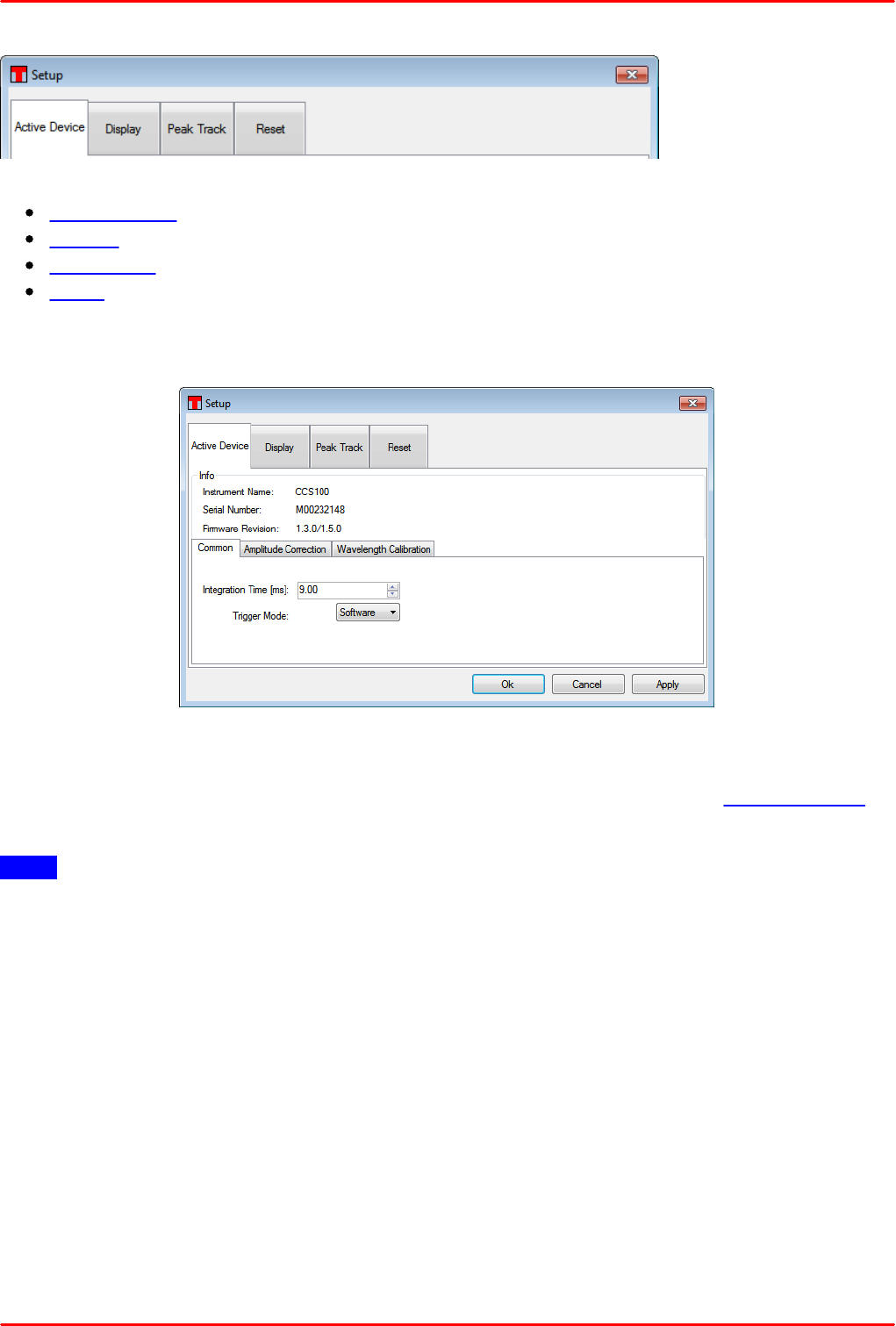
Click to Setup button in main menu. A dialog window with 4 tabs comes up:
Active Device
Display
Peak Track
Reset
4.1.8.1 Tab Active Device
The active device tab shows information on the active instrument and has 3 sub-tabs.
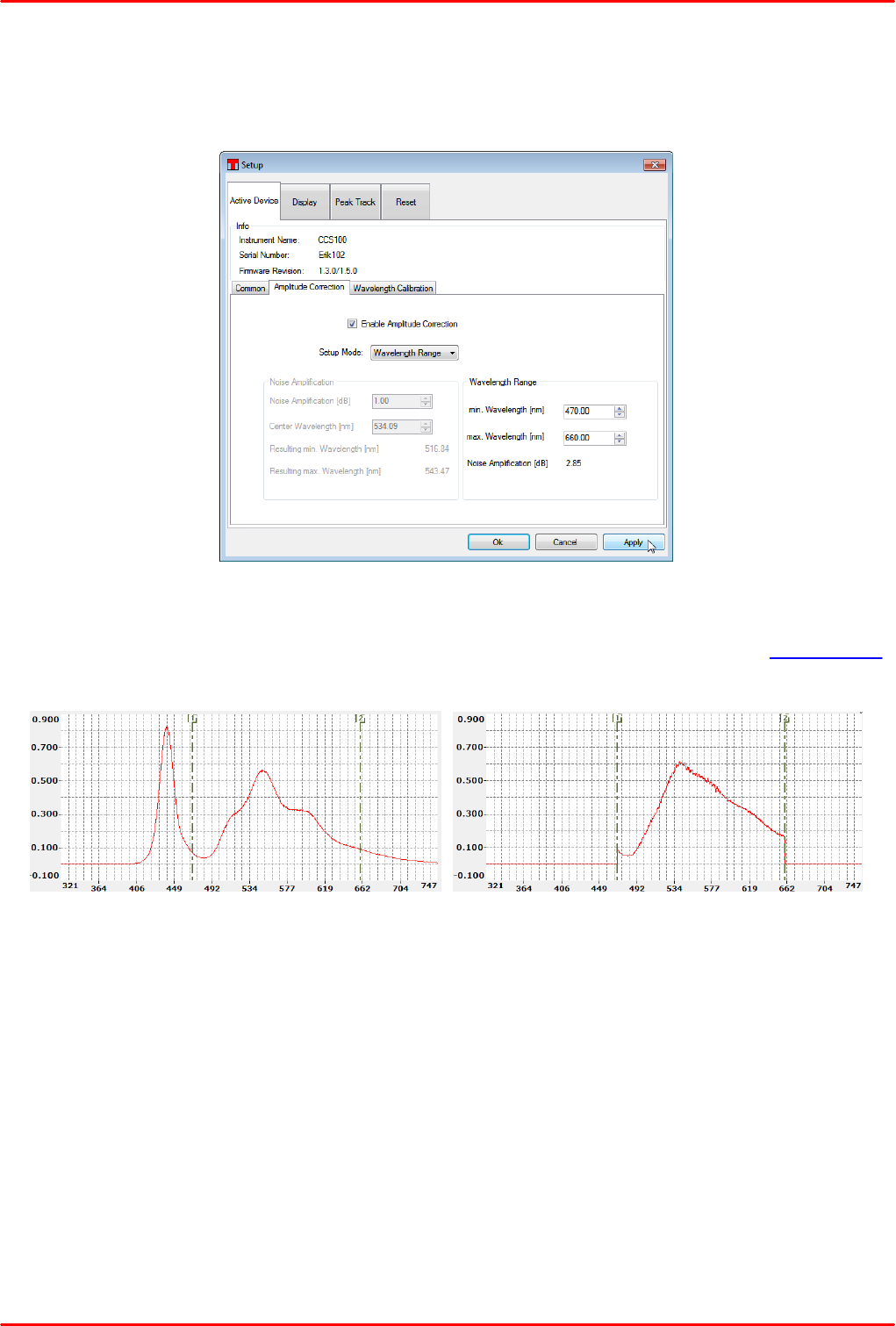
Common: Set integration time and trigger mode. The integration time can be set between 10µs
and 60 s. The trigger source can be internal (software trigger) or external via the SMB connector.
Amplitude correction:
Note
The amplitude correction will work properly only if the CCS spectrometer was factory calibrated for
amplitude correction!
The factory amplitude correction can be carried out only for wavelengths > 380 nm.
With enabled amplitude correction, the intensity is displayed "calibrated", i.e., taking into account
the wavelength dependent responsivity of the CCS spectrometer. This leads to an increase of the
noise at wavelengths with lower responsivity, as not only the wanted signal is amplified, but also the
noise. In the setup panels this increase of noise is stated as "Noise amplification", which is in fact
the ratio of the max. and min. responsivity (in dB) within the given wavelength range. The amplitude
correction can be configured in two setup modes: Wavelength Range (recommended for accurate
intensity results in a give wavelength range) and Noise amplification (recommended if weak
intensities are measured and a minimum noise interference is required). The two examples below
explain both modes in detail.
© 2018 Thorlabs44
CCS Series Spectrometer
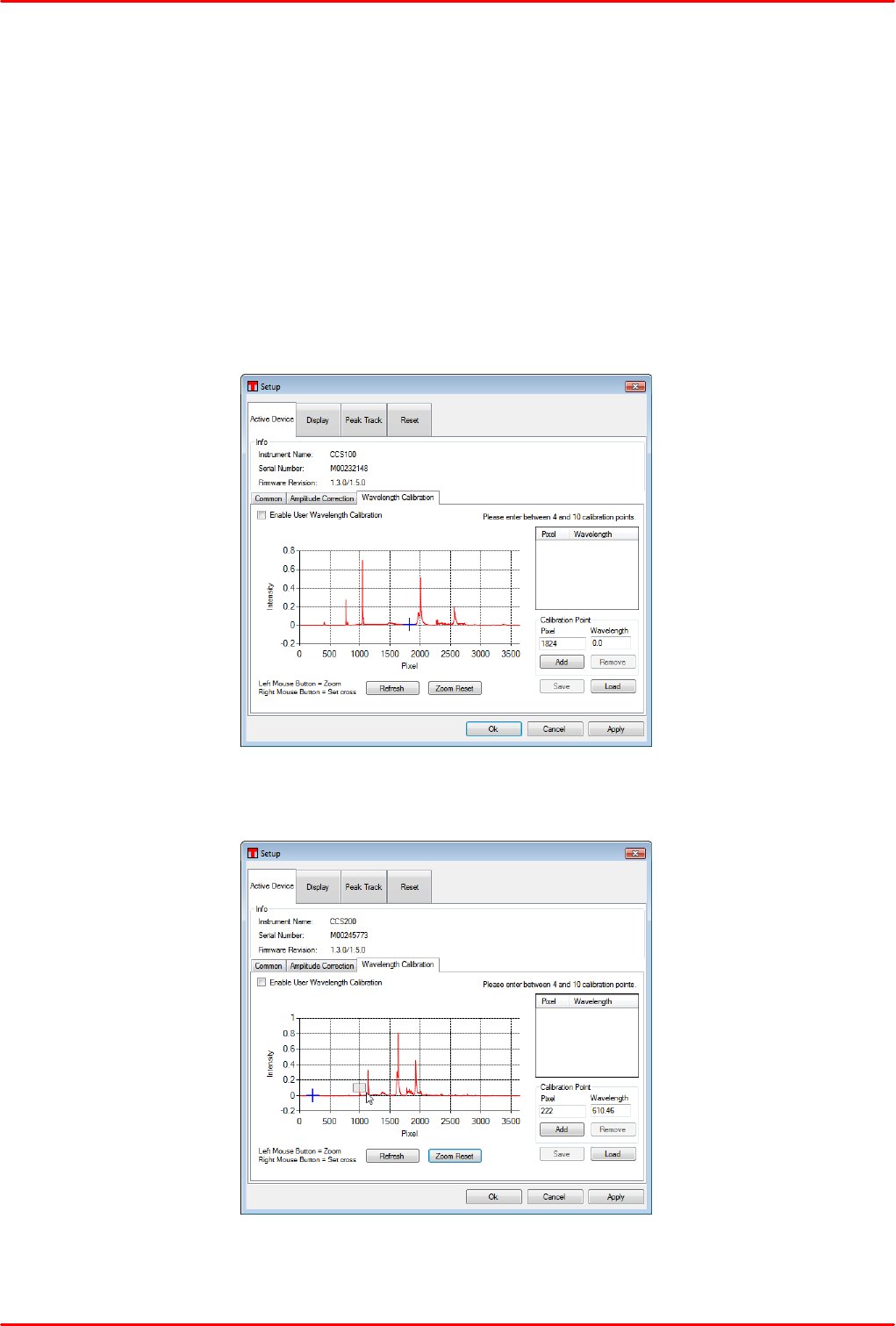
Example 1: A spectrum of a cold-white LED shall be displayed with calibrated intensities between
470 and 660 nm.
Open in the Setup Menu the tab "Active Device" and then the sub-tab "Amplitude correction",
select Setup Mode "Wavelength Range":
Enter the desired wavelength range; the OSA software calculates the "Noise amplification" and
displays it. The screenshots below illustrate how enabling the amplitude correction affects the
spectrum display of a.m. cold white LED with above settings. For better visualization, line markers
are inserted at the lower and upper limit of the corrected wavelength range:
Spectrum with Amplitude Correction disabled
Spectrum with Amplitude Correction enabled

© 2018 Thorlabs
4 Operating Instruction
45
Example 2: A spectrum of the same cold-white LED shall be displayed with calibrated intensities
around the peak wavelength of 400 nm with a max. noise increase of 1.6 dB:
Open in the Setup Menu the tab "Active Device" and then the sub-tab "Amplitude correction",
select Setup Mode "Noise Amplification":
Enter the desired center wavelength and the allowed noise amplification; the OSA software
calculates the resulting min. and max. wavelengths. The screenshots below illustrate how enabling
the amplitude correction affects the spectrum display of a.m. cold white LED with above settings.
For better visualization, a line marker is inserted at the center wavelength range:
Spectrum with Amplitude Correction disabled
Spectrum with Amplitude Correction enabled
© 2018 Thorlabs46
CCS Series Spectrometer
Wavelength Calibration
The sensor of a CCS spectrometer is CCD line. Depending on the wavelength, the incident to the
spectrometer light is directed to a certain pixel of the CCD line. Each CCS spectrometer is factory
calibrated, using a calibration source with well-known spectral lines. The factory calibration is
saved to the internal non-volatile memory and defines the exact wavelength for a number of pixels.
Between these calibration points, the wavelength is interpolated.
In certain cases a more detailed user calibration, based on an available calibrated spectral source,
might be desired. The user can then replace the factory calibration with a user calibration,
consisting of a min. of 4 and a max. of 10 individual calibration points.
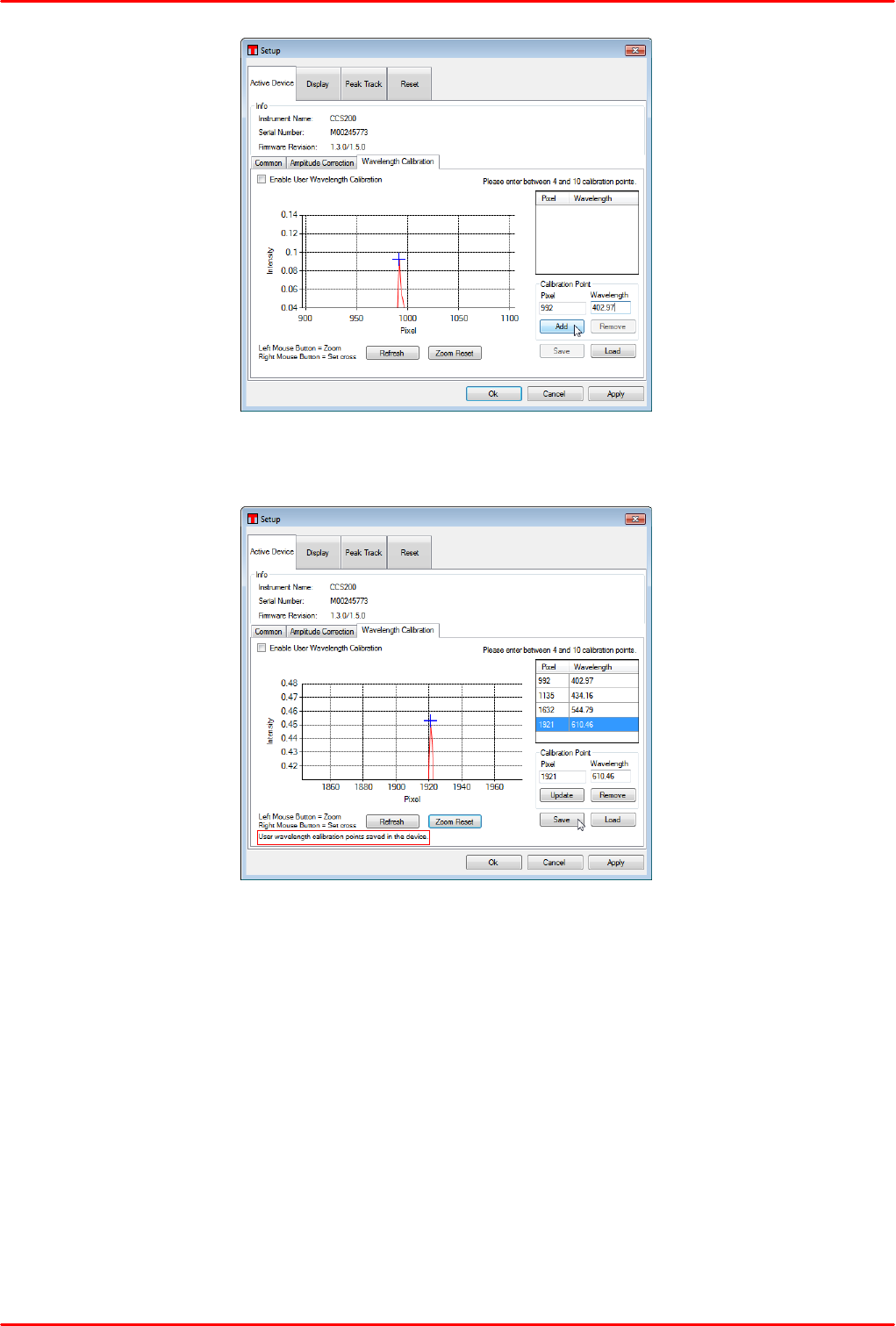
First of all, apply the individual spectral source to the CCS spectrometer input and adjust the
integration time in such way that maximum intensities are displayed without entering saturation.
Then Setup -> tab Active Device -> subtab Wavelength Calibration:
The small display can be easily zoomed by dragging the desired zoom area with left mouse button
hold pressed.
When release the left mouse button, the display appears zoomed. Move the mouse to the peak and
press right mouse button. The peak will be marked now by a blue cross and the related pixel
number will be displayed in the Calibration Point box:
© 2018 Thorlabs
4 Operating Instruction
47
Enter the corresponding wavelength and press Add button - the calibration point will be added to
the table. Repeat these operations until at least 4 calibrations points are entered.
Any calibration point in the table can be edited by following the steps below:
-mark it in the table
-the data will appear in the input box.
-correct the wavelength
-press Update - the table will be updated.
After the calibration table is complete, press Save. The user calibration points will be stored to the
CCS spectrometer. From now on, the wavelength calibration can be switched between Factory
and User Calibration by checking the box "Enable User Wavelength Calibration"
© 2018 Thorlabs48
CCS Series Spectrometer
4.1.8.2 Tab Display
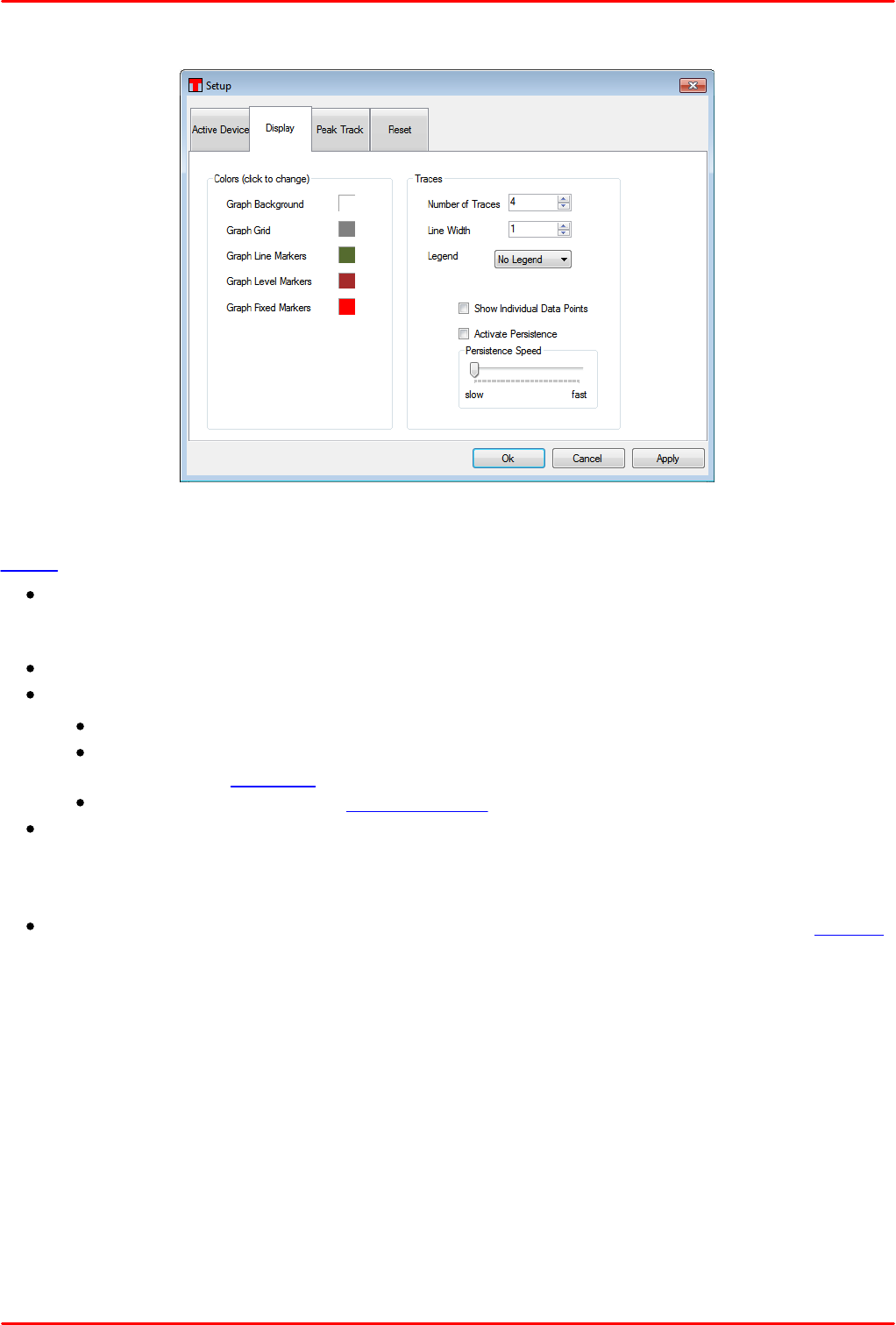
The left part is dedicated to the color setup of the graphic elements in the spectrum display. Click
to a color to open the Windows color setup dialog. In the right part, the common settings of the
traces can be configured:
Number of traces defines the default number of traces, that are displayed with OSA
software start. Traces can be added during a software session, but with a software restart, it
returns to this default.
Line width of the spectrum can be set between 1 and 10.
Legend is a drop down menu to select the content of the legend displayed with each trace:
No legend
Trace Name; Trace Comment: The legend box displays the appropriate information,
entered to the trace info.
File Name: If the trace was loaded from file, the appropriate file name is displayed.
Show individual data points displays all data points (X;Y) as a "+". Each CCD pixel
generates a single data point, so the individual data points can be seen only if sufficiently
zoom in the X axis. For example, the distance between two adjacent data points of a
CCS100 is abt. 110 pm.
Persistence Speed adjusts the ceasing speed of previous scans. See also section Display.
© 2018 Thorlabs
4 Operating Instruction
49
4.1.8.3 Tab Peak Track
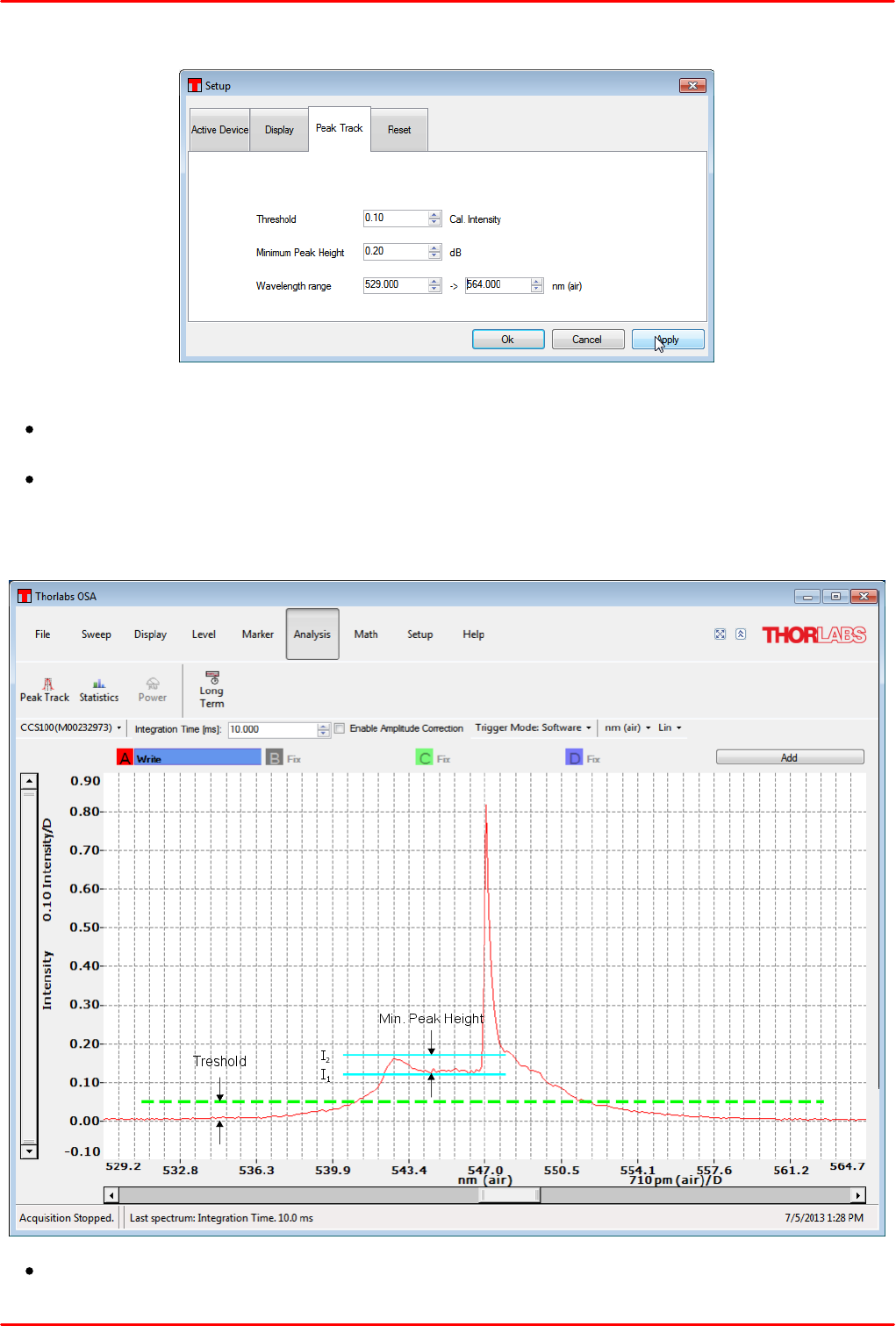
Set in the Peak Track tab the criteria for detecting a peak:
Threshold is the minimum intensity of a track given in absolute intensity (calibrated intensity)
value.
Minimum Peak Height is the min ratio in dB of a detectable peak intensity (I2) to the
surrounding baseline intensity (I1).
These two parameters are illustrated below:
Wavelength Range limits the peak finding range.
© 2018 Thorlabs50
CCS Series Spectrometer
4.1.8.4 Tab Reset
The button "Restore Factory Defaults" in the Reset tab returns the GUI to an initial state. The factory
default settings of the GUI are:
X axis units: nm (air)
Y axis units: Intensity
Y axis display: linear
Int. time: 1.0 ms
Amplitude Correction set to "Wavelength Range", not enabled
Trigger mode: Software
4.1.9 Help
Check for updates connects to www.thorlabs.com and verifies if a software update is available.
Help opens the OSA software online help.
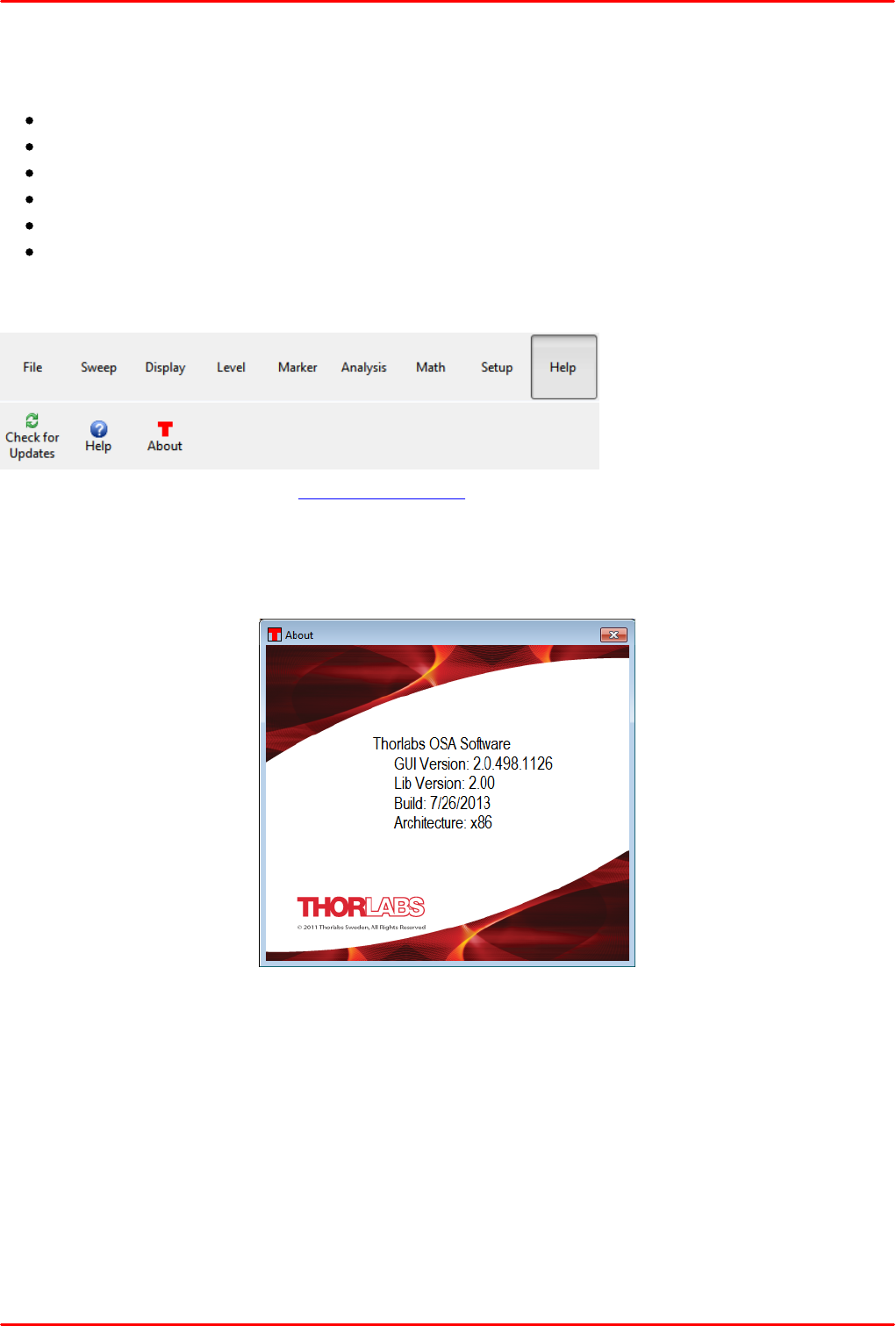
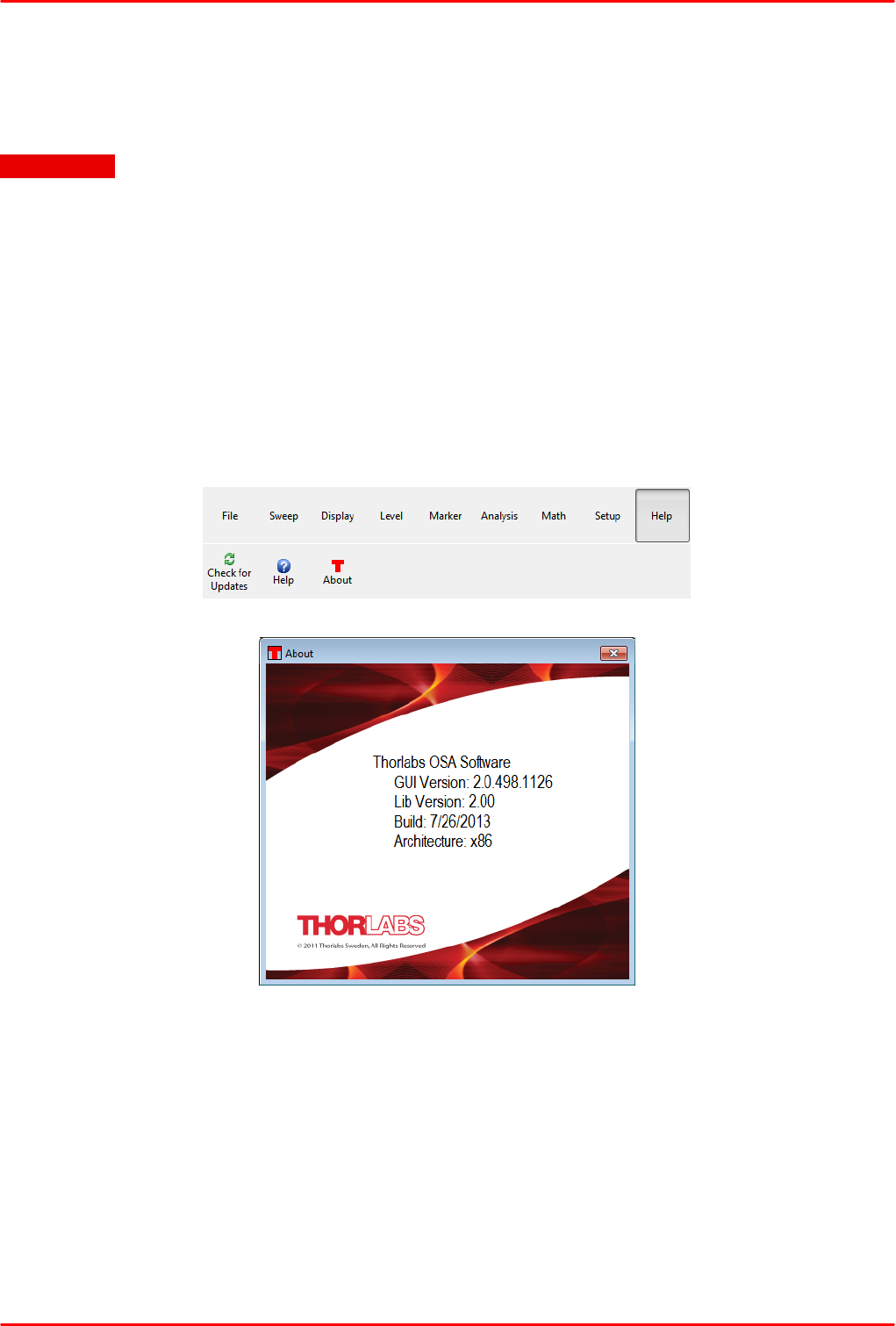
About displays detailed information about the OSA Software. Please have these details available
when contacting our Tech Support with technical questions:
© 2018 Thorlabs
4 Operating Instruction
51
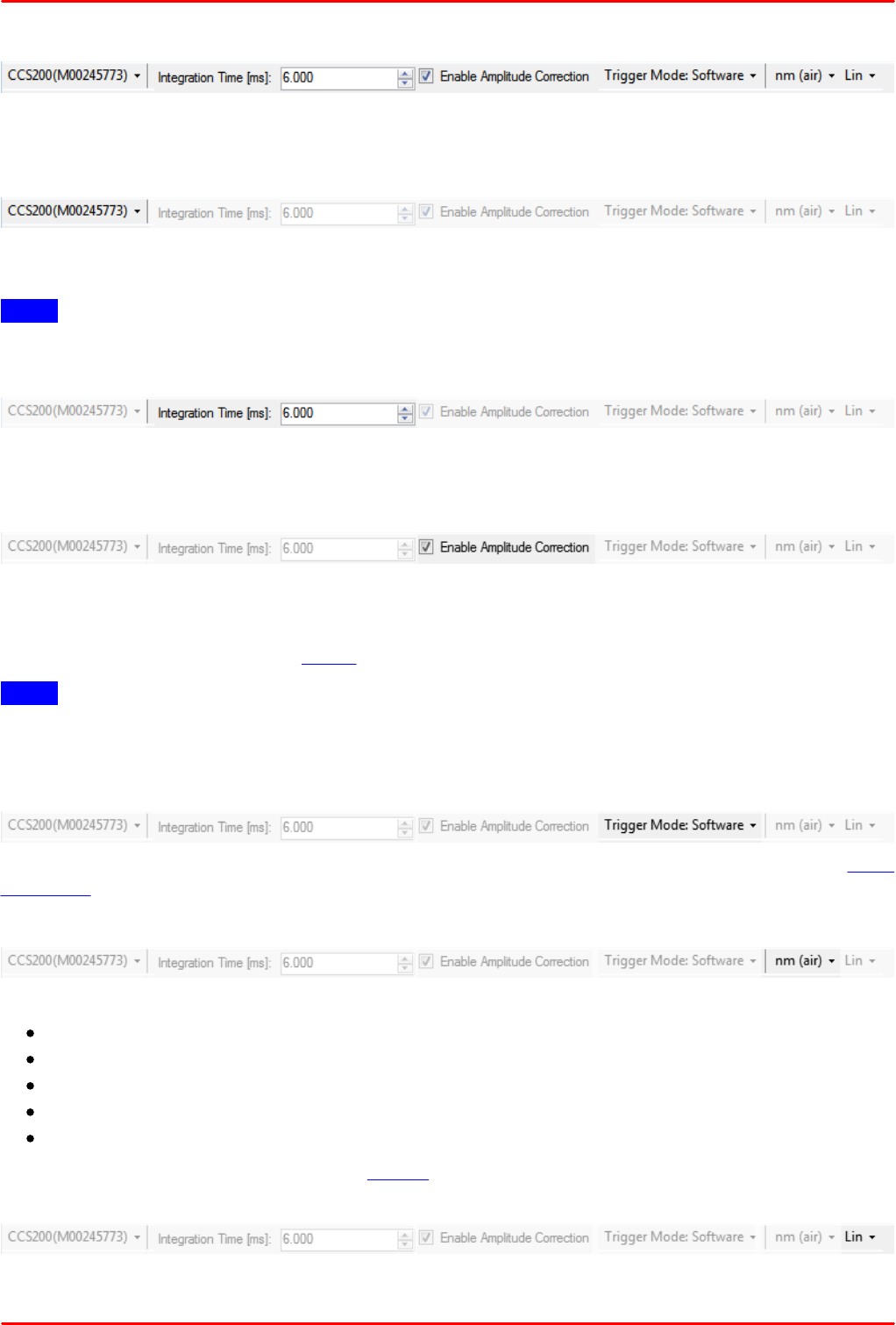
4.2 Settings Bar
Via the settings bar, some important parameters can be accessed quickly and independently of
the currently used main menu item:
Switch Instrument
This drop-down menu allows you to quickly switch between connected and recognized
spectrometers.
Note After switching to a different instrument, at least a single spectrum acquisition is necessary
to update the spectrum display axes.
Set Integration Time
Change integration time by entering numerical values, scrolling the mouse wheel or using up-down
arrows.
Enable / disable Amplitude Correction
With enabled amplitude correction, the intensity is displayed "calibrated", i.e., taking into account
the wavelength dependent responsivity of the CCS spectrometer. The amplitude correction can be
optimized for a wavelength range of interest or for a certain required SNR (signal-to-noise ratio).
For details please see in section Setup.
Note This will work properly only if the CCS spectrometer was factory calibrated for amplitude
correction!
The factory amplitude correction can be carried out only for wavelengths > 380 nm.
Switch Trigger Mode
The trigger mode can be selected between internal ("Software") and external via the SMB
connector.
Switch X Axis Units
The X axis can be displayed using different units:
wave number [cm-1]
wavelength in air [nm (air)]
wavelength in vacuum [nm (vac)]
frequency [THz]
photon energy [eV]
For detailed information, please see the tutorial.
Switch between linear and logarithmic Y axis
Switch the Y axis scaling between linear and logarithmic.
© 2018 Thorlabs52
CCS Series Spectrometer
4.3 Trace Controls
The acquired spectra are displayed in “traces.” The Thorlabs OSA software can handle up to 26
traces labeled from “A” to “Z”; the most left trace is always A followed by B, etc. The controls for the
traces are located below the settings bar. The color of each trace is shown as background of the
trace letter; traces which are not displayed in the data display area are shown in a faded out color.
To the right of the trace letter (“A”, “B”, etc.) the update option for the trace is displayed,
determining what will happen with the trace during the next data acquisition.
Additionally, a legend can be displayed showing for all not hidden traces their color and a
selectable text. The legend can be placed to any location within the spectrum display. The initial
trace settings (number of traces and their appearance) at program start are configured in the Setup
-> Display menu. After program start, trace A is set as active and will be updated with each new
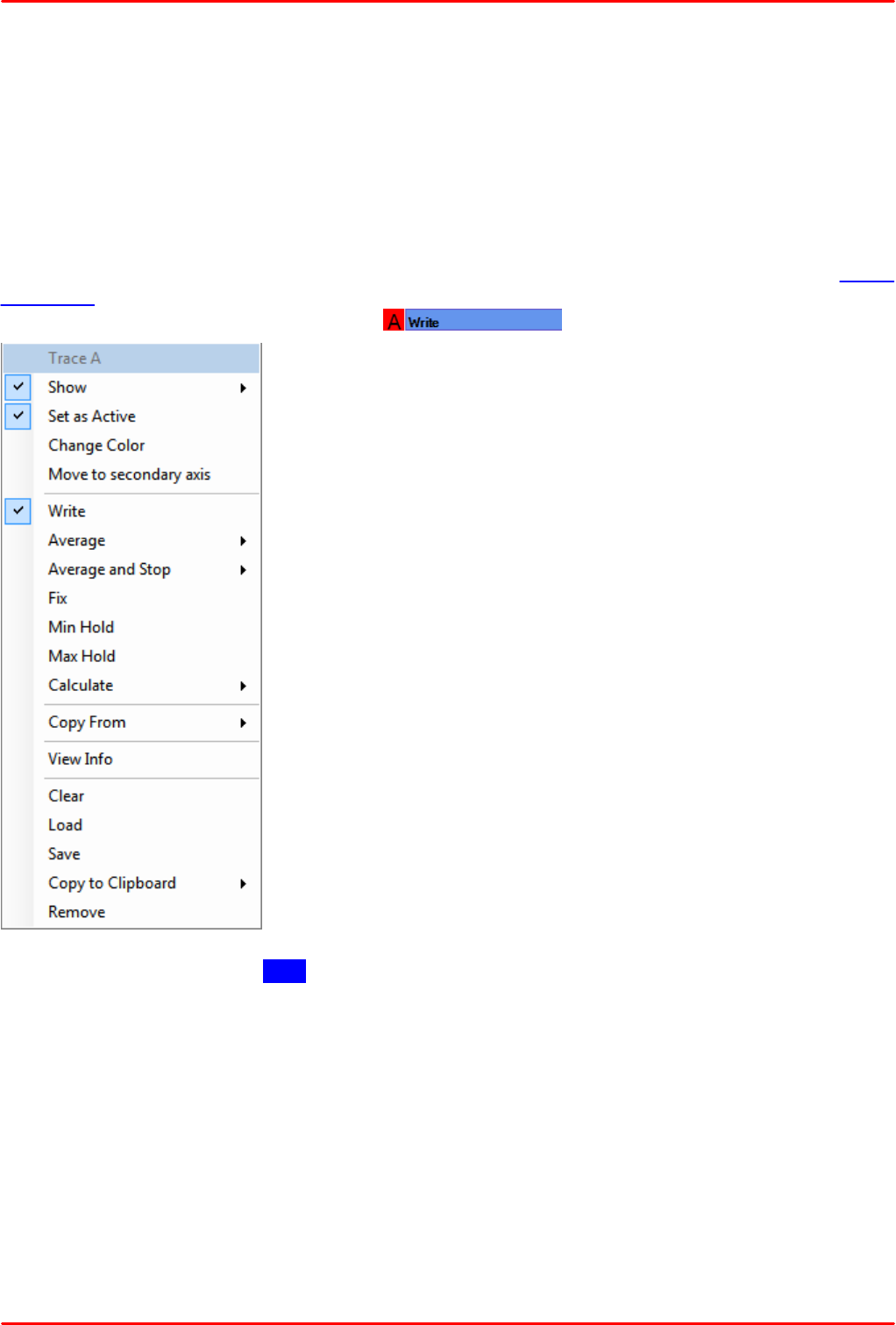
data acquisition. Click to the trace header to open the Trace properties menu:
Show Toggle to show / hide the trace. Additionally, all other traces
can be shown or hidden at one click. The trace header remains
when a trace is hidden.
Set as Active Setting a trace active enables further operations
(saving, loading, etc.).
Change Color Change the trace color
Move to Secondary Axis By default, all traces have a common Y
axis. This may become inconvenient, particularly, if one trace
displays e.g. intensity (max =1.0), and another trace a ratio that may
reach thousands of units. In such case, the software automatically
zooms the Y axis to the trace with the widest range, as a
consequence the intensity trace becomes almost a flat line. In such
case, a trace can be moved to secondary axis, that appears to the
right of the spectrum display area. The primary and the secondary Y
axes can be zoomed independently.
Write Set a trace to Write in order to update it with the next acquired
spectrum.
Average / Average and Stop The number of acquisitions to be
average can be set. The averaging method is rolling average (over
the last "n" acquisitions). There are several presets from 5 to 200
averages, other values can be entered by pressing the Custom
button. The "Average and Stop" terminates the spectrum display update after finishing the given
number of averages. Please note that the spectrum acquisition however continues. To display
recent acquisitions, uncheck the "Average and Stop" option.
Fix Fixes the content of the current trace, i.e., it will not be overwritten with next acquisition.
Min (Max) Hold If the spectrum intensity changes with a new data acquisition, this function holds
the minimum (maximum) intensity value.
© 2018 Thorlabs
4 Operating Instruction
53
Calculate The calculation capabilities depend on the trace letter.
Trace A: Only user defined calculations are possible
Trace B: User defined or derivative of A
Trace C and up:
User defined: A formula for calculation can be entered, allowed operators and functions are
stated.
Difference: The actual trace is calculated as the difference between two selectable traces.
Quotient: The actual trace is calculated as the ratio of two selectable traces.
Transmission: The actual trace is calculated as the transmission ratio in [%] of two selectable
traces.
Absorbance: The actual trace is calculated as absorbance (optical density) between two
traces.
Derivative: The actual trace is the 1st derivative of any other trace.
Copy From
Copies another trace. Useful to create a reference trace, e.g. for transmittance or absorbance
calculation.
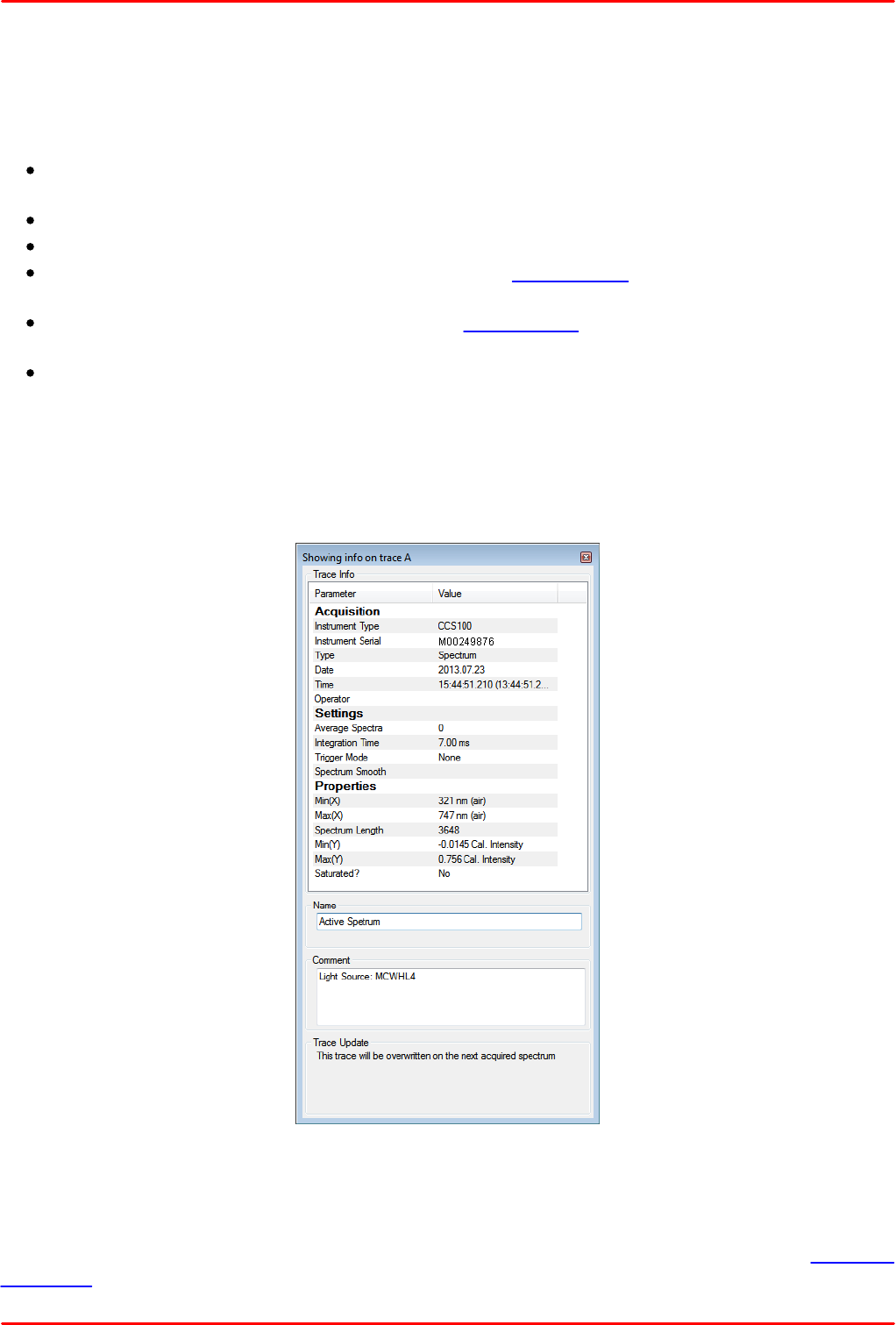
View Info
The Trace Info window shows details on the used instrument, the acquisition and settings. Also, a
trace name and a comment can be entered here.
Clear
Clears the content of the actual trace. All traces can be cleared at once using the Clear All
command.

© 2018 Thorlabs54
CCS Series Spectrometer
Load
Loads a file to the current trace
Save
Saves the data of the current trace to file.
Note The Save/Load functions in File menu can handle only the currently active trace.
Copy to Clipboard
Copies all (X, Y) data sets of the current trace to the clipboard. The separator can be selected (tab
or semicolon)
Remove
Removes the current trace from spectrum display.
Add button
This button adds a trace rightmost.
© 2018 Thorlabs
5 Write Your Own Application
55
5 Write Your Own Application
In order to write your own application, you need a specific instrument driver and some tools for use
in different programming environments. The driver and tools are being installed to your computer
during software installation and cannot be found on the installation CD.
In this section the location of drivers and files, required for programming in different environments,
are given for installation under Windows XP (32 bit) and Windows 7 (32 and 64 bit)
Note
OSA software and drivers are available as 32 bit and 64 bit applications. As for this reason, in 32
bit systems only the 32 bit versions are installed, they are installed to
C:\Program Files\... (executables)
C:\Windows\System32\... (libraries/DLLs)
while in 64 bit systems – both the 32 bit and the 64 bit versions are installed to:
C:\Program Files\... (64bit executables)
C:\Windows\System32\... (64bit libraries/DLLs)
C:\Program Files (x86)\... (32bit executables)
C:\Windows\SysWOW64\... (32bit libraries/DLLs)
In the table below you will find a summary of what files you need for particular programming
environments.
Programming
environment
Necessary files
C, C++, CVI
*.h (header file)
*.lib (static library)
C#
.net wrapper dll
Visual Studio
*.h (header file)
*.lib (static library)
or
.net wrapper dll
LabView
*.fp (function panel) and NI VISA instrument driver
Beside that, LabVIEW driver vi's are provided with the *.llb
container file
Note
All above environments require also the NI VISA instrument driver dll !
In the next sections the location of above files for all hardware, supported by OSA CCS drivers, is
described in detail.
© 2018 Thorlabs56
CCS Series Spectrometer
5.1 NI VISA Instrument driver 32bit on 32bit systems
C:\Program Files\IVI Foundation\VISA\WinNT\Bin\TLCCS_32.dll
Note
This instrument driver is required for all development environments!
The source code of this driver can be found in
C:\Program Files\IVI Foundation\VISA\WinNT\Thorlabs
CCSseries\TLCCS.c
Online Help for NI VISA Instrument driver:
C:\Program Files\IVI Foundation\VISA\WinNT\Thorlabs CCSseries\...
...Manual\TLCCS.html
NI LabVIEW driver (including an example VI)
C:\Program Files\National Instruments\LabVIEW xxxx\Instr.lib\...
...TLCCS\TLCCS.llb
(LabVIEW container file with driver vi's - "LabVIEW xxxx" stands for actual LabVIEW installation
folder.)
Header file
C:\Program Files\IVI Foundation\VISA\WinNT\include\TLCCS.h
Static Library
C:\Program Files\IVIFoundation\VISA\WinNT\lib\msc\TLCCS_32.lib
Function Panel
C:\Program Files\IVI Foundation\VISA\WinNT\Thorlabs CCSseries\...
...TLCCS.fp
.net wrapper dll
C:\Program Files\Microsoft.NET\Primary Interop Assemblies\...
...Thorlabs.ccs.interop.dll
Example for C
C:\Program Files\IVI Foundation\VISA\WinNT\Thorlabs CCSseries\...
...Examples\C
sample.c - C program how to communicate with a CCS series spectrometer
sample.exe - same, but executable
Example for C#
Solution file:

© 2018 Thorlabs
5 Write Your Own Application
57
C:\Program Files\IVI Foundation\VISA\WinNT\Thorlabs CCSseries\...
...Examples\CSharp\CCS100_CSharpDemo.sln
Project file
C:\Program Files\IVI Foundation\VISA\WinNT\Thorlabs CCSseries\...
...Examples\CSharp\CCS100_CSharpDemo\CCS100_CSharpDemo.csproj
Executable sample demo
C:\Program Files\IVI Foundation\VISA\WinNT\Thorlabs CCSseries\...
...Examples\CSharp\CCS100_CSharpDemo\bin\Release\CCS100_CSharpDemo.
exe
Example for LabView
Included in driver llb container
© 2018 Thorlabs58
CCS Series Spectrometer
5.2 NI VISA Instrument driver 32bit on 64bit systems
C:\Program Files (x86)\IVI Foundation\VISA\WinNT\Bin\TLCCS_32.dll
Note
This instrument driver is required for all development environments!
The source code of this driver can be found in
C:\Program Files (x86)\IVI Foundation\VISA\WinNT\...
...Thorlabs CCSseries\TLCCS.c
Online Help for NI VISA Instrument driver:
C:\Program Files (x86)\IVI Foundation\VISA\WinNT\...
...Thorlabs CCSseries\Manual\TLCCS.html
NI LabVIEW driver (including an example VI)
C:\Program Files (x86)\National Instruments\LabVIEW xxxx\...
...Instr.lib\TLCCS\TLCCS.llb
(LabVIEW container file with driver vi's - "LabVIEW xxxx" stands for actual LabVIEW installation
folder.)
Header file
C:\Program Files (x86)\IVI Foundation\VISA\WinNT\include\TLCCS.h
Static Library
C:\Program Files (x86)
\IVIFoundation\VISA\WinNT\lib\msc\TLCCS_32.lib
Function Panel
C:\Program Files (x86)\IVI Foundation\VISA\WinNT\...
...Thorlabs CCSseries\TLCCS.fp
.net wrapper dll
C:\Program Files (x86)\Microsoft.NET\Primary Interop Assemblies\...
...Thorlabs.ccs.interop.dll
Example for C
C:\Program Files (x86)\IVI Foundation\VISA\WinNT\Thorlabs
CCSseries\...
...Examples\C
sample.c - C program how to communicate with a CCS series spectrometer
sample.exe - same, but executable
Example for C#
Solution file:

© 2018 Thorlabs
5 Write Your Own Application
59
C:\Program Files (x86)\IVI Foundation\VISA\WinNT\Thorlabs
CCSseries\...
...Examples\CSharp\CCS100_CSharpDemo.sln
Project file
C:\Program Files (x86)\IVI Foundation\VISA\WinNT\Thorlabs
CCSseries\...
...Examples\CSharp\CCS100_CSharpDemo\CCS100_CSharpDemo.csproj
Executable sample demo
C:\Program Files (x86)\IVI Foundation\VISA\WinNT\Thorlabs
CCSseries\...
...Examples\CSharp\CCS100_CSharpDemo\bin\Release\CCS100_CSharpDemo.
exe
Example for LabView
Included in driver llb container.
© 2018 Thorlabs60
CCS Series Spectrometer
5.3 NI VISA Instrument driver 64bit on 64bit systems
C:\Program Files\IVI Foundation\VISA\Win64\Bin\TLCCS_64.dll
Note
This instrument driver is required for all development environments!
The source code of this driver can be found in
C:\Program Files (x86)\IVI Foundation\VISA\WinNT\...
...Thorlabs CCSseries\TLCCS.c
Online Help for NI VISA Instrument driver:
C:\Program Files (x86)\IVI Foundation\VISA\WinNT\...
...Thorlabs CCSseries\Manual\TLCCS.html
NI LabVIEW driver (including an example VI)
C:\Program Files\National Instruments\LabVIEW xxxx\...
...Instr.lib\TLCCS\TLCCS.llb
(LabVIEW container file with driver vi's - "LabVIEW xxxx" stands for actual LabVIEW installation
folder.)
Header file
C:\Program Files (x86)\IVI Foundation\VISA\WinNT\...
...include\TLCCS.h
Static Library
C:\Program Files\IVIFoundation\VISA\Win64\lib_x64\...
...msc\TLCCS_64.lib
Function Panel
C:\Program Files (x86)\IVI Foundation\VISA\WinNT\...
...Thorlabs CCSseries\TLCCS.fp
.net wrapper dll
C:\Program Files (x86)\Microsoft.NET\Primary Interop Assemblies\...
...Thorlabs.ccs.interop64.dll
Example for C
C:\Program Files (x86)\IVI Foundation\VISA\WinNT\...
...Thorlabs CCSseries\Examples\C
sample.c - C program how to communicate with a CCS series spectrometer
sample64.exe - same, but 64bit executable
© 2018 Thorlabs
5 Write Your Own Application
61
Example for C#
Solution file (same as 32bit on 64bit systems):
C:\Program Files (x86)\IVI Foundation\VISA\WinNT\...
...Thorlabs CCSseries\Examples\CSharp\CCS100_CSharpDemo.sln
Project file (same as 32bit on 64bit systems):
C:\Program Files (x86)\IVI Foundation\VISA\WinNT\...
...Thorlabs CCSseries\Examples\CSharp\CCS100_CSharpDemo\...
...CCS100_CSharpDemo.csproj
Executable sample demo (same as 32bit on 64bit systems):
C:\Program Files (x86)\IVI Foundation\VISA\WinNT\...
...Thorlabs CCSseries\Examples\CSharp\CCS100_CSharpDemo\...
...bin\Release\CCS100_CSharpDemo.exe
Note
To get a 64bit executable you can set your project options to compile for 64bit targets. You have to
set the references for the executable to the 64bit DLLs (see above, Thorlabs.ccs.interop64.dll).
Example for LabView
Included in driver llb container.
© 2018 Thorlabs62
CCS Series Spectrometer
6 Maintenance and Service
Protect the CCS Series Spectrometer from adverse weather conditions. The CCS Series
Spectrometer is not water resistant.
Attention
To avoid damage to the instrument, do not expose it to spray, liquids or solvents!
The unit does not need a regular maintenance by the user. It does not contain any modules and/or
components that could be repaired by the user himself. If a malfunction occurs, please contact
Thorlabs for return instructions.
Do not remove covers!
6.1 Version Information
The software version information can be retrieved via the menu Help -> About:
© 2018 Thorlabs
6 Maintenance and Service
63
6.2 Troubleshooting
OSA software terminates with error message "Software cannot be installed"
Check if you have administrator privileges on your computer
Make sure that the operating system is min. Windows Vista or up. See also Requirements.
OSA software cannot find any devices but the virtual devices :
Check if VISA runtime 5.1 or higher is installed.
Make sure that the connected device is made by Thorlabs.
Try to connect the device to another USB port.
"Found New Hardware Wizard" finishes with the error "the wizard cannot find the necessary
software":
This error occurs when the installer cannot find OSA software installed on your system.
Install OSA software.
Be sure that your device is configured as a VISA device.
Check if VISA runtime 5.1 or higher is installed on your system.
The Intensity of the measured signal does not increase linearly with the integration time:
The CCD array applies an electronic shutter function, if integration times below 4 ms are
used. In that case the pixels are sequentially recharged, until the time to the next CCD readout
matches the wanted integration time. Unfortunately the manufacturer of the CCD does not
guarantee this recharging/resetting of the array to be 100% effective. Therefore it cannot be
guaranteed that all photons are ignored, before the actual integration time starts. This might
cause peak heights to in- or decrease to a higher degree than the integration time was
changed.
If you want to make relative comparisons of signal heights or areas beneath the curve, try
using integration times above 4 ms and use the dark current correction
© 2018 Thorlabs64
CCS Series Spectrometer
7 Appendix
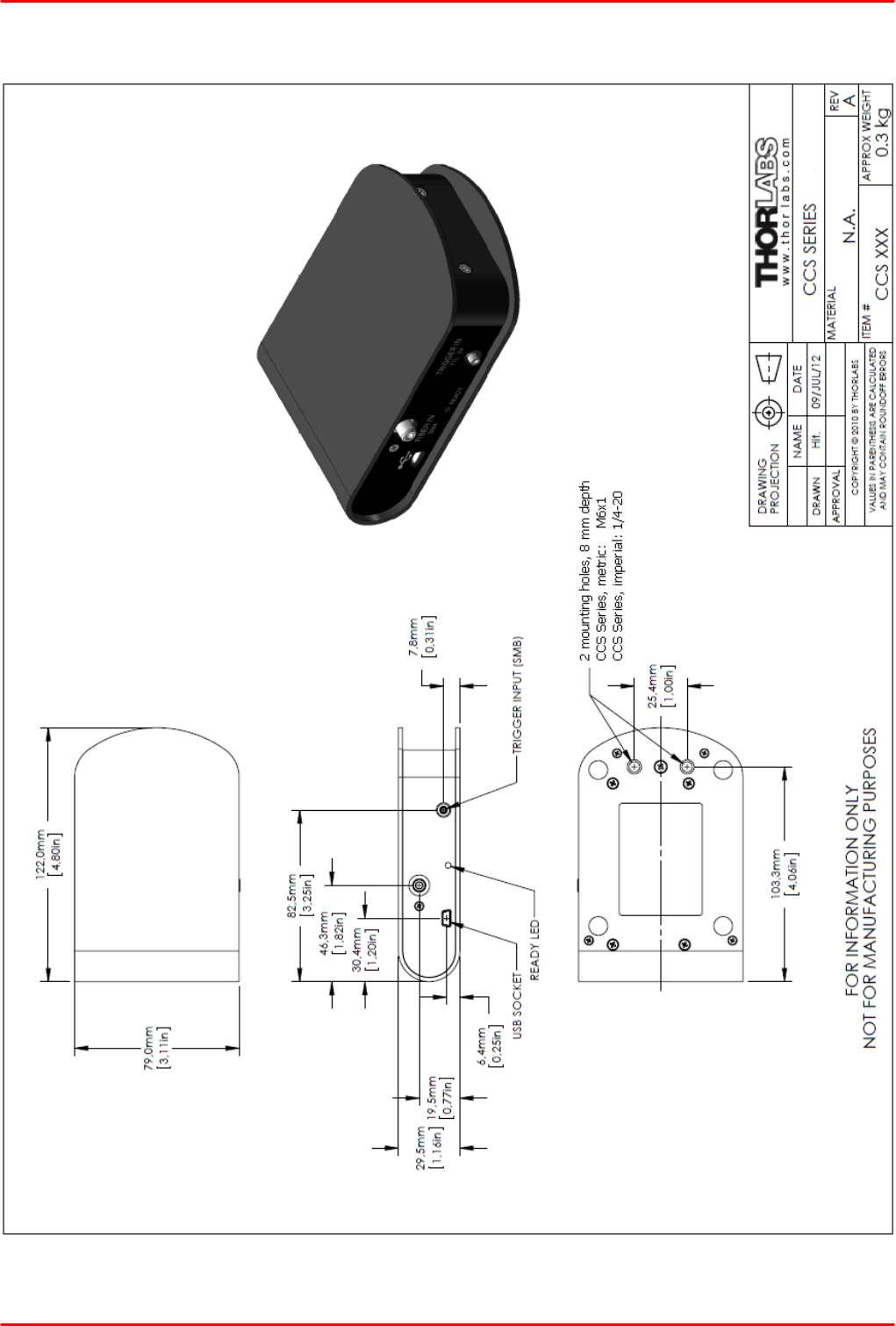
7.1 Technical Data
Item #
CCS100
CCS175
CCS200
Optical Specs
Wavelength Range
350 − 700 nm
500 − 1000 nm
200 − 1000 nm
Spectral Accuracy
<0.5 nm FWHM @ 435 nm
<0.6 nm FWHM @ 633 nm
<2 nm FWHM @ 633 nm
Slit (W x H)
20 µm x 2 mm
Grating
1200 Lines/mm,
500 nm Blaze
830 Lines/mm,
800 nm Blaze
600 Lines/mm,
800 nm Blaze
Sensor Specs
Detector Range (CCD
Chip)
350 - 1100 nm
200 - 1100 nm
CCD Pixel Size
8 µm x 200 µm ( 8 µm pitch )
CCD Sensitivity
160 V / ( lx · s )
CCD Dynamic Range
300
CCD Pixel number
3648
Resolution
10 px/nm
6 px/nm
4 px/nm
Integration Time
10 µs − 10 s 3)
Scan Rate Max.
200 Scans/s 2)
S/N ratio
≤ 2000 : 1
External Trigger
Fiber Connector
SMA 905
Trigger Input
SMB
Trigger Signal
TTL
Trigger Frequency Max.
100 Hz
Trigger Pulse Length Min.
0.5 µs
Trigger Delay
8.125 µs ± 125 ns
General Specs
Interface
Hi-Speed USB2.0 (480 Mbit/s)
Dimensions (L x W x H)
122 x 80 x 30 mm
Weight
< 0.4 kg
All technical data are valid at 23 ± 5°C and 45 ± 15% rel. humidity (non condensing)
1)220 - 440 nm version available
2) integration time 5 ms
3)softw are allow s to set up to 60 s. Hot pixels and noise may increase drastically.
Operating Temperature
0 to +40 °C
Storage Temperature
-40 to +70 °C
Relative Humidity
Max. 80% up to 31 °C; decreasing to 50% at 40 °C
Operation Altitude
< 3000 m
© 2018 Thorlabs
7 Appendix
65
7.2 Dimensions

© 2018 Thorlabs66
CCS Series Spectrometer
7.3 Tutorial
In this section some complementary information is given.
Spectrum File Formats
The Thorlabs OSA software uses a variety of file formats in order to record measurement results.
*.spf2: This is the internal file format to save and load spectrum files from one or more traces.
The file header consists of information about the used spectrometer, it's s/n, acquisition
settings and trace properties.
*.spc: This file format is a 2D graphic file format, invented by Galactic Industries in 1986 for
storage of a variety of different types of data taken from laboratory analytical instrumentation,
primarily spectral and chromatographic (trace) data. The SPC format is capable of storing
single or multiple arrays and is designed to be general enough to contain most types and styles
of data storage such as even X spaced, non-even X spaced, variable record sizes, and 16 or
32 bit data representation. It is also capable of storing arbitrarily large descriptor blocks.
*.jdx: The JCAMP-DX is a commonly used file format for infrared, NMR (nuclear magnetic
resonance), and mass spectrometry data introduced by the Joint Committee on Atomic and
Molecular Physical Data (JCAMP). More information can be found at http://www.jcamp-dx.org/.
*.csv: The standard comma separated variables file type. It is used to save a single trace.
When saving, the separator can be selected to semicolon, comma or tab. Thorlabs OSA
software CSV export file has a header of 34 lines with information on the used spectrometer,
it's settings, data on the graph and 2 lines for entered manually individual comments. The
header is followed by 3648 lines (equal to the 3648 pixels of the CCS spectrometer CCD line)
of 2 columns: The first column states the wavelength in [nm], the second the relative intensity.
*.txt: When exporting the active trace, the text file format can be used. A separator (semicolon,
comma or tab) must be selected. The exported file contains only the data of the spectra: The
first column states the wavelength in [nm], the second the relative intensity.
*.mat: A trace can be saved as a Matlab v.5 file. Level 5 MAT-Files include additional support
for multidimensional numeric arrays, character arrays, cell arrays, sparse arrays, objects, and
structures.
Image File Formats
A trace can be saved from Thorlabs OSA software in *.bmp, *.png, and *.jpg formats.

© 2018 Thorlabs
7 Appendix
67
Virtual Devices
In order to demonstrate the OSA software functionality even without a spectrometer connected, a
Virtual Device can be activated. Virtual devices just simulate a spectrometer. Add a virtual device
by selecting "Devices" in the Sweep menu, then click the button " Virtual":
A list of available devices comes up:
Select one, the click "Add". The virtual device is listed now:
Select it, then click "View Info" to display it's properties:
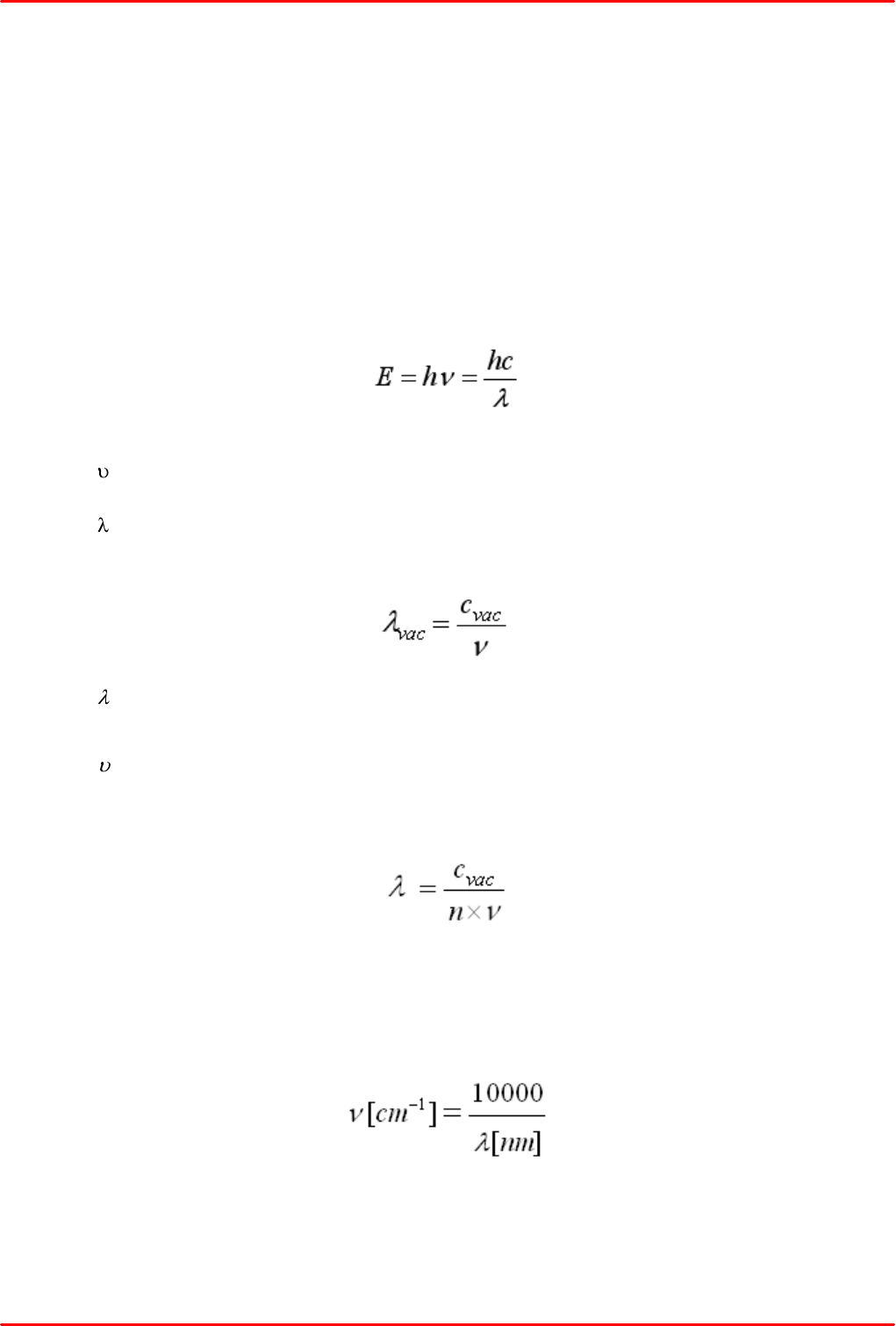
© 2018 Thorlabs68
CCS Series Spectrometer
"Settings" file format
The settings of the current spectrum acquisition, that include the spectrum display settings and the
settings of the active spectrometer, can be saved as a *.sml file. The file format is XML V 1.0, and
the extension was chosen to sml for easy identification.
The file extension is not associated with the SMILE software tool by Simulistic, nor with Single
Markup Language.
Wavelength, Frequency, photon energy and wave number
Photons can be characterized by their frequency, energy, wavelength and wave number, where the
wavelength and the wave number depend on the propagation speed in the given medium.
Energy and frequency are related by the equation
with h - Planck constant = 4.13566733 x 10 -15 eVs
- frequency
c - light propagation speed in vacuum = 2.99792458 x 10 8 m/s
- wavelength in vacuum
Wavelength and frequency are correlated by the formula
with vac - wavelength in vacuum
cvac - light propagation speed in vacuum = 2.99792458 x 10 8 m/s
- frequency
If the light propagates in a different medium than vacuum, it's propagation speed decreases for a
factor called the refraction index. In such case, the wavelength is calculated to
where n is the refraction index. In air, the refraction index is 1.000293, in water - 1.333
The wave number is the spatial frequency of a wave, either in cycles per distance or radians per
unit distance. It can be described as the number of waves that exist over a specified distance. In
spectroscopy usually the wave number is given per centimeter (cm -1) and calculated by the formula
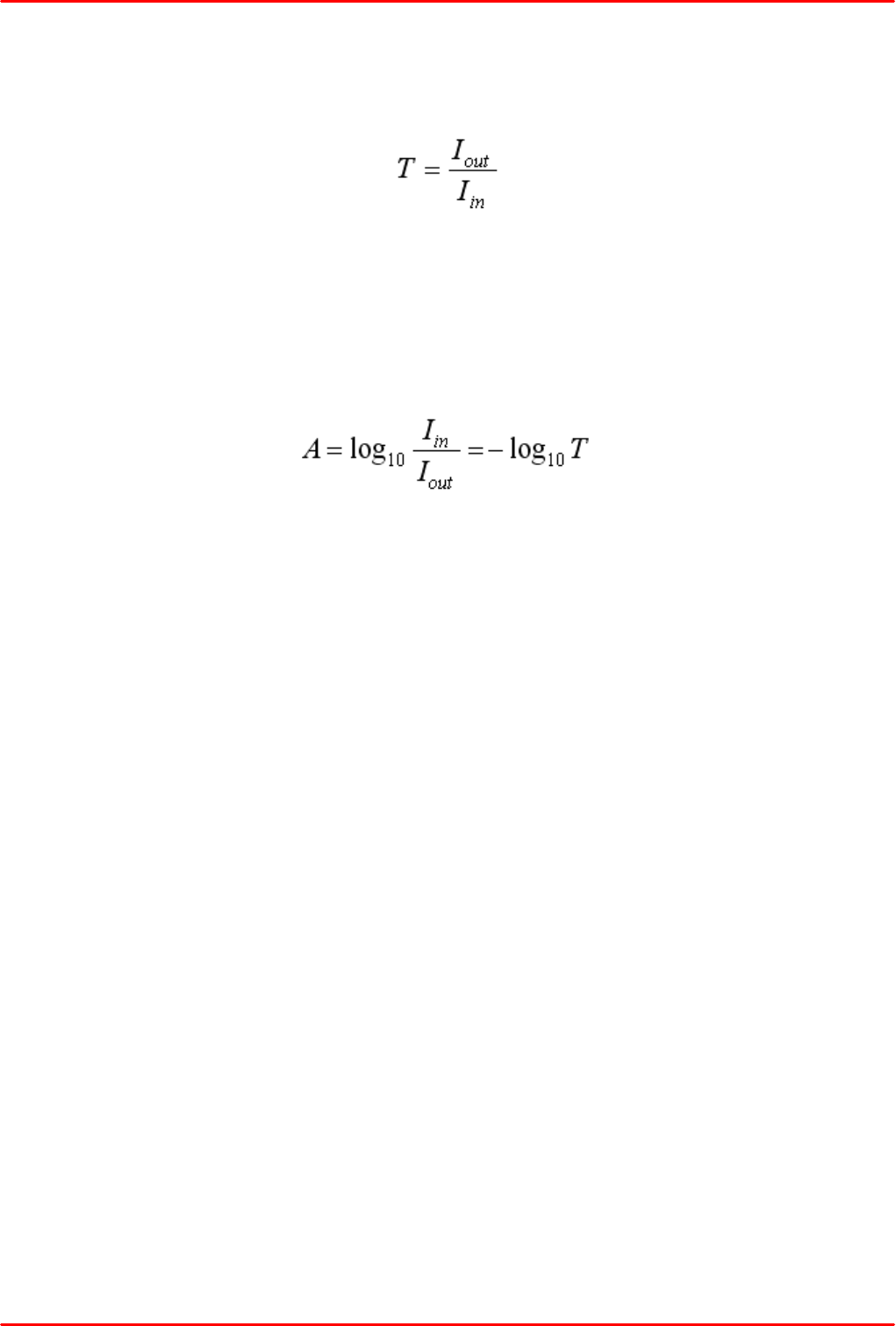
© 2018 Thorlabs
7 Appendix
69
Transmission and Absorbance
Transmission T (aka transmittance) is the fraction of incident light that passes through a sample, it
is calculated as
with I out - intensity at the output of the sample
I in - incident to the sample intensity
Transmittance is stated in %.
Absorbance A (aka Optical Density OD) is the logarithmic ratio of the intensity, incident to a
sample, to the intensity, passing through the sample:
with I out - intensity at the output of the sample
I in - incident to the sample intensity
T - transmittance
Absorbance is stated in "absorption units", abbreviated "A.U." or "AU".
© 2018 Thorlabs70
CCS Series Spectrometer
7.4 Shortcuts Used in OSA Software
Ctrl+O: Load a spectrum from file to an available trace
Ctrl+S: Save a trace to file
Ctrl+Shift+S: Save all traces to file
Ctrl+P: Print a screen shot
Ctrl+Z: Undo the last math operation performed (if any)
Ctrl+Y: Redo the last math operation undone (if any)
Ctrl+I: Show information about the currently active trace
Ctrl+N: Collect a new single spectrum
Ctrl+R: Start/ Stop repeated measurements
Ctrl+L: Toggle between linear and logarithmic scaling
Ctrl+1: Enable/ disable movable marker number 1 (line marker)
Ctrl+2: Enable/ disable movable marker number 2 (line marker)
Ctrl+3: Enable/ disable movable marker number 3 (level marker)
Ctrl+4: Enable/ disable movable marker number 4 (level marker)
Ctrl+ “+”: Zoom in to the graph
Ctrl+ “-”: Zoom out of the graph
Ctrl+Left Arrow: Move the graph one step to the left
Ctrl+RightArrow: Move the graph one step to the right
Ctrl+PageDown: Set the active trace to the trace after the currently active trace
Ctrl+PageUp: Set the active trace to the trace before the currently active trace
Ctrl+W: Toggle between “Write” and “Fix” on the currently active trace
Delete: Clear the currently active trace

© 2018 Thorlabs
7 Appendix
71
7.5 Certifications and Compliances

© 2018 Thorlabs72
CCS Series Spectrometer
7.6 Warranty
Thorlabs warrants material and production of the CCS Series Spectrometer for a period of 24
months starting with the date of shipment. During this warranty period Thorlabs will see to defaults
by repair or by exchange if these are entitled to warranty.
For warranty repairs or service the unit must be sent back to Thorlabs. The customer will carry the
shipping costs to Thorlabs, in case of warranty repairs Thorlabs will carry the shipping costs back
to the customer.
If no warranty repair is applicable the customer also has to carry the costs for back shipment.
In case of shipment from outside EU duties, taxes etc. which should arise have to be carried by the
customer.
Thorlabs warrants the hard- and/or software determined by Thorlabs for this unit to operate fault-
free provided that they are handled according to our requirements. However, Thorlabs does not
warrant a fault free and uninterrupted operation of the unit, of the software or firmware for special
applications nor this instruction manual to be error free. Thorlabs is not liable for consequential
damages.
Restriction of Warranty
The warranty mentioned before does not cover errors and defects being the result of improper
treatment, software or interface not supplied by us, modification, misuse or operation outside the
defined ambient stated by us or unauthorized maintenance.
Further claims will not be consented to and will not be acknowledged. Thorlabs does explicitly not
warrant the usability or the economical use for certain cases of application.
Thorlabs reserves the right to change this instruction manual or the technical data of the described
unit at any time.

© 2018 Thorlabs
7 Appendix
73
7.7 Copyright and Exclusion of Reliability
Thorlabs has taken every possible care in preparing this document. We however assume no
liability for the content, completeness or quality of the information contained therein. The content of
this document is regularly updated and adapted to reflect the current status of the hardware and/or
software. We furthermore do not guarantee that this product will function without errors, even if the
stated specifications are adhered to.
Under no circumstances can we guarantee that a particular objective can be achieved with the
purchase of this product.
Insofar as permitted under statutory regulations, we assume no liability for direct damage, indirect
damage or damages suffered by third parties resulting from the purchase of this product. In no
event shall any liability exceed the purchase price of the product.
Please note that the content of this document is neither part of any previous or existing agreement,
promise, representation or legal relationship, nor an alteration or amendment thereof. All
obligations of Thorlabs result from the respective contract of sale, which also includes the
complete and exclusively applicable warranty regulations. These contractual warranty regulations
are neither extended nor limited by the information contained in this document. Should you require
further information on this product, or encounter specific problems that are not discussed in
sufficient detail in the document, please contact your local Thorlabs dealer or system installer.
All rights reserved. This document may not be reproduced, transmitted or translated to another
language, either as a whole or in parts, without the prior written permission of Thorlabs.
Copyright © Thorlabs 2018. All rights reserved.
© 2018 Thorlabs74
CCS Series Spectrometer
7.8 Thorlabs 'End of Life' Policy (WEEE)
As required by the WEEE (Waste Electrical and Electronic Equipment Directive) of the European
Community and the corresponding national laws, Thorlabs offers all end users in the EC the
possibility to return “end of life” units without incurring disposal charges.
This offer is valid for Thorlabs electrical and electronic equipment
sold after August 13th 2005
marked correspondingly with the crossed out “wheelie bin” logo (see figure below)
sold to a company or institute within the EC
currently owned by a company or institute within the EC
still complete, not disassembled and not contaminated
As the WEEE directive applies to self contained operational electrical and electronic products, this
“end of life” take back service does not refer to other Thorlabs products, such as
pure OEM products, that means assemblies to be built into a unit by the user (e. g. OEM
laser driver cards)
components
mechanics and optics
left over parts of units disassembled by the user (PCB’s, housings etc.).
Waste treatment on your own responsibility
If you do not return an “end of life” unit to Thorlabs, you must hand it to a company specialized in
waste recovery. Do not dispose of the unit in a litter bin or at a public waste disposal site.
WEEE Number (Germany) : DE97581288
Ecological background
It is well known that waste treatment pollutes the environment by releasing toxic products during
decomposition. The aim of the European RoHS Directive is to reduce the content of toxic
substances in electronic products in the future.
The intent of the WEEE Directive is to enforce the recycling of WEEE. A controlled recycling of
end-of-life products will thereby avoid negative impacts on the environment.
Crossed out
"Wheelie Bin" symbol
© 2018 Thorlabs
7 Appendix
75
7.9 List of Acronyms
The following acronyms and abbreviations are used in this manual:
CCD Charge-coupled Device
CSV Comma Separated Values
DLL Dynamic Link Library
FCC Federal Communications Commission
GUI Graphical User Interface
IEC International Electrotechical Commission
LL TTL Low Level TTL
NA Numerical Aperture
OEM Orginal Equipment Manufacturer
OSA Optical Spectrum Analyzer
OSNR Optical Signal-to-Noise Ratio
PC Personal Computer
PCB Printed Circuit Board
RoHS Restriction of the use of certain hazardous substances in electrical and electronic
equipment
SW Software
USB Universal Serial Bus
VISA Virtual Instrument Software Architecture
VME Virtual-8086 Mode Enhancement
VXI VMEbus eXtensions for Instrumentation
VXIPNP VMEbus eXtensions for Instrumentation Plug aNd Play
WEEE Waste Electrical and Electronic Equipment Directive
XML eXtensible Markup Language
© 2018 Thorlabs76
CCS Series Spectrometer
7.10 Thorlabs Worldwide Contacts
USA, Canada, and South America
Thorlabs, Inc.
56 Sparta Avenue
Newton, NJ 07860
USA
Tel: 973-300-3000
Fax: 973-300-3600
www.thorlabs.com
www.thorlabs.us (West Coast)
Email: sales@thorlabs.com
Support: techsupport@thorlabs.com
UK and Ireland
Thorlabs Ltd.
1 Saint Thomas Place, Ely
Cambridgeshire CB7 4EX
United Kingdom
Tel: +44-1353-654440
Fax: +44-1353-654444
www.thorlabs.com
Email: sales.uk@thorlabs.com
Support: techsupport.uk@thorlabs.com
Europe
Thorlabs GmbH
Hans-Böckler-Str. 6
85221 Dachau
Germany
Tel: +49-8131-5956-0
Fax: +49-8131-5956-99
www.thorlabs.de
Email: europe@thorlabs.com
Scandinavia
Thorlabs Sweden AB
Bergfotsgatan 7
431 35 Mölndal
Sweden
Tel: +46-31-733-30-00
Fax: +46-31-703-40-45
www.thorlabs.com
Email: scandinavia@thorlabs.com
France
Thorlabs SAS
109, rue des Côtes
78600 Maisons-Laffitte
France
Tel: +33-970 444 844
Fax: +33-825 744 800
www.thorlabs.com
Email: sales.fr@thorlabs.com
Brazil
Thorlabs Vendas de Fotônicos Ltda.
Rua Riachuelo, 171
São Carlos, SP 13560-110
Brazil
Tel: +55-16-3413 7062
Fax: +55-16-3413 7064
www.thorlabs.com
Email: brasil@thorlabs.com
Japan
Thorlabs Japan, Inc.
3-6-3 Kitamachi
Nerima-ku, Tokyo 179-0081
Japan
Tel: +81-3-6915-7701
Fax: +81-3-6915-7716
www.thorlabs.co.jp
Email: sales@thorlabs.jp
China
Thorlabs China
Room A101, No. 100
Lane 2891, South Qilianshan Road
Putuo District
Shanghai 200331
China
Tel: +86-21-60561122
Fax: +86-21-32513480
www.thorlabs.com
Email: chinasales@thorlabs.com
© 2018 Thorlabs
7 Appendix
77
Index
*
66
*.bmp
66*.csv
55*.dll
66*.jdx
66*.jpg
66
*.mat
66*.png
66*.sml
66*.spc
66*.spf2
66
*.txt
58, 60.net wrapper dll
A
4, 66Absorbance
28Add Fixed Marker
37Add Noise
6, 43, 51Amplitude Correction
30
Analysis
26Automated Peak Search
52Average
52Average and Stop
B
19Background Correct
37Black Body
66
bmp
C
52
Calculate
22, 25Center - Span
32chromaticity
16Clear All
28Clear Fixed Marker
34
Collect Data
32, 34Color Analysis
32Color Temperature
37Convert Unit
52Copy From
66
csv
37Curve Fit
37
Cut Spectrum
D
37
Derivative
19Devices
16Display Menu
32dominant wa
55Drivers
34
Duration
E
63
Error Handling
19Export Settings
16Export Trace
F
16File Menu
52Fix
28Fixed Markers
G
37Gaussian
22, 25
Grid density
H
50
Help
I
16, 66
Image
19Import Settings
7Installation
Getting Started 13
Parts List 7
Software Installation 8
55
instrument driver
37Invert
J
66jdx
66jpg
L
55, 56, 58,
60
LabVIEW driver
55LabVIEW samples
© 2018 Thorlabs78
CCS Series Spectrometer
48, 52
Legend
25Level
26level marker
25Level Markers
26line marker
16
Load
19Load Settings
22, 25Lock axis
51logarithmic Y axis
34Long term analysis
37
Lorentzian
M
16
Main Menu
28Mark Peaks
26Marker
28Marker Table
66mat
37
Math
52Min (Max) Hold
30, 49Min Peak Height
26movable marker
26movable markers
N
56, 58, 60NI VISA Instrument driver
43
Noise amplification
22Normal View
O
15Operation
37operators
66Optical Density
P
22Panning
26Peak Search
49
Peak Track
30, 34Peak Track Analysis
22, 48Persistence
66photon energy
66png
37
Polynomial
16Print
55Programming examples
32purity
R
28Remove Fixed Marker
19
Repeat
19repeated sweep
16Replay
6Requirements
37Resample Data
50
Restore Factory Defaults
S
16
Save All
16Save Image
19Save Settings
16Save Trace
13, 19Scan USB
26
Search Left
30Search Range
26Search Right
52Secondary Axis
52Set as Active
51
Set Integration Time
15, 19, 51Settings Bar
43Setup
70Shortcuts
19Single
37
Smooth
66spc
64Specifications
66Spectrum File Formats
37Spectrum Math
66
spf2
22Split View
33, 34Statistics
15Status Bar
37Stitch Traces
19
Sweep
16Sweep Menu
19Switch between connected
instruments
51Switch Instrument
19switch the active instrument
37
Synthetic Spectrum
T
30, 49
Threshold
© 2018 Thorlabs
7 Appendix
79
66
tiff
16, 52Trace
15, 52Trace Controls
52Trace properties
15Traces
66
Transmission
4transmittance
51Trigger Mode
66txt
U
43User Wavelength Calibration
V
19, 52, 66View Info
66Virtual Devices
W
66wave number
43
Wavelength Calibration
43wavelength range
52Write
34Write to file
X
22X Axis Properties
51X Axis Units
Y
25Y Axis Properties
Z
37Zero Out
22
zoom wavelength range
22Zooming
28Δ Level
28Δ Position
www.thorlabs.com
