COS 301 User Manual Indoor Mall Navigation
User Manual:
Open the PDF directly: View PDF  .
.
Page Count: 8

User Manual document
Brute Force
May 24, 2019
Stakeholder Names:
Thomas Honiball
Thabo Ntsoane
Mpho Mashaba
Munyadziwa Tshisimba
Bandile Dlamini
Student No:
15348751
15107532
14309999
11034531
14402425
Name of Application : NAVIGATOR
1
Contents
1 General information 3
1.1 System Overview . . . . . . . . . . . . . . . . . . . . 3
1.2 Organization Of The Manual . . . . . . . . . . . . . . 3
2 System Configuration 3
2.1 Installation ....................... 4
2.2 User Access Levels . . . . . . . . . . . . . . . . . . . 4
3 Getting started 4
3.1 Accessing the system . . . . . . . . . . . . . . . . . . 4
3.2 Walkthrough ...................... 4
4 Using The System 5
4.1 SplashScreen ...................... 5
4.2 HomeScreen ...................... 6
4.3 Navigate Screen . . . . . . . . . . . . . . . . . . . . . 6
4.4 Search for Beacons . . . . . . . . . . . . . . . . . . . 7
4.5 Login........................... 7
4.6 Scan ........................... 8
5 Troubleshooting 8
2
1 General information
1.1 System Overview
Indoor Mall Navigation is a fully interactive mall guide App which
allows users to easily find shops in a mall, Provide a list of specials
based on users location and enable users to add items to a shopping
cart to purchase and have them delivered.
1.2 Organization Of The Manual
The User manual consists of five sections: General Information, Sys-
tem Configuration, Getting started, Using The System, and Trou-
bleshooting
The general information section explains in general terms the system
and the purpose for which it is intended.
System Configuration will outline how the system will be operated,
what requirements will be needed and how it will be used.
Getting Started section explains how to get Navigator and install it
on the device.
Using the system section provides a detailed description of system
functions.
Troubleshooting section will specify what steps can be taken in case
of a failure in the system.
2 System Configuration
The Indoor Mall Navigation system operates on mobile devices with
Android operating system. It is compatible with Android 4,1 (jelly
bean) API 16 and higher versions. The application requires connec-
tion to Internet in order to save and retrieve data from the database.
The App will use the location property on the device to locate the
users current location and navigate them to their destination respec-
tively. The smart device’s camera will be used to scan the QR/Bar
3
code of a specific item in order to view or add the product to the
Cart. After installation on the device, Indoor Mall Navigation can
be used immediately without any further configuration
2.1 Installation
When all the implementation is done, we plan to have the application
up on Google play store.
2.2 User Access Levels
Everyone can use the system, but only registered users able to pur-
chase items and also add items to their wish list.
3 Getting started
3.1 Accessing the system
In order to access the system, The user should just download the
App and start navigating. There is no log in obligation.
•The user Needs to register and log in if they need to add items
to their cart.
•The user can click on the ”Forgot Password” button on the log
in screen if they forgot their password. An email with a link
will be sent to them. With that link, the user can enter a new
password.
3.2 Walkthrough
•Upon loading the app, the user will be able to see their location
and the mall map.
•The user can enter their destination and click on ”navigate”,
then the user will be directed by an AR paths and arrows to
the destination.
•The user can scan products that they’re interested in to see the
price and to add those products to their Cart.
•User needs to register and login in order for them to add items
and purchase from their cart.
4
•The products will then be delivered to their desired address
once the transaction has been approved.
•The user can log out once they are done with the App.
4 Using The System
Upon opening the system, the following screen will appear:
4.1 Splash Screen
Figure 1: Splash Screen.
5
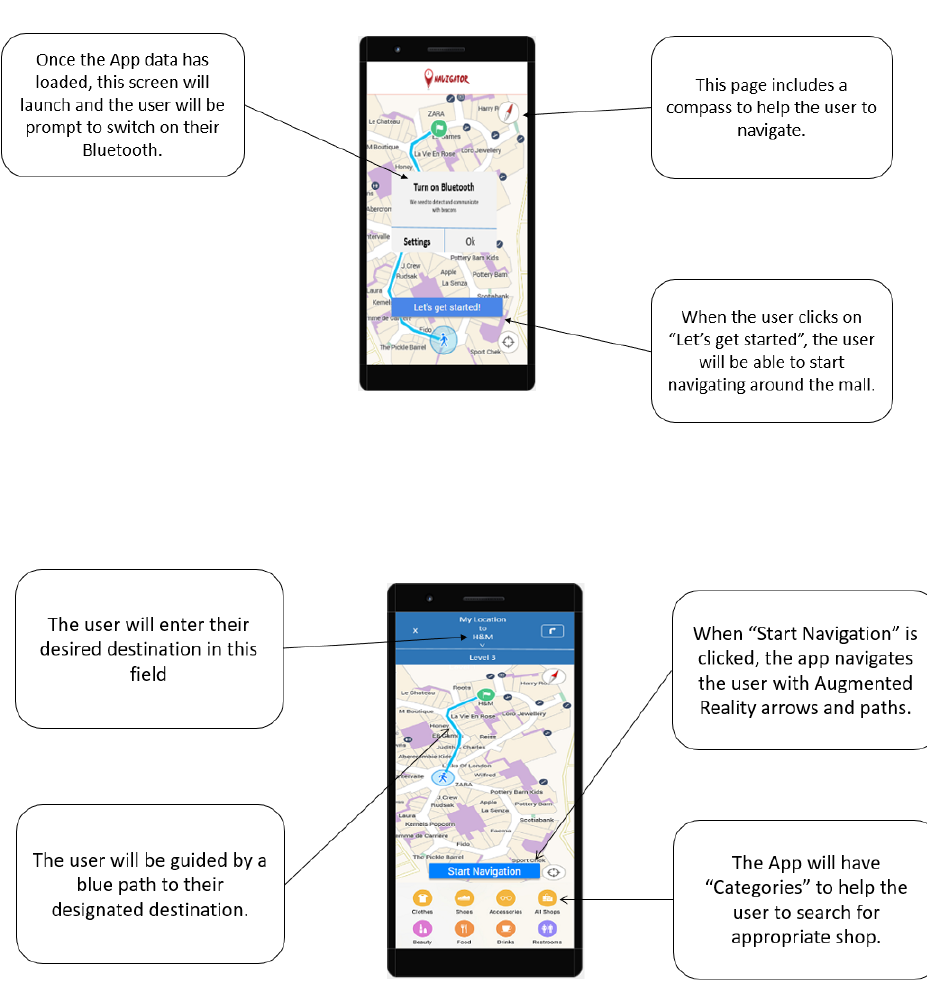
4.2 Home Screen
Figure 2: Home Screen.
4.3 Navigate Screen
Figure 3: Navigate Screen.
6
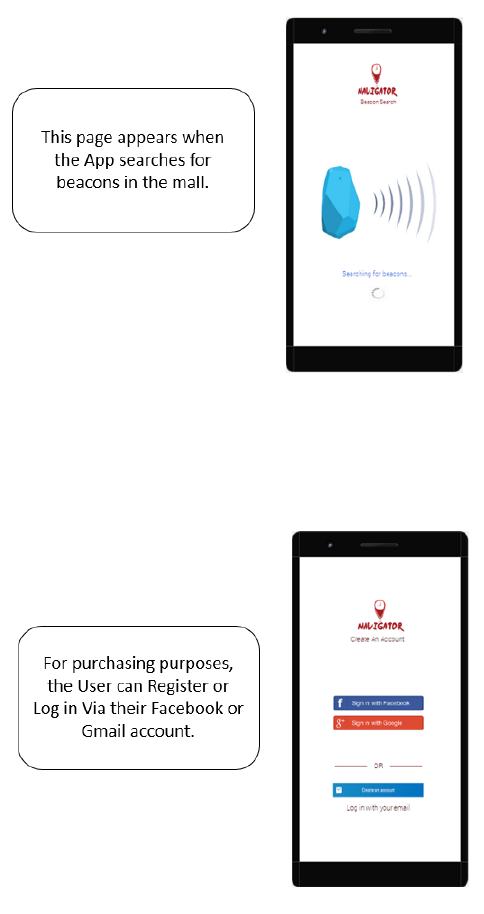
4.4 Search for Beacons
Figure 4: Search beacon.
4.5 Login
Figure 5: Login Screen.
7
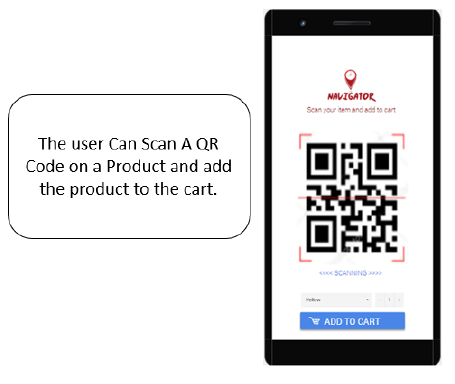
4.6 Scan
Figure 6: Scan Screen.
5 Troubleshooting
In case of failure to navigate, you will receive a pop up notification
to let you know that the operation has failed and you will either have
to try again or cancel the operation.
8
