Chat User Manual
User Manual:
Open the PDF directly: View PDF  .
.
Page Count: 14

ChatBot
The chat tool
Version 1.0
PROGRAMMERS:
Martino Caldarella,
Hanqi Chen,
Ragui Halim,
Hoon Lee,
Jacobis Soriano,
Daniel Truong
BitBots Software Developers from UCI

1
Table of Contents:
Glossary ……………………………….…………………………………………………....………………………………......……...2
1. ChatBot Overview
1.1. How to use ChatBot……………………………...………………………………….….………………...3
1.2. Goals…………………………………………………………………………………………….…………………10
1.3. Features……………………………………………………………………………………….…………………10
2. Installation
2.1. System requirements………………………………………………………………..…………………..11
2.2. Setup and configuration……………………………………………………..…..…………………...11
2.3. Uninstall……….…………………………………………………………………………….…………………..11
3. Chat program functions and features
3.1. Client and Server Communication Algorithm & Details…………….………………11
3.2. Registering and Logging In Algorithm & Details…………………………….………….11
3.3. Chat with a friend……………………………………………………………………………...………….12
3.4. Graphical User Interface (GUI) …………………………………………………….…..………….12
3.5. Change your username, password, or profile picture…………………..……………12
3.6. Change the chat display font and color……..………...……...……………..……………..12
3.7. Resetting your password……………………………………………...………………...……………12
3.8. Add/delete friends……………………………..……………………………………….………………...12
3.9. Accept or reject friend request………………………………………………...………………….12
3.10. Personal contact list……………………………………………………………………….……………..12
3.11. Ability to see the status of other users………………………………..…….………………..13
3.12. A save log for each conversation…………………………………………………...…………...13
3.13. Display of chat history…………………………………………………………..……………………...13
4. Back Matter
4.1. Copyright……………………………………………………………………………….……………………….13
4.2. References…………………………………………………………………………...………………………..13
4.3. Error messages……………………………………………………………………….……………………..13
4.4. Index……………………………………………………………………………………...……………………….14

2
Glossary:
●Notification - a message alerting the user that some action has taken
place. Could be a new message, a friend request, a friend’s status, etc.
●Contact List - a list of contacts available to the ChatBot subscriber.
●Username - a name chosen by the user to be displayed when communicating
with others on ChatBot.
●Password - a word or phrase that allows access to a tool. For IM tools, they
usually require both your account name and corresponding password for it.
●Application - program that performs specific tasks for the user.
●Instant Message (IM) - type of service allowing the user to exchange
messages with someone in real-time over the internet.
●Status - present state of an individual. For IM, there are three: online, idle, and
offline.
●Online - one of the three states of an individual. It indicates the individual is
online and available to chat. ChatBot will be deliver messages to this individual
immediately.
●Idle - one of the three states of an individual. It indicates the individual is
online but occupied . ChatBot will be delivered messages immediately but
individual will not be notified.
●Offline - one of three states of an individual. It indicates the individual is
offline and not open for connectivity. Individual cannot send messages when in
this state. Individual will be unable to see his/her message until he/she signs on
again.
●GUI - It is a short for graphical user interface. It makes it easy to communicate
with the program.
3
1. ChatBot Overview
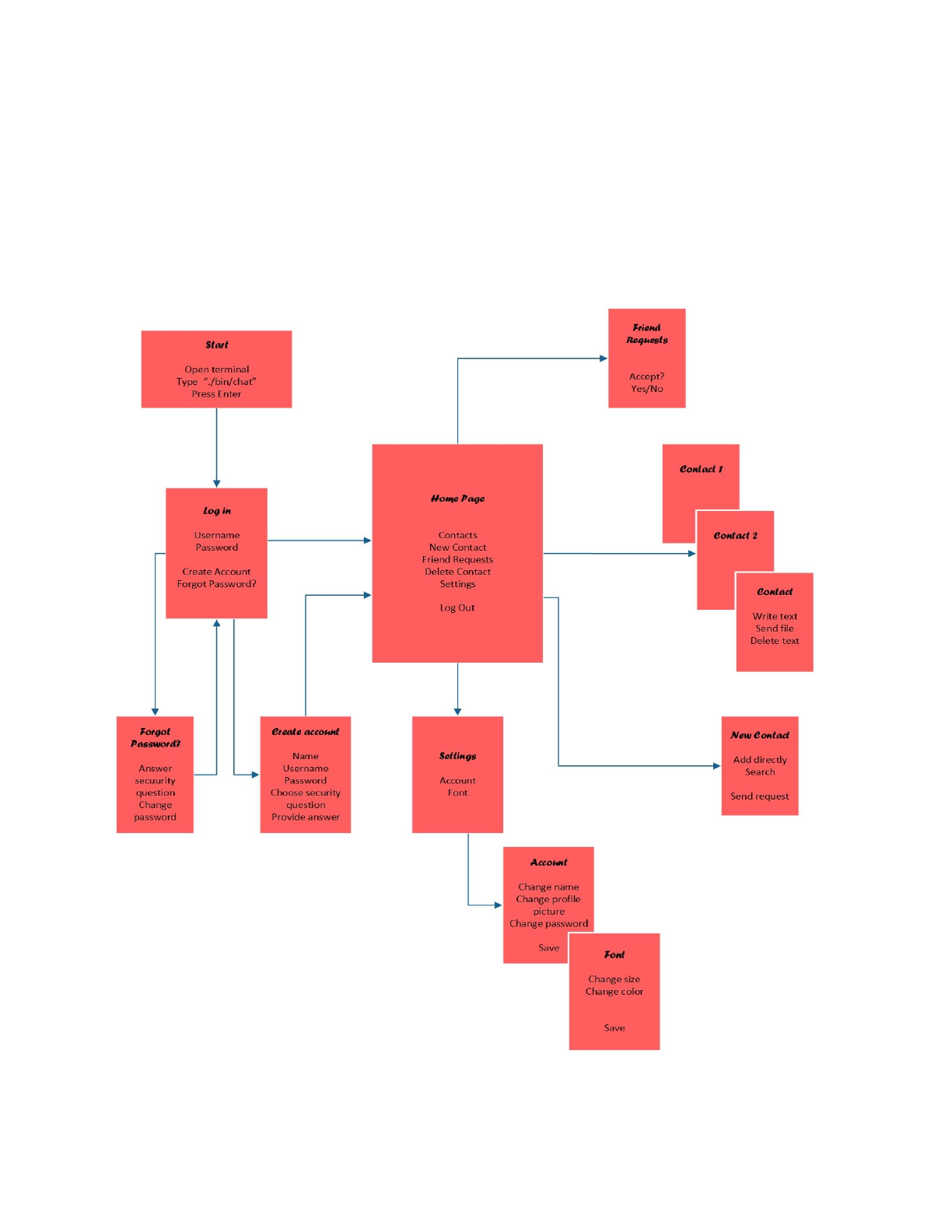
You asked. We delivered. ChatBot is a relatively simple yet powerful tool that allows
you to instantly communicate with anyone online wherever you go. Our mission is to
provide the fastest and most secure chat system in the world with ChatBot. With
ChatBot, you can chat to your heart’s content. In the figure below, you can see the
different screens that you can use in our application, and how to go from one to
another.
Application flow
4
1.1. How to Use ChatBot
The ChatBot application has various tools available to enhance your
chatting experience. Below you will find easy to follow instructions that
will guide you through how to use the ChatBot application!
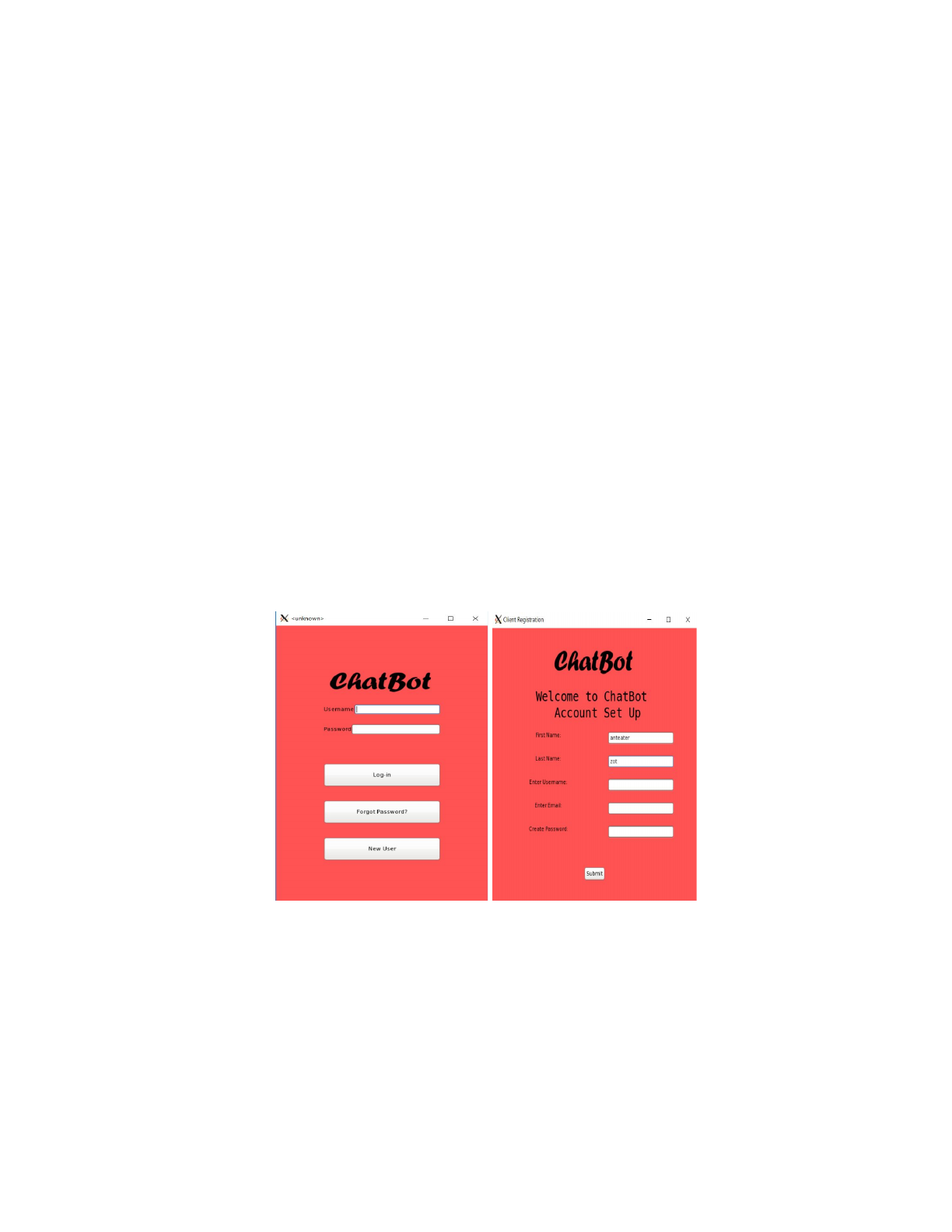
1.1.1. Creating an Account:
Before you can use ChatBot services, you need to create an
account. To create an account, click on the “New User” icon as
shown by Figure 1. You will be taken to a different screen where
you will be asked to enter your name, nickname (display name),
password, as well as some security questions as shown by Figure
2. Your nickname must be between 8-25 characters long. Your
password must be 8 characters long and must contain at least 1
uppercase letter and lowercase letter. After entering an appropriate
name, nickname, password, and security question, you are done!
You may now use all the services available in ChatBot.
Figure 1 Figure 2

5
1.1.2. Log in:
If you already have an account, you can log in to your account by
typing your username and password. Figure 3 shows the login
page.
Figure 3
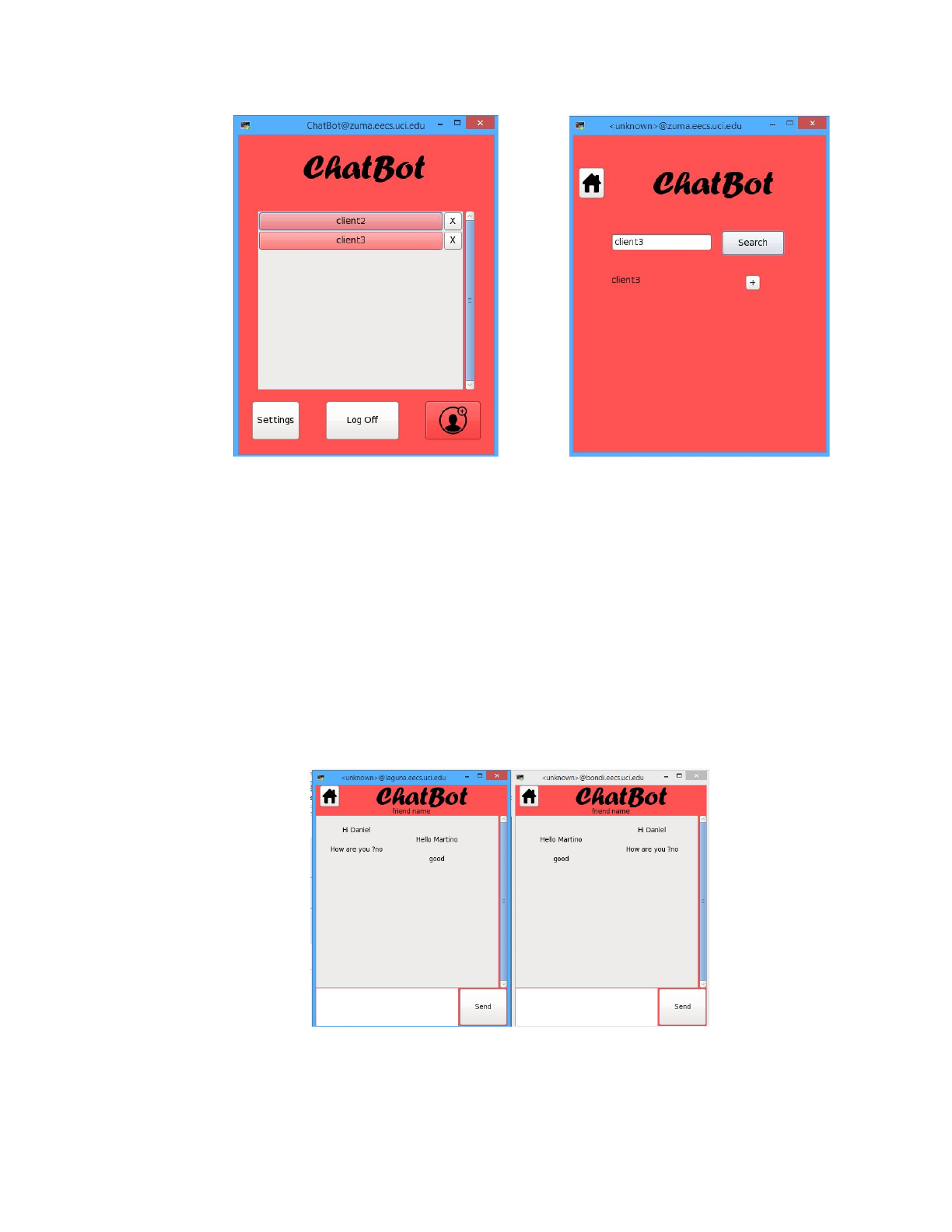
1.1.3. Adding/Deleting Friend:
Once logged into your newly created account, you will be taken to
the home page. In there, you can view your contact list, add/delete
friends, and start conversations. To add a contact, click on the “Add
friend” button on the button right of the page. The home page is
shown by Figure 4. You will be taken to the friends request
window, shown by Figure 5, where you can add friends by
requesting to friend someone. To friend request, search the name
of the friend you want to be friends with and click “send”. To return
to the contact window, click on the home icon.
6
Figure 4 Figure 5
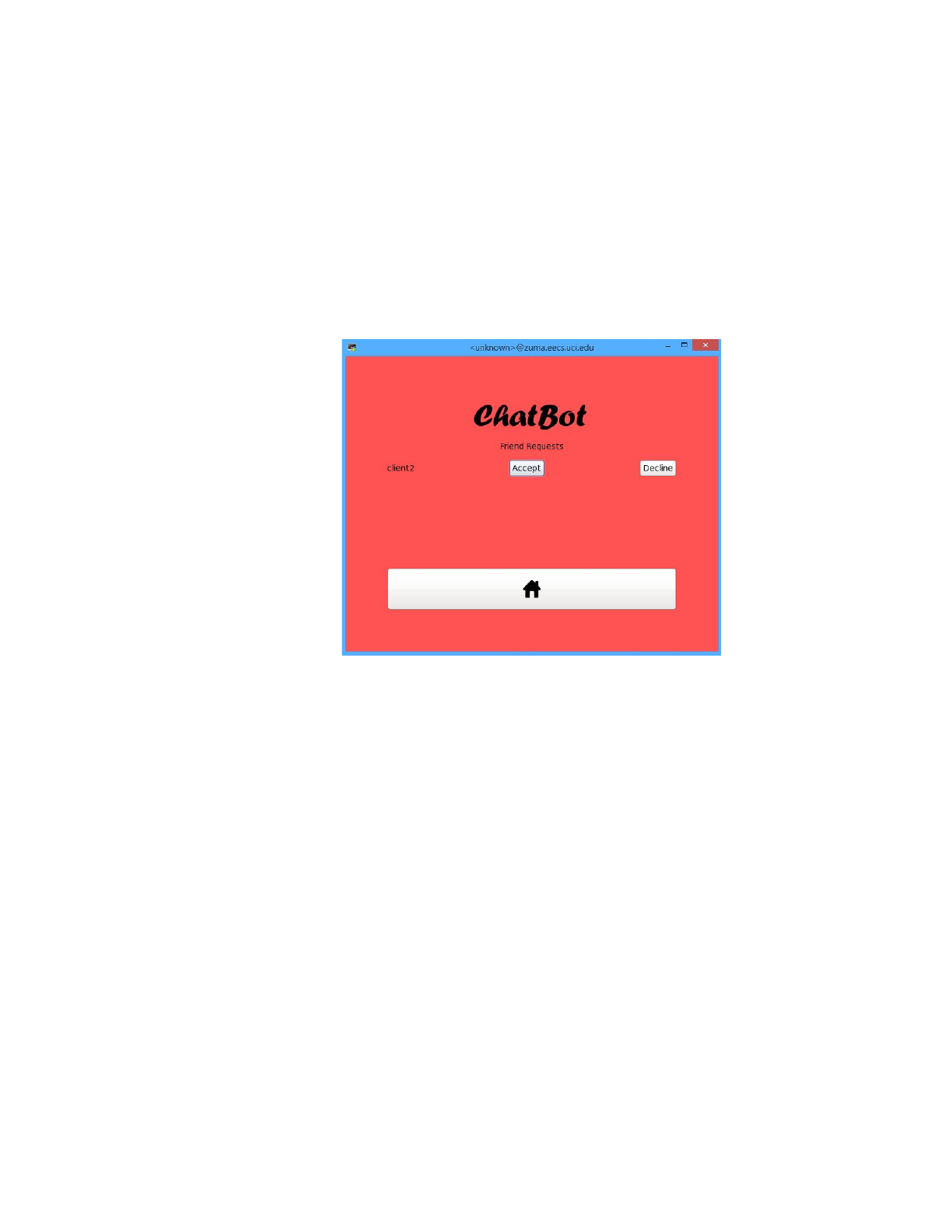
1.1.4. Starting a Conversation:
Now that you have a friend or two, you can start chatting with
them. To start a conversation, click on the friend you want to start a
conversation with on the contact window. You will be taken to a
chat window, where you can send messages to each other. To
send a message, click on the message bar and enter the message
you want to send. The Chat Page is shown in Figure 6. Your friend
should be able to view this message if online. To return to the
home window, click on the home icon.
Figure 6
7
1.1.5. Checking friends requests:
On your homepage, the number of friends requests will be
displayed in the upper part of the page. If you click on this, you will
be directed to the friends requests page, where you can accept or
reject the friend request. This is shown in Figure 7.
Figure 7
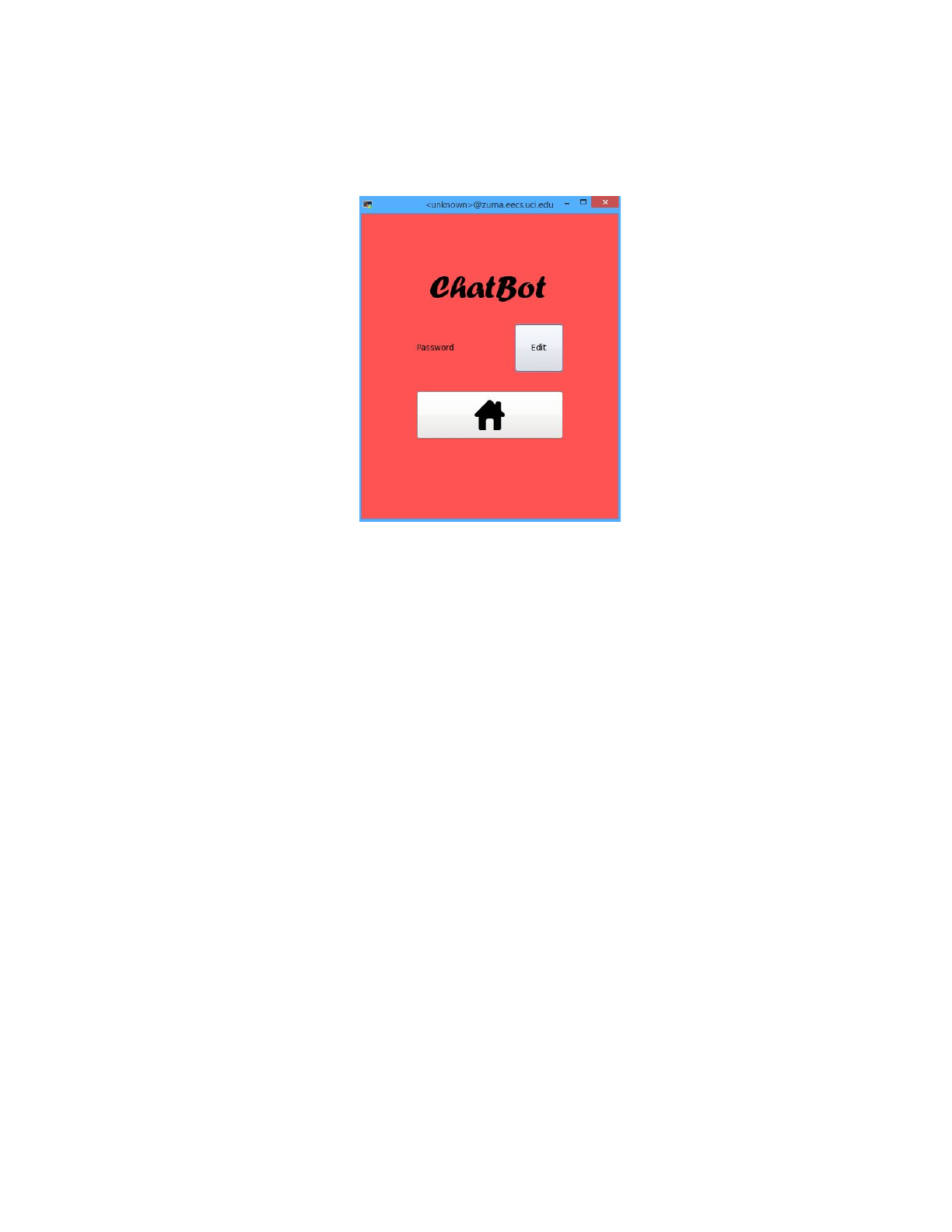
1.1.6. Setting:
From homepage on the left corner leads to the setting page. In
which you can change username, password and front. Changing
username will require your current password. Changing password
would require old password, answering security question, and new
password. The settings page is shown in Figure 8.
8
Figure 8
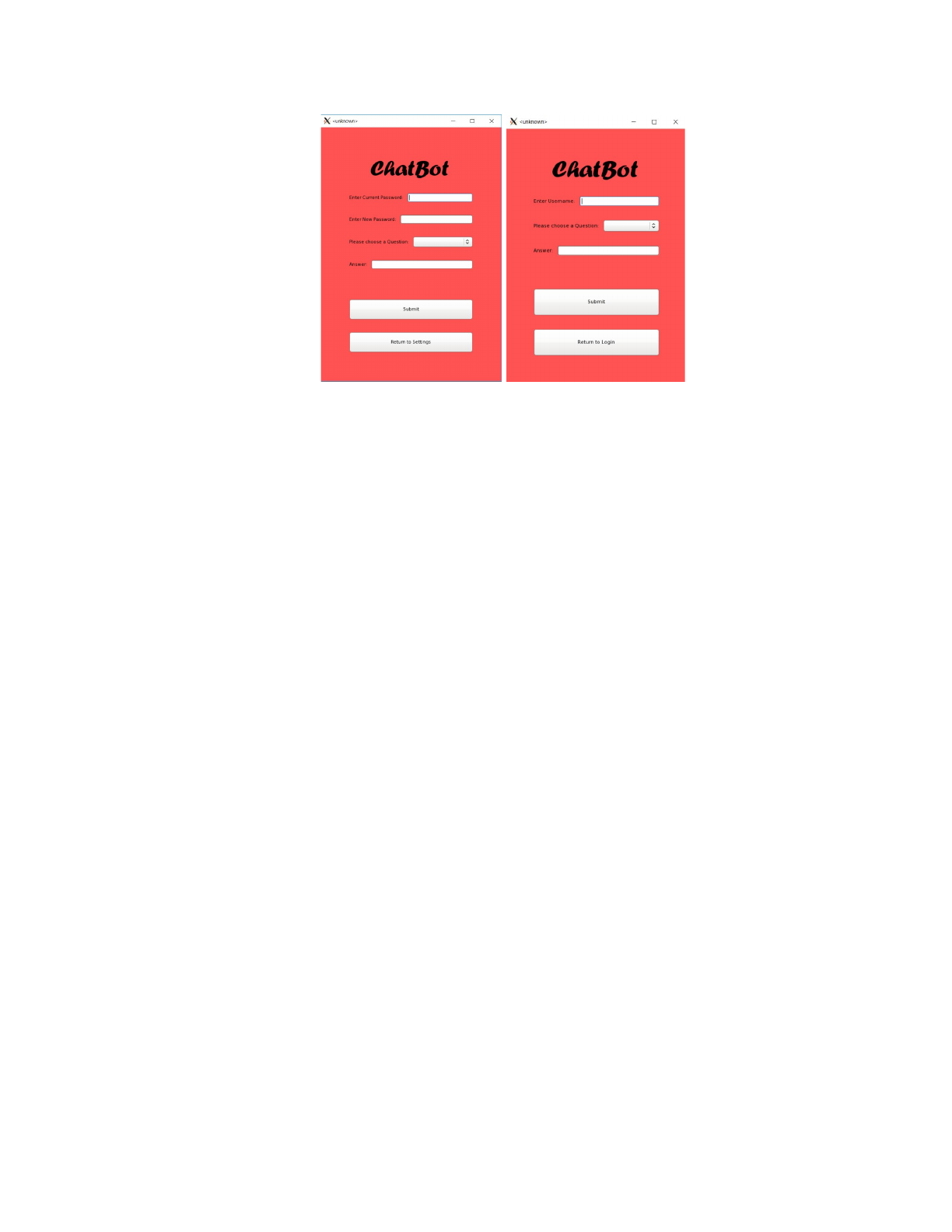
1.1.7. Recovering/Resetting Password:
If you have forgotten your password, no need to fret. On the login
window, you can recover your password by clicking on the “Forgot
Password?” icon. You will be taken to a different window asking
you to fill in some information as shown by Figure 9. If you fill those
information correctly, your password should appear on the same
window.
If you would like to change your password, you can do so by
navigating to your account setting window (see section 1.1.7 to
learn how to navigate to the settings window). Click the “Edit” icon,
the one right next to “Password” to start changing your password.
You will be taken to the reset password window, where it asks you
for your current as well as your new password, and a security
question. This is shown in Figure 10. Fill those information in to
change your password.
9
Figure 9 Figure 10
1.2. Goals
To be able to chat with your friends through the internet. Our application
will let you communicate with your friends as if you were in the same
room.
1.3. Features
- Chat with a friend
- Graphical User Interface (GUI)
- Change your password in the settings page.
- Reset your password if you forgot it.
- Add/delete friends
- Accept or reject friend request
- Personal contact list
- Ability to see the status of other users.
- A save log for each conversation.
- Display of chat history.
2. Installation
2.1. System Requirements:

10
- Linux OS 2.6.32-696.18.7.el6.x86_64
- PC(x86_64 Server)
2.2. Setup and configuration:
- To extract the file, type gtar xvzf Chat_V1.0.tar.gz.
- To run the chat, type ../bin/chat zuma 7777.
- To run the server, type ../bin/server 7777.
NB: If the port 7777 was taken, please replace 7777 with any 4
digit number greater than 2000 for server and chat port.
2.3. Uninstallation:
- No need to uninstall
3. Program Functions and Features
3.1. Client and Server Communication Algorithm & Details:
- If the user tries to register, when he clicks ‘submit’, a request will be sent
to the server to check if the username or email is already taken. If it is not
taken, the server will save the new contact and return a success message.
Otherwise, the user will be told to choose another username or email.
- If the user tries to log in, when he clicks ‘log-in’,a request will be sent to
the server to check if the username and password match. If they do
match, the server will allow the user to login and return a success
message. Otherwise, the user will be told that the username and
password doesn’t match, and he/she should enter data one more time.
- Whenever a client type a message and clicks ‘send’, the server should
save the message in the corresponding log file.
- The server should load the old chat for the client whenever he/she tries to
open a chat window.
- If a client deletes or add a friend, the server will update his/her contact list.
- If the user updated his contact information, his contact file on the server
should be updated as well.
3.2. Registering and Logging In Algorithm & Details:
- Users register to the server with information needed for new user, and an
account will be made based instantly when he clicks ‘submit’. When the
user clicks ‘login’, to log in to his/her account, the program will check
whether the user is registered or not by searching user’s information from
the data server.

11
- Users also can retrieve their passwords if they forgot it. Users will be
asked to answer single or multiple security questions that users chose to
answer when they signed up.
3.3. Chat with a friend
- Our program allows you to chat with your friend as if you are in the same
room. This is shown in Figure 5.
3.4. Graphical User Interface (GUI)
- To make it easy to use, our application have nice looking design. It is also
very easy to use and to go from one page to another.
3.5. Change your username, password, or profile picture in the settings
page.
- Whenever you want to change your username, password, or profile
picture, you can easily go to the settings page and edit any of them.
3.6. Reset your password if you forgot it.
- if you forget the password, you can set a new one by clicking on ‘Forgot
Password?’. A new window will open and ask you to answer to the
security question. The answer of the security question was saved when
creating the account. This is shown in Figure 8.
3.7. Add/delete friends
- Users are able to add friend from homepage by clicking add friend” icon
on the bottom right of the page. Then type in the friend’s username to
search for the friend’s contact. This is shown in Figure 4.
- User can delete friend by clicking the “x” button next to the friend in
homepage.
3.8. Accept or ignore friend request
- When you have new friends requests, a notification with the number of
requests will be showed in the upper part of your contacts page.
- If you click on this notification, you will be directed to another page to
choose whether to accept or reject the request. This is shown in Figure 7.
3.9. Personal contact list
- All your contacts are displayed on your home page and you can easily
click on any of them to start chatting with him/her/them. This is shown in
Figure 4.
3.10. Ability to see the status of other users.
- User’s status will be displayed in two different colors of light. Green =
Active and, Inactive = Red.
3.11. A save log for each conversation.
- Conversations will be automatically saved in the log file so the users can
continue the conversation from where he/she stopped.
3.12. Display of chat history.

12
- Whenever you open your chat with any of your friends, you can see your
old chat.
4. Back Matter
4.1. Copyright:
Copyright © 2018 BitBots Software Developers. All rights reserved.
4.2. References:
http://www.linuxhowtos.org/C_C++/socket.htm
http://www.linuxhowtos.org/data/6/client.c
http://www.linuxhowtos.org/data/6/server.c
4.3. Error messages:
4.3.1. “Username already taken.”
User attempted to enter an invalid username when creating an
account. The user name should not be taken by another user.
4.3.2. “Invalid Password. Password must be...”
User attempted to enter an invalid password when creating an
account. User must input a password with characteristics
requested by the app. The password should be at most 25
characters long.
4.3.3. “Invalid email. Email must be…”
When the user enters an already taken email, or type an email that
does not match the email naming conventions, the email should
have ‘@’ and ‘.’ characters and doesn’t contain a space.
4.3.4. “Username and/or Password is incorrect”.
If the user forgets his or her password, he or she can click on the
‘Forgot password?’ icon to recover it.
User entered a screen name/password not found in the database.
User can either enter the information or request to recover their
password.
4.3.5. “Uh-oh. Something went wrong. Please try again
another time.”
Some unforeseen error has occurred. User can reboot the app to
potentially solve the issue. If the issue persists, please contact
BitBots Software Developers for technical support.
4.3.6. “<Field Type>
field is empty.”
When the user forgot to fill one or more inputs when creating an
account, or trying to log in.
4.4. Index:

13
Account………………………………………………………………………………………………...1.1.1, 1.1.2, 1.1.3, 3.2, 3.7, 4.3.1, 4.3.2
Application……………………………………………………………………………………………………..………………………………………………….3.4
Add…………………………………………………………………………………………………………………………………………...1.1.3, 1.3, 3.1, 3.8
Chat………………………………………………………………………………………………………..1.1.4, 1.2, 1.3, 2.2, 3.1, 3.3, 3.10, 3.13
Contact ………………………………………………………………………………………………………………....1.1.3, 1.1.4, 1.3, 3.1, 3.8, 3.9
Conversation………………………………………………………………………………………………………………..…….1.1.3, 1.1.4, 1.3, 3.12
Delete…………………………………………………………………………………………………………………………….1.1.3, 1.1.4, 1.3, 3.1, 3.8
Display……………………………………………………………………………………………………..1.1.1, 1.1.5, 1.3, 3.6, 3.10, 3.11, 3.13
GUI………………………………………………………………………………………………………………………………………………………………1.3, 3.4
Image……………………………………………………………………………………………………………………………………………………………...1.1.4
Logging………………………………………………………………………………………………………………………………….1.1.2, 1.1.3, 3.1, 3.2
Message……………………………………………………………………………………………………………………………………….....1.1.4, 3.1, 4.3
Notification…….……………………………….………………………………………………………………………………………………..…………….…3.9
Online……………………………………………………………………………………………………………………………………………………………...1.1.4
Password…………………………………………………………………..……1.1.1, 1.1.2, 1.1.6, 1.3, 3.1, 3.2, 3.5, 3.7, 4.3.2, 4.3.3
Profile………………………………………………………………………………………………………………………………………………………….1.3, 3.5
Request………………………………………………………………………………………………………………………….1.1.3, 1.1.5, 1.3, 3.1, 3.9
Reset…………………………………………………………………………………………………………………………………………………………..1.3, 3.7
Save…………………………………………………………………………………………………………………………………………...1.3, 3.1, 3.7, 3.12
Settings…………………………………………………………………………………………………………………………………....1.1.6, 1.3, 3.5, 3.6
Status………………………………………………………………………………………………………………..………………………………………1.3, 3.11
User……………………………………………………………………………………………………………………..1.1.6, 1.3, 3.1, 3.5, 4.3.1, 4.3.3
For definitions please refer to the Glossary on page 2.
