FlexSet IP 280S (Version 2.xx) User Guide, For Coral Version 14.66 IPx Flex Set 280 Telephone
User Manual: Coral IPx FlexSet 280 IP Telephone
Open the PDF directly: View PDF  .
.
Page Count: 126 [warning: Documents this large are best viewed by clicking the View PDF Link!]
- Main Screen
- Table of Contents
- Introduction
- FlexSet-IP 280S Overview
- Using the FlexSet-IP 280S Display
- Operating the FlexSet-IP 280S
- Appendix A – Telephony Features
- Account Code
- ACD & UCD: Calls Waiting Display
- ACD & UCD: Load ID
- ACD & UCD: Log In/Out for a Single ACD Group
- ACD & UCD: Primary Log-In
- ACD & UCD: Release/Resume from All Groups
- ACD & UCD: Release/Resume from a Single UCD Group
- ACD & UCD: Wrap-Up Code
- ACD: Wrap-Up Time On/Off
- Auto Answer
- Auto Redial
- Boss Group: Call Forward All
- Boss Group: Call Forward Busy
- Boss Group: Call Forward No Answer
- Boss Group: Call Forward Timed
- Boss Group: Exclusive Hold
- Boss Group: Privacy
- Boss Group: Line Keys Programming
- Break-In
- Call Forward All
- Call Forward Busy
- Call Forward Busy/No Answer
- Call Forward No Answer
- Call Forward - Timed
- Call Log
- Call Trace
- Call Trace Print
- Caller ID Control
- Call Waiting Activation/Call Offer
- Calls Waiting Display
- Camp-On (or Call Back)
- Camp-On (Offhook)
- Conference, Multi-Party Lock
- Conference View/Release
- COS Switchover
- Directory
- Divert Call
- Do Not Disturb
- Do Not Disturb Override
- Elapsed Time
- Executive Privilege
- Flash on Trunk
- FlexiCall
- Follow Me
- Forced Release
- Freedom
- Group Call
- HELP Requesting
- HELP Answering
- Hold
- Idle Display
- Individual Remote System Services (IRSS) Freedom
- Last Number Redial
- Message
- Message Cancel
- Mute
- Name/Dial Number Display
- Night Answer
- Other Common Carrier (OCC)
- Page-Queue
- Paging, Announcing: Public Address
- Park
- Passcode
- Phone Lock
- Pickup Direct
- Pickup Group
- Preference
- Private Library
- Program Key
- Relay (Accessory)
- Reminder
- Ring Adjustment
- Room Status
- Save Number
- Saved Number Redial
- Security Line
- Series Call
- Silent Monitor (2-way)
- Speakerphone/Handset
- Stop Dial
- Transfer (Xfer)
- Allowed Transfer Features
- Transfer: 3 Way Conference
- Transfer: Broker
- Transfer: Consultation
- Voice Page Announcing
- Voice Page Receiving: Auto Answer
- Voice Page Receiving: On/Off
- Wakeup
- Whisper Page Activation
- Whisper Page Receiving On/Off
- Zone Page
- Appendix B – Attendant Features
- Return Calls
- When Transfer is Not Completed
- Intercepted Calls
- Message Waiting Delivery
- Ports Without Disconnect Supervision
- Wakeup Call
- TRUNK CONTROLS
- SYSTEM CONTROLS
- STATION CONTROLS
- ACD Group (Max Call waiting for Busy Group)
- Call Charge Printout
- Call Charge Reset with Printout
- ( Call Forward All (Follow-me)
- ( Call Forward Busy
- ( Call Forward No Answer
- ( Call Forward Timed
- ( Call Trace
- ( Call Trace Printout
- Check-In/Out
- ( Do Not Disturb (DND)
- Hot Station Delay
- Hot Station Immediate
- Message Waiting
- Originating Station Only
- ( Room Status
- Station Blocking
- Station Outgoing Restriction
- Terminating Station Only
- Wakeup Report
- ( Wakeup Request
- TROUBLESHOOTING
- Return Calls
- Appendix C – Glossary
- Appendix D – Tones
- Appendix E – ISDN Cause Numbers
- Appendix F – Troubleshooting
- Appendix G – Latest Telephony Features
- Directory
- FlexiCall
- FlexiCall: Receiving Calls at a Remote Destination
- Individual Remote System Services (IRSS) - Freedom
- To enable IRSS (from remote phone providing caller ID):
- To cancel IRSS:
- Placing IRSS Calls:
- Options available while in an established IRSS call
- Broker/Consultation/3-Way Conference call
- To activate Voice Mail/IVR from your IRSS phone:
- To activate the FlexiCall All feature from your IRSS phone:
- To cancel the FlexiCall All feature from your IRSS phone:
- To enable a new IRSS phone from your present IRSS phone
- To cancel IRSS feature from your IRSS phone:

FlexSet-IP 280S
User Guide
.
The flexible way to communicate
(FlexSet Ver 2.xx)
(Coral Ver 14.66)
.

The information contained in this document is proprietary and is subject to all relevant copyright, patent and other
laws protecting intellectual property, as well as any specific agreement protecting TADIRAN TELECOM
BUSINESS SYSTEMS LTD.’s (here in referred to as the “Manufacturer”) rights in the aforesaid information.
Neither this document nor the information contained herein may be published, reproduced or disclosed to third
parties, in whole or in part, without the express, prior, written permission of the Manufacturer. In addition, any use
of this document or the information contained herein for any purposes other than those for which it was disclosed is
strictly forbidden.
The Manufacturer reserves the right, without prior notice or liability, to make changes in equipment design or
specifications.
Information supplied by the Manufacturer is believed to be accurate and reliable. However, no responsibility is
assumed by the Manufacturer for the use thereof nor for the rights of third parties which may be effected in any way
by the use thereof.
Any representation(s) in this document concerning performance of the Manufacturer’s product(s) are for
informational purposes only and are not warranties of future performance, either express or implied. The
Manufacturer’s standard limited warranty, stated in its sales contract or order confirmation form, is the only
warranty offered by the Manufacturer in relation thereto.
This document may contain flaws, omissions or typesetting errors; no warranty is granted nor liability assumed in
relation thereto unless specifically undertaken in the Manufacturer’s sales contract or order confirmation.
Information contained herein is periodically updated and changes will be incorporated into subsequent editions. If
you have encountered an error, please notify the Manufacturer. All specifications are subject to change without
prior notice.
© Copyright by TADIRAN TELECOM BUSINESS SYSTEMS LTD., 2002-2004.
All rights reserved worldwide.
The Coral is Protected by U.S. Patents: 6,594,255; 6,598,098; 6,608,895; 6,615,404
All trademarks contained herein are the property of their respective holders.

Table of Contents a FlexSet-IP 280S User Guide
Table of Contents
Table of Contents.........................................................................................................................................a
Introduction................................................................................................................................................. 1
Conventions.......................................................................................................................................................... 2
Related Documentation ........................................................................................................................................ 3
FlexSet-IP 280S Overview ......................................................................................................................... 4
FlexSet-IP 280S Component Descriptions ........................................................................................................... 5
FlexSet-IP 280S - Bottom, Side and Rear View .................................................................................................. 6
FlexSet-IP 280S – PC Connection ....................................................................................................................... 7
Handset Hook and Telephone Number ................................................................................................................ 8
Desk Elevation Installation................................................................................................................................... 9
Wall Mounting.................................................................................................................................................... 10
Using the FlexSet-IP 280S Display .......................................................................................................... 11
Fixed Keys; What They Do................................................................................................................................ 12
Configuring your FlexSet-IP 280S..................................................................................................................... 13
Viewing the FlexSet-IP 280S MAC address ................................................................................................. 13
Inputting the IP Addresses ............................................................................................................................ 13
To Enter Addresses: ...................................................................................................................................... 14
Operating the FlexSet-IP 280S ................................................................................................................. 16
Using the FlexSet-IP 280S Telephony Features................................................................................................. 17

Table of Contents b FlexSet-IP 280S User Guide
Using the System Defined Fixed Keys............................................................................................................... 18
Using the Programmable Keys........................................................................................................................... 19
To Program a Key ......................................................................................................................................... 19
Programming: Button Labeling..................................................................................................................... 20
To print the multi-designation label:.........................................................................................................................21
To place the telephone number:................................................................................................................................22
Making Calls ...................................................................................................................................................... 23
When You Hear Ringback Tone for Internal Calls ....................................................................................... 25
When You Hear Ringback Tone for External Calls...................................................................................... 26
When you Hear a Reorder Tone for Internal Calls (in Do Not Disturb) ....................................................... 28
When You Hear a Busy Tone for Internal Calls ........................................................................................... 29
During a Break In.......................................................................................................................................... 30
When You Hear a Busy Tone for External Calls .......................................................................................... 31
Answering Calls ................................................................................................................................................. 32
During an Internal Call....................................................................................................................................... 33
During an External Call...................................................................................................................................... 34
Using the Speakerphone or Headset................................................................................................................... 36
Headset Cord (#2) Disconnect ...................................................................................................................... 39
Volume Adjustment............................................................................................................................................ 40
Ring Adjustment................................................................................................................................................. 41
Appendix A – Telephony Features
Appendix B – Attendant Features
Return Calls...................................................................................................................................................... B-5

Table of Contents c FlexSet-IP 280S User Guide
When Transfer is Not Completed................................................................................................................ B-6
Intercepted Calls ......................................................................................................................................... B-7
Message Waiting Delivery .......................................................................................................................... B-8
Ports Without Disconnect Supervision........................................................................................................ B-9
Wakeup Call 10
TRUNK CONTROLS ............................................................................................................................... B-11
SYSTEM CONTROLS ............................................................................................................................. B-13
STATION CONTROLS............................................................................................................................ B-16
TROUBLESHOOTING ............................................................................................................................ B-22
Appendix C - Glossary
Appendix D - Tones
Appendix E - ISDN Cause Numbers
Appendix F - Troubleshooting
Appendix G – Latest Telephony Features

Introduction 1 FlexSet-IP 280S User Guide
Introduction
The FlexSet-IP 280S or Terminal with soft keys is a fully functional keyset that meets all your telephony and office
needs. It combines the ability to communicate with the IP world with the solid dependability and high level of
functionality available from the Coral.
The FlexSet- IP 280S can be used in a typical office environment or can connect to the Coral via the IP environment
from an external location, enabling telecommuting without losing the benefits of the Coral’s rich features.
The benefits you receive from working with the FlexSet will become an invaluable part of your work environment.
While the technology employed in the FlexSet is state of the art, using the telephone is simple and straightforward.
Benefits of the FlexSet-IP 280S include:
• Single set of wiring
• Increased mobility
• ‘True’ telecommuting ability
• Clear, logical menus
This User Guide provides an overview of the FlexSet-IP 280S and instructions on how to accomplish several tasks.
Additional instructions on other feature rich options are located in the Appendix located at the end of this Guide.
Enjoy your new FlexSet!

Introduction 2 FlexSet-IP 280S User Guide
Conventions
Conventions
• Fixed key names appear in a shaded distinctive box, for example .
• Soft key names appear in a clear distinctive box, for example [AutRdl].
• Emphasized text, as in SPKR, indicates system defined fixed keys or DSS user programmable keys (see figure on
page 4).
• Text in italics refers the reader to another section of the guide or to other Coral manuals, for example “See Ring
Adjustment”. It is also used for notes.
• The instruction “Select” indicates that the user should use Navigator keys: up/down, right/left navigator keys to find
and select an item from the display.
• The instruction “Enter” indicates that the user should press the ENTER key (above navigator keys) to initiate the
action.
• The instruction “Choose” indicates that the user should combine the Navigator right/left keys and “Enter” actions to
choose and actuate an option. Pressing an option’s soft key also chooses and activates the option.
• The instruction “scrolling,” or “scroll,” indicates that the user should press one of the four navigator keys
• The illustrations of the FlexSet display and other views appearing in this manual are examples used to explain more
clearly how the features and controls are used. Therefore, what appears on the display in the illustrations may differ
from what appears on the display on the actual equipment, and some of the illustrations on the display may represent
something impossible in actual operation. The functions that can be used and the information that can be displayed
will differ depending on the telephony state and external equipment being connected.
• Where a list, menu or sub-menu continues through several lines in this document, these are indicated as Page 1, Page
2, etc.

Introduction 3 FlexSet-IP 280S User Guide
Related Documents
Related Documentation
• Attendant Console User Guide
• FlexSet 280, 280D, 280D-Z, 120, 120D and 120L User Guide
• Voice over IP Installation Manual
• PI & Database Reference Manual
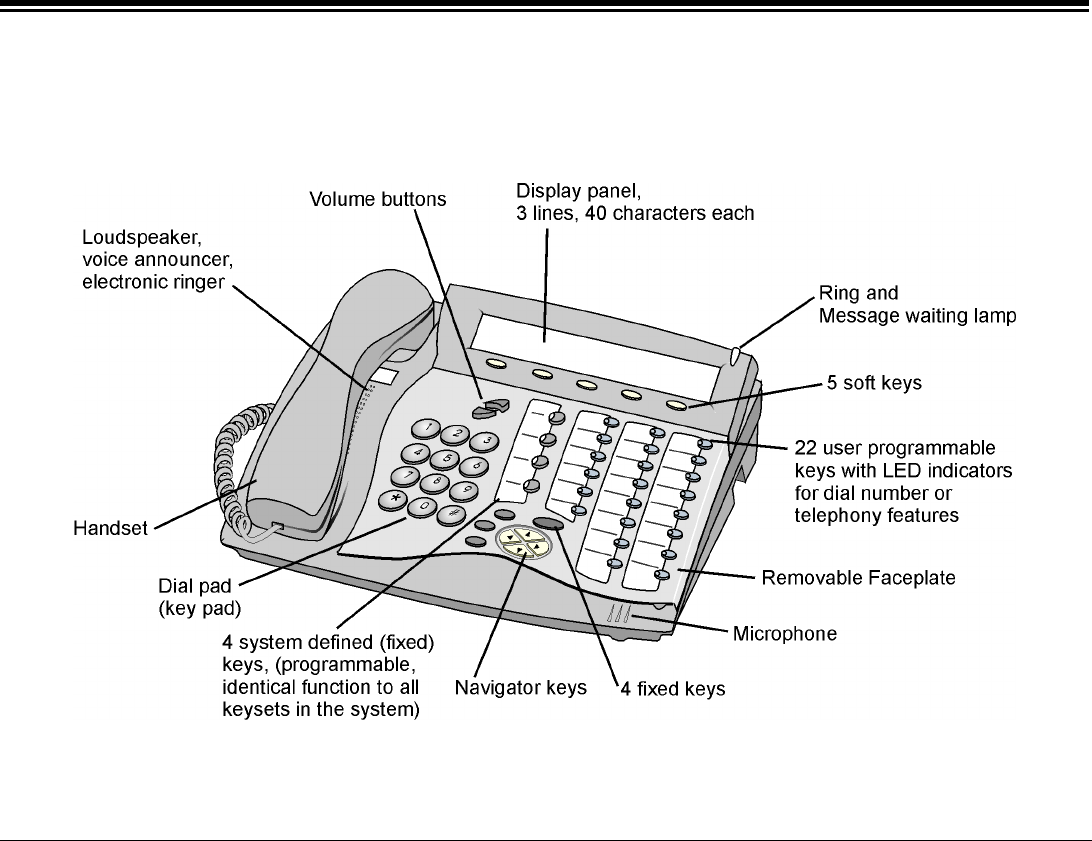
FlexSet Overview 4 FlexSet-IP 280S User Guide
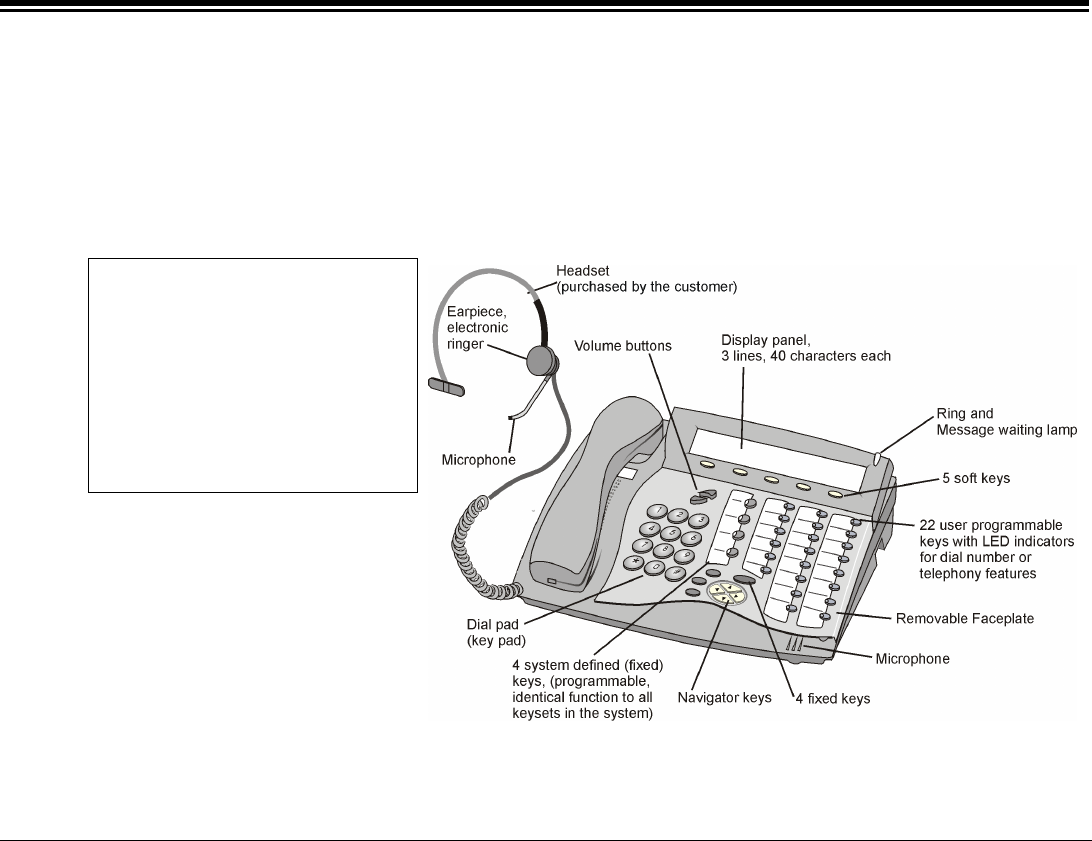
FlexSet-IP 280S Front View
FlexSet-IP 280S Overview
FlexSet-IP 280S Front View
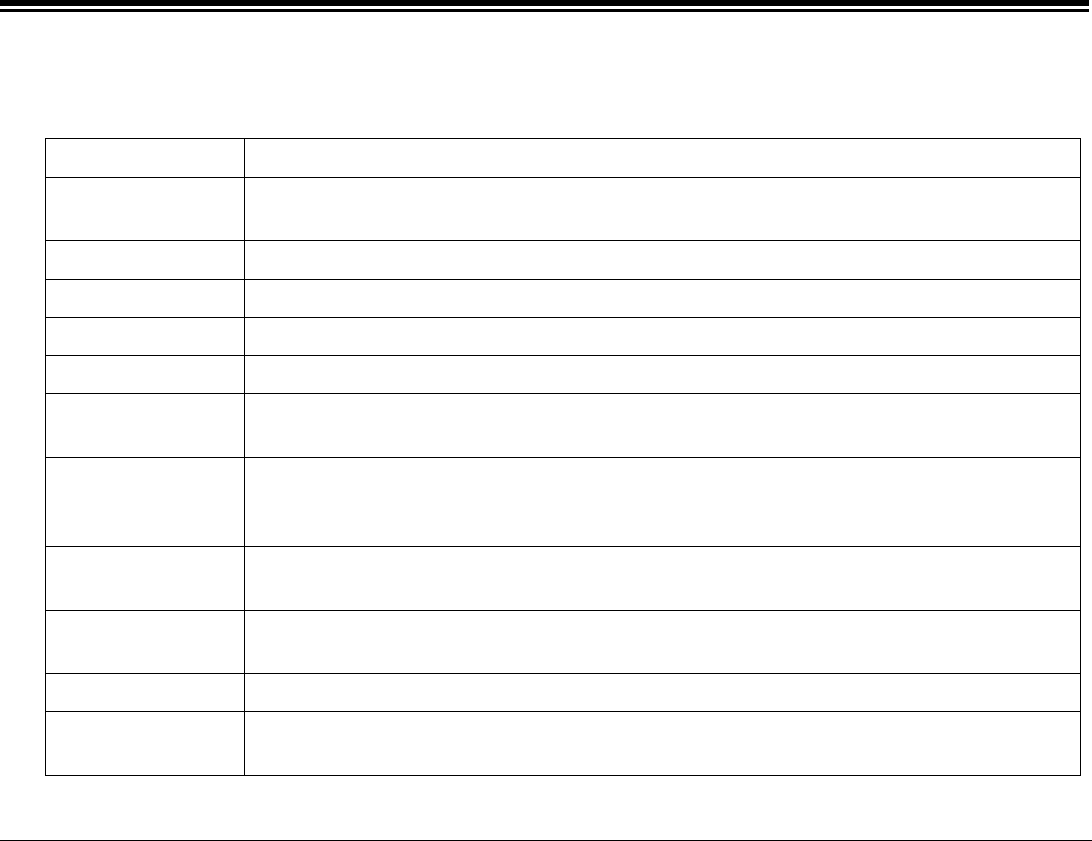
FlexSet Overview 5 FlexSet-IP 280S User Guide
FlexSet-IP 280S Component Descriptions
FlexSet-IP 280S Component Descriptions
The following table defines controls, buttons and keys found on the FlexSet-IP 280S.
Dial Pad (Key Pad) Digit buttons used for dialing phone numbers or extension numbers.
FlexSet Display The display is composed of three lines: System lines (1st and 2nd lines), and available function
options (on 3rd line) according to FlexSet status.
Fixed keys Enter, ABC, Menu and ESC.
Handset Works as typical phone handset.
Loudspeaker Output sound device used in hands free operation, paging and ringing.
Microphone Input sound device used in hands free operation.
Ring and Message
Waiting Lamp
Lamp flashes at a slow rate, indicating that a message is waiting.
Lamp flashes at a fast rate when the FlexSet is ringing.
Programmable
Keys (DSS)
22 user programmable keys on FlexSet-IP 280S with LED Indicators. Used to activate
telephony features or speed dial telephone numbers according to the user’s needs. LED lights
when key or feature is activated.
System Defined
(Fixed) Keys
Four system-wide programmed keys (market dependent) for basic features: Speaker, Loop,
Transfer and Hold.
Navigator Keys Up/down, right/left arrows used to move from one option to another on the display. Used for
selecting without choosing or activating the option.
Soft keys Keys used to directly activate the feature of each key.
Volume Buttons Adjust the volume of the speakerphone, handset and ringer. See Volume Adjustment on page
40.
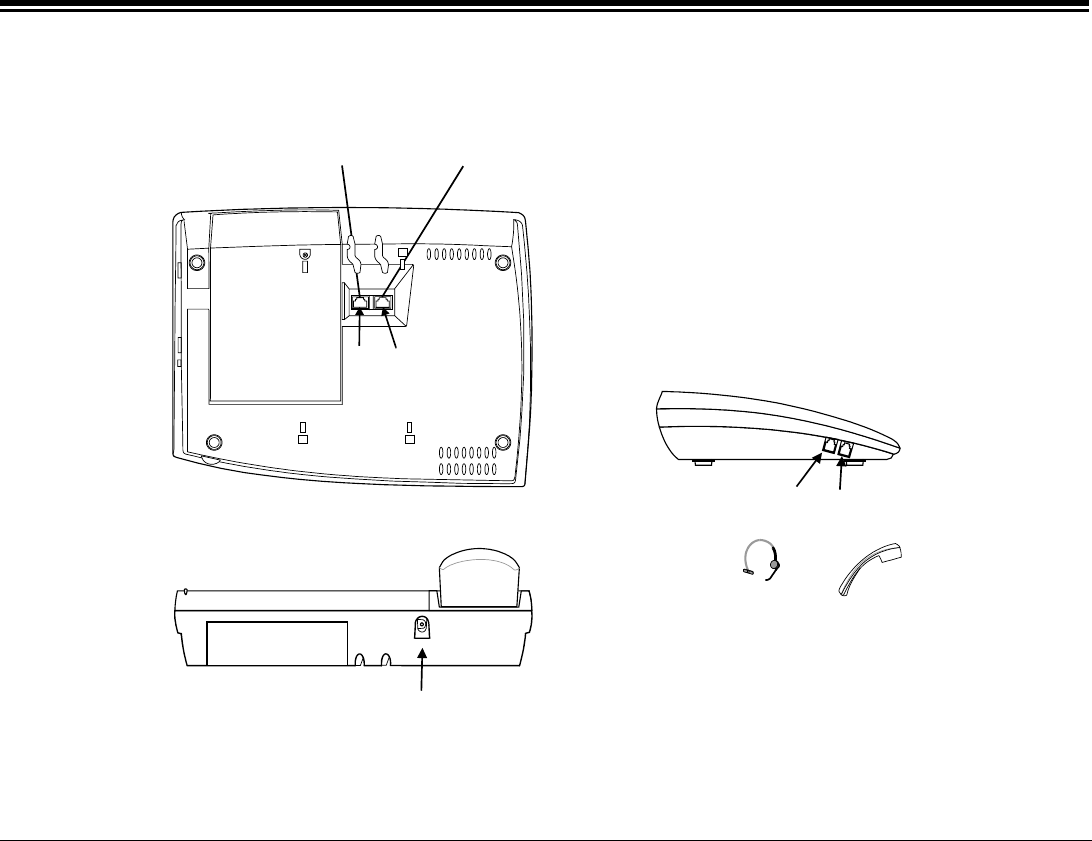
FlexSet Overview 6 FlexSet-IP 280S User Guide
FlexSet-IP 280S - Bottom, Side and Rear View
FlexSet-IP 280S - Bottom, Side and Rear View
Rear view
Bottom view
RJ-45 jack to PC
(or next FlexSet-IP 280S)
RJ-45 jack to LAN
(or previous FlexSet-IP 280S)
Left side view
DC
Power Supply
(24 to 36 VDC)
#1
Handset
Connection
#2
Headset
Connection
LAN
PC
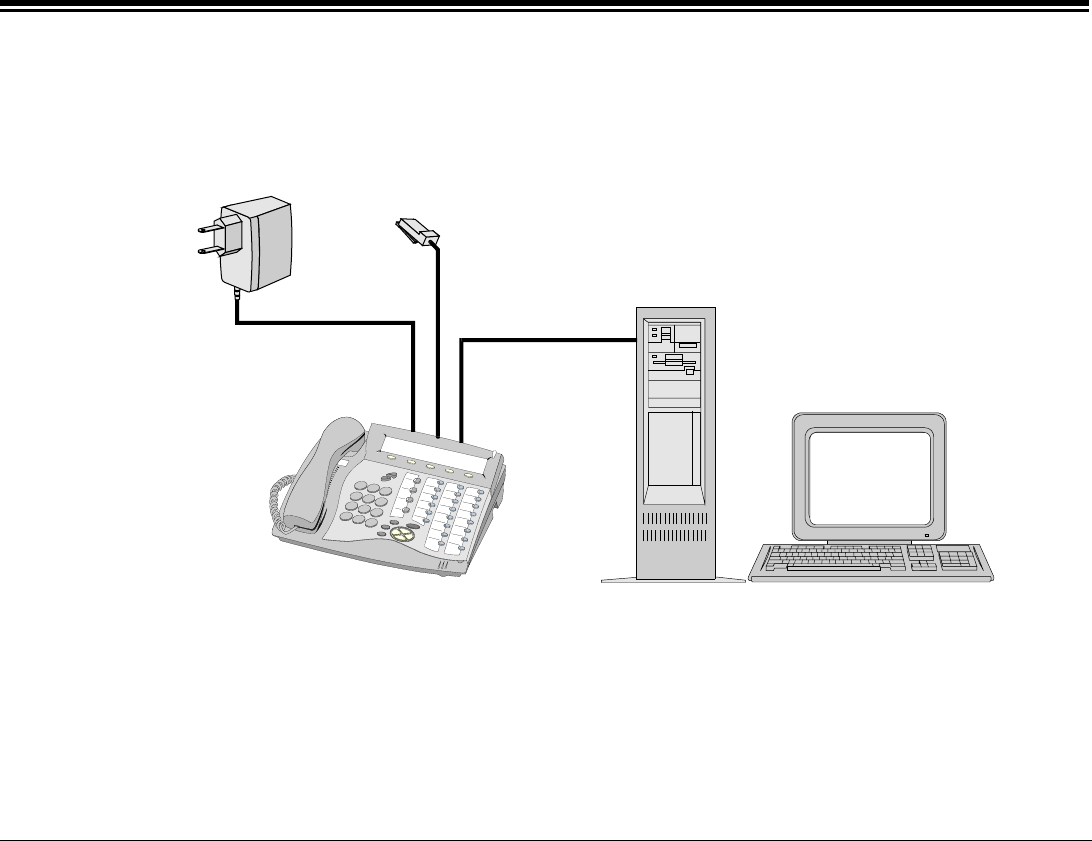
FlexSet Overview 7 FlexSet-IP 280S User Guide
FlexSet-IP 280S – PC Connection
FlexSet-IP 280S – PC Connection
LAN
PC
Flex
S
et-IP 2
80S
External
power supply
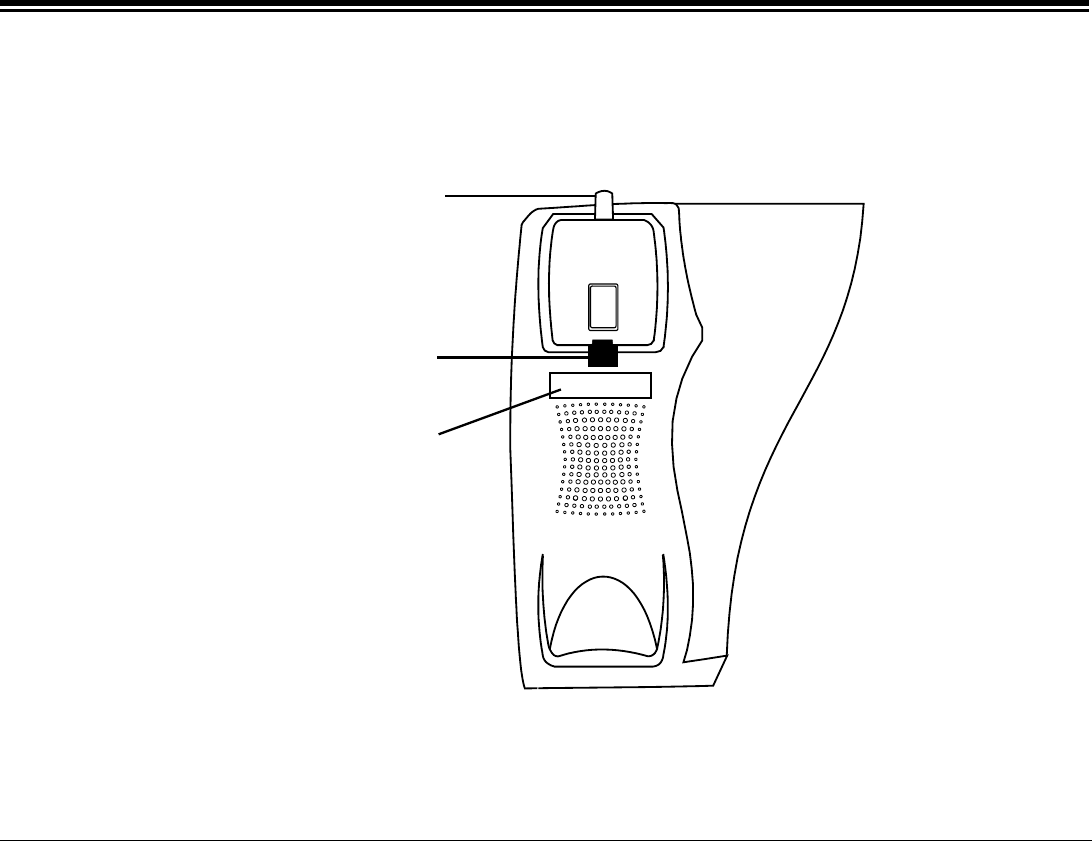
FlexSet Overview 8 FlexSet-IP 280S User Guide
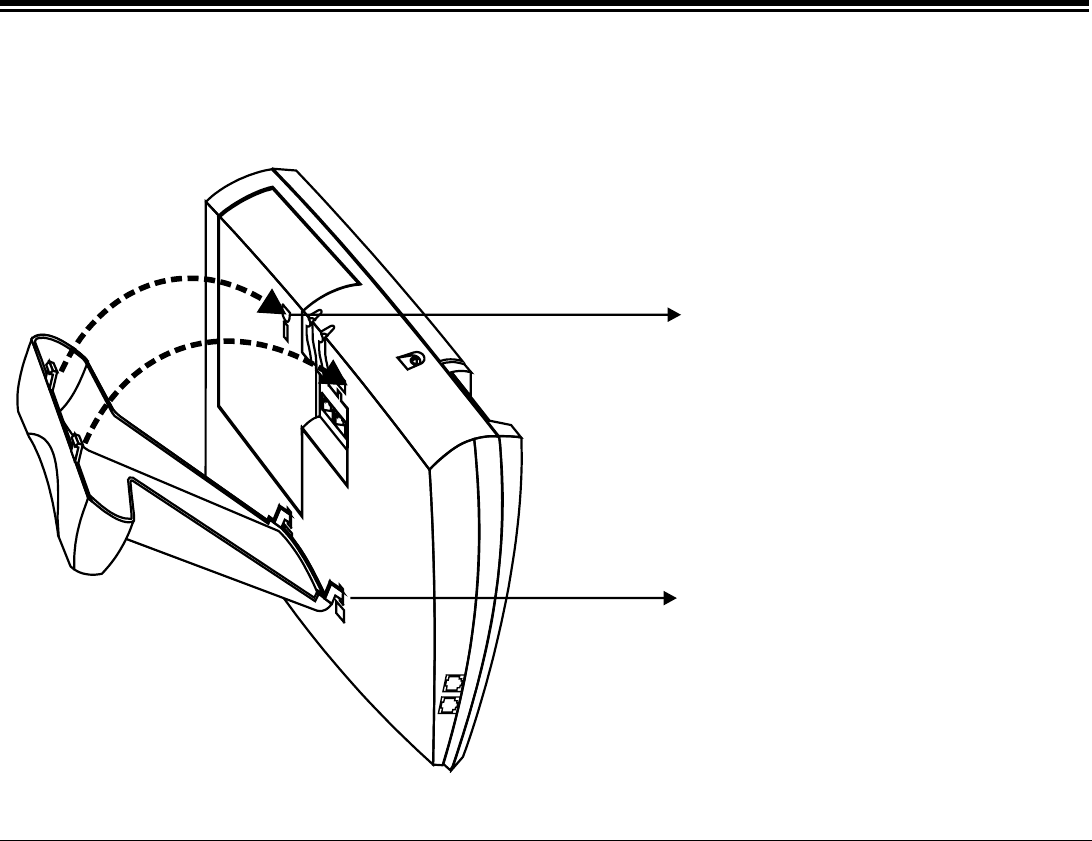
Handset Hook and Telephone Number
Handset Hook and Telephone Number
Place Telephone
Number here
(plastic cover)
Handset
Off-Hook
Removable Handset
On-Hook
FlexSet Overview 9 FlexSet-IP 280S User Guide
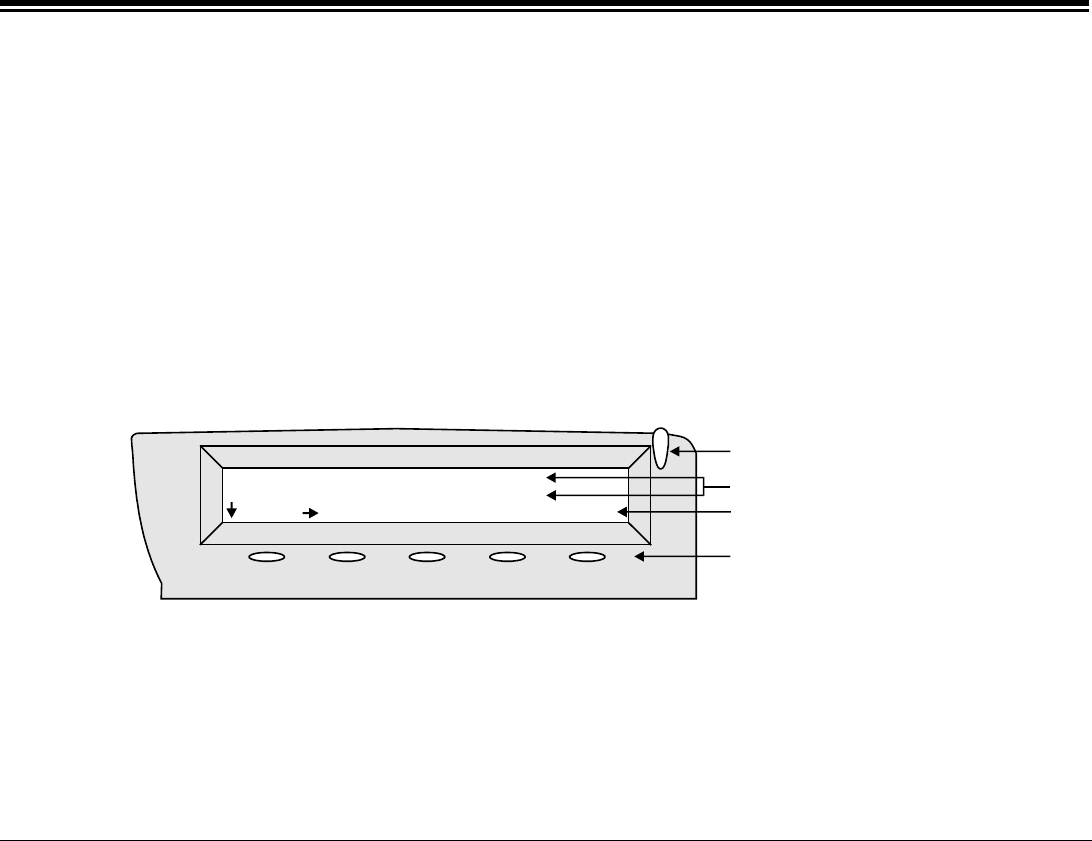
Desk Elevation Installation
Desk Elevation Installation
Step 2
Step 1
Snap the legs located on the
thick edge of the bracket into
the upper wide slots on the
back of the phone
Place the bracket’s legs,
located on the thin edge of the
bracket, into the lower narrow
slots on the back of the phone

FlexSet Overview 10 FlexSet-IP 280S User Guide
Wall Mounting
Wall Mounting
Lift up the tab
from the opening
Rotate the tab
Re-insert the tab
into the opening
Step 1
Step 2
Step 3
Handset Hook Rotation
Step 4
Step 5
Place the bracket’s legs,
located on the thin edge
of the bracket, into the
narrow slots on the back
of the phone.
Snap the legs, located on the
thick edge of the bracket, int
o
the lower slots on the back of
the phone
.
Bracket Installation
Using the FlexSet Display 11 FlexSet-IP 280S User Guide
Using the FlexSet-IP 280S Display
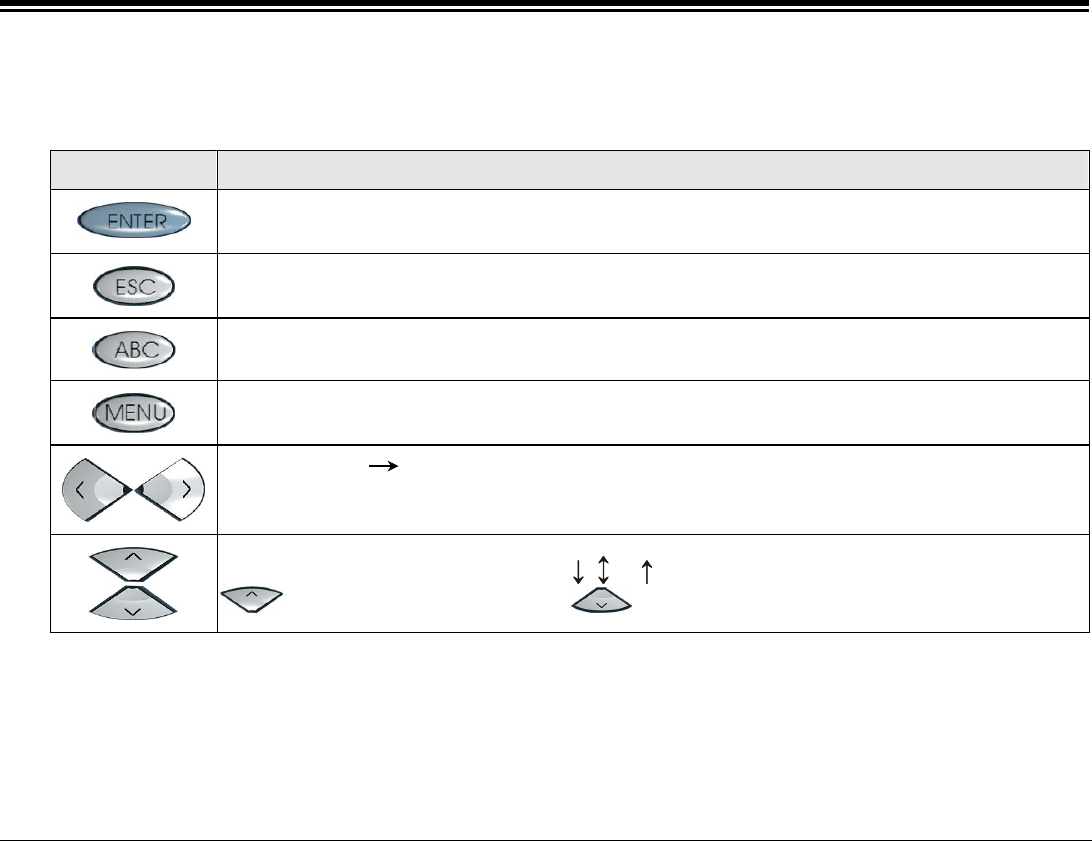
The FlexSet-IP 280S Display provides an easy to use control interface. On this display, several different classes of
function information and controls are found. During normal operation the current function assumes control over the
entire area of the Display and all of the soft keys. Meanwhile, the System Lines (1st and 2nd lines) which usually, in
idle state, include the time, date, site name, station name and number, automatically change to relay pertinent
information about telephony states and operations, and the calling party’s information.
Five soft keys on the FlexSet-IP 280S, located immediately below the display screen, act as triggers for any currently
displayed FlexSet function or option. All of the information in the Display (3rd line) continually changes to reflect
options related to the current state of the FlexSet. In this manner, no matter which state the telephone is in (i.e. Idle,
Ringing, etc.) the relevant option is always next to and enabled by one of the soft keys.
Display Panel
System Information Lines
Ri
ng an
d
M
essage
Waiting Indicator
Feature Options
10:50 26 Feb 2004 site name
user name station no.
Msg FwdAll DND AutRdl PageQ1
Soft Keys
Using the Fixed Keys 12 FlexSet-IP 280S User Guide
Fixed Keys; What They Do
A table containing all the FlexSet fixed keys and the actions they invoke is provided below.
FIXED KEY ACTION
Activates a telephony feature after selecting it with the navigator keys (same as using the soft
key).
Returns to the previous menu or list.
For future use.
Provides access to all the FlexSet functions via the soft keys.
Move the cursor left and right, or go to the next or previous menu or list when the cursor is at
the end of a line.
Used to scroll soft key option list when , or appear on the display line above the soft keys.
to scroll back one menu or list; to scroll forward one menu or list.
Configuring your FlexSet-IP 280S 13 FlexSet-IP 280S User Guide
Configuring your FlexSet-IP 280S
Before starting to use your FlexSet-IP 280S, you must first provide your system manager with the MAC number of
your FlexSet (see Viewing the FlexSet-IP 280S MAC address below), after which you must configure the FlexSet IP
address (see Inputting the IP Addresses below).
Use the and buttons to scroll through menu options.
Press at each stage to select and continue or to undo the previous selection.
Viewing the FlexSet-IP 280S MAC address
To view the MAC number, perform the following steps.
Read the MAC number from the label on the base of your FlexSet-IP 280S, or from the label on the packing box;
OR
1. Press the key.
2. Choose [SysDef].
NOTE: A password is required as a reminder that these parameters are sensitive and affect the operation of
your FlexSet-IP.
3. Select IP Params > Static > Self MAC Adr.
Make a note of the MAC number that is displayed and give this information to your system manager.
SysDe:-IP Params:Static:Self MAC Adr
00-0A-6B-12-34-56
Inputting the IP Addresses
You must now define the relevant IP addresses in your FlexSet. Contact your system manager to determine whether
you will be using a static or dynamic IP address.
Use the table on page 15 to fill in the relevant addresses before you edit the numbers.
Configuring your FlexSet-IP 280S 14 FlexSet-IP 280S User Guide
To Enter Addresses:
1. Press the key.
2. Choose [SysDef].
3. Select IP Params > Static.
4. Select the IP Address you wish to add or change (see IP Parameters: on page 15):
NOTE: Before you make use of your FlexSet-IP 280S, the IP address and Subnet Mask for the FlexSet-IP
280S and a Primary Call Agent (CA) IP address must be entered.
After selecting the required IP address, you can scroll between the displayed parameters by using the up/down
arrow keys. Before you edit the numbers, see the table on page 15 describing the available parameters.
SysDef:IP Params:Static:Self IP Adr
010.100.000.001
edit
5. To change values, press [edit]. Change only the numbers in the address, using the right/left arrow keys to
maneuver between the numbers.
Dynamic Address: For a dynamic address, enter 000.000.000.000 in the Self IP field.
If no answer is received from either the DHCP server or the DNS server within 10
minutes, the FlexSet-IP 280S goes to software reset. If no physical link exists, the display
reads: No Physical Link and the FlexSet restarts in 5 minutes.
6. Press [Save] after editing each address to save the changes.
Configuring your FlexSet-IP 280S 15 FlexSet-IP 280S User Guide
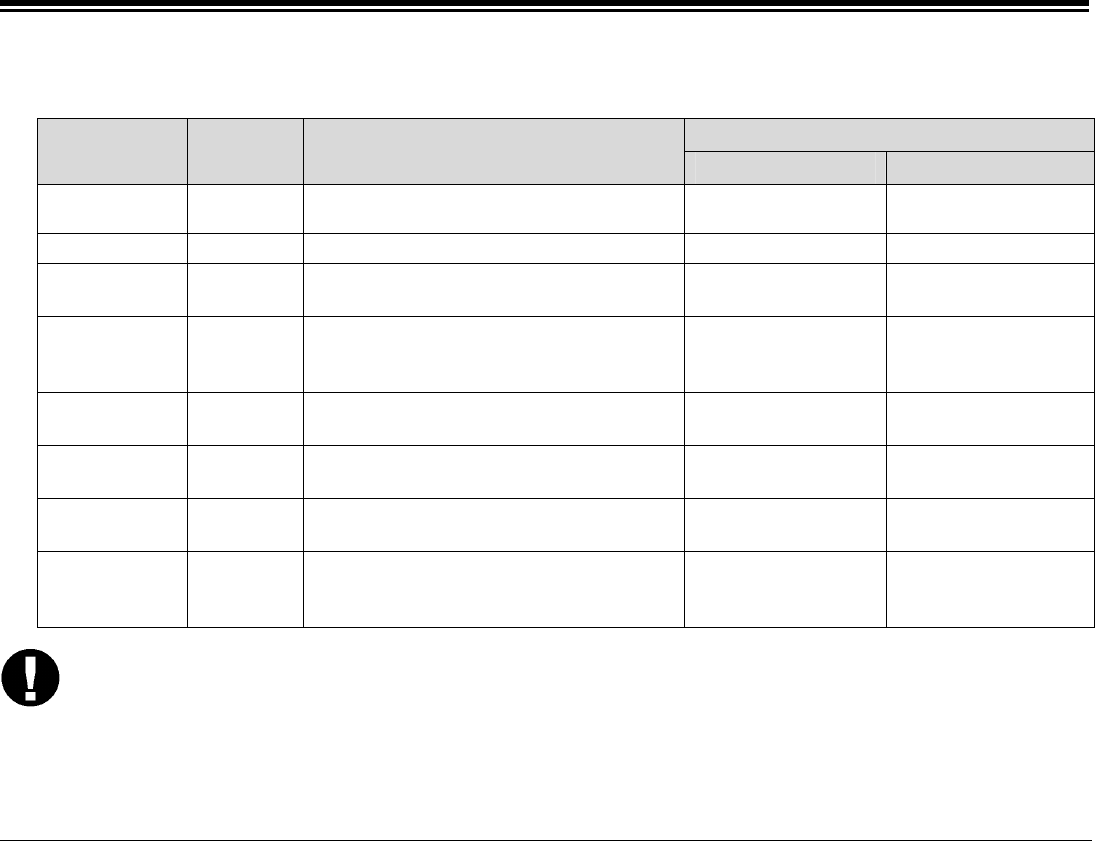
IP Parameters:
IP Address
Parameter Note Description Dynamic Static
Self IP Adr Mandatory
field
The IP address for this keyset 000.000.000.000 . . .
Net Mask The subnet mask for this keyset 000.000.000.000 . . .
Primary CA Mandatory
field
Primary Call Agent (CA) defines the
UGW card address to be used
000.000.000.000 . . .
Secondary
CA
Secondary Call Agent (CA) defines an
alternate UGW card address in case the
Primary UGW is not operating
000.000.000.000 . . .
Default
Rout.
The default router address for your LAN
or WAN
000.000.000.000 . . .
CA Name The name of the Call Agent (default:
TTBSMGC)
CA Port The port used by the Call Agent (default:
2427)
Self MAC
Adr
Display
only
View the unique MAC hardware address
defined by the manufacturer for this
FlexSet-IP 280S
– –
CAUTION! When entering a static address, be sure to enter the exact address you receive from your system
manager, including leading zeros. Entering an incorrect address could cause serious network
malfunctions.
If you receive error messages when attempting to connect, refer to Appendix F - Troubleshooting at the end of this
document.
Operating the FlexSet-IP 280S 16 FlexSet-IP 280S User Guide
Operating the FlexSet-IP 280S
Operating the FlexSet-IP 280S is as simple as pressing a button. Operate the FlexSet using a combination of soft and
fixed keys. The FlexSet options appear in the FlexSet display at the lower line of the display, and automatically
change to reflect the current state of the telephone.
Five soft keys on the FlexSet-IP 280S, located immediately below the FlexSet display, allow you to enable the
relevant options as they appear. The soft key options change every time the FlexSet status changes.
Four Pre Programmed Feature Keys are provided, the functions of which are system-wide programmable. Typical
functions for these keys are: [HOLD], [XFER], [LINE] and [SPKR].
FlexSet functions can also be selected by pressing on the navigation keys. A press on the respective arrow, moves the
location of the cursor to the next function. To activate the required function, press .
Use to bring the FlexSet display to the beginning of the soft key options.
Press up/down keys and to scroll through lines of the soft key feature options. Press left/right keys
and to move from one option to the next on the displayed line.
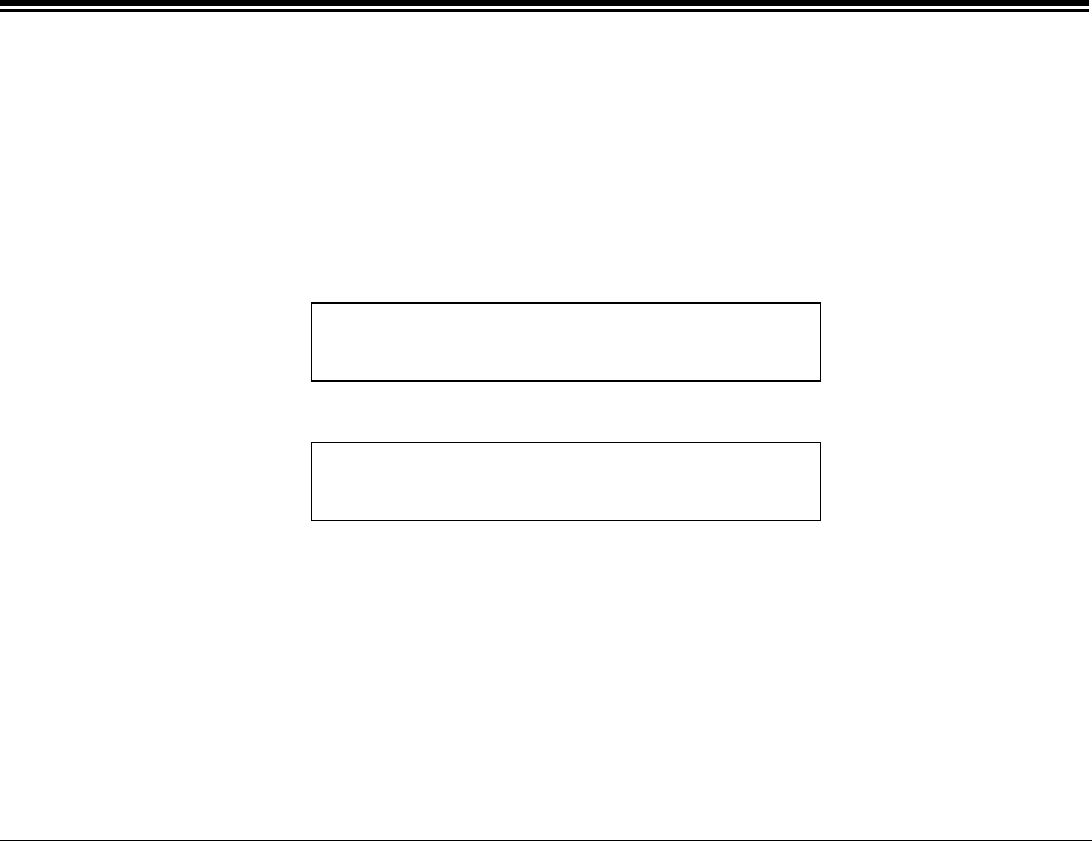
A selected option is indicated by an arrow at its left (→ Msg).
An activated option is indicated by a bullet at its left (• FwdAll).
A selected and activated option is indicated by a bold arrow at its left ( FwdAll).
The soft keys of several options are on/off toggle switches: one press to activate, an additional press to deactivate.
Operating the FlexSet 17 FlexSet-IP 280S User Guide
Using the FlexSet Telephony Features
Using the FlexSet-IP 280S Telephony Features
You do not have to memorize any access codes to activate any of the rich array of Coral telephony features.
Each state change in the FlexSet (such as from idle to ringing, ringing to answer, answer to transfer, etc.) causes the
associated state-related features to appear in the FlexSet display. Simply choose the feature you would like to activate
by pressing its associated soft key. When the feature is activated, a bullet appears next to the feature.
As shown below, while in idle mode when DND (Do Not Disturb) is off, no bullet appears next to DND. When DND
is activated, a bullet is displayed next to DND.
10:50 26 Feb 2004 site name
user name station numbe
r
Msg FwdAll DND
A
utRdl PageQ1
DND OFF
*DND*
user name station numbe
r
Msg FwdAll DND
A
utRdl PageQ1
DND ON
Several telephony features are toggle switches. Therefore, the first time you press a feature’s soft key, the feature is
activated or turned on. The second time you press the same feature’s soft key, the feature is canceled or turns off
automatically.
Operating the FlexSet 18 FlexSet-IP 280S User Guide
Using the System Defined Fixed Keys
Using the System Defined Fixed Keys
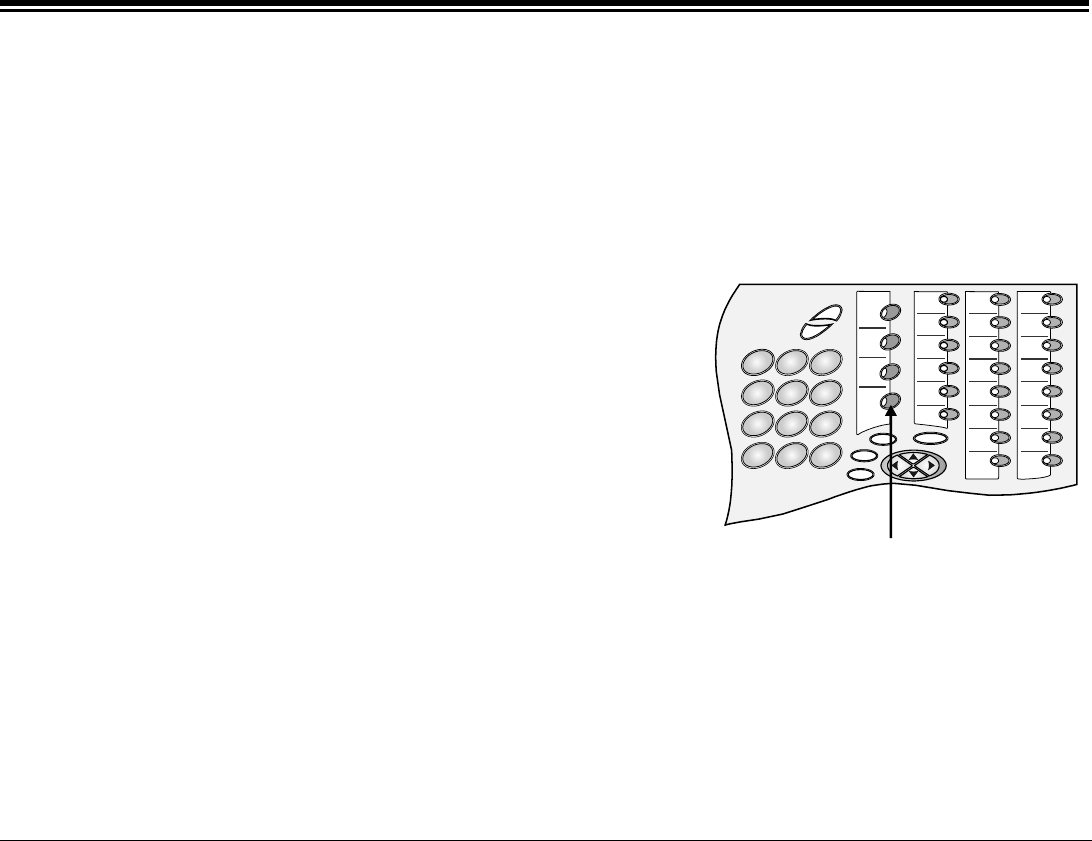
Four FlexSet buttons are programmed during installation, and are the same for each keyset system-wide. These fixed
system keys cannot be programmed from the telephone, and can only be changed, system-wide, by the system
manager. The four system defined fixed keys are different from site to site. The default features are:
Hold The Hold key is used for placing a party on HOLD while
another call is made or received. (See also Hold on page A-16)
Transfer/
Recall
(XFER)
While engaged on a call you can activate a feature by pressing
the Transfer key. When using Transfer, a special distinctive dial
tone is heard, enabling you to either transfer the call, or activate
a feature. Transfer puts the second party on Hold. (See also
Transfer (Xfer) starting on page A-23).
Line The Line key is used for making and receiving calls. When
several Line keys are in use, the station acts as if it is a multi-line
instrument. (To program additional Line keys, see next page.
default Line access code: #121,
default Line Originating Only access code: #125).
Speaker
(SPKR)
The Speaker key is used to converse hands-free. When
conversing through the speaker, voice volume can be adjusted.
Volume of call monitoring, paging, etc. can also be adjusted by
using the volume control buttons. (See also Using the
Speakerphone or Headset on page 36).
3
78
9
2
1
456
#
*
0
ENTER
ESC
ABC
MENU
Fixed S
y
stem Ke
y
s
Operating the FlexSet 19 FlexSet-IP 280S User Guide
Using the Programmable Keys
Using the Programmable Keys
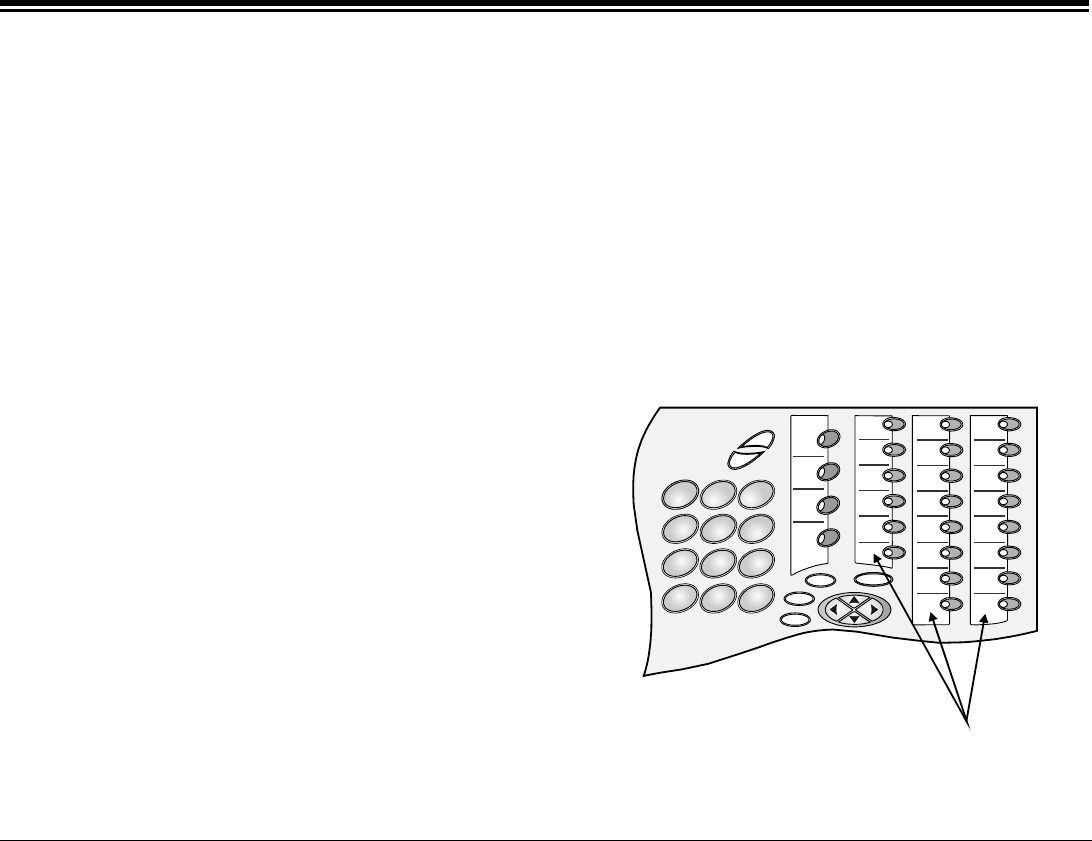
The programmable keys can be assigned to directly access other stations, station groups, trunks, trunk groups, or
system features. There are 22 user programmable keys for the FlexSet-IP 280S (see page 4).
To Program a Key
Use this feature to enable programming the DSS keys.
1. Choose [ProgKy] soft key.
2. Press the DSS button you want to program.
3. Dial the numbers on the dial pad exactly as you would normally dial to enable the feature or to speed dial.
4. Press the DSS key again to end.
Several dial commands, in a series, may be programmed
into one DSS key - useful for one-button speed dialing,
voice response and other complex dialing patterns.
Features keys can be programmed exactly as they are
programmed in the FlexSet 280D and 120D series
keysets. (See the FlexSet 280, 280D, 280D-Z, 120,
120D and 120L User Guide for full programming
instructions and button labeling. See also the Attendant
Console User Guide).
3
789
2
1
456
#
*
0
ENTER
ESC
ABC
MENU
Programmable Keys
Operating the FlexSet 20 FlexSet-IP 280S User Guide
Programming Button Labeling
Programming: Button Labeling
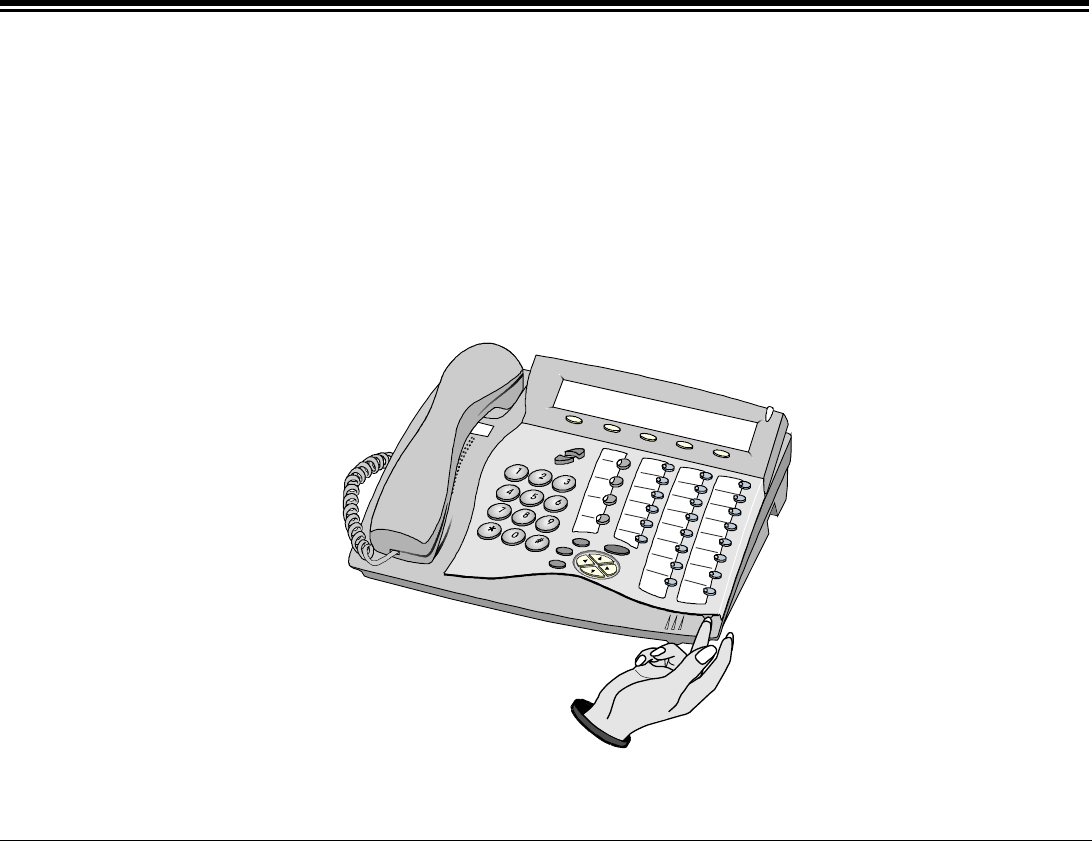
The DESI Plus Labeling System is used to label the buttons on the FlexSet. DESI Plus is a user-friendly and
powerful telephone designation strip program, which allows an office printer to quickly create labels custom-
designed for various FlexSets.
The FlexSet comes with a preprinted DESI label inserted beneath the faceplate. Additional blank DESI Labels may
be purchased from your dealer in letter or A4 sized paper. The sheets of peel-off stickers are provided to label the
FlexSet buttons with names and phone numbers. To choose the appropriate label sheet layout designated for the
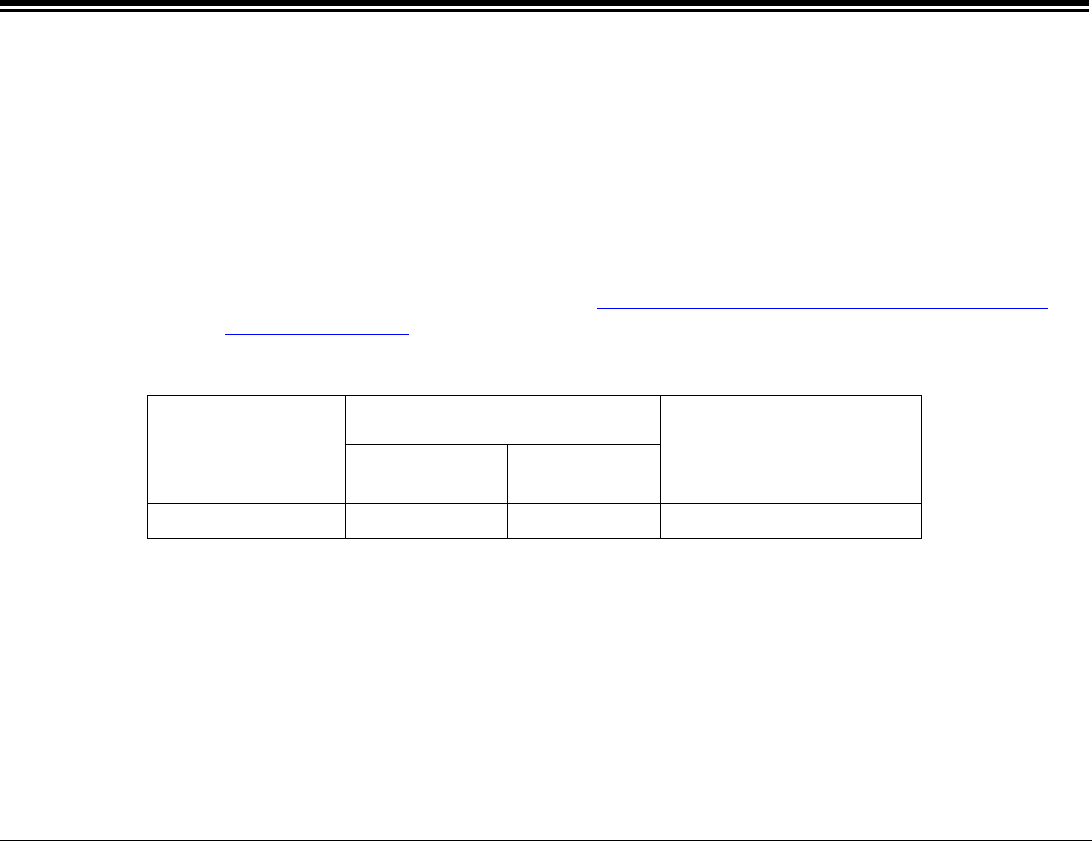
specific FlexSet model, refer to the table at the bottom of this page.
Use DESI software downloaded from the manufacturer’s site: http://www.tadirantele.com/products_terminals.asp or
from the DESI site: http://www.desi.com to print the labels from your computer. Follow the online download
instructions.
Label Sheet Catalog #
FlexSet Model Letter,
(8 ½ x 11”)
A4 Details
FlexSet-IP 280S 7244-7400430 7244-7400420 26 buttons, with Navigator
Operating the FlexSet 21 FlexSet-IP 280S User Guide
Programming Button Labeling
To print the multi-designation label:
• Use the DESI software to select the layout of your multi-designation label (as described on the previous page)
• Enter the extensions assigned to the buttons on your FlexSet
• Feed your printer with the label sheet
• From the DESI Plus/DESI Lite menu, choose File > Print
NOTE: The left column on the multi-designation label is intended for the four system defined fixed keys. Other
columns are intended for the programmable speed dial keys.
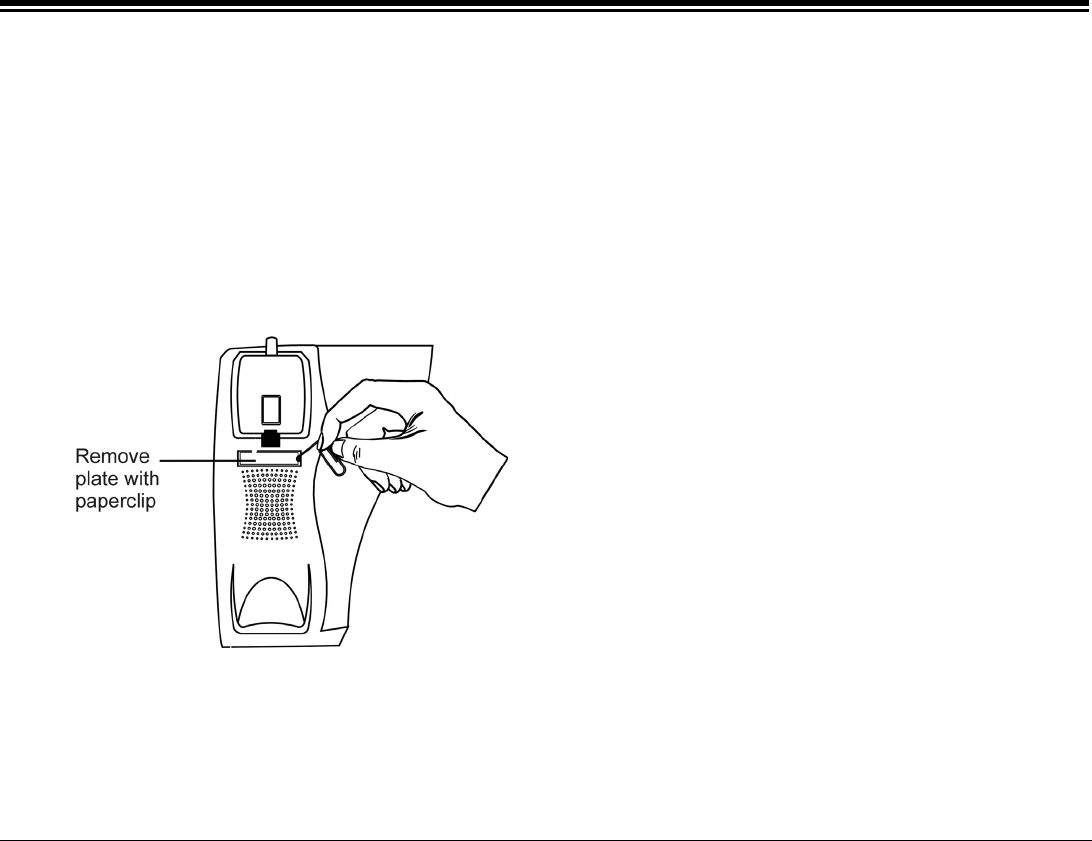
Lift up to
remove cover
Operating the FlexSet 22 FlexSet-IP 280S User Guide
Programming Button Labeling
To place the telephone number:
• Insert a pointed tool into the hole located on the plastic plate covering the blank telephone number, as shown in
the picture
• Lift upward to remove the plastic plate
• Peel off the printed label intended for the telephone number
• Insert the printed label
• Put the plastic plate back in place over the phone number

Operating the FlexSet 23 FlexSet-IP 280S User Guide
Making Calls
Making Calls
To place a call choose any one of the following options:
• Lift the handset and dial from the dial pad.
• Press SPKR and begin dialing directly from the dial pad.
• Begin dialing without lifting the handset. The Speaker is automatically activated.
• Press any idle (LED not lit) DSS or LOOP key. Loop originating only, or line, and after hearing dial tone, begin
dialing.
The options available when the call is not answered are described in When You Hear Ringback Tone for Internal
Calls on page 25, and in When You Hear Ringback Tone for External Calls on page 26.
The options available when the destination called is busy are described in When you Hear a Reorder Tone for
Internal Calls (in Do Not Disturb) on page 28, and in During a Break In on page 30.
NOTES: When making external calls:
1) In some systems an outside dial tone must be heard before dialing can begin.
2) In some systems using Automatic Routing Selection, internal dial tone or no tone is heard after dialing the access code.
3) In some cases (as defined by Class of Service) dialing must begin with a Forced Account code before the called number
can be dialed. When a Forced Account code is required, the distinctive dial tone will be heard after dialing the external line
code.
4) See also Caller ID Control on page A-11.
5) Pressing # or [StopDl] after the external number commands the system to send the call immediately towards the destination
without inter-digit delay.
6) In certain systems the cost or number of meter units of the call are displayed after an external call terminates. This appears
for a few seconds or until another call is made or received, in the format defined for your system.
7) On external calls routed via an ISDN trunk, call messages are displayed (i.e. connection status, call fail etc.). Most
messages are for system managers and technicians and will not be seen during normal operation (Message definitions
follow on next page).

Operating the FlexSet 24 FlexSet-IP 280S User Guide
Making Calls
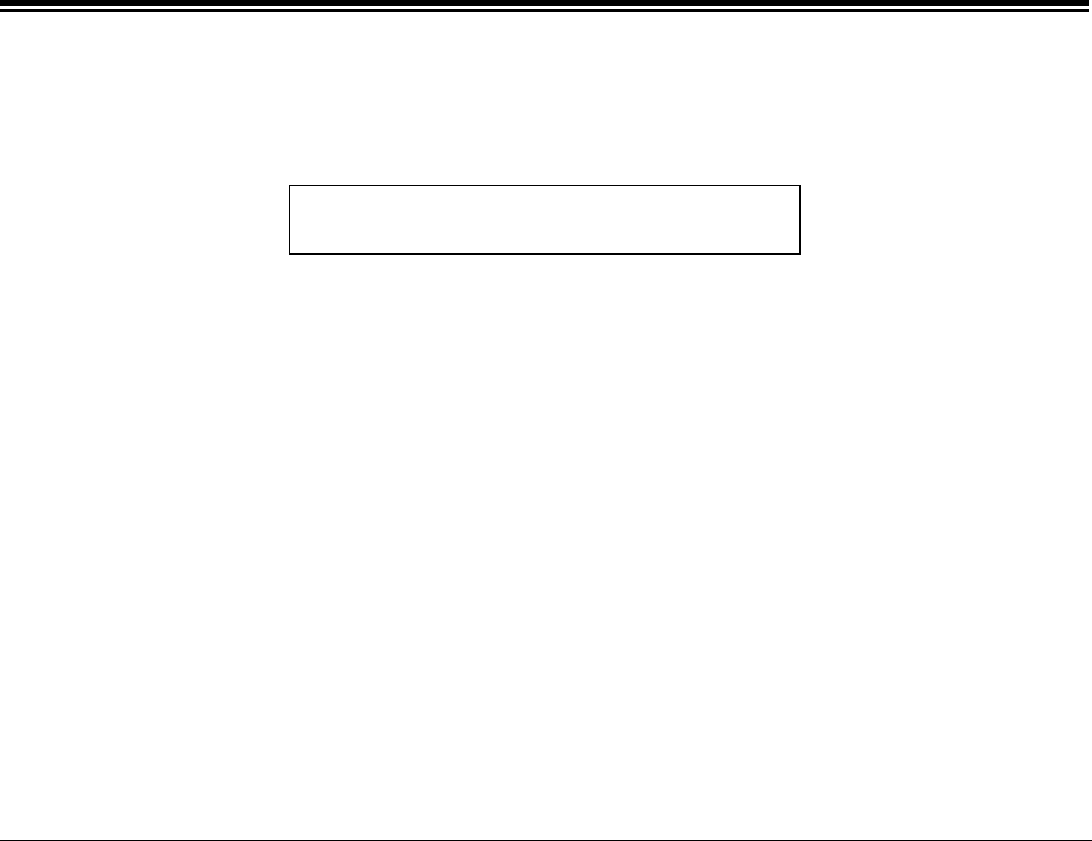
Message Definitions:
NO B.C: If the Bearer Capability of the trunk or dial service you are attempting to
connect to does not match your station’s COS.
NON ISDN ROUTE: If your station’s COS is set to ISDN only and call attempts are made
through a trunk group not defined as ISDN only.
QUE GROUP #: If no trunk is available the call may be held in a queue and this displays
the number of the queue. Not applicable to all systems.
CO DISC./USER BUSY: The called party is engaged.
ON HOOK BY/NORMAL CLEAR: The called party has hung up (on hook, idle).
CO DISC./CALL REJECTED: The call cannot be completed because the called party does not allow it.
CO DISC./CAUSE #: ISDN protocols define error messages, with codes indicating the cause of
failed connections. See Appendix E - ISDN Cause Numbers.
NO MEDIA CHANNEL: IP-specific error message. See Appendix F - Troubleshooting
CODEC MISMATCH: IP-specific error message. See Appendix F - Troubleshooting
NO PHYSICAL LINK: IP-specific error message. See Appendix F - Troubleshooting
Operating the FlexSet 25 FlexSet-IP 280S User Guide
Making Calls
When You Hear Ringback Tone for Internal Calls
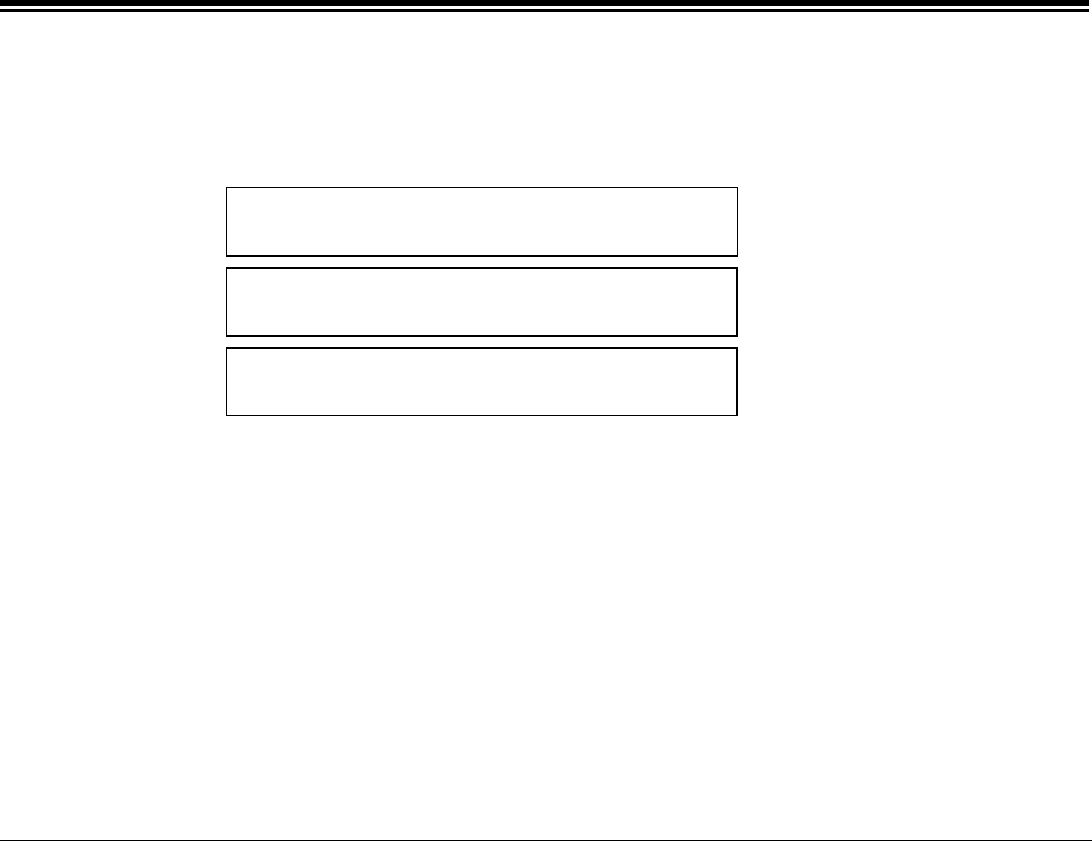
After dialing an internal destination number, the following Coral telephony features appear on your FlexSet display
when you hear a ringback tone. Wait for an answer or press the nearby soft key to activate the required feature. See
Using the FlexSet-IP 280S Telephony Features on page 17 for more details.
INTERNAL called number or name
Msg CampOn V-Page Mute Name/#
• [Msg] If no one answers your call, use this feature to leave a “message” at the called party’s station. This
feature lights the message waiting lamp at the called party’s station indicating that a message was left,
and it leaves a simple message such as CALL SUSAN on the destination station’s keyset display.
• [CampOn] Also known as Call Back. When a station does not answer, you may request that the system
automatically call you back when the required destination number is available.
• [V-Page] Use this feature to Voice Page the called party’s keyset station. Your call is automatically answered
and your voice heard over the called party’s speakerphone.
• [Mute] Activate Mute during ringback so that when the call is answered your side of the conversation is
muted (handset, headset and speakerphone) and the called party will not hear you.
• [Name/#] Use this feature to briefly display the station dial number instead of the name.
Operating the FlexSet 26 FlexSet-IP 280S User Guide
Making Calls
When You Hear Ringback Tone for External Calls
After dialing an external destination number, the following Coral telephony state-related features appear on your
FlexSet display when you hear the ringback tone. Wait for an answer or press one of the nearby soft keys to activate
the required feature.
OUT trunk line
DIAL outside telephone number
Msg Mute AutRdl Elp-Tm
Page 1
OUT trunk line
DIAL outside telephone number
CallWt FlshTk Name/# Park StopDl
Page 2
OUT trunk line
DIAL outside telephone number
OCC SerCal CampOn Page 3
• [Msg] Use when dialing a network destination but not for external destinations.
If no one answers your call, use this feature to leave a “message” at the called party’s station. This
feature lights the message lamp at the called party’s station indicating that a message was left, and it
leaves a simple message such as CALL SUSAN on the destination station’s keyset display.
• [Mute] Activate Mute during ringback so that when the call is answered your side of the conversation is
muted (handset and speakerphone) and the called party will not hear anything.
• [AutRdl] Use Auto Redial to have the system automatically redial the unanswered destination. Further redial
options are available after activation. See page A-6 for more details.
• [Elp-TM] (Elapsed Time) - Not used during ringback.
• [CallWt] Use Calls Waiting to view the number of calls waiting for you.
• [FlshTk] Use Flash on Trunk to send a signal through the system to trunk lines in order to operate certain types
of features that are available on the second system. This feature is also known as a Calibrated
Opening.

Operating the FlexSet 27 FlexSet-IP 280S User Guide
Making Calls
• [Name/#] Use this feature to briefly display the trunk dial number instead of the trunk name.
• [Park] Not used during ringback.
• [StopDl] Not used during ringback. Press this button before you hear ringback tone, in order for the system to
know when dialing out has been completed.
• [OCC] Use this feature to send DTMF tones over a trunk for applications or services.
• [SerCal] Not used during ringback.
• [CampOn] Also known as Call Back. When network station does not answer, you may request that the system
automatically call you back when the required destination number is available (see page A-12 for
more information).
Operating the FlexSet 28 FlexSet-IP 280S User Guide
Making Calls
When you Hear a Reorder Tone for Internal Calls (in Do Not Disturb)
After dialing an internal station that is idle and has been set to Do Not Disturb or UNATTEND.
After dialing a station and receiving a reorder tone, override can be applied by pressing DND OVR.
DONT DIST called number or name
OnHkCm OfHkCm V-Page Mute Msg Page 1
Brk-In DNDOVR Page 2
• [OnHkCm] Also known as Call Back. Use this feature to have the system automatically call you back when the
DND destination station is available.
• [OfHkCm] Not used during reorder tone.
• [V-Page] Use this feature to Voice Page the called party’s keyset station. Your voice will be heard over the
called party’s speakerphone after the Voice Page tone stops.
• [Mute] Activate mute during reorder tone so that when the Do Not Disturb is overridden, your side of the
conversation is muted and the called party will not hear anything.
• [Msg] Use this feature to leave a “message” at the called party’s station. This feature lights the message
waiting lamp at the called party’s station indicating that a message was left, and it leaves a simple
message such as CALL SUSAN on the destination station’s FlexSet display.
• [Brk-In] Enables an authorized user to send ring thus override the Do Not Disturb status. When you hear
reorder tone, if DON’T DIST or UNATTENDED message appears, override can be applied and your
call can be put through to the station.
• [DND OVR] Same as above.
Operating the FlexSet 29 FlexSet-IP 280S User Guide
Making Calls
When You Hear a Busy Tone for Internal Calls
After dialing an internal destination number, the following state-related Coral telephony features appear on your
FlexSet display when you hear a busy tone. Hang up or press one of the soft keys.
BUSY called number or name
Msg OnHkCm Brk-In OfHkCm V-Page
Page 1
BUSY called number or name
Name/# Page 2
• [Msg] Use this feature to leave a “message” at a busy station. This feature lights the message waiting lamp
at the busy station and leaves a simple message such as CALL SUSAN on the destination station’s
keyset display.
• [OnHkCm] Also known as Call Back. Use this feature to have the system automatically call you back when the
busy destination station is available (see page A-12 for more information).
• [Brk-In] The Break-In feature enables an authorized user to break into an established two party call. Both
conversing parties will hear the Break In warning tone. Your voice will be heard after the warning
tone stops. During Break-In you can release the ports or alternate between parties (see During a
Break In on page 30).
• [OfHkCm] Use this feature to send call waiting tone to the busy party. This feature is also known as Call Waiting
or Call Offer. When a station is busy, use this feature to gain a second ringback tone and wait for
your call to be answered.
• [V-Page] Use this feature to Voice Page the called party’s keyset station. Your voice will be heard over the
called party’s speakerphone after the Voice Page tone stops.
• [Name/#] Use this feature to briefly display the station dial number instead of the name.
Operating the FlexSet 30 FlexSet-IP 280S User Guide
Making Calls
During a Break In
After dialing a busy destination number and choosing [Brk-In] (see page 29), both conversing parties can hear your
voice. You may press SPKR or hang up in order to allow the continuation of the call, or press one of the following
soft keys.
B TO called number or name 3r
d
party
Xfer Mute FcdRls Dest Source
Page 1
B TO called number or name 3r
d
party
Elp-TM CallWT Name/# Spk/Hs Page 2
• [Xfer] Used to converse, in private, with the caller party (from the original 2-way call). The called party is
released.
• [Mute] During a break you can mute your side for silent monitoring (handset, headset and speakerphone). When
this feature is activated by the MUTE on/off toggle switch, a bullet appears.
• [FcdRls] The Forced Release feature enables an authorized user to release two ports actively connected to each
other.
• [Dest] Used to converse, in private, with the 3rd party. The called party is put on hold. Press again for 3-way
conversation.
• [Source] Used to converse, in private, with the called party. The 3rd party is put on hold. Press again for 3-way
conversation.
• [CallWT] The Call Waiting feature can be used to view the number of calls waiting for you during a conversation.
• [Name/#] Briefly displays the two port dial numbers instead of the names.
• [Spk/Hs] See pages 36 and 37.
Operating the FlexSet 31 FlexSet-IP 280S User Guide
Making Calls
When You Hear a Busy Tone for External Calls
After dialing an external destination, the following state-related Coral telephony features appear on your FlexSet
display when you hear a busy tone. Hang up and dial later or press the nearby soft key to activate the required feature.
OUT trunk line
USER BUSY
Msg CampOn AutRdl Save#
• [Msg] Used only when dialing network destinations.
Use this feature to leave a “message” at a busy station. This feature lights the message waiting lamp
at the called party’s station indicating that a message was left, and a simple message such as
CALL SUSAN is left on the destination station’s keyset display.
• [CampOn] Also known as Call Back. Used only when dialing network destinations. (See page A-12 for more
information.) When the network station is busy, you may request that the system automatically call
you back when the required destination number is available.
• [AutRdl] Use Auto Redial to have the system automatically redial the busy destination. See page A-6 for more
details.
• [Save#] Use this feature to save the dial number of the busy destination. The saved number can then be
redialed by using [RptNum].
Operating the FlexSet 32 FlexSet-IP 280S User Guide
Answering Calls
Answering Calls
There are several ways to answer calls. The most conventional method is to answer the call directly by pressing the
flashing SPKR key or lifting the handset. Other options include using one of the state-related Coral telephony features
before you answer or to divert the unanswered call. The state related features automatically appear in the display
below:
caller # CALL your #
DND Mute FwdAll Name/#
• [DND] Choose this feature to send a reorder (busy) tone to the incoming call, thus avoiding answering the
call. Once DND (Do Not Disturb) is activated, all incoming calls will receive reorder tones. A bullet
appears next to DND on the 3rd line of the display and within 10 seconds *DND* on the 1st line of the
display appears to remind you that the feature is activated.
To disable the DND feature, press the [DND] soft key again.
• [Mute] Activate mute during ringing before answering so that when the call is answered your side of the
conversation is muted (handset, headset and speakerphone), and the caller party will not hear you.
The MUTE key is an on/off toggle switch.
• [FwdAll] (Forward All) Use this feature to forward all incoming calls to another destination. Press [FwdAll] and
dial the destination number. Possible destination numbers include: operator, station, group, external
numbers via public or private speed call library, DVMS message, UNA/Central Bell, group call or a
network number. A bullet appears next to FwdAll on the 3rd line of the display and *FWD* message
on the 1st line of the display to remind you that the feature is activated. To disable FwdAll, press the
[FwdAll] soft key followed by [Cancel] soft key.
• [Name/#] Use this feature to briefly display the caller station dial number instead of the name on incoming call.
Operating the FlexSet 33 FlexSet-IP 280S User Guide
During an External Call
During an Internal Call
The following Coral telephony features are available during an internal call:
ANSWER party #
PageQ1 Mute CallWt Park Name/#
Page 1
ANSWER party #
Spk/Hs PageQ2 PageQ3 PageQ4 PageQ5
Page 2
• [PageQx] Places your call on hold by sending it to one of ten Page Queue destinations (1 to 10). You are then
free to page all the system members from your FlexSet and announce that there is a call for Mr. Doe
on Page Queue Line (x = 1-10). The call can be picked up from any system station by dialing the
Page Queue access code (default access codes are 7060-7069).
• [Mute] During a conversation you can mute your side of the conversation (handset, headset and speaker-
phone). When this feature is activated by the MUTE on/off toggle switch, a bullet appears.
• [CallWt] The Calls Waiting feature can be used to view the number of calls waiting for you during a
conversation.
• [Park] “Parks” your call at your station (i.e. places it on hold) so that it can be picked up at another system
station. To pick up a parked call, see page A-18.
• [Name/#] Briefly displays the second party dial number instead of the name.
• [Spk/Hs] See pages 36 and 37.
Operating the FlexSet 34 FlexSet-IP 280S User Guide
During an External Call
During an External Call
The following Coral telephony features are available during an external call:
EXT ANS trunk line
DIAL outside telephone number
PageQ1 Xfer Hold Mute Elp-TM Page 1
EXT ANS trunk line
DIAL outside telephone number
Save# Park CallWt FlshTk Name/# Page 2
EXT ANS trunk line
DIAL outside telephone number
OCC SerCal AcctCd Page 3
• [PageQ1] Places your call on hold by sending it to the first Page Queue destination. You are then free to page
all the system members from your FlexSet and announce that there is a call for Mr. Doe on Page
Queue Line 1. The call can be picked up from any system station by dialing the Page Queue 1 access
code (default access code is 7060).
• [Xfer] (Transfer) transfers your call to another destination. Pressing [Xfer] places the called party on HOLD.
Dial a number (internal or external). Disconnect to transfer the call, or first announce the call and then
disconnect. See also Transfer (Xfer) starting on page A-23.
• [Hold] Use this feature to place the second party on hold while another call is made or received. Retrieve the
call by pressing the winking LOOP key or by pressing the [Hold] soft key when a bullet appears next to
it, or by pressing on the HOLD key when lit.
• [Mute] During a conversation you can mute your side of the conversation (handset, headset and
speakerphone). When this feature is activated by the [MUTE] on/off toggle switch, a bullet is displayed
next to it.
• [Elp-TM] Use this toggle feature to view or cancel the call duration in HH:MM:SS format up to (13 hours)
12:59:59.

Operating the FlexSet 35 FlexSet-IP 280S User Guide
During an External Call
• [Save#] Saves the dial number of the called external destination.
The saved number can then be redialed by using [RptNum] (Repeat Number).
• [Park] Parks your call at your station so that you can pick it up at another system station.
• [CallWt] Use this feature to view the number of calls waiting for you during a conversation.
• [FlshTk] Use Flash on Trunk to send a signal through the system to trunk lines to operate certain types of
features that are available on the second system. This feature is also known as a Calibrated Opening.
• [Name/#] Briefly displays the trunk dial number instead of the trunk name.
• [OCC] (OCC - Other Common Carrier) Enables you to send touch-tone dialing DTMF tones over a trunk for
applications or services. After pressing [OCC] dial the required digits.
• [SerCal] Marks a call before transferring the call. This causes the call to return to you after the third party
hangs up.
• [AcctCd] Used to enter an account code for the current external call. The code is marked on the SMDR
printout.

Operating the FlexSet 36 FlexSet-IP 280S User Guide
Using the Speakerphone or Headset
Using the Speakerphone or Headset
The FlexSet is equipped with a speaker so that it can operate as a speakerphone. This enables you to converse without
lifting the handset. Pressing the speakerphone (SPKR) key automatically switches on the microphone and speaker.
All dialing or conversation is automatically hands-free while the handset remains on the cradle.
There are, however, several ways of using the speaker key, such as: in conjunction with a headset, or when the SPKR
key is programmed for on/off operation, and using the [Spk/Hs] (Speaker/Handset) soft key to switch between the
handset and the speaker.
Using the Speakerphone for Hands-Free Conversation:
• With handset on cradle: When the handset is on the cradle and the SPKR key flashes, you can speak hands-free by
pressing the flashing SPKR key or by using one of the methods described in Making Calls (see page 20).
• Switchover from speakerphone to handset: When you are using the speakerphone and want to use the handset for
private conversation, lift the handset. The SPKR key LED will go off.
• Switchover from handset to speakerphone: When you are using the handset and want to use the speakerphone, first
press the SPKR key, then when the LED is lit, replace the handset on the cradle.
• Disconnecting Calls: Either press the lit SPKR key when the handset is on the cradle or replace the handset onto the
cradle when the SPKR key LED is off.

Operating the FlexSet 37 FlexSet-IP 280S User Guide
Using the Speakerphone or Headset
Using the [Spk/Hs] Soft key (when the FlexSet is programmed for SPKR On/Off key):
• When using headset (or handset is off cradle): When your FlexSet is equipped with a headset, you can answer and
disconnect calls by pressing the SPKR On/Off key. When the SPKR key LED is lit, you are connected. Pressing the lit
key will disconnect the call. To switch between handset and hands-free operation, you must use the [Spk/Hs] soft key
from the FlexSet display.
• With handset on cradle: If the FlexSet rings and the SPKR key flashes, you can speak hands-free by pressing the
flashing SPKR key. The key LED will now be steadily lit.
• Switchover from speakerphone to handset: When you are using the speakerphone and want to use the handset for
private conversation, lift the handset. The SPKR key LED will remain lit.
• Switchover from handset to speakerphone: When you are using the handset and want to use the speakerphone, first
press the [Spk/Hs] soft key. When the LED is lit, place the handset on the cradle.
• Disconnecting calls: There are two ways to disconnect calls:
• Pressing the lit SPKR key.
• Returning the handset or pressing hookswitch when the [Spk/Hs] soft key is off (a bullet is not displayed).
Operating the FlexSet 38 FlexSet-IP 280S User Guide
Using the Speakerphone or Headset
When the FlexSet is programmed as Headset Only and for SPKR On/Off key
• When your FlexSet is equipped with a headset: the Headset Only feature is activated and the SPKR key is set to
operate as On/Off (connect/release) switch, you can answer and disconnect calls by pressing the SPKR key.
• When the key Led is lit, you are connected. Pressing the lit key will disconnect the call.
• Disconnecting calls: Press the lit SPKR key.
Note:
See your system administrator to
program the SPKR key to operate
as On/Off switch.
If the FlexSet is defined as
Headset Only, the speakerphone
will not operate.

Operating the FlexSet 39 FlexSet-IP 280S User Guide
Using the Speakerphone or Headset
Headset Cord (#2) Disconnect
Headset Cord (#2) Disconnect enables activating a selected preprogrammed key by disconnecting the headset cord.
The feature enables you to automatically invoke a keyset function such as Do Not Disturb, Login/Logout,
Attended/Unattended, Call Forward or any other preprogrammed key function upon disconnection of the headset
cord.
One of the Headset Cord Disconnect purposes is to block a telephone from accepting calls when the headset cord is
disconnected. Any call forwarding to the keyset will be automatically cancelled when the feature is activated.
This feature is generally combined with the Headset Only feature to allow calls to be conducted via the
headset/handset even if the cradle switch is on-hook.
Note: The Headset Cord Disconnect feature does not work with all headset equipment. The feature is operable
only with headsets that do not use auxiliary equipment, such as splitters, volume amplifiers, external
headset/handset switches, etc.
See your system administrator for the programmable button assigned for this feature.
The corresponding button should be programmed to perform the required function.
Operation
• If a key is preprogrammed with a feature having ON/OFF states (e.g. Do Not Disturb), the system will toggle the
feature Off when the Cord is connected, and On when the Cord is disconnected. The Login/Logout function is
excluded from this rule as it operates in the reverse mode.
• If the key is programmed with a feature without ON/OFF states, the system will operate the same key contents
when connecting/disconnecting the cord (e.g. dialing an external number).
• When enabled by disconnecting the cord #2, the feature can be disabled also by pressing the button.
• The feature activated by pressing a button when the cord is plugged in will remain active when the cord is
disconnected.
• Connecting the cord will cancel the feature that has been activated by pressing a programmable key or dialing a
feature code when the cord was disconnected.
Operating the FlexSet 40 FlexSet-IP 280S User Guide
Volume Adjustment
Volume Adjustment
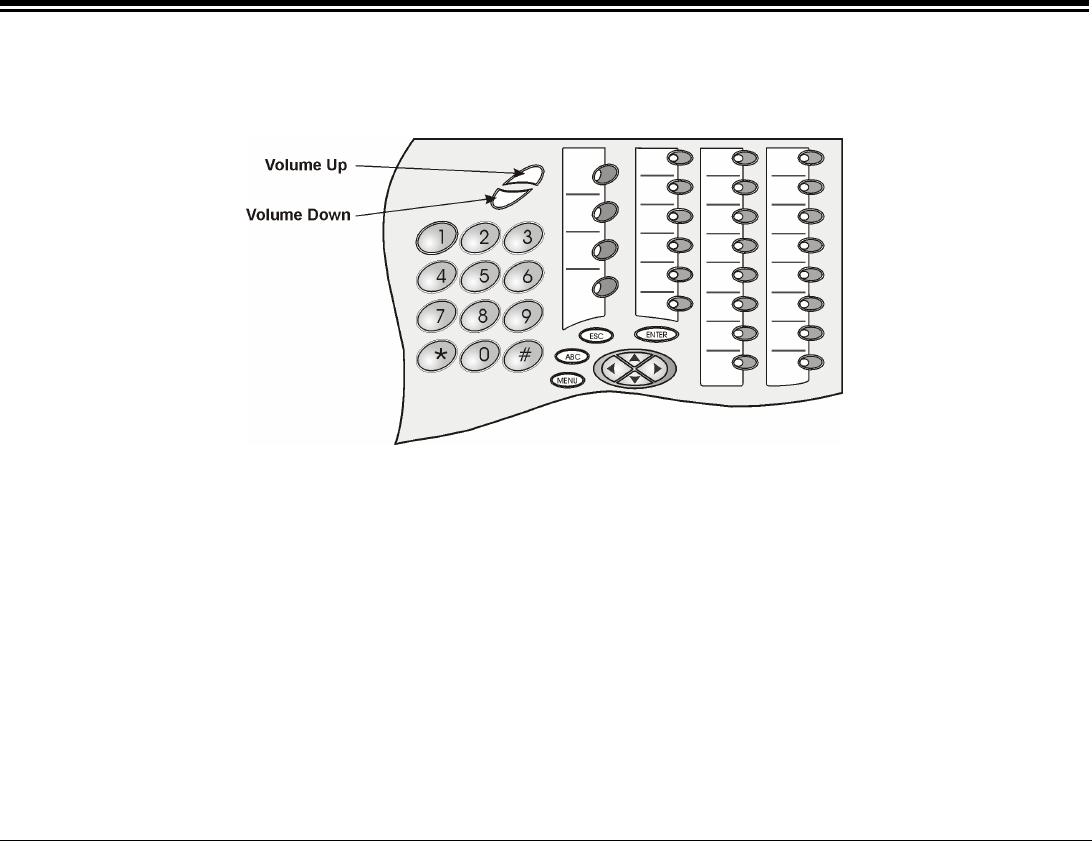
Press the volume buttons to increase or decrease the volume of the FlexSet loudspeaker and handset.
While the volume is being changed, the top line of the display describe the volume level.
Speaker volume levels range from a MIN unit value of 0 to a MAX unit value of 9 (27dB range).
The Handset volume level ranges from a MIN unit value of 0 to a MAX unit value of 6 (18dB range).
The Speaker and Handset each have their own audio level and are independently influenced by volume buttons as
follows:
Speaker: When conversing through the speaker, voice volume can be adjusted. Volume of call monitoring, paging,
etc. can also be adjusted.
Speakerphone: When conversing hands-free, the built in sensitive microphone is used to amplify your voice. The
system operates in such a way that the two connecting parties (i.e. you and the far side) cannot be heard
simultaneously; the stronger party is heard. Press Volume Up to hear the far side more strongly, press Volume Down
to be heard more easily (or to break in).
Handset: When conversing through the handset or headset, receiver volume can be adjusted.

Operating the FlexSet 41 FlexSet-IP 280S User Guide
Ring Adjustment
Ring Adjustment
The FlexSet ring volume can be changed by using the FlexSet soft keys, or by using the volume buttons while the
phone is ringing. Also note that the Message Lamp lights in beat with the ring.
The ring level ranges from 0 (MIN ring) to 15 (MAX ring).
To Adjust the Ring Level while Idle:
Select [UsrDef] > [Sounds] > [Ring] > [Volume]. Press the up or down volume buttons to adjust the ring level.
To Adjust the Ring Level while Ringing:
Press the up or down volume buttons to adjust the ring level.
CAUTION! The Ringer is disabled and the FlexSet cannot receive calls when DND or
Call Forward All are indicated (by bullet) and *DND*, *FWD* messages on
the display.

Appendix A - Telephony Features A-1 FlexSet-IP 280S User Guide
Appendix A – Telephony
Features
The Attendant features are given below in Appendix B.
Not every feature in this Appendix may have been installed in your
system, or at your station/extension. Attendant features are available
only when the station is defined as having Attendant station privileges.
Other features are dependent on the assigned Class of Service (COS)
levels. Check with your system manager for a list of the specific features
installed.
The following features can also be operated by using their system dial
codes so that they may be programmed into the programmable keys. For
more detailed information on feature default dial codes, how to use and
how to program them, refer to the Coral FlexSet 280, 280D, 280D-Z,
120, 120D and 120L User Guide.
General Notes:
In the following feature descriptions:
• When a feature is activated, its soft key appears with a bullet next to
it. For an example, see page 17.
• “Dial” means entering the number/s from the dial pad.
Features Table of Contents for Appendix A
Account Code ............................................................................4
ACD & UCD: Calls Waiting Display............................................4
ACD & UCD: Load ID.................................................................4
ACD & UCD: Log In/Out for a Single ACD Group......................4
ACD & UCD: Primary Log-In......................................................5
ACD & UCD: Release/Resume from All Groups........................5
ACD & UCD: Release/Resume from a Single UCD Group ........5
ACD & UCD: Wrap-Up Code .....................................................5
ACD: Wrap-Up Time On/Off ......................................................5
Auto Answer ..............................................................................5
Auto Redial ................................................................................6
Boss Group: Call Forward All.....................................................6
Boss Group: Call Forward Busy.................................................7
Boss Group: Call Forward No Answer .......................................7
Boss Group: Call Forward Timed...............................................7
Boss Group: Exclusive Hold ......................................................7
Boss Group: Privacy ..................................................................8
Boss Group: Line Keys Programming........................................8
Break-In .....................................................................................8
Call Forward All .........................................................................8
Call Forward Busy......................................................................9
Call Forward Busy/No Answer ...................................................9
Call Forward No Answer ............................................................9
Call Forward - Timed ...............................................................10
Call Log....................................................................................10
Call Trace ................................................................................11
Call Trace Print ........................................................................11
Caller ID Control ......................................................................11
Call Waiting Activation/Call Offer .............................................11
Calls Waiting Display ...............................................................12

Appendix A - Telephony Features A-2 FlexSet-IP 280S User Guide
Camp-On (or Call Back).......................................................... 12
Camp-On (Offhook)................................................................. 12
Conference, Multi-Party Lock.................................................. 13
Conference View/Release....................................................... 13
COS Switchover...................................................................... 13
Divert Call ............................................................................... 13
Do Not Disturb......................................................................... 14
Do Not Disturb Override.......................................................... 14
Elapsed Time .......................................................................... 14
Executive Privilege.................................................................. 14
Flash on Trunk ........................................................................ 14
Follow Me................................................................................ 14
Forced Release....................................................................... 15
Group Call............................................................................... 15
HELP Requesting.................................................................... 15
HELP Answering..................................................................... 15
Hold......................................................................................... 16
Idle Display ............................................................................. 16
Last Number Redial ................................................................ 16
Message ................................................................................. 16
Message Cancel ..................................................................... 17
Mute ........................................................................................ 17
Name/Dial Number Display..................................................... 17
Night Answer........................................................................... 17
Other Common Carrier (OCC) ................................................ 17
Page-Queue............................................................................ 17
Paging, Announcing: Public Address ...................................... 18
Park......................................................................................... 18
Passcode ................................................................................ 18
Phone Lock ............................................................................. 18
Pickup Direct........................................................................... 19
Pickup Group .......................................................................... 19
Preference ...............................................................................19
Private Library..........................................................................20
Program Key............................................................................21
Relay (Accessory)....................................................................21
Reminder .................................................................................22
Ring Adjustment ......................................................................22
Room Status ............................................................................22
Save Number...........................................................................22
Saved Number Redial..............................................................22
Security Line ............................................................................22
Series Call ...............................................................................23
Silent Monitor (2-way)..............................................................23
Speakerphone/Handset ...........................................................23
Stop Dial ..................................................................................23
Transfer (Xfer) .........................................................................23
Allowed Transfer Features.......................................................24
Transfer: 3 Way Conference....................................................24
Transfer: Broker.......................................................................25
Transfer: Consultation..............................................................25
Voice Page Announcing...........................................................25
Voice Page Receiving: Auto Answer .......................................25
Voice Page Receiving: On/Off .................................................26
Wakeup....................................................................................26
Whisper Page Activation..........................................................26
Whisper Page Receiving On/Off ..............................................27
Zone Page ...............................................................................27
Busy Out ..................................................................................11
Direct In Line............................................................................11
Drop On No Dial ......................................................................11
Hot Trunk Delay.......................................................................11
Hot Trunk Immediate ...............................................................12
Incoming Only..........................................................................12

Appendix A - Telephony Features A-3 FlexSet-IP 280S User Guide
Outgoing Only ......................................................................... 12
Reserved To ........................................................................... 12
Alternate Attendant Destination............................................... 13
Attended/Unattended Station .................................................. 13
Day/Night Transfer (Auto/Manual)........................................... 13
Day/Night1 Service and Day/Night 2 Service.......................... 14
Programming Public Library.................................................... 14
Time/Date Set ......................................................................... 15
ACD Group (Max Call waiting for Busy Group) ....................... 16
Call Charge Printout................................................................ 16
Call Charge Reset with Printout .............................................. 16
♦ Call Forward All (Follow-me) ............................................... 17
♦ Call Forward Busy ............................................................... 17
♦ Call Forward No Answer...................................................... 17
♦ Call Forward Timed ............................................................. 17
♦ Call Trace............................................................................ 18
♦ Call Trace Printout............................................................... 18
Check-In/Out ........................................................................... 18
♦ Do Not Disturb (DND).......................................................... 18
Hot Station Delay .................................................................... 19
Hot Station Immediate............................................................. 19
Message Waiting..................................................................... 19
Originating Station Only .......................................................... 20
♦ Room Status........................................................................ 20
Station Blocking ...................................................................... 20
Station Outgoing Restriction ................................................... 20
Terminating Station Only......................................................... 21
Wakeup Report ....................................................................... 21
♦ Wakeup Request................................................................. 21
Alarm....................................................................................... 22
Auto Guard.............................................................................. 22
CO Block (Display Only) ......................................................... 22

Appendix A - Telephony Features A-4 FlexSet-IP 280S User Guide
Account Code
An account code can be entered before or during an external (incoming
or outgoing) call, causing the call to be marked with the account code on
the SMDR printout.
To activate during a call:
1. Press
[AcctCd].
2. Dial the relevant account number.
3. Hear confirmation tone.
4. Continue the call or hang-up.
To activate from idle:
1. Press
[AcctCd].
2. Dial the relevant account number.
3. Dial external line access code.
4. Dial external number.
ACD & UCD: Calls Waiting Display
This feature permits you to view the number of calls waiting for any
ACD group.
If the CALLS WAIT ACD # programmable key for your group is
flashing, view the number of waiting calls for your group (even during a
call) by simply pressing the key. The number of waiting calls is
displayed on the top line. To program a CALLS WAIT ACD # key, use
feature code #1982, followed by the specific ACD group number.
To view the number of waiting calls for any other group:
1. While in idle, press [ACDWtC].
2. Dial the ACD group number.
3. Hear confirmation tone.
ACD & UCD: Load ID
This feature enables the system to identify you as an ACD agent.
Once your ID is loaded, you can log into one or more ACD groups. You
can load a different ID while logged in.
Your ID is erased from the system only when you log-out of all your
groups.
1. Press
[LoadID], the current ID shown on the top line.
2. Dial your 4-digit ID number.
3. Hear confirmation tone.
ACD & UCD: Log In/Out for a Single ACD Group
Use to join or leave an ACD group. The agent may belong to more than
one group simultaneously.
1. Press
[LogI/O].
2. Dial the ACD group number. The ID number is displayed on the
middle line.
3. Choose
[Set] to join group or [Cancel] to leave group.
4. Hear confirmation tone. The ASSIGN message is logged in, while
the DE-ASSIGN message on top line means logged out.
5. If you have not loaded your ACD 4 digit ID number, the NO ID,
LOGIN message appears. Load your ID number.
6. Continue from Step 2 above.
If you are a member of more than one ACD group, use the PRIMARY
LOG-IN feature to define one of those groups as your primary group.
Use the procedure described above, but replace [LogI/O] with [PrmLog].
Once you have logged into your primary group, waiting calls will always
be routed to you from this group first.

Appendix A - Telephony Features A-5 FlexSet-IP 280S User Guide
ACD & UCD: Primary Log-In
If you are a member of more than one ACD group, you can use this
feature to define one of those groups as your primary group. Once you
have logged into your primary group, waiting calls will always be routed
to you from this group first.
1. Press
[PrmLog].
2. Dial the primary ACD group number.
3. Choose
[Enable] to join group or [Cancel] to leave group.
4. If you have not loaded your ACD 4-digit ID number, the
NO ID, LOGIN message appears. Load your ID number.
ACD & UCD: Release/Resume from All Groups
Use [RlsRsm] to temporarily leave all the ACD/UCD groups of which you
are a member. This is a toggle switch. Press again to rejoin your group/s.
When released a bullet appears next to [RlsRsm].
The top line will show RELEASED ALL when you leave your group/s
and RESUMED ALL when you rejoin.
ACD & UCD: Release/Resume from a Single UCD
Group
When your station is a member of a UCD group, you may temporarily
exit the group and then later rejoin.
1. Press
[E/JUCD].
2. Dial your UCD Hunt group number.
3. Press
[Set] to exit or [Cancel] to rejoin.
4. Hear confirmation tone.
Note: You can use a programmed key for on/off or as a toggle key.
To program a RELEASE/RESUME UCD# key, use feature
code #1991 followed by the specific UCD group number.
ACD & UCD: Wrap-Up Code
Use this feature to send the appropriate wrap-up code for the last ACD
incoming call you answered.
See your ACD Supervisor for an updated list of codes.
1. Press
[WrapCd]
2. Dial the appropriate 4-digit code number.
3. Hear confirmation tone.
ACD: Wrap-Up Time On/Off
This toggle feature allows the ACD/UCD agent free time between
consecutive ACD calls.
During this free time the agent will not receive any ACD calls and can
send the Wrap-Up Code to the ACD server without being interrupted by
other calls.
Press [WrapTm], WRAP-UP ON appears on the display and a bullet
appears next to the [WrapTm] giving the agent free time. Press again to
end the Wrap-Up time interval; WRAP-UP OFF appears on the system
line.
Auto Answer
This toggle feature causes the speakerphone to automatically answer
calls after a predetermined number of rings. Press [AutAns] again to
deactivate. When the feature is activated a bullet appears next to
[AutAns].
CAUTION!
Leaving your workstation while Auto Answer is activated
will cause your station to answer an incoming call. All
conversation in the room can be heard. A trunk call
trapped in Auto Answer could lock up the trunk until
released by the system.

Appendix A - Telephony Features A-6 FlexSet-IP 280S User Guide
Auto Redial
Use [AutRdl] to automatically redial an external busy number, either
when you hear the busy tone or from idle. More than one number can be
stored in the Redial list. Once activated, the following state-related
options appear in the FlexSet screen as needed:
• [Next] Use to view next number in the redial list.
• [Prev] Use to view previous number in the list.
• [ImDial] (Immediate dial) When scrolling through the Auto Redial
list, confirms selected number and dials.
• [Add] Use to add another external number to the redial list.
• [Enable] Use to activate Auto Redial upon selected number.
• [Cancel] Deletes the number from the redial list.
• [CanAll] (Cancel All) Deletes all the numbers from the redial list.
• [Freeze] Stops dialing the selected number. To begin dialing this
number again, use Restart.
• [FrzAll] (Freeze All) Stops dialing all the numbers in the redial list.
They can all be restarted again by using Restart All [RstAll].
• [Restart] Begins redialing “Frozen” number. See [Freeze] above.
• [RstAll] (Restart All) Begins redialing all the “Frozen” numbers.
• [Priori] Appears when more than one number has been entered into
the redial list. Use this option to increase the redial rate for the most
important number.
• [CanPri] Cancel Priority is used to cancel the quick redial for the
prioritized number and return number to standard redial cycle.
To Activate Auto Redial from idle (before making an
outside call):
1. Choose [AutRdl].
2. Dial the required outside line access code or press a DSS key.
3. Dial the outside number.
4. Press SPKR to release or scroll between numbers by pressing [Next].
To Activate Auto Redial when you hear a busy tone:
1. Press [AutRdl].
2. The system will now automatically redial at timed intervals.
3. When the called party answers, press the flashing SPKR or lift the
handset to enable conversation.
Boss Group: Call Forward All
Used to forward all the incoming calls to your Boss Group to another
destination in the system. Possible destinations include operator,
station/group, public speed call library, DVMS pre-recorded message,
UNA/central bell, network number or group call.
1. Press
[BG:FwA] (Boss Group: Forward All)
2. Press [St/Gp#] and dial your boss group number, or scroll between
groups by using the scroll soft keys [Port Up], [Fast Up], [Port On],
[Fast On].
3. Press [Dest] and dial the destination number where calls are to be
forwarded
OR
Press [Cancel] to cancel Call Forward feature.
4. Press [Abort] or SPKR to exit and save.

Appendix A - Telephony Features A-7 FlexSet-IP 280S User Guide
Boss Group: Call Forward Busy
Use this feature to forward all your incoming Boss Group calls to
another destination when all your boss group lines are busy. Possible
destinations include operator, station/ group, public speed call library,
DVMS pre-recorded message, UNA/central bell, network number or
group call.
1. Press
[BG:FwB] (Boss Group: Forward Busy).
2. Press [St/Gp#] and dial your boss group number, or calls between
groups by using the scroll soft keys [Port Up], [Fast Up], [Port On],
[Fast On].
3. Press [Dest] and dial the destination number where calls are to be
forwarded
OR
Press [Cancel] to cancel Call Forward feature.
4. Press [Abort] or SPKR to exit and save.
Boss Group: Call Forward No Answer
Use this feature to forward your incoming Boss Group calls to another
destination when none of your boss group lines are being answered.
Possible destinations include operator, station/group, public speed call
library, DVMS pre-recorded message, UNA/central bell, network
number or group call.
1. Press
[BG:FNA] (Boss Group: Forward No Answer).
2. Press [St/Gp#] and dial your boss group number, or scroll between
groups by using the scroll soft keys [Port Up], [Fast Up], [Port On],
[Fast On].
3. Press [Dest] and dial the destination number where calls are to be
forwarded
OR
Press [Cancel] to cancel Call Forward feature.
4. Press [Abort] or SPKR to exit and save.
Boss Group: Call Forward Timed
Used to forward your incoming Boss Group calls to another destination
for specified system-defined time periods. Up to two different time
intervals may be defined system-wide. Possible destinations include
operator, station/group, public speed call library, DVMS pre-recorded
message, UNA/central bell, network number or group call.
1. Press
[BG:FwA] (Boss Group: times Forward).
2. Press [St/Gp#] and dial your boss group number, or scroll between
groups by using the scroll soft keys [Port Up], [Fast Up], [Port On],
[Fast On].
3. Press [Dest] and dial the destination number where calls are to be
forwarded
OR
Press [Cancel] to cancel Call Forward feature.
4. Press [Abort] or SPKR to exit and save.
Boss Group: Exclusive Hold
As a Boss Group member, you can put your FlexSet into Exclusive Hold
mode. This ensures that a call placed on hold can be retrieved only at
your station.
Press [BG:ExH] to activate, press again to cancel (this is a toggle on/off
feature).
If [BG:ExH] is canceled, the held call can be retrieved by any other
member of the Boss Group.

Appendix A - Telephony Features A-8 FlexSet-IP 280S User Guide
Boss Group: Privacy
As a Boss Group member, you can put your FlexSet into Privacy mode.
This prevents other members of your Boss Group from accidentally
joining your conversations.
Press [BG:Prv] to activate, press again to cancel (this is a toggle on/off
feature).
Boss Group: Line Keys Programming
Each FlexSet in a Boss Group can be programmed with line keys. The
use of programmed line keys assists in defining the various ways in
which a Boss Group can answer incoming calls.
To Program Line Keys:
1. Press
[ProgKy].
2. Select and press a LINE NN DSS key.
3. Dial LINE feature code (default dial number: #126).
4. Dial Line number (00 = first line, 01 = second line, etc.).
5. Dial the Boss Group number.
6. Press selected LINE NN DSS key again.
7. Press SPKR key to release.
To View Programmed Key Contents:
1. Press
[ProgKy].
2. Press programmed LINE NN DSS key. View contents on system
lines.
3. Press Volume Up to check any additional codes on this button.
4. Press SPKR key to release.
Break-In
Press this feature to break-in to an established two-party call.
Both conversing parties will hear a break-in warning tone.
Press [Brk-In] to activate, press XFER to cancel (see pages 30-25 for
During a Break In).
Note: Only stations with appropriate COS may activate the Break-
In feature.
Call Forward All
Use this feature to forward all your incoming calls to another
destination. Possible destinations include: operator, station/group,
external number via public and private speed call library, DVMS
message, UNA/Central Bell, group call or network number.
1. Press
[FwdAll].
2. Dial the destination number.
3. Hear confirmation tone.
Note: A *FWD* message appears on the top line to remind you
that this feature has been activated at your station.
To Cancel Call Forward:
1. Press
[FwdAll].
2. Choose [Cancel].
3. Hear confirmation tone.
To Change Call Forward Destination:
1. Press [FwdAll].
2. Choose [Dest] to enter destination.
3. Dial the destination number.
4. Hear confirmation tone.

Appendix A - Telephony Features A-9 FlexSet-IP 280S User Guide
Call Forward Busy
Use this feature to forward your incoming calls to another destination
when your FlexSet is busy. Possible destinations include: operator,
station/group, external number via public and private speed call library,
DVMS message, UNA/Central Bell, group call or network number.
1. Press
[FwdBsy].
2. Dial the destination number.
3. Hear confirmation tone.
To Cancel Call Forward:
1. Press
[FwdBsy].
2. Choose
[Cancel].
3. Hear confirmation tone.
To Change Call Forward Destination:
1. Press [FwdBsy].
2. Choose
[Dest] to enter destination.
3. Dial the destination number.
4. Hear confirmation tone.
Call Forward Busy/No Answer
Use this feature to forward your calls to another destination when your
FlexSet is either busy or is not being answered. Possible destinations
include: operator, station/group, external number via public and private
speed call library, DVMS message, UNA/Central Bell, group call or
network number.
1. Press
[FwdBNA].
2. Dial the destination number.
3. Hear confirmation tone.
To Cancel Call Forward:
1. Press
[FwdBNA].
2. Choose
[Cancel].
3. Hear confirmation tone.
To Change Call Forward Destination:
1. Press
[FwdBNA].
2. Choose
[Dest] to enter destination.
3. Dial the destination number.
4. Hear confirmation tone.
Call Forward No Answer
Use this feature to forward your unanswered calls to another destination.
Possible destinations include: operator, station/group, external number
via public and private speed call library, DVMS message, UNA/Central
Bell, group call or network number.
1. Press
[FwdNA].
2. Dial the destination number.
3. Hear confirmation tone.
To Cancel Call Forward:
1. Press
[FwdNA].
2. Choose
[Cancel].
3. Hear confirmation tone.
To Change Call Forward Destination:
1. Press
[FwdNA].
2. Choose [Dest] to enter destination.
3. Dial the destination number.
4. Hear confirmation tone.

Appendix A - Telephony Features A-10 FlexSet-IP 280S User Guide
Call Forward - Timed
Use this feature to forward your incoming calls at specified (system-
defined) time intervals to another destination. Up to two different time
intervals may be defined system-wide. Possible destinations include:
operator, station/group, external number via public and private speed
call library, DVMS message, UNA/Central Bell, group call or network
number.
1. Press
[Fwd-Tm].
2. Dial a number.
3. Hear confirmation tone.
To Cancel Call Forward:
1. Press [Fwd-Tm].
2. Choose [Cancel].
3. Hear confirmation tone.
To Change Call Forward Destination:
1. Press
[Fwd-Tm].
2. Choose [Dest] to enter destination.
3. Dial the destination number.
4. Hear confirmation tone.
Call Log
Use the Call Log feature to view and redial the last 40 outgoing and last
40 incoming calls to your station. Calls are displayed with the name and
number (where available).
1. Press
[CALLog], or press > [CALLog].
2. Choose
[Out] for an outgoing call record
OR
Choose [In] for an incoming call record
3. Choose [Dial] to dial the call
OR
Choose [Delete] to delete the call record.
To Delete All Outgoing, All Incoming or All Call Records:
1. Press > [UsrDef] > [CALLog].
2. Choose
[Delete].
3. Choose
[Out] to delete all outgoing call records.
OR
Choose [In] o delete all incoming call records.
OR
Choose [Both] to delete all call records.
Note: Ensure that you wish to remove these calls from the Call Log
before deleting, as there is no confirmation message.
To Include/Exclude Internal Records in the Call Log:
1. Press > [UsrDef] > [CALLog].
2. Choose
[Intern].
3. Choose
[Yes] to include internal calls in the log.
OR
Choose [No] to exclude internal calls from the log.
A bullet appears next to [Intern] if internal calls are included.

Appendix A - Telephony Features A-11 FlexSet-IP 280S User Guide
To Include/Exclude Duplicate Records in the Call Log:
1. Press > [UsrDef] > [CALLog].
2. Choose
[Duplic].
3. Choose [Yes] to list duplicate numbers (a number that has called your
station, or that has been called, more than once ) separately.
OR
Choose [No] to list only the most recent call for each logged
name/number. In this case, the number of times that they called is
displayed in parentheses after the name and number. Once the Call
Log has been viewed, this number resets to zero and is hidden.
To Set the Outside Line Access Code:
1. Press > [UsrDef] > [CALLog].
2. Choose
[OutLin].
3. Enter the outside line access code to be dialed when calling numbers
from the Call Log. The default external access code is 9.
To delete a digit, select the digit using the buttons and press
* to delete.
4. Press
[Save].
Call Trace
Traces the next x (a system-defined variable) calls to your FlexSet.
A list of the calls can also be sent to a printer or terminal (see Call
Trace Print below).
Press [Trace] to activate, press again to cancel (this is a toggle on/off
feature).
Call Trace Print
Use this feature to receive a printout, or terminal listing of the calls
traced from your FlexSet. [Trace] must have been already turned on.
See your system manager to change the printer destination.
1. Press
[TrcPrn] to send printout.
2. CALL TRACE PRINT message appears.
3. Hear confirmation tone.
4. If you have not activated [Trace] (above), the CALL TRACE OFF
message appears.
Caller ID Control
This feature enables you to allow or restrict the presentation of your
telephone number from appearing on the display of the called outside
party. Your telephone is pre-set in the system to either restrict or display
for all calls. Use [CIDCnl] to override this setting on a per-call basis.
1. Press [CIDCnl].
2. Dial external number.
Call Waiting Activation/Call Offer
When hearing a busy tone at another station, press [OfHkCm] to send a
call waiting tone to the busy station. The station now knows that another
call is waiting. Your side hears a second (quicker) ringback tone
(system-wide defined).

Appendix A - Telephony Features A-12 FlexSet-IP 280S User Guide
Calls Waiting Display
Use [CallWt] to view the number of calls waiting for you during a
conversation.
See also page A-4, ACD & UCD: Calls Waiting Display.
Camp-On (or Call Back)
Use this feature when a busy tone or station/trunk does not answer. The
system calls you back when the station/trunk is available. Answer your
FlexSet to ring the camped-on line.
After dialing an external number, when system resources such as trunks
are unavailable (double busy tone), activate [CampOn] and then hang-up.
The system calls you back as soon as a trunk is freed and continues to
dial the digits from memory.
To Camp-On to a busy/ringing station or busy outside line:
1. Press
[CampOn].
2. Hear confirmation tone.
To Camp-On to a station while your FlexSet is in idle mode:
1. Press
[CampOn].
2. Dial the destination number.
3. Hear confirmation tone.
4. Wait for the system to call you back and answer the call to dial the
camped-on station/trunk (or should you hear distinctive dial tone,
system-wide defined, press [CampOn] to initiate ringing).
5. For Trunks Only: After the trunk line is free, you must continue
dialing the outside dial number for external numbers.
You Can Add More Than One Destination to the Camp-On List:
1. Press [CampOn].
2. Choose
[Dest] to enter destination.
3. Dial the destination number..
4. Hear confirmation tone.
Note: CampOn is automatically cancelled at midnight.
To Cancel a Number from the Camp-On List:
1. Press
[CampOn].
2. Use [Next] to scroll through the list of Camp-On destinations and
select a destination.
3. Choose
[Cancel] to cancel Camp-On.
Camp-On (Offhook)
When hearing a busy tone at another station, press [OfHkCm] to send a
call waiting tone to the busy station. The station now knows that another
call is waiting. Your side hears a second (quicker) ringback tone
(system-wide defined).

Appendix A - Telephony Features A-13 FlexSet-IP 280S User Guide
Conference, Multi-Party Lock
The authorized participant user can use [CnfLck] to block other users
from joining an ongoing conference. This is a toggle on/off, press once
to LOCK, press again to UNLOCK.
Note: If you “lock” the conference and leave, you will not be able
to rejoin until another conference member “unlocks”.
Conference View/Release
This feature allows an authorized user, from idle, to release a conference
participant from an ongoing conference. The feature also allows viewing
the participant list.
1. Press
[CnfIns].
2. Dial the Conference number.
3. Choose [Parti#] and dial participant number or use the [UpScrL] and
[DnScrL] to scroll between participants and choose which one should
be released.
4. Choose
[FcdRls] to activate Force Release for the participant
displayed on the top line (no confirmation tone will be heard).
5. If the Conference contains no participants, the display shows CONF
EMPTY on the top line.
6. Press SPKR key or [Abort] to exit.
Note: You may repeat this process for any number of participants.
COS Switchover
Use this feature to change your Class of Service from Primary to
Secondary or vice versa. Different COSs give different dial and feature
capabilities to a particular station.
1. Press
[COS-Sw].
2. Dial your 4-digit Passcode.
3. Press
[COS-2] to switch to your secondary COS or [COS-1] to return
to your primary COS.
4. Hear Confirmation tone.
Note: To define your passcode, see [Pascod] feature description.
COS Switchover is denied when your phone is in Checkout
mode.
Directory
This feature provides a searchable directory listing of Shared and
Personal records. For more information, see Directory on page G-1.
Divert Call
When your station is busy, select this feature to divert an incoming call
to another system station, group or Library number.
Your station must be defined as multi-appearance to view incoming calls
when busy.
A DSS key must be programmed to activate Divert Call.
1. Press
[ProgKy].
2. Choose and press DSS key.
3. Dial feature access code (default dial number: #1445).
4. Dial the destination station (or group or library).
5. Press the selected DSS key again.
6. During a call when you need to divert an incoming call, press the
DIVERT CALL DSS key.

Appendix A - Telephony Features A-14 FlexSet-IP 280S User Guide
Do Not Disturb
Press [DND] to enable or block all incoming calls to your station. Press
the toggle key once to activate and again to cancel. When this feature is
activated, a bullet appears next to [DND] and a *DND* message on the
top line appears to remind you that the feature is activated. You can still
dial out and you will still receive Voice Page calls. Only a station with
DND Override privilege will be able to ring your FlexSet.
If the feature is activated, the calling station will see the DONT DIST
message and hear the reorder tone.
Do Not Disturb Override
After dialing an idle station and receiving a reorder tone, if the DONT
DIST or UNATTENDED message appears on the top line, an authorized
user can ring the station by using this feature.
1. Press
[DNDOvr].
2. Hear ringback tone and wait for answer.
Elapsed Time
Displays the call duration on the top line for external or network calls.
The elapsed time is shown in HH:MM:SS format up to (13 hours)
12:59:59.
Press the toggle [Elp-TM] during the call or from idle (to display call
length for all calls). Press again to cancel the Elapsed Time display.
Executive Privilege
Use this feature to copy all the COS features from any system station to
from any system station to your FlexSet (to use features or to dial
numbers restricted to the current station).
After the one call, the current FlexSet returns to its previous COS.
1. Press
[ExeC].
2. Dial the station number.
3. Dial the passcode of that station (see Passcode on page A-18).
4. Now the current FlexSet resembles the other station. Continue to dial
as you would from that station.
Flash on Trunk
Use this feature as a FLASH key (or a Calibrated Opening key) while
connected to an outside line. This enables using certain types of features
that are available on the second system (see During an External Call on
page 34).
FlexiCall
This feature enables you to designate an internal or external phone to
operate as a second phone that rings along with your station and may be
answered as a system call. For information, see FlexiCall on page G-6.
Follow Me
Use this feature to collect your calls from another station. The other
station (source) is then put into a call forward state.
1. Press
[FllwMe].
2. Dial a station number.
3. Choose
[Set] to activate or [Cancel] to deactivate.
Note: You can also cancel this option from the other station by
canceling the (lit) [FwdAll] feature at the other station.

Appendix A - Telephony Features A-15 FlexSet-IP 280S User Guide
Forced Release
An authorized user can select this feature to release two ports actively
connected to each other.
1. Dial Port Number.
2. Hear busy tone.
3. Press [Brk-In].
4. Listen for conversation. Press SPKR or hang up to allow the
continuation of the call.
5. Choose
[FcdRls] to end the conversation and release the ports.
Group Call
Group Calls are preset conference calls.
There are two types of Group Calls.
• Group Call with pre-defined members. One member initiates a call
by pressing a pre-programmed DSS Group Call key (or dialing the
group call access key) which rings the other stations.
• Multi-Party Conference where any system station can initiate a
conference by dialing the conference number code (default feature
dial number: 7098 or 7099).
The members join in the same manner when they dial the feature code
number during the call.
HELP Requesting
Use this feature to alert a pre-selected station during a call when help is
needed. Using this feature does not disrupt your current call.
A DSS key must be programmed to activate Help Requesting:
1. Press
[ProgKy].
2. Choose and press DSS key.
3. Dial feature access code (default dial number: #1443)
4. Dial the destination station.
5. Press the selected DSS key again.
6. During a call when you need help, press the HELP-REQUESTING
DSS key and continue the call, while watching the Help key LED.
Your programmed DSS key LED is lit while the destination phone rings.
The LED winks when the call is answered.
The destination station views the help message on their station display
while their station is ringing. Wait for help or press HELP key again.
Tip: Discuss with co-worker/partner what Help procedure should
be performed when Help is requested.
HELP Answering
This feature allows you to receive a call for help from another station.
When your phone rings and HELP message is displayed:
1. Answer the call, hear confirmation tone and check the station
number displayed.
2. Press SPKR or hang up to release.
3. Take help action as agreed.

Appendix A - Telephony Features A-16 FlexSet-IP 280S User Guide
Hold
During a call, press [Hold] or HOLD to place the second party on hold so
that you can place another call, transfer the call or answer another call.
The [Hold] soft key is shown with a bullet next to it, indicating that a call
has been placed on hold at your station. The HOLD fixed key LED lit on
and the fixed LOOP key is winking.
The held party hears a tone, as defined system-wide.
Note: A *HOLD* message appears on the top line to remind you
that a called is held at your station.
To Pickup the Held Call:
1. Press
[Hold] or HOLD again.
2. Choose [ReConn]. If more than one party has been placed on hold,
scroll between names by using [Next].
The held calls are returned in “first in/first out order”.
If you do not return to the call on hold within a predetermined amount of
time, the call will automatically return to you.
Note: If your telephone is programmed with Hard HOLD, the
message CALL ON HOLD appears after placing a call on
hold. When Hard Hold is activated on a call, your station
will be considered busy for additional incoming calls.
However, outgoing calls can still be made.
Idle Display
Use [IdlDsp] to hide your FlexSet top and middle (system) lines. Press the
toggle key again to have the system lines reappear.
When your FlexSet is in idle state, the system lines display the time, date
and company name on the top line and your name and station number on
the middle line. When the FlexSet is not in idle mode, the system lines
change to reflect the current telephony operation.
When the idle display is turned off, the system lines do not appear when
the FlexSet is in idle mode. However, the system lines return to reflect
current information during all other modes: ring, busy, feature
activation, etc.
Individual Remote System Services (IRSS)
This feature enables you to connect an off-site non-Coral phone (such as
your home phone or mobile) to the Coral and make calls from within the
system. For more information, see Individual Remote System Services
(IRSS) - Freedom on page G-11.
Last Number Redial
Use [Redial] to redial the last number dialed.
Pressing the asterisk key (*) from the dial pad also redials the last
number called.
Message
You can leave a message at another system station or at a network
number and conversely, any system station or network number can leave
a message at your station. The message lamp flashes and a bullet appears
next to the [Msg] key when there is a message. The message consists of
simple text, such as CALL SUSAN, which is displayed on the top line.
To View and Answer Messages left at your station:
Press [Msg]. The top line indicates who called. Choose one of the
following:
• [Next]: To view the next message. If there are no other messages,
LIST END appears on the top line of the display.
• [Prev]: To view the previous message. If there is no previous
message, then you are at the beginning of the list and List Start
appears on the top line of the display.

Appendix A - Telephony Features A-17 FlexSet-IP 280S User Guide
• [CalBck]: To call back the message sender (name is displayed on the
top line). The message lamp is turned off if there are no other
messages.
• [LveMsg]: To leave a message at another system station. Dial a
station, boss group or network number. Hear confirmation tone.
• [Cancel]: To cancel the message and the flashing message lamp
without calling back the message sender.
To Leave a Message at Another System Station or network number from
Idle:
1. Press
[Msg].
2. Dial a station, boss group or network number.
3. Hear confirmation tone
You will hear a reorder tone when trying to leave a message at stations
not equipped with a flashing message lamp.
To Leave a Message at Another System Station when Station is Busy or
Not Answering:
Press [Msg] while hearing the busy or ringback tone.
Message Cancel
The message originator can cancel messages left at another station.
1. Press [MsgCan].
2. Dial a station or network number.
3. Hear confirmation tone.
Mute
Use [Mute] before or during a call to mute your own voice from the party
on the other side. The mute feature deactivates the microphone for your
speakerphone and handset or headset. Press the toggle key again to
restore microphone.
Name/Dial Number Display
During a call or feature activation, press [Name/#] to briefly display the
dial number instead of the name on incoming or outgoing calls.
Night Answer
Calls can be answered after the attendant leaves or when a central bell is
ringing. Normally, this feature is activated for incoming calls during the
night answering period. There are two ways to do this: Group Pickup
and Directed Pickup.
• Group Pickup: Allows you to pick up any central bell that rings
within your pickup group by pressing [NitAns].
• Directed Pickup: Allows you to pick up any ringing central bell in
the system by pressing [PkUpDr] and then continuing to dial the
number of the ringing bell.
Other Common Carrier (OCC)
OCC is for users with pulse trunks and/or for when your FlexSet is
defined with Auto Transfer.
This feature enables you to send touch-tones dialing (DTMF tones) over
a trunk for applications or services requiring DTMF tones.
1. During an external call, press [OCC].
2. Dial the required digits.
Page-Queue
Press [PageQx] (x= 1 to 10) to send or pickup a call to/from a Page-
Queue destination. Your FlexSet is then freed to page all the system
members and announce that there is a call for Mr.Doe on line x.

Appendix A - Telephony Features A-18 FlexSet-IP 280S User Guide
Note: To pick up the call, Mr. Doe should dial from any station to
the relevant Page-Queue number (default numbers 7060-
7069). If the call is not picked up within a predetermined
time, it will automatically return to the originating station
from which Page-Queue was placed.
To place a call in Page-Q:
1. During a call, choose [PageQx].
2. Hear confirmation tone.
3. Announce that there is a call or Page_Q line x.
To pick up a call placed in Page-Q:
1. Choose [PageQx].
Paging, Announcing: Public Address
Use this feature to announce a message over your system’s Public
Address (PA) speakers.
1. Press PAGE XXXX DSS key or dial PA access code.
2. Announce your message.
3. Press SPKR or hang up to release.
Note: See FlexSet 280, 280D, 280D-Z, 120, 120D and 120L User
Guide on how to program a DSS PAGE key (default access
codes: 7074 to 7079)
Park
During a cal, press [Park] to place the second party on hold at your
station so that it can be picked-up at another station. The [Park] soft key
is shown with a bullet next to it, indicating that a call has been parked at
your station. The parked party hears a tone, as defined system-wide.
To Pick-Up Parked Call:
1. Press
[Park] at the second station.
2. Dial your station number (i.e. number where the call was parked).
To Pick-Up Parked Call from same FlexSet where a call was parked:
1. Press
[Park] again.
2. Choose [ReConn]. If more than one party has been parked, scroll
between names by using [Next].
Passcode
Define or change the passcode needed to operate certain Coral features
such as Phone Lock, Executive Privilege, Auto Set Relocate and COS
Switchover.
You can define the 4-digit passcode for your FlexSet only at your own
FlexSet. Save your passcode in a safe place.
To Enter for the first time:
1. Press
[Pascod].
2. Dial any 4-digit number.
3. Re-dial the number to confirm.
4. Hear confirmation tone.
To Change Passcode:
1. Press
[Pascod].
2. Dial the old 4-digit passcode number.
3. Dial the new 4 digit passcode number
4. Re-dial the number to confirm.
5. Hear confirmation tone.
Phone Lock
Use this feature to prevent unauthorized persons from using your phone
line. Incoming calls may still be answered.
To Lock/Unlock Your Telephone:
1. Press
[Lock] or [Unlock].

Appendix A - Telephony Features A-19 FlexSet-IP 280S User Guide
2. Dial your 4-digit Passcode number.
3. Hear confirmation tone.
Pickup Direct
Use this feature to pickup any ringing station in your system.
1. Press [PkUpDr].
2. Dial the number of the ringing phone.
3. Answer the call.
Pickup Group
Press [PkUpGp] to answer any ringing station within your pre-
programmed Pickup Group.
Note: See your System Administrator to define your own Pickup
Group.
Preference
Use this feature to prioritize specific trunk or line connections for your
FlexSet. This causes the system to automatically choose the available
line, loop or trunk in prioritized order when placing a call (lifting the
handset, pressing SPKR or dialing a number).
You can also select this option just to view your preference list.
To program the Preference Priority:
1. Press [Pref].
2. Select required destinations by pressing programmed DSS keys.
Maximum: six priorities in any order:
• OUTSIDE Line: trunk/trunk group/dial service or routing access
• Loop (default access code #121)
• Loop Originating Only (default access code #125)
• Boss Group Line Key
3. Dial Activation Code to assign priority.
4. Hear confirmation tone.

Appendix A - Telephony Features A-20 FlexSet-IP 280S User Guide
To check list of priorities:
1. Press
[Pref].
2. Press volume-up to scroll through the list.
3. Hear confirmation tone.
To cancel:
1. Press [Pref].
2. Dial Cancellation Code to cancel priority.
3. Hear confirmation tone.
Note: If you intend to select an OUTSIDE line as the first priority,
you must program a LOOP or LINE key to be able to use
dialed features. When activating a feature, press the LOOP
or LINE key first, then dial the feature access code.
Tip: This feature is useful if you make mostly trunk (external)
calls. Assign a preference to an outside line(s), and each
time you make a call, you will be connected directly to an
external trunk.
Private Library
Use this feature to program your personal Speed Dial Directory.
A Private Library can be used to speed dial long numbers. Also, use a
Private Library to dial external or network numbers for features that
allow only internal destinations such as Call Forward, Divert and Hunt
features.
Note: Private Libraries are saved via the Coral system with your
station number but not in your FlexSet memory.
To Program a New Library:
1. Press [PrvLib].
2. Choose [LIBRY#] and dial the Library number to be programmed, or
scroll through the list of private library numbers and choose one. The
Library number (e.g.: PRIVAT LIB 7000) appears on the top line
of the display. The Library contents appear on the second line of the
display. The following options appear in the FlexSet display:
• [LIBRY#]: To dial a new Private Library number.
• [NxtLib]: Scrolls to the next Private Library.
3. Enter the digits you would normally dial to place the call (include
trunk access code). Insert required dial parameters in between the
dialing digits when needed. These parameters appear over pages on
your FlexSet display. Press the related soft key when needed. The
list of dial parameters is given below:
• [OutPh#] (Outside phone number). Choose this to program or
change an external number into the required Library number. Dial
the required external number.
• [NxtLib] View the next Library number.
• [PrvLib] View the previous Library number.
• [Cancel] Deletes the Library contents.
After entering the outside access code, when entering digits into the
Library number, you may also enter any one of these special dial
codes in between the digits to enhance dialing:
• [Pausex] where x=1 to 9: Introduces a delay of x seconds before
the following digits are dialed.
• [STOP] Indicates to the system to stop dialing the outside number
(display shows ‘.’).

Appendix A - Telephony Features A-21 FlexSet-IP 280S User Guide
• [OutPsW] (Outpulsing Wait Period) Offers the user a free time
interval in which he is able to dial any number of digits.
• [DlPuls] Notifies the system that all following digits will be Dial
Pulse digits.
• [DlDTMF] Notifies the system that all following digits will be
Dial DTMF digits.
• [InhDsp] Inhibits the display of the Library contents on the FlexSet.
Also used for Call Accounting System (digits displayed as ‘_’).
• [Dsp-On] Enables the display of the Library contents on the
FlexSet. Also used for Call Accounting System.
• [WtDlTn] Asks the system to wait for Dial Tone before dialing the
digits.
• [Dsply-] Displays a dash within the dialing number on the FlexSet.
Also used for the Call Accounting System.
• [FLASH] Sends a Calibrated Opening (Flash) over a trunk line
(display shows ‘hf’).
• [Dial-*] Enables dialing a * as part of the dialing number.
• [Dial-#] Enables dialing a # as part of the dialing number.
To delete a single number from memory:
1. Press
[PrvLib].
2. Choose [LIBRY#] and dial the library number to be removed, or scroll
through the list of private library numbers and choose one.
3. Choose
[Cancel].
4. Press SPKR to exit.
Program Key
Use this feature to enable programming the DSS keys.
1. Press
[ProgKy].
2. Press the DSS key you want to program.
3. Dial the numbers exactly as you would normally to enable the
feature or to speed dial.
4. Press the DSS key again to end.
To check a key’s contents:
1. Press [ProgKy].
2. Press the assigned DSS key.
3. View contents on system lines.
4. Press Volume-Up button to check any additional digits or codes on
this button.
To cancel a key:
1. Press [ProgKy].
2. Press selected key.
3. Press Volume Down button.
4. Press selected key again.
Note: See page 19, Using the Programmable Keys.
Relay (Accessory)
To switch a relay On or Off and activate external devices such as an
external alarm or an electric lock.
1. Dial Relay Code (Default Dial Numbers: 7086 to 7091).
2. Choose
[Set] to turn relay on or [Cancel] to turn relay off.
3. Hear confirmation tone.
Note: See FlexSet 280, 280D, 280D-Z, 120, 120D and 120L User
Guide on how to program a DSS Relay key.

Appendix A - Telephony Features A-22 FlexSet-IP 280S User Guide
Reminder
Use this feature to ring your FlexSet at one or more designated times. If
you do not answer the call, the FlexSet will ring 3 more times at 1-min.
intervals.
To Enter First Reminder Request:
1. Press
[Remind].
2. Choose [New].
3. ENTER TIME is displayed on the top line.
4. Dial the time you want to be called.
Four digits are required for a 12-hr clock: (i.e. 0805 for 8:05)
5. Choose
[AM] or [PM].
6. Hear confirmation tone.
Other Options after 1st entry:
• [New] to add another reminder time.
• [Scroll] to scroll through the list of reminder times.
• [Cancel] to cancel reminder time displayed on top line.
When Reminder Call Rings:
When the FlexSet rings, the REMIN CALL xxxx message appears on
the top line indicating that this is a reminder call. Press the SPKR key to
answer the call. Choose one of the following:
1. Press
[Snooze] or dial 4 to have the system recall you later.
2. Press SPKR to cancel the reminder.
Ring Adjustment
Press [RngAdj] to change the ringing level:
1. Use the variously defined soft key options to adjust the level.
2. Press SPKR key to set.
Note: The Ring Volume can also be adjusted directly from the
Volume Up/Down button while the FlexSet is ringing.
Room Status
Use [RmSts#] (nn = 0 to 15) toggle key to turn On or Off the room status
definition of your station.
There are 16 different Room Status definitions. See your system
administrator for their various definitions.
1. Press the required Room Status definition to activate. The status
name appears on the top line. A bullet will be shown next to the soft
key.
2. Press this toggle switch again to deactivate.
Save Number
Use [Save#] either during a conversation or when trying to reach a busy
or unanswered external number. This feature will save the number.
The saved number can then be redialed by pressing [RptNum] from idle.
Note: As opposed to Last Number Redial, the saved number will
remain in memory until another number is saved by
repeating the above procedure.
Saved Number Redial
Press [RptNum] to dial the number saved by [Save#].
Security Line
Use [SecrLn] to block another user from employing the BREAK-IN
feature on your FlexSet extension. All Call-Waiting and Break-In feature
tones are blocked. The users employing these features receive a reorder
tone.
Press this toggle switch again to deactivate.

Appendix A - Telephony Features A-23 FlexSet-IP 280S User Guide
Note: Only a station that has Security override privilege can break
into your secured phone.
Series Call
Use this feature to mark an external call before transferring it to a third
party. This will cause the call to return to you after the third party hangs
up. This feature can only be used during conversation.
1. During conversation, press [SerCal] to mark the call.
2. Hear confirmation tone.
3. Transfer the call when you are ready.
Silent Monitor (2-way)
This feature enables an authorized user to monitor any port, station,
trunk, etc. (except conference) in any state, without audio or visual
warning to the monitored party.
This feature can be activated from an idle station or when hearing the
busy or no answer tone. While monitoring adjust the monitoring volume
by pressing volume Up/Down, and whisper by pressing [WhspPg].
To Activate on a Busy Call or Ring Back:
1. Press [SltMon] or
2. Press [Xfer] and dial 9.
To Activate from an Idle Station:
1. Press
[SltMon].
2. Dial a station or trunk number.
Note: Monitoring Volume can be adjusted by pressing the Volume
Up/Down buttons.
Speakerphone/Handset
Use [Spk/Hs] to enable the operation of the speakerphone on the FlexSet.
When this feature is turned on, pressing SPKR is similar to lifting or
replacing the handset. See page 36 for detailed information.
Stop Dial
Use [StopDl] to tell the system that you have finished sending digits over
a trunk line. In response the system sends your call immediately towards
the destination without waiting interdigit time out.
In some systems, pressing the # from the dial pad also activates this
feature.
Transfer (Xfer)
Use this feature to transfer an existing call to any other internal or
external number.
1. During call, press [Xfer].
2. Dial the third party destination number.
3. Choose one of the following:
• Wait for an answer to announce the call and disconnect.
• Disconnect to automatically transfer the call.
If the 3rd party is busy or not answered, the call will return to you
with a relevant NANS or SBSY message. Answer the return call, then
either:
Ask calling party if they wish to transfer to another party, or hangup,
or press [CampOn] to automatically camp on to the station from
which the call was transferred.
4. You can now alternate between the two parties and speak privately
with one while the other is put on hold by choosing the relevant
flashing Exclude Source/Destination soft keys.

Appendix A - Telephony Features A-24 FlexSet-IP 280S User Guide
• Choose the flashing [Source] to speak privately with the first party.
• Choose the flashing [Dest] to speak privately with the second party.
• Choose the steay on [Source] or [Dest] and then converse 3-way,
then if you wish to converse privately again choose either the
[Source] or [Dest] and the other party will again be put on hold.
• While in 3-way and you wish to converse privately again with any
party; choose either the [Source] or [Dest] and the other party will
again be put on hold.
• Press [Xfer] to release the destination (second) party and return to
2-way conversation with the source.
• Choose [FcdRls] to release all parties.
To Transfer a Held Call:
Use transfer of a held call to connect an incoming call to the held party,
such as when you have to locate someone for a caller.
1. While party is being held, dial a destination number.
2. Press
[Xfer].
3. Press the winking DSS key associated with the held call.
4. Disconnect to transfer the call.
Allowed Transfer Features
Only one of the following four Transfer features is allowed as defined
through your COS. Please consult your system administrator for details:
Broker Call, Consultation Call, 3-Way Conference Call and
Combination Call.
Transfer: 3 Way Conference
During a call you can use this feature to add another party to the call,
creating a 3-Way Conference call.
1. During call, press [Xfer].
2. Choose third party destination and dial a destination number.
3. Wait for the third party to answer.
4. Press
[Xfer3-W] or [Xfer] to connect all 3 parties. If your COS
definition is defined as ALL, then you must press [Xfer3-W] again to
establish the 3-Way call.
Other options after 3-Way call is established:
• Press [Xfer] again to release the third party, and continue conversing
with the original party.
• Press lit [Source] soft key to converse privately with the first
(Source) party that you connected to. The third (Destination) party is
put on hold while you converse and the [Dest] soft key flashes.
• Press lit [Dest] soft key to converse privately with the second
(Destination) party that you connected to. The second (Source) party
is put on hold while you converse and the [Source] soft key flashes.
• Press the flashing [Dest] or [Source] soft key to switch between the
Source and Destination parties.
• Press [Xfer3-W] to reconnect all three parties again.
• Press [FcdRls] to end the call (3-Way or 2-Way).
Note: If you do not succeed in establishing a 3-Way call, your
Transfer COS definition may be defined as Transfer Broker
or Transfer Consult.

Appendix A - Telephony Features A-25 FlexSet-IP 280S User Guide
Transfer: Broker
During a call, use this feature to connect to a third party while placing
the original (source) party on hold. You may continue to switch between
the two calls (parties). The party not in conversation is automatically put
on hold.
1. During call, press [Xfer].
2. Choose third party destination dial a number.
3. Wait for Answer.
4. Press
[Source] or [Dest] to alternate between the calls any number of
times.
[Source] and [Dest] flash depending on which party you are
connected to.
5. Press a non-flashing [Source] or [Dest] soft key for a 3-way call.
6. Press [FedRls] in order to release all parties and press [SPKR].
7. Press
[SPKR] or hang up in order to allow conversation between the
two parties.
Note: If you do not succeed in establishing the Brokered call, your
Transfer COS definition may be defined as Transfer 3-Way
or Transfer Consult.
Transfer: Consultation
This feature allows you to consult with a third party while the original
caller (or called party) is automatically placed on hold.
After consultation is complete, the two original parties are reconnected
and the consulted party is released.
1. During call, press [Xfer].
2. Choose third party destination and dial a number.
3. When your call is answered, the original party is placed on hold so
that you may converse privately with the second party.
4. After the consultation is concluded, press [Xfer] to return to the
original call and disconnect from the consulted party.
Note: If you do not succeed in establishing the Consultation call,
your Transfer COS definition may be defined as Transfer
Broker or Transfer Consult.
Voice Page Announcing
Use this feature to voice page a single keyset station.
When dialing a busy or unanswered keyset station, simply press [V-Page]
upon hearing the busy or ringback tone.
To Voice Page (from idle):
1. Press
[V-Page].
2. Dial a keyset station number.
3. Listen for the Voice Page tone and begin announcing.
Note: When you hear reorder tone and DNT DIS VP message
appears, the station is protected from receiving voice page
calls.
Voice Page Receiving: Auto Answer
Use [VP-AA] to have your FlexSet automatically answer Voice Page
calls. When activated, this causes the two connected stations to act as
intercoms, allowing both parties to converse hands-free over the
speakerphone.
This enables you to use your FlexSet as an intercom with a fellow
worker.
This is a toggle key, pressing again to cancel the feature, requires
pressing the SPKR key before voice page conversation can take place.

Appendix A - Telephony Features A-26 FlexSet-IP 280S User Guide
Voice Page Receiving: On/Off
Press [Pg-Rcv] to enable or block Voice Paging at your FlexSet station.
Press the toggle key once to enable and again to disable (or block).
When this feature is enabled (a bullet appears), you will be able to hear
voice pages.
If Page Receiving is turned off, the paging station will see the
DNT DIS VP message on their keyset.
Wakeup
Use this feature to ring your FlexSet at designated times. If you do not
answer the call, the FlexSet will ring 3 more times at 1-minute intervals.
If you do not answer by the third call, the wakeup call is routed to the
attendant.
To Enter First Wakeup Request:
1. Press
[Wakeup].
2. Choose [New].
3. ENTER TIME is displayed on the top line.
4. Dial in the time you want your station to ring.
Four digits are required for a 12-hr clock (i.e. 0805 for 5 minutes
past 8).
5. Choose
[AM] or [PM].
6. Hear confirmation tone.
Other Options After 1st Entry:
• [New] to add another Wakeup time.
• [Scroll] to view Wakeup list.
• [Cancel] to cancel Wakeup time displayed on top line.
When Wakeup Call Rings:
The top line displays WAKE CALL NAME/NUM. Press SPKR to answer
the call; a tone is heard, as defined system-wide. Choose one of the
following:
1. Press
[Snooze] or dial 4 to have Wakeup call ring again later.
2. Press SPKR to cancel the wakeup.
3. Hear confirmation tone.
Whisper Page Activation
Used by a third party to quietly page one party of a two party call. The
other party does not hear the whisper page. The whispering party cannot
hear the conversation between the two parties.
The whispered party can answer the whisper page while placing the
second party on hold or create a 3-way call and add the whispering party
by double pressing the flashing DSS key pre-programmed with the
whisperer dial number (or the second LOOP key).
Note: Whisper Pages may only be sent to non-IP keysets and not to
other FlexSet-IP phones.
This feature can also be activated while in Silent Monitor and then the
whisperer can be heard as well as hear the two parties conversing.
1. Press
[WhspPg].
2. Dial a station number.
3. Hear whisper tone
4. Deliver the message and disconnect.
Note: When you hear reorder tone and DND WHISPER message
appears, the station is protected from receiving whisper
paging calls.

Appendix A - Telephony Features A-27 FlexSet-IP 280S User Guide
Whisper Page Receiving On/Off
Whisper page receiving is not available on the current version of the
FlexSet-IP 280S. Ensure [DND-WP] is activated to block your FlexSet
from receiving a message whispered by another station. This is a toggle
key – press once to activate. When the feature is activated, a bullet
appears next to [DND-WP].
Zone Page
Use this feature to page a pre-programmed group of keyset users. The
entire group can be paged by dialing the Zone Page access code (default
dial numbers: 7300 to 7309).
1. Dial the Zone Page Access Code or program a DSS key with the
Access Code number.
2. Announce your message to the group.
3. Disconnect when you finish announcing.
Note: See your system administrator to view or define the zone
group access codes and their respective members.
Appendix B - Attendant Features B-1 FlexSet-IP 280S User Guide
Appendix B – Attendant Features
This appendix includes the complete list of Attendant (Operator) Features.
Any feature can be programmed into a programmable key by using its feature code and any required destination
number. For example, you may want to program a CALL FWD SUSAN key that automatically forwards all your
calls to Susan. A list of attendant features and their operation starts on page B-1. See the Coral Attendant Console
User Guide for more detailed information on programming features and their default dial numbers.
Most attendant features are activated upon other stations. Once you have activated an attendant feature, the related
options appear on the FlexSet screen as displayed below. Each individual option always appears on the same location
on the display, however, only the relevant options appear as needed. The features (soft key functions), which are
displayed in abbreviated format due to available-space constraints, are described on the following page.
10:50 26 Feb 2004 site name
user name station number
BG:Prv BsyOut Dil D DrpNoD HtTkDy
10:50 26 Feb 2004 site name
user name station number
HtTkIm IncOnl OutOnl RsvdTo ATT-To
10:50 26 Feb 2004 site name
user name station number
StRstr St-Blk TrmOnl WkUpRq WkUpRp
10:50 26 Feb 2004 site name
user name station number
Attend D/Nxfr Day/N1 Day/N2 PubLib
10:50 26 Feb 2004 site name
user name station number
A:Sts0 A:Sts1 A:Sts2 A:Sts3 A:Sts4
10:50 26 Feb 2004 site name
user name station number
Time A:FwdA A:FwdB A:FwNA A:FwdT
10:50 26 Feb 2004 site name
user name station number
A:Ss15 AutoGd CO-Blk Alarm DIL-N1
10:50 26 Feb 2004 site name
user name station number
ChgPrn Pen&Rs ChkI/O A:DND HtStDy
10:50 26 Feb 2004 site name
user name station number
DIL-N2
Appendix B - Attendant Features B-2 FlexSet-IP 280S User Guide
Feature
As Displayed
Extended
Designation
Feature
As Displayed
Extended
Designation
A:DND Do Not Disturb Attendant DIL-N1 Direct Night 1
A:FwdA Forward-All DIL-N2 Direct Night 2
A:FwdB Forward-Busy DrpNoD Drop On No Dial
A:FwdT Forward-Timed HtStDy Hot Station Delay
A:FwNA Forward-No Answer HtStIm Hot Station Immediate
A:Sts0 Room Status (0-15) HtTkDy Hot Trunk Delay
A:Trc Call Trace HtTkIm Hot Trunk Immediate
A:TrcP Call Print IncOnl Incoming Only
Alarm Alarm Msg-Wt Message Waiting
Attend Attended Station OrgOnl Originating Only
ATT-To Attendant To OutOnl Outgoing Only
AutoGd Auto Guard Prn&Rs Print with Reset
BG:Prv Boss Group: Privacy PubLib Public Libraries
BsyOut Busy Out RsvdTo Reserved To
ChgPrn Charge Print St-Blk Station Blocking
ChkI/O Check In/Out StRstr ST Outgoing Restriction
CO-Blk CO Block Time Time/Date Set
D/Nxfr Day/Night Transfer TrmOnl Terminating Only
Day/N1 Day/Night 1 WkUpRp Wakeup Report
Day/N2 Day/Night 2 WkUpRq Wakeup Request
DIL-D Direct In Line
Appendix B - Attendant Features B-3 FlexSet-IP 280S User Guide
FUNCTION
OPTION
MNEMONIC FUNCTIONAL EXPLANATION
[DEST] Destination Any station, trunk, ACD/UCD Hunt Group, Boss Group and Public Library port defined
in the system.
[St#]
[St/Rm#]
Station #
Station/Room #
Port dial number defined in the Coral system for a telephone line.
[St/Gp#]
[StRmGp]
Station/Group #
Station/Room/
Station Group
A number of stations linked together (members) for a common function such as
ACD/UCD group or Boss Group. A station can be defined as a member of many
ACD/UCD groups and/or Boss Groups.
[TrkDl#] Trunk Dial # Dial Number assigned to a trunk station.
[TrkGp#] Trunk/Group
Number
A number of trunks linked together (members) for a common outgoing function.
[FastUp] Fast Up Scroll Used to fast scroll forward to the next assigned feature.
[FastDn] Fast Down Scroll Used to fast scroll backward to the previous assigned feature.
[PortUp] Port Up Scroll Used to scroll up port by port through available ports. While scrolling, the port
name/number appears on the top line.
[PortDn] Port Down Scroll Used to scroll down port by port through available ports. While scrolling, the port
name/number appears on the top line.
Once you reach the first port on the list, this option changes to another option.
[Cancel] Cancel Used to cancel or to deassign a selected feature.
[Set] Activate Used to activate or to assign a selected feature.
[Abort] Exit/Terminate Same as pressing SPKR.
Used to determine the end of the feature programming or to escape from the current
operation.

Appendix B - Attendant Features B-4 FlexSet-IP 280S User Guide
List of Attendant Features for Appendix B
Return Calls ...............................................................................5
When Transfer is Not Completed ...............................................6
Intercepted Calls ........................................................................7
Message Waiting Delivery..........................................................8
Ports Without Disconnect Supervision .......................................9
Wakeup Call.............................................................................10
Busy Out ................................................................................. 11
Direct In Line........................................................................... 11
Drop On No Dial...................................................................... 11
Hot Trunk Delay ...................................................................... 11
Hot Trunk Immediate............................................................... 12
Incoming Only ......................................................................... 12
Outgoing Only ......................................................................... 12
Reserved To ........................................................................... 12
Alternate Attendant Destination............................................... 13
Attended/Unattended Station .................................................. 13
Day/Night Transfer (Auto/Manual)........................................... 13
Day/Night1 Service and Day/Night 2 Service.......................... 14
Programming Public Library.................................................... 14
Time/Date Set ......................................................................... 15
ACD Group (Max Call waiting for Busy Group)........................16
Call Charge Printout ................................................................16
Call Charge Reset with Printout............................................... 16
♦ Call Forward All (Follow-me)................................................17
♦ Call Forward Busy................................................................17
♦ Call Forward No Answer ...................................................... 17
♦ Call Forward Timed..............................................................17
♦ Call Trace.............................................................................18
♦ Call Trace Printout ...............................................................18
Check-In/Out ...........................................................................18
♦ Do Not Disturb (DND) ..........................................................18
Hot Station Delay.....................................................................19
Hot Station Immediate ............................................................. 19
Message Waiting .....................................................................19
Originating Station Only...........................................................20
♦ Room Status ........................................................................20
Station Blocking.......................................................................20
Station Outgoing Restriction....................................................20
Terminating Station Only .........................................................21
Wakeup Report........................................................................21
♦ Wakeup Request .................................................................21
Alarm .......................................................................................22
Auto Guard ..............................................................................22
CO Block (Display Only)..........................................................22

Appendix B - Attendant Features B-5 FlexSet-IP 280S User Guide
Return Calls
This class of calls typically indicates Return calls from busy or no answer stations, user errors, system errors or
messages that are sent back to the attendant after an operation has succeeded or failed. Calls that are returned to the
attendant generally require additional operations. To identify the type of return call that is pending, accompanying
detailed messages are also shown on the console display.
When Transfer is Not Completed.........................................................................................................B-6
Intercepted Calls...................................................................................................................................B-7
Message Waiting Delivery ..................................................................................................................B-8
Ports Without Disconnect Supervision ................................................................................................B-9
Wakeup Call.......................................................................................................................................B-10
Appendix B - Attendant Features B-6 FlexSet-IP 280S User Guide
When Transfer is Not Completed
After a transfer operation (see Transfer (Xfer)on page A-23), when an unscreened call is either busy or unanswered, the
call will return to you with the relevant message displayed:
NANS station unanswered # original caller #
NO ANSWER station unanswered #
DND Mute FwdAll Name/#
Station Does Not Answer
SBSY busy station # original caller #
BUSY busy station #
DND Mute FwdAll Name/#
Station is Busy
When either of these messages are received the telephone rings:
1. Answer the call (see Answering Calls on page 32).
2. Press [CampOn], OR
Ask the calling party if they wish to transfer to another party or to hang up.
Note: When you press [CampOn], the call will automatically camp on to the station from which the call was
transferred. This procedure can be carried out any number of times.
Appendix B - Attendant Features B-7 FlexSet-IP 280S User Guide
Intercepted Calls
The attendant may also be called upon to assist with intercepted calls to a station. A station’s call could be intercepted
for the following reasons:
• Dial Fail: Incomplete number dialed.
• COS Fail: Class of Service denies the use of a certain feature.
• Toll Barrier: Block on certain external numbers.
• Undefined Destination: The destination is not recognized by the system.
• Passcode Fail: Illegal Account Code. VFAC number is not recognized by the system. The following
message is shown on the second line: PASSCODE FAIL.
INTCPT caller # COS#
DIAL/COS/T-BAR/UNDEFINED/FAIL dialed#
DND Mute FwdAll Name/#
To Answer Intercept:
1. Answer the call. The intercepted caller number and its COS number are displayed on the first system line of the
display. The second system line displays a written fail message and the dialed number, Feature Code or Outgoing
Destination number.
2. Ask the caller for the dialed number. If the number is incorrect or a denied feature, the attendant can transfer the
call to another destination.
Appendix B - Attendant Features B-8 FlexSet-IP 280S User Guide
Message Waiting Delivery
station or room # CALL your #
MESSAGE ANSWER
DND Mute FwdAll Name/#
Page 1
Your Phone Rings
ANSWER station or room #
PageQ1 Mute CallWt Park Page 1
ANSWER station or room #
Msg-Wt Name/# Page 2
During Message Delivery
To answer a Message Waiting Return Call:
1. Answer the call and check the station number displayed.
2. Deliver the relevant message.
3. Message Waiting indication for the relevant station will be cancelled automatically on answering if defined as a
Hot Line, OR
Press [Msg-Wt] to cancel the Message Waiting indication if NOT defined as a Hot Line.
4. Press
SPKR or hang up to release.
Note: The method of canceling Message Waiting Indication is defined system-wide, Message Waiting Return
calls can be defined system-wide as Hot Lines.
Appendix B - Attendant Features B-9 FlexSet-IP 280S User Guide
Ports Without Disconnect Supervision
When two Ports Without Disconnect Supervision (PWDS) are connected, the length of conversation allowed is
predetermined. You are called from time to time to control the connection.
PWDS CALL your #
party #1 PWDS party #2
DND Mute FwdAll Name/#
Your Phone Rings
B TO party #1 party #2
Xfer Mute FrcRls Dest Source
Connected parties hear break-in warning tone
To answer a Return Call – PWDS:
1. Answer the call
2. The connected parties hear break-in warning tone
3. Listen for conversation
4. If conversation has ended, press [FcdRls] (Forced Release).
Otherwise, press SPKR to continue the call for another time period.
Appendix B - Attendant Features B-10 FlexSet-IP 280S User Guide
Wakeup Call
This type of call is received if for any reason (No Answer, Busy or the handset is not on the cradle), the system fails
to complete the wake up after three attempts. Should such a failure occur, it is recommended that the attendant
provide an alternate means for waking the guest.
station or room # NOT WOKEN

Appendix B – Attendant Features B-11 FlexSet-IP 280S User Guide
Trunk Controls
TRUNK CONTROLS
Trunk Controls allow the attendant to define the operation of system
trunks for special use, such as for incoming or outgoing calls only or for
designating a trunk as reserved for a particular group or specific station.
Busy Out
The attendant may use this feature to block or unblock any trunk for
both incoming and outgoing calls. This feature may be used to block
faulty trunks until service is restored.
1. Press
[BsyOut].
2. Choose [TrkDl#] and dial a trunk number or scroll through the trunk
ports.
3. Choose
[Set] to assign Busy Out or [Cancel] to deassign.
4. Choose [Abort] or SPKR to terminate.
Direct In Line
The attendant may program an incoming trunk line to ring directly at a
specific destination depending on the required service period (Day,
Night-1, Night-2) defined system-wide.
Possible destinations are operator, station, hunt group, boss group, UNA/
Central Bell group, group call, Public speed call, modem, DVMS
message, Wait-Q and Network number.
1. Press
[DIL-D] (Direct In-Line Day),
or [DIL-N1] (Direct In-Line Night-1),
or [DIL-N2] (Direct In-Line Night-2), as required.
2. Choose [TrkDl#] and dial a trunk number or scroll through the ports
to choose a trunk.
3. Choose
[DEST] and dial the destination number, or [Cancel] to cancel
destination.
4. Choose
[Abort] or SPKR to terminate.
Drop On No Dial
The attendant may program an outgoing trunk to be dropped when a
caller does not dial the first digit within a system-wide time-out period.
The trunk is then made available to other users.
1. Press
[DRPNoD] (Drop On No Dial)
2. Choose [TrkDl#] and dial a trunk number, or scroll through the ports
to choose a trunk.
3. Choose
[Set] to assign Drop-On-No-Dial or [Cancel] to deassign.
Hot Trunk Delay
The attendant may program an outgoing trunk to automatically connect
to the system, after a first digit time-out, when no dialing has taken
place.
1. Press
[HtTkDy] (Hot Trunk Delay).
2. Choose [TrkDl#] and dial a trunk number, or scroll through the ports
to choose a trunk.
3. Choose
[Set] to assign or [Cancel] to deassign.

Appendix B – Attendant Features B-12 FlexSet-IP 280S User Guide
Trunk Controls
Hot Trunk Immediate
The attendant may program an outgoing trunk to automatically and
immediately connect to the system.
1. Press
[HtTkIm] (Hot Trunk Immediate).
2. Choose [TrkDl#] and dial a trunk number, or scroll through the ports
to choose a trunk.
3. Choose
[Set] to assign to assign or [Cancel] to deassign.
Incoming Only
This feature enables the attendant to reserve a trunk for incoming calls
only, thereby preventing outgoing calls on that trunk.
1. Press
[IncOnl] (Incoming Only).
2. Choose [TrkDl#] and dial a trunk number, or scroll through the ports
to choose a trunk.
3. Press
[Set] to prevent outgoing calls or [Cancel].
Outgoing Only
Enables the attendant to reserve a trunk for outgoing calls only. All
incoming calls on that trunk will continue ringing back with no answer
and will not be transferred to any destination.
1. Press
[OutOnl] (Outgoing Only).
2. Choose [TrkDl#] and dial a trunk number, or scroll through the ports
to choose a trunk.
3. Choose
[Set] to prevent incoming calls or [Cancel].
Reserved To
This feature enables the attendant to reserve a trunk or trunk group for a
specific station or Boss Group. This will prevent any other user from
making outgoing calls on these trunks.
1. Press
[RsvdTo] (Reserved To).
2. Choose [TrkGp#] and dial a trunk or trunk group number, or scroll
through the ports to choose a trunk or trunk group.
3. To reserve, choose [St/Gp#] and dial a station or Boss Group number.
To cancel, choose [Cancel].

Appendix B – Attendant Features B-13 FlexSet-IP 280S User Guide
System Controls
SYSTEM CONTROLS
System Controls allows the attendant to program certain features for
system-wide operations.
Alternate Attendant Destination
Enables the attendant to program an alternate attendant destination or
extension if the console is left unattended. After a time-out period,
incoming calls to an unattended console will be re-routed to the selected
destination and the attendant console will go into unattended mode. Any
action that is performed at the original console will force it back to
attended mode and the alternate destination back to normal operation.
Possible destinations are station, hunt group, boss group, UNA/ central
bell, pre-recorded DVMS message, public/private speed call, DSS key,
group call.
To program alternate destination:
1. Press
[ATT-To].
2. Dial the destination number where calls are to be forwarded, or
choose [DEST] to change the destination.
3. Hear confirmation tone.
To cancel:
1. Press
[ATT-To].
2. Choose [Cancel].
3. Hear confirmation tone.
Attended/Unattended Station
Use this toggle feature key to block all calls to the console causing a Do
Not Disturb mode at the Attendant console. Calls can still be made from
the console. Only stations with DND OVERRIDE or SECURITY
OVERRIDE privilege can ring the attendant station.
If a destination has been programmed using Alternate Attendant
Destination (see above), all calls will be automatically rerouted to that
destination.
1. Press
[Attend] or [DND] once to Activate and again to Cancel.
2. Hear confirmation tone. The *DND* (Do Not Disturb) message is
displayed on the top line of the display to remind you that the feature
is activated.
Day/Night Transfer (Auto/Manual)
A toggle key, which determines whether the system will automatically
or manually transfer between various Day/Night service modes.
To select Automatic Night Transfer:
1. Press
[D/Nxfr] (Day/Night Transfer Auto/Manual) once to set
Automatic and again to cancel, thus selecting “Manual”. When set to
“Auto Transfer”, a bullet is displayed.
2. Hear confirmation tone.
Note: When set to automatic, the system will transfer service
modes without attendant supervision. However, when set to
Manual, the attendant must decide when to change modes
and use the DAY (normal mode), NIGHT1 or NIGHT 2
service mode. See below.

Appendix B – Attendant Features B-14 FlexSet-IP 280S User Guide
System Controls
Day/Night1 Service and Day/Night 2 Service
When [D/Nxfr] is set to Manual (i.e. Cancelled), the system must be
manually transferred to a night mode, which defines call destinations for
unanswered calls for specified time intervals.
The attendant can choose either Day, Night1 or Night2 mode by
choosing the toggle keys [Day/N1] or [Day/N2].
The system is in Night-1 mode when a bullet is displayed next to
[Day/N1]. The system is in Night-2 mode when a bullet is displayed next
to [Day/N2]. The system is in Day service when the bullet is cancelled
from both keys [Day/N1] and [Day/N2].
To return to Day mode:
1. Press the [Day/N1] soft key or the [Day/N2] soft key that has a bullet.
2. Hear confirmation tone.
See your system manager to change the Start Time for this mode.
Programming Public Library
This feature enables the attendant to program or update the Public Speed
Call telephone library.
To update/add a Public Speed Dial number:
1. Press
[PubLib] (Public Library).
2. Choose [Lib#] and dial the library number, or scroll through the list of
public library numbers and choose one. The Library number/name
(e.g. PUBLIC LIB 6000) appears on the top line of the display. The
Library contents appear on the second line of the display.
3. Choose
[OutPh#] and enter the digits you would normally dial to
place the external call including its outside line access code. Special
dial codes can be added to the dial number. See table on next page.
4. Press
[Abort] to terminate.
Note: A new number programmed into an existing library number
will erase the old number, but will save the old library name.
To delete a Public Speed Dial Number:
1. Press
[PubLib].
2. Choose [Lib#] and dial the library number, or scroll through the list of
public library numbers and choose one.
3. Choose
[Cancel] to delete the Library contents.
4. Press [Abort] to terminate.
CAUTION!
When a library number is deleted, its name is also deleted.
Names can only be entered by an authorized technician or
system manager.
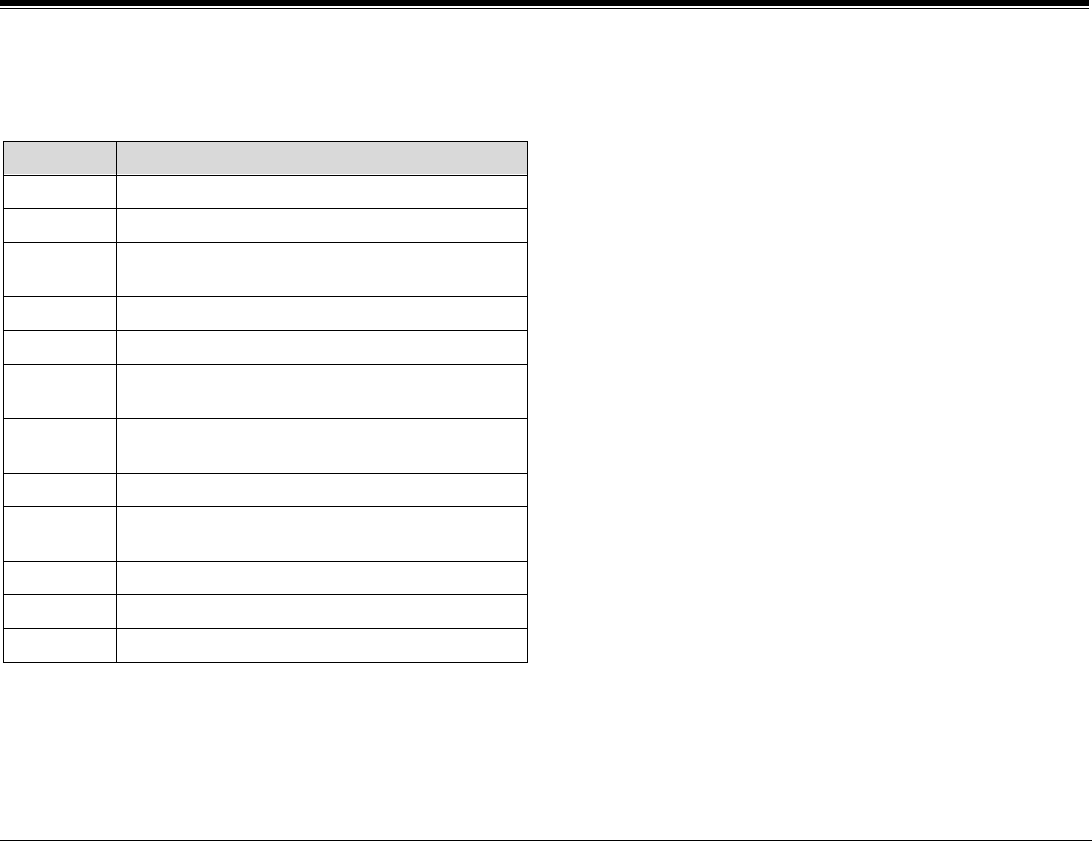
Appendix B – Attendant Features B-15 FlexSet-IP 280S User Guide
System Controls
The following table defines the special codes that may be used as part of
the outside number.
CODES DESCRIPTION
*x Delay dialing by X seconds (x = 1 to 9)
#0 Stop dial (end of outside or network number)
#1 Outpulsing wait period during which user is able to
dial any number of digits
#2 All digits following will be Dial Pulse
#3 All digits following will be DTMF
#4 Inhibits display (for Call Accounting System and
keyset display)
#5 Enables display (for Call Accounting System and
keyset display)
#6 Wait for second dial tone
#8 Display ‘_’ (for Call Accounting System and keyset
display)
#9 Calibrated Opening on trunk (FlashTk)
** Dial * out
## Dial # out
Note: The number of digits that can be programmed, including dial
codes, is limited by the system (defined system-wide). Should
you try entering a longer digit string than allowed the system
will give the error message LENGTH EXCEEDED, and
programming will stop.
Time/Date Set
The attendant can use this feature to change the time and date for the
entire system.
To Set the Time:
1. Press
[Time].
2. Dial the time, 4 digits (12 hour clock) use leading zeros, e.g. 0805
for 5 past 8.
3. Choose
[AM] or [PM].
4. Choose [Set].
5. Head confirmation tone.
To Set the Date:
1. Press
[Time].
2. Choose [SetDte].
3. Dial the Date, 6 digit format: mm:dd:yy or dd:mm:yy (depending on
your system setup). Use leading zeros.
For Example: May 26, 2002 should be entered as 052602 in North
America.
4. Choose
[Set].
5. Hear confirmation tone.

Appendix B – Attendant Features B-16 FlexSet-IP 280S User Guide
Station Controls
STATION CONTROLS
The station controls allow the attendant to define stations for specific
feature activation. Some of these features operate permanently, or until
redefined, such as Call Forward All. Other features operate on a one-
time base. After the feature is activated it is then cancelled and must be
redefined or reactivated in order to operate again. An example of such a
feature is a Wakeup Report.
Features marked with a ♦ can also be operated directly from a user
station, when defined by COS, without attendant interference.
ACD Group (Max Call waiting for Busy Group)
Enables the attendant to define the maximum number of calls waiting to
be answered by an ACD group, so that the next caller to the group will
hear a busy tone and not be answered by the announcer.
1. Press
[ACDBsy] (Busy ACD Group).
2. Dial an ACD group number or press the VOLUME Up/Down
Buttons to scroll between the ACD groups. This will cause the scroll
options to appear. Continue scrolling by using the scroll options (if)
needed to choose an ACD group.
3. Choose [CngCl#] (change call number) to change the maximum
number of callers that will hear the busy tone.
4. Enter a 3-digit number with leading zeros, up to 254 (e.g. 023 for
23).
5. Choose
[Cancel] to delete the limitation.
6. Press [Abort] to terminate.
Call Charge Printout
This feature shows the charges accumulated per station. The attendant
may request this printout at any time for a single or all stations/rooms
without resetting the Charge Table content.
To print for a single station/room:
1. Press
[ChgPrn] (Charge Printout).
2. Choose [St/Rm#] and dial a station/room number, or scroll through
the list and choose.
3. Choose
[Set] to print, the PRINTED message appears on the top line
of the display.
4. Press [Abort] to terminate.
To print for all stations/rooms:
1. Press
[ChgPrn].
2. Choose [All-St] to print.
3. Hear Confirmation Tone.
Call Charge Reset with Printout
This feature resets the charge table back to zero and prints the charges
accumulated per station. The attendant may request print and reset for
only one station/room or for all station/rooms.
To print and reset the charge table for a single station:
1. Press
[Prn&Rs] (print with reset).
2. Choose [St/Rm#] and dial a station/room number, or scroll through
the list and choose.
3. Choose
[Set] to rest and print, the PRINTED WITH RESET
message appears on the top and middle lines of the display.
4. Press [Abort] to terminate.

Appendix B – Attendant Features B-17 FlexSet-IP 280S User Guide
Station Controls
To print with reset for all stations:
1. Press
[Prn&Rs] (print with reset).
2. Scroll down to the beginning of the list by [PortDn] .
3. Choose [All-St] to reset.
4. Hear Confirmation Tone.
♦ Call Forward All (Follow-me)
The attendant may program stations, boss groups and ACD/UCD groups
so that all incoming calls ring at another destination.
Possible destinations are operator, station, ACD/UCD group, boss group,
UNA/Central Bell, DVMS message, public and private speed call
libraries, DSS key, group call, or network number.
1. Press
[A:FwdA] (Attendant: Forward All).
2. Choose [St/Gp#] and dial the originating station/group number, OR
Scroll between station/groups by using the scroll Up/Dn soft keys.
3. Choose
[DEST] and dial the forward destination number, OR
Choose [Cancel] to cancel Call Forward All or Follow-me.
4. Press [Abort] or SPKR to exit.
♦ Call Forward Busy
The attendant may program stations and boss groups so that all incoming
calls ring at another destination when the originally called station or
group is busy.
Possible destinations are operator, station, ACD/UCD group, boss group,
UNA/Central Bell, DVMS message, public and private speed call
libraries, DSS key, group call, or network number.
1. Press
[A:FwdB] (Attendant: Forward-Busy).
2. Choose [St/Gp#] and dial the originating station/group number, OR
Scroll between station/groups by using the scroll Up/Dn soft keys.
3. Choose
[DEST] and dial the forward destination number, OR
Choose [Cancel] to cancel Call Forward Busy.
4. Press [Abort] or SPKR to exit.
♦ Call Forward No Answer
The attendant may program stations and boss groups so that all incoming
calls ring at another destination when the originally called station or boss
group remains unanswered.
Possible destinations are operator, station, ACD/UCD group, boss group,
UNA/Central Bell, DVMS message, public and private speed call
libraries, DSS key, group call, or network number.
1. Press
[A:FwNA] (Attendant: Forward-No Answer).
2. Choose
[St/Gp#] and dial a station/group number, OR
Scroll between station/groups by using the scroll Up/Dn soft keys.
3. Choose
[DEST] and dial the forward destination number, OR
Choose [Cancel] to cancel Call Forward No Answer.
4. Press [Abort] or SPKR to exit.
♦ Call Forward Timed
The attendant may program stations and groups so that all incoming
calls ring at another destination at specified time intervals defined
system-wide. Up to two different intervals can be defined.
Possible destinations are operator, station, ACD/UCD group, boss group,
UNA/Central Bell, DVMS message, public and private speed call
libraries, DSS key, group call, or network number.
1. Press
[A:FwdT] (Attendant: Timed Forward).

Appendix B – Attendant Features B-18 FlexSet-IP 280S User Guide
Station Controls
2. Choose [St/Gp#] and dial a station/group number, OR
Scroll between station/groups by using the scroll Up/Dn soft keys.
3. Choose
[DEST] and dial the forward destination number, OR
choose [Cancel] to cancel call Forward Timed.
4. Press [Abort] or SPKR to exit.
♦ Call Trace
The attendant may activate Malicious Call Trace for any station.
1. Press
[A:Trc] (Attendant: Call Trace).
2. Choose
[St/Rm#] and dial a station/room number or use scroll Up/Dn
options to scroll through list.
3. Choose
[Set] to assign Trace or [Cancel] to deassign Trace.
4. Press [Abort] or SPKR to exit.
Note: If the message NO TRACE RECORD appears, the system
resources are insufficient for the feature to be activated.
♦ Call Trace Printout
The attendant may request a printout of all the calls traced for a specific
station, without resetting the call trace record.
Note: The CALL TRACE feature must have already been activated
on the station for a printout to be possible.
Trying to print when CALL TRACE has not been assigned (see above)
on the station results in the CALL TRACE OFF message on the top line
of the display.
1. Press
[A:TrcP] (Attendant: Call Trace Print).
2. Press [St/Rm#] and dial a station/room number or use scroll Up/Dn
options to scroll through list.
3. Choose [Set] to print. The CALL TRACE PRINT message appears
on the top line of the display.
4. Press [Abort] or SPKR to exit.
Check-In/Out
The attendant may use this feature to enable or disable telephony
features at a specific station/room.
1. Press
[ChkI/O] (Check In/Out).
2. Press [St/Rm#] and dial a station/room number or use scroll Up/Dn
options to scroll through list.
3. Choose
[Cancel], to Check-In (DEASSIGN message appears).
4. Choose
[Set] to Check-Out (ASSIGN message appears).
5. Press
[Abort] or the SPKR key to exit.
♦ Do Not Disturb (DND)
The attendant uses this feature to activate DND at a specific station or
boss group. Only stations with DND OVERRIDE privilege can ring the
specified station or boss group.
1. Press
[A:DND] (Attendant: Do Not Disturb).
2. Press [St/Gp#] and dial a station/room/boss group number or use
scroll Up/Dn options to scroll through list.
3. Choose
[Set] to assign DND for the station or choose [Cancel] to
deassign DND for the station.
4. Press
[Abort] or SPKR to exit.

Appendix B – Attendant Features B-19 FlexSet-IP 280S User Guide
Station Controls
Hot Station Delay
The attendant may program a station to ring another destination (such as
an operator, trunk, group, DVMS message, another station number,
pager, etc.), when the handset is taken off-hook for an extended time
period defined system-wide.
1. Press
[HtStDy] (Hot Station Delay).
2. Choose [St#] and dial the originating station number, or scroll
through the station ports.
3. Choose
[DEST] and dial the destination number, OR
Choose [Cancel] to cancel Hot Station Delay.
4. Press [Abort] or SPKR to exit.
Hot Station Immediate
The attendant may program a station to ring another destination (such as
an operator, trunk, group, DVMS message, another station number,
pager, space, etc.), as soon as the handset is lifted.
1. Press
[HtStIm] (Hot Station Immediate)
2. Choose [St#] and dial the originating station number, or scroll
through the station ports.
3. Choose
[DEST] and dial the destination number, OR
Choose [Cancel] to cancel Hot Station Immediate.
4. Press [Abort] or SPKR to exit.
Message Waiting
The attendant can use this feature to leave a message waiting indication
at a busy or idle station/room/group.
To leave a message indication at a busy or No Answer station:
1. Press
[Msg-Wt] (or press XFER and dial 7) when hearing the busy
tone or the station does not answer.
2. Hear confirmation tone.
To leave a message indication at an idle station:
1. Press
[Msg-Wt] (Message Waiting).
2. Choose [StRmGp] and dial a station/room/group number, or scroll
through the station ports.
3. Choose
[Set] to assign or [Cancel] to deassign message.
4. Press [Abort] or SPKR to exit.
When Message is Answered:
If the destination station is defined by the system as a “Hot Station”, the
attendant will be called back as soon as the handset is lifted and the
message indication lamp will be turned off. Otherwise, the attendant
should cancel the message indication after the message is answered.
To Cancel Message from idle state:
1. Press
[Msg-Wt].
2. Choose [StRmGp] and dial a station/room/group number, or scroll
through the station ports.
3. Press
[Cancel].
4. Press [Abort] or SPKR to exit.

Appendix B – Attendant Features B-20 FlexSet-IP 280S User Guide
Station Controls
Originating Station Only
The attendant can block all calls to a station by defining the station as
"Originating Only". The user can only call out and cannot receive any
calls at the station.
1. Press
[OrgOnl] (Originating Only).
2. Choose [St#] and dial a station number, or scroll through the station
ports.
3. Choose
[Set] to assign originating only or [Cancel] to deassign.
4. Press [Abort] or SPKR to exit.
♦ Room Status
The attendant can use this option to change the room status definition of
a station.
Each Room Status definition displays a different status for the room
such as CLEAN, DIRTY, OCCUPY, VACANT, etc. up to 16 room status
types. See your system administrator for the precise definitions for your
system.
1. Press
[A:Sts#] (Attendant: Room Status; # = 0 to 15).
2. Choose
[St/Rm#] and dial a station/room number or scroll through
the ports to choose.
3. Choose
[Set] to assign room status, or [Cancel] to deassign the room
status.
4. Press
[Abort] or SPKR to exit.
Station Blocking
The attendant may temporarily prevent a station from making and
receiving any and all calls, essentially blocking the station.
1. Press
[St-Blk] (Station Blocking).
2. Choose [St#] and dial a station number or scroll through the ports to
choose.
3. Choose
[Set] (to Block) or [Cancel] (to Unblock).
4. Press [Abort] or SPKR to exit.
Station Outgoing Restriction
The attendant may prevent a station from making outgoing trunk calls or
regrant trunk access.
1. Press
[StRstr] (Station Outgoing Restriction).
2. Choose
[St#] and dial a station number or scroll through the ports to
choose.
3. Choose
[Set] to assign outgoing restriction or [Cancel] to deassign.
4. Press [Abort] or SPKR to exit.

Appendix B – Attendant Features B-21 FlexSet-IP 280S User Guide
Station Controls
Terminating Station Only
The attendant can use this feature to prohibit a station from originating
any calls. The user can, however, continue to receive calls.
1. Press
[TrmOnl] (Terminating Only).
2. Press [St#] and dial a station number or scroll through the ports to
choose.
3. Choose
[Set] to assign Terminating Only or [Cancel] to deassign.
4. Press [Abort] or SPKR to exit.
Wakeup Report
The attendant can request a printout of wakeup requests that were not
answered. The report can be sorted by time or station number as defined
system-wide.
1. Press
[WkUpRp] (wakeup report).
2. The WAKEUP REPORT message appears on the top line of the
display.
3. Hear confirmation Tone. The printer automatically prints the report.
♦ Wakeup Request
The attendant can program a station to ring at a specified time. If the
user does not answer, recall will be attempted three times.
If recall is not answered, then the attendant will receive a call with the
NOT WOKEN message on the top line (See Wakeup Call on page B-10).
It is recommended that the attendant provide an alternate means for
waking the guest.
Printouts are possible (system-wide defined) for: new/cancel and fail,
success.
To Enter a New Wakeup Request:
1. Press [WkUpRq] (wakeup request).
2. Choose [St/Rm#] and dial the station/room number or scroll through
list.
3. Choose
[Set] to enter a new time for the station/room. The ENTER
TIME message appears on the top line.
4. Dial in the wakeup time : Enter 4 digits for a 12 hour clock, use
leading zeros.
5. Choose AM or PM.
6. Press
[Abort] or SPKR to exit.
To Cancel Wakeup Request:
1. Press
[WkUpRq].
2. Choose [St/Rm#] and dial a station/room number or scroll through
list.
3. Choose
[PortUp] or [PortDn] to scroll through wake up time list and
stop at the wakeup time you want to cancel.
4. Choose
[Cancel] to delete the time.
5. Press [Abort] or SPKR to exit.

Appendix B – Attendant Features B-22 FlexSet-IP 280S User Guide
Troubleshooting
TROUBLESHOOTING
Alarm
This feature allows the attendant to identify and examine the system
Alarms.
1. Press
[Alarm].
2. Choose [NxtAlm] (next alarm) to scroll through the alarm list. The
alarm number and its code are listed on the system lines.
3. Make a list of each alarm number to report to the technician.
4. Press [Abort] or SPKR to exit.
See Attendant User Guide on how to use a DSS Alarm key (default
access code #1997).
See the PI & Database Reference Manual for a detailed list of the
alarm codes and their definitions.
Auto Guard
The attendant may view which of the trunks have been automatically
blocked from use for outgoing calls by the Auto Guard feature.
When ASSIGN appears in the display, the trunk line is blocked.
DEASSIGN means the trunk line is being used by the system.
To View Trunk Status:
1. Press
[AutoGd] (Auto Guard)
2. Choose [TrkDl#] and dial the trunk number or scroll through the
ports.
3. Check the top line of the display
When a Trunk is in ASSIGN status (blocked):
1. Press [AutoGd].
2. Choose [TrkDl#] and dial the trunk number or scroll through the
ports.
3. Press [Cancel] to unblock the trunk. (ASSIGN → DEASSIGN)
4. Press
[Abort] or SPKR key to exit.
5. Check to see that the trunk is unblocked by placing a call on the
trunk. If the call goes through, the trunk is unblocked. Otherwise,
call the technician and re-activate AUTO GUARD.
To activate Auto Guard and prevent outgoing calls:
1. Press
[AutoGd].
2. Choose [TrkDl#] and dial the trunk number or scroll through the
ports.
3. Press [Set] to block the trunk. (DEASSIGN → ASSIGN).
4. Press
[Abort] or SPKR to exit.
CO Block (Display Only)
The attendant may view which of the trunks have been blocked by the
Central Office.
When ASSIGN appears in the display, the trunk is completely blocked.
DEASSIGN means that the trunk is being used by the system.
1. Press
[CO-Blk].
2. Choose [TrkDl#] and dial the trunk number or scroll through the
ports.
3. Press
[Abort] or SPKR to exit.

Appendix C – Glossary C-1 FlexSet-IP 280S User Guide
Appendix C - Glossary
ACD/UCD Group Automatic Call Distribution and Uniform Call Distribution. Calls enter the system
and are automatically routed to the ACD or UCD members based upon system
definitions of availability and overflow.
Attendant/Operator The individual responsible for answering incoming calls and transferring them to
their required destinations, as well as attending to trunk, system and station feature
controls.
Auto Transfer When auto transfer is defined at a station, dialing the number to which a call is to be
transferred will automatically transfer the call; use of the XFER key is not
necessary. This feature is typically utilized by attendants (see also Transfer).
Boss Group A Boss Group is a number of stations operating together in which the individual
station may or may not ring simultaneously as defined by the system per Boss
Group. The appropriate line key will flash at all stations set to ring at a specific
station; the call can be either transferred to any group member or picked up by any
group member when not in exclusive hold. Any group member can join a
conversation by merely pressing the appropriate illuminated line key. However,
only one additional member can join, and this is only when the original group
member is not in privacy mode.

Appendix C – Glossary C-2 FlexSet-IP 280S User Guide
Class Of Service (COS) A Class-of-Service (COS) consists of a list of features that are available to the
telephone line user. However, the user may be denied certain features. Each internal
telephone is marked with two classes-of-service, Primary and Secondary, which can
be defined differently. In order to increase flexibility, Coral allows switching
between the Primary and Secondary COS, but only one COS can be utilized at a
time. When the telephone is in check-out mode, the telephone is marked by a
system-wide defined COS and the user is denied this feature.
CO Trunk Number (Incoming) The number that is dialed by an outside telephone user from the public network
(through the Central Office) in order to call into the Coral for an internal station.
(Number listed in the local telephone directory).
Dial For the purpose of this guide “Dial” means entering the relevant digits by pressing
the number on the Dial Pad (Key Pad) that operates a feature or sends a call to a
destination. Dial also means pressing a key programmed with the feature or
destination (DSS).
Disconnect You may disconnect from an ongoing call by either pressing the Speaker key or by
manually replacing the handset onto its cradle (i.e. hang up).
Direct Station Selection (DSS) Permits you to make or transfer a call to an extension by using a defined key. DSS
can also be used on all accessible system ports. Instead of dialing a number this can
be done by pressing the programmed key. Also provides busy lamp field for
programmed stations.
Digitized Voice Message
System (DVMS)
DVMS is the utility that provides the means for embedding pre-recorded
announcements into the system. Recorded messages can be informative, for
example: transfer messages, or advertisements.

Appendix C – Glossary C-3 FlexSet-IP 280S User Guide
Forced Account Code A feature that forces the station user to dial an account code before having access to
an outside line. A display equipped keyset user attempting to access an outside line
without dialing the account code will receive the message “ENTER ACCOUNT #”
on the display. After dialing the account code, the user will be able to continue
dialing the intended number.
Idle A station or extension that is not ringing or busy, therefore available for use.
Intercept If you misdial or dial an unauthorized code (restricted to you), you will receive a
reorder tone or will be routed directly to the attendant/ operator/ master extension,
as defined in your system.
Off-Hook Lifting the telephone handset from its cradle has the same effect as pressing a
preprogrammed LOOP, LINE or SPKR fixed key, but automatically inhibits the
Speakerphone facility. Off- hook provides the dial tone, which then enables you to
dial or activate a feature.
Line The line key is used for making and receiving calls when the station is defined as a
member of a boss group. When several line keys are in use, the station will act as if
it is a multi-line instrument.
Loop The loop key is used for making and receiving calls. When several loop keys are in
use the station will act as if it is a multi-line instrument.
On- Hook Replacing the telephone handset on its cradle – has the same effect as pressing the
SPKR key.
Outside Line Access Code A series of digits which must be dialed or keyed in order to gain access to a trunk or
trunk group.
Port Provides access to a device, station or trunk from within the system.
Recall- Automatic The call that you have transferred to another extension.
Station/ Extension Each Coral internal telephone is called a station.

Appendix C – Glossary C-4 FlexSet-IP 280S User Guide
Station Group A number of stations linked together (members) for a common function, such as
ACD/ UCD group or Boss group. A station can be defined as a member of many
ACD/ UCD groups and/or Boss groups
Telephony Features The FlexSet is part of the Coral family of telephones that have access to a rich array
of telephony features that are user activated. The features supplied by the Coral
appear in the FlexSet-IP 280S display whenever the FlexSet is engaged.
Time-Out A predetermined period of time allowed to complete a specific function. If the
function is not completed, for example dialing, the caller is dropped and the
exchange equipment freed for other users. See also
Recall- Automatic
.
Transfer/ Xfer While engaged on a call you can initiate a feature by pressing the XFER (Transfer)
key. XFER provides you with a distinctive dial tone, which enables you to either
transfer the call, or activate a feature. XFER puts the second party on Hold and
provides a tone, as defined system-wide. If your Coral is connected to another
PABX you may have to use the FLASH key instead of the XFER key. The XFER
key is used for local Coral features, while the FLASH key is used to flash on trunks.
In some systems, if you are not connected to a DTMF destination, transfer can be
carried out by dialing ‘1’ instead of pressing the XFER key. In some systems
transfer is applied automatically when you dial a number (see also Auto Transfer).
Trunk An outside line from the telephone company that terminates at the customer’s
location.
Trunk Group A number of trunks linked together (members) for a common outgoing function.
Trunk Number The access code number that is dialed or keyed by station user in order to gain
access to a specific outside line.

Appendix C – Glossary C-5 FlexSet-IP 280S User Guide
Verified Forced Account
Code (VFAC)
A feature that forces the station user to dial a secret authorization account code
before accessing an outside line. Before dialing is allowed, VFAC verifies the
presence of the account code. If the code is not present, dialing is blocked. When
the code is found, dialing is allowed. Except for verification, VFAC is the same as
Forced AcctCd.

Appendix D – Tones D-1 FlexSet-IP 280S User Guide
Appendix D - Tones
Tones are audible signals of various frequencies that give information about the status of calls and features. While
using the Coral system, many different tones will be heard. These tones may vary for different locations, as each
system is customized during installation. While the sounds of the tones themselves are not described, their general use
is discussed below. In order to familiarize yourself with these tones, try accessing various features and listen to the
resultant tone signals. The most frequently heard tones are:
Break-In/Break-Out Tone A warning tone received by a station user indicating that a third party has broken into, or
is leaving (breaking out) an existing conversation.
Break-In Warning Tone heard during the entire break-in period. Indicates that a third party is listening (not
used in North America)
Busy Tone Tone heard when the destination you have dialed (extension or trunk) is busy.
Call Waiting Tone Tone heard at your FlexSet station while engaged on a call or activating a feature
indicating that another call is waiting to be answered (this appears only when multi-
appearance is defined for your FlexSet station).
Confirmation Tone Tone heard indicating that the telephony feature has been activated or deactivated.
Dial Tone Tone heard after off-hooking (lifting) your handset from idle.
Distinctive Dial Tone This tone indicates that certain features are in use at your FlexSet, for example, when
you have programmed your FlexSet not to receive calls with either Call Forward All, or
Do Not Disturb, and you lift the handset. DDT is also heard between patterns of digits
when dialing certain features, for example, AcctCd feature.

Appendix D – Tones D-2 FlexSet-IP 280S User Guide
When the following features are applied at your telephone, the distinctive dial tone is
heard when the handset is lifted:
• Call Forward All
• Do Not Disturb
• Messages Waiting
• Secondary COS
Reorder Tone You will hear this tone at your FlexSet if:
• You try to access a denied feature or misdial
• You have stayed off-hook for too long before dialing
• The station you have called does not answer within the predetermined interval.
• The station you have called is in Do Not Disturb status
Ringback Tone Tone is heard when the destination you have dialed is ringing.
Second Ringback Tone Tone that the calling party hears indicating that the called party is currently busy. When
the called party disconnects, the waiting call will be the next one ringing to the
destination.
Speaker Status Tone Indicates that the second conversing party’s keyset is in speakerphone mode. Enables
you to keep your privacy when you call someone who answered the call or placed the
call back to the speaker, and there are other people in the phone environment.
Tick Tone A tone indicating that you may continue dialing.
VIP Ring Tone A warbling tone heard when receiving a call from a station designated as VIP. Enables
you to identify an incoming call as a high priority call.
Voice Paging Tone A warbling tone when using the paging facility.
Appendix E – ISDN Cause Numbers E-1 FlexSet-IP 280S User Guide
Appendix E - ISDN Cause Numbers
Cause # CODE MEANING ACTION
1 unallocated (unassigned) number check number and call again∗
2 no route to specified transit network notify system manager
3 no route to destination notify system manager
6 channel unacceptable notify system manager
7 call awarded and being delivered in an established channel no action*
16 normal clearing (message displayed as text) no action*
17 user busy (message displayed as text) call later
18 no user responding call later
19 no answer from user (user alerted) call later
21 call rejected call later
22 number changed check number and call again*
27 destination out of order call later
28 invalid format (address incomplete) check number and call again*
29 facility rejected notify system manager
∗ If the message returns frequently notify system manager
Appendix E – ISDN Cause Numbers E-2 FlexSet-IP 280S User Guide
Cause # CODE MEANING ACTION
31 normal unspecified no action**
34 no circuit/ channel available call later*
38 network out of order wait and call later
41 temporary failure call later*
42 switching equipment congestion call later
43 access information discarded no action*
44 requested circuit/ channel not available notify system manager
47 resource unavailable, unspecified notify system manager
49 quality of service not available notify system manager
50 requested facility not subscribed notify system manager
57 bearer capability not authorized notify system manager
58 bearer capability not presently available call later
63 service or option not available, unspecified notify system manager
65 bearer capability not implemented check destination is correct, try again from different
compatible terminal, notify system manager if message
returns
66 channel type not implemented notify system manager
∗ If the message returns frequently notify system manager
Appendix E – ISDN Cause Numbers E-3 FlexSet-IP 280S User Guide
Cause # CODE MEANING ACTION
69 requested facility not implemented notify system manager
70 only restricted digital information bearer capability is
available
notify system manager
79 service or option not implemented, unspecified notify system manager
81 invalid call reference value notify system manager
83 a suspended call exists, but this call identity does not no action∗
84 call identity in use no action*
85 no call suspended no action*
86 call having the requested call identity has been cleared no action*
88 incompatible destination check destination is correct, try again from different
compatible terminal, notify system manager if message
returns
91 invalid transit network selection notify system manager
95 invalid message, unspecified notify system manager
96 mandatory information element is missing notify system manager
97 message type non-existent or not implemented notify system manager
98 message not compatible with call state or messages type non-
existent or not implemented
notify system manager
∗ If the message returns frequently notify system manager
Appendix E – ISDN Cause Numbers E-4 FlexSet-IP 280S User Guide
Cause # CODE MEANING ACTION
99 information element non-existent or not implemented notify system manager
100 invalid information element contents notify system manager
101 message not compatible with call state notify system manager
102 recovery on timer expiry no action∗
111 protocol error, unspecified notify system manager
127 interworking, unspecified notify system manager
∗ If the message returns frequently notify system manager
Appendix F – Troubleshooting F-1 FlexSet-IP 280S User Guide
Appendix F - Troubleshooting
Failure Messages
The following failure messages may appear on your FlexSet-IP 280S to indicate there is a connection error. See the
table below to determine the cause of the problem and the solution.
Failure Message Problem Solution / Action
NO MEDIA CHANNEL In order to connect to the dialed number, the
system requires an available Media Channel.
Currently all IP Media Channels are engaged.
The media channel resources will be freed once
another user ends their conversation.
Hang up and try again later.
CODEC MISMATCH The compression rate of your FlexSet-IP has not
been defined correctly in the COS.
Notify your system administrator.
NO PHYSICAL LINK Your FlexSet-IP 280S is not connected to the
network.
Check all wires, connections,
hubs and switches to determine if
any parts or components are
unplugged or damaged.

Appendix G – Latest Features G-1 FlexSet-IP 280S User Guide
Appendix G – Latest Telephony Features
Directory
This feature provides a searchable directory listing. Both Shared and Personal records are combined and organized
alphabetically, for easy retrieval. A search result can be dialed at the touch of a key.
The Directory enables:
• Fast search by name
• Number retrieval and autodial
• Add/edit entries to the Personal directory
Shared Directory is composed of the following internal and external numbers:
• Public Speed Call Library
• Hunt Group
• Boss Group
• All stations defined in the system
Personal Directory is a self-built database of external telephone numbers. It is accessible only from the station at
which it was entered.
An entry to the Personal Directory is distinguished from a Shared Directory entry by a preceding asterisk.
Calls arriving to your station are matched against entries to your Personal Directory. Incoming calls from contacts
listed in the directory are shown on the display as they appear in the Directory.

Appendix G – Latest Features G-2 FlexSet-IP 280S User Guide
To search through the Directory:
NOTE: Both Shared and Personal directories are accessed by the first constituent of an entry. If an entry consists
of a given name and a family name, the search will look for the attribute listed first.
1. Dial the Directory feature code #1994.
2. Enter all or part of the name of your contact party using the alphanumeric keys (see Keypad on page G-4 and
Editing Keys on page G-5).
You may also use the keys to scroll through the Directory.
3. While the name or number of the retrieved contact party is displayed, you can do one of the following:
• Place a call by pressing asterisk (*) (see steps below)
• Modify a Personal Directory contact information by dialing #2 (see below)
• Permanently remove a Personal Directory entry by dialing #0 (see below)
To place a call from the Directory:
To place a call from within the Directory, dial asterisk (*) while the name or number of the retrieved contact party is
displayed.
To modify an entry to the Personal Directory:
1. Dial #2 while the name or number of the retrieved contact party is displayed.
2. Edit the name as required.
3. Press the key.
4. Edit the number.
5. Press the key to save the changes. The entry subsequent to the one modified appears on the display.
or
Dial asterisk (*) to save the changes and call the saved contact.
To remove an entry from the Personal Directory:
To permanently delete an entry (personal directory only), press #0 while the entry is displayed. You will not be able
to restore the deleted entry. The entry subsequent to the one removed appears on the display.

Appendix G – Latest Features G-3 FlexSet-IP 280S User Guide
To add a new entry to the Personal Directory:
1. Dial the Directory feature code (#1994)
2. Dial #1.
3. At the prompt, enter the name of your contact party using the alphanumeric keys.
Up to 16 characters are allowed (see Keypad on page G-4 and Editing Keys on page G-5).
4. Press the key.
5. At the prompt, enter the telephone number of your contact party (do not enter the outside line access code).
6. Press the key to save the entry (an asterisk marks the saved entry as a Personal one).
OR
Press asterisk (*) to save the entry and to call the saved contact.
NOTE: Any attempt to make an entry in excess of the number of entries allowed by the system, or to assign a dial
number already existing on the Directory to a new contact, will fail.
Appendix G – Latest Features G-4 FlexSet-IP 280S User Guide
Keypad – Alphabetic Mode
Use the keypad to make new entries or navigate through the directory to a specific entry. The cursor advances
automatically when a different key is pressed. If two consecutive letters are on the same key, wait for the cursor to
disappear before proceeding to the next key. The following table indicates the key presses used to input the required
letters. This table may override the designations on your keypad.
For example, to enter “ANN” press: [2 ABC] [6 MNO] [6 MNO] WAIT [6 MNO] [6 MNO]
A N N
KEYS CHARACTERS
Press: 1 Time 2 Times 3 Times 4 Times
[1]
–
–
–
–
[2 ABC] A B C –
[3 DEF] D E F –
[4 GHI] G H I –
[5 JKL] J K L –
[6 MNO] M N O –
[7 PQRS] P Q R S
[8 TUV] T U V –
[9 WXY] W X Y Z
[*] – – – –
[0] – – – –
[#] – – – –
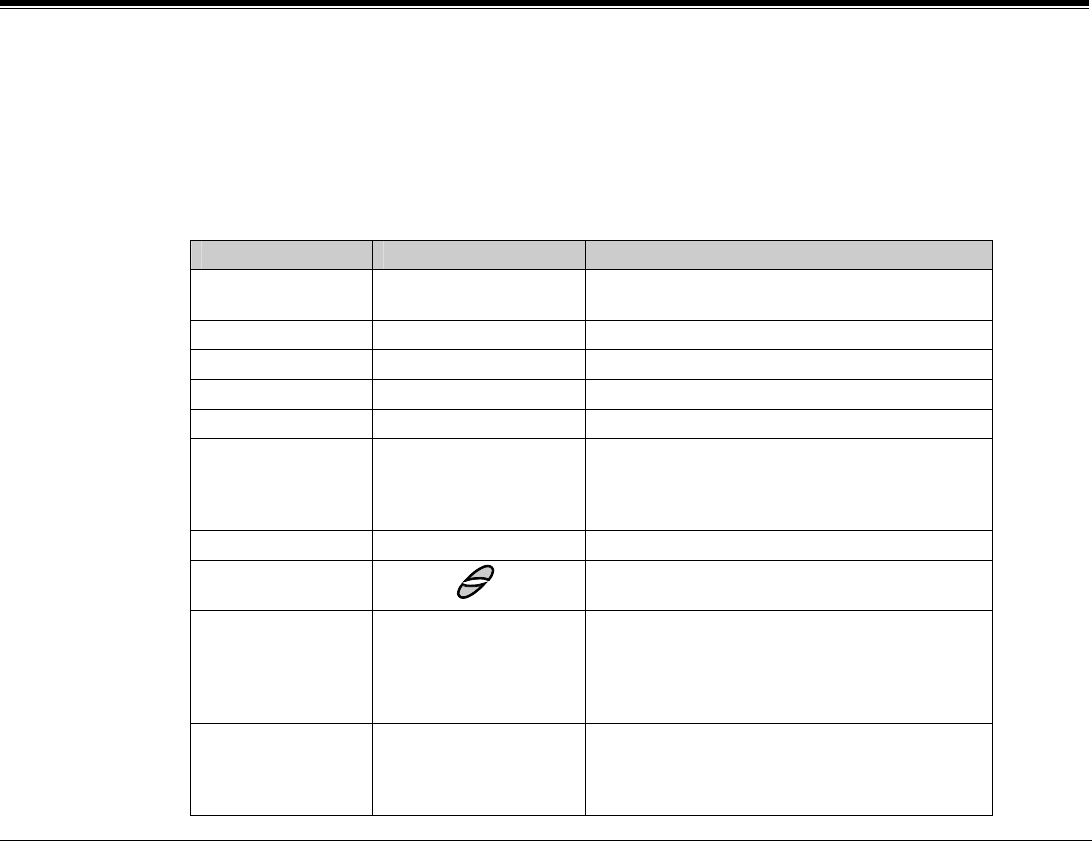
Appendix G – Latest Features G-5 FlexSet-IP 280S User Guide
Editing Keys
The Directory service allows you to easily retrieve a telephone number by keying a name of your contact and to place
a call to the search result as soon as the match is found. The available key combinations are listed in the table below.
Options marked with a diamond () are applicable for the Personal Directory only.
Option Key Description
Delete Entry #0 Delete the displayed personal entry.
(There is no option to restore the deleted entry.)
New Entry #1 Add a new entry to your Personal Directory.
Modify Entry #2 Edit the displayed personal entry.
Backspace #3 Erase the last entered character or digit.
Space #4 Insert a space between words.
Name/Number #5
or
Designated DSS button
Toggle between name and number of your
contact.
To program a Name/Number toggle button, use
feature code #128.
Send Place a call to the displayed contact.
Scroll Scroll through the Directory entries, contact by
contact (entries are alphabetically organized).
Caps Lock Designated DSS button Toggle between uppercase and lowercase
characters.
To program the Caps Lock toggle button,
contact your system administrator for the
Caps Lock feature code.
Character/Digit Designated DSS button Toggle between digits and characters.
To program the Character/Digit toggle button,
contact your system administrator for the
Character/Digit feature code.
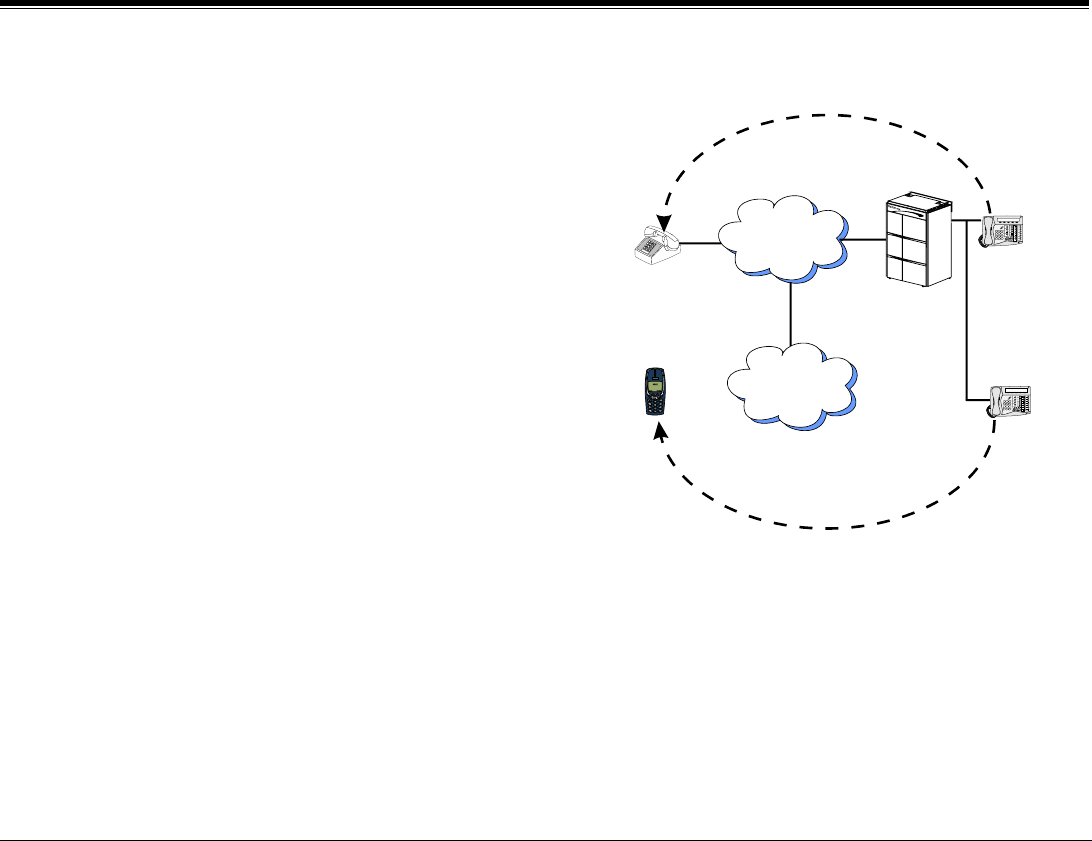
Appendix G – Latest Features G-6 FlexSet-IP 280S User Guide
FlexiCall
Calls ringing at your Coral station can simultaneously
ring at any designated internal or external phone (e.g.
home phone, mobile, second station) and can be
answered at either phone. Your FlexSet can distinguish
between calls arriving from an internal or external
source when ringing at the remote destination
(see page G-7). Calls can be transferred back to the
original FlexSet anytime during the call.
The FlexiCall feature is an ideal solution for office
applications requiring a “courtesy” telephone, and
applications requiring an extension telephone to a
system FlexSet. The FlexiCall feature may be used
also to “semi-connect” ancillary devices such as
answering machines, fax machines, or data modems to
your FlexSet, without using a separate telephone
number.
The remote destination rings even when your FlexSet
is disconnected.
The remote destination does not ring if any of the following features is activated at your Coral station: Do Not
Disturb, Call Forward All, Call Forward Busy, Call Forward Timed, Auto Answer.
The remote destination does not ring for the following incoming calls: Group call, Boss Group call (only first
member of a Boss Group will ring), Bell/UNA, Reminder, Wakeup, Voice Page.
PSTN
Cellular
FCN
7
Mobile phone
Home phone
Coral station
2
Coral station 1
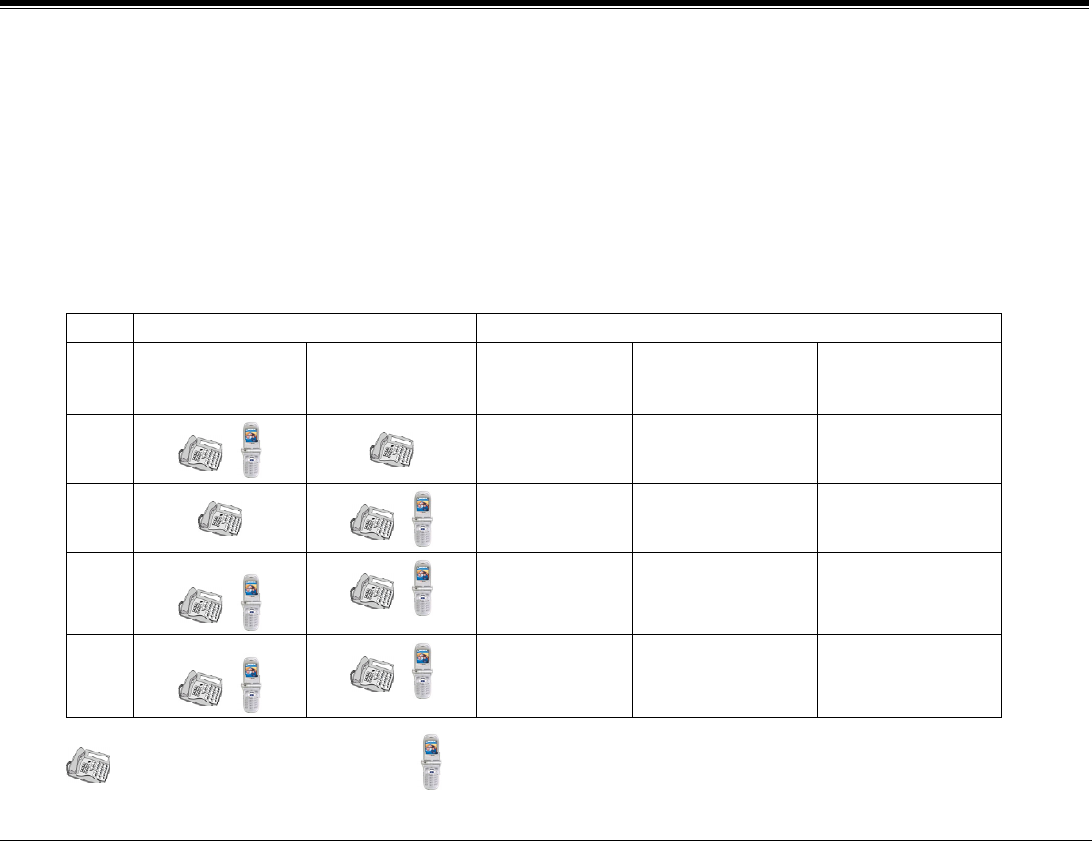
Appendix G – Latest Features G-7 FlexSet-IP 280S User Guide
Internal/External FlexiCall
You can distinguish between calls arriving from an internal or external source when operating the FlexiCall feature.
You can set calls arriving to your FlexSet to concurrently ring at your remote phone as follows:
• Internal and External calls ring at your remote phone.
• Only internal calls ring at your remote phone.
• Only external calls ring at your remote phone
This is demonstrated in the table below.
To set Set FlexiCall options as follows:
Case Internal Calls
ring at:
External Calls
ring at:
FlexiCall All
(#17710)
Set to:
FlexiCall Internal
(#17711)
Set to:
FlexiCall External
(#17712)
Set to:
1 Disabled Activated Disabled
2 Disabled Disabled Activated
3
Enabled Irrelevant Irrelevant
4
Disabled Activated Activated
= your Coral station = your remote phone
Appendix G – Latest Features G-8 FlexSet-IP 280S User Guide
To Operate FlexiCall:
1. Dial the appropriate FlexiCall feature code (see table below).
2. Dial the remote destination number (internal number or Public/Private Library number), at which calls will ring
simultaneously with your Coral station.
A remote destination can be: an operator, station, network number, UNA/ Central Bell, or external number
(stationary or cellular) via Public/Private Speed Call Library.
3. Listen for the confirmation tone.
To Cancel FlexiCall
1. Dial the appropriate feature code (see table below).
2. Dial the cancellation code (default #10).
3. Listen for the confirmation tone.
Should you hear a reorder tone, FlexiCall is denied at your station (as defined by Class of Service).
FlexiCall Type: Feature Code
All #17710
Internal #17711
External #17712
NOTES:
Internal and External calls may be routed to different destinations.
If FlexiCall All is defined, it overrides the settings for Internal and External.
Appendix G – Latest Features G-9 FlexSet-IP 280S User Guide
FlexiCall: Receiving Calls at a Remote Destination
If your remote destination is located outside the enterprise (connected to the PSTN or public cellular network), you
can answer all your FlexSet calls from your remote destination. Once you have answered a call at your remote
destination, you have the following options:
Function Key Use to:
Place a new call *1 Listen for a dial tone indicating that you can place a call to a new contact. Your
original conversing party will be disconnected
Transfer call A dial tone prompts you to enter the required transfer number. Transfer can be
screened or unscreened.
To return to the original conversing party (when transfer destination is busy or does
not answer) dial *2 again.
Switch to Broker/
Consultation/3-Way
Conference call
*2 A dial tone prompts you to enter the required third party number. Depending on
your Class of Service definitions, one of the following three party functions will be
activated (see page G-15):
• Broker Call
• Consultation
• 3-Way
Combination of Consultation/Broker/3-way Conference Call
Divert call to Coral station *3 A dial tone prompts you to enter a divert number. You will be disconnected and
your conversing party will be transferred to the divert number. Your number will not
show on the divert party’s display.
Access voice mail/IVR *4 For instructions on accessing voice mail from an IRSS phone, refer to page G-10
Divert call to your FlexSet *5 You will be disconnected and your conversing party will be transferred to your
Coral station. Your number will not show on your FlexSet’s display.
If your station does not answer within the system defined time-out period, the call
will return to your remote phone.
NOTE: Your remote phone will be activated as a part of the system only when a remote call is picked up at that
phone.
Appendix G – Latest Features G-10 FlexSet-IP 280S User Guide
To activate voice mail/IVR from your remote phone:
You can access your voice mailbox, retrieve messages and setup voice mail options for your Coral station.
1. Answer the remote call.
2. Dial *1. Listen for the dial tone. Your original party will be released.
3. Dial the voice mail or IVR dial number (see table below).
4. At the automated voice mail answer, dial the voice mail remote access code followed by your station number to
access your station’s voice mail box.
5. Dial *4 as soon as the automated voice mail answers. This allows the system to recognize the voice mail (or IVR)
commands.
6. Choose the required option from the voice mail or IVR system menu.
NOTE: Contact your system administrator for the voice mail (IVR) dial number and voice mail remote access
code. Use the table below to record that number and code:
Voice Mail (IVR)
Dial Number
Voice Mail Remote
Access Code
Appendix G – Latest Features G-11 FlexSet-IP 280S User Guide
Individual Remote System Services (IRSS) - Freedom
The IRSS feature, also known as Freedom, enables you to connect an off-site non-Coral phone (such as your home
phone or mobile) to the Coral and make calls from within the system. Many of the Coral’s extensive features (e.g.
transfer, conference call, voice mail, access to public and private libraries) are available from this off-site phone. The
off-site telephone operates as a virtual station in the Coral network, retaining the original features of the external
telephone in addition to the Coral features.
To enable IRSS (from remote phone providing caller ID):
NOTE: To enable the IRSS feature at your Coral station, you must first program a Private/Public Library number
with your off-site phone number. Use the table below to record library numbers that contain your IRSS
destination.
Private/Public
Library Number:
IRSS Phone Number
1. Dial IRSS feature code #17714.
2. At the dial tone, enter the number of a Private/Public Library containing your off-site phone number.
3. Listen for the confirmation tone.
To cancel IRSS:
1. Dial IRSS feature code #17714.
2. At the dial tone, enter the cancellation code (default #10).
3. Listen for the confirmation tone.

Appendix G – Latest Features G-12 FlexSet-IP 280S User Guide
Placing IRSS Calls:
For IRSS calls placed from phones that send Caller ID, the IRSS feature must be enabled at your Coral station. See
steps below.
For IRSS calls placed from phones that do not send Caller ID information, the IRSS feature must be enabled using
the Executive Privilege feature. See page G-13.
To place a call from IRSS phone providing Caller ID:
1. Place a call to your desk phone. Listen for the distinctive dial tone.
2. If a passcode is required (as defined by the Class of Service), enter it now.
3. At the dial tone, dial the number of the person you wish to call.
Possible destinations can be external number (stationary or cellular) or network number, or a Coral destination,
including station, trunk/trunk group, dial service, routing access, public/private library, voice mail.
If your destination is an external number, it should be preceded by the outside line access code.
You can activate any of the options described in the table on page G-14

Appendix G – Latest Features G-13 FlexSet-IP 280S User Guide
To place a call from IRSS phone that does not provide Caller ID:
This applies for IRSS calls from off-site phones that do not possess a Caller ID number and, therefore, cannot be
identified by the Coral.
NOTE: Some telephones may be denied the Executive Privilege feature (defined by Class Of Service).
In order to use Executive Privilege your station must be defined with a passcode.
1. Place a call to the Executive Privilege number (contact your system administrator for that number).
2. Listen for the dial tone.
3. Dial your own Coral station number.
4. Dial your 4 digit passcode. Listen for the distinctive dial tone.
5. Dial the required destination number.
Possible destinations can be: external number (stationary or cellular), network number, or a Coral destination,
including station, trunk/trunk group, dial service, routing access, public/private library, voice mail.
NOTE: If your destination is an external number, it should be preceded by an external line access code.
• If your destination is voice mail (IVR access code), skip to page G-16.
• If your destination is a FlexiCall All feature, skip to page G-17.
• To enable another IRSS phone, skip to page G-18.
6. Listen for the ringback tone.
7. Wait for an answer.
8. You can activate any of the options described in the table on page G-14.
Appendix G – Latest Features G-14 FlexSet-IP 280S User Guide
Options available while in an established IRSS call
Function Key Use to:
Place a new call *1 Listen for a dial tone indicating that you can place a call to a new contact. Your original
conversing party will be disconnected
Transfer call *2 A dial tone prompts you to enter the required transfer number. Transfer can be
screened or unscreened.
To return to the original conversing party (when transfer destination is busy or does
not answer) dial *2 again.
Switch to
Broker/Consultation/3Way
Conference Call
*2 A dial tone prompts you to enter the required third party number. Depending on your
Class of Service definitions, one of the following three party functions will be activated
(see page G-15):
• Broker Call
• Consultation
• 3-Way
• Combination of Consultation/Broker/3-way Conference Call
Divert call to a Coral
station
*3 A dial tone prompts you to enter a divert number. You will be disconnected and your
conversing party will be transferred to the divert number. Your number will not show on
the divert party’s display.
Access voice mail/IVR *4 For instructions on accessing voice mail from an IRSS phone, refer to page G-16.

Appendix G – Latest Features G-15 FlexSet-IP 280S User Guide
Broker/Consultation/3-Way Conference call
While engaged in an established FlexiCall or IRSS call, you can use one of the options listed below, as defined by
your Coral station Class of Service.
To activate a Broker call:
1. Dial *2.
2. Dial the third party and wait for an answer.
3. Dial *2 to alternate between parties (any number of times).
When you hang up, the other parties will remain in conversation.
To activate a Consultation call:
1. Dial *2.
2. Dial the number of the person you wish to consult with.
3. When your conversation is concluded, dial *2 to return to the original call. The consulted party will be released.
To activate a 3-way Conference call:
1. Dial *2.
2. Dial the number of the person you wish to add on to the call.
3. When the party answers, dial *2 for a 3-way call.
To activate any combination of Consultation/Broker/3-way Conference calls:
1. Dial *2.
2. Dial the third party number and wait for an answer.
3. Dial *2. The third party is put on hold.
4. When you have concluded your private conversation, dial *2 to complete a 3-way Conference call.
Appendix G – Latest Features G-16 FlexSet-IP 280S User Guide
To activate Voice Mail/IVR from your IRSS phone:
You can access your voice mailbox, retrieve messages and setup voice mail options for your Coral station.
1. Place a call to your desk phone. Listen for the distinctive dial tone.
2. Dial the voice mail or IVR dial number (contact your system manager for the dial number and access code).
3. At the automated voice mail answer, dial the voice mail remote access code followed by your station number to
access your station’s voice mail box.
4. Dial *4 as soon as the automated voice mail answers. This allows the system to recognize the voice mail or IVR
commands.
5. Choose the required option from the voice mail or IVR menu.
NOTE: Contact your system administrator for the voice mail (IVR) dial number and voice mail remote access
code. Use the table below to record that number and code:
Voice Mail (IVR)
Dial Number
Voice Mail Remote
Access Code

Appendix G – Latest Features G-17 FlexSet-IP 280S User Guide
To activate the FlexiCall All feature from your IRSS phone:
1. Place a call to your desk phone. Listen for the distinctive dial tone.
2. Dial the FlexiCall All feature code #17710.
3. At the dial tone, dial the destination number. Wait for the confirmation tone.
Possible destinations are: operator, station, network number, UNA/Central Bell or external number (stationary or
cellular) via Public/Private Speed Call Library.
To cancel the FlexiCall All feature from your IRSS phone:
1. Place a call to your desk phone. Listen for the distinctive dial tone.
2. Dial the FlexiCall All feature code #17710.
3. At the dial tone, dial the cancellation code (default #10). Wait for the confirmation tone.

Appendix G – Latest Features G-18 FlexSet-IP 280S User Guide
To enable a new IRSS phone from your present IRSS phone
4. Place a call to your desk phone.
5. At the distinctive dial tone, dial the passcode assigned to your station.
6. At the tone, dial IRSS feature code #17714.
7. At the tone, dial the number of the private library containing the number of the remote phone to be designated as
your new IRSS phone.
8. Listen for the reorder tone. You are now disconnected. You can now access your station from your newly assigned
IRSS phone.
To cancel IRSS feature from your IRSS phone:
9. Repeat steps 1-3 above.
10. Dial the cancellation code (default #10). The IRSS feature is deactivated at your Coral station.

International Headquarters
Tadiran Telecom Business Systems Ltd.
18 Hasivim St., P.O.Box 450
Petach-Tikva 49105, Israel
Tel. +972-3-9262000, Fax. +972-3-9262310
Visit us at our website http://www.tadirantele.com
Email: coral@tadirantele.com
USA Headquarters
Tadiran Telecom, Inc.
4 Tri Harbor Court
Port Washington, NY 11050
Tel. +1-516-632-7200, Fax. +1-516-632-7210
Coral FlexSet-IP280S User Guide
TM
(FlexSet Ver 2.xx with Coral Ver 14.66 )
2nd Edition 2004
Tadiran Telecom
Business Systems Ltd.
