Cromos Color Animations And Outline For Unity 3D User Manual
User Manual:
Open the PDF directly: View PDF  .
.
Page Count: 16

CROMOS / COLOR ANIMATIONS AND OUTLINE
2
Sommario
The Cromos package .................................................................................................................................................................................................. 4
Support information .............................................................................................................................................................................................. 4
Color Transition component...................................................................................................................................................................................... 5
Fields and features................................................................................................................................................................................................. 5
Color gradient .................................................................................................................................................................................................... 5
Target ................................................................................................................................................................................................................... 5
Mix Mode .............................................................................................................................................................................................................. 6
Material Property .............................................................................................................................................................................................. 6
Duration ............................................................................................................................................................................................................... 6
Delay ..................................................................................................................................................................................................................... 6
Loop Mode............................................................................................................................................................................................................ 6
Wrap Mode ........................................................................................................................................................................................................... 7
Animate children ................................................................................................................................................................................................ 7
Start transition on Start .................................................................................................................................................................................. 7
After Transition .................................................................................................................................................................................................. 7
State and Debug Info......................................................................................................................................................................................... 7
Highlighter component and Outline effects ........................................................................................................................................................... 8
Fields and features................................................................................................................................................................................................. 8
Highlight Mode .................................................................................................................................................................................................... 8
Outline Modes (new features in version 1.7.0) ............................................................................................................................................ 9
Outline Thickness ............................................................................................................................................................................................... 9
Usage ........................................................................................................................................................................................................................10
About Outline effect .........................................................................................................................................................................................10
User handled Outline Effect....................................................................................................................................................................................... 11
Other components in the package .......................................................................................................................................................................... 12
Fullscreen Fade ...................................................................................................................................................................................................... 12
XR Support ................................................................................................................................................................................................................... 13
Scripting ....................................................................................................................................................................................................................... 14
ColorTransition ...................................................................................................................................................................................................... 14
Main methods .................................................................................................................................................................................................... 14

CROMOS / COLOR ANIMATIONS AND OUTLINE
3
Static methods .................................................................................................................................................................................................. 14
Highlighter ............................................................................................................................................................................................................... 14
Main methods .................................................................................................................................................................................................... 14
OutlineTarget .......................................................................................................................................................................................................... 15
Static Methods................................................................................................................................................................................................... 15
Changelog ..................................................................................................................................................................................................................... 16
Version 1.7.0 ............................................................................................................................................................................................................ 16
OUTLINE ............................................................................................................................................................................................................... 16
GLOBAL ................................................................................................................................................................................................................ 16
FULLSCREEN FADE ............................................................................................................................................................................................. 16
Other minor changes and fixes ..................................................................................................................................................................... 16
CROMOS / COLOR ANIMATIONS AND OUTLINE
4
The Cromos package
Cromos - Color animations and outline for Unity 3D is a set of components that allows users to create easily many types of
color animation and outline effects.
The components in this package are recommended for both artists and
programmers, since they are fully configurable from Unity 3D editor and
from code.
Support information
Unity ver. 4.6+ UI system:
fully supported
Unity Standard Shader:
fully supported
CROMOS / COLOR ANIMATIONS AND OUTLINE
5
Color Transition component
The fundamental component of the package is Color Transition. It allows users to easily create and modify color animation
effects on 3D objects and UI elements.
The
Color Transition component
is able to animate any material property for every shader. By default, a number of common
shader properties is available and selectable from editor and code, but it is possible to handle any color property for custom
shaders.
Fields and features
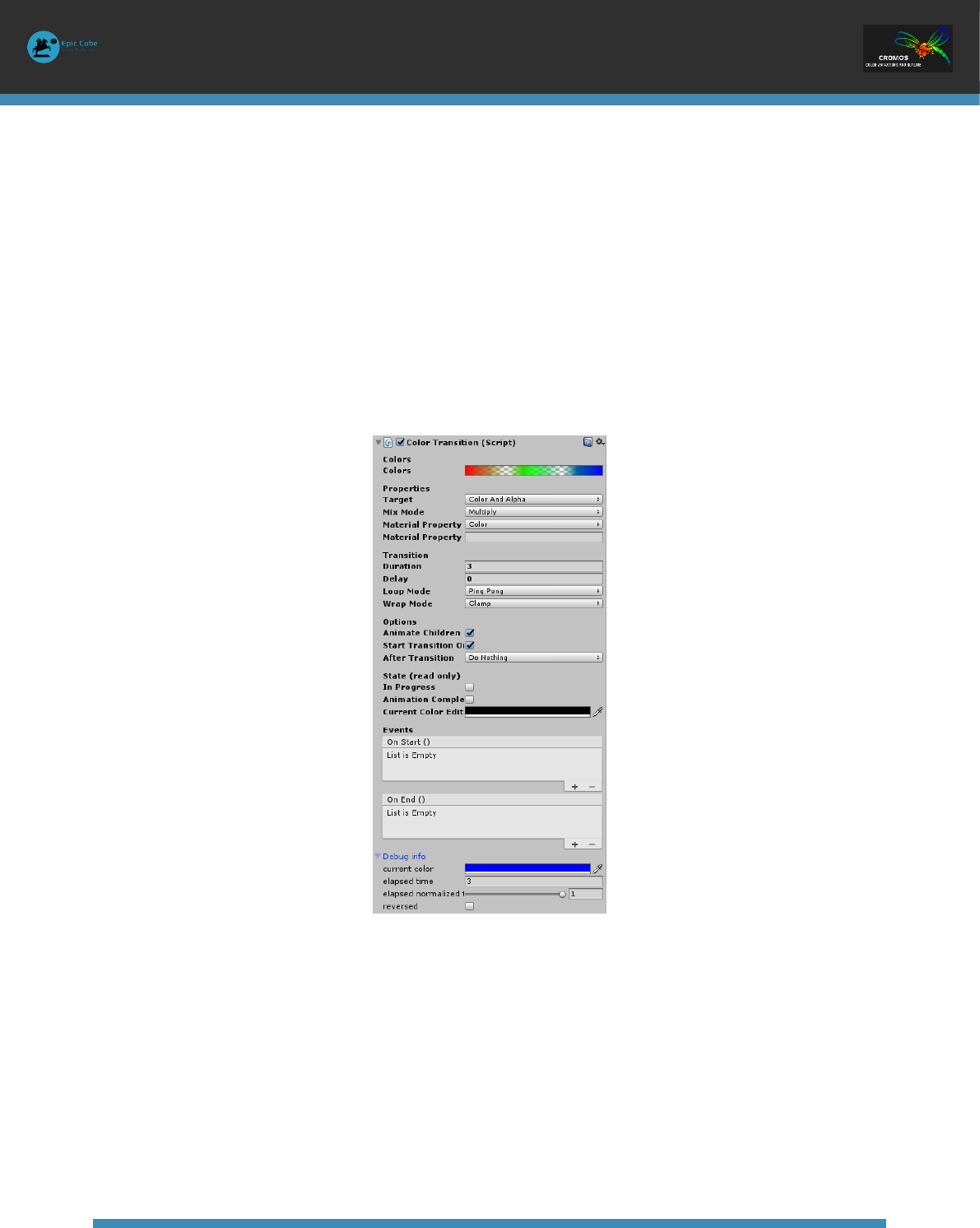
Color Transition component exposes a number of editable properties in editor and from code at runtime. The user can change
them in play too.
FIGURE 1 - COLOR TRANSITION COMPONENT IN EDITOR
Color gradient
The user user can define the colors and alpha animation keyframes in the Colors gradient.
This property can be read and changed in editor or from code through the methods:
EvaluateValue, SetValue, ResetValues,
ResetGradient, ResetGradientColors, ResetGradientAlphas
.
Target
This property tells what channels of
Colors gradient
should be used in animations.
Color: only colors will be animated (alpha will be ignored)
Alpha: only alpha channel will be animated (colors will be ignored)
CROMOS / COLOR ANIMATIONS AND OUTLINE
6
Color and Alpha: both colors and alpha channels will be used in the animation
This property can be changed in editor or by code by setting the
Target
field.
Mix Mode
The animation will mix the animation colors with the original ones with different modes:
Replace: the original color is replaced replaced during the animation
Multiply: the original color is multiplied by the colors defined for the animation
Add: the animation color is added to the original one and clamped to white color
AddHDR: the same of Add, but the result color is be clamped (requires HDR enabled for camera)
Subtract: the animation colors is subtracted to the originalo ne (and clamped to black)
Invert: the original color is reaplaced like in Replace mode and then inverted
And: bitwise AND operation between original color and animation colors
Or: bitwise OR operation between original color and animation colors
Xor: bitwise XOR operation between original color and animation colors
If Darker: during the animation is displayed the darker color between the animation color and the original one
If Lighter: during the animation is displayed the brighter color between the animation color and the original one
Material Property
Color transition handles a number of default common properties used by shaders (Unity Standard Shader too): Main Color,
Specular, Emission, Reflect, and Tint. Selecting a different
Material Property
, the color animation is played for the chosen
property. If you need to animate a custom property, you can select Custom in Material Property dropdown menu, and write the
name of the custom property in the Material Property Name field below.
The custom shader property should match exactly the shader property
name. If you want to animate a material property called “My Property”,
you should set the
Material Property Name
as _MyProperty. The name
to be used is contained in the shader file of the material.
Duration
Change this field to change the duration of the animation
Delay
The time to wait (in seconds) before to start an animation.
If the animation loop policy is set to Repeat or Ping-Pong, the delay is
waited at
every
loop
Loop Mode
Three loop modes are supported:
Play Once: the animation is played once
Repeat: the animation is played as a loop that restarts every time from the start value to the final value reported in
Colors
gradient
CROMOS / COLOR ANIMATIONS AND OUTLINE
7
Ping-Pong: the animation is played as a loop that reverses when the end is reached
Wrap Mode
The Wrap Mode field defines the wrap policy to apply when an animation ends.
Clamp: the last calculated color remains remains on the material
Restore: when the animation is ended, the original colors are restored
Animate children
Check or uncheck Animate Children field to animate the materials of a single game objects or its whole hierarchy.
By setting a Material Property in the Color Transition component, only
objects with a material containing the chosen property will be affected.
Start transition on Start
If this field is checked, the animation starts automatically when
Start
method is called for the component.
After Transition
The After Transition field defines a set of default behaviors to follow when the animation is ended:
Do Nothing: no action is performed
Deactivate Game Object
(formerly Deactivate)
: deactivates the game object
Destroy Game Object
(formerly Destroy)
: destroies the game object
Disable Component
(new)
: disables the component
Destroy Component
(new)
: destroies the component
Events
Color Transition component manages OnStart and OnEnd Unity Events. The user can change them in editor and at runtime.
On Start event: the
OnStart
callbacks are executed everytime an animation starts (
StartTransition
method in script).
If animation is played in a loop, the OnStart event is raised everytime the animation starts
OnEnd event: the
OnEnd
callbacks are executed when an animation ends
State and Debug Info
Color Transition component exposes some useful fields for debugging purpose in
State
and
Debug Info
:
In Progress: this flag tells if any animation is now playing
Animation complete: this flag tells if the animation is ended
Current Color Editor: the current animation color calculated in editor
Current Color: the current animatin color
Elapsed time: the elapsed time from the beginning of the animation
Elapsed normalized time: the elapsed time expressed in the range [0,1]. O means the beginning of the animation, and
1 the end time
Reversed: tells if the animation is playing reversed (if Ping-Pong loop mode is enabled)

CROMOS / COLOR ANIMATIONS AND OUTLINE
8
Highlighter component and Outline effects
The Highlighter component extends the Color Transition capabilities to create complex highlight and de-highlight effects on game
objects. Highlight and de-hilight effects include color animations just as the Color Transition component, as well as Outline.
The component extends the parameters of Color Transition component, with Highlight Mode and Outline Thickness.
Fields and features
FIGURE 2 - HIGHLIGHTER COMPONENT IN EDITOR
Highlight Mode
Highlighter works in three different modes (
Highlight Mode
property):
Color: only colors will be animated during highlight and de-highlight, like the Color Transition component does. If a Color
Transition component is already running on the game object, the Highlighter
Mix Mode
property defines the color mixing
policy, that takes in account the colors computed by
Color Transition
component
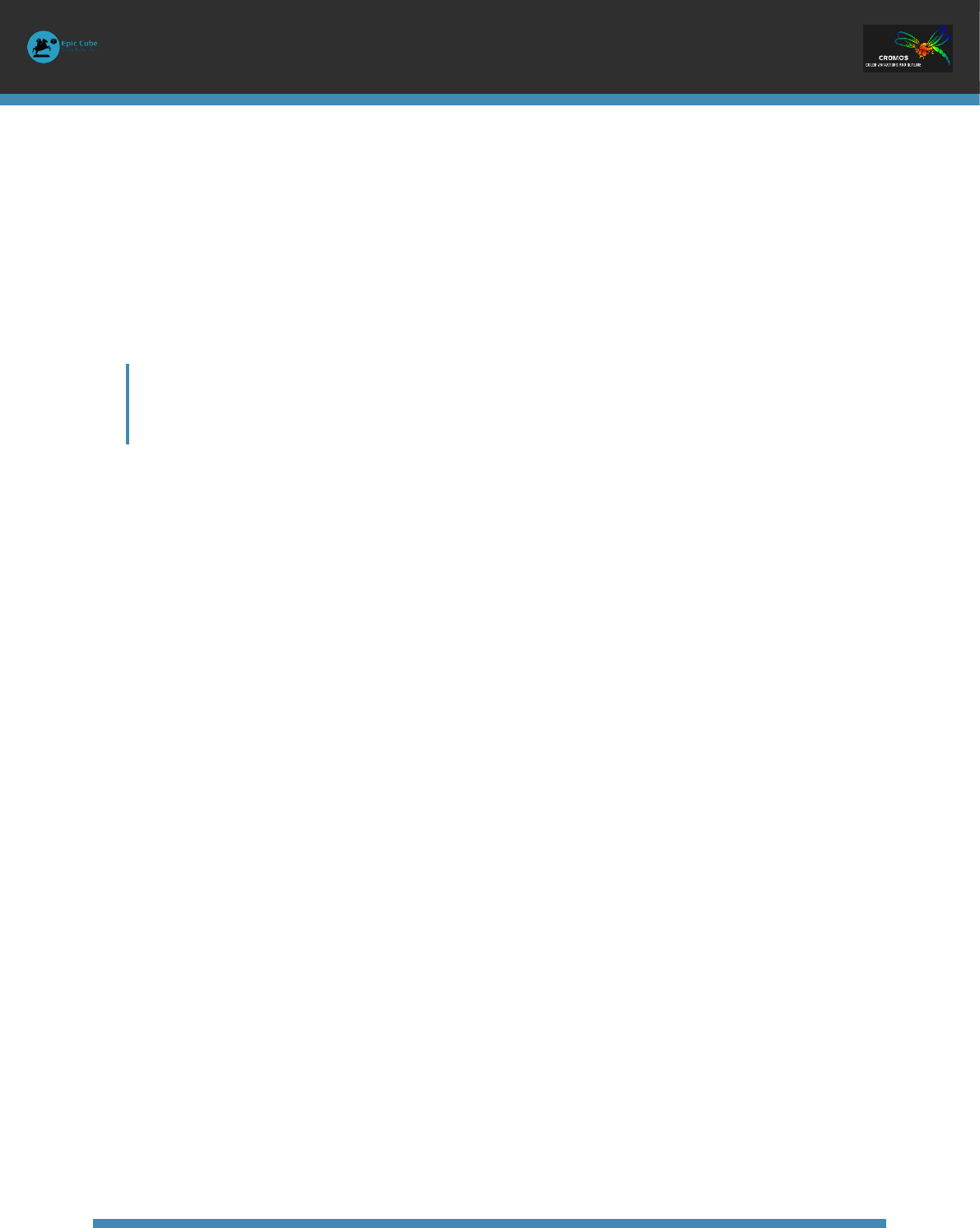
Outline: the highlight effect consists of drawing an outline faded line around the game object. The color of the outline
is defined by Colors gradient and can change over time. Moreover, the thickness too can vary over time. It is defined
by the Outline Thickness property of the component.
Colors and Outline: this mode is a mix of the previous ones and the Highlighter will animate both colors and outline
CROMOS / COLOR ANIMATIONS AND OUTLINE
9
It is possible to play many different outlines at the same time on many
game objects with different animated colors and thickness.
FIGURE 3 - OUTLINE EFFECT
Outline Modes (new features in version 1.7.0)
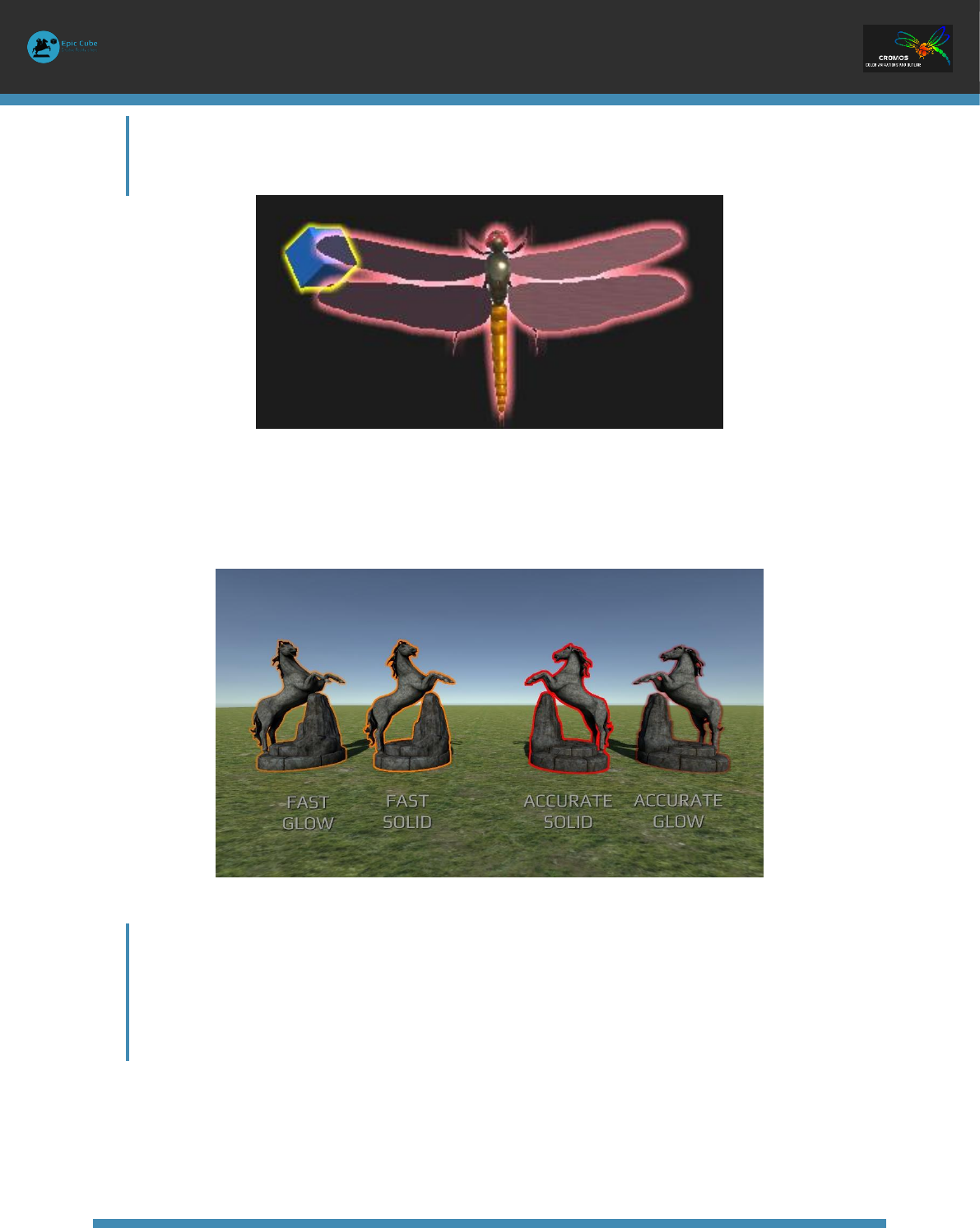
With Outline Mode you can choose your preferred outline mode: Fast Solid, Fast Glow, Accurate Solid, and Accurate Glow.
Fast Solid and Fast Glow are optimized to run on mobile and low-end devices.
FIGURE 4 – OUTLINE MODES
In general, Fast Solid and Fast Glow outline modes are the best chioce,
because these methods offer good results and are much cheaper than
accurate ones. Use Accurate modes when you need to outline models
with very sharp angles
Outline Thickness
When
Highlight Mode
is set to
Outline
or
Colors and Outline
, the Outline Thickness defines the thickness variations of the outline
around the object during the highlight animation.

CROMOS / COLOR ANIMATIONS AND OUTLINE
10
Usage
The highlighter component can be used in tandem with the Color Transition component.
The most common scenario is when the Color Transition component works on the game object independently, and the Highlighter
adds some effects mixing them with the color transition ones.
About Outline effect
In order to use outline effect, it is necessary to add a new layer in Tag Manager called
Outline
. If this layer is not added the Outline
Target component will throw an error on player start.
Although the Outline effect is optimized to be as cheapest as possible, it is actually a post-processing effect, and for this reason
it is always a good idea to use it in the right way.
The highlighting system internally executes an image processing pass for each unique outline combination in the scene.
In other words: if you have 1000 game objects with the highlighter component in your scene, drawing at the same time an outline
with the same color and thickness, the outline pass is calculated exactly once per frame, because the highlighting system works
with only one outline combination (same color and same thickness for all the objects). But, if you have 3 game objects, each one
with a different outline color and/or thickness, 1 outline pass is required for each combination, so it is executed 3 times per
frame: one for each outline combination.
On desktop platform it is not a big problem if you have 10 unique combinations at the same time, but on a mobile device this will
kill your framerate.
So, if you want to use it on mobile devices – please – do not exceed with unique outline effects.

CROMOS / COLOR ANIMATIONS AND OUTLINE
11
User handled Outline Effect
Sometime can be useful to add a single static outline effect to a game object in scene, to be activated and deactivated as needed
(from editor and runtime). Usually the Highlighter component does it for you when highlight mode is set to Outline or Colors
and Outline.
The Outline Target component allows doing this in a simple way.
It exposes the editable properties Outline Color and Outline Thickness.
Note: the max outline thickness is currently set to 20 for performance reason. Please do not change it.

CROMOS / COLOR ANIMATIONS AND OUTLINE
12
Other components in the package
The Cromos package includes an extra component for color management: the Fullscreen Fade component.
Fullscreen Fade
The Fullscreen Fade component allows to easily create fullscreen fade effects. This is particularly helpful for effects to be
played while changing levels of a game or for contextual fullscreen animations.
It is mainly used by code through the static method
DoFade
coming in many versions.

CROMOS / COLOR ANIMATIONS AND OUTLINE
13
XR Support
This package was tested and works fine on Samsung GearVR.
This version of the package does now support Single-Pass Stereo Rendering…. Yet.

CROMOS / COLOR ANIMATIONS AND OUTLINE
14
Scripting
The Cromos package comes with all the code available. In this section are described the main methods to use the Cromos
components from code.
For more detailed information see the internal code documentation reported in Cromos/Documentation/DOC-HTML.zip in your
project, or consult the comments inside the script files.
ColorTransition
Main methods
StartTransition
Starts the color transition (animation) using the properties set for the component. In the overloaded versions, it is possible to
pass as arguments the initial and the final color, the possibility to set or ignore alpha.
AssignColor
Allows to assign a color to a game object using specific target and mix mode (this method is used by Color Transition component
to achieve color animations). The mix is calculated respect to the starting color of each renderer of the game object.
AssignFromCurrent
It works like
AssignColor
, but color mix does not consider the starting color of the renderers, but the current one.
ResetColors
Resets the start colors of each renderer of the game object.
Static methods
DoTransition
Use this static method to create on-the-fly color transition animations over a game object. This method is overloaded with
different arguments and return types for every need. Among the variants of this method, there are two generic ones. The
T
parameter refers to Color type (because
ColorTransition
class derives from
ColorAnimator
).
Highlighter
Main methods
Highlight
Starts the highlight animation on the Game Object. An overloaded version allows to pass as an argument the highlight type:
Color
,
Outline
or
ColorsAndOutline
.
DeHighlight
StartTransition
See Color Transition. Better do not use it directly from Highlighter component.
AssignColor
See Color Transition. Better do not use it directly from Highlighter component.
AssignFromCurrent
See Color Transition. Better do not use it directly from Highlighter component.

CROMOS / COLOR ANIMATIONS AND OUTLINE
15
ResetColors
See Color Transition. Better do not use it directly from Highlighter component.
OutlineTarget
Outline Target component is used in the backend of the Highlighter component to create outline effect over the game objects. All
the options can be set from editor or by changing them from code. The only methods exposed to programmer allow to create
and destroy an OutlineTarget component.
Static Methods
AddOutlineTarget
Adds an OutlineTarget component on a game object. It is possible to specify if the new component should be hidden in inspector
or not.
RemoveOutlineTarget
Removes an existing Outline Trarget component from a game object (if any). It is possible to choose if the component must be
destroyed or simply disabled.

CROMOS / COLOR ANIMATIONS AND OUTLINE
16
Changelog
Version 1.8.0
HIGHLIGHTER
CHANGE: now Highlighter does not require ColorTransition compoenent to work. If a
ColorTransition component is present on the same object, the highlighting effect will
be mixed to color transitions of ColorTransition componenent
ADD: static Highlight and DeHighlight method
EDITOR
FIX: now in Highlighter editor mix mode is shown only if Mode is set to Color or
ColorsAndOutline
OUTLINE
CHANGE: in order to use outline features, it is no longer necessary to add "outline"
layer to tags and layers of the project
CHANGE: brand new design for outline system to make it simpler to be used. It's now
possible add, remove, enable and disable OutlineTarget compoenent (runtime and
editor) to make OutlineTarget component work. It's however possible to control it
through Highlighter component (recommended)
OPTIMIZATION: now post-processing involves only a portion of the screen (depending from
objects in screen space)
Version 1.7.0
OUTLINE
PERFORMANCE: Outline system optimized to work with single render camera + command
buffer. It provides better performance.
ADD: 2 new outline modes added: Fast Solid and Fast Glow, optimized for mobile and
low-end devices. Previous outline modes are now called Accurate Solid and Accurate
Glow, optimized for PC and other mid/high-end devices.
ADD: It is now possible to switch outline between single game object and whole
hierarchy
FIX: in some cases the rendered image of outlined object was vertically flipped
GLOBAL
ADD: new After Transition Actions in Property Animator: DeactivateGameObject
(formerly Deactivate), DestroyGameObject (formerly Destroy), DisableComponent,
DestroyComponent)
CHANGE: PropertyAnimatorEvent moved to a new file
FULLSCREEN FADE
FIX: now in FullscreenFade the fade sphere size is automatically computed correctly
Other minor changes and fixes
