DEC 10 OTSCA A D Decsystem10 Getting Started With TOPS Commands
DEC-10-OTSCA-A-D decsystem10 Getting Started With TOPS-10 Commands DEC-10-OTSCA-A-D decsystem10 Getting Started With TOPS-10 Commands
User Manual: DEC-10-OTSCA-A-D decsystem10 Getting Started With TOPS-10 Commands
Open the PDF directly: View PDF  .
.
Page Count: 48
GETTING
STARTED
WITH
TOPS-10
COMMANDS

GETTING STARTED WITH
TOPS-10
COMMANDS
DEC-10-0TSCA-A-D
digital
equipment
corporation • maynard. massachusetts
First
Printing
June
1971
Second
Printing
July
1972
Third
Printing
March
1975
Fourth
Printing
June
1975
The
information
in
this
document
is
subject
to
change
without
notice
and
should
not
be
construed
as
a
commitment
by
Digital
Equipment
Corporation.
Digital
Equipment
Corporation
assumes
no
responsibility
for
any
errors
that
may
appear
in
this
manual.
The
software
described
in
this
document
is
furnished
to
the
purchaser
under
a
license
for
use
on
a
single
computer
system
and
can
be
copied
(with
inclusion
of
DIGITAL's
copyright
notice)
only
for
use
in
such
system,
except
as
may
otherwise
be
provided
in
writing
by
DIGITAL.
Digital
Equipment
Corporation
assumes
no
responsibility
for
the
use
or
reliability
of
its
software
on
equipment
that
is
not
supplied
by
DIGITAL.
copyright
~
1971,
1972,
1973, 1974,
1975
by
Digital
Equipment
Corporation
The
HOW
TO
OBTAIN
SOFTWARE
INFORMATION
page,
located
at
the
back
of
this
document,
explains
the
various
services
available
to
DIGITAL
software
users.
The
postage
prepaid
READER'S
COMMENTS
form
on
the
last
page
of
this
document
requests
the
user's
critical
evaluation
to
assist
us
in
preparing
future
documentation.
The
following
are
trademarks
of
Digital
Equipment
Corporation:
CDP
COMPUTER
LAB
COMSYST
COMTEX
DDT
DEC
DECCOMM
DECTAPE
DIBOL
DIGITAL
DNC
EDGRIN
EDUSYSTEM
FLIP
CHIP
FOCAL
GLC-8
IDAC
IDACS
INDAC
KAID
LAB-8
LAB-8/e
LAB-K
OMNIBUS
OS/8
PDP
PHA
PS/8
QUICKPOINT
RAD-8
RSTS
RSX
RTM
RT-ll
SABR
TYPESET 8
UNIBUS
6/75-15
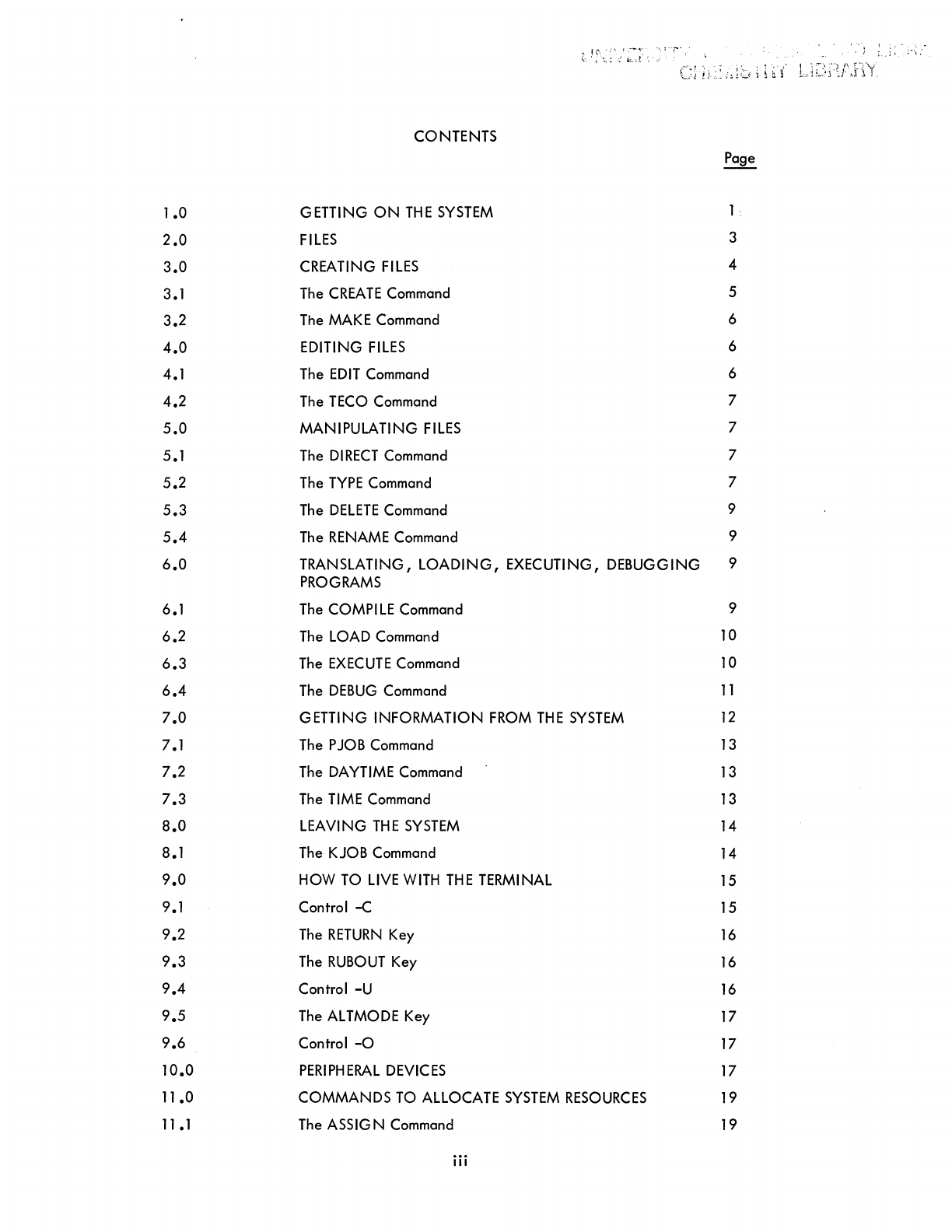
CONTENTS
Page
1 .0 GETTING
ON
THE
SYSTEM
1.
2.0
FILES
3
3.0 CREATING
FILES
4
3.1
The
CREATE
Command
5
3.2
The
MAKE
Command
6
4.0 EDITING
FILES
6
4.1
The
EDIT
Command
6
4.2
The
TECO
Command
7
5.0
MANIPULATING
FILES
7
5.1
The
DIRECT
Command
7
5.2
The
TYPE
Command
7
5.3
The
DELETE
Command
9
5.4
The
RENAME
Command
9
6.0
TRANSLATING,
LOADING,
EXECUTING, DEBUGGING 9
PROGRAMS
6.1
The
COMPI
LE
Command
9
6.2
The
LOAD
Command
10
6.3
The
EXECUTE
Command
10
6.4
The
DEBUG
Command
11
7.0
GETTING INFORMATION
FROM
THE
SYSTEM
12
7.1
The
P
JOB
Command
13
7.2
The
DAYTIME
Command
13
7.3
The
TIME
Command
13
8.0
LEAVING
THE
SYSTEM
14
8.1
The
KJOB
Command
14
9.0 HOW
TO
LIVE
WITH
THE
TERMINAL
15
9.1
Control -C
15
9.2
The
RETURN
Key
16
9.3
The
RUBOUT
Key
16
9.4 Control
-U
16
9.5
The
ALTMODE
Key
17
9.6 Control
-0
17
10.0
PERIPHERAL
DEVICES
17
11
.0 COMMANDS
TO
ALLOCATE
SYSTEM
RESOURCES
19
11
.1
The
ASSIG
N
Command
19
iii
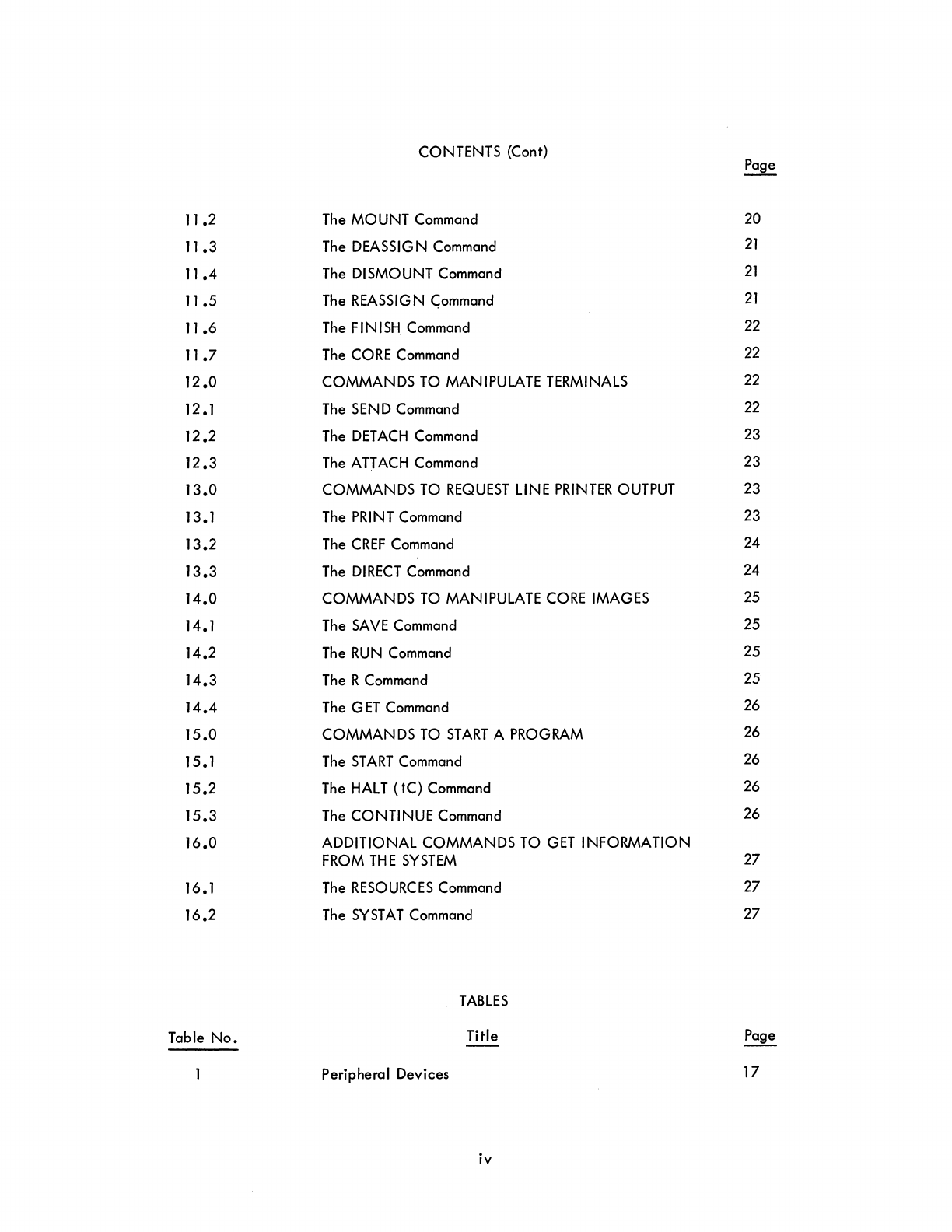
CONTENTS (Cont) Page
11
.2
The
MOUNT
Command
20
11
.3
The
DEASSIGN
Command
21
11.4
The
DISMOUNT
Command
21
11
.5
The
REASSIGN
C;ommand
21
11
.6
The
FINISH
Command
22
11
.7
The
CORE
Command
22
12.0 COMMANDS
TO
MANIPULATE
TERMINALS
22
12.1
The
SEND
Command
22
12.2
The
DETACH
Command
23
12.3
The
ATJ
ACH
Command
23
13.0 COMMANDS
TO
REQUEST
LINE
PRINTER
OUTPUT
23
13.1
The
PRINT
Command
23
13.2
The
CREF
Command
24
13.3
The
DIRECT
Command
24
14.0 COMMANDS
TO
MANIPULATE
CORE
IMAGES
25
14.1
The
SAVE
Command
25
14.2
The
RUN
Command
25
14.3
The
R
Command
25
14.4
The
GET
Command
26
15.0 COMMANDS
TO
START
A
PROGRAM
26
15.1
The
START
Command
26
15.2
The
HALT
(tC)
Command
26
15.3
The
CONTINUE
Command
26
16.0
ADDITIONAL
COMMANDS
TO
GET
INFORMATION
FROM
THE
SYSTEM
27
16.1
The
RESOURCES
Command
27
16.2
The
SYSTAT
Command
27
TABLES
Table No. Title
Peripheral Devices
17
iv
FOREWORD
Getting
Started
With
TOPS-l,0
Commands
is
a simplified
guide
for
the
timesharing user of
the
DECsystem-l,0. The commands
described
in this document
are
the subset
of
monitor commands
that
are
most useful to
the
beginning
user.
With
the
commands
described
herein,
the
user
can
create,
edit,
and
manipulate
files;
translate,
execute,
save,
and
start
programs; use
devices;
and
obtain
information from
the
system.
The
complete
reference
document
for
the
command
repertoire
is
DECsystem-l,0
Operating
System Commands
(DEC-l0-oSCMA-A-D);
this manual
should
be
referred
to for
additional
information.
Another
manual
written
for
the
beginning
user is
Getting
Started With DECsystem-l,0
(DEC-l,0-XGSDA-A-D).
This manual
is
a
procedural-oriented
document
and
describes
how to use
the
language
translators
and
the
editor
in
addition
to
the
basic monitor commands.
Complete
examples
are
given for FORTRAN, BASIC,
and
ALGOL
languages.
March,1975

Programs are typed directly. into
the
computer by means
of
the terminal.
By
typing in programs, you
establish communication with
other
programs
already
resident in
the
computer. The first resident
pro-
gram you communicate with
is
the
monitor, the
most
important program in the computer. The monitor
is
the
master program
that
plays an important role in the
efficient
operation
of
the computer. Just as
the
terminal
is
your link with
the
computer, the monitor
is
your link with
the
programs within
the
com-
puter.
The monitor has many functions to perform, like keeping a record of what
each
user
is
doing and
de-
ciding what user should
be
serviced next and for how long. The one function of the monitor
that
is
of
greatest concern
at
this point
is
that
the monitor retrieves any resident programs
that
you
need.
This
retrieval happens only
if
the monitor "understands" what
is
expected
of
it.
The commands to the mon-
itor which
are
explained in the following sections are sufficient for
the
terminal
to
be the
device
by
which information
is
inputted into the system and by which the system outputs its results.
See section
9.0
for a discussion
on
How
to
Live With
the Terminal.
1.0
GETTING
ON
THE
SYSTEM
In order to gain access to the timesharing system, you
must
say hello to the system by "logging
in".
The first move
is
to make
contact
with
the
computer
facility
by
whatever
means
the
facility
has
estab-
lished
(e.g.,
acoustic coupler,
telephone,
or dataphone).
Next,
notice
the
plastic knob (the power
switch) on the lower right-hand side
of
the
terminal. This knob has
three
positions:
ON,
OFF, and
LOCAL (turning clockwise). When
the
knob
is
in
the
LOCAL
position, the terminal
is
like a typewriter;
it
is
not communicating with the system
at
all.
The knob
must
be turned
to
the
ON
position in order
to
establish communication with
the
computer. When
the
terminal
is
turned
ON,
type a fC (depress
the
CTRL
key and type
C).
This
action
establishes communication with the monitor. The monitor
We wish
to
express appreciation
to
Stanford University for the use of
their
Stanford A-1 Project User's
Manual,
Chapter
1,
SAILON
No.
54,
as a guide
in
writing
the
material in this
section.
signifies its readiness to
accept
commands by responding with a period
(.).
All
the
commands discussed
in this document can only be typed to
the
monitor. They are operative when the monitor has typed a
period, signifying
that
it
is
waiting for a command.
The first program
the
monitor should call
in
for you
is
the LOGIN program. This
is
accomplished by
typing LOGIN followed
by
a
carriage-return
(depress
the
RETURN
key).
All commands to the monitor
should be terminated with a
carriage-return.
When the monitor "sees" a
carriage-return,
it
knows
that
a command has been typed and
it
begins
to
execute
the
command.
In the
text,
underscoring
is
used
to
desi gnate terminal
output.
A
carriage-return
is
designated by a ) .
By
typing
LOGIN,
you cause
the
monitor to read the LOGIN program
from
the
disk into core memory
and it
is
this program
that
is
now in control of your terminal. Before the
LOGIN
program
is
called
in,
the monitor assigns you a job number for system bookkeeping pl/rposes. The system responds with an
information message simi lar
to
the following.
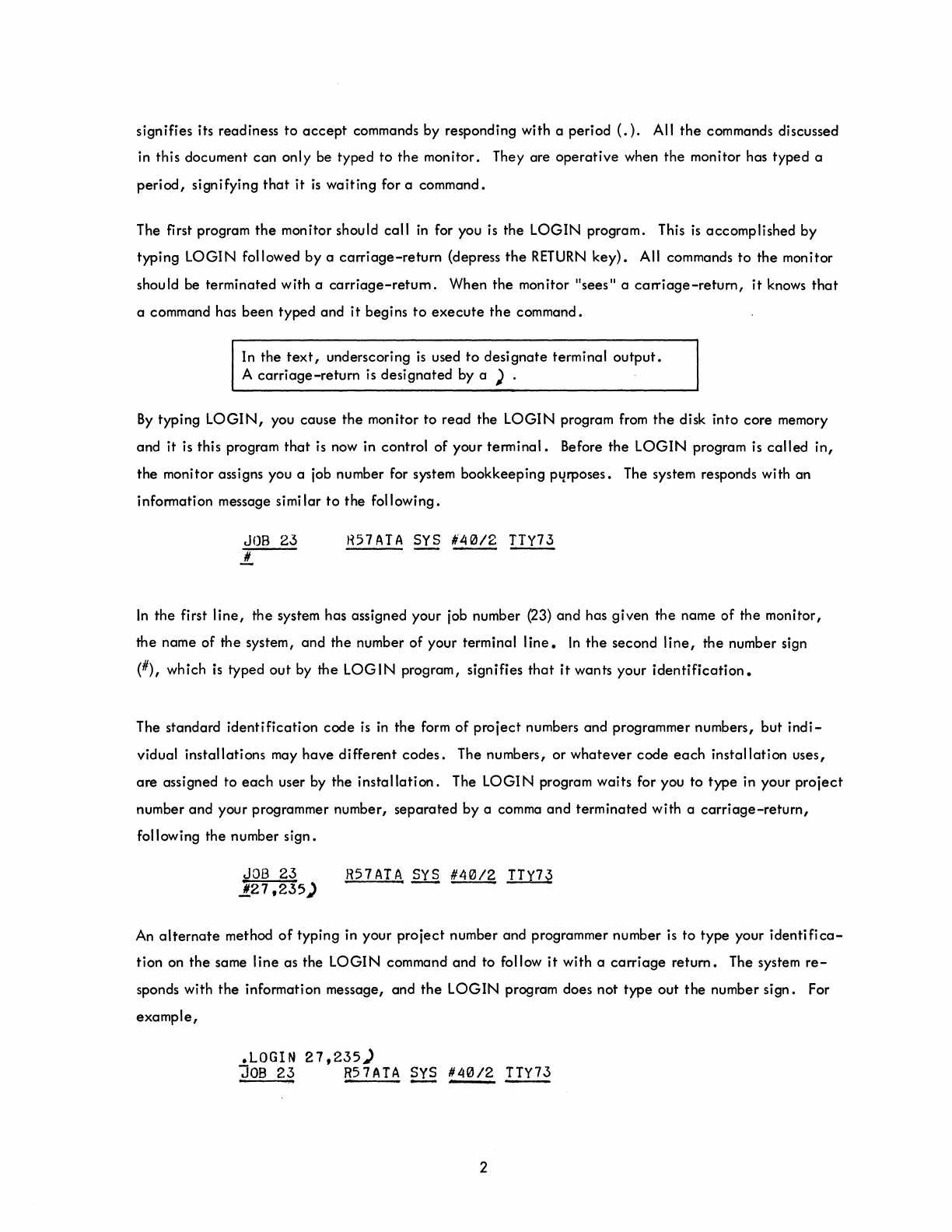
JOB
23
.!!..
H57ATA
SYS
~
~
In
the first
line,
the system has assigned your job number (23) and has given the name of the monitor,
the name of the system, and the number of your terminal
line.
In
the
second
line,
the
number sign
(#), which
is
typed
out
by
the
LOGIN
program, signifies
that
it
wants your
identification.
The standard identification code
is
in
the
form
of
project
numbers and programmer numbers, but
indi-
vidual installations
may
have different
codes.
The numbers, or whatever code
each
installation uses,
are assigned to
each
user by the
installation.
The LOGIN program waits for you to type in your
project
number and your programmer number, separated by a comma and terminated with a
carriage-return,
following the number sign.
JOB
23
.11.27,235)
R57ATA
sys
~
II..Y1l
An
alternate
method
of
typing in your project number and programmer number
is
to type your
identifica-
tion
on
the
same line as the LOGIN command and to follow
it
with a
carriage
return. The system
re-
sponds with
the
information message, and
the
LOGIN program does not type out
the
number sign. For
example,
.LOGIN
27,235)
JOB
23
R57ATA
ill
~
~
2
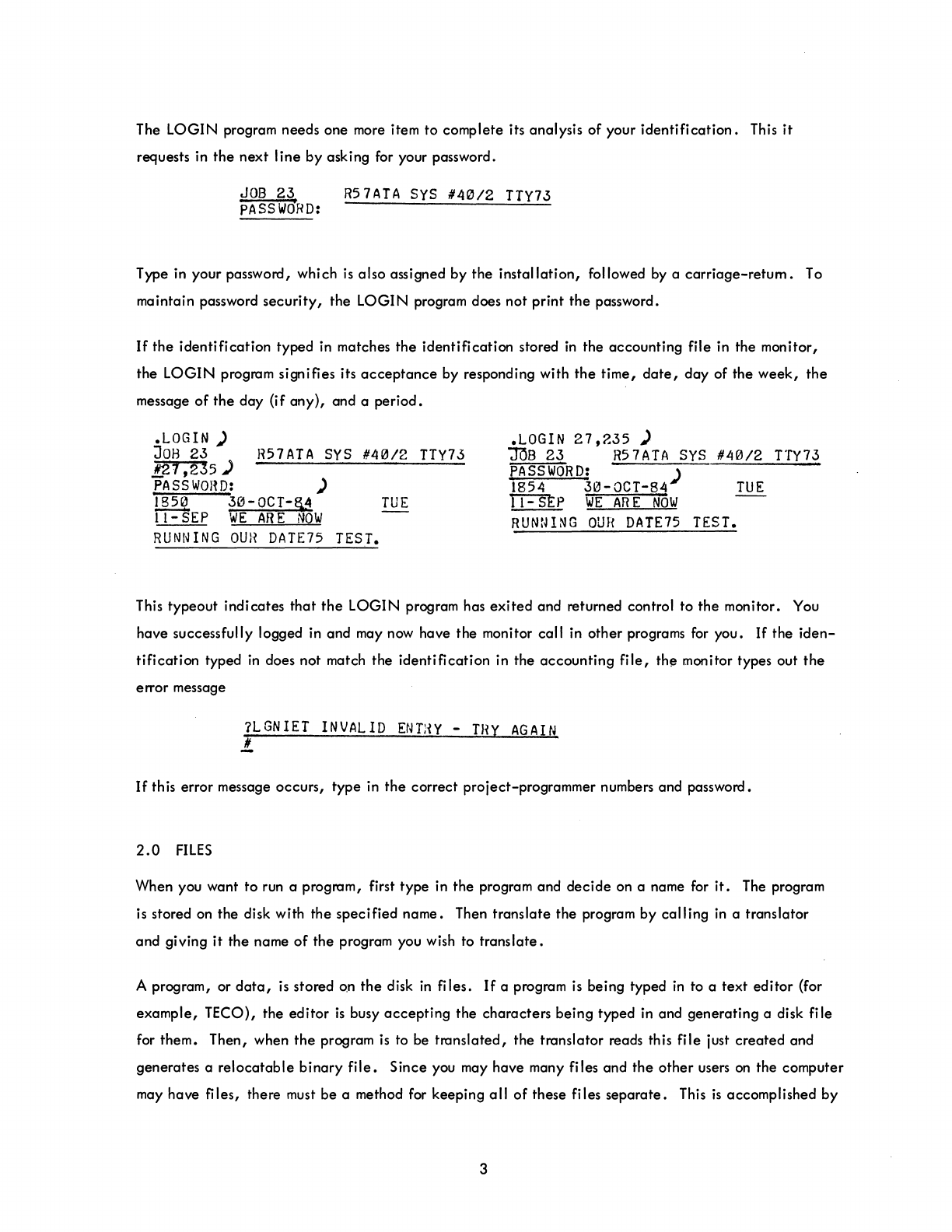
The LOGIN program needs one more item to complete its analysis
of
your
identification.
This
it
requests in
the
next
line
by asking for your password.
JOB
2~
R57ATA
SYS
'40/2
TTY73
PASSWORD:
Type in your password, which
is
also
assigned by the
installation,
followed by a
carriage-retum.
To
maintain password
security,
the LOGIN program does
not
print
the
password.
If
the
identification
typed
in
matches
the
identification stored
in
the accounting file in the monitor,
the
LOGIN
program signifies its
acceptance
by responding with
the
time,
date,
day
of the
week,
the
message
of
the
day
(if
any),
and a
period.
.LOGIN
)
JOB
23
R57ATA
SYS
#40/2
TTY73
!.27 ,235 )
PASSWORD:
)
1850
30-0CT-§,4
TUE
11-
SEP
WE
AR
E
NOW
.LOGIN
27,235
)
JOB
23
R5
7
ATA
sys
#40/2
TTY73
PASSWORD:
)
1854
30-0CT-84
TUE
TT=SEp
WE
AR
E
NOW
RUNNING
OUR
DATE75 TEST.
RUNNING
OUR
DATE75 TEST.
This typeout indicates
that
the
LOGIN program has
exited
and returned control to the monitor. You
have successfully logged
in
and may now have the monitor call in
other
programs
for
you.
If
the
iden-
tification
typed
in
does not match the
identification
in the
accounting
file,
the monitor types out
the
error message
?LGNIET
INVALID
ENTHY
-
THY
AGAIN
!..
If
th
is
error message occurs, type in
the
correct project-programmer numbers and password.
2.0
FILES
When you want
to
run a program, first type in the program and
decide
on a name
for
it.
The program
is stored
on
the disk with the
specified
name. Then
translate
the program by
calling
in
a translator
and giving
it
the name
of
the program you wish to
translate.
A program, or
data,
is
stored on
the
disk
in
files.
If
a program
is
being typed
in
to a text
editor
(for
example,
TEeO),
the
editor
is
busy
accepting
the characters being typed in and generating a disk file
for them. Then, when
the
program
is
to be
translated,
the translator reads this
file
just
created
and
generates a
relocatable
binary
file.
Since you may have many files and
the
other
users
on
the computer
may have files, there must be a method for keeping
all
of
these files
separate.
This
is
accomplished by
3
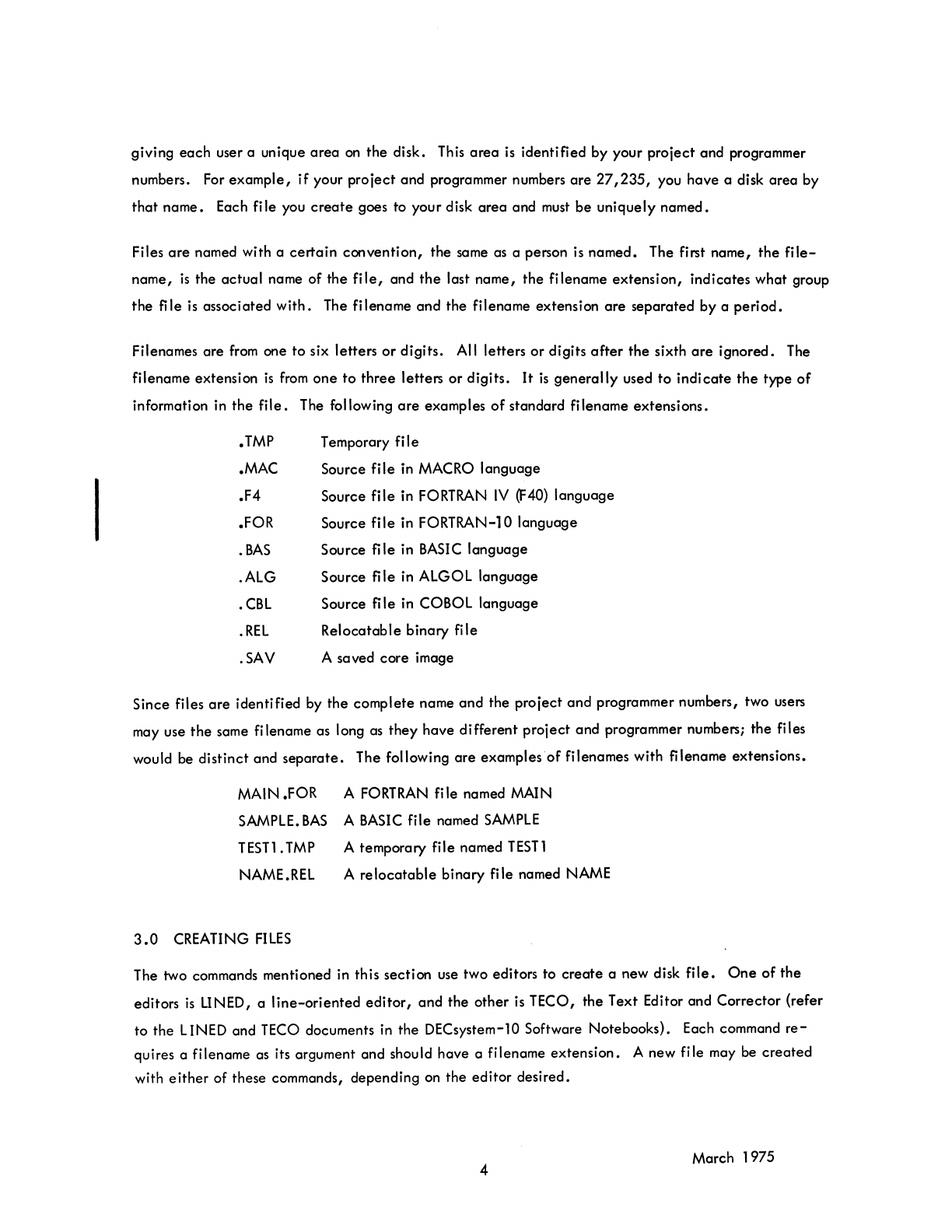
giving
each
user a unique
area
on
the
disk. This
area
is
identified by your project and programmer
numbers. For
example,
if
your project and programmer numbers
are
27,235,
you have a disk
area
by
that
name. Each
fi
Ie
you
create
goes to your disk
area
and
must
be
uniquely named.
Files
are
named with a
certain
convention, the same
as
a person
is
named. The first name,
the
file-
name,
is
the actual name of the
file,
and
the
last name,
the
filename
extension,
indicates what group
the
file
is
associated
with.
The filename and the filename extension
are
separated by a
period.
Filenames are
from
one
to
six letters
or
digits. All letters
or
digits
after
the
sixth
are
ignored. The
filename extension
is
from
one
to
three
letters
or
digits.
It
is
generally
used
to
indicate
the
type
of
information in
the
file.
The following
are
examples
of
standard filename extensions.
.TMP
.MAC
.F4
.FOR
.
BAS
.AlG
.CBl
.REL
.SAV
Temporary
fiI
e
Source file in MACRO language
Source file in
FORTRAN
IV
(F40)
language
Source file in FORTRAN-l0 language
Source file in
BASIC
language
Source file in ALGOL language
Source file in COBOL language
Relocatable binary file
A saved
core
image
Since files
are
identified by
the
complete name and the project
and
programmer numbers, two users
may use
the
same filename as long as
they
have different project and programmer numbers; the files
would be distinct and
separate.
The following
are
examples
of
filenames with filename extensions.
MAIN .FOR A
FORTRAN
file named MAIN
SAMPLE.
BAS
A
BASIC
file named
SAMPLE
TESTl
.
TMP
A temporary file named
TEST
1
NAME.REl A
relocatable
binary file named NAME
3.0
CREATING
FILES
The two commands mentioned in this section use two editors to
create
a new disk
file.
One
of
the
editors
is
LINED, a
line-oriented
editor,
and the other
is
TECO, the Text Editor and Corrector {refer
to the LINED and
TECO
documents in the DECsystem-10 Software Notebooks}. Each command
re-
quires a filename as its argument and should have a filename extension. A new file may be
created
with
either
of these commands, depending on the editor desired.
4 March 1975
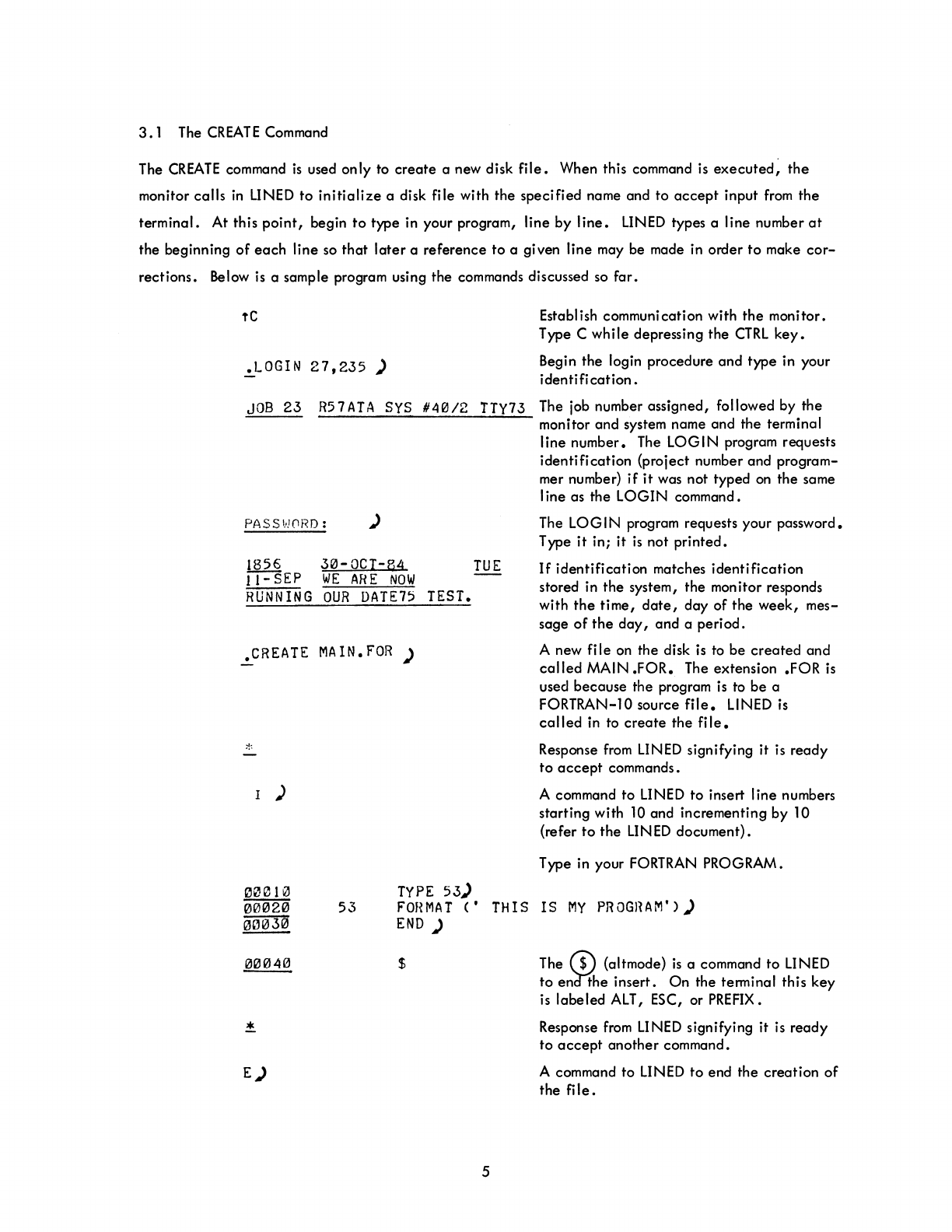
3.1
The
CREATE
Command
The
CREATE
command
is
used only to
create
a new disk
file.
When this command is
executed,
the
monitor
calls
in
LINED
to
initialize
a disk file with the specified name and
to
accept
input
from
the
terminal. At this
point,
begin
to
type in your program, line by
line.
LINED
types a line number
at
the beginning
of
each
line so
that
later
a reference
to
a given line may be made in order
to
make
cor-
rections. Below is a sample program using the commands discussed so
far.
tC
~LOGIN
27,235)
JOB
23
R57ATA
SYS
640/2
TTY73
PASS~!(1RD:
)
1856
30-0CI-B4
TUE
II-SEP
WE
ARE
NOW
RUNNING
OUR
DATE75
TEST.
.CREATE
MAIN.
FOR
)
1 )
TYPE
53)
Establish communication with
the
monitor.
Type C
while
depressing the
CTRL
key.
Begin the login procedure
and
type in your
identification.
The job number assigned, followed by the
monitor
and
system name and the terminal
I
ine number. The LOG I N program requests
identification
(project number and program-
mer number)
if
it
was not typed
on
the same
I ine as the
LOGIN
command.
The LOG I N program requests your password.
Type
it
in;
it
is
not
printed.
If
identification
matches
identification
stored in the system, the monitor responds
with
the
time,
date,
day
of
the
week,
mes-
sage
of
the
day,
and
a period.
A new
file
on the disk is to
be
created
and
called
MAIN
.FOR.
The extension .FOR
is
used because the program
is
to
be
a
FORTRAN-l0 source
file.
LINED is
called
in to
create
the
fi
Ie.
Response
from
LINED signifying
it
is
ready
to
accept
commands.
A command
to
LINED to insert line numbers
starting with
10
and incrementing by 10
(refer
to
the
LIN
ED
document).
Type in your
FORTRAN
PROGRAM.
53
F'OHMAT
C' THIS
IS
MY
PROGHAM'))
END)
$
E)
5
The
($)
(altmode)
is
a command to LINED
to
en'd1'he insert.
On
the terminal this
key
is labeled
ALT,
ESC, or
PREFIX.
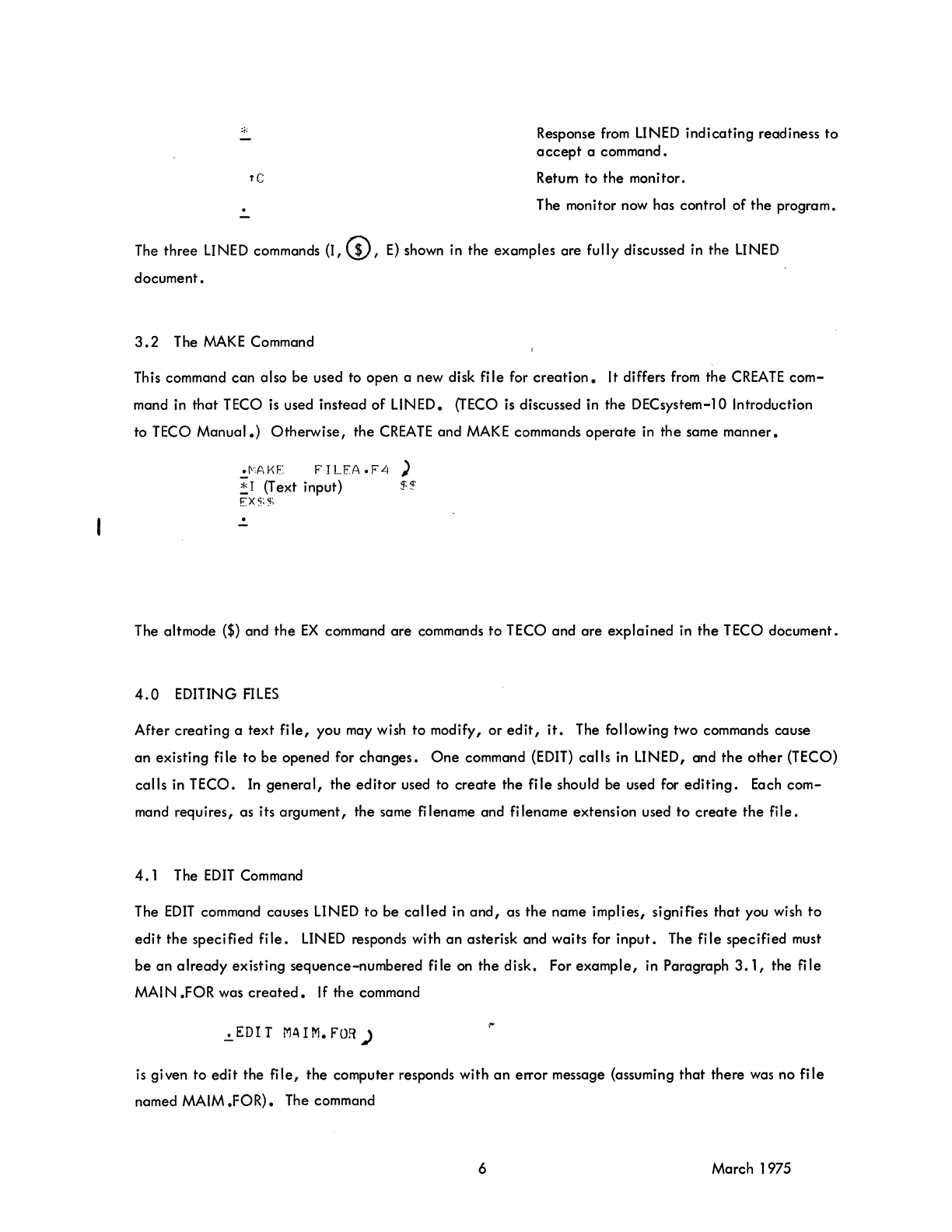
Response
from
LINED signifying it is
ready
to
accept
another
command.
A command to LINED
to
end the
creation
of
the
file.
*
rC
Response
from
LINED
indicating
readiness
to
accept
a command.
Return to
the
monitor.
The monitor now has control
of
the program.
The
three
LINED commands (I, (!),
E)
shown in the examples are fully discussed in the LINED
document.
3.2
The
MAKE
Command
This command
can
also
be
used to open a new disk
file
for
creation.
It differs
from
the
CREATE
com-
mand
in
that
TECO is used instead
of
LINED.
(TECO
is discussed in the DECsystem-l0 Introduction
to TECO
Manual.)
Otherwise,
the
CREATE
and
MAKE
commands
operate
in
the
same manner •
•
MAKE
FILEA.F4)
~
I
(T
ext
input) $
~
EX$$
.!.
The altmode
($)
and
the
EX
command
are
commands
to
TECO and
are
explained
in
the
TECO document.
4.0
EDITING
FILES
After
creating
a
text
file,
you may wish
to
modify,
or
edit,
it.
The following two commands cause
an
existing file to
be
opened for
changes.
One
command
(EDIT)
calls
in LINED, and
the
other
(TECO)
calls
in TECO. In
general,
the
editor
used to
create
the
file
should be used for
editing.
Each
com-
mand requires, as its argument, the same
fi
lename and filename extension used
to
create
the
file.
4.1
The
EDIT
Command
The
EDIT
command causes LINED
to
be
called
in
and,
as
the
name implies, signifies
that
you wish
to
edit
the
specified
file.
LINED
responds with
an
asterisk and waits for
input.
The
file
specified must
be
an
already
existing sequence-numbered file
on
the disk. For
example,
in Paragraph
3.1,
the
file
MAl
N .FOR was
created.
If the command
.!.EDIT MAIM.FOR)
is
given to
edit
the
file,
the
computer responds with
an
error message (assuming
that
there was no
file
named MAIM
.FOR).
The command
6 March 1975
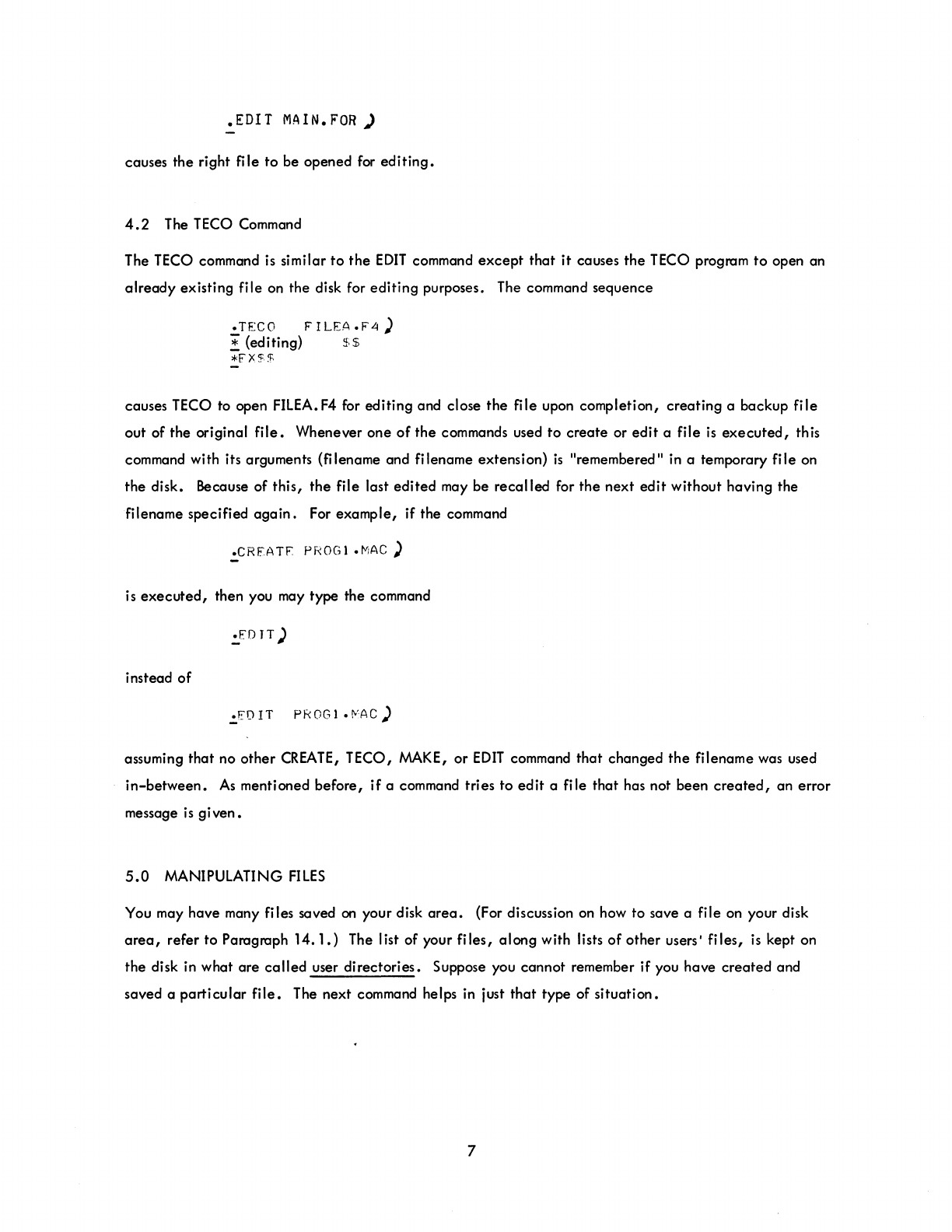
.EDIT
MAIN.
FOR
)
causes the right file to be opened
for
editing.
4.2
The
TECO
Command
The
TECO
command
is
similar
to
the
EDIT
command
except
that
it
causes
the
TECO
program
to
open an
already
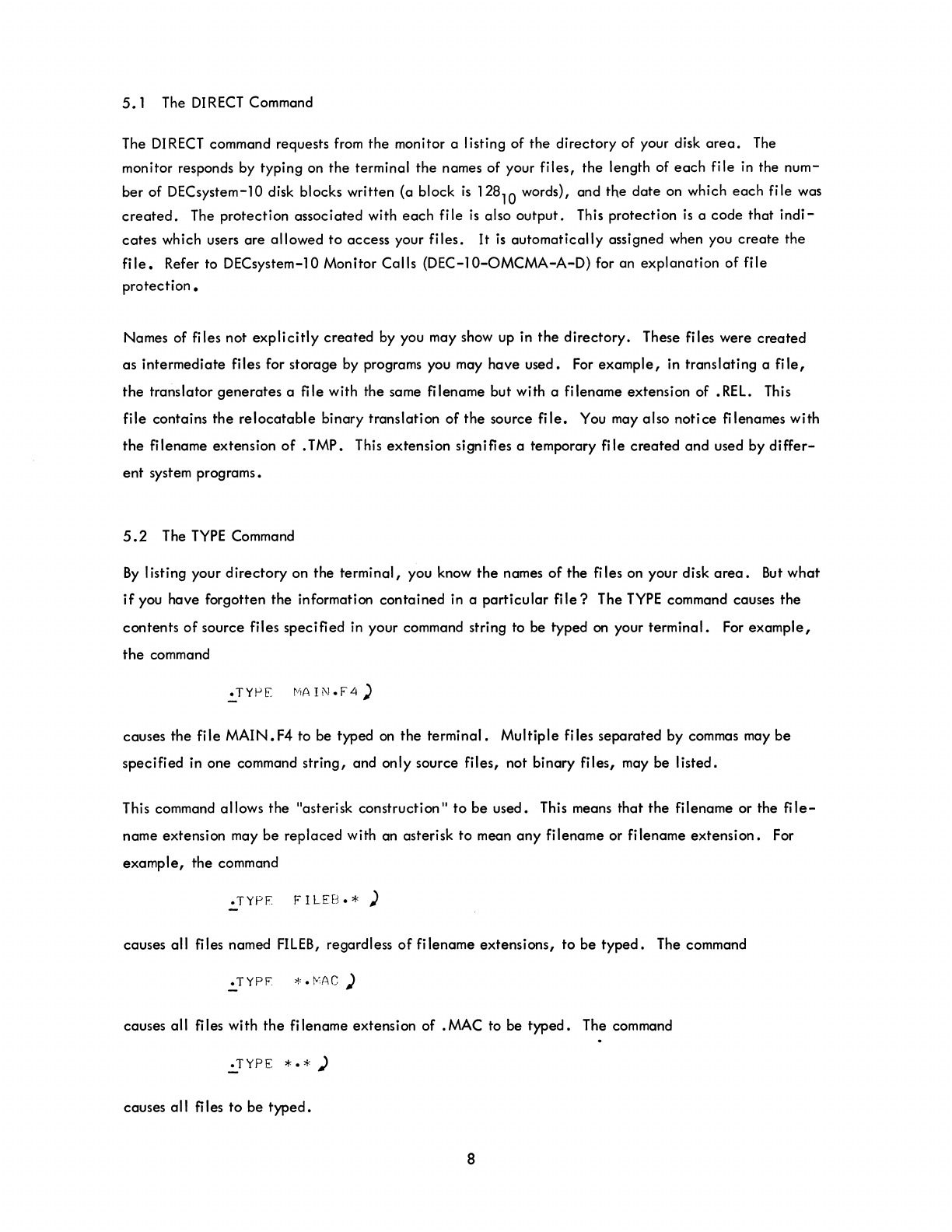
existing file on the disk for editing purposes. The command sequence
.TECO
FILEA.r4)
! (editing)
$$
*FX.~%
causes TECO to open
FILEA.
F4
for editing and close the file upon completion, creating a backup file
out of the original
file.
Whenever one
of
the
commands used to create or
edit
a file
is
executed,
this
command with its arguments
(fi
lename and
fi
lename extension)
is
"remembered"
in
a temporary file on
the disk. Because of this,
the
file last edited may be recalled for the next
edit
without having the
filename specified
again.
For
example, if the command
.CRfATF.
PROGl
.MAC )
is
executed,
then you
may
type the command
:JDlT)
instead
of
.FDIT
PROGl.f:.'AC)
assuming that no other
CREATE,
TECO,
MAKE,
or
EDIT
command
that
changed
the
filename was used
in-between.
As
mentioned before,
if
a command tries to
edit
a file that has not been
created,
an error
message
is
given.
5.0
MANIPULATING
FILES
You may have many files saved
on
your disk
area.
(For discussion
on
how to save a file
on
your disk
area,
refer to Paragraph 14.
1.)
The list of your files, along with lists
of
other users I
fi
les,
is
kept on
the disk in what are
called
user directories. Suppose you cannot remember if you have created and
saved a particular
file.
The next command helps
in
just
that
type of situation.
7
5.1
The
DIRECT
Command
The
DIRECT
command requests
from
the monitor a listing of the directory of your disk
area.
The
monitor responds by typing on the terminal the names of your files, the length of
each
file in the num-
ber of DECsystem-10 disk blocks written (a block
is
128
10
words), and the date on which
each
file was
created.
The protection associated with
each
file
is
also output.
This
protection
is
a code that
indi-
cates
which users are allowed
to
access your files.
It
is
automatically assigned when you
create
the
file.
Refer to DECsystem-10 Monitor Calls
(DEC-I0-0MCMA-A-D)
for an explanation of file
protection.
Names of files not
explicitly
created by you may show up in
the
directory. These files were created
as intermediate files for storage
by
programs you may have used.
For
example, in translating a
file,
the translator generates a
fi
Ie with the same
fi
lename but with a filename extension of •
REL.
This
file contains the
relocatable
binary translation
of
the source
file.
You
may also notice filenames with
the
filename extension
of
. TMP. This extension signifies a temporary file created and used by
differ-
ent
system programs.
5.2
The
TYPE
Command
By
listing your directory on the terminal, you know
the
names
of
the
fi
les on your disk
area.
But
what
if
you have forgotten the information contained in a particular
file?
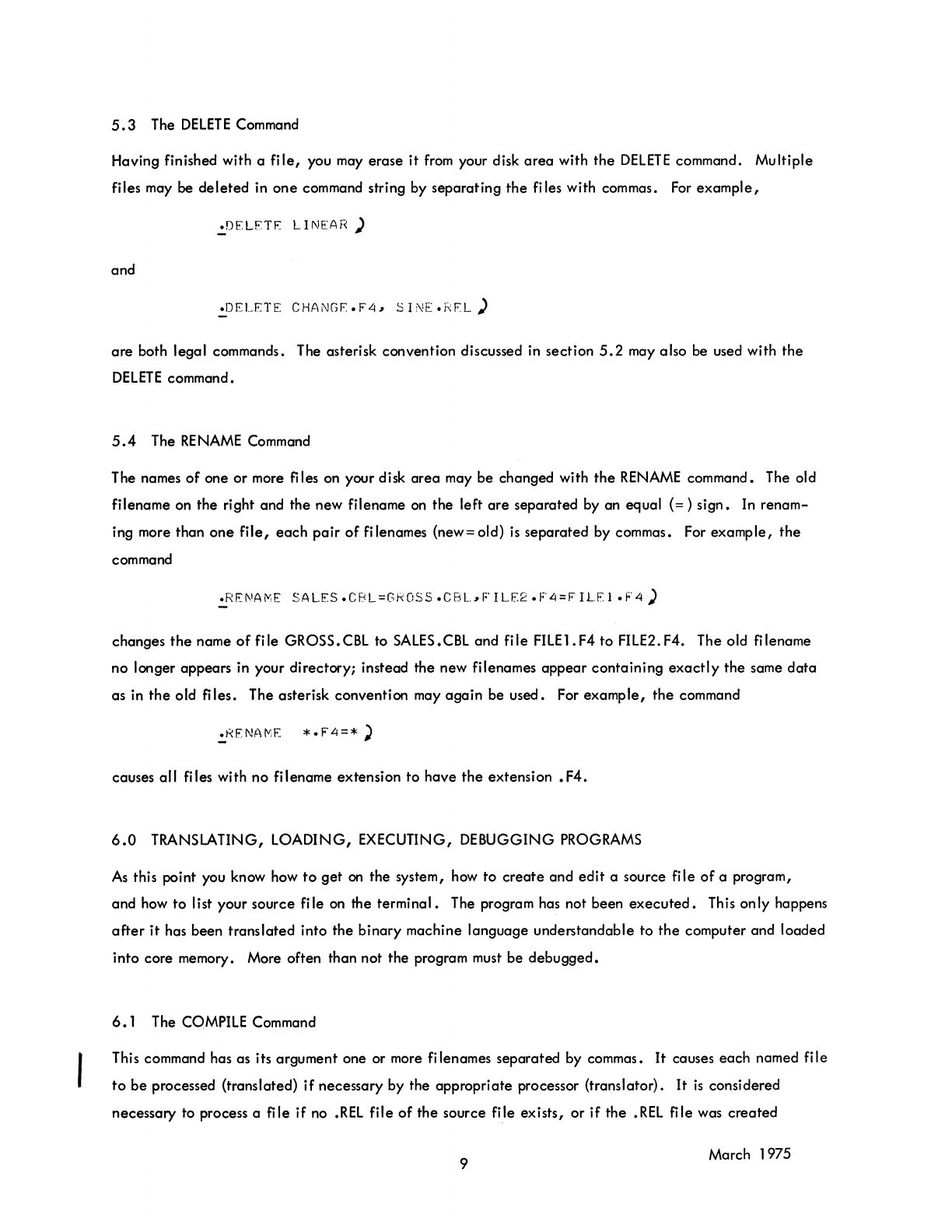
The
TYPE
command causes the
contents
of
source files specified in your command string to be typed
on
your terminal. For
example,
the
command
causes the file MAIN.
F4
to be typed
on
the terminal. Multiple files separated by commas may be
specified in one command string, and only source files, not binary files, may be listed.
This command allows the "asterisk construction" to
be
used. This means that the filename or the
file-
name extension may be replaced with an asterisk to mean
any
filename or filename extension. For
example, the command
.TYPF
FILEB.*)
causes all files named
FILEB,
regardless
of
filename extensions, to be
typed.
The command
causes all files with
the
filename extension of .MAC to be typed. The command
.=..TYPE
*. * )
causes all files to be
typed.
8
5.3
The
DELETE
Command
Having finished with a
file,
you may
erase
it
from
your disk
area
with
the
DELETE
command.
Multiple
files may
be
deleted
in
one
command string by
separating
the
files with commas.
For
example,
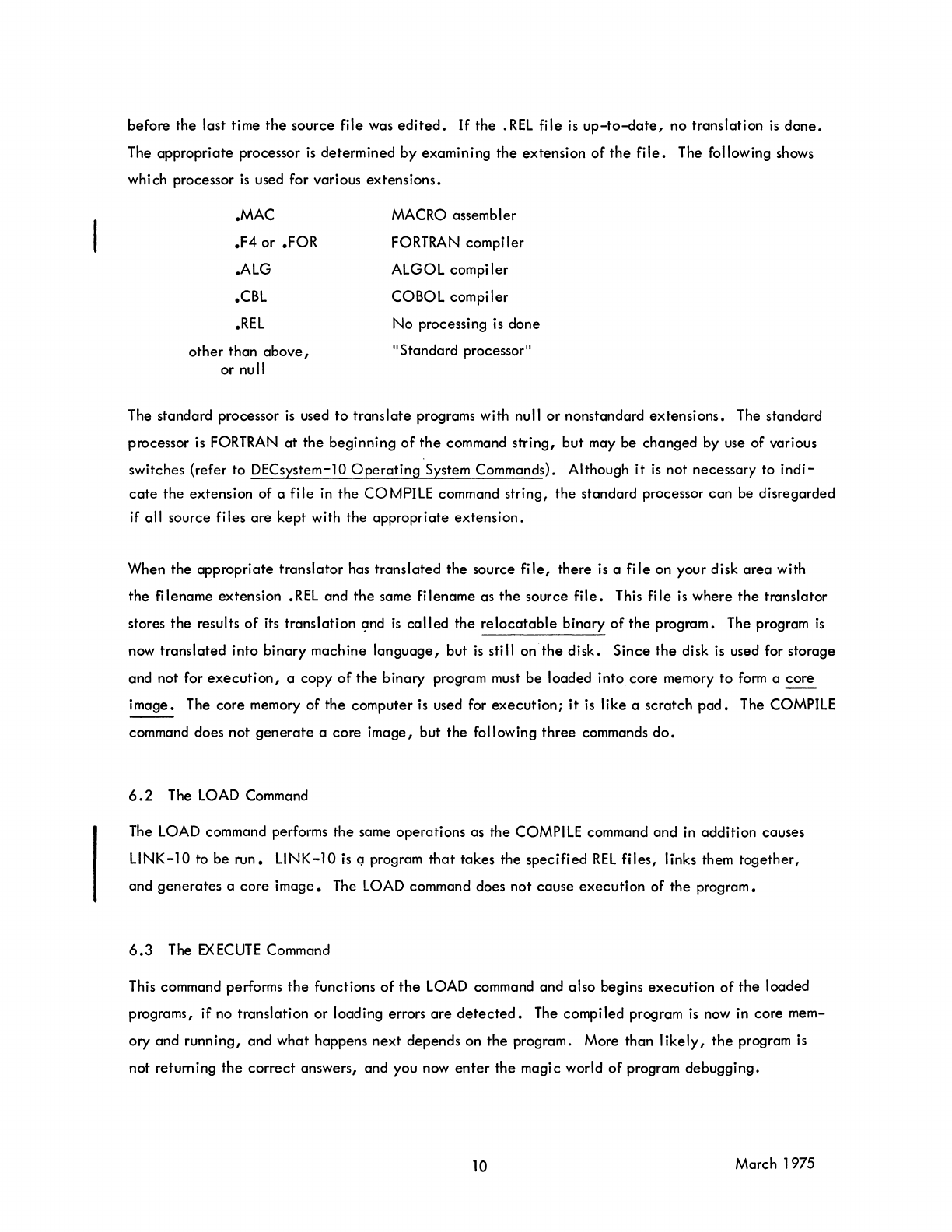
.DFLFTF:
LINEAR)
and
.:.DELETE
CHANGE.F4~
SINE.REL)
are
both legal commands. The asterisk convention discussed in
section
5.2
may also be used with
the
DELETE
command.
5.4
The
RE
NAME Command
The names
of
one
or
more files on your disk
area
may
be
changed with
the
RENAME
command. The old
filename on
the
right and
the
new filename
on
the left
are
separated
by an equal
(=)
sign.
In
renam-
ing more than
one
file,
each
pair
of
filenames (new= old)
is
separated
by commas. For
example,
the
command
.:.REI'MjIt,E
SALES
.C8L=GkOSS.CBL~F
ILE2
.F4=F
ILE
1
.F4)
changes
the
name
of
fi
Ie
GROSS.
CBL
to SALES.
CBL
and
fi
Ie
FILE
1.
F4
to
FILE2. F4. The old fj lename
no
longer appears in your
directory;
instead the new filenames
appear
containing
exactly
the
same
data
as
in
the
old files. The asterisk convention may
again
be used. For
example,
the
command
causes
all
files with no filename extension
to
have
the
extension
.F4.
6.0
TRANSLATING,
LOADING,
EXECUTING, DEBUGGING PROGRAMS
As
this point you know how
to
get
on
the
system, how
to
create
and
edit
a source file
of
a program,
and how
to
list your source
file
on the
terminal.
The program has not been
executed.
This
only
happens
after
it
has been
translated
into
the
binary
machine
language
understandable
to
the
computer and
loaded
into core memory. More often than not
the
program must
be
debugged.
6.
1 The COMPILE Command
This command has as its argument one or more filenames
separated
by commas.
It
causes
each
named
file
to
be
processed (translated)
if
necessary by the
appropriate
processor (translator).
It
is
considered
necessary to process a
file
if
no
.REL
file
of
the
source file exists,
or
if
the
.REL
file was
created
9 March 1975
before the last time
the
source file was
edited.
If
the
.REL
file
is
up-to-date,
no translation
is
done.
The appropriate processor
is
determined
by
examining
the
extension
of
the
file.
The following shows
which processor
is
used for various extensions.
.MAC
.F4
or .FOR
.ALG
.CBL
.REL
other
than
above,
or null
MACRO assembler
FORTRAN compiler
ALGOL compiler
COBOL compiler
No
processing is done
"Standard processor"
The standard processor
is
used
to
translate
programs with null
or
nonstandard
extensions.
The standard
processor is FORTRAN
at
the
beginning
of
the
command string,
but
may be changed by use of various
switches {refer
to
DECsystem-lO
Operating
System Commands}. Although
it
is
not necessary to
indi-
cate
the
extension of a
file
in
the
COMPILE command string,
the
standard processor
can
be disregarded
if all source files
are
kept with the appropriate
extension.
When the
appropriate
translator
has
translated
the
source
file,
there is a
file
on your disk
area
with
the
filename extension
.REL
and
the
same filename as
the
source
file.
This
file
is
where
the
translator
stores
the
results
of
its translation
(:md
is
called
the
relocatable
binary
of
the
program. The program
is
now translated into
binary
machine
language,
but
is
still on
the
disk.
Since
the
disk
is
used for storage
and not for
execution,
a
copy
of
the
binary
program must
be
loaded into core memory
to
form
a
core
image.
The core memory
of
the
computer
is
used for
execution;
it
is like a scratch
pad.
The COMPILE
command does not
generate
a
core
image,
but
the
following
three
commands
do.
6.2
The
LOAD
Command
The LOAD command performs the same operations as the COMPILE command
and
in addition causes
L1NK-10 to be
run.
L1NK-10
is
Q program
that
takes the
specified
REL
files,
links them
together,
and
generates
a
core
image.
The LOAD command does
not
cause
execution
of the program.
6.3
The
EXECUTE
Command
This command performs
the
functions
of
the
LOAD command and also begins
execution
of
the
loaded
programs, if no translation
or
loading errors
are
detected.
The compiled program
is
now in core mem-
ory and
running,
and
what
happens
next
depends on
the
program. More than
likely,
the
program
is
not retum ing
the
correct
answers, and you now
enter
the
magi c world
of
program debugging.
10 March 1975
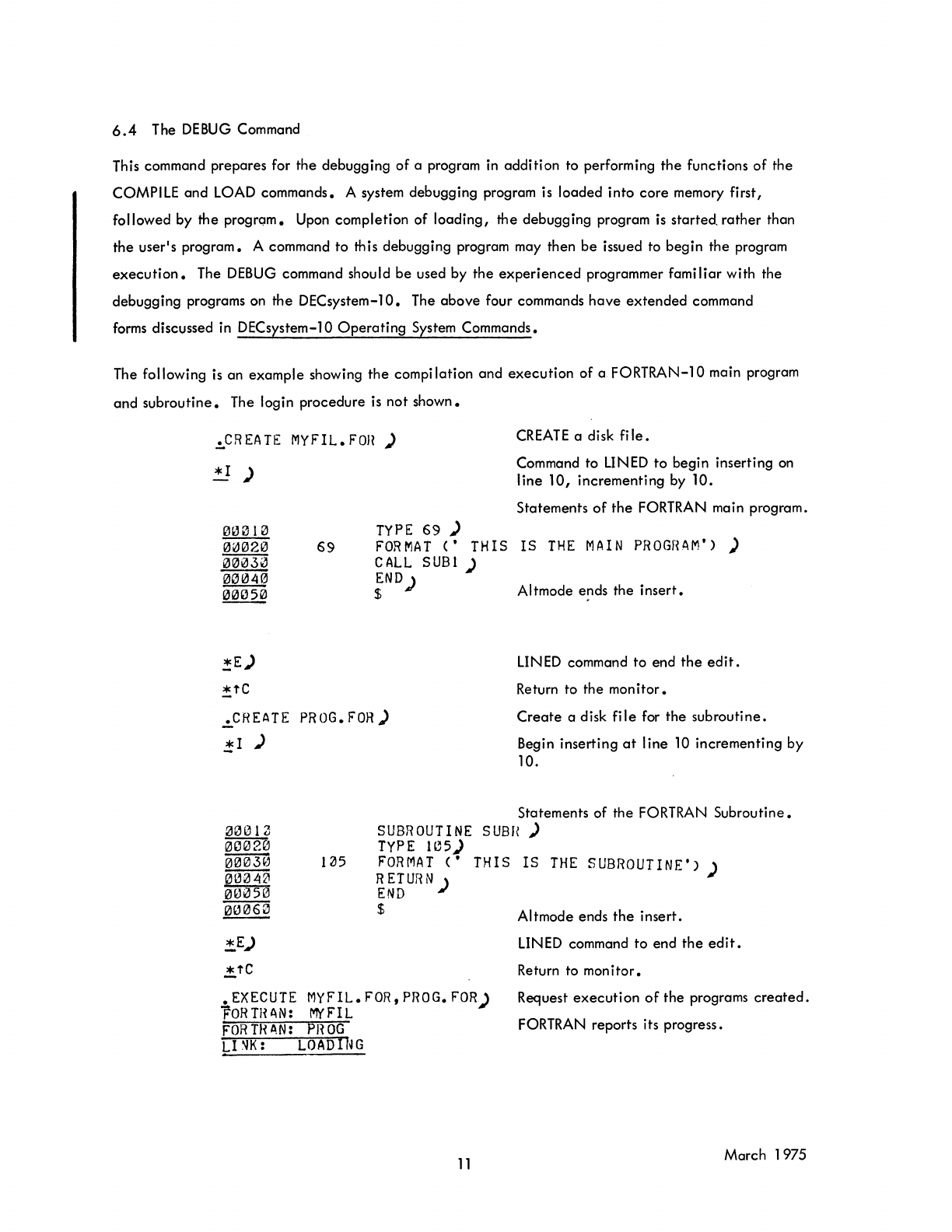
6.4
The
DEBUG
Command
This command prepares for
the
debugging
of
a program in
addition
to performing
the
functions
of
the
COMPILE and LOAD commands. A system debugging program is
loaded
into
core
memory first,
followed by
the
progrom. Upon
completion
of
loading,
the
debugging program
is
started.
rather
than
the
user's
program.
A command to this debugging program may then
be
issued to
begin
the
program
execution.
The
DEBUG
command should
be
used by
the
experienced
programmer fami
liar
with the
debugging
programs on
the
DECsystem-l0.
The
above
four commands
have
extended
command
forms discussed in DECsystem-10
Operating
System Commands.
The following
is
an
example
showing
the
compi lation and
execution
of
a
FORTRAN-l0
main program
and
subroutine.
The login
procedure
is
not
shown.
.!,.CREATE
MYF'IL.FOn
)
!!)
TYPE
69
)
CREATE
a disk
file
•
Command to LINED
to
begin inserting on
line
10,
incrementing
by
10.
Statements
of
the
FORTRAN main program.
69
FORMAT
('
THIS
IS
THE
MAIN
PROGRAM')
)
CALL
SUBl
)
iN
D ) Altmode ends
the
insert.
*E)
.!,tC
.CREATE
PHOG.
FOR)
j;I
)
00012
00020
~
~
~
00060
!,E)
..!,tC
1~5
SUBROUTINE
TyPE
lC5)
FORMAT
('
RETur~N
)
END
$
LINED command to end
the
edit.
Return to the
mon
itor •
Create
a disk
file
for
the
subroutine.
Begin
inserting
at
line
10
incrementing
by
10.
Statements of
the
FORTRAN
Subroutine.
S
UBH
)
THIS
IS
THE
SUBROUTINE')
)
Altmode ends
the
insert.
LINED command
to
end
the
edit.
Return to
monitor.
• EXECUTE
MYFIL.FOR,PROG.FOR)
FORTH
AN:
MYFIL Request
executi
on
of
the
programs
created
.
FORTRAN reports its progress.
FORTH AN: PIWG
L1'1K:
LOADING
11
March 1975
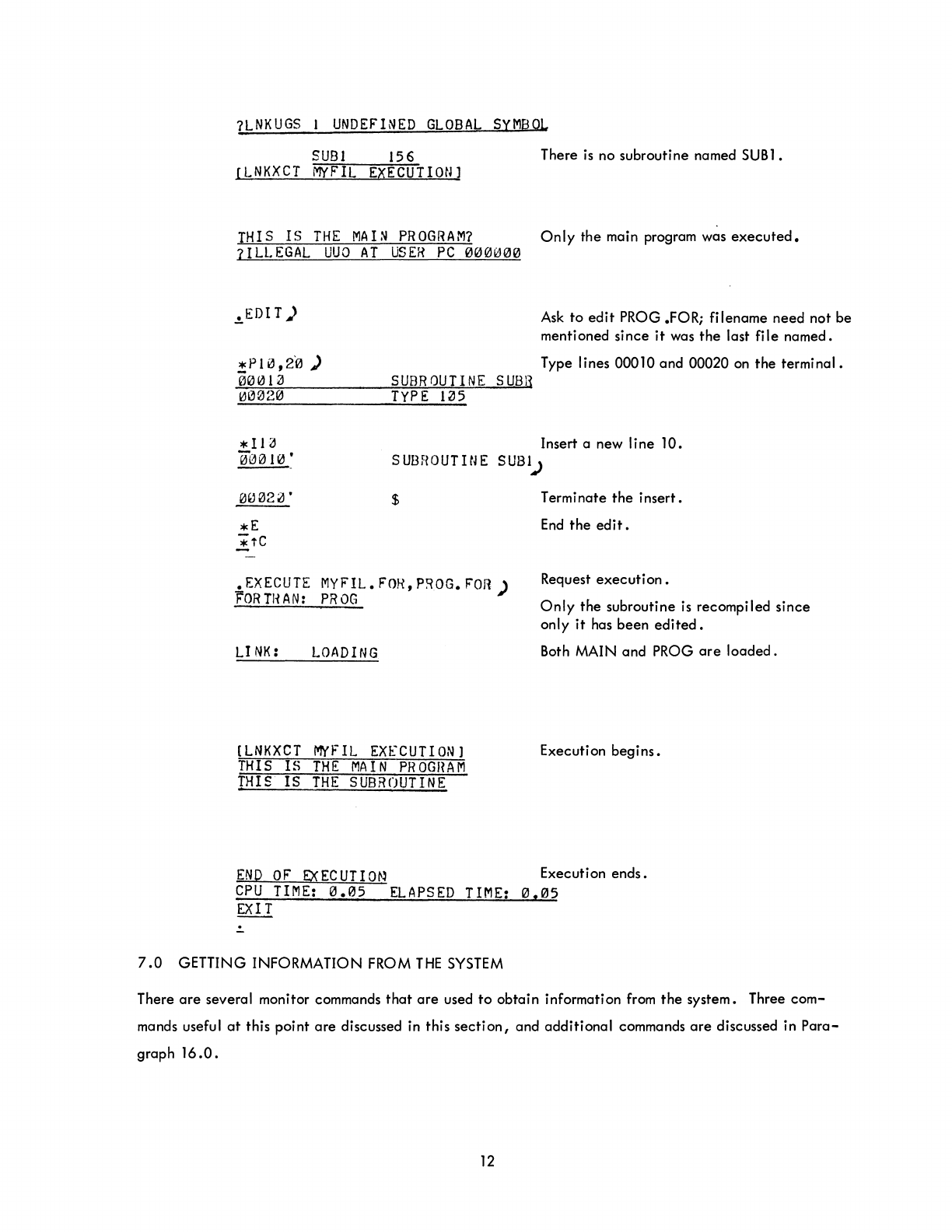
7LNKUGS
I
UNDEFINED
GLOBAL
SYMBOL
SUB
1
156
There
is
no subroutine named
SUB
1.
[LNKXCT
MYF'IL
EXECUTION]
THIS
IS
THE
MAD
PROGRAM?
Only
the main program was
executed.
7ILLEGAL
UUO
AT
USER
PC
000000
.!oEDI
T)
Ask
to
edit
PROG .FOR;
filename
need
not
be
mentioned
since
it
was
the
last
file
named.
*PI0,20
)
00013
SUBROUTINE
SUBH
TYPE
1~5
Type lines 00010
and
00020 on
the
terminal.
Insert a new
line
10.
*ll~
00010
• S
UBf!O
UTI
N E
SUS
1..>
$
•
EXECUTE
MYFIL.
FOI{,
P~OG.
FOR)
F'ORTHAN:
PROG
LI
NK:
LOADING
[LNKXCT
MYFIL
EXECUTION
I
THIS
IS
THE
MAIN
PROGHAM
THIS
IS
THE
SUBROUTINE
Term i
nate
the
insert.
End
the
edit.
Request
execution
•
Only
the
subroutine
is
recompiled
since
only
it
has
been
edited.
Both MAIN
and
PROG
are
loaded.
Execution
begins.
END
OF
EXECUTIO~~
Execution
ends.
CPU
TIME:
0.05
ELAPSED
TIME:
0.05
EXIT
.:.
7.0
GETTING INFORMATION FROM
THE
SYSTEM
There
are
several monitor commands
that
are
used
to
obtain
information from
the
system. Three
com-
mands useful
at
this
point
are
discussed in this
section,
and
additional
commands
are
discussed in
Para-
graph
16.0.
12
7.1
The PJOB Command
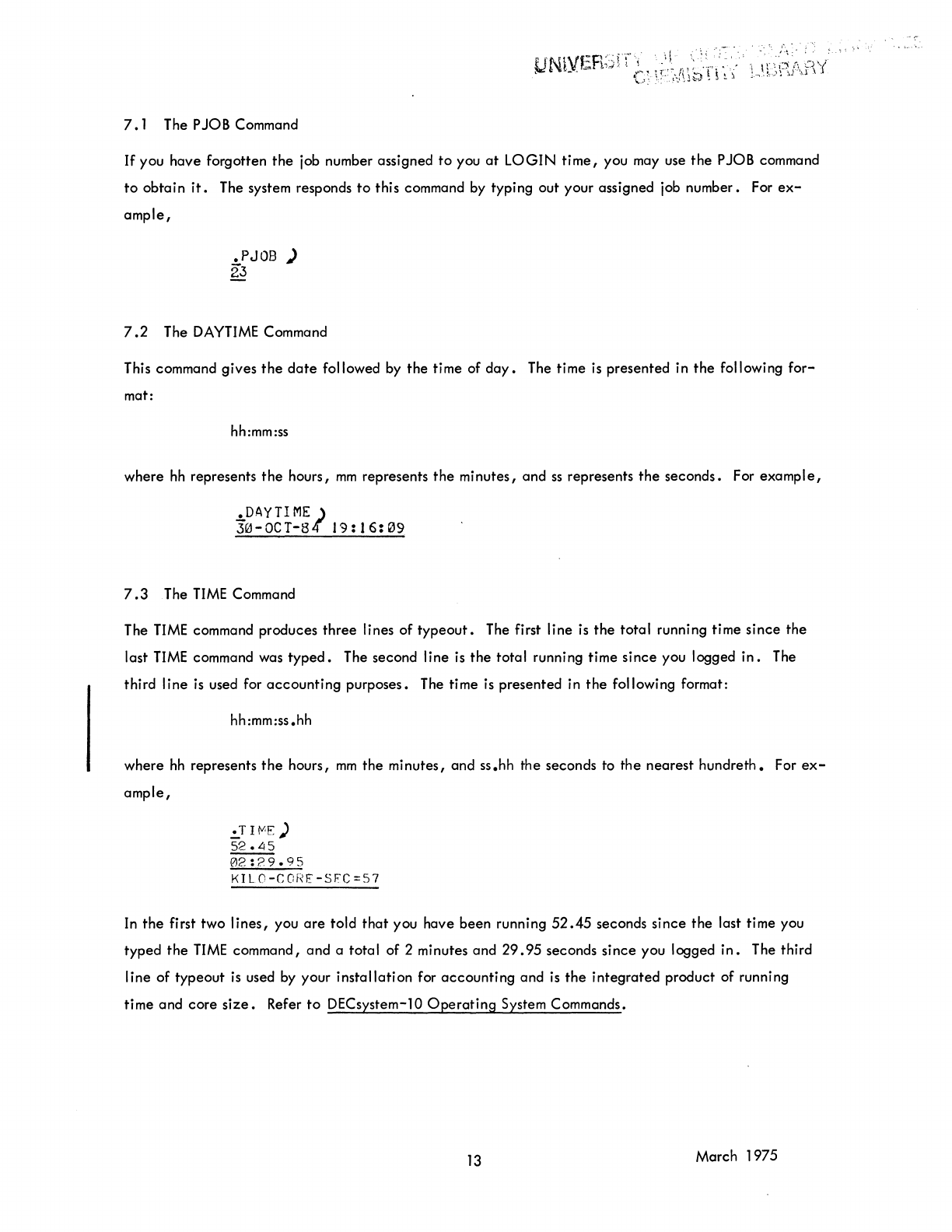
If
you
have
forgotten
the
job number assigned
to
you
at
LOGIN
time,
you may use
the
P JOB command
to
obtain
it.
The system responds
to
this command by typing out your assigned job number. For
ex-
ample,
.PJ08
)
23
7.2
The
DAYTIME
Command
This command
gives
the
date
followed by
the
time of
day.
The time
is
presented
in
the
following
for-
mat:
hh:mm:ss
where
hh
represents
the
hours,
mm
represents
the
minutes,
and
ss
represents
the
seconds.
For
example,
.DAYTIME)
30-0CT-S4"
19:16:09
7.3
The
TIME
Command
The
TIME
command produces
three
lines
of
typeout.
The first
line
is
the
total
running time
since
the
last
TIME
command was
typed.
The second
line
is
the
total
running time
since
you logged
in.
The
third
line
is
used for
accounting
purposes. The time
is
presented in
the
following format:
hh:mm:ss.hh
where
hh
represents
the
hours,
mm
the
minutes, and
ss.hh
the
seconds to
the
nearest
hundreth.
For
ex-
ample,
.!.T
I
tVoE
)
52
•
L!
5
02:29.95
KILO-C(:f<E-SFC=57
In
the
first
two
lines,
you
are
told
that
you
have
been
running
52.45
seconds
since
the
last time you
typed
the
TIME
command,
and
a
total
of
2 minutes and
29.95
seconds
since
you logged
in.
The third
line
of
typeout
is
used by your
installation
for
accounting
and
is
the
integrated
product
of
running
time
and
core
size.
Refer
to
DECsystem-10
Operating
System Commands.
13
March 1975
8.0
LEAVING
THE
SYSTEM
Now
that
you know
how
to
log into
the
system and
create
and run a program, you might be wondering
how you leave
the
system. You have
to
tell
the
system you
are
leaving,
and you do this
by
the
KJOB
command.
8.1
The KJOB Command
The KJOB command
is
your way of saying goodbye
to
the
system. Many things happen when you type
the
command. The
job
number assigned
to
you
is
released and your terminal
is
now free for another
user.
An
automatic
TIME
command
is
performed. In
addition,
if
you have any files
on
your disk
area,
the
monitor responds with
CONFIRM:
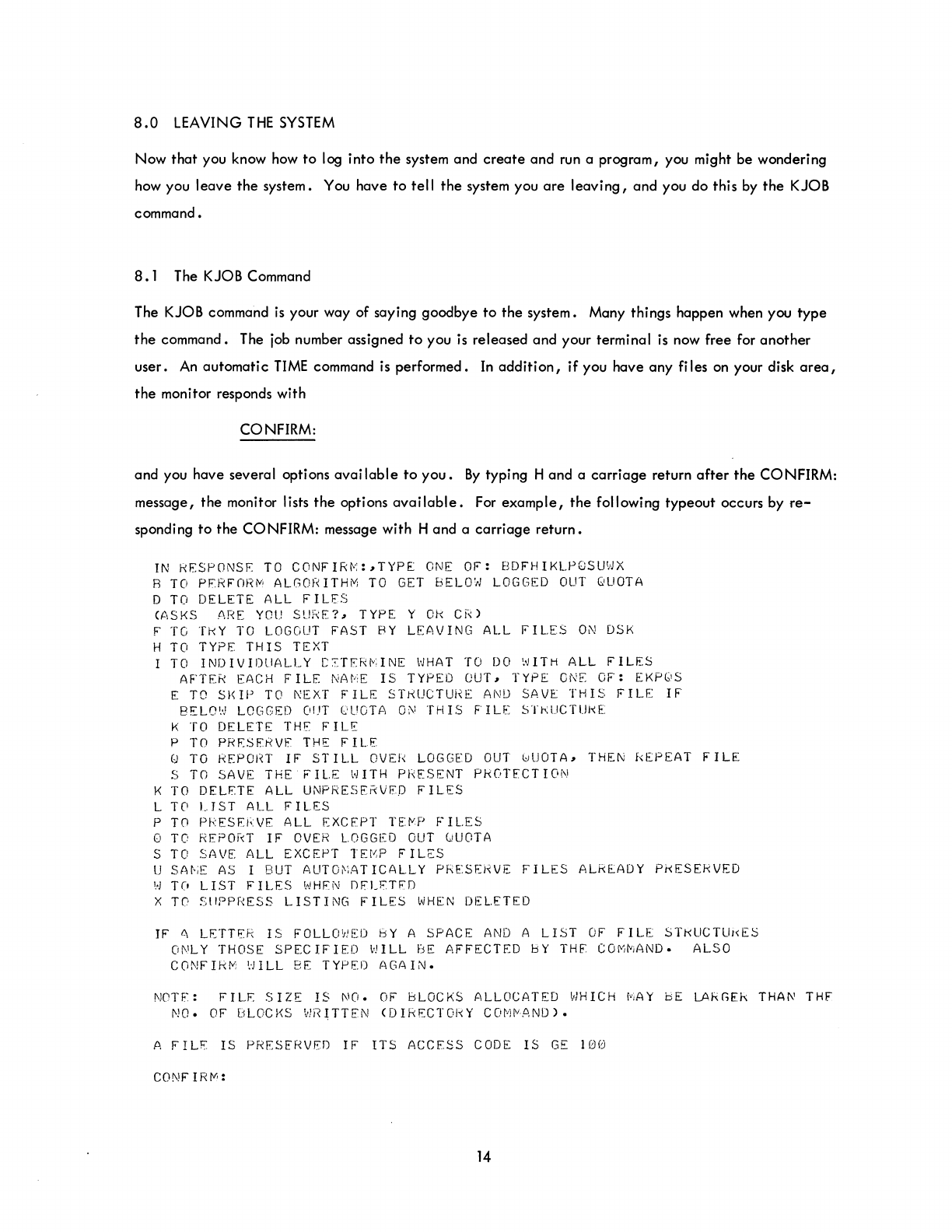
and you have several options
available
to
you.
By
typing H and a
carriage
return
after
the
CONFIRM:
message,
the
monitor lists
the
options
available.
For
example,
the
following typeout occurs by
re-
sponding
to
the
CONFIRM: message with H and a
carriage
return.
IN
kESPONS~
TO
CONFIR~:,TYPE
ONE
OF:
BDFHIKLPQSUWX
B
TO
PFRFnR~
ALGORITHM
TO
GET
BELOW
LOGGED
OUT
QUOTA
D
TO
DELETE
ALL
FILES
(ASKS
ARE
YOU
SURE?,
TYPE
Y
Ok
CR)
F
TO
TkY
TO
LOGOUT
FAST
BY
LEAVING
ALL
FILES
ON
DSK
H
TO
TYPE
THIS
TEXT
TO
INDIVIDUALLY
C~T~RMINE
WHAT
TO
DO
WITH
ALL
FILES
AFTER
EACH
FILE
NAME
IS
TYPED
OUT,
TYPE
ONE
OF:
EKPQS
E
TO
SKIP
TO
NEXT
FILE
STRUCTURE
AND
SAVE
THIS
FILE
IF
BELO'
..
)
LOGGED
OUT
('UOTA
0[\1
THIS
FIL[
STkUCTUj~E:
K
TO
DELETE
THE
FILE
P
TO
PR~SERVF
THE
FILE
Q
TO
REPORT
IF
STILL
OVER
LOGGED
OUT
0UOTA,
THEN
REPEAT
FILE
S
TO
SAVE
THE
FILE
WITH
PRESENT PROTECTION
K
TO
DELETE
ALL
UNPRESE~VFD
FILES
L T0
UST
ALL
FILES
P
TO
PkES~RVE
ALL
EXCEPT
TE~P
FILES
o
TO
REPORT
IF
OVER
LOGGED
OUT
QUOTA
S
TO
SAVE
ALL
EXCEPT
TEMP
FILES
U
SAt-iE
AS
I
BUT
AUTO~iAT
ICALlY
PRE:SEHVE
FILES
ALREADY
PkESERVED
',-)
TO
LIST
FILES
l'!HFN
DFLFTFO
X
Te-
SIIPpr~ESS
LISTING
FILES
WHEN
DEL.ETED
IF
~
LETTER
IS
FOLLOWED
BY
A
SPACE
AND
A LIST
OF
FILE
STKUCTUkE~
ONLY
THOSE
SPECIFIED
WILL
BE
AFFECTED
bY
THE:
COMMAND.
ALSO
CONFIRM
WILL
BE
TYPED
AGAIN.
NOTF.:
FILE
SIZE
IS
NO.
OF
BLOCKS
ALLOCATED
~.JHICH
r~jAY
bE
LAkGEk
THAI\'
THE'
NO.
OF
BLOCKS
WR~TTEN
(DIRECTORY
COM~AND).
A
FILE
IS
PRESERVED
IF
ITS
ACCESS
CODE
IS
GE
100
CONFIRM:
14
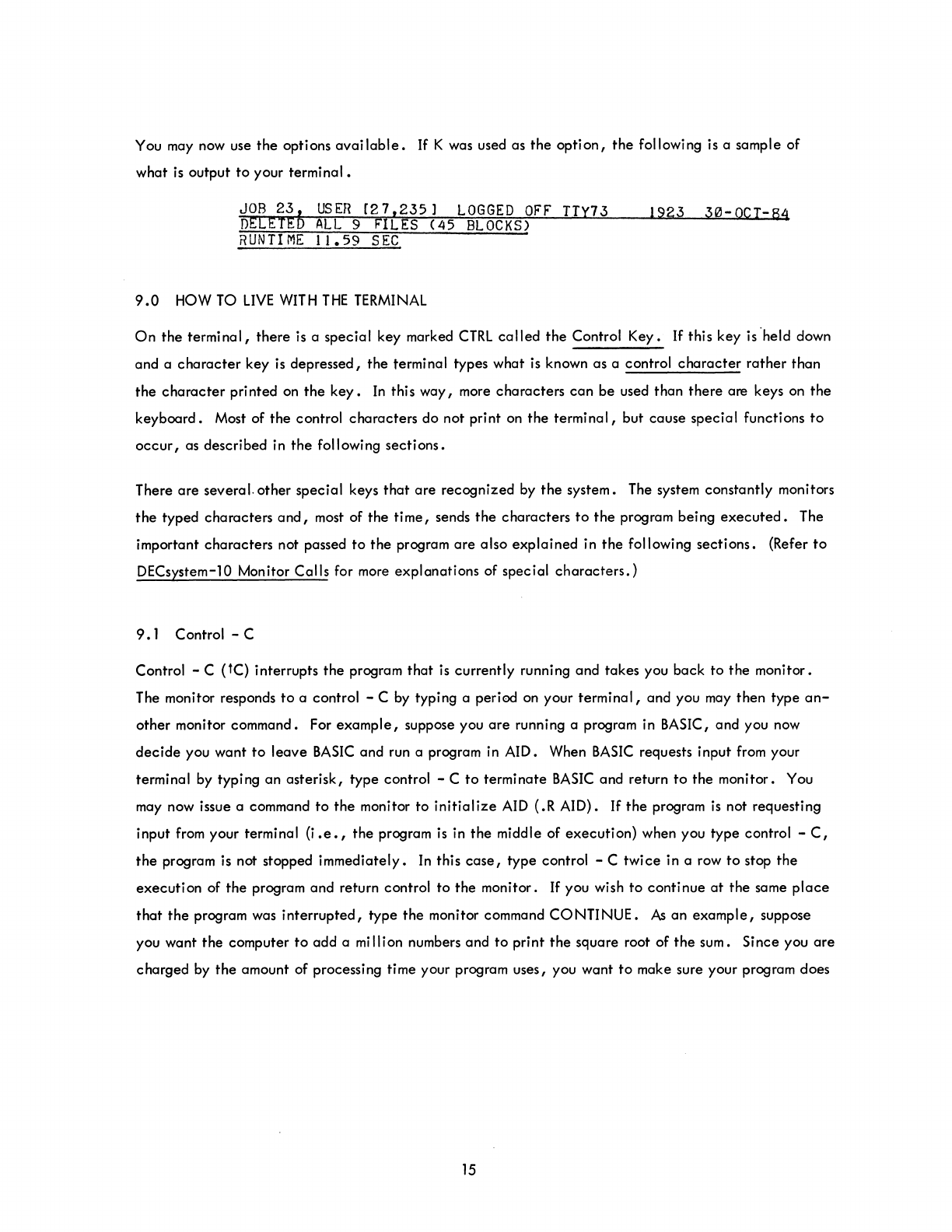
You may now use
the
options
available.
If
K was used as
the
option,
the
following is a sample of
what
is
output
to
your
terminal.
~~EE~~b
USER
[27,235)
LOGGED
OFF
TTY73
1923
30-0CT-64
RUNTIME
11.59
SEC
9.0
HOW TO
LIVE
WITH
THE
TERMINAL
On
the
terminal,
there
is
a
special
key marked
CTRL
called
the
Control
Key.
If
this key
is'held
down
and a
character
key
is
depressed,
the
terminal types what is known as a control
character
rather
than
the
character
printed on
the
key.
In
this
way,
more
characters
can
be
used
than
there
are keys on
the
keyboard.
Most of
the
control
characters
do not print on
the
terminal,
but
cause
special
functions
to
occur,
as described in
the
following
sections.
There
are
several. other
special
keys
that
are
recognized
by
the
system. The system constantly monitors
the
typed
characters
and,
most of the
time,
sends
the
characters
to
the
program being
executed.
The
important
characters
not passed
to
the
program
are
also
explained
in
the
following
sections.
(Refer
to
DECsystem-10 Monitor
Calls
for more
explanations
of special
characters.)
9.1
Control - C
Control - C (tC) interrupts
the
program
that
is
currently
running
and
takes
you
back
to
the
monitor.
The monitor responds
to
a control - C by typing a period on your
terminal,
and
you may
then
type
an-
other
monitor command. For
example,
suppose you
are
running a program in BASIC,
and
you now
decide
you
want
to
leave
BASIC
and run a program in AID. When
BASIC
requests input from your
terminal by typing
an
asterisk,
type
control - C
to
terminate
BASIC
and return
to
the
monitor. You
may now issue a command
to
the
monitor
to
initialize
AID (.R AID).
If
the
program
is
not requesting
input from your terminal (i
.e.,
the
program is in
the
middle of
execution)
when you
type
control -
C,
the
program is not stopped
immediately.
In
this
case,
type
control - C
twice
in a row
to
stop
the
execution
of
the
program
and
return control
to
the
monitor.
If
you wish
to
continue
at
the
same
place
that
the
program was
interrupted,
type
the
monitor command
CONTINUE.
As
an
example,
suppose
you want
the
computer
to
add
a million numbers
and
to
print
the
square root of
the
sum. Since you
are
charged
by
the
amount of processing time your program uses, you want
to
make sure your program does
15

not
take
an unreasonable amount of processing time
to
run.
Therefore,
after
the
computer
has
begun
execution of your program,
type
control - C
twice
to
interrupt your program. You
are
now communi-
cating
with
the
monitor and may issue the monitor command
TIME
to
find out
how
long your program
has been running.
If
you wish
to
continue your program, type CONTINUE and
the
computer begins
where it was
interrupted.
9.2
The
RETURN
Key
This key causes two operations
to
be
performed: (1) a
carriage-return
and (2) an automatic
line-feed.
This means
that
the
typing element returns
to
the
beginning of
the
line (carriage-return) and
that
the
paper
is
advanced one line
(line-feed).
Commands
to
the
monitor
are
terminated
by
depressing this
key.
9.3
The
RUBOUT
Key
The
RUBOUT
key permits correction of typing errors. Depressing this key once causes
the
last
charac-
ter
typed
to
be
deleted.
Depressing
the
key n times causes
the
last n characters typed
to
be
deleted.
RUBOUT
does not
delete
characters beyond the previous
carriage-return,
line-feed,
or
altmode.
Nor
does
RUBOUT
function if
the
program has
already
processed
the
characters you wish
to
delete.
The monitor types
the
deleted
characters,
delimited by backslashes. For
example,
if
you were typing
CREATE
and go as far as CRAT, you
can
correct
the
error by typing two
RUBOUTS
and then
the
correct
letters.
The typeout would be
CRAT\T A
\EATE
Notice
that
you typed only two
RUBOUTS,
but
\TA\was
printed.
This shows
the
deleted
characters,
but in reverse order. (Note
that
when using TECO,
deleted
characters
are
not enclosed
in
backslashes.)
9.4
Control - U
Control - U (tU)
is
used if you have completely mistyped
the
current line and wish
to
start over
again.
Once
you type a
carriage-return,
the
command
is
read by
the
computer, and
line-editing
features
can
no longer be used on
that
line.
Control - U causes
the
deletion of
the
entire
line,
back
to
the
last
carriage-return,
line-feed,
or
altmode.
The system responds with a
carriage-return,
line-feed
so you
may
start
again.
16
9.5
The ALTMODE Key
The ALTMODE
key,
which is
labeled
ALTMODE, ESC, or PREFIX, is used as a command terminator
for several programs, including TECO and LINED. Since
the
ALTMODE is a nonprinting
character,
the
terminal prints
an
ALTMODE as a
dollar
sign ($).
9.6
Control -0
Control -0
(to)
tells
the
computer
to
suppress terminal
output.
For
example,
if
you issue a command
to
type
out 100 lines of
text
and
then
decide
that
you do not
want
the
typeout,
type
control -0
to
stop
the
output.
Another command may
then
be typed as
if
the
typeout
had terminated normally.
10.0
PERIPHERAL
DEVICES
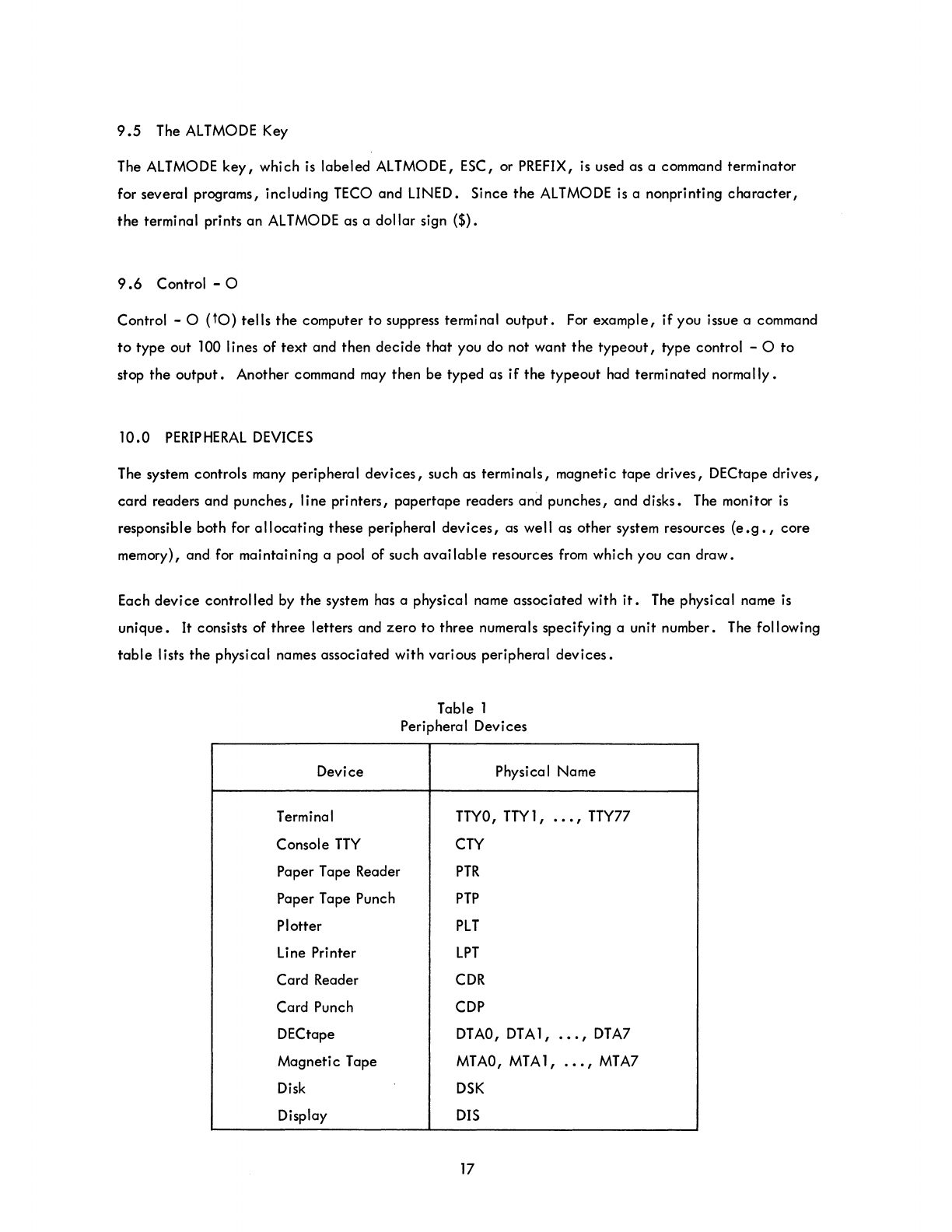
The system controls many peripheral
devices,
such as
terminals,
magnetic
tape
drives,
DECtape
drives,
card
readers and
punches,
line
printers,
papertape
readers and
punches,
and disks. The monitor
is
responsible both for
allocating
these peripheral
devices,
as well as other system resources
(e.g.,
core
memory), and for maintaining a pool of such
available
resources from which you
can
draw.
Each
device
controlled
by
the
system has a physical name
associated
with
it.
The physical name
is
unique.
It consists of
three
letters and
zero
to
three
numerals specifying a unit number. The following
table
lists
the
physical names associated with various peripheral
devices.
Device
Terminal
Console
TTY
Paper Tape Reader
Paper Tape Punch
Plotter
Line Printer
Card
Reader
Card Punch
DECtape
Magneti c Tape
Disk
Display
Table 1
Peripheral Devices
Physical Name
TTYO,
TTY
1 ,
.••
, TTY77
CTY
PTR
PTP
PLT
LPT
CDR
CDP
DTAO,
DTA1,
•••
,
DTA7
MTAO,
MTA
1,
.••
,
MTA7
DSK
DIS
17
You may also
give
each
device
a logical
device
name. The logical
device
name
is
an
alias,
and
the
device
can
be referred
to
either
by
this
alias
or
by
the
physical name. The logical name consists of
one
to
six alphanumeric characters of your
choice.
The reason for logical
device
names
is
that in
writing a program you may use arbitrarily
selected
device
names (logical
device
names)
that
can
be
assigned
to
the
most convenient physical devices
at
runtime. However,
care
should be exercised in
assigning logical
device
names because these names have priority over physical
device
names. For
example,
if a DECtape
is
assigned
the
logical name DSK, then all of your programs attempting
to
use
the
disk
via
the
physical name
DSK
end up using
the
DECtape instead. It
is
wise not
to
give
any
de-
vice
the
logical name
DSK
because
certain
monitor commands (such as
the
COMPILE commands) make
extensive use of special features
that
the
disk has but other devices do not
have.
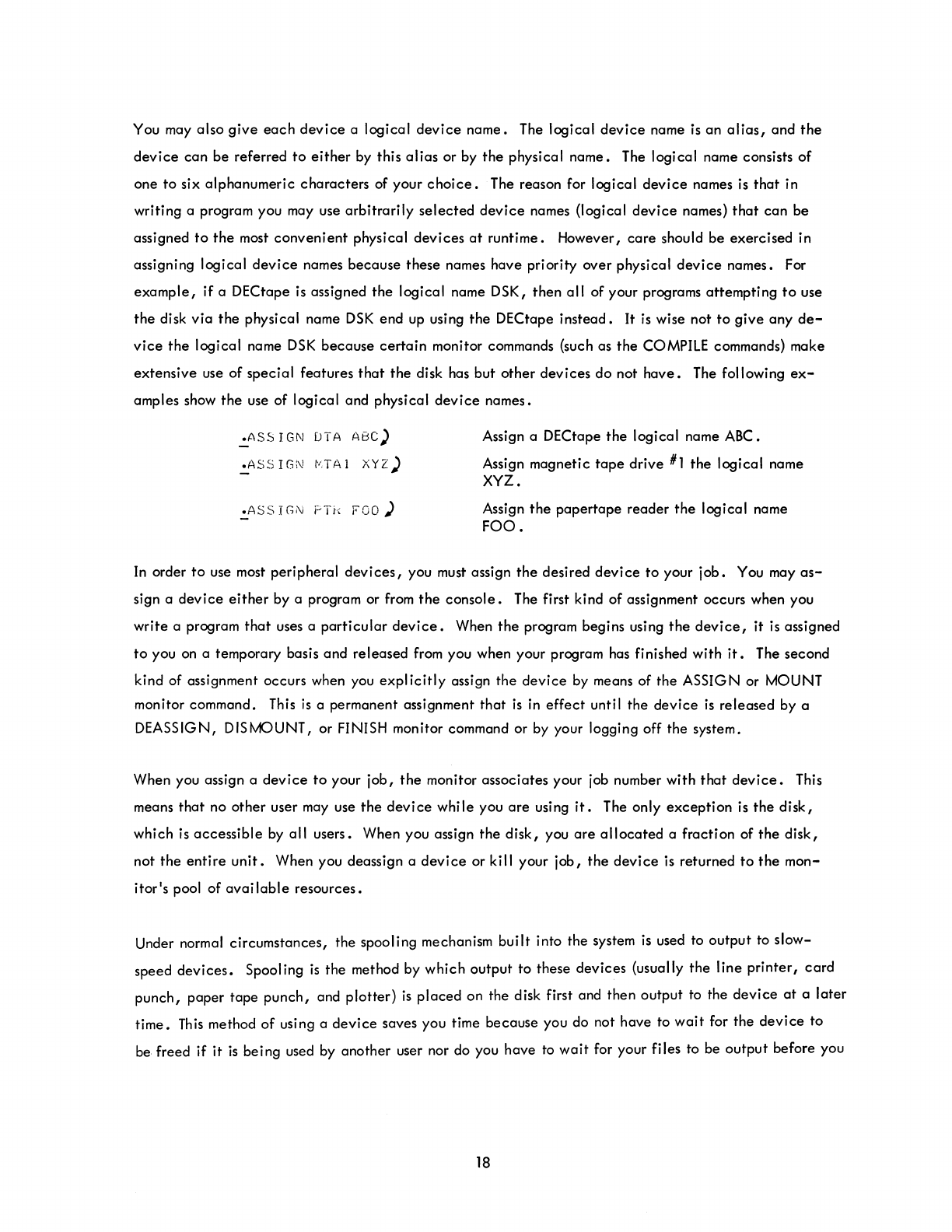
The following
ex-
amples show
the
use of logical and physical
device
names •
•
ASS
I
GN
OTA
ABC)
.ASSIGN
~TAI
XYZ)
• ASS
JGN
PH:
1'00)
Assign a DECtape
the
logical name ABC.
Assign magnetic
tape
drive
#1
the
logical name
XYZ •
Assign
the
papertape reader
the
logical name
FOO.
In
order
to
use most peripheral
devices,
you must assign
the
desired
device
to
your
job.
You may
as-
sign a
device
either
by a program or from
the
console.
The first kind of assignment occurs when you
write a program
that
uses a
particular
device.
When
the
program begins using
the
device,
it
is
assigned
to
you
on
a temporary basis and released
from
you when your program has finished with
it.
The second
kind of assignment occurs when
you
explicitly
assign the
device
by
means of the ASSIGN or MOUNT
monitor command. This
is
a permanent assignment
that
is
in
effect
until the device
is
released by a
DEASSIGN, DISMOUNT, or FINISH monitor command or
by
your logging off the system.
When you assign a
device
to
your job,
the
monitor associates your job number with
that
device.
This
means
that
no other user
may
use
the
device
while you
are
using
it.
The only exception
is
the
disk,
which
is
accessible
by
all users. When you assign
the
disk, you
are
allocated
a fraction of
the
disk,
not the
entire
unit.
When you deassign a
device
or kill your job,
the
device
is
returned
to
the
mon-
itor's pool of
available
resources.
Under normal circumstances, the spooling mechanism built into the system
is
used to output to slow-
speed
devices.
Spooling
is
the method by which output
to
these devices (usually
the
line
printer,
card
punch, paper tape punch, and plotter)
is
placed on the disk first and then output to the
device
at
a
later
time.
This
method of using a
device
saves you time because you do not have to
wait
for the
device
to
be freed if it
is
being used
by
another user nor do you have
to
wait
for your files to be output before you
18
can
perform
another
operation.
Once
your files have been
placed
on the disk, you
can
do another
task,
such as running a program or leaving the system by killing your
lob.
After you leave the system
(KJOB),
your files will be output whenever the
device
you
~equested
to output them
is
available.
The spooling
of
files
to
the line printer
is
described in Paragraph
13.0.
Refer to the DECsystem-lO
Operating
System Commands manual for a discussion
of
spooling
to
other
devices.
11.0
COMMANDS TO
ALLOCATE
SYSTEM
RESOURCES
11. 1 The ASSIGN Command
The ASSIGN command
is
used to assign a peripheral
device
on a permanent basis for the duration of
your lob or until you
explicitly
deassign
it.
This command
must
have as an argument the legal physical
device
name (see Table 1)
of
the
device
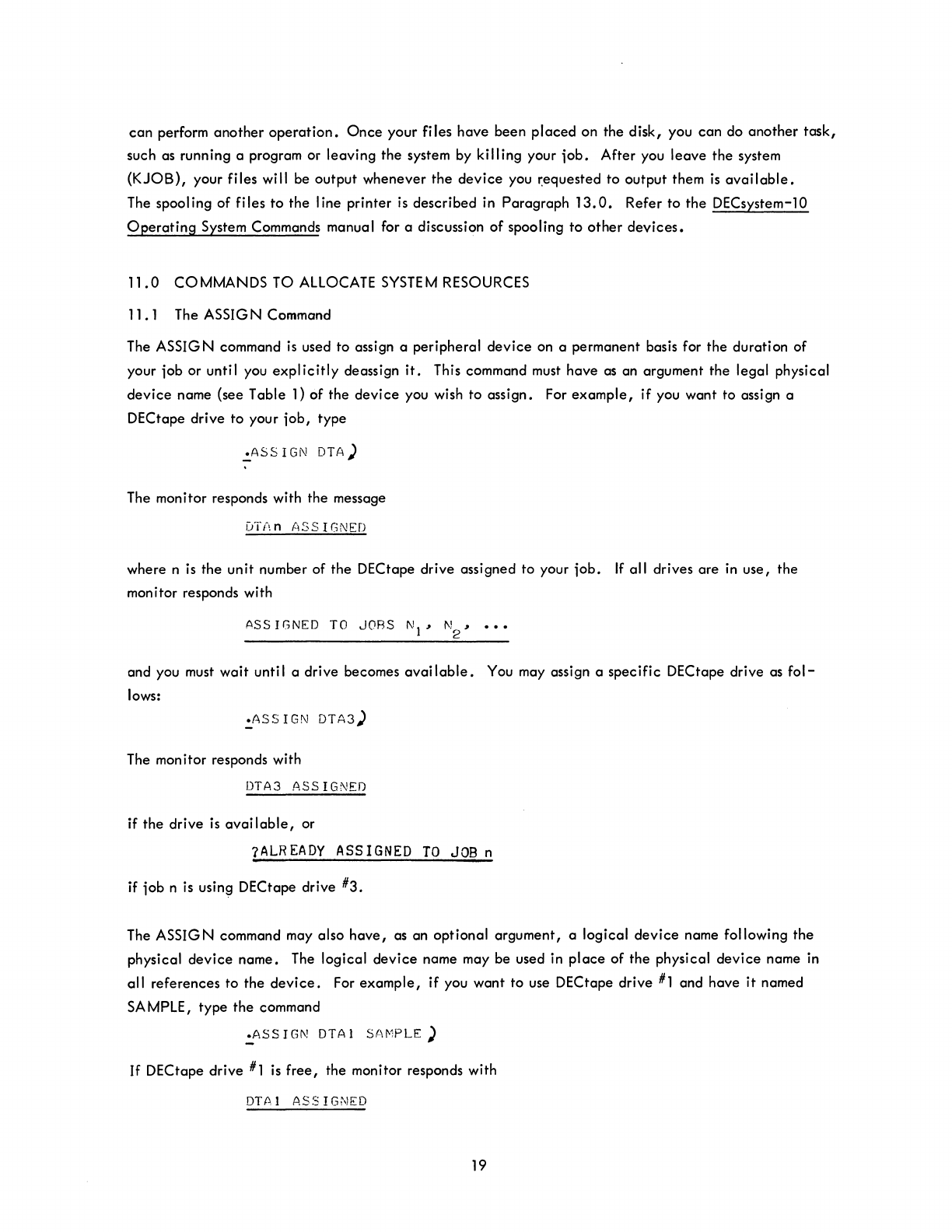
you wish to assign. For
example,
if you want to assign a
DECtape drive to your
lob,
type
:..ASS I
GN
OTA)
The monitor responds with the message
D\{\
n
ASS
I GNED
where n is the unit number of the DECtape drive assigned to your
lob.
If
all drives are
in
use, the
monitor responds with
and you
must
wait
until a drive becomes
available.
You may assign a specific DECtape drive as
fol-
lows:
.ASS
IGN
DTA3)
The monitor responds with
DTA3
ASSIGNED
if the drive
is
available,
or
?ALREADY ASSIGNED
TO
JOB
n
if lob n is
usin~
DECtape drive #3.
The ASSIG N command may also
have,
as an optional argument, a logical
device
name following the
physical
device
name. The logical
device
name may be used in
place
of the physical
device
name in
all references to the
device.
For
example,
if you want to use DECtape drive
#1
and have
it
named
SA
MPLE, type the command
.ASSIGN
DTAI
SAMPLE)
If
DECtape drive
#1
is
free,
the monitor responds with
DTAI
ASSIGNED
19
and
stores
the
logical
name you
typed.
You may
then
refer
to
the
DECtape by
the
name
SAMPLE
until
you
explicitly
release
the
device,
assign
the
name SAMPLE
to
another
device,
or
kill
your
iob.
Logical names
can
be
very
useful.
Suppose you
write
a program
that
uses DECtape
drive
#5
and
refers
to
it
by its
physical
name (DTA5). When you run
your
program,
you find
that
DECtape
drive
#3
is
the
only
drive
available.
Instead
of
rewriting
your
program
to
use DECtape
drive
#3,
type
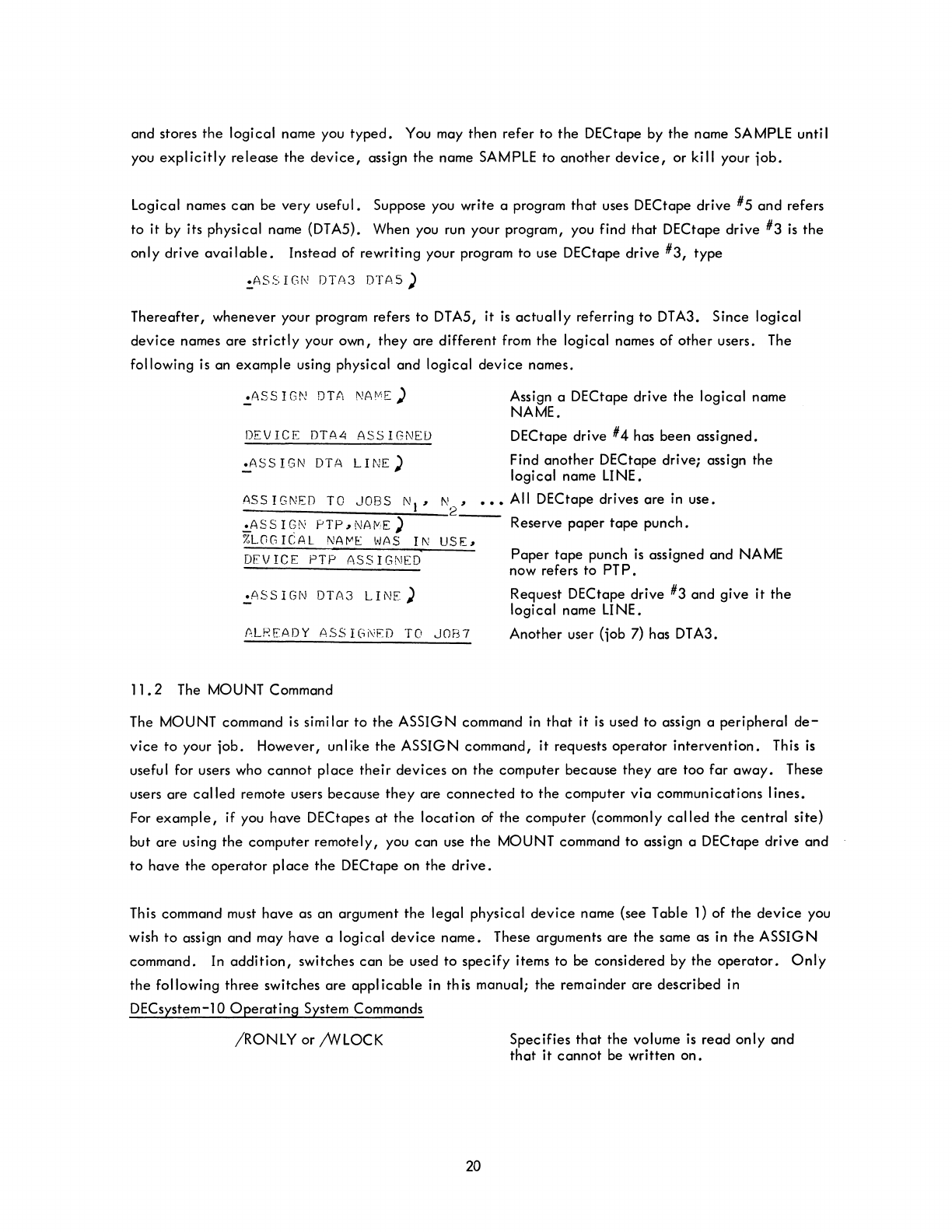
:.ASSIGh!
DTA3
DTAS)
Thereafter,
whenever
your program refers
to
DTA5,
it
is
actually
referring
to
DTA3.
Since
logical
device
names
are
strictly
your
own,
they
are
different
from
the
logical
names
of
other
users. The
following
is
an
example
using
physical
and
logical
device
names .
• ASS
IGN
DTA
NAt"'E)
DEVICE
DTA.
ASSIGNED
.ASSIGN
DTA
LINE)
Assign a
DEC
tape
drive
the
logical
name
NAME.
DECtape
drive
#4
has
been
assigned.
Find
another
DECtape
drive;
assign
the
logical
name LINE.
ASS
IGNED
TO
JOBS
N)
~
N
~
•••
All DECtape
drives
are
in
use.
------------
__
~~-2----
.:..ASS
I
C?N
PTP
~
NAVE)
Reserve
paper
tape
punch.
%LOGICAL
NA~E
WAS
IN
USE~
DEVICE
PTP
ASSIGNED
.!.ASSIGN
DTA3
LINE)
ALREADY
ASSIGNFD
TO
JOB7
11.2
The MOUNT Command
Paper
tape
punch
is
assigned
and
NAME
now refers
to
PT
P •
Request
DECtape
drive
#3
and
give
it
the
logical
name LINE.
Another
user (job 7) has
DT
A3.
The
MOUNT
command is
similar
to
the
ASSIGN
command in
that
it
is used
to
assign a
peripheral
de-
vice
to
your
iob.
However,
unlike
the
ASSIGN
command,
it
requests
operator
intervention.
This
is
usefu I for users who
cannot
pi
ace
the
i r
devi
ces
on
the
computer
because
they
are
too
far
away.
These
users
are
called
remote users
because
they
are
connected
to
the
computer
via
communications
lines.
For
example,
if you
have
DECtapes
at
the
location
of
the
computer
(commonly
called
the
central
site)
but
are
using
the
computer
remotely,
you
can
use
the
MOUNT
command
to
assign a DECtape
drive
and
to
have
the
operator
place
the
DECtape on
the
drive.
Th
is
command must
have
as an
argument
the
legal
physical
device
name (see
Table
1)
of
the
device
you
wish
to
assign
and
may
have
a
logical
device
name.
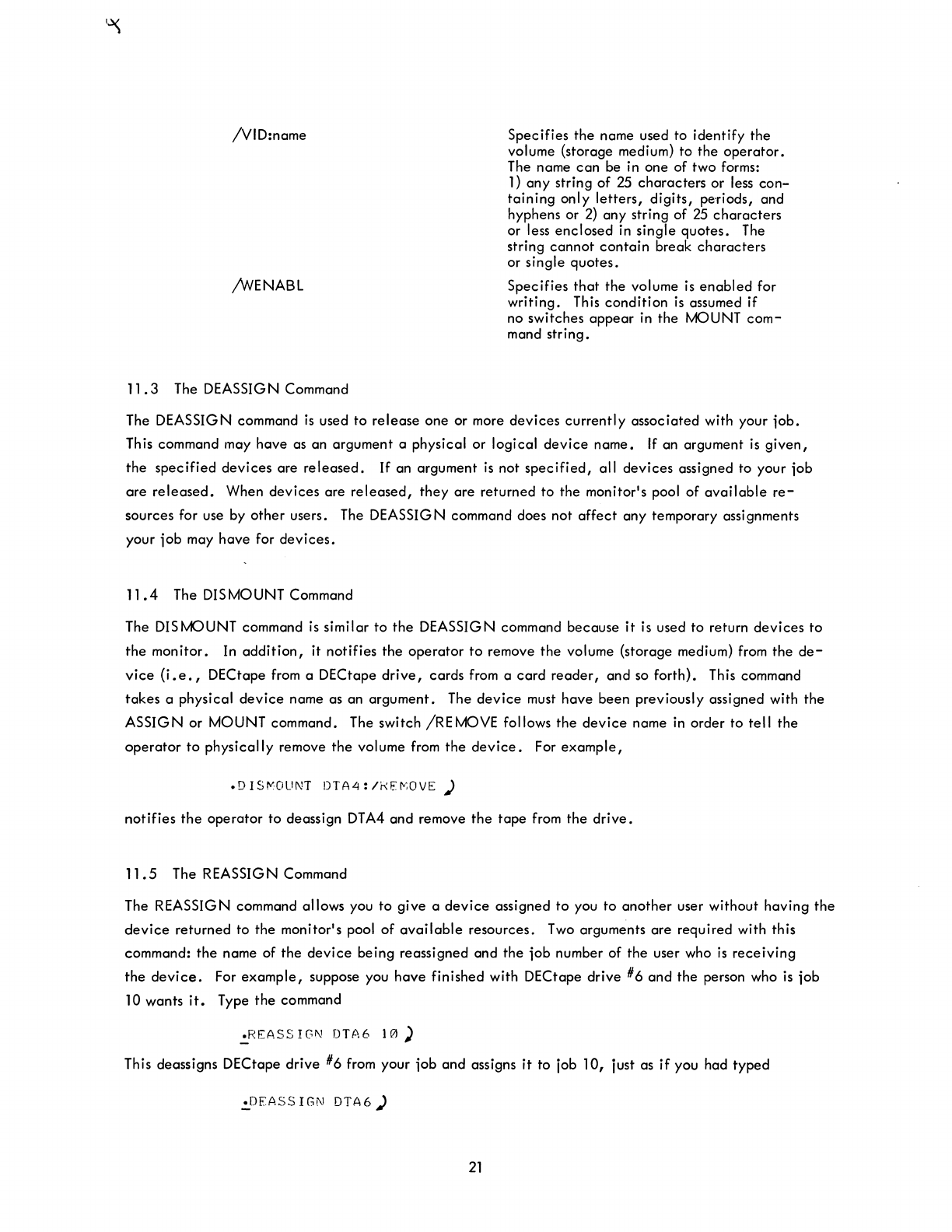
These arguments
are
the
same as in
the
ASSIGN
command.
In
addition,
switches
can
be
used
to
specify
items
to
be
considered
by
the
operator.
Only
the
following
three
switches
are
applicable
in
this
manual;
the
remainder
are
described
in
DECsystem-10
Operating
System Commands
/RONLY
or
;WLOCK
20
Specifies
that
the
volume is
read
only
and
that
it
cannot
be
written
on.
/VID:name
,.A/VENABL
11
.3
The DEASSIG N Command
Specifies the name used to identify the
volume (storage medium) to the
operator.
The name
can
be in one of two forms:
1)
any
string
of
25
characters
or less
con-
taining
only
letters,
digits,
peoriods, and
hyphens or
2)
any string of
25
characters
or less
enclosed
in single
quotes.
The
string
cannot
contain
break
characters
or single
quotes.
Specifies
that
the
volume is
enabled
for
writing.
This
condition
is
assumed if
no switches
appear
in
the
MOUNT
com-
mand
string.
The DEASSIGN command
is
used
to
release
one
or more
devices
currently
associated
with your
iob.
This command may have as an argument a physical or logical
device
name.
If
an argument
is
given,
the
specified
devices
are
released.
If
an argument
is
not
specified,
all
devices
assigned to your
iob
are
released.
When
devices
are
released,
they
are
returned
to
the monitor's pool of
available
re-
sources for use by
other
users. The DEASSIGN command does not
affect
any
temporary assignments
your
iob
may
have
for
devices.
11.4
The DISMOUNT Command
The DISMOUNT command
is
similar
to
the
DEASSIGN command because
it
is used to return
devices
to
the
monitor. In
addition,
it notifies the
operator
to
remove
the
volume (storage medium) from
the
de-
vice
(i.e.,
DECtape from a DECtape
drive,
cards from a
card
reader,
and so forth). This command
takes
a physical
device
name as an
argument.
The
device
must have
been
previously assigned with
the
ASSIGN
or MOUNT command. The switch
/REMOVE
follows
the
device
name in order
to
tell
the
operator
to
physically
remove
the
volume from
the
device.
For
example,
.DIS~OUNT
DTA4:/kE~OVE
)
notifies
the
operator
to deassign
DTA4
and
remove
the
tape
from the
drive.
11.5
The REASSIGN Command
The REASSIGN command allows you
to
give a
device
assigned
to
you
to
another
user without having
the
device
returned to the monitor's pool of
available
resources.
Two
arguments
are
required with this
command:
the
name of
the
device
being reassigned and
the
iob
number of
the
user who
is
receiving
the
device.
For
example,
suppose you
have
finished with DECtape drive #6
and
the person who
is
iob
10 wants
it.
Type
the
command
.REASSIGN
DTA6
10)
This deassigns DECtape drive #6 from your
iob
and
assigns
it
to job
10,
just as
if
you had
typed
.DEASS
IGN
DTA6)
21

and iob 10 had typed
.ASS
IGN
DTA6)
immediately
thereafter.
All devices
except
the
iob's
terminal can be reassigned.
11.6
The
FINISH Command
The FINISH command
is
used to prematurely terminate a program
that
is
being
executed
while preserv-
ing as much output as possible.
If
th
is
command
is
not used, part or all
of
the
output file may be lost.
The FINISH command may be followed by a physical
or
logical
device
name,
in
which case
any
input
or output currently in progress in relation
to
that
device
is
terminated. If no
device
is
specified,
in-
put or output
is
terminated
on
all devices assigned to your
iob.
The monitor responds to this command
by terminating
output,
closing the
file,
and releasing the
device
for use by others.
This command could be used if you were
generating
an assembly listing of a program on your disk
area
and
decided
that
you wanted only the first part
of
the
listing, not the
entire
listing. Type
tC
.:F'INISH
DSK)
and the monitor completes the writing
of
your listing and releases the disk.
11.7
The CORE Command
The CORE command allows you to modify the amount
of
core
assigned to your
job.
The command is
followed by a decimal number representing
either
the
total
number
of
1 K blocks
(1024
word blocks)
or the total number
of
pages (512 word blocks)
that
you want the program to have
from
this point
on.
For
example,
if you want the program to
have
8K
blocks
of
core,
type
.!,.COf-iF:
R)
and the monitor gives the program
8K
blocks, if
available.
If
you request additional
core
and there
is
none
available,
the monitor responds with an error message.
If
the CORE command
is
followed by the
decimal number
0,
your program disappears
from
core because you are requesting
OK
blocks of
core.
If
the
decimal number following
the
command is
omitted,
the monitor types
out
the amount
of
core
used
and
does not
change
your core assignment.
12.0
COMMANDS TO MANIPULATE TERMINALS
12.1 The SEND Command
The SEND command allows you
to
send a line of
text
to another terminal in the system. The command
is
typed followed by the number of the terminal to which you
are
sending
the
message followed by
the
message and a
carriage
return. This message is printed on the receiving terminal
and
is
preceded
by
22 March 1975
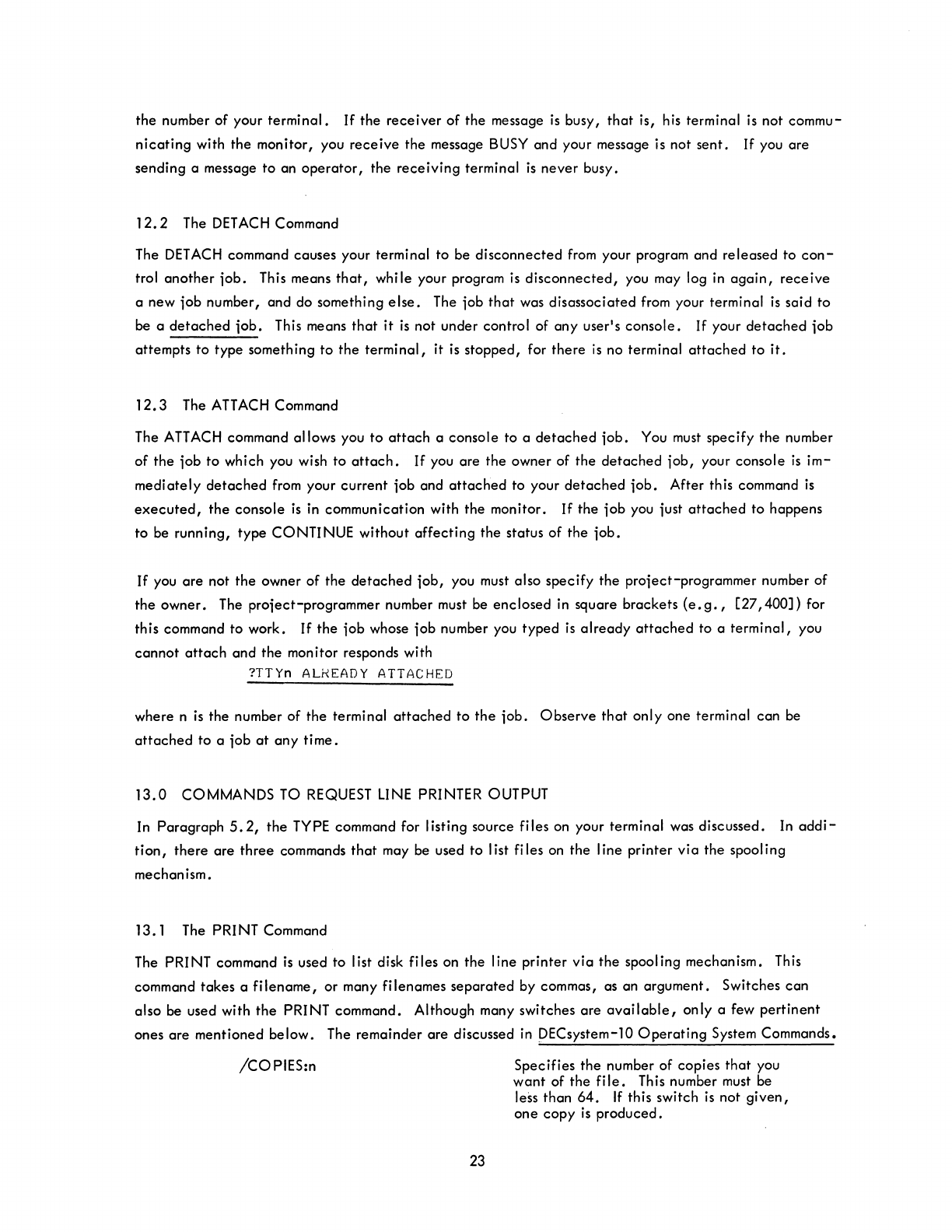
the
number
of
your
terminal.
If
the
receiver
of
the
message
is
busy,
that
is, his terminal
is
not
commu-
nicating
with
the
monitor, you
receive
the
message BUSY and your message is not
sent.
If
you
are
sending a message
to
an
operator,
the
receiving
terminal
is
never
busy.
12.2
The
DETACH
Command
The
DETACH
command causes your terminal to be
disconnected
from your program and
released
to
con-
trol
another
iob.
This means
that,
while your program
is
disconnected,
you may log
in
again,
receive
a
new
iob
number, and do something
else.
The iob
that
was
disassociated
from your terminal
is
said
to
be
a
detached
job.
This means
that
it
is
not under control of
any
user's
console.
If
your
detached
iob
attempts
to
type something
to
the
terminal,
it
is
stopped,
for
there
is
no terminal
attached
to
it.
12.3
The ATTACH Command
The ATTACH command allows you
to
attach
a console to a
detached
iob.
You must
specify
the
number
of
the
iob
to
which you wish to
attach.
If
you
are
the
owner of
the
detached
iob,
your console
is
im-
mediately
detached
from your
current
iob and
attached
to your
detached
job.
After this command
is
executed,
the
console
is
in communication with
the
monitor.
If
the
iob
you iust
attached
to happens
to
be running,
type
CONTINUE
without
affecting
the
status
of
the
iob.
If
you
are
not
the
owner
of
the
detached
iob,
you must also
specify
the
proiect-programmer number of
the
owner.
The
proiect-programmer
number must be
enclosed
in
square
brackets
(e.g.,
[27,400])
for
this command to work.
If
the
iob
whose
iob
number you
typed
is
already
attached
to a
terminal,
you
cannot
attach
and
the
monitor responds with
?TTYn ALkEADY ATTACHED
where n
is
the
number
of
the
terminal
attached
to
the
iob.
Observe
that
only
one
terminal
can
be
attached
to a
iob
at
any
time.
13.0
COMMANDS
TO REQUEST LINE PRINTER OUTPUT
In
Paragraph
5.2,
the
TYPE command for I isting source
fi
les on your terminal was discussed. In
addi-
tion'
there
are
three
commands
that
may be used to list files on
the
line
printer
via
the
spooling
mechanism.
13.1
The PRINT Command
The PRINT command
is
used to list disk files on
the
line
printer
via
the
spooling mechanism. This
command
takes
a
filename,
or
many filenames
separated
by commas, as an
argument.
Switches
can
also be used with
the
PRINT command. Although many switches
are
available,
only
a few
pertinent
ones
are
mentioned
below.
The remainder
are
discussed in DECsystem-l0
Operating
System Commands.
/COPIES:n
23
Specifies
the
number of
copies
that
you
want
of
the
file.
This number must be
less than
64.
If
this switch
is
not
given,
one
copy
is
produced.
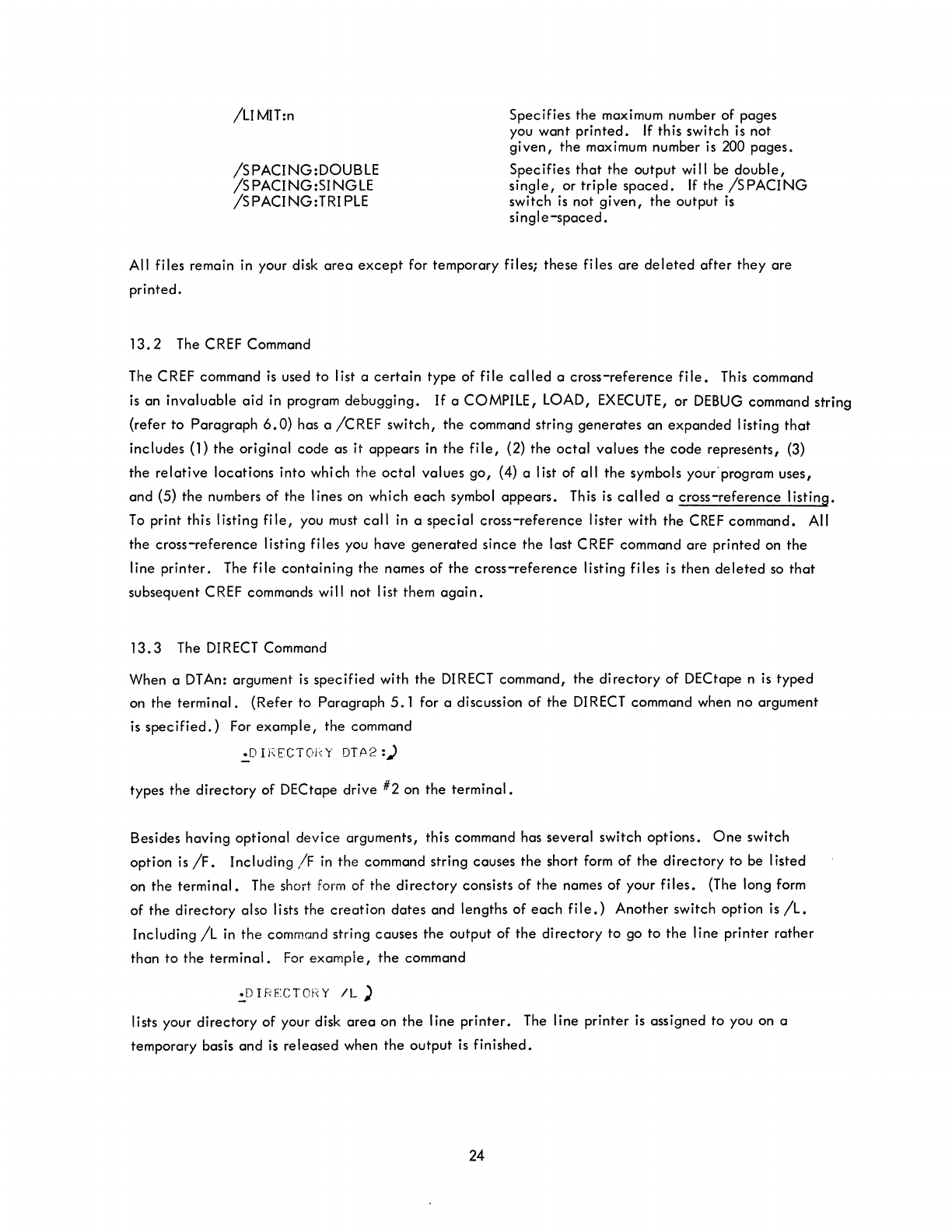
/UMIT:n
ISPACING:DOUBLE
/SPACING:SINGLE
/SPACING:TRIPLE
Specifies
the
maximum number of pages
you want
printed.
If
this switch is not
given,
the
maximum number is 200 pages.
Specifies
that
the
output
wi
II
be
double,
single,
or
triple
spaced.
If
the
/SPACING
switch
is
not
given,
the
output
is
single-spaced.
All files remain
in
your disk
area
except
for temporary files; these files
are
deleted
after
they
are
printed.
13.2
The CREF Command
The CREF command
is
used
to
list a
certain
type of
file
called
a
cross-reference
file.
This command
is
an
invaluable
aid
in program
debugging.
If
a COMPILE,
lOAD,
EXECUTE,
or
DEBUG
command string
(refer to Paragraph
6.
0) has a
/CREF
switch,
the
command string
generates
an
expanded
I isting
that
includes (1) the original
code
as
it
appears
in
the
file,
(2)
the
octal
values
the
code
represents, (3)
the
relative
locations into which
the
octal
values
go,
(4) a list of all
the
symbols your'program uses,
and (5)
the
numbers of
the
lines on which
each
symbol
appears.
This
is
called
a cross-reference listing.
To
print this listing
file,
you must
call
in
a special cross-reference lister with the
CREF
command. All
the
cross-reference listing files you have
generated
since
the
last CREF command are printed on
the
line
printer.
The
file
containing
the names of the
cross-reference
listing files
is
then
deleted
so
that
subsequent CREF commands will not list them
again.
13.3
The
DIRECT
Command
When a DTAn: argument
is
specified
with
the
DIRECT
command,
the
directory
of
DECtape n
is
typed
on the
terminal.
(Refer to Paragraph
5.1
for a discussion of
the
DIRECT
command when no argument
is
specified.)
For
example,
the command
.:D
Ii\ECTOj~Y
OTP2:)
types
the
directory
of DECtape drive #2 on
the
terminal.
Besides having optional
device
arguments, this command has several switch options.
One
switch
option is
/F.
Including
IF
in
the
command string causes
the
short form of
the
directory
to be listed
on
the
terminal.
The short form of
the
directory
consists of
the
names of your
files.
(The long form
of
the
directory
also lists the
creation
dates
and lengths
of
each
file.)
Another switch option is
fl.
Including
/L
in
the
command string causes
the
output of
the
directory to go
to
the
line printer
rather
than
to
the
terminal.
For
exampie,
the
command
:.0
IRECTOf(
Y
IL)
lists your directory of your disk
area
on
the
line
printer.
The line printer
is
assigned
to
you on a
temporary basis and
is
released when
the
output is finished.
24
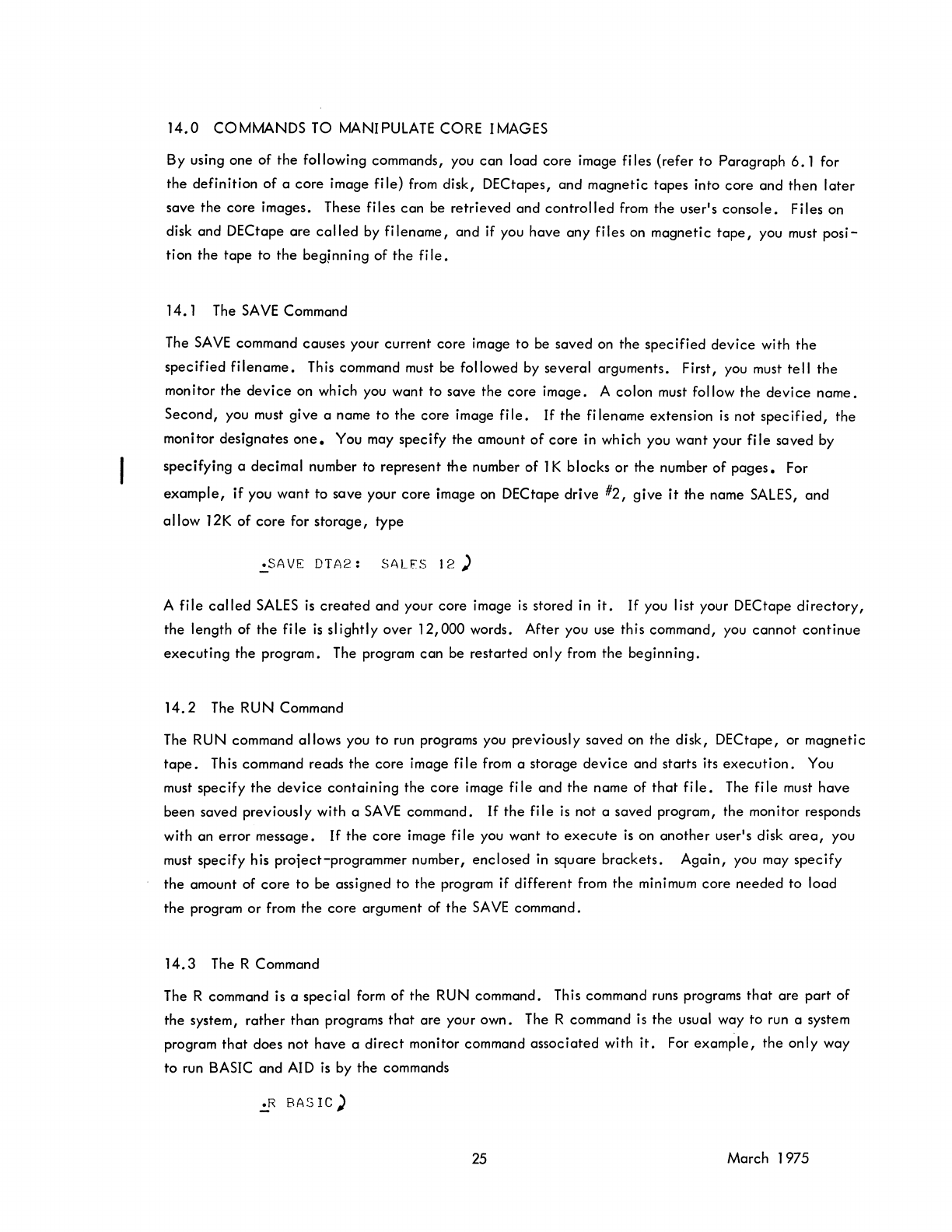
14.0
COMMANDS TO MANIPULATE CORE IMAGES
By using one of
the
following commands, you
can
load
core
image files {refer
to
Paragraph
6.1
for
the
definition
of
a
core
image file} from disk, DECtapes, and
magnetic
tapes
into
core
and
then
later
save
the
core images. These files
can
be
retrieved
and
controlled
from
the
user's
console.
Files on
disk and DECtape
are
called
by
filename,
and if you have
any
files
on
magnetic
tape,
you must
posi-
tion
the
tape
to
the
beginning
of
the
file.
14.
1 The
SAVE
Command
The
SAVE
command causes your
current
core
image
to
be
saved
on
the
specified
device
with
the
specified
filename.
This command must be followed by several arguments. First, you must
tell
the
monitor
the
device
on which you want to save
the
core
image.
A
colon
must follow
the
device
name.
Second,
you must
give
a name
to
the
core
image
file.
If
the
filename
extension
is
not
specified,
the
monitor
designates
one.
You may
specify
the
amount
of
core
in which you
want
your
file
saved
by
specifying
a
decimal
number to
represent
the
number
of
1 K
blocks
or
the number
of
pages.
For
example,
if you
want
to save your
core
image on DECtape
drive
#2,
give
it
the
name
SALES,
and
a
II
ow 12 K
of
core
for
storage,
type
.SAVE
DTA2:
SALFS
12)
A
file
called
SALES
is
created
and
your
core
image
is
stored in
it.
If you list your DECtape
directory,
the
length of
the
file
is
slightly
over
12,000
words. After you use this command, you
cannot
continue
executing
the
program. The program
can
be restarted onl y from
the
beginning.
14.2
The RUN Command
The RUN command allows you
to
run programs you previously saved on
the
disk, DECtape, or
magnetic
tape.
This command reads
the
core
image
file
from a
storage
device
and starts its
execution.
You
must
specify
the
device
containing
the
core
image
file
and
the
name of
that
file.
The
file
must
have
been
saved previously with a
SAVE
command.
If
the
file
is
not a
saved
program,
the
monitor responds
with an error message.
If
the
core
image
file
you want to
execute
is
on
another
user's disk
area,
you
must
specify
his
proiect-programmer
number,
enclosed
in square
brackets.
Again,
you may
specify
the
amount of
core
to
be assigned
to
the
program if
different
from
the
minimum
core
needed
to
load
the
program
or
from
the
core
argument of
the
SAVE
command.
14.3
The R Command
The R command is a
special
form
of
the RUN command. This command runs programs
that
are
part
of
the
system,
rather
than
programs
that
are
your own. The R command
is
the usual way
to
run a system
program
that
does not
have
a
direct
monitor command
associated
with
it.
For
example,
the
only
way
to run BASIC and AID
is
by
the
commands
.R
BASIC)
25
March 1975
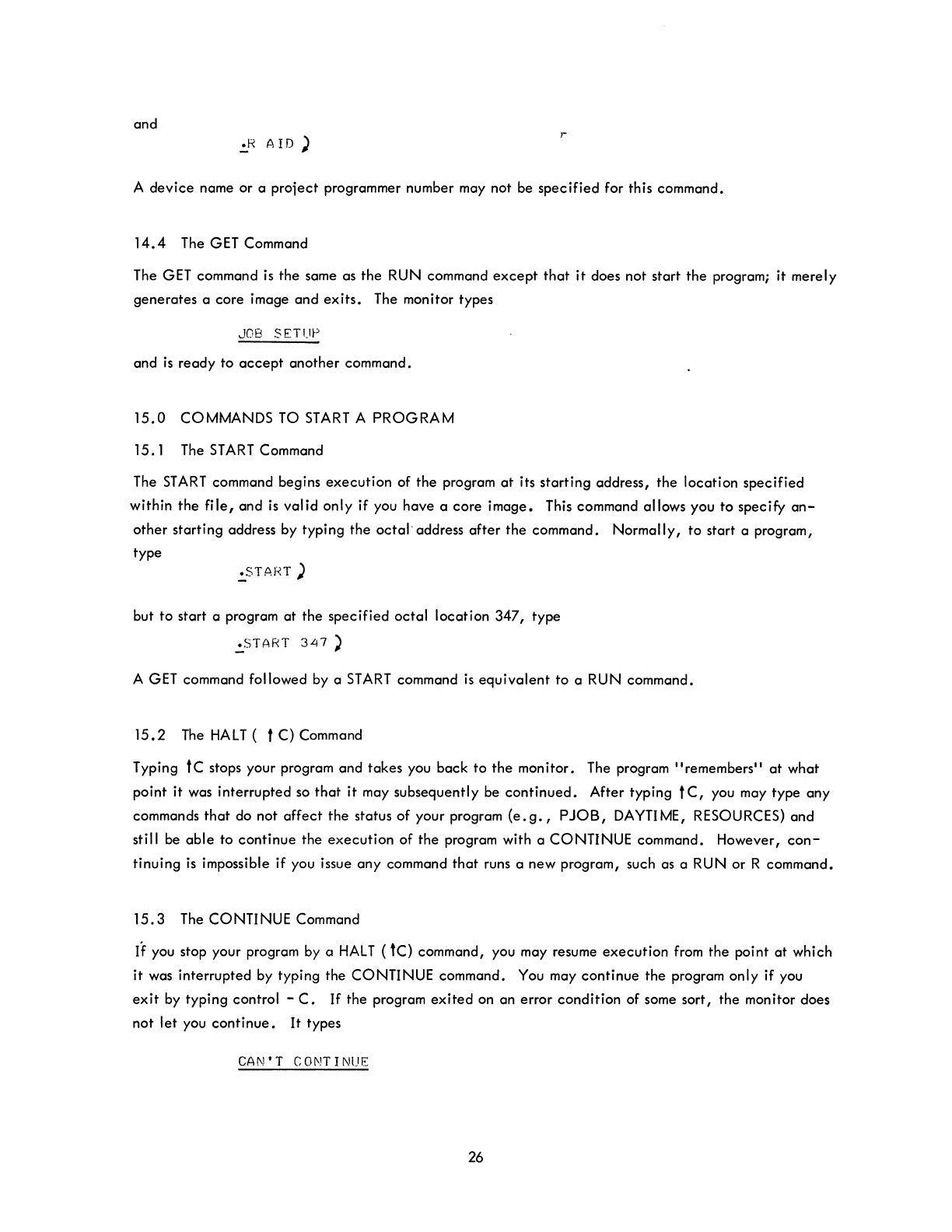
and
~
AID)
A
device
name or a
proiect
programmer number may not be
specified
for this command.
14.4
The GET Command
The GET command is
the
same as
the
RUN command
except
that
it
does not start
the
program; it merely
generates
a core image and
exits.
The monitor types
JOB
SETUP
and
is
ready
to
accept
another
command.
15.0
COMMANDS TO
START
A
PROGRAM
15.1 The
START
Command
The
START
command begins
execution
of
the
program
at
its
starting
address,
the
location specified
within
the
file,
and is
valid
only if you
have
a
core
image.
This command allows you
to
specify
an-
other
starting address by typing
the
octal
address
after
the
command. Normally,
to
start a program,
type
.:.STAfH)
but
to
start a program
at
the
specified
octal
location
347,
type
.START
347
~
A
GET
command followed by a
START
command
is
equivalent
to
a RUN command.
15.2
The
HALT
( t C) Command
Typing tc stops your program and
takes
you
back
to
the
monitor. The program
"remembers"
at
what
point
it
was interrupted so
that
it
may subsequently be
continued.
After typing tc, you may type
any
commands
that
do not
affect
the
status
of
your program
(e.g.,
PJOB,
DAYTIME, RESOURCES) and
still be
able
to
continue
the
execution
of
the
program with a CONTINUE command. However,
con-
tinuing
is
impossible
if
you issue
any
command
that
runs a new program, such as a RUN or R command.
15.3
The CONTINUE Command
If
you stop your program by a
HALT
(tC)
command, you may resume
execution
from
the
point
at
which
it
was interrupted by typing the CONTINUE command. You may
continue
the
program only if you
exit
by typing control -
C.
If
the
program
exited
on an error
condition
of some sort,
the
monitor does
not
let you
continue.
It
types
CAN'T
CONTINUE
26
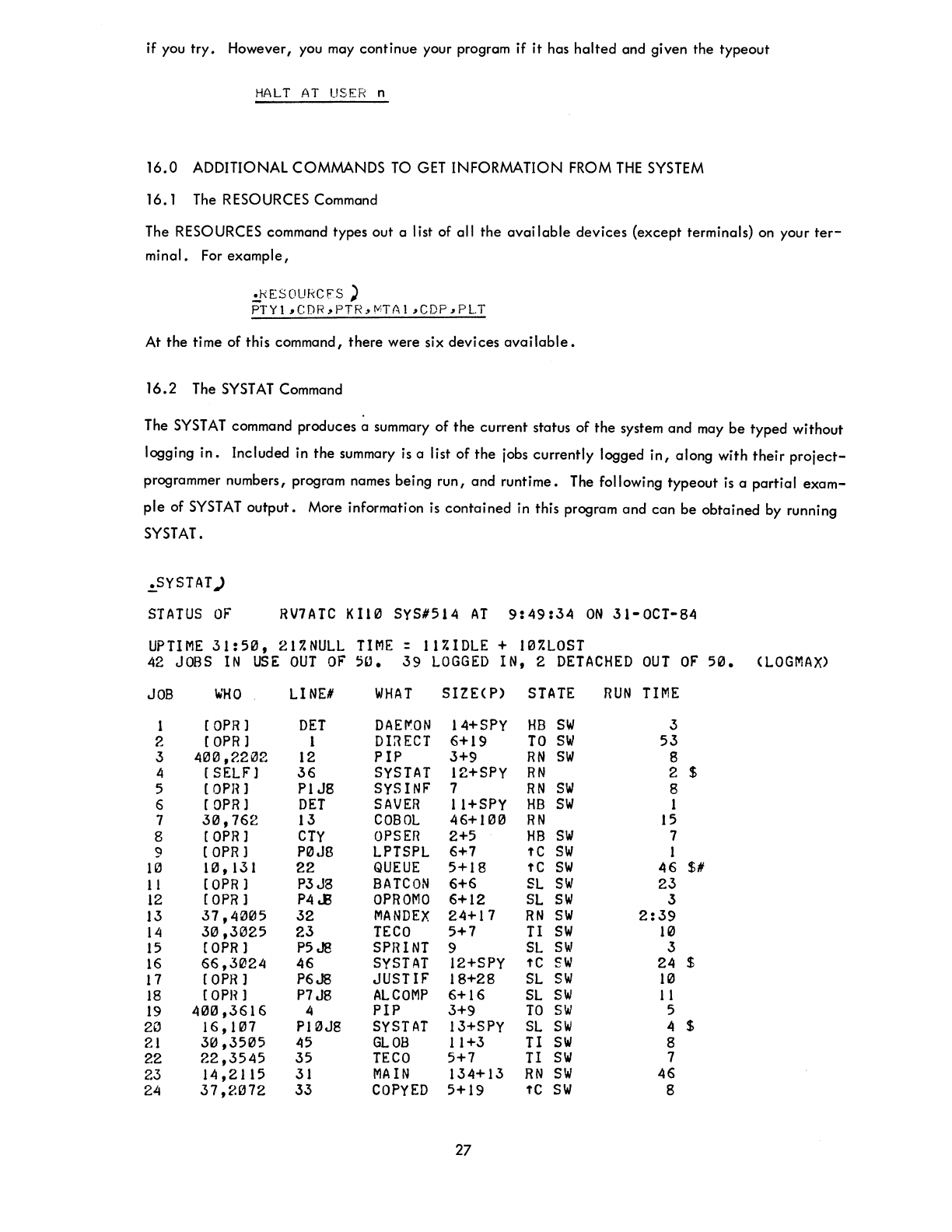
if you
try.
However, you may
continue
your program
if
it
has
halted
and given
the
typeout
HALT
AT
USER
n
16.0
ADDITIONAL COMMANDS
TO
GET
INFORMATION FROM
THE
SYSTEM
16.1 The RESOURCES Command
The RESOURCES command types out a list of all
the
available
devices
(except
terminals) on your
ter-
minal.
For
example,
.:f/ESOURCFS ')
PTY1,CDR,PTR,MTA1,CDP,PLT
At
the
time of this command,
there
were six devi ces
available.
16.2
The
SYST
AT
Command
The
SYST
AT
command produces a summary of
the
current
status
of
the
system
and
may
be
typed
without
logging
in.
Included in
the
summary is a list
of
the
jobs
currently
logged
in,
along
with
their
project-
programmer numbers, program names being
run,
and
runtime.
The following
typeout
is
a
partial
exam-
ple
of
SYSTAT
output.
More information is
contained
in this program
and
can
be
obtained
by running
SYSTAT.
.!.SYSTAT)
STATUS
OF'
RV7ATC
KI10 SYS'514
AT
9:49:34
ON
31-0CT-84
UPTIME
31:50,
217.NULL
TIME:
117.IDLE
+
107.LOST
42
JOBS
IN
USE
OUT
OF'
5".
39
LOGGED
IN, 2
DETACHED
OUT
OF
50.
(LOGMAX>
JOB
1
2
3
4
5
6
7
8
9
10
11
12
13
14
15
16
17
18
19
2"
21
22
23
24
~HO
[OPR)
[OPR)
400,2202
[ SELF)
[OPR)
[OPR]
30,762
[OPR)
(OPR]
10,131
(OPR]
[OPR]
37,4005
30,3025
[OPR]
66,3024
[OPR)
[OPH]
400,3616
16,H17
30,3505
22,3545
14,2115
37,2072
LINE'
DET
1
12
36
PIJ8
DET
13
CTY
P0JB
22
P3J8
P4.E
32
23
P5J8
46
P6J8
P7J8
4
P10J8
45
35
31
33
WHAT
DAE~ON
DI:lECT
PIP
SYSTAT
SYSINF
SAVER
COBOL
OPSER
LPTSPL
QUEUE
BATCON
OPROMO
MANDEX
TECO
SPRINT
SYSTAT
JUSTIF
ALCOMP
PIP
SYSTAT
GLOB
TECO
MAIN
COPYED
SIZE(P)
14+SPy
6+19
3+9
12+SPy
7
11+SPY
46+100
2+5
6+7
5+18
6+6
6+12
24+17
5+7
9
12+SPY
18+28
6+16
3+9
13+SPy
11+3
5+7
134+13
5+19
27
STATE
HB
SW
TO
SW
RN
SW
RN
RN
SW
HB
SW
RN
HB
SW
fC
SW
fC
SW
SL
SW
SL
SW
RN
SW
11
SW
SL
SIN
fC
SW
SL
SIN
SL
SW
TO
SIN
SL
SW
11
SW
11
SW
RN
SW
fC
SW
RUN
TIME
3
53
8
2 $
8
1
15
7
1
46
$#
23
3
2:39
10
3
24 $
10
1 1
5
4 $
8
7
46
8
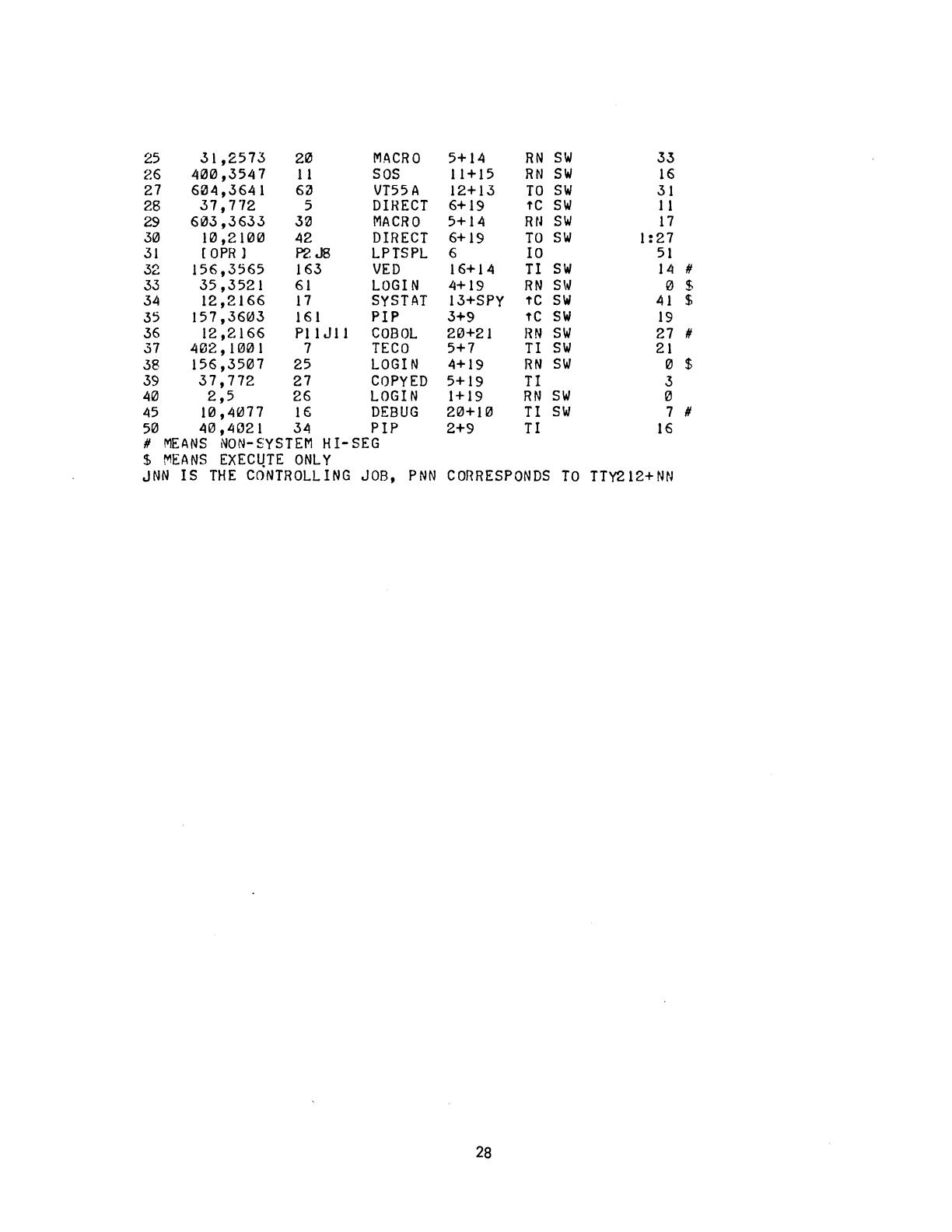
25
31,2573
20
MACRO
5+14
RN
SIN
33
26
4121121,3547
11
SOS
11
+
15
RN
SIN
16
27
61214,3641
6~
VT55A
12+13
TO
SIN
31
28
37,772
5
DIRECT
6+19
fC
SW
11
29
6133,3633
321
MACRO
5+14 Rtl
SIN
17
3121
1121,21121121
42
DIRECT
6+19
TO
SIN
1
:27
31
[aPR 1 P2J8
LPTSPL
6
10
51
32
156,3565
163
VED
16+14
II
SW
14
#
33
35,3521
61
LOGIN
4+19
RN
SW
121
$
34
12,2166
17
SYSTAT
13+SPY
fC
SW
41
$
35
157,36~3
161
PIP
3+9
fC
SIN
19
36
12,2166
Pl1 J
11
COBOL
2121+21
RN
SIN
27 #
37
41212,
H!Jl2l1
7
TECO
5+7
TI
SW
21
38
156,3507
25
LOGIN
4+19
RN
SIN
0 $
39
37,772
27
COPYED
5+19
TI
3
4121
2,5
26
LOGIN
1+19
RN
SIN
0
45
1121,4077
16
DEBUG
2121+1121
TI
SW
7 #
5121
4121,4"21
34 PIP 2+9 TI
16
#
MEANS
NON-SYSTEM
HI-SEG
$
MEANS
EXEC~TE
ONLY
JNN
IS
THE
CONTROLLING
JOB,
PNN
CORRESPONDS
TO
TTY212+NN
28
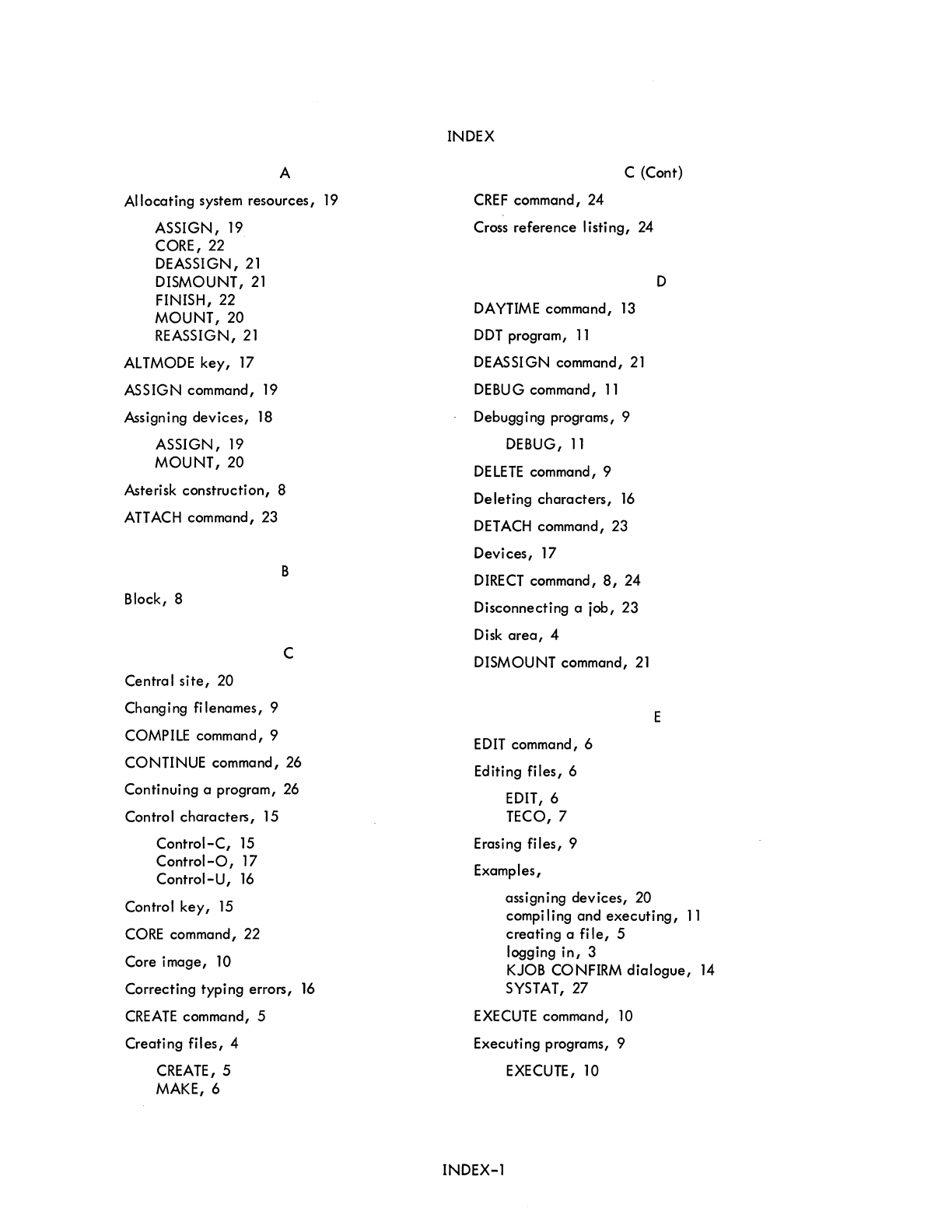
A
Allocating
system
resources,
19
ASSIGN,
19
CORE, 22
DEASSI
GN,
21
DISMOUNT,
21
FINISH, 22
MOUNT,20
REASSIGN,
21
ALTMODE
key,
17
ASSIGN
command, 19
Assigning
devices,
18
ASSIGN,
19
MOUNT,20
Asterisk
construction,
8
ATTACH
command, 23
B
Block, 8
C
Central
site,
20
Changing
filenames,
9
COMPILE command, 9
CONTINUE
command, 26
Continuing
a program, 26
Control
characters,
15
Control-C,
15
Control-O,
17
Control-U,
16
Control
key,
15
CORE command, 22
Core
image,
10
Correcting
typing
errors,
16
CREATE
command, 5
Creating
files,
4
CREATE, 5
MAKE,6
INDEX
C (Cont)
CREF
command,
24
Cross
reference
listing,
24
DAYTIME command,
13
DDT
program,
11
DEASSIGN command,
21
DEBUG command,
11
Debugging programs, 9
DEBUG,
11
DELETE
command, 9
Deleting
characters,
16
DETACH
command,
23
Devices,
17
DIRECT
command,
8,
24
Disconnecting
a job,
23
Disk
area,
4
DISMOUNT command,
21
EDIT
command, 6
Editing
files,
6
EDIT, 6
TECO, 7
Erasing
files,
9
Examples,
D
E
assigning
devices,
20
compiling
and
executing,
11
creating
a
file,
5
logging
in,
3
KJOB CONFIRM
dialogue,
14
SYSTAT,
27
EXECUTE
command, 10
Executing
programs, 9
EXECUTE, 10
INDEX-1
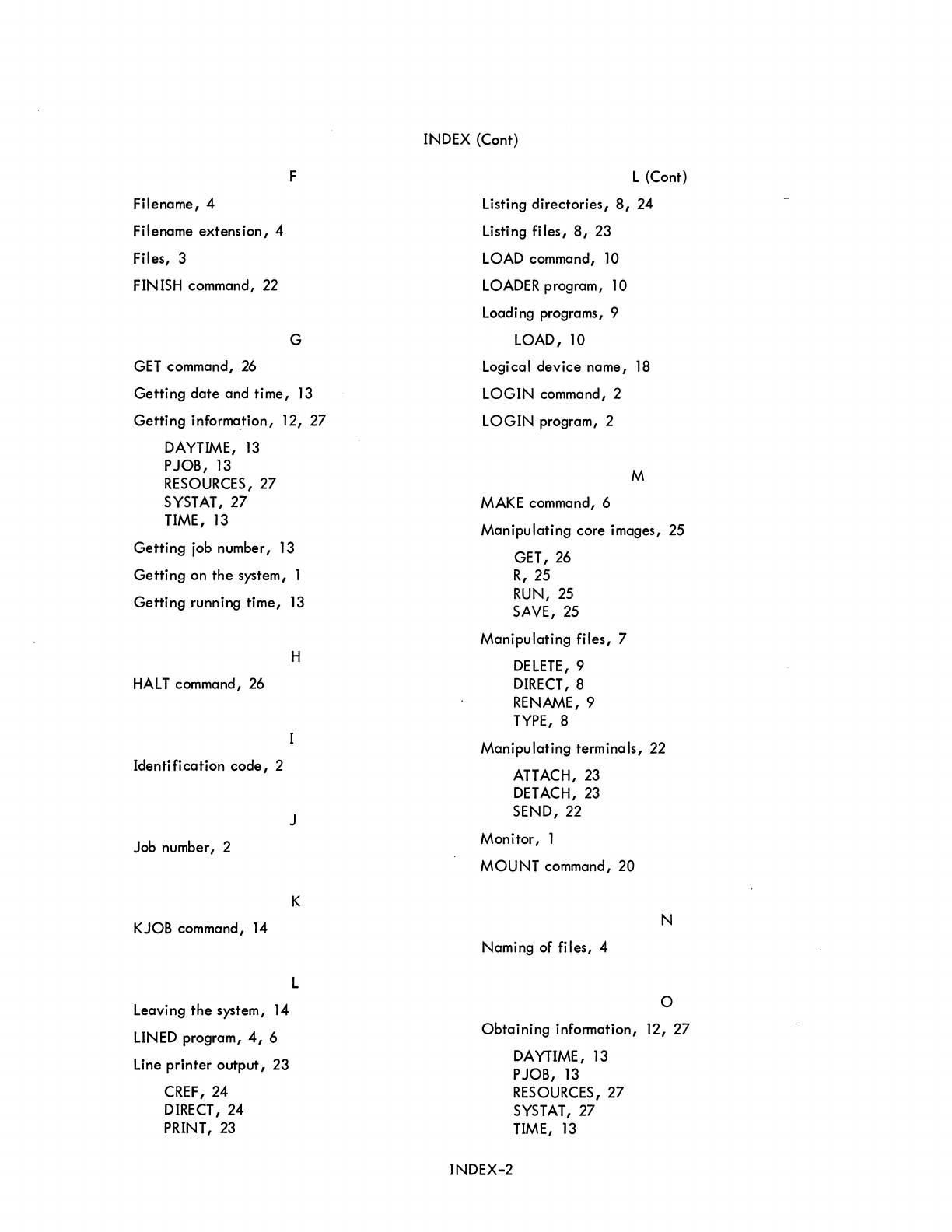
Filename, 4
Filename extension, 4
Files, 3
FINISH
command,
22
GET
command,
26
F
G
Getting date and time,
13
Getting information, 12, 27
DAYTIME,
13
PJOB,
13
RESOURCES,
27
SYSTAT,
27
TIME,
13
Getting
job
number,
13
Getting on the system, 1
Getting running time,
13
HALT
command,
26
Identification code, 2
Job number, 2
KJOB
command,
14
Leaving the system,
14
LINED
program,
4,
6
Line
printer output, 23
CREF,24
DIRECT,
24
PRINT,
23
H
J
K
L
INDEX
(Cont)
L (Cont)
Listing directories,
8,
24
Listing files,
8,
23
LOAD
command,
10
LOADER
program,
10
Loading programs, 9
LOAD,
10
Logical device name,
18
LOGIN command, 2
LOGIN program, 2
M
MAKE
command, 6
Manipulating core images,
25
GET,
26
R,
25
RUN,
25
SAVE,
25
Manipulating files, 7
DELETE,
9
DIRECT,
8
RENAME,9
TYPE,
8
Manipulating terminals,
22
ATTACH,23
DETACH,
23
SEND, 22
Monitor, 1
MOUNT command, 20
N
Naming of files, 4
o
Obtaining information, 12, 27
DAYTIME,
13
PJOB,
13
RESOURCES,
27
SYSTAT,
27
TIME,
13
INDEX-2
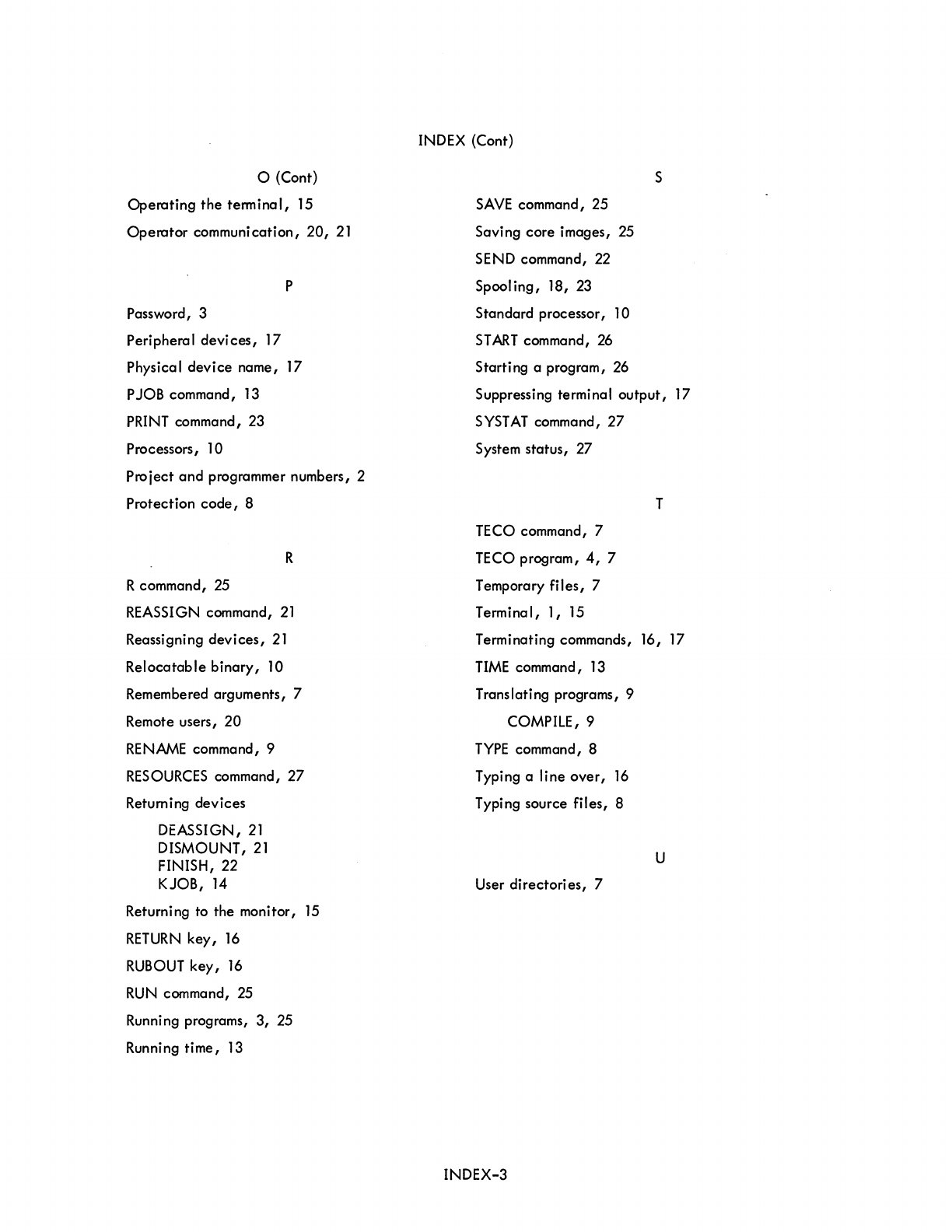
o (Cont)
Operating
the
terminal,
15
Operator
communication,
20,
21
P
Password, 3
Peripheral
devices,
17
Physical
device
name,
17
PJOB command, 13
PRINT command, 23
Processors, 10
Project
and
programmer numbers, 2
Protection
code,
8
R
R command, 25
REASSIGN command,
21
Reassigning
devices,
21
Relocatable
binary,
10
Remembered
arguments,
7
Remote users,
20
RENAME
command, 9
RESOURCES
command,
27
Returning
devices
DEASSIGN,
21
DISMOUNT,
21
FINISH,
22
KJOB,
14
Returning to
the
monitor, 15
RETURN
key,
16
RUB
OUT
key,
16
RUN command, 25
Running programs,
3,
25
Running
time,
13
INDEX (Cont)
S
SAVE
command, 25
Saving
core
images, 25
SEND command, 22
Spool
ing,
18, 23
Standard
processor, 10
ST
ART
command, 26
Starting
a program, 26
Suppressing terminal
output,
17
SYSTAT
command,
27
System
status,
27
TECO command, 7
TECO program,
4,
7
Temporary
fi
les,
7
Terminal,
1,
15
T
Terminating commands, 16, 17
TIME
command, 13
Translating programs, 9
COMPILE, 9
TYPE
command, 8
Typing a
line
over,
16
Typing source
files,
8
User
directori
es,
7
INDEX-3
U

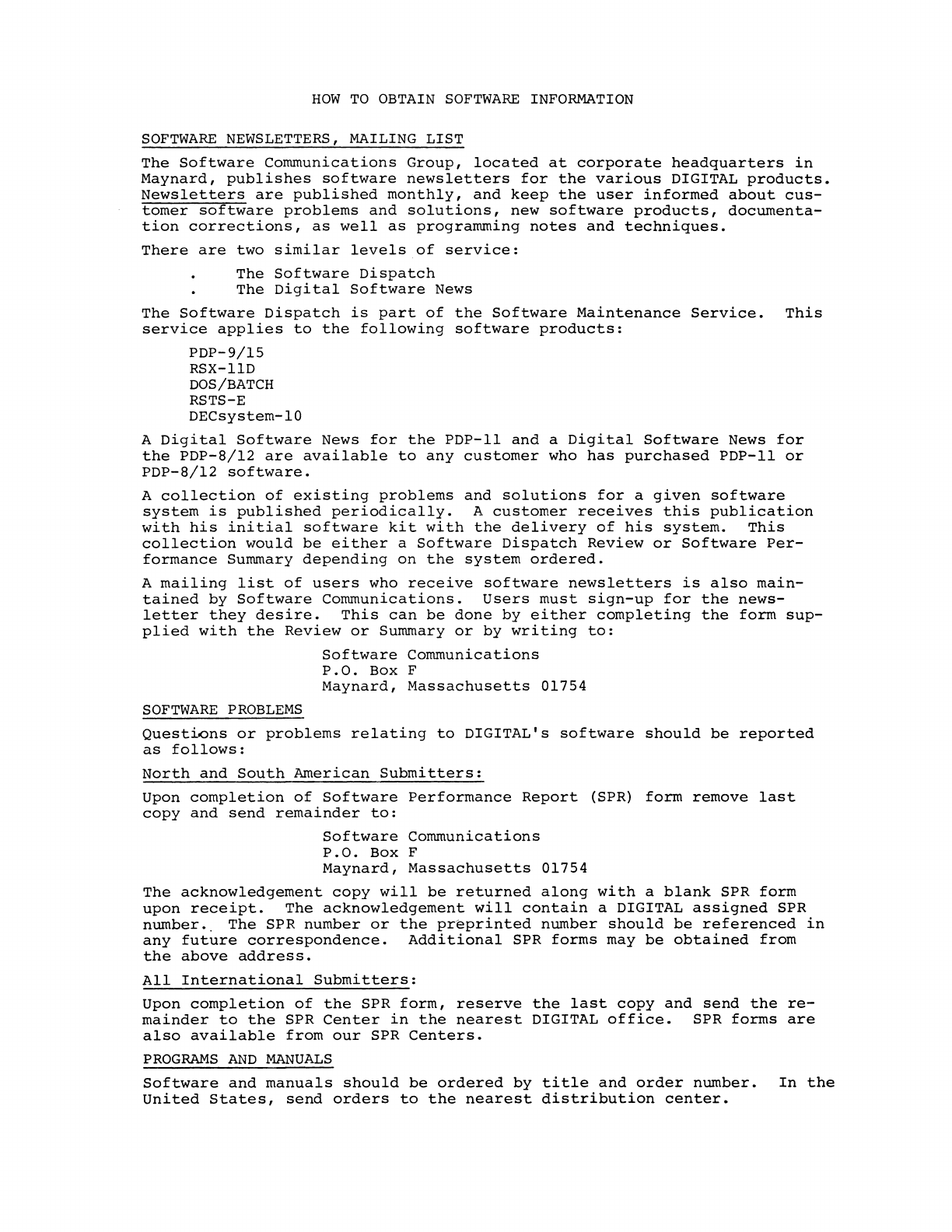
HOW
TO
OBTAIN
SOFTWARE
INFORMATION
SOFTWARE
NEWSLETTERS, MAILING
LIST
The
Software
Communications
Group,
located
at
corporate
headquarters
in
Maynard,
publishes
software
newsletters
for
the
various
DIGITAL
products.
Newsletters
are
published
monthly,
and
keep
the
user
informed
about
cus-
tomer
software
problems
and
solutions,
new
software
products,
documenta-
tion
corrections,
as
well
as
programming
notes
and
techniques.
There
are
two
similar
levels
of
service:
The
Software
Dispatch
The
Digital
Software
News
The
Software
Dispatch
is
part
of
the
Software
Maintenance
Service.
This
service
applies
to
the
following
software
products:
PDP-9/15
RSX-IID
DOS/BATCH
RSTS-E
DECsystem-lO
A
Digital
Software
News
for
the
PDP-II
and
a
Digital
Software
News
for
the
PDP-8/12
are
available
to
any
customer
who
has
purchased
PDP-II
or
PDP-8/12
software.
A
collection
of
existing
problems
and
solutions
for
a
given
software
system
is
published
periodically.
A
customer
receives
this
publication
with
his
initial
software
kit
with
the
delivery
of
his
system.
This
collection
would
be
either
a
Software
Dispatch
Review
or
Software
Per-
formance
Summary
depending
on
the
system
ordered.
A
mailing
list
of
users
who
receive
software
newsletters
is
also
main-
tained
by
Software
Communications.
Users
must
sign-up
for
the
news-
letter
they
desire.
This
can
be
done
by
either
completing
the
form
sup-
plied
with
the
Review
or
Summary
or
by
writing
to:
SOFTWARE
PROBLEMS
Software
Communications
P.O.
Box
F
Maynard,
Massachusetts
01754
Questtons
or
problems
relating
to
DIGITAL's
software
should
be
reported
as
follows:
North
and
South
American
Submitters:
Upon
completion
of
Software
Performance
Report
(SPR)
form
remove
last
copy
and
send
remainder
to:
Software
Communications
P.O.
Box
F
Maynard,
Massachusetts
01754
The
acknowledgement
copy
will
be
returned
along
with
a
blank
SPR
form
upon
receipt.
The
acknowledgement
will
contain
a DIGITAL
assigned
SPR
number
•.
The
SPR
number
or
the
preprinted
number
should
be
referenced
in
any
future
correspondence.
Additional
SPR
forms
may
be
obtained
from
the
above
address.
All
International
Submitters:
Upon
completion
of
the
SPR
form,
reserve
the
last
copy
and
send
the
re-
mainder
to
the
SPR
Center
in
the
nearest
DIGITAL
office.
SPR
forms
are
also
available
from
our
SPR
Centers.
PROGRAMS
AND
MANUALS
Software
and
manuals
should
be
ordered
by
title
and
order
number.
In
the
United
States,
send
orders
to
the
nearest
distribution
center.
Digital
Equipment
Corporation
Software
Distribution
Center
146
Main
Street
Digital
Equipment
Corporation
Software
Distribution
Center
1400
Terra
Bella
Maynard,
Massachusetts
01754
Mountain
View,
California
94043
Outside
of
the
United
States,
Digital
Field
Sales
Office
or
orders
should
be
directed
to
the
nearest
representative.
USERS SOCIETY
DECUS,
Digital
Equipment
Computers
Osers
Society,
maintains
a
user
ex-
change
center
for
user-written
programs
and
technical
application
infor-
mation.
The
Library
contains
approximately
1,900
programs
for
all
DIGITAL
computer
lines.
Executive
routines,
editors,
debuggers,
special
functions,
games,
maintenance
and
various
other
classes
of
programs
are
available.
DECUS
Program
Library
Catalogs
are
routinely
updated
and
contain
lists
and
abstracts
of
all
programs
according
to
computer
line:
PDP-B,
FOCAL-B,
BASIC-B,
PDP-12
PDP-7/9,
9,
15
PDP-II,
RSTS-ll
PDP-6/10,
10
Forms
and
information
on
acquiring
and
submitting
programs
to
the
DECUS
Library
may
be
obtained
from
the
DECUS
office.
In
addition
to
the
catalogs,
DECUS
also
publishes
the
following:
DECUSCOPE
PROCEEDINGS
OF
THE
DIGITAL
EQUIPMENT
USERS
SOCIETY
MINUTES
OF
THE
DECsystem-lO
SESSIONS
-The
Society's
technical
newsletter,
published
bi-monthly,
aimed
at
facilitating
the
interchange
of
technical
in-
formation
among
users
of
DIGITAL
computers
and
at
dis-
seminating
news
items
concerning
the
Society.
Circula-
tion
reached
19,000
in
May,
1974.
-Contains
technical
papers
presented
at
DECUS
Symposia
held
twice
a
year
in
the
United
States,
once
a
year
in
Europe,
Australia,
and
Canada.
-A
report
of
the
DECsystem-lO
sessions
held
at
the
two
United
States
DECUS
Symposia.
COPY-N-Mail
-A
monthly
mailed
communique
among
DECsystem-lO
users.
LUG/SIG
-Mailing
of
Local
User
Group
(LUG)
and
Special
interest
Group
(SIG)
communique,
aimed
at
providing
closer
communication
among
users
of
a
specific
product
or
application.
Further
information
on
the
DECUS
Library,
publications,
and
other
DECUS
activities
is
available
from
the
DECUS
offices
listed
below:
DECUS
Digital
Equipment
Corporation
146
Main
Street
Maynard,
Massachusetts
01754
DECUS
EUROPE
Digital
Equipment
Corp.
International
(Europe)
P.O.
Box
340
1211
Geneva
26
Switzerland
READER'S
COMMENTS
DECsystem-lO
Getting
Started
with
TOPS-IO Commands
DEC-lO-OTSCA-A-D
NOTE:
This
form
is
for
document
comments
only.
Problems
with
software
should
be
reported
on
a
Software
Problem
Repcrt
(SPR)
form
(see
the
HOW
TO
OBTAIN
SOFTWARE
INFORMATION
page)
•
Did
you
find
errors
in
this
manual?
If
so,
specify
by
page.
Did
you
find
this
manual
understandable,
usable,
and
well-organized?
Please
make
suggestions
for
improvement.
Is
there
sufficient
documentation
on
associated
system
programs
required
for
use
of
the
software
described
in
this
manual?
If
not,
what
material
is
missing
and
where
should
it
be
placed?
Please
indicate
the
type
of
user/reader
that
you
most
nearly
represent.
o
Assembly
language
programmer
o
Higher-level
language
programmer
o
Occasional
programmer
(experienced)
o
User
with
little
programming
experience
o
Student
programmer
o
Non-programmer
interested
in
computer
concepts
and
capabilitie!
Name
Date
____________
_
Organization
_______________________________
_
Street
__________________________________________
_
City
__________________________
State
____________
Zip
Code
____________
__
or
Country
If
you
do
not
require
a
written
reply,
please
check
here.
0
.------------------------------------------------------------Fold lIere------------------------------------------------------------
.-----------------------------------------------
Do
Not
Tear
-
Fold
lIere
and
Staple
-----------------------------------------------
BUSINESS REPLY MAIL
NO POSTAGE STAMP NECESSARY
IF
MAILED IN
THE
UNITED STATES
Postage
will
be paid
by:
Software
Communications
P.
O.
Box
F
Maynard,
Massachusetts
01754
FIRST CLASS
PERMIT NO. 33
MAYNARD, MASS.
READER'S
COMMENTS
DECsystem-lO
Getting
Started
with
TOPS-IO Commands
DEC-lO-OTSCA-A-D
NOTE:
This
form
is
for
document
comments
only.
Problems
with
software
should
be
reported
on
a
Software
Problem
Report
(SPR)
form
(see
the
HOW
TO
OBTAIN
SOFTWARE
INFORMATION
page).
Did
you
find
errors
in
this
manual?
If
so,
specify
by
page.
Did
you
find
this
manual
understandable,
usable,
and
well-organized?
Please
make
suggestions
for
improvement.
Is
there
sufficient
documentation
on
associated
system
programs
required
for
use
of
the
software
described
in
this
manual?
If
not,
what
material
is
missing
and
where
should
it
be
placed?
Please
indicate
the
type
of
user/reader
that
you
most
nearly
represent.
[]
Assembly
language
programmer
[]
Higher-level
language
programmer
[]
Occasional
programmer
(experienced)
[]
User
with
little
programming
experience
[]
Student
programmer
[]
Non-programmer
interested
in
computer
concepts
and
capabilities
Name
Date
________________________ __
Organization
______________________________________________________________ _
Street
____________________________________________________________________
__
City
___________________________
State
_____________
Zip
Code
____________
__
or
Country
If
you
do
not
require
a
written
reply,
please
check
here.
[]
-------------------------------------------------------------Fold lIere---------------------------------------------------- --------
----------------------------------------------.-
Do
Not
Tear
-
Fold
lIere
and
Staple
-----------------------------------------------
BUSINESS REPLY MAIL
NO POSTAGE STAMP NECESSARY
IF
MAILED IN
THE
UNITED STATES
Postage will be paid
by:
Software
Communications
P.
O.
Box
F
Maynard,
Massachusetts
01754
FIRST CLASS
PERM''''
NO. 33
MA
YI\ , MASS.