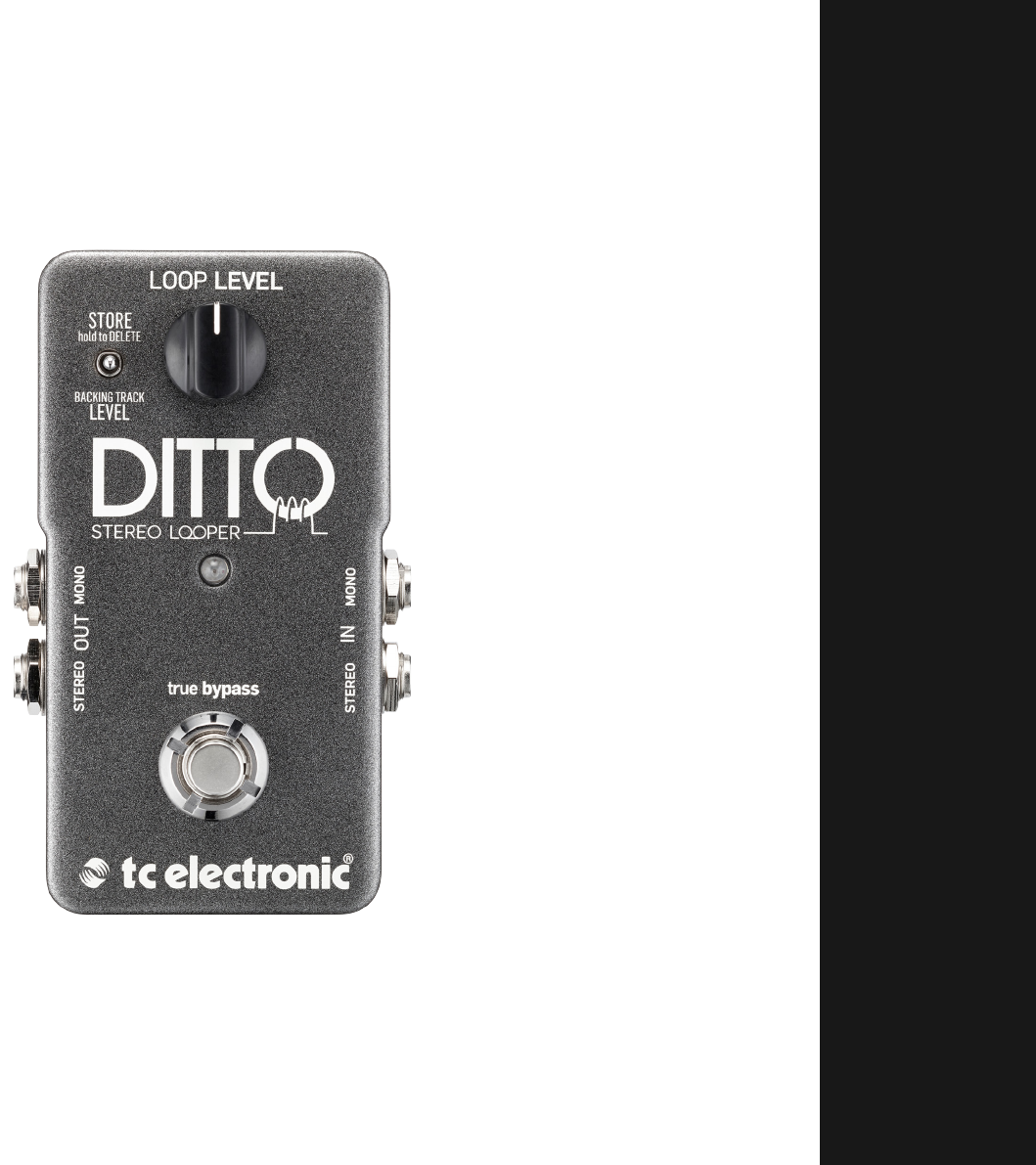
DITTO STEREO LOOPER
Ditto Stereo Looper Manual English tc_ditto_stereo_looper_manual_english Manuals - Support | TC Electronic
User Manual: DITTO STEREO LOOPER
Open the PDF directly: View PDF  .
.
Page Count: 23
- Important safety instructions
- EMC / EMI
- Explanation of graphic symbols
- About this manual
- Introduction
- Setup
- Setup examples
- Inputs, outputs, controls
- Creating loops
- Storing, importing and exporting loops
- Bypass modes
- Footswitch LED reference
- Updating the firmware
- Changing the batteries
- Technical specifications
- Frequently asked questions
- Getting support
Ditto Stereo Looper English Manual a
Important safety instructions 1
EMC / EMI 2
Explanation of graphic symbols 2
About this manual 3
Introduction 3
Setup 4
Setup examples 5
Inputs, outputs, controls 9
1. Power input 9
2. Audio inputs 9
3. Audio outputs 9
4. Footswitch and LED 9
5. Loop / backing track level control knob 9
6. Store / Delete /
Backing track level switch 9
7. USB port 9
Creating loops 10
Storing, importing and exporting loops 14
Bypass modes 17
Footswitch LED reference 17
Updating the firmware 18
Changing the batteries 19
Technical specifications 19
Frequently asked questions 20
Getting support 20
21
Product Ditto Stereo Looper
Product (firmware) version 1.0
Document English Manual
Document version / date 2015-04-28

Important safety instructions
Ditto Stereo Looper English Manual 1
Important safety instructions
1. Read these instructions.
2. Keep these instructions.
3. Heed all warnings.
4. Follow all instructions.
5. Do not use this apparatus near water.
6. Clean only with a dry cloth.
7. Do not block any ventilation openings. In-
stall in accordance with the manufacturer’s
instructions.
8. Do not install near any heat sources such
as radiators, heat registers, stoves, or other
apparatus (including amplifiers) that pro-
duce heat.
9. Do not defeat the safety purpose of the po-
larized or grounding-type plug. A polarized
plug has two blades with one wider than
the other. A grounding-type plug has two
blades and a third grounding prong. The
wide blade or the third prong is provided for
your safety. If the provided plug does not fit
into your outlet, consult an electrician for
replacement of the obsolete outlet.
10. Protect the power cord from being walked
on or pinched, particularly at plugs, con-
venience receptacles, and the point where
they exit from the apparatus.
11. Only use attachments/accessories speci-
fied by the manufacturer.
12. Use only with a cart, stand, tripod,
bracket, or table specified by the
manufacturer, or sold with the ap-
paratus. When a cart is used, use
caution when moving the cart/apparatus
combination to avoid injury from tip-over.
13. Unplug this apparatus during lightning
storms or when unused for long periods of
time.
14. Refer all servicing to qualified service per-
sonnel. Servicing is required when the ap-
paratus has been damaged in any way,
such as power-supply cord or plug is dam-
aged, liquid has been spilled or objects
have fallen into the apparatus, the appara-
tus has been exposed to rain or moisture,
does not operate normally, or has been
dropped.
Caution
You are cautioned that any change or modifi-
cations not expressly approved in this manual
could void your authority to operate this equip-
ment.
Service
– All service must be performed by qualified
personnel.
Warning
– To reduce the risk of fire or electric shock, do
not expose this apparatus to rain or moisture
and objects filled with liquids, such as vases,
should not be placed on this apparatus.
– Do not install this device in a confined space.
Explanation of graphic symbols
Ditto Stereo Looper English Manual 2
EMC / EMI
Electromagnetic compatibility /
Electromagnetic interference
This equipment has been tested and found to
comply with the limits for a Class B digital de-
vice, pursuant to part 15 of the FCC rules.
These limits are designed to provide reasonable
protection against harmful interference in resi-
dential installations. This equipment generates,
uses and can radiate radio frequency energy
and, if not installed and used in accordance with
the instructions, may cause harmful interference
to radio communications. However, there is no
guarantee that interference will not occur in a
particular installation.
If this equipment does cause harmful interfer-
ence to radio or television reception, which can
be determined by turning the equipment off and
on, the user is encouraged to try to correct the
interference by one or more of the following
measures:
– Reorient or relocate the receiving antenna.
– Increase the separation between the equip-
ment and receiver.
– Connect the equipment into an outlet on a
circuit different from that to which the receiv-
er is connected.
– Consult the dealer or an experienced ra-
dio / TV technician for help.
For customers in Canada
This Class B digital apparatus complies with Ca-
nadian ICES-003.
Cet appareil numérique de la classe B est
conforme à la norme NMB-003 du Canada.
Explanation of
graphic symbols
The lightning bolt triangle is used to
alert the user to the presence of unin-
sulated “dangerous voltages” within
the unit’s chassis that may be of suffi-
cient magnitude to constitute a risk of
electric shock to humans.
The exclamation point triangle is used
to alert the user to presence of impor-
tant operating and service instructions
in the literature accompanying the
product.

Introduction
Ditto Stereo Looper English Manual 3
About this manual
This manual will help you learn understanding
and operating your TC product.
This manual is only available as a PDF download
from the TC Electronic website.
Of course, you can print this manual, but we en-
courage you to use the PDF version, which has
both internal and external hyperlinks. For exam-
ple, clicking the TC Electronic logo in the upper
left corner of each page will take you to the table
of contents.
To get the most from this manual, please read it
from start to finish, or you may miss important
information.
To download the most current version of this
manual, visit tcelectronic.com/support/manuals/
Enjoy your TC product!
Introduction
When TC Electronic introduced Ditto Looper in
2013 it became a smash hit overnight. Guitarists
loved the simple no-nonsense approach to loop-
ing so much that it became the best-selling gui-
tar pedal in the world.
With Ditto Stereo Looper, TC Electronic brings
some of the most popular features of the larger
dual-switch Ditto X2 Looper into a smaller chas-
sis, without compromising the truly essential
and simple functionality that made Ditto Looper
so popular. These include stereo, USB import/
export of loops, backing track, StarJam and
the ability to power the unit via either a PSU (TC
Electronic’s PowerPlug 9 is a great choice) or 9V
battery.
Of course, Ditto Stereo Looper sports the same
features that made the original Ditto such a suc-
cess:
– five minutes of looping time,
– unlimited overdubs,
– overdub undo/redo,
– true-bypass, analog dry-through design and
– 24 bit uncompressed high quality audio.
Setup
Ditto Stereo Looper English Manual 4
Setup
Ready…
The Ditto Stereo Looper box should contain the
following items:
– 1 Ditto Stereo Looper pedal
– 1 USB cable (for transferring loops from and
to a computer and for updating the pedal
firmware)
– 1 “Quick Start Guide” sheet
– 1 TC Electronic sticker
– 1 leaflet about TC’s guitar FX product range
Inspect all items for signs of transit damage. In
the unlikely event of transit damage, inform the
carrier and supplier.
If damage has occurred, keep all packaging as it
can be used as evidence of excessive handling
force.
Set…
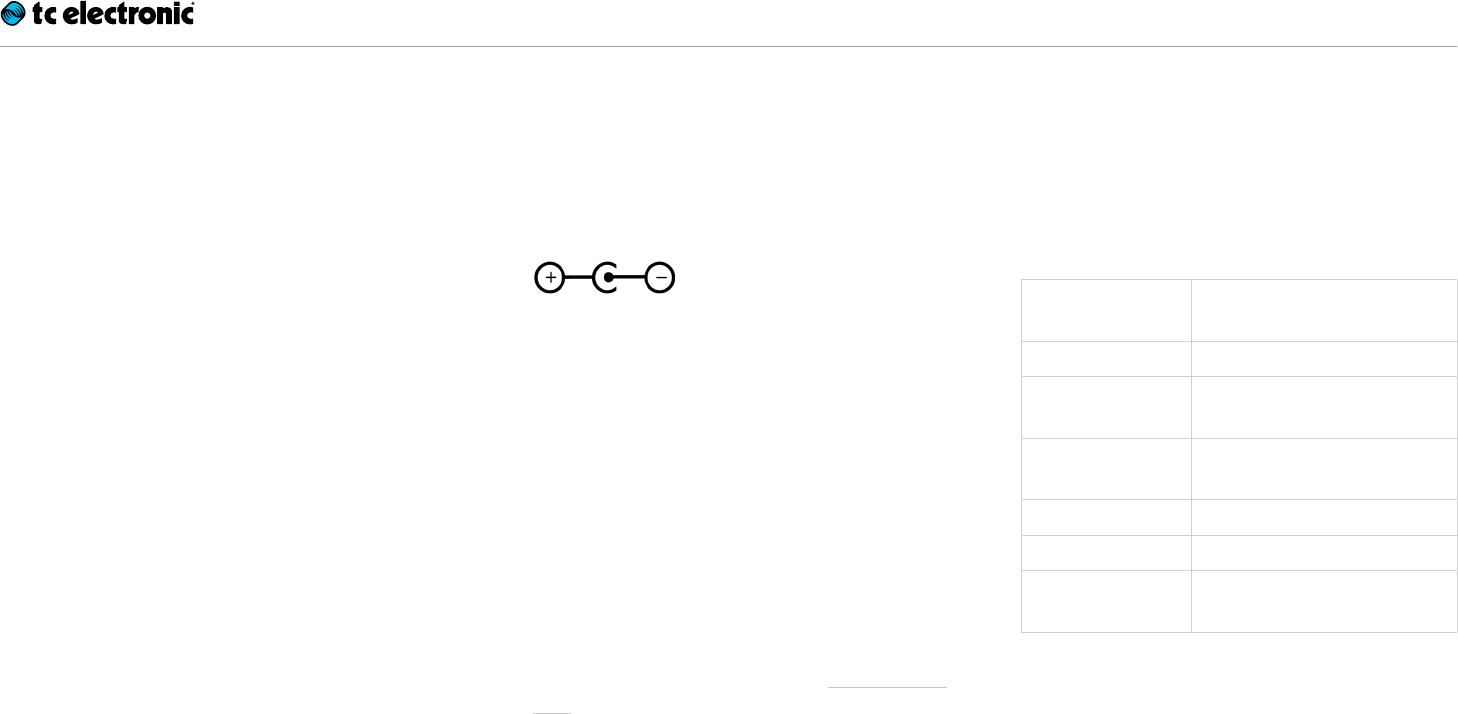
– Connect a 9V power supply delivering a mini-
mum of 100 mA with the following symbol to
the DC input socket of Ditto Stereo Looper.
! Please note that Ditto Stereo Looper does
not come with a power supply.
– Plug the power supply into a power outlet.
– Alternatively, you can operate Ditto Stereo
Looper using a 9V battery.
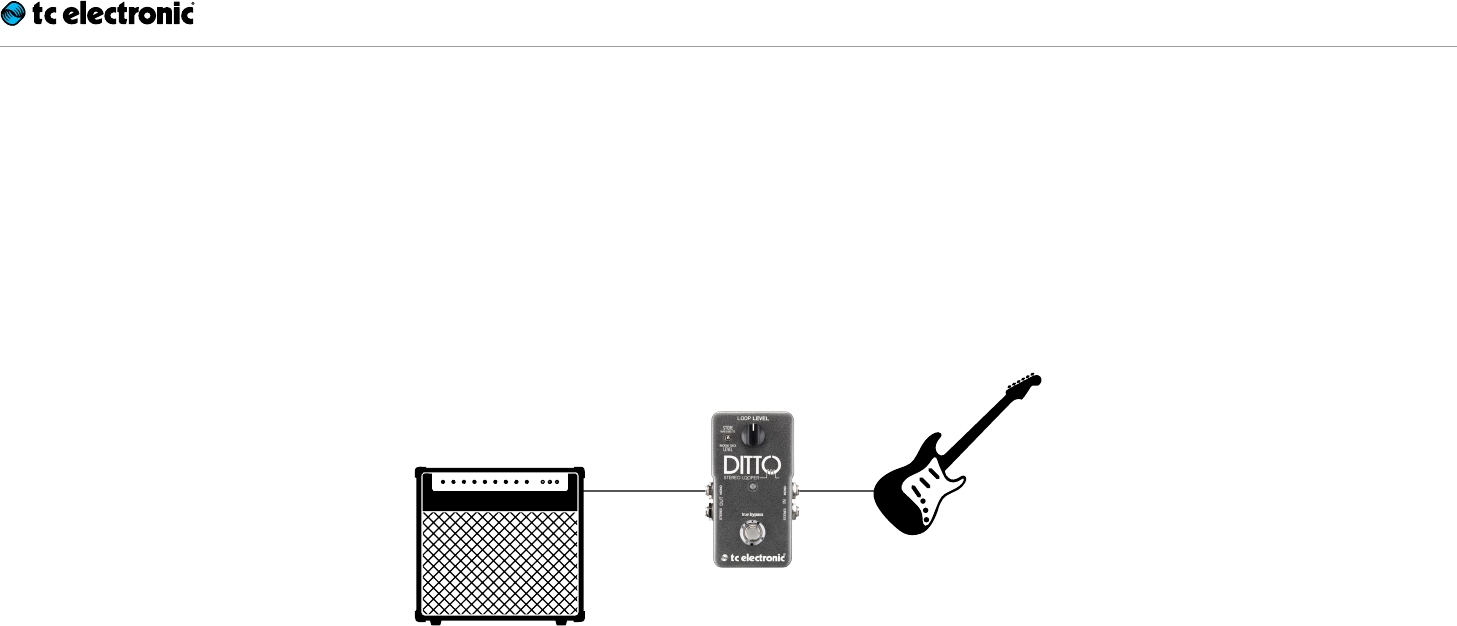
– Connect your instrument to the MONO input
jack of the pedal using a ¼“ jack cable. You
can also feed the pedal with a stereo signal
by using both INPUT jacks.
– Connect the MONO output jack of the pedal
to your amplifier using a ¼“ jack cable. You
can also send a stereo signal from the pedal
to the next device in the signal chain by using
both OUTPUT jacks.
For more complex setups, see Setup exam-
ples.
Let’s get loopin’!
If you are in a hurry, chances are you’ll find what
you’re looking for in this overview.
Operation
Power up Ditto
Stereo Looper
Connect a power supply or
insert a battery.
Record Tap the footswitch once.
Switch to
playback
Tap the footswitch again.
Undo / Redo last
recording
Press and hold the footswitch.
Stop Double-tap the footswitch.
Resume playback Tap the footswitch again.
Stop & clear the
loop
Double-tap and hold the
footswitch.
Setup examples
Ditto Stereo Looper English Manual 6
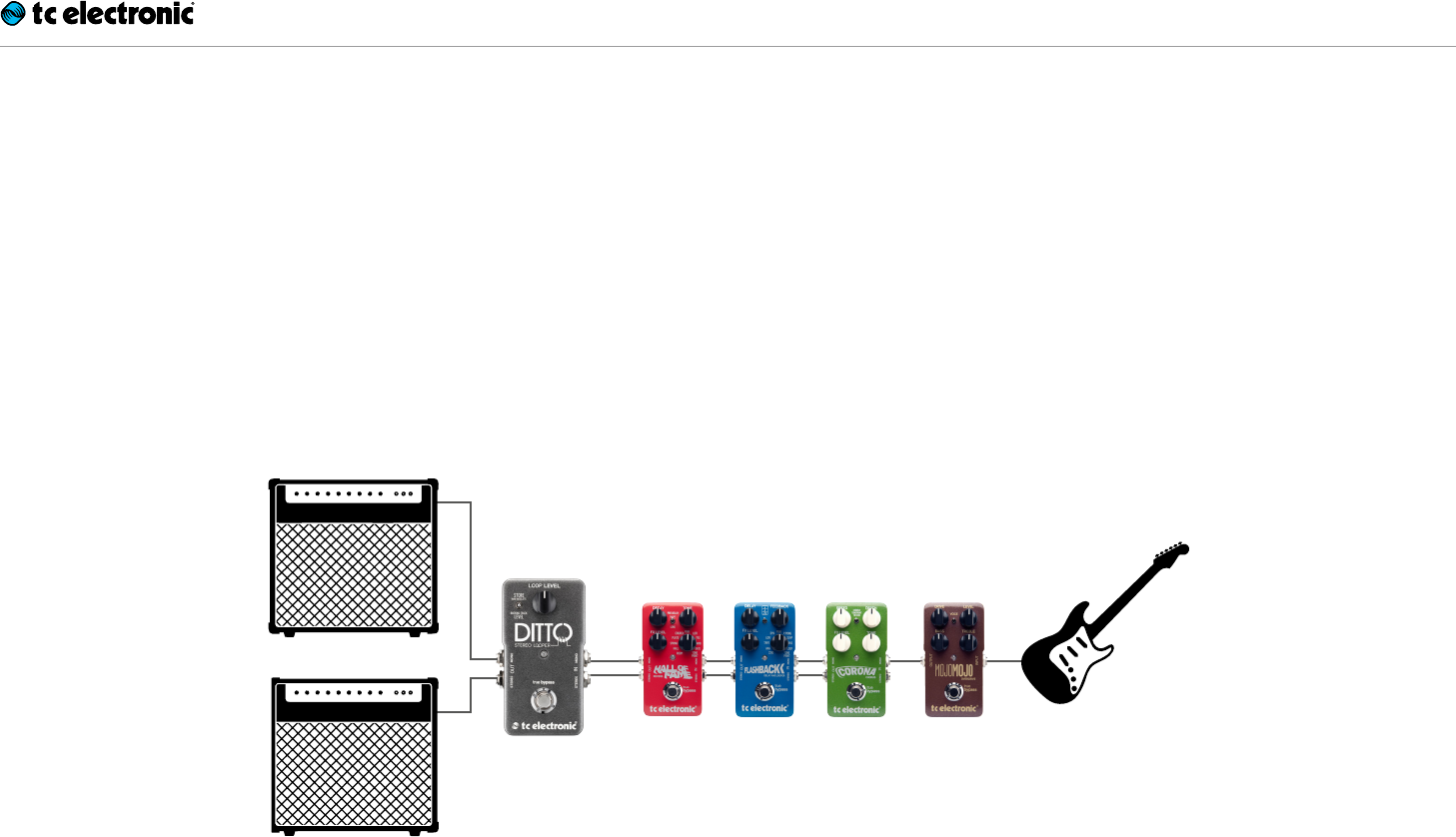
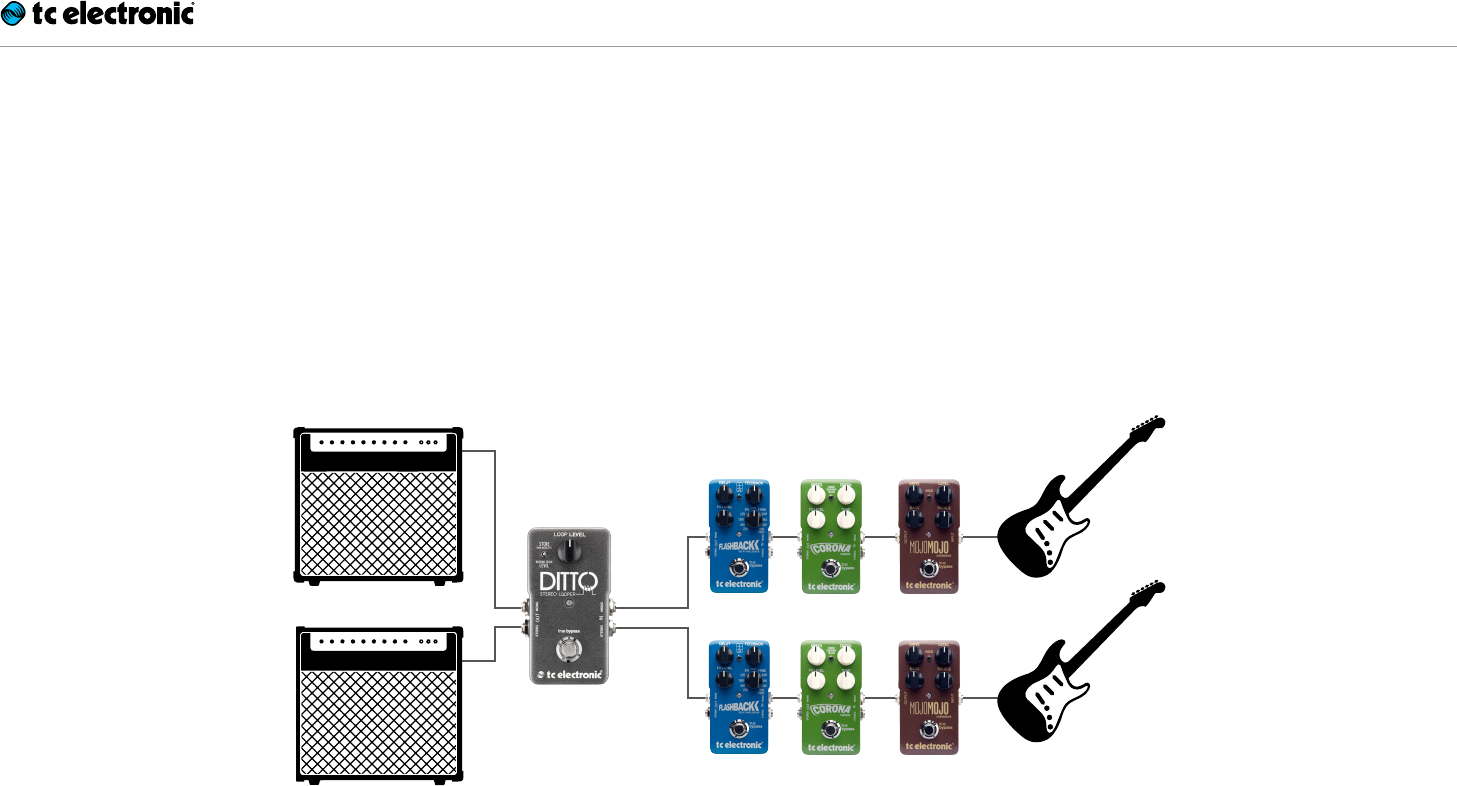
Setup example 2: Ditto Stereo Looper and effects
Place your effects before Ditto Stereo Looper.
This will allow you to create and record different
sounds within the same looping session simply
by switching your effects on and off.
You should also make sure to go from mono ef-
fects (typically distortion and drive pedals) to
stereo effects (modulation, stereo delays etc.).
Stereo effect pedals
Drive
pedal
Combos
Setup examples
Ditto Stereo Looper English Manual 7
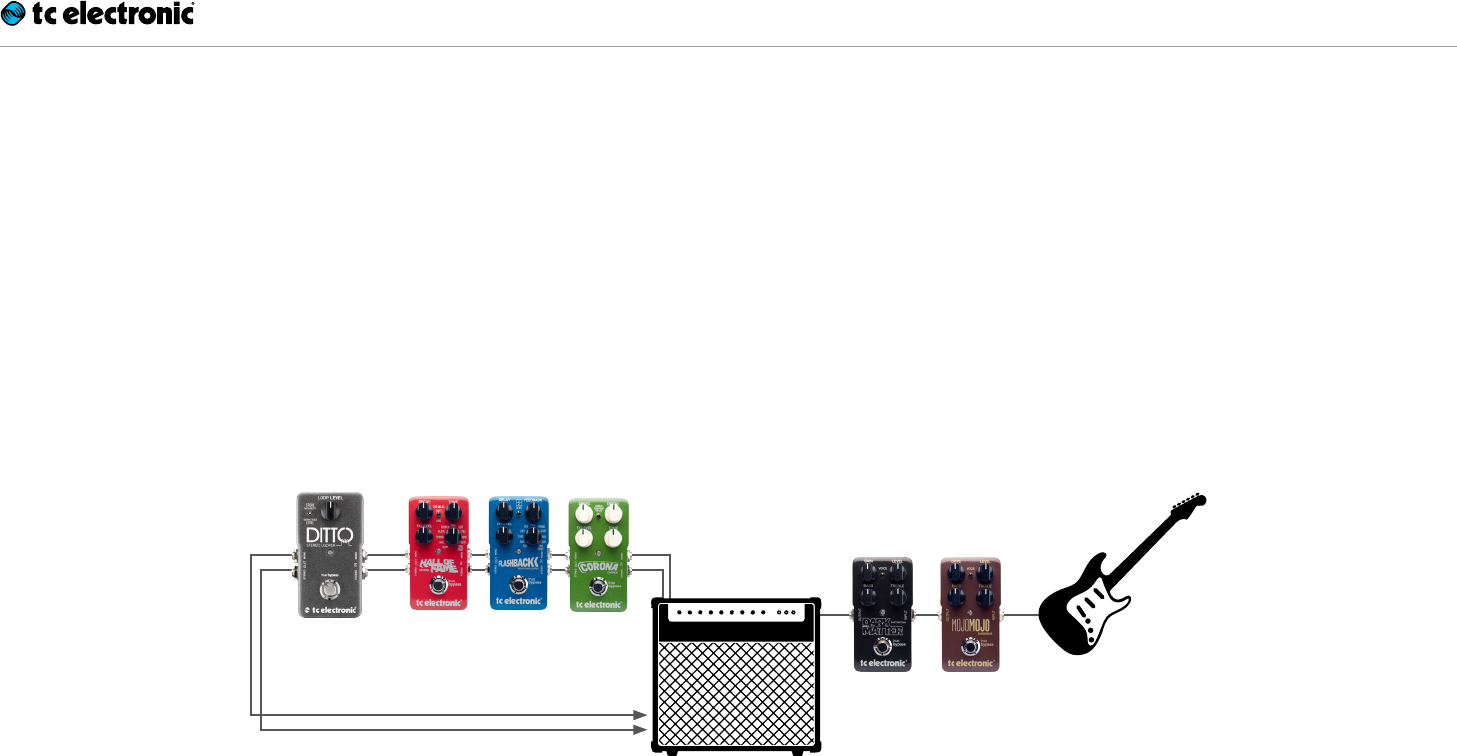
Setup example 3: Ditto Stereo Looper in an FX loop
If you are using an amp or a mixer with a stereo
FX loop, place your modulation effects and Dit-
to Stereo Looper in that FX loop. Again: To get
the most out of your setup, place Ditto Stereo
Looper at the end of the FX loop. This gives you
the flexibility to add parts with or without signal
processing by simply switching effects on and
off as required.
◄ FX Loop Send
FX Loop Return ►
Reverb, delay and
modulation pedals
Combo or mixer
Drive Pedal(s)
Inputs, outputs, controls
Ditto Stereo Looper English Manual 9
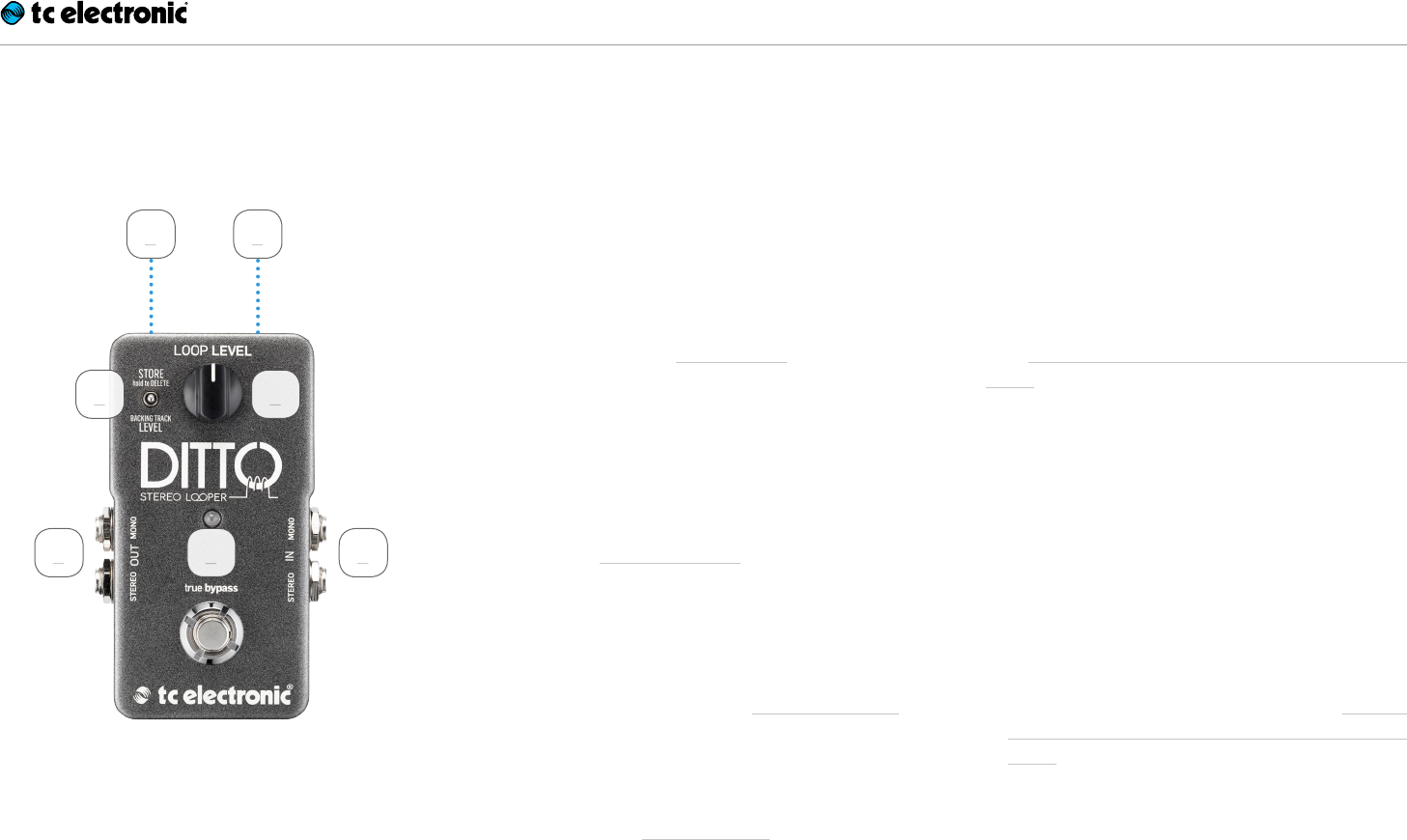
Inputs, outputs, controls
1
3
2
5
4
6
7
1. Power input
The power input of this pedal is a standard
5.5 / 2.1mm DC plug (centre = negative). To pow-
er up your pedal, connect a power supply to its
power input socket. Ditto Stereo Looper requires
a 9V power supply providing 100 mA or more
(not supplied). To minimize hum, use a power
supply with isolated outputs. TC Electronic rec-
ommends using the PowerPlug 9. You can also
run Ditto Stereo Looper using a battery.
2. Audio inputs
This pedal has two standard ¼” jack (mono/TS)
inputs for stereo operation. If your signal source
is mono (e.g. a regular guitar or a mono effect
pedal), connect it to the MONO input. For other
setups, see Setup examples.
3. Audio outputs
This pedal has two standard ¼” jack (mono/TS)
outputs for stereo operation. If the next device in
the signal chain is mono, connect it to the MONO
output. For other setups, see Setup examples.
4. Footswitch and LED
Use the footswitch to control all loop-related
functions of the pedal (record, playback, undo/
redo, clear). See Creating loops.
5. Loop / backing track
level control knob
Use the Loop level control knob to control the
level of your loops.
Use the Loop level control knob while hold-
ing down the Store / Delete Backing track level
switch to control the level of your backing track.
See Balancing backing track and current loop
levels.
6. Store / Delete / Backing
track level switch
– To store the current loop as a backing track,
nudge this switch up.
– To delete the stored loop/backing track, hold
this switch in the up position for three sec-
onds.
– To set the level of the backing track, turn
the Loop level control knob while holding this
switch in the down position.
The difference between current loop and the
stored backing track is explained in Current
(in-memory) loop vs. stored loop (backing
track).
7. USB port
Connect Ditto Stereo Looper to a computer to
transfer loops between your computer and Ditto
Stereo Looper. If there should be firmware up-
dates for this device, they can also be installed
using the USB port.

Creating loops
Ditto Stereo Looper English Manual 10
Creating loops
Recording your first loop
Important: On the following pages, operation
is described based on the default operation
mode of Ditto Stereo Looper (Record
loop > Playback > Record overdubs). You
can also use an alternative operation
mode. See Setting operation mode.
To start recording, press the footswitch once.
The LED will light up in red, indicating Ditto Ste-
reo Looper is in Record Mode.
At the end of the loop (for example, after eight
bars), press the footswitch again.
The LED will turn green, and Ditto Stereo Looper
will repeat the loop continuously. The LED will
blink every time Ditto Stereo Looper reaches the
starting point of the loop.
Your loop can be up to five minutes long!
Setting loop playback volume
To change the playback volume of the loop you
just recorded, adjust the knob labelled “Loop
Level”.
The Loop Level knob only controls loop playback
level – it has no influence on the signal from your
instrument.
Overdubbing
When you’re happy with your original loop, you
can start overdubbing.
To record another take (overdub), press the foot-
switch again while the original loop is playing
back. The footswitch LED will turn red, indicating
you’re in Record mode again.
When you’re done, press the footswitch once
more to quit Record mode.
Ditto Stereo Looper will repeat the loop with both
the original recording and the overdub.
Please note that the length of the loop will
never increase when overdubbing. When you
continue playing, you will simply create additio-
nal overdubs. You can record as many overdubs
as you like – there is no limit.

Creating loops
Ditto Stereo Looper English Manual 11
Undo (clearing the last take)
To undo the last take you recorded (i.e., remove
it), simply press and hold the footswitch for 1.5
seconds or longer during playback.
The LED will blink twice in rapid succession, and
the last take will be cleared (removed). Previously
recorded takes will stay intact.
Redo (restoring a previously
cleared take)
If you have cleared (removed) the last take using
Undo and you changed your mind, you can re-
store that take. To do so, simply press and hold
the footswitch for 1.5 seconds or longer during
playback.
The LED will blink twice in rapid succession, and
the previously deleted take will be restored.
Using Undo/Redo creatively
Undoing and redoing overdubs can be used
for more than just correcting mistakes. You can
make your performance more interesting by re-
moving and bringing back sections. Here is a
simple example:
– Record a bass line (loop cycle 1).
– Record some chords (loop cycle 2).
– Record a melody (loop cycle 3).
– Press and hold the footswitch to clear the
last take, i.e., remove the melody. Improvise
or record something else.
– Press and hold the footswitch again to bring
back the previously cleared melody.
Please note that undoing or redoing by using
the footswitch is only possible during play-
back. If you hold down the footswitch after you
have stopped loop playback or recording, you
will delete the full loop, including all overdubs!

Creating loops
Ditto Stereo Looper English Manual 12
Stopping loop playback / recording
To stop loop playback, press the footswitch
twice in short succession.
To stop recording, press the footswitch once.
The LED will start flashing in green to indicate
that your loop is still in memory and ready for
playback.
Stopping loop playback / recording
and deleting the loop/backing track
To stop loop playback/recording and delete ev-
erything you have recorded, press the footswitch
twice in short succession and hold down your
foot on the second tap. Please note that it takes
three seconds until the backing track is actually
deleted.
The LED will turn off to indicate that the loop has
been deleted. At this point, you can start record-
ing loops from scratch again.
Deleting the loop when you are
not recording or playing back
To delete everything you have recorded (instead
of just removing the last take) when you are not
recording or playing back, press and hold the
footswitch.
! When you delete a loop by pressing and hold-
ing the footswitch, playback will start before
the loop is actually deleted. This simply can-
not be avoided, because hitting the footswitch
triggers playback before Ditto Stereo Looper
„realizes“ that you actually want to delete the
loop.
The LED will flicker red and then turn off to indi-
cate that the loop has been deleted.
When you delete your loop from Ditto Stereo
Looper, the device goes into True Bypass mode.
Other than clearing the last overdub (which
can be undone), deleting the full loop as de-
scribed in this section cannot be undone.

Creating loops
Ditto Stereo Looper English Manual 13
Setting operation mode
(“Record loop > Playback > Record” overdubs
vs. “Record loop > Record overdubs > Play”)
Looping means creating music in real-time. This
process should be fun and intuitive. But one
guy’s “intuitive” is another guy’s “weird”. This is
why we give you the opportunity to choose your
preferred method.
Some musicians prefer this workflow:
1. Press a footswitch to start recording.
2. Press it again to switch to playback.
3. Press it a third time to create additional takes
(overdubs).
This is Ditto Stereo Looper’s default mode.
Other people prefer this method:
1. Press a footswitch to start recording.
2. Press it again to switch from recording your
original loop to creating additional takes (over-
dubs) right away.
3. Press it a third time to go to playback.
With Ditto Stereo Looper, you can choose your
preferred method.
To switch to the alternative operation mode (“Re-
cord loop > Record overdubs > Play”), do this:
– Unscrew the cross-head screw on the back
of the pedal and detach the backplate.
– If there is a battery in the battery compart-
ment, remove it.
– You will see two dip switches on the right
side of the battery compartment. By de-
fault, both switches will be “up” – i.e., both
dip switches will face towards the top of the
pedal.
– Use a toothpick to set the dip switch labelled
“2” to the “down” position, so it is facing to-
wards the bottom of the pedal.
– Re-insert the battery.
– Remount the backplate.

Storing, importing and exporting loops
Ditto Stereo Looper English Manual 14
Storing, importing and exporting loops
Current (in-memory) loop vs.
stored loop (backing track)
Ditto Stereo Looper is very flexible when it
comes to recording, importing and exporting
audio loops.
When you are recording something, this is the
current loop. It will be available even after pow-
ering down Ditto Stereo Looper.
In addition to the memory that holds the cur-
rent loop, there is an on-board storage module
(similar to a hard disk or a USB flash drive). This
storage module is used to transfer loops (or even
complete backing tracks) from and to your com-
puter/DAW.
You can set playback volume for the in-memory
loop and the stored loop (backing track) inde-
pendently – see Balancing backing track and
current loop levels.
In this chapter, you will learn how to use this fea-
ture effectively.
Current loop stays in memory
When you power down Ditto Stereo Looper and
there is still a loop in memory, this loop will be
available even after you power down the device.
When you power up Ditto Stereo Looper again,
the footswitch LED will flash green, indicating
your previously recorded loop is available. Just
hit the footswitch, and playback will start. If you
want to start from scratch instead, delete the
loop (see Stopping loop playback / recording and
deleting the loop/backing track).
USB operation vs. looping
The following sections (“Exporting Ditto Stereo
Looper loops to a computer” and “Importing
loops into Ditto Stereo Looper from a comput-
er”) describe how you can connect Ditto Stereo
Looper to a computer using the supplied USB
cable to import or export loops and backing
tracks.
Please note that once you have attached it
to a computer, your Ditto Stereo Looper ef-
fectively becomes a USB storage device,
and audio is disabled. This means that you
can transfer audio files to and from Ditto Stereo
Looper – but you cannot play back (or record)
audio at the same time. Ditto Stereo Looper
does not act as a USB audio interface. This
means that to get back to looping, you will have
to unplug/eject Ditto Stereo Looper.
On computers running Microsoft Windows or
Apple OS X operating systems, no software is
required for accessing Ditto Stereo Looper as
described in this section – it’s all plug & play.
Storing, importing and exporting loops
Ditto Stereo Looper English Manual 15
Exporting Ditto Stereo Looper loops to a computer
Never let a great loop go to waste!
If you have created a really great loop (e.g. a song
idea or a beautiful riff), you may want to reuse it.
Now you could simply record the signal coming
from Ditto Stereo Looper’s audio outputs to your
DAW – but this could lead to signal quality deg-
radation and requires post-editing (trimming) the
recording. This is why Ditto Stereo Looper allows
you to export your loops in pristine quality.
1. When you are happy with your loop, nudge the
Store / Backing track level switch up briefly.
This will store the current loop within the de-
vice in a format (actually, two formats) that can
easily be transferred to a computer.
After storing the current loop, please wait a
few seconds before connecting the pedal to
your computer.
2. Connect a USB port on your computer to the
USB port of Ditto Stereo Looper using the
supplied USB cable. The footswitch LED will
start blinking orange, indicating that Ditto Ste-
reo Looper now is in USB transfer mode, and
audio will be disabled.
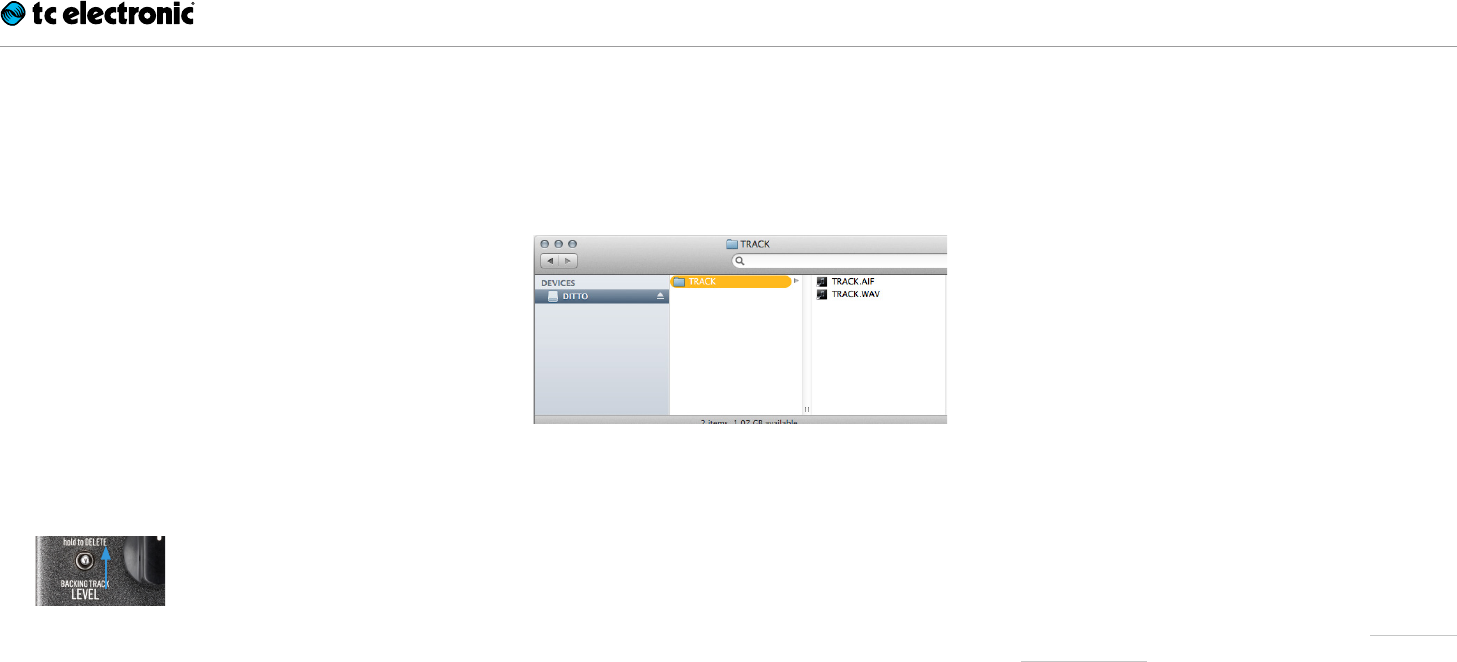
3. Your computer will recognize Ditto Stereo
Looper as an external USB storage device. It
will be shown in the Finder (OSX) or Windows
Explorer as a drive called “DITTO” containing
a folder called “TRACK”.
The “TRACK” folder should hold two files:
“TRACK.AIF” and “TRACK.WAV”. These files
contain the loop that you have previously
stored (see step 1) in both AIFF and WAV for-
mats. AIFF is commonly used in OS X, while
WAV is the commonly used format for Micro-
soft Windows.
Please refer to the instruction manual of your
DAW to learn which format you should use.
4. Copy the respective file (“TRACK.AIF” or
“TRACK.WAV”) to your computer, e.g. by
dragging it from the “TRACK” folder to the
desktop. Wait for the file transfer to finish.
5. On a Windows PC, eject the “DITTO” drive by
clicking it with the right mouse button in Win-
dows Explorer and selecting “Eject” from the
context menu.
On a Mac, eject/unmount the “DITTO” drive
by selecting it and pressing [Cmd] and [E] si-
multaneously.
6. Disconnect Ditto Stereo Looper from your
computer.
The footswitch LED will stop blinking orange
and return to green, and audio will be enabled
again.
About audio formats
Ditto Stereo Looper saves audio files in 32 bit
floating point format. If your DAW does not sup-
port this AIFF/WAV “flavor” – or if it doesn’t sup-
port AIFF or WAV at all – you will have to convert
the files coming from Ditto Stereo Looper to a
supported format.
Please consult your DAW’s manual or support
pages to find out which audio formats it sup-
ports.
You should then be able to find a free audio for-
mat converter – either as an application for your
operating system or as an online service.
If nothing else works, you can simply record the
signal from Ditto Stereo Looper’s audio outs into
your DAW.

Storing, importing and exporting loops
Ditto Stereo Looper English Manual 16
Importing loops into Ditto Stereo Looper from a computer
Did you find (or create) an insanely great song
that you would like to use on stage as a back-
ing track? Well, with Ditto Stereo Looper, you
can – without having to schlep your notebook on
stage. All you have to do is transfer your backing
track or base loop from your computer to Ditto
Stereo Looper using a USB connection.
1. Create a loop in your DAW and export it as an
audio file in either AIFF or WAV format.
2. Connect a USB port on your computer to the
USB port of Ditto Stereo Looper using the
supplied USB cable. The footswitch LED will
start blinking orange, indicating that Ditto Ste-
reo Looper now is in USB transfer mode, and
audio will be disabled.
3. Your computer will recognize Ditto Stereo
Looper as an external USB storage device. It
will be shown in the Finder (OSX) or Windows
Explorer as a drive called “DITTO” containing
a folder called “TRACK”.
4. Copy your audio file (in AIFF or WAV format)
from your computer to Ditto Stereo Looper by
dragging it to the “TRACK” folder of the “DIT-
TO” drive. Wait for the file transfer to finish.
5. Eject/unmount Ditto Stereo Looper as de-
scribed in Exporting Ditto Stereo Looper
loops to a computer.
The footswitch LED will flicker as the loop is
read.
6. Disconnect Ditto Stereo Looper from your
computer.
The footswitch LED will stop blinking orange
and return to green, and audio will be enabled
again.
Importing MP3 files to
Ditto Stereo Looper
Usually, you will want to import AIFF or WAV files
into Ditto Stereo Looper: This will give you the
highest possible audio quality, and no conver-
sion is required. However, you can also import
MP3 files with a 44.1 kHz sampling rate. Ditto
Stereo Looper will convert an imported MP3 file
to AIFF and WAV format.
The procedure is the same, with the following
exceptions:
– Converting an MP3 file takes some time. Dur-
ing conversion, the footswitch LED will flicker
red. Converting a long (6 minute) MP3 file will
take about 90 seconds.
– Importing tight/short MP3 loops with MP3
metadata will add a few milliseconds of si-
lence to the end of the loop. If you want to
ensure seamless, sample-accurate playback,
please use files in AIFF or WAV format.
About working with imported
backing tracks
– Levels of imported backing tracks are re-
duced, so you can jam to these tracks and
hear yourself.
– Track/file names of imported loops/back-
ing tracks are irrelevant, as long as the suffix
(“.WAV” or “.AIF”) is correct.
– You only have to delete existing backing
tracks if you need to make room for new
tracks. If there are several tracks in the
TRACK folder, the last imported track will be
used.
Footswitch LED reference
Ditto Stereo Looper English Manual 17
Balancing backing track
and current loop levels
What you are recording with Ditto Stereo Looper
is called “the current loop”. If you store this cur-
rent loop (by using the Store / Backing track level
switch), or if you import a previously recorded
track from a computer as described in the previ-
ous section, this is a “backing track”.
You can set the volume for the current loop
and the backing track independently.
– To set the level of the current loop, turn the
LOOP LEVEL knob.
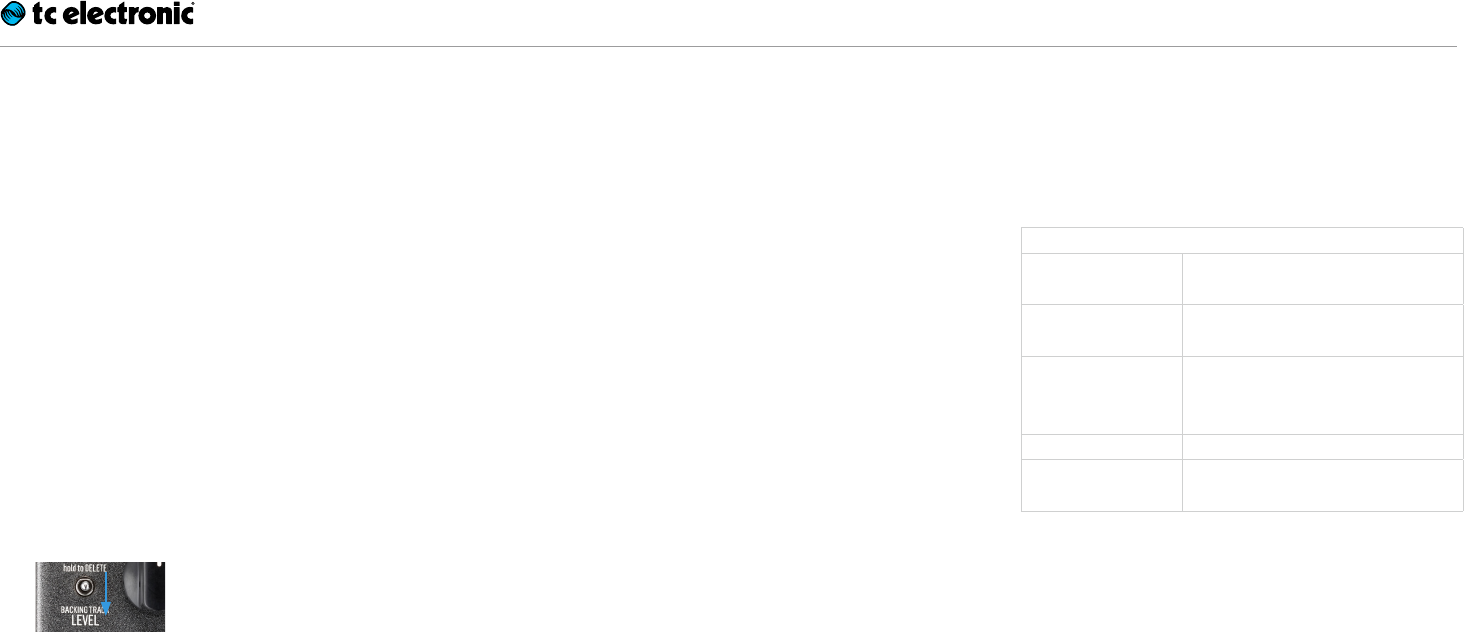
– To set the level of the stored backing track,
turn the LOOP LEVEL knob while pulling the
Store / Backing track level switch towards
you.
The ability to control the volume of the current
loop and the backing track independently allows
you to control the mix very effectively.
Bypass modes
Here at TC, we have a simply philosophy: When
you are using one of our products, you should
hear something great – and if you don’t, you
shouldn’t hear it at all. This is why this pedal
sports True Bypass. When it is bypassed, it is
really off and has zero influence on your tone, re-
sulting in optimum clarity and zero loss of high-
end. Also please note that the pedal lets your
dry, unprocessed sound pass without ever con-
verting it to digital – keeping your original tone
pure and without any latency.
Footswitch LED reference
Use this section as a reference when you are not
sure what the current LED status means.
Footswitch LED…
Off Device disconnected or no
loop in memory
Blinking green Loop in memory, playback/
recording stopped
Green Loop running (LED will blink
shortly when LOOP end is
reached)
Red Loop recording
Blinking red Loop currently being erased
or converted

Updating the firmware
Ditto Stereo Looper English Manual 18
Updating the firmware
TC may provide updates for the built-in software
of your pedal, the firmware.
Updating your TC pedal’s firmware requires…
– a computer running Microsoft Windows or
OSX with a standard USB interface
– the specified DC power supply for your ped-
al.
Preparing the firmware update
1. Download the newest firmware from the “Sup-
port” page for your TC pedal. There are updat-
ers
– for Microsoft Windows (these are ZIP ar-
chives containing the firmware installer) and
– for OS X (these are disk image files contain-
ing the firmware installer).
2. Unplug all cables (including the power supply)
from your TC pedal.
3. Connect the pedal to your computer using a
USB cable.
4. Press and hold the leftmost footswitch on your
TC pedal.
5. Insert the DC power supply plug.
The leftmost LED on your pedal should turn
green.
6. Release the footswitch.
Your TC pedal will now be recognized as an
updatable device.
Applying the firmware update
7. Quit all MIDI-related applications (e.g. your
DAW) on your computer and launch the firm-
ware updater you have downloaded in step1.
8. In the firmware updater app, select your TC
pedal from the drop-down list under the
“STEP 1” heading.
If you are using Windows XP, select “USB Au-
dio Device” from the list.
9. When the “Update” button under the “STEP 2”
heading turns green, click it.
The updated firmware will now be transferred
to your TC pedal. Wait for the progress bar to
reach 100%. When the update procedure is
complete, the pedal will automatically restart.

Technical specifications
Ditto Stereo Looper English Manual 19
Changing the batteries
If you need to change the batteries of your pedal,
proceed as follows:
– Unscrew the cross-head screw on the back
of the pedal and detach the backplate.
– Unmount the old batteries and attach the
new batteries to the battery clips. Make sure
the polarity is correct!
– Remount the backplate.
Notes regarding batteries
– Batteries must never be heated, taken apart
or thrown into fire or water.
– Only rechargeable batteries can be re-
charged.
– Remove the batteries when the pedal is not
being used for a longer period of time to save
battery life.
– Dispose batteries according to local laws and
regulations.
Technical specifications
– Maximum loop length: 5 minutes
– Maximum no. of overdubs: Unlimited
– Bypass mode: True Bypass
– Latency: None (analog dry-through)
– Dimensions (Width x depth x height):
72 mm x 122 mm x 50 mm /
2.8” x 4.8” x 2”
– Weight: 420 g / 0.94 lbs.
– Input connectors:
Stereo – 2 standard TS ¼” jacks
– Output connector type:
Stereo – 2 standard TS ¼” jacks
– Power input: Standard 9 V DC, centre nega-
tive (not supplied)
– USB connector type: Mini-B USB
Controls:
– Loop level knob
– Loop footswitch
– Store / Backing track level switch
Due to continuous development, these speci-
fications are subject to change without no-
tice.

Getting support
Ditto Stereo Looper English Manual 20
Frequently asked questions
“Where should I place Ditto Stereo
Looper in my signal chain?”
To get the most out of your setup and the loops
you’re recording, place Ditto Stereo Looper at
the end of your signal chain. This gives you the
flexibility to add parts with or without signal pro-
cessing by simply switching effects on and off
as required. For more information, see Setup
examples.
“How much loop time can I get
out of Ditto Stereo Looper?”
Ditto Stereo Looper provides five minutes of
looping time.
“What’s the maximum number
of overdubs that I can record?”
Our guess is that you will tire out before Ditto
Stereo Looper does. Ditto Stereo Looper allows
an unlimited number of overdubs – so do your
worst!
“I made a mistake – how
do I undo a part?”
Press and hold the footswitch on Ditto Stereo
Looper while it is playing back your recorded
loop. The last part you recorded will be removed.
“The footswitch LED is blinking
orange, and I can’t play or
record. What gives?”
Your Ditto Stereo Looper is connected to a com-
puter via USB and running in USB transfer mode.
Make sure that no files are currently being trans-
ferred to or from Ditto Stereo Looper and remove
the USB cable to return to normal operation.
Getting support
As you have probably realized by now, Ditto Ste-
reo Looper offers a wealth of features, and you
may have questions that we didn’t cover in this
manual. To learn more about setups, importing
and exporting loops as backing tracks, creative
techniques etc., please go to the Ditto Stereo
Looper FAQ at
http://tcelectronic.com/ditto-stereo-looper/faq/
You will also find a link to this page in your Ditto
Stereo Looper’s folder when you have connect-
ed it to your computer.
If you still have questions about the product after
reading this manual and the FAQ page, please
get in touch with TC Support:
http://tcelectronic.com/support/