DMC SZ1/DMC FH8 5.6 MB SZ1
5.6 MB DMC-FH8 Panasonic Service Manuals - Panasonic Middle East
DMC-FH8 to the manual f4d5a8a0-1820-46ac-bc4b-535ea516450e
User Manual: 5.6 MB Panasonic Service Manuals - Panasonic Middle East
Open the PDF directly: View PDF  .
.
Page Count: 128 [warning: Documents this large are best viewed by clicking the View PDF Link!]
- Contents
- Before Use
- Preparation
- Basic
- Selecting the Recording Mode
- Taking pictures using the automatic function (Intelligent Auto Mode)
- Taking pictures with your favourite settings (Normal Picture Mode)
- Focusing
- Recording Motion Pictures
- Playing Back Pictures ([Normal Play])
- Playing Back Motion Pictures
- Deleting Pictures
- Setting the Menu
- About the Setup Menu
- Recording
- About the LCD Monitor
- Using the Zoom
- Taking Pictures Using the Built-in Flash
- Taking Close-up Pictures ([AF Macro]/[Macro Zoom])
- Taking Pictures with the Self-timer
- Compensating the Exposure
- Record pictures that look like dioramas (Miniature Effect Mode)
- Taking pictures that match the scene being recorded (Scene Mode)
- Entering Text
- Using the [Rec] Menu
- Using the [Motion Picture] Menu
- Playback/Editing
- Connecting to other equipment
- Others
Operating Instructions
for advanced features
Digital Camera
Model No. DMC-SZ1
DMC-FH8
VQT3Z72
F1211WT0
Before use, please read these instructions completely.
until
2012/03/08
DMC-SZ1 DMC-FH8

- 2 -
Contents
Before Use
Care of the camera ...................................4
Standard Accessories ...............................5
Names and Functions of Main Parts .........6
Preparation
Charging the Battery .................................9
• Inserting the Battery..........................10
• Charging ...........................................11
• Approximate operating time and
number of recordable pictures ..........13
Inserting and Removing the Card
(optional) .................................................15
About the Built-in Memory/the Card ........16
• Approximate number of recordable
pictures and available recording
time ...................................................18
Setting Date/Time (Clock Set).................19
• Changing the Clock Setting ..............20
Tips for taking good pictures...................21
• Fit the strap and hold the camera
carefully ............................................21
• Preventing jitter (camera shake) .......21
Basic
Selecting the Recording Mode ................22
Taking pictures using the automatic
function (Intelligent Auto Mode) ..............23
• Changing the settings .......................25
Taking pictures with your favourite
settings (Normal Picture Mode)...............26
Focusing..................................................27
Recording Motion Pictures......................29
• Recording still pictures while
recording motion pictures .................31
Playing Back Pictures ([Normal Play]) ....32
• Selecting a picture ............................32
• Displaying Multiple Screens
(Multi Playback) ................................33
• Using the Playback Zoom .................33
Playing Back Motion Pictures..................34
Deleting Pictures .....................................35
• To delete a single picture..................35
• To delete multiple pictures (up to 50)
or all the pictures ..............................36
Setting the Menu .....................................37
• Setting menu items ...........................37
• Using the Quick Menu.......................38
About the Setup Menu.............................39
Recording
About the LCD Monitor............................46
Using the Zoom.......................................47
• Using the Optical Zoom/
Using the Extra Optical Zoom (EZ)/
Using the Intelligent Zoom/
Using the Digital Zoom......................47
Taking Pictures Using the Built-in
Flash........................................................49
• Switching to the appropriate flash
setting ...............................................49
Taking Close-up Pictures ([AF Macro]/
[Macro Zoom]).........................................52
Taking Pictures with the Self-timer..........53
Compensating the Exposure ...................54
Record pictures that look like dioramas
(Miniature Effect Mode) ...........................55
Taking pictures that match the scene
being recorded (Scene Mode).................56
• [Portrait]............................................57
• [Soft Skin].........................................57
• [Scenery] ..........................................57
• [Panorama Shot] ..............................58
• [Sports].............................................60
• [Night Portrait] ..................................60
• [Night Scenery].................................60
• [Food] ...............................................60
• [Baby1]/[Baby2]................................61
• [Pet]..................................................62
• [Sunset] ............................................62
• [High Sens.]......................................62
• [Glass Through]................................62
• [Photo Frame] ..................................62
Entering Text ...........................................63
Using the [Rec] Menu..............................64
• [Picture Size] ....................................64
• [Sensitivity] .......................................65
• [White Balance] ................................66
• [AF Mode].........................................68
• [i.Exposure] ......................................70
• [i.Resolution] ....................................70
• [Digital Zoom] ...................................70
• [Burst]...............................................71
• [Color Mode].....................................73
• [AF Assist Lamp] ..............................74
• [Red-Eye Removal] ..........................74
• [Stabilizer] ........................................75
• [Date Stamp] ....................................75

- 3 -
• [Clock Set]........................................75
Using the [Motion Picture] Menu.............76
• [Rec Quality] .....................................76
• [Continuous AF] ................................76
Playback/Editing
Various methods of playback ..................77
• [Slide Show] .....................................78
• [Filtering Play] ..................................80
• [Calendar] ........................................81
Having Fun with Recorded Pictures........82
• [Auto Retouch] .................................82
• [Beauty Retouch] (DMC-FH8) ...........83
Using the [Playback] Menu .....................85
• [Upload Set] .....................................85
• [Text Stamp].....................................87
• [Video Divide]...................................89
• [Resize] ............................................90
• [Cropping] ........................................91
• [Favorite] ..........................................92
• [Print Set] .........................................93
• [Protect]............................................95
• [Copy]...............................................96
Connecting to other equipment
Playing Back Pictures on a
TV Screen ...............................................97
Saving the Recorded Still Pictures and
Motion Pictures .......................................98
• Copy by inserting the SD card into
the recorder ......................................98
• Copy the playback image using
an AV cable ......................................99
• Copying to a PC using
“PHOTOfunSTUDIO” .....................100
Connecting to a PC ...............................101
• Loading still pictures or
motion pictures ...............................102
• Uploading the images to sharing
sites ................................................104
Printing the Pictures ..............................105
• Selecting a single picture and
printing it .........................................106
• Selecting multiple pictures and
printing them ...................................106
• Print Settings...................................107
Others
Screen Display ......................................110
Cautions for Use....................................112
Message Display ...................................117
Troubleshooting.....................................119
• Please note that the actual controls and
components, menu items, and other
information for your digital camera may differ
from those in the illustrations and screens
provided in this manual. When operation or
other information is more or less the same
between models, (DMC-SZ1) are used as
examples for the instructions provided in this
manual.
• The operations, procedures, or functions that
differ among models are indicated separately,
together with the relevant model number.
e.g.: (DMC-SZ1)
(DMC-FH8)
Before Use
- 4 -
Before Use
Care of the camera
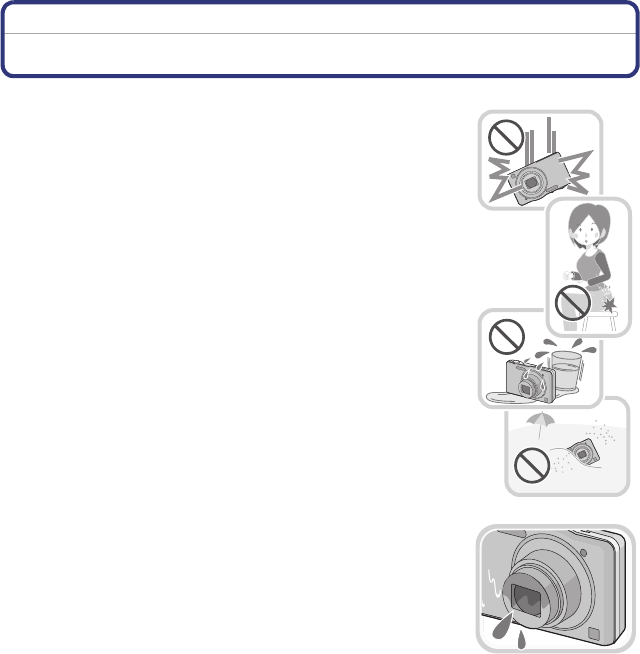
Do not subject to strong vibration, shock, or pressure.
•The lens, LCD monitor, or external case may be damaged if used in
the following conditions.
It may also malfunction or image may not record if you:
–Drop or hit the camera.
–Sit down with the camera in your trousers pocket or forcefully
insert it into a full or tight bag, etc.
–Attach any items such as accessories to the strap attached to the
camera.
–Press hard on the lens or the LCD monitor.
This camera is not dust/splash/water proof.
Avoid using the camera in places with a lot of dust, water,
sand, etc.
•Liquid, sand and other foreign material may get into the space
around the lens, buttons, etc. Be particularly careful since it may not
just cause malfunctions, but it may also become irreparable.
–Places with a lot of sand or dust.
–Places where water can come into contact with this unit, such as
when using it on a rainy day or at the beach.
∫About Condensation (When the lens is fogged up)
•Condensation occurs when the ambient temperature or humidity
changes. Be careful of condensation since it causes lens stains,
fungus and camera malfunction.
•If condensation occurs, turn the camera off and leave it for about
2 hours. The fog will disappear naturally when the temperature of
the camera becomes close to the ambient temperature.

- 5 -
Before Use
Standard Accessories
Check that all the accessories are supplied before using the camera.
•The accessories and their shape will differ depending on the country or area where the camera
was purchased.
For details on the accessories, refer to Basic Operating Instructions.
•Battery Pack is indicated as battery pack or battery in the text.
•SD Memory Card, SDHC Memory Card and SDXC Memory Card are indicated as card in the
text.
•The card is optional.
You can record or play back pictures on the built-in memory when you are not using a
card.
•Consult the dealer or your nearest Service Centre if you lose the supplied accessories. (You
can purchase the accessories separately.)
Before Use
- 6 -
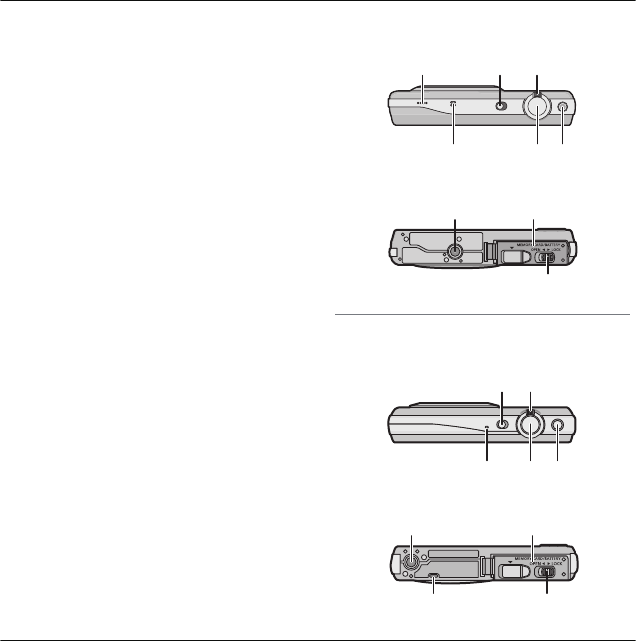
Names and Functions of Main Parts
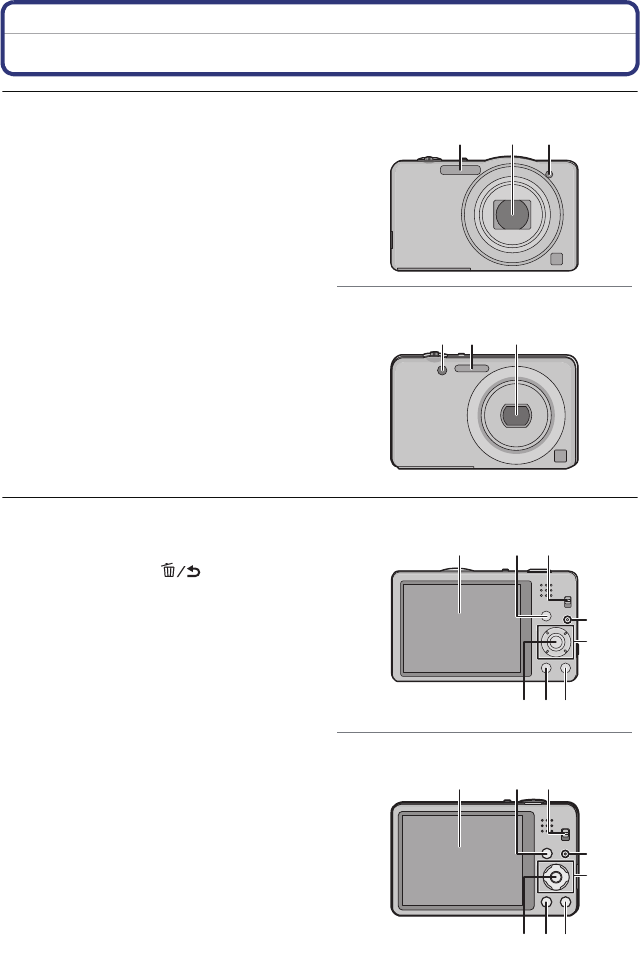
1Flash (P49)
2 Lens (P4, 113)
3 Self-timer indicator (P53)
AF Assist Lamp (P74)
4 LCD monitor (P46, 110, 113)
5 [MENU/SET] button (P37)
6 [DISP.] button (P46)
7 [Q.MENU] (P38)/[ ] (Delete/
Cancel) button (P35)
8 [MODE] button (P22, 77)
9 REC/PLAY switch (P22, 32)
10 Charging lamp (P11)
1 2 3
(DMC-SZ1)
3 1 2
(DMC-FH8)
76
4
10
98
11
5
(DMC-SZ1)
76
4
10
98
11
5
(DMC-FH8)
- 7 -
Before Use
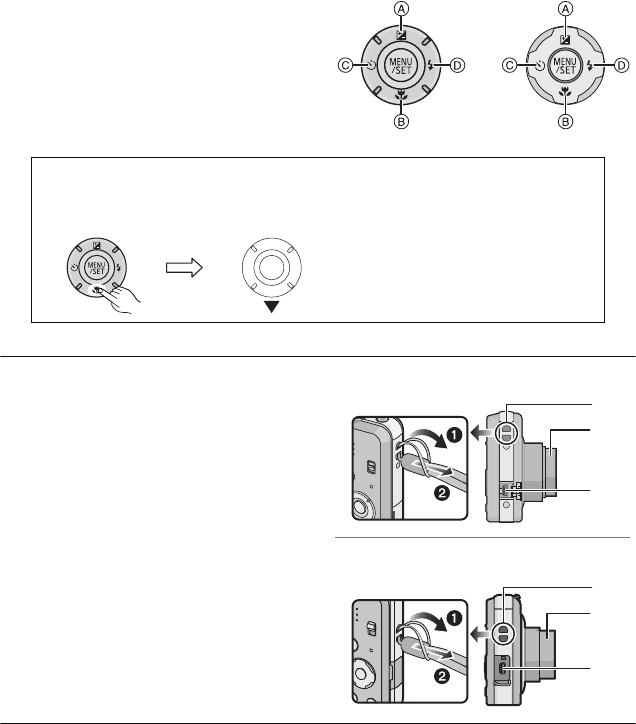
11 Cursor buttons
A: 3/Exposure compensation (P54)
B: 4/Macro Mode (P52)
AF Tracking (P69)
C: 2/Self-timer (P53)
D: 1/Flash setting (P49)
12 Strap eyelet
•Be sure to attach the strap when using
the camera to ensure that you will not
drop it.
13 Lens barrel
14 [AV OUT/DIGITAL] socket (P11, 97, 102,
105)
In these operating instructions, the cursor buttons are described as shown in
the figure below or described with 3/4/2/1.
e.g.: When you press the 4 (down) button
or Press 4
(DMC-SZ1) (DMC-FH8)
13
14
12
13
14
12
(DMC-SZ1)
(DMC-FH8)
Before Use
- 8 -
15 Speaker (P41)
•Be careful not to cover the speaker with
your finger. Doing so may make sound
difficult to hear.
16 Camera ON/OFF switch (P19)
17 Zoom lever (P47)
18 Microphone
19 Shutter button (P23, 26)
20 Motion picture button (P29)
21 Tripod receptacle
22 Card/Battery door (P10, 15)
23 Release lever (P10, 15)
15 16 17
18 19 20
(DMC-SZ1)
21 22
23
(DMC-FH8)
21 22
15 23
16 17
18 19 20

- 9 -
Preparation
Preparation
Charging the Battery
Use the dedicated AC adaptor (supplied), USB connection cable (supplied) and
battery.
•The battery is not charged when the camera is shipped. Charge the battery before use.
•Charge the battery only when it is inserted in the camera.
¢The camera can be supplied with power from a power outlet via the USB connection cable
(supplied) only during playback mode. (The battery is not charged.)
•When there is no remaining battery power, charging may be performed regardless of whether
the power switch is [ON] or [OFF].
•If no battery is inserted, no charging or power is supplied.
∫About batteries that you can use with this unit
Camera conditions Charge
Power off (or [Sleep Mode] (P42) is activated)
≤
Power on —¢
It has been found that counterfeit battery packs which look very similar to the
genuine product are made available for purchase in some markets. Some of
these battery packs are not adequately protected with internal protection to meet
the requirements of appropriate safety standards. There is a possibility that
these battery packs may lead to fire or explosion. Please be advised that we are
not liable for any accident or failure occurring as a result of use of a counterfeit
battery pack. To ensure that safe products are used, we recommend that a
genuine Panasonic battery pack is used.
Preparation
- 10 -
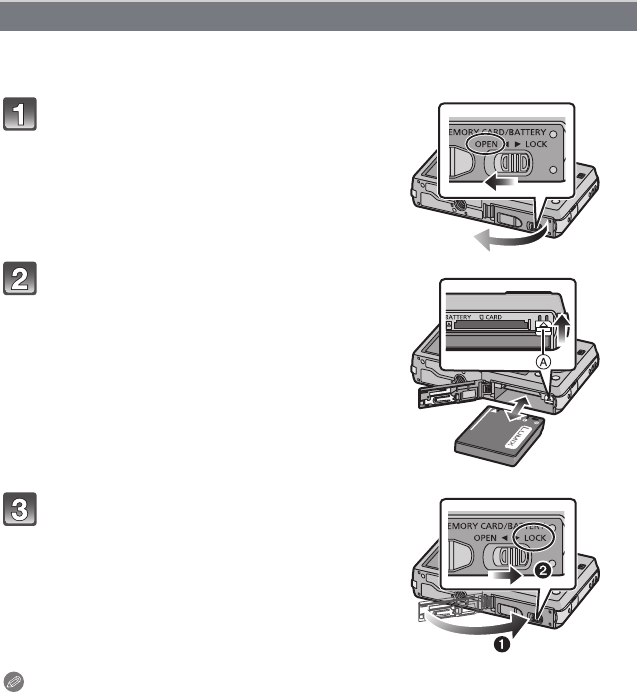
Insert the battery into the camera to charge it.
•Check that this unit is turned off.
Slide the release lever in the
direction of the arrow and open the
card/battery door.
•Always use genuine Panasonic batteries.
•If you use other batteries, we cannot
guarantee the quality of this product.
Being careful about the battery
orientation, insert all the way until
you hear a locking sound and then
check that it is locked by lever A.
Pull the lever A in the direction of
the arrow to remove the battery.
1:Close the card/battery door.
2:Slide the release lever in the
direction of the arrow.
Note
•Turn the camera off and wait for the “LUMIX” display on the LCD monitor to clear before
removing the battery. (Otherwise, this unit may no longer operate normally and the card itself
may be damaged or the recorded pictures may be lost.)
Inserting the Battery
- 11 -
Preparation
•Charge the battery in areas with an ambient temperature, between 10 oC and 30 oC (50 oF
and 86 oF) (same as the battery temperature), is recommended.
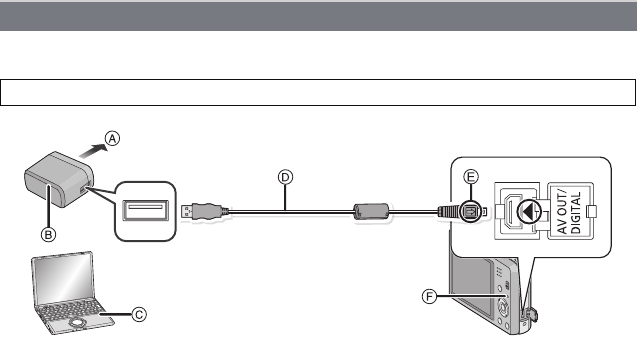
(Charging from the power outlet)
Connect the AC adaptor (supplied) and this camera with the USB
connection cable (supplied), and insert the AC adaptor (supplied) into the
power outlet.
•Use the AC adaptor (supplied) indoors.
(Charging from a computer)
Connect the computer and this camera with the USB connection cable
(supplied).
•Charging may not be possible depending on computer specifications.
•If the computer enters a suspended state while charging the battery, charging will stop.
•Connecting this camera to a notebook computer that is not connected to a power outlet will
cause the notebook computer battery to drain faster. Do not leave the camera connected for
extended periods of time.
•Be sure to always connect the camera to a computer USB terminal. Do not connect the camera
to a monitor, keyboard or printer USB terminal, or a USB hub.
Charging
Check that this unit is turned off.
ATo power outlet
BAC adaptor (supplied)
CPC (Turn the power on)
DUSB connection cable (supplied)
•Check the directions of the connectors, and plug them straight in or unplug them straight
out. (Otherwise the connectors may bend out of shape, which may cause malfunction.)
EAlign the marks, and insert.
FCharging lamp
Preparation
- 12 -
∫About the charging lamp
∫Charging time
When using the AC adaptor (supplied)
•The indicated charging time is for when the battery has been discharged completely.
The charging time may vary depending on how the battery has been used. The charging
time for the battery in hot/cold environments or a battery that has not been used for a
long time may be longer than normal.
•The charging time when connected to the computer depends on the computer’s
performance.
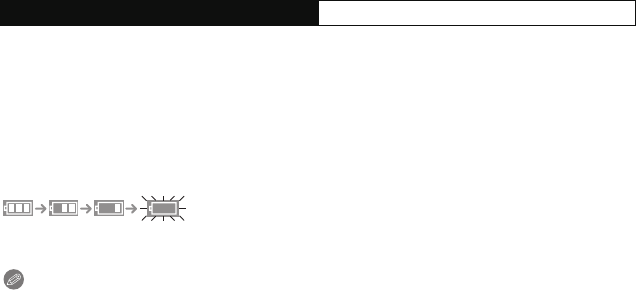
∫Battery indication
The battery indication is displayed on the LCD monitor.
•The indication turns red and blinks if the remaining battery power is low. Recharge the battery
or replace it with a fully charged battery.
Note
•Do not leave any metal items (such as clips) near the contact areas of the power plug.
Otherwise, a fire and/or electric shocks may be caused by short-circuiting or the
resulting heat generated.
•Do not use any other USB connection cables except the supplied one.
Use of cables other than the supplied USB connection cable may cause malfunction.
•Do not use a USB extension cable.
•The AC adaptor (supplied) and USB connection cable (supplied) are for this camera only. Do
not use them with other devices.
•Remove the battery after use. (The battery will be exhausted if left for a long period of time after
being charged.)
•The battery becomes warm after using and during and after charging. The camera also
becomes warm during use. This is not a malfunction.
•The battery can be recharged even when it still has some power left, but it is not recommended
that the battery charge be frequently topped up while the battery is fully charged. (Since
characteristic swelling may occur.)
•If a problem occurs in the power outlet, such as a power outage, charging may not be
completed normally. If this happens, disconnect the USB connection cable (supplied) and
connect it again.
•If the charging lamp does not turn on or blinks when you connect the AC adaptor (supplied) or
PC, this indicates that the charging has been stopped because the unit is not in a temperature
range suitable for charging, and does not indicate a fault.
Reconnect the USB connection cable (supplied) in a location where the ambient temperature
(and the temperature of battery) is in a 10 oC to 30 oC (50 oF to 86 oF) range, and try charging
again.
On: Charging.
Off: Charging has completed. (When charging is complete, disconnect the camera
from the power outlet or computer.)
Charging time Approx. 180 min
- 13 -
Preparation
∫Recording still pictures
(DMC-SZ1)
(DMC-FH8)
Recording conditions by CIPA standard
•CIPA is an abbreviation of [Camera & Imaging Products Association].
•Temperature: 23 oC (73.4 oF)/Humidity: 50%RH when LCD monitor is on.
•Using a Panasonic SD Memory Card (32 MB).
•Using the supplied battery.
•Starting recording 30 seconds after the camera is turned on. (When the Optical Image
Stabiliser function is set to [ON].)
•Recording once every 30 seconds using full flash every second recording.
•Rotating the zoom lever from Tele to Wide or vice versa in every recording.
•Turning the camera off every 10 recordings and leaving it until the temperature of the battery
decreases.
The number of recordable pictures varies depending on the recording interval time.
As the recording interval time becomes longer, the number of recordable pictures
decreases. [For example, if you were to take one picture every two minutes, then the
number of pictures would be reduced to approximately one-quarter of the number
of pictures given above (based upon one picture taken every 30 seconds).]
∫Recording motion pictures
When recording with picture quality set to [HD]
•These times are for an ambient temperature of 23 oC (73.4 oF) and a humidity of 50%RH.
Please be aware that these times are approximate.
•Actual recordable time is the time available for recording when repeating actions such as
switching the power supply [ON]/[OFF], starting/stopping recording, zoom operation, etc.
•Maximum time to record motion pictures continuously is 29 minutes 59 seconds. The maximum
available recording time continuously is displayed on the screen.
Approximate operating time and number of recordable pictures
Number of recordable
pictures Approx. 250 pictures By CIPA standard in Normal
Picture Mode
Recording time Approx. 125 min
Number of recordable
pictures Approx. 260 pictures By CIPA standard in Normal
Picture Mode
Recording time Approx. 130 min
Recordable time Approx. 90 min
Actual recordable time Approx. 45 min

Preparation
- 14 -
∫Playback
Note
•The operating times and number of recordable pictures will differ according to the
environment and the operating conditions.
For example, in the following cases, the operating times will shorten and the number of
recordable pictures is reduced:
–In low-temperature environments, such as on ski slopes.
–When using [LCD Mode].
–When operations such as flash and zoom are used repeatedly.
•When the operating time of the camera becomes extremely short even after properly charging
the battery, the life of the battery may have expired. Buy a new battery.
Playback time Approx. 240 min
- 15 -
Preparation
Inserting and Removing the Card (optional)
•Check that this unit is turned off.
•We recommend using a Panasonic card.
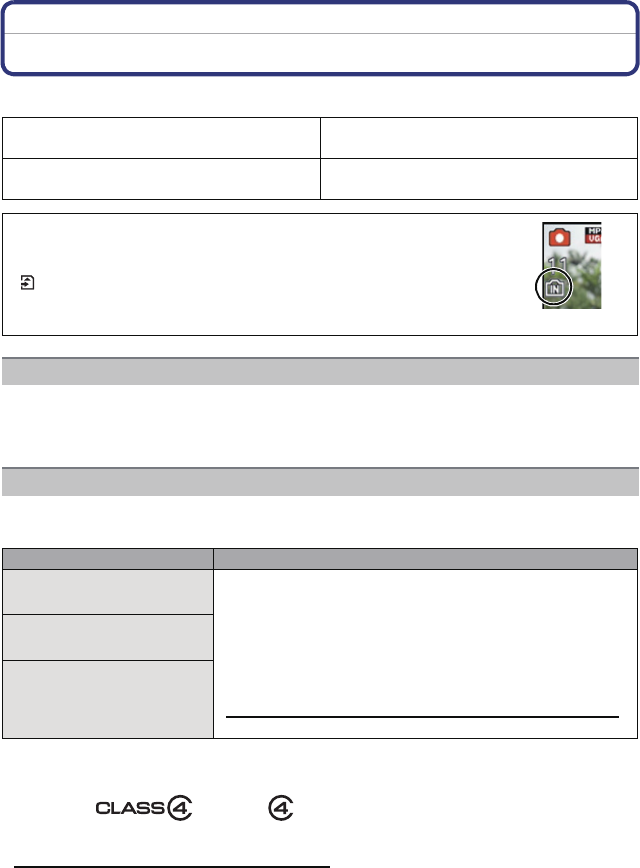
Slide the release lever in the
direction of the arrow and open the
card/battery door.
Push it securely all the way until you
hear a “click” while being careful
about the direction in which you
insert it.
To remove the card, push the card
until it clicks, then pull the card out
upright.
A: Do not touch the connection terminals of
the card.
1:Close the card/battery door.
2:Slide the release lever in the
direction of the arrow.
Note
•Turn the camera off and wait for the “LUMIX” display on the LCD monitor to clear before
removing the card. (Otherwise, this unit may no longer operate normally and the card itself may
be damaged or the recorded pictures may be lost.)
Preparation
- 16 -
About the Built-in Memory/the Card
•You can copy the recorded pictures to a card. (P96)
•Memory size: Approx. 70 MB
•The access time for the built-in memory may be longer than the access time for a card.
The following cards, which conform to the SD video standard, can be used with this unit.
(These cards are indicated as card in the text.)
¢SD Speed Class is the speed standard regarding continuous writing. Check via the label on
the card, etc.
•Please confirm the latest information on the following website.
http://panasonic.jp/support/global/cs/dsc/
(This site is English only.)
The following operations can be performed using this unit:
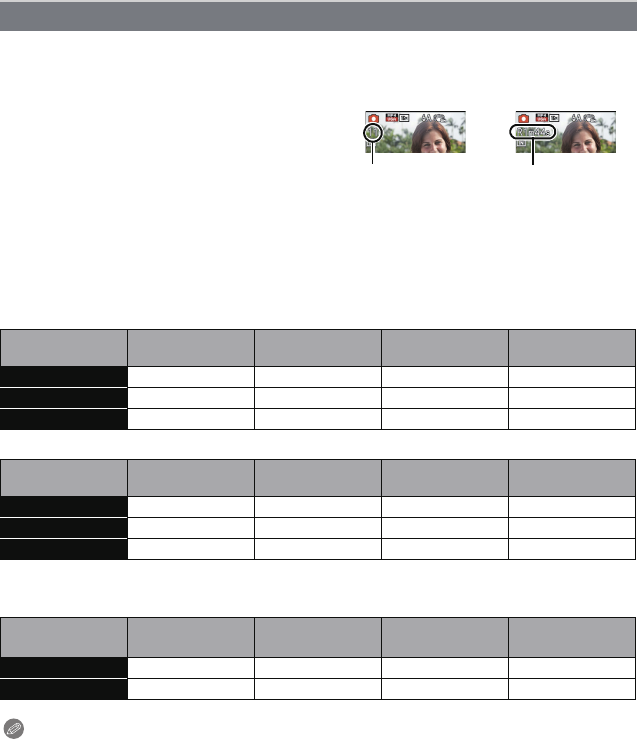
When a card has not been inserted Pictures can be recorded on the built-in
memory and played back.
When a card has been inserted Pictures can be recorded on the card and
played back.
•When using the built-in memory:
k>ð (access indication¢)
•When using the card:
(access indication¢)
¢The access indication is displayed in red when pictures are being
recorded on the built-in memory (or the card).
Built-in Memory
Card
Remarks
SD Memory Card
(8 MB to 2 GB)
•Use a card with SD Speed Class¢ with “Class 4” or
higher when recording motion pictures.
•SDHC Memory Card can be used with SDHC Memory Card
or SDXC Memory Card compatible equipment.
•SDXC Memory Card can only be used with SDXC Memory
Card compatible equipment.
•Check that the PC and other equipment are compatible when
using the SDXC Memory Cards.
http://panasonic.net/avc/sdcard/information/SDXC.html
•Only the cards with capacity listed left can be used.
SDHC Memory Card
(4 GB to 32 GB)
SDXC Memory Card
(48 GB, 64 GB)
e.g.:

- 17 -
Preparation
Note
•During access (image writing, reading and deleting, formatting etc.), do not turn off the
power, remove the battery, card or disconnect the AC adaptor (supplied). Furthermore,
do not subject the camera to vibration, impact or static electricity.
The card or the data on the card may be damaged, and this unit may no longer operate
normally.
If operation fails due to vibration, impact or static electricity, perform the operation
again.
•Write-Protect switch A provided (When this switch is set to the [LOCK] position,
no further data writing, deletion or formatting is possible. The ability to write, delete
and format data is restored when the switch is returned to its original position.)
•The data on the built-in memory or the card may be damaged or lost due to
electromagnetic waves, static electricity or breakdown of the camera or the card.
We recommend storing important data on a PC etc.
•Do not format the card on your PC or other equipment. Format it on the camera
only to ensure proper operation. (P44)
•Keep the Memory Card out of reach of children to prevent swallowing.
2
A
Preparation
- 18 -
∫
About the display of the number of recordable pictures and available recording time
∫Number of recordable pictures
•[i99999] is displayed if there are more than 100,000 pictures remaining.
(DMC-SZ1)
(DMC-FH8)
∫Available recording time (when recording motion pictures)
•“h” is an abbreviation for hour, “m” for minute and “s” for second.
Note
•Number of recordable pictures/available recording time for the card may decrease when
[Upload Set] is performed.
•Maximum time to record motion pictures continuously is 29 minutes 59 seconds. The maximum
available recording time continuously is displayed on the screen.
Approximate number of recordable pictures and available recording time
•To switch between the display of number of recordable pictures and available recording time,
press [DISP.] several times. (P46)
ANumber of recordable pictures
BAvailable recording time
•The number of recordable pictures and the available recording time are an approximation.
(These vary depending on the recording conditions and the type of card.)
•The number of recordable pictures and the available recording time varies depending on the
subjects.
Picture size Built-in Memory
(Approx. 70 MB) 2GB 32 GB 64 GB
16M (4:3) 11 300 4910 9880
5M (4:3) 25 650 10620 21490
0.3M (4:3) 390 10050 162960 247150
Picture size Built-in Memory
(Approx. 70 MB) 2GB 32 GB 64 GB
16M (4:3) 10 300 4910 9880
5M (4:3) 24 650 10620 21490
0.3M (4:3) 380 10050 162960 247160
Recording
quality setting
Built-in Memory
(Approx. 70 MB) 2GB 32 GB 64 GB
HD j23m33s 6h28m3s 13h5m5s
VGA 1m42s 51m50s 14h14 m1s 28h47m50s
A
B
- 19 -
Preparation
Setting Date/Time (Clock Set)
•The clock is not set when the camera is shipped.
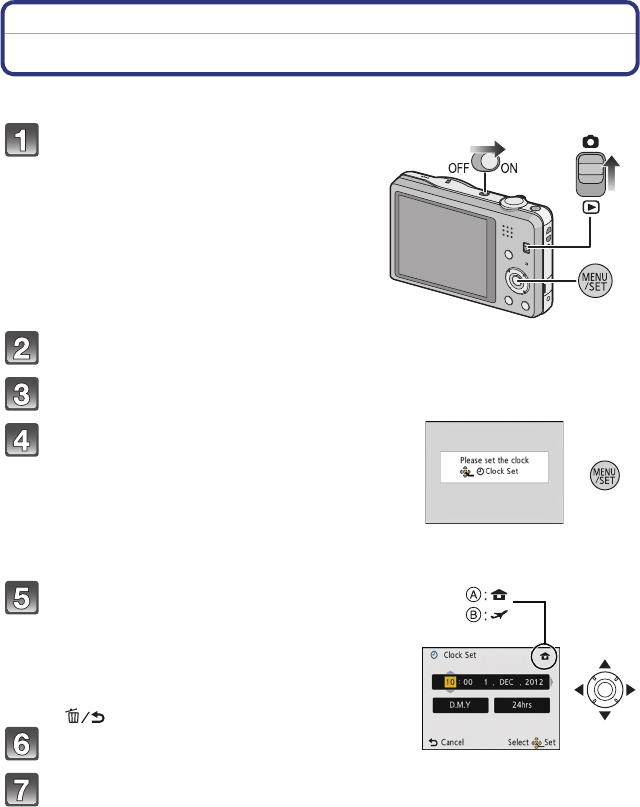
Slide the REC/PLAY switch to [!]
and then turn the camera on.
•If the language select screen is not displayed,
proceed to step 4.
Press [MENU/SET].
Press 3/4 to select the language, and press [MENU/SET].
Press [MENU/SET].
Press 2/1 to select the items (year, month,
day, hour, minute, display sequence or time
display format), and press 3/4 to set.
A: Time at the home area
B: Time at the travel destination
•You can cancel without setting the clock by pressing
[].
Press [MENU/SET] to set.
Press [MENU/SET].

Preparation
- 20 -
Select [Clock Set] in the [Rec] or [Setup] menu, and press [MENU/SET]. (P37)
•The clock can be reset as shown in steps 5 and 6.
•The clock setting is maintained for 3 months using the built-in clock battery even
without the battery. (Leave the charged battery in the unit for 24 hours to charge the
built-in battery.)
Note
•If the clock is not set, the correct date cannot be printed when you order a photo studio to print
the picture, or when you stamp the date on the pictures with [Date Stamp] or [Text Stamp].
•If the clock is set, the correct date can be printed even if the date is not displayed on the screen
of the camera.
Changing the Clock Setting
- 21 -
Preparation
Tips for taking good pictures
Hold the camera gently with both hands, keep your arms still at your side
and stand with your feet slightly apart.
•To prevent dropping, be sure to attach the supplied strap and fit it to your wrist. (P7)
•Be careful not to move the camera when you press the shutter button.
•Be careful not to put your fingers on the flash, AF assist lamp, microphone, speaker or lens etc.
∫Direction Detection Function ([Rotate Disp.])
Pictures recorded with the camera held vertically are played back vertically (rotated). (Only
when [Rotate Disp.] (P44) is set)
•When the camera is held vertically and tilted up and down to record pictures, the Direction
Detection function may not work correctly.
•Motion pictures taken with the camera held vertically are not displayed vertically.
When the Jitter alert [ ] appears, use [Stabilizer] (P75), a tripod or the Self-timer (P53).
•Shutter speed will be slower particularly in the following cases. Keep the camera still from the
moment the shutter button is pressed until the picture appears on the screen. We recommend
using a tripod.
–Slow sync./Red-Eye Reduction
–In [Night Portrait] or [Night Scenery] in Scene Mode
Fit the strap and hold the camera carefully
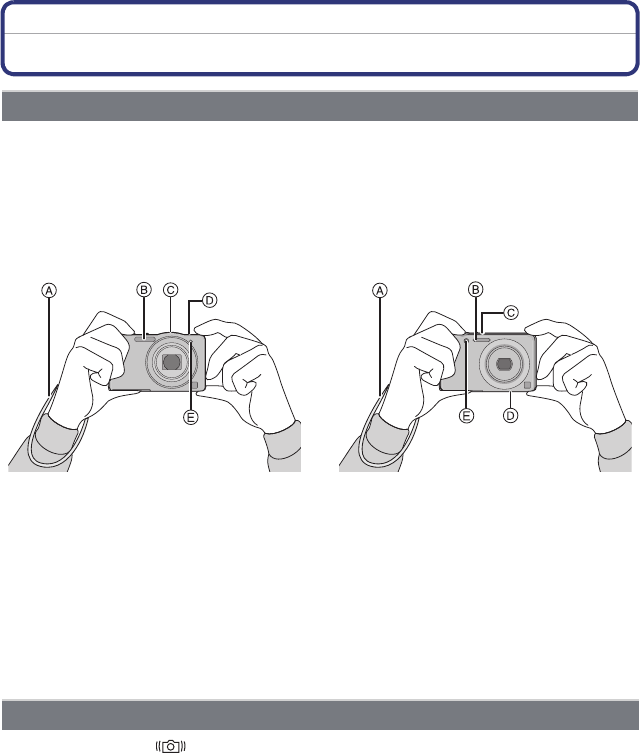
(DMC-SZ1) (DMC-FH8)
AStrap
BFlash
CMicrophone
DSpeaker
EAF assist lamp
Preventing jitter (camera shake)
Basic
- 22 -
Basic
Selecting the Recording Mode
∫List of Recording Modes
Note
•When the mode has been switched from Playback Mode to Recording Mode, the previously set
Recording Mode will be set.
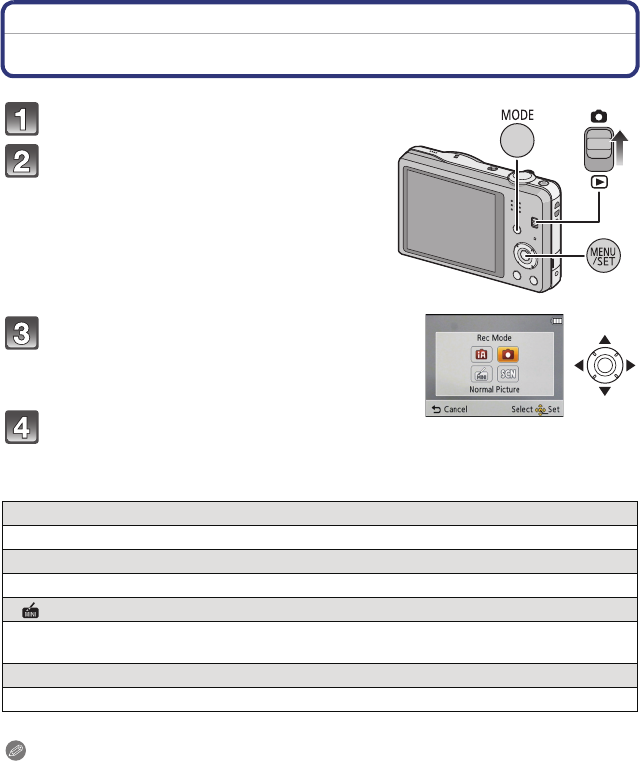
Slide the REC/PLAY switch to [!].
Press [MODE].
Press 3/4/2/1 to select the Recording
Mode.
Press [MENU/SET].
¦Intelligent Auto Mode (P23)
The subjects are recorded using settings automatically selected by the camera.
!Normal Picture Mode (P26)
The subjects are recorded using your own settings.
Miniature Effect Mode (P55)
This is an imaging effect which defocuses the surroundings to make it look like a
diorama. (also known as Tilt Shift Focus)
ÛScene Mode (P56)
This allows you to take pictures that match the scene being recorded.
- 23 -
Basic
Recording Mode:
Taking pictures using the automatic function
(Intelligent Auto Mode)
The camera will set the most appropriate settings to match the subject and the recording
conditions so we recommend this mode for beginners or those who want to leave the
settings to the camera and take pictures easily.
•The following functions are activated automatically.
–Scene Detection/Backlight Compensation/Intelligent ISO sensitivity control/Auto White
Balance/Face Detection/[i.Exposure]/[i.Resolution]/[i.ZOOM]/[AF Assist Lamp]/
[Red-Eye Removal]/[Stabilizer]/[Continuous AF]
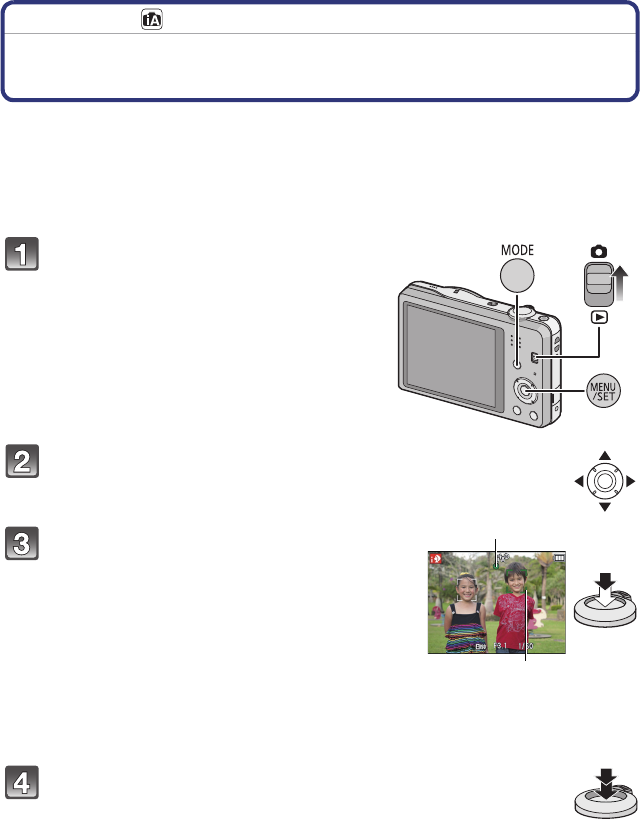
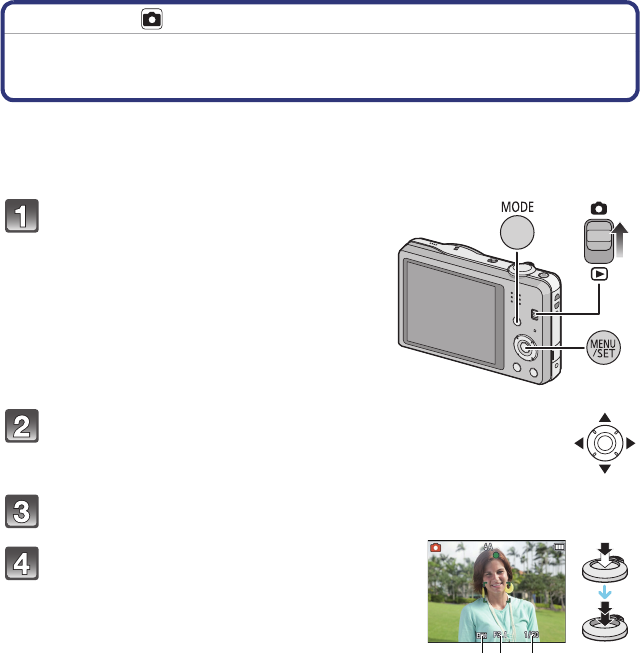
Slide the REC/PLAY switch to [!],
and then press [MODE].
Press 3/4/2/1 to select [Intelligent Auto],
and then press [MENU/SET].
Press the shutter button halfway to focus.
•The focus indication 1 (green) lights when the subject
is focused.
•The AF area 2 is displayed around the subject’s face
by the Face Detection function. In other cases, it is
displayed at the point on the subject which is in focus.
• The minimal distance (how close you can be to the
subject) will change depending on the zoom factor.
Please check with the recordable range display on
the screen. (P27)
•You can set the AF tracking by pressing 3. For details,
refer to P69. (AF tracking is cancelled by pressing 3
again)
Press the shutter button fully (push it in
further), and take the picture.
1
2
Basic
- 24 -
When the camera identifies the optimum scene, the icon of the scene concerned is
displayed in blue for 2 seconds, after which its colour changes to the usual red.
When taking pictures
When recording motion pictures
•[¦] is set if none of the scenes are applicable, and the standard settings are set.
•When [ ] or [ ] is selected, the camera automatically detects a person’s face, and it will
adjust the focus and exposure. (Face Detection)
•If a tripod is used, for instance, and the camera has judged that camera shake is minimal when
the Scene Mode has been identified as [ ], the shutter speed will be set to a maximum of
8 seconds. Take care not to move the camera while taking pictures.
•Due to conditions such as the ones below, a different scene may be identified for the same
subject.
–Subject conditions: When the face is bright or dark, the size of the subject, the colour of the
subject, the distance to the subject, the contrast of the subject, when the subject is moving
–Recording conditions: Sunset, sunrise, under low brightness conditions, when the camera is
shaken, when zoom is used
•For the best results, it is recommended that you take pictures in the appropriate Recording
Mode.
•The Backlight Compensation
–Backlight refers to when light comes from the back of a subject. In this case, the subject will
become dark, so this function compensates the backlight by brightening the picture. In
Intelligent Auto Mode, backlight compensation works automatically. The [ ] is displayed on
the screen when backlighting is detected. The actual backlighting conditions and [ ] may
not always match.
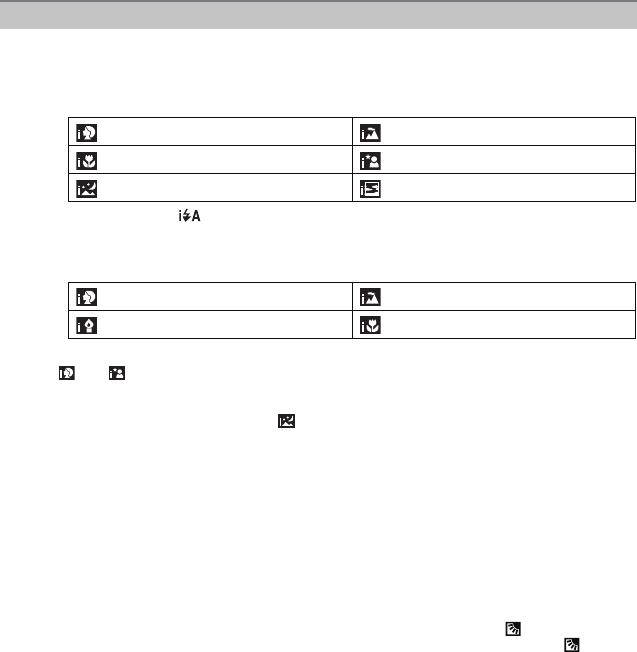
Scene Detection
¦>[i-Portrait] [i-Scenery]
[i-Macro] [i-Night Portrait]¢
[i-Night Scenery] [i-Sunset]
¢Only when [ ] is selected.
¦>[i-Portrait] [i-Scenery]
[i-Low Light] [i-Macro]
- 25 -
Basic
Following menus can be set.
•For the setting method of the menu, refer to P37.
¢Settings may be different from other Recording Modes.
•Menus specific to Intelligent Auto Mode
–Colour setting of [Happy] is available in [Color Mode]. It is possible to automatically take a
picture with a higher level of brilliance for the colour brightness and vividness.
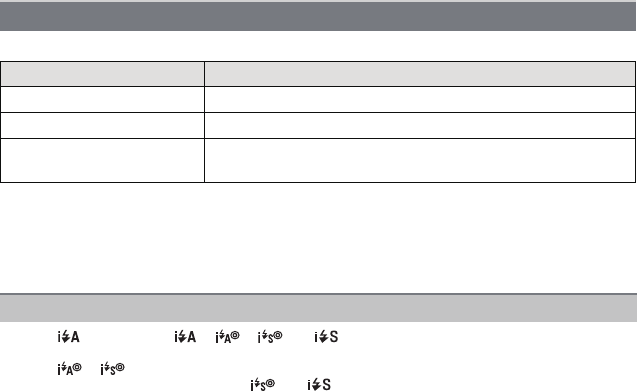
•When [ ] is selected, [ ], [ ], [ ] or [ ] is set depending on the type of subject and
brightness.
•When [ ], [ ] is set, Digital Red-Eye Correction is enabled.
•Shutter speed will be slower during [ ] or [ ].
Changing the settings
Menu Item
[Rec] [Picture Size]¢/[Burst]¢/[Color Mode]¢
[Motion Picture] [Rec Quality]
[Setup] [Clock Set]/[World Time]/[Beep]¢/[Language]/[Stabilizer
Demo.]
About the flash (P49)
Basic
- 26 -
Recording Mode:
Taking pictures with your favourite settings
(Normal Picture Mode)
The camera automatically sets the shutter speed and the aperture value according to the
brightness of the subject.
You can take pictures with greater freedom by changing various settings in the [Rec]
menu.
Slide the REC/PLAY switch to [!],
and then press [MODE].
Press 3/4/2/1 to select [Normal Picture],
and then press [MENU/SET].
Aim the AF area at the point you want to focus on.
Press the shutter button halfway to focus
and then press it fully to take the picture.
AISO sensitivity
BAperture value
CShutter speed
•Aperture value and shutter speed is displayed in red
when correct exposure is not achieved. (Exclude when
using a flash)
A B C
- 27 -
Basic
Focusing
Aim the AF area at the subject, and then
press the shutter button halfway.
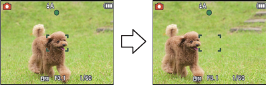
•The AF area may be displayed larger for certain zoom magnifications and in dark places.
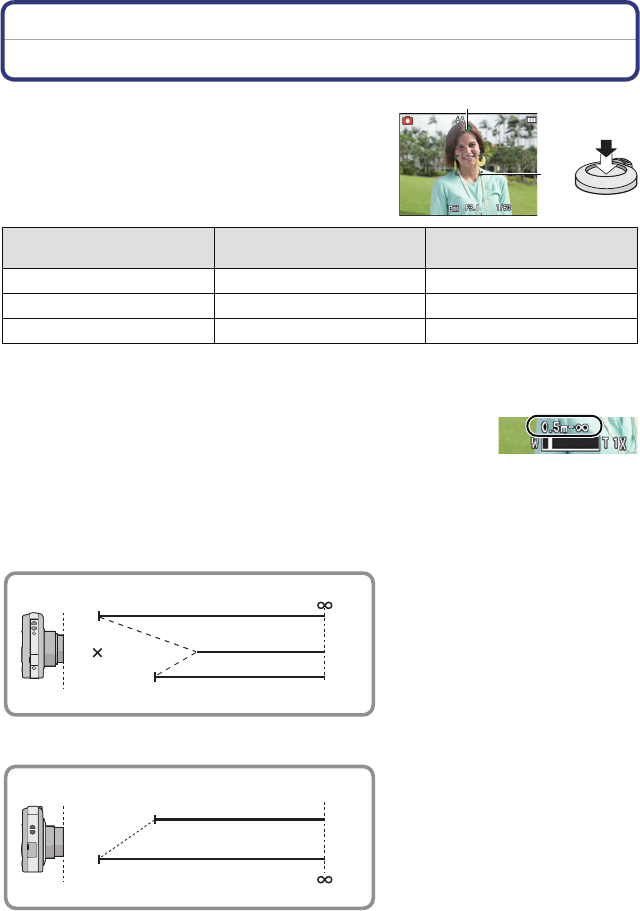
∫About focus range
The focus range is displayed when operating the zoom.
•The focus range is displayed in red when it is not focused after pressing
the shutter button halfway.
The focus range may change gradually depending on the zoom
position.
e.g.: Range of focus during the Intelligent Auto Mode
(DMC-SZ1)
(DMC-FH8)
Focus When the subject is focused When the subject is not
focused
Focus indication AOn Blinks
AF area BWhite>Green White>Red
Sound Beeps 2 times Beeps 4 times
A
B
5 cm (0.16 feet)
1.5 m (4.9 feet)
2 m (6.6 feet)
T
W
9
T
W
5 cm (0.16 feet)
1 m (3.3 feet)
Basic
- 28 -
∫When the subject is not in focus (such as when it is not in the centre of the
composition of the picture you want to take)
1Aim the AF area at the subject, and press
the shutter button half way to fix the
focus and exposure.
2Press and hold the shutter button half
way while moving the camera as you
compose the picture.
•You can repeatedly retry the actions in step 1 before pressing the shutter button fully.
∫Subject and recording conditions which are difficult to focus in
•Fast-moving subjects, extremely bright subjects or subjects without contrast
•When recording subjects through windows or near shiny objects
•When it is dark or when jitter occurs
•When the camera is too close to the subject or when taking a picture of both distant and near
subjects
- 29 -
Basic
Applicable modes:
Recording Motion Pictures
Start recording by pressing the motion picture
button.
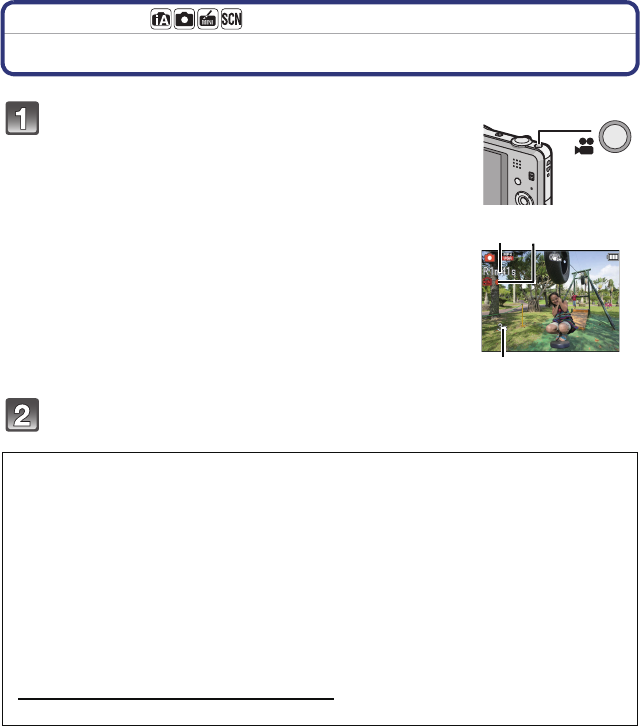
AAvailable recording time
BElapsed recording time
•You can record motion pictures fitting each Recording Mode.
•Release the motion picture button right after you press it.
•The recording state indicator (red) C will flash while recording
motion pictures.
•For the setting of [Rec Quality], refer to P76.
Stop the recording by pressing the motion picture button again.
∫About the recording format for recording motion pictures
This unit can record motion pictures in MP4 format.
MP4:
This is a simpler video format best used when extensive editing is needed, or when
uploading videos to the internet.
∫About the compatibility of the recorded motion pictures
Even if a compatible MP4 playback device is used, the video or sound quality of the
recorded motion pictures may be poor, or they may not be able to be played. There may
also be times when the recorded data is not displayed properly. If you experience such
issues, please play back the video on this camera.
•For details on MP4 compatible devices, refer to the support sites below.
http://panasonic.jp/support/global/cs/dsc/
(This Site is English only.)
B
A C
Basic
- 30 -
Note
•When recording to the built-in memory, [Rec Quality] is fixed to [VGA].
•The available recording time displayed on the screen may not decrease regularly.
•Depending on the type of the card, the card access indication may appear for a while after
recording motion pictures. This is not a malfunction.
•The screen may be blacked out momentarily, or the unit may record noise due to static
electricity or electromagnetic waves etc. depending on the environment of the motion picture
recording.
•Even if the aspect ratio setting is the same in still pictures and motion pictures, the angle of
view may change at the start of the motion picture recording.
When [Video Rec Area] (P42) is set to [ON], angle of view during motion picture recording is
displayed.
•About zooming while recording motion pictures
–If the Extra Optical Zoom was used before pressing the motion picture button, settings will be
cancelled, and the recordable range will change drastically.
–If you operate the zoom etc. while recording motion pictures, the sound of the operation may
be recorded.
–(DMC-SZ1)
The zoom speed will be slower than usual when recording motion pictures.
–(DMC-SZ1)
Operating the zoom while recording motion pictures can take time for the image to come into
focus.
–(DMC-FH8)
The optical zoom magnification cannot be changed after starting to record motion pictures.
However, Intelligent Zoom can be used by setting [i.Resolution] (P70) in the [Rec] menu to
[i.ZOOM]. Also, the Digital Zoom can be used by setting the [Digital Zoom] (P70) in the [Rec]
menu to [ON]. For details about the zoom range, refer to P47. If motion picture recording was
started within the optical zoom area, the zoom setting returns to the original magnification
when motion picture recording is finished.
•If you end motion picture recording after a short time when using Miniature Effect Mode, the
camera may go on recording for a certain period. Continue to hold the camera until the
recording ends.
•It is recommended to use a fully charged battery when recording motion pictures.
•Motion pictures cannot be recorded with [Panorama Shot] in Scene Mode.
•It will be recorded in following categories for certain Scene Modes. A motion picture recording
matching each scene will be performed for the ones not listed below.
Selected Scene Mode Scene Mode while recording motion picture
[Baby1]/[Baby2] Portrait Mode
[Night Portrait], [Night Scenery] Low Light Mode
[Sports], [Pet], [Photo Frame] Normal motion picture

- 31 -
Basic
Still pictures can be recorded even while recording a motion picture. (Simultaneous
recording)
During motion picture recording, press the shutter button fully to record a
still picture.
Note
•You can record up to 5 pictures per motion picture recording.
•The picture size is fixed to 3.5M (16:9).
•Simultaneous recording is not possible when [Rec Quality] is set to [VGA].
•If you press the shutter button halfway to take a picture while recording a motion picture, the
camera will refocus and the refocus movement will be recorded to the motion picture. To
prioritise the motion picture image, taking still pictures by fully pressing the shutter button is
recommended.
•Picture size and number of recordable pictures are displayed by pressing the shutter button
halfway.
•Recording of motion picture will continue after taking the still picture.
•In Miniature Effect Mode, recording will begin shortly after pressing the shutter button fully.
•Zooming may stop when a picture is recorded while zooming.
•Operation sound of the shutter button may be recorded when a picture is taken during motion
picture recording.
•The flash setting is fixed to [Œ].
•When the subject has a bright part, reddish stripes may appear on the LCD monitor.
Alternatively, part or all of the LCD monitor may turn a reddish colour.
Recording still pictures while recording motion pictures
Basic
- 32 -
Playing Back Pictures ([Normal Play])
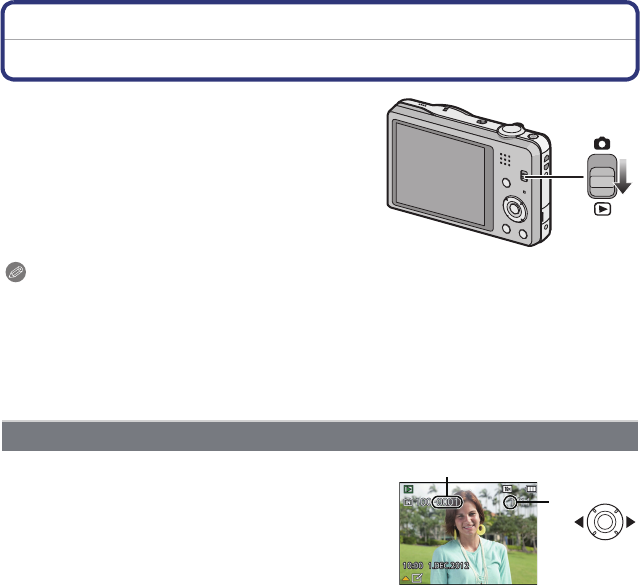
Slide the REC/PLAY switch to [(].
Note
•This camera complies with the DCF standard “Design rule for Camera File system” established
by JEITA “Japan Electronics and Information Technology Industries Association” and with Exif
“Exchangeable Image File Format”. Files that do not comply with the DCF standard cannot be
played back.
•Pictures recorded with another camera may not be able to play back on this unit.
•The lens barrel retracts about 15 seconds after switching from Recording Mode to Playback
Mode.
Press 2 or 1.
AFile number
BPicture number
•If you press and hold 2/1, you can play back the
pictures in succession.
•Speed of picture Forwarding/Rewinding changes depending on the playback status.
Selecting a picture
2: Play back the previous picture
1: Play back the next picture
B
A
- 33 -
Basic
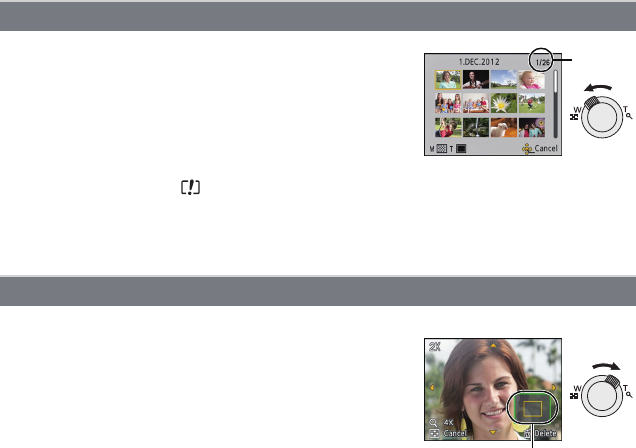
Rotate the zoom lever towards [L] (W).
1 screen>12 screens>30 screens>Calendar screen
display
ANumber of the selected picture and the total number of
recorded pictures
•Rotate the zoom lever towards [Z] (T) to return to the
previous screen.
•Pictures displayed using [ ] cannot be played back.
∫To return to normal playback
Press 3/4/2/1 to select a picture and then press [MENU/SET].
Displaying Multiple Screens (Multi Playback)
Using the Playback Zoom
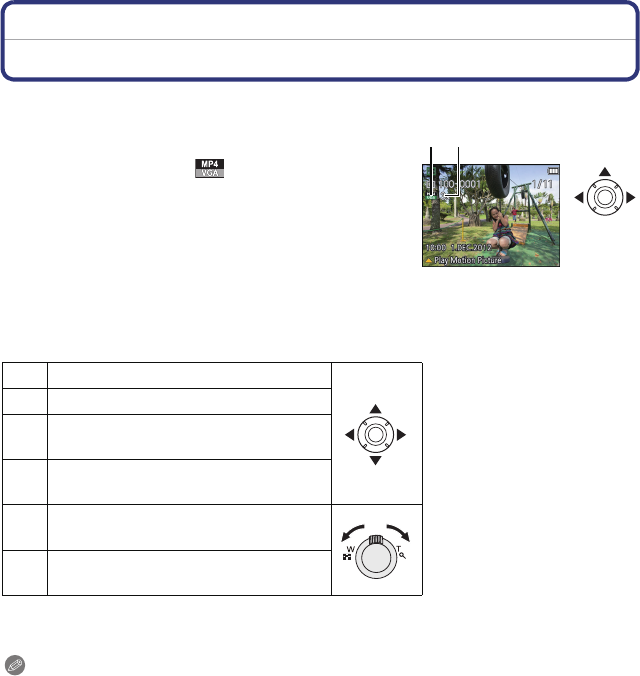
Rotate the zoom lever towards [Z] (T).
1k>2k>4k>8k>16k
•When you rotate the zoom lever towards [L] (W) after
enlarging the picture, the magnification becomes lower.
•When you change the magnification, the zoom position
indication B appears for about 2 seconds, and the position of
the enlarged section can be moved by pressing 3/4/2/1.
•The more a picture is enlarged, the more its quality
deteriorates.
A
B
Basic
- 34 -
Playing Back Motion Pictures
This unit was designed to play motion pictures using the MP4 and QuickTime Motion JPEG
formats.
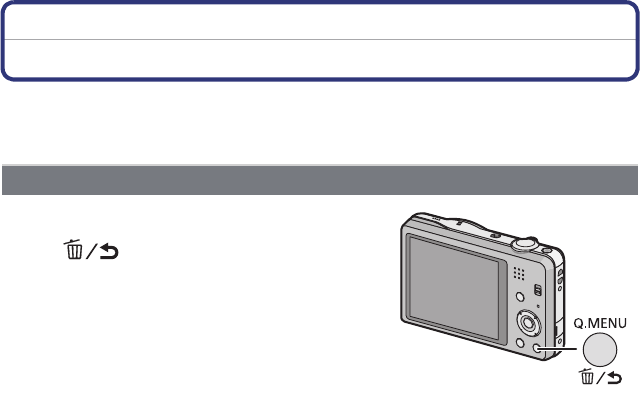
Press 2/1 to select a picture with a Motion
Picture icon (such as [ ]), and then press 3
to play back.
AMotion picture icon
BMotion picture recording time
•After playback starts, the elapsed playback time is displayed
on the screen.
For example, 8 minutes and 30 seconds is displayed as
[8m30s].
∫Operations performed during Motion Picture Playback
The cursor displayed during playback is the same as 3/4/2/1.
¢The fast forward/rewind speed increases if you press 1/2 again.
Note
•When using a high capacity card, it is possible that fast rewinding may be slower than usual.
•To play back the motion pictures recorded by this unit on a PC, use the “PHOTOfunSTUDIO”
software on the CD-ROM (supplied).
•Motion pictures recorded with other camera may not be able to play back on this unit.
•Be careful not to block the speaker of the camera during playback.
•Motion pictures recorded in Miniature Effect Mode play back at approximately 8 times speed.
3Play/Pause
4Stop
2Fast rewind¢/
Frame-by-frame rewind (while pausing)
1Fast forward¢/
Frame-by-frame forward (while pausing)
[W] Reduce volume level
[T] Increase volume level
A B
- 35 -
Basic
Deleting Pictures
Once deleted, pictures cannot be recovered.
•Pictures on the built-in memory or the card that are being played back will be deleted.
•Pictures that are not in the DCF standard or those that are protected cannot be deleted.
To delete a single picture
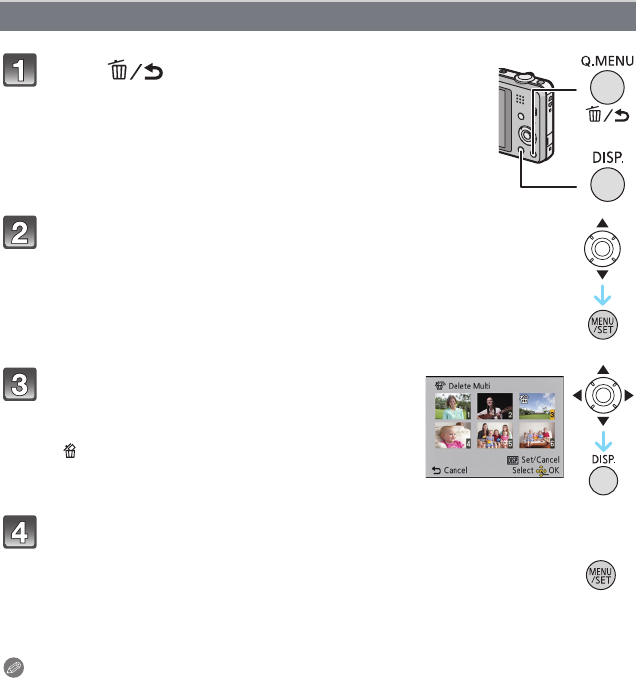
Select the picture to be deleted, and then
press [ ].
•Confirmation screen is displayed.
Picture is deleted by selecting [Yes].
Basic
- 36 -
Note
•Do not turn the camera off while deleting. Use a battery with sufficient battery power.
•Depending on the number of pictures to be deleted, it may take some time to delete them.
To delete multiple pictures (up to 50) or all the pictures
Press [ ].
Press 3/4 to select [Delete Multi] or
[Delete All] and then press [MENU/SET].
•[Delete All] > Confirmation screen is displayed.
Pictures are deleted by selecting [Yes].
•It is possible to delete all pictures except the ones set
as favourite when [All Delete Except Favorite] is
selected with the [Delete All] set.
(When [Delete Multi] is selected) Press 3/
4/2/1 to select the picture, and then press
[DISP.] to set. (Repeat this step.)
•[ ] appears on the selected pictures. If [DISP.] is
pressed again, the setting is cancelled.
(When [Delete Multi] is selected) Press
[MENU/SET].
•Confirmation screen is displayed.
Pictures are deleted by selecting [Yes].
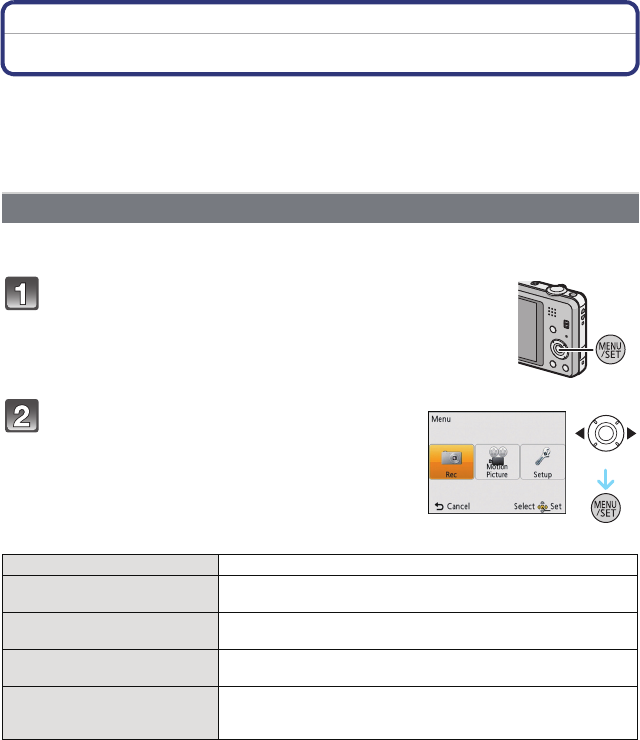
- 37 -
Basic
Setting the Menu
The camera comes with menus that allow you to choose the settings for taking pictures
and playing them back just as you like and menus that enable you to have more fun with
the camera and use it more easily.
In particular, the [Setup] menu contains some important settings relating to the camera’s
clock and power. Check the settings of this menu before proceeding to use the camera.
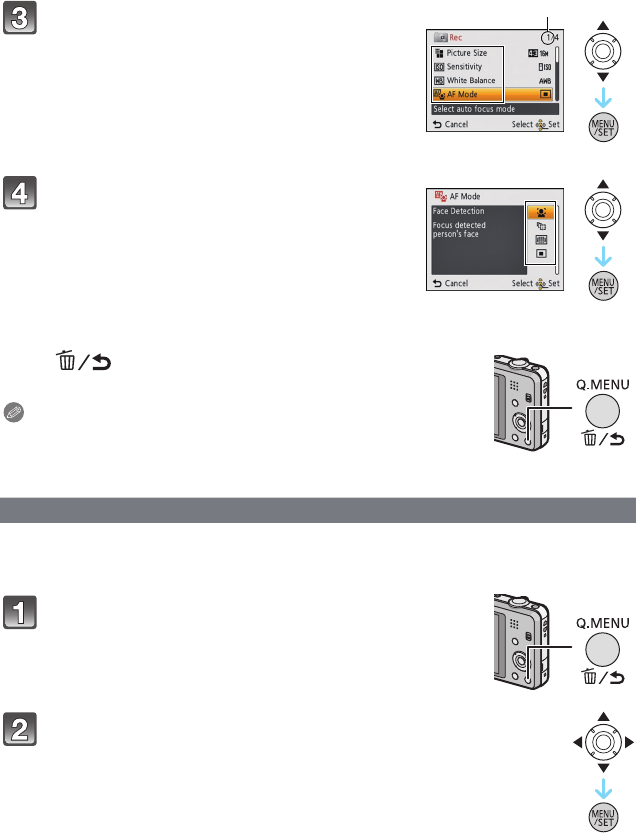
Example: In the [Rec] menu, change [AF Mode] from [Ø] ([1-Area]) to [š] ([Face
Detection])
Press [MENU/SET].
Setting menu items
Press 2/1 to select menu and then press
[MENU/SET].
Menu Description of settings
[Rec] (P64 to 75)
(Recording Mode only)
The menu lets you set the Colouring, Sensitivity or Number of
pixels, etc. of pictures you are recording.
[Motion Picture] (P76)
(Recording Mode only)
This menu lets you set the setting for motion pictures such as
recording quality.
[Playback] (P85 to 96)
(Playback Mode only)
This menu lets you set the Protection, Cropping or Print
Settings, etc. of recorded pictures.
[Setup] (P39 to 45)
This menu lets you perform the clock settings, beep tone
settings and other settings which make it easier for you to
operate the camera.
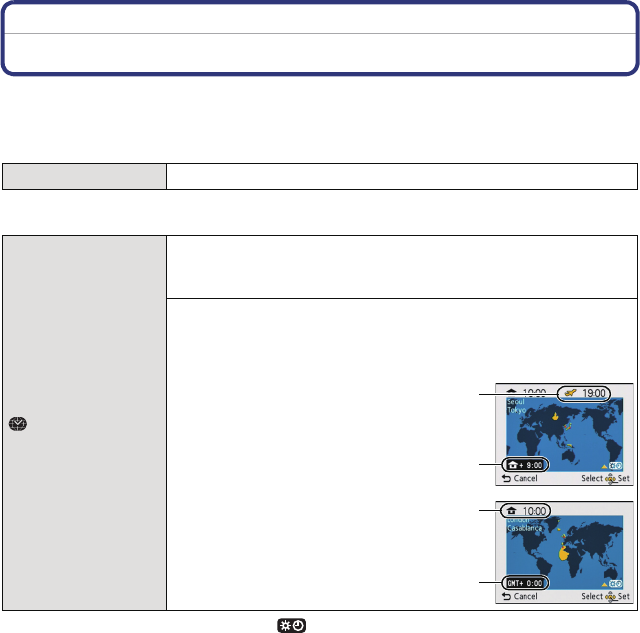
Basic
- 38 -
∫Close the menu
Press [ ] several times or press the shutter
button halfway.
Note
•There are functions that cannot be set or used depending on
the modes or menu settings being used on the camera due
to the specifications.
By using the Quick Menu, some of the menu settings can be easily found.
•The features that can be adjusted using Quick Menu are determined by the mode or a display
style the camera is in.
Press 3/4 to select the menu item and
then press [MENU/SET].
AMenu screen page
•It will switch to the next page when you reach the
bottom. (It will also switch by rotating the zoom lever)
Press 3/4 to select the setting and then
press [MENU/SET].
•Depending on the menu item, its setting may not
appear or it may be displayed in a different way.
Using the Quick Menu
Press [Q.MENU] when recording.
Press 3/4/2/1 to select the menu item
and the setting and then press [MENU/SET]
to close the menu.
A
- 39 -
Basic
About the Setup Menu
[Clock Set], [Sleep Mode] and [Auto Review] are important items. Check their settings
before using them.
For details on how to select the [Setup] menu settings, refer to P37.
•Refer to P19 for details.
•Press 3 if you are using Summer Time [ ]. (The time will move forward by 1 hour.) Press 3
once more to return to the normal time.
•If you cannot find the travel destination in the areas displayed on the screen, set by the time
difference from the home area.
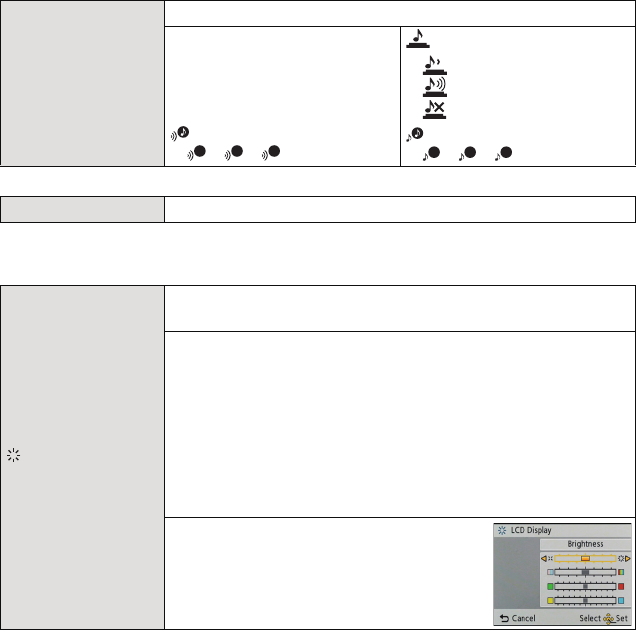
U [Clock Set] Setting Date/Time.
[World Time]
Set the time in your home area and travel destination.
You can display the local times at the travel destinations and
record them on the pictures you take.
After selecting [Destination] or [Home], press 2/1 to select
an area, and press [MENU/SET] to set.
•Set [Home] first thing after purchasing. [Destination] can be set after
setting up [Home].
“ [Destination]:
Travel destination area
ACurrent time of the destination area
BTime difference from home area
– [Home]:
Your home area
CCurrent time
DTime difference from GMT (Greenwich
Mean Time)
A
B
C
D

Basic
- 40 -
•The number of days that have passed since the departure date can be printed out using the
“PHOTOfunSTUDIO” bundled software on the CD-ROM (supplied).
•The travel date is calculated using the date in the clock setting and the departure date you set.
If you set [World Time] to the travel destination, the travel date is calculated using the date in
the clock setting and the travel destination setting.
•The travel date setting is memorised even if the camera is turned off.
•The number of days that have passed since the departure date is not recorded before the
departure date.
•[Location] cannot be recorded when taking motion pictures.
•[Travel Date] cannot be set in the Intelligent Auto Mode. Setting of other Recording Mode will
be reflected.
— [Travel Date]
Departure date and return date of the travel as well as the name
of the travel destination can be set.
You can display the number of days that have passed when
playing back the pictures and stamp it on the recorded pictures
with [Text Stamp] (P87).
[Travel Setup]:
[SET]:
Departure date and return date are set. Elapsed days (how
many days after) of the travel are recorded.
[OFF]:
Elapsed days are not recorded.
•The travel date is automatically cancelled if the current date is after
the return date. If the [Travel Setup] is set to [OFF], [Location] will
also be set to [OFF].
[Location]:
[SET]:
Travel destination is recorded at the time of recording.
[OFF]
•For details on how to enter characters, refer to “Entering Text” on
P63.
- 41 -
Basic
•When you connect the camera to a TV, the volume of the TV speakers does not change. Also,
when connected, no sound is output from the camera speakers.
•Some subjects may appear differently from actuality on the LCD monitor. However, this does
not affect the recorded pictures.
•When [LCD Mode] is set to [High Angle], [Brightness] and [Contrast · Saturation] cannot be
adjusted.
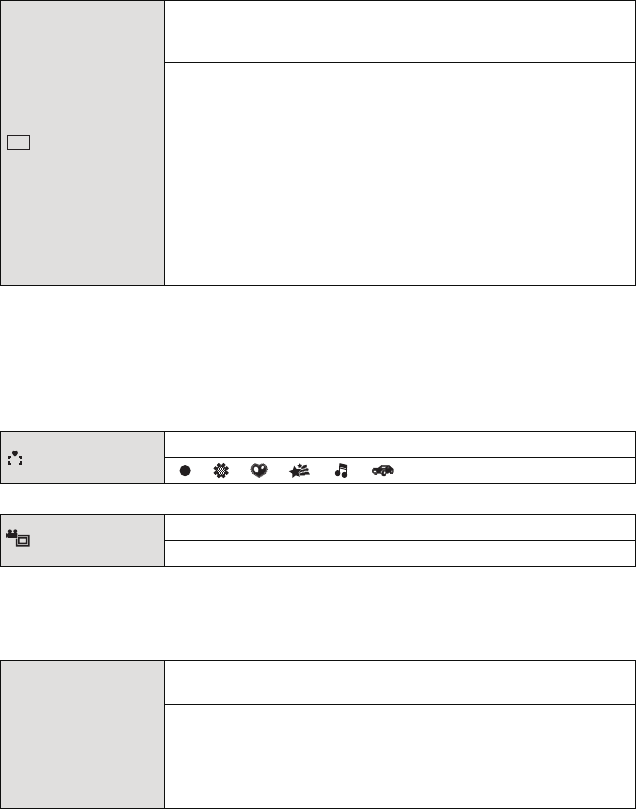
r [Beep]
This allows you to set the beep and shutter sound.
r [Beep Level]: [Shutter Vol.]:
[t]
[u]
[s]
([Low])
([High])
([OFF])
[]
[]
[]
([Low])
([High])
([OFF])
[Beep Tone]:
[]/[]/[]
[Shutter Tone]:
[]/[]/[]
u [Volume] Adjust the volume of the speaker to any of the 7 levels.
[LCD Display]
Brightness, colour, or red or blue tint of the LCD monitor is
adjusted.
[Brightness]:
Adjust the brightness.
[Contrast · Saturation]:
Adjust the contrast or clarity of colours.
[Red Tint]:
Adjust the red tint.
[Blue Tint]:
Adjust the blue tint.
1Select the settings by pressing
3/4, and adjust with 2/1.
2Press [MENU/SET] to set.
1
2
3
1
2
3
Basic
- 42 -
•High Angle Mode is also cancelled if you turn the camera off or [Sleep Mode] is activated.
•The brightness of the pictures displayed on the LCD monitor is increased so some subjects
may appear different from real life on the LCD monitor. However, this does not affect the
recorded pictures.
•The LCD monitor automatically returns to normal brightness after 30 seconds when recording
in Power LCD Mode. Press any button to make the LCD monitor bright again.
•When [LCD Mode] is set, the usage time is reduced.
•Motion picture recording area display is only an approximation.
•Recording area display may disappear when zooming to Tele depending on the picture size
setting.
•It will be fixed to [OFF] during the Intelligent Auto Mode.
•Press the shutter button halfway or turn the camera off and on to cancel [Sleep Mode].
•[Sleep Mode] is set to [5MIN.] in the Intelligent Auto Mode.
•[Sleep Mode] does not work in the following cases.
–When using the AC adaptor (supplied)
–When connecting to a PC or a printer
–When recording or playing back motion pictures
–During a Slide Show
–[Auto Demo]
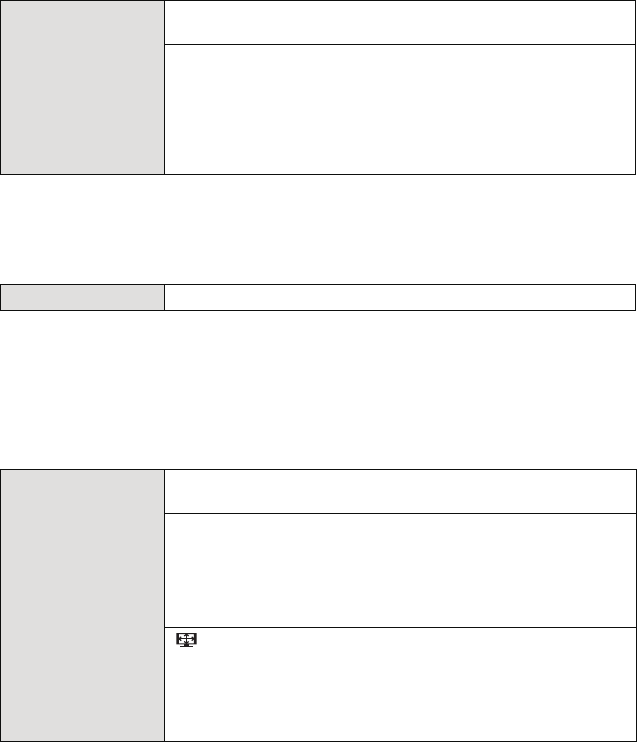
[LCD Mode]
These menu settings make it easier to see the LCD monitor when
you are in bright places or when you are holding the camera high
above your head.
[„] ([Auto Power LCD])¢:
The brightness is adjusted automatically depending on how bright
it is around the camera.
[…] ([Power LCD]):
The LCD monitor becomes brighter and easier to see even when
taking pictures outdoors.
[Å] ([High Angle])¢:
The LCD monitor is easier to see when taking pictures with the
camera held high above your head.
[OFF]
¢Can be set only when Recording Mode is set.
[Focus Icon] Change the focus icon.
[ ]/[ ]/[ ]/[ ]/[ ]/[ ]
[Video Rec Area] Angle of view for motion picture recording can be checked.
[ON]/[OFF]
p [Sleep Mode]
The camera is automatically turned off if the camera has not been
used for the time selected on the setting.
[2MIN.]
[5MIN.]
[10MIN.]
[OFF]
LCD
- 43 -
Basic
•[Auto Review] is activated regardless of its setting in the following cases.
–When using [Burst].
•In Intelligent Auto Mode or [Panorama Shot] and [Photo Frame] in Scene Mode, the Auto
Review function is fixed to [2SEC.].
•[Auto Review] does not work when recording motion pictures.
•When the [Reset] setting is selected during recording, the operation that resets the lens is also
performed at the same time. You will hear the sound of the lens operating but this is normal and
not indicative of malfunctioning.
•When [Setup] menu settings are reset, the following settings are also reset.
–The birthday and name settings for [Baby1]/[Baby2] and [Pet] in Scene Mode.
–The [Travel Date] setting. (Departure date, return date, destination)
–The [World Time] setting.
•The folder number and the clock setting are not changed.
•This will work when the AV cable (P97) is connected.
o [Auto Review]
Set the length of time that the picture is displayed after taking the
still picture.
[1SEC.]
[2SEC.]
[HOLD]:
The pictures are displayed until one of the buttons is pressed.
[OFF]
w [Reset] The [Rec] or [Setup] menu settings are reset to the initial settings.
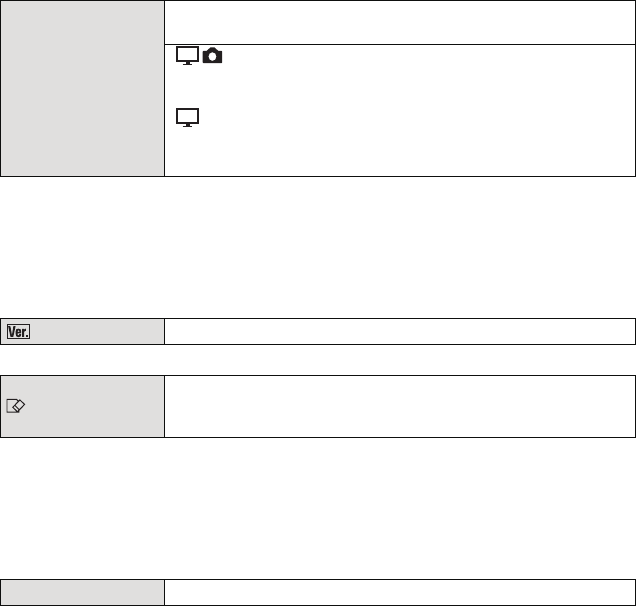
| [Output]
Set to match the colour television system in each country or the
type of TV.
[|] ([Video Out]):
[NTSC]:
Video output is set to NTSC system.
[PAL]:
Video output is set to PAL system.
[] ([TV Aspect]):
[W]:
When connecting to a 16:9 screen TV.
[X]:
When connecting to a 4:3 screen TV.
Basic
- 44 -
•Refer to P32 for information about how to play back pictures.
•When you play back pictures on a PC, they cannot be displayed in the rotated direction unless
the OS or software is compatible with Exif. Exif is a file format for still pictures which allows
recording information etc. to be added. It was established by “JEITA (Japan Electronics and
Information Technology Industries Association)”.
•It may not be possible to rotate pictures that have been recorded with other equipment.
•The display is not rotated during Multi Playback.
•Use a battery with sufficient battery power when formatting. Do not turn the camera off during
formatting.
•If a card has been inserted, only the card is formatted. To format the built-in memory, remove
the card.
•If the card has been formatted on a PC or other equipment, format it on the camera again.
•It may take longer to format the built-in memory than the card.
•If you cannot format, contact the dealer or your nearest Service Centre.
•If you set a different language by mistake, select [~] from the menu icons to set the desired
language.
M [Rotate Disp.]
This mode allows you to display pictures vertically if they were
recorded holding the camera vertically.
[]([On]): Rotate pictures on a TV and the LCD
display so that they are displayed
vertically.
[] ([External Only]): Rotate only the picture on a TV so
that it is displayed vertically.
[OFF]
[Version Disp.] It is possible to check which version of firmware is on the camera.
[Format]
The built-in memory or card is formatted. Formatting
irretrievably deletes all the data so check the data carefully
before formatting.
~ [Language] Set the language displayed on the screen.
- 45 -
Basic
•The Stabiliser function is switched between [On] and [Off] every time [MENU/SET] is pressed
during the [Stabilizer Demo.].
•In Playback Mode, [Stabilizer Demo.] cannot be displayed.
•[Stabilizer Demo.] is an approximation.
•[Auto Demo] is not output to the television.
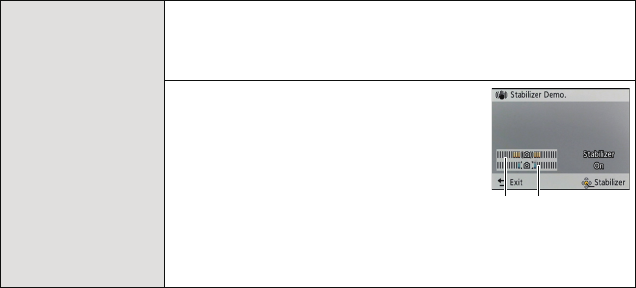
[Demo Mode]
Displays the amount of jitter the camera has detected. ([Stabilizer
Demo.])
The camera’s features are displayed as slide shows.
([Auto Demo])
[Stabilizer Demo.]:
AAmount of jitter
BAmount of jitter after correction
[Auto Demo]:
[ON]
[OFF]
DEMO
AB
Recording
- 46 -
Recording
About the LCD Monitor
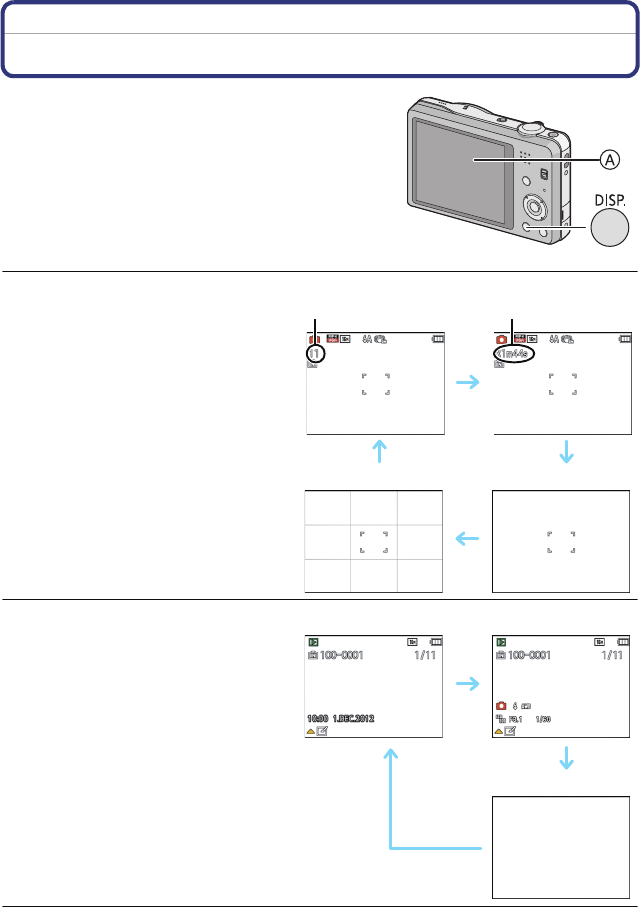
Press [DISP.] to change.
ALCD monitor
•When the menu screen appears, the [DISP.] button is not
activated. During Playback Zoom, while playing back
motion pictures and during a slide show, you can only
select “Normal display H” or “No display J”.
∫Recording guideline
This is used as a reference of composition, such as balance, while taking a picture.
•In [Panorama Shot] or [Photo Frame] in Scene Mode, the guideline is not displayed.
In Recording Mode
BNormal display
CNumber of recordable pictures
DNormal display
EAvailable recording time
FNo display
GNo display (Recording guideline)
BD
GF
In Playback Mode
HNormal display
IDisplay with recording information
JNo display
HI
J
C
E
- 47 -
Recording
Applicable modes:
Using the Zoom
You can zoom in to make people and objects appear closer or zoom out to record
landscapes in wide angle.
Setting the number of pixels to 10M or less will operate the Extra Optical Zoom to take
zoomed pictures without affecting quality.
∫Types of zooms
¢1 This includes the optical zoom magnification. The magnification level differs depending on
[Picture Size] setting.
The zoom functions below can also be used to further increase the zoom magnification.
¢2 This is 2k magnification when [i.Resolution] in [Rec] menu is set to [i.ZOOM].
Using the Optical Zoom/Using the Extra Optical Zoom (EZ)/Using the
Intelligent Zoom/Using the Digital Zoom
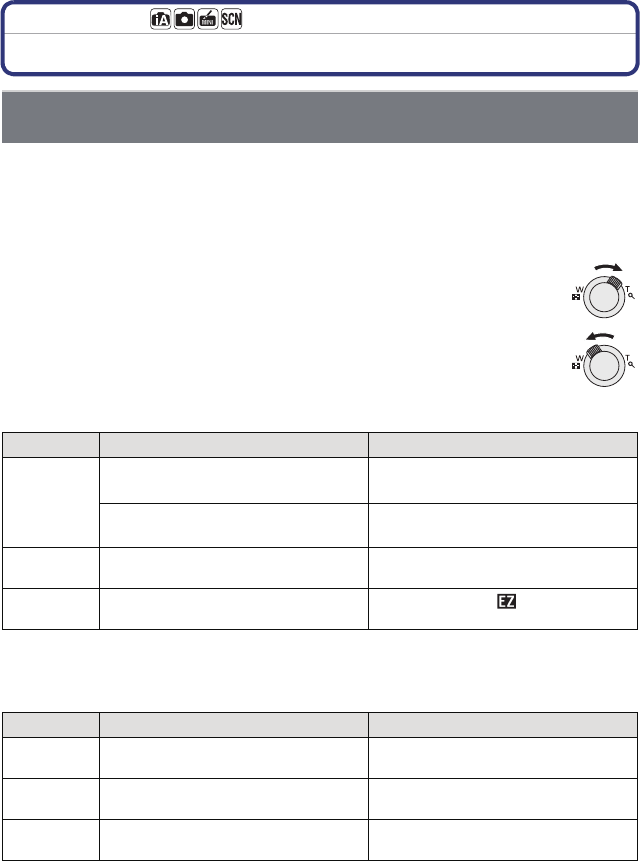
To make subjects appear closer use (Tele)
Rotate the zoom lever towards Tele.
To make subjects appear further away use (Wide)
Rotate the zoom lever towards Wide.
Feature Optical Zoom Extra Optical Zoom (EZ)
Maximum
magnification
(DMC-SZ1)
10k
(DMC-SZ1)
22.5k¢1
(DMC-FH8)
5k
(DMC-FH8)
11.3k¢1
Picture
quality No deterioration No deterioration
Conditions None [Picture Size] with (P64) is
selected.
Feature Intelligent Zoom Digital Zoom
Maximum
magnification 2k 4k¢2
Picture
quality Zoom in while limiting deterioration The higher the magnification level, the
greater the deterioration.
Conditions [i.Resolution] (P70) on the [Rec] menu
is set to [i.ZOOM].
[Digital Zoom] (P70) on the [Rec] menu
is set to [ON].
Recording
- 48 -
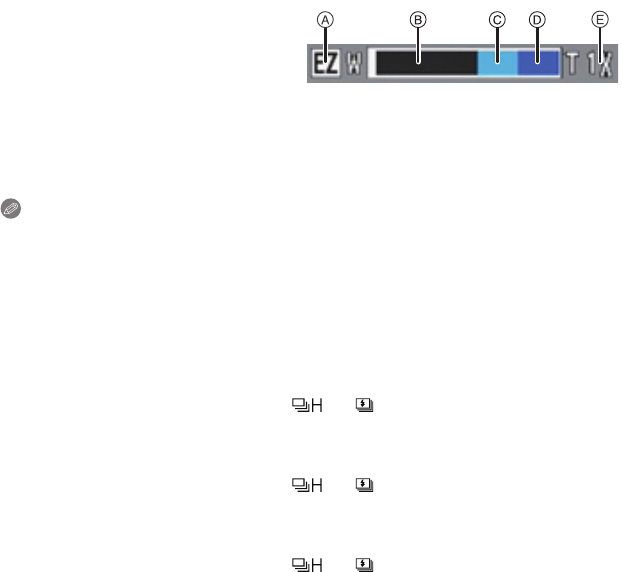
∫Screen display
•When using the Zoom function, an estimate of the focus range will appear in
conjunction with the zoom display bar. [Example: 0.5 m (1.6 ft.) –¶]
Note
•The indicated zoom magnification is an approximation.
• “EZ” is an abbreviation of “Extra Optical Zoom”. It is possible to take more magnified pictures
with the optical zoom.
•The lens barrel extends or retracts according to the zoom position. Be sure not to interrupt the
motion of the lens barrel while the zoom lever is rotated.
•When using the Digital Zoom, we recommend using a tripod and the Self-timer (P53) for taking
pictures.
•For details about using the zoom while recording motion pictures, refer to P30.
•The Extra Optical Zoom cannot be used in the following cases:
–In Macro Zoom Mode
–In [High Sens.] or [Photo Frame] in Scene Mode
–When [Burst] in the [Rec] menu is set to [ ] or [ ]
–When recording motion pictures
•The Intelligent Zoom cannot be used in the following cases:
–In Macro Zoom Mode
–In [High Sens.] in Scene Mode
–When [Burst] in the [Rec] menu is set to [ ] or [ ]
•[Digital Zoom] cannot be used in the following cases:
–In Intelligent Auto Mode
–In Miniature Effect Mode
–In [High Sens.] or [Photo Frame] in Scene Mode
–When [Burst] in the [Rec] menu is set to [ ] or [ ]
AExtra Optical Zoom indication
BOptical Zoom range
CIntelligent Zoom range
DDigital Zoom range
EZoom magnification
- 49 -
Recording
Applicable modes:
Taking Pictures Using the Built-in Flash
Set the flash to match the recording.
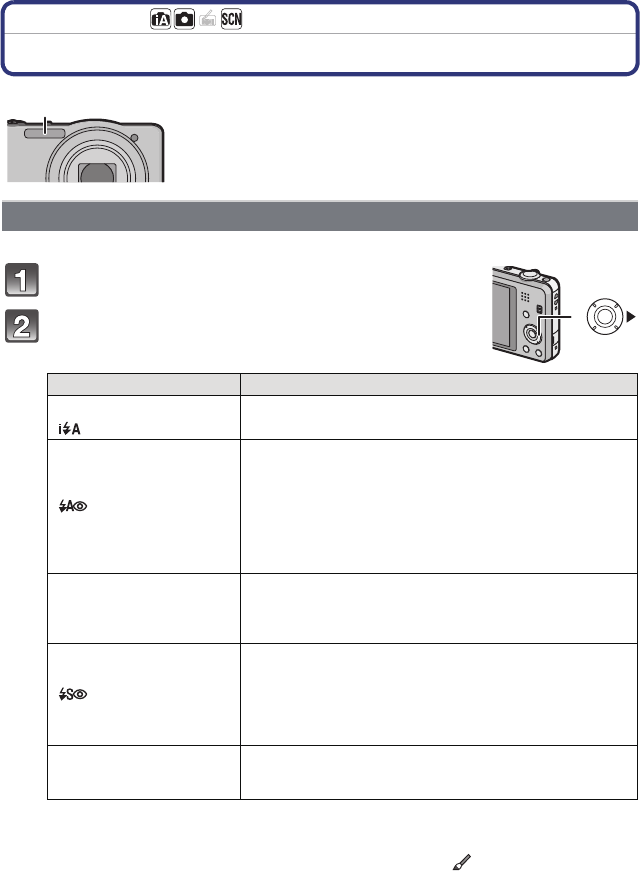
Press 1 [‰].
Press 3/4 to select the item and then press
[MENU/SET].
¢1 This can be set only when Intelligent Auto Mode is set.
¢2The flash is activated twice. The subject should not move until the second flash is
activated. Interval until the second flash depends on the brightness of the subject.
[Red-Eye Removal] (P74) on the [Rec] menu is set to [ON], [ ] appears on the flash
icon.
APhoto flash
Do not cover it with your fingers or other objects.
Switching to the appropriate flash setting
Item Description of settings
[‡]([Auto]) The flash is automatically activated when the recording
conditions make it necessary.
[]([iAuto])¢1
[]([Auto/Red-Eye])¢2
The flash is automatically activated when the recording
conditions make it necessary.
It is activated once before the actual recording to reduce
the red-eye phenomenon (eyes of the subject appearing
red in the picture) and then activated again for the actual
recording.
•Use this when you take pictures of people in low
lighting conditions.
[‰]([Forced Flash On])
The flash is activated every time regardless of the
recording conditions.
•Use this when your subject is back-lit or under
fluorescent light.
[]
([Slow Sync./
Red-Eye])¢2
If you take a picture with a dark background landscape,
this feature will slow the shutter speed when the flash is
activated so that the dark background will become bright.
Simultaneously, it reduces the red-eye phenomenon.
•Use this when you take pictures of people in front of
a dark background.
[Œ]([Forced Flash Off]
)
The flash is not activated in any recording conditions.
•Use this when you take pictures in places where the
use of flash is not permitted.
Recording
- 50 -
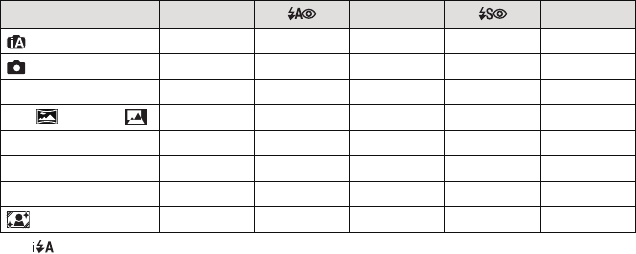
∫Available Flash Settings in Recording Mode
The available flash settings depend on the Recording Mode.
(±: Available, —: Not available, ¥: Scene Mode initial setting)
¢[ ] is displayed.
•The flash setting may change if the Recording Mode is changed. Set the flash setting again if
necessary.
•The flash setting is memorised even if the camera is turned off. However, the Scene Mode flash
setting is reset to the initial setting when the Scene Mode is changed.
•Flash will not be activated when recording motion picture.
‡ ‰ Œ
±¢———±
±±±—±
* + : ; ±¥±—±
, / ï ————¥
-¥—±—±
.———¥±
1 í 9±—±—¥
¥±±—±
- 51 -
Recording
∫The available flash range
(DMC-SZ1)
(DMC-FH8)
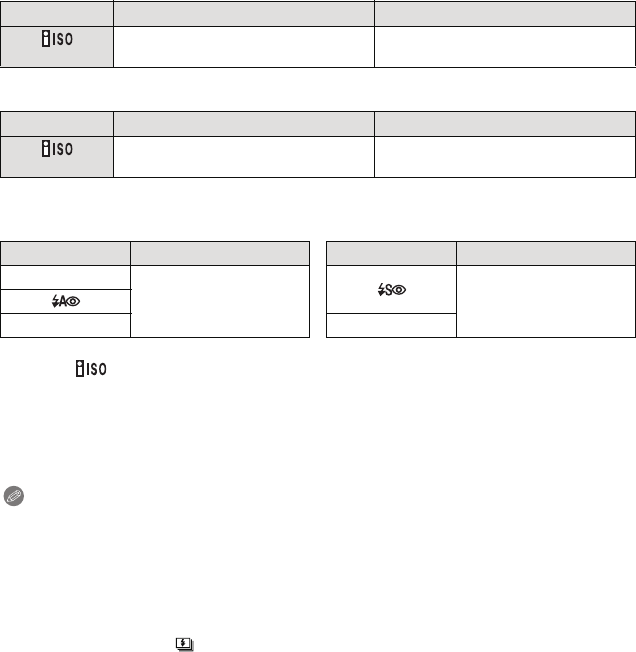
∫Shutter speed for each flash setting
¢1 The shutter speed changes depending on the [Stabilizer] setting.
¢2 When [ ] in [Sensitivity] is set.
•¢1, 2: The shutter speed becomes a maximum of 1 second in the following cases.
–When the Optical Image Stabiliser is set to [OFF].
–When the camera has determined that there is very little jitter when the Optical Image
Stabiliser is set to [ON].
•In Intelligent Auto Mode, shutter speed changes depending on the identified scene.
•In Scene Mode, shutter speed will be different from the above table.
Note
•If you bring the Flash too close to an object, the object may be distorted or discoloured by the
heat or lighting from the Flash.
•Recording a subject from too close, or without sufficient flash will not provide the appropriate
level of exposure, and may result in a picture that is too white or dark.
•When the Flash is being charged, the Flash icon blinks red, and you cannot take a picture even
when you press the shutter button fully.
•If recording a subject without sufficient flash, the White Balance may not be properly adjusted.
•The effects of the flash may not be adequately achieved under the following conditions.
–When [Burst] is set to [ ]
–When the shutter speed is too fast
•It may take time to charge the Flash if you repeatedly take pictures. Take a picture after the
access indication disappears.
•The Red-Eye Reduction effect differs between people. Also, if the subject is far away from the
camera or was not looking at the first Flash, the effect may not be evident.
Wide Tele
In [ ] in
[Sensitivity] 60 cm (2.0 feet) to 5.6 m (18 feet) 1.5 m (4.9 feet) to 2.9 m (9.5 feet)
Wide Tele
In [ ] in
[Sensitivity] 40 cm (1.3 feet) to 5.6 m (18 feet) 1.0 m (3.3 feet) to 2.1 m (6.9 feet)
Flash setting Shutter speed (Sec.) Flash setting Shutter speed (Sec.)
‡
1/60 to 1/1600 1 or 1/8 to 1/1600¢1
1 or 1/4 to 1/1600¢2
‰Œ
Recording
- 52 -
Applicable modes:
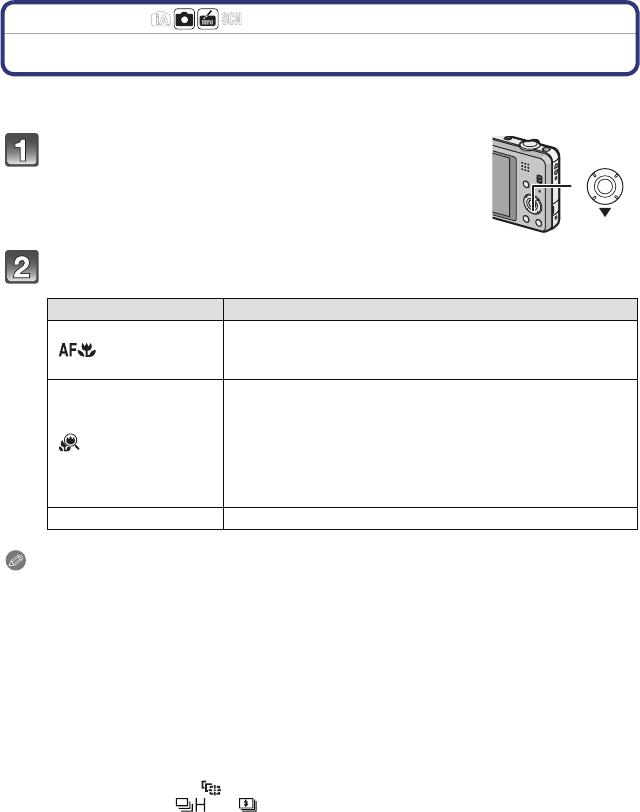
Taking Close-up Pictures ([AF Macro]/[Macro Zoom])
This mode allows you to take close-up pictures of a subject, e.g. when taking pictures of
flowers.
Press 4 [#].
Press 3/4 to select the item and then press [MENU/SET].
Note
•We recommend using a tripod and the Self-timer.
•We recommend setting the flash to [Œ] when you take pictures at close range.
•If the distance between the camera and the subject is beyond the focus range of the camera,
the picture may not be properly focused even if the focus indication lights.
•When a subject is close to the camera, the effective focus range is significantly narrowed.
Therefore, if the distance between the camera and the subject is changed after focusing on the
subject, it may become difficult to focus on it again.
•Macro Mode gives priority to a subject close to the camera. Therefore, if the distance between
the camera and the subject is far, it takes longer to focus on it.
•When you take pictures at close range, the resolution of the periphery of the picture may
decrease slightly. This is not a malfunction.
•[Macro Zoom] cannot be set in the following cases.
–When in Miniature Effect Mode
–When [AF Mode] is set to [ ]
–When [Burst] is set to [ ] or [ ]
Item Description of settings
[]([AF Macro])
You can take pictures of a subject as close as 5 cm
(0.16 feet) from the lens by rotating the zoom lever
upmost to Wide (1k).
[] ([Macro Zoom])
Use this setting to get close to the subject and then
further enlarge when taking the picture.
You can take a picture with the Digital Zoom up to 3k
while maintaining the distance to the subject for the
extreme Wide position [5 cm (0.16 feet)].
•The image quality is poorer than during normal recording.
•Zoom range will be displayed in blue. (digital zoom range)
[OFF] j
- 53 -
Recording
Applicable modes:
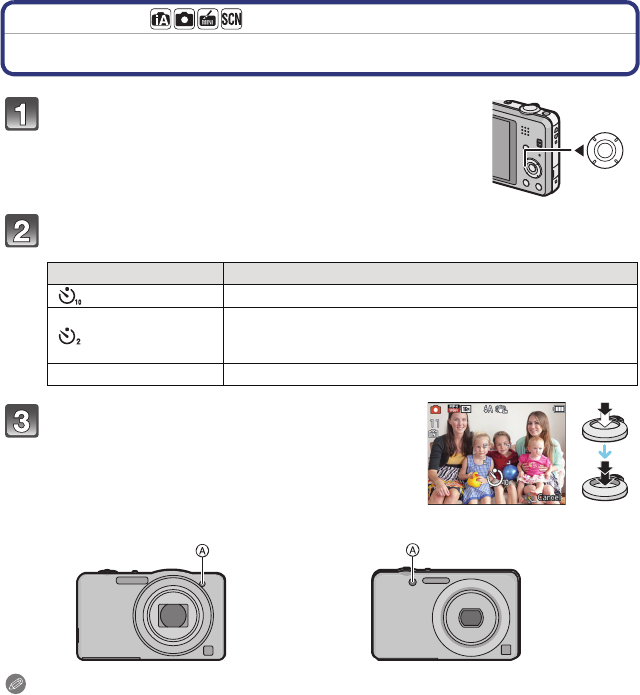
Taking Pictures with the Self-timer
Press 2 [ë].
Press 3/4 to select the item and then press [MENU/SET].
Note
•When you press the shutter button once fully, the subject is automatically focused just before
recording. In dark places, the Self-timer indicator will blink and then may turn on brightly,
operating as an AF Assist Lamp to allow the camera to focus on the subject.
•We recommend using a tripod when recording with the Self-timer.
•The self-timer cannot be set when recording motion pictures.
Item Description of settings
[]([10sec.]) Picture is taken 10 seconds after shutter is pressed.
[]([2sec.])
Picture is taken 2 seconds after shutter is pressed.
•When using a tripod, etc., this setting is a convenient way to
avoid the jitter caused by pressing the shutter button.
[OFF] j
Press the shutter button halfway to focus
and then press it fully to take the picture.
•The self-timer indicator A blinks and the shutter is
activated after 10 seconds (or 2 seconds).
(DMC-SZ1) (DMC-FH8)
Recording
- 54 -
Applicable modes:
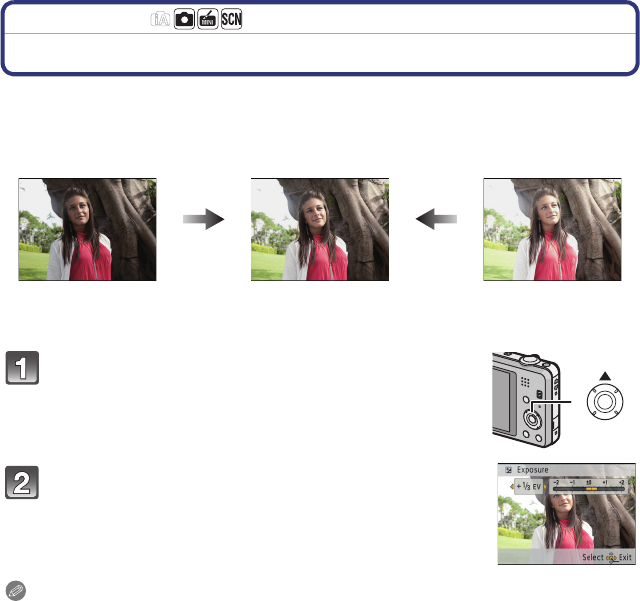
Compensating the Exposure
Use this function when you cannot achieve appropriate exposure due to the difference in
brightness between the subject and the background. Look at the following examples.
Note
•EV is an abbreviation of [Exposure Value], a unit indicating the amount of exposure. The EV
changes with the aperture value or the shutter speed.
•The set exposure value is memorised even if the camera is turned off.
•The compensation range of the exposure will be limited depending on the brightness of the
subject.
Underexposed Properly exposed Overexposed
Compensate the exposure
towards positive.
Compensate the exposure
towards negative.
Press 3 [È] until [Exposure] appears.
Press 2/1 to compensate the exposure and then
press [MENU/SET].
•The exposure compensation value appears on the screen.
•Select [0 EV] to return to the original exposure.
- 55 -
Recording
Recording Mode:
Record pictures that look like dioramas (Miniature
Effect Mode)
By creating areas that are blurred and areas that are not, the picture will look like that of a
miniature model. Motion pictures can also be recorded with diorama effects that appear to
be played back in fast forward.
Slide the REC/PLAY switch to [!], and then press [MODE].
Press 3/4/2/1 to select [Miniature Effect], and then press [MENU/
SET].
Note
•Display of the recording screen will be delayed more than usual and the screen will look as if
frames are dropping.
•No sound is recorded in motion pictures.
•Approximately 1/8 of the time period is recorded. (If you record for 8 minutes, the resulting
motion picture recording will be approximately 1 minute long.)
The displayed available recording time is approximately 8 times. When switching to Recording
Mode, please check the available recording time.
•When taking pictures of a large size, the screen may turn black after taking the picture because
of signal processing. This is not a malfunction.
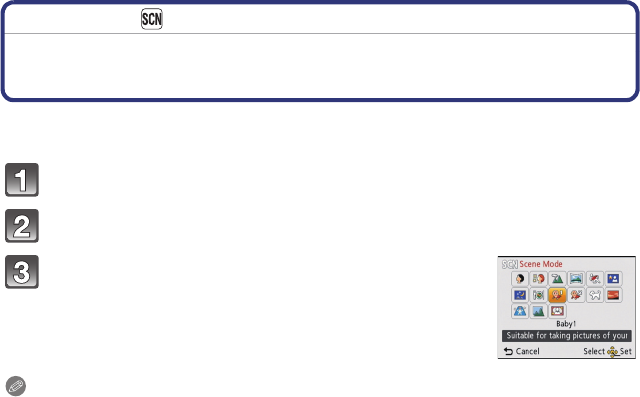
Recording
- 56 -
Recording Mode:
Taking pictures that match the scene being
recorded (Scene Mode)
When you select a Scene Mode to match the subject and recording situation, the camera
sets the optimal exposure and hue to obtain the desired picture.
Slide the REC/PLAY switch to [!], and then press [MODE].
Press 3/4/2/1 to select [Scene Mode], and then press [MENU/SET].
Press 3/4/2/1 to select the Scene Mode and
then press [MENU/SET].
Note
•To change the Scene Mode, press [MENU/SET], select [Scene Mode] using 3/4/2/1, and
then press [MENU/SET].
•The following cannot be set in Scene Mode as the camera adjusts automatically.
–[Sensitivity]
–[i.Exposure]
–[i.Resolution]
–[Color Mode]

- 57 -
Recording
When taking pictures of people outdoors during the daytime, this mode allows you to
improve the appearance and make their skin tones look healthier.
∫Technique for Portrait Mode
To make this mode more effective:
1Rotate the zoom lever as far as possible to Tele.
2Move close to the subject to make this mode more effective.
When taking pictures of people outdoors during the daytime, this mode enables the texture
of their skin to appear even softer than with [Portrait]. (It is effective when taking pictures of
people from the chest up.)
∫Technique for Soft Skin Mode
To make this mode more effective:
1Rotate the zoom lever as far as possible to Tele.
2Move close to the subject to make this mode more effective.
Note
•If a part of the background etc. is a colour close to skin colour, this part is also smoothed.
•This mode may not be effective when there is insufficient brightness.
This allows you to take pictures of a wide landscape.
[Portrait]
[Soft Skin]
[Scenery]
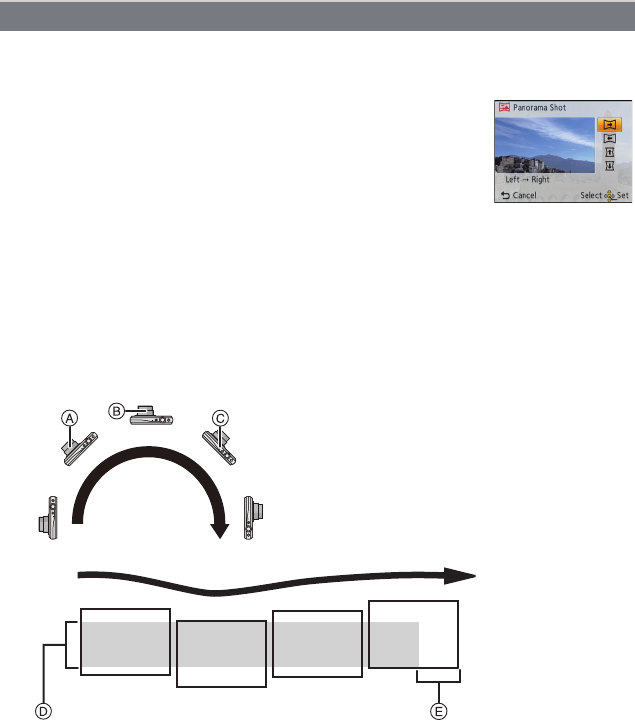
Recording
- 58 -
Pictures are recorded continuously while moving the camera horizontally or vertically, and
are combined to make a single panorama picture.
1Press 3/4 to select the recording direction and then press
[MENU/SET].
2After confirming the recording direction, press [MENU/SET].
•The horizontal/vertical guideline will be displayed.
3Press the shutter button halfway to focus.
4Press the shutter button fully and record a picture while moving the camera in a
small circle in the direction selected in Step 1.
∫Technique for Panorama Shot Mode
5Press the shutter button once again to end the still picture recording.
•Recording can also be cancelled by keeping the camera still while recording.
[Panorama Shot]
Recording from left to right
Move the camera in a single swirling
motion for about 8 seconds.
•Move the camera at a constant speed.
Pictures may not be able to be recorded
properly if the camera is moved too fast
or too slow.
A1 second
B2 seconds
C3 seconds
DMove the camera in the recording direction without shaking it. If the camera shakes too
much, pictures may not be able to be recorded, or the recorded panorama picture may
become narrower (smaller)
EMove the camera towards the edge of the range you wish to record. (The edge of the
range will not be recorded in the last frame)

- 59 -
Recording
Note
•The zoom position is fixed to Wide.
•The focus, white balance, and exposure are fixed at the optimum values for the first picture. As
a result, if the focus or brightness changes substantially during recording, the entire panorama
picture may not be recorded at the suitable focus or brightness.
•When multiple pictures are combined to create a single panorama picture, the subject may
appear distorted or the connection points may be noticeable in some cases.
•The number of recording pixels in the horizontal and vertical directions of the panorama picture
varies depending on the recording direction and the number of combined pictures. The
maximum number of pixels is shown below.
•A panorama picture may not be able to be created, or the pictures may not be combined
properly when recording the following subjects or under the recording conditions below.
–Subjects with a single, uniform colour or repetitive pattern (such as the sky or a beach)
–Moving subjects (person, pet, car, waves, flowers blowing in the breeze, etc.)
–Subjects where the colour or patterns change in a short time (such as an image appearing on
a display)
–Dark places
–Locations with flickering light sources such as fluorescent lights or candles
∫About playback
Playback zoom can be performed even for pictures that were recorded using [Panorama
Shot].
Also, if 3 is pressed during playback, the screen will automatically scroll in the same
direction during recording.
The cursor displayed during playback is the same as 3/4/2/1.
¢You can perform frame-by-frame forward/rewind by pressing 1/2 during a pause.
Recording direction Horizontal Resolution Vertical Resolution
Horizontal 8000 pixels 1080 pixels
Vertical 1440 pixels 8000 pixels
3Start/Pause¢
4Stop
Recording
- 60 -
Setting for when you want to take pictures of sports scenes or other fast-moving events.
Note
•Shutter speed may slow down for up to 1 second.
•This mode is suitable for taking pictures of subjects at distances of 5 m (16 feet) or more.
This allows you to take pictures of a person and the background with near real-life
brightness.
∫Technique for Night Portrait Mode
•Use the flash. (You can set to [ ].)
•Ask the subject not to move while taking a picture.
Note
•We recommend using a tripod and the Self-timer for taking pictures.
•Shutter speed may slow down for up to 8 seconds.
•The shutter may remain closed (max. about 8 sec.) after taking the picture because of signal
processing. This is not a malfunction.
•Noise may become visible when you take pictures in dark places.
This allows you to take vivid pictures of the nightscape.
Note
•We recommend using a tripod and the Self-timer for taking pictures.
•Shutter speed may slow down for up to 8 seconds.
•The shutter may remain closed (max. about 8 sec.) after taking the picture because of signal
processing. This is not a malfunction.
•Noise may become visible when you take pictures in dark places.
This mode allows you to take pictures of food with a natural hue without being affected by
the ambient light in restaurants, etc.
[Sports]
[Night Portrait]
[Night Scenery]
[Food]

- 61 -
Recording
This takes pictures of a baby with a healthy complexion. When you use the flash, the light
from it is weaker than usual.
It is possible to set different birthdays and names for [Baby1] and [Baby2]. You can select
to have these appear at the time of playback, or have them stamped on the recorded
image using [Text Stamp] (P87).
∫Birthday/Name setting
1Press 3/4 to select [Age] or [Name] and then press [MENU/SET].
2Press 3/4 to select [SET] and then press [MENU/SET].
3Enter the birthday or name.
•When the birthday or name is set, [Age] or [Name] is automatically set to [ON].
•If [ON] is selected when the birthday or name has not been registered, the setting screen
appears automatically.
4Press 4 to select [Exit] and then press [MENU/SET] to finish.
∫To cancel [Age] and [Name]
Select the [OFF] setting in step 2.
Note
•The age and name can be printed out using the “PHOTOfunSTUDIO” bundled software on the
CD-ROM (supplied).
•If [Age] or [Name] is set to [OFF] even when the birthday or name has been set, the age or
name will not be displayed.
•Shutter speed may slow down up to 1 second.
[Baby1]/[Baby2]
Birthday: 2/1: Select the items (year/month/day)
3/4: Setting
[MENU/SET]: Set
Name: For details on how to enter characters, refer to “Entering Text” on P63.

Recording
- 62 -
Select this when you want to take pictures of a pet such as a dog or a cat.
You can set your pet’s birthday and name.
For information about [Age] or [Name], refer to [Baby1]/[Baby2] on P61.
Select this when you want to take pictures of a sunset view. This allows you to take vivid
pictures of the red colour of the sun.
This mode minimises the jitter of the subjects, and enables you to take pictures of these
subjects in dimly lit rooms.
∫Picture Size
Select the picture size of 3M (4:3), 2.5M (3:2), 2M (16:9) or 2.5M (1:1).
This mode is ideal for taking pictures of scenery and other landscapes through clear glass,
such as in vehicles or buildings.
Note
•The camera may focus on the glass if it is dirty or has dust on it.
•The pictures taken may not look natural if the glass is coloured. When this happens, change
the white balance settings. (P66)
Record the image with a frame around it.
∫Setting the frame
Select from 6 types of frames.
Note
•The picture size is fixed to 5M (4:3).
•The colour of the frame displayed on the screen and the colour of the frame around the actual
image may differ, but this is not a malfunction.
[Pet]
[Sunset]
[High Sens.]
[Glass Through]
[Photo Frame]
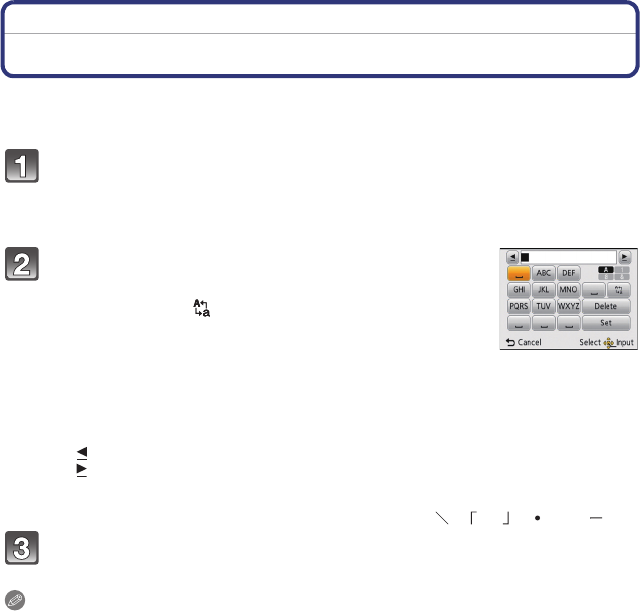
- 63 -
Recording
Recording
Entering Text
It is possible to enter babies’ and pets’ names and the names of travel destinations when
recording. (Only alphabetical characters and symbols can be entered.)
Display the entry screen.
•You can display the entry screen via the following operations.
–[Name] of [Baby1]/[Baby2] or [Pet] in Scene Mode
–[Location] in [Travel Date]
Press 3/4/2/1 to select text and then press
[MENU/SET] to register.
•Move the cursor to [ ] and then press [MENU/SET] to switch
text between [A] (capitals), [a] (lower case), [1] (numbers) and
[&] (special characters).
•To enter the same character again, rotate the zoom lever
towards [Z] (T) to move the cursor.
•The following operations can be performed by moving the cursor to the item and
pressing [MENU/SET]:
–[]]: Enter a blank
–[Delete]: Delete a character
–[ ]: Move the entry position cursor to the left
–[ ]: Move the entry position cursor to the right
•The following characters and numbers can be entered.
–A maximum of 30 characters can be entered.
¢ A maximum of 15 characters can be entered for [ ], [ ], [ ], [ ] and [ ].
Press 3/4/2/1 to move the cursor to [Set] and then press
[MENU/SET] to end text input.
Note
•Text can be scrolled if all of the entered text does not fit on the screen.
•It is displayed in order of [Location], [Name].
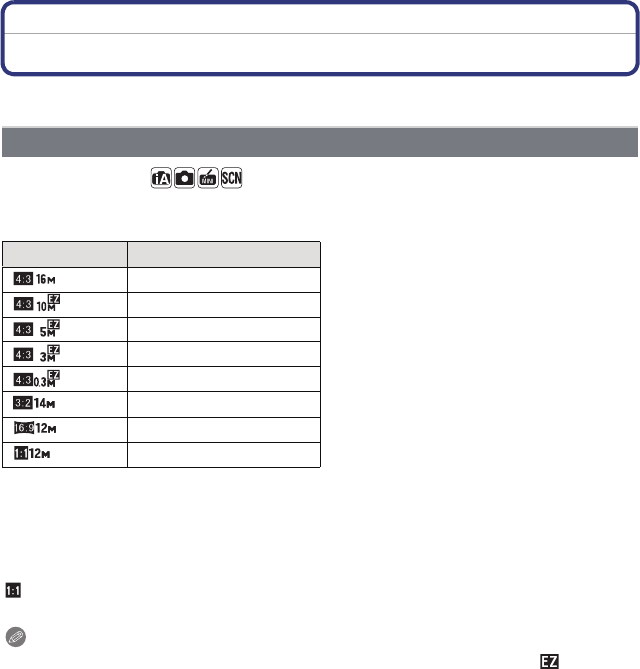
Recording
- 64 -
Using the [Rec] Menu
For details on [Rec] menu settings, refer to P37.
Applicable modes:
Set the number of pixels. The higher the numbers of pixels, the finer the detail of the
pictures will appear even when they are printed onto large sheets.
¢This item cannot be set in the Intelligent Auto Mode.
Note
•In specific modes, Extra Optical Zoom cannot be used, and the picture size for [ ] is not
displayed. For details regarding modes in which Extra Optical Zoom cannot be used, refer to
P48.
•Pictures may appear mosaic depending on the subject and the recording conditions.
[Picture Size]
Settings Picture Size
[] 4608k3456
[]
¢3648k2736
[] 2560k1920
[]
¢2048k1536
[] 640k480
[] 4608k3072
[] 4608k2592
[] 3456k3456
X : Aspect ratio of a 4:3 TV
Y : Aspect ratio of a 35 mm film camera
W : Aspect ratio of a high-definition TV, etc.
: Square aspect ratio
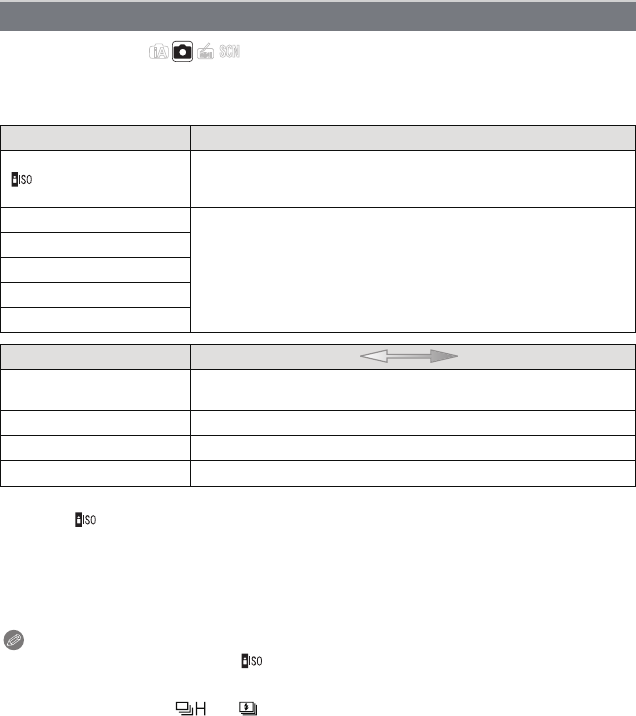
- 65 -
Recording
Applicable modes:
This allows the Sensitivity to light (ISO sensitivity) to be set. Setting to a higher figure
enables pictures to be taken even in dark places without the resulting pictures coming out
dark.
∫About [ ] (Intelligent ISO sensitivity control)
The camera detects movement of the subject and then automatically sets the optimum ISO
sensitivity and shutter speed to suit the movement of the subject and brightness of the
scene to minimise the jitter of the subject.
•The shutter speed is not fixed when the shutter button is pressed halfway. It is continuously
changing to match the movement of the subject until the shutter button is pressed fully.
Note
•For the focus range of flash when [ ] is set, refer to P51.
•The ISO sensitivity is automatically set under the following conditions.
–When recording motion pictures
–When [Burst] is set to [ ] or [ ]
[Sensitivity]
Settings Description of settings
[]([i.ISO])
The ISO sensitivity is adjusted according to the movement of the
subject and the brightness.
•Maximum [1600]
[100]
The ISO sensitivity is fixed to various settings.
[200]
[400]
[800]
[1600]
[100]
[
1600]
Recording location
(recommended) When it is light (outdoors) When it is dark
Shutter speed Slow Fast
Noise Less Increased
Jitter of the subject Increased Less
Recording
- 66 -
Applicable modes:
In sunlight, under incandescent lights or in other such conditions where the colour of white
takes on a reddish or bluish tinge, this item adjusts to the colour of white which is closest
to what is seen by the eye in accordance with the light source.
Note
•Under fluorescent lighting, LED lighting fixture etc., the appropriate White Balance will vary
depending on the lighting type, so use [AWB] or [Ó].
•The White Balance setting is memorised even if the camera is turned off. (However, the White
Balance setting for a Scene Mode returns to [AWB] when the Scene Mode is changed.)
•White Balance is fixed to [AWB] in following conditions.
–[Scenery]/[Night Portrait]/[Night Scenery]/[Food]/[Sunset] in Scene Mode
[White Balance]
Settings Description of settings
[AWB] ([Auto White
Balance])
Automatic adjustment
[V]([Daylight]) When taking pictures outdoors under a clear sky
[Ð]([Cloudy]) When taking pictures outdoors under a cloudy sky
[î]([Shade]) When taking pictures outdoors in the shade
[Ñ]([Incandescent]) When taking pictures under incandescent lights
[Ò]([White Set]) Value set by using [Ó]
[Ó]([White Set Setting]) Set manually
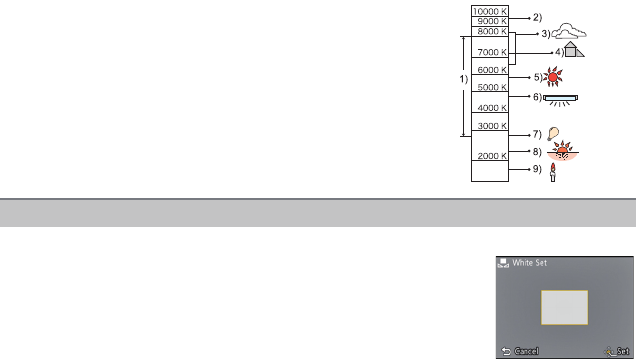
- 67 -
Recording
∫Auto White Balance
Depending on the conditions prevailing when pictures are taken, the pictures may take on
a reddish or bluish tinge. Furthermore, when a multiple number of light sources are being
used or there is nothing with a colour close to white, Auto White Balance may not function
properly. In this case, set the White Balance to a mode other than [AWB].
1 Auto White Balance will work within this range
2 Blue sky
3 Cloudy sky (Rain)
4 Shade
5 Sunlight
6 White fluorescent light
7 Incandescent light bulb
8 Sunrise and sunset
9 Candlelight
KlKelvin Colour Temperature
Set the White Balance value. Use to match the condition when taking photographs.
1Select [Ó] and then press [MENU/SET].
2Aim the camera at a sheet of white paper etc. so that the
frame in the centre is filled by the white object only and then
press [MENU/SET].
•White Balance may not be set when the subject is too bright or too
dark. Set the White Balance again after adjusting to appropriate
brightness.
•Exit the menu after it is set.
Setting the White Balance manually
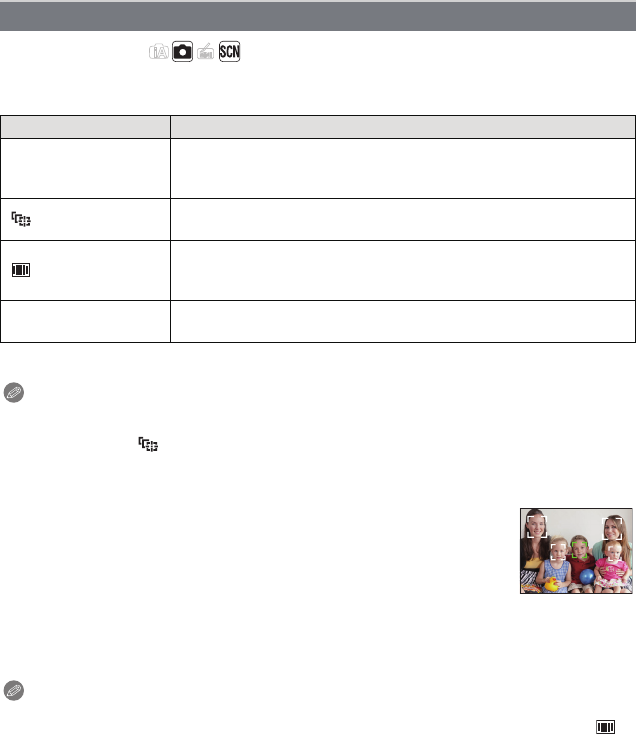
Recording
- 68 -
Applicable modes:
This allows the focusing method that suits the positions and number of the subjects to be
selected.
¢[Ø] will be used during motion picture recording.
Note
•The focus setting is fixed to [Ø] in Miniature Effect Mode.
•[š] cannot be set with [Panorama Shot], [Night Scenery] or [Food] in Scene Mode.
•It cannot be set to [ ] in the following conditions.
–In [Panorama Shot] in Scene Mode
–In [B&W] or [SEPIA] in [Color Mode]
∫About [š] ([Face Detection])
The following AF area frames are displayed when the camera detects the
faces.
Yellow:
When the shutter button is pressed halfway, the frame turns green when
the camera is focused.
White:
Displayed when more than one face is detected. Other faces that are the same distance
away as the faces within the yellow AF areas are also brought into focus.
Note
•Under certain picture-taking conditions including the following cases, the face detection
function may fail to work, making it impossible to detect faces. [AF Mode] is switched to [ ]
([Ø] while motion pictures are taken).
–When the face is not facing the camera
–When the face is at an angle
–When the face is extremely bright or dark
–When there is little contrast on the faces
–When the facial features are hidden behind sunglasses, etc.
–When the face appears small on the screen
–When there is rapid movement
–When the subject is not a human being
–When the camera is shaking
–When Digital Zoom is used
•If the camera is registering something other than someone’s face, change the settings to
something other than [š].
[AF Mode]
Settings Description of settings
[š] ([Face
Detection])
The camera automatically detects the person’s face. (max.
15 areas) The focus and exposure can then be adjusted to fit
that face no matter what portion of the picture it is in.
[]([AF Tracking])¢Focus can be adjusted to a specified subject. Focus will keep on
following the subject even if it moves. (Dynamic tracking)
[]([23-Area])¢Up to 23 points for each AF area can be focused. This is effective
when the subject is not in the centre of the screen.
(AF area frame will be same as image aspect ratio setting.)
[Ø]([1-Area]) The camera focuses on the subject in the AF area on the centre
of the screen.
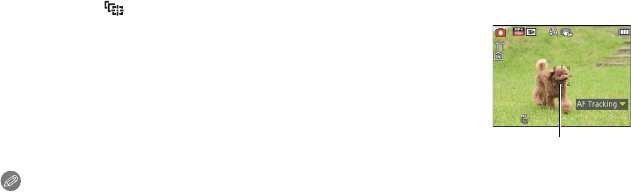
- 69 -
Recording
∫Setting up [ ] ([AF Tracking])
Align the subject with the AF tracking frame, and then press 4
to lock onto the subject.
AAF tracking frame
•AF area will be displayed in yellow when a subject is recognised, and
focus will automatically adjust continuously following the subject’s
movement (Dynamic tracking).
•AF tracking is cancelled when 4 is pressed again.
Note
•Dynamic tracking function may not work in the following cases:
–When the subject is too small
–When the recording location is too dark or bright
–When the subject is moving too fast
–When the background has the same or similar colour to the subject
–When jitter is occurring
–When using the zoom
•When the lock fails, the AF tracking frame will turn red and then disappear. Press 4 again.
•The camera records pictures with [AF Mode] as [Ø] when locked or Dynamic Tracking is not
working.
A
Recording
- 70 -
Applicable modes:
Contrast and exposure will be adjusted automatically when there is a big difference in
brightness between the background and subject, to bring the image close to real life.
Settings: [ON]/[OFF]
Note
•[ ] in the screen turns yellow when [i.Exposure] is in effect.
•Even when the [Sensitivity] is set to [100], [Sensitivity] may be set higher than [100] if the
picture is taken with [i.Exposure].
•Compensation effect may not be achieved depending on the conditions.
Applicable modes:
Pictures with sharp profile and resolution can be taken by using the Intelligent Resolution
Technology.
Note
•Refer to P47 for information about the Intelligent Zoom.
Applicable modes:
This can enlarge subjects even more than the Optical Zoom, Extra Optical Zoom, or
[i.ZOOM].
Settings: [ON]/[OFF]
Note
•Refer to P47 for details.
•The setting is fixed to [ON] in Macro Zoom Mode.
[i.Exposure]
[i.Resolution]
Settings Description of settings
[ON] [i.Resolution] is activated.
[i.ZOOM] [i.Resolution] is activated, and zoom magnification increased to
2 times while limiting deterioration of the picture.
[OFF] —
[Digital Zoom]
- 71 -
Recording
Applicable modes:
Pictures are taken continuously while the shutter button is pressed.
[Burst]
Settings Description of settings
[˜]
([Burst On])
Burst speed approx. 1.3 pictures/second
•You can take pictures until the capacity of the built-in memory or the card
is full.
•The burst speed becomes slower halfway. The exact timing of this
depends on the type of card and the Picture Size.
•The focus is fixed when the first picture is taken.
•The exposure and White Balance are adjusted each time you take a
picture.
•The Burst speed (pictures/second) may become slower depending on
the recording environment, such as in dark places, if the ISO sensitivity is
high etc.
[]
([Hi-Speed Burst])
Burst speed approx. 10 pictures/second
Number of recordable
pictures max. 100 pictures
•This can be set only during Normal Picture Mode.
•The picture size is fixed to 3M (4:3), 2.5M (3:2), 2M (16:9) or 2.5M (1:1).
•The Burst speed changes according to the recording conditions.
•The number of Burst recording pictures are limited by the picture-taking
conditions and the type and/or status of the card used.
•The number of Burst recording pictures may increase when you use a
card with fast writing speed or card is formatted.
•The focus, zoom, exposure, White Balance, shutter speed and ISO
sensitivity are fixed to the settings for the first picture.
•The ISO sensitivity is automatically adjusted. However, the ISO
sensitivity is increased to make the shutter speed become high-speed.
•Depending on the operating conditions, it may take time to take the next
picture if you repeat taking a picture.
[]
([Flash Burst])
Number of recordable
pictures max. 5 pictures
•Still pictures are taken continuously with flash.
•This can be set only during Normal Picture Mode.
•The picture size is fixed to 3M (4:3), 2.5M (3:2), 2M (16:9) or 2.5M (1:1).
•Settings for focus, zoom, exposure, shutter speed, ISO sensitivity, flash
output are fixed to the first picture.
•Number of recordable pictures will be fixed to 5 pictures when the
self-timer is used.
•The flash setting is fixed to [‰].
[OFF] —
Recording
- 72 -
Note
•Burst Mode is not cancelled when the camera is switched off.
•If you take pictures in Burst Mode with the built-in memory, it will take time to write the picture
data.
•The setting is fixed to [OFF] in [Panorama Shot] and [Photo Frame] in Scene Mode.
•Number of recordable pictures will be fixed to 3 pictures when the self-timer is used (except for
[]).
•The flash setting is fixed to [Œ] (except for [ ]).
- 73 -
Recording
Applicable modes:
Sets various colour effects, including making the picture sharper, brighter, or applying a
sepia tone.
¢1 This can be set only when Intelligent Auto Mode is set.
¢2 This can be set only during Normal Picture Mode.
[Color Mode]
Settings Description of settings
[STANDARD] This is the standard setting.
[Happy]¢1Image with enhanced brightness and vividness.
[VIVID]¢2The picture becomes sharper.
[B&W] The picture becomes black and white.
[SEPIA] The picture becomes sepia.
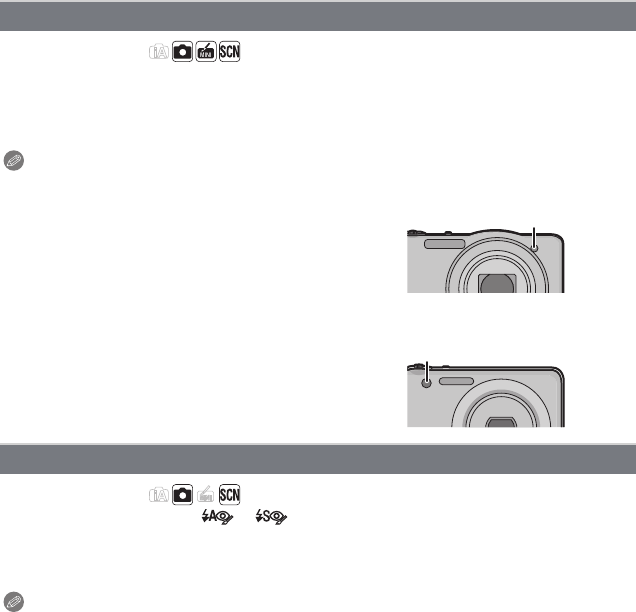
Recording
- 74 -
Applicable modes:
AF assist lamp will illuminate the subject when the shutter button is pressed halfway,
making it easier for the camera to focus when recording in low light conditions. (Larger AF
area is displayed depending on the recording conditions.)
Settings: [ON]/[OFF]
Note
•The effective distance of the assist lamp is a
maximum of approximately 1.5 m (4.9 feet).
•When you do not want to use the AF Assist
Lamp A (e.g. when taking pictures of animals in
dark places), set the [AF Assist Lamp] to [OFF].
In this case, it will become more difficult to focus
on the subject.
•[AF Assist Lamp] is fixed to [OFF] in [Scenery],
[Night Scenery], [Sunset], and [Glass Through]
in Scene Mode.
Applicable modes:
When Red-Eye Reduction ([ ], [ ]) is selected, Digital Red-Eye Correction is
performed whenever the flash is used. The camera automatically detects red-eye and
corrects the picture.
Settings: [ON]/[OFF]
Note
•Only available when [AF Mode] is set to [š] and Face Detection is active.
•Under certain circumstances, red-eye cannot be corrected.
[AF Assist Lamp]
[Red-Eye Removal]
(DMC-SZ1)
(DMC-FH8)
- 75 -
Recording
Applicable modes:
Using one of these modes, jitter during picture taking is detected, and the camera
automatically compensates the jitter, enabling jitter-free images to be taken.
Settings: [ON]/[OFF]
Note
•Stabiliser is fixed to [OFF] in [Panorama Shot] in Scene Mode.
•Stabiliser will be set to [ON] while recording motion pictures.
•The stabiliser function may not be effective in the following cases.
Be careful of camera jitter when you press the shutter button.
–When there is a lot of jitter.
–When the zoom magnification is high.
–In Digital Zoom range.
–When taking pictures while following a moving subject.
–When the shutter speed becomes slower to take pictures indoors or in dark places.
Applicable modes:
You can take a picture with date and time of recording.
Note
•Date information for pictures recorded with the [Date Stamp] set cannot be deleted.
•When printing pictures with [Date Stamp] at a shop or with a printer, the date will be
printed on top of the other if you choose to print with the date.
•If the time has not been set, you cannot stamp with the date information.
•The setting is fixed to [OFF] in the following cases.
–When recording motion pictures
–In [Panorama Shot] in Scene Mode
–When using [Burst].
•[Text Stamp], [Resize], and [Cropping] cannot be set for pictures recorded with [Date Stamp]
set.
•Even if you take a picture with [Date Stamp] set to [OFF], it is possible to stamp dates onto the
recorded pictures using [Text Stamp] (P87) or setup the Date print (P94, 107).
•Refer to P19 for details.
[Stabilizer]
[Date Stamp]
Settings Description of settings
[W/O TIME] Stamp the year, month, and day.
[WITH TIME] Stamp the year, month, day, hour, and minutes.
[OFF] —
[Clock Set]
Recording
- 76 -
Using the [Motion Picture] Menu
For details on [Motion Picture] menu settings, refer to P37.
In [Panorama Shot] in Scene Mode, the [Motion Picture] menu will not be displayed.
Applicable modes:
This sets up the picture quality of motion pictures.
Note
•What is bit rate
This is the volume of data for a definite period of time, and the quality becomes higher when the
number gets bigger. This unit is using the “VBR” recording method. “VBR” is an abbreviation of
“Variable Bit Rate”, and the bit rate (volume of data for definite period of time) is changed
automatically depending on the subject to record. Therefore, the recording time is shortened
when a subject with fast movement is recorded.
Applicable modes:
It will continually keep on focusing on a subject for which the focus was once set.
Settings: [ON]/[OFF]
Note
•Set this function to [OFF] if you wish to fix the focus on the position where you started the
motion picture recording.
[Rec Quality]
Settings Picture size/Bit rate fps Aspect ratio
[HD] 1280k720 pixels/Approx. 10 Mbps 25 16:9
[VGA] 640k480 pixels/Approx. 4 Mbps 4:3
[Continuous AF]
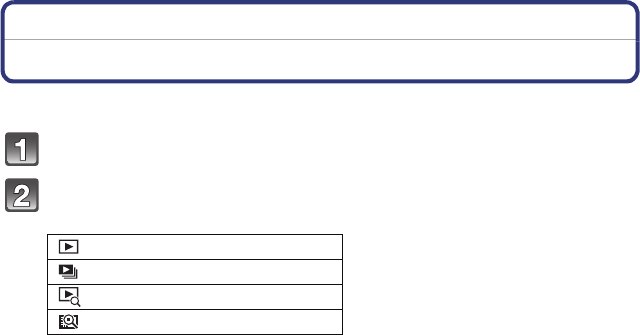
- 77 -
Playback/Editing
Playback/Editing
Various methods of playback
You can play back the recorded pictures in various methods.
Slide the REC/PLAY switch to [(], and then press [MODE].
Press 3/4/2/1 to select item, and then press [MENU/SET].
•Following items can be selected.
[]([Normal Play]) (P32)
[]([Slide Show]) (P78)
[]([Filtering Play]) (P80)
[]([Calendar]) (P81)
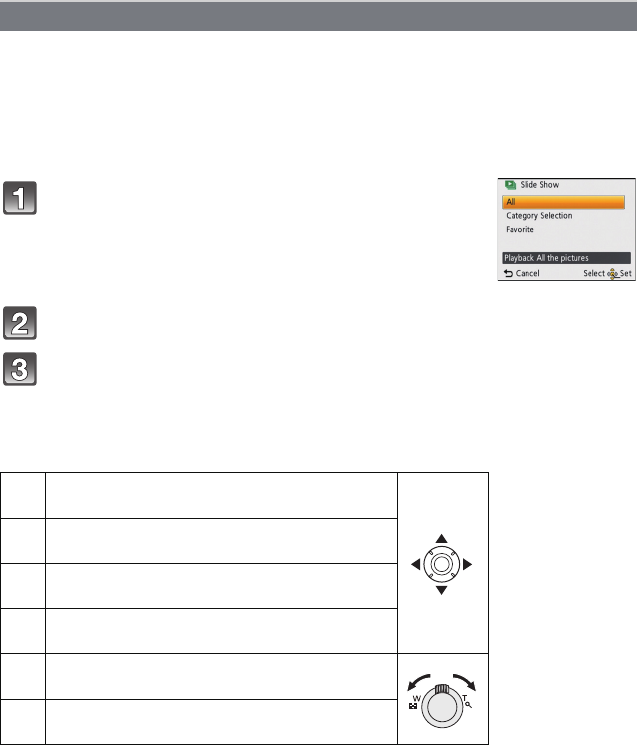
Playback/Editing
- 78 -
You can play back the pictures you have taken in synchronisation with music, and you can
do this in sequence while leaving a fixed interval between each of the pictures.
Furthermore, you can play back the pictures grouped together by category, or play back
only those pictures you have set as favourites as a slide show.
This playback method is recommended when you have connected the camera to a TV set
to view the pictures you have taken.
Press 3 to select [Start] and then press [MENU/SET].
Press 4 to finish the slide show.
•Normal Playback resumes after the slide show finishes.
∫Operations performed during slide show
The cursor displayed during playback is the same as 3/4/2/1.
¢Only available when paused or playing back panorama pictures.
[Slide Show]
Select the group to play back by pressing 3/4, and
then press [MENU/SET].
•During [Category Selection], press 3/4/2/1 to select a
category, and then press [MENU/SET]. Refer to P80 for category
details.
3Play/Pause
4Stop
2Back to previous picture¢
1Ahead to next picture¢
[W] Reduce volume level
[T] Increase volume level
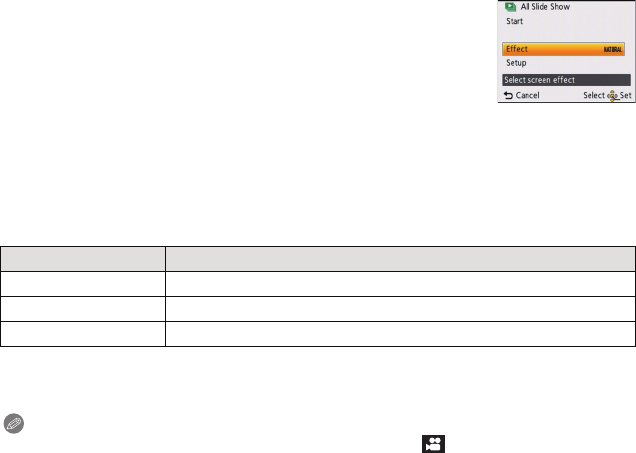
- 79 -
Playback/Editing
∫Changing the slide show settings
You can change the settings for Slide Show Playback by selecting
[Effect] or [Setup] on the slide show menu screen.
[Effect]
This allows you to select the screen effects or music effects when
switching from one picture to the next.
[NATURAL], [SLOW], [SWING], [URBAN], [OFF], [AUTO]
•When [URBAN] has been selected, the picture may appear in black and white as a screen
effect.
•[AUTO] can be used only when [Category Selection] has been selected. The pictures are
played back with the recommended effects in each category.
•Some [Effect] will not operate when playing back pictures displayed vertically.
[Setup]
[Duration] or [Repeat] can be set.
•[Duration] can be set only when [OFF] has been selected as the [Effect] setting.
•When playing back a panorama picture, the [Effect] setting is disabled.
•[Music] cannot be selected when [OFF] has been selected as the [Effect] setting.
Note
•Motion pictures cannot be played back as a slide show. When [ ] (motion picture) is selected
in [Category Selection], the first frames of the motion pictures are displayed as still pictures in a
slide show.
Settings Description of settings
[Duration] [1SEC.]/[2SEC.]/[3SEC.]/[5SEC.]
[Repeat] [ON]/[OFF]
[Music] [ON]/[OFF]
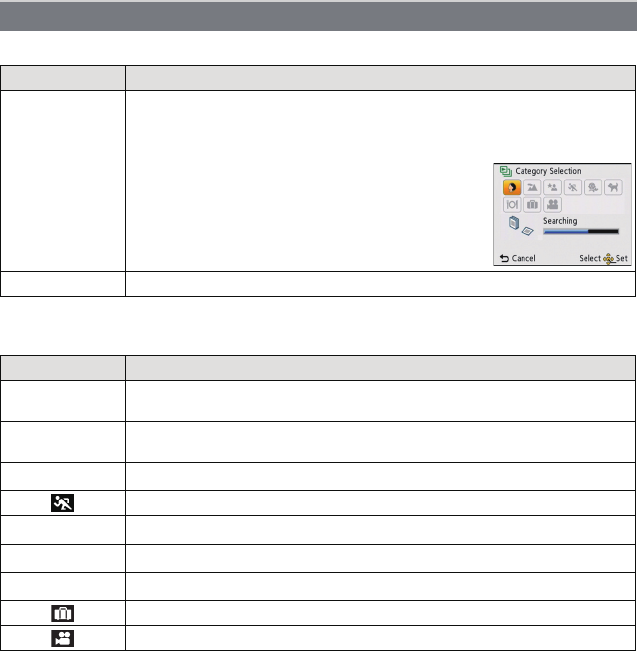
Playback/Editing
- 80 -
The images sorted into the category or images set as favourite are played back.
∫About the categories to be sorted
It will be sorted as following when [Category Selection] is set.
[Filtering Play]
Settings Description of settings
[Category
Selection]
This mode allows you to search images by Scene Mode or other categories
(such as [Portrait], [Scenery] or [Night Scenery]) and sort the pictures into
each of the categories. You can then play back the pictures in each
category.
Press 3/4/2/1 to select the category
and then press [MENU/SET] to set.
•Only the category for which pictures have been
found can be selected.
[Favorite] You can play back the pictures you have set as [Favorite] (P92).
Recording information e.g. Scene Modes
*[Portrait], [i-Portrait], [Soft Skin], [Night Portrait], [i-Night Portrait], [Baby1]/
[Baby2]
,[Scenery], [i-Scenery], [Panorama Shot], [Sunset], [i-Sunset], [Glass
Through]
.[Night Portrait], [i-Night Portrait], [Night Scenery], [i-Night Scenery]
[Sports]
Î[Baby1]/[Baby2]
í[Pet]
1[Food]
[Travel Date]
[Motion Picture]
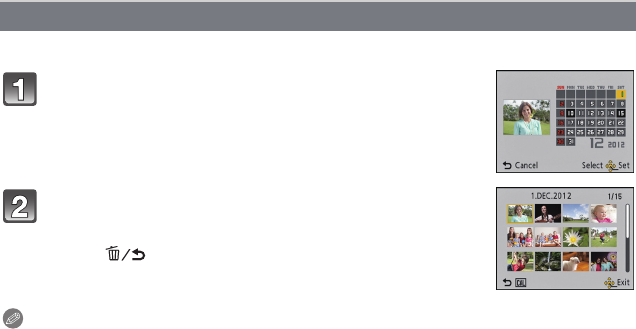
- 81 -
Playback/Editing
You can display pictures by recording date.
Note
•The recording date of the picture selected in the playback screen becomes the date selected
when the calendar screen is first displayed.
•If there are multiple pictures with the same recording date, the first picture recorded on that day
is displayed.
•You can display the calendar between January 2000 and December 2099.
•If the date is not set in the camera, the recording date is set as the 1st January, 2012.
•If you take pictures after setting the travel destination in [World Time], the pictures are
displayed by the dates at the travel destination in Calendar Playback.
[Calendar]
Press 3/4/2/1 to select the date to be played
back.
•If there were no pictures recorded during a month, that month is
not displayed.
Press [MENU/SET] to display the pictures that were
recorded on the selected date.
•Press [ ] to return to the calendar screen.
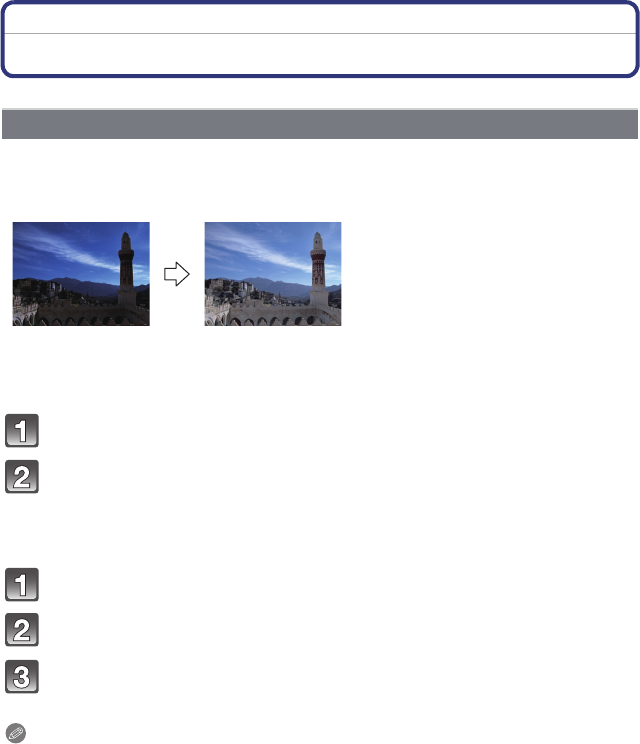
Playback/Editing
- 82 -
Playback/Editing
Having Fun with Recorded Pictures
The brightness and colour of the pictures taken can be balanced.
•With [Auto Retouch], a new edited picture is created. Check that there is free space on the
built-in memory or the card.
[Auto Retouch] cannot be used if the card’s Write-Protect switch is set to [LOCK].
¢These pictures are examples to show the effect.
(DMC-SZ1)
Press 2/1 to select a picture, and then press 3.
Press [MENU/SET].
•Confirmation screen is displayed. It is executed when [Yes] is selected.
(DMC-FH8)
Press 2/1 to select a picture, and then press 3.
Press 3/4 to select [Auto Retouch], and then press [MENU/SET].
Press 3/4 to select [ON], and then press [MENU/SET].
•Confirmation screen is displayed. It is executed when [Yes] is selected.
Note
•Depending on the picture, noise may be emphasised by [Auto Retouch].
•Effects may be difficult to see depending on the picture.
•It may not be possible to perform [Auto Retouch] on pictures which have already been
retouched.
•[Auto Retouch] may not be performed on pictures recorded with other equipment.
•[Auto Retouch] is not possible in the following cases:
–Motion pictures
–Pictures taken in [Panorama Shot] and [Photo Frame] in Scene Mode
[Auto Retouch]
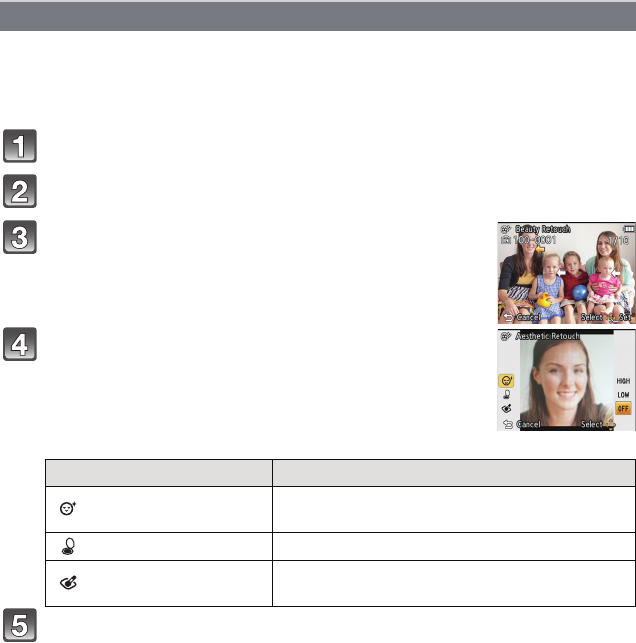
- 83 -
Playback/Editing
Apply effects similar to that of aesthetics or makeup to brighten up any face.
•With [Beauty Retouch], a new edited picture is created. Check that there is free space on the
built-in memory or the card.
[Beauty Retouch] cannot be used if the card’s Write-Protect switch is set to [LOCK].
Press 2/1 to select a picture, and then press 3.
Press 3/4 to select [Beauty Retouch], and then press [MENU/SET].
Press 2/1 to select the face of the person to edit,
and then press [MENU/SET].
•Only a person with an arrow can be selected.
Press 3/4 to select the item, and then press 1.
Select effects from each of the following items.
Press 3/4 to select the effect.
•To continue to add different effects, press 2, and repeat steps 4 and 5.
[Beauty Retouch] (DMC-FH8)
Item Description of settings
[]([Aesthetic Retouch]) Gives skin a more transparent look, or make eyes
and teeth look whiter.
[]([Foundation]) Adjust skin colour.
[]([Make Up Retouch]) Add colour to lips, more volume to faces or clarity
to eyes.
Playback/Editing
- 84 -
After finishing the picture editing, press [MENU/SET].
•Confirmation screen is displayed. Selecting [Yes] displays images before application
and after application.
Press [MENU/SET].
•Confirmation screen is displayed. It is executed when [Yes] is selected.
Note
•[Beauty Retouch] cannot be used on people who have already been retouched, or two or more
people at the same time. To use [Beauty Retouch] for these pictures, save the picture first, then
select the person to retouch.
•The brightness and colour of pictures you are checking before saving may differ to the actual
picture that is saved.
•[Beauty Retouch] cannot be used with motion pictures or pictures recorded with [Panorama
Shot] in Scene Mode.
•[Beauty Retouch] may not be performed on pictures recorded with other equipment.
•Intended retouching may not be possible when the face detection is not performed properly.
•When a subject is wearing glasses, the desired retouch may not be possible.
•When a picture is bright due to reflected light from a flash or the sun, the retouching effect may
be less pronounced.
•To take pictures appropriate for [Beauty Retouch]:
–Record a large, frontal view of the face
–Avoid taking pictures in a very dark place
–Clearly record the part you intend to retouch
•Reallusion is a trademark of Reallusion Inc.
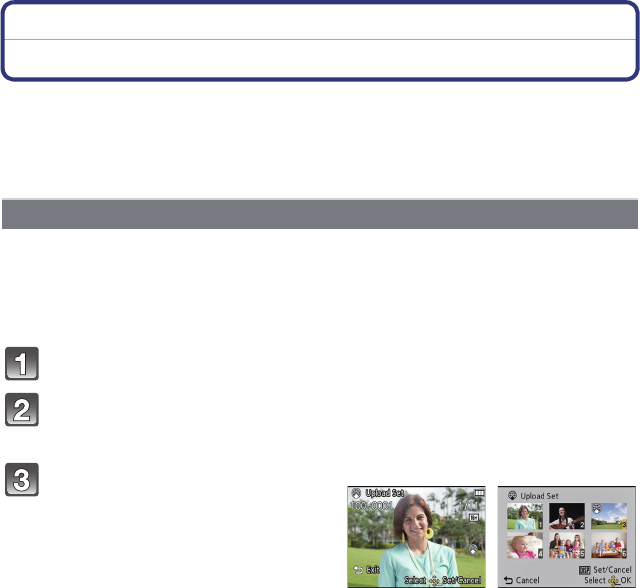
- 85 -
Playback/Editing
Using the [Playback] Menu
You can set up pictures to be uploaded to image sharing sites and perform actions like
cropping recorded pictures, as well as set up the protection of recorded images, etc.
•With [Text Stamp], [Resize] or [Cropping], a new edited picture is created. A new picture cannot
be created if there is no free space on the built-in memory or the card so we recommend
checking that there is free space and then editing the picture.
It is possible to setup the images to be uploaded to the image sharing sites (Facebook/
YouTube) on this unit.
•You can only upload motion pictures to YouTube, while you may upload both motion pictures
and still pictures to Facebook.
•This cannot be done to the images in the built-in memory. Copy the images to a card
(P96), and then perform the [Upload Set].
Select [Upload Set] on the [Playback] menu. (P37)
Press 3/4 to select [SINGLE] or [MULTI] and then press [MENU/
SET].
[Upload Set]
Select the picture, and then press
[MENU/SET] to set.
•The setting is cancelled when
[MENU/SET] is pressed again.
•Exit the menu after it is set.
[MULTI] setting
Press [DISP.] to set (repeat), and then
press [MENU/SET] to set.
•The setting is cancelled when [DISP.] is
pressed again.
•Confirmation screen is displayed. It is
executed when [Yes] is selected.
Exit the menu after it is executed.
[SINGLE] [MULTI]
Press 2/1 to
select the picture.
Press 3/4/2/1 to
select the pictures.

Playback/Editing
- 86 -
∫Upload to the image sharing sites
An upload tool built into the camera, “LUMIX Image Uploader,” is automatically copied to
the card when you set up [Upload Set].
Perform the upload operation after connecting the camera to a PC (P102). For details,
refer to P104.
∫Cancelling all the [Upload Set] settings
1Select [Upload Set] on the [Playback] menu.
2Press 3/4 to select [CANCEL] and then press [MENU/SET].
•Confirmation screen is displayed. It is executed when [Yes] is selected.
Exit the menu after it is executed.
Note
•Setting may not be possible for pictures recorded with other cameras.
•It cannot be set with the card less than 512 MB.
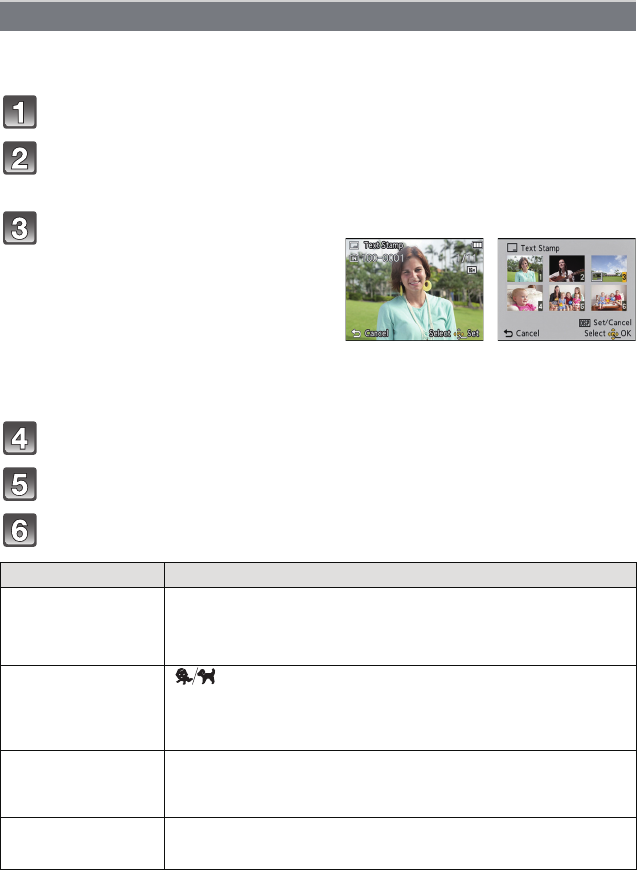
- 87 -
Playback/Editing
You can stamp the recording date/time, name, location or travel date onto the recorded
pictures.
Select [Text Stamp] on the [Playback] menu. (P37)
Press 3/4 to select [SINGLE] or [MULTI] and then press
[MENU/SET].
Press 3/4 to select [Set], and then press [MENU/SET].
Press 3/4 to select text stamp items, and then press [MENU/SET].
Press 3/4 to select the settings, and then press [MENU/SET].
[Text Stamp]
Select the picture, and then press
[MENU/SET] to set.
•[‘] is displayed on pictures already with
date or text stamped.
[MULTI] setting
Press [DISP.] to set (repeat), and then
press [MENU/SET] to set.
•The setting is cancelled when [DISP.] is
pressed again.
[SINGLE] [MULTI]
Press 2/1 to
select the picture.
Press 3/4/2/1 to
select the pictures.
Item Setting item
[Shooting Date]
[W/O TIME]: Stamp the year, month and day.
[WITH TIME]: Stamp the year, month, day, hour and minutes.
[OFF]
[Name]
[]
([Baby/Pet]): Stamps names registered in name settings for
[Baby1]/[Baby2] or [Pet] in Scene Mode.
[OFF]
[Location]
[ON]: Stamps the travel destination name set under
[Location].
[OFF]
[Travel Date] [ON]: Stamps the travel date set under [Travel Date].
[OFF]
Playback/Editing
- 88 -
Press [ ].
Press 3 to select [OK], and then press [MENU/SET].
•Confirmation screen is displayed. It is executed when [Yes] is selected.
Exit the menu after it is executed.
Note
•When you print pictures stamped with text, the date will be printed over the stamped text if you
specify printing of the date at the photo shop or on the printer.
•You can set up to 50 pictures at one time in [MULTI].
•The picture quality may deteriorate when text stamping is carried out.
•Depending on the printer being used, some characters may be cut at printing. Check before
printing.
•When text is stamped onto the 0.3M pictures, it is difficult to read it.
•Text and dates cannot be stamped on the pictures in the following cases.
–Motion pictures
–Pictures taken in [Panorama Shot] in Scene Mode
–Pictures recorded without setting the clock
–Pictures with date or text stamped
–Pictures recorded with other equipment
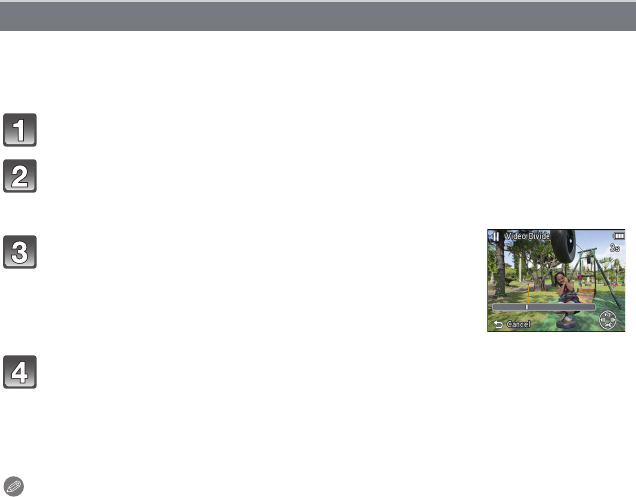
- 89 -
Playback/Editing
Recorded motion picture can be divided in two. It is recommended for when you want to
divide a part you need with a part you do not need.
It cannot be restored once divided.
Note
•[Video Divide] may not be performed on motion pictures recorded with other equipment.
•Motion pictures cannot be divided at a location close to the start or end of the motion picture.
•The order of images will change if motion pictures are divided.
It is recommended to search these motion pictures by using [Calendar] or [Category Selection]
in the [Filtering Play].
•Motion pictures with a short recording time cannot be divided.
[Video Divide]
Select [Video Divide] on the [Playback] menu. (P37)
Press 2/1 to select the motion picture to divide, and then press
[MENU/SET].
Press 3 at the location to divide.
•Motion picture is played back from the same location when 3 is
pressed again.
•You can finely adjust the location for division by pressing 2/1
while the motion picture is paused.
Press 4.
•Confirmation screen is displayed. It is executed when [Yes] is selected.
Exit the menu after it is executed.
•Motion picture may be lost if the card or battery is removed while processing the
dividing.
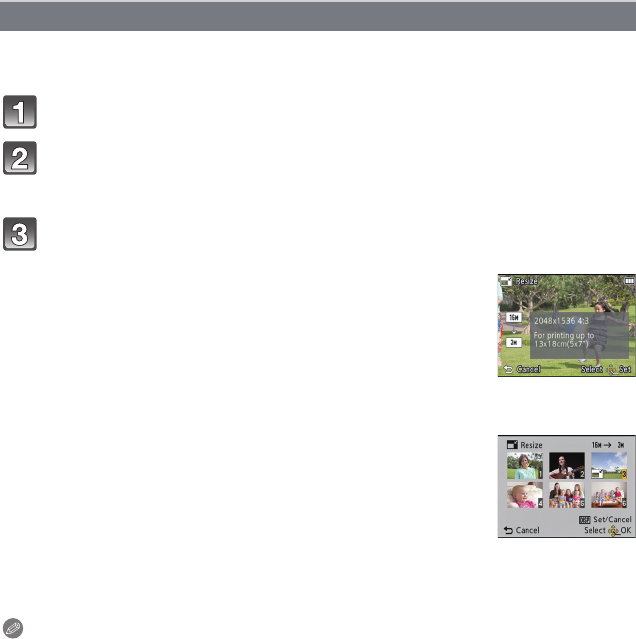
Playback/Editing
- 90 -
To allow easy posting to web pages, attachment to email etc., picture size (number of
pixels) is reduced.
Select [Resize] on the [Playback] menu. (P37)
Press 3/4 to select [SINGLE] or [MULTI] and then press
[MENU/SET].
Note
•You can set up to 50 pictures at one time in [MULTI].
•The picture quality of the resized picture will deteriorate.
•It may not be possible to resize pictures recorded with other equipment.
•The following images cannot be resized.
–Motion pictures
–Pictures taken in [Panorama Shot] in Scene Mode
–Pictures with date or text stamped
[Resize]
Select the picture and size.
[SINGLE] setting
1Press 2/1 to select the picture, and then press
[MENU/SET].
2Press 2/1 to select the size, and then press
[MENU/SET].
•Confirmation screen is displayed. It is executed when [Yes]
is selected.
Exit the menu after it is executed.
[MULTI] setting
1Press 3/4 to select the size, and then press
[MENU/SET].
2Press 3/4/2/1 to select the picture, and then press
[DISP.].
•Repeat this step for each picture, and press [MENU/SET] to
set.
•Confirmation screen is displayed. It is executed when [Yes]
is selected.
Exit the menu after it is executed.
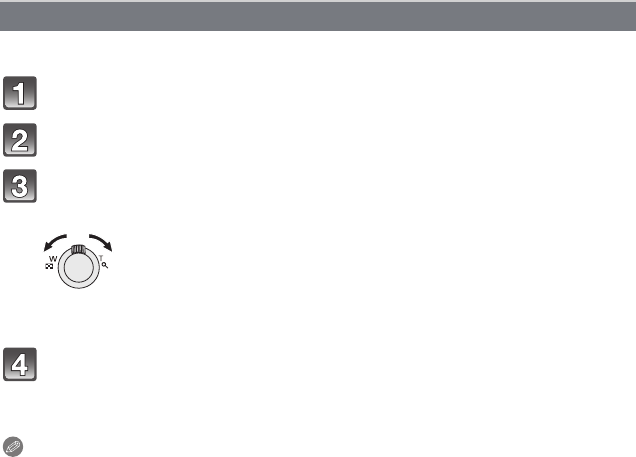
- 91 -
Playback/Editing
You can enlarge and then clip the important part of the recorded picture.
Select [Cropping] on the [Playback] menu. (P37)
Press 2/1 to select the picture, and then press [MENU/SET].
Use the zoom lever and press 3/4/2/1 to select the parts to be
cropped.
Zoom lever (T): Enlargement
Zoom lever (W): Reduction
3/4/2/1: Move
Press [MENU/SET].
•Confirmation screen is displayed. It is executed when [Yes] is selected.
Exit the menu after it is executed.
Note
•The picture quality of the cropped picture will deteriorate.
•It may not be possible to crop pictures recorded with other equipment.
•The following images cannot be cropped.
–Motion pictures
–Pictures taken in [Panorama Shot] in Scene Mode
–Pictures with date or text stamped
[Cropping]
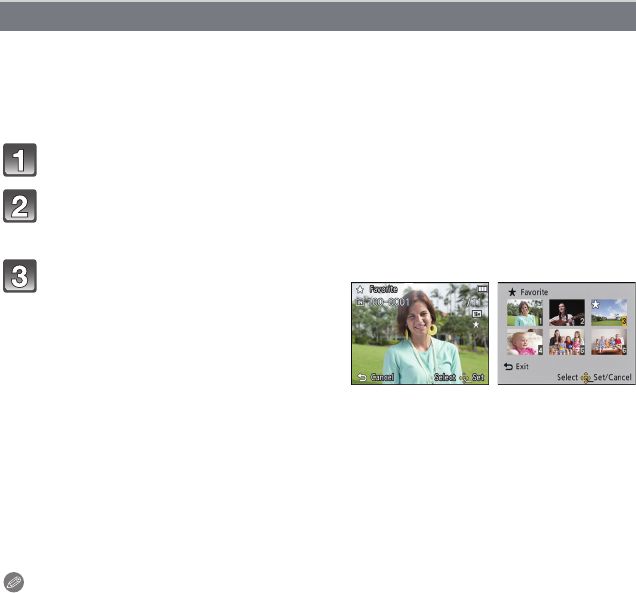
Playback/Editing
- 92 -
You can do the following if a mark has been added to pictures and they have been set as
favourites.
•Play back only the pictures set as favourites. ([Favorite] in [Filtering Play])
•Play back the pictures set as favourites only as a Slide Show.
•Delete all the pictures not set as favourites. ([All Delete Except Favorite])
Select [Favorite] on the [Playback] menu. (P37)
Press 3/4 to select [SINGLE] or [MULTI] and then press
[MENU/SET].
∫Cancelling all the [Favorite] settings
1Select [Favorite] on the [Playback] menu.
2Press 3/4 to select [CANCEL] and then press [MENU/SET].
•Confirmation screen is displayed. It is executed when [Yes] is selected.
Exit the menu after it is executed.
Note
•You can set up to 999 pictures as favourites.
•You may not be able to set pictures taken with other equipment as favourites.
[Favorite]
Select the picture, and then press
[MENU/SET].
•The setting is cancelled when
[MENU/SET] is pressed again.
•Exit the menu after it is set.
[SINGLE] [MULTI]
Press 2/1 to
select the picture.
Press 3/4/2/1
to select the
pictures.
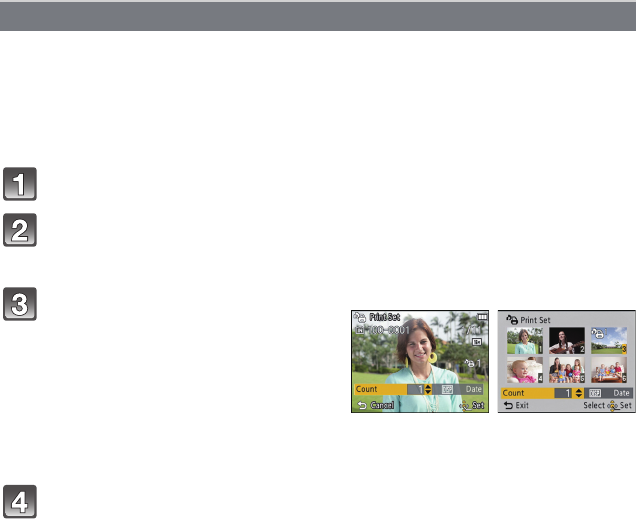
- 93 -
Playback/Editing
DPOF “Digital Print Order Format” is a system that allows the user to select which pictures
to print, how many copies of each picture to print and whether or not to print the recording
date on the pictures when using a DPOF compatible photo printer or photo printing store.
For details, ask at your photo printing store.
When you want to use a photo printing store to print pictures recorded on the built-in
memory, copy them to a card (P96) and then set the print setting.
Select [Print Set] on the [Playback] menu. (P37)
Press 3/4 to select [SINGLE] or [MULTI] and then press [MENU/
SET].
Press 3/4 to set the number of prints, and then press [MENU/SET]
to set.
•When [MULTI] has been selected, repeat steps 3 and 4 for each picture. (It is not
possible to use the same setting for a multiple number of pictures.)
•Exit the menu after it is set.
∫Cancelling all the [Print Set] settings
1Select [Print Set] on the [Playback] menu.
2Press 3/4 to select [CANCEL] and then press [MENU/SET].
•Confirmation screen is displayed. It is executed when [Yes] is selected.
Exit the menu after it is executed.
[Print Set]
Select the picture, and then press
[MENU/SET].
[SINGLE] [MULTI]
Press 2/1 to
select the picture.
Press 3/4/2/1
to select the
pictures.

Playback/Editing
- 94 -
∫To print the date
After setting the number of prints, set/cancel printing with the recording date by pressing
[DISP.].
•Depending on the photo printing store or the printer, the date may not be printed even if you set
to print the date. For further information, ask at your photo printing store or refer to the
operating instructions for the printer.
•The date cannot be printed on pictures with date or text stamped.
Note
•The number of prints can be set from 0 to 999.
•Depending on the printer, the date print settings of the printer may take precedence so check if
this is the case.
•It may not be possible to use the print settings with other equipment. In this case, cancel all the
settings, and reset the settings.
•[Print Set] cannot be set for motion pictures.
•If the file is not based on the DCF standard, the print setting cannot be set.
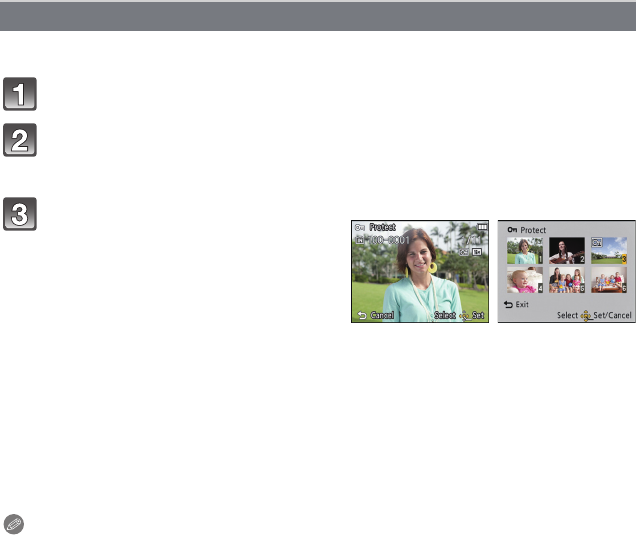
- 95 -
Playback/Editing
You can set protection for pictures you do not want to be deleted by mistake.
Select [Protect] on the [Playback] menu. (P37)
Press 3/4 to select [SINGLE] or [MULTI] and then press [MENU/
SET].
∫Cancelling all the [Protect] settings
1Select [Protect] on the [Playback] menu.
2Press 3/4 to select [CANCEL] and then press [MENU/SET].
•Confirmation screen is displayed. It is executed when [Yes] is selected.
Exit the menu after it is executed.
Note
•The protect setting may not be effective on other equipment.
•Even if you protect pictures in the built-in memory or a card, they will be deleted if the built-in
memory or the card is formatted.
•Even if you do not protect pictures on a card, they cannot be deleted when the card’s
Write-Protect switch is set to [LOCK].
[Protect]
Select the picture, and then press
[MENU/SET].
•The settings are cancelled when
[MENU/SET] is pressed again.
•Exit the menu after it is set.
[SINGLE] [MULTI]
Press 2/1 to
select the picture.
Press 3/4/2/1
to select the
pictures.
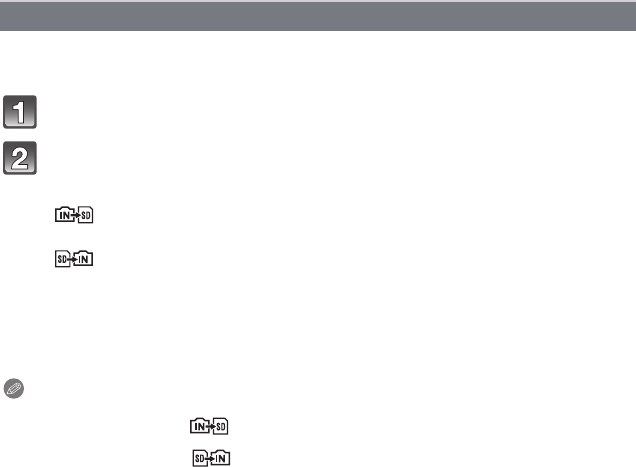
Playback/Editing
- 96 -
You can copy the data of the pictures you have taken from the built-in memory to a card or
from a card to the built-in memory.
Select [Copy] on the [Playback] menu. (P37)
Press 3/4 to select the copy destination and then press
[MENU/SET].
•Confirmation screen is displayed. It is executed when [Yes] is selected.
Exit the menu after it is executed.
•Do not turn the camera off at any point during the copying process.
Note
•If a picture exists with the same name (folder number/file number) as the picture to be copied in
the copy destination when [ ] is selected, a new folder is created and the picture is copied.
If a picture exists with the same name (folder number/file number) as the picture to be copied in
the copy destination when [ ] is selected, that picture is not copied.
•It may take time to copy the picture data.
•[Print Set], [Protect] or [Favorite] settings will not be copied. Perform the settings again after
copying is finished.
[Copy]
[]([IN>SD]): All the picture data in the built-in memory are copied onto the
card at one time.
[]([SD>IN]): One picture at a time is copied from the card to the built-in
memory.
Press 2/1 to select the picture and then press [MENU/SET].
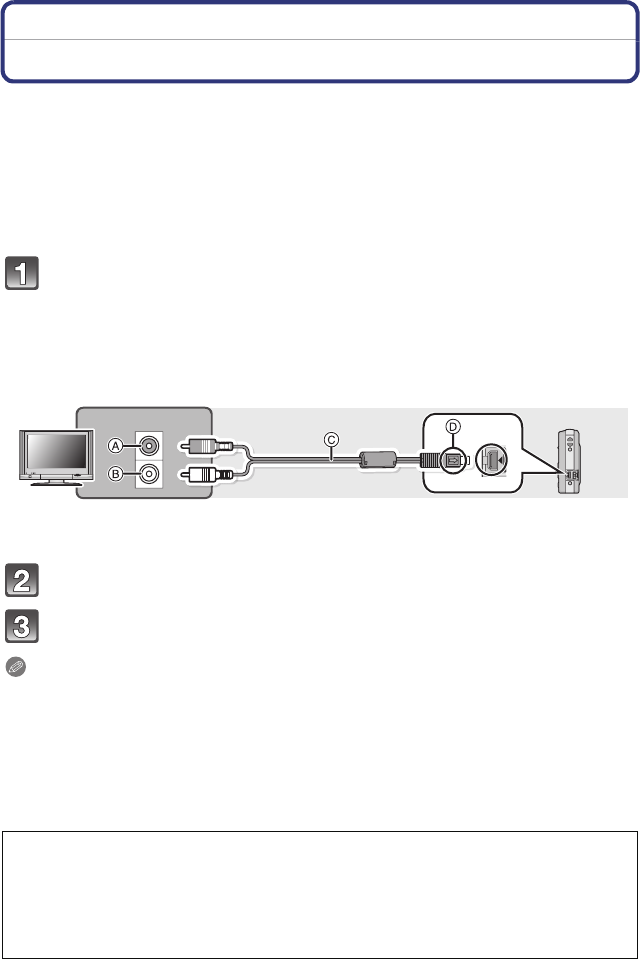
- 97 -
Connecting to other equipment
Connecting to other equipment
Playing Back Pictures on a TV Screen
Pictures recorded with this unit can be played back on a TV screen.
(DMC-SZ1)
•Please use the supplied AV cable.
(DMC-FH8)
•Please use the optional AV cable (DMW-AVC1).
Preparations:
Set the [TV Aspect]. (P43)
Turn this unit and the TV off.
Connect the camera and a TV.
•
Check the directions of the connectors, and plug them straight in or unplug them straight out.
(Otherwise the connectors may bend out of shape, which may cause malfunction.)
•(DMC-SZ1)
Do not use any other AV cables except the supplied one.
•(DMC-FH8)
Always use a genuine Panasonic AV cable (DMW-AVC1: optional).
Turn the TV on and select external input.
Turn the camera on and then slide the REC/PLAY switch to [(].
Note
•Depending on the [Picture Size], black bands may be displayed on the top and bottom or the
left and right of the pictures.
•Change the screen mode on your TV if the picture is displayed with the top or bottom cut off.
•When you play back a picture vertically, it may be blurry.
•When pictures are displayed, they may not be displayed properly depending on the type of TV.
•You can view pictures on TVs in other countries (regions) which use the NTSC or PAL system
when you set [Video Out] in the [Setup] menu.
•No sound is output from the camera speakers.
•Read the operating instructions for the TV.
AYellow: to the video input socket
BWhite: to the audio input socket
CAV cable
DAlign the marks, and insert.
The recorded still pictures can be played back on a TV with an SD Memory Card slot.
•Depending on the TV model, pictures may not be displayed on the full screen.
•Motion pictures cannot be played back. To play back motion pictures, connect the camera to
the TV with the AV cable.
•In some cases, panorama pictures cannot be played back. Also, auto-scroll playback of
panorama pictures may not work.
•For cards compatible with playback, refer to the operating instructions of the TV.
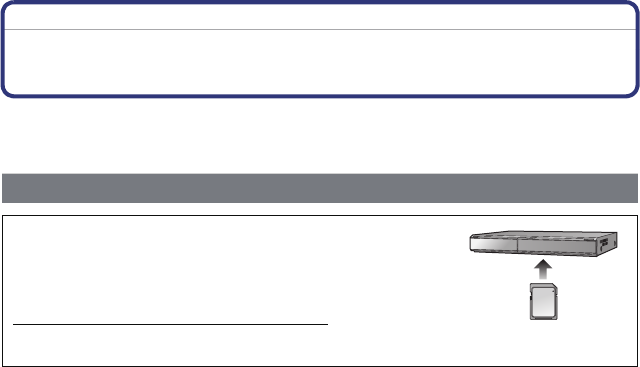
Connecting to other equipment
- 98 -
Saving the Recorded Still Pictures and Motion
Pictures
Methods to export still pictures and motion pictures to other devices will vary depending on
the file format (JPEG or MP4). Here are a few suggestions.
•See the operating instructions for the recorder about the details about copying and playing
back.
Copy by inserting the SD card into the recorder
Panasonic devices compatible with the respective file
format (such as a Blu-ray Disc recorder) can be used to
copy the images.
For details on compatible devices, refer to the support sites
below.
http://panasonic.jp/support/global/cs/dsc/
(This Site is English only.)
¢Some compatible devices may not be sold in certain countries and regions.
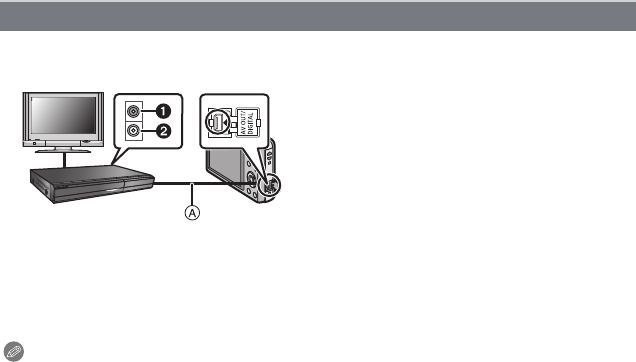
- 99 -
Connecting to other equipment
Copy images played back with this unit to Blu-ray disc, DVD disc, hard disk, or video using
a Blu-ray Disc Recorder, DVD recorder, or video.
1Connect this unit with the recording equipment with an AV cable.
2Start the playback of this unit.
3Start the recording on the recording equipment.
•When ending the recording (copying), stop the playback on this unit after stopping the
recording of the recording equipment.
Note
•When you play back motion pictures on 4:3 aspect ratio TV, you must set [TV Aspect] (P43) on
this unit to [4:3] before starting a copy. The image will be vertically long if you play back motion
pictures copied with [16:9] setting on a [4:3] aspect TV.
•See the operating instructions for the recording equipment regarding the details of copying and
playing back.
Copy the playback image using an AV cable
1Yellow: to the video input socket
2White: to the audio input socket
AAV cable
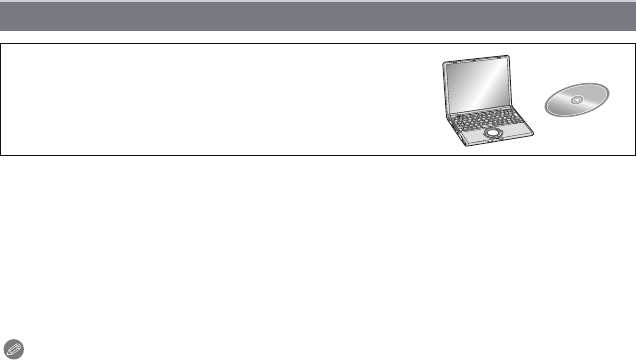
Connecting to other equipment
- 100 -
1Install “PHOTOfunSTUDIO” to the PC.
•Read the separate “Basic Operating Instructions” for more information about the software
in the CD-ROM (supplied) and how to install it.
2Connect camera to PC.
•For details on how to connect the camera, refer to “Loading still pictures or motion
pictures” (P102).
3Copy the images to a PC using “PHOTOfunSTUDIO”.
•For details, refer to the operating instructions of “PHOTOfunSTUDIO” (PDF).
Note
•Do not delete or move imported files or folders in Windows Explorer. When viewing in
“PHOTOfunSTUDIO”, you will not be able to play back or edit.
Copying to a PC using “PHOTOfunSTUDIO”
The software “PHOTOfunSTUDIO” on the CD-ROM
(supplied) can be used to save all the still pictures and
motion pictures recorded by the camera in their various
formats to your computer.
- 101 -
Connecting to other equipment
Connecting to other equipment
Connecting to a PC
You can transfer the pictures in the camera to a PC by connecting the camera and the PC.
•Some PCs can read directly from the card removed from the camera. For details, refer to the
operating instructions of your PC.
•If the computer being used does not support SDXC Memory Cards, a message
prompting you to format may appear. (Doing so will cause recorded images to be erased
so do not choose to format.)
If the card is not recognised, please refer to the below support site.
http://panasonic.net/avc/sdcard/information/SDXC.html
•You can easily print out or mail the pictures you have imported. Use of the
“PHOTOfunSTUDIO” bundled software on the CD-ROM (supplied) is a convenient way of
doing this.
•Read the separate “Basic Operating Instructions” for more information about the software in the
CD-ROM (supplied) and how to install it.
∫PC that can be used
The unit can be connected to any PC capable of recognising a mass storage device.
•Windows support: Windows 7/Windows Vista/Windows XP/Windows 2000/
Windows Me
•Mac support: OS X v10.1 ~ v10.7
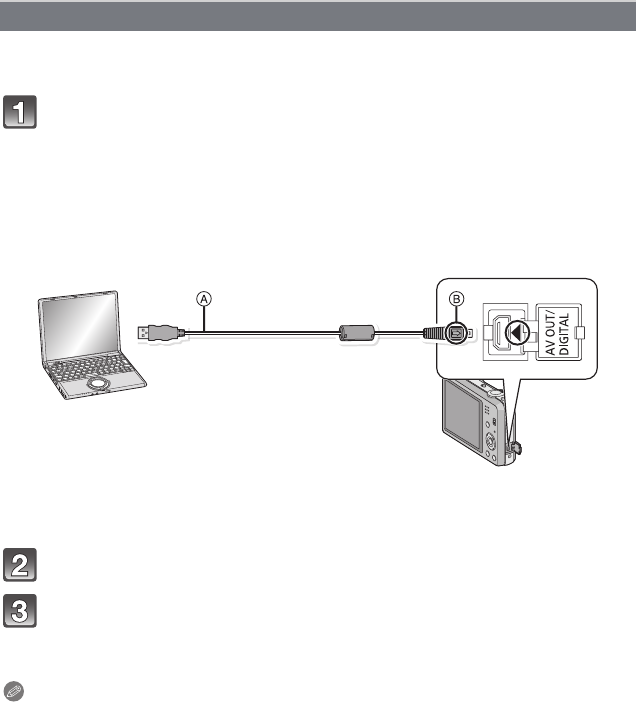
Connecting to other equipment
- 102 -
Preparations:
Turn on the camera and the PC.
Remove the card before using the pictures in the built-in memory.
Connect the computer and camera with the USB connection cable
(supplied).
Press 3/4 to select [PC], and then press [MENU/SET].
Operate the PC.
•You can save the images into the PC by dragging and dropping the image, or the folder
with the image that you would like to transfer onto a different folder in the PC.
Note
•Use a battery with sufficient battery power. If the remaining battery power becomes low while
the camera and the PC are communicating, the alarm beeps.
Refer to “Disconnecting the USB connection cable safely” (P103) before disconnecting the
USB connection cable. Otherwise, data may be destroyed.
•Before inserting or removing a card, turn the camera off and disconnect the USB connection
cable. Otherwise, data may be destroyed.
Loading still pictures or motion pictures
•Check the directions of the connectors, and plug them straight in or unplug them
straight out. (Otherwise the connectors may bend out of shape, which may cause
malfunction.)
•Do not use any other USB connection cables except the supplied one.
Use of cables other than the supplied USB connection cable may cause malfunction.
AUSB connection cable (supplied)
BAlign the marks, and insert.
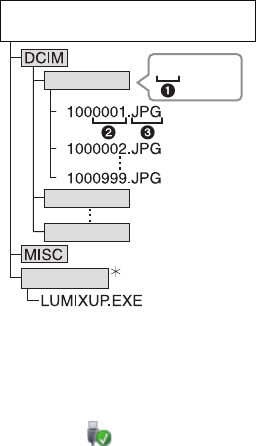
- 103 -
Connecting to other equipment
∫Viewing the contents of the built-in memory or card using the PC (folder
composition).
A new folder is created when pictures are taken in the following situations.
•When a card containing a folder with the same folder number has been inserted (Such as when
pictures were taken using another maker of camera)
•When there is a picture with file number 999 inside the folder
∫Disconnecting the USB connection cable safely
Select the [ ] icon in the task tray displayed on the PC, and then click [Eject
DMC-XXX] (XXX varies by model).
•Depending on your PC’s settings, this icon may not be displayed.
•If the icon is not displayed, check that [Access] is not displayed on the LCD monitor of the
digital camera before removing the hardware.
∫Connection in the PTP Mode (WindowsR XP, Windows VistaR, WindowsR 7, and
Mac OS X only)
Select [PictBridge(PTP)] when connecting USB cable.
•Data can now be read only from the card in the PC.
•When there are 1000 or more pictures on a card, the pictures may not be imported in the PTP
Mode.
•Motion picture cannot be played back in PTP Mode.
For Windows: A drive ([Removable Disk]) is displayed in [Computer]
For Mac: A drive ([LUMIX], [NO_NAME] or [Untitled]) is displayed on the
desktop
•Built-in Memory
•Card
DCIM: Images
1Folder number
2File number
3JPG: Still pictures
MP4: MP4 Motion pictures
MISC: DPOF print
Favourite
AD_LUMIX: For Upload set
LUMIXUP.EXE Upload tool
“LUMIX Image Uploader”
¢Cannot be created in the built-in memory.
AD_LUMIX
100_PANA
100_PANA
P
P
P
101_PANA
999_PANA

Connecting to other equipment
- 104 -
Still pictures and motion pictures can be uploaded to image sharing sites (Facebook/
YouTube) using the upload tool “LUMIX Image Uploader”.
You do not need to transfer the images to the PC or install dedicated software onto the PC,
so you can easily upload the images even away from your home or work if there is a PC
that is connected to the network.
•It is only compatible with a PC with Windows XP/Windows Vista/Windows 7.
•For details, refer to the operating instructions of “LUMIX Image Uploader” (PDF).
Preparations:
Setup the images to upload with [Upload Set] (P85).
Connect the PC to the Internet.
Create an account at the image sharing site to be used, and prepare the login information.
1Start up the “LUMIXUP.EXE” by double-clicking it. (P103)
•An upload tool “LUMIX Image Uploader” may startup automatically if the
“PHOTOfunSTUDIO” software on the CD-ROM (supplied) is installed.
2Select the destination to upload.
•Operate following the instructions displayed on the PC screen.
Note
•Operation cannot be guaranteed for future specification changes of the YouTube and Facebook
services. Service contents or screen may be modified without notice.
(This service is as of November 1st, 2011)
•Do not upload any images protected by copyright, unless you own the copyright yourself, or
have permission from the relevant copyright holder.
•Images may contain personal information that can be used to identify the user, such as a
title, the time and date when the images were taken, and the location where the image
was taken if the camera includes a GPS function. Check this information before
uploading images to image sharing sites.
Uploading the images to sharing sites
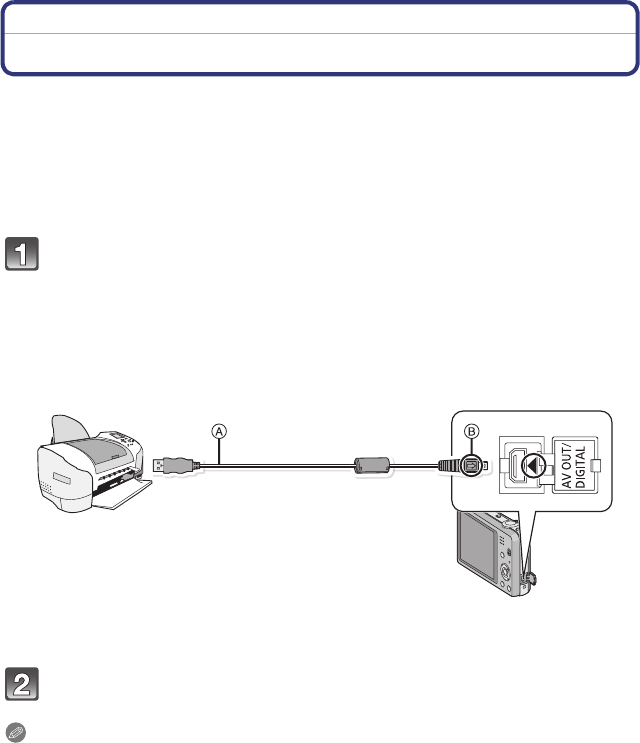
- 105 -
Connecting to other equipment
Printing the Pictures
If you connect the camera to a printer supporting PictBridge, you can select the pictures to
be printed out and instruct that printing be started on the camera’s LCD monitor.
•Some printers can print directly from the card removed from the camera. For details, refer to
the operating instructions of your printer.
Preparations:
Turn on the camera and the printer.
Remove the card before printing the pictures from the built-in memory.
Check print quality and other settings on the printer before printing the pictures.
Connect the printer and camera with the USB connection cable
(supplied).
Press 3/4 to select [PictBridge(PTP)], and then press [MENU/SET].
Note
•Use a battery with sufficient battery power. If the remaining battery power becomes low while
the camera and the printer are connected, the alarm beeps. If this happens during printing, stop
printing at once. If not printing, disconnect the USB connection cable.
•Do not disconnect the USB cable while [å] (Cable disconnect prohibit icon) is displayed.
(may not be displayed depending on the type of printer used)
•Before inserting or removing a card, turn the camera off, and disconnect the USB connection
cable.
•Motion pictures cannot be printed out.
•Check the directions of the connectors, and plug them straight in or unplug them
straight out. (Otherwise the connectors may bend out of shape, which may cause
malfunction.)
•Do not use any other USB connection cables except the supplied one.
Use of cables other than the supplied USB connection cable may cause malfunction.
AUSB connection cable (supplied)
BAlign the marks, and insert.
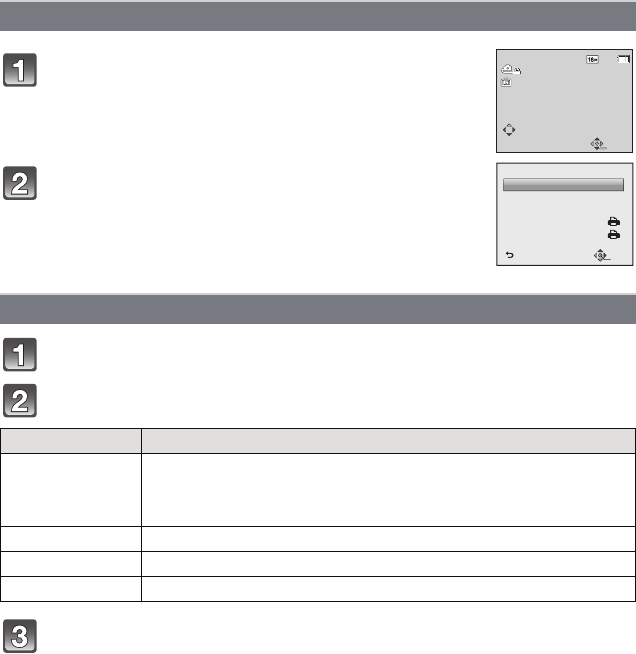
Connecting to other equipment
- 106 -
Press 3.
Press 3/4 to select an item and then press [MENU/SET].
Press 3 to select [Print start] and then press [MENU/SET].
•If the print check screen has appeared, select [Yes], and print the pictures.
•Refer to P107 for the items which can be set before starting to print the pictures.
•Disconnect the USB connection cable after printing.
Selecting a single picture and printing it
Press 2/1 to select the picture and then press
[MENU/SET].
Press 3 to select [Print start] and then press
[MENU/SET].
•Refer to P107 for the items which can be set before starting to
print the pictures.
•Disconnect the USB connection cable after printing.
Selecting multiple pictures and printing them
Item Description of settings
[Multi Select]
Multiple pictures are printed at one time.
•Press 3/4/2/1 to select the pictures, and then press [DISP.]. (When
[DISP.] is pressed again, the setting is cancelled.)
•After the pictures have been selected, press [MENU/SET].
[Select All] Prints all the stored pictures.
[Print Set (DPOF)] Prints the pictures set in [Print Set] only. (P93)
[Favorite] Prints the pictures set as favourites only. (P92)
100
100
0001
0001
100 0001
_
_
PictBridge
PictBridge
PictBridge
Multi Print
Multi Print
Multi Print
Select
Select
Select Print
Print
Print
1/11
1/11
1/11
OFF
1
Print start
Print with Date
Num.of prints
Paper Size
Page Layout
Single Select
SetSelectCancel
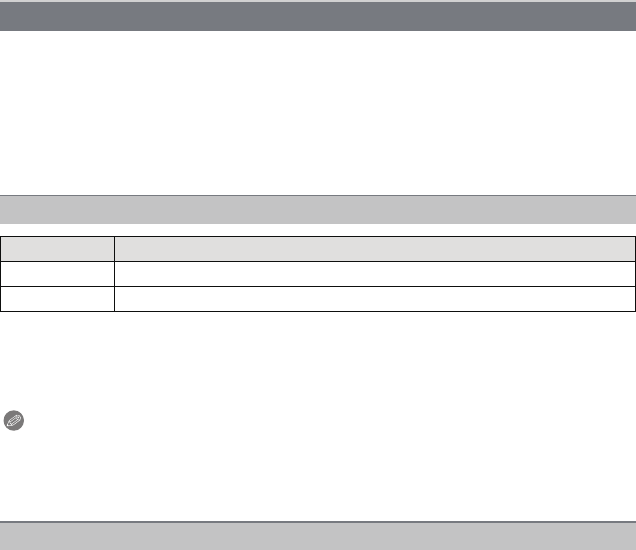
- 107 -
Connecting to other equipment
Select and set the items both on the screen in step 2 of the “Selecting a single
picture and printing it” and in step 3 of the “Selecting multiple pictures and printing
them” procedures.
•When you want to print pictures in a paper size or a layout which is not supported by the
camera, set [Paper Size] or [Page Layout] to [{] and then set the paper size or the layout on
the printer. (For details, refer to the operating instructions of the printer.)
•When [Print Set (DPOF)] has been selected, the [Print with Date] and [Num.of prints] items are
not displayed.
•If the printer does not support date printing, the date cannot be printed on the picture.
•Depending on the printer, the date print settings of the printer may take precedence so check if
this is the case.
•When printing images with [Date Stamp] or [Text Stamp], please remember to set
[Print with Date] to [OFF] or the date will print on top.
Note
When asking the photo shop to print the pictures
•By stamping the date using [Date Stamp] (P75) or [Text Stamp] (P87) or setting date printing at
the time of the [Print Set] (P93) setting before going to a photo shop, the dates can be printed
at the photo shop.
You can set the number of prints up to 999.
Print Settings
[Print with Date]
Item Description of settings
[ON] Date is printed.
[OFF] Date is not printed.
[Num.of prints]

Connecting to other equipment
- 108 -
•Paper sizes not supported by the printer will not be displayed.
[Paper Size]
Item Description of settings
{Settings on the printer are prioritised.
[L/3.5qk5q]
89 mm
k
127 mm
[2L/5qk7q]127 mmk178 mm
[POSTCARD] 100 mmk148 mm
[16:9] 101.6 mmk180.6 mm
[A4] 210 mmk297 mm
[A3] 297 mmk420 mm
[10k15cm] 100 mmk150 mm
[4qk6q]101.6 mmk152.4 mm
[8qk10q]203.2 mmk254 mm
[LETTER] 216 mmk279.4 mm
[CARD SIZE] 54 mmk85.6 mm
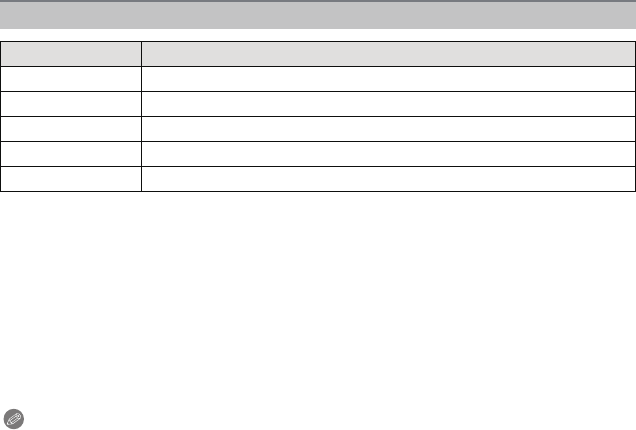
- 109 -
Connecting to other equipment
•An item cannot be selected if the printer does not support the page layout.
∫Layout printing
When printing a picture several times on 1 sheet of paper
For example, if you want to print the same picture 4 times on 1 sheet of paper, set
[Page Layout] to [ä] and then set [Num.of prints] to 4 for the picture that you want to
print.
When printing different pictures on 1 sheet of paper
For example, if you want to print 4 different pictures on 1 sheet of paper, set [Page Layout]
to [ä] and then set [Num.of prints] to 1 for each of the 4 pictures.
Note
•The camera is receiving an error message from the printer when the [¥] indication lights
orange during printing. After finishing printing, make sure there are no problems with the
printer.
•If the number of prints is high, the pictures may be printed several times. In this case, the
remaining number of prints indicated may differ from the number set.
[Page Layout] (Layouts for printing that can be set with this unit)
Item Description of settings
{Settings on the printer are prioritised.
á1 picture with no frame on 1 page
â1 picture with a frame on 1 page
ã2 pictures on 1 page
ä4 pictures on 1 page
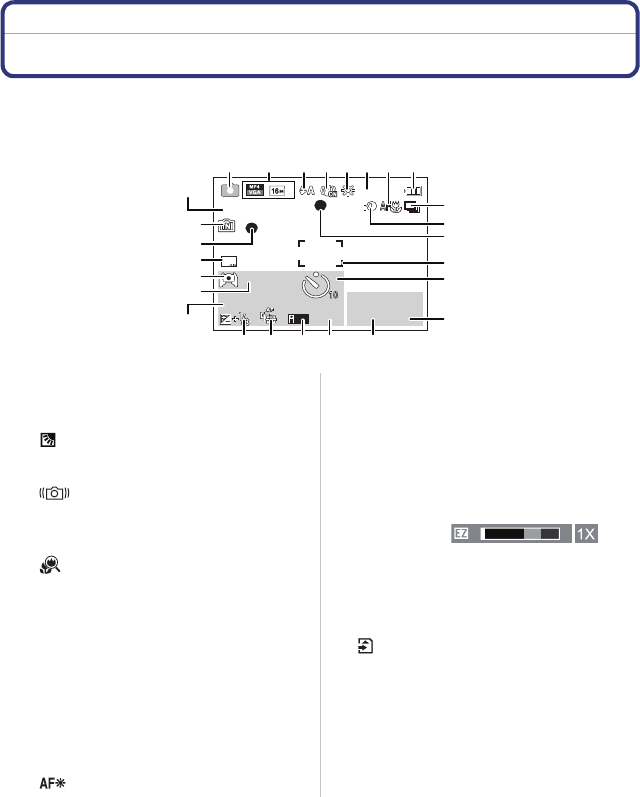
Others
- 110 -
Others
Screen Display
∫In recording
1 Recording Mode
2 Recording Quality (P76)
Picture Size (P64)
: Backlight Compensation (P24)
3 Flash Mode (P49)
4 Optical Image Stabiliser (P75)
: Jitter alert (P21)
5 White Balance (P66)
6 Colour Mode (P73)
7 AF Macro Mode (P52)
: Macro Zoom Mode (P52)
8 Battery indication (P12)
9 Burst (P71)
10 Intelligent Exposure (P70)
11 Focus (P27)
12 AF area (P27)
13 Self-timer Mode (P53)
14 AF tracking operation (P69)
15 Shutter speed (P26)
16 Aperture value (P26)
17 ISO sensitivity (P65)
18 AF Tracking (P69)
: AF assist lamp (P74)
19 Exposure compensation (P54)
20 Number of days that have passed since
the departure date (P40)
Location (P40)
Name (P61)
Age (P61)
Current date and time
“: World Time (P39)
Zoom (P47):
21 Elapsed recording time¢ (P29):
22 LCD Mode (P42)
23 Date Stamp (P75)
24 Recording state (P29)
25 Built-in memory (P16)
: Card (P16) (displayed only during
recording)
26 Number of recordable pictures (P18)
Available recording time¢ (P18,
29):
¢“m” is an abbreviation for minute and “s” for
second.
ISO
3s3s3s
1/601/601/60
B&WB&WB&W
F3.1F3.1F3.1
111111
12
9
13
10
11
14
1617 1519
18
25
24
26
23
21
22
20
13 842567
T
W
8
m
30
s
R8
m
30
s
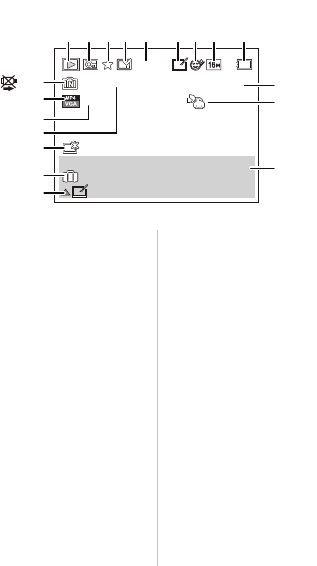
- 111 -
Others
∫In playback
1 Playback Mode (P77)
2 Protected picture (P95)
3 Favourite (P92)
4 Date/Text stamped display (P75, 87)
5 Colour Mode (P73)
6 After Auto Retouch (P82)
7(DMC-FH8)
After Beauty Retouch (P83)
8 Picture Size (P64)
9 Battery indication (P12)
10 Picture number
Total pictures
Elapsed playback time¢ (P34):
11 Number of prints (P93)
12 Location (P40)
Recording information (P46)
Name (P61)
Age (P61)
13 Auto Retouch (P82)
Beauty Retouch indicator (P83)
Motion picture playback (P34)
Play panorama (P59)
14 Number of days that have passed since
the departure date (P40)
Recorded date and time
“: World Time (P39)
15 Power LCD (P42)
16 Folder/File number (P103)
17 Motion picture recording time¢
(P34):
18 Recording Quality (P76)
19 Built-in memory (P16)
Cable disconnection warning icon
(P105)
¢“m” is an abbreviation for minute and “s” for
second.
1/111/111/11
11
100100 00010001100 0001
__
3s3s3s3s
B&WB&WB&W
1 2 3 45 86 79
10
11
12
15
18
14
13
17
19
16
8
m
30
s
8
m
30
s

Others
- 112 -
Cautions for Use
Keep this unit as far away as possible from electromagnetic equipment (such as
microwave ovens, TVs, video games etc.).
•If you use this unit on top of or near a TV, the pictures and/or sound on this unit may be
disrupted by electromagnetic wave radiation.
•Do not use this unit near cell phones because doing so may result in noise adversely affecting
the pictures and/or sound.
•Recorded data may be damaged, or pictures may be distorted, by strong magnetic fields
created by speakers or large motors.
•Electromagnetic wave radiation generated by microprocessors may adversely affect this unit,
disturbing the pictures and/or sound.
•If this unit is adversely affected by electromagnetic equipment and stops functioning properly,
turn this unit off and remove the battery or disconnect AC adaptor (supplied). Then reinsert the
battery or reconnect AC adaptor and turn this unit on.
Do not use this unit near radio transmitters or high-voltage lines.
•If you record near radio transmitters or high-voltage lines, the recorded pictures and/or sound
may be adversely affected.
Always use the supplied cords and cables. If you use optional accessories, use the
cords and the cables supplied with them.
Do not extend the cords or the cables.
Do not spray the camera with insecticides or volatile chemicals.
•If the camera is sprayed with such chemicals, the body of the camera may be damaged and the
surface finish may peel off.
•Do not keep rubber or plastic products in contact with the camera for a long period of time.
The speaker does not have magnetic shielding. Do not keep this speaker and
magnetised cards (bank cards, commuter passes, etc.) close together.
Optimal use of the camera
- 113 -
Others
Before cleaning the camera, remove the battery or disconnect the power plug from
the outlet. Then wipe the camera with a dry soft cloth.
•When the camera is soiled badly, it can be cleaned by wiping the dirt off with a wrung wet cloth,
and then with a dry cloth.
•Do not use solvents such as benzine, thinner, alcohol, kitchen detergents, etc., to clean the
camera, since it may deteriorate the external case or the coating may peel off.
•When using a chemical cloth, be sure to follow the accompanying instructions.
•Do not press the LCD monitor with excessive force. Uneven colours may appear on the LCD
monitor and it may malfunction.
•If the camera is cold when you turn it on, the picture on the LCD monitor will be slightly darker
than usual at first. However, the picture will return to normal brightness when the internal
temperature of the camera increases.
•Do not press the lens with excessive force.
•Do not leave the camera with the lens facing the sun, as rays of light from the sun may cause it
to malfunction. Also, be careful when placing the camera outside or near a window.
Cleaning
About the LCD monitor
Extremely high precision technology is employed to produce the LCD monitor screen.
However, there may be some dark or bright spots (red, blue, or green) on the screen.
This is not a malfunction. The LCD monitor screen has more than 99.99% effective
pixels with a mere 0.01% of the pixels inactive or always lit. The spots will not be
recorded on pictures on the built-in memory or a card.
About the Lens

Others
- 114 -
The battery is a rechargeable lithium ion battery. Its ability to generate power comes
from the chemical reaction that takes place inside it. This reaction is susceptible to
the surrounding temperature and humidity. If the temperature is too high or too low,
the operating time of the battery will become shorter.
Always remove the battery after use.
•Place the removed battery in a plastic bag, and store or carry away from metallic objects (clips,
etc.).
If you drop the battery accidentally, check to see if the body of the battery and the
terminals are damaged.
•Inserting a damaged battery in the camera will damage the camera.
Bring charged spare batteries when going out.
•Be aware that the operating time of the battery becomes shorter in low temperature conditions
such as at a ski resort.
•When you travel, do not forget to bring the AC adaptor (supplied) and USB connection cable
(supplied) so that you can charge the battery in the country that you are travelling in.
Dispose of unusable battery.
•The battery has a limited life.
•Do not throw the battery into fire because it may cause an explosion.
Do not allow battery terminals to come into contact with metal objects (such as
necklaces, hairpins, etc.).
•This can cause short-circuiting or heat generation and you may be badly burned if you touch a
battery.
•If you use the AC adaptor (supplied) near a radio, the radio reception may be disturbed.
•Keep the AC adaptor (supplied) 1 m (3.3 feet) or further away from radios.
•The AC adaptor (supplied) may generate whirring sounds when it is being used. This is not a
malfunction.
•After use, be sure to disconnect the power supply device from the electrical outlet. (A very
small amount of current is consumed if it is left connected.)
Battery
AC adaptor (supplied)

- 115 -
Others
Do not leave the card where the temperature is high, where electromagnetic waves
or static electricity are easily generated or exposed to direct sunlight.
Do not bend or drop the card.
•The card may be damaged or the recorded content may be damaged or deleted.
•Put the card in the card case or the storage bag after use and when storing or carrying the
card.
•Do not allow dirt, dust, or water to get into the terminals on the back of the card and do not
touch the terminals with your fingers.
Notice for when transferring to another party, or disposing of the memory card
•“Format” or “delete” using the camera or a PC will only modify the file management information,
it will not erase the data in the memory card completely.
It is recommended to physically destroy the memory card or use the commercially available
computer data deletion software to completely erase the data in the memory card before
transferring to another party or disposing.
Management of data in the memory card is the responsibility of the user.
If a name or birthday is set for [Baby1]/[Baby2], this personal information is kept in the
camera and recorded in the image.
Disclaimer
•Information including personal information may be altered or vanish due to erroneous
operation, effect of static electricity, accident, malfunction, repair, or other handlings.
Please note in advance that Panasonic is not liable in any way for any direct or indirect damage
from the alteration or vanishing of information or personal information.
When requesting a repair, transferring to another party, or disposing
•Reset the settings to protect the personal information. (P43)
•If there are pictures stored in the built-in memory, copy them onto the memory card (P96)
before formatting the built-in memory (P44) as needed.
•Remove the memory card from the camera when requesting a repair.
•Built-in memory and settings may return to factory default when camera is repaired.
•Please contact the dealer where you purchased the camera or your nearest Service Centre if
above operations are not possible due to malfunction.
When transferring to another party, or disposing of the memory card, please refer to
“Notice for when transferring to another party, or disposing of the memory card”
above.
Card
About the personal information
Others
- 116 -
•Store the battery in a cool and dry place with a relatively stable temperature: [Recommended
temperature: 15 oC to 25 oC (59 oF to 77 oF), Recommended humidity: 40%RH to 60%RH]
•Always remove the battery and the card from the camera.
•If the battery is left inserted in the camera, it will discharge even if the camera is turned off. If
the battery continues to be left in the camera, it will discharge excessively and may become
unusable even if charged.
•When storing the battery for a long period of time, we recommend charging it once a year.
Remove the battery from the camera and store it again after it has completely discharged.
•We recommend storing the camera with a desiccant (silica gel) when you keep it in a closet or
a cabinet.
Recorded data may be damaged or lost if the camera breaks down due to inappropriate
handling. Panasonic will not be liable for any damage suffered due to loss of recorded
data.
•When you use a tripod, make sure the tripod is stable when this unit is attached to it.
•You may not be able to remove the card or the battery when using a tripod or unipod.
•Make sure that the screw on the tripod or unipod is not at an angle when attaching or detaching
the camera. You may damage the screw on the camera if you use excessive force when
turning it. Also, the camera body and the rating label may be damaged or scratched if the
camera is attached too tightly to the tripod or unipod.
•Read the operating instructions for the tripod or unipod carefully.
•(DMC-FH8)
Some tripods or unipods may block the speaker, making it difficult to hear operating sounds etc.
When not using the camera for a long period of time
About the picture data
About tripods or unipods
- 117 -
Others
Message Display
Confirmation messages or error messages will be displayed on the screen in some cases.
The major messages are described below as examples.
[This picture is protected]
>Delete the picture after cancelling the protect setting. (P95)
[Some pictures cannot be deleted]/[This picture cannot be deleted]
•Pictures not based on the DCF standard cannot be deleted.
>Format the card after saving necessary data on a PC etc. (P44)
[Cannot be set on this picture]
•[Text Stamp] or [Print Set] cannot be set for pictures not based on the DCF standard.
[Built-in memory full]/[Memory card full]/[Not enough space on built-in memory]/
[Not enough memory on the card]
•There is no space left on the built-in memory or the card.
•When you copy pictures from the built-in memory to the card (batch copy), the pictures are
copied until the capacity of the card becomes full.
[Some pictures cannot be copied]/[Copy could not be completed]
•The following pictures cannot be copied.
–When a picture with the same name as the picture to be copied exists in the copy
destination. (Only when copying from a card to the built-in memory.)
–Files not based on the DCF standard.
•Moreover, pictures recorded or edited by other equipment may not be copied.
[Built-In Memory Error]/[Format built-in memory?]
•This message will be displayed when you format the built-in memory on a PC.
>Format the built-in memory on the camera again. (P44) The data on the built-in memory
will be deleted.
[Memory card error.
This card cannot be used in this camera.
Format this card?]
•It is a format that cannot be used with this unit.
>Insert a different card and try again.
>Reformat on this unit (P44) after saving necessary data using a PC, etc. Data will be
deleted.
Others
- 118 -
[Please turn camera off and then on again]/[System Error]
•This message appears when the camera is not operating properly.
>Turn the camera off and on. If the message persists, contact the dealer or your nearest
Service Centre.
[Memory Card Error]/[Memory card parameter error]/[This memory card cannot be
used]
>Use a card compatible with this unit. (P16)
–SD Memory Card (8 MB to 2 GB)
–SDHC Memory Card (4 GB to 32 GB)
–SDXC Memory Card (48 GB, 64 GB)
[Insert SD card again]/[Try another card]
•An error has occurred accessing the card.
>Insert the card again.
>Insert a different card.
[Read Error/Write Error
Please check the card]
•It has failed to read or write data.
>Remove the card after turning the power [OFF]. Insert the card again, turn the power on,
and try to read or write the data again.
•The card may be broken.
>Insert a different card.
[Motion recording was cancelled due to the limitation of the writing speed of the
card]
•Use a card with SD Speed Class with “Class 4” or higher when recording motion pictures.
•In the event that it stops even after using a “Class 4” card or higher, the data writing speed has
deteriorated so it is recommended to make a backup and then format (P44).
•Depending on the type of the card, motion picture recording may stop in the middle.
[Cannot record due to incompatible format(NTSC/PAL) data on this card.]
>Format the card after saving necessary data on a PC etc. (P44)
>Insert a different card.
[A folder cannot be created]
•A folder cannot be created because there are no remaining folder numbers that can be used.
>Format the card after saving necessary data on a PC etc. (P44)
[Picture is displayed for 16:9 TV]/[Picture is displayed for 4:3 TV]
•Select [TV Aspect] in the [Setup] menu if you want to change the TV aspect. (P43)
•This message also appears when the USB connection cable is connected to the camera only.
In this case, connect the other end of the USB connection cable to a PC or a printer. (P102,
105)
[This battery cannot be used]
•Use a genuine Panasonic battery. If this message is displayed even when a genuine
Panasonic battery is used, contact the dealer or your nearest Service Centre.
•If the battery terminal is dirty, clean it and remove any objects.
- 119 -
Others
Troubleshooting
First, try out the following procedures (P119–127).
•This phenomenon occurs when charging in a location where the temperature is very high or
very low.
>Reconnect the USB connection cable (supplied) in a location where the ambient
temperature (and the temperature of battery) is in a 10 oC to 30 oC (50 oF to 86 oF) range,
and try charging again. [If you reconnect the USB connection cable (supplied) when the
unit is fully charged, the charging lamp will turn on for approximately 15 seconds.]
•The battery is exhausted. Charge the battery.
•If you leave the camera on, the battery will be exhausted.
>Turn the camera off frequently by using the [Sleep Mode]. (P42)
•Insert the battery securely all the way in. (P10)
•Is the REC/PLAY switch at the [!] setting? (P22)
•Is there any memory remaining on the built-in memory or the card?
>Delete the pictures which are not necessary to increase available space in the memory.
(P35)
•You may not be able to record for a short while after turning the power [ON] when using a large
capacity card.
•The picture can become whitish if there is dirt, e.g. fingerprints on the lens.
>If the lens is dirty, turn on the camera, eject the lens barrel and gently wipe the lens surface
with a soft, dry cloth.
>Check that the exposure is correctly compensated. (P54)
>Set [Burst] (P71) of the [Rec] menu to [OFF].
If the problem is not resolved, it may be improved by selecting [Reset] (P43) on the
[Setup] menu.
Battery and power source
The charging lamp has gone off but the unit has not been charged.
The camera cannot be operated even when it is turned on.
The camera turns off immediately after it is turned on.
Card/battery door does not close.
Recording
The picture cannot be recorded.
The recorded picture is whitish.
The recorded picture is too bright or dark.
Multiple pictures are taken at one time.
Others
- 120 -
•The focus range varies depending on the Recording Mode.
>Set to the proper mode for the distance to the subject.
•The subject is beyond the focus range of the camera. (P27)
•There is camera shake (jitter) or the subject is moving slightly. (P21)
>The shutter speed becomes slower when pictures are taken in dark places so hold the
camera firmly with both hands to take the pictures. (P21)
>When taking pictures at a slow shutter speed, use the Self-timer. (P53)
•Is the ISO sensitivity high or the shutter speed slow?
(ISO sensitivity is set to [ ] when the camera is shipped. Therefore, when taking pictures
indoors etc. noise will appear.)
>Decrease the ISO sensitivity. (P65)
>Take pictures in bright places.
•Have you set [High Sens.] in Scene Mode, or [Burst] in [Rec] menu to [ ] or [ ]? If so, the
resolution of the recorded picture decreases slightly because of high sensitivity processing, but
this is not a malfunction.
•When recording under fluorescent or LED lighting fixture etc., increasing the shutter speed may
introduce slight changes to brightness and colour. These are a result of the characteristics of
the light source and do not indicate a malfunction.
The subject is not focused properly.
The recorded picture is blurred. The Optical Image Stabiliser is not effective.
The recorded picture looks rough. Noise appears on the picture.
The brightness or the hue of the recorded picture is different from the actual
scene.
When recording pictures or half-pressing the shutter button, reddish stripes may
appear on the LCD monitor. Alternatively, part or all of the LCD monitor may turn
a reddish colour.
•This is a characteristic of CCDs, and it appears when the subject has a
bright part. Some unevenness may occur in the surrounding areas, but
this is not a malfunction.
It is recorded in motion pictures but is not recorded on still pictures.
•It is recommended that when you take pictures you take care not to
expose the screen to sunlight or any other source of strong light.
- 121 -
Others
•Use a card with SD Speed Class with “Class 4” or higher when recording motion pictures.
•Depending on the type of the card, recording may stop in the middle.
>If motion picture recording stops during use of a card of at least “Class 4” or if you use a
card that has been formatted on a PC or other equipment, the data-writing speed is lower.
In such cases, we recommend that you make a backup of the data and then format (P44)
the card in this unit.
•Set the AF area to the distinctive colour of the subject if there is a part that is different from the
surrounding colour. (P69)
•If the camera is moved too slowly, the camera assumes that camera motion was stopped and
ends the still picture recording.
•If there is a lot of camera shake in the recording direction while moving the camera, recording
ends.
>When recording with [Panorama Shot], move the camera by trying to trace a small circle
parallel to the recording direction at a speed of about 8 seconds per revolution (estimated).
•Is your finger covering up the speaker? (P8)
Motion picture recording stops in the middle.
Subject cannot be locked.
(AF tracking not possible)
Recording by [Panorama Shot] ends before finishing.
Operation sound is small.
Others
- 122 -
•This phenomenon appears when you press the shutter button halfway to set the aperture value
and does not affect the recorded pictures.
•This phenomenon also appears when the brightness changes when the camera is zoomed or
when the camera is moved. This is because of operation of the automatic aperture of the
camera, and it is not a malfunction.
•The LCD monitor may flicker for a few seconds after the power is switched on. This is an
operation to correct flicker caused by lighting such as fluorescent lights, LED lights etc. and is
not a malfunction.
•Is [LCD Mode] active? (P42)
•Perform [LCD Display]. (P41)
•This is not a malfunction.
These pixels do not affect the recorded pictures.
•In dark places, noise may appear to maintain the brightness of the LCD monitor. This does not
affect the pictures you are recording.
•Is the flash setting set to [Œ]?
>Change the flash setting. (P49)
•The flash cannot be used in the following cases:
–In Miniature Effect Mode (P55)
–[Scenery]/[Panorama Shot]/[Night Scenery]/[Sunset]/[Glass Through] in Scene Mode (P56)
–When recording in [Burst] (except for [ ]) (P71)
•The flash is activated twice when Red-Eye Reduction (P49) has been set.
•Has [Burst] (P71) in the [Rec] menu been set to [ ]?
LCD monitor
The LCD monitor becomes darker or brighter for a moment.
The LCD monitor flickers indoors.
The LCD monitor is too bright or dark.
Black, red, blue and green dots appear on the LCD monitor.
Noise appears on the LCD monitor.
Flash
The flash is not activated.
Flash is activated several times.
- 123 -
Others
•[Rotate Disp.] (P44) is set to [ ] or [ ].
•Is the REC/PLAY switch set to [(]? (P32)
•Is there a picture on the built-in memory or the card?
>The pictures on the built-in memory appear when a card is not inserted. The picture data on
the card appears when a card is inserted.
•Is this a folder or picture which was processed in the PC? If it is, it cannot be played back by
this unit.
>It is recommended to use the “PHOTOfunSTUDIO” software in the CD-ROM (supplied) to
write pictures from PC to card.
•Has [Filtering Play] been set for playback?
>Change to [Normal Play]. (P77)
•Is this a non-standard picture, a picture which has been edited using a PC or a picture which
was taken by another maker of digital cameras?
•Did you remove the battery immediately after picture-taking or did you take the picture using a
battery with a low remaining charge?
>Format the data to delete the pictures mentioned above. (P44)
(Other pictures will be deleted as well and it will not be possible to restore them.
Therefore, check well before formatting.)
•Is something covering up the speaker? (P8)
•Is the clock in the camera set properly? (P19)
•When pictures edited using a PC or pictures taken by other equipment are searched, they may
display dates differing from the actual dates on which the pictures were taken.
Playback
The picture being played back is rotated and displayed in an unexpected
direction.
The picture is not played back.
The recorded pictures are not displayed.
The folder number and the file number are displayed as [—] and the screen turns
black.
Playback sound or operation sound is too low.
With a Calendar Search, pictures display dates differing from the actual dates on
which the pictures were taken.
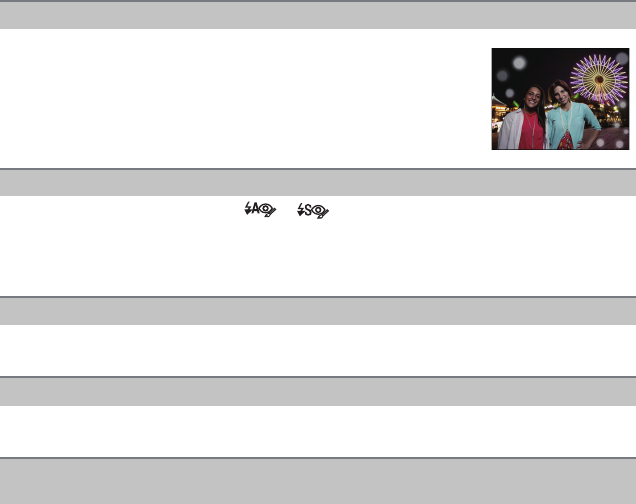
Others
- 124 -
•When Digital Red-Eye Correction ([ ], [ ]) is in operation, if you take a picture of a
subject with red colour surrounded by a skin tone colour, that red part may be corrected to
black by the Digital Red-Eye Correction function.
>It is recommended to take a picture with the Flash Mode set to [‡], [‰] or [Œ], or
[Red-Eye Removal] on the [Rec] menu set to [OFF]. (P74)
•Is it a picture that has been recorded with other equipment? In such cases, these pictures may
be displayed with a deteriorated picture quality.
•This unit automatically adjusts the aperture during motion picture recording. At such times, the
sound may break up. This is not a malfunction.
•Even if a compatible MP4 playback device is used, the video or sound quality of the recorded
motion pictures may be poor, or they may not be able to be played. The recorded data may also
not be displayed properly in certain cases.
White round spots like soap bubbles appear on the recorded picture.
•If you take a picture with the flash in a dark place or indoors, white
round spots may appear on the picture caused by the flash reflecting off
of particles of dust in the air. This is not a malfunction.
A characteristic of this is that the number of round spots and their
position differ in every picture.
Red part of the recorded image has changed colour to black.
[Thumbnail is displayed] appears on the screen.
The sound of the recorded motion pictures sometimes breaks up.
Motion pictures recorded with this model cannot be played back on other
equipment.
- 125 -
Others
•Is the camera connected to the TV correctly?
>Set the TV input to External Input Mode.
•Depending on the TV model, the pictures may be elongated horizontally or vertically or they
may be displayed with their edges cut off.
•Are you trying to play back the motion pictures by directly inserting the card in the card slot of
the TV?
>Connect the camera to the TV with the AV cable and then play back the pictures on the
camera. (P97)
>Check [TV Aspect] setting. (P43)
•Is the camera connected to the PC correctly?
•Is the camera recognised by the PC correctly?
>Select [PC] when connecting. (P102)
>Disconnect the USB connection cable. Connect it again while the card is inserted in the
camera.
>If there are two or more USB terminal on a single PC, try connecting the USB connection
cable to another USB terminal.
>Check if your PC is compatible with SDXC memory cards.
http://panasonic.net/avc/sdcard/information/SDXC.html
>A message prompting to format the card may be displayed when connecting, but do not
format.
>If the [Access] displayed on the LCD monitor does not disappear, disconnect the USB
connection cable after turning off the power.
>Confirm that the login information (login ID/user name/email address/password) is correct.
>Confirm that the PC is connected to the Internet.
>Confirm that resident software such as virus protection software or firewall is not blocking
access to YouTube or Facebook.
>Confirm with YouTube or Facebook as well.
TV, PC and printer
The picture does not appear on the television.
The display areas on the TV screen and the camera’s LCD monitor are different.
The motion pictures cannot be played back on a TV.
The picture is not displayed fully on the TV.
The picture cannot be transferred when the camera is connected to a PC.
The card is not recognised by the PC. (The built-in memory is recognised.)
The card is not recognised by the PC. (SDXC memory card is used)
There is a problem trying to upload to YouTube or Facebook.
Others
- 126 -
•Pictures cannot be printed using a printer that does not support PictBridge.
>Select [PictBridge(PTP)] when connecting. (P105)
>When using a printer with a Cropping or borderless printing function, cancel this function
before printing. (For details, refer to the operating instructions for the printer.)
>When you order photo studios to print pictures, ask the photo studio if the 16:9 pictures can
be printed.
•Since aspect ratio of a panorama picture differs from normal pictures, it may not always be
possible to print it correctly.
>Please use a printer that supports panorama pictures. (For details, refer to the operating
instructions for the printer.)
>We recommend using the “PHOTOfunSTUDIO” software on the CD-ROM (supplied) to
adjust the size of the still picture to the print paper size.
>Press [MENU/SET], select the [Setup] menu icon [ ]. Then press [MENU/SET], and then
select the [~] icon to set the desired language. (P44)
•In dark places, the AF Assist Lamp lights red to make it easier to focus on a subject.
•Is [AF Assist Lamp] on the [Rec] menu set to [ON]? (P74)
•The AF Assist Lamp does not turn on in bright places.
•The surface of the camera may become warm during use. This does not affect the performance
or quality of the camera.
•When the brightness changes due to zoom or camera movement, etc., the lens may click and
the picture on the screen may drastically change. However, the picture is not affected. The
sound is caused by the automatic adjustment of the aperture. This is not a malfunction.
•If you do not use the camera for a long time, the clock may be reset.
>[Please set the clock] message will be displayed; please reset the clock. (P19)
The picture cannot be printed when the camera is connected to a printer.
The ends of the pictures are cut at printing.
The panorama picture is not printing correctly.
Others
An unreadable language was selected by mistake.
A red lamp sometimes turns on when the shutter button is pressed halfway.
The AF Assist Lamp does not turn on.
The camera becomes warm.
The lens clicks.
The clock is reset.
- 127 -
Others
•It is possible that the subject may be warped slightly, or the borders get coloured, depending on
the zoom magnification, due to the characteristics of the lens, but this is not a malfunction.
•When using the Extra Optical Zoom, the zooming action will stop temporarily. This is not a
malfunction.
•Is the camera set to Macro Zoom Mode? (P52)
Maximum zoom during Macro Zoom Mode is 3k digital zoom.
•When you perform an operation after taking a certain action, the pictures may be recorded in
folders with different numbers from the ones used prior to the operation.
•If the battery was inserted or removed without first turning the camera’s power off, the folder
and file numbers for the pictures taken will not be stored in the memory. When the power is
then turned back on and pictures are taken, they may be stored under file numbers which
should have been assigned to previous pictures.
•This is the [Auto Demo] which introduces the features of the camera. Press a button to return
the camera to the original screen.
When pictures are taken using the zoom, they are slightly distorted and the
areas around the subject contain colours which are not actually present.
Zooming stops instantaneously.
Zoom does not go up to maximum magnification.
The file numbers are not recorded consecutively.
The file numbers are recorded with previously used numbers.
When the camera is left alone, the Slide Show is suddenly displayed.

• SDXC Logo is a trademark of SD-3C, LLC.
• QuickTime and the QuickTime logo are trademarks or registered trademarks
of Apple Inc., used under license therefrom.
• Mac and Mac OS are trademarks of Apple Inc., registered in the U.S. and
other countries.
• Windows and Windows Vista are either registered trademarks or trademarks
of Microsoft Corporation in the United States and/or other countries.
• YouTube is a trademark of Google Inc.
• This product uses “DynaFont” from DynaComware Corporation. DynaFont is a registered
trademark of DynaComware Taiwan Inc.
• Other names of systems and products mentioned in these instructions are usually the
registered trademarks or trademarks of the manufacturers who developed the system or
product concerned.
This product is licensed under the AVC patent portfolio license for the personal and
non-commercial use of a consumer to (i) encode video in compliance with the AVC Standard
(“AVC Video”) and/or (ii) decode AVC Video that was encoded by a consumer engaged in a
personal and non-commercial activity and/or was obtained from a video provider licensed to
provide AVC Video. No license is granted or shall be implied for any other use. Additional
information may be obtained from MPEG LA, LLC. See http://www.mpegla.com .
