DOC02 DN9848E_Operator Manual_IssB DN9848E
User Manual: DN9848E
Open the PDF directly: View PDF  .
.
Page Count: 52
DN9848E
System Controller
Operator Manual
Klark Teknik,
Klark Teknik Building,
Walter Nash Road,
Kidderminster.
Worcestershire.
DY11 7HJ.
England.
Tel: +44 (0) 1562 741515
Fax: +44 (0) 1562 745371
Email: info@uk.telex.com
Website: www.klarkteknik.com
DN9848E System Controller Operator Manual
DOC02-DN9848E Issue B - August 2006
© Telex Communications (UK) Limited.
In line with the company’s policy of continual improvement, specifications and function may be
subject to change without notice. This Operator Manual was correct at the time of writing. E&OE.

IMPORTANT SAFETY INSTRUCTIONS
The lightning flash with arrowhead symbol within an equilateral triangle, is
intended to alert the user to the presence of uninsulated “Dangerous Voltage”
within the product's enclosure that may be of sufficient magnitude to constitute a
risk of electric shock to persons.
The exclamation point within an equilateral triangle, is intended to alert the user
to the presence of important operating and maintenance (servicing) instructions
in the literature accompanying the product.
WARNING: TO REDUCE THE RISK OF FIRE OR ELECTRIC SHOCK, DO NOT EXPOSE THIS
APPARATUS TO RAIN OR MOISTURE.
WARNING: DO NOT EXPOSE THIS EQUIPMENT TO DRIPPING OR SPLASHING AND
ENSURE THAT NO OBJECTS FILLED WITH LIQUIDS, SUCH AS VASES, ARE
PLACED ON THE EQUIPMENT.
1. Read these instructions.
2. Keep these instructions.
3. Heed all warnings.
4. Follow all instructions.
5. Do not use this apparatus near water.
6. Clean only with a dry cloth.
7. Do not block any of the ventilation openings. Install in accordance with the manufacturer’s
instructions.
8. Do not install near any heat sources such as radiators, heat registers, stoves, or other
apparatus (including amplifiers) that produce heat.
9. Do not defeat the safety purpose of the polarized or grounding-type plug. A polarized plug has
two blades with one wider than the other. A grounding type plug has two blades and a third
grounding prong. The wide blade or the third prong are provided for your safety. If the
provided plug does not fit into your outlet, consult an electrician for replacement of the
obsolete outlet.
10. Protect the power cord from being walked on or pinched particularly at plugs, convenience
receptacles and the point where they exit from the apparatus.
11. Only use attachments/accessories specified by the manufacturer.
12. Unplug this apparatus during lightning storms or when unused for long periods of time.
13. Refer all servicing to qualified personnel. Servicing is required when the apparatus has been
damaged in any way, such as power supply cord or plug is damaged, liquid has been spilled or
objects have fallen into the apparatus, the apparatus has been exposed to rain or moisture,
does not operate normally, or has been dropped.
14. Use the mains plug to disconnect the apparatus from the mains.
15. The mains plug of the power supply cord shall remain readily operable.
Telex Communications (UK) Limited, Klark Teknik Building,
Walter Nash Road, Kidderminster. Worcs. DY11 7HJ. England.
Tel: +44 1562 741515 Fax: +44 1562 745371
www.midasconsoles.com www.klarkteknik.com
DECLARATION OF CONFORMITY
We, Telex Communications (UK) Limited
of, Klark Teknik Building, Walter Nash Road, Kidderminster, Worcestershire, DY11 7HJ.
Declare that a sample of the following product:-
Product Type Number Product Description Nominal Voltage(s) Current Freq
DN9848E System Controller 115V AC
230V AC
279mA
153mA
50/60Hz
to which this declaration refers, is in conformity with the following directives and/or standards:-
Directive(s) Test Standard(s)
89/336/EEC Electromagnetic Compatibility Directive
amended by 92/31/EEC & 93/68/EEC 73/23/EEC,
Low Voltage Directive, amended by 93/68/EEC
Generic Standard Using EN55103 Limits and Methods EN50081/1
Class B Conducted Emissions PAVI EN55103
Class B Radiated Emissions PAVI EN55103
Fast Transient Bursts at 2kV EN61000-4-4
Static Discharge at 4kV EN61000-4-2
Electrical Stress Test EN60204
Electrical Safety EN60065
Signed: ............................ Date: 14th March 2006
Name: Simon Harrison
Authority: Research and Development Director, Telex Communications (UK) Limited
Attention!
Where applicable, the attention of the specifier, purchaser, installer or user is drawn to
special limitations of use which must be observed when these products are taken into
service to maintain compliance with the above directives. Details of these special measures
and limitations to use are available on request and are available in product manuals.
Company registration No. 2414018. A Subsidiary of Telex Communications Inc.

Thank You For Using This Klark Teknik Product
Our engineers have designed this product with uncompromising dedication to providing the superb
audio performance, ease of use and rugged reliability that meets the demands of live sound
engineering.
Please take time to complete and return the Klark Teknik three-year warranty registration card and,
to obtain maximum performance with minimum effort, refer to this operator’s manual. Please
ensure that you read both the Important Safety Instructions and Attention! pages.
Finally, enjoy your new DN9848E!
CONTENTS
ATTENTION! ......................................................................................... 1
1. INTRODUCING THE DN9848E .......................................................................3
2. FRONT PANEL ...........................................................................................4
3. REAR PANEL ............................................................................................5
4. PROGRAMMING SETTINGS ............................................................................6
4.1. The DN9848E Programming Panel................................................................................. 6
4.2. Navigating the DN9848E Menus.................................................................................... 7
4.2.1 Input and Output Menus ....................................................................................... 7
4.2.2 Set Up Menu ....................................................................................................... 7
4.2.3 Store and Recall................................................................................................... 7
4.2.4 Home Page ......................................................................................................... 7
5. INPUT CHANNELS ......................................................................................9
5.1. Brief Technical Overview ............................................................................................. 9
5.2. Setting Input Parameters ............................................................................................ 9
5.2.1 The Input Menu ................................................................................................... 9
5.2.2 Naming the Input Channel (Page 1) ........................................................................ 9
5.2.3 Gain and Delay (Page 1) ..................................................................................... 10
5.2.4 Parametric Equalisation (Pages 2 to 13) ................................................................ 10
5.2.5 Compression (Page 14)....................................................................................... 11
5.3. Monitoring the Input Signal ....................................................................................... 11
6. OUTPUT CHANNELS .................................................................................. 12
6.1. Brief Technical Overview ........................................................................................... 12
6.2. Setting Output Parameters ........................................................................................ 13
6.2.2 Naming the Output Channel and Matrix Mixing (Page 1)........................................... 13
6.2.3 Signal Invert, Delay and Output Level (Page 2) ...................................................... 14
6.2.4 Phase Adjustment (Pages 3 and 4) ...................................................................... 14
6.2.5 High Pass and Low Pass Filters (Pages 5 and 6) ...................................................... 15
6.2.6 Parametric Equalisation (Pages 7 to 12) ................................................................ 16
6.2.7 Compression (Page 13)....................................................................................... 17
6.2.8 Output Limiter (Page 14)..................................................................................... 17
6.3. Monitoring the Output Signal...................................................................................... 18
6.4. Output Gain and Mute - Front Panel Control ................................................................. 19
6.5. Channel Copying ...................................................................................................... 20
7. DN9848E SET UP OPTIONS .......................................................................21
7.1. General................................................................................................................... 21
7.2. Remote Comms Channel/Gang Mode (Page 1) .............................................................. 21
7.3. Gang Mode Setup (Page 2) ........................................................................................ 23
7.4. Security Settings (Pages 3 and 4) ............................................................................... 24
7.4.1 Front Panel Lock (Page 3).................................................................................... 24
7.4.2 System Protect (Page 4)...................................................................................... 25
7.5. Analogue/Digital Input Select (Page 5) ........................................................................ 26
7.6. LCD and LED Lighting (Page 6)................................................................................... 27
7.7. Naming (Pages 7 and 8)............................................................................................ 27
7.8. Backup System (Page 9) ........................................................................................... 28
7.9. Delay Options (Page 10)............................................................................................ 28
7.10. Power Up Options (Page 11) ...................................................................................... 29
7.11. Ethernet Settings (Pages 12 and 13) ........................................................................... 29
7.11.1 Ethernet IP Address (Page 12) ............................................................................. 29
7.11.2 Ethernet Subnet Mask Setup (Page 13) ................................................................. 30
8. STORING AND RECALLING SETTINGS ..............................................................31
9. DN9848E REMOTE CONTROL SETUP .............................................................32
9.1. Overview ................................................................................................................ 32
9.2. HELIX DN9848E unit interconnections ......................................................................... 32
9.2.1 Connecting HELIX DN9848E units in a daisy chain................................................... 33
9.2.2 Connecting HELIX DN9848E units to an Ethernet switch or hub ................................. 33
9.3. Ethernet Connection ................................................................................................. 34
9.3.1 Ethernet connection – standard ............................................................................ 34
9.3.2 Ethernet connection – wireless option.................................................................... 34
9.3.3 Configuring the DN9848E for Network Communication ............................................. 35
9.4. Serial Connection (Option)......................................................................................... 35
9.4.1 Serial connection details...................................................................................... 35
9.4.2 Connection and Configuration Procedure................................................................ 36
10. APPLICATION NOTES .................................................................................37
10.1. The Advantage of DN9848E Look-Ahead Limiters .......................................................... 37
10.2. Phase-adjustment with the DN9848E .......................................................................... 39
11. TECHNICAL SPECIFICATION .........................................................................41
12. SERVICE INFORMATION..............................................................................43
12.1. Battery ................................................................................................................... 43
12.1.1 Replacement ..................................................................................................... 43

ATTENTION!
1
Please ensure that you read and follow the
IMPORTANT SAFETY INSTRUCTIONS at the front of this manual and the
SAFETY WARNINGS and INSTALLATION CONSIDERATIONS given below.
Safety Warning
To prevent shock or fire hazard, do not expose the unit to rain or moisture. To avoid electrical shock
do not remove covers. Refer servicing to qualified personnel only.
This unit is fitted with a standard fused IEC mains power socket. The unit contains a switch mode
power supply that automatically adjusts itself to 50 - 60Hz mains supplies in the 100V to 240V
(±10%) AC range. This information is printed on the rear of the unit, below the mains inlet socket.
Before connecting this unit to the mains supply, ensure that the fuse fitted is the correct type and
rating as indicated on the rear panel.
For safety reasons the mains earth lead should never be disconnected. In the event of ground loop
problems, disconnect the signal screen at one end of the connecting cables – note that this can only
be done when the unit is used within a balanced system.
Installation Considerations
Location: Do not install this unit in a location subjected to excessive heat, dust or
mechanical vibration. Allow for adequate ventilation around the unit, making sure
the unit’s fans and vents are not obstructed. To prevent excessive heating of the
unit, avoid mounting the unit directly above power amplifiers or other devices
that radiate significant amounts of heat. Where necessary use fan cooled racks.
Cables: To ensure correct and reliable performance, this product should only be used with
high quality, screened twisted pair audio cables, terminated with metal bodied
3-pin XLR connectors (Pin 2 Hot).
Electric Fields: Should this product be used in an electromagnetic field that is amplitude
modulated by an audio frequency signal (20Hz to 20kHz), the signal to noise ratio
may be degraded. Degradation of up to 60dB at a frequency corresponding to the
modulation signal may be experienced under extreme conditions (3V/m, 90%
modulation).
After Unpacking
Please retain the original packing for use should you need to transport or ship this unit.
Please inspect the unit carefully for any signs of damage that may have occurred in transit and notify
the courier immediately if you feel that any damage has occurred.

DN9848E Key Features
3
1. INTRODUCING THE DN9848E
The DN9848E is a highly configurable, digital electronic crossover/loudspeaker management system
controller comprising four balanced AES/EBU digital input channels and eight balanced analogue
output channels. Its unrivalled routing flexibility enables any amount of any input to be routed to any
output.
Each input channel features:
• 12 separately configurable, fully parametric equalisation stages that may be used for room
equalisation
• A programmable delay of up to 1000ms
• Gain control
• Full range compression
Each output channel features:
• Configurable high and low-pass filters for setting the crossover characteristics
• Six stages of fully parametric equalisation that may be used to compensate for system or
enclosure characteristics
• Delay of up to 300ms on each output, mainly used for system time alignment
• Gain control and output muting
• Full range compression and full range limiting
• Dual all-pass phase correction sections, the first of which can be any of the filter or
parametric EQ stages and can be adjustable in five-degree steps
The crossover filter may be chosen from the following types:
• 12dB/oct and 24dB/oct peaking (high-pass filter only)
• Butterworth (6, 12, 18, 24, 36 and 48dB/octave)
• Linkwitz-Riley (12 and 24dB/octave)
• Bessel (12, 18, 24, 36 and 48dB/octave)
Channel programming can be performed directly from the front panel controls or remotely from a PC
using the associated Elgar software application via the real panel Ethernet comms connectors (or
RS-232 PC port on the front panel). If required, access to critical parameter menus can be password
protected, for example, to avoid unauthorised adjustments in hire installations.
Commonly used settings can be stored for repetitive use in up to 32 lockable System memories while
varying show settings can be stored in up to five User memories.
In addition, any input or output channel’s parameters may be copied across channels, and channels
may be ganged to link source and destination channels for ease of operation.
Klark Teknik has a policy of continuous development and may produce updates to the DN9848E host
code. These can be downloaded to the unit via the front panel PC Port. To keep up with latest
features and functions, please visit www.klarkteknik.com.
Controls, Connectors, Indicators
4
2. FRONT PANEL
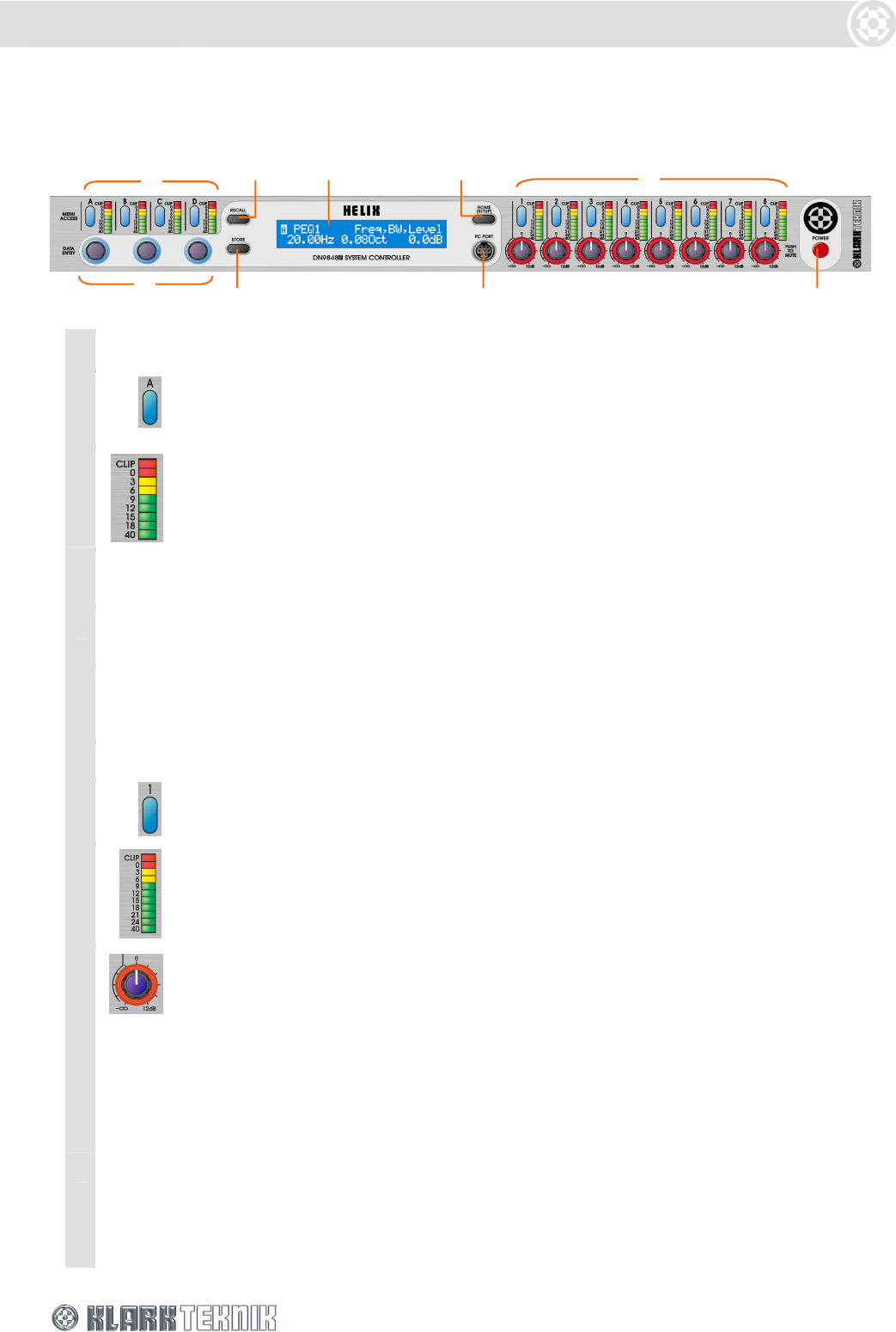
1 Input channels A-D
MENU ACCESS
Buttons A-D
Press to access and step through the menu pages for the
respective input. The available pages depend on the current
security setting. The button is lit when active.
Signal Level
Meters A - D
9-segment signal meters for monitoring signal level
(compressor headroom and gain reduction) and clip on the
respective channels.
2 RECALL button Press to access the Recall menu page from which a User,
System or Backup memory can be selected for recall.
3 Alphanumeric display Displays menu pages for viewing/defining parameter values.
Values are adjusted via the DATA ENTRY control knobs.
4 HOME (SET UP) button Press to exit current menu page and return to default Home
page. Press and hold for one second to access Set Up menu,
then press to step through Set Up pages.
5 Output channels 1 - 8
MENU ACCESS
Buttons 1-8
As for input channels.
Signal Level
Meters 1 - 8
11-segment signal meters for monitoring signal level
(compressor headroom and gain reduction – reads relative
to limiter threshold) and clip on the respective channels.
Output level and
mute control
Potentiometer control for fine-tuning/muting of output level.
Provides relative adjustment from zero level, which is the
level set in the output menu. Turn control to
increase/decrease level or press to mute. Red ring
illuminates when mute is active.
6 DATA ENTRY control
knobs
Used to set parameter values on menu pages (see
Section 4.1).
7 STORE button Press to access the Store menu page for storing User or
System memories.
8 PC port 8-pin mini-DIN socket for connecting to an RS-232 serial
port on a PC or other remote control device. (Ethercon
connectors are provided on the rear panel for remote control
via Ethernet.)
9 POWER button Press to switch the unit on or off.
5
2 3
6
4
7 8 9
1
Controls, Connectors, Indicators
5
3. REAR PANEL
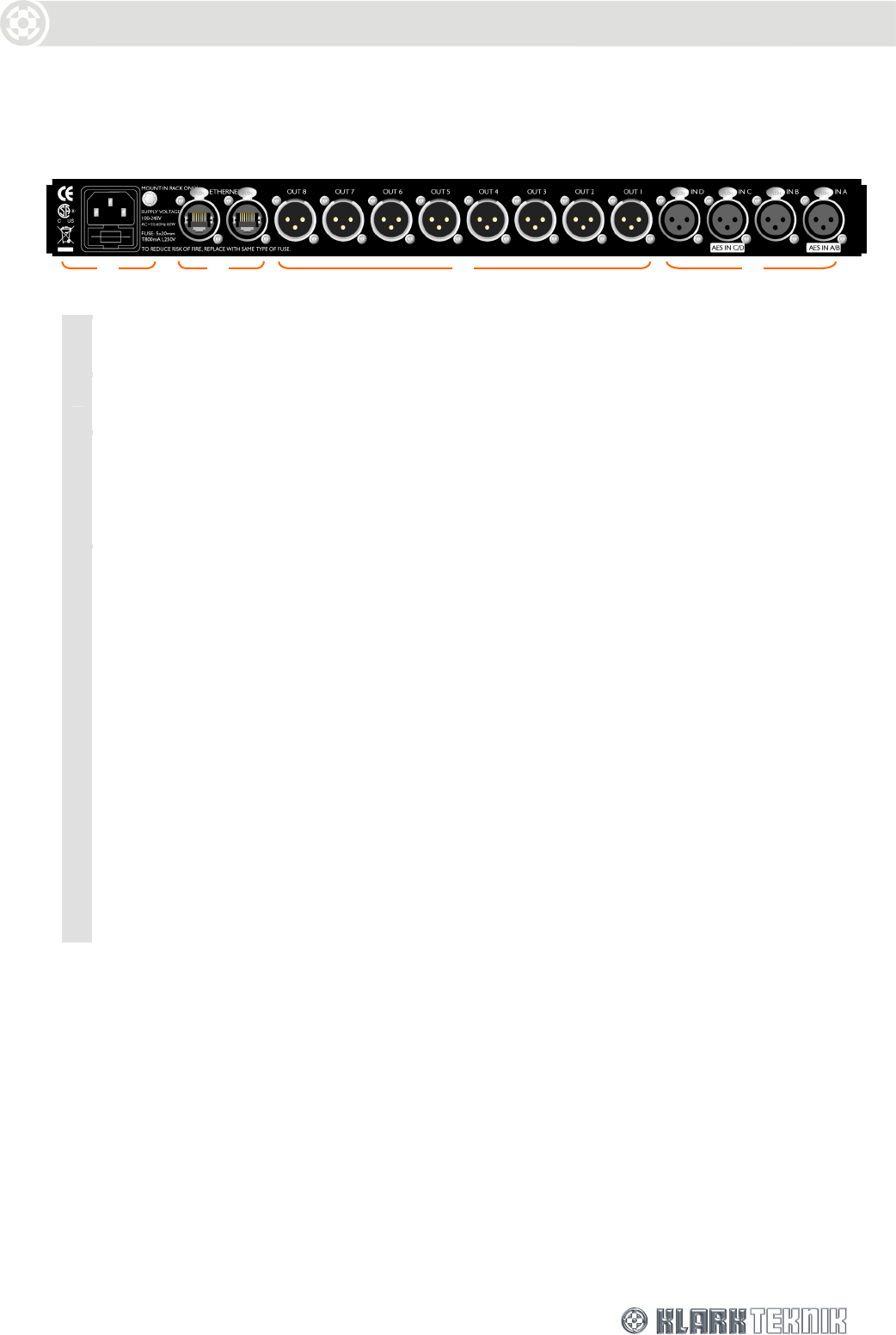
1 IEC fused mains
inlet socket
For mains power connection. Accepts input voltages from
100-240V AC 50/60Hz.
2 Ethernet 2-port Ethernet switch for remote control using Cat-5
cabling.
3 Outputs 1-8 Electronically balanced XLR audio output plugs
Pinouts: Pin 1 - Screen
Pin 2 - Hot
Pin 3 - Cold (Return)
4 Inputs A-D Analogue – electronically balanced XLR audio input sockets
Pinouts: Pin 1 - Screen
Pin 2 - Hot
Pin 3 - Cold (Return)
Digital – inputs A and C support incoming 96kHz AES/EBU
signals. Note that when digital input is selected, inputs B
and D are inactive.
AES/EBU is 110 Ohms. Sample rate converters (SRCs)
support incoming signals at sampling frequencies from
32kHz to 96kHz ±12.5%, while allowing the unit to operate
internally at 48kHz. An SRC bypass facility is available for
48kHz operation; this is to eliminate the propagation delay
through the SRC.
Pinouts: Pin 1 - Screen
Pin 2 - Data +
Pin 3 - Data -
2 3 4 1
DN9848E Menu System
6
4. PROGRAMMING SETTINGS
4.1. The DN9848E Programming Panel
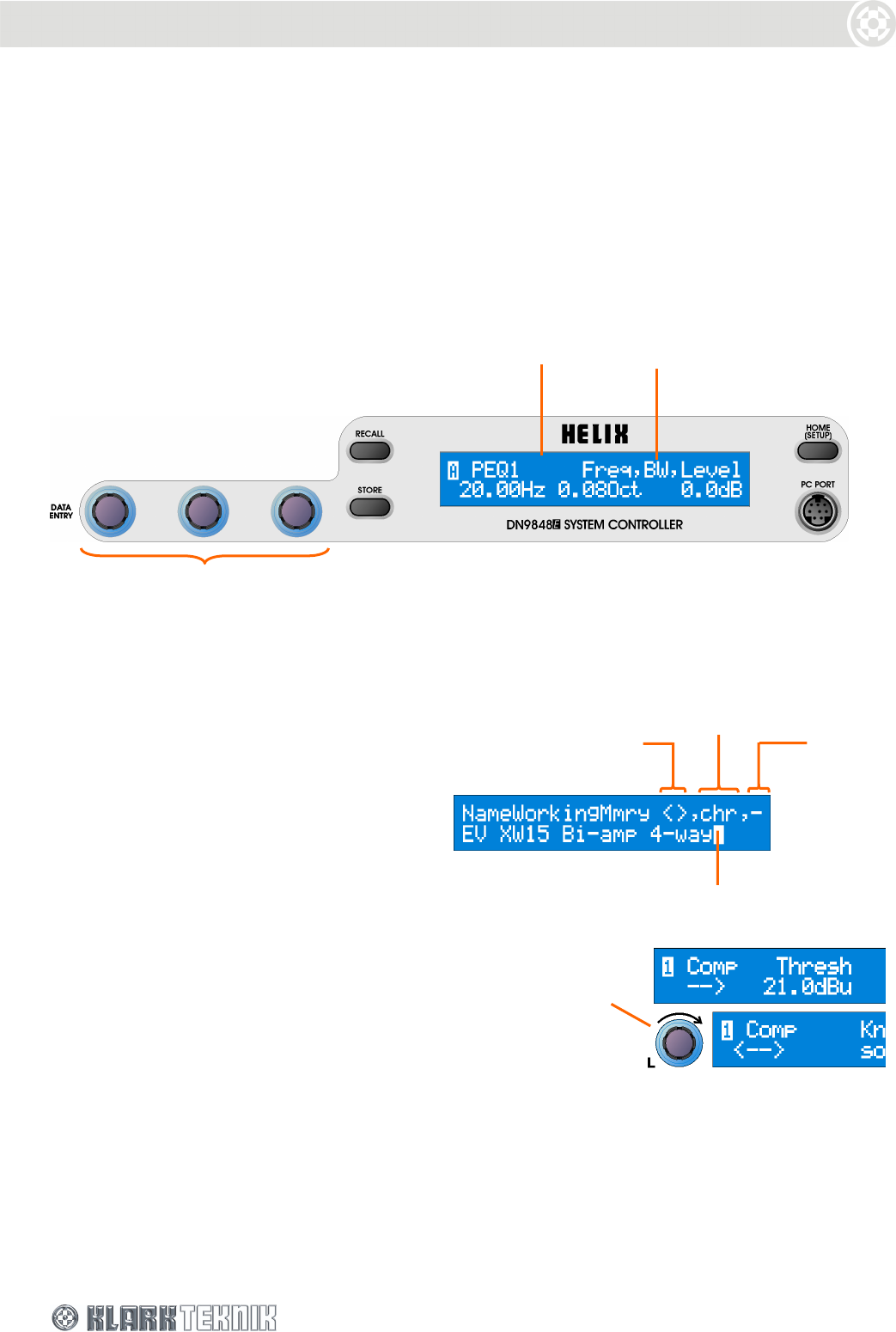
All the parameters for input and output signal processing and routing are defined via function-specific
menu pages that are displayed and edited at the programming panel shown below. As described in
the illustration, each menu page uses a standard layout that relates the displayed parameters to the
three DATA ENTRY control knobs, which are used to adjust the parameter values.
When the menu page requires text entry, ‘<>’
indicates which DATA ENTRY control knob moves
the cursor left and right while “chr” indicates
which control knob changes the alphanumeric
character.
When there are sub-menu pages, either the left
or right DATA ENTRY control knob will be allocated
to moving forward ( - - >) or back up ( < - -). This
will be indicated here by a control knob icon
marked L (Left) or R (Right).
The alphanumeric display,
showing the menu page fo
r
programming PEQ1
T
he adjustable parameters are
named on the top line.
Current values are given
below in corresponding order.
DATA ENTR
Y
control knobs adjust the left,
centre and right parameter values at the
display, in corresponding order. If there
are only one or two parameters, only the
active controls are lit.
T
he icon indicates
that turning the left
knob clockwise will
access the sub-menu
page.
Right knob
inactive
Centre knob
changes character
Left knob moves curso
r
Cursor

DN9848E Menu System
7
4.2. Navigating the DN9848E Menus
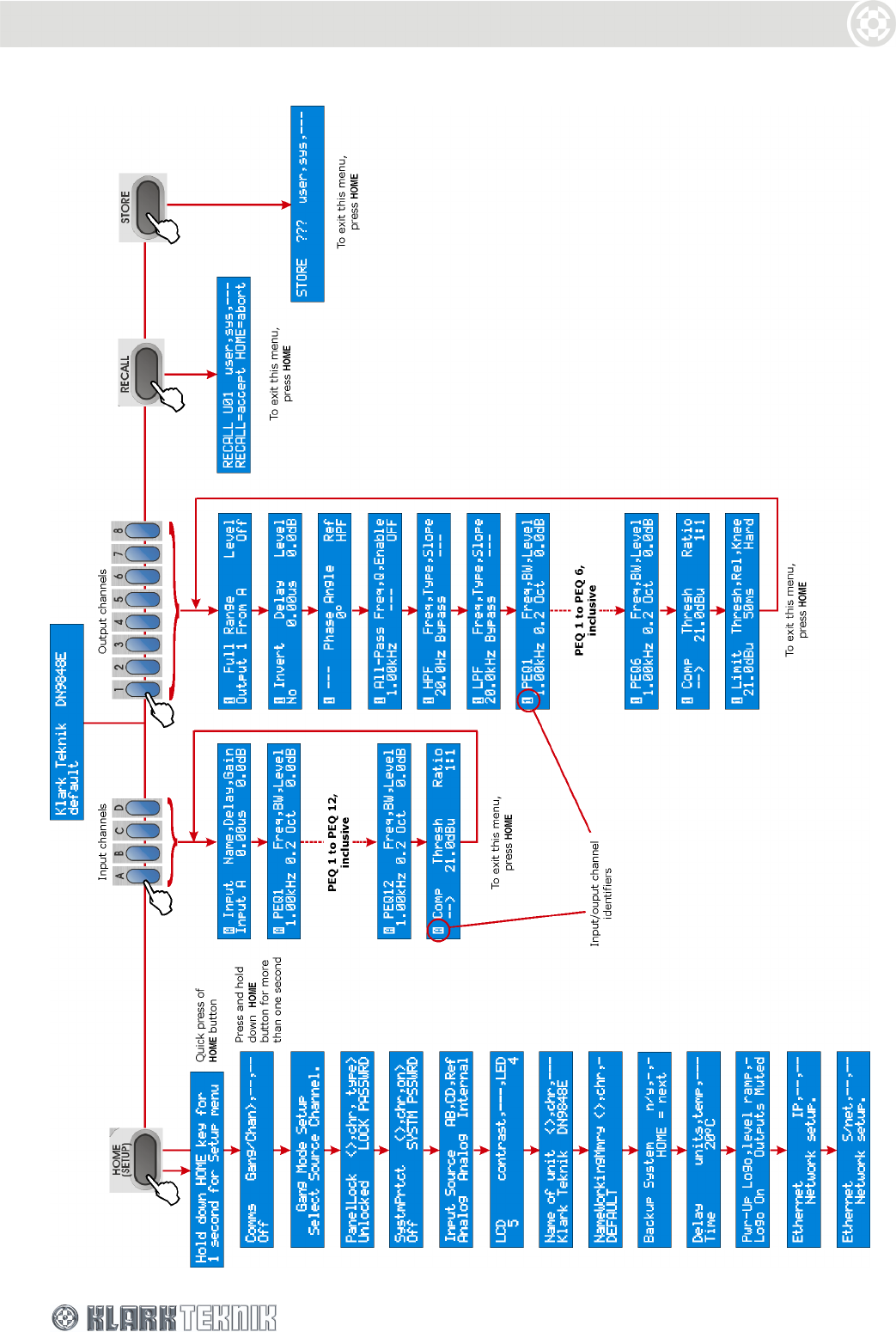
The DN9848E menu system is divided logically into Input, Output and Set Up menus, plus two
function-specific menus for quick access to the Store and Recall commands. A menu map is provided
at the end of this section for reference purposes.
4.2.1 Input and Output Menus
Each of the four input channels (A-D) and eight output channels (1-8) have their own set of menu
pages, accessed and stepped through by pressing the channel’s blue MENU ACCESS button.
When you make a selection, the MENU ACCESS button illuminates to show that channel is now active at
the programming panel. In addition, all the menu pages show the channel number (1 to 8) or letter
(A to D) in the top left-hand corner.
To program each parameter in turn across all the input/output channels, you can skip to the same
page on another input/output channel by pressing the MENU ACCESS button on the other channel.
If you want to jump back to the first page on a different channel, press the HOME button and then the
required channel button.
Note
If you cannot select any of the channel menu pages from the front panel, then your unit may
be set for remote control or the front panel may be locked as indicated on the alphanumeric
display. Please refer to Sections 7.2 and 7.4 for more details.
4.2.2 Set Up Menu
Global parameters, such as the Comms Channel for remote control set ups, security options and unit
labelling are defined in the Set Up menu. To switch to the Set Up menu, press and hold the black
HOME (SET UP) button located on the programming panel. Press the button repeatedly to cycle through
the menu pages.
4.2.3 Store and Recall
The Store and Recall menu pages are accessed by the corresponding buttons on the programming
panel. To abort and exit the store/recall menu press the HOME button.
4.2.4 Home Page
The Home page, displayed at the end of the start up routine, indicates the unit name (set by the
User) and the current working memory which was retained from the previous session. To return to
the Home page at any time, press and release the HOME button. (The HOME button is a dual function
button – a short press returns to the Home page while a long press opens the Set Up menu.) The
HOME button can also be pressed to abort a Store or Recall process.
DN9848E Menu Map
8
Input Channels
9
5. INPUT CHANNELS
5.1. Brief Technical Overview
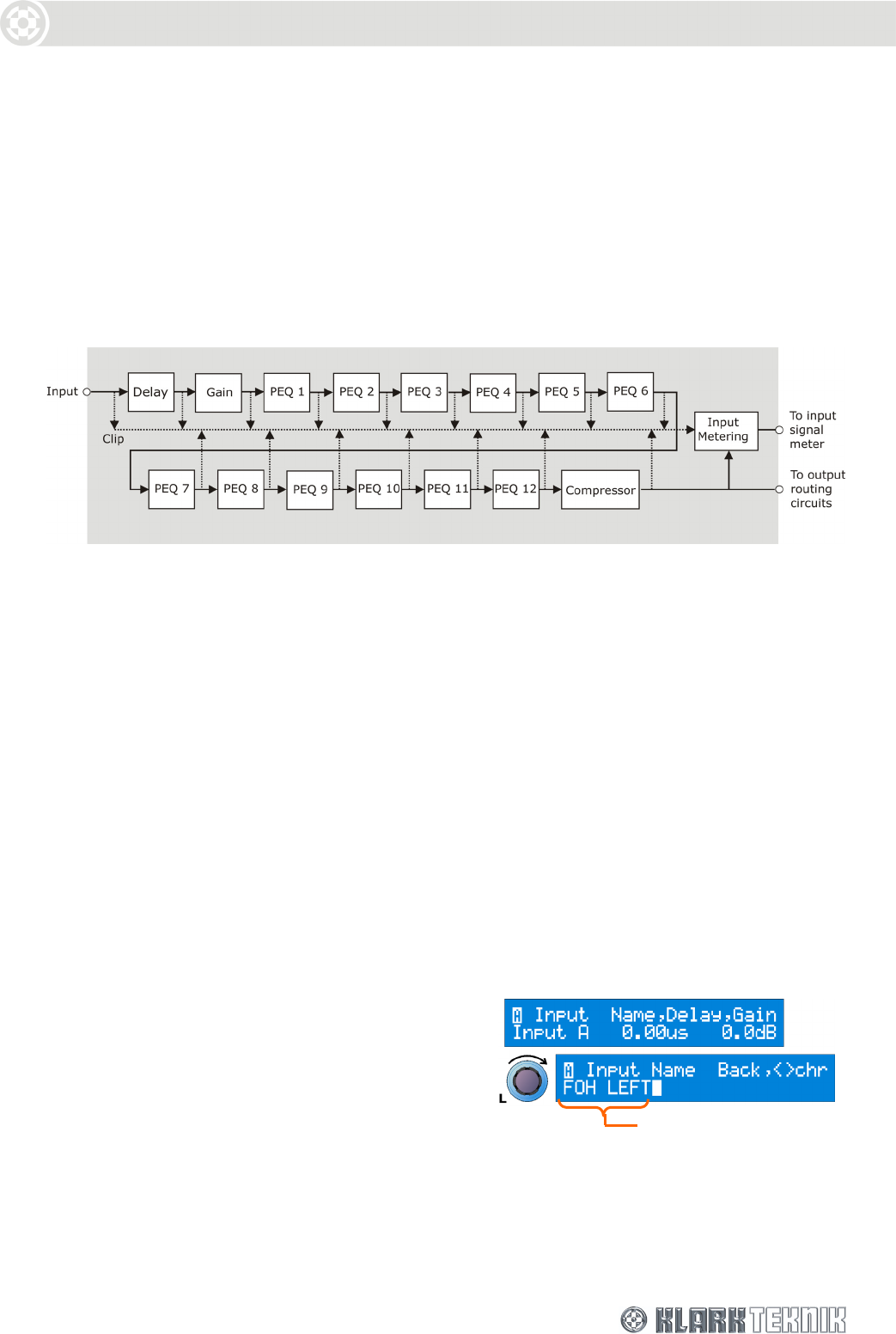
Referring to the illustration below, each input channel of the DN9848E processes the audio signal
through delay and gain stages, followed by 12 bands of parametric equalisation, and a full-band
compressor. All key stages are monitored for signal clipping which, if detected, illuminates the top
red segment at the top of the input signal meter; thus, clipping of the signal during processing is not
inadvertently missed. In addition, the signal level is monitored at the compressor to provide signal
headroom and gain reduction indications at the meter.
5.2. Setting Input Parameters
5.2.1 The Input Menu
The signal processing for each input channel is programmed independently via the separate Input
menu associated with each channel. The signal processing parameters are described below in menu
order.
To access the Input menu pages for a particular channel
1 Press its blue MENU ACCESS button (A – D) to switch to its menu.
2 Press the button repeatedly to step through the pages in turn. Note that, after the last page,
the next button press will cycle the menu back to the first page.
To skip across to the same parameter on another input, press its MENU ACCESS button.
5.2.2 Naming the Input Channel (Page 1)
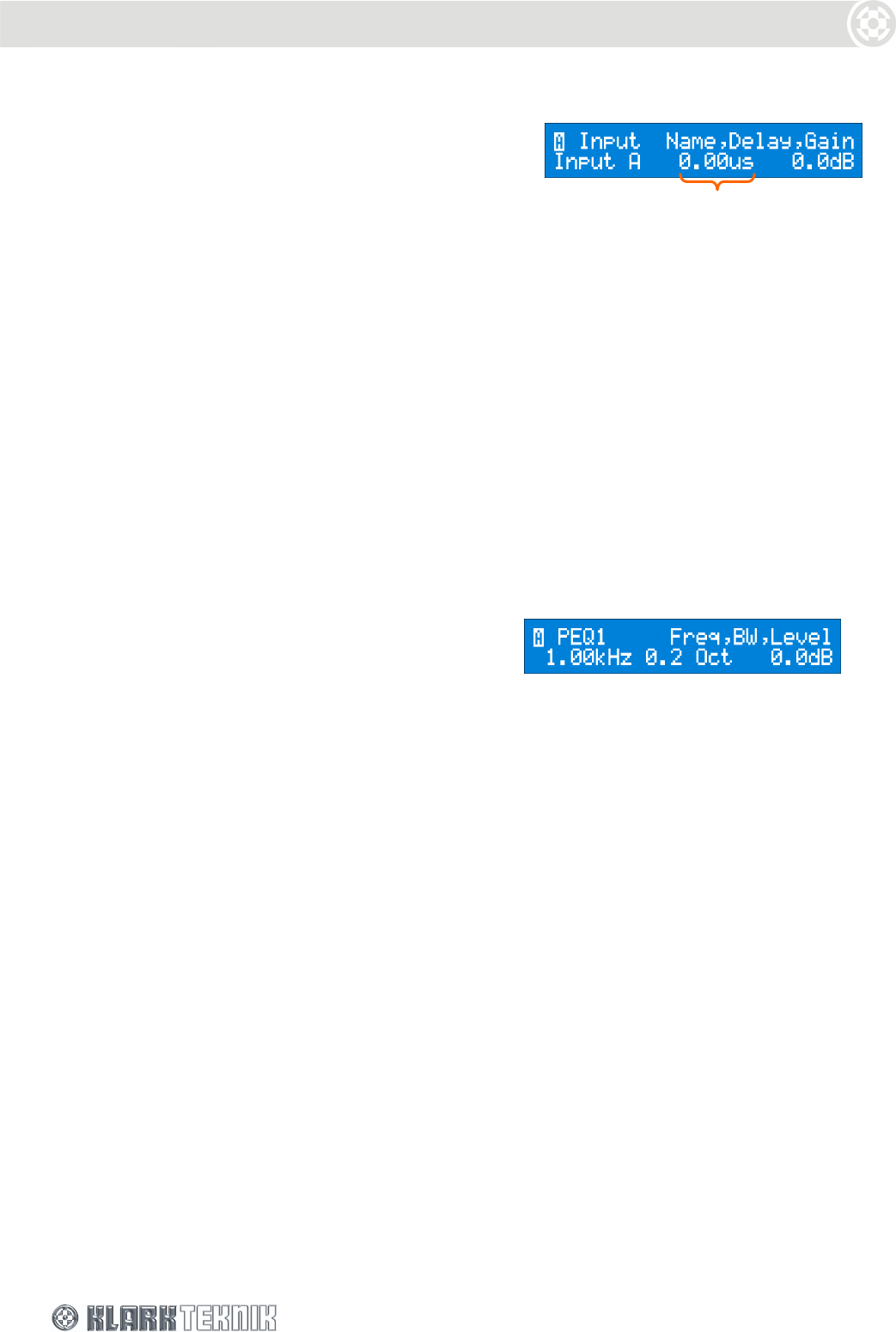
Each input channel can be allocated a name up to
seven characters long, which will be shown in the first
page of the menu for easy reference. The default
names are “Input A”, “Input B”, etc. Names are
retained after power down and are included in stored
settings.
To enter a name
1 Turn the left DATA ENTRY control knob clockwise to access the Input Name sub-menu page.
2 Use the centre control knob to move the cursor right or left, and the right control knob to
select the letter, number or symbol.
3 On completion, turn the left control knob anti-clockwise to go back to the main page. The
new name is now shown to the left of the menu page.
User defined channel name
Input Channels
10
5.2.3 Gain and Delay (Page 1)
Gain and delay are also set in the first page of the channel’s
menu, providing easy access for quick adjustment during set
up or performance. Note that the delay can be specified in
terms of time or distance, as preferred. The unit of
measurement is changed in the Set Up menu (see
Section 7.9).
To set the delay
Turn the centre DATA ENTRY control knob slowly for step increments, or sharply to leap to the
bottom/top of the range (two or three sharp turns should cover the whole range). When the
delay is set for time the overall range is 0 to 1.00s, with steps of approximately 20.8µs
between 0 to 1ms and steps of 0.02ms between 1ms to 1s. When the delay is set for metres,
the overall range is 0 to 343.53 m in steps of 0.1 m and for imperial (feet and inches) the
overall range is 0’ 0” to 1127’ 0” in steps of 1”.
To adjust the gain
Turn the right DATA ENTRY control knob. The range is –40dB to +12dB in steps of 0.1dB, with
an OFF position just ‘below’ –40dB. Setting the gain to OFF will mute the input signal.
5.2.4 Parametric Equalisation (Pages 2 to 13)
The DN9848E provides 12 parametric equalisation stages
on each input channel, for equalising the input signal in
respect of room/venue characteristics. Each stage can be
used across the full range from 20Hz to 20kHz and is set
independently via its own menu page.
To set a PEQ
1 Set a centre frequency (21 steps per octave) and bandwidth (0.08 to 3 Oct) for the PEQ
section, using the left and centre DATA ENTRY control knobs, respectively.
2 Turn the right control knob to set an attention/boost level in the range -18dB to +6dB.
PEQ sections that are not needed in the set up should be set to 0dB attention/boost.
Delays can be set in seconds,
metres or feet and inches
Input Channels
11
5.2.5 Compression (Page 14)
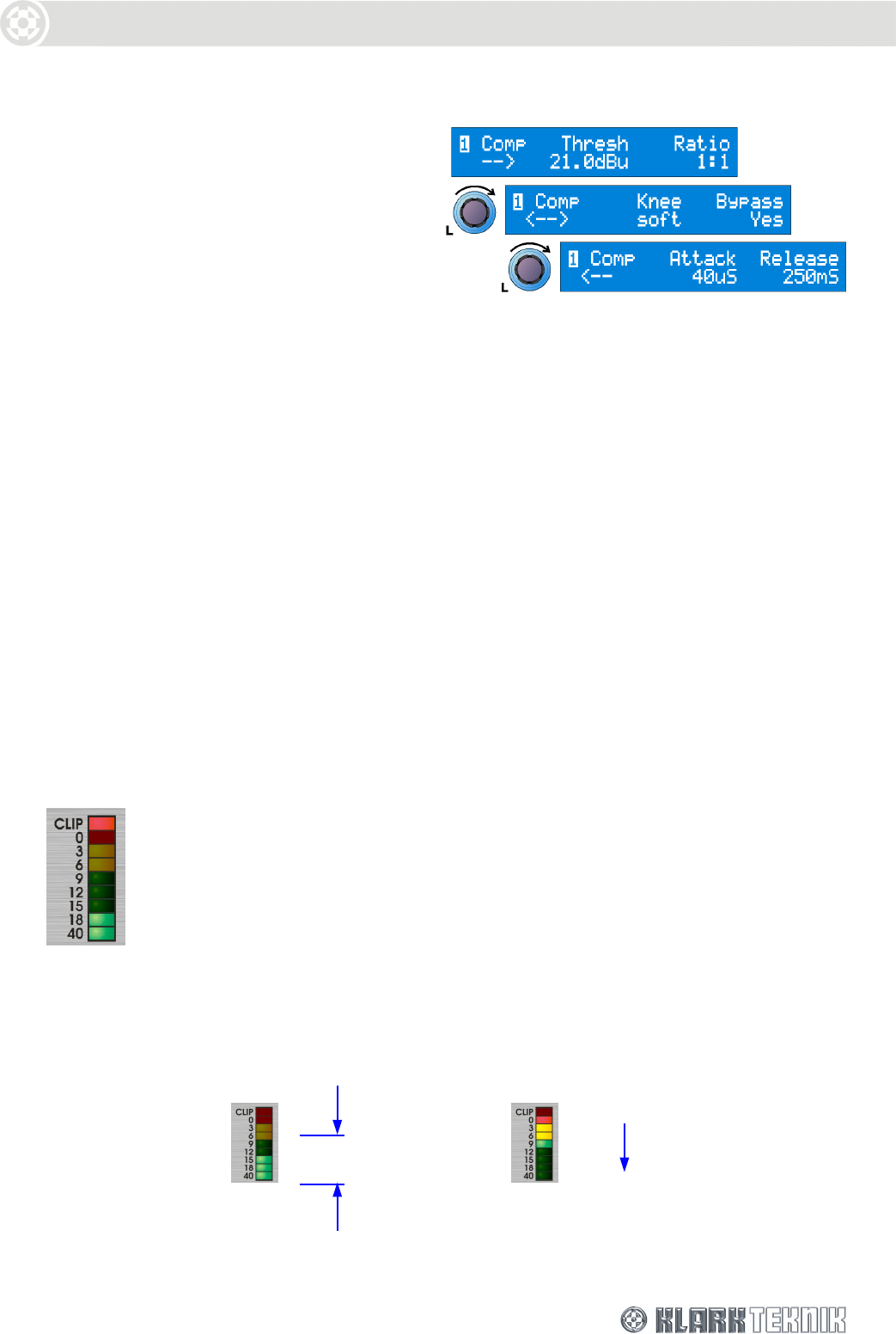
Each input has an independent full-range
compressor to improve the dynamics of the
incoming signal levels. The compressors are
variable ratio and can be set to a hard knee
characteristic for a sharp gain reduction
response at the compression threshold, or soft
knee for a more ‘musical’ response.
To set the compressor parameters
1 On the first compressor menu page, use the centre DATA ENTRY control knob to select a
threshold value in the range –10dBu to +21dBu, and the right control knob to set a ratio from
1:1 to 5:1.
2 Turn the left control knob clockwise to access the first sub-menu page. Use the centre
control knob to select a hard or soft knee characteristic and the right control knob to set the
bypass state to ‘No’ so that the compressor is included in the signal path.
3 Turn the left control knob clockwise to access the second sub-menu page. Use the centre
control knob to set the compressor attack time (range of 40µs – 1ms in 20µs steps or 1ms to
100ms in 1ms steps). Use the right control knob to set the release time (10ms to 2s in 10ms
steps).
To switch the compressor out of the circuit
Set the bypass state on the second compressor page to ‘Yes’. The other settings are held for
future use.
5.3. Monitoring the Input Signal
Each of the four inputs has a nine-segment signal meter for monitoring the internal signal clipping
and compressor headroom or gain reduction.
The top CLIP segment (shown illuminated in diagram left) monitors the internal signal
clipping. It operates independently of the rest of the meter, illuminating when signal
clipping is detected at any stage in the processing circuits, regardless of whether the
input level is above or below the compressor threshold. Hence, the audio engineer has
full visibility of internal signal clipping that may result in audio distortion.
The 0dB to –40dB signal meter monitors the input level on a relative scale, where the “0”
segment is set at the specified compressor threshold. For example, if the threshold is set
to +9dBu then the input signal meter “0” segment is set at 9dBu true value, and a signal
of –3dBu registers as 12dBu below the threshold (below left). Thus, when the signal level is below
the threshold, the meter indicates the headroom.
When the signal level reaches the threshold, that is, the red “0” segment illuminates, the meter ‘flips’
and reads downwards to show the amount of gain reduction applied to the signal.
Signal level below
compressor threshold
9dBu gain
reduction
Compressor threshold
reached
12dBu available
headroom
Output Channels
12
6. OUTPUT CHANNELS
6.1. Brief Technical Overview
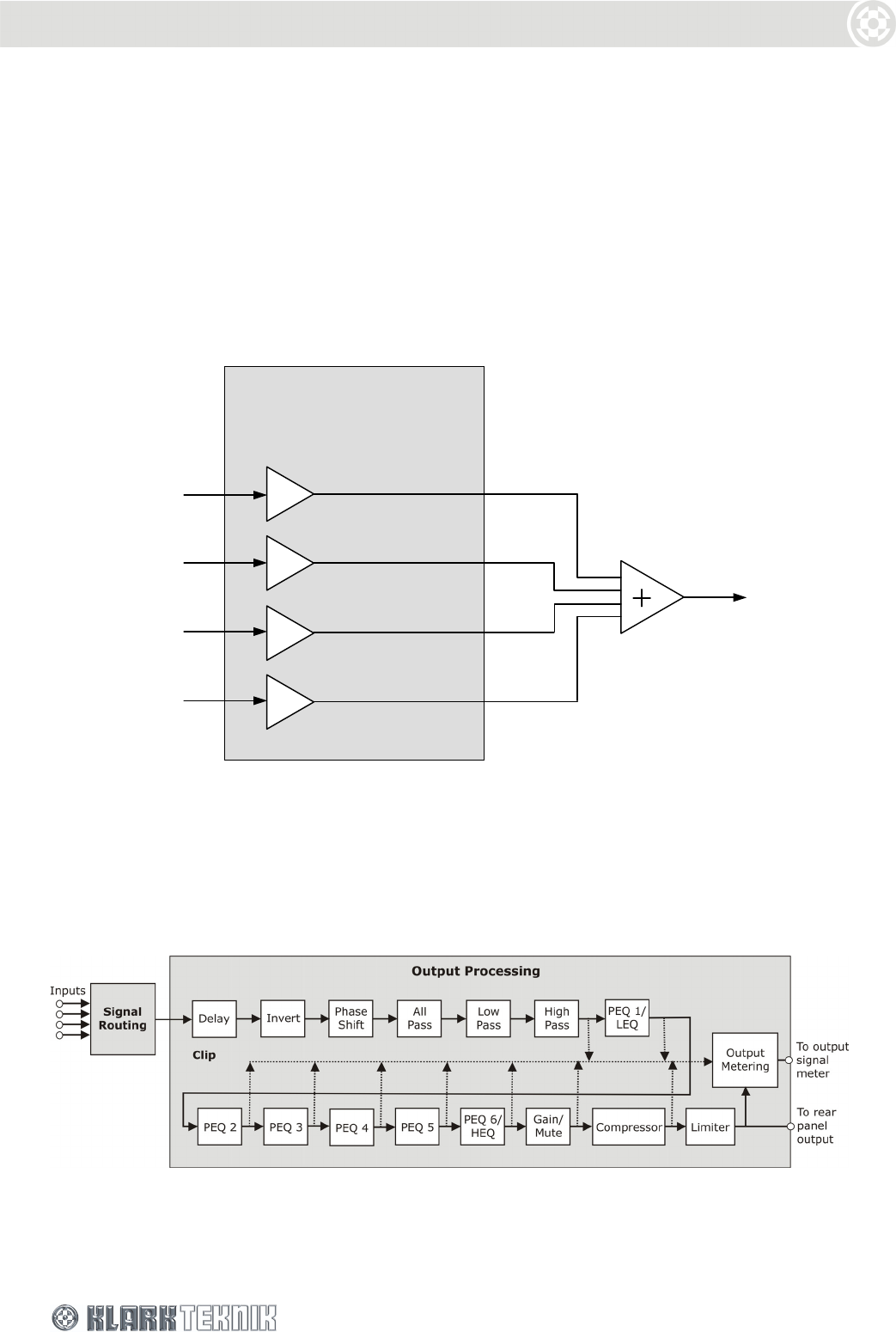
The output channels are slightly more complex than the input channels in that they are responsible
for the signal routing as well as output signal processing. At the input of each output there is a
matrix mixer (see following diagram) that can source each output from a mix of the four input
channels (A to D). An output can derive its source from a single input by setting the gain of the other
inputs to off. The amount, or level, of input that can be routed to the output is variable from –40dB
to 0dB in 0.1dB steps, or can be switched off completely.
After routing, the resultant signal is passed through the various output processing circuits as shown
below. Processing options include delay, inversion, two independent phase adjustment stages (Phase
Shift and All Pass), filtering, six stages of parametric equalisation, gain/mute, compression and
limiting. All key stages are monitored for signal clipping which, if detected, illuminates the top red
segment at the top of the output signal meter. In addition, the signal is monitored through the
compressor and limiter stages to provide headroom/gain reduction indications at the signal meter.
Processed Inputs
From A
From B
From C
From D
Signal Routing
Select the amount of input
between –40.0dB to 0.0dB in
0.1dB steps, or switch it off
Sourced output for
onward processing
Matrix Mixer
Output Channels
13
6.2. Setting Output Parameters
Signal processing for each output channel is programmed independently via the separate Output
menu associated with each channel. The signal processing parameters are described below in menu
order.
To access the Output menu pages for a particular channel
Press its blue MENU ACCESS button (1 – 8) to switch to its menu.
Press the button repeatedly to step through the pages in turn. Note that, after the last page,
the next button press will cycle the menu back to the first page.
To skip across to the same parameter on another output, press its MENU ACCESS button.
6.2.2 Naming the Output Channel and Matrix Mixing (Page 1)
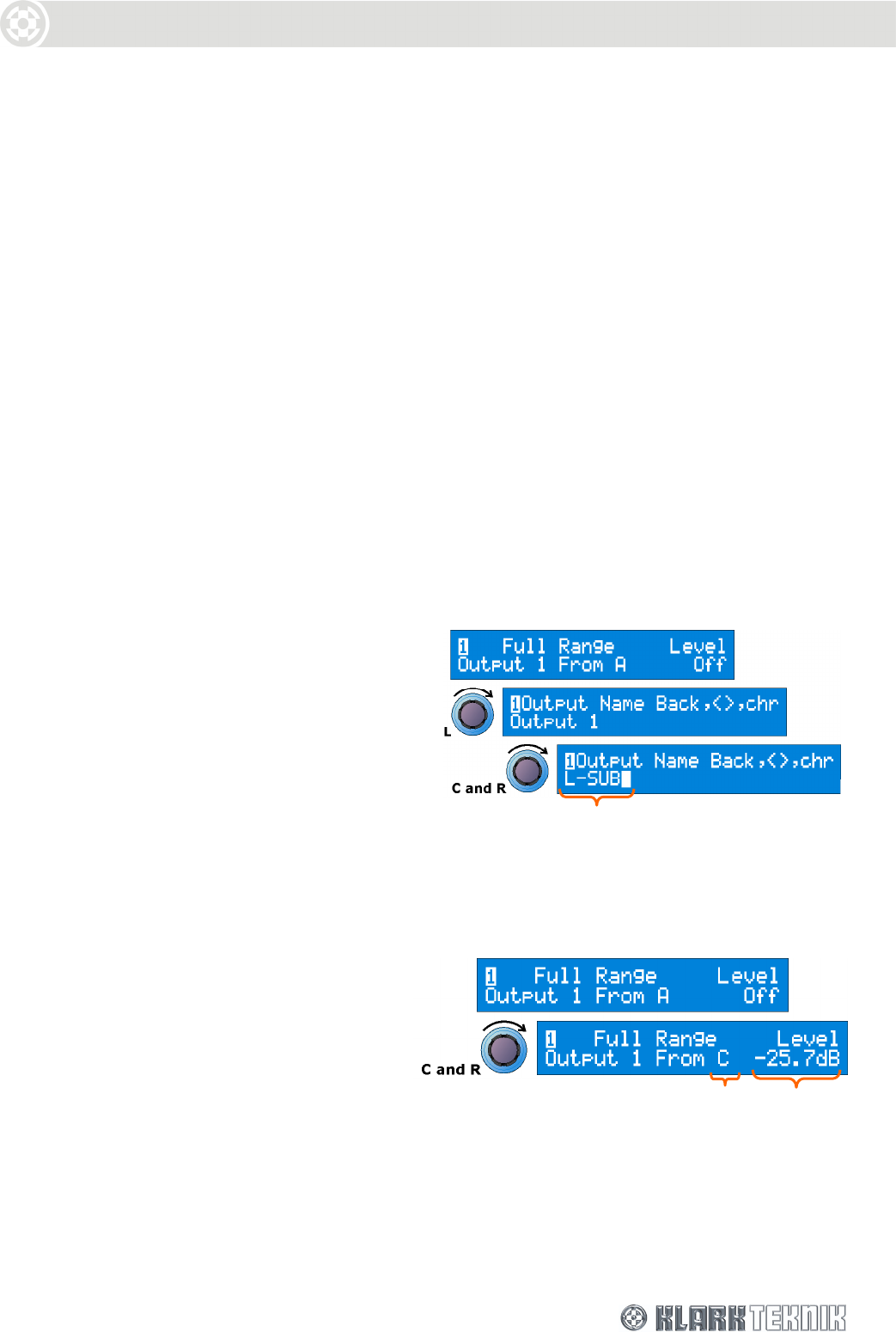
Each output channel can be allocated a name up to eight characters long, which will be shown in the
first page of the menu for easy reference. The default names are “Output 1”, “Output 2”, etc. Names
are retained after power down and are included in stored settings.
Each output of the DN9848E can be sourced from a mix of the input channels. The level of the source
inputs can be set to between 0.0dB and –40.0dB or switched off.
To enter a name
1 Turn the left DATA ENTRY control knob
clockwise to access the Output Name
menu page.
2 Use the centre control knob to move the
cursor right or left, and the right control
knob to select the letter, number or
symbol.
3 On completion, turn the left control knob
anti-clockwise to go back to the main
page. The new name is now shown to
the left of the menu page.
To set the source input channel and adjust the level
1 Using the centre DATA ENTRY control
knob, select source input channel,
that is, A, B C or D.
2 Turn the right control knob to select
the level of the source input, or
switch level off.
3 On completion, press the next
output channel MENU ACCESS button
to go to the next menu page.
User-defined channel name
User-defined output channel
source and level
Output Channels
14
6.2.3 Signal Invert, Delay and Output Level (Page 2)
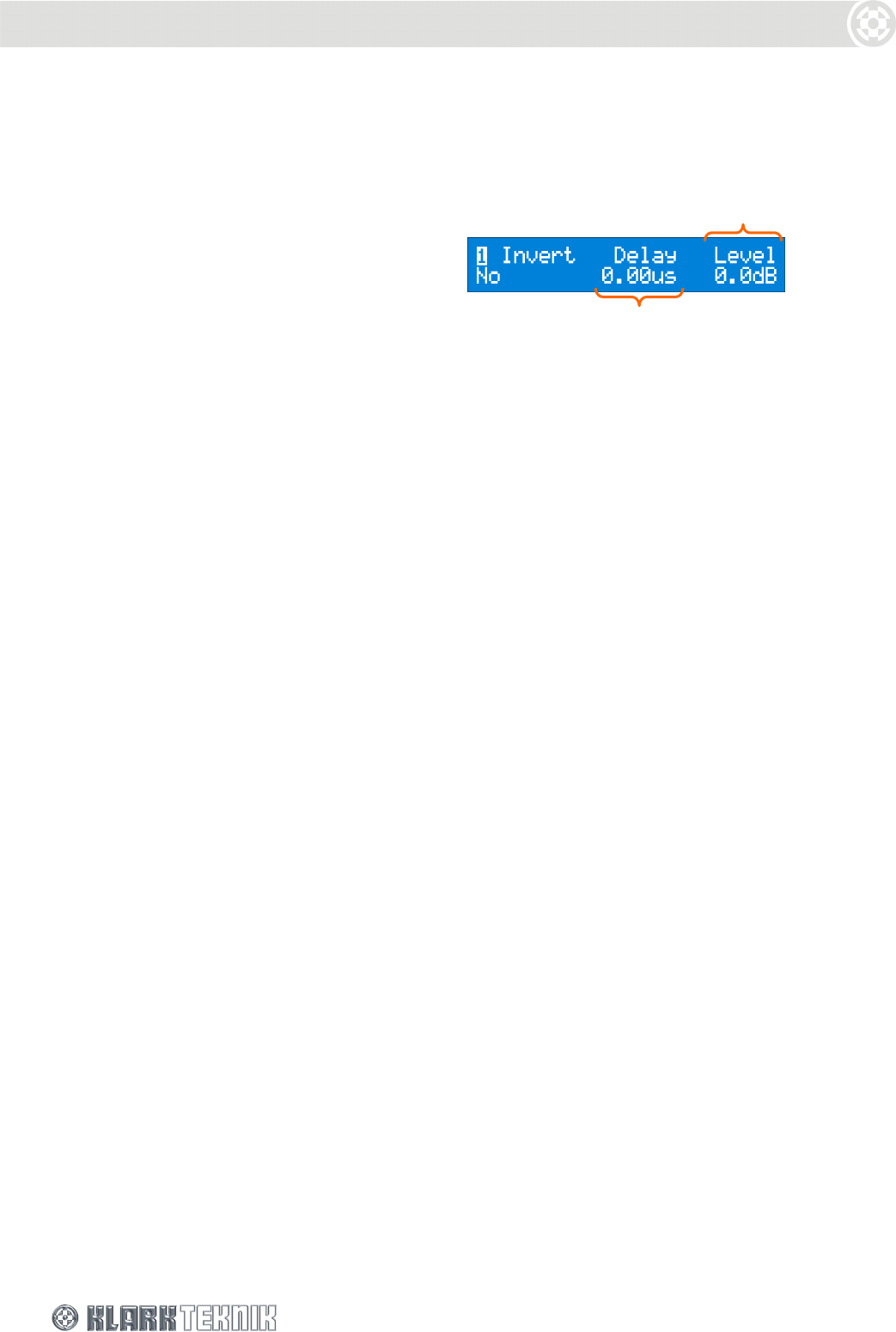
Each output can be phase inverted by 180º
(separate to the phase-alignment for
crossover), delayed for system alignment and
the level attenuated or boosted.
Delay can be specified in terms of time or
distance, as preferred. The unit of
measurement is changed in the Set Up menu
(see Section 7.9).
The Level entered here sets the baseline
output level, that is, the ‘zero’ value, for the
rotary Output Gain controls. For example, if
the Level is set to 6dB, the 0 represents 6dB. Turning the rotary Gain Control right/left will
increase/decrease the level in a proportional manner beyond 6dB (it is not directly additive since the
gain is limited to +12dB). Hence, the Output Gain controls enable fine-tuning during a performance,
while the baseline output level is retained as a standard setting for future use.
To invert the output signal
Turn the left DATA ENTRY control knob clockwise until the Invert field reads “Yes”. The default
setting is “No” inversion.
To set the delay
Turn the centre DATA ENTRY control knob slowly for step increments, or sharply to leap to the
bottom/top of the range (one or two sharp turns should cover the whole range). When the
delay is set for time the overall range is 0 to 300.00ms, with steps of approximately 5.2µs
between 0 to 1ms and steps of 0.01ms between 1ms to 300ms. When the delay is set for
metres the overall range is 0 to 103.06 m in steps of 0.1 m and for imperial (feet and inches)
the overall range is 0’ 0” to 338’ 0” in steps of 1”.
To set the base level for the front panel Gain control
Turn the right DATA ENTRY control knob. The range is –40dB to +12dB in steps of 0.1dB, with
an OFF position just ‘below’ –40dB. Setting the gain to OFF will mute the input signal.
6.2.4 Phase Adjustment (Pages 3 and 4)
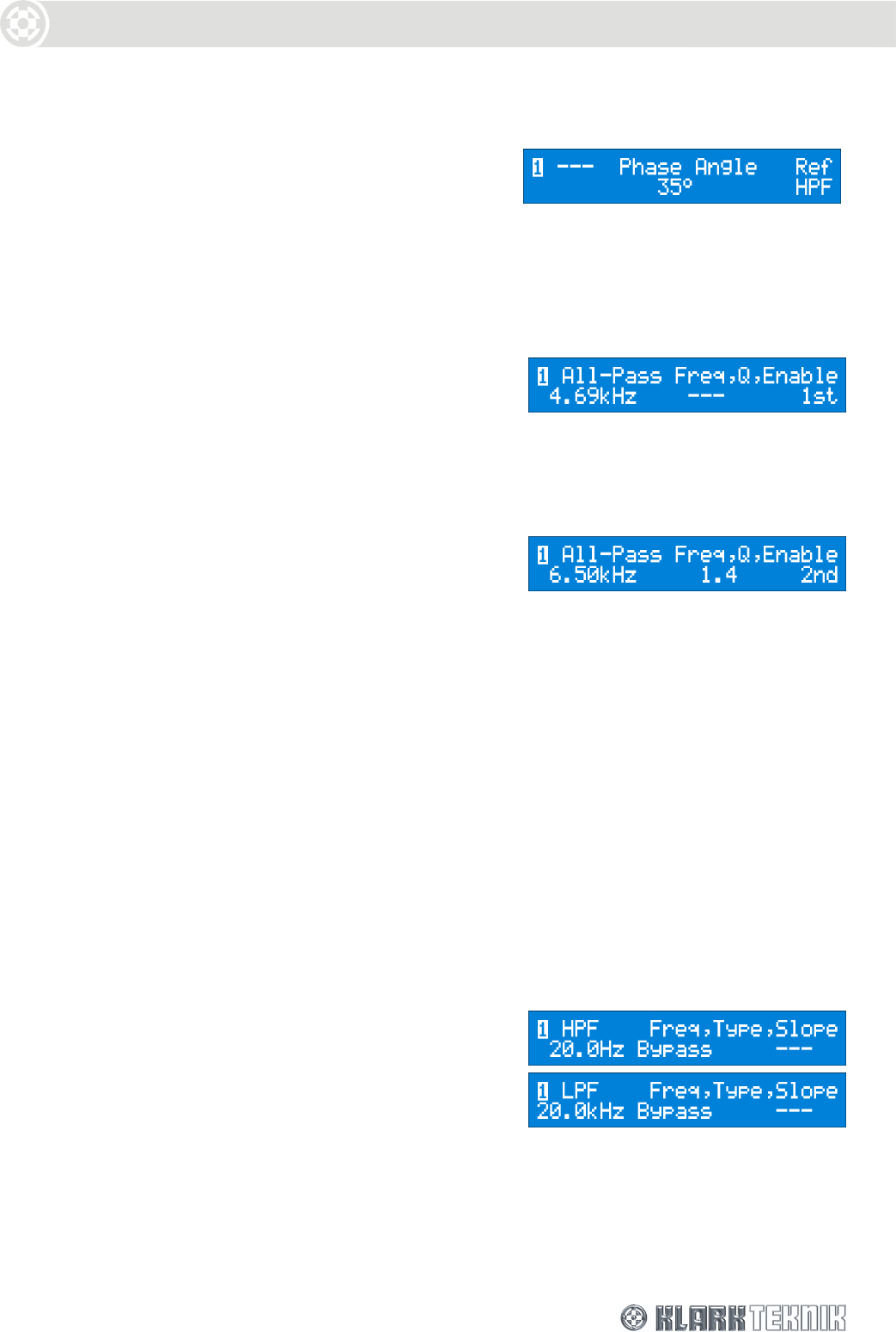
To meet the demands of a wide range of situations, the Klark Teknik DN9848E provides two all-pass
filters with complementary control parameters for fine-tuning the phase response on each output, for
example, for alignment at crossover. The first filter is presented as a ‘phase shifter’ for which you
can set a specific phase shift at a reference frequency, for example, the HPF or LPF (typically the
crossover point). The second filter enables a 1st or 2nd order phase shift to be applied at a chosen
frequency. With 2nd order, the phase shift window can be shaped, that is, you can adjust the
steepness of the transition by setting the Q value.
For detailed information on how these filters modify the signal, please refer to Section 10 “Application
Notes”.
Delays can be set in seconds,
metres or feet
Sets the baseline for the
rotary Output Gain control
Output Channels
15
To set a precise phase shift at a reference frequency
1 Step to the Phase Angle/Ref page shown right.
2 Turn the centre DATA ENTRY control knob to
select a phase angle between 0º and 180º.
Turn the right control knob to set the
reference frequency to HPF, LPF or one of the
six PEQs (set in the subsequent Output menu
pages).
To apply a 1st order phase adjustment in relation to a chosen frequency
1 Step to the All-Pass page, shown right.
2 Turn the right DATA ENTRY control knob to
enable a 1st (90º) order shift.
3 Turn the left control knob to the required
frequency.
To apply a ‘shaped’ phase transition at a chosen frequency
1 Step to the All-Pass page, shown right.
2 Turn the right DATA ENTRY control knob to
enable a 2nd (180º) order shift.
3 Turn the centre control knob to select the Q
(slope) and the left control knob to select the
frequency.
6.2.5 High Pass and Low Pass Filters (Pages 5 and 6)
The DN9848E provides the following high and low pass filter (HPF and LPF) options for crossover
purposes:
Butterworth: 6, 12, 18, 24, 36 and 48dB / Octave
Bessel: 12, 18, 24, 36 and 48dB / Octave
Linkwitz Riley: 12 and 24dB / Octave
Peaking (HPF only): 12 and 24dB / Octave 0-6dB Gain
Bypass: No Filter
To add a high/low pass filter to output processing
1 Step to the HPF or LPF page, as required (see
right).
2 Use the left DATA ENTRY control knob to specify
the cut-off frequency.
3 Use the centre control knob to select the filter
type and the right control knob to set the
slope/gain. (The right parameter switches
between slope and gain, dependent on the
filter type).
Output Channels
16
To bypass the high/low pass filter processing
1 Step to the HPF or LPF page, as required.
2 Turn the centre DATA ENTRY control knob anti-clockwise to ‘Bypass’. The last selected values
for each type of filter are retained in the background for easy recall.
6.2.6 Parametric Equalisation (Pages 7 to 12)
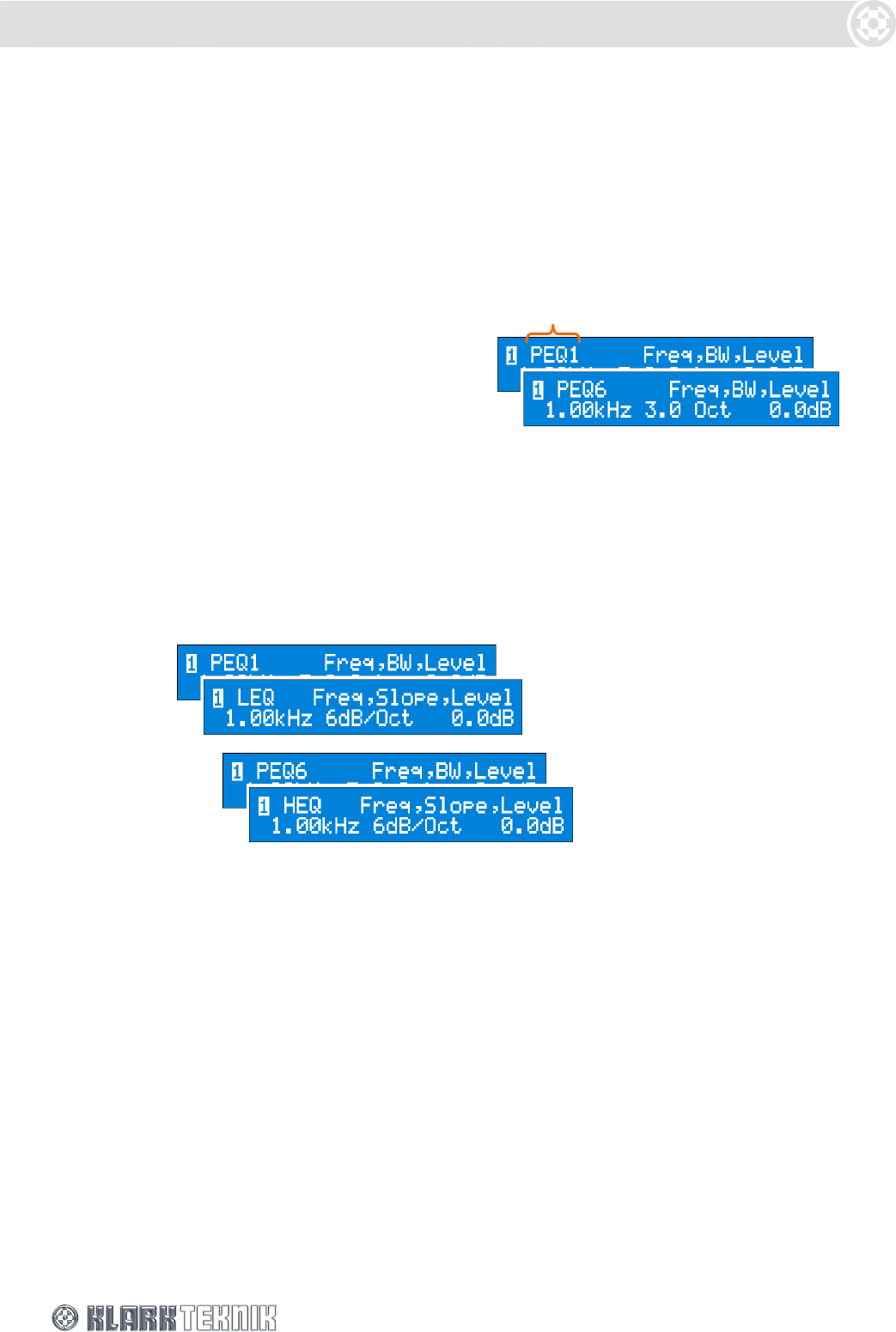
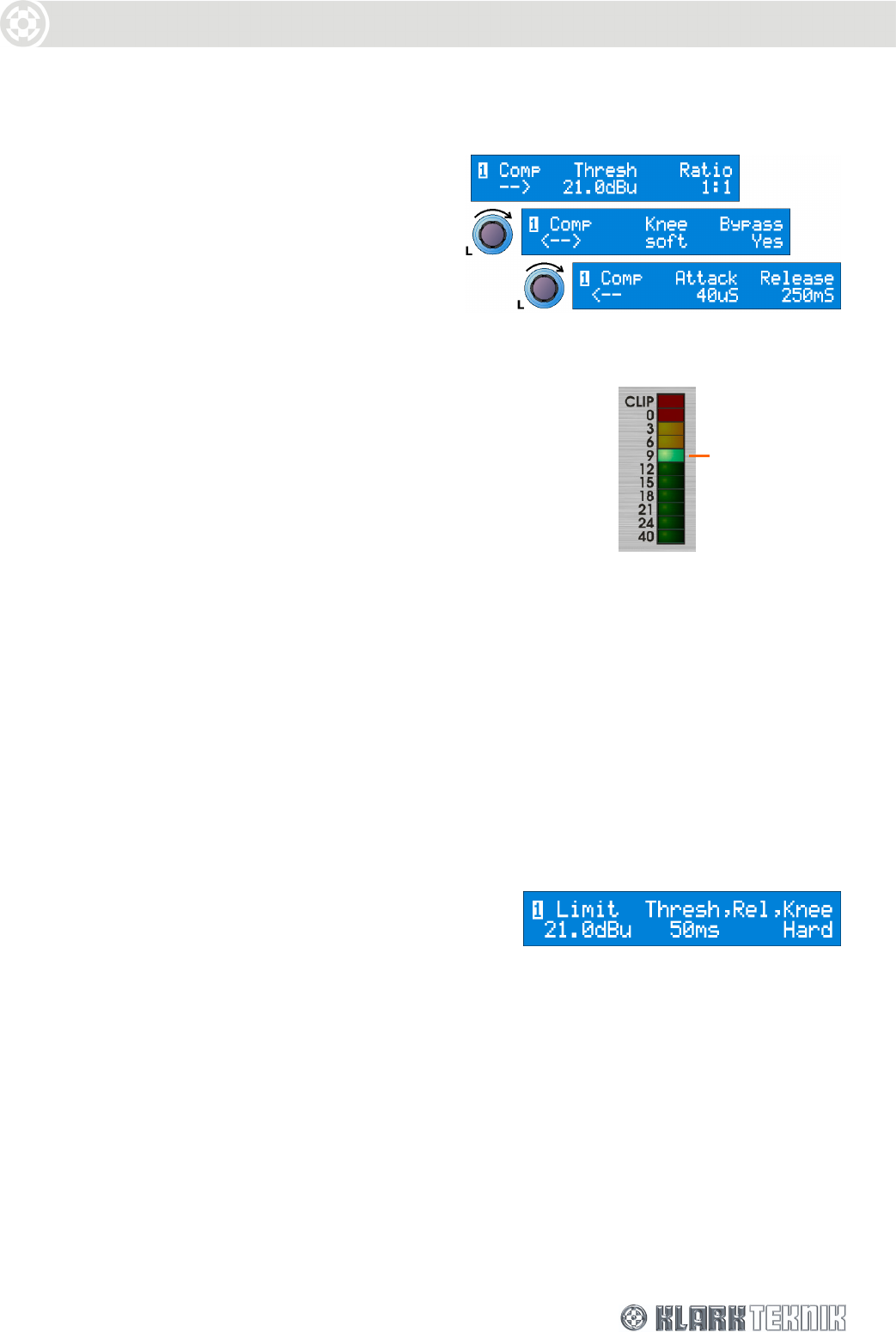
The DN9848E provides six parametric equalisation
stages on each output channel, for equalising the
output signal in respect of loudspeaker and/or
system characteristics. The first and last of these
PEQ sections can, alternatively, be configured for
lower and upper shelving equalisation. All the PEQ
sections can be used across the full range from
20Hz to 20kHz and are set independently via their
own menu page.
To set a PEQ
1 Set a centre frequency (21 steps per octave) and bandwidth (0.08 to 3 Oct) for the PEQ
section, using the left and centre DATA ENTRY control knobs, respectively.
Or:
Switch to an LEQ/HEQ setting with a 6dB or 12db slope by turning the centre control knob
clockwise beyond 3 Oct (see below). Use the left control knob to set the LEQ/HEQ frequency.
2 Turn the right control knob to set the amount of attenuation/boost from -12dB and +12dB.
If a PEQ section is not needed in the set up, set its level to 0dB.
Any PEQ can be used as the reference
frequency for the Phase Shifter (see
Section 6.2.4)
Output Channels
17
6.2.7 Compression (Page 13)
Each output has an independent full range
compressor to improve the audio dynamics and/or
reduce louder signal levels to avoid loudspeaker
damage. The compressors are variable ratio and
can be set to a hard knee characteristic for a sharp
gain reduction response at the compression
threshold, or soft knee for a more ‘musical’
response.
To set the compressor parameters
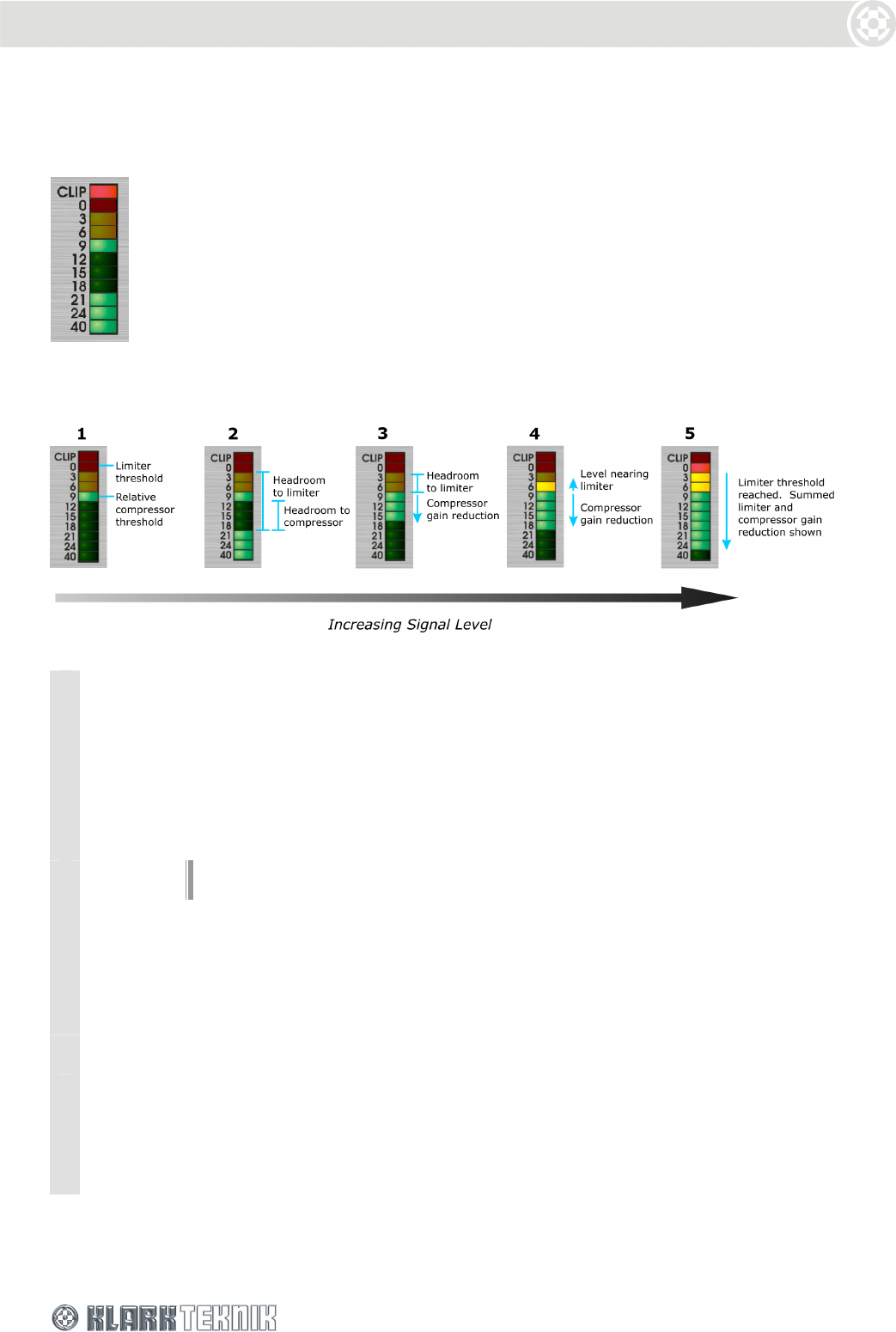
1 On the first compressor menu page, use the centre DATA
ENTRY control knob to select a threshold value in the range
–10dBu to +21dBu, and the right control knob to set a
ratio from 1:1 to 5:1.
2 Turn the left control knob clockwise to access the first sub-
menu page. Use the centre control knob to select a hard
or soft knee characteristic and the right control knob to set
the bypass state to “No” so that the compressor is
included in the signal path. The relative position of the
compressor threshold to the limiter threshold will be
indicated by an illuminated segment at the meter
(provided the compressor threshold is below the limiter threshold).
3 Turn the left control knob clockwise to access the second sub-menu page. Use the centre
control knob to set the compressor attack time (range of 40µs – 1ms in 20µs steps or 1ms to
100ms in 1ms steps). Use the right control knob to set the release time (10ms to 2s in 10ms
steps).
To switch the compressor out of the circuit
Set the bypass state on the second page to “Yes”. The other settings will be retained for
future use.
6.2.8 Output Limiter (Page 14)
In addition to compression, each DN9848E output has a
limiter to protect any attached equipment being driven
into clip and potentially being damaged. Notably, the
DN9848E uses a special ‘look-ahead’ limiter so that it can
anticipate transient overshoots and act ‘immediately’ (see
Section 10 “Application Notes” for further details). The limiter threshold can be adjusted to
accommodate the varying requirements of commercial equipment.
To set the limiter parameters
1 Select a threshold value in the range –10dBu to +21dBu with the left DATA ENTRY control knob.
2 Use the centre control knob to set a release time between 1ms and 100ms.
3 Use the right control knob to select a hard or soft knee characteristic for a sharp or gradual
cut-off, respectively.
To switch the limiter out of the circuit
Turn the left DATA ENTRY control knob fully clockwise until the threshold value reads ‘OFF’ (a
sharp turn will leap to the OFF position).
Illuminated
segment shows the
compressor position
relative to the
limiter threshold
Output Channels
18
6.3. Monitoring the Output Signal
Each of the eight outputs has an 11-segment signal meter for monitoring internal signal clipping and
output levels that may cause damage to the loudspeaker equipment.
The top CLIP segment monitors the internal signal clipping. It operates
independently of the rest of the meter, illuminating if signal clipping is detected at
any stage in the processing circuits regardless of whether the level of the final
processed signal is above or below the compressor and/or limiter thresholds. Hence,
the audio engineer has full visibility of any internal signal clipping that may result in
audio distortion.
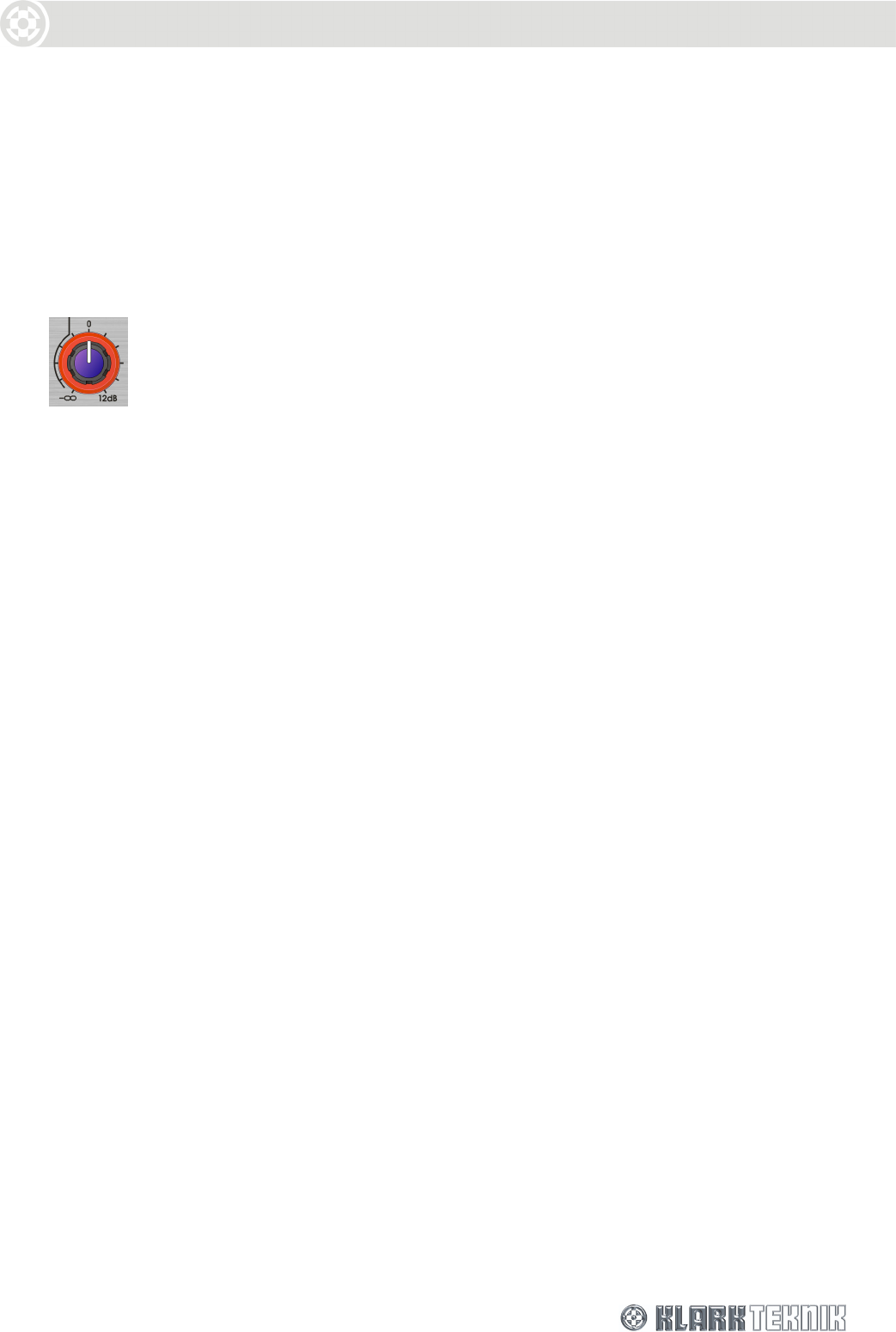
The 0dB to – 40dB signal meter is primarily designed to monitor the output level with
respect to excessive levels that may cause damage to the onward loudspeaker
equipment. To do this it uses a dual-purpose scale that refers the signal level to both
limiter threshold and compressor threshold, as illustrated and described overleaf.
1 The meter uses a downward relative scale where the “0” segment represents the
limiter threshold. For example, if the limiter threshold is set to +5dB in the output
menu page, then the signal meter “0” segment represents 5dBu true value, the –3
segment becomes 2dBu down, -6 becomes -1dBu down and so on.
The compressor threshold is also marked, relative to the limiter threshold, by a single
steadily lit segment. For example, when the limiter threshold is set to 8dBu, the “0”
segment is 8dBu; if the compressor threshold is –1dBu, segment “9” will be
illuminated.
Note If the limiter is set to OFF, the meter is scaled relative to 21dBu.
2 While the signal level lies below the compressor threshold, the meter illuimates
upwards from –40, such that the current headroom to both the compressor and limiter
thresholds can be monitored.
3 When the signal level reaches the compressor threshold level, the meter ‘flips’ and
reads downwards to show the amount of gain reduction applied to the signal.
4 With further increase, the meter reads in both directions, that is, it increments
upwards to track the signal level as it approaches the limiter threshold and increments
downwards to show the applied gain reduction.
5 When the limiter kicks in, the meter flips to read downwards from the “0” segment
instead of just from the compressor threshold. It now shows the summed gain
reduction from both compressor and limiter.
Output Channels
19
6.4. Output Gain and Mute - Front Panel Control
Each output is equipped with a dual-action rotary/push-switch control for adjusting or muting the
output level. Note that zero mark on the control refers to the baseline output level set in the Output
menu (see Section 6.2.3) and hence the rotary control provides fine-tuning relative to this level.
To increase/decrease the level turn clockwise/anti-clockwise
To mute an output push in and hold until the red ring illuminates
To un-mute an output push in and hold until the red ring light
extinguishes
To mute all outputs push in and hold an unlit output until it and then
all other controls illuminate
To un-mute all outputs push in and hold a muted (illuminated) output
until it and then all other red rings extinguish
Output Channels
20
6.5. Channel Copying
Parameters from a source channel may be copied to one or more destination channels using the
channel copy function. Note that parameters may only be copied between channels of a similar type,
that is, you cannot copy input channels to output channels or vice versa.
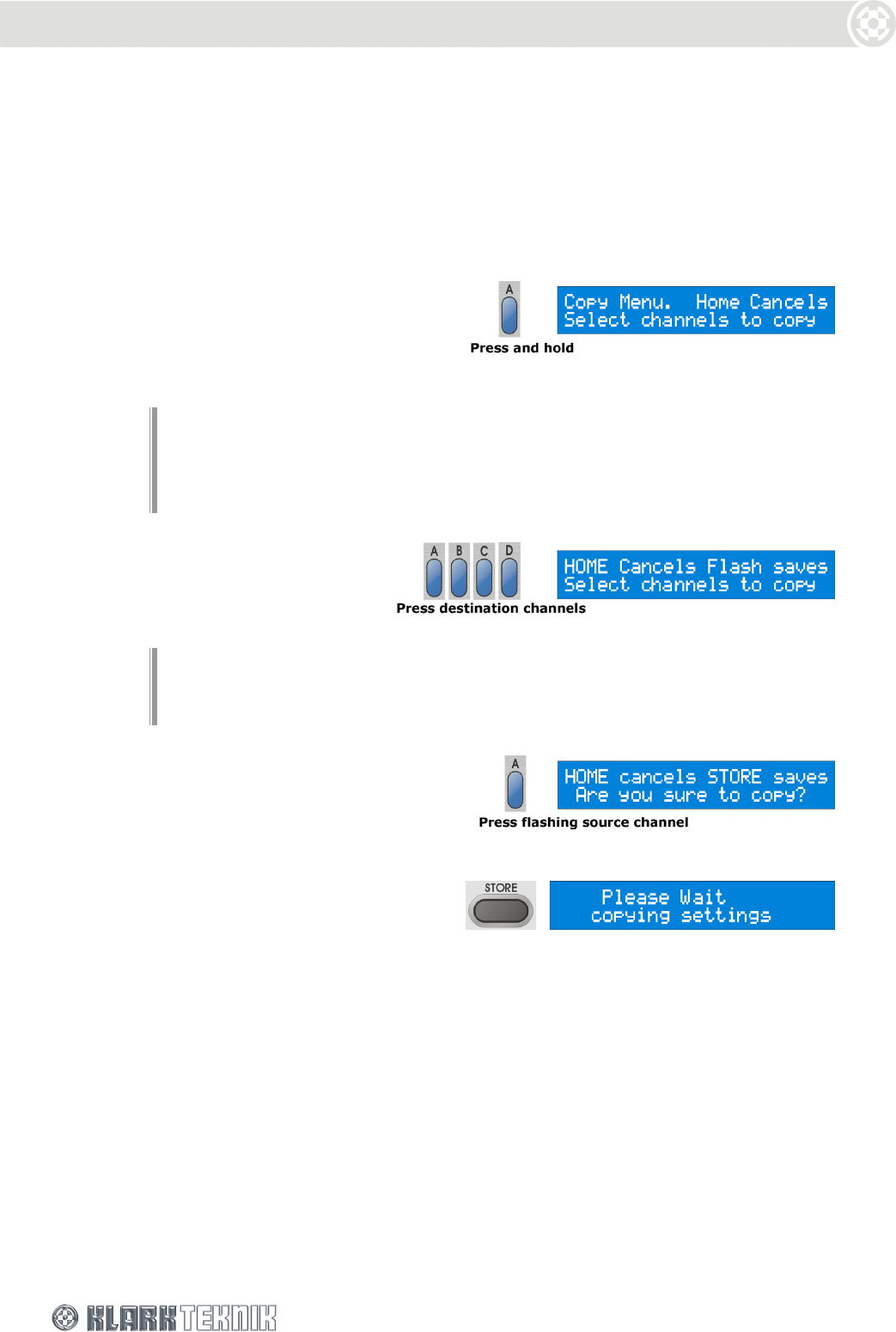
To copy a channel’s parameters
1 Press and hold the blue MENU ACCESS
button on the source input (A - D) or
output (1 – 8) channel for more than
three seconds. This puts the unit into
copy mode, as indicated on the display,
and selects that channel as the source for the copy.
Note The MENU ACCESS button flashes to indicate that channel is selected as the
source.
Press the HOME button at any point to exit copy mode and return to the
Home page.
2 Now press the blue MENU
ACCESS buttons on the
destination channels. The
buttons illuminate as they are
selected.
Note If the source channel is an input, you may only select input channels as
destinations. Similarly, if the source channel is an output, only output
channels may be selected as destinations.
3 Press the flashing blue MENU ACCESS
button on the source channel again, and
the display updates to request
confirmation for the copy.
4 Press the STORE button to confirm the
copy, or press HOME to exit the copy
mode without completing the
operation.

Security and Other Set Up Options
21
7. DN9848E SET UP OPTIONS
7.1. General
The DN9848E provides various set up options for adapting the operation of the unit to best suit your
operational requirements and preferences, as follows:
• Comms channel setting for remote control operation (Page 1)
• Channel Gang setup for linking either input channels or output channels together (Page 2)
• Security features such as front panel lock and system memory protect (Pages 3 and 4)
• Analogue/digital input select (Page 5)
• Display and LED lighting (Page 6)
• Unit and memory naming (Pages 7 and 8)
• Backup of system memories to flash RAM (Page 9)
• Delay units of measurement (Page 10)
• Power up settings (Page 11)
• Ethernet settings for remote control operation (Pages 12 and 13)
These options are programmed in the Set Up menu and are described below in menu order.
To access the Set Up menu pages
Press HOME (SET UP) to return to the Home page.
Press and hold the HOME (SET UP) button to open the menu.
Press the HOME (SET UP) button repeatedly to step through the pages in turn.
Note that this menu does not ‘cycle’. On completing the set up, the menu returns to the Home page.
7.2. Remote Comms Channel/Gang Mode (Page 1)
The Comms page lets you select either the communications channel on which the unit will
send/receive data to/from a controlling PC, or the gang mode for working with ganged input or output
channels.
Comms channels 1 to 32 are available enabling a slave network of up to 16 DN9848E units to be
remotely controlled from a PC using the Elgar Library Manager and HELIX DN9848E RCS add-in
software. For more information on DN9848E remote control set ups, see Section 9.
Note that, when using Ethernet communication you will need to set up the unit’s IP address and
Subnet mask before selecting the comms channel, see Section 7.11 for further details.
Also, note that remote comms and gang mode are mutually exclusive as channel ganging is a feature
of stand alone unit operation only and is not compatible with the grouping facility offered in the Elgar
9848E Remote Control Software add-in. For more information on channel ganging, see Section 7.3.
Security and Other Set Up Options
22
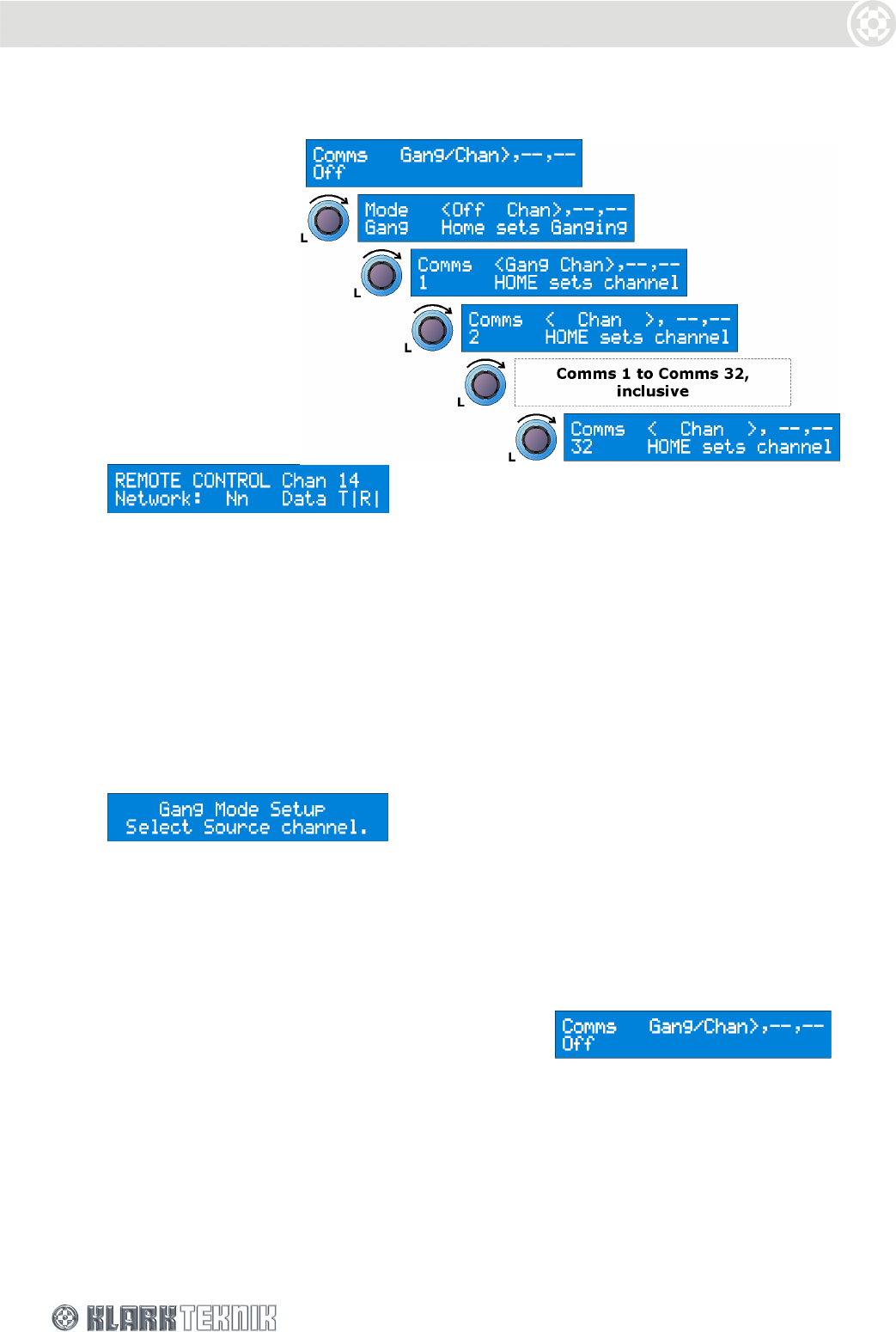
To select a remote communications channel
1 Referring to diagram
opposite, use the left
DATA ENTRY control
knob to go to the
communications
channel on which you
wish to control the
unit remotely, for
example, scroll
through to channel
14.
2 Press HOME to
confirm the selection;
the display will
change to the one
shown below.
The front panel controls, except the HOME (SETUP) button, are locked out to facilitate remote operation.
The display indicates that the unit is under remote control.
For further details on DN9848E remote control set ups, see Section 9.
To switch gang mode on
1 Press and hold the HOME (SET UP) button to re-open the Comms page.
2 Turn the left DATA ENTRY control knob to select the Gang Mode option shown above.
3 Press HOME to enable channel ganging; the display will change to the one shown below and
any ganging which has already been prepared will now be active.
For further details on ganging channels, see Section 7.3.
To switch remote communications/gang mode off
1 Press and hold the HOME (SET UP) button to re-open the Comms page.
2 Turn the left DATA ENTRY control knob
anticlockwise to select Comms Off, as shown
opposite.
3 Press HOME to confirm your selection.
Security and Other Set Up Options
23
7.3. Gang Mode Setup (Page 2)
This option is used to link multiple input channels or output channels together so that a change on
one channel will be made to all channels in the gang. When a gang is created, the settings from the
source channel are copied to the destination channel(s) so that all ganged channels inherit the same
parameter values. From hereon, any changes to a ganged channel are carried out on the other
channels on an absolute basis, with the exception of input and output names.
Notes A channel may only be part of one gang.
Only channels of a similar type may be ganged, that is, you cannot gang
input channels to output channels or vice versa.
Ganging is a feature of stand alone unit operation only and is not
compatible with the grouping facility offered in the Elgar 9848E Remote
Control Software add-in. Therefore, ganging is only active when the unit
is put into Gang mode, see Section 7.2; channel ganging is disabled if
the unit is set to receive data on a remote comms channel.
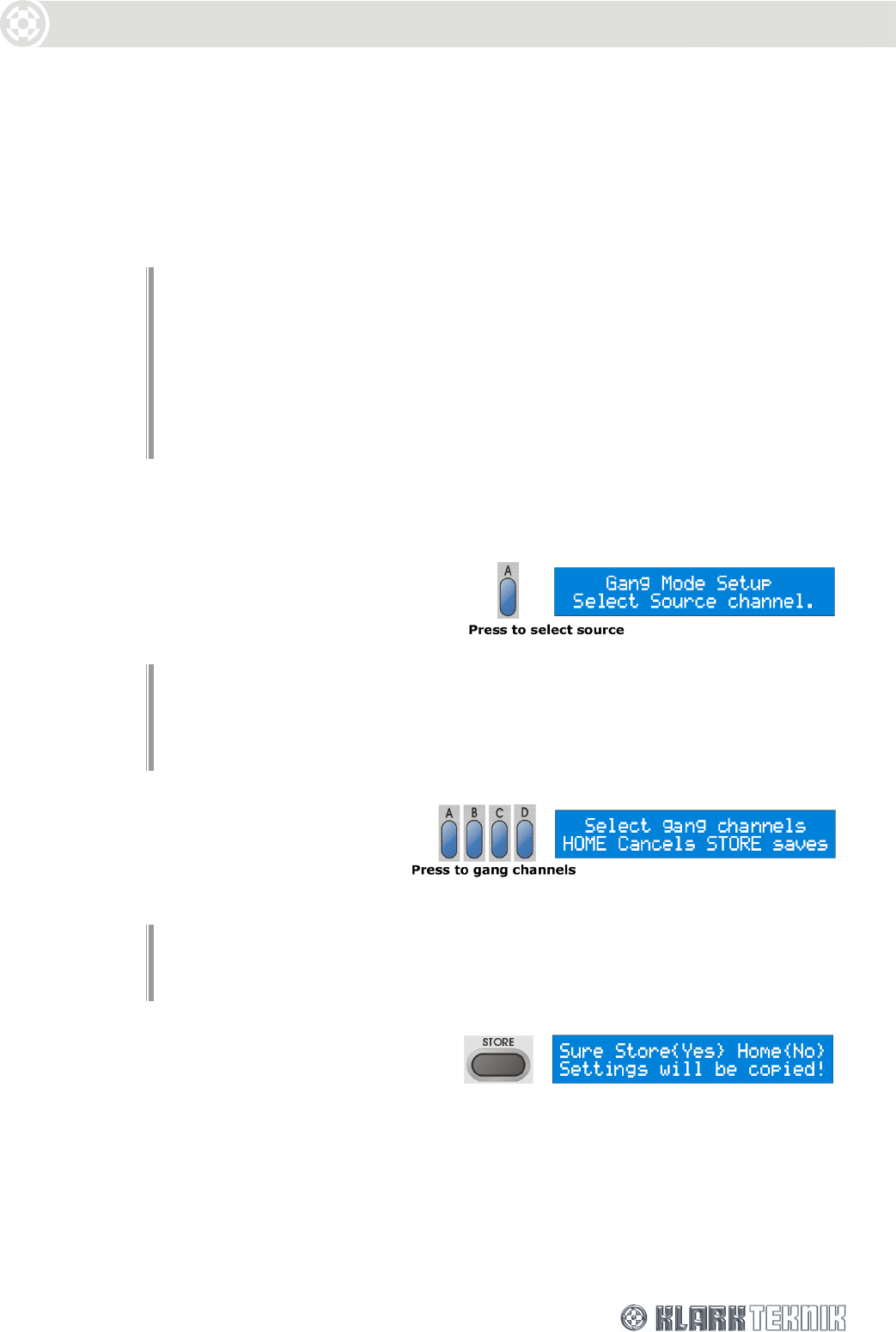
To select channels for ganging
1 Step through the Set Up menu to the Gang Mode Setup menu page.
2 Press the blue MENU ACCESS button on
the input (A - D) or output (1 – 8)
channel that you wish to be the source
channel for the gang.
Notes The MENU ACCESS button flashes to indicate that channel is selected as the
source.
Press the HOME button at any point to exit the gang mode and return to
the Home page.
3 Now press the blue MENU
ACCESS buttons on the
channels you wish to gang;
the buttons flash as they are
selected, and press the STORE
button.
Note If the source channel is an input, you may only select input channels as
part of the gang. Similarly, if the source channel is an output, only
output channels may be selected.
4 Finally, press the STORE button again
to confirm the operation. All
parameters from the source channel
are copied to the destination channels
with the exception of the input and
output channel names, and the channels are prepared for ganging.
To activate channel ganging, you must select the Gang mode as described in Section 7.2. With the
unit switched to gang mode, any changes to a ganged channel are carried out on the other channels
on an absolute basis. Also notice that when you select the blue MENU ACCESS button of a ganged
channel in normal operation, the MENU ACCESS buttons on the ganged channels illuminate to show that
they are part of the gang.
Security and Other Set Up Options
24
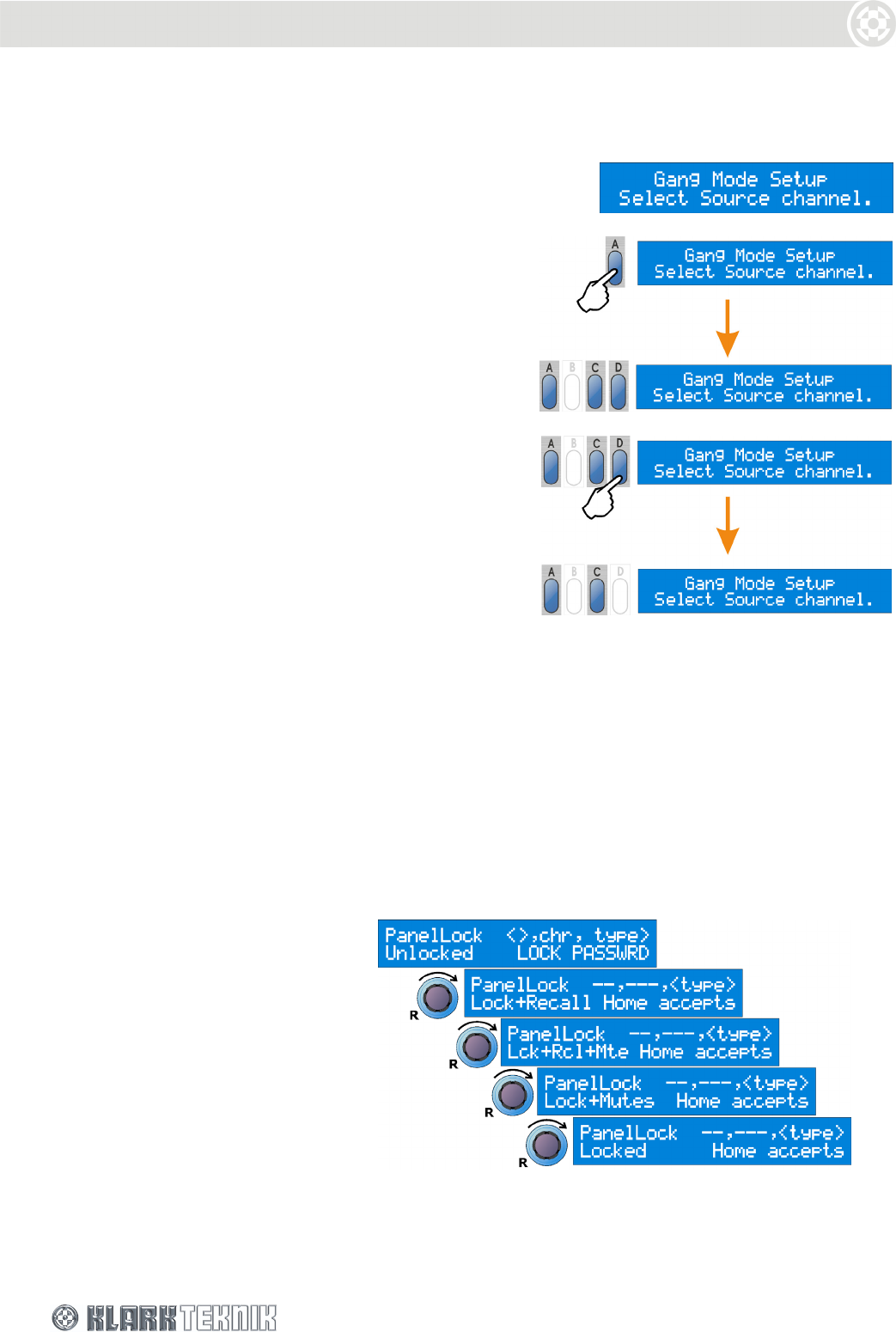
To remove a channel(s) from a gang
This procedure is the same for input channels and output channels. In the following example, inputs
A, C and D are initially ganged.
1 Step through the Set Up menu to the Gang Mode Setup
menu page.
2 Press the blue MENU ACCESS button on any of the
channels within the gang, for example, input
channel A. The MENU ACCESS buttons flash to
indicate channels in the gang.
3 Press the blue MENU ACCESS button on the channel
you wish to remove from the gang, for example,
channel D. The blue MENU ACCESS button will
extinguish to show that it has been deselected and
removed from the gang.
4 Repeat Step 3 for any other channel you wish to remove from the gang. To completely
dissolve the gang, press all flashing MENU ACCESS buttons to extinguish them.
5 Press the STORE button twice to complete the operation.
7.4. Security Settings (Pages 3 and 4)
7.4.1 Front Panel Lock (Page 3)
This option is used to set a password and lock out all, or nearly all, of the front panel controls to
protect settings from tampering by unauthorised personnel. Five levels of Panel Lock are possible:
• Unlocked – All controls available.
• Lock + Recall – This leaves
the Recall button active so that
saved memories can be still be
recalled.
• Lock + Recall + Mute - As
above, but also leaves the Mute
controls active.
• Lock + Mutes – Leaves the
Mute controls only active.
• Locked – Imposes a full
lockout on the front panel
controls.
In all cases, limited Set Up menu options remain available, namely the Comms Channel, Panel Unlock
pages and Power Up pages.
Security and Other Set Up Options
25
To set a Panel Lock
1 Step through the Set Up menu to the Panel Lock menu page.
2 Use the left and centre DATA ENTRY control knobs to set a password of 12 characters, including
blank spaces, made up of letters, numbers and/or symbols.
Important! Note that preliminary and subsequent blank spaces are recorded as part of the
12-character password; therefore, if you use a short password the characters must be
re-entered in exactly the same position to unlock the panel. To avoid confusion, either record
the blanks as part of the password or enter the word at the far left of the display.
3 Turn the right control knob clockwise to cycle to the required lock type.
4 Press HOME to apply the Panel Lock.
The Home page now indicates that the unit is ‘Locked’. The lock state is retained after power down,
and will be indicated on the Home page when the unit is powered up again.
To remove the Panel Lock
1 Step through the Set Up menu to the Panel Lock page.
2 Use the left and centre DATA ENTRY control knobs to enter the password. Note that the letters
must be in the same position as when the password was set.
3 Turn the right control knob clockwise to apply the password.
4 If correct, the display will report ‘UNLOCKED’. Press HOME to exit the page and return to
normal operation.
If you have entered the wrong password, the DN9848E will flag it as incorrect and return to
the Panel Unlock page for a further attempt.
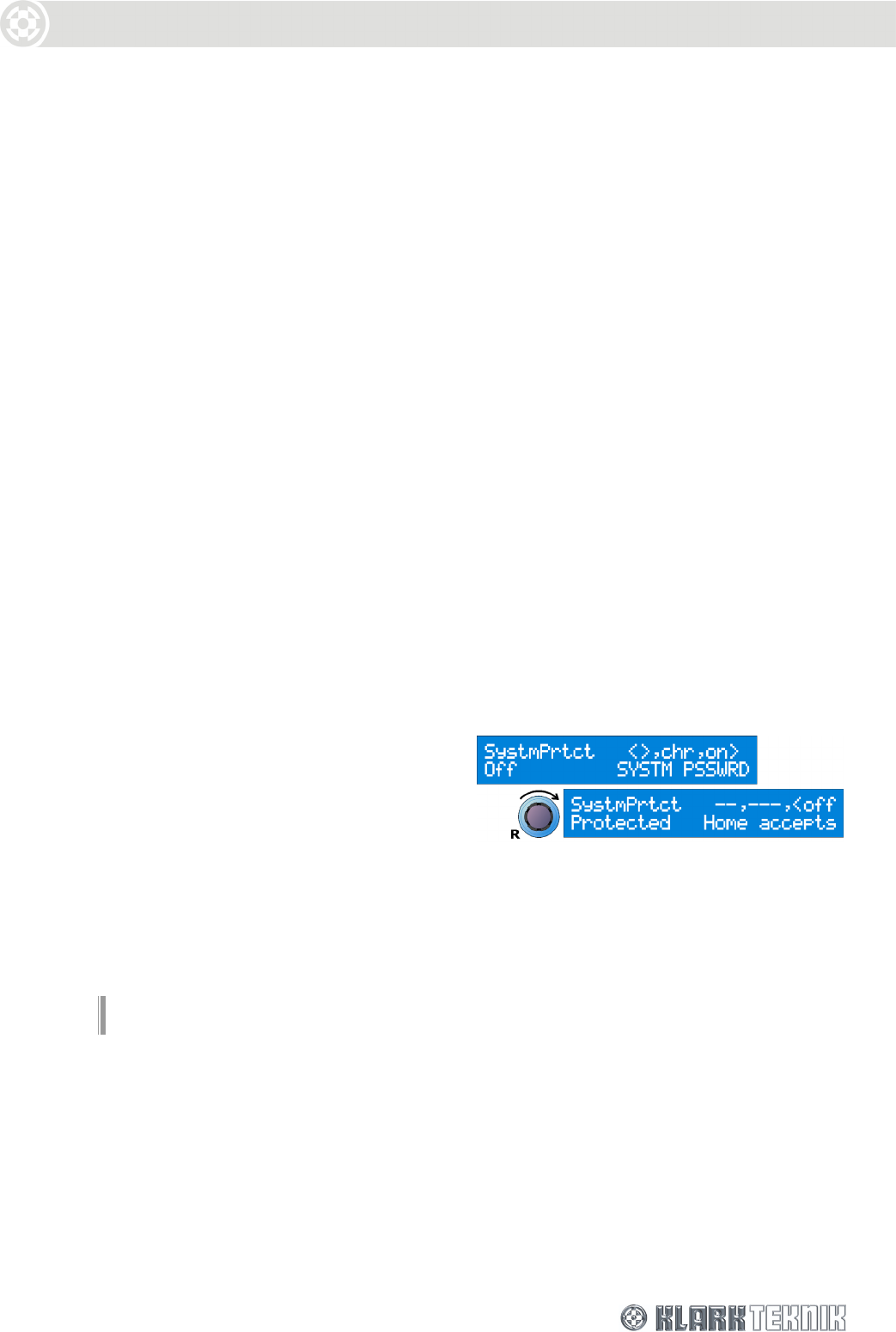
7.4.2 System Protect (Page 4)
System Protect offers limited operational
control, while protecting against unauthorised
users tampering with key parameters that may
result in loudspeaker damage.
When System Protect is on
• The output MENU ACCESS buttons and Output Mute controls are disabled, but the inputs can still
be edited and the level and mutes are still active.
• User memory settings can be recalled or stored, but System and Backup memories are
inaccessible.
• The full Set Up menu is still available.
Note
Panel Lockout takes priority over the System Protect state.

Security and Other Set Up Options
26
To switch System Protect on
1 Step through the Set Up menu to the System Protect menu page.
2 Use the left and centre DATA ENTRY control knobs to set a password of 12 characters (including
blank spaces) made up of letters, numbers and a limited number of symbols.
Note
Important! Note that preliminary and subsequent blank spaces are recorded as part of
the 12-character password; therefore, if you use a short password the characters must
be re-entered in exactly the same position to unlock the panel. To avoid confusion, either
record the blanks as part of the password or enter the word at the far left of the display.
3 Turn the right control knob (‘on>’) clockwise to accept the password and switch protection
on.
4 Press HOME to apply the System Protect state.
The Home page now indicates the unit is locked with inputs editable. The System Protect state is
retained after power down, as will be shown on the Home page when the unit is powered up again.
To switch System Protect off
1 Step through the Set Up menu to the System Protect page.
2 Use the left and centre DATA ENTRY control knobs to enter the password. Note that the letters
must be in the same position as when the password was set.
3 Turn the right control knob clockwise to apply the password.
4 If you have entered the wrong password, the DN9848E will flag it as incorrect and return to
the Panel Unlock page for a further attempt.
If accepted, the password cursor stops flashing. When you next access this menu page,
System Protect will be in the default Off state.
7.5. Analogue/Digital Input Select (Page 5)
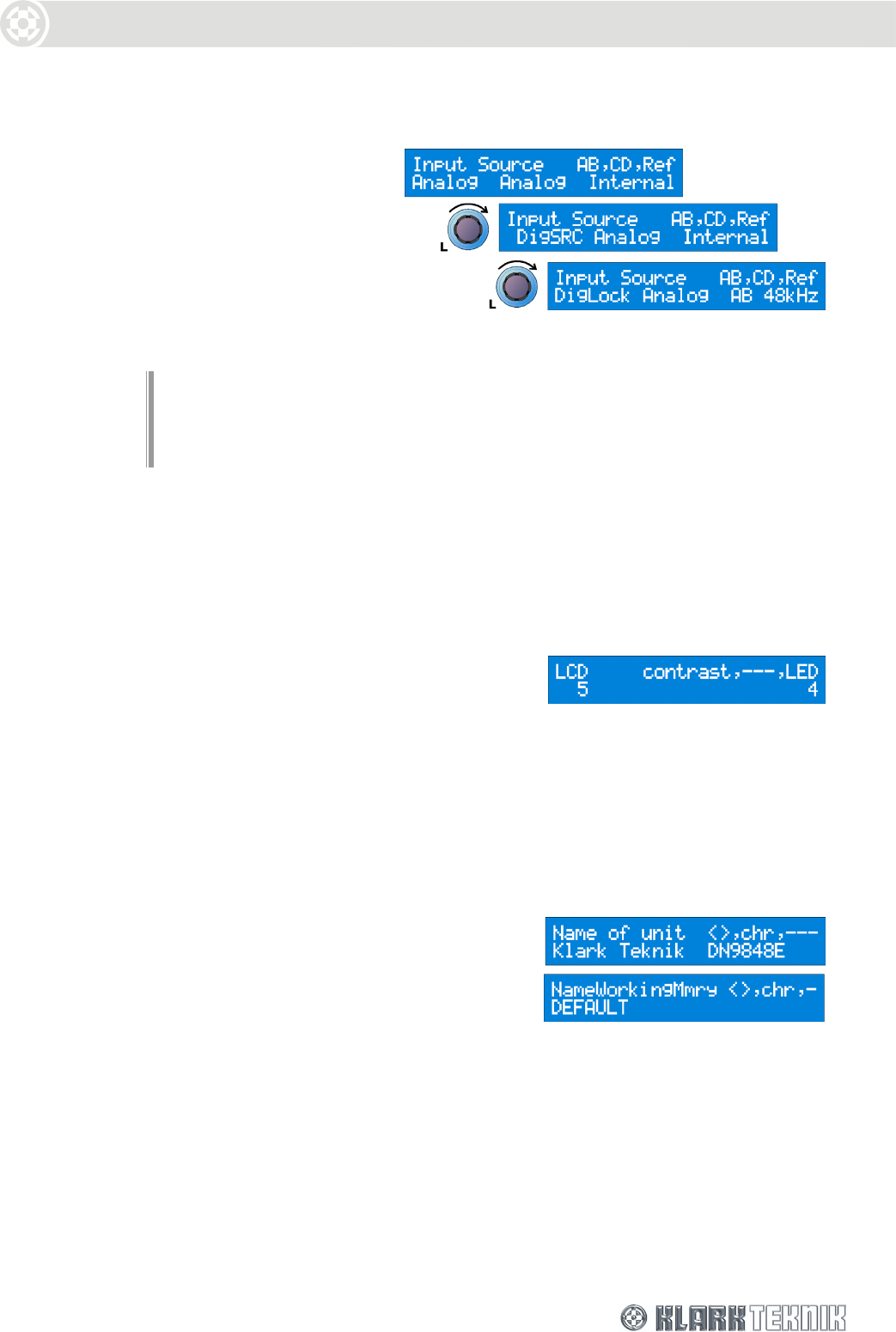
This page selects the input source for input channels A and B, and C and D on a paired basis due to
the sharing of channels for AES/EBU inputs. There are three options available for each input pair:
• ‘Analog’ - switches to analogue inputs. Note that this is the default setting.
• ‘DigSRC’ – switches to the digital AES/EBU input. In this mode, the unit locks to its internal
48kHz clock reference. Sample rate converters (SRCs) support incoming signals at sampling
frequencies from 32kHz to 96kHz ± 12.5%.
• ‘DigLock’ – switches to the digital AES/EBU input without sample rate conversion. In this
mode, the sample rate converter (SRC) of the digital input is bypassed and the clock
reference is set to lock to the channel’s incoming AES/EBU bit stream. This allows the unit to
be used in 48kHz systems without incurring the propagation delay inherent in sample rate
conversion.
Note If both input pairs are set to ‘DigLock’, then either pair may be selected
as the clock reference.
Any combination of analogue and digital inputs may be selected. For example, input channels A and
B may be set for analogue sources while input channels C and D are digital.
Security and Other Set Up Options
27
To select the input source
1 Step through the Set Up menu
to the Input Source select
page.
2 Use the left DATA ENTRY control
knob to select the input source
for channels A and B as shown
opposite.
3 Use the centre DATA ENTRY
control knob to select the input
source for channels C and D in
a similar manner.
Note The ‘Ref’ menu shows the clock reference for the unit, for example,
Internal. If both input pairs are set to ‘DigLock’, then this menu
becomes active; turn the right DATA ENTRY control knob to select input
source AB or CD as the clock reference.
7.6. LCD and LED Lighting (Page 6)
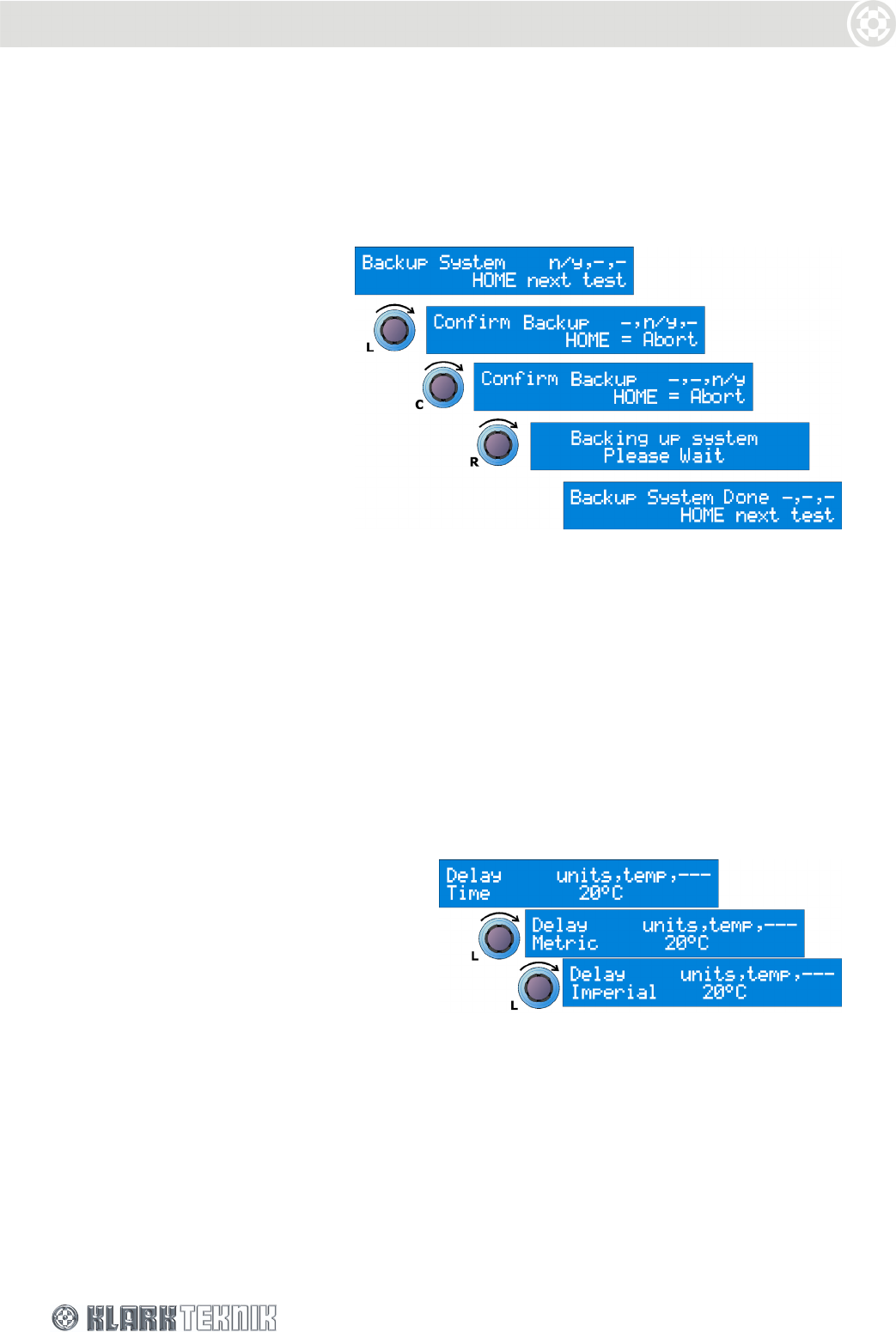
If required, the contrast of the alphanumeric display (LCD) and the brightness of the front panel LEDs
can be adjusted to suit.
To adjust the contrast of the LCD
Step to the LCD page. Turn the left DATA ENTRY control
knob to adjust the display contrast. The default
setting is 5, with a range of 0-10.
To adjust the brightness of the front panel LEDs
Step to the LCD page. Turn the right DATA ENTRY control knob to adjust the LED brightness.
The default setting is 4, with a range of 0-15.
7.7. Naming (Pages 7 and 8)
To help with system identification, the DN9848E unit and the
current working memory may each be given a name up to 24
characters long.
Both names are shown in the Home page and are retained
after power down, which is particularly useful for system
reassembly when changing venues.
To enter a name
1 Use the left DATA ENTRY control knob to move the cursor right or left, and the centre control
knob to select the letter, number or symbol. (Tip: to clear existing characters enter a blank
space which can be found after the letter “Z”.)
2 Press the HOME button to apply the new name.
Names can also be allocated to individual input and output channels via their associated menus (see
Sections 5.2.2 and 6.2.2).
All names are stored with User and System memory settings. The Store function will assume the
working memory name as the default memory name, prompting you to edit it if required, see
Section 8 “Storing and Recalling Settings”.
Security and Other Set Up Options
28
7.8. Backup System (Page 9)
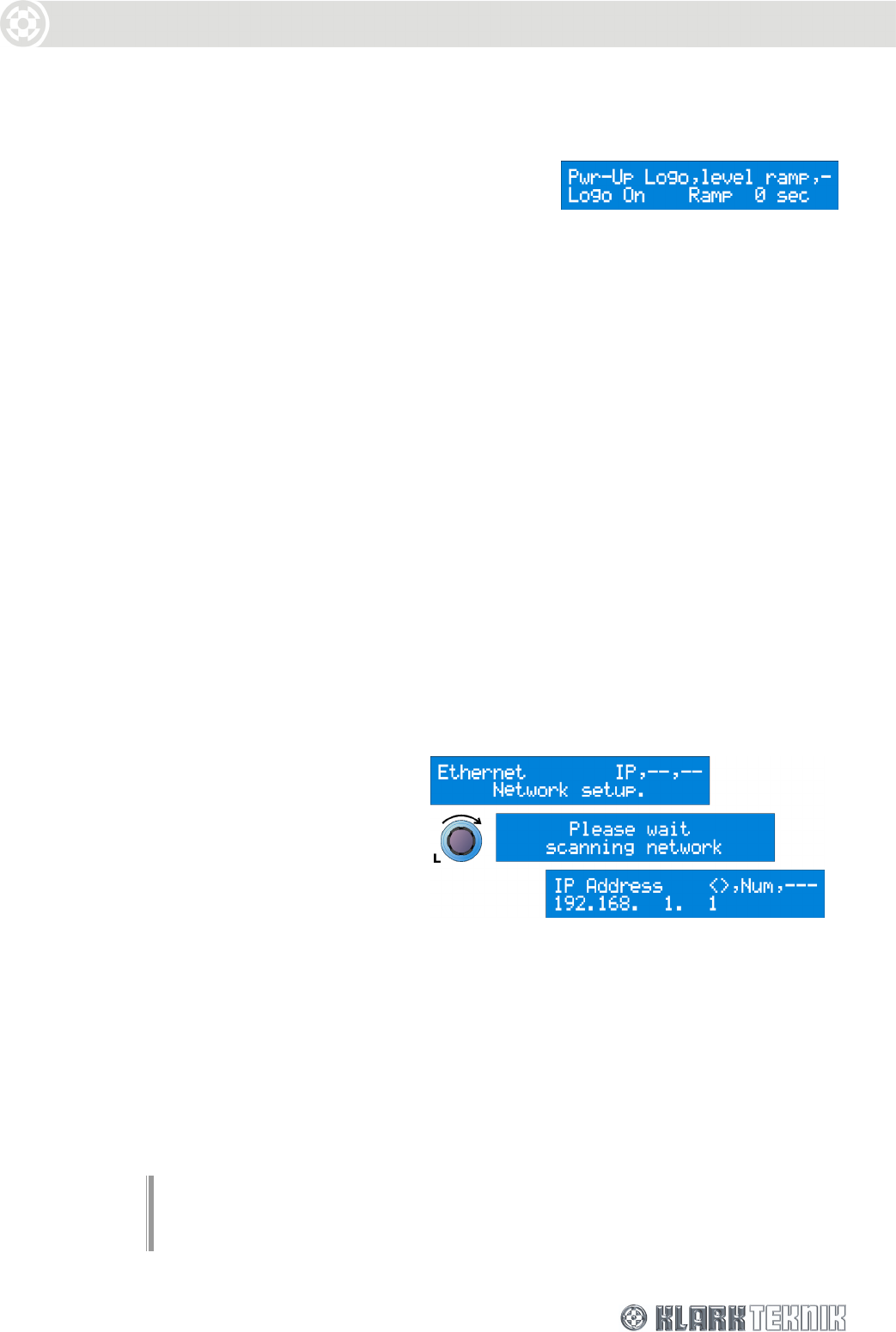
This menu allows you to backup the 32 System memories, as described in Section 8, into flash RAM.
By performing a backup, you can ensure that important System memories may be recovered in the
event of power loss and battery failure.
To backup the 32 System memories
1 Step through the Set Up
menu to the Backup
System page.
2 Turn the left, centre and
then right DATA ENTRY
control knobs clockwise
to accept the three
levels of confirmation.
Or, press the HOME button to
exit the operation and
return to the Home page.
The backup copies System
memories (S01 – S32) into
Backup locations (B01 – B32) in
one operation. You may recall
any of the backup memories (B01 – B32) using the Recall function as described in Section 8.
7.9. Delay Options (Page 10)
The units of measurement used to specify the delay on the input and output channels can be set to
suit user preference, as follows:
• Time (milliseconds and microseconds)
• Metric distance (metres)
• Imperial distance (feet and inches)
To change the units of measurement
1 Step through the Set Up menu to
the Backup System page.
2 Turn the left DATA ENTRY control
knob to choose the units.
3 For Metric or Imperial distance
measurement, specify the ambient
temperature of the venue using the
centre control knob. The DN9848E
will use this to adjust the speed of
sound (which varies with
temperature) in the delay
calculation so that accurate delays
are applied to the channels.
The delay units are changed in the input and output menus, with the current values being
automatically converted to equivalent values.
Security and Other Set Up Options
29
7.10. Power Up Options (Page 11)
Two power up options are provided as follows:
• Logo On/Off– This refers to the logo animation
displayed a start up.
• Output Level Ramp – This is used to apply a gradual ramp up to full output levels when you
power on the unit, for example, to avoid sudden power surges in larger systems. The ramp
can be adjusted between 0 – 32s and will recover the output mute states held when the unit
was last switched off. Alternatively, an initial mute can be automatically applied to all of the
outputs (on a ramp setting; this is the default setting.
To switch the logo on/off, turn the left DATA ENTRY control knob
To change the ramp up time at the outputs, turn the centre DATA ENTRY control knob.
The ‘Outputs Muted’ option is found just below 0s.
7.11. Ethernet Settings (Pages 12 and 13)
When controlling the DN9848E unit remotely via Ethernet, the unit requires an individual IP Address
and Subnet Mask to be set. For more information on DN9848E remote control set ups, see Section 9.
7.11.1 Ethernet IP Address (Page 12)
The IP Address is entered manually on each unit in the network using the DN9848E’s front panel
controls.
To check the current IP Address
1 With the DN9848E connected to
your network, step through the
Set Up menus to the Ethernet IP
Network setup page shown
opposite.
2 Turn the left DATA ENTRY control
knob and the unit will scan the
network to obtain the IP address.
At the end of the scan, which takes a few seconds, the display updates with an IP address as shown
above. The Default IP Address is 192.168.1.1.
To set the IP Address
1 Turn the left DATA ENTRY control knob to highlight the area of the IP Address you wish to
change.
2 Now turn the centre control knob to select a number from 0 to 255.
3 Press the HOME button to confirm the new IP Address.
Note It is important that all units and the controlling PC have a unique IP
Address in order for the network to function correctly. For more
information on configuring your network, please see the HELIX DN9848E
RCS User Guide.
Security and Other Set Up Options
30
7.11.2 Ethernet Subnet Mask Setup (Page 13)
When the IP Address is set, it is necessary to check the Ethernet IP Address Subnet mask on each
unit. The default subnet mask is 255.255.255.0.
To check and edit the Subnet Mask
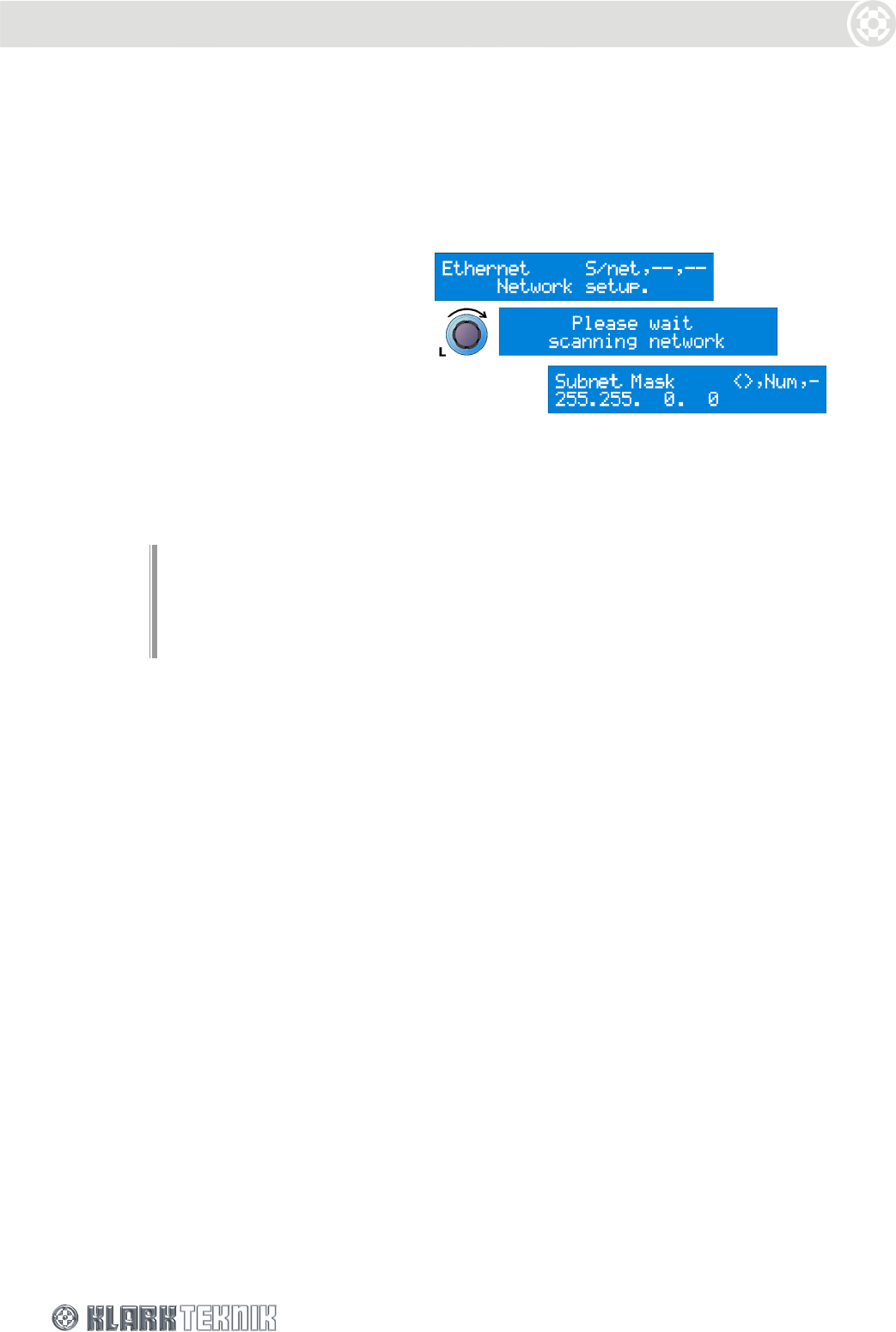
1 Step through the Set Up menus to
the Ethernet S/Net Network setup
page shown opposite.
2 Turn the left DATA ENTRY control
knob and the unit will scan the
Network to obtain the Subnet
Mask.
3 Turn the left DATA ENTRY control
knob to highlight the area of the
Subnet Mask you wish to change.
4 Now turn the centre control knob to select a number from 0 to 255.
5 Press the HOME button to confirm the new Subnet Mask
Note It is important that all units and controlling PCs have the same Subnet
Mask to function correctly. You may want to modify Subnet Masks
where one area of the network is required to be ‘hidden’ from another.
For example, in an installation with one network but multiple
auditoriums. For more information on configuring your network, please
see the HELIX DN9848E RCS User Guide.
For more information on remote control setups, see Section 9.
.
Using the DN9848E Memories
31
8. STORING AND RECALLING SETTINGS
The DN9848E System Controller has the following memory facilities:
• 32 lockable System memories, designated as S01 to S32, for storing standard set-ups in
battery-backed-up SRAM. These memories may be locked to prevent accidental changes to
common set-ups using the System Protect function as described in Section 7.4.2. They may
also be backed up into flash memory, using the Backup System function as described in
Section 7.8, to provide system memory recovery in the event of power loss and battery
failure.
• Five free access User memories, designated as U01 to U05, for storing a series of set ups for
the current show.
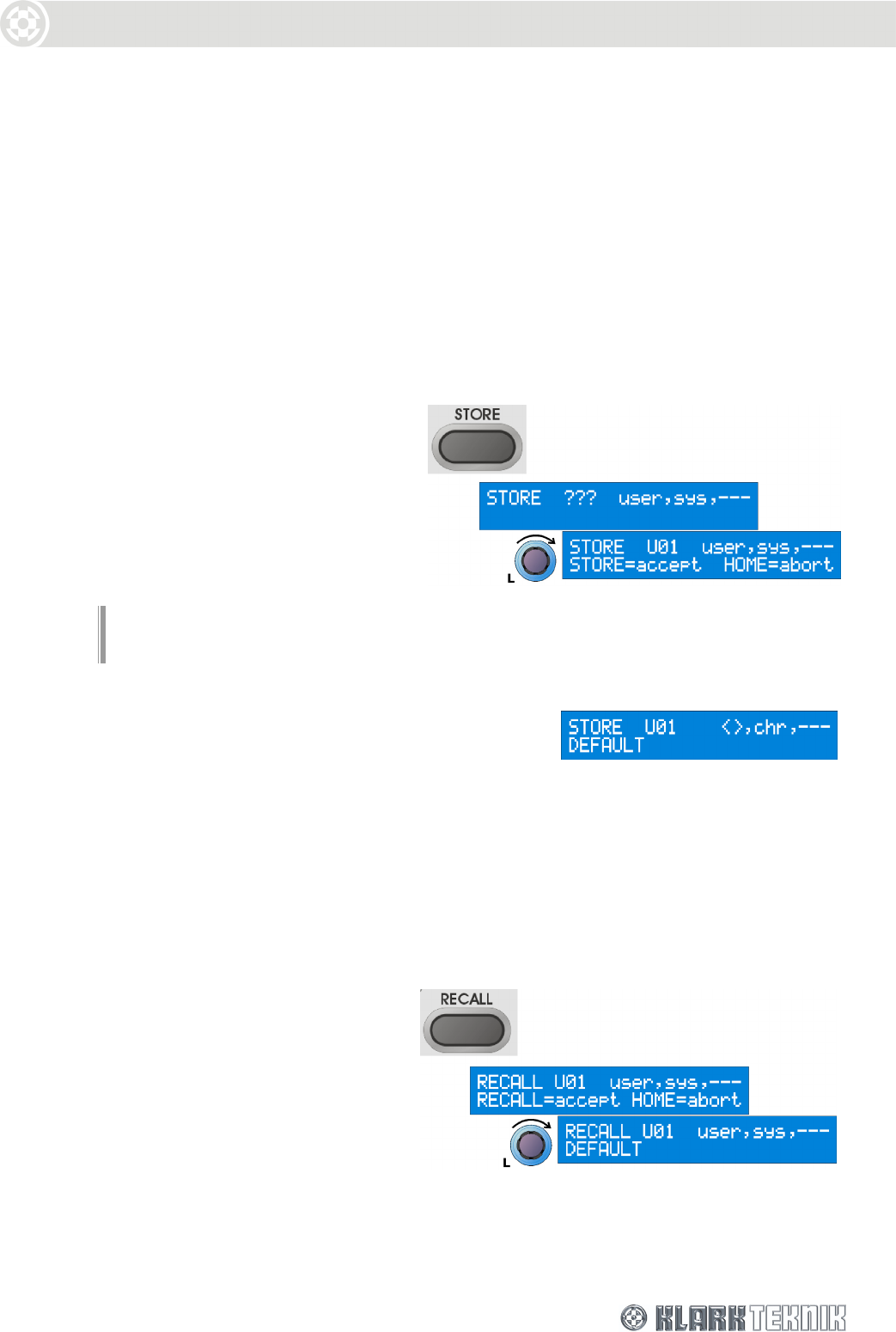
To store settings in either a user or system memory
1 Press the black STORE button to
access the Store menu.
2 Select a User memory location
(U01 –U05) using the left DATA
ENTRY control knob, or a System
memory location (S01 – S32)
using centre control.
3 Press STORE to accept the memory
location and move on.
Note
Since a memory location is now active, you should only press STORE if you wish to accept and
continue the storing process. Otherwise, press HOME to abort.
4 The current working memory name is displayed (as
defined in the Set Up menu). To change the name
before storing, use the left DATA ENTRY control knob to
move the cursor right or left, and the centre control
knob to select the letter, number or symbol.
5 Press STORE to confirm the action and return to the DN9848E Home page.
The DN9848E automatically checks the memory settings and displays a warning if any errors are
found. Where possible, it will also attempt to automatically correct the error.
To lock the 32 system memory locations see Section 7.4.2 System Protect.
To recall stored settings from memory
1 Press the black RECALL button to
access the Recall menu.
2 Select a User memory (U01 –
U05) using the left DATA ENTRY
control knob, or a System
memory (S01 – S32) or Backup
memory (B01-B32) using the
centre control.
3 Press RECALL to confirm the
action and return to the
DN9848E Home page.
The selected memory settings are recalled to the working memory.

Remote Control Setup
32
9. DN9848E REMOTE CONTROL SETUP
A slave network of up to 16 DN9848E System Controllers can be linked together and remotely
controlled from a PC running the Elgar Library Manager and HELIX DN9848E RCS add-in software.
Further details on these commercially available software applications can be found on the Klark
Teknik website at www.klarkteknik.com.
9.1. Overview
To control a system, a laptop/PC running HELIX DN9848E RCS is connected to one of the HELIX
DN9848E units. The laptop/PC then assumes control of the HELIX units’ system. The following
options for connecting the laptop/PC to the system are available:
Ethernet: HELIX DN9848E units have a direct Ethernet LAN connection to the PC and can be
connected together in a daisy chain configuration, or each one can be plugged into
an Ethernet switch or hub, all via their rear panel Ethernet sockets. The wireless
option offers increased flexibility during the event set-up, as the engineer can
move around freely with a laptop and adjust the equalisation while listening to the
end effect at any place in the venue.
Serial (option): The optional RS-232 serial connection is via the “PC PORT” on the front panel of
the first HELIX DN9848E unit. It is possible to connect to other HELIX DN9848E
units from the rear Ethernet port(s) when using a serial connection, but note that
this will be slower than using Ethernet.
The following sections describe how to connect the master HELIX DN9848E RCS laptop/PC to the
system for each option and also the interconnectivity of the HELIX DN9848E units. For details on
configuring and controlling the system from the PC applications, please refer to the Elgar Library
Manager and HELIX DN9848E RCS User Guides.
9.2. HELIX DN9848E unit interconnections
The HELIX DN9848E units in your system can be connected together in a daisy chain, or each one can
be connected to an Ethernet switch or hub.
Note When connecting the Ethernet cable to the rear panel of a HELIX DN9848E unit, either of
the Ethernet sockets can be used.
Remote Control Setup
33
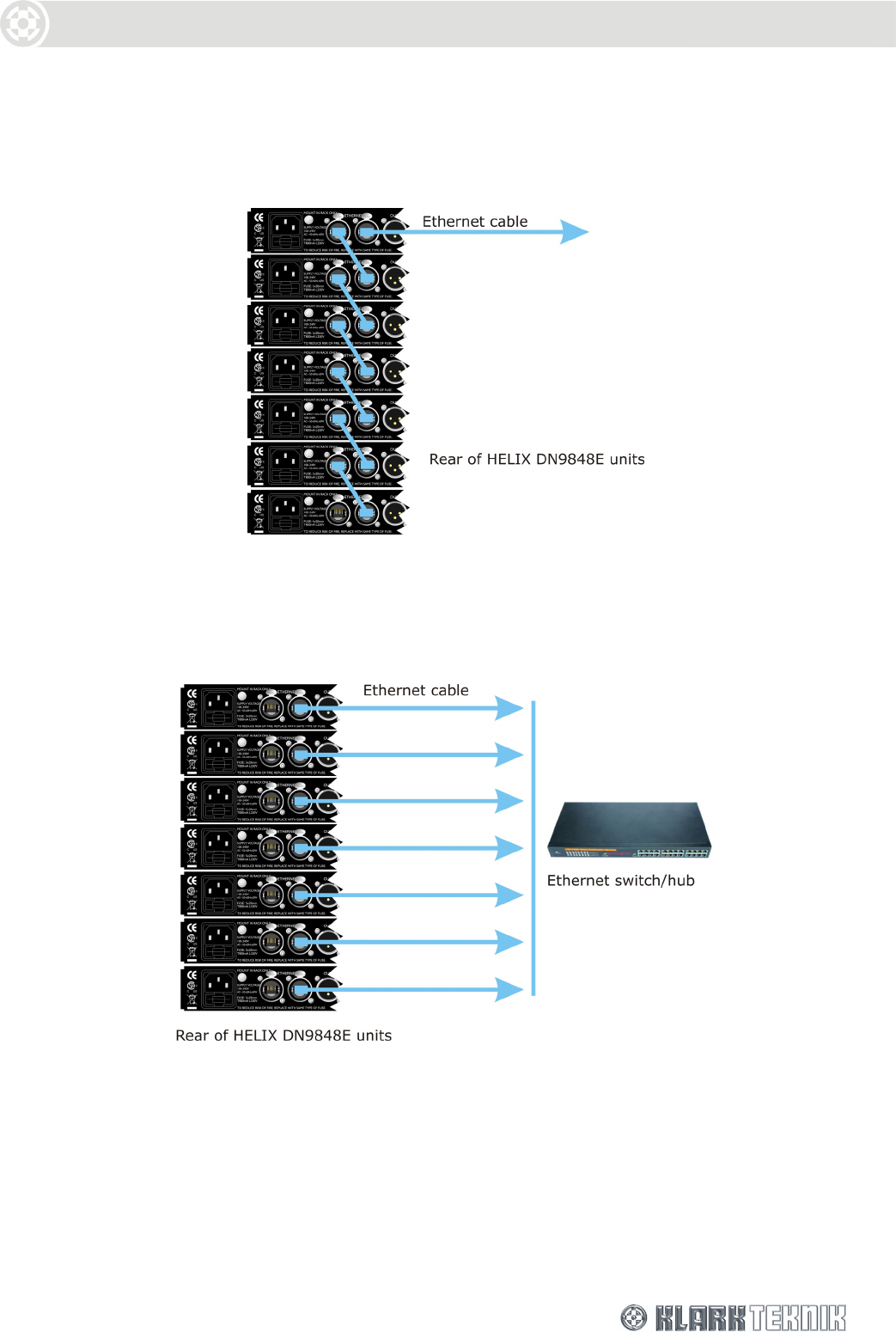
9.2.1 Connecting HELIX DN9848E units in a daisy chain
The diagram below shows a typical example of the HELIX DN9848E units connected in a daisy chain
configuration.
9.2.2 Connecting HELIX DN9848E units to an Ethernet switch or hub
The diagram below shows each HELIX DN9848E unit directly connected to an Ethernet switch or hub,
which is then connected top a laptop/PC.
Remote Control Setup
34
9.3. Ethernet Connection
For familiarisation purposes, a basic Ethernet connection may be made to a single unit by connecting
the Ethernet cable to either of the unit’s rear panel Ethernet sockets and to the network socket on the
laptop PC or wireless access point (wireless option).
Note
For Ethernet connectivity, the HELIX DN9848E units must be operating V4.01 (or later) host
code.
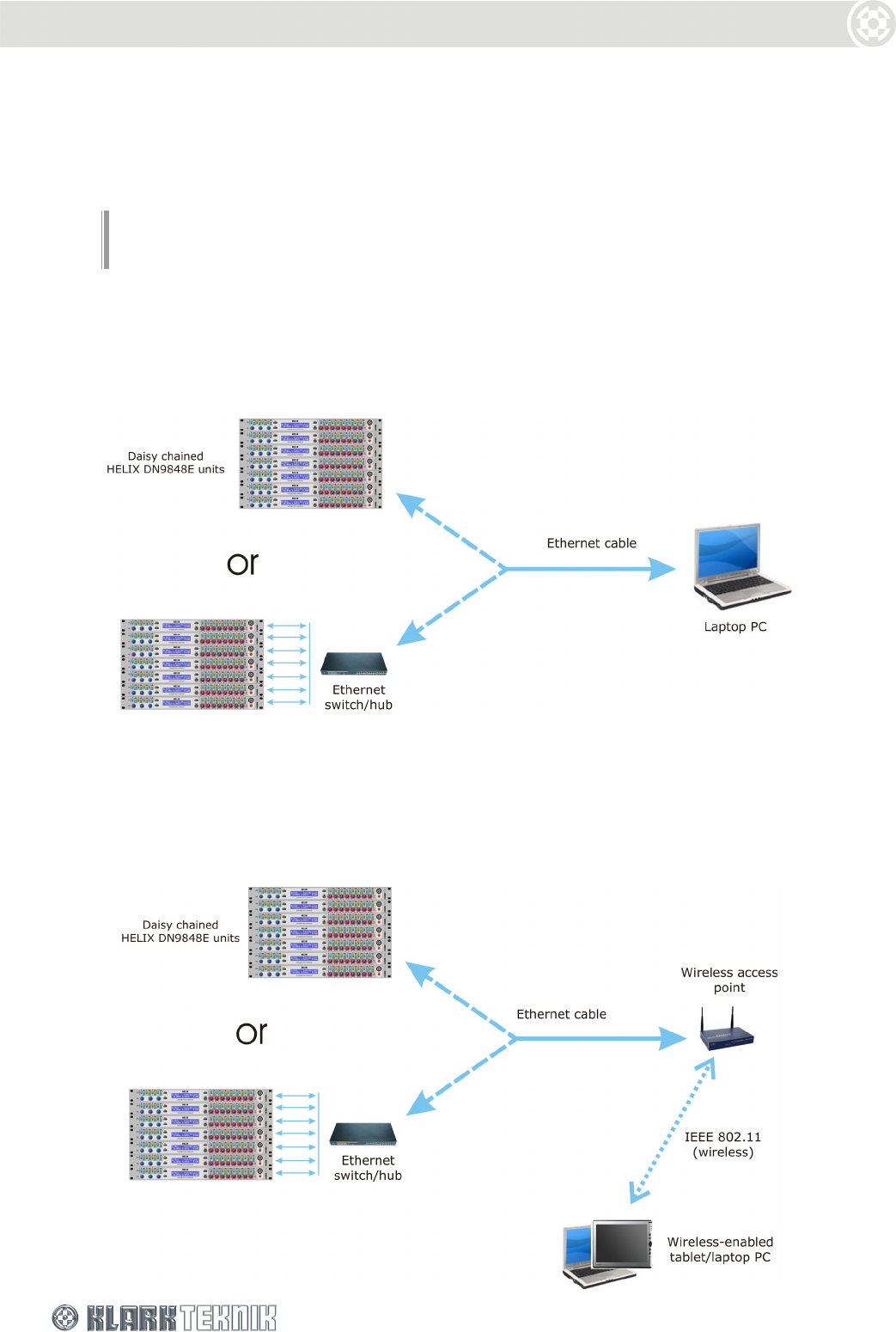
9.3.1 Ethernet connection – standard
Alternatively, you can set up a system involving multiple units. One end of the Ethernet cable is
connected to the network socket of the laptop/PC. The other end is either connected to an Ethernet
socket on one of the HELIX DN9848E units (daisy chain), or an Ethernet switch or hub, depending on
system configuration.
9.3.2 Ethernet connection – wireless option
The system set-up for the wireless option Ethernet connection is via an Ethernet cable. One end is
connected to the network socket of the wireless access point. The other end is connected to either an
Ethernet socket on one of the HELIX DN9848E units (daisy chain), or an Ethernet switch or hub,
depending on system configuration. This system is operated remotely from a tablet or laptop PC.
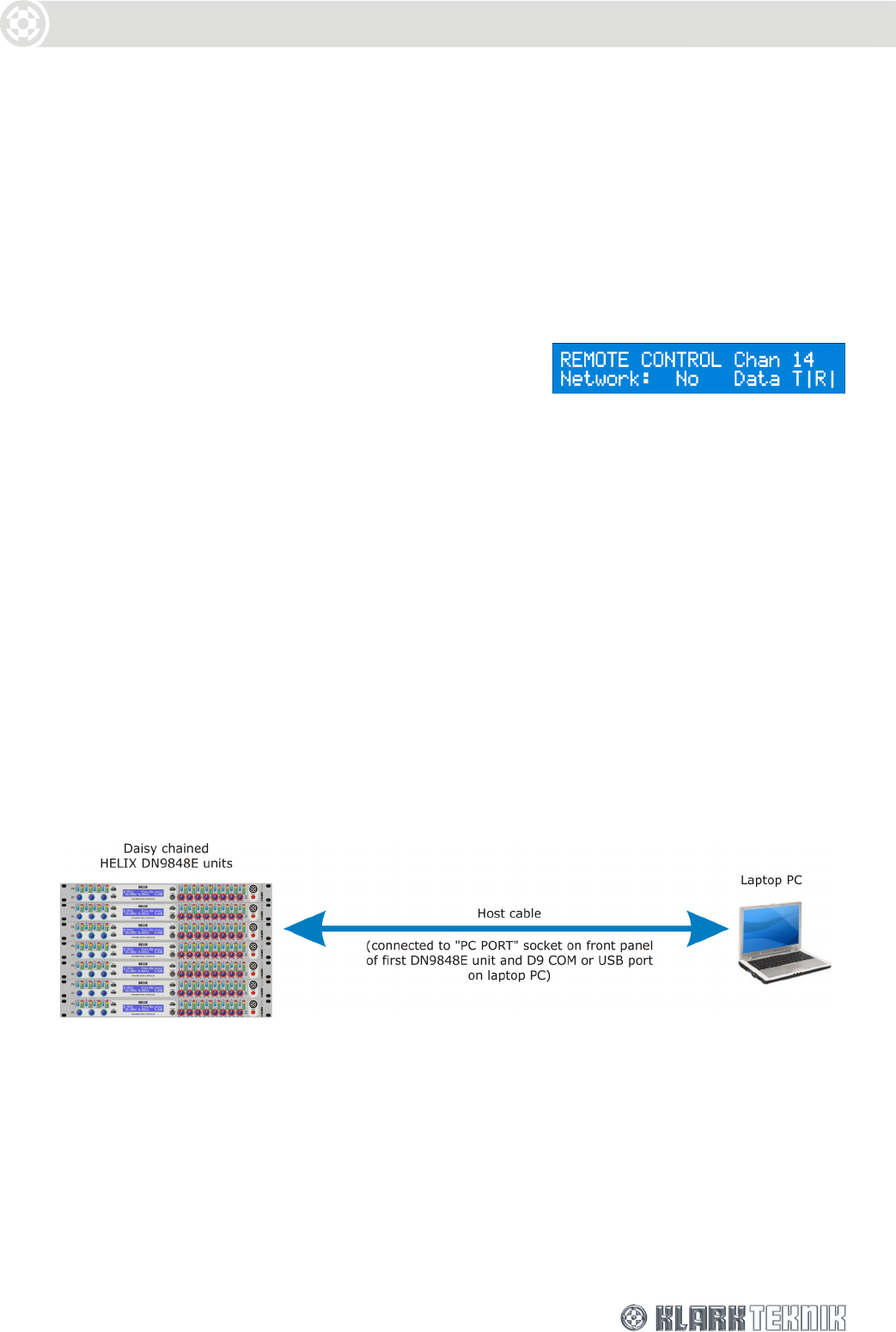
Remote Control Setup
35
9.3.3 Configuring the DN9848E for Network Communication
Before you can control the DN9848E from your remote software, there are number of configuration
settings to check on the DN9848E unit(s):
• First, you must configure the system devices (the laptop/PC and HELIX DN9848E units) to
communicate with each other using TCP/IP protocol. This is done by assigning them unique
IP addresses on the network. For more details on setting the IP Address and Subnet Mask on
the DN9848E, see Section 7.11.
• Having completed the Ethernet setup, now activate remote comms on each DN9848E unit.
Set each unit to receive and transmit data on a unique Comms channel following the
instructions in Section 7.2.
Note that when you press HOME to confirm channel, the
display updates (see diagram right).
• The final stage is to configure the Elgar Library Manager software to communicate with the
DN9848E unit(s) on the correct ports with corresponding IP Addresses, etc. For more
information on configuring the Elgar Library Manager and HELIX DN9848E RCS add-in
software, please refer to the relevant documentation.
Note that once remote communications are established, the DN9848E display updates to show the
Network status as “Yes”, and that Data is being received, as indicated by a rotating line on the
display.
9.4. Serial Connection (Option)
There is an option to control your system remotely from a laptop/ PC via the RS-232 connection (the
“PC PORT”) on the front panel of the first HELIX DN9848E unit. It is possible to connect to other
HELIX DN9848E units from the rear Ethernet port(s) when using a serial connection, but note that
this will be slower than using Ethernet.
9.4.1 Serial connection details
The system set up for serial connection is illustrated below.
Remote Control Setup
36
9.4.2 Connection and Configuration Procedure
The remote control PC is connected to the system as follows:
To connect, set up and configure your system for serial operation
1 Connect the HELIX DN9848E units in a daisy chain configuration, see Section 9.2.1.
2 Power up the HELIX DN9848E units and assign each one a unique Comms channel
address, as described in Section 7.2.
Note The order of the addresses does not need to mirror the order of the daisy chain
networking, but each unit MUST have a unique comms channel address.
3 Referring to the following table, connect your laptop/PC to the first HELIX unit in the
daisy chain.
HELIX DN9848E Unit
Connection
Laptop/PC
Connection
Cable/Converter Required
D9 COM port Host cable RS-232 input to front panel
“PC PORT”
USB port KK systems USB/232 converter plus host cable
For details of converters plese refer to
http://www.klarkteknik.com/faq_connections.htm
For details on configuring and controlling the DN9848E from the Elgar Library Manager and HELIX
DN9848E RCS add-in software, please refer to the relevant documentation.
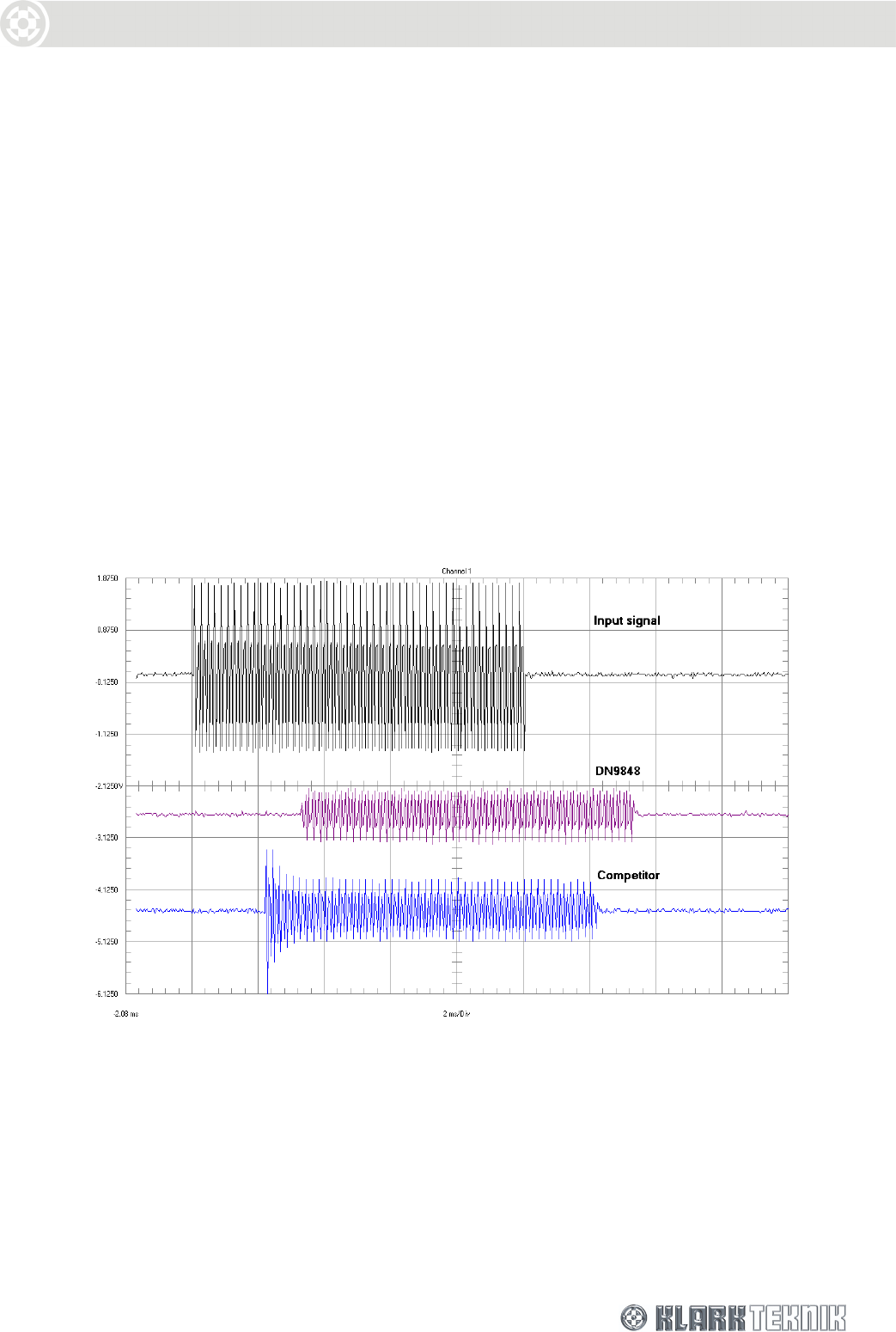
Application Notes
37
10. APPLICATION NOTES
10.1. The Advantage of DN9848E Look-Ahead Limiters
The limiter in a loudspeaker processor is the last line of defence in protecting the speaker drivers
from damage, and as such it has a very specific and critical job to do. One of the chief modes of
loudspeaker failure is driver over-excursion, and unless the limiter is designed to act instantly in
response to sudden increases in level, it will allow through brief transients that can cause damage
through over-excursion. All dynamics processors take a finite amount of time to respond to a change
in input level, and unless additional steps are taken the result is that the input signal is initially let
through at anything up to its full level, until the gain element in the limiter can act in response to the
increase in signal level.
The DN9848E exploits the fact that digital signal processing works on a sample-by-sample basis (the
signal data samples are clocked through the unit at the sample rate of 48kHz) and that there is a
small delay through each processing block, and literally ‘looks-ahead’ further back in the signal chain
to sample the data for the limiter side chain, so that the limiter can apply the required gain reduction
on an instantaneous sample-by-sample basis, so that the limiter never lets through any dangerous
transients.
In the example below a 10kHz tone burst of 10 ms duration has been used as the input signal and the
output of both a DN9848E and a leading competitor are shown. Note the very large transient of the
competitor unit which does not have a look-ahead limiter.
Signal source: Audio Precision System One
Settings: Waveform: Burst – Normal. Frequency: 10.0kHz. Burst: 10 ms. Interval: 100 ms. High Level: +10.0 dBu Low level: -
40.0 dBu
DN9848E settings: HPF: 1.25kHz Lnk-Ril 24dB/Oct. LPF: 20kHz Lnk-Ril 24dB/Oct. Limiter Threshold: 0.0dBu Release: 50ms
Response: Hard Knee
Competitor settings: HPF: 1.26kHz Lnk-Ril 24dB/Oct. LPF: 22kHz Lnk-Ril 24dB/Oct. Limiter Threshold: 0.0dBu Attack &
Release: Automatic
All other settings are default on both units.
As with all units that use sigma-delta ADC and DAC converters, there is a propagation delay from
input to output, 3.2 ms for the DN9848E and 2.1 ms for the competitor unit, the additional delay in
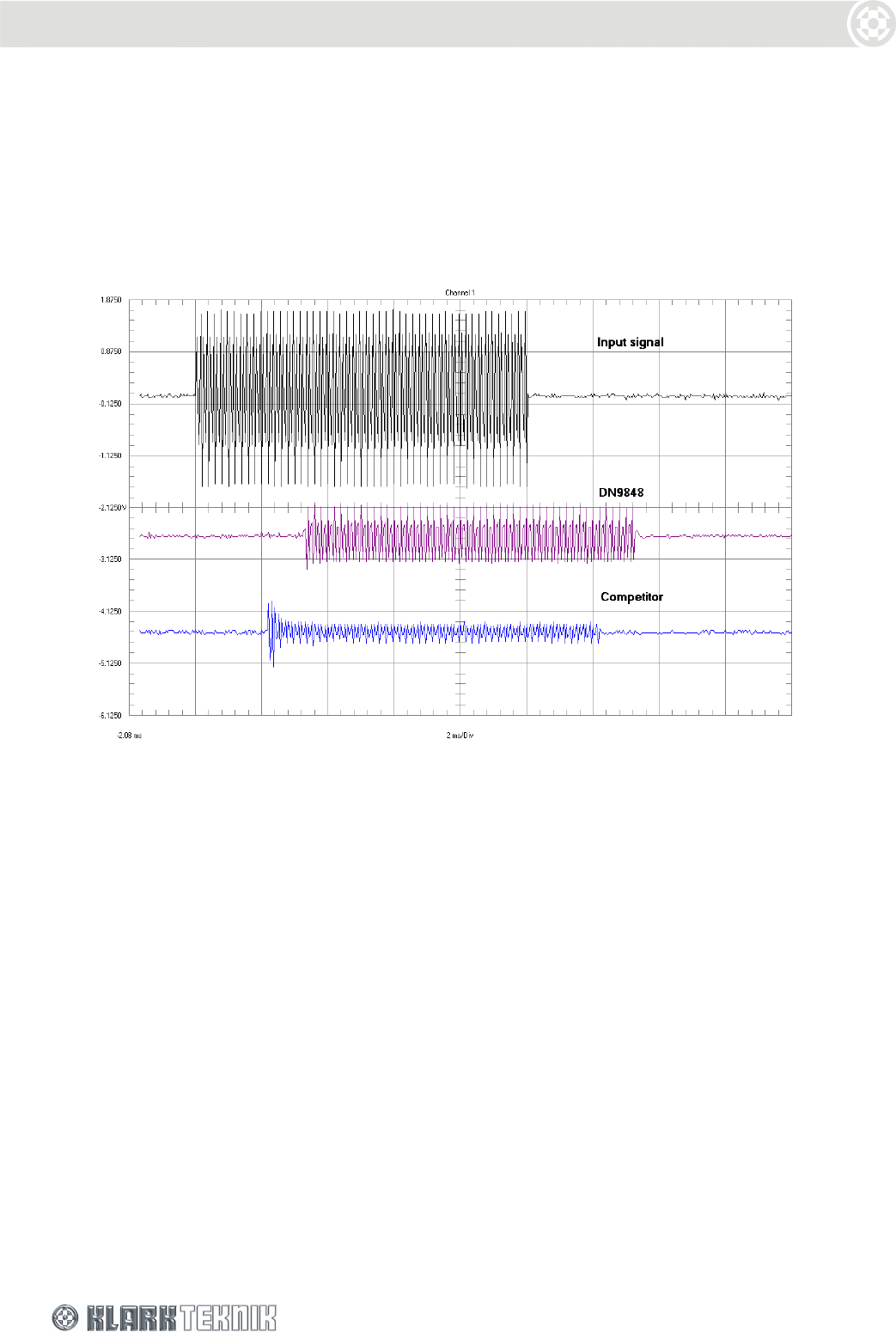
Application Notes
38
DN9848E is caused by the use of sigma-delta converters for both analogue-to-digital and digital-to
analogue conversion (the competitor unit uses a different method of digital-to-analogue conversion),
which allows the DN9848E to achieve its superior dynamic range.
In order to prevent driver failure, the competitor product’s limiter threshold needs to be reduced such
that the peak of the transient is at the same level as the threshold of the DN9848E’s look-ahead
limiter, with a major effect on efficiency of speaker systems, as the effect of reducing the limiter
threshold is to limit the amount of continuous output power available, which means more amplifiers
and more speaker cabinets to achieve the same SPL. In the example below the competing unit’s
limiter threshold has been reduced so that level of the transient peak matches the threshold of the
DN9848E’s limiter:
The limiter threshold of the competitor’s unit has been lowered to -10.0 dBu to avoid the risk of driver
damage from the initial transient, at the cost of greatly reducing the efficiency of the PA system. The
look-ahead capability of the DN9848E’s limiters allows the thresholds to be set at the levels required
to protect the loudspeaker drivers, without the need to be concerned about transients being passed
by the limiters. This allows the PA system performance to be maximised by safely exploiting the full
operational range of the loudspeaker drivers.
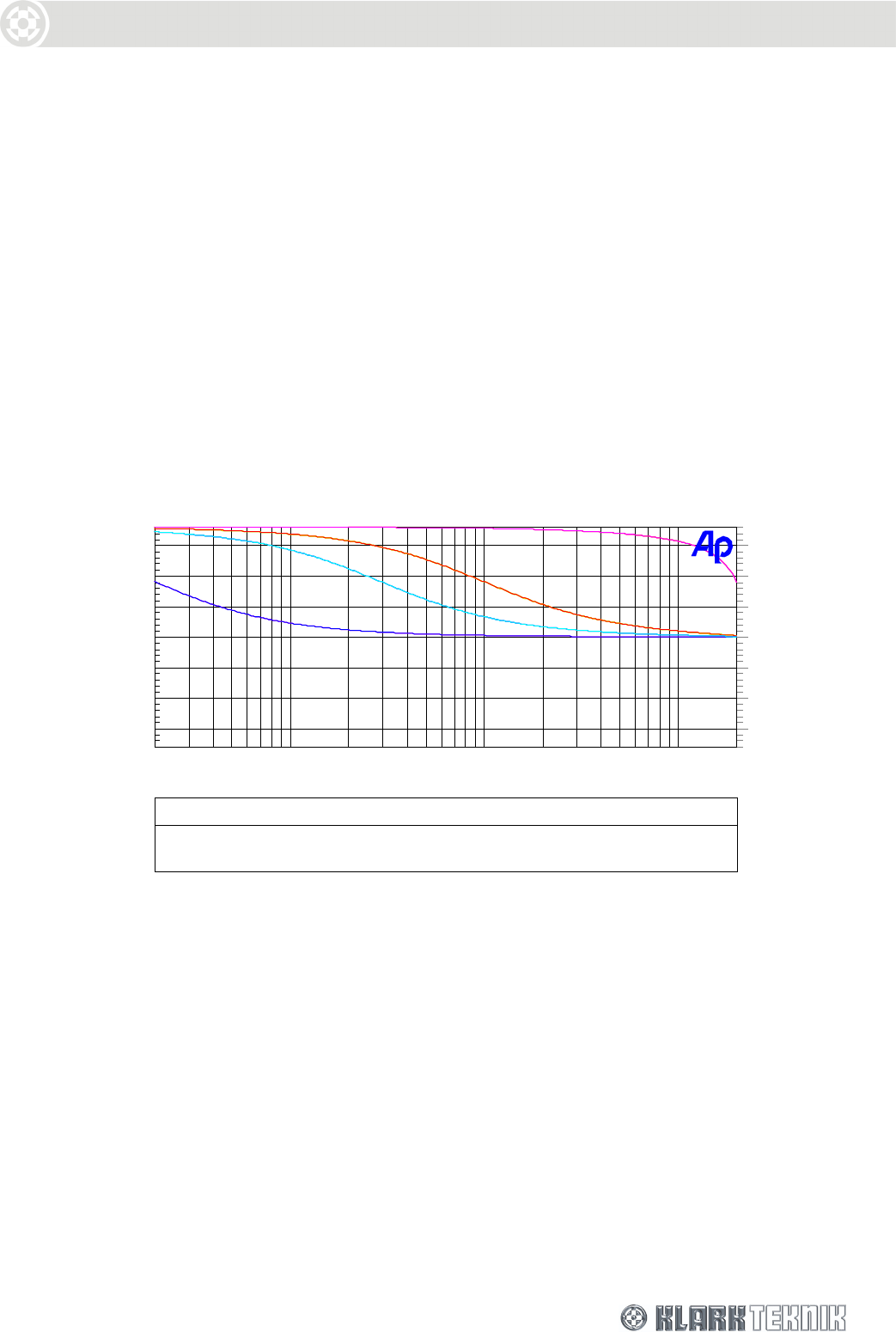
Application Notes
39
10.2. Phase-adjustment with the DN9848E
To meet the demands of a wide range of situations, the Klark Teknik DN9848E provides two all-pass
filters with complementary control parameters for fine-tuning the phase response on each output.
Although some crossover filter designs, e.g. Linkwitz-Riley types, are inherently phase-aligned at
crossover, others such as Butterworth or Bessel responses may require manual phase alignment.
Even Linkwitz-Riley filters may not produce accurate phase coherence when HPF and LPF are
combined to produce a band-pass output. In addition, the phase response of the drive units and
cabinets (especially horn-loaded types) may require compensation to achieve correct acoustic phase,
even if the electrical phase is correct. The DN9848E filters provide straightforward tuning control in
all cases.
The first filter of the DN9848E is presented as a “phase shifter” for which you can specify a particular
phase shift at a reference frequency, namely a HPF or LPF (typically the crossover point) or one of the
6 PEQs. The plots in the graph below show the effect of these controls on the filter response when
set to a 90° phase shift at references points equivalent to 20Hz, 300Hz, 1kHz and 20kHz. Referring to
the figure, the overall response always remains the same shape i.e. tending from +180° at low
frequencies to 0° at high frequencies, but is shifted along the frequency axis to achieve the required
phase shift at the specified reference point.
Audio Precision 01/19/01 15:52:4590 deg phase shift @ 20, 300, 1K, 20K
phase.at1
Color Line Style Thick Data Axis
Green Solid 1 Anlr.Phase Left
Yellow Solid 1 Anlr.Phase Right
Yellow Solid 1 Anlr.Phase Left
-150
+150
-100
-50
+0
+50
+100
d
e
g
-150
+150
-100
-50
+0
+50
+100
d
e
g
20 20k50 100 200 500 1k 2k 5k 10k
Hz
Response of the phase shifter filter for a phase shift of 90° at
reference points equivalent to 20Hz, 300Hz, 1kHz and 20kHz
The second filter, presented to the user as an “all-pass filter”, enables the user to set the Order and Q
of the phase shift, at a particular Frequency. The Order can be switched to Off (no filter), 1st order
(90° shift) or 2nd Order (180° shift).
The graph over the page shows the response of the filter for a 1st order shift. In this mode, the Q
control is disabled. As can be seen, the filter behaves in an identical manner to the phase shifter, i.e.
the response tends from +180° at low frequencies to 0° at high frequencies, shifted along the
frequency axis according to the chosen frequency. In effect, this is a phase shifter for which the
frequency is entered directly, rather than being referred to a HPF/LPF or PEQ section.
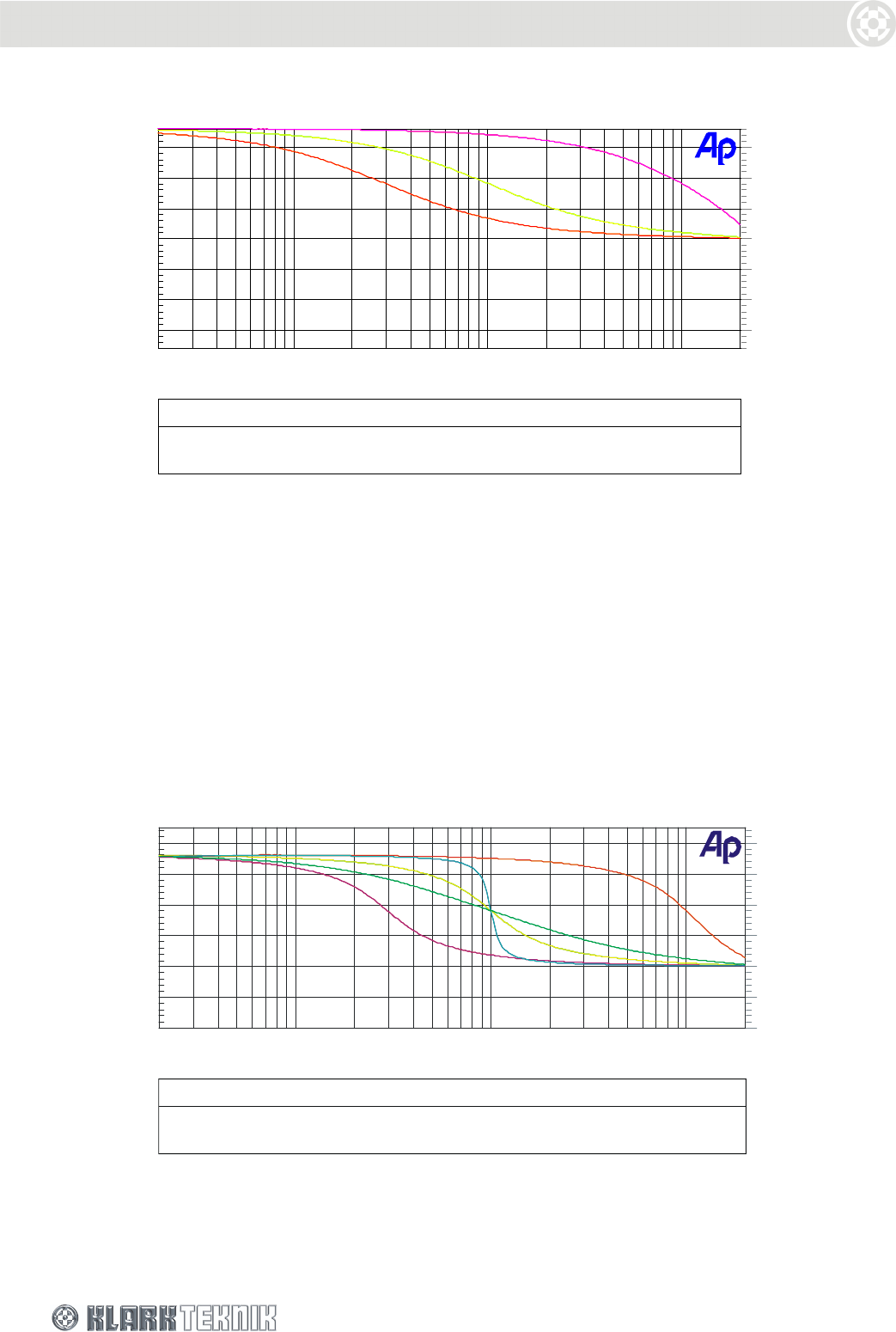
Application Notes
40
Audio Precision 01/19/01 16:00:021st order allpass @ 300, 1K, 10K
phase.at1
Color Line Style Thick Data Axis
Green Solid 1 Anlr.Phase Left
Yellow Solid 1 Anlr.Phase Right
Yellow Solid 1 Anlr.Phase Left
-150
+150
-100
-50
+0
+50
+100
d
e
g
-150
+150
-100
-50
+0
+50
+100
d
e
g
20 20k50 100 200 500 1k 2k 5k 10k
Hz
Response of the All Pass Filter for 1st Order phase
shift at frequencies of 300Hz, 1kHz and 10kHz
The response of the filter for a 2nd order shift is shown below with the Q control set to 1, at
frequencies of 300Hz, 1kHz, and 10kHz, and also Q set to 6 (max) and 0.4 (min) at 1kHz. As can be
seen, the filter response now tends from 360° at low frequencies to 0° at high frequencies, and Q
controls the rate at which the phase changes (i.e. the slope) around the transition point. With low Q,
the phase changes gradually across the whole frequency range. With high Q, the phase changes
rapidly in the transition area, and is unchanging at 360°/0° over the remainder of the frequency
spectrum. Hence, the 2nd order all-pass provides the user with the additional control of shaping the
phase shift ‘window’.
A
udio Precisio
n
01
/
19
/
01 16:09:1
1
2nd order allpass
Q
=1
@
300, 1K, 10K +
Q
=6
Q
=0.4
@ 1K
p
hase.at1
Color Line Style Thick Data Axis
Green Solid 1 Anlr.Phase Left
Yellow Solid 1 Anlr.Phase Right
Yellow Solid 1 Anlr.Phase Left
-200
+400
-100
+0
+100
+200
+300
d
e
g
-200
+400
-100
+0
+100
+200
+300
d
e
g
20 20k50 100 200 500 1k 2k 5k 10k
Hz
Response of the all pass filter for 2nd order phase shift with Q=1 at frequencies
of 300Hz, 1kHz and 10kHz and also with Q=6 at (max) and Q=0.4 (min) at 1kHz
Note: Both filters are all-pass with a flat amplitude response between 20Hz and 20kHz; only the
phase response changes with frequency.

Technical Specification
41
11. TECHNICAL SPECIFICATION
Digital Inputs Two 2-Channel Inputs
Type AES/EBU
Impedance (Ω) 110
Sample Rate 44.1kHz, 48kHz, 88.2kHz*, 96kHz*
Word Length 24-bit or 16-bit
* SRC Input at these sample rates
Analogue Inputs Four
Type Electronically balanced (Pin 2 Hot)
Impedance (Ω) Balanced 20k, Unbalanced 10k
Common Mode Rejection >80dB @ 1kHz
Maximum level + 21dBu
Audio Outputs Eight
Type Electronically Balanced (Pin 2 Hot)
Minimum load impedance 56Ω /20nF
Source impedance 56Ω
Maximum level + 21dBu into > 2kΩ
Performance
Frequency response (20-20kHz) +/- 0.3dB with all filters and EQ flat
Distortion (THD+N) @ +8dBu <0.02% @ 1kHz, +8dBu
Dynamic range >114dB
(20-20kHz, unweighted)
Input Processing (per channel)
Gain +12dB to -40dB in 0.1dB steps plus Off
Parametric EQ 1-12 Frequency range: 20Hz to 20kHz in 21 steps per octave
Boost/cut +6/-18dB in 0.1dB steps
Bandwidth (Q) 3.0 to 0.08
Compressor
Threshold: +21dBu to -10dBu in 0.1dB steps
Attack: 40µs to 100ms
Insert: On/Off
Release: 10ms to 2000ms
Ratio: 1:1 to 5:1 in unit increments
Knee: Hard/Soft
Delay (at 20°)
Time: 0 to 1 second; 0 to 1ms in 20.8µs steps and 1ms to 1s in 0.02ms steps
Metric: 0 to 343.53 metres in steps of 0.1 m
Imperial: 0’ 0” to 1127’ 0” in steps of 1”

Technical Specification
42
Output Processing (per channel)
Routing Full featured matrix mixing: any combination of inputs can be routed to any output in 0.1dB
steps from 0dB to –40dB and OFF.
Delay (at 20°)
Time: 0 to 300ms; 0 to 1ms in 5.2µs steps and 1ms to 300ms in 0.01ms steps
Metric: 0 to 103.06 metres in steps of 0.1 m
Imperial: 0’ 0” to 338’ 1” in steps of 1”
Phase correction filters 0°‹ to 180°‹ in 5°‹ steps
All pass filter 1st and 2nd order
Low pass filter frequency range 50Hz to 20kHz in 21 steps per octave.
Supported configurations are:- Butterworth (6dB/Oct, 12dB/Oct, 18dB/Oct, 24dB/Oct, 36dB/Oct, 48dB/Oct)
Linkwitz-Riley (12dB/Oct, 24dB/Oct)
Bessel (12dB/Oct,18dB/Oct, 24dB/Oct, 36dB/Oct, 48dB/Oct)
High pass filter frequency range 20Hz to 15kHz in 21steps per octave.
Supported configurations are :- 12dB/Oct Peaking
24dB/Oct Peaking
Butterworth (6dB/Oct, 12dB/Oct, 18dB/Oct, 24dB/Oct, 36dB/Oct, 48dB/Oct)
Linkwitz-Riley (12 dB/Oct, 24dB/Oct)
Bessel (12dB/Oct,18dB/Oct, 24dB/Oct, 36dB/Oct, 48dB/Oct)
Peaking Filter Boost: 0dB to +6dB in 0.1dB steps.
Parametric EQ 1 frequency range 20Hz to 20kHz in 21steps per octave.
Low shelf filter Boost/cut: +12/-12dB in 0.1dB steps
Parametric EQ Q: 3.0 to 0.08
Shelf slope: 6dB/Oct and 12dB/Oct
Parametric EQ 2-5 frequency range 20Hz to 20kHz in 21steps per octave.
Boost/cut: +12/-12dB in 0.1dB steps
Q: 3.0 to 0.08
Parametric EQ 6 frequency range 20Hz to 20kHz in 21steps per octave.
Hi shelf filter Boost/cut: +12/-12dB in 0.1dB steps
Parametric EQ Q: 3.0 to 0.08
Shelf slope: 6 dB/Oct and 12dB/Oct
Polarity invert Normal/invert
Output gain +12dB to -40dB in 0.1dB steps plus Off
Look-ahead limiter Threshold: +21dBu to - 10dBu in 0.5dB steps
Release: 10ms to 1000ms
Knee: Hard/Soft
Compressor Threshold: +21dBu to -10dBu in 0.1dB steps
Attack: 40us to 100ms
Insert: On/Off
Release: 10ms to 2000ms
Ratio: 1:1 to 5:1
Knee: Hard/Soft
Mute On/off (press output trim)
Terminations
Audio inputs/outputs 3-pin XLR
Ethernet inputs/outputs Ethercon
RS-232 8-pin Mini-DIN socket (front)
9 pin D-type (rear)
World Clock BNC
Power 3-pin IEC
Power Requirements
Voltage / Consumption 100 to 240V a.c ±10% 50/60Hz < 60VA
Dimensions & Weight
Height 44 mm (1.75 inch) - (1U)
Width 483mm (19 inch)
Depth 287mm (12 inch)
Nett 4kg
Shipping 6kg

Service Information
43
12. SERVICE INFORMATION
12.1. Battery
This unit contains a battery. Do not expose unit or batteries to excessive heat, such as may be
caused by sunshine, fire or the like.
12.1.1 Replacement
Caution!:
Danger of explosion if battery is incorrectly placed. Replace only with the same or equivalent type
recommended by the manufacturer. Discard used batteries according to the manufacturer’s
instruction.
Advarsel!:
Lithiumbatteri. Ekxplosionsfare ved feijlagtig handtering af samme fabrikat og type. Lever det brugte
batteri tilbage till leverandoren.

Service Information
44
