Disable Banner Sheet.qxp C3545 Sheet
User Manual: C3545
Open the PDF directly: View PDF  .
.
Page Count: 2
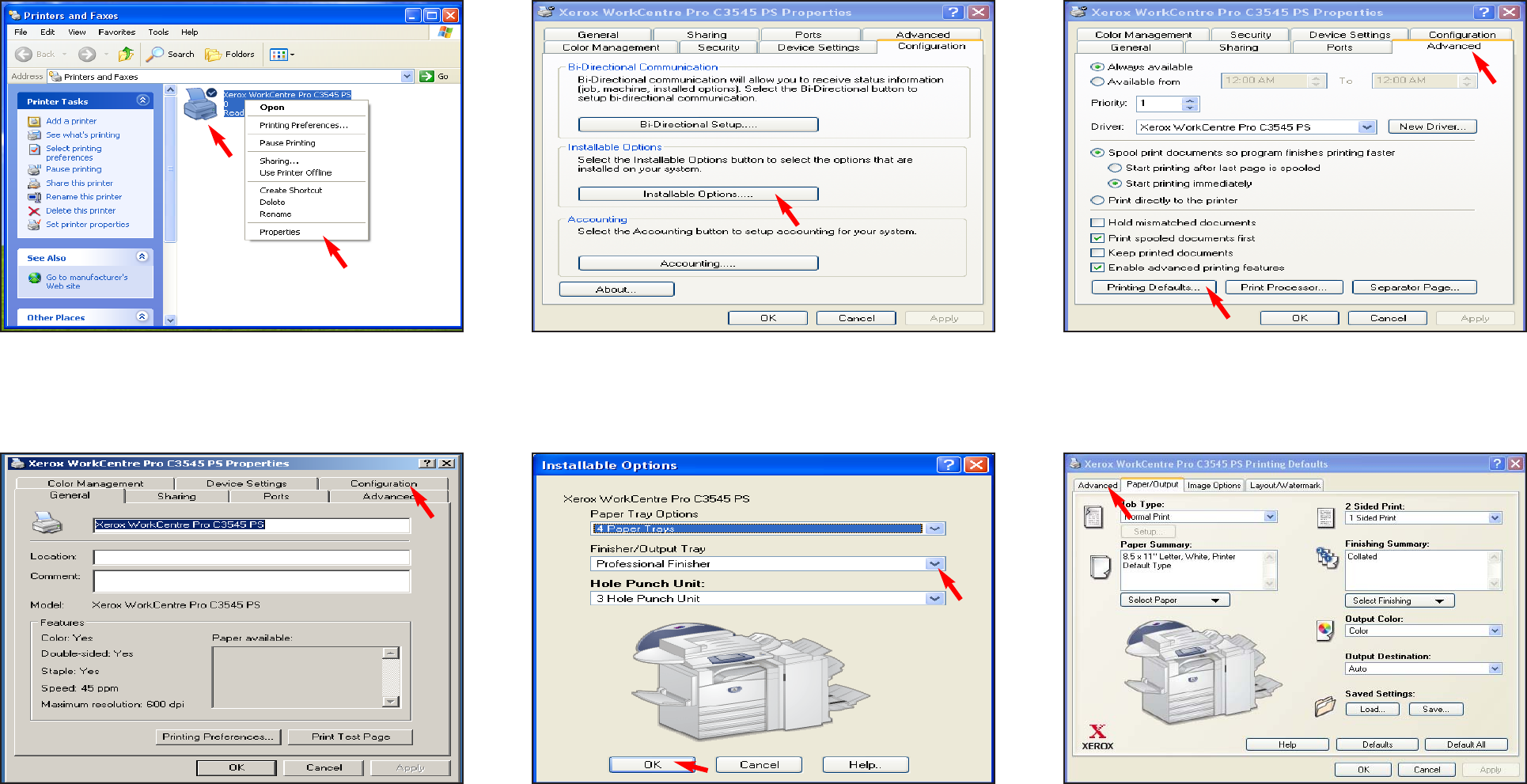
Fig. 2
Click Configuration.
Fig. 3
Click Installable Options......
Fig. 4
Click on the down arrow in the Finisher/Output Tray then select
Professional Finsher from the drop down list. Click OK.
Fig. 6
Click Advanced.
Fig. 5
Click Advanced then Printing Defaults....
Disable Banner Sheet - 1 of 2
Fig. 1
Right click Xerox WorkCentre Pro C3545 PS then click
Properties.
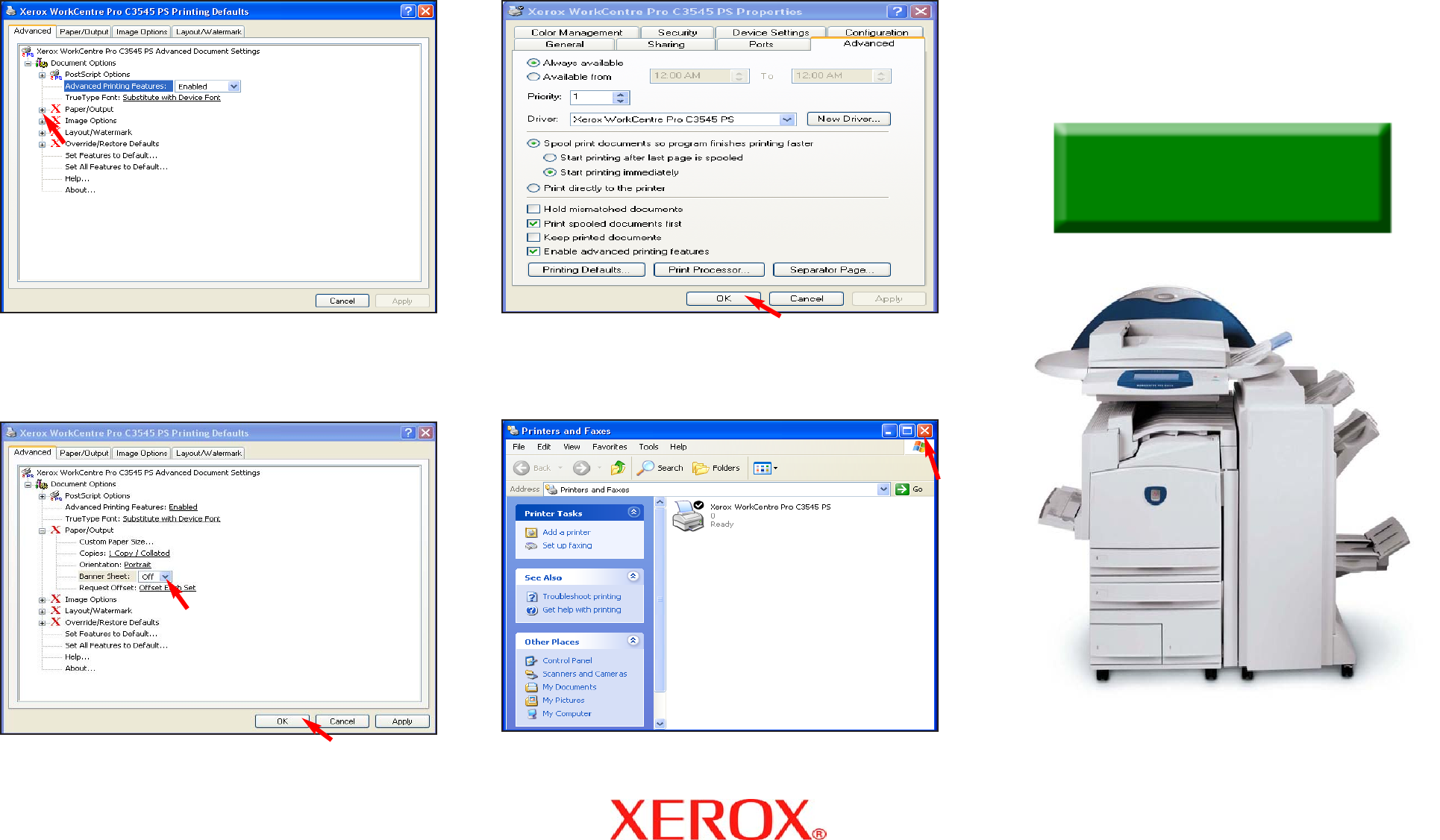
Fig. 7
Click Paper/Output.Fig. 9
Click OK.
Disable Banner Sheet - 2 of 2
Quick Start Guide
WorkCentre Pro
C2128/C2636/C3545
Disable Banner Sheet
Fig. 10
The banner sheet has been disabled. Click the “X” in the upper
right corner to close the window.
Fig. 8
Select Banner Sheet. Click on the down arrow, and select Off.
Click OK.
