Dobot Magician User Manual
User Manual:
Open the PDF directly: View PDF  .
.
Page Count: 116 [warning: Documents this large are best viewed by clicking the View PDF Link!]
- Dobot Magician User Manual Instruction and Precautions
- 1. Dobot Magician Driver Installation Instruction
- 2. DobotStudio Operating Instruction
- 3. Teaching & Playback
- 4. Advanced function of teaching&playback
- 5. Writing & Drawing Manual
- 6. Laser Engraving
- 7. The Tutorial of Shade Laser Engraving
- 8. The Tutorial of 3D Printing
- 8.1 Installation of Accessories of 3D Printing
- 8.2 Repetier Host
- 8.2.1 Switch into 3D printing
- 8.2.2 Parameter Settings of 3D printing for the first time
- 8.2.3 Preparation before Printing
- 8.2.4 Adjust the printing space and get printing coordinates
- 8.2.5 Import Model
- 8.2.6 Set slice parameters and slice up
- 8.2.7 Start to Print
- 8.3 Cura Introduction for 3D printing
- 8.3.1 Cura parameter settings
- 8.3.2 Preparation before Printing
- 8.3.3 Adjust the printing space and get printing coordinates
- 8.3.4 Start printing
- 8.3.5 Text note
- 9. Bluetooth Kit
- 10.WIFI Kit
- 11. Stick controller kit
- 12 Leap Motion Kit
- 13. Mouse control
- 14 Blockly
- 15. More support

Shenzhen Yuejiang Technology Co.,Ltd
Dobot Magician
User Manual
Dobot Magician User Manual
AN01010101 V1.2.0 Date: 2017/2/28
Shenzhen Yuejiang Technology Co.,LTD
Shenzhen Yuejiang Technology Co., Ltd
i
Dobot Magician User Manual
Revised History
Version
Date
Reason
V1.00
2016/09/27
Create a document
V1.01
2016/11/10
Add iOS APP and Bluetooth module tutorial
V1.1.0
2016/12/12
Add system adaptation description in the home page
V1.1.0
2016/12/12
Add shade laser engraving tutorial
V1.2.0
2017/2/28
Revised several function instrutions

Shenzhen Yuejiang Technology Co.,LTD
Shenzhen Yuejiang Technology Co., Ltd
6
Dobot Magician User Manual
Contents
Dobot Magician User Manual Instruction and Precautions ........................................... 8
1. Dobot Magician Driver Installation Instruction .................................................... 10
1.1 Download CH340 driver package and install it ................................................................ 10
1.2 Check if the equipment can work properly in the device management............................. 12
2. DobotStudio Operating Instruction ....................................................................... 13
3. Teaching & Playback ............................................................................................ 25
3.1 Air pump kit ...................................................................................................................... 25
3.2 Pneumatic Gripper Kit ...................................................................................................... 26
2.4 Demo of Teach & Playback .............................................................................................. 28
4. Advanced function of teaching&playback ............................................................ 29
4.1 StepRun ............................................................................................................................. 29
4.2 Offline mode ..................................................................................................................... 30
4.3 EIO multiplex .................................................................................................................... 30
4.3.1 EIO addressing .................................................................................................... 31
4.3.2 EIO multiplex function ....................................................................................... 32
4.3.3 EIO multiplex Demo ........................................................................................... 33
5. Writing & Drawing Manual .................................................................................. 37
5.1 Installation of writing accessories ..................................................................................... 37
5.2 Connect DobotStudio ........................................................................................................ 38
5.3 Import pictures and set parameters .................................................................................... 39
4.4 Adjust the position and start writing ................................................................................. 42
6. Laser Engraving .................................................................................................... 46
6.1 Laser Installation ............................................................................................................... 46
6.2 Connect DobotStudio ........................................................................................................ 46
6.3 Import pictures and set parameters .................................................................................... 48
6.4 Adjust the focus and start writing ...................................................................................... 51
7. The Tutorial of Shade Laser Engraving ................................................................ 55
7.1 Installation of Laser Accessories ....................................................................................... 55
7.2 Connect DobotStudio ........................................................................................................ 55
7.3 Import Pattern and Set Parameters .................................................................................... 57
7.4 Adjust Focus and Start to Engrave .................................................................................... 59
8. The Tutorial of 3D Printing ................................................................................... 63
8.1 Installation of Accessories of 3D Printing ......................................................................... 63
8.2 Repetier Host ..................................................................................................................... 66
8.2.1 Switch into 3D printing .................................................................................................. 66
8.2.2 Parameter Settings of 3D printing for the first time ....................................................... 68
8.2.3 Preparation before Printing ............................................................................................ 73
8.2.4 Adjust the printing space and get printing coordinates .................................................. 75
8.2.5 Import Model ................................................................................................................. 77
8.2.6 Set slice parameters and slice up .................................................................................... 78
8.2.7 Start to Print ................................................................................................................... 83

Shenzhen Yuejiang Technology Co.,LTD
Shenzhen Yuejiang Technology Co., Ltd
7
Dobot Magician User Manual
8.3 Cura Introduction for 3D printing ..................................................................................... 85
8.3.1 Cura parameter settings .................................................................................................. 85
8.3.2 Preparation before Printing ............................................................................................ 92
8.3.3 Adjust the printing sapce and get printing coordinates .................................................. 94
8.3.4 Start printing .................................................................................................................. 94
8.3.5 Text note ......................................................................................................................... 96
9. Bluetooth Kit .......................................................................................................... 103
10.WIFI Kit ................................................................................................................ 104
10.1 Set Dobot Wi-Fi module ............................................................................................... 104
11. Stick controller kit ................................................................................................ 107
12 Leap Motion Kit ........................................................................................... 109
13. Mouse control .............................................................................................. 113
14 Blockly .................................................................................................................. 115
14.1 Blockly Interface ........................................................................................................... 115
14.2 Blockly Demo ............................................................................................................... 116
More support .............................................................................................................. 118
Shenzhen Yuejiang Technology Co.,LTD
Shenzhen Yuejiang Technology Co., Ltd
8
Dobot Magician User Manual
Dobot Magician User Manual Instruction and Precautions
1. Please refer to Dobot Magician User Manual along with the box before using.
2. Power On/Off:
1) Power On: Handhold Dobot to make the angles between the forearm and rear arm about
45°, power on, and then all the steppers will be locked. After about 10 seconds, there will
be a short sound. It will work properly if the light at the bottom right on Dobot controller
from yellow to green. Note that if the light is changed into red, it shows Dobot is at a
limited position, so please make sure the forearm and rear arm are kept in normal range of
movements.
2) Power Off: if the light at the bottom right on Dobot controller is changed into green, press
on the power button to turn off Dobot. In this process, Dobot will move slowly to the
specific position. Note safety and beware of pinch!
3) If the point reading is abnormal, press Reset button behind the controller. Dobot will
disconnect with upper computer and reset. Then you can reconnect it.
3. Important Safety Notice:
Small spare parts are included, so keep it away from children, in case mistakenly
swallowed.
DO NOT let children play with it alone. The process needs to be monitored when it is
running. After the process please turn off the equipment promptly.
In the usage of laser, please wear protective glasses. Avoid eye or skin exposure to direct
radiation. It is forbidden to against the laser to any part of human body to avoid
accidental injury.
In the usage of 3D printing, the heating rod will produce high temperature up to 250℃,
please be careful!
DON’T put hands into operating zone during Robot arm runtime, beware of bruising and
pinch.

Shenzhen Yuejiang Technology Co.,LTD
Shenzhen Yuejiang Technology Co., Ltd
9
Dobot Magician User Manual
4. More Material
Follow us and get first-hand material about Dobot Magician:
The Tutorial: http://dobot.cc/tutorial/
Download Center: http://dobot.cc/download-center/
5. The adaptation system of DobotStudio: win7 SP1 x32/x64、win8/win10、mac osx10.10 and
mac osx10.11、mac osx10.12.
6. Should you have any further questions, feel free to email us at support@dobot.cc
Shenzhen Yuejiang Technology Co.,LTD
Shenzhen Yuejiang Technology Co., Ltd
10
Dobot Magician User Manual
1. Dobot Magician Driver Installation Instruction
Normally, at the first time, connect Dobot with PC through USB, plug in and power on, and then
the system will recognize corressponding hardware automatically, search the driver and install it.
However, if failed to install, you can install again manually. The installation flow chart as follows:
1.1 Download CH340 driver package and install it
There are two versions of Dobot Magicianbased on Windows/Linux, so please choose
corressponding version to download, the driver has been integarted into upper computer
DobotStudio, and the download address:
http://www.dobot.cc/download-center/dobot-magician.html
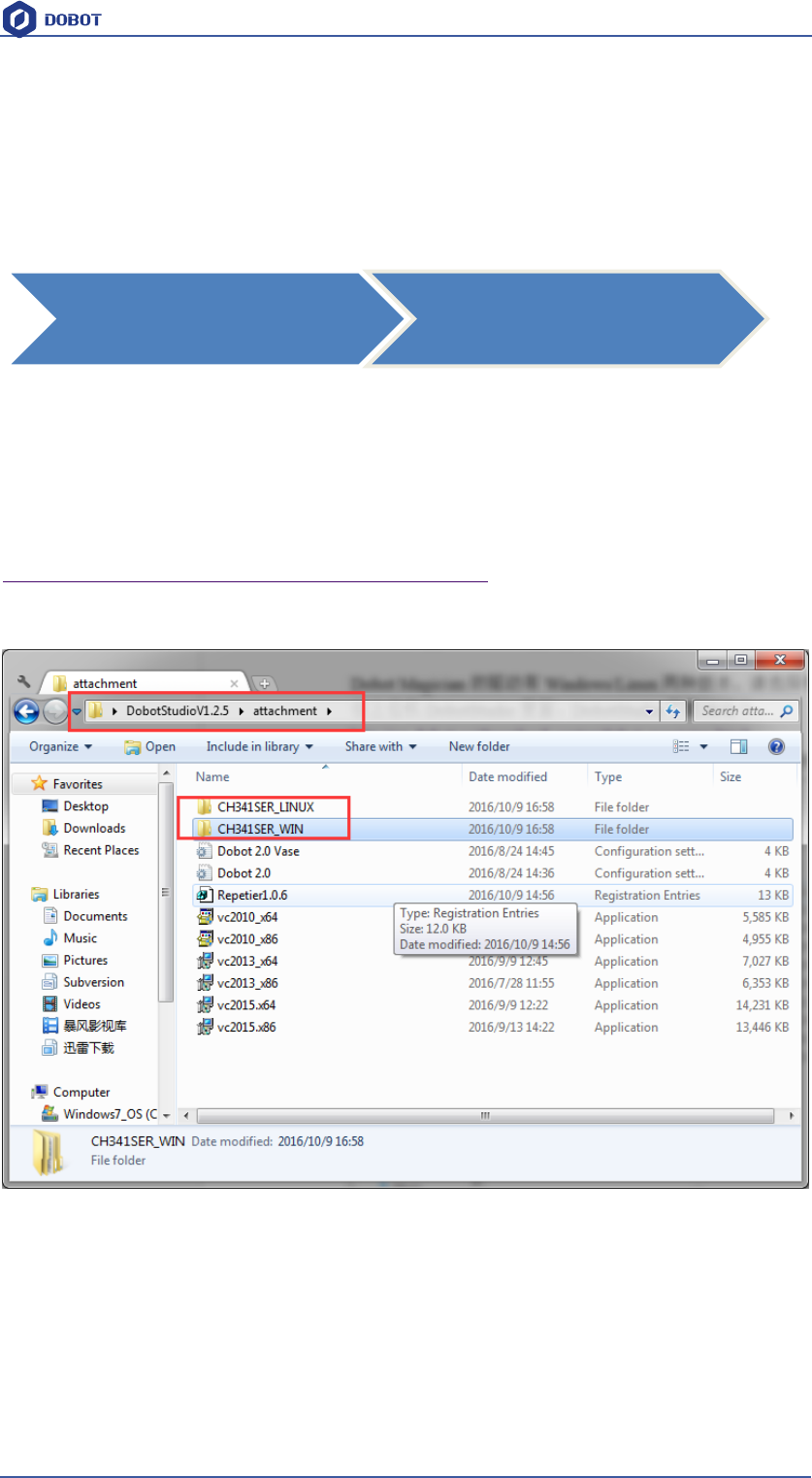
After downloading, unzip and install the driver, the driver file is in the file attachment of root
directory:
Figure 1.1 Driver file
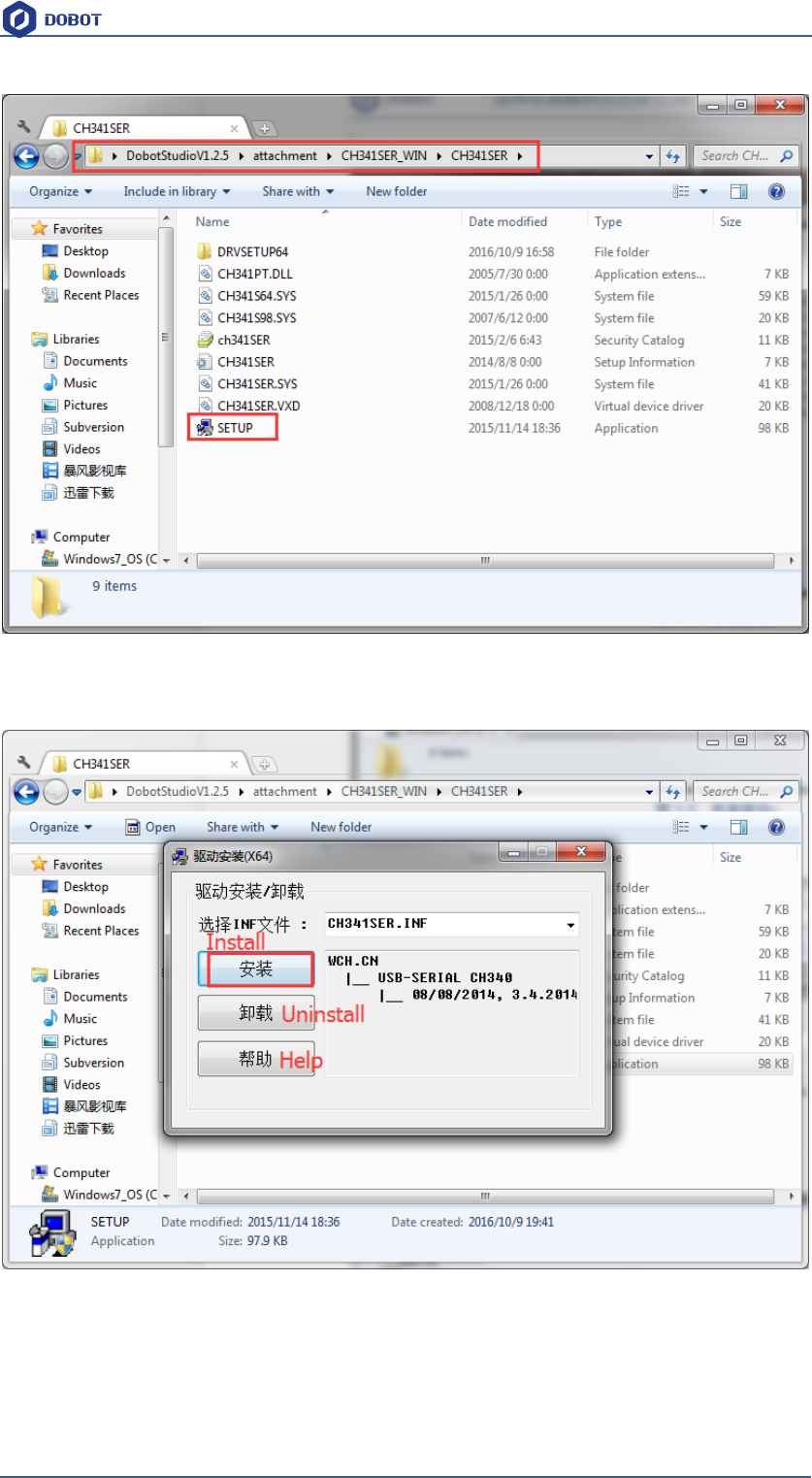
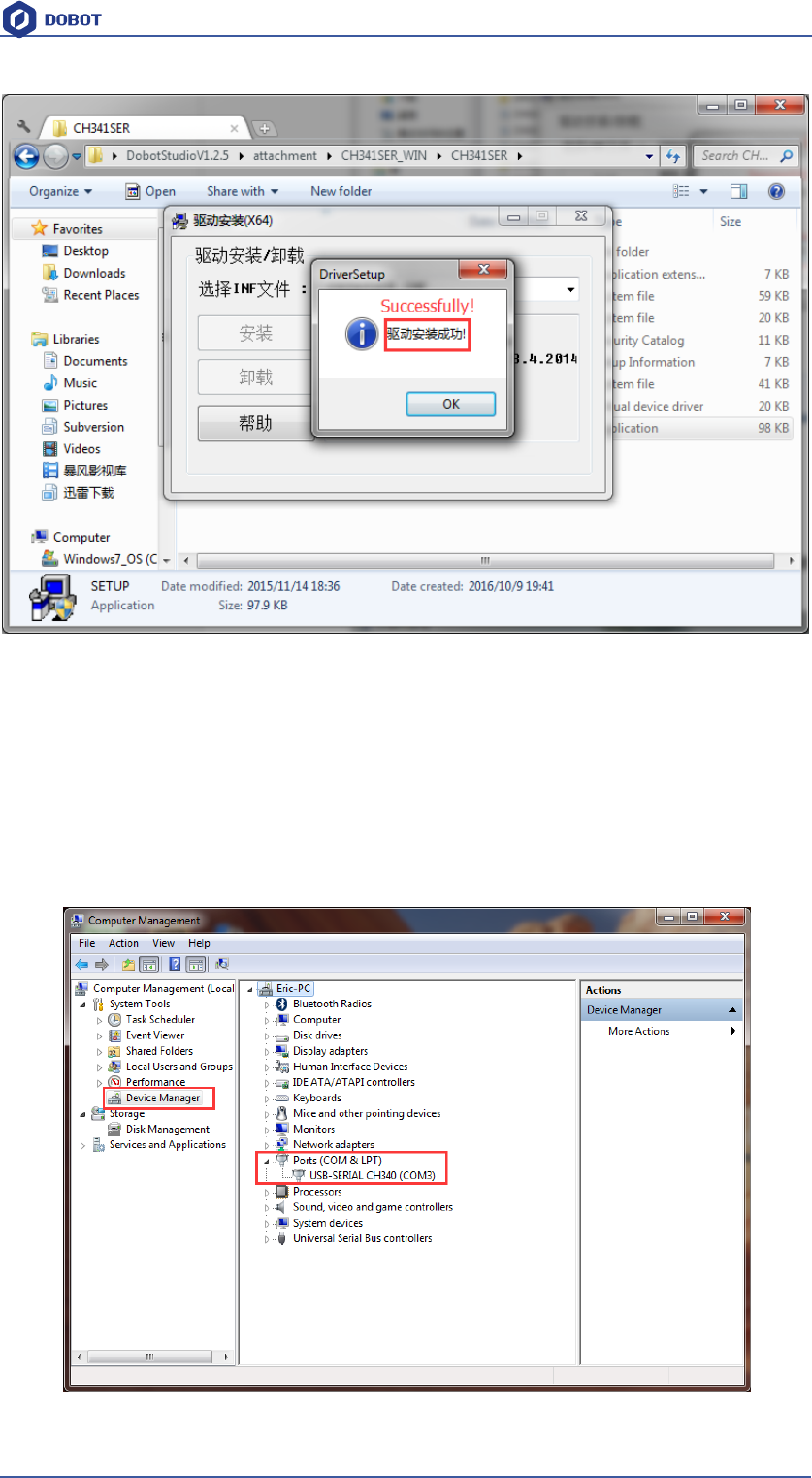
Take Windows as an example, enter into subfoloder CH341SER_WIN->CH341SERCH341SER,
double click SETUP.exe and install it, as follows:
Download driver package and
install it Check if the equipment work
properly or not
Shenzhen Yuejiang Technology Co.,LTD
Shenzhen Yuejiang Technology Co., Ltd
11
Dobot Magician User Manual
Figure 1.2 Install driver
Click Install:
Figure 1.3 Click Install
Shenzhen Yuejiang Technology Co.,LTD
Shenzhen Yuejiang Technology Co., Ltd
12
Dobot Magician User Manual
Figure 1.4 the driver installed successfully
1.2 Check if the equipment can work properly in the device
management
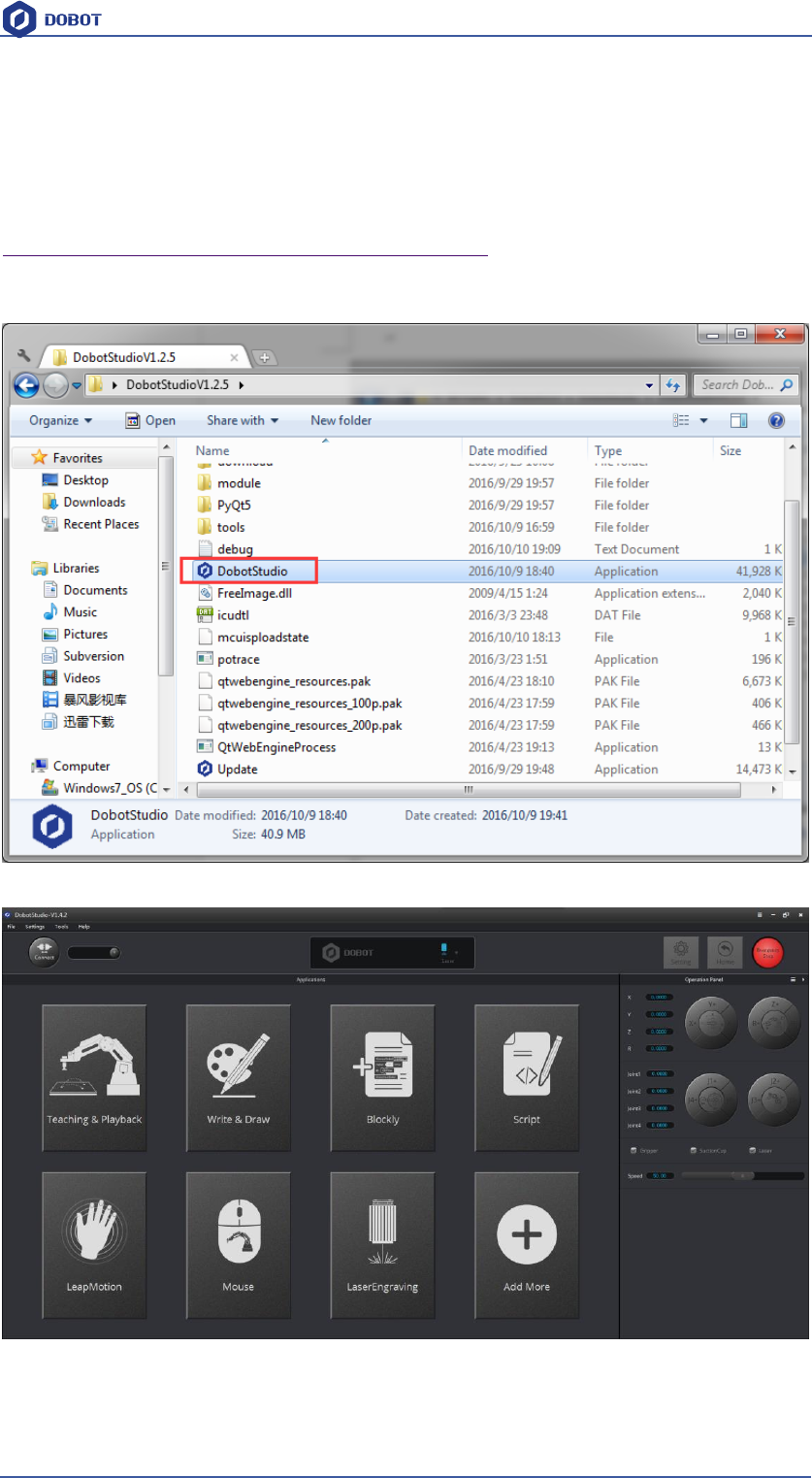
1.2.1 Open the device management, if you can find the corresponding COM port of “USB-
SERIAL CH340”,then it shows the driver is installed successfully. The figure as follows:
Figure 1.5 The COM port in the device management
Shenzhen Yuejiang Technology Co.,LTD
Shenzhen Yuejiang Technology Co., Ltd
13
Dobot Magician User Manual
2. DobotStudio Operating Instruction
The software used by Dobot Magician is DobotStudio, and you can download the latest version
from our official website:
http://www.dobot.cc/download-center/dobot-magician.html
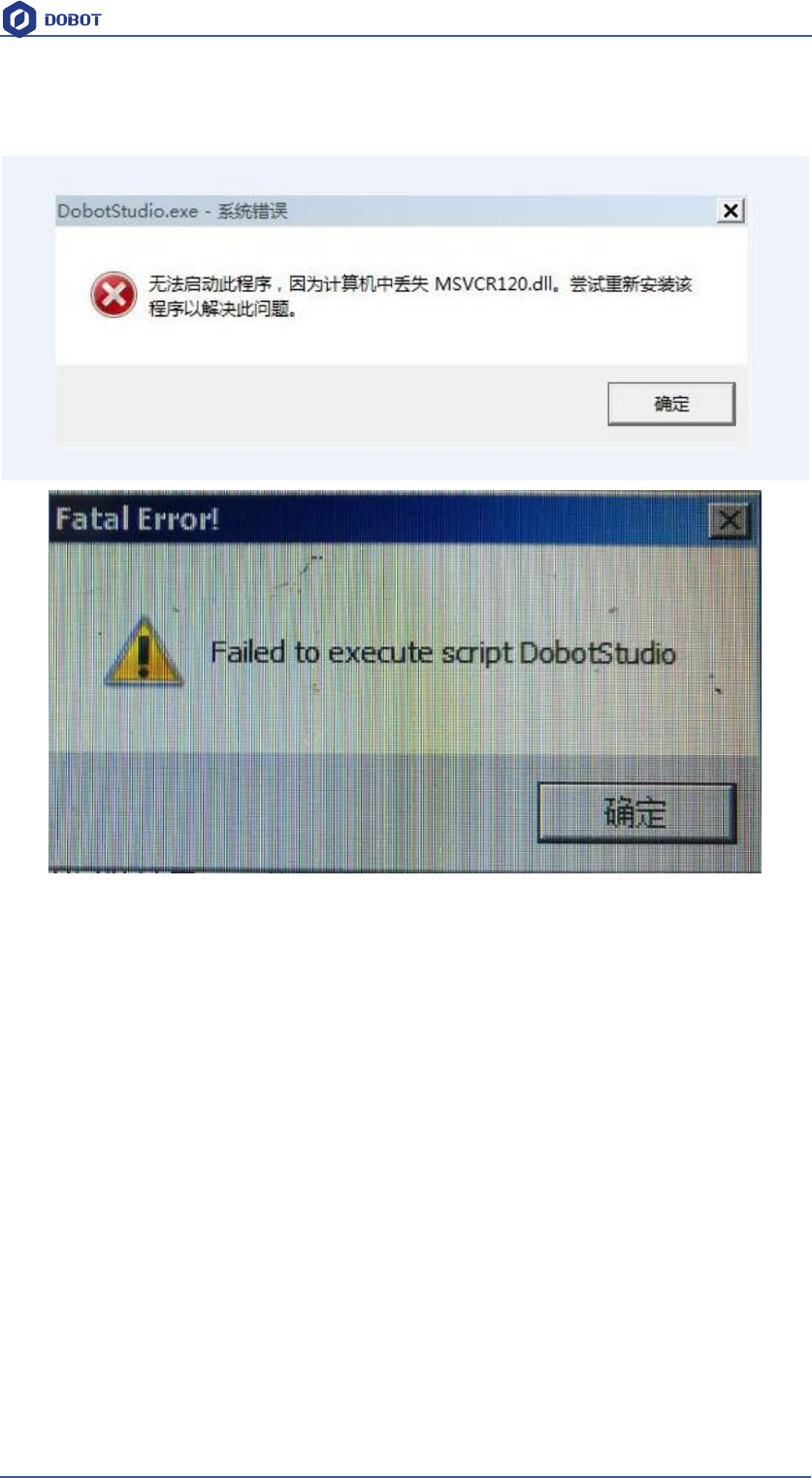
After download successfully, unzip and double click DobotStudio.exe, then open the software, the
result as follows:
Figure 2.1 DobotStudio file
Figure 2.2 DobotStudio
Shenzhen Yuejiang Technology Co.,LTD
Shenzhen Yuejiang Technology Co., Ltd
14
Dobot Magician User Manual
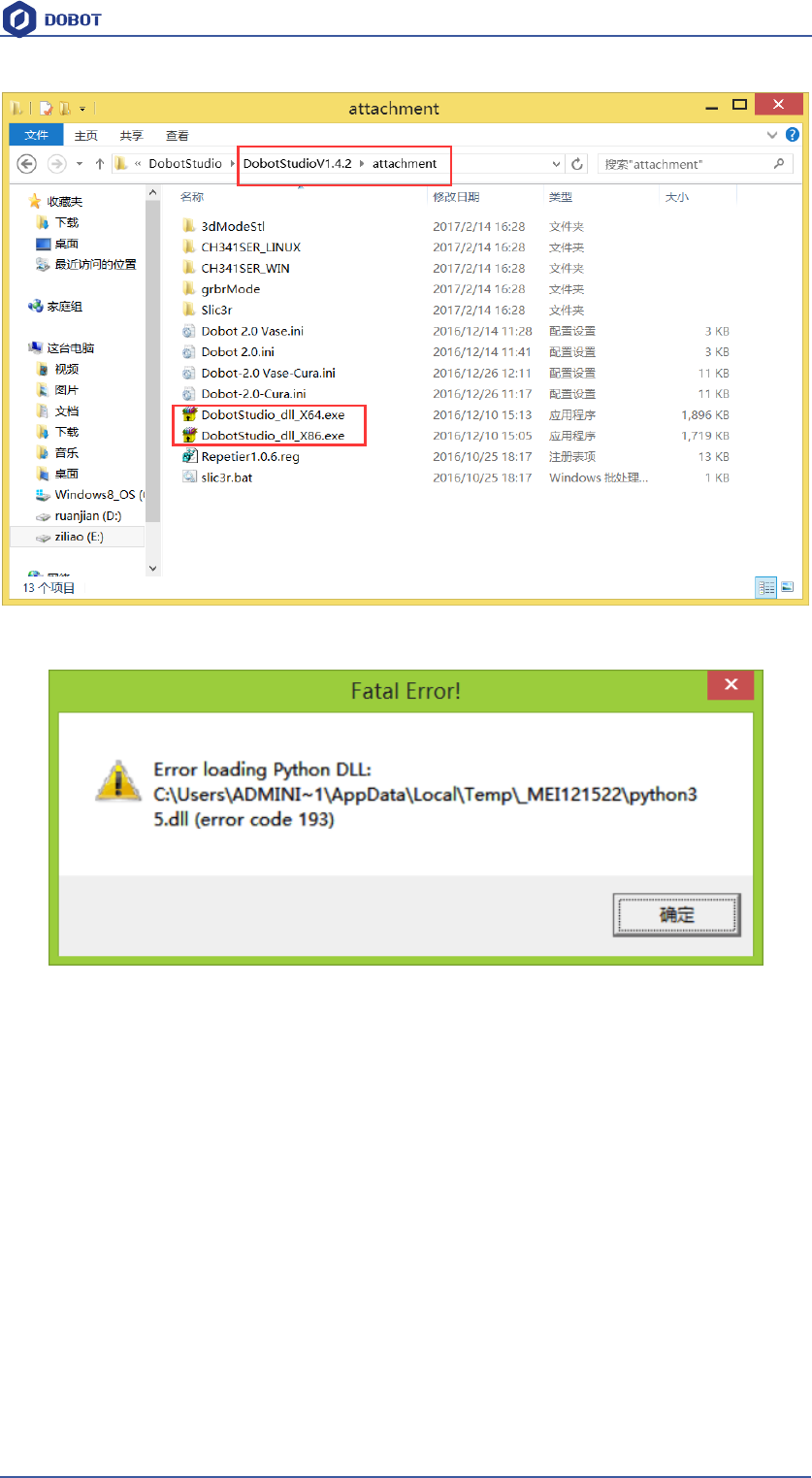
Note: An error or other related errors maybe come out when opening DobotStudio, some of them shown as
follows:
Please execute the corresponding .exe file in the folder attachment, then open Dobotstudio again
and that is OK.
Install X64 for 64-bit windows system and X86 for 32-bit system. Just double click the responding
one to install it, and note when you install them there is no window or other info shown on the
screen, just double click it and it will be done.
Shenzhen Yuejiang Technology Co.,LTD
Shenzhen Yuejiang Technology Co., Ltd
15
Dobot Magician User Manual
If you have the following error, pls make sure that you have got the original edition, while starter edition may
cause such errors. Possible solution: Install required netframework4.6.1 required by vc2015.
Figure 2.3 The starter edition may cause such errors
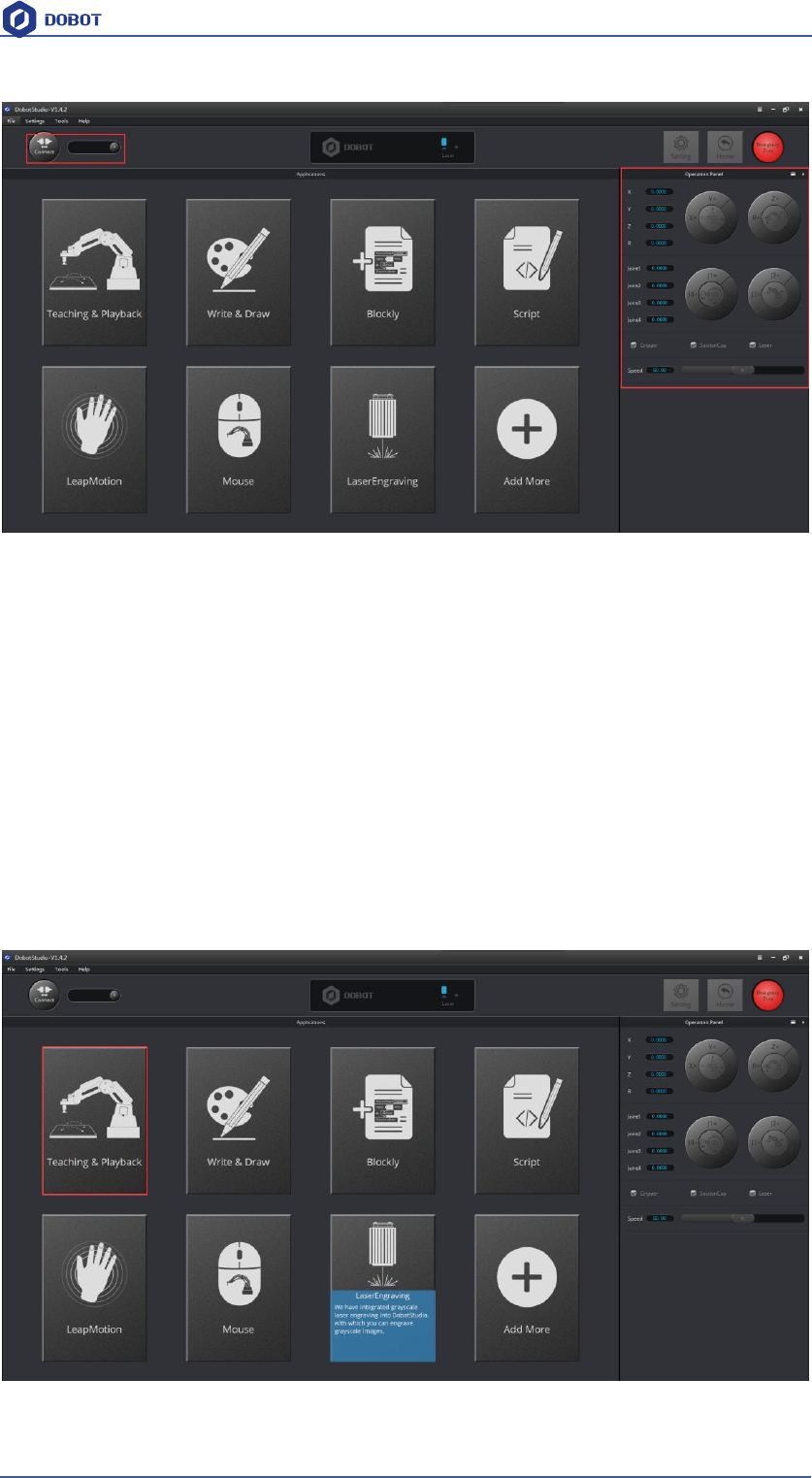
1. Select Dobot corresponding serial port, the top left corner of DobotStudio, and click Connect,
after successful connection, Disconnect will be shown, at the same time, the coordinate
parameters will be updated on the right side of the interface.
Shenzhen Yuejiang Technology Co.,LTD
Shenzhen Yuejiang Technology Co., Ltd
16
Dobot Magician User Manual
Figure 2.4 Connected successfully
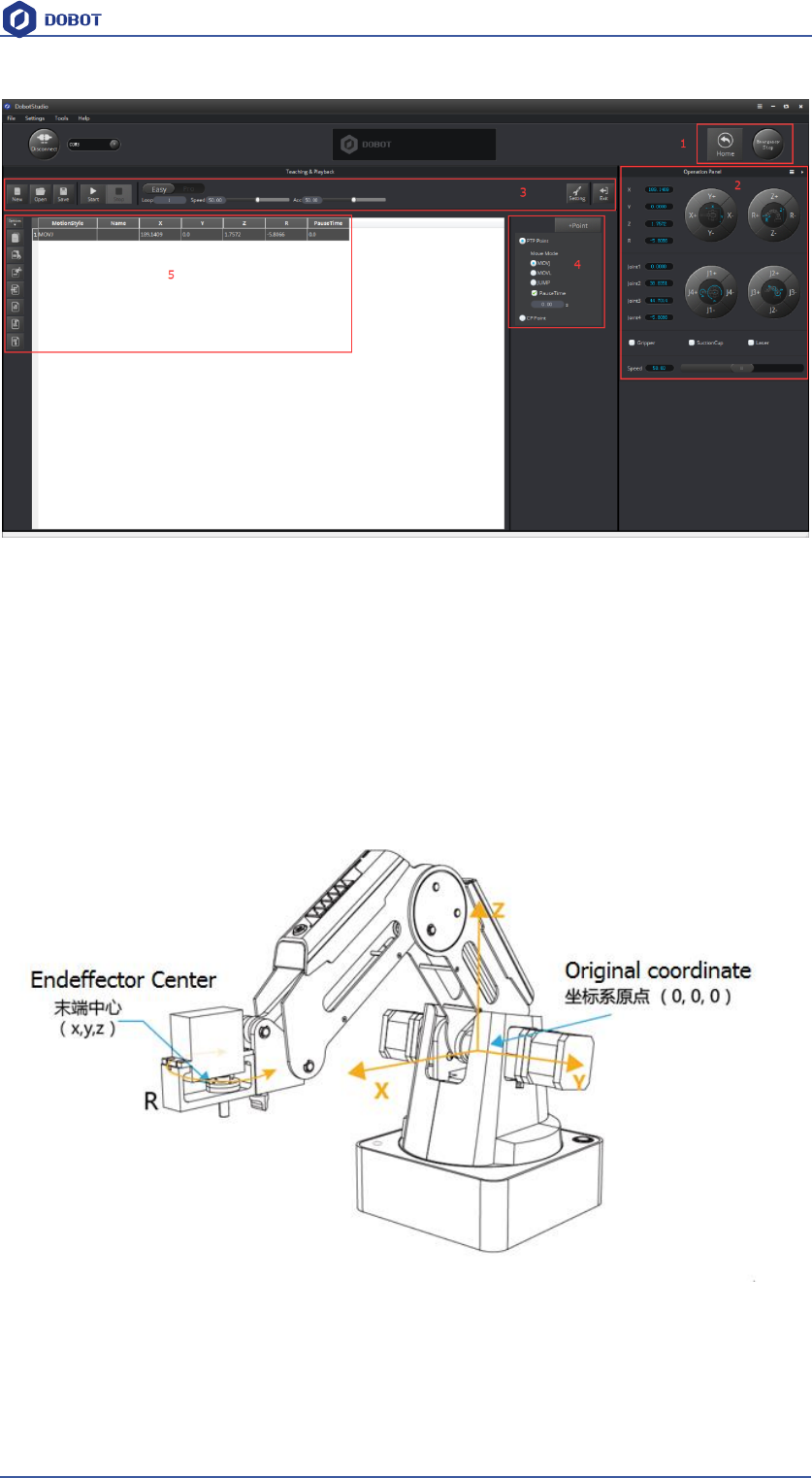
There are eight modules on the main software interface:
(1)Teaching & Playback: A system to teach a robot a required trajectory. It enables Dobot to
accomplish recorded movement repeatedly replacing human.
(2)Write & Draw: Control Dobot to write, draw or laser engrave.
(3)DobotBlockly:You can programe by puzzle, intuitive and easy tounstand.
(4)Script: Edit scripting language to control Dobot.
(5)LeapMotion: Control Dobot by gesture.
(6)Mouse: Control Dobot by mouse.
(7)LaserEngraving: To engrave bitmap with dobot.
(8)Add More: To do a second development with dobot.
Here we will introduce teach&playback at first.
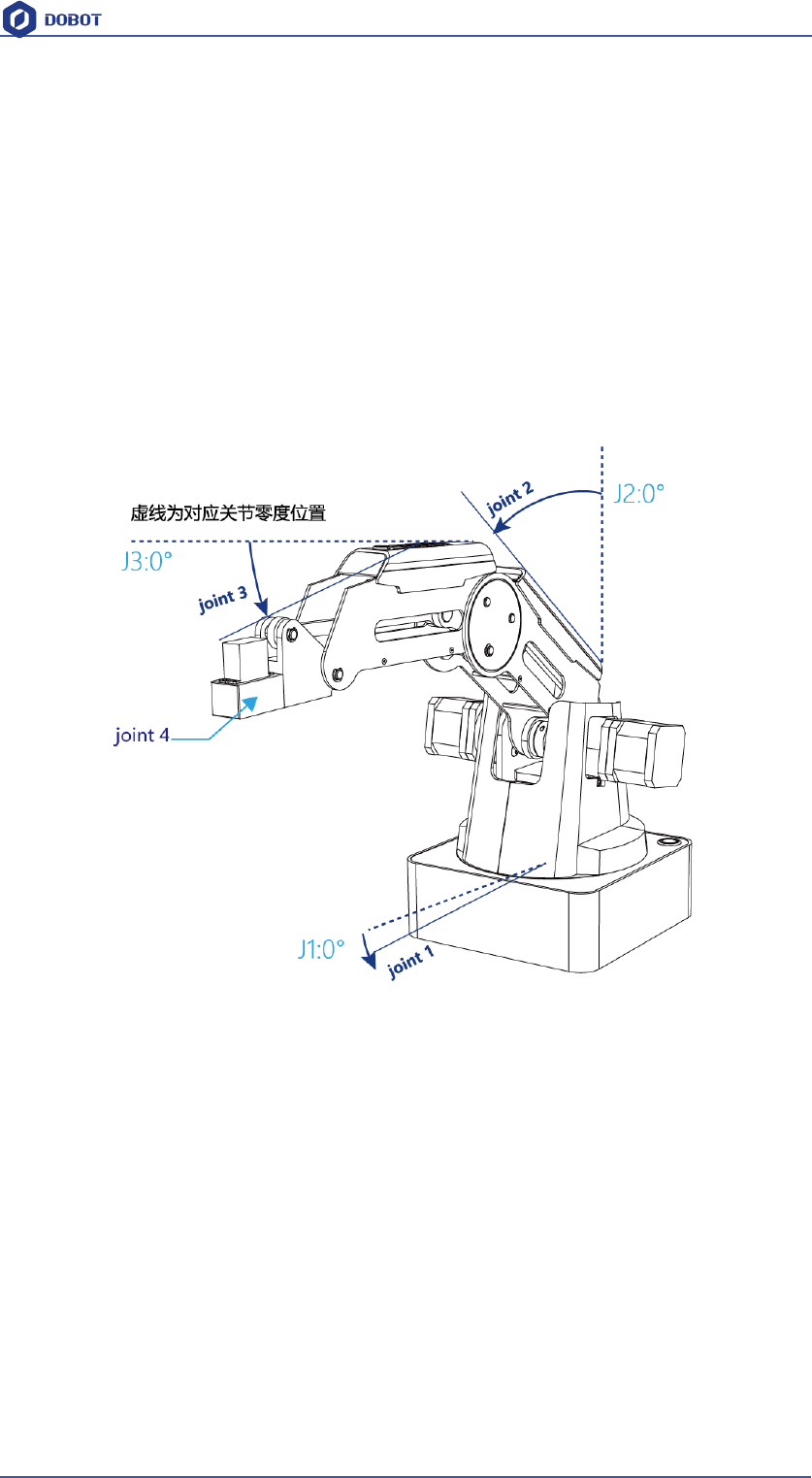
Click Teaching & Playback, the brief introduction of each area as follows:
Shenzhen Yuejiang Technology Co.,LTD
Shenzhen Yuejiang Technology Co., Ltd
17
Dobot Magician User Manual
Figure 2.5 The main interface of teaching & playbac
Area 2:
Here comes with Dobot movement area, liner mode and jog mode.
Linear mode: Based on the body axes coordinate system X, Y, Z with the origin at the
center of three motors. X, Y, Z is the coordinate of the center of the end platform ,
and the direction of X is perpendicular to the base forward, Y is perpendicular to
the base towards the left, and z is vertical upward. R indicates the rotation of the
servo joint relative to the coordinate frame (counter-clockwise is the positive
direction).
Figure 2.6 Coordinate system
(1) Click X+,X- and Dobot will move along X in the negative or positive direction;
(2) Click Y+,Y- and Dobot will move along Y in the negative or positive direction;
(3) Click Z+,Z- and Dobot will move along Z in the negative or positive direction;
Shenzhen Yuejiang Technology Co.,LTD
Shenzhen Yuejiang Technology Co., Ltd
18
Dobot Magician User Manual
(4) Click R+,R- and Dobot will move along R in the negative or positive direction.
Notice:
R-axis will move together with Y-axis during the movements, and make sure the terminal
posture relative to the origin of coordinates keeps constant.
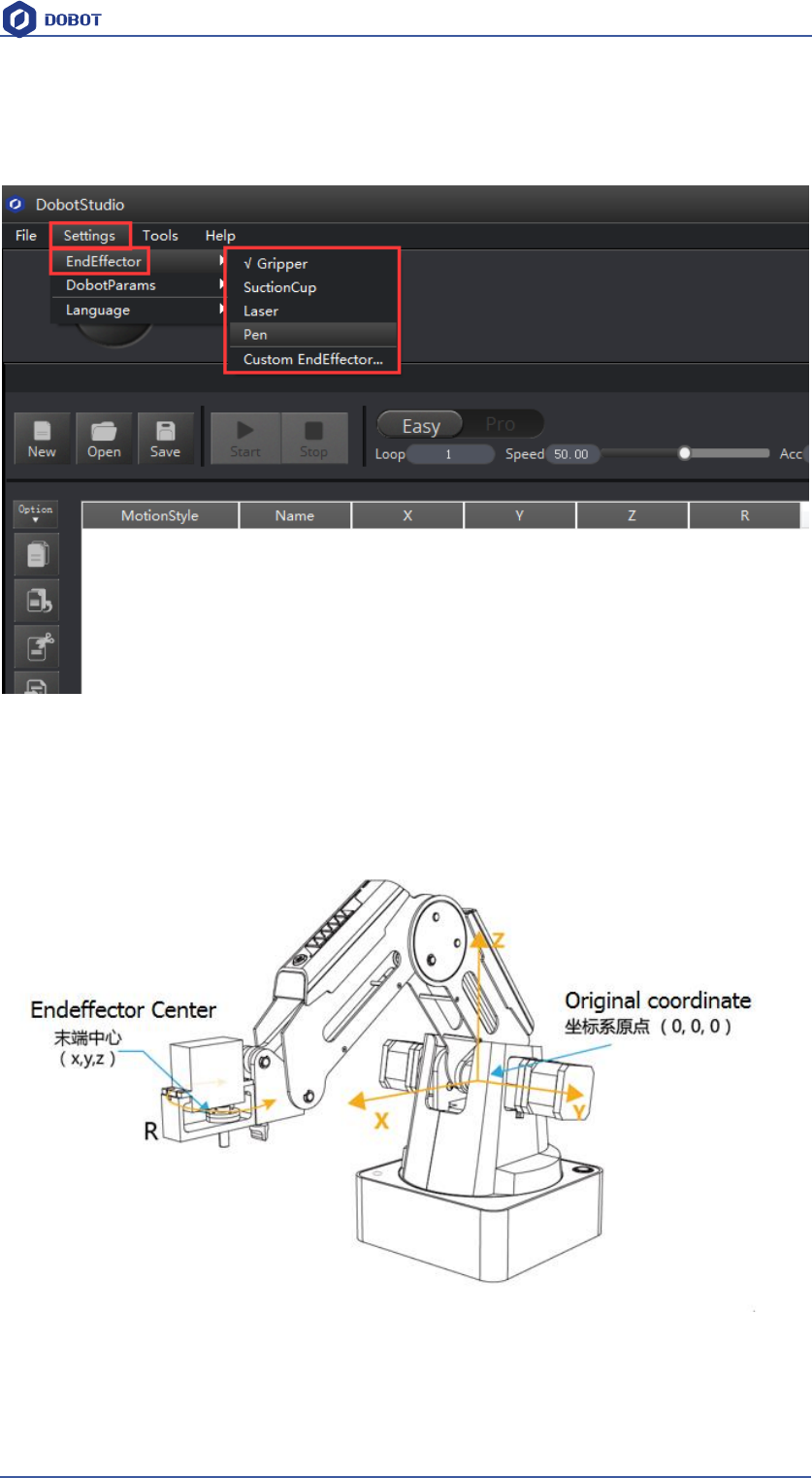
Jog mode:This movement is aimed at single axis.Long press the button, and the corresponding
axis will move indepently.Once loosen, it will stop moving. Each axis is defined at
counterclockwise as positive direction. Joint1、2、3、4 refer to base, rear arm, forearm and servo
respectively;
Figure 2.7 Single axis coordinate system
(1) Click Joint1+、Joint1- and control Dobot base motor to rotate in the negative or
positive direction;
(2) Click Joint2+、Joint2- and control rear arm motor to rotate in the negative or positive
direction;
(3) Click Joint3+、Joint3- and control forearm motor to rotate in the negative or positive
direction;
(4) Click Joint4+、Joint4- and control servor to rotate in the negative or positive direction;
Among this, the rotation range of Joint4 is ±150°.
Gripper/SuctionCup/Laser:
Shenzhen Yuejiang Technology Co.,LTD
Shenzhen Yuejiang Technology Co., Ltd
19
Dobot Magician User Manual
Through ticking the corresponding buttons, open gripper/suction cup/laser, and just click again,
you can close gripper/suction cup/laser. The terminal can be selected from Setting-> End
Effector Settings:
Figure 2.8 Select End Effector
You can also custom EndEffector Configure according to relative to coordinate offset of terminal
center.
The central terminal is shown as follows:
Figure 2.9 The central terminal
Shenzhen Yuejiang Technology Co.,LTD
Shenzhen Yuejiang Technology Co., Ltd
20
Dobot Magician User Manual
Speed:Adjust ratio bar to change the velocity ratio of jog control movement. The movement
velocity is multiplying the corresponding percentage. Click Settings in area 3 to get a fast
adjustment of parameters.
Area 2:
Home:Dobot auto reset. Click this button, Dobot can rotate left to the end and return to preset
Home automatically. In this process, the point of Home can be self-defined, which will be
explained in area 5.
Emergency Stop:Button of emergency stop.
Area 3:
New/ Open/Save:Create /Open/Save point list.
Start/stop/pause
Loop: Set loop numbers of playback.
Easy/Pro:Mode switch, including offline mode and I/O settings, and refer to the detailed tutorial:
The tutorial of advanced functions.
Speed/Acc: Detailed Parameter Configuration of Playback Speed and acceleration.
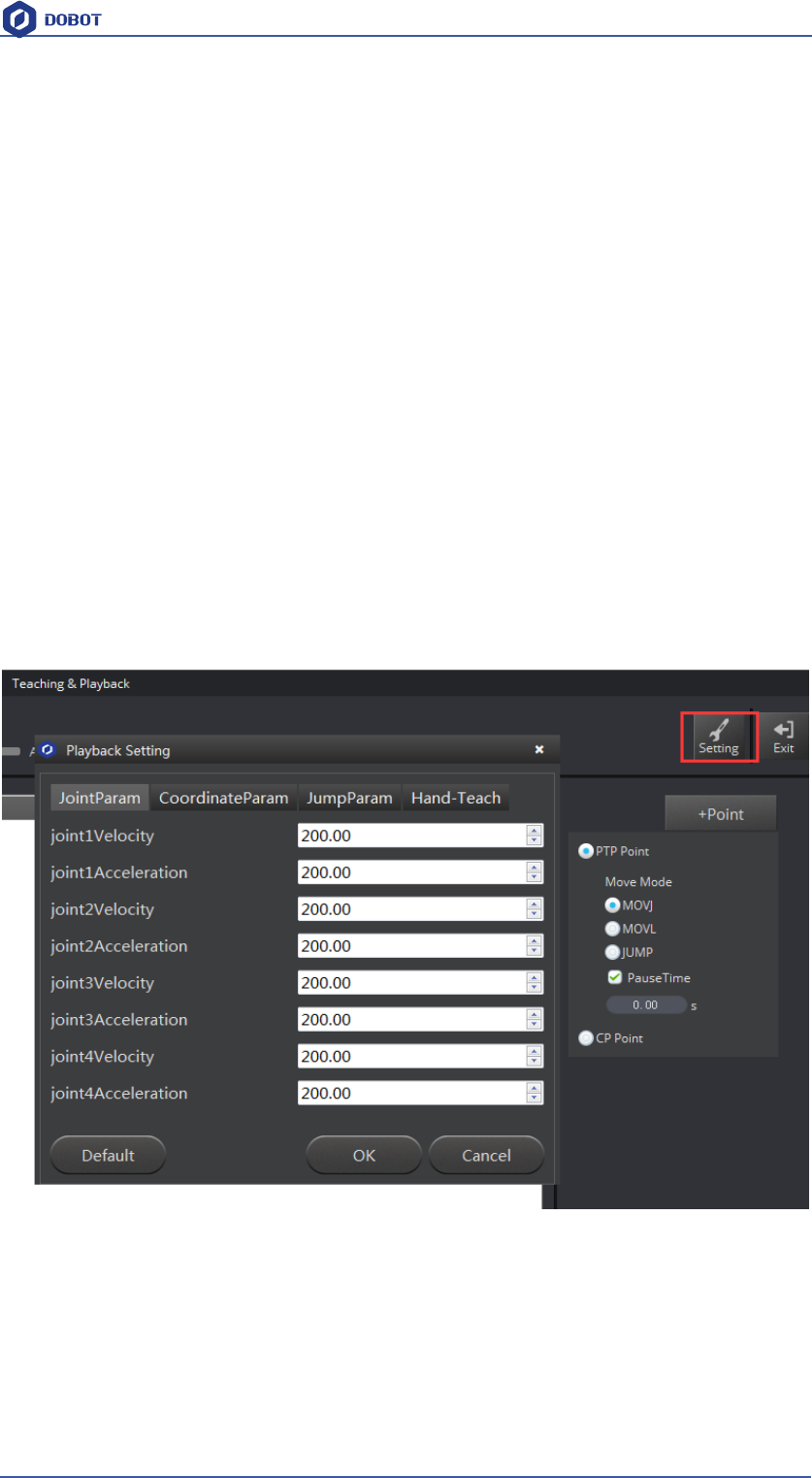
Settings:Set movement parameters.
You can also set velocity and acceleration of single joint.
Figure 2.10 Parameters of single joint movement
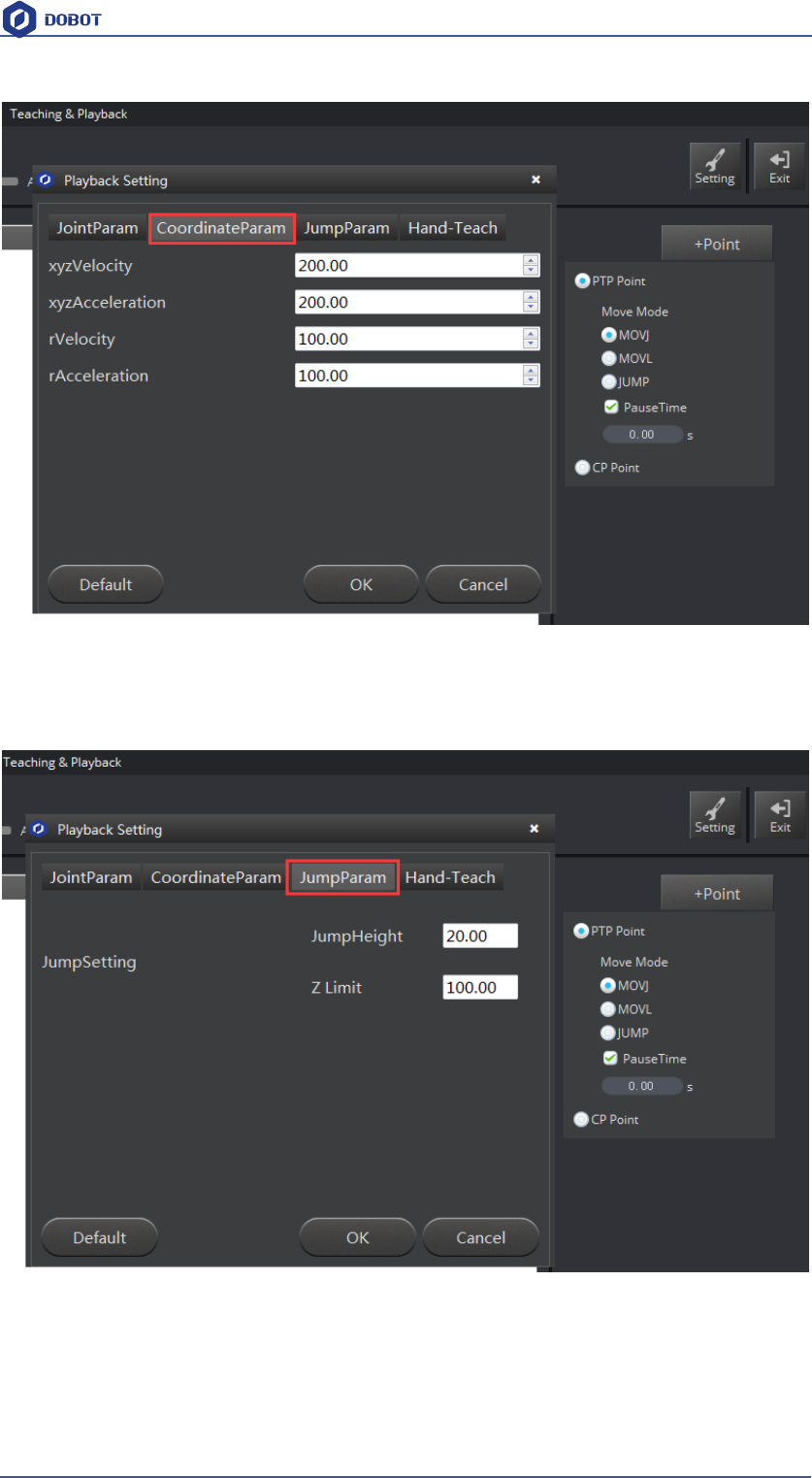
Set velocity and acceleration of coordinates:
Shenzhen Yuejiang Technology Co.,LTD
Shenzhen Yuejiang Technology Co., Ltd
21
Dobot Magician User Manual
Figure 2.11 Parameter settings of coordinates
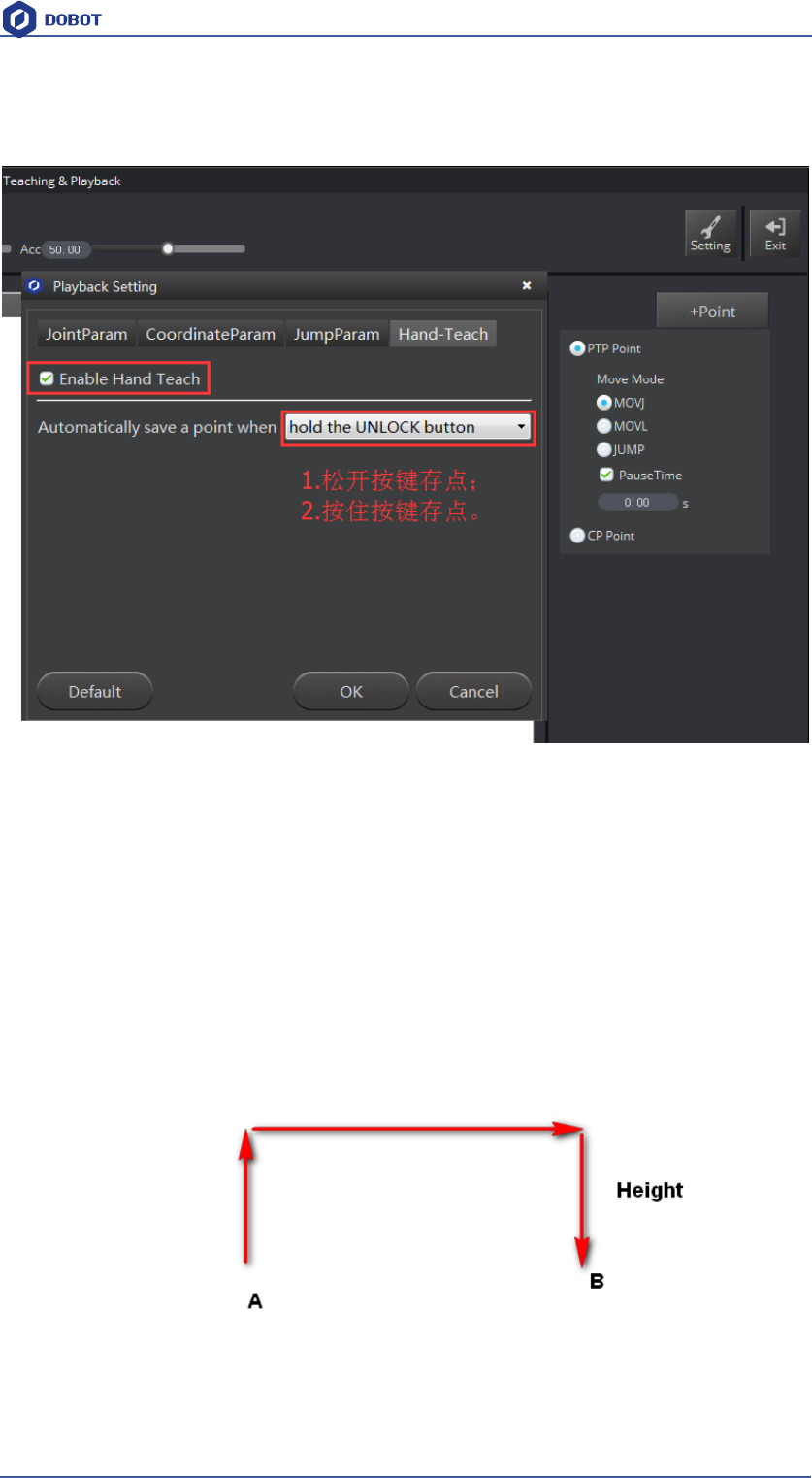
The height and Z limit of Jump mode:
图2.12 Jump mode settings
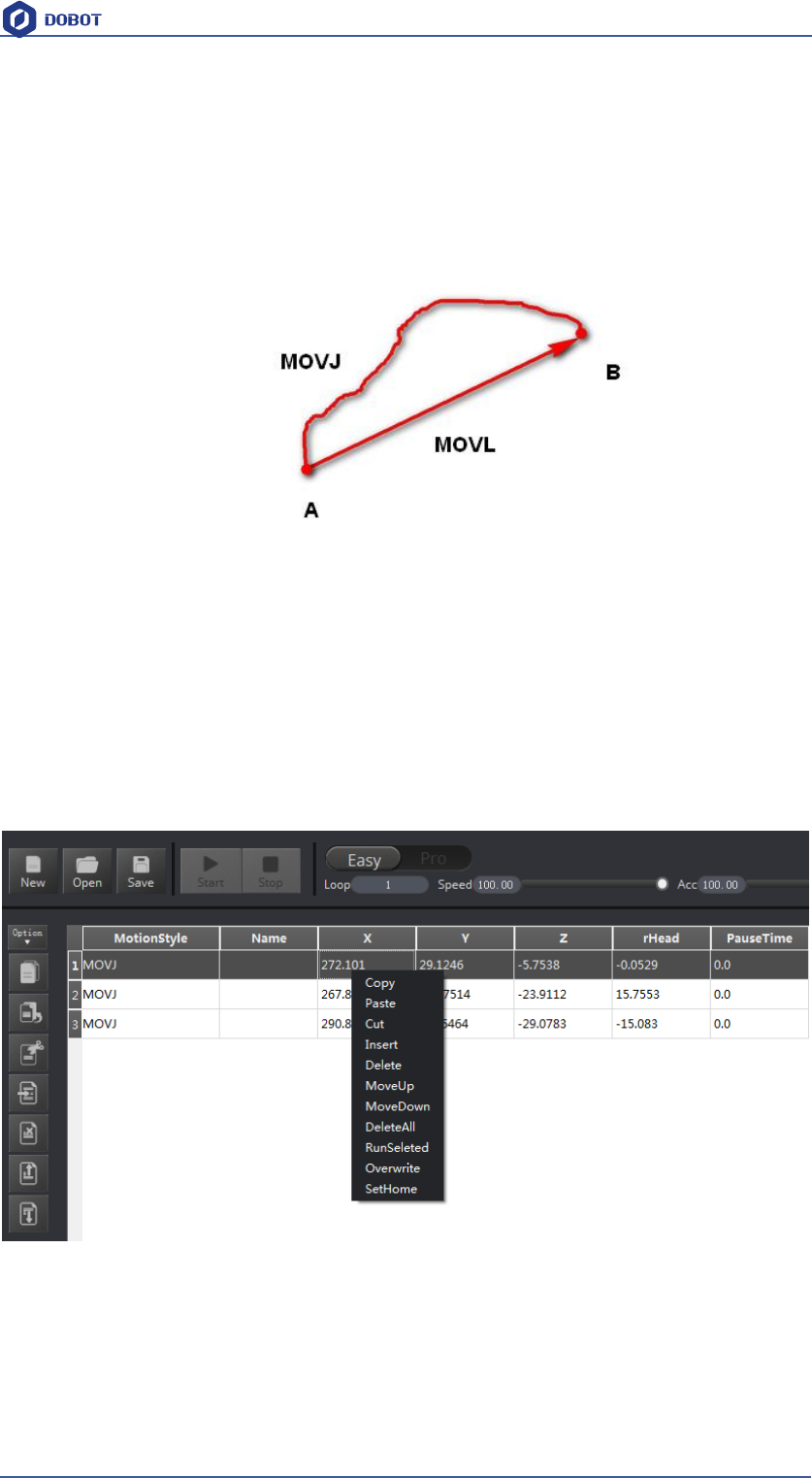
Handhold teaching: Tick the function, press and hold down Unlock on the forearm, and drag Dobot
to any other position, then you can save a point after loosening. Of course, you can save points
Shenzhen Yuejiang Technology Co.,LTD
Shenzhen Yuejiang Technology Co., Ltd
22
Dobot Magician User Manual
continuously. After all the points are recorded, Dobot can not only playback the programmed
trajectory repeatedly.
图2.13 Playback settings
Area 4:Select save mode.
1. Click +Point, you can save the current point information in area 5.
2. PTP Point:Point mode, and three modes between saved points, JUMP、MOVJ、MOVL
respectively.
JUMP: From point A to point B, the trajectory is shown below, the end effector will lift
upwards by amount of Height (in mm) and move horizontally to a point that is above B by Height
and then move down to Point B.
Figure 2.14 JUMP Mode
Shenzhen Yuejiang Technology Co.,LTD
Shenzhen Yuejiang Technology Co., Ltd
23
Dobot Magician User Manual
MOVJ:Joint movements. From point A to point B, each joint will run from initial angle to its
target angle, regardless of the trajectory. The motion time for all joints are the same which means
all joints will start and finish at the same time.
MOVL:The joints will cooperate in order to perform a line trajectory from point A to point B.
Figure 2.15 MOVL/MOVJ Mode
3. Pause Time:The pause unit of time is 1 second.
4. CP Point:Track points, saved points between velocity and acc transmit smoothly.
Area 5:Playback list that can be edited.
To show the current endeffector coordinates, move mode, pause time and any other parameters.
You can double click to edit every single saved point coordinate, also, you can edit from sidebar
on the left side or press right –hand button.:
Figure 2.16 Right click options of the saved point list
1. MotionStyle:JUMP、MOVJ、MOVL.
2. X,Y, Z is the coordinate of the center of the end platform.
3. RHead indicates the rotation of the servo joint relative to the coordinate frame (counter-
clockwise is the positive direction).
4. PauseTime.

Shenzhen Yuejiang Technology Co.,LTD
Shenzhen Yuejiang Technology Co., Ltd
24
Dobot Magician User Manual
5. Insert:Insert a line of saved points.
6. MoveUp/MoveDown: Move up/Move down the line of saved point.
7. Delete:Delete selected saved points。
8. DeleteAll: Delete all the saved points.
9. RunSeleted: Execute selected points.
10. Overwrite:Overwrite current saved points.
11. SetHome:Set as Home point location
Shenzhen Yuejiang Technology Co.,LTD
Shenzhen Yuejiang Technology Co., Ltd
25
Dobot Magician User Manual
3. Teaching & Playback
Here we are mainly to learn that how to suck up or grab simple objects using the function of
teach&playback. Because we need to use air pump kit or gripper kit, we can introduce these two
kits.
3.1 Air pump kit
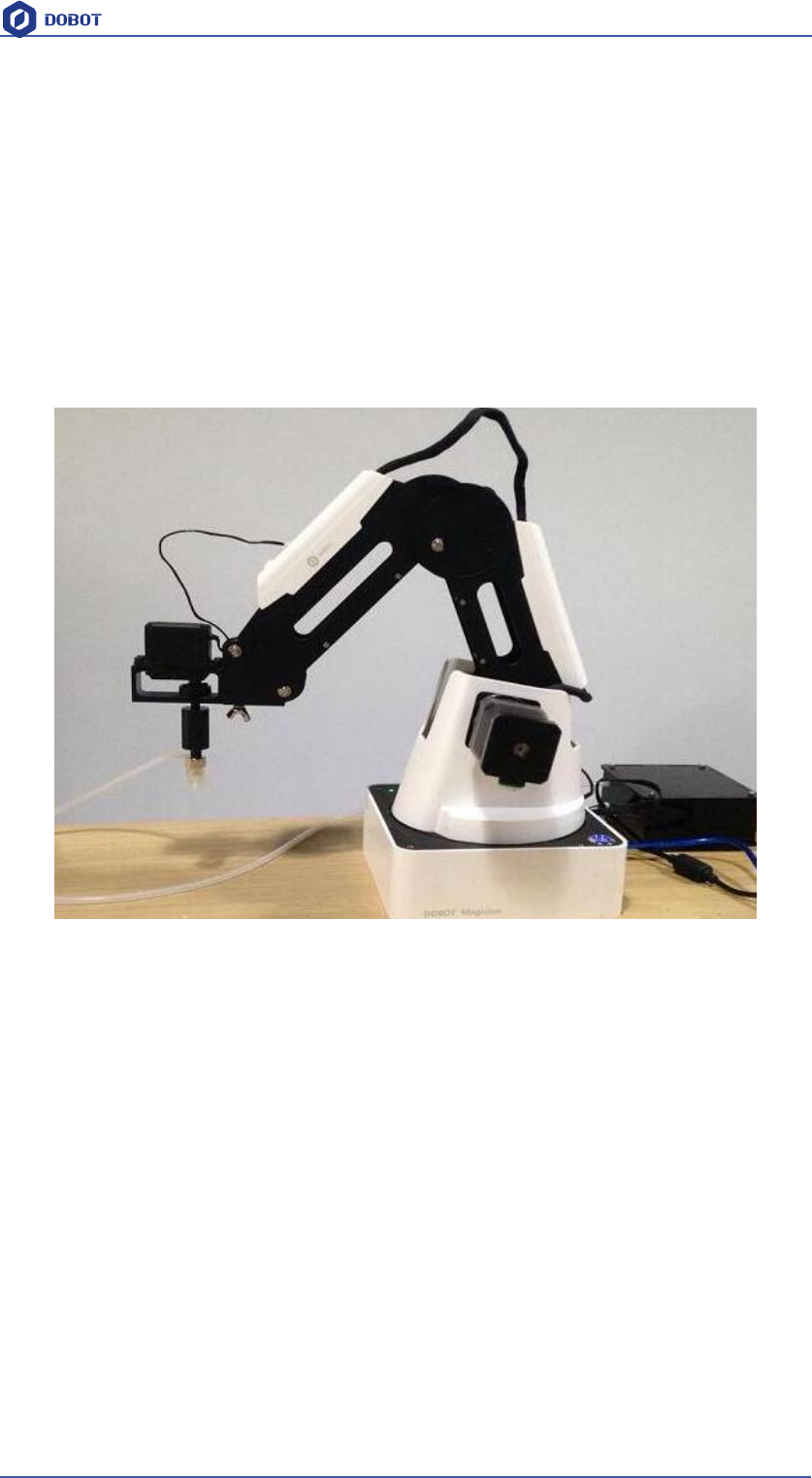
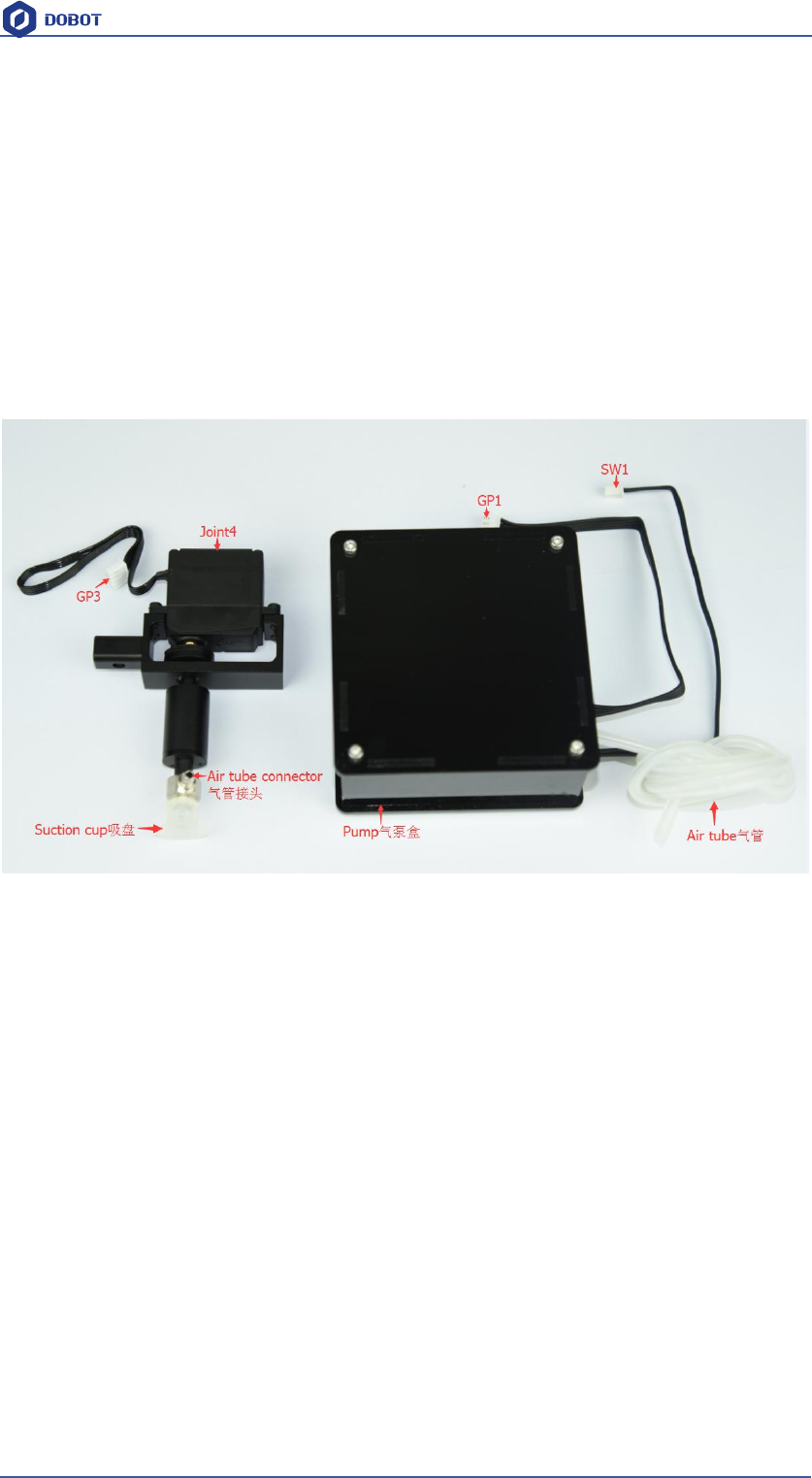
The terminal default installation of Dobot Magician is suction cup. And the pump box
and suction cup kit, shown as follows:
Figure 3.1 Air pump kit
The step of installation:
1. Connect power line SW1 on the pump box with interface SW1 on the controller box, connect
signal line with interface GP1;
2. Tighten air pump kit into the end of the socket with butterfly nut;
3. Connect windpipe on the controller box with pipe connector on the pump box;
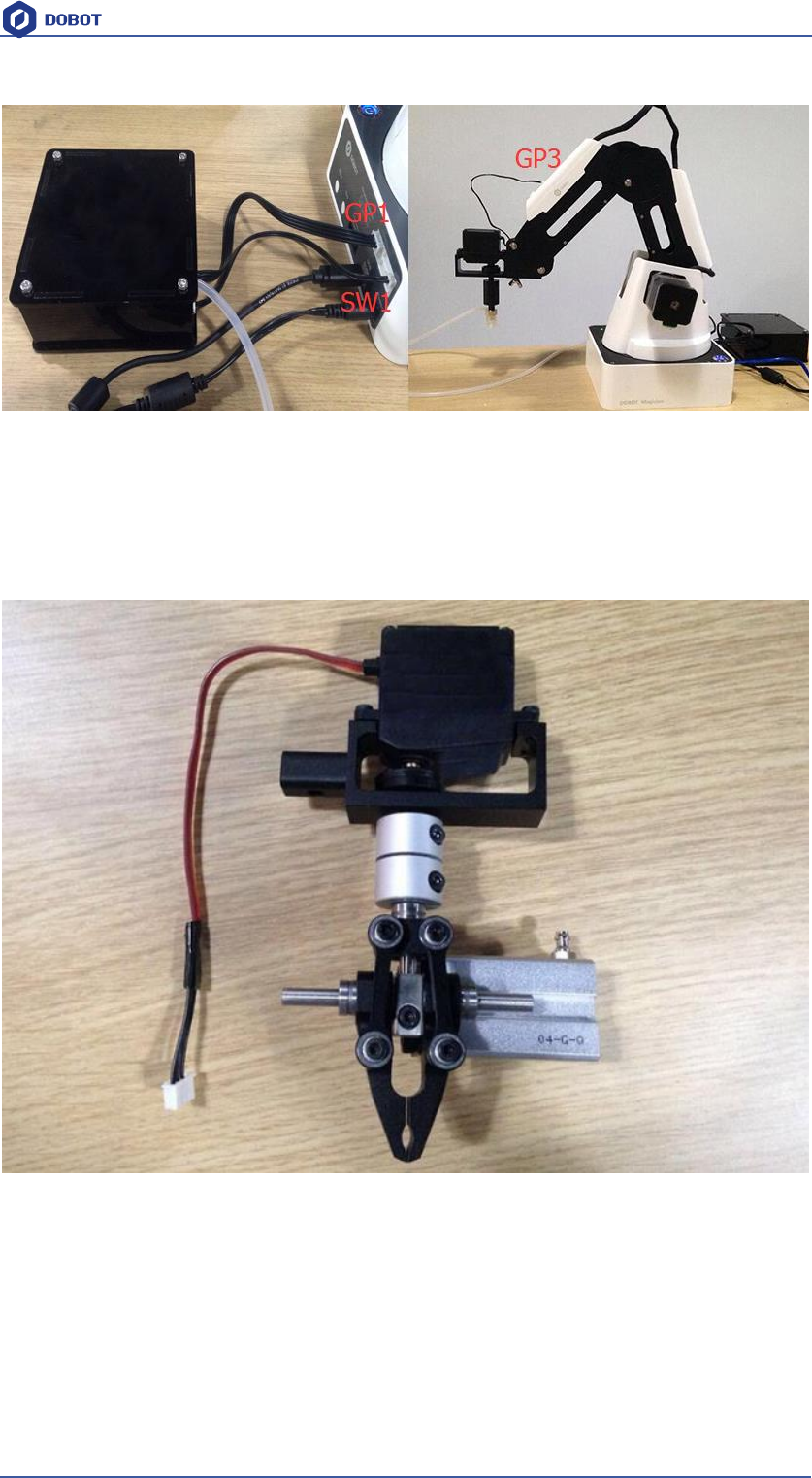
4. Connect GP3 of Joint4 servo line with forearm connector①GP3.
The installation effect as follows:
Shenzhen Yuejiang Technology Co.,LTD
Shenzhen Yuejiang Technology Co., Ltd
26
Dobot Magician User Manual
Figure 3.2 The installation effect of air pump kit
3.2 Pneumatic Gripper Kit
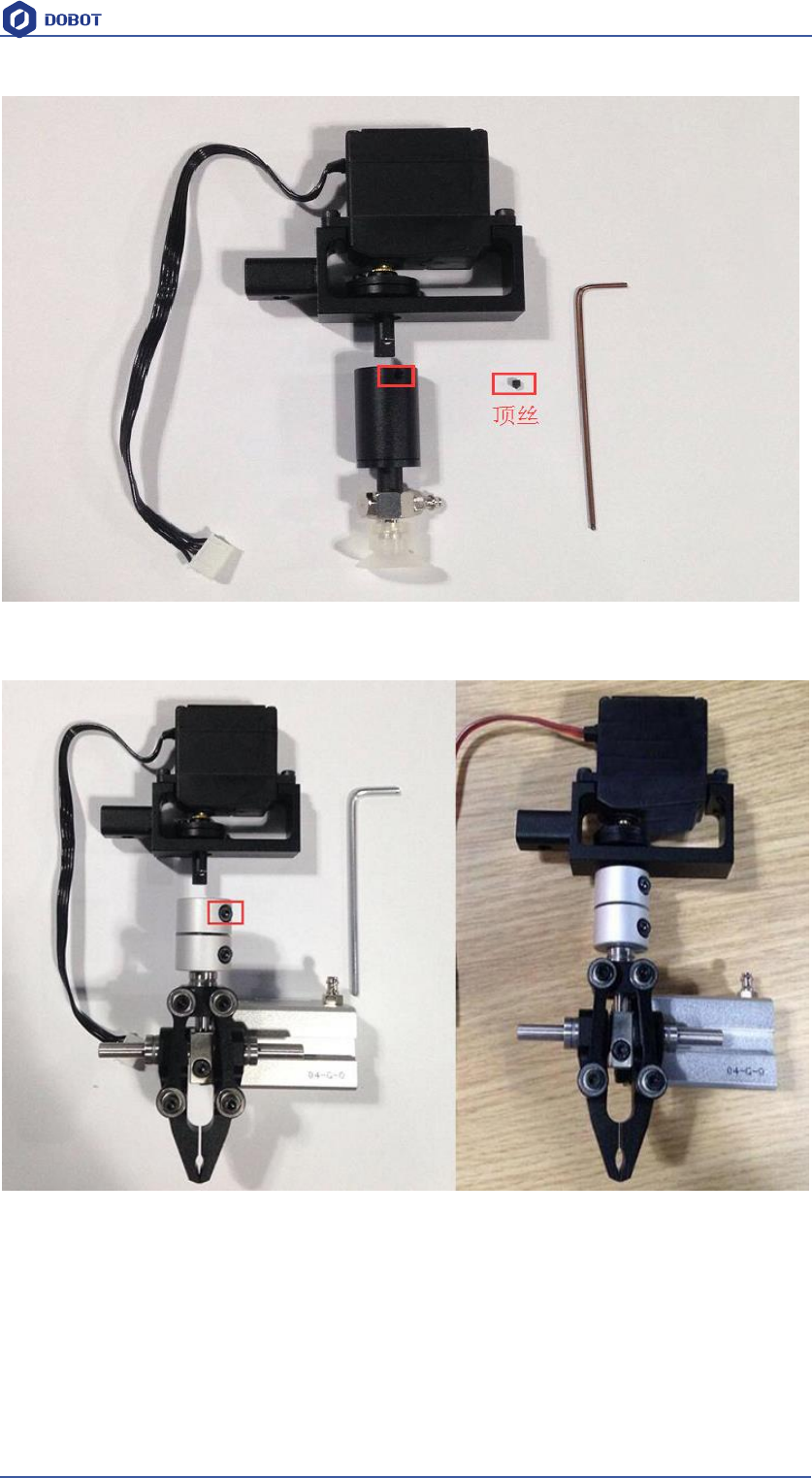
1. Pneumatic accessories shown in following picture:
Figure 3.3 Pneumatic Gripper Kit
2. Gripper kit needs to share together with air pump kit of suction cup. You can remove suction
cup from Joint4: Unscrew the fixed on the suction cup with hex wrench, shown in Figure 2.4:
Shenzhen Yuejiang Technology Co.,LTD
Shenzhen Yuejiang Technology Co., Ltd
27
Dobot Magician User Manual
Figure 3.4 Remove suction cup
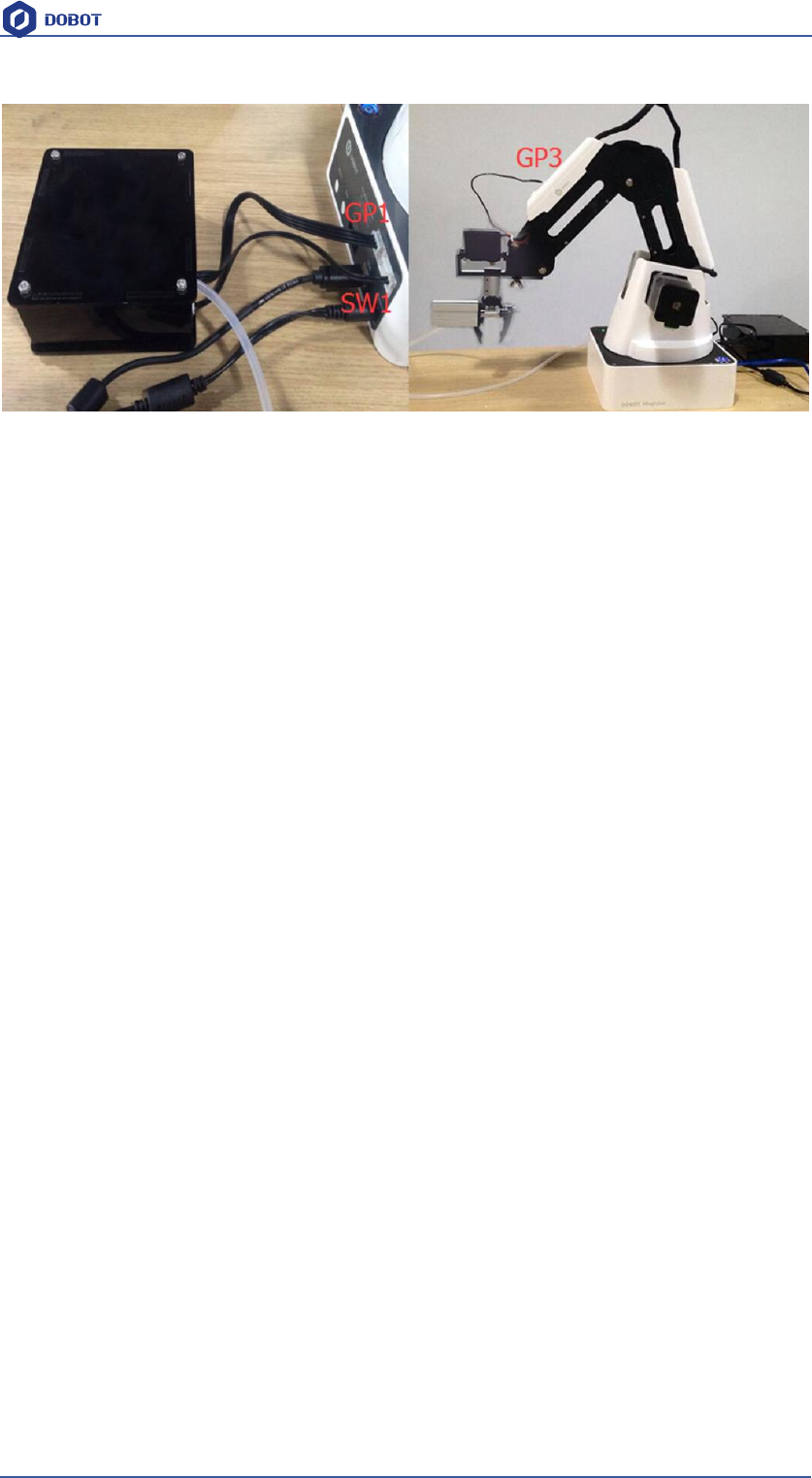
3. Install the gripper kit on Joint4 with coupler, that is done! Shown in Figure 2.5:
Figure 3.5 Gripper Installation
4. The connection method of gripper is the same with air pump kit, here you can refer
to air pump kit method above.
5. The installation effect of gripper kit as follows:
JackScrew
Shenzhen Yuejiang Technology Co.,LTD
Shenzhen Yuejiang Technology Co., Ltd
28
Dobot Magician User Manual
Figure 3.6 Gripper Installation
2.4 Demo of Teach & Playback
After learning about the software, now we can try to make Dobot Magician move.Throughthe
function of teach & playback, make it mve a small object.
1. Select the terminal tool as SuctionCup on the software interface,select as JUMP mode.
2. Place a small object nearby Dobot, move Dobot above the small object through click Area 2,
tick SuctionCup and open the pump, and then the small object will be sucked up;
3. Click +Point and save a point;
4. Click Z+ to rise Dobot, move Dobot to another position, place the small object on the table, just
uncheck SuctionCup and close the pump;
5. Click +Point and save one more point;
Put back the small object, click Start,task for moving the object from current location to another
location is completed successfully.
Shenzhen Yuejiang Technology Co.,LTD
Shenzhen Yuejiang Technology Co., Ltd
29
Dobot Magician User Manual
4. Advanced function of teaching&playback
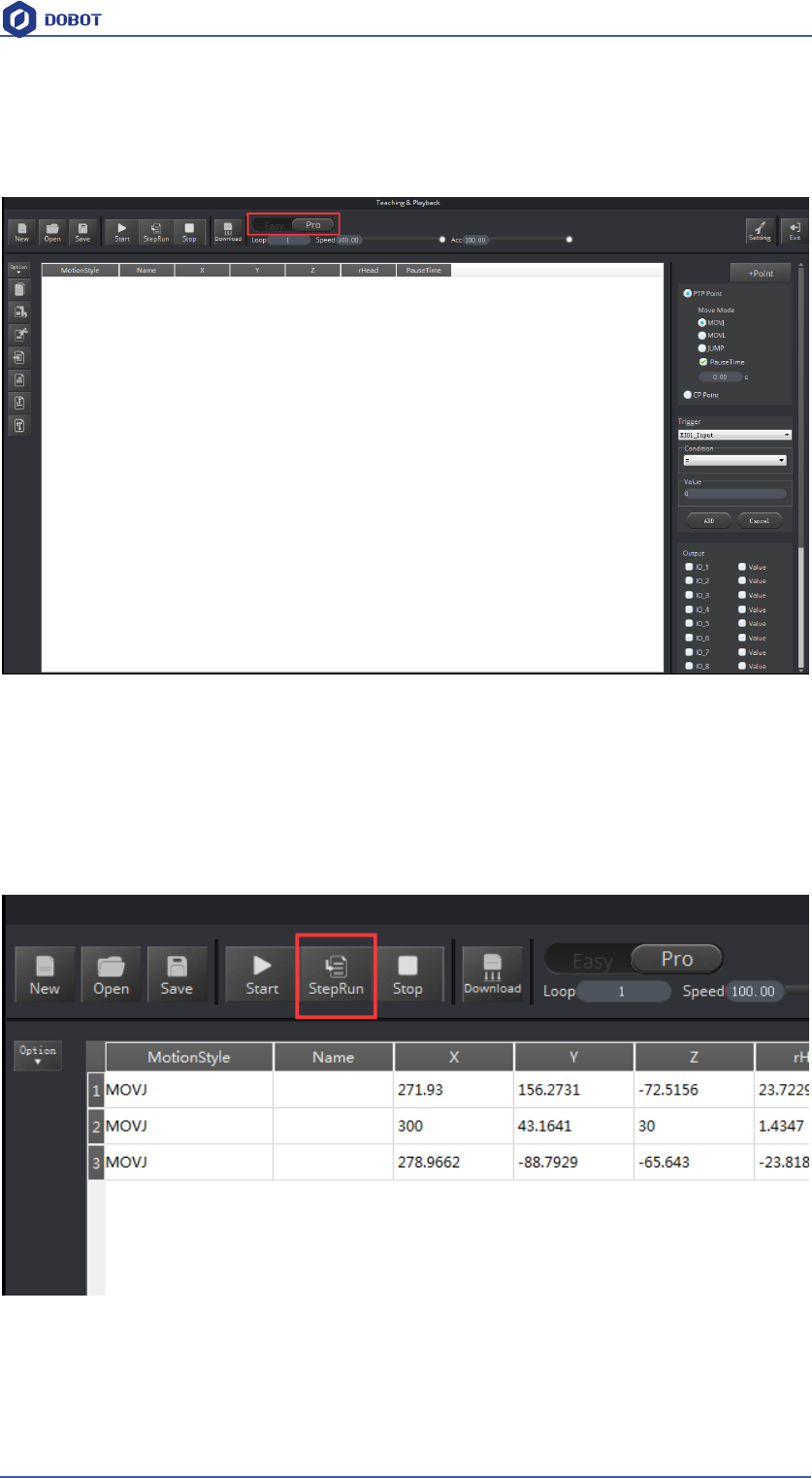
You can switch Easy into Pro when pressing the button of Easy/Pro, shown as follows:
Figure 4.1 Advanced function of teaching&playback
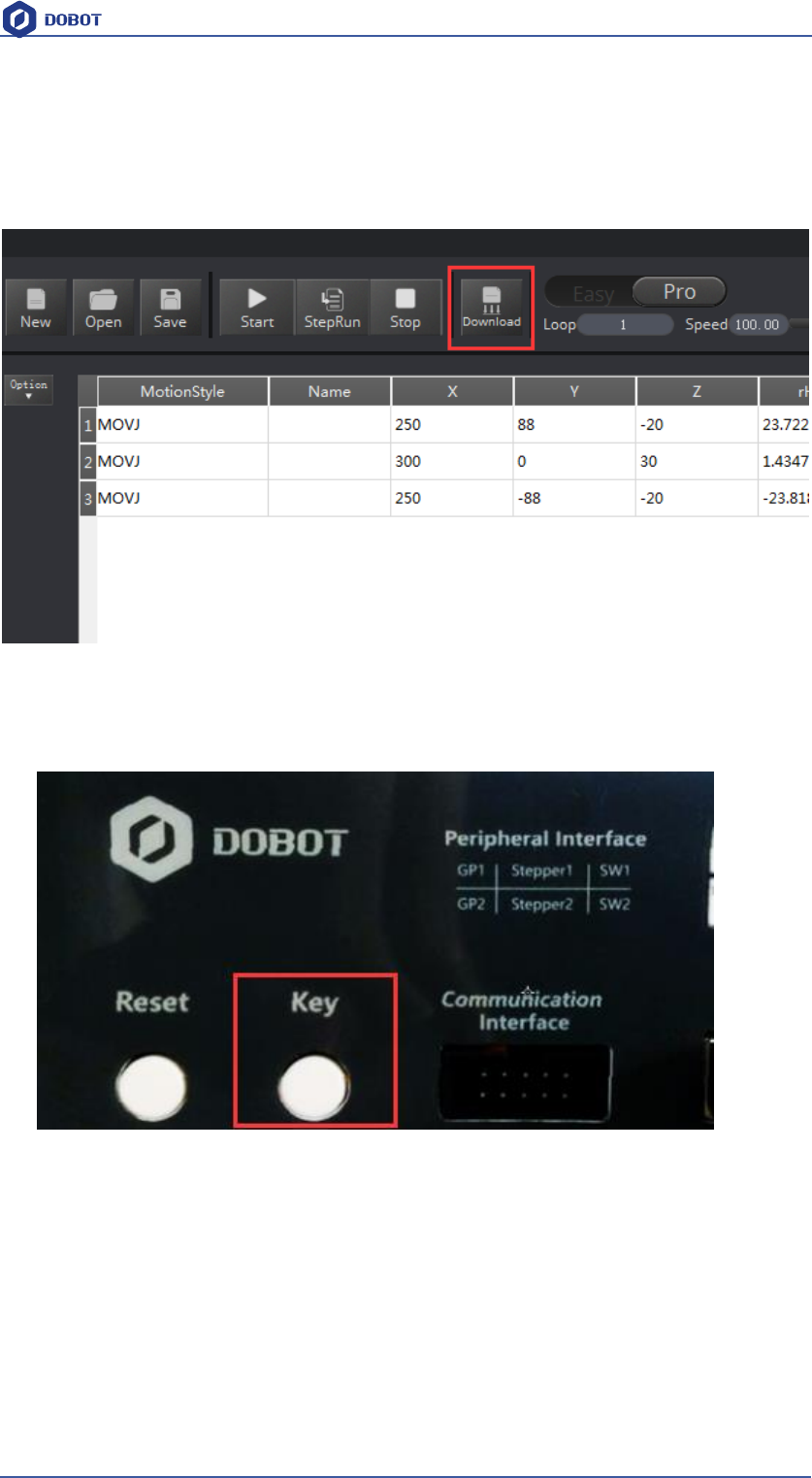
4.1 StepRun
1. StepRun: You can execute the first saved point when you press the button at the first time, and
you will turn next point when press the button again.
Figure 4.2 StepRun
2. Click Stop and then you can exit the mode of StepRun.
Shenzhen Yuejiang Technology Co.,LTD
Shenzhen Yuejiang Technology Co., Ltd
30
Dobot Magician User Manual
4.2 Offline mode
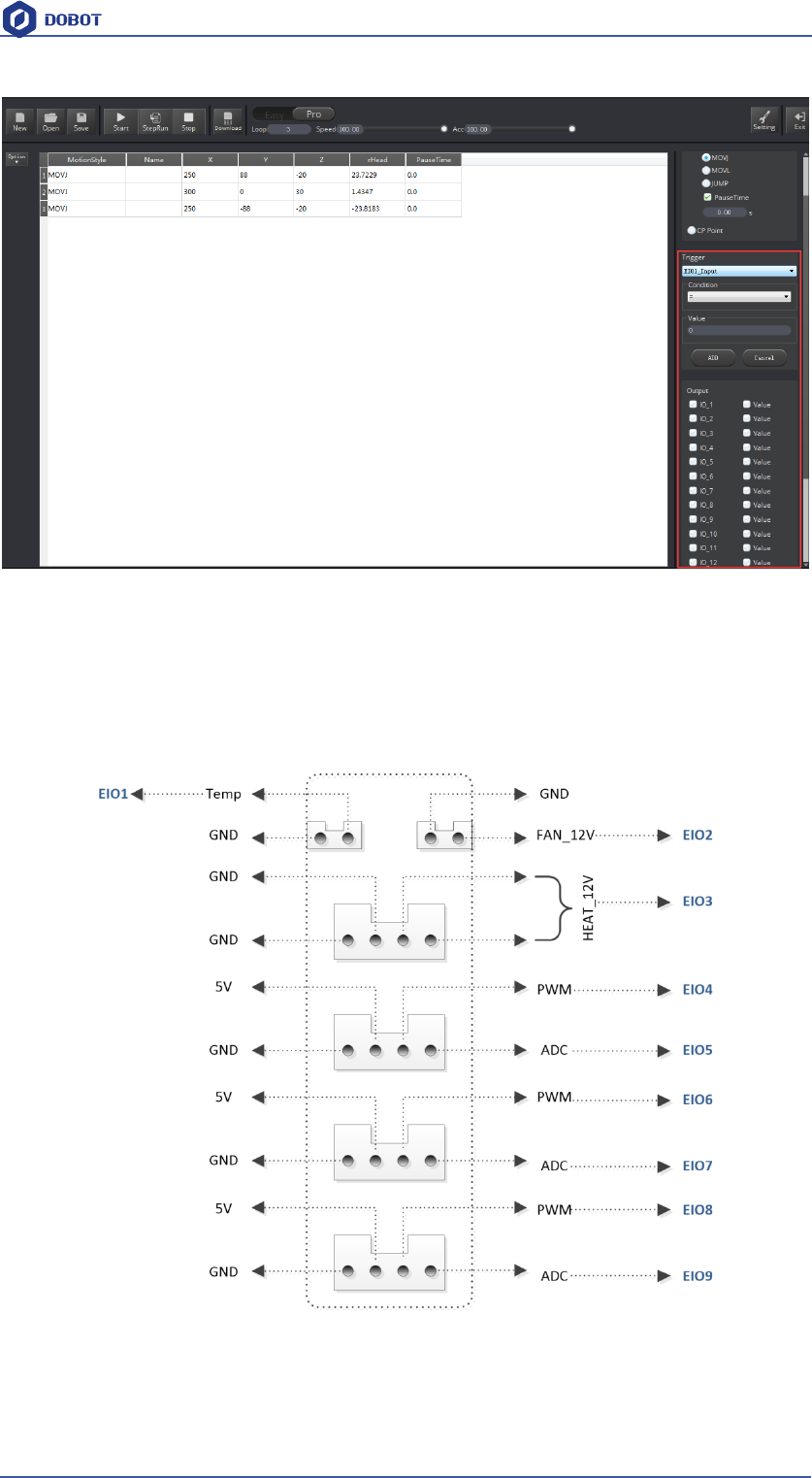
1. Click Download and you can download the current saved point list into Dobot, thus, you
achieve the function of offline mode, do not need USB cable.
Figure 4.3 Download saved point list
2. After downloading, pull out USB cable, press Key behind the controller box, and execute the
downloaded programe, stop executing when press again.
Figure 4.4 Offline mode button
Notice: Before save points and offline move, Dobot need to reset pressing Home key, and then it
can keep consistent of coordinates when teach&playback and playback the trajectory clearly.
4.3 EIO multiplex
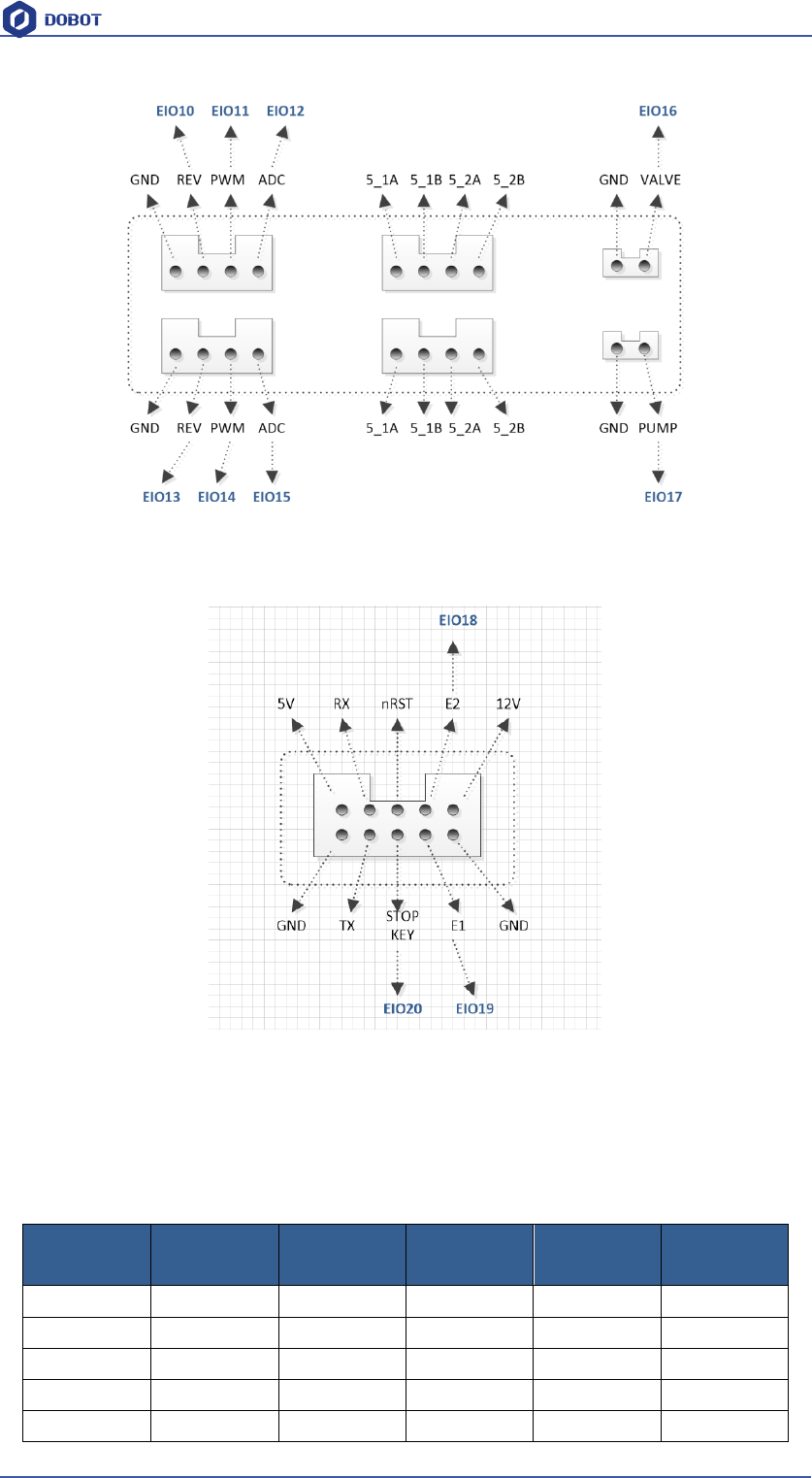
EIO, Extended I/O,most EIO included in Dobot have the functions of multiplex. This chapter is
aiming at addressing and multiplex definition for DobotV2.0 EIO.
EIO interface of advanced functions shown as follows:
Shenzhen Yuejiang Technology Co.,LTD
Shenzhen Yuejiang Technology Co., Ltd
31
Dobot Magician User Manual
Figure 4.5 EIO Interface
4.3.1 EIO addressing
In order to use more conveniently, we address them all together. EIO exists in base, forearm
separately in DobotV2.0.
1)EIO addressing in forearm shown as follows:
Figure 4.6 EIO addressing in forearm
2)EIO addressing in base 18PIN interface board, shown as follows:
Shenzhen Yuejiang Technology Co.,LTD
Shenzhen Yuejiang Technology Co., Ltd
32
Dobot Magician User Manual
Figure 4.7 EIO addressing in base 18PIN
3)EIO addressing in base 10PIN interface board, shown as follows:
Figure 4.8 EIO addressing in base 10PIN
4.3.2 EIO multiplex function
Now let’s describe EIO multiplex function. (Depends on hardware)
1)EIO multiplex instruction of forearm interface board, shown as follows:
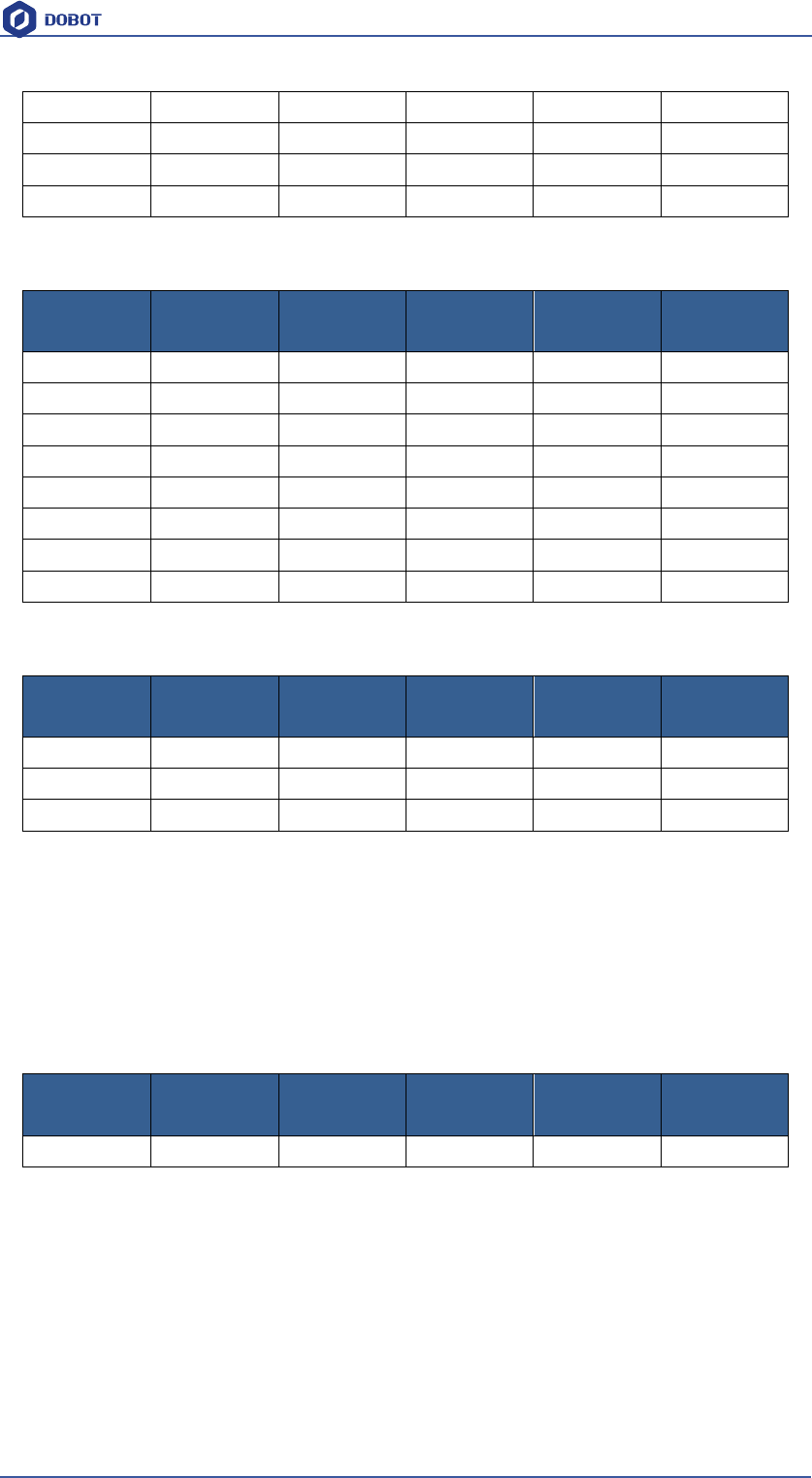
Figure 4.1 EIO multiplex instruction of forearm interface board
EIO
addressing
Level Range
Level
Output
PWM
Level Input
ADC
O1
3.3V
√
√
√
O2
12V
√
O3
12V
√
O4
3.3V
√
√
√
O5
3.3V
√
√
√
Shenzhen Yuejiang Technology Co.,LTD
Shenzhen Yuejiang Technology Co., Ltd
33
Dobot Magician User Manual
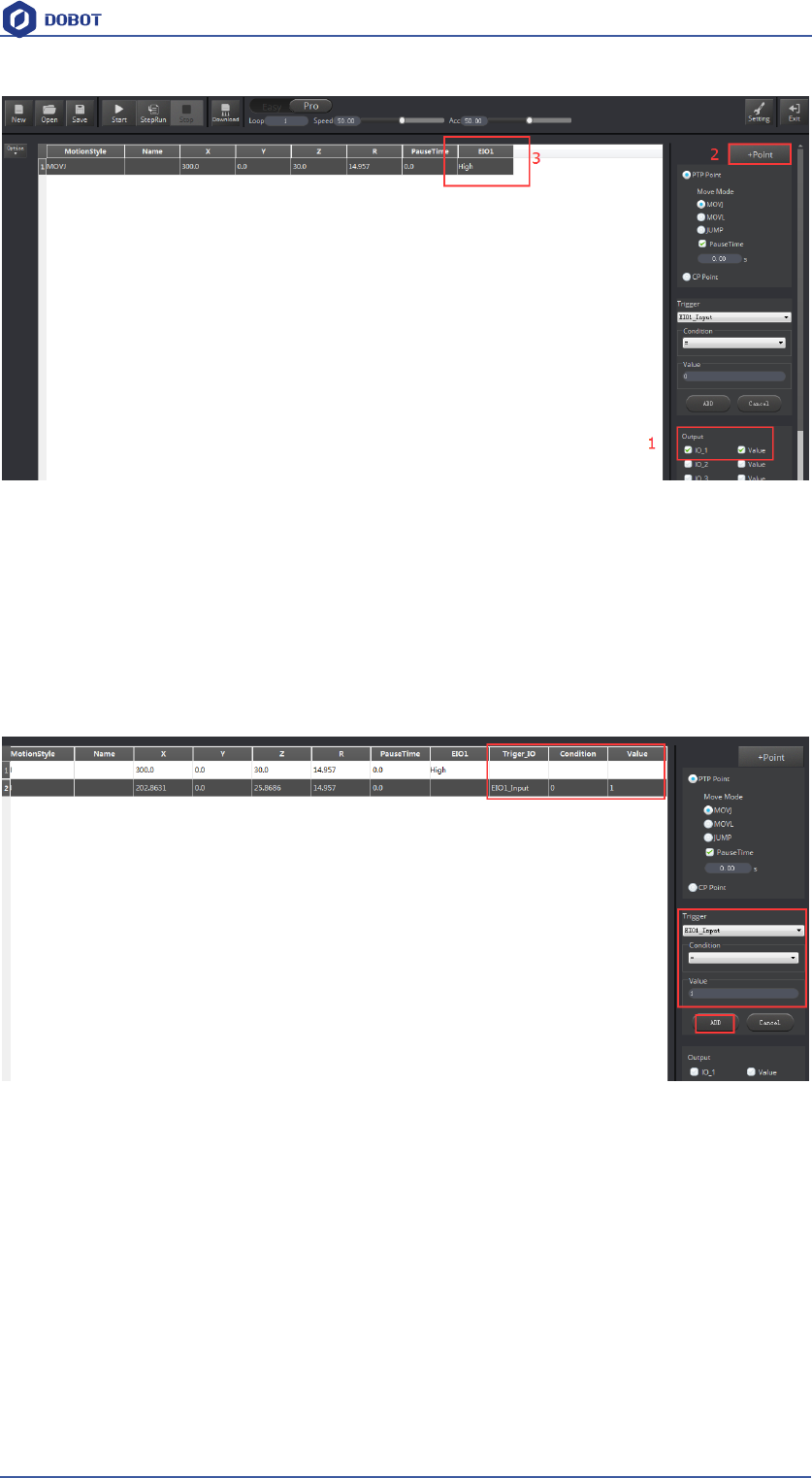
2)EIO multiplex instruction of 18PIN interface board on the base, shown as follows:
Figure 4.2 EIO multiplex instruction of 18PIN interface board on the base
3) EIO multiplex instruction of 10PIN interface board on the base, shown as follows:
Figure 4.3 EIO multiplex instruction of 18PIN interface board on the base
4.3.3 EIO multiplex Demo
Selected corressponding EIO, set input/output condition, and then you can multiplex each EIO
specially. Here we have detailed explanation of level output, level input, ADC input and PWM
output.
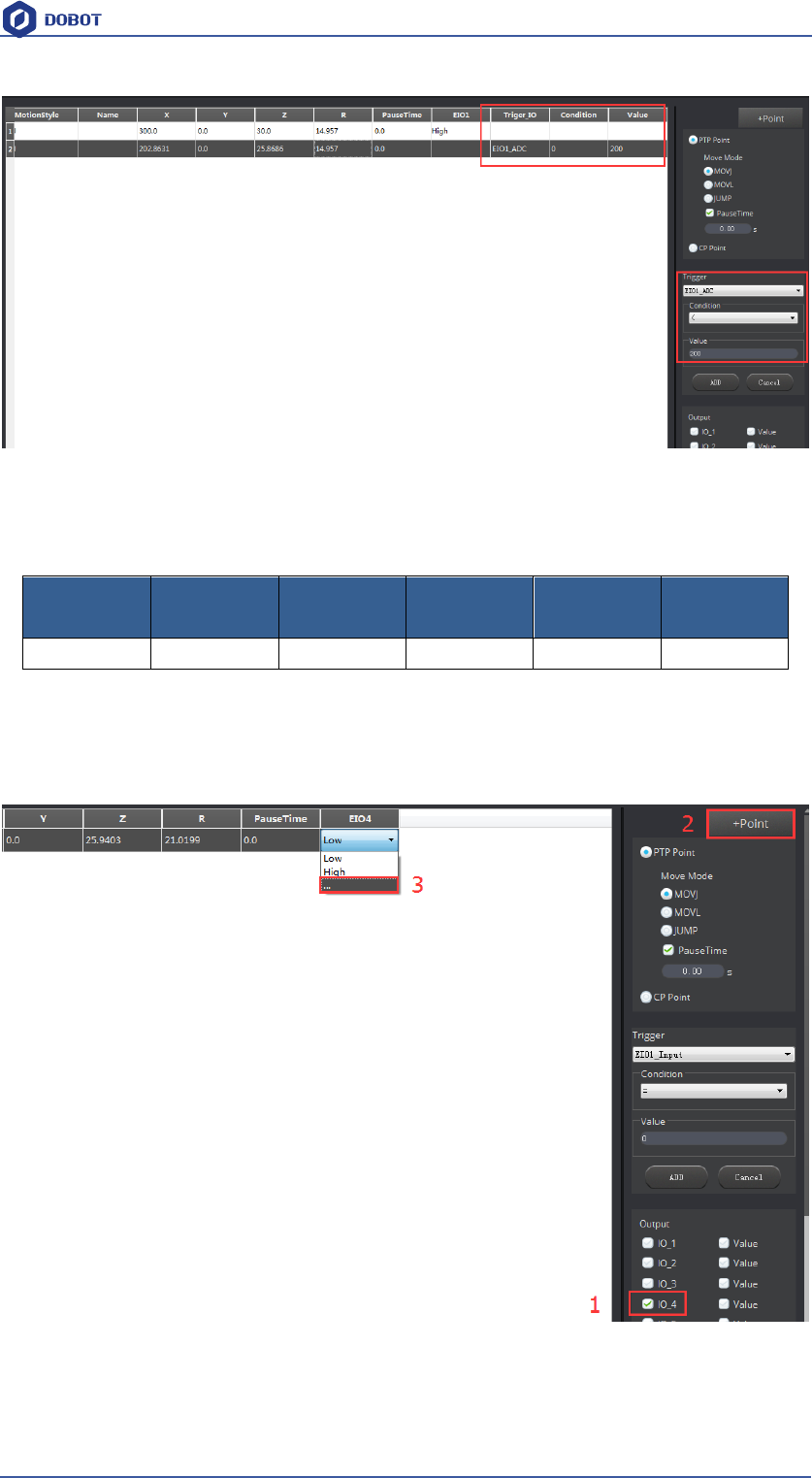
1) Level Output
Take EIO01 on the forearm connector for an example, it can configure level output into 3.3V. Shown
as follows:
Tick IO_1(in the output option) -> tick Value, -> +Point, and then it can be configured into
high-level output of 3.3V(If you don’t tick it, please choose low-level output).
O6
3.3V
√
√
√
O7
3.3V
√
√
√
O8
3.3V
√
√
√
O9
3.3V
√
√
√
EIO
Addressing
Level Range
Level
Output
PWM
Level Input
ADC
10
5V
√
11
3.3V
√
√
√
12
3.3V
√
√
√
13
5V
√
14
3.3V
√
√
√
15
3.3V
√
√
√
16
12V
√
17
12V
√
EIO
Addressing
Level Range
Level
Output
PWM
Level Input
ADC
18
3.3V
√
√
19
3.3V
√
√
20
3.3V
√
√
EIO
Addressing
Level Range
Level
Output
PWM
Level Input
ADC
O1
3.3V
√
√
√
Shenzhen Yuejiang Technology Co.,LTD
Shenzhen Yuejiang Technology Co., Ltd
34
Dobot Magician User Manual
Figure 4.9 High level output of EIO1 demo
2) Level input
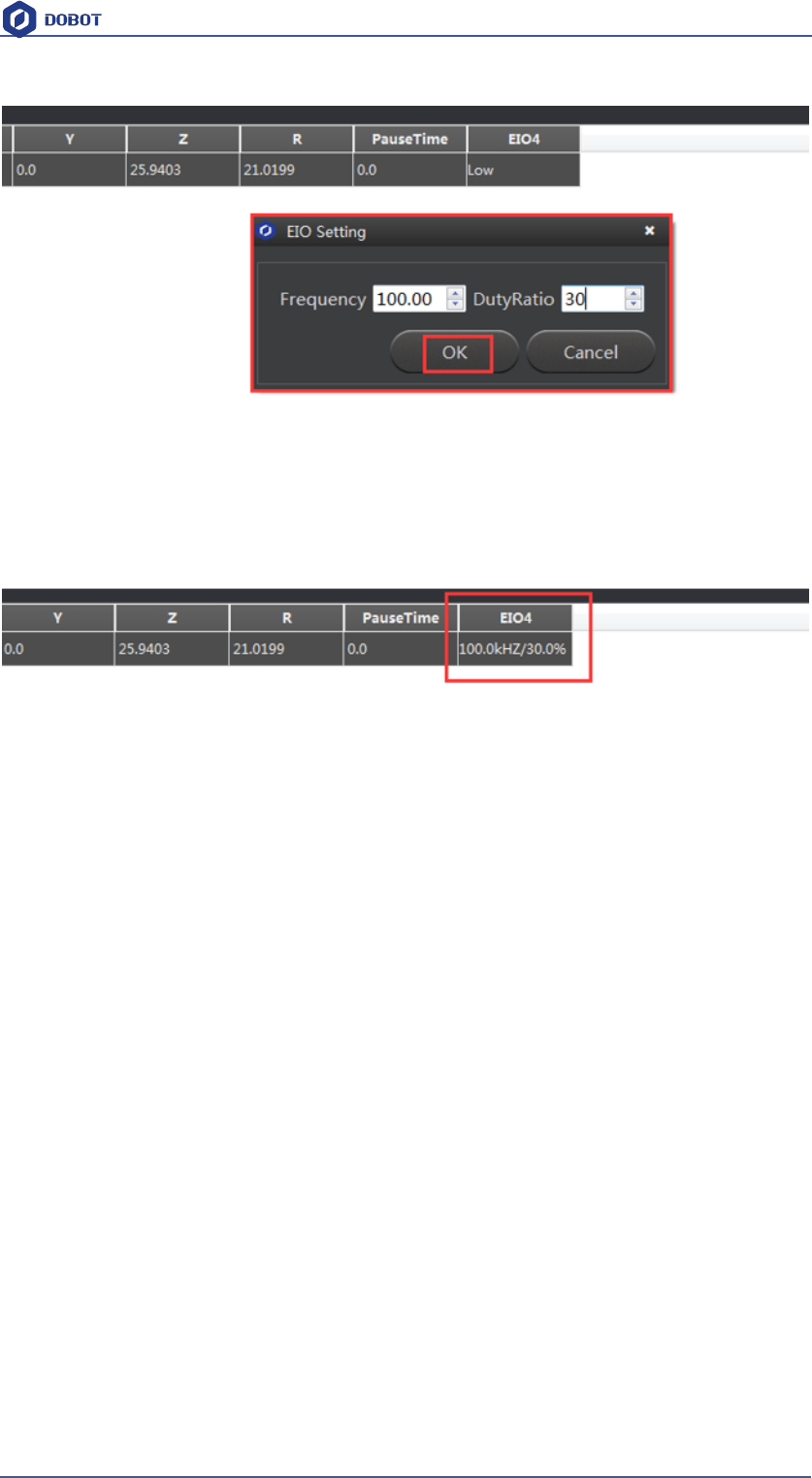
Also, take EIO01 on the forearm connector for an example, if you get an external photoelectric
sensor, it will trigger Dobot move and can be configured into low/high level input trigger mode
when access to an inductive object. Select trigger point->EIO1_Input (Trigger area on the
bottom right)-> Condition=1->add ADD key. Cancel key can delete trigger settings of the
current point. Trigger Value=0 indicates low level, and Value=1 denotes high level.
Figure 4.10 High level output of EIO1 demo
3) ADC input
ADC input operational method is the same with level input, select configured saved point and pins
of ADC, such as EIO1, set ADC value less than 200, click ADD key, that is OK. The trigger value
settings range is from 0 to 4095.
Shenzhen Yuejiang Technology Co.,LTD
Shenzhen Yuejiang Technology Co., Ltd
35
Dobot Magician User Manual
Figure 4.11 EIO1 ADC input demo
4) PWM Output
PWM: Take EIO4 for a demo
Tick IO_4 pin in the Output area, click +Point to save new points, double click EIO4 table cell,
select “…” in the drop-down box, and set Frequency, unit of KHZ,10HZ-1MHZ and
DutyRatio(0-100%) in the pop-up dialog, shown as follows:
EIO
Addressing
Level Range
Level
Output
PWM
Level Input
ADC
O4
3.3V
√
√
√
Shenzhen Yuejiang Technology Co.,LTD
Shenzhen Yuejiang Technology Co., Ltd
36
Dobot Magician User Manual
Figure 4.12 EIO4 PWM output demo
Above is four multiplx demo.
Shenzhen Yuejiang Technology Co.,LTD
Shenzhen Yuejiang Technology Co., Ltd
37
Dobot Magician User Manual
5. Writing & Drawing Manual
The whole flow chart as follows:
5.1 Installation of writing accessories
Pen and pen holder included in the draw kit, the installation steps as follows:
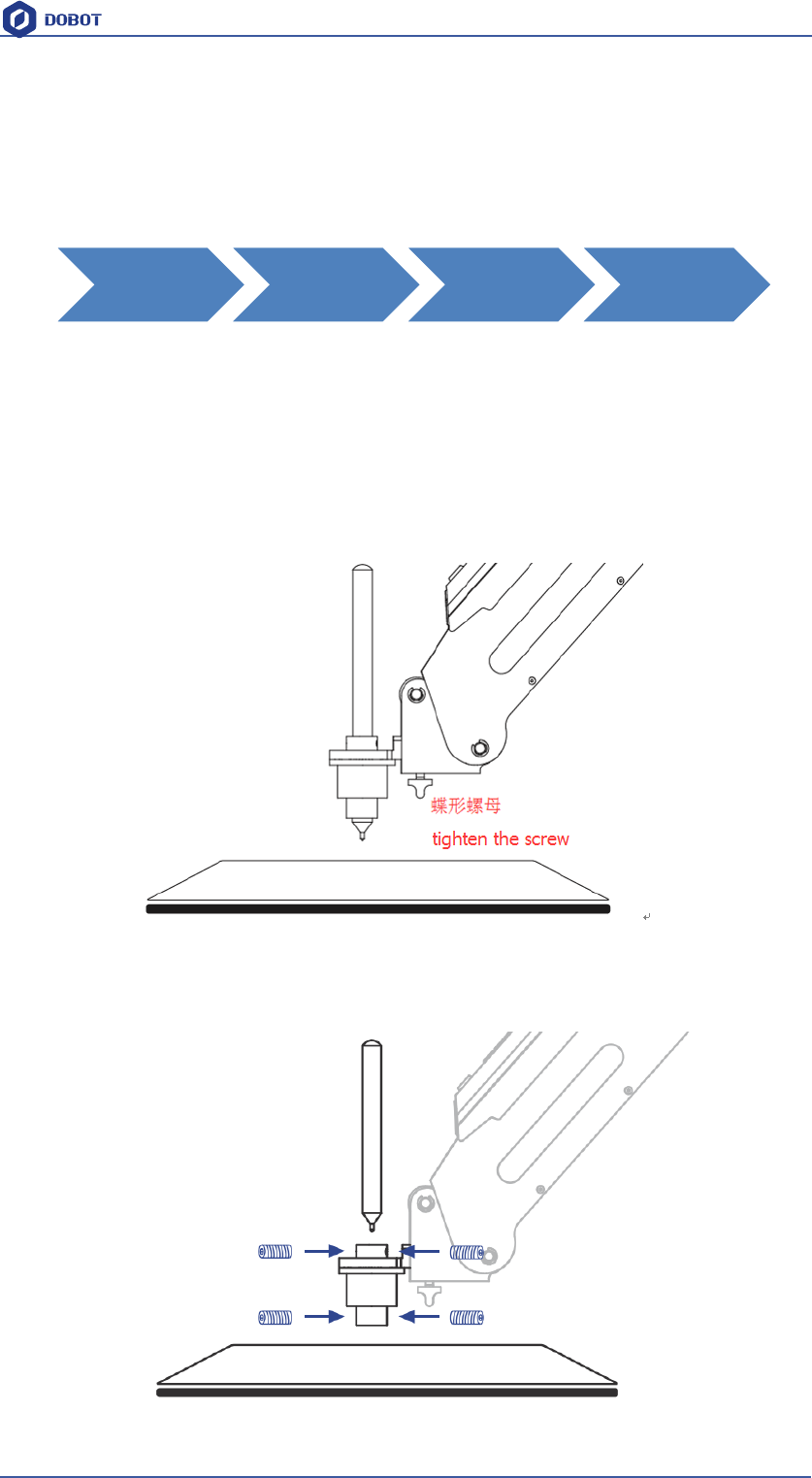
1. Install the pen into the fixture;
2. Lock the fixture into the endeffector with butterfly nut.
Figure 5.1 Installation of pen
If you want to switch the pen, just loosen four screws on the pen holder, that is done!
Pen
Installation
Connect
DobotStudio
Import
pictures and
set params
Adjust the
position and
start to write
Shenzhen Yuejiang Technology Co.,LTD
Shenzhen Yuejiang Technology Co., Ltd
38
Dobot Magician User Manual
Figure 5.2 Pen installation
5.2 Connect DobotStudio
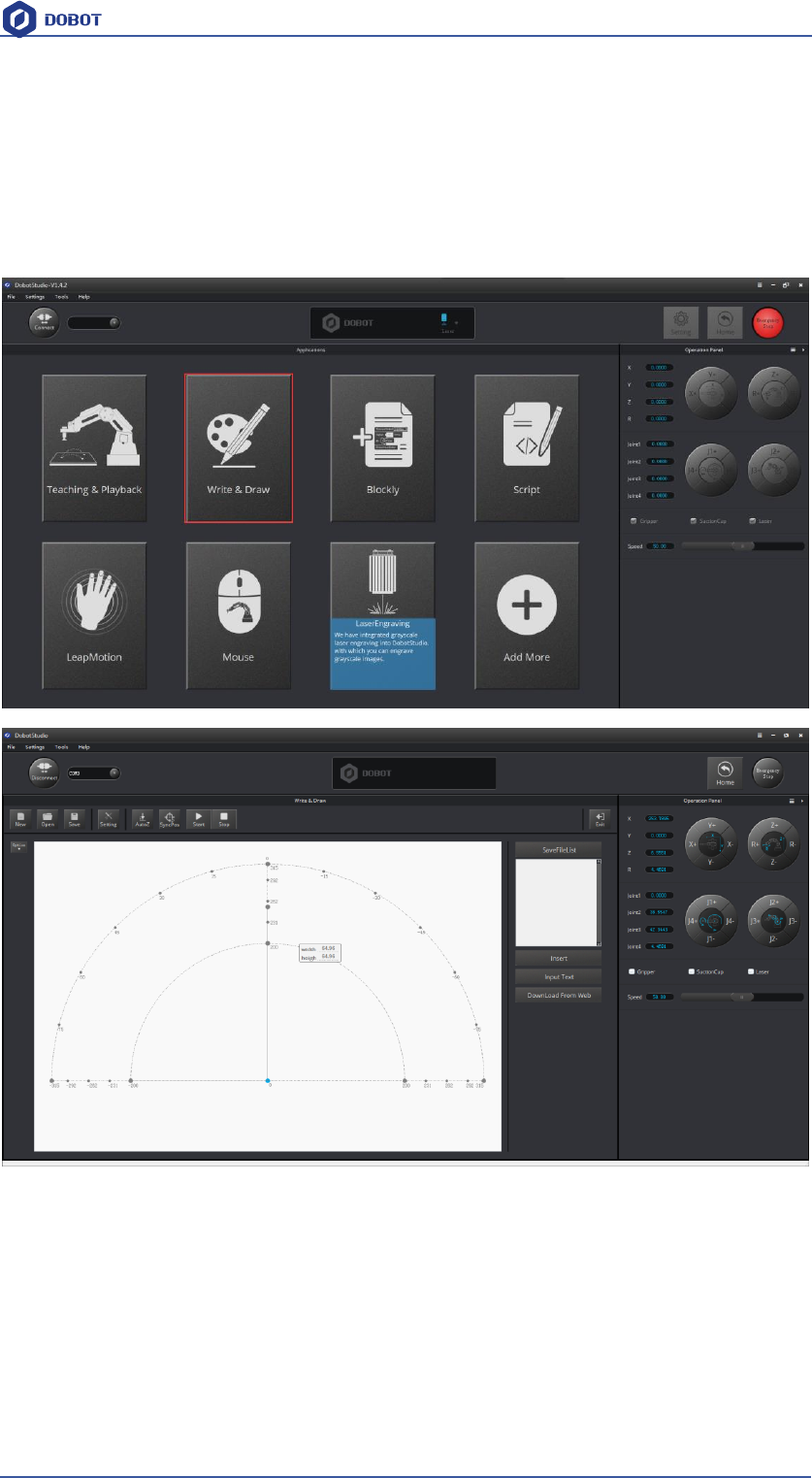
1. The software used by writing & drawing is DobotStudio, and the hardware itself is applicable
for DobotStudio, so here you can connect directly. Open the software, click writing & drawing
module, here comes the interface of writing & drawing as follows:
Figure 5.3 Writing & drawing interface
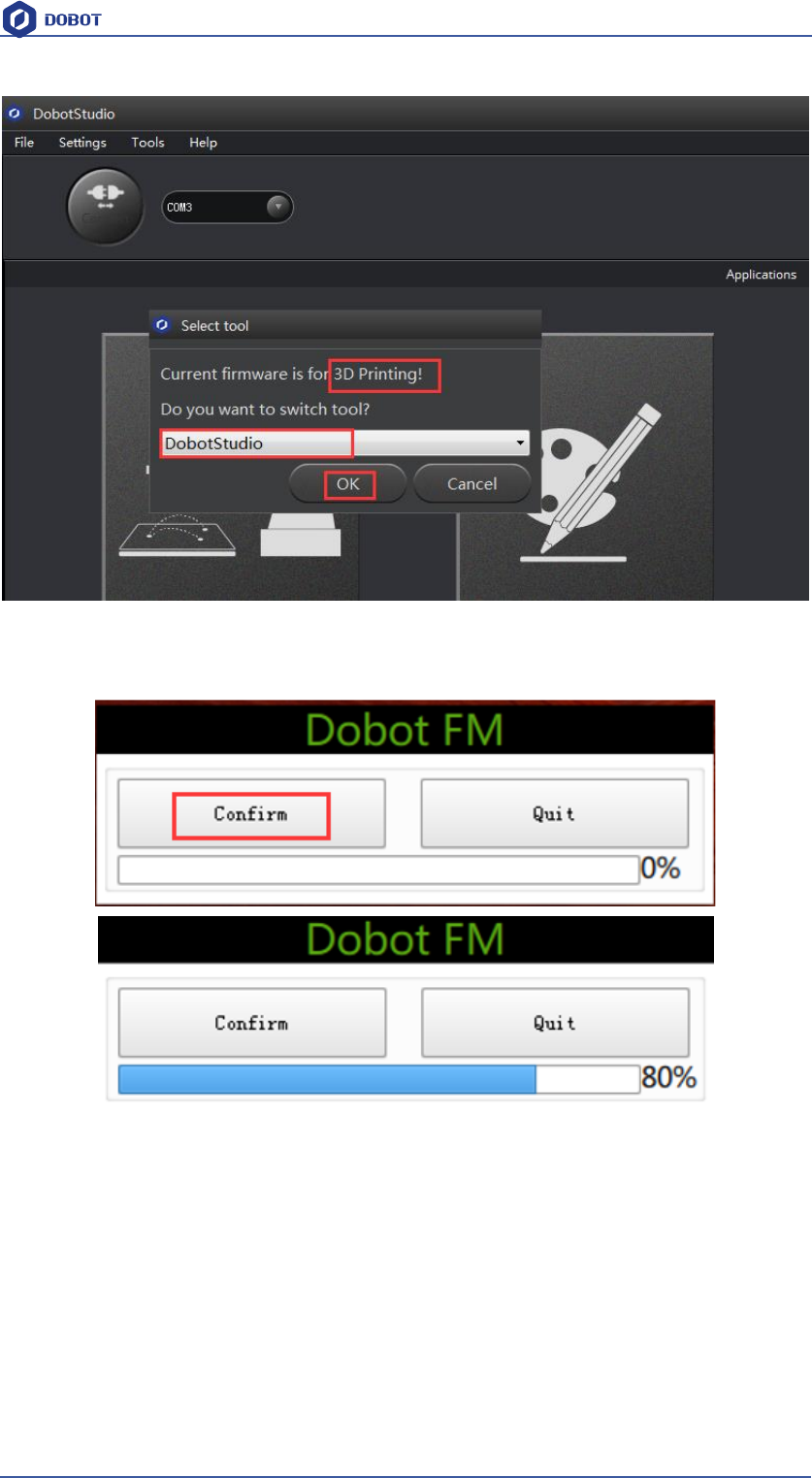
2. If the current hardware is not the hardware of writing & drawing itself, for example, the
current firmware is for 3D printing, there will pop up a selected window, here we can choose
DobotStudio in the drop-down box :
Shenzhen Yuejiang Technology Co.,LTD
Shenzhen Yuejiang Technology Co., Ltd
39
Dobot Magician User Manual
Figure 5.4 Select DobotStudio
Then click OK, and here will pop up burning hex window, and click Confirm to burn hex:
After burning, DobotStudio will be opened automatically, also, after about ten seconds, then you
can hear a short sound from built-in buzzer, which shows a successful burning. At the same time,
the light on the bottom right will turn into green. Thus, we can connect Dobot according to above
operation.
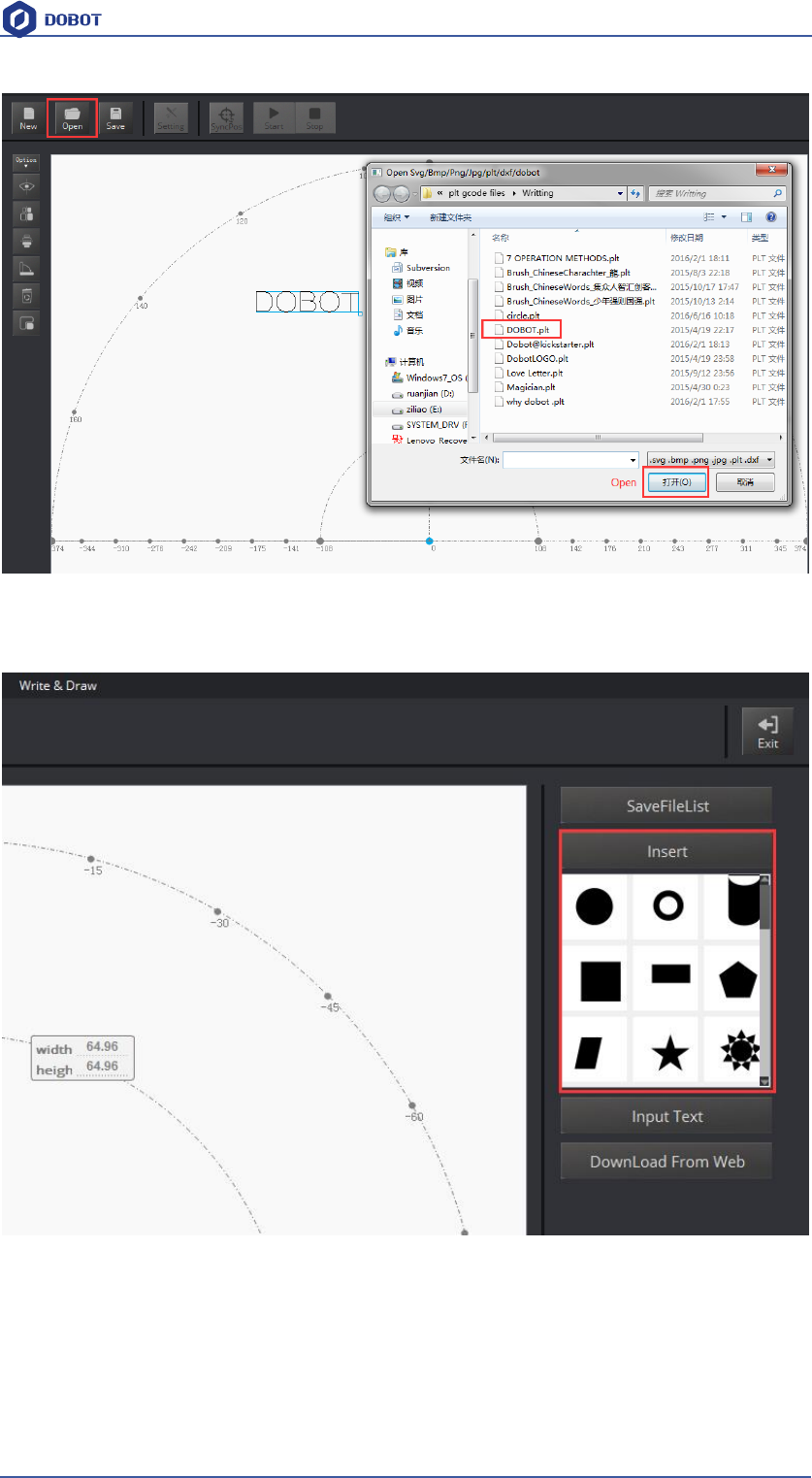
5.3 Import pictures and set parameters
1. The imported picture should be put into the sector area of main interface, as Dobot will be at a
limited position if beyond the standard range as a result of writing unnormally. Actually, there
will be a warning of a red highlighting if beyond range.
1) Click Open, and import the ready PLT or SVG file:
Shenzhen Yuejiang Technology Co.,LTD
Shenzhen Yuejiang Technology Co., Ltd
40
Dobot Magician User Manual
Figure 5.5 Open the file
2) Insert the included pictures of DobotStudio;
Figure 5.6 Insert the included file
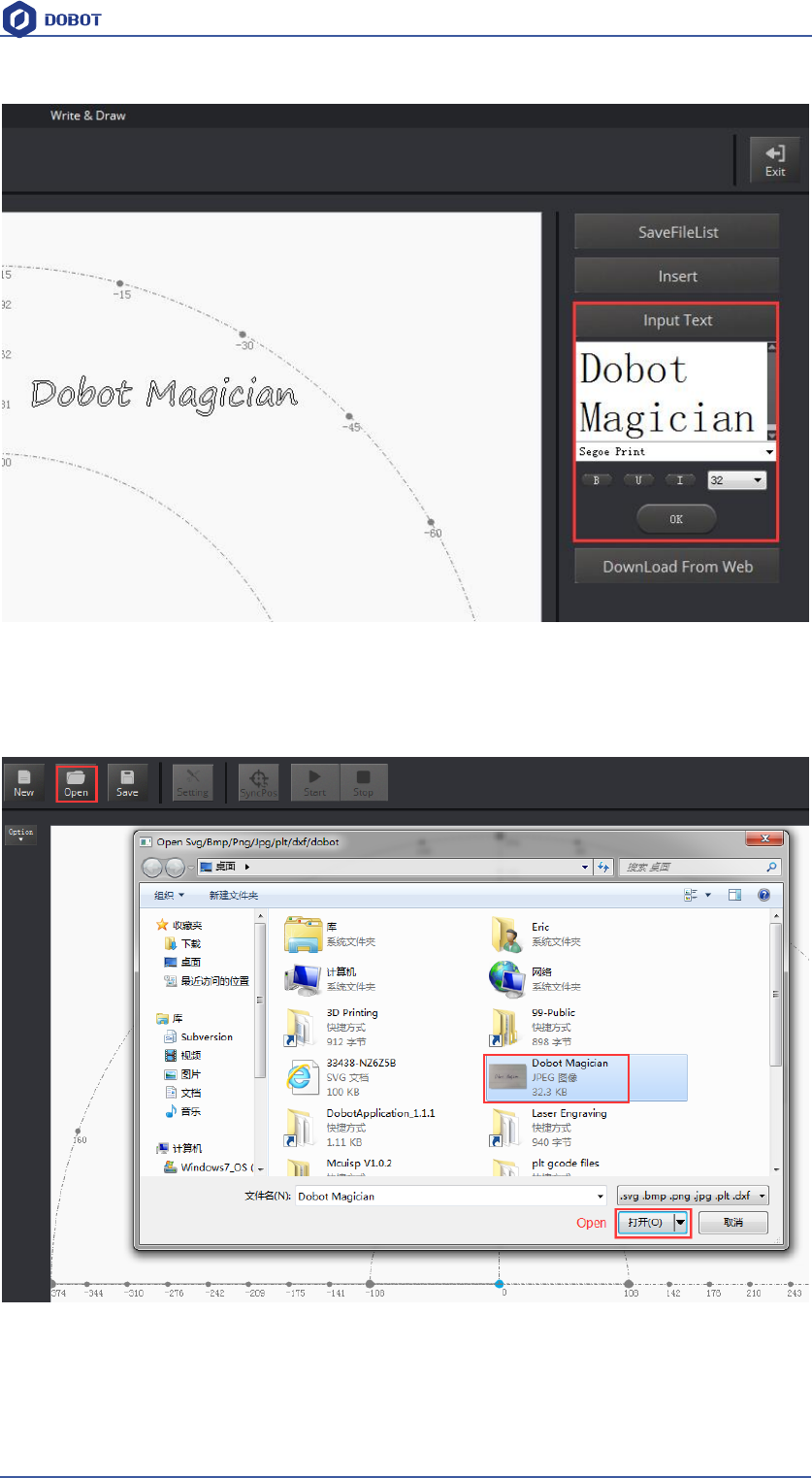
3) Input text manually;
Shenzhen Yuejiang Technology Co.,LTD
Shenzhen Yuejiang Technology Co., Ltd
41
Dobot Magician User Manual
Figure 5.7 Input text manually
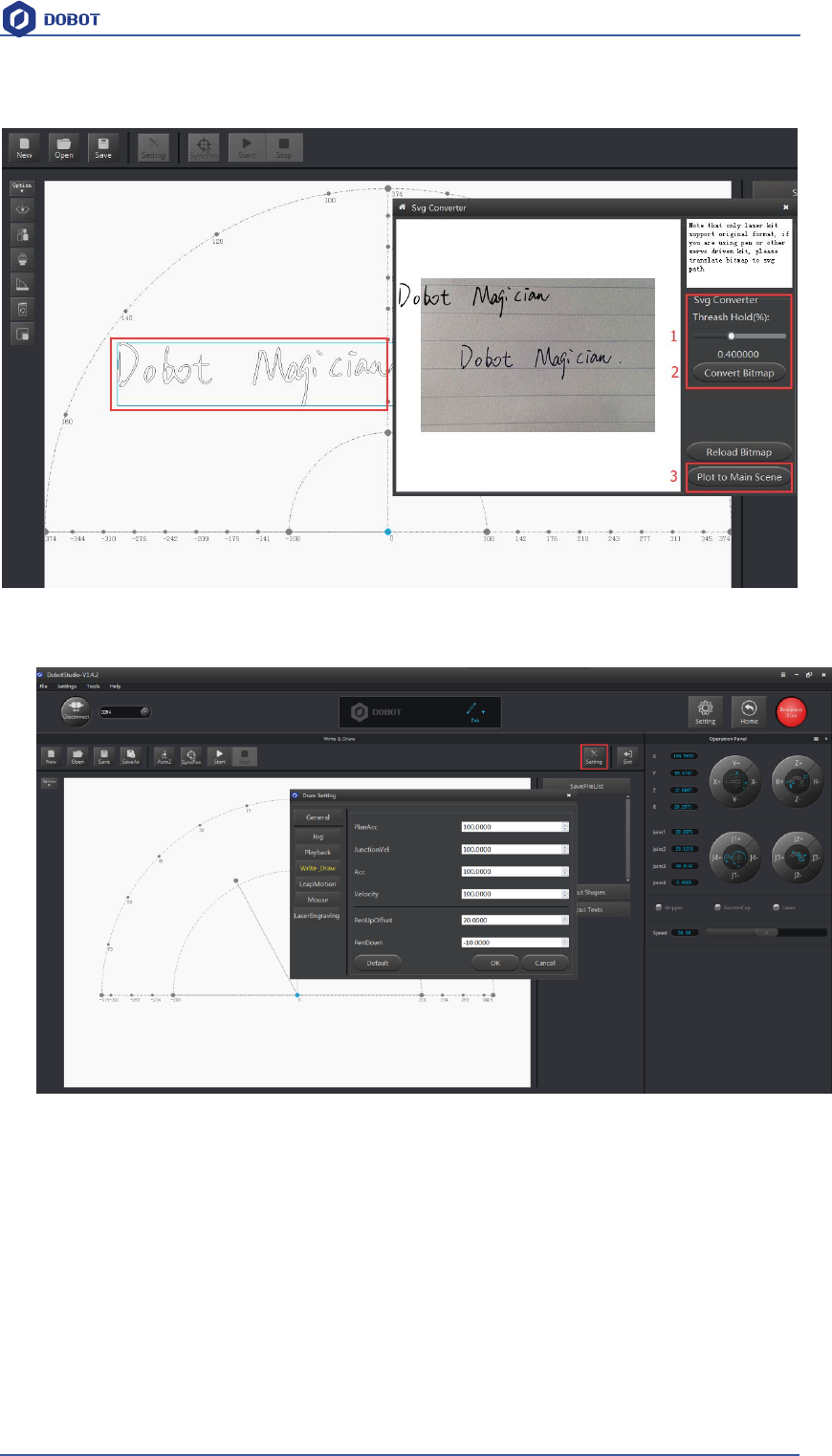
4) Also you can import pictures , convert these formats(BMP/JPEG/JPG/PNG and so on)
into SVG recognized by Dobot, once took and once draw;
Figure 5.8 Import pictures
After opening the picture, set proper, click Convert Bitmap, then SVG path file will come out
automatically, then click Plot to Main Scene, the ready trajectory can be loaded in writing main
Shenzhen Yuejiang Technology Co.,LTD
Shenzhen Yuejiang Technology Co., Ltd
42
Dobot Magician User Manual
interface, show as follows:
Figure 5.9 Import pictures into SVG files
2. Set writing parameters: set velocity and acceleration(0~300mm/s) and PenUpOffset;
Figure 5.10 Set velocity and acceleration
4.4 Adjust the position and start writing
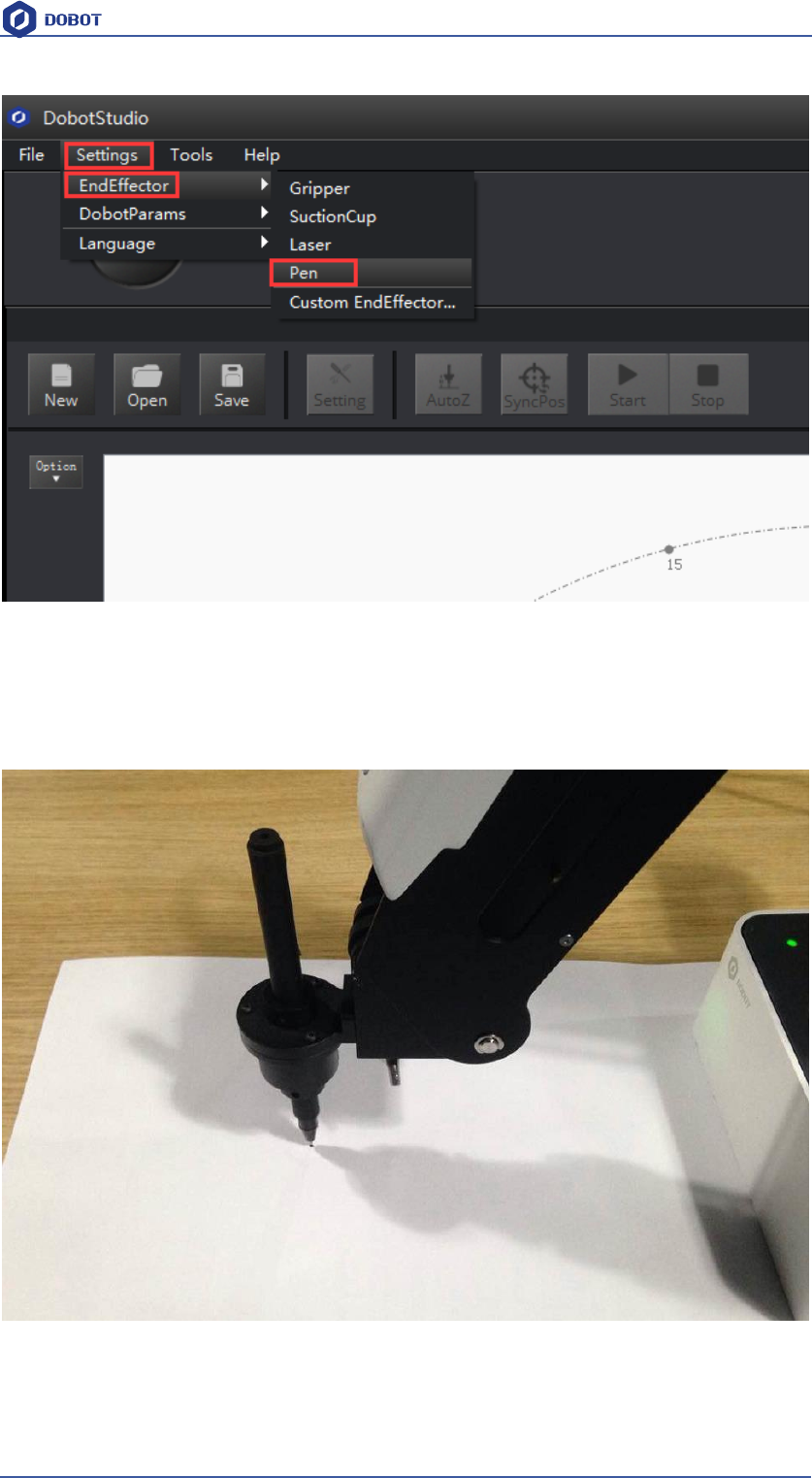
1. Set endeffector as Pen, here you can choose from Settings->EndEffector, shown as follows:
Shenzhen Yuejiang Technology Co.,LTD
Shenzhen Yuejiang Technology Co., Ltd
43
Dobot Magician User Manual
Figure 5.11 Set EndEffector
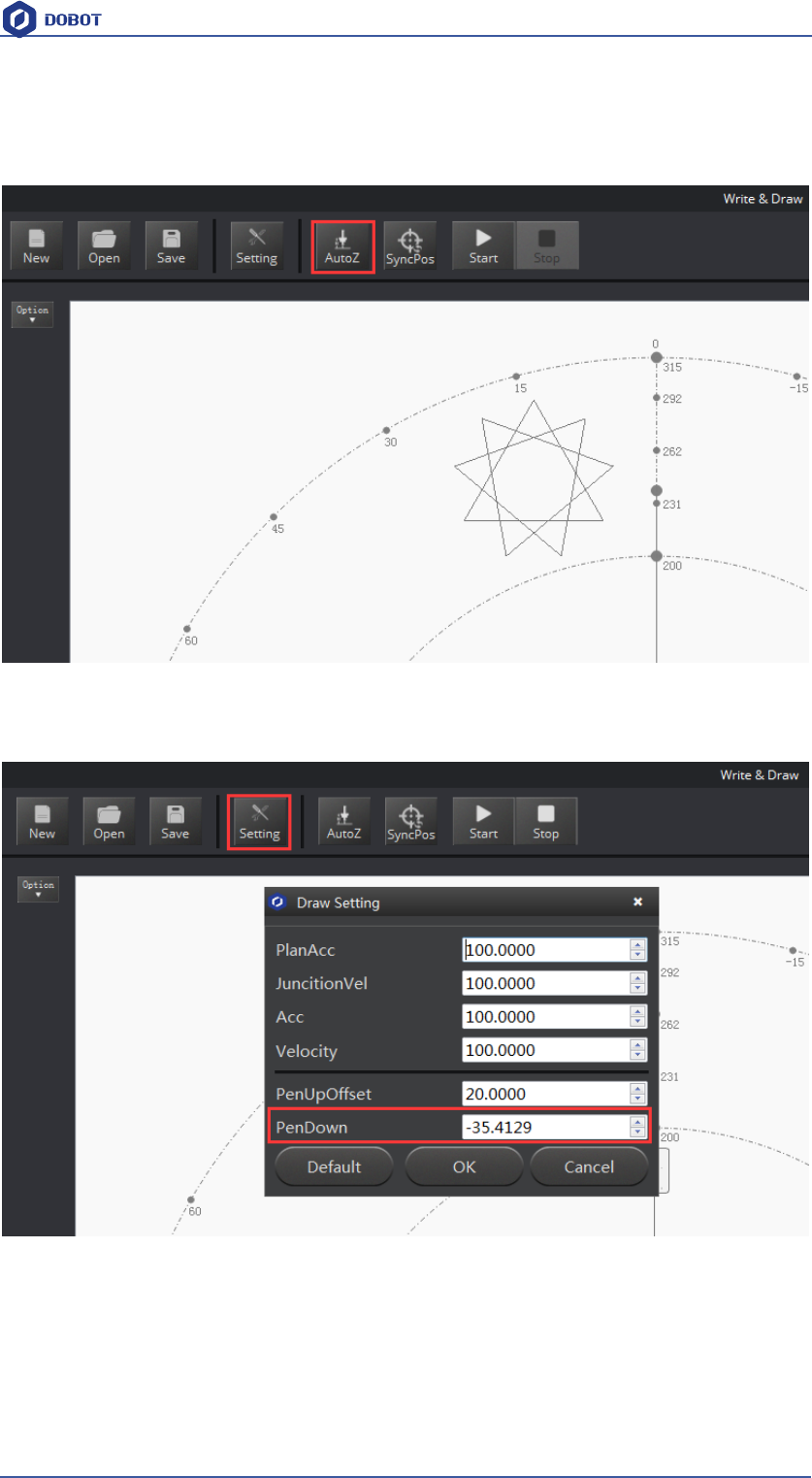
2. Adjust the nib position: press and hold down Unlock key on the forearm and drag the
forearm to make the nib contact to paper, also, you can control Z axis moving down to paper
gradually, shown as follows:
Figure 5.12 Adjust the nib position
Shenzhen Yuejiang Technology Co.,LTD
Shenzhen Yuejiang Technology Co., Ltd
44
Dobot Magician User Manual
3. Click AutoZ and get the current Z value, thus, you need not adjust the nib position when you
write next time, here just comes with the steps: import pictures-> SyncPos->Start , then
you enjoy
Figure 5.13 Lock writing height
You can check the Pendown parameter from here:
Figure 5.14 Pendown parameters
If the writing is not very well, the nib height need to be adjusted slightly, also you can revise the
value of Pendown.
4. Click SyncPos, Dobot will move into the top position of writing starting point automatically.
5. Click Start, Pause and Stop to control Dobot.
Shenzhen Yuejiang Technology Co.,LTD
Shenzhen Yuejiang Technology Co., Ltd
45
Dobot Magician User Manual
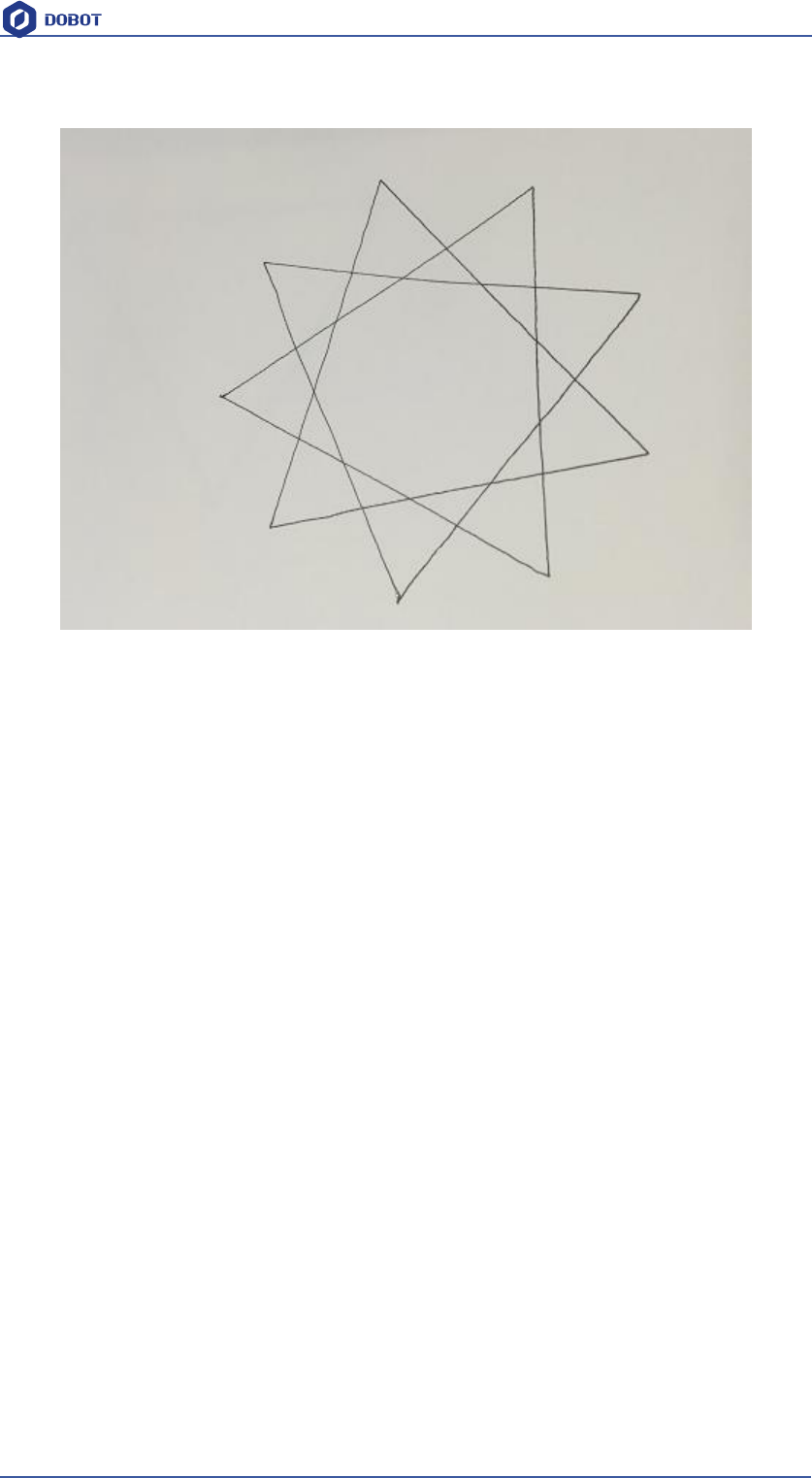
6. The result as follows:
Figure 4.15 The effect of writing
Shenzhen Yuejiang Technology Co.,LTD
Shenzhen Yuejiang Technology Co., Ltd
46
Dobot Magician User Manual
6. Laser Engraving
The whole process of laser engraving as follows:
Notice:
Laser engraving and shade laser engraving are different functions. The firmware
and upper computer used by laser engraving are the same with writing&drawing,
which can only engrave pictures of single line. While the latter can achieve the
function of bitmap engraving, for example, it can engrave figures and head
portraits. If you want to use the function of shade laser engraving, please refer to
Dobot2.0 Shade Laser Engraving.
6.1 Laser Installation
1. Fasten the laser by butterfly nut;
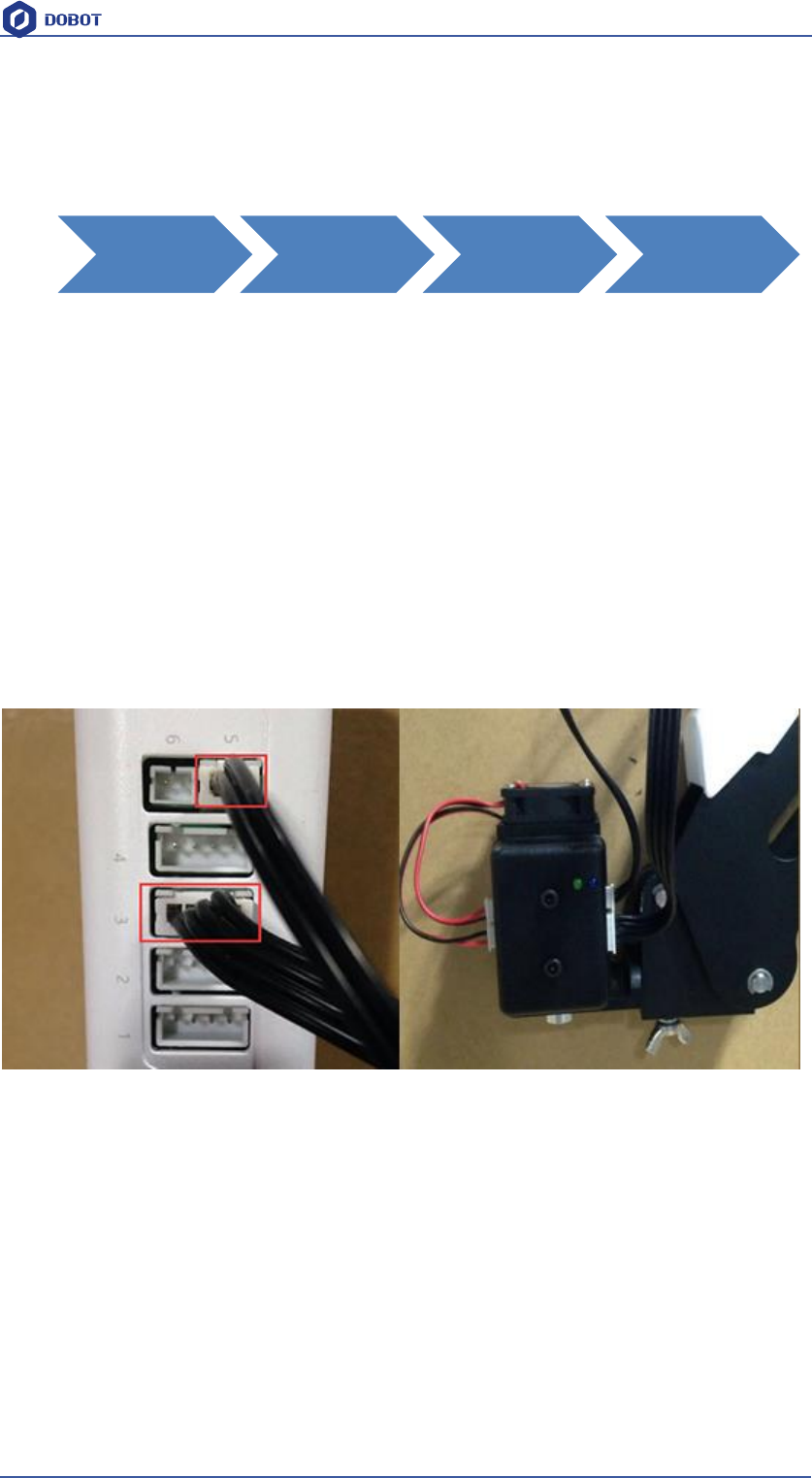
2. Connect 12V power line with interface ⑤SW4 and connect TTL control line with interface
③GP5.
Figure 6.1 Install Laser
6.2 Connect DobotStudio
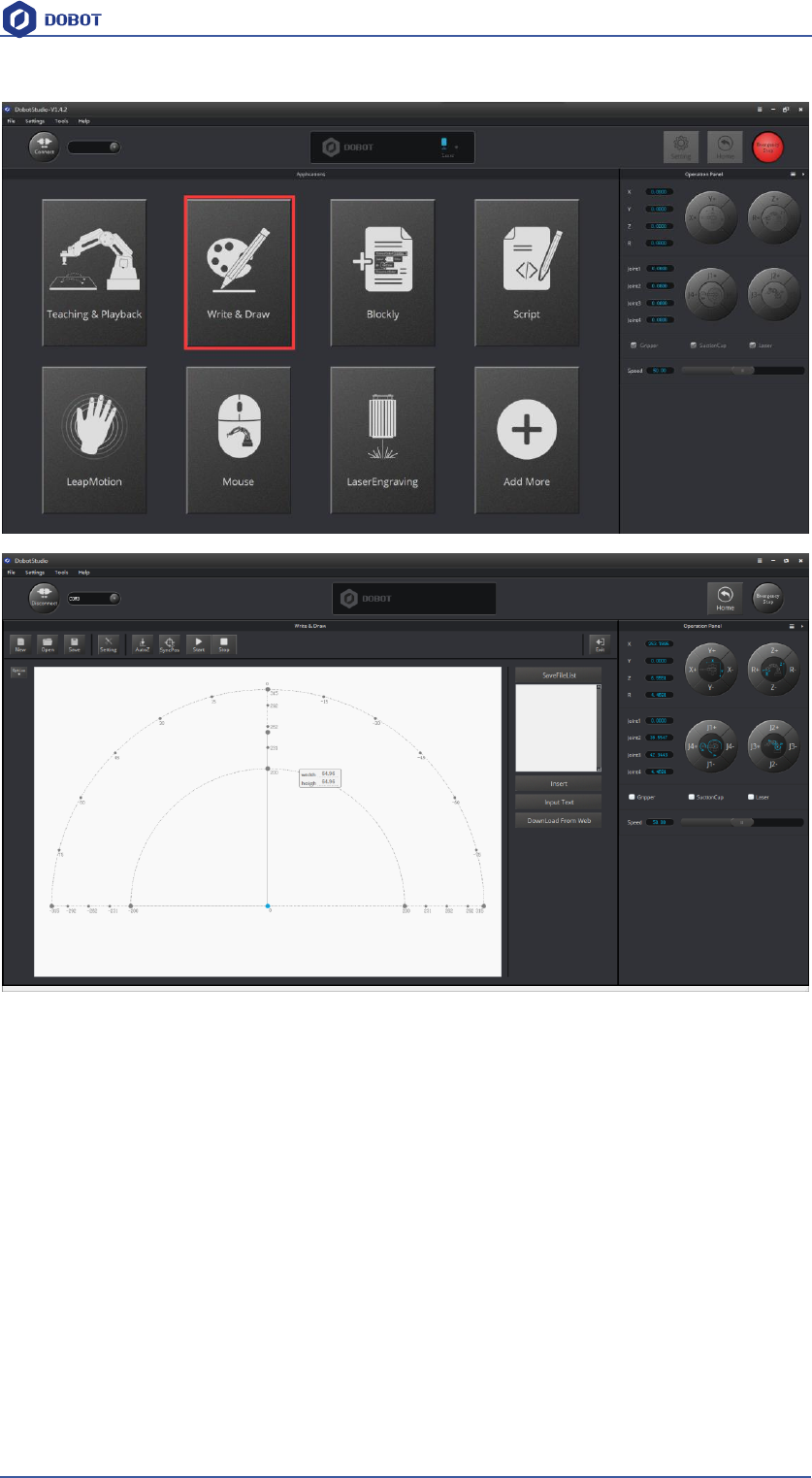
1. The software used by laser engraving is DobotStudio, so please open the software , click
writing&drawing and enter into laser engraving interface, shown as follows:
laser installation Connect
DobotStudio
Import Pattern
and Set
Parameters
Adjust focus
and
start to engrave
Shenzhen Yuejiang Technology Co.,LTD
Shenzhen Yuejiang Technology Co., Ltd
47
Dobot Magician User Manual
Figure 6.2 Laser engraving interface
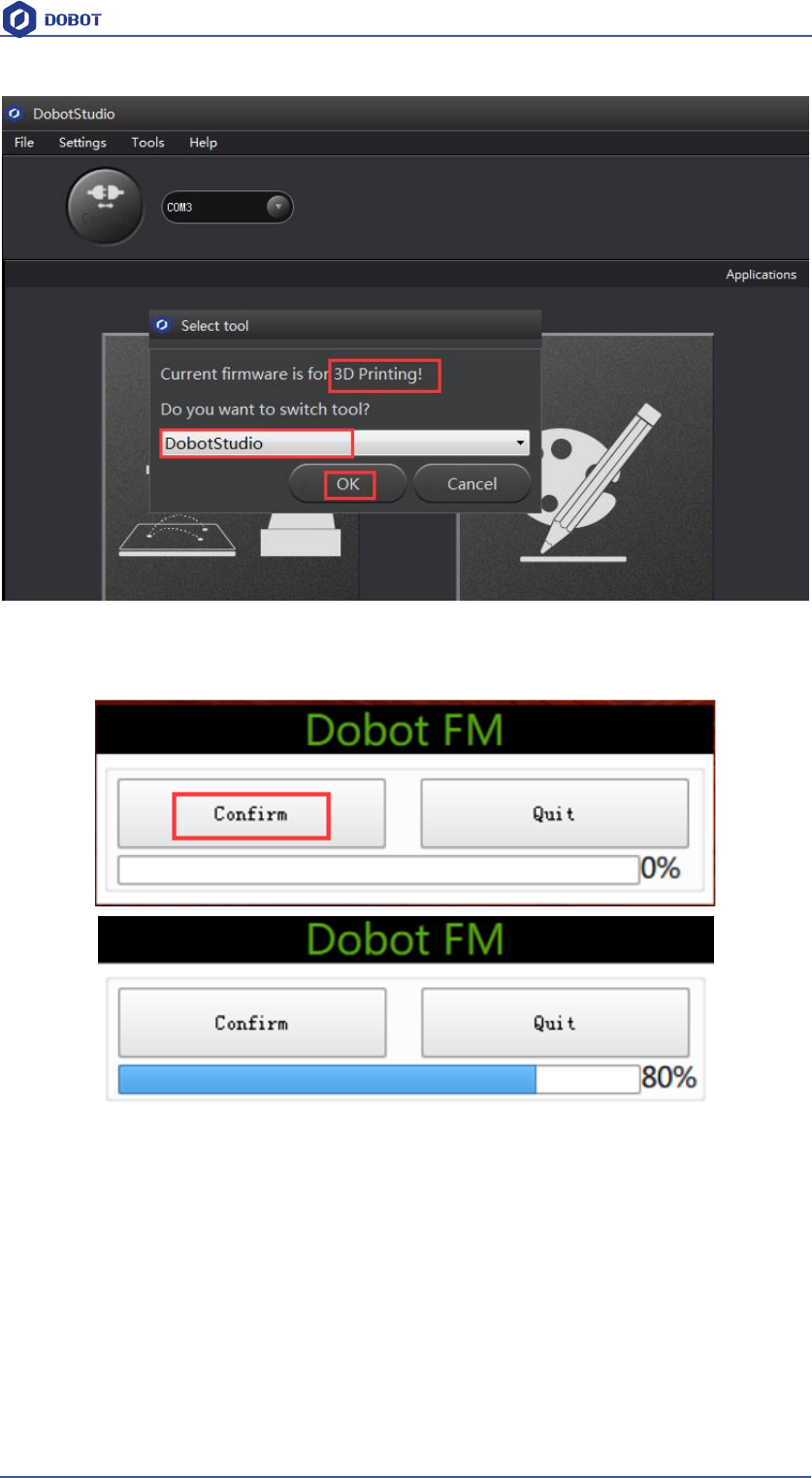
2. If the current firmware is not for laser engraving, for example, if it is for firmware 3D printing,
then will pop up select dialog when connecting, we can choose DobotStudio in the drop-down
box:
Shenzhen Yuejiang Technology Co.,LTD
Shenzhen Yuejiang Technology Co., Ltd
48
Dobot Magician User Manual
Figure 6.3 Connect DobotStudio
Then click OK, and here will pop up burning hex window, and click Confirm to burn hex:
After burning, DobotStudio will be opened automatically, also, after about ten seconds, then you
can hear a short sound from built-in buzzer, which shows a successful burning. At the same time,
the light on the bottom right will turn into green. Thus, we can connect Dobot according to above
operation.
6.3 Import pictures and set parameters
1. The imported laser engraving file should be put into the sector area of main interface, as
Dobot will be at a limited position if beyond the standard range as a result of writing
unnormally. Actually, there will be a warning of a red highlighting if beyond range.
Shenzhen Yuejiang Technology Co.,LTD
Shenzhen Yuejiang Technology Co., Ltd
49
Dobot Magician User Manual
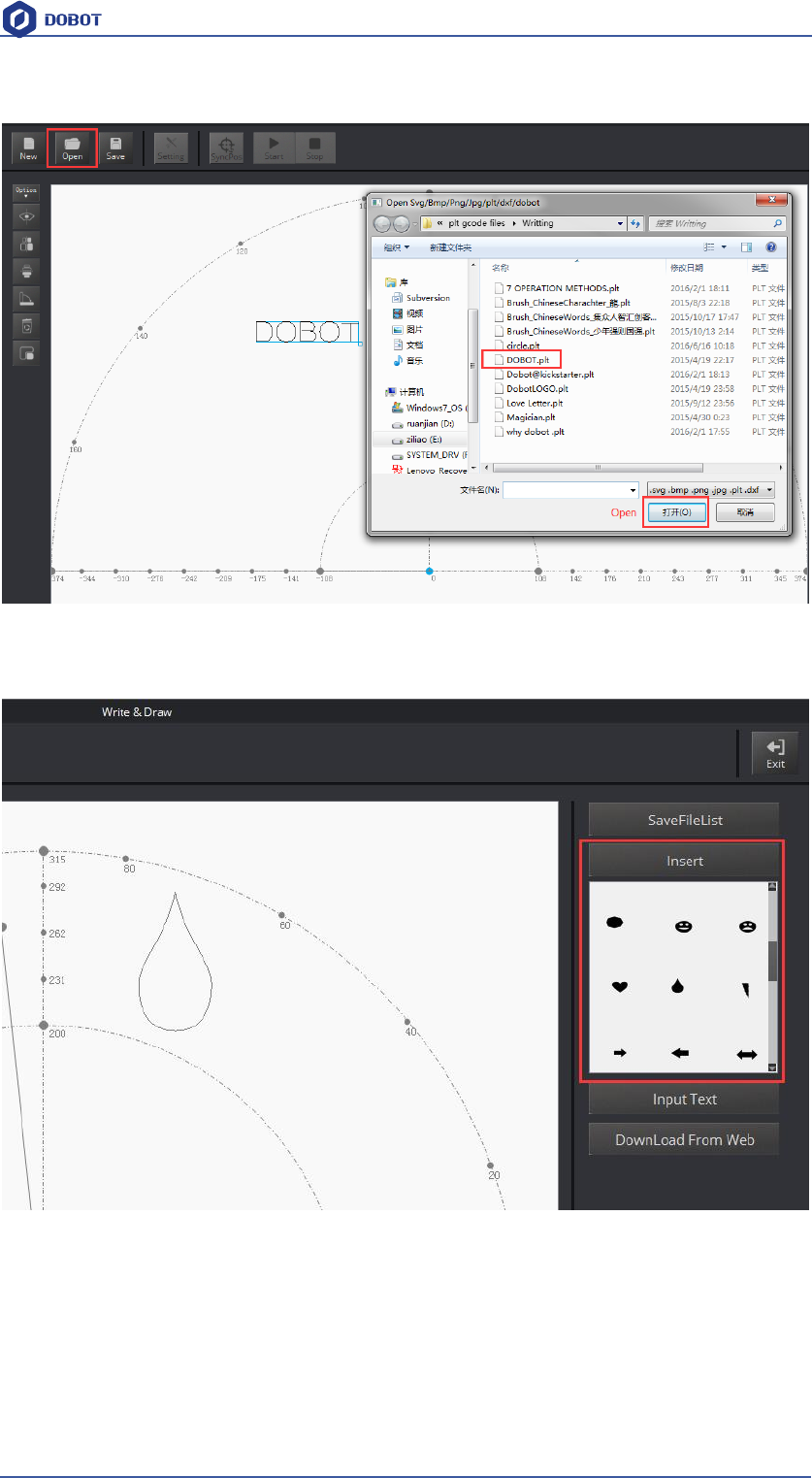
1) Click Open, and import the ready PLT or SVG file:
Figure 6.4 Open PLT File
2) Insert the included pictures of DobotStudio;
Figure 6.5 Insert included pictures
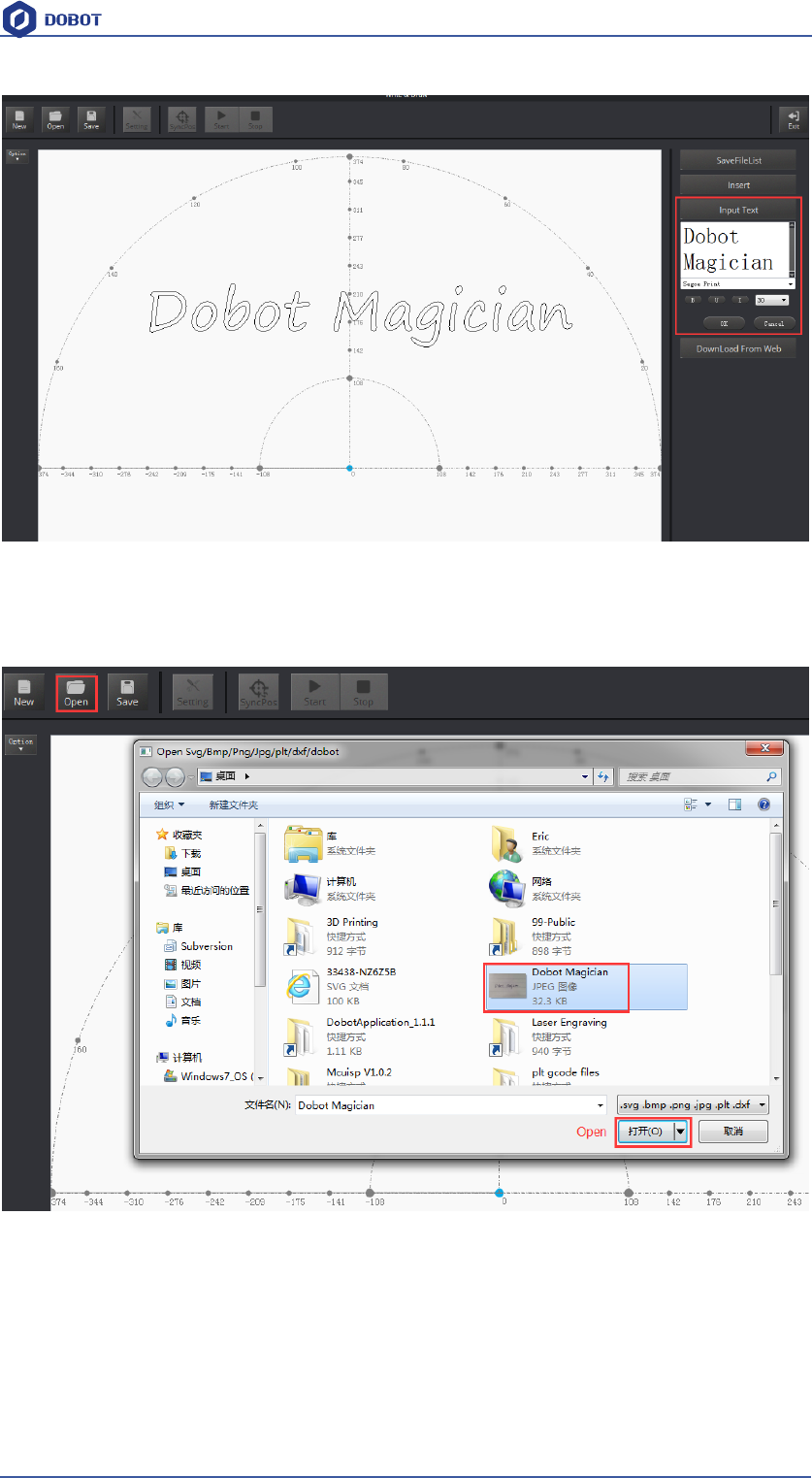
3) Input text manually;
Shenzhen Yuejiang Technology Co.,LTD
Shenzhen Yuejiang Technology Co., Ltd
50
Dobot Magician User Manual
Figure 6.6 Input text manually
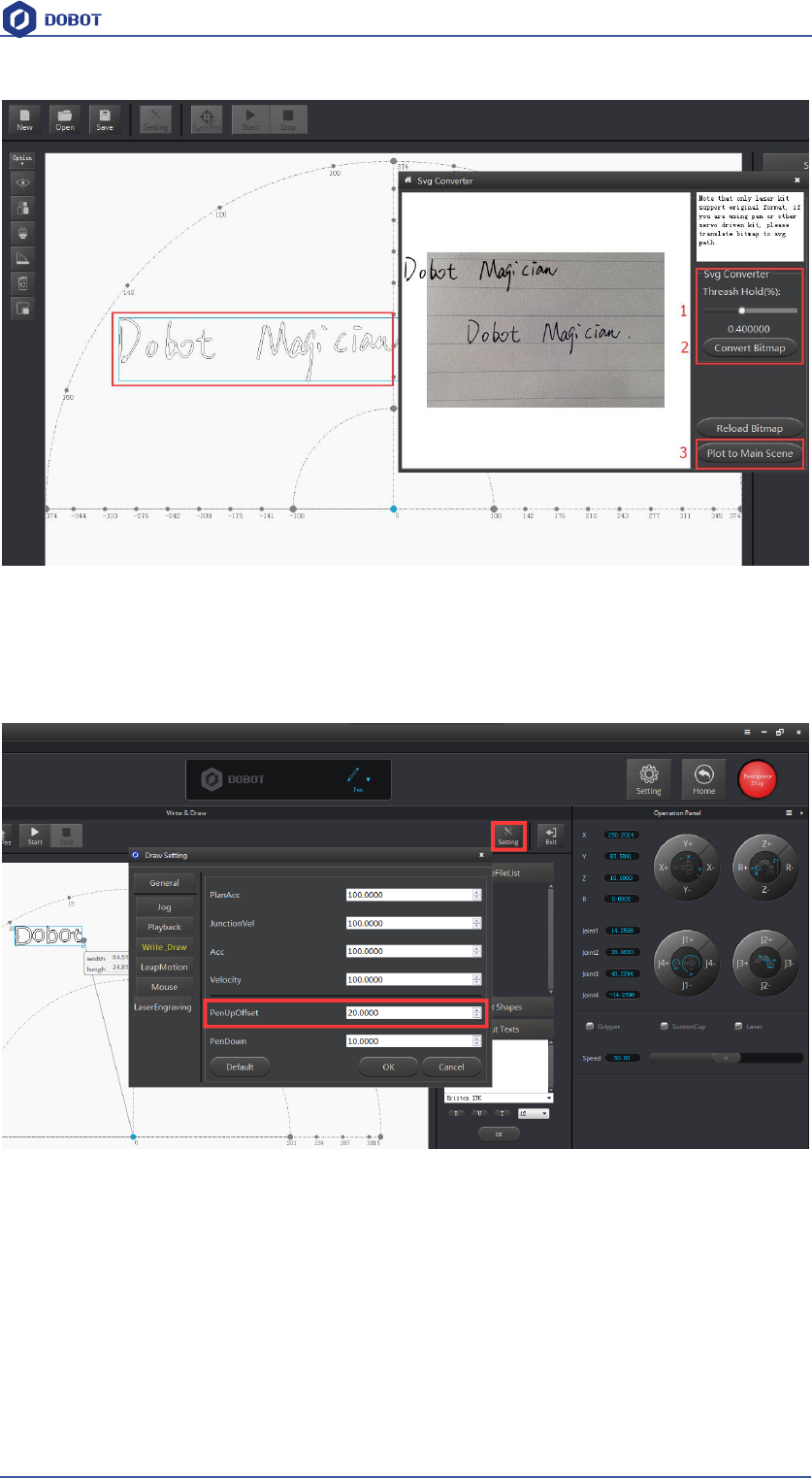
4) Also you can import pictures , convert these formats(BMP/JPEG/JPG/PNG and so on)into
SVG recognized by Dobot, once took and once draw;
Figure 6.7 Import pictures
After opening the picture, set proper switching threshold, click Convert Bitmap, then SVG path
file will come out automatically, then click Plot to Main Scene, the ready trajectory can be loaded
in writing main interface, show as follows:
Shenzhen Yuejiang Technology Co.,LTD
Shenzhen Yuejiang Technology Co., Ltd
51
Dobot Magician User Manual
Figure 6.8 Import pictures and SVG path file will come out automatically
2. Set laser engraving parameters: set velocity and acceleration( suggested value is 3 ) and
PenUpOffset, here just keep the default 20;
Figure 6.9 Set parameters of laser engraving
6.4 Adjust the focus and start writing
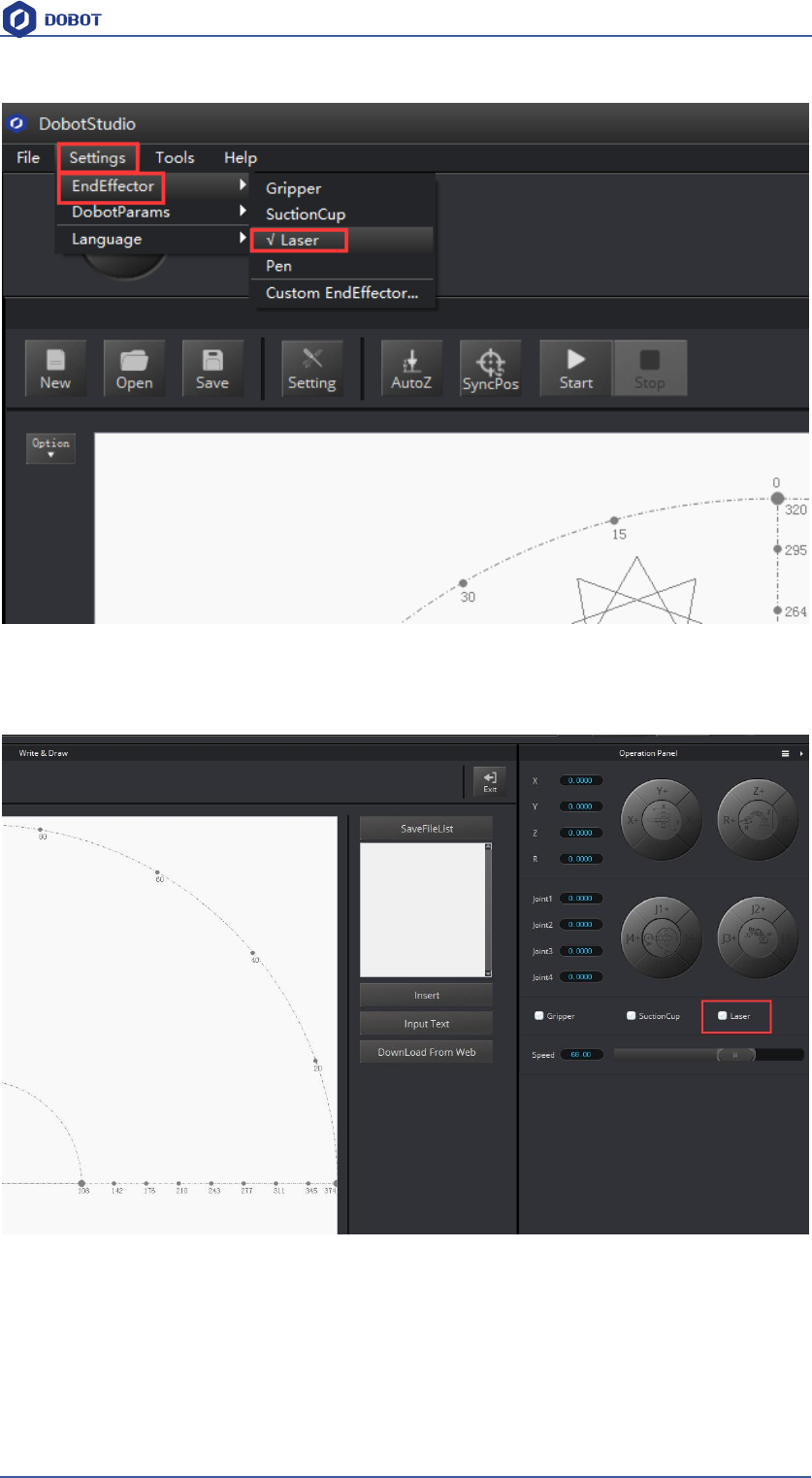
1. Select the EndEffector as Laser: Settings->EndType Settings->Laser, shown as follows:
Shenzhen Yuejiang Technology Co.,LTD
Shenzhen Yuejiang Technology Co., Ltd
52
Dobot Magician User Manual
Figure 6.10 Set EndEffector
2. Tick ON to open the software;
Figure 6.11 Open the laser
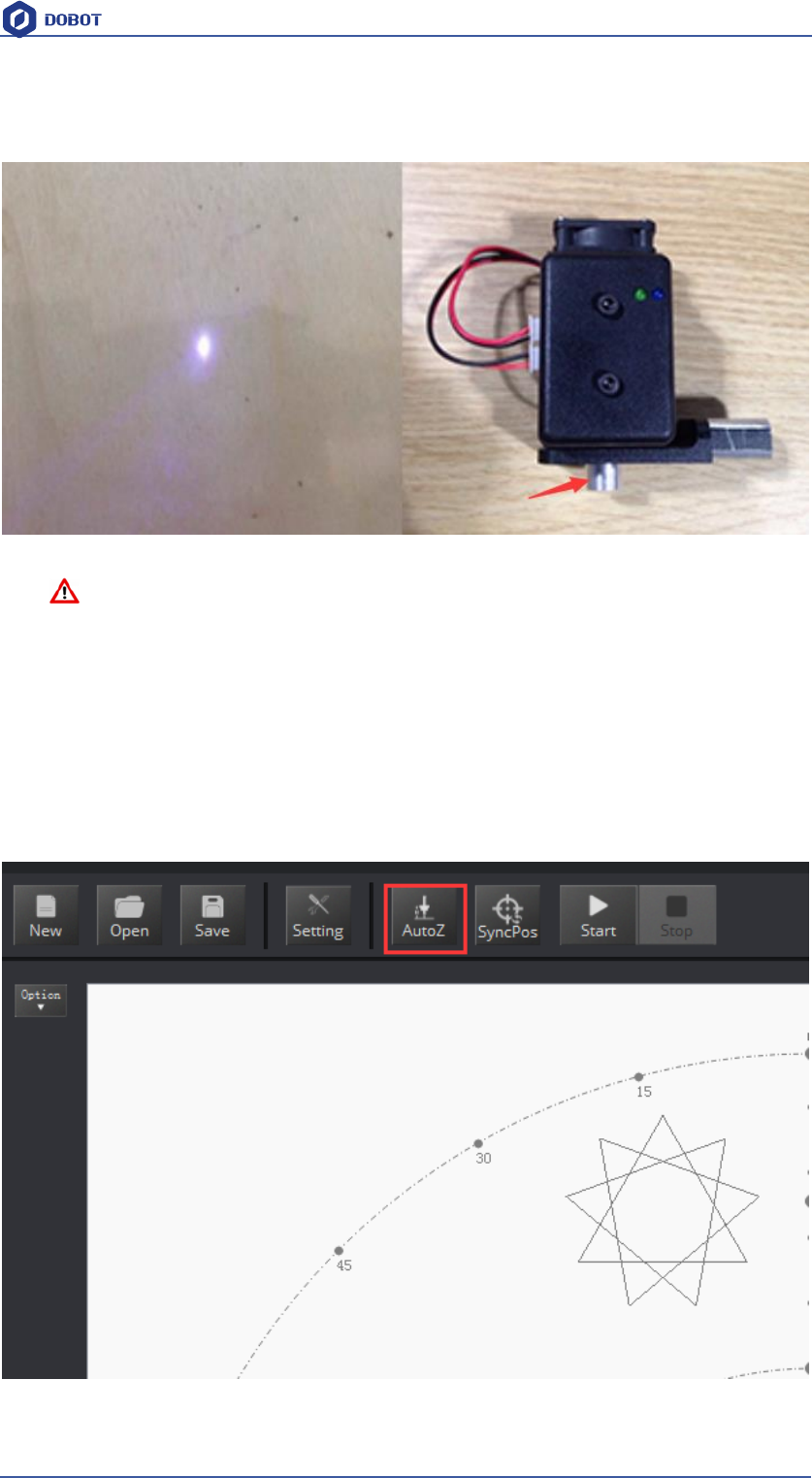
3. Focus Adjustment. Hold down Unlock Key to adjust the distance between laser and the
surface of the material, and then adjust knob to proper focus, if it shown as the brightest dot of
Facularpoint, this will be the most proper height. There will be signs of burn on the material
when get sufficient laser power. One can cancel ticking to close laser after adjusting.
Shenzhen Yuejiang Technology Co.,LTD
Shenzhen Yuejiang Technology Co., Ltd
53
Dobot Magician User Manual
If it still cannot focus, then maybe the focus of laser is too long. We can rotate metal knob of laser
to adjust(as the picture on the right button), refocus again after adjusting.
Figure 6.12 Focus Adjustment
Notice:
The laser can heat object when it is in focused state, objects like paper board or wood
can be engraved or burned.
! DO NOT focus the laser on people or animals
! DO NOT let children play with it alone.
! The process needs to be monitored when it is running.
! After the process please turn off the laser promptly.
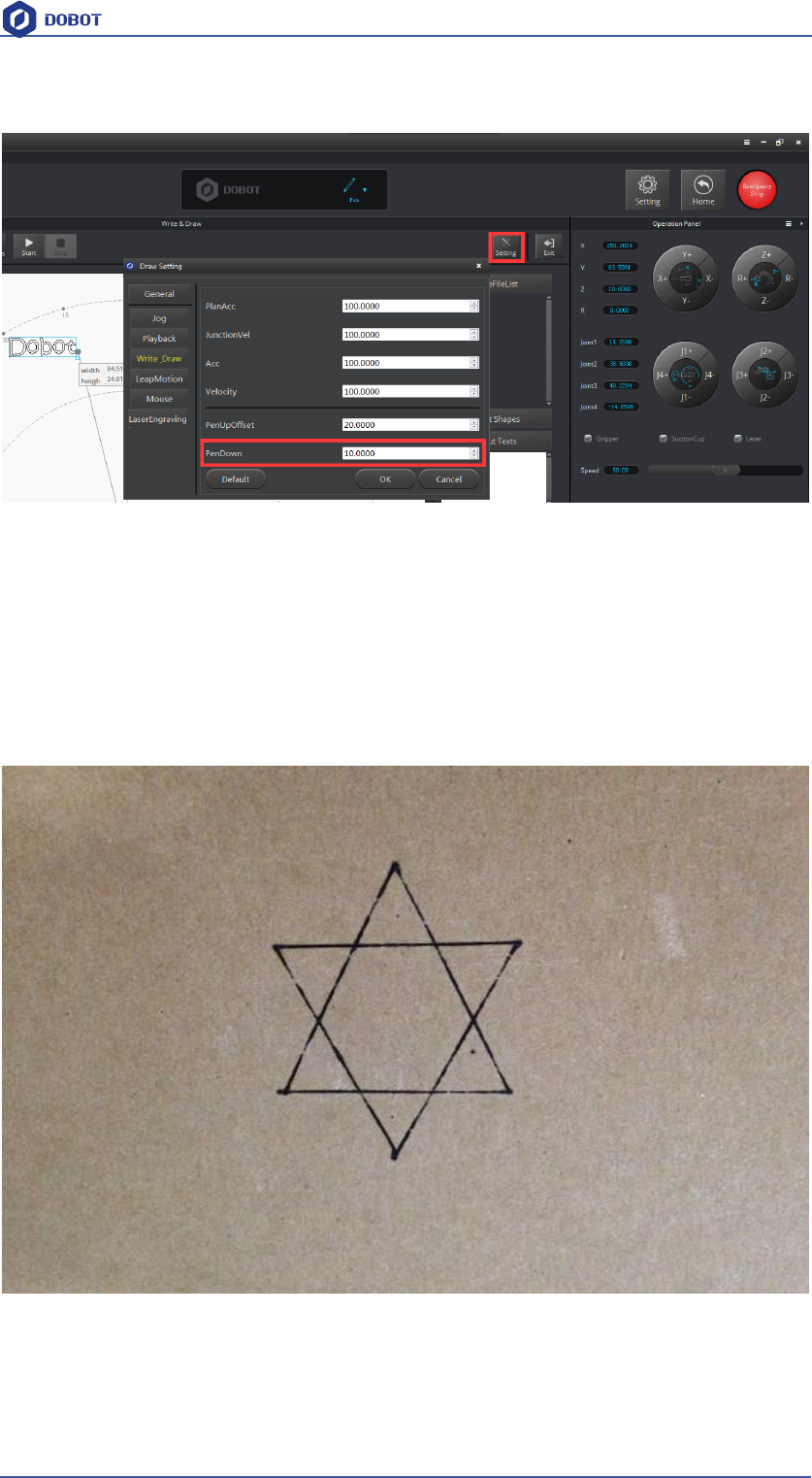
4. Click AutoZ and get the current Z value, thus, you need not adjust the focus manually when
you engrave next time, here just comes with the steps: import pictures-> SyncPos->Start.
Figure 6.13 Lock writing height
Shenzhen Yuejiang Technology Co.,LTD
Shenzhen Yuejiang Technology Co., Ltd
54
Dobot Magician User Manual
You can check the Pendown parameter from here:
Figure 6.14 Pendown parameters
If the writing is not very well, the nib height need to be adjusted slightly, also you can revise the
value of Pendown.
7. Click SyncPos, Dobot will move into the top position of writing starting point automatically.
8. Click Start, Pause and Stop to control Dobot.
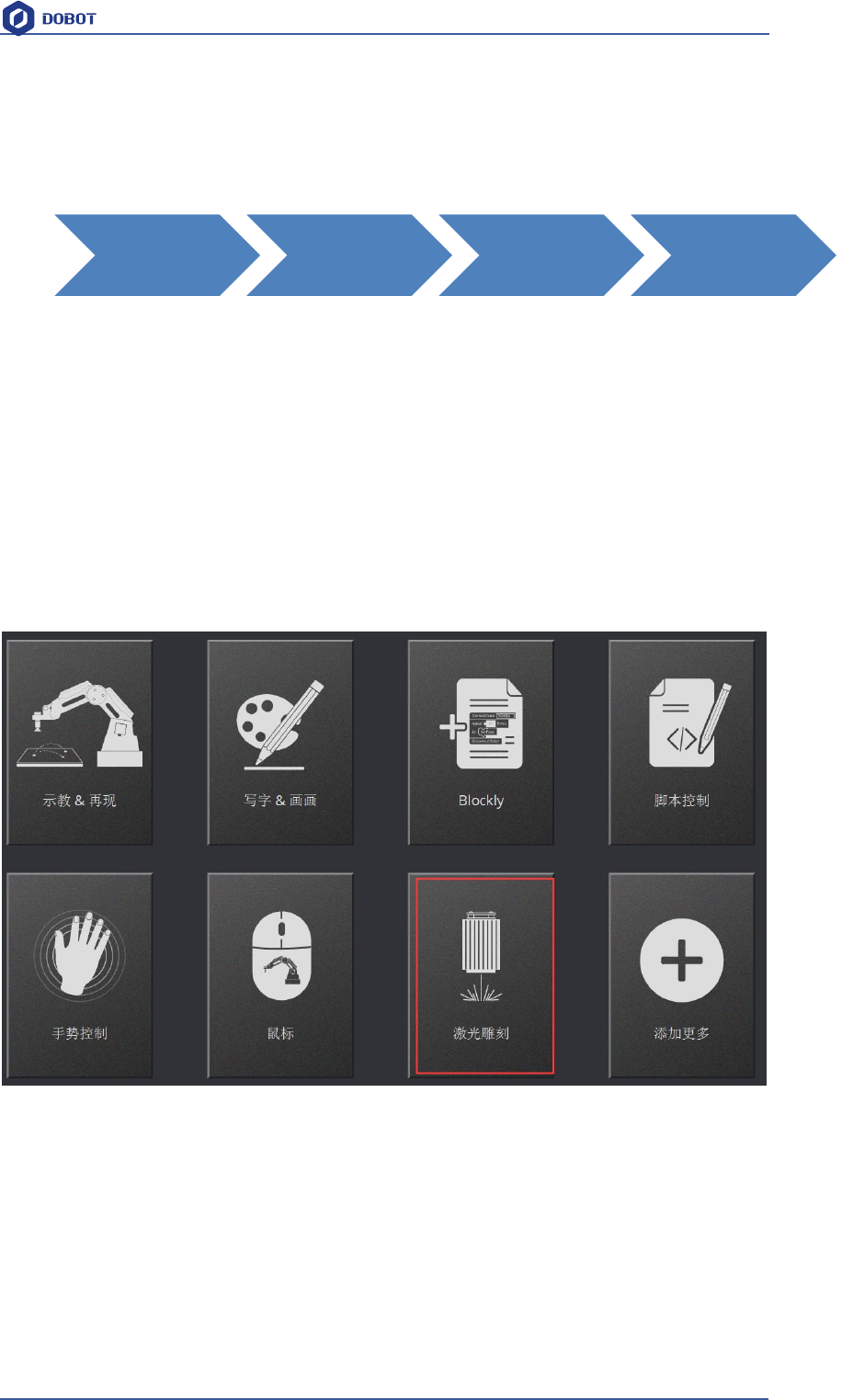
The result as follows:
5. The effect shown as follows:
Figure 6.15 The effect of laser engraving
Shenzhen Yuejiang Technology Co.,LTD
Shenzhen Yuejiang Technology Co., Ltd
55
Dobot Magician User Manual
7. The Tutorial of Shade Laser Engraving
The whole flow chart of shade laser engraving as below:
Notice: Shade laser engraving is also a kind of laser engraving.
7.1 Installation of Laser Accessories
Shade laser engraving and laser engraving share the same kit, and pls refer to the chapter of laser
engraving installation.
7.2 Connect DobotStudio
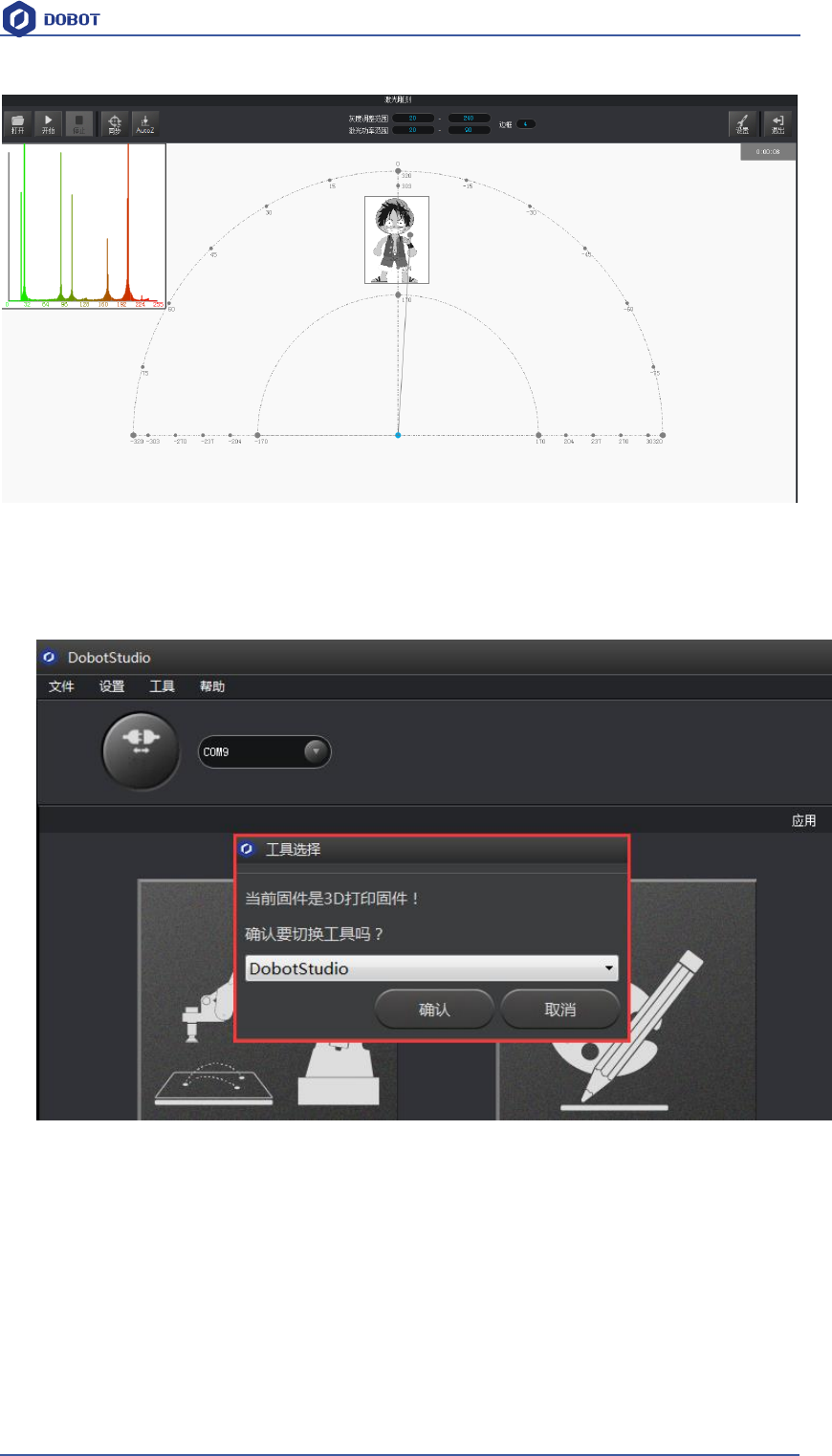
1. The software of gray engraving is DobotStudio that has been included in DobotStudio. Open
DobotStudio, click Tools-->Open Shade Laser Engraving;
Figure 7.1 Open laser engraving interface
Installation
of Laser
Accessories
Connect Grbl
Controller
Import Pattern
and Set
Parameters
Start
Engraving
Shenzhen Yuejiang Technology Co.,LTD
Shenzhen Yuejiang Technology Co., Ltd
56
Dobot Magician User Manual
Figure 7.2 Enter into shade laser engraving interface
2. If the current firmware is not for DobotStudio, for example, for 3D printing, here will pop up
the Checkbox, and then we can select DobotStudio in the drop-down box:
Figure 7.3 Select DobotStudio
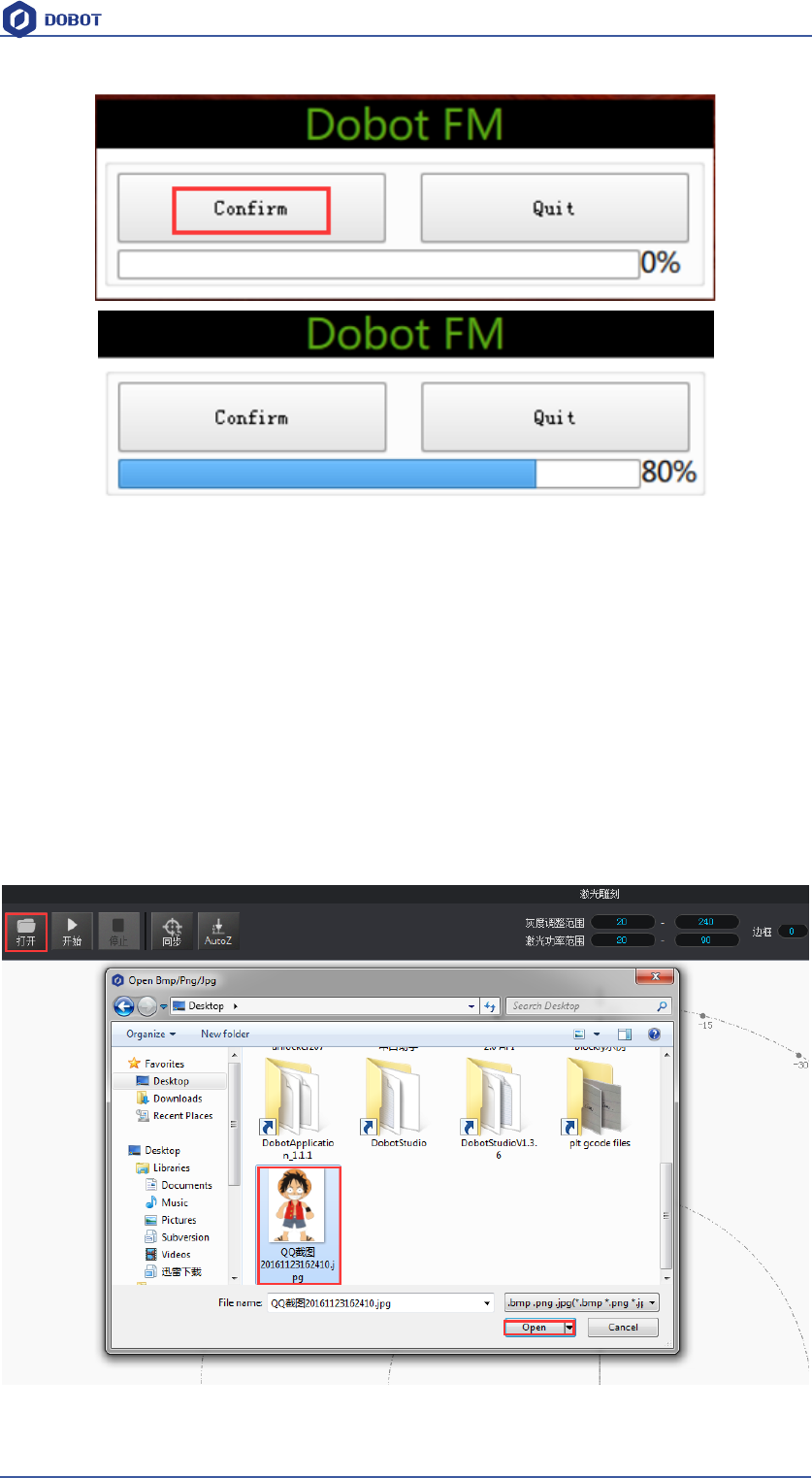
Click OK, pop up the firmware burning window, and click Confirm to burn the firmware:
Shenzhen Yuejiang Technology Co.,LTD
Shenzhen Yuejiang Technology Co., Ltd
57
Dobot Magician User Manual
After burning, DobotStudio will be opened automatically, wait for about 5 seconds, you can hear a
short sound, which shows a successful burning and the light turns into green at the bottom-right.
Then you can connect Dobot to control according to the last step.
7.3 Import Pattern and Set Parameters
1. The imported picture should be put into the sector area of main interface, as Dobot will be at a
limited position if beyond the standard range as a result of writing unnormally. Actually, there
will be a warning of a red highlighting if beyond range.
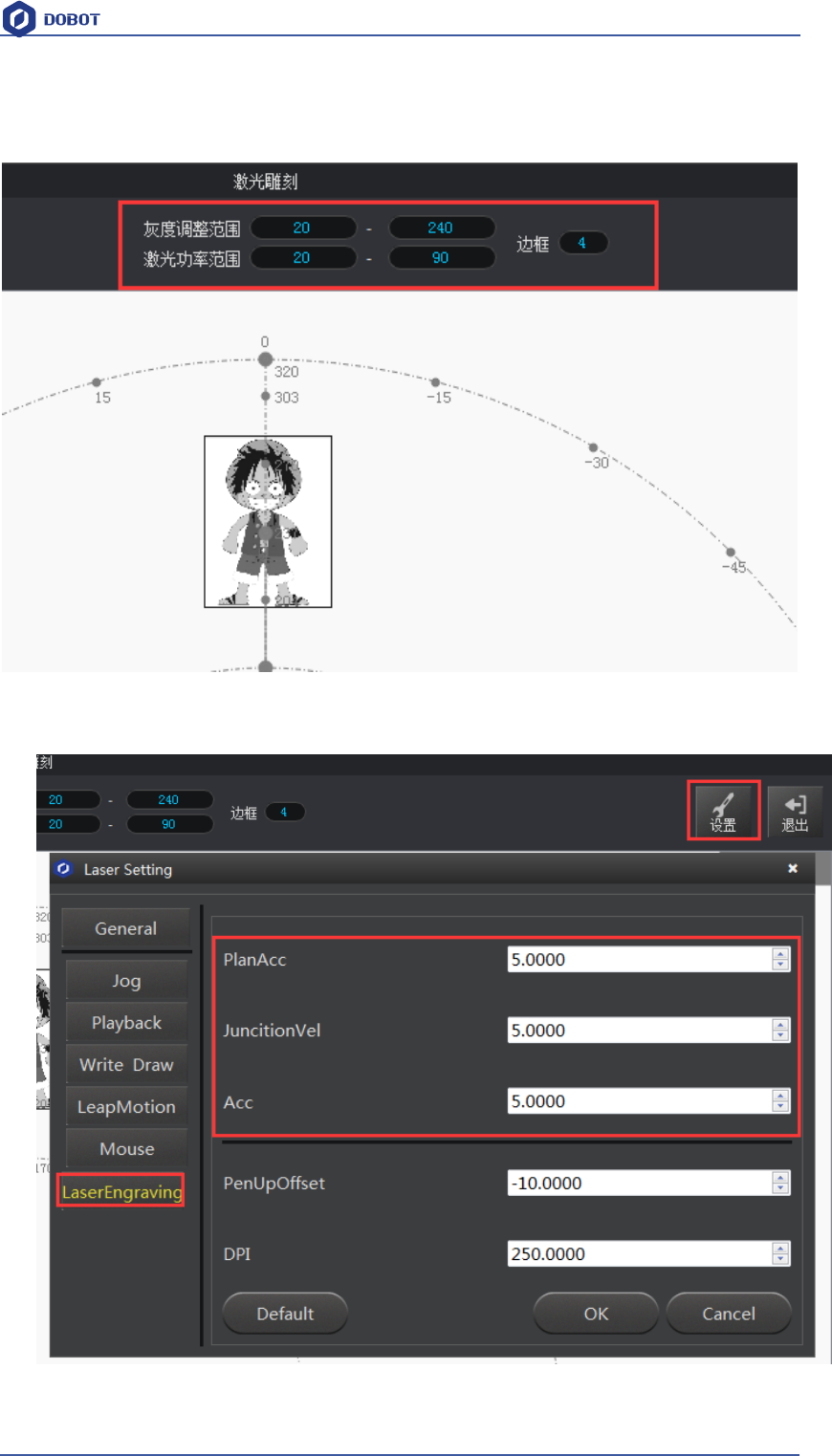
Also you can import pictures, convert these format (BMP/JPEG/JPG/PNG and so on) into SVG
recognized by Dobot, once took and once draw;
Figure 7.4 Import engraving pictures
Shenzhen Yuejiang Technology Co.,LTD
Shenzhen Yuejiang Technology Co., Ltd
58
Dobot Magician User Manual
Open the picture, adjust the gray scale(0-255), laser power(0-100%) and the border for the
customized engrave effect.
Figure 7.5 Import the pictures into SVG file
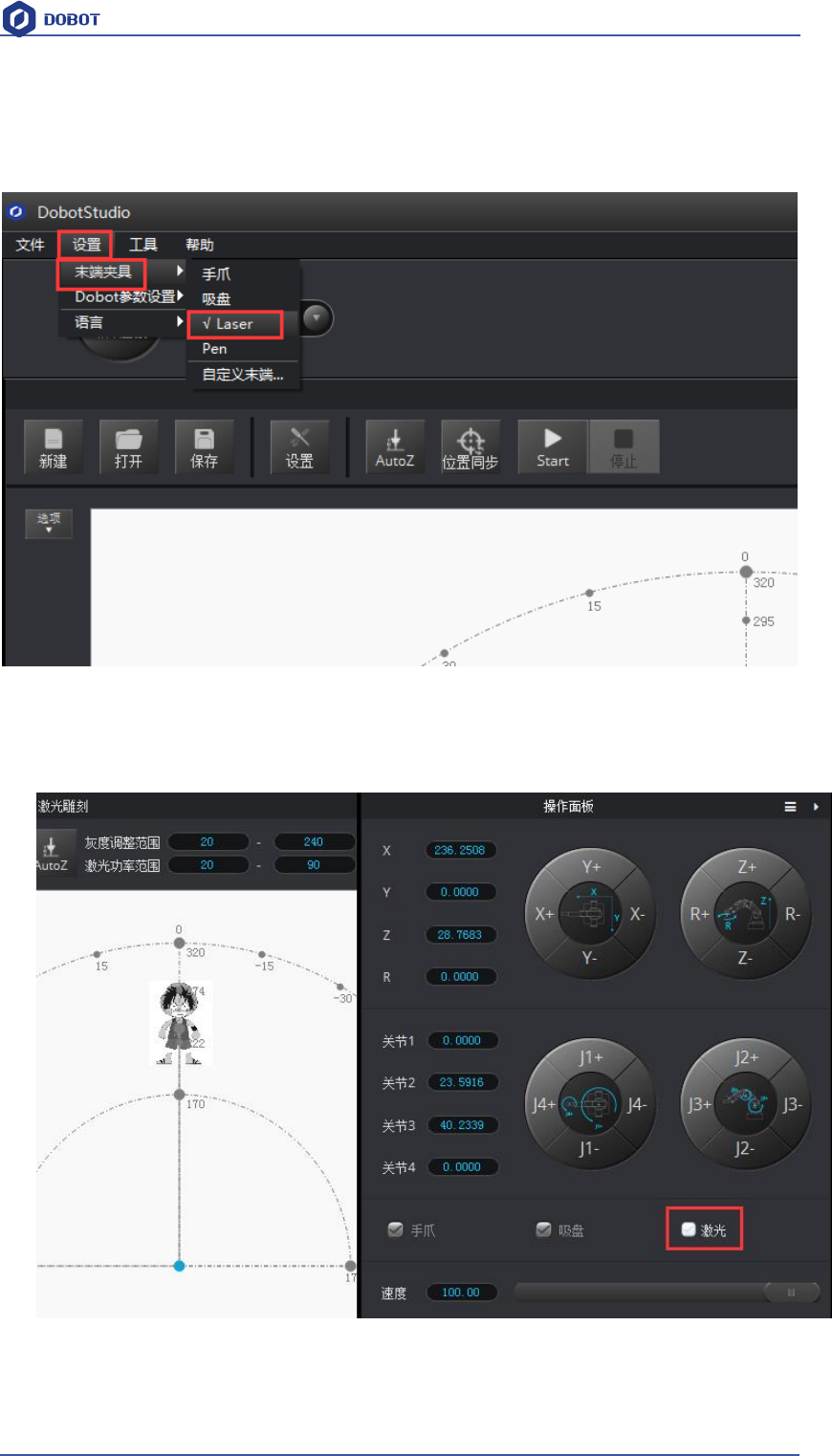
2. Set shade laser engraving velocity and acceleration, here we suggest 5, shown as folllows:
Figure 7.6 Set the parameter
Shenzhen Yuejiang Technology Co.,LTD
Shenzhen Yuejiang Technology Co., Ltd
59
Dobot Magician User Manual
7.4 Adjust Focus and Start to Engrave
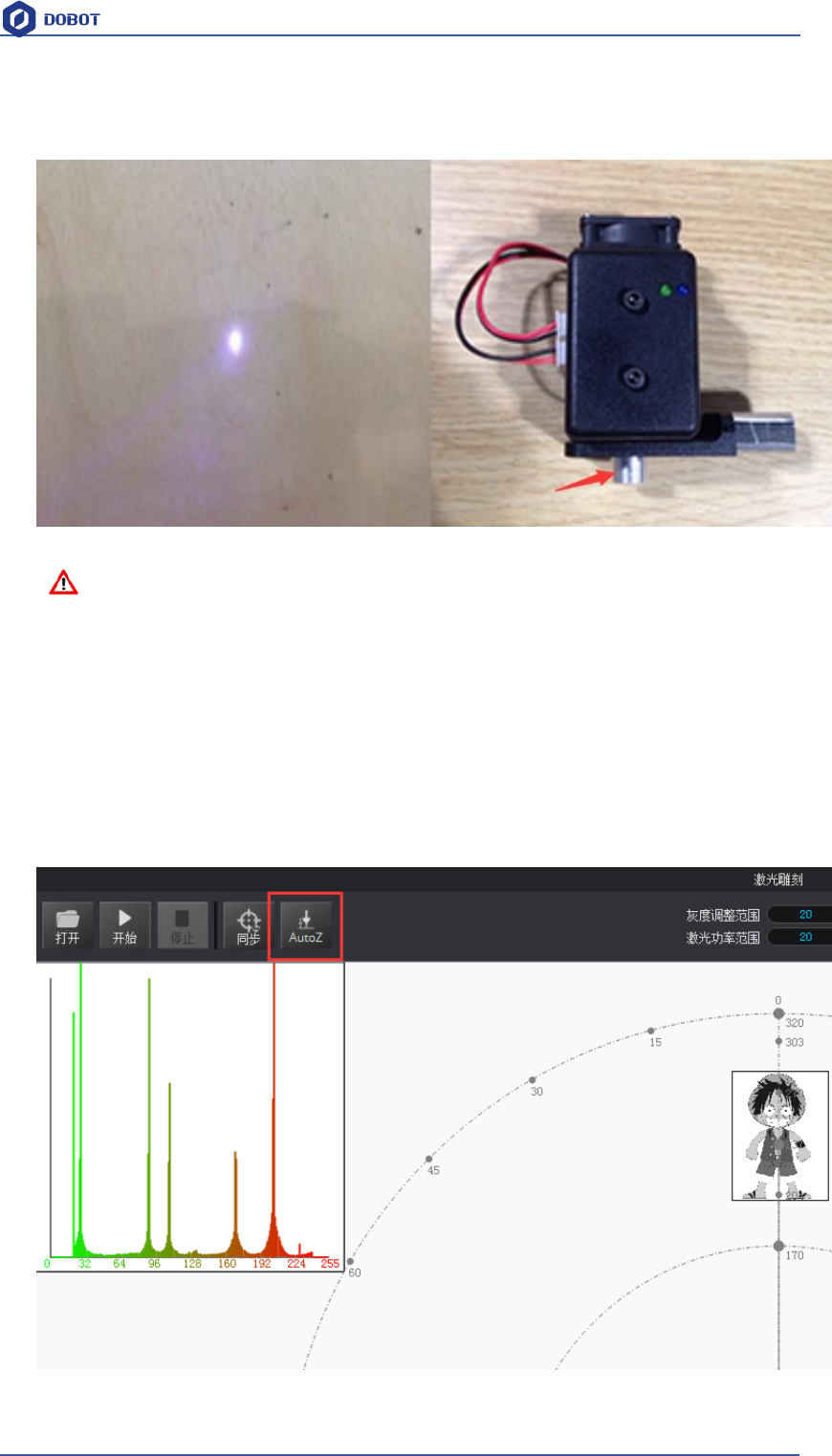
1. Set the endeffector as Laser. Settings-> EndEffector->Laser, shown in follows:
Figure 7.7 Set EndEffector
2. Focus adjustment. Adjust the distance between the laser and engraving material, check ON to
open the laser.
Figure 7.8 Check the laser
Press and hold down the Unlock (the white button on the forearm) adjust knob to proper focus,
if it shown as the brightest dot of Facularpoint, this will be the most proper height. There will
Shenzhen Yuejiang Technology Co.,LTD
Shenzhen Yuejiang Technology Co., Ltd
60
Dobot Magician User Manual
be signs of burn on the material when get sufficient laser power.
If still cannot focus, just rotate the metal knob at the bottom of laser to adjust.
Figure 7.9 Focus adjustment
Notice:
The laser can heat object when it is in focused state, objects like paper board or wood
can be engraved or burned.
! DO NOT focus the laser on people or animals
! DO NOT let children play with it alone.
! The process needs to be monitored when it is running
! After the process please turn off the laser promptly
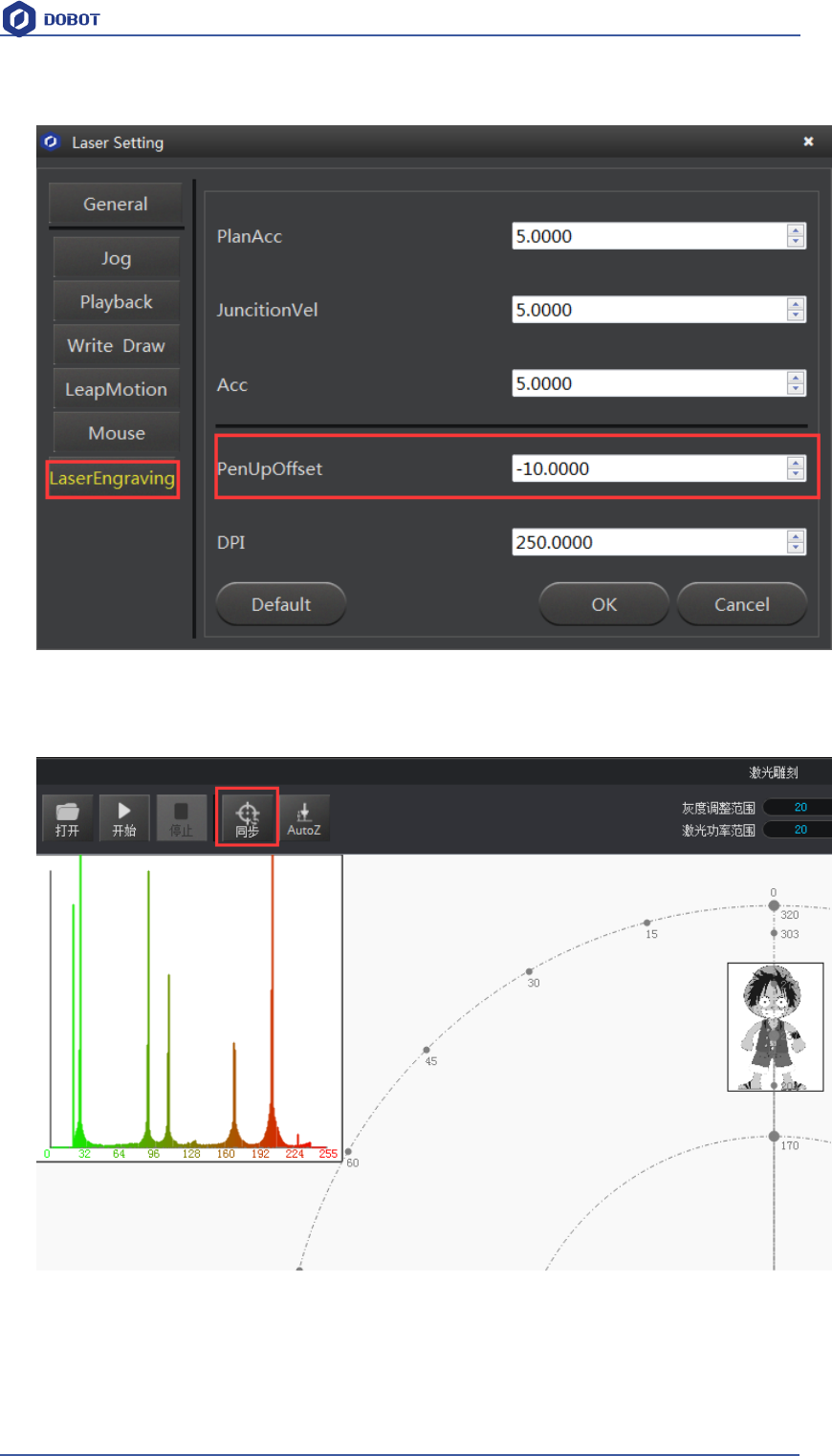
3. Click AutoZ and get the current Z value(You needn’t adjust the distance manually next time ,
import pictures->Synchronous->Start)
Figure 7.10 Lock the height
Shenzhen Yuejiang Technology Co.,LTD
Shenzhen Yuejiang Technology Co., Ltd
61
Dobot Magician User Manual
Saved value of Z, check from here:
Figure 7.11 Check the height
If the effect is not very well, finetune the laser height, also can modify the pendown value.
4. After focus adjustment, click SyncPos, Dobot will move to the start position.
5. Click Start, pause and stop to control Dobot.
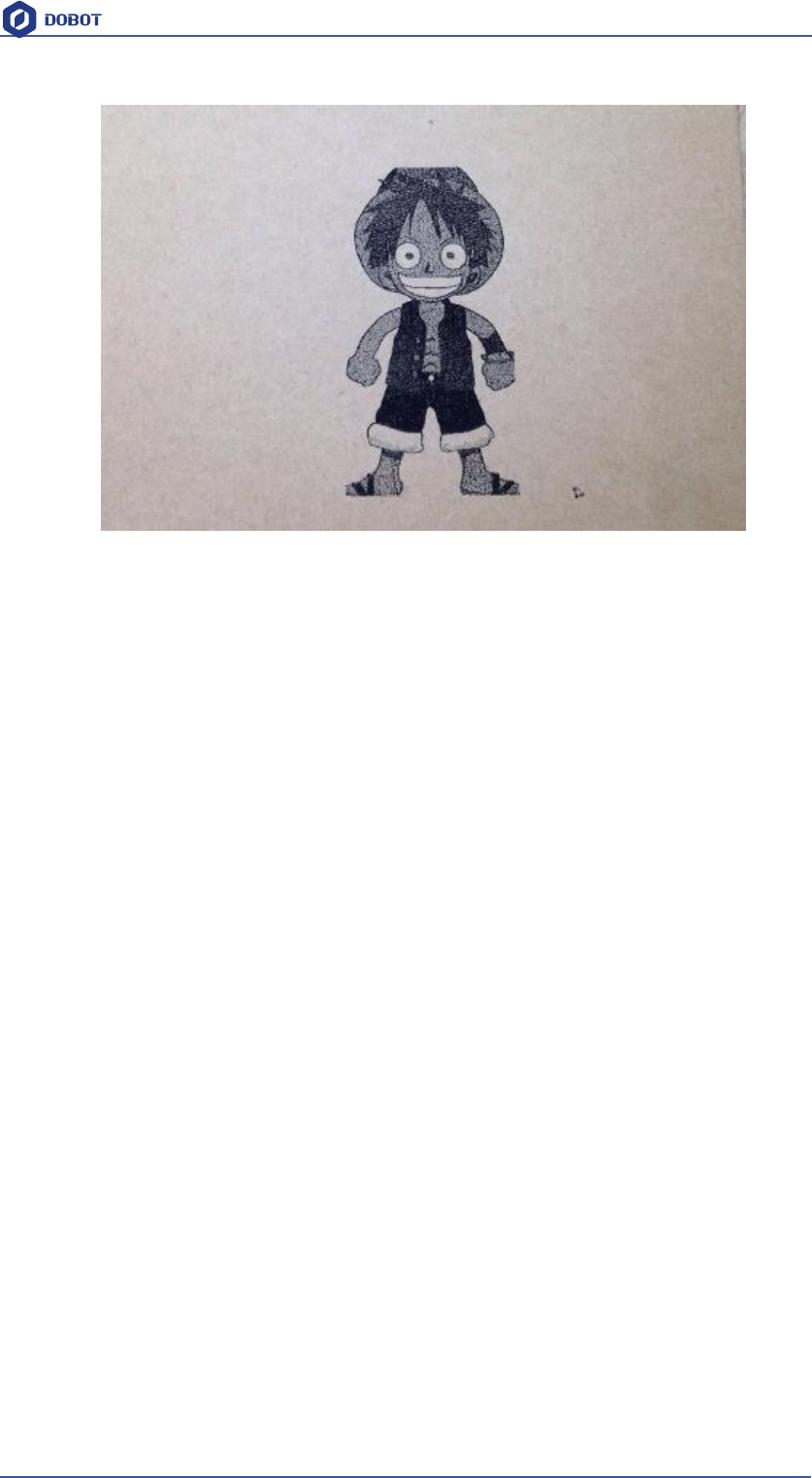
6. The effect is shown as follows:
Shenzhen Yuejiang Technology Co.,LTD
Shenzhen Yuejiang Technology Co., Ltd
62
Dobot Magician User Manual
Figure 7.12 The Engraving Effect
Shenzhen Yuejiang Technology Co.,LTD
Shenzhen Yuejiang Technology Co., Ltd
63
Dobot Magician User Manual
8. The Tutorial of 3D Printing
The whole flow chart of 3D printing as shown below:
3D printing can use Repetier Host and Cura of main stream:
Cura: Slice up is fast and stable, strong inclusiveness to 3D model structure, less parameter
settings and so many other strengths, which has more and more users.
Repetier-Host: It can slice up, check and modify G-Code, control 3D printing manually. While
it doesn’t offer slice up searching but call other slice up software, such as CuraEngine, Slic3r
and so on. More parameter settings, more flexible.
Here will introduce the details separately from the second step.
Note: In Mac system, Dobot can only be avaliable for Cura, refer to the tutorial of Cura.
8.1 Installation of Accessories of 3D Printing
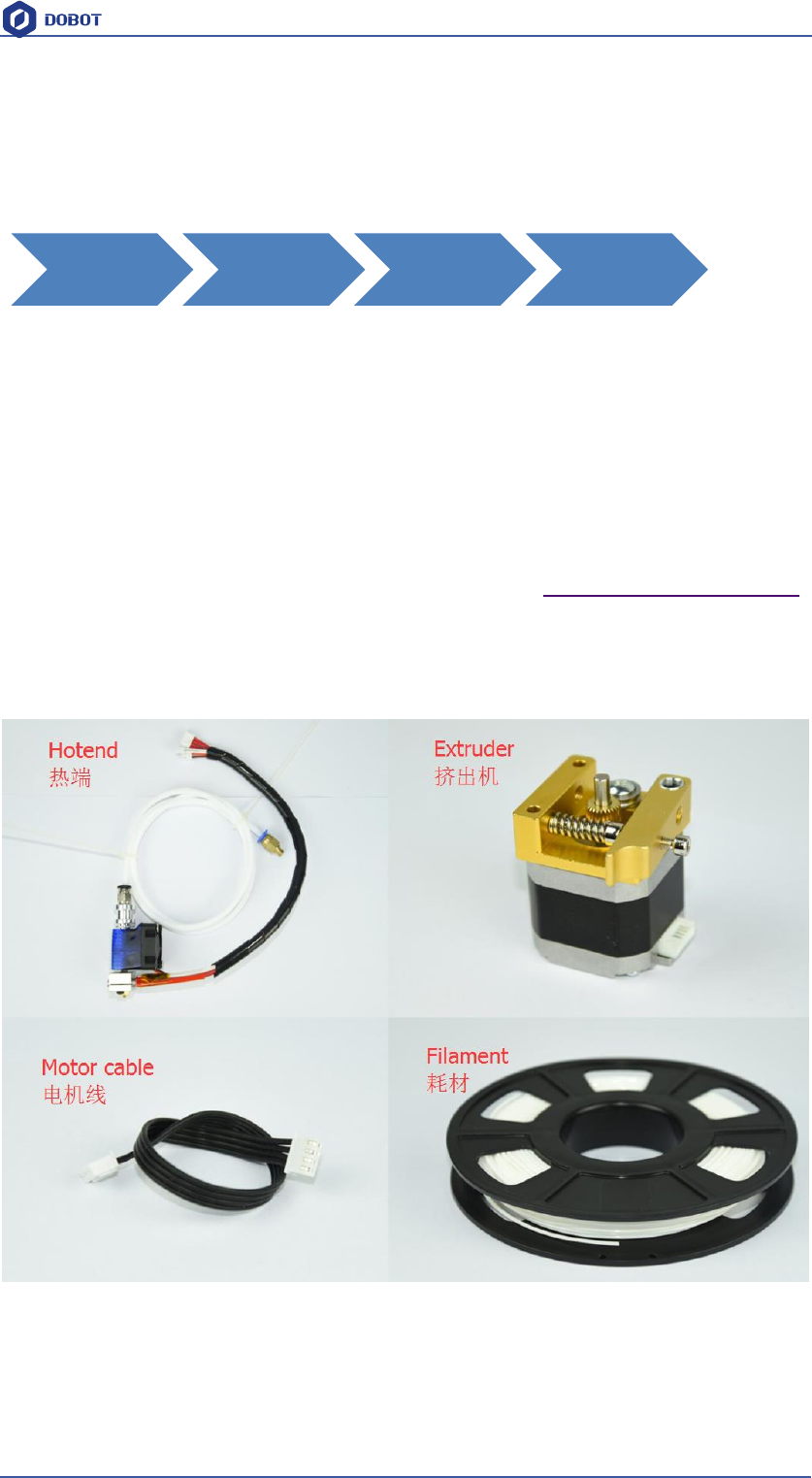
3D printing accessories: extruder, hotend, motor cable and filament, shown as follows;:
Figure 7.1 Accessories of 3D Printing
The steps as follows:
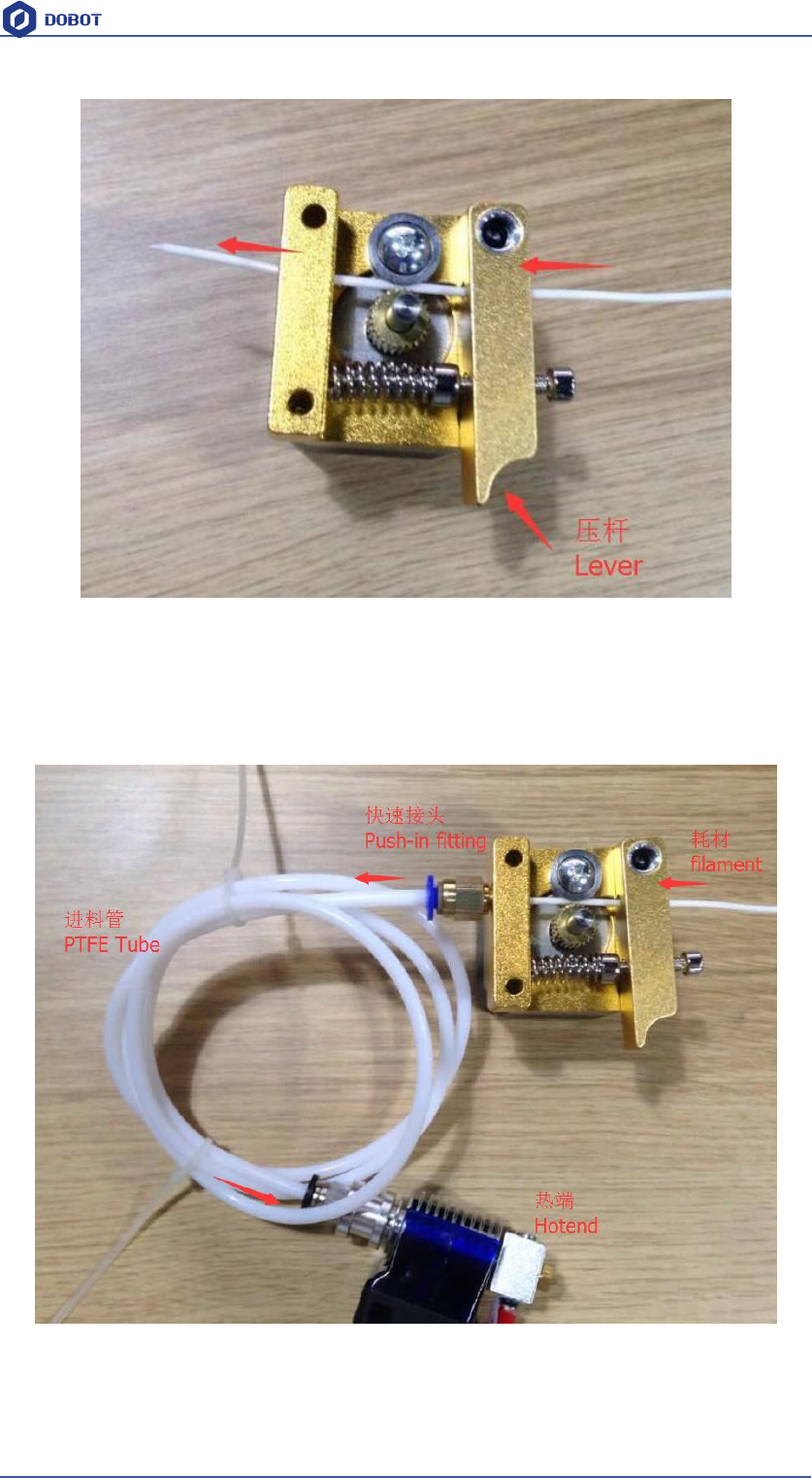
1. Press down the lever on the extruder by hand, and push down the filament to the bottom of the
hole via the pulley;
Accessories
Installation of
3D Printing
Connect
Repetier Host Parparation
before Printing
Import Models
and Start to
Print
Shenzhen Yuejiang Technology Co.,LTD
Shenzhen Yuejiang Technology Co., Ltd
64
Dobot Magician User Manual
Figure 7.2 Insert filament
2. Insert the filament to PTFE Tube and push it down the bottom of the hotend, then tighten the
Push-in fitting on the extruder. Notice: Make sure the PTFE Tube itself is push down to the
hotend bottom, otherwise, it will cause abnormal discharge.
Figure 7.3 Connect extruder and hotend
3. Fasten hot end with butterfly nut;
Shenzhen Yuejiang Technology Co.,LTD
Shenzhen Yuejiang Technology Co., Ltd
65
Dobot Magician User Manual
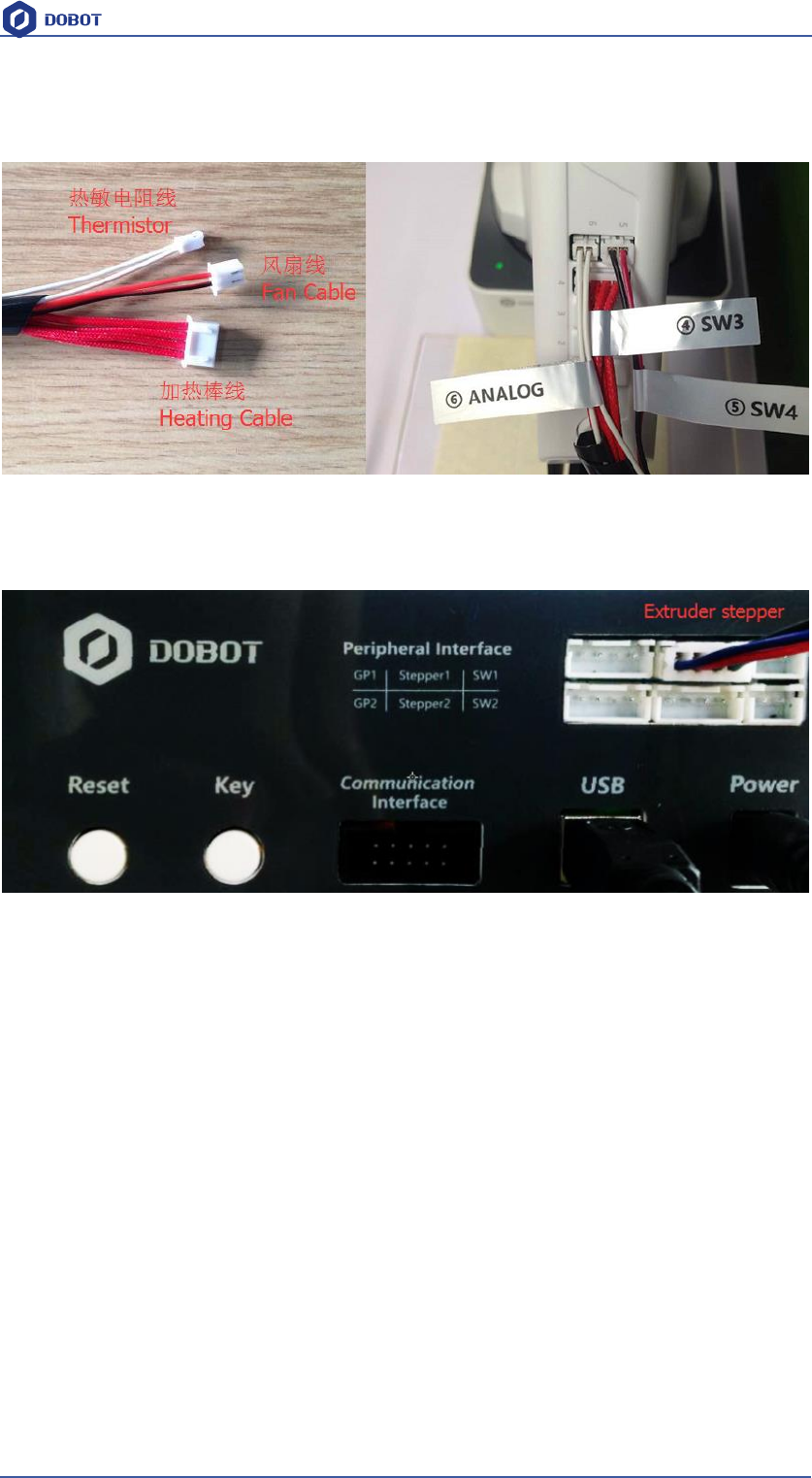
4. Connect power line of heating cable with interface 4 of forearm, link power line of fan with
interface 5, connect thermistor line with interface 6;
Figure 7.4 Connection of forearm
5. Connect extruder motor line with Stepper1 on the controller.
Figure 7.5 Connection of extruder
6. The whole kit shown as follows:
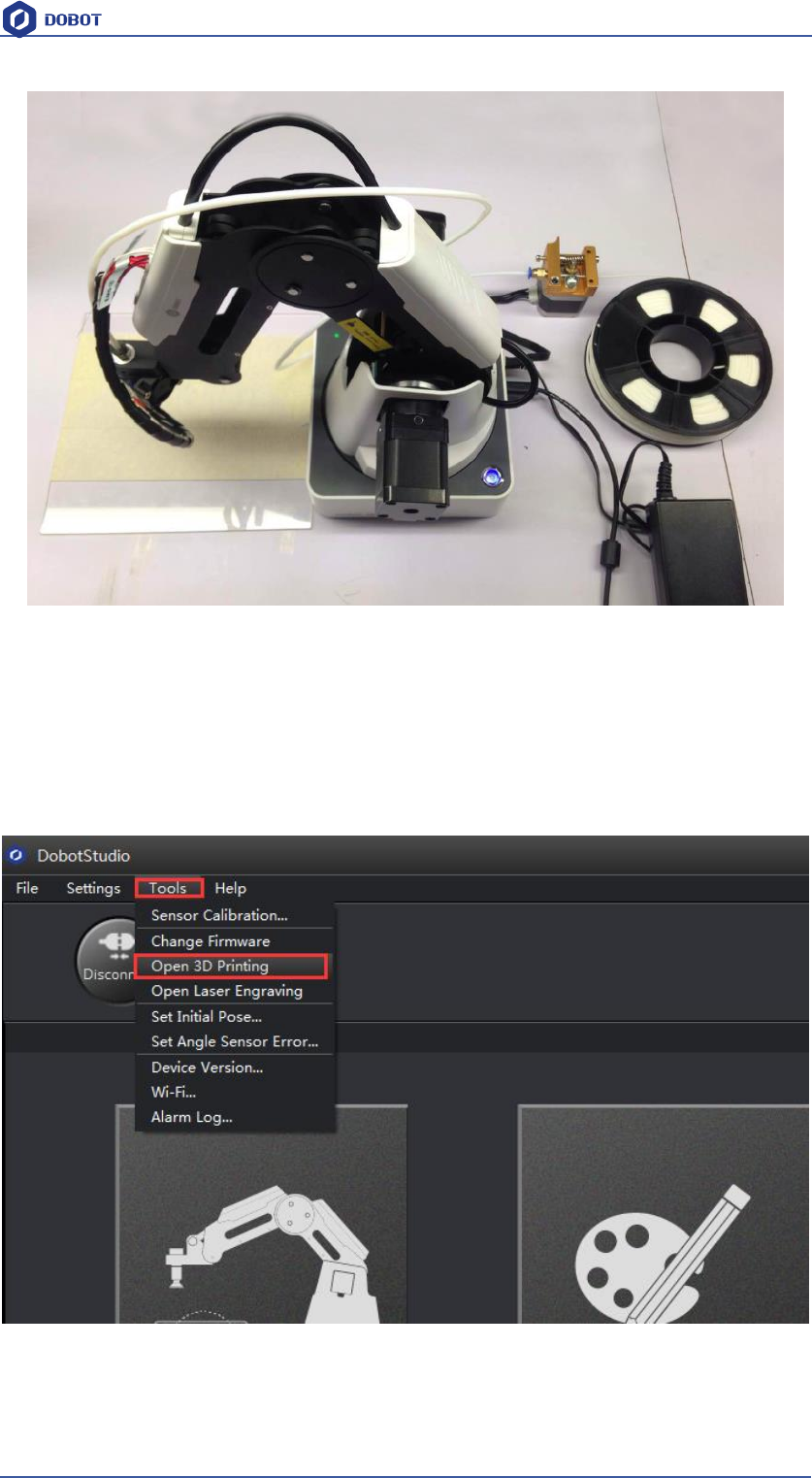
Shenzhen Yuejiang Technology Co.,LTD
Shenzhen Yuejiang Technology Co., Ltd
66
Dobot Magician User Manual
Figure 7.6 3D printing installation
8.2 Repetier Host
8.2.1 Switch into 3D printing
Repetier host has been built in DobotStudio. Open DobotStudio, click Tools-> Open 3D
Printing:
Here will pop up a dialog of 3D printing burning firmware, click Confirm, and then will pop up
software interface Repetier Host automatically, as follows::
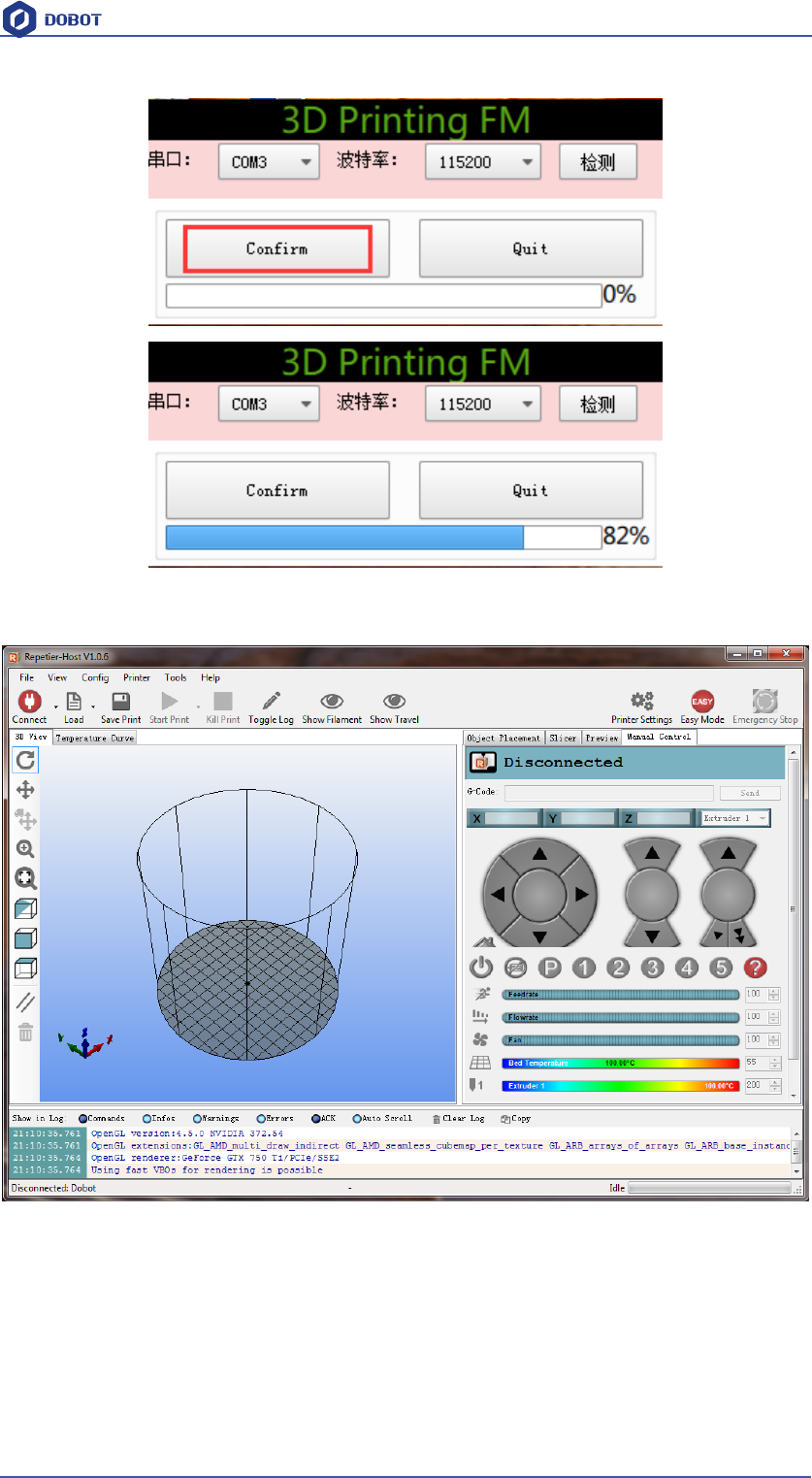
Shenzhen Yuejiang Technology Co.,LTD
Shenzhen Yuejiang Technology Co., Ltd
67
Dobot Magician User Manual
The interface of Repetier Host:
Figure 7.7 Repetier host
Note: If the current software has been 3D printing, you can open DobotStudio directly when you
want to use next time. Click Connect, select Ok, and then you can switch to Repetier Host, as
follows:
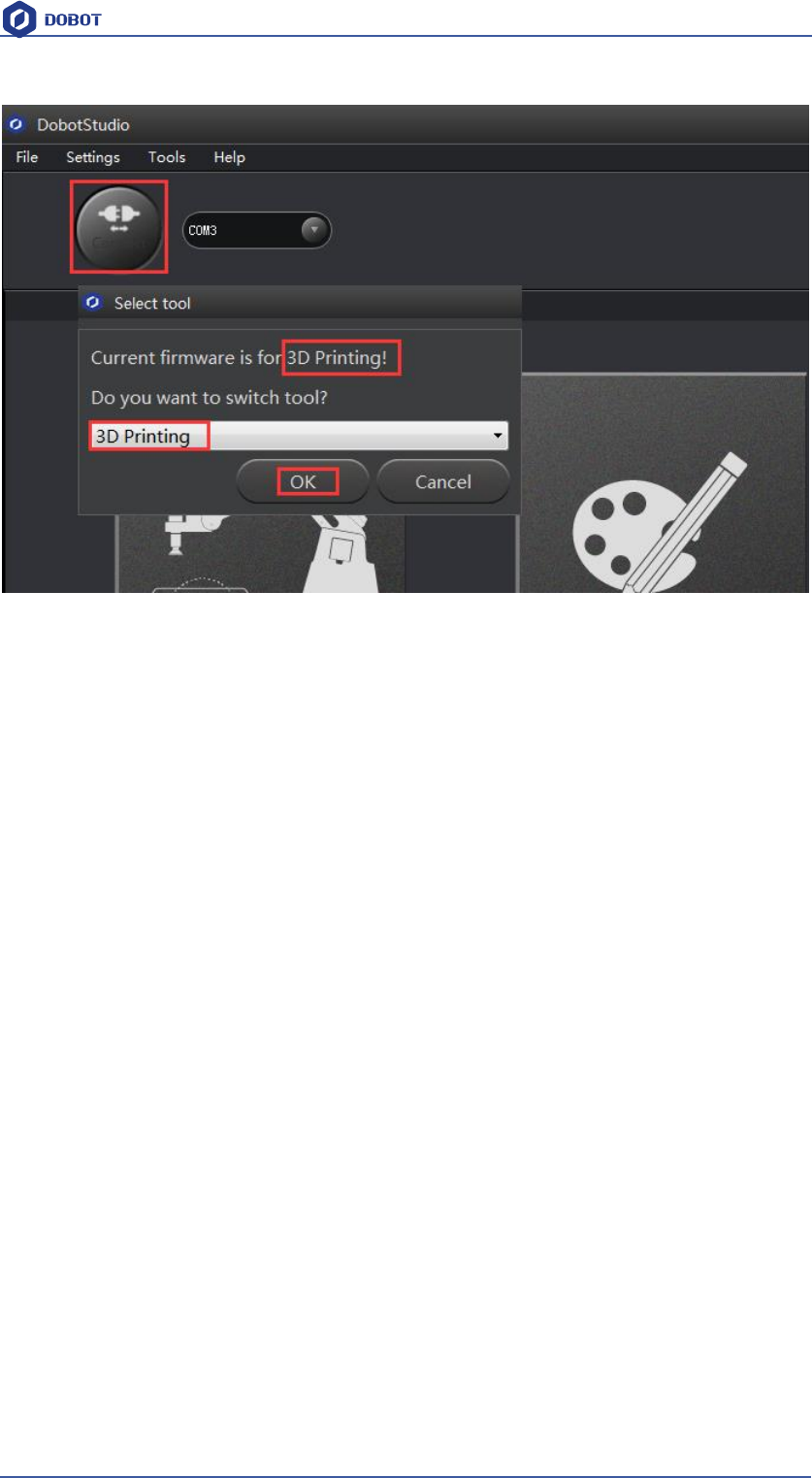
Shenzhen Yuejiang Technology Co.,LTD
Shenzhen Yuejiang Technology Co., Ltd
68
Dobot Magician User Manual
Figure 7.8 Switch into 3D printing automatically
8.2.2 Parameter Settings of 3D printing for the first time
when you use it for the first time, and later you need not to set again.
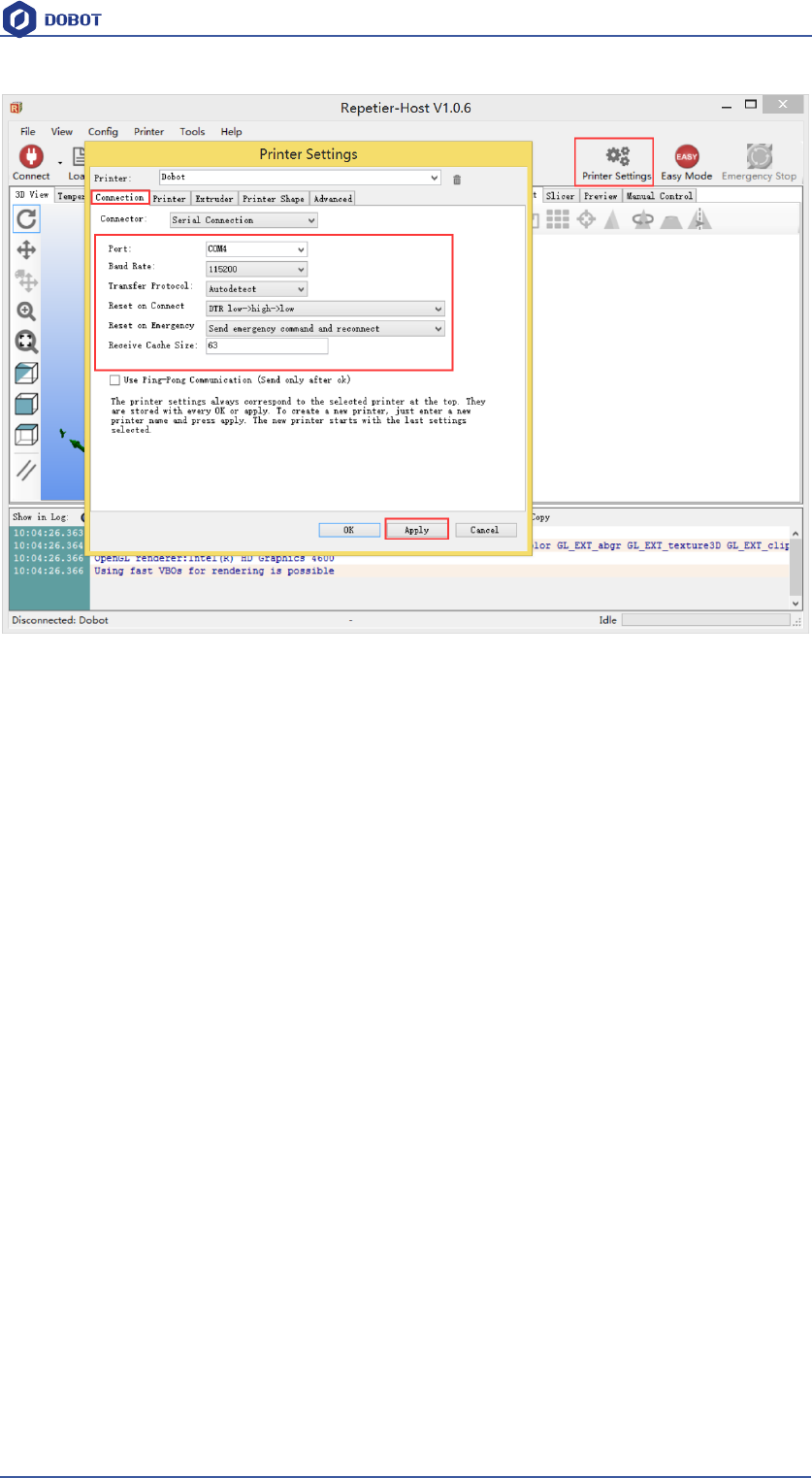
Click ‘Printer settings’ in the top right corner of the interface, and set related parameters in the
pop up diaglogue box:
(1)Connection lable settings
Printer Name: Dobot ( can be named by oneself)
Select Dobot Serial Port: Dobot serial port
Baud Rate: 115200
Reset on connect:DTR low->high->low
Reset on Emergency:Send emergency command+DTR high->low( If failed to connect, please try
other options )
Receive cache size: 63
The rest keep the default settings, click Apply after setting.
Shenzhen Yuejiang Technology Co.,LTD
Shenzhen Yuejiang Technology Co., Ltd
69
Dobot Magician User Manual
Figure 7.9 Connection Settings
(2)Connection Lable Settings
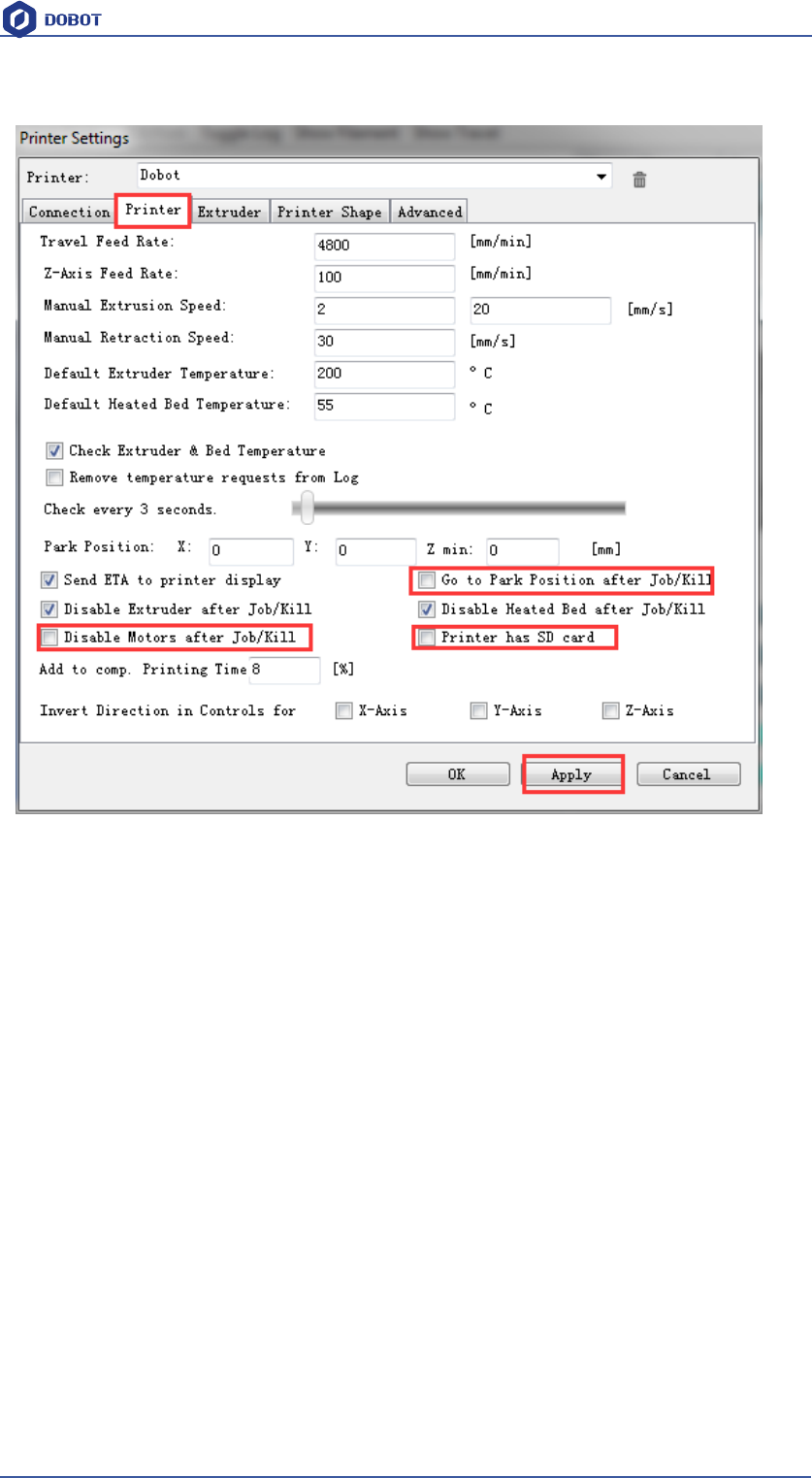
Shenzhen Yuejiang Technology Co.,LTD
Shenzhen Yuejiang Technology Co., Ltd
70
Dobot Magician User Manual
uncheck the following three settings and keep the rest default:
Figure 7.10 Printer settings
Shenzhen Yuejiang Technology Co.,LTD
Shenzhen Yuejiang Technology Co., Ltd
71
Dobot Magician User Manual
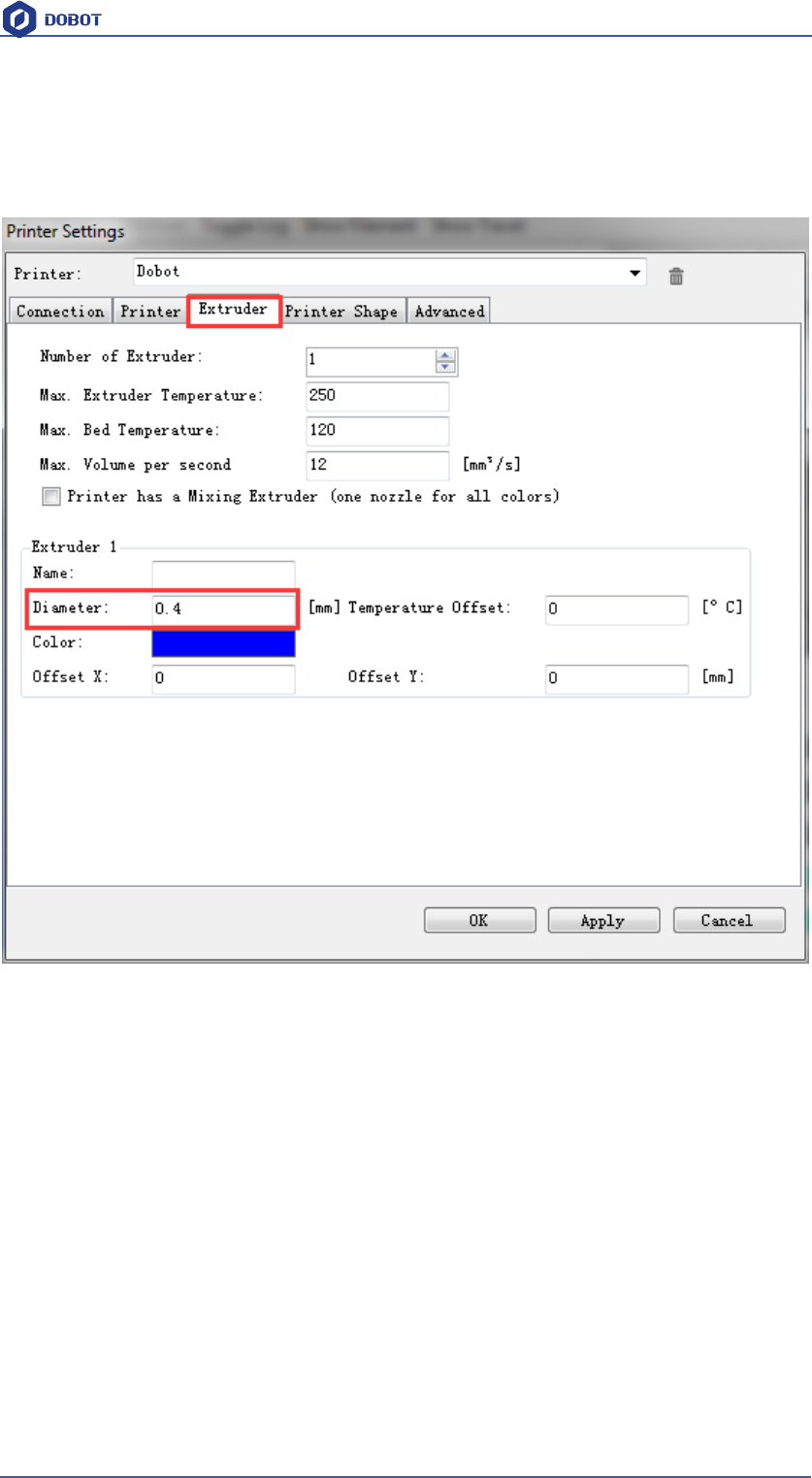
(3)Extruder Settings
The number of extruder setting: 1
The nozzle diameter: 0.4mm
Keep the rest default.
Figure 7.11 Extruder Settings
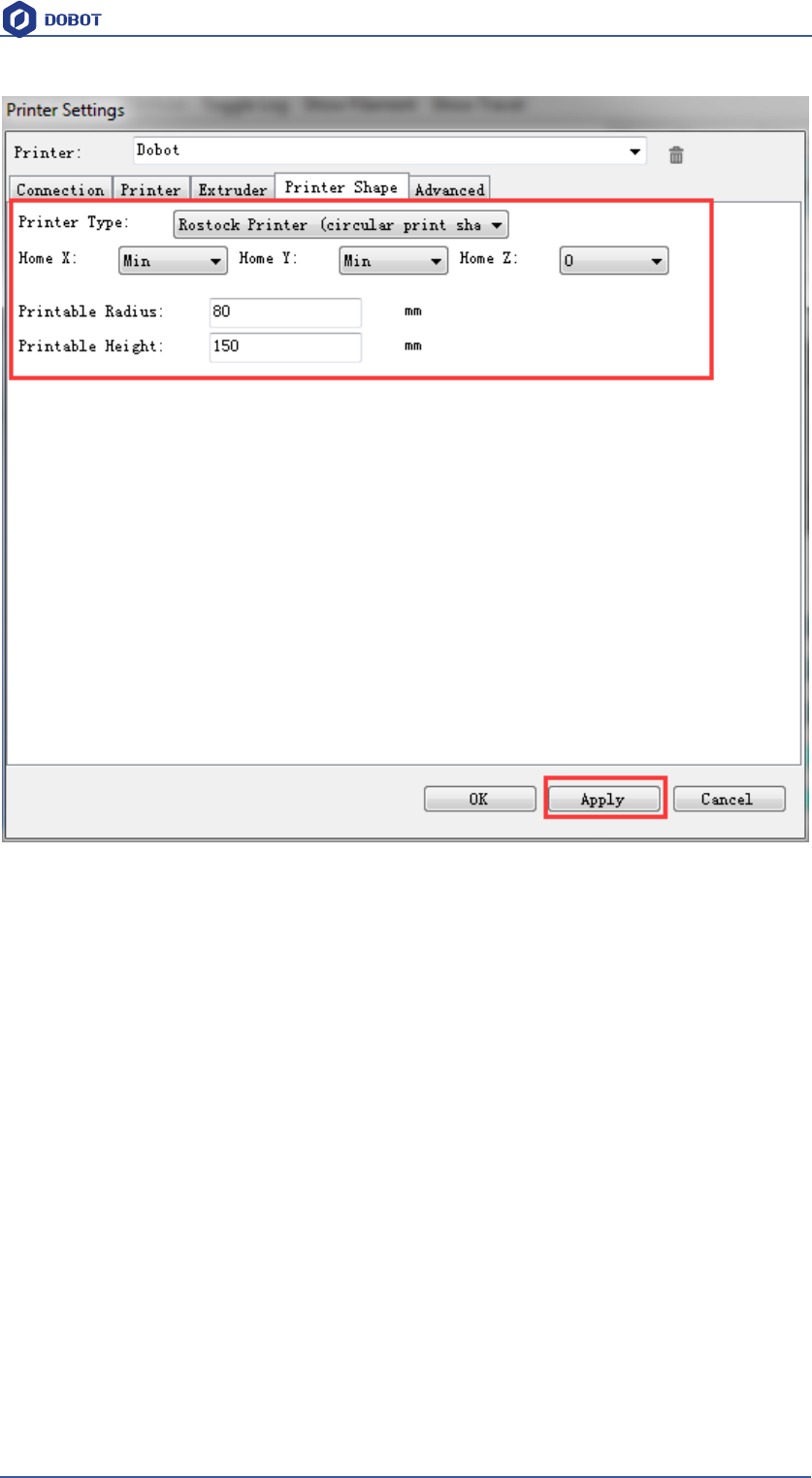
(4)Printer Shape Settings
Select circle printer and the detailed parameters as follows:
Home X: Min
Home Y: Min
Home Z: 0
Print area radius: 80mm
Print area height: 150mm
Click Apply after setting.
Shenzhen Yuejiang Technology Co.,LTD
Shenzhen Yuejiang Technology Co., Ltd
72
Dobot Magician User Manual
Figure 7.12 Printer Shape Settings
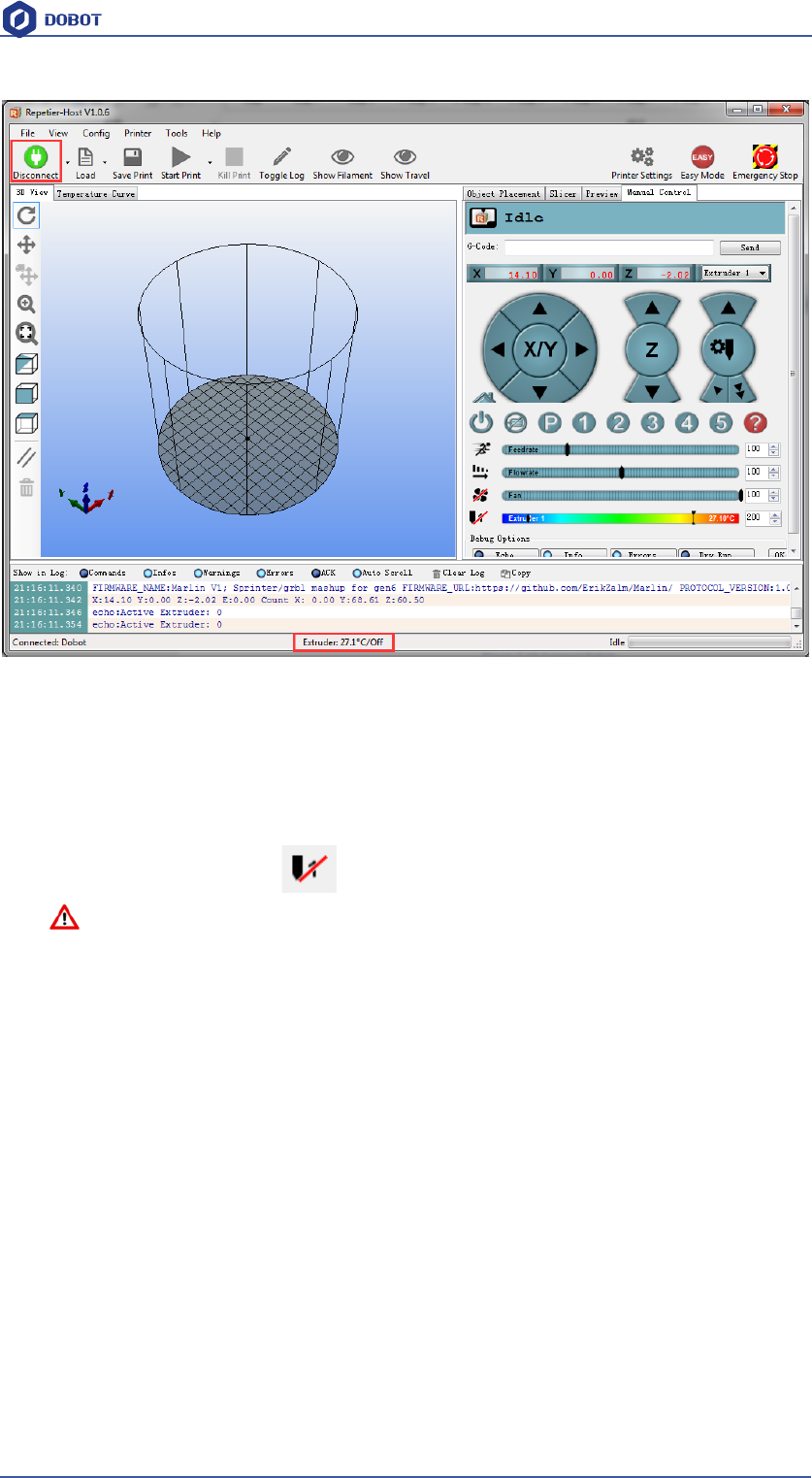
After setting parameters, return to main interface, open Dobot main power supply, insert USB, and
click Connect at the top left corner of main interface, then we can connect Dobot. The led will turn
out green and the tempreture will be shown below the interface:
Shenzhen Yuejiang Technology Co.,LTD
Shenzhen Yuejiang Technology Co., Ltd
73
Dobot Magician User Manual
Figure 7.13 Connect Dobot
8.2.3 Preparation before Printing
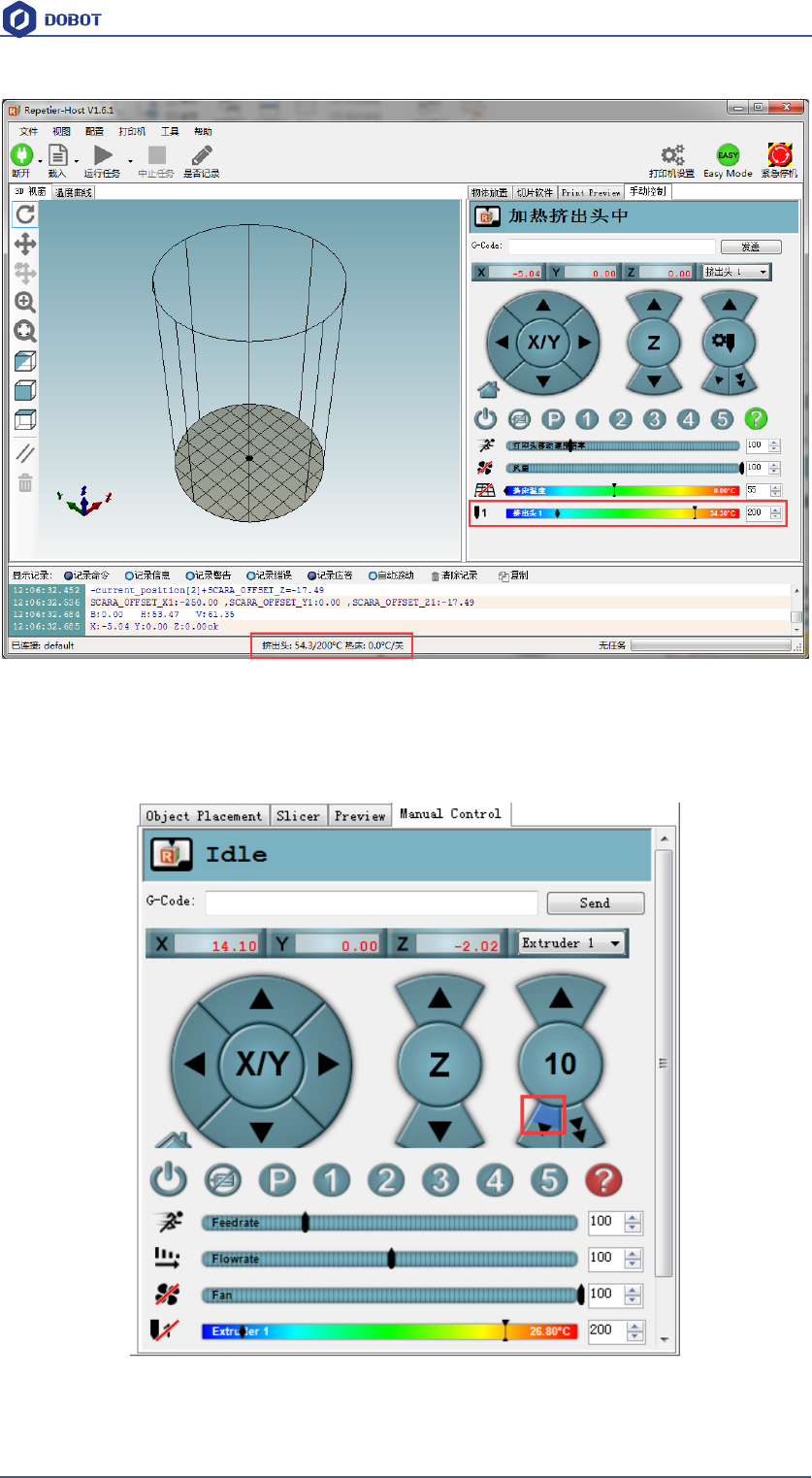
It will work when the temperature of extruder reaches above 170℃ and consumables are at
melt state, so we should heat up extrusion head. Here set heating temperature to 200℃ and
then click the heating button on control panel to heat it.
Notice:
The heating rod will produce high temperature up to 250℃, please be careful!
DO NOT let children play with it alone.
The process needs to be monitored when it is running.
After the process please turn off the equipment promptly.
Shenzhen Yuejiang Technology Co.,LTD
Shenzhen Yuejiang Technology Co., Ltd
74
Dobot Magician User Manual
Figure 7.14 Heat the Extrusion Head
When the heating temperature is up to 200℃, click feedstock of extruder up to 10-30mm, as
shown below:
Figure 7.16 Extrude filaments
Shenzhen Yuejiang Technology Co.,LTD
Shenzhen Yuejiang Technology Co., Ltd
75
Dobot Magician User Manual
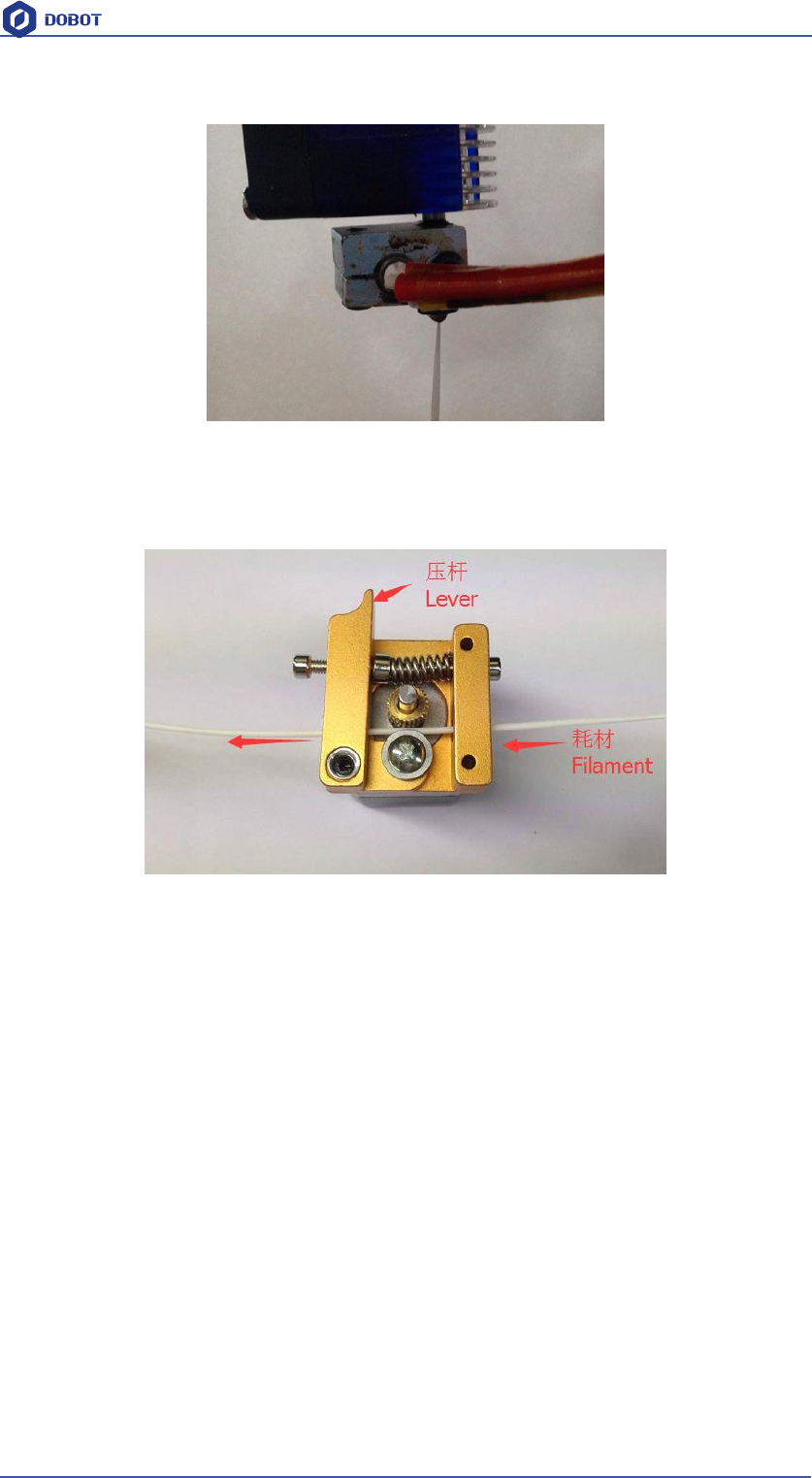
If melted materials flowed from nozzle of the extruder, then it means the extruder works properly:
Figure 7.17 Filament Extrusion
Note: If the filament extrusion is in the opposite direction, for example, you can click feedstock,
but it is discharging. Then you need pull out the filament totally from the extruder, turn the
extruder to 180°, and insert the filament, now you can get the right direction. Shown as below:
Figure 7.17 Reverse installation diagram of the extruder
8.2.4 Adjust the printing space and get printing coordinates
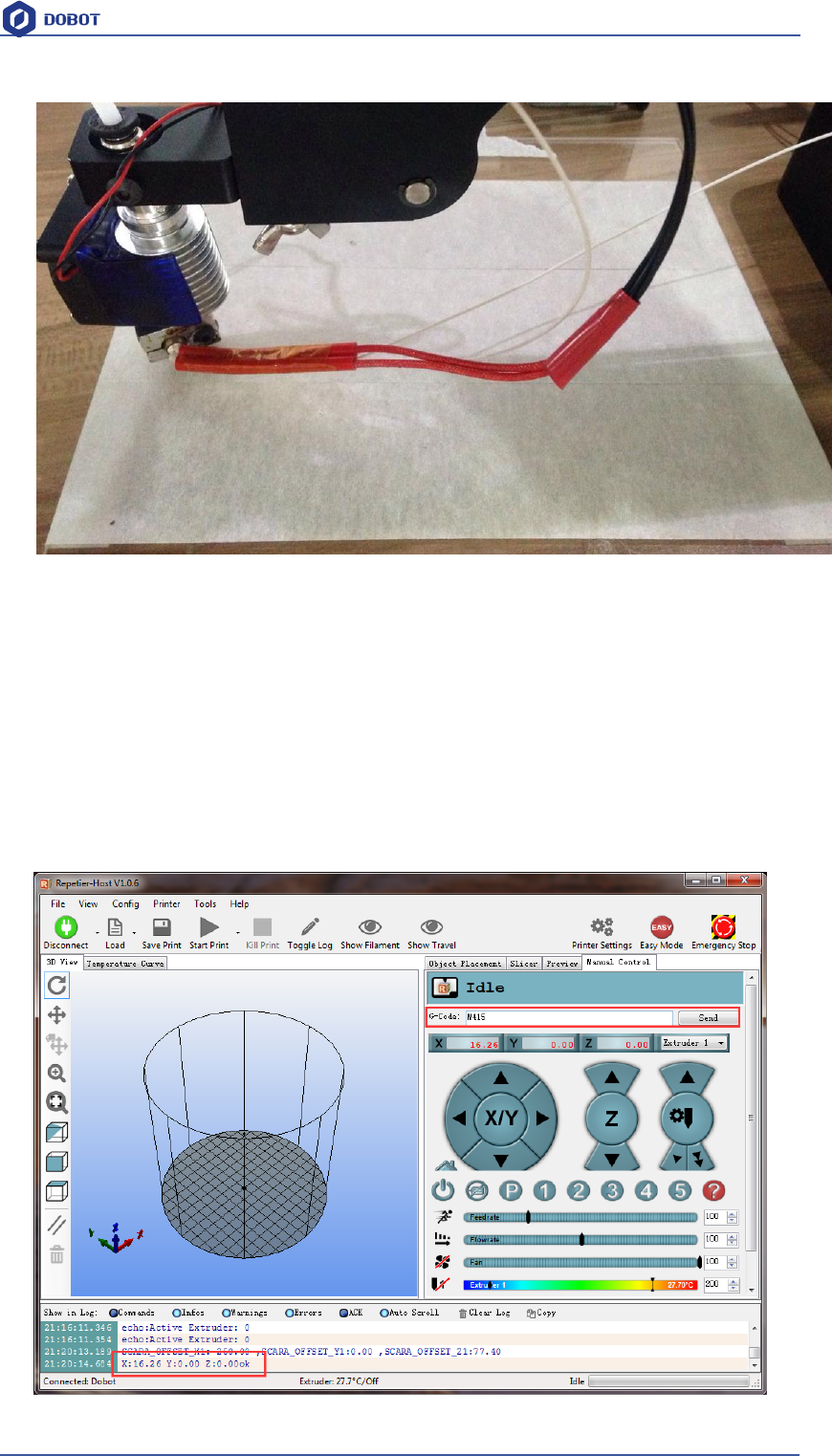
During the printing, if the distance between the nozzle and print is too large to paste the print bed
of the first layer; If the distance is too small, which will cause consumables block. So we need to
adjust the proper distance for smooth printing. Generally, the thickness of a sheet of paper is OK,
paste a layer of masking tape on the glass print bed in order to add its adhesive property of the first
layer.
Shenzhen Yuejiang Technology Co.,LTD
Shenzhen Yuejiang Technology Co., Ltd
76
Dobot Magician User Manual
Figure 7.18 Masking tape
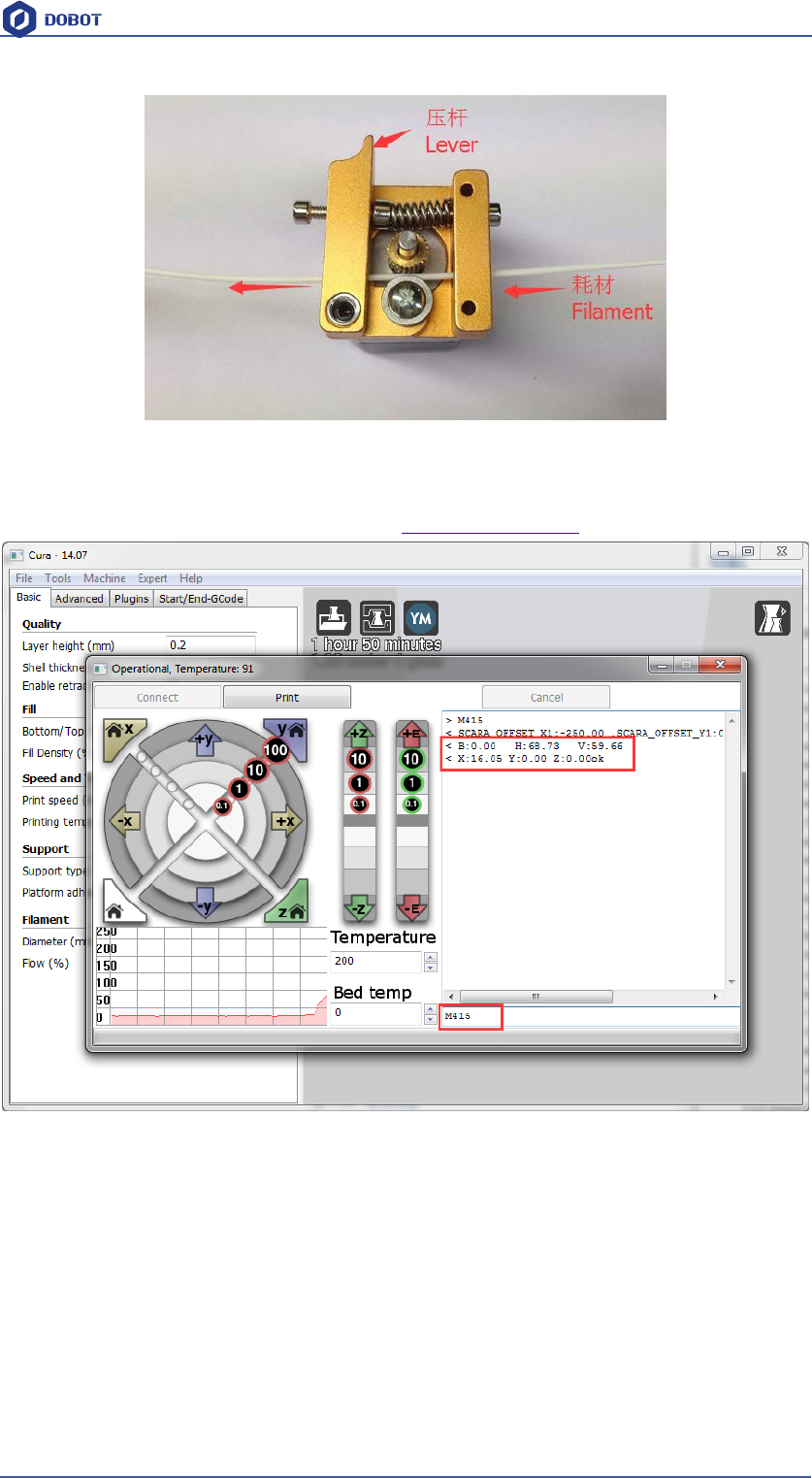
Adjustment process: Press Unlock key on the forearm, drag printing head to contact the surface of
mask tape, and then press “key” at the base of dobot to save current Z value (or insert M415 in the
command line, enter and get the current Z value), now the adjustment is finished.
Notice:
After sending M415 or press “KEY”, Dobot will get the current coordinates, if successed, you will
hear a beep; Also, you don’t need insert the command next time when printing next time, and just
run the task is OK.
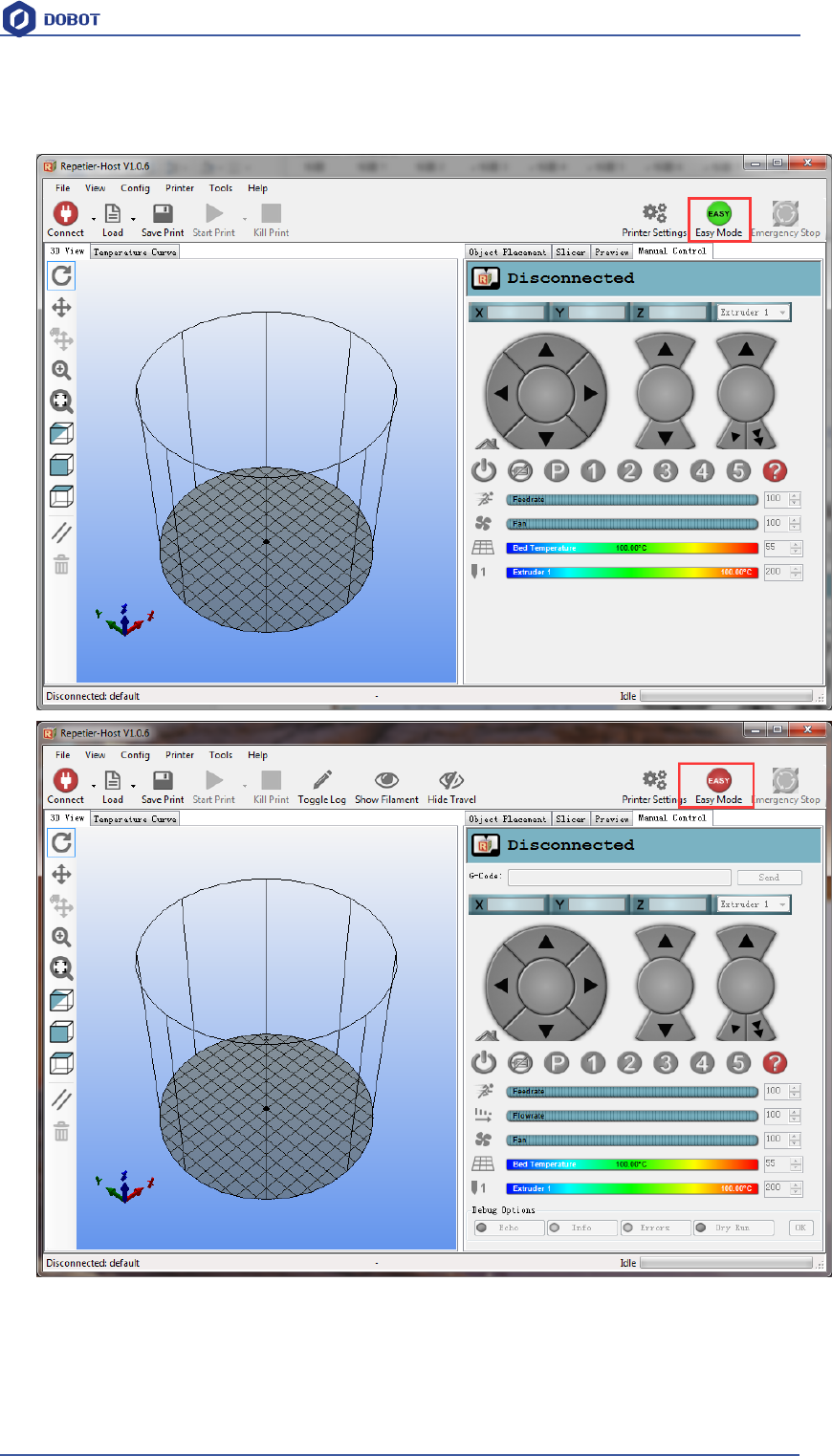
The window of command sending show as follows:
Shenzhen Yuejiang Technology Co.,LTD
Shenzhen Yuejiang Technology Co., Ltd
77
Dobot Magician User Manual
Figure 7.19 Sending out M415 command
3. If you cannot find the command line window, pls close Easy mode, shown as follows:
8.2.5 Import Model
The file format of 3D printing is STL employed universally.
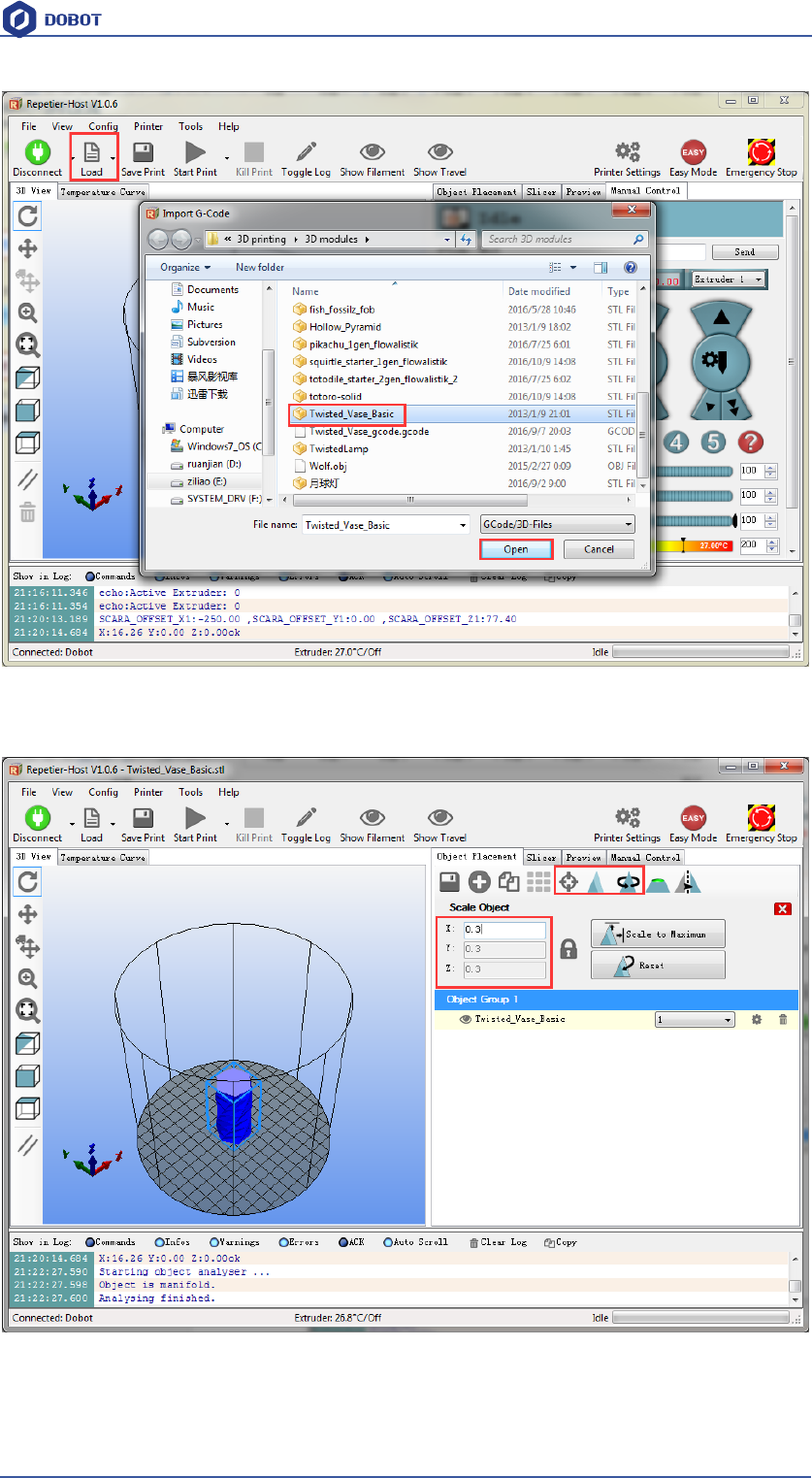
Users can build one’s own 3D model and transfer it into stl file, also, one can search free models
to import them directly. Click open, import 3D model file of stl format, the details as follows:
Shenzhen Yuejiang Technology Co.,LTD
Shenzhen Yuejiang Technology Co., Ltd
78
Dobot Magician User Manual
Figure 7.20 Import Models
Model Center/Scale: Users can operate the model to place in the middle, zoom or rotate and any
other functions.
Figure 7.21 Model Center/Scale
8.2.6 Set slice parameters and slice up
Select slice engine Slic3r and click Configuration to set slice parameters.
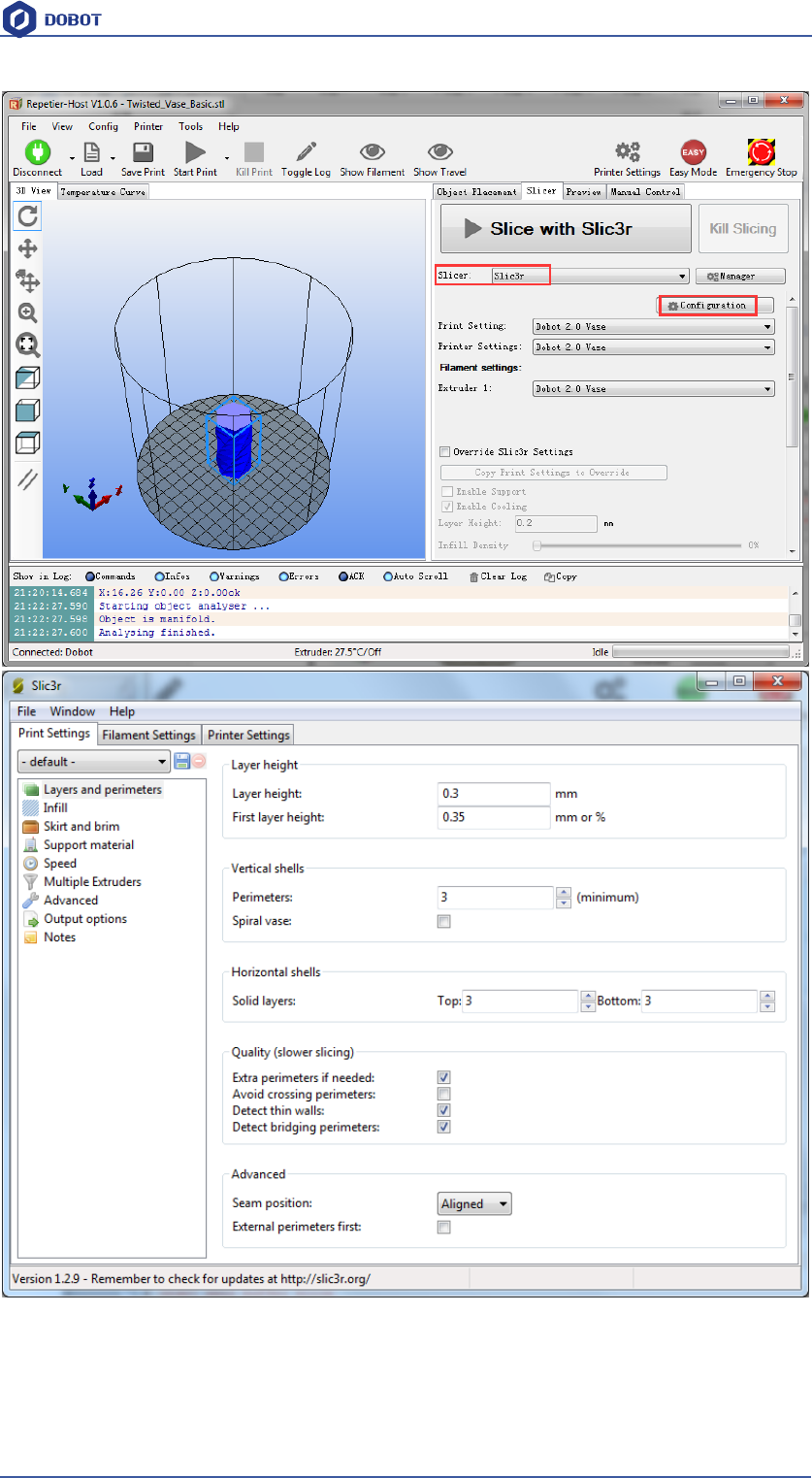
Shenzhen Yuejiang Technology Co.,LTD
Shenzhen Yuejiang Technology Co., Ltd
79
Dobot Magician User Manual
Figure 7.22 Main interface of parameter settings
Shenzhen Yuejiang Technology Co.,LTD
Shenzhen Yuejiang Technology Co., Ltd
80
Dobot Magician User Manual
It is vital to set slice parameters, in which users should get the best slice parameters according to
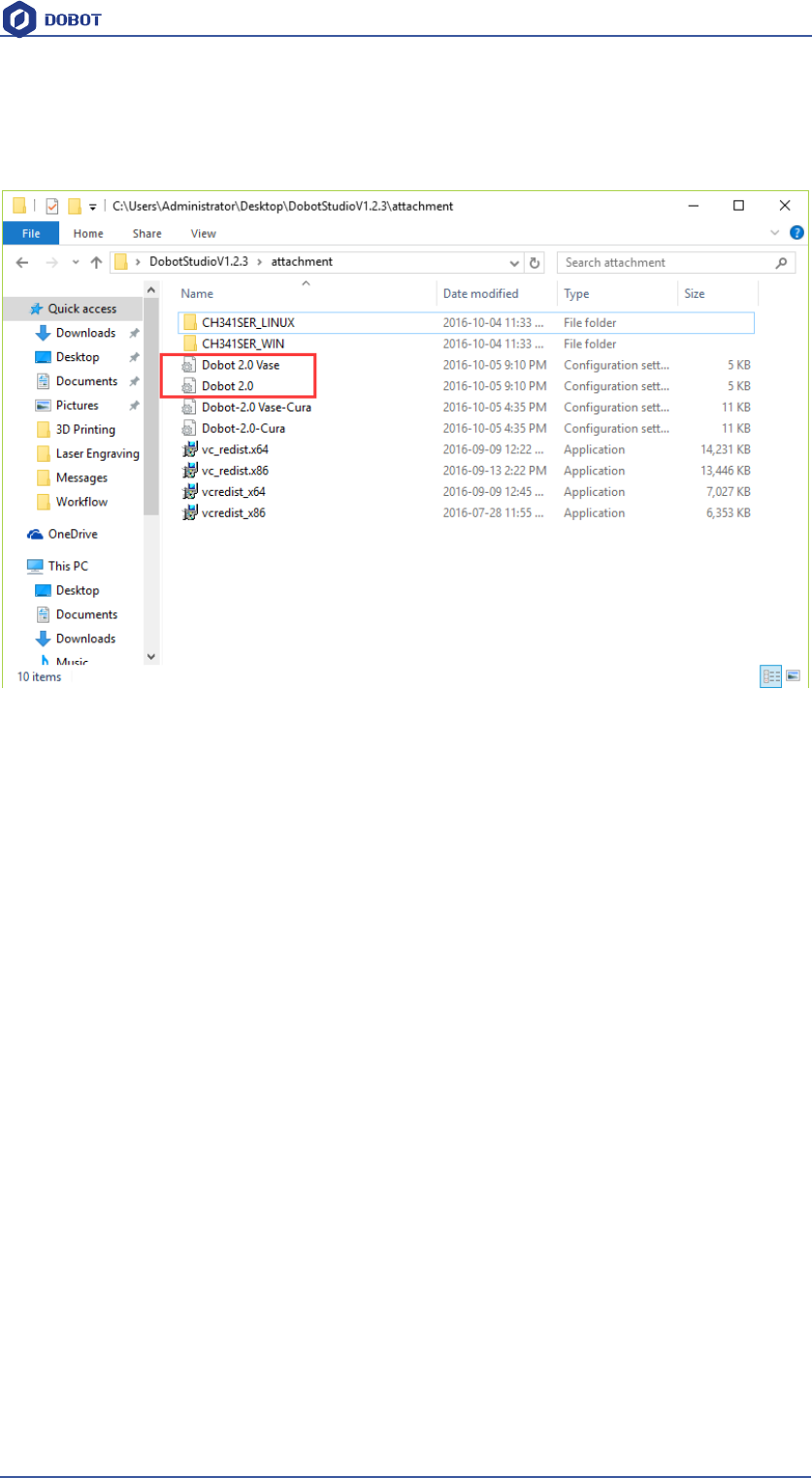
printed models and tested performance of equipment. Here we suggest a configuration file that can
be impoted from attachement of DobotStudio:
图7.23 Config files
Dobot-2.0-Vase.ini is used for printing of thin-valled vase, while Dobot-2.0.ini is used for the
filling of entity, the filling rate is 15%.
Import the file after downloading: Click File->Load configto load.ini file.
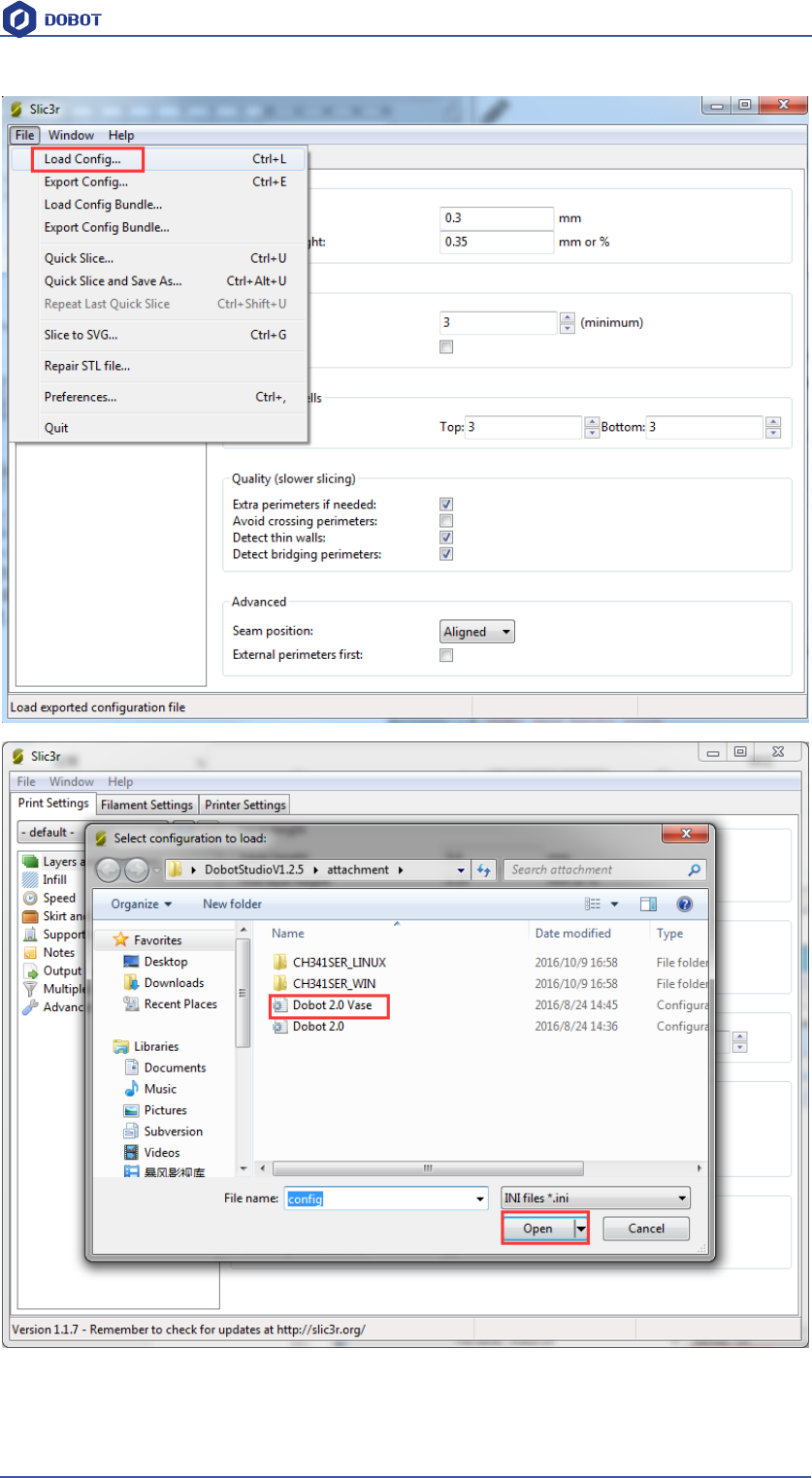
Shenzhen Yuejiang Technology Co.,LTD
Shenzhen Yuejiang Technology Co., Ltd
81
Dobot Magician User Manual
Figure 7.24 Import configuration file
Shenzhen Yuejiang Technology Co.,LTD
Shenzhen Yuejiang Technology Co., Ltd
82
Dobot Magician User Manual
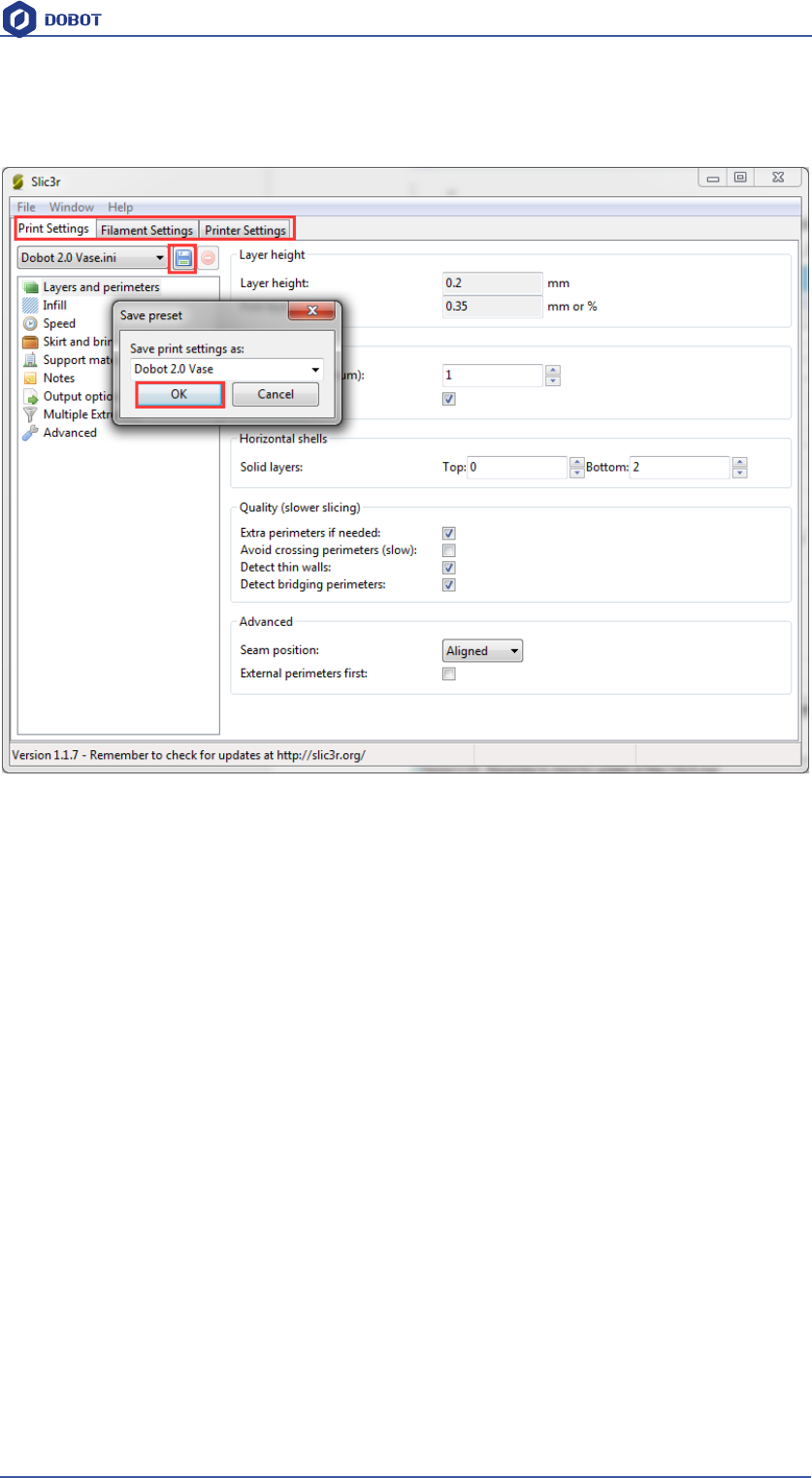
After importing the file, users need to save the three lables: Print settings, Filament settings and
Printer settings respectively, also, users can rename them, here we keep the default:
Figure 7.25 Save configuration file
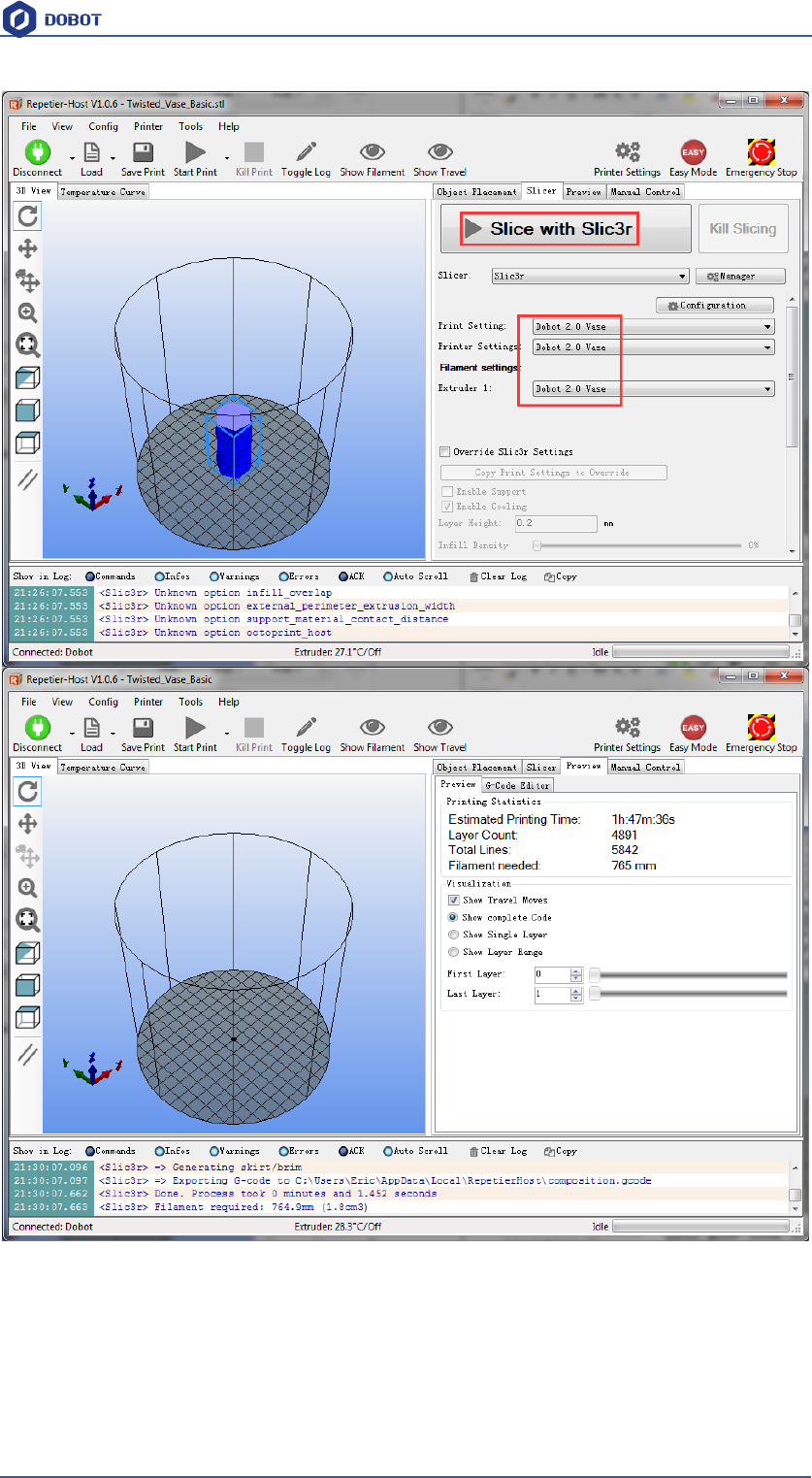
Slice: After finishing above settings, save the settings of each label, and return to main interface.
Select slic3r of slice engine, import slice settings and click Slice with Slic3r.
Shenzhen Yuejiang Technology Co.,LTD
Shenzhen Yuejiang Technology Co., Ltd
83
Dobot Magician User Manual
Figure 7.25 Finish slice
8.2.7 Start to Print
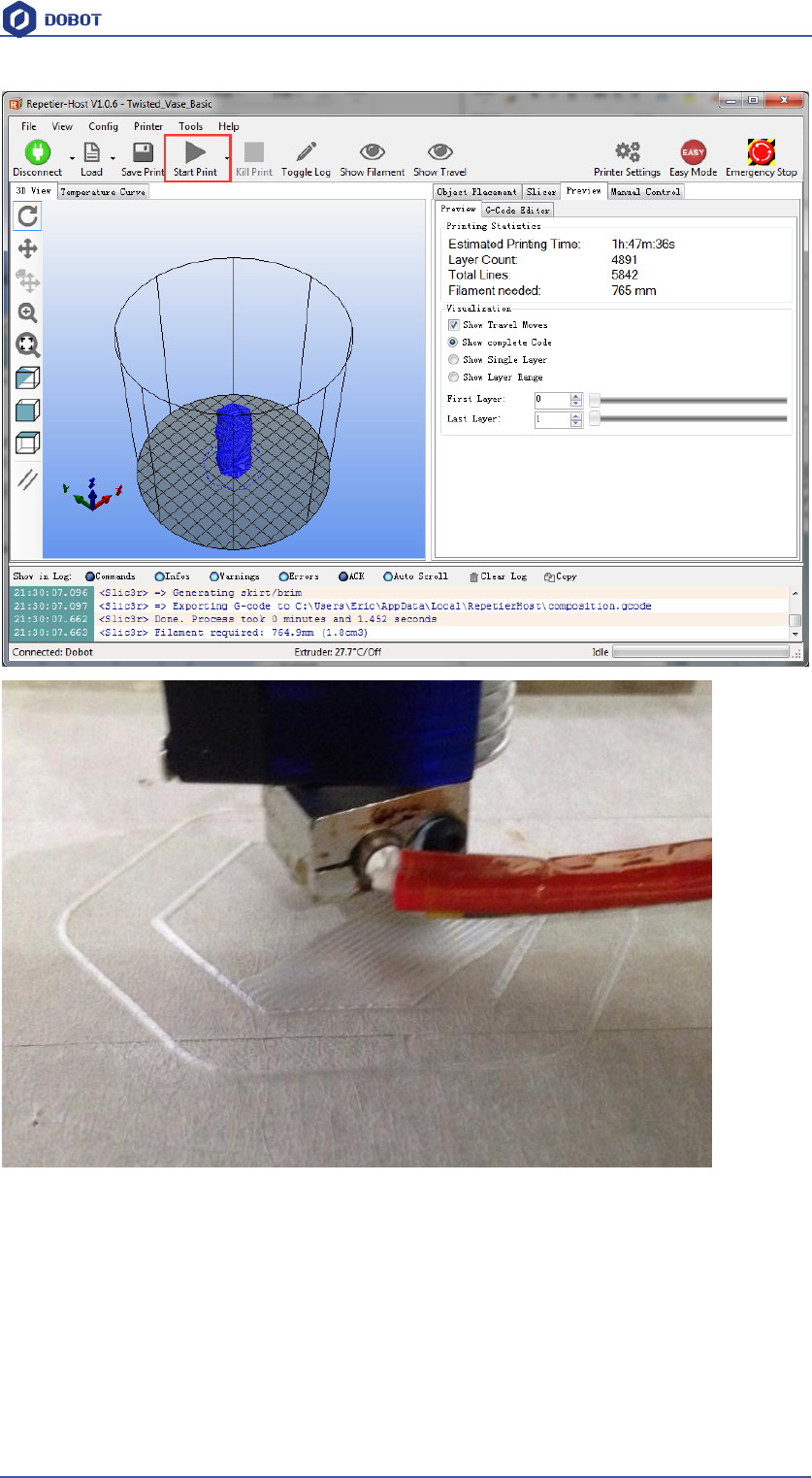
Now, click Start print at the top left corner of main interface to print:
Shenzhen Yuejiang Technology Co.,LTD
Shenzhen Yuejiang Technology Co., Ltd
84
Dobot Magician User Manual
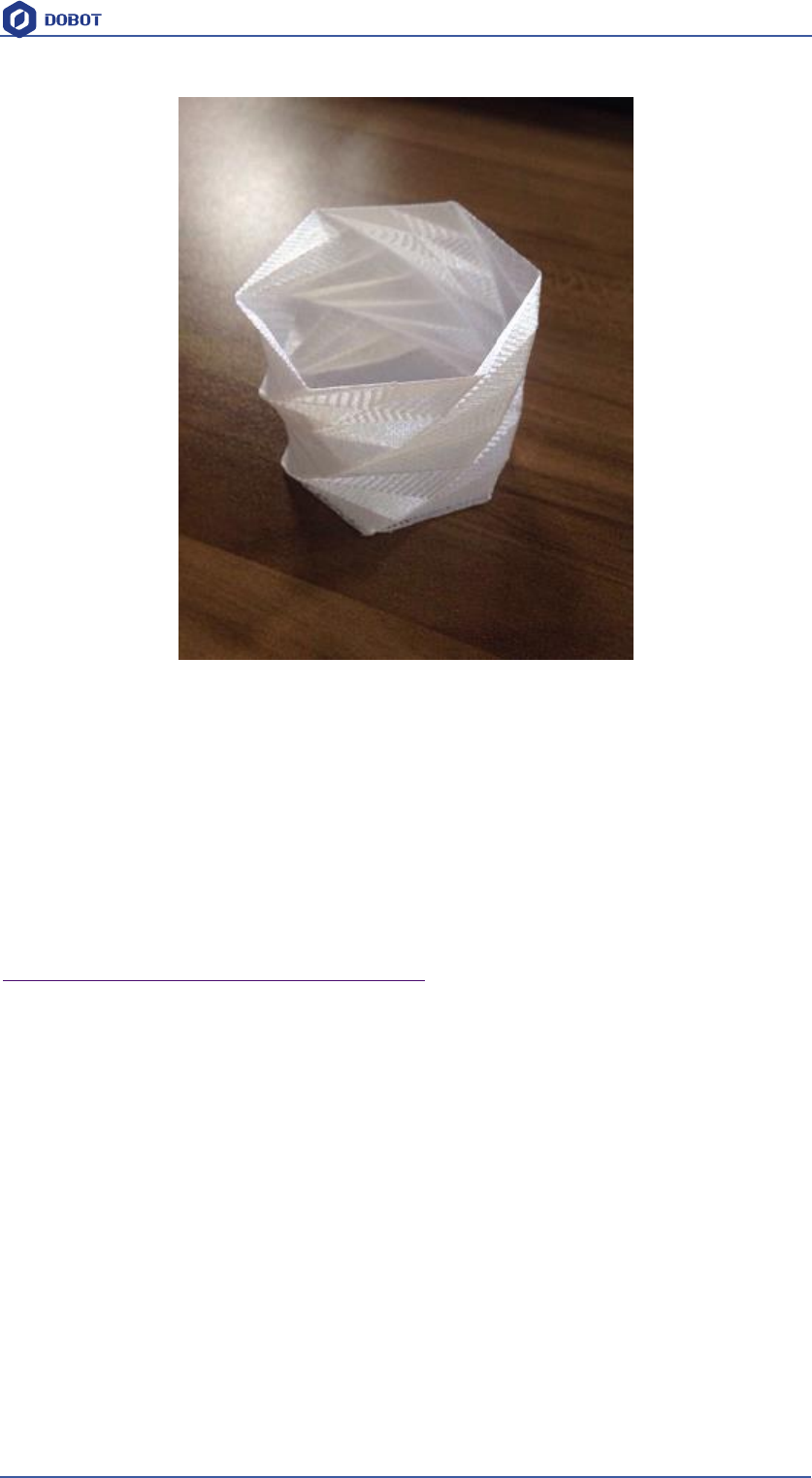
Here we choose vase mode, and the effect after printing as follows:
Shenzhen Yuejiang Technology Co.,LTD
Shenzhen Yuejiang Technology Co., Ltd
85
Dobot Magician User Manual
Figure 7.26 The Effect of Printing
8.3 Cura Introduction for 3D printing
If you want to use Cura for 3D printing, the details seen as follows:
Notice: Installation of accessories and firmware burning shown as Repetier Host 3D printing.
8.3.1 Cura parameter settings
Cura is a free software that can be downloaded on its official website, here we recommand you to
use Version V14.07, the downloading address:
https://ultimaker.com/en/products/cura-software/list
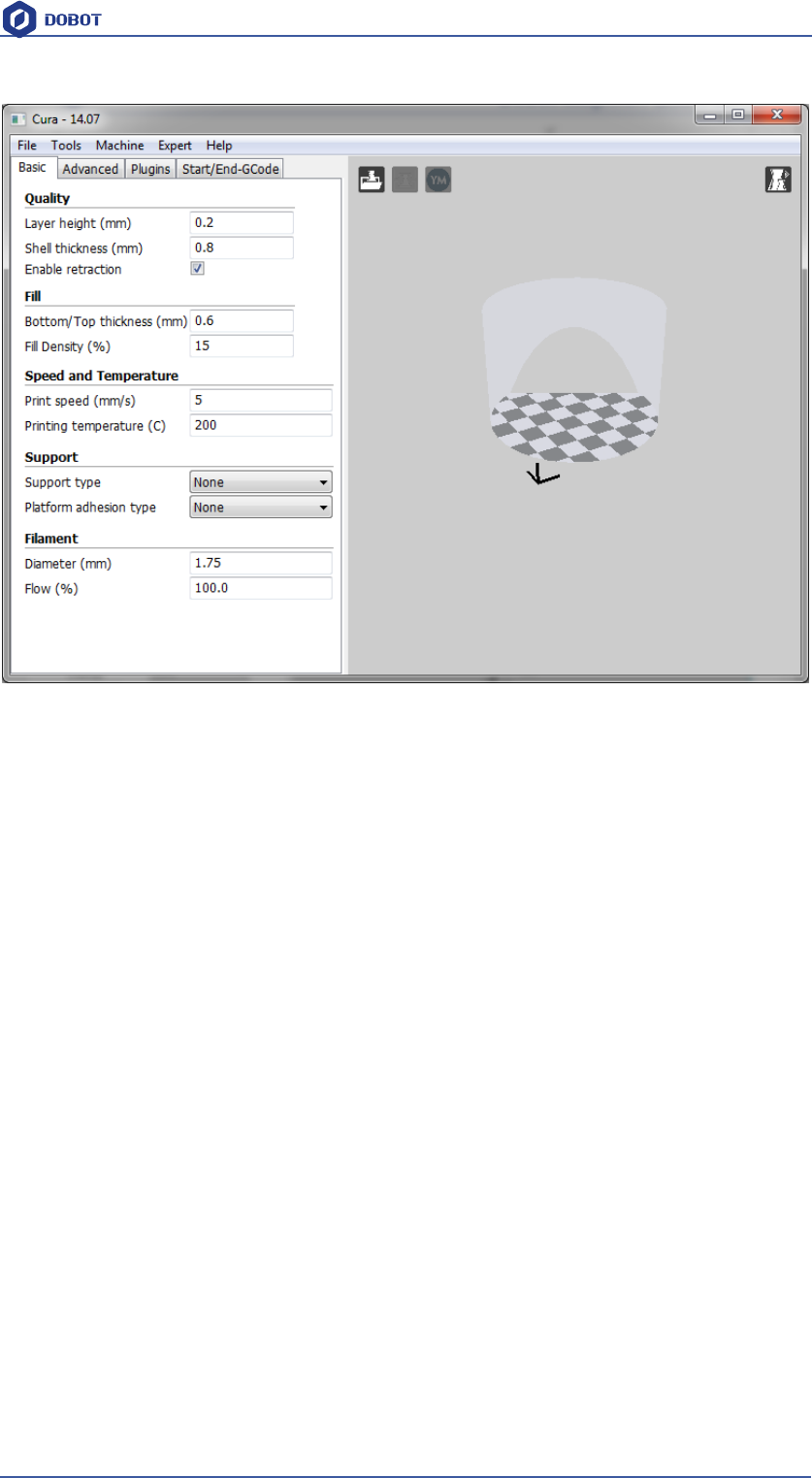
Software interface as follows:
Shenzhen Yuejiang Technology Co.,LTD
Shenzhen Yuejiang Technology Co., Ltd
86
Dobot Magician User Manual
Figure 7.30 Cura interface
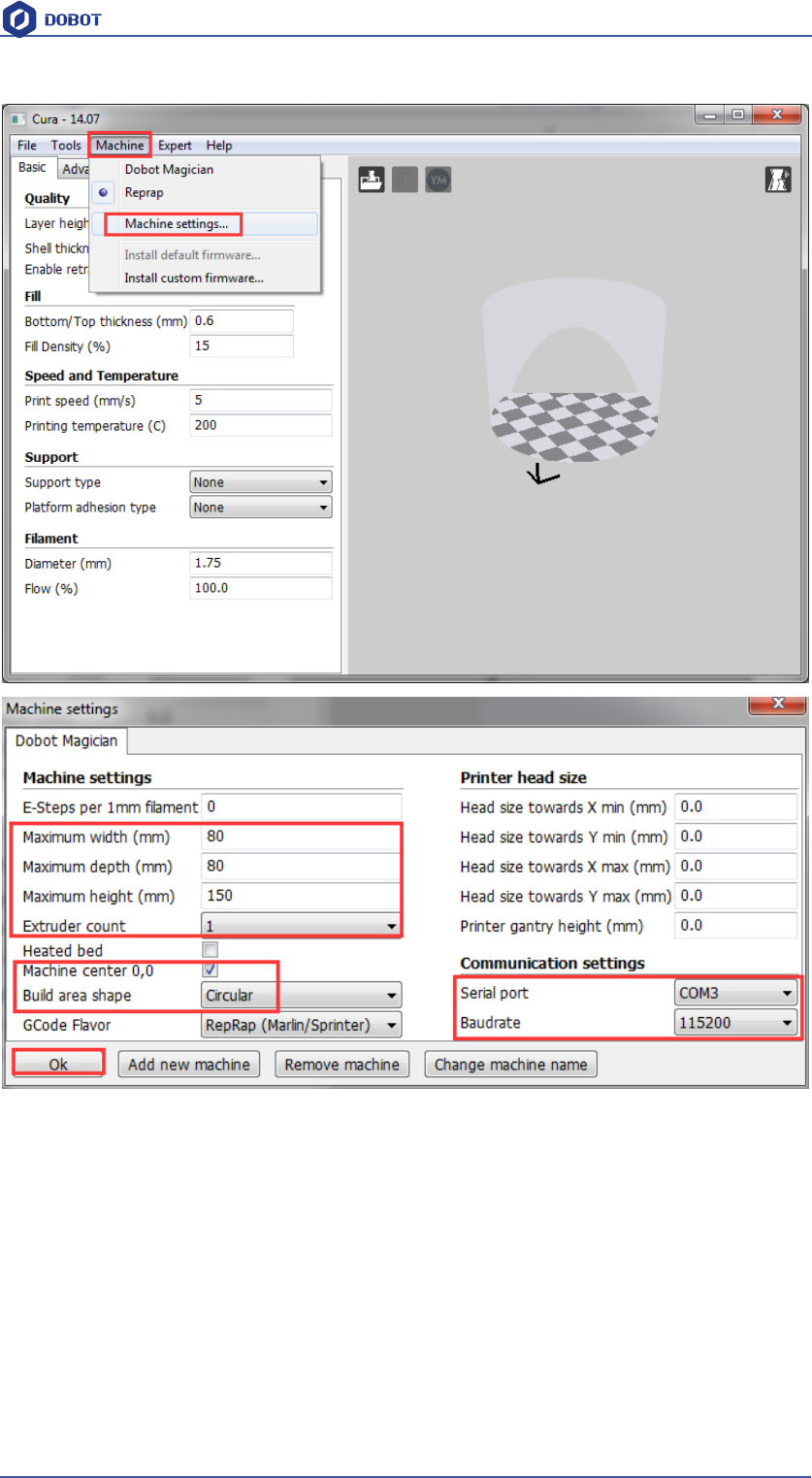
Machine->machine settings, set related parameters in the pop-up dialog:
(1)Connection label settings
maximum width:80mm maximum depth:80mm maximum height:150mm;
Machine center 0,0:Need tick
Build Platform shape: Circular
COM port setting: The corressponding COM port in the device management
Baud rate:115200
Also can click Rename Machine, The rest keep the default settings, click OK after setting
Shenzhen Yuejiang Technology Co.,LTD
Shenzhen Yuejiang Technology Co., Ltd
87
Dobot Magician User Manual
Figure 7.31 Machine settings
(2)Import configuration file
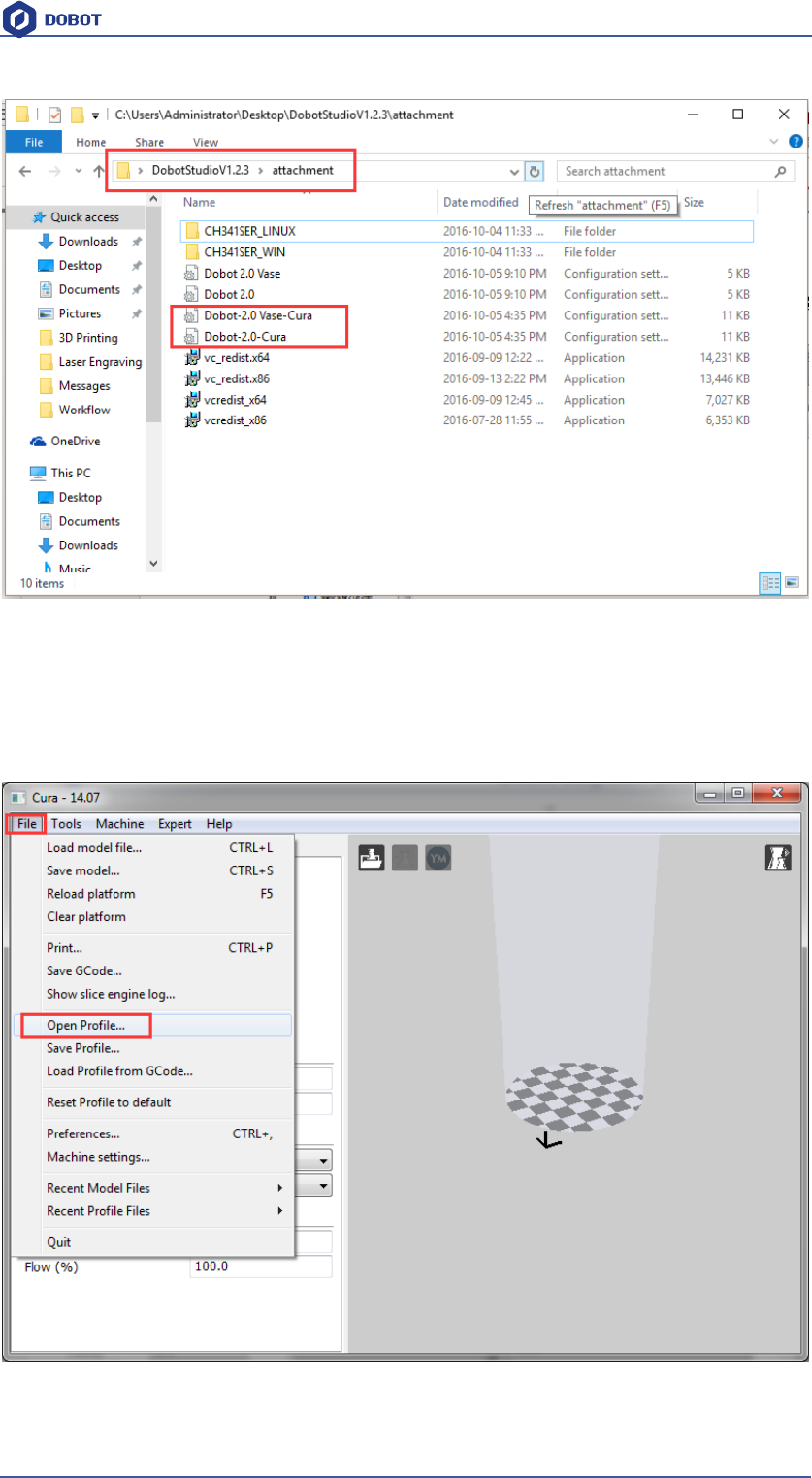
It is vital to set slice parameters, in which users should get the best slice parameters according to
printed models and tested performance of equipment. Here we suggest a configuration file that can
be impoted from attachement of DobotStudio:
Shenzhen Yuejiang Technology Co.,LTD
Shenzhen Yuejiang Technology Co., Ltd
88
Dobot Magician User Manual
Figure 7.32 Configure files
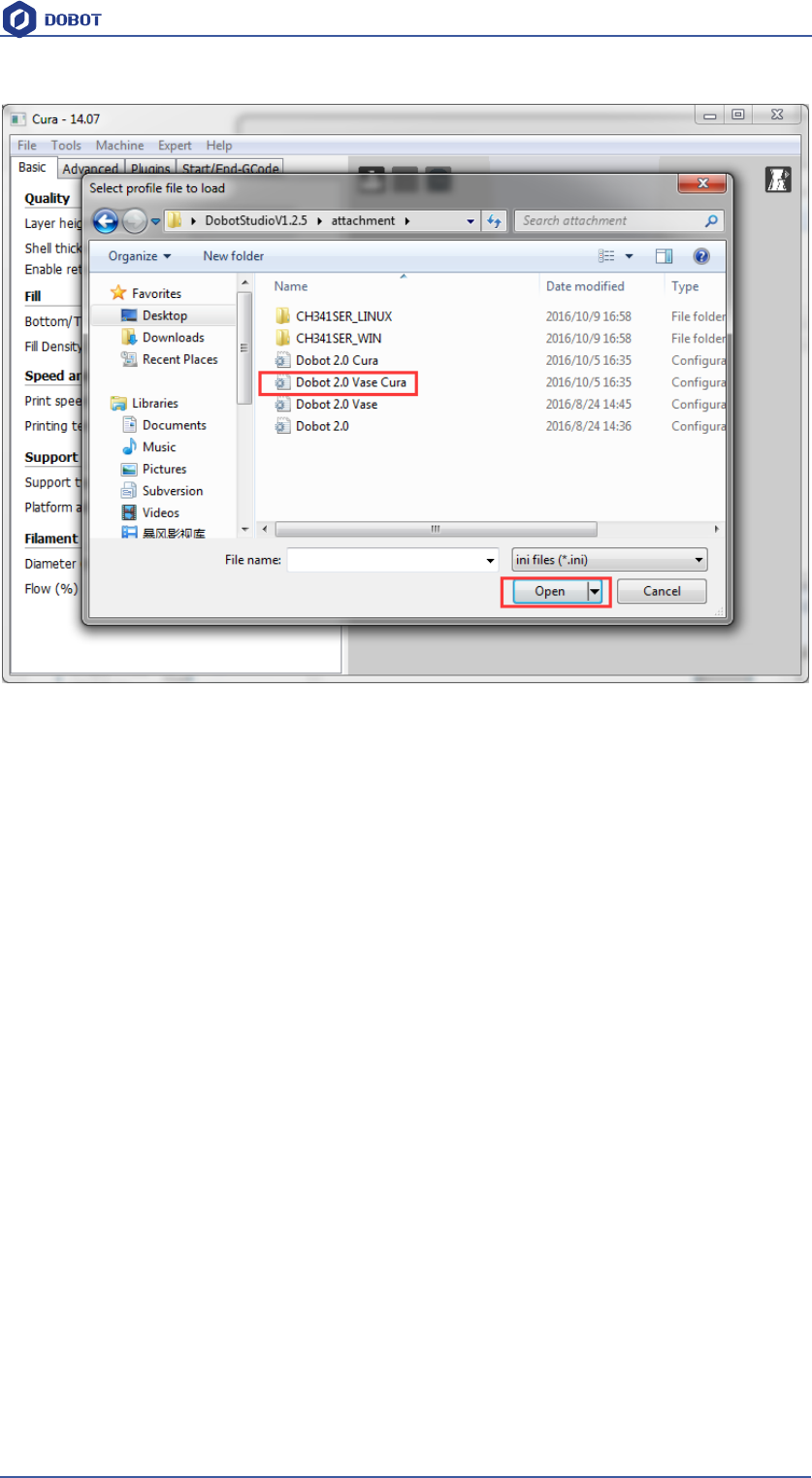
Dobot-2.0-Vase.ini is used for printing of thin-valled vase, while Dobot-2.0.ini is used for the
filling of entity, the filling rate is 15%.
Import the file after downloading: Click File->Load Profile.
Shenzhen Yuejiang Technology Co.,LTD
Shenzhen Yuejiang Technology Co., Ltd
89
Dobot Magician User Manual
Figure 7.33 Import configuration settings
More detailed printing parameters, go to Cura website, not be repeated here.。
(3)Open the model and connect Dobot
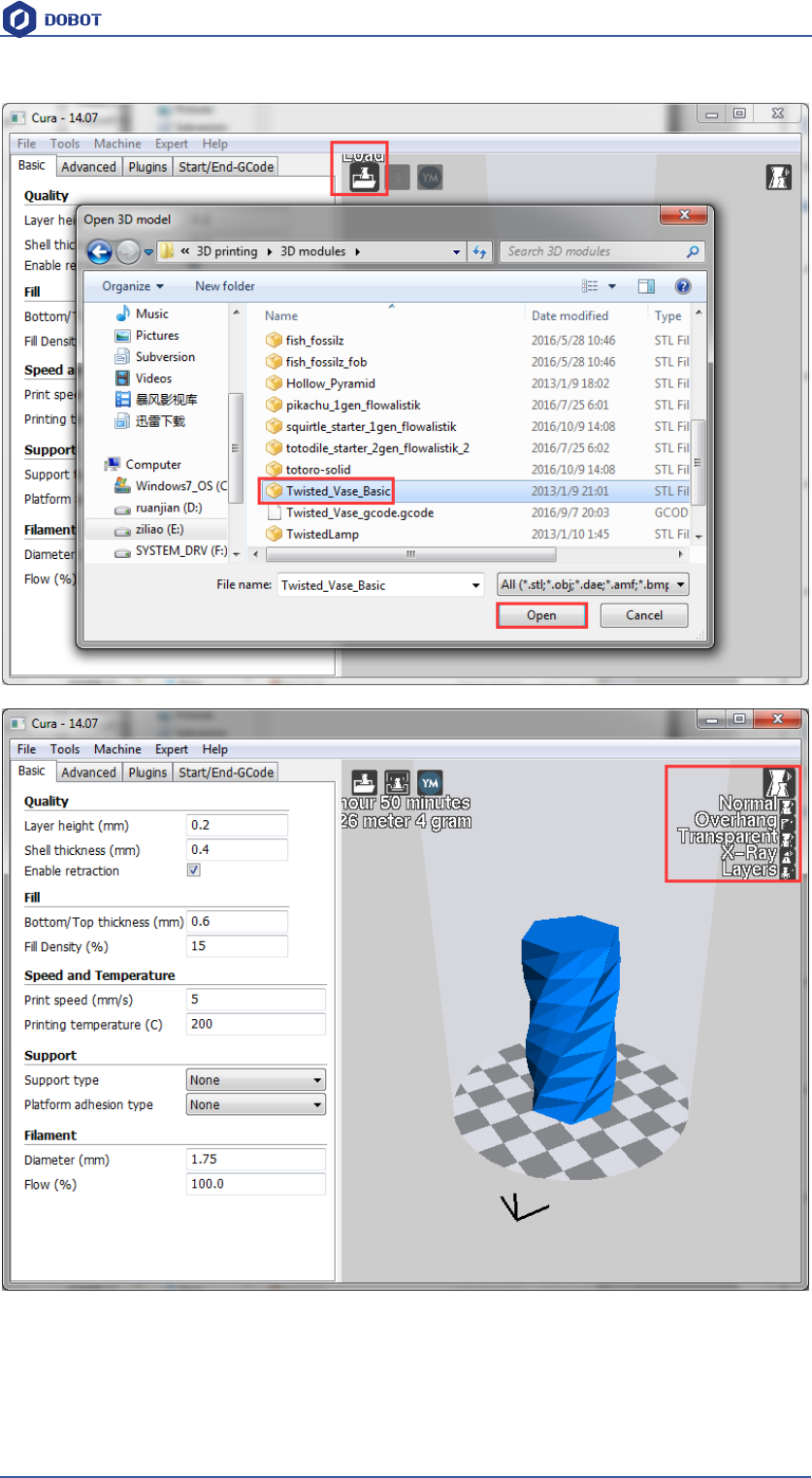
Click Load, import a 3D model, Cura will slice up automatically, also, you can select different
modes in the drop-down list of right hand to check its trajectory is correct or not::
Shenzhen Yuejiang Technology Co.,LTD
Shenzhen Yuejiang Technology Co., Ltd
90
Dobot Magician User Manual
Figure 7.34 Import a model
Click the model itself, and users can operate the model to place in the middle, zoom or rotate and
any other functions.

Shenzhen Yuejiang Technology Co.,LTD
Shenzhen Yuejiang Technology Co., Ltd
91
Dobot Magician User Manual
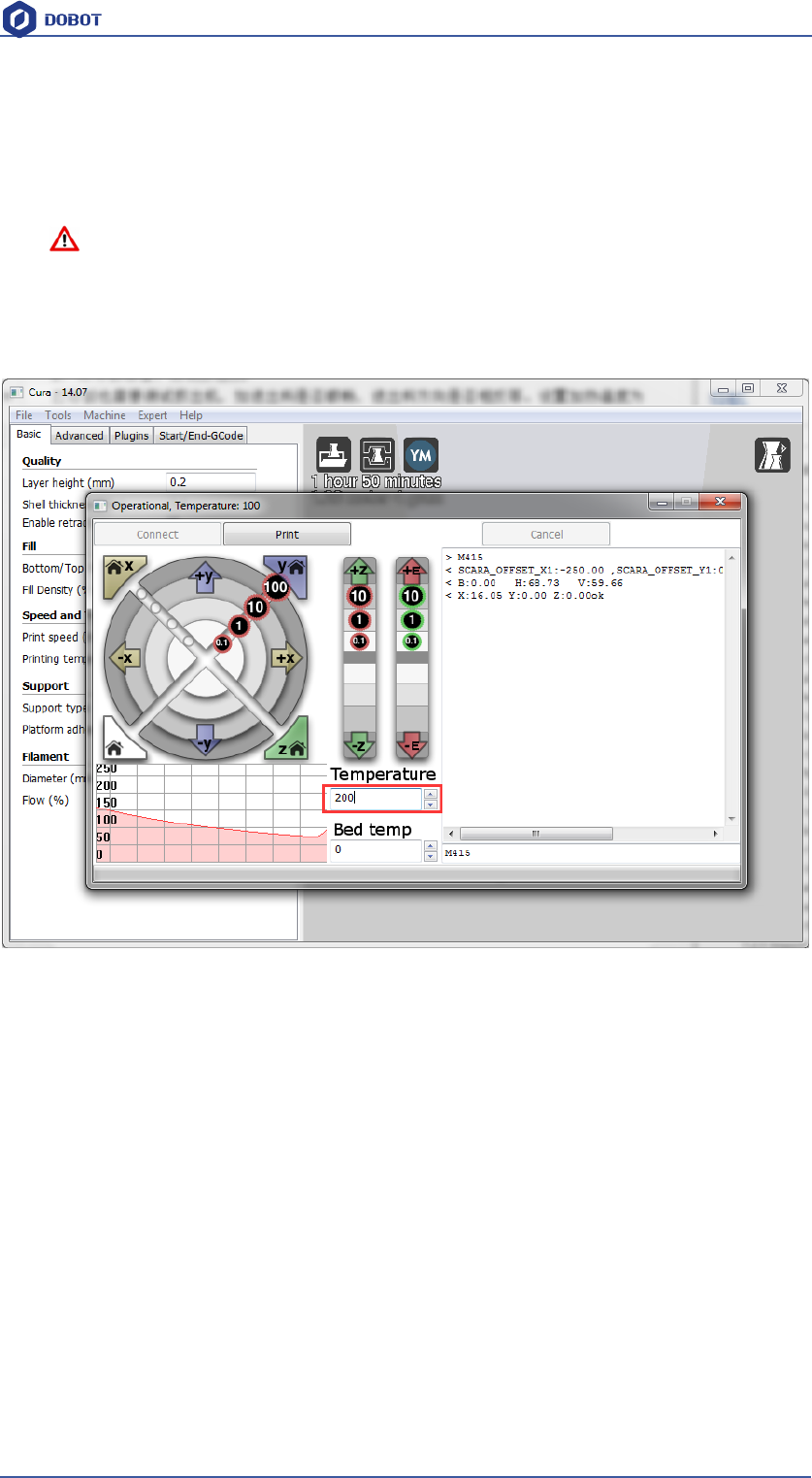
After importing model, Print with USB on the main interface will be activated, click it to connect
Dobot automatically, and there will show the current printing temperature on the top corner of the
window, at the same time, the Printing key will be activated, shown as follows:
Figure 7.35 Connect Dobot
Shenzhen Yuejiang Technology Co.,LTD
Shenzhen Yuejiang Technology Co., Ltd
92
Dobot Magician User Manual
8.3.2 Preparation before Printing
Please have a test to the function of extruder before printing, such as whether in and out of the
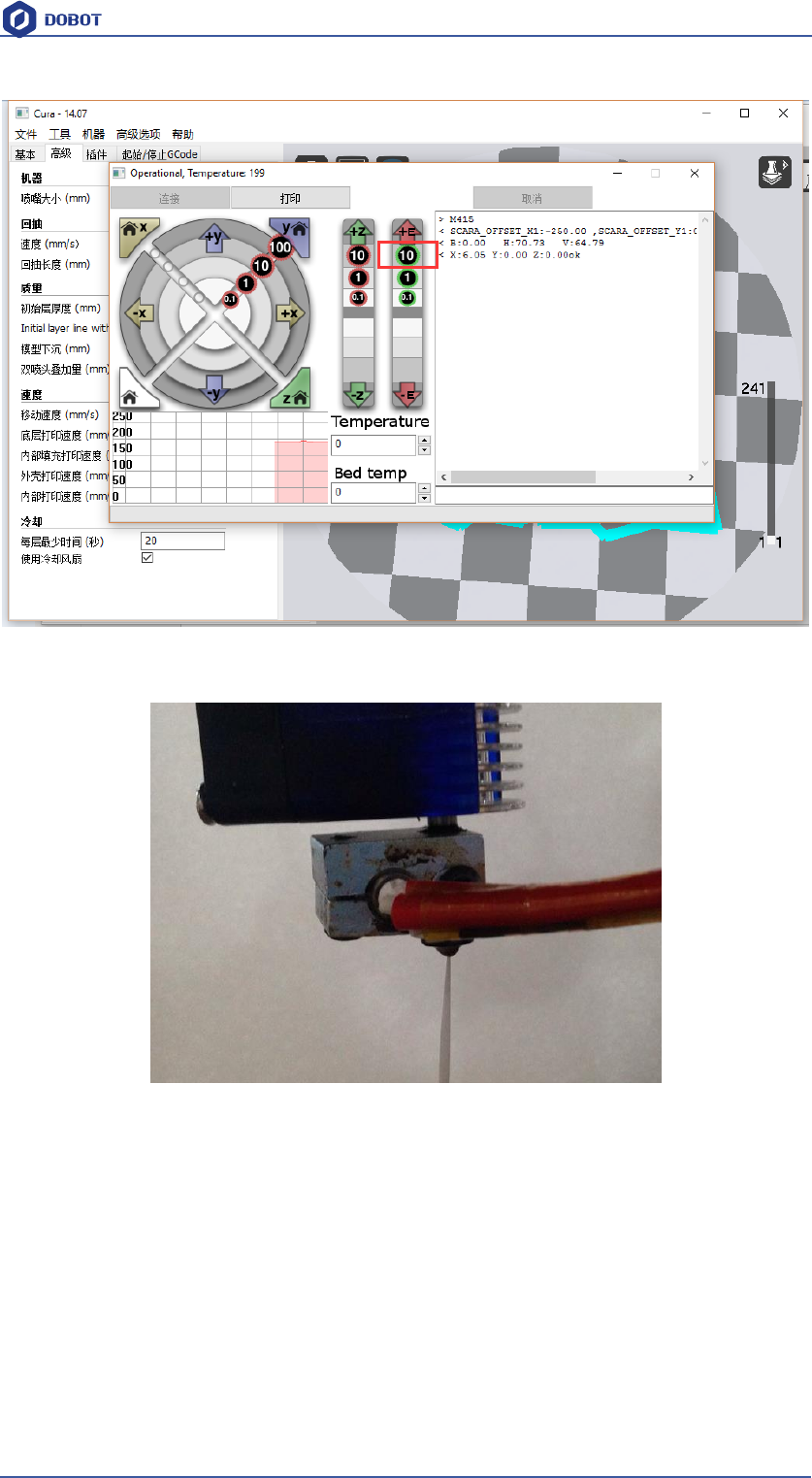
material is smooth, or the direction in and out of material is reverse. .Here set heating temperature
to 200℃ and then enter to heat the nozzle.
Notice:
The heating rod will produce high temperature up to 250℃, please be careful!
DO NOT let children play with it alone.
The process needs to be monitored when it is running.
After the process please turn off the equipment promptly.
In the heating process, the fan will be opened automatically. When the heating temperature is up to
200℃, click feedstock of extruder up to 10-30mm, as shown below:
Shenzhen Yuejiang Technology Co.,LTD
Shenzhen Yuejiang Technology Co., Ltd
93
Dobot Magician User Manual
If melted materials flowed from nozzle of the extruder, then it means the extruder works properly:
Figure 7.37 Filament Extrusion
Note: If the filament extrusion is in the opposite direction, for example, you can click
feedstock, but it is discharging. Then you need pull out the filament totally from the extruder, turn
the extruder to 180°, and insert the filament, now you can get the right direction. Shown as below:
Shenzhen Yuejiang Technology Co.,LTD
Shenzhen Yuejiang Technology Co., Ltd
94
Dobot Magician User Manual
Figure 7.37 Reverse installation diagram of the extruder
8.3.3 Adjust the printing space and get printing coordinates
Note: These detailed steps, please refer to above chapter Repetier Host.
Figure 7.38 Distance adjustment
8.3.4 Start printing
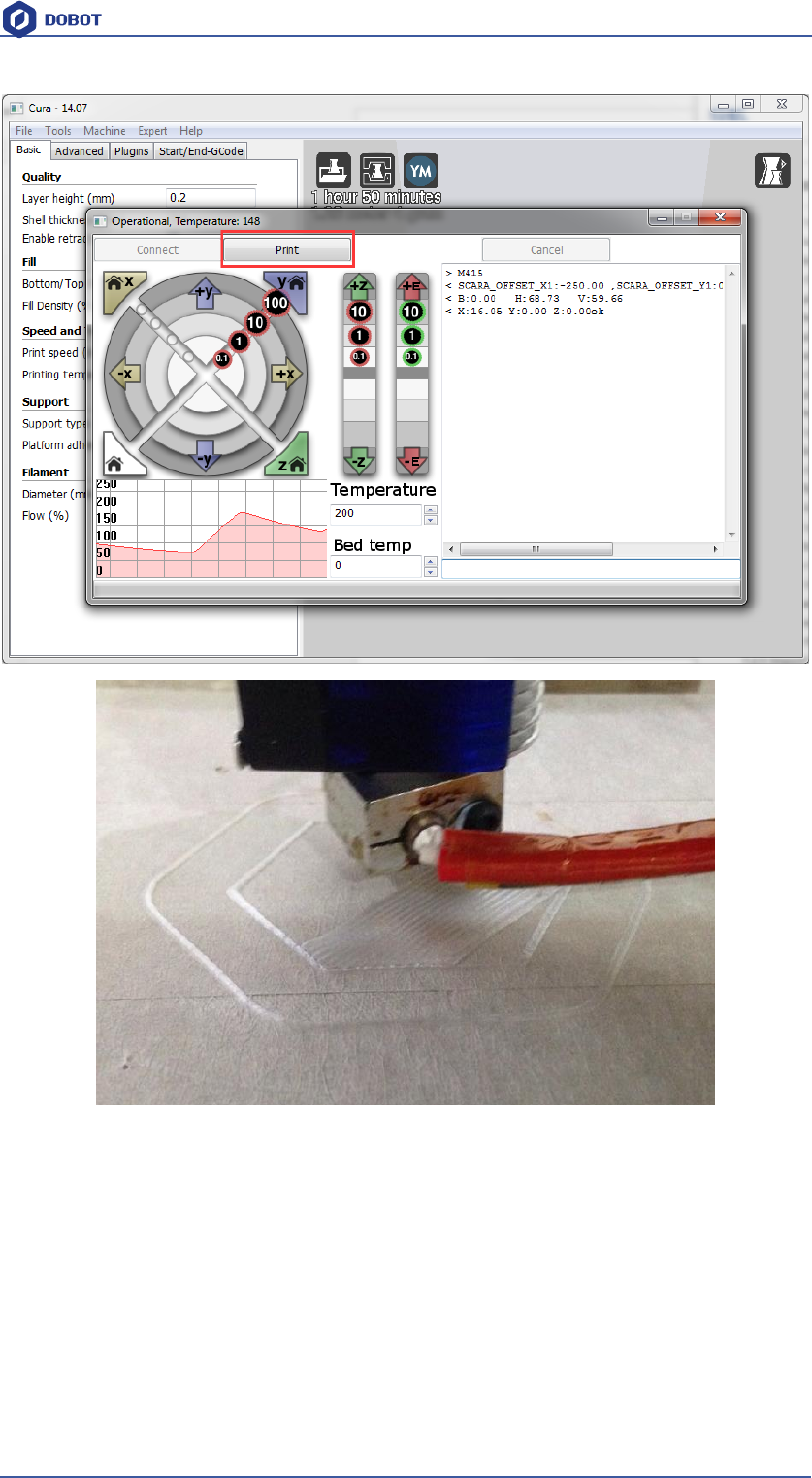
Just click Print, and then start printing.
Shenzhen Yuejiang Technology Co.,LTD
Shenzhen Yuejiang Technology Co., Ltd
95
Dobot Magician User Manual
Figure 7.39 Start printing
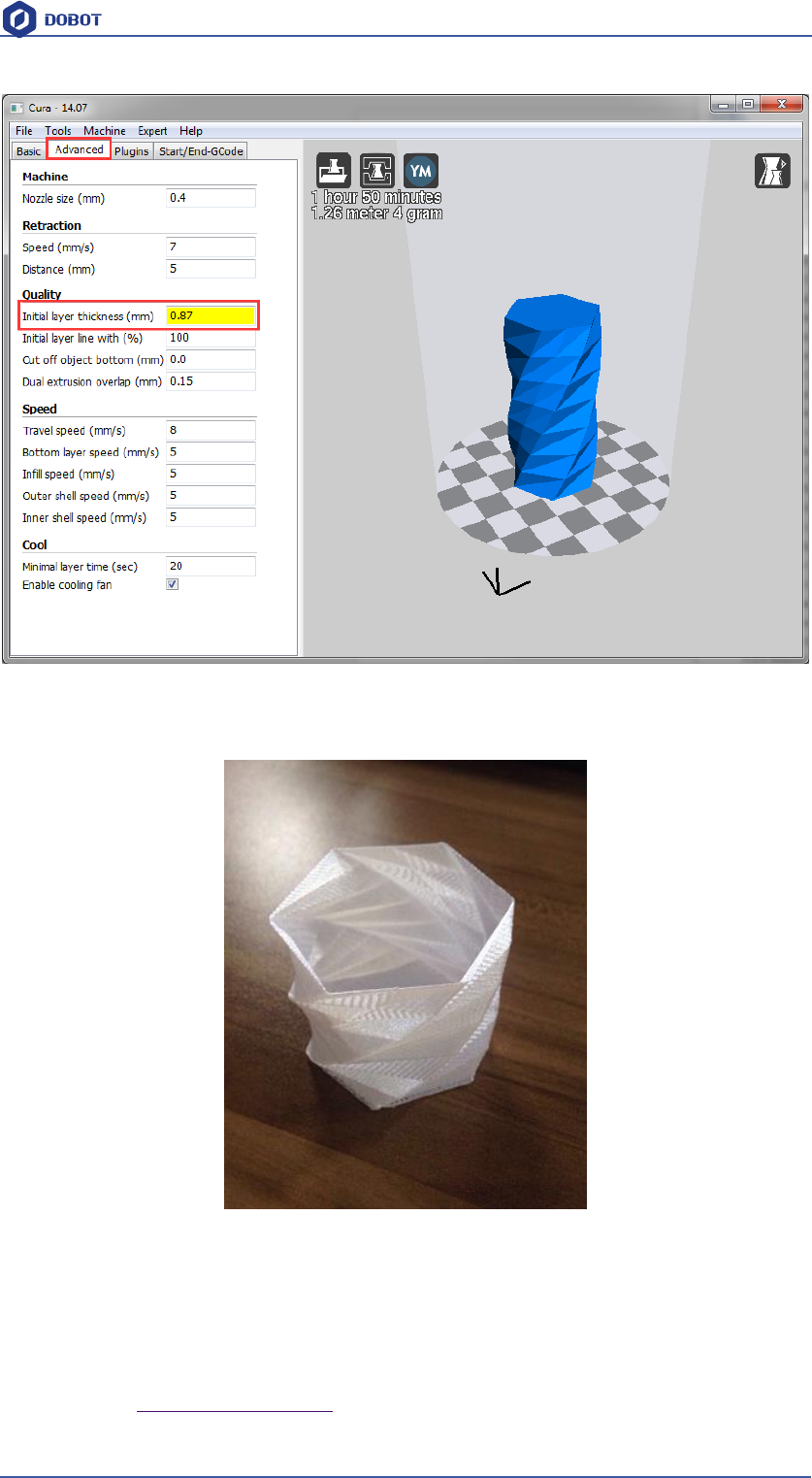
Note: During the printing, if the distance between the nozzle and print is too large to paste the
print bed of the first layer; If the distance is too small, which will cause consumables block. So we
need to adjust the proper distance for smooth printing. If it is not proper height when printing the
first layer, we can amend the parameters in the initial-layer thickness, for example, -0.1mm or
+0.1mm. After amending it,Cura will slice up automatically, then you can test the printing effect.
After testing, the default heught of first layer is 0.87mm.
Shenzhen Yuejiang Technology Co.,LTD
Shenzhen Yuejiang Technology Co., Ltd
96
Dobot Magician User Manual
Figure 7.40 Amend the height of first layer
Here we choose vase mode, and the effect after printing as follows:
Figure 7.41 The Effect of Printing
8.3.5 Text note
Parameters Introduction of 3D printing
Here we only introduce necessary parameter settings, and one can review the related links about the
rest parameters: http://manual.slic3r.org/
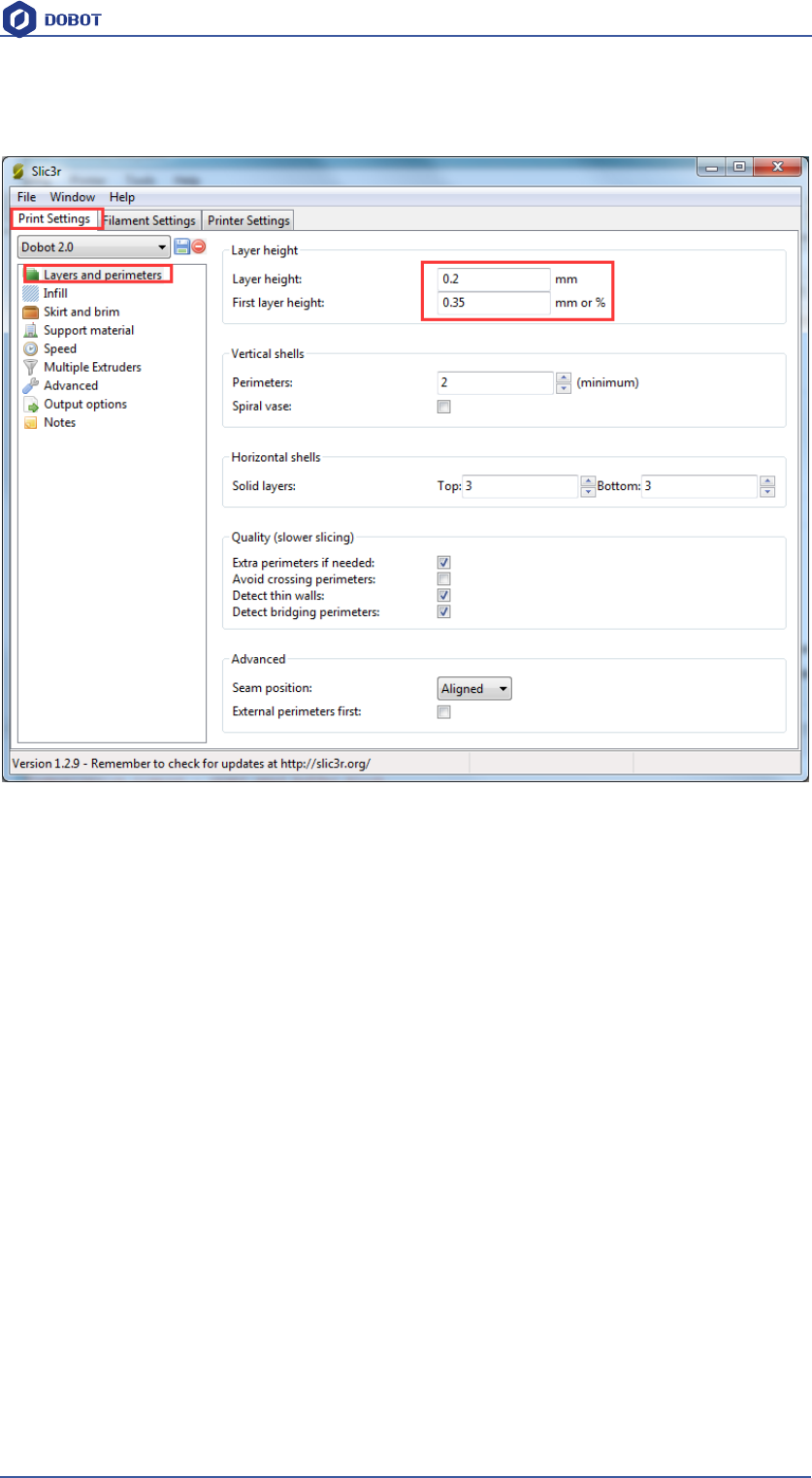
(1) Printer settings
Shenzhen Yuejiang Technology Co.,LTD
Shenzhen Yuejiang Technology Co., Ltd
97
Dobot Magician User Manual
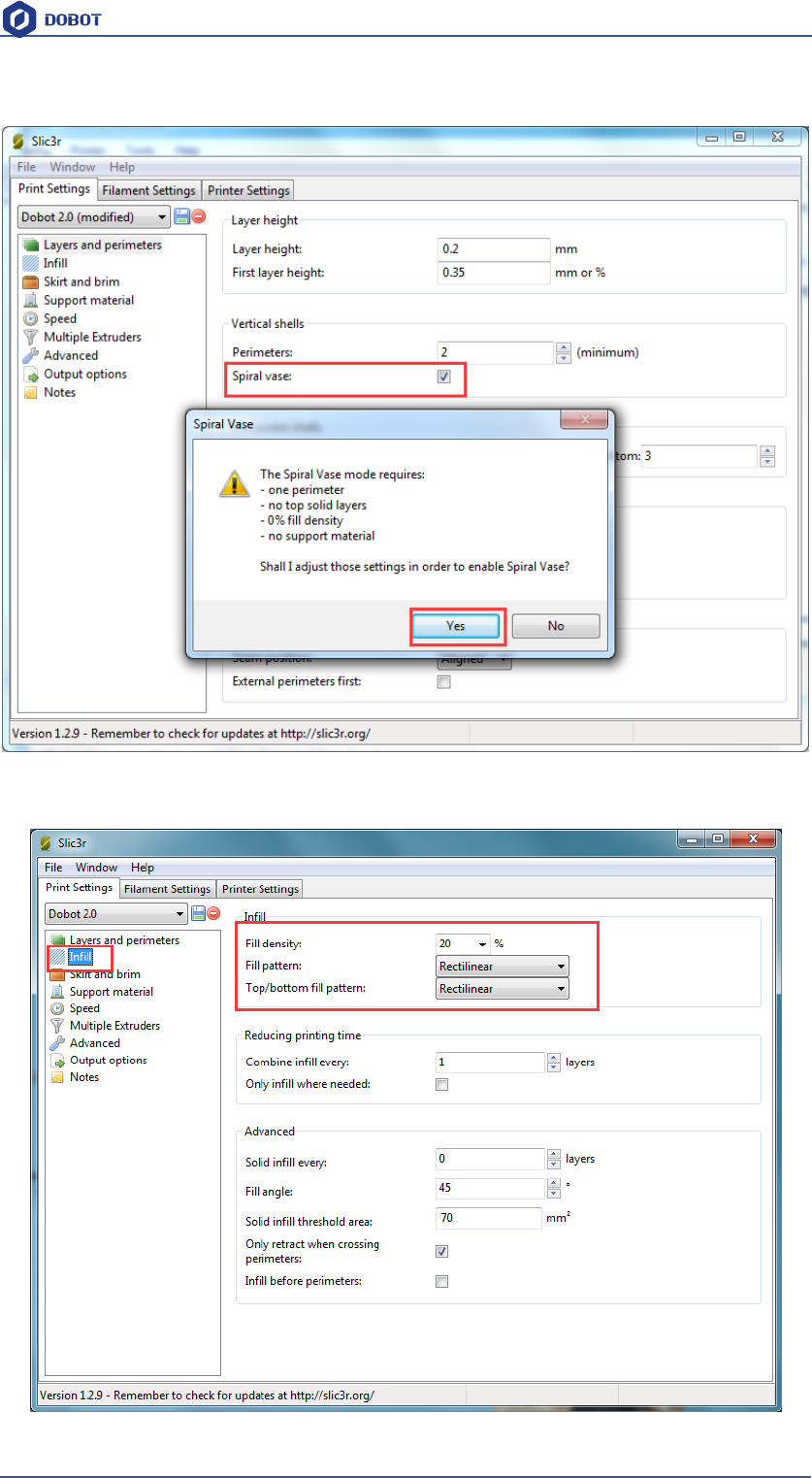
Set the height of print layer: 0.2mm;
The height of first layer: 0.35mm;
Shenzhen Yuejiang Technology Co.,LTD
Shenzhen Yuejiang Technology Co., Ltd
98
Dobot Magician User Manual
Spiral vase: Check this one and click Yes, then we can print unfilled vase.
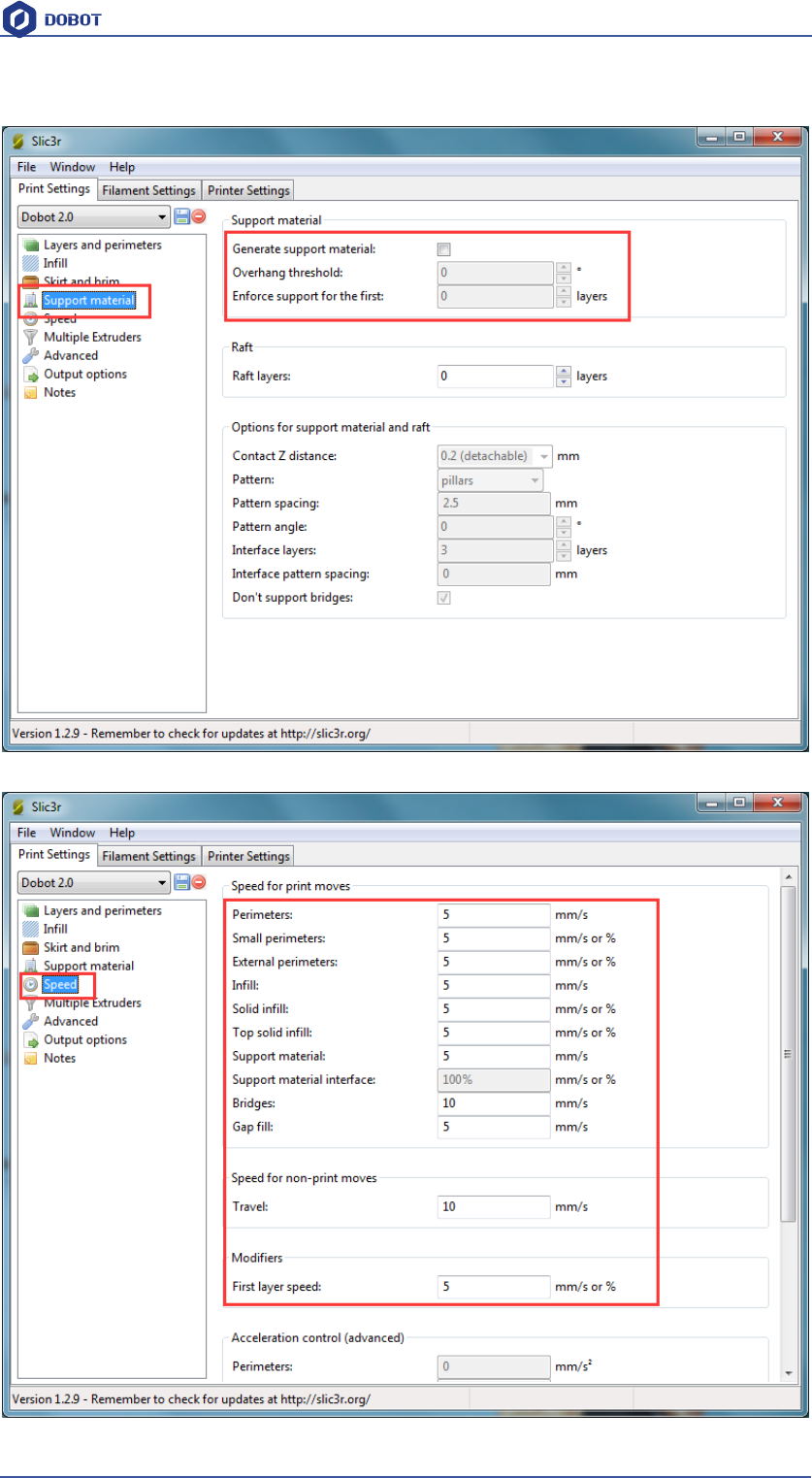
The fill rate settings:
Shenzhen Yuejiang Technology Co.,LTD
Shenzhen Yuejiang Technology Co., Ltd
99
Dobot Magician User Manual
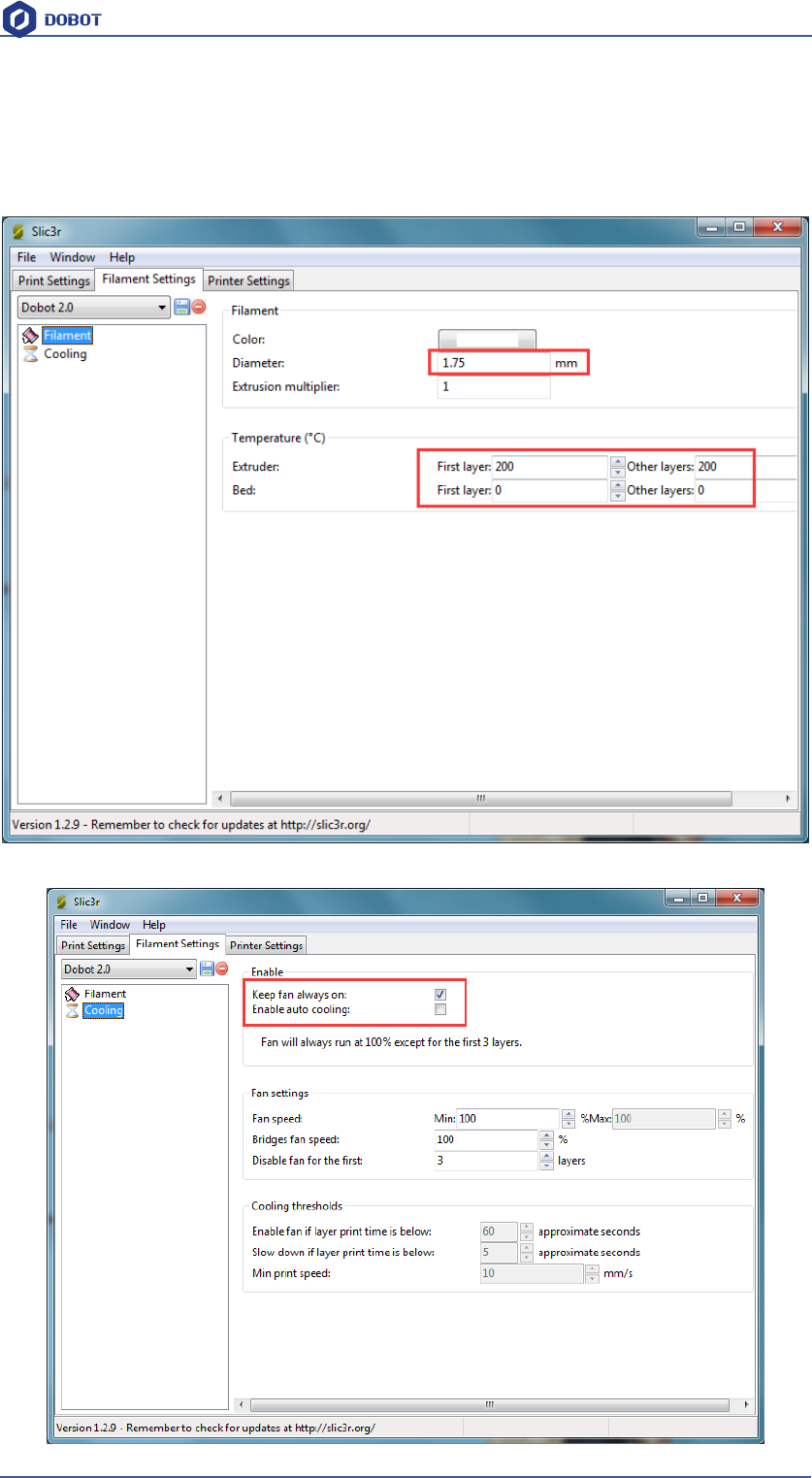
If users need print support, please tick Support material:
The speed settings:
Shenzhen Yuejiang Technology Co.,LTD
Shenzhen Yuejiang Technology Co., Ltd
100
Dobot Magician User Manual
(2) Filament settings
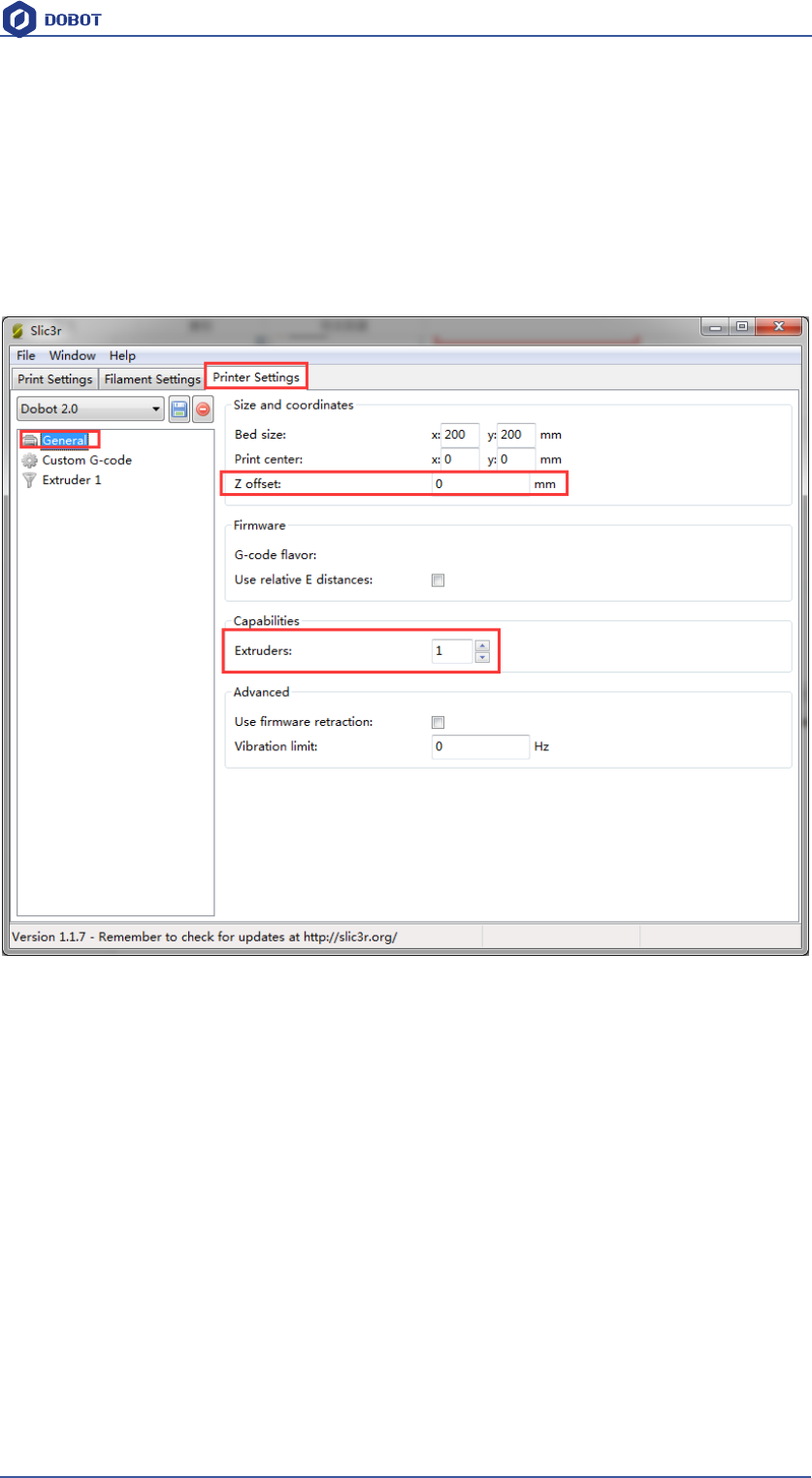
Consumable diameter: 1.75mm
The temperature : 200℃
Open the fan:
Shenzhen Yuejiang Technology Co.,LTD
Shenzhen Yuejiang Technology Co., Ltd
101
Dobot Magician User Manual
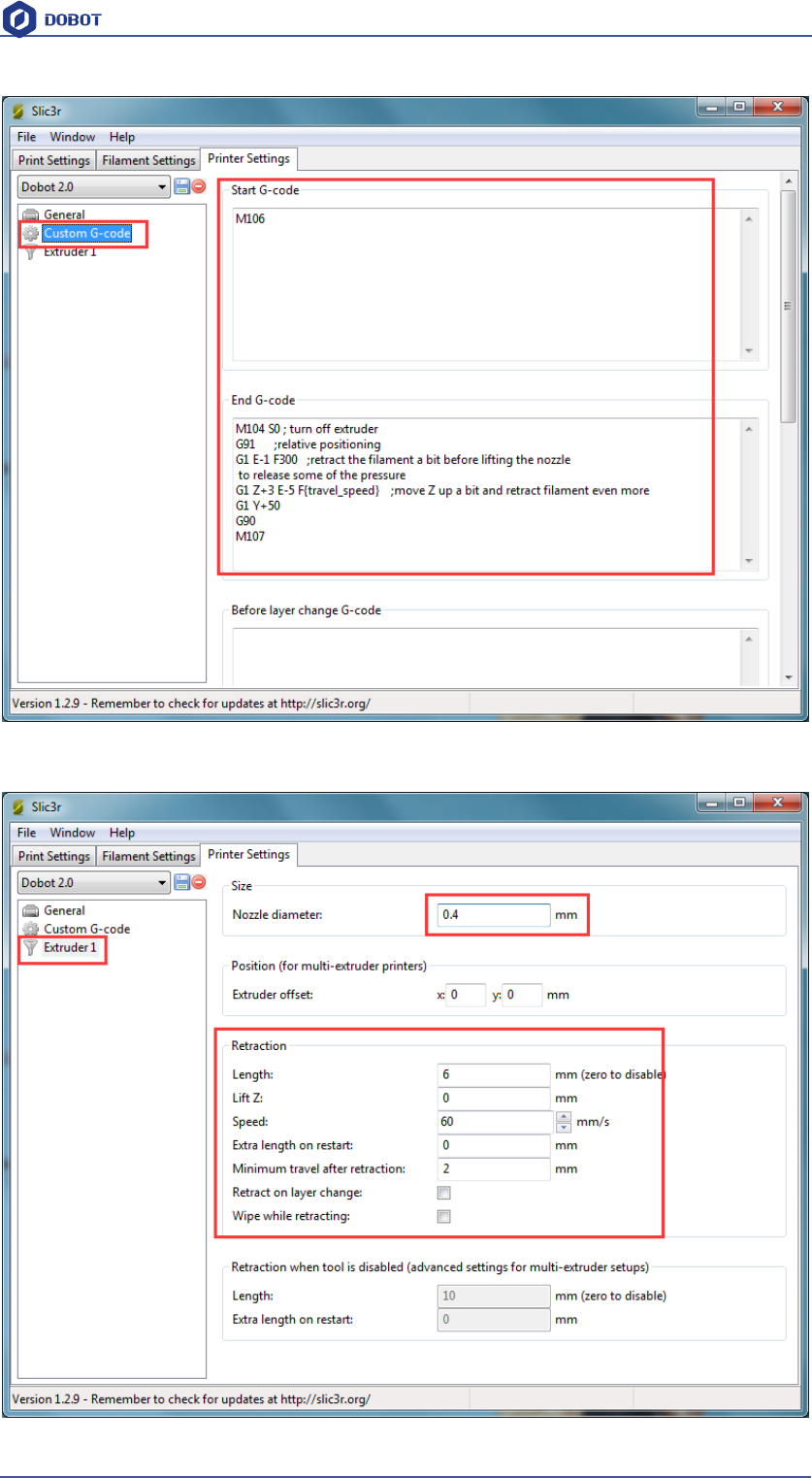
(3) Printer settings
The number of Extruder: 1
The nozzle Z offset of extruder: 0mm
Notice: If the height of nozzle is so large that consumables cannot paste print bed or so
small that it cannot discharge when printing the first layer, users can amend the height
from this interface, such as -0.01mm or +0.01mm, thus, one need not adjust the height
again.
G-code Settings:
Start G-code: M106
End G-code:
M104 S0 ; turn off extruder
G91 ;relative positioning
G1 E-1 F300 ;retract the filament a bit before lifting the nozzle
to release some of the pressure
G1 Z+3 E-5 F{travel_speed} ;move Z up a bit and retract filament even more
G1 Y+50
G90
M107
Shenzhen Yuejiang Technology Co.,LTD
Shenzhen Yuejiang Technology Co., Ltd
102
Dobot Magician User Manual
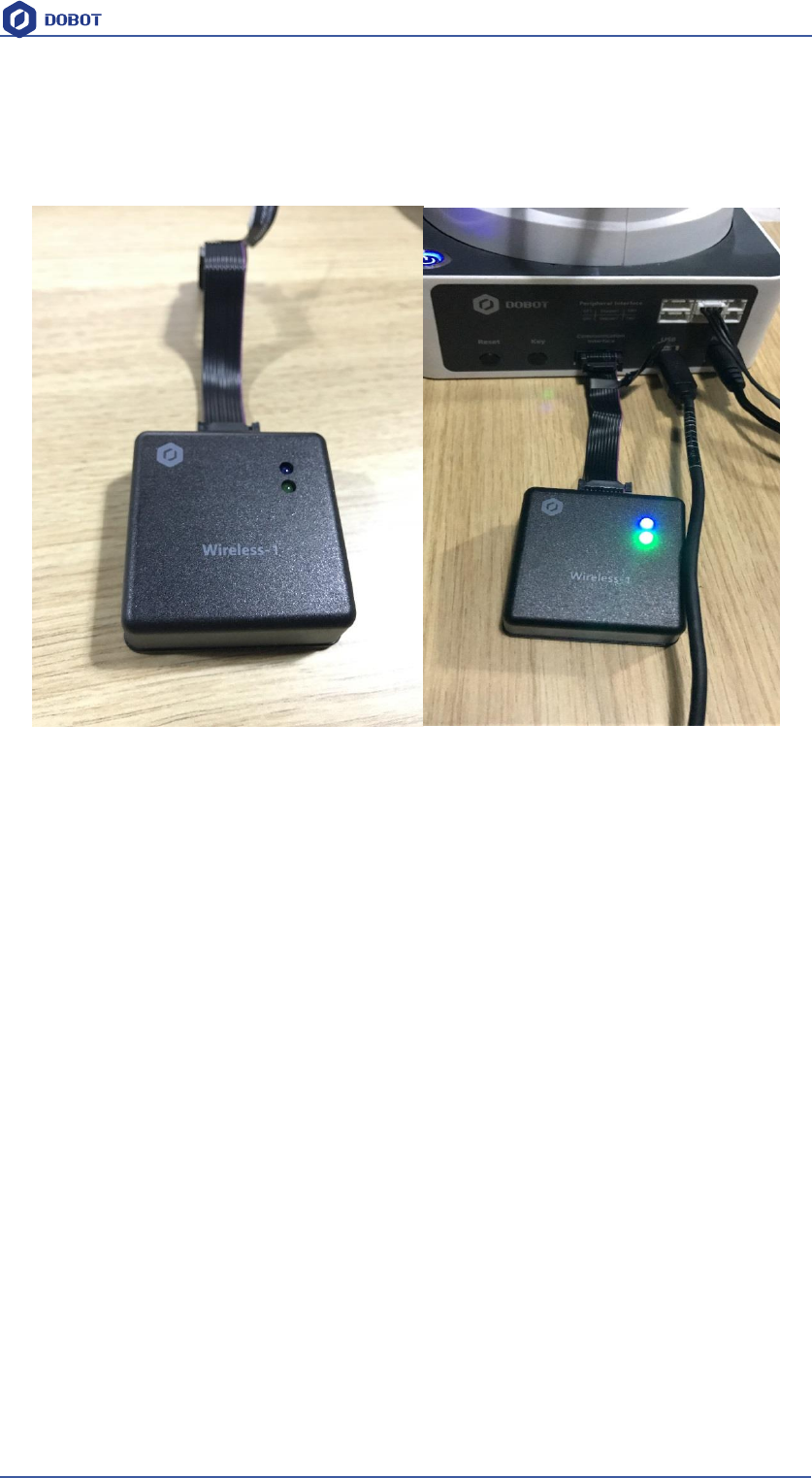
The nozzle diameter settings: 0.4mm;
The pump back speed settings: length=6 mm,speed=60 mm/s.
Shenzhen Yuejiang Technology Co.,LTD
Shenzhen Yuejiang Technology Co., Ltd
103
Dobot Magician User Manual
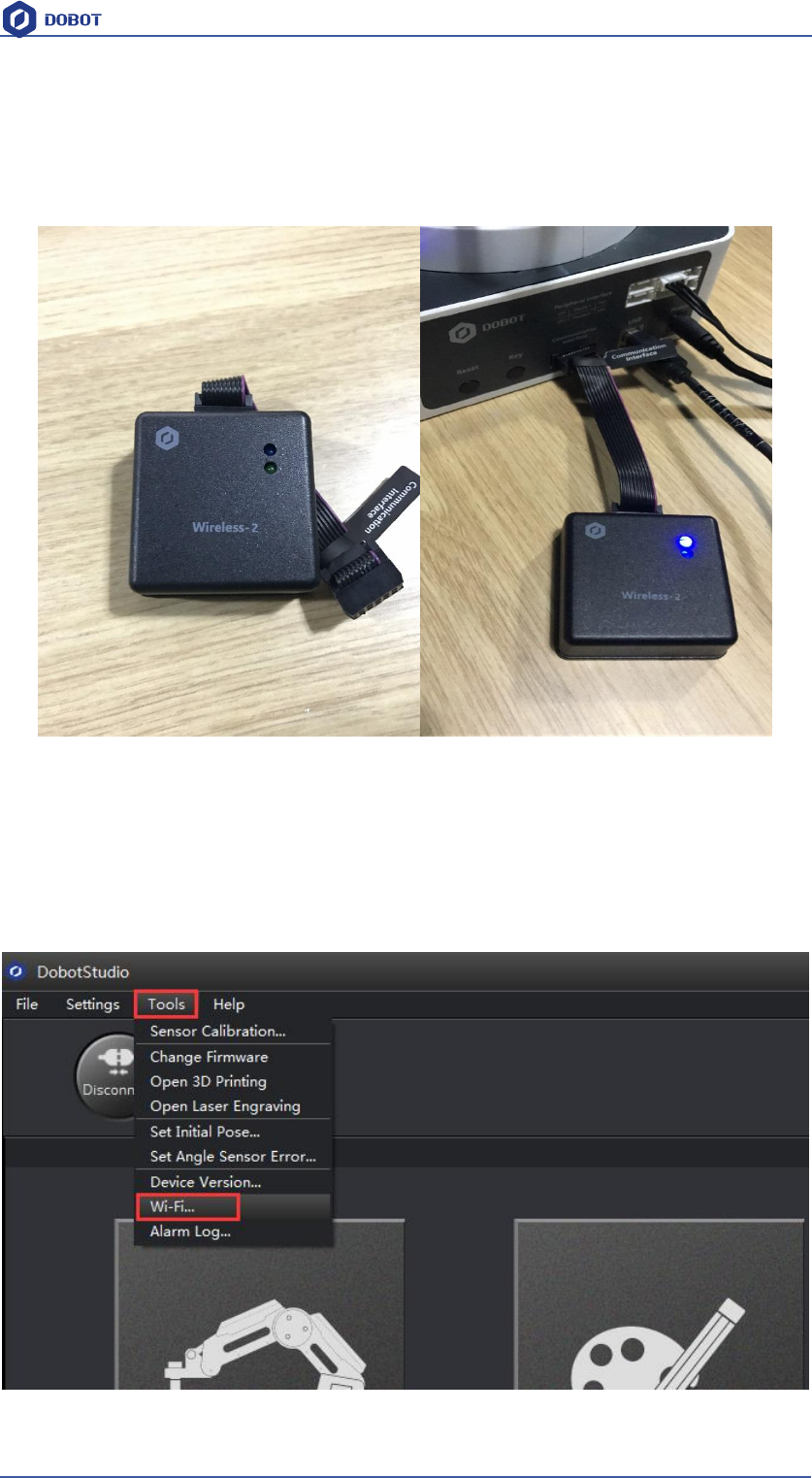
9. Bluetooth Kit
9.1 Bluetooth module is included in this kit, and the installation shown as follows:
Figure 8.1 Bluetooth module installation
9.2 After installation, power on Dobot Magician and you should be able to hear three short beep
sounds, then you can find device BLE-100 and connect Dobot Magician through mobile APP.
Shenzhen Yuejiang Technology Co.,LTD
Shenzhen Yuejiang Technology Co., Ltd
104
Dobot Magician User Manual
10.WIFI Kit
WIFI kit contains WiFi module, connect it into Dobot extensible port, and use USB cable to
connect Dobot and PC, shown as follows:
Figure 9.1 WiFi module
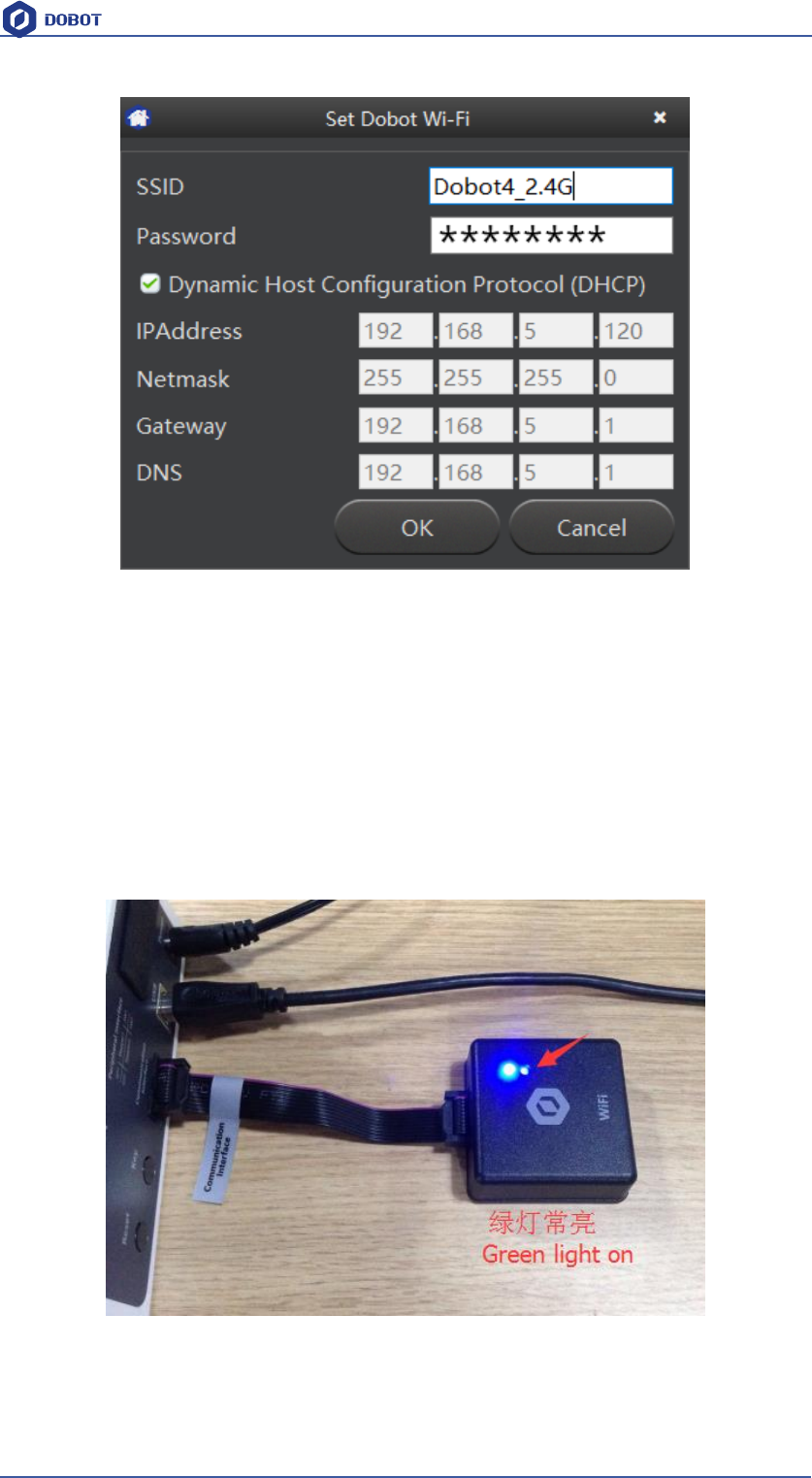
10.1 Set Dobot Wi-Fi module
If first use, you need connect USB to configure WiFi module, creating virtual serial port. After
setting up, you can use WiFi module alone and do not need USB cable.
1. Open DobotStudio, Click Connect->Tools->Wi-Fi, and enter into parameter setting interface.
2. Input related parameters of WLAN.
Shenzhen Yuejiang Technology Co.,LTD
Shenzhen Yuejiang Technology Co., Ltd
105
Dobot Magician User Manual
Figure 9.2 Wi-Fi interface
- Fill in Wifi name at “SSID” input box;
- Fill in Wifi password at “Password” input box;
- If you want to use function of DHCP, please tick checkbox;
- Otherwise, fill in“IPAddress”、“Netmask”、“Gateway”、“DNS” and any other
parameters.
Generally, use the function of DHCP, click OK, and then will finish the settings. Wait for several
seconds, the green indicator of Dobot WiFi wireless module will be kept on, which means Dobot
has been connected with WLAN.
Figure 9.3 Connected with WLAN
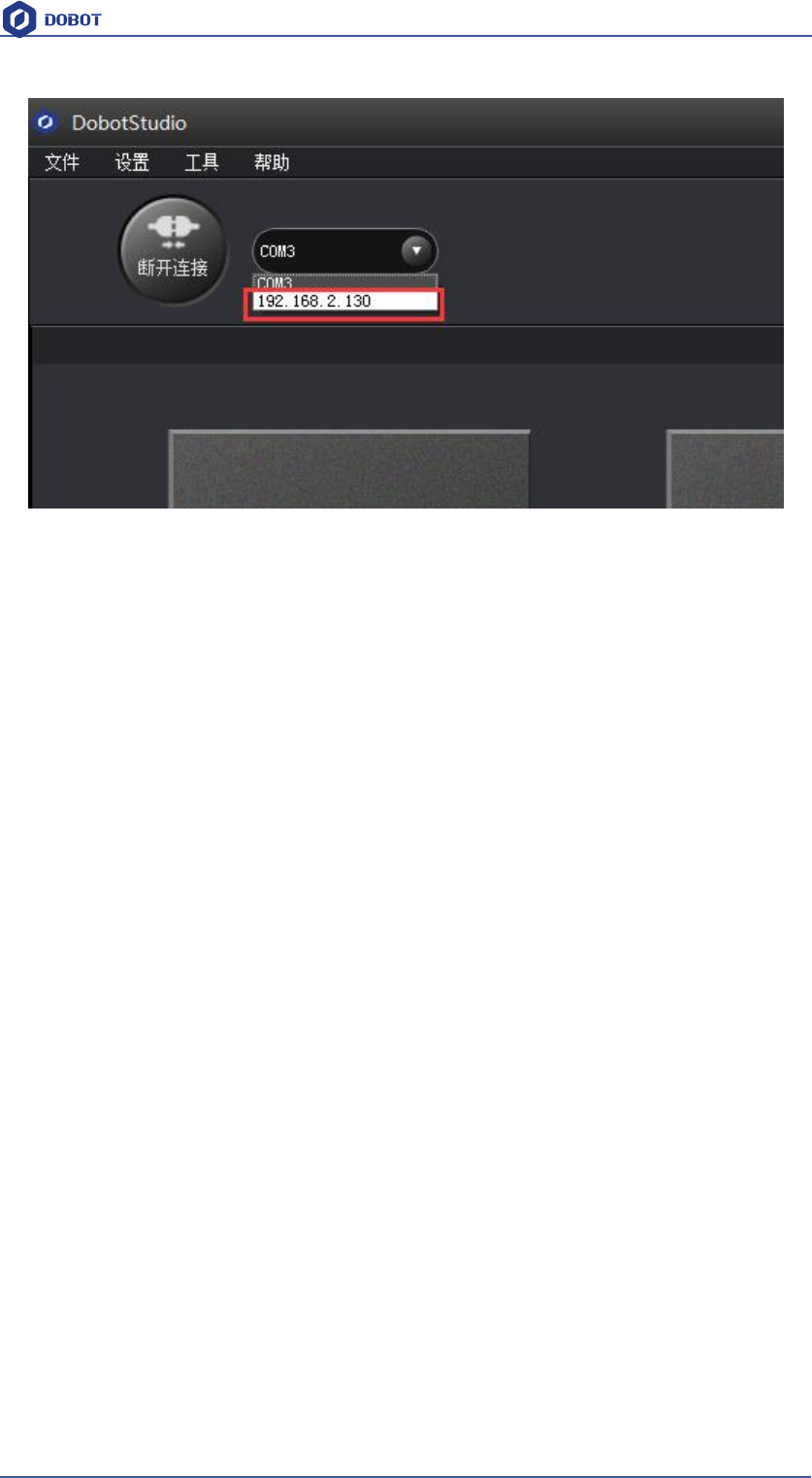
Then you will find out the equipment address searched automatically on the main interface of
DobotStudio, the details shown as follows:
Shenzhen Yuejiang Technology Co.,LTD
Shenzhen Yuejiang Technology Co., Ltd
106
Dobot Magician User Manual
Figure 9.4 Dobot IP address
Select the address, click Connect, then you can control Dobot through WiFi successfully. In the
subsequent usage, just insert WiFi module and connect Dobot through the address without the use
of USB cable.
Shenzhen Yuejiang Technology Co.,LTD
Shenzhen Yuejiang Technology Co., Ltd
107
Dobot Magician User Manual
11. Stick controller kit
11.1 Stick controller kit includes stick and USB Host module, connect wireless module into 10pin
communication port behind the controller.There are two ways to connect, wired and wireless,
shown as follows:
Figure 11.1 Installation of stick module
11.2 Take wireless mode for example, after installation, power on, the green led of stick module
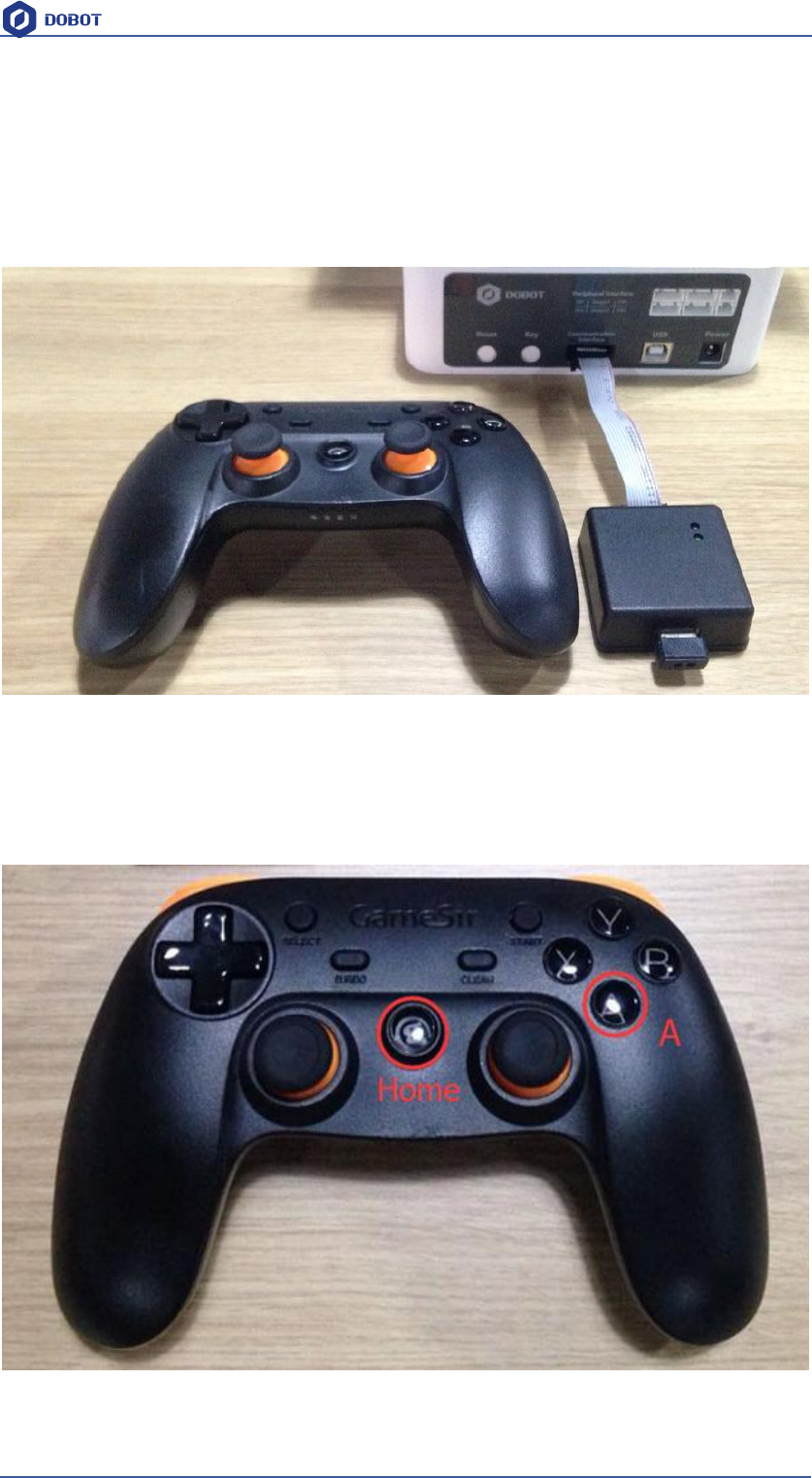
will be on, and you will hear 4 short sounds that means finishing initialization. At the same time,
press the button Home and A, start up the stick controller.
Figure 11.2 Start up the stick
Shenzhen Yuejiang Technology Co.,LTD
Shenzhen Yuejiang Technology Co., Ltd
108
Dobot Magician User Manual
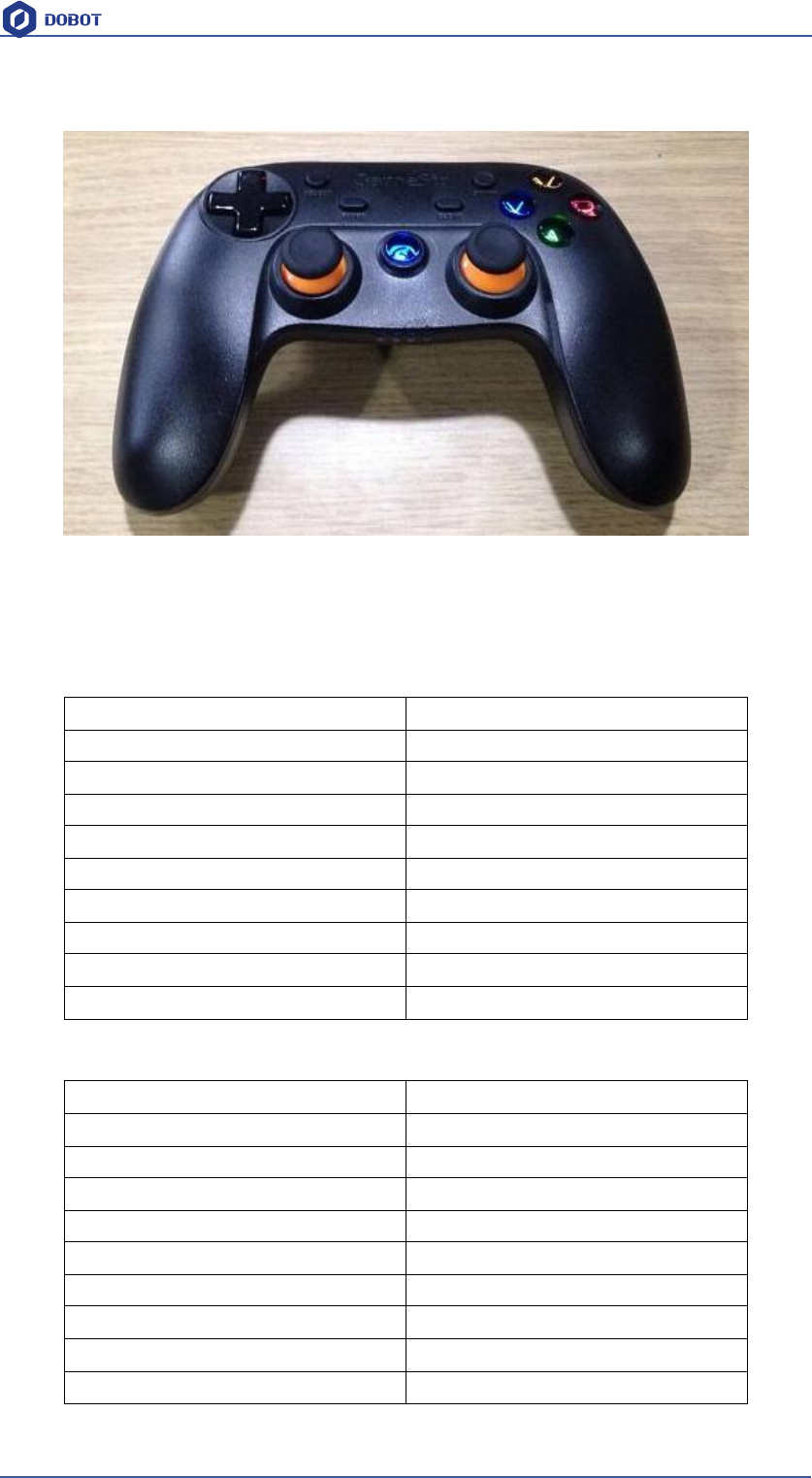
At this moment, the front button led will be on, and the beneth led will flash:
Figure 11.3 Stick at work
11.3There are two ways of control ways, Linear mode and Jog mode, which can be swithed by
button L1/R1(L1 refers to jog mode and R1 refers to liner mode), the detailed control mode
shown as follows:
(1) Linear mode
Function
Corressponding buttons
Start up stick
Hold down Home and A for 2 seconds
Close the stick
Hold down Home for 2 seconds
Dobot X+/X-
Pad.LeftStick. front/back
Dobot Y+/Y-
Pad.LeftStick. left/right
Dobot Z+/Z-
Pad.LeftStick. front/back
Joint4 servo rotation R+/R-
Pad.LeftStick. left/right
Suction cup ON
Y key
Gripper ON
Y key
Release suction cup/gripper
X key
Figure 10.1 Linear mode
(2)Jog Mode
Function
Corressponding buttons
Start up stick
Hold down Home and A for 3 seconds
Close the stick
Hold down Home for 3 seconds
Dobot Joint1+/ Joint1-
Pad.LeftStick. front/back
Dobot Joint2+/ Joint2-
Pad.LeftStick. left/right
Dobot Joint3+/ Joint3-
Pad.LeftStick. front/back
Joint4 servo rotation R+/R-
Pad.LeftStick. left/right
Suction cup ON
Y key
Gripper ON
Y key
Release suction cup/gripper
X key
Figure 10.2 Jog mode
Shenzhen Yuejiang Technology Co.,LTD
Shenzhen Yuejiang Technology Co., Ltd
109
Dobot Magician User Manual
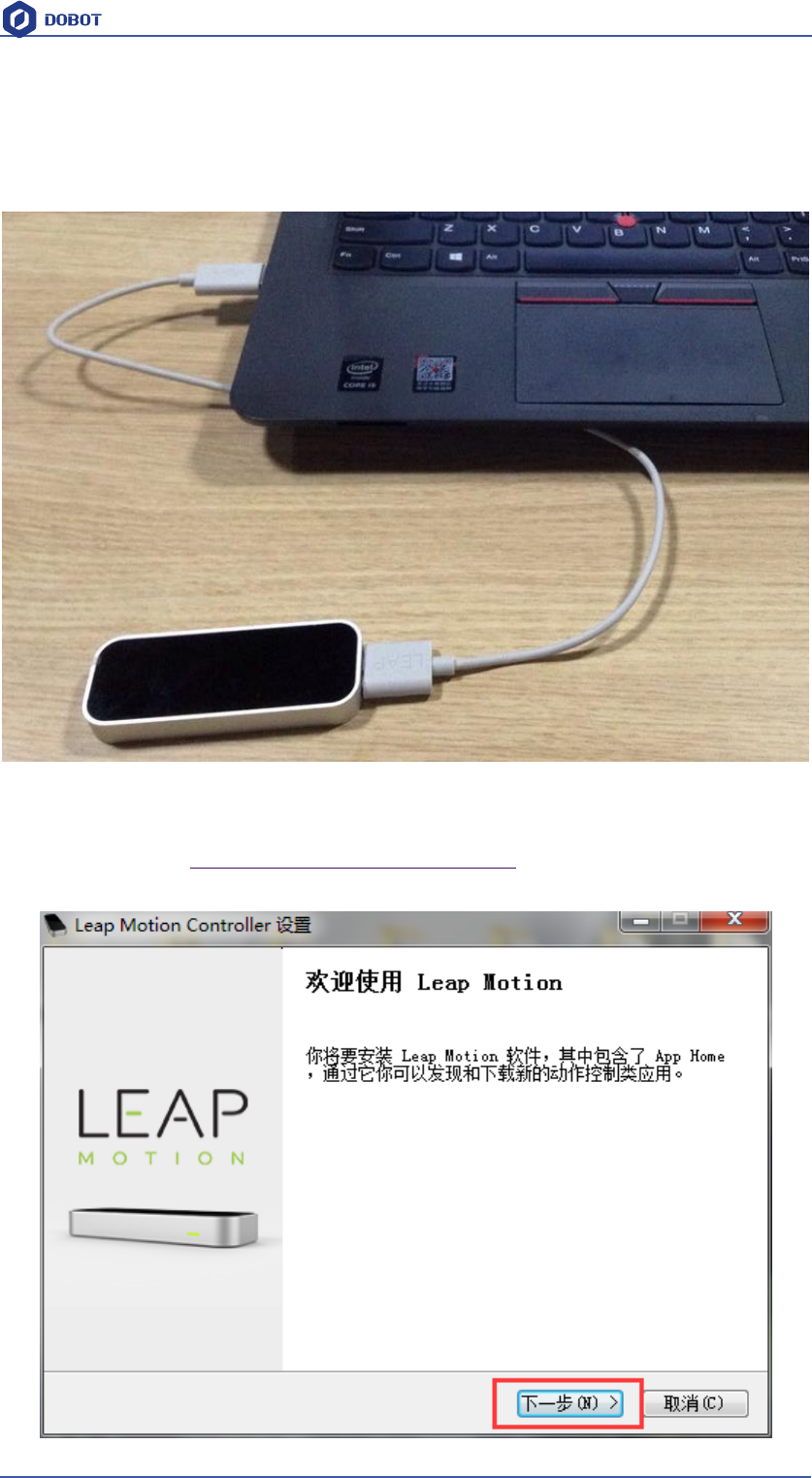
12 Leap Motion Kit
12.1 Connect Leap Motion module with PC through USB cable.
Figure 12.1 Leap motion module
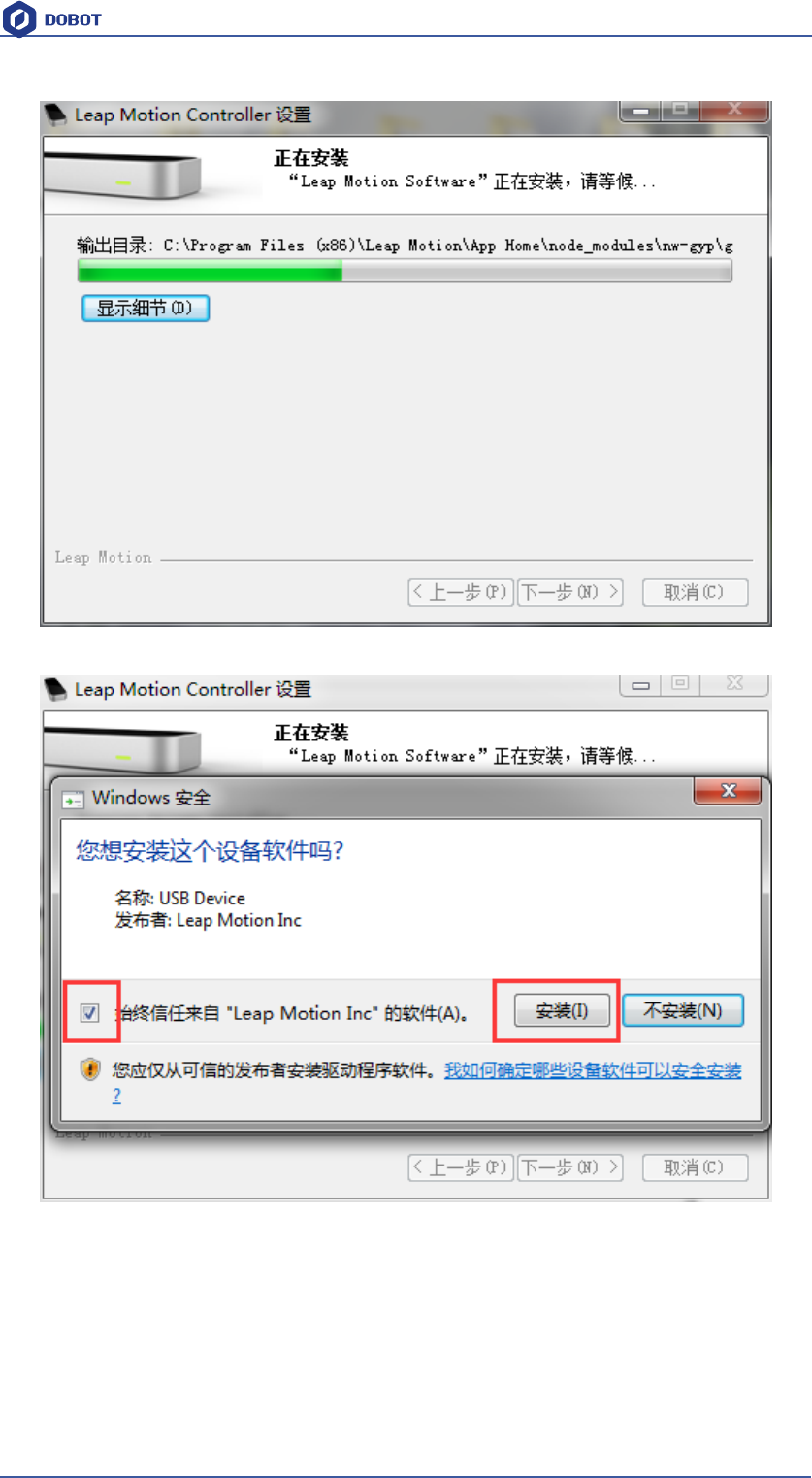
12.2 Here are the link: https://www.leapmotion.com/setup to download Leap Motion
Windows driver and install it.
Shenzhen Yuejiang Technology Co.,LTD
Shenzhen Yuejiang Technology Co., Ltd
110
Dobot Magician User Manual
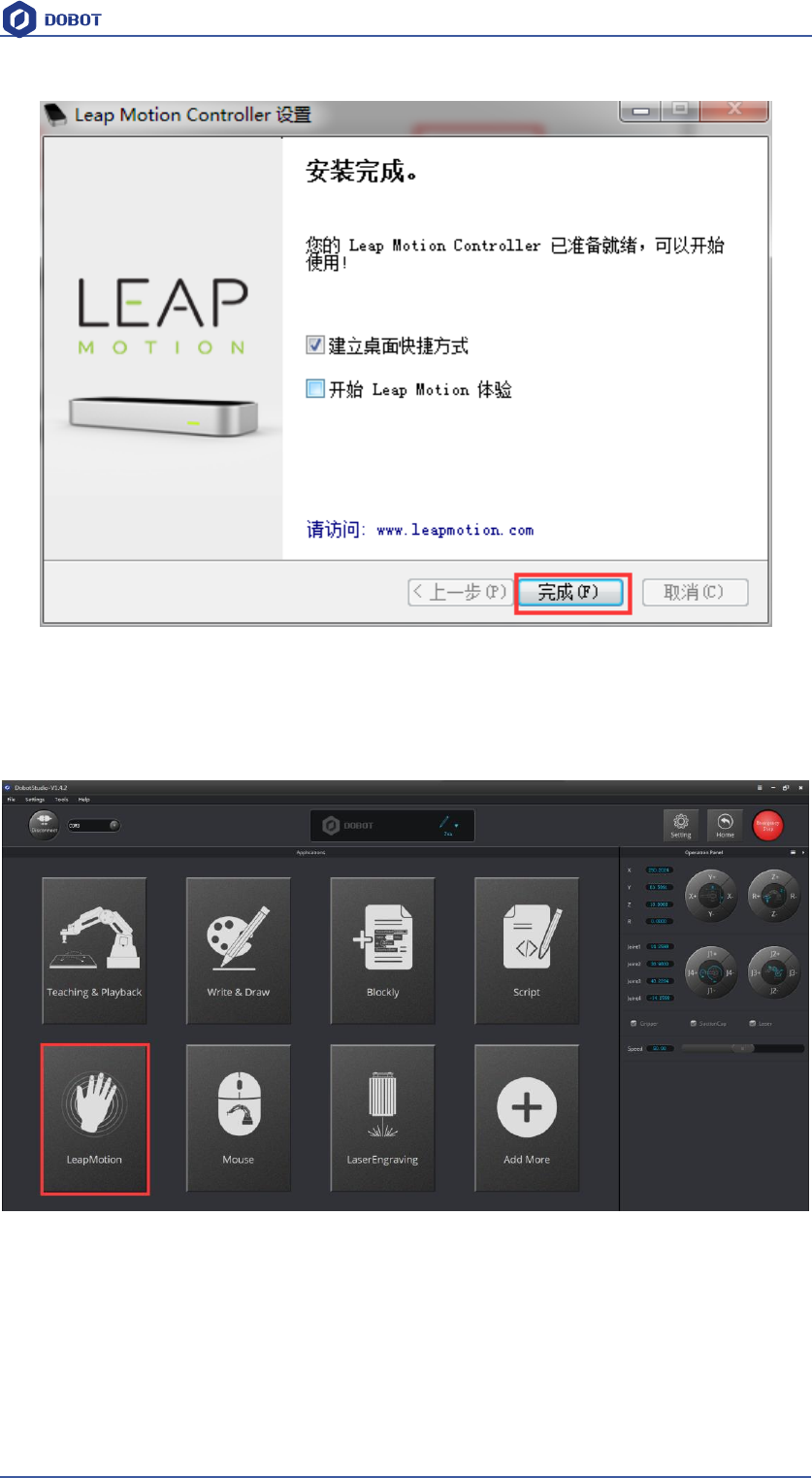
If there is a warning when installing, please keep on installing until it’s done.
Shenzhen Yuejiang Technology Co.,LTD
Shenzhen Yuejiang Technology Co., Ltd
111
Dobot Magician User Manual
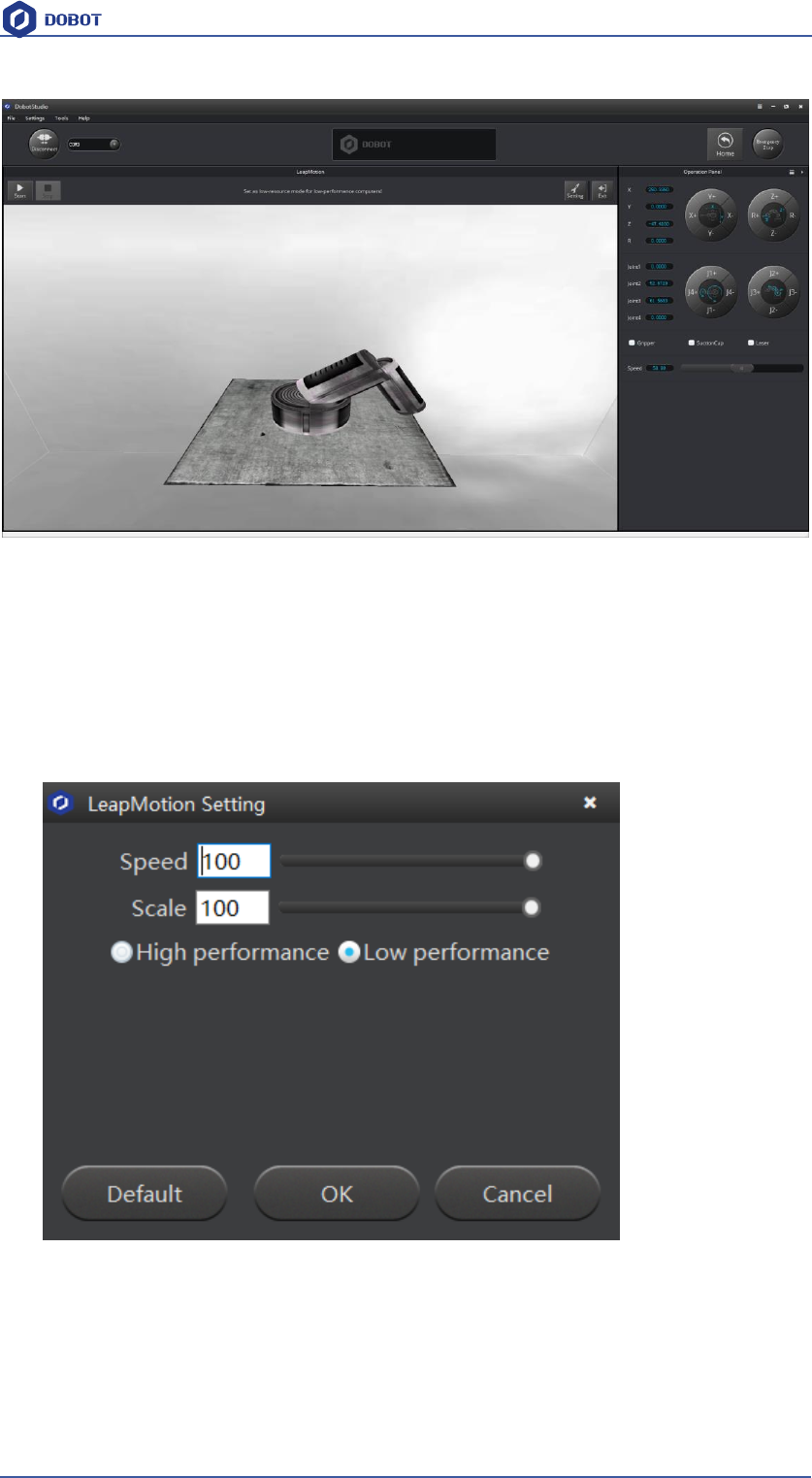
Figure 12.2 Successful installation
12.3 After preparation, start up the equipment, open DobotStudio, click Leap Motion and enter
into the interface:
Shenzhen Yuejiang Technology Co.,LTD
Shenzhen Yuejiang Technology Co., Ltd
112
Dobot Magician User Manual
Figure 12.3 Leap motion interface
12.4 Start: In order to keep Dobot more stable, turn palm up to move into controlled area of Leap
Motion. Dobot will move accordingly, hold hands to trigger suction cup or gripper.
12.5 Turn palm up, remove surveyed area of Leap Motion, and then exit the movement.
12.6 Stop: Exit Leap Motion mode.
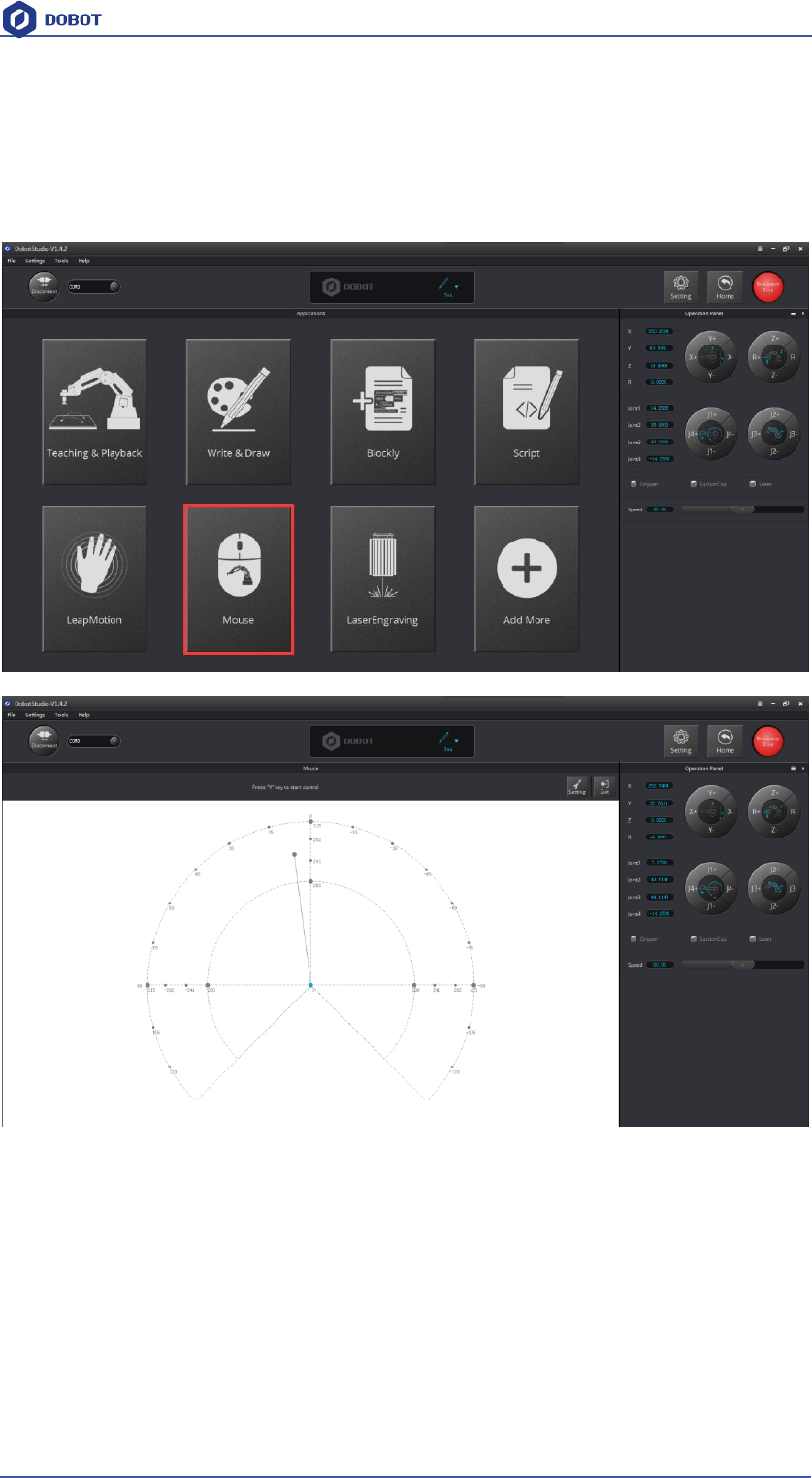
12.4 Settings: Set up speed and scale ratio;
Speed:Speed adjustment;
Scale:Coordinates ratio between leap motion and Dobot;
Low resource/high resource: Set as low-resource mode for low-performance computers.
Shenzhen Yuejiang Technology Co.,LTD
Shenzhen Yuejiang Technology Co., Ltd
113
Dobot Magician User Manual
13. Mouse control
13.1 The software used by mouse controlling is DobotStudio, please open the software, and enter
into mouse module interface, shown as follows:
Figure 12.1 Enter into mouse controlling interface
13.2 V key: Start and Stop;
13.3 Settings: Set up related velocity and acc;
Shenzhen Yuejiang Technology Co.,LTD
Shenzhen Yuejiang Technology Co., Ltd
114
Dobot Magician User Manual
Figure 12.2 Parameter settings
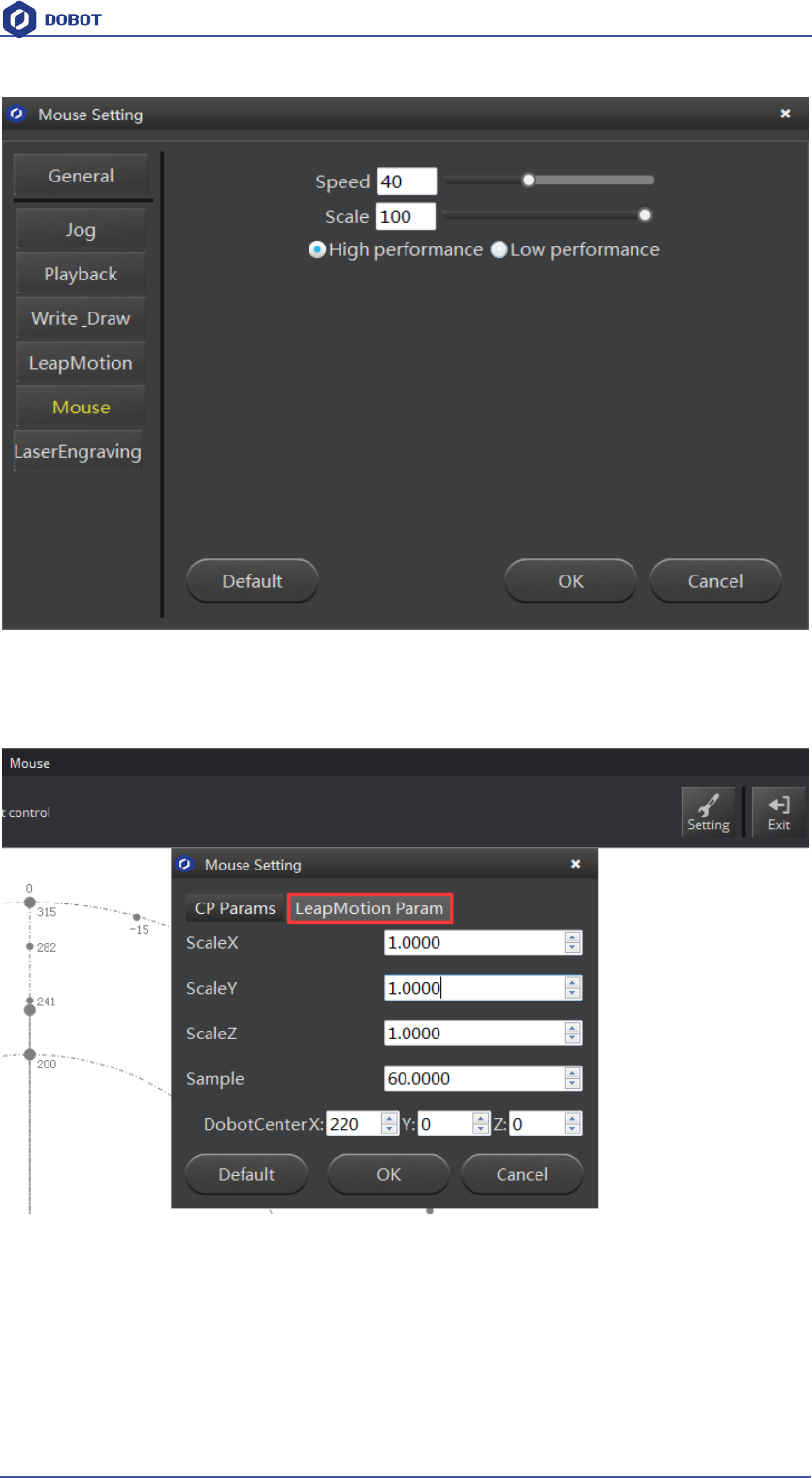
Speed (percentage):0-100,suggest 50;
Scale (percentage): 0-100, suggest 100;
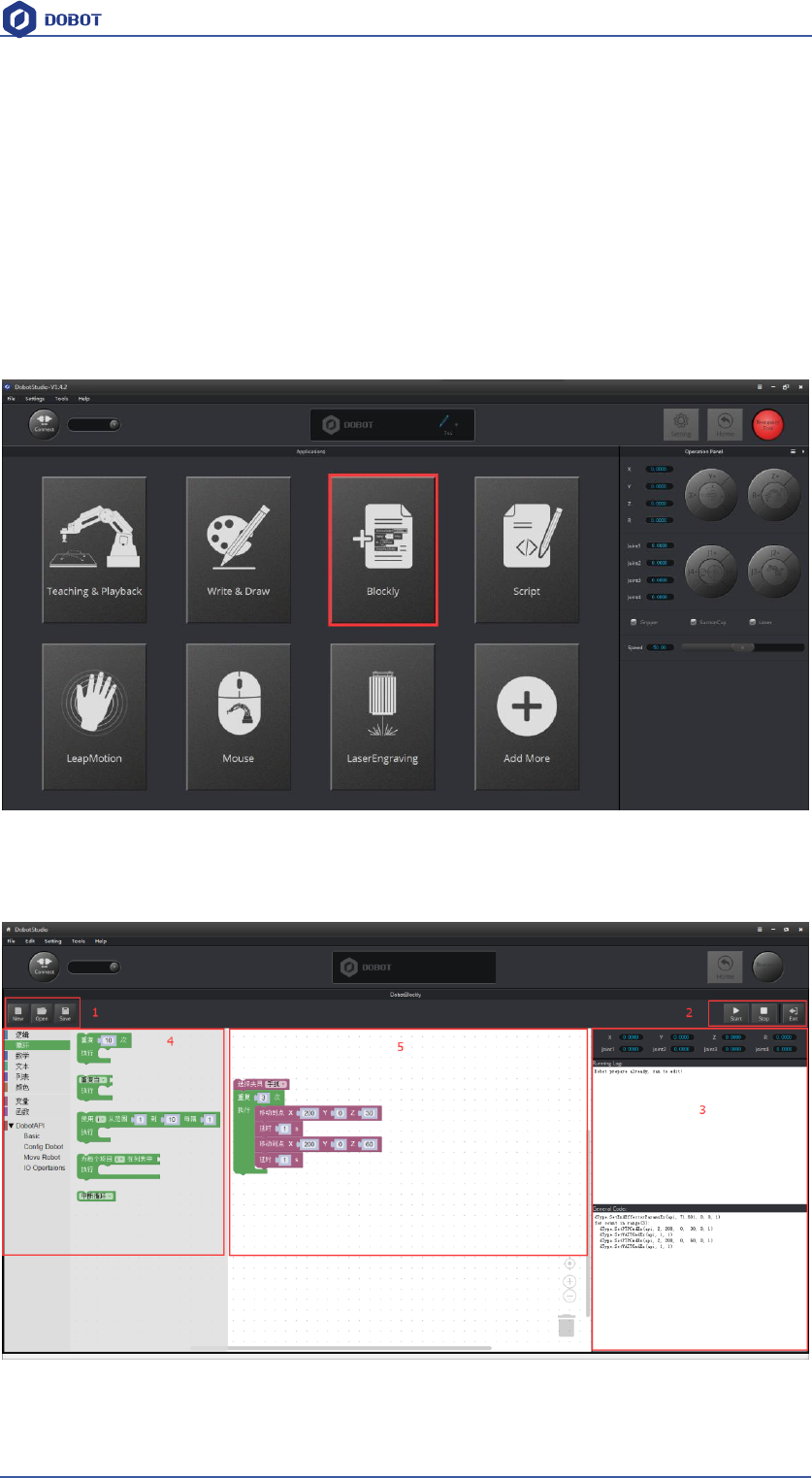
Figure 12.3 Parameter settings
Scale X/Y/Z:Scale ratio between mouse coordinates and Dobot coordinates;
Sample:20-60,depends on PC performance;
DobotCenter:Keep the default;
Shenzhen Yuejiang Technology Co.,LTD
Shenzhen Yuejiang Technology Co., Ltd
115
Dobot Magician User Manual
14 Blockly
Dobot Blockly is a platform of programming based on Google Blockly. In this process, users
canprogram through puzzle, stright and easy to understand. Also, users can use the integrated API
of Dobot anytime.
14.1 Blockly Interface
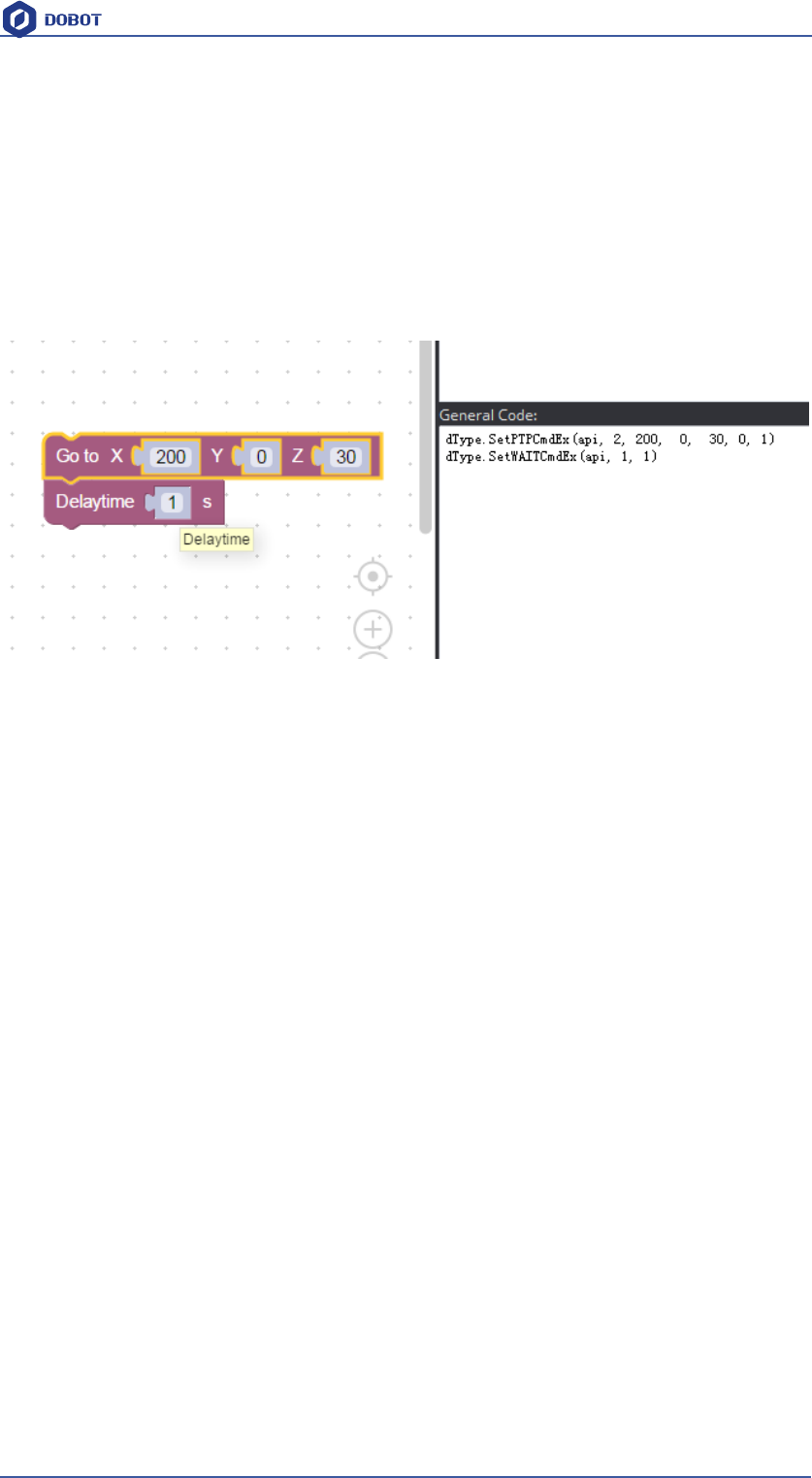
1. Open the software DobotStudio, click DobotBlockly:
Figure 14.1 Enter into DobotBlockly
2. 5 areas are included in this window:
Figure 14.2 DobotBlockly Interface
Area 1:
Shenzhen Yuejiang Technology Co.,LTD
Shenzhen Yuejiang Technology Co., Ltd
116
Dobot Magician User Manual
New/Open/Save:New/Open/Save the current files
Area 2:
Start/Stop
Area 3:
This part includes the current point location info of Dobot, and log information is in the middle,
programming code is on the left:
Figure 14.3 Code information
Area 4:
Selected area of blockly module, including logistic, loop, math, Dobot API and so on, just drag
them to the window that is OK.
Dobot API has strong functions, such as velocity/acc, end effector settings, move mode, liner or
jog mode and each interface of I/O configuration, it is very convenient for second development.
Area 5:
Main window of blockly programing
14.2 Blockly Demo
Here is one basic demo, shown as follows:
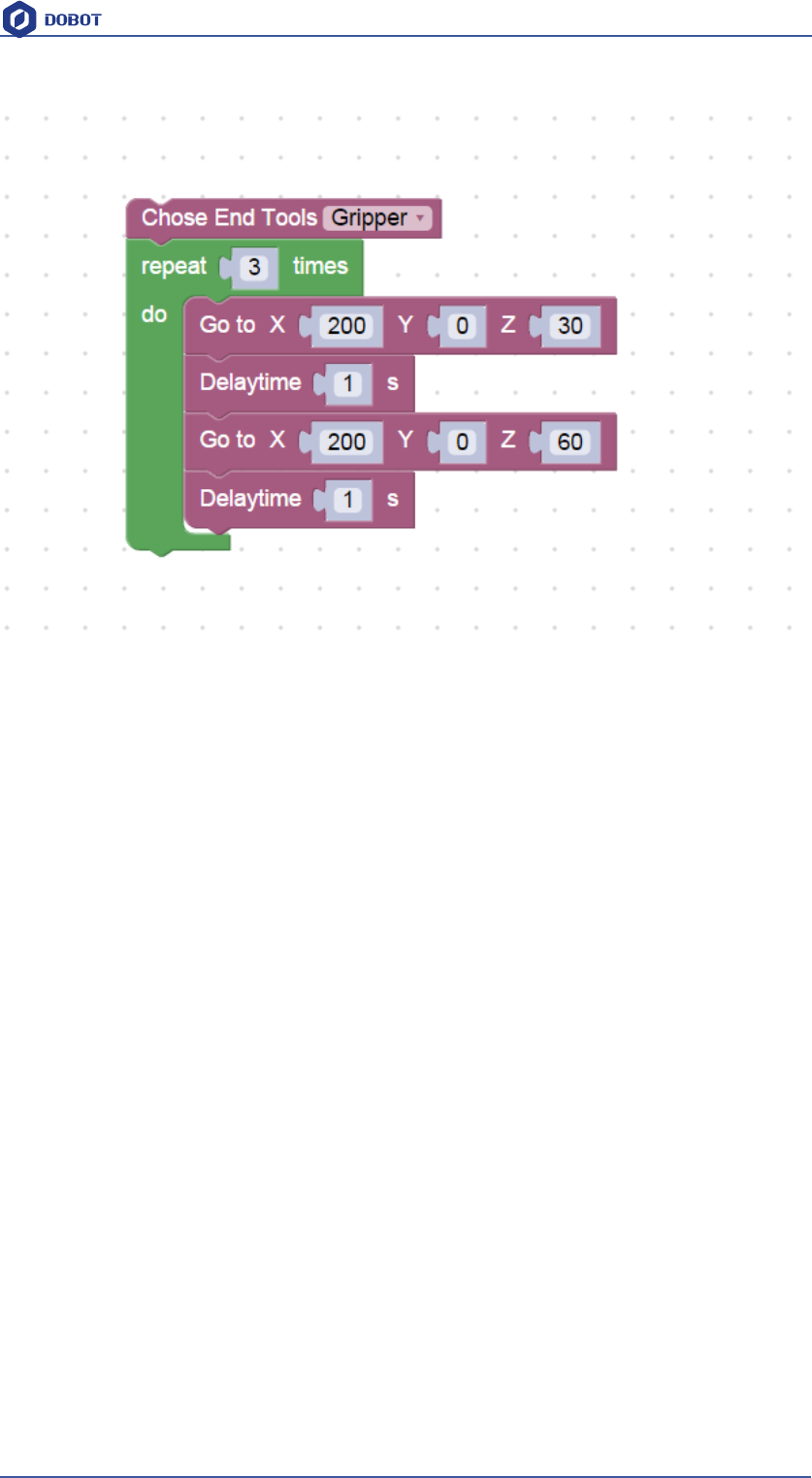
Shenzhen Yuejiang Technology Co.,LTD
Shenzhen Yuejiang Technology Co., Ltd
117
Dobot Magician User Manual
Figure 14.4 Programing demo
Explanation of Demo: Set endeffector as gripper, set the loop number as 3, and make the Z axis
move back and forth 3 times. After this, click Start, Dobot will move accordingly.

Shenzhen Yuejiang Technology Co.,LTD
Shenzhen Yuejiang Technology Co., Ltd
118
Dobot Magician User Manual
15. More support
For more information,visit http://cn.dobot.cc/
For more detailed material about software, second development and any others,visit
http://cn.dobot.cc/download-center/dobot-magician.html
Share your idea on Dobot forum http://forum.dobot.cc/
Further question, welcome to send email at support@dobot.cc