Jason ZHANG EN DGUS V5.10 User Guide
User Manual:
Open the PDF directly: View PDF  .
.
Page Count: 59
- 1.DGUS_SDKInstruction
- 2.BasicStepsforDGUS_SDKOperation
- 3.MainFunctionsofDGUS_SDK
- 3.1TouchConfig.
- 3.1.1PopupWindow
- 3.1.3IncrementalAdjustment
- 3.1.4SliderAdjustment
- 3.1.5RTC
- 3.1.6BasicTouchControl
- 3.1.7ReturnKeyCode
- 3.1.8ASCIIInput
- 3.1.9FirmwareParameterSettings
- 3.1.10Statussync-returned
- 3.2.1VariableIcon
- 3.2.2AnimationIcon
- 3.2.3Slider
- 3.2.4WordArt
- 3.2.5ImageAnimation
- 3.2.6IconRotation
- 3.2.7DataVariable
- 3.2.8TextDisplay
- 3.2.9DigitalRTCDisplay
- 3.2.10AnalogClockDisplay
- 3.2.11DynamicTrendCurve
- 3.2.12TableDisplay
- 3.2.14SpecialIndustrialApplication
- 3.2.15BitVariableIcon
- 3.2.17RollText
- 3.1TouchConfig.
- 4.Commands
Professional,Creditable,Successful
DGUS_SDK User Guide_V5.1
Beijing DWIN Technology Co., Ltd.
Professional,Creditable,Successful DGUS_SDK User Guide V5.1
Beijing DWIN Technology Co., Ltd. 2 www.dwin.com.cn
Contents
1. DGUS_SDK Instruction........................................................................................................................................................ 4
1.1 Operation of DGUS_SDK.......................................................................................................................................... 4
1.2 Main Interface of DGUS_SDK_V5.1........................................................................................................................5
2. Basic Steps for DGUS_SDK Operation.............................................................................................................................7
2.1 Create a new project.................................................................................................................................................. 7
2.1.1 Start a new project...........................................................................................................................................7
2.1.2 Select corresponding resolution and save the path.................................................................................. 8
2.1.3 Add images....................................................................................................................................................... 8
2.1.4 Create a CONFIG.TXT file for setting system parameters.......................................................................9
2.2 Configure touch functions........................................................................................................................................ 11
2.3 Configure variable display....................................................................................................................................... 12
2.4 Create configuration files.........................................................................................................................................13
2.5 Download....................................................................................................................................................................14
3. Main Functions of DGUS_SDK.........................................................................................................................................15
3.1 Touch Config..............................................................................................................................................................16
3.1.1 Popup Window............................................................................................................................................... 16
3.1.2 Variable Data Input....................................................................................................................................... 17
3.1.3 Incremental Adjustment................................................................................................................................18
3.1.4 Slider Adjustment...........................................................................................................................................19
3.1.5 RTC..................................................................................................................................................................20
3.1.6 Basic Touch Control...................................................................................................................................... 21
3.1.7 Return Key Code........................................................................................................................................... 22
3.1.8 ASCII Input......................................................................................................................................................23
3.1.9 Firmware Parameter Settings......................................................................................................................24
3.1.10 Status sync-returned...................................................................................................................................26
3.2 Variable Config..........................................................................................................................................................28
3.2.1 Variable Icon...................................................................................................................................................28
3.2.2 Animation Icon................................................................................................................................................29
3.2.3 Slider................................................................................................................................................................30
3.2.4 WordArt........................................................................................................................................................... 31
3.2.5 Image Animation............................................................................................................................................ 32
3.2.6 Icon Rotation.................................................................................................................................................. 33
3.2.7 Data Variable.................................................................................................................................................. 34
3.2.8 Text Display.................................................................................................................................................... 35
3.2.9 Digital RTC Display....................................................................................................................................... 36
3.2.10 Analog Clock Display..................................................................................................................................37
3.2.11 Dynamic Trend Curve................................................................................................................................. 38
3.2.12 Table Display................................................................................................................................................ 39
3.2.13 Basic Graphic Display................................................................................................................................ 40
3.2.14 Special Industrial Application.................................................................................................................... 42
3.2.15 Bit Variable Icon...........................................................................................................................................43
3.2.16 Timer Variable..............................................................................................................................................45
3.2.17 RollText......................................................................................................................................................... 46
4. Commands........................................................................................................................................................................... 47
4.1 Data Frame................................................................................................................................................................ 47
Professional,Creditable,Successful DGUS_SDK User Guide V5.1
Beijing DWIN Technology Co., Ltd. 3 www.dwin.com.cn
4.2 Command Set............................................................................................................................................................47
4.3 Register...................................................................................................................................................................... 47
4.4 VP & SP......................................................................................................................................................................49
4.4.1 VP (Variable Pointer).................................................................................................................................... 49
4.4.2 SP (Stack Pointer)......................................................................................................................................... 51
4.5 Examples....................................................................................................................................................................53
4.5.1 Access Register of DGUS............................................................................................................................54
4.5.1.1 Write Data into Register..................................................................................................................54
4.5.1.2 Read Data from Register................................................................................................................ 54
4.5.1.3 Response from the DGUS module............................................................................................... 54
4.5.2 Access Variable SRAM.................................................................................................................................55
4.5.2.1 Write Data into variable SRAM...................................................................................................... 55
4.5.2.2 Read Data from variable SRAM.................................................................................................... 55
4.5.2.3 Response from the DGUS module............................................................................................... 55
4.5.3 Dynamic Trend Curve Display.....................................................................................................................55
4.5.4 Basic Graphic Display...................................................................................................................................56
Professional,Creditable,Successful DGUS_SDK User Guide V5.1
Beijing DWIN Technology Co., Ltd. 4 www.dwin.com.cn
1. DGUS_SDK Instruction
1.1 Operation of DGUS_SDK
(1) DGUS (DWIN Graphical Utility Software) is an intelligent GUI design software for DWIN DGUS LCM with K600+ kernel. As
be helpful to interface of display design faster than ever, diversified display effects can be achieved easily and rapidly with much less
programming. The variables in use are defined by software DGUS_SDK v5.1 that is accessed by controller via address. All
parameters and images can be downloaded via SD card which stores related .bin files to make your design into real application.
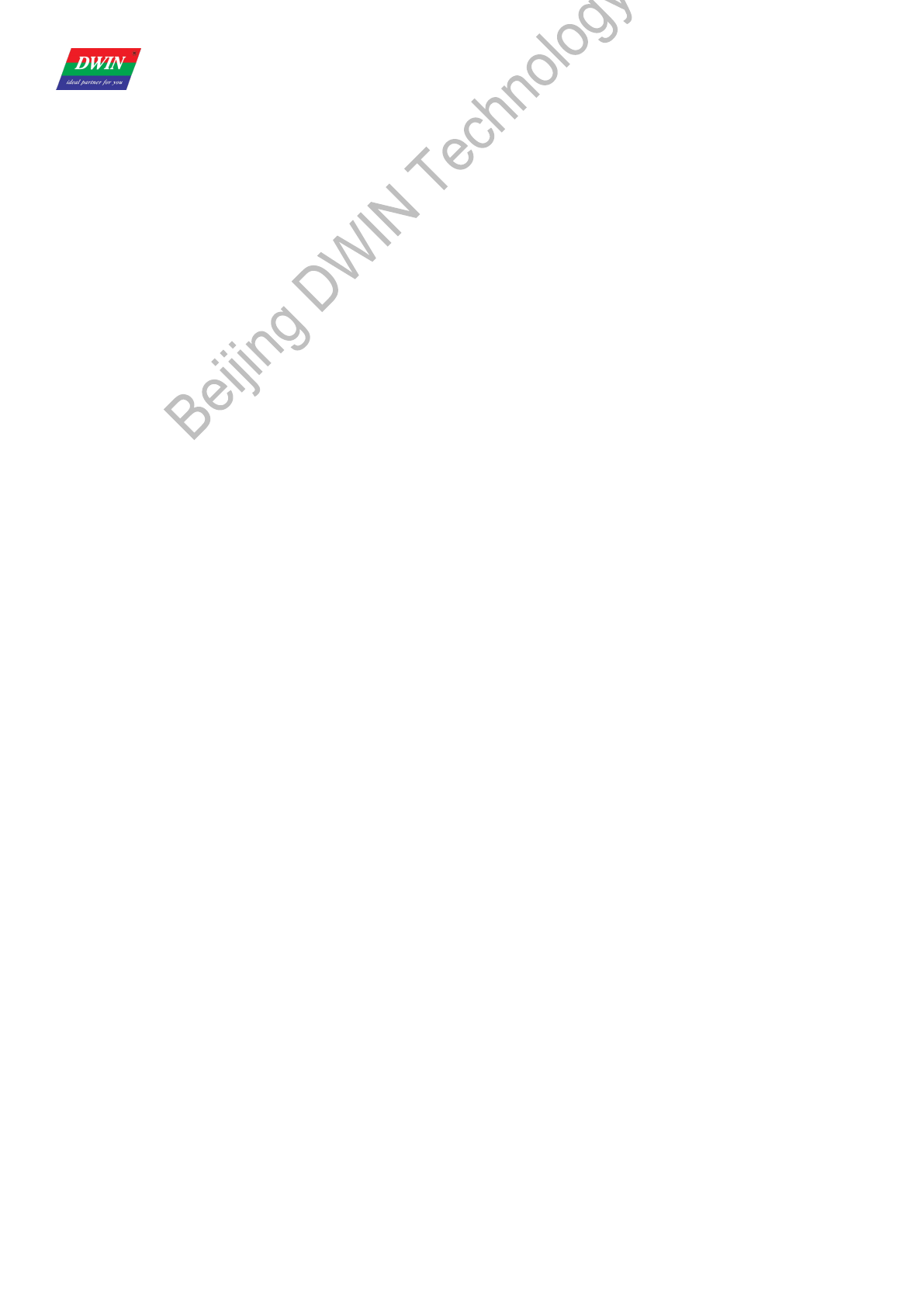
(2) Install DGUS_SDK_V5.1:
Unzip DGUS_SDK_V5.1.zip, and click DGUS ToolV5.1.exe to run it.
(.net Framework 2.0 is required to run the software).
(3) Variable Definition
VP (Variable Pointer): The addresses of variables in variable SRAM (56KB). Users can set buttons with defined VP,
to change the value in this address and display contents corresponding with the value in VP address.
SP (Stack Pointer): the address of definitions, starting address of description data of variables. Change the value in
particular address to modify variable properties. Take <WordArt> function as example.
Add. Definition Data
Length Description
0x00 0x5A03 2
0x02 *SP 2 Stack pointer, default setting is 0xFFFF.
0x04 0x0007 2 The whole process length (in terms of words).
0x06 0x00 *VP 2 Variable pointer.
0x08 0x01 X,Y 4 Top-left coordinate of text, left aligned.
0x0C 0x03 Icon0 2 Icon ID corresponding to 0, the sequence is “0123456789-.”.
0x0E 0x04:H Icon_Lib 1 Address of icon file.
0x0F 0x04:L Icon_Mode 1 ICON display mode.
0x00: transparent, others: opaque.
0x10 0x05:H Int_Num 1 Length of integer digits.
0x11 0x05:L Dec_Num 1 Length of decimal digits.
0x12 0x06:H VP_Data_Mode 1 0x00: integer (2 bytes), 0x01: long integer (4 bytes).
E.g.: If SP valued as 0x5000 for WordArt variable, VP parameter will be saved in the ADDRESS of 0x5000. Variable position
parameters will be saved in 0x5001-0x5002
(4) If you need to handle with icons, please drop icon files into Icon Generator to make icon file running in DGUS correctly.
(5) How to select area for buttons & variables.
A. Input coordinates directly.
or
B. Drag the button/variable with mouse.
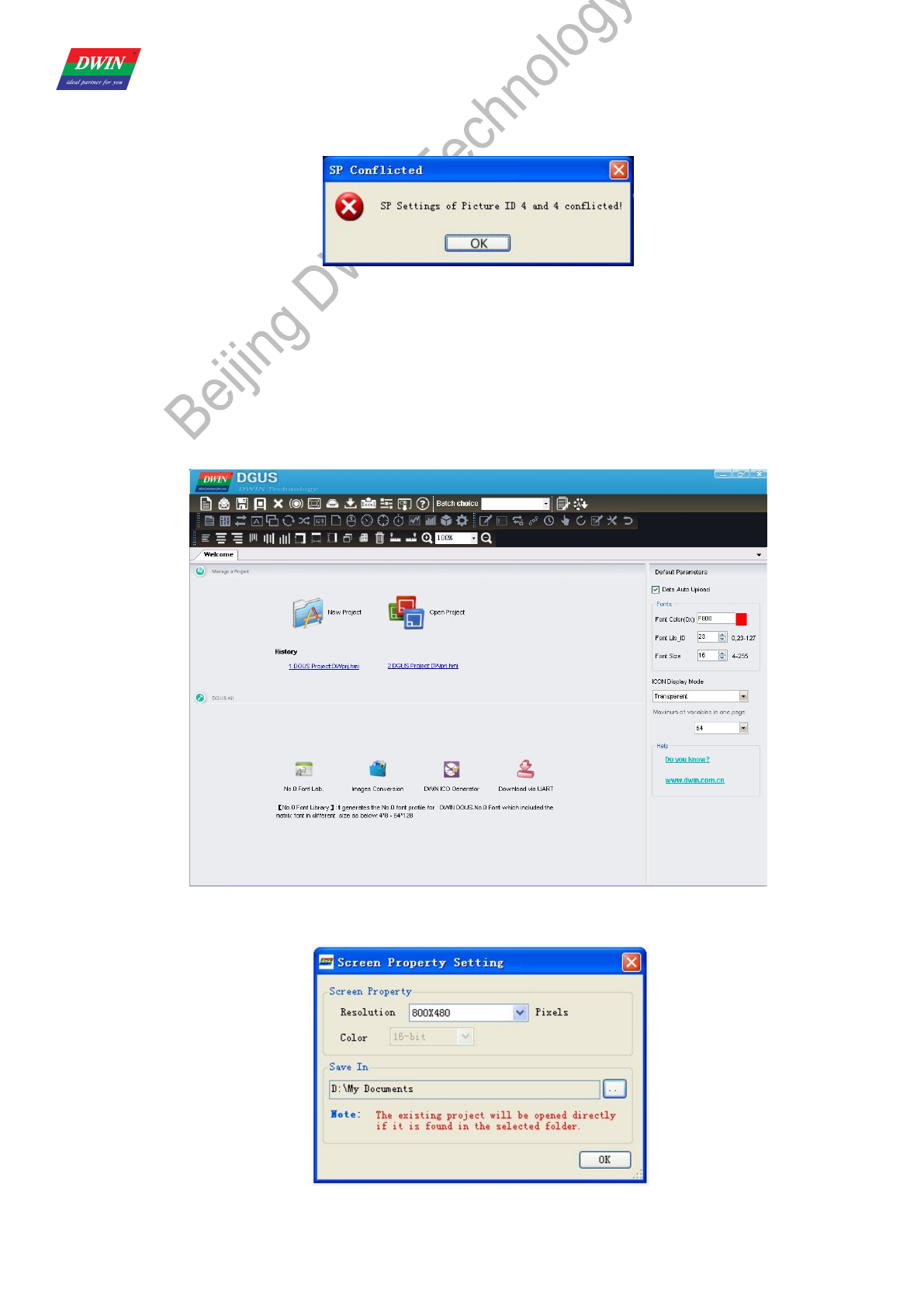
(6) Define SP address for variables.
Professional,Creditable,Successful DGUS_SDK User Guide V5.1
Beijing DWIN Technology Co., Ltd. 5 www.dwin.com.cn
SP defines the description of variable settings; to reduce overlap of SP address is necessary. There is overlap judging
embedded, Configuration files won’t be created with failure message when it comes an overlap of SP address.
(7) Import existing DGUS config. files into new project.
A. Create a new project.
B. Add pictures.
C. Import config files.
D. Copy icon files into <DWIN_SET> folder.
Note: Frame header is self-defined by users. In this document, A5 5A is taken as frame header for instance.
1.2 Main Interface of DGUS_SDK_V5.1
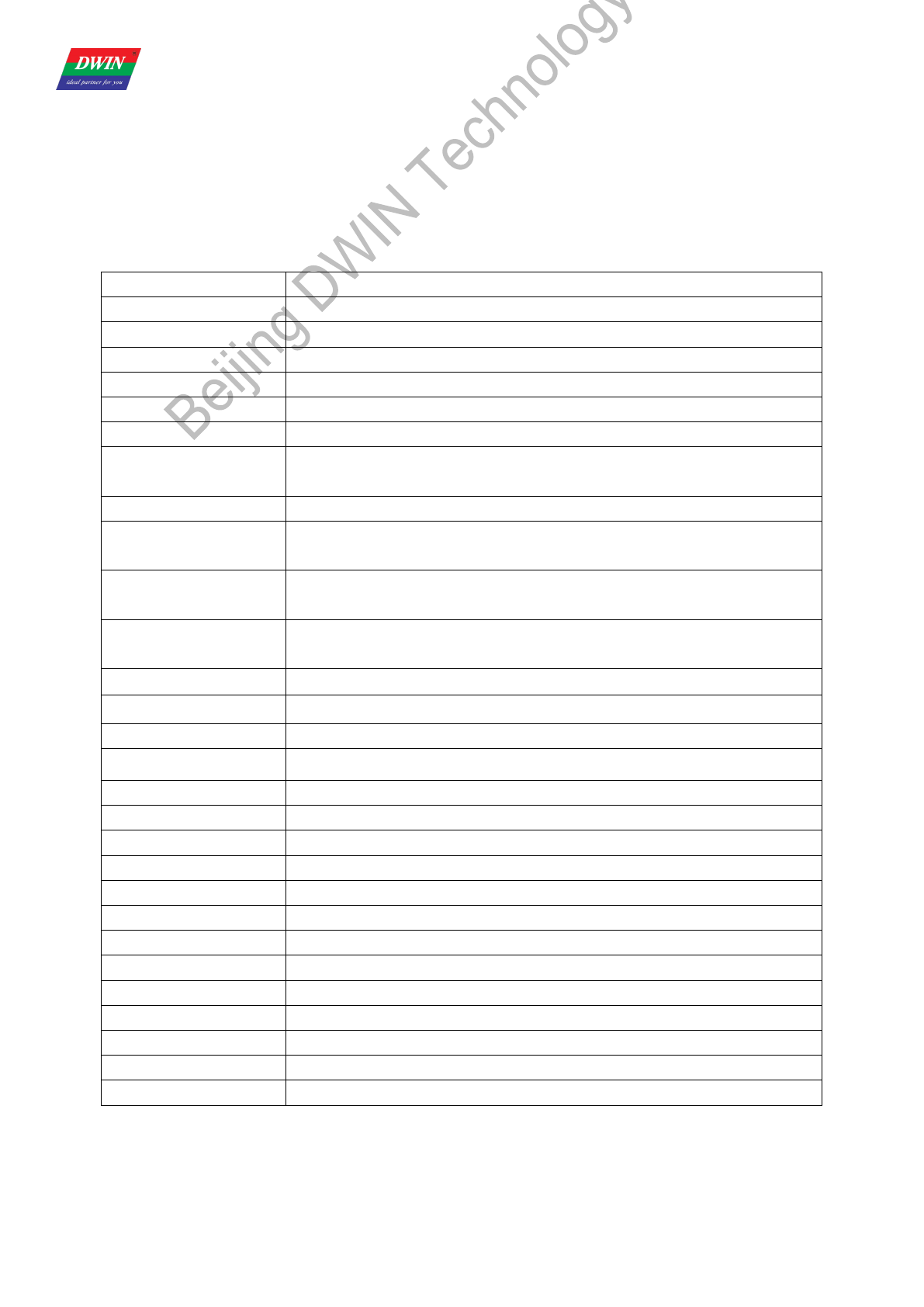
a) Click <New Project> to activate the window below:
b) Select resolution and path for your project.
Professional,Creditable,Successful DGUS_SDK User Guide V5.1
Beijing DWIN Technology Co., Ltd. 6 www.dwin.com.cn
Screen Property Set.
E.g. for:
DMT80480T070_06WT.
Color T: 16bit.
Resolution 80480: 800x480.
Navigation Bar:
New Create a new project.
Open Open an existing project (.hmi file).
Save Save the current project.
Save As Save the current project in a new folder.
Close Close the current project.
Variables Preview Preview buttons & variables
Resolution Modify resolution of project.
Generating
Configuration file
Modify system configuration and save the settings in config.txt. Refer to illustration
below.
Import Config. Import existing config. files to the current project.
Export Variables
Generate <TouchConfig.xls> and <DisplayConfig.xls> for quick view of buttons &
variables.
System Properties
Modify system properties and save the settings in config.txt. Refer to illustration
below
DGUS Configuration File
Download
Download <13Touch_Control_Config.bin>, <14Variable_Config.bin>, and the image;
debug commands via serial port.
Help Help documents.
Align Left Align the selected buttons and variables to left.
Align right Align the selected buttons and variables to right.
Align Top Align the selected buttons and variables to top.
Align bottom Align the selected buttons and variables to bottom.
Auto Width Adjust the selected buttons & variables at same width.
Auto Height Adjust the selected buttons & variables at same height.
Vertical centered Adjust the selected buttons & variables at the vertical center.
Horizontal centered Adjust the selected buttons & variables at the horizontal center.
Copy (Ctrl + C):copy
Paste (Ctrl + V):paste
Delete (delete):delete
Front Place the button or variable at front layer.
Back Place the button or variable at backward layer.
SP Address Setting Set SP for variables.
Variables Preview Preview buttons & variables
Show Text show the names of buttons & variables or not.
Reference:Inputted data will be sent via serial port only when both <TPSAUTO> in System Config. Window and <Data Auto
Upload> settings in buttons properties are ticked.
Professional,Creditable,Successful DGUS_SDK User Guide V5.1
Beijing DWIN Technology Co., Ltd. 7 www.dwin.com.cn
Tool Bar:
Switching between "Touch Config" & "Variable Config" & Edit Tools using Navigation bar, or shortcut key F2, F3,F4.
2. Basic Steps for DGUS_SDK Operation
2.1 Create a new project
2.1.1 Start a new project
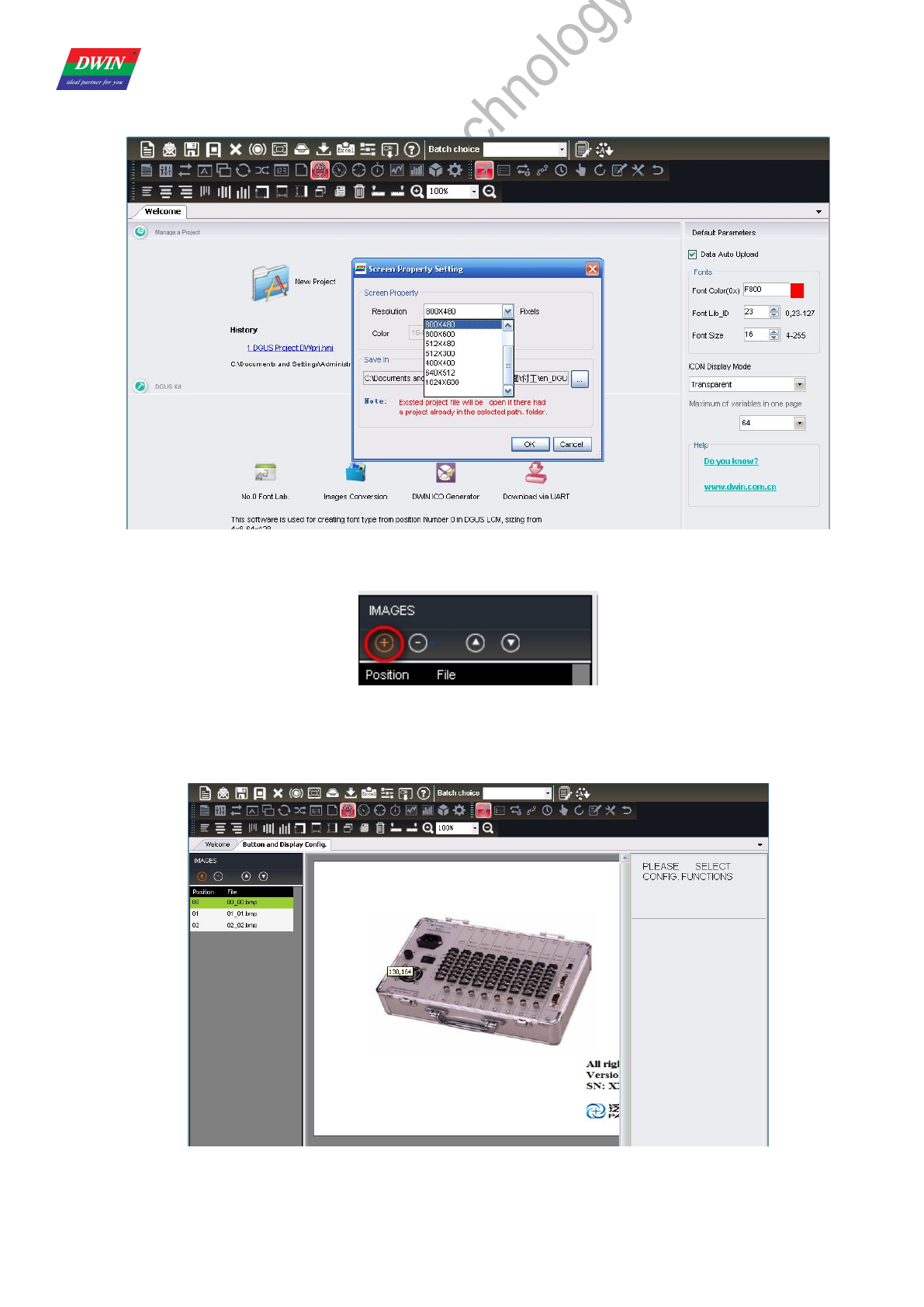
Open the DGUS_SDK_V5.1--------> Click “New Project” button to start a new project.
Professional,Creditable,Successful DGUS_SDK User Guide V5.1
Beijing DWIN Technology Co., Ltd. 8 www.dwin.com.cn
2.1.2 Select corresponding resolution and save the path
2.1.3 Add images
Images indicating here are what to be displayed as background with “.bmp” format required.
Image naming rules: ID + Name. bmp (name as optional)
For example, “0_Data Input.bmp” or “0.bmp”
Professional,Creditable,Successful DGUS_SDK User Guide V5.1
Beijing DWIN Technology Co., Ltd. 9 www.dwin.com.cn
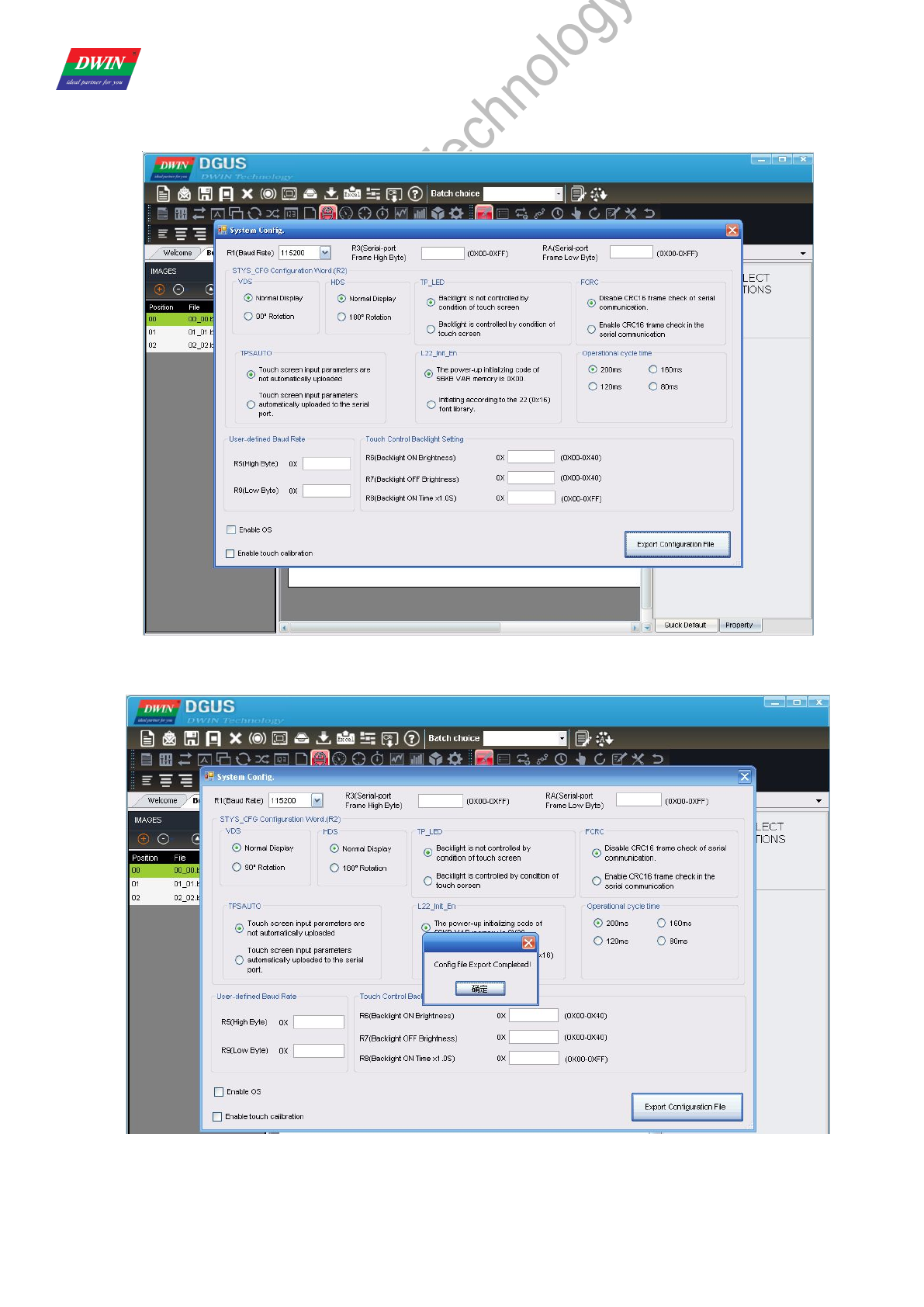
2.1.4 Create a CONFIG.TXT file for setting system parameters
Step into setting such system as baud rate, backlight, as well as cycle time etc.
Export Configuration File – “CONFIG. txt”
Professional,Creditable,Successful DGUS_SDK User Guide V5.1
Beijing DWIN Technology Co., Ltd. 10 www.dwin.com.cn
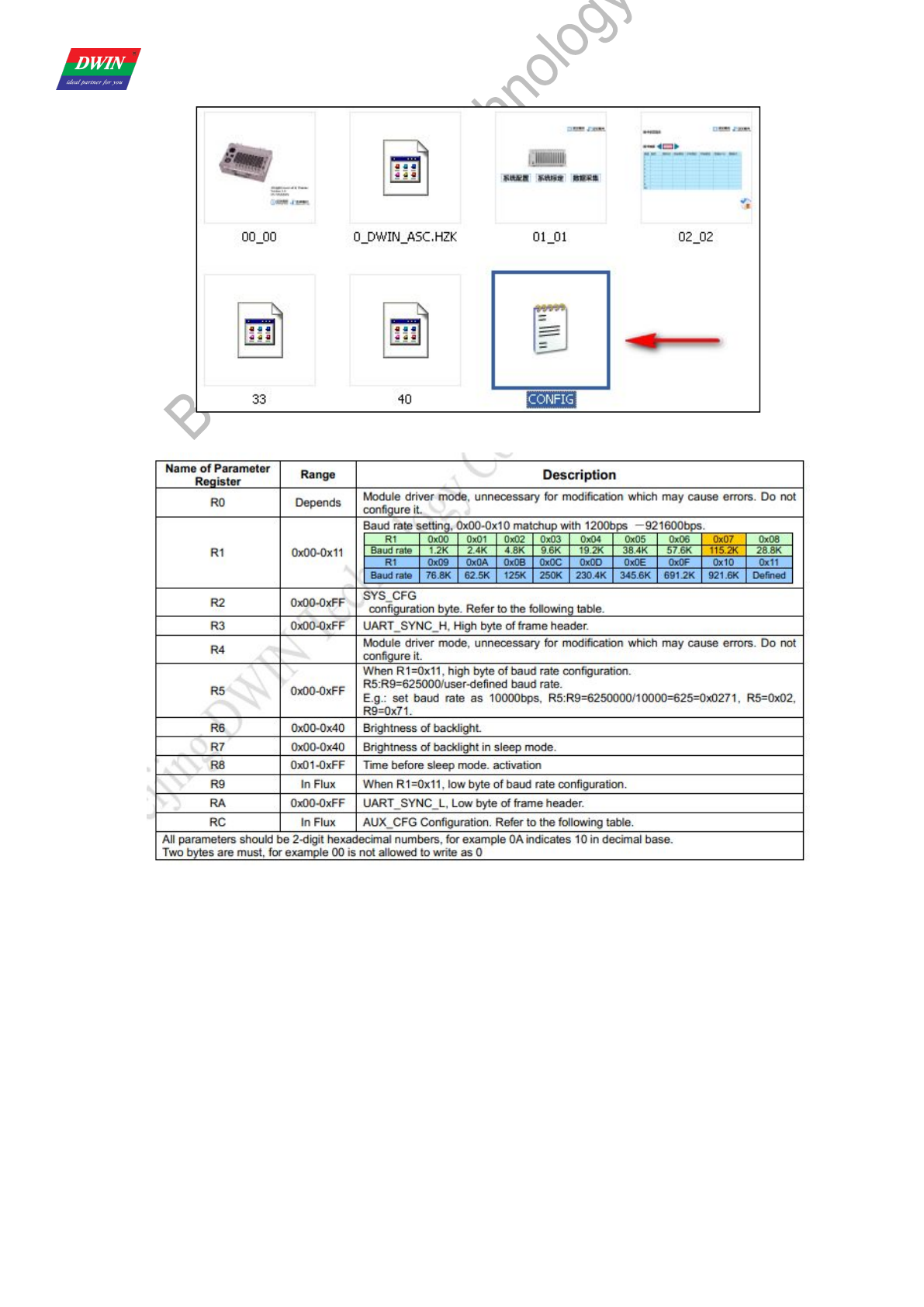
For the value and functions of each parameters, please refer to the chapter 1.2 of the DGUS Dev. Guide_V5.1—CONFIG. TXT
Professional,Creditable,Successful DGUS_SDK User Guide V5.1
Beijing DWIN Technology Co., Ltd. 11 www.dwin.com.cn
If the frame header is set as R3=5A RA=A5, please use the software “Serial debugging assistant sscom32 " sending command
below for verifying all images works fine.
5A A5 04 80 03 00 01( 00 01 signify images switching to No1.)
Later, check if images No1 switched successfully. (format must be .bmp naming started from”00”).
There are config.txt failed or com port out of work in the event of images switch failure. Please affirm parameter for config.txt
again including frame header, baud rate etc.
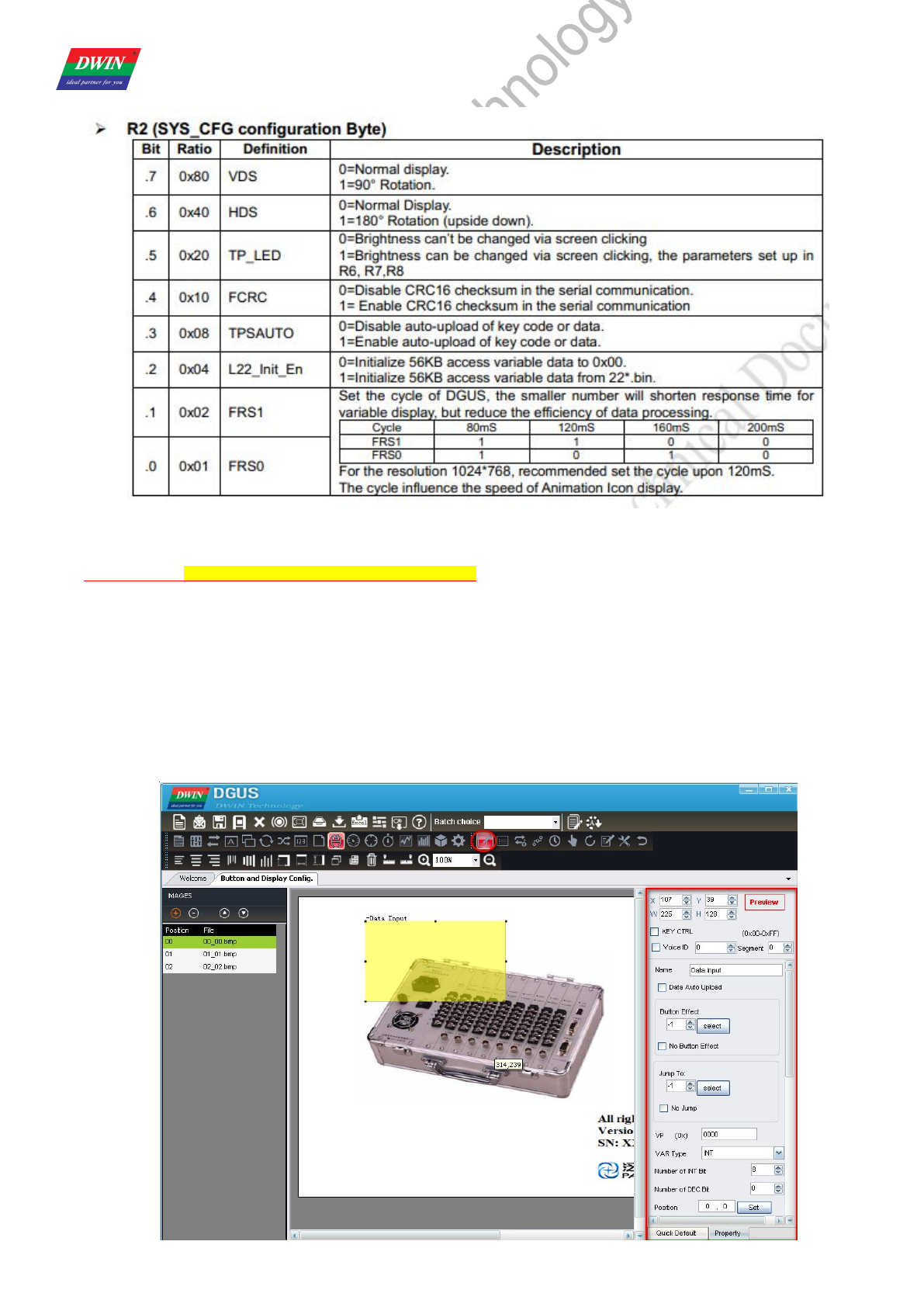
2.2 Configure touch functions
Select the “Touch Config” from pull-down menu-------> Add touch function, as “Data Input” -------> Drag a square on your button
as follow yellow area -------> Set the properties, such as button effect, key value, etc.
Professional,Creditable,Successful DGUS_SDK User Guide V5.1
Beijing DWIN Technology Co., Ltd. 12 www.dwin.com.cn
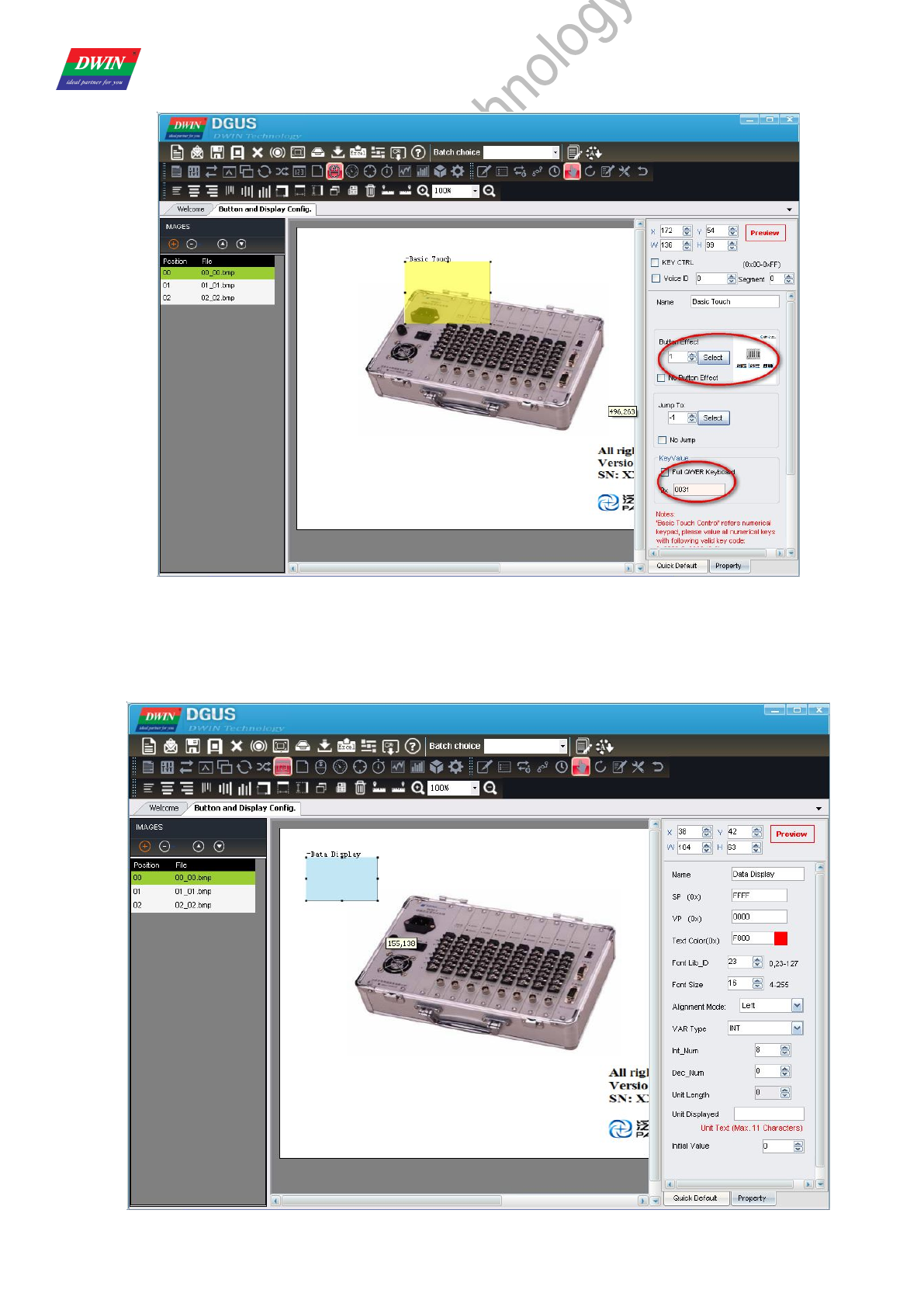
2.3 Configure variable display
Select the “Variable Config” from pull-down menu -------> add the display function, as “Data Variable” ------->Drag a blue square
on area, the variable will be displayed based on the upper-right coordinates.--------> Set the properties of variable as font color, font
ID.

Professional,Creditable,Successful DGUS_SDK User Guide V5.1
Beijing DWIN Technology Co., Ltd. 13 www.dwin.com.cn
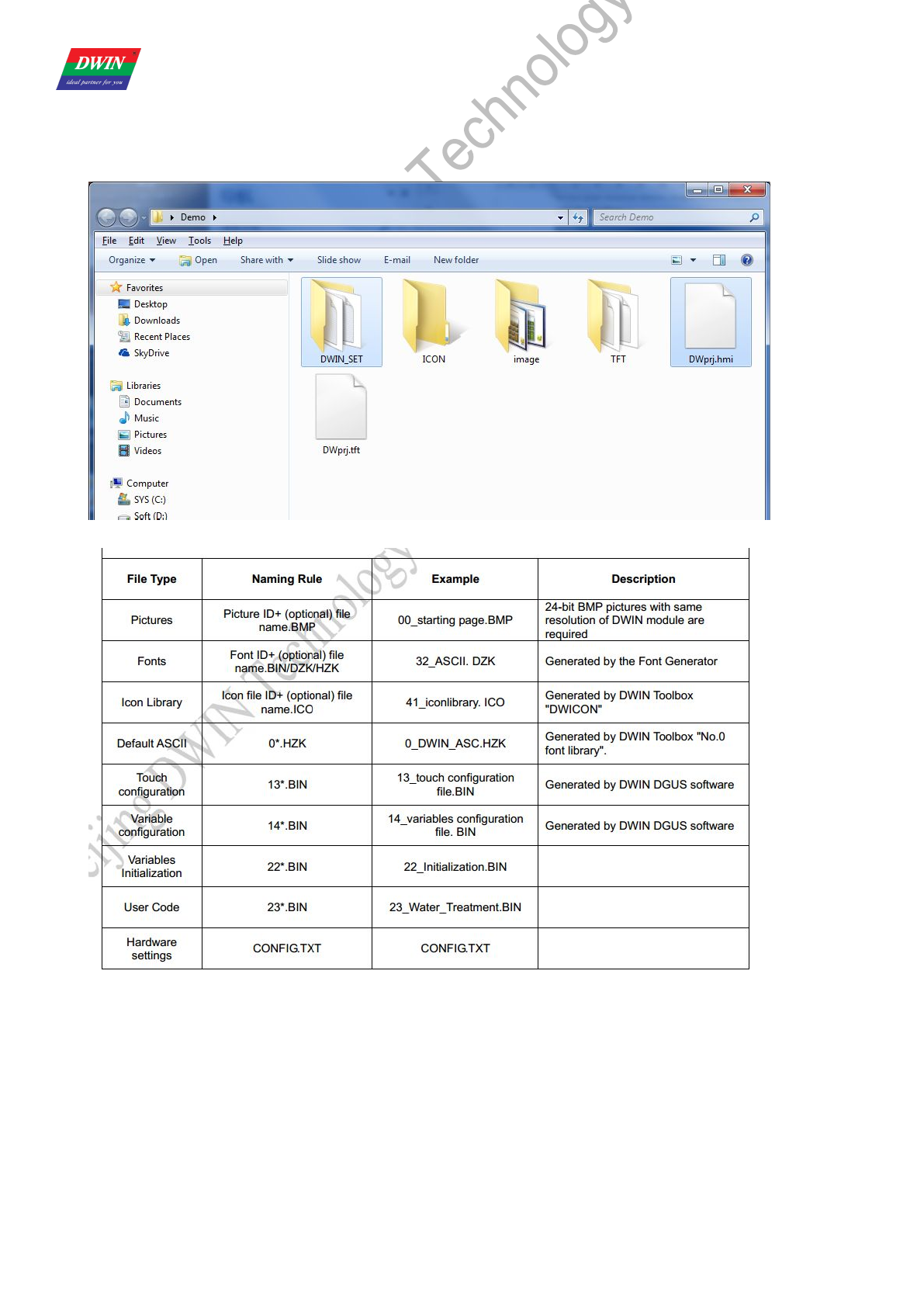
2.4 Create configuration files
Click the “Generating Configuration File” button, it will create a touch control configuration file and a variable configuration file.
Their default file names are “13Touch_Control_Config.bin” and” 14Variable_Config.bin “which cannot be renamed, or the project
can’t be opened properly.
Please note that 13&14 bin file must be dropped in corresponding DWIN_SET folder if file downloaded via UART, otherwise
pop-up red warning will show up warning correct file are not found.
Professional,Creditable,Successful DGUS_SDK User Guide V5.1
Beijing DWIN Technology Co., Ltd. 14 www.dwin.com.cn
2.5 Download
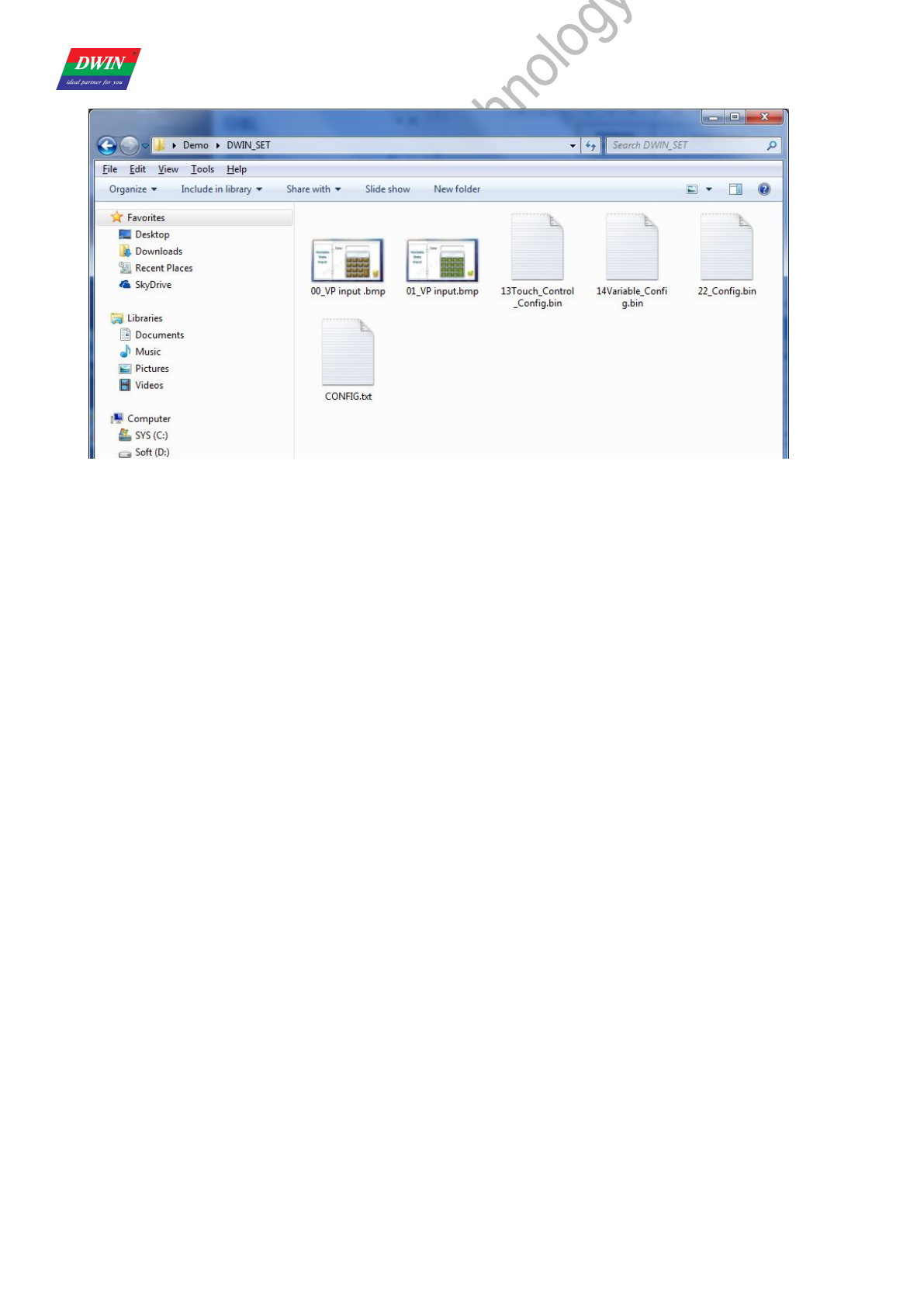
When you completed above steps, it will create a DWIN_SET folder and a project named DWprj.hmi in the path you selected
before.
The DWIN_SET folder includes as follow:
Professional,Creditable,Successful DGUS_SDK User Guide V5.1
Beijing DWIN Technology Co., Ltd. 15 www.dwin.com.cn
Copy the DWIN_SET folder into the SD card root directory ------> Powered on DGUS LCM------> Insert SD card into the slot of
LCM, the configuration files will be downloaded automatically.
Note: During downloading, don’t turn off the LCM, the screen will blink to blue then back to the first image after completion
3. Main Functions of DGUS_SDK
Touch Config :users can use DGUS_SDK software to add buttons on screen, including Popup Window, Variable Data
Input, Incremental Adjustment, Slider Adjustment, RTC Setting, Touch Control, Return Key Code, and ASCII Input. Buttons are
shown as yellow rectangles in DGUS_SDK_V51. Users can also add press effect for buttons.
Variable Config : users can use DGUS_SDK to add variables on screen, including Variable Icon, Animation Icon, Slider,
WordArt, Image Animation, Icon Rotation, Data Variable, Text Display, RTC Display, Analog Clock Display, Dynamic Trend Curve
Display, Table Display, and Basic Graphic Display, Bit Icon, Timer Variable. Variables are shown as light-blue rectangles in
DGUS_SDK_V51.
Parameter settings: users can use <System Properties> to adjust parameter settings of DGUS module. Parameter with
“0x” in front should be filled with hex numbers.
Professional,Creditable,Successful DGUS_SDK User Guide V5.1
Beijing DWIN Technology Co., Ltd. 16 www.dwin.com.cn
3.1 Touch Config.
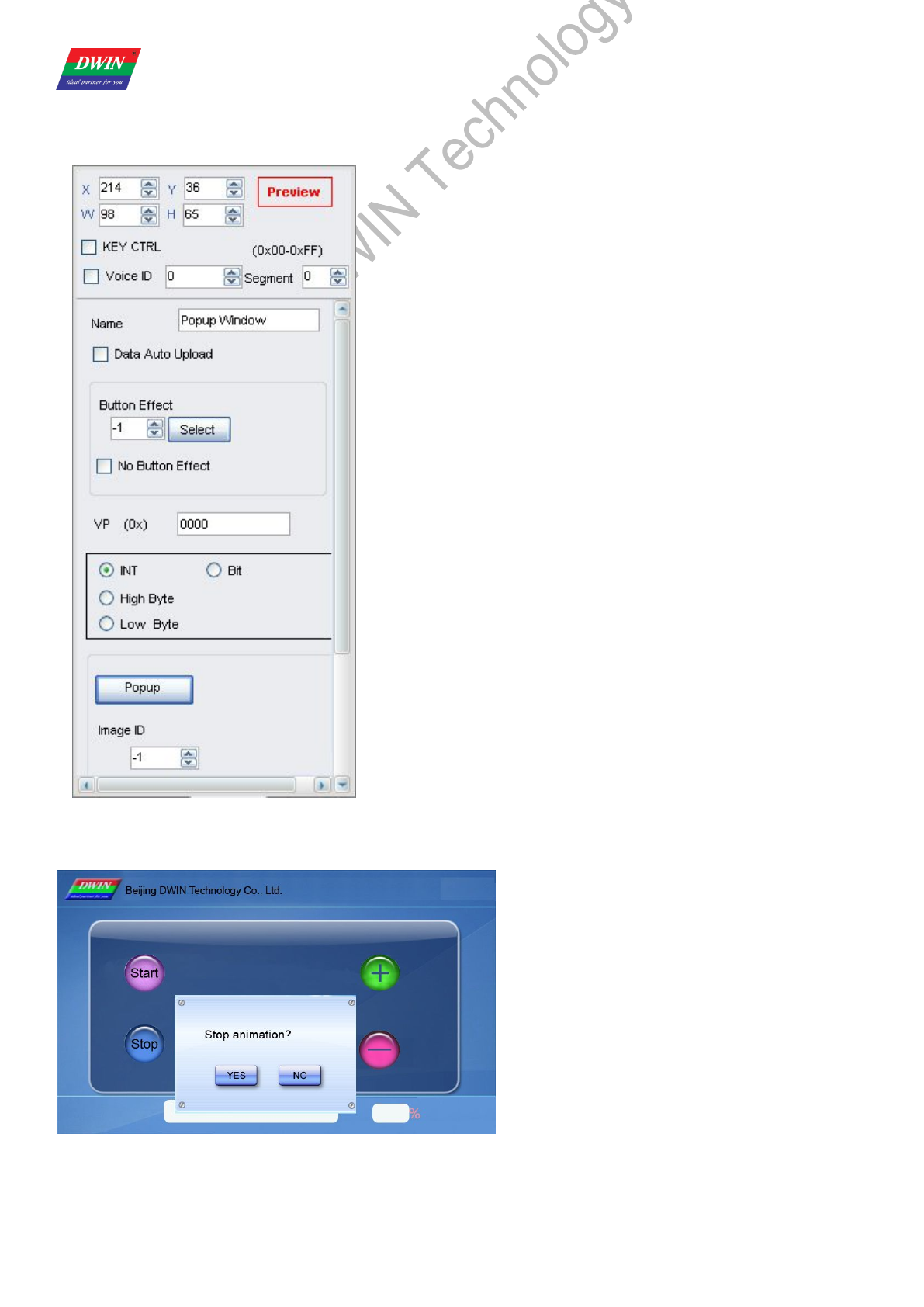
3.1.1 Popup Window
Selected Area: selected button area.
Preview: preview button effect.
Name: name this button for viewing it in .xls (Excel) file.
Data Auto Upload: after pressing the button, key code auto sent to
serial port.
Button Effect: set picture ID for touching effect, -1: null.
VP: variable pointer.
VAR Type:
INT: write key code in VP address (word).
High Byte: write low byte of key code in high byte of VP.
Low Byte: write low byte of key code in low byte of VP.
Bit: write data from last bit of key code into designated bit of VP address.
(0x10 corresponds to VP.0, 0x1F corresponds to VP.F).
Popup Window: set window picture ID and window area.
Image ID: image ID of window picture.
Cut Area: cut area in image ID.
Paste Position: position of window on current screen.
Note: Only <Touch Control> buttons will work on popup window.
Illustration of button <Popup Window>:
Click <Stop> button - Window pops up - Select YES/NO.
Professional,Creditable,Successful DGUS_SDK User Guide V5.1
Beijing DWIN Technology Co., Ltd. 17 www.dwin.com.cn
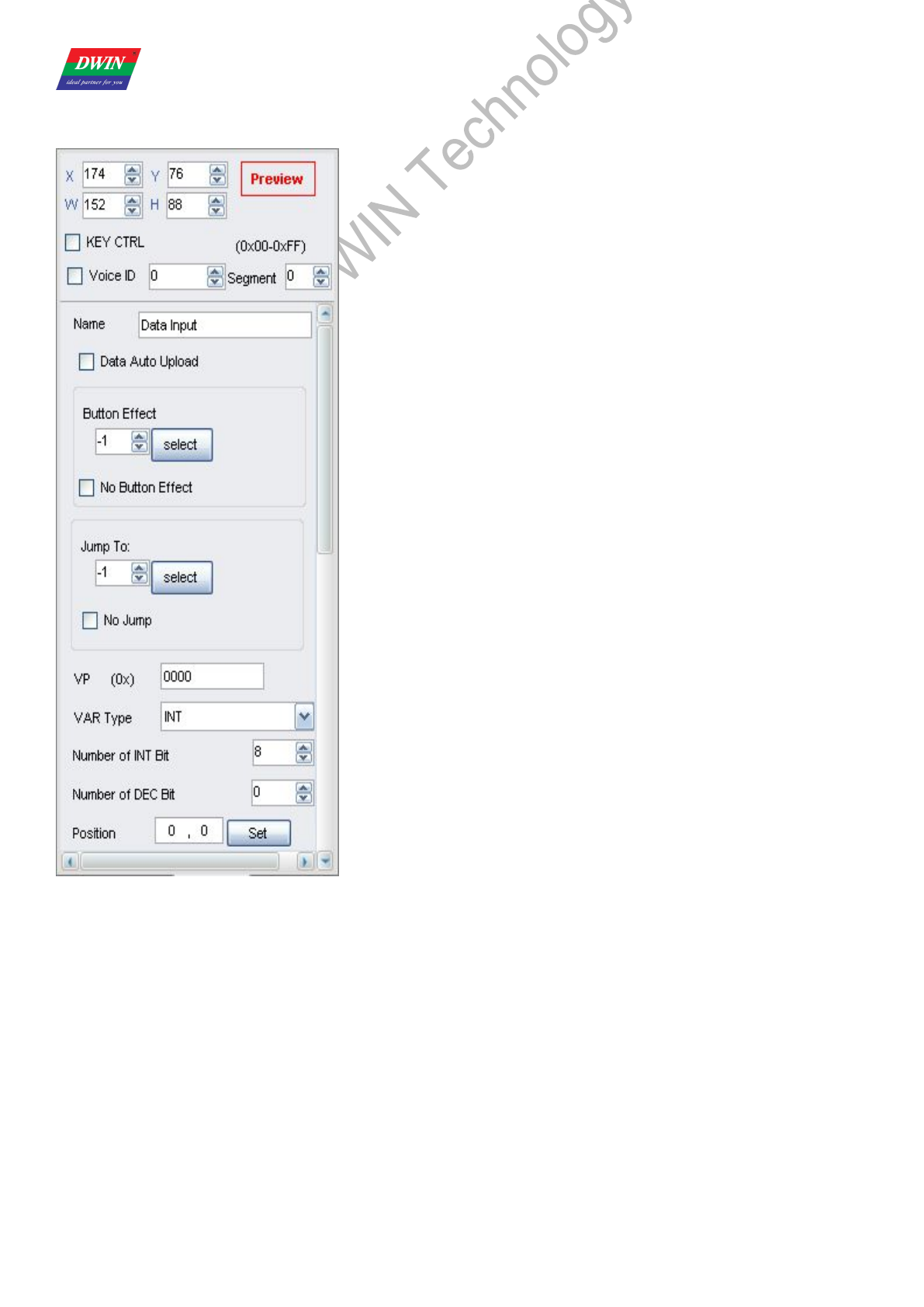
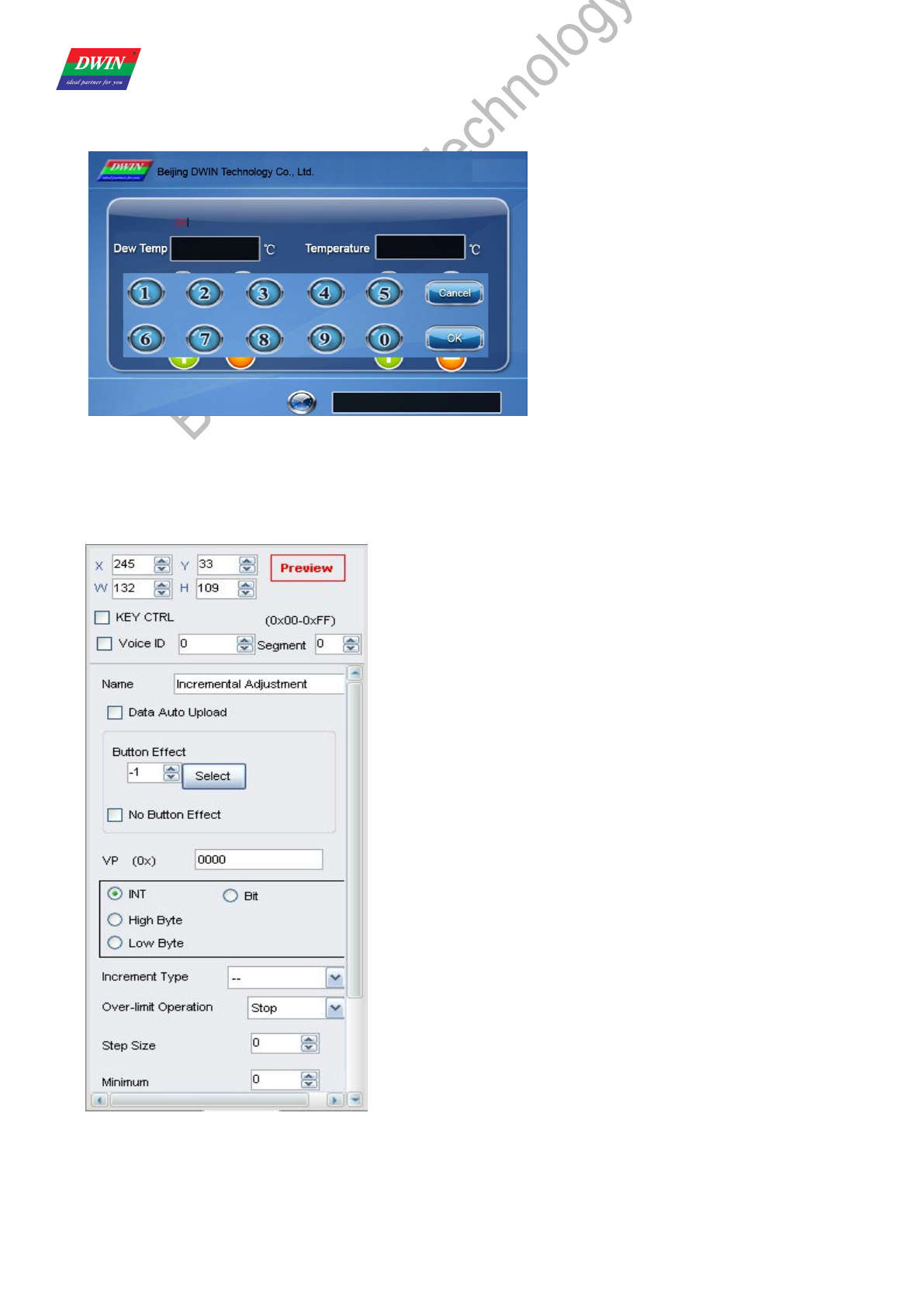
3.1.2 Variable Data Input
Selected Area: selected button area.
Preview: preview button effect.
Name: name this button for viewing it in .xls file.
Data Auto Upload: after pressing the button, key code auto sent to serial
port.
Button Effect: set picture ID for touching effect, -1: null.
Jump To: switch to a new picture after pressing.
VP: variable pointer.
VAR Type:
INT: integer.
LONGINT: long integer.
High byte: high byte in VP address.
Low byte: low byte in VP address.
Number of INT Bit: length of integer digits.
Number of DEC Bit: length of decimal digits.
Position: data position when typing.
Font Color: data color when typing.
Font ID: address of ASCII font file.
Font Size: horizontal pixel numbers.
Cursor Color: white/black cursor.
Display Mode: masked by (*)/direct display.
Define Keyboard:
Set the keyboard picture ID and the keyboard area.
Image ID: image ID of the keyboard area.
Cut Area: cut area in image ID.
Paste Position: position of the keyboard on current screen.
Enable VAR Input Limitation:
Set limits for inputting numbers.
Notes: Only <Touch Control> buttons will work on keyboard: 0x00F1 (Confirm), 0-9 corresponds to 0x0030 - 0x0039, 0x00F0
(Cancel), 0x00F2 (Backspace), 0x002D (+/-), 0x002E (.).
Ignore decimal point while setting range restriction for return value. E.g.: the setting is 3 integer bits and 2 decimal bits, and then
the top limit is 10000, rather than 100.
Inputted data can be displayed by <Data Variable>, <WordArt> etc.
Professional,Creditable,Successful DGUS_SDK User Guide V5.1
Beijing DWIN Technology Co., Ltd. 18 www.dwin.com.cn
Illustration of button <Variable Data Input>:
Click text – Keyboard pops up – Type data – OK.
Click <Cancel> to interrupt input.
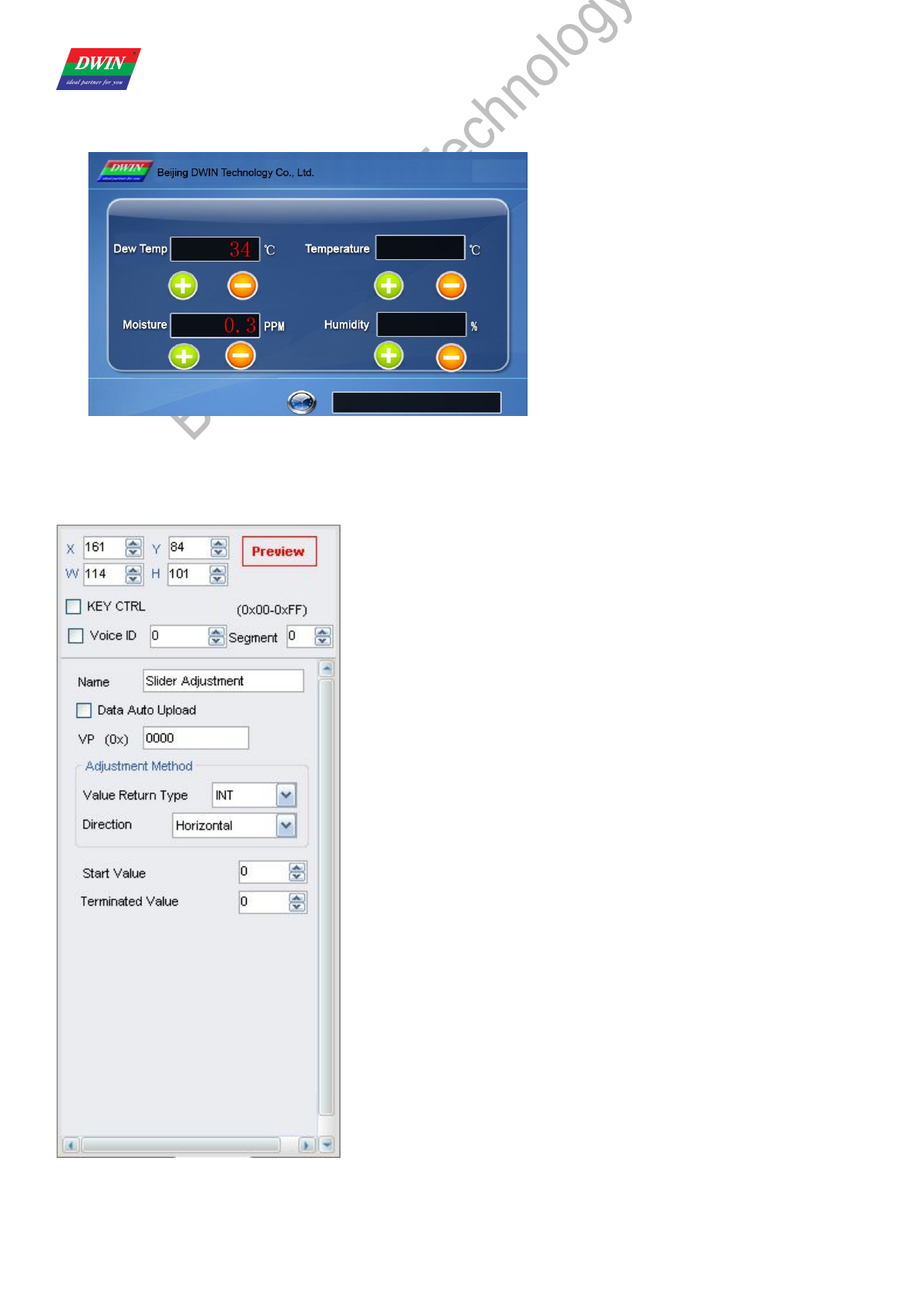
3.1.3 Incremental Adjustment
Selected Area: selected button area.
Preview: preview button effect.
Name: name this button for viewing it in .xls file.
Data Auto Upload: after pressing the button, key code auto sent to
serial port.
Button Effect: set picture ID for touching effect, -1: null.
VP: variable pointer.
VAR Type:
0x00: integer.
0x01: high byte in VP address.
0x02: low byte in VP address.
0x10 – 0x1F: adjust value in designated bit of VP address. (0x10
corresponds to VP.0, 0x1F corresponds to VP.F) Step Size must be 0 or 1.
Adjustment Method: ++/--.
Over-limit Operation: stop/ cycle.
Step Size: set step size for +/- buttons.
Min. Value: minimum value for adjustment.
Max. Value: maximum value for adjustment.
Adjusted data can be displayed by <Data variable>, <Icon variable> and
<WordArt> etc.
Professional,Creditable,Successful DGUS_SDK User Guide V5.1
Beijing DWIN Technology Co., Ltd. 19 www.dwin.com.cn
Illustration of button <Incremental Adjustment>:
Click <+> or <-> to adjust corresponding value.
Hold the button to adjust continually.
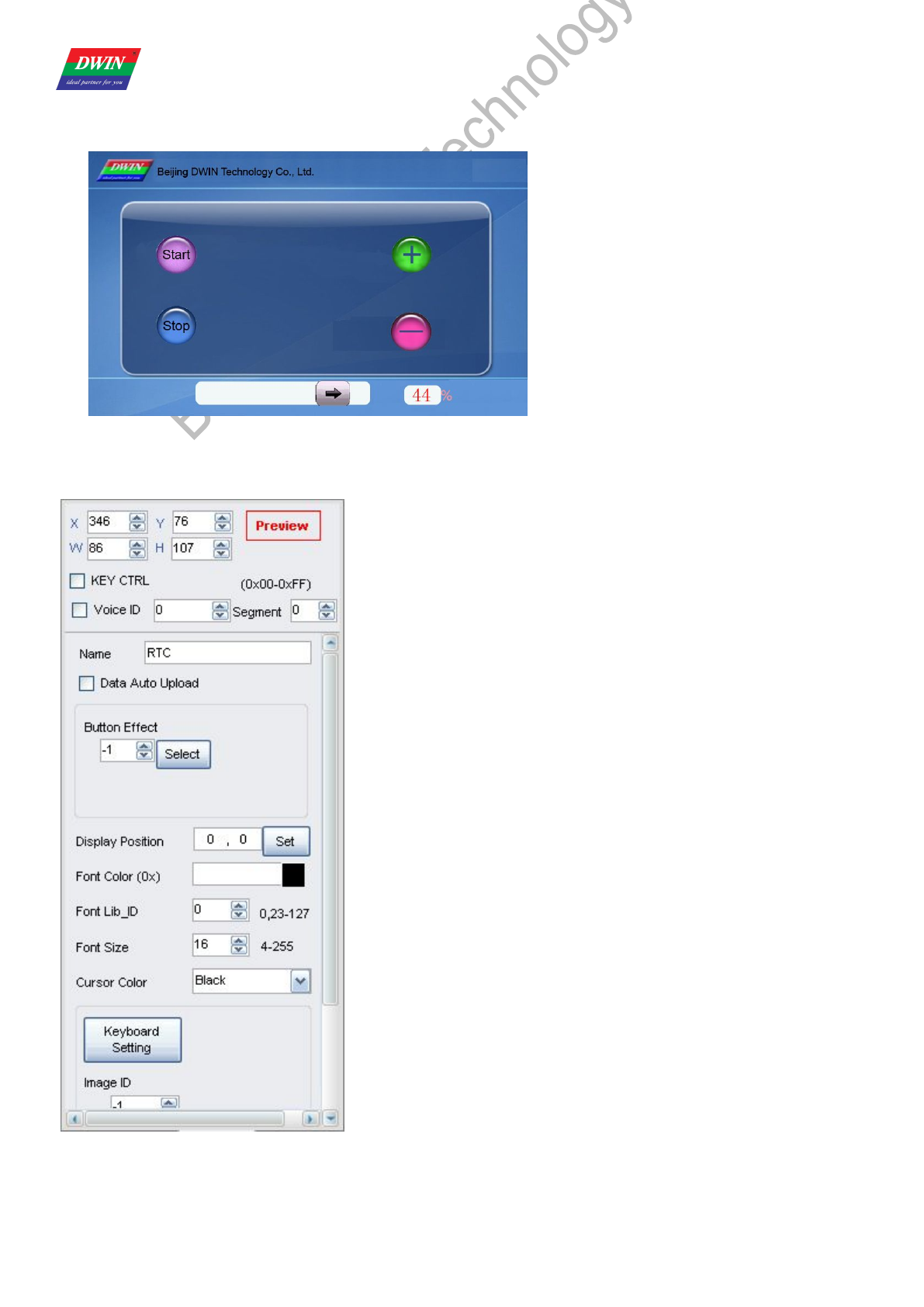
3.1.4 Slider Adjustment
Selected Area: selected button area.
Preview: preview button effect.
Name: name this button for viewing it in .xls file.
Data Auto Upload: after pressing the button, key code auto sent to serial
port.
VP: variable pointer.
Value Return Type:
0x00: integer.
0x01: high byte in VP address.
0x02: low byte in VP address.
Direction: horizontal/vertical.
Start Return Value:
The value corresponding to left/top side of slider.
Terminated Value:
The value corresponding to right/bottom side of slider.
This function is only for making touching area for slider. To display it, please
use <Slider display> function.
Adjusted data can be displayed by <Data variable>, <Variable icon> etc.
Professional,Creditable,Successful DGUS_SDK User Guide V5.1
Beijing DWIN Technology Co., Ltd. 20 www.dwin.com.cn
Illustration of button <Slider Adjustment>:
Hold the button over 0.5 second and slide the slider to modify number in the right, the value will also be changed.
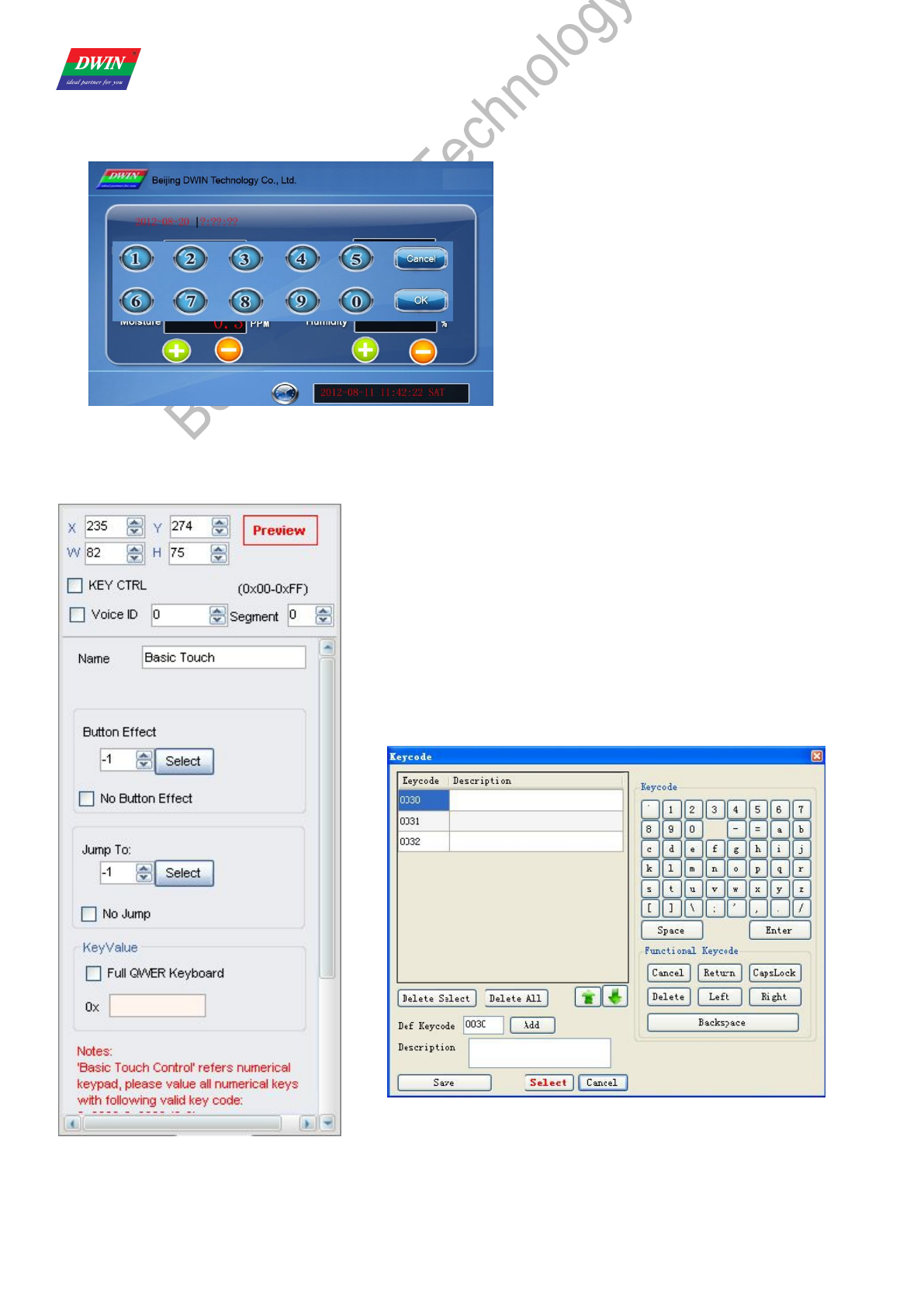
3.1.5 RTC
Selected Area: selected button area.
Preview: preview button effect.
Name: name this button for viewing it in .xls file.
Data Auto Upload: after pressing the button, key code auto sent to serial
port.
Button Effect: set picture ID for touching effect, -1: null.
Display Position: data position when typing.
Font Color: data color when typing.
Font Lib_ID: address of ASCII font file.
Font Size: horizontal pixel numbers.
Cursor Color: white/black cursor.
Keyboard setting:
Set the keyboard picture ID and the keyboard area.
Image ID: image ID of keyboard area.
Cut Area: cut area in image ID.
Paste Position: position of the keyboard on current screen.
Notes: A keyboard setting is the same as <Data Input>.
Use <RTC display> or <Analog clock display> to display current time.
Professional,Creditable,Successful DGUS_SDK User Guide V5.1
Beijing DWIN Technology Co., Ltd. 21 www.dwin.com.cn
Illustration of button <RTC>:
Click <RTC> button - Keyboard Pops Up - Clock Sets Up the Current Time.
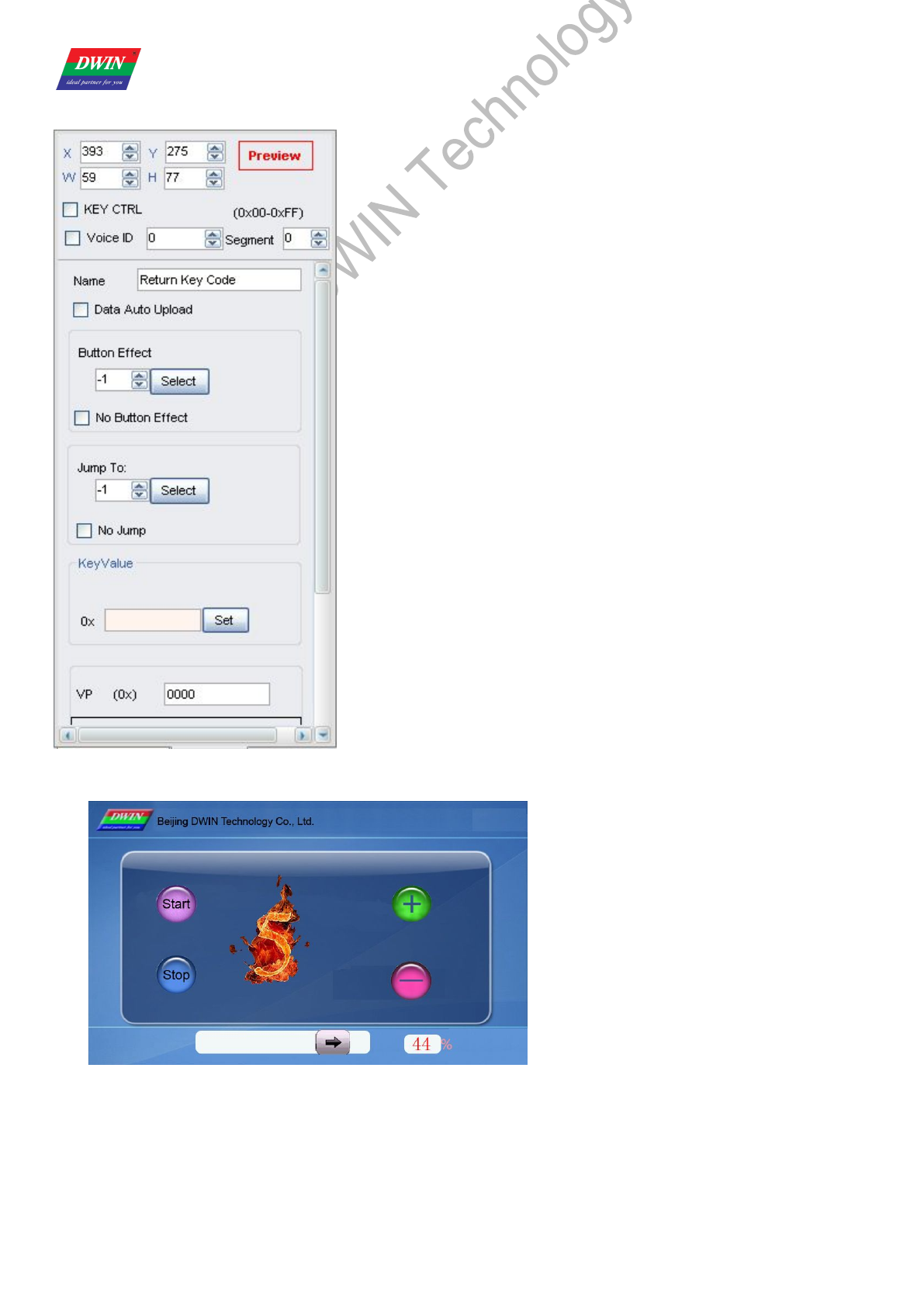
3.1.6 Basic Touch Control
Selected Area: selected button area.
Preview: preview button effect.
Name: name this button for viewing it in .xls file.
Button Effect: set picture ID for touching effect, -1: null.
Jump To: switch to a new picture after pressing.
KeyValue:
Only <Touch Control> button works on keyboard area.
Valid key code range: 0x0030 - 0x0039 (0-9), 0x002E (.),
0x002D (+/-), 0x00F0 (Cancel), 0x00F1 (Confirm),
0x00F2 (Backspace).
Professional,Creditable,Successful DGUS_SDK User Guide V5.1
Beijing DWIN Technology Co., Ltd. 22 www.dwin.com.cn
3.1.7 Return Key Code
Selected Area: selected button area.
Preview: preview button effect.
Name: name this button for viewing it in .xls file.
Data Auto Upload: after pressing the button, key code auto sent to serial
port.
Button Effect: set picture ID for touching effect, -1: null.
Jump To: switch to a new picture after pressing.
KeyValue: self-defined keyValue for buttons.
VP: variable pointer.
VP Type:
Save in VP address.
Save in high byte of VP address.
Save in low byte of VP address.
Save in specified bit of VP address.
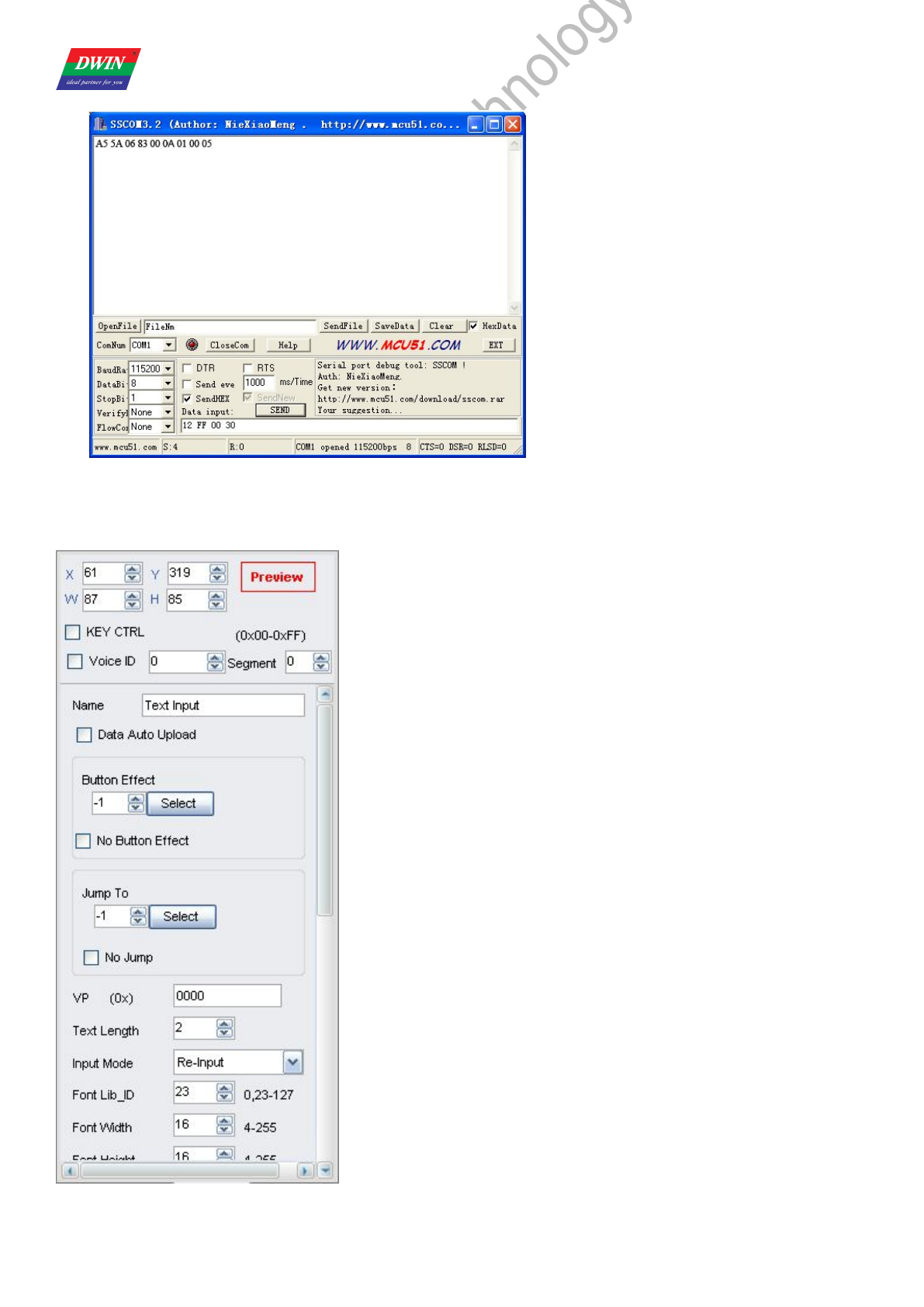
Illustration of button <Return Key Code>:
Set a <Return Key Code> button, of which VP is 0x000A, key value is 0x0005.
Professional,Creditable,Successful DGUS_SDK User Guide V5.1
Beijing DWIN Technology Co., Ltd. 23 www.dwin.com.cn
DGUS module auto uploads data 0005 to serial port as shown.
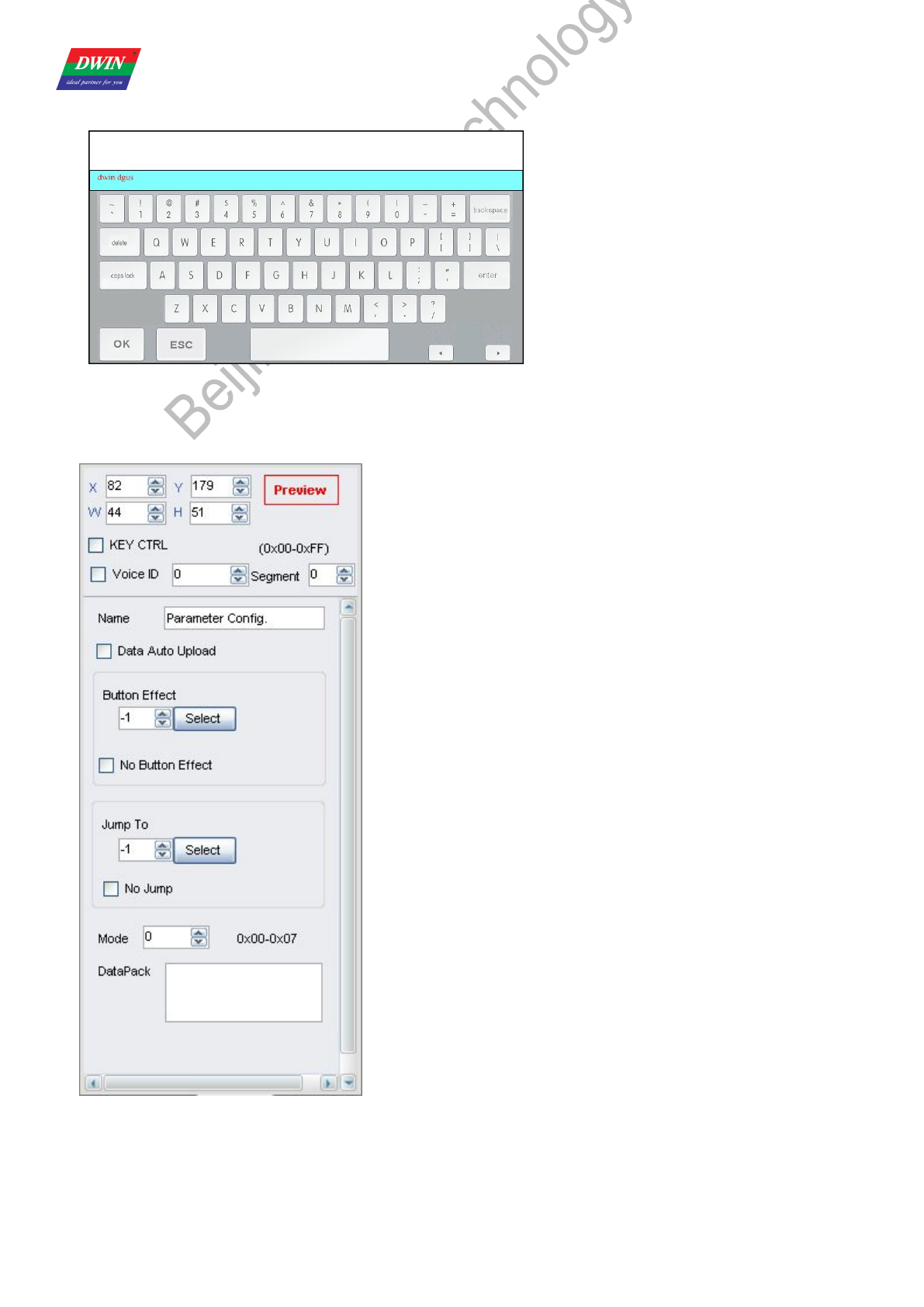
3.1.8 ASCII Input
Selected Area: selected button area.
Preview: preview button effect.
Name: name this button for viewing it in .xls file.
Data Auto Upload: after pressing the button, key code auto sent to serial
port.
Button Effect: set picture ID for touching effect, -1: null.
Jump To: switch to a new picture after pressing.
VP: variable pointer.
Text Length: length of text, by word, range from 1 to 123.
Input Mode: re-input/ edit text.
Font Lib_ID: address of ASCII font file.
Font Width: horizontal pixel numbers.
Font Height: vertical pixel numbers.
Cursor Color: white/black.
Font Color: data color when typing.
Upload value as typing: tying status upload.
Text Display Area: data position on screen when typing.
Keyboard Displayed in: Current Page/Other Page.
Keyboard Setting:
Set the keyboard picture ID and the keyboard area.
Image ID: image ID of the keyboard area.
Cut Area: cut area in image ID.
Paste Position: position of the keyboard on current screen.
Note: Create <Touch control> buttons on keyboard to define the
key code of the button (0x4161 indicates “A”).
Inputted data can be displayed with <Text display> function.
Professional,Creditable,Successful DGUS_SDK User Guide V5.1
Beijing DWIN Technology Co., Ltd. 24 www.dwin.com.cn
Illustration of button <ASCII Input>:
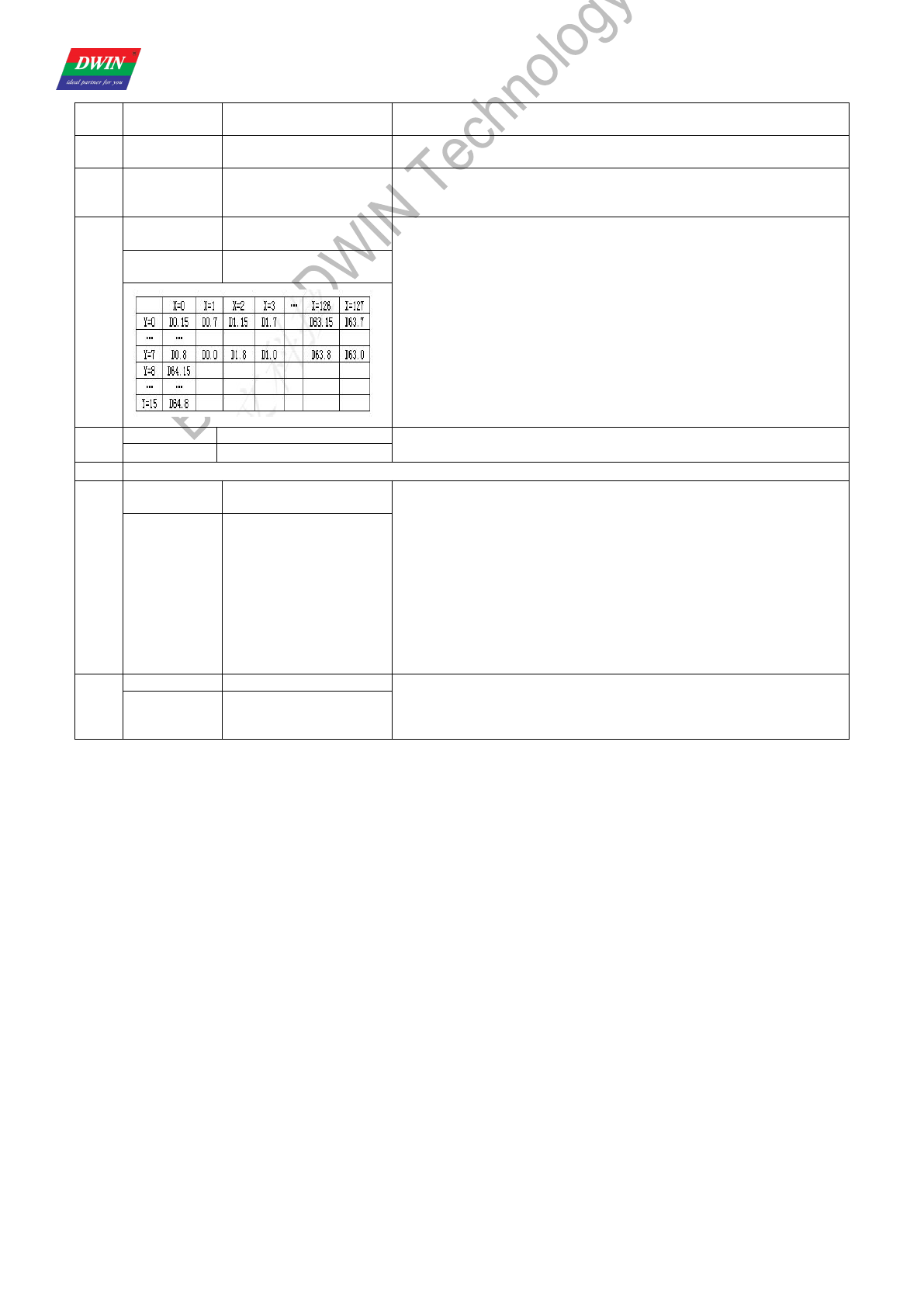
3.1.9 Firmware Parameter Settings
Selected Area: selected button area.
Preview: preview button effect.
Name: name this button for viewing it in .xls file.
Data Auto Upload: after pressing the button, key code auto sent to
serial port.
Button Effect: set picture ID for touching effect, -1: null.
Jump To: switch to a new picture after pressing.
Mode: setup mode.
DataPack: data pack of setup.
Setup Mode
Professional,Creditable,Successful DGUS_SDK User Guide V5.1
Beijing DWIN Technology Co., Ltd. 25 www.dwin.com.cn
Mod
eData Pack Description Function
0x00 No No
Transmit data from register to variable SRAM in 0x6F00 to 0x6FFF (low
bytes).
0x01 No No
Transmit data from address 0x6F00 to 0x6FFF in variable SRAM (low
bytes) to register and reset module parameters including R1-R3,
R5-RA.
0x02
Tran_Area Coordinates of top-left
and bottom-right of area.
Convert designated area to monochrome bitmap (vertical mode)
and save the data to designated VP address.
A. Width (Xe-Xs+1) should be even.
B. Height (Ye-Ys+1) should be multiple of 8.
C. VP data format shown as below:
VP: status indicator, refreshed to 0x5555 after operation.
VP+1: horizontal length, by word. (Xe-Xs+1) &0xFFFE/2
VP+2: numbers of data segment. (Ye-Ys+1) &0xFFF8/8
VP+3: bitmap data, with MSB priority.
If the key code automatically upload is enabled (R2.3=1), module
will upload message (value in VP address upload to 0x5555) to serial
port.
The command is mainly for printing of current screen.
*VP VP address for restoring
bitmap data.
0x03 *VP Variable pointer. Upload data in designated VP address to serial port.
Range of Tx_LEN: 0x0001-0xFFFF.
Tx_LEN Length of data to be sent.
0x04 Same function with 0x03, uploading data to COM2 (reserved port).
0x05
Tran_Area Coordinates of top-left
and bottom-right of area.
Convert designated area to monochrome bitmap (horizontal mode)
and save the data to designated VP address.
A. Width (Xe-Xs+1) should be multiple of 16.
B. VP data format as shown below:
VP: status indicator, refreshed to 0x5555 after operation.
VP+1: horizontal length, by word. (Xe-Xs+1) &0xFFF0/16
VP+2: numbers of data segment. (Ye-Ys+1)
VP+3: bitmap data, with MSB priority.
If the key code automatically upload is enabled (R2.3=1), module
will upload message (value in VP address upload to 0x5555) to serial
port.
The command is mainly for printing of current screen.
*VP VP address for restoring
bitmap data.
0x06
Frame_Head Frame header (2byte)
Send the current touched position to COM2 (serial port for
reserving the system), the format is:
Frame_Head + X + Y + Check (The cumulative Sum for 1 byte of X,
Y) + Frame_end.
Frame_End Frame end (2byte)
Professional,Creditable,Successful DGUS_SDK User Guide V5.1
Beijing DWIN Technology Co., Ltd. 26 www.dwin.com.cn
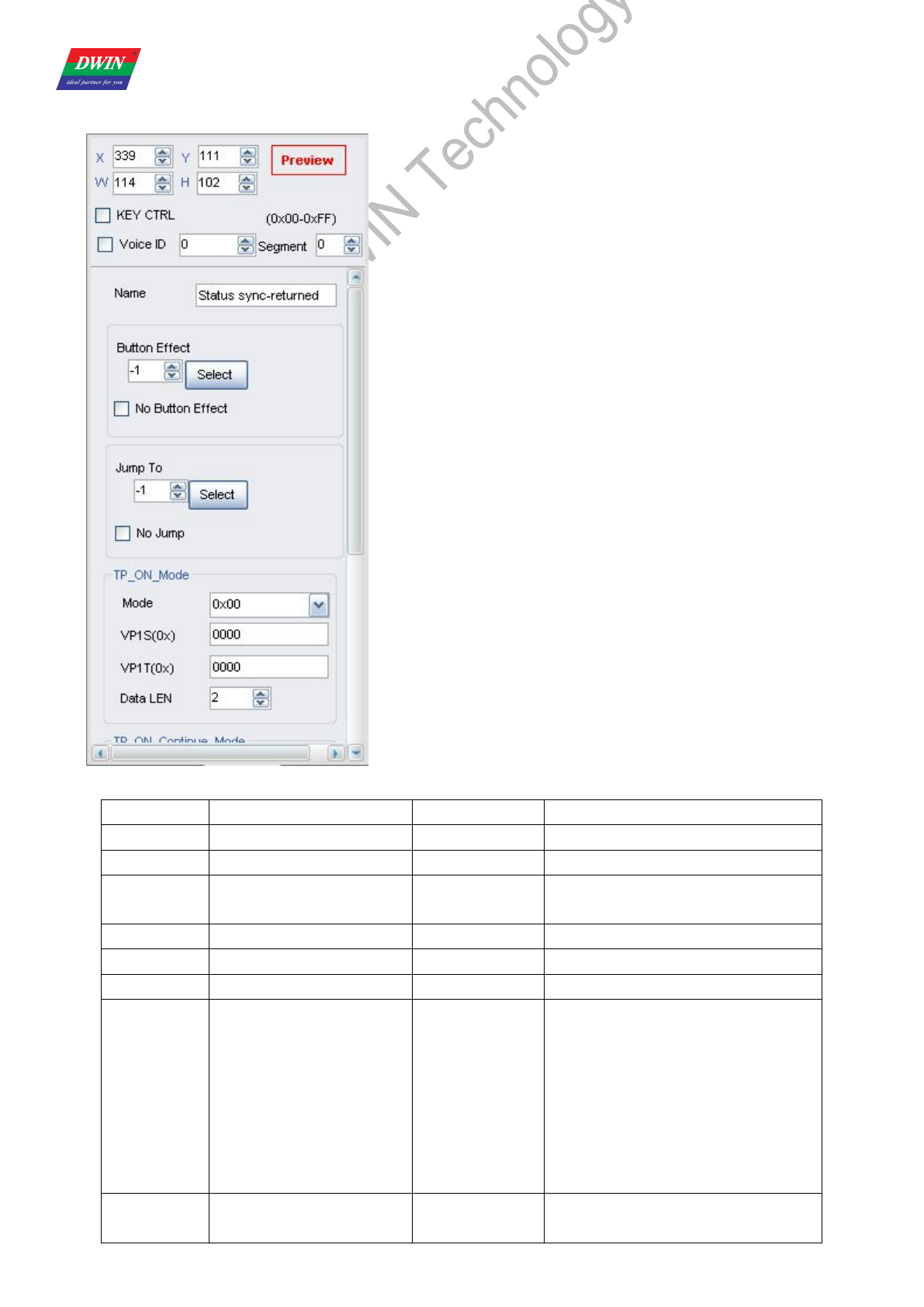
3.1.10 Status sync-returned
Selected Area: (X, Y) are the top-left coordinates of icons.
Preview: preview VAR display effect.
Name: name this button for viewing it in .xls file.
TP_ON_Mode:commands returned with once touch.
TP_ON_CONTINUE_Mode: commands returned with freezing
touch.
TP_OFF_Mode: commands returned with touch released.
Status sync-returned mode
Add. Definition Data Length description
0X00 Pic_ID 2 Picture ID
0X02 TP_Area 8 The selected button area
0X0A Pic_Next 2
Switch to a new picture after
pressing,0XFF:null.
0X0C Pic_On 2 Picture ID for touching effect,0XFF:null.
0X0E TP_Code 2 0XFE08
0X10 0xFE 2 0XFE
0X11 TP_ON_Mode 1
Commands returned with one touch:
0X00=no commands returned;
0X01=read LEN1 length data from
VP1S , and write to VP1T variable adds;
0X02=read LEN1 length data from
VP1S, and write to the serial port;
0X03=read LEN1 length data from
VP1S, and write to VP1T register.
0X12 VP1S 2
Reading data adds of the first touch on the
touch screen.
Professional,Creditable,Successful DGUS_SDK User Guide V5.1
Beijing DWIN Technology Co., Ltd. 27 www.dwin.com.cn
0X14 VP1T 2 Writing adds of the first touch on the touch
screen.
0X16 0x00 1 0X00
0X17 LEN1 1
Length of the returning data(byte).
0X01=LEN1 must be an even
number.
0X18 0xFE 1 0XFE
0X19 TP_ON_Continue_Mode 1
Commands returned with a freezing
touch:
0X00=no commands returned;
0X01=read LEN2 length data from
VP2S , and write to VP2T variable adds;
0X02=read LEN2 length data from
VP2S , and write to the serial port;
0X03=read LEN2 length data from
VP2S, and write to VP2T register.
0X1A VP2S 2 Reading data adds of the freezing touch
on the touch screen.
0X1C VP2T 2
writing data adds of the freezing touch on
the touch screen.
0X1E 0x00 1 0X00
0X1F LEN2 1
Length of the returning data(byte).
0X01=LEN2 must be an even
number.
0X20 0xFE 1 0XFE
0X21 TP_OFF_Mode 1
Commands returned with the button
is released:
0X00=no commands returned;
0X01=read LEN3 length data from
VP3S , and write to VP3T variable adds;
0X02=read LEN3 length data from
VP3S , and write to the serial port;
0X03=read LEN3 length data from
VP2S, and write to VP3T register.
0X22 VP3S 2 Reading data adds when a button is
released.
0X24 VP3T 2
writing data adds of the freezing touch on
the touch screen.
0X26 0x00 1 0X00
0X27 LEN3 1
Length of the returning data(byte).
0X01=LEN3 must be an even
number.
0X28 0x00 8 Reserved,0x00 as d.
Professional,Creditable,Successful DGUS_SDK User Guide V5.1
Beijing DWIN Technology Co., Ltd. 28 www.dwin.com.cn
3.2 Variable Config.
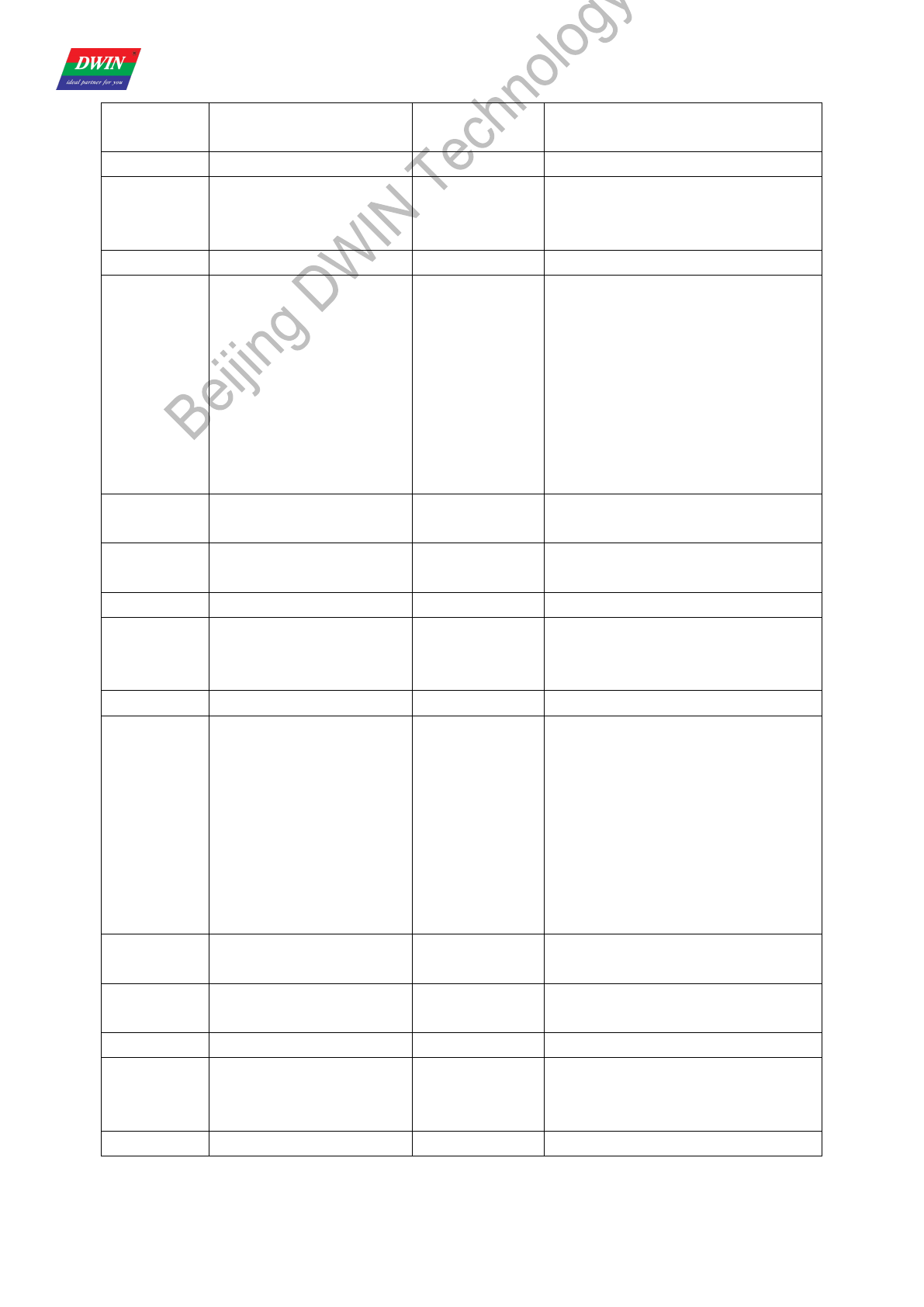
3.2.1 Variable Icon
Selected Area: (X, Y) are the top-left coordinates of icons.
Preview: preview VAR display effect.
Name: name this button for viewing it in .xls file.
SP: stack pointer, default setting is 0xFFFF.
Set SP to load description data into variable SRAM.
0xFFFF: load description data from configuration file.
VP: variable pointer.
ICON File: address of icon file.
Min/Max value: limits of variables, null if over limit.
Icon ID:
Icon address in icon file corresponding to the min/max value.
Display Mode: transparent/background.
Initial Value: Set the initial value & save it in the 22 config file,the system will
be initiated according to 22 config file when the DGUS is started.
Illustration of variable <Variable Icon>:
Change the value in VP address to display different icons.
Professional,Creditable,Successful DGUS_SDK User Guide V5.1
Beijing DWIN Technology Co., Ltd. 29 www.dwin.com.cn
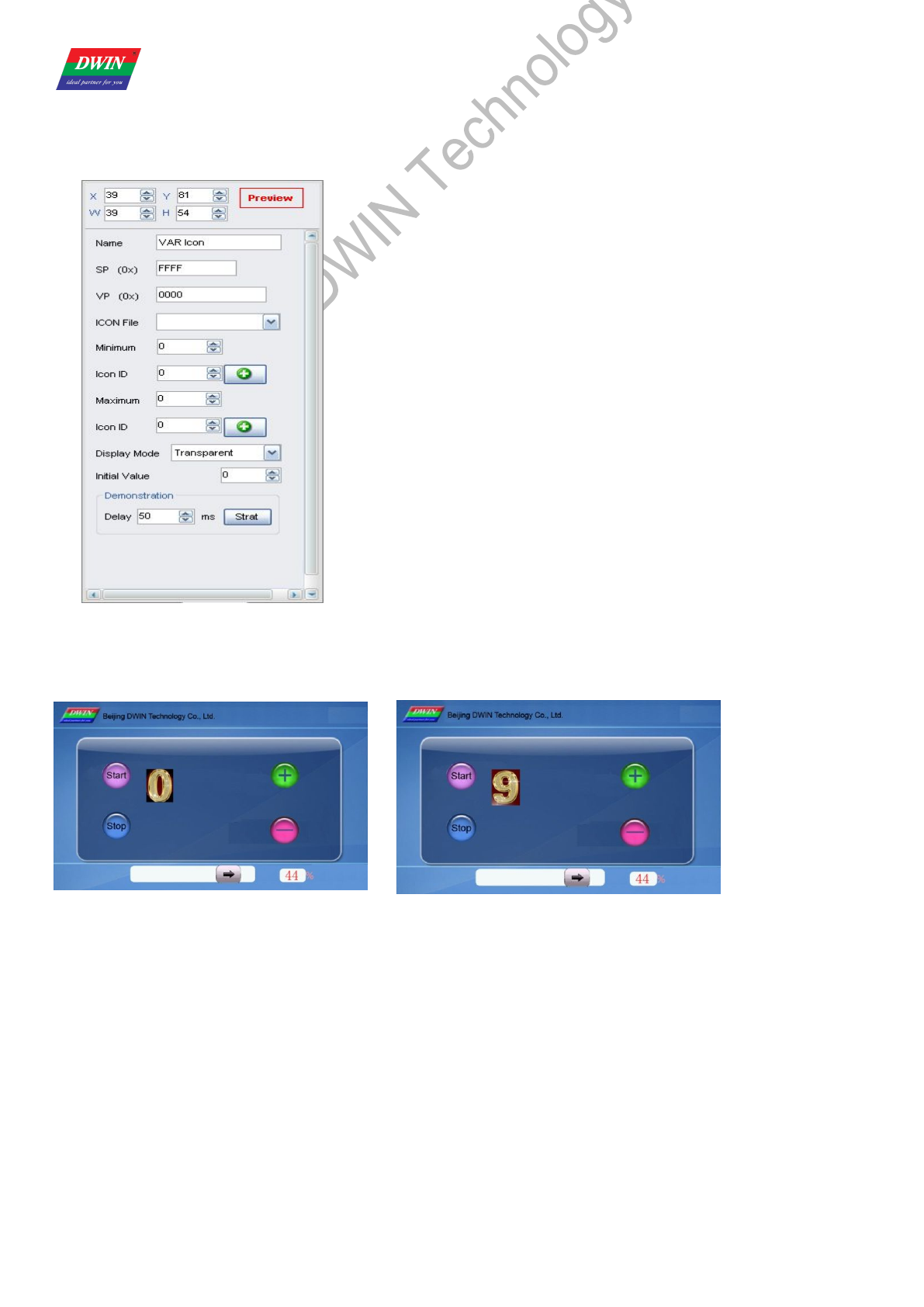
3.2.2 Animation Icon
Selected Area: (X, Y) are the top-left coordinates of icons.
Preview: preview VAR display effect.
Name: name this button for viewing it in .xls file.
SP: stack pointer, default setting is 0xFFFF.
VP: variable pointer.
V_Stop: set value to stop animation.
V_Start: set value to start animation.
ICON File: address of icon file.
ICON Stop: icon at V_stop value.
Icon_Start/Icon_End:
Start/end icon for animation at V_start Value.
ICON Display Mode: transparent/background.
Initial Value: Set the initial value & save it in the 22 config file,the system
will be initiated according to 22 config file when the DGUS is started.
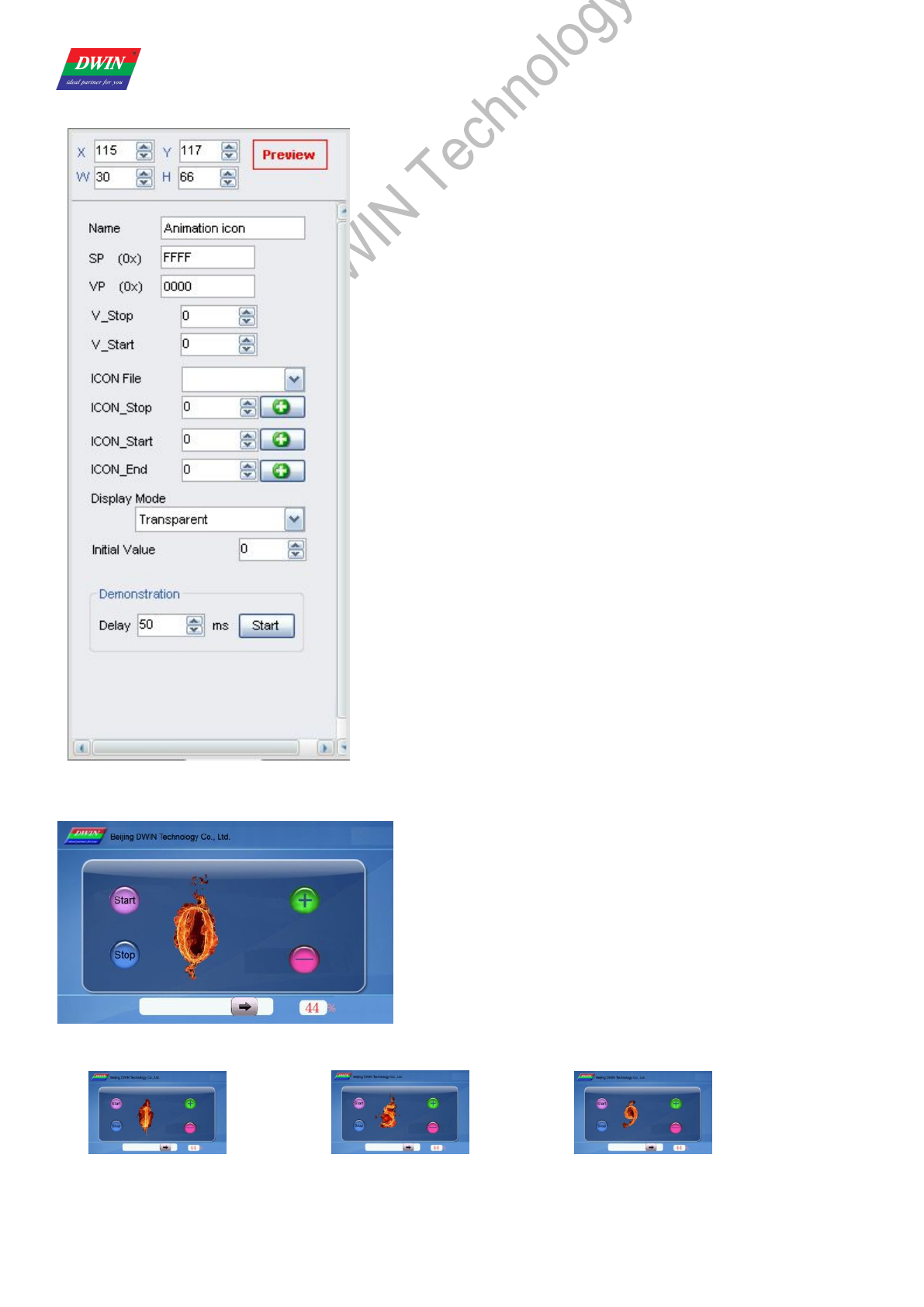
Illustration of variable <Animation Icon>:
When value in VP address is 0, screen display icon 0:
When value in VP address is 9, animation starts.
...... ......
Professional,Creditable,Successful DGUS_SDK User Guide V5.1
Beijing DWIN Technology Co., Ltd. 30 www.dwin.com.cn
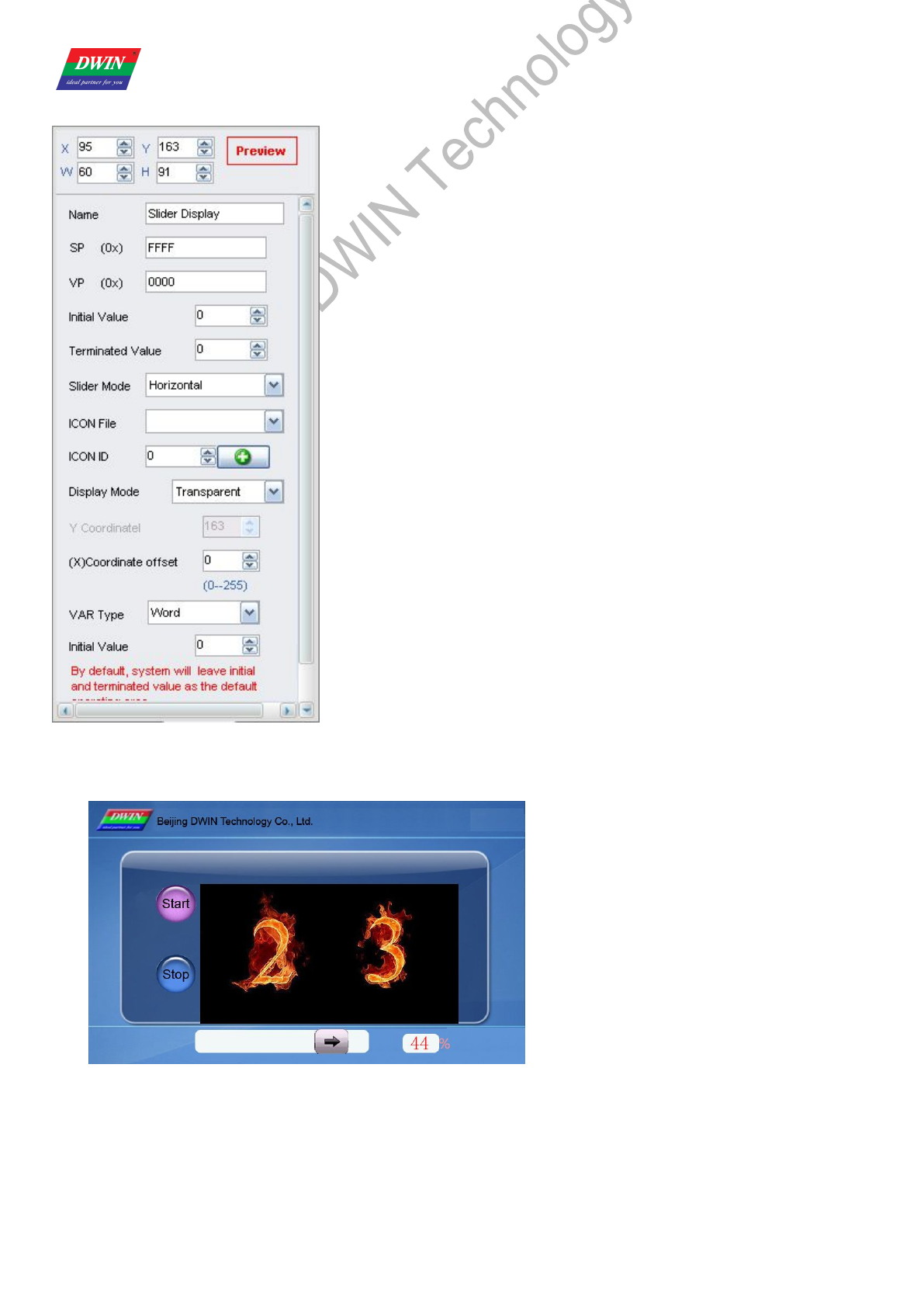
3.2.3 Slider
Selected Area: (X, Y) are the top-left coordinates of icons.
X, W is start/end point of horizontal slider.
Y, H is start/end point of vertical slider.
Preview: preview VAR display effect.
Name: name this button for viewing it in .xls file.
SP: stack pointer, default setting is 0xFFFF.
VP: variable pointer.
Start/End Value: value corresponding to start/end point.
Slider Mode: horizontal/vertical.
ICON File: address of icon file.
ICON ID: icon address in icon file.
Display Mode: transparent/background.
Coordinate Offset:
Offset to the left/top.
VAR Type:
Integer (whole VP address).
High byte in VP address.
Low byte in VP address.
Initial Value: Set the initial value & save it in the 22 config file,the system will
be initiated according to 22 config file when the DGUS is started.
Note: Set same VP address for <Slider> button and <Slider display> variable to combine them.
<Slider display> is also used as progress bar.
Send command to serial port:
Frame header,Length,Command,VP,Data string to display the Slider and Data above.
A5 5A 05 82 000C 002C
Professional,Creditable,Successful DGUS_SDK User Guide V5.1
Beijing DWIN Technology Co., Ltd. 31 www.dwin.com.cn
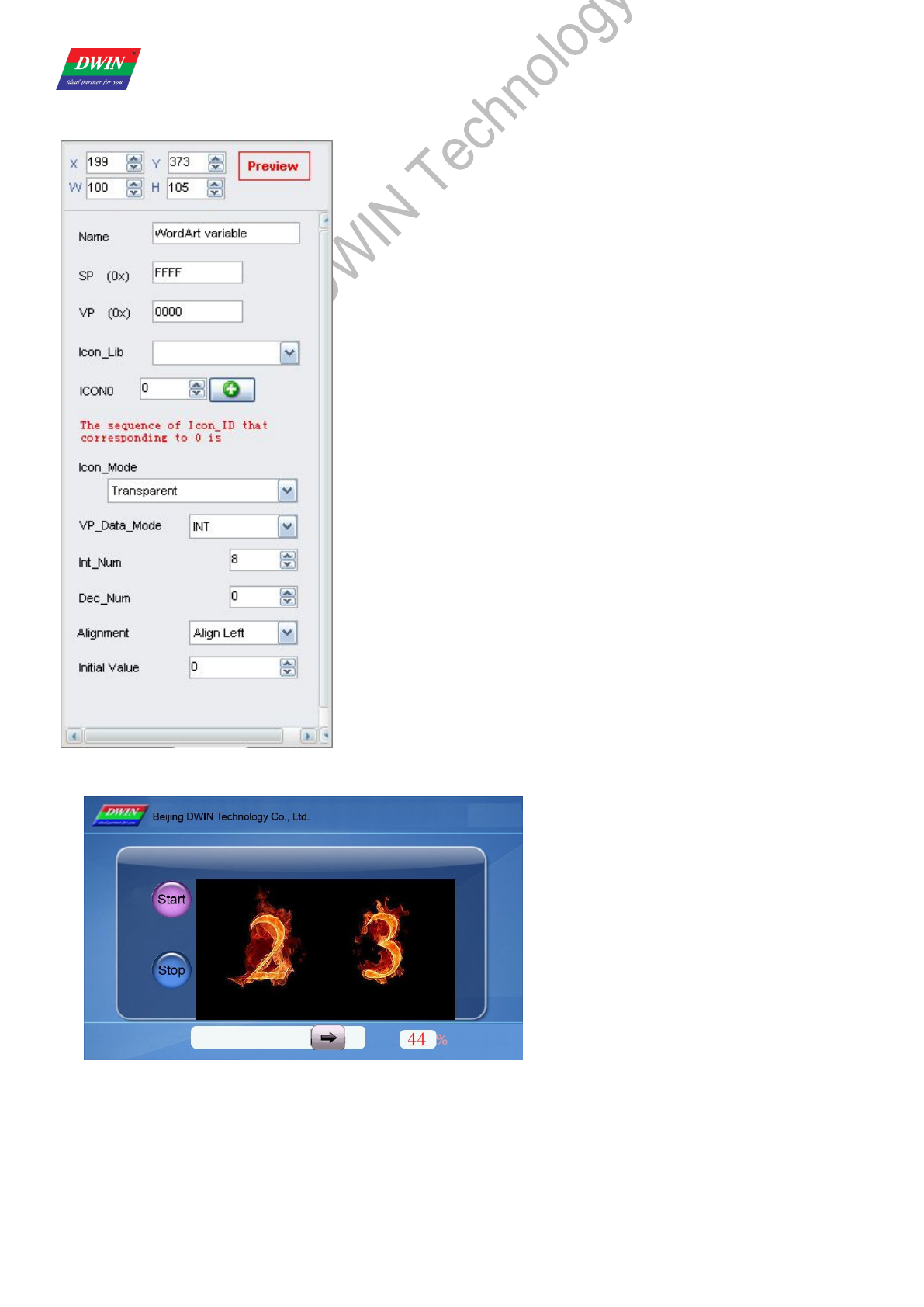
3.2.4 WordArt
Selected Area: (X, Y) are the top-left coordinates of icons.
Preview: preview VAR display effect.
Name: name this button for viewing it in .xls file.
SP: stack pointer, default setting is 0xFFFF.
VP: variable pointer.
ICON File: address of icon file.
ICON 0: icon address corresponding to number 0.
ICON Display Mode: transparent/background.
VAR Type: integer/long integer.
Number of INT/DEC bit: length of integer/decimal digits.
Initial Value: Set the initial value & save it in the 22 config file,the system
will be initiated according to 22 config file when the DGUS is started.
Illustration of variable <WordArt >:
Send command to serial port:
Frame header,Length,Command,VP,Data string to display the WordArt above.
A5 5A 05 82 0CCC 0017
Professional,Creditable,Successful DGUS_SDK User Guide V5.1
Beijing DWIN Technology Co., Ltd. 32 www.dwin.com.cn
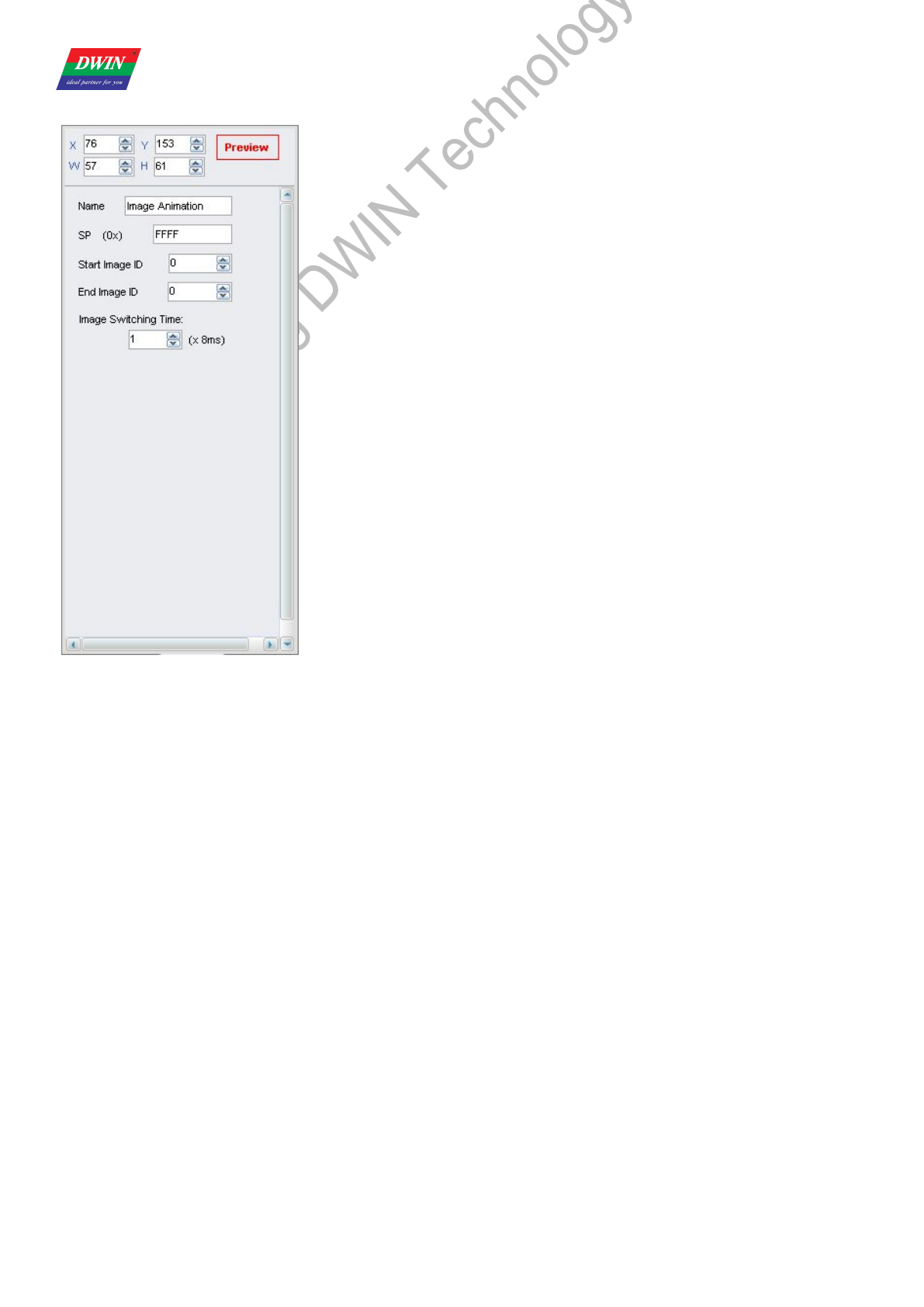
3.2.5 Image Animation
Selected Area: (X, Y) are the top-left coordinates of icons.
Preview: preview VAR display effect.
Name: name this button for viewing it in .xls file.
SP: stack pointer, default setting is 0xFFFF.
Start Image ID: select starting picture of animation.
End Image ID: select ending picture of animation.
Image Switching Time:
Select switching speed for animation, by every 8ms.
Start image ID should be less than end image ID.
Set a <image animation> on end image to loop.
Send commands or set <touch control> button to interrupt animation.
Professional,Creditable,Successful DGUS_SDK User Guide V5.1
Beijing DWIN Technology Co., Ltd. 33 www.dwin.com.cn
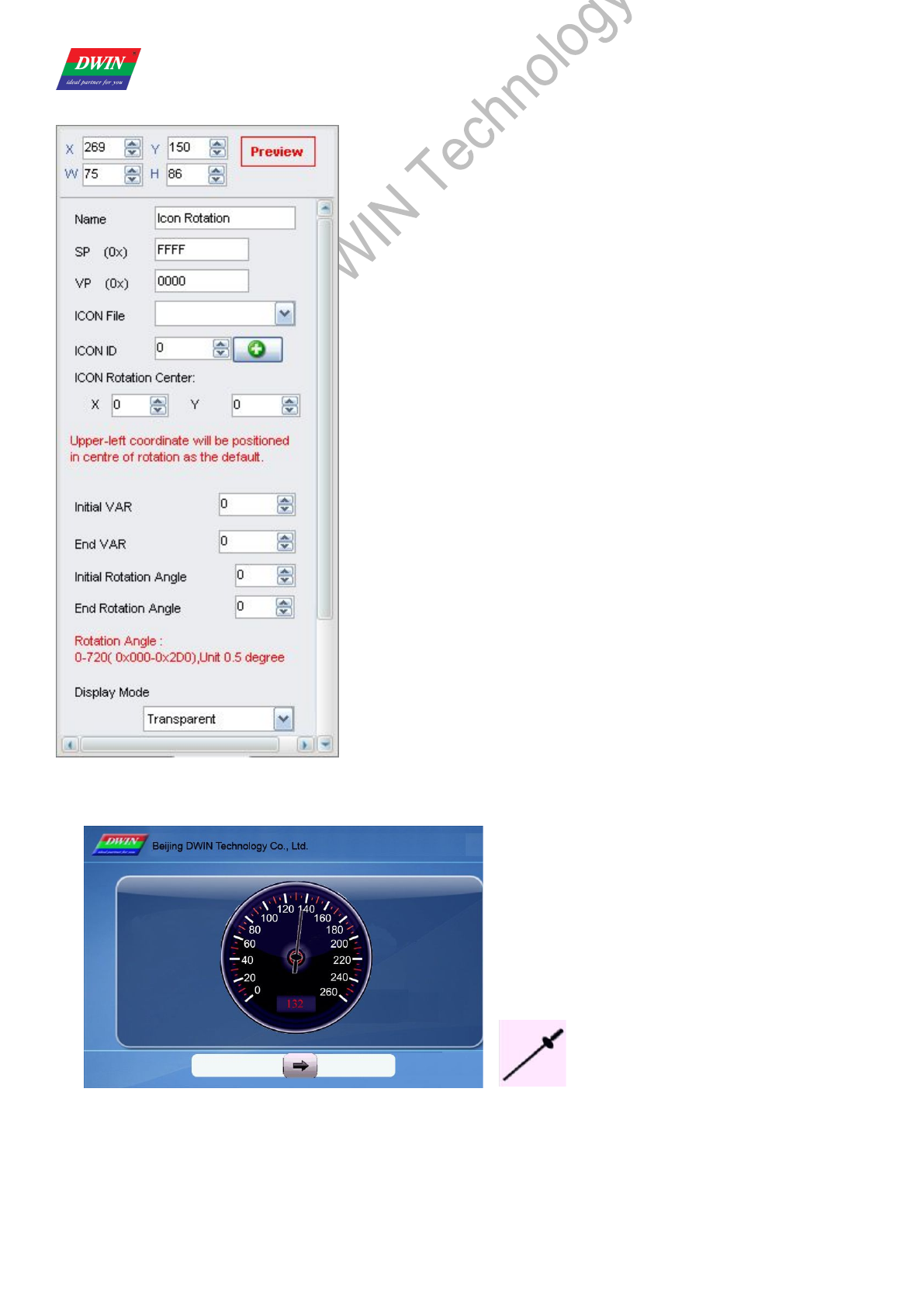
3.2.6 Icon Rotation
Selected Area: (X, Y) are the coordinates of rotating center.
Preview: preview VAR display effect.
Name: name this button for viewing it in .xls file.
SP: stack pointer, default setting is 0xFFFF.
VP: variable pointer.
ICON File: address of icon file.
ICON ID: icon address in icon file.
ICON Rotation Center:
Select rotation center (X, Y) for the icon.
Initial/End VAR Value:
Value corresponding to start/end angle, null if over limit.
Initial/End Rotation Angle:
Select start/end angle, ranging from 0 to 720, by every 0.5°.
Display Mode: transparent/background.
VP_Mode:
Integer (whole VP address).
High byte in VP address.
Low byte in VP address.
Initial Value: Set the initial value & save it in the 22 config file,the system
will be initiated according to 22 config file when the DGUS is started.
Send serial commands or press buttons to change value in VP
address, and then to adjust the angle of pointer.
Illustration of variable <Icon Rotation >:
Icons file for rotation:
Send command to serial port:
Frame header,Length,Command,VP,Data string to display the ICON above.
A5 5A 05 82 000A 0084
Professional,Creditable,Successful DGUS_SDK User Guide V5.1
Beijing DWIN Technology Co., Ltd. 34 www.dwin.com.cn
3.2.7 Data Variable
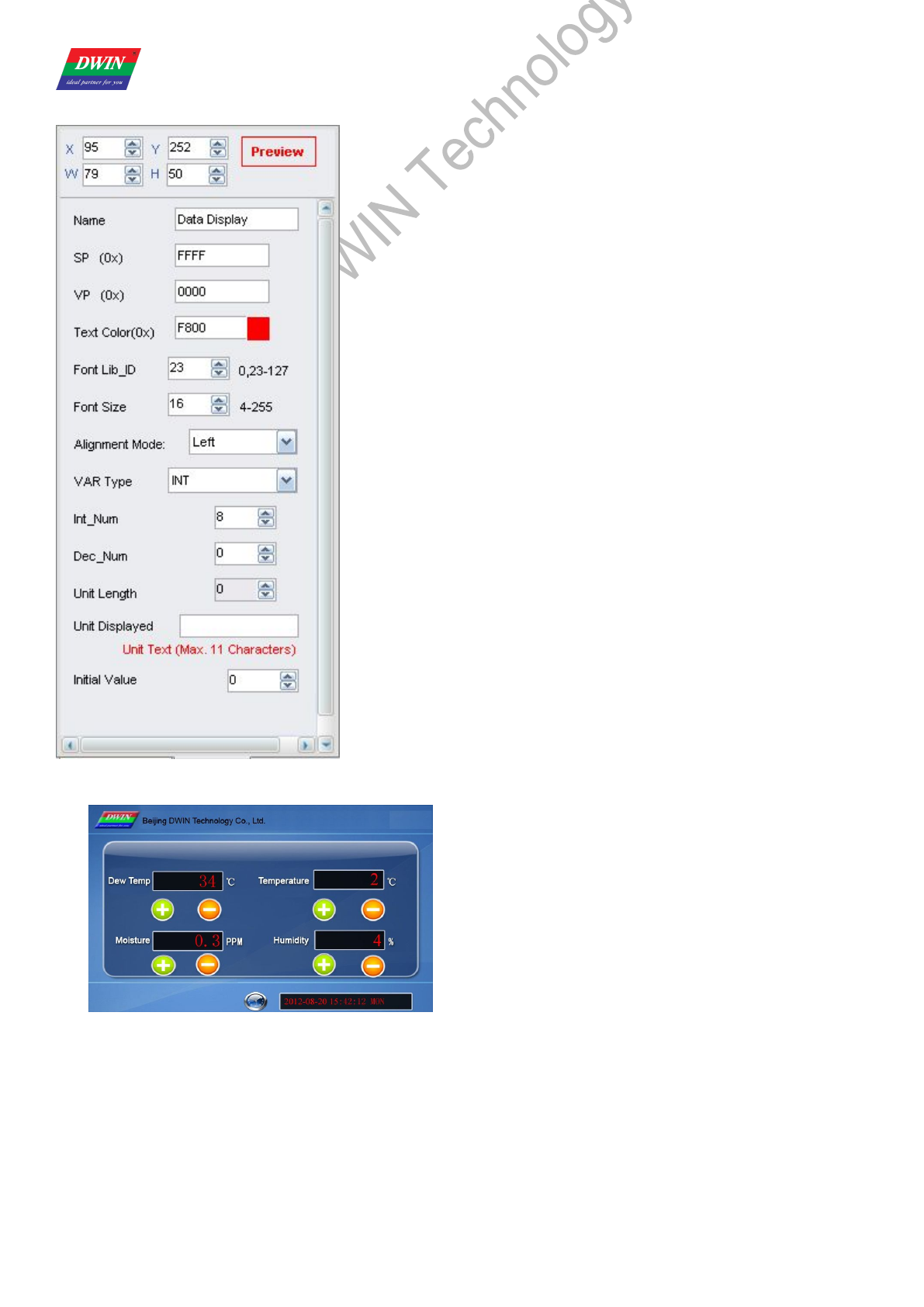
Selected Area: (X, Y) are the top-left coordinates of data.
Preview: preview VAR display effect.
Name: name this button for viewing it in .xls file.
SP: stack pointer, default setting is 0xFFFF.
VP: variable pointer.
Font Color: data color.
Font Lib_ID: address of ASCII font file.
Font Size: horizontal pixel numbers.
Alignment Mode: Right/Left /Centered.
VAR Type:
0x00: integer.
0x01: long integer.
0x02: high byte in VP address.
0x03: low byte in VP address.
Number of INT Bit: length of integer digits.
Number of DEC Bit: length of decimal digits.
Unit Length:
Corresponding to displayed unit automatically.
Unit Displayed:
ASCII unit for data, max length is 11 bytes.
Initial Value: Set the initial value & save it in the 22 config file,the system
will be initiated according to 22 config file when the DGUS is started.
Send commands or set buttons to modify displayed data.
Illustration of variable <Data Variable>:
Send command to serial port:
Frame header,Length,Command,VP,Data string to display the Data (left-up) above.
A5 5A 05 82 0000 0022
Professional,Creditable,Successful DGUS_SDK User Guide V5.1
Beijing DWIN Technology Co., Ltd. 35 www.dwin.com.cn
3.2.8 Text Display
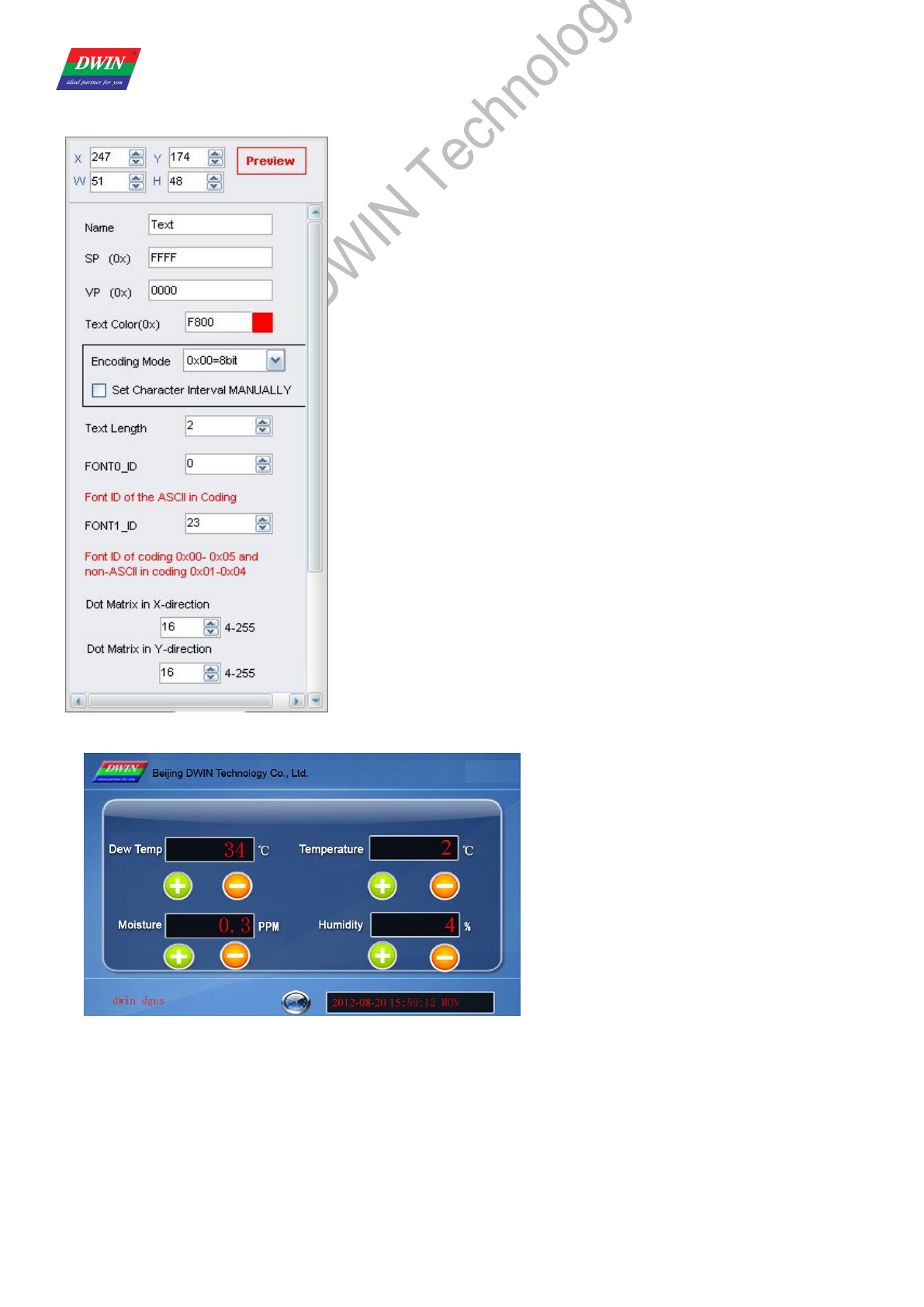
Selected Area: (X, Y) are top-left coordinates of data.
Textbox is the selected area.
Preview: preview VAR display effect.
Name: name this button for viewing it in .xls file.
SP: stack pointer, default setting is 0xFFFF.
VP: variable pointer.
Text Color: data color.
Encoding Mode:
0x00: 8bit encoding, 0x01: GB2312, 0x02: GBK, 0x03:BIG5, 0x05: UNICODE.
Set Character Interval MANUALLY: on/off.
Text Length: select text length, by byte.
Font0_ID: address of ASCII font file.
Font1_ID: address of non-ASCII font file.
Dot Matrix in X/Y-direction: select font size. Please note that parameter
should be the same with the size of font file.
Horizontal/Vertical Separation:
Pixel distance in Horizontal/Vertical.
Initial Value: Set the initial value & save it in the 22 config file,the system will
be initiated according to 22 config file when the DGUS is started.
Illustration of variable <Text Display>:
Send command to serial port:
Frame header,Length,Command,VP,Data string to display the Text (bottom-left) above.
A5 5A 0D 82 0008 64 77 69 6E 20 64 67 75 73 76
Professional,Creditable,Successful DGUS_SDK User Guide V5.1
Beijing DWIN Technology Co., Ltd. 36 www.dwin.com.cn
3.2.9 Digital RTC Display
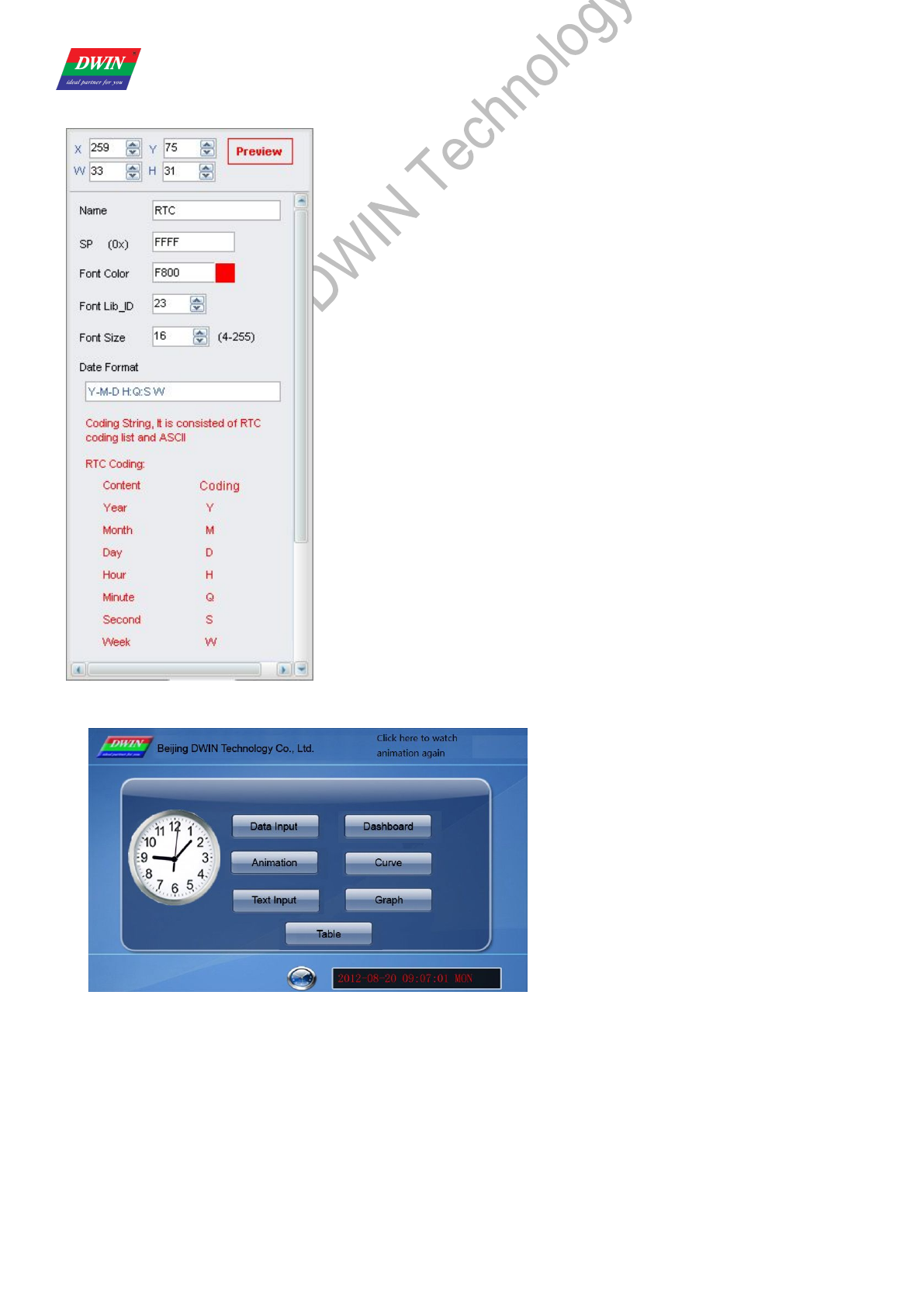
Selected Area: (X, Y) are the top-left coordinates of data.
Preview: preview VAR display effect.
Name: name this button for viewing it in .xls file.
SP: stack pointer, default setting is 0xFFFF.
Font Color: data color.
Font Lib_ID: address of ASCII font file.
Font Size: horizontal pixel numbers.
Date Format: refer to the red texts in picture in the left.
Use <RTC> button to modify current time.
llustration of variable <Digital RTC Display> (Digital clock on bottom-right of screen):
Professional,Creditable,Successful DGUS_SDK User Guide V5.1
Beijing DWIN Technology Co., Ltd. 37 www.dwin.com.cn
3.2.10 Analog Clock Display
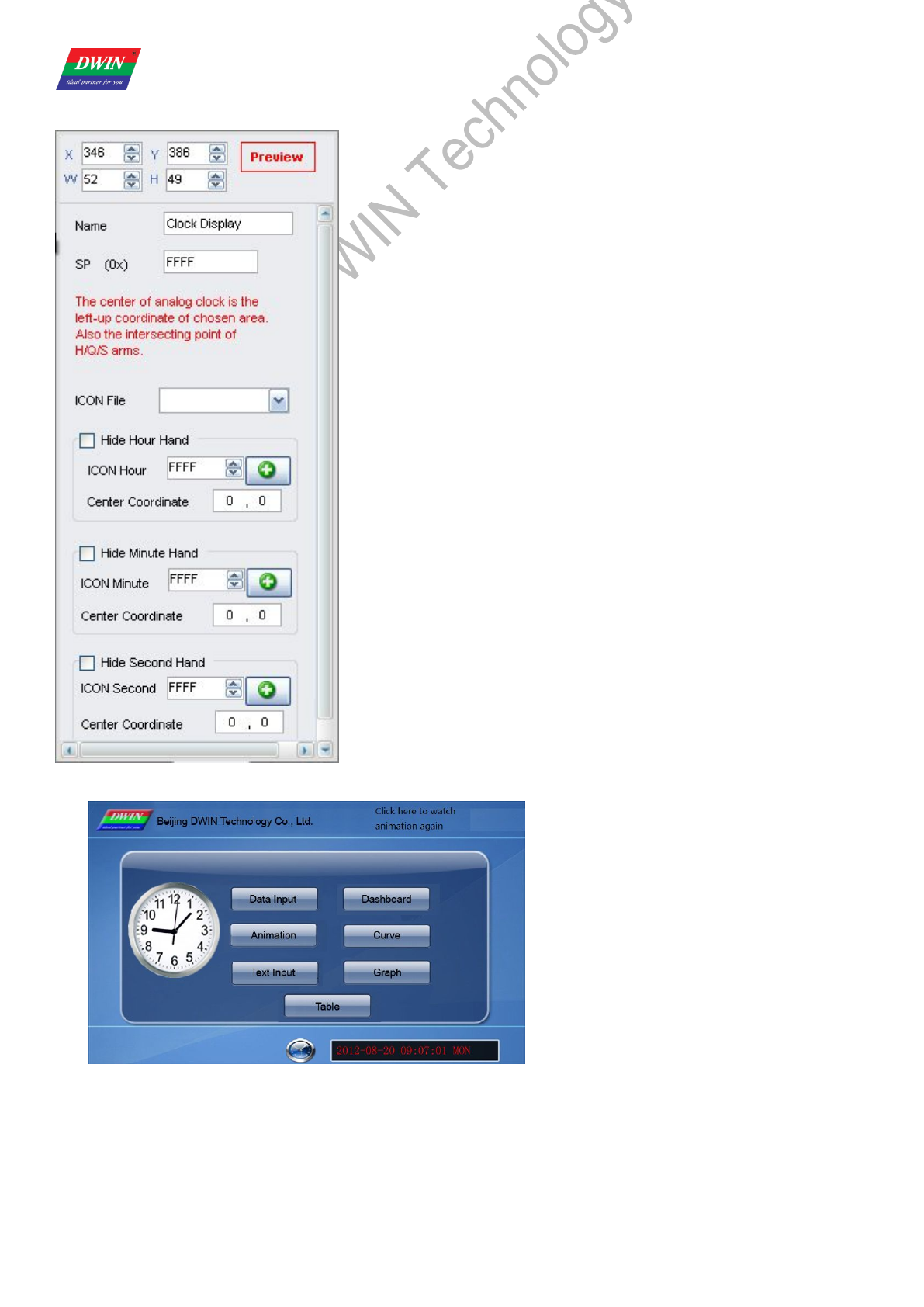
Selected Area: (X, Y) are the rotating center coordinates.
Preview: preview VAR display effect.
Name: name this button for viewing it in .xls file.
SP: stack pointer, default setting is 0xFFFF.
ICON File: address of icon file.
Analog Clock:
ICON Hour: select hour hand ID in icon file.
Center Coordinate: rotation center in icon.
Minute Hand:
ICON Minute: select minute hand ID in icon file.
Center Coordinate: rotation center in icon.
Second Hand:
ICON Second: select second hand ID in icon file.
Center Coordinate: rotation center in icon.
Use <RTC> button to modify current time.
Illustration of variable <Analog Clock Display>:
Professional,Creditable,Successful DGUS_SDK User Guide V5.1
Beijing DWIN Technology Co., Ltd. 38 www.dwin.com.cn
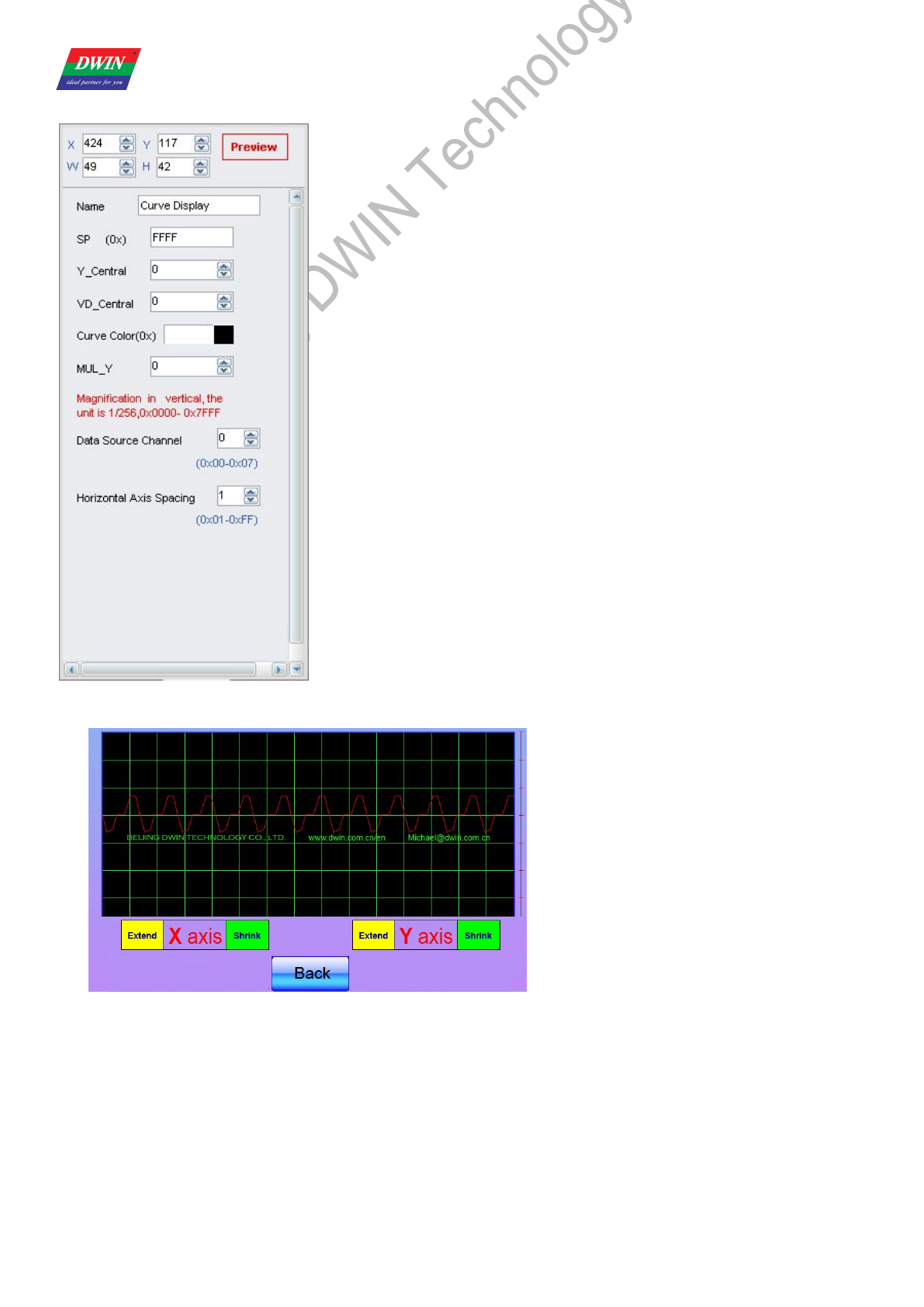
3.2.11 Dynamic Trend Curve
Selected Area: select window area, null if over range.
Preview: preview VAR display effect.
Name: name this button for viewing it in .xls file.
SP: stack pointer, default setting is 0xFFFF.
Y_Central: select center line of trend curve.
VD_Central:
Trend curve value at center line, normally average of Max & Min value.
Curve Color: select color for trend curve.
MUL_Y: magnification in Y direction, by every 1/256.
Data Source Channel: select channel for trend curve.
Horizontal Spacing:
Transverse spacing between sampling points.
Illustration of variable <Dynamic Trend Curve Display>:
Send command to serial port:
Frame header,Length,Command,Data channel,Data string to display the trend curve above.
A5 5A 18 84 01 0800 0700 0710 0733 0800 0800 0800
0800 0900 0908 0906
Professional,Creditable,Successful DGUS_SDK User Guide V5.1
Beijing DWIN Technology Co., Ltd. 39 www.dwin.com.cn
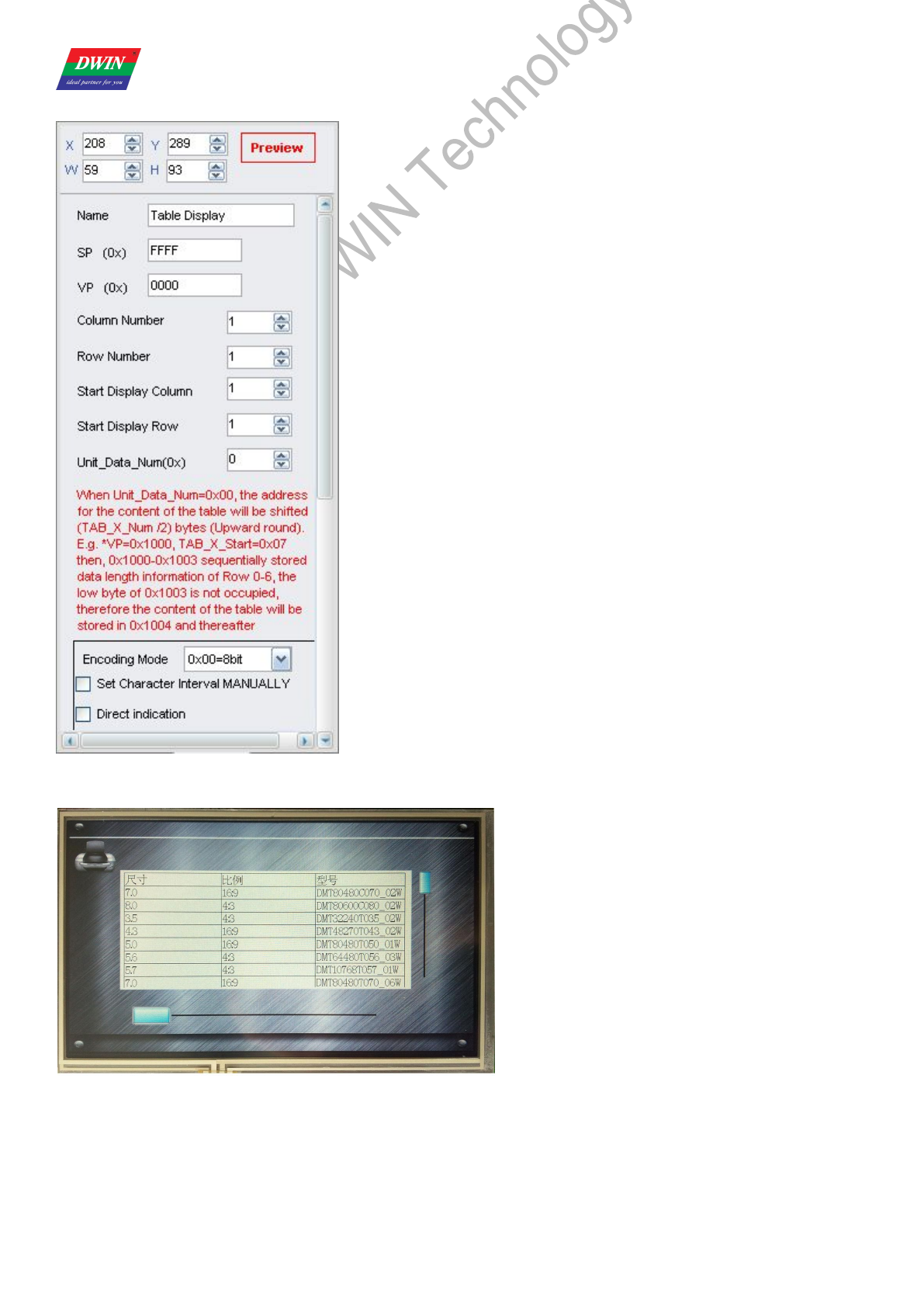
3.2.12 Table Display
Selected Area: select table area, null if over range.
Preview: preview VAR display effect.
Name: name this button for viewing it in .xls file.
SP: stack pointer, default setting is 0xFFFF.
VP: variable pointer, starting address of the data in table.
Column/Row Number: set the size of table.
Start Display Column/Row:
Select starting column/row to be displayed.
Unit_Data_Num:
0x01-0x7F: length of data for one cell.
0x00: data in VP address defines the length of each column.
When Unit_Data_Num is 00, starting address of data will be (Row number/2,
round up to integer) backward from VP address.
Encoding Mode:
0x00: 8bit, 0x01: GB2312, 02: GBK, 03: BIG5, 04: SJIS, 05: UNICODE.
Set Character Interval MANUALLY: on/off.
Boarder Color: select table boarder color.
Text Color: select text color.
FONT0_ID: address of ASCII font file.
FONT1_ID: address of none-ASCII font file.
X/Y-Direction Size:
Select font size, accordant with width of fonts in font file.
Column Header: Valid Display/Invalid Display.
Row Header: Valid Display/Invalid Display.
Data for table can be loaded by 22.bin file. Refer to DGUS document for
detailed instruction.
Illustration of variable <Table Display>:
Professional,Creditable,Successful DGUS_SDK User Guide V5.1
Beijing DWIN Technology Co., Ltd. 40 www.dwin.com.cn
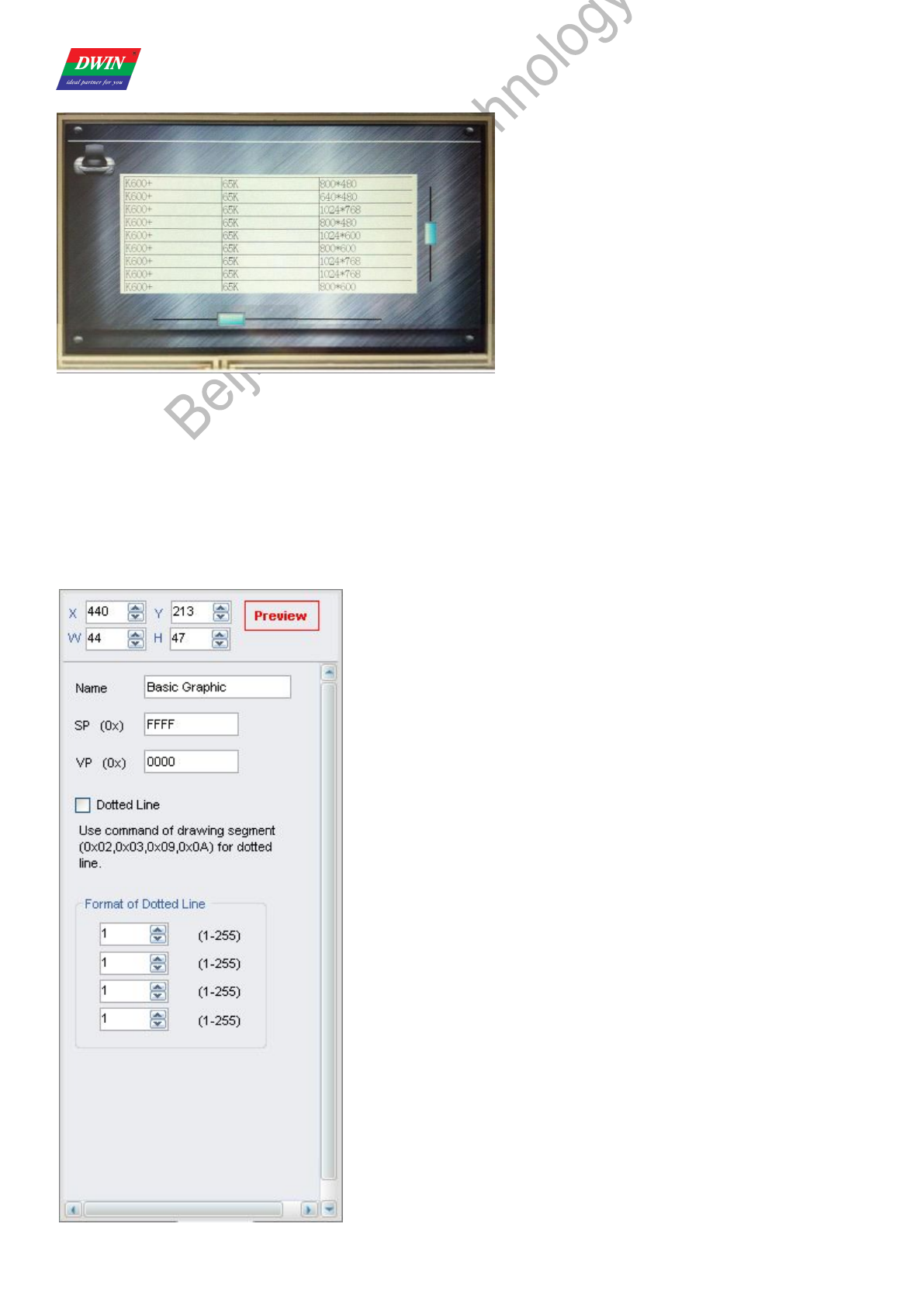
If the length of data is shorter than designated, please use 0xFFFF as end mark of data in this cell.
For oversized table, users can use slider to pull the table.
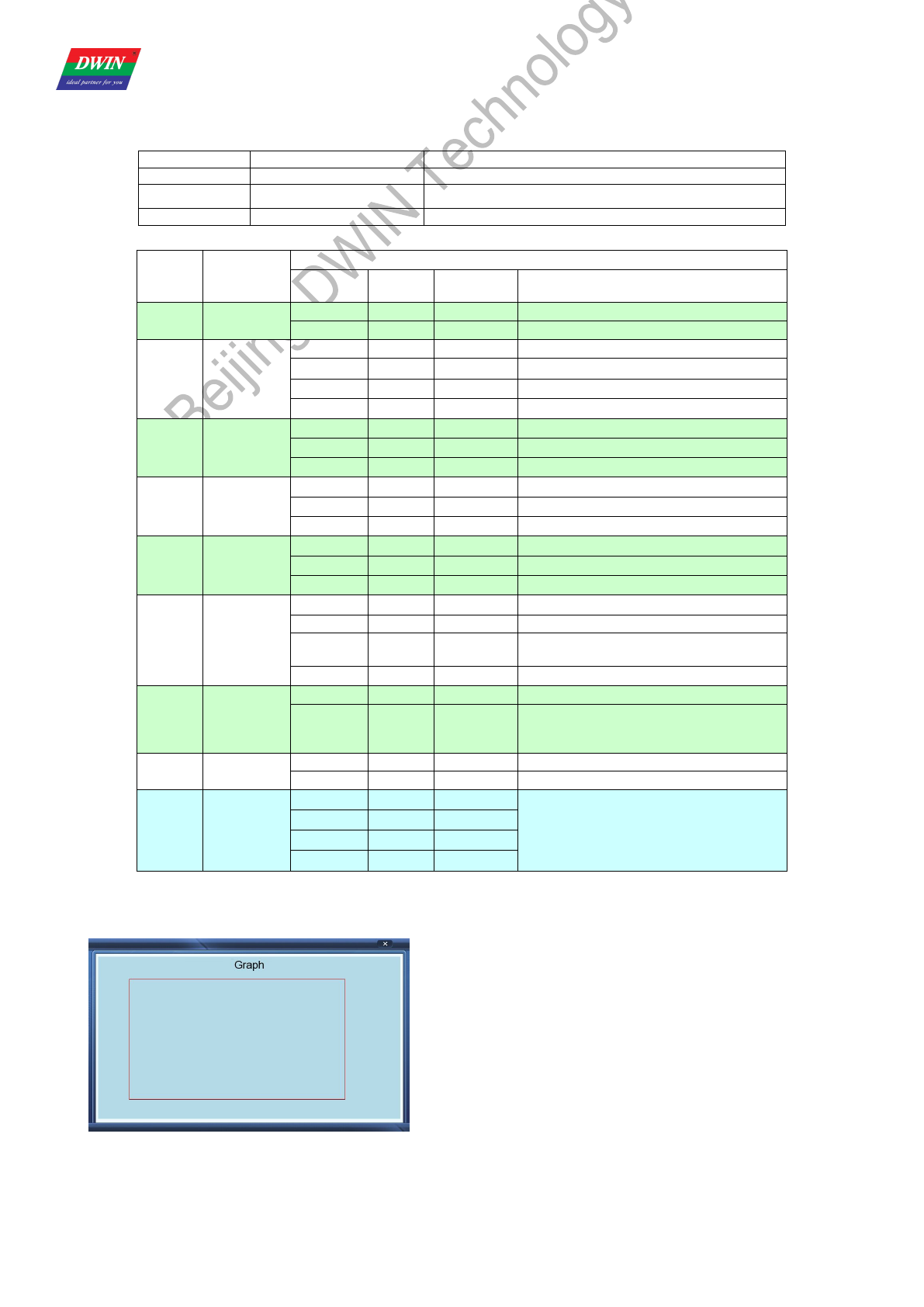
3.2.13 Basic Graphic Display
Selected Area: select window area, null if over range.
(Limit is only effective for 0x0001 - 0x0005 commands).
Name: name this button for viewing it in .xls file.
SP: stack pointer, default setting is 0xFFFF.
VP: variable pointer.
Professional,Creditable,Successful DGUS_SDK User Guide V5.1
Beijing DWIN Technology Co., Ltd. 41 www.dwin.com.cn
String Format
Address Definition Description
VP CMD Command
VP+1 Data_Pack_Num_Max Data Pack Number
VP+2 DATA_Pack
Data Pack for Basic Graphic
CMD Function
Description of Data Pack Format, by word
Relative
Address Length Definition Description
0x0001 Dot 0x00 2 (x, y) Dot coordinates.
0x02 1 Color Dot color.
0x0002 Line
0x00 1 Color Line color.
0x01 2 (x, y)0 Vertex 0 coordinates.
0x03 2 (x, y)1 Vertex 1 coordinates.
0x01+2*n 2 (x, y)n Vertex n coordinates.
0x0003 Rectangle
0x00 2 (x, y)s Top-left coordinates.
0x02 2 (x, y)e Bottom-right coordinates.
0x04 1 Color Rectangle’s color.
0x0004 Rectangle
Area Fill
0x00 2 (x, y)s Top-left coordinates.
0x02 2 (x, y)e Bottom-right coordinates.
0x04 1 Color Filled color.
0x0005 Circle
0x00 2 (x, y) Circle center coordinates.
0x02 1 Rad Radius of circle.
0x03 1 Color Circle color.
0x0006 Picture
cut/paste
0x00 1 Pic_ID Image ID of cutting area.
0x01 2 (x, y)s Top-left coordinates of the cutting area.
0x03 2 (x, y)e Bottom-right coordinates of the cutting
area.
0x05 2 (x, y) Paste position on current screen.
0x**07 Icon
Display
0x00 2 (x, y) Top-left coordinates of icon.
0x02 1 ICON_ID
Icon ID in icon file, high byte of command
specifies address of icon file, display
mode is transparent.
0x0008 Area fill 0x00 2 (x, y) Sampling dot coordinates.
0x02 1 COLOR Filled color.
0x0009
Vertical line
0x00 1 Color0
Connect (X0, Y0s) (X0, Y0e) with color 0
0x01 1 X0
0x02 1 Y0s
0x03 1 Y0e
Judging condition:
0xFF: finish operation,
0xFE: skip to next step.
Send command to serial port:
Frame header,Length,Command,Address,Controlling bytes,Data pack,Coordinate,Color
A5 5A 11 82 20 00 00 03 00 01 00 64 00 64 02 8C 01 90 F8 00
To get the rectangle above.
Professional,Creditable,Successful DGUS_SDK User Guide V5.1
Beijing DWIN Technology Co., Ltd. 42 www.dwin.com.cn
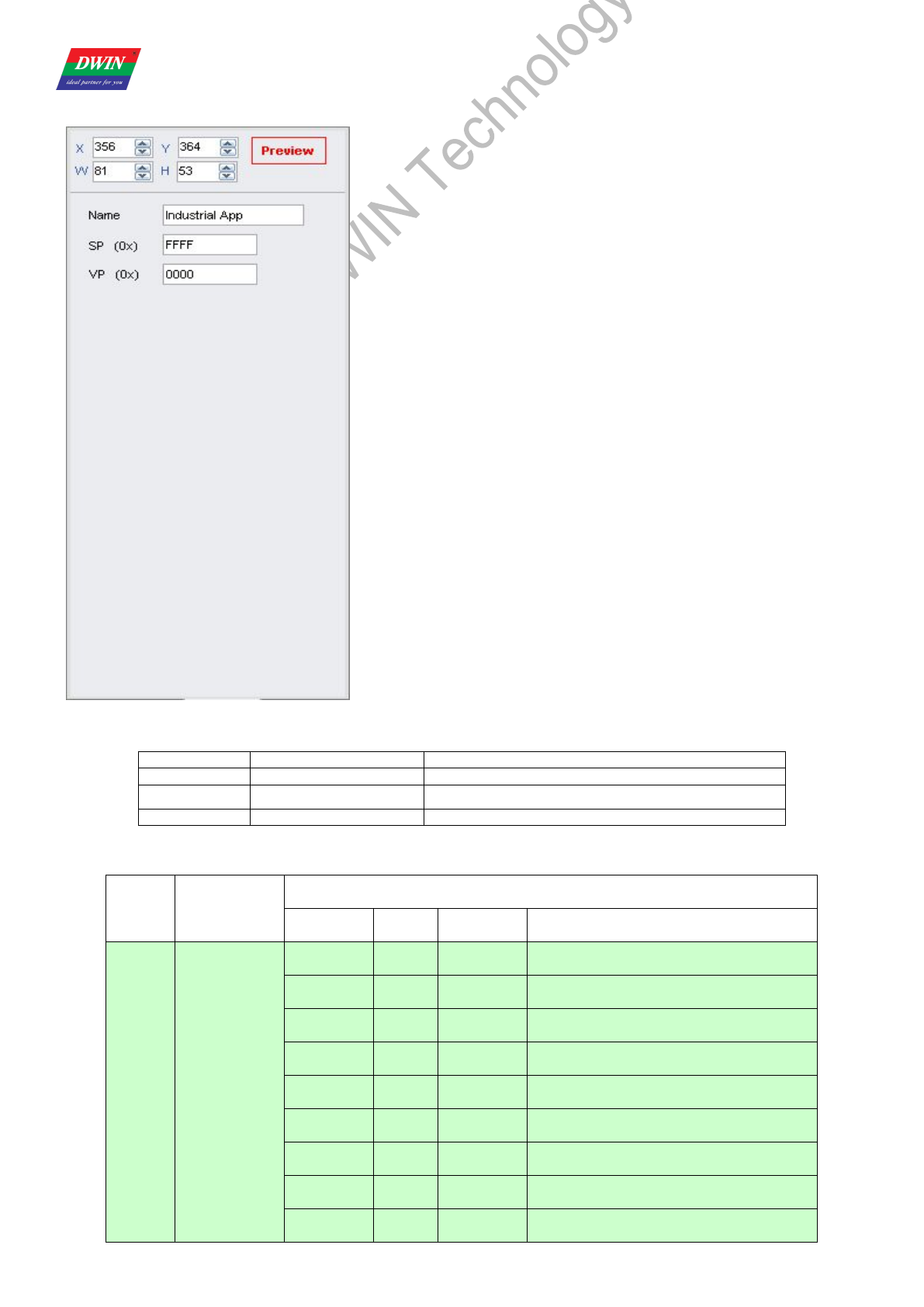
3.2.14 Special Industrial Application
Name: name this button for viewing it in .xls file.
SP: stack pointer, default setting is 0xFFFF.
VP: variable pointer.
String Format
Address Definition Description
VP CMD Command
VP+1 Data_Pack_Num_Max Data Pack Number
VP+2 DATA_Pack
Data pack for Special Industrial Application
CMD Function
Description of data pack format, by word
Relative
Address Length Definition Description
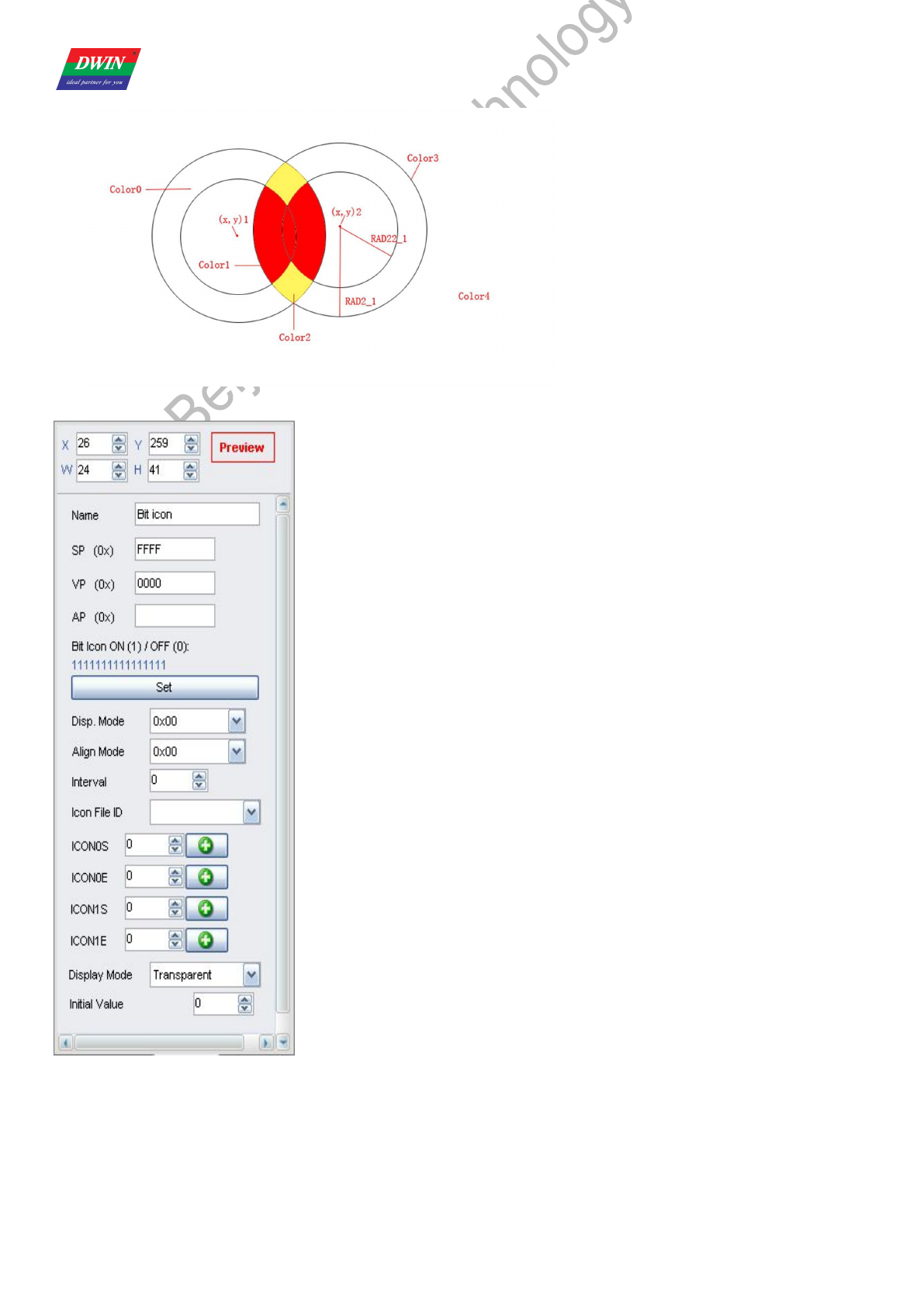
0x0001
Overlapped
Area of
Multiple
Circles Fill
0x00 1 Color0 Color of “Safe Zone”.
0x01 1 Color1 Color of normally overlapped area
(Overlapped once).
0x02 1 Color2 Color of High-Risk overlapped area
(Overlapped twice or more).
0x03 1 Color3 Color of circles.
0x04 1 Color4 Color of evasion.
0x05 4 Disp_Area Display area, null if over range.
0x09+4*n 2 (x, y)n Center coordinates of No. n.
0x0B+4*n 1 RADn_1 The bigger radius of No. n concentric
circles.
0x0C+4*n 1 RAD2n_2 The smaller radius of No. n concentric
circles.
Professional,Creditable,Successful DGUS_SDK User Guide V5.1
Beijing DWIN Technology Co., Ltd. 43 www.dwin.com.cn
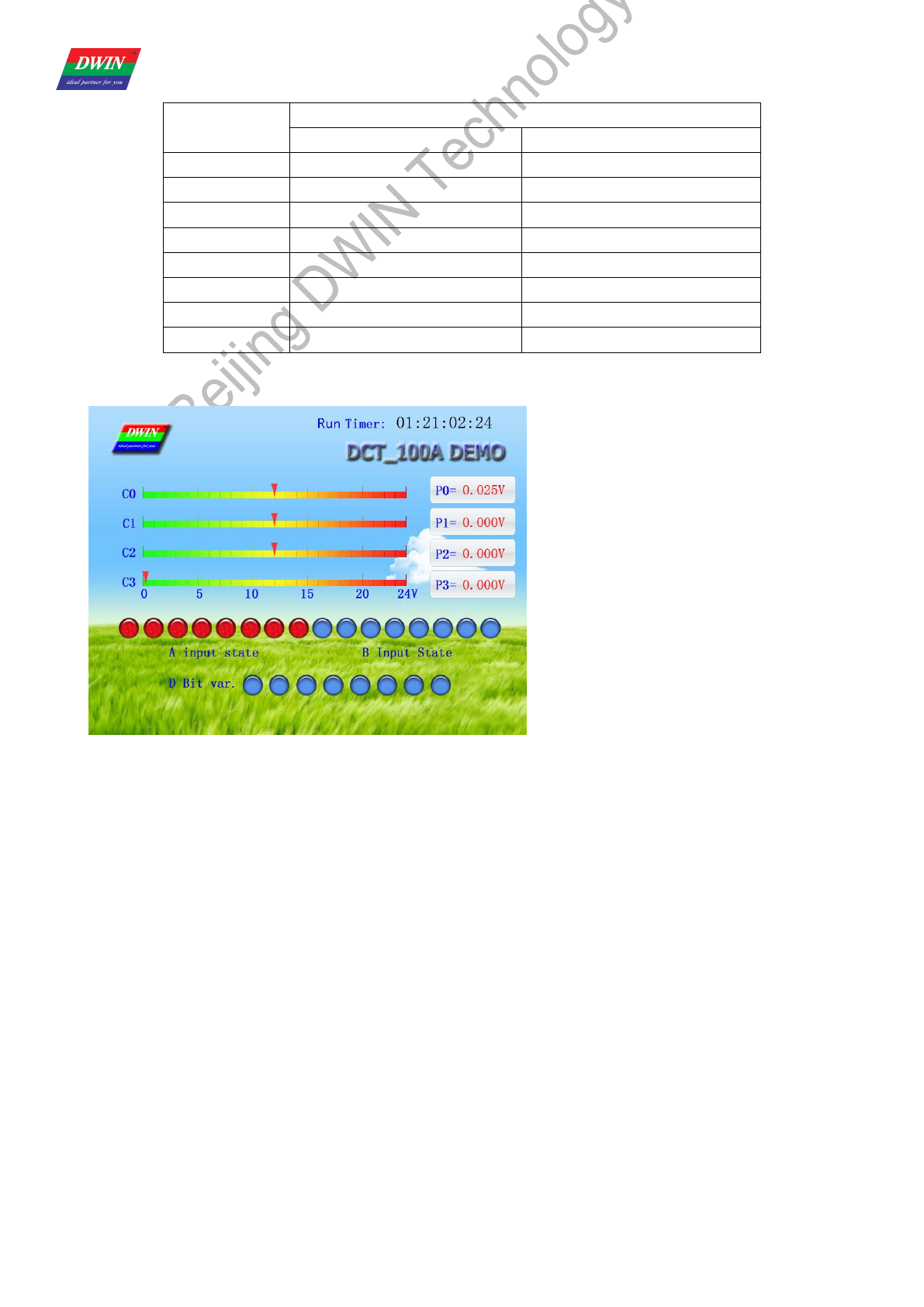
3.2.15 Bit Variable Icon
Selected Area: (X, Y) are coordinates of top-left of icons.
Preview: preview VAR display effect.
Name: name this button for viewing it in .xls file.
SP: stack pointer, default setting is 0xFFFF.
VP: variable pointer.
AP: substitutive variable pointer, reserved 2 words.
Bit Icon ON (1) /OFF (0): define BITs to display.
Disp. Mode: shown as the following table.
Align Mode:
0x00: X++, space unreserved for undesignated bits.
0x01: Y++, space unreserved for undesignated bits.
0x02: X++, space reserved for undesignated bits.
0x03: Y++, space reserved for undesignated bits.
Interval: spacing between icons.
Icon File ID: address of icon file.
ICON0S:
Icon ID for bit0 in non-animation mode, or starting
Icon ID for bit0 in animation mode.
ICON0E: ending icon ID for bit0 in animation mode.
ICON1S:
Icon ID for bit1 in non-animation mode, or starting
Icon ID for bit1 in animation mode.
ICON1E: ending icon ID for bit1 in animation mode.
ICON Mode: Transparent/Opaque.
Initial Value: Set the initial value & save it in the 22 config file,the system will be
initiated according to 22 config file when the DGUS is started.
Professional,Creditable,Successful DGUS_SDK User Guide V5.1
Beijing DWIN Technology Co., Ltd. 44 www.dwin.com.cn
Display_Mode Value of bit
0 1
0x00 ICON0S ICON1S
0x01 ICON0S Null.
0x02 ICON0S Animation: ICON1S - ICON1E.
0x03 Null. ICON1S
0x04 Null. Animation: ICON1S - ICON1E.
0x05 Animation: ICON0S - ICON0E. ICON1S
0x06 Animation: ICON0S - ICON0E. Null.
0x07 Animation: ICON0S - ICON0E. Animation: ICON1S - ICON1E.
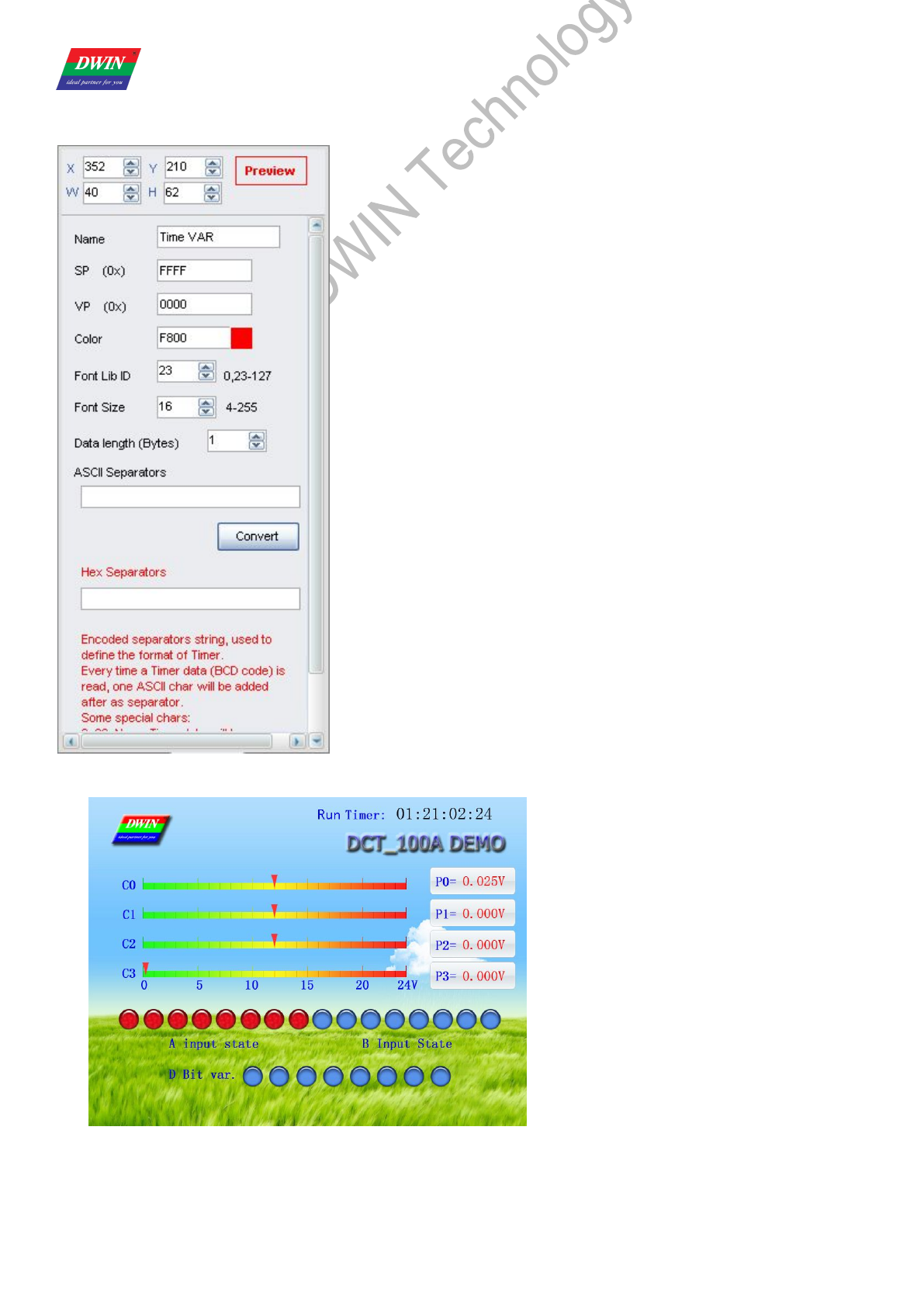
Illustration of variable <Bit Icon> (on bottom of screen):
Professional,Creditable,Successful DGUS_SDK User Guide V5.1
Beijing DWIN Technology Co., Ltd. 45 www.dwin.com.cn
3.2.16 Timer Variable
Selected Area: (X, Y) are the top-left coordinates of data.
Preview: preview VAR display effect.
Name: name this button for viewing it in .xls file.
SP: stack pointer, default setting is 0xFFFF.
VP: variable pointer.
Color: data color.
Font Lib ID: address of font file, 8bit encoding half-width.
Font Size: font size in X-direction.
Data length (Bytes): byte numbers to be displayed.
ASCII Separators: data string.
Convert: convert ASCII Separators into Hex Separators.
Encoded separators string, used to define the format of Timer. Every time a
Timer data (BCD code) is read, one ASCII char will be added after as separator.
Some special chars: 0x00: none, Timer data will be concatenated; 0x0D: new
line.
Illustration of variable <Bit Icon> (on top-right of screen):
Professional,Creditable,Successful DGUS_SDK User Guide V5.1
Beijing DWIN Technology Co., Ltd. 46 www.dwin.com.cn
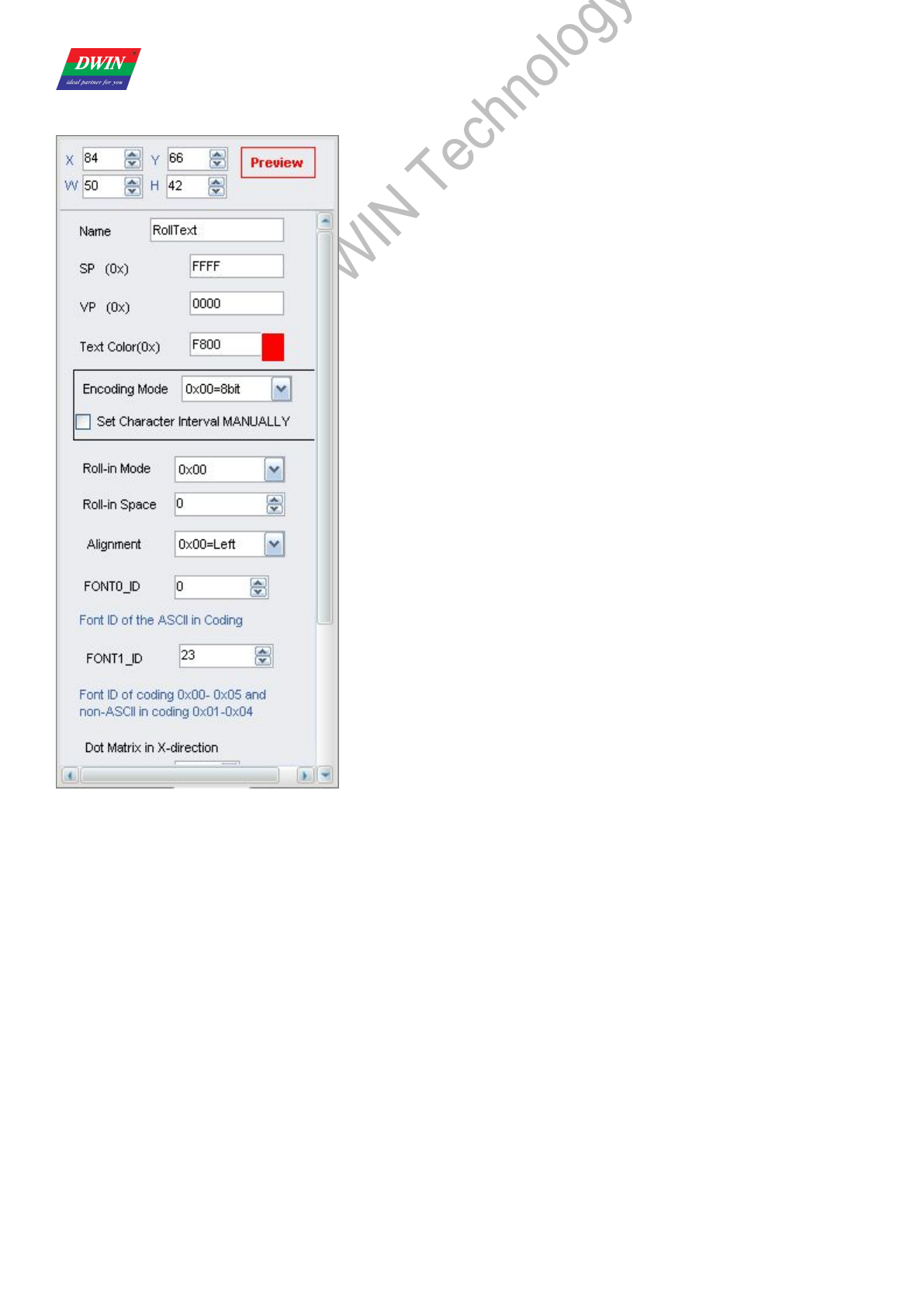
3.2.17 RollText
Selected Area: (X, Y) are the top-left coordinates of data.
Preview: preview VAR display effect.
Name: name this button for viewing it in .xls file.
SP: stack pointer, default setting is 0xFFFF.
VP: variable pointer.
Text Color:data color.
Encoding Mode:
0x00: 8bit encoding,
0x01: GB2312,
0x02: GBK,
0x03:BIG5,
0x05: UNICODE.
Set Character Interval MANUALLY: on/off.
Roll-in Mode:
0X00=right to left
0X01=left to right
0X02=top to bottom
0X03=bottom to top
Roll-in Space: pixels to roll in each DGUS period.
Alignment: centered, left-aligned, right-aligned, top-aligned, button-aligned,
equal width, equal height.
Font0_ID: address of ASCII font file.
Font1_ID: address of non-ASCII font file.
Dot Matrix in X/Y-direction: select font size. Please note that parameter
should be the same with the size of font file.
Horizontal/Vertical Separation:
Pixel distance in Horizontal/Vertical.
Initial Value: Set the initial value & save it in the 22 config file,the system
will be initiated according to 22 config file when the DGUS is started.
Professional,Creditable,Successful DGUS_SDK User Guide V5.1
Beijing DWIN Technology Co., Ltd. 47 www.dwin.com.cn
4. Commands
4.1 Data Frame
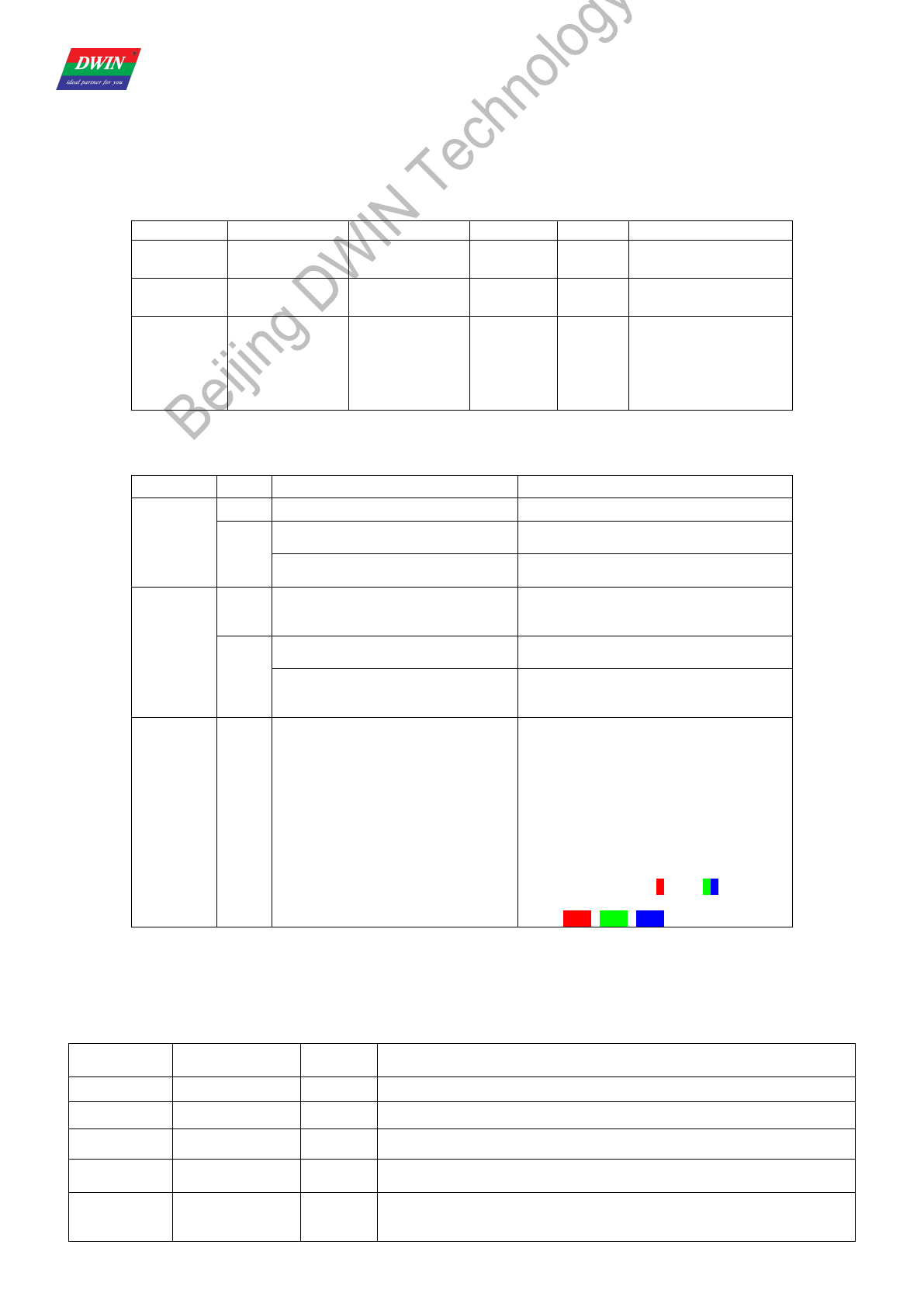
Serial data frame is constituted with 5 parts as shown in chart below:
Data Block 1 2 3 4 5
Definition Frame header Data length Command
type
Data
string CRC checksum
Data
Length 2 1 1 N 2
Description
Defined by
R3
and RA
parameter
in config.txt
Including
command type,
data string and
CRC checksum
0x80-0x84 Enabled by R2
parameter in config.txt
4.2 Command Set
Function CMD Data Description
Access
Register
0x80 ADR(0x00-0xFF)+Data_Pack
Write data in particular address of register
0x81
ADR(0x00-0xFF)+
RD_LEN(0x00-0xFF)
Read data in particular address of register
ADR(0x00-0xFF)+RD_LEN+
Data_Pack Response of DWIN LCD module
Access
Variable
SRAM
0x82
ADR_H:(0x0000-0x6FFF)+DAT
A0…
+DATAn
Write data in particular address of
variable SRAM
0x83
ADR_H: L(0x0000-0x6FFF)+
RD_LEN(0x00-0x7F)
Read data in particular address of
variable SRAM
ADR_H:
L+RD_LEN+DATA0……+
DATAn
Response of DWIN LCD module
Trend
Curve
Buffer
0x84 CH_Mode(Byte)+DATA0(Word)+…+
DATAn
Write trend curve buffer.
CH_Mode defines the channels of
data :
Each bit in CH_Mode
corresponds to one channel.
CH_Mode. 0 corresponds
to channel 0.
Low channel ranges
ahead.
E.g.:
CH Mode=0x83(10000011B),
data format like
"CH7+CH1+CH0"
Register is accessed by every byte, variable SRAM and trend curve buffer is accessed by word.
4.3 Register
Register, 256 bytes, is used for hardware operation and process control.
Register
Address Definition Length
(Byte) Description
0x00 Version 1 DGUS version number, BCD code, 0x10 indicates V1.0.
0x01 LED_NOW 1 LED brightness, 0x00-0x40.
0x02 BZ_TIME 1 Buzzer beeping time, by every 10ms.
0x03 PIC_ID 2 Read: read current picture ID.
Write: switch to specific picture ID.
0x05 TP_Flag 1
0x5A: there is update of touching area.
Others= no updating.
TouchPanel data is no longer updated if user did not clear the flag
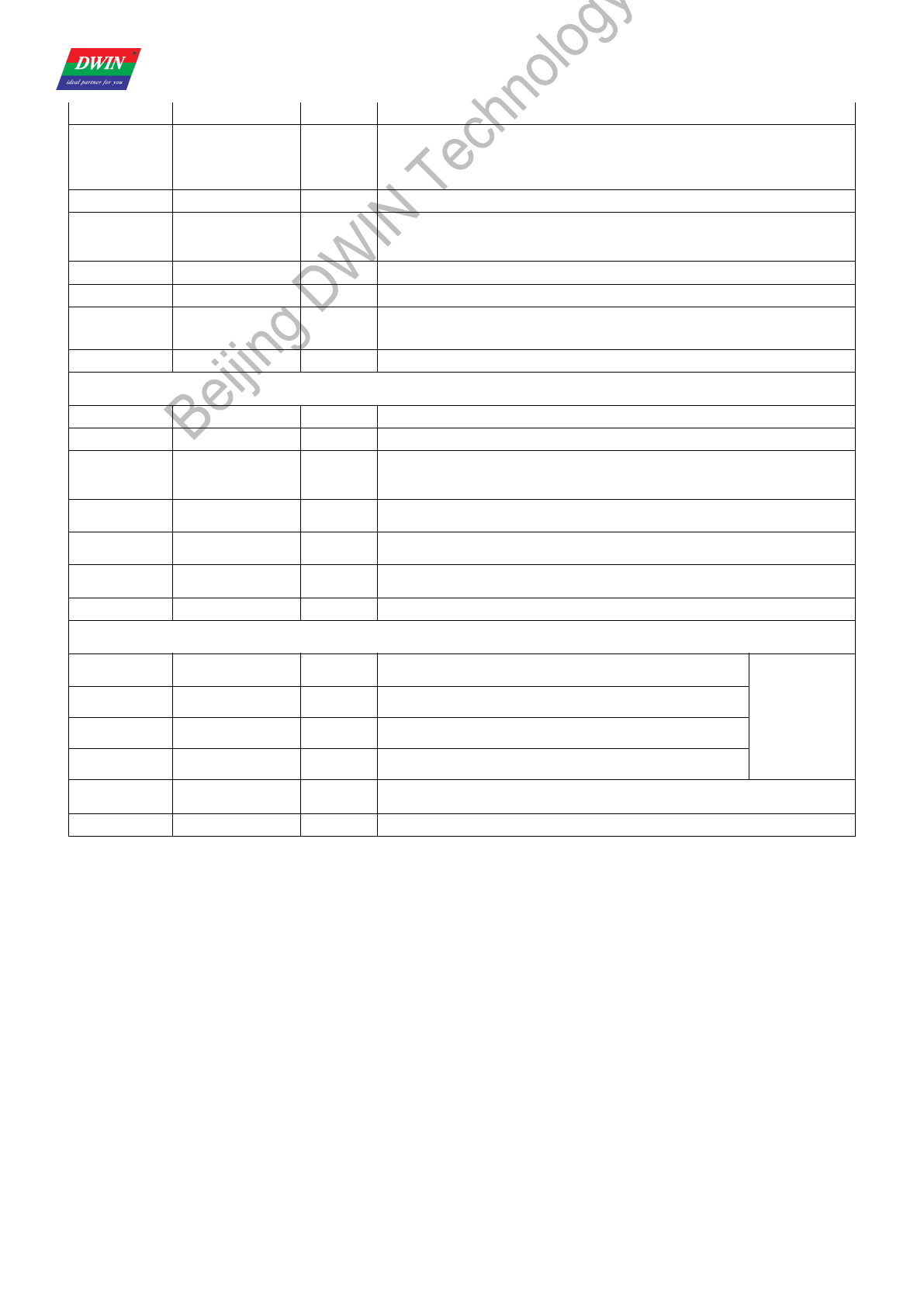
Professional,Creditable,Successful DGUS_SDK User Guide V5.1
Beijing DWIN Technology Co., Ltd. 48 www.dwin.com.cn
after data retrieving.
0x06 TP_Status 1
0x01: first click.
0x03: pressing down.
0x02: uplift pressing.
Others: null.
0x07 TP_Position 4 Coordinate of touching position: X_H:L, Y_H:L.
0x0B TPC_Enable 1
0x00: disable the touchPanel.
Others: enable the touchPanel.
Default setting: 0xFF.
0x0C-0x0F Reserve 4 Undefined.
0x10-0x1A R0-RA 11 Mapping of SD card config. register, read only.
0x1F RTC_COM_ADJ 1
0x5A: RTC data is rewritten through serial port, cleared after RTC auto
updating.
0x20 RTC_NOW 16 YY:MM:DD:WW:HH:MM:SS
Send serial command to modify current time, e.g.: A5 5A 0A 80 1F 5A 12 10 25 0412 00 01. “04” means Thursday, it can be
written as any day you choose.
0x30-0x3F Reserve 16 Undefined.
0x40 En_Lib_OP 1 0x5A: applying writing in font flash memory, clear after operation.
0x41 Lib_OP_Mode 1 0x50: Transfer data from variable SRAM to font flash memory.
0xA0: Transfer data from font flash memory to variable SRAM.
0x42 Lib_ID 1
Designate font address for data exchange. Total space are 16MB, font
space: 0x40-0x7F, maximum space of every font is 128KW.
0x43 Lib_Address 3
Designate address in font library for data exchange. Specified the first
(word) address for data operation in font storage, 0x00:00:00-0x01:FF:FF.
0x46 VP 2 Designate variable SRAM addresses for data exchange. Specified the first
(word) address for data operation in font storage, 0x00:00-0x6F:FF.
0x48 OP_Length 2 Length of exchanged data, by word.
Save 1KW variable data string starting from 0x1000 address into #64 font ID with starting 0x0000 address, send serial
command: A5 5A 0C 80 40 5A 50 40 00 00 00 10 00 02 00.
0x4A Timer0 2
16-bit software timer, in term of 4ms, auto-decrement to
0.
Maximum
error is
+/_4ms.
0x4C Timer1 1 8-bit software timer, in term of 4ms, auto-decrement to 0.
0x4D Timer2 1 8-bit software timer, in term of 4ms, auto-decrement to 0.
0x4E Timer3 1 8-bit software timer, in term of 4ms, auto-decrement to 0.
0x4F Key_code 1 Address of key code for 13 touch control config. file, 0x00: null.
Clear after operation executed.
0x50-0xFF Reserve 182 Undefined.
Register is accessed by command 0x80/0x81.
DGUS Register Space:0x00H-0xFFH, is written / read by byte.
DGUS Variable Data Memory Space: 0x0000H-0x6FFFH, is written / read by word.
Data in Curve buffer is written / read by word.
The communication between DGUS LCMs & Controllers (MCU) are driven by Variables that you may read and write in
corresponding address.
Professional,Creditable,Successful DGUS_SDK User Guide V5.1
Beijing DWIN Technology Co., Ltd. 49 www.dwin.com.cn
4.4 VP & SP
4.4.1 VP (Variable Pointer)
4.4.1.1 About VP
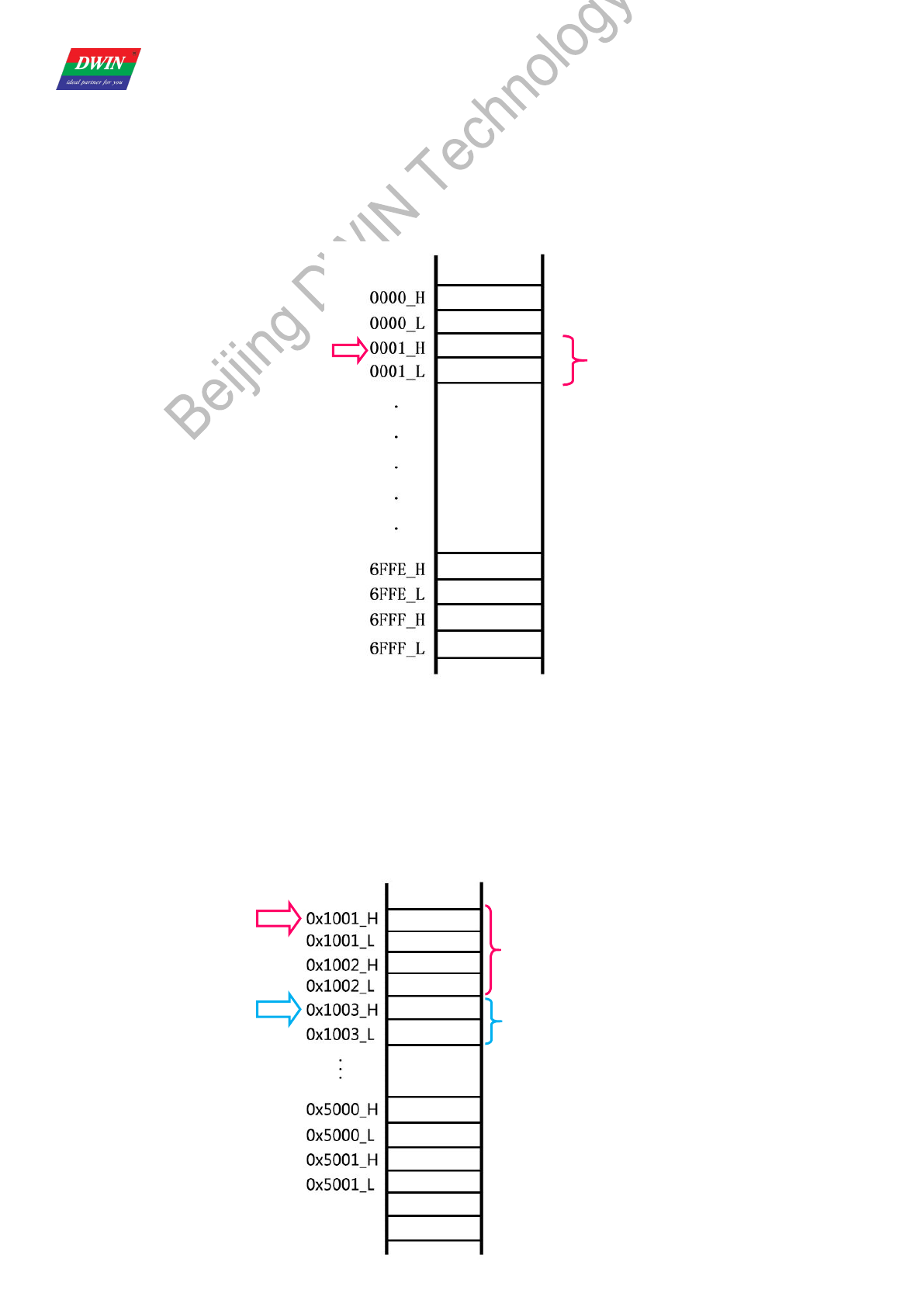
VP is the initial address of variables in variable SRAM (56KB) which separated into 28672 pcs of memory spaces from 0x0000
to 0x6FFF occupying two bytes for each below. (High bytes and Low bytes)
The communication between DGUS LCMs and host is oriented by variables that you may read or write in corresponding
address. Reading &Writing of initial address and variable length could be changed via Command 0x82&0X83 if known in advance.
4.4.1.2 How to use VP?
Assign VP for each variables
Each variable should be assigned a VP, yet overlap is not allowed. The value of the variable will be saved from the VP. For
example, variable 1 as a long integer saved in 0x1001 while variable 2 as an integer have to be stored on another address
preventing 0x1001 and 0x1002 from conflicts with variable 1.
Length
Starting Address
VP of variable 1
0x1001
VP of variable 2
0x1003
Length of variable 1
2 words
Length of variable 2
2 words
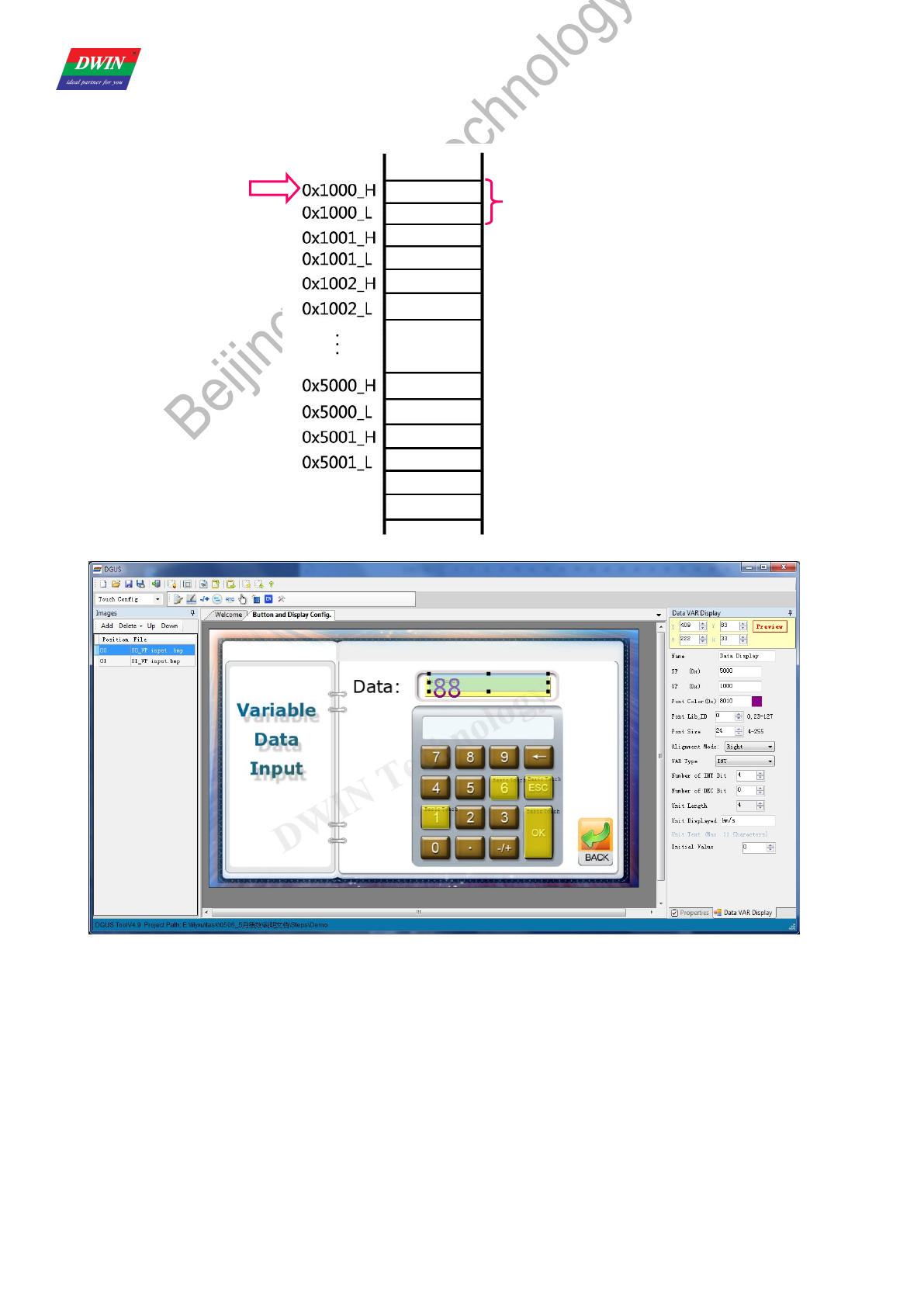
Professional,Creditable,Successful DGUS_SDK User Guide V5.1
Beijing DWIN Technology Co., Ltd. 50 www.dwin.com.cn
Set VP via DGUS_SDK
For example, display and input a variable (No. 100) which is an integer. The VP of this variable is 0x1000.
Length
VP
00
64
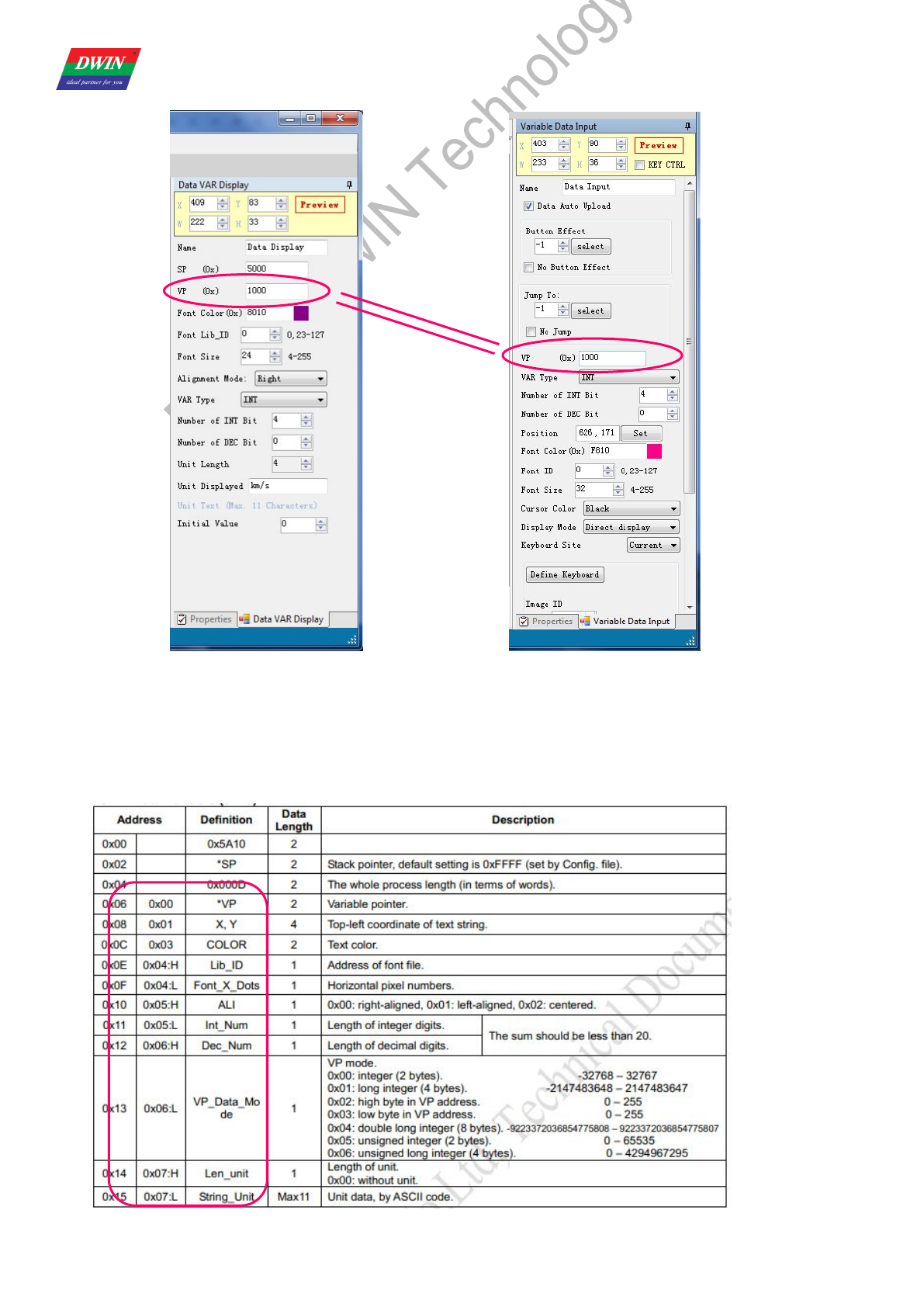
Professional,Creditable,Successful DGUS_SDK User Guide V5.1
Beijing DWIN Technology Co., Ltd. 51 www.dwin.com.cn
Supposing that reading & writing to the same one, touch and input parameters of VP should be the same accordingly.
4.4.2 SP (Stack Pointer)
4.4.2.1 About SP
SP is the initial address for saving variable attributes which described features of the variables, such as font color, font size and
unit of variables, etc. The variable attributes refers to the Chapter Five of DGUS Dev. Guide.
SP shares the same SRAM with VP from 0x0000 to 0x6FFF. It is only used for variable display but overlap exception.
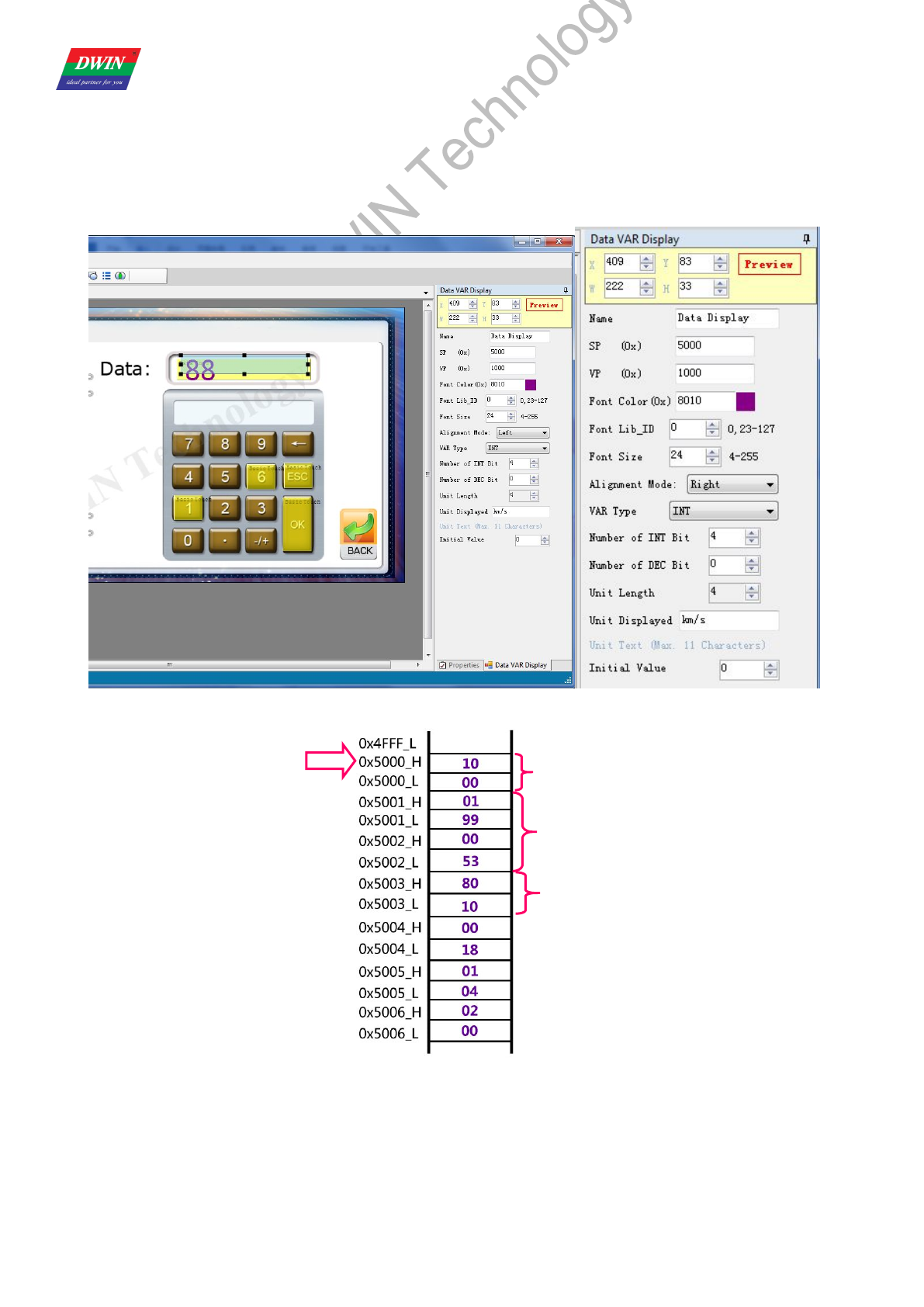
Professional,Creditable,Successful DGUS_SDK User Guide V5.1
Beijing DWIN Technology Co., Ltd. 52 www.dwin.com.cn
4.4.2.2 How to use SP?
Set SP via DGUS_SDK
Take “Data Display”as example:
VP
X, Y
Color
Lib_ID
Font_X_Dots
SP
0x5000
Aligment Mode
。
。
。
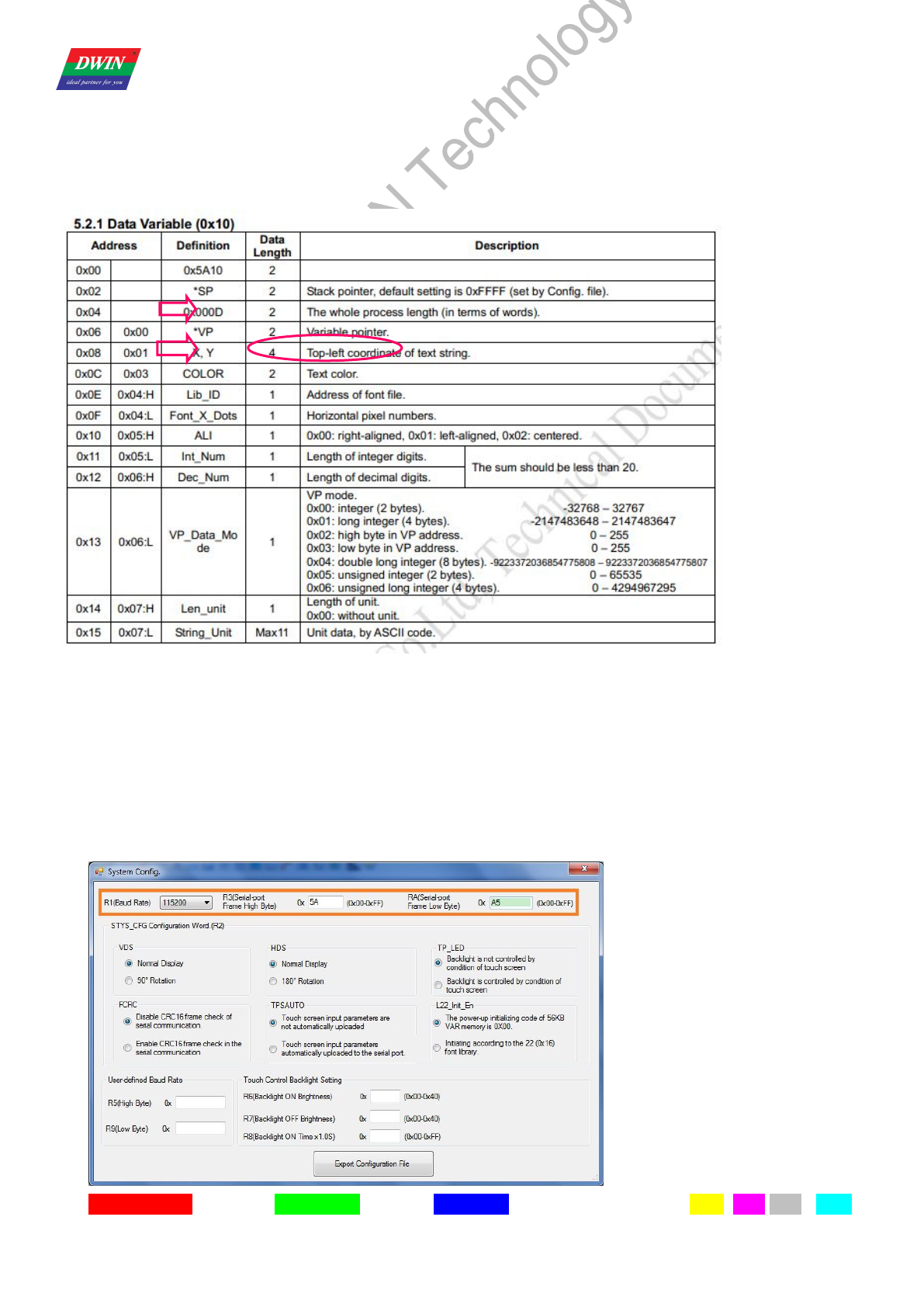
Professional,Creditable,Successful DGUS_SDK User Guide V5.1
Beijing DWIN Technology Co., Ltd. 53 www.dwin.com.cn
Change variable attributes via SP
Same sample as above:
In operation, if user attempts to do the changes on data color to red, just need able to write down a new value into
corresponding address.
Frame header (2 Bytes)+Data length (1 Byte)+Command (1 Byte)+Data (N Byte: ADR+data/LEN)+CRC (2 Bytes, optional)
Send:5A A5 05 82 50 03 F8 00
Description: 5003: the address of color
F800: the value of red color
4.5 Examples
Configure frame header and baud rate in CONFIG.TXT via DGUS SDK as below:
R1=07
R3=5A
RA=A5
Frame header (2 Bytes)+Data length (1 Byte)+Command (1 Byte)+Data (N Byte: ADR+data/LEN)+CRC (2
Bytes)
SP=0x5000
The color is saved
in 0x5003
Professional,Creditable,Successful DGUS_SDK User Guide V5.1
Beijing DWIN Technology Co., Ltd. 54 www.dwin.com.cn
4.5.1 Access Register of DGUS
4.5.1.1 Write Data into Register
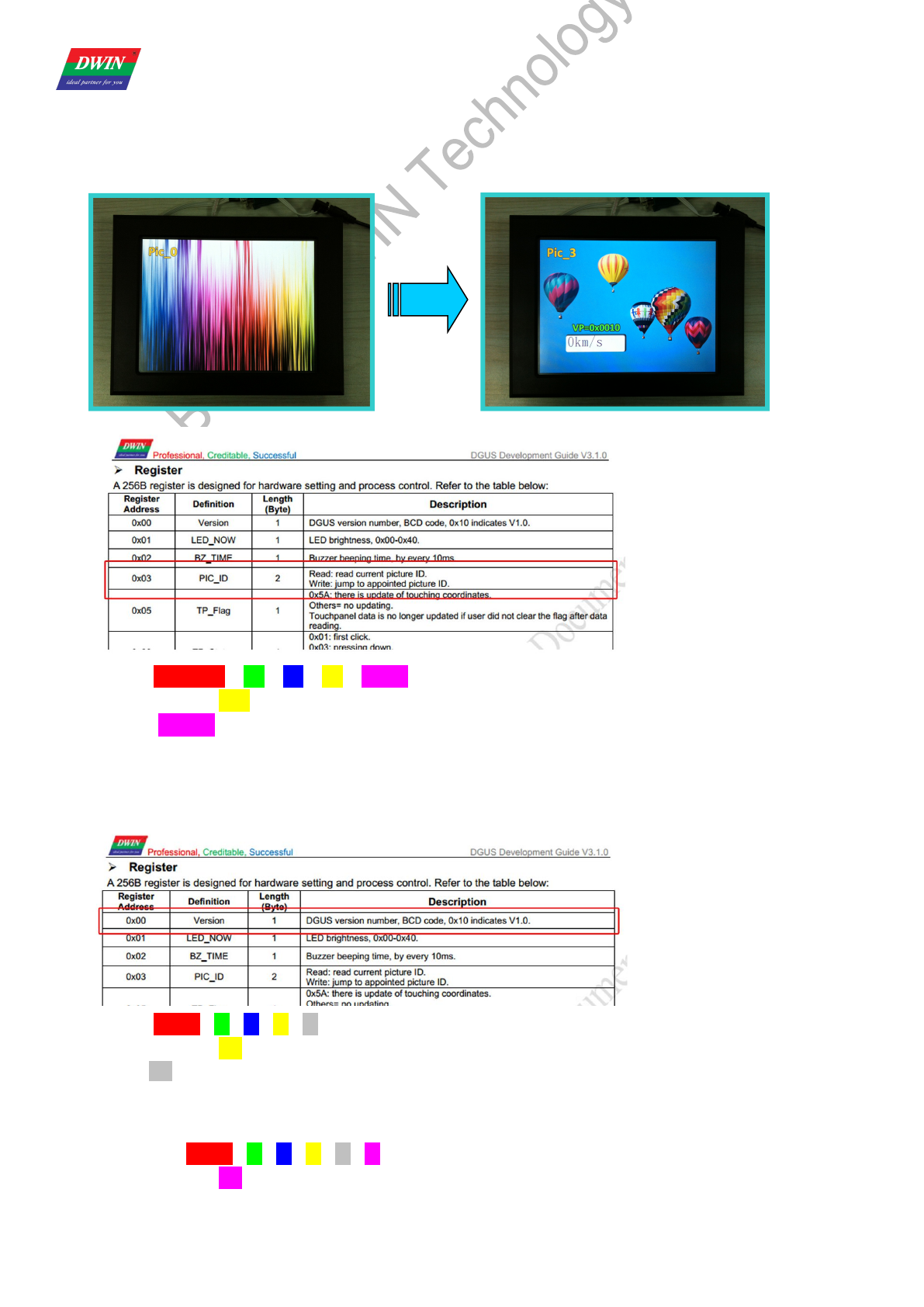
Switch current picture to pic_3:
Send: 5A A5 04 80 03 00 03
Description: 03: Register for Picture ID
00 03: Appoint picture ID
4.5.1.2 Read Data from Register
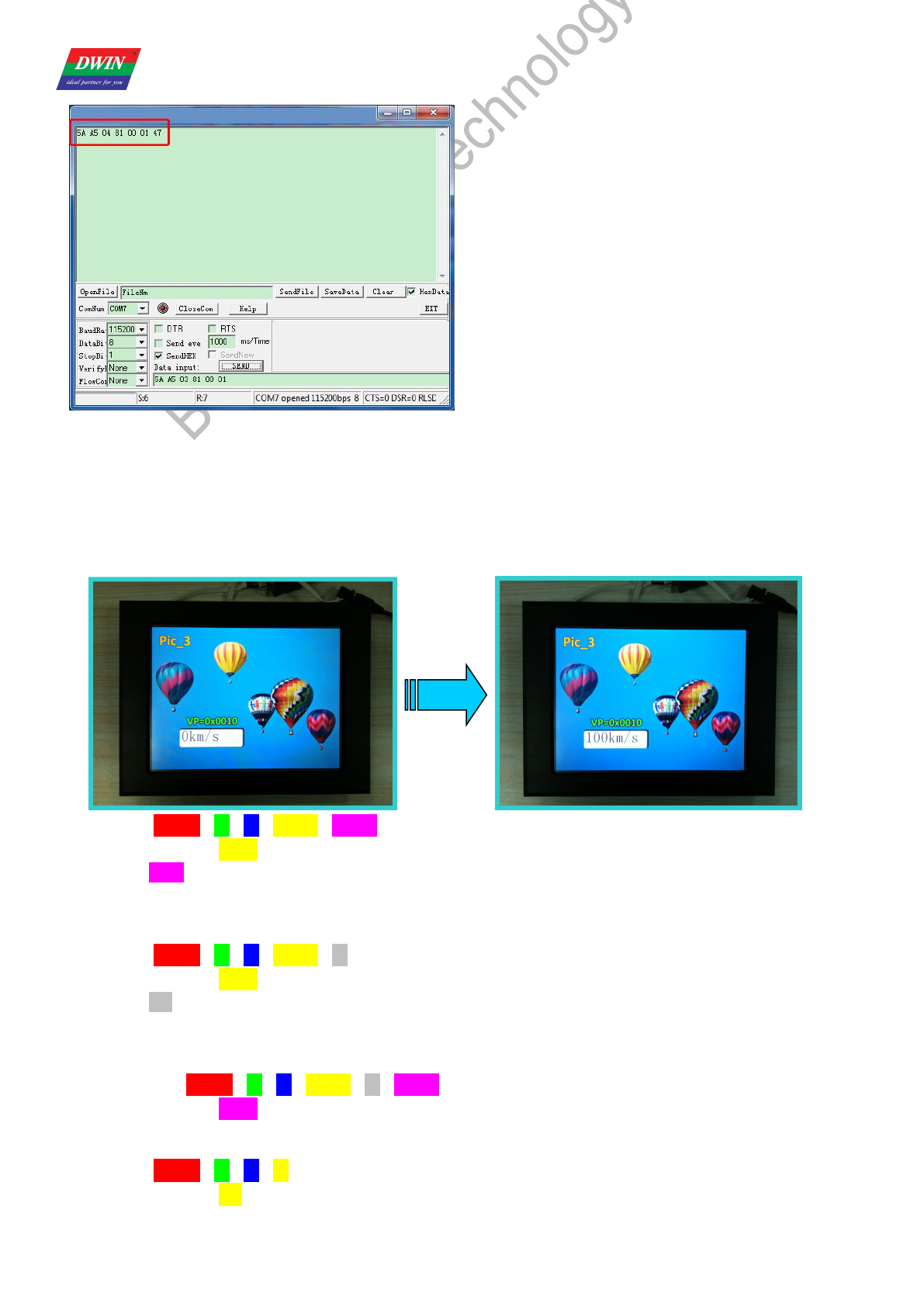
Handshaking:Read DGUS version (V 5.7):
Send: 5A A5 03 81 00 01
Description: 00: Register for DGUS Version
01: Read data by a byte
4.5.1.3 Response from the DGUS module
Receive: 5A A5 04 81 00 01 47
Description: 47: The version is 47 (V 4.7)
Professional,Creditable,Successful DGUS_SDK User Guide V5.1
Beijing DWIN Technology Co., Ltd. 55 www.dwin.com.cn
4.5.2 Access Variable SRAM
4.5.2.1 Write Data into variable SRAM
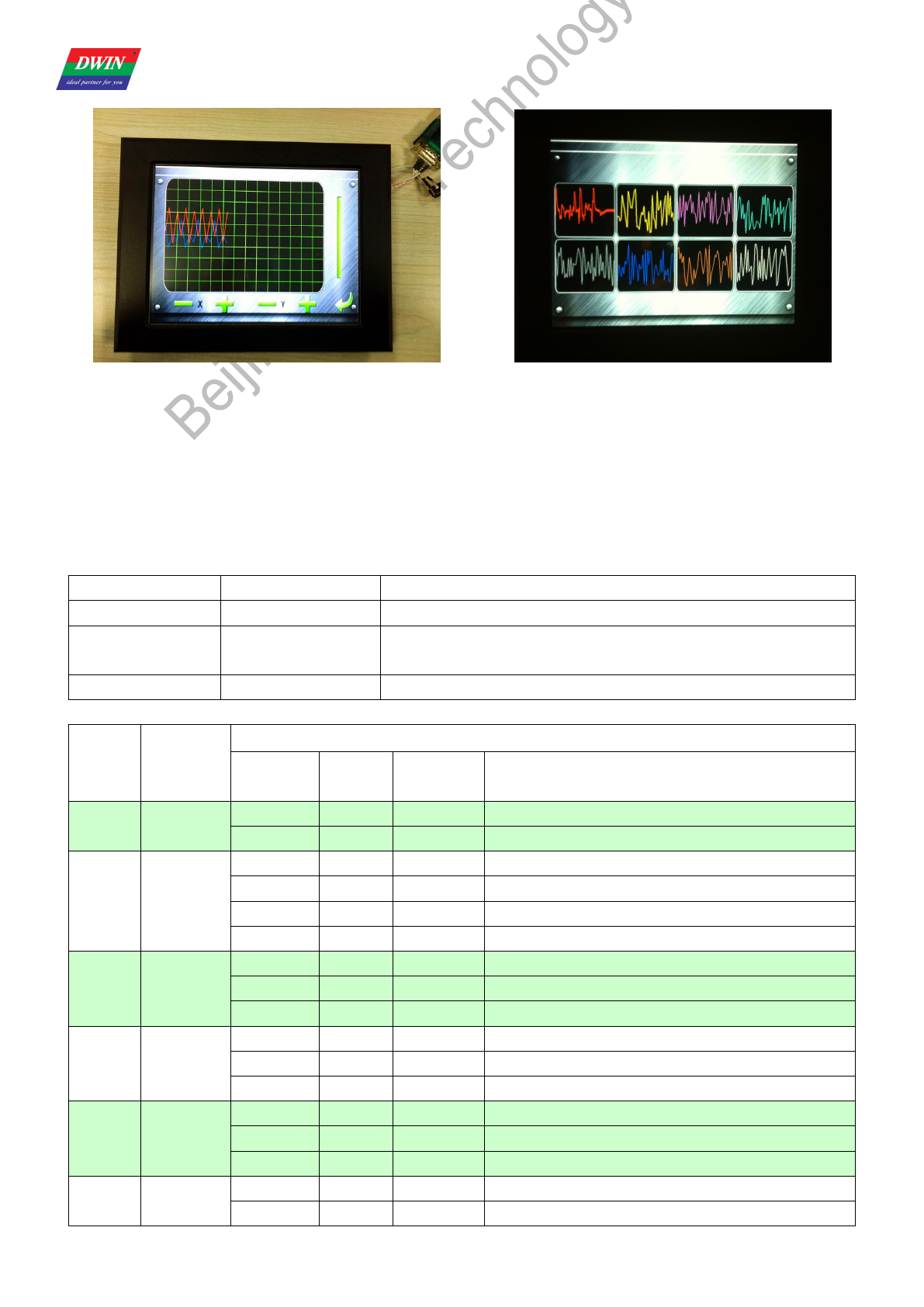
Write Data 100 to VP=0x0010
Send: 5A A5 05 82 00 10 00 64
Description: 0010: Variable pointer
0064:Data 100 in hexadecimal format
4.5.2.2 Read Data from variable SRAM
Send: 5A A5 04 83 00 10 01
Description: 0010: Variable pointer
01: Read data by a word
4.5.2.3 Response from the DGUS module
Receive: 5A A5 05 83 00 10 01 00 20
Description: 0020: Data 32 in hexadecimal format
4.5.3 Dynamic Trend Curve Display
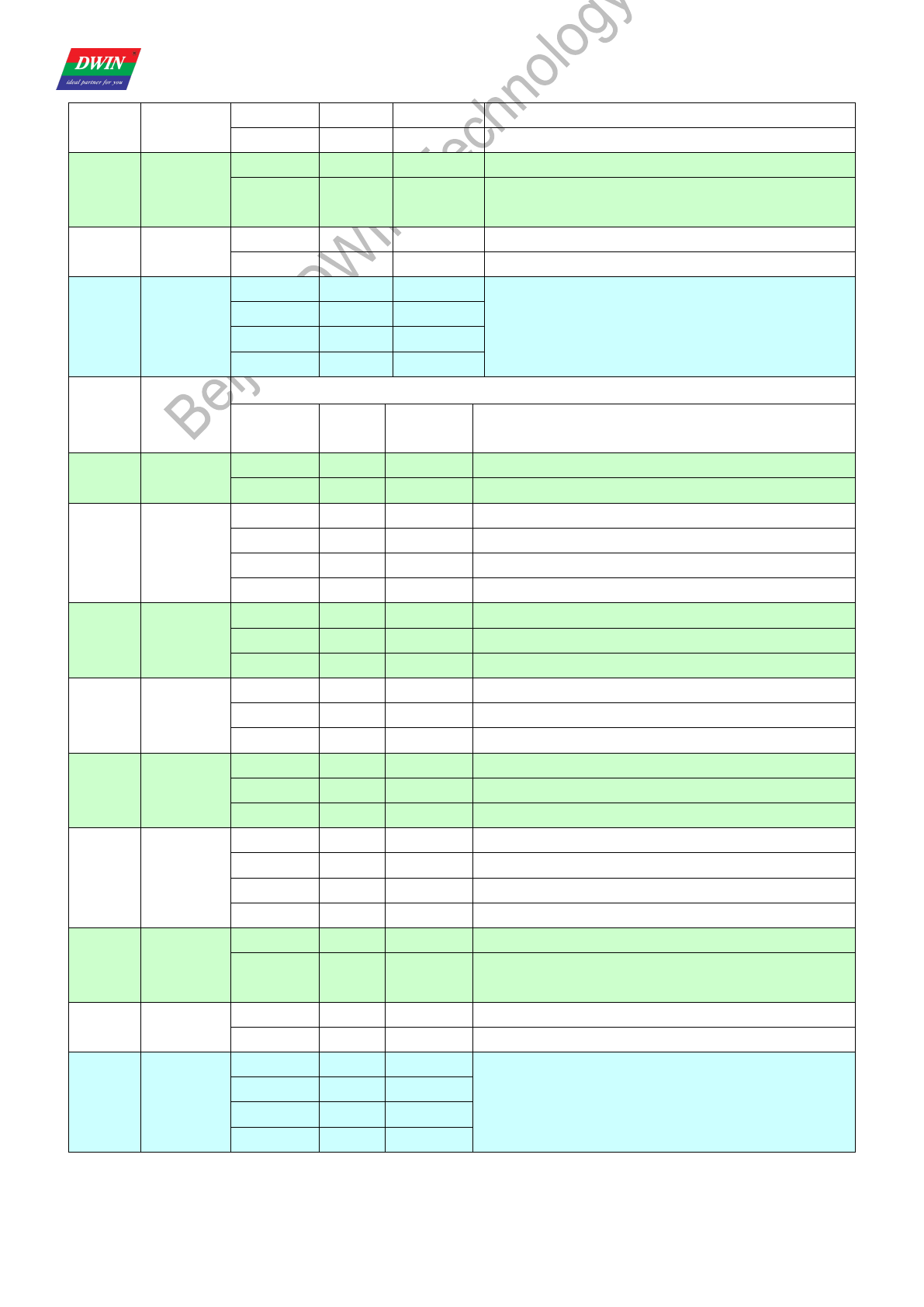
Send: 5A A5 12 84 12 00 32 00 72 00 9F 00 04 00 17 00 36 00 93 00 1A
Description: 12: Channel 4 &Channel 1, 8bit(00010010)
Professional,Creditable,Successful DGUS_SDK User Guide V5.1
Beijing DWIN Technology Co., Ltd. 56 www.dwin.com.cn
Display the trend curve in the same area Display the trend curve in the different area simultaneously
4.5.4 Basic Graphic Display
String Format
Address Definition Description
VP CMD Command.
VP+1 Data_Pack_Num_Max Max number of data packs.
For command 0x0002, it’s number of graph.
VP+2 DATA_Pack
Date Pack For Basic Graphic
CMD Function
Description of Data Format, by word
Relative
Address
Data
Length Definition Description
0x0001 Dot 0x00 2 (x, y) Coordinate of dot.
0x02 1 Color Color of dot.
0x0002 Line
0x00 1 Color Color of line.
0x01 2 (x, y)0 Coordinate of vertex 0.
0x03 2 (x, y)1 Coordinate of vertex 1.
0x01+2*n 2 (x, y)n Coordinate of vertex n.
0x0003 Rectangle
0x00 2 (x, y)s Coordinate of top-left.
0x02 2 (x, y)e Coordinate of bottom-right.
0x04 1 Color Color of rectangle.
0x0004 Rectangle
Area Fill
0x00 2 (x, y)s Coordinate of top-left.
0x02 2 (x, y)e Coordinate of bottom-right.
0x04 1 Color Filled color.
0x0005 Circle
0x00 2 (x, y) Coordinate of center of circle.
0x02 1 Rad Radius of circle.
0x03 1 Color Color of circle.
0x0006 Picture
Cut/Paste
0x00 1 Pic_ID Image ID of cutting area.
0x01 2 (x, y)s Coordinate of top-left of cutting area.
Professional,Creditable,Successful DGUS_SDK User Guide V5.1
Beijing DWIN Technology Co., Ltd. 57 www.dwin.com.cn
0x03 2 (x, y)e Coordinate of bottom-right of cutting area.
0x05 2 (x, y) Paste position on current screen.
0x**07 Icon
Display
0x00 2 (x, y) Coordinate of top-left of icon.
0x02 1 ICON_ID Icon ID in icon file, high byte of command specifies
address of icon file, display mode is transparent.
0x0008 Area Fill 0x00 2 (x, y) Coordinate of sampling dot.
0x02 1 Color Filled color.
0x0009 Vertical
Line
0x00 1 Color0
Connect (X0, Y0s), (X0, Y0e) with color0.
0x01 1 X0
0x02 1 Y0s
0x03 1 Y0e
CMD Function
Description of Data Format, by word
Relative
Address
Data
Length Definition Description
0x0001 Dot 0x00 2 (x, y) Coordinate of dot.
0x02 1 Color Color of dot.
0x0002 Line
0x00 1 Color Color of line.
0x01 2 (x, y)0 Coordinate of vertex 0.
0x03 2 (x, y)1 Coordinate of vertex 1.
0x01+2*n 2 (x, y)n Coordinate of vertex n.
0x0003 Rectangle
0x00 2 (x, y)s Coordinate of top-left.
0x02 2 (x, y)e Coordinate of bottom-right.
0x04 1 Color Color of rectangle.
0x0004 Rectangle
Area Fill
0x00 2 (x, y)s Coordinate of top-left.
0x02 2 (x, y)e Coordinate of bottom-right.
0x04 1 Color Filled color.
0x0005 Circle
0x00 2 (x, y) Coordinate of center of circle.
0x02 1 Rad Radius of circle.
0x03 1 Color Color of circle.
0x0006 Picture
Cut/Paste
0x00 1 Pic_ID Image ID of cutting area.
0x01 2 (x, y)s Coordinate of top-left of cutting area.
0x03 2 (x, y)e Coordinate of bottom-right of cutting area.
0x05 2 (x, y) Paste position on current screen.
0x**07 Icon
Display
0x00 2 (x, y) Coordinate of top-left of icon.
0x02 1 ICON_ID
Icon ID in icon file, high byte of command specifies address
of icon file, display mode is transparent.
0x0008 Area Fill 0x00 2 (x, y) Coordinate of sampling dot.
0x02 1 Color Filled color.
0x0009 Vertical
Line
0x00 1 Color0
Connect (X0, Y0s), (X0, Y0e) with color0.
0x01 1 X0
0x02 1 Y0s
0x03 1 Y0e
Status Flag:
0xFF Current drawing operation finished.
0xFE This operation will be skipped (ignored).
Professional,Creditable,Successful DGUS_SDK User Guide V5.1
Beijing DWIN Technology Co., Ltd. 58 www.dwin.com.cn
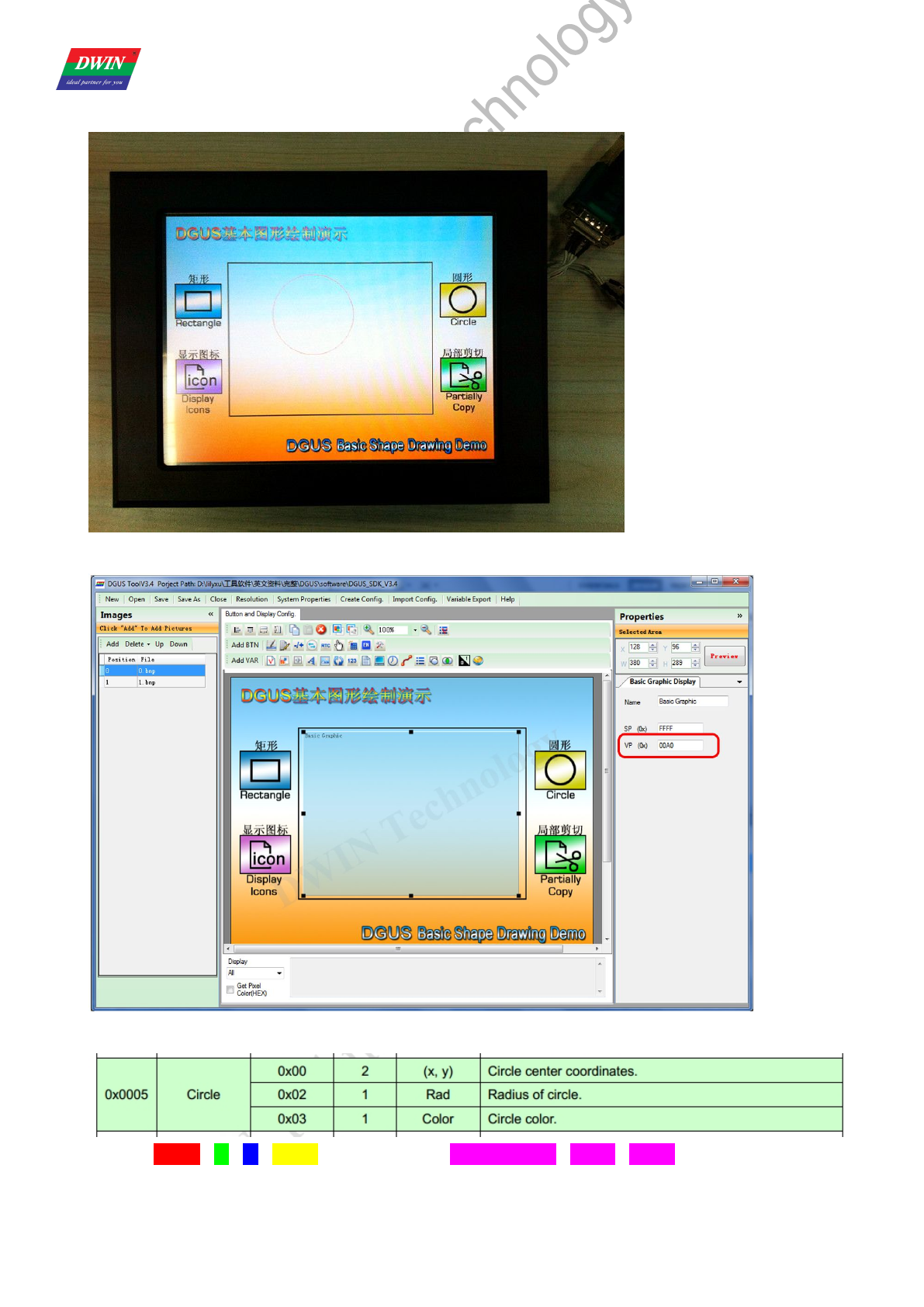
Take Circle Drawing for example
1) Add a basic graphic display via DGUS SDK software and set vp to 0x00A0 as below:
2) Send commands by serial port
Send: 5A A5 11 82 00 A0 00 05 00 01 01 64 00 EF 00 64 F8 00 FF 00
Professional,Creditable,Successful DGUS_SDK User Guide V5.1
Beijing DWIN Technology Co., Ltd. 59 www.dwin.com.cn
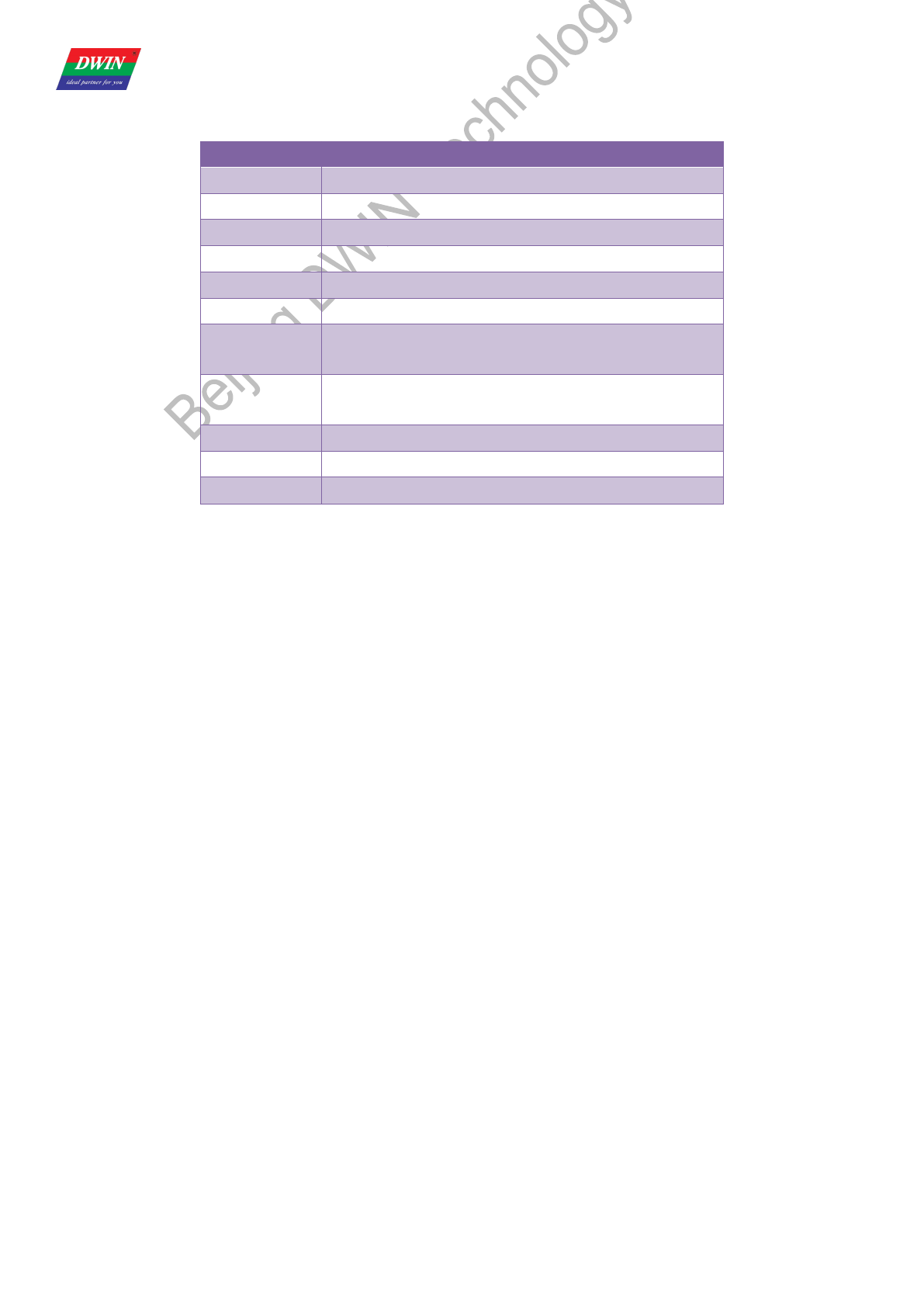
Hex Description
5A A5 Frame header
11 Data length
82 Command
00 A0 VP
00 05 Circle command
00 01 One circle
01 64 X coordinate of center of circle:356
00 EF Y coordinate of center of circle:239
00 64 Radius of circle:100
F8 00 Color: red
FF 00 Drawing operation finished
