D:\WPDOC\WPCURR\WP541\Engine_Sim\Engine Cycle Simulator User's Guide.wpd Engine Sim Guide
User Manual:
Open the PDF directly: View PDF  .
.
Page Count: 10
1
Engine Cycle Simulator User’s Guide
This document describes the engine cycle simulator program Engine_Sim07.
Introduction
The Engine Cycle Simulator program was developed to let mechanical engineering students run
internal combustion engine cycle simulations with a variety of input settings and options for thermodynamic
treatment. The program enables the student to study the effect of cycle parameters on engine performance
as well as the effect of various thermodynamic simplifications on the engine cycle.
Installation
The Engine Cycle Simulator Program is designed to run on screen resolutions of 1024 x 768 or
greater. Please adjust your display settings accordingly.
The entire contents of the zip file Engine_Sim07.zip should be extracted to a directory in which
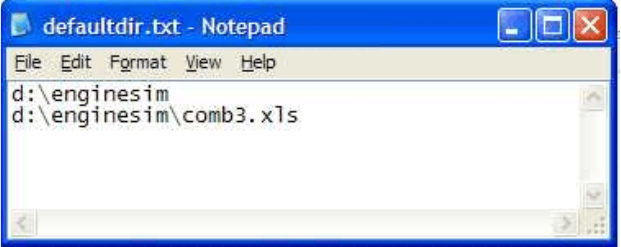
the program will be run. These contents should include a file named defaultdir.txt. The contents of this
file will look similar to:
To use EngineSim, you must Notepad or a similar text editor to modify this file so that the first line
identifies the installation directory on your computer and the second line identifies the Excel
spreadsheet containing thermodynamic data. The included file Comb3.sud contains information on
a few fuels as well as air and combustion products. Appendix A describes the thermodynamic data files in
more detail and might be useful if you want to use other fuels.
If Matlab version 7.0 with the compiler toolbox has been installed on your computer, (as in MecE
3-26 and 4-19), this will be sufficient to run the program. Otherwise, the matlab runtime components
need to be installed. These can be installed by downloading the software under "Runtime Routines
Installer", un-zipping it in a directory, running the MCRInstaller.exe program and following the prompts.
The program should now be ready to run. Open the installation directory in Windows Explorer
and open the Engine_sim.exe program.
2
User Interface
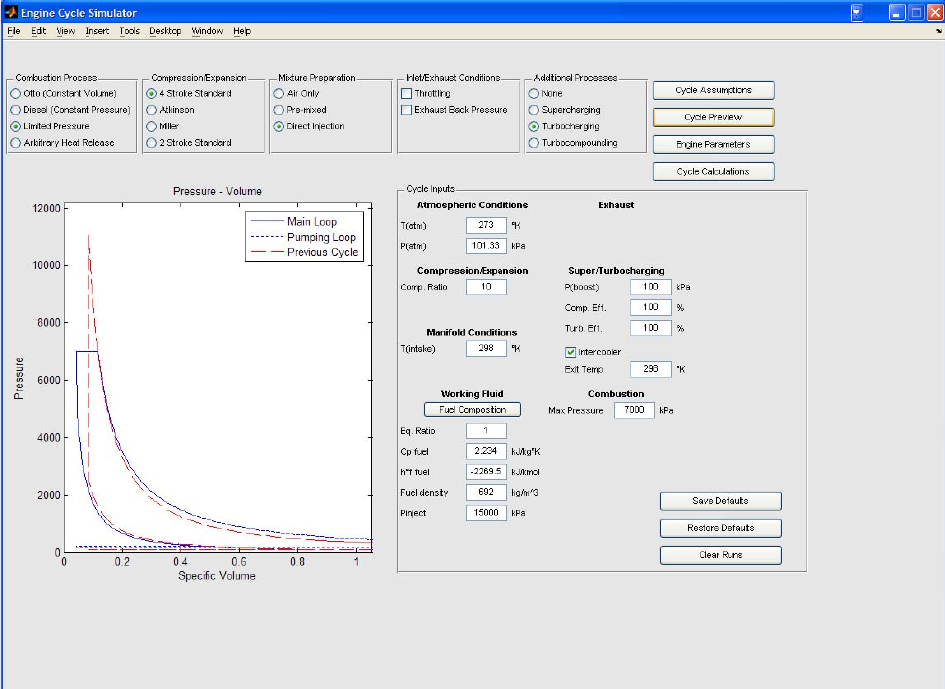
When the program starts, a screen similar to the following will be displayed:
Most user input is made on this screen. The fluid properties, intake and outlet conditions, and cycle
type are all defined on this page. Cycle assumptions can be changed by selecting the Cycle Assumptions
button. Parameters affecting the overall engine output can be changed by selecting the Engine Parameters
button. Various sections of the screen appear only if they are needed. A Combustion Process,
Compression/Expansion Process, and Mixture Preparation Option must be selected before a cycle
simulation can be run.
When the program is started, some of the fields will have default values entered in them already.
These values can be used or changed as required. New defaults can be saved by entering the new values
in the required fields and selecting the Save Defaults button. This button applies to the main input screen
as well as the Engine Parameters dialog box. If the original defaults need to be restored, the Restore
Defaults button can be used; however, the values will not change to the original defaults until the program
is restarted.
A couple of other buttons may become available depending on the cycle type selected. If the
mixture preparation is selected as Pre-mixed or Direct Injection, a fuel composition must be entered and
the fuel composition button appears. Selecting the fuel composition button which will display a window
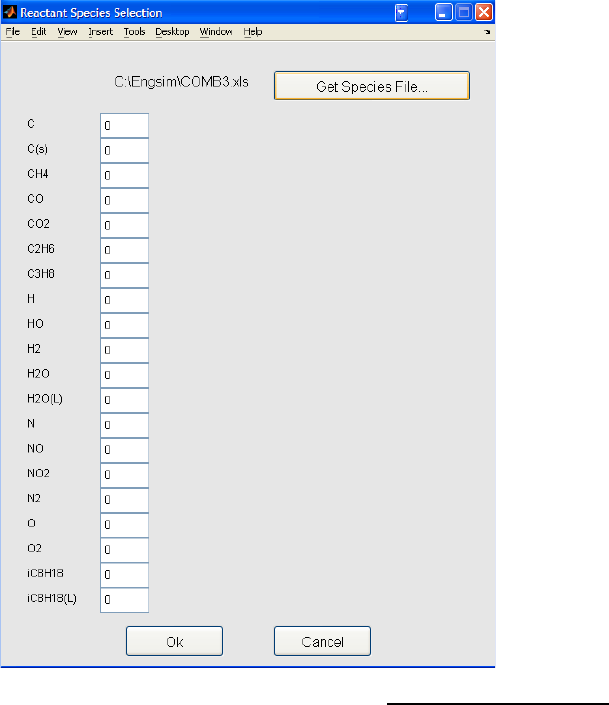
3
like the following:
Note that you only enter the fuel composition in this window, not the fuel/air mixture. The
window has the full list of species from the Excel thermodynamic data spreadsheet so you can include fuels
that are mixtures. You enter the fuel composition as a number of moles of each species. For example, for
a natural gas that is 95% methane, 3% ethane, 2% carbon dioxide, you could enter 95, 2 and 3 in the
respective boxes for CH4, CO2 and C2H6 respectively. You could also enter 0.95, 0.02 and 0.03 ... the
program takes the inputs and calculates proportional amounts for the fuel composition. A different species
file can be used by selecting the Get Species File... button.
Once the fuel composition has been specified, you return to the program main window by hitting the
"Ok" button.
In the main screen, a cycle simulation can be run once a Combustion Process, Compression
/Expansion Process, and Mixture Preparation Option have been selected. When the Cycle Preview button
is pressed, the program plots a P-v diagram and pressure - crank angle trace diagram in the main screen plot
window. Pressing the Cycle Calculations button performs a full set of calculations and plots the current
cycle’s P-v diagram in the main screen’s plot window. Up to six cycles can be displayed at once. This
allows the user to quickly see the differences in cycle P-v diagram from recent changes. The current cycle
will be shown in blue, and the previous cycles shown in red. When a full cycle calculation is performed, the
numerical calculations are sent to an Excel spreadsheet named cycle_output.xls in the working directory.
Note: You can't write to cycle_output.xls while it's open in Excel. Remember to close this spreadsheet
before calculating any cycles!

4
All previously calculated runs stored in cycle_output.xls can be cleared by selecting the Clear Runs
button. This will bring up a prompt asking if the user would like to erase the Excel spreadsheet data. If NO
is selected, only the runs stored in the Engine Cycle Simulator program will be erased.
Previously calculated runs can also be replaced without deleting later runs. For example, if a user
has completed 6 runs, the next run can be entered as run 3 and only run 3 will be changed in the file
cycle_output.xls. However, the P-v and P-crank angle plots will only be completed up to the current run.
Description of User - Defined Inputs
Main Input Screen
Cycle Options
Combustion Process
Otto - Constant volume heat addition.
Diesel - Constant pressure heat addition.
Limited Pressure - Constant volume heat addition up a maximum pressure, then constant
pressure heat addition.
Arbitrary Heat Release - Heat addition modelled with a shape function to represent mass
of fuel burned. Currently only available with either 4 or 2 stroke standard
compression/expansion processes and air standard working fluid only.
Compression/Expansion Process
4 Stroke Standard - Standard cycle with pumping loop included. Compression ratio equals
expansion ratio, and intake valve closes at bottom dead center (BDC). 1 power stroke for
every 2 revolutions.
Atkinson Cycle - Intake/Compression stroke and Power/Exhaust strokes are of different
length. Compression ratio and expansion ratio are independent. 4 stroke cycle, includes
pumping loop.
Miller Cycle - Intake/Compression stroke are equal length, but intake valve is closed
sometime after BDC. 4 stroke cycle, pumping loop included.
2 Stroke Standard - Same as 4 stroke standard, but no pumping loop. One power stroke
per revolution.
Mixture Preparation
Air Only - No fuel considered. Heat input entered as a value in the Cycle Input window.
Can be changed from Air Standard to Real Air in the Cycle Assumptions window.
Pre-mixed - Fuel/air mixture considered perfectly mixed before it enters the engine. Fuel
is entered with the fuel composition button and equivalence ratio can be selected in the Cycle
Inputs section. Complete combustion or equilibrium combustion can be selected in the
Cycle Assumptions window.
Direct Injection - Fuel considered injected at top dead center (TDC) after compression
stroke. Fuel and equivalence ratio entered similarly to Pre-mixed mixture, but other fuel
properties entered in the Cycle Input window as well.
Inlet/Exhaust Conditions
Throttling - A throttled intake can be specified. Instead of using the atmospheric pressure
as the intake conditions, the manifold pressure can be specified.
Exhaust Back Pressure - Exhaust back pressure due to flow losses can be specified.
Instead of using the atmospheric pressure as the exhaust pressure, the pressure at the exhaust
valve can be specified.

5
Additional Processes
Supercharging - A supercharger can be added to the intake of the engine. Additionally, an
intercooler can then be specified.
Turbocharging - A turbocharger can be added to the intake of the engine. Additionally, an
intercooler can then be specified.
Turbocompounding - A turbine can be added to the engine to extract more power from the
exhaust gases.
Cycle Input Window
Atmospheric Conditions
T(atm) - Atmospheric Temperature, °K.
P(atm) - Atmospheric Pressure, kPa.
Compression/Expansion
Comp. Ratio - Compression ratio, required for all cycles.
Exp. Ratio - Expansion ratio, required for Atkinson cycle.
IVC Angle - Intake valve closed angle, degrees. Required for Miller cycle.
Manifold Conditions
T(manifold) - Manifold temperature, °K. If a supercharged or turbocharged cycle is
selected, this is the temperature before the compressor.
P(manifold) - Manifold pressure, kPa. Throttled cycles only.
Working Fluid
Cp - Working fluid constant pressure specific heat, kJ/kg°K. Air standard cycles only.
Cv - Working fluid constant volume specific heat, kJ/kg°K. Air standard cycles only.
qin - Heat added to cycle, kJ/kg. Air only cycles.
Fuel Composition - Select this button to enter the fuel composition. Pre-mixed, direct
injection cycles only.
Eq. Ratio - Equivalence ratio. Pre-mixed, direct injection cycles only.
Cp fuel - Fuel constant pressure specific heat, kJ/kg°K. Direct injection cycles only.
h°f fuel - Enthalpy of formation for fuel, kJ/kmol. Direct injection cycles only.
Fuel density - density of fuel, kg/m^3. Direct injection cycles only.
Pinject - Fuel injection pressure, kPa. Direct injection cycles only.
Exhaust
P(exhaust) - Exhaust back pressure, kPa (absolute). Cycles with exhaust back pressure
selected only.
Super/Turbocharging
P(boost) - Pressure increase during compression stage, kPa. Pressure added to atmospheric
pressure or manifold pressure if throttled. Supercharged/turbocharged cycles only.
Mech. Eff - Isentropic efficiency, %. For supercharged or turbocompounded cycles only.
Comp. Eff - Compressor isentropic efficiency, %. For turbocharged cycles only.
Turb. Eff - Turbine isentropic efficiency, %. For turbocharged cycles only.
Intercooler - Option button, allows an intercooler to be added to supercharged or
turbocharged cycles only.
Exit Temp - Temperature out from intercooler, °K. Intercooled cycles only.

6
Combustion
Max. Pressure - Maximum cycle pressure, kPa. Limited pressure cycles only.
Ignition - Crank angle where heat release begins, degrees. Arbitrary heat release cycles
only.
Burn Duration - Crank angle for duration of heat release, degrees. Arbitrary heat release
cycles only.
Knock Simulation - Button allows calculation of knock index for specified cycle. Dialog
box will pop up asking for octane number of fuel. Arbitrary heat release cycle only.
Cycle Assumptions Window
Heat Transfer - Not available in this version of the program.
Reversibility - Not available in this version of the program.
Mass Losses- Not available in this version of the program.
Working Fluid Assumptions, Air Only Cycle - Allows Air Standard or Real Air assumptions to
be made. Real air includes variable specific heats.
Working Fluid Assumptions, Pre-Mixed/Direct Injection Cycle - Allows complete combustion
products or equilibrium combustion products to be specified.
Engine Parameters Dialog Box
Bore - Diameter of an individual engine cylinder, mm.
Stroke - Twice the crankshaft throw, mm. With bore defines displacement of 1 cylinder.
Cylinders - Defines the total number of cylinders the engine has. With the bore and stroke, defines
the total engine displacement.
Engine Speed - Rotational engine speed, RPM. Defines power output, and affects knock simulation
calculations.
Con Rod/Crank Throw Ratio - Length of connecting rod divided by the length of the crank throw.
Has a small effect on the pressure - crank angle plot.
7
Excel Spreadsheet Output
The numerical values calculated for each cycle run are saved in an Excel spreadsheet named
cycle_output.xls. There are 3 sheets within this spreadsheet. The first contains all the raw data from the
Engine Cycle Simulator program. Included are the pressure, temperature, and specific volume points
calculated for the P-v diagram. The user can create any custom plots in Excel with this data. The second
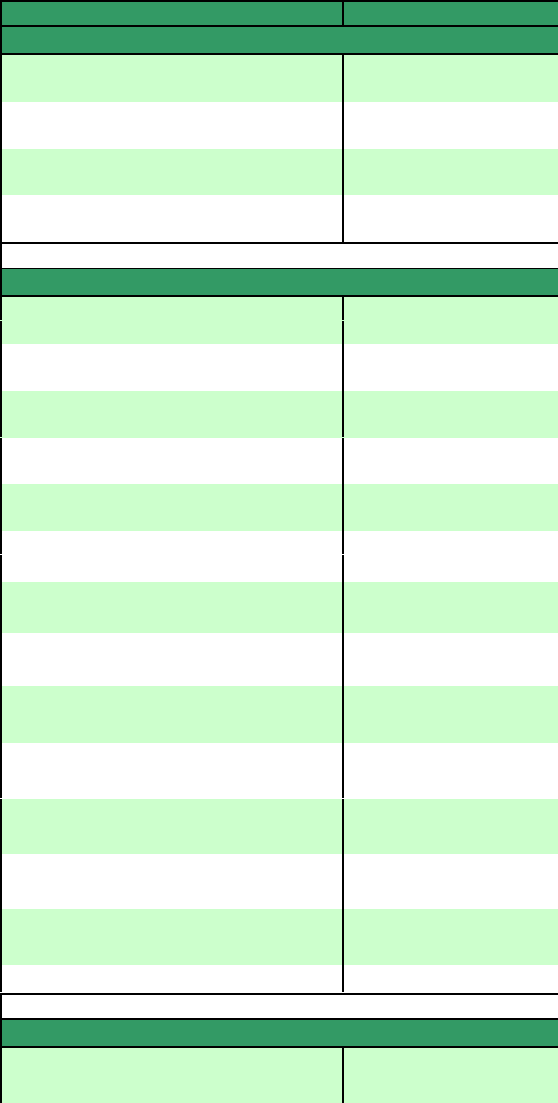
sheet contains the formatted cycle calculations and a summary of the cycle configuration. An example of this
sheet can be seen below:
Run 1
Cycle Options
Combustion Type Otto
Expansion/Compression Process 4 stroke std.
Mixture Properties Pre-mixed
Additional Mixture Specification Equilibrium
Throttled No
Exhaust Back Pressure Atm.
Additional Processes None
Intercooler N/A
Cycle Inputs
Fuel (User Input) C3H8
Displacement (l) 1.952
Speed (RPM) 4000
Con rod / crank throw ratio 3
Tatm (K) 293
Patm (kPa) 101.325
Compression Ratio 9
Expansion Ratio 0
IVC Angle (° Crank Angle) 0
Tmanifold (K) 305
Pmanifold (K) 101.325
Cp (kJ/(kg.K)) N/A
Cv (kJ/(kg.K)) N/A
Qin (kJ/kg) N/A
Φ1
Cp fuel (kJ/(kg.K)) N/A
ηf fuel (kJ/kg) N/A
rfuel (kg/m3)N/A
Pinj (kPa) N/A
Pmax (kPa) N/A
Pexhaust (kPa) 101.325
dPcomp/turbine (kPa) N/A
ηmech comp/turbine N/A
ηmech turbine N/A
Tintercooled (K) N/A
Ts (° Crank Angle) N/A
Tb (° Crank Angle) N/A
State Properties
P1 (kPa) 101.33
T1 (K) 339.54
8
v1 (m3/kg) 0.947
P2(kPa) 1863.02
T2 (K) 693.76
v2 (m3/kg) 0.105
P3(kPa) 8090.41
T3 (K) 2853.27
v3 (m3/kg) 0.105
P4(kPa) 568.97
T4 (K) 1834.33
v4 (m3/kg) 0.947
P5(kPa) 101.33
T5(K) 1276.08
v5(m3/kg) 3.699
Cycle Calculations
wnet (kJ/kg) 1209.5
qin - LHV (kJ/kg) 46353
ηth 44.8%
IMEP (kPa) 1437.1
ηv95.8%
IP (kW) 93.51
ISFC g/(kW hr) 173.41
mfuel (g/sec) 4.504
residual 2.84%
Fuel/Air 0.0638
Mean Piston Speed (m/sec) 11.47
The third sheet lists the composition of the combustion products at the end of combustion and the end of the
expansion stroke. This sheet is only useful for fuel/air cycles with complete or equilibrium combustion
products.
9
Appendix A - Creating JANAF Excel Spreadsheets
The Engine Cycle Simulator program uses JANAF tables for fuels. Essentially, any molecule
consisting of carbon, hydrogen, nitrogen, and or oxygen can be used, as long as there is at least one carbon
or hydrogen atom in the molecule. This information is entered in a standard Excel spreadsheet which can be
accessed with the Engine Cycle Simulator program.
This procedure describes converting a JANAF table in STANJAN .sud or .dat format, but any format
can be used as long as enthalpy and entropy data is available for the temperature range of 200 to 6000°K.
STANJAN .dat files can be used directly. Unformatted .sud files must be converted to .dat files using
the JANFILE program included with STANJAN. Once the JANAF file is in STANJAN .dat format, open
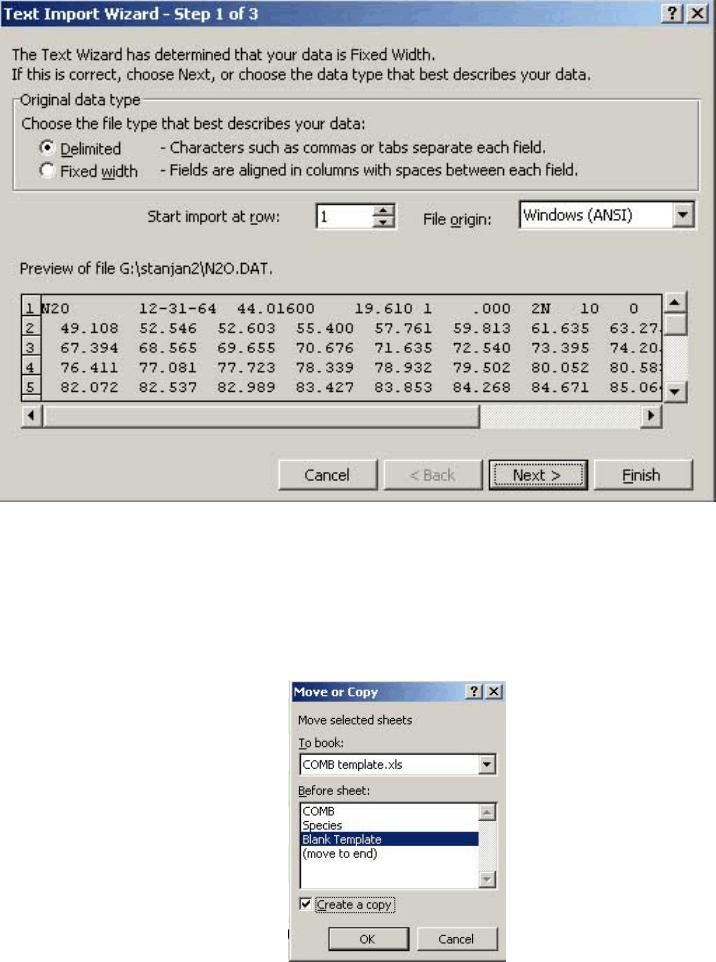
Excel. Go to File, Open, and choose files of type, all files. Choose the .dat file that is to be converted. A
window will pop up as shown below.
Chose delimited and click next. Another window will pop up with an option for delimiters. Select only space
and click finish. The JANAF data is now in Excel.
Open the COMB_template.xls file. Paste the JANAF data into the COMB sheet, starting in cell A1.
Right click on the Blank Template sheet and select move or copy. Choose to place the new sheet before
Blank Template and select Create a Copy, as shown in the figure below. This will create a new worksheet
called Blank Template (2).
10
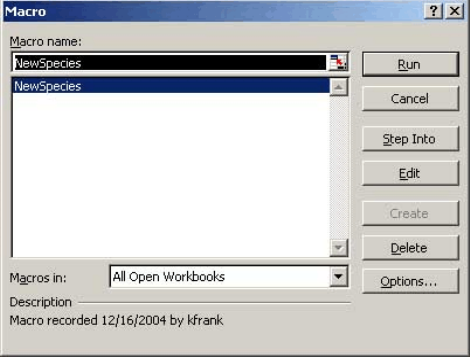
The next step is to go into the Tools menu and select Macro, Macros. A new window will pop up similar to
this one.
Select NewSpecies and run. This will place all of the entropy and enthalpy values in the Blank Template (2)
sheet. The top table with molar mass and number of atoms must be filled in manually. Now rename the
Blank Template (2) sheet to the name of the species, and add the name of the species to the list on the species
sheet. Save the Excel file to a different name and it will be ready to go.
