Fun! Digital 320 Quickstart Guide Photo MAX FUN320ug
User Manual: PhotoMAX FUN! 320
Open the PDF directly: View PDF  .
.
Page Count: 35
- LIBRARY
- Contents
- Welcome to Polaroid PhotoMAX FUN!
- The Polaroid PhotoMAX FUN! Digital 320 Creative Kit
- Kit components
- Polaroid Digital 320 Camera features
- Getting the camera ready
- To take a picture
- Tips for great photos
- Using the self-timer
- Putting photos on your computer
- Connecting the digital camera to your computer
- Opening a photo in the software
- Working with photos
- Need Help?
- Product Limited Warranties

320FUNcdqs.book Page 1 Monday, November 1, 1999 11:42 AM

Contents
Welcome to Polaroid PhotoMAX
FUN!
. . . . . . . . . . . . . . . . . . . . . . 1
The Polaroid PhotoMAX
FUN!
Digital 320 Creative Kit . . . . . . . . . 2
Kit components . . . . . . . . . . . . . . . . . . . . . . . . . . . . . . . . . . . . . . . . . 3
Polaroid Digital 320 Camera features . . . . . . . . . . . . . . . . . . . . . . . . 4
Getting the camera ready . . . . . . . . . . . . . . . . . . . . . . . . . . . . . . . . . . 5
To take a picture . . . . . . . . . . . . . . . . . . . . . . . . . . . . . . . . . . . . . . . . . 6
Tips for great photos . . . . . . . . . . . . . . . . . . . . . . . . . . . . . . . . . . . . . 8
Using the self-timer . . . . . . . . . . . . . . . . . . . . . . . . . . . . . . . . . . . . . 10
Putting photos on your computer . . . . . . . . . . . . . . . . . . . . . . . . . . . 11
Connecting the digital camera to your computer . . . . . . . . . . . . . . . 14
Opening a photo in the software . . . . . . . . . . . . . . . . . . . . . . . . . . . 22
Working with photos . . . . . . . . . . . . . . . . . . . . . . . . . . . . . . . . . . . . 23
Need Help? . . . . . . . . . . . . . . . . . . . . . . . . . . . . . . . . . . . . . . . . . . . 29
Product Limited Warranties . . . . . . . . . . . . . . . . . . . . . . . . . . . . . . . 30
320FUNcdqs.book Page 3 Monday, November 1, 1999 11:42 AM

Polaroid PhotoMAX
FUN!
Digital 320 Creative Kit 1
Welcome to Polaroid PhotoMAX
FUN!
Thank you for purchasing the Polaroid PhotoMAX
FUN!
Digital 320
Creative Kit. This kit contains everything you need to enter the world
of digital imaging. Just follow the simple instructions in this
Quickstart and you’ll be working with digital images quickly and
easily.
Our goal at Polaroid is to make digital imaging easy and fun — right
from the moment you open the box.
If you get stuck or need help please visit our Help site on the Web at:
www.photomaxhelp.com
or call us at 1-800-897-0356.
Please read this booklet
to learn how fun and easy
it is to use Polaroid
PhotoMAX
FUN!
320FUNcdqs.book Page 1 Monday, November 1, 1999 11:42 AM

2
The Polaroid PhotoMAX
FUN!
Digital 320 Creative Kit
Your Polaroid PhotoMAX
FUN!
Digital 320 Creative Kit contains
everything you need to take digital photographs and save them to your
computer. Using the software in your kit you can correct, edit and play
with your digital photos.
You can use your Polaroid PhotoMAX Image Maker Software with
other digital cameras and scanners if they are TWAIN-compliant.
Check the instructions that came with your device to see if it is
TWAIN-compliant.
320FUNcdqs.book Page 2 Monday, November 1, 1999 11:42 AM
Polaroid PhotoMAX
FUN!
Digital 320 Creative Kit 3
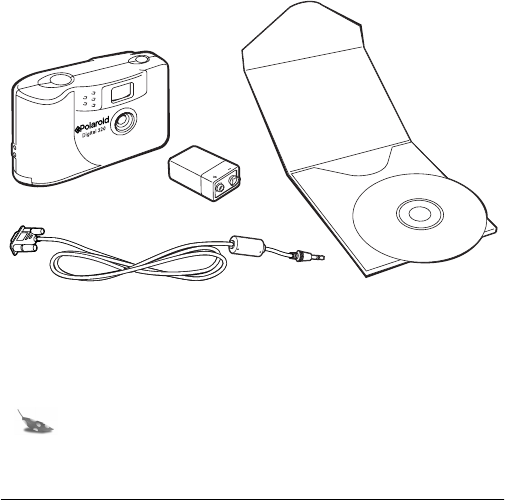
Kit components
Make sure that your kit contains the following:
•Polaroid Digital 320 Camera
•Serial interface cable
•9-volt battery
•Polaroid PhotoMAX SE 2.1 Image Maker Software CD-ROM
Note:
Your computer needs a RS-232C serial port to use
your digital camera.
320FUNcdqs.book Page 3 Monday, November 1, 1999 11:42 AM
4
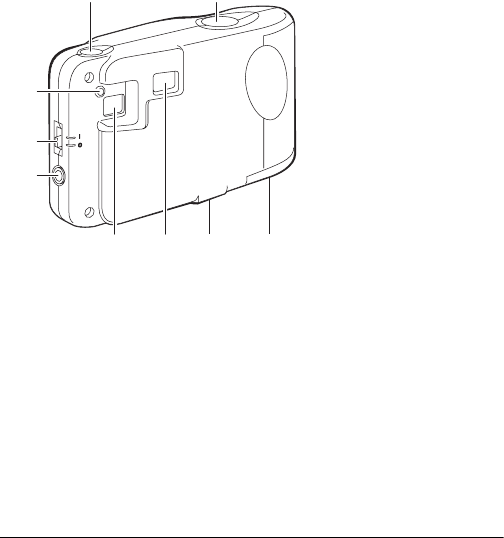
Polaroid Digital 320 Camera features
a
Self-timer button
b
Shutter button
c
Battery door
d
Tripod mount
e
Viewfinder
f
Picture counter/status panel
g
Serial connector port
h
ON/OFF switch
i
Power indicator light
ab
cdef
i
h
g
320FUNcdqs.book Page 4 Monday, November 1, 1999 11:42 AM
Polaroid PhotoMAX
FUN!
Digital 320 Creative Kit 5
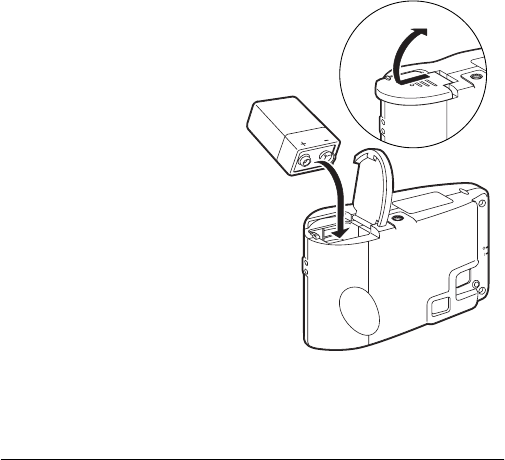
Getting the camera ready
Your kit includes one 9-volt battery to use with your Polaroid Digital
320 Camera.
1. Open the battery door
as shown.
2. Insert one 9-volt battery
into the compartment.
Make sure that the battery
terminal (
+
and
-
) are
properly positioned as
shown.
3. Close the battery door.
You are now ready to
take pictures!
320FUNcdqs.book Page 5 Monday, November 1, 1999 11:42 AM
6
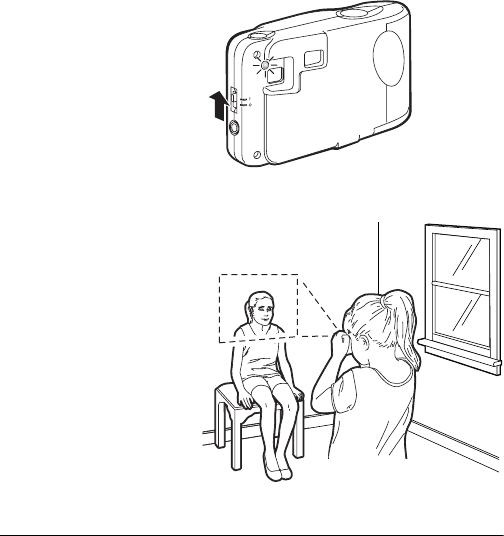
To take a picture
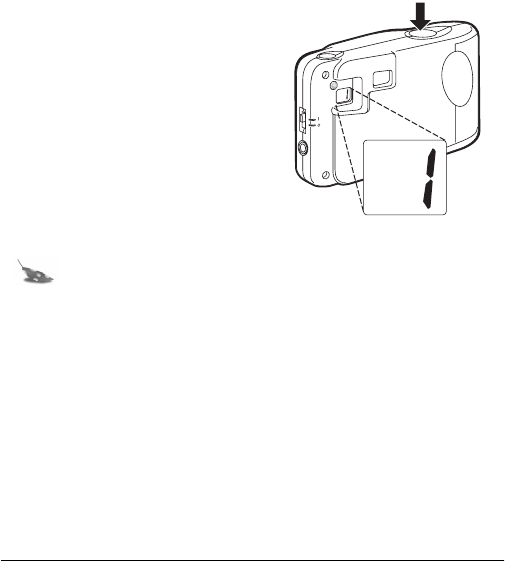
1. Turn on the camera.
The green power light
on the back of the
camera is lit.
If the green power
light is not lit, check
to make sure the
battery is properly
loaded.
2. Look through the
camera viewfinder.
Hold the camera
steady and press the
shutter button. Keep
holding the camera
steady until you hear
a beep.
When you hear the
beep, a picture has
been taken.
320FUNcdqs.book Page 6 Monday, November 1, 1999 11:42 AM
Polaroid PhotoMAX
FUN!
Digital 320 Creative Kit 7
The picture counter on the back
of the camera shows you how
many pictures you have stored in
your camera.
Your camera can store up to 18
images.
Note:
Your camera automatically shuts off after a few
minutes if you don’t take a picture. This helps to save your
battery power.
The camera beeps to let you know that it is in power saving mode.
When the camera beeps turn the camera off or take another photo.
Press the shutter button to take a photo while the camera is
beeping. The camera turns itself on when you press the shutter
button and takes the photo normally.
320FUNcdqs.book Page 7 Monday, November 1, 1999 11:42 AM
8
Tips for great photos
Follow the steps on this page to take great photos with your Polaroid
Digital 320 Camera.
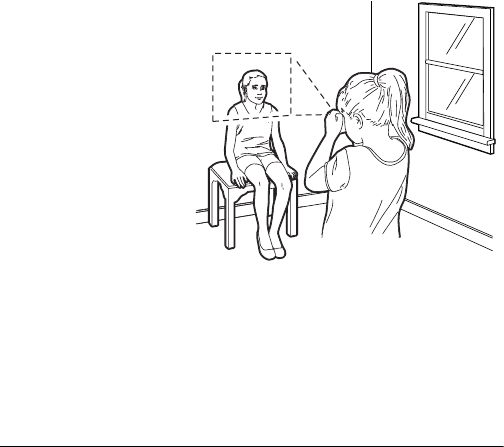
Indoor photos
3-6 feet
Take photos in a brightly
lit room that has a
mixture of both sunlight
and lamp light.
For best results, take a
photo near a large
window.
320FUNcdqs.book Page 8 Monday, November 1, 1999 11:42 AM

Polaroid PhotoMAX
FUN!
Digital 320 Creative Kit 9
Outdoor photos
3 feet to infinity
Take photos in sunlight
or in bright shade.
Avoid intense sunlight
that may cause sun
spots in photos.
Always make sure that
the sun or other light
source is behind the
person taking the
photo.
For more tips on taking great photos with your
Polaroid Digital 320 Camera, visit our Web Help
site at:
www.photomaxhelp.com
320FUNcdqs.book Page 9 Monday, November 1, 1999 11:42 AM
10
Using the self-timer
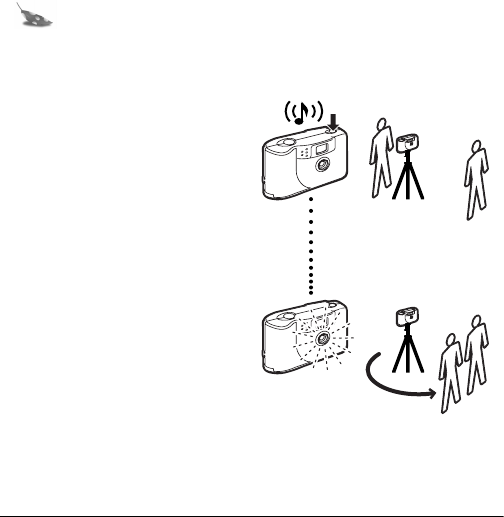
Your digital camera comes with a built-in self timer.
Note:
It is recommended that you use a tripod with the
self-timer. There is a tripod mount on the bottom of your
digital camera.
1. Look through the viewfinder to
compose your photo.
2. Press the self-timer button.
3. The camera makes a beeping
noise.
The beeping continues for
approximately 10 seconds.
After 10 seconds the camera
makes a long beeping noise as
the photo is taken.
For more help with using your Polaroid Digital 320 Camera visit our
Help Web site at:
www.photomaxhelp.com
320FUNcdqs.book Page 10 Monday, November 1, 1999 11:42 AM

Polaroid PhotoMAX
FUN!
Digital 320 Creative Kit 11
Putting photos on your computer
After you take digital photos with your camera you need to put them
on your computer. To do this, you must first install the Polaroid
PhotoMAX Image Maker Software included in your kit. Your software
includes many fun and interesting features to use with your digital
photos:
•Polaroid's Image Quality Assured (IQA) one-click fix technology
that instantly improves any digital image.
•A wide selection of digital special effects such as melting, swirling,
motion blur and more. Full preview of all your changes as you make
them.
•PhotoFantasy that lets you put someone’s picture inside one of the
many supplied digital fantasies—such as a magazine cover or a 50’s
time warp.
Note:
Before you install the software make sure that your
computer meets the minimum system requirements
necessary for installing it.
320FUNcdqs.book Page 11 Monday, November 1, 1999 11:42 AM

12
Minimum System Requirements
•PC with Pentium class processor
•Microsoft Windows 95 or Windows 98
•16 MB of RAM
•50 MB available hard drive space
•Available COMM port
•16-bit display adapter (24-bit
recommended)
•High Color (16-bit) display settings at 1024x768 pixels
(recommended)
•2x or faster CD-ROM drive
•Mouse
320FUNcdqs.book Page 12 Monday, November 1, 1999 11:42 AM

Polaroid PhotoMAX
FUN!
Digital 320 Creative Kit 13
To install the software:
1. Insert the CD-ROM in your CD-ROM drive.
2. Follow the instructions on your computer screen.
3. If the installation program does not start automatically:
a. Select
Run
from the Windows Start menu. The Start menu is
usually found at the bottom of your screen.
b. Click
Browse
to locate your CD-ROM drive.
c. Select
Setup.exe
from the CD-ROM.
d. Click
Open
.
e. Click
OK
and follow the instructions on your computer
screen.
Note:
Be sure to read the README file for any important
last minute information about your software. The
README file is called
readme.wri
and is located in
the Polaroid\PhotoMAX SE folder on your computer.
320FUNcdqs.book Page 13 Monday, November 1, 1999 11:42 AM
14
Connecting the digital camera to your computer
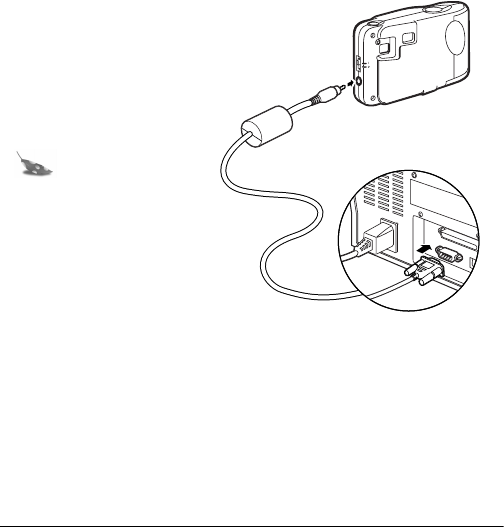
1. Turn off your computer
and any peripheral
devices attached to it
(scanner, printer).
2. Connect the serial cable
to the serial port on your
computer.
Note:
To get help
finding the serial
port on your
computer read the
instruction manual
that came with your
computer or contact
the computer
manufacturer.
3. Connect the other end to the serial port on the camera.
4. Turn on your computer.
320FUNcdqs.book Page 14 Monday, November 1, 1999 11:42 AM

Polaroid PhotoMAX
FUN!
Digital 320 Creative Kit 15
5. Click the
Start
button on the Windows taskbar.
Note:
The Windows taskbar is usually found at the bottom
of your screen.
6. Select
Polaroid PhotoMAX by ArcSoft
from the
Programs menu.
7. Select
PhotoMAX SE
. The software launches.
Note:
You also can open the Polaroid PhotoMAX SE
Software by double-clicking the Polaroid PhotoMAX SE
icon on your desktop. This icon is a shortcut to the
Polaroid PhotoMAX application that was created
automatically at the end of the installation procedure.
320FUNcdqs.book Page 15 Monday, November 1, 1999 11:42 AM
16
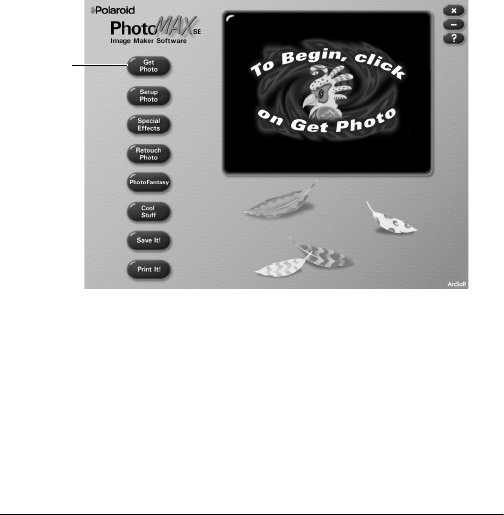
To open a photo in the software
1. Click the
Get Photo
button.
Get
Photo
320FUNcdqs.book Page 16 Monday, November 1, 1999 11:42 AM

Polaroid PhotoMAX
FUN!
Digital 320 Creative Kit 17
The
Get Photo
button lets you select an image from a variety of
sources. You can select an image from:
Selection: Click on it to:
From File •open an image file on your
computer
Album or Camera •download images from your
camera
•open an image file from a photo
album
Note: you can build your own
customized image albums.
Other Devices •download directly from your
TWAIN-compliant digital camera
or scanner
320FUNcdqs.book Page 17 Monday, November 1, 1999 11:42 AM
18
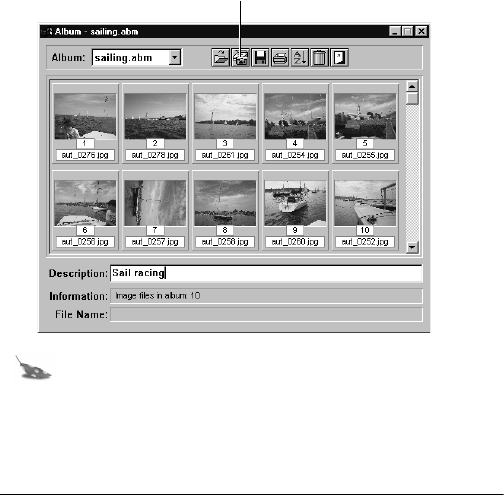
2. Click
Album or Camera
. The Album manager window
appears.
Note:
To create a new Album, select
New Album
from
the
Album:
pull-down menu. Click the
Save
button to
give your Album a name and save it to your computer.
3. Click the
Acquire
button on the top menu bar.
Acquire
button
320FUNcdqs.book Page 18 Monday, November 1, 1999 11:42 AM
Polaroid PhotoMAX
FUN!
Digital 320 Creative Kit 19
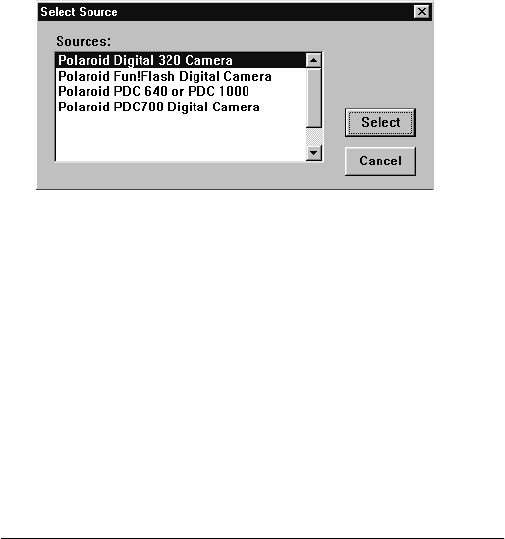
The
Select Source
window appears.
4. Click on
Polaroid Digital 320 Camera
. Click
Select
.
320FUNcdqs.book Page 19 Monday, November 1, 1999 11:42 AM
20
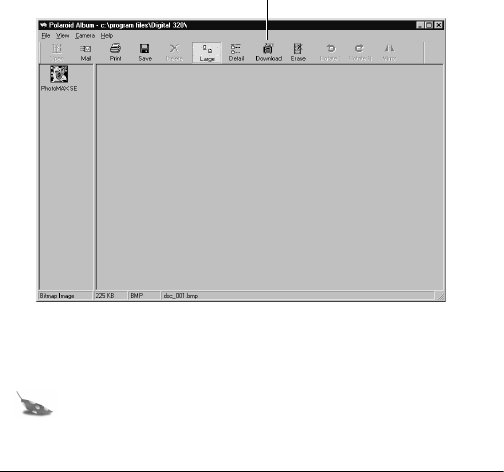
The Polaroid Digital 320 Camera TWAIN software opens. The
TWAIN software is used to download, delete and save images
from your digital camera.
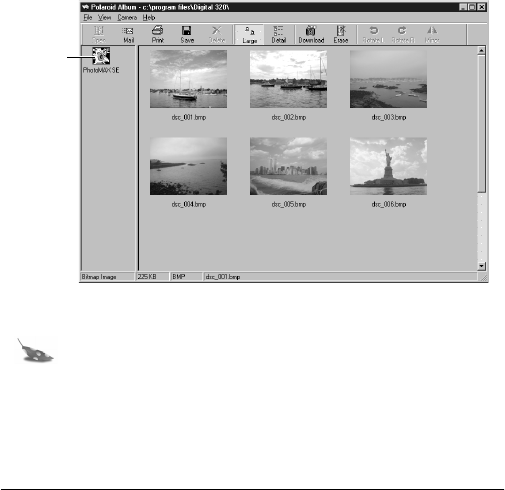
5. Follow the instructions that appear on the screen to download
images, or click the
Download
button. The images stored on
your camera appear in the window.
Note:
Click the
Detail
button to see information about
any image.
Download
button
320FUNcdqs.book Page 20 Monday, November 1, 1999 11:42 AM
Polaroid PhotoMAX
FUN!
Digital 320 Creative Kit 21
6. To open a photo in the Polaroid PhotoMAX SE software, click on
the photo and drag it with your mouse to the Polaroid PhotoMAX
SE icon.
The image is added to the Album that is open in the software.
Note:
To save an image to your computer, click on the
image and click the
Save
button.
icon
320FUNcdqs.book Page 21 Monday, November 1, 1999 11:42 AM
22
Opening a photo in the software
You can open any photo from your Album in the software.
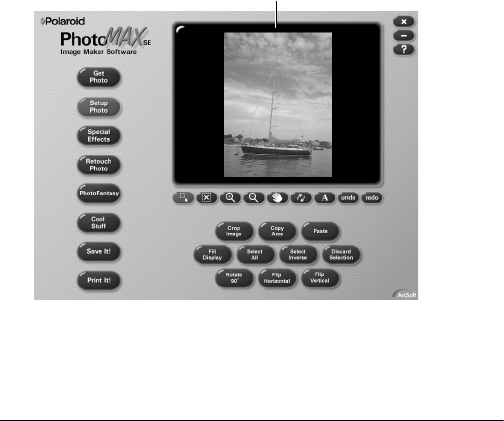
1. Double-click on an Album image to open it in the software.
The image appears in the image tray.
You are now ready to have fun with your photo
with Polaroid PhotoMAX Image Maker Software!
Image
Tray
320FUNcdqs.book Page 22 Monday, November 1, 1999 11:42 AM

Polaroid PhotoMAX
FUN!
Digital 320 Creative Kit 23
Working with photos
With Polaroid PhotoMAX Image Maker Software you can add special
effects, retouch colors, cut and paste selections between photos, and
much more.
Applying a special effect
You can apply many different special effects to a selected part of your
photo or to the entire photo. Try making part of your photo look like
an oil painting!
1. Select the area on your image that you want to paint, or make sure
no area is selected if you want to paint the entire image.
2. Click
Special Effects
.
3. Click the down arrow on the tool palette until you see the painting
special effect.
4. Drag the slider to the left to decrease the intensity of the effect or
to the right to increase the intensity of the effect. You also can
click the – or the + buttons to change the intensity.
5. Click
painting
to apply the effect to your image.
The special effect appears on your image. Click undo if you
change your mind.
320FUNcdqs.book Page 23 Monday, November 1, 1999 11:42 AM

24
Cropping an image
Sometimes you need to cut out part of a photo you scanned or took
with your digital camera. Use the Crop tool.
1. Select the area you want to keep in your photo.
2. Click Setup Photo.
3. Click Crop Image.
4. Move the cursor over the selected area on your image.
The cursor changes to a pair of scissors.
5. Press the left mouse button.
The cropped image appears in the image tray. Click undo if you
change your mind.
320FUNcdqs.book Page 24 Monday, November 1, 1999 11:42 AM

Polaroid PhotoMAX FUN! Digital 320 Creative Kit 25
Saving an image
After you finish making changes to your photo, you need to save
it to your computer.
To save the image. . . Description
With the same file name and
in the same file format
1. Click Save It!.
2. Click Quick Save.
With a different file name or
in a different file format
1. Click Save It!.
2. Click Save Image as.
The Save As dialog box
appears.
3. Select the folder where you
want to save the file.
4. Select a file format from the
Save as type list, if needed.
320FUNcdqs.book Page 25 Monday, November 1, 1999 11:42 AM

26
Note: If you select JPG, a
slider appears to set the
amount of image
compression. A higher setting
saves the file with less
compression and higher
image quality. A lower setting
saves the file with more
compression and a lower
image quality. Files with more
compression take up less hard
disk space
5. Enter a different file name, if
needed.
6. Click Save.
To save the image. . . Description
320FUNcdqs.book Page 26 Monday, November 1, 1999 11:42 AM

Polaroid PhotoMAX FUN! Digital 320 Creative Kit 27
Printing images
1. Click Print It!.
2. Click Print Image.
3. Select Add Title if you want to add a caption to your printed
image. Double-click the title box on the preview area to add the
text. The text appears in the active color.
4. Select Add Frame to print a black frame around the image.
Use the Add Frame option to add a frame in a different color.
5. Select Center Photo to print the image in the center of the
paper.
6. Select Center Title to center the text horizontally.
As a screen saver 1. Click Save It!.
2. Click Make Screen
Saver.
As wallpaper for your
desktop
1. Click Save It!.
2. Click Make Wallpaper.
To save the image. . . Description
320FUNcdqs.book Page 27 Monday, November 1, 1999 11:42 AM

28
7. Drag the Width and Height slider to change the size of the
image that prints on the page.
This does not change the actual size of the image.
8. Drag the image to reposition your image on the page.
9. Enter the number of copies.
This option is not available if your printer driver does not support
multiple printing.
10. Click Printer Setup if needed.
11. Click Print to start printing.
320FUNcdqs.book Page 28 Monday, November 1, 1999 11:42 AM
Polaroid PhotoMAX FUN! Digital 320 Creative Kit 29
Need Help?
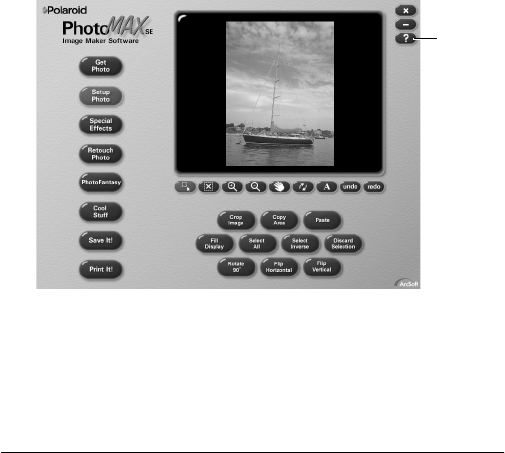
Whenever you need help using Polaroid PhotoMAX SE Image Maker
Software, click on the ? button on the main window to open the
Online User’s Guide.
The Online User’s Guide provides step-by-step instructions on using
your Polaroid PhotoMAX SE Software.
Also, be sure to visit our Help site on the Web at:
www.photomaxhelp.com
?
Button
320FUNcdqs.book Page 29 Monday, November 1, 1999 11:42 AM

30
Product Limited Warranties
One Year Limited Warranty
Polaroid PhotoMAX FUN! Digital 320 Camera
Polaroid will, at our option, repair or replace any unit found defective
in manufacture within the warranty period. The warranty period is
determined by the date of purchase. Keep the receipt as proof of
purchase. Otherwise, the warranty period is determined by the date of
manufacture. This warranty does not apply to damage caused by
accident, misuse or tampering, and excludes all consequential
damages except in jurisdictions not allowing such exclusions or
limitations.
Caution
This unit is battery operated. Supervise children when camera is
operated by them or used in their presence. To avoid electrical shock,
do not expose to or immerse in water or other fluids, disassemble, or
operate if dropped or damaged. Contact a Polaroid Service Center for
repair information.
320FUNcdqs.book Page 30 Monday, November 1, 1999 11:42 AM

Polaroid PhotoMAX FUN! Digital 320 Creative Kit 31
Limited Warranty
Polaroid PhotoMAX SE 2.1 Image Maker Software
Polaroid warrants that the Software media will be free of defects in
materials and workmanship for a period of 90 days from the date of
purchase. Polaroid's entire liability and your exclusive remedy shall
be, at Polaroid's option, either (a) return of the price paid or (b) repair
or replacement of the Software that does not meet Polaroid's Limited
Warranty and which is returned to Polaroid with a copy of your sales
receipt. This Limited Warranty is void if failure of the Software has
resulted from accident, abuse, or misapplication. Any replacement
Software will be warranted for the remainder of the original warranty
period or 30 days, whichever is longer.
POLAROID MAKES NO OTHER WARRANTIES WITH RESPECT
TO THE SOFTWARE, EITHER EXPRESS OR IMPLIED,
INCLUDING BUT NOT LIMITED TO IMPLIED WARRANTIES
OF MERCHANTABILITY AND FITNESS FOR A PARTICULAR
PURPOSE. Some states and countries do not allow the exclusion
of implied warranties, so the above exclusions may not apply to
you.
320FUNcdqs.book Page 31 Monday, November 1, 1999 11:42 AM

32
Thank you for purchasing this Polaroid Digital Product. For
more information on our other digital imaging products, please
visit our Web site at: www.photomaxhelp.com or call us at:
1-800-897-0356.
320FUNcdqs.book Page 32 Monday, November 1, 1999 11:42 AM
34
Copyright 1999 Polaroid Corporation, Cambridge, MA 02139, USA,
owner of the registered trademarks “Polaroid”, “IQA Design” and
“Polaroid PhotoMAX”. “MAX the Bird (and feather design)” Copyright
1998 Polaroid Corporation. All other product names may be the property
of their respective owners. All rights reserved.
Printed in U.S.A. PU-21153M-0
Fun! Digital 320 Camera
320FUNcdqs.book Page 34 Monday, November 1, 1999 11:42 AM
