FINEPIX S1500 Owner’s Manual Fujifilm Fine Pix For Fujis Small Camera With Super Zoom Technology
User Manual: Fujifilm-FinePix-S1500-Manual-for-Fujis-Small-Camera-with-Super-Zoom-Technology
Open the PDF directly: View PDF  .
.
Page Count: 132 [warning: Documents this large are best viewed by clicking the View PDF Link!]
Before You Begin
First Steps
Basic Photography and Playback
More on Photography
More on Playback
Movies
Connections
Menus
Technical Notes
Troubleshooting
Appendix
For information on related products, visit our website at
http://www.fujifilm.com/products/index.html
Owner’s Manual
Thank you for your purchase of this
product. This manual describes
how to use your FUJIFILM FinePix
S1500 digital camera and the sup-
plied software. Be sure that you
have read and understood its con-
tents before using the camera.
BL00826-201 E
ii
For Your Safety
IMPORTANT SAFETY INSTRUCTIONS
• Read Instructions: All the safety and op-
erating instructions should be read
before the appliance is operated.
• Retain Instructions: The safety and
operating instructions should be
retained for future reference.
• Heed Warnings: All warnings on the
appliance and in the operating in-
structions should be adhered to.
• Follow Instructions: All operating and
use instructions should be followed.
Installation
Installation
Power Sources: This video product
should be operated only from the
type of power source indicated on
the marking label. If you are not sure
of the type of power supply to your
home, consult your appliance dealer
or local power company. For video
products intended to operate from
battery power, or other sources, refer
to the operating instructions.
Grounding or Polarization: This video
product is equipped with a polar-
ized alternating-current line plug (a
plug having one blade wider than
the other). This plug will t into the
power outlet only one way. This is a
safety feature. If you are unable to
insert the plug fully into the outlet,
try reversing the plug. If the plug
should still fail to t, contact your
electrician to replace your obsolete
outlet. Do not defeat the safety pur-
pose of the polarized plug.
Alternate Warnings: This video prod-
uct is equipped with a three-wire
grounding-type plug, a plug having
a third (grounding) pin. This plug
will only t into a grounding-type
power outlet. This is a safety feature.
If you are unable to insert the plug
into the outlet, contact your electri-
cian to replace your obsolete outlet.
Do not defeat the safety purpose of
the grounding type plug.
Overloading: Do not overload wall out-
lets and extension cords as this can
result in a risk of re or electric shock.
Ventilation: Slots and openings in
the cabinet are provided for ventila-
tion, to ensure reliable operation of
the video product and to protect it
from overheating, and these open-
ings must not be blocked or cov-
ered. The openings should never
be blocked by placing the video
product on a bed, sofa, rug, or other
similar surface.
This video product should not be
placed in a built-in installation such
as a bookcase or rack unless proper
ventilation is provided or the manu-
facturer’s instructions have been ad-
hered to. This video product should
never be placed near or over a radia-
tor or heat register.
Attachments: Do not use attachments
not recommended by the video
product manufacturer as they may
cause hazards.
Water and Moisture: Do not use this
video product near water—for ex-
ample, near a bath tub, wash bowl,
kitchen sink, or laundry tub, in a wet
basement, or near a swimming pool,
and the like.
Power-Cord Protection: Power-sup-
ply cords should be routed so that
they are not likely to be walked on
or pinched by items placed upon
or against them, paying particular
attention to cords at plugs, conve-
nience receptacles, and the point
where they exit from the appliance.
Accessories: Do not place this video
product on an unstable cart, stand,
tripod, bracket, or table. The video
product may fall, causing serious in-
jury to a child or adult, and serious
damage to the appliance. Use only
with a cart, stand, tripod, bracket, or
table recommended by the manufac-
turer, or sold with the video product.
Any mounting of the appliance should
follow the manufacturer’s instructions,
and should use a mounting accessory
recommended by the manufacturer.
An appliance and
cart combination
should be moved
with care. Quick
stops, excessive
force, and uneven
surfaces may
cause the appliance and cart combi-
nation to overturn.
Antennas
Antennas
Outdoor Antenna Grounding: If an
outside antenna or cable system is
connected to the video product, be
sure the antenna or cable system is
grounded so as to provide some pro-
tection against voltage surges and
built-up static charges. Section 810
of the National Electrical Code, ANSI/
NFPA No. 70, provides information
with respect to proper grounding
of the mast and supporting struc-
ture, grounding of the lead-in wire
to an antenna discharge unit, size of
grounding conductors, location of
antenna discharge unit, connection
to grounding electrodes, and require-
ments for the grounding electrode.
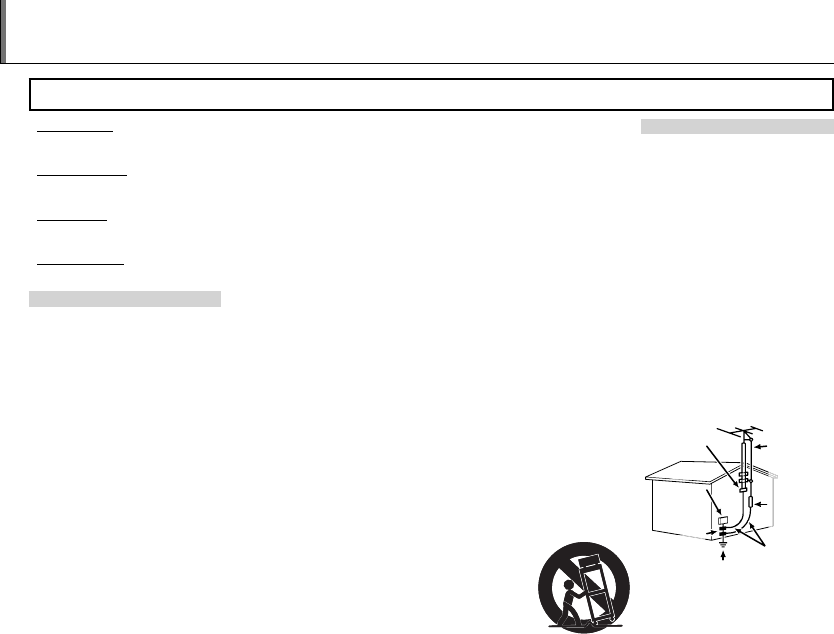
EXAMPLE OF ANTENNA GROUNDING AS
PER NATIONAL ELECTRICAL CODE
Antenna Lead
in Wire
Ground
Clamp
Electric
Service
Equipment
Ground
Clamps
Grounding
Conductors
(NEC SECTION
810-21)
Power Service Grounding
Electrode System (NEC
ART 250. PART H)
Antenna
Discharge
Unit (NEC
SECTION
810-20)
Power Lines: An outside antenna sys-
tem should not be located in the
vicinity of overhead power lines or
other electric light or power circuits,
iii
For Your Safety
or where it can fall into such power
lines or circuits. When installing an
outside antenna system, extreme
care should be taken to keep from
touching such power lines or circuits
as contact with them might be fatal.
Use
Use
Cleaning: Unplug this video product
from the wall outlet before clean-
ing. Do not use liquid cleaners or
aerosol cleaners. Use a damp cloth
for cleaning.
Object and Liquid Entry: Never push
objects of any kind into this video
product through openings as they
may touch dangerous voltage points
or short out parts that could result in a
re or electric shock. Never spill liquid
of any kind on the video product.
Lightning: For added protection for
this video product receiver during
a lightning storm, or when it is left
unattended and unused for long pe-
riods of time, unplug it from the wall
outlet and disconnect the antenna
or cable system. This will prevent
damage to the video product due to
lightning and power-line surges.
Service
Service
Servicing: Do not attempt to service
this video product yourself as open-
ing or removing covers may expose
you to dangerous voltage or other
hazards. Refer all servicing to quali-
ed service personnel.
Damage Requiring Service: Unplug this
video product from the wall outlet
and refer servicing to quali ed ser-
vice personnel under the following
conditions:
• When the power-supply cord or
plug is damaged.
• If liquid has been spilled, or objects
have fallen into the video product.
• If the video product has been ex-
posed to rain or water.
• If the video product has been
dropped or the cabinet has been
damaged.
If the video product does not oper-
ate normally follow the operating
instructions. Adjust only those
controls that are covered by the op-
erating instructions as an improper
adjustment of other controls may re-
sult in damage and will often require
extensive work by a quali ed techni-
cian to restore the video product to
its normal operation.
When the video product exhibits a
distinct change in performance—
this indicates a need for service.
Replacement Parts: When replacement
parts are required, be sure the service
technician has used replacement
parts speci ed by the manufacturer
or have the same characteristics as
the original part. Unauthorized sub-
stitutions may result in re, electric
shock or other hazards.
Safety Check: Upon completion of any
service or repairs to this video prod-
uct, ask the service technician to
perform safety checks to determine
that the video product is in proper
operating condition.
Be sure to read these notes before use
Safety Notes
• Make sure that you use your camera correctly. Read these safety notes and
your Owner’s Manual carefully before use.
• After reading these safety notes, store them in a safe place.
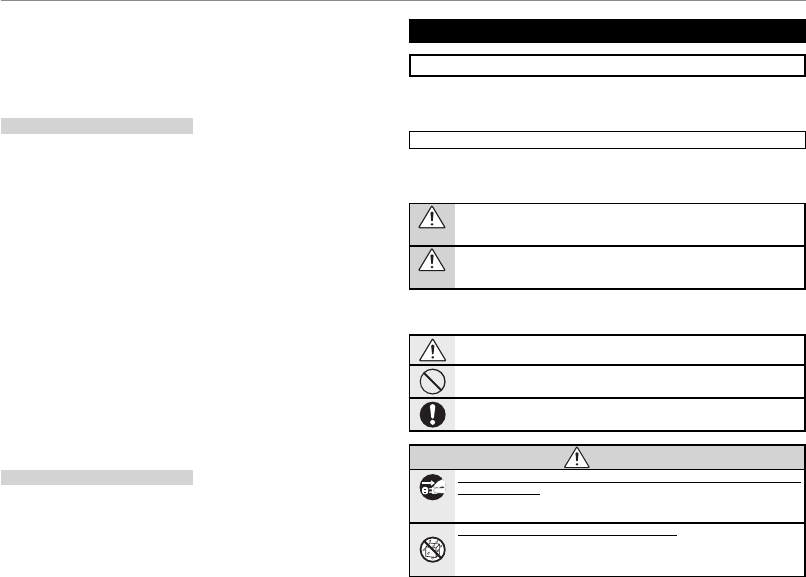
About the Icons
The icons shown below are used in this document to indicate the severity of
the injury or damage that can result if the information indicated by the icon
is ignored and the product is used incorrectly as a result.
WARNING
This icon indicates that death or serious injury can result if the information
is ignored.
CAUTION
This icon indicates that personal injury or material damage can result if the
information is ignored.
The icons shown below are used to indicate the nature of the instructions
which are to be observed.
Triangular icons tell you that this information requires attention (“Impor-
tant”).
Circular icons with a diagonal bar tell you that the action indicated is prohib-
ited (“Prohibited”).
Filled circles with an exclamation mark indicate an action that must be per-
formed (“Required”).
WARNING
WARNING
Unplug from
power socket
If a problem arises, turn the camera o , remove the batteries, and disconnect and unplug
the AC power adapter. Continued use of the camera when it is emitting smoke,
is emitting any unusual odor, or is in any other abnormal state can cause a re
or electric shock. Contact your FUJIFILM dealer.
Do not allow water or foreign objects to enter the camera. If water or foreign objects
get inside the camera, turn the camera o , remove the batteries, and discon-
nect and unplug the AC power adapter. Continued use of the camera can
cause a re or electric shock. Contact your FUJIFILM dealer.
iv
For Your Safety
WARNING
WARNING
Do not use in
the bathroom
or shower
Do not use the camera in the bathroom or shower. This can cause a re or electric
shock.
Do not
disassemble
Never attempt to change or take apart the camera. (Never open the casing.) Do not use the
camera when it has been dropped or the casing is damaged. This can cause a re or
electric shock. Contact your FUJIFILM dealer.
Do not change, heat or unduly twist or pull the connection cord and do not place heavy ob-
jects on the connection cord. These actions could damage the cord and cause a
re or electric shock. If the cord is damaged, contact your FUJIFILM dealer.
Do not place the camera on an unstable surface. This can cause the camera to fall or
tip over and cause injury.
Never attempt to take pictures while in motion. Do not use the camera while you
are walking or driving a vehicle. This can result in you falling down or being
involved in a tra c accident.
Do not touch any metal parts of the camera during a thunderstorm. This can cause an
electric shock due to induced current from the lightning discharge.
Do not use the batteries except as speci ed. Load the batteries as shown by the
indicator.
Do not heat, change or take apart the batteries. Do not drop or subject the batteries to
impacts. Do not store the batteries with metallic products. Any of these actions can
cause the batteries to burst or leak and cause re or injury as a result.
Use only the batteries or AC power adapters speci ed for use with this camera. Do not use
voltages other than the power supply voltage shown. The use of other power sources
can cause a re.
If the batteries leak and uid gets in contact with your eyes, skin or clothing, ush the
a ected area with clean water and seek medical attention or call an emergency number
right away.
When carrying the batteries, install them in a digital camera or keep them in the hard case.
When storing the batteries, keep them in the hard case. When discarding, cover the battery
terminals with insulation tape. Contact with other metallic objects or batteries
could cause the batteries to ignite or burst.
Keep memory cards out of the reach of small children. Because memory cards are
small, they can be swallowed by children. Be sure to store memory cards out
of the reach of small children. If a child swallows a memory card, seek medical
attention or call an emergency number.
CAUTION
CAUTION
Do not use this camera in locations a ected by oil fumes, steam, humidity or dust. This
can cause a re or electric shock.
Do not leave this camera in places subject to extremely high temperatures. Do not leave
the camera in locations such as a sealed vehicle or in direct sunlight. This
can cause a re.
Keep out of the reach of small children. This product could cause injury in the
hands of a child.
Do not place heavy objects on the camera. This can cause the heavy object to tip
over or fall and cause injury.
Do not move the camera while the AC power adapter is still connected. Do not pull on the
connection cord to disconnect the AC power adapter. This can damage the power
cord or cables and cause a re or electric shock.
Do not cover or wrap the camera or the AC power adapter in a cloth or blanket. This can
cause heat to build up and distort the casing or cause a re.
When you are cleaning the camera or you do not plan to use the camera for an extended
period, remove the batteries and disconnect and unplug the AC power adapter. Failure to
do so can cause a re or electric shock.
When charging ends, unplug the charger from the power socket. Leaving the charger
plugged into the power socket can cause a re.
Using a ash too close to a person’s eyes may temporarily a ect the eyesight. Take par-
ticular care when photographing infants and young children.
When a memory card is removed, the card could come out of the slot too quickly. Use your
nger to hold it and gently release the card.
Request regular internal testing and cleaning for your camera. Build-up of dust in your
camera can cause a re or electric shock. Contact your FUJIFILM dealer to
request internal cleaning every two years. Please note that this service is not
free of charge.
Using Batteries
The following describes the proper use of batteries and how to prolong
their life. Incorrect use can shorten battery life or cause leakage, overheat-
ing, re, or explosion.
Compatible Batteries
The camera takes AA alkaline, rechargeable Ni-MH (nickel-metal hydride),
or UL-certi ed lithium batteries. Do not use manganese, nickel-cadmium
(Ni-Cd), or non-UL certi ed lithium batteries, as the heat generated by these
batteries could damage the camera or cause malfunction.

v
For Your Safety
Battery capacity varies with make
and storage conditions. Some com-
mercially-available batteries may
have less capacity than the batteries
provided with the camera.
Cautions: Handling Batteries
• Do not use batteries that are leaking,
deformed, or discolored. Warning: If
the batteries leak, clean the battery
compartment thoroughly before in-
serting new batteries. If uid from
the battery comes into contact with
skin or clothing, ush the a ected
area with water. If uid enters your eyes,
immediately ush the a ected area with
water and seek medical attention. Do not
rub your eyes. Failure to observe this pre-
caution could result in loss of eyesight.
• Do not transport or store with
metal objects such as necklaces or
hairpins.
• Do not disassemble or modify the
batteries or battery casing.
• Do not expose to strong physical
shocks.
• Do not expose to water, ame, or
heat, or store in warm or humid
conditions.
• Keep out of reach of infants and
small children.
• Insert in the correct orientation.
• Do not mix old and new batteries,
batteries with di erent charge lev-
els, or batteries of di erent types.
• If the camera will not be used for
an extended period, remove the
batteries. Note that the camera
clock will be reset (pg. 14).
• The batteries may be warm to the
touch immediately after use. Turn
the camera o and allow the bat-
teries to cool before handling.
• Battery capacity tends to decrease
at low temperatures. Keep spare
batteries in a pocket or other warm
place and exchange as necessary.
Cold batteries may recover some
of their charge when warmed.
• Fingerprints and other foreign
matter on the battery terminals
can reduce battery performance.
Thoroughly clean the terminals
with a soft, dry cloth before insert-
ing the batteries in the camera.
Ni-MH Batteries
The capacity of Ni-MH batteries may
be temporarily reduced when new,
after long periods of disuse, or if they
are repeatedly recharged before be-
ing fully discharged. This is normal
and does not indicate a malfunction.
Capacity can be increased by repeat-
edly discharging the batteries using
the P DISCHARGE option in the
camera setup menu (pg. 94) and re-
charging them using a battery char-
ger (sold separately). Do not use this
option with alkaline batteries.
The camera draws a small amount of
current even when o . Ni-MH batter-
ies that have been left in the camera
for an extended period may be drawn
down to the point that they no longer
hold a charge. Battery performance
may also drop if the batteries are run
down in a device such as a ashlight.
Use the P DISCHARGE option in the
camera setup menu to discharge Ni-
MH batteries. Batteries that no lon-
ger hold a charge even after repeat-
edly being discharged and recharged
have reached the end of their service
life and must be replaced.
Ni-MH batteries can be recharged in
a battery charger (sold separately).
Batteries may become warm to the
touch after charging. Refer to the in-
structions provided with the charger
for more information. Use the char-
ger with compatible batteries only.
Ni-MH batteries gradually lose their
charge when not in use.
Disposal
Dispose of used batteries in accord
with local regulations.
AC Adapters (Available Separately)
Use only FUJIFILM AC adapters desig-
nated for use with this camera. Other
adapters could damage the camera.
• The AC adapter is for indoor use only.
• Be sure the DC plug is securely
connected to the camera.
• Turn the camera o before discon-
necting the adapter. Disconnect the
adapter by the plug, not the cable.
• Do not use with other devices.
• Do not disassemble.
• Do not expose to high heat and
humidity.
• Do not subject to strong physical
shocks.
• The AC adapter may hum or be-
come hot to the touch during use.
This is normal.
• If the AC adapter causes radio in-
terference, reorient or relocate the
receiving antenna.
Using the Camera
To ensure that images are recorded
correctly, do not subject the camera
to impact or physical shocks while
images are being recorded.
Electrical Interference
This camera may interfere with hospital
or aviation equipment. Consult with
hospital or airline sta before using the
camera in a hospital or on an aircraft.
Liquid Crystal
In the event that the monitor or elec-
tronic view nder is damaged, care
should be taken to avoid contact
with liquid crystal. Take the urgent
action indicated should any of the
following situations arise:
• If liquid crystal comes in contact with
your skin, clean the area with a cloth
and then wash thoroughly with
soap and running water.
• If liquid crystal enters your eyes, ush
the a ected eye with clean water
for at least 15 minutes and then
seek medical assistance.
• If liquid crystal is swallowed, rinse
your mouth thoroughly with water.
Drink large quantities of water and
induce vomiting, then seek medi-
cal assistance.
Take Test Shots
Before taking photographs on impor-
tant occasions (such as at weddings
or before taking the camera on a trip),
take a test shot and view the result to
ensure that the camera is function-
ing normally. FUJIFILM Corporation
can not accept liability for damages
or lost pro ts incurred as a result of
product malfunction.
vi
For Your Safety
To prevent re or shock hazard, do not expose the unit to rain or moisture.
Please read the “Safety Notes” (pages iii–v) and make sure you understand
them before using the camera.
Perchlorate Material—special handling may apply. See http://www.dtsc.
ca.gov/hazardouswaste/perchlorate.
For Customers in the U.S.A.
For Customers in the U.S.A.
Tested To Comply With FCC Standards
FOR HOME OR OFFICE USE
FCC Statement
This device complies with Part 15 of the FCC Rules. Operation is subject to
the following two conditions: (1) This device may not cause harmful interfer-
ence, and (2) this device must accept any interference received, including
interference that may cause undesired operation.
CAUTION
This equipment has been tested and found to comply with the limits for a
Class B digital device, pursuant to Part 15 of the FCC Rules. These limits are
designed to provide reasonable protection against harmful interference in
a residential installation. This equipment generates, uses, and can radiate
radio frequency energy and, if not installed and used in accordance with
the instructions, may cause harmful interference to radio communications.
However, there is no guarantee that interference will not occur in a particu-
lar installation. If this equipment does cause harmful interference to radio or
television reception, which can be determined by turning the equipment
o and on, the user is encouraged to try to correct the interference by one
or more of the following measures:
• Reorient or relocate the receiving antenna.
• Increase the separation between the equipment and receiver.
• Connect the equipment into an outlet on a circuit di erent from that to
which the receiver is connected.
• Consult the dealer or an experienced radio/TV technician for help.
You are cautioned that any changes or modi cations not expressly approved
in this manual could void the user’s authority to operate the equipment.
Notes on the Grant
To comply with Part 15 of the FCC Rules, this product must be used with a
FUJIFILM-speci ed ferrite-core A/V cable, USB cable, and DC supply cord.
For Customers in Canada
For Customers in Canada
CAUTION: This Class B digital apparatus complies with Canadian ICES-003.
EC Declaration of Conformity
EC Declaration of Conformity
We
Name: FUJIFILM Electronic Imaging Europe GmbH
Address: Benzstrasse 2
47533 Kleve, Germany
declare that the product
Product Name: FUJIFILM DIGITAL CAMERA FinePix S1500
Manufacturer’s Name: FUJIFILM Corporation
Manufacturer’s Address: 7-3, AKASAKA 9-CHOME, MINATO-KU,
TOKYO 107-0052 JAPAN
conforms to the following Standards:
Safety: EN60065: 2002 + A1: 2006
EMC: EN55022: 1998 + A1: 2000 + A2: 2003 Class B
EN55024: 1998 + A1: 2001 + A2: 2003
EN61000-3-2: 2000 + A2: 2005
EN61000-3-3: 1995 + A1: 2001 + A2: 2005
following the provision of the EMC Directive (2004/108/EC)
and Low Voltage Directive (2006/95/EC).
Kleve, Germany February 1, 2009
Place Date Signature, Managing Director
NOTICES
vii
For Your Safety
Disposal of Electrical and Electronic Equipment in Private Households
Disposal of Electrical and Electronic Equipment in Private Households
Disposal of Used Electrical and Electronic Equipment (Applicable in the European
Union, Norway, Iceland and Liechtenstein)
This symbol on the product, or in the manual and in the
warranty, and/or on its packaging indicates that this prod-
uct shall not be treated as household waste.
Instead it should be taken to an applicable collection point
for the recycling of electrical and electronic equipment.
By ensuring this product is disposed of correctly, you will
help prevent potential negative consequences to the en-
vironment and human health, which could otherwise be
caused by inappropriate waste handling of this product.
This symbol on the batteries or accumulators indicates that
those batteries shall not be treated as household waste.
If your equipment contains easy removable batteries or ac-
cumulators please dispose these separately according to
your local requirements.
The recycling of materials will help to conserve natural resources. For more
detailed information about recycling this product, please contact your local
city o ce, your household waste disposal service or the shop where you
purchased the product.
In Countries Outside the European Union, Norway, Iceland and Liechtenstein
If you wish to discard this product, including the batteries or accumula-
tors, please contact your local authorities and ask for the correct way of
disposal.
Notes on Copyright
Notes on Copyright
Unless intended solely for personal use, images recorded using your digital
camera system cannot be used in ways that infringe copyright laws with-
out the consent of the owner. Note that some restrictions apply to the
photographing of stage performances, entertainments, and exhibits, even
when intended purely for personal use. Users are also asked to note that
the transfer of memory cards containing images or data protected under
copyright laws is only permissible within the restrictions imposed by those
copyright laws.
Trademark Information
Trademark Information
Macintosh, Power Macintosh, Power Mac, PowerBook, QuickTime, and Mac
OS are trademarks of Apple Inc. in the U.S.A. and other countries. Microsoft,
Windows, the Windows logo, Windows Vista and the Windows Vista logo
are trademarks or registered trademarks of Microsoft Corporation in the
United States and/or other countries. “Windows” is an abbreviation used in
reference to the Microsoft Windows operating system. Adobe and Adobe
Reader are either trademarks or registered trademarks of Adobe Systems
Incorporated in the U.S.A. and/or other countries. The SDHC logo is a trade-
mark.
Note: The “Designed for Microsoft® Windows® XP” and “CERTIFIED FOR Windows
Vista™” logos apply only to the camera and camera hardware driver.
viii
About This Manual
Before using the camera, read this manual and the warnings on pages ii–vii. For information on speci c
topics, consult the sources below.
Memory Cards
Pictures can be stored in the camera’s internal memory or on optional SD and SDHC memory cards. In this
manual, SD memory cards are referred to as “memory cards.” For more information, see page 10.
✔
✔
Troubleshooting
Troubleshooting
..............................................
..............................................
pg. 98
pg. 98
Having a speci c problem with the camera?
Find the answer here.
✔
✔
Glossary
Glossary
........................................................
........................................................
pg. 108
pg. 108
The meanings of some technical terms may be
found here.
✔
✔
Table of Contents
Table of Contents
.............................................
.............................................
pg. xii
pg. xii
The “Table of Contents” gives an overview of the
entire manual. The principal camera operations
are listed here.
✔
✔
Warning Messages and Displays
Warning Messages and Displays
.....................
.....................
pg. 104
pg. 104
Find out what’s behind that ashing icon or er-
ror message in the monitor or electronic view-
n d e r .
✔
✔
Camera Q & A
Camera Q & A
....................................................
....................................................
pg. ix
pg. ix
Know what you want to do but don’t know the
name for it? Find the answer in “Camera Q & A.”
ix
Camera Q & A
Find items by task.
Camera Setup
Camera Setup
Question
Question
Key phrase
Key phrase
See page
See page
How do I set the camera clock? Date and time 14
Can I set the clock to local time when I travel? Time di erence 93
How do I keep the display from turning o automatically? Auto power o 92
How do I make the display brighter or darker? LCD brightness 91
How do I stop the camera beeping and clicking? Operation and shutter volume 88
Silent mode 18
Can I change the sound the shutter makes? Shutter sound 88
What are the parts of the camera called? Parts of the camera 2
What do the icons in the display mean? Displays 4
How do I use the menus? Menus 64
What’s behind that ashing icon or error message? Messages and displays 104
How much charge is left in the battery? Battery level 15
Can I increase the capacity of rechargeable Ni-MH batteries? Discharge 94
Sharing Pictures
Sharing Pictures
Question
Question
Key phrase
Key phrase
See page
See page
Can I print pictures on my home printer? Printing pictures 53
Can I copy my pictures to my computer? Viewing pictures on a computer 58

x
Camera Q & A
Taking Pictures
Taking Pictures
Question
Question
Key phrase
Key phrase
See page
See page
How many pictures can I take? Memory capacity 109
Is there a quick and easy way to take snapshots? B mode 15
How can I avoid blurred pictures? Dual IS mode 17, 90
How can I make good portraits? Intelligent Face Detection 21
Can the camera automatically adjust settings for di erent scenes? M mode 32
Can I choose my own settings for di erent scenes? Scene position 32
How do I shoot close-ups? Macro mode (close-ups) 25
How do I keep the ash from ring?
Flash mode 26How do I stop my subjects’ eyes glowing red when I use the ash?
How do I “ ll-in” shadows on back-lit subjects?
How do I take a series of pictures in a single burst? Continuous Shooting mode 28
How do I take a group portrait that includes the photographer? Self-timer mode 70
How do I shoot a panorama? N mode 34
How do I turn o the lamp on the front of the camera? AF-assist illuminator 24
How do I frame pictures with the subject o to one side? Focus lock 23
Can I choose shutter speed and aperture? P, S, A, and M modes 36
Can I save and recall camera settings? C mode 40
How do I adjust exposure? Exposure compensation 41
How do I shoot movies? Recording movies 49
How do I frame pictures in the view nder? EVF/LCD button 5
xi
Camera Q & A
Viewing Pictures
Viewing Pictures
Question
Question
Key phrase
Key phrase
See page
See page
How do I view my pictures? Single-frame playback 43
How do I delete the current picture? The b button 20
Can I select other pictures for deletion? Deleting pictures 47
Can I zoom in on pictures during playback? Playback zoom 44
How do I view a lot of pictures at once? Multi-frame playback 46
How do I view all pictures taken on the same day? Sort by date 46
Can I protect my pictures from accidental deletion? Protect 81
Can I hide the icons in the display when viewing my pictures? Choosing a display format 43
Can I view my pictures in a slide show? Slide show 77
Can I add a short voice memo to my pictures? Voice memo 84
Can I crop unwanted elements out of my pictures? Crop (trimming) 86
Can I copy pictures from internal memory to a memory card? Copy 82
How do I view my pictures on TV? Viewing pictures on TV 52

xii
For Your Safety ................................................................................. ii
IMPORTANT SAFETY INSTRUCTIONS ...................................... ii
Safety Notes .................................................................................... iii
NOTICES ............................................................................................ vi
About This Manual .......................................................................v iii
Camera Q & A .................................................................................... ix
Before You Begi
Before You Begi
n
n
Introduction .......................................................................................1
Symbols and Conventions .......................................................... 1
Supplied Accessories ....................................................................1
Parts of the Camera ....................................................................... 2
Camera Displays .......................................................................... 4
The Mode Dial ..............................................................................6
First Step
First Step
s
s
The Strap and Lens Cap ................................................................ 7
Inserting the Batteries .................................................................. 8
Inserting a Memory Card ...........................................................10
Turning the Camera on and O ...............................................13
Shooting Mode .............................................................................13
Playback Mode .............................................................................. 13
Basic Setup .......................................................................................14
Basic Photography and Playback
Basic Photography and Playback
Taking Pictures in B (Auto) Mode ........................................ 15
Viewing Pictures ............................................................................20
More on Photography
More on Photography
Intelligent Face Detection and Red-Eye Removal ..........21
Focus Lock ........................................................................................23
F Macro and Super Macro Modes (Close-ups) ...............25
N Using the Flash ........................................................................... 26
I Continuous Shooting (Burst Mode) ................................ 28
c Instant Zoom ............................................................................30
Shooting Mode ...............................................................................32
B AUTO ..........................................................................................32
M SCENE RECOGNITION .................................................32
SP SCENE POSITION ....................................................................32
Scene Descriptions ......................................................................33
N PANORAMA MODE .........................................................34
P, S, A, and M Modes ...................................................................36
C: CUSTOM MODE ........................................................................40
d Exposure Compensation .....................................................41
Table of Contents

xiii
Table of Contents
More on Playback
More on Playback
Playback Options ........................................................................... 43
Playback Zoom ..............................................................................44
Viewing Photo Information......................................................45
Multi-Frame Playback .................................................................46
Sort by Date ....................................................................................46
A Deleting Pictures ....................................................................47
Movies
Movies
F Recording Movies ...................................................................49
a Viewing Movies .......................................................................51
Connections
Connections
Viewing Pictures on TV ...............................................................52
Printing Pictures via USB ...........................................................53
Connecting the Camera ............................................................53
Printing Selected Pictures ........................................................53
Printing the DPOF Print Order ................................................54
Creating a DPOF Print Order ....................................................56
Viewing Pictures on a Computer ............................................58
Installing FinePixViewer ............................................................58
Connecting the Camera ............................................................62
Menus
Menus
Using the Menus: Shooting Mode .........................................64
Using the F-Mode Menu..........................................................64
F-Mode Menu Options .............................................................65
N ISO ............................................................................................65
O QUALITY .................................................................................66
P G COLOR ...............................................................67
Using the Shooting Menu .........................................................68
Shooting Menu Options ............................................................69
B SELF-TIMER............................................................................70
C PHOTOMETRY ......................................................................71
D WHITE BALANCE .................................................................72
E HIGH-SPEED SHOOTING ..................................................73
F FOCUSING .............................................................................73
G AF MODE ................................................................................74
H SHARPNESS ...........................................................................75
I FLASH ......................................................................................75
J BRACKETING .........................................................................75
Using the Menus: Playback Mode ..........................................76
Using the F-Mode Menu..........................................................76
F-Mode Menu Options .............................................................77
I SLIDE SHOW .........................................................................77
Using the Playback Menu .........................................................78
Playback Menu Options .............................................................79
B RED EYE REMOVAL .............................................................79
C IMAGE ROTATE .....................................................................80
D PROTECT ................................................................................81
E COPY ........................................................................................82
F VOICE MEMO ........................................................................84
G TRIMMING .............................................................................86

xiv
Table of Contents
The Setup Menu .............................................................................87
Using the Setup Menu ...............................................................87
Setup Menu Options ...................................................................88
A IMAGE DISP. ..........................................................................89
B FRAME NO. ............................................................................90
L DUAL IS MODE .....................................................................90
D DIGITAL ZOOM ....................................................................91
I PLAYBACK VOLUME ...........................................................91
J LCD BRIGHTNESS ................................................................91
K FORMAT..................................................................................92
M AUTO POWER OFF ..............................................................92
N TIME DIFFERENCE ...............................................................93
P DISCHARGE (Ni-MH Batteries Only) ............................94
Technical Notes
Technical Notes
Optional Accessories ...................................................................95
Accessories from FUJIFILM .......................................................96
Caring for the Camera .................................................................97
Troubleshooting
Troubleshooting
Troubleshooting ............................................................................98
Warning Messages and Displays ......................................... 104
Appendix
Appendix
Glossary .......................................................................................... 108
Internal Memory/Memory Card Capacity ....................... 109
Speci cations ................................................................................110
FUJIFILM Digital Camera Worldwide Network ..............114
1
Before You Begin
Introduction
Symbols and Conventions
Symbols and Conventions
The following symbols are used in this manual:
3 Caution: This information should be read before use to ensure correct operation.
1 Note: Points to note when using the camera.
2 Tip: Additional information that may be helpful when using the camera.
Menus and other text in the camera monitor are shown in bold. In the illustrations in this manual, the
monitor display may be simpli ed for explanatory purposes.
Supplied Accessories
Supplied Accessories
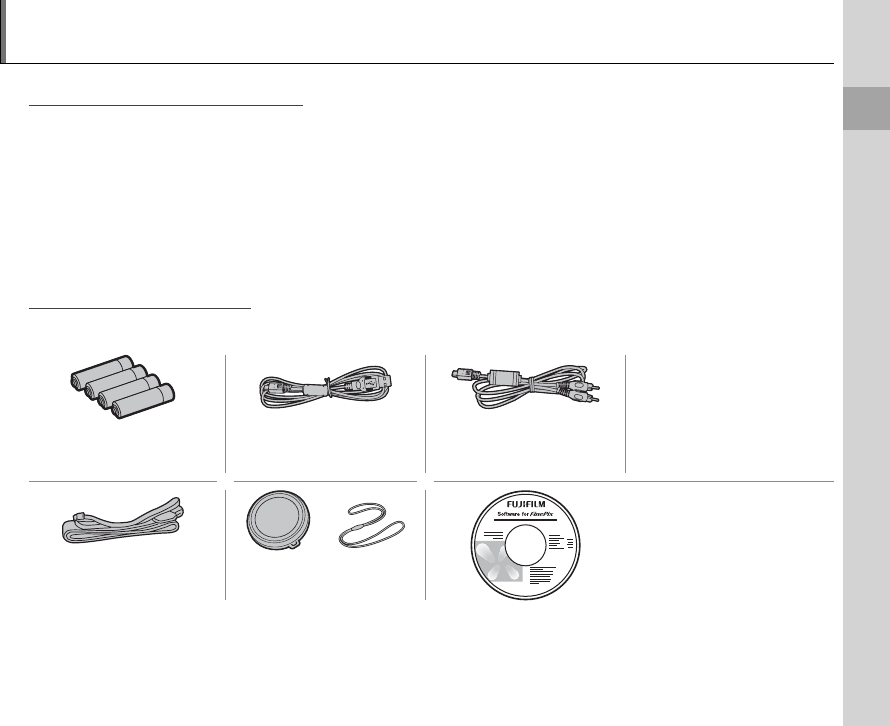
The following items are included with the camera:
Owner’s Manual
(this manual)
AA alkaline (LR6) batteries
(×4)
USB cable A/V cable
FinePix software CD
(IMPORTANT: read license
agreement on the last page of
this manual before opening)
Strap Lens cap
2
Introduction
Parts of the Camera
Parts of the Camera
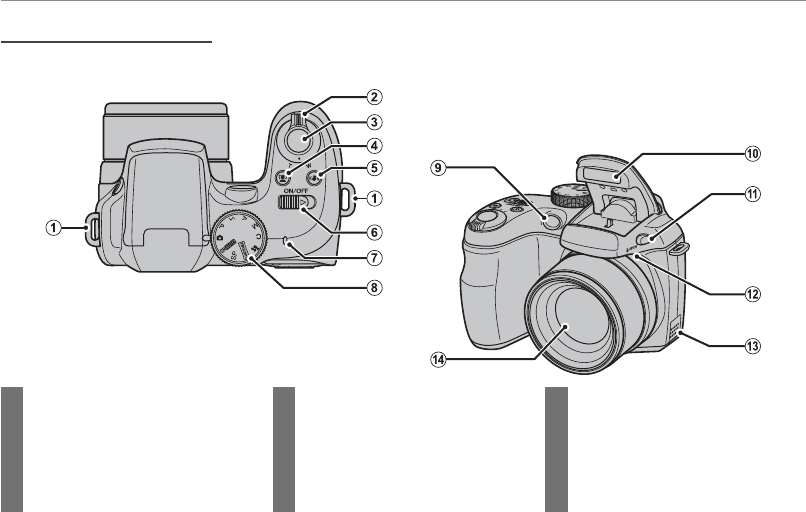
For more information, refer to the page listed to the right of each item.
11 N ( ash pop-up) button ......................26
12 Microphone ................................................ 84
13 Speaker ...........................................................85
14 Lens ...................................................................13
6 G switch ..........................................13
7 Indicator lamp ............................................ 19
8 Mode dial ........................................................ 6
9 AF-assist illuminator ...............................24
Self-timer lamp ..........................................70
10 Flash ..................................................................26
1 Strap eyelet .................................................... 7
2 Zoom control ......................................16, 44
3 Shutter button ...........................................19
4 g (Intelligent Face Detection/
red-eye removal) button ....................21
5 f (dual IS) button ...............................17
3
Before You Begin
Introduction
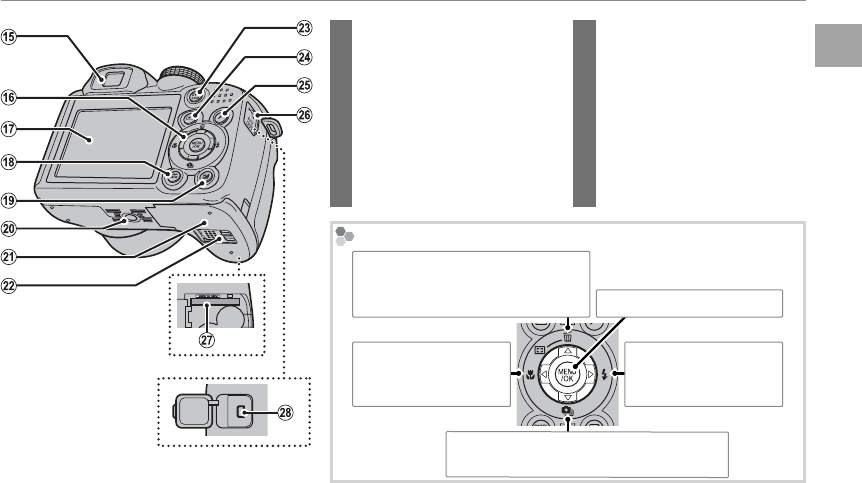
23 EVF/LCD (display selection)
button ..................................................... 5
24 a (playback) button ..................43
25 F (photo mode) button .......... 64
26 Terminal cover ..................................52
27 Memory card slot ...........................11
28 Connector for A/V cable ...........52
Connector for USB cable ...........53
15 Electronic view nder .................... 5
16 Selector button (see below)
17 Monitor ................................................... 4
18
DISP (display)/BACK button
...17, 43
19 d (exposure compensation/
photo info) button ................ 41, 45
20 Tripod mount
21 Battery-chamber cover ................8
22 Battery-chamber latch ..................8
The Selector Button
MENU/OK button (pg. 14)
Move cursor left
F (macro) button
(pg. 25)
Move cursor right
N ( ash) button
(pg. 26)
Move cursor up
c (instant zoom) button (pg. 30)
b (delete) button (pg. 20)
Move cursor down
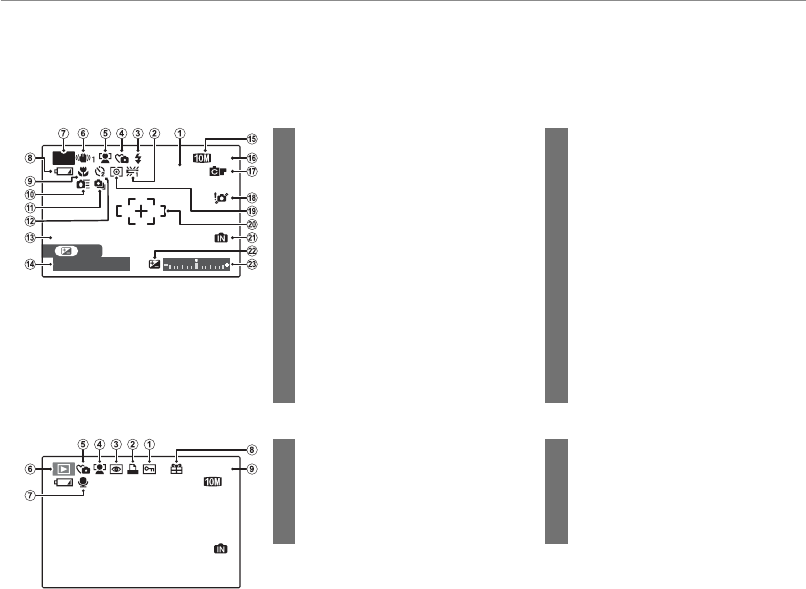
I (continuous shooting) button (pg. 28)
4
Introduction
Camera Displays
Camera Displays
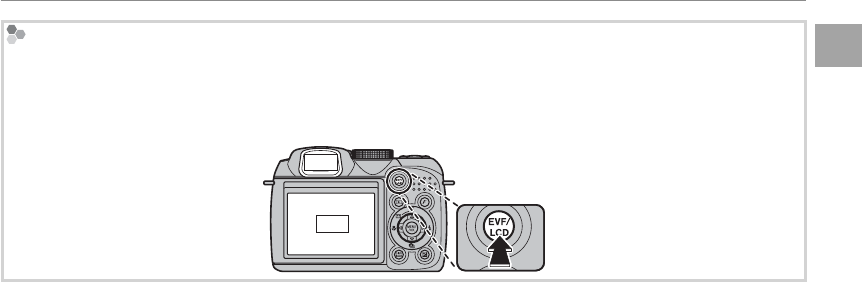
The following indicators may appear during shooting and playback. The indicators displayed vary with
camera settings.
■
■
Shooting
Shooting
*
SET
F
3.5
10 :00
AM
ISO AUTO (800)
ISO AUTO (800)
P
9
9
N
N
12/ 31/2050
12/ 31/2050
250
* a: indicates that no memory card
is inserted and that pictures will
be stored in the camera’s internal
memory (pg. 10).
13 Date and time.............................................14
14 Shutter speed and aperture .............36
15 Quality .....................................................49, 66
16 Number of available frames ...........109
17 FinePix color ................................................67
18 Blur warning .....................................26, 104
19 Metering ........................................................71
20 Focus frame .................................................18
21 Internal memory indicator * ...............10
22 Exposure compensation
indicator .........................................................41
23 Exposure indicator ..................................40
1 Sensitivity ......................................................65
2 White balance ............................................72
3 Flash mode...................................................26
4 Silent mode .................................................18
5 Intelligent Face Detection
indicator ......................................................... 21
6 Dual IS mode ..............................................90
7 Shooting mode .........................................32
8 Battery level .................................................15
9 Macro (close-ups) mode .....................25
10 High-speed mode ...................................73
11 Continuous shooting mode .............28
12 Self-timer indicator .................................70
■
■
Playback
Playback
10 : 00
AM
10 : 00
AM
100-0001
100-0001
N
N
12/ 31/2050
12/ 31/2050
5 Silent mode indicator ............................18
6 Playback mode indicator ....................43
7 Voice memo indicator.......................... 84
8 Gift image .....................................................43
9 Frame number ...........................................90
1 Protected image .......................................81
2 DPOF print indicator ..............................54
3 Red-eye removal indicator ................79
4 Intelligent Face Detection
indicator ......................................................... 21
5
Before You Begin
Introduction
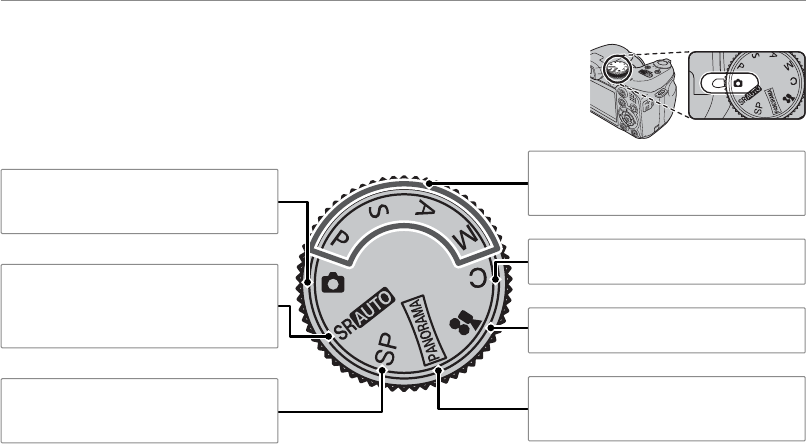
The Electronic View nder (EVF)
The electronic view nder provides the same information as the monitor, and can be used when bright light-
ing conditions make the display in the monitor di cult to see. To switch between the monitor and electronic
view nder, press the EVF/LCD button (your selection remains in e ect when the camera is turned o or the mode
dial is rotated to another setting).
LCD
EVF
6
Introduction
The Mode Dial
The Mode Dial
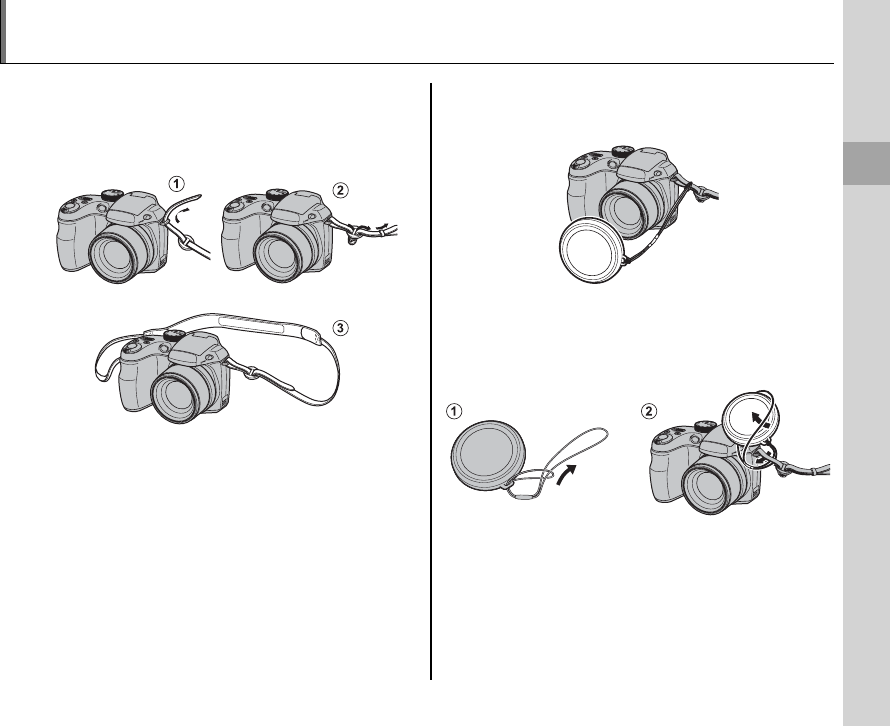
To select a shooting mode, align the mode icon with the mark next to the
mode dial.
P, S, A, M: Select for full control over cam-
era settings, including aperture (M and A)
and/or shutter speed (M and S; pg. 36).
C (CUSTOM): Recall stored settings for
modes P, S, A, and M (pg. 40).
F (MOVIE): Record movies with sound
(pg. 49).
N (PANORAMA): Take a series of pho-
tographs and combine them to form a
panorama (pg. 34).
B (AUTO): A simple “point-and-shoot”
mode recommended for rst-time users
of digital cameras (pg. 15).
SP (SCENE POSITION): Choose a scene suit-
ed to the subject or shooting conditions
and let the camera do the rest (pg. 32).
M (SCENE RECOGNITION): A “point-
and-shoot” mode in which the camera
automatically adjusts settings to suit the
scene (pg. 32).
First Steps
7
The Strap and Lens Cap
Attaching the Strap
Attaching the Strap
Attach the strap to the two strap eyelets as shown
below.
3 Caution
To avoid dropping the camera, be sure the strap is cor-
rectly secured.
The Lens Cap
The Lens Cap
Attach the lens cap as shown.
To avoid losing the lens cap, pass the supplied
string through the eyelet (q) and secure the lens
cap to the strap (w).
8
Inserting the Batteries
The camera takes four AA alkaline, lithium, or rechargeable Ni-MH batteries. A set of four alkaline bat-
teries is supplied with the camera. Insert the batteries in the camera as described below.
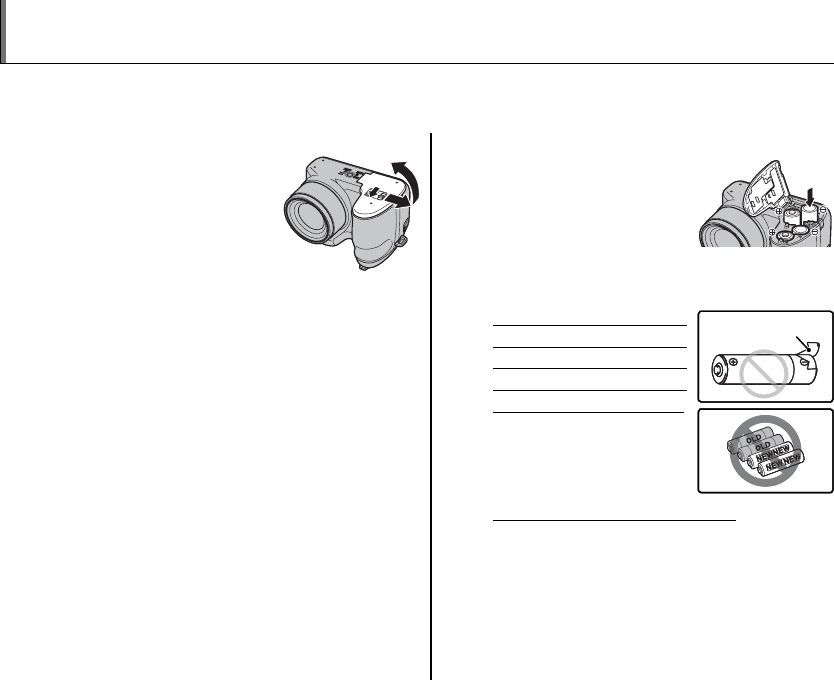
1
Open the battery-chamber cover.
Slide the battery-cham-
ber latch in the direction
shown and open the bat-
tery-chamber cover.
1 Note
Be sure the camera is o before opening the bat-
tery-chamber cover.
3 Cautions
• Do not open the battery-chamber cover when
the camera is on. Failure to observe this pre-
caution could result in damage to image les or
memory cards.
• Do not use excessive force when handling the
battery-chamber cover.
2
Insert the batteries.
Insert the batteries in the
orientation shown by the
“+“ and “–“ marks inside
the battery chamber.
3 Cautions
• Insert the batteries in the correct orientation.
• Never use batteries with peel-
ing or damaged casing or mix
old and new batteries, batter-
ies with di erent charge levels,
or batteries of di erent types.
Failure to observe these
precautions could result
in the batteries leaking or
overheating.
• Never use manganese or Ni-Cd batteries.
• The capacity of alkaline batteries varies with the
manufacturer and drops at temperatures below
10 °C/32 °F; Ni-MH batteries are recommended.
• Fingerprints and other soil on the battery termi-
nals can shorten battery life.
Battery casing
Battery casing
Battery casing
Battery casing
First Steps
9
Inserting the Batteries
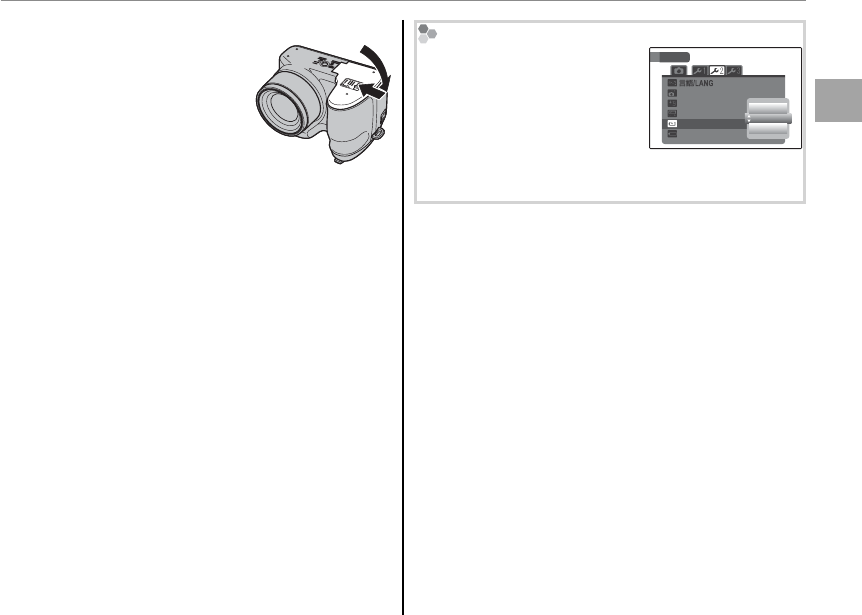
3
Close the battery-chamber cover.
Close the battery-cham-
ber cover and slide it in
until the latch clicks into
place.
3 Caution
Do not use force. If the battery-chamber cover
does not close, check that the batteries are in the
correct orientation and try again.
2 Tip: Using an AC Adapter
The camera can be powered by an optional AC
adapter and DC coupler (sold separately).
Choosing the Battery Type
After replacing the batteries
with batteries of a di erent
type, select the battery type
using the T BATTERY TYPE
option in the setup menu (pg.
88) to ensure that the battery level is displayed correct-
ly and the camera does not turn o unexpectedly.
2
MIN
SET-UP
ENGLISH
AUTO POWER OFF
TIME DIFFERENCE
BACKGROUND COLOR
DISCHARGE
BATTERY TYPE NI-MH
LITHIUM
ALKALINE
10
Inserting a Memory Card
Although the camera can store pictures in internal memory, SD memory cards (sold separately) can be
used to store additional pictures.
When no memory card is inserted, a appears in the monitor and internal memory is used for recording
and playback. Note that because camera malfunction could cause internal memory to become cor-
rupted, the pictures in internal memory should periodically be transferred to a computer and saved on
the computer hard disk or on removable media such as CDs or DVDs. The pictures in internal memory
can also be copied to a memory card (see page 82). To prevent internal memory from becoming full,
be sure to delete pictures when they are no longer needed.
When a memory card is inserted as described below, the card will be used for recording and playback.
■
■
Compatible Memory Cards
Compatible Memory Cards
SanDisk SD and SDHC memory cards have been approved for use in the camera. A complete list of ap-
proved memory cards is available at http://www.fujifilm.com/products/digital_cameras/index.html. Op-
eration is not guaranteed with other cards. The camera can not be used with MultiMediaCard (MMC)
or xD-Picture Cards.
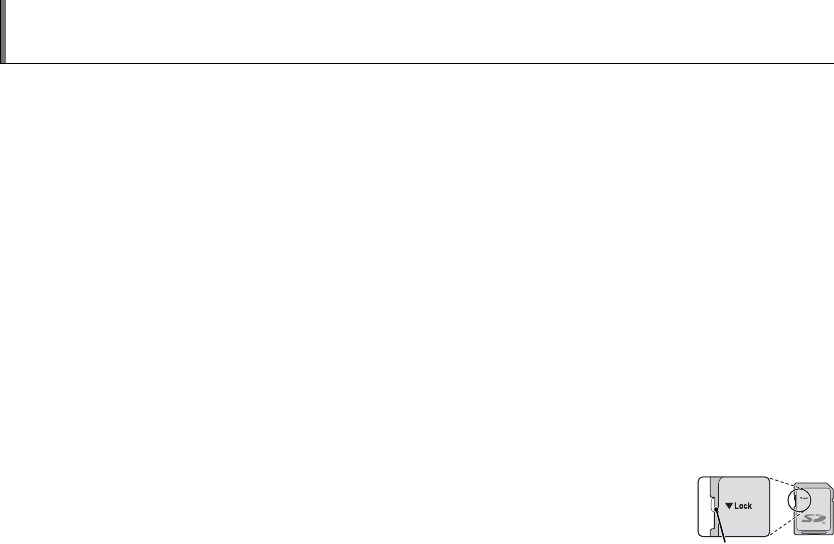
3 Caution
Memory cards can be locked, making it impossible to format the card or to record or delete
images. Before inserting a memory card, slide the write-protect switch to the unlocked posi-
tion.
Write-protect
Write-protect
switch
switch
First Steps
11
Inserting a Memory Card
■
■
Inserting a Memory Card
Inserting a Memory Card
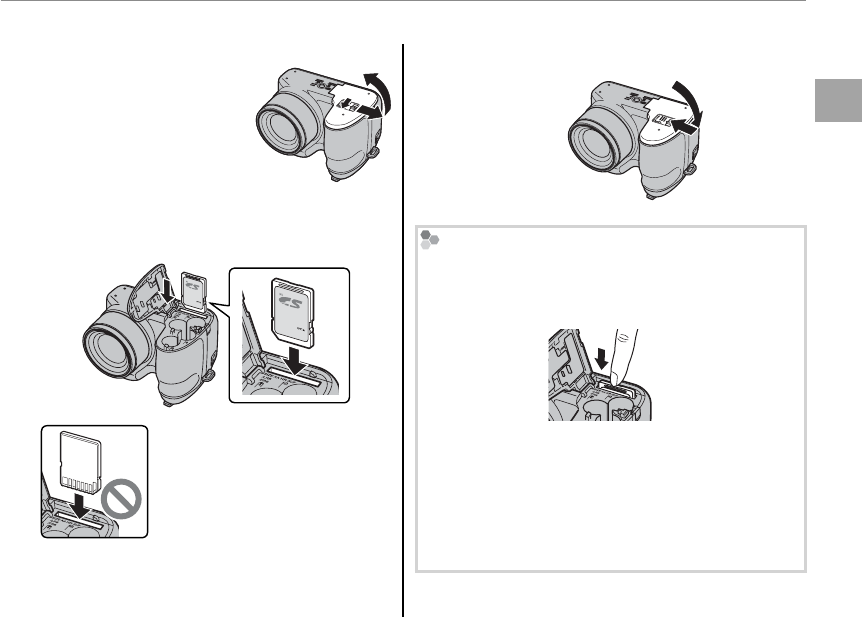
1
Open the battery-chamber cover.
1 Note
Be sure the camera is o
before opening the battery-
chamber cover.
2
Insert the memory card.
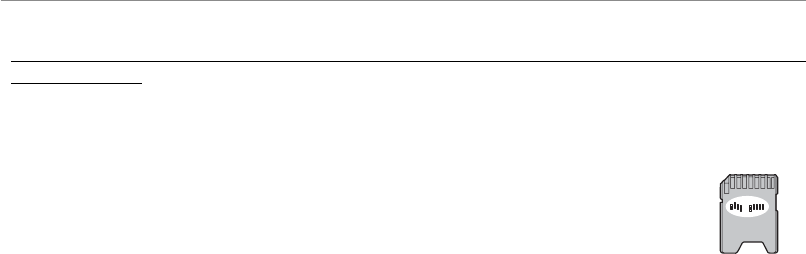
Holding the memory card in the orientation
shown below, slide it all the way in.
Be sure card is in correct orienta-
tion; do not insert at an angle or
use force.
3
Close the battery-chamber cover.
Removing Memory Cards
After con rming that the camera is o , press the card
in and then release it slowly. The card can now be
removed by hand.
3 Cautions
• The memory card may spring out if you remove
your nger immediately after pushing the card in.
• Memory cards may be warm to the touch after be-
ing removed from the camera. This is normal and
does not indicate a malfunction.
12
Inserting a Memory Card
3 Cautions
• Do not turn the camera o or remove the memory card while the memory card is being formatted or data are being recorded to or
deleted from the card. Failure to observe this precaution could damage the card.
• Format memory cards before rst use, and be sure to reformat all memory cards after using them in a computer
or other device. For more information on formatting memory cards, see page 92.
• Memory cards are small and can be swallowed; keep out of reach of children. If a child swallows a memory card,
seek medical assistance immediately.
• Do not use miniSD or microSD adapters that expose the back of the card. Failure to observe
this precaution may cause damage or malfunction. Adapters that are larger or smaller than
the standard dimensions of an SD card may not eject normally; if the card does not eject, take
the camera to an authorized service representative. Do not forcibly remove the card.
• Do not a x labels to memory cards. Peeling labels can cause camera malfunction.
• Movie recording may be interrupted with some types of memory card.
• The data in internal memory may be erased or corrupted when the camera is repaired. Please note that the
repairer will be able to view pictures in internal memory.
• Formatting a memory card or internal memory in the camera creates a folder in which pictures are stored. Do
not rename or delete this folder or use a computer or other device to edit, delete, or rename image les. Always
use the camera to delete pictures from memory cards and internal memory; before editing or renaming les,
copy them to a computer and edit or rename the copies, not the originals.
First Steps
13
Turning the Camera on and O
Shooting Mode
Shooting Mode
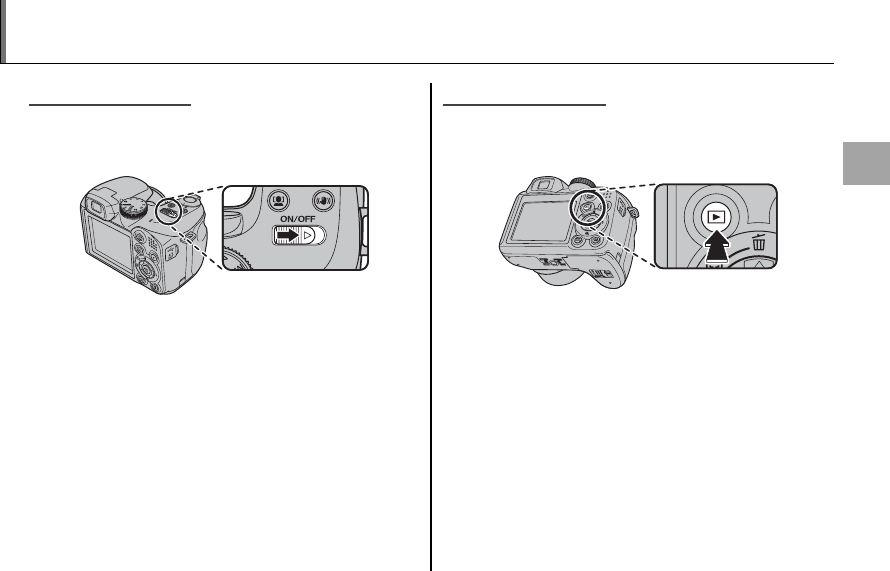
Slide the G switch in the direction shown
below. The lens will extend automatically.
Slide the G switch to turn the camera o .
2 Tip: Switching to Playback Mode
Press the a button to start playback. Press the shutter
button halfway to return to shooting mode.
3 Cautions
• Forcibly preventing the lens from extending could
cause damage or product malfunction.
• Pictures can be a ected by ngerprints and other
marks on the lens. Keep the lens clean.
• The G button does not completely disconnect
the camera from its power supply.
Playback Mode
Playback Mode
To turn the camera on and begin playback, press
the a button for about a second.
Press the a button again to turn the camera o .
2 Tip: Switching to Shooting Mode
To exit to shooting mode, press the shutter button
halfway. Press the a button to return to playback.
2 Tip: Auto Power O
The camera will turn o automatically if no operations are performed for the length of time selected in the AUTO
POWER OFF menu (see page 92). To turn the camera on, use the G switch or press the a button for about
a second.
14
Basic Setup
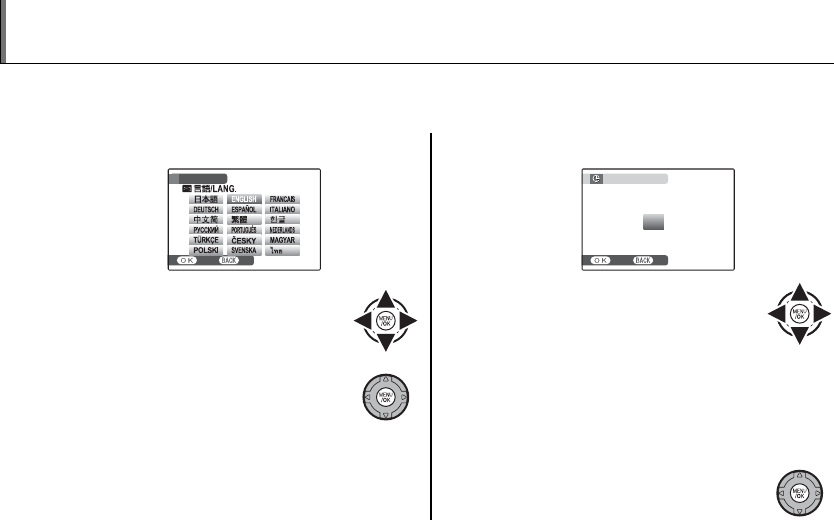
A language-selection dialog is displayed the rst time the camera is turned on. Set up the camera as
described below (for information on resetting the clock or changing languages, see page 88).
1
Choose a language.
START MENU
SET NO
1.1 Press the selector up, down,
left, or right to highlight a lan-
guage.
1.2 Press MENU/OK.
2
Set the date and time.
SET NO
DATE / TIME NOT SET
2011
2010
2008
2007
YY. MM. DD
1. 1 12
:
00
AM
2009
2.1 Press the selector left or right
to highlight the year, month,
day, hour, or minute and press
up or down to change. To change the or-
der in which the year, month, and day are
displayed, highlight the date format and
press the selector up or down.
2.2 Press MENU/OK.
2 Tip: The Camera Clock
If the batteries are removed for an extended period, the camera clock will be reset and the language-selection
dialog will be displayed when the camera is turned on. If the batteries are left in the camera or an optional AC
adapter connected for about 10 hours, the battery can be removed for about 24 hours without resetting the clock
or language selection.
15
Basic Photography and Playback
Taking Pictures in B (Auto) Mode
This section describes how to take pictures in B (auto) mode.
1
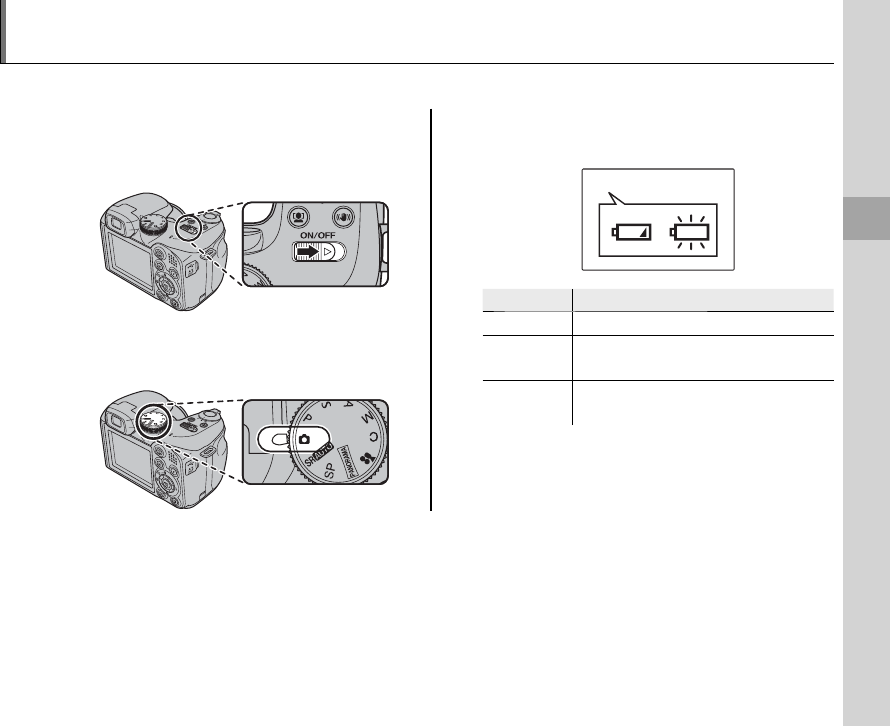
Turn the camera on.
Slide the G switch to turn the camera
on.
2
Select B mode.
Rotate the mode dial to B.
3
Check the battery level.
Check the battery level in the display.
qw
Indicator
Indicator
Description
Description
NO ICON Batteries are partially discharged.
qB
(red)
Batteries are low. Replace as soon
as possible.
wA
(blinks red)
Batteries are exhausted. Turn cam-
era o and replace batteries.
1 Note
A battery warning may not be displayed before the camera turns o , particularly if batteries are reused after
having once been exhausted. Power consumption varies greatly from mode to mode; the low battery warning
(B) may not be displayed or may be displayed only brie y before the camera turns o in some modes or when
switching from shooting to playback mode.
16
Taking Pictures in B (Auto) Mode
4
Frame the picture.
Position the main subject in the focus frame
and use the zoom control to frame the pic-
ture in the display.
By default setting, the cam-
era uses optical zoom only.
If desired, digital zoom (pg.
91) can be used to zoom in
closer.
Select W to zoom out Select T to zoom in
Zoom indicator
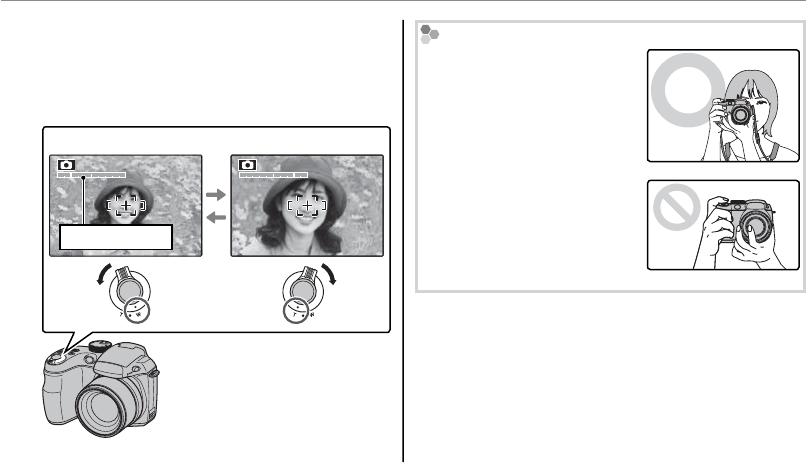
Holding the Camera
Hold the camera steady with
both hands and brace your
elbows against your sides.
Shaking or unsteady hands
can blur your shots.
To prevent pictures that are
out of focus or too dark (un-
derexposed), keep your n-
gers and other objects away
from the lens and ash.
2 Tip: Focus Lock
Use focus lock (pg. 23) to focus on subjects that are not in the focus frame.

17
Basic Photography and Playback
Taking Pictures in B (Auto) Mode
Framing Guideline and Post-Shot Assist Window
To choose the shooting information and guides dis-
played, press the DISP/BACK button.
Indicators hidden
Post-shot assist window Best framing
ISO AUTO (800)
ISO AUTO (800)
9
9
N
N
10 : 00
AM
10 : 00
AM
12/ 31 / 2050
12/ 31 / 2050
Indicators displayed
• Best framing: To use the best framing, position the
main subject at the intersection of two lines or align
one of the horizontal lines with the horizon. Use fo-
cus lock (pg. 23) to focus on subjects that will not be
in the center of the frame in the nal photograph.
• Post-shot assist window: The previous three pictures
are displayed on the left, with the most recent pic-
ture at the bottom. Use for reference when taking
multiple pictures of the same subject.
Avoiding Blurred Pictures
If the subject is poorly lit, blurring caused by camera
shake can be reduced by pressing the f button. In
B mode, pressing the f button also reduces blur
caused by subject movement (dual IS mode).
Press f to turn dual IS on or o . Icon appears in
monitor when dual IS is on (icon displayed depends on
option selected for L DUAL IS MODE; see pg. 90).
Sensitivity is raised when dual IS is in e ect. Note that
blurring may still occur depending on the scene.
18
Taking Pictures in B (Auto) Mode
h Silent Mode
In situations in which camera sounds or lights may
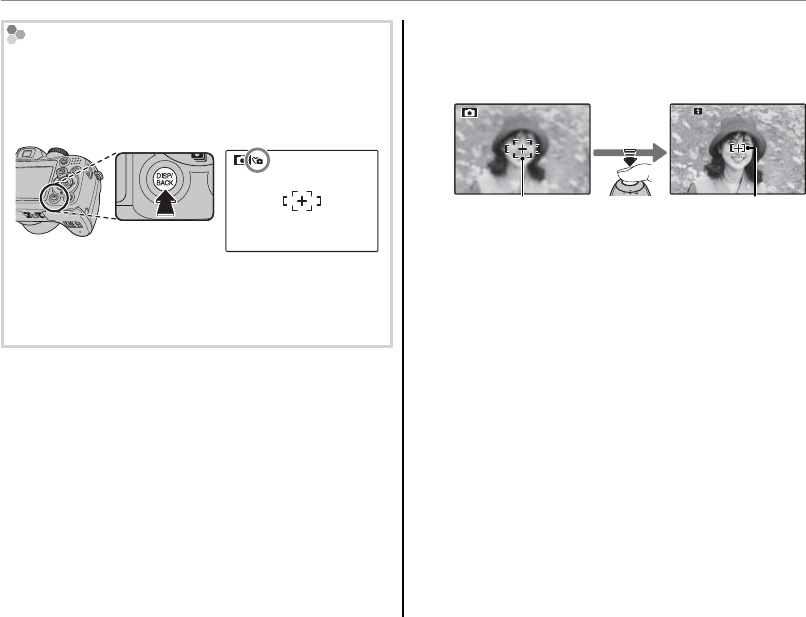
be unwelcome, hold the DISP/BACK button down until
h is displayed (note that silent mode is not available
during movie or voice memo playback).
The camera speaker and AF-assist illuminator/self-
timer lamp turn o and volume (pg. 91) can not be
adjusted. To restore normal operation, press the DISP/
BACK button until the h icon is no longer displayed.
5
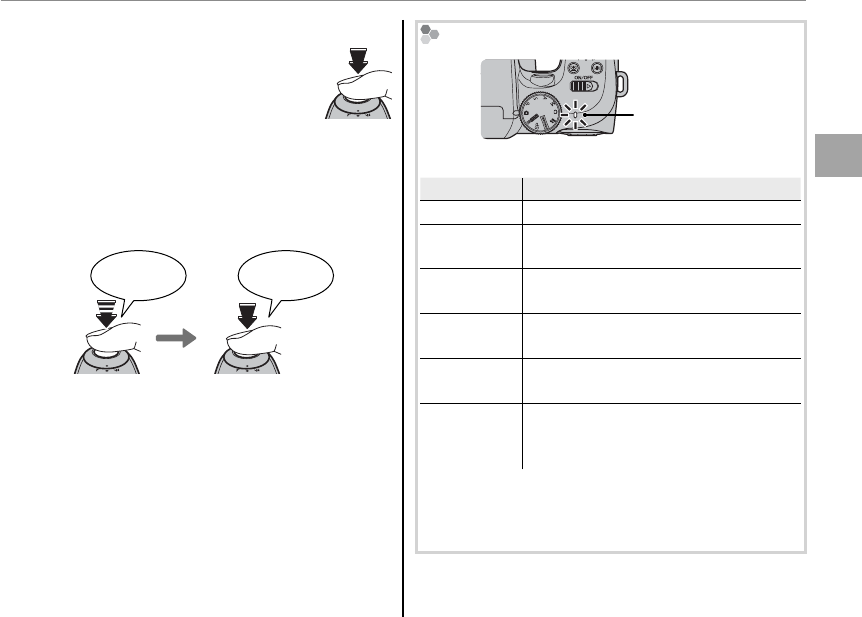
Focus.
Press the shutter button halfway to focus on
the main subject in the focus frame.
Focus frame Camera selects small focus
frame and focuses on subject
250
250
F
3.5
F
3.5
Press
halfway
1 Note
The lens may make a noise when the camera fo-
cuses. This is normal.
If the camera is able to focus, it will beep twice
and the indicator lamp will glow green.
If the camera is unable to focus, the focus frame
will turn red, s will be displayed, and the
indicator lamp will blink green. Change the
composition or use focus lock (pg. 23).
19
Basic Photography and Playback
Taking Pictures in B (Auto) Mode
6
Shoot.
Smoothly press the shutter button
the rest of the way down to take
the picture.
2 Tip: The Shutter Button
The shutter button has two positions. Pressing the
shutter button halfway (q) sets focus and exposure;
to shoot, press the shutter button the rest of the way
down (w).
q w
Press halfway Press the rest of
the way down
Double
beep Click
1 Note
If the subject is poorly lit, the AF-assist illuminator may
light to assist focus (pg. 24). For information on using
the ash when lighting is poor, see page 26.
The Indicator Lamp
Indicator lamp
The indicator lamp shows camera status as follows:
Indicator lamp
Indicator lamp
Camera status
Camera status
Glows green Focus locked.
Blinks green Blur, focus, or exposure warning. Pic-
ture can be taken.
Blinks green
and orange
Recording pictures. Additional pic-
tures can be taken.
Glows
orange
Recording pictures. No additional pic-
tures can be taken at this time.
Blinks orange Flash charging; ash will not re when
picture is taken.
Blinks red
Lens or memory error (internal memory
or memory card full or not formatted,
format error, or other memory error).
2 Tip: Warnings
Detailed warnings appear in the display. See pages
104–107 for more information.
20
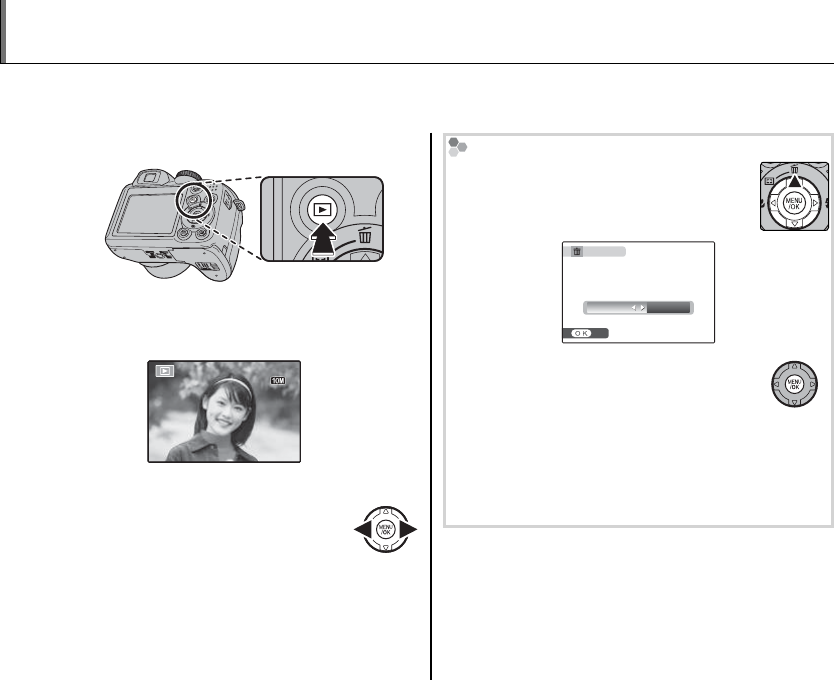
Viewing Pictures
Pictures can be viewed in the monitor. When taking important photographs, take a test shot and
check the results.
1
Press the a button for about a second.
The most recent picture will be displayed in
the monitor.
100-0001
100-0001
N
N
12/ 31 / 2050
12/ 31 / 2050
10 : 00
AM
10 : 00
AM
2
View additional pictures.
Press the selector right to view
pictures in the order recorded, left
to view pictures in reverse order.
Press the shutter button to exit to shooting
mode.
Deleting Pictures
To delete the picture currently displayed
in the monitor, press the selector up (b).
The following dialog will be displayed.
SET
ERASE OK?
OK CANCEL
To delete the picture, press the selector
left to highlight OK and press MENU/OK.
To exit without deleting the picture, high-
light CANCEL and press MENU/OK.
2 Tip: The Playback Menu
Pictures can also be deleted from the playback menu
(pg. 47).
21
More on Photography
Intelligent Face Detection and Red-Eye Removal
Intelligent Face Detection allows the camera to automatically detect human faces and set focus and
exposure for a face anywhere in the frame for shots that emphasize portrait subjects. Choose for
group portraits (in horizontal or vertical orientations) to prevent the camera from focusing on the back-
ground. Intelligent Face Detection also o ers a red-eye removal option for removing “red-eye” e ects
caused by the ash.
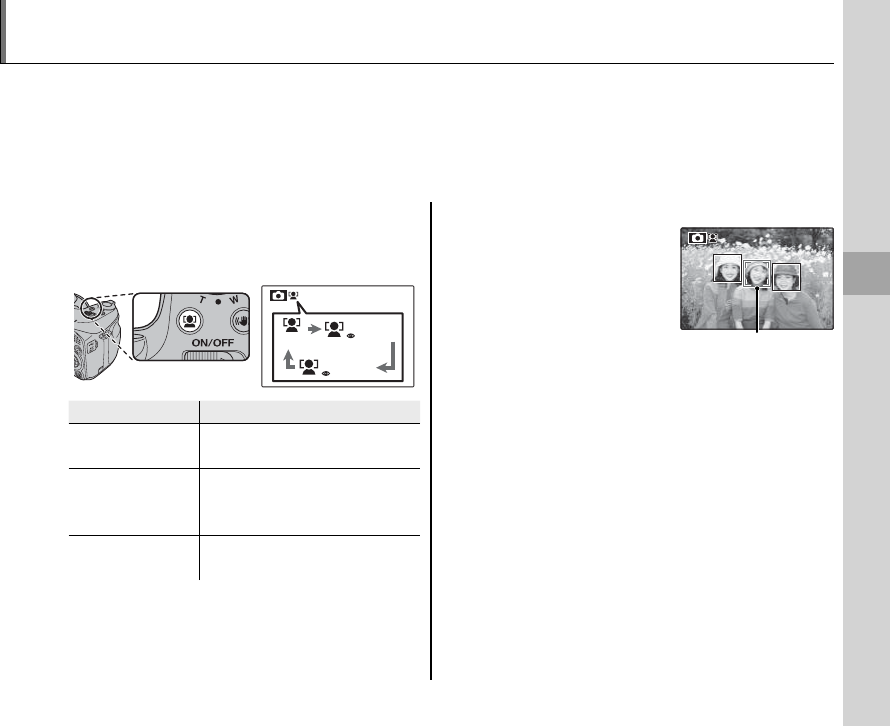
1
Turn Intelligent Face Detection on.
Press the g button to cycle through set-
tings as shown below.
OFF
FACE DETECTION
REMOVAL OFF
FACE DETECTION
REMOVAL ON
Option
Option
Description
Description
g OFF Intelligent Face Detection and
red-eye removal o .
g FACE DETECTION
J REMOVAL ON
Intelligent Face Detection and
red-eye removal on. Use with
the ash.
g FACE DETECTION
J REMOVAL OFF
Intelligent Face Detection on;
red-eye removal o .
2
Frame the picture.
If a face is detected, it
will be indicated by a
green border. If there is
more than one face in
the frame, the camera
will select the face clos-
est to the center; other faces are indicated by
white borders.
Green borderGreen border
22
Intelligent Face Detection and Red-Eye Removal
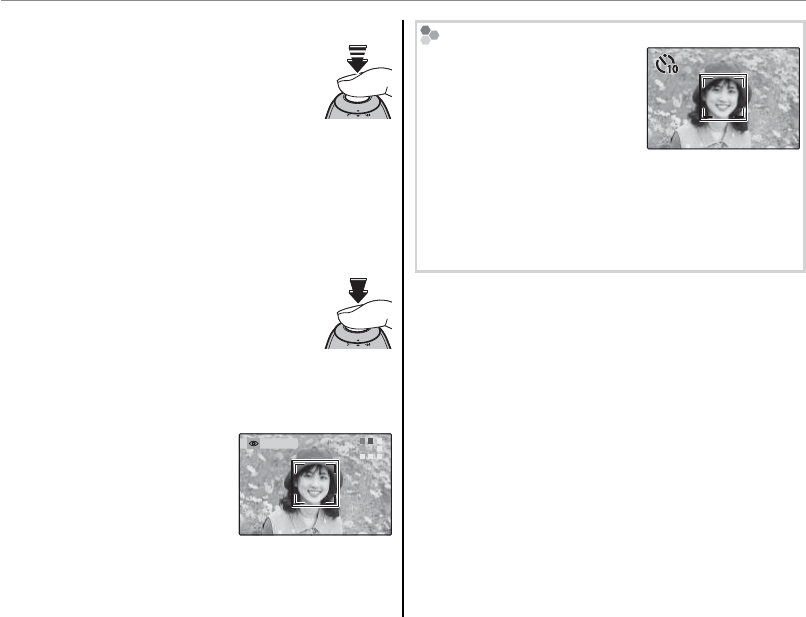
3
Focus.
Press the shutter button halfway
to set focus and exposure for the
subject in the green border.
3 Caution
If no face is detected when the shutter button is
pressed halfway (pg. 100), the camera will focus
on the subject at the center of the display and
red-eye will not be removed.
4
Shoot.
Press the shutter button all the
way down to shoot.
3 Caution
If the subject moves as the shutter button is
pressed, their face may not be in the area indicated
by the green border when the picture is taken.
If g FACE DETECTION
J REMOVAL ON is
selected, the picture
will be processed to re-
duce red-eye before it is
recorded.
Intelligent Face Detection
Intelligent Face Detection is
recommended when using
the self-timer for group- or
self-portraits (pg. 70).
7
77
When a picture taken with Intelligent Face Detection
is displayed, the camera can automatically select fac-
es for red-eye removal (pg. 79), playback zoom (pg.
44), slide shows (pg. 77), printing (pg. 53), and crop-
ping (pg. 86).
REMOVINGREMOVING
23
More on Photography
Focus Lock
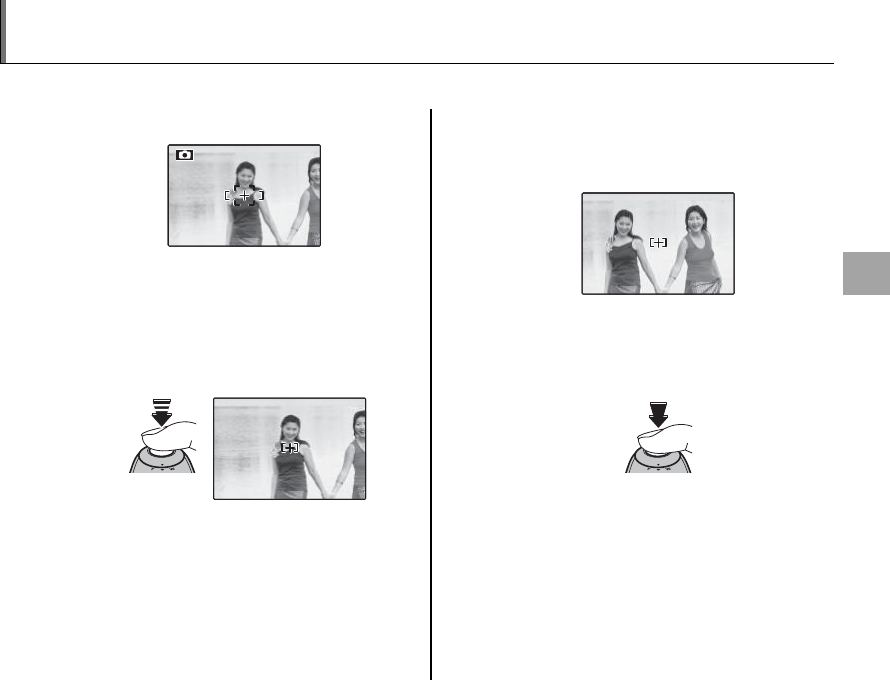
To compose photographs with o -center subjects:
1
Position the subject in the focus frame.
2
Focus.
Press the shutter button halfway to set fo-
cus and exposure. Focus and exposure will
remain locked while the shutter button is
pressed halfway (AF/AE lock).
F
3.5
F
3.5
250
250
Press
halfway
Repeat steps 1 and 2 as desired to refocus
before taking the picture.
3
Recompose the picture.
Keeping the shutter button pressed halfway,
recompose the picture.
F
3.5
F
3.5
250
250
4
Shoot.
Press the shutter-release button the rest of
the way down to take the picture.
Press the rest of
the way down
24
Focus Lock
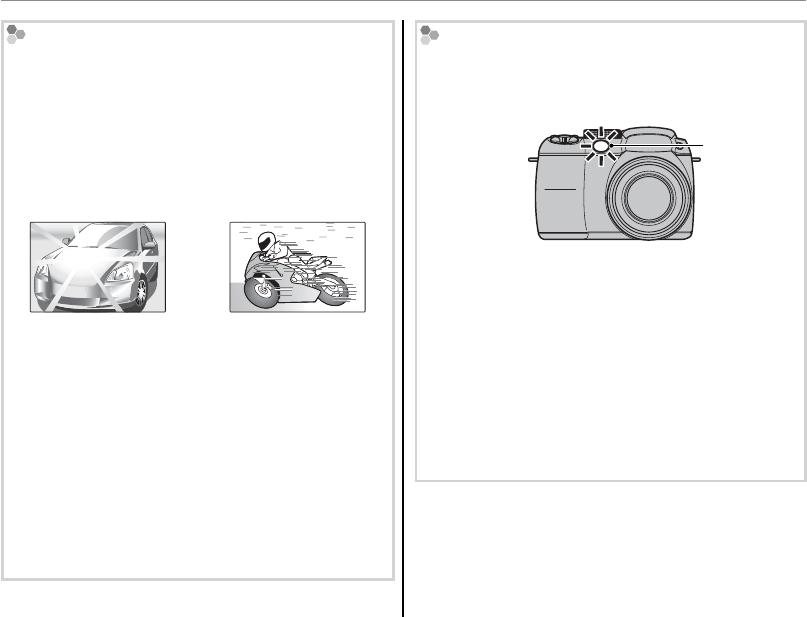
Autofocus
Although the camera boasts a high-precision autofo-
cus system, it may be unable to focus on the subjects
listed below. If the camera is unable to focus using
autofocus, use focus lock (pg. 23) to focus on another
subject at the same distance and then recompose the
photograph.
• Very shiny subjects such
as mirrors or car bodies.
• Fast-moving subjects.
• Subjects photographed through a window or other
re ective object.
• Dark subjects and subjects that absorb rather than
re ect light, such as hair or fur.
• Insubstantial subjects, such as smoke or ame.
• Subjects that show little contrast with the back-
ground (for example, subjects in clothing that is the
same color as the background).
• Subjects positioned in front of or behind a high-
contrast object that is also in the focus frame (for ex-
ample, a subject photographed against a backdrop
of highly contrasting elements).
The AF-Assist Illuminator
If the subject is poorly lit, the AF-assist illuminator will
light to assist the focus operation when the shutter
button is pressed halfway.
AF-assist
illuminator
1 Notes
• Avoid shining the AF-assist illuminator directly into
your subject’s eyes. See page 88 for information on
disabling the AF-assist illuminator.
• The camera may be unable to focus using the AF-
assist illuminator in some cases. If the camera is un-
able to focus in macro mode (pg. 25), try increasing
the distance to the subject.
• The AF-assist illuminator is not available in silent
mode.
25
More on Photography
F Macro and Super Macro Modes (Close-ups)
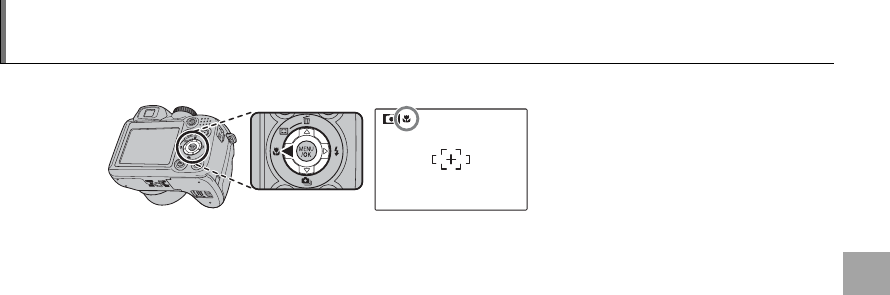
For close-ups, press the selector left (F) to choose from the macro options shown below.
Choose from F (macro mode),
G (super macro mode), or
H (macro mode o )
When macro mode is in e ect, the camera focuses on subjects near the center of the frame. Use the
zoom control to compose pictures. In super macro mode, zoom can not be adjusted and the ash can
not be used.
To exit macro mode, press the selector left (F) until H is displayed.
1 Notes
• Use of a tripod is recommended to prevent blur caused by camera shake.
• Flash compensation may be required when using the ash (pg. 75).
26
N Using the Flash
Use the ash when lighting is poor, for example when shooting at night or indoors under low light.
1
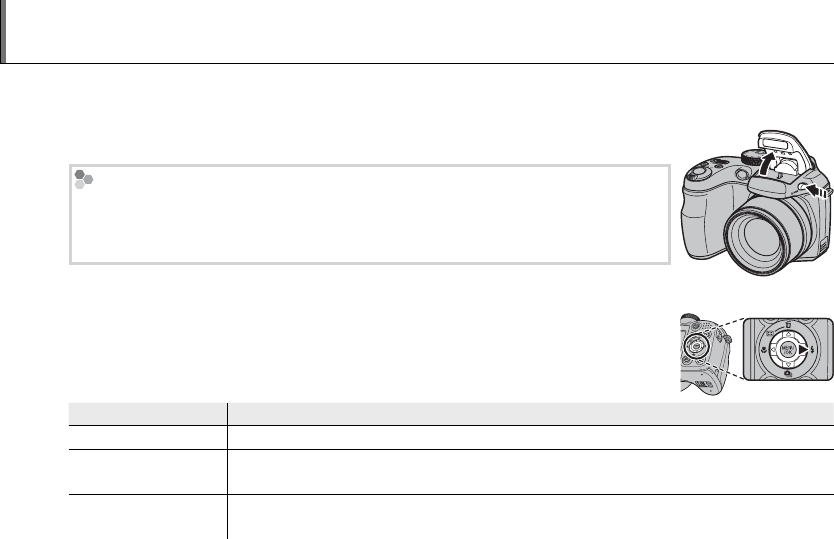
Raise the ash.
Press the ash pop-up button to raise the ash.
Turning the Flash O
Lower the ash where ash photography is prohibited or to capture natural lighting
under dim light. At slow shutter speeds, k will be displayed to warn that pictures
may be blurred; use of a tripod is recommended.
2
Choose a ash mode.
Press the selector right (N). The ash mode changes each time the selector
is pressed.
Mode
Mode
Description
Description
A (AUTO FLASH) The ash res when required. Recommended in most situations.
N (FORCED FLASH) The ash res whenever a picture is taken. Use for backlit subjects or for natural
coloration when shooting in bright light.
O (SLOW SYNCHRO) Capture both the main subject and the background under low light (note that
brightly lit scenes may be overexposed).
27
More on Photography
3
Focus.
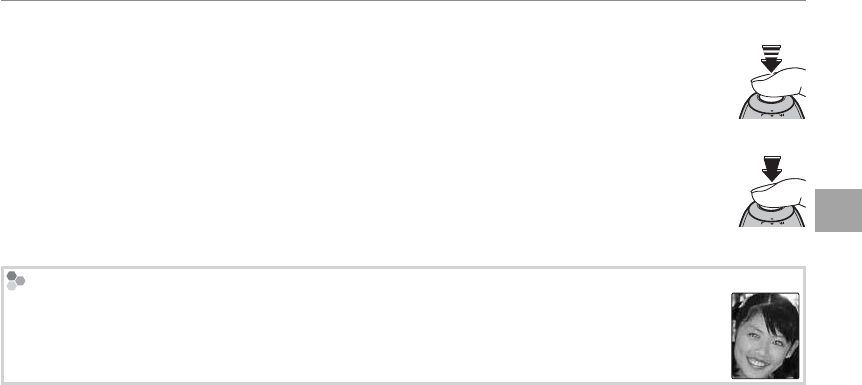
Press the shutter button halfway to focus. If the ash will re, p will be displayed when
the shutter button is pressed halfway. At slow shutter speeds, k will appear in the
display to warn that pictures may be blurred; use of a tripod is recommended.
4
Shoot.
Press the shutter button the rest of the way down to shoot.
3 Caution
The ash may re several times with each shot. Do not move the camera until shooting is com-
plete.
Red-Eye Removal
When g FACE DETECTION J REMOVAL ON is selected for Intelligent Face Detection (pg. 22),
red-eye removal (J) is available in AUTO (K), FORCED FLASH (L), and SLOW SYNCHRO (M)
modes. Red-eye removal minimizes “red-eye” caused when light from the ash is re ected from the
subject’s retinas as shown in the illustration at right.
N Using the Flash
28
I Continuous Shooting (Burst Mode)
Capture motion in a series of pictures.
1
Choose a continuous shooting mode.
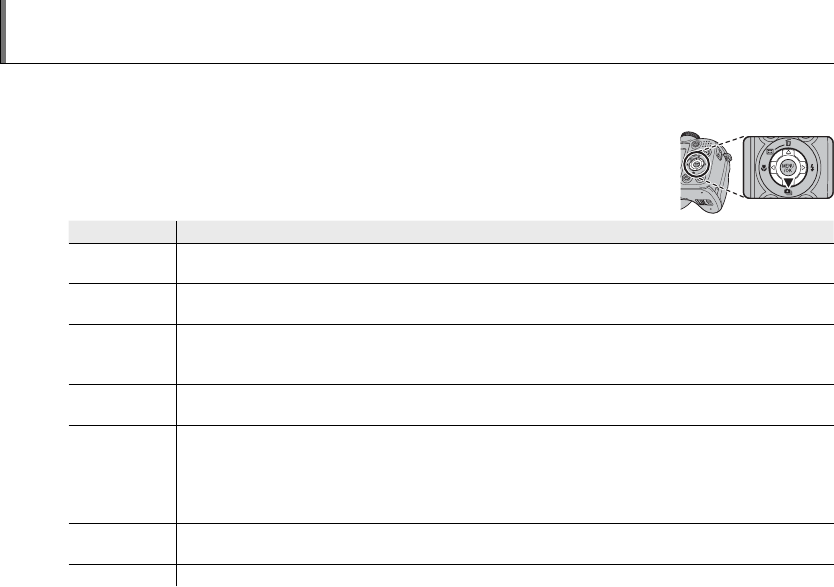
Press the selector down (I). The continuous shooting mode changes each
time the selector is pressed.
Mode
Mode
Description
Description
J
(TOP 15 I)
The camera takes up to 15 pictures while the shutter button is pressed. Quality and sensitivity are
automatically adjusted for the highest possible burst rate. *
K
(TOP 6 G)
The camera takes up to 6 pictures while the shutter button is pressed. Quality and sensitivity are auto-
matically adjusted for a high burst rate. *
N
(LONG PERIOD)
The camera takes pictures while the shutter button is pressed. Shooting ends when the shutter but-
ton is released or memory is full. To view pictures as they are taken, use the post-shot assist window
(pg. 17).
L
(LAST 3)
The camera takes up to 40 pictures while the shutter button is pressed, but only the last three frames
are recorded.
O
(BRACKETING)
Each time the shutter-release button is pressed, the camera takes three shots: one using the metered
value for exposure, the second overexposed by the amount selected for J BRACKETING in the
shooting menu (pg. 75), and the third underexposed by the same amount (the camera may not be
able to use the selected bracketing increment if the amount of over- or under-exposure exceeds the
limits of the exposure metering system).
I
(TOP 3) The camera takes up to three pictures while the shutter button is pressed.
OFF Continuous shooting mode o . One picture is taken each time the shutter button is pressed.
* Settings that have been altered from the value selected by the user are displayed in yellow; the original setting will be
restored when another continuous shooting option is selected.
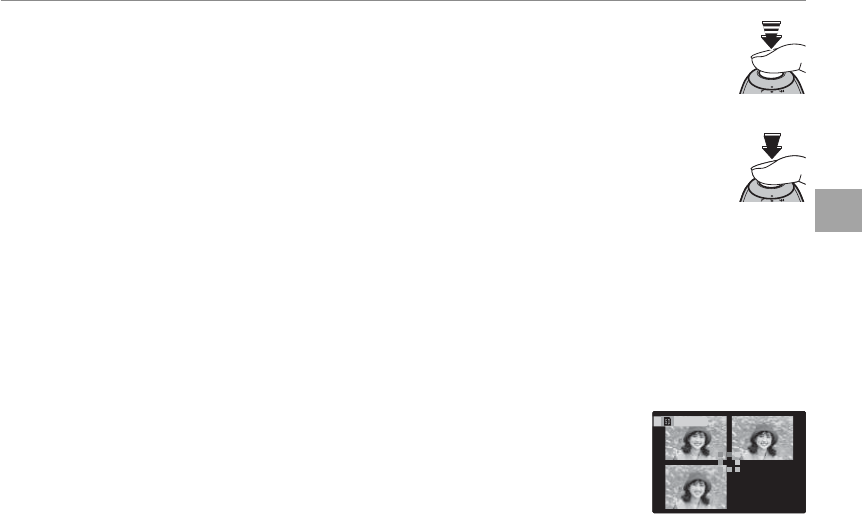
29
More on Photography
2
Focus.
Press the shutter button halfway to focus.
3
Shoot.
Pictures will be taken while the shutter button is pressed. Shooting ends when the
shutter button is released, memory is full, or the selected number of shots has been
taken.
1 Notes
• In all continuous shooting modes except N, focus and exposure are determined by the rst frame in each se-
ries. The ash turns o automatically (pg. 26); the previously-selected ash mode is restored when continuous
shooting is turned o .
• Frame rate varies with shutter speed.
• If the self-timer is used when L and N are selected, only one picture will be taken when the shutter button is
pressed.
• At a setting of J, white lines may appear in bright areas of the image; these can be avoided by choosing K
mode.
• The number of pictures that can be recorded depends on the memory available. Brack-
eting is only available if there is su cient memory for three pictures. In all continuous
shooting modes except N, additional time may be required to record pictures when
shooting ends. The pictures are displayed in the monitor while recording is in progress.
STORINGSTORING
I Continuous Shooting (Burst Mode)
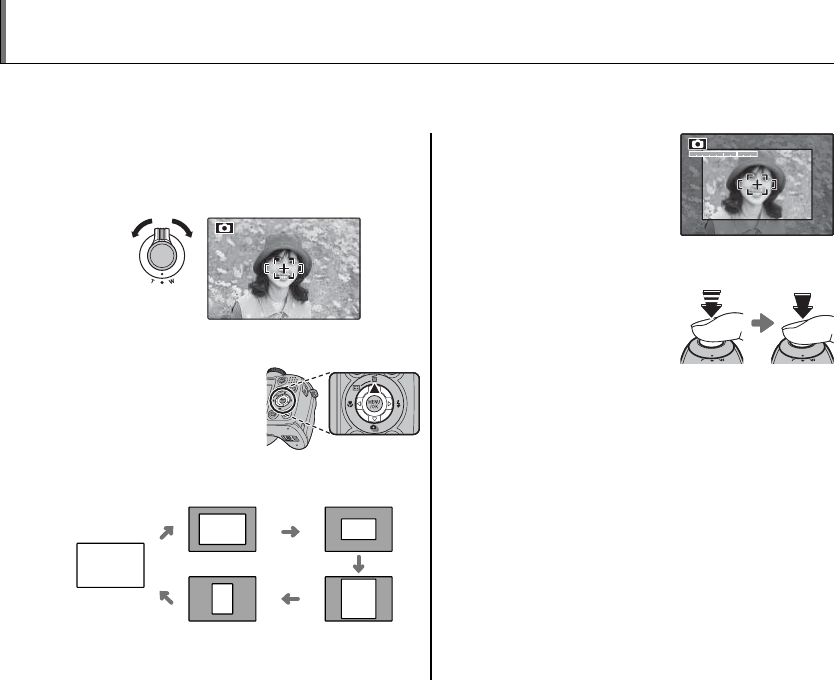
30
The frame is displayed
as shown at right. The
composition can be ad-
justed using the zoom
control.
3
Focus and shoot.
The framed area will
be enlarged to create a
full-sized picture.
2 Intelligent Face Detection
Intelligent Face Detection will not detect faces outside
the selected frame.
3 Caution
Only horizontal (landscape-orientation) framing is
available when I, L, or N is selected for continu-
ous shooting mode. The maximum number of shots
that can be taken when J or K is selected decreases
if vertical orientation framing is used.
c Instant Zoom
Instant zoom o ers a quick way to compose pictures.
■
■
Optical Zoom
Optical Zoom
1
Position the subject in the focus frame.
Use the zoom control to frame the subject in
the center of the display.
2
Choose a frame.
Press the selector up
(c) to cycle through
framing options as
shown below.
No zoom
Horizontal,
low zoom
Horizontal,
high zoom
Vertical,
low zoom
Vertical,
high zoom
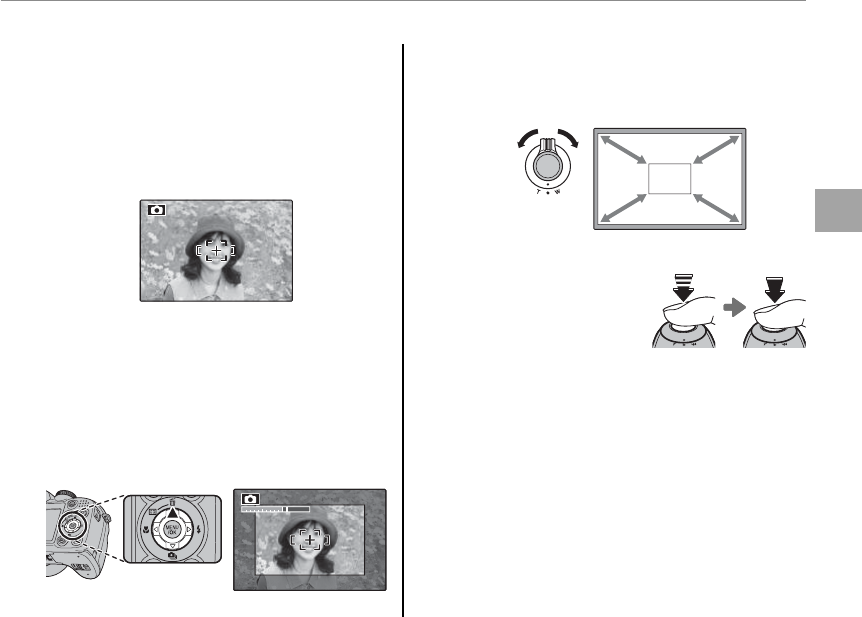
31
More on Photography
■
■
Digital Zoom
Digital Zoom
1
Enable digital zoom.
Select ON for the D DIGITAL ZOOM op-
tion in the setup menu (pg. 91).
2
Choose a subject.
Frame the subject in the center of the dis-
play.
3
Zoom to the digital zoom position.
4
Press the selector up (c).
The camera will zoom to the maximum opti-
cal zoom position with the area that will be
recorded using digital zoom indicated by a
frame at the center of the display.
5
Frame the picture.
Use the zoom control to choose the area that
will be included in the nal photograph.
6
Focus and shoot.
The framed area will
be enlarged to create a
full-sized picture.
3 Caution
Pictures taken using the instant zoom are lower quality
than pictures taken using normal zoom.
c Instant Zoom
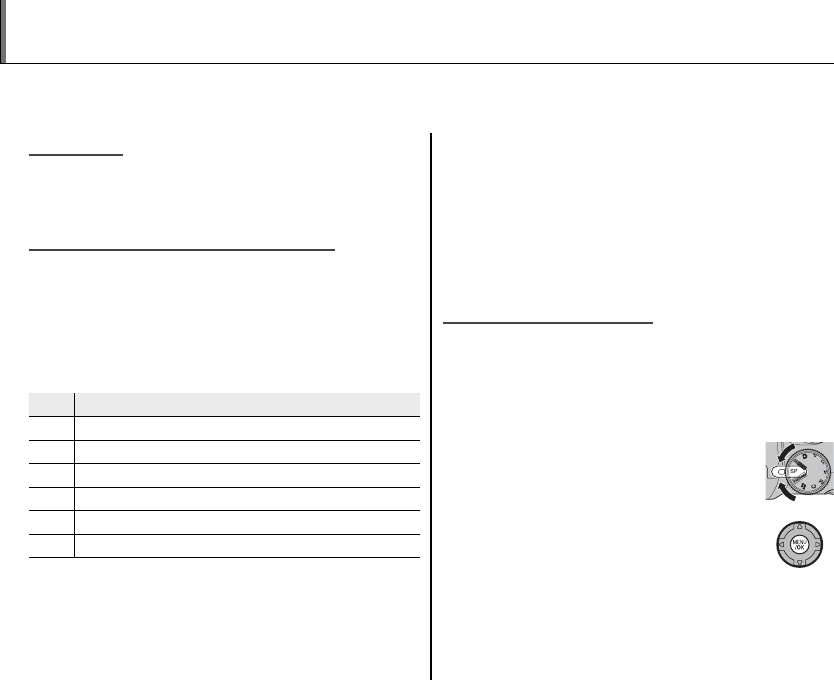
32
Shooting Mode
Choose a shooting mode according to the scene or type of subject. To choose a shooting mode, rotate
the mode dial to the desired setting (pg. 6). The following modes are available:
B
B
AUTO
AUTO
Choose for crisp, clear snapshots (pg. 15). This
mode is recommended in most situations.
M
M
SCENE RECOGNITION
SCENE RECOGNITION
In this mode, the camera automatically analyzes
the composition and selects the appropriate
scene mode according to the subject and shoot-
ing conditions. The selected mode is displayed
when the shutter button is pressed halfway.
Mode
Mode
Type of subject or scene detected
Type of subject or scene detected
bPortrait: Human portrait subject.
cLandscape: Man-made or natural landscape.
dNight landscape: Poorly lit landscape.
eMacro: Subject close to camera.
gBack-lit portrait: Back-lit portrait subject.
fNight portrait: Poorly lit portrait subject.
1 Notes: M
• a (A) will be selected if the subject does not match
the scenes listed above.
• The camera focuses continuously on the faces of
portrait subjects or on subjects near the center of the
frame. This increases the drain on the battery, and
the sound of the camera focusing may be audible.
SP
SP
SCENE POSITION
SCENE POSITION
The camera o ers a choice of “scenes,” each
adapted to particular shooting conditions or a
speci c type of subject, which can be assigned to
the SP position on the mode dial:
1 Rotate the mode dial to SP.
2 Press MENU/OK to display the shoot-
ing menu.
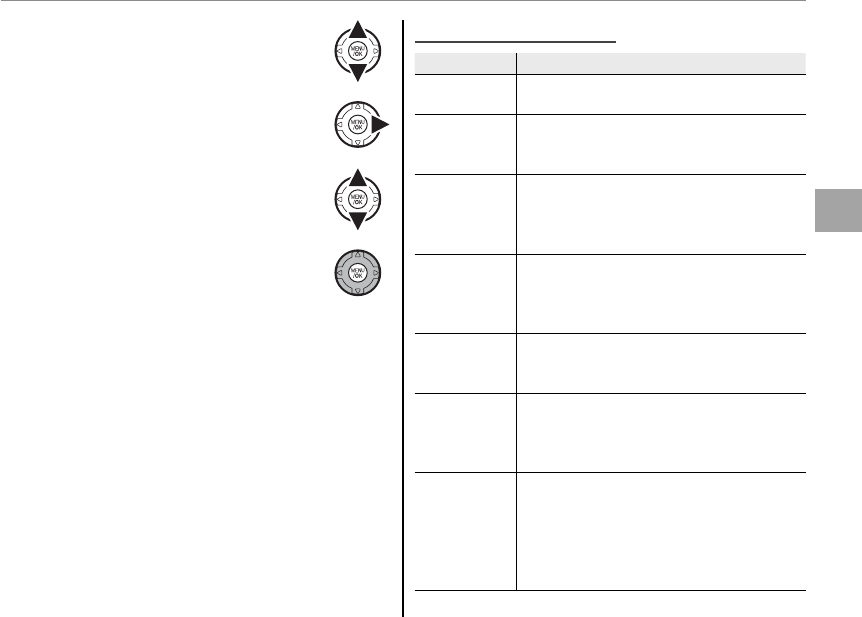
33
More on Photography
Shooting Mode
3 Press the selector up or down to
highlight A SCENE POSITION.
4 Press the selector right to display a
list of scenes.
5 Press the selector up or down to
highlight a scene (pg. 33).
6 Press MENU/OK to select the high-
lighted option.
Until the setting is changed as described above,
the chosen scene will be selected whenever the
mode dial is rotated to SP. The default selection
is L.
1 Note: Scene Position
F-CHROME can not be selected for the G
COLOR option in the shooting menu (pg. 67).
Scene Descriptions
Scene Descriptions
Scene
Scene
Description
Description
L PORTRAIT Choose this mode for soft-toned portraits
with natural skin tones.
M LANDSCAPE
Choose this mode for crisp, clear daylight
shots of buildings and landscapes. The ash
turns o automatically.
N SPORT
Choose this mode when photographing
moving subjects. E HIGH-SPEED SHOOT-
ING turns on automatically and priority is
given to faster shutter speeds.
O NIGHT
Choose this mode for poorly lit twilight or
night scenes. Sensitivity is automatically
raised to reduce blur caused by camera
shake.
H NIGHT
(TRIPOD)
Choose this mode for slow shutter speeds
when shooting at night. Use a tripod to pre-
vent blur.
D NATURAL
LIGHT
Capture natural light indoors, under low
light, or where the ash can not be used.
The ash turns o and sensitivity is raised to
reduce blur.
P FIREWORKS
Slow shutter speeds are used to capture the
expanding burst of light from a rework.
Press the d button to display a shutter-
speed selection dialog and press the selec-
tor up and down to choose a shutter speed.
The ash turns o automatically.
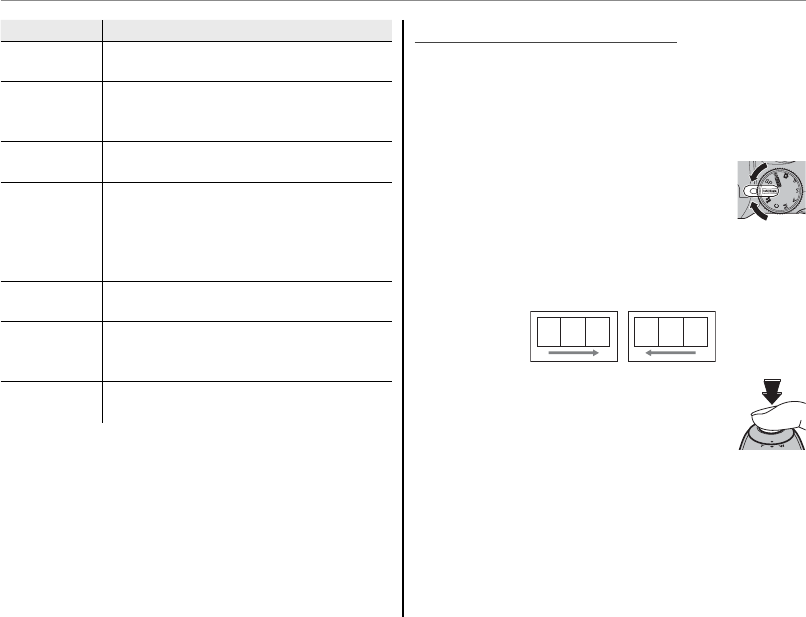
34
Shooting Mode
Scene
Scene
Description
Description
Q SUNSET Choose this mode to record the vivid colors
in sunrises and sunsets.
R SNOW
Choose for crisp, clear shots that capture the
brightness of scenes dominated by shining
white snow.
S BEACH Choose for crisp, clear shots that capture the
brightness of sunlit beaches.
T MUSEUM
Choose where ash photography is pro-
hibited or the sound of the shutter may be
unwelcome. The ash, speaker, and AF-as-
sist illuminator/self-timer lamp turn o auto-
matically.
U PARTY Capture indoor background lighting under
low-light conditions.
V FLOWER
Choose for vivid close-ups of owers. The
camera focuses in the macro range and the
ash turns o automatically.
W TEXT
Take clear pictures of text or drawings in print.
The camera focuses in the macro range.
N
N
PANORAMA MODE
PANORAMA MODE
In this mode, you can take up to three pictures
and join them together to form a panorama. Use
of a tripod is recommended to assist in compos-
ing overlapping shots.
1 Rotate the mode dial to N.
2 Press the selector up to select a frame, and
press the selector left or right to highlight a
pan direction and press MENU/OK.
21 3 23 1
3 Take a photograph. Exposure and
white balance for the panorama are
set with the rst shot.
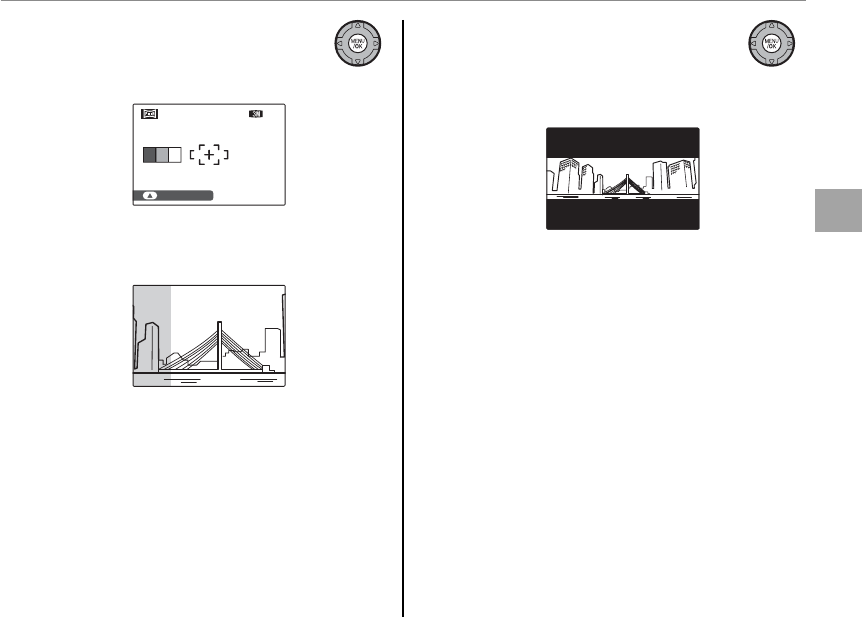
35
More on Photography
Shooting Mode
4 Press MENU/OK. An edge of the pic-
ture you have just taken will be dis-
played at one side of the frame.
2
2
3
3
1
1
SELECT FRAME
99
99
5 Frame the next shot to overlap with the previ-
ous picture.
6 Take the second shot as described in steps 3–4
(to create a panorama from only two frames,
press the selector up after the second shot).
7 Take the last shot, framing it to over-
lap the second picture. Press MENU/
OK to complete the panorama (the
individual shots are not saved).
8 Press MENU/OK to save the picture.
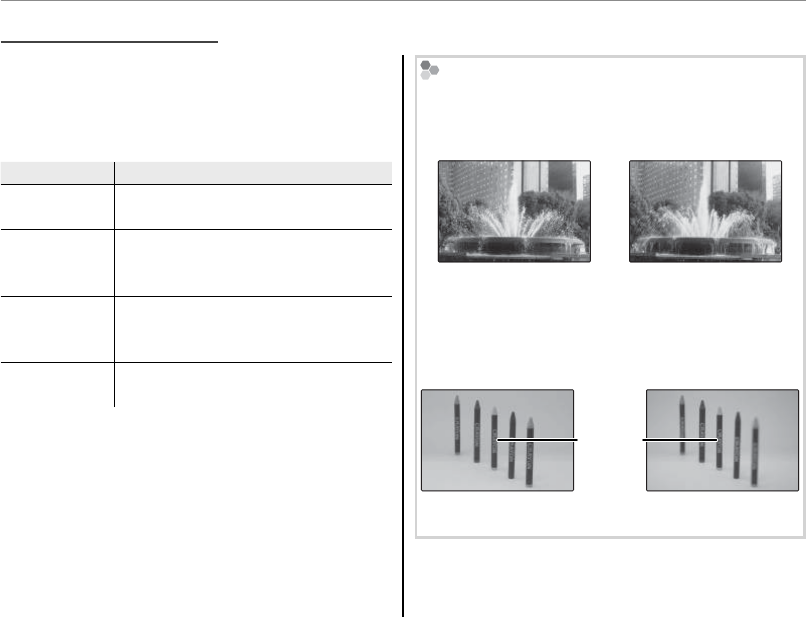
36
Shooting Mode
P, S, A, and M modes provide full access to the
shooting and F-mode menus. S, A, and M
modes also o er control over shutter speed and/
or aperture.
Mode
Mode
Description
Description
P (PROGRAM
AE; pg. 37)
The camera sets exposure automati-
cally.
S (SHUTTER
PRIORITY AE;
pg. 37)
You choose the shutter speed, letting
the camera set aperture for optimal
exposure.
A (APERTURE
PRIORITY AE;
pg. 38)
You choose the aperture, letting the
camera set shutter speed for optimal
exposure.
M (MANUAL;
pg. 39)
You choose both shutter speed and
aperture.
Shutter Speed and Aperture
Choose fast shutter speeds to freeze motion, slow
shutter speeds to suggest motion by blurring mov-
ing objects.
Fast shutter speed Slow shutter speed
Small apertures bring objects behind and in front
of the main subject into focus, while large apertures
emphasize the main subject by blurring background
and foreground objects.
Main
subject
Small aperture
(high F-number)
Large aperture
(low F-number)
P
P
,
,
S
S
,
,
A
A
, and
, and
M
M
Modes
Modes
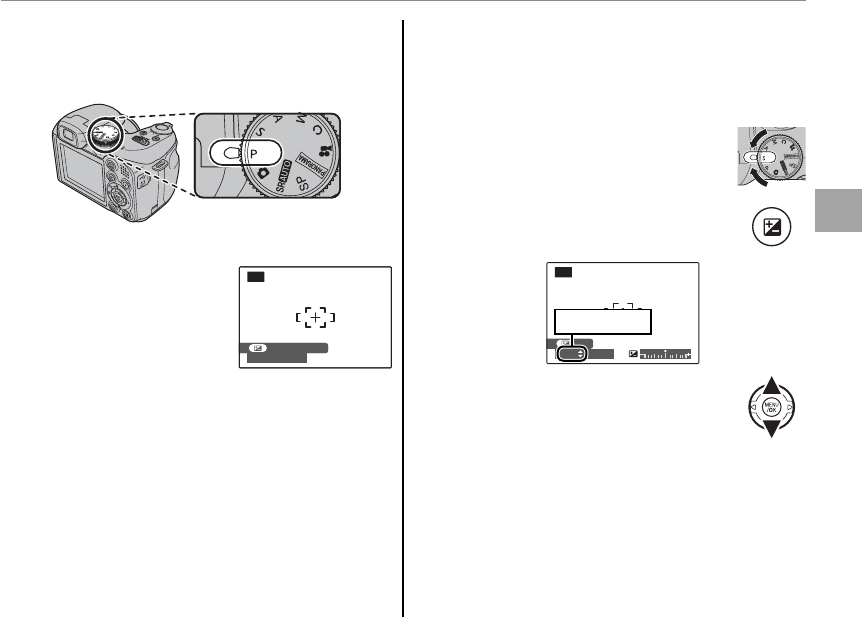
37
More on Photography
Shooting Mode
P: PROGRAM AE
P: PROGRAM AE
In this mode, the camera sets exposure automati-
cally.
3 Caution
If the subject is outside the me-
tering range of the camera, the
shutter speed and aperture dis-
plays will show “---”. Press the
shutter button halfway to mea-
sure exposure again.
S: SHUTTER PRIORITY AE
S: SHUTTER PRIORITY AE
In this mode, you choose the shutter speed while
the camera adjusts aperture for optimal expo-
sure.
1 Rotate the mode dial to S.
2 Press the d button. Shutter speed
and aperture will be displayed.
F
2. 8
S
80
SET
Shutter speed
3 Press the selector up or down to
choose the shutter speed.
----
F
---
P
PROGRAM SHIFT
----
F
---
P
PROGRAM SHIFT
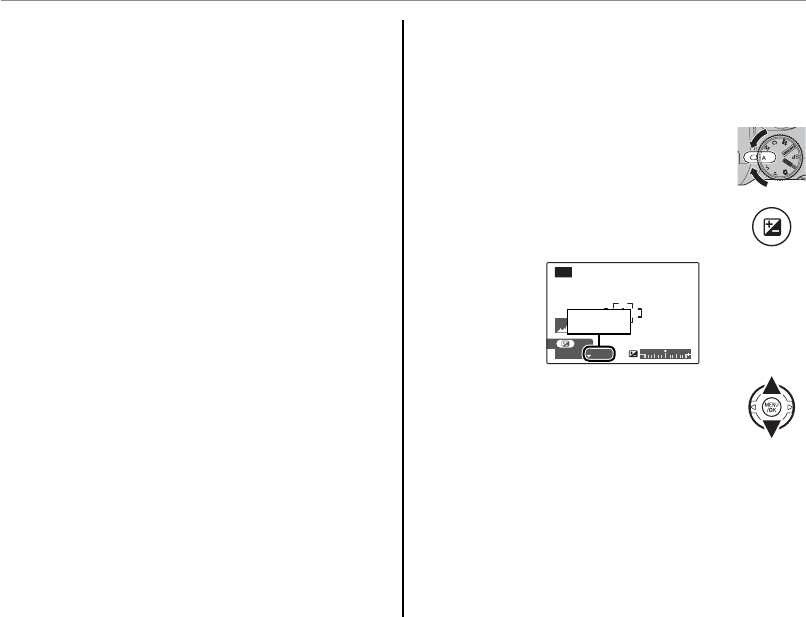
38
Shooting Mode
4 Take pictures. If the correct exposure can not
be achieved at the selected shutter speed, ap-
erture will be displayed in red when the shut-
ter button is pressed halfway. Adjust shut-
ter speed until the correct exposure can be
achieved.
3 Caution
If the subject is outside the metering range of the cam-
era, the shutter speed and aperture displays will show
“---”. Press the shutter button halfway to measure ex-
posure again.
A: APERTURE PRIORITY AE
A: APERTURE PRIORITY AE
In this mode, you choose the aperture while the
camera adjusts shutter speed for optimal expo-
sure.
1 Rotate the mode dial to A.
2 Press the d button. Shutter speed
and aperture will be displayed.
F
2. 8
A
80
SET
Aperture
3 Press the selector up or down to
choose the aperture.
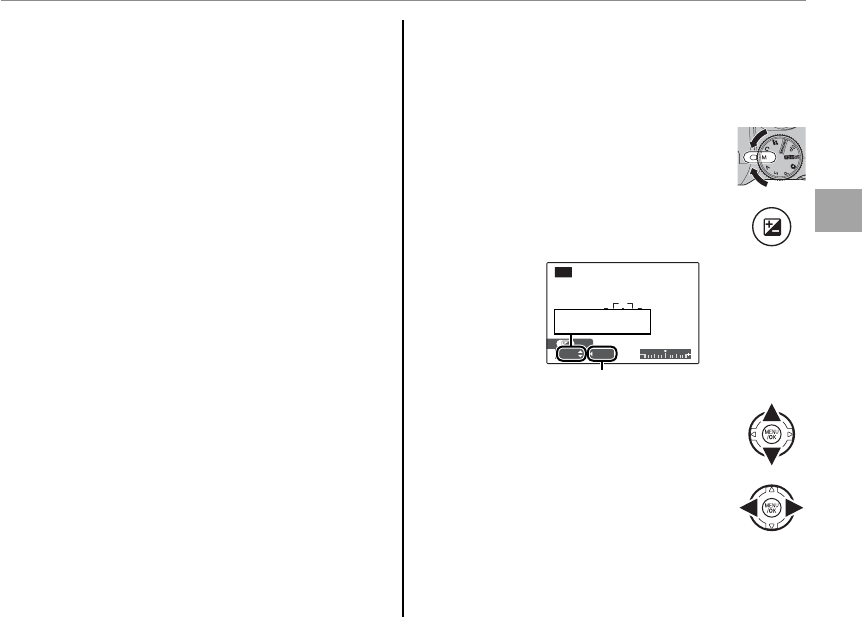
39
More on Photography
Shooting Mode
4 Take pictures. If the correct exposure can not
be achieved at the selected aperture, shutter
speed will be displayed in red when the shut-
ter button is pressed halfway. Adjust aperture
until the correct exposure can be achieved.
3 Caution
If the subject is outside the metering range of the cam-
era, the shutter speed and aperture displays will show
“---”. Press the shutter button halfway to measure ex-
posure again.
M: MANUAL
M: MANUAL
In this mode, you choose both shutter speed and
aperture. If desired, exposure can be altered from
the value suggested by the camera.
1 Rotate the mode dial to M.
2 Press the d button. Shutter speed
and aperture will be displayed.
F
2. 8
M
80
SET
Aperture
Shutter speed
3 Press the selector up or down to
choose the shutter speed.
4 Press the selector left or right to
choose the aperture.
5 Take pictures.
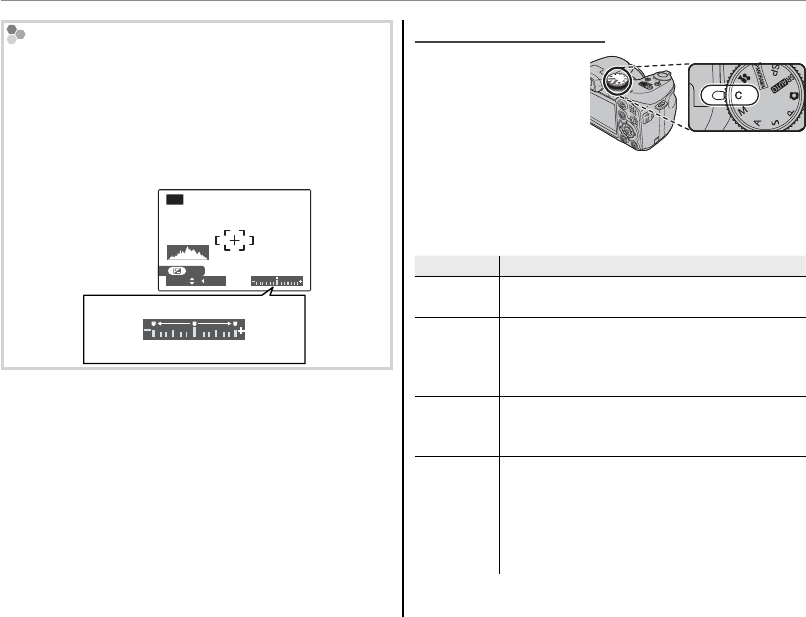
40
Shooting Mode
The Exposure Indicator
The amount the picture will be under- or over-ex-
posed at current settings is shown by the exposure
indicator. Pictures taken with the indicator to the left
of center (“–“) will be underexposed, pictures taken
with the indicator is to the right of center (“+”), over-
exposed.
F
2. 8
M
80
SET
Exposure indicator
Underexposed Overexposed
C
C
: CUSTOM MODE
: CUSTOM MODE
In P, S, A, and M
modes, the K CUS-
TOM SET option in
the shooting menu
(pg. 68) can be used
to save current camera and menu settings. These
settings are recalled whenever the mode dial is
rotated to C (custom mode).
Type of menu
Type of menu
Settings can be saved
Settings can be saved
F
F
-mode
-mode
menu
menu N ISO, O QUALITY, P G COLOR
Shooting
Shooting
menu
menu
C PHOTOMETRY, D WHITE BALANCE,
E HIGH-SPEED SHOOTING, F FOCUSING,
G AF MODE, H SHARPNESS, I FLASH,
J BRACKETING
Setup menu
Setup menu
A IMAGE DISP, L DUAL IS MODE,
C AF ILLUMINATOR, D DIGITAL ZOOM,
E EVF/LCD MODE
Other
Other
shooting mode (P, S, A, or M), continuous
shooting mode, Intelligent Face Detection,
instant zoom, macro mode, exposure com-
pensation, ash mode, display type (EVF/LCD),
indicators/framing guideline/post-shot assist
window
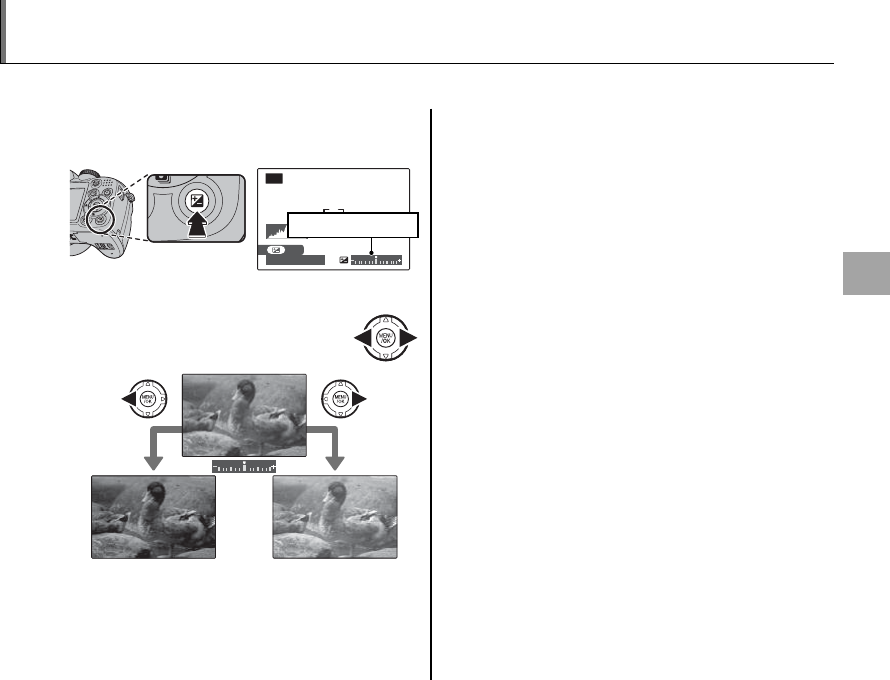
41
More on Photography
d Exposure Compensation
Use exposure compensation when photographing very bright, very dark, or high-contrast subjects.
1
Press the d button.
The exposure indicator will be displayed.
F
2. 8
P
80
SET
Exposure indicator
2
Choose a value.
Press the selector left or right. The
e ect is visible in the display.
Choose negative values
to reduce exposure
(“–” sign turns yellow)
Choose positive values to
increase exposure
(“+” sign turns yellow)
3
Return to shooting mode.
Press the d button to return to shooting
mode.
4
Take pictures.
1 Note
A d icon and exposure indicator are displayed at set-
tings other than ±0. Exposure compensation is not
reset when the camera is turned o ; to restore normal
exposure control, choose a value of ±0.
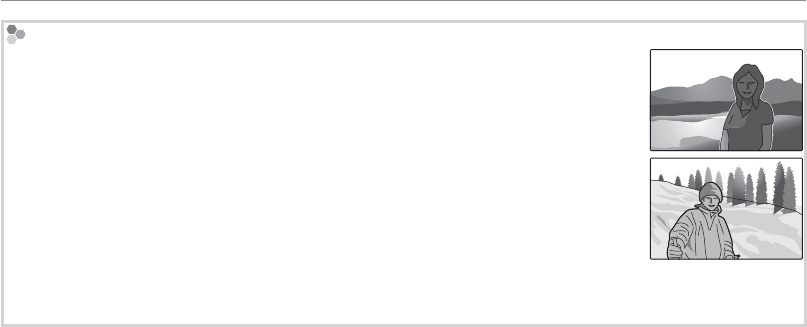
42
Choosing an Exposure Compensation Value
• Backlit subjects: choose values from +2
/
3 EV to +12
/
3 EV (for an explanation of the term “EV”,
see the Glossary on page 108)
• Highly re ective subjects or very bright scenes (e.g., snow elds): +1 EV
• Scenes that are mostly sky: +1 EV
• Spotlit subjects (particularly if photographed against dark backgrounds): –2
/
3 EV
• Subjects with low re ectivity (pine trees or dark-colored foliage): –2
/
3 EV
d Exposure Compensation
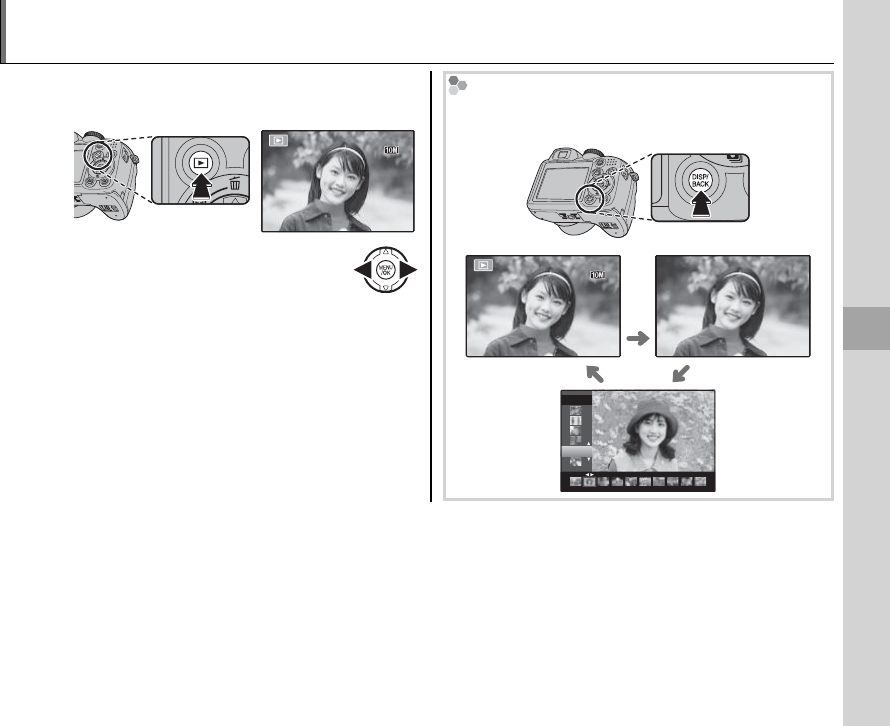
43
More on Playback
Playback Options
To view the most recent picture in the monitor,
press the a button for about a second.
100-0001
100-0001
N
N
12/ 31 / 2050
12/ 31 / 2050
10 : 00
AM
10 : 00
AM
Press the selector right to view pictures
in the order recorded, left to view pic-
tures in reverse order. Keep the selector
pressed to scroll rapidly to the desired
frame.
Choosing a Display Format
Press the DISP/BACK button to cycle through playback
display formats as shown below.
Indicators
displayed
Indicators
hidden
100-0001
100-0001
N
N
12/ 31 / 2050
12/ 31 / 2050
10 : 00
AM
10 : 00
AM
Sort by date
2050
2/13
2/13
12/31
1 Note
Pictures taken using other cameras are indicated by a m (“gift image”) icon during playback.
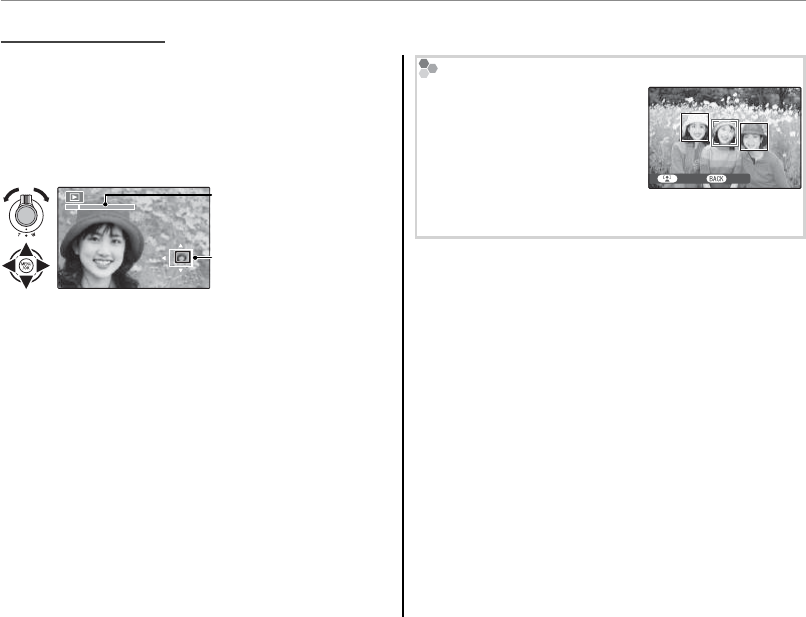
44
Playback Options
Playback Zoom
Playback Zoom
Select T to zoom in on pictures displayed in sin-
gle-frame playback; select W to zoom out. When
the picture is zoomed in, the selector can be used
to view areas of the image not currently visible in
the display.
Navigation window
shows portion of image
currently displayed in
monitor
Zoom indicator
Press DISP/BACK to exit zoom.
1 Note
The maximum zoom ratio varies with image size. Play-
back zoom is not available with pictures taken at an
image size of J.
Intelligent Face Detection
Pictures taken with Intelligent
Face Detection (pg. 21) are in-
dicated by a g icon. Press the
g button to zoom in on the
subject selected with Intelli-
gent Face Detection. You can
then use the zoom control to zoom in and out.
BACKZOOM
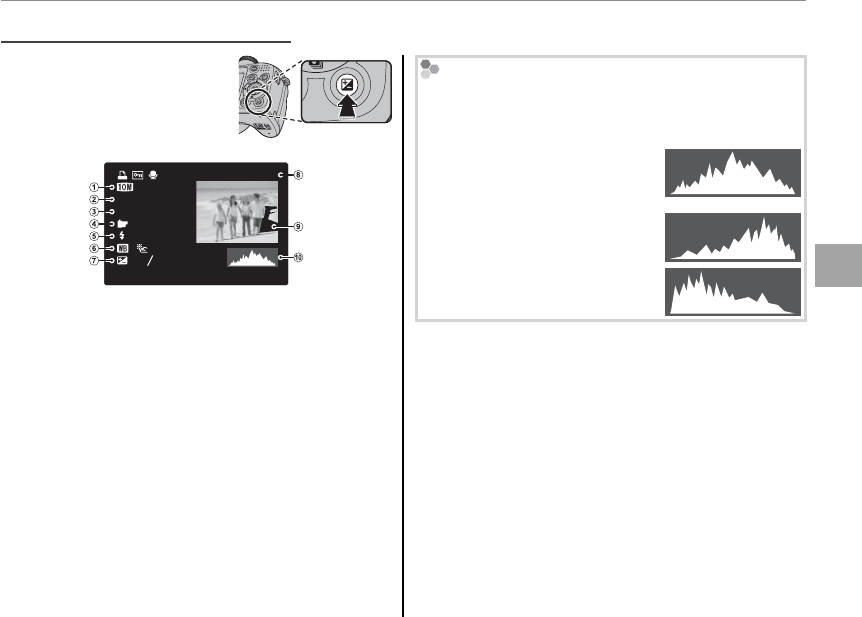
45
More on Playback
Playback Options
Viewing Photo Information
Viewing Photo Information
To view or hide the photo
information listed below in
single-frame playback, press
d.
:STD
:
:
:OFF
ISO
400
1/250
F
3.5
N
23
-
1
12 / 31/ 2050 10 : 00
AM
100-0001
q Image quality, w Sensitivity, e Shutter speed/aper-
ture, r FinePix color, t Flash mode, y White balance,
u Exposure compensation, i Frame number, o Picture
(overexposed areas blink on and o ), !0 Histogram
Histograms
Histograms show the distribution of tones in the im-
age. Brightness is shown by the horizontal axis, the
number of pixels by the vertical axis.
Optimal exposure: Pixels are
distributed in an even curve
throughout the tone range.
Overexposed: Pixels are clustered
at the right side of the graph.
Underexposed: Pixels are clustered
at the left side of the graph.
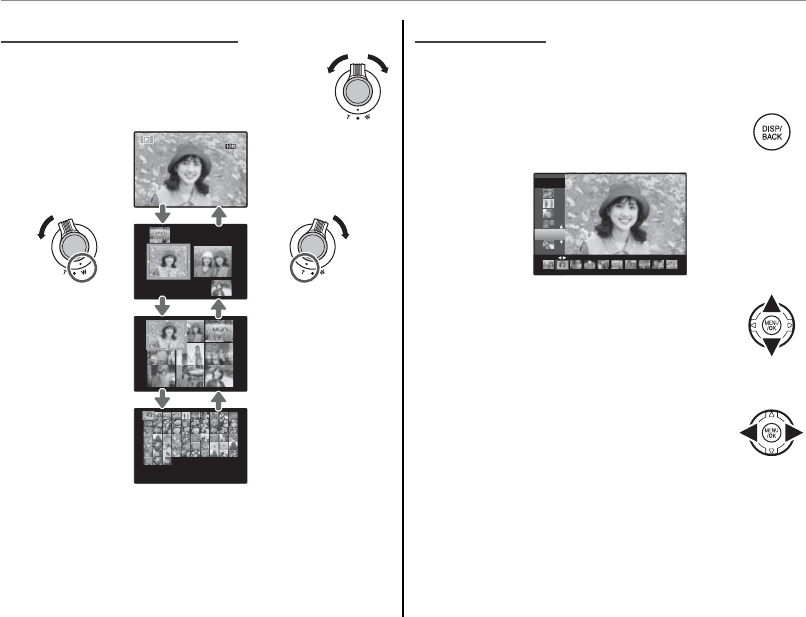
46
Playback Options
Multi-Frame Playback
Multi-Frame Playback
To change the number of images dis-
played, select W when a picture is
shown full-frame in the monitor.
100-0001
100-0001
N
N
10 : 00
AM
10 : 00
AM
12/31/2050
12/31/2050
Select W to
increase the
number of
pictures displayed
to two, nine, or a
hundred.
Select T to reduce
the number of im-
ages displayed.
Use the selector to highlight images and press
MENU/OK to view the highlighted image full frame.
In the nine- and hundred-frame displays, press
the selector up or down to view more pictures.
Sort by Date
Sort by Date
Choose sort-by-date mode to view pictures taken
on a selected date.
1 Press DISP/BACK until the sort-by-date
screen is displayed.
2050
2/13
2/13
12/31
2 Use the selector up or down to
highlight a date. Keep the selector
pressed to scroll rapidly to the de-
sired date.
3 Press the selector left or right to
scroll through the pictures taken on
the highlighted date. Keep the se-
lector pressed to scroll rapidly to the
desired frame.
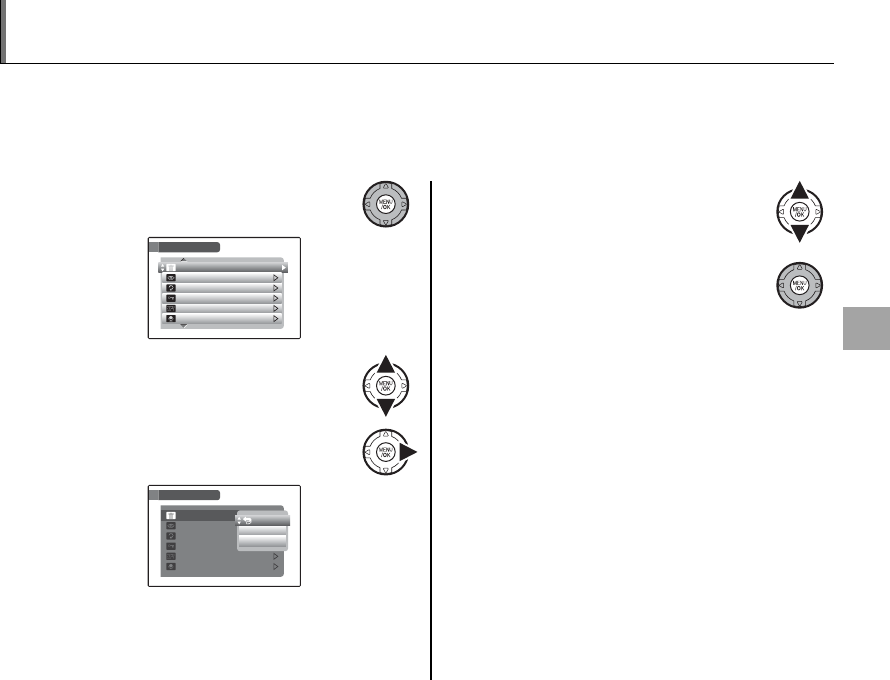
47
More on Playback
A Deleting Pictures
The ERASE option in the playback menu can be used to delete still pictures and movies, increasing
the amount of space available on the memory card or in internal memory (for information on deleting
pictures in single-frame playback, see page 20). Note that deleted pictures can not be recovered. Copy
important pictures to a computer or other storage device before proceeding.
1 Press MENU/OK to display the play-
back menu.
ERASE
PLAYBACK MENU
IMAGE ROTATE
RED EYE REMOVAL
VOICE MEMO
PROTECT
COPY
2 Press the selector up or down to
highlight ERASE.
3 Press the selector right to display de-
lete options.
ERASE
IMAGE ROTATE
RED EYE REMOVAL
VOICE MEMO
PROTECT
COPY
PLAYBACK MENU
FRAME
ALL FRAMES
BACK
4 Press the selector up or down to
highlight FRAME or ALL FRAMES.
5 Press MENU/OK to display options for
the selected item (see following
page).
2 Tips: Deleting Pictures
• When a memory card is inserted, pictures will be de-
leted from the memory card; otherwise, pictures will
be deleted from internal memory.
• Protected pictures can not be deleted. Remove pro-
tection from any pictures you wish to delete (pg. 81).
• If a message appears stating that the selected images
are part of a DPOF print order, press MENU/OK to delete
the pictures.
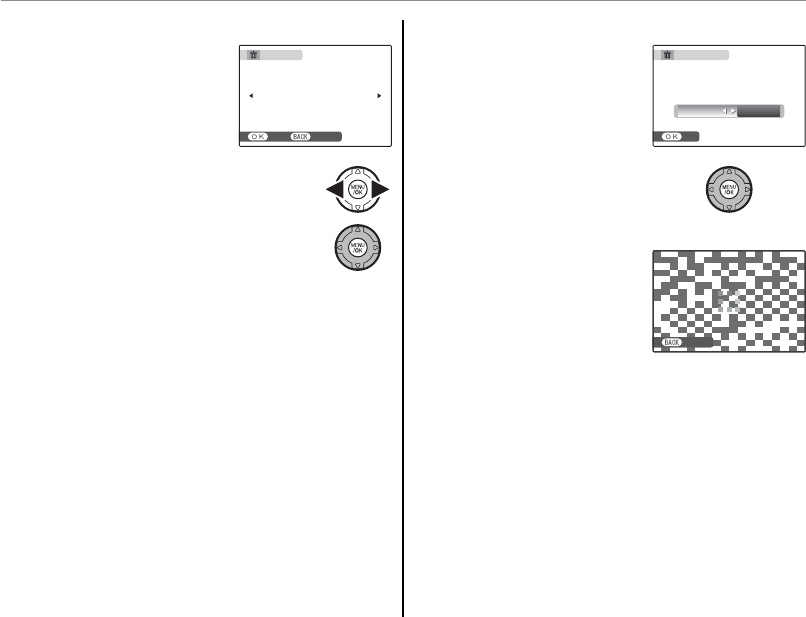
48
■
■
FRAME
FRAME
: Deleting Selected Images
: Deleting Selected Images
Selecting FRAME displays
the dialog shown at right.
ERASE OK?
YES CANCEL
Press the selector left or right to scroll
through pictures and press MENU/OK to
delete the current picture (the picture
is deleted immediately; be careful not
delete the wrong picture).
Press DISP/BACK to exit when all the desired pic-
tures have been deleted.
■
■
ALL FRAMES
ALL FRAMES
: Deleting All Images
: Deleting All Images
Selecting ALL FRAMES
displays the con rmation
shown at right.
IT MAY TAKE A WHILE
ERASE ALL OK?
SET
OK CANCEL
Highlight OK and press
MENU/OK to delete all unpro-
tected pictures.
The dialog shown at right is
displayed during deletion.
Press DISP/BACK to cancel be-
fore all pictures have been
deleted (any pictures de-
leted before the button was pressed can not be
recovered).
CANCELCANCEL
A Deleting Pictures
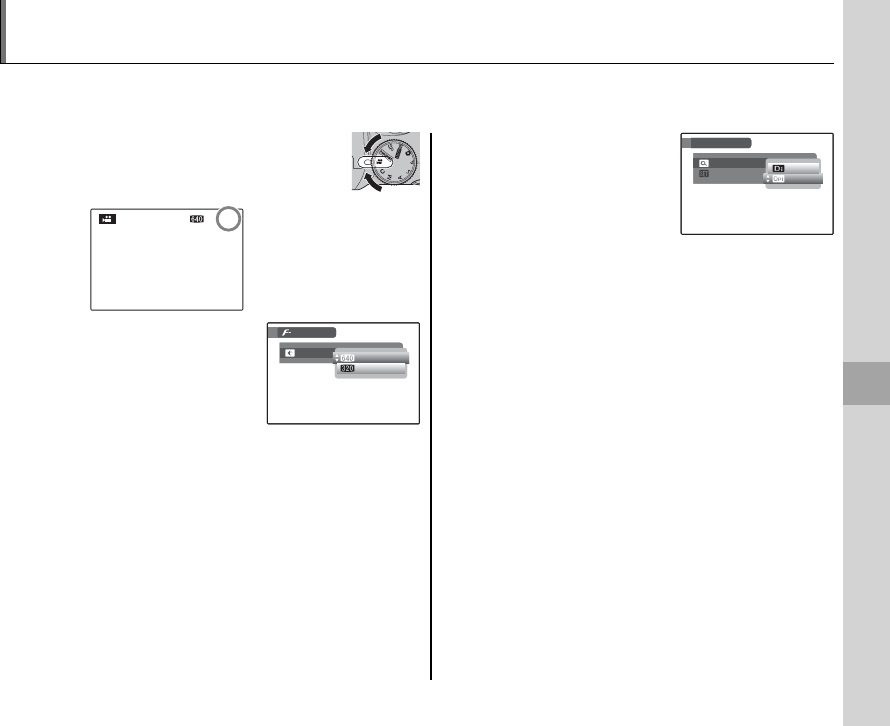
49
Movies
1 Rotate the mode dial to F (movie
mode).
STANDBY
STANDBY
12
s
Time available
is displayed in
monitor
2 Press the F button and
select a frame size from
the O QUALITY menu
(pg. 66). Choose a
(640 × 480 pixels) for
higher quality or b (320 × 240 pixels) for
longer movies. Press MENU/OK to exit to movie
mode.
3 Press MENU/OK to display
the shooting menu and
select the type of zoom
available in movie mode
from the Q MOVIE
ZOOM TYPE menu. Choose 2 OPTICAL to
enable optical zoom and allow the camera to
continue to focus during recording (note that
sounds made by the camera may be recorded).
Choose 1 DIGITAL to enable digital zoom
and turn focusing o during recording (note
that digital zoom may produce lower quality
images than optical zoom). Press MENU/OK exit
to movie mode.
1 Note
Image quality and movie zoom options are stored
when the camera is turned o or another mode is
selected, and are restored when the mode dial is
rotated to F.
F Recording Movies
Shoot short movies at 30 frames per second. Sound is recorded via the built-in microphone; do not
cover the microphone during recording.
SHOOTING MENU
SET-UP
MOVIE ZOOM TYPE
DIGITAL
OFF
DIGITAL
OPTICAL
SHOOTING MENU
SET-UP
MOVIE ZOOM TYPE
DIGITAL
OFF
DIGITAL
OPTICAL
MODE MENU
QUALITY
8
m
30
s
2
m
00
s
MODE MENU
QUALITY
8
m
30
s
2
m
00
s
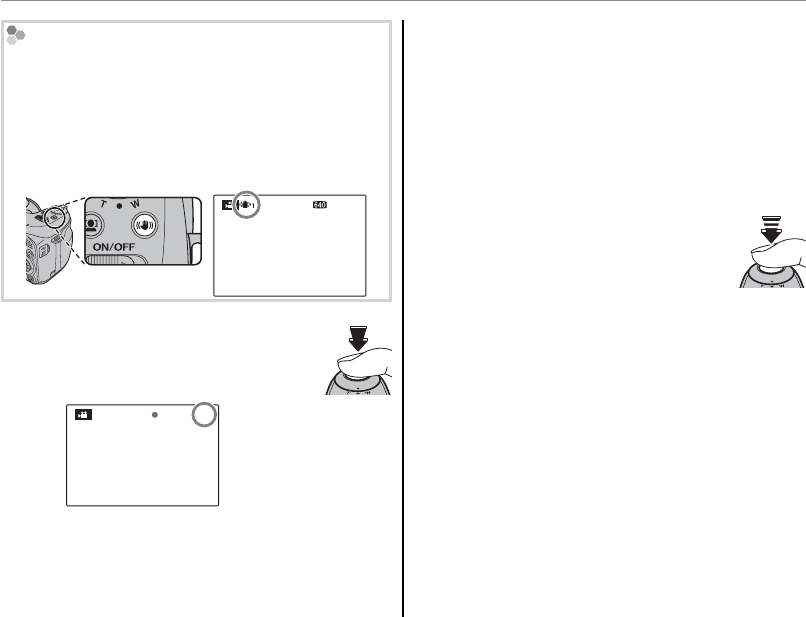
50
Camera Shake
The e ects of camera shake can be reduced by press-
ing the f button to turn image stabilization on.
Regardless of the option selected for L DUAL IS in
the setup menu, continuous stabilization is used in
movie mode. A l icon is displayed when image
stabilization is on.
STANDBY
STANDBY
12
s
4 Press the shutter button all the way
down to start recording.
REC
12
s
z REC and time
remaining are dis-
played in monitor
1 Note
Exposure and white balance are adjusted automatically
throughout recording. The color and brightness of the
image may vary from that displayed before recording
begins.
2 Tip
There is no need to keep the shutter button pressed
during recording.
5 Press the shutter button halfway to
end recording. Recording ends au-
tomatically when the movie reaches
maximum length or memory is full.
3 Caution
The indicator lamp lights while movies are being re-
corded. Do not open the battery chamber during
shooting or while the indicator lamp is lit. Failure to
observe this precaution could prevent the movie from
being played back.
1 Notes
• Other cameras may not be able to display movies re-
corded with this camera.
• The E EVF/LCD MODE option in the setup menu is
xed at 30 fps in movie mode.
F Recording Movies
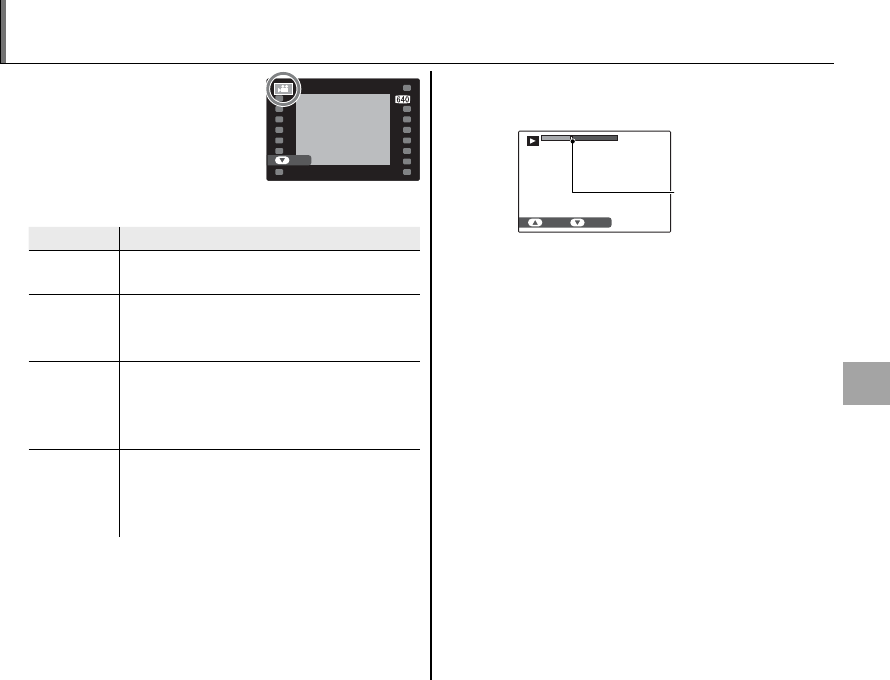
51
Movies
a Viewing Movies
During playback (pg. 43),
movies are displayed in the
monitor as shown at right.
The following operations
can be performed while a
movie is displayed:
100-006
100-006
PLAY
12/ 31 / 2050
12/ 31 / 2050
10 : 00
AM
10 : 00
AM
Operation
Operation
Description
Description
Start/pause
playback
Press the selector down to start playback.
Press again to pause.
End
playback/
delete
Press the selector up to end playback. If
playback is not in progress, pressing the
selector up will delete the current movie.
Advance/
rewind
Press the selector right to advance, left to
rewind. If playback is paused, the movie
will advance or rewind one frame each
time the selector is pressed.
Adjust
volume
Press MENU/OK to pause playback and dis-
play volume controls. Press the selector
up or down to adjust the volume; press
MENU/OK again to set the volume.
Progress is shown in the monitor during play-
back.
15
s
15
s
STOP PAUSE
Progress bar
2 Tip: Viewing Movies on a Computer
Copy movies to the computer before viewing.
3 Cautions
• Do not cover the speaker during playback.
• Vertical or horizontal streaks may appear in movies
containing very bright subjects. This is normal and
does not indicate a malfunction.
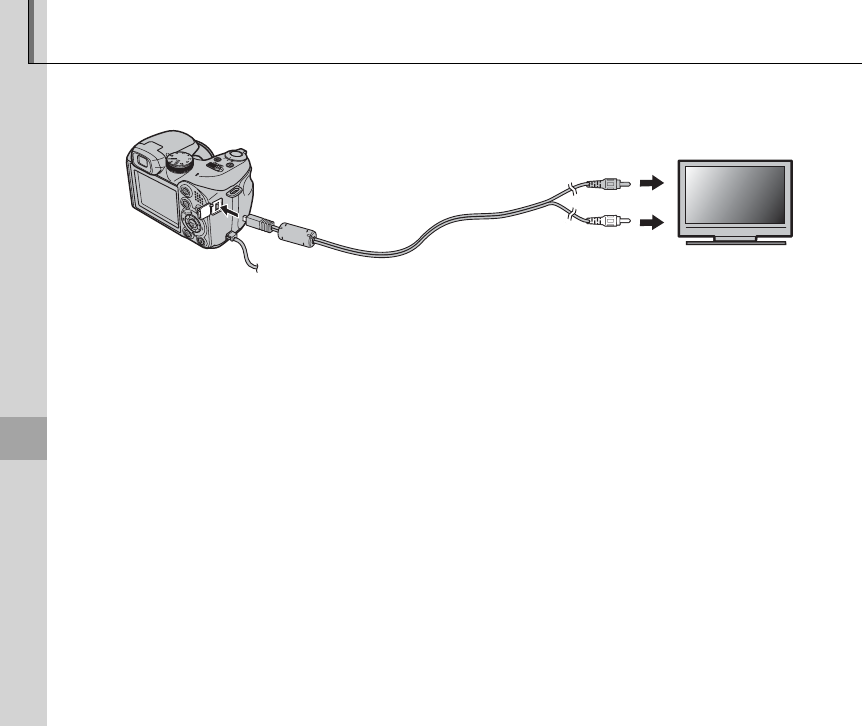
52
Connections
Viewing Pictures on TV
Connect the camera to a TV and tune the television to the video channel to show pictures to a group.
The supplied A/V cable connects as shown below. Turn the camera o before connecting the cable.
Connect yellow plug
to video-in jack
Connect white plug
to audio-in jack
Insert into A/V cable
connector
Press a for about a second to turn the camera on. The camera monitor turns o and pictures and
movies are played back on the TV. Note that the camera volume controls have no e ect on sounds
played on the TV; use the television volume controls to adjust the volume.
1 Note
Image quality drops during movie playback.
3 Caution
When connecting the cable, be sure the connectors are fully inserted.
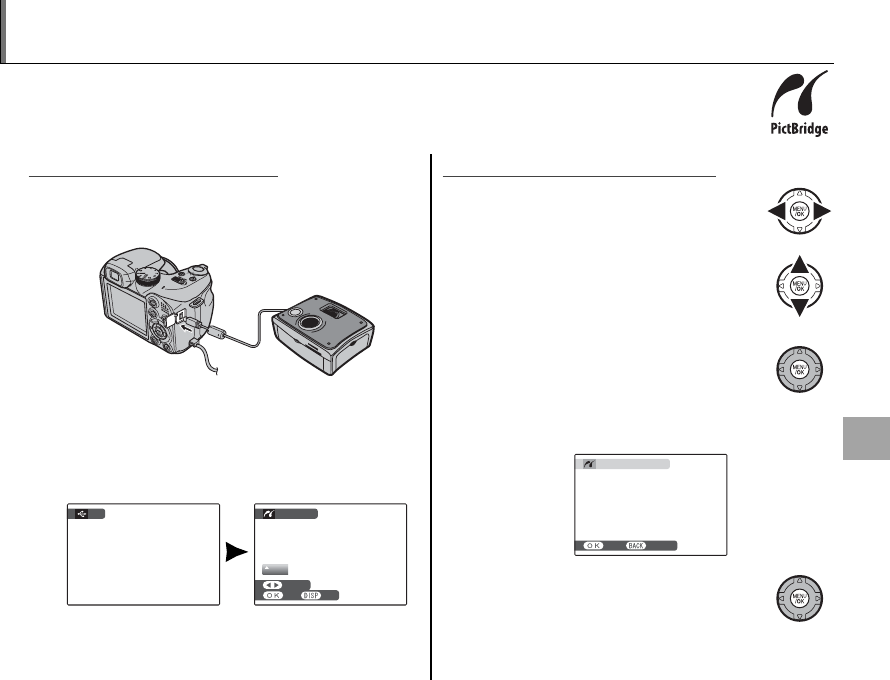
53
Connections
Printing Pictures via USB
If the printer supports PictBridge, the camera can be connected directly to the printer and
pictures can be printed without rst being copied to a computer. Note that depending on
the printer, not all the functions described below may be supported.
Connecting the Camera
Connecting the Camera
1 Connect the supplied USB cable as shown and
turn the printer on.
2 Press the a button for about a second to turn
the camera on. t USB will be displayed in
the monitor, followed by the PictBridge dis-
play shown below at right.
USB
00
OK
FRAME
TOTAL:
00000
SHEETS
PICTBRIDGE
SET
Printing Selected Pictures
Printing Selected Pictures
1 Press the selector left or right to dis-
play a picture you wish to print.
2 Press the selector up or down to
choose the number of copies (up to
99).
3 Repeat steps 1–2 to select additional
pictures. Press MENU/OK to display a
con rmation dialog when settings
are complete.
PRINT THESE FRAMES
TOTAL:
9
SHEETS
YES CANCEL
4 Press MENU/OK to start printing.
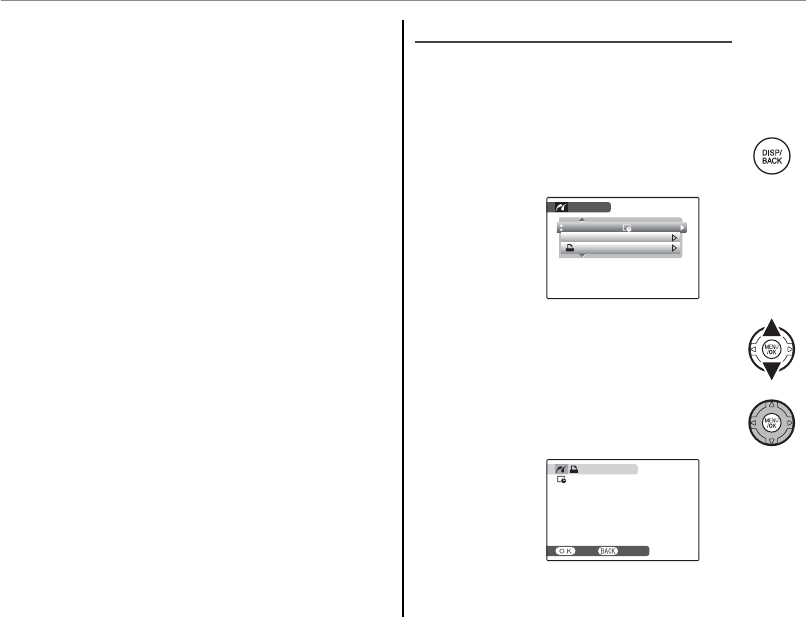
54
Printing Pictures via USB
2 Tip: Printing the Date of Recording
To print the date of recording on pictures, press DISP/
BACK in steps 1–2 to display the PictBridge menu (see
“Printing the DPOF Print Order,” below). Press the se-
lector up or down to highlight PRINT WITH DATE s
and press MENU/OK to return to the PictBridge display
(to print pictures without the date of recording, select
PRINT WITHOUT DATE). To ensure that the date is
correct, set the camera clock before taking pictures.
1 Note
If no pictures are selected when the MENU/OK button is
pressed, the camera will print one copy of the current
picture.
Printing the DPOF Print Order
Printing the DPOF Print Order
To print the print order created with K PRINT
ORDER (DPOF) in the playback F-MODE menu
(pg. 77):
1 In the PictBridge display, press DISP/
BACK to open the PictBridge menu.
PICTBRIDGE
PRINT DPOF
PRINT WITH DATE
PRINT WITHOUT DATE
2 Press the selector up or down to
highlight u PRINT DPOF.
3 Press MENU/OK to display a con rma-
tion dialog.
PRINT DPOF OK?
TOTAL:
9
SHEETS
YES CANCEL
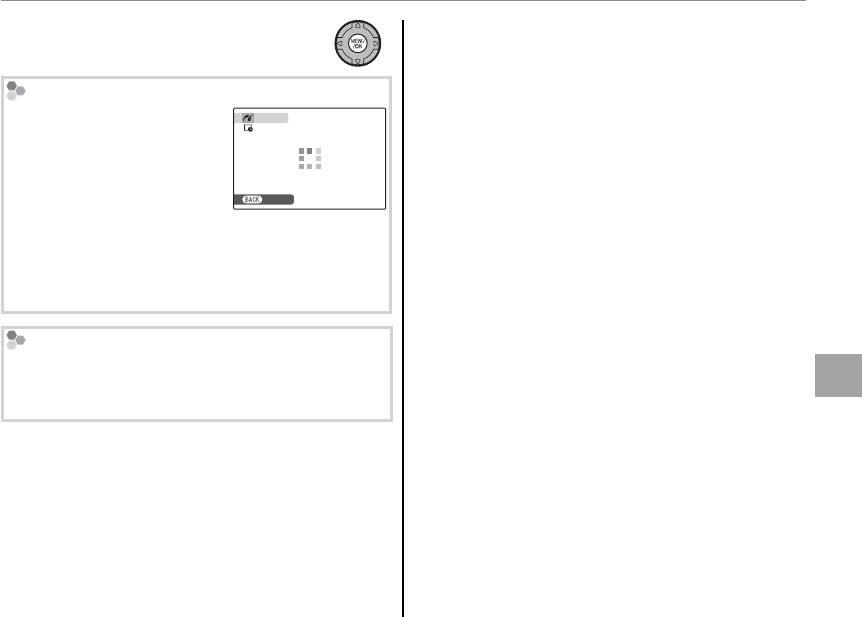
55
Connections
Printing Pictures via USB
4 Press MENU/OK to start printing.
During Printing
The message shown at right
is displayed during printing.
Press DISP/BACK to cancel be-
fore all pictures are printed
(depending on the printer,
printing may end before the
current picture has printed).
If printing is interrupted, press a to turn the camera
o and then on again.
PRINTING
CANCEL
Disconnecting the Camera
Con rm that “PRINTING” is not displayed in the moni-
tor and turn the camera o . Disconnect the USB
cable.
1 Notes
• Print pictures from internal memory or a memory
card that has been formatted in the camera.
• If the printer does not support date printing, the
PRINT WITH DATE s option will not be available in
the PictBridge menu and the date will not be printed
on the pictures in the DPOF print order.
• Default printer page size and print quality settings are
used when printing via direct USB connection.
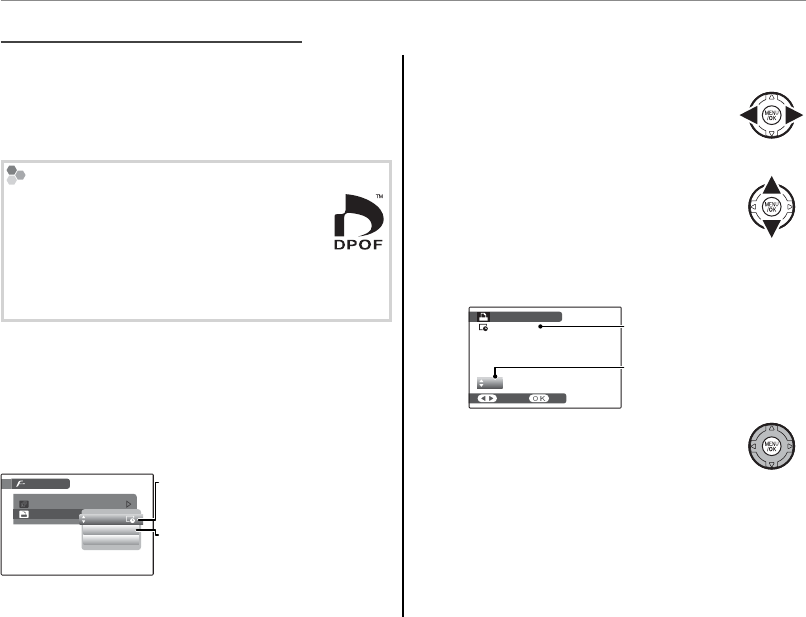
56
Printing Pictures via USB
The K PRINT ORDER (DPOF) option in the
playback F-MODE menu can be used to create
a digital “print order” for PictBridge-compatible
printers (pg. 54) or devices that support DPOF.
DPOF
DPOF (Digital Print Order Format) is stan-
dard that allows pictures to be printed from
“print orders” stored in internal memory or
on a memory card. The information in the order in-
cludes the pictures to be printed and the number of
copies of each picture.
■
■
WITH DATE
WITH DATE s
/ WITHOUT DATE
/ WITHOUT DATE
To modify the DPOF print order, select
K
K PRINT
ORDER (DPOF) in the playback F-MODE menu
and press the selector up or down to highlight
WITH DATE s or WITHOUT DATE.
SLIDE SHOW
MODE MENU
PRINT ORDER (DPOF)
WITHOUT DATE
RESET ALL
WITH DATE
WITH DATE s: Print date of record-
ing on pictures.
WITHOUT DATE: Print pictures
without date.
Press MENU/OK and follow the steps below.
1 Press the selector left or right to dis-
play a picture you wish to include in
or remove from the print order.
2 Press the selector up or down to
choose the number of copies (up to
99). To remove a picture from the
order, press the selector down until the num-
ber of copies is 0.
SHEETS
DPOF:
00001
01
PRINT ORDER (DPOF)
SET
FRAME
Total number of prints
Number of copies
3 Repeat steps 1–2 to complete the
print order. Press MENU/OK to save
the print order when settings are
complete, or DISP/BACK to exit without chang-
ing the print order.
Creating a DPOF Print Order
Creating a DPOF Print Order
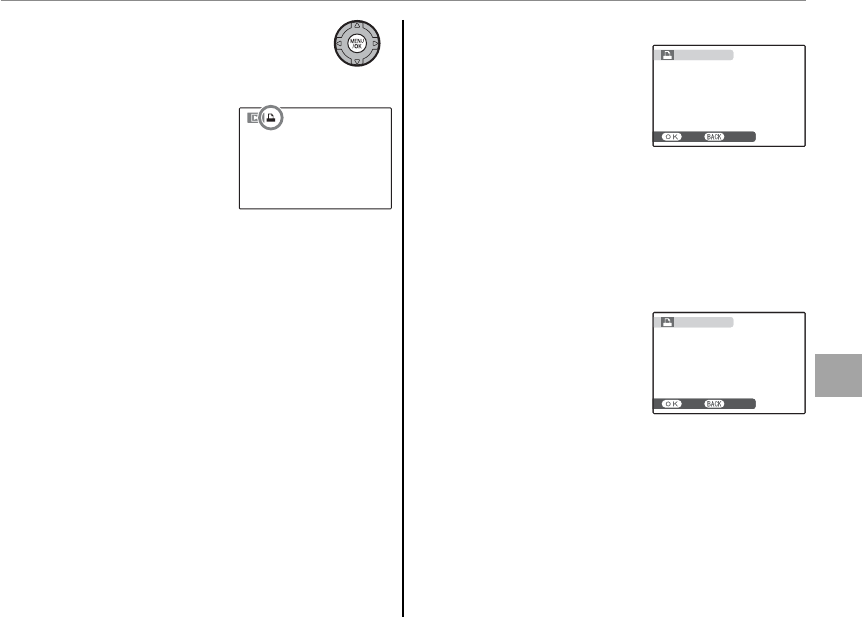
57
Connections
Printing Pictures via USB
4 The total number of prints is dis-
played in the monitor. Press MENU/
OK to exit.
The pictures in the current
print order are indicated by a
u icon during playback.
■
■
RESET ALL
RESET ALL
To cancel the current print
order, select RESET ALL
in the K PRINT ORDER
(DPOF) menu. The con r-
mation shown at right will
be displayed; press MENU/OK to remove all pictures
from the order.
1 Notes
• Remove the memory card to create or modify a print
order for the pictures in internal memory.
• Print orders can contain a maximum of 999 pictures.
• If a memory card is inserted
containing a print order cre-
ated by another camera, the
message shown at right will
be displayed. Pressing MENU/
OK cancels the print order; a
new print order must be created as described above.
RESET DPOF OK?
YES CANCEL
RESET DPOF OK?
YES CANCEL
RESET DPOF OK?
YES CANCEL
RESET DPOF OK?
YES CANCEL
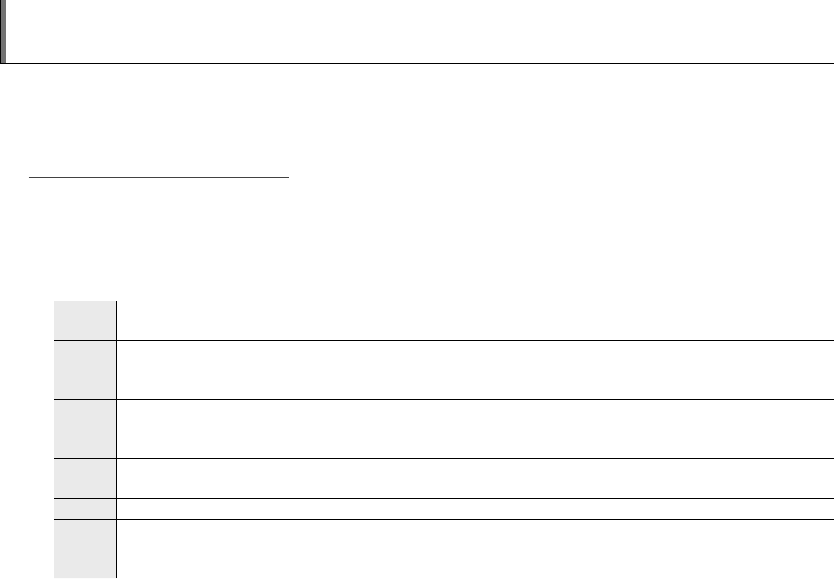
58
Viewing Pictures on a Computer
The supplied FinePixViewer software can be used to copy pictures to a computer, where they can be
stored, viewed, organized, and printed. Before proceeding, install FinePixViewer as described below.
Do NOT connect the camera to the computer until installation is complete.
Installing FinePixViewer
Installing FinePixViewer
FinePixViewer is available in Windows and Macintosh versions. Installation instructions for Windows
are on pages 58–59, those for the Macintosh on pages 60–61.
Installing FinePixViewer: Windows
Installing FinePixViewer: Windows
1 Con rm that the computer meets the following system requirements:
OS
OS Preinstalled versions of Windows Vista, Windows XP Home Edition (Service Pack 2), Windows XP Professional
(Service Pack 2), or Windows 2000 Professional (Service Pack 4)
CPU
CPU
• Windows Vista: 800 MHz Pentium 4 or better (3 GHz Pentium 4 or better recommended)
• Windows XP: 800 MHz Pentium 4 or better (2 GHz Pentium 4 or better recommended)
• Windows 2000: 200 MHz Pentium or better
RAM
RAM
• Windows Vista: 512 MB or more (1 GB or more recommended)
• Windows XP: 512 MB or more
• Windows 2000: 128 MB or more
Free disk
Free disk
space
space
A minimum of 450 MB required for installation with 600 MB available when FinePixViewer is running (15 GB or
more recommended under Windows Vista, 2 GB or more recommended under Windows XP)
Video
Video 800 × 600 pixels or more with 16-bit color or better (1,024 × 768 pixels or more with 32-bit color recommended)
Other
Other
• Built-in USB port recommended. Operation is not guaranteed other USB ports.
• Internet connection (56 kbps or faster recommended) required to use FinePix Internet Service; Internet con-
nection and e-mail software required to use e-mail option.
3 Caution
Other versions of Windows are not supported. Operation is not guaranteed on home-built computers or
computers that have been upgraded from earlier versions of Windows.
59
Connections
Viewing Pictures on a Computer
2 Start the computer. Log in to an account with administrator privileges before proceeding.
3 Exit any applications that may be running and insert the installer CD in a CD-ROM drive.
Windows Vista
If an AutoPlay dialog is displayed, click SETUP.exe. A “User Account Control” dialog will then be displayed;
click Allow.
The installer will start automatically; click Installing FinePixViewer and follow the on-screen in-
structions to install FinePixViewer. Note that the Windows CD may be required during installation.
If the Installer Does Not Start Automatically
If the installer does not start automatically, select Computer or My Computer from the Start menu (Win-
dows Vista/XP) or double-click the My Computer icon on the desktop (Windows 2000), then double-click
the FINEPIX CD icon to open the FINEPIX CD window and double-click SETUP or SETUP.exe.
4 If prompted to install Windows Media Player, QuickTime, or DirectX, follow the on-screen instruc-
tions to complete installation.
5 When prompted, remove the installer CD from the CD-ROM drive and click Restart to restart the
computer. Store the installer CD in a dry location out of direct sunlight in case you need to re-install
the software. The version number is printed at the top of the CD label for reference when updating
the software or contacting customer support.
Installation is now complete. Proceed to “Connecting the Camera” on page 62.
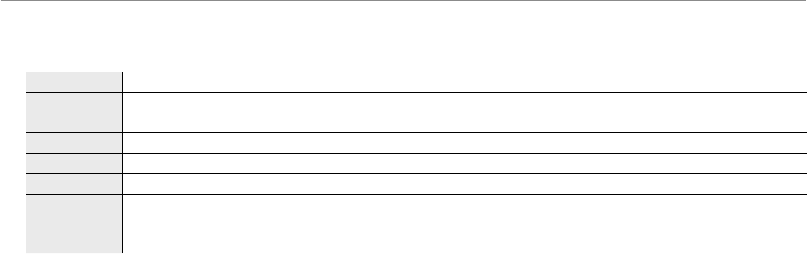
60
Viewing Pictures on a Computer
Installing FinePixViewer: Macintosh
Installing FinePixViewer: Macintosh
1 Con rm that the computer meets the following system requirements:
CPU
CPU PowerPC or Intel
OS
OS Pre-installed versions of Mac OS X version 10.3.9–10.4 (for the latest information, visit http://www.fujifilm.
com/)
RAM
RAM 256 MB or more
Free disk space
Free disk space A minimum of 200 MB required for installation with 400 MB available when FinePixViewer is running
Video
Video 800 × 600 pixels or more with thousands of colors or better
Other
Other
• Built-in USB port recommended. Operation is not guaranteed other USB ports.
• Internet connection (56 kbps or faster recommended) required to use FinePix Internet Service; Internet
connection and e-mail software required to use e-mail option.
2 After starting the computer and quitting any applications that may be running, insert the installer
CD in a CD-ROM drive. Double-click the FinePix CD icon on the desktop and double-click Installer
for Mac OS X.
3 An installer dialog will be displayed; click Installing FinePixViewer to start installation. Enter an
administrator name and password when prompted and click OK, then follow the on-screen instruc-
tions to install FinePixViewer. Click Exit to quit the installer when installation is complete.
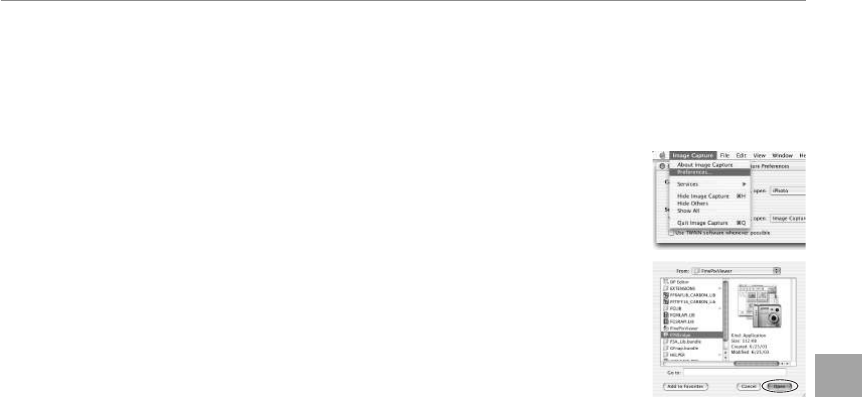
61
Connections
Viewing Pictures on a Computer
4 Remove the installer CD from the CD-ROM drive. Note that you may be unable to remove the CD
if Safari is running; if necessary, quit Safari before removing the CD. Store the installer CD in a dry
location out of direct sunlight in case you need to re-install the software. The version number is
printed at the top of the CD label for reference when updating the software or contacting customer
support.
5 Select Applications in the Finder Go menu to open the applications folder.
Double-click the Image Capture icon and select Preferences… from the Im-
age Capture application menu.
The Image Capture preferences dialog will be displayed. Choose Other… in
the When a camera is connected, open menu, then select FPVBridge in
the “Applications/FinePixViewer” folder and click Open.
Select Quit Image Capture from the Image Capture application menu.
Installation is now complete. Proceed to “Connecting the Camera” on page 62.
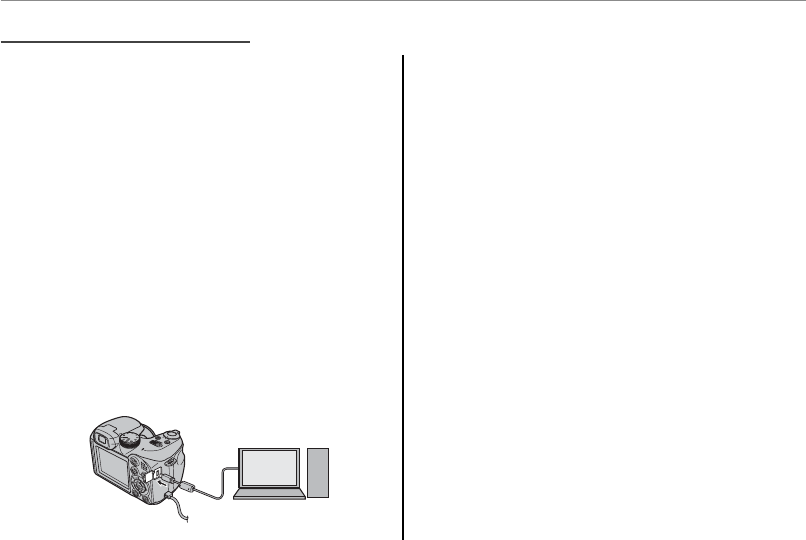
62
Viewing Pictures on a Computer
1 If the pictures you wish to copy are stored on a
memory card, insert the card into the camera
(pg. 11). If no card is inserted, pictures will be
copied from internal memory.
3 Caution
Loss of power during transfer could result in loss of
data or damage to internal memory or the memory
card. Charge the battery before connecting the
camera.
2 Turn the camera o and connect the supplied
USB cable as shown, making sure the connec-
tors are fully inserted. Connect the camera di-
rectly to the computer; do not use a USB hub
or keyboard.
3 Press the a button for about a second to turn
the camera on. FinePixViewer will start auto-
matically and the “Save Image Wizard” will be
displayed. Follow the on-screen instructions
to copy pictures to the computer. To exit with-
out copying pictures, click Cancel.
3 Caution
If FinePixViewer does not start automatically, the
software may not be correctly installed. Discon-
nect the camera and reinstall the software.
For more information on using FinePixViewer,
select How to Use FinePixViewer in the
FinePixViewer Help menu.
Connecting the Camera
Connecting the Camera
1 Note
The camera will not turn o automatically while connected to a computer.
63
Connections
Viewing Pictures on a Computer
3 Cautions
• Use only memory cards that have been formatted
in the camera and contain pictures taken with the
camera. If a memory card containing a large num-
ber of images is inserted, there may be a delay before
FinePixViewer starts and FinePixViewer may be un-
able to import or save images. Use a memory card
reader to transfer pictures.
• Make sure the indicator lamp is out before turning the
camera o or disconnecting the USB cable. Failure to
observe this precaution could result in loss of data or
damage to internal memory or the memory card.
• Disconnect the camera before inserting or removing
memory cards.
• Use FinePixViewer to copy voice memos.
• In some cases, it may not be possible to access pic-
tures saved to a network server using FinePixViewer
in the same way as on a standalone computer.
• The user bears all applicable fees charged by the
phone company or Internet service provider when
using services that require an Internet connection.
Disconnecting the Camera
After con rming that the indicator lamp is out, follow
the on-screen instructions to turn the camera o and
disconnect the USB cable.
Updating FinePixViewer
The latest version of FinePixViewer can be download-
ed from http://www.fujifilm.com/.
Uninstalling FinePixViewer
Only uninstall FinePixViewer before reinstalling the
software or when it is no longer required. After quit-
ting FinePixViewer and disconnecting the camera,
drag the “FinePixViewer” folder from “Applications” into
the Trash and select Empty Trash in the Finder menu
(Macintosh), or open the control panel and use “Pro-
grams and Features” (Windows Vista) or “Add or Remove
Programs” (other versions of Windows) to uninstall
FinePixViewer, FinePix Resource, and FinePix Studio.
Under Windows, one or more con rmation dialogs
may be displayed; read the contents carefully before
clicking OK.
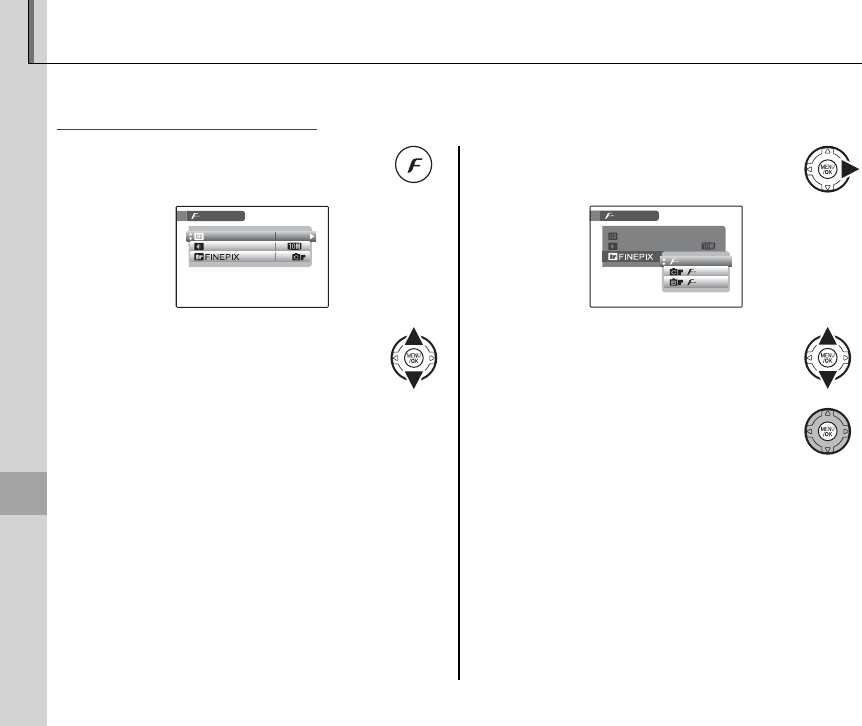
64
Menus
Using the Menus: Shooting Mode
The F-mode and shooting menus contain settings for a wide range of shooting conditions.
Using the
Using the
F
F
-Mode Menu
-Mode Menu
1 Press the F button to display the
F-MODE menu.
N
AUTO
MODE MENU
ISO
QUALITY
COLOR
2 Press the selector up or down to
highlight the desired menu item.
3 Press the selector right to display
options for the highlighted item.
MODE MENU
ISO
QUALITY
COLOR
N
AUTO
STANDARD
CHROME
B&W
4 Press the selector up or down to
highlight the desired option.
5 Press MENU/OK to select the high-
lighted option.
65
Menus
Using the Menus: Shooting Mode
F
F
-Mode Menu Options
-Mode Menu Options
Menu item
Menu item
Description
Description
Options
Options
Default
Default
N
N
ISO
ISO Adjust ISO sensitivity. Choose higher values
when the subject is poorly lit.
AUTO / AUTO (800) / AUTO (400) /
6400 (H) / 3200 (H) / 1600 / 800 /
400 / 200 / 100 / 64
AUTO
O
O
QUALITY
QUALITY Choose image size and quality (pg. 66). BF/BN/C3:2/G/H/I/JBN
P
P
G
G
COLOR
COLOR Shoot pictures in standard or saturated color
or in black-and-white (pg. 67). F-STANDARD/a/bF-STANDARD
N
N
ISO
ISO
Control the camera’s sensitivity to light. Higher values can be used to reduce blur when lighting is
poor; note, however, that mottling may appear in pictures taken at high sensitivities, particularly at set-
tings of 3200 (H) and 6400 (H). If AUTO, AUTO (800), or AUTO (400) is selected, the camera will
adjust sensitivity automatically in response to shooting conditions. The maximum values that will be
selected by the camera at settings of AUTO (800) and AUTO (400) are 800 and 400 respectively. At
settings of 3200 (H) and 6400 (H), image sizes larger than H (pg. 66) are automatically set to
H. Settings that have been altered from the value selected by the user are displayed in yellow. The
previous image quality will be restored when another sensitivity is selected.
Settings other than AUTO are shown by an icon in the display.
1 Note
Sensitivity is not reset when the camera is turned o or another shooting mode is se-
lected.
9
N
N
ISO AUTO (800)
P
9
N
N
ISO AUTO (800)
P
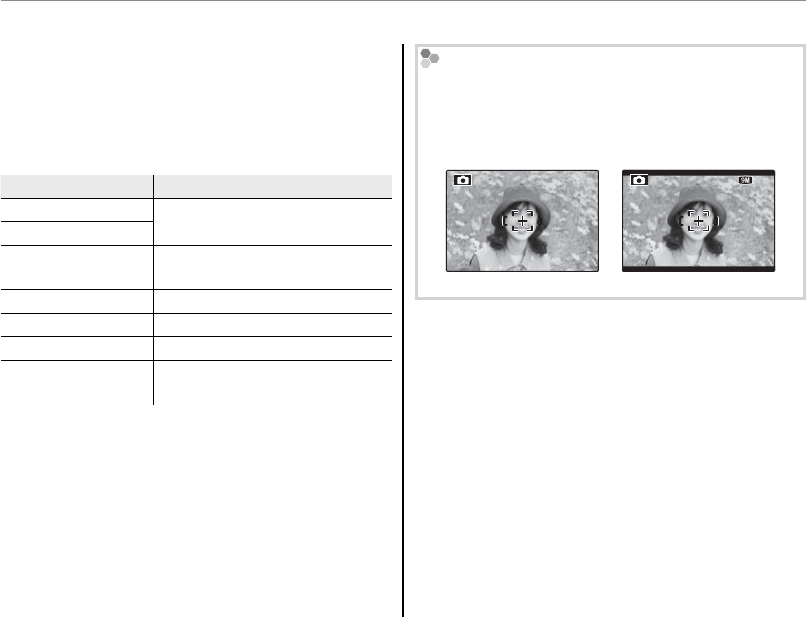
66
Using the Menus: Shooting Mode
Choose the size and quality at which still pictures
are recorded. Large pictures can be printed at
large sizes with no drop in quality; small pictures
require less memory, allowing more pictures to
be recorded.
Option
Option
Prints at sizes up to
Prints at sizes up to
BF (3,648 × 2,736) 31 × 23 cm (12 × 9 in.). Choose
BF for high-quality prints.
BN (3,648 × 2,736)
C3:2 (3,648 × 2,432) 31 × 21 cm (12 × 8 in.). Aspect ra-
tio is 3 : 2.
G (2,592 × 1,944) 22 × 16 cm (8.5 × 6.5 in.)
H (2,048 × 1,536) 17 × 13 cm (7 × 5 in.)
I (1,600 × 1,200) 14 × 10 cm (5.3 × 4 in.)
J (640 × 480) 5 × 4 cm (2 × 1.5 in.). Suited to e-
mail or the web.
The number of pictures that can be taken at cur-
rent settings (pg. 109) is shown to the right of the
image quality icon in the display.
Aspect Ratio
Pictures taken at an image quality setting of C3:2
have an aspect ratio of 3 : 2, the same as a frame of
35-mm lm. Pictures taken at other settings have an
aspect ratio of 4 : 3.
3: 2
3:2
4 : 3 3 : 2
1 Notes
• Image quality is not reset when the camera is turned
o or another shooting mode is selected.
• Sensitivity (pg. 65) is automatically lowered at high
qualities; settings that have been altered from the
value selected by the user are shown in yellow. The
previous sensitivity will be restored when another im-
age quality option is selected.
O
O
QUALITY
QUALITY

67
Menus
Using the Menus: Shooting Mode
P
P
G
G
COLOR
COLOR
Enhance contrast and color saturation or take pictures in black and white.
Option
Option
Description
Description
F-STANDARD Standard contrast and saturation. Recommended in most situations.
a F-CHROME Vivid contrast and color. Choose for vivid shots of owers or enhanced greens and blues in
landscapes.
b F-B&W Take pictures in black and white.
Settings other than F-STANDARD are shown by an icon in the display.
1 Notes
• G COLOR is not reset when the camera is turned o or another shooting mode is selected.
• The e ects of a F-CHROME vary from scene to scene and may be di cult to discern with some subjects.
Depending on the subject, the e ects of a F-CHROME may not be visible in the display.
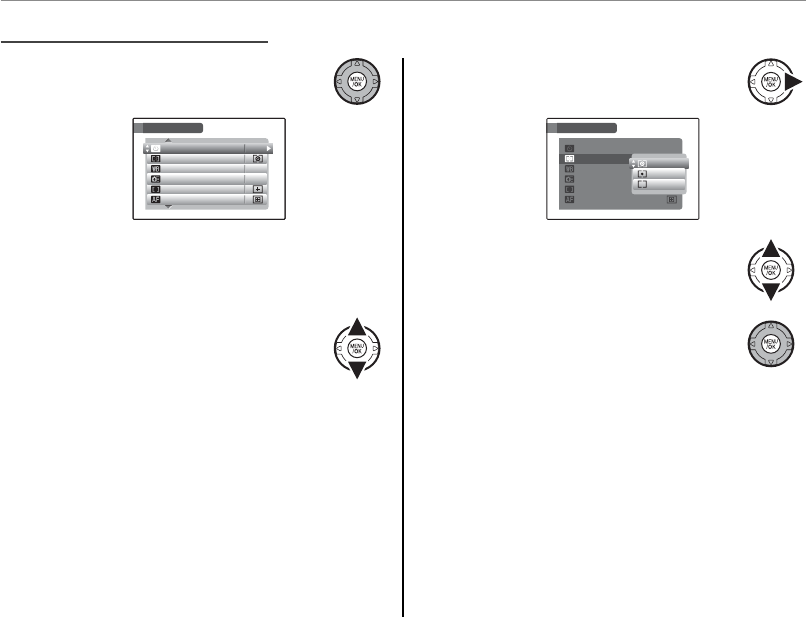
68
Using the Menus: Shooting Mode
Using the Shooting Menu
Using the Shooting Menu
1 Press MENU/OK to display the shoot-
ing menu.
OFF
AUTO
OFF
SHOOTING MENU
SELF-TIMER
WHITE BALANCE
PHOTOMETRY
AF MODE
HIGH-SPEED SHOOTING
FOCUSING
1 Note
The options displayed in the shooting menu vary
depending on the shooting mode.
2 Press the selector up or down to
highlight the desired menu item.
3 Press the selector right to display
options for the highlighted item.
WHITE BALANCE
PHOTOMETRY
AF MODE
HIGH-SPEED SHOOTING
FOCUSING
OFF
AUTO
OFF
SHOOTING MENU
SELF-TIMER
MULTI
SPOT
AVERAGE
4 Press the selector up or down to
highlight the desired option.
5 Press MENU/OK to select the high-
lighted option.

69
Menus
Using the Menus: Shooting Mode
Shooting Menu Options
Shooting Menu Options
Menu item
Menu item
Description
Description
Options
Options
Default
Default
A
A
SCENE POSITION
SCENE POSITION Choose a scene for SP mode (pg. 32). L/M/N/O/H/D/P/Q/
R/S/T/U/V/WL
B
B
SELF-TIMER
SELF-TIMER Take pictures with the self-timer (pg. 70). 10 SEC / 2 SEC / OFF OFF
C
C
PHOTOMETRY
PHOTOMETRY Choose how the camera meters exposure (pg. 71). o/p/qo
D
D
WHITE BALANCE
WHITE BALANCE Adjust color for di erent light sources (pg. 72). AUTO/h/i/j/
k/l/m/nAUTO
E
E
HIGH-SPEED SHOOTING
HIGH-SPEED SHOOTING Choose for quick shutter response (pg. 73). ON / OFF OFF
F
F
FOCUSING
FOCUSING Choose a focus mode (pg. 73). u/vv
G
G
AF MODE
AF MODE Choose how the camera selects a focus area (pg. 74). r/s/t/xr
H
H
SHARPNESS
SHARPNESS Choose whether to sharpen or soften outlines (pg. 75). HARD / STANDARD /SOFT STANDARD
I
I
FLASH
FLASH Adjust ash brightness (pg. 75). –2
/
3 EV – +2
/
3 EV in steps of 1
/
3 EV 0
J
J
BRACKETING
BRACKETING Choose the size of the bracketing increment when O is
selected in continuous shooting mode (pg. 75). ±1
/
3 EV / ±2
/
3 EV / ±1 E V ±1
/
3 EV
K
K
CUSTOM SET
CUSTOM SET Save settings for P, S, A, and M modes (pg. 40). — —
M
M
SET-UP
SET-UP Perform basic camera setup such as choosing a language
and setting the time and date (pg. 87). W/X/Y/Z—
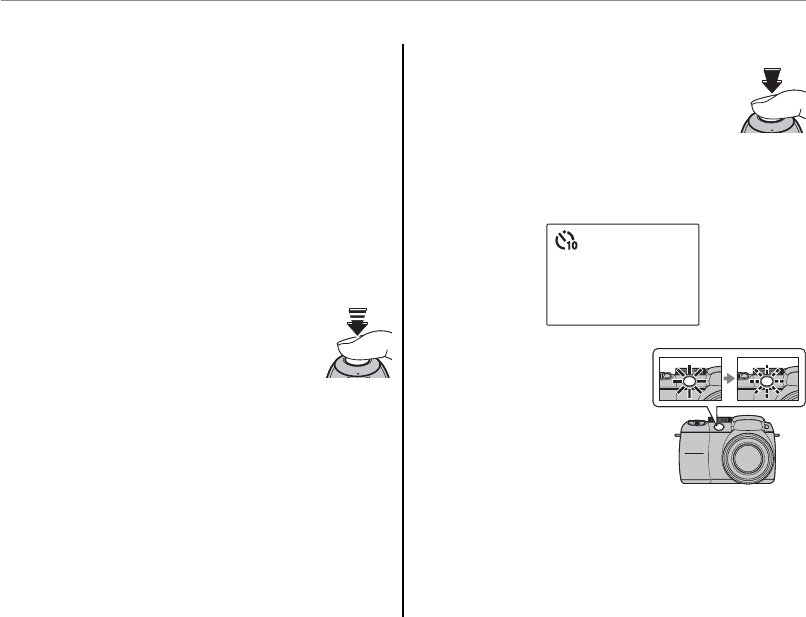
70
Using the Menus: Shooting Mode
Choose the duration for the self-timer. The self-
timer is available in all shooting modes.
• 10 SEC: Choose for self-portraits or for group por-
traits that include the photographer.
• 2 SEC: Choose to avoid blur caused by the cam-
era moving when the shutter button is pressed.
• OFF: Self-timer o .
To use the self-timer, choose 10 SEC or 2 SEC from
the self-timer menu and follow the steps below.
1
Focus.
Press the shutter button halfway
to focus.
3 Caution
Stand behind the camera when using the shutter
button. Standing in front of the lens can interfere
with focus and exposure.
2
Start the timer.
Press the shutter button the rest
of the way down to start the timer.
The display shows the number of
seconds remaining until the shutter is re-
leased. To stop the timer before the picture
is taken, press DISP/BACK.
9
The self-timer lamp on
the front of the camera
will blink immediately
before the picture is
taken. If the two-sec-
ond timer is selected,
the self-timer lamp will
blink as the timer counts down.
B
B
SELF-TIMER
SELF-TIMER
71
Menus
Using the Menus: Shooting Mode
Intelligent Face Detection
Because it ensures that the faces of portrait subjects
will be in focus, Intelligent Face Detection (pg. 22) is
recommended when using the self-timer for group
portraits or self-portraits. To use the self-timer with
Intelligent Face Detection, select 10 SEC or 2 SEC in
the self-timer menu and then press the shutter but-
ton all the way down to start the timer. The camera
will detect faces while the timer is counting down
and adjust focus and exposure immediately before
the shutter is released. Be careful not to move until
the picture has been recorded.
1 Note
The self-timer turns o automatically when the picture
is taken, a di erent shooting mode is selected, play-
back mode is selected, or the camera is turned o .
C
C
PHOTOMETRY
PHOTOMETRY
Choose how the camera meters exposure when
Intelligent Face Detection is o .
• o MULTI: Automatic scene recognition is used
to adjust exposure for a wide range of shooting
conditions.
• p SPOT: The camera meters lighting conditions
at the center of the frame. Recommended when
the background is much brighter or darker than
the main subject. Can be used with focus lock
(pg. 23) to meter o -center subjects.
• q AVERAGE: Exposure is set to the average for
the entire frame. Provides consistent exposure
across multiple shots with the same lighting,
and is particularly e ective for landscapes and
portraits of subjects dressed in black or white.
72
Using the Menus: Shooting Mode
For natural colors, choose a setting that matches
the light source (for an explanation of “white bal-
ance,” see the Glossary on page 108).
Option
Option
Description
Description
AUTO White balance adjusted automatically.
hMeasure a value for white balance.
iFor subjects in direct sunlight.
jFor subjects in the shade.
kUse under “daylight” uorescent lights.
lUse under “warm white” uorescent lights.
mUse under “cool white” uorescent lights.
nUse under incandescent lighting.
If AUTO does not produce the desired results (for
example, when taking close-ups), select h and
measure a value for white balance or choose the
option that matches the light source.
1 Notes
• At settings other than h, auto white balance is used
with the ash. Lower the ash (pg. 26) to take pic-
tures at other settings.
• Results vary with shooting conditions. Play pictures
back after shooting to check colors in the monitor.
■
■
h
h
: Custom White Balance
: Custom White Balance
Choose h to adjust white
balance for unusual lighting
conditions. The options at
right will be displayed; frame
a white object so that it lls
the monitor and press the shutter button all the
way down to measure white balance.
If “COMPLETED!” is displayed, press MENU/OK to set
white balance to the measured value. This value
is stored even when the battery is removed and
can be reselected by pressing MENU/OK when cus-
tom white balance options are displayed.
If “UNDER” is displayed, raise exposure compensa-
tion (pg. 41) and try again.
If “OVER” is displayed, lower exposure compensa-
tion and try again.
2 Tip
To give a deliberate color cast to your photographs,
measure a value for custom white balance using a col-
ored instead of a white object.
NOT CHANGE CANCEL
NEW WB
CUSTOM WB
SHUTTER
NOT CHANGE CANCEL
NEW WB
CUSTOM WB
SHUTTER
D
D
WHITE BALANCE
WHITE BALANCE

73
Menus
Using the Menus: Shooting Mode
E
E
HIGH-SPEED SHOOTING
HIGH-SPEED SHOOTING
Selecting ON reduces focusing time, ensuring a
quick shutter response.
1 Notes
• Choosing ON increases the drain on the battery.
Choose OFF to save battery power.
• The E EVF/LCD MODE option in the setup menu is
automatically set to 60 fps when high-speed shoot-
ing is on (pg. 88).
F
F
FOCUSING
FOCUSING
Choose how the camera focuses.
• u CONTINUOUS AF: The camera continually ad-
justs focus to re ect changes in the distance to
the subject while the shutter button is pressed
halfway (note that this increases the drain on
the battery). Intelligent Face Detection turns
o automatically and G AF MODE is xed at
r CENTER. Choose for moving subjects.
• v SINGLE AF: Focus locks while the shutter but-
ton is pressed halfway. Choose for stationary
subjects.
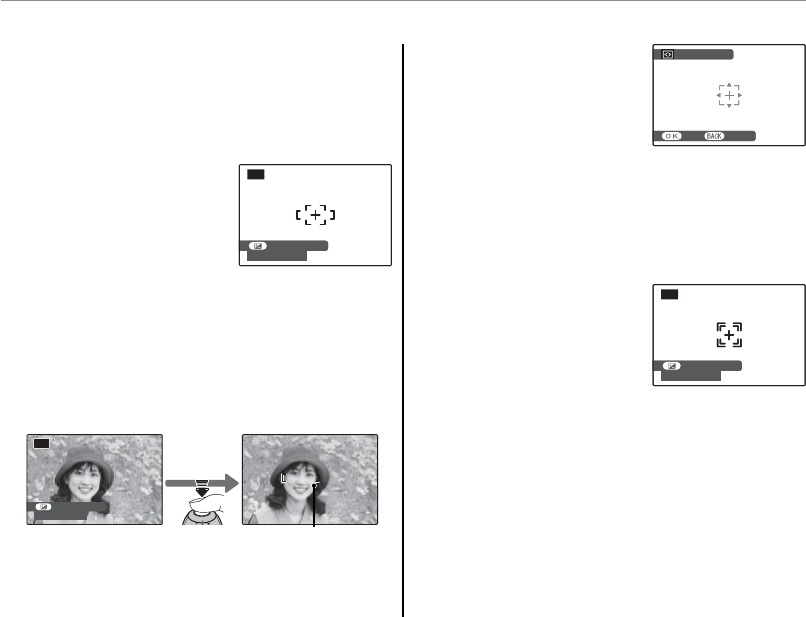
74
Using the Menus: Shooting Mode
• t AREA:
The focus position
can be chosen manually by
pressing the selector up,
down, left, or right and
pressing MENU/OK when the
focus brackets are in the desired position. Choose
for precise focus when the camera is mounted
on a tripod. Note that exposure is set for the sub-
ject in the center of the frame; to meter an o -
center subject, use AF/AE lock (pg. 23).
• x TRACKING: Position the
subject in the center focus
area and press the shutter
button halfway to focus.
Keep the shutter button
pressed to track the subject as it moves through
the frame. Choose for erratically moving sub-
jects.
P
80
PROGRAM SHIFT
F
2. 8
P
80
PROGRAM SHIFT
F
2. 8
G
G
AF MODE
AF MODE
This option controls how the camera selects the
focus area when Intelligent Face Detection is o
(pg. 22). Regardless of the option selected, the
camera will focus on the subject in the center of
the monitor when macro mode is on (pg. 25).
• r CENTER: The camera fo-
cuses on the subject in the
center of the frame. This
option can be used with
focus lock.
• s MULTI: When the shutter button is pressed
halfway, the camera detects high-contrast sub-
jects near the center of the frame and selects
the focus area automatically (if the focus frame is
not displayed, select r CENTER and use focus
lock; pg. 23).
P
F
2. 880
PROGRAM SHIFT
Focus frame
Press
halfway
SELECT AF AREA
SET CANCEL
SELECT AF AREA
SET CANCEL
F
2. 8
P
80
PROGRAM SHIFT
F
2. 8
P
80
PROGRAM SHIFT
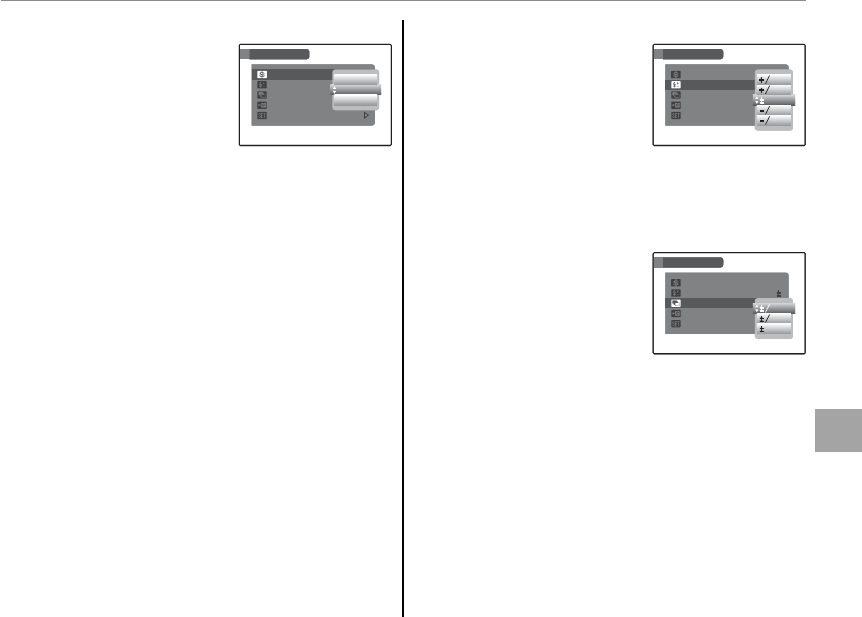
75
Menus
Using the Menus: Shooting Mode
H
H
SHARPNESS
SHARPNESS
Choose whether to sharpen
or soften outlines.
• HARD: Use for sharp outlines
when photographing such
subjects as buildings and
text.
• STANDARD: Standard sharpness. Best choice in
most situations.
• SOFT: Use for soft outlines in portraits and similar
subjects.
0
3
1
STD
SHOOTING MENU
SHARPNESS
BRACKETING
FLASH
SET-UP
CUSTOM SET
STANDARD
SOFT
HARD
0
3
1
STD
SHOOTING MENU
SHARPNESS
BRACKETING
FLASH
SET-UP
CUSTOM SET
STANDARD
SOFT
HARD
I
I
FLASH
FLASH
Adjust ash brightness.
Choose from values be-
tween +2
/
3 EV and –2
/
3 EV. The
default setting is ±0. Note
that the desired results may
not be achieved depending on shooting condi-
tions and the distance to the subject.
J
J
BRACKETING
BRACKETING
Choose the size of the expo-
sure bracketing increment
used when O (bracketing)
is selected in continuous
shooting mode. Choose
from increments of ±1
/
3 EV, ±2
/
3 EV, and ±1 EV (for
an explanation of the term “EV,” see the Glossary
on page 108).
SET-UP
SHOOTING MENU
0
3
1
STD
SHARPNESS
BRACKETING
FLASH
CUSTOM SET
0
3
1
3
2
3
1
3
2
SET-UP
SHOOTING MENU
0
3
1
STD
SHARPNESS
BRACKETING
FLASH
CUSTOM SET
0
3
1
3
2
3
1
3
2
SET-UP
0
3
1
STD
SHOOTING MENU
SHARPNESS
BRACKETING
FLASH
CUSTOM SET
3
1
3
2
1
EV
EV
EV
SET-UP
0
3
1
STD
SHOOTING MENU
SHARPNESS
BRACKETING
FLASH
CUSTOM SET
3
1
3
2
1
EV
EV
EV
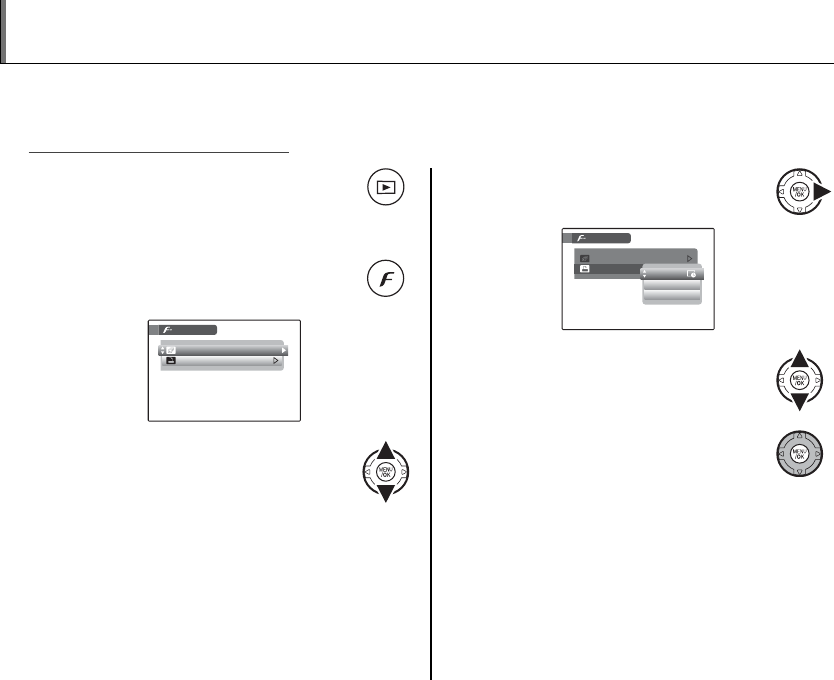
76
Using the Menus: Playback Mode
The F-MODE and playback menus are used to manage the pictures in internal memory or on the
memory card.
1 Press the a button for about a sec-
ond to enter playback mode (pg.
43).
2 Press the F button to display the
F-MODE menu.
SLIDE SHOW
MODE MENU
PRINT ORDER (DPOF)
3 Press the selector up or down to
highlight the desired menu item.
4 Press the selector right to display
options for the highlighted item.
SLIDE SHOW
MODE MENU
PRINT ORDER (DPOF)
WITHOUT DATE
RESET ALL
WITH DATE
5 Press the selector up or down to
highlight the desired option.
6 Press MENU/OK to select the high-
lighted option.
Using the
Using the
F
F
-Mode Menu
-Mode Menu

77
Menus
Using the Menus: Playback Mode
F
F
-Mode Menu Options
-Mode Menu Options
Option
Option
Description
Description
I
I
SLIDE SHOW
SLIDE SHOW View pictures in a slide show (pg. 77).
K
K
PRINT ORDER (DPOF)
PRINT ORDER (DPOF) Select pictures for printing on DPOF- and PictBridge-compatible devices (pg. 54).
I
I
SLIDE SHOW
SLIDE SHOW
View pictures in an automated slide show. Choose
the type of show and press MENU/OK to start. Press
DISP/BACK at any time during the show to view on-
screen help. When a movie is displayed, movie
playback will begin automatically, and the slide
show will continue when the movie ends. The
show can be ended at any time by pressing MENU/
OK.
Option
Option
Displayed in
Displayed in
NORMAL Press selector left or right to go back or skip
ahead one frame. Select FADE-IN for fade
transitions between frames.
FADE-IN
NORMAL gAs above, except that camera automatically
zooms in on faces selected with Intelligent
Face detection.
FADE-IN g
MULTIPLE Display several pictures at once.
CLOCK
A slide show with a changing pattern of
dots that counts o the seconds in the top
left corner of the display.
1 Note
The camera will not turn o automatically while a slide
show is in progress.
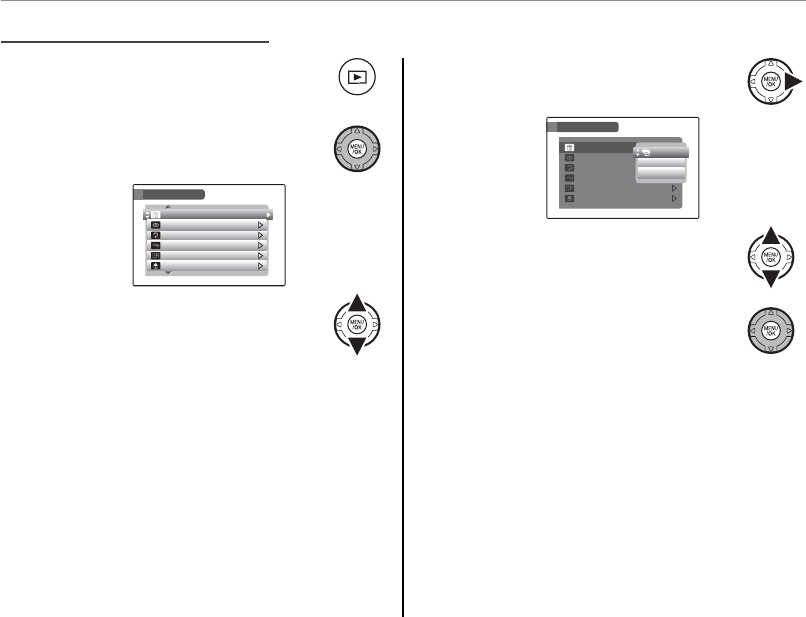
78
Using the Menus: Playback Mode
1 Press a to enter playback mode
(pg. 43).
2 Press MENU/OK to display the play-
back menu.
ERASE
PLAYBACK MENU
IMAGE ROTATE
RED EYE REMOVAL
VOICE MEMO
PROTECT
COPY
3 Press the selector up or down to
highlight the desired menu item.
4 Press the selector right to display
options for the highlighted item.
ERASE
IMAGE ROTATE
RED EYE REMOVAL
VOICE MEMO
PROTECT
COPY
PLAYBACK MENU
FRAME
ALL FRAMES
BACK
5 Press the selector up or down to
highlight the desired option.
6 Press MENU/OK to select the high-
lighted option.
Using the Playback Menu
Using the Playback Menu
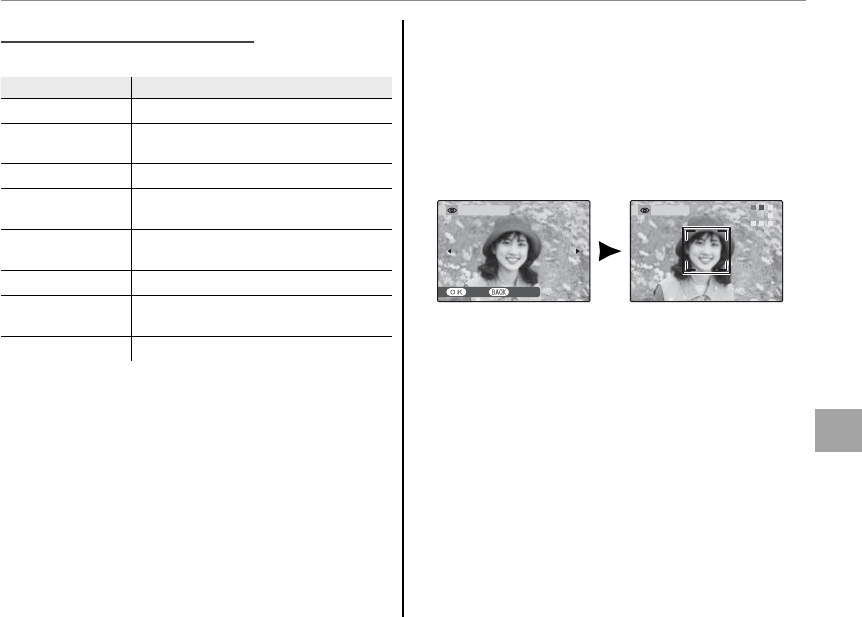
79
Menus
Using the Menus: Playback Mode
Playback Menu Options
Playback Menu Options
The following options are available:
Option
Option
Description
Description
A
A
ERASE
ERASE Delete all or selected pictures (pg. 47).
B
B
RED-EYE REMOVAL
RED-EYE REMOVAL Create copies with reduced red eye (pg.
79).
C
C
IMAGE ROTATE
IMAGE ROTATE Rotate pictures (pg. 80).
D
D
PROTECT
PROTECT Protect pictures from accidental dele-
tion (pg. 81).
E
E
COPY
COPY Copy pictures between internal memo-
ry and a memory card (pg. 82).
F
F
VOICE MEMO
VOICE MEMO Add voice memos to pictures (pg. 84).
G
G
TRIMMING
TRIMMING Create cropped copies of pictures (pg.
86).
M
M
SET-UP
SET-UP Perform basic camera setup (pg. 87).
B
B
RED EYE REMOVAL
RED EYE REMOVAL
If the current picture is marked with a g icon to
indicate that it was taken with Intelligent Face De-
tection, this option can be used to remove red-
eye. The camera will analyze the image; if red-eye
is detected, the image will be processed to create
a copy with reduced red-eye.
REMOVAL OK?
YES CANCEL
REMOVING
1 Notes
• Red eye may not be removed if the camera is unable
to detect a face or the face is in pro le. Results may
di er depending on the scene. Red eye can not be
removed from pictures that have already been pro-
cessed using red-eye removal or pictures created
with other devices.
• The amount of time needed to process the image
varies with the number of faces detected.
• Copies created with B RED EYE REMOVAL are indi-
cated by a e icon during playback.
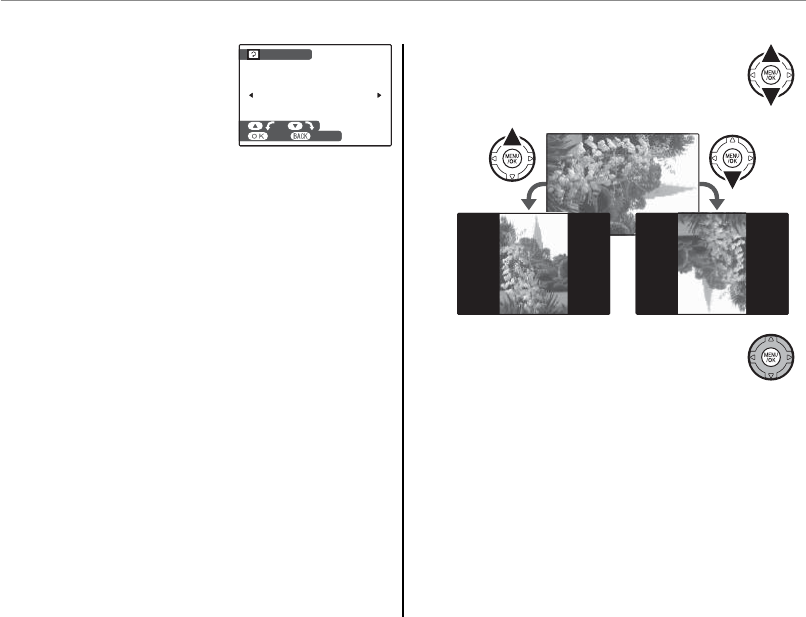
80
Using the Menus: Playback Mode
C
C
IMAGE ROTATE
IMAGE ROTATE
By default, pictures taken in
tall orientation are displayed
in wide orientation. Use this
option to display pictures in
the correct orientation in the
monitor. It has no e ect on pictures displayed on
a computer or other device.
1 Notes
• Protected pictures can not be rotated. Remove pro-
tection before rotating pictures (pg. 81).
• The camera may not be able to rotate pictures cre-
ated with other devices.
To rotate a picture, play the picture back and se-
lect C IMAGE ROTATE in the playback menu
(pg. 78).
CANCELSET
IMAGE ROTATE
CANCELSET
IMAGE ROTATE
1 Press the selector down to rotate the
picture 90 ° clockwise, up to rotate
the picture 90 ° counterclockwise.
2 Press MENU/OK to con rm the op-
eration (to exit without rotating the
picture, press DISP/BACK).
The next time the picture is played back, it will
automatically be rotated.
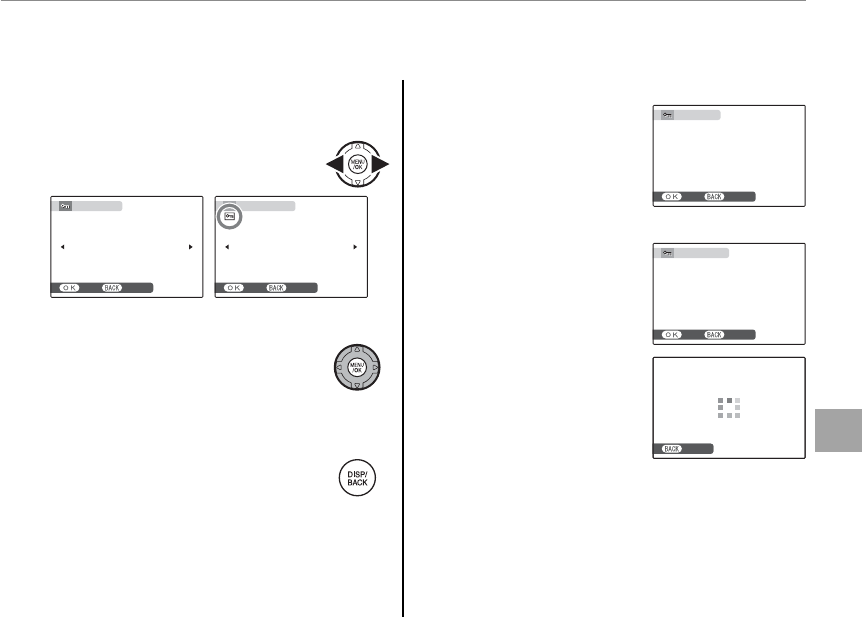
81
Menus
Using the Menus: Playback Mode
D
D
PROTECT
PROTECT
Protect pictures from accidental deletion. The following options are available.
■
■
FRAME
FRAME
Protect selected pictures.
1 Press the selector left or right to dis-
play the desired picture.
PROTECT OK?
YES CANCEL
UNPROTECT OK?
YES CANCEL
Picture not protected Protected picture
2 Press MENU/OK to protect the picture.
If the picture is already protected,
pressing MENU/OK will remove pro-
tection from the image.
3 Repeat steps 1–2 to protect addi-
tional images. Press DISP/BACK to exit
when the operation is complete.
■
■
SET ALL
SET ALL
Press MENU/OK to protect all
pictures, or press DISP/BACK
to exit without changing
picture status.
IT MAY TAKE A WHILE
SET ALL OK?
YES CANCEL
■
■
RESET ALL
RESET ALL
Press MENU/OK to remove pro-
tection from all pictures, or
press DISP/BACK to exit with-
out changing picture status.
IT MAY TAKE A WHILE
RESET ALL OK?
YES CANCEL
If the number of pictures af-
fected is very large, the dis-
play at right will appear in the
monitor while the operation
is in progress. Press DISP/BACK
to exit before the operation is complete.
3 Caution
Protected pictures will be deleted when the memory
card or internal memory is formatted (pg. 92).
CANCELCANCEL
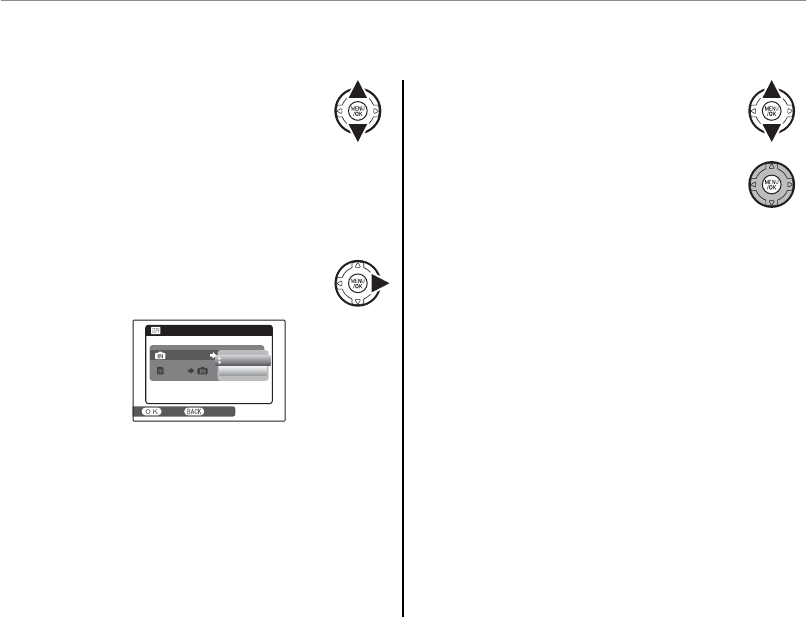
82
Using the Menus: Playback Mode
1 Press the selector up or down to
highlight a INTERNAL MEMORY
y b CARD (copy pictures from
internal memory to the memory card) or
b CARD y a INTERNAL MEMORY (copy
pictures from a memory card to internal mem-
ory).
2 Press the selector right to display
options for the highlighted item.
YES CANCEL
COPY
CARD
CARD
INTERNAL MEMORY
INTERNAL MEMORY
ALL FRAMES
FRAME
3 Press the selector up or down to
highlight FRAME or ALL FRAMES.
4 Press MENU/OK.
2 Tip: Copying Pictures Between Memory Cards
To copy pictures between two memory cards, insert
the source card and copy the pictures to internal mem-
ory, then remove the source card, insert the destination
card, and copy the pictures from internal memory.
E
COPY
COPY
Copy pictures between internal memory and a memory card.
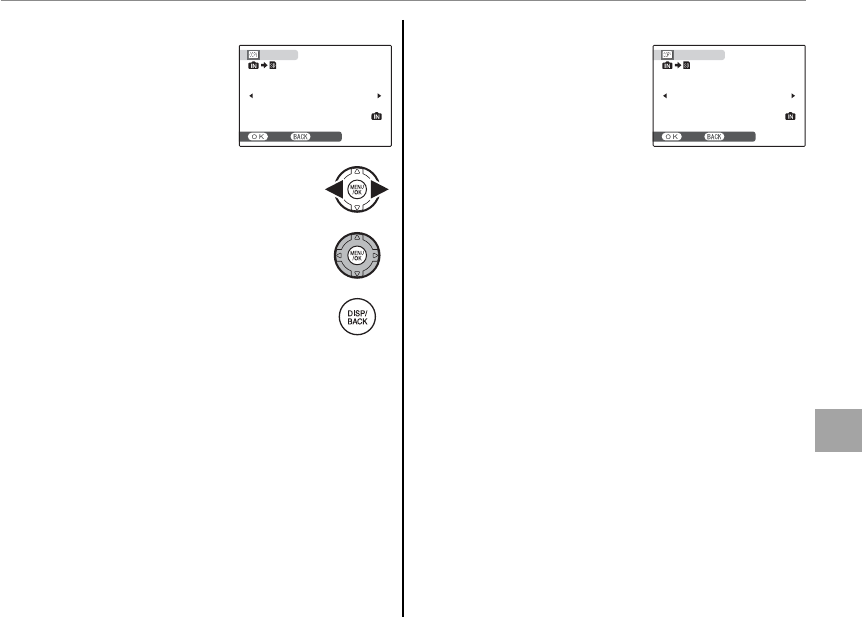
83
Menus
Using the Menus: Playback Mode
■
■
FRAME
FRAME
Copy selected frames.
100-0001
100-0001
COPY OK?
YES CANCEL
1 Press the selector left or right to dis-
play the desired picture.
2 Press MENU/OK to copy the picture.
3 Repeat steps 1–2 to copy additional
images. Press DISP/BACK to exit when
the operation is complete.
■
■
ALL FRAMES
ALL FRAMES
Press MENU/OK to copy all
pictures, or press DISP/BACK
to exit without copying pic-
tures.
100-0001
100-0001
IT MAY TAKE
A WHILE
COPY ALL OK?
YES CANCEL
3 Cautions
• Copying ends when the destination is full.
• DPOF print information is not copied (pg. 54).
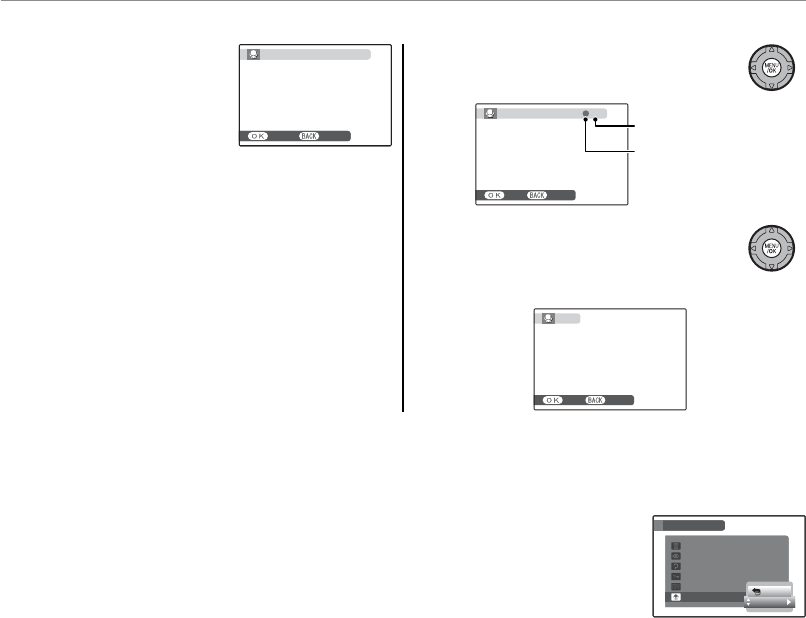
84
Using the Menus: Playback Mode
F
F
VOICE MEMO
VOICE MEMO
To add a voice memo to a
still picture, select F VOICE
MEMO after displaying the
picture in playback mode.
1 Note
Voice memos can not be added to movies or protect-
ed pictures. Remove protection from pictures before
recording voice memos (pg. 81).
1 Hold the camera at a distance of about 20 cm
(8 in.) and face the microphone.
30
s
REC STANDBY
START CANCEL
30
s
REC STANDBY
START CANCEL
2 Press MENU/OK to start recording.
28
s
RECORDING
REC RE-REC
Time remaining
Blinks red
3 Press MENU/OK again to end record-
ing. Recording ends automatically
after 30 seconds.
FINISH
REC RE-REC
1 Notes
• If a voice memo already exists for the current picture, the options at right will be dis-
played. Select RE-REC to replace the existing memo.
• Voice memos are recorded as PCM-format WAV les (pg. 108).
ERASE
IMAGE ROTATE
RED EYE REMOVAL
VOICE MEMO
PROTECT
COPY
PLAYBACK MENU
RE-REC
BACK
ERASE
IMAGE ROTATE
RED EYE REMOVAL
VOICE MEMO
PROTECT
COPY
PLAYBACK MENU
RE-REC
BACK
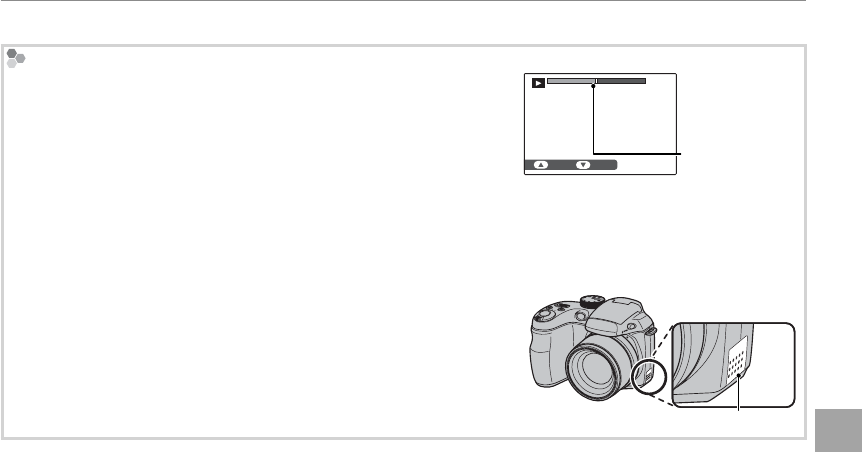
85
Menus
Using the Menus: Playback Mode
Playing Voice Memos
Pictures with voice memos are indicated by a q icon during playback.
To play the voice memo, press the selector down. To pause, press the
selector down again; to end playback, press the selector up. Press the
selector left to rewind, right to fast forward. Volume controls can be dis-
played by pressing the MENU/OK button; press the selector up or down
to adjust the volume, and press MENU/OK again to resume playback.
15
s
15
s
STOP PAUSE
Progress bar
Progress is shown
in the monitor.
1 Note
The camera may not play voice memos recorded with other devices.
3 Caution
Do not cover the speaker during playback.
Speaker
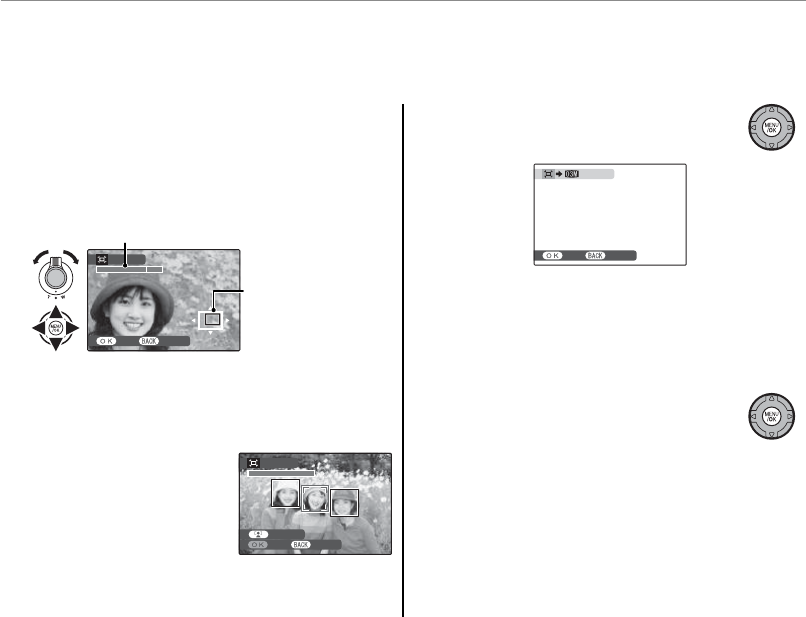
86
Using the Menus: Playback Mode
G
TRIMMING
TRIMMING
To create a cropped copy of a picture, play the picture back and select G TRIMMING in the playback
menu (pg. 78).
1 Use the zoom control to zoom in and out and
use the selector to scroll the picture until the
desired portion is displayed (to exit to single-
frame playback without creating a cropped
copy, press DISP/BACK).
TRIMMING
YES CANCEL
Navigation window
shows portion of
image currently dis-
played in monitor
Zoom indicator
If the size of the nal copy will be J, OK will
be displayed in yellow.
2 Tip: Intelligent Face Detection
If the picture was shot with
Intelligent Face Detection
(pg. 22), g will be displayed
in the monitor. Press the g
button to zoom in on the
selected face.
2 Press MENU/OK. A con rmation dia-
log will be displayed.
CANCELREC
REC OK?
Copy size (G, H, I, or J; see page
66) is shown at the top. Larger crops produce
larger copies; all copies have an aspect ratio of
4 : 3.
3 Press MENU/OK to save the cropped
copy to a separate le.
TRIMMING
CANCELYES
TRIMMING
TRIMMING
CANCELYES
TRIMMING
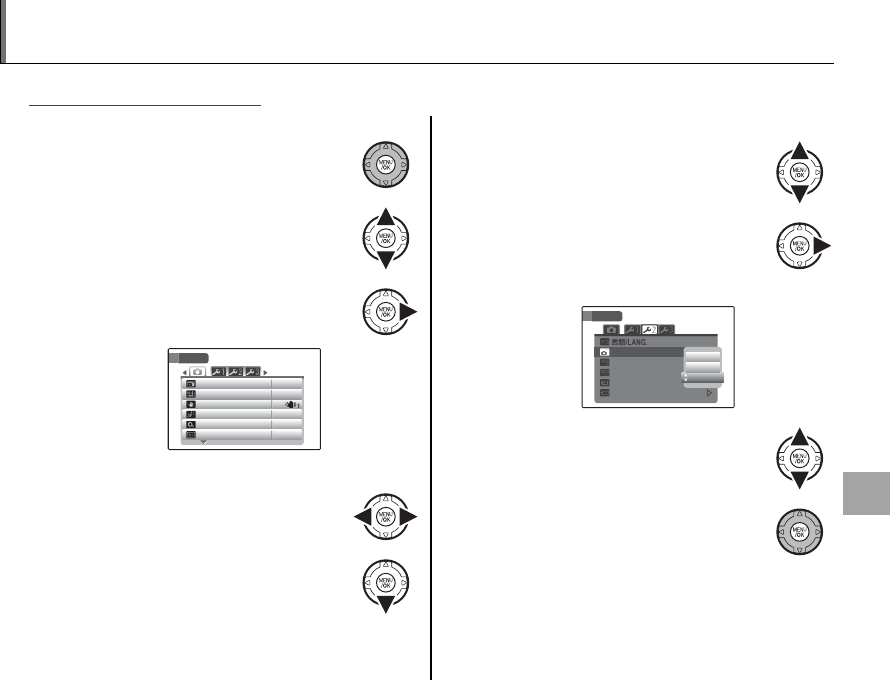
87
Menus
The Setup Menu
Using the Setup Menu
Using the Setup Menu
1
Display the setup menu.
1.1 Press MENU/OK to display the
menu for the current mode.
1.2 Press the selector up or down
to highlight M SET-UP.
1.3 Press the selector right to dis-
play the setup menu.
OFF
IMAGE DISP.
FRAME NO.
DUAL IS MODE
AF ILLUMINATOR ON
CONT.
1.5
SEC
DIGITAL ZOOM
60fps
EVF/LCD MODE
SET-UP
2
Choose a page.
2.1 Press the selector left or right
to choose a page.
2.2 Press the selector down to en-
ter the menu.
3
Adjust settings.
3.1 Press the selector up or down
to highlight a menu item.
3.2 Press the selector right to dis-
play options for the highlight-
ed item.
SET-UP
2
MIN
ENGLISH
AUTO POWER OFF
TIME DIFFERENCE
BACKGROUND COLOR
DISCHARGE
BATTERY TYPE
2
MIN
OFF
5
MIN
3.3 Press the selector up or down
to highlight an option.
3.4 Press MENU/OK to select the
highlighted option.
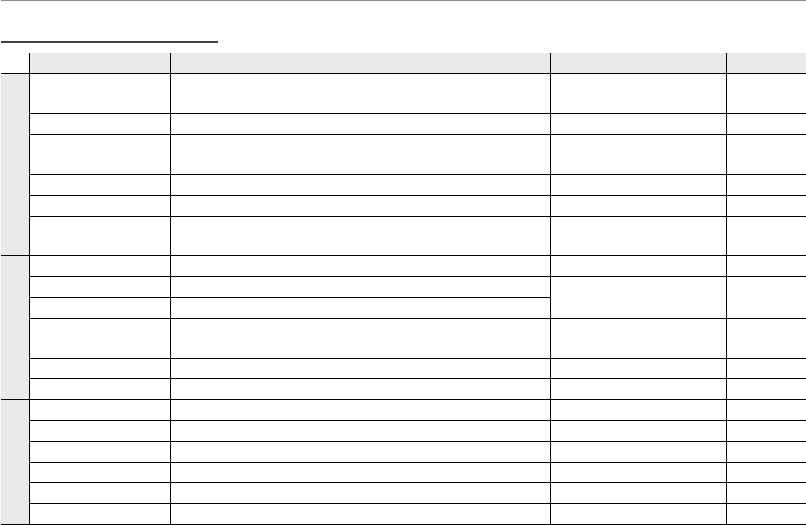
88
The Setup Menu
Setup Menu Options
Setup Menu Options
Menu item
Menu item
Description
Description
Options
Options
Default
Default
W
A
A
IMAGE DISP.
IMAGE DISP. Choose how long pictures are displayed after shooting
(pg. 89).
CONTINUOUS / 3 SEC / 1.5 SEC /
ZOOM (CONTINUOUS) / OFF 1.5 SEC
B
B
FRAME NO.
FRAME NO. Choose how les are named (pg. 90). CONTINUOUS / RENEW CONTINUOUS
L
L
DUAL IS MODE
DUAL IS MODE Choose when image stabilization is performed (pg. 90). l CONTINUOUS /
m SHOOTING ONLY l
C
C
AF ILLUMINATOR
AF ILLUMINATOR Turn the AF-assist illuminator on or o (pg. 24). ON / OFF ON
D
D
DIGITAL ZOOM
DIGITAL ZOOM Enable or disable digital zoom (pg. 91). ON / OFF OFF
E
E
EVF/LCD MODE
EVF/LCD MODE Choose 30 fps to increase battery life, 60 fps for improved
display quality. 30 fps / 60 fps 30 fps
X
F
F
DATE/TIME
DATE/TIME Set the camera clock (pg. 14). — —
G
G
OPERATION VOL.
OPERATION VOL. Adjust the volume of camera controls. b (high) / c (mid) /
d (low) / eOFF (mute) c
H
H
SHUTTER VOLUME
SHUTTER VOLUME Adjust the volume of the shutter sound.
I
I
PLAYBACK VOLUME
PLAYBACK VOLUME Adjust the volume for movie and voice memo playback
(pg. 91). —7
J
J
LCD BRIGHTNESS
LCD BRIGHTNESS Control the brightness of the display (pg. 91). –5 – +5 0
K
K
FORMAT
FORMAT Format internal memory or memory cards (pg. 92). — —
Y
L
L
a
aChoose a language (pg. 14). See page 112 ENGLISH
M
M
AUTO POWER OFF
AUTO POWER OFF Choose the auto power o delay (pg. 92). 5 MIN / 2 MIN / OFF 2 MIN
N
N
TIME DIFFERENCE
TIME DIFFERENCE Set the clock to local time (pg. 93). h/gh
O
O
BACKGROUND COLOR
BACKGROUND COLOR Choose a color scheme. — —
T
T
BATTERY TYPE
BATTERY TYPE Specify the type of battery used in the camera (pg. 9). ALKALINE/NI-MH/LITHIUM ALKALINE
P
P
DISCHARGE
DISCHARGE Discharge rechargeable Ni-MH batteries (pg. 94). — —

89
Menus
The Setup Menu
Menu item
Menu item
Description
Description
Options
Options
Default
Default
Z
Q
Q
VIDEO SYSTEM
VIDEO SYSTEM Choose a video mode for connection to a TV (pg. 52). NTSC / PAL —
R
R
RESET
RESET
Reset all settings except DATE/TIME, TIME DIFFERENCE, BACK-
GROUND COLOR,
BATTERY TYPE
BATTERY TYPE, and VIDEO SYSTEM to default
values. A con rmation dialog will be displayed, press the
selector left or right to highlight OK and press MENU/OK.
——
S
S
CUSTOM RESET
CUSTOM RESET
Reset all settings for mode C. A con rmation dialog will
be displayed, press the selector left or right to highlight OK
and press MENU/OK.
——
A
A
IMAGE DISP.
IMAGE DISP.
Choose an option other than OFF to display pictures in the monitor after shooting. Pictures can be dis-
played for 1.5 s (1.5 SEC), 3 s (3 SEC), or until the MENU/OK button is pressed (CONTINUOUS and ZOOM
(CONTINUOUS)). If CONTINUOUS is selected, the d button can be used to check exposure (pg.
45). If ZOOM (CONTINUOUS) is selected, photos taken at qualities larger than J can be zoomed
in to check focus and other ne details (see page 44). Note that ZOOM (CONTINUOUS) is disabled in
continuous shooting mode (pg. 28), and that the colors displayed at settings of 1.5 SEC and 3 SEC may
di er from those in the nal picture.
1 Note
Pictures taken in continuous shooting modes other than N are always displayed after shooting. Pictures taken
in N mode are recorded without being displayed.

90
The Setup Menu
B
B
FRAME NO.
FRAME NO.
New pictures are stored in image les named using a four-digit le number as-
signed by adding one to the last le number used. The le number is displayed
during playback as shown at right. FRAME NO. controls whether le numbering
is reset to 0001 when a new memory card is inserted or the current memory card
or internal memory is formatted.
• CONTINUOUS: Numbering continues from the last le number used or the rst
available le number, whichever is higher. Choose this option to reduce the
number of pictures with duplicate le names.
• RENEW: Numbering is reset to 0001 after formatting or when a new memory card is inserted.
1 Notes
• If the frame number reaches 999-9999, the shutter release will be disabled (pg. 106).
• Selecting R RESET (pg. 89) resets B FRAME NO. to CONTINUOUS but does not reset frame numbering.
• Frame numbers for pictures taken with other cameras may di er.
L
L
DUAL IS MODE
DUAL IS MODE
Choose whether image stabilization is performed at all times when the camera is in shooting mode
(l CONTINUOUS), or only when the shutter button is pressed halfway (m SHOOTING ONLY).
100-0001
100-0001
Frame number
File
number
Directory
number
100-0001
100-0001
Frame number
File
number
Directory
number
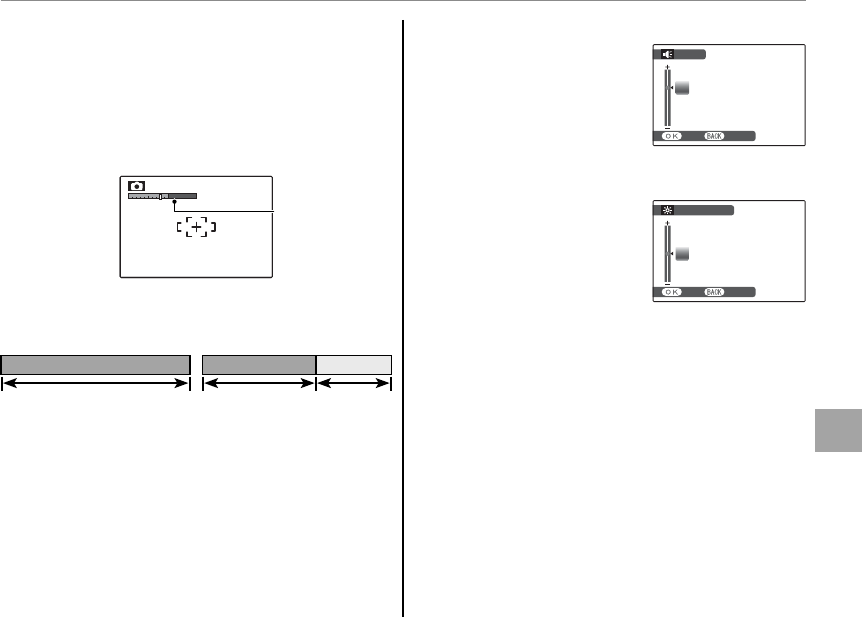
91
Menus
The Setup Menu
D
D
DIGITAL ZOOM
DIGITAL ZOOM
If ON is selected, selecting T at the maximum
optical zoom position will trigger digital zoom,
further magnifying the image. To cancel digital
zoom, zoom out to the minimum digital zoom
position and select W.
Zoom
indicator
Zoom indicator,
DIGITAL ZOOM on
Zoom indicator,
DIGITAL ZOOM o
WWTT
Digital
zoom
Optical zoom
Optical zoom
3 Caution
Digital zoom produces lower quality images than opti-
cal zoom.
I
I
PLAYBACK VOLUME
PLAYBACK VOLUME
Press the selector up or
down to choose volume
for movie and voice memo
playback and press MENU/OK
to select.
7
VOLUME
SET CANCEL
J
J
LCD BRIGHTNESS
LCD BRIGHTNESS
Press the selector up or down
to choose display brightness
and press MENU/OK to select.
0
LCD BRIGHTNESS
SET CANCEL
92
The Setup Menu
K
FORMAT
FORMAT
Format internal memory or a
memory card. If a memory
card is inserted in the cam-
era, b will be displayed in
the dialog shown at right
and this option will format the memory card. If no
memory card is inserted, a will be displayed and
this option will format internal memory. Press the
selector left to highlight OK and press MENU/OK to
begin formatting.
3 Cautions
• All data—including protected pictures—will be de-
leted. Be sure important les have been copied to a
computer or other storage device.
• Do not open the battery cover during formatting.
M
M
AUTO POWER OFF
AUTO POWER OFF
Choose the length of time before the camera
turns o automatically when no operations are
performed. Shorter times increase battery life; if
OFF is selected, the camera must be turned o
manually. Note that regardless of the option se-
lected, the camera will not turn o automatically
when connected to a printer (pg. 53) or computer
(pg. 62) or when a slide show is in progress (pg.
77).
2 Tip: Reactivating the Camera
To reactivate the camera after it has turned o auto-
matically, use the G switch or press the a but-
ton for about a second (pg. 13).
FORMAT OK?
ERASE ALL DATA
OK CANCEL
FORMAT
SET
FORMAT OK?
ERASE ALL DATA
OK CANCEL
FORMAT
SET
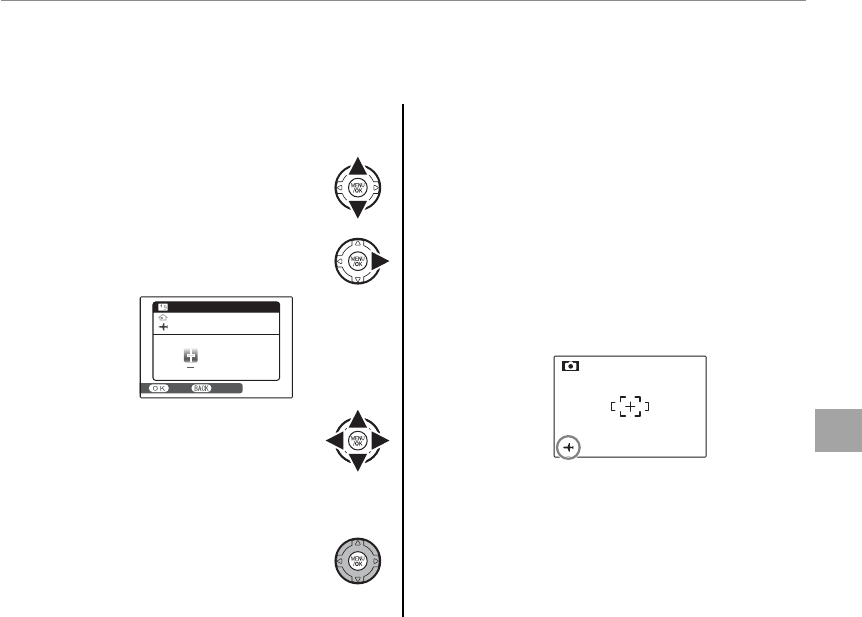
93
Menus
The Setup Menu
N
N
TIME DIFFERENCE
TIME DIFFERENCE
When travelling, use this option to switch the camera clock instantly from your home time zone to the
local time at your destination.
1
Specify the di erence between local time
and your home time zone.
1.1 Press the selector up or down
to highlight g LOCAL.
1.2 Press the selector right to dis-
play the time di erence.
00
:
00
12 / 31 / 2050
12 / 31 / 2050
10: 00
AM
10: 00
AM
TIME DIFFERENCE
SET CANCEL
1.3 Press the selector left or right
to highlight +, –, hours, or min-
utes; press up or down to edit.
The minimum increment is 15
minutes.
1.4 Press MENU/OK when settings
are complete.
2
Switch between local time and your home
time zone.
To set the camera clock to local time, high-
light g LOCAL and press MENU/OK. To set
the clock to the time in your home time
zone, select h HOME. If g LOCAL is se-
lected, g will be displayed in the monitor
for three seconds after the camera enters
shooting mode, and the date will be dis-
played in yellow.
12/ 31 / 2050
12/ 31 / 2050
10 : 00
AM
10 : 00
AM
After changing time zones, check that the
date and time are correct.
94
The Setup Menu
2 Press the selector left or right to
highlight OK.
3 Press MENU/OK to begin discharging
the batteries. When the batteries
are fully discharged, the battery level
indicator will blink red and the camera will turn
o . To cancel the process before the batteries
are fully discharged, press DISP/BACK.
P
P
DISCHARGE
DISCHARGE
(Ni-MH Batteries Only)
(Ni-MH Batteries Only)
The capacity of rechargeable
Ni-MH batteries may be tem-
porarily reduced when new,
after long periods of disuse,
or if they are repeatedly re-
charged before being fully discharged. Capacity
can be increased by repeatedly discharging the
batteries using the P DISCHARGE option and
recharging them in a battery charger (sold sepa-
rately). Do not use P DISCHARGE with non-re-
chargeable batteries, and note that the batteries
will not discharge if the camera is powered by an
optional AC adapter and DC coupler.
1 Selecting P DISCHARGE displays
the message shown above. Press
MENU/OK.
DISCHARGE OK?
IT MAY TAKE A WHILE
FOR DISCHARGING
OK CANCEL
SET
DISCHARGE
DO NOT EXECUTE
WITH NON Ni-MH
RECHARGEABLE BATTERIES
DISCHARGE
YES CANCEL
DO NOT EXECUTE
WITH NON Ni-MH
RECHARGEABLE BATTERIES
DISCHARGE
YES CANCEL
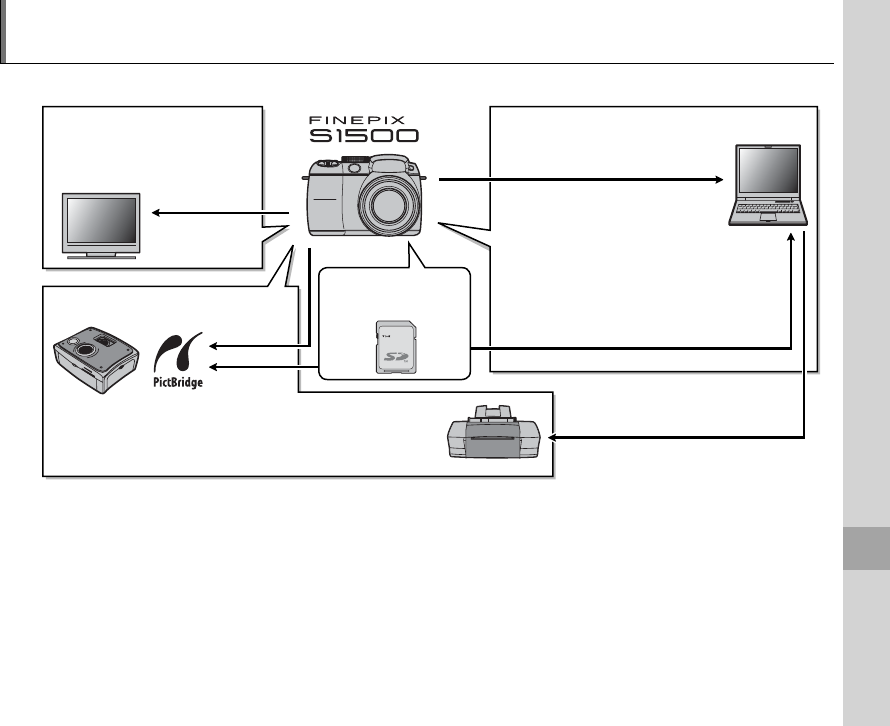
95
Technical Notes
Optional Accessories
The camera supports a wide range of accessories from FUJIFILM and other manufacturers.
■
■
Computer Related
Computer Related
■
■
Audio/Visual
Audio/Visual
■
■
Printing
Printing
TV (available from
third-party suppliers)
PictBridge-compatible printer
(available from third-party
suppliers)
USB
USB
Audio/visual
output
SD card slot or card reader
Computer (available from
third-party suppliers)
SD/SDHC
memory card
Printer (available from
third-party suppliers)
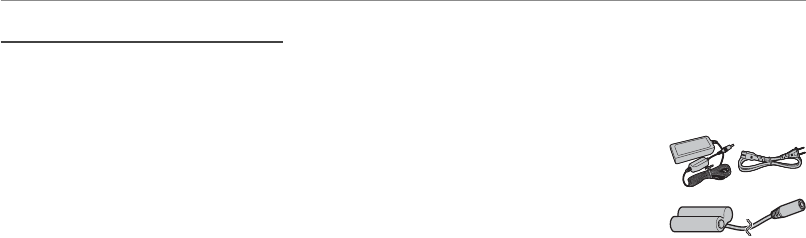
96
Optional Accessories
Accessories from FUJIFILM
Accessories from FUJIFILM
The following optional accessories are available from FUJIFILM. For the latest information on the acces-
sories available in your region, check with your local FUJIFILM representative or visit http://www.fujifilm.
com/products/digital_cameras/index.html.
• AC power adapter AC-5VX (requires DC Coupler CP-04): Use for extended playback or when copying
pictures to a computer (shape of adapter and plug vary with region of sale).
• DC Coupler CP-04: Connect the AC power adapter AC-5VX to the camera.

97
Technical Notes
Caring for the Camera
To ensure continued enjoyment of the product, observe the following precautions.
Storage and Use
Storage and Use
If the camera will not be used for an extended pe-
riod, remove the battery and memory card. Do
not store or use the camera in locations that are:
• exposed to rain, steam, or smoke
• very humid or extremely dusty
• exposed to direct sunlight or very high tempera-
tures, such as in a closed vehicle on a sunny day
• extremely cold
• subject to strong vibration
• exposed to strong magnetic elds, such as near
a broadcasting antenna, power line, radar emit-
ter, motor, transformer, or magnet
• in contact with volatile chemicals such as pesti-
cides
• next to rubber or vinyl products
■
■
Water and Sand
Water and Sand
Exposure to water and sand can also damage the
camera and its internal circuitry and mechanisms.
When using the camera at the beach or seaside,
avoid exposing the camera to water or sand. Do
not place the camera on a wet surface.
■
■
Condensation
Condensation
Sudden increases in temperature, such as occur
when entering a heated building on a cold day,
can cause condensation inside the camera. If this
occurs, turn the camera off and wait an hour be-
fore turning it on again. If condensation forms on
the memory card, remove the card and wait for
the condensation to dissipate.
Cleaning
Cleaning
Use a blower to remove dust from the lens and
monitor, then gently wipe with a soft, dry cloth.
Any remaining stains can be removed by wiping
gently with a piece of FUJIFILM lens-cleaning pa-
per to which a small amount of lens-cleaning uid
has been applied. Care should be taken to avoid
scratching the lens or monitor. The camera body
can be cleaned with a soft, dry cloth. Do not use
alcohol, thinner, or other volatile chemicals.
Traveling
Traveling
Keep the camera in your carry-on baggage.
Checked baggage may su er violent shocks that
could damage the camera.
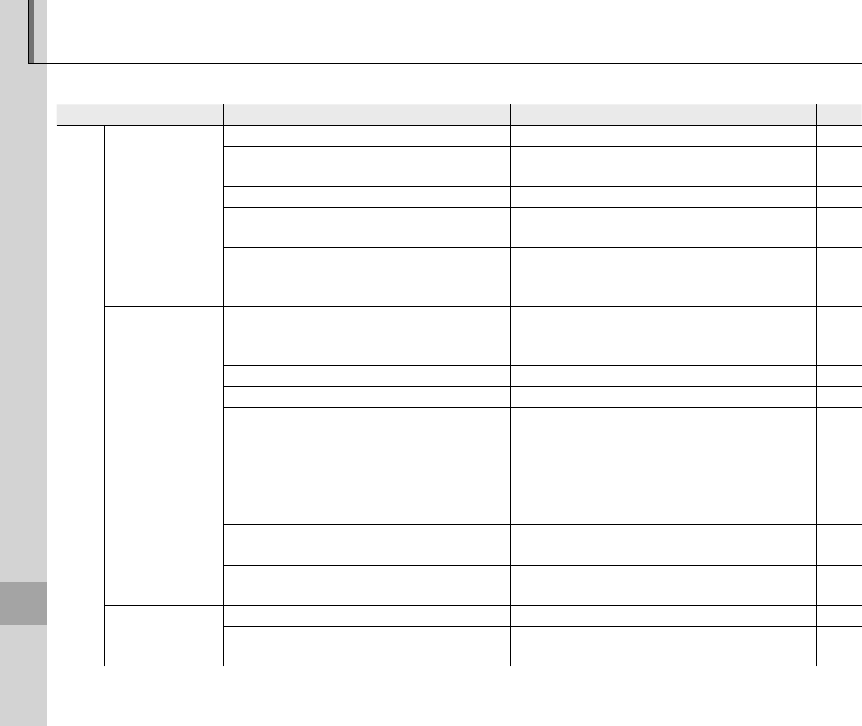
98
Troubleshooting
Troubleshooting
Power and Battery
Problem
Problem
Possible cause
Possible cause
Solution
Solution
Page
Page
Power
supply
The camera does
not turn on.
The batteries are exhausted. Insert fresh or fully-charged spare batteries. 8
The batteries are not in the correct orienta-
tion.
Re-insert the batteries in the correct orienta-
tion. 8
The battery-chamber cover is not latched. Latch the battery-chamber cover. 9
The AC adapter and DC coupler are not con-
nected properly.
Make sure that the AC adapter and DC coupler
are properly connected. —
The camera has been left for an extended
period with no batteries inserted and the
AC adapter/DC coupler unplugged.
After inserting the batteries or connecting the
AC adapter/DC coupler, wait a few moments
before turning the camera on.
—
The batteries run
down quickly.
The batteries are cold.
Warm the batteries by placing them in a pocket
or other warm place and re-insert them in the
camera immediately before taking a picture.
v
There is dirt on the battery terminals. Clean the terminals with a soft, dry cloth. —
The camera is in M mode. Select another shooting mode. 13, 32
The batteries are new, have been left unused
for an extended period, or have been re-
charged without rst being fully discharged
(rechargeable Ni-MH batteries only).
Discharge Ni-MH batteries using the P DIS-
CHARGE option and recharge them in a bat-
tery charger (sold separately). If the batteries
do not hold a charge after repeated discharg-
ing and recharging, they have reached the end
of their service life and must be replaced.
94
E HIGH SPEED SHOOTING is on. Turn E HIGH SPEED SHOOTING o to re-
duce the drain on the battery. —
u CONTINUOUS AF is selected for F
FOCUSING.Select a di erent focusing option. 73
The camera turns
o suddenly.
The batteries are exhausted. Insert fresh or fully-charged spare batteries. 8
The AC adapter or DC coupler has been dis-
connected.
Make sure that the AC adapter and DC coupler
are properly connected. —
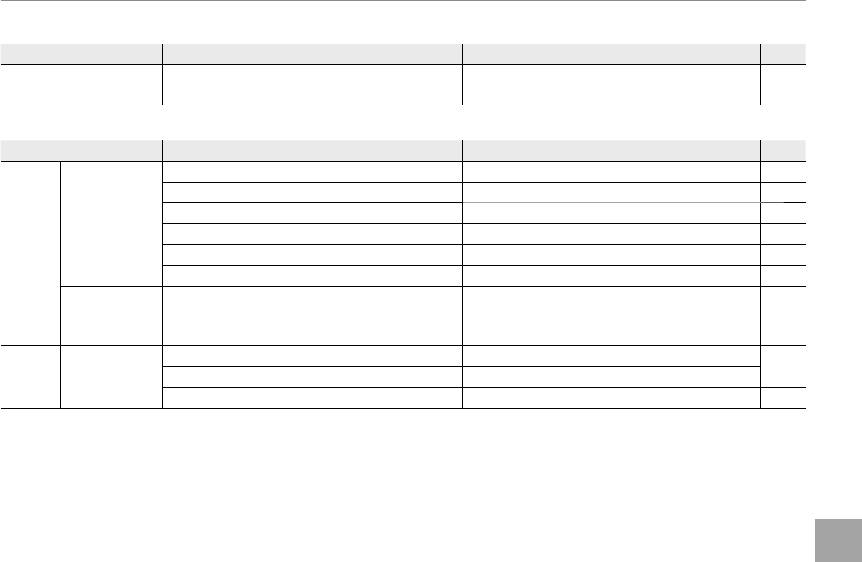
99
Troubleshooting
Troubleshooting
Menus and Displays
Problem
Problem
Possible cause
Possible cause
Solution
Solution
Page
Page
Menus and displays are
not in English.
English is not selected for the L a
option in the setup menu. Select ENGLISH.14
Shooting
Problem
Problem
Possible cause
Possible cause
Solution
Solution
Page
Page
Taking
pictures
No picture is
taken when
the shutter
button is
pressed.
Memory is full. Insert a new memory card or delete pictures. 11, 47
Memory is not formatted. Format the memory card or internal memory. 92
There is dirt on the memory card contacts. Clean the contacts with a soft, dry cloth. 11
The memory card is damaged. Insert a new memory card. 10
The batteries are exhausted. Insert fresh or fully-charged spare batteries. 8
The camera has turned o automatically. Turn the camera on. 13
The monitor
goes dark after
shooting.
The ash has red. The monitor may darken while the ash
charges. Wait for the ash to charge. 26
Focus
The camera
does not
focus.
The subject is close to the camera. Select macro mode. 25
The subject is far away from the camera. Cancel macro mode.
The subject is not suited to autofocus. Use focus lock. 23

100
Troubleshooting
Problem
Problem
Possible cause
Possible cause
Solution
Solution
Page
Page
Intelligent
Face
Detection
Face detection
not available.
Intelligent Face Detection is not available in
the current shooting mode. Choose a di erent shooting mode. 32
No face is
detected.
The subject’s face is obscured by sunglasses, a
hat, long hair, or other objects. Remove the obstructions.
21The subject’s face occupies only a small area
of the frame.
Change the composition so that the subject’s
face occupies a larger area of the frame.
The subject’s head is tilted or horizontal. Ask the subject to hold their head straight.
The camera is tilted. Hold the camera straight. 16
The subject’s face is poorly lit. Shoot in bright light. —
Wrong subject
selected.
The selected subject is closer to the center of
the frame than the main subject.
Recompose the picture or turn face detection
o and frame the picture using focus lock. 21, 23
Close-ups Macro mode is
not available.
Macro mode is not available in the current
shooting mode. Choose a di erent shooting mode. 25, 32
Flash
The ash does
not re.
The ash is lowered. Raise the ash. 26
The ash is charging. Wait for the ash to charge. 26
The ash is not available in the current shoot-
ing mode. Choose a di erent shooting mode. 32
The batteries are exhausted. Insert fresh or fully-charged spare batteries. 8
The camera is in super macro or continuous
shooting mode.
Turn super macro and continuous shooting
modes o . 25, 28
Flash mode
not available.
The desired ash mode is not available in the
current shooting mode. Choose a di erent shooting mode. 32
The ash does
not fully light
the subject.
The subject is not in range of the ash. Position the subject in range of the ash. 111
The ash window is obstructed. Hold the camera correctly. 16
Fast shutter speed selected. Choose a slower shutter speed. 36

101
Troubleshooting
Troubleshooting
Problem
Problem
Possible cause
Possible cause
Solution
Solution
Page
Page
Problem
images
Pictures are
blurred.
The lens is dirty. Clean the lens. 97
The lens is blocked. Keep objects away from the lens. 16
s is displayed during shooting and the fo-
cus frame is displayed in red. Check focus before shooting. 104
k is displayed during shooting. Use the ash or a tripod. 27
Pictures are
mottled.
The ambient temperature is high and the sub-
ject is poorly lit.
This is normal and does not indicate a mal-
function. Choose a lower sensitivity. 65
Slow shutter speed selected and the subject
is poorly lit. Choose a faster shutter speed. 37, 39
Vertical lines
appear in
pictures.
The camera has been used continuously at
high temperatures.
Turn the camera o and wait for it to cool
down. —
Smear appears
in pictures.
Fast shutter speed selected and the subject is
brightly lit. Choose a slower shutter speed. 37, 39
Recording Pictures are
not recorded. Power was interrupted during shooting.
Turn the camera o before connecting the AC
adapter/DC coupler. Leaving the camera on
can result in corrupted les or damage to the
memory card or internal memory.
—
Continuous
shooting
mode
Only one pic-
ture is taken.
The self timer is on and an option L and N
are selected in continuous shooting mode. Turn the self-timer o .70
102
Troubleshooting
Playback
Problem
Problem
Possible cause
Possible cause
Solution
Solution
Page
Page
Pictures
Pictures are
grainy.
The pictures were taken with a di erent make or
model of camera. ——
Playback zoom
unavailable.
The pictures were taken at an image size of J
or with a di erent make or model of camera. —66
Audio
No sound in
voice memo
and movie
playback.
The camera is in silent mode. Turn silent mode o .18
Playback volume is too low. Adjust playback volume. 91
The microphone was obstructed. Hold the camera correctly during recording. 84
The speaker is obstructed. Hold the camera correctly during playback. 84
Deletion
Selected pic-
tures are not
deleted.
Some of the pictures selected for deletion are
protected.
Remove protection using the device with
which it was originally applied. 81
Frame no.
File number-
ing is unex-
pectedly reset.
The battery-chamber cover was opened while
the camera was on.
Turn the camera o before opening the bat-
tery-chamber cover. 8
Connections
Problem
Problem
Possible cause
Possible cause
Solution
Solution
Page
Page
TV
No picture or
sound.
The camera is not properly connected. Connect the camera correctly. 52
An A/V cable was connected during movie
playback.
Connect the camera once movie playback
has ended. 51, 52
Input on the television is set to “TV”. Set input to “VIDEO”. —
The camera is not set to the correct video stan-
dard.
Match the camera Q VIDEO SYSTEM set-
ting to the TV. 89
The volume on the television is too low. Adjust the volume. —
No color. The camera is not set to the correct video stan-
dard.
Match the camera Q VIDEO SYSTEM set-
ting to the TV. 89

103
Troubleshooting
Troubleshooting
Problem
Problem
Possible cause
Possible cause
Solution
Solution
Page
Page
Computer
The com-
puter does not
recognize the
camera.
The camera is not properly connected. Connect the camera correctly. 62
PictBridge
Pictures can
not be printed.
The camera is not properly connected. Connect the camera correctly. 53
The printer is o . Turn the printer on. —
Only one copy
is printed. The printer is not PictBridge-compatible. — —
The date is not
printed.
Miscellaneous
Problem
Problem
Possible cause
Possible cause
Solution
Solution
Page
Page
Nothing happens
when the shutter but-
ton is pressed.
Temporary camera malfunction.
Remove and reinsert the batteries or discon-
nect and reconnect the AC adapter/DC cou-
pler.
8
The batteries are exhausted. Insert fresh or fully-charged spare batteries. 8
The camera does not
function as expected. Temporary camera malfunction.
Remove and reinsert the batteries or dis-
connect and reconnect the AC adapter/DC
coupler. If the problem persists, contact your
FUJIFILM dealer.
8, 114
104
Warning Messages and Displays
The following warnings are displayed in the monitor:
Warning
Warning
Description
Description
Solution
Solution
B (red) Batteries are low. Insert fresh or fully-charged spare batteries.
A (blinks red) Batteries are exhausted.
kSlow shutter speed. Picture may be blurred. Use the ash or mount the camera on a tripod.
s
(displayed in red
with red focus
frame)
The camera can not focus.
• Use focus lock to focus on another subject at the
same distance, then recompose the picture (pg. 23).
• If the subject is poorly lit, try focusing at a distance of
about 2 m (6.6 ft.).
• Use macro mode to focus when taking close-ups.
Aperture or shutter
speed shown in red
The subject is too bright or too dark. The pic-
ture will be over- or under-exposed. If the subject is dark, use the ash.
FOCUS ERROR
Camera malfunction.
Turn the camera o and then on again, taking care not
to touch the lens. If the message persists, contact a
FUJIFILM dealer (pg. 114).
ZOOM ERROR
LENS CONTROL ERROR
NO CARD No memory card inserted when COPY is se-
lected in the playback menu. Insert a memory card.
CARD NOT INITIALIZED
The memory card or internal memory is not
formatted or the memory card was formatted
in a computer or other device.
Format the memory card or internal memory using the
K FORMAT option in the camera setup menu (pg.
92).
The memory card contacts require cleaning.
Clean the contacts with a soft, dry cloth. If the mes-
sage is repeated, format the memory card (pg. 92). If
the message persists, replace the memory card.
Camera malfunction. Contact a FUJIFILM dealer (pg. 114).
PROTECTED CARD The memory card is locked. Unlock the memory card (pg. 10).
BUSY The memory card is incorrectly formatted. Use the camera to format the memory card (pg. 92).

105
Troubleshooting
Warning Messages and Displays
Warning
Warning
Description
Description
Solution
Solution
CARD ERROR
The memory card is not formatted for use in
the camera. Format the memory card (pg. 92).
The memory card contacts require cleaning or
the memory card is damaged.
Clean the contacts with a soft, dry cloth. If the mes-
sage is repeated, format the memory card (pg. 92). If
the message persists, replace the memory card.
Incompatible memory card. Use a compatible memory card.
Camera malfunction. Contact a FUJIFILM dealer (pg. 114).
b MEMORY FULL
The memory card or internal memory is full;
pictures can not be recorded or copied.
Delete pictures or insert a memory card with more free
space.
a MEMORY FULL
INTERNAL MEMORY IS FULL
INSERT A NEW CARD
WRITE ERROR
Memory card error or connection error.
Re-insert the memory card or turn the camera o
and then on again. If the message persists, contact a
FUJIFILM dealer (pg. 114).
Not enough memory remaining to record ad-
ditional pictures.
Delete pictures or insert a memory card with more free
space.
The memory card or internal memory is not
formatted. Format the memory card or internal memory (pg. 92).
READ ERROR
The le is corrupt or was not created with the
camera. The le can not be played back.
The memory card contacts require cleaning.
Clean the contacts with a soft, dry cloth. If the mes-
sage is repeated, format the memory card (pg. 92). If
the message persists, replace the memory card.
Camera malfunction. Contact a FUJIFILM dealer (pg. 114).

106
Warning Messages and Displays
Warning
Warning
Description
Description
Solution
Solution
FRAME NO. FULL The camera has run out of frame numbers (cur-
rent frame number is 999-9999).
Format the memory card and select RENEW for the
B FRAME NO. option in the M SET-UP menu.
Take a picture to reset frame numbering to 100-0001,
then return to the B FRAME NO. menu and select
CONTINUOUS.
TOO MANY FRAMES Date for which more than 4,999 pictures exist
selected in sort-by-date view. Choose a di erent date.
CAN NOT EXECUTE Red-eye removal can not be applied to the se-
lected picture or movie. —
F CAN NOT EXECUTE
PROTECTED FRAME An attempt was made to delete, rotate, or add
a voice memo to a protected picture.
Remove protection before deleting, rotating, or adding
voice memos to pictures.
u ERROR Voice memo le is corrupt. The voice memo can not be played back.
Camera malfunction. Contact a FUJIFILM dealer (pg. 114).
b NO IMAGE The source device selected in the playback
COPY menu contains no pictures. Select a di erent source.
a NO IMAGE
J CAN NOT TRIM An attempt was made to crop a J picture.
These pictures can not be cropped.
CAN NOT TRIM The picture selected for cropping is damaged
or was not created with the camera.
DPOF FILE ERROR The DPOF print order on the current memory
card contains more than 999 images.
Copy the pictures to internal memory and create a new
print order.
CAN NOT SET DPOF The picture can not be printed using DPOF. —
F CAN NOT SET DPOF Movies can not be printed using DPOF. —
CAN NOT ROTATE The picture can not be rotated. —
F CAN NOT ROTATE Movies can not be rotated. —
107
Troubleshooting
Warning Messages and Displays
Warning
Warning
Description
Description
Solution
Solution
PRESS AND HOLD
THE DISP BUTTON TO
DEACTIVATE SILENT MODE
An attempt was made to adjust the volume
with the camera in silent mode. Exit silent mode before adjusting the volume.
COMMUNICATION ERROR
A connection error occurred while pictures
were being printed or copied to a computer or
other device.
Con rm that the device is turned on and that the USB
cable is connected.
PRINTER ERROR Printer out of paper or ink, or other printer er-
ror.
Check printer (see printer manual for details). To resume
printing, turn the printer o and then turn it back on.
PRINTER ERROR
RESUME?
Check printer (see printer manual for details). If printing
does not resume automatically, press MENU/OK to resume.
CAN NOT BE PRINTED
An attempt was made to print a movie, a pic-
ture not created with the camera, or a picture
in a format not supported by the printer.
Movies and some pictures created with other devices
can not be printed. If the picture was created with the
camera, check the printer manual to con rm that the
printer supports the JFIF-JPEG or Exif-JPEG format. If it
does not, the pictures can not be printed.

108
Appendix
Glossary
Digital zoom: Unlike optical zoom, digital zoom does not increase the amount of visible detail. Instead, details vis-
ible using optical zoom are simply enlarged, producing a slightly “grainy” image.
DPOF (Digital Print Order Format): A standard that allows pictures to be printed from “print orders” stored
in internal memory or on a memory card. The information in the order includes the pictures to be
printed and the number of copies of each picture.
EV (Exposure Value): The exposure value is determined by the sensitivity of the image sensor and the
amount of light that enters the camera while the image sensor is exposed. Each time the amount of light doubles,
EV increases by one; each time the amount of light is halved, EV decreases by one. The amount of light entering
the camera can be controlled by adjusting aperture and shutter speed.
Exif Print: A standard that allows information stored with pictures to be used for optimal color reproduction dur-
ing printing.
JPEG (Joint Photographic Experts Group): A compressed le format for color images. The higher the compression
rate, the greater the loss of information and more noticeable drop in quality when the picture is displayed.
Motion JPEG: An AVI (Audio Video Interleave) format that stores sound and JPEG images in a single le. Motion JPEG
les can be played in Windows Media Player (requires DirectX 8.0 or later) or QuickTime 3.0 or later.
Smear: A phenomenon speci c to CCDs which causes white streaks to appear when very bright light sources, such
as the sun or re ected sunlight, appear in the frame.
WAV (Waveform Audio Format): A standard Windows audio le format. WAV les have the extension “*.WAV” and
may be compressed or uncompressed. The camera uses uncompressed WAV. WAV les can be played using
Windows Media Player or QuickTime 3.0 or later.
White balance: The human brain automatically adapts to changes in the color of light, with the result that objects
that appear white under one light source still appear white when the color of the light source changes. Digital
cameras can mimic this adjustment by processing images according to the color of the light source. This process
is known as “white balance.”
109
Appendix
Internal Memory/Memory Card Capacity
The following table shows the recording time or number of pictures available at di erent image quali-
ties. All gures are approximate; le size varies with the scene recorded, producing wide variations in
the number of les that can be stored. The number of exposures or length remaining may not diminish
at an even rate.
B
B
F
F
B
B
N
N
C
C
3:2
3:2
G
G
H
H
I
I
J
J
a
a
b
b
Image size (pixels)
Image size (pixels) 3648 × 2736 3648 × 2432 2592 × 1944 2048 × 1536 1600 × 1200 640 × 480 640 × 480
(VGA)
320 × 240
(QVGA)
File size
File size 5.0 MB 2.5 MB 2.3 MB 1.3 MB 810 KB 650 KB 160 KB — —
Internal memory
Internal memory
(approx. 23 MB)
(approx. 23 MB) 4 8 9 17 28 35 147 28 sec. 51 sec.
SD card
SD card
512 MB
512 MB 95 190 220 380 600 750 3090 9 min. 17 min.
1 GB
1 GB 200 390 440 770 1210 1510 6190 19 min. 35 min.
2 GB
2 GB 400 790 880 1540 2380 2950 12400 39 min. 71 min.
SDHC
SDHC
card
card
4 GB
4 GB 800 1590 1770 3100 4770 5900 24820 79 min. * 143 min. *
8 GB
8 GB 1610 3190 3550 6220 9570 11850 49800 160 min. * 288 min. *
16 GB
16 GB 3240 6400 7130 12480 19200 23780 99880 321 min. * 577 min. *
* Total length of all movie les. Individual movies can not exceed 2 GB, regardless of capacity of memory card.

110
Speci cations
System
Model Digital Camera FinePix S1500
E ective pixels 10 million
CCD 1
/
2.3 -in., square-pixel Bayer CCD with primary color lter
Storage media • Internal memory (approx. 23 MB) • SD/SDHC memory cards (see page 10)
File system Compliant with Design Rule for Camera File System (DCF), Exif 2.2, and Digital Print Order Format
(DPOF)
File format • Still pictures: Exif 2.2 JPEG (compressed) • Movies: AVI-format Motion JPEG
• Audio: WAV
Image size (pixels) • BF: 3,648 × 2,736 • BN: 3,648 × 2,736 • C3:2: 3,648 × 2,432 • G: 2,592 × 1,944
• H: 2,048 × 1,536 • I: 1,600 × 1,200 • J: 640 × 480
File size See page 109
Lens Fujinon 12 × optical zoom lens, F/2.8 (wide angle) – 5 (telephoto)
Focal length f=5.9 mm–70.8 mm (35-mm format equivalent: 33 mm–396 mm)
Digital zoom • Still pictures: Approx. 5.7 × (up to 68.4 × when combined with optical zoom)• Movies: 2 ×
Aperture F2.8–F6.4 (wide angle), F5.0–F8.0 (telephoto), 1/3 EV increments Manual/Auto selectable
Focus range (distance from
front of lens)
Approx. 40 cm (1.3 ft.)–in nity (wide angle); 1.5 m (4.9 ft.)–in nity (telephoto)
Macro: approx. 5 cm–3 m/0.2 ft.–9.8 ft. (wide angle); 80 cm–3 m/2.6 ft.–9.8 ft. (telephoto)
Super macro: approx. 2 cm–100 cm/0.1 ft.–3.3 ft. (wide angle)
High-speed shooting: approx. 100 cm (3.3 ft.)–in nity (wide angle); 2.5 m (8.2 ft.)–in nity (telephoto)
Sensitivity Standard output sensitivity equivalent to ISO 100, 200, 400, 800, 1600, 3200, 6400 (3200 and 6400
available only at image sizes H or smaller); AUTO, AUTO (400), AUTO (800)
Metering 256-segment through-the-lens (TTL) metering; MULTI, SPOT, AVERAGE
Exposure control Programmed, shutter-priority, and aperture-priority, auto exposure; manual exposure
Exposure compensation –2 EV – +2 EV in increments of 1
/
3 EV (P, S, A, and M modes)
111
Appendix
Speci cations
System
Scene modes L (PORTRAIT), M (LANDSCAPE), N (SPORT), O (NIGHT), H (NIGHT (TRIPOD)), D (NATU-
RAL LIGHT), P (FIREWORKS), Q (SUNSET), R (SNOW), S (BEACH), T (MUSEUM), U (PARTY),
V (FLOWER), W (TEXT)
Scene recognition Available (camera automatically selects b, c, d, e, f, or g)
Picture stabilization Optical stabilization, CCD shift
Intelligent Face Detection Available
Shutter speed • M, B, L, M, N, D, Q, R, S, T, U, V, W: 1
/
4 s – 1
/
2,000 s
• P, A, S, M: 8 s – 1
/
2,000 s • O: 1
/
8 s – 1
/
2,000 s• H: 3 s – 1
/
2,000 s• P: 8 s – 1
/
2 s
Continuous • I: up to 1.4 fps; max. 3 frames • O: up to 1.4 fps; max. 3 frames
• N: up to 1.4 fps; maximum number of frames varies with image size and available memory
• L: up to 1.4 fps; last 3 frames recorded • K: up to 3.3 fps; max. 6 frames; up to G pixels
• J: up to 7.5 fps; max. 15 frames; up to I pixels
Bracketing ±1
/
3 EV, ±2
/
3 EV, ±1 EV
Focus • Mode: Single AF, continuous AF
• Focus-area selection: CENTER, MULTI, AREA, TRACKING
• Autofocus system: Contrast-detect TTL AF with AF-assist illuminator (e ective range approx. 2 m/6.6 ft.)
White balance Automatic scene detection; six manual preset modes for direct sunlight, shade, daylight uorescent,
warm white uorescent, cool white uorescent, and incandescent lighting; custom white balance
Self-timer O , 2 sec, 10 sec
Flash Auto ash with CCD ash control (using monitor pre- ashes) and manual pop-up; e ective range
when sensitivity is set to AUTO is approx. 40 cm–8.7 m/1.3 ft.–29 ft. (wide angle), 1.5 m–4.8 m/4.9 ft.–16 ft.
(telephoto), or 30 cm–3 m/1 ft.–9.8 ft. (macro mode)
Flash modes Auto, forced ash, o , slow synchro (red-eye removal o ); auto with red-eye removal, forced ash
with red-eye removal, o , slow sync with red-eye removal (red-eye removal on)
112
Speci cations
System
Electronic view nder (EVF) 0.2-in., 200k-dot color LCD monitor
Frame coverage Approx. 94% (shooting), 100% (playback)
Monitor 2.7-in., 230k-dot low-temperature polysilicon high-transmission (WV lm) TFT color LCD monitor
Frame coverage Approx. 97% (shooting), 100% (playback)
Movies Camera can record movies with monaural sound and a frame size of VGA (a; 640 × 480) or QVGA
(b; 320 × 240) at a frame rate of 30 fps
Shooting options Instant zoom, Intelligent Face Detection with red-eye removal, high-speed shooting, framing guide-
line, post-shot assist, frame number memory, and histogram display
Playback options Intelligent Face Detection, red-eye removal, micro thumbnail, multi-frame playback, sort-by-date,
trimming, slide show, image rotation, voice memo, histogram display, and exposure warning
Other options PictBridge, Exif Print, FinePix COLOR, language selection (Simplified Chinese, Traditional Chi-
nese, Czech, Dutch, English, French, German, Hungarian, Italian, Japanese, Korean, Polish, Portuguese,
Russian, Spanish, Swedish, Thai, and Turkish), time difference, battery discharge
Input/output terminals
A/V OUT (audio/video output) 8-pin multi-connector for NTSC or PAL output with monaural sound
Digital input/output USB 2.0 High Speed; shares A/V OUT connector
DC IN For use with DC Coupler CP-04 connected to AC power adapter AC-5VX (AC adapter and DC coupler sold
separately)
Power supply/other
Power sources • AA alkaline batteries (×4)
• AA lithium batteries (×4; available from third-party suppliers)
• AA rechargeable nickel-metal hydride (Ni-MH) batteries (×4; available from third-party suppliers)
• AC power adapter AC-5VX and DC Coupler CP-04 (sold separately)
113
Appendix
Speci cations
Power supply/other
Battery life Approx. 300 frames (alkaline batteries of the type supplied with the camera), 700 frames (lithium bat-
teries), or 500 frames (Ni-MH batteries), based on CIPA (Camera and Imaging Products Association)
standard; measured at 23 °C (73 °F) with the monitor on, pictures recorded to an SD memory card,
the camera zoomed from widest angle to maximum zoom and back once every 30 s, the ash red at
full power with every other shot, and the camera turned o and then on again every 10 shots. Note
that the number of shots that can be taken varies with battery make and charge state, temperature,
and shooting conditions.
Camera dimensions 102.5 mm × 73 mm × 67.8 mm/4.0 in. × 2.9 in. × 2.7 in. (W × H × D), excluding batteries and accessories
Camera weight Approx. 324 g/11.4 oz., excluding batteries, accessories, and memory cards
Shooting weight Approx. 419 g/14.8 oz., including batteries and memory card
Operating conditions • Temperature: 0 °C – +40 °C/+32 °F – +104 °F • Humidity: 80% or less (no condensation)
Color Television Systems
NTSC (National Television System Committee) is a color television telecasting speci cation adopted mainly in the
U.S.A., Cada, and Japan. PAL (Phase Altertion by Line) is a color television system adopted mainly in European
countries and China.
Notices
• Speci cations subject to change without notice. FUJIFILM shall not be held liable for damages resulting from
errors in this manual.
• Although the monitor is manufactured using advanced high-precision technology, small bright points and
anomalous colors (particularly in the vicinity of text) may appear. This is normal for this type of monitor and
does not indicate a malfunction; images recorded with the camera are una ected.
• Digital cameras may malfunction when exposed to strong radio interference (e.g., electric elds, static electric-
ity, or line noise).
• Due to the type of lens used, some distortion may occur at the periphery of images. This is normal.

114
FUJIFILM Digital Camera Worldwide Network
Contact your local distributor (see list below) for repairs and technical support. Please present the war-
ranty and purchase receipt when requesting repairs; refer to the warranty card for the conditions of the
warranty. Technical support may not be available for models not handled by the local distributor. The
following information is subject to change without notice.
NORTH AMERICA
Canada FUJIFILM Canada Inc. Technical support TEL 1-866-818-FUJI (3854) http://www.fujihelp.ca
Repair service TEL 1-800-263-5018 http://www.fujihelp.ca
U.S.A. FUJIFILM U.S.A., Inc. Technical support TEL 800-800-3854 digitalinfo@fujifilm.com
Repair service TEL 800-659-3854
CENTRAL AND SOUTH AMERICA
Argentina Imagen e informacion S.A. Technical support & repairs
TEL +54-11-4836-1000 servtec@imageneinformacion.com.ar
Bolivia Reifschneider Bolivia Ltda. Technical support & repairs TEL +591 33 44 1129 gciagral@bibosi.scz.entelnet.bo
Brazil FUJIFILM do Brasil Ltda. Technical support & repairs TEL 0800-12-8600 camarasdigitais@fujifilm.com.br
Chile Reifschneider SA Technical support & repairs TEL 56-2-6781200 serviciotecnico@reifschneider.cl
Colombia Animex de Colombia Ltda. Technical support & repairs TEL +57 1 338-0299 animex@etb.net.co
Ecuador Espacri Cia Ltda Technical support & repairs TEL 593-72-835526
Importaciones Espacri Cia. Ltda.
Technical support & repairs TEL +593 783 5526 portiz@fujifilm.com.ec
Mexico Fuji lm de Mexico, S.A. de C.V. Technical support TEL (52-55) 5263-55000 eizquierdo@fujifilm.com.mx
Repair service TEL (52-55) 5366-5150/56/57 cpalma@fujifilm.com.mx
Paraguay Errece S.R.L. Technical support & repairs TEL +595 21 444256 jmarbulo@fujifilm.com.py
Peru Procesos de Color S.A. Technical support & repairs TEL +51 14 33 5563 jalvarado@fujifilm.com.pe
Uruguay Fotocamara S.R.L. Technical support & repairs TEL +598-2-9002004 fotocam@adinet.com.uy
Kiel S.A. Technical support & repairs TEL (05982) 419 4542 kiel@fujifilm.com.uy
Venezuela C. Hellmund & Cia Sa Technical support & repairs TEL 0212-2022300 hellmund@hellmund.com
EUROPE
Austria Fuji Film Oesterreich Technical support & repairs TEL 0043 1 6162606/51 or 52 kamera.service@fujifilm.at
Belgium Belgian Fuji Agency Technical support & repairs TEL 3210242090 info@fuji.be
Croatia I&I d.o.o. Technical support TEL 38512319060 dsaravanja@fujifilm.hr
Repair service TEL 38512316228 info@fujifilm.hr

115
Appendix
EUROPE
Cyprus PMS IMAGING LTD Technical support & repairs TEL 35722746746 mariosashiotis@fujifilm.com.cy
Doros Neophytou
CAMERA REPAIRS
Technical support & repairs TEL 35722314719 dorosn@logosnet.cy.net
Czech Republic Fuji lm Cz., s.r.o. Technical support TEL 00420 234 703 411 petr.barta@fujifilm.cz
AWH servis Repair service TEL 00420 222 721 525 awh@awh.cz
Denmark Fuji lm Danmark A/S Technical support & repairs TEL 0045 45662244 fujifilm@fujifilm.dk
Finland Fuji Finland Oy Technical support & repairs TEL +358 9 825951 www.fuji.fi fuji@fuji.fi
France FUJIFILM France Technical support & repairs direction.technique@pm2s.fr
Germany FUJIFILM Electronic Imaging Europe
GmbH
Technical support & repairs Tel 0180 / 589 89 80* service@fujifilm-digital.com
* 0,14 EUR pro Minute aus dem deutschen Festnetz, abweichende
Preise aus Mobilfunknetzen möglich,Stand bei Drucklegung.
Greece FUJIFILM HELLAS S.A. Technical support & repairs TEL 0030 210 9404100 fujifilm@fujifilm.gr
Hungary Fuji lm Hungary Ltd. Technical support TEL 3612389410 fujifilm@fujifilm.hu
Repair service TEL 3613633777
Iceland Icephoto (Ljosmyndavorur) Technical support & repairs TEL 354 568 0450 framkollun@fujifilm.is
Italy FujiFilm Italia S.r.l. Call center TEL 039-0267978181 info@fujifilm.it
Repair service TEL 039-6058294 FAX 039-6058295
Lithuania Fuji lm Lithuania Technical support & repairs TEL 370-5-2130121 info@fujifilm.lt
Malta Ciancio (1913) Co.Ltd. Technical support & repairs TEL 0356-21-480500 info@fujifilm.com.mt
Norway Fuji lm Norge AS Technical support TEL 0047-02273
http://www.fujifilm.no/ mailto:post@fujifilm.no
Repair service TEL 0047-55393880
http://www.camera.no/mailto:service@camera.no
Poland Fuji lm Polska Distribution Sp.
z o.o.
Technical support TEL +48-22-517-66-00 fujifilm@fujifilm.pl
Repair service TEL +48-22-886-94-40 serwis@fujifilm.pl
Portugal Fuji lm Portugal, Lda Technical support TEL (351) 226 194 237 finepix@fujifilm.pt
Repair service TEL (351) 226 194 200 cameras@fujifilm.pt
Romania CTS-Cardinal Top Systems Ltd Technical support & repairs TEL 4021-230-09-82 cts_tirla@hotmail.com
Russia Fuji lm Electronic Imaging Europe
GmbH
Technical support & repairs TEL 8 800 200 3854 (Для бесплатных звонков из России)
* Для звонков из других стран набирайте +7 800 200 3854
http://www.fujifilm-digital.ru/ info@fujifilm-digital.ru
Slovakia Fuji lm Slovakia s.r.o. Technical support TEL 00421 2 33 595 107 fujifilm@fujifilm.sk
Repair service TEL 00421 2 33 595 119 servis@fujifilm.sk
Spain Fuji lm Espana S.A. Technical support & repairs TEL 902012535
http://www.fujifilm.es/soporte/ tallersat@fujifilm.es

116
EUROPE
Sweden Fuji lm Sverige AB Technical support TEL 46 8 506 141 70 kamera@fujifilm.se
Repair service TEL 46 8 506 141 00 kameraverkstaden@fujifilm.se
Switzerland /
Liechtenstein
Fuji lm (Switzerland) AG Technical support & repairs TEL +41 44 855 5154 RepairCenter@fujifilm.ch
The Netherlands FUJIFILM Electronic Imaging
Nederland
Technical support TEL +31(0)102812500 helpdesk@fujifilm-digital.nl
Repair service TEL +31(0)102812520 camerareparaties@fujifilm-digital.nl
Turkey Fuji lm Turkiye Sinfo A.S. Technical support TEL +90 212 696 5090 csarp@fujifilm.com.tr
Repair service TEL +90 212 696 5090 servis@fujifilm.com.tr
U.K. FUJIFILM UK Ltd. Technical support TEL +44 (0)8700 841310 fujitec@fuji.co.uk
Repair service TEL +44 (0)8700 841314 fujitec@fuji.co.uk
Ukraine Image Ukraine CJSC Technical support & repairs TEL +380-44-4909075 d@fujifilm.ua
MIDDLE EAST
Iran Tehran Fuka Co. Technical support & repairs TEL (+98-21)2254810-19 fuka@neda.net
Israel Shimone Group Ltd. Technical support TEL (+ ) 972 3 9250666 digital@fujifilm.co.il
Repair service TEL (+ ) 972 3 9250666 khaim@shimone.com
Jordan Grand Stores Al- Abdali,
Amman / Jordan
Technical support & repairs TEL 009626-4646387 gstores@go.com.jo
Lebanon Fototek S.A.R.L. Technical support & repairs TEL +961 1 252474 fototek@antakiholding.com
Qatar Techno Blue Technical support TEL 00974 44 66 175 prabu@techno-blue.com
Saudi Arabia Emam Distribution Co. Ltd. Technical support TEL 96626978756 service@fujifilm.com.sa
Syria Film Trading Company Technical support TEL + 963 11 2218049 f.t.c@Net.SY
Repair service TEL + 963 21 4641903 filmtradin@Net.SY
U.A.E. Grand Stores Technical support & repairs TEL + 971-4-2823700 photography@grandstores.ae
Yemen Al-Haidary Trading Technical support TEL 00967-1-503980
Repair service TEL 00967-1-503977
AFRICA
Egypt Foto Express Egypt Technical support & repairs TEL (202) 7762062 fotoegypt@access.com.eg
Kenya Fuji Kenya Ltd Repair service TEL (254-20)4446265-8 info@fujifilm.co.ke
South Africa Cameratek CC. Technical support & repairs TEL +27 11 251 2400 www.cameratek.co.za
OCEANIA
Australia FUJIFILM Australia Pty Ltd Technical support & repairs TEL 1800 226 355 digital@fujifilm.com.au
Fiji Brijlal & Co. Ltd Technical support & repairs TEL (679)3304133 kapadia@connect.com.fj
New Caledonia Phocidis SARL Technical support & repairs TEL (00 687) 25-46-35 phocidis@phocidis.nc
117
Appendix
OCEANIA
New Zealand Fuji lm NZ Ltd Technical support & repairs TEL +64-9-4140400 glenn.beaumont@fujifilm.co.nz
Papua New
Guinea
Oceania PNG Limited Technical support TEL +675 3256411 oceania@daltron.com.pg
ASIA
Hong Kong Fuji Photo Products Co., Ltd. Technical support & repairs TEL (852)2406 3287 rsd@chinahkphoto.com.hk
Indonesia PT. Modern Internasional, Tbk. Technical support & repairs TEL +62 021 45867187 assd_kmrsrv@modernphoto.co.id
Malaysia FUJIFILM (Malaysia) Sdn. Bhd. Technical support TEL 603-55698388 technical@fujifilm.com.my
Repair service TEL 603-55698388 camera@fujifilm.com.my
Philippines YKL Development & Trdg. Corp. Technical support TEL 632-7436601~06
info@yklcolor.com digital@yklcolor.com
Repair service TEL 632-7436601~06 techop_services@yklcolor.com
Singapore FUJIFILM (Singapore) Pte Ltd Technical support & repairs TEL 65-6380 5557 service@fujifilm.com.sg
South Korea Korea Fuji lm Co., Ltd. Technical support TEL +82-2-3282-7363 photo@fujifilm.co.kr
Yonsan AS Center (Fujidigital) Repair service TEL +82-2-701-1472 1bowl@hanmail.net
Kangnam AS Center (Digitalgallery) Repair service TEL +82-2-2203-1472 nurijili@hanmail.net
Busan AS Center (Digital-Sewon) Repair service TEL +82-51-806-1472 merahan@yahoo.co.kr
Taiwan Hung Chong Corp. Technical support & repairs TEL 886-2-6602-8988 dah@mail.hungchong.com.tw
Thailand FUJIFILM (Thailand) Ltd. Technical support TEL +662-2706000 ext. 751,752
Dusit_Suriyong@fujifilm.co.th yaowarat@fujifilm.co.th
Repair service TEL +662-2706000 ext.761,762 warin@fujifilm.co.th
Vietnam International Minh Viet Co., Ltd. Technical support & repairs TEL +84-8-4135740 ext. 322 diep.phanthithanh@imv.com.vn

IMPORTANT NOTICE: Read Before Using the Software
BEFORE OPENING THE CD-ROM PROVIDED BY FUJIFILM CORPORATION, PLEASE READ THIS END USER
LICENSE AGREEMENT CAREFULLY. YOU SHOULD USE THE SOFTWARE ON THE CD-ROM ONLY IF YOU CON-
SENT TO THIS AGREEMENT. BY OPENING THE PACK AGE, YOU ACCEPT AND AGREE TO BE BOUND BY THIS
AGREEMENT.
End User License Agreement
This End User License Agreement (“Agreement”) is an agreement between FUJIFILM
Corporation (“FUJIFILM”) and you, which sets forth the terms and conditions of the li-
cense granted for you to use the software provided by FUJIFILM.
The CD-ROM contains third-party software. In case a separate agreement is provided
by a third party supplier for its software, the provisions of such separate agreement shall
apply to the use of such third party software, prevailing over those of this Agreement.
1. De nitions.
(a) “Media” means the CD-ROM titled “Software for FinePix” which is provided to you
together with this Agreement.
(b) “Software” means the software which is recorded on Media.
(c) “Documentation” means the operation manuals of Software and other related
written materials which are provided to you together with Media.
(d) “Product” means Media (including Software) and Documentation collectively.
2. Use of Software.
FUJIFILM grants to you a nontransferable, nonexclusive license:
(a) to install one copy of Software onto one computer in binary machine executable
form;
(b) to use Software on the computer onto which Software is installed; and
(c) to make one backup copy of Software.
3. Restrictions.
3.1 You shall not distribute, rent, lease or otherwise transfer all or any part of Software,
Media or Documentation to any third party without FUJIFILM’s prior written con-
sent. You also shall not sublicense, assign or otherwise transfer all or any part of
the rights granted to you by FUJIFILM under this Agreement without FUJIFILM’s
prior written consent.
3.2 Except as expressly granted by FUJIFILM hereunder, you shall not copy or repro-
duce all or any part of Software or Documentation.
3.3 You shall not modify, adapt or translate Software or Documentation. You also
shall not alter or remove copyright and other proprietary notices that appear on
or in Software or Documentation.
3.4 You shall not, or shall not have any third party, reverse-engineer, decompile, or
disassemble Software.
4. Ownership.
All copyrights and other proprietary rights to Software and Documentation are
owned and retained by FUJIFILM or the third party suppliers as indicated on or in
Software or Documentation. Nothing contained herein shall be construed, expressly
or implicitly, as transferring or granting any right, license, or title to you other than
those explicitly granted under this Agreement.
5. Limited Warranty.
FUJIFILM warrants to you that Media is free from any defect in material and workman-
ship under normal use for ninety (90) days from the date of your receipt of Media.
Should Media not meet the foregoing warranty, FUJIFILM shall replace such defective
Media with other Media bearing no defect. FUJIFILM’s entire liability and your sole
and exclusive remedy with regard to any defect in Media shall be expressly limited to
such FUJIFILM’s replacement of Media as provided herein
6. DISCLAIMER OF WARRANTY.
EXCEPT AS PROVIDED IN SECTION 5 HEREIN, FUJIFILM PROVIDES PRODUCT “AS IS”
AND WITHOUT WARRANTIES OF ANY KIND, EXPRESS OR IMPLIED. FUJIFILM SHALL
MAKE NO WARRANTY, EXPRESS, IMPLIED OR STATUTORY, AS TO ANY OTHER MAT-
TERS, INCLUDING, BUT NOT LIMITED TO NON-INFRINGEMENT OF ANY COPYRIGHT,
PATENT, TRADE SECRET, OR ANY OTHER PROPRIETARY RIGHTS OF ANY THIRD PARTY,
MERCHANTABILITY, OR FITNESS FOR ANY PARTICULAR PURPOSE.
7. LIMITATION OF LIABILITY.
IN NO EVENT SHALL FUJIFILM HAVE ANY LIABILITY FOR ANY GENERAL, SPECIAL, DI-
RECT, INDIRECT, CONSEQUENTIAL, INCIDENTAL, OR OTHER DAMAGES (INCLUDING
DAMAGES FOR LOSS OF PROFITS OR LOST SAVINGS) INCURRED FROM THE USE OF OR
INABILITY TO USE PRODUCT EVEN IF FUJIFILM HAS BEEN ADVISED OF THE POSSIBILITY
OF SUCH DAMAGES.
8. No export.
You acknowledge that neither Software nor any part thereof, will be transferred, or
exported to any country or used in any manner in violation of any export control laws
and regulations to which Software is subject.
9. Termination.
In case you breach any of the terms and conditions hereof, FUJIFILM may immediately
terminate this Agreement without any notice.
10
. Term .
This Agreement is e ective until the date when you cease to use Software, unless
earlier terminated in accordance with Section 9 hereof.
11
. Obligation upon termination.
Upon termination or expiration of this Agreement, you shall, at your own responsibil-
ity and expense, delete or destroy immediately all Software (including its copies),
Media and Documentation.
12
. Gov erni ng Law.
This Agreement shall be governed by and construed in accordance with laws of Japan.
7-3, AKASAKA 9-CHOME, MINATO-KU, TOKYO 107-0052, JAPAN
http://www.fujifilm.com/products/digital_cameras/index.html
