Revolabs Fusion Tandberg C20 Setup Guide Rev 0
User Manual: Fusion - Setup Guide - Tandberg C20 - rev 0
Open the PDF directly: View PDF  .
.
Page Count: 4

Revolabs FusionTM Microphone System — Tandberg C20 Setup Guide
This setup guide will guide you through the steps needed to properly connect a
Revolabs Fusion Microphone System to a Tandberg C20 video codec.
Note:
It is important to carefully follow these instructions in order and completely.
Otherwise your Fusion Microphone System and/or the video codec may not function
properly. Please read through these instructions completely before proceeding. Con-
tact Revolabs technical support if you have any questions.
Requirements for connecting systems:
1. Revolabs Fusion 4 or 8 channel Microphone System
2. Tandberg C20 video codec
3. QTY 1 XLR male to 3.5mm TRRS cable (custom built)
4. QTY 1 RCA male — RCA male cable
5. Amplified Speakers
NOTE: IMAGES ARE PART OF THE TANDBERG CODEC C20 ADMINISTRATOR’S GUIDE © JULY
2009
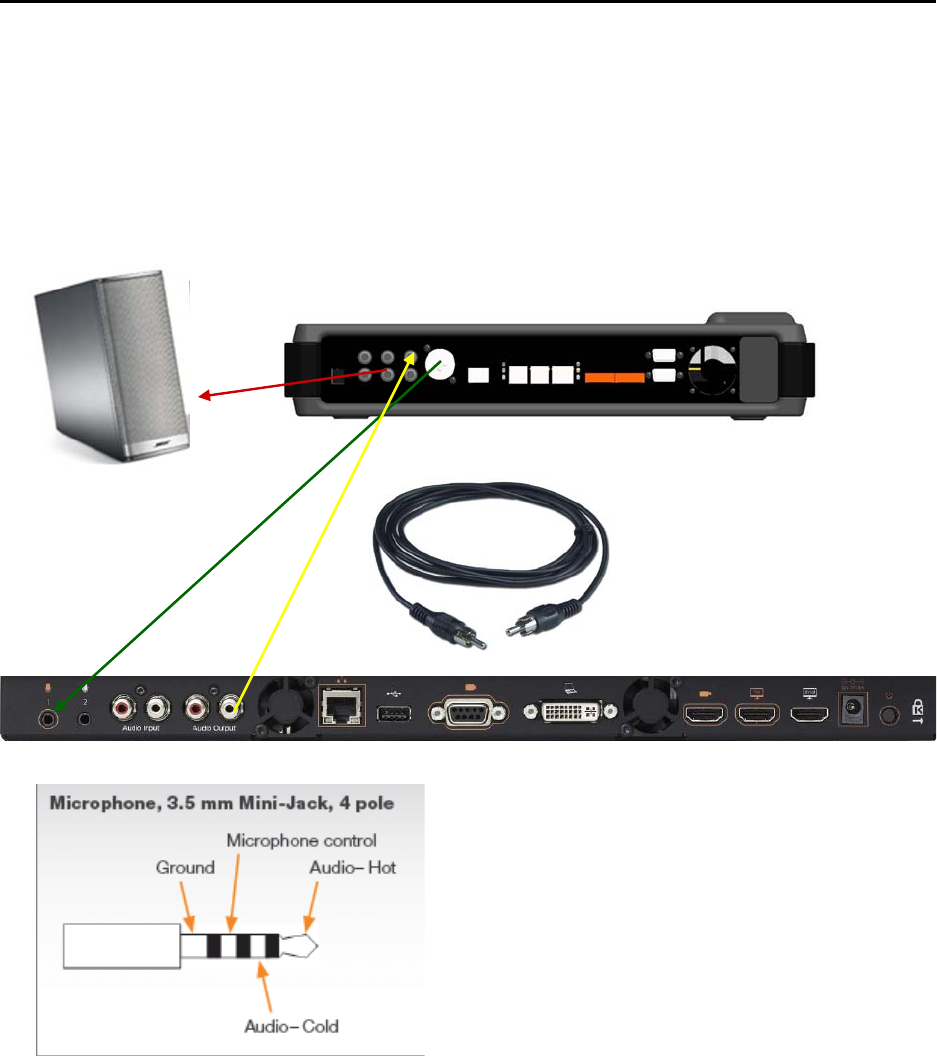
Connecting the Cables
1. Connect the XLR – 3.5mm TRRS audio cable between the XLR “CONF OUT” port
on the Fusion and the “MICROPHONE 1” port on the Tandberg C20.
2. Connect a Male RCA-RCA audio cable between the “CONF IN” port on the
Fusion and the White “AUDIO OUTPUT” port on the C20.
3. Connect a Male RCA audio cable between the “Room Out” port on the Fusion
and the Amplified Speakers.
3
1 2
NOTE: You must use your Fusion remote control to control the room volume
for both the audio and video conference calls. Adjusting the volume in the
video codec will cause echo.
TANDBERG CODEC C20 ADMINISTRATOR’S GUIDE © JULY 2009
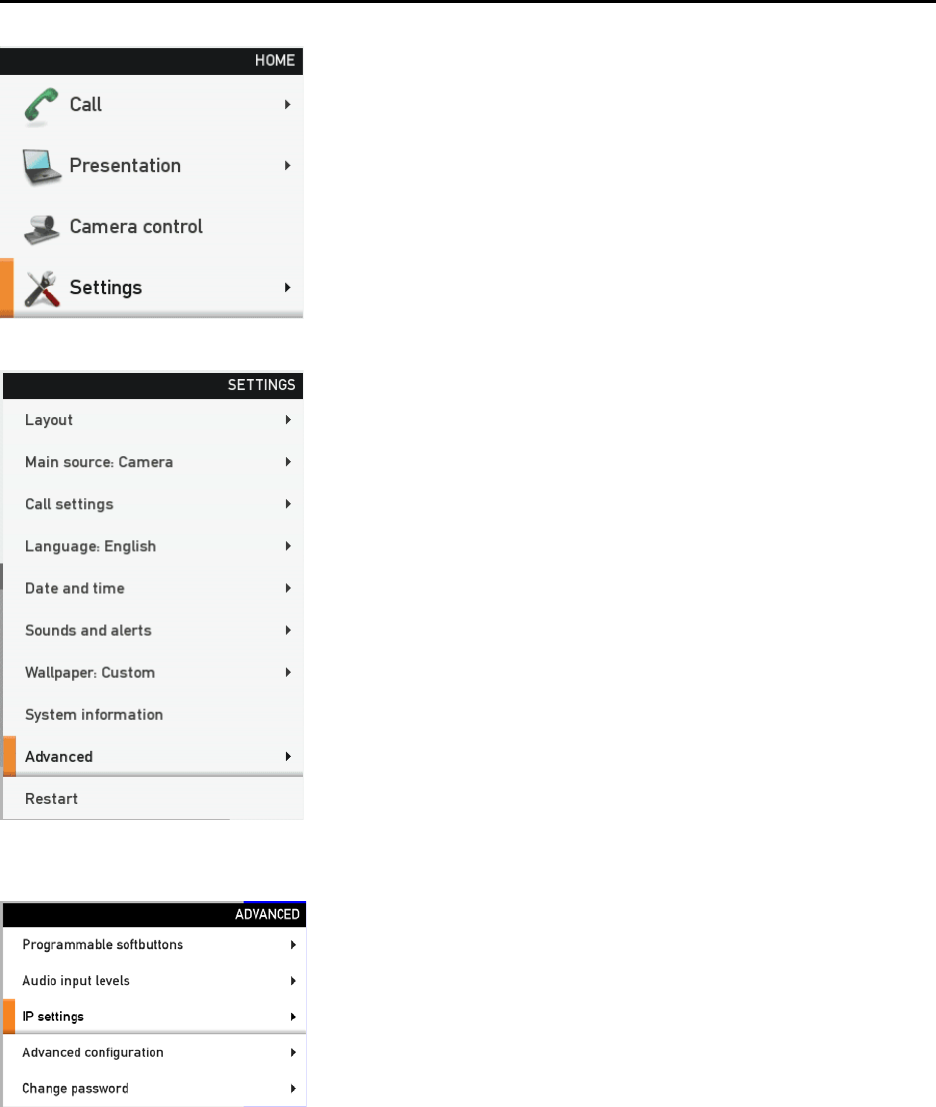
Configuring the Tandberg C60/C90 Video Codec
1. Select SETTINGS
2. Select ADVANCED
3. Select ADVANCED CONFIGURATION
NOTE: You must use your Fusion remote control to control the room volume
for both the audio and video conference calls. Adjusting the volume in the
video codec will cause echo.
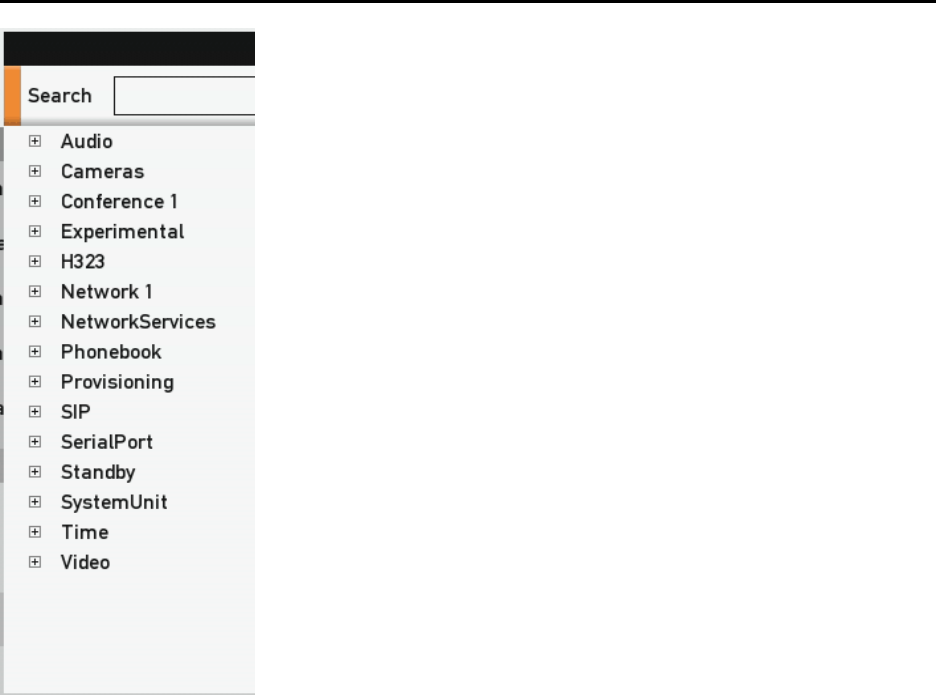
Configuring the Tandberg C60/C90 Video Codec
4. Select AUDIO
5. Select INPUT
6. Select AUDIO VOLUME and set to 70
* NOTE: Audio Volume is OUTPUT level only, not
INPUT LEVEL.
NOTE: You must use your Fusion remote control to control the room volume
for both the audio and video conference calls. Adjusting the volume in the
video codec will cause echo.
