G8052 Application Guide For Lenovo Networking OS 8.3 389 AG 8 3
User Manual: 389
Open the PDF directly: View PDF  .
.
Page Count: 580 [warning: Documents this large are best viewed by clicking the View PDF Link!]
- Contents
- Preface
- Part 1: Getting Started
- Switch Administration
- Initial Setup
- Information Needed for Setup
- Default Setup Options
- Setting the Management Interface Default IP Address
- Stopping and Restarting Setup Manually
- Setup Part 1: Basic System Configuration
- Setup Part 2: Port Configuration
- Setup Part 3: VLANs
- Setup Part 4: IP Configuration
- Setup Part 5: Final Steps
- Optional Setup for Telnet Support
- Loopback Interfaces
- Switch Software Management
- Part 2: Securing the Switch
- Securing Administration
- Authentication & Authorization Protocols
- 802.1X Port-Based Network Access Control
- Access Control Lists
- Summary of Packet Classifiers
- Summary of ACL Actions
- Assigning Individual ACLs to a Port
- ACL Order of Precedence
- ACL Groups
- Assigning ACL Groups to a Port
- ACL Metering and Re-Marking
- ACL Port Mirroring
- Viewing ACL Statistics
- ACL Logging
- ACL Configuration Examples
- VLAN Maps
- Management ACLs
- Using Storm Control Filters
- Part 3: Switch Basics
- VLANs
- Ports and Trunking
- Spanning Tree Protocols
- Virtual Link Aggregation Groups
- Quality of Service
- Part 4: Advanced Switching Features
- OpenFlow
- Virtualization
- Stacking
- Stacking Overview
- Stack Membership
- Configuring a Stack
- Managing the Stack
- Upgrading Software in an Existing Stack
- Replacing or Removing Stacked Switches
- Saving Syslog Messages
- ISCLI Stacking Commands
- VMready
- Edge Virtual Bridging
- Static Multicast ARP
- Dynamic ARP Inspection
- Part 5: IP Routing
- Basic IP Routing
- Policy-Based Routing
- Routed Ports
- Internet Protocol Version 6
- IPsec with IPv6
- Routing Information Protocol
- Internet Group Management Protocol
- Multicast Listener Discovery
- Border Gateway Protocol
- Open Shortest Path First
- OSPFv2 Overview
- OSPFv2 Implementation in Networking OS
- OSPFv2 Configuration Examples
- OSPFv3 Implementation in Networking OS
- Protocol Independent Multicast
- Part 6: High Availability Fundamentals
- Part 7: Network Management
- Link Layer Discovery Protocol
- Simple Network Management Protocol
- Service Location Protocol
- NETCONF
- Part 8: Monitoring
- Part 9: Appendices
- Glossary
- Getting help and technical assistance
- Notices
- Trademarks
- Important Notes
- Recycling Information
- Particulate Contamination
- Telecommunication Regulatory Statement
- Electronic Emission Notices
- Federal Communications Commission (FCC) Statement
- Industry Canada Class A Emission Compliance Statement
- Avis de Conformité à la Réglementation d'Industrie Canada
- Australia and New Zealand Class A Statement
- European Union EMC Directive Conformance Statement
- Germany Class A Statement
- Japan VCCI Class A Statement
- Japan Electronics and Information Technology Industries Association (JEITA) Statement
- Korea Communications Commission (KCC) Statement
- Russia Electromagnetic Interference (EMI) Class A statement
- People’s Republic of China Class A electronic emission statement
- Taiwan Class A compliance statement

Lenovo RackSwitch G8052
Application Guide
For Networking OS 8.3
Note: Before using this information and the product it supports, read the general information in the
Safety information and Environmental Notices and User Guide documents on the Lenovo Documentation CD
and the Warranty Information document that comes with the product.
First Edition (May 2015)
© Copyright Lenovo 2015
Portions © Copyright IBM Corporation 2014.
LIMITED AND RESTRICTED RIGHTS NOTICE: If data or software is delivered pursuant a General
Services Administration “GSA” contract, use, reproduction, or disclosure is subject to restrictions set
forth in Contract No. GS-35F-05925.
Lenovo and the Lenovo logo are trademarks of Lenovo in the United States, other countries, or both.

© Copyright Lenovo 2015 3
Contents
Preface . . . . . . . . . . . . . . . . . . . . . . . . . . . . 17
Who Should Use This Guide . . . . . . . . . . . . . . . . . . . . . . .18
What You’ll Find in This Guide. . . . . . . . . . . . . . . . . . . . . .19
Additional References . . . . . . . . . . . . . . . . . . . . . . . . . .23
Typographic Conventions . . . . . . . . . . . . . . . . . . . . . . . .24
How to Get Help . . . . . . . . . . . . . . . . . . . . . . . . . . . .25
Part 1: Getting Started . . . . . . . . . . . . . . . . . . . . . . 27
Chapter 1. Switch Administration . . . . . . . . . . . . . . . . . 29
Administration Interfaces . . . . . . . . . . . . . . . . . . . . . . . .30
Industry Standard Command Line Interface . . . . . . . . . . . . . .30
Browser-Based Interface . . . . . . . . . . . . . . . . . . . . . . .30
Establishing a Connection . . . . . . . . . . . . . . . . . . . . . . . .31
Using Telnet . . . . . . . . . . . . . . . . . . . . . . . . . . . .32
Using Secure Shell. . . . . . . . . . . . . . . . . . . . . . . . . .33
Using a Web Browser . . . . . . . . . . . . . . . . . . . . . . . .35
Using Simple Network Management Protocol. . . . . . . . . . . . . .37
BOOTP/DHCP Client IP Address Services . . . . . . . . . . . . . . . . .38
DHCP Host Name Configuration . . . . . . . . . . . . . . . . . . .38
DHCP SYSLOG Server. . . . . . . . . . . . . . . . . . . . . . . .39
Global BOOTP Relay Agent Configuration . . . . . . . . . . . . . . .39
Domain-Specific BOOTP Relay Agent Configuration. . . . . . . . . . .40
DHCP Option 82 . . . . . . . . . . . . . . . . . . . . . . . . . .40
DHCP Snooping . . . . . . . . . . . . . . . . . . . . . . . . . .40
Switch Login Levels. . . . . . . . . . . . . . . . . . . . . . . . . . .42
Setup vs. the Command Line . . . . . . . . . . . . . . . . . . . . . . .44
Idle Disconnect . . . . . . . . . . . . . . . . . . . . . . . . . . . . .45
Boot Strict Mode . . . . . . . . . . . . . . . . . . . . . . . . . . . .46
Acceptable Cipher Suites. . . . . . . . . . . . . . . . . . . . . . .49
Configuring Strict Mode . . . . . . . . . . . . . . . . . . . . . . .50
Configuring No-Prompt Mode . . . . . . . . . . . . . . . . . . . .50
SSL/TLS Version Limitation . . . . . . . . . . . . . . . . . . . . .50
Limitations. . . . . . . . . . . . . . . . . . . . . . . . . . . . .50
Chapter 2. Initial Setup. . . . . . . . . . . . . . . . . . . . . . 53
Information Needed for Setup . . . . . . . . . . . . . . . . . . . . . .54
Default Setup Options. . . . . . . . . . . . . . . . . . . . . . . . . .55
Setting the Management Interface Default IP Address . . . . . . . . . . . .56
Stopping and Restarting Setup Manually . . . . . . . . . . . . . . . . .57
Setup Part 1: Basic System Configuration . . . . . . . . . . . . . . . . .58
Setup Part 2: Port Configuration . . . . . . . . . . . . . . . . . . . . .60
Setup Part 3: VLANs . . . . . . . . . . . . . . . . . . . . . . . . . .62
Setup Part 4: IP Configuration . . . . . . . . . . . . . . . . . . . . . .63
IP Interfaces . . . . . . . . . . . . . . . . . . . . . . . . . . . .63
Default Gateways . . . . . . . . . . . . . . . . . . . . . . . . . .64
IP Routing . . . . . . . . . . . . . . . . . . . . . . . . . . . . .64
4 G8052 Application Guide for N/OS 8.3
Setup Part 5: Final Steps . . . . . . . . . . . . . . . . . . . . . . . . . 66
Optional Setup for Telnet Support . . . . . . . . . . . . . . . . . . . . 67
Loopback Interfaces . . . . . . . . . . . . . . . . . . . . . . . . . . 68
Using Loopback Interfaces for Source IP Addresses . . . . . . . . . . . 68
Loopback Interface Limitation . . . . . . . . . . . . . . . . . . . . 69
Chapter 3. Switch Software Management . . . . . . . . . . . . . . 71
Loading New Software to Your Switch . . . . . . . . . . . . . . . . . . 72
Loading Software via the ISCLI . . . . . . . . . . . . . . . . . . . . 72
Loading Software via BBI . . . . . . . . . . . . . . . . . . . . . . 73
USB Options . . . . . . . . . . . . . . . . . . . . . . . . . . . . 74
USB Boot. . . . . . . . . . . . . . . . . . . . . . . . . . . . 74
USB Copy . . . . . . . . . . . . . . . . . . . . . . . . . . . 75
The Boot Management Menu . . . . . . . . . . . . . . . . . . . . . . 76
Recovering from a Failed Software Upgrade . . . . . . . . . . . . . . 76
Recovering from a Failed Boot Image . . . . . . . . . . . . . . . 78
Part 2: Securing the Switch . . . . . . . . . . . . . . . . . . . 81
Chapter 4. Securing Administration . . . . . . . . . . . . . . . . 83
Secure Shell and Secure Copy . . . . . . . . . . . . . . . . . . . . . . 84
Configuring SSH/SCP Features on the Switch. . . . . . . . . . . . . . 84
Configuring the SCP Administrator Password . . . . . . . . . . . . . 85
Using SSH and SCP Client Commands . . . . . . . . . . . . . . . . 85
SSH and SCP Encryption of Management Messages . . . . . . . . . . . 87
Generating RSA Host Key for SSH Access . . . . . . . . . . . . . . . 87
SSH/SCP Integration with Radius Authentication . . . . . . . . . . . . 87
SSH/SCP Integration with TACACS+ Authentication . . . . . . . . . . 87
End User Access Control . . . . . . . . . . . . . . . . . . . . . . . . 88
Considerations for Configuring End User Accounts . . . . . . . . . . . 88
Strong Passwords. . . . . . . . . . . . . . . . . . . . . . . . . . 88
User Access Control. . . . . . . . . . . . . . . . . . . . . . . . . 89
Listing Current Users . . . . . . . . . . . . . . . . . . . . . . . . 90
Logging into an End User Account . . . . . . . . . . . . . . . . . . 90
Password Fix-Up Mode . . . . . . . . . . . . . . . . . . . . . . . 90
Chapter 5. Authentication & Authorization Protocols . . . . . . . . . 91
RADIUS Authentication and Authorization . . . . . . . . . . . . . . . . 92
How RADIUS Authentication Works . . . . . . . . . . . . . . . . . 92
Configuring RADIUS on the Switch . . . . . . . . . . . . . . . . . . 92
RADIUS Authentication Features in Networking OS . . . . . . . . . . 94
Switch User Accounts . . . . . . . . . . . . . . . . . . . . . . . . 94
RADIUS Attributes for Networking OS User Privileges . . . . . . . . . 95
TACACS+ Authentication . . . . . . . . . . . . . . . . . . . . . . . . 96
How TACACS+ Authentication Works . . . . . . . . . . . . . . . . 96
TACACS+ Authentication Features in Networking OS . . . . . . . . . . 97
Command Authorization and Logging . . . . . . . . . . . . . . . . 98
Configuring TACACS+ Authentication on the Switch . . . . . . . . . . 99
LDAP Authentication and Authorization . . . . . . . . . . . . . . . . 100
© Copyright Lenovo 2015 Contents 5
Chapter 6. 802.1X Port-Based Network Access Control . . . . . . . .103
Extensible Authentication Protocol over LAN . . . . . . . . . . . . . . 104
EAPoL Authentication Process . . . . . . . . . . . . . . . . . . . . . 105
EAPoL Message Exchange . . . . . . . . . . . . . . . . . . . . . . . 106
EAPoL Port States . . . . . . . . . . . . . . . . . . . . . . . . . . 107
Guest VLAN . . . . . . . . . . . . . . . . . . . . . . . . . . . . . 107
Supported RADIUS Attributes . . . . . . . . . . . . . . . . . . . . . 108
EAPoL Configuration Guidelines . . . . . . . . . . . . . . . . . . . . 110
Chapter 7. Access Control Lists . . . . . . . . . . . . . . . . . .111
Summary of Packet Classifiers . . . . . . . . . . . . . . . . . . . . . 112
Summary of ACL Actions . . . . . . . . . . . . . . . . . . . . . . . 113
Assigning Individual ACLs to a Port . . . . . . . . . . . . . . . . . . 114
ACL Order of Precedence . . . . . . . . . . . . . . . . . . . . . . . 114
ACL Groups . . . . . . . . . . . . . . . . . . . . . . . . . . . . . 115
Assigning ACL Groups to a Port . . . . . . . . . . . . . . . . . . . . 116
ACL Metering and Re-Marking. . . . . . . . . . . . . . . . . . . . . 116
ACL Port Mirroring. . . . . . . . . . . . . . . . . . . . . . . . . . 117
Viewing ACL Statistics . . . . . . . . . . . . . . . . . . . . . . . . 117
ACL Logging . . . . . . . . . . . . . . . . . . . . . . . . . . . . 118
Enabling ACL Logging . . . . . . . . . . . . . . . . . . . . . . 118
Logged Information . . . . . . . . . . . . . . . . . . . . . . . . 118
Rate Limiting Behavior . . . . . . . . . . . . . . . . . . . . . . 119
Log Interval . . . . . . . . . . . . . . . . . . . . . . . . . . . 119
ACL Logging Limitations . . . . . . . . . . . . . . . . . . . . . 119
ACL Configuration Examples . . . . . . . . . . . . . . . . . . . . . 120
VLAN Maps . . . . . . . . . . . . . . . . . . . . . . . . . . . . . 123
Management ACLs . . . . . . . . . . . . . . . . . . . . . . . . . . 124
Using Storm Control Filters . . . . . . . . . . . . . . . . . . . . . . 125
Part 3: Switch Basics . . . . . . . . . . . . . . . . . . . . . .127
Chapter 8. VLANs . . . . . . . . . . . . . . . . . . . . . . . .129
VLANs Overview. . . . . . . . . . . . . . . . . . . . . . . . . . . 130
VLANs and Port VLAN ID Numbers . . . . . . . . . . . . . . . . . . 130
VLAN Numbers . . . . . . . . . . . . . . . . . . . . . . . . . 130
PVID/Native VLAN Numbers . . . . . . . . . . . . . . . . . . . 131
VLAN Tagging/Trunk Mode . . . . . . . . . . . . . . . . . . . . . . 132
VLAN Topologies and Design Considerations . . . . . . . . . . . . . . 137
Multiple VLANs with Tagging/Trunk Mode Adapters . . . . . . . . . 137
VLAN Configuration Example . . . . . . . . . . . . . . . . . . . 140
Protocol-Based VLANs . . . . . . . . . . . . . . . . . . . . . . . . 141
Port-Based vs. Protocol-Based VLANs . . . . . . . . . . . . . . . . 141
PVLAN Priority Levels . . . . . . . . . . . . . . . . . . . . . . 142
PVLAN Tagging/Trunk Mode . . . . . . . . . . . . . . . . . . . 142
PVLAN Configuration Guidelines. . . . . . . . . . . . . . . . . . 142
Configuring PVLAN . . . . . . . . . . . . . . . . . . . . . . . 143
6 G8052 Application Guide for N/OS 8.3
Private VLANs. . . . . . . . . . . . . . . . . . . . . . . . . . . . 144
Private VLAN Ports . . . . . . . . . . . . . . . . . . . . . . . . 144
Configuration Guidelines . . . . . . . . . . . . . . . . . . . . . 145
Configuration Example . . . . . . . . . . . . . . . . . . . . . . 145
Chapter 9. Ports and Trunking . . . . . . . . . . . . . . . . . . 147
Trunking Overview. . . . . . . . . . . . . . . . . . . . . . . . . . 148
Static Trunks. . . . . . . . . . . . . . . . . . . . . . . . . . . . . 149
Static Trunk Requirements . . . . . . . . . . . . . . . . . . . . . 149
Static Trunk Group Configuration Rules . . . . . . . . . . . . . . . 150
Configuring a Static Port Trunk. . . . . . . . . . . . . . . . . . . 150
Link Aggregation Control Protocol . . . . . . . . . . . . . . . . . . . 152
Static LACP Trunks . . . . . . . . . . . . . . . . . . . . . . . . 153
LACP Port Modes. . . . . . . . . . . . . . . . . . . . . . . . . 153
LACP Individual . . . . . . . . . . . . . . . . . . . . . . . . . 154
LACP Minimum Links Option . . . . . . . . . . . . . . . . . . . 154
LACP Configuration Guidelines . . . . . . . . . . . . . . . . . . 155
Configuring LACP . . . . . . . . . . . . . . . . . . . . . . . . 156
Configurable Trunk Hash Algorithm . . . . . . . . . . . . . . . . . . 157
Packet-Based Trunk Hashing . . . . . . . . . . . . . . . . . . . . 157
Port-Based Trunk Hashing . . . . . . . . . . . . . . . . . . . . . 158
Chapter 10. Spanning Tree Protocols . . . . . . . . . . . . . . . 161
Spanning Tree Protocol Modes . . . . . . . . . . . . . . . . . . . . . 161
Global STP Control . . . . . . . . . . . . . . . . . . . . . . . . . . 162
PVRST Mode . . . . . . . . . . . . . . . . . . . . . . . . . . . . 162
Port States . . . . . . . . . . . . . . . . . . . . . . . . . . . . 163
Bridge Protocol Data Units . . . . . . . . . . . . . . . . . . . . . 163
Determining the Path for Forwarding BPDUs . . . . . . . . . . . 163
Simple STP Configuration . . . . . . . . . . . . . . . . . . . . . 165
Per-VLAN Spanning Tree Groups. . . . . . . . . . . . . . . . . . 167
Using Multiple STGs to Eliminate False Loops . . . . . . . . . . 167
VLANs and STG Assignment . . . . . . . . . . . . . . . . . . 168
Manually Assigning STGs . . . . . . . . . . . . . . . . . . . 168
Guidelines for Creating VLANs . . . . . . . . . . . . . . . . . 169
Rules for VLAN Tagged/Trunk Mode Ports. . . . . . . . . . . . 169
Adding and Removing Ports from STGs . . . . . . . . . . . . . 170
The Switch-Centric Model . . . . . . . . . . . . . . . . . . . 171
Configuring Multiple STGs . . . . . . . . . . . . . . . . . . . . 172
Rapid Spanning Tree Protocol . . . . . . . . . . . . . . . . . . . . . 174
Port States . . . . . . . . . . . . . . . . . . . . . . . . . . . . 174
RSTP Configuration Guidelines. . . . . . . . . . . . . . . . . . . 174
RSTP Configuration Example. . . . . . . . . . . . . . . . . . . . 175
Multiple Spanning Tree Protocol . . . . . . . . . . . . . . . . . . . . 176
MSTP Region. . . . . . . . . . . . . . . . . . . . . . . . . . . 176
Common Internal Spanning Tree . . . . . . . . . . . . . . . . . . 176
MSTP Configuration Guidelines . . . . . . . . . . . . . . . . . . 177
MSTP Configuration Examples . . . . . . . . . . . . . . . . . . . 177
© Copyright Lenovo 2015 Contents 7
Port Type and Link Type . . . . . . . . . . . . . . . . . . . . . . . 180
Edge/Portfast Port. . . . . . . . . . . . . . . . . . . . . . . . . 180
Link Type . . . . . . . . . . . . . . . . . . . . . . . . . . . . 180
Chapter 11. Virtual Link Aggregation Groups . . . . . . . . . . . .181
VLAG Capacities . . . . . . . . . . . . . . . . . . . . . . . . . . . 183
VLAGs versus Port Trunks. . . . . . . . . . . . . . . . . . . . . . . 184
Configuring VLAGs. . . . . . . . . . . . . . . . . . . . . . . . . . 185
Basic VLAG Configuration . . . . . . . . . . . . . . . . . . . . . 186
VLAG Configuration - VLANs Mapped to MSTI. . . . . . . . . . 189
VLAGs with VRRP . . . . . . . . . . . . . . . . . . . . . . . . 191
Configuring VLAGs in Multiple Layers . . . . . . . . . . . . . . . 196
Chapter 12. Quality of Service. . . . . . . . . . . . . . . . . . .199
QoS Overview . . . . . . . . . . . . . . . . . . . . . . . . . . . . 200
Using ACL Filters. . . . . . . . . . . . . . . . . . . . . . . . . . . 201
Summary of ACL Actions . . . . . . . . . . . . . . . . . . . . . 201
ACL Metering and Re-Marking . . . . . . . . . . . . . . . . . . . 202
Using DSCP Values to Provide QoS . . . . . . . . . . . . . . . . . . . 204
Differentiated Services Concepts . . . . . . . . . . . . . . . . . . 204
Per Hop Behavior . . . . . . . . . . . . . . . . . . . . . . . . . 206
QoS Levels . . . . . . . . . . . . . . . . . . . . . . . . . . . . 207
DSCP Re-Marking and Mapping . . . . . . . . . . . . . . . . . . 207
DSCP Re-Marking Configuration Examples . . . . . . . . . . . . . 208
Using 802.1p Priority to Provide QoS . . . . . . . . . . . . . . . . . . 210
Queuing and Scheduling . . . . . . . . . . . . . . . . . . . . . . . 211
Control Plane Protection. . . . . . . . . . . . . . . . . . . . . . . . 211
WRED with ECN . . . . . . . . . . . . . . . . . . . . . . . . . . . 212
How WRED/ECN work together . . . . . . . . . . . . . . . . . . 212
Configuring WRED/ECN. . . . . . . . . . . . . . . . . . . . . . 213
WRED/ECN Configuration Example. . . . . . . . . . . . . . . . . 214
Part 4: Advanced Switching Features. . . . . . . . . . . . . . . .219
Chapter 13. OpenFlow . . . . . . . . . . . . . . . . . . . . . .221
OpenFlow Overview . . . . . . . . . . . . . . . . . . . . . . . . . 222
Switch Profiles . . . . . . . . . . . . . . . . . . . . . . . . . . . . 223
OpenFlow Versions . . . . . . . . . . . . . . . . . . . . . . . . . . 224
OpenFlow Instance . . . . . . . . . . . . . . . . . . . . . . . . . . 225
Flow Tables . . . . . . . . . . . . . . . . . . . . . . . . . . . . . 226
Static Flows . . . . . . . . . . . . . . . . . . . . . . . . . . . . . 228
Port Membership . . . . . . . . . . . . . . . . . . . . . . . . . 230
FDB Aging and ECMP with OpenFlow. . . . . . . . . . . . . . . . 230
Static Flow Examples . . . . . . . . . . . . . . . . . . . . . . . 231
Table-Miss . . . . . . . . . . . . . . . . . . . . . . . . . . . . . . 233
Fail Secure Mode . . . . . . . . . . . . . . . . . . . . . . . . . . . 234
Emergency Mode . . . . . . . . . . . . . . . . . . . . . . . . . . . 235
8 G8052 Application Guide for N/OS 8.3
OpenFlow Ports . . . . . . . . . . . . . . . . . . . . . . . . . . . 237
OpenFlow Edge Ports . . . . . . . . . . . . . . . . . . . . . . . 237
Link Aggregation . . . . . . . . . . . . . . . . . . . . . . . . . 238
Data Path ID . . . . . . . . . . . . . . . . . . . . . . . . . . . 239
sFlow Compatibility . . . . . . . . . . . . . . . . . . . . . . . . . 240
OpenFlow Groups . . . . . . . . . . . . . . . . . . . . . . . . . . 241
Configuring OpenFlow . . . . . . . . . . . . . . . . . . . . . . . . 242
Configuration Example 1 - OpenFlow Boot Profile . . . . . . . . . . . 242
Configuration Example 2 - Default Boot Profile . . . . . . . . . . . . 244
Feature Limitations . . . . . . . . . . . . . . . . . . . . . . . . . . 247
Chapter 14. Virtualization . . . . . . . . . . . . . . . . . . . . 249
Chapter 15. Stacking . . . . . . . . . . . . . . . . . . . . . . 251
Stacking Overview . . . . . . . . . . . . . . . . . . . . . . . . . . 252
Stacking Requirements . . . . . . . . . . . . . . . . . . . . . . 252
Stacking Limitations . . . . . . . . . . . . . . . . . . . . . . . 253
Stack Membership . . . . . . . . . . . . . . . . . . . . . . . . . . 254
The Master Switch . . . . . . . . . . . . . . . . . . . . . . . . 254
Splitting and Merging One Stack . . . . . . . . . . . . . . . . 254
Merging Independent Stacks . . . . . . . . . . . . . . . . . . 255
Backup Switch Selection . . . . . . . . . . . . . . . . . . . . . . 256
Master Failover . . . . . . . . . . . . . . . . . . . . . . . . 256
Secondary Backup. . . . . . . . . . . . . . . . . . . . . . . 256
Master Recovery . . . . . . . . . . . . . . . . . . . . . . . 256
No Backup . . . . . . . . . . . . . . . . . . . . . . . . . . 257
Stack Member Identification . . . . . . . . . . . . . . . . . . . . 257
Configuring a Stack. . . . . . . . . . . . . . . . . . . . . . . . . . 258
Configuration Overview . . . . . . . . . . . . . . . . . . . . . . 258
Best Configuration Practices . . . . . . . . . . . . . . . . . . . . 258
Stacking VLANs . . . . . . . . . . . . . . . . . . . . . . . 259
Configuring Each Switch for the Stack . . . . . . . . . . . . . . . . 259
Additional Master Configuration . . . . . . . . . . . . . . . . . . 261
Configuring an External IPv4 Address for the Stack . . . . . . . . 261
Locating an External Stack Interface . . . . . . . . . . . . . . . 261
Viewing Stack Connections. . . . . . . . . . . . . . . . . . . 262
Binding Members to the Stack . . . . . . . . . . . . . . . . . 263
Assigning a Stack Backup Switch . . . . . . . . . . . . . . . . 263
Managing the Stack. . . . . . . . . . . . . . . . . . . . . . . . . . 264
Accessing the Master Switch CLI . . . . . . . . . . . . . . . . . . 264
Rebooting Stacked Switches via the Master. . . . . . . . . . . . . . 264
Upgrading Software in an Existing Stack . . . . . . . . . . . . . . . . 266
Replacing or Removing Stacked Switches . . . . . . . . . . . . . . . . 268
Removing a Switch from the Stack . . . . . . . . . . . . . . . . . 268
Installing the New Switch or Healing the Topology . . . . . . . . . . 268
Binding the New Switch to the Stack . . . . . . . . . . . . . . . . 270
Performing a Rolling Upgrade . . . . . . . . . . . . . . . . . . . 270
Saving Syslog Messages . . . . . . . . . . . . . . . . . . . . . . . . 272
ISCLI Stacking Commands . . . . . . . . . . . . . . . . . . . . . . 274
© Copyright Lenovo 2015 Contents 9
Chapter 16. VMready . . . . . . . . . . . . . . . . . . . . . .275
VE Capacity . . . . . . . . . . . . . . . . . . . . . . . . . . . . . 276
Defining Server Ports . . . . . . . . . . . . . . . . . . . . . . . . . 276
VM Group Types . . . . . . . . . . . . . . . . . . . . . . . . . . . 276
Local VM Groups. . . . . . . . . . . . . . . . . . . . . . . . . . . 277
Distributed VM Groups . . . . . . . . . . . . . . . . . . . . . . . . 279
VM Profiles . . . . . . . . . . . . . . . . . . . . . . . . . . . 279
Initializing a Distributed VM Group . . . . . . . . . . . . . . . . . 280
Assigning Members . . . . . . . . . . . . . . . . . . . . . . . . 280
Synchronizing the Configuration . . . . . . . . . . . . . . . . . . 281
Removing Member VEs . . . . . . . . . . . . . . . . . . . . . . 281
VMcheck . . . . . . . . . . . . . . . . . . . . . . . . . . . . . . 282
Virtual Distributed Switch . . . . . . . . . . . . . . . . . . . . . . . 284
Prerequisites . . . . . . . . . . . . . . . . . . . . . . . . . . . 284
Guidelines . . . . . . . . . . . . . . . . . . . . . . . . . . . . 284
Migrating to vDS . . . . . . . . . . . . . . . . . . . . . . . . . 285
Virtualization Management Servers . . . . . . . . . . . . . . . . . . . 286
Assigning a vCenter . . . . . . . . . . . . . . . . . . . . . . . . 286
vCenter Scans . . . . . . . . . . . . . . . . . . . . . . . . . . 287
Deleting the vCenter. . . . . . . . . . . . . . . . . . . . . . . . 287
Exporting Profiles . . . . . . . . . . . . . . . . . . . . . . . . . 288
VMware Operational Commands . . . . . . . . . . . . . . . . . . 288
Pre-Provisioning VEs . . . . . . . . . . . . . . . . . . . . . . . . . 289
VLAN Maps . . . . . . . . . . . . . . . . . . . . . . . . . . . . . 290
VM Policy Bandwidth Control . . . . . . . . . . . . . . . . . . . . . 291
VM Policy Bandwidth Control Commands . . . . . . . . . . . . . . 291
Bandwidth Policies vs. Bandwidth Shaping. . . . . . . . . . . . . . 292
VMready Information Displays. . . . . . . . . . . . . . . . . . . . . 293
VMready Configuration Example . . . . . . . . . . . . . . . . . . . . 297
Chapter 17. Edge Virtual Bridging . . . . . . . . . . . . . . . . .299
EVB Operations Overview . . . . . . . . . . . . . . . . . . . . . . . 300
VSIDB Synchronization . . . . . . . . . . . . . . . . . . . . . . 300
VLAN Behavior. . . . . . . . . . . . . . . . . . . . . . . . . . 301
Manual Reflective Relay . . . . . . . . . . . . . . . . . . . . . . 301
EVB Configuration . . . . . . . . . . . . . . . . . . . . . . . . . . 302
Limitations . . . . . . . . . . . . . . . . . . . . . . . . . . . . . 304
Unsupported features . . . . . . . . . . . . . . . . . . . . . . . . . 304
Chapter 18. Static Multicast ARP . . . . . . . . . . . . . . . . .305
Configuring Static Multicast ARP . . . . . . . . . . . . . . . . . . . . 306
Configuration Example . . . . . . . . . . . . . . . . . . . . . . 306
Limitations . . . . . . . . . . . . . . . . . . . . . . . . . . . . . 307
Chapter 19. Dynamic ARP Inspection. . . . . . . . . . . . . . . .309
Understanding ARP Spoofing Attacks . . . . . . . . . . . . . . . . 309
Understanding DAI . . . . . . . . . . . . . . . . . . . . . . . . 309
Interface Trust States and Network Security . . . . . . . . . . . . . 310
DAI Configuration Guidelines and Restrictions . . . . . . . . . . . . . . 312
DAI Configuration Example . . . . . . . . . . . . . . . . . . . . 312
10 G8052 Application Guide for N/OS 8.3
Part 5: IP Routing. . . . . . . . . . . . . . . . . . . . . . . . 315
Chapter 20. Basic IP Routing . . . . . . . . . . . . . . . . . . . 317
IP Routing Benefits . . . . . . . . . . . . . . . . . . . . . . . . . . 318
Routing Between IP Subnets . . . . . . . . . . . . . . . . . . . . . . 318
Example of Subnet Routing . . . . . . . . . . . . . . . . . . . . . . 319
Using VLANs to Segregate Broadcast Domains . . . . . . . . . . . . 320
Configuration Example . . . . . . . . . . . . . . . . . . . . . . 320
ECMP Static Routes. . . . . . . . . . . . . . . . . . . . . . . . . . 323
ECMP Route Hashing . . . . . . . . . . . . . . . . . . . . . . . 323
Configuring ECMP Static Routes . . . . . . . . . . . . . . . . . . 324
Dynamic Host Configuration Protocol. . . . . . . . . . . . . . . . . . 325
Chapter 21. Policy-Based Routing . . . . . . . . . . . . . . . . . 327
PBR Policies and ACLs . . . . . . . . . . . . . . . . . . . . . . . . 328
Applying PBR ACLs . . . . . . . . . . . . . . . . . . . . . . . . . 328
Configuring Route Maps . . . . . . . . . . . . . . . . . . . . . . . 329
Match Clauses . . . . . . . . . . . . . . . . . . . . . . . . . . 329
Set Clauses. . . . . . . . . . . . . . . . . . . . . . . . . . . . 329
Configuring Health Check . . . . . . . . . . . . . . . . . . . . . 331
Example PBR Configuration . . . . . . . . . . . . . . . . . . . . . . 332
Configuring PBR with other Features . . . . . . . . . . . . . . . . . . 333
Unsupported Features . . . . . . . . . . . . . . . . . . . . . . . . 333
Chapter 22. Routed Ports . . . . . . . . . . . . . . . . . . . . 335
Overview . . . . . . . . . . . . . . . . . . . . . . . . . . . . . . 336
Configuring a Routed Port. . . . . . . . . . . . . . . . . . . . . . . 338
Configuring OSPF on Routed Ports . . . . . . . . . . . . . . . . . 338
OSPF Configuration Example . . . . . . . . . . . . . . . . . . 339
Configuring RIP on Routed Ports . . . . . . . . . . . . . . . . . . 339
RIP Configuration Example. . . . . . . . . . . . . . . . . . . 339
Configuring PIM on Routed Ports. . . . . . . . . . . . . . . . . . 340
PIM Configuration Example . . . . . . . . . . . . . . . . . . 340
Configuring BGP on Routed Ports. . . . . . . . . . . . . . . . . . 341
Configuring IGMP on Routed Ports . . . . . . . . . . . . . . . . . 341
Limitations . . . . . . . . . . . . . . . . . . . . . . . . . . . . . 342
Chapter 23. Internet Protocol Version 6 . . . . . . . . . . . . . . 343
IPv6 Limitations . . . . . . . . . . . . . . . . . . . . . . . . . . . 343
IPv6 Address Format . . . . . . . . . . . . . . . . . . . . . . . . . 344
IPv6 Address Types . . . . . . . . . . . . . . . . . . . . . . . . . 345
IPv6 Address Autoconfiguration . . . . . . . . . . . . . . . . . . . . 347
IPv6 Interfaces . . . . . . . . . . . . . . . . . . . . . . . . . . . . 348
Neighbor Discovery . . . . . . . . . . . . . . . . . . . . . . . . . 349
Supported Applications . . . . . . . . . . . . . . . . . . . . . . . . 351
Configuration Guidelines . . . . . . . . . . . . . . . . . . . . . . . 352
IPv6 Configuration Examples . . . . . . . . . . . . . . . . . . . . . 353
Chapter 24. IPsec with IPv6 . . . . . . . . . . . . . . . . . . . 355
IPsec Protocols . . . . . . . . . . . . . . . . . . . . . . . . . . . . 356
© Copyright Lenovo 2015 Contents 11
Using IPsec with the RackSwitch G8052 . . . . . . . . . . . . . . . . . 357
Setting up Authentication . . . . . . . . . . . . . . . . . . . . . 357
Creating an IKEv2 Proposal. . . . . . . . . . . . . . . . . . . 358
Importing an IKEv2 Digital Certificate . . . . . . . . . . . . . . 358
Generating an IKEv2 Digital Certificate. . . . . . . . . . . . . . 359
Enabling IKEv2 Preshared Key Authentication . . . . . . . . . . 359
Setting Up a Key Policy . . . . . . . . . . . . . . . . . . . . . . 360
Using a Manual Key Policy. . . . . . . . . . . . . . . . . . . . . 361
Using a Dynamic Key Policy . . . . . . . . . . . . . . . . . . . . 363
Chapter 25. Routing Information Protocol . . . . . . . . . . . . . .365
Distance Vector Protocol. . . . . . . . . . . . . . . . . . . . . . . . 365
Stability . . . . . . . . . . . . . . . . . . . . . . . . . . . . . . . 365
Routing Updates . . . . . . . . . . . . . . . . . . . . . . . . . . . 366
RIPv1 . . . . . . . . . . . . . . . . . . . . . . . . . . . . . . . . 366
RIPv2 . . . . . . . . . . . . . . . . . . . . . . . . . . . . . . . . 366
RIPv2 in RIPv1 Compatibility Mode. . . . . . . . . . . . . . . . . . . 366
RIP Features . . . . . . . . . . . . . . . . . . . . . . . . . . . . . 367
RIP Configuration Example . . . . . . . . . . . . . . . . . . . . . . 368
Chapter 26. Internet Group Management Protocol . . . . . . . . . .371
IGMP Terms . . . . . . . . . . . . . . . . . . . . . . . . . . . . . 372
How IGMP Works . . . . . . . . . . . . . . . . . . . . . . . . . . 373
IGMP Capacity and Default Values . . . . . . . . . . . . . . . . . . . 374
IGMP Snooping . . . . . . . . . . . . . . . . . . . . . . . . . . . 375
IGMP Querier . . . . . . . . . . . . . . . . . . . . . . . . . . 375
IGMP Groups . . . . . . . . . . . . . . . . . . . . . . . . . . 376
IGMPv3 Snooping. . . . . . . . . . . . . . . . . . . . . . . . . 376
IGMP Snooping Configuration Guidelines . . . . . . . . . . . . . . 378
IGMP Snooping Configuration Example . . . . . . . . . . . . . . . 379
Advanced Configuration Example: IGMP Snooping . . . . . . . . . . 380
Prerequisites . . . . . . . . . . . . . . . . . . . . . . . . . 381
Configuration . . . . . . . . . . . . . . . . . . . . . . . . . 381
Troubleshooting . . . . . . . . . . . . . . . . . . . . . . . . . 385
IGMP Relay . . . . . . . . . . . . . . . . . . . . . . . . . . . . . 388
Configuration Guidelines . . . . . . . . . . . . . . . . . . . . . 388
Configure IGMP Relay. . . . . . . . . . . . . . . . . . . . . . . 389
Advanced Configuration Example: IGMP Relay. . . . . . . . . . . . 390
Prerequisites . . . . . . . . . . . . . . . . . . . . . . . . . 390
Configuration . . . . . . . . . . . . . . . . . . . . . . . . . 391
Troubleshooting . . . . . . . . . . . . . . . . . . . . . . . . . 395
Additional IGMP Features . . . . . . . . . . . . . . . . . . . . . . . 397
FastLeave . . . . . . . . . . . . . . . . . . . . . . . . . . . . 397
IGMP Filtering . . . . . . . . . . . . . . . . . . . . . . . . . . 397
Static Multicast Router. . . . . . . . . . . . . . . . . . . . . . . 398
Chapter 27. Multicast Listener Discovery . . . . . . . . . . . . . .399
MLD Terms . . . . . . . . . . . . . . . . . . . . . . . . . . . . . 400
12 G8052 Application Guide for N/OS 8.3
How MLD Works . . . . . . . . . . . . . . . . . . . . . . . . . . 401
MLD Querier. . . . . . . . . . . . . . . . . . . . . . . . . . . 402
Dynamic Mrouters . . . . . . . . . . . . . . . . . . . . . . . . 403
MLD Capacity and Default Values . . . . . . . . . . . . . . . . . . . 404
Configuring MLD . . . . . . . . . . . . . . . . . . . . . . . . . . 405
Chapter 28. Border Gateway Protocol . . . . . . . . . . . . . . . 407
Internal Routing Versus External Routing . . . . . . . . . . . . . . . . 408
Route Reflector . . . . . . . . . . . . . . . . . . . . . . . . . . 409
Restrictions. . . . . . . . . . . . . . . . . . . . . . . . . . 411
Forming BGP Peer Routers . . . . . . . . . . . . . . . . . . . . . . 411
Loopback Interfaces . . . . . . . . . . . . . . . . . . . . . . . . . 413
What is a Route Map?. . . . . . . . . . . . . . . . . . . . . . . . . 413
Next Hop Peer IP Address . . . . . . . . . . . . . . . . . . . 414
Incoming and Outgoing Route Maps . . . . . . . . . . . . . . . . 414
Precedence. . . . . . . . . . . . . . . . . . . . . . . . . . . . 415
Configuration Overview . . . . . . . . . . . . . . . . . . . . . . 415
Aggregating Routes. . . . . . . . . . . . . . . . . . . . . . . . . . 417
Redistributing Routes . . . . . . . . . . . . . . . . . . . . . . . . . 417
BGP Communities . . . . . . . . . . . . . . . . . . . . . . . . . . 418
BGP Attributes. . . . . . . . . . . . . . . . . . . . . . . . . . . . 419
Selecting Route Paths in BGP. . . . . . . . . . . . . . . . . . . . . . 421
Multipath Relax. . . . . . . . . . . . . . . . . . . . . . . . 421
BGP Failover Configuration . . . . . . . . . . . . . . . . . . . . . . 422
Default Redistribution and Route Aggregation Example . . . . . . . . . . 424
Chapter 29. Open Shortest Path First . . . . . . . . . . . . . . . 427
OSPFv2 Overview . . . . . . . . . . . . . . . . . . . . . . . . . . 428
Types of OSPF Areas . . . . . . . . . . . . . . . . . . . . . . . 428
Types of OSPF Routing Devices. . . . . . . . . . . . . . . . . . . 429
Neighbors and Adjacencies . . . . . . . . . . . . . . . . . . . . 431
The Link-State Database . . . . . . . . . . . . . . . . . . . . . . 431
The Shortest Path First Tree . . . . . . . . . . . . . . . . . . . . 432
Internal Versus External Routing . . . . . . . . . . . . . . . . . . 432
© Copyright Lenovo 2015 Contents 13
OSPFv2 Implementation in Networking OS . . . . . . . . . . . . . . . 433
Configurable Parameters. . . . . . . . . . . . . . . . . . . . . . 433
Defining Areas . . . . . . . . . . . . . . . . . . . . . . . . . . 434
Assigning the Area Index. . . . . . . . . . . . . . . . . . . . 434
Using the Area ID to Assign the OSPF Area Number . . . . . . . . 435
Attaching an Area to a Network . . . . . . . . . . . . . . . . . 435
Interface Cost. . . . . . . . . . . . . . . . . . . . . . . . . . . 436
Electing the Designated Router and Backup . . . . . . . . . . . . . 436
Summarizing Routes . . . . . . . . . . . . . . . . . . . . . . . 436
Default Routes . . . . . . . . . . . . . . . . . . . . . . . . . . 437
Virtual Links . . . . . . . . . . . . . . . . . . . . . . . . . . . 437
Router ID . . . . . . . . . . . . . . . . . . . . . . . . . . . . 438
Authentication . . . . . . . . . . . . . . . . . . . . . . . . . . 439
Configuring Plain Text OSPF Passwords . . . . . . . . . . . . . 440
Configuring MD5 Authentication . . . . . . . . . . . . . . . . 440
Host Routes for Load Balancing. . . . . . . . . . . . . . . . . . . 441
Loopback Interfaces in OSPF . . . . . . . . . . . . . . . . . . . . 442
OSPF Features Not Supported in This Release. . . . . . . . . . . . . 442
OSPFv2 Configuration Examples . . . . . . . . . . . . . . . . . . . . 443
Example 1: Simple OSPF Domain . . . . . . . . . . . . . . . . . . 444
Example 2: Virtual Links . . . . . . . . . . . . . . . . . . . . . . 446
Example 3: Summarizing Routes . . . . . . . . . . . . . . . . . . 450
Verifying OSPF Configuration . . . . . . . . . . . . . . . . . . . 451
OSPFv3 Implementation in Networking OS . . . . . . . . . . . . . . . 452
OSPFv3 Differences from OSPFv2 . . . . . . . . . . . . . . . . . . 452
OSPFv3 Requires IPv6 Interfaces . . . . . . . . . . . . . . . . 452
OSPFv3 Uses Independent Command Paths . . . . . . . . . . . 452
OSPFv3 Identifies Neighbors by Router ID . . . . . . . . . . . . 453
Other Internal Improvements . . . . . . . . . . . . . . . . . . 453
OSPFv3 Limitations . . . . . . . . . . . . . . . . . . . . . . . . 453
OSPFv3 Configuration Example. . . . . . . . . . . . . . . . . . . 453
Neighbor Configuration Example . . . . . . . . . . . . . . . . 456
Chapter 30. Protocol Independent Multicast . . . . . . . . . . . . .457
PIM Overview . . . . . . . . . . . . . . . . . . . . . . . . . . . . 458
Supported PIM Modes and Features . . . . . . . . . . . . . . . . . . 459
Basic PIM Settings . . . . . . . . . . . . . . . . . . . . . . . . . . 460
Globally Enabling or Disabling the PIM Feature. . . . . . . . . . . . 460
Defining a PIM Network Component . . . . . . . . . . . . . . . . 460
Defining an IP Interface for PIM Use. . . . . . . . . . . . . . . . . 460
PIM Neighbor Filters . . . . . . . . . . . . . . . . . . . . . . . 461
Additional Sparse Mode Settings . . . . . . . . . . . . . . . . . . . . 463
Specifying the Rendezvous Point . . . . . . . . . . . . . . . . . . 463
Influencing the Designated Router Selection . . . . . . . . . . . . . 463
Specifying a Bootstrap Router. . . . . . . . . . . . . . . . . . . . 464
Configuring a Loopback Interface . . . . . . . . . . . . . . . . . . 464
Using PIM with Other Features. . . . . . . . . . . . . . . . . . . . . 466
PIM Configuration Examples. . . . . . . . . . . . . . . . . . . . . . 467
14 G8052 Application Guide for N/OS 8.3
Part 6: High Availability Fundamentals . . . . . . . . . . . . . . . 471
Chapter 31. Basic Redundancy . . . . . . . . . . . . . . . . . . 473
Trunking for Link Redundancy. . . . . . . . . . . . . . . . . . . . . 474
Virtual Link Aggregation . . . . . . . . . . . . . . . . . . . . . . . 474
Hot Links . . . . . . . . . . . . . . . . . . . . . . . . . . . . . . 475
Forward Delay . . . . . . . . . . . . . . . . . . . . . . . . . . 475
Preemption . . . . . . . . . . . . . . . . . . . . . . . . . . . 475
FDB Update . . . . . . . . . . . . . . . . . . . . . . . . . . . 475
Configuration Guidelines . . . . . . . . . . . . . . . . . . . . . 475
Configuring Hot Links . . . . . . . . . . . . . . . . . . . . . . 476
Chapter 32. Layer 2 Failover . . . . . . . . . . . . . . . . . . . 477
Monitoring Trunk Links. . . . . . . . . . . . . . . . . . . . . . . . 478
Setting the Failover Limit . . . . . . . . . . . . . . . . . . . . . . . 478
Manually Monitoring Port Links . . . . . . . . . . . . . . . . . . . . 479
L2 Failover with Other Features . . . . . . . . . . . . . . . . . . . . 480
LACP . . . . . . . . . . . . . . . . . . . . . . . . . . . . . . 480
Spanning Tree Protocol . . . . . . . . . . . . . . . . . . . . . . 480
Configuration Guidelines . . . . . . . . . . . . . . . . . . . . . . . 481
Configuring Layer 2 Failover. . . . . . . . . . . . . . . . . . . . . . 481
Chapter 33. Virtual Router Redundancy Protocol . . . . . . . . . . 483
VRRP Overview . . . . . . . . . . . . . . . . . . . . . . . . . . . 484
VRRP Components . . . . . . . . . . . . . . . . . . . . . . . . 484
VRRP Operation . . . . . . . . . . . . . . . . . . . . . . . . . 485
Selecting the Master VRRP Router . . . . . . . . . . . . . . . . . 486
Failover Methods. . . . . . . . . . . . . . . . . . . . . . . . . . . 487
Active-Active Redundancy. . . . . . . . . . . . . . . . . . . . . 487
Virtual Router Group . . . . . . . . . . . . . . . . . . . . . . . 487
Networking OS Extensions to VRRP . . . . . . . . . . . . . . . . . . 488
Virtual Router Deployment Considerations . . . . . . . . . . . . . . . 489
High Availability Configurations . . . . . . . . . . . . . . . . . . . . 490
VRRP High-Availability Using Multiple VIRs . . . . . . . . . . . . 490
VRRP High-Availability Using VLAGs . . . . . . . . . . . . . . . 494
Part 7: Network Management . . . . . . . . . . . . . . . . . . . 495
Chapter 34. Link Layer Discovery Protocol . . . . . . . . . . . . . 497
LLDP Overview . . . . . . . . . . . . . . . . . . . . . . . . . . . 498
Enabling or Disabling LLDP . . . . . . . . . . . . . . . . . . . . . . 499
Global LLDP Setting . . . . . . . . . . . . . . . . . . . . . . . 499
Transmit and Receive Control . . . . . . . . . . . . . . . . . . . 499
LLDP Transmit Features. . . . . . . . . . . . . . . . . . . . . . . . 500
Scheduled Interval . . . . . . . . . . . . . . . . . . . . . . . . 500
Minimum Interval . . . . . . . . . . . . . . . . . . . . . . . . 500
Time-to-Live for Transmitted Information . . . . . . . . . . . . . . 501
Trap Notifications . . . . . . . . . . . . . . . . . . . . . . . . 501
Changing the LLDP Transmit State . . . . . . . . . . . . . . . . . 502
Types of Information Transmitted. . . . . . . . . . . . . . . . . . 502
© Copyright Lenovo 2015 Contents 15
LLDP Receive Features . . . . . . . . . . . . . . . . . . . . . . . . 504
Types of Information Received . . . . . . . . . . . . . . . . . . . 504
Viewing Remote Device Information . . . . . . . . . . . . . . . . 504
Time-to-Live for Received Information. . . . . . . . . . . . . . . . 506
LLDP Example Configuration . . . . . . . . . . . . . . . . . . . . . 508
Chapter 35. Simple Network Management Protocol . . . . . . . . . .509
SNMP Version 1 & Version 2 . . . . . . . . . . . . . . . . . . . . . . 509
SNMP Version 3 . . . . . . . . . . . . . . . . . . . . . . . . . . . 510
Configuring SNMP Trap Hosts . . . . . . . . . . . . . . . . . . . . . 512
SNMP MIBs . . . . . . . . . . . . . . . . . . . . . . . . . . . . . 515
Switch Images and Configuration Files . . . . . . . . . . . . . . . . . 522
Loading a New Switch Image. . . . . . . . . . . . . . . . . . . . 523
Loading a Saved Switch Configuration. . . . . . . . . . . . . . . . 523
Saving the Switch Configuration . . . . . . . . . . . . . . . . . . 524
Saving a Switch Dump. . . . . . . . . . . . . . . . . . . . . . . 524
Chapter 36. Service Location Protocol . . . . . . . . . . . . . . .525
Active DA Discovery . . . . . . . . . . . . . . . . . . . . . . . . . 525
SLP Configuration . . . . . . . . . . . . . . . . . . . . . . . . . . 526
Chapter 37. NETCONF . . . . . . . . . . . . . . . . . . . . . .527
NETCONF Overview . . . . . . . . . . . . . . . . . . . . . . . . . 528
XML Requirements . . . . . . . . . . . . . . . . . . . . . . . . . . 529
Installing the NETCONF Client. . . . . . . . . . . . . . . . . . . . . 530
Using Juniper Perl Client . . . . . . . . . . . . . . . . . . . . . . . 532
Establishing a NETCONF Session. . . . . . . . . . . . . . . . . . . . 533
NETCONF Operations . . . . . . . . . . . . . . . . . . . . . . . . 535
Protocol Operations Examples . . . . . . . . . . . . . . . . . . . . . 536
<get-config> . . . . . . . . . . . . . . . . . . . . . . . . . . . 536
<edit-config> . . . . . . . . . . . . . . . . . . . . . . . . . . . 537
<copy-config> . . . . . . . . . . . . . . . . . . . . . . . . . . 539
<delete-config> . . . . . . . . . . . . . . . . . . . . . . . . . . 540
<lock> . . . . . . . . . . . . . . . . . . . . . . . . . . . . . . 540
<unlock> . . . . . . . . . . . . . . . . . . . . . . . . . . . . . 541
<get> . . . . . . . . . . . . . . . . . . . . . . . . . . . . . . 542
<close-session> . . . . . . . . . . . . . . . . . . . . . . . . . . 543
<kill-session> . . . . . . . . . . . . . . . . . . . . . . . . . . . 543
<get-configuration> . . . . . . . . . . . . . . . . . . . . . . . . 544
<get-interface-information>. . . . . . . . . . . . . . . . . . . . . 545
Part 8: Monitoring . . . . . . . . . . . . . . . . . . . . . . . .549
Chapter 38. Remote Monitoring . . . . . . . . . . . . . . . . . .551
RMON Overview. . . . . . . . . . . . . . . . . . . . . . . . . . . 551
RMON Group 1—Statistics. . . . . . . . . . . . . . . . . . . . . . . 552
RMON Group 2—History . . . . . . . . . . . . . . . . . . . . . . . 553
History MIB Object ID . . . . . . . . . . . . . . . . . . . . . . . 553
Configuring RMON History . . . . . . . . . . . . . . . . . . . . 553
16 G8052 Application Guide for N/OS 8.3
RMON Group 3—Alarms . . . . . . . . . . . . . . . . . . . . . . . 554
Alarm MIB objects . . . . . . . . . . . . . . . . . . . . . . . . 554
Configuring RMON Alarms . . . . . . . . . . . . . . . . . . . . 555
RMON Group 9—Events . . . . . . . . . . . . . . . . . . . . . . . 556
Chapter 39. sFlow . . . . . . . . . . . . . . . . . . . . . . . 557
sFlow Statistical Counters . . . . . . . . . . . . . . . . . . . . . . . 557
sFlow Network Sampling . . . . . . . . . . . . . . . . . . . . . . . 557
sFlow Example Configuration . . . . . . . . . . . . . . . . . . . . . 558
Chapter 40. Port Mirroring . . . . . . . . . . . . . . . . . . . . 559
Part 9: Appendices . . . . . . . . . . . . . . . . . . . . . . . 561
Appendix A. Glossary . . . . . . . . . . . . . . . . . . . . . . 563
Appendix B. Getting help and technical assistance. . . . . . . . . . 565
Appendix C. Notices . . . . . . . . . . . . . . . . . . . . . . 567
Trademarks . . . . . . . . . . . . . . . . . . . . . . . . . . . . . 569
Important Notes . . . . . . . . . . . . . . . . . . . . . . . . . . . 570
Recycling Information. . . . . . . . . . . . . . . . . . . . . . . . . 571
Particulate Contamination . . . . . . . . . . . . . . . . . . . . . . . 572
Telecommunication Regulatory Statement . . . . . . . . . . . . . . . . 573
Electronic Emission Notices . . . . . . . . . . . . . . . . . . . . . . 574
Federal Communications Commission (FCC) Statement . . . . . . . . 574
Industry Canada Class A Emission Compliance Statement . . . . . . . 574
Avis de Conformité à la Réglementation d'Industrie Canada . . . . . . 574
Australia and New Zealand Class A Statement . . . . . . . . . . . . 574
European Union EMC Directive Conformance Statement. . . . . . . . 574
Germany Class A Statement . . . . . . . . . . . . . . . . . . . . 575
Japan VCCI Class A Statement . . . . . . . . . . . . . . . . . . . 576
Japan Electronics and Information Technology Industries Association
(JEITA) Statement. . . . . . . . . . . . . . . . . . . . . . . . . 577
Korea Communications Commission (KCC) Statement. . . . . . . . . 577
Russia Electromagnetic Interference (EMI) Class A statement . . . . . . . 578
People’s Republic of China Class A electronic emission statement. . . . . . 579
Taiwan Class A compliance statement. . . . . . . . . . . . . . . . . . 580

© Copyright Lenovo 2015 17
Preface
This
Application Guide
describes how to configure and use the Lenovo Network
Operating System 8.3 software on the Lenovo RackSwitch G8052 (referred to as
G8052 throughout this document). For documentation on installing the switch
physically, see the
Installation Guide
for your G8052.

18 G8052 Application Guide for N/OS 8.3
Who Should Use This Guide
This guide is intended for network installers and system administrators engaged in
configuring and maintaining a network. The administrator should be familiar with
Ethernet concepts, IP addressing, Spanning Tree Protocol, and SNMP configuration
parameters.

© Copyright Lenovo 2015 Preface 19
What You’ll Find in This Guide
This guide will help you plan, implement, and administer Networking OS software.
Where possible, each section provides feature overviews, usage examples, and
configuration instructions. The following material is included:
Part 1: Getting Started
This material is intended to help those new to N/OS products with the basics of
switch management. This part includes the following chapters:
-Chapter 1, “Switch Administration,” describes how to access the G8052 to
configure the switch and view switch information and statistics. This chapter
discusses a variety of manual administration interfaces, including local
management via the switch console, and remote administration via Telnet, a
web browser, or via SNMP.
-Chapter 2, “Initial Setup,” describes how to use the built-in Setup utility to
perform first-time configuration of the switch.
-Chapter 3, “Switch Software Management,” describes how to update the N/OS
software operating on the switch.
Part 2: Securing the Switch
-Chapter 4, “Securing Administration,” describes methods for using Secure Shell
for administration connections, and configuring end-user access control.
-Chapter 5, “Authentication & Authorization Protocols,” describes different
secure administration for remote administrators. This includes using Remote
Authentication Dial-in User Service (RADIUS), as well as TACACS+ and LDAP.
-Chapter 6, “802.1X Port-Based Network Access Control,” describes how to
authenticate devices attached to a LAN port that has point-to-point connection
characteristics. This feature prevents access to ports that fail authentication and
authorization and provides security to ports of the G8052 that connect to blade
servers.
-Chapter 7, “Access Control Lists,” describes how to use filters to permit or deny
specific types of traffic, based on a variety of source, destination, and packet
attributes.
Part 3: Switch Basics
-Chapter 8, “VLANs,” describes how to configure Virtual Local Area Networks
(VLANs) for creating separate network segments, including how to use VLAN
tagging for devices that use multiple VLANs. This chapter also describes
Protocol-based VLANs, and Private VLANs.
-Chapter 9, “Ports and Trunking,” describes how to group multiple physical
ports together to aggregate the bandwidth between large-scale network devices.
-Chapter 10, “Spanning Tree Protocols,” discusses how Spanning Tree Protocol
(STP) configures the network so that the switch selects the most efficient path
when multiple paths exist. Covers Rapid Spanning Tree Protocol (RSTP),
Per-VLAN Rapid Spanning Tree (PVRST), and Multiple Spanning Tree Protocol
(MSTP).
20 G8052 Application Guide for N/OS 8.3
-Chapter 11, “Virtual Link Aggregation Groups,” describes using Virtual Link
Aggregation Groups (VLAG) to form trunks spanning multiple VLAG-capable
aggregator switches.
-Chapter 12, “Quality of Service,” discusses Quality of Service (QoS) features,
including IP filtering using Access Control Lists (ACLs), Differentiated Services,
and IEEE 802.1p priority values.
Part 4: Advanced Switching Features
-Chapter 13, “OpenFlow,”
describes how to create an OpenFlow Switch instance
on the RackSwitch G8052.
-Chapter 14, “Virtualization,” provides an overview of allocating resources
based on the logical needs of the data center, rather than on the strict, physical
nature of components.
-Chapter 15, “Stacking,” describes how to combine multiple switches into a
single, aggregate switch entity.
-Chapter 16, “VMready,” discusses virtual machine (VM) support on the G8052.
-Chapter 17, “Edge Virtual Bridging (EVB) discusses t
he IEEE 802.1Qbg—a
standards-based protocol that defines how virtual Ethernet bridges exchange
configuration information. EVB bridges the gap between physical and virtual
network resources, thus simplifying network management.
-Chapter 18, “Static Multicast ARP discusses the configuration
of a static ARP
entry with multicast MAC address for Microsoft’s Network Load Balancing
(NLB) feature to function efficiently.
-Chapter 19, “Dynamic ARP Inspection.” discusses this security feature that lets
a switch intercept and examine all ARP request and response packets in a
subnet, discarding those packets with invalid IP to MAC address bindings. This
capability protects the network from man-in-the-middle attacks.
Part 5: IP Routing
-Chapter 20, “Basic IP Routing,” describes how to configure the G8052 for IP
routing using IP subnets, BOOTP, and DHCP Relay.
-Chapter 21, “Policy-Based Routing
describes how to configure the G8052 to
forward traffic based on defined policies rather than entries in the routing table.
-Chapter 22, “Routed Ports describes how to configure a switch port to forward
Layer 3 traffic.
-Chapter 23, “Internet Protocol Version 6,” describes how to configure the G8052
for IPv6 host management.
-Chapter 24, “IPsec with IPv6,” describes how to configure Internet Protocol
Security (IPsec) for securing IP communications by authenticating and
encrypting IP packets, with emphasis on Internet Key Exchange version 2, and
authentication/confidentiality for OSPFv3.
-Chapter 25, “Routing Information Protocol,” describes how the N/OS software
implements standard Routing Information Protocol (RIP) for exchanging
TCP/IP route information with other routers.
© Copyright Lenovo 2015 Preface 21
-Chapter 26, “Internet Group Management Protocol,” describes how the N/OS
software implements IGMP Snooping or IGMP Relay to conserve bandwidth in
a multicast-switching environment.
-Chapter 27, “Multicast Listener Discovery,” describes how Multicast Listener
Discovery (MLD) is used with IPv6 to support host users requests for multicast
data for a multicast group.
-Chapter 28, “Border Gateway Protocol,” describes Border Gateway Protocol
(BGP) concepts and features supported in N/OS.
-Chapter 29, “Open Shortest Path First,” describes key Open Shortest Path First
(OSPF) concepts and their implemented in N/OS, and provides examples of how
to configure your switch for OSPF support.
-Chapter 30, “Protocol Independent Multicast,” describes how multicast routing
can be efficiently accomplished using the Protocol Independent Multicast (PIM)
feature.
Part 6: High Availability Fundamentals
-Chapter 31, “Basic Redundancy,” describes how the G8052 supports
redundancy through trunking, and hotlinks.
-Chapter 32, “Layer 2 Failover,” describes how the G8052 supports
high-availability network topologies using Layer 2 Failover.
-Chapter 33, “Virtual Router Redundancy Protocol,” describes how the G8052
supports high-availability network topologies using Virtual Router Redundancy
Protocol (VRRP).
Part 7: Network Management
-Chapter 34, “Link Layer Discovery Protocol,” describes how Link Layer
Discovery Protocol helps neighboring network devices learn about each others’
ports and capabilities.
-Chapter 35, “Simple Network Management Protocol,” describes how to
configure the switch for management through an SNMP client.
-Chapter 36, “Service Location Protocol,” describes the Service Location Protocol
(SLP) that allows the switch to provide dynamic directory services.
-Chapter 37, “NETCONF,” describes how to manage the G8052 using Network
Configuration Protocol (NETCONF), a mechanism based on the Extensible
Markup Language (XML).
22 G8052 Application Guide for N/OS 8.3
Part 8: Monitoring
-Chapter 38, “Remote Monitoring,” describes how to configure the RMON agent
on the switch, so that the switch can exchange network monitoring data.
-Chapter 39, “sFlow, described how to use the embedded sFlow agent for
sampling network traffic and providing continuous monitoring information to a
central sFlow analyzer.
-Chapter 40, “Port Mirroring,” discusses tools how copy selected port traffic to a
monitor port for network analysis.
Part 9: Appendices
-Appendix A, “Glossary,” describes common terms and concepts used
throughout this guide.

© Copyright Lenovo 2015 Preface 23
Additional References
Additional information about installing and configuring the G8052 is available in
the following guides:
-Lenovo RackSwitch G8052 Installation Guide
-Lenovo Network Operating System 8.3 ISCLI Reference Guide
-Lenovo Network Operating System 8.3 Release Notes

24 G8052 Application Guide for N/OS 8.3
Typographic Conventions
The following table describes the typographic styles used in this book.
Table 1. Typographic Conventions
Typeface or
Symbol Meaning Example
ABC123
This type is used for names of
commands, files, and directories
used within the text.
View the
readme.txt
file.
It also depicts on-screen computer
output and prompts.
Main#
ABC123
This bold type appears in
command examples. It shows text
that must be typed in exactly as
shown.
Main#sys
<ABC123>
This italicized type appears in
command examples as a
parameter placeholder. Replace
the indicated text with the
appropriate real name or value
when using the command. Do not
type the brackets.
To establish a Telnet session,
enter:
host#telnet
<IP address>
This also shows book titles,
special terms, or words to be
emphasized.
Read your
User’s Guide
thoroughly.
[ ] Command items shown inside
brackets are optional and can be
used or excluded as the situation
demands. Do not type the
brackets.
host#ls
[
a
]
|
The vertical bar (
|
) is used in
command examples to separate
choices where multiple options
exist. Select only one of the listed
options. Do not type the vertical
bar.
host#setleft|right
AaBbCc123
This block type depicts menus,
buttons, and other controls that
appear in Web browsers and other
graphical interfaces.
Click the
Save
button.

© Copyright Lenovo 2015 Preface 25
How to Get Help
If you need help, service, or technical assistance, visit our web site at the following
address:
http://www.ibm.com/support
The warranty card received with your product provides details for contacting a
customer support representative. If you are unable to locate this information, please
contact your reseller. Before you call, prepare the following information:
-Serial number of the switch unit
-Software release version number
-Brief description of the problem and the steps you have already taken
-Technical support dump information (#showtechsupport)
26 G8052 Application Guide for N/OS 8.3
© Copyright Lenovo 2015 27
Part 1: Getting Started
28 G8052 Application Guide for N/OS 8.3

© Copyright Lenovo 2015 29
Chapter 1. Switch Administration
Your RackSwitch G8052 (G8052) is ready to perform basic switching functions
right out of the box. Some of the more advanced features, however, require some
administrative configuration before they can be used effectively.
The extensive Lenovo Network Operating System switching software included in
the G8052 provides a variety of options for accessing the switch to perform
configuration, and to view switch information and statistics.
This chapter discusses the various methods that can be used to administer the
switch.

30 G8052 Application Guide for N/OS 8.3
Administration Interfaces
Networking OS provides a variety of user-interfaces for administration. These
interfaces vary in character and in the methods used to access them: some are
text-based, and some are graphical; some are available by default, and some
require configuration; some can be accessed by local connection to the switch, and
others are accessed remotely using various client applications. For example,
administration can be performed using any of the following:
-A built-in, text-based command-line interface and menu system for access via
serial-port connection or an optional Telnet or SSH session
-The built-in Browser-Based Interface (BBI) available using a standard
web-browser
-SNMP support for access through network management software such as IBM
Director or HP OpenView
The specific interface chosen for an administrative session depends on user
preferences, as well as the switch configuration and the available client tools.
In all cases, administration requires that the switch hardware is properly installed
and turned on. (see the RackSwitch G8052 Installation Guide).
Industry Standard Command Line Interface
The Industry Standard Command Line Interface (ISCLI) provides a simple, direct
method for switch administration. Using a basic terminal, you can issue
commands that allow you to view detailed information and statistics about the
switch, and to perform any necessary configuration and switch software
maintenance.
You can establish a connection to the ISCLI in any of the following ways:
-Serial connection via the serial port on the G8052 (this option is always available)
-Telnet connection over the network
-SSH connection over the network
Browser-Based Interface
The Browser-based Interface (BBI) provides access to the common configuration,
management and operation features of the G8052 through your Web browser.

© Copyright Lenovo 2015 Chapter 1: Switch Administration 31
Establishing a Connection
The factory default settings permit initial switch administration through only the
built-in serial port. All other forms of access require additional switch
configuration before they can be used.
Remote access using the network requires the accessing terminal to have a valid,
routable connection to the switch interface. The client IP address may be
configured manually, or an IPv4 address can be provided automatically through
the switch using a service such as DHCP or BOOTP relay (see “BOOTP/DHCP
Client IP Address Services” on page 38), or an IPv6 address can be obtained using
IPv6 stateless address configuration.
Note: Throughout this manual, IP address is used in places where either an IPv4 or
IPv6 address is allowed. IPv4 addresses are entered in dotted-decimal notation (for
example, 10.10.10.1), while IPv6 addresses are entered in hexadecimal notation (for
example, 2001:db8:85a3::8a2e:370:7334). In places where only one type of address is
allowed, IPv4 address or IPv6 address is specified.
To manage the switch using Telnet, SNMP, or a Web browser, you must configure
an IP interface.
When a DHCP server is present in the local network for the switch, the DHCP
server will be used to configures the IP interface. However, if the switch fails to
renew the address obtained through DHCP, the following factory configured
settings will be used for IP interface 1:
IPv4 address: 192.168.49.50
Mask:255.255.255.0
Gateway:192.168.49.255
DHCP: enabled
If you manually configure a static IP address, DHCP is disabled. If you manually
enable DHCP, the interface will be configured by the DHCP server.
To access the switch, the following IP parameters must be configured:
1. Log on to the switch.
2. Enter IP interface mode.
3. Configure the management IP interface/mask.
-Using IPv4:
-Using IPv6:
RS G8052>enable
RS G8052#configureterminal
RS G8052(config)#interfaceip<IP interface number>
RS G8052(configipif)#ipaddress<management interface IPv4 address>
RS G8052(configipif)#ipnetmask<IPv4 subnet mask>
RS G8052(configipif)#ipv6address<management interface IPv6 address>
RS G8052(configipif)#ipv6prefixlen<IPv6 prefix length>

32 G8052 Application Guide for N/OS 8.3
4. Configure the VLAN, and enable the interface.
5. Configure the default gateway.
-If using IPv4:
-If using IPv6:
Once you configure the IP address and have a network connection, you can use the
Telnet program from an external management station to access and control the
switch. Once the default gateway is enabled, the management station and your
switch do not need to be on the same IP subnet.
The G8052 supports a menu-based command-line interface (CLI) as well as an
industry standard command-line interface (ISCLI) that you can use to configure
and control the switch over the network using the Telnet program. You can use the
CLI or ISCLI to perform many basic network management functions. In addition,
you can configure the switch for management using an SNMP-based network
management system or a Web browser.
For more information, see the documents listed in “Additional References” on
page 23.
Using Telnet
A Telnet connection offers the convenience of accessing the switch from a
workstation connected to the network. Telnet access provides the same options for
user and administrator access as those available through the console port.
By default, Telnet access is enabled. Use the following commands to disable or
re-enable Telnet access:
Once the switch is configured with an IP address and gateway, you can use Telnet
to access switch administration from any workstation connected to the
management network.
To establish a Telnet connection with the switch, run the Telnet program on your
workstation and issue the following Telnet command:
You will then be prompted to enter a password as explained “Switch Login Levels”
on page 42.
Two attempts are allowed to log in to the switch. After the second unsuccessful
attempt, the Telnet client is disconnected via TCP session closure.
RS G8052(configipif)#vlan1
RS G8052(configipif)#enable
RS G8052(configipif)#exit
RS G8052(config)#ipgateway <gateway number>address<IPv4 address>
RS G8052(config)#ipgateway <gateway number>enable
RS G8052(config)#ipgateway6<gateway number>address<IPv6 address>
RS G8052(config)#ipgateway6<gateway number>enable
RS G8052(config)#[no]accesstelnetenable
telnet<switch IPv4 or IPv6 address>

© Copyright Lenovo 2015 Chapter 1: Switch Administration 33
Using Secure Shell
Although a remote network administrator can manage the configuration of a
G8052 via Telnet, this method does not provide a secure connection. The Secure
Shell (SSH) protocol enables you to securely log into another device over a network
to execute commands remotely. As a secure alternative to using Telnet to manage
switch configuration, SSH ensures that all data sent over the network is encrypted
and secure.
The switch can do only one session of key/cipher generation at a time. Thus, a
SSH/SCP client will not be able to login if the switch is doing key generation at that
time. Similarly, the system will fail to do the key generation if a SSH/SCP client is
logging in at that time.
The supported SSH encryption and authentication methods are:
-Server Host Authentication: Client RSA-authenticates the switch when starting
each connection
-Key Exchange: ecdh-sha2-nistp521, ecdh-sha2-nistp384, ecdh-sha2-nistp256,
ecdh-sha2-nistp224, ecdh-sha2-nistp192, rsa2048-sha256, rsa1024-sha1,
diffie-hellman-group-exchange-sha256, diffie-hellman-group-exchange-sha1,
diffie-hellman-group14-sha1, diffie-hellman-group1-sha1
-Encryption: aes128-ctr, aes128-cbc, rijndael128-cbc, blowfish-cbc,3des-cbc,
arcfour256, arcfour128, arcfour
-MAC: hmac-sha1, hmac-sha1-96, hmac-md5, hmac-md5-96
-User Authentication: Local password authentication, public key authentication,
RADIUS, TACACS+
Lenovo Network Operating System implements the SSH version 2.0 standard and
is confirmed to work with SSH version 2.0-compliant clients such as the following:
-OpenSSH_5.4p1 for Linux
-Secure CRT Version 5.0.2 (build 1021)
-Putty SSH release 0.60
Using SSH with Password Authentication
By default, the SSH feature is disabled. Once the IP parameters are configured and
the SSH service is enabled, you can access the command line interface using an
SSH connection.
To establish an SSH connection with the switch, run the SSH program on your
workstation by issuing the SSH command, followed by the switch IPv4 or IPv6
address:
You will then be prompted to enter a password as explained “Switch Login Levels”
on page 42.
#ssh<switch IP address>

34 G8052 Application Guide for N/OS 8.3
Using SSH with Public Key Authentication
SSH can also be used for switch authentication based on asymmetric cryptography.
Public encryption keys can be uploaded on the switch and used to authenticate
incoming login attempts based on the clients’ private encryption key pairs. After a
predefined number of failed public key login attempts, the switch reverts to
password-based authentication.
To set up public key authentication:
1. Enable SSH:
2. Import the public key file using SFTP or TFTP for the admin user account::
Notes:
-When prompted to input a username, a valid user account name must be
entered. If no username is entered, the key is stored on the switch, and can be
assigned to a user account later.
-Note: A user account can have up to 100 public keys set up on the switch.
3. Configure a maximum number of 3 failed public key authentication attempts
before the system reverts to password-based authentication:
Once the public key is configured on the switch, the client can use SSH to login
from a system where the private key pair is set up:
RS G8052(config)#sshenable
RS G8052(config)#copy{sftp|tftp}publickey
Porttype["DATA"/"MGT"]:mgt
Addressornameofremotehost:9.43.101.151
Sourcefilename:11.key
Usernameofthepublickey:admin
Confirmdownloadoperation(y/n)?y
RS G8052(config)#sshmaxauthattempts3
#ssh<switch IP address>

© Copyright Lenovo 2015 Chapter 1: Switch Administration 35
Using a Web Browser
The switch provides a Browser-Based Interface (BBI) for accessing the common
configuration, management, and operation features of the G8052 through your
Web browser.
By default, BBI access via HTTP is enabled on the switch.
You can also access the BBI directly from an open Web browser window. Enter the
URL using the IP address of the switch interface (for example, http://<IPv4 or
IPv6 address>).
Configuring HTTP Access to the BBI
By default, BBI access via HTTP is enabled on the switch.
To disable or re-enable HTTP access to the switch BBI, use the following
commands:
The default HTTP web server port to access the BBI is port 80. However, you can
change the default Web server port with the following command:
To access the BBI from a workstation, open a Web browser window and type in the
URL using the IP address of the switch interface (for example, http://<IPv4 or
IPv6 address>).
Configuring HTTPS Access to the BBI
The BBI can also be accessed via a secure HTTPS connection.
1. Enable HTTPS.
By default, BBI access via HTTPS is disabled on the switch. To enable BBI Access
via HTTPS, use the following command:
2. Set the HTTPS server port number (optional).
To change the HTTPS Web server port number from the default port 443, use the
following command:
3. Generate the HTTPS certificate.
RS G8052(config)#accesshttpenable (Enable HTTP access)
-or-
RS G8052(config)#noaccesshttpenable (Disable HTTP access)
RS G8052(config)#accesshttpport<TCP port number>
RS G8052(config)#accesshttpsenable
RS G8052(config)#accesshttpsport<x>

36 G8052 Application Guide for N/OS 8.3
Accessing the BBI via HTTPS requires that you generate a certificate to be used
during the key exchange. A default certificate is created the first time HTTPS is
enabled, but you can create a new certificate defining the information you want to
be used in the various fields.
4. Save the HTTPS certificate.
The certificate is valid only until the switch is rebooted. To save the certificate so it
is retained beyond reboot or power cycles, use the following command:
When a client (such as a web browser) connects to the switch, the client is asked to
accept the certificate and verify that the fields match what is expected. Once BBI
access is granted to the client, the BBI can be used.
Browser-Based Interface Summary
The BBI is organized at a high level as follows:
Context buttons—These buttons allow you to select the type of action you wish to
perform. The Configuration button provides access to the configuration elements
for the entire switch. The Statistics button provides access to the switch statistics
and state information. The Dashboard button allows you to display the settings and
operating status of a variety of switch features.
Navigation Window—Provides a menu of switch features and functions:
-System—Provides access to the configuration elements for the entire switch.
-Switch Ports—Configure each of the physical ports on the switch.
-Port-Based Port Mirroring—Configure port mirroring behavior.
-Layer 2—Configure Layer 2 features for the switch.
-RMON Menu—Configure Remote Monitoring features for the switch.
-Layer 3—Configure Layer 3 features for the switch.
-QoS—Configure Quality of Service features for the switch.
-Access Control—Configure Access Control Lists to filter IP packets.
-Virtualization
—
Configure VMready.
RS G8052(config)#accesshttpsgeneratecertificate
CountryName(2lettercode)[US]:
StateorProvinceName(fullname)[CA]:
LocalityName(eg,city)[SantaClara]:
OrganizationName(eg,company)[LenovoNetworkingOperatingSystem]:
OrganizationalUnitName(eg,section)[NetworkEngineering]:
CommonName(eg,YOURname)[0.0.0.0]:
Email(eg,emailaddress)[]:
Confirmgeneratingcertificate?[y/n]:y
Generatingcertificate.Pleasewait(approx30seconds)
restartingSSLagent
RS G8052(config)#accesshttpssavecertificate

© Copyright Lenovo 2015 Chapter 1: Switch Administration 37
Using Simple Network Management Protocol
N/OS provides Simple Network Management Protocol (SNMP) version 1, version
2, and version 3 support for access through any network management software,
such as IBM Director or HP-OpenView.
Note: SNMP read and write functions are enabled by default. For best security
practices, if SNMP is not needed for your network, it is recommended that you
disable these functions prior to connecting the switch to the network.
To access the SNMP agent on the G8052, the read and write community strings on
the SNMP manager must be configured to match those on the switch. The default
read community string on the switch is public and the default write community
string is private.
The read and write community strings on the switch can be configured using the
following commands:
The SNMP manager must be able to reach any one of the IP interfaces on the
switch.
For the SNMP manager to receive the SNMPv1 traps sent out by the SNMP agent
on the switch, configure the trap host on the switch with the following commands:
To restrict SNMP access to specific IPv4 subnets, use the following commands:
For IPv6 networks, use:
Note: Subnets allowed for SNMP read-only access must not overlap with subnets
allowed for SNMP read-write access.
For more information on SNMP usage and configuration, see Chapter 35, “Simple
Network Management Protocol.”
RS G8052(config)#snmpserverreadcommunity<1-32 characters>
-and-
RS G8052(config)#snmpserverwritecommunity<1-32 characters>
RS G8052(config)#snmpservertrapsource<trap source IP interface>
RS G8052(config)#snmpserverhost<IPv4 address><trap host community string>
RS G8052(config)#accessmanagementnetwork<IPv4 address> <subnet mask> snmpro
-and-
RS G8052(config)#accessmanagementnetwork<IPv4 address> <subnet mask> snmprw
RS G8052(config)#accessmanagementnetwork6<IPv6 address> <IPv6 prefix length>
snmpro
-and-
RS G8052(config)#accessmanagementnetwork6<IPv6 address> <IPv6 prefix length>
snmprw

38 G8052 Application Guide for N/OS 8.3
BOOTP/DHCP Client IP Address Services
For remote switch administration, the client terminal device must have a valid IP
address on the same network as a switch interface. The IP address on the client
device may be configured manually, or obtained automatically using IPv6 stateless
address configuration, or an IPv4 address may obtained automatically via BOOTP
or DHCP relay as discussed in the next section.
The G8052 can function as a relay agent for Bootstrap Protocol (BOOTP) or DHCP.
This allows clients to be assigned an IPv4 address for a finite lease period,
reassigning freed addresses later to other clients.
Acting as a relay agent, the switch can forward a client’s IPv4 address request to up
to five BOOTP/DHCP servers. In addition to the five global BOOTP/DHCP servers,
up to five domain-specific BOOTP/DHCP servers can be configured for each of up
to 10 VLANs.
When a switch receives a BOOTP/DHCP request from a client seeking an IPv4
address, the switch acts as a proxy for the client. The request is forwarded as a UDP
Unicast MAC layer message to the BOOTP/DHCP servers configured for the
client’s VLAN, or to the global BOOTP/DHCP servers if no domain-specific
BOOTP/DHCP servers are configured for the client’s VLAN. The servers respond
to the switch with a Unicast reply that contains the IPv4 default gateway and the
IPv4 address for the client. The switch then forwards this reply back to the client.
DHCP is described in RFC 2131, and the DHCP relay agent supported on the
G8052 is described in RFC 1542. DHCP uses UDP as its transport protocol. The
client sends messages to the server on port 67 and the server sends messages to the
client on port 68.
BOOTP and DHCP relay are collectively configured using the BOOTP commands
and menus on the G8052.
DHCP Host Name Configuration
The G8052 supports DHCP host name configuration as described in RFC 2132,
option 12. DHCP host name configuration is enabled by default.
Host name can be manually configured using the following command:
If the host name is manually configured, the switch does not replace it with the
host name received from the DHCP server.
After the host name is configured on the switch, if DHCP or DHCP host name
configuration is disabled, the switch retains the host name.
The switch prompt displays the host name.
Host name configuration can be enabled/disabled using the following command:
RS G8052(config)# hostname <name>
RS G8052(config)# [no] systemdhcphostname

© Copyright Lenovo 2015 Chapter 1: Switch Administration 39
DHCP SYSLOG Server
During switch startup, if the switch fails to get the configuration file, a message can
be recorded in the SYSLOG server.
The G8052 supports requesting of a SYSLOG server IP address from the DHCP
server as described in RFC 2132, option 7. DHCP SYSLOG server request option is
enabled by default.
Manually configured SYSLOG server takes priority over DHCP SYSLOG server.
Up to two SYSLOG server addresses received from the DHCP server can be used.
The SYSLOG server can be learnt over a management port or a data port.
Use the RS G8052#showlogging command to view the SYSLOG server
address.
DHCP SYSLOG server address option can be enabled/disabled using the following
command:
Global BOOTP Relay Agent Configuration
To enable the G8052 to be a BOOTP (or DHCP) forwarder, enable the BOOTP relay
feature, configure up to four global BOOTP server IPv4 addresses on the switch,
and enable BOOTP relay on the interface(s) on which the client requests are
expected.
Generally, it is best to configure BOOTP for the switch IP interface that is closest to
the client, so that the BOOTP server knows from which IPv4 subnet the newly
allocated IPv4 address will come.
In the G8052 implementation, there are no primary or secondary BOOTP servers.
The client request is forwarded to all the global BOOTP servers configured on the
switch (if no domain-specific servers are configured). The use of multiple servers
provides failover redundancy. However, no health checking is supported.
1. Use the following commands to configure global BOOTP relay servers:
2. Enable BOOTP relay on the appropriate IP interfaces.
BOOTP/DHCP Relay functionality may be assigned on a per-interface basis using
the following commands:
RS G8052(config)# [no] systemdhcpsyslog
RS G8052(config)#ipbootprelayenable
RS G8052(config)#ipbootprelayserver<1-5>address<IPv4 address>
RS G8052(config)#interfaceip<interface number>
RS G8052(configipif)#relay
RS G8052(configipif)#exit

40 G8052 Application Guide for N/OS 8.3
Domain-Specific BOOTP Relay Agent Configuration
Use the following commands to configure up to five domain-specific BOOTP relay
agents for each of up to 10 VLANs:
As with global relay agent servers, domain-specific BOOTP/DHCP functionality
may be assigned on a per-interface basis (see Step 2 in page 39).
DHCP Option 82
DHCP Option 82 provides a mechanism for generating IP addresses based on the
client device’s location in the network. When you enable the DHCP relay agent
option on the switch, it inserts the relay agent information option 82 in the packet,
and sends a unicast BOOTP request packet to the DHCP server. The DHCP server
uses the option 82 field to assign an IP address, and sends the packet, with the
original option 82 field included, back to the relay agent. DHCP relay agent strips
off the option 82 field in the packet and sends the packet to the DHCP client.
Configuration of this feature is optional. The feature helps resolve several issues
where untrusted hosts access the network. See RFC 3046 for details.
Given below are the commands to configure DHCP Option 82:
DHCP Snooping
DHCP snooping provides security by filtering untrusted DHCP packets and by
building and maintaining a DHCP snooping binding table. This feature is
applicable only to IPv4.
An untrusted interface is a port that is configured to receive packets from outside
the network or firewall. A trusted interface receives packets only from within the
network. By default, all DHCP ports are untrusted.
The DHCP snooping binding table contains the MAC address, IP address, lease
time, binding type, VLAN number, and port number that correspond to the local
untrusted interface on the switch; it does not contain information regarding hosts
interconnected with a trusted interface.
By default, DHCP snooping is disabled on all VLANs. You can enable DHCP
snooping on one or more VLANs. You must enable DHCP snooping globally. To
enable this feature, enter the commands below:
RS G8052(config)#ipbootprelaybcastdomain<1-10>vlan<VLAN number>
RS G8052(config)#ipbootprelaybcastdomain<1-10>server<1-5>address
<IPv4 address>
RS G8052(config)#ipbootprelaybcastdomain<1-10>enable
RS G8052(config)#ipbootprelayinformationenable(Enable Option 82)
RS G8052(config)#ipbootprelayenable(Enable DHCP relay)
RS G8052(config)#ipbootprelayserver<1-5>address<IP address>
RS G8052(config)#ipdhcpsnoopingvlan<vlan number(s)>
RS G8052(config)#ipdhcpsnooping

© Copyright Lenovo 2015 Chapter 1: Switch Administration 41
Following is an example of DHCP snooping configuration, where the DHCP server
and client are in VLAN 100, and the server connects using port 24.
RS G8052(config)#ipdhcpsnoopingvlan100
RS G8052(config)#ipdhcpsnooping
RS G8052(config)#interfaceport24
RS G8052(configif)#ipdhcpsnoopingtrust(Optional; Set port as trusted)
RS G8052(configif)#ipdhcpsnoopinginformationoptioninsert
(Optional; add DHCP option 82)
RS G8052(configif)#ipdhcpsnoopinglimitrate100
(Optional; Set DHCP packet rate)

42 G8052 Application Guide for N/OS 8.3
Switch Login Levels
To enable better switch management and user accountability, three levels or classes
of user access have been implemented on the G8052. Levels of access to CLI, Web
management functions, and screens increase as needed to perform various switch
management tasks. Conceptually, access classes are defined as follows:
-User interaction with the switch is completely passive—nothing can be changed
on the G8052. Users may display information that has no security or privacy
implications, such as switch statistics and current operational state information.
-Operators can only effect temporary changes on the G8052. These changes will
be lost when the switch is rebooted/reset. Operators have access to the switch
management features used for daily switch operations. Because any changes an
operator makes are undone by a reset of the switch, operators cannot severely
impact switch operation.
-Administrators are the only ones that may make permanent changes to the
switch configuration—changes that are persistent across a reboot/reset of the
switch. Administrators can access switch functions to configure and
troubleshoot problems on the G8052. Because administrators can also make
temporary (operator-level) changes as well, they must be aware of the
interactions between temporary and permanent changes.
Access to switch functions is controlled through the use of unique user names and
passwords. Once you are connected to the switch via console, remote Telnet, or
SSH, you are prompted to enter a password. The default user names/password for
each access level are listed in the following table.
Note: It is recommended that you change default switch passwords after initial
configuration and as regularly as required under your network security policies.
Table 2. User Access Levels - Default Settings
User
Account Password Description and Tasks Performed Status
user user The User has no direct responsibility for
switch management. He or she can view all
switch status information and statistics, but
cannot make any configuration changes to
the switch.
Disabled
oper oper The Operator manages all functions of the
switch. The Operator can reset ports, except
the management ports.
Disabled
admin admin The superuser Administrator has complete
access to all menus, information, and
configuration commands on the G8052,
including the ability to change both the user
and administrator passwords.
Enabled
© Copyright Lenovo 2015 Chapter 1: Switch Administration 43
Note: Access to each user level (except admin account) can be disabled by setting
the password to an empty value. To disable admin account, use no access user
administratorenable command. Admin account can be disabled only if
there is at least one user account enabled and configured with administrator
privilege.

44 G8052 Application Guide for N/OS 8.3
Setup vs. the Command Line
Once the administrator password is verified, you are given complete access to the
switch. If the switch is still set to its factory default configuration, the system will
ask whether you wish to run Setup (see Chapter 2, “Initial Setup”), a utility
designed to help you through the first-time configuration process. If the switch has
already been configured, the command line is displayed instead.

© Copyright Lenovo 2015 Chapter 1: Switch Administration 45
Idle Disconnect
By default, the switch will disconnect your Telnet session after 10 minutes of
inactivity. This function is controlled by the idle timeout parameter, which can be
set from 0 to 60 minutes, where 0 means the session will never timeout.
Use the following command to set the idle timeout value:
RS G8052(config)#systemidle<0-60>

46 G8052 Application Guide for N/OS 8.3
Boot Strict Mode
The implementations specified in this section are compliant with National Institute
of Standards and Technology (NIST) Special Publication (SP) 800-131A.
The RackSwitch G8052 can operate in two boot modes:
-Compatibility mode (default): This is the default switch boot mode. This mode
may use algorithms and key lengths that may not be allowed/acceptable by
NIST SP 800-131A specification. This mode is useful in maintaining
compatibility with previous releases and in environments that have lesser data
security requirements.
-Strict mode: Encryption algorithms, protocols, and key lengths in strict mode
are compliant with NIST SP 800-131A specification.
When in boot strict mode, the switch uses Secure Sockets Layer (SSL)/Transport
Layer Security (TLS) 1.2 protocols to ensure confidentiality of the data to and from
the switch.
Before enabling strict mode, ensure the following:
-The software version on all connected switches is Networking OS 8.3.
-The supported protocol versions and cryptographic cipher suites between clients
and servers are compatible. For example: if using SSH to connect to the switch,
ensure that the SSH client supports SSHv2 and a strong cipher suite that is
compliant with the NIST standard.
-Compliant Web server certificate is installed on the switch, if using BBI.
-A new self-signed certificate is generated for the switch
(RS G8052(config)# accesshttpsgeneratecertificate). The
new certificate is generated using 2048-bit RSA key and SHA-256 digest.
-Protocols that are not NIST SP 800-131A compliant must be disabled or not
used.
-Only SSHv2 or higher is used.
-The current configuration, if any, is saved in a location external to the switch.
When the switch reboots, both the startup and running configuration are lost.
-Only protocols/algorithms compliant with NIST SP 800-131A specification are
used/enabled on the switch. Please see the NIST SP 800-131A publication for
details. The following table lists the acceptable protocols and algorithms:
Table 3. Acceptable Protocols and Algorithms
Protocol/Function Strict Mode Algorithm Compatibility Mode Algorithm
BGP BGP does not comply with NIST SP
800-131A specification. When in
strict mode, BGP is disabled. How-
ever, it can be enabled, if required.
Acceptable
Certificate
Generation
RSA-2048
SHA-256
RSA 2048
SHA 256
Certificate
Acceptance RSA 2048 or higher
SHA 224 or higher
RSA
SHA, SHA2

© Copyright Lenovo 2015 Chapter 1: Switch Administration 47
HTTPS TLS 1.2 only
See “Acceptable Cipher Suites” on
page 49;
TLS 1.0, 1.1, 1.2
See “Acceptable Cipher Suites”
on page 49;
IKE
Key Exchange DH Group 24 DH group 1, 2, 5, 14, 24
Encryption 3DES, AES-128-CBC 3DES, AES-128-CBC
Integrity HMAC-SHA1 HMAC-SHA1, HMAC-MD5
IPSec
AH HMAC-SHA1 HMAC-SHA1, HMAC-MD5
ESP 3DES, AES-128-CBC, HMAC-SHA1 3DES, AES-128-CBC,
HMAC-SHA1, HMAC-MD5
LDAP LDAP does not comply with NIST
SP 800-131A specification. When in
strict mode, LDAP is disabled.
However, it can be enabled, if
required.
Acceptable
OSPF OSPF does not comply with NIST SP
800-131A specification. When in
strict mode, OSPF is disabled. How-
ever, it can be enabled, if required.
Acceptable
RADIUS RADIUS does not comply with
NIST SP 800-131A specification.
When in strict mode, RADIUS is dis-
abled. However, it can be enabled, if
required.
Acceptable
Random Number
Generator NIST SP 800-90A AES CTR DRBG NIST SP 800-90A AES CTR
DRBG
Secure NTP Secure NTP does not comply with
NIST SP 800-131A specification.
When in strict mode, secure NTP is
disabled. However, it can be
enabled, if required.
Acceptable
SLP SHA-256 or higher
RSA/DSA 2048 or higher
SNMP SNMPv3 only
AES-128-CFB-128/SHA1
Note: Following algorithms are
acceptable if you choose to support
old SNMPv3 factory default users:
AES-128-CFB/SHA1
DES/MD5
AES-128-CFB-128/SHA1
SNMPv1, SNMPv2, SNMPv3
DES/MD5,
AES-128-CFB-128/SHA1
Table 3. Acceptable Protocols and Algorithms (continued)
Protocol/Function Strict Mode Algorithm Compatibility Mode Algorithm

48 G8052 Application Guide for N/OS 8.3
SSH/SFTP
Host Key SSH-RSA SSH-RSA
Key Exchange ECDH-SHA2-NISTP521
ECDH-SHA2-NISTP384
ECDH-SHA2-NISTP256
ECDH-SHA2-NISTP224
RSA2048-SHA256
DIFFIE-HELLMAN-GROUP-EXCH
ANGE-SHA256
DIFFIE-HELLMAN-GROUP-EXCH
ANGE-SHA1
ECDH-SHA2-NISTP521
ECDH-SHA2-NISTP384
ECDH-SHA2-NISTP256
ECDH-SHA2-NISTP224
ECDH-SHA2-NISTP192
RSA2048-SHA256
RSA1024-SHA1
DIFFIE-HELLMAN-GROUP-EX
CHANGE-SHA256
DIFFIE-HELLMAN-GROUP-EX
CHANGE-SHA1
DIFFIE-HELLMAN-GROUP14-S
HA1
DIFFIE-HELLMAN-GROUP1-S
HA1
Encryption AES128-CTR
AES128-CBC
3DES-CBC
AES128-CTR
AES128-CBC
RIJNDAEL128-CBC
BLOWFISH-CBC
3DES-CBC
ARCFOUR256
ARCFOUR128
ARCFOUR
MAC HMAC-SHA1
HMAC-SHA1-96 HMAC-SHA1
HMAC-SHA1-96
HMAC-MD5
HMAC-MD5-96
TACACS+ TACACS+ does not comply with
NIST SP 800-131A specification.
When in strict mode, TACACS+ is
disabled. However, it can be
enabled, if required.
Acceptable
Table 3. Acceptable Protocols and Algorithms (continued)
Protocol/Function Strict Mode Algorithm Compatibility Mode Algorithm

© Copyright Lenovo 2015 Chapter 1: Switch Administration 49
Acceptable Cipher Suites
The following cipher suites are acceptable (listed in the order of preference) when
the RackSwitch G8052 is in compatibility mode:
The following cipher suites are acceptable (listed in the order of preference) when
the RackSwitch G8052 is in strict mode:
Table 4. List of Acceptable Cipher Suites in Compatibility Mode
CipherID Key
Exchange
Authenti
cation
Encryption MAC CipherName
0xC027 ECDHE RSA AES_128_CB
C
SHA256 TLS_ECDHE_RSA_WITH_AES_128_CBC_SHA2
56
0xC013 ECDHE RSA AES_128_CB
C
SHA1 TLS_ECDHE_RSA_WITH_AES_128_CBC_SHA
0xC012 ECDHE RSA 3DES SHA1 SSL_ECDHE_RSA_WITH_3DES_EDE_CBC_SHA
0xC011 ECDHE RSA RC4 SHA1 SSL_ECDHE_RSA_WITH_RC4_128_SHA
0x002F RSA RSA AES_128_CB
C
SHA1 TLS_RSA_WITH_AES_128_CBC_SHA
0x003C RSA RSA AES_128_CB
C
SHA256 TLS_RSA_WITH_AES_128_CBC_SHA256
0x0005 RSA RSA RC4 SHA1 SSL_RSA_WITH_RC4_128_SHA
0x000A RSA RSA 3DES SHA1 SSL_RSA_WITH_3DES_EDE_CBC_SHA
0x0033 DHE RSA AES128_CB
C
SHA1 TLS_DHE_RSA_WITH_AES_128_CBC_SHA
0x0067 DHE RSA AES_128_CB
C
SHA256 TLS_DHE_RSA_WITH_AES_128_CBC_SHA256
0x0016 DHE RSA 3DES SHA1 SSL_DHE_RSA_WITH_3DES_EDE_CBC_SHA
Table 5. List of Acceptable Cipher Suites in Strict Mode
CipherID Key
Exchange
Authenti
cation
Encryption MAC CipherName
0xC027 ECDHE RSA AES_128_CB
C
SHA256 TLS_ECDHE_RSA_WITH_AES_128_CBC_SHA2
56
0xC013 ECDHE RSA AES_128_CB
C
SHA1 TLS_ECDHE_RSA_WITH_AES_128_CBC_SHA
0xC012 ECDHE RSA 3DES SHA1 SSL_ECDHE_RSA_WITH_3DES_EDE_CBC_SHA
0x0033 DHE RSA AES128_CB
C
SHA1 TLS_DHE_RSA_WITH_AES_128_CBC_SHA
0x0067 DHE RSA AES_128_CB
C
SHA256 TLS_DHE_RSA_WITH_AES_128_CBC_SHA256
0x0016 DHE RSA 3DES SHA1 SSL_DHE_RSA_WITH_3DES_EDE_CBC_SHA
0x002F RSA RSA AES_128_CB
C
SHA1 TLS_RSA_WITH_AES_128_CBC_SHA
0x003C RSA RSA AES_128_CB
C
SHA256 TLS_RSA_WITH_AES_128_CBC_SHA256
0x000A RSA RSA 3DES SHA1 SSL_RSA_WITH_3DES_EDE_CBC_SHA

50 G8052 Application Guide for N/OS 8.3
Configuring Strict Mode
To change the switch mode to boot strict mode, use the following command:
When strict mode is enabled, you will see the following message:
For SNMPv3 default users, see “SNMP Version 3” on page 510.
When strict mode is disabled, the following message is displayed:
You must reboot the switch for the boot strict mode enable/disable to take effect.
Configuring No-Prompt Mode
If you expect to administer the switch using SNSC or another browser-based
interface, you need to turn off confirmation prompts. To accomplish this, use the
command:
In no-prompt mode, confirmation prompts are disabled for this and future
sessions.
SSL/TLS Version Limitation
Each of the following successive encryption protocol versions provide more
security and less compatibility: SSLv3, TLS1.0, TLS1.1, TLS1.2. When negotiating
the encryption protocol during the SSL handshake, the switch will accept, by
default, the latest (and most secure) protocol version supported by the client
equipment. To enforce a minimal level of security acceptable for the connections,
use the following command:
Limitations
In Networking OS 8.3, consider the following limitation/restrictions if you need to
operate the switch in boot strict mode:
RS G8052(config)#[no]bootstrictenable
Warning,securitystrictmodelimitsthecryptographicalgorithmsusedby
secureprotocolsonthisswitch.Pleaseseethedocumentationforfull
details,andverifythatpeerdevicessupportacceptablealgorithms
beforeenablingthismode.Themodechangewilltakeeffectafter
reloadingtheswitchandtheconfigurationwillbewipedduringthe
reload.Systemwillentersecuritystrictmodewithdefaultfactory
configurationatnextbootup.
DoyouwantSNMPV3supportolddefaultusersinstrictmode(y/n)?
Warning,disablingsecuritystrictmode.Themodechangewilltakeeffect
afterreloadingtheswitch.
RS G8052(config)#[no]terminaldontask
RS G8052(config)#sslminimumversion{ssl|tls10|tls11|tls12}
© Copyright Lenovo 2015 Chapter 1: Switch Administration 51
-Power ITEs and High-Availability features do not comply with NIST SP
800-131A specification.
-The G8052 will not discover Platform agents/Common agents that are not in
strict mode.
-Web browsers that do not use TLS 1.2 cannot be used.
-Limited functions of the switch managing Windows will be available.
52 G8052 Application Guide for N/OS 8.3

© Copyright Lenovo 2015 53
Chapter 2. Initial Setup
To help with the initial process of configuring your switch, the Lenovo Network
Operating System software includes a Setup utility. The Setup utility prompts you
step-by-step to enter all the necessary information for basic configuration of the
switch.
Whenever you log in as the system administrator under the factory default
configuration, you are asked whether you wish to run the Setup utility. Setup can
also be activated manually from the command line interface any time after login.

54 G8052 Application Guide for N/OS 8.3
Information Needed for Setup
Setup requests the following information:
-Basic system information
Date & time
Whether to use Spanning Tree Group or not
-Optional configuration for each port
Speed, duplex, flow control, and negotiation mode (as appropriate)
Whether to use VLAN trunk mode/tagging or not (as appropriate)
-Optional configuration for each VLAN
Name of VLAN
Which ports are included in the VLAN
-Optional configuration of IP parameters
IP address/mask and VLAN for each IP interface
IP addresses for default gateway
Whether IP forwarding is enabled or not

© Copyright Lenovo 2015 Chapter 2: Initial Setup 55
Default Setup Options
The Setup prompt appears automatically whenever you login as the system
administrator under the factory default settings.
1. Connect to the switch.
After connecting, the login prompt appears.
2. Enter admin as the default administrator password.
If the factory default configuration is detected, the system prompts:
Note: If the default admin login is unsuccessful, or if the administrator Main
Menu appears instead, the system configuration has probably been changed from
the factory default settings. If desired, return the switch to its factory default
configuration.
3. Enter y to begin the initial configuration of the switch, or n to bypass the Setup
facility.
EnterPassword:
RackSwitchG8052
18:44:05WedJan3,2009
Theswitchisbootedwithfactorydefaultconfiguration.
Toeasetheconfigurationoftheswitch,a"SetUp"facilitywhich
willpromptyouwiththoseconfigurationitemsthatareessentialtothe
operationoftheswitchisprovided.
Wouldyouliketorun"SetUp"toconfiguretheswitch?[y/n]:

56 G8052 Application Guide for N/OS 8.3
Setting the Management Interface Default IP Address
To facilitate switch boot up, the in-band and out-of-band management interfaces
are configured with factory default IP addresses. These are as follows:
-VLAN 1/ Interface 1: 192.168.49.50/24
If you configure static IP addresses or if DHCP/BOOTP addresses are assigned to
these interfaces, the factory default IP addresses will not be applied. By default,
DHCP and BOOTP are enabled on the management interfaces.
If you add interface 1 to another VLAN and do not configure any IP address, the
factory default IP address will be automatically assigned to the interface.
We recommend that you disable the factory default IP address configuration after
the switch boot up and configuration is complete. Use the following command:
RS G8052(config)# no system default-ip data

© Copyright Lenovo 2015 Chapter 2: Initial Setup 57
Stopping and Restarting Setup Manually
Stopping Setup
To abort the Setup utility, press <Ctrl-C> during any Setup question. When you
abort Setup, the system will prompt:
Enter n to abort Setup, or y to restart the Setup program at the beginning.
Restarting Setup
You can restart the Setup utility manually at any time by entering the following
command at the administrator prompt:
Wouldyouliketorunfromtopagain?[y/n]
RS G8052(config)#setup

58 G8052 Application Guide for N/OS 8.3
Setup Part 1: Basic System Configuration
When Setup is started, the system prompts:
1. Enter y if you will be configuring VLANs. Otherwise enter n.
If you decide not to configure VLANs during this session, you can configure them
later using the configuration menus, or by restarting the Setup facility. For more
information on configuring VLANs, see the Lenovo Network Operating System
Application Guide.
Next, the Setup utility prompts you to input basic system information.
2. Enter the year of the current date at the prompt:
Enter the four-digits that represent the year. To keep the current year, press
<Enter>.
3. Enter the month of the current system date at the prompt:
Enter the month as a number from 1 to 12. To keep the current month, press
<Enter>.
4. Enter the day of the current date at the prompt:
Enter the date as a number from 1 to 31. To keep the current day, press <Enter>.
The system displays the date and time settings:
5. Enter the hour of the current system time at the prompt:
Enter the hour as a number from 00 to 23. To keep the current hour, press <Enter>.
6. Enter the minute of the current time at the prompt:
"SetUp"willwalkyouthroughtheconfigurationof
SystemDateandTime,SpanningTree,PortSpeed/Mode,
VLANs,andIPinterfaces.[typeCtrlCtoabort"SetUp"]
SystemDate:
Enteryear[2009]:
SystemDate:
Entermonth[1]:
Enterday[3]:
Systemclocksetto18:55:36WedJan28,2009.
SystemTime:
Enterhourin24hourformat[18]:
Enterminutes[55]:

© Copyright Lenovo 2015 Chapter 2: Initial Setup 59
Enter the minute as a number from 00 to 59. To keep the current minute, press
<Enter>.
7. Enter the seconds of the current time at the prompt:
Enter the seconds as a number from 00 to 59. To keep the current second, press
<Enter>. The system then displays the date and time settings:
8. Turn Spanning Tree Protocol on or off at the prompt:
Enter y to turn off Spanning Tree, or enter n to leave Spanning Tree on.
Enterseconds[37]:
Systemclocksetto8:55:36WedJan28,2009.
SpanningTree:
CurrentSpanningTreeGroup1setting:ON
TurnSpanningTreeGroup1OFF?[y/n]

60 G8052 Application Guide for N/OS 8.3
Setup Part 2: Port Configuration
Note: When configuring port options for your switch, some prompts and options
may be different.
1. Select whether you will configure VLANs and VLAN trunk mode/tagging for
ports:
If you wish to change settings for VLANs, enter y, or enter n to skip VLAN
configuration.
Note: The sample screens that appear in this document might differ slightly from
the screens displayed by your system. Screen content varies based on the firmware
versions and options that are installed.
2. Select the port to configure, or skip port configuration at the prompt:
If you wish to change settings for individual ports, enter the number of the port
you wish to configure. To skip port configuration, press <Enter> without specifying
any port and go to “Setup Part 3: VLANs” on page 62.
3. Configure Gigabit Ethernet port flow parameters.
The system prompts:
Enter rx to enable receive flow control, tx for transmit flow control, both to
enable both, or none to turn flow control off for the port. To keep the current
setting, press <Enter>.
4. Configure Gigabit Ethernet port autonegotiation mode.
If you selected a port that has a Gigabit Ethernet connector, the system prompts:
Enter on to enable port autonegotiation, off to disable it, or press <Enter> to keep
the current setting.
5. If configuring VLANs, enable or disable VLAN trunk mode/tagging for the port.
If you have selected to configure VLANs back in Part 1, the system prompts:
PortConfig:
WillyouconfigureVLANsandVLANTagging/TrunkModeforports?[y/n]
GigLinkConfiguration:
PortFlowControl:
CurrentPortEXT1flowcontrolsetting:both
Enternewvalue["rx"/"tx"/"both"/"none"]:
PortAutoNegotiation:
CurrentPortEXT1autonegotiation:on
Enternewvalue["on"/"off"]:
PortVLANtagging/trunkmodeconfig(tagged/trunkmodeportcanbeamember
ofmultipleVLANs)
CurrentVLANtagging/trunkmodesupport:disabled
EnternewVLANtagging/trunkmodesupport[d/e]:

© Copyright Lenovo 2015 Chapter 2: Initial Setup 61
Enter d to disable VLAN trunk mode/tagging for the port or enter e to enable
VLAN tagging for the port. To keep the current setting, press <Enter>.
6. The system prompts you to configure the next port:
When you are through configuring ports, press <Enter> without specifying any
port. Otherwise, repeat the steps in this section.
Enterport(152):

62 G8052 Application Guide for N/OS 8.3
Setup Part 3: VLANs
If you chose to skip VLANs configuration back in Part 2, skip to “Setup Part 4: IP
Configuration” on page 63.
1. Select the VLAN to configure, or skip VLAN configuration at the prompt:
If you wish to change settings for individual VLANs, enter the number of the
VLAN you wish to configure. To skip VLAN configuration, press <Enter> without
typing a VLAN number and go to “Setup Part 4: IP Configuration” on page 63.
2. Enter the new VLAN name at the prompt:
Entering a new VLAN name is optional. To use the pending new VLAN name,
press <Enter>.
3. Enter the VLAN port numbers:
Enter each port, by port number or port alias, and confirm placement of the port
into this VLAN. When you are finished adding ports to this VLAN, press <Enter>
without specifying any port.
4. Configure Spanning Tree Group membership for the VLAN:
5. The system prompts you to configure the next VLAN:
Repeat the steps in this section until all VLANs have been configured. When all
VLANs have been configured, press <Enter> without specifying any VLAN.
VLANConfig:
EnterVLANnumberfrom2to4094,NULLatend:
CurrentVLANname:VLAN2
EnternewVLANname:
DefinePortsinVLAN:
CurrentVLAN2:empty
Enterportsoneperline,NULLatend:
SpanningTreeGroupmembership:
EnternewSpanningTreeGroupindex[1128]:
VLANConfig:
EnterVLANnumberfrom2to4094,NULLatend:

© Copyright Lenovo 2015 Chapter 2: Initial Setup 63
Setup Part 4: IP Configuration
The system prompts for IPv4 parameters.
Although the switch supports both IPv4 and IPv6 networks, the Setup utility
permits only IPv4 configuration. For IPv6 configuration, see Chapter 23, “Internet
Protocol Version 6.”
IP Interfaces
IP interfaces are used for defining the networks to which the switch belongs.
Up to 128 IP interfaces can be configured on the RackSwitch G8052 (G8052). The IP
address assigned to each IP interface provides the switch with an IP presence on
your network. No two IP interfaces can be on the same IP network. The interfaces
can be used for connecting to the switch for remote configuration, and for routing
between subnets and VLANs (if used).
1. Select the IP interface to configure, or skip interface configuration at the prompt:
If you wish to configure individual IP interfaces, enter the number of the IP
interface you wish to configure. To skip IP interface configuration, press <Enter>
without typing an interface number and go to “Default Gateways” on page 64.
2. For the specified IP interface, enter the IP address in IPv4 dotted decimal notation:
To keep the current setting, press <Enter>.
3. At the prompt, enter the IPv4 subnet mask in dotted decimal notation:
To keep the current setting, press <Enter>.If configuring VLANs, specify a VLAN
for the interface.
This prompt appears if you selected to configure VLANs back in Part 1:
Enter the number for the VLAN to which the interface belongs, or press <Enter>
without specifying a VLAN number to accept the current setting.
IPConfig:
IPinterfaces:
Enterinterfacenumber:(1128)
CurrentIPaddress:0.0.0.0
EnternewIPaddress:
Currentsubnetmask:0.0.0.0
Enternewsubnetmask:
CurrentVLAN:1
EnternewVLAN[14094]:

64 G8052 Application Guide for N/OS 8.3
4. At the prompt, enter y to enable the IP interface, or n to leave it disabled:
5. The system prompts you to configure another interface:
Repeat the steps in this section until all IP interfaces have been configured. When
all interfaces have been configured, press <Enter> without specifying any interface
number.
Default Gateways
To set up a default gateway:
1. At the prompt, select an IP default gateway for configuration, or skip default
gateway configuration:
Enter the number for the IP default gateway to be configured. To skip default
gateway configuration, press <Enter> without typing a gateway number and go to
“IP Routing” on page 64.
2. At the prompt, enter the IPv4 address for the selected default gateway:
Enter the IPv4 address in dotted decimal notation, or press <Enter> without
specifying an address to accept the current setting.
3. At the prompt, enter y to enable the default gateway, or n to leave it disabled:
4. The system prompts you to configure another default gateway:
Repeat the steps in this section until all default gateways have been configured.
When all default gateways have been configured, press <Enter> without specifying
any number.
IP Routing
When IP interfaces are configured for the various IP subnets attached to your
switch, IP routing between them can be performed entirely within the switch. This
eliminates the need to send inter-subnet communication to an external router
device. Routing on more complex networks, where subnets may not have a direct
presence on the G8052, can be accomplished through configuring static routes or
by letting the switch learn routes dynamically.
EnableIPinterface?[y/n]
Enterinterfacenumber:(1128)
IPdefaultgateways:
Enterdefaultgatewaynumber:(14)
CurrentIPaddress:0.0.0.0
EnternewIPaddress:
Enabledefaultgateway?[y/n]
Enterdefaultgatewaynumber:(14)

© Copyright Lenovo 2015 Chapter 2: Initial Setup 65
This part of the Setup program prompts you to configure the various routing
parameters.
At the prompt, enable or disable forwarding for IP Routing:
Enter y to enable IP forwarding. To disable IP forwarding, enter n. To keep the
current setting, press <Enter>.
EnableIPforwarding?[y/n]

66 G8052 Application Guide for N/OS 8.3
Setup Part 5: Final Steps
1. When prompted, decide whether to restart Setup or continue:
Enter y to restart the Setup utility from the beginning, or n to continue.
2. When prompted, decide whether you wish to review the configuration changes:
Enter y to review the changes made during this session of the Setup utility. Enter n
to continue without reviewing the changes. We recommend that you review the
changes.
3. Next, decide whether to apply the changes at the prompt:
Enter y to apply the changes, or n to continue without applying. Changes are
normally applied.
4. At the prompt, decide whether to make the changes permanent:
Enter y to save the changes to flash. Enter n to continue without saving the
changes. Changes are normally saved at this point.
5. If you do not apply or save the changes, the system prompts whether to abort them:
Enter y to discard the changes. Enter n to return to the “Applythechanges?”
prompt.
Note: After initial configuration is complete, it is recommended that you change
the default passwords.
Wouldyouliketorunfromtopagain?[y/n]
Reviewthechangesmade?[y/n]
Applythechanges?[y/n]
Savechangestoflash?[y/n]
Abortallchanges?[y/n]

© Copyright Lenovo 2015 Chapter 2: Initial Setup 67
Optional Setup for Telnet Support
Note: This step is optional. Perform this procedure only if you are planning on
connecting to the G8052 through a remote Telnet connection.
Telnet is enabled by default. To change the setting, use the following command:
RS G8052(config)#noaccesstelnet

68 G8052 Application Guide for N/OS 8.3
Loopback Interfaces
A loopback interface provides an IP address, but is not otherwise associated with a
physical port or network entity. Essentially, it is a virtual interface that is perceived
as being “always available” for higher-layer protocols to use and advertise to the
network, regardless of other connectivity.
Loopback interfaces improve switch access, increase reliability, security, and
provide greater flexibility in Layer 3 network designs. They can be used for many
different purposes, but are most commonly for management IP addresses, router
IDs for various protocols, and persistent peer IDs for neighbor relationships.
In Networking OS 8.3, loopback interfaces have been expanded for use with
routing protocols such as OSPF, PIM, and BGP. Loopback interfaces can also be
specified as the source IP address for syslog, SNMP, RADIUS, TACACS+, NTP, and
router IDs.
Loopback interfaces must be configured before they can be used in other features.
Up to five loopback interfaces are currently supported. They can be configured
using the following commands:
Using Loopback Interfaces for Source IP Addresses
The switch can use loopback interfaces to set the source IP addresses for a variety
of protocols. This assists in server security, as the server for each protocol can be
configured to accept protocol packets only from the expected loopback address
block. It may also make is easier to locate or process protocol information, since
packets have the source IP address of the loopback interface, rather than numerous
egress interfaces.
Configured loopback interfaces can be applied to the following protocols:
-Syslogs
-SNMP traps
-RADIUS
-TACACS+
-NTP
RS G8052(config)#interfaceloopback<1-5>
RS G8052(configiploopback)#[no]ipaddress<IPv4 address><mask>enable
RS G8052(configiploopback)#exit
RS G8052(config)#loggingsourceinterfaceloopback<1-5>
RS G8052(config)#snmpservertrapsourceloopback<1-5>
RS G8052(config)#ipradiussourceinterfaceloopback<1-5>
RS G8052(config)#iptacacssourceinterfaceloopback<1-5>
RS G8052(config)#ntpsourceloopback<1-5>
© Copyright Lenovo 2015 Chapter 2: Initial Setup 69
Loopback Interface Limitation
-ARP is not supported. Loopback interfaces will ignore ARP requests.
-Loopback interfaces cannot be assigned to a VLAN.
70 G8052 Application Guide for N/OS 8.3
© Copyright Lenovo 2015 71
Chapter 3. Switch Software Management
The switch software image is the executable code running on the G8052. A version
of the image comes pre-installed on the device. As new versions of the image are
released, you can upgrade the software running on your switch. To get the latest
version of software supported for your G8052, go to the following website:
http://www.ibm.com/support/
To determine the software version currently used on the switch, use the following
switch command:
The typical upgrade process for the software image consists of the following steps:
-Load a new software image and boot image onto an FTP, SFTP or TFTP server on
your network.
-Transfer the new images to your switch.
-Specify the new software image as the one which will be loaded into switch
memory the next time a switch reset occurs.
-Reset the switch.
For instructions on the typical upgrade process using the N/OS ISCLI, USB, or BBI,
see “Loading New Software to Your Switch” on page 72.
CAUTION:
Although the typical upgrade process is all that is necessary in most cases,
upgrading from (or reverting to) some versions of Lenovo Network Operating
System requires special steps prior to or after the software installation
process. Please be sure to follow all applicable instructions in the release
notes document for the specific software release to ensure that your switch
continues to operate as expected after installing new software.
RS G8052# showboot

72 G8052 Application Guide for N/OS 8.3
Loading New Software to Your Switch
The G8052 can store up to two different switch software images (called image1
and image2) as well as special boot software (called boot). When you load new
software, you must specify where it is placed: either into image1, image2, or
boot.
For example, if your active image is currently loaded into image1, you would
probably load the new image software into image2. This lets you test the new
software and reload the original active image (stored in image1), if needed.
CAUTION:
When you upgrade the switch software image, always load the new boot image
and the new software image before you reset the switch. If you do not load a new
boot image, your switch might not boot properly (To recover, see
“Recovering
from a Failed Software Upgrade” on page 76
).
To load a new software image to your switch, you will need the following:
-The image and boot software loaded on an FTP, SFTP or TFTP server on your net-
work.
Note: Be sure to download both the new boot file and the new image file.
-The hostname or IP address of the FTP, SFTP or TFTP server
Note: The DNS parameters must be configured if specifying hostnames.
-The name of the new software image or boot file
When the software requirements are met, use one of the following procedures to
download the new software to your switch. You can use the ISCLI, USB, or the BBI
to download and activate new software.
Loading Software via the ISCLI
1. In Privileged EXEC mode, enter the following command:
2. Enter the hostname or IP address of the FTP, SFTP or TFTP server.
3. Enter the name of the new software file on the server.
The exact form of the name will vary by server. However, the file location is
normally relative to the FTP, SFTP or TFTP directory (for example, tftpboot).
4. If required by the FTP, SFTP or TFTP server, enter the appropriate username and
password.
Router# copy{tftp|ftp|sftp}{image1|image2|bootimage}
Addressornameofremotehost:<name or IP address>
Sourcefilename:<filename>

© Copyright Lenovo 2015 Chapter 3: Switch Software Management 73
5. The switch will prompt you to confirm your request.
Once confirmed, the software will begin loading into the switch.
6. When loading is complete, use the following commands to enter Global
Configuration mode to select which software image (image1 or image2) you want
to run in switch memory for the next reboot:
The system will then verify which image is set to be loaded at the next reset:
7. Reboot the switch to run the new software:
The system prompts you to confirm your request. Once confirmed, the switch
will reboot to use the new software.
Loading Software via BBI
You can use the Browser-Based Interface to load software onto the G8052. The
software image to load can reside in one of the following locations:
-FTP server
-TFTP server
-SFTP server
-Local computer
After you log onto the BBI, perform the following steps to load a software image:
1. Click the Configure context tab in the toolbar.
2. In the Navigation Window, select System > Config/Image Control.
The Switch Image and Configuration Management page appears.
3. If you are loading software from your computer (HTTP client), skip this step and
go to the next. Otherwise, if you are loading software from an FTP, SFTP, or TFTP
server, enter the server’s information in the FTP, SFTP, or TFTP Settings section.
4. In the Image Settings section, select the image version you want to replace (Image
for Transfer).
-If you are loading software from an FTP, SFTP, or TFTP server, enter the file
name and click Get Image.
-If you are loading software from your computer, click Browse.
-In the File Upload Dialog, select the file and click OK. Then click Download via
Browser.
Once the image has loaded, the page refreshes to show the new software.
Router# configureterminal
Router(config)# bootimage{image1|image2}
Nextbootwilluseswitchsoftwareimage1insteadofimage2.
Router(config)#reload
74 G8052 Application Guide for N/OS 8.3
USB Options
You can insert a USB drive into the USB port on the G8052 and use it to work with
switch image and configuration files. You can boot the switch using files located on
the USB drive, or copy files to and from the USB drive.
To safely remove the USB drive, first use the following command to un-mount the
USB file system:
systemusbeject
Command mode: Global configuration
USB Boot
USB Boot allows you to boot the switch with a software image file, boot file, or
configuration file that resides on a USB drive inserted into the USB port. Use the
following command to enable or disable USB Boot:
[no]bootusbbootenable
Command mode: Global configuration
When enabled, when the switch is reset/reloaded, it checks the USB port. If a USB
drive is inserted into the port, the switch checks the root directory on the USB drive
for software and image files. If a valid file is present, the switch loads the file and
boots using the file.
Note: The following file types are supported: FAT32, NTFS (read-only), EXT2, and
EXT3.
The following list describes the valid file names, and describes the switch behavior
when it recognizes them. The file names must be exactly as shown, or the switch
will not recognize them.
-RSG8052_Boot.img
The switch replaces the current boot image with the new image, and boots with
the new image.
-RSG8052_OS.img
The switch boots with the new software image. The existing images are not
affected.
-RSG8052_replace1_OS.img
The switch replaces the current software image1 with the new image, and boots
with the new image. RSG8052_replace1_OS.img takes precedence over
RSG8052_OS.img
-RSG8052_replace2_OS.img
The switch replaces the current software image2 with the new image, and boots
with the new image. RSG8052_replace2_OS.img takes precedence over
RSG8052_OS.img
-RSG8052.cfg
The switch boots with the new configuration file. The existing configuration files
(active and backup) are not affected.

© Copyright Lenovo 2015 Chapter 3: Switch Software Management 75
-RSG8052_replace.cfg
The switch replaces the active configuration file with the new file, and boots
with the new file. This file takes precedence over any other configuration files
that may be present on the USB drive.
If more than one valid file is present, the switch loads all valid files and boots with
them. For example, you may simultaneously load a new boot file, image file, and
configuration file from the USB drive.
The switch ignores any files that do not match the valid file names or that have the
wrong format.
USB Copy
If a USB drive is inserted into the USB port, you can copy files from the switch to
the USB drive, or from the USB drive to the switch. USB Copy is available only for
software image 1 and the active configuration.
Copy to USB
Use the following command to copy a file from the switch to the USB drive
(Privileged EXEC mode):
In this example, the active configuration file is copied to a directory on the USB
drive:
Copy from USB
Use the following command to copy a file from the USB drive to the switch:
In this example, the active configuration file is copied from a directory on the USB
drive:
The new file replaces the current file.
Note: Do not use two consecutive dot characters ( .. ). Do not use a slash character
( / ) to begin a filename.
usbcopytousb<filename>
{boot|image1|active|syslog|crashdump}
G8052(config)# usbcopytousba_folder/myconfig.cfgactive
usbcopyfromusb<filename>{boot|image1|active}
G8052(config)# usbcopyfromusba_folder/myconfig.cfgactive

76 G8052 Application Guide for N/OS 8.3
The Boot Management Menu
The Boot Management menu allows you to switch the software image, reset the
switch to factory defaults, or to recover from a failed software download.
You can interrupt the boot process and enter the Boot Management menu from the
serial console port. When the system displays Memory Test, press <Shift B>. The
Boot Management menu appears.
The Boot Management menu allows you to perform the following actions:
-To change the booting image, press I and follow the screen prompts.
-To change the configuration block, press C, and follow the screen prompts.
-To perform a TFTP/XModem download, press R and follow the screen prompts.
-To reboot the switch, press Q. The booting process restarts.
-To exit the Boot Management menu, press E. The booting process continues.
Recovering from a Failed Software Upgrade
Use the following procedure to recover from a failed software upgrade.
1. Connect a PC to the serial port of the switch.
2. Open a terminal emulator program that supports XModem Download (for
example, HyperTerminal, CRT, PuTTY) and select the following serial port
characteristics:
-Speed: 9600 bps
-Data Bits: 8
-Stop Bits: 1
-Parity: None
-Flow Control: None
ResettingtheSystem...
MemoryTest................................
BootManagementMenu
IChangebootingimage
CChangeconfigurationblock
RBootinrecoverymode(tftpandxmodemdownloadofimagestorecover
switch)
QReboot
EExit
Pleasechooseyourmenuoption:I
Currentbootimageis1.Enterimagetoboot:1or2:2
Bootingfromimage2

© Copyright Lenovo 2015 Chapter 3: Switch Software Management 77
3. To access the Boot Management menu you must interrupt the boot process from
the Console port. Boot the G8052, and when the system begins displaying Memory
Test progress (a series of dots), press <Shift B>. The boot managment menu
appears:
4. Select R for Boot in recovery mode. The following appears:
-If you choose option X (Xmodem serial download), go to Step 5.
-If you choose option T (TFTP download), go to Step 6.
5. Xmodem download: When you see the following message, change the Serial Port
characteristics to 115200 bps:
a. Press <Enter> to set the system into download accept mode. When the readiness
meter displays (a series of “C” characters), start XModem on your terminal
emulator.
b. When you see the following message, change the Serial Port characteristics to
9600 bps:
c. When you see the following prompt, enter the image number where you want to
install the new software and press <Enter>:
d. The following message is displayed when the image download is complete.
Continue to step 7.
EnteringRescueMode.
Pleaseselectoneofthefollowingoptions:
T)Configurenetworkingandtftpdownloadanimage
X)Usexmodem1Ktoserialdownloadanimage
R)Reboot
E)Exit
Changethebaudrateto115200bpsandhitthe<ENTER>keybefore
initiatingthedownload.
Changethebaudratebackto9600bps,hitthe<ESC>key.
Installimageasimage1or2(hitreturntojustbootimage):1
EnteringRescueMode.
Pleaseselectoneofthefollowingoptions:
T)Configurenetworkingandtftpdownloadanimage
X)Usexmodem1Ktoserialdownloadanimage
R)Reboot
E)Exit
Option?:

78 G8052 Application Guide for N/OS 8.3
6. TFTP download: The switch prompts you to enter the following information:
a. Enter the required information and press <Enter>.
b. You will see a display similar to the following:
c. When you see the following prompt, enter the image number and press <Enter>:
d. The following message is displayed when the image download is complete.
Continue to step 7.
7. Image recovery is complete. Perform one of the following steps:
-Press r to reboot the switch.
-Press e to exit the Boot Management menu
-Press the Escape key (<Esc>) to re-display the Boot Management menu.
Recovering from a Failed Boot Image
Use the following procedure to recover from a failed boot image upgrade.
1. Connect a PC to the serial port of the switch.
2. Open a terminal emulator program that supports Xmodem download (for
example, HyperTerminal, CRT, PuTTY) and select the following serial port
characteristics:
-Speed: 9600 bps
-Data Bits: 8
-Stop Bits: 1
PerformingTFTPrescue.Pleaseanswerthefollowingquestions(enter'q'
toquit):
IPaddr:
Serveraddr:
Netmask:
Gateway:
ImageFilename:
HostIP:10.10.98.110
ServerIP:10.10.98.100
Netmask:255.255.255.0
Broadcast:10.10.98.255
Gateway:10.10.98.254
InstallingimageG80528.3.1.0_OS.imgfromTFTPserver10.10.98.100
Installimageasimage1or2(hitreturntojustbootimage):1
Installingimageasimage1...
Image1updatedsuccessfully
Pleaseselectoneofthefollowingoptions:
T)Configurenetworkingandtftpdownloadanimage
X)Usexmodem1Ktoserialdownloadanimage
R)Reboot
E)Exit

© Copyright Lenovo 2015 Chapter 3: Switch Software Management 79
-Parity: None
-Flow Control: None
3. Boot the switch and access the Boot Management menu by pressing <Shift B>
while the Memory Test is in progress and the dots are being displayed.
4. Select X for Xmodem download. The following appears:
5. When you see the following message, change the Serial Port characteristics to
115200 bps:
a. Press <Enter> to set the system into download accept mode. When the readiness
meter displays (a series of “C” characters), start Xmodem on your terminal
emulator.You will see a display similar to the following:
b. When you see the following message, change the Serial Port characteristics to
9600 bps:
Boot image recovery is complete.
Performxmodemdownload
Todownloadanimageuse1KXmodemat115200bps.
Changethebaudrateto115200bpsandhitthe<ENTER>keybefore
initiatingthedownload.
Extractingimages...Do*NOT*powercycletheswitch.
****RAMDISK****
UnProtected38sectors
ErasingFlash...
......................................done
Erased38sectors
WritingtoFlash...9....8....7....6....5....4....3....2....1....done
Protected38sectors
****KERNEL****
UnProtected24sectors
ErasingFlash...
........................done
Erased24sectors
WritingtoFlash...9....8....7....6....5....4....3....2....1....
Changethebaudratebackto9600bps,hitthe<ESC>key.
80 G8052 Application Guide for N/OS 8.3
© Copyright Lenovo 2015 81
Part 2: Securing the Switch
82 G8052 Application Guide for N/OS 8.3

© Copyright Lenovo 2015 83
Chapter 4. Securing Administration
Secure switch management is needed for environments that perform significant
management functions across the Internet. Common functions for secured
management are described in the following sections:
-“Secure Shell and Secure Copy” on page 84
-“End User Access Control” on page 88
Note: SNMP read and write functions are enabled by default. For best security
practices, if SNMP is not needed for your network, it is recommended that you
disable these functions prior to connecting the switch to the network (see
Chapter 35, “Simple Network Management Protocol).

84 G8052 Application Guide for N/OS 8.3
Secure Shell and Secure Copy
Because using Telnet does not provide a secure connection for managing a G8052,
Secure Shell (SSH) and Secure Copy (SCP) features have been included for G8052
management. SSH and SCP use secure tunnels to encrypt and secure messages
between a remote administrator and the switch.
SSH is a protocol that enables remote administrators to log securely into the G8052
over a network to execute management commands.
SCP is typically used to copy files securely from one machine to another. SCP uses
SSH for encryption of data on the network. On a G8052, SCP is used to download
and upload the switch configuration via secure channels.
Although SSH and SCP are disabled by default, enabling and using these features
provides the following benefits:
-Identifying the administrator using Name/Password
-Authentication of remote administrators
-Authorization of remote administrators
-Determining the permitted actions and customizing service for individual
administrators
-Encryption of management messages
-Encrypting messages between the remote administrator and switch
-Secure copy support
Lenovo Network Operating System implements the SSH version 2.0 standard and
is confirmed to work with SSH version 2.0-compliant clients such as the following:
-OpenSSH_5.4p1 for Linux
-Secure CRT Version 5.0.2 (build 1021)
-Putty SSH release 0.60
Configuring SSH/SCP Features on the Switch
SSH and SCP features are disabled by default. To change the SSH/SCP settings,
using the following procedures.
Note: To use SCP, you must first enable SSH.
To Enable or Disable the SSH Feature
Begin a Telnet session from the console port and enter the following command:
To Enable or Disable SCP Apply and Save
Enter the following command from the switch CLI to enable the SCP
putcfg_apply and putcfg_apply_save commands:
RS G8052(config)#[no]sshenable
RS G8052(config)#[no]sshscpenable

© Copyright Lenovo 2015 Chapter 4: Securing Administration 85
Configuring the SCP Administrator Password
To configure the SCP-only administrator password, enter the following command
(the default password is admin):
Using SSH and SCP Client Commands
This section shows the format for using some client commands. The following
examples use 205.178.15.157 as the IP address of a sample switch.
To Log In to the Switch
Syntax:
Note: The 4 option (the default) specifies that an IPv4 switch address will be
used. The 6 option specifies IPv6.
Example:
To Copy the Switch Configuration File to the SCP Host
Syntax:
Example:
To Load a Switch Configuration File from the SCP Host
Syntax:
Example:
RS G8052(config)#[no]sshscppassword
ChangingSCPonlyAdministratorpassword;validationrequired...
Entercurrentadministratorpassword:<password>
EnternewSCPonlyadministratorpassword:<new password>
ReenternewSCPonlyadministratorpassword:<new password>
NewSCPonlyadministratorpasswordaccepted.
>>ssh[4|6]<switch IP address>
-or-
>>ssh[4|6]<login name>@<switch IP address>
>>sshscpadmin@205.178.15.157
>>scp[4|6]<username>@<switch IP address>:getcfg<local filename>
>>scpscpadmin@205.178.15.157:getcfgad4.cfg
>>scp[4|6]<local filename><username>@<switch IP address>:putcfg
>>scpad4.cfgscpadmin@205.178.15.157:putcfg

86 G8052 Application Guide for N/OS 8.3
To Apply and Save the Configuration
When loading a configuration file to the switch, the apply and save commands
are still required for the configuration commands to take effect. The apply and
save commands may be entered manually on the switch, or by using SCP
commands.
Syntax:
Example:
-The CLI diff command is automatically executed at the end of putcfg to
notify the remote client of the difference between the new and the current
configurations.
-putcfg_apply runs the apply command after the putcfg is done.
-putcfg_apply_save saves the new configuration to the flash after
putcfg_apply is done.
-The putcfg_apply and putcfg_apply_save commands are provided
because extra apply and save commands are usually required after a putcfg;
however, an SCP session is not in an interactive mode.
To Copy the Switch Image and Boot Files to the SCP Host
Syntax:
Example:
To Load Switch Configuration Files from the SCP Host
Syntax:
Example:
>>scp[4|6]<local filename><username>@<switch IP address>:putcfg_apply
>>scp[4|6]<local filename><username>@<switch IP address>:putcfg_apply_save
>>scpad4.cfgscpadmin@205.178.15.157:putcfg_apply
>>scpad4.cfgscpadmin@205.178.15.157:putcfg_apply_save
>>scp[4|6]<username>@<switch IP address>:getimg1<local filename>
>>scp[4|6]<username>@<switch IP address>:getimg2<local filename>
>>scp[4|6]<username>@<switch IP address>:getboot<local filename>
>>scpscpadmin@205.178.15.157:getimg16.1.0_os.img
>>scp[4|6]<local filename><username>@<switch IP address>:putimg1
>>scp[4|6]<local filename><username>@<switch IP address>:putimg2
>>scp[4|6]<local filename><username>@<switch IP address>:putboot
>>scp6.1.0_os.imgscpadmin@205.178.15.157:putimg1

© Copyright Lenovo 2015 Chapter 4: Securing Administration 87
SSH and SCP Encryption of Management Messages
The following encryption and authentication methods are supported for SSH and
SCP:
-Server Host Authentication: Client RSA authenticates the switch at the
beginning of every connection
-Key Exchange: RSA
-Encryption: 3DES-CBC, DES
-User Authentication: Local password authentication, RADIUS
Generating RSA Host Key for SSH Access
To support the SSH host feature, an RSA host key is required. The host key is 2048
bits and is used to identify the G8052.
To configure RSA host key, first connect to the G8052 through the console port
(commands are not available via external Telnet connection), and enter the
following command to generate it manually.
When the switch reboots, it will retrieve the host key from the FLASH memory.
Note: The switch will perform only one session of key/cipher generation at a time.
Thus, an SSH/SCP client will not be able to log in if the switch is performing key
generation at that time. Also, key generation will fail if an SSH/SCP client is
logging in at that time.
SSH/SCP Integration with Radius Authentication
SSH/SCP is integrated with RADIUS authentication. After the RADIUS server is
enabled on the switch, all subsequent SSH authentication requests will be
redirected to the specified RADIUS servers for authentication. The redirection is
transparent to the SSH clients.
SSH/SCP Integration with TACACS+ Authentication
SSH/SCP is integrated with TACACS+ authentication. After the TACACS+ server is
enabled on the switch, all subsequent SSH authentication requests will be
redirected to the specified TACACS+ servers for authentication. The redirection is
transparent to the SSH clients.
RS G8052(config)#sshgeneratehostkey

88 G8052 Application Guide for N/OS 8.3
End User Access Control
Networking OS allows an administrator to define end user accounts that permit
end users to perform operation tasks via the switch CLI commands. Once end user
accounts are configured and enabled, the switch requires username/password
authentication.
For example, an administrator can assign a user, who can then log into the switch
and perform operational commands (effective only until the next switch reboot).
Considerations for Configuring End User Accounts
Note the following considerations when you configure end user accounts:
-A maximum of 20 user IDs are supported on the switch.
-N/OS supports end user support for console, Telnet, BBI, and SSHv2 access to
the switch.
-If RADIUS authentication is used, the user password on the Radius server will
override the user password on the G8052. Also note that the password change
command only modifies only the user password on the switch and has no effect
on the user password on the Radius server. Radius authentication and user
password cannot be used concurrently to access the switch.
-Passwords for end users can be up to 128 characters in length for TACACS,
RADIUS, Telnet, SSH, Console, and Web access.
Strong Passwords
The administrator can require use of Strong Passwords for users to access the
G8052. Strong Passwords enhance security because they make password guessing
more difficult.
The following rules apply when Strong Passwords are enabled:
-Minimum length: 8 characters; maximum length: 64 characters
-Must contain at least one uppercase alphabet
-Must contain at least one lowercase alphabet
-Must contain at least one number
-Must contain at least one special character:
Supported special characters: ! “ # % & ‘ ( ) ; < = >> ? [\] * + , - . / : ^ _ { | } ~
-Cannot be same as the username
-No consecutive four characters can be the same as in the old password
When strong password is enabled, users can still access the switch using the old
password but will be advised to change to a strong password at log-in.
Strong password requirement can be enabled using the following command:
RS G8052(config)#accessuserstrongpasswordenable

© Copyright Lenovo 2015 Chapter 4: Securing Administration 89
The administrator can choose the number of days allowed before each password
expires. When a strong password expires, the user is allowed to log in one last time
(last time) to change the password. A warning provides advance notice for users to
change the password.
User Access Control
The end-user access control commands allow you to configure end-user accounts.
Setting up User IDs
Up to 20 user IDs can be configured. Use the following commands to define any
user name and set the user password at the resulting prompts:
Defining a User’s Access Level
The end user is by default assigned to the user access level (also known as class of
service, or COS). COS for all user accounts have global access to all resources
except for User COS, which has access to view only resources that the user owns.
For more information, see Table 8 on page 97.
To change the user’s level, select one of the following options:
Validating a User’s Configuration
Enabling or Disabling a User
An end user account must be enabled before the switch recognizes and permits
login under the account. Once enabled, the switch requires any user to enter both
username and password.
Locking Accounts
To protect the switch from unauthorized access, the account lockout feature can be
enabled. By default, account lockout is disabled. To enable this feature, ensure the
strong password feature is enabled (See “Strong Passwords” on page 88). Then use
the following command:
RS G8052(config)#accessuser1name<1-64 characters>
RS G8052(config)#accessuser1password
Changinguser1password;validationrequired:
Entercurrentadminpassword:<current administrator password>
Enternewuser1password:<new user password>
Reenternewuser1password:<new user password>
Newuser1passwordaccepted.
RS G8052(config)#accessuser1level{user|operator|administrator}
RS G8052#showaccessuseruid1
RS G8052(config)#[no]accessuser1enable
RS G8052(config)#accessuserstrongpasswordlockout

90 G8052 Application Guide for N/OS 8.3
After multiple failed login attempts, the switch locks the user account if lockout
has been enabled on the switch.
Re-enabling Locked Accounts
The administrator can re-enable a locked account by reloading the switch or by
using the following command:
However, the above command cannot be used to re-enable an account disabled by
the administrator.
To re-enable all locked accounts, use the following command:
Listing Current Users
The following command displays defined user accounts and whether or not each
user is currently logged into the switch.
Logging into an End User Account
Once an end user account is configured and enabled, the user can login to the
switch using the username/password combination. The level of switch access is
determined by the COS established for the end user account.
Password Fix-Up Mode
Password Fix-Up Mode enables admin user account recovery if administrator
access is lost. A user must connect to the switch over the serial console and log in
using the “ForgetMe!” password. This enables the admin account if disabled and a
new administrator password can be entered.
To disable the Password Fix-Up functionality, use the following command:
RS G8052(config)#accessuserstrongpasswordclearlocaluserlockout
username<user name>
RS G8052(config)#accessuserstrongpasswordclearlocaluserlockout
all
RS G8052#showaccessuser
Usernames:
userEnabledoffline
operDisabledoffline
adminAlwaysEnabledonline1session
CurrentUserIDtable:
1:namejane,ena,cosuser ,passwordvalid,online1session
2:namejohn,ena,cosuser ,passwordvalid,online2sessions
RS G8052(config)#noaccessuserpasswordrecovery

© Copyright Lenovo 2015 91
Chapter 5. Authentication & Authorization Protocols
Secure switch management is needed for environments that perform significant
management functions across the Internet. The following are some of the functions
for secured IPv4 management and device access:
-“RADIUS Authentication and Authorization” on page 92
-“TACACS+ Authentication” on page 96
-“LDAP Authentication and Authorization” on page 100
Note: Lenovo Network Operating System 8.3 does not support IPv6 for RADIUS,
TACACS+ or LDAP.

92 G8052 Application Guide for N/OS 8.3
RADIUS Authentication and Authorization
Networking OS supports the RADIUS (Remote Authentication Dial-in User
Service) method to authenticate and authorize remote administrators for
managing the switch. This method is based on a client/server model. The Remote
Access Server (RAS)—the switch—is a client to the back-end database server. A
remote user (the remote administrator) interacts only with the RAS, not the
back-end server and database.
RADIUS authentication consists of the following components:
-A protocol with a frame format that utilizes UDP over IP (based on RFC 2138 and
2866)
-A centralized server that stores all the user authorization information
-A client: in this case, the switch
The G8052—acting as the RADIUS client—communicates to the RADIUS server to
authenticate and authorize a remote administrator using the protocol definitions
specified in RFC 2138 and 2866. Transactions between the client and the RADIUS
server are authenticated using a shared key that is not sent over the network. In
addition, the remote administrator passwords are sent encrypted between the
RADIUS client (the switch) and the back-end RADIUS server.
How RADIUS Authentication Works
The RADIUS authentication process follows these steps:
1. A remote administrator connects to the switch and provides a user name and
password.
2. Using Authentication/Authorization protocol, the switch sends request to
authentication server.
3. The authentication server checks the request against the user ID database.
4. Using RADIUS protocol, the authentication server instructs the switch to grant or
deny administrative access.
Configuring RADIUS on the Switch
Use the following procedure to configure Radius authentication on your switch.
1. Configure the IPv4 addresses of the Primary and Secondary RADIUS servers, and
enable RADIUS authentication.
Note: You can use a configured loopback address as the source address so the
RADIUS server accepts requests only from the expected loopback address block.
Use the following command to specify the loopback interface:
RS G8052(config)#radiusserverprimaryhost10.10.1.1
RS G8052(config)#radiusserversecondaryhost10.10.1.2
RS G8052(config)#radiusserverenable
RS G8052(config)#ipradiussourceinterfaceloopback<1-5>

© Copyright Lenovo 2015 Chapter 5: Authentication & Authorization Protocols 93
2. Configure the RADIUS secret.
3. If desired, you may change the default UDP port number used to listen to RADIUS.
The well-known port for RADIUS is 1812.
4. Configure the number retry attempts for contacting the RADIUS server, and the
timeout period.
RS G8052(config)#radiusserverprimaryhost10.10.1.1key
<1-32 character secret>
RS G8052(config)#radiusserversecondaryhost10.10.1.2key
<1-32 character secret>
RS G8052(config)#radiusserverport<UDP port number>
RS G8052(config)#radiusserverretransmit3
RS G8052(config)#radiusservertimeout5

94 G8052 Application Guide for N/OS 8.3
RADIUS Authentication Features in Networking OS
N/OS supports the following RADIUS authentication features:
-Supports RADIUS client on the switch, based on the protocol definitions in RFC
2138 and RFC 2866.
-Allows RADIUS secret password up to 32 bytes and less than 16 octets.
-Supports secondary authentication server so that when the primary authentication
server is unreachable, the switch can send client authentication requests to the
secondary authentication server. Use the following command to show the
currently active RADIUS authentication server:
-Supports user-configurable RADIUS server retry and time-out values:
Time-out value = 1-10 seconds
Retries = 1-3
The switch will time out if it does not receive a response from the RADIUS
server in 1-3 retries. The switch will also automatically retry connecting to the
RADIUS server before it declares the server down.
-Supports user-configurable RADIUS application port. The default is UDP port
1645. UDP port 1812, based on RFC 2138, is also supported.
-Allows network administrator to define privileges for one or more specific users
to access the switch at the RADIUS user database.
Switch User Accounts
The user accounts listed in Table 6 can be defined in the RADIUS server dictionary
file.
RS G8052#showradiusserver
Table 6. User Access Levels
User Account Description and Tasks Performed Password
User The User has no direct responsibility for switch
management. They can view all switch status
information and statistics but cannot make any
configuration changes to the switch.
user
Operator The Operator manages all functions of the switch.
The Operator can reset ports.
oper
Administrator The super-user Administrator has complete access
to all commands, information, and configuration
commands on the switch, including the ability to
change both the user and administrator passwords.
admin

© Copyright Lenovo 2015 Chapter 5: Authentication & Authorization Protocols 95
RADIUS Attributes for Networking OS User Privileges
When the user logs in, the switch authenticates his/her level of access by sending
the RADIUS access request, that is, the client authentication request, to the
RADIUS authentication server.
If the remote user is successfully authenticated by the authentication server, the
switch will verify the privileges of the remote user and authorize the appropriate
access. The administrator has two options: to allow backdoor access via Telnet, SSH,
HTTP, or HTTPS; to allow secure backdoor access via Telnet, SSH, or BBI. Backdoor
and secure backdoor provides access to the switch when the RADIUS servers
cannot be reached.
The default G8052 setting for backdoor and secure backdoor access is disabled.
Backdoor and secure backdoor access is always enabled on the console port.
Irrespective of backdoor/secure backdoor being enabled or not, you can always
access the switch via the console port by using noradius as radius username. You
can then enter the username and password configured on the switch. If you are
trying to connect via SSH/Telnet/HTTP/HTTPS (not console port), there are two
possibilities:
-Backdoor is enabled: The switch acts like it is connecting via console.
-Secure backdoor is enabled: You must enter the username: noradius. The switch
checks if RADIUS server is reachable. If it is reachable, then you must
authenticate via remote authentication server. Only if RADIUS server is not
reachable, you will be prompted for local user/password to be authenticated
against these local credentials.
All user privileges, other than those assigned to the Administrator, have to be
defined in the RADIUS dictionary. RADIUS attribute 6 which is built into all
RADIUS servers defines the administrator. The file name of the dictionary is
RADIUS vendor-dependent. The following RADIUS attributes are defined for
G8052 user privileges levels:
Table 7. Networking OS-proprietary Attributes for RADIUS
User Name/Access User-Service-Type Value
User Vendor-supplied 255
Operator Vendor-supplied 252
Admin Vendor-supplied 6

96 G8052 Application Guide for N/OS 8.3
TACACS+ Authentication
N/OS supports authentication and authorization with networks using the Cisco
Systems TACACS+ protocol. The G8052 functions as the Network Access Server
(NAS) by interacting with the remote client and initiating authentication and
authorization sessions with the TACACS+ access server. The remote user is defined
as someone requiring management access to the G8052 through a data port.
TACACS+ offers the following advantages over RADIUS:
-TACACS+ uses TCP-based connection-oriented transport; whereas RADIUS is
UDP-based. TCP offers a connection-oriented transport, while UDP offers
best-effort delivery. RADIUS requires additional programmable variables such
as re-transmit attempts and time-outs to compensate for best-effort transport,
but it lacks the level of built-in support that a TCP transport offers.
-TACACS+ offers full packet encryption whereas RADIUS offers password-only
encryption in authentication requests.
-TACACS+ separates authentication, authorization and accounting.
How TACACS+ Authentication Works
TACACS+ works much in the same way as RADIUS authentication as described on
page 92.
1. Remote administrator connects to the switch and provides user name and
password.
2. Using Authentication/Authorization protocol, the switch sends request to
authentication server.
3. Authentication server checks the request against the user ID database.
4. Using TACACS+ protocol, the authentication server instructs the switch to grant or
deny administrative access.
During a session, if additional authorization checking is needed, the switch checks
with a TACACS+ server to determine if the user is granted permission to use a
particular command.

© Copyright Lenovo 2015 Chapter 5: Authentication & Authorization Protocols 97
TACACS+ Authentication Features in Networking OS
Authentication is the action of determining the identity of a user, and is generally
done when the user first attempts to log in to a device or gain access to its services.
N/OS supports ASCII inbound login to the device. PAP, CHAP and ARAP login
methods, TACACS+ change password requests, and one-time password
authentication are not supported.
Authorization
Authorization is the action of determining a user’s privileges on the device, and
usually takes place after authentication.
The default mapping between TACACS+ authorization levels and N/OS
management access levels is shown in Table 8. The authorization levels must be
defined on the TACACS+ server.
Alternate mapping between TACACS+ authorization levels and N/OS
management access levels is shown in Table 9. Use the following command to set
the alternate TACACS+ authorization levels.
If the remote user is successfully authenticated by the authentication server, the
switch verifies the privileges of the remote user and authorizes the appropriate
access. The administrator has an option to allow secure backdoor access via
Telnet/SSH. Secure backdoor provides switch access when the TACACS+ servers
cannot be reached. You always can access the switch via the console port, by using
notacacs and the administrator password, whether secure backdoor is enabled
or not.
Note: To obtain the TACACS+ backdoor password for your G8052, contact
Technical Support.
Table 8. Default TACACS+ Authorization Levels
N/OS User Access Level TACACS+ level
user 0
oper 3
admin 6
RS G8052(config)#tacacsserverprivilegemapping
Table 9. Alternate TACACS+ Authorization Levels
N/OS User Access Level TACACS+ level
user 0 - 1
oper 6 - 8
admin 14 - 15

98 G8052 Application Guide for N/OS 8.3
Accounting
Accounting is the action of recording a user's activities on the device for the
purposes of billing and/or security. It follows the authentication and authorization
actions. If the authentication and authorization is not performed via TACACS+,
there are no TACACS+ accounting messages sent out.
You can use TACACS+ to record and track software login access, configuration
changes, and interactive commands.
The G8052 supports the following TACACS+ accounting attributes:
-protocol (console/Telnet/SSH/HTTP/HTTPS)
-start_time
-stop_time
-elapsed_time
-disc_cause
Note: When using the Browser-Based Interface, the TACACS+ Accounting Stop
records are sent only if the Logout button on the browser is clicked.
Command Authorization and Logging
When TACACS+ Command Authorization is enabled, N/OS configuration
commands are sent to the TACACS+ server for authorization. Use the following
command to enable TACACS+ Command Authorization:
When TACACS+ Command Logging is enabled, N/OS configuration commands
are logged on the TACACS+ server. Use the following command to enable
TACACS+ Command Logging:
The following examples illustrate the format of N/OS commands sent to the
TACACS+ server:
RS G8052(config)#tacacsservercommandauthorization
RS G8052(config)#tacacsservercommandlogging
authorizationrequest,cmd=shell,cmdarg=interfaceip
accountingrequest,cmd=shell,cmdarg=interfaceip
authorizationrequest,cmd=shell,cmdarg=enable
accountingrequest,cmd=shell,cmdarg=enable

© Copyright Lenovo 2015 Chapter 5: Authentication & Authorization Protocols 99
Configuring TACACS+ Authentication on the Switch
1. Configure the IPv4 addresses of the Primary and Secondary TACACS+ servers, and
enable TACACS authentication.
Note: You can use a configured loopback address as the source address so the
TACACS+ server accepts requests only from the expected loopback address block.
Use the following command to specify the loopback interface:
RS G8052(config)# iptacacssourceinterfaceloopback<1-5>
2. Configure the TACACS+ secret and second secret.
3. If desired, you may change the default TCP port number used to listen to
TACACS+.
The well-known port for TACACS+ is 49.
4. Configure the number of retry attempts, and the timeout period.
RS G8052(config)#tacacsserverprimaryhost10.10.1.1
RS G8052(config)#tacacsserversecondaryhost10.10.1.2
RS G8052(config)#tacacsserverenable
RS G8052(config)#tacacsserverprimaryhost10.10.1.1key
<1-32 character secret>
RS G8052(config)#tacacsserversecondaryhost10.10.1.2key
<1-32 character secret>
RS G8052(config)#tacacsserverport<TCP port number>
RS G8052(config)#tacacsserverretransmit3
RS G8052(config)#tacacsservertimeout5

100 G8052 Application Guide for N/OS 8.3
LDAP Authentication and Authorization
N/OS supports the LDAP (Lightweight Directory Access Protocol) method to
authenticate and authorize remote administrators to manage the switch. LDAP is
based on a client/server model. The switch acts as a client to the LDAP server. A
remote user (the remote administrator) interacts only with the switch, not the
back-end server and database.
LDAP authentication consists of the following components:
-A protocol with a frame format that utilizes TCP over IP
-A centralized server that stores all the user authorization information
-A client: in this case, the switch
Each entry in the LDAP server is referenced by its Distinguished Name (DN). The
DN consists of the user-account name concatenated with the LDAP domain name.
If the user-account name is John, the following is an example DN:
uid=John,ou=people,dc=domain,dc=com
Configuring the LDAP Server
G8052 user groups and user accounts must reside within the same domain. On the
LDAP server, configure the domain to include G8052 user groups and user
accounts, as follows:
-User Accounts:
Use the uid attribute to define each individual user account. If a custom attribute
is used to define individual users, it must also be configured on the switch.
-User Groups:
Use the members attribute in the groupOfNames object class to create the user
groups. The first word of the common name for each user group must be equal
to the user group names defined in the G8052, as follows:
admin
oper
user
Configuring LDAP Authentication on the Switch
1. Turn LDAP authentication on, then configure the IPv4 addresses of the Primary
and Secondary LDAP servers.
2. Configure the domain name.
3. You may change the default TCP port number used to listen to LDAP (optional).
RS G8052(config)#ldapserverenable
RS G8052(config)#ldapserverprimaryhost10.10.1.1
RS G8052(config)#ldapserversecondaryhost10.10.1.2
RS G8052(config)#ldapserverdomain<ou=people,dc=my-domain,dc=com>

© Copyright Lenovo 2015 Chapter 5: Authentication & Authorization Protocols 101
The well-known port for LDAP is 389.
4. Configure the number of retry attempts for contacting the LDAP server, and the
timeout period.
5. You may change the default LDAP attribute (uid) or add a custom attribute. For
instance, Microsoft’s Active Directory requires the cn attribute.
RS G8052(config)#ldapserverport<1-65000>
RS G8052(config)#ldapserverretransmit3
RS G8052(config)#ldapservertimeout10
RS G8052(config)#ldapserverattributeusername<128 alpha-numeric characters>
102 G8052 Application Guide for N/OS 8.3

© Copyright Lenovo 2015 103
Chapter 6. 802.1X Port-Based Network Access Control
Port-Based Network Access control provides a means of authenticating and
authorizing devices attached to a LAN port that has point-to-point connection
characteristics. It prevents access to ports that fail authentication and
authorization. This feature provides security to ports of the RackSwitch G8052
(G8052) that connect to blade servers.
The following topics are discussed in this section:
-“Extensible Authentication Protocol over LAN” on page 104
-“EAPoL Authentication Process” on page 105
-“EAPoL Port States” on page 107
-“Guest VLAN” on page 107
-“Supported RADIUS Attributes” on page 108
-“EAPoL Configuration Guidelines” on page 110

104 G8052 Application Guide for N/OS 8.3
Extensible Authentication Protocol over LAN
Lenovo Network Operating System can provide user-level security for its ports
using the IEEE 802.1X protocol, which is a more secure alternative to other
methods of port-based network access control. Any device attached to an
802.1X-enabled port that fails authentication is prevented access to the network
and denied services offered through that port.
The 802.1X standard describes port-based network access control using Extensible
Authentication Protocol over LAN (EAPoL). EAPoL provides a means of
authenticating and authorizing devices attached to a LAN port that has
point-to-point connection characteristics and of preventing access to that port in
cases of authentication and authorization failures.
EAPoL is a client-server protocol that has the following components:
-Supplicant or Client
The Supplicant is a device that requests network access and provides the
required credentials (user name and password) to the Authenticator and the
Authenticator Server.
-Authenticator
The Authenticator enforces authentication and controls access to the network.
The Authenticator grants network access based on the information provided by
the Supplicant and the response from the Authentication Server. The
Authenticator acts as an intermediary between the Supplicant and the
Authentication Server: requesting identity information from the client,
forwarding that information to the Authentication Server for validation,
relaying the server’s responses to the client, and authorizing network access
based on the results of the authentication exchange. The G8052 acts as an
Authenticator.
-Authentication Server
The Authentication Server validates the credentials provided by the Supplicant
to determine if the Authenticator ought to grant access to the network. The
Authentication Server may be co-located with the Authenticator. The G8052
relies on external RADIUS servers for authentication.
Upon a successful authentication of the client by the server, the 802.1X-controlled
port transitions from unauthorized to authorized state, and the client is allowed
full access to services through the port. When the client sends an EAP-Logoff
message to the authenticator, the port will transition from authorized to
unauthorized state.
© Copyright Lenovo 2015 Chapter 6: 802.1X Port-Based Network Access Control 105
EAPoL Authentication Process
The clients and authenticators communicate using Extensible Authentication
Protocol (EAP), which was originally designed to run over PPP, and for which the
IEEE 802.1X Standard has defined an encapsulation method over Ethernet frames,
called EAP over LAN (EAPOL). Figure 1 shows a typical message exchange
initiated by the client.
Figure 1. Authenticating a Port Using EAPoL
802.1x Client
RADIUS
Server
Radius-Access-Request
Radius-Access-Challenge
Radius-Access-Request
Radius-Access-Accept
EAP-Request (Credentials)
EAP-Response (Credentials)
EAP-Success
EAP-Request (Credentials)
EAP-Response (Credentials)
EAPOL-Start
Port Authorized
Port Unauthorized
Lenovo Switch
Authenticator
(RADIUS Client)
EAPOL
Ethernet
RADIUS-EAP
UDP/IP

106 G8052 Application Guide for N/OS 8.3
EAPoL Message Exchange
During authentication, EAPOL messages are exchanged between the client and the
G8052 authenticator, while RADIUS-EAP messages are exchanged between the
G8052 authenticator and the RADIUS server.
Authentication is initiated by one of the following methods:
-The G8052 authenticator sends an EAP-Request/Identity packet to the client
-The client sends an EAPOL-Start frame to the G8052 authenticator, which
responds with an EAP-Request/Identity frame.
The client confirms its identity by sending an EAP-Response/Identity frame to the
G8052 authenticator, which forwards the frame encapsulated in a RADIUS packet
to the server.
The RADIUS authentication server chooses an EAP-supported authentication
algorithm to verify the client’s identity, and sends an EAP-Request packet to the
client via the G8052 authenticator. The client then replies to the RADIUS server
with an EAP-Response containing its credentials.
Upon a successful authentication of the client by the server, the 802.1X-controlled
port transitions from unauthorized to authorized state, and the client is allowed
full access to services through the controlled port. When the client later sends an
EAPOL-Logoff message to the G8052 authenticator, the port transitions from
authorized to unauthorized state.
If a client that does not support 802.1X connects to an 802.1X-controlled port, the
G8052 authenticator requests the client's identity when it detects a change in the
operational state of the port. The client does not respond to the request, and the
port remains in the unauthorized state.
Note: When an 802.1X-enabled client connects to a port that is not
802.1X-controlled, the client initiates the authentication process by sending an
EAPOL-Start frame. When no response is received, the client retransmits the
request for a fixed number of times. If no response is received, the client assumes
the port is in authorized state, and begins sending frames, even if the port is
unauthorized.

© Copyright Lenovo 2015 Chapter 6: 802.1X Port-Based Network Access Control 107
EAPoL Port States
The state of the port determines whether the client is granted access to the network,
as follows:
-Unauthorized
While in this state the port discards all ingress and egress traffic except EAP
packets.
-Authorized
When the client is successfully authenticated, the port transitions to the
authorized state allowing all traffic to and from the client to flow normally.
-Force Unauthorized
You can configure this state that denies all access to the port.
-Force Authorized
You can configure this state that allows full access to the port.
Use the 802.1X global configuration commands (dot1x) to configure 802.1X
authentication for all ports in the switch. Use the 802.1X port commands to
configure a single port.
Guest VLAN
The guest VLAN provides limited access to unauthenticated ports. The guest
VLAN can be configured using the following commands:
Client ports that have not received an EAPOL response are placed into the Guest
VLAN, if one is configured on the switch. Once the port is authenticated, it is
moved from the Guest VLAN to its configured VLAN.
When Guest VLAN enabled, the following considerations apply while a port is in
the unauthenticated state:
-The port is placed in the guest VLAN.
-The Port VLAN ID (PVID) is changed to the Guest VLAN ID.
-Port tagging is disabled on the port.
RS G8052(config)#dot1xguestvlan?

108 G8052 Application Guide for N/OS 8.3
Supported RADIUS Attributes
The 802.1X Authenticator relies on external RADIUS servers for authentication
with EAP. Table 10 lists the RADIUS attributes that are supported as part of
RADIUS-EAP authentication based on the guidelines specified in Annex D of the
802.1X standard and RFC 3580.
Table 10. Support for RADIUS Attributes
# Attribute Attribute Value A-R A-A A-C A-R
1 User-Name The value of the Type-Data field
from the supplicant’s
EAP-Response/ Identity message.
If the Identity is unknown (for
example, Type-Data field is zero
bytes in length), this attribute will
have the same value as the
Calling-Station-Id.
10-10 0
4 NAS-IP-Address IPv4 address of the authenticator
used for Radius communication. 1000
5 NAS-Port Port number of the authenticator
port to which the supplicant is
attached.
1000
24 State Server-specific value. This is sent
unmodified back to the server in
an Access-Request that is in
response to an Access-Challenge.
0-1 0-1 0-1 0
30 Called-Station-I
DThe MAC address of the
authenticator encoded as an
ASCII string in canonical format,
such as 000D5622E3 9F.
1000
31 Calling-Station-I
DThe MAC address of the
supplicant encoded as an ASCII
string in canonical format, such as
00034B436206.
1000
64 Tunnel-Type Only VLAN (type 13) is currently
supported (for 802.1X RADIUS
VLAN assignment). The attribute
must be untagged (the Tag field
must be 0).
00-10 0
65 Tunnel-Medium-
Type Only 802 (type 6) is currently
supported (for 802.1X RADIUS
VLAN assignment). The attribute
must be untagged (the Tag field
must be 0).
00-10 0

© Copyright Lenovo 2015 Chapter 6: 802.1X Port-Based Network Access Control 109
81 Tunnel-Private-
Group-ID VLAN ID (1-4094). When 802.1X
RADIUS VLAN assignment is
enabled on a port, if the RADIUS
server includes the tunnel
attributes defined in RFC 2868 in
the Access-Accept packet, the
switch will automatically place
the authenticated port in the
specified VLAN. Reserved
VLANs (such as for management)
may not be specified. The
attribute must be untagged (the
Tag field must be 0).
00-10 0
79 EAP-Message Encapsulated EAP packets from
the supplicant to the
authentication server (Radius)
and vice-versa. The authenticator
relays the decoded packet to both
devices.
1+ 1+ 1+ 1+
80 Message-
Authenticator Always present whenever an
EAP-Message attribute is also
included. Used to
integrity-protect a packet.
1111
87 NAS-Port-ID Name assigned to the
authenticator port, e.g.
Server1_Port3
1000
Legend: RADIUS Packet Types: A-R (Access-Request), A-A (Access-Accept),
A-C (Access-Challenge), A-R (Access-Reject)
RADIUS Attribute Support:
-0 This attribute MUST NOT be present in a packet.
-0+ Zero or more instances of this attribute MAY be present in a packet.
-0-1 Zero or one instance of this attribute MAY be present in a packet.
-1 Exactly one instance of this attribute MUST be present in a packet.
-1+ One or more of these attributes MUST be present.
Table 10. Support for RADIUS Attributes (continued)
# Attribute Attribute Value A-R A-A A-C A-R

110 G8052 Application Guide for N/OS 8.3
EAPoL Configuration Guidelines
When configuring EAPoL, consider the following guidelines:
-The 802.1X port-based authentication is currently supported only in
point-to-point configurations, that is, with a single supplicant connected to an
802.1X-enabled switch port.
-When 802.1X is enabled, a port has to be in the authorized state before any other
Layer 2 feature can be operationally enabled. For example, the STG state of a
port is operationally disabled while the port is in the unauthorized state.
-The 802.1X supplicant capability is not supported. Therefore, none of its ports
can successfully connect to an 802.1X-enabled port of another device, such as
another switch, that acts as an authenticator, unless access control on the remote
port is disabled or is configured in forced-authorized mode. For example, if a
G8052 is connected to another G8052, and if 802.1X is enabled on both switches,
the two connected ports must be configured in force-authorized mode.
-Unsupported 802.1X attributes include Service-Type, Session-Timeout, and
Termination-Action.
-RADIUS accounting service for 802.1X-authenticated devices or users is not
currently supported.
-Configuration changes performed using SNMP and the standard 802.1X MIB
will take effect immediately.

© Copyright Lenovo 2015 111
Chapter 7. Access Control Lists
Access Control Lists (ACLs) are filters that permit or deny traffic for security
purposes. They can also be used with QoS to classify and segment traffic to
provide different levels of service to different traffic types. Each filter defines the
conditions that must match for inclusion in the filter, and also the actions that are
performed when a match is made.
Lenovo Network Operating System 8.3 supports the following ACLs:
-IPv4 ACLs
Up to 640 ACLs are supported for networks that use IPv4 addressing. IPv4
ACLs are configured using the following ISCLI command path:
-IPv6 ACLs
Up to 128 ACLs are supported for networks that use IPv6 addressing. IPv6
ACLs are configured using the following ISCLI command path:
Note: ACLs are not supported with IPv6 in Stacking mode.
-VLAN Maps (VMaps)
Up to 128 VLAN Maps are supported for attaching filters to VLANs rather than
ports. See “VLAN Maps” on page 123 for details.
-Management ACLs (MACLs)
Up to 128 MACLs are supported for filtering traffic toward CPU. MACLs are
configured using the following ISCLI command path:
RS G8052(config)#accesscontrollist<IPv4 ACL number> ?
RS G8052(config)#accesscontrollist6<IPv6 ACL number> ?
RS G8052(config)#accesscontrolmacl<MACL number> ?

112 G8052 Application Guide for N/OS 8.3
Summary of Packet Classifiers
ACLs allow you to classify packets according to a variety of content in the packet
header (such as the source address, destination address, source port number,
destination port number, and others). Once classified, packet flows can be
identified for more processing.
IPv4 ACLs, IPv6 ACLs, and VMaps allow you to classify packets based on the
following packet attributes:
-Ethernet header options (for IPv4 ACLs and VMaps only)
Source MAC address
Destination MAC address
VLAN number and mask
Ethernet type (ARP, IP, IPv6, MPLS, RARP, etc.)
Ethernet Priority (the IEEE 802.1p Priority)
-IPv4 header options (for IPv4 ACLs and VMaps only)
Source IPv4 address and subnet mask
Destination IPv4 address and subnet mask
Type of Service value
IP protocol number or name as shown in Table 11:
-IPv6 header options (for IPv6 ACLs only)
Source IPv6 address and prefix length
Destination IPv6 address and prefix length
Next Header value
Flow Label value
Traffic Class value
Table 11. Well-Known Protocol Types
Number Protocol Name
1
2
6
17
89
112
icmp
igmp
tcp
udp
ospf
vrrp

© Copyright Lenovo 2015 Chapter 7: Access Control Lists 113
-TCP/UDP header options (for all ACLs)
TCP/UDP application source port and mask as shown in Table 12
TCP/UDP application destination port as shown in Table 12
TCP/UDP flag value as shown in Table 13
-Packet format (for IPv4 ACLs and VMaps only)
Ethernet format (eth2, SNAP, LLC)
Ethernet tagging format
IP format (IPv4, IPv6)
-Egress port packets (for all ACLs)
Summary of ACL Actions
Once classified using ACLs, the identified packet flows can be processed
differently. For each ACL, an action can be assigned. The action determines how the
switch treats packets that match the classifiers assigned to the ACL. G8052 ACL
actions include the following:
-Pass or Drop the packet
-Re-mark the packet with a new DiffServ Code Point (DSCP)
-Re-mark the 802.1p field
-Set the COS queue
Table 12. Well-Known Application Ports
Port TCP/UDP
Application Port TCP/UDP
Application Port TCP/UDP
Application
20
21
22
23
25
37
42
43
53
69
70
ftp-data
ftp
ssh
telnet
smtp
time
name
whois
domain
tftp
gopher
79
80
109
110
111
119
123
143
144
161
162
finger
http
pop2
pop3
sunrpc
nntp
ntp
imap
news
snmp
snmptrap
179
194
220
389
443
520
554
1645/1812
1813
1985
bgp
irc
imap3
ldap
https
rip
rtsp
Radius
Radius
Accounting
hsrp
Table 13. Well Known TCP Flag Values
Flag Value
URG
ACK
PSH
RST
SYN
FIN
0x0020
0x0010
0x0008
0x0004
0x0002
0x0001
114 G8052 Application Guide for N/OS 8.3
Assigning Individual ACLs to a Port
Once you configure an ACL, you must assign the ACL to the appropriate ports.
Each port can accept multiple ACLs, and each ACL can be applied for multiple
ports. ACLs can be assigned individually, or in groups.
To assign an individual ACLs to a port, use the following IP Interface Mode
commands:
When multiple ACLs are assigned to a port, higher-priority ACLs are considered
first, and their action takes precedence over lower-priority ACLs. ACL order of
precedence is discussed in the next section.
To create and assign ACLs in groups, see “ACL Groups” on page 115.
ACL Order of Precedence
When multiple ACLs are assigned to a port, they are evaluated in numeric
sequence, based on the ACL number. Lower-numbered ACLs take precedence
over higher-numbered ACLs. For example, ACL 1 (if assigned to the port) is
evaluated first and has top priority.
If multiple ACLs match the port traffic, only the action of the one with the lowest
ACL number is applied. The others are ignored.
If no assigned ACL matches the port traffic, no ACL action is applied.
RS G8052(config)#interfaceport<port>
RS G8052(configif)#accesscontrollist<IPv4 ACL number>
RS G8052(configif)#accesscontrollist6<IPv6 ACL number>

© Copyright Lenovo 2015 Chapter 7: Access Control Lists 115
ACL Groups
To assist in organizing multiple ACLs and assigning them to ports, you can place
ACLs into ACL Groups, thereby defining complex traffic profiles. ACLs and ACL
Groups can then be assigned on a per-port basis. An ACL can only be assigned to
one ACL group. Any ACL or ACL Group can be assigned to multiple ports. If a
specific ACL is assigned to a port multiple times, only one instance is used. The
redundant entries are ignored.
-Individual ACLs
The G8052 supports up to 640 ACLs. Each ACL defines one filter rule for
matching traffic criteria. Each filter rule can also include an action (permit or
deny the packet). For example:
-Access Control List Groups
An Access Control List Group (ACL Group) is a collection of ACLs. For
example:
ACL Groups organize ACLs into traffic profiles that can be more easily assigned
to ports. The G8052 supports up to 640 ACL Groups.
Note: ACL Groups are used for convenience in assigning multiple ACLs to ports.
ACL Groups have no effect on the order in which ACLs are applied (see “ACL
Order of Precedence” on page 114). All ACLs assigned to the port (whether
individually assigned or part of an ACL Group) are considered as individual ACLs
for the purposes of determining their order of precedence.
ACL 1:
VLAN = 1
SIP = 10.10.10.1 (255.255.255.0)
Action = permit
ACL Group 1
ACL 1:
VLAN = 1
SIP = 10.10.10.1 (255.255.255.0)
Action = permit
ACL 2:
VLAN = 2
SIP = 10.10.10.2 (255.255.255.0)
Action = deny
ACL 3:
Priority = 7
DIP = 10.10.10.3 (255.255.255.0)
Action = permit

116 G8052 Application Guide for N/OS 8.3
Assigning ACL Groups to a Port
To assign an ACL Group to a port, use the following command:
ACL Metering and Re-Marking
You can define a profile for the aggregate traffic flowing through the G8052 by
configuring a QoS meter (if desired) and assigning ACLs to ports.
Note: When you add ACLs to a port, make sure they are ordered correctly in terms
of precedence (see “ACL Order of Precedence” on page 114).
Actions taken by an ACL are called In-Profile actions. You can configure additional
In-Profile and Out-of-Profile actions on a port. Data traffic can be metered, and
re-marked to ensure that the traffic flow provides certain levels of service in terms
of bandwidth for different types of network traffic.
Metering
QoS metering provides different levels of service to data streams through
user-configurable parameters. A meter is used to measure the traffic stream against
a traffic profile which you create. Thus, creating meters yields In-Profile and
Out-of-Profile traffic for each ACL, as follows:
-In-ProfileIf there is no meter configured or if the packet conforms to the meter,
the packet is classified as In-Profile.
-Out-of-ProfileIf a meter is configured and the packet does not conform to the
meter (exceeds the committed rate or maximum burst rate of the meter), the
packet is classified as Out-of-Profile.
Using meters, you set a Committed Rate in Kbps (1000 bits per second in each
Kbps). All traffic within this Committed Rate is In-Profile. Additionally, you can
set a Maximum Burst Size that specifies an allowed data burst larger than the
Committed Rate for a brief period. These parameters define the In-Profile traffic.
Meters keep the sorted packets within certain parameters. You can configure a
meter on an ACL, and perform actions on metered traffic, such as packet
re-marking.
Re-Marking
Re-marking allows for the treatment of packets to be reset based on new network
specifications or desired levels of service. You can configure the ACL to re-mark a
packet as follows:
-Change the DSCP value of a packet, used to specify the service level that traffic
receives.
-Change the 802.1p priority of a packet.
RS G8052(configif)#accesscontrolgroup<ACL group number>
RS G8052(configif)#exit
© Copyright Lenovo 2015 Chapter 7: Access Control Lists 117
ACL Port Mirroring
For IPv4 ACLs and VMaps, packets that match the filter can be mirrored to another
switch port for network diagnosis and monitoring.
The source port for the mirrored packets cannot be a portchannel, but may be a
member of a portchannel.
The destination port to which packets are mirrored must be a physical port.
The action (permit, drop, etc.) of the ACL or VMap must be configured before
assigning it to a port.
Use the following commands to add mirroring to an ACL:
-For IPv4 ACLs:
The ACL must be also assigned to it target ports as usual (see “Assigning
Individual ACLs to a Port” on page 114).
-For VMaps (see “VLAN Maps” on page 123):
See the configuration example on page 124.
Viewing ACL Statistics
ACL statistics display how many packets have “hit” (matched) each ACL. Use
ACL statistics to check filter performance or to debug the ACL filter configuration.
You must enable statistics for each ACL that you wish to monitor:
RS G8052(config)#accesscontrollist<ACL number>mirrorport<destination
port>
RS G8052(config)#accesscontrolvmap<VMap number>mirrorport<monitor
destination port>
RS G8052(config)#accesscontrollist<ACL number>statistics

118 G8052 Application Guide for N/OS 8.3
ACL Logging
ACLs are generally used to enhance port security. Traffic that matches the
characteristics (source addresses, destination addresses, packet type, etc.) specified
by the ACLs on specific ports is subject to the actions (chiefly permit or deny)
defined by those ACLs. Although switch statistics show the number of times
particular ACLs are matched, the ACL logging feature can provide additional
insight into actual traffic patterns on the switch, providing packet details in the
system log for network debugging or security purposes.
Enabling ACL Logging
By default, ACL logging is disabled. Enable or disable ACL logging on a per-ACL
basis as follows:
Logged Information
When ACL logging is enabled on any particular ACL, the switch will collect
information about packets that match the ACL. The information collected depends
on the ACL type:
-For IP-based ACLs, information is collected regarding
Source IP address
Destination IP address
TCP/UDP port number
ACL action
Number of packets logged
For example:
Sep274:20:28DUT3NOTICEACLLOG:%IPACCESSLOG:list
ACLIP12INdeniedtcp1.1.1.1(0)>200.0.1.2(0),150
packets.
-For MAC-based ACLs, information is collected regarding
Source MAC address
Source IP address
Destination IP address
TCP/UDP port number
ACL action
Number of packets logged
For example:
Sep274:25:38DUT3NOTICEACLLOG:%MACACCESSLOG:list
ACLMAC12INpermittedtcp1.1.1.2(0)(12,
00:ff:d7:66:74:62) >200.0.1.2(0)(00:18:73:ee:a7:c6),32
packets.
RS G8052(config)#[no]accesscontrollist<IPv4 ACL number>log
RS G8052(config)#[no]accesscontrollist6<IPv6 ACL number>log

© Copyright Lenovo 2015 Chapter 7: Access Control Lists 119
Rate Limiting Behavior
Because ACL logging can be CPU-intensive, logging is rate-limited. By default, the
switch will log only 10 matching packets per second. This pool is shared by all
log-enabled ACLs. The global rate limit can be changed as follows:
Where the limit is specified in packets per second.
Log Interval
For each log-enabled ACL, the first packet that matches the ACL initiates an
immediate message in the system log. Beyond that, additional matches are subject
to the log interval. By default, the switch will buffer ACL log messages for a period
of 300 seconds. At the end of that interval, all messages in the buffer are written to
the system log. The global interval value can be changed as follows:
Where the interval rate is specified in seconds.
In any given interval, packets that have identical log information are condensed
into a single message. However, the packet count shown in the ACL log message
represents only the logged messages, which due to rate-limiting, may be
significantly less than the number of packets actually matched by the ACL.
Also, the switch is limited to 64 different ACL log messages in any interval. Once
the threshold is reached, the oldest message will be discarded in favor of the new
message, and an overflow message will be added to the system log.
ACL Logging Limitations
ACL logging reserves packet queue 1 for internal use. Features that allow
remapping packet queues (such as CoPP) may not behave as expected if other
packet flows are reconfigured to use queue 1.
RS G8052(config)#accesscontrollogratelimit<1-1000>
RS G8052(config)#accesscontrolloginterval<5-600>
120 G8052 Application Guide for N/OS 8.3
ACL Configuration Examples
ACL Example 1
Use this configuration to block traffic to a specific host. All traffic that ingresses on
port 1 is denied if it is destined for the host at IP address 100.10.1.1
1. Configure an Access Control List.
2. Add ACL 1 to port 1.
ACL Example 2
Use this configuration to block traffic from a network destined for a specific host
address. All traffic that ingresses in port 2 with source IP from class 100.10.1.0/24
and destination IP 200.20.2.2 is denied.
1. Configure an Access Control List.
2. Add ACL 2 to port 2.
RS G8052(config)#accesscontrollist1ipv4destinationipaddress
100.10.1.1
RS G8052(config)#accesscontrollist1actiondeny
RS G8052(config)#interfaceport1
RS G8052(configif)#accesscontrollist1
RS G8052(configif)#exit
RS G8052(config)#accesscontrollist2ipv4sourceipaddress100.10.1.0
255.255.255.0
RS G8052(config)#accesscontrollist2ipv4destinationipaddress
200.20.2.2255.255.255.255
RS G8052(config)#accesscontrollist2actiondeny
RS G8052(config)#interfaceport2
RS G8052(configif)#accesscontrollist2
RS G8052(configif)#exit

© Copyright Lenovo 2015 Chapter 7: Access Control Lists 121
ACL Example 3
Use this configuration to block traffic from a specific IPv6 source address. All
traffic that ingresses in port 2 with source IP from class 2001:0:0:5:0:0:0:2/128 is
denied.
1. Configure an Access Control List.
2. Add ACL 2 to port 2.
ACL Example 4
Use this configuration to deny all ARP packets that ingress a port.
1. Configure an Access Control List.
2. Add ACL 2 to port EXT2.
ACL Example 5
Use the following configuration to permit access to hosts with destination MAC
address that matches 11:05:00:10:00:00 FF:F5:FF:FF:FF:FF and deny access to all
other hosts.
1. Configure Access Control Lists.
2. Add ACLs to a port.
RS G8052(config)#accesscontrollist63ipv6sourceaddress
2001:0:0:5:0:0:0:2128
RS G8052(config)#accesscontrollist63actiondeny
RS G8052(config)#interfaceport2
RS G8052(configif)#accesscontrollist63
RS G8052(configif)#exit
RS G8052(config)#accesscontrollist2ethernetethernettypearp
RS G8052(config)#accesscontrollist2actiondeny
RS G8052(config)#interfaceport2
RS G8052(configif)#accesscontrollist2
RS G8052(configif)#exit
RS G8052(config)#accesscontrollist30ethernetdestinationmacaddress
11:05:00:10:00:00FF:F5:FF:FF:FF:FF
RS G8052(config)#accesscontrollist30actionpermit
RS G8052(config)#accesscontrollist100ethernet
destinationmacaddress00:00:00:00:00:0000:00:00:00:00:00
RS G8052(config)#accesscontrollist100actiondeny
RS G8052(config)#interfaceport2
RS G8052(configif)#accesscontrollist30
RS G8052(configif)#accesscontrollist100
RS G8052(configif)#exit

122 G8052 Application Guide for N/OS 8.3
ACL Example 6
This configuration blocks traffic from a network that is destined for a specific
egress port. All traffic that ingresses port 1 from the network 100.10.1.0/24 and is
destined for port 3 is denied.
1. Configure an Access Control List.
2. Add ACL 4 to port 1.
RS G8052(config)#accesscontrollist4ipv4sourceipaddress100.10.1.0
255.255.255.0
RS G8052(config)#accesscontrollist4egressport3
RS G8052(config)#accesscontrollist4actiondeny
RS G8052(config)#interfaceport1
RS G8052(configif)#accesscontrollist4
RS G8052(configif)#exit

© Copyright Lenovo 2015 Chapter 7: Access Control Lists 123
VLAN Maps
A VLAN map (VMap) is an ACL that can be assigned to a VLAN or VM group
rather than to a switch port as with IPv4 ACLs. This is particularly useful in a
virtualized environment where traffic filtering and metering policies must follow
virtual machines (VMs) as they migrate between hypervisors.
The G8052 supports up to 128 VMaps.
Individual VMap filters are configured in the same fashion as IPv4 ACLs, except
that VLANs cannot be specified as a filtering criteria (unnecessary, since the VMap
are assigned to a specific VLAN or associated with a VM group VLAN).
VMaps are configured using the following ISCLI configuration command path:
Once a VMap filter is created, it can be assigned or removed using the following
configuration commands:
-For regular VLAN, use config-vlan mode:
-For a VM group (see “VM Group Types” on page 276), use the global
configuration mode:
Note: Each VMap can be assigned to only one VLAN or VM group. However, each
VLAN or VM group may have multiple VMaps assigned to it.
When the optional serverports or nonserverports parameter is specified,
the action to add or remove the VMap is applied for either the switch server ports
(serverports) or uplink ports (nonserverports). If omitted, the operation
will be applied to all ports in the associated VLAN or VM group.
RS G8052(config)#accesscontrolvmap<VMap ID> ?
actionSetfilteraction
egressportSettofilterforpacketsegressingthisport
ethernetEthernetheaderoptions
ipv4IPversion4headeroptions
meterACLmeteringconfiguration
mirrorMirroroptions
packetformatSettofilterspecificpacketformattypes
remarkACLremarkconfiguration
statisticsEnableaccesscontrolliststatistics
tcpudpTCPandUDPfilteringoptions
RS G8052(config)#vlan<VLAN ID>
RS G8052(configvlan)#[no]vmap<VMap ID>[serverports|
nonserverports]
RS G8052(config)#[no]virtvmgroup<ID>vmap<VMap ID>
[serverports|nonserverports]

124 G8052 Application Guide for N/OS 8.3
VMap Example
In this example, EtherType 2 traffic from VLAN 3 server ports is mirrored to a
network monitor on port 4.
Management ACLs
Management ACLs (MACLs) filter inbound traffic i.e. traffic toward the CPU.
MACLs are applied switch-wide. Traffic can be filtered based on the following:
-IPv4 source address
-IPv4 destination address
-IPv4 protocols
-TCP/UDP destination or source port
Lower MACL numbers have higher priority.
Following is an example MACL configuration based on a destination IP address
and a TCP-UDP destination port:
Use the following command to view the MACL configuration:
RS G8052(config)#accesscontrolvmap21packetformatethernet
ethernettype2
RS G8052(config)#accesscontrolvmap21mirrorport4
RS G8052(config)#accesscontrolvmap21actionpermit
RS G8052(config)#vlan3
RS G8052(configvlan)#vmap21serverports
RS G8052(config)#accesscontrolmacl1ipv4destinationipaddress
1.1.1.1255.255.255.0
RS G8052(config)#accesscontrolmacl1tcpudpdestinationport111
0xffff
RS G8052(config)#accesscontrolmacl1statistics
RS G8052(config)#accesscontrolmacl1actionpermit
RS G8052(config)# accesscontrolmacl1enable
RS G8052(config)# showaccesscontrolmacl1
MACL 1 profile : Enabled
IPv4
- DST IP : 1.1.1.1/255.255.255.0
TCP/UDP
- DST Port : 111/0xffff
Action : Permit
Statistics : Enabled

© Copyright Lenovo 2015 Chapter 7: Access Control Lists 125
Using Storm Control Filters
Excessive transmission of broadcast or multicast traffic can result in a network
storm. A network storm can overwhelm your network with constant broadcast or
multicast traffic, and degrade network performance. Common symptoms of a
network storm are denial-of-service (DoS) attacks, slow network response times,
and network operations timing out.
The G8052 provides filters that can limit the number of the following packet types
transmitted by switch ports:
-Broadcast packets
-Multicast packets
-Unknown unicast packets (destination lookup failure)
Unicast packets whose destination MAC address is not in the Forwarding
Database are unknown unicasts. When an unknown unicast is encountered, the
switch handles it like a broadcast packet and floods it to all other ports in the
VLAN (broadcast domain). A high rate of unknown unicast traffic can have the
same negative effects as a broadcast storm.
Configuring Storm Control
Configure broadcast filters on each port that requires broadcast storm control. Set a
threshold that defines the total number of broadcast packets transmitted
(0-2097151), in packets per second. When the threshold is reached, no more packets
of the specified type are transmitted.
To filter broadcast packets on a port, use the following commands:
To filter multicast packets on a port, use the following commands:
To filter unknown unicast packets on a port, use the following commands:
RS G8052(config)#interfaceport1
RS G8052(configif)#stormcontrolbroadcastlevelrate<packets per second>
RS G8052(configif)#stormcontrolmulticastlevelrate<packets per second>
RS G8052(configif)#stormcontrolunicastlevelrate<packets per second>
RS G8052(configif)#exit
126 G8052 Application Guide for N/OS 8.3
© Copyright Lenovo 2015 127
Part 3: Switch Basics
This section discusses basic switching functions:
-VLANs
-Port Trunking
-Spanning Tree Protocols (Spanning Tree Groups, Rapid Spanning Tree Protocol,
and Multiple Spanning Tree Protocol)
-Virtual Link Aggregation Groups
-Quality of Service
128 G8052 Application Guide for N/OS 8.3

© Copyright Lenovo 2015 129
Chapter 8. VLANs
This chapter describes network design and topology considerations for using
Virtual Local Area Networks (VLANs). VLANs commonly are used to split up
groups of network users into manageable broadcast domains, to create logical
segmentation of workgroups, and to enforce security policies among logical
segments. The following topics are discussed in this chapter:
-“VLANs and Port VLAN ID Numbers” on page 130
-“VLAN Tagging/Trunk Mode” on page 132
-“VLAN Topologies and Design Considerations” on page 137
This section discusses how you can connect users and segments to a host that
supports many logical segments or subnets by using the flexibility of the
multiple VLAN system.
-“Private VLANs” on page 144
Note: VLANs can be configured from the Command Line Interface (see “VLAN
Configuration” as well as “Port Configuration” in the Command Reference).

130 G8052 Application Guide for N/OS 8.3
VLANs Overview
Setting up virtual LANs (VLANs) is a way to segment networks to increase
network flexibility without changing the physical network topology. With network
segmentation, each switch port connects to a segment that is a single broadcast
domain. When a switch port is configured to be a member of a VLAN, it is added
to a group of ports (workgroup) that belong to one broadcast domain.
Ports are grouped into broadcast domains by assigning them to the same VLAN.
Frames received in one VLAN can only be forwarded within that VLAN, and
multicast, broadcast, and unknown unicast frames are flooded only to ports in the
same VLAN.
The RackSwitch G8052 (G8052) supports jumbo frames with a Maximum
Transmission Unit (MTU) of 9,216 bytes. Within each frame, 18 bytes are reserved
for the Ethernet header and CRC trailer. The remaining space in the frame (up to
9,198 bytes) comprise the packet, which includes the payload of up to 9,000 bytes
and any additional overhead, such as 802.1q or VLAN tags. Jumbo frame support
is automatic: it is enabled by default, requires no manual configuration, and cannot
be manually disabled.
VLANs and Port VLAN ID Numbers
VLAN Numbers
The G8052 supports up to 2048 VLANs per switch. Even though the maximum
number of VLANs supported at any given time is 2048, each can be identified with
any number between 1 and 4094. VLAN 1 is the default VLAN for the data ports.
Use the following command to view VLAN information:
RS G8052)#showvlan
VLANNameStatusPorts
1DefaultVLANena148,XGE1XGE4
2VLAN2disempty

© Copyright Lenovo 2015 Chapter 8: VLANs 131
PVID/Native VLAN Numbers
Each port in the switch has a configurable default VLAN number, known as its
PVID. By default, the PVID for all non-management ports is set to 1, which
correlates to the default VLAN ID. The PVID for each port can be configured to any
VLAN number between 1 and 4094.
Use the following command to view PVIDs:
Use the following command to set the port PVID/Native VLAN:
Each port on the switch can belong to one or more VLANs, and each VLAN can
have any number of switch ports in its membership. Any port that belongs to
multiple VLANs, however, must have VLAN tagging/trunk mode enabled (see
“VLAN Tagging/Trunk Mode” on page 132).
RS G8052#showinterfaceinformation
(or)
RS G8052#showinterfacetrunk
AliasPortTagRMONLrnFldOpenflowPVIDDESCRIPTIONVLAN(s)
TrkNVLAN
11ndeed11
22ndeed11
33ndeed11
44ndeed11
55ndeed11
66ndeed11
...
XGE149ndeed2323
XGE250ydeed7878200
XGE351ndeed2323
XGE452ndeed2323
*=PVID/NativeVLANistagged.
#=PVIDisingresstagged.
Trk=Trunkmode
NVLAN=NativeVLAN
AccessModePort
RS G8052(config)#interfaceport<port number>
RS G8052(configif)#switchportaccessvlan<VLAN ID>
ForTrunkModePort
RS G8052(config)#interfaceport<port number>
RS G8052(configif)#switchporttrunknativevlan<VLAN ID>

132 G8052 Application Guide for N/OS 8.3
VLAN Tagging/Trunk Mode
Lenovo Network Operating System software supports 802.1Q VLAN tagging,
providing standards-based VLAN support for Ethernet systems.
Tagging places the VLAN identifier in the frame header of a packet, allowing each
port to belong to multiple VLANs. When you add a port to multiple VLANs, you
also must enable tagging on that port.
Since tagging fundamentally changes the format of frames transmitted on a tagged
port, you must carefully plan network designs to prevent tagged frames from
being transmitted to devices that do not support 802.1Q VLAN tags, or devices
where tagging is not enabled.
Important terms used with the 802.1Q tagging feature are:
-VLAN identifier (VID)—the 12-bit portion of the VLAN tag in the frame header
that identifies an explicit VLAN.
-Port VLAN identifier (PVID)—a classification mechanism that associates a port
with a specific VLAN. For example, a port with a PVID of 3 (PVID =3) assigns all
untagged frames received on this port to VLAN 3. Any untagged frames
received by the switch are classified with the PVID of the receiving port.
-Tagged frame—a frame that carries VLAN tagging information in the header.
This VLAN tagging information is a 32-bit field (VLAN tag) in the frame header
that identifies the frame as belonging to a specific VLAN. Untagged frames are
marked (tagged) with this classification as they leave the switch through a port
that is configured as a tagged port.
-Untagged frame— a frame that does not carry any VLAN tagging information
in the frame header.
-Untagged member—a port that has been configured as an untagged member of
a specific VLAN. When an untagged frame exits the switch through an
untagged member port, the frame header remains unchanged. When a tagged
frame exits the switch through an untagged member port, the tag is stripped
and the tagged frame is changed to an untagged frame.
-Tagged member—a port that has been configured as a tagged member of a
specific VLAN. When an untagged frame exits the switch through a tagged
member port, the frame header is modified to include the 32-bit tag associated
with the PVID. When a tagged frame exits the switch through a tagged member
port, the frame header remains unchanged (original VID remains). When an
access port is set as a trunk, it is automatically added to all data VLANs. To
change the allowed VLAN range, use the command:
switchporttrunkallowedvlans <range>
Note: If a 802.1Q tagged frame is received by a port that has VLAN-tagging
disabled and the port VLAN ID (PVID) is different than the VLAN ID of the
packet, then the frame is dropped at the ingress port.
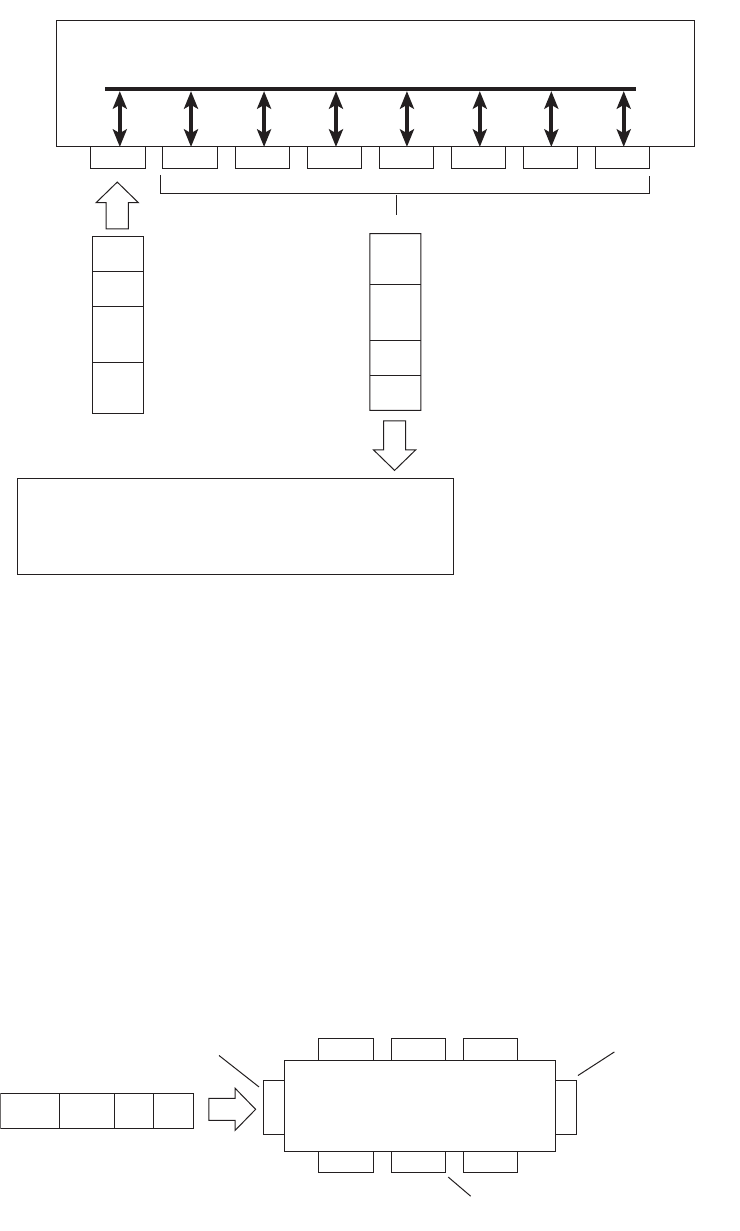
© Copyright Lenovo 2015 Chapter 8: VLANs 133
Figure 2. Default VLAN settings
Note: The port numbers specified in these illustrations may not directly
correspond to the physical port configuration of your switch model.
When a VLAN is configured, ports are added as members of the VLAN, and the
ports are defined as either tagged or untagged (see Figure 3 through Figure 6).
The default configuration settings for the G8052 has all ports set as untagged
members of VLAN 1 with all ports configured as PVID = 1. In the default
configuration example shown in Figure 2, all incoming packets are assigned to
VLAN 1 by the default port VLAN identifier (PVID =1).
Figure 3 through Figure 6 illustrate generic examples of VLAN tagging. In
Figure 3, untagged incoming packets are assigned directly to VLAN 2 (PVID = 2).
Port 5 is configured as a tagged member of VLAN 2, and port 7 is configured as an
untagged member of VLAN 2.
Note: The port assignments in the following figures are not meant to match the
G8052.
Figure 3. Port-based VLAN assignment
Port 1
DA
SA
Data
CRC
Incoming
untagged
packet
BS45010A
Port 2 Port 3 Port 4 Port 5
VLAN 1
802.1Q Switch
By default:
Key
All ports are assigned PVID = 1
All ports are untagged members of VLAN 1
PVID = 1
Port 6 ...
DA
SA
Data
CRC
Outgoing
untagged packet
(unchanged)
Port 7
Port 6
DASADataCRC
Port 7 Port 8
Port 1
Port 4
Port 5
Port 2 Port 3
802.1Q Switch
PVID = 2
Untagged packet
Untagged member
of VLAN 2
Tagged member
of VLAN 2
Before
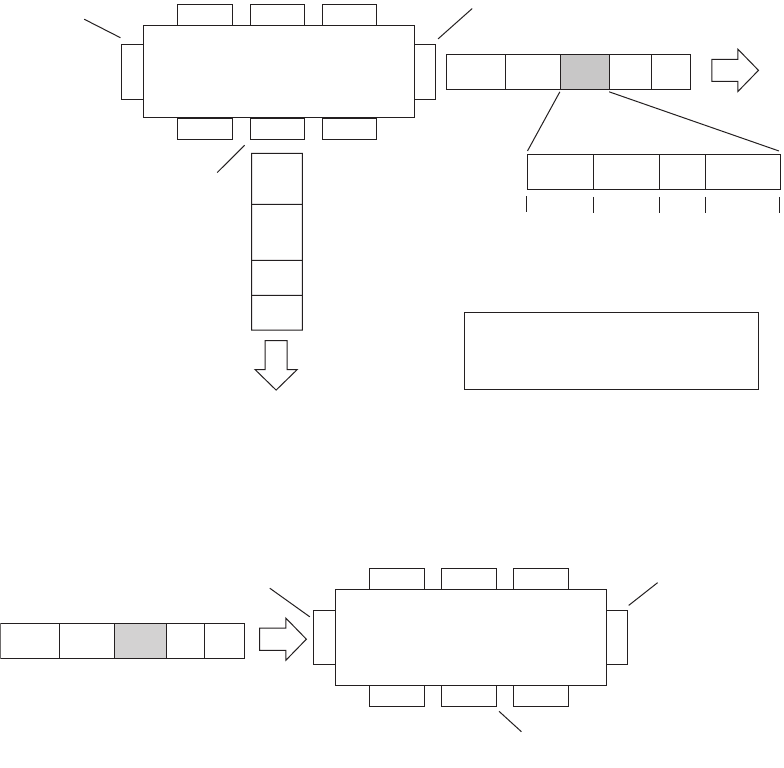
134 G8052 Application Guide for N/OS 8.3
As shown in Figure 4, the untagged packet is marked (tagged) as it leaves the
switch through port 5, which is configured as a tagged member of VLAN 2. The
untagged packet remains unchanged as it leaves the switch through port 7, which
is configured as an untagged member of VLAN 2.
Figure 4. 802.1Q tagging (after port-based VLAN assignment)
In Figure 5, tagged incoming packets are assigned directly to VLAN 2 because of
the tag assignment in the packet. Port 5 is configured as a tagged member of VLAN
2, and port 7 is configured as an untagged member of VLAN 2.
Figure 5. 802.1Q tag assignment
As shown in Figure 6, the tagged packet remains unchanged as it leaves the switch
through port 5, which is configured as a tagged member of VLAN 2. However, the
tagged packet is stripped (untagged) as it leaves the switch through port 7, which
is configured as an untagged member of VLAN 2.
BS45012A
Port 6 Port 7 Port 8
Port 1
Port 4
Port 5
Port 2 Port 3
802.1Q Switch
Key
Priority
CFI
VID
- User_priority
- Canonical format indicator
- VLAN identifier
PVID = 2 Tagged member
of VLAN 2
Untagged memeber
of VLAN 2
After
DA
SA
Data
CRC
(*Recalculated)
Outgoing
untagged packet
(unchanged)
DASADataCRC* Tag
VID = 2Priority
16 bits 3 bits 1 bits 12 bits
8100 CFI
Port 6
DASATagDataCRC
Tagged packet
BS45013A
Port 7 Port 8
Port 1
Port 4
Port 5
Port 2 Port 3
802.1Q Switch
PVID = 2
Untagged member
of VLAN 2
Tagged member
of VLAN 2
Before
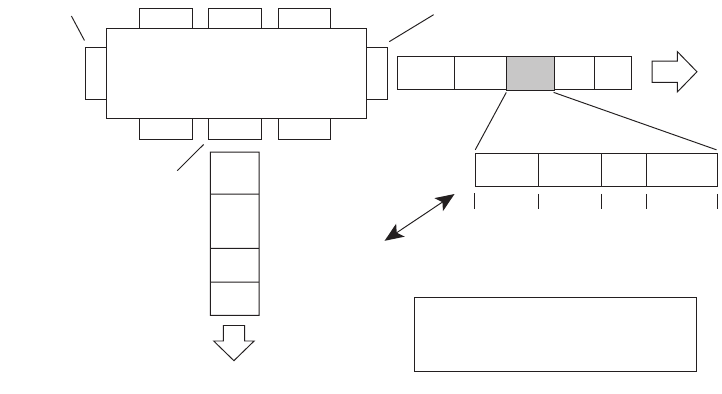
© Copyright Lenovo 2015 Chapter 8: VLANs 135
Figure 6. 802.1Q tagging (after 802.1Q tag assignment)
Ingress VLAN Tagging
Tagging can be enabled on an ingress port. When a packet is received on an ingress
port, and if ingress tagging is enabled on the port, a VLAN tag with the port PVID
is inserted into the packet as the outer VLAN tag. Depending on the egress port
setting (tagged or untagged), the outer tag of the packet is retained or removed
when it leaves the egress port.
Ingress VLAN tagging is used to tunnel packets through a public domain without
altering the original 802.1Q status.
When ingress tagging is enabled on a port, all packets, whether untagged or
tagged, will be tagged again. As shown in Figure 7, when tagging is enabled on the
egress port, the outer tag of the packet is retained when it leaves the egress port. If
tagging is disabled on the egress port, the outer tag of the packet is removed when
it leaves the egress port.
BS45014A
Port 6 Port 7 Port 8
Port 1
Port 4
Port 5
Port 2 Port 3
802.1Q Switch
Key
Priority
CFI
VID
- User_priority
- Canonical format indicator
- VLAN identifier
PVID = 2 Tagged member
of VLAN 2
Untagged member
of VLAN 2
After
DA
SA
Data
CRC* (*Recalculated)
Outgoing
untagged packet
changed
(tag removed)
DASADataCRC Tag
VID = 2Priority
16 bits 3 bits 1 bit 12 bits
8100 CFI
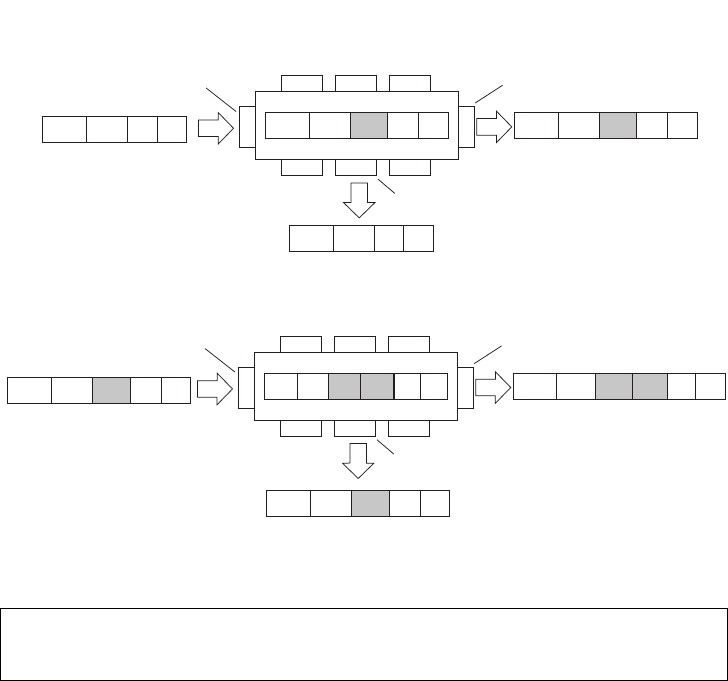
136 G8052 Application Guide for N/OS 8.3
Figure 7. 802.1Q tagging (after ingress tagging assignment)
By default, ingress tagging is disabled. To enable ingress tagging on a port, use the
following commands:
Limitations
Ingress tagging cannot be configured with the following features/configurations:
-vNIC ports
-VMready ports
RS G8052(config)#interfaceport<number>
RS G8052(configif)#tagpvidingress
RS G8052(configif)#exit
Port 6
DASADataCRC
Port 7 Port 8
Port 1
Port 4
Port 5
Port 2 Port 3
802.1Q Switch
PVID = 2
Untagged packet
Untagged member
of VLAN 2
Tagged member
of VLAN 2
Before
DASADataCRC* Tag
DASADataCRC* Tag
After
DASADataCRC
Port 6 Port 7 Port 8
Port 1
Port 4
Port 5
Port 2 Port 3
802.1Q Switch
PVID = 2
Tagged packet
Untagged member
of VLAN 2
Tagged member
of VLAN 2
Before
DASADataCRC* Tag 1DASADataCRC* Tag 1
After
DASADataCRC* Tag 1 Tag 2 Tag 2
DASADataCRC* Tag 1
Untagged packet received on ingress port
Tagged packet received on ingress port
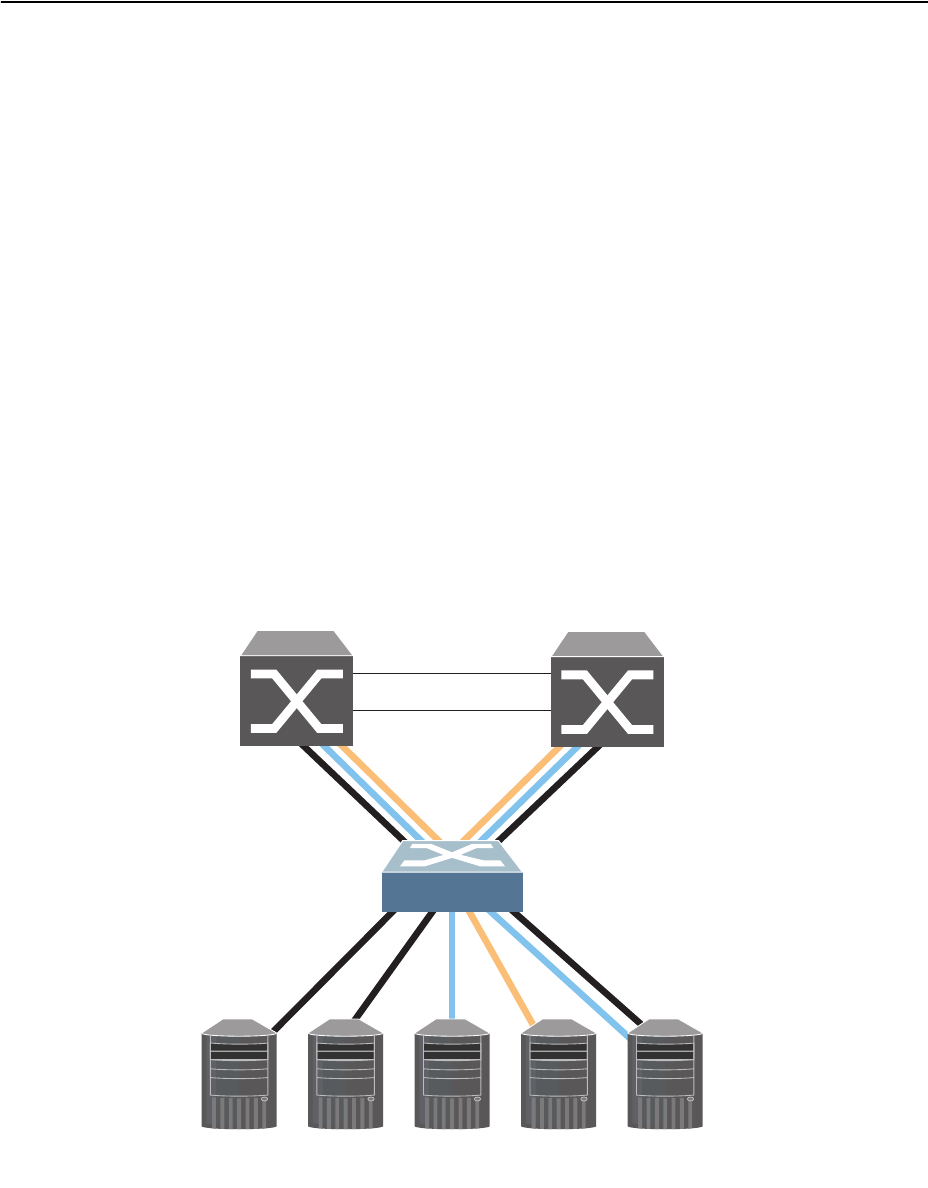
© Copyright Lenovo 2015 Chapter 8: VLANs 137
VLAN Topologies and Design Considerations
Note the following when working with VLAN topologies:
-By default, the G8052 software is configured so that tagging/trunk mode is
disabled on all ports.
-By default, the G8052 software is configured so that all data ports are members
of VLAN 1.
-When using Spanning Tree, STG 2-128 may contain only one VLAN unless
Multiple Spanning-Tree Protocol (MSTP) mode is used. With MSTP mode, STG
1 to 32 can include multiple VLANs.
-All ports involved in both trunking and port mirroring must have the same
VLAN configuration. If a port is on a trunk with a mirroring port, the VLAN
configuration cannot be changed. For more information trunk groups, see
Chapter 9, “Ports and Trunking” and Chapter 40, “Port Mirroring.”
Multiple VLANs with Tagging/Trunk Mode Adapters
Figure 8 illustrates a network topology described in Note: on page 138 and the
configuration example on page page 140.
Figure 8. Multiple VLANs with VLAN-Tagged Gigabit Adapters
The features of this VLAN are described in the following table.
Server 1
VLAN 1 Server 2
VLAN 1 Server 3
VLAN 2 Server 4
VLAN 3 Server 5
VLAN 1, 2
Enterprise
Routing Switch Enterprise
Routing Switch

138 G8052 Application Guide for N/OS 8.3
Note: VLAN
tagging/trunk mode
is required only on ports that are connected to
other switches or on ports that connect to tag-capable end-stations, such as servers
with VLAN-
tagging/trunk mode
adapters.
To configure a specific VLAN on a trunk port, the following conditions must be
met:
-The port must be in trunk mode.
-The VLAN must be in the trunk’s allowed VLAN range. By default, the range
includes all VLANs.
-The VLAN must be un-reserved.
-The VLAN must be created.
The order in which the conditions above are met is not relevant. However, all
conditions must be met collectively. When all the conditions are met, the VLAN is
enabled on the port. If one of the conditions is broken, the VLAN is disabled.
Table 14. Multiple VLANs Example
Component Description
G8052 switch This switch is configured with three VLANs that represent
three different IP subnets. Five ports are connected
downstream to servers. Two ports are connected upstream to
routing switches. Uplink ports are members of all three
VLANs, with VLAN tagging/trunk mode enabled.
Server 1 This server is a member of VLAN 1 and has presence in only
one IP subnet. The associated switch port is only a member of
VLAN 1, so tagging/trunk mode is disabled.
Server 2 This server is a member of VLAN 1 and has presence in only
one IP subnet. The associated switch port is only a member of
VLAN 1, so tagging/trunk mode is disabled.
Server 3 This server belongs to VLAN 2, and it is logically in the same
IP subnet as Server 5. The associated switch port has
tagging/trunk mode disabled.
Server 4 A member of VLAN 3, this server can communicate only with
other servers via a router. The associated switch port has
tagging/trunk mode disabled.
Server 5 A member of VLAN 1 and VLAN 2, this server can
communicate only with Server 1, Server 2, and Server 3. The
associated switch port has tagging/trunk mode enabled.
Enterprise
Routing
switches
These switches must have all three VLANs (VLAN 1, 2, 3)
configured. They can communicate with Server 1, Server 2,
and Server 5 via VLAN 1. They can communicate with
Server 3 and Server 5 via VLAN 2. They can communicate
with Server 4 via VLAN 3. Tagging/trunk mode on switch
ports is enabled.
© Copyright Lenovo 2015 Chapter 8: VLANs 139
If a port’s native VLAN is a private VLAN and its allowed VLAN range contains
only invalid VLANs (either reserved VLANs or VLANs the port cannot belong to),
removing the private VLAN mapping from the port will add the port to default
VLAN and add the default VLAN to the allowed VLAN range.
When setting up multiple VLANs, ports configured in private VLAN mode are not
added to private VLANs unless the private VLANs are also configured for those
ports.

140 G8052 Application Guide for N/OS 8.3
VLAN Configuration Example
Use the following procedure to configure the example network shown in Figure 8
on page 137.
1. Enable VLAN
tagging/trunk mode
on server ports that support multiple VLANs.
2. Enable tagging/trunk mode on uplink ports that support multiple VLANs.
3. Configure server ports that belong to a single VLAN.
By default, all ports are members of VLAN 1, so configure only those ports that
belong to other VLANs.
RS G8052(config)#interfaceport5
RS G8052(configif)#switchportmodetrunk
RS G8052(configif)#switchporttrunkallowedvlans1,2
RS G8052(configif)#exit
RS G8052(config)#interfaceport19
RS G8052(configif)#switchportmodetrunk
RS G8052(configif)#exit
RS G8052(config)#interfaceport20
RS G8052(configif)#switchportmodetrunk
RS G8052(configif)#exit
RS G8052(config)#interfaceport4
RS G8052(configif)#switchportaccessvlan2
RS G8052(configif)#exit

© Copyright Lenovo 2015 Chapter 8: VLANs 141
Protocol-Based VLANs
Protocol-based VLANs (PVLANs) allow you to segment network traffic according
to the network protocols in use. Traffic for supported network protocols can be
confined to a particular port-based VLAN. You can give different priority levels to
traffic generated by different network protocols.
With PVLAN, the switch classifies incoming packets by Ethernet protocol of the
packets, not by the configuration of the ingress port. When an untagged or
priority-tagged frame arrives at an ingress port, the protocol information carried in
the frame is used to determine a VLAN to which the frame belongs. If a frame’s
protocol is not recognized as a pre-defined PVLAN type, the ingress port’s PVID is
assigned to the frame. When a tagged frame arrives, the VLAN ID in the frame’s
tag is used.
Each VLAN can contain up to eight different PVLANs. You can configure separate
PVLANs on different VLANs, with each PVLAN segmenting traffic for the same
protocol type. For example, you can configure PVLAN 1 on VLAN 2 to segment
IPv4 traffic, and PVLAN 8 on VLAN 100 to segment IPv4 traffic.
To define a PVLAN on a VLAN, configure a PVLAN number (1-8) and specify the
frame type and the Ethernet type of the PVLAN protocol. You must assign at least
one port to the PVLAN before it can function. Define the PVLAN frame type and
Ethernet type as follows:
-Frame type—consists of one of the following values:
Ether2 (Ethernet II)
SNAP (Subnetwork Access Protocol)
LLC (Logical Link Control)
-Ethernet type—consists of a 4-digit (16 bit) hex value that defines the Ethernet
type. You can use common Ethernet protocol values, or define your own values.
Following are examples of common Ethernet protocol values:
IPv4 = 0800
IPv6 = 86dd
ARP = 0806
Port-Based vs. Protocol-Based VLANs
Each VLAN supports both port-based and protocol-based association, as follows:
-The default VLAN configuration is port-based. All data ports are members of
VLAN 1, with no PVLAN association.
-When you add ports to a PVLAN, the ports become members of both the
port-based VLAN and the PVLAN. For example, if you add port 1 to PVLAN 1
on VLAN 2, the port also becomes a member of VLAN 2.
-When you delete a PVLAN, it’s member ports remain members of the
port-based VLAN. For example, if you delete PVLAN 1 from VLAN 2, port 1
remains a member of VLAN 2.
-When you delete a port from a VLAN, the port is deleted from all corresponding
PVLANs.
142 G8052 Application Guide for N/OS 8.3
PVLAN Priority Levels
You can assign each PVLAN a priority value of 0-7, used for Quality of Service
(QoS). PVLAN priority takes precedence over a port’s configured priority level. If
no priority level is configured for the PVLAN (priority = 0), each port’s priority is
used (if configured).
All member ports of a PVLAN have the same PVLAN priority level.
PVLAN Tagging/Trunk Mode
When PVLAN tagging is enabled, the switch tags frames that match the PVLAN
protocol. For more information about tagging, see “VLAN Tagging/Trunk Mode”
on page 132.
Untagged ports must have PVLAN tagging disabled. Tagged ports can have
PVLAN tagging either enabled or disabled.
PVLAN tagging has higher precedence than port-based tagging. If a port is
tagging/trunk mode enabled, and the port is a member of a PVLAN, the PVLAN
tags egress frames that match the PVLAN protocol.
Use the tag list command (protocolvlan <x>tagpvlan) to define the
complete list of tag-enabled ports in the PVLAN. Note that all ports not included in
the PVLAN tag list will have PVLAN tagging disabled.
PVLAN Configuration Guidelines
Consider the following guidelines when you configure protocol-based VLANs:
-Each port can support up to 16 VLAN protocols.
-The G8052 can support up to 16 protocols simultaneously.
-Each PVLAN must have at least one port assigned before it can be activated.
-The same port within a port-based VLAN can belong to multiple PVLANs.
-An untagged port can be a member of multiple PVLANs.
-A port cannot be a member of different VLANs with the same protocol
association.

© Copyright Lenovo 2015 Chapter 8: VLANs 143
Configuring PVLAN
Follow this procedure to configure a Protocol-based VLAN (PVLAN).
1. Configure VLAN tagging/trunk mode for ports.
2. Create a VLAN and define the protocol type(s) supported by the VLAN.
3. Configure the priority value for the protocol.
4. Add member ports for this PVLAN.
Note: If VLAN tagging is turned on and the port being added to the VLAN has a
different default VLAN (PVID/Native VLAN), you will be asked to confirm
changing the PVID to the current VLAN.
5. Enable the PVLAN.
6. Verify PVLAN operation.
RS G8052(config)#interfaceport1,2
RS G8052(configif)#switchportmodetrunk
RS G8052(configif)#exit
RS G8052(config)#vlan2
RS G8052(configvlan)#protocolvlan1frametypeether20800
RS G8052(configvlan)#protocolvlan1priority2
RS G8052(configvlan)#protocolvlan1member1,2
RS G8052(configvlan)#protocolvlan1enable
RS G8052(configvlan)#exit
RS G8052(config)#showvlan
VLANNameStatusPorts
1DefaultVLANena148,XGE1XGE4
2VLAN2ena12
PVLANProtocolFrameTypeEtherTypePriorityStatusPorts
21Ether208002enabled12
PVLAN PVLANTaggedPorts
nonenone

144 G8052 Application Guide for N/OS 8.3
Private VLANs
Private VLANs provide Layer 2 isolation between the ports within the same
broadcast domain. Private VLANs can control traffic within a VLAN domain, and
provide port-based security for host servers.
Use Private VLANs to partition a VLAN domain into sub-domains. Each
sub-domain is comprised of one primary VLAN and one or more secondary
VLANs, as follows:
-Primary VLAN—carries unidirectional traffic downstream from promiscuous
ports. Each Private VLAN configuration has only one primary VLAN. All ports
in the Private VLAN are members of the primary VLAN.
-Secondary VLAN—Secondary VLANs are internal to a private VLAN domain,
and are defined as follows:
Isolated VLAN—carries unidirectional traffic upstream from the host servers
toward ports in the primary VLAN. Each Private VLAN configuration can
contain only one isolated VLAN.
Community VLAN—carries upstream traffic from ports in the community
VLAN to other ports in the same community, and to ports in the primary
VLAN. Each Private VLAN configuration can contain multiple community
VLANs.
After you define the primary VLAN and one or more secondary VLANs, you map
the secondary VLAN(s) to the primary VLAN.
Private VLAN Ports
Private VLAN ports are defined as follows:
-Promiscuous—A promiscuous port is a port that belongs to the primary VLAN.
The promiscuous port can communicate with all the interfaces, including ports
in the secondary VLANs (Isolated VLAN and Community VLANs).
-Isolated—An isolated port is a host port that belongs to an isolated VLAN. Each
isolated port has complete layer 2 separation from other ports within the same
private VLAN (including other isolated ports), except for the promiscuous ports.
Traffic sent to an isolated port is blocked by the Private VLAN, except the
traffic from promiscuous ports.
Traffic received from an isolated port is forwarded only to promiscuous ports.
-Community—A community port is a host port that belongs to a community
VLAN. Community ports can communicate with other ports in the same com-
munity VLAN, and with promiscuous ports. These interfaces are isolated at layer
2 from all other interfaces in other communities and from isolated ports within
the Private VLAN.

© Copyright Lenovo 2015 Chapter 8: VLANs 145
Configuration Guidelines
The following guidelines apply when configuring Private VLANs:
-The default VLAN 1 cannot be a Private VLAN.
-IGMP Snooping must be disabled on Private VLANs.
-All VLANs that comprise the Private VLAN must belong to the same Spanning
Tree Group.
Configuration Example
Follow this procedure to configure a Private VLAN.
1. Select a VLAN and define the Private VLAN type as primary.
2. Configure a promiscuous port for VLAN 700.
3. Configure two secondary VLANs: isolated VLAN and community VLAN.
4. Map secondary VLANs to primary VLAN.
5. Configure host ports for secondary VLANs.
RS G8052(config)#vlan700
RS G8052(configvlan)#privatevlanprimary
RS G8052(configvlan)#exit
RS G8052(config)#interfaceport1
RS G8052(configif)#switchportmodeprivatevlan
RS G8052(configif)#switchportprivatevlanmapping700
RS G8052(configif)#exit
RS G8052(config)#vlan701
RS G8052(configvlan)#privatevlanisolated
RS G8052(configvlan)#exit
RS G8052(config)#vlan702
RS G8052(configvlan)#privatevlancommunity
RS G8052(configvlan)#exit
RS G8052(config)#vlan700702
RS G8052(configvlan)#stg1
RS G8052(configvlan)#exit
RS G8052(config)#vlan700
RS G8052(configvlan)#privatevlanassociation701,702
RS G8052(configvlan)#exit
RS G8052(config)#interfaceport2
RS G8052(configif)#switchportmodeprivatevlan
RS G8052(configif)#switchportprivatevlanhostassociation700701
RS G8052(configif)#exit
RS G8052(config)#interfaceport3
RS G8052(configif)#switchportmodeprivatevlan
RS G8052(configif)#switchportprivatevlanhostassociation700702
RS G8052(configif)#exit

146 G8052 Application Guide for N/OS 8.3
6. Verify the configuration.
RS G8052(config)#showvlanprivatevlan
PrimarySecondaryTypePorts
700701isolated12
700702community13

© Copyright Lenovo 2015 147
Chapter 9. Ports and Trunking
Trunk groups can provide super-bandwidth, multi-link connections between the
G8052 and other trunk-capable devices. A trunk group is a group of ports that act
together, combining their bandwidth to create a single, larger virtual link. This
chapter provides configuration background and examples for trunking multiple
ports together:
-“Trunking Overview” on page 148”
-“Configuring a Static Port Trunk” on page 150
-“Configurable Trunk Hash Algorithm” on page 157
-“Link Aggregation Control Protocol” on page 152
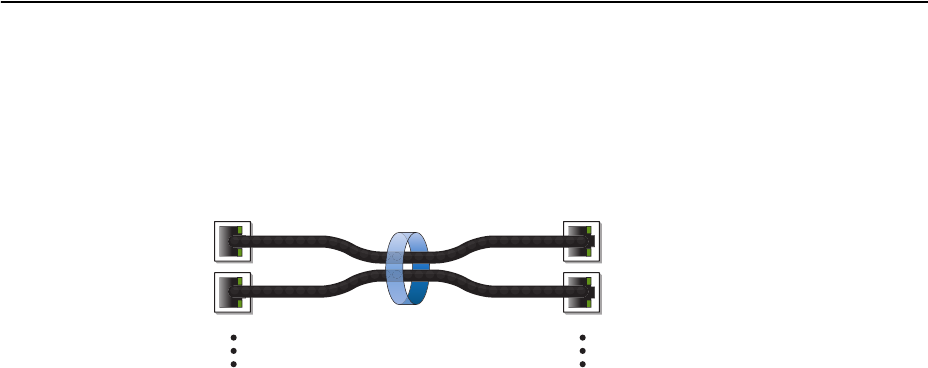
148 G8052 Application Guide for N/OS 8.3
Trunking Overview
When using port trunk groups between two switches, as shown in Figure 9, you
can create a virtual link between the switches, operating with combined
throughput levels that depends on how many physical ports are included.
Figure 9. Port Trunk Group
Trunk groups are also useful for connecting a G8052 to third-party devices that
support link aggregation, such as Cisco routers and switches with EtherChannel
technology (not ISL trunking technology) and Sun's Quad Fast Ethernet Adapter.
Trunk Group technology is compatible with these devices when they are
configured manually.
Trunk traffic is statistically distributed among the ports in a trunk group, based on
a variety of configurable options.
Also, since each trunk group is comprised of multiple physical links, the trunk
group is inherently fault tolerant. As long as one connection between the switches
is available, the trunk remains active and statistical load balancing is maintained
whenever a port in a trunk group is lost or returned to service.
Switch 2
Aggregate
Port Trunk
Switch 1

© Copyright Lenovo 2015 Chapter 9: Ports and Trunking 149
Static Trunks
When you create and enable a static trunk, the trunk members (switch ports) take
on certain settings necessary for correct operation of the trunking feature.
Static Trunk Requirements
Before you configure your trunk, you must consider these settings, along with
specific configuration rules, as follows:
1. Read the configuration rules provided in the section, “Static Trunk Group
Configuration Rules” on page 150.
2. Determine which switch ports (up to 8) are to become trunk members (the specific
ports making up the trunk).
3. Ensure that the chosen switch ports are set to enabled. Trunk member ports must
have the same VLAN and Spanning Tree configuration.
4. Consider how the existing Spanning Tree will react to the new trunk configuration.
See Chapter 10, “Spanning Tree Protocols,” for Spanning Tree Group configuration
guidelines.
5. Consider how existing VLANs will be affected by the addition of a trunk.

150 G8052 Application Guide for N/OS 8.3
Static Trunk Group Configuration Rules
The trunking feature operates according to specific configuration rules. When
creating trunks, consider the following rules that determine how a trunk group
reacts in any network topology:
-All trunks must originate from one logical device, and lead to one logical destina-
tion device. Usually, a trunk connects two physical devices together with mul-
tiple links. However, in some networks, a single logical device may include
multiple physical devices or when using VLAGs (see Chapter 11, “Virtual Link
Aggregation Groups). In such cases, links in a trunk are allowed to connect to
multiple physical devices because they act as one logical device.
-Any physical switch port can belong to only one trunk group.
-Trunking from third-party devices must comply with Cisco® EtherChannel®
technology.
-All trunk member ports must be assigned to the same VLAN configuration
before the trunk can be enabled.
-When an active port is configured in a trunk, the port becomes a trunk member
when you enable the trunk. The Spanning Tree parameters for the port then
change to reflect the new trunk settings.
-All trunk members must be in the same Spanning Tree Group (STG) and can
belong to only one Spanning Tree Group (STG). However if all ports are tagged,
then all trunk ports can belong to multiple STGs.
-If you change the Spanning Tree participation of any trunk member to enabled
or disabled, the Spanning Tree participation of all trunk members changes
similarly.
-When a trunk is enabled, the trunk’s Spanning Tree participation setting takes
precedence over that of any trunk member.
-You cannot configure a trunk member as a monitor port in a port-mirroring con-
figuration.
-Trunks cannot be monitored by a monitor port; however, trunk members can be
monitored.
-All ports in static trunks must be have the same link configuration (speed,
duplex, flow control).
Configuring a Static Port Trunk
In the following example, three ports are trunked between two switches.
Figure 10. Port Trunk Group Configuration Example
2 9 16
111 18
Trunk Group 3 combines
Ports 2, 9, and 16
Trunk Group 1 combines
Ports 1, 11, and 18
Trunk 1
Trunk 3

© Copyright Lenovo 2015 Chapter 9: Ports and Trunking 151
Prior to configuring each switch in this example, you must connect to the
appropriate switches as the administrator.
Note: For details about accessing and using any of the commands described in this
example, see the RackSwitch G8052 ISCLI Reference.
1. Follow these steps on the G8052:
a. Define a trunk group.
b. Verify the configuration.
Examine the resulting information. If any settings are incorrect, make appropriate
changes.
2. Repeat the process on the other switch.
3. Connect the switch ports that will be members in the trunk group.
Trunk group 3 (on the G8052) is now connected to trunk group 1 (on the other
switch).
Note: In this example, two G8052 switches are used. If a third-party device support-
ing link aggregation is used (such as Cisco routers and switches with EtherChannel
technology or Sun's Quad Fast Ethernet Adapter), trunk groups on the third-party
device must be configured manually. Connection problems could arise when using
automatic trunk group negotiation on the third-party device.
4. Examine the trunking information on each switch.
Information about each port in each configured trunk group is displayed. Make
sure that trunk groups consist of the expected ports and that each port is in the
expected state.
The following restrictions apply:
-Any physical switch port can belong to only one trunk group.
-Up to 8 ports can belong to the same trunk group.
-All ports in static trunks must be have the same link configuration (speed, duplex,
flow control).
-Trunking from third-party devices must comply with Cisco® EtherChannel®
technology.
RS G8052(config)#portchannel3port2,9,16
RS G8052(config)#portchannel3enable
#showportchannelinformation
RS G8052(config)#portchannel1port1,11,18
RS G8052(config)#portchannel1enable
#showportchannelinformation
PortChannel3:Enabled
Protocol—Static
portstate:
2:STG1forwarding
9:STG1forwarding
16:STG1forwarding

152 G8052 Application Guide for N/OS 8.3
Link Aggregation Control Protocol
Link Aggregation Control Protocol (LACP) is an IEEE 802.3ad standard for
grouping several physical ports into one logical port (known as a dynamic trunk
group or Link Aggregation group) with any device that supports the standard.
Please refer to IEEE 802.3ad-2002 for a full description of the standard.
The 802.3ad standard allows standard Ethernet links to form a single Layer 2 link
using the Link Aggregation Control Protocol (LACP). Link aggregation is a
method of grouping physical link segments of the same media type and speed in
full duplex, and treating them as if they were part of a single, logical link segment.
If a link in a LACP trunk group fails, traffic is reassigned dynamically to the
remaining link(s) of the dynamic trunk group.
Note: LACP implementation in the Lenovo Network Operating System does not
support the Churn machine, an option used to detect if the port is operable within
a bounded time period between the actor and the partner. Only the Marker
Responder is implemented, and there is no marker protocol generator.
A port’s Link Aggregation Identifier (LAG ID) determines how the port can be
aggregated. The Link Aggregation ID (LAG ID) is constructed mainly from the
partner switch’s system ID and the port’s admin key, as follows:
-System ID: an integer value based on the partner switch’s MAC address and the
system priority assigned in the CLI.
-Admin key: a port’s Admin key is an integer value (1-65535) that you can
configure in the CLI. Each switch port that participates in the same LACP trunk
group must have the same admin key value. The Admin key is local significant,
which means the partner switch does not need to use the same Admin key
value.
For example, consider two switches, an Actor (the G8052) and a Partner (another
switch), as shown in Table 15.
In the configuration shown in Table 15, Actor switch ports 7 and 8 aggregate to
form an LACP trunk group with Partner switch ports 1 and 2. Only ports with the
same LAG ID are aggregated in the trunk group. Actor switch ports 9 and 10 are
not aggregated in the same trunk group, because although they have the same
Table 15. Actor vs. Partner LACP configuration
Actor Switch Partner Switch
Port 7 (admin key = 100) Port 1 (admin key = 50) Primary trunk group
Port 8 (admin key = 100) Port 2 (admin key = 50) Primary trunk group
Port 9 (admin key = 100) Port 3 (admin key = 70) Secondary trunk group
Port 10 (admin key = 100) Port 4 (admin key = 70) Secondary trunk group

© Copyright Lenovo 2015 Chapter 9: Ports and Trunking 153
admin key on the Actor switch, their LAG IDs are different (due to a different
Partner switch admin key configuration). Instead, they form a secondary trunk
group with Partner switch ports 3 and 4.
LACP automatically determines which member links can be aggregated and then
aggregates them. It provides for the controlled addition and removal of physical
links for the link aggregation.
Static LACP Trunks
To prevent switch ports with the same admin key from forming multiple trunk
groups, you can configure the LACP trunk as static. In a static LACP trunk, ports
with the same admin key, but with different LAG IDs, compete to get aggregated
in a trunk group. The LAG ID for the trunk group is decided based on the first port
that is aggregated in the group. Ports with this LAG ID get aggregated and the
other ports are placed in suspended mode. As per the configuration shown in
Table 15 on page 152, if port 7 gets aggregated first, then the LAG ID of port 7
would be the LAG ID of the trunk. Port 8 will join the trunk while ports 9 and 10
would be placed in suspended mode. When in suspended mode, a port transmits
only LACP data units (LACPDUs) and discards all other traffic.
A port may also be placed in suspended mode for the following reasons:
-When LACP is configured on the port but it stops receiving LACPDUs from the
partner switch.
-When the port has a different LAG ID because of the partner switch MAC or
port LACP key being different. For example: when a switch is connected to two
partners.
Static LACP trunks are configured by associating the LACP admin key to a
portchannel ID within a dedicated LACP portchannel group range:
LACP Port Modes
Each port on the switch can have one of the following LACP modes.
-off (default)
The user can configure this port in to a regular static trunk group.
-active
The port is capable of forming an LACP trunk. This port sends LACPDU packets
to partner system ports.
-passive
The port is capable of forming an LACP trunk. This port only responds to the
LACPDU packets sent from an LACP active port.
Each active LACP port transmits LACP data units (LACPDUs), while each passive
LACP port listens for LACPDUs. During LACP negotiation, the admin key is
exchanged. The LACP trunk group is enabled as long as the information matches
at both ends of the link. If the admin key value changes for a port at either end of
the link, that port’s association with the LACP trunk group is lost.
RS G8052(config)#portchannel<53-104>lacpkey<adminkey of the LAG>

154 G8052 Application Guide for N/OS 8.3
When the system is initialized, all ports by default are in LACP off mode and are
assigned unique admin keys. To make a group of ports aggregable, you assign them
all the same admin key. You must set the port’s LACP mode to active to activate
LACP negotiation. You can set other port’s LACP mode to passive, to reduce the
amount of LACPDU traffic at the initial trunk-forming stage.
Use the following command to check whether the ports are trunked:
Note: If you configure LACP on ports with 802.1X network access control, make
sure the ports on both sides of the connection are properly configured for both
LACP and 802.1X.
LACP Individual
Ports with LACP enabled (active or passive) are prevented by default from
forming individual links if they cannot join an LACP trunk group. To override this
behavior, use the following commands:
This allows the selected ports to be treated as normal link-up ports, which may
forward data traffic according to STP, Hot Links or other applications, if they do
not receive any LACPDUs.
To configure the LACP individual setting for all the ports in a static LACP trunk,
use the following commands:
LACP Minimum Links Option
For dynamic trunks that require a guaranteed amount of bandwidth in order to be
considered useful, you can specify the minimum number of links for the trunk. If
the specified minimum number of ports is not available, the trunk link will not be
established. If an active LACP trunk loses one or more component links, the trunk
will be placed in the down state if the number of links falls to less than the specified
minimum. By default, the minimum number of links is 1, meaning that LACP
trunks will remain operational as long as at least one link is available.
The LACP minimum links setting can be configured as follows:
-Via interface configuration mode:
RS G8052#showlacpinformation
RS G8052(config)#interfaceport<port no. or range>
RS G8052(configif)#nolacpsuspendindividual
RS G8052(config)#interfaceportchannellacp<adminkey of the LAG>
RS G8052(configPortChannel)#[no]lacpsuspendindividual
RS G8052(config)#interfaceport<port number or range>
RS G8052(configif)#portchannelminlinks<minimum links>
RS G8052(configif)#exit

© Copyright Lenovo 2015 Chapter 9: Ports and Trunking 155
-Or via portchannel configuration mode:
LACP Configuration Guidelines
Consider the following guidelines when you configure LACP trunks:
-The range of potential LACP trunk IDs is 53-104.
-Each port that is configured to participate in LACP must be set to full duplex.
RS G8052(config)#interfaceportchannellacp<LACP key>
RS G8052(configPortChannel)#portchannelminlinks<minimum links>
RS G8052(configif)#exit

156 G8052 Application Guide for N/OS 8.3
Configuring LACP
Use the following procedure to configure LACP for ports 7, 8, 9 and 10 to
participate in link aggregation.
1. Configure port parameters. All ports that participate in the LACP trunk group
must have the same settings, including VLAN membership.
2. Select the port range and define the admin key. Only ports with the same admin
key can form an LACP trunk group.
3. Set the LACP mode.
4. Optionally allow member ports to individually participate in normal data traffic if
no LACPDUs are received.
5. Set the link aggregation as static, by associating it with trunk ID 65:
RS G8052(config)#interfaceport710
RS G8052(configif)#lacpkey100
RS G8052(configif)#lacpmodeactive
RS G8052(configif)#nolacpsuspendindividual
RS G8052(configif)#exit
RS G8052(config)#portchannel65lacpkey100

© Copyright Lenovo 2015 Chapter 9: Ports and Trunking 157
Configurable Trunk Hash Algorithm
Packet-Based Trunk Hashing
Traffic in a trunk group is statistically distributed among member ports using a
hash process where various address and attribute bits from each transmitted frame
are recombined to specify the particular trunk port the frame will use.
The switch can be configured to use a variety of hashing options. To achieve the
most even traffic distribution, select options that exhibit a wide range of values for
your particular network. Avoid hashing on information that is not usually present
in the expected traffic, or which does not vary.
The G8052 supports the following hashing options, which can be used in any
combination:
-Frame MAC and IP information. One of the following combinations is required:
Source MAC address (smac)
Destination MAC address (dmac)
Both source and destination MAC address
IPv4/IPv6 source IP address (sip)
IPv4/IPv6 destination IP address (dip)
Both source and destination IPv4/IPv6 address (enabled by default)
RS G8052(config)#portchannelhashsourcemacaddress
RS G8052(config)#portchannelhashdestinationmacaddress
RS G8052(config)#portchannelhashsourcedestinationmac
RS G8052(config)#portchannelhashsourceipaddress
RS G8052(config)#portchannelhashdestinationipaddress
RS G8052(config)#portchannelhashsourcedestinationip

158 G8052 Application Guide for N/OS 8.3
-Ingress port number (disabled by default)
-Layer 4 port information (disabled by default)
When enabled, Layer 4 port information (TCP, UPD, etc.) is added to the hash if
available. The L4port option is ignored when Layer 4 information is not
included in the packet (such as for Layer 2 packets).
Port-Based Trunk Hashing
The standard hashing process that determines where traffic in a trunk group is
distributed among member ports uses address and attribute bits from each
transmitted frame to specify which trunk port the frame will use for egress.
With port-based trunk hashing, packet data is disregarded. Instead, you configure
each ingress port to use a specific egress port. When you have many ingress ports
with traffic to distribute over a smaller number of egress ports with equal
bandwidth, such as 40 10Gb ingress ports and four 100Gb egress ports, this may
enable you to make better use of those egress ports.
Note: Port-based trunk hashing is disabled by default and the standard hashing
algorithm is used.
To enable port-based trunk hashing:
1. Enable or disable the feature on a per-trunk basis.
-For static trunks:
-Or for dynamic trunks:
2. For each port, specify its member hash index.
The trunk-member index will only be used for traffic destined for a trunk where
port-based trunk hashing has been enabled. Otherwise, the value is ignored.
When applicable, the index specifies which member link within the trunk will be
used. Traffic from ports that have the same member index will occupy the same
links when destined for the same trunk.
Note: The administrator must ensure that traffic is properly balanced among the
individual links within the trunk.
RS G8052(config)#portchannelhashingress
RS G8052(config)#portchannelhashL4port
RS G8052(config)#[no]portchannelhashstaticdistributioninport
portchannel<trunk ID>
RS G8052(config)#[no]portchannelhashstaticdistributioninport
lacpkey<admin key>
RS G8052(config)#interfaceport<port, list, or range>
RS G8052(configif)#portchanneldistributiontrunkmemberindex<1-8>
RS G8052(configif)#exit
© Copyright Lenovo 2015 Chapter 9: Ports and Trunking 159
At any time, if a port’s member index is greater than the number of links available
within a trunk where port-based hashing is enabled, a modulus approach is used.
For instance, if there are four members in the trunk, traffic from a port with a
trunk-member index of 1 will use the first link in the trunk, index 2 will use the
second link, 3 will use the third, 4 will start again at the first link, 5 at the second, 6
at the thirds, and so on.
Each time a port is added to or removed from a trunk, the mapping between its
member index and physical links is updated.
The trunk-member index can be configured on a per-port basis. The index assigned
a given port is used with all trunks where port-based trunk hashing is enabled. The
same port cannot use different trunk-member indexes for different trunks.
160 G8052 Application Guide for N/OS 8.3

© Copyright Lenovo 2015 161
Chapter 10. Spanning Tree Protocols
When multiple paths exist between two points on a network, Spanning Tree
Protocol (STP), or one of its enhanced variants, can prevent broadcast loops and
ensure that the RackSwitch G8052 uses only the most efficient network path.
This chapter covers the following topics:
-“Spanning Tree Protocol Modes” on page 161
-“Global STP Control” on page 162
-“PVRST Mode” on page 162
-“Rapid Spanning Tree Protocol” on page 174
-“Multiple Spanning Tree Protocol” on page 176
-“Port Type and Link Type” on page 180
Spanning Tree Protocol Modes
Lenovo Network Operating System 8.3 supports the following STP modes:
-Rapid Spanning Tree Protocol (RSTP)
IEEE 802.1D (2004) RSTP allows devices to detect and eliminate logical loops in
a bridged or switched network. When multiple paths exist, STP configures the
network so that only the most efficient path is used. If that path fails, STP
automatically configures the best alternative active path on the network to
sustain network operations. RSTP is an enhanced version of IEEE 802.1D (1998)
STP, providing more rapid convergence of the Spanning Tree network path
states on STG 1.
See “Rapid Spanning Tree Protocol” on page 174 for details.
-Per-VLAN Rapid Spanning Tree (PVRST)
PVRST mode is based on RSTP to provide rapid Spanning Tree convergence, but
supports instances of Spanning Tree, allowing one STG per VLAN. PVRST
mode is compatible with Cisco R-PVST/R-PVST+ mode.
PVRST is the default Spanning Tree mode on the G8052. See “PVRST Mode” on
page 162 for details.
-Multiple Spanning Tree Protocol (MSTP)
IEEE 802.1Q (2003) MSTP provides both rapid convergence and load balancing
in a VLAN environment. MSTP allows multiple STGs, with multiple VLANs in
each.
See “Multiple Spanning Tree Protocol” on page 176 for details.

162 G8052 Application Guide for N/OS 8.3
Global STP Control
By default, the Spanning Tree feature is globally enabled on the switch, and is set
for PVRST mode. Spanning Tree (and thus any currently configured STP mode)
can be globally disabled using the following command:
Spanning Tree can be re-enabled by specifying the STP mode:
where the command options represent the following modes:
-rstp:RSTP mode
-pvrst: PVRST mode
-mst:MSTP mode
PVRST Mode
Note: Per-VLAN Rapid Spanning Tree (PVRST) is enabled by default on the
G8052.
Using STP, network devices detect and eliminate logical loops in a bridged or
switched network. When multiple paths exist, Spanning Tree configures the
network so that a switch uses only the most efficient path. If that path fails,
Spanning Tree automatically sets up another active path on the network to sustain
network operations.
N/OS PVRST mode is based on IEEE 802.1w RSTP. Like RSTP, PVRST mode
provides rapid Spanning Tree convergence. However, PVRST mode is enhanced
for multiple instances of Spanning Tree. In PVRST mode, each VLAN may be
automatically or manually assigned to one of 127available STGs. If you need to
assign a VLAN to STG 128, it must be done manually. Each STG acts as an
independent, simultaneous instance of STP. PVRST uses IEEE 802.1Q tagging to
differentiate STP BPDUs and is compatible with Cisco R-PVST/R-PVST+ modes.
The relationship between ports, trunk groups, VLANs, and Spanning Trees is
shown in Table 16.
RS G8052(config)#spanningtreemodedisable
RS G8052(config)#spanningtreemode{pvrst|rstp|mst}
Table 16. Ports, Trunk Groups, and VLANs
Switch Element Belongs To
Port Trunk group or one or more VLANs
Trunk group One or more VLANs
VLAN (non-default) -PVRST: One VLAN per STG
-RSTP: All VLANs are in STG 1
-MSTP: Multiple VLANs per STG

© Copyright Lenovo 2015 Chapter 10: Spanning Tree Protocols 163
Port States
The port state controls the forwarding and learning processes of Spanning Tree. In
PVRST, the port state has been consolidated to the following: discarding,
learning, and forwarding.
Due to the sequence involved in these STP states, considerable delays may occur
while paths are being resolved. To mitigate delays, ports defined as edge ports
(“Port Type and Link Type” on page 180) may bypass the discarding and
learning states, and enter directly into the forwarding state.
Bridge Protocol Data Units
To create a Spanning Tree, the switch generates a configuration Bridge Protocol
Data Unit (BPDU), which it then forwards out of its ports. All switches in the Layer
2 network participating in the Spanning Tree gather information about other
switches in the network through an exchange of BPDUs.
A bridge sends BPDU packets at a configurable regular interval (2 seconds by
default). The BPDU is used to establish a path, much like a hello packet in IP
routing. BPDUs contain information about the transmitting bridge and its ports,
including bridge MAC addresses, bridge priority, port priority, and path cost. If the
ports are in trunk mode/tagged, each port sends out a special BPDU containing the
tagged information.
The generic action of a switch on receiving a BPDU is to compare the received
BPDU to its own BPDU that it will transmit. If the priority of the received BPDU is
better than its own priority, it will replace its BPDU with the received BPDU. Then,
the switch adds its own bridge ID number and increments the path cost of the
BPDU. The switch uses this information to block any necessary ports.
Note: If STP is globally disabled, BPDUs from external devices will transit the
switch transparently. If STP is globally enabled, for ports where STP is turned off,
inbound BPDUs will instead be discarded.
Determining the Path for Forwarding BPDUs
When determining which port to use for forwarding and which port to block, the
G8052 uses information in the BPDU, including each bridge ID. A technique based
on the “lowest root cost” is then computed to determine the most efficient path for
forwarding.
Bridge Priority
The bridge priority parameter controls which bridge on the network is the STG root
bridge. To make one switch become the root bridge, configure the bridge priority
lower than all other switches and bridges on your network. The lower the value, the
higher the bridge priority. Use the following command to configure the bridge
priority:
RS G8052(config)#spanningtreestp<STG number or range>bridgepriority
<0-65535>

164 G8052 Application Guide for N/OS 8.3
Port Priority
The port priority helps determine which bridge port becomes the root port or the
designated port. The case for the root port is when two switches are connected using
a minimum of two links with the same path-cost. The case for the designated port is
in a network topology that has multiple bridge ports with the same path-cost
connected to a single segment, the port with the lowest port priority becomes the
designated port for the segment. Use the following command to configure the port
priority:
where priority value is a number from 0 to 240, in increments of 16 (such as 0, 16, 32,
and so on). If the specified priority value is not evenly divisible by 16, the value will
be automatically rounded down to the nearest valid increment whenever manually
changed in the configuration, or whenever a configuration file from a release prior
to N/OS 6.5 is loaded.
Root Guard
The root guard feature provides a way to enforce the root bridge placement in the
network. It keeps a new device from becoming root and thereby forcing STP
re-convergence. If a root-guard enabled port detects a root device, that port will be
placed in a blocked state.
You can configure the root guard at the port level using the following commands:
The default state is “none”, i.e. disabled.
Loop Guard
In general, STP resolves redundant network topologies into loop-free topologies.
The loop guard feature performs additional checking to detect loops that might not
be found using Spanning Tree. STP loop guard ensures that a non-designated port
does not become a designated port.
To globally enable loop guard, enter the following command:
Note: The global loop guard command will be effective on a port only if the
port-level loop guard command is set to default as shown below:
RS G8052(config)#interfaceport<port number>
RS G8052(configif)#nospanningtreeguard
To enable loop guard at the port level, enter the following command:
RS G8052(configif)#spanningtreestp<STG number or range>priority<port
priority>
RS G8052(config)#interfaceport<port number>
RS G8052(configif)#spanningtreeguardroot
RS G8052(config)#spanningtreeloopguard
RS G8052(config)#interfaceport<port number>
RS G8052(configif)#spanningtreeguardloop
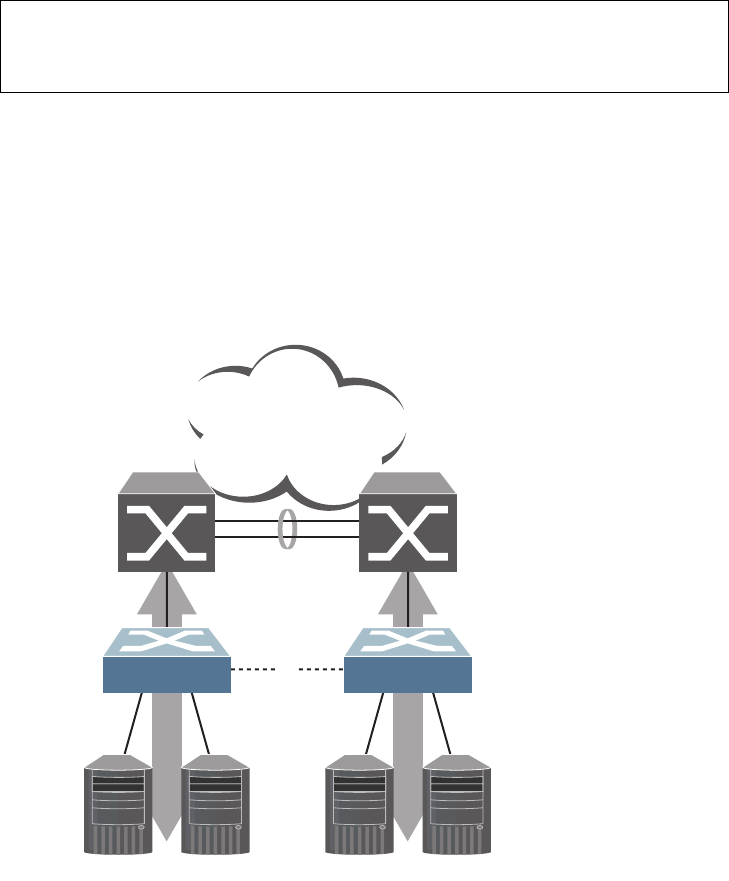
© Copyright Lenovo 2015 Chapter 10: Spanning Tree Protocols 165
The default state is “none” (disabled).
Port Path Cost
The port path cost assigns lower values to high-bandwidth ports, such as 10
Gigabit Ethernet, to encourage their use. The objective is to use the fastest links so
that the route with the lowest cost is chosen. A value of 0 (the default) indicates
that the default cost will be computed for an auto-negotiated link or trunk speed.
Use the following command to modify the port path cost:
The port path cost can be a value from 1 to 200000000. Specify 0 for automatic path
cost.
Simple STP Configuration
Figure 11 depicts a simple topology using a switch-to-switch link between two
G8052 1 and 2.
Figure 11. Spanning Tree Blocking a Switch-to-Switch Link
To prevent a network loop among the switches, STP must block one of the links
between them. In this case, it is desired that STP block the link between the Lenovo
switches, and not one of the G8052 uplinks or the Enterprise switch trunk.
RS G8052(config)#interfaceport<port number>
RS G8052(configif)#spanningtreestp<STG number or range>pathcost<path cost
value>
RS G8052(configif)#exit
Enterprise
Routing
Switches
x
Server Server Server Server
Switch 1 Switch 2
STP
Blocks Link
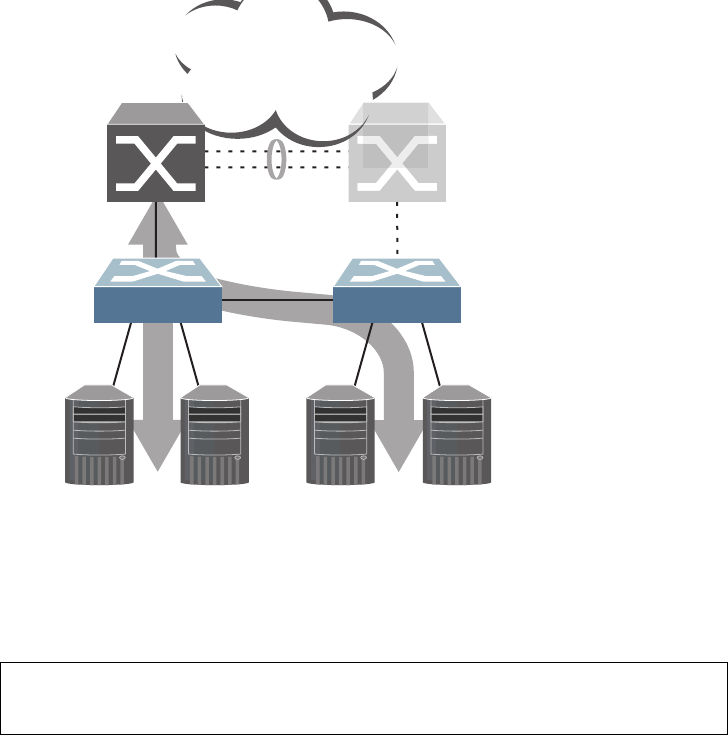
166 G8052 Application Guide for N/OS 8.3
During operation, if one G8052 experiences an uplink failure, STP will activate the
Lenovo switch-to-switch link so that server traffic on the affected G8052 may pass
through to the active uplink on the other G8052, as shown in Figure 12.
Figure 12. Spanning Tree Restoring the Switch-to-Switch Link
In this example, port 10 on each G8052 is used for the switch-to-switch link. To
ensure that the G8052 switch-to-switch link is blocked during normal operation,
the port path cost is set to a higher value than other paths in the network. To
configure the port path cost on the switch-to-switch links in this example, use the
following commands on each G8052.
Enterprise
Routing
Switches
Server Server Server Server
Switch 1 Switch 2
STP
Restores Link
Uplink
Failure
RS G8052(config)#interfaceport10
RS G8052(configif)#spanningtreestp1pathcost60000
RS G8052(configif)#exit
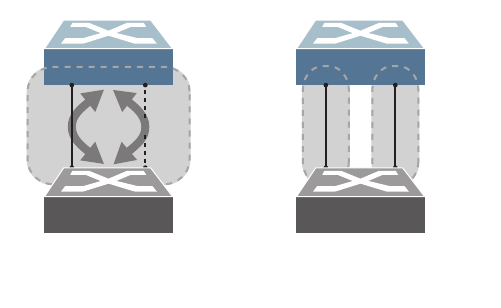
© Copyright Lenovo 2015 Chapter 10: Spanning Tree Protocols 167
Per-VLAN Spanning Tree Groups
PVRST mode supports a maximum of 128 STGs, with each STG acting as an
independent, simultaneous instance of STP.
Multiple STGs provide multiple data paths which can be used for load-balancing
and redundancy. To enable load balancing between two G8052s using multiple
STGs, configure each path with a different VLAN and then assign each VLAN to a
separate STG. Since each STG is independent, they each send their own IEEE
802.1Q tagged Bridge Protocol Data Units (BPDUs).
Each STG behaves as a bridge group and forms a loop-free topology. The default
STG 1 may contain multiple VLANs (typically until they can be assigned to
another STG). STGs 2-128 may contain only one VLAN each.
Using Multiple STGs to Eliminate False Loops
Figure 13 shows a simple example of why multiple STGs are needed. In the figure,
two ports on a G8052 are connected to two ports on an application switch. Each of
the links is configured for a different VLAN, preventing a network loop. However,
in the first network, since a single instance of Spanning Tree is running on all the
ports of the G8052, a physical loop is assumed to exist, and one of the VLANs is
blocked, impacting connectivity even though no actual loop exists.
Figure 13. Using Multiple Instances of Spanning Tree Group
In the second network, the problem of improper link blocking is resolved when the
VLANs are placed into different Spanning Tree Groups (STGs). Since each STG has
its own independent instance of Spanning Tree, each STG is responsible only for
the loops within its own VLAN. This eliminates the false loop, and allows both
VLANs to forward packets between the switches at the same time.
VLAN 1
VLAN 30
Application Switch
Switch 1
False
Loop
Application Switch
Switch 2
VLAN 1
is active
STG 1
VLAN 30
is active
STG 2
x
With a single Spanning Tree,
one link becomes blocked.
Using multiple STGs,
both links may be active.

168 G8052 Application Guide for N/OS 8.3
VLANs and STG Assignment
In PVRST mode, up to 128 STGs are supported. Ports cannot be added directly to
an STG. Instead, ports must be added as members of a VLAN, and the VLAN must
then be assigned to the STG.
STG 1 is the default STG. Although VLANs can be added to or deleted from
default STG 1, the STG itself cannot be deleted from the system. By default, STG 1
is enabled and includes VLAN 1, which by default includes all switch ports
By default, all other STGs (STG 2 through 128) are enabled, though they initially
include no member VLANs. VLANs must be assigned to STGs. By default, this is
done automatically using VLAN Automatic STG Assignment (VASA), though it
can also be done manually (see “Manually Assigning STGs” on page 168.
Note: VLAN assignment to STG 128 must be done manually.
When VASA is enabled (as by default), each time a new VLAN is configured, the
switch will automatically assign that new VLAN to its own STG. Conversely, when
a VLAN is deleted, if its STG is not associated with any other VLAN, the STG is
returned to the available pool.
The specific STG number to which the VLAN is assigned is based on the VLAN
number itself. For low VLAN numbers (1 through 127), the switch will attempt to
assign the VLAN to its matching STG number. For higher numbered VLANs, the
STG assignment is based on a simple modulus calculation; the attempted STG
number will “wrap around,” starting back at the top of STG list each time the end
of the list is reached. However, if the attempted STG is already in use, the switch
will select the next available STG. If an empty STG is not available when creating a
new VLAN, the VLAN is automatically assigned to default STG 1.
If ports are tagged, each tagged port sends out a special BPDU containing the
tagged information. Also, when a tagged port belongs to more than one STG, the
egress BPDUs are tagged to distinguish the BPDUs of one STG from those of
another STG.
VASA is enabled by default, but can be disabled or re-enabled using the following
commands:
If VASA is disabled, when you create a new VLAN, that VLAN automatically
belongs to default STG 1. To place the VLAN in a different STG, assign it manually.
VASA applies only to PVRST mode and is ignored in RSTP and MSTP modes.
Manually Assigning STGs
The administrator may manually assign VLANs to specific STGs, whether or not
VASA is enabled.
1. If no VLANs exist (other than default VLAN 1), see “Guidelines for Creating
VLANs” on page 169 for information about creating VLANs and assigning ports to
them.
2. Assign the VLAN to an STG using one of the following methods:
RS G8052(config)#[no]spanningtreestgauto

© Copyright Lenovo 2015 Chapter 10: Spanning Tree Protocols 169
-From the global configuration mode:
-Or from within the VLAN configuration mode:
When a VLAN is assigned to a new STG, the VLAN is automatically removed from
its prior STG.
Note: For proper operation with switches that use Cisco PVST+, it is
recommended that you create a separate STG for each VLAN.
Guidelines for Creating VLANs
Follow these guidelines when creating VLANs:
-When you create a new VLAN, if VASA is enabled (the default), that VLAN is
automatically assigned its own STG. If VASA is disabled, the VLAN
automatically belongs to STG 1, the default STG. To place the VLAN in a
different STG, see “Manually Assigning STGs” on page 168. The VLAN is
automatically removed from its old STG before being placed into the new STG.
-Each VLANs must be contained within a single STG; a VLAN cannot span
multiple STGs. By confining VLANs within a single STG, you avoid problems
with Spanning Tree blocking ports and causing a loss of connectivity within the
VLAN. When a VLAN spans multiple switches, it is recommended that the
VLAN remain within the same STG (be assigned the same STG ID) across all the
switches.
-If ports are tagged, all trunked ports can belong to multiple STGs.
-A port cannot be directly added to an STG. The port must first be added to a
VLAN, and that VLAN added to the desired STG.
Rules for VLAN Tagged/Trunk Mode Ports
The following rules apply to VLAN tagged ports:
-Tagged/trunk mode ports can belong to more than one STG, but
untagged/access mode ports can belong to only one STG.
-When a tagged/trunk mode port belongs to more than one STG, the egress
BPDUs are tagged to distinguish the BPDUs of one STG from those of another
STG.
RS G8052(config)#spanningtreestp<STG numbers>vlan<VLANs>
RS G8052(config)#vlan<VLAN numbers>
RS G8052(configvlan)#stg<STG number>
RS G8052(configvlan)#exit

170 G8052 Application Guide for N/OS 8.3
Adding and Removing Ports from STGs
The following rules apply when you add ports to or remove ports from STGs:
-When you add a port to a VLAN that belongs to an STG, the port is also added
to that STG. However, if the port you are adding is an untagged port and is
already a member of another STG, that port will be removed from its current
STG and added to the new STG. An untagged port cannot belong to more than
one STG.
For example: Assume that VLAN 1 belongs to STG 1, and that port 1 is untagged
and does not belong to any STG. When you add port 1 to VLAN 1, port 1 will
automatically become part of STG 1.
However, if port 5 is untagged and is a member of VLAN 3 in STG 2, then
adding port 5 to VLAN 1 in STG 1 will change the port PVID from 3 to 1:
-When you remove a port from VLAN that belongs to an STG, that port will also
be removed from the STG. However, if that port belongs to another VLAN in the
same STG, the port remains in the STG.
As an example, assume that port 2 belongs to only VLAN 2, and that VLAN 2
belongs to STG 2. When you remove port 2 from VLAN 2, the port is moved to
default VLAN 1 and is removed from STG 2.
However, if port 2 belongs to both VLAN 1 and VLAN 2, and both VLANs
belong to STG 1, removing port 2 from VLAN 2 does not remove port 2 from
STG 1 because the port is still a member of VLAN 1, which is still a member of
STG 1.
-An STG cannot be deleted, only disabled. If you disable the STG while it still
contains VLAN members, Spanning Tree will be off on all ports belonging to
that VLAN.
The relationship between port, trunk groups, VLANs, and Spanning Trees is
shown in Table 16 on page 162.
"Port5isanUNTAGGED/AccessModeportanditsPVID/NativeVLAN
changedfrom3to1.
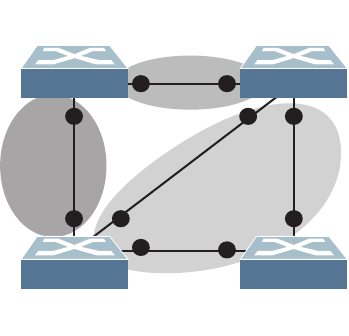
© Copyright Lenovo 2015 Chapter 10: Spanning Tree Protocols 171
The Switch-Centric Model
PVRST is switch-centric: STGs are enforced only on the switch where they are
configured. PVRST allows only one VLAN per STG, except for the default STG 1 to
which multiple VLANs can be assigned. The STG ID is not transmitted in the
Spanning Tree BPDU. Each Spanning Tree decision is based entirely on the
configuration of the particular switch.
For example, in Figure 14, each switch is responsible for the proper configuration
of its own ports, VLANs, and STGs. Switch A identifies its own port 17 as part of
VLAN 2 on STG 2, and the Switch B identifies its own port 8 as part of VLAN 2 on
STG 2.
Figure 14. Implementing PVRST
The VLAN participation for each Spanning Tree Group in Figure 14 on page 171 is
as follows:
-VLAN 1 Participation
Assuming Switch B to be the root bridge, Switch B transmits the BPDU for STG
1 on ports 1 and 2. Switch C receives the BPDU on port 2, and Switch D receives
the BPDU on port 1. Because there is a network loop between the switches in
VLAN 1, either Switch D will block port 8 or Switch C will block port 1,
depending on the information provided in the BPDU.
-VLAN 2 Participation
Switch B, the root bridge, generates a BPDU for STG 2 from port 8. Switch A
receives this BPDU on port 17, which is assigned to VLAN 2, STG 2. Because
switch B has no additional ports participating in STG 2, this BPDU is not
forwarded to any additional ports and Switch B remains the designated root.
-VLAN 3 Participation
For VLAN 3, Switch A or Switch C may be the root bridge. If Switch A is the root
bridge for VLAN 3, STG 3, then Switch A transmits the BPDU from port 18.
Switch C receives this BPDU on port 8 and is identified as participating in
VLAN 3, STG 3. Since Switch C has no additional ports participating in STG 3,
this BPDU is not forwarded to any additional ports and Switch A remains the
designated root.
Application
Switch B
Chassis
Switch A
Application
Switch D
Application
Switch C
VLAN 2
STG 2
STG 3
VLAN 3 STG 1
VLAN 1
1
1
1
2
2
8
17
18
8
8

172 G8052 Application Guide for N/OS 8.3
Configuring Multiple STGs
This configuration shows how to configure the three instances of STGs on the
switches A, B, C, and D illustrated in Figure 14 on page 171.
Because VASA is enabled by default, each new VLAN is automatically assigned its
own STG.
1. Set the Spanning Tree mode on each switch to PVRST.
Note: PVRST is the default mode on the G8052. This step is not required unless the
STP mode has been previously changed, and is shown here merely as an example
of manual configuration.
2. Configure the following on Switch A:
a. Enable VLAN 2 and VLAN 3.
b. Add port 17 to VLAN 2, port 18 to VLAN 3.
VLAN 2 and VLAN 3 are removed from STG 1.
Note: In PVRST mode, each instance of STG is enabled by default.
RS G8052(config)#spanningtreemodepvrst
RS G8052(config)#vlan2
RS G8052(configvlan)#exit
RS G8052(config)#vlan3
RS G8052(configvlan)#exit
IfVASAisdisabled,enterthefollowingcommands:
RS G8052(config)#spanningtreestp2vlan2
RS G8052(config)#spanningtreestp3vlan3
RS G8052(config)#interfaceport17
RS G8052(configif)#switchportmodetrunk
RS G8052(configif)#switchporttrunkallowedvlan2
RS G8052(configif)#exit
RS G8052(config)#interfaceport18
RS G8052(configif)#switchportmodetrunk
RS G8052(configif)#switchporttrunkallowedvlan3
RS G8052(configif)#exit

© Copyright Lenovo 2015 Chapter 10: Spanning Tree Protocols 173
3. Configure the following on Switch B:
a. Add port 8 to VLAN 2. Ports 1 and 2 are by default in VLAN 1 assigned to STG
1.
b. VLAN 2 is automatically removed from STG 1. By default VLAN 1 remains in
STG 1.
4. Configure the following on application switch C:
a. Add port 8 to VLAN 3. Ports 1 and 2 are by default in VLAN 1 assigned to STG
1.
b. VLAN 3 is automatically removed from STG 1. By default VLAN 1 remains in
STG 1.
5. Switch D does not require any special configuration for multiple Spanning Trees.
Switch D uses default STG 1 only.
RS G8052(config)#vlan2
RS G8052(configvlan)#exit
RS G8052(config)#interfaceport8
RS G8052(configif)#switchportmodetrunk
RS G8052(configif)#switchporttrunkallowedvlan2
RS G8052(configif)#exit
IfVASAisdisabled,enterthefollowingcommand:
RS G8052(config)#spanningtreestp2vlan2
RS G8052(config)#vlan3
RS G8052(configvlan)#exit
RS G8052(config)#interfaceport8
RS G8052(configif)#switchportmodetrunk
RS G8052(configif)#switchporttrunkallowedvlan3
RS G8052(configif)#exit
IfVASAisdisabled,enterthefollowingcommand:
RS G8052(config)#spanningtreestp3vlan3

174 G8052 Application Guide for N/OS 8.3
Rapid Spanning Tree Protocol
RSTP provides rapid convergence of the Spanning Tree and provides the fast
re-configuration critical for networks carrying delay-sensitive traffic such as voice
and video. RSTP significantly reduces the time to reconfigure the active topology
of the network when changes occur to the physical topology or its configuration
parameters. RSTP reduces the bridged-LAN topology to a single Spanning Tree.
RSTP was originally defined in IEEE 802.1w (2001) and was later incorporated into
IEEE 802.1D (2004), superseding the original STP standard.
RSTP parameters apply only to Spanning Tree Group (STG) 1. The PVRST mode
STGs 2-128 are not used when the switch is placed in RSTP mode.
RSTP is compatible with devices that run IEEE 802.1D (1998) Spanning Tree
Protocol. If the switch detects IEEE 802.1D (1998) BPDUs, it responds with IEEE
802.1D (1998)-compatible data units. RSTP is not compatible with Per-VLAN
Rapid Spanning Tree (PVRST) protocol.
Port States
RSTP port state controls are the same as for PVRST: discarding, learning, and
forwarding.
Due to the sequence involved in these STP states, considerable delays may occur
while paths are being resolved. To mitigate delays, ports defined as edge/portfast
ports (“Port Type and Link Type” on page 180) may bypass the discarding and
learning states, and enter directly into the forwarding state.
RSTP Configuration Guidelines
This section provides important information about configuring RSTP. When RSTP
is turned on, the following occurs:
-STP parameters apply only to STG 1.
-Only STG 1 is available. All other STGs are turned off.
-All VLANs are moved to STG 1.

© Copyright Lenovo 2015 Chapter 10: Spanning Tree Protocols 175
RSTP Configuration Example
This section provides steps to configure RSTP.
1. Configure port and VLAN membership on the switch.
2. Set the Spanning Tree mode to Rapid Spanning Tree.
3. Configure RSTP parameters.
4. Configure port parameters:
RS G8052(config)#spanningtreemoderstp
RS G8052(config)# spanning-tree stp 1 bridge priority 8192
RS G8052(config)# spanning-tree stp 1 bridge hello-time 5
RS G8052(config)# spanning-tree stp 1 bridge forward-delay 20
RS G8052(config)# spanning-tree stp 1 bridge maximum-age 30
RS G8052(config)# no spanning-tree stp 1 enable
RS G8052(config)# interface port 3
RS G8052(config-if)# spanning-tree stp 1 priority 240
RS G8052(config-if)# spanning-tree stp 1 path-cost 500
RS G8052(config-if)# no spanning-tree stp 1 enable
RS G8052(config-if)# exit

176 G8052 Application Guide for N/OS 8.3
Multiple Spanning Tree Protocol
Multiple Spanning Tree Protocol (MSTP) extends Rapid Spanning Tree Protocol
(RSTP), allowing multiple Spanning Tree Groups (STGs) which may each include
multiple VLANs. MSTP was originally defined in IEEE 802.1s (2002) and was later
included in IEEE 802.1Q (2003).
In MSTP mode, the G8052 supports up to 32 instances of Spanning Tree,
corresponding to STGs 1-32, with each STG acting as an independent,
simultaneous instance of RSTP.
MSTP allows frames assigned to different VLANs to follow separate paths, with
each path based on an independent Spanning Tree instance. This approach
provides multiple forwarding paths for data traffic, thereby enabling
load-balancing, and reducing the number of Spanning Tree instances required to
support a large number of VLANs.
Due to Spanning Tree’s sequence of discarding, learning, and forwarding, lengthy
delays may occur while paths are being resolved. Ports defined as edge/portfast
ports (“Port Type and Link Type” on page 180) bypass the Discarding and
Learning states, and enter directly into the Forwarding state.
MSTP Region
A group of interconnected bridges that share the same attributes is called an MST
region. Each bridge within the region must share the following attributes:
-Alphanumeric name
-Revision number
-VLAN-to STG mapping scheme
MSTP provides rapid re-configuration, scalability and control due to the support
of regions, and multiple Spanning-Tree instances support within each region.
Common Internal Spanning Tree
The Common Internal Spanning Tree (CIST) or MST0 provides a common form of
Spanning Tree Protocol, with one Spanning-Tree instance that can be used
throughout the MSTP region. CIST allows the switch to interoperate with legacy
equipment, including devices that run IEEE 802.1D (1998) STP.
CIST allows the MSTP region to act as a virtual bridge to other bridges outside of
the region, and provides a single Spanning-Tree instance to interact with them.
CIST port configuration includes Hello time, Edge/portfast port enable/disable,
and Link Type. These parameters do not affect Spanning Tree Groups 1–32. They
apply only when the CIST is used.

© Copyright Lenovo 2015 Chapter 10: Spanning Tree Protocols 177
MSTP Configuration Guidelines
This section provides important information about configuring Multiple Spanning
Tree Groups:
-When the switch initially has PVRST mode enabled and VLANs 1-127 are
configured and distributed to STGs 1-127, when you turn on MSTP, the switch
moves VLAN 1 and VLANs 33-128 to the CIST. When MSTP is turned off, the
switch moves VLAN 1 and VLANs 33-127 from the CIST to STG 1.
-When you enable MSTP, a default revision number of 1 and a blank region name
are automatically configured.
MSTP Configuration Examples
Example 1
This section provides steps to configure MSTP on the G8052.
1. Configure port and VLAN membership on the switch.
2. Configure Multiple Spanning Tree region parameters, and set the mode to MSTP.
3. Map VLANs to MSTP instances:
RS G8052(config)#spanningtreemstconfiguration
(Enter MST configuration mode)
RS G8052(configmst)#name<name> (Define the Region name)
RS G8052(configmst)#revision<0 – 65535>(Define the Region revision number)
RS G8052(configmst)#exit
RS G8052(config)#spanningtreemodemst(Set mode to Multiple Spanning Trees)
RS G8052(config)#spanningtreemstconfiguration
(Enter MST configuration mode)
RS G8052(configmst)#instance<instance ID> vlan<vlan number or range>
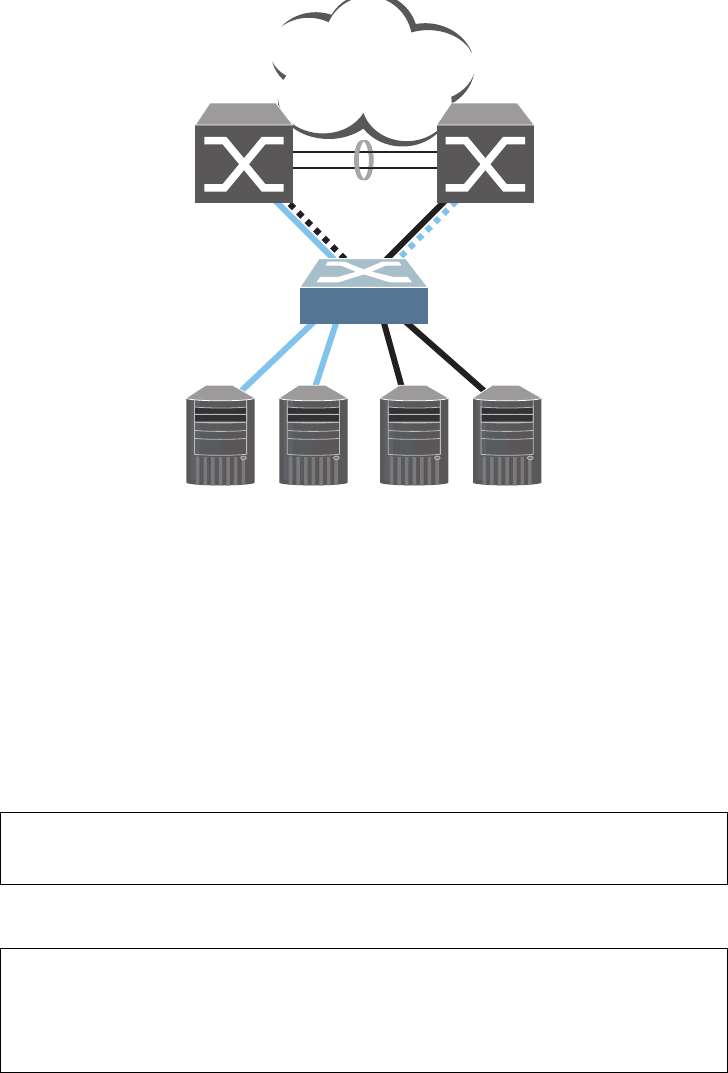
178 G8052 Application Guide for N/OS 8.3
Example 2
This configuration shows how to configure MSTP Groups on the switch, as shown
in Figure 14.
Figure 15. Implementing Multiple Spanning Tree Groups
This example shows how multiple Spanning Trees can provide redundancy
without wasting any uplink ports. In this example, the server ports are split
between two separate VLANs. Both VLANs belong to two different MSTP groups.
The Spanning Tree priority values are configured so that each routing switch is the
root for a different MSTP instance. All of the uplinks are active, with each uplink
port backing up the other.
1. Configure port membership and define the STGs for VLAN 1. Enable tagging on
uplink ports that share VLANs. Port 19 and port 20 connect to the Enterprise
Routing switches.
2. Configure MSTP: Spanning Tree mode, region name, and version.
Enterprise
Routing Switch
MSTP Group 1
Root
Enterprise
Routing Switch
MSTP Group 2
Root
Server 1
VLAN 1 Server 2
VLAN 1 Server 3
VLAN 2 Server 4
VLAN 2
Blocking VLAN 1
Passing VLAN 2
Passing VLAN 1
Blocking VLAN 2
RS G8052(config)#interfaceport19,20
RS G8052(configif)#switchportmodetrunk
RS G8052(configif)#exit
RS G8052(config)#spanningtreemstconfiguration
RS G8052(configmst)#nameMyRegion (Define the Region name)
RS G8052(configmst)#revision100(Define the Revision level)
RS G8052(configmst)#exit
RS G8052(config)#spanningtreemodemst(Set mode to Multiple Spanning Trees)

© Copyright Lenovo 2015 Chapter 10: Spanning Tree Protocols 179
3. Map VLANs to MSTP instances:
4. Configure port membership and define the STGs for VLAN 2. Add server ports 3
and 4 to VLAN 2. Uplink ports 19 and 20 are automatically added to VLAN 2.
Assign VLAN 2 to STG 2.
Note: Each STG is enabled by default.
RS G8052(config)#spanningtreemstconfiguration
RS G8052(configmst)#instance1vlan1
RS G8052(configmst)#instance2vlan2
RS G8052(config)#interfaceport3,4
RS G8052(configif)#switchportaccessvlan2
RS G8052(configif)#exit
180 G8052 Application Guide for N/OS 8.3
Port Type and Link Type
Edge/Portfast Port
A port that does not connect to a bridge is called an edge port. Since edge ports are
assumed to be connected to non-STP devices (such as directly to hosts or servers),
they are placed in the forwarding state as soon as the link is up.
Edge ports send BPDUs to upstream STP devices like normal STP ports, but do not
receive BPDUs. If a port with edge enabled does receive a BPDU, it immediately
begins working as a normal (non-edge) port, and participates fully in Spanning
Tree.
Use the following commands to define or clear a port as an edge port:
Link Type
The link type determines how the port behaves in regard to Rapid Spanning Tree.
Use the following commands to define the link type for the port:
where type corresponds to the duplex mode of the port, as follows:
-p2p A full-duplex link to another device (point-to-point)
-shared A half-duplex link is a shared segment and can contain more than
one device.
-auto The switch dynamically configures the link type.
Note: Any STP port in full-duplex mode can be manually configured as a shared
port when connected to a non-STP-aware shared device (such as a typical Layer 2
switch) used to interconnect multiple STP-aware devices.
RS G8052(config)#interfaceport<port>
RS G8052(configif)#[no]spanningtreeportfast
RS G8052(configif)#exit
RS G8052(config)#interfaceport<port>
RS G8052(configif)#[no]spanningtreelinktype<type>
RS G8052(configif)#exit
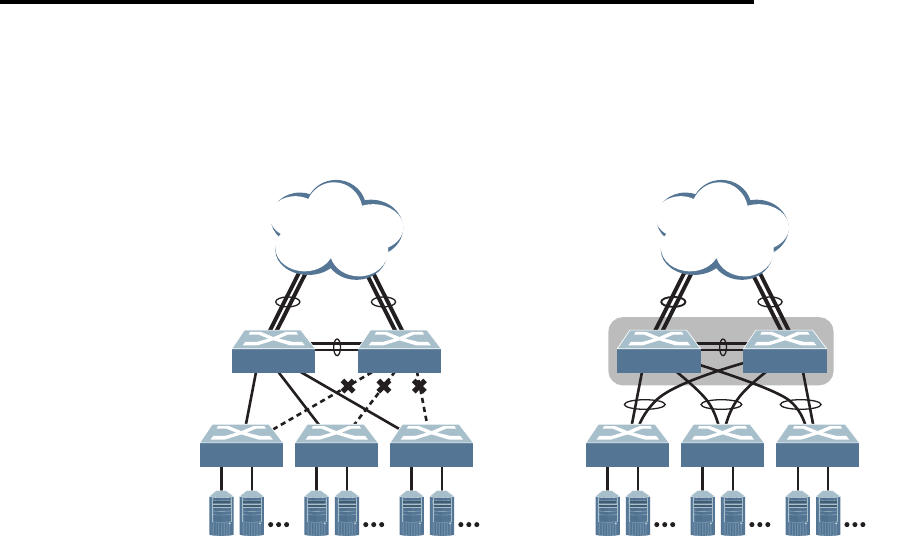
© Copyright Lenovo 2015 181
Chapter 11. Virtual Link Aggregation Groups
In many data center environments, downstream servers or switches connect to
upstream devices which consolidate traffic. For example, see Figure 16.
Figure 16. Typical Data Center Switching Layers with STP vs. VLAG
As shown in the example, a switch in the access layer may be connected to more
than one switch in the aggregation layer to provide for network redundancy.
Typically, Spanning Tree Protocol (RSTP, PVRST, or MSTP—see Chapter 10,
“Spanning Tree Protocols) is used to prevent broadcast loops, blocking redundant
uplink paths. This has the unwanted consequence of reducing the available
bandwidth between the layers by as much as 50%. In addition, STP may be slow to
resolve topology changes that occur during a link failure, and can result in
considerable MAC address flooding.
Using Virtual Link Aggregation Groups (VLAGs), the redundant uplinks remain
active, utilizing all available bandwidth.
Two switches are paired into VLAG peers, and act as a single virtual entity for the
purpose of establishing a multi-port trunk. Ports from both peers can be grouped
into a VLAG and connected to the same LAG-capable target device. From the
perspective of the target device, the ports connected to the VLAG peers appear to
be a single trunk connecting to a single logical device. The target device uses the
configured Tier ID to identify the VLAG peers as this single logical device. It is
important that you use a unique Tier ID for each VLAG pair you configure. The
VLAG-capable switches synchronize their logical view of the access layer port
structure and internally prevent implicit loops. The VLAG topology also responds
more quickly to link failure and does not result in unnecessary MAC flooding.
VLAGs are also useful in multi-layer environments for both uplink and downlink
redundancy to any regular LAG-capable device. For example:
STP blocks
implicit loops Links remain
active
Access
Layer
Servers
Aggregation
Layer
VLAG
Peers
VLAGs
ISL
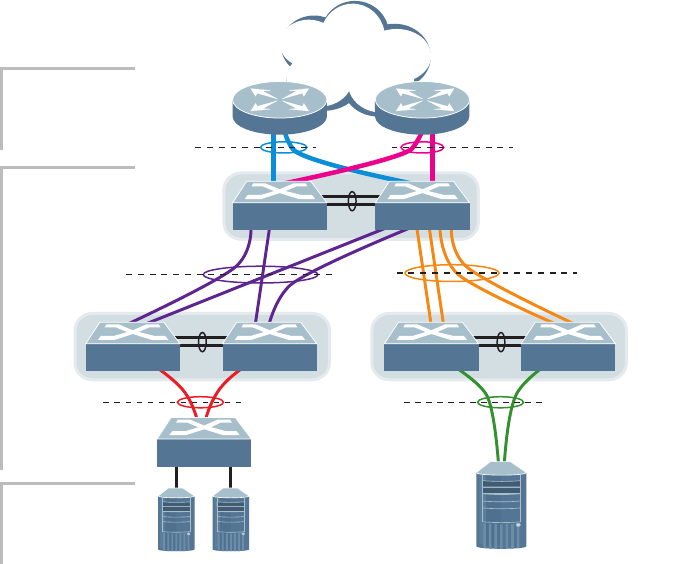
182 G8052 Application Guide for N/OS 8.3
Figure 17. VLAG Application with Multiple Layers
Wherever ports from both peered switches are trunked to another device, the
trunked ports must be configured as a VLAG. For example, VLAGs 1 and 3 must
be configured for both VLAG Peer A switches. VLAGs 2 and 4 must be configured
for both VLAG Peer B switches.VLAGs 3, 5, and 6 must be configured on both
VLAG Peer C switches. Other devices connecting to the VLAG peers are
configured using regular static or dynamic trunks.
Note: Do not configure a VLAG for connecting only one switch in the peer set to
another device or peer set. For instance, in VLAG Peer C, a regular trunk is
employed for the downlink connection to VLAG Peer B because only one of the
VLAG Peer C switches is involved.
ISL
VLAG 3
VLAG 3
VLAG 5 VLAG 6
TrunkTrunk
VLAG 2
Trunk
ISL
ISL
Layer 2/3 Border
Layer 2 Region
with multiple levels
Servers
VLAG
Peers C
VLAG
Peers B
VLAG
Peers A
VLAG 1
Trunk
Trunk
VLAG 4
LACP-capable
Server
LACP-capable
Switch
LACP-capable
Routers
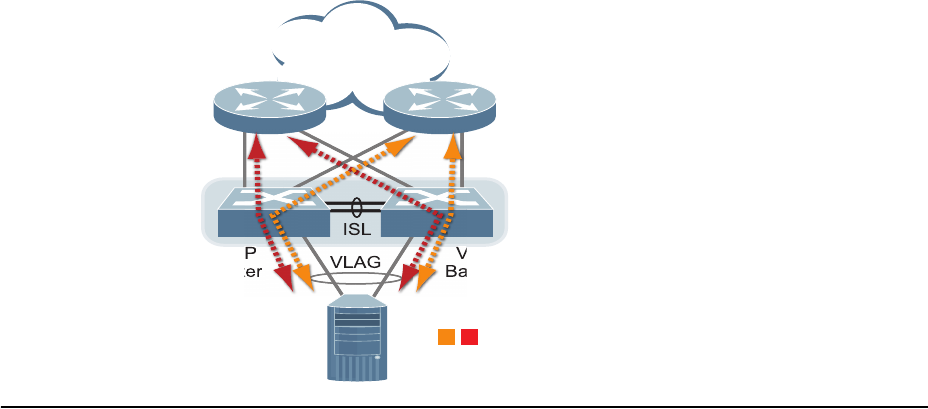
© Copyright Lenovo 2015 Chapter 11: Virtual Link Aggregation Groups 183
In addition, when used with VRRP, VLAGs can provide seamless active-active
failover for network links. For example
Figure 18. VLAG Application with VRRP:
VLAG Capacities
Servers or switches that connect to the VLAG peers using a multi-port VLAG are
considered VLAG clients. VLAG clients are not required to be VLAG-capable. The
ports participating in the VLAG are configured as regular port trunks on the
VLAG client end.
On the VLAG peers, the VLAGs are configured similarly to regular port trunks,
using many of the same features and rules. See Chapter 9, “Ports and Trunking”
for general information concerning all port trunks.
Each VLAG begins as a regular port trunk on each VLAG-peer switch. The VLAG
may be either a static trunk group (portchannel) or dynamic LACP trunk group,
and consumes one slot from the overall port trunk capacity pool. The trunk type
must match that used on VLAG client devices. Additional configuration is then
required to implement the VLAG on both VLAG peer switches.
You may configure up to 52 trunk groups on the switch, with all types (regular or
VLAG, static or LACP) sharing the same pool.
The maximum number of supported VLAG instances is as follows:
-With STP off: Maximum of 31 VLAG instances
-With STP on:
PVRST/MSTP with one VLAG instance per VLAN/STG: Maximum of
31
VLAG instances
PVRST/MSTP with one VLAG instance belonging to multiple
VLANs/STGs: Maximum of 15 VLAG instances
Each trunk type can contain up to 8 member ports, depending on the port type and
availability.
ISL
VLAG
Server
VRRP
Master
VRRP
Backup
VLAG
Peers
Active
Traffic Flows

184 G8052 Application Guide for N/OS 8.3
VLAGs versus Port Trunks
Though similar to regular port trunks in many regards, VLAGs differ from regular
port trunks in a number of important ways:
-A VLAG can consist of multiple ports on two VLAG peers, which are connected
to one logical client device such as a server, switch, or another VLAG device.
-The participating ports on the client device are configured as a regular port
trunk.
-The VLAG peers must be the same model, and run the same software version.
-VLAG peers require a dedicated inter-switch link (ISL) for synchronization. The
ports used to create the ISL must have the following properties:
ISL ports must have VLAN tagging turned on.
ISL ports must be configured for all VLAG VLANs.
ISL ports must be placed into a regular port trunk group (dynamic or static).
A minimum of two ports on each switch are recommended for ISL use.
-Dynamic routing protocols, such as OSPF, cannot terminate on VLAGs.
-Routing over VLAGs is not supported. However, IP forwarding between
subnets served by VLAGs can be accomplished using VRRP.
-VLAGs are configured using additional commands.
-It is recommended that end-devices connected to VLAG switches use NICs with
dual-homing. This increases traffic efficiency, reduces ISL load, and provides
faster link failover.

© Copyright Lenovo 2015 Chapter 11: Virtual Link Aggregation Groups 185
Configuring VLAGs
When configuring VLAG or making changes to your VLAG configuration,
consider the following VLAG behavior:
-When adding a static Mrouter on VLAG links, ensure that you also add it on the
ISL link to avoid VLAG link failure. If the VLAG link fails, traffic cannot be
recovered through the ISL. Also ensure you add the same static entry on the
peer VLAG switch for VLAG ports.
-If you have enabled VLAG on the switch, and you need to change the STP mode,
ensure that you first disable VLAG and then change the STP mode.
-When VLAG is enabled, you may see two root ports on the secondary VLAG
switch. One of these will be the actual root port for the secondary VLAG switch
and the other will be a root port synced with the primary VLAG switch.
-The LACP key used must be unique for each VLAG in the entire topology.
-The STG to VLAN mapping on both VLAG peers must be identical.
The following parameters must be identically configured on the VLAG ports of
both the VLAG peers:
-VLANs
-Native VLAN tagging
-Native VLAN/PVID
-STP mode
-BPDU Guard setting
-STP port setting
-MAC aging timers
-Static MAC entries
-ACL configuration parameters
-QoS configuration parameters
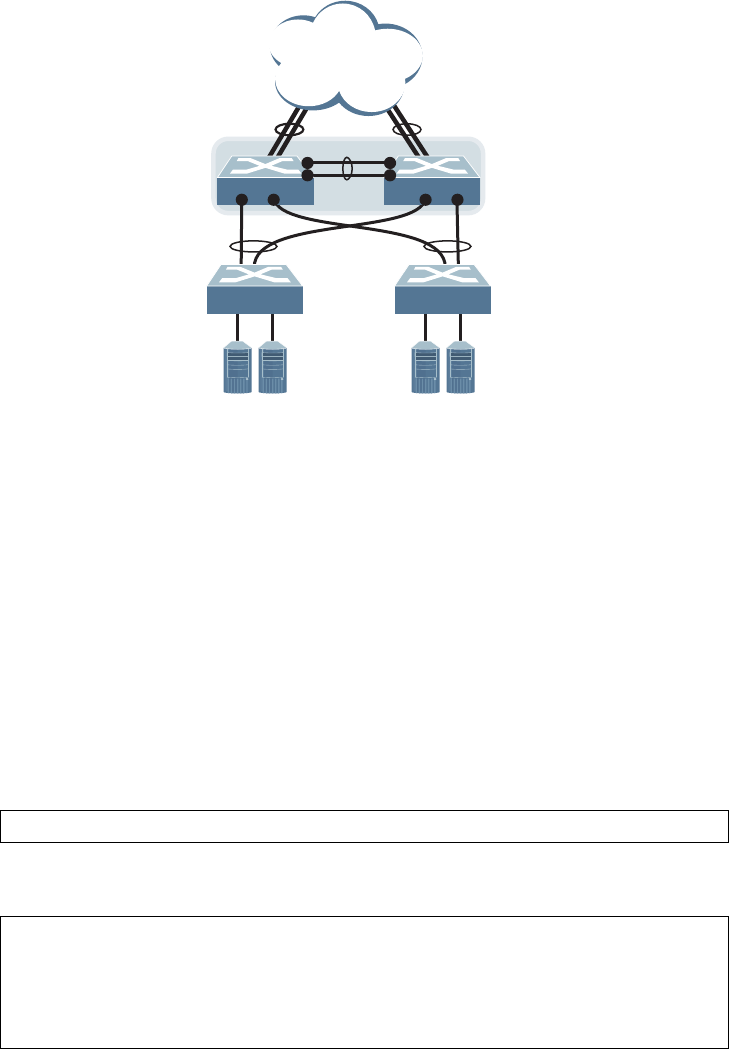
186 G8052 Application Guide for N/OS 8.3
Basic VLAG Configuration
Figure 19 shows an example configuration where two VLAG peers are used for
aggregating traffic from downstream devices.
Figure 19. Basic VLAGs
In this example, each client switch is connected to both VLAG peers. On each client
switch, the ports connecting to the VLAG peers are configured as a dynamic LACP
port trunk. The VLAG peer switches share a dedicated ISL for synchronizing
VLAG information. On the individual VLAG peers, each port leading to a specific
client switch (and part of the client switch’s port trunk) is configured as a VLAG.
In the following example configuration, only the configuration for VLAG 1 on
VLAG Peer 1 is shown. VLAG Peer 2 and all other VLAGs are configured in a
similar fashion.
Configuring the ISL
The ISL connecting the VLAG peers is shared by all their VLAGs. The ISL needs to
be configured only once on each VLAG peer.
1. Configure STP if required. Use PVRST or MSTP mode only:
2. Configure the ISL ports and place them into a port trunk group:
Notes:
VLAG Peer 1
Mgmt IP: 10.10.10.1/24
VLAG Peer 2
Mgmt IP: 10.10.10.2/24
VLAG 1
LACP 1000
VLAN 100
VLAG 2
LACP 2000
VLAN 100
ISL
LACP 200
1
8 9 7 8
2
2
3
Client SwitchClient Switch
RS G8052(config)#spanningtreemodepvrst
RS G8052(config)#interfaceport12
RS G8052(configif)#switchportmodetrunk
RS G8052(configif)#lacpmodeactive
RS G8052(configif)#lacpkey200
RS G8052(configif)#exit
RS G8052(config)#vlagisladminkey200

© Copyright Lenovo 2015 Chapter 11: Virtual Link Aggregation Groups 187
-In this case, a dynamic trunk group is shown. A static trunk (portchannel) could
be configured instead.
-ISL ports and VLAG ports must be members of the same VLANs.
3. Configure VLAG Tier ID. This is used to identify the VLAG switch in a multi-tier
environment.
4. Configure the ISL for the VLAG peer.
Make sure you configure the VLAG peer (VLAG Peer 2) using the same ISL trunk
type (dynamic or static), the same VLAN for VLAG and VLAG ISL ports, and the
same STP mode and tier ID used on VLAG Peer 1.
5. Enable VLAG globally.
Configuring the VLAG
To configure the VLAG:
1. Configure the VLAN for VLAG 1 ports. Make sure members include the ISL and
VLAG 1 ports. Once the VLAN is ready, the ISL ports are automatically added to it.
Note: In MSTP mode, VLANs are automatically mapped to CIST.
2. Place the VLAG 1 port(s) in a port trunk group:
3. Assign the trunk to the VLAG:
4. Continue by configuring all required VLAGs on VLAG Peer 1, and then repeat the
configuration for VLAG Peer 2.
For each corresponding VLAG on the peer, the port trunk type (dynamic or static),
VLAN, STP mode, and ID must be the same as on VLAG Peer 1.
RS G8052(config)#vlagtierid10
RS G8052(config)#vlagenable
RS G8052(config)#vlan100
RS G8052(configvlan)#exit
RS G8052(config)#interfaceport8
RS G8052(configif)#switchportmodetrunk
RS G8052(configif)#switchporttrunkallowedvlan100
RS G8052(configif)#exit
RS G8052(config)#interfaceport8
RS G8052(configif)#lacpmodeactive
RS G8052(configif)#lacpkey1000
RS G8052(configif)#exit
RS G8052(config)#vlagadminkey1000enable

188 G8052 Application Guide for N/OS 8.3
5. Enable VLAG globally.
6. Verify the completed configuration:
RS G8052(config)#vlagenable
#showvlaginformation

© Copyright Lenovo 2015 Chapter 11: Virtual Link Aggregation Groups 189
VLAG Configuration - VLANs Mapped to MSTI
Follow the steps in this section to configure VLAG in environments where the STP
mode is MSTP and no previous VLAG was configured.
Configuring the ISL
The ISL connecting the VLAG peers is shared by all their VLAGs. The ISL needs to
be configured only once on each VLAG peer. Ensure you have the same region
name, revision and VLAN-to-STG mapping on both VLAG switches.
1. Configure STP:
2. Configure the ISL ports and place them into a portchannel (dynamic or static):
Notes:
-In this case, a dynamic trunk group is shown. A static trunk (portchannel) could
be configured instead.
-ISL ports and VLAG ports must be members of the same VLANs.
3. Configure the VLAG Tier ID. This is used to identify the VLAG switch in a
multi-tier environment.
4. Configure the ISL for the VLAG peer.
Make sure you configure the VLAG peer (VLAG Peer 2) using the same ISL trunk
type (dynamic or static), the same VLAN for VLAG and VLAG ISL ports, and the
same STP mode and tier ID used on VLAG Peer 1.
5. Enable VLAG.
RS G8052(config)#spanningtreemodemst
RS G8052(config)#interfaceport12
RS G8052(configif)#switchportmodetrunk
RS G8052(configif)#lacpmodeactive
RS G8052(configif)#lacpkey200
RS G8052(configif)#exit
RS G8052(config)#vlagisladminkey200
RS G8052(config)#vlagtierid10
RS G8052(config)#vlagenable

190 G8052 Application Guide for N/OS 8.3
Configuring the VLAG
To configure the VLAG:
1. Configure the VLAN for VLAG 1 ports. Once the VLAN s ready, the ISL ports are
automatically added to it.
2. Map the VLAN to an MSTI.
3. Place the VLAG 1 port(s) in a trunk group (static or dynamic) and assign it to the
VLAG:
4. Enable VLAG:
5. Continue by configuring all required VLAGs on VLAG Peer 1, and then follow the
steps for configuring VLAG Peer 2.
For each corresponding VLAG on the peer, the port trunk type (dynamic or static),
the port’s VLAN, and STP mode and ID must be the same as on VLAG Peer 1.
6. Verify the completed configuration:
RS G8052(config)#vlan100
RS G8052(configvlan)#exit
RS G8052(config)#interfaceport8
RS G8052(configif)#switchportmodetrunk
RS G8052(configif)#exit
RS G8052(config)#spanningtreemstconfiguration
RS G8052(configmst)#instance1vlan100
RS G8052(config)#interfaceport8
RS G8052(configif)#lacpmodeactive
RS G8052(configif)#lacpkey1000
RS G8052(configif)#exit
RS G8052(config)#vlagadminkey1000enable
RS G8052(config)#vlagenable
RS G8052#showvlaginformation
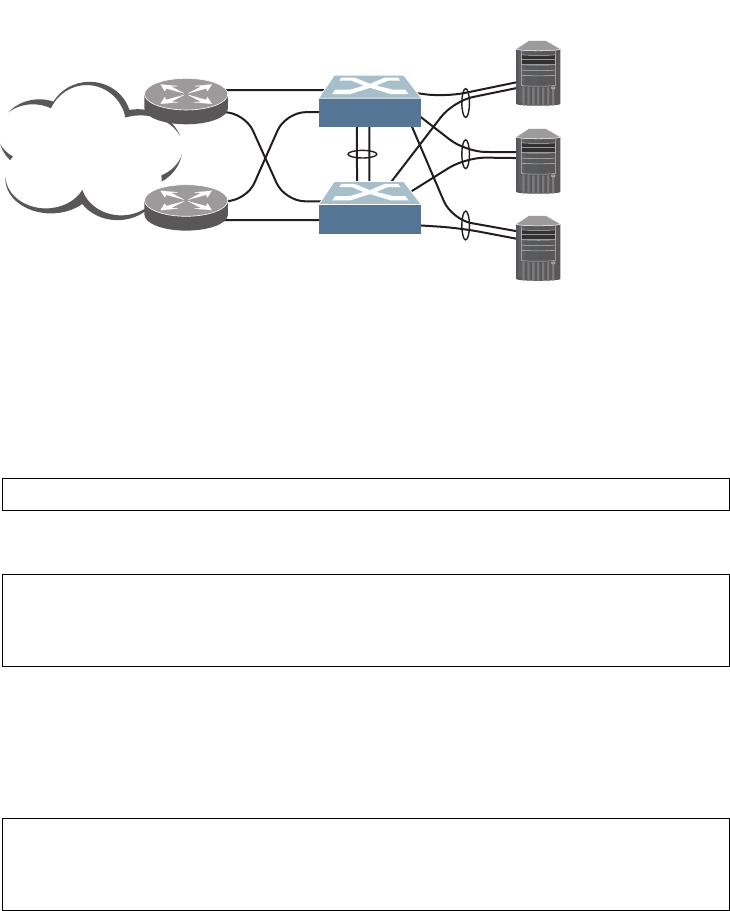
© Copyright Lenovo 2015 Chapter 11: Virtual Link Aggregation Groups 191
VLAGs with VRRP
Note: In a multi-layer environment, configure VRRP separately for each layer. We
recommend that you configure VRRP only on the tier with uplinks. See
“Configuring VLAGs in Multiple Layers” on page 196.
VRRP (see Chapter 33, “Virtual Router Redundancy Protocol”) can be used in
conjunction with VLAGs and LACP-capable devices to provide seamless
redundancy.
Figure 20. Active-Active Configuration using VRRP and VLAGs
Task 1: Configure VLAG Peer 1
Note: Before enabling VLAG, you must configure the VLAG tier ID and ISL
portchannel.
1. Configure VLAG tier ID
2. Configure appropriate routing.
Although OSPF is used in this example, static routing could also be deployed. For
more information, see Chapter 29, “Open Shortest Path First” or Chapter 20,
“Basic IP Routing.”
3. Configure a server-facing interface.
Internet
10.0.1.1
10.0.1.2
10.0.1.3
Layer 3
Router
Layer 3
Router
1
2
45
45
1
2
Server 1
Server 2
Server 3
VLAG Peer 1
ISL
VLAG 1
VLAG 2
VLAG 3
VRRP Master
VRRP Backup
Network 10.0.1.0/24
VIR: 10.0.1.100
VLAG Peer 2
VIR: 10.0.1.100
10
11
12
10
11
12
RS G8052(config)#vlagtierid10
RS G8052(config)#routerospf
RS G8052(configrouterospf)#area1areaid0.0.0.1
RS G8052(configrouterospf)#enable
RS G8052(configrouterospf)#exit
RS G8052(config)#interfaceip3
RS G8052(configipif)#ipaddress10.0.1.10255.255.255.0
RS G8052(configipif)#vlan100
RS G8052(configipif)#exit

192 G8052 Application Guide for N/OS 8.3
4. Turn on VRRP and configure the Virtual Interface Router.
5. Set the priority of Virtual Router 1 to 101, so that it becomes the Master.
6. Configure the ISL ports and place them into a port trunk group:
Note: In this case, a dynamic trunk group is shown. A static trunk (portchannel)
could be configured instead.
7. Configure the upstream ports.
8. Configure the server ports.
RS G8052(config)#routervrrp
RS G8052(configvrrp)#enable
RS G8052(configvrrp)#virtualrouter1virtualrouterid1
RS G8052(configvrrp)#virtualrouter1interface3
RS G8052(configvrrp)#virtualrouter1address10.0.1.100
RS G8052(configvrrp)#virtualrouter1enable
RS G8052(configvrrp)#virtualrouter1priority101
RS G8052(configvrrp)#exit
RS G8052(config)#interfaceport45
RS G8052(configif)#switchportmodetrunk
RS G8052(configif)#lacpmodeactive
RS G8052(configif)#lacpkey2000
RS G8052(configif)#exit
RS G8052(config)#interfaceport1
RS G8052(configif)#switchportaccessvlan10
RS G8052(configif)#exit
RS G8052(config)#interfaceport2
RS G8052(configif)#switchportaccessvlan20
RS G8052(configif)#exit
RS G8052(config)#interfaceport10
RS G8052(configif)#switchportaccessvlan100
RS G8052(configif)#exit
RS G8052(config)#interfaceport11
RS G8052(configif)#switchportaccessvlan100
RS G8052(configif)#exit
RS G8052(config)#interfaceport12
RS G8052(configif)#switchportaccessvlan100
RS G8052(configif)#exit

© Copyright Lenovo 2015 Chapter 11: Virtual Link Aggregation Groups 193
9. Configure all VLANs including VLANs for the VLAGs.
10. Configure Internet-facing interfaces.
11. Place the VLAG port(s) in their port trunk groups.
12. Assign the trunks to the VLAGs:
13. Globally enable VLAG
RS G8052(config)#vlan10
RS G8052(configvlan)#exit
RS G8052(config)#vlan20
RS G8052(configvlan)#exit
RS G8052(config)#vlan100
RS G8052(configvlan)#exit
RS G8052(config)#interfaceport45
RS G8052(configif)#switchportmodetrunk
RS G8052(configif)#switchporttrunkallowedvlan100
RS G8052(configif)#exit
RS G8052(config)#interfaceip1
RS G8052(configipif)#ipaddress172.1.1.10255.255.255.0
RS G8052(configipif)#vlan10
RS G8052(configipif)#enable
RS G8052(configipif)#ipospfarea1
RS G8052(configipif)#ipospfenable
RS G8052(configipif)#exit
RS G8052(config)#interfaceip2
RS G8052(configipif)#ipaddress172.1.3.10255.255.255.0
RS G8052(configipif)#vlan20
RS G8052(configipif)#enable
RS G8052(configipif)#ipospfarea1
RS G8052(configipif)#ipospfenable
RS G8052(configipif)#exit
RS G8052(config)#interfaceport10
RS G8052(configif)#lacpmodeactive
RS G8052(configif)#lacpkey1000
RS G8052(configif)#exit
RS G8052(config)#interfaceport11
RS G8052(configif)#lacpmodeactive
RS G8052(configif)#lacpkey1100
RS G8052(configif)#exit
RS G8052(config)#interfaceport12
RS G8052(configif)#lacpmodeactive
RS G8052(configif)#lacpkey1200
RS G8052(configif)#exit
RS G8052(config)#vlagadminkey1000enable
RS G8052(config)#vlagadminkey1100enable
RS G8052(config)#vlagadminkey1200enable
RS G8052(config)#vlagenable

194 G8052 Application Guide for N/OS 8.3
14. Verify the completed configuration:
Task 2: Configure VLAG Peer 2
The VLAG peer (VLAG Peer 2) must be configured using the same ISL trunk type
(dynamic or static), the same VLAN for VLAG and VLAG ISL ports, and the same
STP mode and Tier ID used on VLAG Switch 1.
For each corresponding VLAG on the peer, the port trunk type (dynamic or static),
VLAN, and STP mode and ID must be the same as on VLAG Switch 1.
1. Configure VLAG tier ID and enable VLAG globally.
2. Configure appropriate routing.
Although OSPF is used in this example, static routing could also be deployed.
3. Configure a server-facing interface.
4. Turn on VRRP and configure the Virtual Interface Router.
5. Configure the ISL ports and place them into a port trunk group:
#showvlaginformation
RS G8052(config)#vlagtierid10
RS G8052(config)#vlagenable
RS G8052(config)#routerospf
RS G8052(configrouterospf)#area1areaid0.0.0.1
RS G8052(configrouterospf)#enable
RS G8052(configrouterospf)#exit
RS G8052(config)#interfaceip3
RS G8052(configipif)#ipaddress10.0.1.11255.255.255.0
RS G8052(configipif)#vlan100
RS G8052(configipif)#exit
RS G8052(config)#routervrrp
RS G8052(configvrrp)#enable
RS G8052(configvrrp)#virtualrouter1virtualrouterid1
RS G8052(configvrrp)#virtualrouter1interface3
RS G8052(configvrrp)#virtualrouter1address10.0.1.100
RS G8052(configvrrp)#virtualrouter1enable
RS G8052(config)#interfaceport45
RS G8052(configif)#switchportmodetrunk
RS G8052(configif)#lacpmodeactive
RS G8052(configif)#lacpkey2000
RS G8052(configif)#exit

© Copyright Lenovo 2015 Chapter 11: Virtual Link Aggregation Groups 195
6. Configure the upstream ports.
7. Configure the server ports.
8. Configure all VLANs including VLANs for the VLAGs.
9. Configure Internet-facing interfaces.
RS G8052(config)#interfaceport1
RS G8052(configif)#switchportaccessvlan30
RS G8052(configif)#exit
RS G8052(config)#interfaceport2
RS G8052(configif)#switchportaccessvlan40
RS G8052(configif)#exit
RS G8052(config)#interfaceport10
RS G8052(configif)#switchportaccessvlan100
RS G8052(configif)#exit
RS G8052(config)#interfaceport11
RS G8052(configif)#switchportaccessvlan100
RS G8052(configif)#exit
RS G8052(config)#interfaceport12
RS G8052(configif)#switchportaccessvlan100
RS G8052(configif)#exit
RS G8052(config)#vlan30
RS G8052(configvlan)#exit
RS G8052(config)#vlan40
RS G8052(configvlan)#exit
RS G8052(config)#vlan100
RS G8052(configvlan)#exit
RS G8052(config)#interfaceport45
RS G8052(configif)#switchportmodetrunk
RS G8052(configif)#switchporttrunkallowedvlan100
RS G8052(configif)#exit
RS G8052(config)#interfaceip1
RS G8052(configipif)#ipaddress172.1.2.11255.255.255.0
RS G8052(configipif)#vlan30
RS G8052(configipif)#enable
RS G8052(configipif)#ipospfarea1
RS G8052(configipif)#ipospfenable
RS G8052(configipif)#exit
RS G8052(config)#interfaceip2
RS G8052(configipif)#ipaddress172.1.4.12255.255.255.0
RS G8052(configipif)#vlan40
RS G8052(configipif)#enable
RS G8052(configipif)#ipospfarea1
RS G8052(configipif)#ipospfenable
RS G8052(configipif)#exit
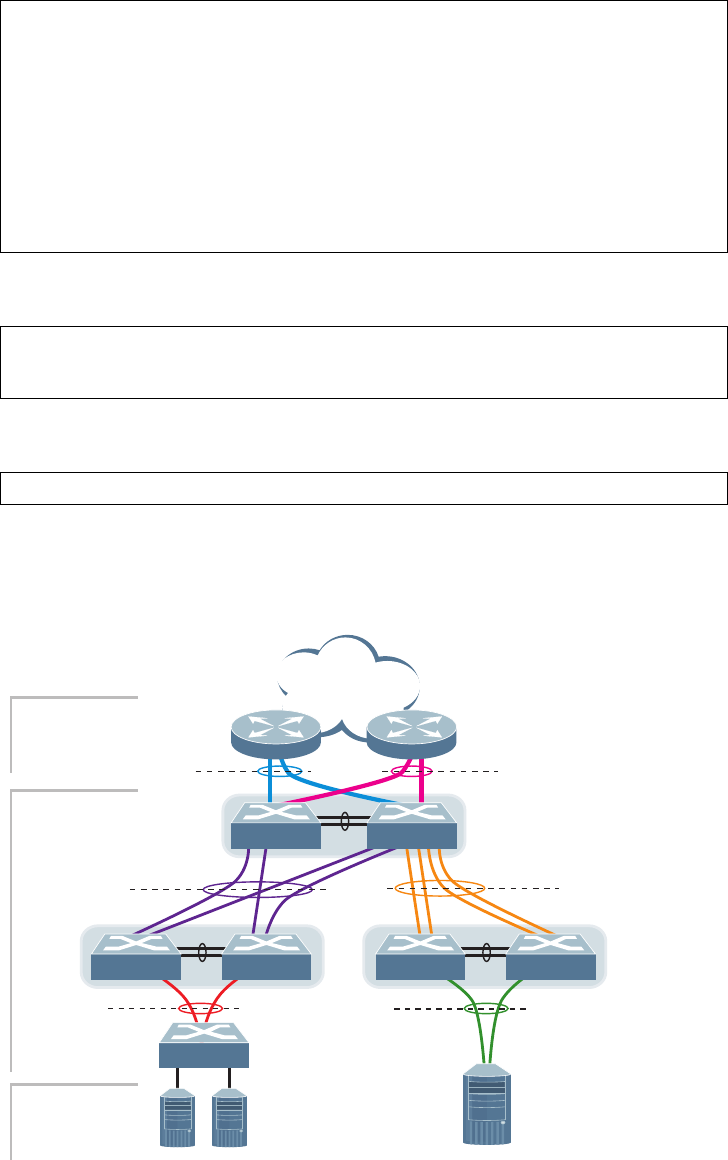
196 G8052 Application Guide for N/OS 8.3
10. Place the VLAG port(s) in their port trunk groups.
11. Assign the trunks to the VLAGs:
12. Verify the completed configuration:
Configuring VLAGs in Multiple Layers
Figure 21. VLAG in Multiple Layers
Figure 21 shows an example of VLAG being used in a multi-layer environment.
Following are the configuration steps for the topology.
RS G8052(config)#interfaceport10
RS G8052(configif)#lacpmodeactive
RS G8052(configif)#lacpkey1000
RS G8052(configif)#exit
RS G8052(config)#interfaceport11
RS G8052(configif)#lacpmodeactive
RS G8052(configif)#lacpkey1100
RS G8052(configif)#exit
RS G8052(config)#interfaceport12
RS G8052(configif)#lacpmodeactive
RS G8052(configif)#lacpkey1200
RS G8052(configif)#exit
RS G8052(config)#vlagadminkey1000enable
RS G8052(config)#vlagadminkey1100enable
RS G8052(config)#vlagadminkey1200enable
#showvlaginformation
ISL
VLAG 3
VLAG 5 VLAG 6
TrunkTrunk
VLAG 2
Trunk
ISL
ISL
Layer 2/3 Border
Layer 2 Region
with multiple levels
Servers
VLAG
Peers C
VLAG
Peers B
VLAG
Peers A
VLAG 1
Trunk
Trunk
VLAG 4
LACP-capable
Server
LACP-capable
Switch
LACP-capable
Routers
Switch A Switch B
Switch C Switch D Switch E Switch F
Switch G
VLAG 3

© Copyright Lenovo 2015 Chapter 11: Virtual Link Aggregation Groups 197
Task 1: Configure Layer 2/3 border switches.
Configure ports on border switch as follows:
Repeat the previous steps for the second border switch.
Task 2: Configure switches in the Layer 2 region.
Consider the following:
-ISL ports on switches A and B - ports 1, 2
-Ports connecting to Layer 2/3 - ports 5, 6
-Ports on switches A and B connecting to switches C and D: ports 10, 11
-Ports on switch B connecting to switch E: ports 15, 16
-Ports on switch B connecting to switch F: ports 17, 18
1. Configure VLAG tier ID and enable VLAG globally.
2. Configure ISL ports on Switch A.
3. Configure port on Switch A connecting to Layer 2/3 router 1.
RS G8052(config)#interfaceport1,2
RS G8052(configif)#lacpkey100
RS G8052(configif)#lacpmodeactive
RS G8052(configif)#exit
RS G8052(config)#vlagtierid10
RS G8052(config)#vlagenable
RS G8052(config)#interfaceport1,2
RS G8052(configif)#switchportmodetrunk
RS G8052(configif)#lacpkey200
RS G8052(configif)#lacpmodeactive
RS G8052(configif)#exit
RS G8052(config)#vlagisladminkey200
RS G8052(configvlan)#exit
RS G8052(config)#vlan10
VLANnumber10withname“VLAN10”created
VLAN10wasassignedtoSTG10
RS G8052(configvlan)#exit
RS G8052(config)#interfaceport1,2,5
RS G8052(configif)#switchportmodetrunk
RS G8052(configif)#switchporttrunkallowedvlan10
RS G8052(configif)#exit
RS G8052(config)#interfaceport5
RS G8052(configif)#lacpkey400
RS G8052(configif)#lacpmodeactive
RS G8052(configif)#exit
RS G8052(config)#vlagadminkey400enable

198 G8052 Application Guide for N/OS 8.3
Repeat the previous steps on Switch B for ports connecting to Layer 2/3 router 1.
4. Configure port on Switch A connecting to Layer 2/3 router 2.
Repeat these commands on Switch B for ports connecting to Layer 2/3 router 2.
5. Configure ports on Switch A connecting to downstream VLAG switches C and D.
Repeat these commands on Switch B for ports connecting to downstream VLAG
switch C and D.
6. Configure ports on Switch B connecting to downstream switches E and F.
7. Configure ISL between switches C and D, and between E and F as shown in Step 1.
8. Configure the Switch G as shown in Step 2.
RS G8052(config)#vlan20
VLANnumber20withname“VLAN20”created
VLAN20wasassignedtoSTG20
RS G8052(configvlan)#exit
RS G8052(config)#interfaceport1,2,6
RS G8052(configif)#switchportmodetrunk
RS G8052(configif)#switchporttrunkallowedvlan20
RS G8052(configif)#exit
RS G8052(config)#interfaceport6
RS G8052(configif)#lacpkey500
RS G8052(configif)#lacpmodeactive
RS G8052(configif)#exit
RS G8052(config)#vlagadminkey500enable
RS G8052(config)#vlan20
RS G8052(configvlan)#exit
RS G8052(config)#interfaceport10,11
RS G8052(configif)#switchportmodetrunk
RS G8052(configif)#switchporttrunkallowedvlan20
RS G8052(configif)#lacpkey600
RS G8052(configif)#lacpmodeactive
RS G8052(configif)#exit
RS G8052(config)#vlagadminkey600enable
RS G8052(config)#vlan30
RS G8052(configvlan)#exit
RS G8052(config)#interfaceport1518
RS G8052(configif)#switchportmodetrunk
RS G8052(configif)#switchporttrunkallowedvlan30
RS G8052(configif)#lacpkey700
RS G8052(configif)#lacpmodeactive
RS G8052(configif)#exit

© Copyright Lenovo 2015 199
Chapter 12. Quality of Service
Quality of Service features allow you to allocate network resources to
mission-critical applications at the expense of applications that are less sensitive to
such factors as time delays or network congestion. You can configure your network
to prioritize specific types of traffic, ensuring that each type receives the
appropriate Quality of Service (QoS) level.
The following topics are discussed in this section:
-“QoS Overview” on page 200
-“Using ACL Filters” on page 201
-“Using DSCP Values to Provide QoS” on page 204
-“Using 802.1p Priority to Provide QoS” on page 210
-“Queuing and Scheduling” on page 211
-“Control Plane Protection” on page 211
-“WRED with ECN” on page 212
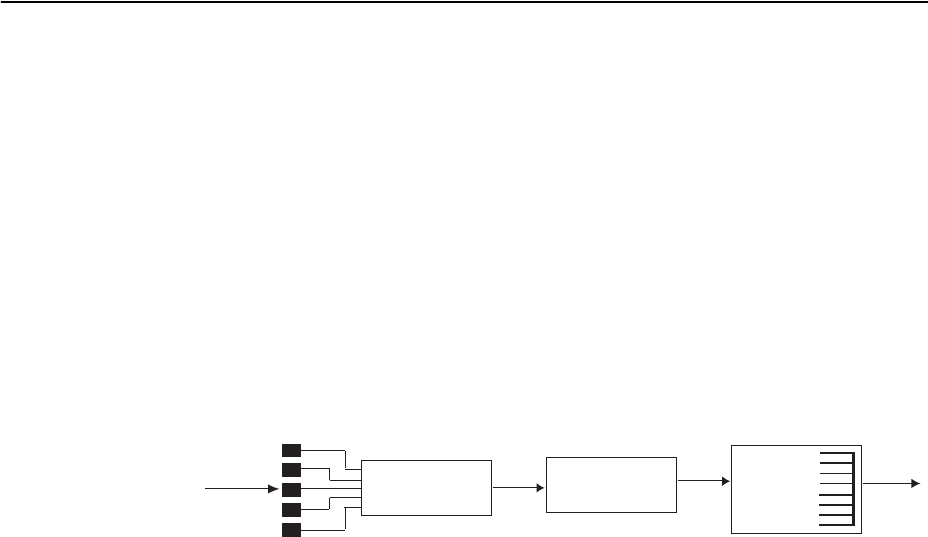
200 G8052 Application Guide for N/OS 8.3
QoS Overview
QoS helps you allocate guaranteed bandwidth to the critical applications, and limit
bandwidth for less critical applications. Applications such as video and voice must
have a certain amount of bandwidth to work correctly; using QoS, you can provide
that bandwidth when necessary. Also, you can put a high priority on applications
that are sensitive to timing out or that cannot tolerate delay, by assigning their
traffic to a high-priority queue.
By assigning QoS levels to traffic flows on your network, you can ensure that
network resources are allocated where they are needed most. QoS features allow
you to prioritize network traffic, thereby providing better service for selected
applications.
Figure 22 shows the basic QoS model used by the switch.
Figure 22. QoS Model
The basic QoS model works as follows:
-Classify traffic:
Read DSCP value.
Read 802.1p priority value.
Match ACL filter parameters.
-Perform actions:
Define bandwidth and burst parameters
Select actions to perform on in-profile and out-of-profile traffic
Deny packets
Permit packets
Mark DSCP or 802.1p Priority
Set COS queue (with or without re-marking)
-Queue and schedule traffic:
Place packets in one of the COS queues.
Schedule transmission based on the COS queue.
Ports
ACL
Filter Permit/Deny
Classify
Packets
Perform
Actions Egress
Ingress
COS
Queue
Queue and
Schedule

© Copyright Lenovo 2015 Chapter 12: Quality of Service 201
Using ACL Filters
Access Control Lists (ACLs) are filters that allow you to classify and segment
traffic, so you can provide different levels of service to different traffic types. Each
filter defines the conditions that must match for inclusion in the filter, and also the
actions that are performed when a match is made.
Lenovo Network Operating System 8.3 supports up to 640 ACLs.
The G8052 allows you to classify packets based on various parameters. For
example:
-Ethernet: source MAC, destination MAC, VLAN number/mask, Ethernet type,
priority.
-IPv4: Source IP address/mask, destination address/mask, type of service, IP pro-
tocol number.
-TCP/UPD: Source port, destination port, TCP flag.
-Packet format
For ACL details, see Chapter 7, “Access Control Lists.”
Summary of ACL Actions
Actions determine how the traffic is treated. The G8052 QoS actions include the
following:
-Pass or Drop
-Re-mark a new DiffServ Code Point (DSCP)
-Re-mark the 802.1p field
-Set the COS queue
202 G8052 Application Guide for N/OS 8.3
ACL Metering and Re-Marking
You can define a profile for the aggregate traffic flowing through the G8052 by
configuring a QoS meter (if desired) and assigning ACLs to ports. When you add
ACLs to a port, make sure they are ordered correctly in terms of precedence.
Actions taken by an ACL are called In-Profile actions. You can configure additional
In-Profile and Out-of-Profile actions on a port. Data traffic can be metered, and
re-marked to ensure that the traffic flow provides certain levels of service in terms
of bandwidth for different types of network traffic.
Metering
QoS metering provides different levels of service to data streams through
user-configurable parameters. A meter is used to measure the traffic stream against
a traffic profile, which you create. Thus, creating meters yields In-Profile and
Out-of-Profile traffic for each ACL, as follows:
-In-Profile–If there is no meter configured or if the packet conforms to the meter,
the packet is classified as In-Profile.
-Out-of-Profile–If a meter is configured and the packet does not conform to the
meter (exceeds the committed rate or maximum burst rate of the meter), the
packet is classified as Out-of-Profile.
Using meters, you set a Committed Rate in Kbps (multiples of 64 Mbps). All traffic
within this Committed Rate is In-Profile. Additionally, you set a Maximum Burst
Size that specifies an allowed data burst larger than the Committed Rate for a brief
period. These parameters define the In-Profile traffic.
Meters keep the sorted packets within certain parameters. You can configure a
meter on an ACL, and perform actions on metered traffic, such as packet
re-marking.
© Copyright Lenovo 2015 Chapter 12: Quality of Service 203
Re-Marking
Re-marking allows for the treatment of packets to be reset based on new network
specifications or desired levels of service. You can configure the ACL to re-mark a
packet as follows:
-Change the DSCP value of a packet, used to specify the service level traffic
receives.
-Change the 802.1p priority of a packet.

204 G8052 Application Guide for N/OS 8.3
Using DSCP Values to Provide QoS
The switch uses the Differentiated Services (DiffServ) architecture to provide QoS
functions. DiffServ is described in IETF RFCs 2474 and 2475.
The six most significant bits in the TOS byte of the IP header are defined as
DiffServ Code Points (DSCP). Packets are marked with a certain value depending
on the type of treatment the packet must receive in the network device. DSCP is a
measure of the Quality of Service (QoS) level of the packet.
The switch can classify traffic by reading the DiffServ Code Point (DSCP) or IEEE
802.1p priority value, or by using filters to match specific criteria. When network
traffic attributes match those specified in a traffic pattern, the policy instructs the
switch to perform specified actions on each packet that passes through it. The
packets are assigned to different Class of Service (COS) queues and scheduled for
transmission.
Differentiated Services Concepts
To differentiate between traffic flows, packets can be classified by their DSCP
value. The Differentiated Services (DS) field in the IP header is an octet, and the
first six bits, called the DS Code Point (DSCP), can provide QoS functions. Each
packet carries its own QoS state in the DSCP. There are 64 possible DSCP values
(0-63).
Figure 23. Layer 3 IPv4 packet
The switch can perform the following actions to the DSCP:
-Read the DSCP value of ingress packets.
-Re-mark the DSCP value to a new value
-Map the DSCP value to a Class of Service queue (COSq).
The switch can use the DSCP value to direct traffic prioritization.
With DiffServ, you can establish policies to direct traffic. A policy is a
traffic-controlling mechanism that monitors the characteristics of the traffic, (for
example, its source, destination, and protocol) and performs a controlling action on
the traffic when certain characteristics are matched.
7 6 5 4 3 2 1 0
Differentiated Services Code Point (DSCP)
unused
Version
Length ToS Length ID Offset TTL Proto FCS DIP
SIP Data

© Copyright Lenovo 2015 Chapter 12: Quality of Service 205
Trusted/Untrusted Ports
By default, all ports on the G8052 are trusted. To configure untrusted ports,
re-mark the DSCP value of the incoming packet to a lower DSCP value using the
following commands:
RS G8052(config)#interfaceport1
RS G8052(configif)#dscpmarking
RS G8052(configif)#exit
RS G8052(config)#qosdscpdscpmapping<DSCP value (0-63)><new value>
RS G8052(config)#qosdscpremarking

206 G8052 Application Guide for N/OS 8.3
Per Hop Behavior
The DSCP value determines the Per Hop Behavior (PHB) of each packet. The PHB
is the forwarding treatment given to packets at each hop. QoS policies are built by
applying a set of rules to packets, based on the DSCP value, as they hop through
the network.
The default settings are based on the following standard PHBs, as defined in the
IEEE standards:
-Expedited Forwarding (EF)—This PHB has the highest egress priority and
lowest drop precedence level. EF traffic is forwarded ahead of all other traffic.
EF PHB is described in RFC 2598.
-Assured Forwarding (AF)—This PHB contains four service levels, each with a
different drop precedence, as shown in the following table. Routers use drop
precedence to determine which packets to discard last when the network
becomes congested. AF PHB is described in RFC 2597.
-Class Selector (CS)—This PHB has eight priority classes, with CS7 representing
the highest priority, and CS0 representing the lowest priority, as shown in the
following table. CS PHB is described in RFC 2474.
Drop
Precedence Class 1 Class 2 Class 3 Class 4
Low AF11 (DSCP 10) AF21 (DSCP 18) AF31 (DSCP 26) AF41 (DSCP 34)
Medium AF12 (DSCP 12) AF22 (DSCP 20) AF32 (DSCP 28) AF42 (DSCP 36)
High AF13 (DSCP 14) AF23 (DSCP 22) AF33 (DSCP 30) AF43 (DSCP 38)
Priority Class Selector DSCP
Highest CS7 56
CS6 48
CS5 40
CS4 32
CS3 24
CS2 16
CS1 8
Lowest CS0 0

© Copyright Lenovo 2015 Chapter 12: Quality of Service 207
QoS Levels
Table 17 shows the default service levels provided by the switch, listed from
highest to lowest importance:
DSCP Re-Marking and Mapping
The switch can use the DSCP value of ingress packets to re-mark the DSCP to a
new value, and to set an 802.1p priority value. Use the following command to view
the default settings.
Table 17. Default QoS Service Levels
Service Level Default PHB 802.1p Priority
Critical CS7 7
Network Control CS6 6
Premium EF, CS5 5
Platinum AF41, AF42, AF43, CS4 4
Gold AF31, AF32, AF33, CS3 3
Silver AF21, AF22, AF23, CS2 2
Bronze AF11, AF12, AF13, CS1 1
Standard DF, CS0 0
RS G8052#showqosdscp
CurrentDSCPRemarkingConfiguration:OFF
DSCPNewDSCPNew802.1pPrio
000
110
220
330
440
550
660
770
881
990
10101
...
54540
55550
56567
57570
58580
59590
60600
61610
62620
63630

208 G8052 Application Guide for N/OS 8.3
Use the following command to turn on DSCP re-marking globally:
Then you must enable DSCP re-marking on any port that you wish to perform this
function (Interface Port mode).
Note: If an ACL meter is configured for DSCP re-marking, the meter function
takes precedence over QoS re-marking.
DSCP Re-Marking Configuration Examples
Example 1
The following example includes the basic steps for re-marking DSCP value and
mapping DSCP value to 802.1p.
1. Turn DSCP re-marking on globally, and define the DSCP-DSCP-802.1p mapping.
You can use the default mapping.
2. Enable DSCP re-marking on a port.
Example 2
The following example assigns strict priority to VoIP traffic and a lower priority to
all other traffic.
1. Create an ACL to re-mark DSCP value and COS queue for all VoIP packets.
2. Create an ACL to set a low priority to all other traffic.
RS G8052(config)#qosdscpremarking
RS G8052(config)#qosdscpremarking
RS G8052(config)#qosdscpdscpmapping<DSCP value (0-63)><new value>
RS G8052(config)#qosdscpdot1pmapping<DSCP value (0-63)><802.1p value>
RS G8052(config)#interfaceport1
RS G8052(configif)#qosdscpremarking
RS G8052(configif)#exit
RS G8052(config)#accesscontrollist2tcpudpsourceport50600xffff
RS G8052(config)#accesscontrollist2metercommittedrate10000000
RS G8052(config)#accesscontrollist2meterenable
RS G8052(config)#accesscontrollist2remarkinprofiledscp56
RS G8052(config)#accesscontrollist2remarkdot1p7
RS G8052(config)#accesscontrollist2actionpermit
RS G8052(config)#accesscontrollist3actionsetpriority1
RS G8052(config)#accesscontrollist3actionpermit

© Copyright Lenovo 2015 Chapter 12: Quality of Service 209
3. Apply the ACLs to a port and enable DSCP marking.
4. Enable DSCP re-marking globally.
5. Assign the DSCP re-mark value.
6. Assign strict priority to VoIP COS queue.
7. Map priority value to COS queue for non-VoIP traffic.
8. Assign weight to the non-VoIP COS queue.
RS G8052(config)#interfaceport5
RS G8052(configif)#accesscontrollist2
RS G8052(configif)#accesscontrollist3ethernetsourcemacaddress
00:00:00:00:00:00 00:00:00:00:00:00
RS G8052(configif)#dscpmarking
RS G8052(configif)#exit
RS G8052(config)#qosdscpremarking
RS G8052(config)#qosdscpdscpmapping409
RS G8052(config)#qosdscpdscpmapping469
RS G8052(config)#qostransmitqueueweightcos70
RS G8052(config)#qostransmitqueuemapping11
RS G8052(config)#qostransmitqueueweightcos12

210 G8052 Application Guide for N/OS 8.3
Using 802.1p Priority to Provide QoS
The G8052 provides Quality of Service functions based on the priority bits in a
packet’s VLAN header. (The priority bits are defined by the 802.1p standard within
the IEEE 802.1Q VLAN header.) The 802.1p bits, if present in the packet, specify the
priority to be given to packets during forwarding. Packets with a numerically
higher (non-zero) priority are given forwarding preference over packets with
lower priority value.
The IEEE 802.1p standard uses eight levels of priority (0-7). Priority 7 is assigned to
highest priority network traffic, such as OSPF or RIP routing table updates,
priorities 5-6 are assigned to delay-sensitive applications such as voice and video,
and lower priorities are assigned to standard applications. A value of 0 (zero)
indicates a “best effort” traffic prioritization, and this is the default when traffic
priority has not been configured on your network. The switch can filter packets
based on the 802.1p values.
Figure 24. Layer 2 802.1q/802.1p VLAN tagged packet
Ingress packets receive a priority value, as follows:
-Tagged packets—switch reads the 802.1p priority in the VLAN tag.
-Untagged packets—switch tags the packet and assigns an 802.1p priority value,
based on the port’s default 802.1p priority.
Egress packets are placed in a COS queue based on the priority value, and
scheduled for transmission based on the scheduling weight of the COS queue.
To configure a port’s default 802.1p priority value, use the following commands:
RS G8052(config)#interfaceport1
RS G8052(configif)#dot1p<802.1p value (0-7)>
RS G8052(configif)#exit
7 6 5 4 3 2 1 0
Priority
7 6 5 4 3 2 1 0
VLAN Identifier (VID)
SFD DMAC SMAC Tag E Type Data FCS
Preamble

© Copyright Lenovo 2015 Chapter 12: Quality of Service 211
Queuing and Scheduling
The G8052 has 8 output Class of Service (COS) queues per port. If CEE is enabled,
this is changed to 3 queues per port and ETS is then used to configure the
scheduling in a manner different than what is described in this section. Each
packet’s 802.1p priority determines its COS queue, except when an ACL action sets
the COS queue of the packet.
You can configure the following attributes for COS queues:
-Map 802.1p priority value to a COS queue
-Define the scheduling weight of each COS queue
You can map 802.1p priority value to a COS queue, as follows:
To set the COS queue scheduling weight, use the following command:
Control Plane Protection
Control plane receives packets that are required for the internal protocol state
machines. This type of traffic is usually received at low rate. However, in some
situations such as DOS attacks, the switch may receive this traffic at a high rate. If
the control plane protocols are unable to process the high rate of traffic, the switch
may become unstable.
The control plane receives packets that are channeled through protocol-specific
packet queues. Multiple protocols can be channeled through a common packet
queue. However, one protocol cannot be channeled through multiple packet
queues. These packet queues are applicable only to the packets received by the
software and does not impact the regular switching or routing traffic. Packet queue
with a higher number has higher priority.
You can configure the bandwidth for each packet queue. Protocols that share a
packet queue will also share the bandwidth.
Given below are the commands to configure the control plane protection (CoPP)
feature:
RS G8052(config)#qostransmitqueuemapping<802.1p priority value (0-7)>
<COS queue (0-7)>
RS G8052(config)#qostransmitqueueweightcos<COSq number>
<COSq weight (0-15)>
RS G8052(config)#qosprotocolpacketcontrolpacketqueuemap<0-47>
<protocol> (Configure a queue for a protocol)
RS G8052(config)#qosprotocolpacketcontrolratelimitpacketqueue
<0-47><1-10000>(Set the bandwidth for the queue,
in packets per second)

212 G8052 Application Guide for N/OS 8.3
WRED with ECN
Weighted Random Early Detection (WRED) is a congestion avoidance algorithm
that helps prevent a TCP collapse, where a congested port indiscriminately drops
packets from all sessions. The transmitting hosts wait to retransmit resulting in a
dramatic drop in throughput. Often times, this TCP collapse repeats in a cycle,
which results in a saw-tooth pattern of throughput. WRED selectively drops
packets before the queue gets full, allowing majority of the traffic to flow smoothly.
WRED discards packets based on the CoS queues. Packets marked with lower
priorities are discarded first.
Explicit Congestion Notification (ECN) is an extension to WRED. For packets that
are ECN-aware, the ECN bit is marked to signal impending congestion instead of
dropping packets. The transmitting hosts then slow down sending packets.
How WRED/ECN work together
For implementing WRED, you must define a profile with minimum threshold,
maximum threshold, and a maximum drop probability. The profiles can be defined
on a port or a CoS.
For implementing ECN, you require ECN-specific field that has two bits—the
ECN-capable Transport (ECT) bit and the CE (Congestion Experienced) bit—in the
IP header. ECN is identified and defined by the values in these bits in the
Differentiated Services field of IP Header. Table 18 shows the combination values
of the ECN bits.
Table 18. ECN Bit Setting
ECT Bit CE Bit Description
00Not ECN-capable
0 1 Endpoints of the transport protocol are ECN-capable
1 0 Endpoints of the transport protocol are ECN-capable
1 1 Congestion experienced
© Copyright Lenovo 2015 Chapter 12: Quality of Service 213
WRED and ECN work together as follows:
-If the number of packets in the queue is less than the minimum threshold,
packets are transmitted. This happens irrespective of the ECN bit setting, and on
networks where only WRED (without ECN) is enabled.
-If the number of packets in the queue is between the minimum threshold and
the maximum threshold, one of the following occurs:
If the ECN field on the packet indicates that the endpoints are ECN-capable
and the WRED algorithm determines that the packet has likely been dropped
based on the drop probability, the ECT and CE bits for the packet are changed
to 1, and the packet is transmitted.
If the ECN field on the packet indicates that neither endpoint is ECN-capable,
the packet may be dropped based on the WRED drop probability. This is true
even in cases where only WRED (without ECN) is enabled.
If the ECN field on the packet indicates that the network is experiencing
congestion, the packet is transmitted. No further marking is required.
-If the number of packets in the queue is greater than the maximum threshold,
packets are dropped based on the drop probability. This is the identical
treatment a packet receives when only WRED (without ECN) is enabled.
Configuring WRED/ECN
For configuring WRED, you must define a TCP profile and a non-TCP profile.
WRED prioritizes TCP traffic over non-TCP traffic.
For configuring ECN, you must define a TCP profile. You don’t need a non-TCP
profile as ECN can be enabled only for TCP traffic.
If you do not configure the profiles, the profile thresholds are set to maximum
value of 0x3FFF to avoid drops.
Note: WRED/ECN can be configured only on physical ports and not on trunks.
WRED and ECN are applicable only to unicast traffic.
Consider the following guidelines for configuring WRED/ECN:
-Profiles can be configured globally or per port. Global profiles are applicable to
all ports.
-Always enable the global profile before applying the port-level profile.
Note: You can enable the global profile and disable the port-level profile.
However, you must not enable the port-level profile if the global profile is disabled.
-WRED settings are dependent on Memory Management Unit (MMU) Settings. If
you change the MMU setting, it could impact WRED functionality.
-You cannot enable WRED if you have QoS buffer settings such as Converged
Enhanced Ethernet (CEE), Priority-based Flow Control (PFC), or Enhanced
Transmission Selection (ETS).
-The number of WRED profiles per-port must match the total number of COS
Queues configured in the system.

214 G8052 Application Guide for N/OS 8.3
-If you have configured a TCP profile and enabled ECN, ECN marking happens
when traffic experiencing congestion is TCP, or a mix of TCP and non-TCP
traffic.
-Configure a TCP profile only after enabling ECN on the interface.
-You can apply TCP and non-TCP profile configurations irrespective of ECN
status (enabled/disabled).
WRED/ECN Configuration Example
Follow these steps to enable WRED/ECN and configure a global and/or port-level
profile. If you configure global and port-level profile, WRED/ECN uses the
port-level profile to make transmit/drop decisions when experiencing traffic
congestion.
Configure Global Profile for WRED
1. Enable WRED globally.
2. Enable a transmit queue.
3. Configure WRED thresholds (minimum, maximum, and drop rate) for TCP traffic.
Note: Percentages are of Average Queue available in hardware and not
percentages of traffic.
4. Configure WRED thresholds (minimum, maximum, and drop rate) for non-TCP
traffic.
5. Select the port.
6. Enable WRED for the port.
RS G8052(config)#qosrandomdetectenable
RS G8052(config)#qosrandomdetecttransmitqueue0enable
RS G8052(config)#qosrandomdetecttransmitqueue0tcpminthreshold1
maxthreshold2droprate3
RS G8052(config)#qosrandomdetecttransmitqueue0nontcp
minthreshold4maxthreshold5droprate6
RS G8052(config)#interfaceport1
RS G8052(configif)#randomdetectenable
RS G8052(configif)#exit

© Copyright Lenovo 2015 Chapter 12: Quality of Service 215
Configure Port-level Profile for WRED
1. Enable WRED globally.
2. Select the port.
3. Enable WRED for the port .
4. Enable a transmit queue.
5. Configure WRED thresholds (minimum, maximum, and drop rate) for TCP traffic.
Note: Percentages are of Average Queue available in hardware and not
percentages of traffic.
6. Configure WRED thresholds (minimum, maximum, and drop rate) for non-TCP
traffic.
Configure Global Profile for ECN
1. Enable ECN globally.
2. Enable a transmit queue.
3. Configure ECN thresholds (minimum, maximum, and drop rate) for TCP traffic.
Note: Percentages are of Average Queue available in hardware and not
percentages of traffic.
RS G8052(config)#qosrandomdetectenable
RS G8052(config)#interfaceport1
RS G8052(configif)#randomdetectenable
RS G8052(configif)#randomdetecttransmitqueue0enable
RS G8052(configif)#randomdetecttransmitqueue0tcpminthreshold11
maxthreshold22droprate33
RS G8052(configif)#randomdetecttransmitqueue0nontcpminthreshold
44maxthreshold55droprate66
RS G8052(configif)#exit
RS G8052(config)#qosrandomdetectecnenable
RS G8052(config)#qosrandomdetecttransmitqueue0enable
RS G8052(config)#qosrandomdetecttransmitqueue0tcpminthreshold1
maxthreshold2droprate3

216 G8052 Application Guide for N/OS 8.3
4. Select the port.
5. Enable ECN for the port.
Configure Port-level Profile for ECN
1. Enable ECN globally.
2. Select the port.
3. Enable ECN for the port.
4. Enable a transmit queue.
5. Configure ECN thresholds (minimum, maximum, and drop rate) for TCP traffic.
Note: Percentages are of Average Queue available in hardware and not
percentages of traffic.
RS G8052(config)#interfaceport1
RS G8052(configif)#randomdetectecnenable
RS G8052(configif)#exit
RS G8052(config)#qosrandomdetectecnenable
RS G8052(config)#interfaceport1
RS G8052(configif)#randomdetectecnenable
RS G8052(configif)#randomdetecttransmitqueue0enable
RS G8052(configif)#randomdetecttransmitqueue0tcpminthreshold11
maxthreshold22droprate33
RS G8052(configif)#exit

© Copyright Lenovo 2015 Chapter 12: Quality of Service 217
Verifying WRED/ECN
Use the following command to view global WRED/ECN information:
Use the following command to view port-level WRED/ECN information:
RS G8052(config)#showqosrandomdetect
Currentwredandecnconfiguration:
GlobalECN:Enable
GlobalWRED:Enable
TQ0:WREDTcpMinThrTcpMaxThrTcpDrateNonTcpMinThrNonTcpMaxThrNonTcpDrate
Ena102030102030
TQ1:WREDTcpMinThrTcpMaxThrTcpDrateNonTcpMinThrNonTcpMaxThrNonTcpDrate
Dis000000
TQ2:WREDTcpMinThrTcpMaxThrTcpDrateNonTcpMinThrNonTcpMaxThrNonTcpDrate
Dis000000
TQ3:WREDTcpMinThrTcpMaxThrTcpDrateNonTcpMinThrNonTcpMaxThrNonTcpDrate
Dis000000
TQ4:WREDTcpMinThrTcpMaxThrTcpDrateNonTcpMinThrNonTcpMaxThrNonTcpDrate
Dis000000
TQ5:WREDTcpMinThrTcpMaxThrTcpDrateNonTcpMinThrNonTcpMaxThrNonTcpDrate
Dis000000
TQ6:WREDTcpMinThrTcpMaxThrTcpDrateNonTcpMinThrNonTcpMaxThrNonTcpDrate
Dis000000
TQ7:WREDTcpMinThrTcpMaxThrTcpDrateNonTcpMinThrNonTcpMaxThrNonTcpDrate
Dis000000
RS G8052(config)#showinterfaceport1randomdetect
Port:1
ECN:Enable
WRED:Enable
TQ0:WREDTcpMinThrTcpMaxThrTcpDrateNonTcpMinThrNonTcpMaxThrNonTcpDrate
Dis000000
TQ1:WREDTcpMinThrTcpMaxThrTcpDrateNonTcpMinThrNonTcpMaxThrNonTcpDrate
Ena456123
TQ2:WREDTcpMinThrTcpMaxThrTcpDrateNonTcpMinThrNonTcpMaxThrNonTcpDrate
Dis000000
TQ3:WREDTcpMinThrTcpMaxThrTcpDrateNonTcpMinThrNonTcpMaxThrNonTcpDrate
Dis000000
TQ4:WREDTcpMinThrTcpMaxThrTcpDrateNonTcpMinThrNonTcpMaxThrNonTcpDrate
Dis000000
TQ5:WREDTcpMinThrTcpMaxThrTcpDrateNonTcpMinThrNonTcpMaxThrNonTcpDrate
Dis000000
TQ6:WREDTcpMinThrTcpMaxThrTcpDrateNonTcpMinThrNonTcpMaxThrNonTcpDrate
Dis000000
TQ7:WREDTcpMinThrTcpMaxThrTcpDrateNonTcpMinThrNonTcpMaxThrNonTcpDrate
Dis000000
218 G8052 Application Guide for N/OS 8.3
© Copyright Lenovo 2015 219
Part 4: Advanced Switching
Features
220 G8052 Application Guide for N/OS 8.3

© Copyright Lenovo 2015 221
Chapter 13. OpenFlow
This document describes how you can create an OpenFlow Switch instance on the
RackSwitch G8052.
The following topics are discussed in this document:
-“OpenFlow Overview” on page 222
-“Switch Profiles” on page 223
-“OpenFlow Versions” on page 224
-“OpenFlow Instance” on page 225
-“Flow Tables” on page 226
-“Static Flows” on page 228
-“Table-Miss” on page 233
-“Fail Secure Mode” on page 234
-“Emergency Mode” on page 235
-“OpenFlow Ports” on page 237
-“sFlow Compatibility” on page 240
-“OpenFlow Groups” on page 241
-“Configuring OpenFlow” on page 242
-“Feature Limitations” on page 247

222 G8052 Application Guide for N/OS 8.3
OpenFlow Overview
OpenFlow architecture consists of a control plane residing outside of the switch
(typically on a server) and a data plane residing in the switch. The control plane is
called OpenFlow controller. The data plane which resides in the switch consists of
a set of flows which determine the forwarding of data packets.
The OpenFlow protocol is described in the OpenFlow Switch Specification 1.0.0
and OpenFlow Switch Specification 1.3.1.
An OpenFlow network consists of simple flow-based switches in the data path,
with a remote controller to manage all switches in the OpenFlow network.
OpenFlow maintains a TCP channel for communication of flow management
between the controller and the switch. All controller-switch communication takes
place over the switch's management network.

© Copyright Lenovo 2015 Chapter 13: OpenFlow 223
Switch Profiles
The RackSwitch G8052 can be used for configuring OpenFlow and legacy
switching features simultaneously. However, Layer 2 and Layer 3 switching
features can be configured only on the ports that are not OpenFlow ports. Legacy
switching ports and OpenFlow ports do not communicate with each other.
Alternately, the switch can be configured as an OpenFlow-only switch if you do
not need to configure legacy switching features.
Based on your requirement, select the switch boot profile using the following
commands:
-OpenFlow-only: RS G8052(config)#bootprofileopenflow
The switch will operate only in OpenFlow environment. None of the legacy
switching features will be supported.
-OpenFlow and Legacy Switching:
RS G8052(config)# boot profile default
Legacy switching features can be configured on the non-OpenFlow ports. By
default, the switch boots in this profile.
Reload the switch to apply boot profile changes.

224 G8052 Application Guide for N/OS 8.3
OpenFlow Versions
The RackSwitch G8052 can be configured to run either version 1.0 or version 1.3 of
the OpenFlow standard. By default, the switch uses OpenFlow 1.0. To shift
between versions, use the following commands:
-RS G8052(config)#bootopenflowv1
The switch will run OpenFlow 1.0 after reboot. This version does not support
the use of groups, static portchannels, or static LACP trunks in OpenFlow
instances (see “Configuring OpenFlow” on page 242).
-RS G8052(config)#bootopenflowv13
The switch will run OpenFlow 1.3 after reboot. This version does not support
emergency flow tables (see “Emergency Mode” on page 235).
OpenFlow 1.3 includes (but not limited to) the following key features:
-Static portchannels and static LACP trunks
-MAC address/IP address masking
-Flexible Table Miss and Fail Secure
-Static CLI for Flow Programming
-OpenFlow Groups
-FDB aging timer
-OpenFlow 1.0 backwards compatibility

© Copyright Lenovo 2015 Chapter 13: OpenFlow 225
OpenFlow Instance
The G8052 supports up to two instances of the OpenFlow protocol. Each instance
appears as a switch to the controller. Instances on the same switch can be
connected to different networks. Each instance maintains a separate TCP channel
for communication of flow management between controller and switch. Each
instance supports up to four controllers. However, only one controller per instance
is active at any time.
Global OpenFlow configuration applies to all instances. OpenFlow parameters for
an instance can be configured using the command:
RS G8052(config)# openflow instance<instance ID>
.
OpenFlow ports cannot be shared between instances.
226 G8052 Application Guide for N/OS 8.3
Flow Tables
A set of a flow identification condition and an action towards a flow is called flow
entry, and the database that stores the entries is called the flow table. A flow is
defined as all the packets matching a flow entry in an OpenFlow flow table. Each
flow entry includes:
-Qualifiers - These are header fields that are matched with a packet.
-Actions to be performed when a packet matches the qualifiers.
The controller decides which flows to admit and the path their packets follow.
The switch classifies the flows as ACL-based or FDB-based. When the switch
operates in OpenFlow boot profile (See “Switch Profiles” on page 223), a maximum
of 2000 ACL-based flows, 1024 FDB multicast flows, 30976 FDB unicast flowsWhen
the switch operates in default boot profile, a maximum of 1500 ACL-based flows,
1024 FDB multicast flows, and 30976 FDB unicast flows are available. The instances
share these flows dynamically. To guarantee a specific number of flows to an
instance, use the following commands:
-OpenFlow boot profile:
-Default boot profile:
Note: When the switch operates in default boot profile, the number of FDB flows to
an instance cannot be guaranteed.
In version 1.0 of the OpenFlow standard, the G8052 supports two flow tables per
switch instance; basic flow table and emergency flow table. Actions are applied to
packets that match the flow entry. This is done in the data path.
This system identifies packets as a flow by matching parameters in the following
fields:
-Ingress port
-Source MAC (SMAC)
-Destination MAC (DMAC)
-Ether Type
-VLAN TAG – Single VLAN tag – VLAN ID and Priority
-IP address (source IP and destination IP)
-IP Protocol
-DSCP bits
RS G8052(config)#openflowinstance<instance ID>
RS G8052(configopenflowinstance)#maxflowacl<0-2000>
RS G8052(configopenflowinstance)#maxflowmcastfdb<0-1024>
RS G8052(configopenflowinstance)#maxflowucastfdb<0-30976>
RS G8052(config)#openflowinstance<instance ID>
RS G8052(configopenflowinstance)#maxflowacl<0-1500>
RS G8052(configopenflowinstance)#maxflowmcastfdb<0->
© Copyright Lenovo 2015 Chapter 13: OpenFlow 227
-Layer 4 Port (TCP, UDP)
-ICMP code and type
-If EtherType is ARP, the specified ARP type (request/reply) or SIP in the ARP
payload can be used to match a packet.
Once a packet arrives, the switch searches the flow table. When a flow entry is hit
in the search, the packet is processed according to the action specified in the flow
entry.

228 G8052 Application Guide for N/OS 8.3
Static Flows
You can configure static flow entries for OpenFlow instances. The switch forwards
traffic based on these entries even if it is not connected to a controller. Up to 1000
static ACL entries across all instances can be configured. An OpenFlow controller
cannot modify or delete these entries. Static flow entries can replace entries
installed by a controller. Static flow entries are not lost when the switch is reloaded.
Static flow entries are based on the following qualifiers, actions, and options:
Table 19. Static Flow Entry Qualifiers in OpenFlow 1.0
Qualifier Description
ingress-port port of the instance
src-mac source MAC address
dst-mac destination MAC address
vlan-id VLAN identifier (untagged, tagged or <0-4094>)
vlan-priority 802.1p(0-7)
src-ip source IP address
dst-ip destination IP address
src-port Layer 4 source port (0-65535)
dst-port Layer 4 destination port (0-65535)
ether-type "arp"/"0806" or "ip"/"0800" or (hex-value < =
65535)
protocol "tcp" or "udp" or 0-255
tos IP TOS (0-255)
type "request" or "reply" (can be set only if ether type
is ARP)
all all qualifiers or any qualifier
Table 20. Static Flow Entry Qualifiers in OpenFlow 1.3
Qualifier Description
in-port switch input port
in-portchannel switch input static trunk group (portchannel) or
static LACP trunk group
in-phy-port switch physical input port, valid only when
in-port is specified
eth-src source MAC address and mask
eth-dst destination MAC address and mask

© Copyright Lenovo 2015 Chapter 13: OpenFlow 229
vlan-vid VLAN identifier (untagged, tagged or <0-4094>)
vlan-pcp 802.1p(0-7)
ipv4-src source IPv4 address and mask
ipv4-dst destination IPv4 address and mask
tcp-src TCP source port (0-65535)
tcp-dst TCP destination port (0-65535)
udp-src UDP source port (0-65535)
udp-dst UDP destination port (0-65535)
icmpv4-type ICMPv4 type
icmpv4-code ICMPv4 code
eth-type "arp"/"0806" or "ip"/"0800" or (hex-value < =65535)
ip-proto "tcp" or "udp" or 0-255
ip-dscp IP DSCP (6 bits in ToS field)
arp-op "request" or "reply" (can be set only if eth-type is ARP)
all all qualifiers or any qualifier
Table 21. Static Flow Entry Actions in OpenFlow 1.0
Action Description
out-put "all","in-port","flood","controller" or a valid port
set-src-mac change source MAC address
set-dst-mac change destination MAC address
strip-vlan-id strip VLAN
set-vlan-id set VLAN ID
set-vlan-priority set 802.1p priority (0-7)
set-nw-tos set IP TOS (0-255)
drop drop the packet
Table 22. Static Flow Entry Actions in OpenFlow 1.3
Action Description
output physical ports
reserved ports: all, controller, in-port
output-portchannel Logical ports: static trunk group (portchannel) or static
LACP trunk group
set-eth-src change source MAC address
Table 20. Static Flow Entry Qualifiers in OpenFlow 1.3
Qualifier Description

230 G8052 Application Guide for N/OS 8.3
The set-field action includes set-eth-src, set-eth-dst, set-vlan-vid, set-vlan-pcp,
set-ip-dscp. Their order is not mandatory.
The output action includes output and output-portchannel. Their order is not
mandatory.
Port Membership
When static flow entries are configured, port membership changes are handled as
follows:
-If a port is the “in-port” or “out-port” in a static flow entry, the port membership
cannot be changed.
-When a port membership changes, the ingress bitmap of static entries with
in-port ANY will be updated.
-When a port membership changes, the egress bitmap of static entries with
redirect output FlOOD/ANY will be updated.
FDB Aging and ECMP with OpenFlow
You can enable FDB aging in OpenFlow using the following commands:
To enable Layer 2 ECMP for OpenFlow station moves, use the following
commands:
set-eth-dst change destination MAC address
push-vlan push a new VLAN tag, 0x8100
pop-vlan pop the VLAN tag
set-vlan-vid set VLAN ID, <0-4094>
set-vlan-pcp set 802.1p priority (0-7)
set-ip-dscp Set IP DSCP (0-63), 6 highest bits in TOS
drop drop the packet
Table 23. Static Flow Entry Options
Option Description
max-len maximum length of flow to send to controller
Table 22. Static Flow Entry Actions in OpenFlow 1.3
Action Description
RS G8052(config)#interfaceport<port number>
RS G8052(configif)#openflowfdbaging
RS G8052(config)#interfaceport<port number>
RS G8052(configif)#openflowstaticstationmove

© Copyright Lenovo 2015 Chapter 13: OpenFlow 231
Static Flow Examples
Following are examples of static flow entries for OpenFlow 1.0:
-Basic ACL flow:
-Flow with multiple qualifiers and actions:
-Flow with action: output to controller:
Following are examples of static flow entries for OpenFlow 1.3:
-Basic ACL flow:
-Flow with multiple qualifiers and actions:
Static ACL flow entries can be deleted using the command:
RS G8052(configopenflowinstance)#statictableaddindex1match
ingressport=1actionsoutput=10priority12345
RS G8052(configopenflowinstance)#statictableaddindex2match
vlanid=1,dstmac=00:00:00:00:00:01actions
setvlanpriority=3,output=20priority1000
RS G8052(configopenflowinstance)#statictableaddindex3matchall
actionsoutput=controlleroptionsmaxlen=65534priority1000
RS G8052(configopenflowinstance)#statictableaddindex1match
inport=41actionsoutput=50priority12345
RS G8052(configopenflowinstance)#statictableaddindex2match
vlanvid=1,ethdst=00:00:00:00:00:01actionssetvlanpcp=3,output=50
priority1000
RS G8052(configopenflowinstance)#statictableremoveindex<index number>

232 G8052 Application Guide for N/OS 8.3
Static flow table information can be viewed using the following commands:
In OpenFlow version 1.0:
In OpenFlow version 1.3:
RS G8052(configopenflowinstance)#showopenflowtable
OpenflowInstanceId:1
BASICFLOWTABLE
STATICFLOWS
Flow:1Index:1
FilterBased,priority:12345
QUALIFIERS:ingressport:1
ACTION:output:10
STATS:packets=0,bytes=0
Flow:2Index:2
FilterBased,priority:1000
QUALIFIERS:vlanid:1
dstmac:000000000001
ACTION:setvlanpriority=3,output:20
STATS:packets=0,bytes=0
Flow:3Index:3
FilterBased,priority:1000
QUALIFIERS:
ACTION:output:CONTROLLER[MaxLen:65534/bytes(C/S)]
STATS:packets=26,bytes=1776
OpenflowInstanceId:2
BASICFLOWTABLEisEmpty
RS G8052(configopenflowinstance)#showopenflowtable
OpenflowInstanceId:1
STATICFLOWs
Flow1,Index:2,FilterBased,priority:1000
QUALIFIERS:ethdst:00:00:00:00:00:01
vlanvid:1
Instruction:apply_action
ACTION:setvlanpcp=3,output:50
STATS:packets=0,bytes=0
Flow2,Index:1,FilterBased,priority:12345
QUALIFIERS:inport:41
Instruction:apply_action
ACTION:output:50
STATS:packets=0,bytes=0
Openflowinstance2iscurrentlydisabled

© Copyright Lenovo 2015 Chapter 13: OpenFlow 233
Table-Miss
In OpenFlow 1.3, if a match is not found for an arriving packet, the packet is either
dropped or sent to the controller. If sent to the controller, the controller decides
which action(s) to perform on all packets from the same flow. The decision is then
sent to the switch and cached as an entry in the switch instance’s flow table. If the
controller decides to add the flow, it sends a flow add message to the switch. The
switch then adds the flow in its flow table. The next arriving packet that belongs to
the same flow is then forwarded at line-rate through the switch without consulting
the controller.
By default, packets that don’t match any of the existing flow entries are dropped.
To set up an OpenFlow instance to send non-matching packets to the controller
instead of dropping them, use the following commands:
RS G8052(config)#openflowinstance<instance ID>
RS G8052(configopenflowinstance)#tablemisscontroller

234 G8052 Application Guide for N/OS 8.3
Fail Secure Mode
In OpenFlow 1.3, if contact with all controllers is lost, the switch automatically
enters a fail secure mode. In this mode, the switch continues to operate based on the
existing flow entries until they expire (according to the configured flow timeout
value), while packets and messages destined to the controllers are dropped. When
a connection to a controller is reestablished, the controller has the option to either
delete or keep any remaining flow entries.

© Copyright Lenovo 2015 Chapter 13: OpenFlow 235
Emergency Mode
Note: Emergency Mode is supported only in version 1.0 of the OpenFlow
standard.
By default, Emergency mode is disabled. In this state, if the connection to the
controller fails, the switch will behave as described in Fail Secure mode for
Openflow 1.3.
To enable Emergency mode, use the following command:
In Emergency mode enabled state, if the connection to the controller fails, the
switch tries to establish connection with any of the other configured controllers. If
it is unable to connect with any controller, it enters Emergency mode. It replaces
the flow entries with the entries from the emergency flow table.
The switch stays in the Emergency mode for the time configured as the Emergency
timeout interval (default value is 30 seconds), after which the switch tries to
establish connection with any configured controller.
-If connection with a controller is established, the switch exits Emergency mode.
Entries in the Emergency flow table are retained. If desired, the controller may
delete all the emergency flow entries.
-If connection with a controller is not established, the switch stays in Emergency
mode and continues to forward packets based on the Emergency flows. It retries
to establish a connection with a controller every time the Emergency timeout
interval expires.
Emergency mode can be activated or deactivated per instance. To activate
Emergency mode on an instance, use the following command:
To deactivate Emergency mode on an instance, use the following command:
RS G8052(config)#openflowinstance<instance ID>
RS G8052(configopenflowinstance)#emergency
RS G8052#openflowinstance<instance ID> enteremergency
RS G8052#noopenflowinstance<instance ID> enteremergency

236 G8052 Application Guide for N/OS 8.3
Table 24 displays an example of emergency flows created:
Table 24. Emergency Flows
RS G8052(config)#showopenflowtable
OpenflowInstanceId:1
BASICFLOWTABLE
Flow:1
FDBBased,priority:1000,hardtimeout:0
QUALIFIERS:dstmac:010203050600,vlanid:100
ACTION:outport:21
Flow:2
FilterBased,priority:32768,hardtimeout:0,idletimeout:0
QUALIFIERS:vlanid:100
dstmac:010203667600
ACTION:output:22
STATS:packets=0,bytes=0
EMERGENCYFLOWTABLE
Flow:1
FDBBased,priority:1000,hardtimeout:0
QUALIFIERS:dstmac:010203660600,vlanid:100
ACTION:outport:21
Flow:2
FilterBased,priority:32768,hardtimeout:0,idletimeout:0
QUALIFIERS:vlanid:100
dstmac:010203660600
ACTION:output:22
OpenflowInstanceId:2
BASICFLOWTABLE
Flow:1
FDBBased,priority:1000,hardtimeout:0
QUALIFIERS:dstmac:015503119600,vlanid:200
ACTION:outport:31
EMERGENCYFLOWTABLE
Flow:1
FDBBased,priority:1000,hardtimeout:0
QUALIFIERS:dstmac:015503111600,vlanid:200
ACTION:outport:31

© Copyright Lenovo 2015 Chapter 13: OpenFlow 237
OpenFlow Ports
When OpenFlow is enabled, all OpenFlow instance member ports become
OpenFlow ports. OpenFlow ports have the following characteristics:
-Learning is turned off.
-Flood blocking is turned on.
-Spanning Tree Protocol (STP) is disabled.
The switch communicates with OpenFlow controllers through controller
management ports or through dedicated out-of-band management ports on the
switch. All OpenFlow ports, except controller management ports, must be
members of VLAN 1. Controller management ports can be members of any VLAN
except VLAN 1.
Note: When the switch operates in the default boot profile, we recommend that you
use a non-OpenFlow port to connect the switch with the controller. Use the
following command to view port information:
For each OpenFlow instance, when you configure the controller IP address and
port, the switch establishes a TCP connection with the controller for flow control
and management. See Step 3 on page 242. The switch supports up to four
controllers per instance. The default controller port is 6633 and is reachable via
out-of-band management port (port 65) or in-band port. The controller
management ports must not be members of an OpenFlow instance. You can use a
controller to manage and control multiple instances.
Use the following command to configure a data port as a controller management
port (available only in OpenFlow boot profile):
Note: In default boot profile, when you disable OpenFlow, the OpenFlow ports
become legacy switch ports and are added to the default VLAN 1.
OpenFlow Edge Ports
You can configure a port as an OpenFlow edge port. Edge ports are connected to
either non-OpenFlow switches or servers. OpenFlow edge ports have the
following characteristics:
-Flood blocking is turned on.
-MAC learning is turned on.
Use the following command to configure a port as an edge port:
Note: Edge ports are not OpenFlow standard ports. You must configure edge ports
only if the controller supports it.
RS G8052(config)#showinterfaceinformation
RS G8052(config)#openflowmgmtport<port number>
RS G8052(config)#openflowinstance<instance ID>
RS G8052(configopenflowinstance)#edgeport<port number>

238 G8052 Application Guide for N/OS 8.3
You may also add an existing trunk group to the edge ports list. To add either a
static trunk group (portchannel) or a static LACP trunk group, use the following
command:
where the trunk ID is derived from the original trunk configuration:
-Static trunk group (portchannel)
-Static LACP trunk group
For more information about trunk groups, see Chapter 9, “Ports and Trunking.”
Link Aggregation
In OpenFlow 1.3, port trunk groups can be added to OpenFlow instances. A trunk
aggregates its member ports to form a logical port with increased bandwidth. You
can add an existing static trunk group (portchannel) or static LACP trunk group to
an OpenFlow instance using the following commands:
where the trunk ID (the logical port ID) is derived from the original trunk
configuration, based on the trunk type:
-Static trunk group (portchannel)
-Static LACP trunk group
Note: For more information about configuring trunk groups, see Chapter 9, “Ports
and Trunking.”
Once added to the instance, the trunk ports inherit the OpenFlow data properties
such as MAC learning turned off, flood blocking turned on, and STP disabled.
The trunk link remains active as long as at least one member port is up. The trunk
link speed is an aggregation of the speed of the individual member ports. If any
port in the trunk goes down, the overall trunk link speed is decreased accordingly.
To add a static trunk group or static LACP trunk group to the edge ports list, use
the following command:
RS G8052(configopenflowinstance)#edgeportportchannel<trunk ID>
RS G8052(config)#portchannel<trunk ID>port<port list>
RS G8052(config)#portchannel<trunk ID>lacpkey<LACP admin key>
RS G8052(config)#openflowinstance<instance ID>
RS G8052(configopenflowinstance)#memberportchannel<trunk ID>
RS G8052(config)#portchannel<trunk ID>port<port list>
RS G8052(config)#portchannel<trunk ID>lacpkey<LACP admin key>
RS G8052(configopenflowinstance)#edgeportportchannel<trunk ID>

© Copyright Lenovo 2015 Chapter 13: OpenFlow 239
Data Path ID
The data path ID—automatically computed—is a combination of two bytes of the
instance ID and six bytes of the switch MAC address. Alternately, the data path ID
can be manually configured using the following command. Each instance on the
switch must have a unique data path ID:
Note: If the data path ID is changed, the switch instance closes the active
connection and reconnects with the modified data path ID.
RS G8052(config)#openflowinstance<instance ID>
RS G8052(configopenflowinstance)#dpid<Data path ID> (Hex string starting with
0x)

240 G8052 Application Guide for N/OS 8.3
sFlow Compatibility
OpenFlow ports that are set for sFlow sampling will send incoming sample
packets to both the sFlow server or analyzer and the OpenFlow controller as
“packet-in.” sFlow servers must be configured as reachable over a management
port or a non-OpenFlow data port.
Unicast FDB flows support ingress and egress sampling.
ACL-based flows, multicast FDB-based flows, packet-in, send-to-controller, and
mirror-to-controller flows support only ingress sampling.

© Copyright Lenovo 2015 Chapter 13: OpenFlow 241
OpenFlow Groups
In OpenFlow 1.3, the RackSwitch G8052 supports OpenFlow groups based on the
OpenFlow 1.3.1 specification. The following OpenFlow group features are
supported:
-Group types: ALL and INDIRECT
-Up to 256 groups per instance
-Group operations: ADD, MODIFY, and DELETE
-Support for group multipart messages: group counter statistics, group
description, and group features
-Flows: ACL and FDB
-Port types: Physical port, logical port (static portchannel or static LACP trunk)

242 G8052 Application Guide for N/OS 8.3
Configuring OpenFlow
The RackSwitch G8052 is capable of operating both in normal switching
environment (default boot profile) and in OpenFlow switch environment
(OpenFlow boot profile).
Note: If you disable OpenFlow, you must reboot the switch to resume normal
switch environment operations.
Perform the following steps to configure an OpenFlow switch instance.
1. Enable OpenFlow:
2. Create an OpenFlow switch instance and add data ports:
In version 1.3 of the OpenFlow standard, you can also add static portchannels
(1-52) or static LACP trunks (53-104) to the instance:
3. Configure a controller for the OpenFlow switch instance:
4. Enable the OpenFlow switch instance:
The switch is ready to perform switching functions in an OpenFlow environment.
5. Verify OpenFlow configuration:
Configuration Example 1 - OpenFlow Boot Profile
The following example includes steps to configure an OpenFlow switch instance
when the switch operates in OpenFlow boot profile.
Configure OpenFlow instance 1, which connects with two controllers via in-band
management ports, and OpenFlow instance 2, which connects with two controllers
via in-band management ports.
RS G8052(config)#openflowenable
RS G8052(config)#openflowinstance<1-2>
RS G8052(configopenflowinstance)#member<port number or range>
RS G8052(configopenflowinstance)#memberportchannel<1-104>
RS G8052(configopenflowinstance)#controller<1-4>address<IP address>
RS G8052(configopenflowinstance)#controller<1-4>port<1-65535>
RS G8052(configopenflowinstance)#enable
RS G8052(config)#showopenflowinstance<instance ID>information

© Copyright Lenovo 2015 Chapter 13: OpenFlow 243
1. Configure IP interface 1 for in-band connection:
2. Configure IP interface 2 for in-band connection:
3. Enable OpenFlow globally:
4.
Configure OpenFlow in-band management ports:
Note: Step 5 is not required when the switch operates in default boot profile.
5. Create OpenFlow switch instance 1 and add ports:
6. Configure controller 1 IP address using in-band management port:
RS G8052(config)#vlan3000
RS G8052(configvlan)#exit
RS G8052(config)#interfaceport3
RS G8052(configif)#switchportmodetrunk
RS G8052(configif)#switchporttrunkallowedvlan3000
RS G8052(configif)#exit
RS G8052(config)#interfaceip1
RS G8052(configipif)#ipaddress172.21.100.1255.255.0.0enable
RS G8052(configipif)#vlan3000
RS G8052(configipif)#exit
RS G8052(config)#vlan4000
RS G8052(configvlan)#exit
RS G8052(config)#interfaceport4
RS G8052(configif)#switchportmodetrunk
RS G8052(configif)#switchporttrunkallowedvlan4000
RS G8052(configif)#exit
RS G8052(config)#interfaceip2
RS G8052(configipif)#ipaddress172.22.100.1255.255.0.0enable
RS G8052(configipif)#vlan4000
RS G8052(configipif)#exit
RS G8052(config)#openflowenable
RS G8052(config)#openflowmgmtport3,4(Switch can connect with the controllers via port 3
and 4, which are connected to the controller
networks)
RS G8052(config)#openflowinstance1(Create OpenFlow instance 1)
RS G8052(configopenflowinstance)#member17,18,1925(Add ports 17,18, and port
range 19 through 25 as members of
OpenFlow instance 1)
RS G8052(configopenflowinstance)#controller1address172.21.100.73
(Switch connects with controller 1 via the in-band management port configured in Step 4; default controller
port is used in this example)

244 G8052 Application Guide for N/OS 8.3
7. Enable OpenFlow instance 1:
8. Create OpenFlow switch instance 2 and add member ports:
9. Configure controller 1 IP address using in-band management port:
10. Enable OpenFlow instance 2:
11.
View OpenFlow Configuration:
Configuration Example 2 - Default Boot Profile
The following example includes steps to configure an OpenFlow switch instance
when the switch operates in Default boot profile.
1. Configure IP interface 1 for in-band connection:
RS G8052(configopenflowinstance)#enable
RS G8052(configopenflowinstance)#exit
RS G8052(config)#openflowinstance2(Create OpenFlow instance 2)
RS G8052(configopenflowinstance)#member26,27,2830
(Add ports 26,27, and port range 28
through 30 as members of OpenFlow
instance 2)
RS G8052(configopenflowinstance)#controller1address172.21.100.73
(Switch connects with controller 1 via the in-band management port configured in Step 4; default controller
port is used in this example)
RS G8052(configopenflowinstance)#enable
RS G8052(config)#showrunningconfig
RS G8052(config)#vlan3000
RS G8052(configvlan)#exit
RS G8052(config)#interfaceport3
RS G8052(configif)#switchportmodetrunk
RS G8052(configif)#switchporttrunkallowedvlan3000
RS G8052(configif)#exit
RS G8052(config)#interfaceip1
RS G8052(configipif)#ipaddress172.21.100.1255.255.0.0enable
RS G8052(configipif)#vlan3000
RS G8052(configipif)#exit

© Copyright Lenovo 2015 Chapter 13: OpenFlow 245
2. Configure IP interface 2 for in-band connection:
3. Enable OpenFlow globally:
4. Create OpenFlow switch instance 1 and add data ports:
5. Configure controller 2 IP address using in-band management port:
6. Enable OpenFlow instance 1:
7. Create OpenFlow switch instance 2 and add data ports:
8. Configure controller 1 IP address using in-band management port:
RS G8052(config)#vlan4000
RS G8052(configvlan)#exit
RS G8052(config)#interfaceport4
RS G8052(configif)#switchportmodetrunk
RS G8052(configif)#switchporttrunkallowedvlan4000
RS G8052(configif)#exit
RS G8052(config)#interfaceip2
RS G8052(configipif)#ipaddress172.22.100.1255.255.0.0enable
RS G8052(configipif)#vlan4000
RS G8052(configipif)#exit
RS G8052(config)#openflowenable
RS G8052(config)#openflowinstance1(Create OpenFlow instance 1)
RS G8052(configopenflowinstance)#member17,18,1925(Add ports 17,18, and port
range 19 through 25 as members of
OpenFlow instance 1)
RS G8052(configopenflowinstance)#controller2address172.21.100.73
(Switch connects with controller 2 via the in-band management port; default controller port is used in this
example)
RS G8052(configopenflowinstance)#enable
RS G8052(configopenflowinstance)#exit
RS G8052(config)#openflowinstance2(Create OpenFlow instance 2)
RS G8052(configopenflowinstance)#member26,27,2832
(Add ports 26,27, and port range 28
through 32 as members of OpenFlow
instance 2)
RS G8052(configopenflowinstance)#controller1address172.21.100.73
(Switch connects with controller 1 via the in-band management port; default controller port is used in this
example)

246 G8052 Application Guide for N/OS 8.3
9. Configure controller 2 IP address using in-band management port:
10. Enable OpenFlow instance 2:
View OpenFlow Configuration:
RS G8052(configopenflowinstance)#controller2address172.22.100.73
Switch connects with controller 2 via in-band management port; default controller port is used in this
example)
RS G8052(configopenflowinstance)#enable
RS G8052(configopenflowinstance)#exit
RS G8052(config)#showrunningconfig

© Copyright Lenovo 2015 Chapter 13: OpenFlow 247
Feature Limitations
When the switch is booted in the OpenFlow profile, it operates only in OpenFlow
switch environment. None of the normal switching environment features are
supported.
If the switch is booted in default profile, normal switching environment features
can be configured on the non-OpenFlow ports. However, the following features
are not supported:
-ACLs
-FCoE/CEE
-Dynamic PBR
-IPMC with IP options
-IPv6
-Management ACL
-VLAG
-VMap
-VMready
-vNIC
248 G8052 Application Guide for N/OS 8.3

© Copyright Lenovo 2015 249
Chapter 14. Virtualization
Virtualization allows resources to be allocated in a fluid manner based on the
logical needs of the data center, rather than on the strict, physical nature of
components. The following virtualization features are included in Lenovo
Network Operating System 8.3 on the RackSwitch G8052 (G8052):
-Virtual Local Area Networks (VLANs)
VLANs are commonly used to split groups of networks into manageable
broadcast domains, create logical segmentation of workgroups, and to enforce
security policies among logical network segments.
For details on this feature, see Chapter 8, “VLANs.”
-Port trunking
A port trunk pools multiple physical switch ports into a single, high-bandwidth
logical link to other devices. In addition to aggregating capacity, trunks provides
link redundancy.
For details on this feature, see Chapter 9, “Ports and Trunking.”
-Virtual Link Aggregation (VLAGs)
With VLAGs, two switches can act as a single logical device for the purpose of
establishing port trunking. Active trunk links from one device can lead to both
VLAG peer switches, providing enhanced redundancy, including active-active
VRRP configuration.
For details on this feature, see Chapter 11, “Virtual Link Aggregation Groups.”
-VMready
The switch’s VMready software makes it virtualization aware. Servers that run
hypervisor software with multiple instances of one or more operating systems
can present each as an independent virtual machine (VM). With VMready, the
switch automatically discovers virtual machines (VMs) connected to switch.
For details on this feature, see Chapter 16, “VMready.”
N/OS virtualization features provide a highly-flexible framework for allocating
and managing switch resources.
250 G8052 Application Guide for N/OS 8.3

© Copyright Lenovo 2015 251
Chapter 15. Stacking
This chapter describe how to implement the stacking feature in the RackSwitch
G8052. The following concepts are covered:
-“Stacking Overview” on page 252
-“Stack Membership” on page 254
-“Configuring a Stack” on page 258
-“Managing the Stack” on page 264
-“Upgrading Software in an Existing Stack” on page 266
-“Replacing or Removing Stacked Switches” on page 268
-“Saving Syslog Messages” on page 272
-“ISCLI Stacking Commands” on page 274

252 G8052 Application Guide for N/OS 8.3
Stacking Overview
A stack is a group of up to eight RackSwitch G8052 switches with Lenovo Network
Operating System that work together as a unified system. A stack has the following
properties, regardless of the number of switches included:
-The network views the stack as a single entity.
-The stack can be accessed and managed as a whole using standard switch IP
interfaces configured with IPv4 addresses.
-To get CLI access to Individual Member switches, a serial console cable must be
plugged into the member switch. Telnet/SSH access to a member can then be
obtained by connecting from the Master using the command:
connect<attached switch number>
-Once the stacking links have been established (see the next section), the number
of ports available in a stack equals the total number of remaining ports of all the
switches that are part of the stack.
-The number of available IP interfaces, VLANs, Trunks, Trunk Links, and other
switch attributes are not aggregated among the switches in a stack. A maximum
of 128 IP interfaces can be configured, a maximum of 2048 VLANs are
supported in stand-alone mode, and a maximum of 1024 VLANs are supported
in stacking mode.
Stacking Requirements
Before Networking OS switches can form a stack, they must meet the following
requirements:
-All switches must be the same model (RackSwitch G8052).
-Each switch must be installed with N/OS, version 8.3 or later. The same release
version is not required, as the Master switch will push a firmware image to each
differing switch which is part of the stack.
-The recommended stacking topology is a bidirectional ring (see Figure 25 on
page 260). To achieve this, two 10Gb Ethernet ports on each switch must be
reserved for stacking. By default, 10Gb Ethernet ports 49-50 are used.
-The cables used for connecting the switches in a stack carry low-level,
inter-switch communications as well as cross-stack data traffic critical to shared
switching functions. Always maintain the stability of stack links to avoid
internal stack reconfiguration.
© Copyright Lenovo 2015 Chapter 15: Stacking 253
Stacking Limitations
The G8052 with N/OS 8.3 can operate in one of two modes:
-Default mode, which is the regular stand-alone (or non-stacked) mode.
-Stacking mode, in which multiple physical switches aggregate functions as a
single switching device.
Note: There are two distinct software images for the G8052. One supports
standalone operation only, and the other supports stacking only.
When in stacking mode, the following standalone features are not supported:
-ACL Logging
-BCM Rate Control
-Border Gateway Protocol (BGP)
-Edge Control Protocol (ECP)
-Equal-Cost Multi-Path (ECMP)
-IGMP Relay, IGMP Querier, and IGMPv3
-Internet Key Exchange version 2 (IKEv2)
-IP Security (IPsec)
-IP version 6 (IPv6)
-Loop Guard
-Loopback Interfaces
-MAC address notification
-MSTP
-Network Configuration (NETCONF) Protocol
-Operation, Administration, and Maintenance (OAM)
-OSPF and OSPFv3
-Port flood blocking
-Precision Time Protocol (PTP)
-Protocol-based VLANs
-RIP
-Root Guard
-Router IDs
-Route maps
-sFlow port monitoring
-Static MAC address adding
-Static multicast
-Uni-Directional Link Detection (UDLD)
-VLAG
-Virtual Router Redundancy Protocol (VRRP)
Note: In stacking mode, switch menus and command for unsupported features
may be unavailable, or may have no effect on switch operation.

254 G8052 Application Guide for N/OS 8.3
Stack Membership
A stack contains up to eight switches, interconnected by a stack trunk in a local
ring topology (see Figure 25 on page 260). With this topology, only a single stack
link failure is allowed.
An operational stack must contain one Master and one or more Members, as
follows:
-Master
One switch controls the operation of the stack and is called the Master. The
Master provides a single point to manage the stack. A stack must have one and
only one Master. The firmware image, configuration information, and run-time
data are maintained by the Master and pushed to each switch in the stack as
necessary.
-Member
Member switches provide additional port capacity to the stack. Members
receive configuration changes, run-time information, and software updates
from the Master.
-Backup
One member switch can be designated as a Backup to the Master. The Backup
takes over control of the stack if the Master fails. Configuration information and
run-time data are synchronized with the Master.
The Master Switch
An operational stack can have only one active Master at any given time. In a
normal stack configuration, one switch is configured as a Master and all others are
configured as Members.
When adding new switches to an existing stack, the administrator must explicitly
configure each new switch for its intended role as a Master (only when replacing a
previous Master) or as a Member. All stack configuration procedures in this
chapter depict proper role specification.
However, although uncommon, there are scenarios in which a stack may
temporarily have more than one Master switch. If this occurs, the switch with the
lowestMAC address will be chosen as the active Master for the entire stack. The
selection process is designed to promote stable, predictable stack operation and
minimize stack reboots and other disruptions.
Splitting and Merging One Stack
If stack links or Member switches fail, any Member which cannot access either the
Master or Backup is considered isolated and will not process network traffic (see
“No Backup” on page 257). Members which have access to a Master or Backup (or
both), despite other link or Member failures, will continue to operate as part of
their active stack. A Member that is isolated due to link failure resets itself. After it
is up, if the link failure still exits, the Member stays in isolated state keeping all its
data links disabled. Only the management and stacking links are enabled. If the
Member was not configured when it went to isolated state, the Master pushes the
configuration when the Member joins back the stack.
© Copyright Lenovo 2015 Chapter 15: Stacking 255
If multiple stack links or stack Member switches fail, thereby separating the Master
and Backup into separate sub-stacks, the Backup automatically becomes an active
Master for the partial stack in which it resides. Later, if the topology failures are
corrected, the partial stacks will merge, and the two active Masters will come into
contact.
In this scenario, if both the (original) Master and the Backup (acting as Master) are
in operation when the merger occurs, the original Master will reassert its role as
active Master for the entire stack. If any configuration elements were changed and
applied on the Backup during the time it acted as Master (and forwarded to its
connected Members), the Backup and its affected Members will reboot and will be
reconfigured by the returning Master before resuming their regular roles.
However, if the original Master switch is disrupted (powered down or in the
process of rebooting) when it is reconnected with the active stack, the Backup
(acting as Master) will retain its acting Master status to avoid disruption to the
functioning stack. The deferring Master will temporarily assume a role as Backup.
If both the Master and Backup are rebooted, all member switches in the stack will
also reboot. When the switches resume operation, they will assume their originally
configured roles.
If, while the stack is still split, the Backup (acting as Master) is explicitly
reconfigured to become a regular Master, then when the split stacks are finally
merged, the Master with the lowest MAC address will become the new active
Master for the entire stack.
Merging Independent Stacks
If switches from different stacks are linked together in a stack topology without
first reconfiguring their roles as recommended, it is possible that more than one
switch in the stack might be configured as a Master.
Although all switches which are configured for stacking and joined by stacking
links are recognized as potential stack participants by any operational Master
switches, they are not brought into operation within the stack until explicitly
assigned (or “bound”) to a specific Master switch.
Consider two independent stacks, Stack A and Stack B, which are merged into one
stacking topology. The stacks will behave independently until the switches in
Stack B are bound to Master A (or vice versa). In this example, once the Stack B
switches are bound to Master A, Master A will automatically reconfigure them to
operate as Stack A Members, regardless of their original status within Stack B.
However, for purposes of future Backup selection, reconfigured Masters retain
their identity as configured Masters, even though they otherwise act as Members.
In case the configured Master goes down and the Backup takes over as the new
Master, these reconfigured Masters become the new Backup. When the original
configured Master of the stack boots up again, it acts as a Member. This is one way
to have multiple backups in a stack.

256 G8052 Application Guide for N/OS 8.3
Backup Switch Selection
An operational stack can have one optional Backup at any given time. Only the
Backup specified in the active Master’s configuration is eligible to take over current
stack control when the Master is rebooted or fails. The Master automatically
synchronizes configuration settings with the specified Backup to facilitate the
transfer of control functions.
The Backup retains its status until one of the following occurs:
-The Backup setting is deleted or changed using the following commands from
the active Master:
-A new Master assumes operation as active Master in the stack, and uses its own
configured Backup settings.
-The active Master is rebooted with the boot configuration set to factory defaults
(clearing the Backup setting).
Master Failover
When the Master switch is present, it controls the operation of the stack and
pushes configuration information to the other switches in the stack. If the active
Master fails, then the designated Backup (if one is defined in the Master’s
configuration) becomes the new acting Master and the stack continues to operate
normally.
Secondary Backup
When a Backup takes over stack control operations, if any other configured Masters
(acting as Member switches) are available within the stack, the Backup will select one
as a secondary Backup. The primary Backup automatically reconfigures the
secondary Backup and specifies itself (the primary Backup) as the new Backup in case
the secondary fails. This prevents the chain of stack control from migrating too far
from the original Master and Backup configuration intended by the administrator.
Master Recovery
If the prior Master recovers in a functioning stack where the Backup has assumed
stack control, the prior Master does not reassert itself as the stack Master. Instead,
the prior Master will assume a role as a secondary Backup to avoid further stack
disruption.
Upon stack reboot, the Master and Backup will resume their regular roles.
RS G8052(config)#nostackbackup
-or-
RS G8052(config)#stackbackup<csnum 1-8>
© Copyright Lenovo 2015 Chapter 15: Stacking 257
No Backup
If a Backup is not configured on the active Master, or the specified Backup is not
operating, then if the active Master fails, the stack will reboot without an active
Master.
When a group of stacked switches are rebooted without an active Master present,
the switches are considered to be isolated. All isolated switches in the stack are
placed in a WAITING state until a Master appears. During this WAITING period, all
the ports, except the management port and stacking ports, of these Member
switches are placed into operator-disabled state. Without the Master, a stack
cannot respond correctly to networking events.
Stack Member Identification
Each switch in the stack has two numeric identifiers, as follows:
-Attached Switch Number (asnum)
An asnum is automatically assigned by the Master switch, based on each
Member switch’s physical connection in relation to the Master. The asnum is
mainly used as an internal ID by the Master switch and is not user-configurable.
-Configured Switch Number (csnum):
The csnum is the logical switch ID assigned by the stack administrator. The
csnum is used in most stacking-related configuration commands and switch
information output. It is also used as a port prefix to distinguish the relationship
between the ports on different switches in the stack.
It is recommended that asnum 1 and csnum 1 be used for identifying the Master
switch. By default, csnum 1 is assigned to the Master. If csnum 1 is not available,
the lowest available csnum is assigned to the Master.

258 G8052 Application Guide for N/OS 8.3
Configuring a Stack
Notes:
-When stacking mode is enabled on the switch, the configuration is reset to
factory default and the port numbering changes.
-When a switch mode is changed from standalone to stack or from stack to
standalone, the active and backup configuration will be erased. We
recommended that you save the configuration to an external device before
changing the switch mode.
-There are two distinct software images for the G8052. One supports standalone
operation only, and the other supports stacking only.
Configuration Overview
This section provides procedures for creating a stack of switches. The high-level
procedure is as follows:
-Configure the stack settings to be available after the next reboot:
Choose one Master switch for the entire stack.
Configure the same stacking VLAN for all switches in the stack.
Configure the desired stacking interlinks.
Configure a management interface.
-Reboot the Master switch.
-Configure the stack after the reboot:
Bind Member switches to the Master.
Assign a Backup switch.
These tasks are covered in detail in the following sections.
Best Configuration Practices
The following are guidelines for building an effective switch stack:
-Always connect the stack switches in a complete ring topology (see Figure 25 on
page 260).
-Avoid disrupting the stack connections unnecessarily while the stack is in
operation.
-For enhanced redundancy when creating port trunks, include ports from
different stack members in the trunks.
-Avoid changing the csnum definitions unnecessarily while the stack is in
operation.
-Avoid rebooting the switches unnecessarily.
-When in stacking mode, the highest QoS priority queue is reserved for internal
stacking requirements. Therefore, only seven priority queues will be available
for regular QoS use.

© Copyright Lenovo 2015 Chapter 15: Stacking 259
-Configure only as many QoS levels as necessary. This allows the best use of
packet buffers.
-Before configuring the stack:
Identify the VLAN to be used as the stacking VLAN.
Save the current configuration to an external device. The port numbering will
change once stacking is enabled. Use the saved configuration to reassign
ports/interfaces as per the new port numbering scheme. Once a stack is
configured, port numbers are displayed using the csnum to identify the
switch, followed by the switch port number. For example:
Stacking VLANs
VLAN 4090 is the default VLAN reserved for internal traffic on stacking ports. You
can change the VLAN, if required.
Note: Do not use VLAN 4090 (or the configured VLAN) for any purpose other
than internal stacking traffic.
Configuring Each Switch for the Stack
To configure each switch for stacking, connect to each switch via its console or
management interface and perform the following steps.
Note: IPv6 is not supported in stacking mode. IP interfaces must use IPv4
addressing for proper stack configuration.
1. On each switch, set the stacking membership mode.
By default, each switch is set to Member mode. However, one switch must be set to
Master mode. Use the following command on only the designated Master switch:
Note: If any Member switches are incorrectly set to Master mode, use the mode
member option to set them back to Member mode.
2. On each switch, configure the stacking VLAN (or use the default setting).
Although any VLAN (except VLAN 1) may be defined for stack traffic, it is highly
recommended that the default, VLAN 4090 as shown in the following example, be
reserved for stacking.
3. On each switch, designate the stacking links.
To create the recommended topology, dedicate at least two 10Gb ports on each
switch to stacking. By default, 10Gb Ethernet ports 49 and 50 are used.
RS G8052(config)#bootstackmodemaster
RS G8052(config)#bootstackvlan4090
260 G8052 Application Guide for N/OS 8.3
Use the following command to specify the links to be used in the stacking trunk:
Note: Ports configured as Server ports for use with VMready cannot be designated
as stacking links.
4. On each switch, perform a reboot:
5. Physically connect the stack trunks.
To create the recommended topology, attach the two designated stacking links in a
bidirectional ring. As shown in Figure 25, connect each switch in turn to the next,
starting with the Master switch. To complete the ring, connect the last Member
switch back to the Master.
Figure 25. Example of Stacking Connections
Note: The stacking feature is designed such that the stacking links in a ring
topology do not result in broadcast loops. The stacking ring is thus valid (no
stacking links are blocked), even when Spanning Tree protocol is enabled.
When two units are connected with multiple stacking links, the links are
automatically added as members of a higig trunk.
Once the stack trunks are connected, the switches will perform low-level stacking
configuration.
Note: Although stack link failover/failback is accomplished on a sub-second basis,
to maintain the best stacking operation and avoid traffic disruption, it is
recommended not to disrupt stack links after the stack is formed.
RS G8052(config)#bootstackhigigtrunk<list of port names or aliases>
RS G8052(config)#reload
Switches
connected in
bidirectional
ring topology
Member
Switch
Member
Switch
Member
Switch
Master
Switch

© Copyright Lenovo 2015 Chapter 15: Stacking 261
Additional Master Configuration
Once the stack links are connected, complete the configuration.
Configuring an External IPv4 Address for the Stack
In addition to the internal management IP interface assigned to the Master switch,
a standard switch IP interface can be used for connecting to and managing the
stack externally. Configure an IP interface with the following:
-Stack IPv4 address and mask
-IPv4 default gateway address
-VLAN number used for external access to the stack (rather than the internal
VLAN 4090 used for inter-stack traffic)
Once completed, stack management can be performed via Telnet or BBI (if
enabled) from any point in the configured VLAN, using the IPv4 address of the
configured IP interface.
In the event that the Master switch fails, if a Backup switch is configured (see
“Assigning a Stack Backup Switch” on page 263), the external IP interface for the
stack will still be available.
Locating an External Stack Interface
If the IPv4 address and VLAN of an external IP interface for the stack is unknown,
connect to the Master switch using the serial console and execute the following
command:
RS G8052(config)#interfaceip<IP interface number>
RS G8052(configipif)#ipaddress<stack IPv4 address>
RS G8052(configipif)#ipnetmask<IPv4 subnet mask>
RS G8052(configipif)#vlan<VLAN ID>
RS G8052(configipif)#enable
RS G8052(configipif)#exit
RS G8052(config)#ipgateway<gateway number>address<gateway IPv4 address>
RS G8052(config)#ipgateway<gateway number>enable
RS G8052(config)#showinterfaceip

262 G8052 Application Guide for N/OS 8.3
Viewing Stack Connections
To view information about the switches in a stack, execute the following command:
RS G8052(config)#showstackswitch
Stackname:GP_STK
Localswitchisthemaster.
Localswitch:
csnum2
MACfc:cf:62:9d:4f:00
SwitchType10(G8052)
SwitchMode(cfg)Master
Priority225
StackMACfc:cf:62:9d:4f:1f
Masterswitch:
csnum2
MACfc:cf:62:9d:4f:00
Backupswitch:
csnum3
MAC34:40:b5:3f:0b:00
ConfiguredSwitches:
csnumMACasnum
C134:40:b5:3f:1d:00A2
C2fc:cf:62:9d:4f:00A1
C334:40:b5:3f:0b:00A5
C434:40:b5:41:76:00A4
C534:40:b5:40:bc:00A3
AttachedSwitchesinStack:
asnumMACcsnumState
A1fc:cf:62:9d:4f:00C2IN_STACK
A234:40:b5:3f:1d:00C1IN_STACK
A334:40:b5:40:bc:00C5IN_STACK
A434:40:b5:41:76:00C4IN_STACK
A534:40:b5:3f:0b:00C3IN_STACK
RS G8052(config)#
RS G8052(config)#showstackattachedswitches
AttachedSwitchesinStack:
asnumMACcsnumState
A174:99:75:d1:fc:00C1IN_STACK
A274:99:75:d0:99:00C2IN_STACK
A374:99:75:d1:e9:00C3IN_STACK
RS G8052(config)#

© Copyright Lenovo 2015 Chapter 15: Stacking 263
Binding Members to the Stack
You can bind Member switches to a stack csnum using either their asnum or MAC
address :
To remove a Member switch, execute the following command:
To bind all units of a stack, use the command::
Assigning a Stack Backup Switch
To define a Member switch as a Backup (optional) which will assume the Master
role if the Master switch fails, execute the following command:
RS G8052(config)#stackswitchnumber<csnum>mac<MAC address>
-or-
RS G8052(config)#stackswitchnumber<csnum>bind<asnum>
RS G8052(config)#nostackswitchnumber<csnum>
RS G8052(config)#stackbind
RS G8052(config)#stackbackup<csnum>

264 G8052 Application Guide for N/OS 8.3
Managing the Stack
The stack is managed primarily through the Master switch. The Master switch then
pushes configuration changes and run-time information to the Member switches.
Accessing the Master Switch CLI
To access the Master switch, use Telnet or the Browser-Based Interface (BBI) as
follows:
-Use the serial console.
-On any switch in the stack, connect to any port that is not part of an active trunk
and is a member of a VLAN. To access the stack, use the IP address of any IP
interface that is member of the VLAN.
Rebooting Stacked Switches via the Master
Rebooting Stacked Switches using the ISCLI
The administrator can reboot individual switches in the stack, or the entire stack
using the following commands:
Rebooting Stacked Switches using the BBI
The Configure > System > Config/Image Control window allows the
administrator to perform a reboot of individual switches in the stack, or the entire
stack. The following table describes the stacking Reboot buttons.
The Update Image/Cfg section of the window applies to the Master. When a new
software image or configuration file is loaded, the file first loads onto the Master,
and the Master pushes the file to all other switches in the stack, placing it in the
RS G8052(config)#reload (Reboot all switches in the stack)
RS G8052(config)#reloadmaster (Reboot only the stack Master)
RS G8052(config)#reloadswitch<csnum list>(Reboot only the listed switches)
Table 25. Stacking Boot Management buttons
Field Description
Reboot Stack Performs a software reboot/reset of all switches in the stack.
The software image specified in the Image To Boot drop-down
list becomes the active image.
Reboot Master Performs a software reboot/reset of the Master switch. The
software image specified in the Image To Boot drop-down list
becomes the active image.
Reboot Switches Performs a reboot/reset on selected switches in the stack. Select
one or more switches in the drop-down list, and click Reboot
Switches. The software image specified in the Image To Boot
drop-down list becomes the active image.
© Copyright Lenovo 2015 Chapter 15: Stacking 265
same software or configuration bank as that on the Master. For example, if the new
image is loaded into image 1 on the Master switch, the Master will push the same
firmware to image 1 on each Member switch.

266 G8052 Application Guide for N/OS 8.3
Upgrading Software in an Existing Stack
Upgrade all stacked switches at the same time. The Master controls the upgrade
process. Use the following procedure to perform a software upgrade for a stacked
system.
1. Load new software on the Master (see “Loading New Software to Your Switch” on
page 72).
The Master pushes the new software image to all Members in the stack, as follows:
-If the new software is loaded into image 1, the Master pushes the software into
image 1 on all Members.
-If loaded into image 2, the Master pushes the software into image 2 on all
Members.
The software push can take several minutes to complete.
2. Verify that the software push is complete. Use either the BBI or the ISCLI:
-From the BBI, go to Dashboard > Stacking > Push Status and view the Image
Push Status Information, or
-From the ISCLI, use following command to verify the software push:
3. Reboot all switches in the stack. Use either the ISCLI or the BBI.
-From the BBI, select Configure > System > Config/Image Control. Click Reboot
Stack.
-From the ISCLI, use the following command:
RS G8052(config)#showstackpushstatus
Image1transferstatusinfo:
Switch00:16:60:f9:33:00:
lastreceivesuccessful
Switch00:17:ef:c3:fb:00:
notreceivedfilenotsentortransferinprogress
Image2transferstatusinfo:
Switch00:16:60:f9:33:00:
lastreceivesuccessful
Switch00:17:ef:c3:fb:00:
lastreceivesuccessful
Bootimagetransferstatusinfo:
Switch00:16:60:f9:33:00:
lastreceivesuccessful
Switch00:17:ef:c3:fb:00:
lastreceivesuccessful
Configfiletransferstatusinfo:
Switch00:16:60:f9:33:00:
lastreceivesuccessful
Switch00:17:ef:c3:fb:00:
lastreceivesuccessful
RS G8052(config)#reload

© Copyright Lenovo 2015 Chapter 15: Stacking 267
4. Once the switches in the stack have rebooted, verify that all of them are using the
same version of firmware. Use either the ISCLI or the BBI.
-From the BBI, open Dashboard > Stacking > Stack Switches and view the Switch
Firmware Versions Information from the Attached Switches in Stack.
-From the ISCLI, use the following command:
RS G8052(config)#showstackversion
SwitchFirmwareVersions:
asnumcsnumMACS/WVersionSerial#
A1C2fc:cf:62:9d:4f:00image18.3.0.1US7042001C
A2C134:40:b5:3f:1d:00image18.3.0.1Y250VT215167
A3C534:40:b5:40:bc:00image18.3.0.1Y250VT21S410
A4C434:40:b5:41:76:00image18.3.0.1Y250VT21S409
A5C334:40:b5:3f:0b:00image18.3.0.1Y250VT215168

268 G8052 Application Guide for N/OS 8.3
Replacing or Removing Stacked Switches
Stack switches may be replaced or removed while the stack is in operation.
However, the following conditions must be met to avoid unnecessary disruption:
-If removing an active Master switch, make sure that a valid Backup exists in the
stack.
-It is best to replace only one switch at a time.
-If replacing or removing multiple switches in a ring topology, when one switch
has been properly disconnected (see the procedures that follow), any adjacent
switch can also be removed.
-Removing any two, non-adjacent switches in a ring topology will divide the ring
and disrupt the stack.
Use the following procedures to replace a stack switch.
Removing a Switch from the Stack
1. Make sure the stack is configured in a ring topology.
Note: When an open-ended daisy-chain topology is in effect (either by design or as
the result of any failure of one of the stacking links in a ring topology), removing a
stack switch from the interior of the chain can divide the chain and cause serious
disruption to the stack operation.
2. If removing a Master switch, make sure that a Backup switch exists in the stack,
then turn off the Master switch.
This will force the Backup switch to assume Master operations for the stack.
3. Remove the stack link cables from the old switch only.
4. Disconnect all network cables from the old switch only.
5. Remove the old switch.
Installing the New Switch or Healing the Topology
If using a ring topology, but not installing a new switch for the one removed, close
the ring by connecting the open stack links together, essentially bypassing the
removed switch.
Otherwise, if replacing the removed switch with a new unit, use the following
procedure:
1. Make sure the new switch meets the stacking requirements on page 252.
2. Place the new switch in its determined place according to the RackSwitch G8052
Installation Guide.
3. Connect to the ISCLI of the new switch (not the stack interface).
4. Set the stacking mode.

© Copyright Lenovo 2015 Chapter 15: Stacking 269
By default, each switch is set to Member mode. However, if the incoming switch
has been used in another stacking configuration, it may be necessary to ensure the
proper mode is set.
-If replacing a Member or Backup switch:
-If replacing a Master switch:
5. Configure the stacking VLAN on the new switch, or use the default setting.
Although any VLAN may be defined for stack traffic, it is highly recommended
that the default, VLAN 4090, be reserved for stacking, as shown in the following
command.
6. Designate the stacking links.
It is recommended that you designate the same number of 10Gb ports for stacking
as the switch being replaced. By default, 10Gb Ethernet ports 49 and 50 are used.
At least one 10Gb port is required.
Use the following command to specify the links to be used in the stacking trunk:
7. Attach the required stack link cables to the designated stack links on the new
switch.
8. Attach the desired network cables to the new switch.
9. Reboot the new switch:
When the new switch boots, it will join the existing stack. Wait for this process to
complete.
RS G8052(config)#bootstackmodemember
RS G8052(config)#bootstackmodemaster
RS G8052(config)#bootstackvlan4090
RS G8052(config)#bootstackhigigtrunk<list of port names or aliases>
RS G8052(config)#reload

270 G8052 Application Guide for N/OS 8.3
Binding the New Switch to the Stack
1. Log in to the stack interface.
Note: If replacing the Master switch, be sure to log in to the stack interface (hosted
temporarily on the Backup switch) rather than logging in directly to the newly
installed Master.
2. From the stack interface, assign the csnum for the new switch.
You can bind Member switches to a stack csnum using either the new switch’s
asnum or MAC address :
Note: If replacing the Master switch, the Master will not assume control from the
Backup unless the Backup is rebooted or fails.
Performing a Rolling Upgrade
You can perform a sequential or rolling upgrade to avoid the need for an overall
outage because some of the hardware stays up at all times.
This approach differs from the traditional image upgrade that requires manual
image downloads and install to individual switches, which then requires the entire
logical switch reboot.
The upgrade is performed by first copying the new firmware to all members of the
stack. The master switch then triggers the other members of the stack to upgrade
and reboot sequentially.
To start the rolling upgrade, use the command:
where:
-tftp, ftp, sftp is the protocol for copying
-image1, image2 is the image to which the firmware is being copied
-address is the IP address from which the firmware is being
copied
-delay is the delay between each reload, in minutes
After the firmware is copied to all members of the stack, the rolling upgrade
process automatically reboots all switches sequentially in the following order:
-Backup switch
-Master switch
-Other stack members, from lowest to highest csnum
RS G8052(config)#stackswitchnumber<csnum>mac<MAC address>
-or-
RS G8052(config)#stackswitchnumber<csnum>bind<asnum>
RS G8052(config)#copy{tftp|ftp|sftp}{image1|image2}{address<IP
address>}{filename<image filename>}staggeredupgrade[delay<minutes>]
© Copyright Lenovo 2015 Chapter 15: Stacking 271
For detailed instructions on upgrading and rebooting, see Chapter 3, “Switch
Software Management.”
During the rolling firmware upgrade process, there will be continuous
connectivity to the upstream network. From the point of view of the stack, it is as
though a series of switch and uplink failures are occurring. When the design is
cabled and configured properly, the environment redirects traffic.
For instructions on upgrading and rebooting, see Chapter 3, “Switch Software
Management.”
Note: A rolling upgrade applies to the switch firmware and not to the boot loader.
However, if a new boot loader and new firmware are installed together, both files
are copied to each member of the stack. The rolling reboot of the elements of the
stack, then loads the new boot loader without a stack-wide outage.

272 G8052 Application Guide for N/OS 8.3
Saving Syslog Messages
By default, syslog messages on each member of a stack are saved to flash memory
on that stack member. You may want to preserve stacking-related errors. To
accomplish this, in console mode, use the following command
The master switch can display the syslog messages originated on any stack
member as long as the specified stack element is currently an active member of the
stack using the command:
where:
For example, to retrieve the last 2000 syslog messages of severity 4 or greater from
switch 3, enter:
RSG8052(config)#showloggingswn3severity4
To retrieve the contents of the log files stored on flash on a specified switch in the
stack and copy that information to an external host using the specified protocol
(SFTP or TFTP). In case the feature of saving log to flash is disabled, this command
must be rejected.
To copy syslog content to an external host using SFTP or TFTP, use the command:
where:
RS G8052(config)#[no]logginglogstacking
RS G8052(config)#showlogging[swn<configured-switch-number>][{messages|
reverse|severity<0-7>}]
<configured-switch-number> The configured switch number. If no number is
supplied, the command applies to the master
switch.
messages show last 2000 syslog messages
reverse show syslog information in reverse priority order
severity <0-7> show messages of a specific severity level
RS G8052(config)#copylog{swn<switch number>]stfp|{tftp[address
<address>][filename<file>]
<switch number> The configured switch number. If no number is
supplied, the command applies to the master
switch.
address The IP address of the TFTP host
file The filename on the TFTP host

© Copyright Lenovo 2015 Chapter 15: Stacking 273
For example:
To configure up to two external hosts to log stack errors, use the command:
where
To enable console output of syslog messages, use the command:
where <severity> configures the severity of logs to be sent to the console.
To configure the severity of syslogs written to flash, use the command:
where <severity> configures the severity of logs to be written to flash.
RS G8052(config)#copylogtftp192.168.1.85//Copylogsfromclientson
themaster
RS G8052(config)#copylogswn3tftp10.10.10.1//Copylogsfromstack
member3
RS G8052(config)#logginghost<host instance>{address<address>|facility
<facility>|severity<severity>
<host instance> the host instance; either 1 or 2.
<address> the IP address of the host being logged
<facility> the facility (0-7) of the logs being written to external syslog
servers
<severity> the severity (0-7) of the logs being written to external syslog
servers
RS G8052(config)#loggingconsoleseverity<severity>
RS G8052(config)#loggingbufferseverity<severity>

274 G8052 Application Guide for N/OS 8.3
ISCLI Stacking Commands
Stacking-related ISCLI commands are listed here. For details on specific
commands, see the RackSwitch G8052 ISCLI Command Reference Guide.
-bootstackhigigtrunk<port list>
-bootstackmode{master|member}[<asnum>|master|backup|all]
-bootstackpushimage{bootimage|image1|image2}<asnum>
-bootstackvlan<VLAN>
-copylog[swn<switch number>]stfp
-copylog[swn<switch number>] tftpaddress<address> filename <file>
-defaultbootstack{<asnum>|master|backup|all}
-loggingbufferseverity<severity>
-loggingconsoleseverity<severity>
-logginghost<host instance> {address <address> | facility <facility> |
severity <severity>
-[no]logginglogstacking
-nostackbackup
-nostackname
-nostackswitchnumber<csnum>
-showbootstack[<asnum>|master|backup|all]
-showlogging[swn<configured-switch-number>] [ {messages|reverse
|severity<0-7>}]
-showstackattachedswitches
-showstackbackup
-showstackdynamic
-showstacklink
-showstackname
-showstackpathmap[<csnum>]
-showstackpushstatus
-showstackswitch
-showstackswitchnumber[<csnum>]
-showstackversion
-stackbackup<csnum>
-stackname<word>
-stackswitchnumber<csnum>bind<asnum>
-stackswitchnumber<csnum>mac<MAC address>

© Copyright Lenovo 2015 275
Chapter 16. VMready
Virtualization is used to allocate server resources based on logical needs, rather
than on strict physical structure. With appropriate hardware and software support,
servers can be virtualized to host multiple instances of operating systems, known
as virtual machines (VMs). Each VM has its own presence on the network and runs
its own service applications.
Software known as a hypervisor manages the various virtual entities (VEs) that
reside on the host server: VMs, virtual switches, and so on. Depending on the
virtualization solution, a virtualization management server may be used to
configure and manage multiple hypervisors across the network. With some
solutions, VMs can even migrate between host hypervisors, moving to different
physical hosts while maintaining their virtual identity and services.
The Lenovo Network Operating System 8.3 VMready feature supports up to 1024
VEs in a virtualized data center environment. The switch automatically discovers
the VEs attached to switch ports, and distinguishes between regular VMs, Service
Console Interfaces, and Kernel/Management Interfaces in a VMware®
environment.
VEs may be placed into VM groups on the switch to define communication
boundaries: VEs in the same VM group may communicate with each other, while
VEs in different groups may not. VM groups also allow for configuring group-level
settings such as virtualization policies and ACLs.
The administrator can also pre-provision VEs by adding their MAC addresses (or
their IPv4 address or VM name in a VMware environment) to a VM group. When a
VE with a pre-provisioned MAC address becomes connected to the switch, the
switch will automatically apply the appropriate group membership configuration.
The G8052 with VMready also detects the migration of VEs across different
hypervisors. As VEs move, the G8052 NMotion™ feature automatically moves the
appropriate network configuration as well. NMotion gives the switch the ability to
maintain assigned group membership and associated policies, even when a VE
moves to a different port on the switch.
VMready also works with VMware Virtual Center (vCenter) management
software. Connecting with a vCenter allows the G8052 to collect information about
more distant VEs, synchronize switch and VE configuration, and extend migration
properties.

276 G8052 Application Guide for N/OS 8.3
VE Capacity
When VMready is enabled, the switch will automatically discover VEs that reside
in hypervisors directly connected on the switch ports. Networking OS 8.3 supports
up to 1024 VEs. Once this limit is reached, the switch will reject additional VEs.
Note: In rare situations, the switch may reject new VEs prior to reaching the
supported limit. This can occur when the internal hash corresponding to the new
VE is already in use. If this occurs, change the MAC address of the VE and retry the
operation. The MAC address can usually be changed from the virtualization
management server console (such as the VMware Virtual Center).
Defining Server Ports
Before you configure VMready features, you must first define whether ports are
connected to servers or are used as uplink ports. Use the following ISCLI
configuration command to define a port as a server port:
Ports that are not defined as server ports are automatically considered uplink
ports.
VM Group Types
VEs, as well as switch server ports, switch uplink ports, static trunks, and LACP
trunks, can be placed into VM groups on the switch to define virtual
communication boundaries. Elements in a given VM group are permitted to
communicate with each other, while those in different groups are not. The
elements within a VM group automatically share certain group-level settings.
N/OS 8.3 supports up to 1024 VM groups. There are two different types:
-Local VM groups are maintained locally on the switch. Their configuration is not
synchronized with hypervisors.
-Distributed VM groups are automatically synchronized with a virtualization
management server (see “Assigning a vCenter” on page 286).
Each VM group type is covered in detail in the following sections.
RS G8052(config)#systemserverportsport<port alias or number>

© Copyright Lenovo 2015 Chapter 16: VMready 277
Local VM Groups
The configuration for local VM groups is maintained on the switch (locally) and is
not directly synchronized with hypervisors. Local VM groups may include only
local elements: local switch ports and trunks, and only those VEs connected to one
of the switch ports or pre-provisioned on the switch.
Local VM groups support limited VE migration: as VMs and other VEs move to
different hypervisors connected to different ports on the switch, the configuration
of their group identity and features moves with them. However, VE migration to
and from more distant hypervisors (those not connected to the G8052, may require
manual configuration when using local VM groups.
Configuring a Local VM Group
Use the following ISCLI configuration commands to assign group properties and
membership:
RS G8052(config)#virtvmgroup<VM group number> ?
cpu (Enable sending unregistered IPMC to CPU)
flood (Enable flooding unregistered IPMC)
key<LACP trunk key> (Add LACP trunk to group)
optflood (Enable optimized flooding)
port<port alias or number> (Add port member to group)
portchannel<trunk group number> (Add static trunk to group)
profile<profile name> (Not used for local groups)
stg<Spanning Tree group> (Add STG to group)
tag (Set VLAN tagging on ports)
validate<advanced|basic>(Validate mode for the group)
vlan<VLAN number> (Specify the group VLAN)
vm<MAC>|<index>|<UUID>|<IPv4 address>|<name>(Add VM member to group)
vmap<VMAP number> [intports|extports](Specify VMAP number)

278 G8052 Application Guide for N/OS 8.3
The following rules apply to the local VM group configuration commands:
-cpu: Enable sending unregistered IPMC to CPU.
-flood: Enable flooding unregistered IPMC.
-key: Add LACP trunks to the group.
-optflood: Enable optimized flooding to allow sending unregistered IPMC to
the Mrouter ports without having any packet loss during the learning period;
This option is disabled by default; When optflood is enabled, the flood and cpu
settings are ignored.
-port: Add switch server ports or switch uplink ports to the group.
-portchannel: Add static port trunks to the group.
-profile: The profile options are not applicable to local VM groups. Only
distributed VM groups may use VM profiles (see “VM Profiles” on page 279).
-stg: The group may be assigned to a Spanning-Tree group for broadcast loop
control (see Chapter 10, “Spanning Tree Protocols”).
-tag: Enable VLAN tagging for the VM group. If the VM group contains ports
which also exist in other VM groups, enable tagging in both VM groups.
-validate: Set validation mode for the group.
-vlan: Each VM group must have a unique VLAN number. This is required for
local VM groups. If one is not explicitly configured, the switch will
automatically assign the next unconfigured VLAN when a VE or port is added
to the VM group.
-vmap: Each VM group may optionally be assigned a VLAN-based ACL (see
“VLAN Maps” on page 290).
-vm: Add VMs.
VMs and other VEs are primarily specified by MAC address. They can also be
specified by UUID, IP address, or by the index number as shown in various
VMready information output (see “VMready Information Displays” on
page 293).
Use the no variant of the commands to remove or disable VM group configuration
settings:
RS G8052(config)#novirtvmgroup<VM group number>[?]
© Copyright Lenovo 2015 Chapter 16: VMready 279
Distributed VM Groups
Distributed VM groups allow configuration profiles to be synchronized between
the G8052 and associated hypervisors and VEs. This allows VE configuration to be
centralized, and provides for more reliable VE migration across hypervisors.
Using distributed VM groups requires a virtualization management server. The
management server acts as a central point of access to configure and maintain
multiple hypervisors and their VEs (VMs, virtual switches, and so on).
The G8052 must connect to a virtualization management server before distributed
VM groups can be used. The switch uses this connection to collect configuration
information about associated VEs, and can also automatically push configuration
profiles to the virtualization management server, which in turn configures the
hypervisors and VEs. See “Virtualization Management Servers” on page 286 for
more information.
VM Profiles
VM profiles are required for configuring distributed VM groups. They are not used
with local VM groups. A VM profile defines the VLAN and virtual switch
bandwidth shaping characteristics for the distributed VM group. The switch
distributes these settings to the virtualization management server, which in turn
distributes them to the appropriate hypervisors for VE members associated with
the group.
Creating VM profiles is a two part process. First, the VM profile is created as
shown in the following command on the switch:
Next, the profile must be edited and configured using the following configuration
commands:
For virtual switch bandwidth shaping parameters, average and peak bandwidth
are specified in kilobits per second (a value of 1000 represents 1 Mbps). Burst size is
specified in kilobytes (a value of 1000 represents 1 MB). Eshaping (egress shaping)
is used for distributed virtual switch.
Note: The bandwidth shaping parameters in the VM profile are used by the
hypervisor virtual switch software. To set bandwidth policies for individual VEs,
see “VM Policy Bandwidth Control” on page 291.
Once configured, the VM profile may be assigned to a distributed VM group as
shown in the following section.
RS G8052(config)#virtvmprofile<profile name>
RS G8052(config)#virtvmprofileedit<profile name> ?
eshaping<average bandwidth><burst size><peak>
shaping<average bandwidth><burst size><peak>
vlan<VLAN number>

280 G8052 Application Guide for N/OS 8.3
Initializing a Distributed VM Group
Note: A VM profile is required before a distributed VM group may be configured.
See “VM Profiles” on page 279 for details.
Once a VM profile is available, a distributed VM group may be initialized using the
following configuration command:
Only one VM profile can be assigned to a given distributed VM group. To change
the VM profile, the old one must first be removed using the following ISCLI
configuration command:
Note: The VM profile can be added only to an empty VM group (one that has no
VLAN, VMs, or port members). Any VM group number currently configured for a
local VM group (see “Local VM Groups” on page 277) cannot be converted and
must be deleted before it can be used for a distributed VM group.
Assigning Members
VMs, ports, and trunks may be added to the distributed VM group only after the
VM profile is assigned. Group members are added, pre-provisioned, or removed
from distributed VM groups in the same manner as with local VM groups (“Local
VM Groups” on page 277), with the following exceptions:
-VMs: VMs and other VEs are not required to be local. Any VE known by the
virtualization management server can be part of a distributed VM group.
-The VM group vlan option (see page 278) cannot be used with distributed VM
groups. For distributed VM groups, the VLAN is assigned in the VM profile.
RS G8052(config)#virtvmgroup<VM group number>profile<VM profile name>
RS G8052(config)#novirtvmgroup<VM group number>profile
© Copyright Lenovo 2015 Chapter 16: VMready 281
Synchronizing the Configuration
When the configuration for a distributed VM group is modified, the switch
updates the assigned virtualization management server. The management server
then distributes changes to the appropriate hypervisors.
For VM membership changes, hypervisors modify their internal virtual switch
port groups, adding or removing server port memberships to enforce the
boundaries defined by the distributed VM groups. Virtual switch port groups
created in this fashion can be identified in the virtual management server by the
name of the VM profile, formatted as follows:
Lenovo_<VM profile name>
(or)
Lenovo_<VM profile name> <index number>
(for vDS)
Adding a server host interface to a distributed VM group does not create a new
port group on the virtual switch or move the host. Instead, because the host
interface already has its own virtual switch port group on the hypervisor, the VM
profile settings are applied to its existing port group.
Note: When applying the distributed VM group configuration, the virtualization
management server and associated hypervisors must take appropriate actions. If a
hypervisor is unable to make requested changes, an error message will be
displayed on the switch. Be sure to evaluate all error message and take the
appropriate actions for the expected changes to apply.
Removing Member VEs
Removing a VE from a distributed VM group on the switch will have the following
effects on the hypervisor:
-The VE will be moved to the Lenovo_Default port group in VLAN 0 (zero).
-Traffic shaping will be disabled for the VE.
-All other properties will be reset to default values inherited from the virtual
switch.

282 G8052 Application Guide for N/OS 8.3
VMcheck
The G8052 primarily identifies virtual machines by their MAC addresses. An
untrusted server or a VM could identify itself by a trusted MAC address leading to
MAC spoofing attacks. Sometimes, MAC addresses get transferred to another VM,
or they get duplicated.
The VMcheck solution addresses these security concerns by validating the MAC
addresses assigned to VMs.
The switch periodically sends hello messages on server
ports. These messages include the switch identifier and port number. The hypervisor
listens to these messages on physical NICs and stores the information, which can be
retrieved using the VMware Infrastructure Application Programming Interface (VI
API). This information is used to validate VM MAC addresses.
Two modes of
validation are available: Basic and Advanced.
Use the following command to select the validation mode or to disable validation:
Basic Validation
This mode provides port-based validation by identifying the port used by a
hypervisor. It is suitable for environments in which MAC reassignment or
duplication cannot occur.
The switch, using the hello message information, identifies a hypervisor port. If the
hypervisor port is found in the hello message information, it is deemed to be a
trusted port. Basic validation should be enabled when:
-A VM is added to a VM group, and the MAC address of the VM interface is in
the Layer 2 table of the switch.
-A VM interface that belongs to a VM group experiences a “source miss” i.e. is
not able to learn new MAC address.
-A trusted port goes down. Port validation must be performed to ensure that the
port does not get connected to an untrusted source when it comes back up.
Use the following command to set the action to be performed if the switch is
unable to validate the VM MAC address:
RS G8052(config)#[no]virtvmgroup<VM group number>validate
{basic|advanced}
RS G8052(config)#virtvmcheckactionbasic{log|link}
loggeneratesalog
linkdisablestheport

© Copyright Lenovo 2015 Chapter 16: VMready 283
Advanced Validation
This mode provides VM-based validation by mapping a switch port to a VM MAC
address. It is suitable for environments in which spoofing, MAC reassignment, or
MAC duplication is possible.
When the switch receives frames from a VM, it first validates the VM interface
based on the VM MAC address, VM Universally Unique Identifier (UUID), Switch
port, and Switch ID available in the hello message information. Only if all the four
parameters are matched, the VM MAC address is considered valid.
In advanced validation mode, if the VM MAC address validation fails, an ACL can
be automatically created to drop the traffic received from the VM MAC address on
the switch port. Use the following command to specify the number of ACLs to be
automatically created for dropping traffic:
Use the following command to set the action to be performed if the switch is
unable to validate the VM MAC address:
Following are the other VMcheck commands:
RS G8052(config)#virtvmcheckaclsmax<1-640>
RS G8052(config)#virtvmcheckactionadvanced{log|link|acl}
Table 26. VMcheck Commands
Command Description
RS G8052(config)#virtvmwarehello{ena|
hport<port number>|haddr|htimer}
Hello messages setting:
enable/add port/advertise
this IP address in the hello
messages instead of the
default management IP
address/set the timer to send
the hello messages
RS G8052(config)#novirtvmwarehello
{enable|hport<port number>}
Disable hello mes-
sages/remove port
RS G8052(config)#[no]virtvmcheck
trust <port number or range> Mark a port as trusted; Use
the no form of the command
to mark port as untrusted
RS G8052#novirtvmcheckacls ACLs cannot be used for
VMcheck

284 G8052 Application Guide for N/OS 8.3
Virtual Distributed Switch
A virtual Distributed Switch (vDS ) allows the hypervisor’s NIC to be attached to
the vDS instead of its own virtual switch. The vDS connects to the vCenter and
spans across multiple hypervisors in a datacenter. The administrator can manage
virtual machine networking for the entire data center from a single interface. The
vDS enables centralized provisioning and administration of virtual machine
networking in the data center using the VMware vCenter server.
When a member is added to a distributed VM group, a distributed port group is
created on the vDS. The member is then added to the distributed port group.
Distributed port groups on a vDS are available to all hypervisors that are
connected to the vDS. Members of a single distributed port group can
communicate with each other.
Note: vDS works with ESX 4.0 or higher versions.
To add a vDS, use the command:
Prerequisites
Before adding a vDS on the G8052, ensure the following:
-VMware vCenter is fully installed and configured and includes a “bladevm”
administration account and a valid SSL certificate.
-A virtual distributed switch instance has been created on the vCenter.
The vDS
version must be higher or the same as the hypervisor version on the hosts.
-At least two hypervisors are configured.
Guidelines
Before migrating VMs to a vDS, consider the following:
-At any one time, a VM NIC can be associated with only one virtual switch: to the
hypervisor’s virtual switch, or to the vDS.
-Management connection to the server must be ensured during the migration.
The connection is via the Service Console or the Kernel/Management Interface.
-The vDS configuration and migration can be viewed in vCenter at the following
locations:
vDS: Home>Inventory>Networking
vDS Hosts: Home>Inventory>Networking>vDS>Hosts
Note: These changes will not be displayed in the running configuration on the
G8052.
RS G8052#virtvmwaredvswitchadd<datacenter name> <dvSwitch name>
[<dvSwitch-version>]

© Copyright Lenovo 2015 Chapter 16: VMready 285
Migrating to vDS
You can migrate VMs to the vDS using vCenter. The migration may also be
accomplished using the operational commands on the G8052 available in the
following CLI menus:
For VMware vDS operations:
For VMware distributed port group operations:
RS G8052#virtvmwaredvswitch?
RS G8052#virtvmwaredpg?

286 G8052 Application Guide for N/OS 8.3
Virtualization Management Servers
The G8052 can connect with a virtualization management server to collect
configuration information about associated VEs. The switch can also automatically
push VM group configuration profiles to the virtualization management server,
which in turn configures the hypervisors and VEs, providing enhanced VE
mobility.
One virtual management server must be assigned on the switch before distributed
VM groups may be used. N/OS 8.3 currently supports only the VMware Virtual
Center (vCenter).
Assigning a vCenter
Assigning a vCenter to the switch requires the following:
-The vCenter must have a valid IPv4 address which is accessible to the switch
(IPv6 addressing is not supported for the vCenter).
-A user account must be configured on the vCenter to provide access for the
switch. The account must have (at a minimum) the following vCenter user privi-
leges:
Network
Host Network > Configuration
Virtual Machine > Modify Device Settings
Once vCenter requirements are met, the following configuration command can be
used on the G8052 to associate the vCenter with the switch:
This command specifies the IPv4 address and account username that the switch
will use for vCenter access. Once entered, the administrator will be prompted to
enter the password for the specified vCenter account.
The noauth option causes to the switch to ignores SSL certificate authentication.
This is required when no authoritative SSL certificate is installed on the vCenter.
Note: By default, the vCenter includes only a self-signed SSL certificate. If using
the default certificate, the noauth option is required.
Once the vCenter configuration has been applied on the switch, the G8052 will
connect to the vCenter to collect VE information.
RS G8052(config)#virtvmwarevcspec<vCenter IPv4 address><username>[noauth]

© Copyright Lenovo 2015 Chapter 16: VMready 287
vCenter Scans
Once the vCenter is assigned, the switch will periodically scan the vCenter to
collect basic information about all the VEs in the datacenter, and more detailed
information about the local VEs that the switch has discovered attached to its own
ports.
The switch completes a vCenter scan approximately every two minutes. Any major
changes made through the vCenter may take up to two minutes to be reflected on
the switch. However, you can force an immediate scan of the vCenter by using one
of the following ISCLI privileged EXEC commands:
Deleting the vCenter
To detach the vCenter from the switch, use the following configuration command:
Note: Without a valid vCenter assigned on the switch, any VE configuration
changes must be manually synchronized.
Deleting the assigned vCenter prevents synchronizing the configuration between
the G8052 and VEs. VEs already operating in distributed VM groups will continue
to function as configured, but any changes made to any VM profile or distributed
VM group on the switch will affect only switch operation; changes on the switch
will not be reflected in the vCenter or on the VEs. Likewise, any changes made to
VE configuration on the vCenter will no longer be reflected on the switch.
RS G8052#virtvmwarescan (Scan the vCenter)
-or-
RS G8052#showvirtvmvr(Scan vCenter and display result)
RS G8052(config)#novirtvmwarevcspec

288 G8052 Application Guide for N/OS 8.3
Exporting Profiles
VM profiles for discovered VEs in distributed VM groups are automatically
synchronized with the virtual management server and the appropriate
hypervisors. However, VM profiles can also be manually exported to specific hosts
before individual VEs are defined on them.
By exporting VM profiles to a specific host, virtual machine port groups will be
available to the host’s internal virtual switches so that new VMs may be configured
to use them.
VM migration requires that the target hypervisor includes all the virtual switch
port groups to which the VM connects on the source hypervisor. The VM profile
export feature can be used to distribute the associated port groups to all the
potential hosts for a given VM.
A VM profile can be exported to a host using the following ISCLI privileged EXEC
command:
The host list can include one or more target hosts, specified by host name, IPv4
address, or UUID, with each list item separated by a space.
Once executed, the requisite port group will be created on the specified virtual
switch. If the specified virtual switch does not exist on the target host, the port
group will not be created.
VMware Operational Commands
The G8052 may be used as a central point of configuration for VMware virtual
switches and port groups using the following ISCLI privileged EXEC commands:
RS G8052#virtvmwareexport<VM profile name><host list><virtual switch name>
RS G8052#virtvmware ?
dpg Distributedportgroupoperations
dvswitch VMWaredvSwitchoperations
export Createorupdateavmprofileononehost
pg Addaportgrouptoahost
scan PerformaVMAgentscanoperationnow
updpg Updateaportgrouponahost
vmacpg Changeavnic'sportgroup
vsw Addavswitchtoahost

© Copyright Lenovo 2015 Chapter 16: VMready 289
Pre-Provisioning VEs
VEs may be manually added to VM groups in advance of being detected on the
switch ports. By pre-provisioning the MAC address of VEs that are not yet active,
the switch will be able to later recognize the VE when it becomes active on a switch
port, and immediately assign the proper VM group properties without further
configuration.
Undiscovered VEs are added to or removed from VM groups using the following
configuration commands:
For the pre-provisioning of undiscovered VEs, a MAC address is required. Other
identifying properties, such as IPv4 address or VM name permitted for known
VEs, cannot be used for pre-provisioning.
RS G8052(config)#[no]virtvmgroup<VM group number>vm<VE MAC address>
290 G8052 Application Guide for N/OS 8.3
VLAN Maps
A VLAN map (VMAP) is a type of Access Control List (ACL) that is applied to a
VLAN or VM group rather than to a switch port as with regular ACLs (see
Chapter 7, “Access Control Lists”). In a virtualized environment, VMAPs allow
you to create traffic filtering and metering policies that are associated with a VM
group VLAN, allowing filters to follow VMs as they migrate between hypervisors.
N/OS 8.3 supports up to 128 VMAPsIndividual VMAP filters are configured in the
same fashion as regular ACLs, except that VLANs cannot be specified as a filtering
criteria (unnecessary, since VMAPs are assigned to a specific VLAN or associated
with a VM group VLAN).
VMAPs are configured using the following ISCLI configuration command path:
Once a VMAP filter is created, it can be assigned or removed using the following
commands:
-For regular VLANs, use config-vlan mode:
-For a VM group, use the global configuration mode:
Note: Each VMAP can be assigned to only one VLAN or VM group. However,
each VLAN or VM group may have multiple VMAPs assigned to it.
The optional serverports or nonserverports parameter can be specified to
apply the action (to add or remove the VMAP) for either the switch server ports
(serverports) or switch uplink ports (nonserverports). If omitted, the
operation will be applied to all ports in the associated VLAN or VM group.
Note: VMAPs have a lower priority than port-based ACLs. If both an ACL and a
VMAP match a particular packet, both filter actions will be applied as long as there
is no conflict. In the event of a conflict, the port ACL will take priority, though
switch statistics will count matches for both the ACL and VMAP.
RS G8052(config)#accesscontrolvmap<VMAP ID> ?
actionSetfilteraction
egressportSettofilterforpacketsegressingthisport
ethernetEthernetheaderoptions
ipv4IPversion4headeroptions
meterACLmeteringconfiguration
mirrorMirroroptions
packetformatSettofilterspecificpacketformattypes
remarkACLremarkconfiguration
statisticsEnableaccesscontrolliststatistics
tcpudpTCPandUDPfilteringoptions
RS G8052(config)#vlan<VLAN ID>
RS G8052(configvlan)#[no]vmap<VMAP ID>[serverports|
nonserverports]
RS G8052(config)#[no]virtvmgroup<ID>vmap<VMAP ID>
[serverports|nonserverports]

© Copyright Lenovo 2015 Chapter 16: VMready 291
VM Policy Bandwidth Control
In a virtualized environment where VEs can migrate between hypervisors and
thus move among different ports on the switch, traffic bandwidth policies must be
attached to VEs, rather than to a specific switch port.
VM Policy Bandwidth Control allows the administrator to specify the amount of
data the switch will permit to flow from a particular VE, without defining a
complicated matrix of ACLs or VMAPs for all port combinations where a VE may
appear.
VM Policy Bandwidth Control Commands
VM Policy Bandwidth Control can be configured using the following configuration
commands:
Bandwidth allocation can be defined for transmit (TX) traffic or receive (RX) traffic.
Because bandwidth allocation is specified from the perspective of the VE, the
switch command for TX Rate Control (txrate) sets the data rate to be sent from
the VM to the switch, and the RX rate sets the data rate to be received by the VM
from the switch.
The committed rate is specified in multiples of 64 kbps, from 64 to 40,000,000. The
maximum burst rate is specified as 32, 64, 128, 256, 1024, 2048, or 4096 kb. If both
the committed rate and burst are set to 0, bandwidth control will be disabled.
When txrate is specified, the switch automatically selects an available ACL for
internal use with bandwidth control. Optionally, if automatic ACL selection is not
desired, a specific ACL may be selected. If there are no unassigned ACLs available,
txrate cannot be configured.
RS G8052(config)#virtvmpolicyvmbwidth<VM MAC>|<index>|<UUID>|<IPv4
address>|<name>?
txrate<committed rate><burst>[<ACL number>](Set the VM transmit bandwidth –
ingress for switch)
rxrate<committed rate><burst> (Set the VM receive bandwidth –
egress for switch)
bwctrl(Enable bandwidth control)
292 G8052 Application Guide for N/OS 8.3
Bandwidth Policies vs. Bandwidth Shaping
VM Profile Bandwidth Shaping differs from VM Policy Bandwidth Control.
VM Profile Bandwidth Shaping (see “VM Profiles” on page 279) is configured per
VM group and is enforced on the server by a virtual switch in the hypervisor.
Shaping is unidirectional and limits traffic transmitted from the virtual switch to
the G8052. Shaping is performed prior to transmit VM Policy Bandwidth Control.
If the egress traffic for a virtual switch port group exceeds shaping parameters, the
traffic is dropped by the virtual switch in the hypervisor. Shaping uses server CPU
resources, but prevents extra traffic from consuming bandwidth between the
server and the G8052.
VM Policy Bandwidth Control is configured per VE, and can be set independently
for transmit traffic. Bandwidth policies are enforced by the G8052. VE traffic that
exceeds configured levels is dropped by the switch upon ingress. Setting txrate
uses ACL resources on the switch.
Bandwidth shaping and bandwidth policies can be used separately or in concert.

© Copyright Lenovo 2015 Chapter 16: VMready 293
VMready Information Displays
The G8052 can be used to display a variety of VMready information.
Note: Some displays depict information collected from scans of a VMware vCenter
and may not be available without a valid vCenter. If a vCenter is assigned (see
“Assigning a vCenter” on page 286), scan information might not be available for up
to two minutes after the switch boots or when VMready is first enabled. Also, any
major changes made through the vCenter may take up to two minutes to be
reflected on the switch unless you force an immediate vCenter scan (see “vCenter
Scans” on page 287.
Local VE Information
A concise list of local VEs and pre-provisioned VEs is available with the following
ISCLI privileged EXEC command:
Note: The Index numbers shown in the VE information displays can be used to
specify a particular VE in configuration commands.
RS G8052#showvirtvm
IPAddressVMACAddressIndexPortVMGroup(Profile)
Checkstatus
0.0.0.000:50:56:55:47:0c517.3
~0.0.0.000:50:56:b3:1e:7b217.31test
~0.0.0.000:50:56:b3:1f:16117.31test
~0.0.0.000:50:56:b3:2c:b94182
~0.0.0.000:50:56:b3:5f:323181test
~0.0.0.000:50:56:b3:69:5a019.31test
VMReadyports:1721
Numberofentries:6
~indicatesinactiveVMs
0.0.0.0indicatesIPaddressnotyetavailable

294 G8052 Application Guide for N/OS 8.3
If a vCenter is available, more verbose information can be obtained using the
following ISCLI privileged EXEC command option:
To view additional detail regarding any specific VE, see “vCenter VE Details” on
page 296).
RS G8052#showvirtvmv
IndexMACAddress,Name(VMorHost),Port,GroupVswitch,
IPAddress@Host(VMsonly)VLANPortGroup
000:50:56:ba:1b:23NewVirtualMachineST1ST1100vSwitch2
10.10.10.101@10.241.5.49100Lenovo_vlan100
200:50:56:ba:25:8aVmForGaborII26vSwitch1
10.10.10.101@10.241.5.490IBM_Default
300:50:56:ba:1b:00NewVirtualMachine2626vSwitch1
0.0.0.0@10.241.5.49100VMNetwork2
3of3entriesprinted
0.0.0.0indicatesIPAddressisnotavailable
Usethe"vr"optionstorefreshdatabeforedisplayingresults
EVBVirtualStationInterfaceInformation:
TotalnumberofVMAssociationentries:

© Copyright Lenovo 2015 Chapter 16: VMready 295
vCenter Hypervisor Hosts
If a vCenter is available, the following ISCLI privileged EXEC command displays
the name and UUID of all VMware hosts, providing an essential overview of the
data center:
Using the following command, the administrator can view more detailed vCenter
host information, including a list of virtual switches and their port groups, as well
as details for all associated VEs:
RS G8052#showvirtvmwarehosts
UUIDName(s),IPAddress
00a42681d0e55910a0bfbd23bd3f7800172.16.41.30
002e063c153cdd118b32a78dd1909a00172.16.46.10
00f1fe30143cdd1184f2a8ba2cd7ae00172.16.44.50
0018938e143cdd119f7ad8defa4b8300172.16.46.20
...
RS G8052#showvirtvmwareshowhost{<UUID>|<IPv4 address>|<host name>}
Vswitchesavailableonthehost:
vSwitch0
PortGroupsandtheirVswitchesonthehost:
Lenovo_DefaultvSwitch0
VMNetworkvSwitch0
ServiceConsolevSwitch0
VMkernelvSwitch0
MACAddress00:50:56:9c:21:2f
Port4
TypeVirtualMachine
VMvCenterNamehalibut
VMOShostnamelocalhost.localdomain
VMIPAddress172.16.46.15
VMUUID001c41f3ccd894bb1b946b94b03b9200
CurrentVMHost172.16.46.10
VswitchvSwitch0
PortGroupLenovo_Default
VLANID0
...

296 G8052 Application Guide for N/OS 8.3
vCenter VEs
If a vCenter is available, the following ISCLI privileged EXEC command displays a
list of all known VEs:
vCenter VE Details
If a vCenter is available, the following ISCLI privileged EXEC command displays
detailed information about a specific VE:
RS G8052#showvirtvmwarevms
UUIDName(s),IPAddress
001cdf1d863afa5e58c0d197ed3e330030vm1
001c1fba5483863fde044953b5caa700VM90
001c0441c9ed184c7030d6a6bc9b4d00VM91
001cc06e393ba36b2da9c71098d9a700vm_new
001c6384f764983c83e3e94fc78f2c00sturgeon
001c74346bf952bdc48ca410da0c2300VM70
001cad788a3c9cbe35f659ca5f392500VM60
001cf762a577f42ac6ea090216c1180030VM6
001c41f3ccd894bb1b946b94b03b9200halibut,localhost.localdomain,
172.16.46.15
001cf17b5581ea80c22c3236b89ee90030vm5
001c4312a145bf447edd49b7a2fc3800vm3
001caf40a40ade6f7b449c496f123b0030VM7
RS G8052#showvirtvmwareshowvm{<VM UUID>|<VM IPv4 address>|<VM name>}
MACAddress00:50:56:9c:21:2f
Port4
TypeVirtualMachine
VMvCenterNamehalibut
VMOShostnamelocalhost.localdomain
VMIPAddress172.16.46.15
VMUUID001c41f3ccd894bb1b946b94b03b9200
CurrentVMHost172.16.46.10
VswitchvSwitch0
PortGroupLenovo_Default
VLANID0

© Copyright Lenovo 2015 Chapter 16: VMready 297
VMready Configuration Example
This example has the following characteristics:
-A VMware vCenter is fully installed and configured prior to VMready configura-
tion and includes a “bladevm” administration account and a valid SSL certifi-
cate.
-The distributed VM group model is used.
-The VM profile named “Finance” is configured for VLAN 30, and specifies
NIC-to-switch bandwidth shaping for 1Mbps average bandwidth, 2MB bursts,
and 3Mbps maximum bandwidth.
-The VM group includes four discovered VMs on switch server ports 1 and 2, and
one static trunk (previously configured) that includes switch uplink ports 3 and
4.
1. Define the server ports.
2. Enable the VMready feature.
3. Specify the VMware vCenter IPv4 address.
When prompted, enter the user password that the switch must use for access to the
vCenter.
4. Create the VM profile.
5. Define the VM group.
When VMs are added, the server ports on which they appear are automatically
added to the VM group. In this example, there is no need to manually add ports 1
and 2.
6. If necessary, enable VLAN tagging for the VM group:
Note: If the VM group contains ports that also exist in other VM groups, make sure
tagging is enabled in both VM groups. In this example configuration, no ports exist
in more than one VM group.
7. Save the configuration.
RS G8052(config)#systemserverportsport12
RS G8052(config)#virtenable
RS G8052(config)#virtvmwarevmwarevcspec172.16.100.1bladevm
RS G8052(config)#virtvmprofileFinance
RS G8052(config)#virtvmprofileeditFinancevlan30
RS G8052(config)#virtvmprofileeditFinanceshaping100020003000
RS G8052(config)#virtvmgroup1profileFinance
RS G8052(config)#virtvmgroup1vmarctic
RS G8052(config)#virtvmgroup1vmmonster
RS G8052(config)#virtvmgroup1vmsierra
RS G8052(config)#virtvmgroup1vm00:50:56:4f:f2:00
RS G8052(config)#virtvmgroup1portchannel1
RS G8052(config)#virtvmgroup1tag
298 G8052 Application Guide for N/OS 8.3

© Copyright Lenovo 2015 Chapter 17: Edge Virtual Bridging 299
Chapter 17. Edge Virtual Bridging
The 802.1Qbg/Edge Virtual Bridging (EVB) is an emerging IEEE standard for
allowing networks to become virtual machine (VM)-aware. EVB bridges the gap
between physical and virtual network resources. The IEEE 802.1Qbg simplifies
network management by providing a standards-based protocol that defines how
virtual Ethernet bridges exchange configuration information. In EVB
environments, physical end stations, containing multiple virtual end stations, use a
bridge to form a LAN. The virtual NIC (vNIC) configuration information of a
virtual machine is available to these EVB devices. This information is generally not
available to an 802.1Q bridge.
Lenovo Network Operating System EVB features are compliant with the IEEE
802.1Qbg Authors Group Draft 0.2. For a list of documents on this feature, see:
http://www.ieee802.org/1/pages/802.1bg.html.
The RackSwitch G8052 performs the role of a 802.1Qbg bridge in an EVB
environment.
Networking OS implementation of EVB supports the following protocols:
-Virtual Ethernet Bridging (VEB) and Virtual Ethernet Port Aggregator (VEPA):
VEB and VEPA are mechanisms for switching between VMs on the same
hypervisor. VEB enables switching with the server, either in the software
(vSwitch), or in the hardware (using single root I/O virtualization capable NICs).
VEPA requires the edge switch to support “Reflective Relay”— an operation
where the switch forwards a frame back to the port on which it arrived if the
destination MAC address is on the same port.
-Edge Control Protocol (ECP): ECP is a transport protocol that operates between
two peers over an IEEE 802 LAN. ECP provides reliable, in-order delivery of
ULP (Upper Layer Protocol) PDUs (Protocol Data Units).
-Virtual Station Interface (VSI) Discovery and Configuration Protocol (VDP):
VDP allows hypervisors to advertise VSIs to the physical network. This protocol
also allows centralized configuration of network policies that will persist with
the VM, independent of its location.
-EVB Type-Length-Value (TLV): EVB TLV is a Link Layer Discovery protocol
(LLDP)-based TLV used to discover and configure VEPA, ECP, and VDP.

300 G8052 Application Guide for N/OS 8.3
EVB Operations Overview
The N/OS includes a pre-standards VSI Type Database (VSIDB) implemented
through the System Networking Switch Center (SNSC), the IBM Flex System
Manager (FSM), or the IBM System Networking Distributed Switch 5000V. The
VSIDB is the central repository for defining sets of network policies that apply to
VM network ports. You can configure only one VSIDB.
Note: This document does not include the VSIDB configuration details. Please see
the SNSC, FSM, or IBM System Networking Distributed Switch 5000V guide for
details on how to configure VSIDB.
The VSIDB operates in the following sequence:
1. Define VSI types in the VSIDB. The VSIDB exports the database when the G8052
meteringsends a request.
2. Create a VM. Specify VSI type for each VM interface. See the SNSC, FSM, or IBM
System Networking Distributed Switch 5000V guide for details on how to specify
the VSI type.
The hypervisor sends a VSI ASSOCIATE, which contains the VSI type ID, to the
switch port after the VM is started. The switch updates its configuration based on
the requested VSI type. The switch configures the per-VM bandwidth using the
VMpolicy.
The N/OS supports the following policies for VMs:
-ACLs
-Bandwidth
VSIDB Synchronization
The switch periodically checks for VSIDB changes based on the configured
interval. You can configure this interval using the following command:
To disable periodic updates, use the “noupdateinterval” command.
If the switch finds that the VSIDB has changed, it updates the local VSIDB cache.
When the cache is successfully updated, it sends a syslog message.
After updating the local VSIDB cache, the switch disassociates any VM whose type
ID or VLAN no longer exists in the updated cache.
The switch updates the local VSIDB cache when any of the following takes place:
-When, at the configured refresh interval, the switch finds that the VSIDB
configuration has changed since the last poll.
-When a VM sends an ASSOCIATE message, but the VSI type does not exist in
the local VSIDB cache.
-When a VM sends an ASSOCIATE message, and the VSI type exists but the VSI
type’s VLAN ID does not exist in the local VSIDB cache.
RS G8052(config)#virtevbvsidb<number>
RS G8052(confvsidb)#[no]updateinterval<time in seconds>

© Copyright Lenovo 2015 Chapter 17: Edge Virtual Bridging 301
-When you update the VSIDB using the following command:
RS G8052# virt evb update vsidb <number>
-When the management port link status changes from down to up
VLAN Behavior
When a VM gets associated, the corresponding VLAN is dynamically created on
the switch port if the VLAN does not already exist.
VLANs that are dynamically created will be automatically removed from the
switch port when there are no VMs using that VLAN on the port.
Dynamic VLAN information will not be displayed in the running configuration.
However, the VLAN, port, and STP commands display the dynamic VLAN
information with a “*”.
If you configure any Layer 2/Layer 3 features on dynamically created VLANs, the
VLAN information is displayed in the running configuration.
Deleting a VLAN
If you delete a VLAN that has a VM associated with it, you will see a warning
message similar to the following:
The VMs will not get disassociated.
If a VM is associated with a port, and you remove this port from a VLAN, you will
see a warning message similar to the following:
The VMs will not get disassociated.
Manual Reflective Relay
Reflective Relay (RR) is an operation where the switch forwards a frame back to the
port on which it arrived if the destination MAC address is on the same port. When
an EVB profile is configured on a port, RR is automatically enabled on the port
after capability exchange with the peer, using the IEEE802.1QBG protocol. This is
the usual mode of operation.
When the switch interoperates with devices that do not support IEEE 802.1QBG
protocols, RR can be manually configured using the following command:
Manual RR and EVB profile cannot be configured on a port at the same time.
If a port belongs to an isolated VLAN, Manual RR will not work for the respective
port.
Warning:Vlan10isusedbyVMandcan'tberemoved.
Warning:Port23inVlan10isusedbyVMandcan'tberemoved.
RS G8052(configif)#reflectiverelayforce

302 G8052 Application Guide for N/OS 8.3
EVB Configuration
This section includes the steps to configure EVB based on the following values:
-Profile number: 1
-Port number: 1
-Retry interval: 8000 milliseconds
-VSI Database:
Manager IP: 172.31.37.187
Port: 80
Note: VSI Database can be accessed via HTTP or HTTPS. The manager IP can
be configured with an IPv4 or IPv6 address.
1. Create an EVB profile.
2. Enable Reflective Relay.
3. Enable VSI discovery.
4. Add EVB profile to port.
Note: This port must be a server port (verify using the system
serverports port <port number> command.
5. Configure ECP retransmission interval.
6. Set VSI database information.
RS G8052(config)#virtevbprofile1 (Enter number from 1-16)
RS G8052(confevbprof)#reflectiverelay
RS G8052(confevbprof)#vsidiscovery
RS G8052(conf-evbprof)# exit
RS G8052(config)#interfaceport1
RS G8052(config-if)# evbprofile1(Enter EVB profile
ID)
RS G8052(configif)#exit
RS G8052(config)#ecpretransmitinterval8000
(Enter retransmission interval in milliseconds (100-9000)
RS G8052(config)#virtevbvsidb1
RS G8052(confvsidb)#host172.31.37.187(Set VSI database Manager IP)
RS G8052(confvsidb)#port80(Set VSI database Manager port)
RS G8052(confvsidb)#filepath“vsidb” (Set VSI database document path)
RS G8052(confvsidb)#filename“all.xml”(Set VSI database file name)
RS G8052(confvsidb)#updateinterval30(Set update interval in seconds)
RS G8052(confvsidb)#exit
© Copyright Lenovo 2015 Chapter 17: Edge Virtual Bridging 303
Note: When you connect to an SNSC VSIDB, the port/docpath configuration is as
follows:
HTTP:
-Port: 40080
-Docpath: snsc/rest/vsitypes
HTTPS:
-Port: 40443
-Docpath: snsc/rest/vsitypes
When you connect to a 5000v VSIDB,
the port/docpath configuration is as follows:
-Port: 80
-Docpath: vsitypes
7. Enable LLDP.
304 G8052 Application Guide for N/OS 8.3
Limitations
-The following features are not supported with EVB:
LAG/VLAG
vNIC
-If both ACL and egress bandwidth metering are enabled, traffic will first be
matched with the ACL and will not be limited by bandwidth metering.
-ACLs based on a source MAC or VLAN must match the source MAC and VLAN
of the VM. If not, the policy will be ignored and you will see the following
warning message:
Unsupported features
The following features are not supported with EVB:
-LAG/VLAG
-Stacking
"vm:VSITypeID100Associatedmac00:50:56:b6:c0:ffonport6,
ignore1mismatchedACL"

© Copyright Lenovo 2015 Chapter 18: Static Multicast ARP 305
Chapter 18. Static Multicast ARP
The Microsoft Windows operating system includes Network Load Balancing
(NLB) technology that helps to balance incoming IP traffic among multi-node
clusters. In multicast mode, NLB uses a shared multicast MAC address with a
unicast IP address. Since the address resolution protocol (ARP) can map an IP
address to only one MAC address, port, and VLAN, the packet reaches only one of
the servers (the one attached to the port on which the ARP was learnt).
To avoid the ARP resolution, you must create a static ARP entry with multicast
MAC address. You must also specify the list of ports through which the multicast
packet must be sent out from the gateway or Layer 2/Layer 3 node.
With these configurations, a packet with a unicast IPv4 destination address and
multicast MAC address can be sent out as per the multicast MAC address
configuration. NLB maps the unicast IP address and multicast MAC address as
follows:
Cluster multicast MAC address: 03-BF-W-X-Y-Z; where W.X.Y.Z is the cluster
unicast IP address.
You must configure the static multicast ARP entry only at the Layer 2/Layer 3 or
Router node, and not at the Layer 2-only node.
Lenovo Network Operating System supports a maximum of 20 static multicast
ARP entries. When the ARP table is full, an error message appears in the syslog.
Note: If you use the ACL profile, an ACL entry is consumed for each Static
Multicast ARP entry that you configure. Hence, you can configure a maximum of
896 ACLs and multicast MAC entries together when using the ACL profile.The
ACL entries have a higher priority. In the default profile, the number of static
multicast ARP entries that you configure does not affect the total number of ACL
entries.

306 G8052 Application Guide for N/OS 8.3
Configuring Static Multicast ARP
To configure multicast MAC ARP, you must perform the following steps:
-Configure the static multicast forwarding database (FDB) entry: Since there is no
port list specified for static multicast ARP, and the associated MAC address is
multicast, you must specify a static multicast FDB entry for the cluster MAC
address to limit the multicast domain. If there is no static multicast FDB entry
defined for the cluster MAC address, traffic will not be forwarded. Use the
following command:
-Configure the static multicast ARP entry: Multicast ARP static entries should be
configured without specifying the list of ports to be used. Use the following
command:
Configuration Example
Consider the following example:
-Cluster unicast IP address: 10.10.10.42
-Cluster multicast MAC address: 03:bf:0A:0A:0A:2A
-Cluster VLAN: 42
-List of individual or port trunks to which traffic should be forwarded: 54 and 56
Following are the steps to configure the static multicast ARP based on the given
example:
1. Configure the static multicast FDB entry.
2. Configure the static multicast ARP entry:
You can verify the configuration using the following commands:
-Verify static multicast FDB entry:
RS G8052(config)#macaddresstablemulticast<cluster MAC address> <port(s)>
RS G8052(config)#iparp<destination unicast IP address><destination multicast MAC
address>vlan<cluster VLAN number>
RS G8052(config)#macaddresstablemulticast03:bf:0A:0A:0A:2A4254,56
RS G8052(config)#iparp10.10.10.4203:bf:0A:0A:0A:2Avlan42
RS G8052(config)#showmacaddresstablemulticastaddress
03:bf:0A:0A:0A:2A
MulticastAddressVLANPort(s)
03:bf:0A:0A:0A:2A 425456

© Copyright Lenovo 2015 Chapter 18: Static Multicast ARP 307
-Verify static multicast ARP entry:
Limitations
-You must configure the ARP only in the Layer 2/Layer 3 node or the router node
but not in the Layer 2-only node. Networking OS cannot validate if the node is
Layer 2-only.
-The packet is always forwarded to all the ports as specified in the Multicast
MAC address configuration. If VLAN membership changes for the ports, you
must update this static multicast MAC entry. If not, the ports, whose
membership has changed, will report discards.
-ACLs take precedence over static multicast ARP. If an ACL is configured to
match and permit ingress of unicast traffic, the traffic will be forwarded based
on the ACL rule, and the static multicast ARP will be ignored.
RS G8052(config)#showiparp
CurrentARPconfiguration:
rearp5
CurrentstaticARP:
ipmacportvlan
10.10.10.4203:bf:0A:0A:0A:2A42
Totalnumberofarpentries:2
IPaddressFlagsMACaddressVLANAgePort
10.10.10.1Pfc:cf:62:9d:74:0042
10.10.10.42P03:bf:0A:0A:0A:2A420
308 G8052 Application Guide for N/OS 8.3

© Copyright Lenovo 2015 309
Chapter 19. Dynamic ARP Inspection
Address Resolution Protocol (ARP) provides IP communication within a Layer 2
broadcast domain by mapping an IP address to a MAC address. Network devices
maintain this mapping in a cache that they consult when forwarding packets to
other devices. If the ARP cache does not contain an entry for the destination device,
the host broadcasts an ARP request for that device's address and stores the
response in the cache.
Understanding ARP Spoofing Attacks
ARP spoofing (also referred to as ARP cache poisoning) is one way to initiate
man-in-the-middle attacks. A malicious user could poison the ARP caches of
connected systems (hosts, switches, routers) by sending forged ARP responses and
could intercept traffic intended for other hosts on the LAN segment.
For example, in Figure 26, the attacker (Host C) can send an ARP Reply to Host A
pretending to be Host B. As a result, Host A populates its ARP cache with a
poisoned entry having IP address IB and MAC address MC. Host A will use the
MAC address MC as the destination MAC address for traffic intended for Host B.
Host C then intercepts that traffic. Because Host C knows the true MAC addresses
associated with Host B, it forwards the intercepted traffic to that host by using the
correct MAC address as the destination, keeping the appearance of regular
behavior.
Figure 26. ARP Cache Poisoning
Understanding DAI
Dynamic ARP Inspection (DAI) is an addition to the feature DHCP Snooping.
Dynamic ARP Inspection is a security feature that lets the switch intercept and
examine all ARP request and response packets in a subnet, discarding those
packets with invalid IP to MAC address bindings. This capability protects the
network from man-in-the-middle attacks.
A switch on which ARP Inspection is configured does the following:
-Intercepts all ARP requests and responses on untrusted ports.
Host A
(IA, MA)
Host B
(IB, MB)
Host C (man-in-the-middle)
(IC, MC)
AB
C
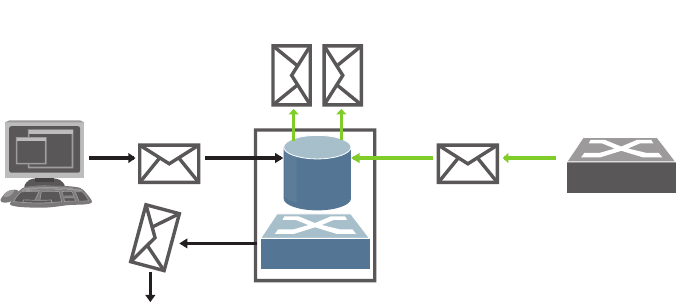
310 G8052 Application Guide for N/OS 8.3
-Verifies that each of these intercepted packets has a valid IP/MAC/VLAN/port
binding before updating the local ARP cache or before forwarding the packet to
the appropriate destination.
-Drops invalid ARP packets and sends a syslog message with details about each
dropped packet.
DAI determines the validity of an ARP packet based on valid IP-to-MAC address
bindings stored in a trusted database, the DHCP snooping binding database. This
database is built by DHCP snooping if DHCP snooping is enabled on the VLANs
and on the switch. As shown in Figure 27, if the ARP packet is received on a
trusted interface, the switch forwards the packet without any checks. On untrusted
interfaces, the switch forwards the packet only if it is valid.
For hosts with statically configured IP addresses, static DHCP snooping binding
entries can be configured with a big lease time.
Figure 27. Dynamic ARP inspection at work
Interface Trust States and Network Security
DAI associates a trust state with each interface on the switch.
In a typical network configuration, you configure all switch ports connected to host
ports as untrusted and configure all switch ports connected to switches as trusted.
With this configuration, all ARP packets entering the network from a given switch
bypass the security check.
The trust state configuration should be done carefully: configuring interfaces as
untrusted when they should be trusted can result in a loss of connectivity.
In Figure 28, assume that both Switch A and Switch B are running DAI on the
VLAN that includes Host 1 and Host 2. If Host 1 and Host 2 acquire their IP
addresses from the DHCP server connected to Switch A, only Switch A has the
DHCP IP-to-MAC binding of Host 1. Therefore, if the interface between Switch A
and Switch B is untrusted, the ARP packets from Host 1 are dropped by Switch B.
Connectivity between Host 1 and Host 2 is lost.
ARP
Packets
ARP
Packets
Untrusted
Interface
DHCP
Snooping/
Binding
DB
Trusted
Interface
Invalid
Packet
DAI
Valid
Packets
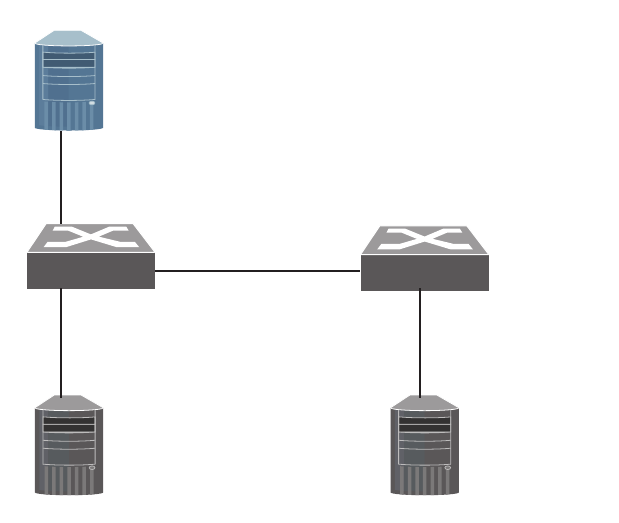
© Copyright Lenovo 2015 Chapter 19: Dynamic ARP Inspection 311
Figure 28. ARP Packet Validation on a VLAN Enabled for DAI
If Switch A is not running DAI, Host 1 can easily poison the ARP caches of Switch
B and Host 2, if the link between the switches is configured as trusted. This
condition can occur even though Switch B is running DAI.
The best option for the setup from Figure 28 is to have DAI running on both
switches and to have the link between the switches configured as trusted.
In cases in which some switches in a VLAN run DAI and other switches do not,
configure the interfaces connecting such switches as untrusted. However, to
validate the bindings of packets from switches where DAI is not configured,
configure static DHCP snooping binding entries on the switch running DAI. When
you cannot determine such bindings, isolate switches running DAI at Layer 3 from
switches not running DAI.
DAI ensures that hosts (on untrusted interfaces) connected to a switch running
DAI do not poison the ARP caches of other hosts in the network. However, DAI
does not prevent hosts in other portions of the network connected through a
trusted interface from poisoning the caches of the hosts that are connected to a
switch running DAI.
DHCP server
Port 1
Port 1 Switch A Switch B
Port 2Port 2
Port 3Port 3
Host 1 Host 2

312 G8052 Application Guide for N/OS 8.3
DAI Configuration Guidelines and Restrictions
When configuring DAI, follow these guidelines and restrictions:
-DAI is an ingress security feature; it does not perform any egress checking.
-DAI is not effective for hosts connected to switches that do not support DAI or
that do not have this feature enabled. Because man-in-the-middle attacks are
limited to a single Layer 2 broadcast domain, separate the domain with DAI
checks from the one with no checking. This action secures the ARP caches of
hosts in the domain enabled for DAI.
-DAI depends on the entries in the DHCP snooping binding database to verify
IP-to-MAC address bindings in incoming ARP requests and ARP responses.
-For non-DHCP environments, for each static IP address add a static DHCP
Snooping binding entry with the biggest lease time in order not to expire.
-Ports belonging to a port-channel must have the same trust state.
DAI Configuration Example
Following is the configuration for the example in Figure 28.
SwitchA(config)#interfaceport13
SwitchA(configif)#switchportaccessvlan2
SwitchA(config)#interfaceport12
SwitchA(configif)#iparpinspectiontrust
SwitchA(configif)#exit
SwitchA(config)#interfaceport3
SwitchA(configif)#noiparpinspectiontrust
SwitchA(configif)#exit
SwitchA(config)#iparpinspectionvlan2
SwitchB(config)#interfaceport23
SwitchB(configif)#switchportaccessvlan2
SwitchB(config)#interfaceport2
SwitchB(configif)#iparpinspectiontrust
SwitchB(configif)#exit
SwitchB(config)#interfaceport3
SwitchB(configif)#noiparpinspectiontrust
SwitchB(configif)#exit
SwitchB(config)#iparpinspectionvlan2

© Copyright Lenovo 2015 Chapter 19: Dynamic ARP Inspection 313
The DHCP Snooping binding tables will be similar to the following:
When Host 1 tries to send an ARP with an IP address of 1.1.1.3 that is not present in
the DHCP Binding table, the packet is dropped and an error message similar to the
following is logged:
“Dec1621:00:10192.168.49.50NOTICEARPInspection:Invalid
ARPRequestonport3,VLAN2
([00:02:00:02:00:02/1.1.1.3/00:00:00:00:00:00/1.1.1.4])”
MacAddressIPAddressLease(seconds)TypeVLAN
Interface
00:00:00:00:00:01Host1_IP1000Dynamic23
00:00:00:00:00:02Host2_IP2000Dynamic22
Totalnumberofbindings:2
SwitchB#showipdhcpsnoopingbinding
MacAddressIPAddressLease(seconds)TypeVLAN
Interface
00:00:00:00:00:02Host2_IP2000Dynamic23
Total number of bindings: 1
SwitchA#showipdhcpsnoopingbinding
Outputofshowcommands:
SwitchA#showiparpinspectionvlan
Vlan Configuration
2 Enabled
SwitchA#showiparpinspectioninterfaces
Interface TrustState
1Trusted
2Trusted
3Untrusted
4Untrusted
...
SwitchA#showiparpinspectionstatistics
Vlan ForwardedDropped
2 100200
314 G8052 Application Guide for N/OS 8.3
© Copyright Lenovo 2015 315
Part 5: IP Routing
This section discusses Layer 3 switching functions. In addition to switching traffic at
near line rates, the application switch can perform multi-protocol routing. This
section discusses basic routing and advanced routing protocols:
-Basic IP Routing
-Policy-Based Routing
-Routed Ports
-Internet Protocol Version 6
-IPsec with IPv6
-Routing Information Protocol
-Internet Group Management Protocol
-Multicast Listener Discovery
-Border Gateway Protocol
-Open Shortest Path First
-Protocol Independent Multicast
316 G8052 Application Guide for N/OS 8.3

© Copyright Lenovo 2015 317
Chapter 20. Basic IP Routing
This chapter provides configuration background and examples for using the G8052
to perform IP routing functions. The following topics are addressed in this chapter:
-“IP Routing Benefits” on page 318
-“Routing Between IP Subnets” on page 318
-“Example of Subnet Routing” on page 319
-“ECMP Static Routes” on page 323
-“Dynamic Host Configuration Protocol” on page 325

318 G8052 Application Guide for N/OS 8.3
IP Routing Benefits
The switch uses a combination of configurable IP switch interfaces and IP routing
options. The switch IP routing capabilities provide the following benefits:
-Connects the server IP subnets to the rest of the backbone network.
-Provides the ability to route IP traffic between multiple Virtual Local Area
Networks (VLANs) configured on the switch.
Routing Between IP Subnets
The physical layout of most corporate networks has evolved over time. Classic
hub/router topologies have given way to faster switched topologies, particularly
now that switches are increasingly intelligent. The G8052 is intelligent and fast
enough to perform routing functions at wire speed.
The combination of faster routing and switching in a single device allows you to
build versatile topologies that account for legacy configurations.
For example, consider a corporate campus that has migrated from a router-centric
topology to a faster, more powerful, switch-based topology. As is often the case, the
legacy of network growth and redesign has left the system with a mix of illogically
distributed subnets.
This is a situation that switching alone cannot cure. Instead, the router is flooded
with cross-subnet communication. This compromises efficiency in two ways:
-Routers can be slower than switches. The cross-subnet side trip from the switch
to the router and back again adds two hops for the data, slowing throughput
considerably.
-Traffic to the router increases, increasing congestion.
Even if every end-station could be moved to better logical subnets (a daunting
task), competition for access to common server pools on different subnets still
burdens the routers.
This problem is solved by using switches with built-in IP routing capabilities.
Cross-subnet LAN traffic can now be routed within the switches with wire speed
switching performance. This eases the load on the router and saves the network
administrators from reconfiguring every end-station with new IP addresses.
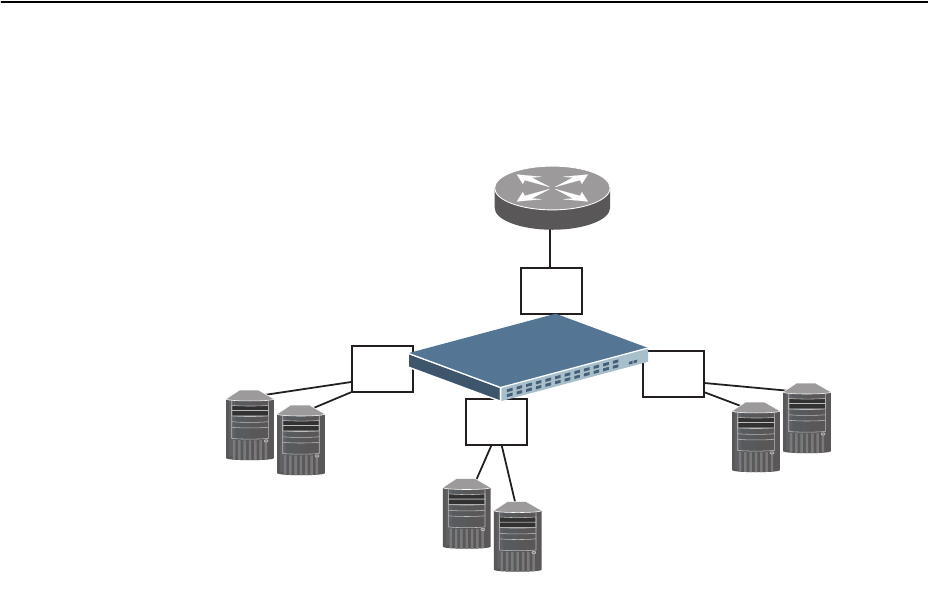
© Copyright Lenovo 2015 Chapter 20: Basic IP Routing 319
Example of Subnet Routing
Consider the role of the G8052 in the following configuration example:
Figure 29. Switch-Based Routing Topology
The switch connects the Gigabit Ethernet and Fast Ethernet trunks from various
switched subnets throughout one building. Common servers are placed on another
subnet attached to the switch. A primary and backup router are attached to the
switch on yet another subnet.
Without Layer 3 IP routing on the switch, cross-subnet communication is relayed
to the default gateway (in this case, the router) for the next level of routing
intelligence. The router fills in the necessary address information and sends the
data back to the switch, which then relays the packet to the proper destination
subnet using Layer 2 switching.
With Layer 3 IP routing in place on the switch, routing between different IP
subnets can be accomplished entirely within the switch. This leaves the routers free
to handle inbound and outbound traffic for this group of subnets.
Default router:
205.21.17.1
Server subnet 1:
100.20.10.2-254
Server subnet 2:
131.15.15.2-254
Server subnet 3:
206.30.15.2-254
IF 1
VLAN 1
IF 2
VLAN 2
IF 3
VLAN 3
IF 4
VLAN 4

320 G8052 Application Guide for N/OS 8.3
Using VLANs to Segregate Broadcast Domains
If you want to control the broadcasts on your network, use VLANs to create
distinct broadcast domains. Create one VLAN for each server subnet, and one for
the router.
Configuration Example
This section describes the steps used to configure the example topology shown in
Figure 29 on page 319.
1. Assign an IP address (or document the existing one) for each router and each
server.
The following IP addresses are used:
2. Assign an IP interface for each subnet attached to the switch.
Since there are four IP subnets connected to the switch, four IP interfaces are
needed:
3. Determine which switch ports and IP interfaces belong to which VLANs.
The following table adds port and VLAN information:
Table 27. Subnet Routing Example: IP Address Assignments
Subnet Devices IP Addresses
1 Default router 205.21.17.1
2 Web servers 100.20.10.2-254
3 Database servers 131.15.15.2-254
4 Terminal Servers 206.30.15.2-254
Table 28. Subnet Routing Example: IP Interface Assignments
Interface Devices IP Interface Address
IF 1 Default router 205.21.17.3
IF 2 Web servers 100.20.10.1
IF 3 Database servers 131.15.15.1
IF 4 Terminal Servers 206.30.15.1
Table 29. Subnet Routing Example: Optional VLAN Ports
Devices IP Interface Switch Ports VLAN #
Default router 1 22 1
Web servers 2 1 and 2 2
Database servers 3 3 and 4 3
Terminal Servers 4 5 and 6 4

© Copyright Lenovo 2015 Chapter 20: Basic IP Routing 321
Note: To perform this configuration, you must be connected to the switch Industry
Standard Command Line Interface (ISCLI) as the administrator.
4. Add the switch ports to their respective VLANs.
The VLANs shown in Table 29 are configured as follows:
Each time you add a port to a VLAN, you may get the following prompt:
RS G8052(config)#vlan1
RS G8052(configvlan)#exit
RS G8052(config)#interfaceport22 (Add ports to VLAN 1)
RS G8052(configif)#switchportmodetrunk
RS G8052(configif)#switchporttrunkallowedvlan1
RS G8052(configif)#exit
RS G8052(config)#vlan2
RS G8052(configvlan)#exit
RS G8052(config)#interfaceport1,2 (Add ports to VLAN 2)
RS G8052(configif)#switchportmodetrunk
RS G8052(configif)#switchporttrunkallowedvlan2
RS G8052(configif)#exit
RS G8052(config)#vlan3
RS G8052(configvlan)#exit
RS G8052(config)#interfaceport3,4 (Add ports to VLAN 3)
RS G8052(configif)#switchportmodetrunk
RS G8052(configif)#switchporttrunkallowedvlan3
RS G8052(configif)#exit
RS G8052(config)#vlan4
RS G8052(configvlan)#exit
RS G8052(config)#interfaceport5,6 (Add ports to VLAN 4)
RS G8052(configif)#switchportmodetrunk
RS G8052(configif)#switchporttrunkallowedvlan4
RS G8052(configif)#exit
Port4isanuntaggedportanditsPVIDischangedfrom1to3.

322 G8052 Application Guide for N/OS 8.3
5. Assign a VLAN to each IP interface.
Now that the ports are separated into VLANs, the VLANs are assigned to the
appropriate IP interface for each subnet. From Table 29 on page 320, the settings
are made as follows:
6. Configure the default gateway to the routers’ addresses.
The default gateway allows the switch to send outbound traffic to the router:
7. Enable IP routing.
8. Verify the configuration.
Examine the resulting information. If any settings are incorrect, make the
appropriate changes.
RS G8052(config)#interfaceip1 (Select IP interface 1)
RS G8052(configipif)#ipaddress205.21.17.3
RS G8052(configipif)#ipnetmask255.255.255.0
RS G8052(configipif)#vlan1 (Add VLAN 1)
RS G8052(configipif)#enable
RS G8052(configvlan)#exit
RS G8052(config)#interfaceip2 (Select IP interface 2)
RS G8052(configipif)#ipaddress100.20.10.1
RS G8052(configipif)#ipnetmask255.255.255.0
RS G8052(configipif)#vlan2 (Add VLAN 2)
RS G8052(configipif)#enable
RS G8052(configipif)#exit
RS G8052(config)#interfaceip3 (Select IP interface 3)
RS G8052(configipif)#ipaddress131.15.15.1
RS G8052(configipif)#ipnetmask255.255.255.0
RS G8052(configipif)#vlan3 (Add VLAN 3)
RS G8052(configipif)#enable
RS G8052(configipif)#exit
RS G8052(config)#interfaceip4 (Select IP interface 4)
RS G8052(configipif)#ipaddress206.30.15.1
RS G8052(configipif)#ipnetmask255.255.255.0
RS G8052(configipif)#vlan4 (Add VLAN 4)
RS G8052(configipif)#enable
RS G8052(configipif)#exit
RS G8052(config)#ipgateway1address205.21.17.1
RS G8052(config)#ipgateway1enable
RS G8052(config)#iprouting
RS G8052(config)#showvlan
RS G8052(config)#showinterfaceinformation
RS G8052(config)#showinterfaceip

© Copyright Lenovo 2015 Chapter 20: Basic IP Routing 323
ECMP Static Routes
Equal-Cost Multi-Path (ECMP) is a forwarding mechanism that routes packets
along multiple paths of equal cost. ECMP provides equally-distributed link load
sharing across the paths. The hashing algorithm used is based on the destination IP
and source IP (DIPSIP) addresses or only on the source IP address (SIP). ECMP
routes allow the switch to choose between several next hops toward a given
destination. The switch performs periodic health checks (ping) on each ECMP
gateway. If a gateway fails, it is removed from the routing table, and an SNMP trap
is sent.
ECMP Route Hashing
You can configure the parameters used to perform ECMP route hashing, as
follows:
-sip: Source IP address
-dipsip: Source IP address and destination IP address (default)
The ECMP hash setting applies to all ECMP routes.

324 G8052 Application Guide for N/OS 8.3
Configuring ECMP Static Routes
To configure ECMP static routes, add the same route multiple times, each with the
same destination IP address, but with a different gateway IP address. These routes
become ECMP routes.
1. Add a static route (IP address, subnet mask, gateway, and interface number).
2. Add another static route with the same IP address and mask, but a different
gateway address.
3. Select an ECMP hashing method (optional).
You may add up to 5 gateways for each static route.
Use the following commands to check the status of ECMP static routes:
RS G8052(config)#iproute10.10.1.1255.255.255.255100.10.1.11
RS G8052(config)#iproute10.10.1.1255.255.255.255200.20.2.21
RS G8052(config)#iprouteecmphash[sip|dipsip]
RS G8052(config)#showiproutestatic
Currentstaticroutes:
DestinationMaskGatewayIfECMP
10.20.2.2255.255.255.25510.4.4.1*
10.5.5.1*
10.6.6.1*
...
10.35.35.1*
ECMPhealthcheckpinginterval:1
ECMPhealthcheckretriesnumber:3
ECMPHashMechanism:dipsip
Gatewayhealthcheck:enabled
RS G8052(config)#showipecmp
Currentecmpstaticroutes:
DestinationMaskGatewayIfGWStatus
10.20.2.2255.255.255.25510.4.4.1up
10.5.5.1up
10.6.6.1up
...
10.34.34.1up
10.35.35.1up

© Copyright Lenovo 2015 Chapter 20: Basic IP Routing 325
Dynamic Host Configuration Protocol
Dynamic Host Configuration Protocol (DHCP) is a transport protocol that
provides a framework for automatically assigning IP addresses and configuration
information to other IP hosts or clients in a large TCP/IP network. Without DHCP,
the IP address must be entered manually for each network device. DHCP allows a
network administrator to distribute IP addresses from a central point and
automatically send a new IP address when a device is connected to a different
place in the network.
The switch accepts gateway configuration parameters if they have not been
configured manually. The switch ignores DHCP gateway parameters if the
gateway is configured.
DHCP is an extension of another network IP management protocol, Bootstrap
Protocol (BOOTP), with an additional capability of being able to allocate reusable
network addresses and configuration parameters for client operation.
Built on the client/server model, DHCP allows hosts or clients on an IP network to
obtain their configurations from a DHCP server, thereby reducing network
administration. The most significant configuration the client receives from the
server is its required IP address; (other optional parameters include the “generic”
file name to be booted, the address of the default gateway, and so forth).
To enable DHCP on a switch interface, use the following command:
RS G8052(config)#systemdhcp

326 G8052 Application Guide for N/OS 8.3
DHCP Relay Agent
DHCP is described in RFC 2131, and the DHCP relay agent supported on the
G8052 is described in RFC 1542. DHCP uses UDP as its transport protocol. The
client sends messages to the server on port 67 and the server sends messages to the
client on port 68.
DHCP defines the methods through which clients can be assigned an IP address
for a finite lease period and allowing reassignment of the IP address to another
client later. Additionally, DHCP provides the mechanism for a client to gather
other IP configuration parameters it needs to operate in the TCP/IP network.
In the DHCP environment, the G8052 acts as a relay agent. The DHCP relay feature
enables the switch to forward a client request for an IP address to two BOOTP
servers with IP addresses that have been configured on the switch.
When a switch receives a UDP broadcast on port 67 from a DHCP client requesting
an IP address, the switch acts as a proxy for the client, replacing the client source IP
(SIP) and destination IP (DIP) addresses. The request is then forwarded as a UDP
Unicast MAC layer message to two BOOTP servers whose IP addresses are
configured on the switch. The servers respond as a UDP Unicast message back to
the switch, with the default gateway and IP address for the client. The destination
IP address in the server response represents the interface address on the switch
that received the client request. This interface address tells the switch on which
VLAN to send the server response to the client.
To enable the G8052 to be the BOOTP forwarder, you need to configure the
DHCP/BOOTP server IP addresses on the switch. Generally, it is best to configure
the switch IP interface on the client side to match the client’s subnet, and configure
VLANs to separate client and server subnets. The DHCP server knows from which
IP subnet the newly allocated IP address will come.
In G8052 implementation, there is no need for primary or secondary servers. The
client request is forwarded to the BOOTP servers configured on the switch. The use
of two servers provide failover redundancy. However, no health checking is
supported.
Use the following commands to configure the switch as a DHCP relay agent:
Additionally, DHCP Relay functionality can be assigned on a per interface basis.
Use the following commands to enable the Relay functionality:
RS G8052(config)#ipbootprelayserver1<IP address>
RS G8052(config)#ipbootprelayserver2<IP address>
RS G8052(config)#ipbootprelayenable
RS G8052(config)#showipbootprelay
RS G8052(config)#interfaceip<Interface number>
RS G8052(configipif)#relay

© Copyright Lenovo 2015 327
Chapter 21. Policy-Based Routing
Policy-based routing (PBR) allows the RackSwitch G8052 to forward traffic based
on defined policies rather than entries in the routing table. Such policies are
defined based on the protocol, source IP, or other information present in a packet
header. PBR provides a mechanism for applying the defined policies based on
access control lists (ACLs), and marking packets with a type of service (ToS) to
provide preferential treatment.
PBR can be applied only to the ingress traffic. You can configure a PBR policy using
route maps and apply the route map to an ingress interface. You need to specify the
match (using ACLs) and set (using route maps) criteria in the policy. Based on the
defined rules, an action is triggered. If no match is found, or the policy rule
specifies that the packet be denied, the packet is routed based on an entry in the
routing table.

328 G8052 Application Guide for N/OS 8.3
PBR Policies and ACLs
Up to 640 ACLs can be configured for networks that use IPv4 addressing. Regular
ACLs and PBR ACLs together cannot exceed the maximum ACLs supported.
ACLs are prioritized based on the ACL number. Lower numbers have higher
priority. You must configure regular ACLs with lower numbers and PBR ACLs
with higher numbers.
Note: You cannot apply an ACL directly to an interface and using a PBR policy at
the same time.
Applying PBR ACLs
PBR ACLs must be applied to an IP interface that has a VLAN configured. In
addition to the defined ACL rules, the Lenovo Network Operating System uses the
VLAN ID as a matching criterion. Traffic is filtered on a per-VLAN basis rather
than a per-interface basis. If multiple IP interfaces have the same VLAN ID, route
maps applied to each interface are used to filter traffic on the VLAN. For example:
if interface IP 10 and interface IP 11 are members of VLAN 100; interface IP 10 uses
PBR ACL 410 and interface IP 11 uses PBR ACL 411. Traffic on VLAN 100 will be
filtered using PBR ACLs 410 and 411.
Note: You cannot apply the PBR ACL to a Layer 2-only port.

© Copyright Lenovo 2015 Chapter 21: Policy-Based Routing 329
Configuring Route Maps
A route map is used to control and modify routing information. When PBR is
enabled on an interface, all incoming packets are filtered based on the criteria
defined in the route maps. For packets that match the filtering criteria, the
precedence or
Differentiated Services Code Point (
DSCP) value can be changed, or
the packets can be routed/forwarded to the appropriate next hop.
PBR and dynamic routing protocols, such as Border Gateway Protocol (BGP) and
Open Shortest Path First (OSPF), use route maps. You can define a maximum of
255 route maps. Route maps used by a PBR policy cannot be used by a dynamic
routing protocol. You can configure a maximum of 32 access list statements in a
route map. You can assign only one route map to a non-management IP interface.
You must define route map criteria using match and set commands. All
sequential match clauses must be met by the packets for the set clauses to be
applied.
Match Clauses
IPv4 ACLs can be used to specify the match criteria. The following match criteria
can be used in a PBR ACL:
-Source IP
-Destination IP
-Protocol
-ToS
-TCP/UDP source port
-TCP/UDP destination port
If criteria other than the above are used in a PBR ACL, the switch will display an
error message.
If ingress packets do not meet any of the match criteria, or if a deny statement is
configured in the ACL, then the packets are routed based on the entries in the
routing table.
Set Clauses
When the match clause(s) is satisfied, one of the following set clauses can be used
to specify the packet forwarding criteria:
-Next hop IP address: This must be the IP address of an interface on the adjacent
router. A remote router interface cannot be used to specify the next hop. Packets
are forwarded to the next hop IP address. The PBR policy uses the next hops in
the order you specify. If the first next hop is down, then the second next hop is
used, and so on. If you specify the next hop addresses using separate statements,
then the next hops are used in the order you specify, starting from top to down.
A maximum of 64 unique next hops can be configured across all route maps.
-IP Differentiated Services Code Point (DSCP) value: A value used to set the
DSCP value of the matching packets.

330 G8052 Application Guide for N/OS 8.3
-IP precedence value: A value or keyword used to set the precedence value of the
matching packets.
You can use a combination of set commands. However, you cannot use the set
commands for DSCP and precedence together in the same route map.
Following are the basic steps and commands for configuring route maps.
1. Configure a route map.
2. Define an access list statement and assign an ACL to the route map.
3. Enable the access list.
4. Set next hop IP address i.e. IP address of an adjacent router
.
OR
Set IP precedence value.
OR
Set IP DSCP value.
5. Set next hop peer IP address.
RS G8052(config)#routemap<route map number>
RS G8052(configroutemap)#accesslist<1-32>matchaccesscontrol
<IPACL number>
RS G8052(configroutemap)#accesslist<1-32>enable
RS G8052(configroutemap)#setipnexthop<IP address>[<nh2 IP address>]
[<nh3 IP address>][<nh4 IP address>]
[accesslist {<access list ID>|<access list range>}]
RS G8052(configroutemap)#setipprecedence<value or keyword>
[accesslist {<access list ID>|<access list range>}]
RS G8052(configroutemap)#setipdscp<value>
[accesslist {<access list ID>|<access list range>}]
RS G8052(configroutemap)#setipnexthop<peer IP address>

© Copyright Lenovo 2015 Chapter 21: Policy-Based Routing 331
Configuring Health Check
You can configure tracking/health check parameters for each of the next hop IP
address you specify in the route map. By default, Address Resolution Protocol
(ARP) resolves the next hop IP address. The ARP re-try interval is two minutes.
Use the following command to configure health check:
You must configure a separate statement for verifying health check of each next
hop. A maximum of four health check statements can be included in a route map.
Note: When you configure next hops using setipnexthop command and
health check using the setipnexthopverifyavailability command
in the same route map, only the health check statements will be considered.
Following is an example of a route map health check statement:
Similarly, if there are inconsistent tracking parameters for a particular next hop IP
address among multiple route maps, the route map with the lowest route map
number is considered.
Note: We strongly recommend that you configure health check if all/multiple next
hops specified in the route map belong to the same Spanning Tree Group (STG).
This is required in case of an STP topology change where all forwarding database
(FDB) entries on all the ports in an STG are cleared. In such a scenario, the
associated ARP entries are purged and the next hop specified in the PBR policy
will not get resolved. When health check is configured, the PBR policy will route
the traffic based on the second next hop that you have specified.
RS G8052(configroutemap)#setipnexthopverifyavailability<next hop IP
address> <priority>[icmp|arp][interval][retry][accesslist{<access list
ID>|<access list range>}]
Defaultvalues:
Protocol:ARP
Interval:2seconds
Retry:3times
RS G8052(configroutemap)#setipnexthopverifyavailability12.1.1.1
10icmpaccesslist4

332 G8052 Application Guide for N/OS 8.3
Example PBR Configuration
Note: Use only the ISCLI to configure PBR. Configurations using the BBI are not
supported.
Following is an example of configuring PBR to match packets with a destination
network address of 3.0.0.0. The PBR is applied to ingress packets on the IP interface
11. The next hop IP address is configured as 5.5.5.5 or 10.10.10.10.
1. Configure an ACL and specify the match criteria.
2. Configure a route map.
3. Apply the ACL to the route map.
4. Set the next hop IP addresses.
5. Apply the route map to an IP interface that has a VLAN configured.
6. Verify PBR configuration.
RS G8052(config)#accesscontrollist100actionpermit
RS G8052(config)#accesscontrollist100ipv4destinationipaddress
3.0.0.0255.0.0.0
RS G8052(config)#routemap126
RS G8052(configroutemap)#accesslist1matchaccesscontrol100
RS G8052(configroutemap)#setipnexthop5.5.5.510.10.10.10
RS G8052(configroutemap)#exit
RS G8052(config)#interfaceip11
RS G8052(configipif)#ippolicyroutemap126
RS G8052(configipif)#exit
RS G8052(config)#exit
RS G8052#showippolicy
IPInterfaceRoutemap
11126
RS G8052#showroutemap126
126:PBR,enabled
Matchclauses:
alist1:accesscontrollist100,enabled
Setclauses:
ipnexthop5.5.5.510.10.10.10,alistall
Policyroutingmatches:0packets

© Copyright Lenovo 2015 Chapter 21: Policy-Based Routing 333
Configuring PBR with other Features
Consider the following PBR behavior when configured with the features given
below:
-DSCP: PBR ACLs can be used to remark an IP packet with a new
precedence/DSCP value. PBR ACL remark statements have higher priority than
the DSCP remark commands configured on ports.
-Virtual Router Redundancy Protocol (VRRP): If PBR is enabled on a VRRP IP
interface, the PBR becomes effective on the interface when the switch becomes
the VRRP master on that IP interface.
-Virtual Link Aggregation Group (VLAG): When configuring PBR on VLAG
ports, you must configure the same PBR policy on both the VLAG peers. You
cannot configure the next hop to be on a remote switch or on the VLAG ports.
Unsupported Features
PBR cannot be configured for:
-Routed ports
-Multicast traffic
-IPv6 packets
-Simple Network Management Protocol (SNMP)
-Stacking
-Virtual Network Interface Card (vNIC)
-Loopback Interface
1.
334 G8052 Application Guide for N/OS 8.3

© Copyright Lenovo 2015 335
Chapter 22. Routed Ports
By default, all ports on the RackSwitch G8052 behave as switch ports, which are
capable of performing Layer 2 switch functions, such as VLANs, STP, or bridging.
Switch ports also provide a physical point of access for the switch IP interfaces,
which can perform global Layer 3 functions, such as routing for BGP or OSPF.
However, G8052 ports can also be configured as routed ports. Routed ports are
configured with their own IP address belonging to a unique Layer 3 network, and
behave similar to a port on a conventional router. Routed ports are typically used
for connecting to a server or to a router.
When a switch port is configured as a routed port, it forwards Layer 3 traffic and
no longer performs Layer 2 switching functions.

336 G8052 Application Guide for N/OS 8.3
Overview
A routed port has the following characteristics:
-Does not participate in bridging.
-Does not belong to any user-configurable VLAN.
-Does not implement any Layer 2 functionality, such as Spanning Tree Protocol
(STP).
-Is always in a forwarding state.
-Can participate in IPv4 routing.
-Can be configured with basic IP protocols, such as Internet Control Message
Protocol (ICMP), and with Layer 3 protocols, such as Protocol-Independent
Multicast (PIM), Routing Information Protocol (RIP), Open Shortest Path First
(OSPF), and Border Gateway Protocol (BGP).
-Can be configured with Internet Group Management Protocol (IGMP) querier
and snooping functionality.
-Layer 3 configuration is saved even when the interface is shutdown.
-MAC address learning is always enabled.
-Tagging and port VLAN ID (PVID) tagging is disabled.
-Flooding is disabled.
-Bridge Protocol Data Unit (BPDU)-guard is disabled.
-Link Aggregation Control Protocol (LACP) is disabled.
-Multicast threshold is disabled.
-Static Multicast MAC and static unicast MAC can be configured.
Notes:
-Ports on which LACP or portchannel is enabled cannot be changed to routed
ports.
-Ports that have Static MAC addresses configured cannot be changed to routed
ports.
When a switch port is configured as a routed port, the following configuration
changes are automatically implemented:
-The port is removed from all the VLANs it belonged to.
-The port is added to an internal VLAN on which flooding is disabled. The ID of
this internal VLAN could be 4094 or lower. The internal VLAN is assigned to
Spanning Tree Group (STG) 1, if RSTP/PVRST is configured; or to Common
Internal Spanning Tree (CIST), if MSTP is configured. You cannot change the
VLAN number assigned to the routed port.
-STP is disabled and the port is set to a forwarding state.
Note: The maximum number of VLANs you can configure on the RackSwitch
G8052 is
2048
. This maximum number will be reduced by the number of
routed ports you configure.
© Copyright Lenovo 2015 Chapter 22: Routed Ports 337
-All the Layer 2 configuration is lost.
When a routed port is changed back to a switch port, the following changes take
place:
-All the IP configuration is lost.
-The ARP entry corresponding to the IP address is lost.
-The switch port is added to the default VLAN and STG. In case of MSTP, it is
added to the CIST.
-STP is turned on.
-The switch port can participate in STG and VLAN flooding.
-Can participate in bridging.
-LACP port attributes are set to default.
-Multicast threshold remains disabled.
-BPDU guard remains disabled.
-IGMP configuration is lost.
Note: When you configure a routed port to back to a switch port, it does not
restore the Layer 2 configuration it had before it was changed to a routed port.

338 G8052 Application Guide for N/OS 8.3
Configuring a Routed Port
Note: Use only the ISCLI to configure routed ports. Configurations using the BBI
are not supported. Configurations made using SNMP cannot be saved or applied.
Note: You cannot configure a management port to be a routed port.
Following are the basic steps for configuring a routed port:
1. Enter the interface configuration mode for the port.
Note: You must enter only one port number. If you need to change multiple ports
to routed ports, repeat the configuration steps for each port.
2. Enable routing.
3. Assign an IP address.
4. (Optional) Enable a Layer 3 routing protocol.
Note: Configure the Layer 3 routing protocol-related parameters in the interface
configuration mode.
Configuring OSPF on Routed Ports
The following OSPF configuration commands are supported on routed ports:
See Chapter 29, “Open Shortest Path First,” for details on the OSPF protocol and its
configuration.
OSPFv3 cannot be configured on routed ports.
RS G8052(config)#interfaceport<port number>
RS G8052(configif)#noswitchport
RS G8052(configif)#ipaddress<IP address><Subnet Mask>enable
RS G8052(configif)#ip{<ospf>|<pim>|<rip>}
RS G8052(configif)#ipospf?
areaSetareaindex
costSetinterfacecost
deadintervalSetdeadintervalinsecondsormilliseconds
enableEnableOSPFforthisinterface
hellointervalSethellointervalinsecondsormilliseconds
keySetauthenticationkey
messagedigestkeySetMD5keyID
passiveinterfaceEnablepassiveinterface
pointtopointEnablepointtopointinterface
prioritySetinterfacerouterpriority
retransmitintervalSetretransmitintervalinseconds
transitdelaySettransitdelayinseconds

© Copyright Lenovo 2015 Chapter 22: Routed Ports 339
OSPF Configuration Example
The following example includes the basic steps for configuring OSPF on a routed
port:
Configuring RIP on Routed Ports
The following RIP configuration commands are supported on routed ports:
See Chapter 25, “Routing Information Protocol,” for details on the RIP protocol
and its configuration.
RIP Configuration Example
The following example includes steps for a basic RIP configuration on a routed
port:
RS G8052(config)#routerospf
RS G8052(configrouterospf)#area0enable
RS G8052(configrouterospf)#enable
RS G8052(config-router-ospf)# exit
RS G8052(config)#interfaceport1
RS G8052(configif)#noswitchport
wait...
RS G8052(configif)#ipaddress11.1.12.1255.255.255.0enable
wait...
RS G8052(configif)#ipospfarea0
RS G8052(configif)#ipospfenable
RS G8052(configif)#exit
RS G8052(configif)#iprip?
authenticationSetIPauthentication
defaultactionSetdefaultrouteaction
enableEnableRIPinterface
listenEnablelisteningtorouteupdates
metricSetmetric
multicastupdatesEnablemulticastupdates
poisonEnablepoisonedreverse
splithorizonEnablesplithorizon
supplyEnablesupplyingrouteupdates
triggeredEnabletriggeredupdates
versionRIPversion
RS G8052(config)#routerrip
RS G8052(configrouterrip)#enable
RS G8052(config-router-rip)# exit
RS G8052(config)#interfaceport1
RS G8052(configif)#noswitchport
wait...
RS G8052(configif)#ipaddress11.1.12.1255.255.255.0enable
wait...
RS G8052(configif)#ipripenable
RS G8052(configif)#exit

340 G8052 Application Guide for N/OS 8.3
Configuring PIM on Routed Ports
The following PIM configuration commands are supported on routed ports:
See Chapter 30, “Protocol Independent Multicast” for details on the PIM protocol
and its configuration.
PIM Configuration Example
The following example includes the basic steps for configuring PIM on a routed
port:
Verify the configuration using the following command:
RS G8052(configif)#ippim?
borderbitSetinterfaceasborderinterface
cbsrpreferenceSetpreferenceforlocalinterfaceasacandidate
bootstraprouter
componentidAddinterfacetothecomponent
drprioritySetdesignatedrouterpriorityfortherouter
interface
enableEnablePIMonthisinterface
helloholdtimeSethellomessageholdtimefortheinterface
hellointervalSetthefrequencyofPIMhellomessagesonthe
interface
joinpruneintervalSetfrequencyofPIMJoinorPruneinterval
landelaySetlandelayfortherouterinterface
lanprunedelayEnablelandelayadvertisementoninterface
neighboraddrNeighboraddress
neighborfilterEnableneighborfilter
overrideintervalSetoverrideintervalforrouterinterface
RS G8052(config)#ippimenable
RS G8052(config)#interfaceport26
RS G8052(configif)#noswitchport
wait...
RS G8052(configif)#ipaddress26.26.26.1255.255.255.0enable
wait...
RS G8052(configif)#ippimenable
RS G8052(configif)#exit
RS G8052(config)#ippimcomponent1
RS G8052(config-ip-pim-component)# rpcandidaterpaddress224.0.0.0
240.0.0.026.26.26.1
RS G8052(config-ip-pim-component)# rpcandidateholdtime200
RS G8052(configippimcomponent)#exit
RS G8052(config)#interfaceport26
RS G8052(configif)#ippimcbsrpreference200
RS G8052(configif)#exit
RS G8052(config)#showippiminterfaceport26
AddressIfName/IfIdVer/ModeNbrQryDRAddressDRPrio
CountInterval
26.26.26.1Rport262/Sparse03026.26.26.11

© Copyright Lenovo 2015 Chapter 22: Routed Ports 341
Configuring BGP on Routed Ports
The routed port can be used to establish a TCP connection to form peer
relationship with another BGP router. See Chapter 28, “Border Gateway Protocol,”
for details on the BGP protocol and its configuration.
The following BGP configurations are not supported on routed ports:
-Update source - configuring a local IP interface
Configuring IGMP on Routed Ports
IGMP querier and snooping can be configured on routed ports. For details, see
Chapter 26, “Internet Group Management Protocol.”
To configure IGMP snooping on a routed port, enter the following command in the
Global Configuration mode:
To configure fastleave on routed ports, enter the following command in the Global
Configuration mode:
The following IGMP querier commands are supported on routed ports:
RS G8052(config)#ipigmpsnoopport<routed port ID>
RS G8052(config)#ipigmpfastleaveport<routed port ID>
RS G8052(config)#ipigmpquerierport<routed port ID>?
electiontypeSetIGMPqueriertype
enableTurnIGMPQuerieron
maxresponseSetQueriersmaxresponsetime
queryintervalSetgeneralqueryintervalforIGMPQuerieronly
robustnessSetIGMProbustness
sourceipSetsourceIPtobeusedforIGMP
startupcountSetstartupcountforIGMP
startupintervalSetstartupqueryintervalforIGMP
versionSetstheoperatingversionoftheIGMPsnooping
switch

342 G8052 Application Guide for N/OS 8.3
Limitations
Following features/configurations are not supported on routed ports:
-Subinterfaces
-BPDU Guard
-Broadcast Threshold
-Multicast Threshold
-Link Aggregation Control Protocol (LACP)
-Static Trunking
-Fibre Channel over Ethernet (FCoE)
-IPv6
-IP Security (IPsec)
-Internet Key Exchange version 2 (IKEv2)
-Virtual Router Redundancy Protocol (VRRP)
-Policy-based Routing (PBR)
-Hotlinks
-Failover
-802.1X
-Dynamic Host Configuration Protocol (DHCP)
-BOOTP
-Simple Network Management Protocol (SNMP)
-IGMP Relay
-Static Multicast Routes
-Static Mrouter Port

© Copyright Lenovo 2015 343
Chapter 23. Internet Protocol Version 6
Internet Protocol version 6 (IPv6) is a network layer protocol intended to expand
the network address space. IPv6 is a robust and expandable protocol that meets the
need for increased physical address space. The switch supports the following RFCs
for IPv6-related features:
This chapter describes the basic configuration of IPv6 addresses and how to
manage the switch via IPv6 host management.
IPv6 Limitations
The following IPv6 features are not supported in this release:
-Dynamic Host Control Protocol for IPv6 (DHCPv6)
-Border Gateway Protocol for IPv6 (BGP)
-Routing Information Protocol for IPv6 (RIPng)
Most other Lenovo Network Operating System 8.3 features permit IP addresses to
be configured using either IPv4 or IPv6 address formats. However, the following
switch features support IPv4 only:
-Bootstrap Protocol (BOOTP) and DHCP
-RADIUS, TACACS+ and LDAP
-Stacking
-VMware Virtual Center (vCenter) for VMready
-Routing Information Protocol (RIP)
-Border Gateway Protocol (BGP)
-Virtual Router Redundancy Protocol (VRRP)
-sFlow
-RFC 1981
-RFC 2404
-RFC 2410
-RFC 2451
-RFC 2460
-RFC 2474
-RFC 2526
-RFC 2711
-RFC 2740
-RFC 3289
-RFC 3306
-RFC 3307
-RFC 3411
-RFC 3412
-RFC 3413
-RFC 3414
-RFC 3484
-RFC 3602
-RFC 3810
-RFC 3879
-RFC 4007
-RFC 4213
-RFC 4291
-RFC 4292
-RFC 4293
-RFC 4301
-RFC 4302
-RFC 4303
-RFC 4306
-RFC 4307
-RFC 4443
-RFC 4552
-RFC 4718
-RFC 4835
-RFC 4861
-RFC 4862
-RFC 5095
-RFC 5114
-RFC 5340

344 G8052 Application Guide for N/OS 8.3
IPv6 Address Format
The IPv6 address is 128 bits (16 bytes) long and is represented as a sequence of
eight 16-bit hex values, separated by colons.
Each IPv6 address has two parts:
-Subnet prefix representing the network to which the interface is connected
-Local identifier, either derived from the MAC address or user-configured
The preferred hexadecimal format is as follows:
xxxx:xxxx:xxxx:xxxx:xxxx:xxxx:xxxx:xxxx
Example IPv6 address:
FEDC:BA98:7654:BA98:FEDC:1234:ABCD:5412
Some addresses can contain long sequences of zeros. A single contiguous sequence
of zeros can be compressed to :: (two colons). For example, consider the following
IPv6 address:
FE80:0:0:0:2AA:FF:FA:4CA2
The address can be compressed as follows:
FE80::2AA:FF:FA:4CA2
Unlike IPv4, a subnet mask is not used for IPv6 addresses. IPv6 uses the subnet
prefix as the network identifier. The prefix is the part of the address that indicates
the bits that have fixed values or are the bits of the subnet prefix. An IPv6 prefix is
written in address/prefix-length notation. For example, in the following address,
64 is the network prefix:
21DA:D300:0000:2F3C::/64
IPv6 addresses can be either user-configured or automatically configured.
Automatically configured addresses always have a 64-bit subnet prefix and a 64-bit
interface identifier. In most implementations, the interface identifier is derived
from the switch's MAC address, using a method called EUI-64.
Most Networking OS 8.3 features permit IP addresses to be configured using either
IPv4 or IPv6 address formats. Throughout this manual, IP address is used in places
where either an IPv4 or IPv6 address is allowed. In places where only one type of
address is allowed, the type (IPv4 or IPv6) is specified.

© Copyright Lenovo 2015 Chapter 23: Internet Protocol Version 6 345
IPv6 Address Types
IPv6 supports three types of addresses: unicast (one-to-one), multicast
(one-to-many), and anycast (one-to-nearest). Multicast addresses replace the use of
broadcast addresses.
Unicast Address
Unicast is a communication between a single host and a single receiver. Packets
sent to a unicast address are delivered to the interface identified by that address.
IPv6 defines the following types of unicast address:
-Global Unicast address: An address that can be reached and identified globally.
Global Unicast addresses use the high-order bit range up to FF00, therefore all
non-multicast and non-link-local addresses are considered to be global unicast.
A manually configured IPv6 address must be fully specified. Autoconfigured
IPv6 addresses are comprised of a prefix combined with the 64-bit EUI. RFC
4291 defines the IPv6 addressing architecture.
The interface ID must be unique within the same subnet.
-Link-local unicast address: An address used to communicate with a neighbor on
the same link. Link-local addresses use the format FE80::EUI
Link-local addresses are designed to be used for addressing on a single link for
purposes such as automatic address configuration, neighbor discovery, or when
no routers are present.
Routers must not forward any packets with link-local source or destination
addresses to other links.
Multicast
Multicast is communication between a single host and multiple receivers. Packets
are sent to all interfaces identified by that address. An interface may belong to any
number of multicast groups.
A multicast address (FF00 - FFFF) is an identifier for a group interface. The
multicast address most often encountered is a solicited-node multicast address
using prefix FF02::1:FF00:0000/104 with the low-order 24 bits of the unicast
or anycast address.
The following well-known multicast addresses are pre-defined. The group IDs
defined in this section are defined for explicit scope values, as follows:
FF00:::::::0throughFF0F:::::::0
Anycast
Packets sent to an anycast address or list of addresses are delivered to the nearest
interface identified by that address. Anycast is a communication between a single
sender and a list of addresses.
Anycast addresses are allocated from the unicast address space, using any of the
defined unicast address formats. Thus, anycast addresses are syntactically
indistinguishable from unicast addresses. When a unicast address is assigned to
346 G8052 Application Guide for N/OS 8.3
more than one interface, thus turning it into an anycast address, the nodes to which
the address is assigned must be explicitly configured to know that it is an anycast
address.

© Copyright Lenovo 2015 Chapter 23: Internet Protocol Version 6 347
IPv6 Address Autoconfiguration
IPv6 supports the following types of address autoconfiguration:
-Stateful address configuration
Address configuration is based on the use of a stateful address configuration
protocol, such as DHCPv6, to obtain addresses and other configuration options.
-Stateless address configuration
Address configuration is based on the receipt of Router Advertisement
messages that contain one or more Prefix Information options.
N/OS 8.3 supports stateless address configuration.
Stateless address configuration allows hosts on a link to configure themselves with
link-local addresses and with addresses derived from prefixes advertised by local
routers. Even if no router is present, hosts on the same link can configure
themselves with link-local addresses and communicate without manual
configuration.

348 G8052 Application Guide for N/OS 8.3
IPv6 Interfaces
Each IPv6 interface supports multiple IPv6 addresses. You can manually configure
up to two IPv6 addresses for each interface, or you can allow the switch to use
stateless autoconfiguration.
You can manually configure two IPv6 addresses for each interface, as follows:
-Initial IPv6 address is a global unicast or anycast address.
Note that you cannot configure both addresses as anycast. If you configure an
anycast address on the interface you must also configure a global unicast
address on that interface.
-Second IPv6 address can be a unicast or anycast address.
You cannot configure an IPv4 address on an IPv6 management interface. Each
interface can be configured with only one address type: either IPv4 or IPv6, but not
both. When changing between IPv4 and IPv6 address formats, the prior address
settings for the interface are discarded.
Each IPv6 interface can belong to only one VLAN. Each VLAN can support only
one IPv6 interface. Each VLAN can support multiple IPv4 interfaces.
Use the following commands to configure the IPv6 gateway:
IPv6 gateway 1 is reserved for IPv6 data interfaces.
RS G8052(config)#interfaceip<interface number>
RS G8052(configipif)#ipv6address<IPv6 address>
RS G8052(configipif)#ipv6secaddr6<IPv6 address>
RS G8052(configipif)#exit
RS G8052(config)#ipgateway61address<IPv6 address>
RS G8052(config)#ipgateway61enable

© Copyright Lenovo 2015 Chapter 23: Internet Protocol Version 6 349
Neighbor Discovery
The switch uses Neighbor Discovery protocol (ND) to gather information about
other router and host nodes, including the IPv6 addresses. Host nodes use ND to
configure their interfaces and perform health detection. ND allows each node to
determine the link-layer addresses of neighboring nodes and to keep track of each
neighbor’s information. A neighboring node is a host or a router linked directly to
the switch. The switch supports Neighbor Discovery as described in RFC 4861.
Neighbor Discovery Overview
Neighbor Discover messages allow network nodes to exchange information, as
follows:
-Neighbor Solicitations allow a node to discover information about other nodes.
-Neighbor Advertisements are sent in response to Neighbor Solicitations. The
Neighbor Advertisement contains information required by nodes to determine
the link-layer address of the sender, and the sender’s role on the network.
-IPv6 hosts use Router Solicitations to discover IPv6 routers. When a router
receives a Router Solicitation, it responds immediately to the host.
-Routers uses Router Advertisements to announce its presence on the network, and
to provide its address prefix to neighbor devices. IPv6 hosts listen for Router
Advertisements, and uses the information to build a list of default routers. Each
host uses this information to perform autoconfiguration of IPv6 addresses.
-Redirect messages are sent by IPv6 routers to inform hosts of a better first-hop
address for a specific destination. Redirect messages are only sent by routers for
unicast traffic, are only unicast to originating hosts, and are only processed by
hosts.
ND configuration for general advertisements, flags, and interval settings, as well as
for defining prefix profiles for router advertisements, is performed on a
per-interface basis using the following commands:
To add or remove entries in the static neighbor cache, use the following command:
To view the neighbor cache table, use the following command:
To view the neighbor cache counters, use the following command:
To clear the neighbor cache counters, use the following command:
RS G8052(config)#interfaceip<interface number>
RS G8052(configipif)#[no]ipv6nd?
RS G8052(configipif)#exit
RS G8052(config)#[no]ipneighbors?
RS G8052(config)#showipv6neighbors?
RS G8052(config)#showipv6neighborscounters
RS G8052(config)#clearipv6neighborscounters

350 G8052 Application Guide for N/OS 8.3
Host vs. Router
Each IPv6 interface can be configured as a router node or a host node, as follows:
-A router node’s IP address is configured manually. Router nodes can send
Router Advertisements.
-A host node’s IP address can be autoconfigured. Host nodes listen for Router
Advertisements that convey information about devices on the network.
Note: When IP forwarding is turned on, all IPv6 interfaces configured on the
switch can forward packets.
You can configure each IPv6 interface as either a host node or a router node. You
can manually assign an IPv6 address to an interface in host mode, or the interface
can be assigned an IPv6 address by an upstream router, using information from
router advertisements to perform stateless auto-configuration.
To set an interface to host mode, use the following command:
The G8052 supports up to 1156 IPv6 routes.
RS G8052(config)#interfaceip<interface number>
RS G8052(configipif)#ip6host
RS G8052(configipif)#exit

© Copyright Lenovo 2015 Chapter 23: Internet Protocol Version 6 351
Supported Applications
The following applications have been enhanced to provide IPv6 support.
-Ping
The ping command supports IPv6 addresses. Use the following format to ping
an IPv6 address:
ping<host name>|<IPv6 address>[n<tries (0-4294967295)>]
[w<msec delay (0-4294967295)>][l<length (0/32-65500/2080)>]
[s<IP source>][v<TOS (0-255)>][f][t]
To ping a link-local address (begins with FE80), provide an interface index, as
follows:
ping<IPv6 address>%<Interface index>[n<tries (0-4294967295)>]
[w<msec delay (0-4294967295)>][l<length (0/32-65500/2080)>]
[s<IP source>][v<TOS (0-255)>][f][t]
-Traceroute
The traceroute command supports IPv6 addresses (but not link-local
addresses).
Use the following format to perform a traceroute to an IPv6 address:
traceroute<host name>| <IPv6 address>[<max-hops (1-32)>
[<msec delay (1-4294967295)>]]
-Telnet server
The telnet command supports IPv6 addresses (but not link-local addresses).
Use the following format to Telnet into an IPv6 interface on the switch:
telnet<host name>| <IPv6 address>[<port>]
-Telnet client
The telnet command supports IPv6 addresses (but not link-local addresses).
Use the following format to Telnet to an IPv6 address:
telnet<host name>| <IPv6 address>[<port>]
-HTTP/HTTPS
The HTTP/HTTPS servers support both IPv4 and IPv6 connections.
-SSH
Secure Shell (SSH) connections over IPv6 are supported (but not link-local
addresses). The following syntax is required from the client:
sshu<IPv6 address>
Example:
sshu2001:2:3:4:0:0:0:142
-TFTP
The TFTP commands support both IPv4 and IPv6 addresses. Link-local
addresses are not supported.
-FTP
The FTP commands support both IPv4 and IPv6 addresses. Link-local addresses
are not supported.

352 G8052 Application Guide for N/OS 8.3
-DNS client
DNS commands support both IPv4 and IPv6 addresses. Link-local addresses are
not supported. Use the following command to specify the type of DNS query to
be sent first:
If you set the request version to ipv4, the DNS application sends an A query
first, to resolve the hostname with an IPv4 address. If no A record is found for
that hostname (no IPv4 address for that hostname) an AAAA query is sent to
resolve the hostname with a IPv6 address.
If you set the request version to ipv6, the DNS application sends an AAAA query
first, to resolve the hostname with an IPv6 address. If no AAAA record is found
for that hostname (no IPv6 address for that hostname) an A query is sent to
resolve the hostname with an IPv4 address.
Configuration Guidelines
When you configure an interface for IPv6, consider the following guidelines:
-Support for subnet router anycast addresses is not available.
-A single interface can accept either IPv4 or IPv6 addresses, but not both IPv4
and IPv6 addresses.
-A single interface can accept multiple IPv6 addresses.
-A single interface can accept only one IPv4 address.
-If you change the IPv6 address of a configured interface to an IPv4 address, all
IPv6 settings are deleted.
-A single VLAN can support only one IPv6 interface.
-Health checks are not supported for IPv6 gateways.
-IPv6 interfaces support Path MTU Discovery. The CPU’s MTU is fixed at 1500
bytes.
-Support for jumbo frames (1,500 to 9,216 byte MTUs) is limited. Any jumbo
frames intended for the CPU must be fragmented by the remote node. The
switch can re-assemble fragmented packets up to 9k. It can also fragment and
transmit jumbo packets received from higher layers.
RS G8052(config)#ipdnsipv6requestversion{ipv4|ipv6}

© Copyright Lenovo 2015 Chapter 23: Internet Protocol Version 6 353
IPv6 Configuration Examples
This section provides steps to configure IPv6 on the switch.
IPv6 Example 1
The following example uses IPv6 host mode to autoconfigure an IPv6 address for
the interface. By default, the interface is assigned to VLAN 1.
1. Enable IPv6 host mode on an interface.
2. Configure the IPv6 default gateway.
3. Verify the interface address.
IPv6 Example 2
Use the following example to manually configure IPv6 on an interface.
1. Assign an IPv6 address and prefix length to the interface.
The secondary IPv6 address is compressed, and the prefix length is 32.
2. Configure the IPv6 default gateway.
3. Configure router advertisements for the interface (optional)
RS G8052(config)#interfaceip2
RS G8052(configipif)#ip6host
RS G8052(configipif)#enable
RS G8052(configipif)#exit
RS G8052(config)#ipgateway61address
2001:BA98:7654:BA98:FEDC:1234:ABCD:5412
RS G8052(config)#ipgateway61enable
RS G8052(config)#showinterfaceip2
RS G8052(config)#interfaceip3
RS G8052(configipif)#ipv6address
2001:BA98:7654:BA98:FEDC:1234:ABCD:5214
RS G8052(configipif)#ipv6prefixlen64
RS G8052(configipif)#ipv6seccaddr62003::132
RS G8052(configipif)#vlan2
RS G8052(configipif)#enable
RS G8052(configipif)#exit
RS G8052(config)#ipgateway61address
2001:BA98:7654:BA98:FEDC:1234:ABCD:5412
RS G8052(config)#ipgateway61enable
RS G8052(config)#interfaceip3
RS G8052(configipif)#noipv6ndsuppressra

354 G8052 Application Guide for N/OS 8.3
4. Verify the configuration.
RS G8052(configipif)#showlayer3

© Copyright Lenovo 2015 Chapter 24: IPsec with IPv6 355
Chapter 24. IPsec with IPv6
Internet Protocol Security (IPsec) is a protocol suite for securing Internet Protocol
(IP) communications by authenticating and encrypting each IP packet of a
communication session. IPsec also includes protocols for establishing mutual
authentication between agents at the beginning of the session and negotiation of
cryptographic keys to be used during the session.
Since IPsec was implemented in conjunction with IPv6, all implementations of
IPv6 must contain IPsec. To support the National Institute of Standards and
Technology (NIST) recommendations for IPv6 implementations, Lenovo Network
Operating System IPv6 feature compliance has been extended to include the
following IETF RFCs, with an emphasis on IP Security (IPsec), Internet Key
Exchange version 2, and authentication/confidentiality for OSPFv3:
-RFC 4301 for IPv6 security
-RFC 4302 for the IPv6 Authentication Header
-RFCs 2404, 2410, 2451, 3602, and 4303 for IPv6 Encapsulating Security Payload
(ESP), including NULL encryption, CBC-mode 3DES and AES ciphers, and
HMAC-SHA-1-96.
-RFCs 4306, 4307, 4718, and 4835 for IKEv2 and cryptography
-RFC 4552 for OSPFv3 IPv6 authentication
-RFC 5114 for Diffie-Hellman groups
Note: This implementation of IPsec supports DH groups 1, 2, 5, 14, and 24.
The following topics are discussed in this chapter:
-“IPsec Protocols” on page 356
-“Using IPsec with the RackSwitch G8052” on page 357

356 G8052 Application Guide for N/OS 8.3
IPsec Protocols
The Networking OS implementation of IPsec supports the following protocols:
-Authentication Header (AH)
AHs provide connectionless integrity out and data origin authentication for IP
packets. They also provide protection against replay attacks. In IPv6, the AH
protects the AH itself, the Destination Options extension header after the AH,
and the IP payload. It also protects the fixed IPv6 header and all extension
headers before the AH, except for the mutable fields DSCP, ECN, Flow Label,
and Hop Limit. AH is defined in RFC 4302.
-Encapsulating Security Payload (ESP)
ESPs provide confidentiality, data origin authentication, integrity, an anti-replay
service (a form of partial sequence integrity), and some traffic flow
confidentiality. ESPs may be applied alone or in combination with an AH. ESP is
defined in RFC 4303.
-Internet Key Exchange Version 2 (IKEv2)
IKEv2 is used for mutual authentication between two network elements. An IKE
establishes a security association (SA) that includes shared secret information to
efficiently establish SAs for ESPs and AHs, and a set of cryptographic
algorithms to be used by the SAs to protect the associated traffic. IKEv2 is
defined in RFC 4306.
Using IKEv2 as the foundation, IPsec supports ESP for encryption and/or
authentication, and/or AH for authentication of the remote partner.
Both ESP and AH rely on security associations. A security association (SA) is the
bundle of algorithms and parameters (such as keys) that encrypt and authenticate
a particular flow in one direction.

© Copyright Lenovo 2015 Chapter 24: IPsec with IPv6 357
Using IPsec with the RackSwitch G8052
IPsec supports the fragmentation and reassembly of IP packets that occurs when
data goes to and comes from an external device. The RackSwitch G8052 acts as an
end node that processes any fragmentation and reassembly of packets but does not
forward the IPsec traffic. :You must authenticate the IKEv2 key following the
directions in “Setting up Authentication” on page 357 before you can use IPsec.
The security protocol for the session key is either ESP or AH. Outgoing packets are
labeled with the SA SPI (Security Parameter Index), which the remote device will
use in its verification and decryption process.
Every outgoing IPv6 packet is checked against the IPsec policies in force. For each
outbound packet, after the packet is encrypted, the software compares the packet
size with the MTU size that it either obtains from the default minimum maximum
transmission unit (MTU) size (1500) or from path MTU discovery. If the packet size
is larger than the MTU size, the receiver drops the packet and sends a message
containing the MTU size to the sender. The sender then fragments the packet into
smaller pieces and retransmits them using the correct MTU size.
The maximum traffic load for each IPsec packet is limited to the following:
-IKEv2 SAs: 5
-IPsec SAs: 10 (5 SAs in each direction)
-SPDs: 20 (10 policies in each direction)
IPsec is implemented as a software cryptography engine designed for handling
control traffic, such as network management. IPsec is not designed for handling
data traffic, such as a VPN.
Setting up Authentication
Before you can use IPsec, you need to have key policy authentication in place.
There are two types of key policy authentication:
-Preshared key (default)
The parties agree on a shared, secret key that is used for authentication in an
IPsec policy. During security negotiation, information is encrypted before
transmission by using a session key created by using a Diffie-Hellman
calculation and the shared, secret key. Information is decrypted on the receiving
end using the same key. One IPsec peer authenticates the other peer's packet by
decryption and verification of the hash inside the packet (the hash inside the
packet is a hash of the preshared key). If authentication fails, the packet is
discarded.
-Digital certificate (using RSA algorithms)
The peer being validated must hold a digital certificate signed by a trusted
Certificate Authority and the private key for that digital certificate. The side
performing the authentication only needs a copy of the trusted certificate
authorities digital certificate. During IKEv2 authentication, the side being
validated sends a copy of the digital certificate and a hash value signed using the
private key. The certificate can be either generated or imported.

358 G8052 Application Guide for N/OS 8.3
Note: During the IKEv2 negotiation phase, the digital certificate takes precedence
over the preshared key.
Creating an IKEv2 Proposal
With IKEv2, a single policy can have multiple encryption and authentication types,
as well as multiple integrity algorithms.
To create an IKEv2 proposal:
1. Enter IKEv2 proposal mode.
2. Set the DES encryption algorithm.
3. Set the authentication integrity algorithm type.
4. Set the Diffie-Hellman group.
Importing an IKEv2 Digital Certificate
To import an IKEv2 digital certificate for authentication:
1. Import the CA certificate file.
2. Import the host key file.
3. Import the host certificate file.
RS G8052(config)#ikev2proposal
RS G8052(config-ikev2-prop)# encryption 3des|aescbc (default: 3des)
RS G8052(configikev2prop)#integritysha1(default: sha1)
RS G8052(config-ikev2-prop)# group1|2|5|14|24 (default: 24)
RS G8052(config)#copytftpcacertaddress<hostname or IPv4 address>
Sourcefilename:<path and filename of CA certificate file>
Confirmdownloadoperation[y/n]:y
RS G8052(config)#copytftphostkeyaddress<hostname or IPv4 address>
Sourcefilename:<path and filename of host private key file>
Confirmdownloadoperation[y/n]:y
RS G8052(config)#copytftphostcertaddress<hostname or IPv4 address>
Sourcefilename:<path and filename of host certificate file>
Confirmdownloadoperation[y/n]:y

© Copyright Lenovo 2015 Chapter 24: IPsec with IPv6 359
Generating an IKEv2 Digital Certificate
To create an IKEv2 digital certificate for authentication:
1. Create an HTTPS certificate defining the information you want to be used in the
various fields.
2. Save the HTTPS certificate.
The certificate is valid only until the switch is rebooted. To save the certificate so
that it is retained beyond reboot or power cycles, use the following command:
3. Enable IKEv2 RSA-signature authentication:
Enabling IKEv2 Preshared Key Authentication
To set up IKEv2 preshared key authentication:
1. Enter the local preshared key.
2. If asymmetric authentication is supported, enter the remote key:
where the following parameters are used:
-preshared key A string of 1-256 characters
-IPv6 host An IPv6-format host, such as “3000::1”
3. Set up the IKEv2 identification type by entering one of the following commands:
To disable IKEv2 RSA-signature authentication method and enable preshared key
authentication, enter:
RS G8052(config)#accesshttpsgeneratecertificate
CountryName(2lettercode)[US]:
StateorProvinceName(fullname)[CA]:
LocalityName(eg,city)[SantaClara]:
OrganizationName(eg,company)[Lenovo]:
OrganizationalUnitName(eg,section)[Engineering]:
CommonName(eg,YOURname)[10.240.226.241]:
Email(eg,emailaddress)[]:
Confirmgenerat‘eywingcertificate?[y/n]:y
Generatingcertificate.Pleasewait(approx30seconds)
restartingSSLagent
RS G8052(config)#accesshttpssavecertificate
RS G8052(config)#accesshttpsenable
RS G8052(config)# ikev2presharekeylocal <preshared key, a string of 1-256 chars>
RS G8052(config)# ikev2presharekeyremote <preshared key> <IPv6 host>
RS G8052(config)#ikev2identitylocaladdress(use an IPv6 address)
RS G8052(config)#ikev2identitylocalemail<email address>
RS G8052(config)# ikev2identitylocalfqdn <domain name>
RS G8052(config)#accesshttpsdisable

360 G8052 Application Guide for N/OS 8.3
Setting Up a Key Policy
When configuring IPsec, you must define a key policy. This key policy can be either
manual or dynamic. Either way, configuring a policy involves the following steps:
-Create a transform set—This defines which encryption and authentication algo-
rithms are used.
-Create a traffic selector—This describes the packets to which the policy applies.
-Establish an IPsec policy.
-Apply the policy.
1. To define which encryption and authentication algorithms are used, create a
transform set:
where the following parameters are used:
-transform ID A number from 1-10
-encryption method One of the following: esp3des | espaescbc
| espnull
-integrity algorithm One of the following: espsha1 | none
-AH authentication algorithm One of the following: ahsha1 | ahmd5 | none
2. Decide whether to use tunnel or transport mode. The default mode is transport.
3. To describe the packets to which this policy applies, create a traffic selector using
the following command:
where the following parameters are used:
-traffic selector number an integer from 1-10
-permit|deny whether or not to permit IPsec encryption of
traffic that meets the criteria specified in this
command
-any apply the selector to any type of traffic
-icmp<type>|any only apply the selector only to ICMP traffic of the
specified type (an integer from 1-255) or to any
ICMP traffic
-tcp only apply the selector to TCP traffic
-source IP address|any the source IP address in IPv6 format or “any”
source
RS G8052(config)#ipsectransformset<transform ID><encryption method><integrity
algorithm> <AH authentication algorithm>
RS G8052(config)#ipsectransformsettunnel|transport
RS G8052(config)#ipsectrafficselector<traffic selector number>permit|deny
any|icmp<type|any> |tcp > <source IP address|any> <destination IP address|any> [<prefix
length>]

© Copyright Lenovo 2015 Chapter 24: IPsec with IPv6 361
-destination IP address|any the destination IP address in IPv6 format or “any”
destination
-prefix length (Optional) the length of the destination IPv6
prefix; an integer from 1-128
Permitted traffic that matches the policy in force is encrypted, while denied traffic
that matches the policy in force is dropped. Traffic that does not match the policy
bypasses IPsec and passes through clear (unencrypted).
4. Choose whether to use a manual or a dynamic policy.
Using a Manual Key Policy
A manual policy involves configuring policy and manual SA entries for local and
remote peers.
To configure a manual key policy, you need:
-The IP address of the peer in IPv6 format (for example, “3000::1”).
-Inbound/Outbound session keys for the security protocols.
You can then assign the policy to an interface. The peer represents the other end of
the security association. The security protocol for the session key can be either ESP
or AH.
To create and configure a manual policy:
1. Enter a manual policy to configure.
2. Configure the policy.
where the following parameters are used:
-peer’s IPv6 address The IPv6 address of the peer (for example,
3000::1)
-IPsec traffic-selector A number from1-10
-IPsec of transform-set A number from1-10
-inbound AH IPsec key The inbound AH key code, in hexadecimal
-inbound AH IPsec SPI A number from 256-4294967295
RS G8052(config)#ipsecmanualpolicy<policy number>
RS G8052(configipsecmanual)#peer<peer’s IPv6 address>
RS G8052(configipsecmanual)#trafficselector<IPsec traffic selector>
RS G8052(configipsecmanual)#transformset<IPsec transform set>
RS G8052(configipsecmanual)#inahauthkey<inbound AH IPsec key>
RS G8052(configipsecmanual)#inahauthspi<inbound AH IPsec SPI>
RS G8052(configipsecmanual)#inespcipherkey<inbound ESP cipher key>
RS G8052(configipsecmanual)#inespauthspi<inbound ESP SPI>
RS G8052(configipsecmanual)#inespauthkey<inbound ESP authenticator key>
RS G8052(configipsecmanual)#outahauthkey<outbound AH IPsec key>
RS G8052(configipsecmanual)#outahauthspi<outbound AH IPsec SPI>
RS G8052(configipsecmanual)#outespcipherkey<outbound ESP cipher key>
RS G8052(configipsecmanual)#outespauthspi<outbound ESP SPI>
RS G8052(configipsecmanual)#outespauthkey<outbound ESP authenticator key>

362 G8052 Application Guide for N/OS 8.3
-inbound ESP cipher key The inbound ESP key code, in hexadecimal
-inbound ESP SPI A number from 256-4294967295
-inbound ESP authenticator key The inbound ESP authenticator key code, in
hexadecimal
-outbound AH IPsec key The outbound AH key code, in hexadecimal
-outbound AH IPsec SPI A number from 256-4294967295
-outbound ESP cipher key The outbound ESP key code, in hexadecimal
-outbound ESP SPI A number from 256-4294967295
-outbound ESP authenticator key The outbound ESP authenticator key code, in
hexadecimal
Note:
-When configuring a manual policy ESP, the ESP authenticator key is optional.
-If using third-party switches, the IPsec manual policy session key must be of
fixed length as follows:
For AH key: SHA1 is 20 bytes; MD5 is 16 bytes
For ESP cipher key: 3DES is 24 bytes; AES-cbc is 24 bytes; DES is 8 bytes
For ESP auth key: SHA1 is 20 bytes; MD5 is 16 bytes
3. After you configure the IPSec policy, you need to apply it to the interface to enforce
the security policies on that interface and save it to keep it in place after a reboot. To
accomplish this, enter:
RS G8052(configip)#interfaceip<IP interface number, 1-128>
RS G8052(configipif)#address<IPv6 address>
RS G8052(configipif)#ipsecmanualpolicy<policy index, 1-10>
RS G8052(configipif)#enable(enable the IP interface)
RS G8052#write(save the current configuration)

© Copyright Lenovo 2015 Chapter 24: IPsec with IPv6 363
Using a Dynamic Key Policy
When you use a dynamic key policy, the first packet triggers IKE and sets the IPsec
SA and IKEv2 SA. The initial packet negotiation also determines the lifetime of the
algorithm, or how long it stays in effect. When the key expires, a new key is
automatically created. This helps prevent break-ins.
To configure a dynamic key policy:
1. Choose a dynamic policy to configure.
2. Configure the policy.
where the following parameters are used:
-peer’s IPv6 address The IPv6 address of the peer (for example,
3000::1)
-index of traffic-selector A number from1-10
-index of transform-set A number from1-10
-SA lifetime, in seconds The length of time the SA is to remain in effect; an
integer from120-86400
-pfsenable|disable Whether to enable or disable the perfect forward
security feature. The default is disable.
Note: In a dynamic policy, the AH and ESP keys are created by IKEv2.
3. After you configure the IPSec policy, you need to apply it to the interface to enforce
the security policies on that interface and save it to keep it in place after a reboot. To
accomplish this, enter:
RS G8052(config)#ipsecdynamicpolicy<policy number>
RS G8052(configipsecdynamic)#peer<peer’s IPv6 address>
RS G8052(configipsecdynamic)#trafficselector<index of traffic selector>
RS G8052(configipsecdynamic)#transformset<index of transform set>
RS G8052(configipsecdynamic)#salifetime<SA lifetime, in seconds>
RS G8052(configipsecdynamic)#pfsenable|disable
RS G8052(configip)#interfaceip<IP interface number, 1-128>
RS G8052(configipif)#address<IPv6 address>
RS G8052(configipif)#ipsecdynamicpolicy<policy index, 1-10>
RS G8052(configipif)#enable(enable the IP interface)
RS G8052#write(save the current configuration)
364 G8052 Application Guide for N/OS 8.3

© Copyright Lenovo 2015 365
Chapter 25. Routing Information Protocol
In a routed environment, routers communicate with one another to keep track of
available routes. Routers can learn about available routes dynamically using the
Routing Information Protocol (RIP). Lenovo Network Operating System software
supports RIP version 1 (RIPv1) and RIP version 2 (RIPv2) for exchanging TCP/IPv4
route information with other routers.
Note: Networking OS 8.3 does not support IPv6 for RIP.
Distance Vector Protocol
RIP is known as a distance vector protocol. The vector is the network number
and next hop, and the distance is the metric associated with the network number.
RIP identifies network reachability based on metric, and metric is defined as hop
count. One hop is considered to be the distance from one switch to the next, which
typically is 1.
When a switch receives a routing update that contains a new or changed
destination network entry, the switch adds 1 to the metric value indicated in the
update and enters the network in the routing table. The IPv4 address of the sender
is used as the next hop.
Stability
RIP includes a number of other stability features that are common to many routing
protocols. For example, RIP implements the split horizon and hold-down
mechanisms to prevent incorrect routing information from being propagated.
RIP prevents routing loops from continuing indefinitely by implementing a limit
on the number of hops allowed in a path from the source to a destination. The
maximum number of hops in a path is 15. The network destination network is
considered unreachable if increasing the metric value by 1 causes the metric to be
16 (that is infinity). This limits the maximum diameter of a RIP network to less than
16 hops.
RIP is often used in stub networks and in small autonomous systems that do not
have many redundant paths.

366 G8052 Application Guide for N/OS 8.3
Routing Updates
RIP sends routing-update messages at regular intervals and when the network
topology changes. Each router “advertises” routing information by sending a
routing information update every 30 seconds. If a router doesn’t receive an update
from another router for 180 seconds, those routes provided by that router are
declared invalid. The routes are removed from the routing table, but they remain in
the RIP routes table. After another 120 seconds without receiving an update for
those routes, the routes are removed from respective regular updates.
When a router receives a routing update that includes changes to an entry, it
updates its routing table to reflect the new route. The metric value for the path is
increased by 1, and the sender is indicated as the next hop. RIP routers maintain
only the best route (the route with the lowest metric value) to a destination.
For more information, see the Configuration section, Routing Information Protocol
Configuration in the Lenovo Network Operating System Command Reference.
RIPv1
RIP version 1 use broadcast User Datagram Protocol (UDP) data packets for the
regular routing updates. The main disadvantage is that the routing updates do not
carry subnet mask information. Hence, the router cannot determine whether the
route is a subnet route or a host route. It is of limited usage after the introduction of
RIPv2. For more information about RIPv1 and RIPv2, refer to RFC 1058 and RFC
2453.
RIPv2
RIPv2 is the most popular and preferred configuration for most networks. RIPv2
expands the amount of useful information carried in RIP messages and provides a
measure of security. For a detailed explanation of RIPv2, refer to RFC 1723 and
RFC 2453.
RIPv2 improves efficiency by using multicast UDP (address 224.0.0.9) data packets
for regular routing updates. Subnet mask information is provided in the routing
updates. A security option is added for authenticating routing updates, by using a
shared password. N/OS supports using clear password for RIPv2.
RIPv2 in RIPv1 Compatibility Mode
N/OS allows you to configure RIPv2 in RIPv1compatibility mode, for using both
RIPv2 and RIPv1 routers within a network. In this mode, the regular routing
updates use broadcast UDP data packet to allow RIPv1 routers to receive those
packets. With RIPv1 routers as recipients, the routing updates have to carry natural
or host mask. Hence, it is not a recommended configuration for most network
topologies.
Note: When using both RIPv1 and RIPv2 within a network, use a single subnet
mask throughout the network.

© Copyright Lenovo 2015 Chapter 25: Routing Information Protocol 367
RIP Features
N/OS provides the following features to support RIPv1 and RIPv2:
Poison
Simple split horizon in RIP scheme omits routes learned from one neighbor in
updates sent to that neighbor. That is the most common configuration used in RIP,
that is setting this Poison to DISABLE. Split horizon with poisoned reverse
includes such routes in updates, but sets their metrics to 16. The disadvantage of
using this feature is the increase of size in the routing updates.
Triggered Updates
Triggered updates are an attempt to speed up convergence. When Triggered
Updates is enabled, whenever a router changes the metric for a route, it sends
update messages almost immediately, without waiting for the regular update
interval. It is recommended to enable Triggered Updates.
Multicast
RIPv2 messages use IPv4 multicast address (224.0.0.9) for periodic broadcasts.
Multicast RIPv2 announcements are not processed by RIPv1 routers. IGMP is not
needed since these are inter-router messages which are not forwarded.
To configure RIPv2 in RIPv1 compatibility mode, set multicast to disable, and set
version to both.
Default
The RIP router can listen and supply a default route, usually represented as IPv4
0.0.0.0 in the routing table. When a router does not have an explicit route to a
destination network in its routing table, it uses the default route to forward those
packets.
Metric
The metric field contains a configurable value between 1 and 15 (inclusive) which
specifies the current metric for the interface. The metric value typically indicates
the total number of hops to the destination. The metric value of 16 represents an
unreachable destination.
Authentication
RIPv2 authentication uses plaintext password for authentication. If configured
using Authentication password, then it is necessary to enter an authentication key
value.
The following method is used to authenticate an RIP message:
-If the router is not configured to authenticate RIPv2 messages, then RIPv1 and
unauthenticated RIPv2 messages are accepted; authenticated RIPv2 messages
are discarded.
-If the router is configured to authenticate RIPv2 messages, then RIPv1 messages
and RIPv2 messages which pass authentication testing are accepted;
unauthenticated and failed authentication RIPv2 messages are discarded.

368 G8052 Application Guide for N/OS 8.3
For maximum security, RIPv1 messages are ignored when authentication is
enabled; otherwise, the routing information from authenticated messages is
propagated by RIPv1 routers in an unauthenticated manner.
RIP Configuration Example
The following is an example of RIP configuration.
Note: An interface with RIP disabled uses all the default values of the RIP, no
matter how the RIP parameters are configured for that interface. RIP sends out RIP
regular updates to include an UP interface, but not a DOWN interface.
1. Add VLANs for routing interfaces.
2. Add IP interfaces with IPv4 addresses to VLANs.
3. Turn on RIP globally and enable RIP for each interface.
>>(config)#vlan2
>>(configvlan)#exit
>>(config)#interfaceport2
>>(configif)#switchportmodetrunk
>>(configif)#switchporttrunkallowedvlanadd2
Port2isanUNTAGGEDportanditscurrentPVIDis1.
ConfirmchangingPVIDfrom1to2[y/n]:y
>>(configif)#exit
>>(config)#vlan3
>>(configvlan)#exit
>>(config)#interfaceport3
>>(configif)#switchportmodetrunk
>>(configif)#switchporttrunkallowedvlanadd3
>>(configif)#exit
Port3isanUNTAGGEDportanditscurrentPVIDis1.
ConfirmchangingPVIDfrom1to3[y/n]:y
>>#interfaceip2
>>(configipif)#enable
>>(configipif)#ipaddress102.1.1.1
>>(configipif)#vlan2
>>(configipif)#exit
>>#interfaceip3
>>(configipif)#enable
>>(configipif)#ipaddress103.1.1.1
>>(configipif)#vlan3
>>#routerrip
>>(configrouterrip)#enable
>>(configrouterrip)#exit
>>#interfaceip2
>>(configipif)#ipripenable
>>(configipif)#exit
>>#interfaceip3
>>(configipif)#ipripenable
>>(configipif)#exit

© Copyright Lenovo 2015 Chapter 25: Routing Information Protocol 369
Use the following command to check the current valid routes in the routing table of
the switch:
For those RIP routes learned within the garbage collection period, that are routes
phasing out of the routing table with metric 16, use the following command:
Locally configured static routes do not appear in the RIP Routes table.
>>#showiproute
>>#showipriproutes
370 G8052 Application Guide for N/OS 8.3

© Copyright Lenovo 2015 371
Chapter 26. Internet Group Management Protocol
Internet Group Management Protocol (IGMP) is used by IPv4 Multicast routers
(Mrouters) to learn about the existence of host group members on their directly
attached subnet. The IPv4 Mrouters get this information by broadcasting IGMP
Membership Queries and listening for IPv4 hosts reporting their host group
memberships. This process is used to set up a client/server relationship between an
IPv4 multicast source that provides the data streams and the clients that want to
receive the data. The switch supports three versions of IGMP:
-IGMPv1: Defines the method for hosts to join a multicast group. However, this
version does not define the method for hosts to leave a multicast group. See RFC
1112 for details.
-IGMPv2: Adds the ability for a host to signal its desire to leave a multicast
group. See RFC 2236 for details.
-IGMPv3: Adds support for source filtering by which a host can report interest in
receiving packets only from specific source addresses, or from all but specific
source addresses, sent to a particular multicast address. See RFC 3376 for details.
The G8052 can perform IGMP Snooping, and connect to static Mrouters.The G8052
can act as a Querier, and participate in the IGMP Querier election process.
The following topics are discussed in this chapter:
-“IGMP Terms” on page 372
-“How IGMP Works” on page 373
-“IGMP Capacity and Default Values” on page 374
-“IGMP Snooping” on page 375
-“IGMP Relay” on page 388
-“Additional IGMP Features” on page 397

372 G8052 Application Guide for N/OS 8.3
IGMP Terms
The following are commonly used IGMP terms:
-Multicast traffic: Flow of data from one source to multiple destinations.
-Group: A multicast stream to which a host can join. Multicast groups have IP
addresses in the range: 224.0.1.0 to 239.255.255.255.
-IGMP Querier: A router or switch in the subnet that generates Membership
Queries.
-IGMP Snooper: A Layer 3 device that forwards multicast traffic only to hosts
that are interested in receiving multicast data. This device can be a router or a
Layer 3 switch.
-Multicast Router: A router configured to make routing decisions for multicast
traffic. The router identifies the type of packet received (unicast or multicast)
and forwards the packet to the intended destination.
-IGMP Proxy: A device that filters Join messages and Leave messages sent
upstream to the Mrouter to reduce the load on the Mrouter.
-Membership Report: A report sent by the host that indicates an interest in
receiving multicast traffic from a multicast group.
-Leave: A message sent by the host when it wants to leave a multicast group.
-FastLeave: A process by which the switch stops forwarding multicast traffic to a
port as soon as it receives a Leave message.
-Membership Query: Message sent by the Querier to verify if hosts are listening
to a group.
-General Query: A Membership Query sent to all hosts. The Group address field
for general queries is 0.0.0.0 and the destination address is 224.0.0.1.
-Group-specific Query: A Membership Query sent to all hosts in a multicast group.

© Copyright Lenovo 2015 Chapter 26: Internet Group Management Protocol 373
How IGMP Works
When IGMP is not configured, switches forward multicast traffic through all ports,
increasing network load. When IGMPv2 is configured on a switch, multicast traffic
flows as follows:
-A server sends multicast traffic to a multicast group.
-The Mrouter sends Membership Queries to the switch, which forwards them to all
ports in a given VLAN.
-Hosts respond with Membership Reports if they want to join a group. The switch
forwards these reports to the Mrouter.
-The switch forwards multicast traffic only to hosts that have joined a group.
-The Mrouter periodically sends Membership Queries to ensure that a host wants
to continue receiving multicast traffic. If a host does not respond, the IGMP
Snooper stops sending traffic to the host.
-The host can initiate the Leave process by sending an IGMP Leave packet to the
IGMP Snooper.
-When a host sends an IGMPv2 Leave packet, the IGMP Snooper queries to find
out if any other host connected to the port is interested in receiving the multicast
traffic. If it does not receive a Join message in response, the IGMP Snooper
removes the group entry and passes on the information to the Mrouter.
The G8052 supports the following:
-IGMP version 1, 2, and 3
-128 static Mrouters and 128 dynamic Mrouters
Note: Unknown multicast traffic is sent to all ports if the flood option is enabled
and no Membership Report was learned for that specific IGMP group. If the flood
option is disabled, unknown multicast traffic is discarded if no hosts or Mrouters
are learned on a switch.
To enable or disable IGMP flood, use the following command:
RS G8052(config)#vlan<vlan ID>
RS G8052(config-vlan)#[no]flood

374 G8052 Application Guide for N/OS 8.3
IGMP Capacity and Default Values
The following table lists the maximum and minimum values of the G8052
variables.
The following table lists the default settings for IGMP features and variables.
Table 30. G8052 Capacity Table
Variable Maximum
IGMP Entries - Snoop 4096
IGMP Entries - Relay 1000
VLANs - Snoop 1024
VLANs - Relay 8
Static Mrouters 128
Dynamic Mrouters 128
Number of IGMP Filters 16
IPMC Groups (IGMP Relay) 1000
Table 31. IGMP Default Configuration Settings
Field Default Value
Global IGMP State Disabled
IGMP Querier Disabled
IGMP Snooping Disabled
IGMP Filtering Disabled
IP Multicast (IPMC) Flood Enabled
IGMP FastLeave Disabled for all VLANs
IGMP Mrouter Timeout 255 Seconds
IGMP Report Timeout Variable 10 Seconds
IGMP Query-Interval Variable 125 Seconds
IGMP Robustness Variable 2
IGMPv3 Disabled
IGMPv3 number of sources 8 (The switch processes only the first
eight sources listed in the IGMPv3
group record.)
Valid range: 1 - 64
IGMPv3 - allow v1v2 Snooping Enabled

© Copyright Lenovo 2015 Chapter 26: Internet Group Management Protocol 375
IGMP Snooping
IGMP Snooping allows a switch to listen to the IGMP conversation between hosts
and Mrouters. By default, a switch floods multicast traffic to all ports in a
broadcast domain. With IGMP Snooping enabled, the switch learns the ports
interested in receiving multicast data and forwards it only to those ports. IGMP
Snooping conserves network resources.
The switch can sense IGMP Membership Reports from attached hosts and acts as a
proxy to set up a dedicated path between the requesting host and a local IPv4
Mrouter. After the path is established, the switch blocks the IPv4 multicast stream
from flowing through any port that does not connect to a host member, thus
conserving bandwidth.
IGMP Querier
For IGMP Snooping to function, you must have an Mrouter on the network that
generates IGMP Query packets. Enabling the IGMP Querier feature on the switch
allows it to participate in the Querier election process. If the switch is elected as the
Querier, it will send IGMP Query packets for the LAN segment.
Querier Election
If multiple Mrouters exist on the network, only one can be elected as a Querier. The
Mrouters elect the one with the lowest source IPv4 address or MAC address as the
Querier. The Querier performs all periodic membership queries. All other
Mrouters (non-Queriers) do not send IGMP Query packets.
Note: When IGMP Querier is enabled on a VLAN, the switch performs the role of
an IGMP Querier only if it meets the IGMP Querier election criteria.
Each time the Querier switch sends an IGMP Query packet, it initializes a general
query timer. If a Querier receives a General Query packet from an Mrouter with a
lower IP address or MAC address, it transitions to a non-Querier state and
initializes an other querier present timer. When this timer expires, the Mrouter
transitions back to the Querier state and sends a General Query packet.
Follow this procedure to configure IGMP Querier.
1. Enable IGMP and configure the source IPv4 address for IGMP Querier on a VLAN.
2. Enable IGMP Querier on the VLAN.
3. Configure the querier election type and define the address.
RS G8052(config)#ipigmpenable
RS G8052(config)#ipigmpqueriervlan2sourceip10.10.10.1
RS G8052(config)#ipigmpqueriervlan2enable
RS G8052(config)#ipigmpqueriervlan2electiontypeipv4

376 G8052 Application Guide for N/OS 8.3
4. Verify the configuration.
IGMP Groups
When the switch is in stacking mode, one IGMP entry is allocated for each unique
join request, based on the combination of the port, VLAN, and IGMP group
address. If multiple ports join the same IGMP group, they require separate IGMP
entries, even if using the same VLAN.
In stand-alone (non-stacking) mode, oOne IGMP entry is allocated for each unique
join request, based on the VLAN and IGMP group address only (regardless of the
port). If multiple ports join the same IGMP group using the same VLAN, only a
single IGMP entry is used.
IGMPv3 Snooping
IGMPv3 includes new Membership Report messages that extend IGMP
functionality. The switch provides snooping capability for all types of IGMPv3
Membership Reports.
IGMPv3 is supported in stand-alone (non-stacking) mode only.
IGMPv3 supports Source-Specific Multicast (SSM). SSM identifies session traffic by
both source and group addresses.
The IGMPv3 implementation keeps records on the multicast hosts present in the
network. If a host is already registered, when it receives a new IS_INC, TO_INC,
IS_EXC, or TO_EXC report from same host, the switch makes the correct transition
to new (port-host-group) registration based on the IGMPv3 RFC. The registrations
of other hosts for the same group on the same port are not changed.
The IGMPv3 implementation keeps records on the multicast hosts present in the
network. If a host is already registered, when it sends an
IS_INC/TO_INC/IS_EXC/TO_EXC report, the switch overwrites the existing
(port-host-group) registration with the new registration; the registrations of other
hosts on the same group, same port are not changed. IS_INCLUDE/TO_INCLUDE
reports with no source are not registered.
RS G8052#showipigmpqueriervlan2
CurrentIGMPsnoopingQuerierinformation:
IGMPQuerierinformationforvlan2:
OtherIGMPqueriernone
Switchquerierenabled,currentstate:Querier
Switchqueriertype:Ipv4,address10.10.10.1,
Switchqueriergeneralqueryinterval:125secs,
Switchqueriermaxresponseinterval:100'tenthsofsecs',
Switchquerierstartupinterval:31secs,count:2
Switchquerierrobustness:2
IGMPconfiguredversionisv3
IGMPOperatingversionisv3

© Copyright Lenovo 2015 Chapter 26: Internet Group Management Protocol 377
The G8052 supports the following IGMPv3 filter modes:
-INCLUDE mode: The host requests membership to a multicast group and pro-
vides a list of IPv4 addresses from which it wants to receive traffic.
-
EXCLUDE mode: The host requests membership to a multicast group and provides a
list of IPv4 addresses from which it does not want to receive traffic. This indicates that
the host wants to receive traffic only from sources that are not part of the Exclude list.
To disable snooping on EXCLUDE mode reports, use the following command:
By default, the G8052 snoops the first eight sources listed in the IGMPv3 Group
Record. Use the following command to change the number of snooping sources:
IGMPv3 Snooping is compatible with IGMPv1 and IGMPv2 Snooping. To disable
snooping on version 1 and version 2 reports, use the following command:
RS G8052(config)#noipigmpsnoopigmpv3exclude
RS G8052(config)#ipigmpsnoopigmpv3sources<1-64>
RS G8052(config)#noipigmpsnoopigmpv3v1v2
378 G8052 Application Guide for N/OS 8.3
IGMP Snooping Configuration Guidelines
Consider the following guidelines when you configure IGMP Snooping:
-IGMP operation is independent of the routing method. You can use RIP, OSPF,
or static routes for Layer 3 routing.
-When multicast traffic flood is disabled, the multicast traffic sent by the
multicast server is discarded if no hosts or Mrouters are learned on the switch.
-The Mrouter periodically sends IGMP Queries.
-The switch learns the Mrouter on the port connected to the router when it sees
Query messages. The switch then floods the IGMP queries on all other ports
including a Trunk Group, if any.
-Multicast hosts send IGMP Reports as a reply to the IGMP Queries sent by the
Mrouter.
-The switch can also learn an Mrouter when it receives a PIM hello packet from
another device. However, an Mrouter learned from a PIM packet has a lower
priority than an Mrouter learned from an IGMP Query. A switch overwrites an
Mrouter learned from a PIM packet when it receives an IGMP Query on the
same port.
-A host sends an IGMP Leave message to its multicast group. The expiration
timer for this group is updated to 10 seconds. The Layer 3 switch sends IGMP
Group-Specific Query to the host that had sent the Leave message. If the host
does not respond with an IGMP Report during these 10 seconds, all the groups
expire and the switch deletes the host from the IGMP groups table. The switch
then proxies the IGMP Leave messages to the Mrouter.

© Copyright Lenovo 2015 Chapter 26: Internet Group Management Protocol 379
IGMP Snooping Configuration Example
This section provides steps to configure IGMP Snooping on the G8052.
1. Configure port and VLAN membership on the switch.
2. Add VLANs to IGMP Snooping.
3. Enable IGMP Snooping.
4. Enable IGMPv3 Snooping (optional).
5. Enable the IGMP feature.
6. View dynamic IGMP information.
These commands display information about IGMP Groups and Mrouters learned
by the switch.
RS G8052(config)#ipigmpsnoopvlan1
RS G8052(config)#ipigmpsnoopenable
RS G8052(config)#ipigmpsnoopigmpv3enable
RS G8052(config)#ipigmpenable
RS G8052#showipigmpgroups
Totalentries:5TotalIGMPgroups:2
Note:The<TotalIGMPgroups>numberiscomputedas
thenumberofunique(Group,Vlan)entries!
Note:Localgroups(224.0.0.x)arenotsnooped/relayedandwillnot
appear.
SourceGroupVLANPortVersionModeExpiresFwd
10.1.1.1232.1.1.124V3INC4:16Yes
10.1.1.5232.1.1.124V3INC4:16Yes
*232.1.1.124V3INCNo
10.10.10.43235.0.0.191V3EXC2:26No
*235.0.0.191V3EXCYes
RS G8052#showipigmpmrouter
Totalentries:3Totalnumberofdynamicmrouters:2
Totalnumberofinstalledstaticmrouters:1
SrcIPVLANPortVersionExpiresMRTQRVQQIC
10.1.1.1221V34:091282125
10.1.1.5223V24:09125
*924V2static
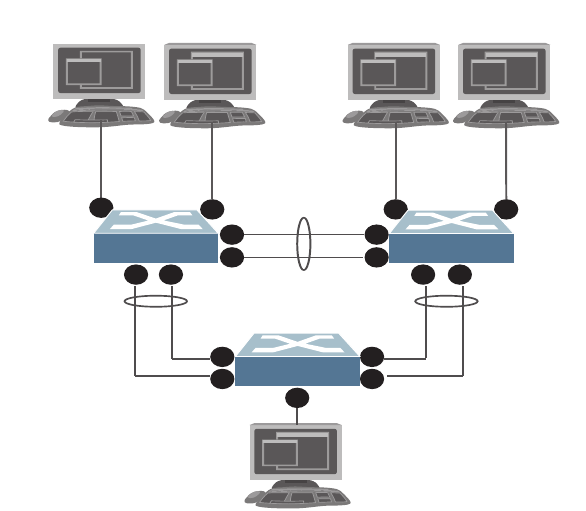
380 G8052 Application Guide for N/OS 8.3
Advanced Configuration Example: IGMP Snooping
Figure 30 shows an example topology. Switches B and C are configured with IGMP
Snooping.
Figure 30. Topology
Devices in this topology are configured as follows:
-STG2 includes VLAN2; STG3 includes VLAN3.
-The multicast server sends IP multicast traffic for the following groups:
VLAN 2, 225.10.0.11 – 225.10.0.12, Source: 22.10.0.11
VLAN 2, 225.10.0.13 – 225.10.0.15, Source: 22.10.0.13
VLAN 3, 230.0.2.1 – 230.0.2.2, Source: 22.10.0.1
VLAN 3, 230.0.2.3 – 230.0.2.5, Source: 22.10.0.3
-The Mrouter sends IGMP Query packets in VLAN 2 and VLAN 3. The Mrouter’s
IP address is 10.10.10.10.
-The multicast hosts send the following IGMP Reports:
IGMPv2 Report, VLAN 2, Group: 225.10.0.11, Source: *
IGMPv2 Report, VLAN 3, Group: 230.0.2.1, Source: *
IGMPv3 IS_INCLUDE Report, VLAN 2, Group: 225.10.0.13, Source: 22.10.0.13
IGMPv3 IS_INCLUDE Report, VLAN 3, Group: 230.0.2.3, Source: 22.10.0.3
Multicast
Server
Multicast
Host 1
Multicast
Host 2
VLAN 2 VLANs 2,3
Switch B
56
Switch A
1
4
Trunk 1
VLANs 2, 3
Trunk 2
VLANs 2, 3
Trunk 3
VLANs 2, 3
VLANs 2,3
1 2
3
4
Multicast
Host 3
Multicast
Router
VLAN 3 VLANs 2,3
Switch C
5 6
3
4
1 2
5
2
3

© Copyright Lenovo 2015 Chapter 26: Internet Group Management Protocol 381
-The hosts receive multicast traffic as follows:
Host 1 receives multicast traffic for groups (*, 225.10.0.11), (22.10.0.13,
225.10.0.13)
Host 2 receives multicast traffic for groups (*, 225.10.0.11), (*, 230.0.2.1),
(22.10.0.13, 225.10.0.13), (22.10.0.3, 230.0.2.3)
Host 3 receives multicast traffic for groups (*, 230.0.2.1), (22.10.0.3, 230.0.2.3)
-The Mrouter receives all the multicast traffic.
Prerequisites
Before you configure IGMP Snooping, ensure you have performed the following
actions:
-Configured VLANs.
-Enabled IGMP.
-Added VLANs to IGMP Snooping.
-Configured a switch or Mrouter as the Querier.
-Identified the IGMP version(s) you want to enable.
-Disabled IGMP flooding.
Configuration
This section provides the configuration details of the switches shown in Figure 30.
Switch A Configuration
1. Configure VLANs and tagging.
2. Configure an IP interface with IPv4 address, and assign a VLAN.
3. Assign a bridge priority lower than the default bridge priority to enable the switch
to become the STP root in STG 2 and 3.
RS G8052(config)#interfaceport15
RS G8052(configif)#switchportmodetrunk
RS G8052(configif)#switchporttrunkallowedvlan2,3
RS G8052(configif)#exit
RS G8052(config)#interfaceip1
RS G8052(configipif)#ipaddress10.10.10.1enable
RS G8052(configipif)#vlan2
RS G8052(configipif)#exit
RS G8052(config)#spanningtreestp2bridgepriority4096
RS G8052(config)#spanningtreestp3bridgepriority4096

382 G8052 Application Guide for N/OS 8.3
4. Configure LACP dynamic trunk groups (portchannels).
Switch B Configuration
1. Configure VLANs and tagging.
2. Configure an IP interface with IPv4 address, and assign a VLAN.
3. Configure STP. Reset the ports to make the edge configuration operational.
4. Configure an LACP dynamic trunk group (portchannel).
5. Configure a static trunk group (portchannel).
RS G8052(config)#interfaceport1
RS G8052(configif)#lacpkey100
RS G8052(configif)#lacpmodeactive
RS G8052(configif)#exit
RS G8052(config)#interfaceport2
RS G8052(configif)#lacpkey100
RS G8052(configif)#lacpmodeactive
RS G8052(configif)#exit
RS G8052(config)#interfaceport3
RS G8052(configif)#lacpkey200
RS G8052(configif)#lacpmodeactive
RS G8052(configif)#exit
RS G8052(config)#interfaceport4
RS G8052(configif)#lacpkey200
RS G8052(configif)#lacpmodeactive
RS G8052(config)#vlan2,3
RS G8052(configvlan)#interfaceport14,6
RS G8052(configif)#switchportmodetrunk
RS G8052(configif)#switchporttrunkallowedvlan2,3
RS G8052(configif)#exit
RS G8052(config)#interfaceport5
RS G8052(configif)#switchportaccessvlan2
RS G8052(config)#interfaceip1
RS G8052(configipif)#ipaddress10.10.10.2enable
RS G8052(configipif)#vlan2
RS G8052(configipif)#exit
RS G8052(config)#interfaceport5,6
RS G8052(configif)#spanningtreeportfast
RS G8052(configif)#shutdown
RS G8052(configif)#noshutdown
RS G8052(configif)#exit
RS G8052(config)#interfaceport1,2
RS G8052(configif)#lacpkey300
RS G8052(configif)#lacpmodeactive
RS G8052(configif)#exit
RS G8052(config)#portchannel1port3,4enable

© Copyright Lenovo 2015 Chapter 26: Internet Group Management Protocol 383
6. Configure IGMP Snooping.
Switch C Configuration
1. Configure VLANs and tagging.
2. Configure an IP interface with IPv4 address, and assign a VLAN.
3. Configure STP. Reset the ports to make the edge configuration operational.
4. Configure an LACP dynamic trunk group (portchannel).
5. Configure a static trunk group (portchannel).
RS G8052(config)#ipigmpenable
RS G8052(config)#ipigmpsnoopvlan2,3
RS G8052(config)#ipigmpsnoopsourceip10.10.10.2
RS G8052(config)#ipigmpsnoopigmpv3enable
RS G8052(config)#ipigmpsnoopigmpv3sources64
RS G8052(config)#ipigmpsnoopenable
RS G8052(config)#vlan2
RS G8052(configvlan)#noflood
RS G8052(configvlan)#exit
RS G8052(config)#vlan3
RS G8052(configvlan)#noflood
RS G8052(configvlan)#exit
RS G8052(config)#vlan2,3
RS G8052(configvlan)#interfaceport14,6
RS G8052(configif)#switchportmodetrunk
RS G8052(configif)#switchporttrunkallowedvlan2,3
RS G8052(configif)#exit
RS G8052(config)#interfaceport5
RS G8052(configif)#switchportaccessvlan3
RS G8052(config)#interfaceip1
RS G8052(configipif)#ipaddress10.10.10.3enable
RS G8052(configipif)#vlan2
RS G8052(configipif)#exit
RS G8052(config)#interfaceport5,6
RS G8052(configif)#spanningtreeportfast
RS G8052(configif)#shutdown
RS G8052(configif)#noshutdown
RS G8052(configif)#exit
RS G8052(config)#interfaceport1,2
RS G8052(configif)#lacpkey400
RS G8052(configif)#lacpmodeactive
RS G8052(configif)#exit
RS G8052(config)#portchannel1port3,4enable

384 G8052 Application Guide for N/OS 8.3
6. Configure IGMP Snooping.
RS G8052(config)#ipigmpenable
RS G8052(config)#ipigmpsnoopvlan2,3
RS G8052(config)#ipigmpsnoopsourceip10.10.10.3
RS G8052(config)#ipigmpsnoopigmpv3enable
RS G8052(config)#ipigmpsnoopigmpv3sources64
RS G8052(config)#ipigmpsnoopenable
RS G8052(config)#vlan2
RS G8052(configvlan)#noflood
RS G8052(configvlan)#exit
RS G8052(config)#vlan3
RS G8052(configvlan)#noflood
RS G8052(configvlan)#exit

© Copyright Lenovo 2015 Chapter 26: Internet Group Management Protocol 385
Troubleshooting
This section provides the steps to resolve common IGMP Snooping configuration
issues. The topology described in Figure 30 is used as an example.
Multicast traffic from non-member groups reaches the host or Mrouter
-Check if traffic is unregistered. For unregistered traffic, an IGMP entry is not
displayed in the IGMP groups table.
-Ensure IPMC flooding is disabled and CPU is enabled.
-Check the egress port’s VLAN membership. The ports to which the hosts and
Mrouter are connected must be used only for VLAN 2 and VLAN 3.
Note: To avoid such a scenario, disable IPMC flooding for all VLANs enabled on
the switches (if this is an acceptable configuration).
-Check IGMP Reports on switches B and C for information about the IGMP
groups.
If the non-member IGMP groups are displayed in the table, close the application
that may be sending the IGMP Reports for these groups.
Identify the traffic source by using a sniffer on the hosts and reading the source
IP/MAC address. If the source IP/MAC address is unknown, check the port
statistics to find the ingress port.
-Ensure no static multicast MACs, static multicast groups, or static Mrouters are
configured.
-Ensure IGMP Relay and PIM are not configured.
Not all multicast traffic reaches the appropriate receivers.
-Ensure hosts are sending IGMP Reports for all the groups. Check the VLAN on
which the groups are learned.
If some of the groups are not displayed, ensure the multicast application is
running on the host device and the generated IGMP Reports are correct.
RS G8052#showipigmpgroups
RS G8052(config)#vlan<vlan id>
RS G8052(configvlan)#noflood
RS G8052(configvlan)#cpu
RS G8052#showvlan
RS G8052#showipigmpgroups
RS G8052#showinterfaceport<port id>interfacecounters
RS G8052#showipigmpgroups

386 G8052 Application Guide for N/OS 8.3
-Ensure multicast traffic reaches the switch to which the host is connected.
Close the application sending the IGMP Reports. Clear the IGMP groups by
disabling, then re-enabling the port.
Note: To clear all IGMP groups, use the following command:
RS G8052(config)# clearipigmpgroups
However, this will clear all the IGMP groups and will influence other
hosts.
Check if the multicast traffic reaches the switch.
If the multicast traffic group is not displayed in the table, check the link state,
VLAN membership, and STP convergence.
-Ensure multicast server is sending all the multicast traffic.
-Ensure no static multicast MACs, static multicast groups, or static multicast
routes are configured.
IGMP queries sent by the Mrouter do not reach the host.
-Ensure the Mrouter is learned on switches B and C.
If it is not learned on switch B but is learned on switch C, check the link state of
the trunk group, VLAN membership, and STP convergence.
If it is not learned on any switch, ensure the multicast application is running and
is sending correct IGMP Query packets.
If it is learned on both switches, check the link state, VLAN membership, and
STP port states for the ports connected to the hosts.
IGMP Reports/Leaves sent by the hosts do not reach the Mrouter
-Ensure IGMP Queries sent by the Mrouter reach the hosts.
-Ensure the Mrouter is learned on both switches. Note that the Mrouter may not
be learned on switch B immediately after a trunk group failover/failback.
-Ensure the host’s multicast application is started and is sending correct IGMP
Reports/Leaves.
A host receives multicast traffic from the incorrect VLAN
-Check port VLAN membership.
RS G8052#showipigmpipmcgrp
RS G8052#showipigmpmrouter
RS G8052#showipigmpmrouter
RS G8052#showipigmpgroups
RS G8052#showipigmpcounters

© Copyright Lenovo 2015 Chapter 26: Internet Group Management Protocol 387
-Check IGMP Reports sent by the host.
-Check multicast data sent by the server.
The Mrouter is learned on the incorrect trunk group
-Check link state. Trunk group 1 might be down or in STP discarding state.
-Check STP convergence.
-Check port VLAN membership.
Hosts receive multicast traffic at a lower rate than normal
Note: This behavior is expected if IPMC flood is disabled and CPU is enabled. As
soon as the IGMP/IPMC entries are installed on ASIC, the IPMC traffic recovers
and is forwarded at line rate. This applies to unregistered IPMC traffic.
-Ensure a storm control is not configured on the trunks.
-Check link speeds and network congestion.
RS G8052(config)#interfaceport<port id>
RS G8052(configif)#nostormcontrolmulticast

388 G8052 Application Guide for N/OS 8.3
IGMP Relay
The G8052 can act as an IGMP Relay (or IGMP Proxy) device that relays IGMP
multicast messages and traffic between an Mrouter and end stations. IGMP Relay
allows the G8052 to participate in network multicasts with no configuration of the
various multicast routing protocols, so you can deploy it in the network with
minimal effort.
To an IGMP host connected to the G8052, IGMP Relay appears to be an IGMP
Mrouter. IGMP Relay sends Membership Queries to hosts, which respond by
sending an IGMP response message. A host can also send an unsolicited Join
message to the IGMP Relay.
To an Mrouter, IGMP Relay appears as a host. The Mrouter sends IGMP host
queries to IGMP Relay, and IGMP Relay responds by forwarding IGMP host
reports and unsolicited Join messages from its attached hosts.
IGMP Relay also forwards multicast traffic between the Mrouter and end stations,
similar to IGMP Snooping.
You can configure up to two Mrouters to use with IGMP Relay. One Mrouter acts
as the primary Mrouter, and one is the backup Mrouter. The G8052 uses health
checks to select the primary Mrouter.
Configuration Guidelines
Consider the following guidelines when you configure IGMP Relay:
-IGMP Relay and IGMP Snooping are mutually exclusive—if you enable IGMP
Relay, you must turn off IGMP Snooping/Querier.
-Add the upstream Mrouter VLAN to the IGMP Relay list, using the following
command:
-If IGMP hosts reside on different VLANs, you must:
Disable IGMP flooding.
Ensure CPU forwarding is enabled; Ensure that multicast data is forwarded
across the VLANs.
RS G8052(config)#ipigmprelayvlan<VLAN number>
RS G8052(config)#vlan<vlan id>
RS G8052(configvlan)#noflood
RS G8052(config)#vlan<vlan id>
RS G8052(configvlan)#cpu

© Copyright Lenovo 2015 Chapter 26: Internet Group Management Protocol 389
Configure IGMP Relay
Use the following procedure to configure IGMP Relay.
1. Configure IP interfaces with IPv4 addresses, and assign VLANs.
2. Turn IGMP on.
3. Configure the upstream Mrouters with IPv4 addresses.
4. Enable IGMP Relay and add VLANs to the downstream network.
RS G8052(config)#interfaceip2
RS G8052(configipif)#ipaddress10.10.1.1
RS G8052(configipif)#ipnetmask255.255.255.0
RS G8052(configipif)#vlan2
RS G8052(configipif)#enable
RS G8052(configipif)#exit
RS G8052(config)#interfaceip3
RS G8052(configipif)#ipaddress10.10.2.1
RS G8052(configipif)#ipnetmask255.255.255.0
RS G8052(configipif)#vlan3
RS G8052(configipif)#enable
RS G8052(configipif)#exit
RS G8052(config)#ipigmpenable
RS G8052(config)#ipigmprelaymrouter1address100.0.1.2
RS G8052(config)#ipigmprelaymrouter1enable
RS G8052(config)#ipigmprelaymrouter2address100.0.2.4
RS G8052(config)#ipigmprelaymrouter2enable
RS G8052(config)#ipigmprelayvlan2
RS G8052(config)#ipigmprelayvlan3
RS G8052(config)#ipigmprelayenable
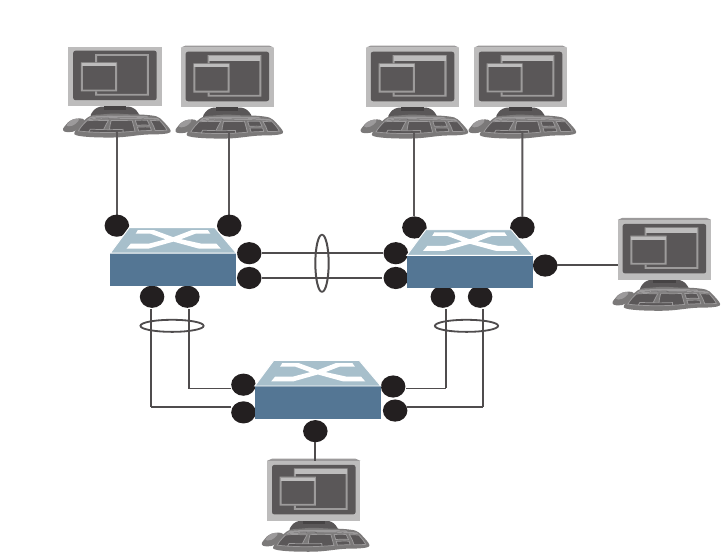
390 G8052 Application Guide for N/OS 8.3
Advanced Configuration Example: IGMP Relay
Figure 31 shows an example topology. Switches B and C are configured with IGMP
Relay.
Figure 31. Topology
Devices in this topology are configured as follows:
-The IP address of Multicast Router 1 is 5.5.5.5
-The IP address of Multicast Router 2 is 5.5.5.6
-STG 2 includes VLAN2; STG 3 includes VLAN 3; STG 5 includes VLAN 5.
-The multicast server sends IP multicast traffic for the following groups:
VLAN 2, 225.10.0.11 – 225.10.0.15
-The multicast hosts send the following IGMP Reports:
Host 1: 225.10.0.11 – 225.10.0.12, VLAN 3
Host 2: 225.10.0.12 – 225.10.0.13, VLAN 2; 225.10.0.14 – 225.10.0.15, VLAN 3
Host 3: 225.10.0.13 – 225.10.0.14, VLAN 2
-The Mrouter receives all the multicast traffic.
Prerequisites
Before you configure IGMP Relay, ensure you have performed the following
actions:
-Configured VLANs.
-Enabled IGMP.
Multicast
Server
Multicast
Host 1
Multicast
Host 2
VLAN 3 VLANs 2,3
Switch B
5 6
Switch A
1
4
Trunk 1
VLAN 2
Trunk 2
VLAN 2
Trunk 3
VLAN 2
VLAN 2
1 2
3
4
Multicast
Host 3
Multicast
Router 1
Multicast
Router 2
VLAN 2 VLAN 5
VLAN 5
Switch C
5 6
7
3
4
1 2
5
2
3

© Copyright Lenovo 2015 Chapter 26: Internet Group Management Protocol 391
-Disabled IGMP flooding.
-Disabled IGMP Snooping.
Configuration
This section provides the configuration details of the switches in Figure 31.
Switch A Configuration
1. Configure a VLAN.
2. Configure an IP interface with IPv4 address, and assign a VLAN..
3. Assign a bridge priority lower than the default bridge priority to enable the switch
to become the STP root in STG 2 and 3.
4. Configure LACP dynamic trunk groups (portchannels).
RS G8052(config)#interfaceport15
RS G8052(configif)#switchportaccessvlan2
RS G8052(config)#interfaceip2
RS G8052(configipif)#ipaddress2.2.2.10enable
RS G8052(configipif)#vlan2
RS G8052(configipif)#exit
RS G8052(config)#spanningtreestp2bridgepriority4096
RS G8052(config)#interfaceport1,2
RS G8052(configif)#lacpkey100
RS G8052(configif)#lacpmodeactive
RS G8052(configif)#exit
RS G8052(config)#interfaceport3,4
RS G8052(configif)#lacpkey200
RS G8052(configif)#lacpmodeactive

392 G8052 Application Guide for N/OS 8.3
Switch B Configuration
1. Configure VLANs and tagging.
2. Configure IP interfaces with IPv4 addresses, and assign VLANs.
3. Configure STP.
4. Configure an LACP dynamic trunk group (portchannel).
5. Configure a static trunk group (portchannel).
RS G8052(config)#vlan2,3
RS G8052(configvlan)#interfaceport14
RS G8052(configif)#switchportaccessvlan2
RS G8052(configif)#exit
RS G8052(config)#interfaceport5
RS G8052(configif)#switchportaccessvlan3
RS G8052(configif)#exit
RS G8052(config)#interfaceport6
RS G8052(configif)#switchportmodetrunk
RS G8052(configif)#switchporttrunkallowedvlan2,3
RS G8052(configif)#exit
RS G8052(config)#interfaceip2
RS G8052(configipif)#ipaddress2.2.2.20enable
RS G8052(configipif)#vlan2
RS G8052(configipif)#exit
RS G8052(config)#interfaceip3
RS G8052(configipif)#ipaddress3.3.3.20enable
RS G8052(configipif)#vlan3
RS G8052(configipif)#exit
RS G8052(config)#ipgateway2address2.2.2.30enable
RS G8052(config)#interfaceport5,6
RS G8052(configif)#spanningtreeportfast
RS G8052(configif)#shutdown
RS G8052(configif)#noshutdown
RS G8052(configif)#exit
RS G8052(config)#interfaceport1,2
RS G8052(configif)#lacpkey300
RS G8052(configif)#lacpmodeactive
RS G8052(configif)#exit
RS G8052(config)#portchannel1port3,4enable

© Copyright Lenovo 2015 Chapter 26: Internet Group Management Protocol 393
6. Configure IGMP Relay.
Switch C Configuration
1. Configure VLANs.
2. Configure IP interfaces with IPv4 addresses and assign VLANs.
3. Configure STP.
4. Configure LACP dynamic trunk group (portchannel).
RS G8052(config)#ipigmpenable
RS G8052(config)#ipigmprelayvlan2,3
RS G8052(config)#ipigmprelaymrouter1address5.5.5.5enable
RS G8052(config)#ipigmprelaymrouter2address5.5.5.6enable
RS G8052(config)#ipigmprelayenable
RS G8052(config)#vlan2
RS G8052(configvlan)#noflood
RS G8052(configvlan)#exit
RS G8052(config)#vlan3
RS G8052(configvlan)#noflood
RS G8052(configvlan)#exit
RS G8052(config)#vlan2,3,5
RS G8052(configvlan)#interfaceport15
RS G8052(configif)#switchportaccessvlan2
RS G8052(configif)#interfaceport6,7
RS G8052(configif)#switchportaccessvlan5
RS G8052(configif)#exit
RS G8052(config)#interfaceip2
RS G8052(configipif)#ipaddress2.2.2.30enable
RS G8052(configipif)#vlan2
RS G8052(configipif)#exit
RS G8052(config)#interfaceip3
RS G8052(configipif)#ipaddress5.5.5.30enable
RS G8052(configipif)#vlan5
RS G8052(configipif)#exit
RS G8052(config)#ipgateway2address2.2.2.20enable
RS G8052(config)#interfaceport5,6,7
RS G8052(configif)#spanningtreeportfast
RS G8052(configif)#shutdown
RS G8052(configif)#noshutdown
RS G8052(configif)#exit
RS G8052(config)#interfaceport1,2
RS G8052(configif)#lacpkey400
RS G8052(configif)#lacpmodeactive
RS G8052(configif)#exit

394 G8052 Application Guide for N/OS 8.3
5. Configure a static trunk group (portchannel).
6. Enable IGMP.
7. Configure IGMP Relay.
RS G8052(config)#portchannel1port3,4enable
RS G8052(config)#ipigmpenable
RS G8052(config)#ipigmprelayvlan2,5
RS G8052(config)#ipigmprelaymrouter1address5.5.5.5enable
RS G8052(config)#ipigmprelaymrouter2address5.5.5.6enable
RS G8052(config)#ipigmprelayenable
RS G8052(config)#vlan2
RS G8052(configvlan)#noflood
RS G8052(configvlan)#exit
RS G8052(config)#vlan5
RS G8052(configvlan)#noflood
RS G8052(configvlan)#exit

© Copyright Lenovo 2015 Chapter 26: Internet Group Management Protocol 395
Troubleshooting
This section provides the steps to resolve common IGMP Relay configuration
issues. The topology described in Figure 31 is used as an example.
Multicast traffic from non-member groups reaches the hosts or the Mrouter
-Ensure IPMC flood is disabled.
-Check the egress port’s VLAN membership. The ports to which the hosts and
Mrouter are connected must be used only for VLAN 2, VLAN 3, or VLAN 5.
Note: To avoid such a scenario, disable IPMC flooding for all VLANs enabled on
the switches (if this is an acceptable configuration).
-Check IGMP Reports on switches B and C for information about IGMP groups.
If non-member IGMP groups are displayed in the table, close the application
that may be sending the IGMP Reports for these groups.
Identify the traffic source by using a sniffer on the hosts and reading the source
IP address/MAC address. If the source IP address/MAC address is unknown,
check the port statistics to find the ingress port.
-Ensure no static multicast MACs and static Mrouters are configured.
Not all multicast traffic reaches the appropriate receivers
Ensure hosts are sending IGMP Reports for all the groups. Check the VLAN on
which the groups are learned.
If some of the groups are not displayed, ensure the multicast application is
running on the host device and the generated IGMP Reports are correct.
-Ensure the multicast traffic reaches the switch to which the host is connected.
Close the application sending the IGMP Reports. Clear the IGMP groups by
flapping (disabling, then re-enabling) the port.
RS G8052(config)#vlan<vlan id>
RS G8052(configvlan)#noflood
RS G8052(config)#showvlan
RS G8052(config)#showipigmpgroups
RS G8052(config)#showinterfaceport<port id>interfacecounters
RS G8052(config)#showipigmpgroups

396 G8052 Application Guide for N/OS 8.3
Note: To clear all IGMP groups, use the following command:
RS G8052(config)# clearipigmpgroups
However, this will clear all the IGMP groups and will influence other
hosts.
Check if the multicast traffic reaches the switch.
If the multicast traffic group is not displayed in the table, check the link state,
VLAN membership, and STP convergence.
-Ensure the multicast server is sending all the multicast traffic.
-Ensure no static multicast MACs or static multicast routes are configured.
-Ensure PIM is not enabled on the switches.
IGMP Reports/Leaves sent by the hosts do not reach the Mrouter
-Ensure that the primary or secondary Mrouter is reachable. If not, the IGMP
Reports/Leaves are not forwarded. Note that the Mrouter may not be reachable
immediately after a trunk group failover/failback.
-Ensure the host’s multicast application is started and is sending correct IGMP
Reports/Leaves.
The Mrouter is reachable on the incorrect trunk group
-Check link state. Trunk group 1 may be down or in STP discarding state.
-Check STP convergence and port VLAN membership.
-Check IP connectivity between the switch and the configured Mrouter (primary
or secondary).
Hosts receive multicast traffic at a lower rate than normal
-Ensure a multicast threshold is not configured on the trunk groups.
-Check link speeds and network congestion.
RS G8052(config)#showipigmpipmcgrp
RS G8052(config)#showipigmpgroups
RS G8052(config)#showipigmpgroups
RS G8052(config)#showipigmpcounters
RS G8052(config)#interfaceport<port id>
RS G8052(configif)#nostormcontrolmulticast

© Copyright Lenovo 2015 Chapter 26: Internet Group Management Protocol 397
Additional IGMP Features
The following topics are discussed in this section:
-“FastLeave” on page 397
-“IGMP Filtering” on page 397
-“Static Multicast Router” on page 398
FastLeave
In normal IGMP operation, when the switch receives an IGMPv2 Leave message, it
sends a Group-Specific Query to determine if any other devices in the same group
(and on the same port) are still interested in the specified multicast group traffic.
The switch removes the affiliated port from that particular group, if the switch
does not receive an IGMP Membership Report within the query-response-interval.
With FastLeave enabled on the VLAN, a port can be removed immediately from
the port list of the group entry when the IGMP Leave message is received.
Note: Only IGMPv2 supports FastLeave. Enable FastLeave on ports that have only
one host connected. If more than one host is connected to a port, you may lose
some hosts unexpectedly.
Use the following command to enable FastLeave.
IGMP Filtering
With IGMP filtering, you can allow or deny certain IGMP groups to be learned on
a port.
If access to a multicast group is denied, IGMP Membership Reports from the port are
dropped, and the port is not allowed to receive IPv4 multicast traffic from that
group. If access to the multicast group is allowed, Membership Reports from the
port are forwarded for normal processing.
To configure IGMP filtering, you must globally enable IGMP filtering, define an
IGMP filter, assign the filter to a port, and enable IGMP filtering on the port. To
define an IGMP filter, you must configure a range of IPv4 multicast groups, choose
whether the filter will allow or deny multicast traffic for groups within the range,
and enable the filter.
Configuring the Range
Each IGMP filter allows you to set a start and end point that defines the range of
IPv4 addresses upon which the filter takes action. Each IPv4 address in the range
must be between 224.0.0.0 and 239.255.255.255.

398 G8052 Application Guide for N/OS 8.3
Configuring the Action
Each IGMP filter can allow or deny IPv4 multicasts to the range of IPv4 addresses
configured. If you configure the filter to deny IPv4 multicasts, then IGMP
Membership Reports from multicast groups within the range are dropped. You can
configure a secondary filter to allow IPv4 multicasts to a small range of addresses
within a larger range that a primary filter is configured to deny. The two filters
work together to allow IPv4 multicasts to a small subset of addresses within the
larger range of addresses.
Note: Lower-numbered filters take precedence over higher-number filters. For
example, the action defined for IGMP filter 1 supersedes the action defined for
IGMP filter 2.
Configure IGMP Filtering
1. Enable IGMP filtering on the switch.
2. Define an IGMP filter with IPv4 information.
3. Assign the IGMP filter to a port.
Static Multicast Router
A static Mrouter can be configured for a particular port on a particular VLAN. A
static Mrouter does not have to be learned through IGMP Snooping. Any data port
can accept a static Mrouter.
When you configure a static Mrouter on a VLAN, it replaces any dynamic
Mrouters learned through IGMP Snooping.
Configure a Static Multicast Router
1. For each Mrouter, configure a port, VLAN, and IGMP version of the multicast
router.
2. Verify the configuration.
RS G8052(config)#ipigmpfiltering
RS G8052(config)#ipigmpprofile1range224.0.0.0226.0.0.0
RS G8052(config)#ipigmpprofile1actiondeny
RS G8052(config)#ipigmpprofile1enable
RS G8052(config)#interfaceport3
RS G8052(configif)#ipigmpprofile1
RS G8052(configif)#ipigmpfiltering
RS G8052(config)#ipigmpmrouter512
RS G8052(config)#showipigmpmrouter

© Copyright Lenovo 2015 399
Chapter 27. Multicast Listener Discovery
Multicast Listener Discovery (MLD) is an IPv6 protocol that a host uses to request
multicast data for a multicast group. An IPv6 router uses MLD to discover the
presence of multicast listeners (nodes that want to receive multicast packets) on its
directly attached links, and to discover specifically the multicast addresses that are
of interest to those neighboring nodes.
MLD version 1 is derived from Internet Group Management Protocol version 2
(IGMPv2) and MLDv2 is derived from IGMPv3. MLD uses ICMPv6 (IP Protocol
58) message types. See RFC 2710 and RFC 3810 for details.
MLDv2 protocol, when compared to MLDv1, adds support for source filtering—
the ability for a node to report interest in listening to packets only from specific
source addresses, or from all but specific source addresses, sent to a particular
multicast address. MLDv2 is interoperable with MLDv1. See RFC 3569 for details
on Source-Specific Multicast (SSM).
The following topics are discussed in this chapter:
-“MLD Terms” on page 400
-“How MLD Works” on page 401
-“MLD Capacity and Default Values” on page 404
-“Configuring MLD” on page 405

400 G8052 Application Guide for N/OS 8.3
MLD Terms
Following are the commonly used MLD terms:
-Multicast traffic: Flow of data from one source to multiple destinations.
-Group: A multicast stream to which a host can join.
-Multicast Router (Mrouter): A router configured to make routing decisions for
multicast traffic. The router identifies the type of packet received (unicast or
multicast) and forwards the packet to the intended destination.
-Querier: An Mrouter that sends periodic query messages. Only one Mrouter on
the subnet can be elected as the Querier.
-Multicast Listener Query: Messages sent by the Querier. There are three types of
queries:
General Query: Sent periodically to learn multicast address listeners from an
attached link. G8052 uses these queries to build and refresh the Multicast
Address Listener state. General Queries are sent to the link-scope all-nodes
multicast address (FF02::1), with a multicast address field of 0, and a
maximum response delay of query response interval.
Multicast Address Specific Query: Sent to learn if a specific multicast address
has any listeners on an attached link. The multicast address field is set to the
IPv6 multicast address.
Multicast Address and Source Specific Query: Sent to learn if, for a specified
multicast address, there are nodes still listening to a specific set of sources.
Supported only in MLDv2.
Note: Multicast Address Specific Queries and Multicast Address and Source
Specific Queries are sent only in response to State Change Reports, and never in
response to Current State Reports.
-Multicast Listener Report: Sent by a host when it joins a multicast group, or in
response to a Multicast Listener Query sent by the Querier. Hosts use these
reports to indicate their current multicast listening state, or changes in the
multicast listening state of their interfaces. These reports are of two types:
Current State Report: Contains the current Multicast Address Listening State
of the host.
State Change Report: If the listening state of a host changes, the host
immediately reports these changes through a State Change Report message.
These reports contain either Filter Mode Change records and/or Source List
Change records. State Change Reports are retransmitted several times to
ensure all Mrouters receive it.
-Multicast Listener Done: Sent by a host when it wants to leave a multicast group.
This message is sent to the link-scope all-routers IPv6 destination address of
FF02::2. When an Mrouter receives a Multicast Listener Done message from the
last member of the multicast address on a link, it stops forwarding traffic to this
multicast address.

© Copyright Lenovo 2015 Chapter 27: Multicast Listener Discovery 401
How MLD Works
The software uses the information obtained through MLD to maintain a list of
multicast group memberships for each interface and forwards the multicast traffic
only to interested listeners.
Without MLD, the switch forwards IPv6 multicast traffic through all ports,
increasing network load. Following is an overview of operations when MLD is
configured on the G8052:
-The switch acts as an Mrouter when MLDv1/v2 is configured and enabled on
each of its directly attached links. If the switch has multiple interfaces connected
to the same link, it operates the protocol on any one of the interfaces.
-If there are multiple Mrouters on the subnet, the Mrouter with the numerically
lowest IPv6 address is elected as the Querier.
-The Querier sends general queries at short intervals to learn multicast address
listener information from an attached link.
-Hosts respond to these queries by reporting their per-interface Multicast
Address Listening state, through Current State Report messages sent to a
specific multicast address that all MLD routers on the link listen to.
-If the listening state of a host changes, the host immediately reports these
changes through a State Change Report message.
-The Querier sends a Multicast Address Specific Query to verify if hosts are
listening to a specified multicast address or not. Similarly, if MLDv2 is
configured, the Querier sends a Multicast Address and Source Specific Query to
verify, for a specified multicast address, if hosts are listening to a specific set of
sources, or not. MLDv2 listener report messages consists of Multicast Address
Records:
INCLUDE: to receive packets from source specified in the MLDv2 message
EXCLUDE: to receive packets from all sources except the ones specified in the
MLDv2 message
-A host can send a State Change Report to indicate its desire to stop listening to a
particular multicast address (or source in MLDv2). The Querier then sends a
multicast address specific query to verify if there are other listeners of the
multicast address. If there aren’t any, the Mrouter deletes the multicast address
from its Multicast Address Listener state and stops sending multicast traffic.
Similarly in MLDv2, the Mrouter sends a Multicast Address and Source Specific
Query to verify if, for a specified multicast address, there are hosts still listening
to a specific set of sources.
G8052 supports MLD versions 1 and 2.
Note: MLDv2 operates in version 1 compatibility mode when, in a specific
network, not all hosts are configured with MLDv2.

402 G8052 Application Guide for N/OS 8.3
How Flooding Impacts MLD
When flood option is disabled, the unknown multicast traffic is discarded if no
Mrouters are learned on the switch. You can set the flooding behavior by
configuring the flood and cpu options. You can optimize the flooding to ensure
that unknown IP multicast (IPMC) data packets are not dropped during the
learning phase.
The flooding options include:
-flood: Enable hardware flooding in VLAN for the unregistered IPMC; This
option is enabled by default.
-cpu: Enable sending unregistered IPMC to the Mrouter ports. However, during
the learning period, there will be some packet loss. The cpu option is enabled by
default. You must ensure that the flood and optflood options are disabled.
-optflood: Enable optimized flooding to allow sending the unregistered IPMC
to the Mrouter ports without having any packet loss during the learning period;
This option is disabled by default; When optflood is enabled, the flood and
cpu settings are ignored.
The flooding parameters must be configured per VLAN. Enter the following
command to set the flood or cpu option:
MLD Querier
An Mrouter acts as a Querier and periodically (at short query intervals) sends
query messages in the subnet. If there are multiple Mrouters in the subnet, only
one can be the Querier. All Mrouters on the subnet listen to the messages sent by
the multicast address listeners, and maintain the same multicast listening
information state.
All MLDv2 queries are sent with the FE80::/64 link-local source address prefix.
Querier Election
Only one Mrouter can be the Querier per subnet. All other Mrouters will be
non-Queriers. MLD versions 1 and 2 elect the Mrouter with the numerically lowest
IPv6 address as the Querier.
If the switch is configured as an Mrouter on a subnet, it also acts as a Querier by
default and sends multiple general queries. If the switch receives a general query
from another Querier with a numerically lower IPv6 address, it sets the other
querier present timer to the other querier present timeout, and changes its state to
non-Querier. When the other querier present timer expires, it regains the Querier
state and starts sending general queries.
Note: When MLD Querier is enabled on a VLAN, the switch performs the role of
an MLD Querier only if it meets the MLD Querier election criteria.
RS G8052(config)#vlan<vlan number>
RS G8052(configvlan)#[no]flood
RS G8052(configvlan)#[no]cpu
RS G8052(configvlan)#[no]optflood

© Copyright Lenovo 2015 Chapter 27: Multicast Listener Discovery 403
Dynamic Mrouters
The switch learns Mrouters on the ingress VLANs of the MLD-enabled interface.
All report or done messages are forwarded to these Mrouters. By default, the
option of dynamically learning Mrouters is disabled. To enable it, use the following
command:
RS G8052(config)#interfaceip<interface number>
RS G8052(configipif)#ipv6mlddmrtrenable

404 G8052 Application Guide for N/OS 8.3
MLD Capacity and Default Values
Table 32 lists the maximum and minimum values of the G8052 variables.
Table 33 lists the default settings for MLD features and variables.
Table 32. G8052 Capacity Table
Variable Maximum Value
IPv6 Multicast Entries 256
IPv6 Interfaces for MLD 8
Table 33. MLD Timers and Default Values
Field Default Value
Robustness Variable (RV) 2
Query Interval (QI) 125 seconds
Query Response Interval (QRI) 10 seconds
Multicast Address Listeners Interval
(MALI) 260 seconds [derived: RV*QI+QRI]
Other Querier Present Interval [OQPT] 255 seconds [derived: RV*QI + ½ QRI]
Start up Query Interval [SQI] 31.25 seconds [derived: ¼ * QI]
Startup Query Count [SQC] 2 [derived: RV]
Last Listener Query Interval [LLQI] 1 second
Last Listener Query Count [LLQC] 2 [derived: RV]
Last Listener Query Time [LLQT] 2 seconds [derived: LLQI * LLQT]
Older Version Querier Present Timeout:
[OVQPT] 260 seconds [derived: RV*QI+ QRI]
Older Version Host Present Interval
[OVHPT] 260 seconds [derived: RV* QI+QRI]

© Copyright Lenovo 2015 Chapter 27: Multicast Listener Discovery 405
Configuring MLD
Following are the steps to enable MLD and configure the interface parameters:
1. Turn on MLD globally.
2. Create an IPv6 interface.
3. Enable MLD on the IPv6 interface.
4. Configure the MLD parameters on the interface: version, robustness, query
response interval, MLD query interval, and last listener query interval.
RS G8052(config)#ipv6mld
RS G8052(configroutermld)#enable
RS G8052(configroutermld)#exit
RS G8052(config)#interfaceip2
RS G8052(configipif)#enable
RS G8052(configipif)#ipv6address2002:1:0:0:0:0:0:3
RS G8052(configipif)#ipv6prefixlen64
RS G8052(configipif)#ipv6mldenable
RS G8052(configipif)#ipv6mldversion<1-2>(MLD version)
RS G8052(configipif)#ipv6mldrobust<1-10>(Robustness)
RS G8052(configipif)#ipv6mldqri<1-256>(In seconds)
RS G8052(configipif)#ipv6mldqintrval<1-608>(In seconds)
RS G8052(configipif)#ipv6mldllistnr<1-32>(In seconds)
406 G8052 Application Guide for N/OS 8.3

© Copyright Lenovo 2015 407
Chapter 28. Border Gateway Protocol
Border Gateway Protocol (BGP) is an Internet protocol that enables routers on an
IPv4 network to share and advertise routing information with each other about the
segments of the IPv4 address space they can access within their network and with
routers on external networks. BGP allows you to decide what is the “best” route for
a packet to take from your network to a destination on another network rather than
simply setting a default route from your border router(s) to your upstream
provider(s). BGP is defined in RFC 1771.
RackSwitch G8052es can advertise their IP interfaces and IPv4 addresses using
BGP and take BGP feeds from as many as 12 BGP router peers. This allows more
resilience and flexibility in balancing traffic from the Internet.
Note: Lenovo Network Operating System 8.3 does not support IPv6 for BGP.
The following topics are discussed in this section:
-“Internal Routing Versus External Routing” on page 408
-“Forming BGP Peer Routers” on page 411
-“Loopback Interfaces” on page 413
-“What is a Route Map?” on page 413
-“Aggregating Routes” on page 417
-“Redistributing Routes” on page 417
-“BGP Attributes” on page 419
-“Selecting Route Paths in BGP” on page 421
-“BGP Failover Configuration” on page 422
-“Default Redistribution and Route Aggregation Example” on page 424
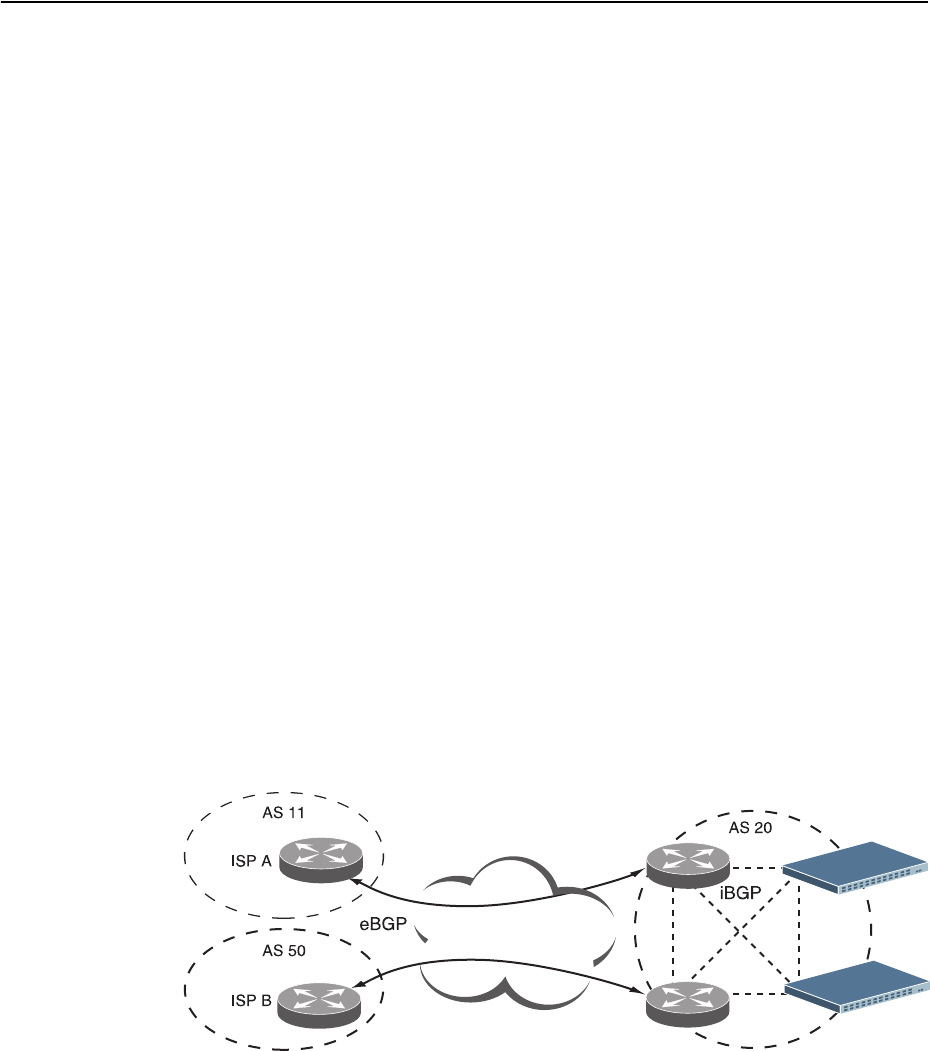
408 G8052 Application Guide for N/OS 8.3
Internal Routing Versus External Routing
To ensure effective processing of network traffic, every router on your network
needs to know how to send a packet (directly or indirectly) to any other
location/destination in your network. This is referred to as internal routing and can
be done with static routes or using active, internal dynamic routing protocols, such
as RIP, RIPv2, and OSPF.
Static routes must have a higher degree of precedence than dynamic routing
protocols. If the destination route is not in the route cache, the packets are
forwarded to the default gateway which may be incorrect if a dynamic routing
protocol is enabled.
It is also useful to tell routers outside your network (upstream providers or peers)
about the routes you can access in your network. External networks (those outside
your own) that are under the same administrative control are referred to as
autonomous systems (AS). Sharing of routing information between autonomous
systems is known as external routing.
External BGP (eBGP) is used to exchange routes between different autonomous
systems whereas internal BGP (iBGP) is used to exchange routes within the same
autonomous system. An iBGP is a type of internal routing protocol you can use to
do active routing inside your network. It also carries AS path information, which is
important when you are an ISP or doing BGP transit.
The iBGP peers have to maintain reciprocal sessions to every other iBGP router in
the same AS (in a full-mesh manner) to propagate route information throughout
the AS. If the iBGP session shown between the two routers in AS 20 was not
present (as indicated in Figure 32), the top router would not learn the route to AS
50, and the bottom router would not learn the route to AS 11, even though the two
AS 20 routers are connected via the RackSwitch G8052.
Figure 32. iBGP and eBGP
When there are many iBGP peers, having a full-mesh configuration results in large
number of sessions between the iBGP peers. In such situations, configuring a route
reflector eliminates the full-mesh configuration requirement, prevents route
propagation loops, and provides better scalability to the peers. For details, see
“Route Reflector” on page 409.
Internet
Internet
© Copyright Lenovo 2015 Chapter 28: Border Gateway Protocol 409
Typically, an AS has one or more border routers—peer routers that exchange routes
with other ASs—and an internal routing scheme that enables routers in that AS to
reach every other router and destination within that AS. When you advertise routes
to border routers on other autonomous systems, you are effectively committing to
carry data to the IPv4 space represented in the route being advertised. For
example, if you advertise 192.204.4.0/24, you are declaring that if another router
sends you data destined for any address in 192.204.4.0/24, you know how to carry
that data to its destination.
Route Reflector
The Networking OS implementation conforms to the BGP Route Reflection
specification defined in RFC 4456.
As per RFC 1771 specification, a route received from an iBGP peer cannot be
advertised to another iBGP peer. This makes it mandatory to have full-mesh iBGP
sessions between all BGP routers within an AS. A route reflector—a BGP router—
breaks this iBGP loop avoidance rule. It does not affect the eBGP behavior. A route
reflector is a BGP speaker that advertises a route learnt from an iBGP peer to
another iBGP peer. The advertised route is called the reflected route.
A route reflector has two groups of internal peers: clients and non-clients. A route
reflector reflects between these groups and among the clients. The non-client peers
must be fully meshed. The route reflector and its clients form a cluster.
When a route reflector receives a route from an iBGP peer, it selects the best path
based on its path selection rule. It then does the following based on the type of peer
it received the best path from:
-A route received from a non-client iBGP peer is reflected to all clients.
-A route received from an iBGP client peer is reflected to all iBGP clients and
iBGP non-clients.
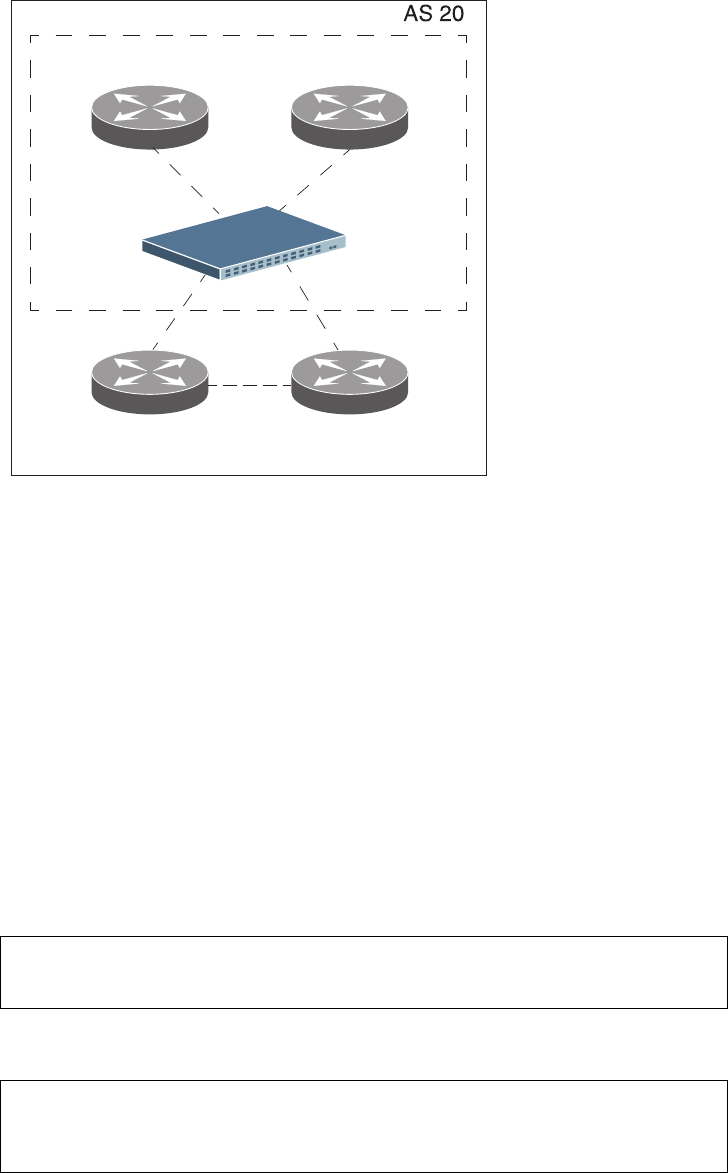
410 G8052 Application Guide for N/OS 8.3
In Figure 33, the G8052 is configured as a route reflector. All clients and non-clients
are in the same AS.
Figure 33. iBGP Route Reflector
The following attributes are used by the route reflector functionality:
-ORIGINATOR ID: BGP identifier (BGP router ID) of the route originator in the
local AS. If the route does not have the ORIGINATOR ID attribute (it has not
been reflected before), the router ID of the iBGP peer from which the route has
been received is copied into the Originator ID attribute.This attribute is never
modified by subsequent route reflectors. A router that identifies its own ID as
the ORIGINATOR ID, it ignores the route.
-CLUSTER LIST: Sequence of the CLUSTER ID (the router ID) values
representing the reflection path that the route has passed. The value configured
with theclusteridcommand (or the router ID of the route reflector if the
clusterid is not configured) is prepended to the Cluster list attribute. If a
route reflector detects its own CLUSTER ID in the CLUSTER LIST, it ignores the
route. Up to 10 CLUSTER IDs can be added to a CLUSTER LIST.
Route reflection functionality can be configured as follows:
1. Configure an AS.
2. Configure a route reflector client.
Route Reflector
Cluster
iBGP iBGP
iBGPiBGP
iBGP
RR Client RR Client
RR Non-Client RR Non-Client
RS G8052(config)#routerbgp
RS G8052(configrouterbgp)#as22
RS G8052(configrouterbgp)#enable
RS G8052(configrouterbgp)#neighbor2remoteaddress10.1.50.1
RS G8052(configrouterbgp)#neighbor2remoteas22
RS G8052(configrouterbgp)#neighbor2routereflectorclient
RS G8052(configrouterbgp)#noneighbor2shutdown

© Copyright Lenovo 2015 Chapter 28: Border Gateway Protocol 411
Note: When a client is configured on the G8052, the switch automatically gets
configured as a route reflector.
3. Verify configuration.
Once configured as a route reflector, the switch, by default, passes routes between
clients. If required, you can disable this by using the following command:
You can view the route reflector BGP attributes attached to a BGP route using the
following command:
You can view BGP advertised routes to a specific neighbor or to all neighbors using
the command:
Restrictions
Consider the following restrictions when configuring route reflection
functionality:
-When a CLUSTER ID is changed, all iBGP sessions are restarted.
-When a route reflector client is enabled/disabled, the session is restarted.
Forming BGP Peer Routers
Two BGP routers become peers or neighbors once you establish a TCP connection
between them.
RS G8052(config)#showipbgpneighbor2information
BGPPeer2Information:
2:10.1.50.1,version0,TTL255,TTLSecurityhops0
RemoteAS:0,LocalAS:22,Linktype:IBGP
RemoterouterID:0.0.0.0,LocalrouterID:9.9.9.9
nexthopselfdisabled
RRclientenabled
BGPstatus:connect,Oldstatus:connect
Totalreceivedpackets:0,Totalsentpackets:0
Receivedupdates:0,Sentupdates:0
Keepalive:0,Holdtime:0,MinAdvTime:60
LastErrorCode:unknown(0),LastErrorSubcode:unspecified(0)
Establishedstatetransitions:0
RS G8052(configrouterbgp)#noclienttoclientreflection
RS G8052(configrouterbgp)#showipbgpinformation5.0.0.0
255.255.255.0
BGProutingtableentryfor5.0.0.0/255.255.255.0
Paths:(1available,best#1)
Multipath:eBGP
Local
30.1.1.1(metric0)from22.22.1.1(17.17.17.17)
Origin:IGP,localpref0,valid,internal,best
Originator:1.16.0.195
Clusterlist:17.17.17.17
[Prompt](config)#showipbgpneighboradvertisedroutes
412 G8052 Application Guide for N/OS 8.3
For each new route, if a peer is interested in that route (for example, if a peer would
like to receive your static routes and the new route is static), an update message is
sent to that peer containing the new route. For each route removed from the route
table, if the route has already been sent to a peer, an update message containing the
route to withdraw is sent to that peer.
For each Internet host, you must be able to send a packet to that host, and that host
has to have a path back to you. This means that whoever provides Internet
connectivity to that host must have a path to you. Ultimately, this means that they
must “hear a route” which covers the section of the IPv4 space you are using;
otherwise, you will not have connectivity to the host in question.
© Copyright Lenovo 2015 Chapter 28: Border Gateway Protocol 413
Loopback Interfaces
In many networks, multiple connections may exist between network devices. In
such environments, it may be useful to employ a loopback interface for a common
BGP router address, rather than peering the switch to each individual interface.
Note: To ensure that the loopback interface is reachable from peer devices, it must
be advertised using an interior routing protocol (such as OSPF), or a static route
must be configured on the peer.
To configure an existing loopback interface for BGP neighbor, use the following
commands:
What is a Route Map?
A route map is used to control and modify routing information. Route maps define
conditions for redistributing routes from one routing protocol to another or
controlling routing information when injecting it in and out of BGP. For example, a
route map is used to set a preference value for a specific route from a peer router
and another preference value for all other routes learned via the same peer router.
For example, the following command is used to enter the Route Map mode for
defining a route map:
A route map allows you to match attributes, such as metric, network address, and
AS number. It also allows users to overwrite the local preference metric and to
append the AS number in the AS route. See “BGP Failover Configuration” on
page 422.
Networking OS allows you to configure 255 route maps. Each route map can have
up to 32 access lists. Each access list consists of a network filter. A network filter
defines an IPv4 address and subnet mask of the network that you want to include
in the filter. Figure 34 illustrates the relationship between route maps, access lists,
and network filters.
RS G8052(config)#routerbgp
RS G8052(configrouterbgp)#neighbor<#>updatesourceloopback<1-5>
RS G8052(configrouterbgp)#exit
RS G8052(config)#routemap<map number>(Select a route map)

414 G8052 Application Guide for N/OS 8.3
Figure 34. Distributing Network Filters in Access Lists and Route Maps
Next Hop Peer IP Address
Next hop peer IP address can be configured only for route maps used in BGP.
When a route map is applied on ingress, the next hop of learnt routes is replaced
with peer IP address. When applied on egress, the next hop of the redistributed
routes is replaced with the local IP address.
Incoming and Outgoing Route Maps
You can have two types of route maps: incoming and outgoing. A BGP peer router
can be configured to support up to eight route maps in the incoming route map list
and outgoing route map list.
If a route map is not configured in the incoming route map list, the router imports
all BGP updates. If a route map is configured in the incoming route map list, the
router ignores all unmatched incoming updates. If you set the action to deny, you
must add another route map to permit all unmatched updates.
Route maps in an outgoing route map list behave similar to route maps in an
incoming route map list. If a route map is not configured in the outgoing route
map list, all routes are advertised or permitted. If a route map in the outgoing route
map list is set to permit, matched routes are advertised and unmatched routes are
ignored.
Access Lists
(alist)
Network Filter
(nwf)
Route Maps
(rmap)
1
Route Map 1
32
1
8
1
Route Map 2
32
9
16
1
Route Map 255
32
249
256
---
---
---
---
---
---
---
---
---
RS G8052(config)#routemap<map number>
RS G8052(configroutermap)#setipnexthop<peer IP address>

© Copyright Lenovo 2015 Chapter 28: Border Gateway Protocol 415
Precedence
You can set a priority to a route map by specifying a precedence value with the
following command (Route Map mode):
The smaller the value the higher the precedence. If two route maps have the same
precedence value, the smaller number has higher precedence.
Configuration Overview
To configure route maps, you need to do the following:
1. Define a network filter.
Enter a filter number from 1 to 256. Specify the IPv4 address and subnet mask of
the network that you want to match. Enable the network filter. You can distribute
up to 256 network filters among 64 route maps each containing 32 access lists.
Steps 2 and 3 are optional, depending on the criteria that you want to match. In
Step 2, the network filter number is used to match the subnets defined in the
network filter. In Step 3, the autonomous system number is used to match the
subnets. Or, you can use both (Step 2 and Step 3) criteria: access list (network filter)
and access path (AS filter) to configure the route maps.
2. (Optional) Define the criteria for the access list and enable it.
Specify the access list and associate the network filter number configured in Step 1.
3. (Optional) Configure the AS filter attributes.
4. Set up the BGP attributes.
If you want to overwrite the attributes that the peer router is sending, define the
following BGP attributes:
-Specify up to 32 AS numbers that you want to prepend to a matched route. Use
one space between each of the entries in the list.
-Specify the local preference for the matched route.
RS G8052(config)#routemap<map number>(Select a route map)
RS G8052(configroutemap)#precedence<1-255>(Specify a precedence)
RS G8052(configroutemap)#exit
RS G8052(config)#ipmatchaddress1<IPv4 address><IPv4 subnet mask>
RS G8052(config)#ipmatchaddress1enable
RS G8052(config)#routemap1
RS G8052(configroutemap)#accesslist1matchaddress1
RS G8052(configroutemap)#accesslist1metric<metric value>
RS G8052(configroutemap)#accesslist1actiondeny
RS G8052(configroutemap)#accesslist1enable
RS G8052(configroutemap)#aspathlist1as1
RS G8052(configroutemap)#aspathlist1actiondeny
RS G8052(configroutemap)#aspathlist1enable

416 G8052 Application Guide for N/OS 8.3
-Specify the Multi Exit Discriminator (MED) metric for the matched route.
5. Enable the route map.
6. Turn BGP on.
7. Assign the route map to a peer router.
Select the peer router and then add the route map to the incoming route map list,
or to the outgoing route map list.
8. Exit Router BGP mode.
RS G8052(configroutemap)#aspathpreference<AS number list (up to 32 entries)>
RS G8052(configroutemap)#localpreference<local preference value>
RS G8052(configroutemap)#metric<metric value>
RS G8052(configroutemap)#enable
RS G8052(configroutemap)#exit
RS G8052(config)#routerbgp
RS G8052(configrouterbgp)#enable
RS G8052(configrouterbgp)#neighbor1routemapin<1-255>
RS G8052(configrouterbgp)#neighbor1routemapout<1-255>
RS G8052(configrouterbgp)#exit

© Copyright Lenovo 2015 Chapter 28: Border Gateway Protocol 417
Aggregating Routes
Aggregation is the process of combining several different routes in such a way that
a single route can be advertised, which minimizes the size of the routing table. You
can configure aggregate routes in BGP either by redistributing an aggregate route
into BGP or by creating an aggregate entry in the BGP routing table.
To define an aggregate route in the BGP routing table, use the following
commands:
An example of creating a BGP aggregate route is shown in “Default Redistribution
and Route Aggregation Example” on page 424.
Redistributing Routes
In addition to running multiple routing protocols simultaneously, N/OS software
can redistribute information from one routing protocol to another. For example,
you can instruct the switch to use BGP to re-advertise static routes. This applies to
all of the IP-based routing protocols.
You can also conditionally control the redistribution of routes between routing
domains by defining a method known as route maps between the two domains.
For more information on route maps, see “What is a Route Map?” on page 413.
Redistributing routes is another way of providing policy control over whether to
export OSPF routes, fixed routes, and static routes. For an example configuration,
see “Default Redistribution and Route Aggregation Example” on page 424.
Default routes can be configured using the following methods:
-Import
-Originate—The router sends a default route to peers if it does not have any
default routes in its routing table.
-Redistribute—Default routes are either configured through the default gateway
or learned via other protocols and redistributed to peer routers. If the default
routes are from the default gateway, enable the static routes because default
routes from the default gateway are static routes. Similarly, if the routes are
learned from another routing protocol, make sure you enable that protocol for
redistribution.
-None
RS G8052(config)#routerbgp
RS G8052(configrouterbgp)#aggregateaddress<1-16><IPv4 address><mask>
RS G8052(configrouterbgp)#aggregateaddress<1-16>enable

418 G8052 Application Guide for N/OS 8.3
BGP Communities
BGP communities are attribute tags that allow controlled distribution of routing
information based on an agreement between BGP peers. Communities are
commonly used by transit service providers to enable peering customers to choose
specific routing destinations for their outgoing routes. The transit service provider
would typically publish a list of well-known or proprietary communities along
with their descriptions, and take it upon itself to advertise incoming routes
accordingly. For instance, an ISP may advertise that incoming routes tagged with
community XY:01 will be advertised only to European peers while incoming routes
tagged with community XY:02 will be advertised only to Asian peers.
The RackSwitch G8052 can be configured to manage the community tags applied
to the outgoing route updates. It does not, however, modify any routing decisions
based on the community tags.
Up to 32 community tags can be applied to prefixes that pass a route-map. Valid
values are between 0:0 and 65535:65535. Newly added communities will be
appended to any existing configured communities. To append communities to
prefixes that pass the route-map, use the following commands:
To remove all community tags from prefixes that pass the route-map, use the
following command:
To remove configured communities on a routemap, use the following command:
Prefixes with communities are propagated unchanged if there is no routemap that
alters the community attribute and if the neighbor has community tags forwarding
enabled.
To enable or disable community tags forwarding for specific neighbors or neighbor
groups, use the following commands:
RS G8052(config)#routemap<map number>
RS G8052(configroutemap)#setcommunity{aa:nn [aa:nn]}
RS G8052(configroutemap)#setcommunitynone
RS G8052(configroutemap)#nosetcommunity
RS G8052(config)#routerbgp
RS G8052(configrouterbgp)#neighbor5sendcommunity
RS G8052(configrouterbgp)#noneighbor6sendcommunity
RS G8052(configrouterbgp)#neighborgroup1sendcommunity
RS G8052(configrouterbgp)#noneighborgroup2sendcommunity

© Copyright Lenovo 2015 Chapter 28: Border Gateway Protocol 419
BGP Attributes
The following BGP attributes are discussed in this section: Local preference, metric
(Multi-Exit Discriminator), and Next hop.
Local Preference Attribute
When there are multiple paths to the same destination, the local preference
attribute indicates the preferred path. The path with the higher preference is
preferred (the default value of the local preference attribute is 100). Unlike the
weight attribute, which is only relevant to the local router, the local preference
attribute is part of the routing update and is exchanged among routers in the same
AS.
The local preference attribute can be set in one of two ways:
-The following commands use the BGP default local preference method, affecting
the outbound direction only.
-The following commands use the route map local preference method, which
affects both inbound and outbound directions.
Metric (Multi-Exit Discriminator) Attribute
This attribute is a hint to external neighbors about the preferred path into an AS
when there are multiple entry points. A lower metric value is preferred over a
higher metric value. The default value of the metric attribute is 0.
Unlike local preference, the metric attribute is exchanged between ASs; however, a
metric attribute that comes into an AS does not leave the AS.
When an update enters the AS with a certain metric value, that value is used for
decision making within the AS. When BGP sends that update to another AS, the
metric is reset to 0.
Unless otherwise specified, the router compares metric attributes for paths from
external neighbors that are in the same AS.
RS G8052(config)#routerbgp
RS G8052(config_router_bgp)#localpreference
RS G8052(config_router_bgp)#exit
RS G8052(config)#routemap1
RS G8052(config_route_map)#localpreference
RS G8052(config_router_map)#exit

420 G8052 Application Guide for N/OS 8.3
Next Hop Attribute
BGP routing updates sent to a neighbor contain the next hop IP address used to
reach a destination. In eBGP, the edge router, by default, sends its own IP address
as the next hop address. However, this can sometimes cause routing path failures
in Non-Broadcast Multiaccess Networks (NBMA) and when the edge router sends
iBGP updates.
To avoid routing failures, you can manually configure the next hop IP address. In
case of NBMA networks, you can configure the external BGP speaker to advertise
its own IP address as the next hop. In case of iBGP updates, you can configure the
edge iBGP router to send its IP address as the next hop.
Next hop can be configured on a BGP peer. Use the following command:
-Next Hop for a BGP Peer
RS G8052(config)#routerbgp
RS G8052(configrouterbgp)#neighbor<number>nexthopself

© Copyright Lenovo 2015 Chapter 28: Border Gateway Protocol 421
Selecting Route Paths in BGP
BGP selects only one path as the best path. It does not rely on metric attributes to
determine the best path. When the same network is learned via more than one BGP
peer, BGP uses its policy for selecting the best route to that network. The BGP
implementation on the G8052 uses the following criteria to select a path when the
same route is received from multiple peers.
1. Local fixed and static routes are preferred over learned routes.
2. With iBGP peers, routes with higher local preference values are selected.
3. In the case of multiple routes of equal preference, the route with lower AS path
weight is selected.
AS path weight = 128 x AS path length (number of autonomous systems traversed).
4. In the case of equal weight and routes learned from peers that reside in the same
AS, the lower metric is selected.
Note: A route with a metric is preferred over a route without a metric.
5. The lower cost to the next hop of routes is selected.
6. In the case of equal cost, the eBGP route is preferred over iBGP.
7. If all routes have same route type (eBGP or iBGP), the route with the lower router
ID is selected.
When the path is selected, BGP puts the selected path in its routing table and
propagates the path to its neighbors.
Multipath Relax
BGP multipath relax functionality allows load balancing across routes with
different autonomous system paths, but equal in length (same as-path length).
With this option disabled, both autonomous system paths and as-path length must
be identical for load sharing. This functionality can be enabled using the
command:
Note: The BGP multipath relax feature does not apply to the G8052 in stacking
mode..
RS G8052(configrouterbgp)#bestpathaspathmultipathrelax
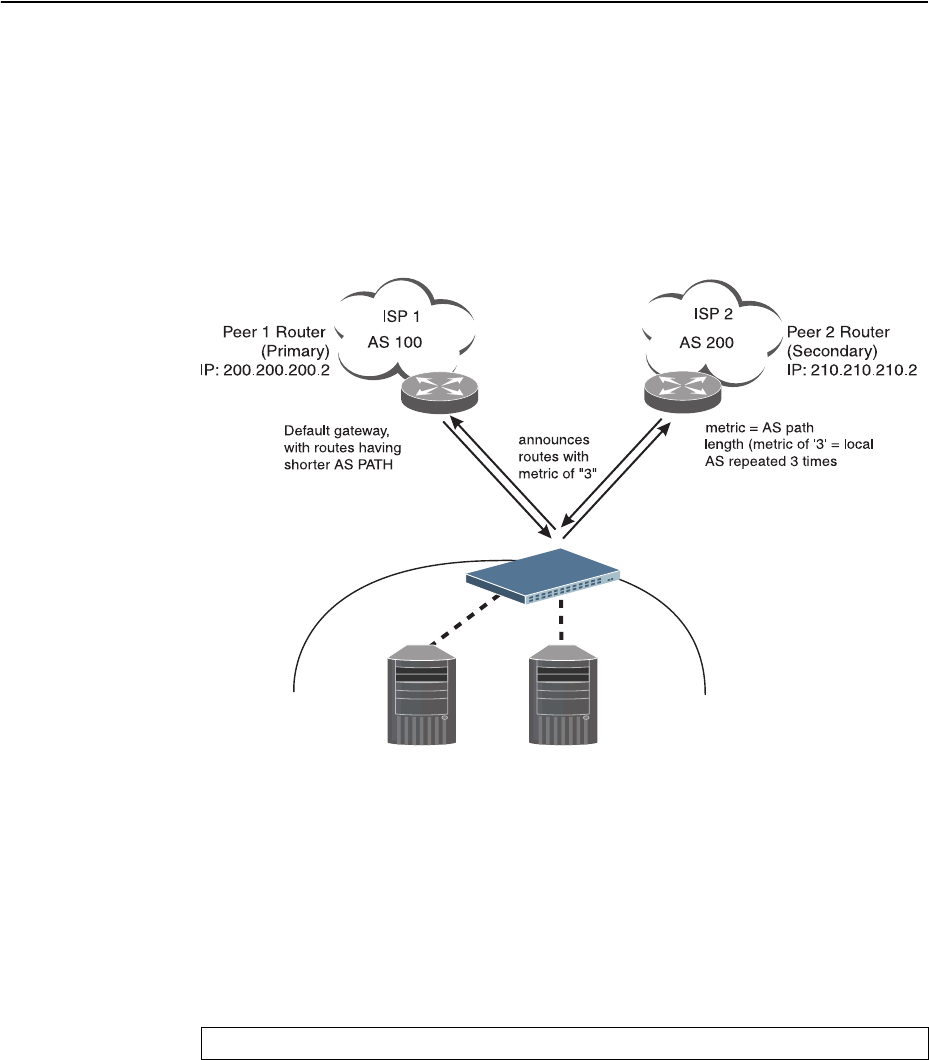
422 G8052 Application Guide for N/OS 8.3
BGP Failover Configuration
Use the following example to create redundant default gateways for a G8052 at a
Web Host/ISP site, eliminating the possibility, if one gateway goes down, that
requests will be forwarded to an upstream router unknown to the switch.
As shown in Figure 35, the switch is connected to ISP 1 and ISP 2. The customer
negotiates with both ISPs to allow the switch to use their peer routers as default
gateways. The ISP peer routers will then need to announce themselves as default
gateways to the G8052.
Figure 35. BGP Failover Configuration Example
On the G8052, one peer router (the secondary one) is configured with a longer AS
path than the other, so that the peer with the shorter AS path will be seen by the
switch as the primary default gateway. ISP 2, the secondary peer, is configured
with a metric of “3,” thereby appearing to the switch to be three router hops away.
1. Define the VLANs.
For simplicity, both default gateways are configured in the same VLAN in this
example. The gateways could be in the same VLAN or different VLANs.
BladeCenter
Switch
Server 1
IP: 200.200.200.10 Server 2
IP: 200.200.200.11
IP: 200.200.200.1
IP: 210.210.210.1
RS G8052(config)# vlan1

© Copyright Lenovo 2015 Chapter 28: Border Gateway Protocol 423
2. Define the IP interfaces with IPv4 addresses.
The switch will need an IP interface for each default gateway to which it will be
connected. Each interface must be placed in the appropriate VLAN. These
interfaces will be used as the primary and secondary default gateways for the
switch.
3. Enable IP forwarding.
IP forwarding is turned on by default and is used for VLAN-to-VLAN (non-BGP)
routing. Make sure IP forwarding is on if the default gateways are on different
subnets or if the switch is connected to different subnets and those subnets need to
communicate through the switch (which they almost always do).
Note: To help eliminate the possibility for a Denial of Service (DoS) attack, the
forwarding of directed broadcasts is disabled by default.
4. Configure BGP peer router 1 and 2 with IPv4 addresses.
RS G8052(config)#interfaceip1
RS G8052(configipif)#ipaddress200.200.200.1
RS G8052(configipif)#ipnetmask255.255.255.0
RS G8052(configipif)#enable
RS G8052(configipif)#exit
RS G8052(config)#interfaceip2
RS G8052(configipif)#ipaddress210.210.210.1
RS G8052(configipif)#ipnetmask255.255.255.0
RS G8052(configipif)#enable
RS G8052(configipif)#exit
RS G8052(config)#iprouting
RS G8052(config)#routerbgp
RS G8052RS G8052(configrouterbgp)#neighbor1remoteaddress
200.200.200.2
RS G8052(configrouterbgp)#neighbor1remoteas100
RS G8052(configrouterbgp)#noneighbor1shutdown
RS G8052RS G8052(configrouterbgp)#neighbor2remoteaddress
210.210.210.2
RS G8052(configrouterbgp)#neighbor2remoteas200
RS G8052(configrouterbgp)#noneighbor2shutdown
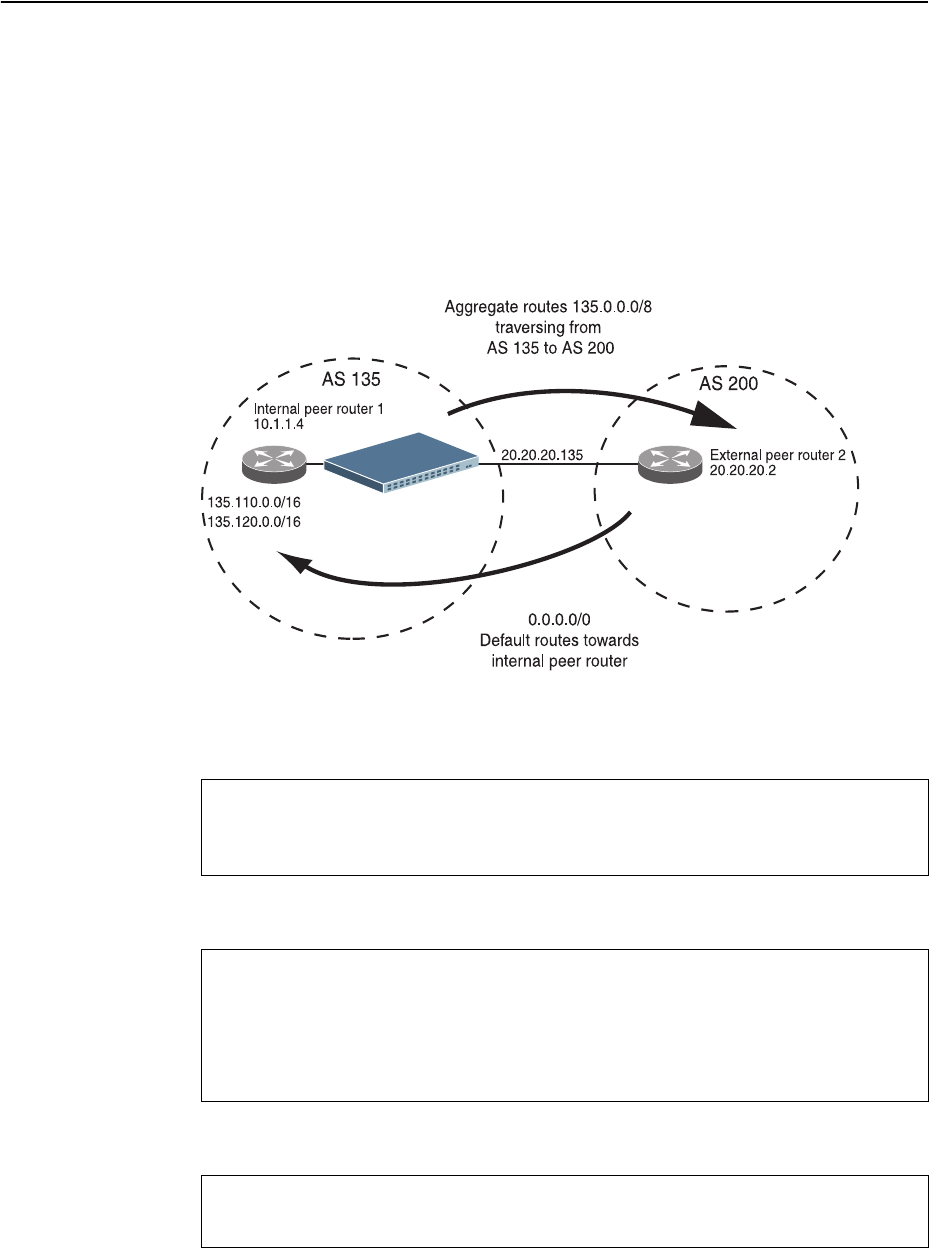
424 G8052 Application Guide for N/OS 8.3
Default Redistribution and Route Aggregation Example
This example shows you how to configure the switch to redistribute information
from one routing protocol to another and create an aggregate route entry in the
BGP routing table to minimize the size of the routing table.
As illustrated in Figure 36, you have two peer routers: an internal and an external
peer router. Configure the G8052 to redistribute the default routes from AS 200 to
AS 135. At the same time, configure for route aggregation to allow you to condense
the number of routes traversing from AS 135 to AS 200.
Figure 36. Route Aggregation and Default Route Redistribution
1. Configure the IP interface.
2. Configure the AS number (AS 135) and router ID (10.1.1.135).
3. Configure internal peer router 1 and external peer router 2 with IPv4 addresses.
4. Configure redistribution for Peer 1.
Switch
10.1.1.135
RS G8052(config)#routerbgp
RS G8052(configrouterbgp)#as135
RS G8052(configrouterbgp)#exit
RS G8052(config)#iprouterid10.1.1.135
RS G8052(config)#routerbgp
RS G8052RS G8052(configrouterbgp)#neighbor1remoteaddress10.1.1.4
RS G8052(configrouterbgp)#neighbor1remoteas135
RS G8052(configrouterbgp)#noneighbor1shutdown
RS G8052RS G8052(configrouterbgp)#neighbor2remoteaddress20.20.20.2
RS G8052(configrouterbgp)#neighbor2remoteas200
RS G8052(configrouterbgp)#noneighbor2shutdown
RS G8052(configrouterbgp)#neighbor1redistributedefaultaction
redistribute
RS G8052(configrouterbgp)#neighbor1redistributefixed

© Copyright Lenovo 2015 Chapter 28: Border Gateway Protocol 425
5. Configure aggregation policy control.
Configure the IPv4 routes that you want aggregated.
RS G8052(configrouterbgp)#aggregateaddress1135.0.0.0255.0.0.0
RS G8052(configrouterbgp)#aggregateaddress1enable
426 G8052 Application Guide for N/OS 8.3

© Copyright Lenovo 2015 427
Chapter 29. Open Shortest Path First
Lenovo Network Operating System supports the Open Shortest Path First (OSPF)
routing protocol. The Networking OS implementation conforms to the OSPF
version 2 specifications detailed in Internet RFC 1583, and OSPF version 3
specifications in RFC 5340. The following sections discuss OSPF support for the
RackSwitch G8052:
-“OSPFv2 Overview” on page 428. This section provides information on OSPFv2
concepts, such as types of OSPF areas, types of routing devices, neighbors,
adjacencies, link state database, authentication, and internal versus external
routing.
-“OSPFv2 Implementation in Networking OS” on page 433. This section
describes how OSPFv2 is implemented in N/OS, such as configuration
parameters, electing the designated router, summarizing routes, defining route
maps and so forth.
-“OSPFv2 Configuration Examples” on page 443. This section provides
step-by-step instructions on configuring different OSPFv2 examples:
Creating a simple OSPF domain
Creating virtual links
Summarizing routes
-“OSPFv3 Implementation in Networking OS” on page 452. This section
describes differences and additional features found in OSPFv3.

428 G8052 Application Guide for N/OS 8.3
OSPFv2 Overview
OSPF is designed for routing traffic within a single IP domain called an
Autonomous System (AS). The AS can be divided into smaller logical units known
as areas.
All routing devices maintain link information in their own Link State Database
(LSDB). OSPF allows networks to be grouped together into an area. The topology
of an area is hidden from the rest of the AS, thereby reducing routing traffic.
Routing within an area is determined only by the area’s own topology, thus
protecting it from bad routing data. An area can be generalized as an IP
subnetwork.
The following sections describe key OSPF concepts.
Types of OSPF Areas
An AS can be broken into logical units known as areas. In any AS with multiple
areas, one area must be designated as area 0, known as the backbone. The backbone
acts as the central OSPF area. All other areas in the AS must be connected to the
backbone. Areas inject summary routing information into the backbone, which
then distributes it to other areas as needed.
As shown in Figure 37, OSPF defines the following types of areas:
-Stub Area—an area that is connected to only one other area. External route
information is not distributed into stub areas.
-Not-So-Stubby-Area (NSSA)—similar to a stub area with additional capabilities.
Routes originating from within the NSSA can be propagated to adjacent transit
and backbone areas. External routes from outside the AS can be advertised
within the NSSA but can be configured to not be distributed into other areas.
-Transit Area—an area that carries data traffic which neither originates nor
terminates in the area itself.
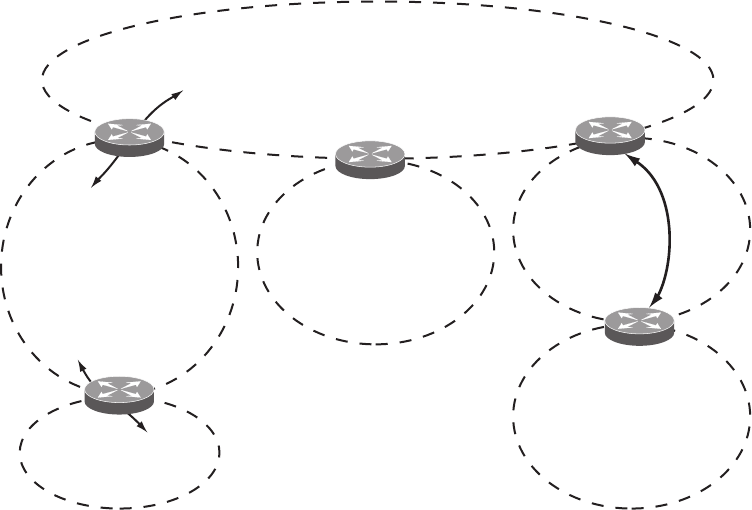
© Copyright Lenovo 2015 Chapter 29: Open Shortest Path First 429
Figure 37. OSPF Area Types
Types of OSPF Routing Devices
As shown in Figure 38, OSPF uses the following types of routing devices:
-Internal Router (IR)—a router that has all of its interfaces within the same area.
IRs maintain LSDBs identical to those of other routing devices within the local
area.
-Area Border Router (ABR)—a router that has interfaces in multiple areas. ABRs
maintain one LSDB for each connected area and disseminate routing
information between areas.
-Autonomous System Boundary Router (ASBR)—a router that acts as a gateway
between the OSPF domain and non-OSPF domains, such as RIP, BGP, and static
routes.
Backbone
Area 0
Stub Area
Not-So-Stubby Area
(NSSA)
Transit Area
No External Routes
from Backbone
Stub Area, NSSA,
or Transit Area
Connected to Backbone
via Virtual Link
(Also a Transit Area)
External LSA
Routes
Internal LSA
Routes
ABR ABR
ABR
ASBR
Non-OSPF Area
RIP/BGP AS
Virtual
Link
ABR
ABR = Area Border Router
ASBR = Autonomous System
Boundary Router
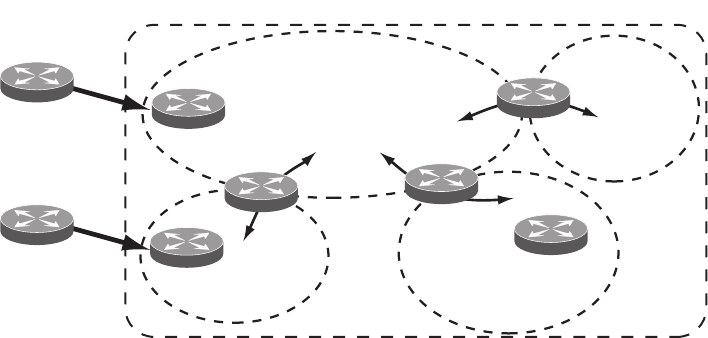
430 G8052 Application Guide for N/OS 8.3
Figure 38. OSPF Domain and an Autonomous System
Backbone
Area 0 Area 3
Area 2
Area 1
Inter-Area Routes
(Summary Routes) ABR
ABR
ABR
ASBR
Internal
Router
ASBR
External
Routes
BGP
RIP
OSPF Autonomous System
© Copyright Lenovo 2015 Chapter 29: Open Shortest Path First 431
Neighbors and Adjacencies
In areas with two or more routing devices, neighbors and adjacencies are formed.
Neighbors are routing devices that maintain information about each others’ state. To
establish neighbor relationships, routing devices periodically send hello packets
on each of their interfaces. All routing devices that share a common network
segment, appear in the same area, and have the same health parameters (hello
and dead intervals) and authentication parameters respond to each other’s hello
packets and become neighbors. Neighbors continue to send periodic hello packets
to advertise their health to neighbors. In turn, they listen to hello packets to
determine the health of their neighbors and to establish contact with new
neighbors.
The hello process is used for electing one of the neighbors as the network segment’s
Designated Router (DR) and one as the network segment’s Backup Designated
Router (BDR). The DR is adjacent to all other neighbors on that specific network
segment and acts as the central contact for database exchanges. Each neighbor
sends its database information to the DR, which relays the information to the other
neighbors.
The BDR is adjacent to all other neighbors (including the DR). Each neighbor sends
its database information to the BDR just as with the DR, but the BDR merely stores
this data and does not distribute it. If the DR fails, the BDR will take over the task
of distributing database information to the other neighbors.
The Link-State Database
OSPF is a link-state routing protocol. A link represents an interface (or routable
path) from the routing device. By establishing an adjacency with the DR, each
routing device in an OSPF area maintains an identical Link-State Database (LSDB)
describing the network topology for its area.
Each routing device transmits a Link-State Advertisement (LSA) on each of its
active interfaces. LSAs are entered into the LSDB of each routing device. OSPF uses
flooding to distribute LSAs between routing devices. Interfaces may also be passive.
Passive interfaces send LSAs to active interfaces, but do not receive LSAs, hello
packets, or any other OSPF protocol information from active interfaces. Passive
interfaces behave as stub networks, allowing OSPF routing devices to be aware of
devices that do otherwise participate in OSPF (either because they do not support
it, or because the administrator chooses to restrict OSPF traffic exchange or transit).
When LSAs result in changes to the routing device’s LSDB, the routing device
forwards the changes to the adjacent neighbors (the DR and BDR) for distribution
to the other neighbors.
OSPF routing updates occur only when changes occur, instead of periodically. For
each new route, if a neighbor is interested in that route (for example, if configured
to receive static routes and the new route is indeed static), an update message
containing the new route is sent to the adjacency. For each route removed from the
route table, if the route has already been sent to a neighbor, an update message
containing the route to withdraw is sent.
432 G8052 Application Guide for N/OS 8.3
The Shortest Path First Tree
The routing devices use a link-state algorithm (Dijkstra’s algorithm) to calculate the
shortest path to all known destinations, based on the cumulative cost required to
reach the destination.
The cost of an individual interface in OSPF is an indication of the overhead
required to send packets across it.
Internal Versus External Routing
To ensure effective processing of network traffic, every routing device on your
network needs to know how to send a packet (directly or indirectly) to any other
location/destination in your network. This is referred to as internal routing and can
be done with static routes or using active internal routing protocols, such as OSPF,
RIP, or RIPv2.
It is also useful to tell routers outside your network (upstream providers or peers)
about the routes you have access to in your network. Sharing of routing
information between autonomous systems is known as external routing.
Typically, an AS will have one or more border routers (peer routers that exchange
routes with other OSPF networks) as well as an internal routing system enabling
every router in that AS to reach every other router and destination within that AS.
When a routing device advertises routes to boundary routers on other autonomous
systems, it is effectively committing to carry data to the IP space represented in the
route being advertised. For example, if the routing device advertises 192.204.4.0/24,
it is declaring that if another router sends data destined for any address in the
192.204.4.0/24 range, it will carry that data to its destination.

© Copyright Lenovo 2015 Chapter 29: Open Shortest Path First 433
OSPFv2 Implementation in Networking OS
N/OS supports a single instance of OSPF and up to 4K routes on the network. The
following sections describe OSPF implementation in N/OS:
-“Configurable Parameters” on page 433
-“Defining Areas” on page 434
-“Interface Cost” on page 436
-“Electing the Designated Router and Backup” on page 436
-“Summarizing Routes” on page 436
-“Default Routes” on page 437
-“Virtual Links” on page 437
-“Router ID” on page 438
-“Authentication” on page 439
Configurable Parameters
In N/OS, OSPF parameters can be configured through the Industry Standard
Command Line Interfaces (ISCLI), Browser-Based Interface (BBI), or through
SNMP. For more information, see Chapter 1, “Switch Administration.”
The ISCLI supports the following parameters: interface output cost, interface
priority, dead and hello intervals, retransmission interval, and interface transmit
delay.
In addition to the preceding parameters, you can specify the following:
-Shortest Path First (SPF) interval—Time interval between successive calculations
of the shortest path tree using the Dijkstra’s algorithm.
-Stub area metric—A stub area can be configured to send a numeric metric value
such that all routes received via that stub area carry the configured metric to
potentially influence routing decisions.
-Default routes—Default routes with weight metrics can be manually injected
into transit areas. This helps establish a preferred route when multiple routing
devices exist between two areas. It also helps route traffic to external networks.
-Passive—When enabled, the interface sends LSAs to upstream devices, but does
not otherwise participate in OSPF protocol exchanges.
-Point-to-Point—For LANs that have only two OSPF routing agents (the G8052
and one other device), this option allows the switch to significantly reduce the
amount of routing information it must carry and manage.

434 G8052 Application Guide for N/OS 8.3
Defining Areas
If you are configuring multiple areas in your OSPF domain, one of the areas must
be designated as area 0, known as the backbone. The backbone is the central OSPF
area and is usually physically connected to all other areas. The areas inject routing
information into the backbone which, in turn, disseminates the information into
other areas.
Since the backbone connects the areas in your network, it must be a contiguous
area. If the backbone is partitioned (possibly as a result of joining separate OSPF
networks), parts of the AS will be unreachable, and you will need to configure
virtual links to reconnect the partitioned areas (see “Virtual Links” on page 437).
Up to 20 OSPF areas can be connected to the G8052 with N/OS software. To
configure an area, the OSPF number must be defined and then attached to a
network interface on the switch. The full process is explained in the following
sections.
An OSPF area is defined by assigning two pieces of information: an area index and
an area ID. The commands to define and enable an OSPF area are as follows:
Note: The area option is an arbitrary index used only on the switch and does not
represent the actual OSPF area number. The actual OSPF area number is defined in
the area portion of the command as explained in the following sections.
Assigning the Area Index
The area <area index> option is actually just an arbitrary index (0-19) used only by
the G8052. This index number does not necessarily represent the OSPF area
number, though for configuration simplicity, it ought to where possible.
For example, both of the following sets of commands define OSPF area 0 (the
backbone) and area 1 because that information is held in the area ID portion of the
command. However, the first set of commands is easier to maintain because the
arbitrary area indexes agree with the area IDs:
-Area index and area ID agree
area0areaid0.0.0.0 (Use index 0 to set area 0 in ID octet
format)
area1areaid0.0.0.1 (Use index 1 to set area 1 in ID octet
format)
-Area index set to an arbitrary value
area1areaid0.0.0.0 (Use index 1 to set area 0 in ID octet
format)
area2areaid0.0.0.1 (Use index 2 to set area 1 in ID octet
format)
RS G8052(config)#routerospf
RS G8052(configrouterospf)#area<area index>areaid<n.n.n.n>
RS G8052(configrouterospf)#area<area index>enable
RS G8052(configrouterospf)#exit

© Copyright Lenovo 2015 Chapter 29: Open Shortest Path First 435
Using the Area ID to Assign the OSPF Area Number
The OSPF area number is defined in the areaid <IP address> option. The octet
format is used to be compatible with two different systems of notation used by
other OSPF network vendors. There are two valid ways to designate an area ID:
-Single Number
Most common OSPF vendors express the area ID number as a single number.
For example, the Cisco IOS-based router command “network 1.1.1.0
0.0.0.255 area 1” defines the area number simply as “area 1.”
-Multi-octet (IP address): Placing the area number in the last octet (0.0.0.n)
Some OSPF vendors express the area ID number in multi-octet format. For
example, “area 0.0.0.2” represents OSPF area 2 and can be specified directly
on the G8052 as “areaid 0.0.0.2”.
On the G8052, using the last octet in the area ID, “area 1” is equivalent to
“areaid 0.0.0.1”.
Note: Although both types of area ID formats are supported, be sure that the area
IDs are in the same format throughout an area.
Attaching an Area to a Network
Once an OSPF area has been defined, it must be associated with a network. To
attach the area to a network, you must assign the OSPF area index to an IP interface
that participates in the area. The format for the command is as follows:
For example, the following commands could be used to configure IP interface 14 to
use 10.10.10.1 on the 10.10.10.0/24 network, to define OSPF area 1, and to attach the
area to the network:
Note: OSPFv2 supports IPv4 only. IPv6 is supported in OSPFv3 (see “OSPFv3
Implementation in Networking OS” on page 452).
RS G8052(config)#interfaceip<interface number>
RS G8052(configipif)#ipospfarea<area index>
RS G8052(configipif)#exit
RS G8052(config)#routerospf
RS G8052(configrouterospf)#area1areaid0.0.0.1
RS G8052(configrouterospf)#area1enable
RS G8052(configrouterospf)#enable
RS G8052(configrouterospf)#exit
RS G8052(config)#interfaceip14
RS G8052(configipif)#ipaddress10.10.10.1
RS G8052(configipif)#ipnetmask255.255.255.0
RS G8052(configipif)#enable
RS G8052(configipif)#ipospfarea1
RS G8052(configipif)#ipospfenable

436 G8052 Application Guide for N/OS 8.3
Interface Cost
The OSPF link-state algorithm (Dijkstra’s algorithm) places each routing device at
the root of a tree and determines the cumulative cost required to reach each
destination. You can manually enter the cost for the output route with the
following command (Interface IP mode):
Electing the Designated Router and Backup
In any broadcast type subnet, a Designated Router (DR) is elected as the central
contact for database exchanges among neighbors. On subnets with more the one
device, a Backup Designated Router (BDR) is elected in case the DR fails.
DR and BDR elections are made through the hello process. The election can be
influenced by assigning a priority value to the OSPF interfaces on the G8052. The
command is as follows:
A priority value of 255 is the highest, and 1 is the lowest. A priority value of 0
specifies that the interface cannot be used as a DR or BDR. In case of a tie, the
routing device with the highest router ID wins. Interfaces configured as passive do
not participate in the DR or BDR election process:
Summarizing Routes
Route summarization condenses routing information. Without summarization,
each routing device in an OSPF network would retain a route to every subnet in the
network. With summarization, routing devices can reduce some sets of routes to a
single advertisement, reducing both the load on the routing device and the
perceived complexity of the network. The importance of route summarization
increases with network size.
Summary routes can be defined for up to 16 IP address ranges using the following
command:
where <range number> is a number 1 to 16, <IP address> is the base IP address for the
range, and <mask> is the IP address mask for the range. For a detailed configuration
example, see “Example 3: Summarizing Routes” on page 450.
RS G8052(configipif)#ipospfcost<cost value (1-65535)>
RS G8052(configipif)#ipospfpriority<priority value (0-255)>
RS G8052(configipif)#ipospfpassiveinterface
RS G8052(configipif)#exit
RS G8052(config)#routerospf
RS G8052(configrouterospf)#arearange<range number>address<IP address>
<mask>
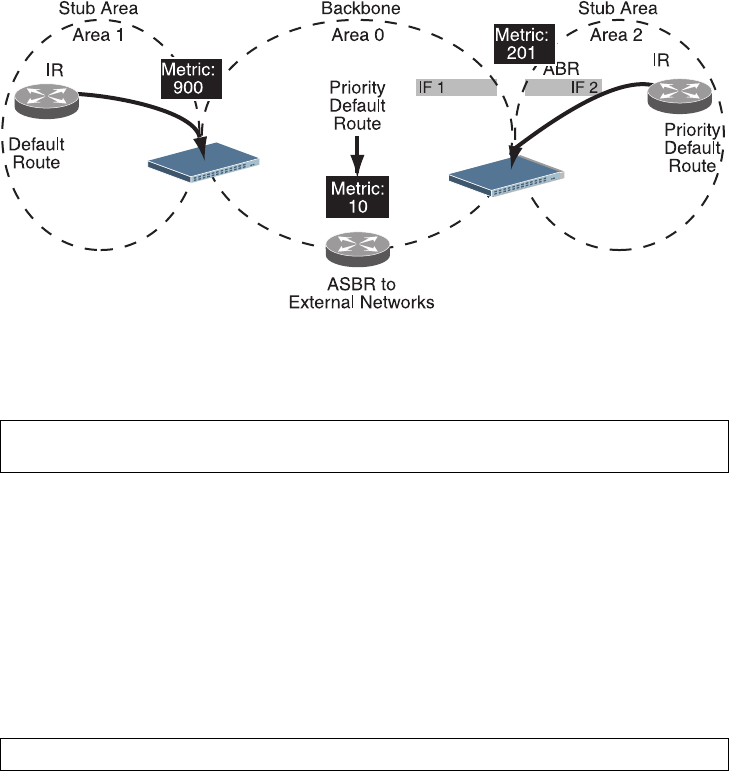
© Copyright Lenovo 2015 Chapter 29: Open Shortest Path First 437
Default Routes
When an OSPF routing device encounters traffic for a destination address it does
not recognize, it forwards that traffic along the default route. Typically, the default
route leads upstream toward the backbone until it reaches the intended area or an
external router.
Each G8052 acting as an ABR automatically inserts a default route into stub and
NSSA attached areas. In simple OSPF stub areas or NSSAs with only one ABR
leading upstream (see Area 1 in Figure 39), any traffic for IP address destinations
outside the area is forwarded to the switch’s IP interface, and then into the
connected transit area (usually the backbone). Since this is automatic, no further
configuration is required for such areas.
Figure 39. Injecting Default Routes
If the switch is in a transit area and has a configured default gateway, it can inject a
default route into rest of the OSPF domain. Use the following command to
configure the switch to inject OSPF default routes (Router OSPF mode):
In this command, <metric value> sets the priority for choosing this switch for
default route. The value none sets no default and 1 sets the highest priority for
default route. Metric type determines the method for influencing routing decisions
for external routes.
When the switch is configured to inject a default route, an AS-external LSA with
link state ID 0.0.0.0 is propagated throughout the OSPF routing domain. This LSA
is sent with the configured metric value and metric type.
The OSPF default route configuration can be removed with the command:
RS G8052(configrouterospf)#defaultinformation<metric value><metric type (1 or
2)>
RS G8052(configrouterospf)#nodefaultinformation

438 G8052 Application Guide for N/OS 8.3
Virtual Links
Usually, all areas in an OSPF AS are physically connected to the backbone. In some
cases where this is not possible, you can use a virtual link. Virtual links are created
to connect one area to the backbone through another non-backbone area (see
Figure 37 on page 429).
The area which contains a virtual link must be a transit area and have full routing
information. Virtual links cannot be configured inside a stub area or NSSA. The
area type must be defined as transit using the following command:
The virtual link must be configured on the routing devices at each endpoint of the
virtual link, though they may traverse multiple routing devices. To configure a
G8052 as one endpoint of a virtual link, use the following command:
where <link number> is a value between 1 and 3, <area index> is the OSPF area index
of the transit area, and <router ID> is the router ID of the virtual neighbor, the
routing device at the target endpoint. Another router ID is needed when
configuring a virtual link in the other direction. To provide the G8052 with a router
ID, see the following section Router ID.
For a detailed configuration example on Virtual Links, see “Example 2: Virtual
Links” on page 446.
Router ID
Routing devices in OSPF areas are identified by a router ID. The router ID is
expressed in IP address format. The IP address of the router ID is not required to be
included in any IP interface range or in any OSPF area, and may even use the
G8052 loopback interface.
The router ID can be configured in one of the following two ways:
-Dynamically—OSPF protocol configures the lowest IP interface IP address as the
router ID (loopback interface has priority over the IP interface). This is the
default.
-Statically—Use the following command to manually configure the router ID:
If there is a loopback interface, its IP address is always preferred as the router
ID, instead of an IP interface address. The ip routerid command is the
preferred method to set the router ID and it is always used in preference to the
other methods.
-To modify the router ID from static to dynamic, set the router ID to 0.0.0.0 and
re-initialize the OSPF process.
-To view the router ID, use the following command:
RS G8052(configrouterospf)#area <area index>typetransit
RS G8052(configrouterospf)#areavirtuallink<link number>
neighborrouter<router ID>
RS G8052(configrouterospf)#iprouterid<IPv4 address>
RS G8052(configrouterospf)#showipospf
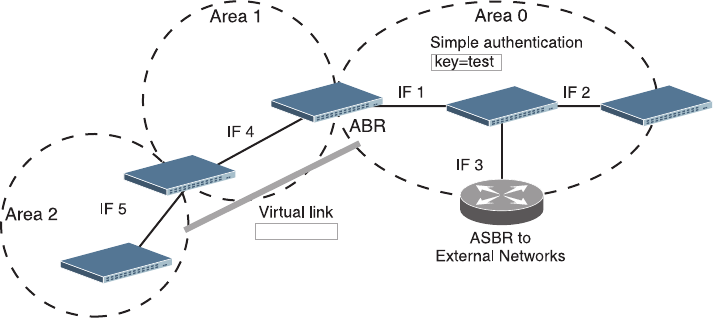
© Copyright Lenovo 2015 Chapter 29: Open Shortest Path First 439
Authentication
OSPF protocol exchanges can be authenticated so that only trusted routing devices
can participate. This ensures less processing on routing devices that are not
listening to OSPF packets.
OSPF allows packet authentication and uses IP multicast when sending and
receiving packets. Routers participate in routing domains based on pre-defined
passwords. N/OS supports simple password (type 1 plain text passwords) and
MD5 cryptographic authentication. This type of authentication allows a password
to be configured per interface.
We strongly recommend that you implement MD5 cryptographic authentication as
a best practice.
Figure 40 shows authentication configured for area 0 with the password test.
Simple authentication is also configured for the virtual link between area 2 and
area 0. Area 1 is not configured for OSPF authentication.
Figure 40. OSPF Authentication
Switch 2
Switch 1 Switch 3
Switch 4
Switch 5
key=blade

440 G8052 Application Guide for N/OS 8.3
Configuring Plain Text OSPF Passwords
To configure simple plain text OSPF passwords on the switches shown in Figure 40
use the following commands:
1. Enable OSPF authentication for Area 0 on switches 1, 2, and 3.
2. Configure a simple text password up to eight characters for each OSPF IP interface
in Area 0 on switches 1, 2, and 3.
3. Enable OSPF authentication for Area 2 on switch 4.
4. Configure a simple text password up to eight characters for the virtual link
between Area 2 and Area 0 on switches 2 and 4.
Configuring MD5 Authentication
Use the following commands to configure MD5 authentication on the switches
shown in Figure 40:
1. Enable OSPF MD5 authentication for Area 0 on switches 1, 2, and 3.
2. Configure MD5 key ID for Area 0 on switches 1, 2, and 3.
RS G8052(configrouterospf)#area0authenticationtypepassword
RS G8052(configrouterospf)#exit
RS G8052(config)#interfaceip1
RS G8052(configipif)#ipospfkeytest
RS G8052(configipif)#exit
RS G8052(config)#interfaceip2
RS G8052(configipif)#ipospfkeytest
RS G8052(configipif)#exit
RS G8052(config)#interfaceip3
RS G8052(configipif)#ipospfkeytest
RS G8052(configipif)#exit
RS G8052(config)#routerospf
RS G8052(configrouterospf)#area2authenticationtypepassword
RS G8052(configrouterospf)#areavirtuallink1keyblade
RS G8052(configrouterospf)#area0authenticationtypemd5
RS G8052(configrouterospf)#messagedigestkey1md5keytest
RS G8052(configrouterospf)#exit

© Copyright Lenovo 2015 Chapter 29: Open Shortest Path First 441
3. Assign MD5 key ID to OSPF interfaces on switches 1, 2, and 3.
4. Enable OSPF MD5 authentication for Area 2 on switch 4.
5. Configure MD5 key for the virtual link between Area 2 and Area 0 on switches 2
and 4.
6. Assign MD5 key ID to OSPF virtual link on switches 2 and 4.
Host Routes for Load Balancing
N/OS implementation of OSPF includes host routes. Host routes are used for
advertising network device IP addresses to external networks, accomplishing the
following goals:
-ABR Load Sharing
As a form of load balancing, host routes can be used for dividing OSPF traffic
among multiple ABRs. To accomplish this, each switch provides identical services
but advertises a host route for a different IP address to the external network. If
each IP address serves a different and equal portion of the external world,
incoming traffic from the upstream router must be split evenly among ABRs.
-ABR Failover
Complementing ABR load sharing, identical host routes can be configured on
each ABR. These host routes can be given different costs so that a different ABR
is selected as the preferred route for each server and the others are available as
backups for failover purposes.
-Equal Cost Multipath (ECMP)
With equal cost multipath, a router potentially has several available next hops
towards any given destination. ECMP allows separate routes to be calculated for
each IP Type of Service. All paths of equal cost to a given destination are calcu-
lated, and the next hops for all equal-cost paths are inserted into the routing table.
RS G8052(config)#interfaceip1
RS G8052(configipif)#ipospfmessagedigestkey1
RS G8052(configipif)#exit
RS G8052(config)#interfaceip2
RS G8052(configipif)#ipospfmessagedigestkey1
RS G8052(configipif)#exit
RS G8052(config)#interfaceip3
RS G8052(configipif)#ipospfmessagedigestkey1
RS G8052(configipif)#exit
RS G8052(config)#routerospf
RS G8052(configrouterospf)#area1authenticationtypemd5
RS G8052(configrouterospf)#messagedigestkey2md5keytest
RS G8052(configrouterospf)#areavirtuallink1messagedigestkey2
RS G8052(configrouterospf)#exit

442 G8052 Application Guide for N/OS 8.3
Loopback Interfaces in OSPF
A loopback interface is an IP interface which has an IP address, but is not
associated with any particular physical port. The loopback interface is thus always
available to the general network, regardless of which specific ports are in
operation. Because loopback interfaces are always available on the switch,
loopback interfaces may present an advantage when used as the router ID.
If dynamic router ID selection is used (see “Router ID” on page 438) loopback
interfaces can be used to force router ID selection. If a loopback interface is
configured, its IP address is automatically selected as the router ID, even if other IP
interfaces have lower IP addresses. If more than one loopback interface is
configured, the lowest loopback interface IP address is selected.
Loopback interfaces can be advertised into the OSPF domain by specifying an
OSPF host route with the loopback interface IP address.
To enable OSPF on an existing loopback interface:
OSPF Features Not Supported in This Release
The following OSPF features are not supported in this release:
-Summarizing external routes
-Filtering OSPF routes
-Using OSPF to forward multicast routes
-Configuring OSPF on non-broadcast multi-access networks (such as frame relay,
X.25, or ATM)
RS G8052(config)#interfaceloopback<1-5>
RS G8052(configiploopback)#ipospfarea<area ID>
RS G8052(configiploopback)#ipospfenable
RS G8052(configiploopback)#exit

© Copyright Lenovo 2015 Chapter 29: Open Shortest Path First 443
OSPFv2 Configuration Examples
A summary of the basic steps for configuring OSPF on the G8052 is listed here.
Detailed instructions for each of the steps is covered in the following sections:
1. Configure IP interfaces.
One IP interface is required for each desired network (range of IP addresses) being
assigned to an OSPF area on the switch.
2. (Optional) Configure the router ID.
3. Enable OSPF on the switch.
4. Define the OSPF areas.
5. Configure OSPF interface parameters.
IP interfaces are used for attaching networks to the various areas.
6. (Optional) Configure route summarization between OSPF areas.
7. (Optional) Configure virtual links.
8. (Optional) Configure host routes.

444 G8052 Application Guide for N/OS 8.3
Example 1: Simple OSPF Domain
In this example, two OSPF areas are defined—one area is the backbone and the
other is a stub area. A stub area does not allow advertisements of external routes,
thus reducing the size of the database. Instead, a default summary route of IP
address 0.0.0.0 is automatically inserted into the stub area. Any traffic for IP
address destinations outside the stub area will be forwarded to the stub area’s IP
interface, and then into the backbone.
Figure 41. A Simple OSPF Domain
Follow this procedure to configure OSPF support as shown in Figure 41:
1. Configure IP interfaces on each network that will be attached to OSPF areas.
In this example, two IP interfaces are needed:
-Interface 1 for the backbone network on 10.10.7.0/24
-Interface 2 for the stub area network on 10.10.12.0/24
Note: OSPFv2 supports IPv4 only. IPv6 is supported in OSPFv3 (see “OSPFv3
Implementation in Networking OS” on page 452).
2. Enable OSPF.
3. Define the backbone.
The backbone is always configured as a transit area using areaid 0.0.0.0.
Network
10.10.12.0/24
10.10.7.0/24
Network
RS G8052(config)#interfaceip1
RS G8052(configipif)#ipaddress10.10.7.1
RS G8052(configipif)#ipnetmask255.255.255.0
RS G8052(configipif)#enable
RS G8052(configipif)#exit
RS G8052(config)#interfaceip2
RS G8052(configipif)#ipaddress10.10.12.1
RS G8052(configipif)#ipnetmask255.255.255.0
RS G8052(configipif)#enable
RS G8052(configipif)#exit
RS G8052(config)#routerospf
RS G8052(configrouterospf)#enable
RS G8052(configrouterospf)#area0areaid0.0.0.0
RS G8052(configrouterospf)#area0typetransit
RS G8052(configrouterospf)#area0enable

© Copyright Lenovo 2015 Chapter 29: Open Shortest Path First 445
4. Define the stub area.
5. Attach the network interface to the backbone.
6. Attach the network interface to the stub area.
RS G8052(configrouterospf)#area1areaid0.0.0.1
RS G8052(configrouterospf)#area1typestub
RS G8052(configrouterospf)#area1enable
RS G8052(configrouterospf)#exit
RS G8052(config)#interfaceip1
RS G8052(configipif)#ipospfarea0
RS G8052(configipif)#ipospfenable
RS G8052(configipif)#exit
RS G8052(config)#interfaceip2
RS G8052(configipif)#ipospfarea1
RS G8052(configipif)#ipospfenable
RS G8052(configipif)#exit
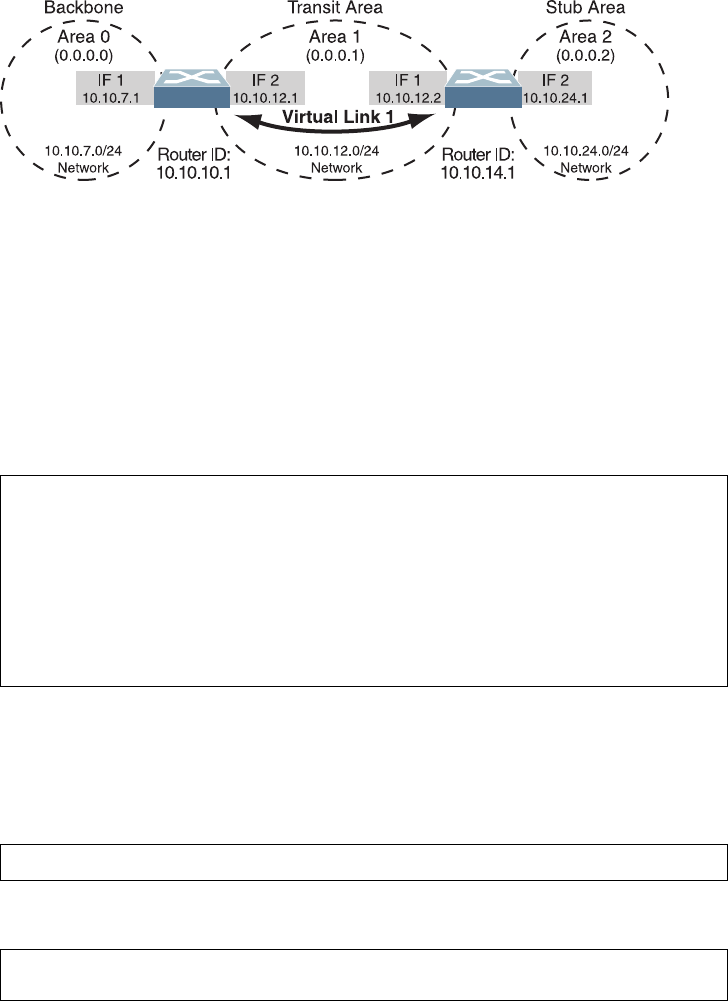
446 G8052 Application Guide for N/OS 8.3
Example 2: Virtual Links
In the example shown in Figure 42, area 2 is not physically connected to the
backbone as is usually required. Instead, area 2 will be connected to the backbone
via a virtual link through area 1. The virtual link must be configured at each
endpoint.
Figure 42. Configuring a Virtual Link
Note: OSPFv2 supports IPv4 only. IPv6 is supported in OSPFv3 (see “OSPFv3
Implementation in Networking OS” on page 452).
Configuring OSPF for a Virtual Link on Switch #1
1. Configure IP interfaces on each network that will be attached to the switch.
In this example, two IP interfaces are needed:
-Interface 1 for the backbone network on 10.10.7.0/24
-Interface 2 for the transit area network on 10.10.12.0/24
2. Configure the router ID.
A router ID is required when configuring virtual links. Later, when configuring the
other end of the virtual link on Switch 2, the router ID specified here will be used as
the target virtual neighbor (nbr) address.
3. Enable OSPF.
Switch 2
Switch 2 Switch 1
Switch 1
RS G8052(config)#interfaceip1
RS G8052(configipif)#ipaddress10.10.7.1
RS G8052(configipif)#ipnetmask255.255.255.0
RS G8052(configipif)#enable
RS G8052(configipif)#exit
RS G8052(config)#interfaceip2
RS G8052(configipif)#ipaddress10.10.12.1
RS G8052(configipif)#ipnetmask255.255.255.0
RS G8052(configipif)#enable
RS G8052(configipif)#exit
RS G8052(config)
#iprouterid10.10.10.1
RS G8052(config)#routerospf
RS G8052(configrouterospf)#enable

© Copyright Lenovo 2015 Chapter 29: Open Shortest Path First 447
4. Define the backbone.
5. Define the transit area.
The area that contains the virtual link must be configured as a transit area.
6. Attach the network interface to the backbone.
7. Attach the network interface to the transit area.
8. Configure the virtual link.
The nbr router ID configured in this step must be the same as the router ID that
will be configured for Switch #2 in Step 2 on page 448.
Configuring OSPF for a Virtual Link on Switch #2
1. Configure IP interfaces on each network that will be attached to OSPF areas.
In this example, two IP interfaces are needed:
-Interface 1 for the transit area network on 10.10.12.0/24
RS G8052(configrouterospf)#area0areaid0.0.0.0
RS G8052(configrouterospf)#area0typetransit
RS G8052(configrouterospf)#area0enable
RS G8052(configrouterospf)#area1areaid0.0.0.1
RS G8052(configrouterospf)#area1typetransit
RS G8052(configrouterospf)#area1enable
RS G8052(configrouterospf)#exit
RS G8052(config)#interfaceip1
RS G8052(configipif)#ipospfarea0
RS G8052(configipif)#ipospfenable
RS G8052(configipif)#exit
RS G8052(config)#interfaceip2
RS G8052(configipif)#ipospfarea1
RS G8052(configipif)#ipospfenable
RS G8052(configipif)#exit
RS G8052(config)#routerospf
RS G8052(configrouterospf)#areavirtuallink1area1
RS G8052(configrouterospf)#areavirtuallink1neighborrouter
10.10.14.1
RS G8052(configrouterospf)#areavirtuallink1enable

448 G8052 Application Guide for N/OS 8.3
-Interface 2 for the stub area network on 10.10.24.0/24
2. Configure the router ID.
A router ID is required when configuring virtual links. This router ID must be the
same one specified as the target virtual neighbor (nbr) on switch 1 in Step 8 on
page 447.
3. Enable OSPF.
4. Define the backbone.
This version of N/OS requires that a backbone index be configured on the
non-backbone end of the virtual link as follows:
5. Define the transit area.
6. Define the stub area.
7. Attach the network interface to the transmit area.
RS G8052(config)#interfaceip1
RS G8052(configipif)#ipaddress10.10.12.2
RS G8052(configipif)#ipnetmask255.255.255.0
RS G8052(configipif)#vlan10
RS G8052(configipif)#enable
RS G8052(configipif)#exit
RS G8052(config)#interfaceip2
RS G8052(configipif)#ipaddress10.10.24.1
RS G8052(configipif)#ipnetmask255.255.255.0
RS G8052(configipif)#vlan20
RS G8052(configipif)#enable
RS G8052(configipif)#exit
RS G8052(config)
#iprouterid10.10.14.1
RS G8052(config)#routerospf
RS G8052(configrouterospf)#enable
RS G8052(configrouterospf)#area0areaid0.0.0.0
RS G8052(configrouterospf)#area0enable
RS G8052(configrouterospf)#area1areaid0.0.0.1
RS G8052(configrouterospf)#area1typetransit
RS G8052(configrouterospf)#area1enable
RS G8052(configrouterospf)#area2areaid0.0.0.2
RS G8052(configrouterospf)#area2typestub
RS G8052(configrouterospf)#area2enable
RS G8052(configrouterospf)#exit
RS G8052(config)#interfaceip1
RS G8052(configipif)#ipospfarea1
RS G8052(configipif)#ipospfenable
RS G8052(configipif)#exit

© Copyright Lenovo 2015 Chapter 29: Open Shortest Path First 449
8. Attach the network interface to the stub area.
9. Configure the virtual link.
The nbr router ID configured in this step must be the same as the router ID that
was configured for switch #1 in Step 2 on page 446.
Other Virtual Link Options
-You can use redundant paths by configuring multiple virtual links.
-Only the endpoints of the virtual link are configured. The virtual link path may
traverse multiple routers in an area as long as there is a routable path between
the endpoints.
RS G8052(config)#interfaceip2
RS G8052(configipif)#ipospfarea2
RS G8052(configipif)#ipospfenable
RS G8052(configipif)#exit
RS G8052(config)#routerospf
RS G8052(configrouterospf)#areavirtuallink1area1
RS G8052(configrouterospf)#areavirtuallink1neighborrouter
10.10.10.1
RS G8052(configrouterospf)#areavirtuallink1enable
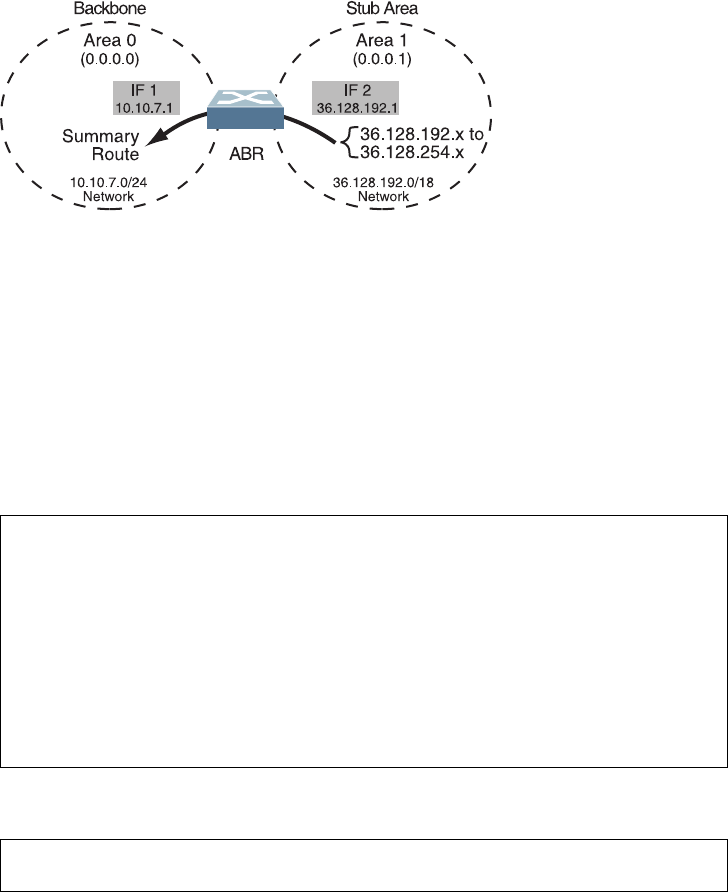
450 G8052 Application Guide for N/OS 8.3
Example 3: Summarizing Routes
By default, ABRs advertise all the network addresses from one area into another
area. Route summarization can be used for consolidating advertised addresses and
reducing the perceived complexity of the network.
If network IP addresses in an area are assigned to a contiguous subnet range, you
can configure the ABR to advertise a single summary route that includes all
individual IP addresses within the area.
The following example shows one summary route from area 1 (stub area) injected
into area 0 (the backbone). The summary route consists of all IP addresses from
36.128.192.0 through 36.128.254.255 except for the routes in the range 36.128.200.0
through 36.128.200.255.
Figure 43. Summarizing Routes
Notes:
-OSPFv2 supports IPv4 only. IPv6 is supported in OSPFv3 (see “OSPFv3
Implementation in Networking OS” on page 452).
-You can specify a range of addresses to prevent advertising by using the hide
option. In this example, routes in the range 36.128.200.0 through 36.128.200.255
are kept private.
Use the following procedure to configure OSPF support as shown in Figure 43:
1. Configure IP interfaces for each network which will be attached to OSPF areas.
2. Enable OSPF.
RS G8052(config)#interfaceip1
RS G8052(configipif)#ipaddress10.10.7.1
RS G8052(configipif)#ipnetmask255.255.255.0
RS G8052(configipif)#vlan10
RS G8052(configipif)#enable
RS G8052(configipif)#exit
RS G8052(config)#interfaceip2
RS G8052(configipif)#ipaddress36.128.192.1
RS G8052(configipif)#ipnetmask255.255.255.0
RS G8052(configipif)#vlan20
RS G8052(configipif)#enable
RS G8052(configipif)#exit
RS G8052(config)#routerospf
RS G8052(configrouterospf)#enable

© Copyright Lenovo 2015 Chapter 29: Open Shortest Path First 451
3. Define the backbone.
4. Define the stub area.
5. Attach the network interface to the backbone.
6. Attach the network interface to the stub area.
7. Configure route summarization by specifying the starting address and mask of the
range of addresses to be summarized.
8. Use the hide command to prevent a range of addresses from advertising to the
backbone.
Verifying OSPF Configuration
Use the following commands to verify the OSPF configuration on your switch:
-showipospf
-showipospfneighbor
-showipospfdatabasedatabasesummary
-showipospfroutes
Refer to the Lenovo Network Operating System Command Reference for information on
the preceding commands.
RS G8052(configrouterospf)#area0areaid0.0.0.0
RS G8052(configrouterospf)#area0typetransit
RS G8052(configrouterospf)#area0enable
RS G8052(configrouterospf)#area1areaid0.0.0.1
RS G8052(configrouterospf)#area1typestub
RS G8052(configrouterospf)#area1enable
RS G8052(configrouterospf)#exit
RS G8052(config)#interfaceip1
RS G8052(configipif)#ipospfarea0
RS G8052(configipif)#ipospfenable
RS G8052(configipif)#exit
RS G8052(config)#interfaceip2
RS G8052(configipif)#ipospfarea1
RS G8052(configipif)#ipospfenable
RS G8052(configipif)#exit
RS G8052(config)#routerospf
RS G8052(configrouterospf)#arearange1address36.128.192.0
255.255.192.0
RS G8052(configrouterospf)#arearange1area1
RS G8052(configrouterospf)#arearange1enable
RS G8052(configrouterospf)#exit
RS G8052(config)#routerospf
RS G8052(configrouterospf)#arearange2address36.128.200.0
255.255.255.0
RS G8052(configrouterospf)#arearange2area1
RS G8052(configrouterospf)#arearange2hide
RS G8052(configrouterospf)#exit

452 G8052 Application Guide for N/OS 8.3
OSPFv3 Implementation in Networking OS
OSPF version 3 is based on OSPF version 2, but has been modified to support IPv6
addressing. In most other ways, OSPFv3 is similar to OSPFv2: They both have the
same packet types and interfaces, and both use the same mechanisms for neighbor
discovery, adjacency formation, LSA flooding, aging, and so on. The administrator
must be familiar with the OSPFv2 concepts covered in the preceding sections of
this chapter before implementing the OSPFv3 differences as described in the
following sections.
Although OSPFv2 and OSPFv3 are very similar, they represent independent
features on the G8052. They are configured separately, and both can run in parallel
on the switch with no relation to one another, serving different IPv6 and IPv4
traffic, respectively.
The Networking OS implementation conforms to the OSPF version 3
authentication/confidentiality specifications in RFC 4552.
OSPFv3 Differences from OSPFv2
Note: When OSPFv3 is enabled, the OSPF backbone area (0.0.0.0) is created by
default and is always active.
OSPFv3 Requires IPv6 Interfaces
OSPFv3 is designed to support IPv6 addresses. This requires IPv6 interfaces to be
configured on the switch and assigned to OSPF areas, in much the same way IPv4
interfaces are assigned to areas in OSPFv2. This is the primary configuration
difference between OSPFv3 and OSPFv2.
See Chapter 23, “Internet Protocol Version 6,” for configuring IPv6 interfaces.
OSPFv3 Uses Independent Command Paths
Though OSPFv3 and OSPFv2 are very similar, they are configured independently.
OSPFv3 command paths are located as follows:
RS G8052(config)#ipv6routerospf (OSPFv3 router config mode)
RS G8052(configrouterospf3)# ?
RS G8052(config)#interfaceip<Interface number>(Configure OSPFv3)
RS G8052(configipif)#ipv6ospf ? (OSPFv3 interface config)
RS G8052#showipv6ospf ? (Show OSPFv3 information)
© Copyright Lenovo 2015 Chapter 29: Open Shortest Path First 453
OSPFv3 Identifies Neighbors by Router ID
Where OSPFv2 uses a mix of IPv4 interface addresses and Router IDs to identify
neighbors, depending on their type, OSPFv3 configuration consistently uses a
Router ID to identify all neighbors.
Although Router IDs are written in dotted decimal notation, and may even be
based on IPv4 addresses from an original OSPFv2 network configuration, it is
important to realize that Router IDs are not IP addresses in OSPFv3, and can be
assigned independently of IP address space. However, maintaining Router IDs
consistent with any legacy OSPFv2 IPv4 addressing allows for easier
implementation of both protocols.
Other Internal Improvements
OSPFv3 has numerous improvements that increase the protocol efficiency in
addition to supporting IPv6 addressing. These improvements change some of the
behaviors in the OSPFv3 network and may affect topology consideration, but have
little direct impact on configuration. For example:
-Addressing fields have been removed from Router and Network LSAs.
-Flexible treatment of unknown LSA types to make integration of OSPFv3 easier.
-Interface network type can be specified using the command:
RS G8052(configipif)#ipv6ospfnetwork
{broadcast|nonbroadcast|pointtomultipoint|pointtopoint}
-For an interface network type that is not broadcast or NBMA, link LSA
suppression can be enabled so link LSA is not originated for the interface. Use
the command: RS G8052(configipif)#ipv6ospflinklsasuppress
OSPFv3 Limitations
N/OS 8.3 does not currently support the following OSPFv3 features:
-Multiple interfaces of OSPFv3 on the same link.
OSPFv3 Configuration Example
The following example depicts the OSPFv3 equivalent configuration of
“Example 3: Summarizing Routes” on page 450 for OSPFv2.
In this example, one summary route from area 1 (stub area) is injected into area 0
(the backbone). The summary route consists of all IP addresses from the 36::0/32
portion of the 36::0/56 network, except for the routes in the 36::0/8 range.
Figure 44. Summarizing Routes
IF 3
10::1
IF 4
36::1
10::0/56
Network
36::0/56
Network
36::0/32
(- 36::0/8)
Backbone Stub Area
Summary Route
ABR
Area 0
(0.0.0.0)
Area 1
(0.0.0.1)

454 G8052 Application Guide for N/OS 8.3
Note: You can specify a range of addresses to prevent advertising by using the
hide option. In this example, routes in the 36::0/8 range are kept private.
Use the following procedure to configure OSPFv3 support as shown in Figure 43:
1. Configure IPv6 interfaces for each link which will be attached to OSPFv3 areas.
This is equivalent to configuring the IP address and netmask for IPv4 interfaces.
2. Enable OSPFv3.
This is equivalent to the OSPFv2 enable option in the router ospf command
path.
3. Define the backbone.
This is identical to OSPFv2 configuration.
4. Define the stub area.
This is identical to OSPFv2 configuration.
5. Attach the network interface to the backbone.
The ipv6 command path is used instead of the OSPFv2 ip command path
RS G8052RS G8052(config)#interfaceip3
(configipif)#ipv6address10:0:0:0:0:0:0:1
RS G8052(configipif)#ipv6prefixlen56
RS G8052(configipif)#vlan10
RS G8052(configipif)#enable
RS G8052(configipif)#exit
RS G8052(config)#interfaceip4
RS G8052(configipif)#ipaddress36:0:0:0:0:0:1
RS G8052(configipif)#ipv6prefixlen56
RS G8052(configipif)#vlan20
RS G8052(configipif)#enable
RS G8052(configipif)#exit
RS G8052(config)#ipv6routerospf
RS G8052(configrouterospf3)#enable
RS G8052(configrouterospf3)#area0areaid0.0.0.0
RS G8052(configrouterospf3)#area0typetransit
RS G8052(configrouterospf3)#area0enable
RS G8052(configrouterospf3)#area1areaid0.0.0.1
RS G8052(configrouterospf3)#area1typestub
RS G8052(configrouterospf3)#area1enable
RS G8052(configrouterospf3)#exit
RS G8052(config)#interfaceip3
RS G8052(configipif)#ipv6ospfarea0
RS G8052(configipif)#ipv6ospfenable
RS G8052(configipif)#exit

© Copyright Lenovo 2015 Chapter 29: Open Shortest Path First 455
6. Attach the network interface to the stub area.
The ipv6 command path is used instead of the OSPFv2 ip command path
7. Configure route summarization by specifying the starting address and prefix
length of the range of addresses to be summarized.
This differs from OSPFv2 only in that the OSPFv3 command path is used, and the
address and prefix are specified in IPv6 format.
8. Use the hide command to prevent a range of addresses from advertising to the
backbone.
This differs from OSPFv2 only in that the OSPFv3 command path is used, and the
address and prefix are specified in IPv6 format.
RS G8052(config)#interfaceip4
RS G8052(configipif)#ipv6ospfarea1
RS G8052(configipif)#ipv6ospfenable
RS G8052(configipif)#exit
RS G8052(config)#ipv6routerospf
RS G8052(configrouterospf3)#arearange1address36:0:0:0:0:0:0:032
RS G8052(configrouterospf3)#arearange1area0
RS G8052(configrouterospf3)#arearange1enable
RS G8052(configrouterospf)#arearange2address36:0:0:0:0:0:0:08
RS G8052(configrouterospf)#arearange2area0
RS G8052(configrouterospf)#arearange2hide
RS G8052(configrouterospf)#exit

456 G8052 Application Guide for N/OS 8.3
Neighbor Configuration Example
When using NBMA or point to multipoint interfaces, you must manually configure
neighbors. Following example includes the steps for neighbor configuration.
1. Configure IPv6 interface parameters:
2. Enable OSPFv3:
3. Define the backbone.
4. Configure neighbor entry:
RS G8052(config#interfaceip10
RS G8052(configipif)#ipv6address10:0:0:0:0:0:0:1264
RS G8052(configipif)#vlan10
RS G8052(configipif)#enable
RS G8052(configipif)#ipv6ospfarea0
RS G8052(configipif)#ipv6ospfretransmitinterval5
RS G8052(configipif)#ipv6ospftransmitdelay1
RS G8052(configipif)#ipv6ospfpriority1
RS G8052(configipif)#ipv6ospfhellointerval10
RS G8052(configipif)#ipv6ospfdeadinterval40
RS G8052(configipif)#ipv6ospfnetworkpointtomultipoint
RS G8052(configipif)#ipv6ospfpollinterval120
RS G8052(configipif)#ipv6ospfenable
RS G8052(configipif)#exit
RS G8052(config#ipv6routerospf
RS G8052(configrouterospf3)#routerid12.12.12.12
RS G8052(configrouterospf3)#enable
RS G8052(configrouterospf3)#area0areaid0.0.0.0
RS G8052(configrouterospf3)#area0stabilityinterval40
RS G8052(configrouterospf3)#area0defaultmetric1
RS G8052(configrouterospf3)#area0defaultmetrictype1
RS G8052(configrouterospf3)#area0translationrolecandidate
RS G8052(configrouterospf3)#area0typetransit
RS G8052(configrouterospf3)#area0enable
RS G8052(configrouterospf3)#neighbor1address
fe80:0:0:0:dceb:ff:fe00:9
RS G8052(configrouterospf3)#neighbor1interface10
RS G8052(configrouterospf3)#neighbor1priority1
RS G8052(configrouterospf3)#neighbor1enable

© Copyright Lenovo 2015 457
Chapter 30. Protocol Independent Multicast
Lenovo Network Operating System supports Protocol Independent Multicast
(PIM) in Sparse Mode (PIM-SM) and Dense Mode (PIM-DM).
Note: Networking OS 8.3 does not support IPv6 for PIM.
The following sections discuss PIM support for the RackSwitch G8052:
-“PIM Overview” on page 458
-“Supported PIM Modes and Features” on page 459
-“Basic PIM Settings” on page 460
-“Additional Sparse Mode Settings” on page 463
-“Using PIM with Other Features” on page 466
-“PIM Configuration Examples” on page 467

458 G8052 Application Guide for N/OS 8.3
PIM Overview
PIM is designed for efficiently routing multicast traffic across one or more IPv4
domains. This has benefits for application such as IP television, collaboration,
education, and software delivery, where a single source must deliver content (a
multicast) to a group of receivers that span both wide-area and inter-domain
networks.
Instead of sending a separate copy of content to each receiver, a multicast derives
efficiency by sending only a single copy of content toward its intended receivers.
This single copy only becomes duplicated when it reaches the target domain that
includes multiple receivers, or when it reaches a necessary bifurcation point
leading to different receiver domains.
PIM is used by multicast source stations, client receivers, and intermediary routers
and switches, to build and maintain efficient multicast routing trees. PIM is
protocol independent; It collects routing information using the existing unicast
routing functions underlying the IPv4 network, but does not rely on any particular
unicast protocol. For PIM to function, a Layer 3 routing protocol (such as BGP,
OSPF, RIP, or static routes) must first be configured on the switch.
PIM-SM is a reverse-path routing mechanism. Client receiver stations advertise
their willingness to join a multicast group. The local routing and switching devices
collect multicast routing information and forward the request toward the station
that will provide the multicast content. When the join requests reach the sending
station, the multicast data is sent toward the receivers, flowing in the opposite
direction of the original join requests.
Some routing and switching devices perform special PIM-SM functions. Within
each receiver domain, one router is elected as the Designated Router (DR) for
handling multicasts for the domain. DRs forward information to a similar device,
the Rendezvous Point (RP), which holds the root tree for the particular multicast
group.
Receiver join requests as well as sender multicast content initially converge at the
RP, which generates and distributes multicast routing data for the DRs along the
delivery path. As the multicast content flows, DRs use the routing tree information
obtained from the RP to optimize the paths both to and from send and receive
stations, bypassing the RP for the remainder of content transactions if a more
efficient route is available.
DRs continue to share routing information with the RP, modifying the multicast
routing tree when new receivers join, or pruning the tree when all the receivers in
any particular domain are no longer part of the multicast group.

© Copyright Lenovo 2015 Chapter 30: Protocol Independent Multicast 459
Supported PIM Modes and Features
For each interface attached to a PIM network component, PIM can be configured to
operate either in PIM Sparse Mode (PIM-SM) or PIM Dense Mode (PIM-DM).
-PIM-SM is used in networks where multicast senders and receivers comprise a
relatively small (sparse) portion of the overall network. PIM-SM uses a more
complex process than PIM-DM for collecting and optimizing multicast routes,
but minimizes impact on other IP services and is more commonly used.
-PIM-DM is used where multicast devices are a relatively large (dense) portion of
the network, with very frequent (or constant) multicast traffic. PIM-DM requires
less configuration on the switch than PIM-SM, but uses broadcasts that can
consume more bandwidth in establishing and optimizing routes.
The following PIM modes and features are not currently supported in N/OS 8.3:
-Hybrid Sparse-Dense Mode (PIM-SM/DM). Sparse Mode and Dense Mode may
be configured on separate IP interfaces on the switch, but are not currently sup-
ported simultaneously on the same IP interface.
-PIM Source-Specific Multicast (PIM-SSM)
-Anycast RP
-PIM RP filters
-Only configuration via the switch ISCLI is supported. PIM configuration is cur-
rently not available using the menu-based CLI, the BBI, or via SNMP.

460 G8052 Application Guide for N/OS 8.3
Basic PIM Settings
To use PIM the following is required:
-The PIM feature must be enabled globally on the switch.
-PIM network components and PIM modes must be defined.
-IP interfaces must be configured for each PIM component.
-PIM neighbor filters may be defined (optional).
-If PIM-SM is used, define additional parameters:
Rendezvous Point
Designated Router preferences (optional)
Bootstrap Router preferences (optional)
Each of these tasks is covered in the following sections.
Note: In N/OS 8.3, PIM can be configured through the ISCLI only. PIM
configuration and information are not available using the menu-based CLI, the
BBI, or via SNMP.
Globally Enabling or Disabling the PIM Feature
By default, PIM is disabled on the switch. PIM can be globally enabled or disabled
using the following commands:
Defining a PIM Network Component
The G8052 can be attached to a maximum of two independent PIM network
components. Each component represents a different PIM network, and can be
defined for either PIM-SM or PIM-DM operation. Basic PIM component
configuration is performed using the following commands:
The sparse option will place the component in Sparse Mode (PIM-SM). The
dense option will place the component in Dense Mode (PIM-DM). By default, PIM
component 1 is configured for Sparse Mode. PIM component 2 is unconfigured by
default.
Note: A component using PIM-SM must also be configured with a dynamic or
static Rendezvous Point (see “Specifying the Rendezvous Point” on page 463).
Defining an IP Interface for PIM Use
Each network attached to an IP interface on the switch may be assigned one of the
available PIM components. The same PIM component can be assigned to multiple
IP interfaces. The interfaces may belong to the same VLAN, and they may also
belong to different VLANs as long as their member IP addresses do not overlap.
RS G8052(config)#[no]ippimenable
RS G8052(config)#ippimcomponent<1-2>
RS G8052(configippimcomp)#mode{sparse|dense}
RS G8052(configippimcomp)#exit

© Copyright Lenovo 2015 Chapter 30: Protocol Independent Multicast 461
To define an IP interface for use with PIM, first configured the interface with an
IPv4 address and VLAN as follows:
Note: The PIM feature currently supports only one VLAN for each IP interface.
Configurations where different interfaces on different VLANs share IP addresses
are not supported.
Next, PIM must be enabled on the interface, and the PIM network component ID
must be specified:
By default, PIM component 1 is automatically assigned when PIM is enabled on
the IP interface.
Note: While PIM is enabled on the interface, the interface VLAN cannot be
changed. To change the VLAN, first disable PIM on the interface.
PIM Neighbor Filters
The G8052 accepts connection to up to 8 PIM interfaces. By default, the switch
accepts all PIM neighbors attached to the PIM-enabled interfaces, up to the
maximum number. Once the maximum is reached, the switch will deny further
PIM neighbors.
To ensure that only the appropriate PIM neighbors are accepted by the switch, the
administrator can use PIM neighbor filters to specify which PIM neighbors may be
accepted or denied on a per-interface basis.
To turn PIM neighbor filtering on or off for a particular IP interface, use the
following commands:
When filtering is enabled, all PIM neighbor requests on the specified IP interface
will be denied by default. To allow a specific PIM neighbor, use the following
command:
To remove a PIM neighbor from the accepted list, use the following command.
RS G8052(config)#interfaceip<Interface number>
RS G8052(configipif)#ipaddress<IPv4 address><IPv4 mask>
RS G8052(configipif)#vlan<VLAN number>
RS G8052(configipif)#enable
RS G8052(configipif)#ippimenable
RS G8052(configipif)#ippimcomponentid<1-2>
RS G8052(configipif)#exit
RS G8052(config)#interfaceip<Interface number>
RS G8052(configipif)#[no]ippimneighborfilter
RS G8052(configipif)#ippimneighboraddr<neighbor IPv4 address>allow
RS G8052(configipif)#ippimneighboraddr<neighbor IPv4 address>deny
RS G8052(configipif)#exit

462 G8052 Application Guide for N/OS 8.3
You can view configured PIM neighbor filters globally or for a specific IP interface
using the following commands:
RS G8052(config)#showippimneighborfilters
RS G8052(config)#showippiminterface<Interface number>neighborfilters

© Copyright Lenovo 2015 Chapter 30: Protocol Independent Multicast 463
Additional Sparse Mode Settings
Specifying the Rendezvous Point
Using PIM-SM, at least one PIM-capable router must be a candidate for use as a
Rendezvous Point (RP) for any given multicast group. If desired, the G8052 can act
as an RP candidate. To assign a configured switch IP interface as a candidate, use
the following procedure.
1. Select the PIM component that will represent the RP candidate:
2. Configure the IPv4 address of the switch interface which will be advertised as a
candidate RP for the specified multicast group:
The switch interface will participate in the election of the RP that occurs on the
Bootstrap Router, or BSR (see “Specifying a Bootstrap Router” on page 464).
3. If using dynamic RP candidates, configure the amount of time that the elected
interface will remain the RP for the group before a re-election is performed:
Static RP
If RP no election is desired, the switch can provide a static RP. Use the following
commands:
1. Enable static RP configuration.
2. Select the PIM component that will represent the RP candidate:
3. Configure the static IPv4 address.
Influencing the Designated Router Selection
Using PIM-SM, All PIM-enabled IP interfaces are considered as potential
Designate Routers (DR) for their domain. By default, the interface with the highest
IP address on the domain is selected. However, if an interface is configured with a
RS G8052(config)#ippimcomponent<1-2>
RS G8052(configippimcomp)#rpcandidaterpaddress<group address>
<group address mask><candidate IPv4 address>
RS G8052(configippimcomp)#rpcandidateholdtime<0-255>
RS G8052(configippimcomp)#exit
RS G8052(config)#ippimstaticrpenable
RS G8052(config)#ippimcomponent<1-2>
RS G8052(configippimcomp)#rpstaticrpaddress<group address><group address
mask><static IPv4 address>

464 G8052 Application Guide for N/OS 8.3
DR priority value, it overrides the IP address selection process. If more than one
interface on a domain is configured with a DR priority, the one with the highest
number is selected.
Use the following commands to configure the DR priority value (Interface IP
mode):
Note: A value of 0 (zero) specifies that the G8052 will not act as the DR. This
setting requires the G8052 to be connected to a peer that has a DR priority setting of
1 or higher to ensure that a DR will be present in the network.
Specifying a Bootstrap Router
Using PIM-SM, a Bootstrap Router (BSR) is a PIM-capable router that hosts the
election of the RP from available candidate routers. For each PIM-enabled IP
interface, the administrator can set the preference level for which the local interface
becomes the BSR:
A value of 255 highly prefers the local interface as a BSR. A value of -1 indicates
that the PIM CBSR preference is not configured on the switch.
Configuring a Loopback Interface
Loopback interfaces can be used in PIM Sparse Mode for Rendezvous Points (RPs)
and Bootstrap Routers (BSRs). For example:
-As a static RP
RS G8052(config)#interfaceip<Interface number>
RS G8052(configipif)#ippimdrpriority<value (0-4294967294)>
RS G8052(configipif)#exit
RS G8052(config)#interfaceip<Interface number>
RS G8052(configipif)#ippimcbsrpreference<0 to 255>
RS G8052(configipif)#exit
interfaceloopback1
ipaddress55.55.1.1255.255.255.0
enable
exit
ippimstaticrpenable
ippimcomponent1
rpstaticrpaddress224.0.0.0240.0.0.055.55.1.1
interfaceloopback1
ippimenable
exit

© Copyright Lenovo 2015 Chapter 30: Protocol Independent Multicast 465
-As a candidate RP
-As a BSR
interfaceloopback1
ipaddress55.55.1.1255.255.255.0
enable
exit
ippimcomponent1
rpcandidateholdtime60
rpcandidaterpaddress224.0.0.0240.0.0.055.55.1.1
interfaceloopback1
ippimenable
exit
interfaceloopback1
ipaddress55.55.1.1255.255.255.0
enable
exit
interfaceloopback1
ippimenable
ippimcbsrpreference2
exit

466 G8052 Application Guide for N/OS 8.3
Using PIM with Other Features
PIM with ACLs or VMAPs
If using ACLs or VMAPs, be sure to permit traffic for local hosts and routers.
PIM with IGMP
If using IGMP (see Chapter 26, “Internet Group Management Protocol”):
-IGMP static joins can be configured with a PIM-SM or PIM-DM multicast group
IPv4 address. Using the ISCLI:
-IGMP Querier is disabled by default. If IGMP Querier is needed with PIM, be
sure to enable the IGMP Query feature globally, as well as on each VLAN where
it is needed.
-If the switch is connected to multicast receivers and/or hosts, be sure to enable
IGMP snooping globally, as well as on each VLAN where PIM receivers are
attached.
RS G8052(config)#ipmroute<multicast group IPv4 address><VLAN><port>

© Copyright Lenovo 2015 Chapter 30: Protocol Independent Multicast 467
PIM Configuration Examples
Example 1: PIM-SM with Dynamic RP
This example configures PIM Sparse Mode for one IP interface, with the switch
acting as a candidate for dynamic Rendezvous Point (RP) selection.
1. Globally enable the PIM feature:
2. Configure a PIM network component with dynamic RP settings, and set it for PIM
Sparse Mode:
Where 225.1.0.0 is the multicast group base IP address, 255.255.0.0 is the multicast
group address mask, and 10.10.1.1 is the switch RP candidate address.
Note: Because, Sparse Mode is set by default for PIM component 1, the mode
command is needed only if the mode has been previously changed.
3. Define an IP interface for use with PIM:
The IP interface represents the PIM network being connected to the switch. The
IPv4 addresses in the defined range must not be included in another IP interface on
the switch under a different VLAN.
4. Enable PIM on the IP interface and assign the PIM component:
Note: Because, PIM component 1 is assigned to the interface by default, the
componentid command is needed only if the setting has been previously
changed.
5. Set the Bootstrap Router (BSR) preference:
RS G8052(config)#ippimenable
RS G8052(config)#ippimcomponent1
RS G8052(configippimcomp)#modesparse
RS G8052(configippimcomp)#rpcandidaterpaddress225.1.0.0
255.255.0.010.10.1.1
RS G8052(configippimcomp)#rpcandidateholdtime<0-255>
RS G8052(configippimcomp)#exit
RS G8052(config)#interfaceip111
RS G8052(configipif)#ipaddress10.10.1.1255.255.255.255
RS G8052(configipif)#vlan11
RS G8052(configipif)#enable
RS G8052(configipif)#ippimenable
RS G8052(configipif)#ippimcomponentid1
RS G8052(configipif)#ippimcbsrpreference135
RS G8052(configipif)#exit
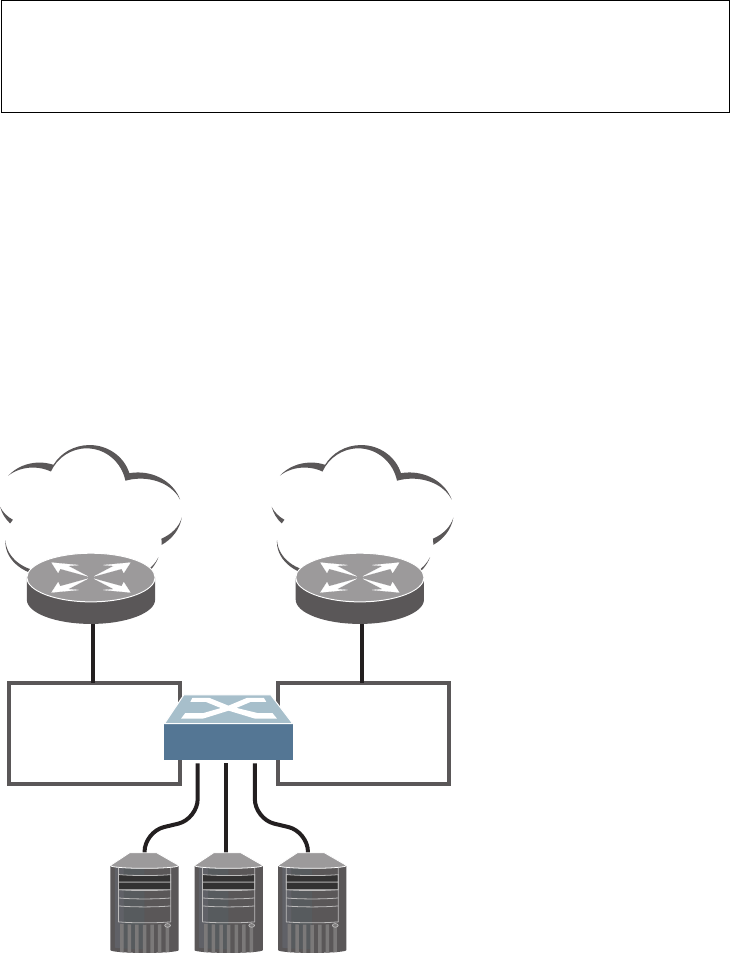
468 G8052 Application Guide for N/OS 8.3
Example 2: PIM-SM with Static RP
The following commands can be used to modify the prior example configuration to
use a static RP:
Where 225.1.0.0 255.255.0.0 is the multicast group base address and mask, and
10.10.1.1 is the static RP address.
Note: The same static RP address must be configured for all switches in the group.
Example 3: PIM-DM
This example configures PIM Dense Mode (PIM-DM) on one IP interface. PIM-DM
can be configured independently, or it can be combined with the prior PIM-SM
examples (which are configured on a different PIM component) as shown in
Figure 45.
Figure 45. Network with both PIM-DM and PIM-SM Components
RS G8052(config)#ippimstaticrpenable
RS G8052(config)#ippimcomponent1
RS G8052(configippimcomp)#rpstaticrpaddress225.1.0.0255.255.0.0
10.10.1.1
RS G8052(configippimcomp)#exit
PIM-SM
Media
Servers
PIM-DM
Multicast
225.1.0.0/16
Multicast
239.1.0.0/16
IP 10.10.1.1
VLAN 101
Component 1
IP 10.10.2.1
VLAN 102
Component 2
IP Interface 11 IP Interface 22
PIM Enabled
Switch

© Copyright Lenovo 2015 Chapter 30: Protocol Independent Multicast 469
1. Configure the PIM-SM component as shown in the prior examples, or if using
PIM-DM independently, enable the PIM feature.
2. Configure a PIM component and set the PIM mode:
3. Define an IP interface for use with PIM:
4. Enable PIM on the IP interface and assign the PIM component:
5. (Optional) Configure PIM border router if the IPMC traffic is flowing between PIM
domains:
Note: For PIM Dense Mode, the DR, RP, and BSR settings do not apply.
RS G8052(config)#ippimenable
RS G8052(config)#ippimcomponent2
RS G8052(configippimcomp)#modedense
RS G8052(configippimcomp)#exit
RS G8052(config)#interfaceip22
RS G8052(configipif)#ipaddress10.10.2.1255.255.255.255
RS G8052(configipif)#vlan102
RS G8052(configipif)#enable
RS G8052(configipif)#ippimenable
RS G8052(configipif)#ippimcomponentid2
RS G8052(configipif)#exit
RS G8052(config)#ippimpmbrenable
RS G8052(config)#interfaceip22
RS G8052(configipif)#ippimborderbit
RS G8052(configipif)#exit
470 G8052 Application Guide for N/OS 8.3
© Copyright Lenovo 2015 471
Part 6: High Availability
Fundamentals
Internet traffic consists of myriad services and applications which use the Internet
Protocol (IP) for data delivery. However, IP is not optimized for all the various
applications. High Availability goes beyond IP and makes intelligent switching
decisions to provide redundant network configurations.
472 G8052 Application Guide for N/OS 8.3

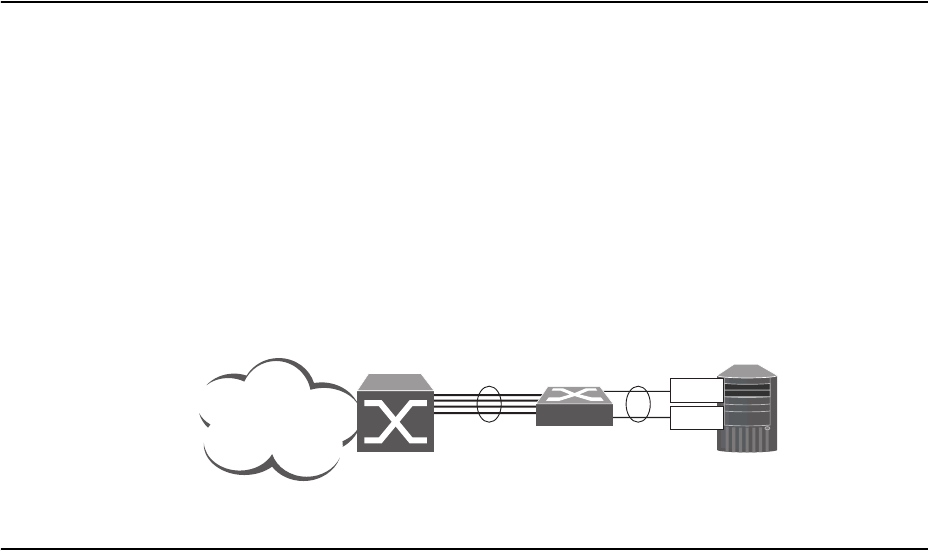
474 G8052 Application Guide for N/OS 8.3
Trunking for Link Redundancy
Multiple switch ports can be combined together to form robust, high-bandwidth
trunks to other devices. Since trunks are comprised of multiple physical links, the
trunk group is inherently fault tolerant. As long as one connection between the
switches is available, the trunk remains active.
In Figure 46, four ports are trunked together between the switch and the enterprise
routing device. Connectivity is maintained as long as one of the links remain
active. The links to the server are also trunked, allowing the secondary NIC to take
over in the event that the primary NIC link fails.
Figure 46. Trunking Ports for Link Redundancy
For more information on trunking, see Chapter 9, “Ports and Trunking.”
Virtual Link Aggregation
Using the VLAG feature, switches can be paired as VLAG peers. The peer switches
appear to the connecting device as a single virtual entity for the purpose of
establishing a multi-port trunk. The VLAG-capable switches synchronize their
logical view of the access layer port structure and internally prevent implicit loops.
The VLAG topology also responds more quickly to link failure and does not result
in unnecessary MAC flooding.
VLAGs are useful in multi-layer environments for both uplink and downlink
redundancy to any regular LAG-capable device. They can also be used in for
active-active VRRP connections.
For more information on VLAGs, see Chapter 11, “Virtual Link Aggregation
Groups.”
Trunk Trunk
Server
NIC 1
NIC 2
Internet
Enterprise
Routing Switch

© Copyright Lenovo 2015 Chapter 31: Basic Redundancy 475
Hot Links
Hot Links provides basic link redundancy with fast recovery.
Hot Links consists of up to 25 triggers. A trigger consists of a pair of layer 2
interfaces, each containing an individual port, trunk, or LACP adminkey. One
interface is the Master, and the other is a Backup. While the Master interface is set
to the active state and forwards traffic, the Backup interface is set to the standby
state and blocks traffic until the Master interface fails. If the Master interface fails,
the Backup interface is set to active and forwards traffic. Once the Master interface
is restored, it regains its active state and forwards traffic. The Backup transitions to
the standby state.
You may select a physical port, static trunk, or an LACP adminkey as a Hot Link
interface.
Forward Delay
The Forward Delay timer allows Hot Links to monitor the Master and Backup
interfaces for link stability before selecting one interface to transition to the active
state. Before the transition occurs, the interface must maintain a stable link for the
duration of the Forward Delay interval.
For example, if you set the Forward delay timer to 10 seconds, the switch will select
an interface to become active only if a link remained stable for the duration of the
Forward Delay period. If the link is unstable, the Forward Delay period starts
again.
Preemption
You can configure the Master interface to resume the active state whenever it
becomes available. With Hot Links preemption enabled, the Master interface
transitions to the active state immediately upon recovery. The Backup interface
immediately transitions to the standby state. If Forward Delay is enabled, the
transition occurs when an interface has maintained link stability for the duration of
the Forward Delay period.
FDB Update
Use the FDB update option to notify other devices on the network about updates to
the Forwarding Database (FDB). When you enable FDB update, the switch sends
multicasts of addresses in the forwarding database (FDB) over the active interface,
so that other devices on the network can learn the new path. The Hot Links FBD
update option uses the station update rate to determine the rate at which to send
FDB packets.
Configuration Guidelines
The following configuration guidelines apply to Hot links:
-When Hot Links is turned on, STP must be disabled on the hotlink ports.

476 G8052 Application Guide for N/OS 8.3
-A port that is a member of the Master interface cannot be a member of the
Backup interface. A port that is a member of one Hot Links trigger cannot be a
member of another Hot Links trigger.
-An individual port that is configured as a Hot Link interface cannot be a
member of a trunk.
Configuring Hot Links
Spanning Tree Protocol must be disabled on Hot Links ports. For instance, if Hot
Links ports 1 and 2 belong to STGs 1 and 23, use the following commands to
disable the STGs:
Use the following commands to configure Hot Links.
RS G8052(config)#nospanstp1enable
RS G8052(config)#nospanstp23enable
RS G8052(config)#[no]hotlinksbpdu (Enable or disable Hot Links BPDU flood)
RS G8052(config)#[no]hotlinksenable (Enable or disable Hot Links globally)
RS G8052(config)#[no]hotlinksfdbupdate (Enable or disable Hot Links FDB update)
RS G8052(config)#hotlinksfdbupdaterate (Configure FDB update rate in packets per
second)
RS G8052(config)#hotlinkstrigger1enable (Enable Hot Links Trigger 1)
RS G8052(config)#hotlinkstrigger1masterport1 (Add port to Master interface)
RS G8052(config)#hotlinkstrigger1backupport2(Add port to Backup interface)
RS G8052(config)#hotlinksenable(Turn on Hot Links)

© Copyright Lenovo 2015 477
Chapter 32. Layer 2 Failover
The primary application for Layer 2 Failover is to support Network Adapter
Teaming. With Network Adapter Teaming, all the NICs on each server share the
same IP address, and are configured into a team. One NIC is the primary link, and
the other is a standby link. For more details, refer to the documentation for your
Ethernet adapter.
Note: Only two links per server can be used for Layer 2 Trunk Failover (one
primary and one backup). Network Adapter Teaming allows only one backup NIC
for each server blade.
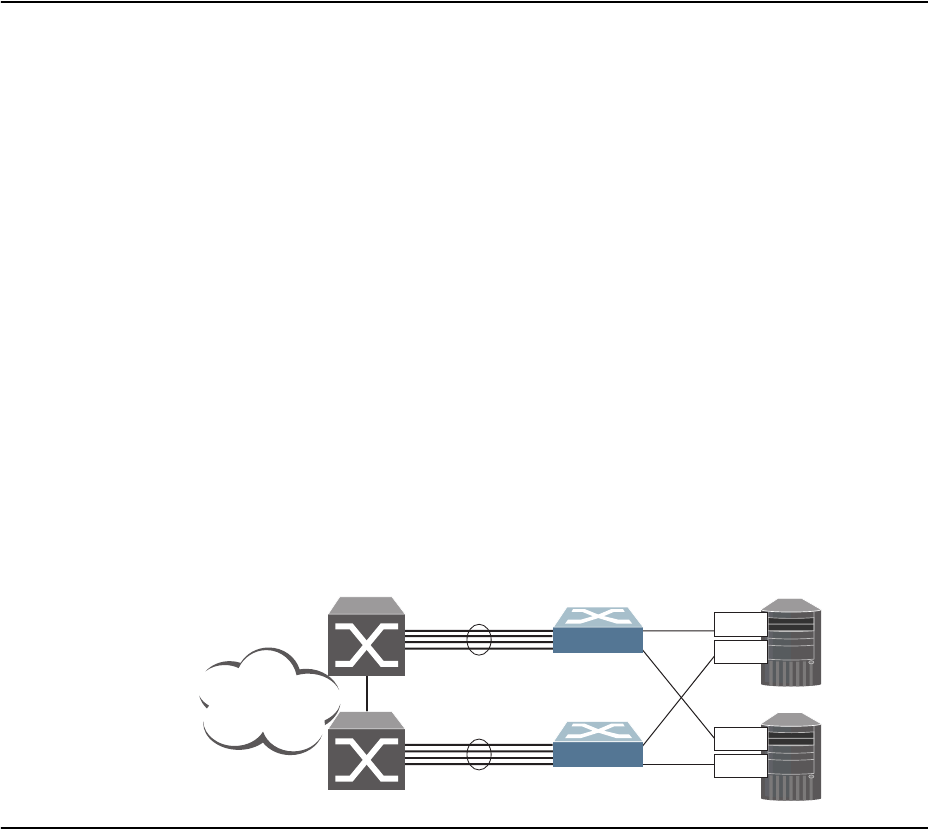
478 G8052 Application Guide for N/OS 8.3
Monitoring Trunk Links
Layer 2 Failover can be enabled on any trunk group in the G8052, including LACP
trunks. Trunks can be added to failover trigger groups. Then, if some specified
number of monitor links fail, the switch disables all the control ports in the switch.
When the control ports are disabled, it causes the NIC team on the affected servers
to failover from the primary to the backup NIC. This process is called a failover
event.
When the appropriate number of links in a monitor group return to service, the
switch enables the control ports. This causes the NIC team on the affected servers
to fail back to the primary switch (unless Auto-Fallback is disabled on the NIC
team). The backup switch processes traffic until the primary switch’s control links
come up, which can take up to five seconds.
Figure 47 is a simple example of Layer 2 Failover. One G8052 is the primary, and
the other is used as a backup. In this example, all ports on the primary switch
belong to a single trunk group, with Layer 2 Failover enabled, and Failover Limit
set to 2. If two or fewer links in trigger 1 remain active, the switch temporarily
disables all control ports. This action causes a failover event on Server 1 and Server
2.
Figure 47. Basic Layer 2 Failover
Setting the Failover Limit
The failover limit lets you specify the minimum number of operational links
required within each trigger before the trigger initiates a failover event. For
example, if the limit is two, a failover event occurs when the number of operational
links in the trigger is two or fewer. When you set the limit to zero, the switch
triggers a failover event only when no links in the trigger are operational.
Trigger 1
Trigger 1
Primary
Switch
Backup
Switch
Server 1
Server 2
NIC 1
NIC 2
NIC 1
NIC 2
Internet
Enterprise
Routing Switches

© Copyright Lenovo 2015 Chapter 32: Layer 2 Failover 479
Manually Monitoring Port Links
The Manual Monitor allows you to configure a set of ports and trunks to monitor
for link failures (a monitor list), and another set of ports and trunks to disable
when the trigger limit is reached (a control list). When the switch detects a link
failure on the monitor list, it automatically disables the items in control list. When
server ports are disabled, the corresponding server’s network adapter can detect
the disabled link, and trigger a network-adapter failover to another port or trunk
on the switch, or another switch.
The switch automatically enables the control list items when the monitor list items
return to service.
Monitor Port State
A monitor port is considered operational as long as the following conditions are
true:
-The port must be in the Link Up state.
-If STP is enabled, the port must be in the Forwarding state.
-If the port is part of an LACP trunk, the port must be in the Aggregated state.
If any of these conditions is false, the monitor port is considered to have failed.
Control Port State
A control port is considered Operational if the monitor trigger is up. As long as the
trigger is up, the port is considered operational from a teaming perspective, even if
the port itself is actually in the Down state, Blocking state (if STP is enabled on the
port), or Not Aggregated state (if part of an LACP trunk).
A control port is considered to have failed only if the monitor trigger is in the Down
state.
To view the state of any port, use one of the following commands:
>>#showinterfacelink (View port link status)
>>#showinterfaceport<x>spanningtreestp<x> (View port STP status)
>>#showlacpinformation (View port LACP status)

480 G8052 Application Guide for N/OS 8.3
L2 Failover with Other Features
L2 Failover works together with Link Aggregation Control Protocol (LACP) and
with Spanning Tree Protocol (STP), as described in the next sections.
LACP
Link Aggregation Control Protocol allows the switch to form dynamic trunks. You
can use the admin key to add up to 52 LACP trunks to a failover trigger using
manual monitoring. When you add an admin key to a trigger, any LACP trunk with
that admin key becomes a member of the trigger.
Spanning Tree Protocol
If Spanning Tree Protocol (STP) is enabled on the ports in a failover trigger, the
switch monitors the port STP state rather than the link state. A port failure results
when STP is not in a Forwarding state (such as Learning, Discarding, or No Link)
in all the Spanning Tree Groups (STGs) to which the port belongs. The switch
automatically disables the appropriate control ports.
When the switch determines that ports in the trigger are in STP Forwarding state in
any one of the STGs it belongs to, then it automatically enables the appropriate
control ports. The switch fails back to normal operation.
For example, if a monitor port is a member of STG1, STG2, and STG3, a failover
will be triggered only if the port is not in a forwarding state in all the three STGs.
When the port state in any of the three STGs changes to forwarding, then the
control port is enabled and normal switch operation is resumed.
© Copyright Lenovo 2015 Chapter 32: Layer 2 Failover 481
Configuration Guidelines
This section provides important information about configuring Layer 2 Failover.
-Any specific failover trigger can monitor ports only, static trunks only, or LACP
trunks only. The different types cannot be combined in the same trigger.
-A maximum of 52 LACP keys can be added per trigger.
-Management ports cannot be monitored.
-Control ports for different triggers must not overlap. Monitor ports may
overlap.
Configuring Layer 2 Failover
Use the following procedure to configure a Layer 2 Failover Manual Monitor.
1. Specify the links to monitor.
2. Specify the links to disable when the failover limit is reached.
3. Configure general Failover parameters.
>>#failovertrigger1mmonmonitormember15
>>#failovertrigger1mmoncontrolmember610
>>#failoverenable
>>#failovertrigger1enable
>>#failovertrigger1limit2
482 G8052 Application Guide for N/OS 8.3

© Copyright Lenovo 2015 483
Chapter 33. Virtual Router Redundancy Protocol
The Lenovo RackSwitch G8052 (G8052) supports IPv4 high-availability network
topologies through an enhanced implementation of the Virtual Router
Redundancy Protocol (VRRP).
Note: Lenovo Network Operating System 8.3 does not support IPv6 for VRRP.
The following topics are discussed in this chapter:
-“VRRP Overview” on page 484. This section discusses VRRP operation and
Networking OS redundancy configurations.
-“Failover Methods” on page 487. This section describes the three modes of high
availability.
-“Networking OS Extensions to VRRP” on page 488. This section describes VRRP
enhancements implemented in N/OS.
-“Virtual Router Deployment Considerations” on page 489. This section
describes issues to consider when deploying virtual routers.
-“High Availability Configurations” on page 490. This section discusses the more
useful and easily deployed redundant configurations.

484 G8052 Application Guide for N/OS 8.3
VRRP Overview
In a high-availability network topology, no device can create a single
point-of-failure for the network or force a single point-of-failure to any other part
of the network. This means that your network will remain in service despite the
failure of any single device. To achieve this usually requires redundancy for all
vital network components.
VRRP enables redundant router configurations within a LAN, providing alternate
router paths for a host to eliminate single points-of-failure within a network. Each
participating VRRP-capable routing device is configured with the same virtual
router IPv4 address and ID number. One of the virtual routers is elected as the
master, based on a number of priority criteria, and assumes control of the shared
virtual router IPv4 address. If the master fails, one of the backup virtual routers
will take control of the virtual router IPv4 address and actively process traffic
addressed to it.
With VRRP, Virtual Interface Routers (VIR) allow two VRRP routers to share an IP
interface across the routers. VIRs provide a single Destination IPv4 (DIP) address
for upstream routers to reach various servers, and provide a virtual default
Gateway for the servers.
VRRP Components
Each physical router running VRRP is known as a VRRP router.
Virtual Router
Two or more VRRP routers can be configured to form a virtual router (RFC 2338).
Each VRRP router may participate in one or more virtual routers. Each virtual
router consists of a user-configured virtual router identifier (VRID) and an IPv4
address.
Virtual Router MAC Address
The VRID is used to build the virtual router MAC Address. The five highest-order
octets of the virtual router MAC Address are the standard MAC prefix
(00-00-5E-00-01) defined in RFC 2338. The VRID is used to form the lowest-order
octet.
Owners and Renters
Only one of the VRRP routers in a virtual router may be configured as the IPv4
address owner. This router has the virtual router’s IPv4 address as its real interface
address. This router responds to packets addressed to the virtual router’s IPv4
address for ICMP pings, TCP connections, and so on.
There is no requirement for any VRRP router to be the IPv4 address owner. Most
VRRP installations choose not to implement an IPv4 address owner. For the
purposes of this chapter, VRRP routers that are not the IPv4 address owner are
called renters.
© Copyright Lenovo 2015 Chapter 33: Virtual Router Redundancy Protocol 485
Master and Backup Virtual Router
Within each virtual router, one VRRP router is selected to be the virtual router
master. See “Selecting the Master VRRP Router” on page 486 for an explanation of
the selection process.
Note: If the IPv4 address owner is available, it will always become the virtual
router master.
The virtual router master forwards packets sent to the virtual router. It also
responds to Address Resolution Protocol (ARP) requests sent to the virtual router's
IPv4 address. Finally, the virtual router master sends out periodic advertisements
to let other VRRP routers know it is alive and its priority.
Within a virtual router, the VRRP routers not selected to be the master are known
as virtual router backups. If the virtual router master fails, one of the virtual router
backups becomes the master and assumes its responsibilities.
Virtual Interface Router
At Layer 3, a Virtual Interface Router (VIR) allows two VRRP routers to share an IP
interface across the routers. VIRs provide a single Destination IPv4 (DIP) address
for upstream routers to reach various destination networks, and provide a virtual
default Gateway.
Note: Every VIR must be assigned to an IP interface, and every IP interface must
be assigned to a VLAN. If no port in a VLAN has link up, the IP interface of that
VLAN is down, and if the IP interface of a VIR is down, that VIR goes into INIT
state.
VRRP Operation
Only the virtual router master responds to ARP requests. Therefore, the upstream
routers only forward packets destined to the master. The master also responds to
ICMP ping requests. The backup does not forward any traffic, nor does it respond
to ARP requests.
If the master is not available, the backup becomes the master and takes over
responsibility for packet forwarding and responding to ARP requests.
486 G8052 Application Guide for N/OS 8.3
Selecting the Master VRRP Router
Each VRRP router is configured with a priority between 1–254. A bidding process
determines which VRRP router is or becomes the master—the VRRP router with
the highest priority.
The master periodically sends advertisements to an IPv4 multicast address. As
long as the backups receive these advertisements, they remain in the backup state.
If a backup does not receive an advertisement for three advertisement intervals, it
initiates a bidding process to determine which VRRP router has the highest
priority and takes over as master. In addition to the three advertisement intervals, a
manually set holdoff time can further delay the backups from assuming the master
status.
If, at any time, a backup determines that it has higher priority than the current
master does, it can preempt the master and become the master itself, unless
configured not to do so. In preemption, the backup assumes the role of master and
begins to send its own advertisements. The current master sees that the backup has
higher priority and will stop functioning as the master.
A backup router can stop receiving advertisements for one of two reasons—the
master can be down, or all communications links between the master and the
backup can be down. If the master has failed, it is clearly desirable for the backup
(or one of the backups, if there is more than one) to become the master.
Note: If the master is healthy but communication between the master and the
backup has failed, there will then be two masters within the virtual router. To
prevent this from happening, configure redundant links to be used between the
switches that form a virtual router.
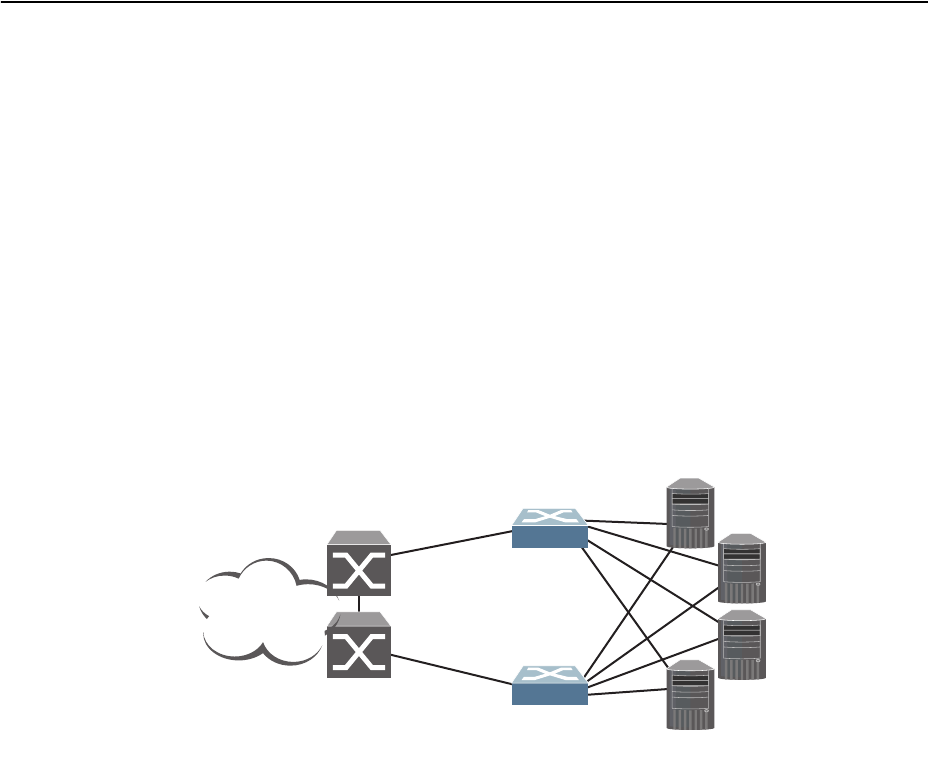
© Copyright Lenovo 2015 Chapter 33: Virtual Router Redundancy Protocol 487
Failover Methods
With service availability becoming a major concern on the Internet, service
providers are increasingly deploying Internet traffic control devices, such as
application switches, in redundant configurations. N/OS high availability
configurations are based on VRRP. The N/OS implementation of VRRP includes
proprietary extensions.
Active-Active Redundancy
In an active-active configuration, shown in Figure 48, two switches provide
redundancy for each other, with both active at the same time. Each switch
processes traffic on a different subnet. When a failure occurs, the remaining switch
can process traffic on all subnets.
For a configuration example, see “High Availability Configurations” on page 490.
Figure 48. Active-Active Redundancy
Virtual Router Group
The virtual router group ties all virtual routers on the switch together as a single
entity. As members of a group, all virtual routers on the switch (and therefore the
switch itself), are in either a master or standby state.
A VRRP group has the following characteristics:
-When enabled, all virtual routers behave as one entity, and all group settings
override any individual virtual router settings.
-All individual virtual routers, once the VRRP group is enabled, assume the
group’s tracking and priority.
-When one member of a VRRP group fails, the priority of the group decreases,
and the state of the entire switch changes from Master to Standby.
-When VRRP group restrictions are enabled, advertisements for the group are
sent and received only on VRRP group interface.
Each VRRP advertisement can include up to 128 addresses. All virtual routers are
advertised within the same packet, conserving processing and buffering resources.
Internet
Internet
Enterprise
Routing Switch
Switch 1
Switch 2
Servers
Active (subnet A and C)
Active (subnet B and D)

488 G8052 Application Guide for N/OS 8.3
Networking OS Extensions to VRRP
This section describes VRRP enhancements that are implemented in N/OS.
N/OS supports a tracking function that dynamically modifies the priority of a
VRRP router, based on its current state. The objective of tracking is to have,
whenever possible, the master bidding processes for various virtual routers in a
LAN converge on the same switch. Tracking ensures that the selected switch is the
one that offers optimal network performance. For tracking to have any effect on
virtual router operation, preemption must be enabled.
N/OS can track the attributes listed in Table 34 (Router VRRP mode):
Each tracked parameter has a user-configurable weight associated with it. As the
count associated with each tracked item increases (or decreases), so does the VRRP
router's priority, subject to the weighting associated with each tracked item. If the
priority level of a standby is greater than that of the current master, then the
standby can assume the role of the master.
See “Configuring the Switch for Tracking” on page 489 for an example on how to
configure the switch for tracking VRRP priority.
Table 34. VRRP Tracking Parameters
Parameter Description
Number of IP interfaces on the
switch that are active (“up”)
trackingpriorityincrement
interfaces
Helps elect the virtual routers with the
most available routes as the master. (An IP
interface is considered active when there
is at least one active port on the same
VLAN.) This parameter influences the
VRRP router's priority in virtual interface
routers.
Number of active ports on the same
VLAN
trackingpriorityincrement
ports
Helps elect the virtual routers with the
most available ports as the master. This
parameter influences the VRRP router's
priority in virtual interface routers.
Number of virtual routers in master
mode on the switch
trackingpriorityincrement
virtualrouters
Useful for ensuring that traffic for any
particular client/server pair is handled by
the same switch, increasing routing
efficiency. This parameter influences the
VRRP router's priority in virtual interface
routers.

© Copyright Lenovo 2015 Chapter 33: Virtual Router Redundancy Protocol 489
Virtual Router Deployment Considerations
Assigning VRRP Virtual Router ID
During the software upgrade process, VRRP virtual router IDs will be
automatically assigned if failover is enabled on the switch. When configuring
virtual routers at any point after upgrade, virtual router ID numbers must be
assigned. The virtual router ID may be configured as any number between 1 and
255. Use the following command to configure the virtual router ID:
Configuring the Switch for Tracking
Tracking configuration largely depends on user preferences and network
environment. Consider the configuration shown in Figure 48 on page 487. Assume
the following behavior on the network:
-Switch 1 is the master router upon initialization.
-If switch 1 is the master and it has one fewer active servers than switch 2, then
switch 1 remains the master.
This behavior is preferred because running one server down is less disruptive
than bringing a new master online and severing all active connections in the
process.
-If switch 1 is the master and it has two or more active servers fewer than switch
2, then switch 2 becomes the master.
-If switch 2 is the master, it remains the master even if servers are restored on
switch 1 such that it has one fewer or an equal number of servers.
-If switch 2 is the master and it has one active server fewer than switch 1, then
switch 1 becomes the master.
You can implement this behavior by configuring the switch for tracking as follows:
1. Set the priority for switch 1 to 101.
2. Leave the priority for switch 2 at the default value of 100.
3. On both switches, enable tracking based on ports, interfacesor virtual routers. You
can choose any combination of tracking parameters, based on your network
configuration.
Note: There is no shortcut to setting tracking parameters. The goals must first be
set and the outcomes of various configurations and scenarios analyzed to find
settings that meet the goals.
RS G8052(config)#routervrrp
RS G8052(configvrrp)#virtualrouter1virtualrouterid<1-255>
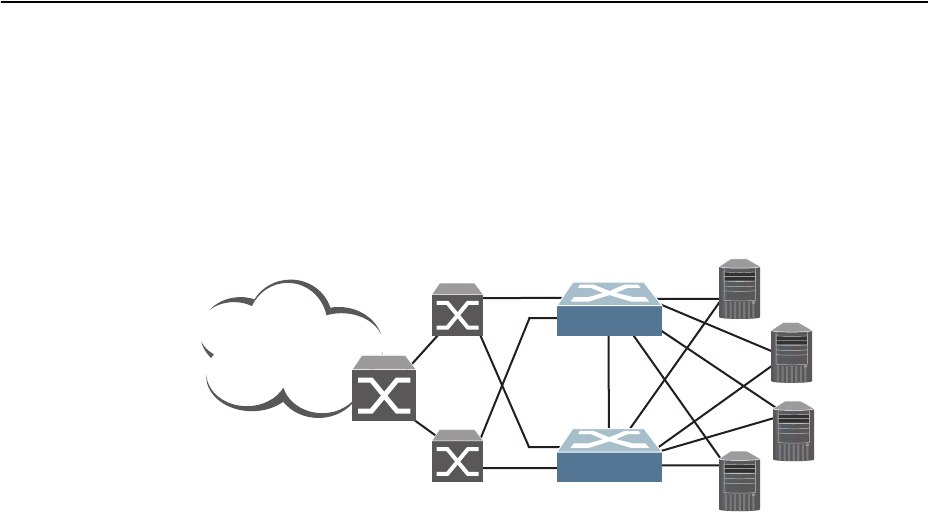
490 G8052 Application Guide for N/OS 8.3
High Availability Configurations
VRRP High-Availability Using Multiple VIRs
Figure 49 shows an example configuration where two G8052s are used as VRRP
routers in an active-active configuration. In this configuration, both switches
respond to packets.
Figure 49. Active-Active Configuration using VRRP
Although this example shows only two switches, there is no limit on the number of
switches used in a redundant configuration. It is possible to implement an
active-active configuration across all the VRRP-capable switches in a LAN.
Each VRRP-capable switch in an active-active configuration is autonomous.
Switches in a virtual router need not be identically configured.
In the scenario illustrated in Figure 49, traffic destined for IPv4 address 10.0.1.1 is
forwarded through the Layer 2 switch at the top of the drawing, and ingresses
G8052 1 on port 1. Return traffic uses default gateway 1 (192.168.1.1).
If the link between G8052 1 and the Layer 2 switch fails, G8052 2 becomes the
Master because it has a higher priority. Traffic is forwarded to G8052 2, which
forwards it to G8052 1 through port 4. Return traffic uses default gateway 2
(192.168.2.1), and is forwarded through the Layer 2 switch at the bottom of the
drawing.
Internet
Enterprise
Routing Switch
VIR 1: 192.168.1.200 (Master)
VIR 2: 192.168.2.200 (Backup)
VIR 1: 192.168.1.200 (Backup)
VIR 2: 192.168.2.200 (Master)
NIC 1: 10.0.1.1/24
NIC 2: 10.0.2.1/24
NIC 1: 10.0.1.2/24
NIC 2: 10.0.2.2/24
NIC 1: 10.0.1.3/24
NIC 2: 10.0.2.3/24
NIC 1: 10.0.1.4/24
NIC 2: 10.0.2.4/24
L2 Switch
L2 Switch
1
2
4
4
1
2
Server 1
Server 2
Server 3
Server 4
Switch 2
Switch 1

© Copyright Lenovo 2015 Chapter 33: Virtual Router Redundancy Protocol 491
To implement the active-active example, perform the following switch
configuration.
Task 1: Configure G8052 1
1. Configure client and server interfaces.
2. Configure the default gateways. Each default gateway points to a Layer 3 router.
3. Turn on VRRP and configure two Virtual Interface Routers.
4. Enable tracking on ports. Set the priority of Virtual Router 1 to 101, so that it
becomes the Master.
RS G8052(config)#interfaceip1
RS G8052(configipif)#ipaddress192.168.1.100255.255.255.0
RS G8052(configipif)#vlan10
RS G8052(configipif)#enable
RS G8052(configipif)#exit
RS G8052(config)#interfaceip2
RS G8052(configipif)#ipaddress192.168.2.101255.255.255.0
RS G8052(configipif)#vlan20
RS G8052(configipif)#enable
RS G8052(configipif)#exit
RS G8052(config)#interfaceip3
RS G8052(configipif)#ipaddress10.0.1.100255.255.255.0
RS G8052(configipif)#enable
RS G8052(configipif)#exit
RS G8052(config)#interfaceip4
RS G8052(configipif)#ipaddress10.0.2.101255.255.255.0
RS G8052(configipif)#enable
RS G8052(configipif)#exit
RS G8052(config)#ipgateway1address192.168.1.1
RS G8052(config)#ipgateway1enable
RS G8052(config)#ipgateway2address192.168.2.1
RS G8052(config)#ipgateway2enable
RS G8052(config)#routervrrp
RS G8052(configvrrp)#enable
RS G8052(configvrrp)#virtualrouter1virtualrouterid1
RS G8052(configvrrp)#virtualrouter1interface1
RS G8052(configvrrp)#virtualrouter1address192.168.1.200
RS G8052(configvrrp)#virtualrouter1enable
RS G8052(configvrrp)#virtualrouter2virtualrouterid2
RS G8052(configvrrp)#virtualrouter2interface2
RS G8052(configvrrp)#virtualrouter2address192.168.2.200
RS G8052(configvrrp)#virtualrouter2enable
RS G8052(configvrrp)#virtualrouter1trackports
RS G8052(configvrrp)#virtualrouter1priority101
RS G8052(configvrrp)#virtualrouter2trackports
RS G8052(configvrrp)#exit

492 G8052 Application Guide for N/OS 8.3
5. Configure ports.
6. Turn off Spanning Tree Protocol globally.
Task 2: Configure G8052 2
1. Configure client and server interfaces.
2. Configure the default gateways. Each default gateway points to a Layer 3 router.
RS G8052(config)#vlan10
RS G8052(configvlan)#exit
RS G8052(config)#interfaceport1
RS G8052(configif)#switchportmodetrunk
RS G8052(configif)#switchporttrunkallowedvlan10
RS G8052(configif)#exit
RS G8052(config)#vlan20
RS G8052(configvlan)#exit
RS G8052(config)#interfaceport2
RS G8052(configif)#switchportmodetrunk
RS G8052(configif)#switchporttrunkallowedvlan20
RS G8052(configif)#exit
RS G8052(config)#nospanningtreestp1
RS G8052(config)#interfaceip1
RS G8052(configipif)#ipaddress192.168.1.101255.255.255.0
RS G8052(configipif)#vlan10
RS G8052(configipif)#enable
RS G8052(configipif)#exit
RS G8052(config)#interfaceip2
RS G8052(configipif)#ipaddress192.168.2.100255.255.255.0
RS G8052(configipif)#vlan20
RS G8052(configipif)#enable
RS G8052(configipif)#exit
RS G8052(config)#interfaceip3
RS G8052(configipif)#ipaddress10.0.1.101255.255.255.0
RS G8052(configipif)#enable
RS G8052(configipif)#exit
RS G8052(config)#interfaceip4
RS G8052(configipif)#ipaddress10.0.2.100255.255.255.0
RS G8052(configipif)#enable
RS G8052(configipif)#exit
RS G8052(config)#ipgateway1address192.168.2.1
RS G8052(config)#ipgateway1enable
RS G8052(config)#ipgateway2address192.168.1.1
RS G8052(config)#ipgateway2enable

© Copyright Lenovo 2015 Chapter 33: Virtual Router Redundancy Protocol 493
3. Turn on VRRP and configure two Virtual Interface Routers.
4. Enable tracking on ports. Set the priority of Virtual Router 2 to 101, so that it
becomes the Master.
5. Configure ports.
6. Turn off Spanning Tree Protocol globally.
RS G8052(config)#routervrrp
RS G8052(configvrrp)#enable
RS G8052(configvrrp)#virtualrouter1virtualrouterid1
RS G8052(configvrrp)#virtualrouter1interface1
RS G8052(configvrrp)#virtualrouter1address192.168.1.200
RS G8052(configvrrp)#virtualrouter1enable
RS G8052(configvrrp)#virtualrouter2virtualrouterid2
RS G8052(configvrrp)#virtualrouter2interface2
RS G8052(configvrrp)#virtualrouter2address192.168.2.200
RS G8052(configvrrp)#virtualrouter2enable
RS G8052(configvrrp)#virtualrouter1trackports
RS G8052(configvrrp)#virtualrouter2trackports
RS G8052(configvrrp)#virtualrouter2priority101
RS G8052(configvrrp)#exit
RS G8052(config)#vlan10
RS G8052(configvlan)#exit
RS G8052(config)#interfaceport1
RS G8052(configif)#switchportmodetrunk
RS G8052(configif)#switchporttrunkallowedvlan10
RS G8052(configif)#exit
RS G8052(config)#vlan20
RS G8052(configvlan)#exit
RS G8052(config)#interfaceport2
RS G8052(configif)#switchportmodetrunk
RS G8052(configif)#switchporttrunkallowedvlan20
RS G8052(configif)#exit
RS G8052(config)#nospanningtreestp1
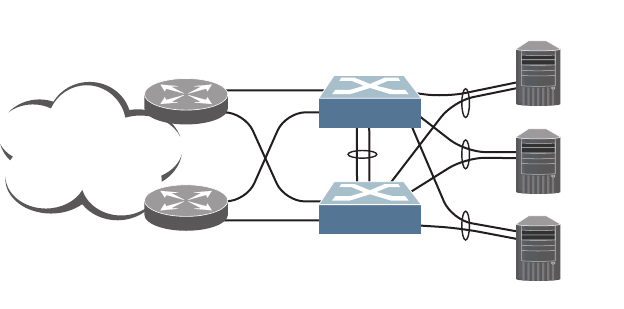
494 G8052 Application Guide for N/OS 8.3
VRRP High-Availability Using VLAGs
VRRP can be used in conjunction with VLAGs and LACP-capable servers and
switches to provide seamless redundancy.
Figure 50. Active-Active Configuration using VRRP and VLAGs
See “VLAGs with VRRP” on page 191 for a detailed configuration example.
Internet
10.0.1.1
10.0.1.2
10.0.1.3
Layer 3
Router
Layer 3
Router
1
2
45
45
1
2
Server 1
Server 2
Server 3
VLAG Peer 1
ISL
VLAG 1
VLAG 2
VLAG 3
VRRP Master
VRRP Backup
Network 10.0.1.0/24
VIR: 10.0.1.100
VLAG Peer 2
VIR: 10.0.1.100
10
11
12
10
11
12
© Copyright Lenovo 2015 495
Part 7: Network
Management
496 G8052 Application Guide for N/OS 8.3

© Copyright Lenovo 2015 497
Chapter 34. Link Layer Discovery Protocol
The Lenovo Network Operating System software support Link Layer Discovery
Protocol (LLDP). This chapter discusses the use and configuration of LLDP on the
switch:
-“LLDP Overview” on page 498
-“Enabling or Disabling LLDP” on page 499
-“LLDP Transmit Features” on page 500
-“LLDP Receive Features” on page 504
-“LLDP Example Configuration” on page 508

498 G8052 Application Guide for N/OS 8.3
LLDP Overview
Link Layer Discovery Protocol (LLDP) is an IEEE 802.1AB-2005 standard for
discovering and managing network devices. LLDP uses Layer 2 (the data link
layer), and allows network management applications to extend their awareness of
the network by discovering devices that are direct neighbors of already known
devices.
With LLDP, the G8052 can advertise the presence of its ports, their major
capabilities, and their current status to other LLDP stations in the same LAN.
LLDP transmissions occur on ports at regular intervals or whenever there is a
relevant change to their status. The switch can also receive LLDP information
advertised from adjacent LLDP-capable network devices.
In addition to discovery of network resources, and notification of network changes,
LLDP can help administrators quickly recognize a variety of common network
configuration problems, such as unintended VLAN exclusions or mis-matched
port aggregation membership.
The LLDP transmit function and receive function can be independently configured
on a per-port basis. The administrator can allow any given port to transmit only,
receive only, or both transmit and receive LLDP information.
The LLDP information to be distributed by the G8052 ports, and that which has
been collected from other LLDP stations, is stored in the switch’s Management
Information Base (MIB). Network Management Systems (NMS) can use Simple
Network Management Protocol (SNMP) to access this MIB information.
LLDP-related MIB information is read-only.
Changes, either to the local switch LLDP information or to the remotely received
LLDP information, are flagged within the MIB for convenient tracking by
SNMP-based management systems.
For LLDP to provide expected benefits, all network devices that support LLDP
must be consistent in their LLDP configuration.
© Copyright Lenovo 2015 Chapter 34: Link Layer Discovery Protocol 499
Enabling or Disabling LLDP
Global LLDP Setting
By default, LLDP is enabled on the G8052. To turn LLDP on or off, use the
following command:
Transmit and Receive Control
The G8052 can also be configured to transmit or receive LLDP information on a
port-by-port basis. By default, when LLDP is globally enabled on the switch, G8052
ports transmit and receive LLDP information (see the tx_rx option in the
following example). To change the LLDP transmit and receive state, the following
commands are available:
To view the LLDP transmit and receive status, use the following commands:
RS G8052(config)#[no]lldpenable (Turn LLDP on or off globally)
RS G8052(config)#interfaceport1(Select a switch port)
RS G8052(configif)#lldpadminstatustx_rx(Transmit and receive LLDP)
RS G8052(configif)#lldpadminstatustx_only(Only transmit LLDP)
RS G8052(configif)#lldpadminstatusrx_only(Only receive LLDP)
RS G8052(configif)#nolldpadminstatus(Do not participate in LLDP)
RS G8052(configif)#exit (Exit port mode)
RS G8052(config)#showlldpport (status of all ports)
RS G8052(config)#showinterfaceport<n>lldp(status of selected port)

500 G8052 Application Guide for N/OS 8.3
LLDP Transmit Features
Numerous LLDP transmit options are available, including scheduled and
minimum transmit interval, expiration on remote systems, SNMP trap notification,
and the types of information permitted to be shared.
Scheduled Interval
The G8052 can be configured to transmit LLDP information to neighboring devices
once each 5 to 32768 seconds. The scheduled interval is global; the same interval
value applies to all LLDP transmit-enabled ports. However, to help balance LLDP
transmissions and keep them from being sent simultaneously on all ports, each
port maintains its own interval clock, based on its own initialization or reset time.
This allows switch-wide LLDP transmissions to be spread out over time, though
individual ports comply with the configured interval.
The global transmit interval can be configured using the following command:
where interval is the number of seconds between LLDP transmissions. The range is
5 to 32768. The default is 30 seconds.
Minimum Interval
In addition to sending LLDP information at scheduled intervals, LLDP
information is also sent when the G8052 detects relevant changes to its
configuration or status (such as when ports are enabled or disabled). To prevent
the G8052 from sending multiple LLDP packets in rapid succession when port
status is in flux, a transmit delay timer can be configured.
The transmit delay timer represents the minimum time permitted between
successive LLDP transmissions on a port. Any interval-driven or change-driven
updates will be consolidated until the configured transmit delay expires.
The minimum transmit interval can be configured using the following command:
where interval is the minimum number of seconds permitted between successive
LLDP transmissions on any port. The range is 1 to one-quarter of the scheduled
transmit interval (lldp refreshinterval <value>), up to 8192. The default is 2
seconds.
RS G8052(config)#lldprefreshinterval<interval>
RS G8052(config)#lldptransmissiondelay<interval>

© Copyright Lenovo 2015 Chapter 34: Link Layer Discovery Protocol 501
Time-to-Live for Transmitted Information
The transmitted LLDP information is held by remote systems for a limited time. A
time-to-live parameter allows the switch to determine how long the transmitted
data is held before it expires. The hold time is configured as a multiple of the
configured transmission interval.
where multiplier is a value between 2 and 10. The default value is 4, meaning that
remote systems will hold the port’s LLDP information for 4 x the 30-second
msgtxint value, or 120 seconds, before removing it from their MIB.
Trap Notifications
If SNMP is enabled on the G8052 (see “Using Simple Network Management
Protocol” on page 37), each port can be configured to send SNMP trap notifications
whenever LLDP transmissions are sent. By default, trap notification is disabled for
each port. The trap notification state can be changed using the following
commands (Interface Port mode):
In addition to sending LLDP information at scheduled intervals, LLDP
information is also sent when the G8052 detects relevant changes to its
configuration or status (such as when ports are enabled or disabled). To prevent
the G8052 from sending multiple trap notifications in rapid succession when port
status is in flux, a global trap delay timer can be configured.
The trap delay timer represents the minimum time permitted between successive
trap notifications on any port. Any interval-driven or change-driven trap notices
from the port will be consolidated until the configured trap delay expires.
The minimum trap notification interval can be configured using the following
command:
where interval is the minimum number of seconds permitted between successive
LLDP transmissions on any port. The range is 1 to 3600. The default is 5 seconds.
If SNMP trap notification is enabled, the notification messages can also appear in
the system log. This is enabled by default. To change whether the SNMP trap
notifications for LLDP events appear in the system log, use the following
command:
RS G8052(config)#lldpholdtimemultiplier<multiplier>
RS G8052(config)#interfaceport1
RS G8052(configif)#[no]lldptrapnotification
RS G8052(configif)#exit
RS G8052(config)#lldptrapnotificationinterval<interval>
RS G8052(config)#[no]loggingloglldp

502 G8052 Application Guide for N/OS 8.3
Changing the LLDP Transmit State
When the port is disabled, or when LLDP transmit is turned off for the port using
the LLDP admin-status command options (see “Transmit and Receive Control” on
page 499), a final LLDP packet is transmitted with a time-to-live value of 0.
Neighbors that receive this packet will remove the LLDP information associated
with the G8052 port from their MIB.
In addition, if LLDP is fully disabled on a port and then later re-enabled, the G8052
will temporarily delay resuming LLDP transmissions on the port to allow the port
LLDP information to stabilize. The reinitialization delay interval can be globally
configured for all ports using the following command:
where interval is the number of seconds to wait before resuming LLDP
transmissions. The range is between 1 and 10. The default is 2 seconds.
Types of Information Transmitted
When LLDP transmission is permitted on the port (see “Enabling or Disabling
LLDP” on page 499), the port advertises the following required information in
type/length/value (TLV) format:
-Chassis ID
-Port ID
-LLDP Time-to-Live
LLDP transmissions can also be configured to enable or disable inclusion of
optional information, using the following command (Interface Port mode):
where type is an LLDP information option from Table 35:
RS G8052(config)#lldpreinitdelay<interval>
RS G8052(config)#interfaceport1
RS G8052(configif)#[no]lldptlv<type>
RS G8052(configif)#exit
Table 35. LLDP Optional Information Types
Type Description Default
portdesc Port Description Enabled
sysname System Name Enabled
sysdescr System Description Enabled
syscap System Capabilities Enabled
mgmtaddr Management Address Enabled
portvid IEEE 802.1 Port VLAN ID Disabled
portprot IEEE 802.1 Port and Protocol VLAN ID Disabled
vlanname IEEE 802.1 VLAN Name Disabled

© Copyright Lenovo 2015 Chapter 34: Link Layer Discovery Protocol 503
protid IEEE 802.1 Protocol Identity Disabled
macphy IEEE 802.3 MAC/PHY
Configuration/Status, including the
auto-negotiation, duplex, and speed
status of the port.
Disabled
powermdi IEEE 802.3 Power via MDI, indicating the
capabilities and status of devices that
require or provide power over
twisted-pair copper links.
Disabled
linkaggr IEEE 802.3 Link Aggregation status for
the port. Disabled
framesz IEEE 802.3 Maximum Frame Size for the
port. Disabled
all Select all optional LLDP information for
inclusion or exclusion. Disabled
Table 35. LLDP Optional Information Types (continued)
Type Description Default

504 G8052 Application Guide for N/OS 8.3
LLDP Receive Features
Types of Information Received
When the LLDP receive option is enabled on a port (see “Enabling or Disabling
LLDP” on page 499), the port may receive the following information from
LLDP-capable remote systems:
-Chassis Information
-Port Information
-LLDP Time-to-Live
-Port Description
-System Name
-System Description
-System Capabilities Supported/Enabled
-Remote Management Address
The G8052 stores the collected LLDP information in the MIB. Each remote
LLDP-capable device is responsible for transmitting regular LLDP updates. If the
received updates contain LLDP information changes (to port state, configuration,
LLDP MIB structures, deletion), the switch will set a change flag within the MIB for
convenient notification to SNMP-based management systems.
Viewing Remote Device Information
LLDP information collected from neighboring systems can be viewed in numerous
ways:
-Using a centrally-connected LLDP analysis server
-Using an SNMP agent to examine the G8052 MIB
-Using the G8052 Browser-Based Interface (BBI)
-Using CLI or isCLI commands on the G8052
Using the isCLI the following command displays remote LLDP information:
To view a summary of remote information, omit the Index number parameter. For
example:
RS G8052(config)#showlldpremotedevice[<index number>]
RS G8052(config)#showlldpremotedevice
LLDPRemoteDevicesInformation
Legend(possiblevaluesinDMACcolumn):
NBNearestBridge0180C200000E
NnTBNearestnonTPMRBridge0180C2000003
NCBNearestCustomerBridge0180C2000000
Totalnumberofcurrententries:1
LocalPort|Index|RemoteChassisID|RemotePort|RemoteSystemName|DMAC
|||||
MGT|1|000000001100|5|C12|NB
20|2|7499751c7500|44|C3+|NB

© Copyright Lenovo 2015 Chapter 34: Link Layer Discovery Protocol 505
To view detailed information for a remote device, specify the Index number as
found in the summary. For example, in keeping with the sample summary, to list
details for the first remote device (with an Index value of 1), use the following
command:
Note: Received LLDP information can change very quickly. When using show
commands, it is possible that flags for some expected events may be too short-lived
to be observed in the output.
RS G8052(config)#showlldpremotedevice1
LocalPortAlias:3
RemoteDeviceIndex :1
RemoteDeviceTTL :99
RemoteDeviceRxChanges :false
ChassisType :MacAddress
ChassisId :0018b1331d00
PortType :LocallyAssigned
PortId :23
PortDescription :7
SystemName :
SystemDescription:LenovoRackSwitchG8052,LenovoNetworking
OS:version8.3,BootImage:version8.3
SystemCapabilitiesSupported :bridge,router
SystemCapabilitiesEnabled :bridge,router
RemoteManagementAddress:
Subtype :IPv4
Address :10.100.120.181
InterfaceSubtype :ifIndex
InterfaceNumber :128
ObjectIdentifier :

506 G8052 Application Guide for N/OS 8.3
To view detailed information of all remote devices, use the following command:
Time-to-Live for Received Information
Each remote device LLDP packet includes an expiration time. If the switch port
does not receive an LLDP update from the remote device before the time-to-live
clock expires, the switch will consider the remote information to be invalid, and
will remove all associated information from the MIB.
RS G8052#showlldpremotedevicedetail
LocalPortAlias:MGTA
RemoteDeviceIndex :1
RemoteDeviceTTL :4678
RemoteDeviceRxChanges :false
ChassisType :MacAddress
ChassisId :0817f4a1db00
PortType :LocallyAssigned
PortId :25
PortDescription :MGTA
SystemName :
SystemDescription :LenovoRackSwitchG8052,Lenovo
NetworkingOS:version8.3,BootImage:version6.9.1.14
SystemCapabilitiesSupported :bridge,router
SystemCapabilitiesEnabled :bridge,router
RemoteManagementAddress:
Subtype :IPv4
Address :10.38.22.23
InterfaceSubtype :ifIndex
InterfaceNumber :127
ObjectIdentifier :
LocalPortAlias:2
RemoteDeviceIndex :2
RemoteDeviceTTL :4651
RemoteDeviceRxChanges :false
ChassisType :MacAddress
ChassisId :0817f4a1db00
PortType :LocallyAssigned
PortId :2
PortDescription :2
SystemName:
SystemDescription :LenovoRackSwitchG8052,Lenovo
NetworkingOS:version8.3,BootImage:version6.9.1.14
SystemCapabilitiesSupported :bridge,router
SystemCapabilitiesEnabled :bridge,router
RemoteManagementAddress:
Subtype :IPv4
Address :10.38.22.23
InterfaceSubtype :ifIndex
InterfaceNumber :127
ObjectIdentifier :
Totalentriesdisplayed:2
© Copyright Lenovo 2015 Chapter 34: Link Layer Discovery Protocol 507
Remote devices can also intentionally set their LLDP time-to-live to 0, indicating to
the switch that the LLDP information is invalid and must be immediately
removed.

508 G8052 Application Guide for N/OS 8.3
LLDP Example Configuration
1. Turn LLDP on globally.
2. Set the global LLDP timer features.
3. Set LLDP options for each port.
4. Enable syslog reporting.
5. Verify the configuration settings:
6. View remote device information as needed.
RS G8052(config)#lldpenable
RS G8052(config)#lldprefreshinterval30(Transmit each 30 seconds)
RS G8052(config)#lldptransmissiondelay2(No more often than 2 sec.)
RS G8052(config)#lldpholdtimemultiplier4(Remote hold 4 intervals)
RS G8052(config)#lldpreinitdelay2(Wait 2 sec. after reinit.)
RS G8052(config)#lldptrapnotificationinterval5(Minimum 5 sec. between)
RS G8052(config)#interfaceport<n> (Select a switch port)
RS G8052(configif)#lldpadminstatustx_rx(Transmit and receive LLDP)
RS G8052(configif)#lldptrapnotification(Enable SNMP trap notifications)
RS G8052(configif)#lldptlvall(Transmit all optional information)
RS G8052(configif)#exit
RS G8052(config)#loggingloglldp
RS G8052(config)#showlldp
RS G8052(config)#showlldpremotedevice
or
RS G8052(config)#showlldpremotedevice<index number>
or
RS G8052(config)#showlldpremotedevicesdetail

© Copyright Lenovo 2015 509
Chapter 35. Simple Network Management Protocol
Lenovo Network Operating System provides Simple Network Management
Protocol (SNMP) version 1, version 2, and version 3 support for access through any
network management software, such as IBM Director or HP-OpenView.
Note: SNMP read and write functions are enabled by default. For best security
practices, if SNMP is not needed for your network, it is recommended that you
disable these functions prior to connecting the switch to the network.
SNMP Version 1 & Version 2
To access the SNMP agent on the G8052, the read and write community strings on
the SNMP manager must be configured to match those on the switch. The default
read community string on the switch is public and the default write community
string is private.
The read and write community strings on the switch can be changed using the
following commands on the CLI:
The SNMP manager must be able to reach the management interface or any one of
the IP interfaces on the switch.
For the SNMP manager to receive the SNMPv1 traps sent out by the SNMP agent
on the switch, configure the trap host on the switch with the following command:
Note: You can use a loopback interface to set the source IP address for SNMP
traps. Use the following command to apply a configured loopback interface:
RS G8052(config)# snmpservertrapsourceloopback<1-5>
RS G8052(config)#snmpserverreadcommunity<1-32 characters>
-and-
RS G8052(config)#snmpserverwritecommunity<1-32 characters>
RS G8052(config)#snmpservertrapsource<trap source IP interface>
RS G8052(config)#snmpserverhost<IPv4 address><trap host community string>

510 G8052 Application Guide for N/OS 8.3
SNMP Version 3
SNMP version 3 (SNMPv3) is an enhanced version of the Simple Network
Management Protocol, approved by the Internet Engineering Steering Group in
March, 2002. SNMPv3 contains additional security and authentication features that
provide data origin authentication, data integrity checks, timeliness indicators and
encryption to protect against threats such as masquerade, modification of
information, message stream modification and disclosure.
SNMPv3 allows clients to query the MIBs securely.
SNMPv3 configuration is managed using the following command path menu:
For more information on SNMP MIBs and the commands used to configure SNMP
on the switch, see the Lenovo Network Operating System 8.3 Command Reference.
Default Configuration
Networking OS has three SNMPv3 users by default. All the three users have access
to all the MIBs supported by the switch:
-User 1 name is adminmd5 (password adminmd5). Authentication used is MD5.
Privacy protocol used is DES.
-User 2 name is adminsha (password adminsha). Authentication used is SHA.
Privacy protocol used is DES.
-User 3 name is adminshaaes (password Edpq132x!#9Zpx432w). Authentica-
tion used is SHA. Privacy protocol used is AES-128.
In boot strict mode (See “Boot Strict Mode” on page 46), Networking OS has one
SNMPv3 user:
-User 1 name is adminshaaes (password Edpq132x!#9Zpx432w). Authentica-
tion used is SHA. Privacy protocol used is AES-128.
Up to 17 SNMP users can be configured on the switch. To modify an SNMP user,
enter the following commands:
Users can be configured to use the authentication/privacy options. The G8052
support two authentication algorithms: MD5 and SHA, as specified in the
following command:
RS G8052(config)#snmpserver ?
RS G8052(config)#snmpserveruser<1-17>name<1-32 characters>
RS G8052(config)#snmpserveruser<1-17>authenticationprotocol
{md5|sha}authenticationpassword
-or-
RS G8052(config)#snmpserveruser<1-17>authenticationprotocolnone

© Copyright Lenovo 2015 Chapter 35: Simple Network Management Protocol 511
User Configuration Example
1. To configure a user with name “admin,” authentication type MD5, and
authentication password of “admin,” privacy option DES with privacy password
of “admin,” use the following CLI commands.
2. Configure a user access group, along with the views the group may access. Use the
access table to configure the group’s access level.
Because the read view, write view, and notify view are all set to “iso,” the user type
has access to all private and public MIBs.
3. Assign the user to the user group. Use the group table to link the user to a
particular access group.
RS G8052(config)#snmpserveruser5nameadmin
RS G8052(config)#snmpserveruser5authenticationprotocolmd5
authenticationpassword
Changingauthenticationpassword;validationrequired:
Entercurrentadminpassword: <admin. password>
Enternewauthenticationpassword:
<auth. password; Should be more than 18 characters >
Reenternewauthenticationpassword: <auth. password>
Newauthenticationpasswordaccepted.
RS G8052(config)#snmpserveruser5privacyprotocoldes
privacypassword
Changingprivacypassword;validationrequired:
Entercurrentadminpassword: <admin. password>
Enternewprivacypassword:
<privacy password; Should be more than 18 characters>
Reenternewprivacypassword: <privacy password>
Newprivacypasswordaccepted.
RS G8052(config)#snmpserveraccess5nameadmingrp
RS G8052(config)#snmpserveraccess5levelauthpriv
RS G8052(config)#snmpserveraccess5readviewiso
RS G8052(config)#snmpserveraccess5writeviewiso
RS G8052(config)#snmpserveraccess5notifyviewiso
RS G8052(config)#snmpservergroup5usernameadmin
RS G8052(config)#snmpservergroup5groupnameadmingrp

512 G8052 Application Guide for N/OS 8.3
Configuring SNMP Trap Hosts
SNMPv1 Trap Host
1. Configure a user with no authentication and password.
2. Configure an access group and group table entries for the user. Use the following
menu to specify which traps can be received by the user:
In the following example the user will receive the traps sent by the switch.
3. Configure an entry in the notify table.
4. Specify the IPv4 address and other trap parameters in the targetAddr and
targetParam tables. Use the following commands to specify the user name
associated with the targetParam table:
Note: N/OS 8.3 supports only IPv4 addresses for SNMPv1 and SNMPv2 trap
hosts.
5. Use the community table to specify which community string is used in the trap.
RS G8052(config)#snmpserveruser10namev1trap
RS G8052(config)#snmpserveraccess<user number>
RS G8052(config)#snmpserveraccess10 (Access group to view SNMPv1 traps)
namev1trap
securitysnmpv1
notifyviewiso
RS G8052(config)#snmpservergroup10 (Assign user to the access group)
securitysnmpv1
usernamev1trap
groupnamev1trap
RS G8052(config)#snmpservernotify10namev1trap
RS G8052(config)#snmpservernotify10tagv1trap
RS G8052(config)#snmpservertargetaddress10namev1trapaddress
10.70.70.190
RS G8052(config)#snmpservertargetaddress10parametersnamev1param
RS G8052(config)#snmpservertargetaddress10taglistv1param
RS G8052(config)#snmpservertargetparameters10namev1param
RS G8052(config)#snmpservertargetparameters10usernamev1only
RS G8052(config)#snmpservertargetparameters10messagesnmpv1
RS G8052(config)#snmpservercommunity10( Define the community string)
indexv1trap
namepublic
usernamev1trap

© Copyright Lenovo 2015 Chapter 35: Simple Network Management Protocol 513
SNMPv2 Trap Host Configuration
The SNMPv2 trap host configuration is similar to the SNMPv1 trap host
configuration. Wherever you specify the model, use snmpv2 instead of snmpv1.
Note: N/OS 8.3 supports only IPv4 addresses for SNMPv1 and SNMPv2 trap
hosts.
RS G8052(config)#snmpserveruser10namev2trap
RS G8052(config)#snmpservergroup10securitysnmpv2
RS G8052(config)#snmpservergroup10usernamev2trap
RS G8052(config)#snmpservergroup10groupnamev2trap
RS G8052(config)#snmpserveraccess10namev2trap
RS G8052(config)#snmpserveraccess10securitysnmpv2
RS G8052(config)#snmpserveraccess10notifyviewiso
RS G8052(config)#snmpservernotify10namev2trap
RS G8052(config)#snmpservernotify10tagv2trap
RS G8052(config)#snmpservertargetaddress10namev2trap
address 100.10.2.1
RS G8052(config)#snmpservertargetaddress10taglistv2trap
RS G8052(config)#snmpservertargetaddress10parametersname
v2param
RS G8052(config)#snmpservertargetparameters10namev2param
RS G8052(config)#snmpservertargetparameters10messagesnmpv2c
RS G8052(config)#snmpservertargetparameters10usernamev2trap
RS G8052(config)#snmpservertargetparameters10securitysnmpv2
RS G8052(config)#snmpservercommunity10indexv2trap
RS G8052(config)#snmpservercommunity10usernamev2trap

514 G8052 Application Guide for N/OS 8.3
SNMPv3 Trap Host Configuration
To configure a user for SNMPv3 traps, you can choose to send the traps with both
privacy and authentication, with authentication only, or without privacy or
authentication.
This is configured in the access table using the following commands:
Configure the user in the user table accordingly.
It is not necessary to configure the community table for SNMPv3 traps because the
community string is not used by SNMPv3.
The following example shows how to configure a SNMPv3 user v3trap with
authentication only:
RS G8052(config)#snmpserveraccess<1-32>level
RS G8052(config)#snmpservertargetparameters<1-16> level
RS G8052(config)#snmpserveruser11namev3trap
RS G8052(config)#snmpserveruser11authenticationprotocolmd5
authenticationpassword
Changingauthenticationpassword;validationrequired:
Entercurrentadminpassword: <admin. password>
Enternewauthenticationpassword: <auth. password>
Reenternewauthenticationpassword: <auth. password>
Newauthenticationpasswordaccepted.
RS G8052(config)#snmpserveraccess11notifyviewiso
RS G8052(config)#snmpserveraccess11levelauthNopriv
RS G8052(config)#snmpservergroup11usernamev3trap
RS G8052(config)#snmpservergroup11groupnamev3trap
RS G8052(config)#snmpservernotify11namev3trap
RS G8052(config)#snmpservernotify11tagv3trap
RS G8052(config)#snmpservertargetaddress11namev3trapaddress
47.81.25.66
RS G8052(config)#snmpservertargetaddress11taglistv3trap
RS G8052(config)#snmpservertargetaddress11parametersnamev3param
RS G8052(config)#snmpservertargetparameters11namev3param
RS G8052(config)#snmpservertargetparameters11usernamev3trap
RS G8052(config)#snmpservertargetparameters11levelauthNoPriv

© Copyright Lenovo 2015 Chapter 35: Simple Network Management Protocol 515
SNMP MIBs
The N/OS SNMP agent supports SNMP version 3. Security is provided through
SNMP community strings. The default community strings are “public” for SNMP
GET operation and “private” for SNMP SET operation. The community string can
be modified only through the Industry Standard Command Line Interface (ISCLI).
Detailed SNMP MIBs and trap definitions of the N/OS SNMP agent are contained
in the N/OS enterprise MIB document.
The N/OS SNMP agent supports the following standard MIBs:
-dot1x.mib
-ieee8021ab.mib
-ieee8023ad.mib
-rfc1213.mib
-rfc1215.mib
-rfc1493.mib
-rfc1573.mib
-rfc1643.mib
-rfc1657.mib
-rfc1757.mib
-rfc1850.mib
-rfc1907.mib
-rfc2037.mib
-rfc2233.mib
-rfc2465.mib
-rfc2571.mib
-rfc2572.mib
-rfc2573.mib
-rfc2574.mib
-rfc2575.mib
-rfc2576.mib
-rfc2790.mib
-rfc3176.mib
-rfc4133.mib
-rfc4363.mib
The N/OS SNMP agent supports the following generic traps as defined in RFC
1215:
-ColdStart
-WarmStart
-LinkDown
-LinkUp
-AuthenticationFailure
The SNMP agent also supports two Spanning Tree traps as defined in RFC 1493:
-NewRoot
-TopologyChange

516 G8052 Application Guide for N/OS 8.3
The following are the enterprise SNMP traps supported in N/OS:
Table 36. Networking OS-Supported Enterprise SNMP Traps
Trap Name Description
swLoginFailure Signifies that someone failed to
enter a valid username/password
combination.
swTrapDisplayString specifies
whether the login attempt was from
CONSOLE or TELNET. In case of
TELNET login it also specifies the
IP address of the host from which
the attempt was made.
swValidLogin Signifies that a user login has
occurred.
swApplyComplete Signifies that new configuration has
been applied.
swSaveComplete Signifies that new configuration has
been saved.
swFwDownloadSucess Signifies that firmware has been
downloaded to
[image1|image2|boot image].
swFwDownloadFailure Signifies that firmware
downloaded failed to
[image1|image2|boot image].
swValidLogout Signifies that a user logout has
occurred.
swPrimaryPowerSupplyFailure Signifies that the primary power
supply has failed.
swPrimaryPowerSupplyFixed Signifies that the primary power
supply has been restored.
swDefAdminDisable Signifies that the default admin
account has been disabled.
swAcntStrngPswdNotMet Signifies that the configured
password does not match strong
password complexity.
swAcntLocked Signifies that account has been
locked.
swAcntUnlockedSignifies that account has been
unlocked.
swStgNewRoot Signifies that the bridge has become
the new root of the STG.

© Copyright Lenovo 2015 Chapter 35: Simple Network Management Protocol 517
swCistNewRoot Signifies that the bridge has become
the new root of the CIST.
swStgTopologyChanged Signifies that there was a STG
topology change.
swCistTopologyChanged Signifies that there was a CIST
topology change.
swHotlinksMasterUp Signifies that the Master interface is
active.
swHotlinksMasterDn Signifies that the Master interface is
not active.
swHotlinksBackupUp Signifies that the Backup interface
is active.
swHotlinksBackupDn Signifies that the Backup interface
is not active.
swHotlinksNone Signifies that there are no active
interfaces.
swTeamingCtrlUp Signifies that the teaming is up.
swTeamingCtrlDown Signifies that the teaming control is
down.
swTeamingCtrlDownTearDownBlked Signifies that the teaming control is
down but teardown is blocked.
swTeamingCtrlError Signifies error, action is undefined.
swLACPPortBlocked Signifies that LACP is operationally
down on a port, and traffic is
blocked on the port.
swLACPPortUnblocked Signifies that LACP is operationally
up on a port, and traffic is no longer
blocked on the port.
swLFDPortErrdisabled Signifies that a port is
error-disabled due to excessive link
flaps.
swVlagInstanceUp Signifies that VLAG instance is up
identified in the trap message.
swVlagInstanceRemoteUp Signifies that VLAG is down but
instance on the remote instance is
up.
swVlagInstanceLocalUp Signifies that VLAG is down but
local instance is up.
Table 36. Networking OS-Supported Enterprise SNMP Traps (continued)
Trap Name Description

518 G8052 Application Guide for N/OS 8.3
swVlagInstanceDown Signifies that VLAG instance is
down identified in the trap
message.
swVlagIslUp Signifies that connection between
VLAG switches is up.
swVlagIslDown Signifies that connection between
VLAG switches is down.
sw8021x Signifies 802.1x feature is enabled.
swDefGwUp Signifies that the default gateway is
alive. ipCurCfgGwIndex is the
index of the Gateway in
ipCurCfgGwTable. The range for
ipCurCfgGwIndex is from 1 to
ipGatewayTableMax.
ipCurCfgGwAddr is the IP address
of the default gateway.
swDefGwDown Signifies that the default gateway is
down. ipCurCfgGwIndex is the
index of the Gateway in
ipCurCfgGwTable. The range for
ipCurCfgGwIndex is from 1 to
ipGatewayTableMax.
ipCurCfgGwAddr is the IP address
of the default gateway.
swDefGwInService Signifies that the default gateway is
up and in service.
ipCurCfgGwIndex is the index of
the Gateway in ipCurCfgGwTable.
The range for ipCurCfgGwIndex is
from 1 to ipGatewayTableMax.
ipCurCfgGwAddr is the IP address
of the default gateway.
swDefGwNotInService Signifies that the default gateway is
alive but not in service.
ipCurCfgGwIndex is the index of
the Gateway in ipCurCfgGwTable.
The range for ipCurCfgGwIndex is
from 1 to ipGatewayTableMax.
ipCurCfgGwAddr is the IP address
of the default gateway.
Table 36. Networking OS-Supported Enterprise SNMP Traps (continued)
Trap Name Description

© Copyright Lenovo 2015 Chapter 35: Simple Network Management Protocol 519
swVrrpNewMaster Indicates that the sending agent has
transitioned to “Master” state.
vrrpCurCfgVirtRtrIndx is the
VRRP virtual router table index
referenced in
vrrpCurCfgVirtRtrTable. The range
is from 1 to
vrrpVirtRtrTableMaxSize.
vrrpCurCfgVirtRtrAddr is the
VRRP virtual router IP address.
swVrrpNewBackup Indicates that the sending agent has
transitioned to “Backup” state.
vrrpCurCfgVirtRtrIndx is the
VRRP virtual router table index
referenced in
vrrpCurCfgVirtRtrTable. The range
is from 1 to
vrrpVirtRtrTableMaxSize.
vrrpCurCfgVirtRtrAddr is the
VRRP virtual router IP address.
swVrrpAuthFailure Signifies that a packet has been
received from a router whose
authentication key or
authentication type conflicts with
this router's authentication key or
authentication type.
Implementation of this trap is
optional. vrrpCurCfgIfIndx is the
VRRP interface index. This is
equivalent to ifIndex in RFC 1213
mib. The range is from 1 to
vrrpIfTableMaxSize.
vrrpCurCfgIfPasswd is the
password for authentication. It is a
DisplayString of 0 to 7 characters.
Table 36. Networking OS-Supported Enterprise SNMP Traps (continued)
Trap Name Description

520 G8052 Application Guide for N/OS 8.3
swTcpHoldDown Signifies that new TCP connection
requests from a particular client
will be blocked for a
pre-determined amount of time
since the rate of new TCP
connections from that client has
reached a pre-determined
threshold. The fltCurCfgSrcIp is the
client source IP address for which
new TCP connection requests will
be blocked. The swTrapRate
specifies the amount of time in
minutes that the particular client
will be blocked.
swNTPSyncFailed Signifies that synchronization with
the NTP server has failed.
swNTPUpdateClock Signifies that the system clock is
updated with NTP server.
swECMPGatewayUp Signifies that the ECMP gateway is
up.
swECMPGatewayDown Signifies that the ECMP gateway is
down.
swTempExceedThreshold Signifies that the switch
temperature has exceeded
maximum safety limits.
swFanFailure Signifies that fan failure has been
detected.
swFanFailureFixed Signifies that the fan failure has
been fixed.
swTempReturnThreshold Signifies that the switch
temperature has returned to under
maximum safety limits.
swVMGroupVMotion Signifies that a virtual machine has
moved from a port to another.
swVMGroupVMOnline Signifies that an advance
provisioned virtual machine has
came online.
swVMGroupVMVlanChange Signifies that a virtual machine has
entered a VLAN, or changed the
VLAN.
swVmCheckSpoofedvm Signifies that a spoofed VM MAC
was found.
Table 36. Networking OS-Supported Enterprise SNMP Traps (continued)
Trap Name Description

© Copyright Lenovo 2015 Chapter 35: Simple Network Management Protocol 521
swOflowConnectControllerFailure Signifies that the connection to
OpenFlow controller is broken.
swOflowConnectControllerSuccess Signifies that the connection to
OpenFlow controller is successful.
swOflowEmergencyState Signifies that the OpenFlow switch
has moved to emergency state.
swOflowNoEmergencyState Signifies that the OpenFlow switch
is out of emergency state.
swOflowSwitchOflowMode Signifies that the device is working
in OpenFlow switch mode.
swOflowSwitchNomalMode Signifies that the device is working
in normal switch mode.
swOflowSwitchFlowtableClr Signifies that the flow table entries
are cleared from the device.
swOflowSwitchStatsClr Signifies that the OpenFlow
statistics are cleared from the
device.
swOflowFlowtableEntryUnavail Signifies that the device is unable to
add flow entry in OpenFlow due to
unavailability of system resources.
swOflowFlowtableLimit Signifies that the device has
reached its configured flow limit.
swOflowPortDownController Signifies that the port is
operationally down by OpenFlow
controller.
swOflowPortUpController Signifies that the port is
operationally up by OpenFlow
controller.
swOflowVersionNegotiationError Signifies that the device is unable to
connect to controller either due to
bad version, or negotiation/hello
failure.
Table 36. Networking OS-Supported Enterprise SNMP Traps (continued)
Trap Name Description

522 G8052 Application Guide for N/OS 8.3
Switch Images and Configuration Files
This section describes how to use MIB calls to work with switch images and
configuration files. You can use a standard SNMP tool to perform the actions, using
the MIBs listed in the table below.
The table lists the MIBS used to perform operations associated with the Switch
Image and Configuration files.
The following SNMP actions can be performed using the MIBs listed in the table:
-Load a new Switch image (boot or running) from an FTP, SFTP, or TFTP server
-Load a previously saved switch configuration from an FTP, SFTP, or TFTP server
-Save the switch configuration to an FTP, SFTP, or TFTP server
-Save a switch dump to an FTP, SFTP, or TFTP server
Table 37. MIBs for Switch Image and Configuration Files
MIB Name MIB OID
agTransferServer 1.3.6.1.4.1.26534.2.7.7.1.1.7.1
agTransferImage 1.3.6.1.4.1.26534.2.7.7.1.1.7.2
agTransferImageFileName 1.3.6.1.4.1.26534.2.7.7.1.1.7.3
agTransferCfgFileName 1.3.6.1.4.1.26534.2.7.7.1.1.7.4
agTransferDumpFileName 1.3.6.1.4.1.26534.2.7.7.1.1.7.5
agTransferAction 1.3.6.1.4.1.26534.2.7.7.1.1.7.6
agTransferLastActionStatus 1.3.6.1.4.1.26534.2.7.7.1.1.7.7
agTransferUserName 1.3.6.1.4.1.26534.2.7.7.1.1.7.9
agTransferPassword 1.3.6.1.4.1.26534.2.7.7.1.1.7.10
agTransferTSDumpFileName 1.3.6.1.4.1.26534.2.7.7.1.1.7.11
© Copyright Lenovo 2015 Chapter 35: Simple Network Management Protocol 523
Loading a New Switch Image
To load a new switch image with the name “MyNewImage1.img” into image2,
follow these steps. This example shows an FTP, SFTP, or TFTP server at IPv4
address 192.168.10.10, though IPv6 is also supported.
1. Set the FTP, SFTP, or TFTP server address where the switch image resides:
SetagTransferServer.0"192.168.10.10"
2. Set the area where the new image will be loaded:
SetagTransferImage.0"image2"
3. Set the name of the image:
SetagTransferImageFileName.0"MyNewImage1.img"
4. If you are using an FTP or SFTP server, enter a username:
SetagTransferUserName.0"MyName"
5. If you are using an FTP or SFTP server, enter a password:
SetagTransferPassword.0"MyPassword"
6. Initiate the transfer. To transfer a switch image, enter 2 (gtimg):
SetagTransferAction.0"2"
Loading a Saved Switch Configuration
To load a saved switch configuration with the name “MyRunningConfig.cfg” into
the switch, follow these steps. This example shows an FTP, SFTP, or TFTP server at
IPv4 address 192.168.10.10, though IPv6 is also supported.
1. Set the FTP, SFTP, or TFTP server address where the switch Configuration File
resides:
SetagTransferServer.0"192.168.10.10"
2. Set the name of the configuration file:
SetagTransferCfgFileName.0"MyRunningConfig.cfg"
3. If you are using an FTP or SFTP server, enter a username:
SetagTransferUserName.0"MyName"
4. If you are using an FTP or SFTP server, enter a password:
SetagTransferPassword.0"MyPassword"
5. Initiate the transfer. To restore a running configuration, enter 3:
SetagTransferAction.0"3"
524 G8052 Application Guide for N/OS 8.3
Saving the Switch Configuration
To save the switch configuration to a file server, follow these steps. This example
shows an FTP, SFTP, or TFTP server at IPv4 address 192.168.10.10, though IPv6 is
also supported.
1. Set the FTP, SFTP, or TFTP server address where the configuration file is saved:
SetagTransferServer.0"192.168.10.10"
2. Set the name of the configuration file:
SetagTransferCfgFileName.0"MyRunningConfig.cfg"
3. If you are using an FTP or SFTP server, enter a username:
SetagTransferUserName.0"MyName"
4. If you are using an FTP or SFTP server, enter a password:
SetagTransferPassword.0"MyPassword"
5. Initiate the transfer. To save a running configuration file, enter 4:
SetagTransferAction.0"4"
Saving a Switch Dump
To save a switch dump to a file server, follow these steps. This example shows an
FTP, SFTP, or TFTP server at 192.168.10.10, though IPv6 is also supported.
1. Set the FTP, SFTP, or TFTP server address where the configuration will be saved:
SetagTransferServer.0"192.168.10.10"
2. Set the name of dump file:
SetagTransferDumpFileName.0"MyDumpFile.dmp"
3. If you are using an FTP or SFTP server, enter a username:
SetagTransferUserName.0"MyName"
4. If you are using an FTP or SFTP server, enter a password:
SetagTransferPassword.0"MyPassword"
5. Initiate the transfer. To save a dump file, enter 5:
SetagTransferAction.0"5"

© Copyright Lenovo 2015 Chapter 36: Service Location Protocol 525
Chapter 36. Service Location Protocol
Service Location Protocol (SLP) allows the switch to provide dynamic directory
services that help users find servers by attributes rather than by name or address.
SLP eliminates the need for a user to know the name of a network host supporting
a service. SLP allows the user to bind a service description to the network address
of the service.
Service Location Protocol is described in RFC 2608.
SLP defines specialized components called agents that perform tasks and support
services as follows:
-User Agent (UA) supports service query functions. It requests service
information for user applications. The User Agent retrieves service information
from the Service Agent or Directory Agents. A Host On-Demand client is an
example of a User Agent.
-Service Agent (SA) provides service registration and service advertisement.
Note: In this release, SA supports UA/DA on Linux with SLPv2 support.
-Directory Agent (DA) collects service information from Service Agents to
provide a repository of service information in order to centralize it for efficient
access by User Agents. There can only be one Directory Agent present per given
host.
The Directory Agent acts as an intermediate tier in the SLP architecture, placed
between the User Agents and the Service Agents, so they communicate only with
the Directory Agent instead of with each other. This eliminates a large portion of
the multicast request or reply traffic on the network, and it protects the Service
Agents from being overwhelmed by too many service requests.
Services are described by the configuration of attributes associated with a type of
service. A User Agent can select an appropriate service by specifying the attributes
that it needs in a service request message. When service replies are returned, they
contain a Uniform Resource Locator (URL) pointing to the service desired, and
other information, such as server load, needed by the User Agent.
Active DA Discovery
When a Service Agent or User Agent initializes, it can perform Active Directory
Agent Discovery using a multicast service request and specifies the special,
reserved service type (service:directory-agent). Active DA Discovery is
achieved through the same mechanism as any other discovery using SLP.
The Directory Agent replies with unicast service replies, which provides the URLs
and attributes of the requested service.

526 G8052 Application Guide for N/OS 8.3
SLP Configuration
Use the following ISCLI commands to configure SLP for the switch:
Table 38. SLP ISCLI Commands
Command Syntax and Usage
[no] ip slp enable
Enables or disables SLP on the switch.
Command mode: Global configuration
[no] ip slp active-da-discovery enable
Enables or disables Active DA Discovery.
Command mode: Global configuration
ip slp active-da-discovery-start-wait-time <1-10>
Configures the wait time before starting Active DA Discovery, in seconds.
The default value is 3 seconds.
Command mode: Global configuration
clear ip slp directory-agents
Clears all Directory Agents learned by the switch.
Command mode: Global configuration
showipslpinformation
Displays SLP information.
Command mode: All
showipslpdirectoryagents
Displays Directory Agents learned by the switch.
Command mode: All
showipslpuseragents
Displays User Agents information.
Command mode: All
showipslpcounter
Displays SLP statistics.
Command mode: All
clear ip slp counters
Clears all Directory Agents learned by the switch.
Command mode: Global configuration

© Copyright Lenovo 2015 527
Chapter 37. NETCONF
The Network Configuration Protocol (NETCONF) provides a mechanism to
manage the G8052, retrieve or modify existing configuration data, and upload new
configuration data. See RFC 4741 for details on NETCONF.
NETCONF operates in a client/server model. The NETCONF client establishes a
session with the switch (acting as a NETCONF server) using a Remote Procedure
Call (RPC). NETCONF is based on the Extensible Markup Language (XML) for
encoding data and for exchanging configuration and protocol messages.
The following topics are discussed in this section:
-“NETCONF Overview” on page 528
-“XML Requirements” on page 529
-“Installing the NETCONF Client” on page 530
-“Using Juniper Perl Client” on page 532
-“Establishing a NETCONF Session” on page 533
-“NETCONF Operations” on page 535
-“Protocol Operations Examples” on page 536
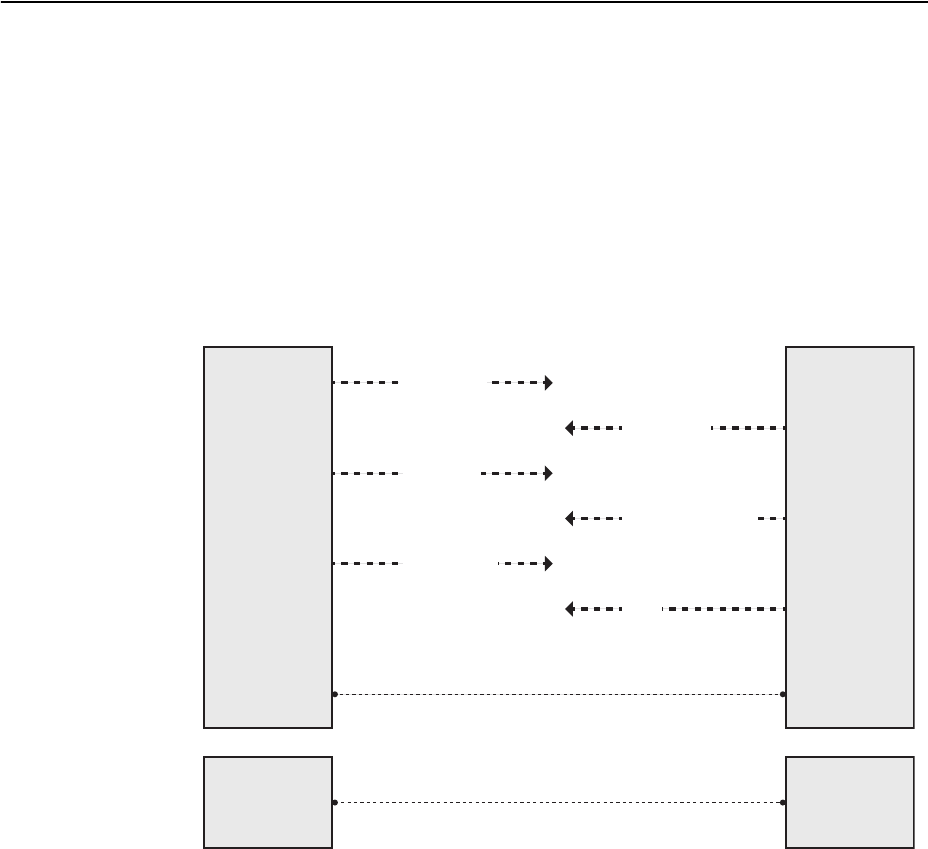
528 G8052 Application Guide for N/OS 8.3
NETCONF Overview
NETCONF provides a method to quickly configure the switch. It also allows you to
implement a configuration across multiple switches, thereby saving time and
reducing the chances of configuration errors.
The NETCONF protocol defines basic operations that are equivalent to the switch
ISCLI commands.
Note: The current implementation of NETCONF supports only ISCLI commands.
NETCONF is a connection-oriented protocol. See Figure 51 for an overview of
NETCONF operation.
Figure 51. NETCONF Operations Procedure
1. The client establishes a transport layer connection to the switch (acting as a
NETCONF server).
2. The client and switch exchange hello messages to declare their capabilities.
3. The client sends a request via rpc message to the switch.
4. The switch sends a response via rpcreply message to the client.
Note: Steps 3 and 4 must be repeated for each request that the client sends to the
switch.
5. The client sends a closesession message to the switch to end the NETCONF
session and the transport layer connection.
6. The switch sends an ok response.
<hello>
<capabilities/>
</hello>
<rpc>
<operation/>
</rpc>
<rpc>
<close-session/>
</rpc>
<hello>
<capabilities/>
</hello>
<rpc-reply>
<operation-response/>
</rpc-reply>
<rpc-reply>
<ok/>
</rpc-reply>
NETCONF
Client
NETCONF
Server
Transport Layer
Protocol
Transport Layer
Protocol
Session
• Session-ID
Connection
• Authentication
• Data integrity
• Confidentiality

© Copyright Lenovo 2015 Chapter 37: NETCONF 529
XML Requirements
XML is the encoding format used within NETCONF. When using XML for
NETCONF:
-All NETCONF protocol elements are defined in the following namespace:
urn:ietf:params:xml:ns:netconf:base:1.0
-NETCONF capability names must be Uniform Resource Identifiers (URIs):
urn:ietf:params:netconf:capability:{name}:1.0
where {name} is the name of the capability.
-Document type declarations must not appear in the NETCONF content.
-For Secure Shell (SSH), you must use a special message termination sequence of
six characters to provide message framing:
]]>]]>

530 G8052 Application Guide for N/OS 8.3
Installing the NETCONF Client
You can download the required NETCONF Client installation files from
www.ibm.com. Select Support & downloads > Fixes, updates and drivers.
Follow instructions on the IBM Support Portal page to find the files.
Before installing the NETCONF client, ensure you have completed the following
tasks:
-Install a supported version of Python (Python 2.6 or higher, up to but not
including Python 3.0) in the folder C:\.
-Install the PyCrypto application appropriate to the Python version you are
using.
Note: The following steps are for the Windows operating systems.
Follow these steps to install the Blade NETCONF Python Client (BNClient):
1. Extract the file bladenetconfpythonclientv0.1.zip to the following
folder:
C:\
Under the root folder C:\bladenetconfpythonclientv0.1, you will see
two folders:
-bladenetconfpythonclient
-pythonsshlibrary
Note: Make sure Paramiko version 1.7.4 or higher is in the folder
C:\bladenetconfpythonclientv0.1\pythonsshlibrary\
2. Open the command prompt (Select Start > Run > cmd).
3. Enter the following command to install the SSH library:
Note: If the python command does not work from the command prompt, you
may need to add a system variable to set the path to the directory where you have
installed Python. You can add the system variable at the following location: My
Computer > Properties > Advanced > Environment Variables
pythonC:\bladenetconfpythonclientv0.1\pythonsshlibrary\
paramiko1.7.6\setup.pyinstall

© Copyright Lenovo 2015 Chapter 37: NETCONF 531
4. Follow these steps to install BNClient:
As a python script:
a. Enter the following command for help:
b. Enter the following command to establish a NETCONF session:
Using SSH to connect to default port 830:
Using SSH to connect to port 22:
As a python library:
a. Open the file
C:\bladenetconfpythonclientv0.1\bladenetconf
pythonclient\example\get.py in a Python editor (For example, IDLE).
b. Change the IP address in the hostname field to the switch IP address, and save
the file.
c. Enter the following command to establish a session:
d. Enter the following command to get the running configuration:
Note: get.py is an example of a NETCONF operation python script. You can edit
the script or write a new script as per your requirements.
pythonC:\bladenetconfpythonclientv0.1\bladenetconfpython
client\bnclient\bnclient.py–h
pythonC:\bladenetconfpythonclientv0.1\bladenetconfpython
client\bnclient\bnclient.py{switch IP address}–uadmin–padmin–o
get
pythonC:\bladenetconfpythonclientv0.1\bladenetconfpython
client\bnclient\bnclient.py{switch IP address}:22–uadmin–padmin–o
get
pythonC:\bladenetconfpythonclientv0.1\bladenetconfpython
client\setup.pyinstall
pythonC:\bladenetconfpythonclientv0.1\bladenetconfpython
client\example\get.py

532 G8052 Application Guide for N/OS 8.3
Using Juniper Perl Client
You can use Juniper Perl client instead of BNClient to communicate with the
NETCONF feature on the switch. Follow these steps to use the Juniper Perl client.
Note: You must use the Linux operating system for the Juniper Perl client.
1. Extract the file junipernetconfperlclient.zip to the folder:
/home/user/
You will see two folders:
-junipernetconfperlclient
-bladenetconfperlscripts
2. Follow these steps to install the Juniper Perl client:
As a Perl library:
a. Change to the following directory:
/home/user/junipernetconfperlclient
b. Extract the following file:
netconfperl10.0R2.10.tar.gz
c. Change to the following directory:
/home/user/junipernetconfperlclient/netconfperl10.0R2
.10
d. Install the client as per the instructions in the README file.
Note: If the prerequisites package installation fails, manually install each file in
/home/user/junipernetconfperlclient\netconfperlprereqs
patch.
As a Perl script:
a. Change to the following directory:
/home/user/bladenetconfperlscripts/
b. Enter the following command:
Note: get.pl is an example of a NETCONF operation Perl script. You can edit the
script or write a new script as per your requirement.
perlget/get.plladminpadmin{swich IP address}

© Copyright Lenovo 2015 Chapter 37: NETCONF 533
Establishing a NETCONF Session
SSH is the widely used protocol for NETCONF sessions. The default SSH port for
NETCONF is 830. The client may also connect to the switch through SSH port 22.
Follow these steps to establish a NETCONF session. Enter commands in the client
Linux Shell.
Note: You can open a maximum of four simultaneous sessions.
1. Enter the following command to open an SSH connection:
2. Type or paste the following hello message:
The switch returns a hello message:
3. Type or paste the following rpc message. The get operation is used as an example.
sshadmin@{switch IP address}p830snetconf
<hello>
<capabilities>
<capability>urn:ietf:params:netconf:base:1.0</capability>
</capabilities>
</hello>
]]>]]>
<helloxmlns=“urn:ietf:params:xml:ns:netconf:base:1.0”>
<capabilities>
<capability>urn:ietf:params:netconf:base:1.0</capability>
<capability>urn:ietf:params:netconf:capability:writablerunning:1.0</capab
ility>
<capability>urn:ietf:params:netconf:capability:rollbackonerror:1.0</capa
bility>
<capability>urn:ietf:params:netconf:capability:startup:1.0</capability>
</capabilities>
<sessionid>102</sessionid>
</hello>
]]>]]>
<rpcmessageid=“100”>
<get>
<filtertype=“subtree”>
<configurationtext/>
</filter>
</get>
</rpc>
]]>]]>

534 G8052 Application Guide for N/OS 8.3
The switch sends an rpcreply message:
Note: Repeat Step 3 for each request you need to send to the switch.
4. Type or paste the following closesession message to close the NETCONF
session and terminate the SSH connection.
The switch sends the following response:
<rpcreplymessageid=“100”>
<data>
<configurationtext
xmlns=“http://www.ibm.com/netconf/1.0/configtext”>version“8.3.1”
switchtype“LenovoRackSwitchG8052”
!
!
nosystemdhcpmgta
!
!
interfaceip127
ipaddress172.31.36.51
enable
exit
!
ipgateway3address172.31.1.1
ipgateway3enable
!
!
end
</configurationtext>
</data>
</rpcreply>
]]>]]>
<rpcmessageid=“101”>
<closesession/>
</rpc>
]]>]]>
<rpcreplymessageid=“101”>
<ok/>
</rpcreply>
]]>]]>

© Copyright Lenovo 2015 Chapter 37: NETCONF 535
NETCONF Operations
The NETCONF protocol provides a set of operations to manage and retrieve
switch configuration. Table 39 provides a list of protocol operations supported by
the switch.
Table 39. Protocol Operations
Operation Description
getconfig Retrieve all or part of the running or startup
configuration.
editconfig Load all or part of a specified configuration
to the running or startup configuration.
copyconfig Replace the target running or startup
configuration with a source running or
startup configuration.
deleteconfig Delete startup configuration.
lock Lock the running configuration to prevent
other users (via another NETCONF session)
from changing it.
unlock Release a locked running configuration.
get Retrieve running configuration and device
state information.
closesession Request graceful termination of a
NETCONF session.
killsession Force the termination of a NETCONF
session.
getconfiguration Retrieve configuration data from the
switch.
getinterfaceinformation Retrieve interface status information.

536 G8052 Application Guide for N/OS 8.3
Protocol Operations Examples
Following are examples of the NETCONF protocol operations supported by the
G8052.
<get-config>
Usage:
Response from the switch:
See Table 40 for the tag elements and their values.
<rpcmessageid=“101”xmlns=“urn:ietf:params:xml:ns:netconf:base:1.0”>
<getconfig>
<source>
<running/>
</source>
<filtertype=“subtree”>
<configurationtext
xmlns=“http://www.ibm.com/netconf/1.0/configtext”/>
</filter>
</getconfig>
</rpc>
<rpcreplymessageid=“101”
xmlns=“urn:ietf:params:xml:ns:netconf:base:1.0”>
<data>
<configurationtext
xmlns=“http://www.ibm.com/netconf/1.0/configtext”>
<!configurationtext...>
</configurationtext>
</data>
</rpcreply>
Table 40. getconfig Tag Element Values
Tag Element Description Value
source The configuration text you
want to retrieve.
running/
or
startup/
filtertype=“subtree” The filter type. subtree
!configuration
text...
Contains the running
configuration in ISCLI format.

© Copyright Lenovo 2015 Chapter 37: NETCONF 537
<edit-config>
Usage:
Response from the switch:
See Table 41 for the tag elements and their values.
<rpcmessageid=“101”xmlns=“urn:ietf:params:xml:ns:netconf:base:1.0”>
<editconfig>
<target>
<running/>
</target>
<defaultoperation>
<merge/>
</defaultoperation>
<erroroption>
<stoponerror/>
</erroroption>
<configtextxmlns=“http://www.ibm.com/netconf/1.0/configtext”>
<configurationtext>hostnameRouter</configurationtext>
</configtext>
</editconfig>
</rpc>
<rpcreplymessageid=“101”
xmlns=“urn:ietf:params:xml:ns:netconf:base:1.0”>
<ok/>
</rpcreply>
Table 41. editconfig Tag Element Values
Tag Element Description Value
target The configuration you
want to edit.
running/ or startup/

538 G8052 Application Guide for N/OS 8.3
defaultoperation Set the default
operation for the
editconfig request.
-merge: The new
configuration is merged
with the target
configuration at the
corresponding level.
-replace: The new
configuration replaces the
target configuration.
-none: The target
configuration does not
change unless the
configuration data in the
configurationtext
parameter uses the
operation attribute to
request a different
operation.
erroroption Set the option to handle
configuration error.
-stoponerror: Abort
the editconfig
operation on first error.
This is the default
error-option.
-continueonerror:
Continue to process
configuration data on error.
-rollbackonerror:
Abort the editconfig
operation on first error and
discard the requested
configuration changes.
Table 41. editconfig Tag Element Values
Tag Element Description Value

© Copyright Lenovo 2015 Chapter 37: NETCONF 539
<copy-config>
Usage:
Response from the switch:
See Table 42 for the tag elements and their values.
<rpcmessageid=“101”xmlns=“urn:ietf:params:xml:ns:netconf:base:1.0”>
<copyconfig>
<target>
<startup/>
</target>
<source>
<running/>
</source>
</copyconfig>
</rpc>
<rpcreplymessageid=“101”
xmlns=“urn:ietf:params:xml:ns:netconf:base:1.0”>
<ok/>
</rpcreply>
Table 42. copyconfig Tag Element Values
Tag Element Description Value
target Configuration that needs to be changed. running/ or
startup/
source Source configuration. running/ or
startup/

540 G8052 Application Guide for N/OS 8.3
<delete-config>
Usage:
Response from the switch:
See Table 43 for the tag elements and their values.
<lock>
Usage:
Response from the switch:
See Table 44 for the tag elements and their values.
<rpcmessageid=“101”xmlns=“urn:ietf:params:xml:ns:netconf:base:1.0”>
<deleteconfig>
<target>
<startup/>
</target>
</deleteconfig>
</rpc>
<rpcreplymessageid=“101”
xmlns=“urn:ietf:params:xml:ns:netconf:base:1.0”>
<ok/>
</rpcreply>
Table 43. deleteconfig Tag Element Values
Tag Element Description Value
target Configuration that needs to be deleted. startup/
<rpcmessageid=“101”xmlns=“urn:ietf:params:xml:ns:netconf:base:1.0”>
<lock>
<target>
<running/>
</target>
</lock>
</rpc>
<rpcreplymessageid=“101”
xmlns=“urn:ietf:params:xml:ns:netconf:base:1.0”>
<ok/>
</rpcreply>
Table 44. lock Tag Element Values
Tag Element Description Value
target Configuration that needs to be edited. running/

© Copyright Lenovo 2015 Chapter 37: NETCONF 541
<unlock>
Usage:
Response from the switch:
See Table 45 for the tag elements and their values.
<rpcmessageid=“101”xmlns=“urn:ietf:params:xml:ns:netconf:base:1.0”>
<unlock>
<target>
<running/>
</target>
</unlock>
</rpc>
<rpcreplymessageid=“101”
xmlns=“urn:ietf:params:xml:ns:netconf:base:1.0”>
<ok/>
</rpcreply>
Table 45. unlock Tag Element Values
Tag Element Description Value
target Configuration being edited. running/

542 G8052 Application Guide for N/OS 8.3
<get>
Usage:
Response from the switch:
See Table 46 for the tag elements and their values.
<rpcmessageid=“101”xmlns=“urn:ietf:params:xml:ns:netconf:base:1.0”>
<get>
<filtertype=“subtree”>
<!requestatextversionoftheconfiguration>
<configurationtext
xmlns=“http://www.ibm.com/netconf/1.0/configtext”/>
</filter>
</get>
</rpc>
<rpcreplymessageid=“101”
xmlns=“urn:ietf:params:xml:ns:netconf:base:1.0”>
<data>
<configurationtext
xmlns=“http://www.ibm.com/netconf/1.0/configtext”>
<!configurationtext...>
</configurationtext>
</data>
</rpcreply>
Table 46. get Tag Element Values
Tag Element Description Value
filter Filter type. subtree
configurationtext Configuration in ISCLI format.

© Copyright Lenovo 2015 Chapter 37: NETCONF 543
<close-session>
Usage:
Response from the switch:
<kill-session>
Usage:
Response from the switch:
See Table 47 for the tag elements and their values.
<rpcmessageid=“101”xmlns=“urn:ietf:params:xml:ns:netconf:base:1.0”>
<closesession/>
</rpc>
<rpcreplymessageid=“101”
xmlns=“urn:ietf:params:xml:ns:netconf:base:1.0”>
<ok/>
</rpcreply>
<rpcmessageid=“101”xmlns=“urn:ietf:params:xml:ns:netconf:base:1.0”>
<killsession>
<sessionid>4</sessionid>
</killsession>
</rpc>
<rpcreplymessageid=“101”
xmlns=“urn:ietf:params:xml:ns:netconf:base:1.0”>
<ok/>
</rpcreply>
Table 47. killsession Tag Element Values
Tag Element Description
sessionid ID number of the session to be killed

544 G8052 Application Guide for N/OS 8.3
<get-configuration>
Usage:
Response from the switch:
See Table 48 for the tag elements and their values.
<rpcmessageid=“101”xmlns=“urn:ietf:params:xml:ns:netconf:base:1.0”>
<getconfigurationdatabase=“commited”format=“text”/>
</rpc>
<rpcreplymessageid=“101”
xmlns=“urn:ietf:params:xml:ns:netconf:base:1.0”>
<data>
<configurationtext
xmlns=“http://www.ibm.com/netconf/1.0/configtext”>
<!configurationtext...>
</configurationtext>
</data>
</rpcreply>
Table 48. getconfiguration Tag Element Values
Tag Element Description Attributes
getconfiguratio
n
Retrieve the
configuration.
database - supports only
committed
format - supports only text

© Copyright Lenovo 2015 Chapter 37: NETCONF 545
<get-interface-information>
Usage:
Response from switch:
-Port detail information
<rpcmessageid=“101”>
<getinterfaceinformation>
<interfacename>portxx</interfacename>
<brief/>
</getinterfaceinformation>
</rpc>
<rpcreplymessageid=“101”
xmlns=“urn:ietf:params:xml:ns:netconf:base:1.0”>
<interfaceinformation>
<physicalinterface>
<name></name>
<adminstatus></adminstatus>
<operstatus></operstatus>
<localindex></localindex>
<iftype></iftype>
<linkleveltype></linkleveltype>
<mtu></mtu>
<speed></speed>
<linktype></linktype>
<trafficstatistics>
<inputbytes></inputbytes>
<outputbytes></outputbytes>
<inputpackets></inputpackets>
<outputpackets></outputpackets>
</trafficstatistics>
<inputerrorlist>
<inputerrors></inputerrors>
<framingerrors></framingerrors>
<inputgiants></inputgiants>
<inputdiscards></inputdiscards>
</inputerrorlist>
<outputerrorlist>
<outputcollisions></outputcollisions>
<outputerrors></outputerrors>
<outputdrops></outputdrops>
</outputerrorlist>
</physicalinterface>
</interfaceinformation>
</rpcreply>

546 G8052 Application Guide for N/OS 8.3
-IP detail information
See Table 49 for the tag elements and their values.
<rpcreplymessageid=“101”
xmlns=“urn:ietf:params:xml:ns:netconf:base:1.0”>
<interfaceinformation>
<physicalinterface>
<logicalinterface>
<name></name>
<localindex></localindex>
<addressfamily>
<addressfamilyname></addressfamilyname>
<mtu></mtu>
<interfaceaddress>
<ifadestination></ifadestination>
<ifalocal></ifalocal>
<ifabroadcast></ifabroadcast>
</interfaceaddress>
</addressfamily>
</logicalinterface>
</physicalinterface>
</interfaceinformation>
</rpcreply>
Table 49. getinterfaceinformation Tag Element Values
Tag Element Description
interfacename Interface name or number. You can use the tags
brief/ or detail/ to specify the amount of
information you need.
name Name of the port or IP interface.
adminstatus Administration status of port interface; shutdown
or no shutdown.
operstatus Operational status of port interface; link-up or
link-down.
localindex Local index of port.
iftype Type of port; GE, XGE.
linkleveltype Ethernet
mtu 9216 for port; 1500 for IP interface.
speed Speed of port; 1000M, 10000M.
linktype Type of duplex port; full, half.
inputbytes Number of bytes received at the port.
outputbytes Number of bytes sent from the port.
inputpackets Number of frames received at port.
outputpackets Number of frames sent out from the port.

© Copyright Lenovo 2015 Chapter 37: NETCONF 547
inputerrors Sum of discarded frames and FCS Errors.
framingerrors Number of failed frames received.
inputgiants Number of frames that are too long.
inputdiscards Number of frames in discarding state.
outputcollisions Number of Ethernet collisions.
outputerrors Sum of the outgoing frame aborts and FCS errors.
outputdrops Number of frames dropped.
addressfamilyname Name of the address family; must be set to either
“inet” or “inet6”.
ifadestination Protocol network address of the interface.
ifalocal Protocol host address on the interface.
ifabroadcast Network broadcast address.
Table 49. getinterfaceinformation Tag Element Values
Tag Element Description
548 G8052 Application Guide for N/OS 8.3
© Copyright Lenovo 2015 549
Part 8: Monitoring
The ability to monitor traffic passing through the G8052 can be invaluable for
troubleshooting some types of networking problems. This sections cover the
following monitoring features:
-Remote Monitoring (RMON)
-sFlow
-Port Mirroring
550 G8052 Application Guide for N/OS 8.3

© Copyright Lenovo 2015 551
Chapter 38. Remote Monitoring
Remote Monitoring (RMON) allows network devices to exchange network
monitoring data.
RMON allows the switch to perform the following functions:
-Track events and trigger alarms when a threshold is reached.
-Notify administrators by issuing a syslog message or SNMP trap.
RMON Overview
The RMON MIB provides an interface between the RMON agent on the switch and
an RMON management application. The RMON MIB is described in RFC 1757.
The RMON standard defines objects that are suitable for the management of
Ethernet networks. The RMON agent continuously collects statistics and
proactively monitors switch performance. RMON allows you to monitor traffic
flowing through the switch.
The switch supports the following RMON Groups, as described in RFC 1757:
-Group 1: Statistics
-Group 2: History
-Group 3: Alarms
-Group 9: Events

552 G8052 Application Guide for N/OS 8.3
RMON Group 1—Statistics
The switch supports collection of Ethernet statistics as outlined in the RMON
statistics MIB, in reference to etherStatsTable. You can configure RMON statistics
on a per-port basis.
RMON statistics are sampled every second, and new data overwrites any old data
on a given port.
Note: RMON port statistics must be enabled for the port before you can view
RMON statistics.
Example Configuration
1. Enable RMON on a port.
2. View RMON statistics for the port.
RS G8052(config)#interfaceport1
RS G8052(configif)#rmon
RS G8052(configif)#showinterfaceport1rmoncounters
RMONstatisticsforport1:
etherStatsDropEvents:NA
etherStatsOctets:7305626
etherStatsPkts:48686
etherStatsBroadcastPkts:4380
etherStatsMulticastPkts:6612
etherStatsCRCAlignErrors:22
etherStatsUndersizePkts:0
etherStatsOversizePkts:0
etherStatsFragments:2
etherStatsJabbers:0
etherStatsCollisions:0
etherStatsPkts64Octets:27445
etherStatsPkts65to127Octets:12253
etherStatsPkts128to255Octets:1046
etherStatsPkts256to511Octets:619
etherStatsPkts512to1023Octets:7283
etherStatsPkts1024to1518Octets:38

© Copyright Lenovo 2015 Chapter 38: Remote Monitoring 553
RMON Group 2—History
The RMON History Group allows you to sample and archive Ethernet statistics for
a specific interface during a specific time interval. History sampling is done per
port.
Note: RMON port statistics must be enabled for the port before an RMON History
Group can monitor the port.
Data is stored in buckets, which store data gathered during discreet sampling
intervals. At each configured interval, the History index takes a sample of the
current Ethernet statistics, and places them into a bucket. History data buckets
reside in dynamic memory. When the switch is re-booted, the buckets are emptied.
Requested buckets are the number of buckets, or data slots, requested by the user
for each History Group. Granted buckets are the number of buckets granted by the
system, based on the amount of system memory available. The system grants a
maximum of 50 buckets.
You can use an SNMP browser to view History samples.
History MIB Object ID
The type of data that can be sampled must be of an ifIndex object type, as
described in RFC 1213 and RFC 1573. The most common data type for the History
sample is as follows:
1.3.6.1.2.1.2.2.1.1.<x>
The last digit (x) represents the number of the port to monitor.
Configuring RMON History
Perform the following steps to configure RMON History on a port.
1. Enable RMON on a port.
2. Configure the RMON History parameters for a port.
where <x> is the number of the port to monitor. For example, the full OID for port
1 would be:
1.3.6.1.2.1.2.2.1.1.1
RS G8052(config)#interfaceport1
RS G8052(configif)#rmon
RS G8052(configif)#exit
RS G8052(config)#rmonhistory1interfaceoid1.3.6.1.2.1.2.2.1.1.<x>
RS G8052(config)#rmonhistory1requestedbuckets30
RS G8052(config)#rmonhistory1pollinginterval120
RS G8052(config)#rmonhistory1owner"rmon port 1 history"

554 G8052 Application Guide for N/OS 8.3
3. View RMON history for the port.
RMON Group 3—Alarms
The RMON Alarm Group allows you to define a set of thresholds used to
determine network performance. When a configured threshold is crossed, an
alarm is generated. For example, you can configure the switch to issue an alarm if
more than 1,000 CRC errors occur during a 10-minute time interval.
Each Alarm index consists of a variable to monitor, a sampling time interval, and
parameters for rising and falling thresholds. The Alarm Group can be used to track
rising or falling values for a MIB object. The object must be a counter, gauge,
integer, or time interval.
Use one of the following commands to correlate an Alarm index to an Event index:
When the alarm threshold is reached, the corresponding event is triggered.
Alarm MIB objects
The most common data types used for alarm monitoring are ifStats: errors,
drops, bad CRCs, and so on. These MIB Object Identifiers (OIDs) correlate to the
ones tracked by the History Group. An example statistic follows:
1.3.6.1.2.1.5.1.0–mgmt.icmp.icmpInMsgs
1.3.6.1.2.1.2.2.1.10.x–ifInOctets
The last digit (x) represents the interface on which to monitor, which corresponds
to the interface number, or port number, as follows:
1128=IF1128
129=port1
130=port2
…
172=port44
This value represents the alarm’s MIB OID, as a string. Note that for non-tables,
you must supply a .0 to specify end node.
RS G8052(config)#showrmonhistory
RMONHistorygroupconfiguration:
IndexIFOIDIntervalRbnumGbnum
11.3.6.1.2.1.2.2.1.1.11203030
IndexOwner
1rmonport1history
RS G8052(config)#rmonalarm<alarm number>risingcrossingindex
<event number>
RS G8052(config)#rmonalarm<alarm number>fallingcrossingindex
<event number>

© Copyright Lenovo 2015 Chapter 38: Remote Monitoring 555
Configuring RMON Alarms
Example 1
Configure the RMON Alarm parameters to track the number of packets received
on port 1.
This configuration creates an RMON alarm that checks ifInOctets on port 1
once every hour. If the statistic exceeds two billion, an alarm is generated that
triggers event index 100.
Example 2
Configure the RMON Alarm parameters to track ICMP messages.
This configuration creates an RMON alarm that checks icmpInEchos on the
switch once every minute. If the statistic exceeds 200 within a 60 second interval, an
alarm is generated that triggers event index 110.
RS G8052(config)#rmonalarm1oid1.3.6.1.2.1.2.2.1.10.129
RS G8052(config)#rmonalarm1alarmtyperising
RS G8052(config)#rmonalarm1risingcrossingindex100
RS G8052(config)#rmonalarm1interval3600
RS G8052(config)#rmonalarm1risinglimit2000000000
RS G8052(config)#rmonalarm1owner"AlarmforifInOctets"
RS G8052(config)#rmonalarm1oid1.3.6.1.2.1.5.8.0
RS G8052(config)#rmonalarm1alarmtyperising
RS G8052(config)#rmonalarm1risingcrossingindex110
RS G8052(config)#rmonalarm1intervaltime60
RS G8052(config)#rmonalarm1risinglimit200
RS G8052(config)#rmonalarm1sampledelta
RS G8052(config)#rmonalarm1owner"AlarmforicmpInEchos"

556 G8052 Application Guide for N/OS 8.3
RMON Group 9—Events
The RMON Event Group allows you to define events that are triggered by alarms.
An event can be a log message, an SNMP trap, or both.
When an alarm is generated, it triggers a corresponding event notification. Use the
following commands to correlate an Event index to an alarm:
RMON events use SNMP and syslogs to send notifications. Therefore, an SNMP
trap host must be configured for trap event notification to work properly.
RMON uses a syslog host to send syslog messages. Therefore, an existing syslog
host must be configured for event log notification to work properly. Each log event
generates a syslog of type RMON that corresponds to the event.
For example, to configure the RMON event parameters.
This configuration creates an RMON event that sends a syslog message each time it
is triggered by an alarm.
RS G8052(config)#rmonalarm<alarm number>risingcrossingindex
<event number>
RS G8052(config)#rmonalarm<alarm number>fallingcrossingindex
<event number>
RS G8052(config)#rmonevent110typelog
RS G8052(config)#rmonevent110description"SYSLOG_this_alarm"
RS G8052(config)#rmonevent110owner"logicmpInEchosalarm"

© Copyright Lenovo 2015 557
Chapter 39. sFlow
The G8052 supports sFlow technology for monitoring traffic in data networks. The
switch includes an embedded sFlow agent which can be configured to provide
continuous monitoring information of IPv4 traffic to a central sFlow analyzer.
The switch is responsible only for forwarding sFlow information. A separate sFlow
analyzer is required elsewhere on the network to interpret sFlow data.
Note: Lenovo Network Operating System 8.3 does not support IPv6 for sFlow.
sFlow Statistical Counters
The G8052 can be configured to send network statistics to an sFlow analyzer at
regular intervals. For each port, a polling interval of 5 to 60 seconds can be
configured, or 0 (the default) to disable this feature.
When polling is enabled, at the end of each configured polling interval, the G8052
reports general port statistics and port Ethernet statistics.
sFlow Network Sampling
In addition to statistical counters, the G8052 can be configured to collect periodic
samples of the traffic data received on each port. For each sample, 128 bytes are
copied, UDP-encapsulated, and sent to the configured sFlow analyzer.
For each port, the sFlow sampling rate can be configured to occur once each 256 to
65536 packets, or 0 to disable (the default). A sampling rate of 256 means that one
sample will be taken for approximately every 256 packets received on the port. The
sampling rate is statistical, however. It is possible to have slightly more or fewer
samples sent to the analyzer for any specific group of packets (especially under
low traffic conditions). The actual sample rate becomes most accurate over time,
and under higher traffic flow.
sFlow sampling has the following restrictions:
-Sample Rate—The fastest sFlow sample rate is 1 out of every 256 packets.
-ACLs—sFlow sampling is performed before ACLs are processed. For ports
configured both with sFlow sampling and one or more ACLs, sampling will
occur regardless of the action of the ACL.
-Port Mirroring—sFlow sampling will not occur on mirrored traffic. If sFlow
sampling is enabled on a port that is configured as a port monitor, the mirrored
traffic will not be sampled.
-Egress traffic—sFlow sampling will not occur on egress traffic.
Note: Although sFlow sampling is not generally a CPU-intensive operation,
configuring fast sampling rates (such as once every 256 packets) on ports under
heavy traffic loads can cause switch CPU utilization to reach maximum. Use larger
rate values for ports that experience heavy traffic.

558 G8052 Application Guide for N/OS 8.3
sFlow Example Configuration
1. Specify the location of the sFlow analyzer (the server and optional port to which
the sFlow information will be sent):
By default, the switch uses established sFlow service port 6343.
To disable sFlow features across all ports, use the no sflow enable command.
2. On a per-port basis, define the statistics polling rate:
Specify a polling rate between 5 and 60 seconds, or 0 to disable. By default, polling
is 0 (disabled) for each port.
3. On a per-port basis, define the data sampling rate:
Specify a sampling rate between 256 and 65536 packets, or 0 to disable. By default,
the sampling rate is 0 (disabled) for each port.
4. Save the configuration.
RS G8052(config)#sflowserver<IPv4 address>(sFlow server address)
RS G8052(config)#sflowport<service port>(Set the optional service port)
RS G8052(config)#sflowenable (Enable sFlow features)
RS G8052(config)#interfaceport<port>
RS G8052(configif)#sflowpolling<polling rate>(Statistics polling rate)
RS G8052(configif)#sflowsampling<sampling rate>(Data sampling rate)
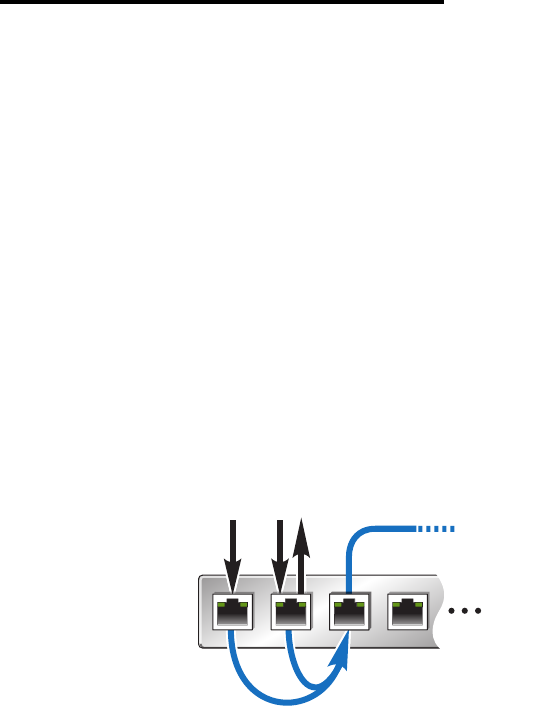
© Copyright Lenovo 2015 559
Chapter 40. Port Mirroring
The Lenovo Network Operating System port mirroring feature allows you to
mirror (copy) the packets of a target port, and forward them to a monitoring port.
Port mirroring functions for all layer 2 and layer 3 traffic on a port. This feature can
be used as a troubleshooting tool or to enhance the security of your network. For
example, an IDS server or other traffic sniffer device or analyzer can be connected
to the monitoring port to detect intruders attacking the network.
The G8052 supports a “many to one” mirroring model. As shown in Figure 52,
selected traffic for ports 1 and 2 is being monitored by port 3. In the example, both
ingress traffic and egress traffic on port 2 are copied and forwarded to the monitor.
However, port 1 mirroring is configured so that only ingress traffic is copied and
forwarded to the monitor. A device attached to port 3 can analyze the resulting
mirrored traffic.
Figure 52. Mirroring Ports
Monitor Port
Specified traffic is copied
and forwarded to Monitor Port
Mirrored Ports
Ingress
Traffic Both Connected to
sniffer device
1 2 34

560 G8052 Application Guide for N/OS 8.3
The G8052 supports four monitor ports. Each monitor port can receive mirrored
traffic from any number of target ports.
Networking OS does not support “one to many” or “many to many” mirroring
models where traffic from a specific port traffic is copied to multiple monitor ports.
For example, port 1 traffic cannot be monitored by both port 3 and 4 at the same
time, nor can port 2 ingress traffic be monitored by a different port than its egress
traffic.
Ingress and egress traffic is duplicated and sent to the monitor port after
processing.
Configuring Port Mirroring
The following procedure may be used to configure port mirroring for the example
shown in Figure 52 on page 559:
1. Specify the monitoring port, the mirroring port(s), and the port-mirror direction.
2. Enable port mirroring.
3. View the current configuration.
RS G8052(config)#portmirroringmonitorport3mirroringport1in
RS G8052(config)#portmirroringmonitorport3mirroringport2both
RS G8052(config)#portmirroringenable
RS G8052#showportmirroring
PortMonitoring:Enabled
MonitoringPorts MirroredPorts
31,in
2,both
© Copyright Lenovo 2015 561
Part 9: Appendices
-Getting help and technical assistance
-Notices
562 G8052 Application Guide for N/OS 8.3

© Copyright Lenovo 2015 563
Appendix A. Glossary
CNA Converged Network Adapter. A device used for I/O consolidation such as that in
Converged Enhanced Ethernet (CEE) environments implementing Fibre Channel
over Ethernet (FCoE). The CNA performs the duties of both a Network Interface Card
(NIC) for Local Area Networks (LANs) and a Host Bus Adapter (HBA) for Storage
Area Networks (SANs).
DIP The destination IP address of a frame.
Dport The destination port (application socket: for example, http-80/https-443/DNS-53)
HBA Host Bus Adapter. An adapter or card that interfaces with device drivers in the host
operating system and the storage target in a Storage Area Network (SAN). It is
equivalent to a Network Interface Controller (NIC) from a Local Area Network
(LAN).
NAT Network Address Translation. Any time an IP address is changed from one source IP
or destination IP address to another address, network address translation can be said
to have taken place. In general, half NAT is when the destination IP or source IP
address is changed from one address to another. Full NAT is when both addresses are
changed from one address to another. No NAT is when neither source nor destination
IP addresses are translated.
Preemption In VRRP, preemption will cause a Virtual Router that has a lower priority to go into
backup if a peer Virtual Router starts advertising with a higher priority.
Priority In VRRP, the value given to a Virtual Router to determine its ranking with its peer(s).
Minimum value is 1 and maximum value is 254. Default is 100. A higher number will
win out for master designation.
Proto (Protocol) The protocol of a frame. Can be any value represented by a 8-bit value in the IP header
adherent to the IP specification (for example, TCP, UDP, OSPF, ICMP, and so on.)
SIP The source IP address of a frame.
SPort The source port (application socket: for example, HTTP-80/HTTPS-443/DNS-53).
Tracking In VRRP, a method to increase the priority of a virtual router and thus master
designation (with preemption enabled). Tracking can be very valuable in an
active/active configuration.
You can track the following:
-Active IP interfaces on the Web switch (increments priority by 2 for each)
-Active ports on the same VLAN (increments priority by 2 for each)
-Number of virtual routers in master mode on the switch
VIR Virtual Interface Router. A VRRP address is an IP interface address shared between
two or more virtual routers.
Virtual Router A shared address between two devices utilizing VRRP, as defined in RFC 2338. One
virtual router is associated with an IP interface. This is one of the IP interfaces that the
switch is assigned. All IP interfaces on the G8052s must be in a VLAN. If there is more
than one VLAN defined on the Web switch, then the VRRP broadcasts will only be
sent out on the VLAN of which the associated IP interface is a member.

564 G8052 Application Guide for N/OS 8.3
VRID Virtual Router Identifier. In VRRP, a numeric ID is used by each virtual router to
create its MAC address and identify its peer for which it is sharing this VRRP address.
The VRRP MAC address as defined in the RFC is 00-00-5E-00-01-<VRID>.
If you have a VRRP address that two switches are sharing, then the VRID number
needs to be identical on both switches so each virtual router on each switch knows
with whom to share.
VRRP Virtual Router Redundancy Protocol. A protocol that acts very similarly to Cisco's
proprietary HSRP address sharing protocol. The reason for both of these protocols is
so devices have a next hop or default gateway that is always available. Two or more
devices sharing an IP interface are either advertising or listening for advertisements.
These advertisements are sent via a broadcast message to an address such as
224.0.0.18.
With VRRP, one switch is considered the master and the other the backup. The master
is always advertising via the broadcasts. The backup switch is always listening for the
broadcasts. If the master stops advertising, the backup will take over ownership of the
VRRP IP and MAC addresses as defined by the specification. The switch announces
this change in ownership to the devices around it by way of a Gratuitous ARP, and
advertisements. If the backup switch didn't do the Gratuitous ARP the Layer 2
devices attached to the switch would not know that the MAC address had moved in
the network. For a more detailed description, refer to RFC 2338.

© Copyright Lenovo 2015 565
Appendix B. Getting help and technical assistance
If you need help, service, or technical assistance or just want more information
about Lenovo products, you will find a wide variety of sources available from
Lenovo to assist you.
Use this information to obtain additional information about Lenovo and Lenovo
products, and determine what to do if you experience a problem with your Lenovo
system or optional device.
Note: This section includes references to IBM web sites and information about
obtaining service. IBM is Lenovo's preferred service provider for the System x, Flex
System, and NeXtScale System products.
Before you call, make sure that you have taken these steps to try to solve the
problem yourself.
If you believe that you require warranty service for your Lenovo product, the
service technicians will be able to assist you more efficiently if you prepare before
you call.
-Check all cables to make sure that they are connected.
-Check the power switches to make sure that the system and any optional
devices are turned on.
-Check for updated software, firmware, and operating-system device drivers for
your Lenovo product. The Lenovo Warranty terms and conditions state that
you, the owner of the Lenovo product, are responsible for maintaining and
updating all software and firmware for the product (unless it is covered by an
additional maintenance contract). Your service technician will request that you
upgrade your software and firmware if the problem has a documented solution
within a software upgrade.
-If you have installed new hardware or software in your environment, check the
IBM ServerProven website to make sure that the hardware and software is
supported by your product.
-Go to the IBM Support portal to check for information to help you solve the
problem.
-Gather the following information to provide to the service technician. This data
will help the service technician quickly provide a solution to your problem and
ensure that you receive the level of service for which you might have contracted.
Hardware and Software Maintenance agreement contract numbers, if
applicable
Machine type number (if applicable–Lenovo 4-digit machine identifier)
Model number
Serial number
Current system UEFI and firmware levels
Other pertinent information such as error messages and logs
566 G8052 Application Guide for N/OS 8.3
-Start the process of determining a solution to your problem by making the
pertinent information available to the service technicians. The IBM service
technicians can start working on your solution as soon as you have completed
and submitted an Electronic Service Request.
You can solve many problems without outside assistance by following the
troubleshooting procedures that Lenovo provides in the online help or in the
Lenovo product documentation. The Lenovo product documentation also
describes the diagnostic tests that you can perform. The documentation for most
systems, operating systems, and programs contains troubleshooting procedures
and explanations of error messages and error codes. If you suspect a software
problem, see the documentation for the operating system or program.

© Copyright Lenovo 2015 567
Appendix C. Notices
Lenovo may not offer the products, services, or features discussed in this
document in all countries. Consult your local Lenovo representative for
information on the products and services currently available in your area.
Any reference to a Lenovo product, program, or service is not intended to state or
imply that only that Lenovo product, program, or service may be used. Any
functionally equivalent product, program, or service that does not infringe any
Lenovo intellectual property right may be used instead. However, it is the user's
responsibility to evaluate and verify the operation of any other product, program,
or service.
Lenovo may have patents or pending patent applications covering subject matter
described in this document. The furnishing of this document does not give you any
license to these patents. You can send license inquiries, in writing, to:
Lenovo (United States), Inc.
1009 Think Place - Building One
Morrisville, NC 27560
U.S.A.
Attention: Lenovo Director of Licensing
LENOVO PROVIDES THIS PUBLICATION “AS IS” WITHOUT WARRANTY OF
ANY KIND, EITHER EXPRESS OR IMPLIED, INCLUDING, BUT NOT LIMITED
TO, THE IMPLIED WARRANTIES OF NON-INFRINGEMENT,
MERCHANTABILITY OR FITNESS FOR A PARTICULAR PURPOSE. Some
jurisdictions do not allow disclaimer of express or implied warranties in certain
transactions, therefore, this statement may not apply to you.
This information could include technical inaccuracies or typographical errors.
Changes are periodically made to the information herein; these changes will be
incorporated in new editions of the publication. Lenovo may make improvements
and/or changes in the product(s) and/or the program(s) described in this
publication at any time without notice.
The products described in this document are not intended for use in implantation
or other life support applications where malfunction may result in injury or death
to persons. The information contained in this document does not affect or change
Lenovo product specifications or warranties.
Nothing in this document shall operate as an express or implied license or
indemnity under the intellectual property rights of Lenovo or third parties. All
information contained in this document was obtained in specific environments and
is presented as an illustration. The result obtained in other operating environments
may vary.
Lenovo may use or distribute any of the information you supply in any way it
believes appropriate without incurring any obligation to you.
Any references in this publication to non-Lenovo Web sites are provided for
convenience only and do not in any manner serve as an endorsement of those Web
sites. The materials at those Web sites are not part of the materials for this Lenovo
product, and use of those Web sites is at your own risk.
568 G8052 Application Guide for N/OS 8.3
Any performance data contained herein was determined in a controlled
environment. Therefore, the result obtained in other operating environments may
vary significantly. Some measurements may have been made on
development-level systems and there is no guarantee that these measurements will
be the same on generally available systems. Furthermore, some measurements
may have been estimated through extrapolation. Actual results may vary. Users of
this document should verify the applicable data for their specific environment.

© Copyright Lenovo 2015 Appendix C: Notices 569
Trademarks
Lenovo, the Lenovo logo, Flex System, System x, NeXtScale System, and
X-Architecture are trademarks of Lenovo in the United States, other countries, or
both.
Intel and Intel Xeon are trademarks of Intel Corporation in the United States, other
countries, or both.
Internet Explorer, Microsoft, and Windows are trademarks of the Microsoft group
of companies.
Linux is a registered trademark of Linus Torvalds.
Other company, product, or service names may be trademarks or service marks of
others.

570 G8052 Application Guide for N/OS 8.3
Important Notes
Processor speed indicates the internal clock speed of the microprocessor; other
factors also affect application performance.
CD or DVD drive speed is the variable read rate. Actual speeds vary and are often
less than the possible maximum.
When referring to processor storage, real and virtual storage, or channel volume,
KB stands for 1 024 bytes, MB stands for 1 048 576 bytes, and GB stands for 1 073
741 824 bytes.
When referring to hard disk drive capacity or communications volume, MB stands
for 1 000 000 bytes, and GB stands for 1 000 000 000 bytes. Total user-accessible
capacity can vary depending on operating environments.
Maximum internal hard disk drive capacities assume the replacement of any
standard hard disk drives and population of all hard-disk-drive bays with the
largest currently supported drives that are available from Lenovo.
Maximum memory might require replacement of the standard memory with an
optional memory module.
Each solid-state memory cell has an intrinsic, finite number of write cycles that the
cell can incur. Therefore, a solid-state device has a maximum number of write
cycles that it can be subjected to, expressed as total bytes written (TBW). A device
that has exceeded this limit might fail to respond to system-generated commands
or might be incapable of being written to. Lenovo is not responsible for
replacement of a device that has exceeded its maximum guaranteed number of
program/erase cycles, as documented in the Official Published Specifications for
the device.
Lenovo makes no representations or warranties with respect to non-Lenovo
products. Support (if any) for the non-Lenovo products is provided by the third
party, not Lenovo.
Some software might differ from its retail version (if available) and might not
include user manuals or all program functionality.

© Copyright Lenovo 2015 Appendix C: Notices 571
Recycling Information
Lenovo encourages owners of information technology (IT) equipment to
responsibly recycle their equipment when it is no longer needed. Lenovo offers a
variety of programs and services to assist equipment owners in recycling their IT
products. For information on recycling Lenovo products, go to:
http://www.lenovo.com/recycling

572 G8052 Application Guide for N/OS 8.3
Particulate Contamination
Attention: Airborne particulates (including metal flakes or particles) and reactive
gases acting alone or in combination with other environmental factors such as
humidity or temperature might pose a risk to the device that is described in this
document.
Risks that are posed by the presence of excessive particulate levels or
concentrations of harmful gases include damage that might cause the device to
malfunction or cease functioning altogether. This specification sets forth limits for
particulates and gases that are intended to avoid such damage. The limits must not
be viewed or used as definitive limits, because numerous other factors, such as
temperature or moisture content of the air, can influence the impact of particulates
or environmental corrosives and gaseous contaminant transfer. In the absence of
specific limits that are set forth in this document, you must implement practices
that maintain particulate and gas levels that are consistent with the protection of
human health and safety. If Lenovo determines that the levels of particulates or
gases in your environment have caused damage to the device, Lenovo may
condition provision of repair or replacement of devices or parts on implementation
of appropriate remedial measures to mitigate such environmental contamination.
Implementation of such remedial measures is a customer responsibility..
Contaminant Limits
Particulate • The room air must be continuously filtered with 40% atmospheric
dust spot efficiency (MERV 9) according to ASHRAE Standard 52.21.
• Air that enters a data center must be filtered to 99.97% efficiency or
greater, using high-efficiency particulate air (HEPA) filters that meet
MIL-STD-282.
• The deliquescent relative humidity of the particulate contamination
must be more than 60%2.
• The room must be free of conductive contamination such as zinc whis-
kers.
Gaseous • Copper: Class G1 as per ANSI/ISA 71.04-19853
• Silver: Corrosion rate of less than 300 Å in 30 days
1 ASHRAE 52.2-2008 - Method of Testing General Ventilation Air-Cleaning Devices for Removal
Efficiency by Particle Size. Atlanta: American Society of Heating, Refrigerating and Air-Con-
ditioning Engineers, Inc.
2 The deliquescent relative humidity of particulate contamination is the relative humidity
at which the dust absorbs enough water to become wet and promote ionic conduction.
3 ANSI/ISA-71.04-1985. Environmental conditions for process measurement and control systems:
Airborne contaminants. Instrument Society of America, Research Triangle Park, North Car-
olina, U.S.A.

© Copyright Lenovo 2015 Appendix C: Notices 573
Telecommunication Regulatory Statement
This product may not be certified in your country for connection by any means
whatsoever to interfaces of public telecommunications networks. Further
certification may be required by law prior to making any such connection. Contact
a Lenovo representative or reseller for any questions.

574 G8052 Application Guide for N/OS 8.3
Electronic Emission Notices
When you attach a monitor to the equipment, you must use the designated
monitor cable and any interference suppression devices that are supplied with the
monitor.
Federal Communications Commission (FCC) Statement
Note: This equipment has been tested and found to comply with the limits for a
Class A digital device, pursuant to Part 15 of the FCC Rules. These limits are
designed to provide reasonable protection against harmful interference when the
equipment is operated in a commercial environment. This equipment generates,
uses, and can radiate radio frequency energy and, if not installed and used in
accordance with the instruction manual, may cause harmful interference to radio
communications. Operation of this equipment in a residential area is likely to
cause harmful interference, in which case the user will be required to correct the
interference at his own expense.
Properly shielded and grounded cables and connectors must be used to meet FCC
emission limits. Lenovo is not responsible for any radio or television interference
caused by using other than recommended cables and connectors or by
unauthorized changes or modifications to this equipment. Unauthorized changes
or modifications could void the user’s authority to operate the equipment.
This device complies with Part 15 of the FCC Rules. Operation is subject to the
following two conditions: (1) this device may not cause harmful interference, and
(2) this device must accept any interference received, including interference that
might cause undesired operation.
Industry Canada Class A Emission Compliance Statement
This Class A digital apparatus complies with Canadian ICES-003.
Avis de Conformité à la Réglementation d'Industrie Canada
Cet appareil numérique de la classe A est conforme à la norme NMB-003 du
Canada.
Australia and New Zealand Class A Statement
Attention: This is a Class A product. In a domestic environment this product may
cause radio interference in which case the user may be required to take adequate
measures.
European Union EMC Directive Conformance Statement
This product is in conformity with the protection requirements of EU Council
Directive 2004/108/EC on the approximation of the laws of the Member States
relating to electromagnetic compatibility. Lenovo cannot accept responsibility for
any failure to satisfy the protection requirements resulting from a
non-recommended modification of the product, including the installation of
option cards from other manufacturers.
© Copyright Lenovo 2015 Appendix C: Notices 575
This product has been tested and found to comply with the limits for Class A
Information Technology Equipment according to European Standard EN 55022.
The limits for Class A equipment were derived for commercial and industrial
environments to provide reasonable protection against interference with licensed
communication equipment.
Lenovo, Einsteinova 21, 851 01 Bratislava, Slovakia
Germany Class A Statement
Zulassungsbescheinigung laut dem Deutschen Gesetz über die
elektromagnetische Verträglichkeit von Betriebsmitteln, EMVG vom 20. Juli
2007 (früher Gesetz über die elektromagnetische Verträglichkeit von Geräten),
bzw. der EMV EG Richtlinie 2004/108/EC (früher 89/336/EWG), für Geräte der
Klasse A.
Dieses Gerät ist berechtigt, in übereinstimmung mit dem Deutschen EMVG das
EG-Konformitätszeichen - CE - zu führen. Verantwortlich für die
Konformitätserklärung nach Paragraf 5 des EMVG ist die Lenovo (Deutschland)
GmbH, Gropiusplatz 10, D-70563 Stuttgart.
Informationen in Hinsicht EMVG Paragraf 4 Abs. (1) 4:
Das Gerät erfüllt die Schutzanforderungen nach EN 55024 und EN 55022 Klasse
A.
Nach der EN 55022: “Dies ist eine Einrichtung der Klasse A. Diese Einrichtung
kann im Wohnbereich Funkstörungen verursachen; in diesem Fall kann vom
Betreiber verlangt werden, angemessene Maßnahmen durchzuführen und dafür
aufzukommen.”
Nach dem EMVG: Dieses Produkt entspricht den Schutzanforderungen der
EU-Richtlinie 2004/108/EG (früher 89/336/EWG) zur Angleichung der
Rechtsvorschriften über die elektromagnetische Verträglichkeit in den
EU-Mitgliedsstaaten und hält die Grenzwerte der EN 55022 Klasse A ein.
Um dieses sicherzustellen, sind die Geräte wie in den Handbüchern beschrieben
zu installieren und zu betreiben. Des Weiteren dürfen auch nur von der Lenovo
empfohlene Kabel angeschlossen werden. Lenovo übernimmt keine
Verantwortung für die Einhaltung der Schutzanforderungen, wenn das Produkt
ohne Zustimmung der Lenovo verändert bzw. wenn Erweiterungskomponenten
von Fremdherstellern ohne Empfehlung der Lenovo gesteckt/eingebaut werden.
Deutschland:
Einhaltung des Gesetzes über die elektromagnetische Verträglichkeit von
Betriebsmittein
Dieses Produkt entspricht dem “Gesetz über die elektromagnetische
Verträglichkeit von Betriebsmitteln” EMVG (früher “Gesetz über die
elektromagnetische Verträglichkeit von Geräten"). Dies ist die Umsetzung der
EU-Richtlinie 2004/108/EG (früher 89/336/EWG) in der Bundesrepublik
Deutschland.

576 G8052 Application Guide for N/OS 8.3
Zulassungsbescheinigung laut dem Deutschen Gesetz über die
elektromagnetische Verträglichkeit von Betriebsmitteln, EMVG vom 20. Juli
2007 (früher Gesetz über die elektromagnetische Verträglichkeit von Geräten),
bzw. der EMV EG Richtlinie 2004/108/EC (früher 89/336/EWG), für Geräte der
Klasse A.
Dieses Gerät ist berechtigt, in übereinstimmung mit dem Deutschen EMVG das
EG-Konformitätszeichen - CE - zu führen. Verantwortlich für die
Konformitätserklärung nach Paragraf 5 des EMVG ist die Lenovo (Deutschland)
GmbH, Gropiusplatz 10, D-70563 Stuttgart.
Informationen in Hinsicht EMVG Paragraf 4 Abs. (1) 4:
Das Gerät erfüllt die Schutzanforderungen nach EN 55024 und EN 55022 Klasse
A.
Nach der EN 55022: “Dies ist eine Einrichtung der Klasse A. Diese Einrichtung
kann im Wohnbereich Funkstörungen verursachen; in diesem Fall kann vom
Betreiber verlangt werden, angemessene Maßnahmen durchzuführen und dafür
aufzukommen."
Nach dem EMVG: “Geräte dürfen an Orten, für die sie nicht ausreichend entstört
sind, nur mit besonderer Genehmigung des Bundesministers für Post und
Telekommunikation oder des Bundesamtes für Post und Telekommunikation
betrieben werden. Die Genehmigung wird erteilt, wenn keine elektromagnetischen
Störungen zu erwarten sind.” (Auszug aus dem EMVG, Paragraph 3, Abs. 4).
Dieses Genehmigungsverfahren ist nach Paragraph 9 EMVG in Verbindung mit
der entsprechenden Kostenverordnung (Amtsblatt 14/93) kostenpflichtig.
Anmerkung: Um die Einhaltung des EMVG sicherzustellen sind die Geräte, wie in
den Handbüchern angegeben, zu installieren und zu betreiben.
Japan VCCI Class A Statement
This is a Class A product based on the standard of the Voluntary Control Council
for Interference (VCCI). If this equipment is used in a domestic environment, radio
interference may occur, in which case the user may be required to take corrective
actions.

© Copyright Lenovo 2015 Appendix C: Notices 577
Japan Electronics and Information Technology Industries Association
(JEITA) Statement
Japan Electronics and Information Technology Industries Association (JEITA)
Confirmed Harmonics Guidelines (products less than or equal to 20 A per phase)
Japan Electronics and Information Technology Industries Association (JEITA)
Confirmed Harmonics Guidelines with Modifications (products greater than 20 A
per phase).
Korea Communications Commission (KCC) Statement
This is electromagnetic wave compatibility equipment for business (Type A).
Sellers and users need to pay attention to it. This is for any areas other than home.

578 G8052 Application Guide for N/OS 8.3
Russia Electromagnetic Interference (EMI) Class A statement
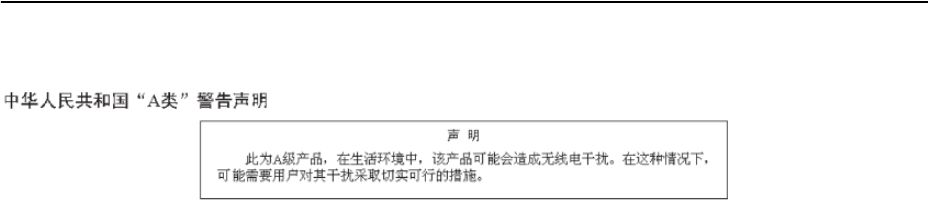
© Copyright Lenovo 2015 Appendix C: Notices 579
People’s Republic of China Class A electronic emission
statement

580 G8052 Application Guide for N/OS 8.3
Taiwan Class A compliance statement
