G_Suite_email_latency_report_1116 G Suite Email Latency Report 1116
User Manual: G_Suite_email_latency_report_1116 of /wp-content/uploads/2017/09
Open the PDF directly: View PDF  .
.
Page Count: 13

Not all clouds are created equal: a comparison of Gmail and Outlook November 2016
Not all clouds are created equal
A comparison of Gmail and Outlook
Think about how much time you spend dealing with email.
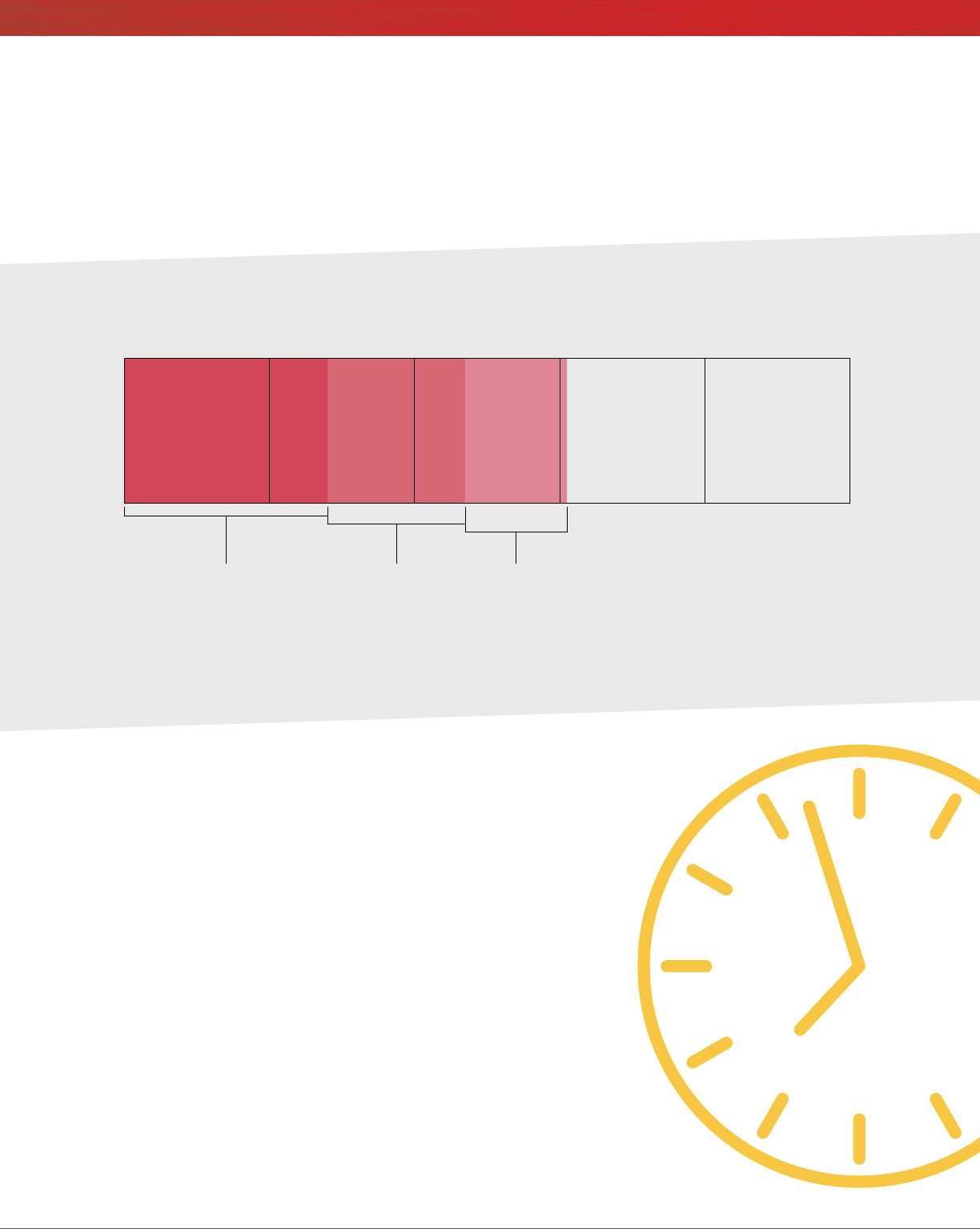
It consumes 28 percent of the average workweek,
1 so it’s
crucial that the email platform you are using is fast. A few
seconds here and there may seem trivial, but when you
add them up over a day or week and factor in the number
of people affected, the total can be staggering. The right
productivity tools can help you communicate quickly
and effectively.
Here at Principled Technologies, we evaluated how quickly
two popular productivity suites—G Suite and Microsoft®
Ofce 365®—actually work when you send and save les
via email.
Sending and receiving attachments with Gmail,
™ part of
G Suite, took dramatically less time than doing so with
Outlook® Online, the browser-based Microsoft Ofce 365
mail client. Saving les from attachments directly to the
cloud with Google Drive,
™ another G Suite component,
also took less time than with Microsoft OneDrive® for
Business. Read on to learn more.
SEND AND
RECEIVE EMAIL
ATTACHMENTS
in up to
42%
LESS TIME
with Gmail
A Principled Technologies report: Hands-on testing. Real-world results.
Not all clouds are created equal: a comparison of Gmail and Outlook November 2016 | 2
Give your projects the time and attention they deserve
Think about how many times a day you use email to conduct business, communicate with your teammates, and
get input from others. If you can reduce the wait time involved with every email you send, you have more time to
focus on work.
We timed how long it took to send and receive email attachments on laptops and
smartphones running a variety of operating systems, browsers, and apps. We used
both Gmail and Outlook for email, and we used Google Drive and Microsoft
OneDrive for Business to upload attachments to the cloud.
Gmail and Google Drive took less time to complete tests across the board.
This means you can spend more time focusing on project outcomes and
less time staring at your inbox.
The clock is ticking…
Keep reading to explore a few real-world scenarios in which we tested
the speed of each cloud email solution.
M T W T F
28%
of the average
workweek dealing
with email1
19%
of the average
workweek
looking for
information1
14%
of the average workweek
communicating and collaborating
with others1
Workers spend:
Not all clouds are created equal: a comparison of Gmail and Outlook November 2016 | 3
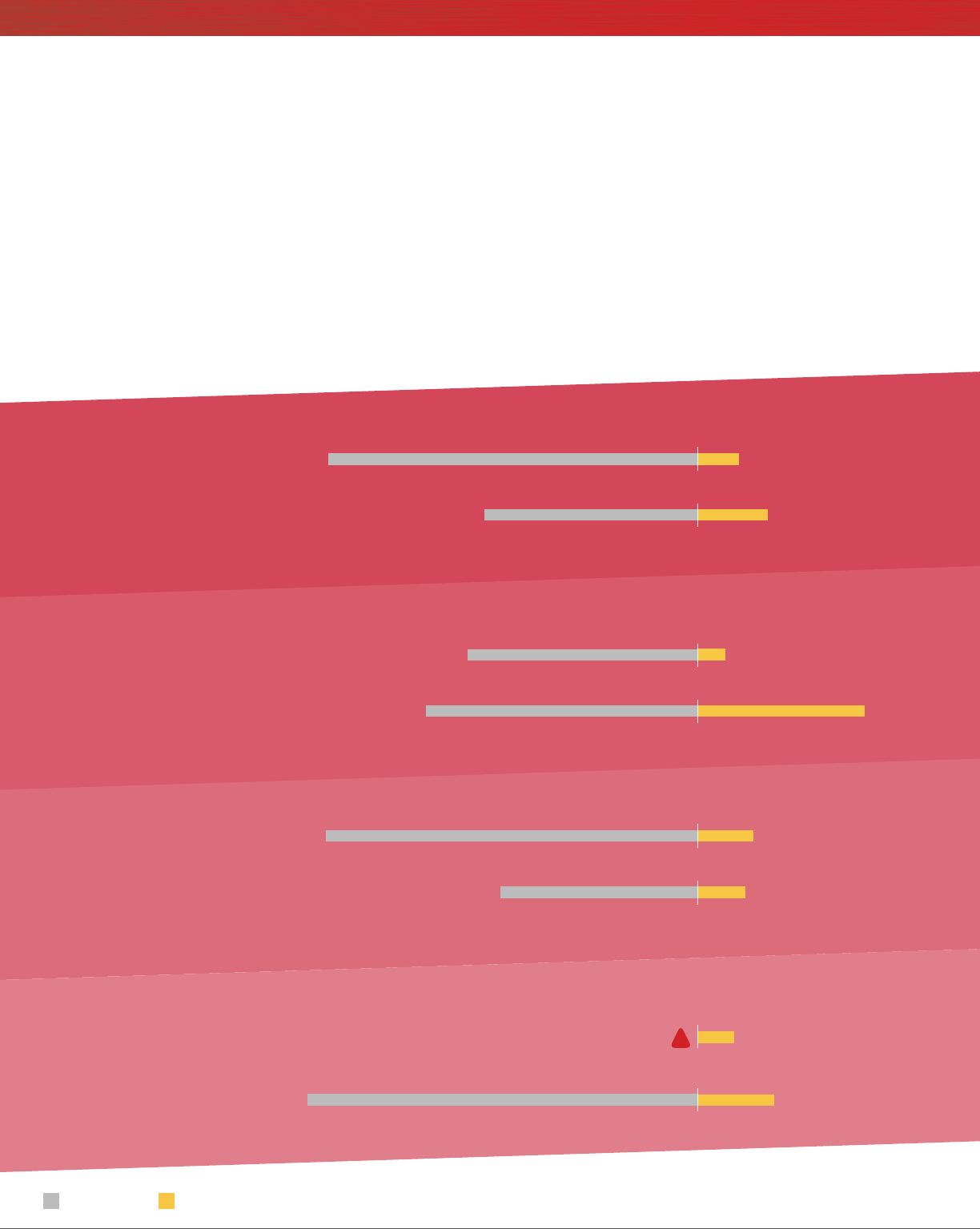
Laney is a commercial real estate developer. A prospective client sends her nancial spreadsheets from their
bank while she’s putting together their deal.
Our results show that using Gmail could save Laney up to 26 seconds every time she previews these email
attachments on her phone.
If Laney wants to use her phone to quickly retrieve a bit of information from a le while meeting with that
particular client, the 2- or 3-second delay with Gmail means she can honestly say, “Let me check that for you
real quick!” That’s a lot more professional than the awkward 9- to 18-second silence she and her client might
experience while waiting for the same les to open with Outlook.
Preview a 1.3MB DOCX
in up to
89%
less time
with Gmail
iOS app
1.7 sec
5.3 sec
Android™ app
1.0 sec
9.2 sec
Preview a 1.3MB XLSX
in up to
87%
less time
with Gmail
iOS app
7.2 sec
11.7 sec
Android app
1.2 sec9.9 sec
Preview a 4.4MB PPTX
in up to
84%
less time
with Gmail
iOS app
2.3 sec
9.8 sec
Android app
2.8 sec
18.6 sec
Preview a 25MB JPG
in up to
80%
less time
with Gmail
GmailOutlook
error
Android app
3.0 sec
!
“Let me check that for you real quick!”
iOS app
6.3 sec
32.7 sec
Not all clouds are created equal: a comparison of Gmail and Outlook November 2016 | 4
Every second counts
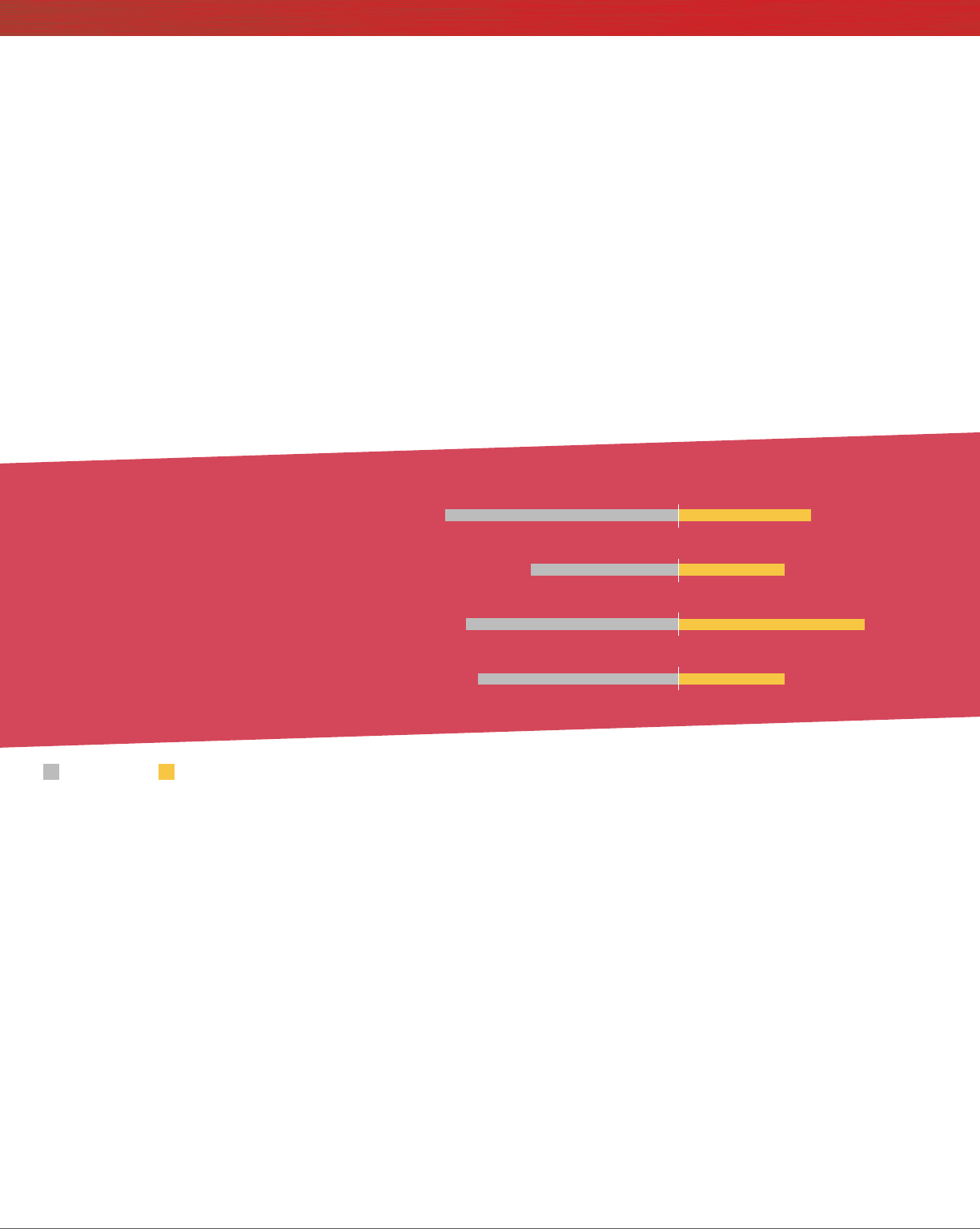
Jamal is a human resources manager for a company that employs over a thousand people. He’s reviewing
training documentation to ensure new employees start off on the right foot. Because his company uses Gmail,
every worker, including Jamal, can open cloud-hosted les in just over half the time it would take when using
Outlook Online.
And those seconds do add up: Saving just two seconds every time you open a shared cloud document in email
(with, say, 10 emails per day across a thousand people) can reduce the company’s cumulative wait time by almost
28 person-hours over the course of a week. Decreasing lag time means employees have more usable time to
be productive and spend less time waiting in frustration for les to open.
Open a document from
a share link in up to
47%
less time
with Gmail
Windows® 10 – Chrome™
4.5 sec
7.9 sec
Windows 10 – Edge™
3.6 sec
5.0 sec
6.3 sec
7.2 sec
OS X® – Chrome
OS X – Safari®
3.6 sec
6.8 sec
GmailOutlook
Not all clouds are created equal: a comparison of Gmail and Outlook November 2016 | 5
Time doesn’t wait for a hard deadline
Carlos is a geologist for a natural resource agency. He will be presenting study results to leaders from across the
country at a special symposium tomorrow. First, though, he needs one of his colleagues, who doesn’t work in
his ofce or use G Suite, to verify ndings from a high-resolution satellite photo. Carlos emails her the slide deck
and the photo.
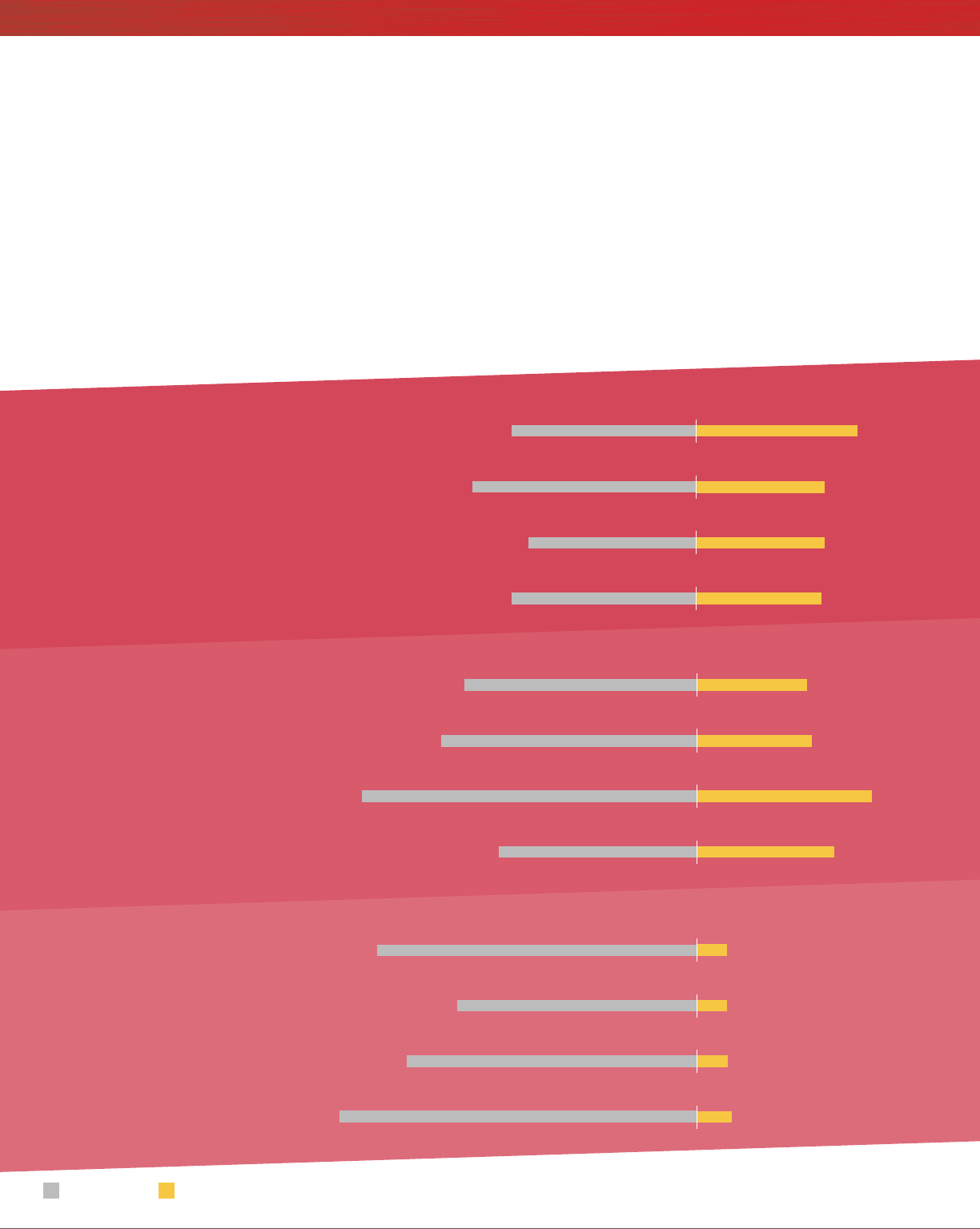
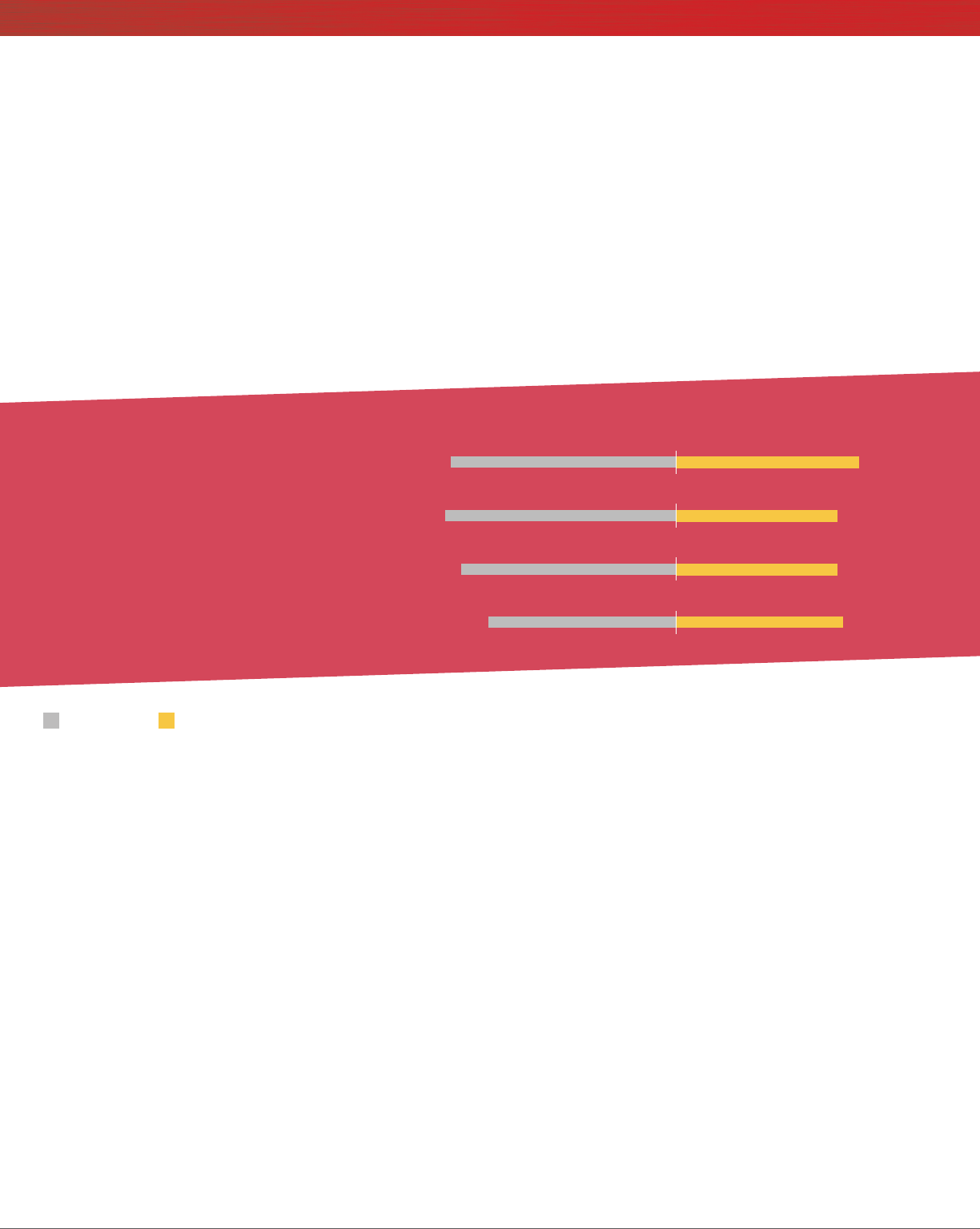
As our tests show, if Carlos uses Gmail, this process takes much less time than it would if he used Outlook
Online. Once his colleague veries the ndings, Carlos can save the image to the project directory on Google
Drive in up to 90 percent less time than it would take to save to Microsoft OneDrive for Business. He can then
add it to the presentation.
Send and receive a
presentation in up to
42%
less time
with Gmail
Upload a high-resolution
photo in up to
55%
less time
with Gmail
Save a high-resolution photo
to cloud storage in up to
90%
less time
with Gmail
OS X – Safari
5.6 sec 3.8 sec
OS X – Chrome
3.9 sec
5.1 sec
Windows 10 – Edge
3.9 sec
6.8 sec
Windows 10 – Chrome
4.9 sec
5.6 sec
OS X – Safari
28.1 sec 19.5 sec
OS X – Chrome
24.9 sec47.7 sec
Windows 10 – Edge
16.3 sec36.4 sec
Windows 10 – Chrome
15.7 sec33.1 sec
OS X – Safari
27.6 sec 2.7 sec
OS X – Chrome
2.4 sec
22.4 sec
Windows 10 – Edge
2.3 sec
18.5 sec
Windows 10 – Chrome
2.3 sec24.7 sec
GmailOutlook
Not all clouds are created equal: a comparison of Gmail and Outlook November 2016 | 6
Get the word out sooner rather than later
The elementary school where LaShonda teaches will be hosting a regional teacher’s seminar next week. Today,
she sends all participants an email inviting them to attend the “Introducing Students to Braille” session she’s
coordinating as part of the seminar. This email outlines the objectives of the session and includes a factsheet as
an attachment.
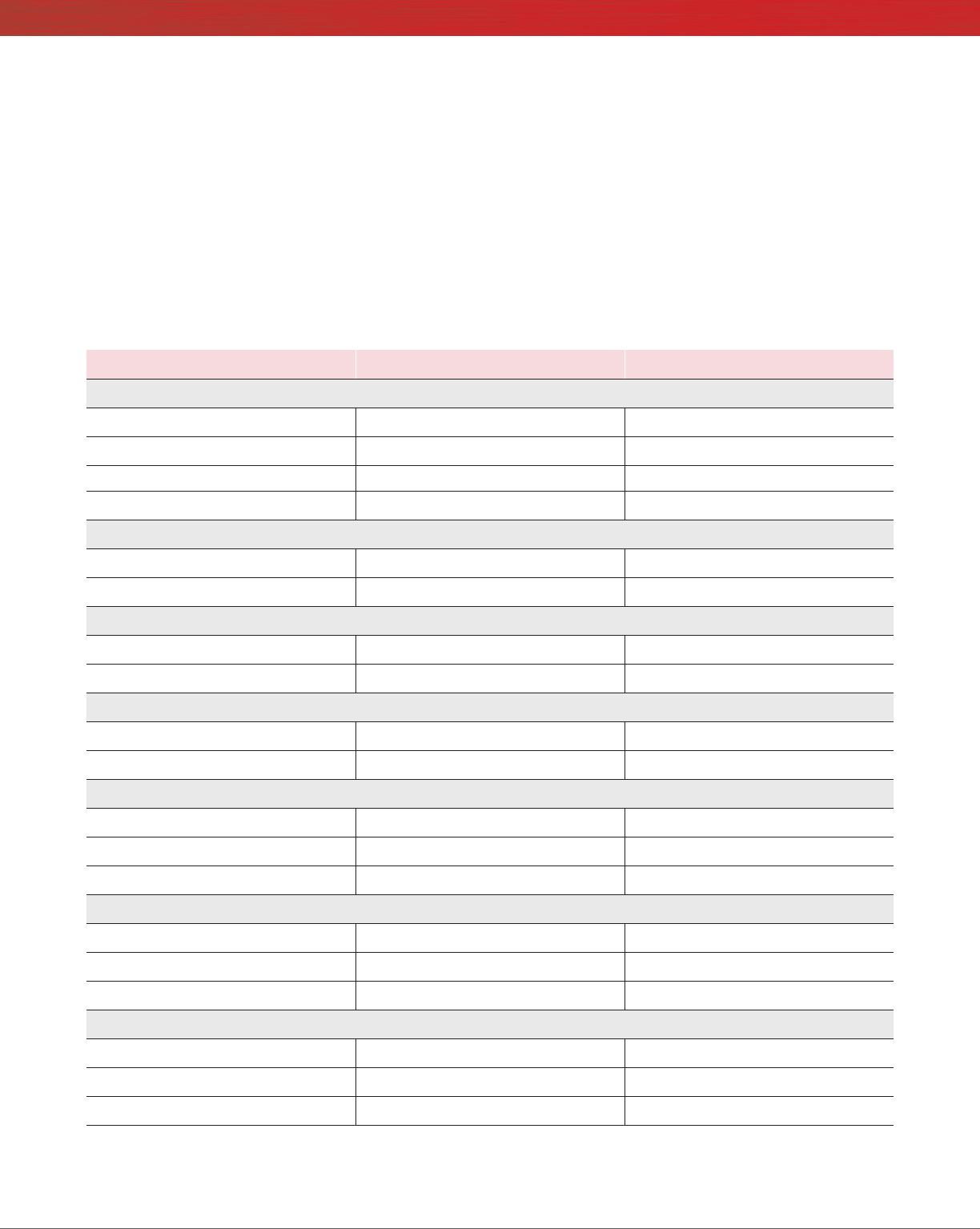
Our data shows that regardless of the operating system or browser they used, attendees using Gmail could see
LaShonda’s invitation in their inboxes in up to 29 percent less time if she used Gmail instead of Outlook Online.
There are only 25 spots in this study group, so the sooner they get the info, the quicker her colleagues can
reserve a spot.
Send and receive
docs in up to
30%
less time
with Gmail
Windows 10 – Edge
OS X – Safari
3.0 sec
3.0 sec
3.1 sec
4.3 sec
4.0 sec
3.5 sec
Windows 10 – Chrome
OS X – Chrome
3.4 sec
4.2 sec
GmailOutlook

Not all clouds are created equal: a comparison of Gmail and Outlook November 2016 | 7
Conclusion: Don’t let the transfer of information slow you down
You’ve done the work and now it’s time to share it. Effective exchanges of information keep everyone
up to speed on a project, whether they’re teammates or clients. The longer it takes important emails to
reach recipients, the more frustrating it can be for everyone. Extreme delays can lead to missed deadlines
and opportunities.
In our hands-on testing with laptops and smartphones,
sending and receiving les using Gmail took as little as 58
percent of the time that Microsoft Outlook took. As our
real-life scenarios show, the seconds really add up when you
look at a full day’s work.
Want to try out the tests yourself? Follow the methodologies
at the end of the report.
This is the fourth report in our ve-part series that examines
the performance of collaboration and productivity tools from
G Suite and Microsoft Ofce 365. Read the entire series for
a complete picture of how the cloud you choose can affect
your business.
Additional reports in the “Not all clouds are created equal” series:
A comparison of Google Docs™ and Microsoft Word Online
A comparison of Google Drive, Microsoft OneDrive for Business, and SharePoint® Online
A comparison of Google Hangouts™ and Skype™ for Business
A comparison of Google Sites™ and Microsoft SharePoint Online
1 International Data Corporation (IDC); McKinsey Global Institute (MGI) analysis. http://www.mckinsey.com/industries/high-
tech/our-insights/the-social-economy
Not all clouds are created equal: a comparison of Gmail and Outlook November 2016 | 8
On July 19, 2016, we nalized the hardware and software congurations we tested. Updates for current and
recently released hardware and software appear often, so unavoidably these congurations may not represent
the latest versions available when this report appears. For older systems, we chose congurations representative
of typical purchases of those systems. We concluded hands-on testing on July 26, 2016.
On September 29, 2016, Google rebranded Google Apps for Work as “G Suite.” We completed our testing
prior to that rebranding.
Appendix A – What we tested
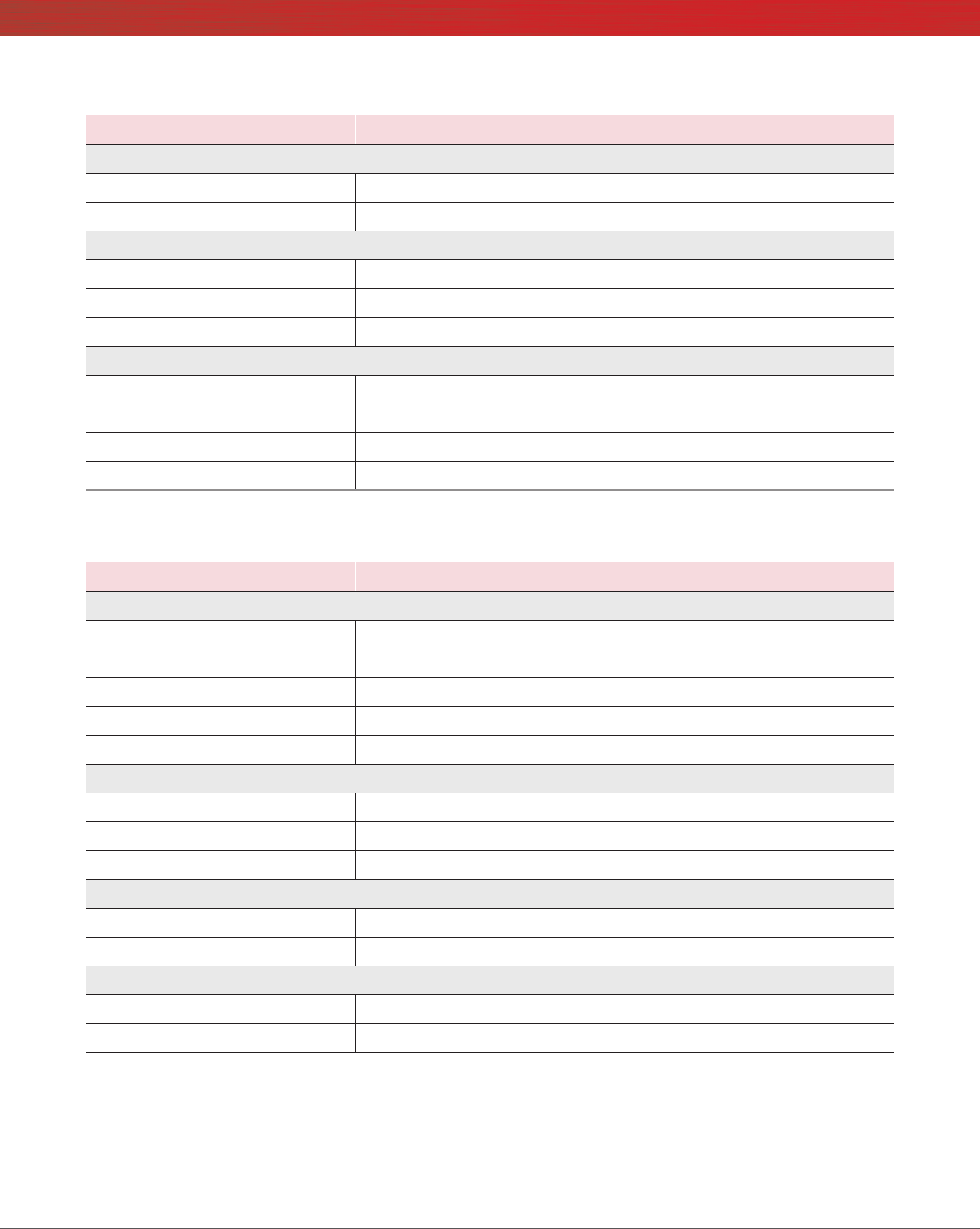
The table below shows the system information for the mobile devices we tested.
System Apple® iPhone® 6s Plus Google Nexus™ 6P
Processor
Vendor Apple Qualcomm®
Model number A9 + M9 coprocessor Snapdragon™ 810
Core frequency (GHz) 1.85 1.95 + 1.55
Number of cores 2 8 (4 + 4)
Memory
Amount (GB) 2 (built-in onboard) 3 (built-in onboard)
Type LPDDR4 LPDDR4
Graphics
Vendor Imagination® Technologies Qualcomm
Model number PowerVR® GT7600 Adreno™ 430
Storage
Amount (GB) 64 64
Type NAND Flash NAND Flash
Connectivity
Wireless internet 802.11ac (802.11a/b/g/n compatible) 802.11ac (802.11a/b/g/n compatible)
Cellular LTE Advanced LTE Advanced
Bluetooth 4.2 4.2
Battery
Type Lithium-polymer Lithium-polymer
Size Integrated Integrated
Rated capacity (Wh) 10.45 13.11
Display
Size 5.5” 5.7”
Type LED-backlit widescreen Multi-Touch AMOLED widescreen Multi-Touch
Resolution 1,080 x 1,920 1,440 x 2,560
Not all clouds are created equal: a comparison of Gmail and Outlook November 2016 | 9
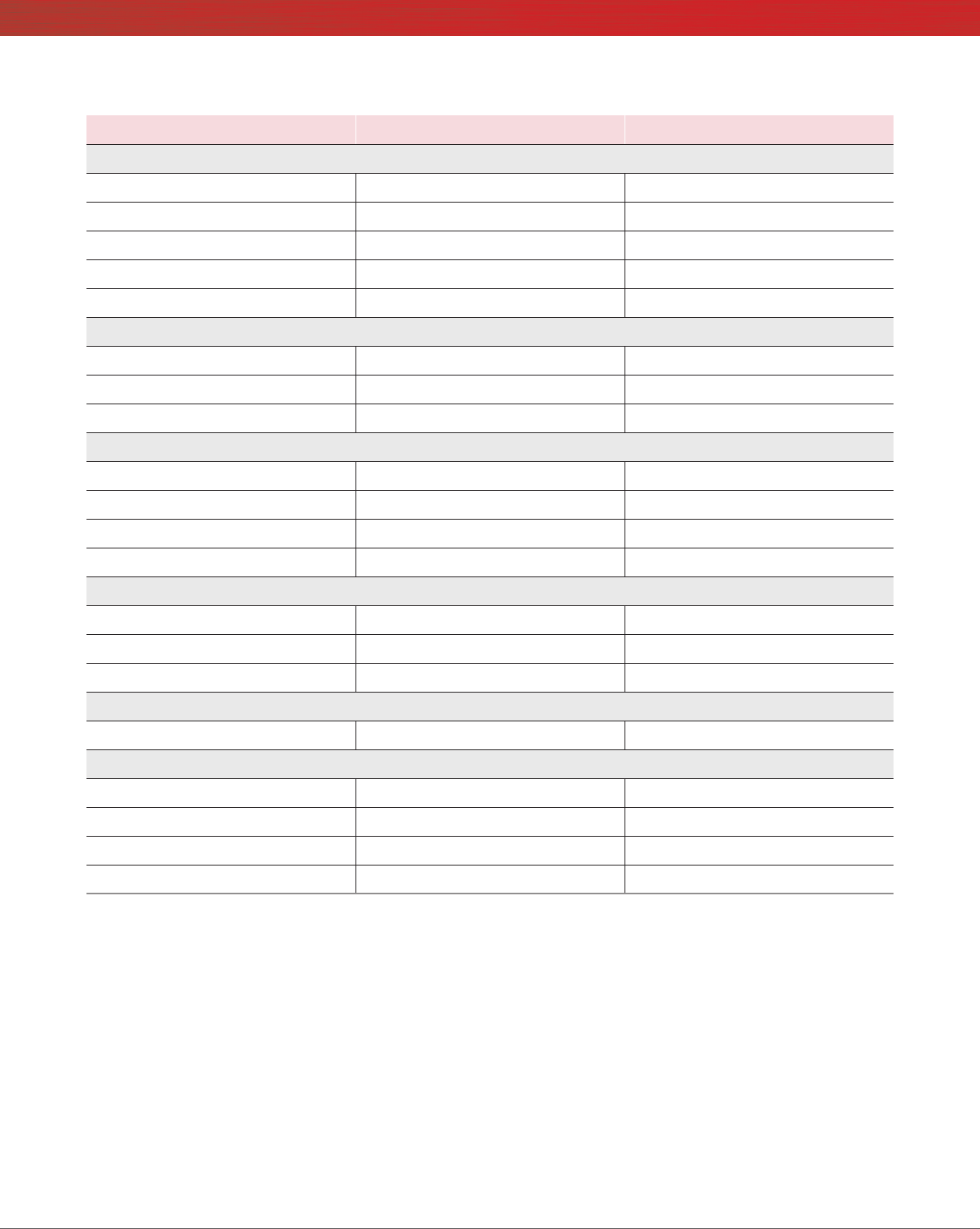
The table below shows the system information for the laptops we tested.
System Apple® iPhone® 6s Plus Google Nexus™ 6P
Camera
Front-facing (MP) 5 (720p FaceTime® HD) 8
Rear-facing (MP) 12 (iSight®)12.3
Operating system
Vendor Apple Google
Name iOS Android
Build number or version 9.3.2 6.0.1
Dimensions
Height 6.23” 6.27”
Width 3.07” 3.06”
Depth 0.29” 0.28”
Weight (oz.) 6.77 6.27
System Apple 13” MacBook Air® (Early 2015) Lenovo® ThinkPad® X1 Carbon
Processor
Vendor Intel®Intel
Model number Core™ i5-5250U Core i7-6600U
Core frequency (GHz) 1.6 (up to 2.7 Turbo Boost) 2.6 (up to 3.4 Turbo Boost)
Number of cores 2 2
Cache 3MB L3 4MB L3
Memory
Amount (GB) 8 (built-in onboard) 8 (built-in onboard)
Type LPDDR3 LPDDR3
Speed 1,600 MHz 1,866 MHz
Integrated graphics
Vendor Intel Intel
Model number HD Graphics 6000 HD Graphics 520
Storage
Amount (GB) 256 256
Type PCIe-based ash PCIe NVMe™ SSD
Not all clouds are created equal: a comparison of Gmail and Outlook November 2016 | 10
System Apple 13” MacBook Air® (Early 2015) Lenovo® ThinkPad® X1 Carbon
Connectivity/expansion
Wireless internet 802.11ac (802.11a/b/g/n compatible) 802.11ac (802.11a/b/g/n compatible)
Bluetooth 4.0 4.1
USB 2 x 3.0 3 x 3.0
Thunderbolt 2 x 2 N/A
Video N/A 1 x HDMI®, 1x Mini DisplayPort
Battery
Type Lithium-polymer Lithium-polymer
Size Integrated 4-cell
Rated capacity (Wh) 54 52
Display
Size 13.3” 14”
Type LED-backlit glossy widescreen display LED IPS
Resolution 1,440 x 900 1,920 x 1,080
Touchscreen No No
Operating system
Vendor Apple Microsoft
Name OS X El Capitan Windows 10 Pro
Build number or version 10.11.4 1511, OS Build 10586.318
Camera
Front-facing 720p FaceTime HD 720p
Dimensions
Height 0.11” to 0.6” 0.6”
Width 12.8” 13.1”
Depth 8.94” 9.00”
Weight (lb.) 2.96 2.58

Not all clouds are created equal: a comparison of Gmail and Outlook November 2016 | 11
Appendix B – How we tested
About our testing
Network infrastructure
We used two of each device under test. We connected the two devices in each pair to separate wireless networks. We connected the devices
to the 5GHz band of identical, 802.11ac-based TP-Link AC1750 wireless routers. We congured each router identically but set them to use
different channels to minimize interference from nearby networks. We ran all tests on a 100Mbps down and 20Mbps up connection.
Devices
• Lenovo ThinkPad X1 Carbon (Windows 10)
• Apple 13” MacBook Air (OS X El Capitan)
• Google Nexus 6P (Android 6.0.1)
• Apple iPhone 6s Plus (iOS 9.3)
OS and browser versions
• OS X El Capitan
• Chrome 51.0.2704.84
• Safari 9.1.1
• Windows 10
• Chrome 51.0.2704.84
• Edge 25.10586.0.0
• Android 6.0.1
• iOS 9.3.2
File corpus
We used the following les as attachments in all tests:
• SampleDoc.docx (1.3 MB)
• SamplePpt.pptx (4.4 MB)
• SampleXls.xlsx (1.3 MB)
Running the laptop tests
Recording the time to open cloud-hosted document from emailed share link in online editor
1. Open a browser window, and navigate to Gmail or Outlook Online.
2. Prepare the stopwatch, and navigate to the email containing the share link for the document under test.
3. Simultaneously start the stopwatch and click the share link inside to open the document in the online editor (Google Docs or Microsoft
Word Online).
4. When the document has fully loaded, stop the stopwatch. In G Suite, this is when the document is completely loaded and editable. In
the Ofce 365 Online apps, this is when the document loads and can be viewed, but is not editable.
5. Record the result.
6. For Word Online, reset the stopwatch.
7. Click the Edit link and simultaneously start the stopwatch and from the drop-down menu, select Edit in browser.
8. When the document has fully loaded and is editable, stop the stopwatch.
9. Record the result, and add it to the result recorded in step 7 for the total time.

Not all clouds are created equal: a comparison of Gmail and Outlook November 2016 | 12
Recording the time to receive email
1. Open the appropriate email client or browser-based email client for the cloud storage solution under test on Laptop 1, and open the
same client on Laptop 2.
2. Open a new email message:
• In Gmail, click Compose.
• In Outlook Online, click New.
3. Attach the appropriate le to the email:
• In Gmail, click Attach les, navigate to and select the correct le, and click Open.
• In Outlook Online, click Attach, navigate to and select the correct le, and click Open. Select Attach as a copy when prompted.
4. Provide the Laptop 2 user’s email address in the To eld, provide a non-empty subject line, and prepare the stopwatch.
5. Simultaneously click Send and start the stopwatch.
6. When the email appears in the inbox on Laptop 2, stop the stopwatch.
7. Record the result.
Recording the time to save email attachment to cloud storage directory
1. Open the appropriate email client or browser-based email client for the cloud storage solution under test on Laptop 1, and open the
same client on Laptop 2.
2. Open a new email message:
• In Gmail, click Compose.
• In Outlook Online, click New.
3. Attach the appropriate le to the email:
• In Gmail, click Attach les, navigate to and select the correct le, and click Open.
• In Outlook Online, click Attach, navigate to and select the correct le, and click Open. Select Attach as a copy when prompted.
4. Provide the Laptop 2 user’s email address in the To eld, and provide a non-empty subject line.
5. Press Send.
6. On Laptop 2, when the email appears in the inbox, open the email, and prepare the stopwatch.
7. Simultaneously start the stopwatch and save the attachment to the cloud storage solution under test:
• In Gmail, hover over the attachment, and click Save to Drive, and start the stopwatch.
• In Outlook Online, press the drop-down arrow on the attachment, and click Save to OneDrive - (Organization Name Here), and start
the stopwatch.
8. When the le nishes saving, stop the stopwatch:
• In Gmail, when the balloon that appears over the attachment says “Saved to Drive,” stop the stopwatch.
• In Outlook Online, when the status message on the attachment changes to a checkmark and “Saved to,” stop the stopwatch.
9. Record the result.
Recording the time to upload/send image attachment
1. Open the appropriate email client or browser-based email client under test on Laptop 1.
2. Open a new email message:
• In Gmail, click Compose.
• In Outlook Online, click New.
3. Provide the Laptop 2 user’s email address in the To eld, and provide a non-empty subject line.
4. Prepare the stopwatch, and time how long it takes to attach the appropriate le to the email:
• In Gmail, click Attach les, navigate to and select the correct le, and simultaneously start the stopwatch and click Open.
• In Outlook Online, click Attach, navigate to and select the correct le, and click Open. When prompted, select Attach as Copy and
simultaneously start the stopwatch.
5. Use the following indicators to determine when the le under test has been uploaded successfully:
• In Gmail, stop the stopwatch when the progress bar indicating upload progress for the attachment in the Compose screen lls
and disappears.
• In Outlook Online, stop the stopwatch when the spinning icon indicating the upload in progress for the attachment in the Compose
screen disappears.
6. Record the result.

Not all clouds are created equal: a comparison of Gmail and Outlook November 2016 | 13
Principled Technologies is a registered trademark of Principled Technologies, Inc.
All other product names are the trademarks of their respective owners.
DISCLAIMER OF WARRANTIES; LIMITATION OF LIABILITY:
Principled Technologies, Inc. has made reasonable efforts to ensure the accuracy and validity of its testing, however, Principled Technologies, Inc.
specically disclaims any warranty, expressed or implied, relating to the test results and analysis, their accuracy, completeness or quality, including any
implied warranty of tness for any particular purpose. All persons or entities relying on the results of any testing do so at their own risk, and agree that
Principled Technologies, Inc., its employees and its subcontractors shall have no liability whatsoever from any claim of loss or damage on account of any
alleged error or defect in any testing procedure or result.
In no event shall Principled Technologies, Inc. be liable for indirect, special, incidental, or consequential damages in connection with its testing, even if
advised of the possibility of such damages. In no event shall Principled Technologies, Inc.’s liability, including for direct damages, exceed the amounts paid in
connection with Principled Technologies, Inc.’s testing. Customer’s sole and exclusive remedies are as set forth herein.
This project was commissioned by Google.
Principled
Technologies®
Facts matter.®
Principled
Technologies®
Facts matter.®
Running the mobile device tests
Previewing email attachment in mobile app
1. Prepare Smartphone 1, and ensure that the appropriate native email app (Gmail or Outlook) is the only application running in memory.
2. Open the corresponding email app on Smartphone 2, and prepare the email to send:
a. Tap the Compose icon to create a new email, and give it a subject.
b. Enter the email address associated with the G Suite or Ofce 365 account of the user on Smartphone 1.
c. Tap the attachment icon, and select a le of the appropriate size and le type.
3. Tap the send icon to send the email to Smartphone 1.
4. On Smartphone 1, open the email app under test.
5. Prepare the stopwatch and navigate to the email containing the attachment under test.
6. Simultaneously start the stopwatch and tap the attached le under test to preview it.
7. When the le fully loads on the preview screen, stop the stopwatch.
8. Record the result.
9. Delete the email, and close the app so it is no longer loaded in memory. This will ensure that the attached le is not cached for
subsequent runs.
