Portal User Manual 2018x HK Order 2019
User Manual:
Open the PDF directly: View PDF  .
.
Page Count: 28
UsingtheHolland&Knight
BusinessCardandFYIPadOrderPortal
Contents
ABOUTTHEPORTAL........................................................................................................................1
Purpose...........................................................................................................................................1
Highlights........................................................................................................................................1
TOACCESSYOURORDERPORTAL......................................................................................................2
CHANGEPASSWORD.......................................................................................................................3
FORGOTPASSWORD.......................................................................................................................4
CHANGINGACCOUNTINFORMATION..................................................................................................6
PORTALPRODUCTS.........................................................................................................................7
PARTNERBUSINESSCARD................................................................................................................9
RushOrders...................................................................................................................................15
CheckingOut.................................................................................................................................16
MULTIPLEORDERS........................................................................................................................18
RESTORINGYOURCART..................................................................................................................20
DOUBLE‐SIDEDBUSINESSCARDS......................................................................................................20
FOREIGNLANGUAGE......................................................................................................................22
ADMITTEDDISCLAIMERSONBUSINESSCARDS.....................................................................................22
VIEWORDERS..............................................................................................................................22
REPEATANORDER........................................................................................................................23
SUPPORT.....................................................................................................................................26
1
AboutthePortal
Purpose
TheHolland&KnightStationeryOrderPortalwasdevelopedforeasyorderingofBusinessCardsandFYI
Pads.EverylocationcanplacetheirordersthroughtheHKOrderportal.Theredesignedportalcanbe
accessedbythefollowinglink.
https://hkorderportal.com
Eachlocationwassentaloginandinitialpasswordfortheirspecificlocation.Itistheresponsibilityofeach
officelocationtokeeptheirbusinessandshippinginformationcurrent,aswellasdesignatingastaff
membertoactasanadminfortheirlocationonthePortal.Theadminwillbethe“pointperson”thatwill
receiveallorderconfirmationsfortheirlocation,andwillbethepersoncontactedwithanyquestionsthat
mayariseonthePortal.
Highlights
Afterthepersonalizeddatahasbeenenteredforaproduct,aPDFoftheproductwillbecreatedfor
proofing,printingandapproving.Pleasebesurethatyourdataand/orproofiscorrect.Youwillnotbeable
toprocesstheorderuntilyouverifyallinformationiscorrectontheproof.PDFproofswillnotbesent
exceptforspecialorderitems.
PleaseNote:Informationshouldbeenteredexactlyasitistoappearonyourstationery.
Example:Theemailaddressshouldbeformattedcorrectly,enteredasalllowercaseletters.Phone
numbersshouldincludedotsbetweentheareacodeandexchange.(i.e.123.123.1234)
Oncepersonalizeddatahasbeenentered,aproofcanbecreatedimmediatelyonscreennexttothedata
entered.Ifmodificationstothedataareneeded,theycanbemadedirectlytothedataandanewproof
generated.
PleaseNote:Proofcanbemagnifiedbyhoveringoverthetemplate.Toprintproof,clickonthe“Print
ProofButton.”
Theadminortheorderentrypersonforeachofficeshouldreviewtheproof(and/orthedata),before
submittingtheorder.
Oncetheorderissubmitted,aconfirmationoftheorder,includingacopyoftheproof,willbesenttothe
adminemail.Dependingontheproduct,BusinessCards&FYIPadsaregenerallycompletedandshipped
within2‐3days(PartnerCardswilltake5‐7businessdays).Specialrequests,i.e.customlayoutsor
expediteddeliveries,willbeaccommodatedasnecessary.
2
ToAccessYourOrderPortal
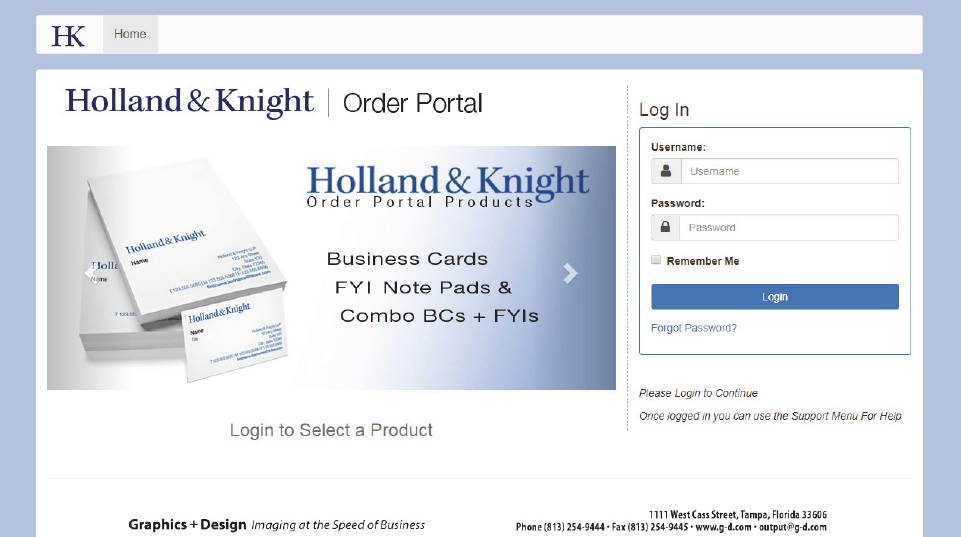
Toenterthewebsite,logintohttps://hkorderportal.com
Youcanthenloginwithyourusernameandpassword.Eachlocationhasauniqueusernameandpassword
thatwasassigned.ContactSupportforhelpwithlogins.YoumustbeloggedintoaccesstheOrderPortal.
3
ChangePassword
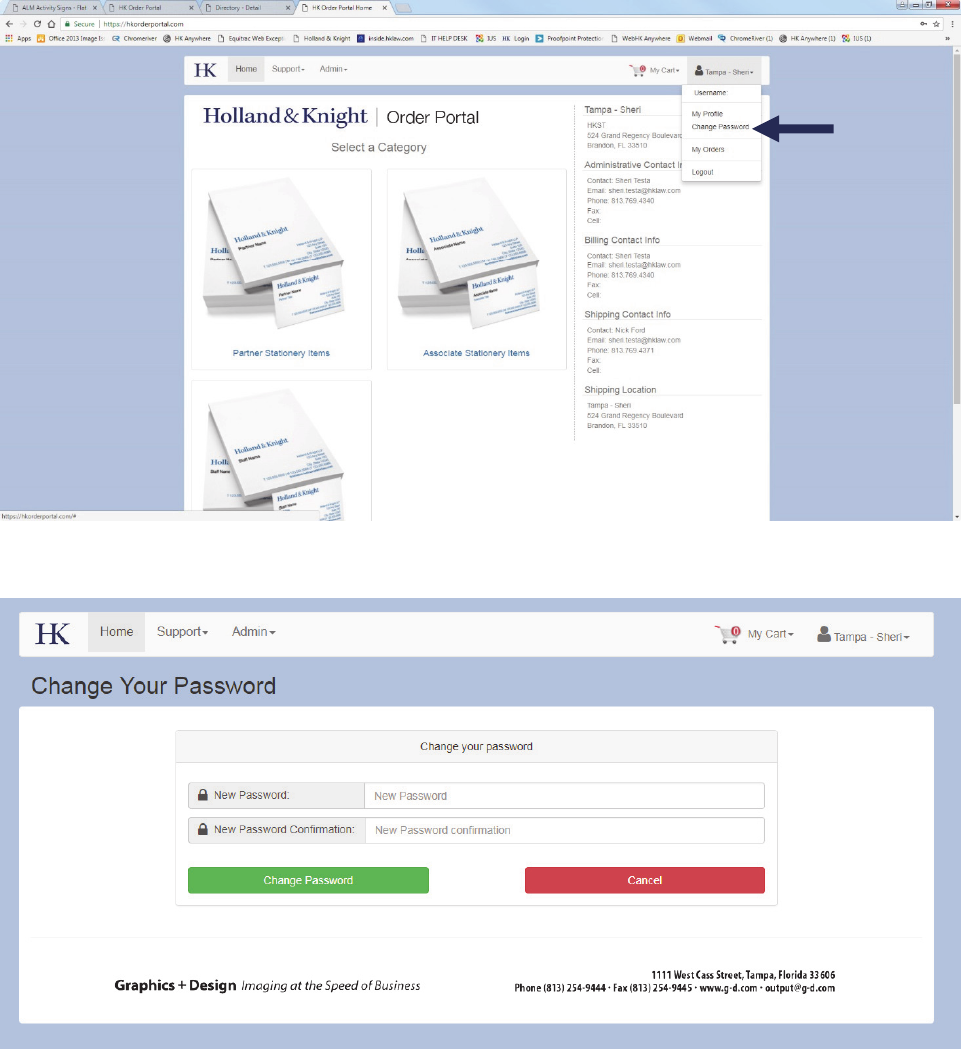
Tochangeyourpassword,clickunderusernameandadropdownmenuwillappear.Clickonthe“Change
Password.”
Youwillbepromptedtoenteryournewpasswordandconfirmthenewpasswordonthescreen.
4
ForgotPassword
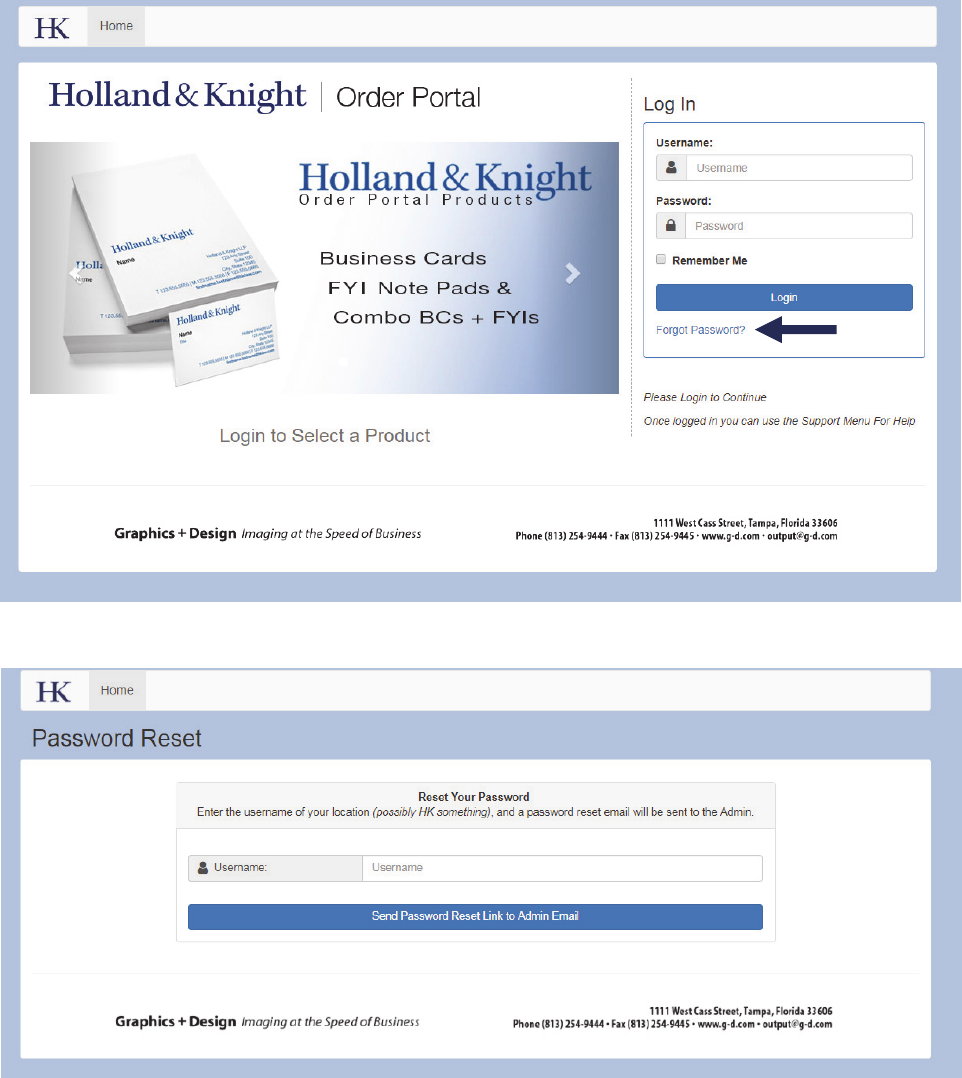
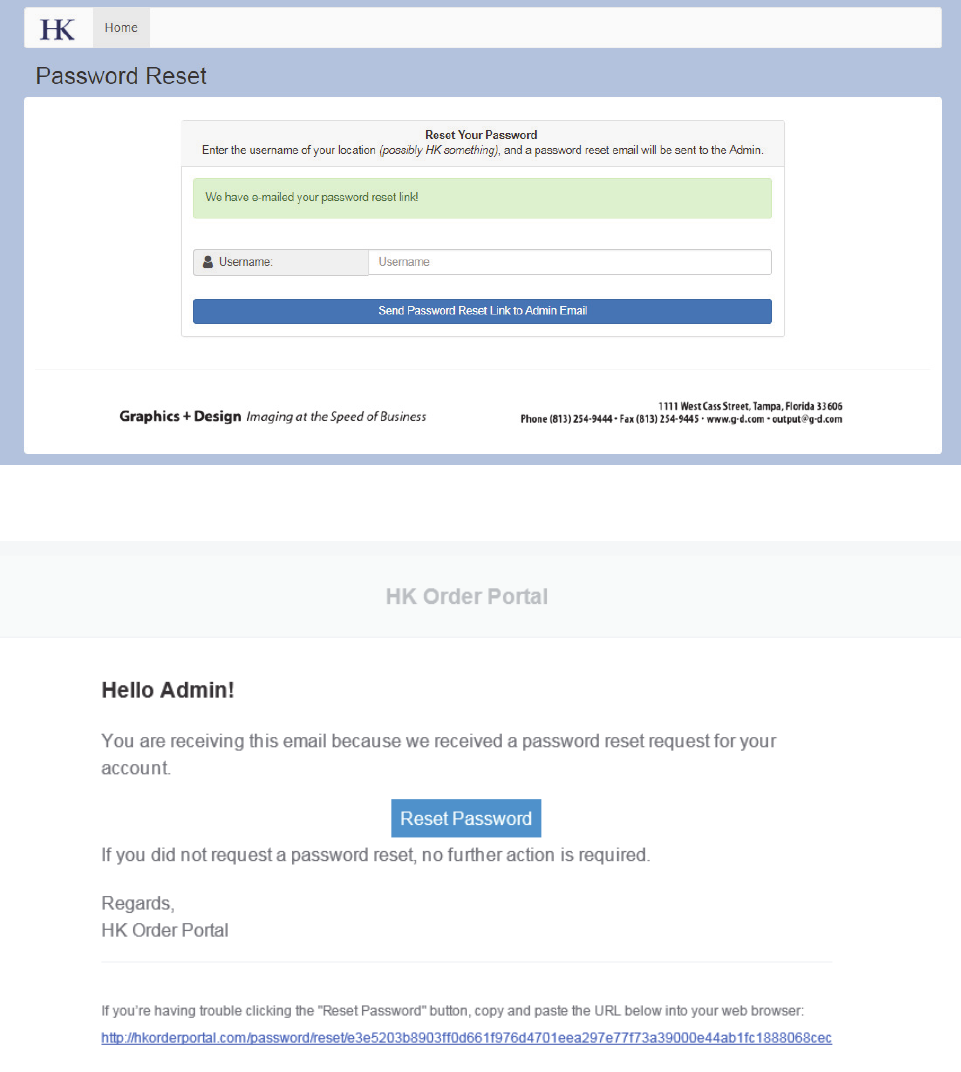
Ifyouforgotyourpasswordyoucanclick“ForgotPassword?”linktogainaccess.
Anewscreenwillappear.YoumustknowyourUsernameinordertoupdateyourpassword.
5
Onceyouenteryourusername,anemailwillbesenttotheadminontheaccount.
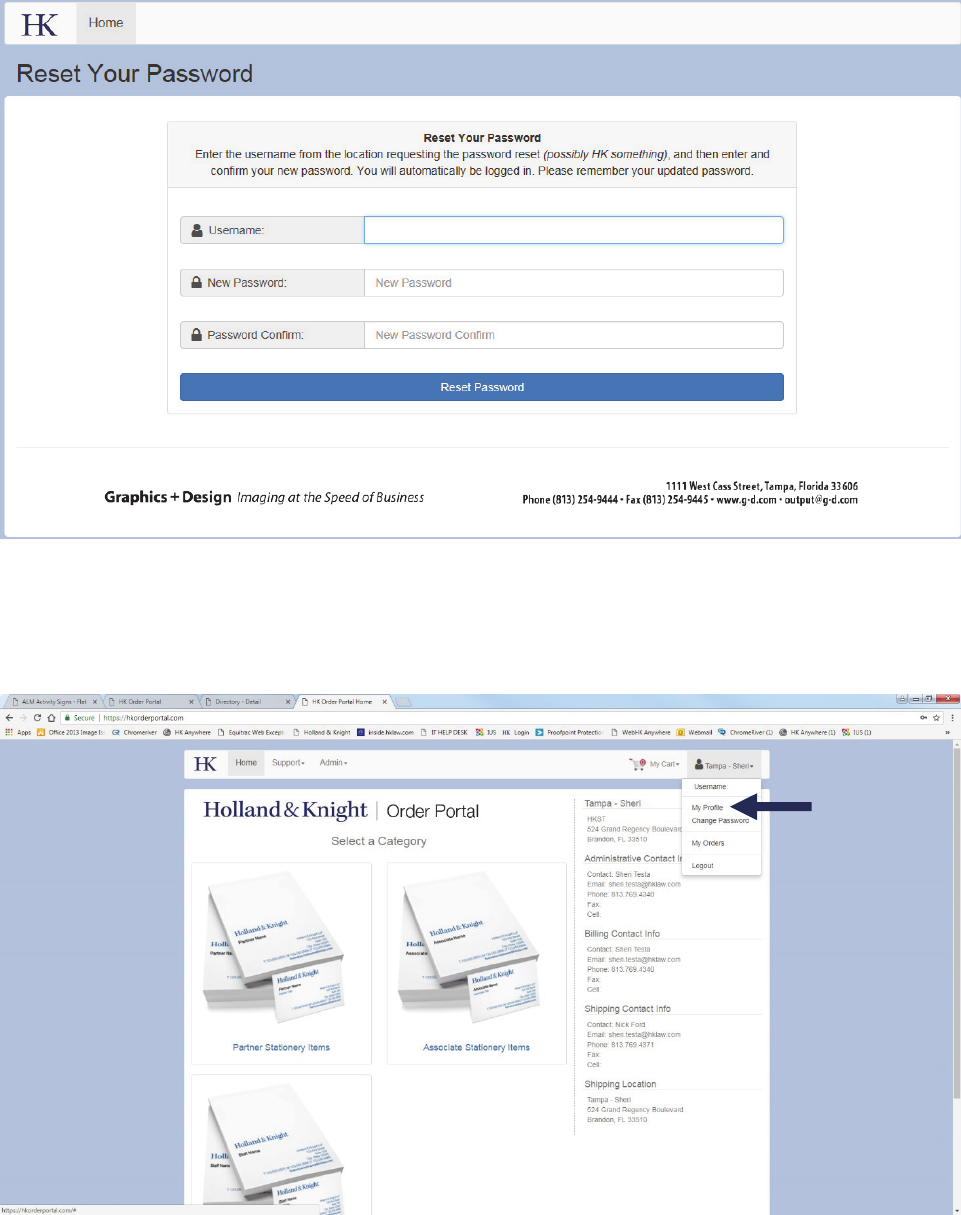
Followtheinstructionsinthatemailtoresetyourpassword.
6
Anewscreenwillappear.
ChangingAccountInformation
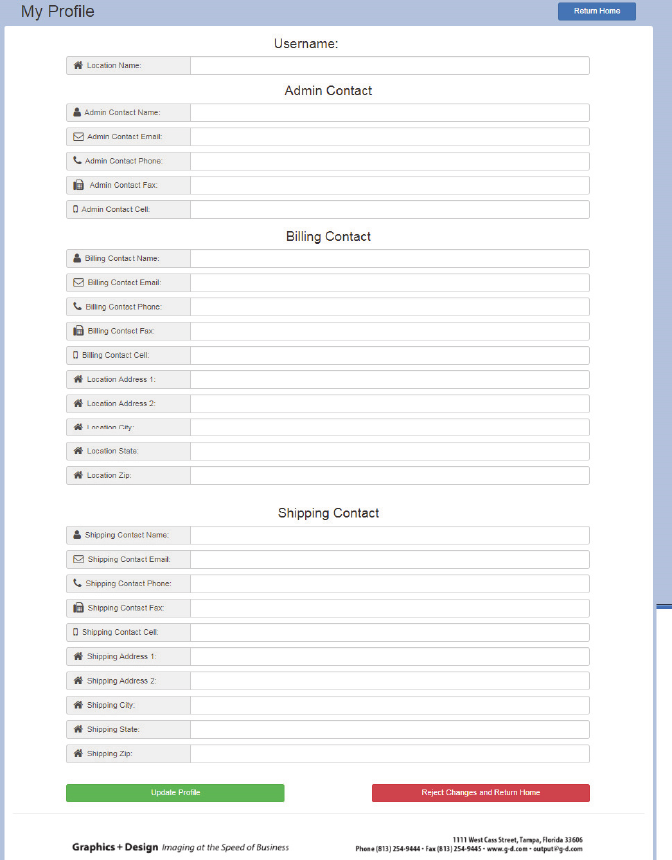
Onceyouareloggedin,clickunderusernameandselectMyProfilefromthedrop‐downlist.
7
Anewscreenwillappearandlocationinformationwillbedisplayed.Changetheinformationasneeded
andselectUpdateProfile.
PortalProducts
TheHolland&KnightOrderPortalhasthefollowingproductsavailablefororderingonline.
Partner Business Cards and/or FYI Pads
1. PartnerBusinessCards
(Partner Business Cards should be ordered for Partners ONLY)
2. PartnerFYIPads
(Partner FYI Pads: Note pads with contact info; Titles do not appear on FYI pads)
3. PartnerBusinessCards&FYIPads
(Partner Business Cards & FYI Pads Combination)
8
Associate Business Cards and/or FYI Pads
1. AssociateBusinessCards
(Associate, Senior Counsel, Of Counsel Business Cards should be ordered here)
2. AssociateFYIPads
(FYI Pads: Note pads with contact info; Titles do not appear on FYI pads)
3. AssociateBusinessCards&FYIPads
(Business Cards & FYI Pads Combination)
Staff Business Cards and/or FYI Pads
1. StaffBusinessCards
(All Staff Business Cards)
2. StaffFYIPads
(FYI Pads: Note pads with contact info; Titles do not appear on FYI pads)
3. StaffBusinessCards&FYIPads
(Business Cards & FYI Pads Combination)
Theorderingprocessforenteringyourdata,selectingaquantity,addingtheitemintoyourcart,
modifyingyourdata,creatinganonlineproof,andsubmittingyourorderisthesameforallproducts.
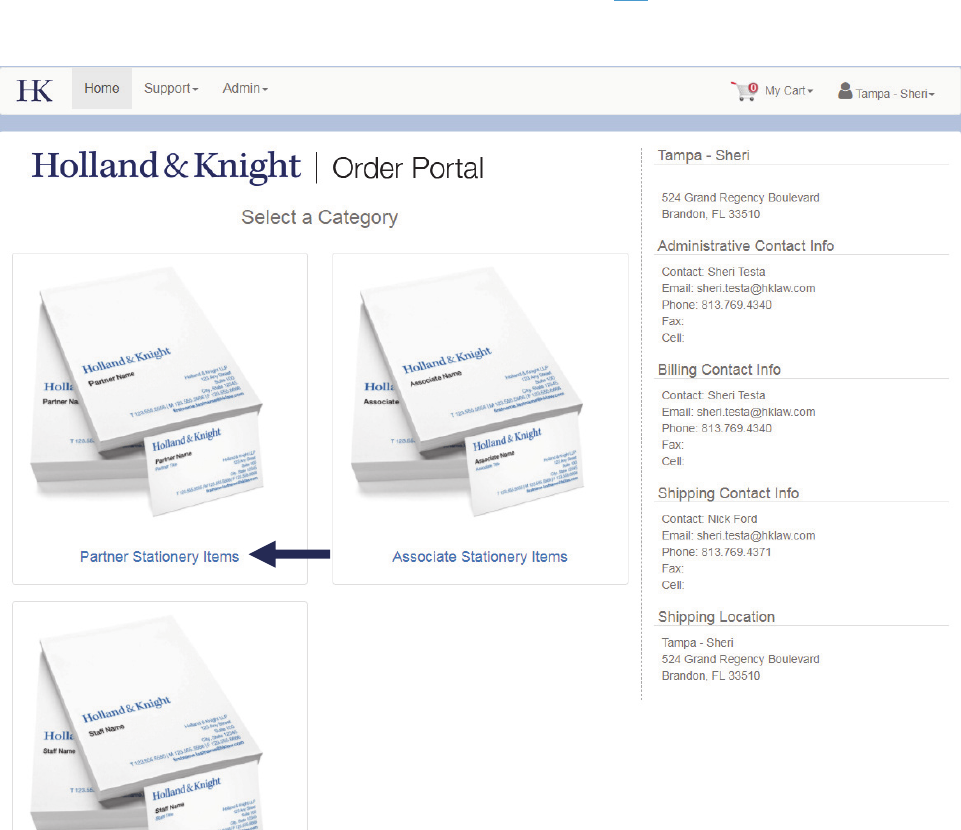
Thefollowingsectionusesthe“PartnerBusinessCard”asanexampleforallproducts.
9
PartnerBusinessCard
Pleasenote:ThisisanexampleoftheorderingprocessforAllProducts
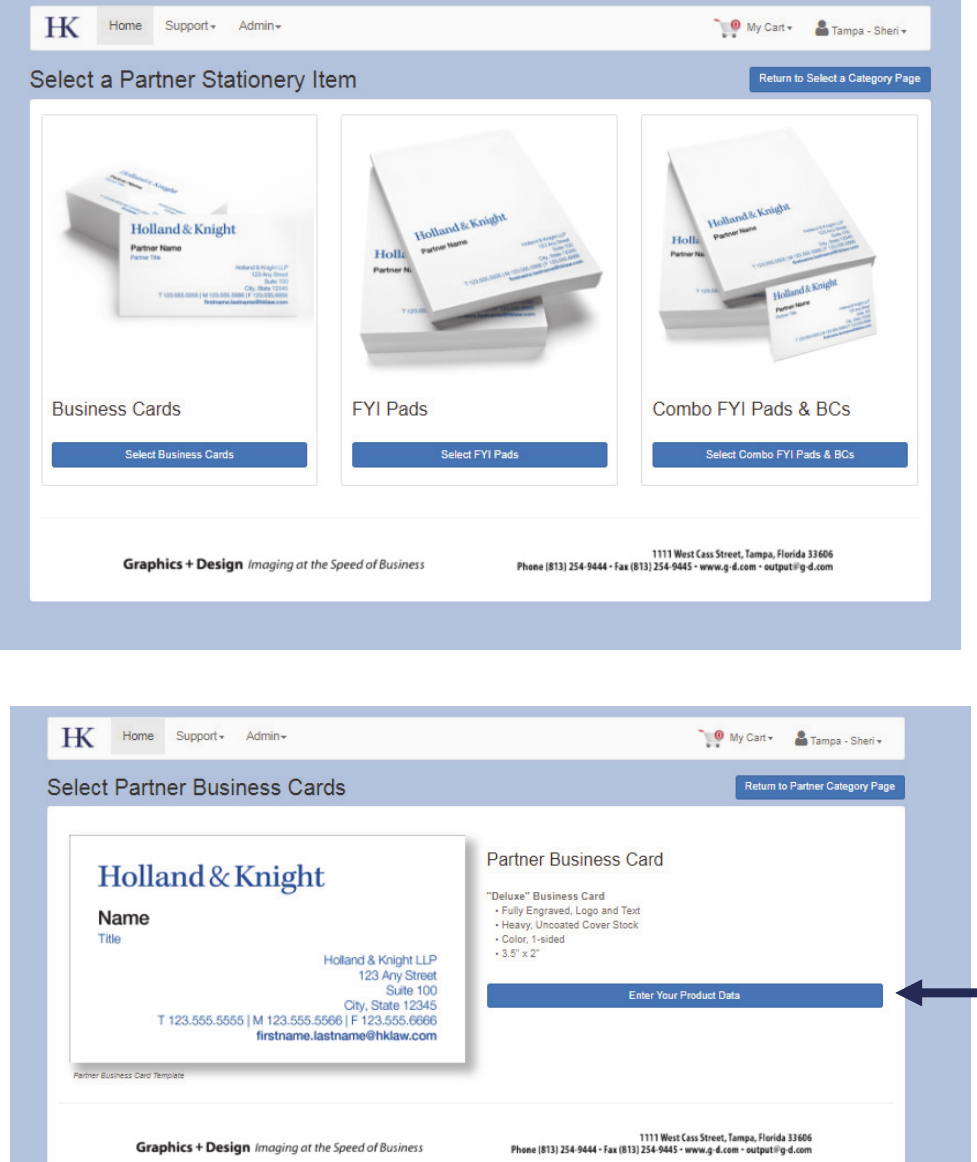
Fromthemainscreenselect“PartnerStationeryItems.”
10
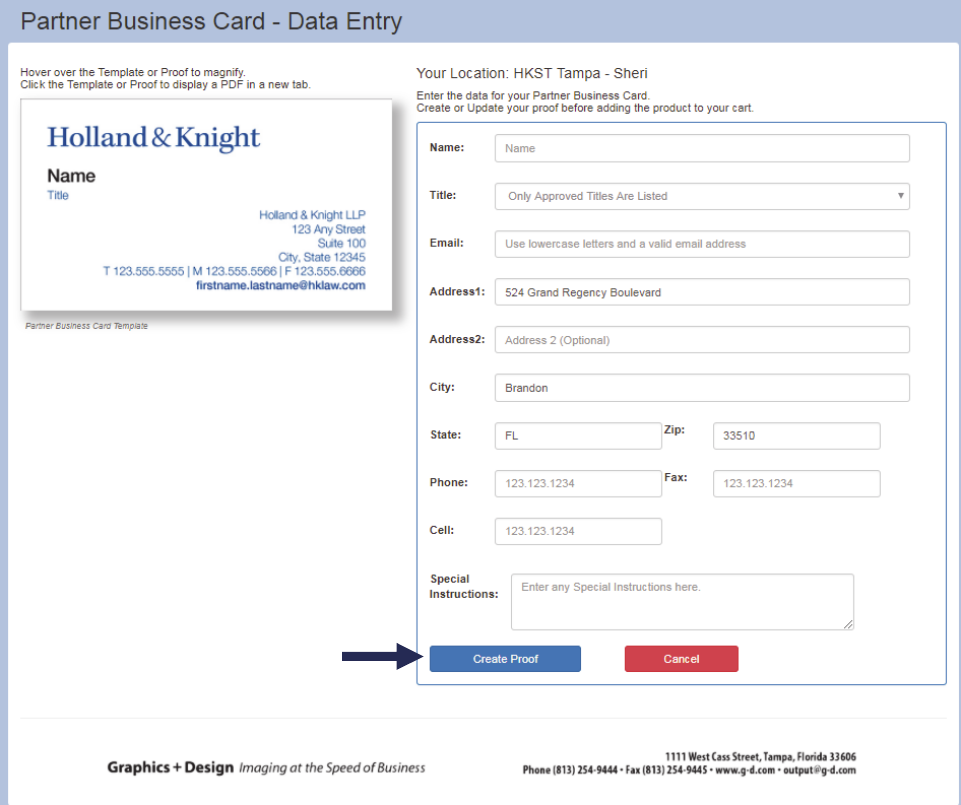
OnceyouselectthePartnerStationeryItems,onthenextscreen,selecttheproductyouwishtoorder.
Onceyouselectproduct,anewscreenwillappear.Select“EnterYourProductData.”
11
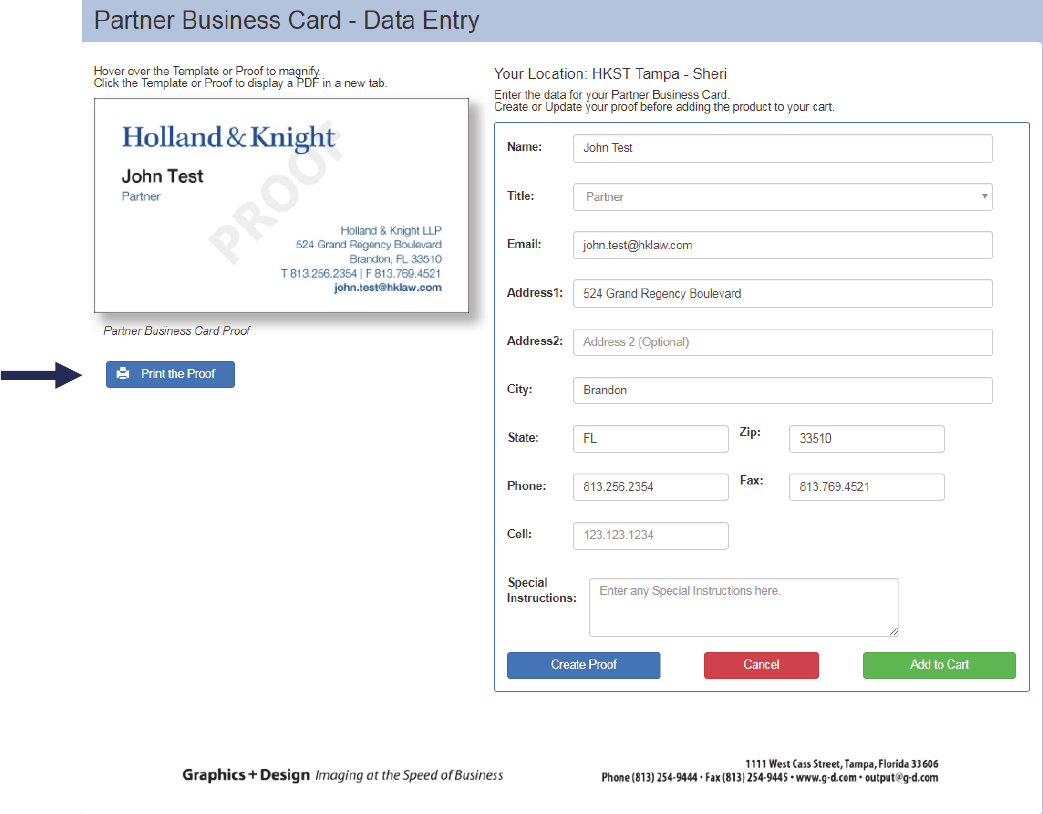
EnteryourinformationexactlyasitistoappearonthebusinesscardorFYIpad.Thetitleenteredmustbe
ontheapprovedtitlelist.ForaPartner,AssociateorStaffcard,usethedrop‐downarrowtomakeyour
selection,orasyoutype,thelistoftitleswillnarrowtoyourselection.(i.e.type“S”toseeallapproved
titlesthatbeginwith“S”).Ifthetitleenteredisnotontheapprovedlist,youwillbepromptedtocorrectit
beforecontinuingyourorderentry.
Theemailaddressshouldbeformattedcorrectly,enteredasalllowercaseletters.Phonenumbersshould
includedotsbetweentheareacodeandexchange(i.e.123.123.1234).Youcanalsonoteanyother
necessaryinformationaboutyourorderinthe“SpecialInstructions”area.
Fieldsenteredincorrectlywillautomaticallybehighlightedinredtonotifytheuserthattheyneedtomake
achangebeforeproceeding.
Youmustcreateorupdateaproofbeforeaddingtheproducttoyourcart.
12
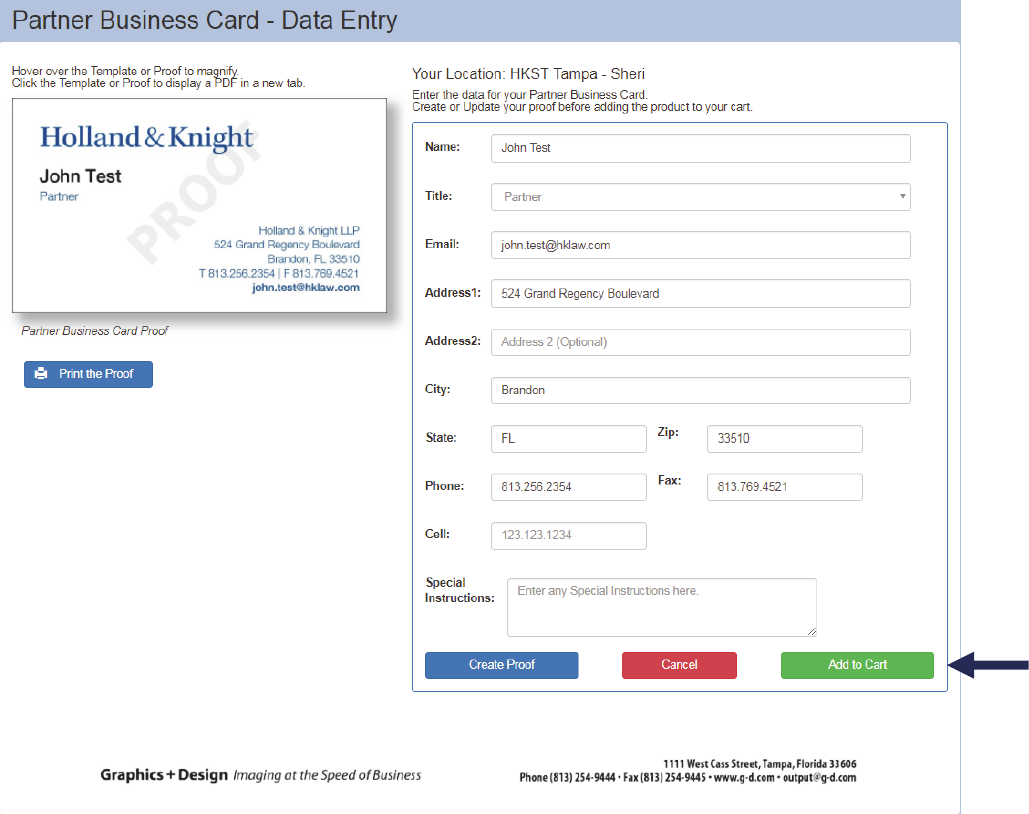
Fromthisscreenyoucancreateyourproofdirectlyonthescreen.YoucanhoverovertheTemplateor
Prooftomagnifytheinformationandalsoprinttheproof.
Tocreateapdfoftheproof,clickonthetemplateandanewwindowwillappear.
Afteryouverifyallinformationiscorrectandcreateaproof,youcanaddtheitemtoyourcart.
13
14
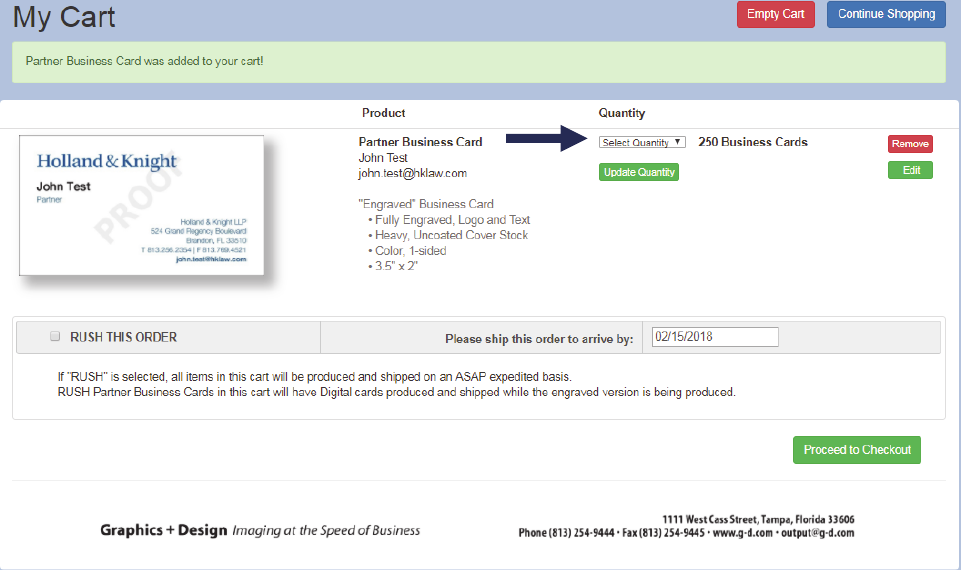
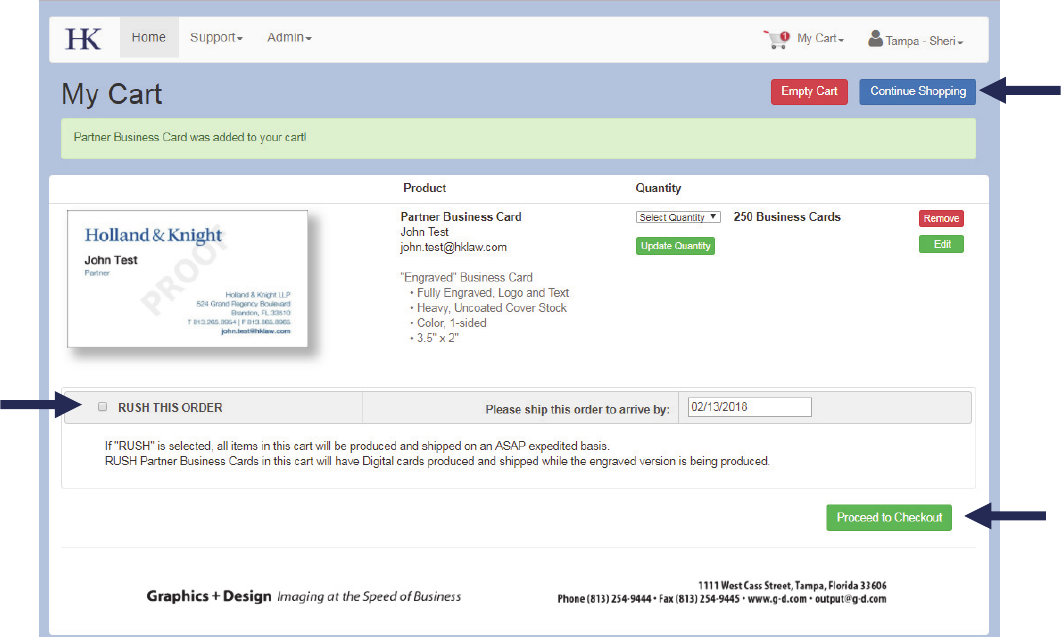
Oncethecardhasbeenaddedtothecart,the“MyCart”screenwillappearshowingtheinformationthat
hasbeenentered.
Youwillbeabletoupdatetheorderquantityonthisscreen.
Verifythatalltheinformationiscorrectasenteredandthecorrectquantityisselected.
Youcanthenproceedtocheckout,rushtheorderorcontinueshoppingfromtheMyCartscreen.
15
RushOrders
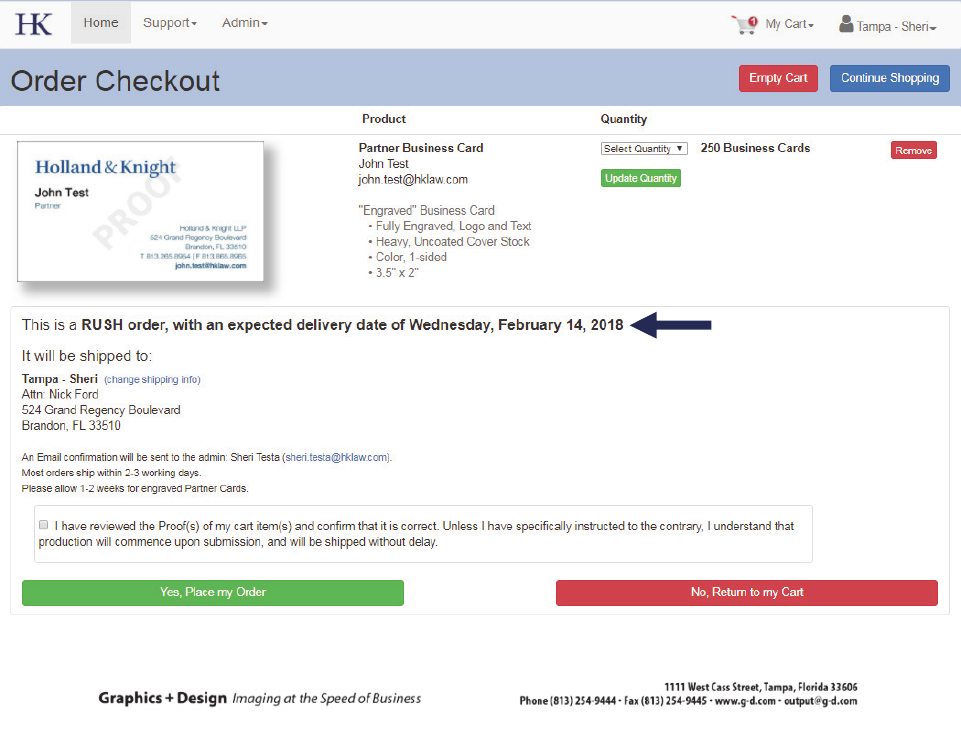
Ifanorderisneededbyacertaindateyoucanrushanorder.Inordertorushanorder,the“RushThis
Order”buttonwillneedtobecheckedandadateenteredthatthecardswillbeneeded.Ifadateisnot
entered,theorderwillbeproducedASAP.Anycardsinthecartwillberushed.Ifyouonlyneedoneitem
rushed,onlythatordershouldbeinthecartbyitself.
Pleasenote:Partnercardswillhavedigitalcardsproducedandshippedwhiletheengravedversionis
beingproduced.
Whenordersarerushed,ontheordercheckoutpageyouwillseeinformationontherushorder.
16
CheckingOut
Clickon“ProceedtoCheckout”toproceed.
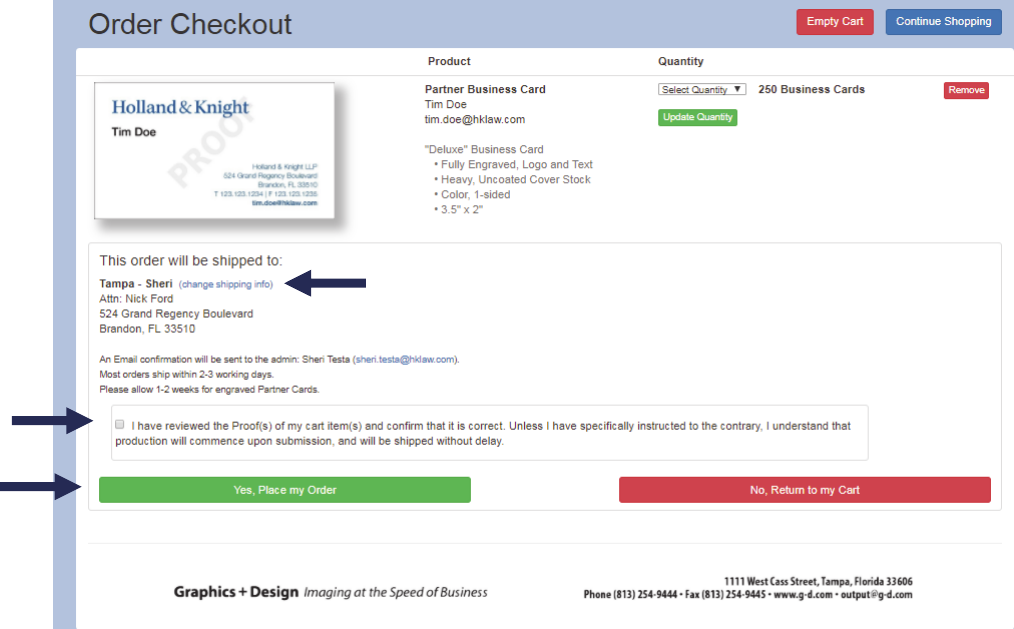
Afterclickingon“ProceedtoCheckout,”the“OrderCheckout”screenwillappear.
17
Fromthispageyoucanreviewyourorderorchangetheshippinginformationfortheorder.Youmust
selecttheboxthattheproof(s)is/areapprovedinordertoproceedwithcheckingout.
Oncethisboxhasbeenchecked,youcanplaceyourorderbyselecting“Yes,PlacemyOrder.”
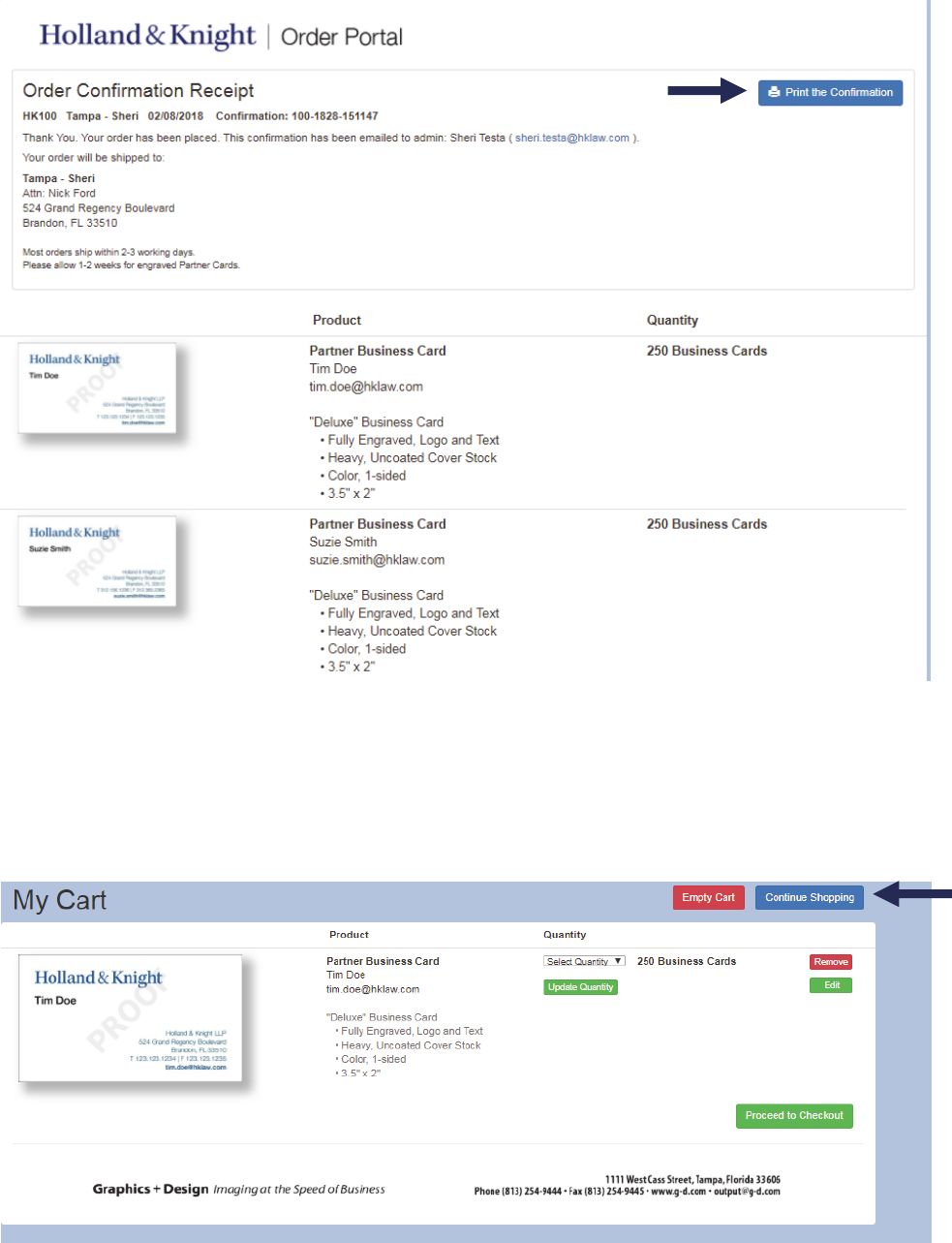
Onceyourorderhasbeenplaced,anOrderConfirmationReceiptwillappear,andanemailconfirmation
willbesenttotheaccountadmin’semailaddress.
YoushouldalsoprinttheConfirmationPagefromthisscreenforyourfile.
18
MultipleOrders
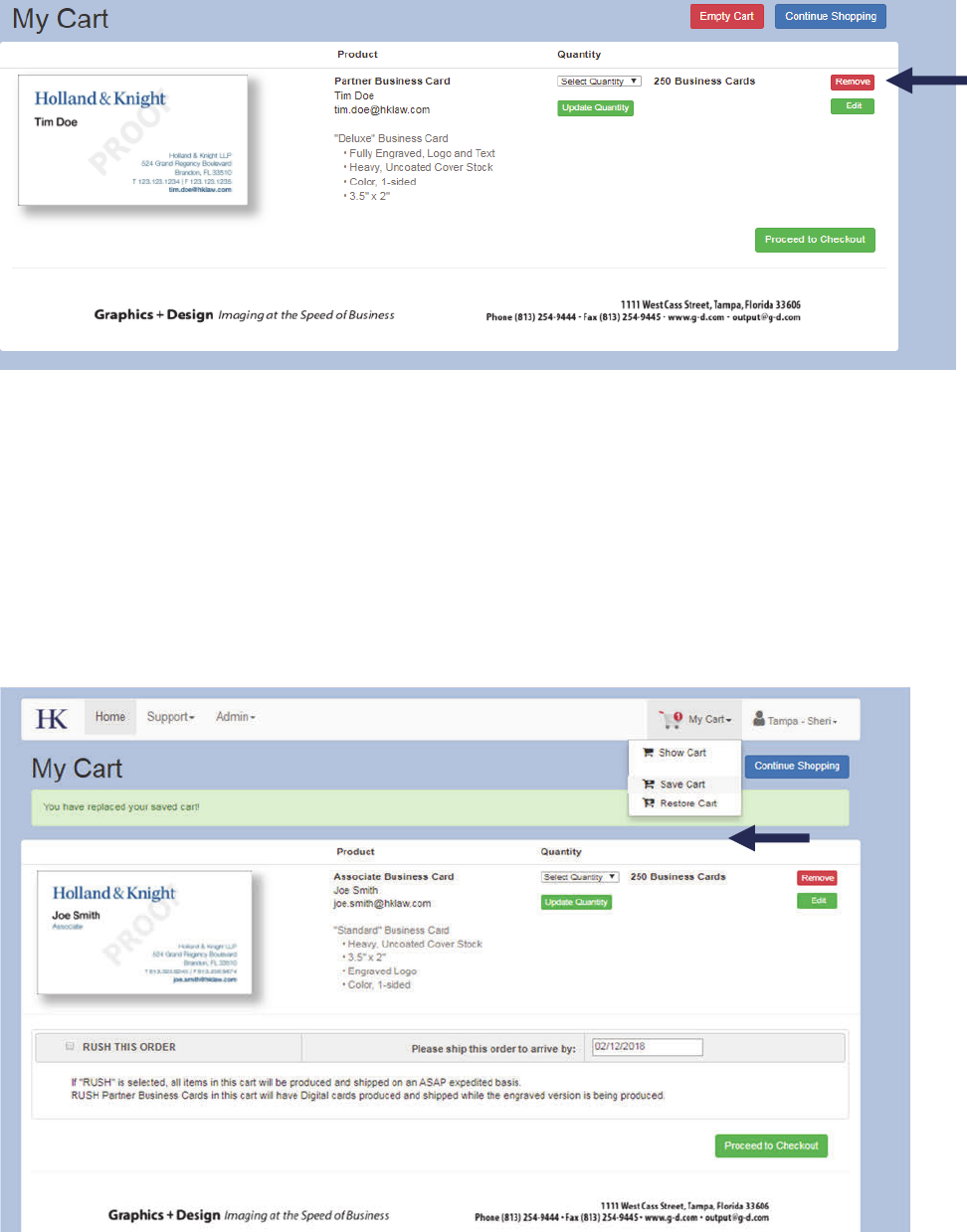
Onceinyourcartyouhavetheoptiontoaddadditionalorderstoyourorderorproceedtocheckout.
Selectthe“ContinueShopping”buttonfromtheMyCartscreen.
19
Youcanalsoremoveindividualitemsfromyourcart.
SavingYourCart
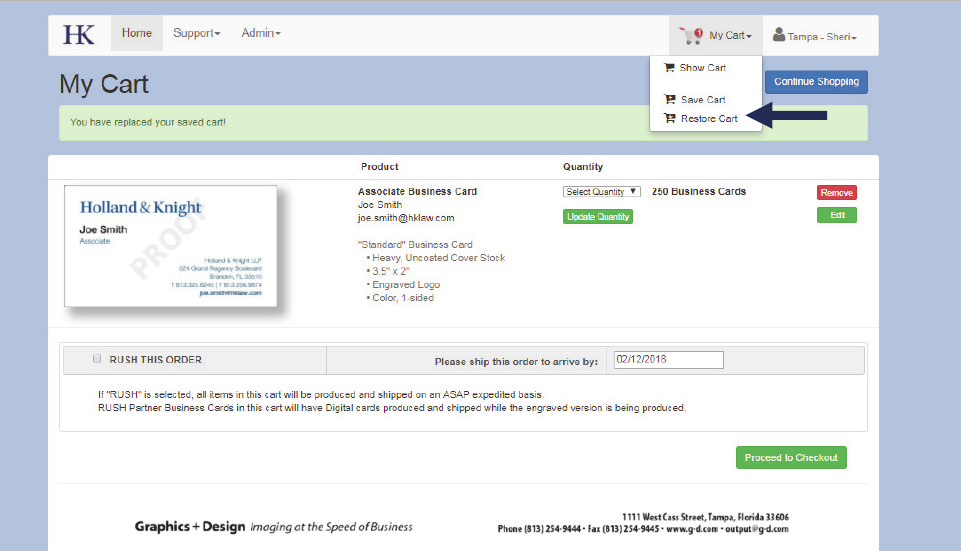
Onceanitemhasbeenenteredintoyourcart,youhavetheabilitytosavethecartforlateruse.Usethis
feature,forexample,ifyouhaveenteredoneormoreitemsintoyourcartbutarenotreadytoplacethe
order.Youwillhavetheabilitytoretrievethecartatalatertimetocompletethetransaction.
Tosaveyourcartforlateruse,clickonthedropdownnexttothe“MyCart”menuitemonthetopmenu
andadrop‐downmenuwillappear.Clickon“SaveCart”andyouritemswillbesavedforlaterretrieval.
20
RestoringYourCart
Toaccesstheitem(s)savedinyourcart,youmustbeloggedintothewebsite.Hoveroverthe“MyCart”
menuitemonthetopmenubarandadrop‐downmenuwillappear.Clickon“RestoreCart”andyourcart
willberestoredwiththeitemsinitwhenitwassaved.Thesavedcartwillberemovedafterretrieval.Save
thecartagaintopreservethesavedcart.
Double‐SidedBusinessCards
Partners get double-sided cards engraved on one side and printed on the other. All others are digital only.
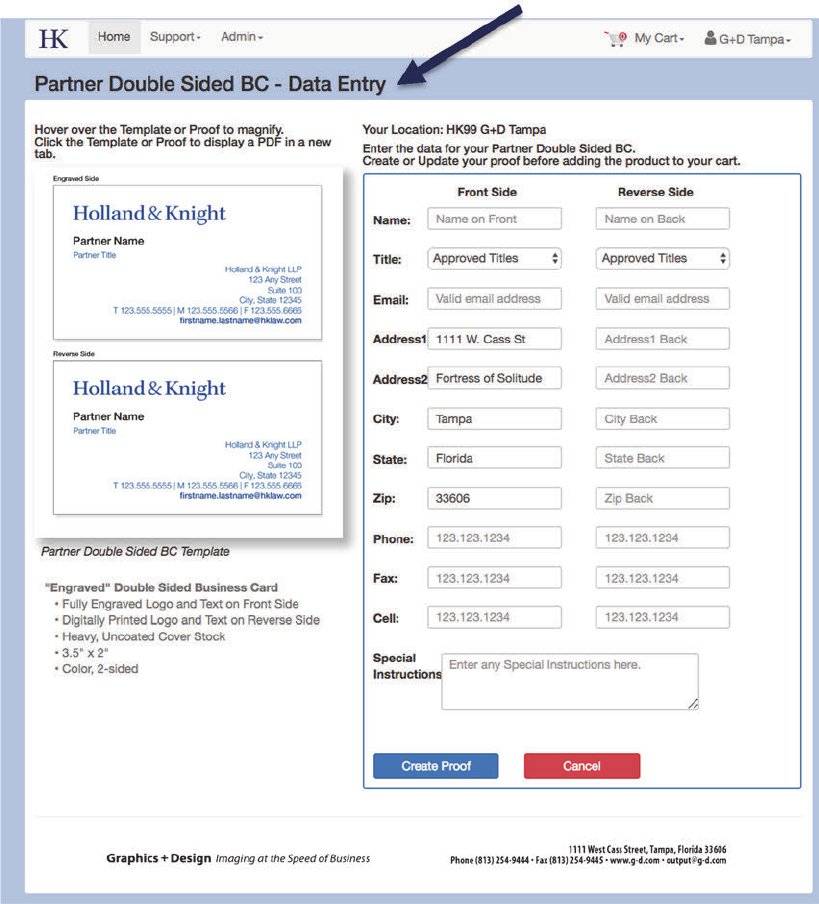
Toplaceanorderfordouble‐sidedpartnerbusinesscards,logontothewebsite.Selectthedoublesided
businesscardoptionandenteryourproductdetail.PleasebeadvisedthatallDoubleSidedCardswill
automaticallybereviewedforcorrectnessbeforeproduction.Nofurtheractionisrequiredbythelocation
adminuponsubmission,butdeliverymaybedelayedbyadayortwoduringthisreviewprocess.
21
Entertheinformationneededforbothsidesofthecard.Theinformationenteredforfrontsidewillbethe
engravedsideofthebusinesscard.Reversesideinformationwillbeprinted.
Oncedatahasbeenenteredandsubmitted,yourorderwillbereviewedforapprovalbeforeprinting.No
furtheractionisrequiredbythelocationadminuponsubmission,butdeliverymaybedelayedbyadayor
twoduringthisreviewprocess.
Note:Internationallocationsdonothaveanyformattingrestrictionsfortheirphonenumbersonthe
reversesideoftheDoubleSidedBusinessCardDataEntryscreenstoallowphonenumberentryoutside
theirnormallocations.Pleaseenterthecorrectnumberformattingcarefullyorenterthereverseside
numbersinthe“SpecialInstructions”area.Pleasereviewthesephonenumberscarefully.
22
ForeignLanguage
AnyspecialcardswillneedtobesenttoourprintpartnersviaPDFbySheriTesta.TheCreativeTeamwill
onlybeinvolvedonspecialcardsthatrequireaforeignlanguageoradisclaimer.Therequesterwillneed
tosendaneditable(Worddocument)containingtheforeigncharacterstheywishtoincludeonthecard
forthepartner’snameandtitle.Aproofwillbesenttoapprovepriortoprinting.
AdmittedDisclaimersonBusinessCards
Ifan“admittedstatement”needstobeaddedtobusinesscards,pleasesendthisinformationtoSheri
Testaforlayout.Aproofwillbesenttoapprovepriortoprinting.
ViewOrders
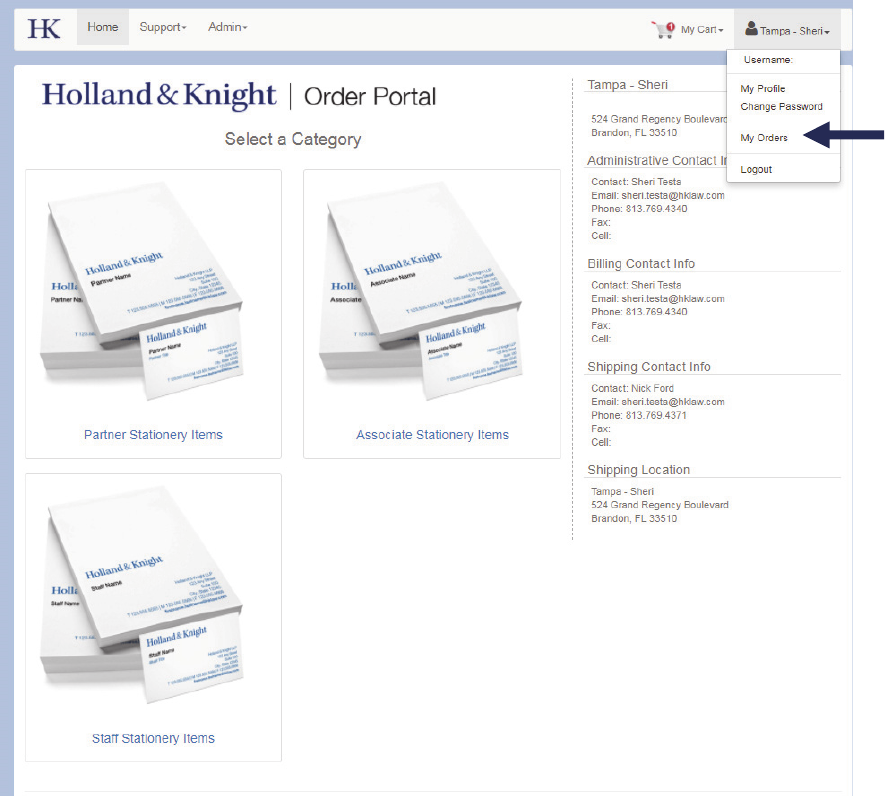
Toaccessyourorderhistory,clickonyourusernameandadrop‐downlistwillappear.Select“MyOrders.”
23
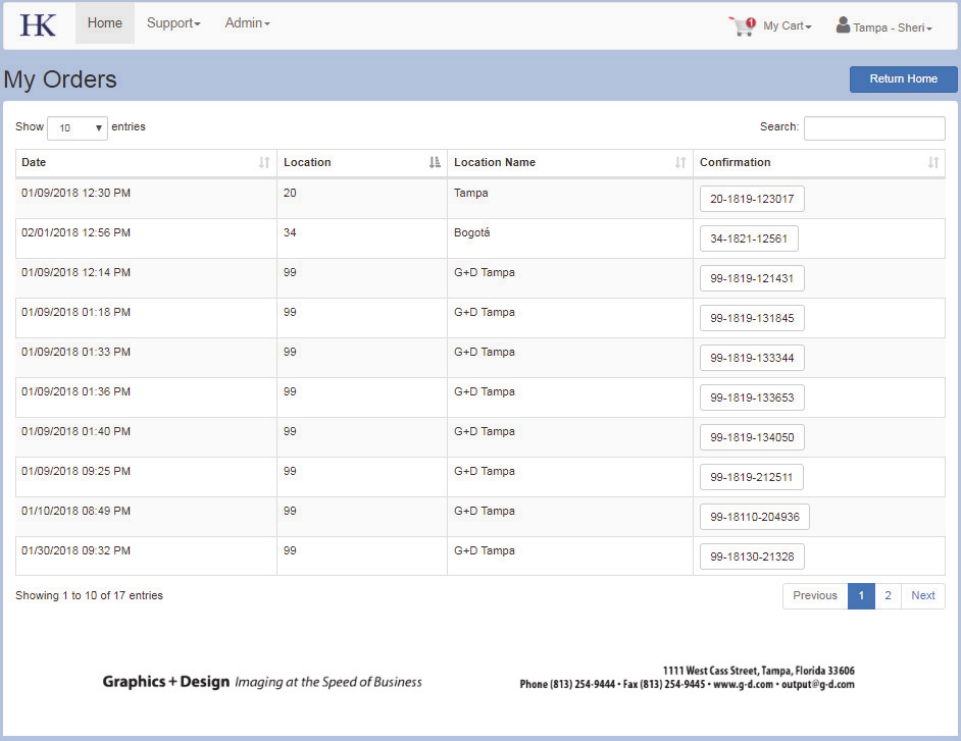
Usingthe“SearchBox”youcansearchforordersand/orviewallordersplacedbyyourlocation.You
areabletosearchforanywordthatiscontainedintheemailconfirmationforeachorder(i.e.if
searchingfor“PartnerCardOrders”typein“Partner”andclickthesearchbutton,allthe“Partner
Card”orderswillshow.Ifyou’researchingforaspecificperson,typetheirnameinthesearchboxto
showalltheorderswiththecorrespondingname).CategoriescanbesortedbyselectingtheUpor
DownarrownexttotheDateorConfirmationNumber.
RepeatAnOrder
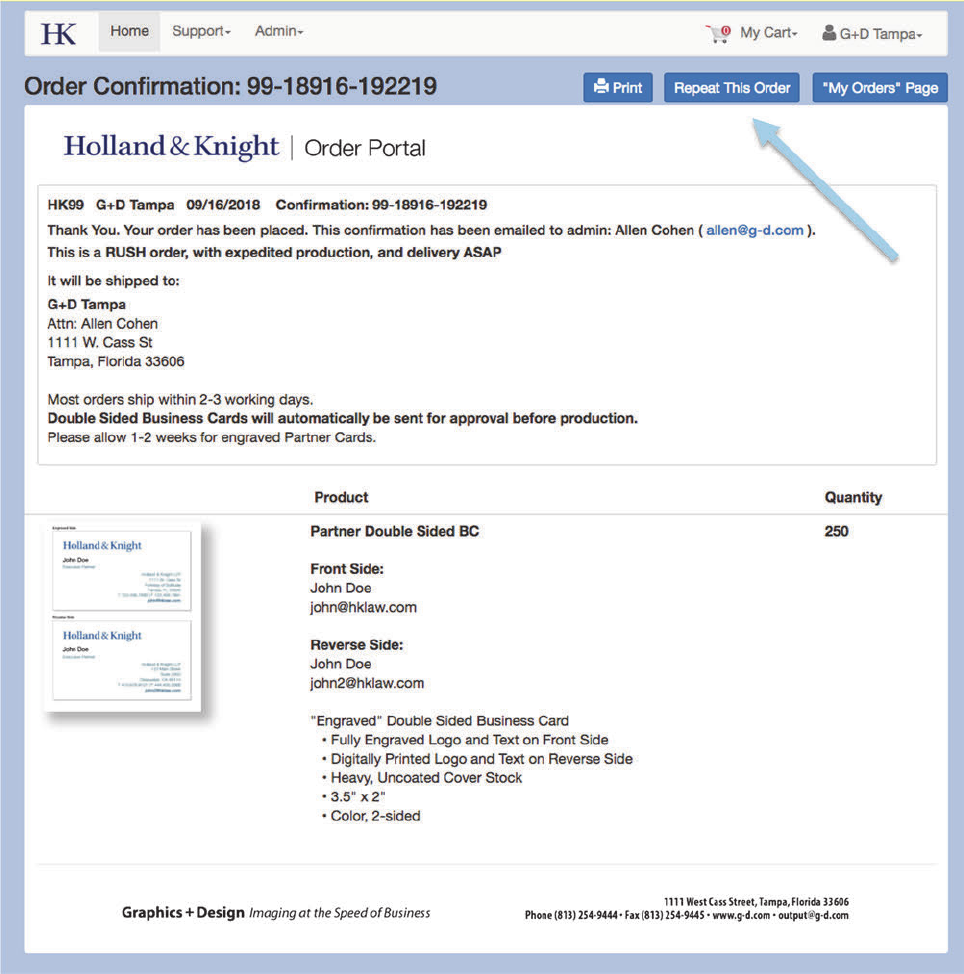
Anordercannowberetrievedandautomaticallyplacedintoanewcartforreorders.
Locationadminsshouldbeawarethattheycanviewtheirlocations’previousordersfromthe
Location’spulldownmenu(farrightsideofmenubar).Now,whenviewingapreviousorder
throughthe“MyOrders”pulldownmenu,anewbuttonisavailable:“RepeatThisOrder”.When
selected,thepreviousorderwillbeplacedintoyourcartasifthedatawasnewlyentered,proofed,
andthenaddedtothecart.Atthispointthecartcanbeedited,includinggeneratinganewproof,
24
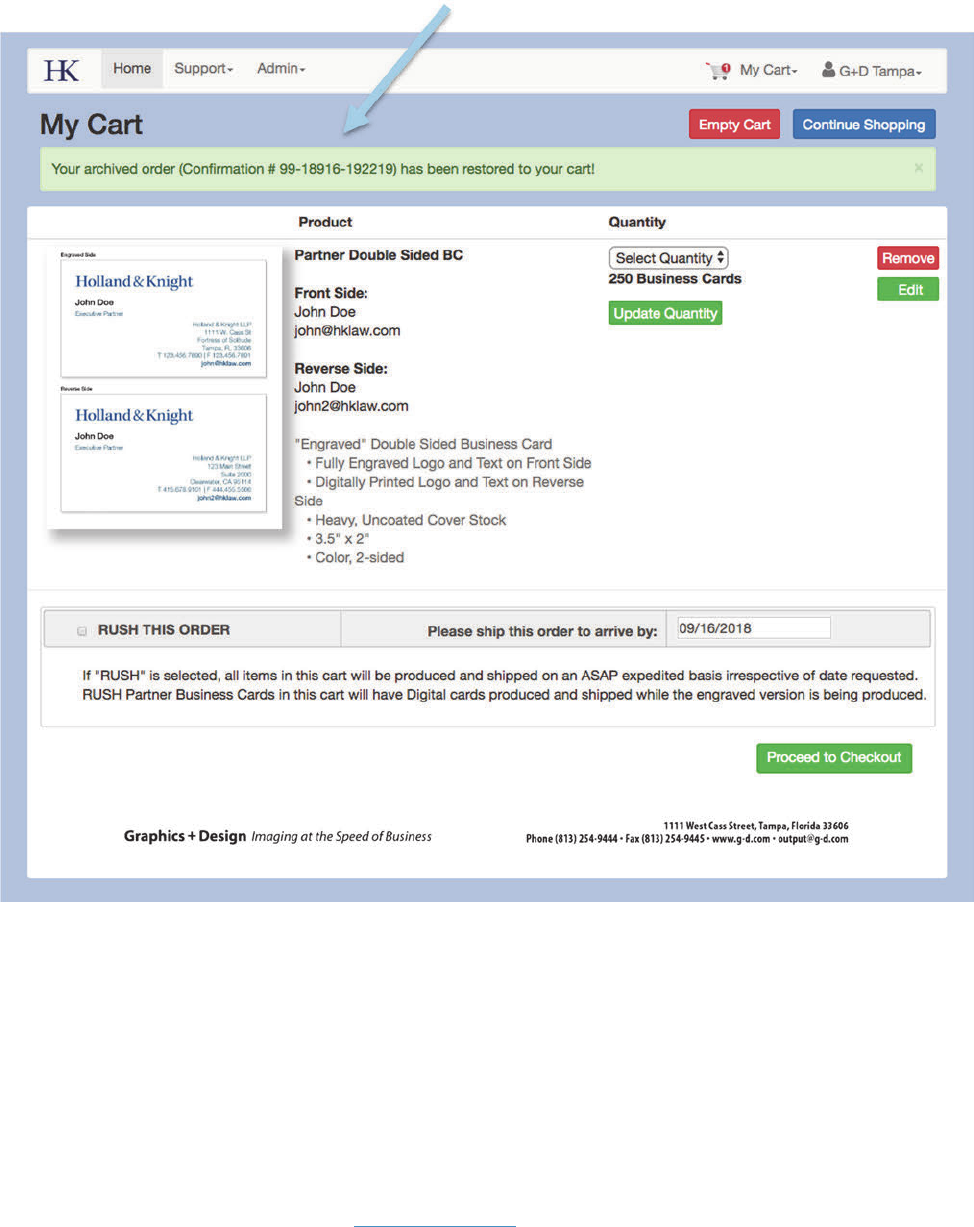
addedbacktothecart,andtheordercanbeplacedthesameasanyotherorder,i.e.editthedata,
addanewspecialinstructionorspecifyaRUSHorder.
25
RepeatOrderScreen
ConfirmationtoCartSuccessMessage
ImportantNote:Therepeatorderfunctionalityworkswithordersplacedasof9‐4‐18.Ordersplacedprior
tothisdatemaynothavethisfunctionality.Pleaserememberthatyoumayemailaconfirmationnumber
directlytoG+Dtorepeatanorderpreviouslyplaced.ThiswouldbeanEXACTrepeat,unlikethenewfeature
whichallowseditingdirectlyfromthecartoncetheorderhasbeenrepeated.
Graphics+Designisavailabletoansweranyquestionsyoumayhaveortoscheduleaone‐on‐onedemoof
thenewfeatures.ReachouttoAllenorDaniatsupport@g‐d.comorcallthemdirectlyat813‐254‐9444.
26
TIP:Clickonthesorticontotherightof“Date”inthe“MyOrders”listtosortthelistbydate.
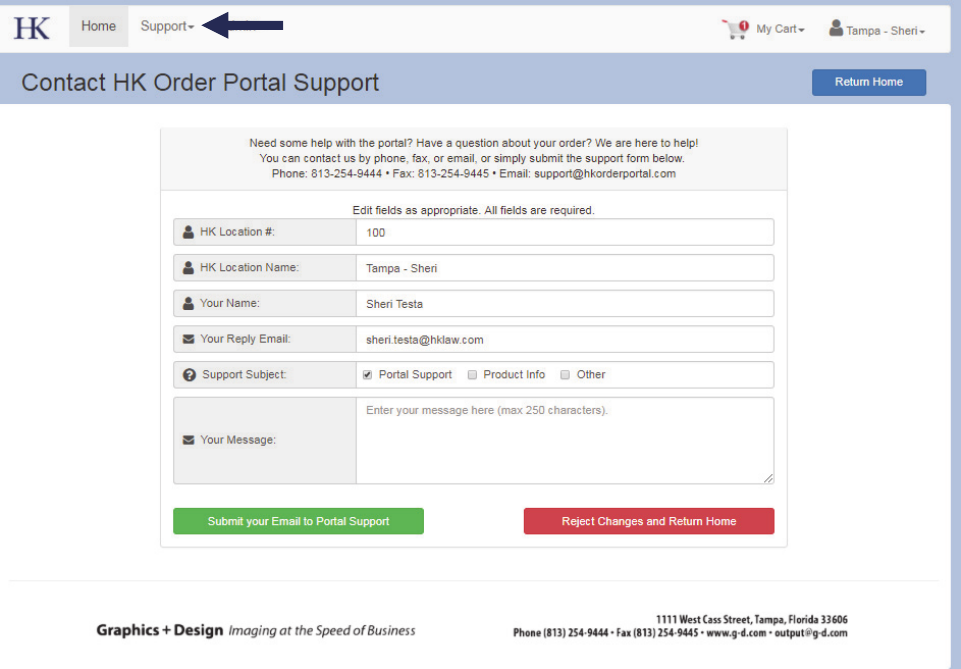
Support
NeedsomehelpwiththePortal?Haveaquestionaboutyourorder?Haveaspecialrequest?Youcan
contactsupportbyphone,fax,email,orsubmitasupportformonlinebyselectingthe“Support”menu
itemfromthetopmenubaronthePortal.
