HPE Integrity MC990 X Server System Software Installation And Configuration Guide MC990X Config 855703 002
User Manual:
Open the PDF directly: View PDF  .
.
Page Count: 50
- System Software Installation and Configuration Guide
- Contents
- 1 Introduction
- 2 Integrity MC990 X system software installation
- 3 Oracle Linux 7 software installation on an MC990 X server
- 4 RHEL 7 OS installation on an MC990 X server
- 5 RHEL 6 software installation on an MC990 X server
- 6 SLES 12 OS and foundation software installation on an MC990 X server
- 7 SLES 11 platform installation on an MC990 X server
- 8 Additional software features for the Integrity MC990 X system
- Remote management through the ipmitool command
- Security-Enhanced Linux (SELinux) configuration on RHEL platforms
- Configuring Security-Enhanced Linux (SELinux) on RHEL platforms
- Installation of debuginfo packages
- Installing debuginfo packages on RHEL platforms
- Installing debuginfo packages on SLES platforms
- Creating boot options
- Crash dump files on an Integrity MC990 X system server on RHEL 7, SLES 12, and SLES 11 platforms
- Creating a crash dump file on an Integrity MC990 X system server on RHEL 7, SLES 12, and SLES 11 platforms
- 9 Support and other resources
- A Connecting to an MC990 X system through a web browser and launching the JViewer console
- Glossary
- Index

HPE Integrity MC990 X Server
System Software Installation and
Configuration Guide
Abstract
Use the instructions in this guide to install the Oracle Linux 7, RHEL, or SLES operating system and Foundation
Software on an HPE Integrity MC990 X Server system.
Part Number: 855703-002
Published: July 2016
Edition: 2

©Copyright 2016 Hewlett Packard Enterprise Development LP
The information contained herein is subject to change without notice. The only warranties for Hewlett Packard Enterprise products
and services are set forth in the express warranty statements accompanying such products and services. Nothing herein should
be construed as constituting an additional warranty. Hewlett Packard Enterprise shall not be liable for technical or editorial errors
or omissions contained herein.
Links to third-party websites take you outside the Hewlett Packard Enterprise website. Hewlett Packard Enterprise has no control
over and is not responsible for information outside the Hewlett Packard Enterprise website.
Acknowledgements
Intel®Xeon®are trademarks of Intel Corporation in the in the U.S. and other countries. Google™is a registered trademarks of
Google Inc. Linux®is a registered trademark of Linus Torvalds in the U.S. and other countries. Red Hat®is a registered trademark
of Red Hat, Inc. in the United States and other countries.
SUSE LINUX is a registered trademark of Novell Inc.
Windows is a registered trademark of Microsoft Corporation in the United States and other countries.
Oracle®and Java®are registered trademarks of Oracle and/or its affiliates.
NUMAlink®and NUMAflex®are trademarks or registered trademarks of Silicon Graphics International Corp. or its subsidiaries
in the United States and/or other countries worldwide.
Warranty
To obtain a copy of the warranty for this product, see the warranty information website:
BCS Global Limited Warranty and
Technical Support
http://h20566.www2.hpe.com/hpsc/doc/public/display?docId=emr_na-c01865770.
Revision History
Publication DateEditionHPE Part Number
March 2016First855703-001
July 2016Second855703-002
Contents
1 Introduction............................................................................................5
About installing the operating system software, Foundation Software, and optional
features...............................................................................................................................5
2 Integrity MC990 X system software installation.....................................6
Gathering installation materials and information.................................................................6
(Optional) Setting or changing an administrative password on the system console...........9
Creating an installation environment.................................................................................10
3 Oracle Linux 7 software installation on an MC990 X server................12
4 RHEL 7 OS installation on an MC990 X server...................................13
Initiating RHEL 7 OS installation and partitioning the disk................................................13
Configuring the RHEL 7 OS network and rebooting.........................................................15
Completing the RHEL 7 OS installation............................................................................16
Installing the foundation software on an RHEL 7 platform MC990 X server.....................17
5 RHEL 6 software installation on an MC990 X server..........................19
Initiating the RHEL 6 OS installation.................................................................................19
Specifying the RHEL 6 OS network.............................................................................19
Completing the RHEL 6 OS installation.......................................................................20
Installing the foundation software on an RHEL 6 platform MC990 X server.....................21
6 SLES 12 OS and foundation software installation on an MC990 X
server......................................................................................................24
Initiating the SLES 12 OS installation...............................................................................24
SLES 12 disk partition configuration for an MC990 X server............................................24
Configuring SLES 12 disk partitions for an MC990 X server............................................25
Specifying the SLES 12 network and miscellaneous settings..........................................27
Installing the foundation software on a SLES 12 platform MC990 X server.....................28
7 SLES 11 platform installation on an MC990 X server..........................30
Installing the SLES 11 OS software on an MC990 X server.............................................30
Initiating the SLES 11 OS installation..........................................................................30
Specifying the SLES 11 network and miscellaneous settings...........................................31
Completing the SLES 11 installation.................................................................................33
Installing the foundation software on a SLES 11 platform MC990 X server.....................33
8 Additional software features for the Integrity MC990 X system...........35
Remote management through the ipmitool command......................................................35
Security-Enhanced Linux (SELinux) configuration on RHEL platforms............................35
Configuring Security-Enhanced Linux (SELinux) on RHEL platforms..............................36
Installation of debuginfo packages....................................................................................37
Installing debuginfo packages on RHEL platforms...........................................................37
Installing debuginfo packages on SLES platforms............................................................38
Creating boot options........................................................................................................39
Crash dump files on an Integrity MC990 X system server on RHEL 7, SLES 12, and
SLES 11 platforms............................................................................................................41
Creating a crash dump file on an Integrity MC990 X system server on RHEL 7, SLES
12, and SLES 11 platforms...............................................................................................42
9 Support and other resources...............................................................44
Accessing Hewlett Packard Enterprise Support...............................................................44
Accessing updates............................................................................................................44
Websites...........................................................................................................................45
Documentation feedback..................................................................................................45
3
A Connecting to an MC990 X system through a web browser and
launching the JViewer console...............................................................46
About JViewer...................................................................................................................46
Starting JViewer................................................................................................................46
Attaching virtual media to the MC990 X system...............................................................46
Booting from virtual media................................................................................................47
Glossary.................................................................................................48
Index.......................................................................................................49
4

1 Introduction
This chapter contains the following topics:
•“ About installing the operating system software, Foundation Software, and
optional features” (page 5)
About installing the operating system software, Foundation
Software, and optional features
This guide explains how to install the operating system and Foundation Software on
an HPE Integrity MC990 X Server system. You can install the OS and Foundation
Software to meet site requirements on a new system or you can reinstall these in the
event of a disaster or a system failure.
HPE Integrity MC990 X Server supports the following operating systems on the MC990
X server chassis:
•RHEL 7.1, 6.7, 6.6
•SLES 12 SP1, 11 SP4, 11 SP3
•Oracle Linux 7.1 or 7.2
After the OS and Foundation Software are installed on your MC990 X server chassis,
you can configure Foundation Software according to your site needs. For information
about Foundation Software components and features, see the HPE Integrity MC990
X Server User Guide.
NOTE: HPE recommends that you install new Foundation Software packages as
they become available.
HPE requires you to install the Foundation Software on each Integrity MC990 X
system. You can install the Foundation Software on the MC990 X server chassis after
you install the operating system software.
5
2 Integrity MC990 X system software installation
HPE installs operating system software, the Foundation Software, and any additional
customer-purchased software after the Integrity MC990 X system hardware is installed
at the customer site. The operating system can be one of the following:
•RHEL 7.1, 6.7, 6.6
•SLES 12 SP1, 11 SP4, 11 SP3
•Oracle Linux 7.1 or 7.2
If your site practices require you to reinstall the software, or if a disaster occurs at
your site, you can use the procedures in this guide to reinstall all the factory-installed
software. The procedures in this guide assume the following:
•You are familiar with Linux operating systems, and are familiar with the operating
system software update process. The installation instructions describe how to
register the operating system installation with the operating system software
provider to ensure automatic updates. This guide assumes that your site wants
to use the automatic updates. As an alternative, you can use physical media to
apply updates.
•You want to reinstall the factory-installed software on the MC990 X server chassis.
•Your Integrity MC990 X system is cabled correctly and attached to the network
in accordance with your site practices.
There is a specific order in which you need to install software on an Integrity MC990
X system. This order is as follows:
1. Operating system software, which can be RHEL 7, RHEL 6, SLES 12, SLES 11,
or Oracle Linux 7.
2. Foundation Software
Gathering installation materials and information
Gathering needed information in advance for the MC990 X server operating system
installation session will help you complete the installation more quickly.
1. Verify your environment.
Integrity MC990 X system installations require you to have physical access to
the MC990 X server chassis and the RMC.
Depending on your hardware, you might need additional equipment or specific
network connections. Make sure that you have access to the RMC and the DVD
drive that is included on the server.
2. Locate the software DVDs or CDs that are provided by HPE, or download and
create DVDs or CDs.
This guide assumes that you have DVDs of the operating system and CDs of the
software.
You can obtain the operating system software in one of the following ways:
•In a media kit from HPE. HPE distributes DVD copies of the operating system
releases.
•As a software download. You can download the OS releases from the Red
Hat, SUSE, or Oracle websites and write the software to a DVD.
You can obtain the Foundation Software from the HPE customer support center.
To download the software, complete the following steps:
6

a. In a browser window, navigate to the following URL:
www.hpe.com/support/hpesc
b. Select the system (MC990 X) and the OS.
c. View or download the software release notes.
d. Download the software bundle(s) that you need. If you install the OS, also
plan to install the Foundation Software. The HPE support center prompts
you for your username and password.
e. Write the ISO file to a CD or DVD.
The instructions in this guide assume that you have hard media. Some
procedures explain how to access the release software if you want to install
from a network-resident ISO image, but the instructions are not
comprehensive. If you downloaded the ISO images to a local network but
do not want to copy them to hard media, plan to use your network tools to
access the software when the procedures instruct you to insert a DVD or
CD.
3. Plan the order in which to install the software.
Install the OS software first, then install the Foundation Software on the MC990
X server chassis.
4. Gather the information that the installer requires.
The installation requires you to provide information about passwords, your public
(or house) network, and so on. You can complete the installation more quickly if
you gather this information before you begin. Obtain the system configuration
information that was used when the Integrity MC990 X system was originally
configured. The following list shows the information you need to collect:
•MC990 X server FQDN __________________________________
•MC990 X server hostname __________________________________
•MC990 X server IP address __________________________________
•MC990 X server subnet mask __________________________________
•Site DNS server IP addresses __________________________________
•Site search domain __________________________________
•Password for the MC990 X server system administrator (root user) login
__________________________________
•FQDN of your site network time protocol (NTP) server
__________________________________
•IP address of your primary name server ____________________________
•IP address of your secondary name server
____________________________
•RMC FQDN ________________________________
•For RHEL installations, do the following:
Verify your site Red Hat Networks (RHN) registration status and your
Customer Center registration status.
◦
◦Obtain your RHN login.
◦Obtain your RHN password.
7
•For SLES installations, do the following:
◦Determine the email address you want to use when you register with
the SUSE Customer Center.
◦(Optional) Obtain the activation code for SLES components.
◦(Optional) Determine the system name or description.
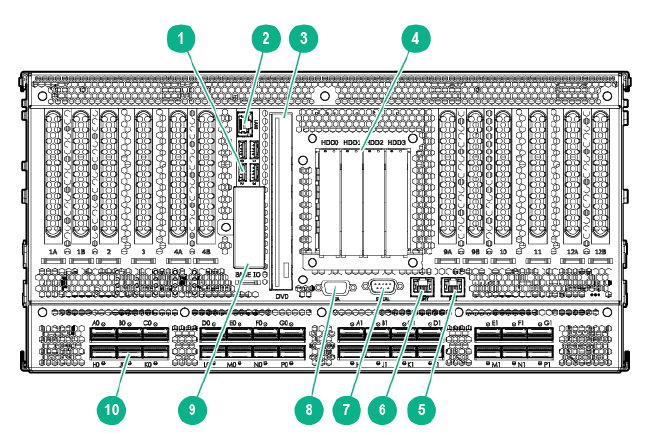
5. Familiarize yourself with the hardware components in the rack.
Identify the base server chassis in the rack and the DVD drive on the chassis.
Figure 1 (page 8) shows the location of the DVD drive, along with other
components and ports, on the MC990 X server chassis.
Figure 1 MC990 X server chassis
2. ETH01. USB ports (4)
4. System drive assembly3. DVD drive
6. MGMT port5. RMC port
8. VGA port7. Serial port
10. NUMAlink ports (28)9. Optional 1.8-inch SSD drive bays
6. Proceed to one of the following:
•(Optional) To set an administrative password for the local console, proceed
to the following:
“ (Optional) Setting or changing an administrative password on the system
console” (page 9)
HPE does not require that you set an administrative password, but you can
do so if you are logged into a direct-attached, local console. After you set
this password, you can proceed with the software installation.
•To install the operating system and Foundation Software on an MC990 X
server, proceed to the following:
“ Creating an installation environment” (page 10)
8
(Optional) Setting or changing an administrative password on the
system console
The procedure in this topic explains how to set, or change, an administrative password
on the console attached to an Integrity MC990 X system. A password is not required.
To delete a console password, enter the following command, which clears the EFI
variables:
RMC> power -c reset
If you delete the password with the power -c reset command, you need to go
back through the setup screens to set it again.
To set or change an administrative password on the console:
1. log in to the Integrity MC990 X system as the root user.
2. (Conditional) Shut down the system.
Complete this step if the system is running at this time.
Enter the following command:
#shutdown now
3. log in to the RMC as the root user.
4. From the RMC, enter the following command to reset the power:
RMC> power -s reset
5. Wait for the reset to complete and enter the following command to start a console
session on the base I/O BMC:
RMC> uvcon
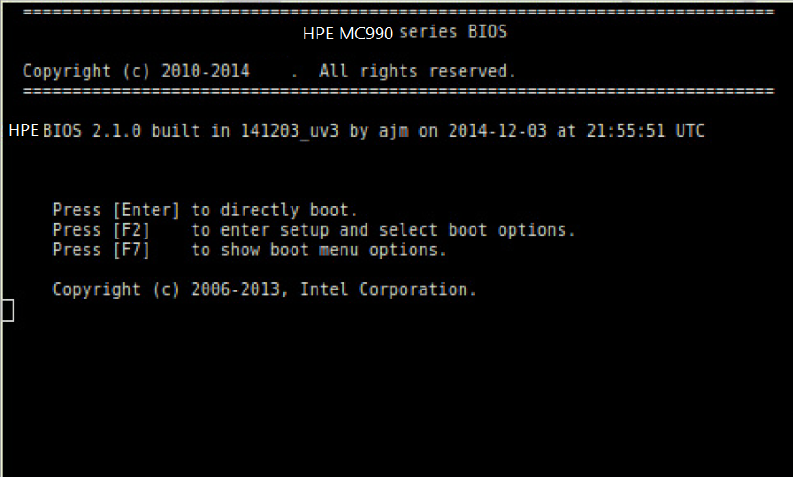
6. On the Integrity MC990 X system console BIOS main menu, press F2.
This action selects to enter setup and select boot options.
Figure 2 (page 9) shows the Integrity MC990 X system BIOS menu options.
Figure 2 Integrity MC990 X system boot options screen
7. On the Boot Manager screen, select Device Manager and press Enter.
Figure 3 (page 10) shows the boot manager screen.
9
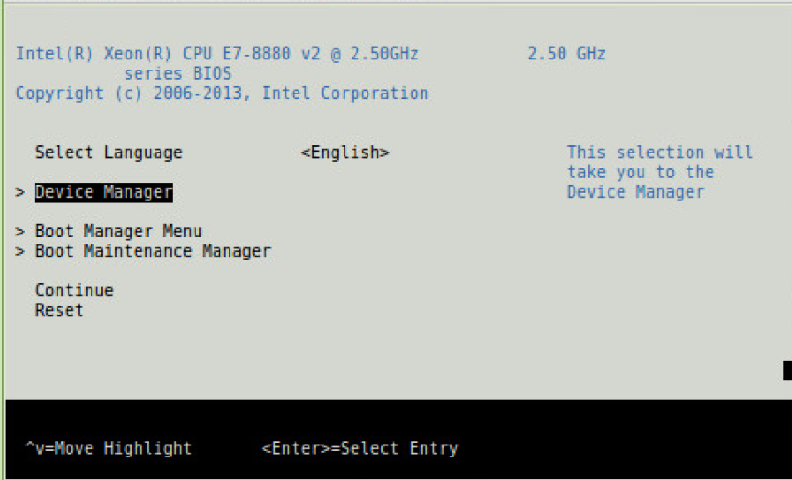
Figure 3 Integrity MC990 X system boot manager screen
8. On the Device Manager screen, select Security and press Enter.
The following list shows how to navigate the device manager:
•F1 scrolls the help.
•Shift-6-(^), v, or arrow keys highlight a selection.
•F9 resets system defaults.
•Enter selects.
•F10 saves.
•Esc exits without saving.
•Plus (+) and minus (-) keys change setting values.
•To exit the console, press CTRL-], and then press q. This sequence drops
you to the RMC console.
9. On the Security screen, select the Admin Password option, and press Enter.
10. In the Please type in your new password field, type the new administrative
password, and press Enter.
The minimum password length is 6 characters and the maximum password length
is 30 characters. The password is case sensitive.
The next time you boot the system, the system will prompt you to type the new
password at the end of the boot sequence. The system issues this prompt before
the Shell> prompt appears.
11. Press F10 to save the change.
12. Press Esc twice to return to the boot manager.
13. To return to the RMC console, press CTRL-], and then press q.
14. Proceed to “ Creating an installation environment” (page 10).
Creating an installation environment
You can install the MC990 X server software by making a direct connection to the
MC990 X server.
10
1. log in to the RMC as the root user.
2. From the RMC, power-on the server.
3. Put the DVD in to the DVD drive in the MC990 X server chassis that includes the
BaseIO riser.
4. From the RMC, enter the following command to perform a quick reset:
#power -s reset
The quick reset in this step sets the system to its smallest possible configuration.
A later procedure includes a step to reset the whole system.
5. Wait for the system to reset.
The reset is complete when the RMC> prompt appears.
6. At the RMC> prompt, enter the following command to open a console to the shell:
RMC> uvcon
7. At the MC990 X server chassis BIOS menu, press F2 to enter setup and select
boot options.
8. Use the arrow keys to highlight Boot Manager Menu, and press Enter.
9. Use the arrow keys to highlight UEFI JMicron USB to ATA/ATAPI bridge ...,
and press Enter.
10. (Conditional -- RHEL 7 or SLES 11 only) Select an installation activity, as follows:
•For an RHEL 7 installation, use the arrow keys to navigate to the Install Red
Hat Enterprise Linux 7.1, and press Enter.
•For a SLES 11 installation, on the SUSE Linux Enterprise Server xscreen,
press Enter to select Installation and start the SLES installation.
11. Proceed to one of the following:
•To install an RHEL 7 operating system and the Foundation Software on an
MC990 X server, proceed to “ RHEL 7 OS installation on an MC990 X server”
(page 13)
•To install an RHEL 6 operating system and the Foundation Software on an
MC990 X server chassis, proceed to “ RHEL 6 software installation on an
MC990 X server” (page 19)
•To install a SLES 12 operating system and the Foundation Software on an
MC990 X server, proceed to “ SLES 12 OS and foundation software
installation on an MC990 X server” (page 24)
•To install a SLES 11 operating system and the Foundation Software on an
MC990 X server chassis, proceed to “ SLES 11 platform installation on an
MC990 X server” (page 30)
11
3 Oracle Linux 7 software installation on an MC990
X server
The instructions for installation of Oracle Linux 7 are nearly identical to those for
installing RHEL, with some minor changes (see “ RHEL 7 OS installation on an MC990
X server” (page 13). The minimum version required is Oracle Linux 7.1.
Oracle Linux 7 comes with two kernels:
•RHEL based kernel
•Oracle Unbreakable Enterprise Kernel (UEK) kernel
1. After installing Oracle Linux 7, reboot.
2. From the boot menu, choose the RHEL based kernel
3. Type eto edit the boot line
4. Add the boot option nobau to the boot line
5. Boot the system
6. When the system comes up, install the System Foundation Software as described
in the RHEL instructions (see “ Installing the foundation software on an RHEL 7
platform MC990 X server” (page 17)).
7. Once the System Foundation Software is installed, run the following:
# modprobe hwperf
# /usr/sbin/x86config
8. If the system will be running with the Oracle Unbreakable Enterprise Kernel
(UEK), you must also install the hwperf kernel module package built for use
with the UEK as follows (UEK version of 3.8.13-105 or later is required):
# yum -c /tmp/yum-sgi.conf install kmod-hwperf-uek
# yum update kernel-uek
9. After installing all packages, reboot the system to complete the installation, and
boot with optimized kernel command line parameters.
12

4 RHEL 7 OS installation on an MC990 X server
This chapter explains how to install and configure the following software on an MC990
X server:
•The RHEL 7.1 operating system.
•The Foundation Software. If you install RHEL 7 on the server, HPE requires that
you install Foundation software 2.13 or later.
The following procedures explain how to install the RHEL 7 operating system software:
•“ Initiating RHEL 7 OS installation and partitioning the disk” (page 13)
•“ Configuring the RHEL 7 OS network and rebooting” (page 15)
•“ Completing the RHEL 7 OS installation” (page 16)
More information
•The Red Hat Enterprise Linux 7 Installation Guide at http://docs.redhat.com/
docs/en-US/Red_Hat_Enterprise_Linux/7/pdf/Installation_Guide/
Red_Hat_Enterprise_Linux-7-Installation_Guide-en-US.pdf
•The Foundation Software release notes file at www.hpe.com/support/hpesc
Initiating RHEL 7 OS installation and partitioning the disk
1. Make sure you gathered the information that you need for this installation.
For more information, see “ Gathering installation materials and information”
(page 6).
2. On the boot loader menu, complete the following steps:
a. Use the arrow keys to select Install Red Hat Enterprise Linux 7.1.
b. Press Enter.
3. Wait a few moments while the software loads.
4. On the splash screen, which asks What language would you like to use during
the installation process?, complete the following steps:
a. Select your language.
b. Click Continue.
5. On the INSTALLATION SUMMARY page, click DATE & TIME.
6. On the DATE & TIME page, complete the following steps:
a. Select your time zone.
b. Select the date.
c. Click Done.
7. On the INSTALLATION SUMMARY page, click KEYBOARD.
8. On the KEYBOARD LAYOUT page, complete the following steps:
a. Select your keyboard layout.
b. Click Done.
9. On the INSTALLATION SUMMARY page, click SOFTWARE SELECTION.
10. On the SOFTWARE SELECTION page, complete the following steps:
a. Select Server with GUI.
b. Click Done.
11. On the INSTALLATION SUMMARY page, complete the following steps:
a. Click INSTALLATION DESTINATION.
13

b. Click the disk under Local Standard Disks.
c. Under Other Storage Options, click I will configure partitioning.
d. Click Done.
12. On the MANUAL PARTITIONING page, clean the disk.
The screen's left pane lists the operating system installations that currently reside
on the disk. Your goal is to remove all operating system installations, data, and
partitions that reside on the disk. You can remove one operating system at a
time.
To remove one operating system, complete the following steps:
a. Select the operating system name.
b. Click the minus sign (-) at the bottom of the left pane to delete the operating
system.
c. On the Are you sure ... popup, complete the following steps:
i. Select Delete all other ....
ii. Click Delete it.
d. Repeat the preceding steps, as needed, until all operating systems are
removed.
13. In the left pane, select Standard Partition from the drop-down menu.
14. Create new mount points.
Your goal is to configure the disks according to Table 1 (page 14).
Table 1 Disk partitions for an MC990 X Server
File SystemMount PointSize
FAT16/boot/efi512 MB
XFS/250 GB (256,000 MB)
swapswap8 GB (8,192 MB)
XFS/data1rest of disk
Complete the following steps to create new mount points:
a. In the left pane, click the plus sign (+) to add a new mount point.
b. On the ADD A NEW MOUNT POINT popup, complete the following steps:
i. On the Mount Point drop-down menu, select /boot/efi.
ii. On the Desired Capacity drop-down menu, enter 512mb.
iii. Click Add mount point.
c. In the left pane, click the plus sign (+) to add a new mount point.
d. On the ADD A NEW MOUNT POINT popup, complete the following steps:
i. On the Mount Point drop-down menu, select /.
ii. On the Desired Capacity drop-down menu, enter 256gb.
iii. Click Add mount point.
e. In the left pane, click the plus sign (+) to add a new mount point.
f. On the ADD A NEW MOUNT POINT popup, complete the following steps:
i. On the Mount Point drop-down menu, select swap.
ii. On the Desired Capacity drop-down menu, enter 8gb.
iii. Click Add mount point.
g. In the left pane, click the plus sign (+) to add a new mount point.
14

h. On the ADD A NEW MOUNT POINT popup, complete the following steps:
i. In the Mount Point field, enter /data1.
ii. Leave the Desired Capacity field blank.
iii. Click Add mount point.
i. Verify that the Desired Capacity field shows the rest of the disk.
j. Click Done.
15. On the SUMMARY OF CHANGES popup, click Accept Changes.
16. On the KDUMP page, complete the following steps:
a. Click Manual.
b. In the Memory to be Reserved (MB) field, specify 450 MB.
c. Click Done.
17. Proceed to “ Configuring the RHEL 7 OS network and rebooting” (page 15).
Configuring the RHEL 7 OS network and rebooting
1. On the INSTALLATION SUMMARY page, click NETWORK & HOST NAME.
2. On the NETWORK & HOST NAME page, complete the following steps:
a. Select Ethernet enp1s0f0.
b. In the right pane, in the upper-right corner of the screen, find the ON/OFF
switch and click the blank box to set the ON/OFF switch to ON.
c. Click Configure.
d. On the Editing enp1s0f0 popup, select IPv4 Settings.
e. Complete this step according to the following table:
Table 2 Specify dynamic or static addressing
To specify static addressing:To specify dynamic addressing:
1. In the Method: drop-down menu, select
Manual.
1. In the Method: drop-down menu, select
Automatic (DHCP).
2. In the Addresses pane, click Add, and
complete the following steps:
2. Click Apply.
•Enter the IP address.
•Enter the netmask.
•Enter the IP address of the default gateway.
3. In the DNS servers: field, enter the IP
address of one or more DNS servers. If you
3. On the Editing pop up, click Save.
specify more than one, use a comma to
separate each IP address.
4. In the Search domains: field, enter one or
more search domains. If you specify more than
one, use a comma to separate each domain.
5. On the Editing pop up, click Save.
3. On the NETWORK & HOSTNAME page, in the Host name field, complete the
following steps:
a. Enter the hostname of the Integrity MC990 X system.
b. Click Done.
4. On the INSTALLATION SUMMARY page, click Begin Installation.
5. On the CONFIGURATION page, click ROOT PASSWORD.
6. On the ROOT PASSWORD page, complete the following steps:
15
a. In the Root Password field, enter the password you want to use on this
Integrity MC990 X system.
b. In the Confirm field, enter the password again.
c. Click Done.
If the password is too weak, either specify a stronger password or click Done
twice.
7. On the CONFIGURATION page, complete the following steps:
a. Wait for the configuration to complete.
b. Click Reboot when the configuration completes.
c. Wait for the reboot to finish.
8. Proceed to “ Completing the RHEL 7 OS installation” (page 16).
Completing the RHEL 7 OS installation
To complete the installation:
1. On the INITIAL SETUP screen, click LICENSE INFORMATION.
2. On the LICENSE INFORMATION screen, complete the following steps:
a. Click I accept the license agreement.
b. Click Done.
3. Click FINISH CONFIGURATION.
4. On the Subscription Management Registration page, click Forward.
5. On the second Subscription Management Registration page, complete the
following steps:
a. Complete the fields appropriately for your site.
b. Click Done.
6. On the Welcome page, complete the following steps:
a. Select your language.
b. Click Next.
7. On the Input Sources page, complete the following steps:
a. Select the language you use.
b. Click Next.
8. On the Login page, complete the following steps to create the local user account:
a. Complete all the fields on this page.
b. Click Next.
9. On the Location page, complete the following steps:
a. Select a location.
b. Click Next.
10. On the Thank You screen, click Start using Red Hat Enterprise Linux Server.
11. Click the user account name in the upper right corner of your screen, and select
Log Out on the menu that appears.
This action logs out the local user, which is the account you created in this
procedure.
12. Proceed to “ Installing the foundation software on an RHEL 7 platform MC990 X
server” (page 17).
16
Installing the foundation software on an RHEL 7 platform MC990
X server
1. log in to the MC990 X server as the root user.
2. On the login page, complete the following steps:
a. Select Not Listed?.
b. In the Username field, enter root.
c. In the Password field, enter the root user's password.
d. Click Log In.
e. (Conditional) Initialize the root user account.
Complete these steps only if this is the first time you are logging in as the
root user.
i. On the Welcome page, complete the following steps:
A. Select your language.
B. Click Next.
ii. On the Input Sources page, complete the following steps:
A. Select the language you use.
B. Click Next.
iii. On the Thank You screen, click Start using Red Hat Enterprise Linux
Server.
3. Access the installation software.
Insert the HPE Foundation Software CD into the DVD drive.
4. Click Applications→System Tools→Terminal to open a terminal window.
5. Enter the following command to create an installation directory for the files from
the CD:
#mkdir -p /opt/hpe/Factory-Install/hpe-foundation-2.14/
6. Enter the following command to create a temporary mount directory:
#mkdir /var/sfs2.14
7. Enter the following command to mount the CD in read-only mode (-r), using a
loop device:
#mount -t iso9660 -ro loop /dev/cdrom /var/sfs2.14
8. Enter the following command to copy the files from the temporary mount directory
to the installation directory:
#rsync -avHx /var/sfs2.14/ /opt/hpe/Factory-Install/hpe-foundation-2.14/
9. Enter the following command to unmount the CD from the temporary directory:
#umount /var/sfs2.14
10. Run the create-yum-config-file using:
#/opt/hpe/Factory-Install/hpe-foundation-2.14/create-yum-config-file
11. Enter the following command to remove the temporary mount directory:
#rmdir /var/sfs2.14
12. Use a text editor to create the /etc/yum.repos.d/
foundation2.14-local.repo file with the following contents:
########################################
[foundation2.14-repo]
name=Foundation Software 2.14 - $basearch
baseurl=file:///opt/hpe/Factory-Install/hpe-foundation-2.14/RPMS
enabled=1
gpgcheck=1
17
gpgkey=file:///opt/hpe/Factory-Install/hpe-foundation-2.14/RPM-GPG-KEY-sgi
########################################
13. Enter the following command to retrieve the list of software that you can install:
#yum grouplist | grep HPE
14. Enter the following command to install the Foundation Software group:
#yum -c /tmp/yum-sgi.conf groupinstall "System Foundation
Software"
15. Enter yat the following prompt to confirm the download size:
Is this ok [y/N]
16. Enter yat the following prompt to accept the GPG license key:
Is this ok [y/N]
17. Open a terminal window on the booted system.
18. In the terminal window, enter the following command to reboot the system:
#reboot
19. After the system reaches the EFI shell, in the RMC command window, enter the
following command to reset the full system:
#power reset
18

5 RHEL 6 software installation on an MC990 X
server
This chapter explains how to install and configure the following software on an MC990
X server chassis:
•The RHEL operating system.
•The Foundation Software.
More information
•The Red Hat Enterprise Linux 6 Installation Guide at http://docs.redhat.com/
docs/en-US/Red_Hat_Enterprise_Linux/6/pdf/Installation_Guide/
Red_Hat_Enterprise_Linux-6-Installation_Guide-en-US.pdf.
•The Foundation Software release notes file at www.hpe.com/support/hpesc.
Initiating the RHEL 6 OS installation
1. Make sure you gathered the information that you need for this installation.
For more information, see “ Gathering installation materials and information”
(page 6).
2. On the Disc Found screen, tab to one of the following, and press Enter:
•Skip. Select this option if you are using the standard DVD you received from
HPE.
•OK. Select this option if you downloaded the software and created your own
DVD. This option checks the integrity of the disk.
3. On the Red Hat Enterprise Linux 6 splash screen, click Next.
4. On the What language would you like to use during the installation process?
screen, select your language, and click Next.
5. On the Select the appropriate keyboard for the system screen, select your
keyboard, and click Next.
6. On the What type of devices will your installation involve? screen, select
Basic storage devices, and click Next.
7. (Conditional) Select Fresh Installation, and select Next.
Perform this step if a screen with the following information appears: At least one
existing installation has been detected on your system. What would you
like to do?
8. On the Please name this computer screen, enter the fully qualified domain
name (FQDN) for the SMN or server, and click Configure Network.
9. Proceed to “ Specifying the RHEL 6 OS network” (page 19).
Specifying the RHEL 6 OS network
1. On the Network Connections popup, select System eth0, and click Edit.
2. On the Editing System eth0 popup, complete the following steps:
a. Select Connect automatically to start the network card.
b. Select the IPv4 Settings tab.
3. Complete the IPv4 Settings tab.
This step differs depending on whether you want to use dynamic or static
addressing, as follows:
19

Table 3 Specify dynamic or static addressing
To specify static addressing:To specify dynamic addressing:
1. In the Method: field, pull down Manual.1. Make sure that Automatic (DHCP) is
selected.
2. In the Addresses pane, click Add, and
complete the following steps:
2. Click Apply.
•Type the IP address.
•Type the netmask.
•Type the IP address of the default gateway.
3. In the DNS servers: field, type the IP address
of one or more DNS servers. If you specify more
3. On the Network Connections pop up, click
Close.
than one, use a comma to separate each IP
address.
4. In the Search domains: field, type one or
more search domains. If you specify more than
one, use a comma to separate each domain.
5. Click Apply.
6. On the Network Connections pop up, click
Close.
4. On the Please name this computer screen, click Next.
5. On the Please select the nearest city in your time zone screen, select a city,
and click Next.
6. On the The root account is used for administering the system screen,
complete the following steps:
a. In the Root Password field, enter the password you want to use for the root
account.
b. In the Confirm field, enter the root password again.
c. Click Next.
7. On the Which type of installation would you like? screen, select Create
Custom Layout, and click Next.
Completing the RHEL 6 OS installation
1. On the The default installation of Red Hat Enterprise Linux is a basic server
install ... page, complete the following steps:
a. Select Desktop.
b. Select Next.
Wait for the operating system installation to complete.
2. On the Congratulations, your Red Hat Enterprise Linux installation is
complete page, click Reboot .
3. On the Welcome page, click Forward.
4. On the License Information page, complete the following steps:
a. Click Yes, I agree to the License Agreement.
b. Click Forward.
20
5. On the Set Up Software Updates page, decide whether to register now or
whether to postpone registration.
If your Integrity MC990 X system is connected to the network correctly, you can
register now. The following information explains how to proceed:
•If the screen contains a message that begins with This assistant will
guide you through the process of registering your system
with Red Hat to receive software updates ..., then the Integrity
MC990 X system is connected correctly to the network. Complete the
following steps:
1. Select Yes, I'd like to register now, and click Forward.
2. On the Choose Service page, select Red Hat Subscription
Management, and click Forward.
3. On the Subscription Management Registration page, click Forward.
4. On the second Subscription Management Registration page, complete
the fields appropriately for your site, and click Forward.
5. On the third Subscription Management Registration page, click
Forward.
•If the screen includes a warning symbol and a message that begins with
The network connection on your system is not active ...,
then the Integrity MC990 X system is not connected correctly to the network.
Complete the following steps:
1. Click Forward.
2. Continue on to the next step in this procedure.
You can restart the installer, correct your network configuration, and
connect to RHN later.
6. On the Create User page, complete the following steps to create an end-user
account:
a. In the Username field, enter the username.
b. In the Full Name field, enter the user's full name.
c. In the Password field, enter the user's password. Passwords must be at
least eight characters long, contain at least one digit, and contain a mixture
of uppercase and lowercase letters.
d. In the Confirm Password field, type the user's password again.
e. Click Forward.
7. On the Date and Time screen, configure system clock settings that your site
requires and click Forward.
8. On the Kdump page, specify 450 MB, and click Finish
9. On the Changing Kdump ... pop up, click Yes.
10. On the The system must now reboot ... pop up, click OK to confirm the reboot.
11. Proceed to “ Installing the foundation software on an RHEL 6 platform MC990 X
server” (page 21).
Installing the foundation software on an RHEL 6 platform MC990
X server
1. log in to the MC990 X server as the root user.
2. On the login page, complete the following steps:
a. Select Other.
b. In the Username field, enter root.
21
c. In the Password field, enter the root user's password.
d. Click Log In.
3. On the You are currently trying to run as the root super user ... pop up, click
Close.
4. Access the installation software.
Insert the HPE Foundation Software CD into the DVD drive.
5. Click Applications→System Tools→Terminal to open a terminal window.
6. Enter the following command to create an installation directory for the files from
the CD:
#mkdir -p /opt/hpe/Factory-Install/hpe-foundation-2.14/
7. Enter the following command to create a temporary mount directory:
#mkdir /var/sfs2.14
8. Enter the following command to mount the CD in read-only mode (-r), using a
loop device:
#mount -t iso9660 -ro loop /dev/cdrom /var/sfs2.14
9. Enter the following command to copy the files from the temporary mount directory
to the installation directory:
#rsync -avHx /var/sfs2.14/ /opt/hpe/Factory-Install/hpe-foundation-2.14/
10. Run the create-yum-config-file using:
#/opt/hpe/Factory-Install/hpe-foundation-2.14/create-yum-config-file
11. Enter the following command to unmount the CD from the temporary directory:
#umount /var/sfs2.14
12. Enter the following command to remove the temporary mount directory:
#rmdir /var/sfs2.14
13. Use a text editor to create the /etc/yum.repos.d/
foundation2.14-local.repo file with the following contents:
########################################
[foundation2.14-repo]
name=HPE Foundation Software 2.14 - $basearch
baseurl=file:///opt/hpe/Factory-Install/hpe-foundation-2.14/RPMS
enabled=1
gpgcheck=1
gpgkey=file:///opt/hpe/Factory-Install/hpe-foundation-2.14/RPM-GPG-KEY-SGI
########################################
14. Enter the following command to retrieve the list of software that you can install:
#yum grouplist | grep HPE
15. Enter the following command to install the Foundation Software group:
#yum -c /tmp/yum-sgi.conf groupinstall "System Foundation
Software"
16. Enter yat the following prompt to confirm the download size:
Is this ok [y/N]
17. Type yat the following prompt to accept the GPG license key:
Is this ok [y/N]
18. Open a terminal window on the booted system.
19. In the terminal window, Enter the following command to reboot the system:
#reboot
20. After the system reaches the EFI shell, in the RMC command window, type the
following command to reset the full system:
22
#power reset
23

6 SLES 12 OS and foundation software installation
on an MC990 X server
This chapter explains how to install the following software on an MC990 X server:
•The SLES 12 operating system.
•The Foundation Software. If you install SLES 12 on the server, HPE requires
that you install Foundation software 2.13 or later.
More information
•The Installation Quick Start and the Deployment Guide at https://www.suse.com/
documentation/sles-12/ .
•The Foundation Software release notes file at www.hpe.com/support/hpesc.
Initiating the SLES 12 OS installation
1. Make sure you have performed the preliminary procedures and satisfied all
prerequisites.
For more information, see the following:
“ Gathering installation materials and information” (page 6)
2. On the boot loader screen, select Installation.
3. On the Language, Keyboard and License Agreement page, complete the
following steps:
a. Use the pull-down menu to select your language.
b. Use the pull-down menu to select your keyboard layout.
c. Check I Agree to the License Terms.
d. Click Next.
4. On the System Probing ... screen, monitor the progress.
5. On the Registration screen, complete the following steps:
a. Provide your site credentials.
b. Click Next.
6. On the Add On Product screen, click Next.
7. On the Suggested Partitioning screen, complete the following steps:
a. Click Expert Partitioner.
b. Click Next.
8. Proceed to “ SLES 12 disk partition configuration for an MC990 X server”
(page 24).
More information
“ Initiating the SLES 11 OS installation” (page 30)
“ Specifying the SLES 11 network and miscellaneous settings” (page 31)
SLES 12 disk partition configuration for an MC990 X server
Patition disks for Integrity MC990 X system servers according to Table 4 (page 25).
24

Table 4 Disk partitions for an MC990 X server
File SystemMount PointSize
FAT16/boot/efi512 MB
XFS/250 GB (256,000 MB)
Swapswap8 GB (8,192 MB)
XFS/data1rest of disk
More information
“ Configuring SLES 12 disk partitions for an MC990 X server” (page 25)
Configuring SLES 12 disk partitions for an MC990 X server
1. On the Expert Partitioner screen, complete the following steps to clean the disk:
a. Expand Hard Disks.
b. Select the disk you want to use.
For example, select sda.
c. On the Expert ... drop-down in the lower right part of the screen, select
Create New Partition Table.
d. On the YaST2 pop up with the message Really create a new
partition table ..., click Yes.
e. Proceed to the next step after you have deleted all existing partitions.
2. On the Expert Partitioner screen, complete the following steps:
a. Expand Hard Disks.
b. Select the hard disks you want to use.
c. Click Add.
3. Complete the following steps on the Add Partition on /dev/disk screen to
configure the boot partition:
a. Under New Partition Size, click Custom Size.
b. Type 512 MB in the Size field.
c. Click Next.
d. Under the Role list, complete the following steps:
i. Select Operating System.
ii. Click Next.
e. Under Formatting Options, select Format partition.
f. Under File system, use the pull-down menu to select FAT16.
g. Under Mounting Options, select Mount Partition.
h. Under Mount point, use the pull-down menu to select /boot/efi.
i. Select Finish.
4. On the Expert Partitioner screen, click Add.
5. Complete the following steps on the Add Partition on /dev/disk screen to
configure the root partition:
a. Under New Partition Size, click Custom Size.
b. Enter 250 GB in the Size field.
c. Click Next.
25
d. Under the Role list, complete the following steps:
i. Select Operating System.
ii. Click Next.
e. Under Formatting Options, select Format partition.
f. Under File system, use the pull-down menu to select XFS.
g. Under Mounting Options, select Mount Partition.
h. Under Mount point, use the pull-down menu to select /.
i. Click Finish.
6. On the Expert Partitioner screen, click Add.
7. Complete the following steps on Add Partition on /dev/disk screen to configure
the swap partition:
a. Under New Partition Size, click Custom Size.
b. Specify 8 GB in the Size field.
c. Click Next.
d. Under the Role list, complete the following steps:
i. Select Swap.
ii. Click Next.
e. Under Formatting Options, select Format partition.
f. Under File system, use the pull-down menu to select Swap.
g. Under Mounting Options, select Mount Partition.
h. Under Mount point, use the pull-down menu to select swap.
i. Select Finish.
8. On the Expert Partitioner screen, click Add.
9. Complete the following steps on the Add Partition on /dev/disk screen to
configure the data partition:
a. Under New Partition Size, click Maximum Size.
b. Click Next.
c. Under the Role list, complete the following steps:
i. Select Data and ISV Applications.
ii. Click Next.
d. Under Formatting Options, select Format partition.
e. Under File system, use the pull-down menu to select XFS.
f. Under Mounting Options, select Mount Partition.
g. Under Mount point, enter /data1.
h. Click Finish.
10. On the Expert Partitioner screen, in the Partitions tab, examine the disk
partitions.
•If the partitions match those in ???, click Accept.
•If the partitions are incorrect, correct the partition specifications.
11. On the Suggested Partitioning screen, click Next.
12. On the Clock and Time Zone screen, complete the following steps:
a. Select your region.
b. Select your time zone.
c. Check the box next to Hardware Clock Set To UTC.
d. Click Next.
26
13. On the Create New User screen, create at least one non-root user.
Complete the following steps:
a. Complete the following fields:
•User's Full Name
•Username
•Password
•Confirm Password
b. Click Next.
14. On the Password for the System Administrator “root” screen, complete the
following steps:
a. In the Password for root User field, enter the root user's password.
b. In the Confirm password field, re-enter the root user's password.
c. Enter a few characters in the Test Keyboard Layout field. For example, if
you specified a language that includes non-English characters and you
include these characters in passwords, enter these characters into this field.
This is a plain text field, and you can assure yourself that the operating
system recognizes these characters when you enter them.
d. Click Next.
15. On the Installation Settings screen, click Install.
16. On the Confirm Installation pop up, click Install.
17. Monitor the installation and be prepared to remove the installation software media
before the boot.
The installation itself can take several minutes. At the end of the installation, the
system boots. The installation software notifies you of this boot. If possible,
remove the installation DVD before the system boots.
If you fail to remove the installation DVD before the final boot, the machine boots
from the DVD. In this case, complete the following steps:
a. Remove the DVD after the boot.
b. Press CTRL-ALT- DEL to boot the machine again.
c. Allow the machine to boot from the hard disk to finish the installation.
18. Proceed to “ Specifying the SLES 12 network and miscellaneous settings”
(page 27).
Specifying the SLES 12 network and miscellaneous settings
1. log in to the MC990 X server as the root user.
2. Click Applications→System Tools→YaST.
3. On the Administrator Settings screen, click Network Settings.
4. On the Network Configuration screen, click the Network Interfaces link.
5. On the YaST2 -- Network Settings screen, highlight the network card you want
to configure, and click Edit.
6. On the Network Card Setup screen, specify dynamic or static addressing, as
follows:
27

Table 5 Specify dynamic or static addressing
To specify static addressing:To specify dynamic addressing:
1. Verify that eth0 appears in the
Configuration Name field, and click Statically
assigned IP Address.
1. Select the type of dynamic addressing that
you want.
2. Configure the first NIC (eth0) for your house
(public) network.
2. Click Next to accept the default of DHCP.
On the Address tab, specify the following:
•The IP Address
•The Subnet Mask
•The Hostname
3. Click Next.
7. On the Network Settings screen, complete the following steps:
a. Click the Hostname/DNS tab.
b. Enter the hostname.
c. Enter the domain name.
d. Verify that Change Hostname via DHCP is set correctly.
To assign a static IP address, clear the Change Hostname via DHCP
checkbox. A later step saves the hostname to the /etc/hosts file. Consult
your network administrator if you have questions regarding the use of DHCP.
NOTE: This procedure is an example illustrating how to configure a static
address on a network card. If you want a different network configuration, for
example if you want to configure DHCP, ensure that the checkbox in this
step is checked before you click Next . You can use this procedure as a
guide and consult the SLES documentation for more specific steps.
e. On the Hostname/DNS tab, specify the following:
•The IP address for Name Server 1.
•(Optional) The IP address for Name Server 2.
•(Optional) In the Domain Search field, add additional domains.
f. Click the Routing tab.
g. On the Routing tab, enter the Default Gateway, and click OK.
8. Proceed to “ Installing the foundation software on a SLES 12 platform MC990 X
server” (page 28).
Installing the foundation software on a SLES 12 platform MC990
X server
1. Access the installation software.
Insert the HPE Foundation Software CD into the DVD drive.
Complete this step in one of the following ways:
2. log in to the MC990 X server as the root user.
3. Click Applications→System Tools→Computer→YaST to start the YaST
interface.
4. Under Software, click Software Repositories to start the SLES repository
manager.
28
5. On the Configured Software Repositories screen, click Add.
6. On the Add On Product screen, select DVD, and click Next.
7. On the YaST pop up, click Continue.
8. (Conditional) On the Import Untrusted GnuPG Key, click Trust.
Perform this step if this is the first time through this process and you need to
confirm the security of the digital key.
9. On the Configured Software Repositories screen, click OK.
10. On the YaST Control Center screen, click Software Management.
11. Select View→Patterns.
12. Scroll down to Foundation.
13. Check the box to the left of Foundation Libraries, Software, and Drivers, and
click Accept.
14. On the Changed Packages pop up, click Continue.
15. Insert CDs into the DVD drive as directed by the prompts on the Perform
Installation screen.
If necessary, click Eject on the YaST2 pop up to open the DVD drive. In the YaST
pop up, you might need to click Retry more than once to read a new disc. You
can ignore the graphic representation of the file system that appears in a new
window during this step.
16. On the Installation Report screen, click Finish.
17. Close the YaST session.
18. Open a terminal window on the booted system.
19. In the terminal window, enter the following command to reboot the system:
#reboot
20. After the system reaches the EFI shell, in the RMC command window, enter the
following command to reset the full system:
#power reset
29

7 SLES 11 platform installation on an MC990 X
server
This chapter explains how to install the following software on an MC990 X server:
•The SLES 11 operating system.
•The Foundation Software.
More information
SLES 11 Installation Quick Start and the SLES 11 Deployment Guide at https://
www.suse.com/documentation/sles11/
Foundation Software release notes file at www.hpe.com/support/hpesc
“ Installing the SLES 11 OS software on an MC990 X server” (page 30).
“ Installing the foundation software on a SLES 11 platform MC990 X server” (page 33).
Installing the SLES 11 OS software on an MC990 X server
•“ Initiating the SLES 11 OS installation” (page 30)
•“ Specifying the SLES 11 network and miscellaneous settings” (page 31)
•“ Completing the SLES 11 installation” (page 33)
NOTE: If you use the JViewer, the mouse behavior can be unpredictable during
the following procedures:
•“ Initiating the SLES 11 OS installation” (page 30)
After the first boot, the mouse behaves as expected.
Initiating the SLES 11 OS installation
NOTE: If you use the JViewer, the mouse behavior can be unpredictable during
the this procedure. After the first boot, the mouse behaves as expected.
1. Make sure you prepared for the installation and selected Installation on the boot
loader screen.
For more information, see the following:
“ Gathering installation materials and information” (page 6)
2. On the Welcome page, complete the following steps:
a. Select your language.
b. Select your keyboard layout.
c. Click I agree to the license terms.
d. Click Next.
3. On the Media Check page, complete the following steps:
a. (Conditional) Select Start Check.
Select this option if you want to troubleshoot a failed installation. If a previous
installation failed, you can check this option, install the operating system
software again, and observe the messages that the installer issues. It is
possible that media problems prevented your previous installation from
completing correctly.
b. Click Next.
If this is your first installation session, you can click Next safely.
30

4. On the System Probing ... screen, monitor the progress.
5. On the Installation Mode screen, accept the default of New Installation, and
click Next.
6. On the Clock and Time Zone screen, complete the following steps:
a. Select your region.
b. Select your time zone.
c. Check the box next to Hardware Clock Set To UTC.
d. Click Next.
7. On the Server Base Scenario screen, accept the default of Physical Machine,
and click Next.
Specifying the SLES 11 network and miscellaneous settings
The following procedure explains how to specify the hostname, networking information,
and other miscellaneous settings.
To specify the hostname, networking, and miscellaneous settings:
1. On the Password for the System Administrator root screen, complete the
following steps:
a. In the Password for root User field, enter the root user's password.
b. In the Confirm password field, re-enter the root user's password.
c. Enter a few characters in the Test Keyboard Layout field. For example, if
you specified a language that includes non-English characters and you
include these characters in passwords, type these characters into this field.
This is a plain text field, and you can assure yourself that the operating
system recognizes these characters when you type them.
d. Click Next.
2. On the Hostname and Domain Name screen, complete the following steps:
a. Enter the hostname.
b. Enter the domain name.
c. Verify that Change Hostname via DHCP is set correctly.
To assign a static IP address, clear the Change Hostname via DHCP
checkbox. A later step saves the hostname to the /etc/hosts file. Consult
your network administrator if you have questions regarding the use of DHCP.
NOTE: This example procedure explains how to configure a static address
on a network card. If you want a different network configuration, for example
if you want to configure DHCP, ensure that the checkbox in this step is
checked before you click Next . You can use this procedure as a guide and
consult the SLES documentation for more specific steps.
d. Select Next.
3. On the Network Configuration screen, complete the following steps:
1. Click the Network Interfaces link.
2. Proceed to the next step in this procedure, which is:
Step 4
4. On the Network Settings screen, highlight the network card you want to configure,
and click Edit.
5. On the Network Card Setup screen, specify dynamic or static addressing, as
follows:
31

Table 6 Specify dynamic or static addressing
To specify static addressing:To specify dynamic addressing:
1. Verify that eth0 appears in the Configuration
Name field, and click Statically assigned IP
Address.
1. Select the type of dynamic addressing that
you want.
2. Configure the first NIC (eth0) for your house
(public) network.
2. Click Next to accept the default of DHCP.
On the Address tab, specify the following:
•The IP Address
•The Subnet Mask
•The Hostname
3. Click Next.
6. On the Network Settings screen, complete the following steps:
a. Click the Hostname/DNS tab.
b. On the Hostname/DNS tab, specify the following:
i. The IP address for Name Server 1.
ii. (Optional) The IP address for Name Server 2.
iii. (Optional) In the Domain Search field, add additional domains.
c. Click the Routing tab.
d. On the Routing tab, in the Default Gateway field, complete the following
steps:
i. Enter your site's default gateway.
ii. Click OK.
7. (Optional) Examine the Network Configuration screen, and supply additional
network information as required by your site.
For example, you might want to change the following settings:
•Firewall settings. If you enable a firewall, make sure to enable the firewall
only for the public NIC (eth0). The firewall is enabled by default.
•VNC Remote Administration. This setting enables remote administration and
is disabled by default.
•By default, the SSH port is closed, and the menu displays SSH port is blocked
(open). Click open to open this port.
8. Click Next to advance from the Network Configuration screen.
Wait for the installer to save the network configuration.
9. On the Test Internet Connection screen, click Next.
Wait for the internet connection test to complete.
10. On the Running Internet Connection test screen, click Next.
11. On the Novell Customer Center Configuration screen, complete the following
steps:
a. Select Configure Now (Recommended).
b. Verify that each of the following defaults under Include for Convenience
are selected:
•Hardware Profile
•Optional Information
32

•Regularly Synchronize With the Customer Center
c. Click Next.
For more information about how to register with Novell, see the following website:
www.novell.com
12. On the YaST2 Manual Interaction Required pop up, click Continue.
13. On the Novell Customer Center System Registration screen, complete the
fields, and click Submit.
14. On the Novell Customer Center Configuration screen, click Next.
15. On the Network Services Configuration screen, click Next.
16. Proceed to “ Completing the SLES 11 installation” (page 33).
Completing the SLES 11 installation
1. On the User Authentication Method screen, select one of the authentication
methods, and click Next.
2. On the New Local User screen, create at least one non-root user.
Complete the following steps:
a. Complete the following fields:
•User's Full Name
•Username
•Password
•Confirm Password
b. (Optional) Click User Management to specify another non-root user.
c. Click Next.
3. On the Release Notes screen, click Next.
4. (Conditional) Let the YaST2 popup time out.
Complete this step if the system issues a popup here.
5. On the Hardware Configuration screen, click Next.
6. On the Installation Completed screen, click Finish.
7. Proceed to “ Installing the foundation software on a SLES 11 platform MC990 X
server” (page 33).
Installing the foundation software on a SLES 11 platform MC990
X server
The following procedure explains how to install the Foundation Software on an MC990
X server that hosts the SLES 11 operating system.
To install the Foundation Software on a SLES platform from the direct-attached
console:
1. Access the installation software.
Insert the HPE Foundation Software CD into the MC990 X server chassis DVD
drive.
2. log in to the computer as the root user.
3. Click Computer→YaST to start the YaST interface.
4. Click Software→Software Repositories to start the SLES repository manager.
5. On the Configured Software Repositories screen, click Add.
6. On the Media Type screen, select DVD, and click Next.
33
7. On the YaST pop up, click Continue.
8. (Conditional) On the Import Untrusted GnuPG Key, click Import.
Perform this step if this is the first time through this process and you need to
confirm the security of the digital key.
9. On the Configured Software Repositories screen, click OK.
10. On the YaST Control Center screen, click Software Management.
11. Select View→Patterns.
12. Scroll down to Foundation.
13. Check the box to the left of Foundation Libraries, Software, and Drivers, and
click Accept.
14. On the Changed Packages pop up, click Continue.
15. Insert CDs into the DVD drive as directed by the prompts on the Perform
Installation screen.
If necessary, click Eject on the YaST2 pop up to open the DVD drive. In the
YaST2 pop up, you might need to click Retry more than once to read a new disc.
You can ignore the graphic representation of the file system that appears in a
new window during this step.
16. Close the YaST session.
17. Open a terminal window on the booted system.
18. In the terminal window, type the following command to reboot the system:
#reboot
19. After the system reaches the EFI shell, in the RMC command window, type the
following command to reset the full system:
#power reset
The MC990 X server installation is finished at this time.
34

8 Additional software features for the Integrity
MC990 X system
Additional software features are used to remote manage, configure security, debug
and create crash dumps for the Integrity MC990 X system.
More information
“ Remote management through the ipmitool command” (page 35)
“ Configuring Security-Enhanced Linux (SELinux) on RHEL platforms” (page 36)
“ Installation of debuginfo packages” (page 37)
“ Creating a crash dump file on an Integrity MC990 X system server on RHEL 7, SLES
12, and SLES 11 platforms” (page 42)
Remote management through the ipmitool command
From a remote console, you can use ipmitool commands to perform typical system
operations.
For the ipmitool command to work, the remote console must be on the same local
network as the Integrity MC990 X system. The following shows the ipmitool
command format:
ipmitool -I lanplus -H <hostname> -U ADMIN -P <password> <command>
The arguments to the command parameters are as follows:
Parameter Meaning
<hostname> The hostname of the Integrity MC990 X system on your network.
<password> The system administrative password. The factory-shipped, default
password is ADMIN.
<command> One of the ipmitool commands.
There many IPMI commands. The commands that HPE supports
for Integrity MC990 X system remote management are as follows:
•power off
•power reset
•power on
Security-Enhanced Linux (SELinux) configuration on RHEL
platforms
You can configure SELinux on an Integrity MC990 X system computer that runs the
RHEL operating system. SELinux supports Multi-Level Security (MLS) and
Multi-Category Security (MCS) modes. When you configure SELinux, you create an
MLS-compliant or MCS-compliant environment on an Integrity MC990 X system, and
you enable MPI programs to take full advantage of all the features that Accelerate
provides on MC990 X hardware. For more information about SELinux, see your RHEL
documentation.
NOTE: If you are not interested in MLS or MCS, you do not need to configure
SELinux. In this case, do not perform the procedure in this topic.
The SLES operating system does not support SELinux.
To obtain help output for the hpe-selinux-configuration command, type the
command name, with no options. For example:
35
#hpe-selinux-configuration
hpe-selinux-configuration
Actions
-h|--help Print usage
-s|--status Return module(s) status
-i|--insert Insert policy module
-r|--remove Remove policy module
-l|--label Label policy files
-R|--restart Restart services affected by HPE policies
Select target policy modules (default is all)
-S|--services Perform operation on services
-D|--devices Perform operation on devices
--bigpage
--gru
--mmtimer
--xpmem
--procset
--arraysvcs
More information
“ Configuring Security-Enhanced Linux (SELinux) on RHEL platforms” (page 36)
Configuring Security-Enhanced Linux (SELinux) on RHEL
platforms
1. Log in as root.
2. Type the following commands to load the SELinux software modules from the
RHEL distribution:
#yum install policycoreutils-python
#yum install selinux-policy-mls
hpe_bigpage 1.0.0
hpe_gru 1.0.0
hpe_mmtimer 1.0.0
hpe_xpmem 1.0.0
hpe_procset 1.0.0
hpe_arraysvcs 1.0.0
3. Type the following command to ensure that the modules are loaded correctly:
#hpe-selinux-configuration -s
If the SELinux software modules are loaded correctly, the command returns a
list of the loaded modules.
If the hpe-selinux-configuration -s command returns nothing, then the
policy modules did not load correctly. Type the following command to load all
HPE policies:
#hpe-selinux-configuration -i
4. Type the following command to apply security labels to the file system for all
kernel modules and services:
#hpe-selinux-configuration -l
Note that the option to the preceding command is a lowercase L character.
5. Type the following command to restart services:
#hpe-selinux-configuration -R
36

Installation of debuginfo packages
Operating system vendors provide debuginfo packages for each released version.
After you install the debuginfo packages, you can debug crash kernels and use
other advanced debugging techniques.
More information
“ Installing debuginfo packages on RHEL platforms” (page 37).
“ Installing debuginfo packages on SLES platforms” (page 38).
Installing debuginfo packages on RHEL platforms
NOTE: For general information about RHEL debuginfo, see https://
access.redhat.com/solutions/9907.
The examples in this procedure have been modified to fit in this documentation.
1. Subscribe to the appropriate debuginfo channel.
This channel differs, depending on your platform, as follows:
•For RHEL 7.1, the channel is Red Hat Enterprise Linux Server
Debuginfo (v. 7).
For RHEL 7 debuginfo information, see the following:
https://access.redhat.com/documentation/en-US/Red_Hat_Enterprise_Linux/7/html/Developer_Guide/intro.debuginfo.html
•For RHEL 6.x, the channel is Red Hat Enterprise Linux Server
Debuginfo (v. 6).
For RHEL 6.xdebuginfo information, see the following:
https://access.redhat.com/documentation/en-US/
Red_Hat_Enterprise_Linux/6/html/Developer_Guide/intro.debuginfo.html
2. Enter the following command to retrieve the list of repositories:
#yum repolist
Loaded plugins: langpacks, product-id, subscription-manager
This system is not registered to Red Hat Subscription Management.
You can use subscription-manager to register.
repo id repo name status
!HPE-Foundation-Software HPE-Foundation-Software 52
!HPE-Foundation-Software-2.14 HPE-Foundation-Software-2.14
52
!base RHEL7 - 4,305
!nightly-hpe-noship hpe-noship 308
!rh7-nightly rh7-nightly 5,224
!rh7.1 rh7.1 4,371
!rh7.1-debug rh7.1-debug 4,194
!rh7.1-source rh7.1-source 0
!rhel7-update RHEL7-updates - 4,390
repolist: 23,105
3. Enter the following command to search for the debuginfo packages:
#yum search tar-debuginfo
Loaded plugins: langpacks, product-id, subscription-manager
This system is not registered to Red Hat Subscription Management.
You can use subscription-manager to register.
================================= N/S matched: tar-debuginfo =================================
libtar-debuginfo.x86_64 : Debug information for package libtar
star-debuginfo.x86_64 : Debug information for package star
tar-debuginfo.x86_64 : Debug information for package tar
Name and summary matches only, use "search all" for everything.
4. Enter the following command to install the debuginfo packages:
37

#yum install tar-debuginfo.x86_64
Loaded plugins: langpacks, product-id, subscription-manager
This system is not registered to Red Hat Subscription Management.
You can use subscription-manager to register.
HPE-Foundation-Software | 3.6 kB 00:00:00
HPE-Foundation-Software-2.14 | 3.6 kB 00:00:00
base | 2.9 kB 00:00:00
nightly-hpe-noship | 2.9 kB 00:00:00
rh7-nightly | 951 B 00:00:00
rh7.1 | 4.1 kB 00:00:00
rh7.1-debug | 3.8 kB 00:00:00
rh7.1-source | 3.0 kB 00:00:00
rhel7-update | 2.9 kB 00:00:00
(1/7): HPE-Accelerate-1.11/primary_db | 24 kB 00:00:00
(2/7): HPE-Foundation-Software-2.14/primary_db | 34 kB 00:00:00
(3/7): HPE-Foundation-Software/primary_db | 34 kB 00:00:00
(4/7): HPE-REACT-1.11/primary_db | 12 kB 00:00:00
(5/7): HPE-MPI-1.11/primary_db | 25 kB 00:00:00
(6/7): HPE-Management-Center/primary_db | 70 kB 00:00:00
(7/7): nightly-hpe-noship/primary_db | 484 kB 00:00:00
Resolving Dependencies
--> Running transaction check
---> Package tar-debuginfo.x86_64 2:1.26-29.el7 will be installed
--> Finished Dependency Resolution
Dependencies Resolved
=========================================================================================
Package Arch Version Repository Size
=========================================================================================
Installing:
tar-debuginfo x86_64 2:1.26-29.el7 rh7-nightly 693 k
Transaction Summary
=========================================================================================
Install 1 Package
Total download size: 693 k
Installed size: 2.7 M
Is this ok [y/d/N]: y
Downloading packages:
Running transaction check
Running transaction test
Transaction test succeeded
Running transaction
Installing : 2:tar-debuginfo-1.26-29.el7.x86_64 1/1
Verifying : 2:tar-debuginfo-1.26-29.el7.x86_64 1/1
Installed:
tar-debuginfo.x86_64 2:1.26-29.el7
Complete!
Installing debuginfo packages on SLES platforms
NOTE: The examples in this procedure have been modified to fit in this
documentation.
1. Subscribe to the appropriate debuginfo channel.
This channel differs, depending on your platform, as follows:
•For SLES 12 debuginfo information, see the following:
https://www.suse.com/documentation/sles-12/book_sle_deployment/data/sec_update_nmm.html
•For SLES 11 SPxdebuginfo information, see the following:
https://www.novell.com/support/kb/doc.php?id=3074997
2. Enter the following command to retrieve the list of repositories:
#zypper lr
# | Alias | Name |Enabled|Refresh
---+--------------------------------------+--------------------------------+-------+-------
1 | HPE-Foundation-Software-2.14 | HPE-Foundation-Software-2.14 | Yes |
38

No
2 | HPE-noship-stout712 | HPE-noship-stout712 | Yes | No
3 | SLES12-12-0 | SLES12-12-0 | No | No
4 | SLES12-Debuginfo-Pool | SLES12-Debuginfo-Pool | Yes | No
5 | SLES12-Debuginfo-Updates | SLES12-Debuginfo-Updates | Yes | No
6 | SLES12-SDK-Updates | SLES12-SDK-Updates | Yes | No
7 | SLES12-Updates | SLES12-Updates | Yes | No
8 | SUSE-Linux-Enterprise-SDK-12-DVD1 | SUSE-Linux-Enterprise-SDK-12-DVD1 |
Yes | No
9 | SUSE-Linux-Enterprise-SDK-12-DVD2 | SUSE-Linux-Enterprise-SDK-12-DVD2 |
Yes | No
10 | SUSE-Linux-Enterprise-SDK-12-DVD3 | SUSE-Linux-Enterprise-SDK-12-DVD3 |
Yes | No
11 | SUSE-Linux-Enterprise-Server-12-DVD1 | SUSE-Linux-Enterprise-Server-12-DVD1
| Yes | No
12 | SUSE-Linux-Enterprise-Server-12-DVD2 | SUSE-Linux-Enterprise-Server-12-DVD2
| Yes | No
13 | SUSE-Linux-Enterprise-Server-12-DVD3 | SUSE-Linux-Enterprise-Server-12-DVD3
| Yes | No
3. Enter the following command to search for the debuginfo packages:
#zypper search tar*debuginfo Loading repository data...
Reading installed packages...
S | Name | Summary | Type
--+---------------+-----------------------------------+--------
| tar-debuginfo | Debug information for package tar | package
4. Enter the following command to install the debuginfo packages:
#zypper install tar-debuginfo
Loading repository data...
Reading installed packages...
Resolving package dependencies...
The following NEW package is going to be installed:
tar-debuginfo
1 new package to install.
Overall download size: 339.4 KiB. Already cached: 0 B
After the operation, additional 1.2 MiB will be used.
Continue? [y/n/? shows all options] (y): y
Retrieving package tar-debuginfo-1.27.1-2.22.x86_64
(1/1), 339.4 KiB ( 1.2 MiB unpacked)
Checking for file conflicts: ..............................................[done]
(1/1) Installing: tar-debuginfo-1.27.1-2.22 ...............................[done]
Creating boot options
NOTE: HPE supports your ability to install more than one operating system, or
operating system release level, on an Integrity MC990 X system. This procedure
explains how to create options for non-default operating system boots so you can
boot any operating system.
1. Use the procedure shown in the “ File Explorer screen” (page 40) to establish a
connection to the RMC and log in.
2. Type the uvcon command.
The uvcon command opens a console, and you need the console open in order
to see the shell prompt.
3. Monitor the power-on process.
The power-on takes only a few minutes, but it can take 5 to 10 minutes for the
uvcon command to return boot-to-shell progress information.
4. After the power-on process completes, type CTRL---]-q to exit the console.
NOTE: The CTRL---]-q key sequence closes the uvcon console session.
5. When the Shell> prompt appears, enter exit to access the BIOS manager.
6. Use the arrow keys to select Boot Maintenance Manager, and press Enter.
39
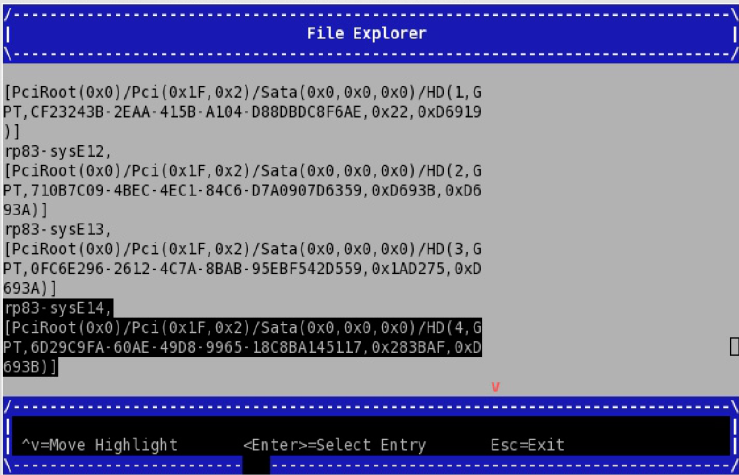
7. On the Boot Maintenance Manager screen, use the arrow keys to select Boot
Options, and press Enter.
8. On the Boot Options screen, use the arrow keys to select Add Boot Option,
and press Enter.
9. On the File Explorer screen, complete the following steps:
a. Use the arrow keys to select the disk from which you want to boot, and press
Enter.
For example:
Figure 4 File Explorer screen
b. Peruse the directory system, from the disk you selected, through <efi> or
<hpe>, through <redhat> or SUSE, until you find grub.efi (RHEL) or
elilo.efi (SLES).
c. Select grub.efi (RHEL 7), elilo.efi (SLES 11), or grubx64.efi
(RHEL 7 or SLES 12).
10. On the Modify Boot Option Description screen, note that the cursor is at the
end of the Input the description field.
Complete the following steps:
a. Press Enter.
b. In the Please type in your data popup, enter a name for this boot option,
and press Enter. For example, RHEL 6.6 or SLES11 SP3.
c. Use the arrow keys to select Commit Changes and Exit.
d. Press Enter.
11. On the Boot Maintenance Manager screen, select Boot Options, and press
Enter.
12. On the Boot Options screen, use the arrow keys to select Change Boot Order,
and press Enter.
13. On the Change Boot Order screen, complete the following steps:
40
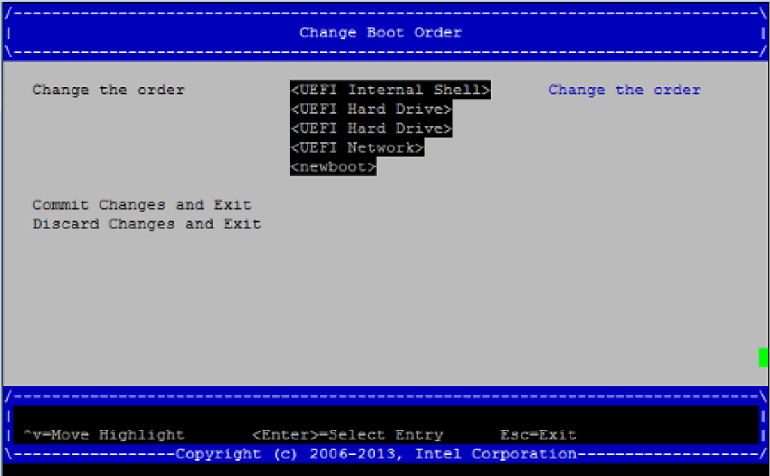
a. If they are not already selected, select the boot order entries.
For example:
Figure 5 Change boot order screen
b. Press Enter.
c. On the popup that appears, select the boot option you created earlier in this
procedure.
d. Press the +key to move the recently created boot option to the top of the
list.
e. Press Enter to commit the changes in this step.
f. Select Commit Changes and Exit.
14. Press the Space bar to return to the BIOS manager.
15. Notify all system administrators of the current boot order.
HPE supports the ability to change the default boot order, but some system
administration tasks might assume that the default boot option is still EFI Internal
Shell. You might need to change the boot order in order to access the EFI shell
in the process of performing other tasks that this chapter describes. If you need
to change the boot order, complete this procedure again and select one of the
other boot options.
Crash dump files on an Integrity MC990 X system server on RHEL
7, SLES 12, and SLES 11 platforms
You can request that the operating system write a crash dump file. The file name
includes a timestamp, and the file location depends on your operating system, as
follows:
•For the RHEL 7 operating system, the file is as follows:
/var/crash/127.0.0.1-year.month.day-hour:minutes:seconds
•For SLES 11 and SLES 12 operating systems, the file is as follows:
/var/crash/year-month-day-hour:minutes
41

NOTE: This topic does not apply to RHEL 6 platforms. The power nmi and power
diag commands send back traces of CPU tasks to the console but do not create a
crash dump file.
More information
“ Creating a crash dump file on an Integrity MC990 X system server on RHEL 7, SLES
12, and SLES 11 platforms” (page 42)
Creating a crash dump file on an Integrity MC990 X system server
on RHEL 7, SLES 12, and SLES 11 platforms
1. Log in to the MC990 X server as the root user, and type the following commands
to enable the kernel crash dump service, kdump:
On RHEL 7 and SLES 12, enter the following:
#systemctl enable kdump
#systemctl start kdump
On SLES 11, enter the following:
#chkconfig boot.kdump on
#service boot.kdump start
The Foundation Software package installation process enables kdump by default.
If you are unsure of whether kdump is enabled on your MC990 X server, type
the preceding commands. You can enable kdump on your server at any time.
kdump must be enabled in order to create a crash dump file.
2. (Conditional) Ensure that the uv_nmi default action is kdump.
Complete this step on RHEL 7 and SLES 12 platforms.
Enter the following command:
#echo kdump > /sys/module/uv_nmi/parameters/action
As an alternative to this command, you could also boot the kernel with the
following parameter:
uv_nmi.action=kdump
3. Send a nonmaskable interrupt (NMI) signal to start the dump.
You have the option to send an NMI from a remote connection or when logged
in directly to the RMC, as follows:
•To send the NMI signal from a remote connection, enter the following
ipmitool command:
#ipmitool -I lanplus -H uv1-rmc -U ADMIN -P ADMIN chassis power diag
•To send the NMI signal while logged in directly to the RMC, complete the
following command sequence:
1. Enter the ssh command to connect securely. For example:
#ssh root@uv1-rmc
Provide the root user password when prompted. For more information
about connecting to the RMC, see the following:
Figure 4 (page 40)
2. Enter the following command to send the NMI signal:
RMC> power nmi
42
4. (Conditional) Open a console to the RMC and to initiate a crash dump capture.
Complete this step on SLES 11 platforms.
Enter the following commands:
>uvcon
kdb> kdump
On SLES 11 platforms, you can type additional kdb commands at the kdb>
prompt. For information about kdb commands, see your SLES documentation.
43

9 Support and other resources
Accessing Hewlett Packard Enterprise Support
•For live assistance, go to the Contact Hewlett Packard Enterprise Worldwide
website:
www.hpe.com/assistance
•To access documentation and support services, go to the Hewlett Packard
Enterprise Support Center website:
www.hpe.com/support/hpesc
Information to collect
•Technical support registration number (if applicable)
•Product name, model or version, and serial number
•Operating system name and version
•Firmware version
•Error messages
•Product-specific reports and logs
•Add-on products or components
•Third-party products or components
Accessing updates
•Some software products provide a mechanism for accessing software updates
through the product interface. Review your product documentation to identify the
recommended software update method.
•To download product updates, go to either of the following:
Hewlett Packard Enterprise Support Center Get connected with updates
page:
www.hpe.com/support/e-updates
◦
◦Software Depot website:
www.hpe.com/support/softwaredepot
•To view and update your entitlements, and to link your contracts, Care Packs,
and warranties with your profile, go to the Hewlett Packard Enterprise Support
Center More Information on Access to Support Materials page:
www.hpe.com/support/AccessToSupportMaterials
IMPORTANT: Access to some updates might require product entitlement when
accessed through the Hewlett Packard Enterprise Support Center. You must
have an HP Passport set up with relevant entitlements.
44

Websites
LinkWebsite
www.hpe.com/info/enterprise/docsHewlett Packard Enterprise Information Library
www.hpe.com/support/hpescHewlett Packard Enterprise Support Center
www.hpe.com/assistanceContact Hewlett Packard Enterprise Worldwide
www.hpe.com/support/e-updatesSubscription Service/Support Alerts
www.hpe.com/support/softwaredepotSoftware Depot
www.hpe.com/storage/spockSingle Point of Connectivity Knowledge (SPOCK)
Storage compatibility matrix
www.hpe.com/storage/whitepapersStorage white papers and analyst reports
Documentation feedback
Hewlett Packard Enterprise is committed to providing documentation that meets your
needs. To help us improve the documentation, send any errors, suggestions, or
comments to Documentation Feedback (docsfeedback@hpe.com). When submitting
your feedback, include the document title, part number, edition, and publication date
located on the front cover of the document. For online help content, include the product
name, product version, help edition, and publication date located on the legal notices
page.
45

A Connecting to an MC990 X system through a web
browser and launching the JViewer console
About JViewer
JViewer is a software interface that you can use on HPE MC990 X systems. The
JViewer graphical user interface can facilitate installation and booting.
Starting JViewer
1. Verify that you have Java and an internet browser (Firefox preferred) installed
on your local computer.
2. Attach the Base I/O BMC on the MC990 X system to a network that has a DHCP
server, and that is accessible from the local computer.
NOTE: Use the RJ45 connection labeled MGMT on the BMC on which the
Base I/O is installed.
3. Log in to the MC990 X system’s RMC.
For example:
ssh root@uv-rmc
Provide the password when prompted.
4. Use the baseiolist command to retrieve the IP address(es) of the MC990 X
system’s BMC(s).
For example:
# baseiolist
P000 [r001i01b]: 128.162.243.151 [08:00:69:17:2D:C9]
P000 [r001i06b]: <No IP addr> [08:00:69:17:2D:C0]
Look for the BMC’s IP address in the output. In this example, there is only one
BMC connected to the network, and its IP address is 128.162.243.151.
5. Start the internet browser on your local computer.
6. In the Firefox address bar, type the IP address of the BMC.
For example:
http://128.162.243.151
7. From the login screen, log in to the system.
Type admin as the username and the password, and then press Enter.
8. From the Dashboard screen, click Launch.
9. (Conditional) If Firefox displays a message indicating pop ups are not enabled,
complete the following steps to enable pop ups.
a. Click Preferences.
b. Click Allow pop ups for ip_address.
c. Click Launch.
10. On the Opening jviewer.jnlp ... screen, click OK.
11. (Conditional) Consent to the security questions.
If the system displays security cautions, indicate that you want to proceed with
launching the application.
Attaching virtual media to the MC990 X system
1. Connect to the MC990 X system. See Starting JViewer" on page
2. In the top-most JViewer menu bar, click Media >Virtual Media Wizard ....
46
3. Access the media.
a. To use physical media, such as a DVD or CD, insert the disk into the drive
on your local computer. On the Virtual Media pop up, under CD/DVD Media
1, select /dev/sr0.
b. To access an ISO on your network, click Browse on the popup, and navigate
to the ISO location. Select the ISO file, and click Open.
4. Click Connect to CD/DVD.
5. On the Information pop up, click OK.
6. On the Virtual Media pop up, click Close.
7. (Optional) Boot the system. See “ Booting from virtual media” (page 47)
Booting from virtual media
1. Log in to the MC990 X system RMC andprovide the password when prompted.
For example:
ssh root@uv-rmc
2. Enter the uvcon command to access the console.
3. (Conditional) Access the main EFI menu. Complete this step if you are at the EFI
shell:
Type exit and press Enter.
4. Use the arrow keys to select Boot Manager, and press Enter.
5. On the Boot Manager screen, use the down-arrow key to select or highlight UEFI
American Megatrends Inc. Virtual Cdrom Device, and press Enter.
47
Glossary
ACPI Advanced Configuration and Power Interface
APPWT Average Peak Performance in Weighted Teraflops
BMC Baseboard Management Controller
CLI Command Line Interface
CNSL Console abbreviation
CRC Cyclic Redundancy Check
DSM Distributed Shared Memory
ECC Error Checking Code
EFI Extensible Firmware Interface
FQDN Fully Qualified Domain Name
GPU Graphic Processing Unit
IPMI Intelligent Platform Management Interface
KVM Keyboard, video, mouse
MCS Multi-Category Security
MLS Multi-Level Security
NMI Nonmaskable Interrupt
NTP Network Time Protocol
NUMA Non-Uniform Memory Access
PDU Power Distribution Unit
QPI Quick Path Interconnect
RAS Reliability, Availability, Serviceability
RMC Rack Management Console
RS Remote Solutions
SAS Serial Attached SCSI
SEL System Error Log
SELinux Security Enhanced Linux
SID SAP HANA System Identifier
SMI Scalable Memory Interconnect
SMN System Management Node
SMP Symmetric Multiprocessing
SSD Solid State Drive
SSI Single System Image
UID Unit IDentifier
YaST Yet another Setup Tool
48
Index
A
accessing updates, 44
B
boot options, 39
C
command
power reset, 9
configuring
SELinux, 35
console
exiting, 10
setting an administrative password, 9
contacting Hewlett Packard Enterprise, 44
crash dump file, 41
creating
boot options, 39
crash dump file, 41
D
debuginfo
installing on RHEL platforms, 37
installing on SLES platforms, 38
overview, 37
documentation
providing feedback on, 45
E
exit console, 10
F
Foundation Software
installing on RHEL 6 server, 21
installing on RHEL 7 server, 17
installing on SLES 11 server, 33
installing on SLES 12 server, 28
I
installing
debuginfo on RHEL platforms, 37
debuginfo on SLES platforms, 38
Foundation Software on RHEL 6 server, 21
Foundation Software on RHEL 7 server, 17
Foundation Software on SLES 11 server, 33
Foundation Software on SLES 12 server, 28
OS, software, and optional features, 5
RHEL 6 overview, 19
RHEL 7 overview, 13
SLES 11 on server, 30
SLES 11 overview, 30
SLES 12 on server, 24
SLES 12 overview, 24
software on the server, 10
system software, 6
installing software
preparation, 6
ipmitool command
remote management, 35
N
navigate the device manager, 10
network
specify RHEL 6 settings, 19
specify RHEL 7 settings, 15
specify SLES 11 settings, 31
specify SLES 12 settings, 27
O
overview
debuginfo, 37
installing OS, software, and optional features, 5
installing RHEL 6, 19
installing RHEL 7, 13
installing SLES 11, 30
installing SLES 12, 24
installing software, 6
P
partition disk
for RHEL 7, 13
for SLES 12, 24
password
setting or changing, 9
power reset command, 9
R
remote management
ipmitool command, 35
RHEL 6
completing installation, 20
installation overview, 19
installing Foundation Software, 21
specify network, 19
RHEL 7
completing installation, 16
configure network, 15
installation overview, 13
installing Foundation Software, 17
partition disk, 13
RHEL platforms
installing debuginfo, 37
S
SELinux
configuring, 35
server
software installation, 10
setting an administrative password on the console,
9
SLES 11
completing installation, 33
installation overview, 30
49
installing Foundation Software, 33
installing on server, 30
network settings, 31
start the installation, 30
SLES 12
install Foundation Software, 28
installation overview, 24
partition disk, 24
start installation, 24
SLES platforms
installing debuginfo, 38
software
installation overview, 6
installing on the server, 10
preparing to install, 6
support
Hewlett Packard Enterprise, 44
U
updates
accessing, 44
W
websites, 45
50
