HPE Security Fortify Jenkins Plugin Installation And Usage Guide 17.10
HPE_Jenkins_Plugin_Guide_17.10
User Manual:
Open the PDF directly: View PDF  .
.
Page Count: 15

HPE Security
Fortify Jenkins Plugin
Software Version: 17.10
Installation and Usage Guide
Document Release Date: April 2017
Software Release Date: April 2017
Legal Notices
Warranty
The only warranties for Hewlett Packard Enterprise Development products and services are set forth in the express warranty
statements accompanying such products and services. Nothing herein should be construed as constituting an additional
warranty. HPE shall not be liable for technical or editorial errors or omissions contained herein.
The information contained herein is subject to change without notice.
Restricted Rights Legend
Confidential computer software. Valid license from HPE required for possession, use or copying. Consistent with FAR 12.211
and 12.212, Commercial Computer Software, Computer Software Documentation, and Technical Data for Commercial Items
are licensed to the U.S. Government under vendor's standard commercial license.
The software is restricted to use solely for the purpose of scanning software for security vulnerabilities that is (i) owned by
you; (ii) for which you have a valid license to use; or (iii) with the explicit consent of the owner of the software to be scanned,
and may not be used for any other purpose.
You shall not install or use the software on any third party or shared (hosted) server without explicit consent from the third
party.
Copyright Notice
© Copyright 2014 - 2017 Hewlett Packard Enterprise Development LP
Trademark Notices
Adobe™ is a trademark of Adobe Systems Incorporated.
Microsoft® and Windows® are U.S. registered trademarks of Microsoft Corporation.
Documentation Updates
The title page of this document contains the following identifying information:
lSoftware Version number
lDocument Release Date, which changes each time the document is updated
lSoftware Release Date, which indicates the release date of this version of the software
To check for recent updates or to verify that you are using the most recent edition of a document, go to:
https://www.protect724.hpe.com/community/fortify/fortify-product-documentation
You will receive updated or new editions if you subscribe to the appropriate product support service. Contact your HPE sales
representative for details.
Installation and Usage Guide
HPE Security Fortify Jenkins Plugin (17.10) Page 2 of 15

Contents
Preface 4
Contacting HPESecurity Fortify Support 4
For More Information 4
About the Documentation Set 4
Change Log 5
HPE SecurityFortify Jenkins Plugin 6
Preparing Fortify SoftwareSecurity Center to Work with the Jenkins Plugin 6
Creating a Jenkins Token Type 6
Generating a Fortify SoftwareSecurity Center Authentication Token 8
Installing the Jenkins Plugin 8
Verifying the Jenkins Plugin Installation 9
Configuring the Jenkins Plugin 9
Configuring the Build Step to use the Jenkins Plugin 10
Using the Jenkins Plugin with Continuous Builds 11
Viewing Issues 13
Configuring the Number of Issues Displayed on a Page 14
Send Documentation Feedback 15
Installation and Usage Guide
HPE Security Fortify Jenkins Plugin (17.10) Page 3 of 15
Preface
Contacting HPESecurity Fortify Support
If you have questions or comments about using this product, contact HPESecurityFortify Technical
Support using one of the following options.
To Manage Your Support Cases, Acquire Licenses, and Manage Your Account
https://support.fortify.com
To Email Support
fortifytechsupport@hpe.com
To Call Support
1.844.260.7219
For More Information
For more information about HPE Security software products: http://www.hpe.com/software/fortify
About the Documentation Set
The HPE Security Fortify Software documentation set contains installation, user, and deployment
guides for all HPE Security Fortify Software products and components. In addition, you will find
technical notes and release notes that describe new features, known issues, and last-minute updates.
You can access the latest versions of these documents from the following HPE Security user community
website:
https://www.protect724.hpe.com/community/fortify/fortify-product-documentation
You will need to register for an account.
Installation and Usage Guide
Preface
HPE Security Fortify Jenkins Plugin (17.10) Page 4 of 15

Change Log
The following table lists changes made to this document. Revisions to this document are published
between software releases only if the changes made affect product functionality.
Software Release /
Document Version Changes
17.10 Updated: Release date and version number
16.20 Updated:Made minor edits
16.10 Updated:Made minor edits
Installation and Usage Guide
Change Log
HPE Security Fortify Jenkins Plugin (17.10) Page 5 of 15
HPE SecurityFortify Jenkins Plugin
The HPE SecurityFortify Jenkins Plugin (Jenkins Plugin) is used in conjunction with HPESecurity
Fortify Software Security Center (Fortify SoftwareSecurity Center), a collaborative system used to
review and audit security analysis results.If you use a HPESecurity Fortify Static Code Analyzerplugin
such as Maven to scan your source code after each build, the Jenkins plugin automatically uploads the
Fortify Project Results (FPR) file to a Fortify SoftwareSecurity Center server and enables you to view
the details within Jenkins. It also provides metrics for each build and an overview of the results, without
the need to connect to Fortify SoftwareSecurity Center.
This document provides instructions on how to prepare Fortify SoftwareSecurity Center to work with
the Jenkins Plugin, and how to install, configure, and use the plugin. For information about Jenkins, see
the Jenkins web site (http://jenkins-ci.org).
Preparing Fortify SoftwareSecurity Center to Work
with the Jenkins Plugin
To prepare Fortify SoftwareSecurity Center to work with the Jenkins Plugin, you need to create a new
Fortify SoftwareSecurity Center token type for Jenkins, and then use the fortifyclient utility to generate
a token of that type. The following topics provide instructions on how to perform these two tasks.
Creating a Jenkins Token Type
The Jenkins Plugin communicates with Fortify SoftwareSecurity Center in several ways.Because
Fortify SoftwareSecurity Center web services are access-controlled, you must define a new
authentication token type that authorizes the various web service requests that the Jenkins Plugin uses.
To create this token type:
1. From your Fortify SoftwareSecurity Center installation directory, navigate to the <ssc_deploy_
dir>/WEB-INF/internal directory, and then open the serviceContext.xml file in a text
editor.
The <ssc_deploy_dir>is the directory in which Fortify SoftwareSecurity Center was deployed.
For example, for Tomcat, the <ssc_deploy_dir>is <tomcat>/webapps/ssc.
HPE Security Fortify Jenkins Plugin (17.10) Page 6 of 15

2. Add the following block of text to the file:
<bean id="jenkinsToken"
class="com.fortify.manager.security.ws.AuthenticationTokenSpec">
<property name="key" value="JenkinsToken"/>
<property name="maxDaysToLive" value="365"/>
<property name="actionPermitted">
<list value-type="java.lang.String">
<value>AddProjectRequest</value>
<value>AddProjectVersionRequest</value>
<value>AddProjectAndVersionRequest</value>
<value>GetAuthenticationTokenRequest</value>
<value>ProjectListRequest</value>
<value>ActiveProjectVersionListRequest</value>
<value>ProjectVersionListRequest</value>
<value>ProjectTemplateListRequest</value>
<value>FPRUploadRequest</value>
<value>AuditViewRequest</value>
<value>PerformAuditActionRequest</value>
<value>IssueListRequest</value>
<value>GetProjectVersionIdentifiersRequest</value>
<value>ProjectMetaDataDefinitionsListRequest</value>
<value>AddProjectMetaDataDefinitionRequest</value>
<value>UpdateProjectMetaDataDefinitionRequest</value>
<value>ProjectMetaDataValuesListRequest</value>
<value>ProjectMetaDataValueRequest</value>
<value>GetSingleUseFPRUploadTokenRequest</value>
<value>CreateAuditSessionRequest</value>
<value>InvalidateAuditSessionRequest</value>
<value>GroupingValuesRequest</value>
</list>
</property>
<property name="terminalActions">
<list value-type="java.lang.String">
<value>InvalidateTokenRequest</value>
</list>
</property>
</bean>
3. Save and close the serviceContext.xml file.
4. Restart Fortify SoftwareSecurity Center.
Installation and Usage Guide
HPE SecurityFortify Jenkins Plugin
HPE Security Fortify Jenkins Plugin (17.10) Page 7 of 15

Generating a Fortify SoftwareSecurity Center Authentication
Token
After you define a Jenkins token type, you must use the fortifyclient command-line utility to generate a
token instance. In the following procedure, the Tools folder is located in the directory where the Fortify
SoftwareSecurity Center HPE_Security_Fortify_SSC_17.10_Server_WAR.zip was extracted.
To generate a Fortify SoftwareSecurity Center authentication token:
1. From the Tools/fortifyclient/bin directory, run the following:
fortifyclient token -gettoken JenkinsToken -daysToLive 365
-url <ssc_url>/ssc -user <account_name>
where JenkinsToken is the case-sensitive fortifyclient upload token specifier.
Notes:
lThe Fortify SoftwareSecurity Center URL provided to fortifyclient must include both the
port number and the context path /ssc. The correct format for the Fortify
SoftwareSecurity Center URL is as follows:
http://<host_IP>:<port>/ssc
lThe ability of fortifyclient to use the token to read or write information to or from Fortify
SoftwareSecurity Center depends on the account privileges of the Fortify
SoftwareSecurity Center user account specified with the -user option.
The fortifyclient utility prompts for a password.
2. Type the password for user account specified.
The fortifyclient utility returns a token of the general form:
cb79c492-0a78-44e3-b26c-65c14df52e86.
3. Copy the returned token into a text file.
For detailed information about the fortifyclient command-line utility, see the HPESecurity Fortify
Software Security Center User Guide.
Installing the Jenkins Plugin
To install the Jenkins Plugin, you must have Jenkins installed on your system.
If you do not have Jenkins installed, download it from http://mirrors.jenkins-ci.org/war. See the
HPESecurity Fortify Software SystemRequirements document for the supported Jenkins versions.
For more information about how to install and start Jenkins, see the following web sites:
lhttps://wiki.jenkins-ci.org/display/JENKINS/Installing+Jenkins
lhttps://wiki.jenkins-ci.org/display/JENKINS/Starting+and+Accessing+Jenkins
Installation and Usage Guide
HPE SecurityFortify Jenkins Plugin
HPE Security Fortify Jenkins Plugin (17.10) Page 8 of 15
To install the Jenkins Plugin:
1. Open a browser window and navigate to http://<jenkins_server_url>:8080/.
To start Jenkins locally, run java -Xmx1024m -XX:MaxPermSize=512m -jar <file_
path>/jenkins.war.
2. From Jenkins, select Manage Jenkins > Manage Plugins.
3. On the Plugin Manager page, click the Advanced tab.
4. Under Upload Plugin, click Choose File, and then locate and select the HPE_Security_
Fortify_Jenkins_Plugin_<version>.hpi file.
5. Click Upload.
6. Restart Jenkins.
If you started Jenkins locally, press Ctrl+cin the command-line window to restart it.
For more information about how to install Jenkins plugins, see the Jenkins Plugin site
https://wiki.jenkins-ci.org/display/JENKINS/Plugins.
Verifying the Jenkins Plugin Installation
To verify that the Jenkins Plugin is installed:
1. Open a browser window and navigate to http://<jenkins_server_url>:8080.
2. From the Jenkins menu, select Manage Jenkins >Manage Plugins.
3. On the Plugin Manager page, click the Installed tab.
4. Check to make sure that HPE Security Fortify Jenkins Plugin is included in the list of installed
plugins.
Configuring the Jenkins Plugin
To configure the Jenkins Plugin for use with Fortify SoftwareSecurity Center:
1. Open a browser window and navigate to http://<jenkins_server_url>:8080.
2. From the Jenkins menu, select Jenkins >Manage Jenkins >Configure System.
3. In the HPESecurity Fortify Assessment section, do the following:
a. In the URL box, type the Fortify SoftwareSecurity Center server URLfor which you configured
the Jenkins token type.
The correct format for the Fortify SoftwareSecurity Center URL is:
http://<host_IP>:<port>/ssc.
b. In the Authentication Token box, type the authentication token generated for the Fortify
SoftwareSecurity Center server.
4. Click Advanced Settings, and then click Test Connection.
The Jenkins Plugin populates the Issue Template list with available Fortify SoftwareSecurity
Center issue templates. Fortify SoftwareSecurity Center uses the selected issue template when it
creates new applications.
Installation and Usage Guide
HPE SecurityFortify Jenkins Plugin
HPE Security Fortify Jenkins Plugin (17.10) Page 9 of 15
The issue template optimizes the categorization, summary, and reporting of the application version
data.
5. From the Issue Template list, select the appropriate issue template for your projects.
6. Click Save.
Note: There is no need to specify a value in the Issue breakdown page size box at this time. You
can always change this setting later. This setting controls the Issue Breakdown table view. The
default is 50 issues per page.
Configuring the Build Step to use the Jenkins Plugin
To configure the build step to use the Jenkins Plugin:
1. From Jenkins, select the job to view or create a new job.
2. On the job page, click Configure.
3. On the configuration page that opens for the job, in the Post-build Actions section, select HPE
Security Fortify Assessment.
4. In the HPESecurity Fortify Assessment section, provide or change values for the properties and
actions listed in the following table.
Note: You can use job parameters in the HPESecurity Fortify Assessment properties in the
following formats:$param and ${param}.
Action or
Property Description
FPR Filename The FPR name to publish (for example, audit.fpr). If no value is
specified, the Jenkins Plugin searches "./**/*.fpr" files in the
workspace with the latest modified date.
FilterSet Filter set to use when reading the FPR. If no value is specified, the default
filter is used.
Fortify SoftwareSecurity Center has two filter sets: Security Auditor View
and Quick View. Quick View is the default filter set. However, the issue
template used to create the project determines the exact filter set
configuration.
The fail condition and the Normalized Vulnerability Score (NVS)
calculation depend on the issues filtered by the filter set. For example, if a
“Critical Exposure” filter is applied to the project issues (and no issues are
found), then the fail condition determines that there is no reason to set
this build to “unstable” and NVS is set to zero. The graph summary also
shows zero.
Fail Condition A build is considered unstable if the fail condition is met.
For example, to get the unstable build where there is an SQL injection
issue in the High folder, use the following search string for the fail
Installation and Usage Guide
HPE SecurityFortify Jenkins Plugin
HPE Security Fortify Jenkins Plugin (17.10) Page 10 of 15

Action or
Property Description
condition:
[fortify priority order]:high category:SQL Injection
This search string syntax is the same as that used for the Fortify
SoftwareSecurity Center search and filter capabilities.
ApplicationName Application name used when uploading FPR files to Fortify
SoftwareSecurity Center. Leave this field blank to disable the upload.
Always use Application Name and Application Version together.
To upload an FPR file to Fortify SoftwareSecurity Center:
lSpecify both Application Name and Application Version.
lSpecify the Fortify SoftwareSecurity Center URL and the
authentication token (see "Configuring the Jenkins Plugin" on page9).
Note: If an application with the specified name does not exist on
Fortify SoftwareSecurity Center, Fortify SoftwareSecurity Center
creates it for a successful build.
ApplicationVersion Application version used when uploading to Fortify SoftwareSecurity
Center. Leave this field blank to disable the upload.
Always specify Application Name and Application Version together.
Upload Wait Time To access this box, click Auto Job Assignment. Because the FPR upload
to Fortify SoftwareSecurity Center is asynchronous, the WebService
function call is returned while Fortify SoftwareSecurity Center is still
processing the upload request. Therefore, the Jenkins Plugin waits for a
specified number of minutes before it runs the NVS calculation.
The valid values are 0-60.
5. Click Save.
Using the Jenkins Plugin with Continuous Builds
To use the Jenkins Plugin with continuous builds:
1. Place the FPR that resulted from a source code scan into the workspace directory for the project.
On Windows systems, the default directory is
C:\Users\<username>\.jenkins\jobs\<project_name>\workspace.
Note: Configure your build procedure to do this automatically. You can specify the path to
your FPR file with the FPR Filename setting on the Job Configuration page. For more
information, see "Configuring the Build Step to use the Jenkins Plugin" on the previous page.
2. From Jenkins, select Build Now.
Installation and Usage Guide
HPE SecurityFortify Jenkins Plugin
HPE Security Fortify Jenkins Plugin (17.10) Page 11 of 15

3. To read progress messages from the Jenkins Plugin, in the Build History box, select the build link,
and then, on the <build_number> page, select Console Output.
4. After the build completes successfully (after you see the Finished: SUCCESS message), return
to the project page.
The project page displays the Normalized Vulnerability Score (NVS) graph. NVS is a normalized
score that gives you a rough idea of the security vulnerability of your project. The plugin calculates
the NVS with the following formula:
where:
lCFPO = Number of critical vulnerabilities (unless audited as Not an Issue)
lHFPO = Number of high vulnerabilities (unless audited as Not an Issue)
lMFPO = Number of medium vulnerabilities (unless audited as Not an Issue)
lLFPO = Number of low vulnerabilities (unless audited as Not an Issue)
and:
lPABOVE = Exploitable
lP3 = Suspicious
lP2 = Bad practice
lP1 = Reliability issue
The total issues count is not very useful. For example, if Application A has 0 critical issues and 10
low issues, the total issue count is 10. If Application B has five critical issues and no low issues, the
total issue count is 5. These values might mislead you to think that ApplicationB is better than
ApplicationA, when it is not.
The NVS calculated for the two example applications provides a different picture (simplified
equation):
lApplication A: NVS = 0*10 + 10*0.1 = 1
lApplication B: NVS = 5*10 + 0*0.1 = 50
5. Click HPESecurity Fortify Assessment on the left.
The interactive List of HPE Security Fortify SSC issues page displays the Summary and Issue
breakdown by Priority Order tables.
Installation and Usage Guide
HPE SecurityFortify Jenkins Plugin
HPE Security Fortify Jenkins Plugin (17.10) Page 12 of 15
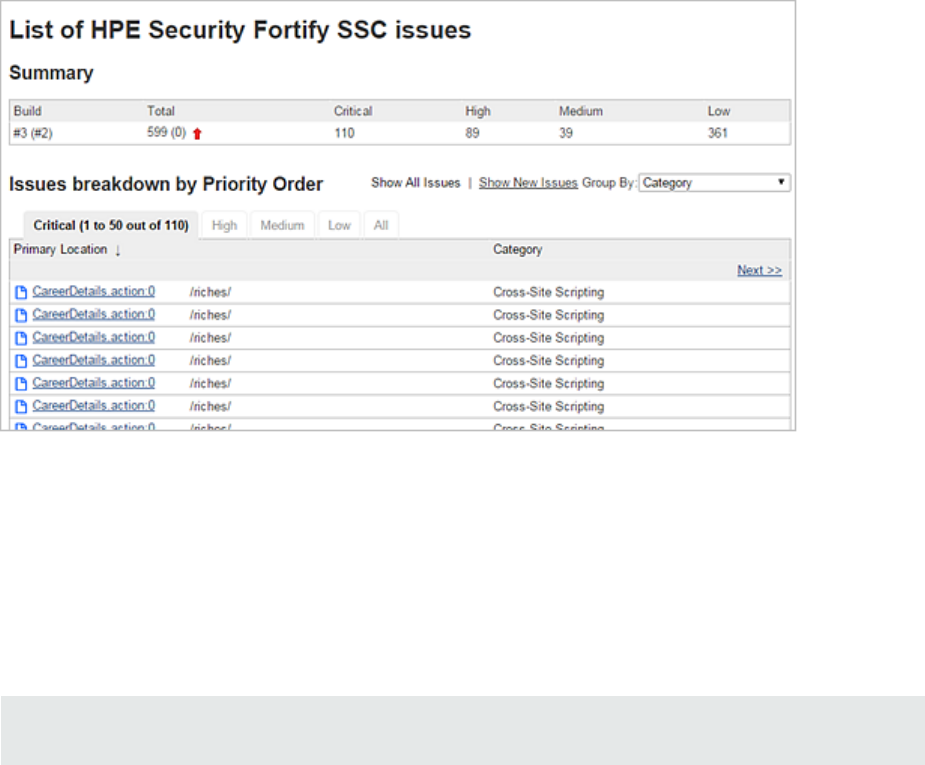
The Summary table shows the difference in the number of issues in different categories between the
two most recent builds. A blue arrow next to a value indicates that the number in that category has
decreased, and a red arrow indicates that the number in that category has increased.
The Issues breakdown by Priority Order table shows detailed information about the issues for the
specified location and category in each priority folder. Wait for the table to load. If the data load takes
too long, you might need to refresh the browser window (F5).
By default, you see the critical issues first. To see all issues, click the All tab.
Note: The more issues a page shows, the longer it takes to load. HPE recommends that you not use
the All tab for large projects.
Viewing Issues
To see only those issues that were introduced in the latest build of your code, click the Show New
Issues link at the top of the table.
The first and the second columns show the file name and line number of the issue and the full path to
this file. The last column displays the category of each vulnerability.
By default, issues are sorted by primary location. To organize them by category, click the Category
column header.
To see more details about or to audit a specific issue, click the file name in the first column. The link
takes you directly to the details for that issue on the Fortify SoftwareSecurity Center server. If you are
not logged in to Fortify SoftwareSecurity Center, you are prompted to log in.
Installation and Usage Guide
HPE SecurityFortify Jenkins Plugin
HPE Security Fortify Jenkins Plugin (17.10) Page 13 of 15
Configuring the Number of Issues Displayed on a Page
By default, the page displays up to 50 findings. To navigate to all findings, use Next>> and <<Previous
on the top and bottom of the table. To increase the maximum number of issues displayed to 100 per
page, from the 50 | 100 | All section at the bottom of the page, click 100.
To control the number of the issues shown on a page from the Configure System page:
lIn the HPE Security Fortify Assessment section, click Advanced Settings, and then change the
value in the Issue breakdown page size box.
Installation and Usage Guide
HPE SecurityFortify Jenkins Plugin
HPE Security Fortify Jenkins Plugin (17.10) Page 14 of 15
Send Documentation Feedback
If you have comments about this document, you can contact the documentation team by email. If an
email client is configured on this computer, click the link above and an email window opens with the
following information in the subject line:
Feedback on Installation and Usage Guide (HPE Security Fortify Jenkins Plugin 17.10)
Just add your feedback to the email and click send.
If no email client is available, copy the information above to a new message in a web mail client, and send
your feedback to HPFortifyTechPubs@hpe.com.
We appreciate your feedback!
HPE Security Fortify Jenkins Plugin (17.10) Page 15 of 15
