HP LaserJet Enterprise 500 MFP And Flow 525 Troubleshooting Manual ENWW Laser Jet M525, M525
HP LaserJet Enterprise 500 MFP M525, Flow MFP M525 HP LaserJet Enterprise 500 MFP M525, Flow MFP M525 shared.swissparts.ch - /Manuals/HP/LaserJet/Color Laserjet/
User Manual: HP LaserJet Enterprise 500 MFP M525, Flow MFP M525 shared.swissparts.ch - /Manuals/HP/LaserJet/Mono Laserjet/
Open the PDF directly: View PDF  .
.
Page Count: 414 [warning: Documents this large are best viewed by clicking the View PDF Link!]
- Theory of operation
- Basic operation
- Formatter-control system
- Engine-control system
- Image-formation system
- Pickup, feed, and delivery system
- Tray 1 or Tray 2
- Additional tray
- Scanning/image capture system
- Stapler
- Solve problems
- Solve problems checklist
- Menu map
- Preboot menu options
- Current settings pages
- Troubleshooting process
- Tools for troubleshooting
- Individual component diagnostics
- Diagrams
- Internal print-quality test pages
- Print quality troubleshooting tools
- Control panel menus
- Interpret control-panel messages
- Control-panel message types
- Control-panel messages
- 10.0X.Y0 Supply memory error
- 10.23.50
- 10.23.51
- 10.23.52
- 10.23.70 Printing Past Very Low
- 10.XX.34 Used Supply In Use
- 10.XX.40 Genuine HP Supplies Installed
- 10.XX.40 Unsupported Supply In Use
- 10.XX.70 Printing Past Very Low
- 10.YY.15 Install Supply10.YY.15 Install Supply
- 11.00.YY Internal clock error To continue, touch “OK”
- 13.A3.D3 or 13.A4.D4
- 13.A3.D4
- 13.A3.FF or 13.A4.FF
- 13.B2.D1
- 13.B2.D2
- 13.B2.DD
- 13.B2.XX
- 13.B2.XX
- 13.B9.FF
- 13.B9.XX
- 13.B9.XX
- 13.B9.XX
- 13.BA.EE or 13.DA.EE
- 13.D3.FF or 13.B2.FF
- 13.D3.XX
- 13.E1.XX
- 20.00.00 Insufficient memory: <Device> To continue, touch “OK”
- 21.00.00 Page too complex To continue, touch “OK”
- 30.01.23 Scanner calibration failure
- 30.01.36 Upgrade Error Try downloading upgrade again
- 30.01.43 Scan memory failure To continue turn off then on
- 30.01.YY Scanner failure To continue turn off then on
- 30.WX.YZ Scanner fan failure To continue turn off then on
- 31.01.47 Document feeder not detected
- 31.03.22 Scanner calibration failure
- 31.13.03 Document feeder pick error
- 31.WX.10 Scanner failure To continue turn off then on
- 31.WX.15 Jam in document feeder
- 33.WX.YZ Used board/disk installed
- 40.00.01 USB I/O buffer overflow To continue, touch “OK”
- 41.02.00 Error
- 41.03.YZ Unexpected size in Tray <X>
- 41.03.YZ Unexpected size in Tray <X> To use another tray, touch "Options"
- 49.XX.YY Error To continue turn off then on
- 50.WX.YZ Fuser error To continue turn off then on
- 51.00.YY Error To continue turn off then on
- 52.XX.00 To continue turn off then on
- 54.XX.YY Error
- 55.XX.YY DC Controller error To continue turn off then on
- 56.00.YY Error To continue turn off then on
- 57.00.0X Error
- 58.00.04 Error To continue turn off then on
- 59.00.00 Error To continue turn off then on
- 59.00.20 Error To continue turn off then on
- 62.00.00 No system To continue turn off then on
- 69.X ERROR To continue, touch “OK”
- 70.00.00 Error To continue turn off then on
- 81.WX.00 Wireless Network Error To continue turn off then on
- 81.WX.YZ Embedded JetDirect Error To continue turn off then on
- 89.19.5C Error
- 98.00.01 or 98.01.00 Corrupt data in firmware volume
- 98.00.02 Corrupt data in solutions volume
- 98.00.03 Corrupt data in configuration volume
- 98.00.04 Corrupt data in job data volume
- 99.00.01 Upgrade not performed file is corrupt
- 99.00.02 Upgrade not performed timeout during receive
- 99.00.03 Upgrade not performed error writing to disk
- 99.00.04 Upgrade not performed timeout during receive
- 99.00.05 Upgrade not performed timeout during receive
- 99.00.06 Upgrade not performed error reading upgrade
- 99.00.07 Upgrade not performed error reading upgrade
- 99.00.08 Upgrade not performed error reading upgrade
- 99.00.09 Upgrade canceled by user
- 99.00.10 Upgrade canceled by user
- 99.00.11 Upgrade canceled by user
- 99.00.12 Upgrade not performed the file is invalid
- 99.00.14 Upgrade not performed the file is invalid
- 99.00.2X
- 99.09.60 Unsupported Disk
- 99.09.61 Unsupported disk
- 99.09.64 Disk malfunction
- 99.09.65 Disk data error
- 99.09.66 No disk data installed
- 99.09.67 Disk is not bootable please download firmware
- 99.XX.YY
- <Binname> full Remove all paper from bin
- [File System] device failure To clear press OK
- [File System] file operation failed To clear press OK
- [File System] file system is full To clear press OK
- [File System] is not initialized
- [File System] is write protected
- A second USB wireless networking accessory has been detected
- Accept bad signature
- Bad optional tray connection
- Black Cartridge low
- Black Cartridge very low
- Black Cartridge very low To continue, touch “OK”
- Canceling <jobname>
- Cartridge ship mode
- Checking paper path
- Chosen personality not available To continue, touch “OK”
- Clean the rollers
- Cleaning disk <X>% complete Do not power off
- Cleaning do not grab paper
- Cleaning...
- Clearing event log
- Clearing paper path
- Close inner flap in duplexer
- Close rear door
- Close rear door Or touch OK to print to the rear bin
- Close top cover
- Creating cleaning page
- Data received
- Digital send communication error
- Disk full Delete stored jobs
- Disk low Delete stored jobs
- Document feeder bin full
- Document feeder is empty
- Document Feeder Kit low
- Document Feeder Kit very low
- Document Feeder Kit very low To continue, touch “OK”
- Document feeder top cover open
- Event log is empty
- Expected drive missing
- Fax is disabled – ignoring call
- Flatbed cover open
- HP Secure Hard Drive disabled
- Incompatible <supply>
- Incompatible supplies
- Initializing scanner, please wait
- Initializing...
- Install Black Cartridge
- Install Fuser Unit
- Install supplies
- Internal disk device failure To clear touch “Clear”
- Internal disk file operation failed To clear touch “Clear”
- Internal disk file system is full To clear touch “Clear”
- Internal disk is write protected To clear touch “Clear”
- Internal disk not found
- Internal disk not functional
- Internal disk not initialized To clear touch “Clear”
- Internal disk spinning up
- Load Tray 1 [Type] [Size]
- Load Tray 1 [Type] [Size] To continue, touch “OK”
- Load Tray <X>: [Size]
- Load Tray <X>: [Size] To continue, touch “OK”
- Load Tray <X>: [Size] To use another tray, touch "Options"
- Load Tray <X>: [Type], [Size]
- Load Tray <X>: [Type], [Size] To use another tray, touch "Options"
- Manually feed output stack Then touch "OK" to print second sides
- Manually feed: [Size]
- Manually feed: [Size] To continue, touch “OK”
- Manually feed: [Size] To use another tray, touch "Options"
- Manually feed: [Type], [Size] To continue, touch “OK”
- Manually feed: [Type], [Size] To use another tray, touch "Options"
- No job to cancel
- Open rear door
- Output Bin full
- Paperless mode
- Printing Engine Test...
- Printing stopped To continue, touch “OK”
- Processing digital send job
- RAM Disk device failure To clear touch “Clear”
- RAM Disk file operation failed To clear touch “Clear”
- RAM Disk file system is full To clear touch “Clear”
- RAM Disk is write protected To clear touch “Clear”
- RAM Disk not initialized To clear touch “Clear”
- Remove cartridge lock
- Remove the toner cartridge
- Replace Black Cartridge
- Replace Document Feeder Kit
- Replace supplies
- Roller cleaning is recommended
- ROM disk device failed To clear touch “Clear”
- ROM disk file operation failed To clear touch “Clear”
- ROM disk file system is full To clear touch “Clear”
- ROM disk is write protected To clear touch “Clear”
- ROM disk not initialized To clear touch “Clear”
- Size mismatch in Tray <X>
- Standard bin full Remove all paper from bin
- Supplies low
- Supplies very low To continue, touch “OK”
- Supply memory warning
- Tray <X> empty: [Size]
- Tray <X> empty: [Type], [Size]
- Tray <X> open
- Tray <X> overfilled Remove excess paper
- Tray <X> overfilled To use another tray, touch "Options"
- Type mismatch Tray <X>
- Unable to cancel firmware update job
- Unable to install the firmware
- Unsupported drive installed
- Unsupported supply in use
- Unsupported supply installed
- Unsupported supply installed To continue, touch “OK”
- Unsupported tray configuration
- Unsupported USB accessory detected Remove USB accessory
- Upgrade complete To continue turn off then on
- USB accessory needs too much power Remove USB and turn off then on
- USB accessory not functional
- USB hubs are not fully supported Some operations may not work properly
- USB is write protected To clear touch “Clear”
- USB not initialized To clear touch “Clear”
- USB storage accessory removed Clearing any associated data
- USB storage device failure To clear touch “Clear”
- USB storage file operation failed To clear touch “Clear”
- USB storage file system is full To clear touch “Clear”
- Used supply in use
- Used supply installed To continue, touch “OK”
- Warming up scanner
- Wireless Configuration Mode
- Wireless is not configured
- Event log messages
- Clear jams
- Auto-navigation for clearing jams
- Common causes of jams
- Jam locations
- Clear jams in the document feeder
- Clear jams in the document feeder (M525c model)
- Clear jams in the output-bin area
- Clear jams in Tray 1
- Clear jams in Tray 2 or an optional 500-sheet tray
- Clear jams in the toner-cartridge area
- Clear jams in the rear-door and the fuser area
- Clear jams in the duplexer
- Jam causes and solutions
- Solve paper-handling problems
- Use manual print modes
- Solve image-quality problems
- Clean the product
- Solve performance problems
- Solve connectivity problems
- Solve USB connection problems
- Solve wired network problems
- The product has a poor physical connection.
- The computer is using the incorrect IP address for the product
- The computer is unable to communicate with the product
- The product is using incorrect link and duplex settings for the network
- New software programs might be causing compatibility problems
- The computer or workstation might be set up incorrectly
- The product is disabled, or other network settings are incorrect
- Service mode functions
- Solve fax problems
- Product upgrades
- Service and support
- Hewlett-Packard limited warranty statement
- HP's Premium Protection Warranty: LaserJet toner cartridge limited warranty statement
- HP policy on non-HP supplies
- HP anticounterfeit Web site
- Data stored on the toner cartridge
- End User License Agreement
- OpenSSL
- Customer self-repair warranty service
- Customer support
- Product specifications
- Regulatory information
- FCC regulations
- Environmental product stewardship program
- Protecting the environment
- Ozone production
- Power consumption
- Toner consumption
- Paper use
- Plastics
- HP LaserJet print supplies
- Return and recycling instructions
- Paper
- Material restrictions
- Disposal of waste equipment by users
- Electronic hardware recycling
- Chemical substances
- Material Safety Data Sheet (MSDS)
- For more information
- Declaration of conformity
- Declaration of conformity (fax models)
- Certificate of Volatility
- Certificate of Volatility (M525c)
- Safety statements
- Laser safety
- Canadian DOC regulations
- VCCI statement (Japan)
- Power cord instructions
- Power cord statement (Japan)
- EMC statement (China)
- EMC statement (Korea)
- EMI statement (Taiwan)
- Laser statement for Finland
- GS statement (Germany)
- Substances Table (China)
- Restriction on Hazardous Substances statement (Turkey)
- Restriction on Hazardous Substances statement (Ukraine)
- Additional statements for telecom (fax) products
- Index
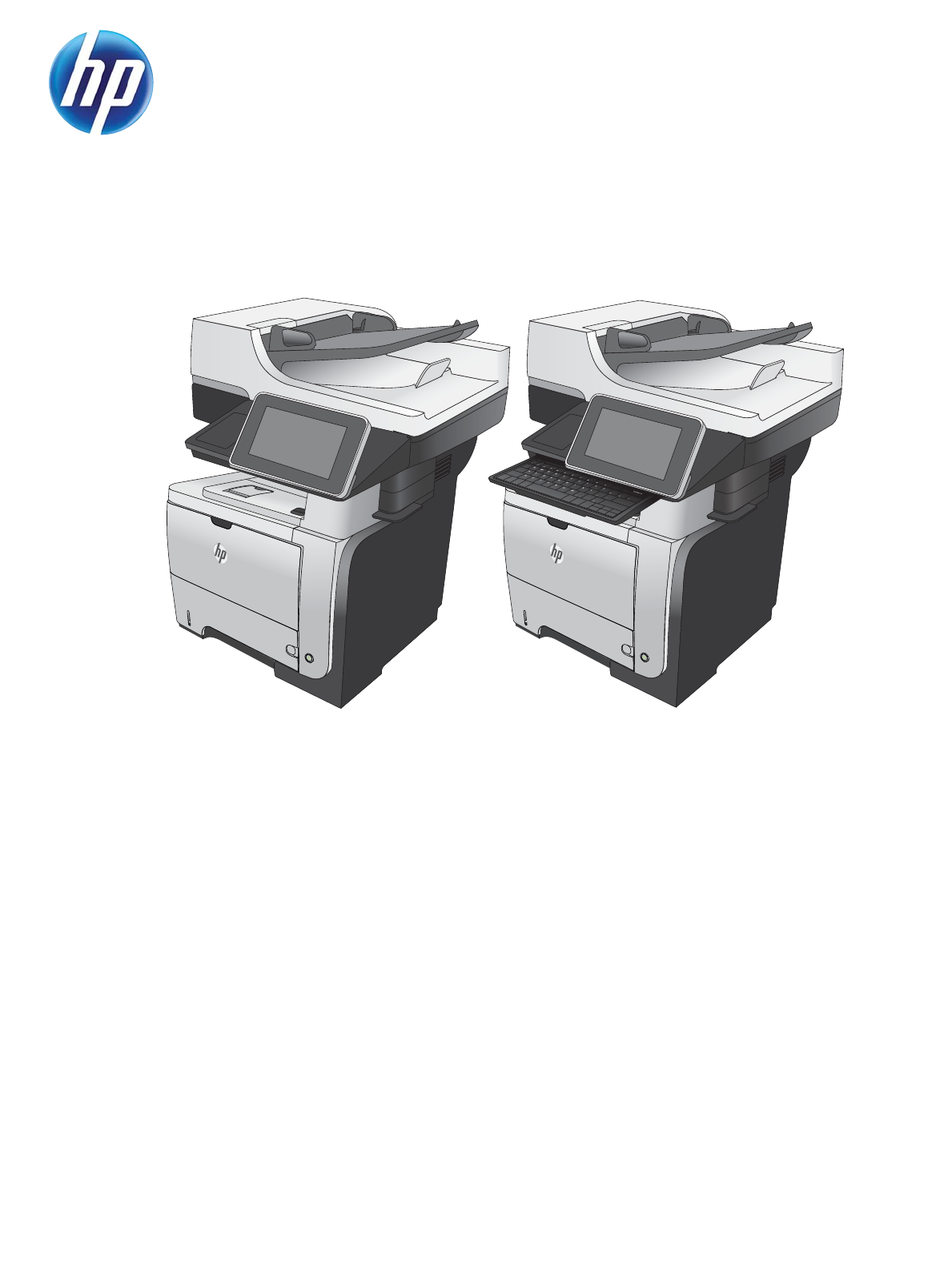
LASERJET ENTERPRISE FLOW MFP M525
Troubleshooting Manual
M525c
2
LASERJET ENTERPRISE 500 MFP
M525
2

HP LaserJet Enterprise 500 MFP M525
and HP LaserJet Enterprise flow MFP
M525
Troubleshooting Manual
Copyright and License
© 2012 Copyright Hewlett-Packard
Development Company, L.P.
Reproduction, adaptation, or translation
without prior written permission is
prohibited, except as allowed under the
copyright laws.
The information contained herein is subject
to change without notice.
The only warranties for HP products and
services are set forth in the express warranty
statements accompanying such products and
services. Nothing herein should be
construed as constituting an additional
warranty. HP shall not be liable for technical
or editorial errors or omissions contained
herein.
Edition 2, 11/2012
Part number: CF116-90901
Trademark Credits
Adobe
®
, Acrobat
®
, and PostScript
®
are
trademarks of Adobe Systems Incorporated.
Microsoft®, Windows®, Windows® XP,
and Windows Vista® are U.S. registered
trademarks of Microsoft Corporation.
ENERGY STAR and the ENERGY STAR mark
are registered U.S. marks.

Conventions used in this guide
TIP: Tips provide helpful hints or shortcuts.
NOTE: Notes provide important information to explain a concept or to complete a task.
CAUTION: Cautions indicate procedures that you should follow to avoid losing data or damaging
the product.
WARNING! Warnings alert you to specific procedures that you should follow to avoid personal
injury, catastrophic loss of data, or extensive damage to the product.
ENWW iii
iv Conventions used in this guide ENWW

Table of contents
1 Theory of operation .......................................................................................................... 1
Basic operation ........................................................................................................................ 2
Major systems ........................................................................................................... 2
Product block diagram ............................................................................................... 2
Sequence of operation ............................................................................................... 3
Normal sequence of operation ..................................................................... 3
Formatter-control system ............................................................................................................ 4
Auto on/Auto off mode .............................................................................................. 4
Input/output ............................................................................................................. 6
CPU ........................................................................................................................ 6
Memory ................................................................................................................... 6
Firmware ................................................................................................... 6
Nonvolatile memory ................................................................................... 6
PJL overview ............................................................................................................. 6
PML ......................................................................................................................... 7
Control panel ........................................................................................................... 7
Engine-control system ................................................................................................................ 8
Motors, fans, clutches, solenoids, switches, and sensors ................................................. 9
DC controller operations .......................................................................................... 16
Fuser-control circuit .................................................................................................. 18
Fuser failure detection ............................................................................... 19
Fuser temperature control .......................................................................... 20
Fuser protective function ............................................................................ 21
Low-voltage power supply ........................................................................................ 22
Overcurrent/overvoltage protection ............................................................ 23
High-voltage power supply ....................................................................................... 24
Formatter ............................................................................................................... 25
Formatter heartbeat LED ............................................................................ 25
Laser/scanner system .............................................................................................. 26
Laser failure detection ............................................................................... 27
Image-formation system ........................................................................................................... 28
Electrophotographic process ..................................................................................... 28
ENWW v
Image formation process .......................................................................................... 29
Latent-image formation stage ..................................................................... 30
Primary charging ...................................................................... 30
Laser beam exposure ................................................................. 30
Developing stage ..................................................................................... 31
Toner cartridge ......................................................................... 31
Transfer stage .......................................................................................... 32
Fusing stage ............................................................................. 32
Cleaning stage ......................................................................... 33
Toner detection ....................................................................................................... 34
Pickup, feed, and delivery system ............................................................................................. 35
Paper trays ............................................................................................................. 35
Photo sensors and switches ...................................................................................... 36
Solenoids and clutches ............................................................................................ 38
Tray 1 or Tray 2 .................................................................................................................... 40
Pickup and feed unit ................................................................................................ 40
Cassette paper size detection/cassette paper detection ................................ 40
Cassette pickup ........................................................................................ 40
Tray 1 paper pickup ................................................................................................ 40
Paper pickup and feed ............................................................................................ 41
Jam detection ......................................................................................................... 42
Additional tray ...................................................................................................................... 43
Tray driver PCA ...................................................................................................... 43
Paper pickup and feed ............................................................................................ 44
Paper level and size detection .................................................................................. 45
Jam detection ......................................................................................................... 45
Scanning/image capture system .............................................................................................. 46
Control panel ......................................................................................................... 46
Scanner ................................................................................................................. 46
Document feed system ............................................................................................. 46
Document feeder operation (standard model) .............................................. 47
Sensors in the document feeder (standard model) .......................... 47
Document feeder paper path (standard model) ............................. 48
Document feeder simplex operation (standard model) .................... 49
Document feeder duplex operation (standard model) ..................... 50
Document feeder operation (M525c model) ................................................ 53
Sensors in the document feeder (M525c model) ............................ 53
Document feeder paper path (M525c model) ............................... 55
Document feeder simplex operation (M525c model) ...................... 56
Document feeder e-duplex operation (M525c model) ..................... 57
Frontside and backside background selector (M525c model) .......... 57
vi ENWW
Document feeder operation (standard model and the M525c model) .............. 58
Deskew operation ..................................................................... 58
Document feeder hinges ............................................................. 59
Stapler .................................................................................................................................. 61
2 Solve problems ............................................................................................................... 63
Solve problems checklist ......................................................................................................... 64
Menu map ............................................................................................................................ 66
Preboot menu options ............................................................................................................. 67
Current settings pages ............................................................................................................ 74
Troubleshooting process .......................................................................................................... 75
Determine the problem source ................................................................................... 75
Troubleshooting flowchart ......................................................................... 75
Power subsystem ..................................................................................................... 76
Power-on checks ...................................................................................... 76
Power-on troubleshooting overview .............................................. 76
Control-panel checks ............................................................................................... 77
Scanning subsystem ................................................................................................ 79
Tools for troubleshooting ......................................................................................................... 80
Individual component diagnostics .............................................................................. 80
LED diagnostics ........................................................................................ 80
Understand lights on the formatter ............................................... 80
Engine diagnostics ................................................................................... 83
Engine-test button ...................................................................... 83
Paper path test ......................................................................................... 85
Paper path sensors test ............................................................................. 85
Manual sensor test ................................................................................... 87
SW501 Cartridge door switch test .............................................. 89
PS8001 Rear door sensor test ..................................................... 90
PS215 Top (Top-of-Page) sensor test ............................................ 91
PS225 Paper width 1 sensor test ................................................. 92
PS2 Fuser output sensor test ........................................................ 93
PS502 Duplexer refeed sensor test .............................................. 94
PS1 Rear bin sensor test ............................................................. 95
PS4 Output bin full sensor test ..................................................... 96
PS8008 Tray 3 Feed sensor ....................................................... 97
PS8008 Tray 4 Feed sensor ....................................................... 98
Tray/bin manual sensor test ...................................................................... 99
PS205 Tray 1 Paper sensor test ................................................. 101
PS3 Tray 2 Paper sensor test ..................................................... 102
SW235 Tray 2 Cassette sensor test ........................................... 103
ENWW vii
PS4 Output bin full sensor test ................................................... 104
PS451 Tray 3 paper sensor test ................................................ 105
PS461 Tray 3 cassette sensor test .............................................. 106
PS451 Tray 4 paper sensor test ................................................ 107
PS461 Tray 4 cassette sensor test .............................................. 108
Print/stop test ........................................................................................ 108
Component tests ..................................................................................... 109
Control-panel tests ................................................................... 109
Half self-test ............................................................................ 110
Drum rotation test check ........................................................... 110
Component test (special-mode test) ............................................ 110
Diagrams ............................................................................................................. 112
Block diagrams ...................................................................................... 112
Location of connectors ............................................................................ 114
DC controller connections ......................................................... 114
Formatter connections .............................................................. 115
Plug/jack locations ................................................................................. 116
Locations of major components ................................................................ 116
General timing charts ............................................................................. 120
Circuit diagrams .................................................................................... 121
Internal print-quality test pages ................................................................................ 123
Clean the paper path ............................................................................. 123
Set up an auto cleaning page ................................................... 123
Print a configuration page ....................................................................... 124
Configuration page ................................................................. 124
HP embedded Jetdirect page .................................................... 125
Finding important information on the configuration pages ............ 126
Print quality troubleshooting tools ............................................................................ 127
Repetitive defects ruler ............................................................................ 127
Control panel menus .............................................................................................. 128
Administration menu ............................................................................... 128
Reports menu .......................................................................... 128
General Settings menu ............................................................. 129
Copy Settings menu ................................................................. 136
Scan/Digital Send Settings menu .............................................. 144
Fax Settings menu ................................................................... 155
General Print Settings menu ...................................................... 169
Default Print Options menu ....................................................... 171
Display Settings menu .............................................................. 172
Manage Supplies menu ........................................................... 175
Manage Trays menu ................................................................ 177
viii ENWW
Network Settings menu ............................................................ 179
Troubleshooting menu .............................................................. 193
Device Maintenance menu ...................................................................... 196
Backup/Restore menu .............................................................. 196
Calibration/Cleaning menu ...................................................... 197
USB Firmware Upgrade menu ................................................... 199
Service menu .......................................................................... 199
Interpret control-panel messages ............................................................................. 200
Control-panel message types ................................................................... 200
Control-panel messages .......................................................................... 200
10.0X.Y0 Supply memory error ................................................ 200
10.23.50 ............................................................................... 201
10.23.51 ............................................................................... 201
10.23.52 ............................................................................... 201
10.23.70 Printing Past Very Low ............................................... 201
10.XX.34 Used Supply In Use ................................................... 202
10.XX.40 Genuine HP Supplies Installed .................................... 202
10.XX.40 Unsupported Supply In Use ........................................ 202
10.XX.70 Printing Past Very Low ............................................... 202
10.YY.15 Install Supply10.YY.15 Install Supply .......................... 203
11.00.YY Internal clock error To continue, touch “OK” ................ 203
13.A3.D3 or 13.A4.D4 ........................................................... 204
13.A3.D4 .............................................................................. 204
13.A3.FF or 13.A4.FF ............................................................. 205
13.B2.D1 ............................................................................... 205
13.B2.D2 ............................................................................... 206
13.B2.DD .............................................................................. 207
13.B2.XX ............................................................................... 208
13.B2.XX ............................................................................... 209
13.B9.FF ................................................................................ 209
13.B9.XX ............................................................................... 210
13.B9.XX ............................................................................... 211
13.B9.XX ............................................................................... 212
13.BA.EE or 13.DA.EE ............................................................ 212
13.D3.FF or 13.B2.FF .............................................................. 213
13.D3.XX ............................................................................... 214
13.E1.XX ............................................................................... 215
20.00.00 Insufficient memory: <Device> To continue, touch “OK” 216
21.00.00 Page too complex To continue, touch “OK” ................. 216
30.01.23 Scanner calibration failure ........................................ 216
30.01.36 Upgrade Error Try downloading upgrade again .......... 216
ENWW ix
30.01.43 Scan memory failure To continue turn off then on ......... 217
30.01.YY Scanner failure To continue turn off then on ................. 217
30.WX.YZ Scanner fan failure To continue turn off then on .......... 218
31.01.47 Document feeder not detected .................................... 218
31.03.22 Scanner calibration failure ........................................ 218
31.13.03 Document feeder pick error ....................................... 218
31.WX.10 Scanner failure To continue turn off then on ................ 219
31.WX.15 Jam in document feeder ........................................... 219
33.WX.YZ Used board/disk installed ........................................ 219
40.00.01 USB I/O buffer overflow To continue, touch “OK” ........ 220
41.02.00 Error ....................................................................... 220
41.03.YZ Unexpected size in Tray <X> ..................................... 220
41.03.YZ Unexpected size in Tray <X> To use another tray, touch
"Options" ............................................................................... 221
49.XX.YY Error To continue turn off then on ................................ 221
50.WX.YZ Fuser error To continue turn off then on ...................... 222
51.00.YY Error To continue turn off then on ................................ 225
52.XX.00 To continue turn off then on ........................................ 226
54.XX.YY Error ....................................................................... 226
55.XX.YY DC Controller error To continue turn off then on ............ 226
56.00.YY Error To continue turn off then on ................................ 227
57.00.0X Error ....................................................................... 227
58.00.04 Error To continue turn off then on ............................... 227
59.00.00 Error To continue turn off then on ............................... 227
59.00.20 Error To continue turn off then on ............................... 227
62.00.00 No system To continue turn off then on ........................ 228
69.X ERROR To continue, touch “OK” ........................................ 228
70.00.00 Error To continue turn off then on ............................... 228
81.WX.00 Wireless Network Error To continue turn off then on .... 228
81.WX.YZ Embedded JetDirect Error To continue turn off then on .. 229
89.19.5C Error ....................................................................... 229
98.00.01 or 98.01.00 Corrupt data in firmware volume ............. 229
98.00.02 Corrupt data in solutions volume ................................ 230
98.00.03 Corrupt data in configuration volume .......................... 230
98.00.04 Corrupt data in job data volume ................................ 230
99.00.01 Upgrade not performed file is corrupt ......................... 230
99.00.02 Upgrade not performed timeout during receive ............ 230
99.00.03 Upgrade not performed error writing to disk ................ 231
99.00.04 Upgrade not performed timeout during receive ............ 231
99.00.05 Upgrade not performed timeout during receive ............ 231
99.00.06 Upgrade not performed error reading upgrade ............ 231
xENWW
99.00.07 Upgrade not performed error reading upgrade ............ 232
99.00.08 Upgrade not performed error reading upgrade ............ 232
99.00.09 Upgrade canceled by user ........................................ 232
99.00.10 Upgrade canceled by user ........................................ 232
99.00.11 Upgrade canceled by user ........................................ 232
99.00.12 Upgrade not performed the file is invalid .................... 233
99.00.14 Upgrade not performed the file is invalid .................... 233
99.00.2X ............................................................................... 233
99.09.60 Unsupported Disk ..................................................... 234
99.09.61 Unsupported disk ..................................................... 234
99.09.64 Disk malfunction ....................................................... 234
99.09.65 Disk data error ......................................................... 234
99.09.66 No disk data installed ............................................... 235
99.09.67 Disk is not bootable please download firmware ........... 235
99.XX.YY ............................................................................... 235
<Binname> full Remove all paper from bin ................................. 235
[File System] device failure To clear press OK ............................. 235
[File System] file operation failed To clear press OK .................... 236
[File System] file system is full To clear press OK ......................... 236
[File System] is not initialized .................................................... 236
[File System] is write protected .................................................. 236
A second USB wireless networking accessory has been detected . . 236
Accept bad signature ............................................................... 237
Bad optional tray connection .................................................... 237
Black Cartridge low ................................................................. 237
Black Cartridge very low .......................................................... 237
Black Cartridge very low To continue, touch “OK” ...................... 238
Canceling <jobname> ............................................................. 238
Cartridge ship mode ................................................................ 238
Checking paper path ............................................................... 238
Chosen personality not available To continue, touch “OK” ........... 238
Clean the rollers ...................................................................... 239
Cleaning disk <X>% complete Do not power off ......................... 239
Cleaning do not grab paper ..................................................... 239
Cleaning... ............................................................................. 239
Clearing event log ................................................................... 240
Clearing paper path ................................................................ 240
Close inner flap in duplexer ...................................................... 240
Close rear door ...................................................................... 240
Close rear door Or touch OK to print to the rear bin ................... 240
Close top cover ....................................................................... 241
ENWW xi
Creating cleaning page ........................................................... 241
Data received ......................................................................... 241
Digital send communication error .............................................. 241
Disk full Delete stored jobs ........................................................ 242
Disk low Delete stored jobs ....................................................... 242
Document feeder bin full .......................................................... 242
Document feeder is empty ........................................................ 242
Document Feeder Kit low .......................................................... 242
Document Feeder Kit very low ................................................... 243
Document Feeder Kit very low To continue, touch “OK” ............... 243
Document feeder top cover open ............................................... 243
Event log is empty ................................................................... 243
Expected drive missing ............................................................. 243
Fax is disabled – ignoring call .................................................. 244
Flatbed cover open .................................................................. 244
HP Secure Hard Drive disabled ................................................. 244
Incompatible <supply> ............................................................. 244
Incompatible supplies .............................................................. 244
Initializing scanner, please wait ................................................ 245
Initializing... ........................................................................... 245
Install Black Cartridge .............................................................. 245
Install Fuser Unit ...................................................................... 245
Install supplies ........................................................................ 246
Internal disk device failure To clear touch “Clear” ....................... 246
Internal disk file operation failed To clear touch “Clear” ............... 246
Internal disk file system is full To clear touch “Clear” .................... 246
Internal disk is write protected To clear touch “Clear” .................. 246
Internal disk not found ............................................................. 247
Internal disk not functional ........................................................ 247
Internal disk not initialized To clear touch “Clear” ....................... 247
Internal disk spinning up .......................................................... 247
Load Tray 1 [Type] [Size] ......................................................... 247
Load Tray 1 [Type] [Size] To continue, touch “OK” ...................... 247
Load Tray <X>: [Size] .............................................................. 248
Load Tray <X>: [Size] To continue, touch “OK” .......................... 248
Load Tray <X>: [Size] To use another tray, touch "Options" ......... 248
Load Tray <X>: [Type], [Size] ................................................... 249
Load Tray <X>: [Type], [Size] To use another tray, touch
"Options" ............................................................................... 249
Manually feed output stack Then touch "OK" to print second sides 249
Manually feed: [Size] .............................................................. 249
xii ENWW
Manually feed: [Size] To continue, touch “OK” ........................... 250
Manually feed: [Size] To use another tray, touch "Options" .......... 250
Manually feed: [Type], [Size] To continue, touch “OK” ................ 250
Manually feed: [Type], [Size] To use another tray, touch
"Options" ............................................................................... 251
No job to cancel ..................................................................... 251
Open rear door ...................................................................... 251
Output Bin full ......................................................................... 251
Paperless mode ....................................................................... 251
Printing Engine Test... .............................................................. 252
Printing stopped To continue, touch “OK” ................................... 252
Processing digital send job ....................................................... 252
RAM Disk device failure To clear touch “Clear” .......................... 252
RAM Disk file operation failed To clear touch “Clear” .................. 252
RAM Disk file system is full To clear touch “Clear” ....................... 252
RAM Disk is write protected To clear touch “Clear” ..................... 253
RAM Disk not initialized To clear touch “Clear” .......................... 253
Remove cartridge lock ............................................................. 253
Remove the toner cartridge ....................................................... 253
Replace Black Cartridge ........................................................... 253
Replace Document Feeder Kit ................................................... 254
Replace supplies ..................................................................... 254
Roller cleaning is recommended ................................................ 254
ROM disk device failed To clear touch “Clear” ........................... 255
ROM disk file operation failed To clear touch “Clear” .................. 255
ROM disk file system is full To clear touch “Clear” ....................... 255
ROM disk is write protected To clear touch “Clear” ..................... 255
ROM disk not initialized To clear touch “Clear” .......................... 255
Size mismatch in Tray <X> ....................................................... 256
Standard bin full Remove all paper from bin ............................... 256
Supplies low ........................................................................... 256
Supplies very low To continue, touch “OK” ................................. 256
Supply memory warning .......................................................... 257
Tray <X> empty: [Size] ............................................................ 257
Tray <X> empty: [Type], [Size] ................................................. 257
Tray <X> open ........................................................................ 257
Tray <X> overfilled Remove excess paper .................................. 258
Tray <X> overfilled To use another tray, touch "Options" ............. 258
Type mismatch Tray <X> .......................................................... 258
Unable to cancel firmware update job ....................................... 259
Unable to install the firmware ................................................... 259
ENWW xiii
Unsupported drive installed ...................................................... 259
Unsupported supply in use ........................................................ 259
Unsupported supply installed .................................................... 260
Unsupported supply installed To continue, touch “OK” ................. 260
Unsupported tray configuration ................................................. 260
Unsupported USB accessory detected Remove USB accessory ....... 260
Upgrade complete To continue turn off then on ........................... 261
USB accessory needs too much power Remove USB and turn off
then on .................................................................................. 261
USB accessory not functional .................................................... 261
USB hubs are not fully supported Some operations may not work
properly ................................................................................. 261
USB is write protected To clear touch “Clear” ............................. 261
USB not initialized To clear touch “Clear” .................................. 262
USB storage accessory removed Clearing any associated data ..... 262
USB storage device failure To clear touch “Clear” ....................... 262
USB storage file operation failed To clear touch “Clear” .............. 262
USB storage file system is full To clear touch “Clear” ................... 262
Used supply in use .................................................................. 262
Used supply installed To continue, touch “OK” ............................ 263
Warming up scanner ............................................................... 263
Wireless Configuration Mode ................................................... 263
Wireless is not configured ........................................................ 263
Event log messages ............................................................................................... 264
Print or view an event log ........................................................................ 265
Clear an event log .................................................................................. 265
Event log message table .......................................................................... 266
Clear jams .......................................................................................................................... 275
Auto-navigation for clearing jams ............................................................................ 275
Common causes of jams ........................................................................................ 275
Jam locations ........................................................................................................ 276
Clear jams in the document feeder .......................................................................... 277
Clear jams in the document feeder (M525c model) ................................................... 279
Clear jams in the output-bin area ............................................................................ 280
Clear jams in Tray 1 .............................................................................................. 281
Clear jams in Tray 2 or an optional 500-sheet tray ................................................... 284
Clear jams in the toner-cartridge area ...................................................................... 287
Clear jams in the rear-door and the fuser area .......................................................... 289
Clear jams in the duplexer ..................................................................................... 292
Jam causes and solutions ....................................................................................... 298
Solve paper-handling problems .............................................................................................. 302
xiv ENWW
The product picks up multiple sheets of paper ........................................................... 302
The product does not pick up paper ........................................................................ 302
The document feeder jams, skews, or picks up multiple sheets of paper ....................... 303
Use manual print modes ....................................................................................................... 304
Solve image-quality problems ................................................................................................ 307
Image defect examples .......................................................................................... 307
Clean the product ................................................................................................................ 315
Clean the control-panel display ............................................................................... 315
Print a cleaning page ............................................................................................ 315
Check the scanner glass for dirt or smudges ............................................................. 316
Clean the pickup rollers and separation pad in the document feeder ........................... 318
Solve performance problems ................................................................................................. 320
Solve connectivity problems ................................................................................................... 321
Solve USB connection problems .............................................................................. 321
Solve wired network problems ................................................................................ 321
The product has a poor physical connection. ............................................. 321
The computer is using the incorrect IP address for the product ...................... 321
The computer is unable to communicate with the product ............................ 322
The product is using incorrect link and duplex settings for the network .......... 322
New software programs might be causing compatibility problems ................ 322
The computer or workstation might be set up incorrectly .............................. 322
The product is disabled, or other network settings are incorrect .................... 322
Service mode functions ......................................................................................................... 323
Service menu ........................................................................................................ 323
Product resets ....................................................................................................... 326
Restore factory-set defaults ....................................................................... 326
Restore the service ID .............................................................................. 326
Product cold reset ................................................................................... 327
Format Disk and Partial Clean functions ................................................................... 327
Active and repository firmware locations ................................................... 327
Partial Clean ......................................................................................... 328
Execute a 3 Partial Clean ......................................................... 328
Format Disk ........................................................................................... 329
Execute a 2 Format Disk ........................................................... 329
Solve fax problems ............................................................................................................... 331
Checklist for solving fax problems ........................................................................... 331
What type of phone line are you using? .................................................... 331
Are you using a surge-protection device? .................................................. 331
Are you using a phone company voice-messaging service or an answering
machine? .............................................................................................. 332
Does your phone line have a call-waiting feature? ...................................... 332
ENWW xv
Check fax accessory status ..................................................................................... 333
General fax problems ............................................................................................ 334
Use Fax over VoIP networks .................................................................................... 335
Problems with receiving faxes ................................................................................. 336
Problems with sending faxes ................................................................................... 338
Fax error codes .................................................................................................... 340
Fax error messages on the product control panel ...................................................... 340
Send-fax messages ................................................................................. 341
Receive-fax messages ............................................................................. 342
Service settings ..................................................................................................... 343
Settings in the Troubleshooting menu ........................................................ 343
Product upgrades ................................................................................................................. 344
Determine the installed revision of firmware .............................................................. 344
Perform a firmware upgrade ................................................................................... 344
Embedded Web Server ........................................................................... 344
USB storage device (Preboot menu) .......................................................... 345
USB storage device (control-panel menu) ................................................... 346
Web Jetadmin (WJA) .............................................................................. 347
Upload firmware files to WJA ................................................... 347
Appendix A Service and support ..................................................................................... 349
Hewlett-Packard limited warranty statement ............................................................................. 350
HP's Premium Protection Warranty: LaserJet toner cartridge limited warranty statement ................. 352
HP policy on non-HP supplies ................................................................................................ 353
HP anticounterfeit Web site ................................................................................................... 354
Data stored on the toner cartridge .......................................................................................... 355
End User License Agreement .................................................................................................. 356
OpenSSL ............................................................................................................................. 359
Customer self-repair warranty service ..................................................................................... 360
Customer support ................................................................................................................. 361
Appendix B Product specifications ................................................................................... 363
Physical specifications .......................................................................................................... 364
Power consumption, electrical specifications, and acoustic emissions .......................................... 364
Environmental specifications .................................................................................................. 364
Appendix C Regulatory information ................................................................................. 365
FCC regulations ................................................................................................................... 366
Environmental product stewardship program ........................................................................... 367
Protecting the environment ...................................................................................... 367
xvi ENWW
Ozone production ................................................................................................. 367
Power consumption ............................................................................................... 367
Toner consumption ................................................................................................ 367
Paper use ............................................................................................................. 367
Plastics ................................................................................................................. 367
HP LaserJet print supplies ....................................................................................... 368
Return and recycling instructions ............................................................................. 368
United States and Puerto Rico .................................................................. 368
Multiple returns (more than one cartridge) .................................. 368
Single returns .......................................................................... 368
Shipping ................................................................................ 368
Non-U.S. returns .................................................................................... 369
Paper .................................................................................................................. 369
Material restrictions ............................................................................................... 369
Disposal of waste equipment by users ...................................................................... 370
Electronic hardware recycling ................................................................................. 370
Chemical substances ............................................................................................. 370
Material Safety Data Sheet (MSDS) ......................................................................... 370
For more information ............................................................................................. 370
Declaration of conformity ...................................................................................................... 372
Declaration of conformity (fax models) .................................................................................... 374
Certificate of Volatility .......................................................................................................... 376
Certificate of Volatility (M525c) ............................................................................................. 378
Safety statements ................................................................................................................. 380
Laser safety .......................................................................................................... 380
Canadian DOC regulations .................................................................................... 380
VCCI statement (Japan) .......................................................................................... 380
Power cord instructions .......................................................................................... 380
Power cord statement (Japan) ................................................................................. 380
EMC statement (China) .......................................................................................... 381
EMC statement (Korea) .......................................................................................... 381
EMI statement (Taiwan) .......................................................................................... 381
Laser statement for Finland ..................................................................................... 381
GS statement (Germany) ........................................................................................ 383
Substances Table (China) ....................................................................................... 383
Restriction on Hazardous Substances statement (Turkey) ............................................. 383
Restriction on Hazardous Substances statement (Ukraine) ........................................... 383
Additional statements for telecom (fax) products ....................................................................... 384
EU Statement for Telecom Operation ....................................................................... 384
New Zealand Telecom Statements ........................................................................... 384
Additional FCC statement for telecom products (US) .................................................. 384
ENWW xvii
Telephone Consumer Protection Act (US) .................................................................. 385
Industry Canada CS-03 requirements ...................................................................... 385
Vietnam Telecom wired/wireless marking for ICTQC Type approved products ............. 386
Japan Telecom Mark ............................................................................................. 386
Index ............................................................................................................................... 387
xviii ENWW

Basic operation
Major systems
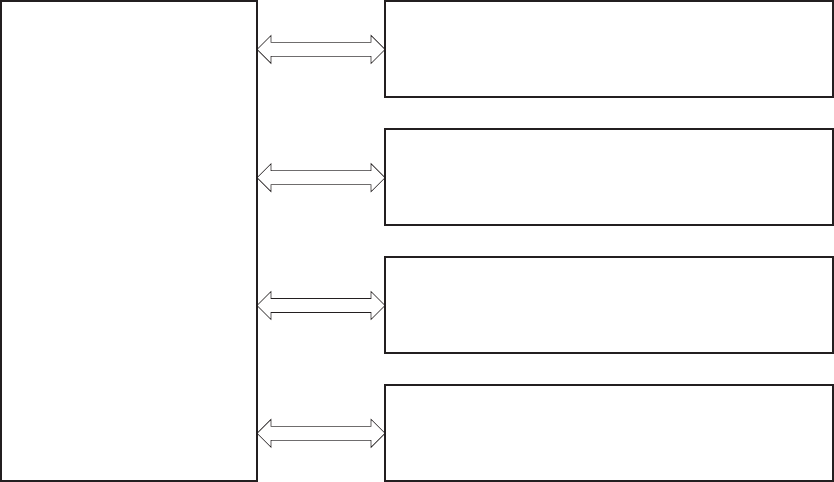
The product contains the following systems:
●Engine-control system
●Laser/scanner system
●Image-formation system
●Media feed system
●Option
Product block diagram
Figure 1-1 Product block diagram
MEDIA FEED SYSTEM
LASER SCANNER SYSTEM
ENGINE CONTROL SYSTEM
IMAGE-FORMATION SYSTEM
OPTION
2 Chapter 1 Theory of operation ENWW

Sequence of operation
The DC controller in the engine-control system controls the operational sequences of the product. The
following table describes durations and operations for each period of a print operation from when the
product is turned on until the motor stops rotating.
Normal sequence of operation
Table 1-1 Sequence of operation
Name Timing Purpose
WAIT From the time the power switch is turned on or the
door is closed until the product is ready for a print
operation.
Brings the product to printable condition. The
product performs the following during the operation:
●Detects the toner cartridge
STBY (standby) From the end of the WAIT or LSTR period until either
a print command is sent or the power switch is
turned off.
Maintains the product in printable condition.
INTR (initial
rotation)
From the time the print command is received until the
temperature of the fuser unit reaches its targeted
temperature.
Starts up the high-voltage biases, the laser/scanner,
and the fuser unit for printing.
PRINT From the end of the INTR period until the last sheet
completes the fuser operation.
Forms the image on the photosensitive drum based
on the VIDEO signals from the formatter. Transfers
and fuses the toner image to the paper.
LSTR (last
rotation)
From the end of the PRINT period until the main
motor stops rotating.
Moves the last printed sheet out of the product.
The product enters the INTR period as the LSTR
period is completed, if the formatter sends another
print command.
ENWW Basic operation 3

Formatter-control system
The formatter is responsible for the following procedures:
●Controlling sleep mode
●Receiving and processing print data from the various product interfaces
●Monitoring control-panel functions and relaying product-status information (through the control
panel and the network or bidirectional interface)
●Developing and coordinating data placement and timing with the DC controller PCA
●Storing font information
●Communicating with the host computer through the network or the bidirectional interface
The formatter receives a print job from the network or bidirectional interface and separates it into
image information and instructions that control the printing process. The DC controller PCA
synchronizes the image-formation system with the paper-input and -output systems, and then signals the
formatter to send the print-image data.
The formatter also provides the electrical interface and mounting locations for one EIO card and an
additional DIMM.
Auto on/Auto off mode
This feature conserves power after the product has been idle for an adjustable period of time. When
the product is in this mode, the control-panel backlight is turned off, but the product retains all settings,
downloaded fonts, and macros. The setting is enabled by default. The product enters this mode after a
60-minute idle time or by touching the sleep button.
Power
consumption
Status of
power
button light
How to
enable
mode
How to
disable mode
(put in Ready
state)
Relative time
to Ready
state
Control-
panel term
Off Less than 0.5W Off Manually:
press the
power button
Automatically:
sleep timer
expires
Press the power
button
Longest
4 Chapter 1 Theory of operation ENWW

Power
consumption
Status of
power
button light
How to
enable
mode
How to
disable mode
(put in Ready
state)
Relative time
to Ready
state
Control-
panel term
Auto off Less than 1W Blinks at 3
second intervals
Sleep timer
expires
Printing or
network
maintenance
tasks
Insert or remove
paper from the
ADF
Open or close
the scanner
Open the
cartridge door
Touch the
control panel
touchscreen
Press the power
button
Longer than
Sleep mode
Network port
Sleep (A1W) Approximately
6W
Blinks at 3
second intervals
Sleep timer
expires
Printing or
network
maintenance
tasks
Insert or remove
paper from the
ADF
Open or close
the scanner
Open the
cartridge door
Touch the
control panel
touchscreen
Press the power
button
Shortest All events
NOTE: Product error messages override the Sleep message. The product enters sleep mode at the
appropriate time, but the error message continues to appear.
ENWW Formatter-control system 5

Input/output
The product receives print data primarily from the embedded HP Jetdirect print server. The product also
has a USB 2.0 port for connecting directly to a computer.
CPU
The formatter incorporates a 800 MHz processor.
Memory
The random access memory (RAM) on the formatter PCA contains the page, I/O buffers, and the font
storage area. It stores printing and font information received from the host system, and can also serve
to temporarily store a full page of print-image data before the data is sent to the print engine.
NOTE: If the product encounters a problem when managing available memory, a clearable warning
message displays on the control-panel display.
Firmware
The firmware is contained on the hard disk drive (HDD) (M525f model only) or solid state module
(SSM) (M525dn model only). A remote firmware upgrade process is available, which overwrites the
firmware.
Nonvolatile memory
The product uses nonvolatile memory (NVRAM) to store device and user configuration settings. The
contents of NVRAM are retained when the product is turned off or disconnected.
PJL overview
The printer job language (PJL) is an integral part of configuration, in addition to the standard printer
command language (PCL). With standard cabling, the product can use PJL to perform a variety of
functions such as these:
●Two-way communication. The product communicates with the host computer through a network
connection or a USB connection. The product can inform the host about such things as the control-
panel settings, and the control-panel settings can be changed from the host.
●Dynamic I/O switching. The product uses this switching to be configured with a host on each I/O.
The product can receive data from more than one I/O simultaneously, until the I/O buffer is full.
This can occur even when the product is offline.
●Context-sensitive switching. The product can automatically recognize the personality (PS or PCL) of
each job and configure itself to serve that personality.
●Isolation of print environment settings from one print job to the next. For example, if a print job is
sent to the product in landscape mode, the subsequent print jobs print in landscape mode only if
they are formatted for landscape printing.
6 Chapter 1 Theory of operation ENWW
PML
The printer management language (PML) allows remote configuration and status read-back through the
I/O ports.
Control panel
The formatter sends and receives product status and command data to and from the control-panel PCA.
ENWW Formatter-control system 7
Engine-control system
The engine-control system coordinates all product functions, according to commands that the formatter
sends. The engine-control system drives the system, the image formation system, and the pickup/feed/
delivery system.
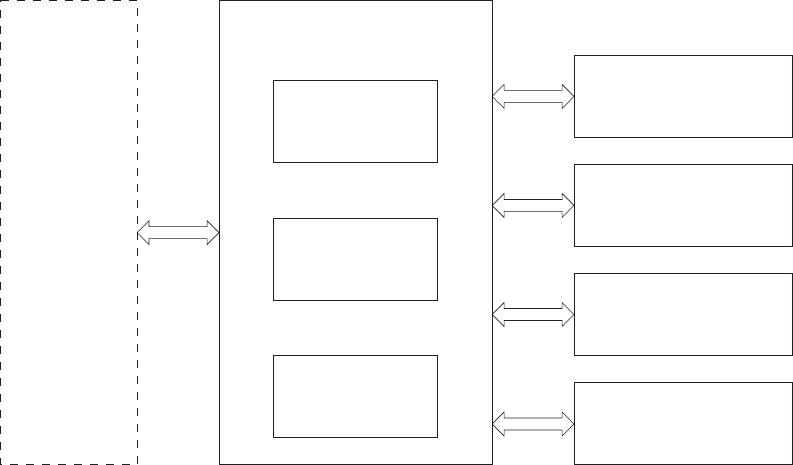
The engine control system contains the following major components:
●DC controller
●Low-voltage power supply
●High-voltage power supply
Figure 1-2 Engine-control system
DC controller
High-voltage
power supply
Low-voltage
power supply
Formatter
Engine control system
Laser scanner system
Image-formation system
Pickup, feed and delivery
system
Accessory
8 Chapter 1 Theory of operation ENWW
Motors, fans, clutches, solenoids, switches, and sensors
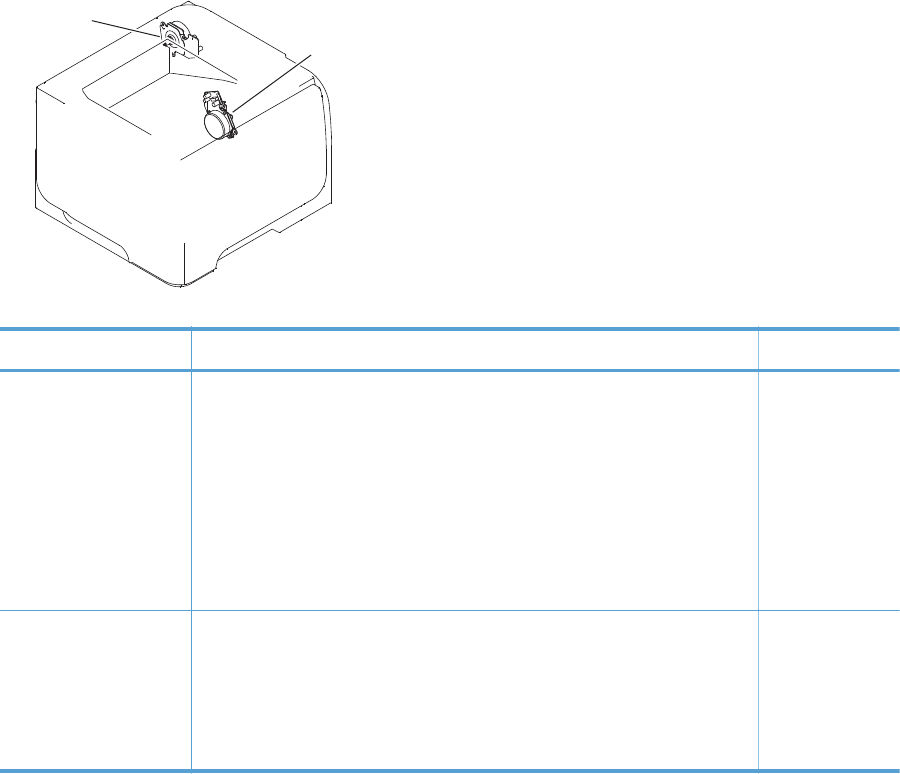
Figure 1-3 Motors
Main motor
Fuser motor
Table 1-2 Motors
Description Components driven Fault detection
Main motor (M8001) ●Pickup roller
●Feed roller
●Transfer roller
●Photosensitive drum
●Developing roller
●Duplex repickup roller
Yes
Fuser motor (M8002) ●Pressure roller
●Delivery roller
●Fuser-delivery roller
●Duplex-feed roller
Yes
ENWW Engine-control system 9
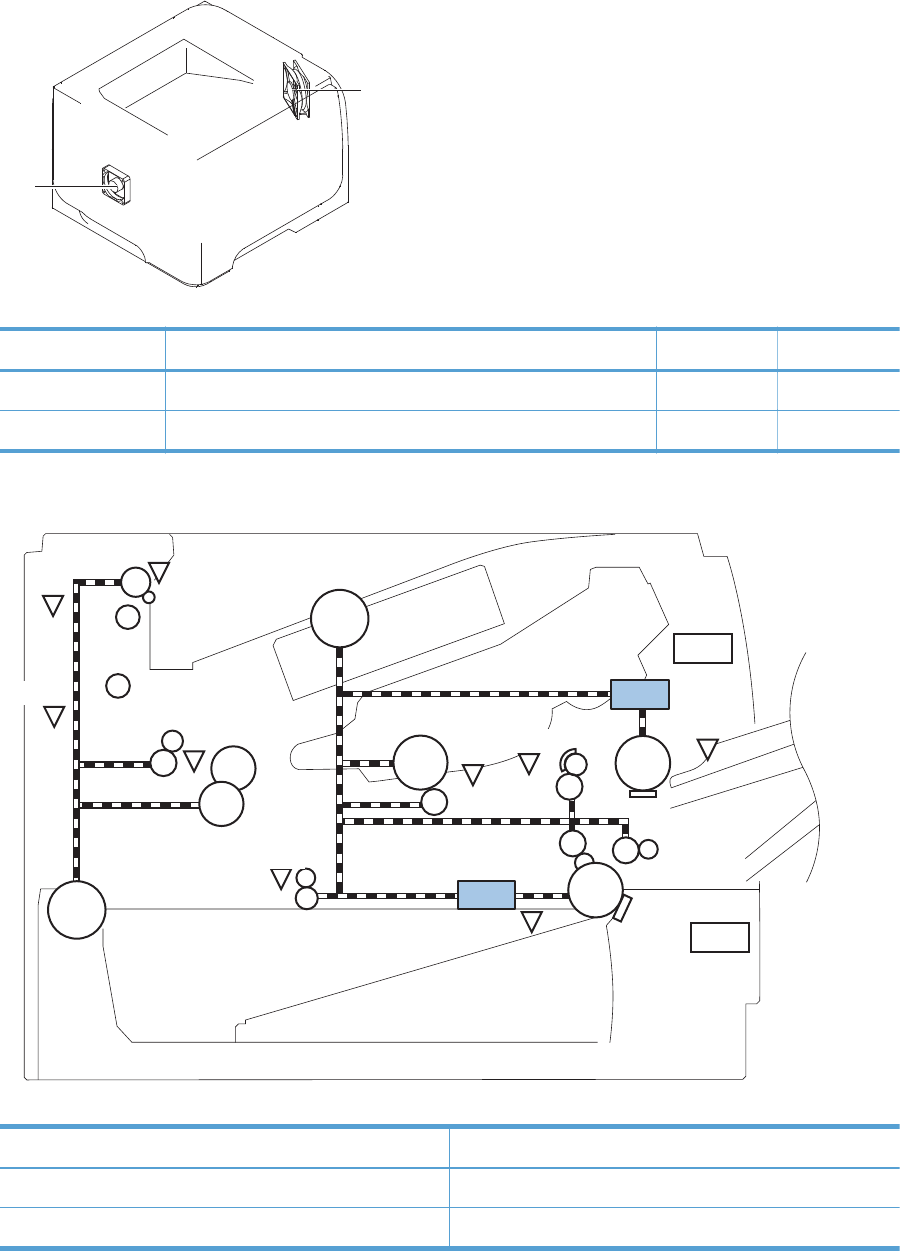
Figure 1-4 Fans
Main fan
Sub fan
Table 1-3 Fans
Description Area cooled Type Speed
Main fan (FM1) Inside the product Intake Full
Sub fan (FM2) Inside the product Intake Full
Figure 1-5 Solenoids and clutches (product)
SL1
SW235
SL2
M8001
M8002 PS3
PS215
PS205
PS502
PS8001
PS4
PS1
PS2 PS225
SW501
Table 1-4 Solenoids and clutches (product)
Item Description
SL1 Tray 1 (multipurpose tray) pickup solenoid
SL2 Cassette (Tray 2) pickup solenoid
10 Chapter 1 Theory of operation ENWW
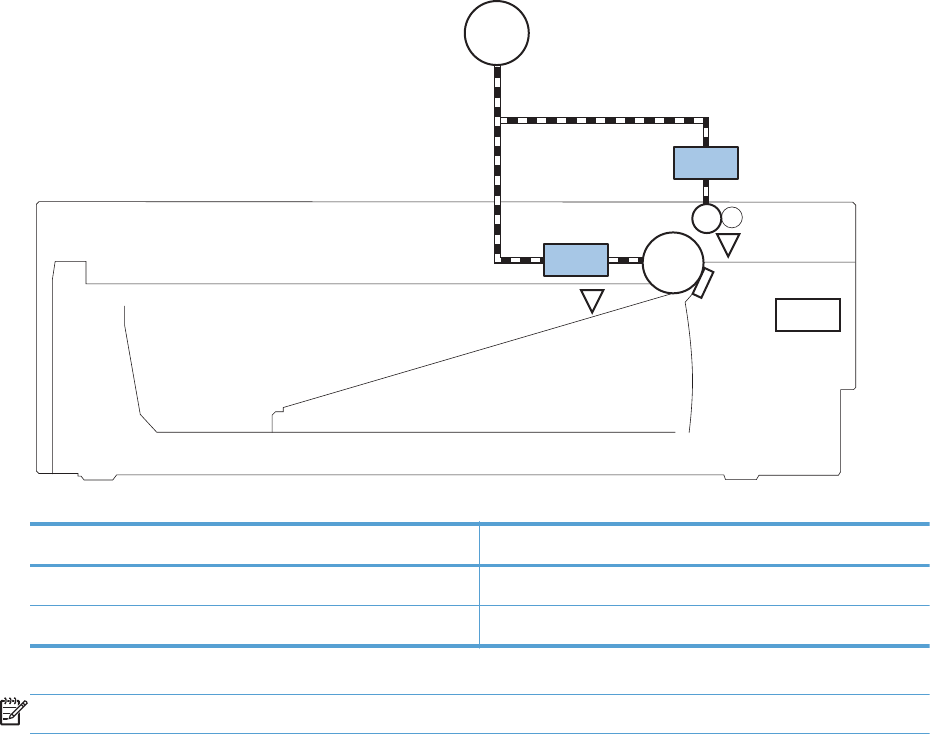
Figure 1-6 Solenoids and clutches (Tray 3 and Tray 4)
PS451
PS8008
SL3
M8001
SW461
CL1
Table 1-5 Solenoids and clutches (Tray 3 and Tray 4)
Item Description
SL3 Paper feeder pickup solenoid
CL1 Paper feeder pickup clutch
NOTE: Tray 3 and Tray 4 are identical 500-sheet input trays.
ENWW Engine-control system 11
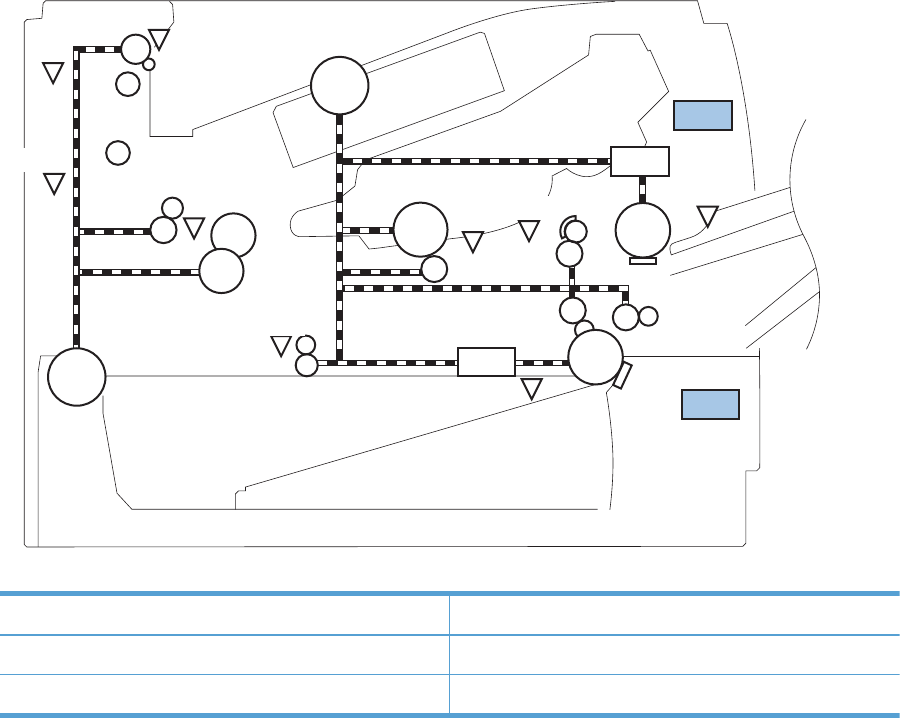
Figure 1-7 Switches (product)
SL1
SW235
SL2
M8001
M8002 PS3
PS215
PS205
PS502
PS8001
PS4
PS1
PS2 PS225
SW501
Table 1-6 Switches (product)
Item Description
SW235 Cassette presence switch
SW501 Cartridge-door switch
12 Chapter 1 Theory of operation ENWW
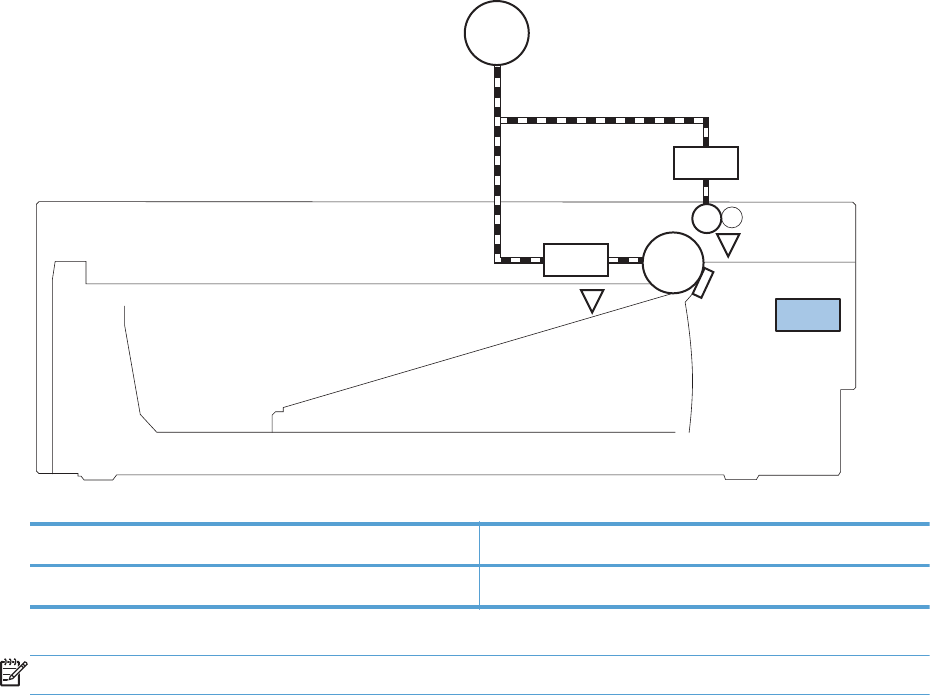
Figure 1-8 Switches (Tray 3 and Tray 4)
PS451
PS8008
SL3
M8001
SW461
CL1
Table 1-7 Switches (Tray 3 and Tray 4)
Item Description
SW461 Paper feeder cassette presence switch
NOTE: Tray 3 and Tray 4 are identical 500-sheet input trays.
ENWW Engine-control system 13
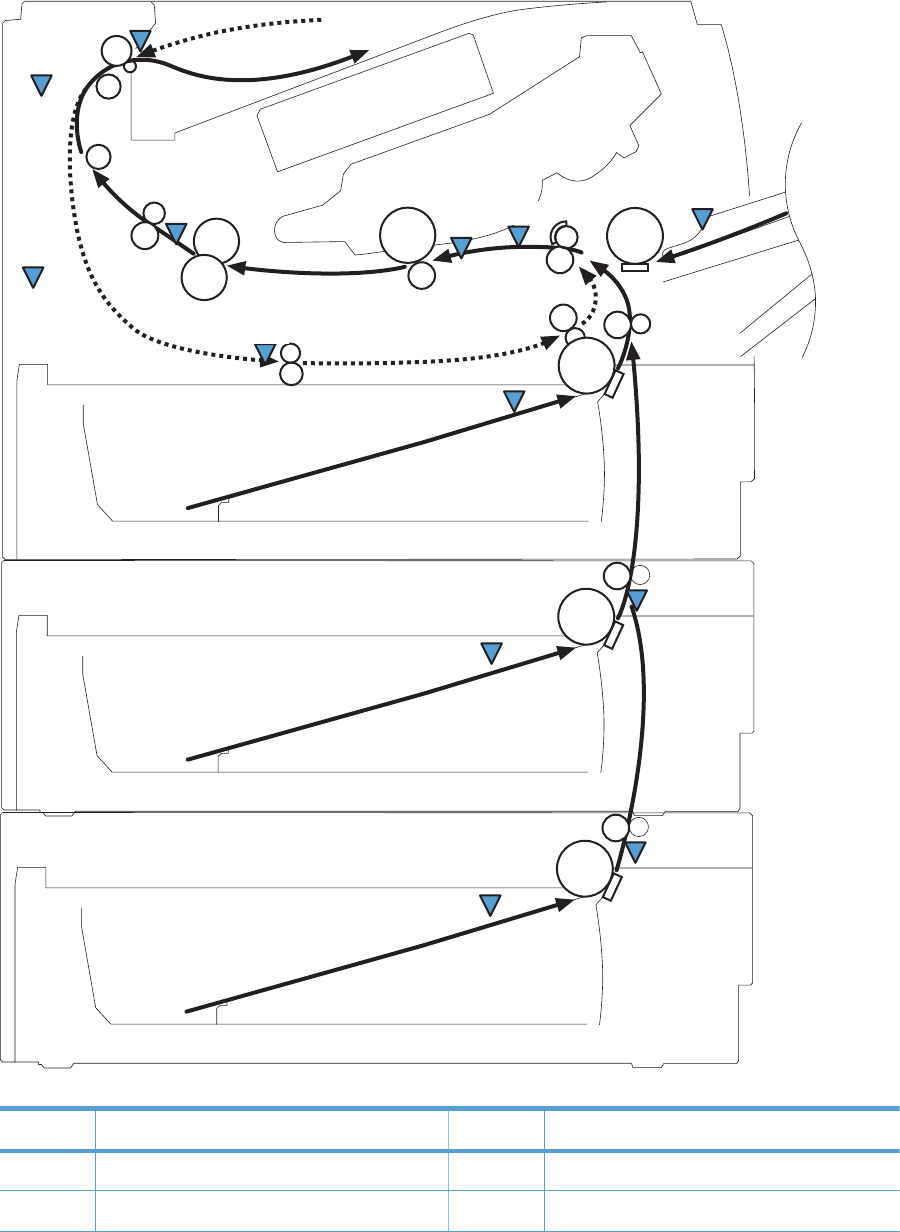
Figure 1-9 Sensors
PS215
PS502
PS4
PS2 PS225
PS8008
PS1
PS451
PS8001
PS205
PS3
PS8008
PS451
Table 1-8 Sensors
Item Description Item Description
PS1 Face-up sensor PS225 Media width sensor
PS2 Fuser delivery sensor PS502 Duplex media-feed sensor
14 Chapter 1 Theory of operation ENWW

Table 1-8 Sensors (continued)
Item Description Item Description
PS3 Cassette media-presence sensor PS451 Paper feeder cassette media-presence sensor
NOTE: PS451 is used in Tray 3, and Tray 4.
PS4 Face-down tray media-full sensor PS8001 Rear door sensor
PS205 Tray 1 (multipurpose tray) media-presence
sensor
PS8008 Paper feeder media-feed sensor
NOTE: PS8008 is used in Tray 3, and Tray 4.
PS215 Top-of-Page (TOP) sensor
ENWW Engine-control system 15
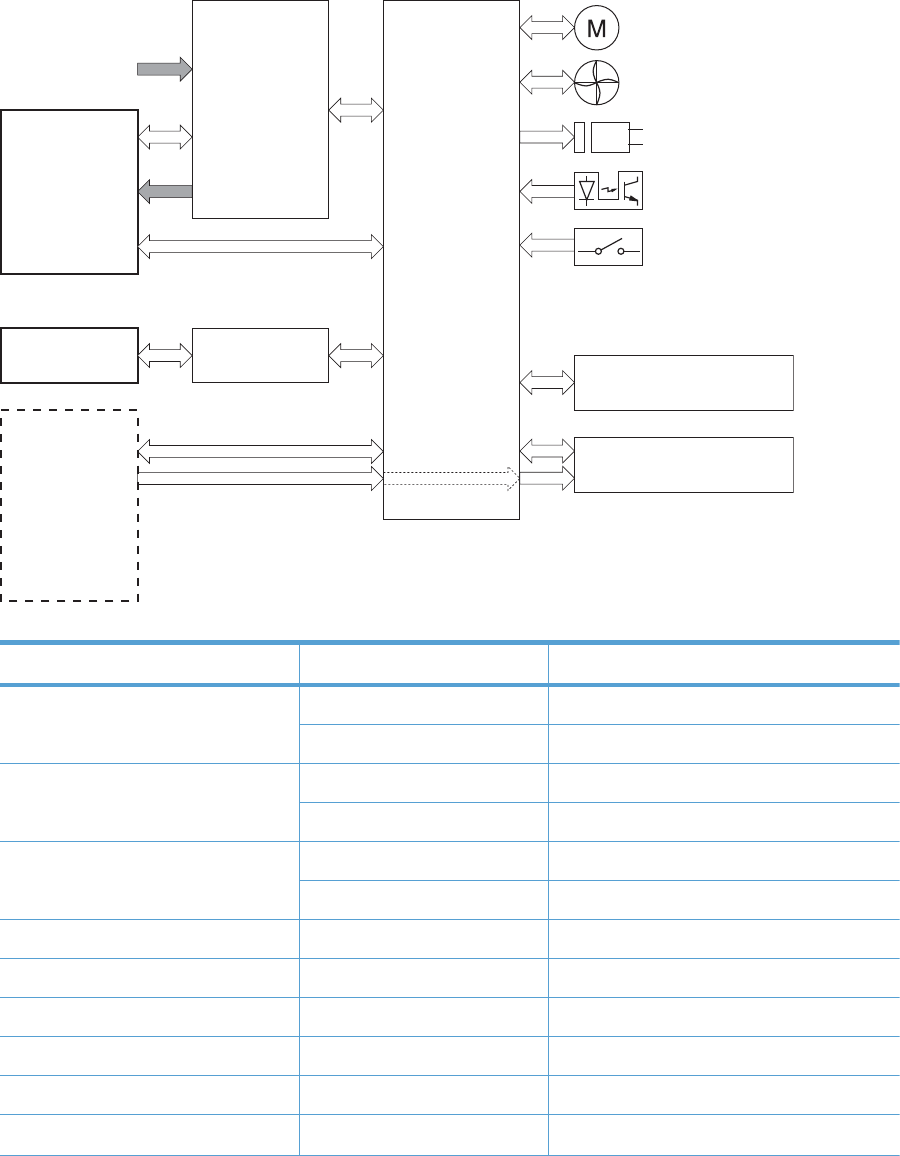
DC controller operations
The DC controller controls the operational sequences of the product systems.
Figure 1-10 DC controller block diagram
Formatter
Cartridge
AC input
Motor
Solenoid
Photointerrupter
DC controller
Laser scanner
Fan
Accessory
Switch
Fuser
Low-voltage
power supply
High-voltage
power supply
Table 1-9 DC controller controlled components
Component Designator Description
Motor M8001 Main motor
M8002 Fuser motor
Fan FM1 Main fan
FM2 Sub fan
Solenoid SL1 Tray 1 (multipurpose tray) pickup solenoid
SL2 Cassette (Tray 2) pickup solenoid
Photointerrupter PS1 Face-up sensor
PS2 Fuser delivery sensor
PS3 Cassette media presence sensor
PS4 Face-down tray (output bin) media-full sensor
PS205 Tray 1 (multipurpose tray) presence sensor
PS215 Top-Of-Page (TOP) sensor
16 Chapter 1 Theory of operation ENWW

Table 1-9 DC controller controlled components (continued)
Component Designator Description
PS225 Media width sensor
PS502 Duplex media-feed sensor
PS8001 Rear door sensor
Switch SW235 Cassette-presence switch
NOTE: PS8008 is used in Tray 3, and Tray 4
SW240 Power switch
SW260 Interlock switch
SW501 Cartridge-door switch
SW2100 Test print switch
ENWW Engine-control system 17
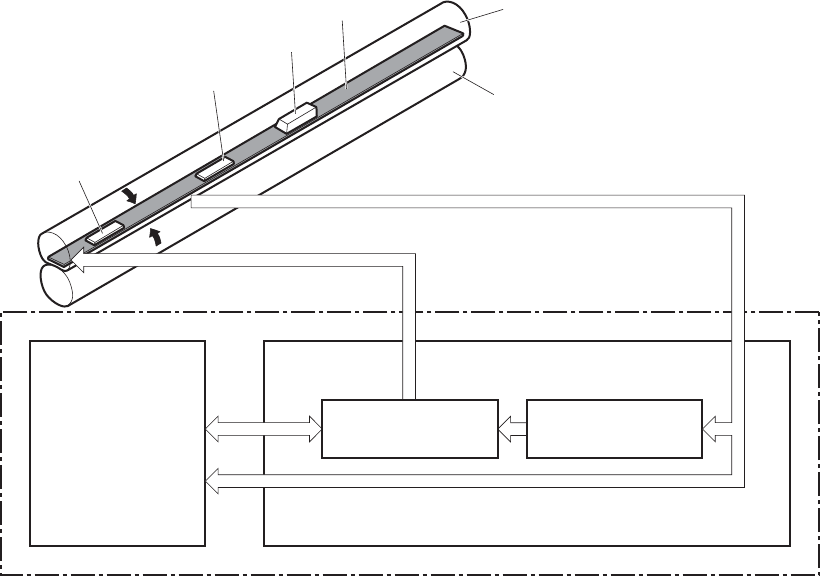
Fuser-control circuit
The fuser-control circuit monitors and controls the temperature in the fuser. The product uses on-demand
fusing. The fuser-control circuit consists of the following major components:
●Fuser heater (H1): heats the fusing film
●Thermistor (TH1 and TH2): detects the fuser temperature (contact type)
◦Main thermistor (TH1): controls the temperature in the fuser (contact type)
◦Sub thermistor (TH2): detects a one-sided temperature rise in the fuser and controls the
temperature in the fuser (contact type)
●Thermoswitch (TP1): prevents abnormal temperature rise in the fuser (contact type)
Figure 1-11 Fuser control circuit
TH2
TH1
TP1
H1
FUSER TEMPERATURE signal
FUSER HEATER CONTROL signal
Fuser heater safety
circuit
DC controller
Fuser control circuit
Pressure roller
Fuser film
Fuser heater control
circuit
Engine controller unit
18 Chapter 1 Theory of operation ENWW
Fuser failure detection
The DC controller determines a fuser unit failure, deactivates the FUSER HEATER CONTROL signal,
releases the relay to interrupt power supply to the fuser heater and notifies the formatter of a failure
state when it encounters the following conditions:
●Start-up failure
◦If the main thermistor does not detect a specified temperature during the start-up process of
the heater in the wait period
◦If the main thermistor does not detect a specified temperature during the heater temperature
control in the initial rotation period
●Abnormal low temperature
◦If the main thermistor detects an abnormal low temperature of the fuser unit during the
printing operation
◦If the sub thermistor detects an abnormal low temperature of the fuser unit during the printing
operation
●Abnormal high temperature
◦If the main thermistor detects an abnormal high temperature of the fuser unit
◦If the sub thermistor detects an abnormal high temperature of the fuser unit
●Frequency-detection circuit failure
◦If a specified frequency of the ZERO CROSSING signal is not detected within a specified
period after the product is turned on
ENWW Engine-control system 19
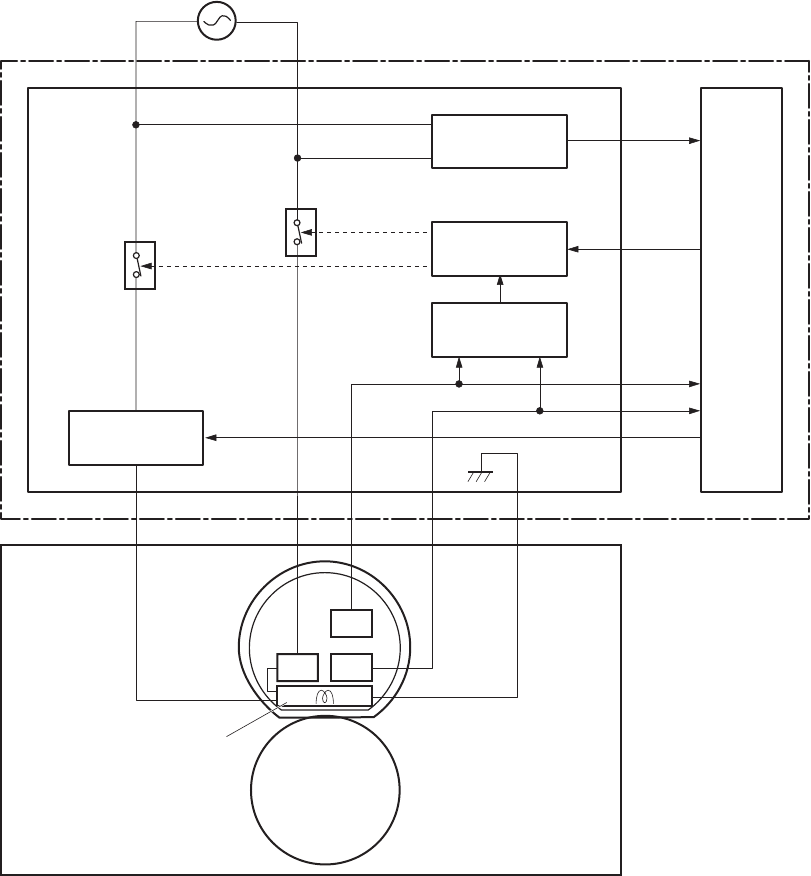
Fuser temperature control
The fuser temperature control maintains the temperature of the fuser heater at its targeted temperature.
The DC controller monitors the FUSER TEMPERATURE (FSRTH1, FSRTH2) signals and sends the FUSER
HEATER CONTROL (FSRD) signal according to the detected temperature. The fuser heater control circuit
controls the fuser heater depending on the signal so that the heater remains at the targeted
temperature.
Figure 1-12 Fuser-heater control circuit
ZEROX
TH1
TP1
H1
FSRD
RLYD
FSRTH2
RL1001
TH2
RL1002
FSRTH1
H1: Fuser heater
TP1: Thermoswitch
TH1: Main thermistor
TH2: Sub thermistor
Pressure roller
Fuser film
Fuser heater
control circuit
Fuser heater
safety circuit
DC controller
Engine controller unit
Fuser control circuit
Fuser
Relay control
circuit
Frequency
detection circuit
20 Chapter 1 Theory of operation ENWW
Fuser protective function
The protective function detects an abnormal temperature rise of the fuser unit and interrupts power
supply to the fuser heater.
The following three protective components prevent an abnormal temperature rise of the fuser heater:
●DC controller
◦The DC controller interrupts power supply to the fuser heater when it detects an abnormal
temperature of the fuser heater.
●Fuser heater safety circuit
◦The fuser heater safety circuit interrupts power supply to the fuser heater when the detected
temperature of the main and sub thermistors is abnormal.
●Thermoswitch
◦The contact of the thermoswitch is broken to interrupt power supply to the fuser heater when
the thermoswitch detects an abnormal temperature of the fuser heater.
ENWW Engine-control system 21
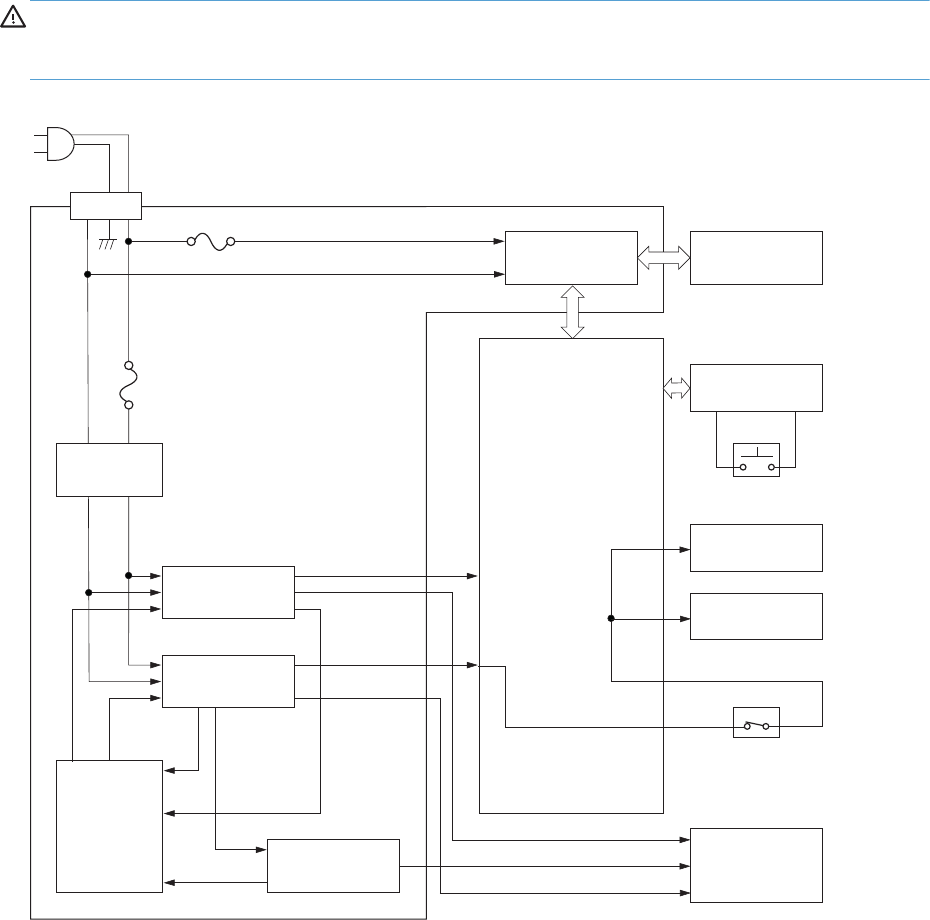
Low-voltage power supply
The low-voltage power supply (LVPS) converts ac input voltage to dc voltage. The LVPS has two fuses on
the PCA. The LVPS 24 V output is interrupted to the fuser and the high-voltage power supply if the
cartridge-door interlock switch (SW501) is in the off position (cover open).
WARNING! The product power switch only interrupts dc voltage from the LVPS. The ac voltage is
present in the product when the power cable is plugged into a power receptacle and the power switch
is in the off position. You must disconnect the product power cable before servicing the product.
Figure 1-13 Low-voltage power supply (LVPS)
+3.3VB
+5V
+24VC
Fuse (FU1002)
Fuse (FU1001)
+24VD
Fuser
control circuit
+3.3V
+24VB
Fuser
DC controller
Low-voltage power supply
+5V
generation circuit
+3.3V
generation circuit
Protection
circuit
+24V
generation circuit
Rectifying
circuit
Interlock switch
(SW260)
Power switch
SW240
Power switch
control circuit
High-volage
power supply
Main motor
Formatter
22 Chapter 1 Theory of operation ENWW

Overcurrent/overvoltage protection
The low-voltage power supply has a protective function against overcurrent and overvoltage to prevent
failures in the power supply circuit. If an overcurrent or overvoltage condition occurs, the system
automatically cuts off the output voltage.
If the DC power is not being supplied from the low-voltage power supply, the protective function might
be running. In such case, turn off the power switch and disconnect the power cable. Do not connect the
power cable or turn on the power switch again until the cause is found.
WARNING! If you believe the overcurrent or overvoltage protection circuits have been activated, do
not connect the product power cable or turn on the product power until the cause of the failure is found
and corrected.
In addition, two fuses in the low-voltage power supply protect against overcurrent. If overcurrent flows
into the AC line, the fuses melt and cut off the power distribution.
For safety reasons, the product interrupts power (24 V) to the main motor and high voltage power
supply. The interloct switch is turned off to interrupt power when the cartidge door opens (SW260 is
turned off). The AC voltage remains present in the product when the power switch is in the off position.
Disconnect the power cable when disassembling the product.
NOTE: An accidental electrical short while servicing the product can result in a loss of power to the
product causing the control panel to shut down (blank out). Turn the product power off, and then
unplug the power cord. Wait at least 15 minutes before plugging the power cord in and turning the
product power on.
ENWW Engine-control system 23
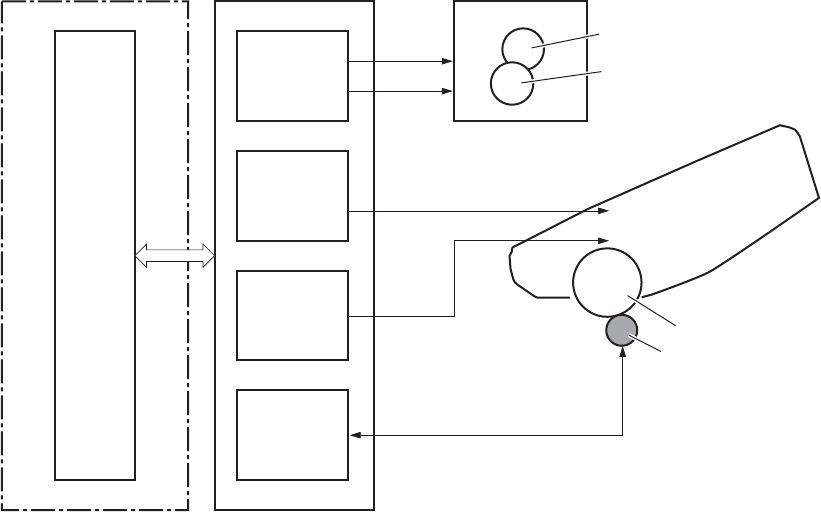
High-voltage power supply
The high-voltage power supply (HVPS) applies biases to the following components:
●Primary charging roller
●Developing roller
●Transfer roller
●Fusing film
Figure 1-14 High-voltage power supply
TR
PRI
DEV
FSRB
Engine controller unit
FILMB
To primary charging roller
To developing roller
Photosensitive drum
Transfer roller
High-voltage power supply
Primary
charging bias
circuit
Developing
bias circuit
Fuser
Fuser film
Pressure roller
Transfer bias
circuit
Fuser film bias
circuit
DC controller
Cartridge
24 Chapter 1 Theory of operation ENWW
Formatter
Formatter heartbeat LED
The heartbeat LED indicates that the formatter is functioning correctly. While the product is initializing
after you turn the product on, the LED blinks rapidly, and then turns off. When the product has finished
the initialization sequence, the heartbeat LED pulses on and off.
ENWW Engine-control system 25
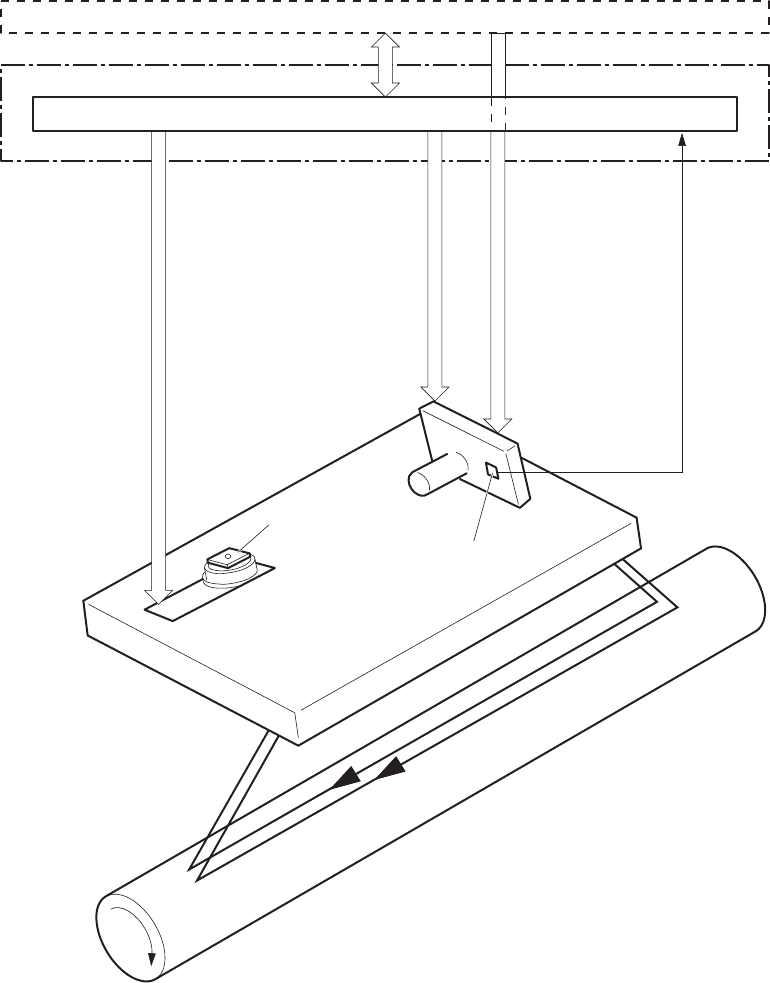
Laser/scanner system
The laser/scanner system receives VIDEO signals from the DCC and the formatter and converts the
signals into latent images on the photosensitive drum.
The main components of the laser/scanner are the laser unit and the scanner motor unit. The DC
controller sends signals to the laser/scanner to control the functions of these components.
Figure 1-15 Laser/scanner system
Formatter
DC controller
Photosensitive drum
Scanning mirror
BD sensor
Laser unit
Scanner motor unit
BDI signal
VIDEO signal
LASER CONTROL signal
SCANNER MOTOR CONTROL signal
Engine controller unit
26 Chapter 1 Theory of operation ENWW
Laser failure detection
The DC controller determines an optical unit failure and notifies the formatter, if the laser/scanner
encounters the following conditions:
●The scanner motor does not reach a specified rotation within a specified period of the scanner
motor start up.
●The rotation of the scanner motor is out of specified range for a specified period during the
scanner motor drive.
●The BD interval is out of a specified value during a print operation.
ENWW Engine-control system 27
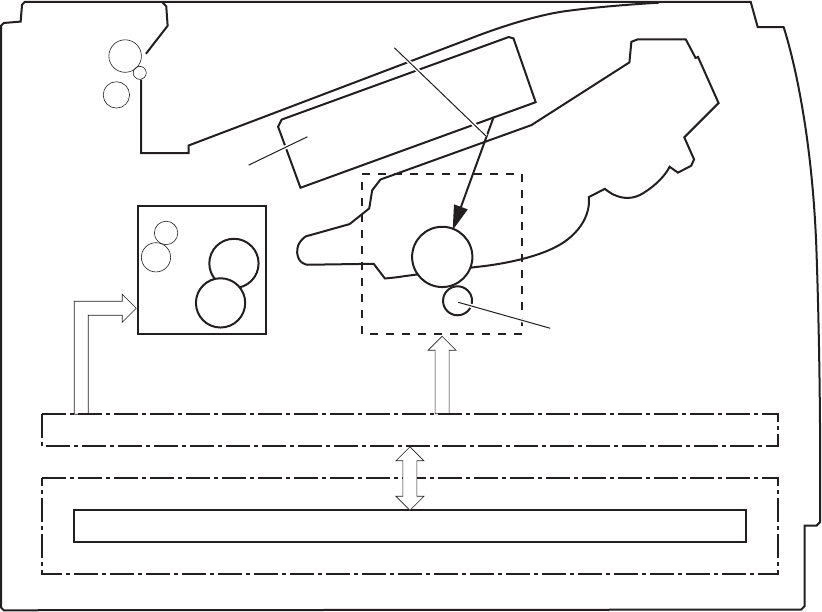
Image-formation system
Electrophotographic process
The electrophotographic process forms an image on the paper. Following are the major components
used in the process:
●Toner cartridge
●Transfer roller
●Fuser
●Laser/scanner
The DC controller uses the laser/scanner and HVPS to form the toner image on the photosensitive drum.
The image is transferred to the paper and then fused.
Figure 1-16 Electrophotographic process block diagram
Laser scanner
Cartridge
Transfer roller
High-voltage power supply
DC controller
Fuser
Laser beam
Engine controller unit
28 Chapter 1 Theory of operation ENWW
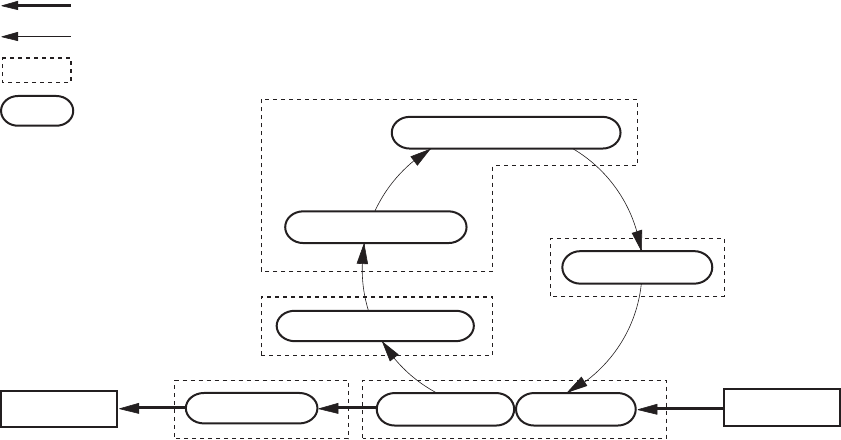
Image formation process
Each of the following process function independently and must be coordinated with the other product
processes. Image formation consists of the following processes:
●Latent-image formation block
◦Step 1: Primary charging
◦Step 2: Laser-beam exposure
●Developing block
◦Step 3: Developing
●Transfer block
◦Step 4: Transfer
◦Step 5: separation
●Fusing block
◦Step 6: Fusing
●Drum cleaning block
◦Step 7: Drum cleaning
Figure 1-17 Image formation process
Drum cleaning
Developing
2. Laser-beam exposure
Fusing (Fixing)
6. Fusing (Fixing)
Delivery
7. Drum cleaning
3. Developing
1. Primary charging
Pickup
4. Transfer
5. Separation
Transfer
Latent image formation
: Media path
: Direction of drum rotation
: Block
: Step
ENWW Image-formation system 29

Latent-image formation stage
During the latent-image formation stage, the laser/scanner forms an invisible image on the
photosensitive drum in the toner cartridge.
Primary charging
Step 1: DC and AC biases are applied to the primary charging roller, which transfers a uniform
negative potential to the photosensitive drum.
Figure 1-18 Primary charging
Primary charging bias
Photosensitive drum
Primary charging roller
Laser beam exposure
Step 2: The laser beam scans the photosensitive drum to neutralize negative charges on parts of the
drum surface. An electrostatic latent image is formed on the drum where negative charges were
neutralized.
Figure 1-19 Laser beam exposure
Laser beam
Unexposed area Exposed area
30 Chapter 1 Theory of operation ENWW

Developing stage
Toner cartridge
Step 3: In the toner cartridge, the developing cylinder comes in contact with the photosensitive drum to
deposit toner onto the electrostatic latent image.
Figure 1-20 Toner cartridge
Blade
Photosensitive drum
Unexposed area
Exposed area Unexposed area
Exposed area
Developing roller
Developing bias
Toner acquires a negative charge from the friction that occurs when the developing roller rotates
against the developing blade. The developing bias is applied to the developing roller to make a
potential difference between the developing roller and the photosensitive drum. The negatively charged
toner is attracted to the latent image on the photosensitive drum because the drum surface has a higher
potential.
ENWW Image-formation system 31
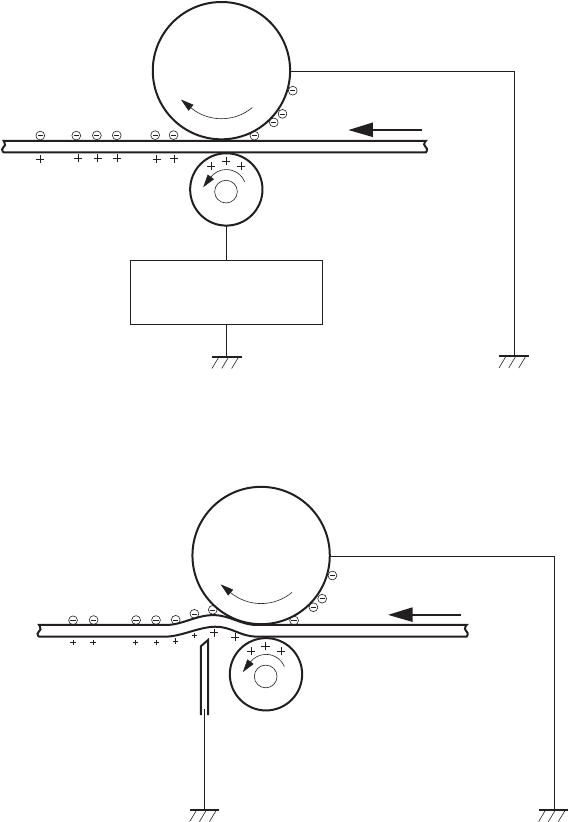
Transfer stage
Step 4: The transfer charging roller, to which a DC positive bias is applied, imparts a positive charge
on the print media. When the print media comes in contact with the photosensitive drum, the toner is
transferred to the print media.
Figure 1-21 Transfer
Media
Transfer roller
Photosensitive
drum
Transfer bias
Step 5: The elasticity of the print media causes its separation from the photosensitive drum. A static
charge eliminator aids separation by weakening any electrostatic adhesion.
Figure 1-22 Separation
Media
Transfer roller
Photosensitive
drum
Static charge eliminator
Fusing stage
Step 6: The DC negative bias applied to the fusing film strengthens the holding force of the toner on
the print media and prevents the toner from scattering.
32 Chapter 1 Theory of operation ENWW
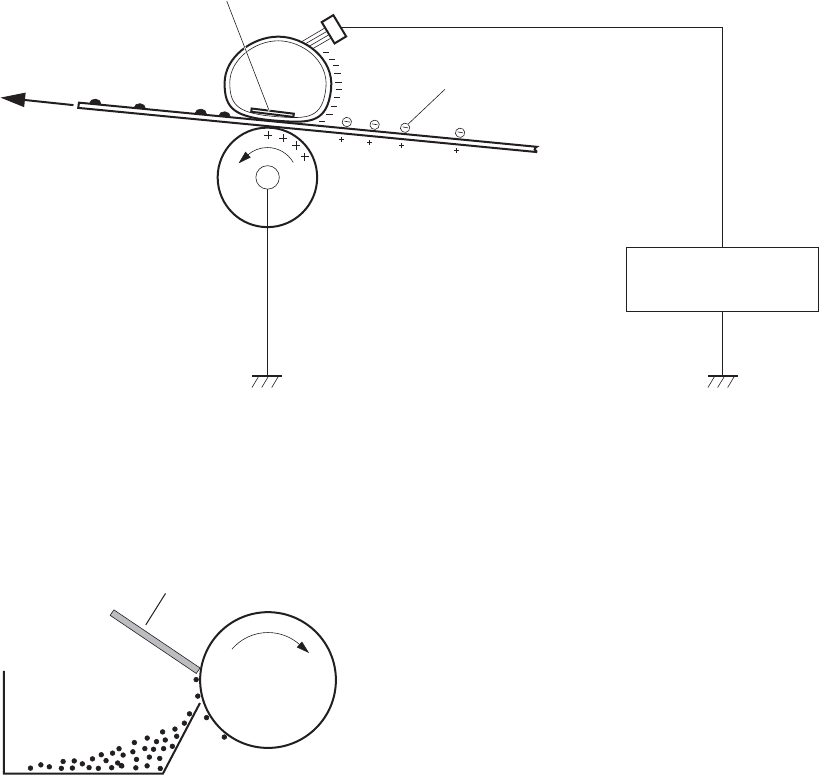
The product uses an on-demand fuser method. The toner image is permanently affixed to the paper with
heat and pressure.
Figure 1-23 Fusing
Media
Toner
Fuser film
Fuser heater
Pressure roller
Brush
Fuser bias
Cleaning stage
Step 7: The cleaning blade scrapes the residual toner off of the photosensitive drum and deposits it
into the waste toner case.
Figure 1-24 Drum cleaning
Toner collection box Photosensitive
drum
Cleaning blade
ENWW Image-formation system 33
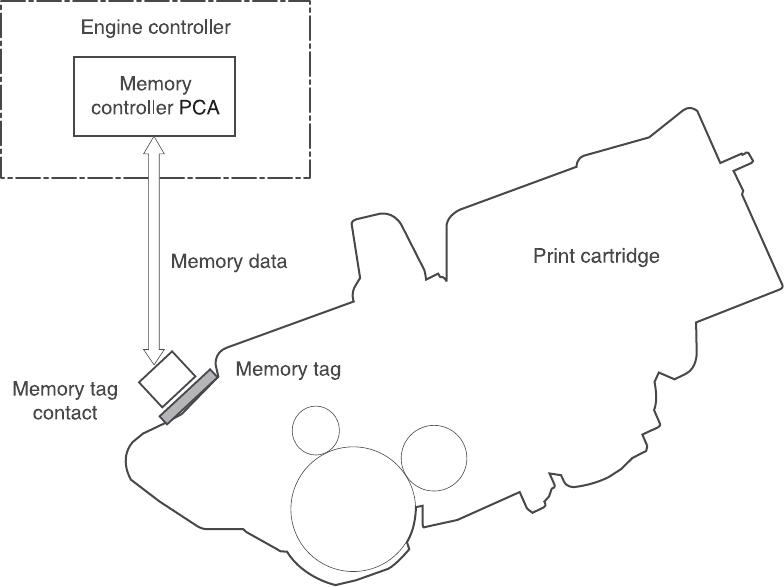
Toner detection
The product uses a nonvolatile memory tag built into the toner cartridge. Print-cartridge detection
happens when the engine controller detects the presence of a genuine HP print-cartridge that contains a
memory tag. Toner detection happens as the engine controller reads or writes the data that is stored on
the memory tag. The engine controller renews the information in the prescribed timing and reads or
writes it from or to the memory tag.
The engine controller commands the memory tag to read or write with the following conditions:
●Read
◦Power is on
◦The cartridge door is closed
◦A command is received from the formatter
●Write
◦A page of paper is printed
◦A command is received from the formatter
When the engine controller fails to read or write three times in a row, it determines that the memory tag
is abnormal and sends a cartridge memory abnormality warning to the formatter.
Figure 1-25 Toner cartridge memory tag
34 Chapter 1 Theory of operation ENWW
Pickup, feed, and delivery system
The pickup/feed/delivery system consists of several types of feed rollers and sensors. The product uses
a motor and two solenoids to drive the rollers. Three media-detection sensors detect paper as it passes
through the product. If media does not reach or pass each sensor within a specified time, the DCC
determines that a jam has occurred and alerts the formatter.
Paper trays
The product has the following paper trays:
●Tray 1 (multipurpose tray; all models)
●Tray 2 (500-sheet tray; all models)
●Tray 3 (optional 500-sheet input tray)
●Tray 4 (optional 500-sheet input tray)
ENWW Pickup, feed, and delivery system 35
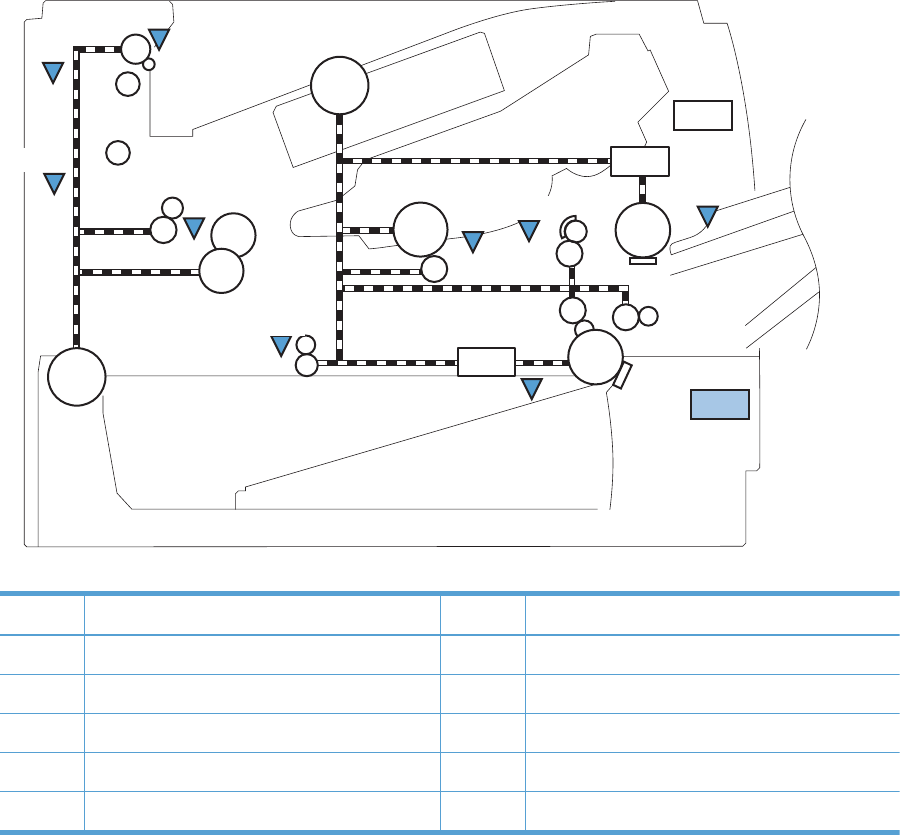
Photo sensors and switches
Figure 1-26 Photo sensors and switches (product)
SW235
M8001
M8002 PS3
PS215
PS205
PS502
PS8001
PS4
PS1
PS2 PS225
SW501
SL1
SL2
Table 1-10 Photo sensors and switches (product)
Item Description Item Description
PS1 Face-up sensor PS215 Top-of-Page (TOP) sensor
PS2 Fuser delivery sensor PS225 Media width sensor
PS3 Cassette media-presence sensor PS502 Duplex media-feed sensor
PS4 Face-down tray media-full sensor PS8001 Rear door sensor
PS205 Tray 1 (MP tray) media-presence sensor SW235 Cassette presence sensor
36 Chapter 1 Theory of operation ENWW
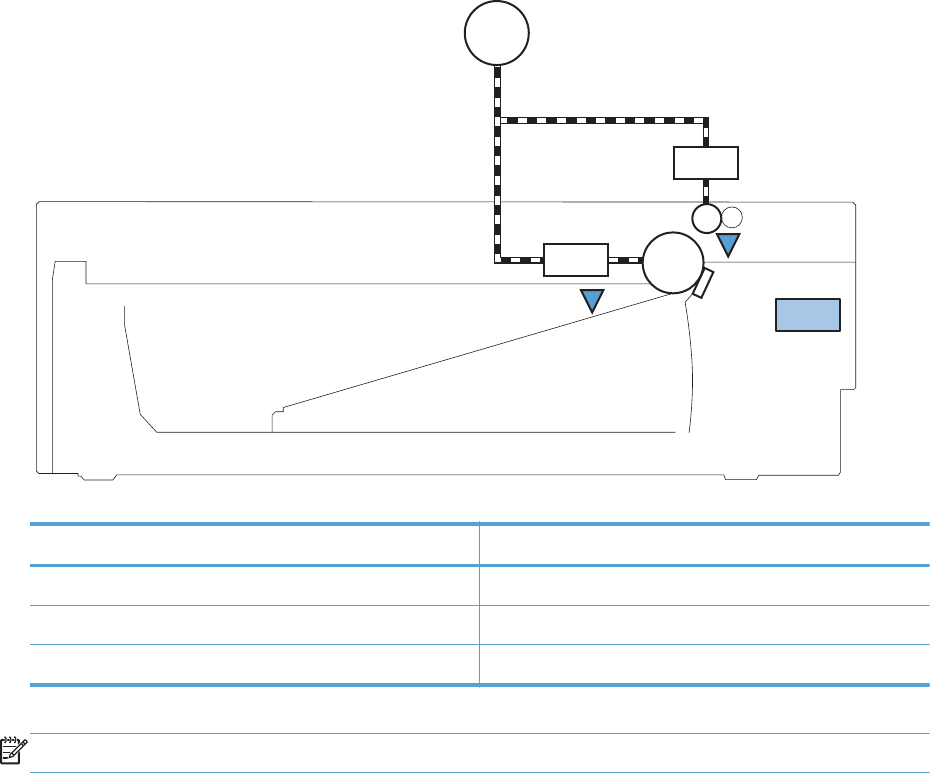
Figure 1-27 Photo sensors and switches (Tray 3 and Tray 4)
PS451
PS8008
SL3
M8001
SW461
CL1
Table 1-11 Photo sensors and switches (Tray 3 and Tray 4)
Item Description
PS451 Paper feeder cassette-media presence sensor
PS8008 Paper feeder media-feed sensor
SW461 Paper feeder cassette presence switch
NOTE: Tray 3 and Tray 4 are identical 500-sheet input trays.
ENWW Pickup, feed, and delivery system 37
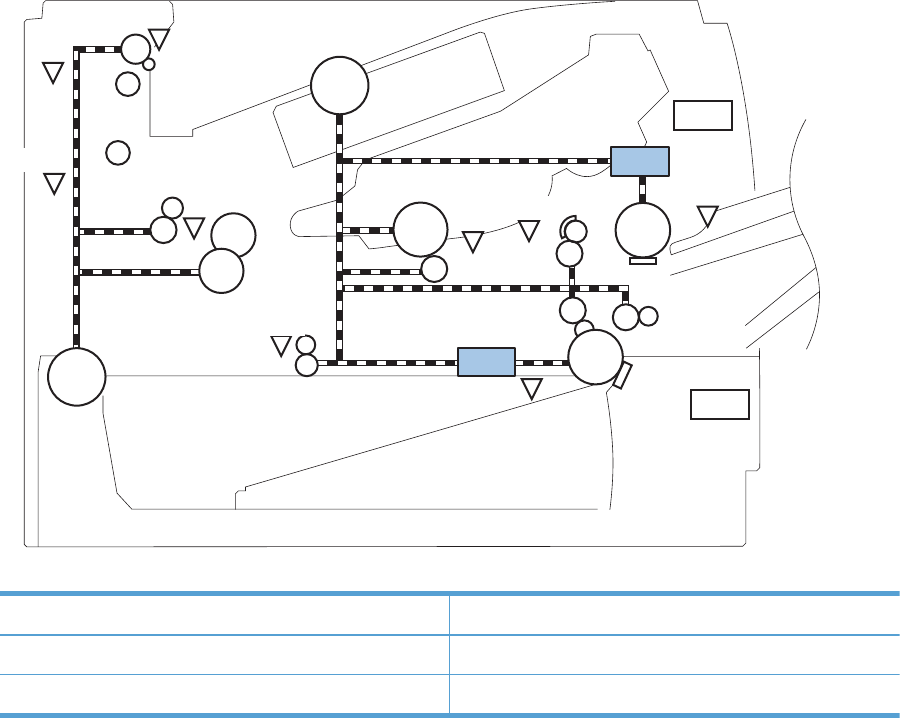
Solenoids and clutches
Figure 1-28 Solenoids and clutches (product)
SL1
SW235
SL2
M8001
M8002 PS3
PS215
PS205
PS502
PS8001
PS4
PS1
PS2 PS225
SW501
Table 1-12 Solenoids and clutches (product)
Item Description
SL1 Tray 1 (multipurpose tray) pickup solenoid
SL2 Cassette (Tray 2) pickup solenoid
38 Chapter 1 Theory of operation ENWW
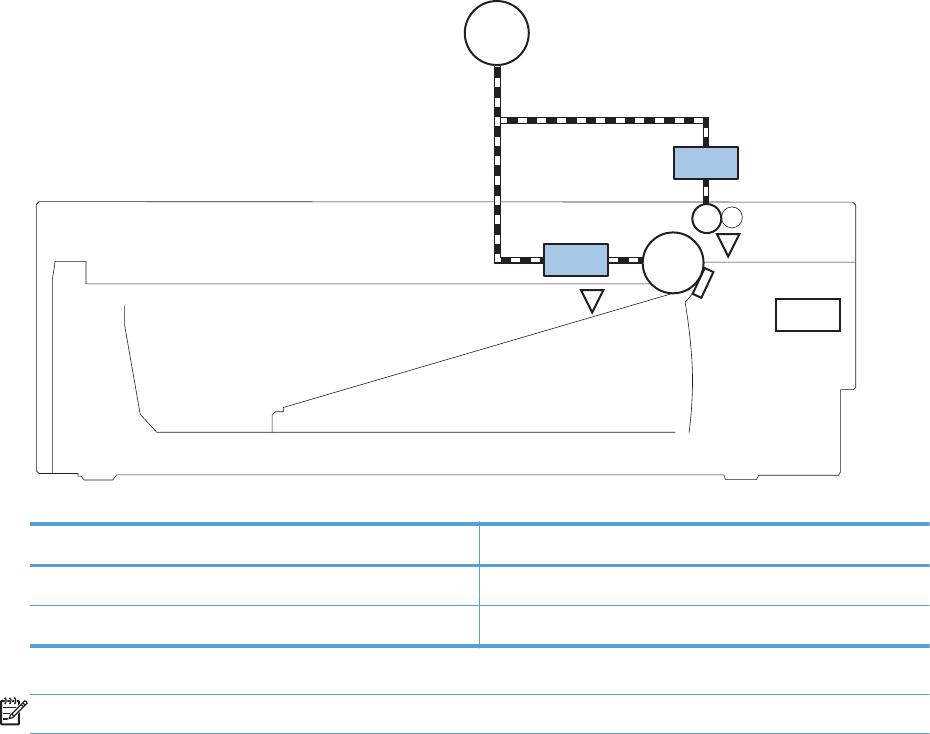
Figure 1-29 Solenoids and clutches (Tray 3 and Tray 4)
PS451
PS8008
SL3
M8001
SW461
CL1
Table 1-13 Solenoids and clutches (Tray 3 and Tray 4)
Item Description
SL3 Paper feeder pickup solenoid
CL1 Paper feeder pickup clutch
NOTE: Tray 3 and Tray 4 are identical 500-sheet input trays.
ENWW Pickup, feed, and delivery system 39

Tray 1 or Tray 2
Pickup and feed unit
The pickup and feed unit uses the following components and processes.
Cassette paper size detection/cassette paper detection
NOTE: To find the following components, see Photo sensors and switches on page 36.
●PS3: cassette media-presence sensor
●PS225: media width sensor (detects media width
after
the media enters the paper path)
Cassette pickup
NOTE: To find the following components, see Solenoids and clutches on page 38.
●SL2: cassette (Tray 2) pickup solenoid
Tray 1 paper pickup
NOTE: To find the following components, see Photo sensors and switches on page 36 and Solenoids
and clutches on page 38.
●PS205: Tray 1 (multipurpose tray) media-presence sensor
●SL1: Tray 1 (multipurpose tray) pickup solenoid
40 Chapter 1 Theory of operation ENWW
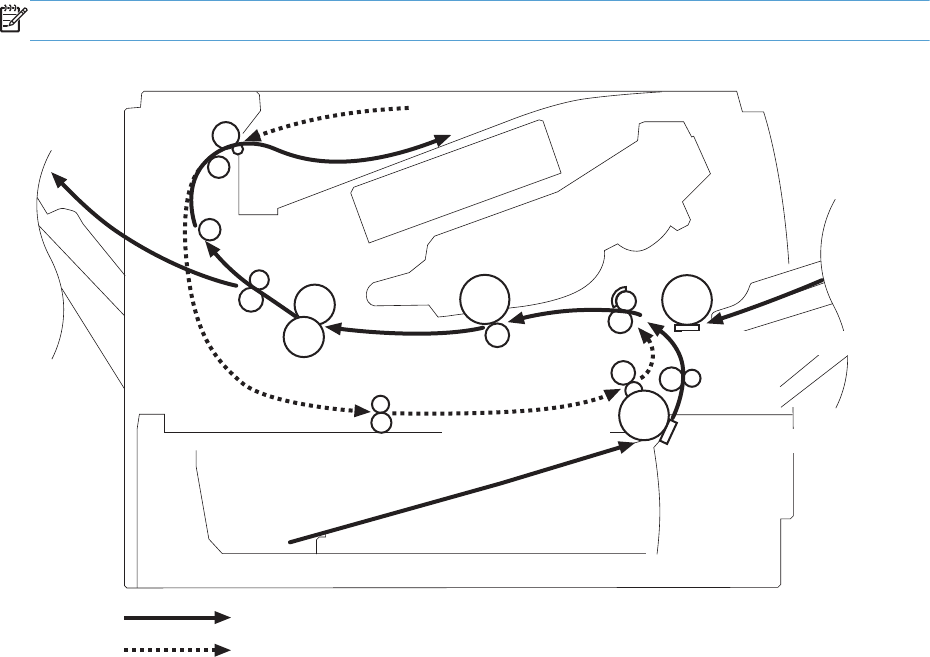
Paper pickup and feed
The following figure shows the pickup and feed paper path.
NOTE: Duplex models include a duplex media-feed path for automatic two-sided printing.
Figure 1-30 Pickup, feed, and delivery block diagram
Pressure roller
Fuser film Photosensitive drum
Transfer roller
Delivery roller
MP tray pickup roller
Cassette pickup roller
Simplex media path
Duplex media path
MP tray separation pad
Cassette separation pad
ENWW Tray 1 or Tray 2 41

Jam detection
The product uses the following sensors to detect the presence of media and to check for jams. If media
does not reach or pass each sensor within a specified time, the ECU determines that a jam has
occurred and alerts the formatter.
NOTE: To find the following components, see Photo sensors and switches on page 36.
Table 1-14 Sensors
Paper Jam Sensors PS2 fuser delivery sensor
PS215 Top-of-Page (TOP) sensor
PS502 Duplex media-feed sensor
Media present sensors PS4 Face-down tray media-full sensor
PS225 Media width sensor
PS8008
NOTE: PS8008 is used in Tray 3 and
Tray 4.
Paper feeder media-feed sensor
The product detects the following jams:
●Pickup delay jam
●Pickup stationary jam
●Delivery delay jam
●Delivery stationary jam
●Fuser wrapping jam
●Door open jam
●Residual media jam
●Duplex repickup jam
42 Chapter 1 Theory of operation ENWW
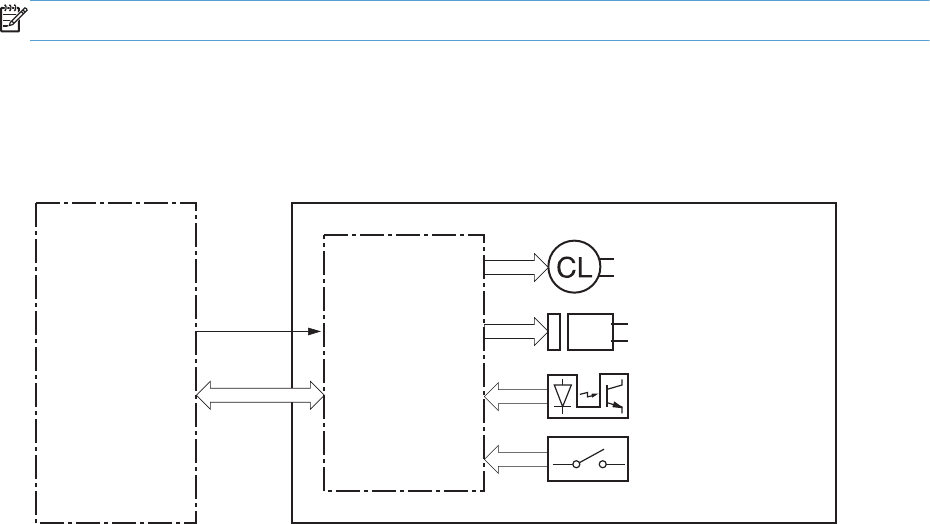
Additional tray
NOTE: This product supports identical 500-sheet input trays (Tray 3 and Tray 4).
Tray driver PCA
The following figure shows the signals between the DC controller and the tray driver PCA.
Figure 1-31 Tray 3 and Tray 4 driver PCA block diagram
Paper feeder
connector PCB
Clutch
Solenoid
Photointerrupter
DC controller
Switch
+24V
Optional paper feeder
ENWW Additional tray 43
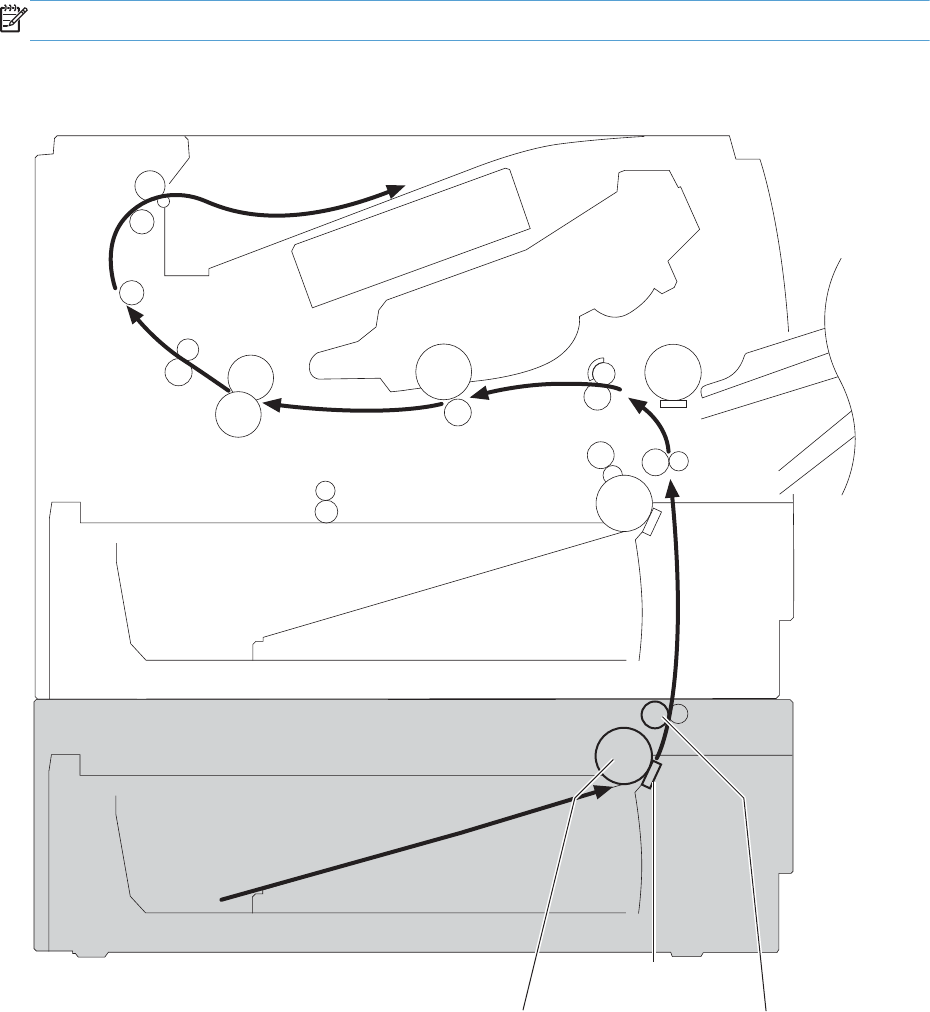
Paper pickup and feed
NOTE: Tray 3 and Tray 4 are identical 500-sheet input trays.
The following figure shows the pickup and feed paper path (Tray 3 shown).
Figure 1-32 Tray 3 and Tray 4 pickup, feed, and delivery block diagram
Optional paper feeder
separation pad
Optional paper feeder
feed roller
Optional paper feeder
pickup roller
44 Chapter 1 Theory of operation ENWW

Paper level and size detection
●PS451: paper feeder media-presence sensor detects if media is present in the tray.
NOTE: PS451 is used in Tray 3 and Tray 4.
●Media size is detected after the page enters the product. See Cassette paper size detection/
cassette paper detection on page 40.
Jam detection
●PS8008: paper feeder media-feed sensor detects jams in the paper feeder.
ENWW Additional tray 45

Scanning/image capture system
Control panel
The control panel is a capacitive touchscreen with an adjustable viewing angle. The control panel
assembly includes a USB port for walk-up printing and firmware upgrades. It also includes a hardware
integration pocket for third-party USB devices such as card readers.
The control panel has the following features:
●203.2 mm (8 in) full color SVGA (800 x 600 LCD) display
●Physical external Home button
●Ambient light sensor to automatically adjust brightness
●Standalone diagnostic mode to assist troubleshooting
●No calibration necessary
●Full function QWERTY slide out keyboard (M525c model)
Scanner
The scanner is a carriage-type platen scanner which includes the frame, glass, scan module, and a
scan controller board (SCB) integrated into the formatter. The scanner has a sensor to detect legal-sized
media and a switch to indicate when the document feeder is opened.
The document feeder and control-panel assembly are attached to the scanner assembly. If the scanner
fails, it can be replaced as a whole unit. The scanner replacement part does not include the document
feeder, control-panel assembly, or control-panel cable.
Document feed system
This section describes the following:
●Simplex single pass (standard model, M525c model)
●Electronic duplexing (e-duplex) single pass (M525c model)
See Document feeder operation (M525c model) on page 53
●Duplex three pass (standard model)
●Legal-sensing flag
●Pick and feed roller assembly with separation pad
●Mechanical deskew
●Step glass for document feeder scanning
46 Chapter 1 Theory of operation ENWW
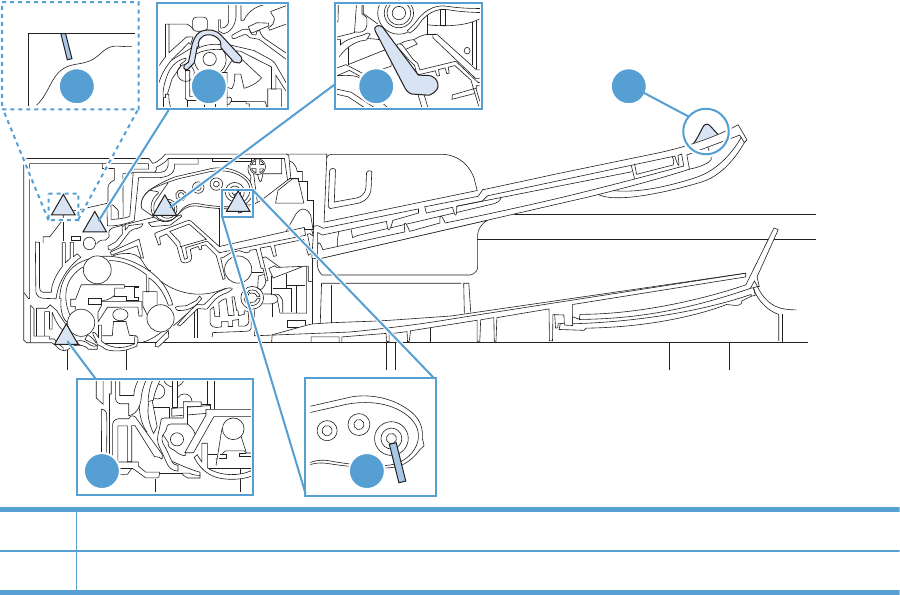
●Jam clearance door with sensing
●LED indication when original is placed on input tray
Document feeder operation (standard model)
The following sections describe the operation of the document feeder for standard model.
Sensors in the document feeder (standard model)
The document feeder contains the following sensors:
●ADF Y (length) sensor: Detects whether there is a legal-size original.
●ADF paper present sensor: Detects whether a document is present in the document feeder. If
paper is present in the document feeder when copies are made, the product scans the document
using the document feeder. If no paper is present when copies are made, the product scans the
document using the scanner glass.
●ADF paper path deskew sensor: Detects the top of the page as it enters the deskew rollers.
●Prescan frontside sensor: Detects the top of the page as it approaches the document feeder
glass.
●ADF jam cover sensor: Detects whether the document feeder cover is open or closed.
●ADF pick success sensor: Detects the top of the page before sending a page through the ADF
and the end of the page after feeding/scanning is complete.
Figure 1-33 Document feeder sensors (standard model)
23 15
64
Item Description
1 ADF Y (length) sensor
ENWW Scanning/image capture system 47
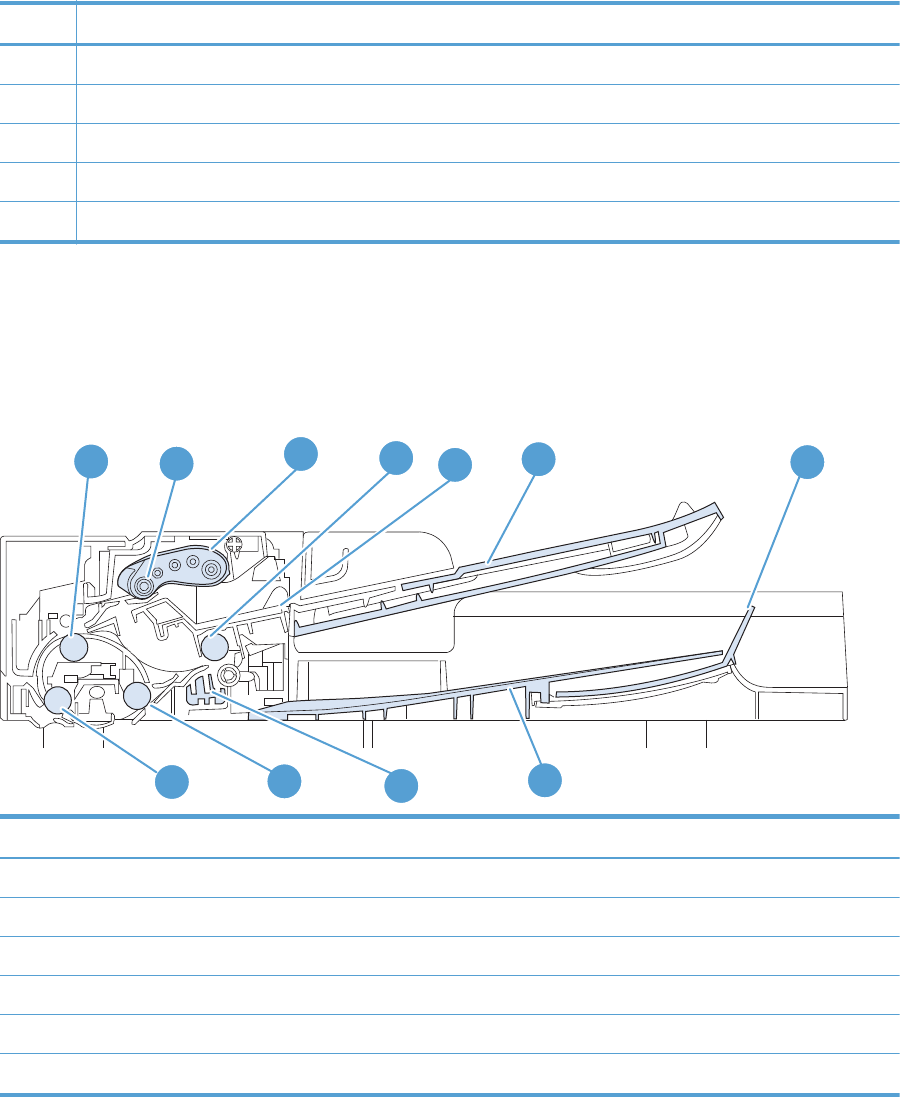
Item Description
2 ADF pick success sensor
3 ADF paper path deskew sensor
4 Prescan frontside sensor
5 ADF jam cover sensor (open the jam acess-cover and insert a folded piece of paper to activate flag)
6 ADF paper present sensor
Document feeder paper path (standard model)
For two-sided documents, the delivery rollers reverse the direction of each page to feed the second side
of the document past the document feeder glass.
Figure 1-34 Document feeder paper path (standard model)
5
61
2
3
4
8
7
9
10
11
Item Description Item Description
1 Paper stopper 7 Deskew drive roller
2 Input tray 8 Output bin
3 Separation pad 9 Pinch-M-Duplex
4 Exit drive roller 10 Postscan drive roller
5 Pick roller 11 Prescan drive roller
6 Feed roller
48 Chapter 1 Theory of operation ENWW
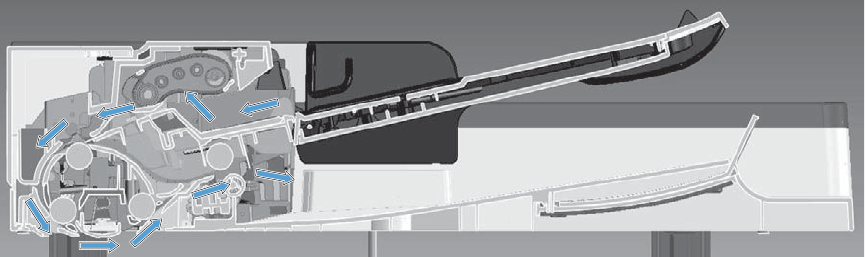
Document feeder simplex operation (standard model)
Following is the basic sequence of operation for a document feeder simplex job.
Figure 1-35 Document feeder simplex operation (standard model)
Document feeder simplex operation (standard model)
1. The ADF paper present sensor activates when paper is loaded into the input tray.
2. The pick motor rotates to lower the pick roller and starts to pick the loaded paper.
3. The ADF pick success sensor activated when leading edge of the paper is driven past the sensor.
The product firmware registers the leading edge of the paper position.
4. The leading edge of the paper is driven into the nip point of the deskew drive roller and the
deskew pinch rollers. A buckle of paper is created by the nip point for pick-skew correction. The
product firmware registers the leading edge of the paper when the deskew sensor activates.
5. The deskew motor rotates the deskew drive roller to pull the paper into the prescan drive roller.
6. The pick motor stops turning and allows both the pick and feed roller to turn freely while the paper
is being pulled in by the deskew drive roller.
7. The feed motor rotates to drive the paper into the prescan frontside sensor. The firmware registers
the leading edge position of the paper as the prescan frontside sensor is activated.
8. The feed motor continues to rotate and drive the leading edge of the paper through the preset
distance from the prescan frontside sensor to the scan zone. The scanner begins the scanning and
data retrieval process.
9. The prescan frontside sensor deactivates when trailing edge of the paper passes the sensor. The
firmware registers the trailing edge of the paper position.
10. The feed motor continues to rotate and drive the trailing edge of the paper through the preset
distance from the prescan frontside sensor to the scan zone. The scanner ends the scanning and
data retrieval process.
11. The feed motor continues to rotate and ejects the trailing edge of the paper into the output bin.
ENWW Scanning/image capture system 49
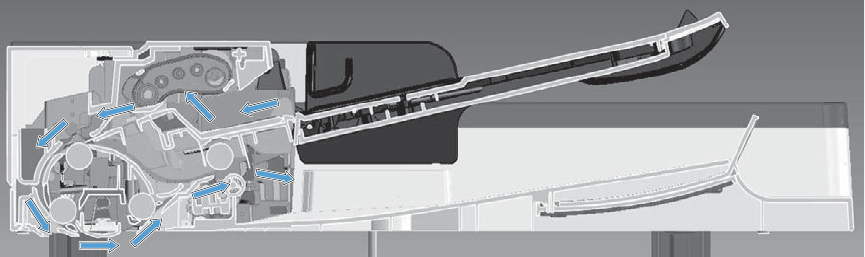
Document feeder duplex operation (standard model)
Following is the basic sequence of operation for a document feeder duplex job.
Figure 1-36 Document feeder duplex operation (first paper path; standard model)
Document feeder duplex operation (standard model)
Following is a description of the first pass of a page during a duplex copy job. The front side of the
page is scanned.
1. The ADF paper present sensor activates when paper is loaded into the input tray.
2. The pick motor rotates to lower the pick roller and starts to pick the loaded paper.
3. The ADF pick success sensor activated when leading edge of the paper is driven past the sensor.
The product firmware registers the leading edge of the paper position.
4. The leading edge of the paper is driven into the nip point of the deskew drive roller and the
deskew pinch rollers. A buckle of paper is created by the nip point for pick-skew correction. The
product firmware registers the leading edge of the paper when the deskew sensor activates.
5. The deskew motor rotates the deskew drive roller to pull the paper into the prescan drive roller.
6. The pick motor stops turning and allows both the pick and feed rollers to turn freely while the
paper is being pulled in by the deskew drive roller.
7. The feed motor rotates to drive the paper into the prescan frontside sensor. The firmware registers
the leading edge position of the paper as the sensor prescan frontside sensor is activated.
8. The feed motor continues to rotate and drive the leading edge of the paper through the preset
distance from the prescan frontside sensor to the scan zone. The scanner begins the scanning and
data retrieval process.
9. The prescan frontside sensor deactivates when trailing edge of the paper passes the sensor. The
firmware registers the trailing edge of the paper position.
10. The feed motor continues to rotate and drive the trailing edge of the paper through the preset
distance from the prescan frontside sensor to the scan zone. The scanner ends the scanning and
data retrieval process.
50 Chapter 1 Theory of operation ENWW
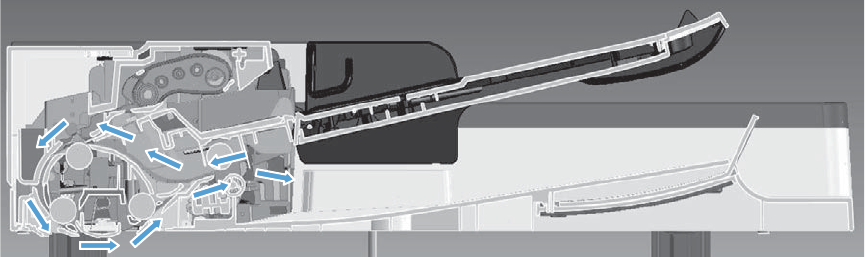
Figure 1-37 Document feeder duplex operation (standard model)
Document feeder duplex operation (standard model)
Following is a description of the second pass of a page during a duplex copy job. The back side of the
page is scanned.
1. The trailing edge of the paper travels a preset distance before pinch-m-duplex activates to pull the
paper back.
2. The deskew motor rotates the deskew drive roller to pull the paper into the prescan drive roller.
3. The feed motor rotates to drive the paper into the prescan sensor. The firmware registers the
leading edge position of the paper as the prescan frontside sensor is activated.
4. The feed motor continues to rotate and drive the leading edge of the paper through the preset
distance from the prescan frontside sensor to the scan zone. The scanner begins the scanning and
data retrieval process.
5. The prescan frontside sensor deactivates when trailing edge of the paper passes the sensor. The
firmware registers the trailing edge of the paper position.
6. The feed motor continues to rotate and drive the trailing edge of the paper through the preset
distance from the prescan frontside sensor to the scan zone. The scanner ends the scanning and
data retrieval process.
7. The trailing edge of the paper travels a preset distance before pinch-m-duplex activates to pull the
paper back.
Document feeder duplex operation (standard model)
Following is a description of the third pass of a page during a duplex copy job. The page is turned
over and then moves to the output bin. This action allows the copy job to maintain the same page order
as the source documents.
1. The deskew motor rotates the deskew drive roller to pull the paper into the prescan drive roller.
2. The feed motor rotates to drive the paper into the prescan frontside sensor.
3. The feed motor continues to rotate and drive the leading edge of the paper through the preset
distance from the prescan frontside sensor to the scan zone.
4. The prescan frontside sensor deactivates when trailing edge of the paper passes the sensor.
ENWW Scanning/image capture system 51
5. The feed motor continues to rotate and drive the trailing edge of the paper through the preset
distance from the prescan frontside sensor to the scan zone.
6. The feed motor continues to rotate and ejects the trailing edge of the paper into the output bin.
52 Chapter 1 Theory of operation ENWW

Document feeder operation (M525c model)
The following sections describe the operation of the document feeder for the M525c model.
The M525c product supports single page pass electronic duplexing (e-duplex) copy jobs.
The product uses two separate scan modules to scan the frontside and backside of an e-duplex copy
job page in a single page pass thought the document feeder. See Document feeder paper path
(M525c model) on page 55.
For specific e-duplex copy jobs, a background selector changes the reflective platen from a white strip
to a black strip for page edge-to edge recognition. See Frontside and backside background selector
(M525c model) on page 57.
Sensors in the document feeder (M525c model)
The document feeder contains the following sensors:
●ADF Y (length) sensor: Detects whether there is a legal-size original.
●ADF paper present sensor: Detects whether a document is present in the document feeder. If
paper is present in the document feeder when copies are made, the product scans the document
using the document feeder. If no paper is present when copies are made, the product scans the
document using the scanner glass.
●ADF multi pick (ultra sonic) sensor: Uses ultra sonic sound to detect a mutli page paper
feed.
NOTE: This sensor also functions as the pick success sensor.
●ADF paper path deskew sensor: Detects the top of the page as it enters the deskew rollers.
●Prescan frontside sensor: Detects the top of the page as it approaches the frontside scan
module (document feeder glass).
ENWW Scanning/image capture system 53
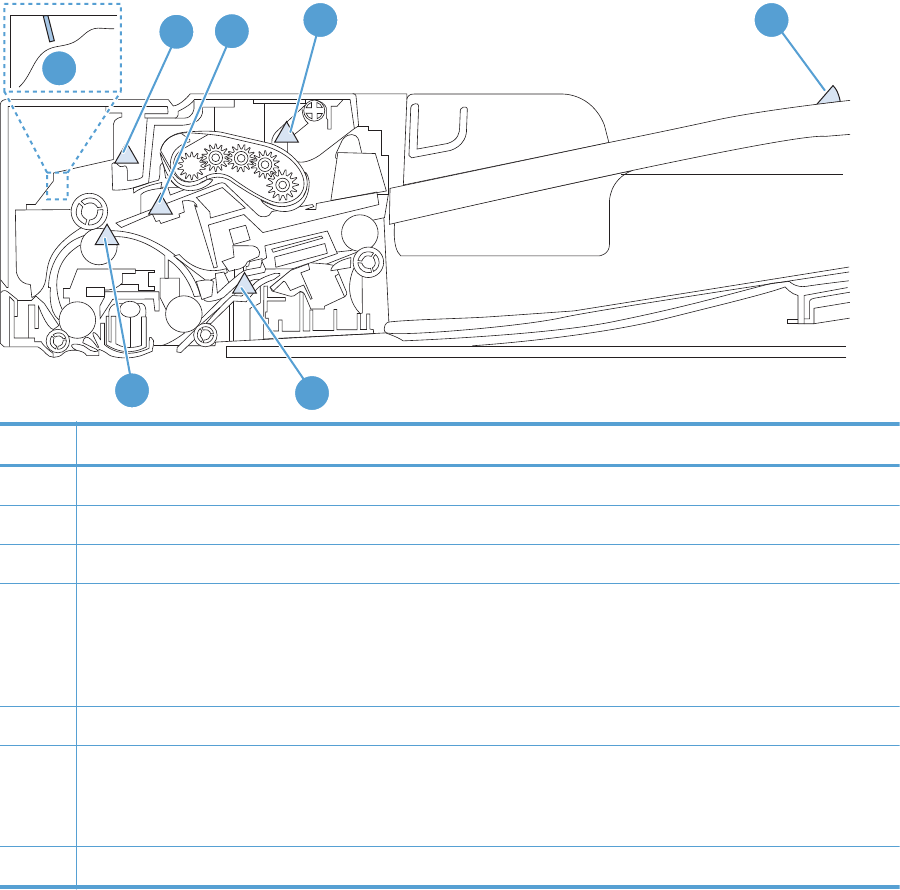
●Prescan backside sensor: Detects the top of the page as it approaches the backside scan
module during e-duplex copy jobs.
●ADF jam cover sensor: Detects whether the document feeder cover is open or closed.
Figure 1-38 Document feeder sensors (M525c model)
7
42 1
3
56
Item Description
1ADF Y (length)
2 ADF paper present sensor
3 ADF multi pick (ultra sonic) sensor
4 Prescan frontside sensor
NOTE: For an e-duplex copy job (HP EveryPage), this sensor is used to activate the frontside scan module (this
component is in the scanner base) and the frontside background selector (this component is in the document feeder)
if needed.
5 ADF paper path deskew
6 Prescan backside sensor
NOTE: For an e-duplex copy job, this sensor is used to activate the backside scan module and the backside
background selector if needed (these components are in the document feeder) .
7 ADF jam cover sensor (open the jam access-cover and insert a folded piece of paper to activate flag)
54 Chapter 1 Theory of operation ENWW
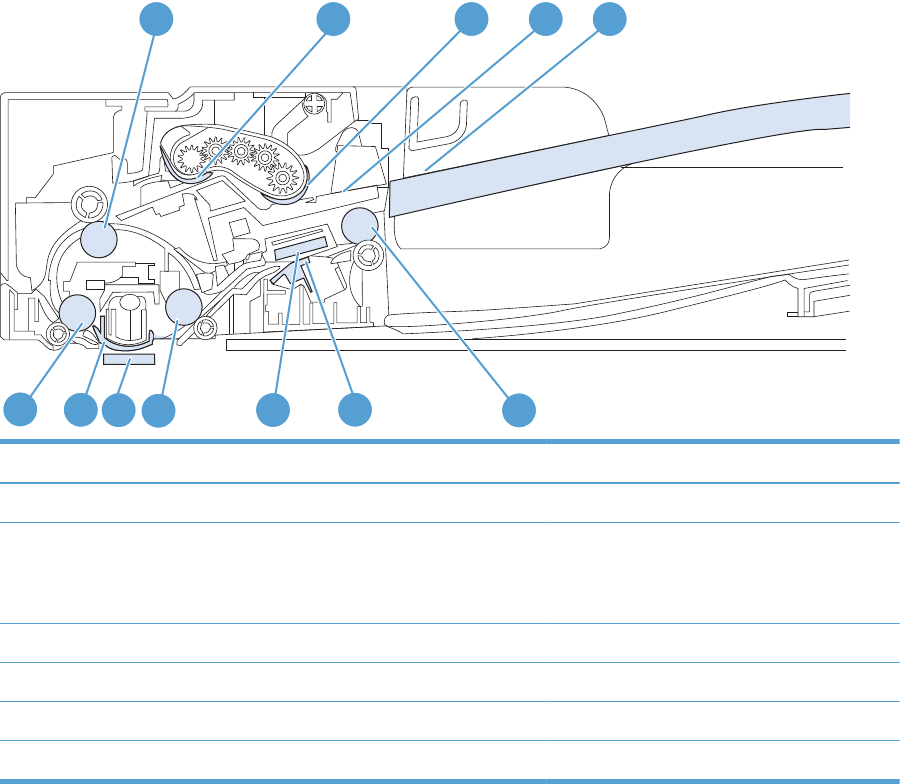
Document feeder paper path (M525c model)
Figure 1-39 Document feeder paper path (M525c model)
5 4 3 12
678910 11 12
Item Description Item Description
1 Input tray 7 Frontside background selector
2 Separation pad 8 Frontside scan module
NOTE: This scan module (document feeder
glass) is located in the scanner base.
3 Pick roller 9 Postscan drive roller
4 Feed roller 10 Backside scan module
5 Deskew drive roller 11 Backside background selector
6 Prescan drive roller 12 Exit drive roller
ENWW Scanning/image capture system 55

Document feeder simplex operation (M525c model)
Following is the basic sequence of operation for a document feeder simplex job.
Document feeder simplex operation (M525c model)
1. ADF jam cover sensor cover door detects when cover door is in closed position.
2. The ADF paper present sensor activates when paper is loaded onto the input tray.
3. The pick motor rotates to lower the pick roller and starts to pick the loaded paper.
4. The ADF multi pick (ultra sonic) sensor activates when the leading edge of the media is driven past
the sensor. The product firmware registers a successful pick operation.
5. The ADF paper path deskew activates when the leading edge of the paper passes it. The product
firmware registers the leading edge of the paper position.
6. The leading edge of the paper is driven into the nip point of the deskew drive roller and the
deskew pinch rollers. A buckle of paper is created by the nip point for pick-skew correction.
7. The deskew motor rotates the deskew drive roller to pull the paper into the prescan drive roller.
8. The pick motor stops turning and allows both the pick and feed roller to turn freely while the paper
is being pulled in by the deskew drive roller.
9. The feed motor rotates to drive the paper into the prescan frontside sensor. The firmware registers
the leading edge position of the paper as the multi-pick sensor is activated.
NOTE: If the copy job requires a reflective platen change, the frontside background selector is
activated.
10. The feed motor continues to rotate and drive the leading edge of the paper through the preset
distance from the multi-pick sensor to the frontside scan zone. The scanner begins the scanning
and data retrieval process.
11. The ADF multi pick (ultra sonic) sensor deactivates when trailing edge of the paper passes the
sensor. The firmware registers the trailing edge of the paper position.
12. The feed motor continues to rotate and drive the trailing edge of the paper through the preset
distance from the ADF multi pick (ultra sonic) sensor to the frontside scan zone. The scanner ends
the scanning and data retrieval process.
13. The feed motor continues to rotate and ejects the trailing edge of the paper into the output bin.
14. One of the following occurs:
◦If the copy job is complete, the ADF paper present sensor is deactivated. The feed motor
reverses rotation to raise the pick roller.
◦If the copy job is not complete, the ADF paper present sensor is active. The product firmware
detects additional pages in the input tray and the process repeats.
56 Chapter 1 Theory of operation ENWW

Document feeder e-duplex operation (M525c model)
Following is the basic sequence of operation for an e-duplex job.
NOTE: For an e-duplex copy job, the background scan operation begins immediately after the
simplex sequence of operation ends.
Document feeder backside scan operation (M525c model)
1. The feed motor continues to drive the paper until the leading edge activates the prescan backside
sensor. The product firmware registers the position of the leading edge of the paper.
NOTE: If the copy job requires a reflective platen change, the backside background selector is
activated.
2. The feed motor continues to rotate to drive the leading edge of the paper through the preset
distance from prescan backside sensor to the backside background selector scan zone. The
backside background scan module begins scanning and retrieval of the data.
3. The prescan backside sensor is deactivated when the trailing edge of the paper passes it. The
product firmware registers the trailing edge of the paper position.
4. The feed motor continues to rotate to drive the trailing edge of the paper edge pass the backside
background selector scan zone.
5. The feed motor continues to rotate and ejects the trailing edge of the paper into the output bin.
6. One of the following occurs:
◦If the copy job is complete, the ADF paper present sensor is deactivated. The feed motor
reverses rotation to raise the pick roller.
◦If the copy job is not complete, the ADF paper present sensor is active. The product firmware
detects additional pages in the input tray and the process repeats.
Frontside and backside background selector (M525c model)
NOTE: The product automatically controls the operation of the frontside and backside background
selectors.
The background selectors change the reflective surface behind a duplex or simplex scanned page from
white to black. Doing so allows the firmware to recognize the edges of a scanned page by passing it
over a black background.
The M525c product uses the background selectors for specific scan jobs. Scan jobs like optical
character recognition (OCR) and scan to folder require a black reflective background so that the
firmware can correctly scan the page from edge-to-edge.
The frontside background selector is a non removable component of the document feeder. The backside
background selector assembly is located under the document feeder input tray and is removable to
allow access for cleaning the backside scan module glass.
ENWW Scanning/image capture system 57
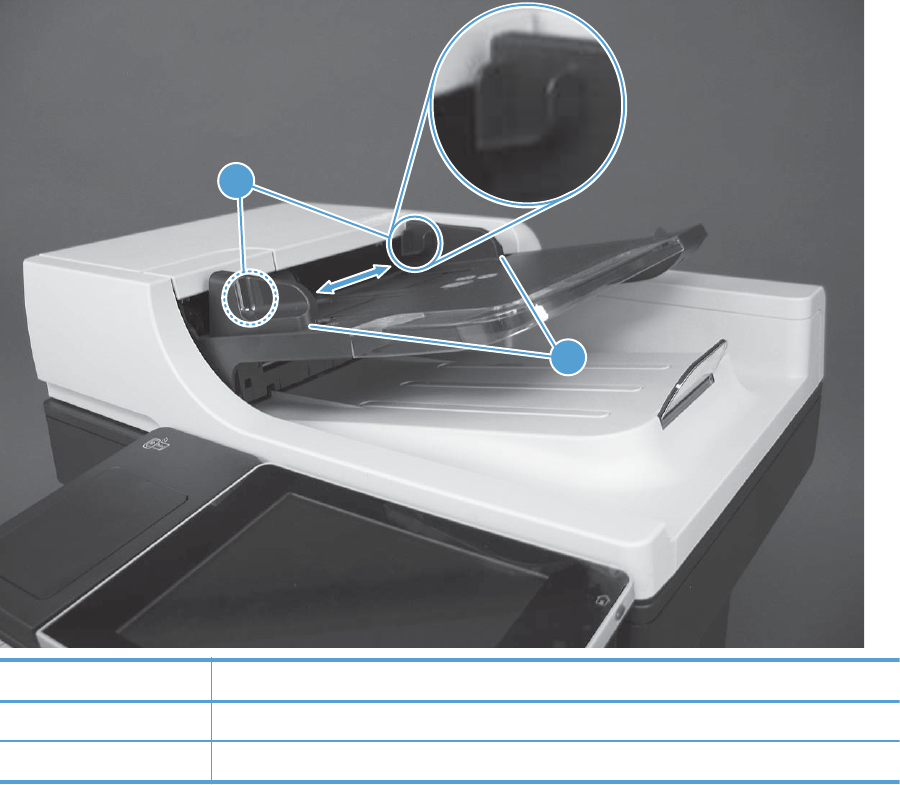
Document feeder operation (standard model and the M525c model)
The following sections describe the operation of the document feeder for standard model and the
M525c model.
Deskew operation
Sliding-side guides on the input tray make sure that the paper stack is correctly aligned at the center of
the input tray when the tray is loaded with paper. The loaded paper is positioned parallel with the
direction of travel into the document feeder paper path.
Paper skew because of improper loading of paper on the input tray is further reduced by buckling the
paper to create a paper buffer.
The leading edge of the paper is aligned parallel with the deskew drive rollers in before it is driven
further into the document feeder paper path.
The stack-height limiter prevents incorrect insertion of the paper and limits the maximum amount
(stacking height) of media that can be loaded on the input tray.
Figure 1-40 Document feeder deskew features
2
1
Item Description
1 Sliding-side guides
2 Stack-height limiter
58 Chapter 1 Theory of operation ENWW
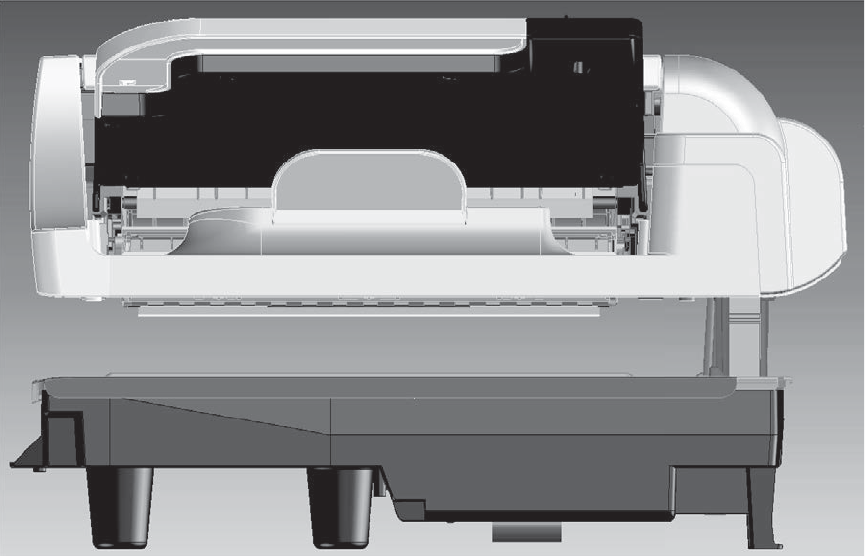
Document feeder hinges
The document feeder hinges allow the assembly to be positioned vertically above the scanner glass to
accommodate the placement of books and other objects up to 40 mm (1.57 in) in height on the
scanner glass. The document feeder is still be able to close (the bottom of the ADF is kept parallel to the
scanner glass) and allow the product to operate.
The document feeder hinges provide height adjustment of at least 40 mm (1.57 in) in when a maximum
downward force of 5 kg (11 lb) is applied at front edge of the assembly, with the fulcrum (for example,
the spine of a book) centered in the scanner glass and parallel to its long axis.
The document feeder is able to withstand a downward force of at least 15 kg (33 lb) applied at the
front edge center of the assembly, when the fulcrum (such as the spine of a book) is oriented parallel to
the long axis of the scanner glass but located anywhere within the scan window, without breaking,
deforming, detaching or experiencing performance degradation.
The document feeder hinges support the assembly in the open position, and prevent the document
feeder from suddenly shutting in a damaging or loud manner.
The hinges can hold the document feeder static in all positions higher than 100 mm (3.93 in)
(measured at the front of the assembly). Less than 2.3 kg (5 lb) is required to open or close the
document feeder.
The hinges allow the document feeder to open to an angle of between 60º and 80º from horizontal
(this angle will not allow the product tip over).
Figure 1-41 Document feeder open (book mode)
ENWW Scanning/image capture system 59
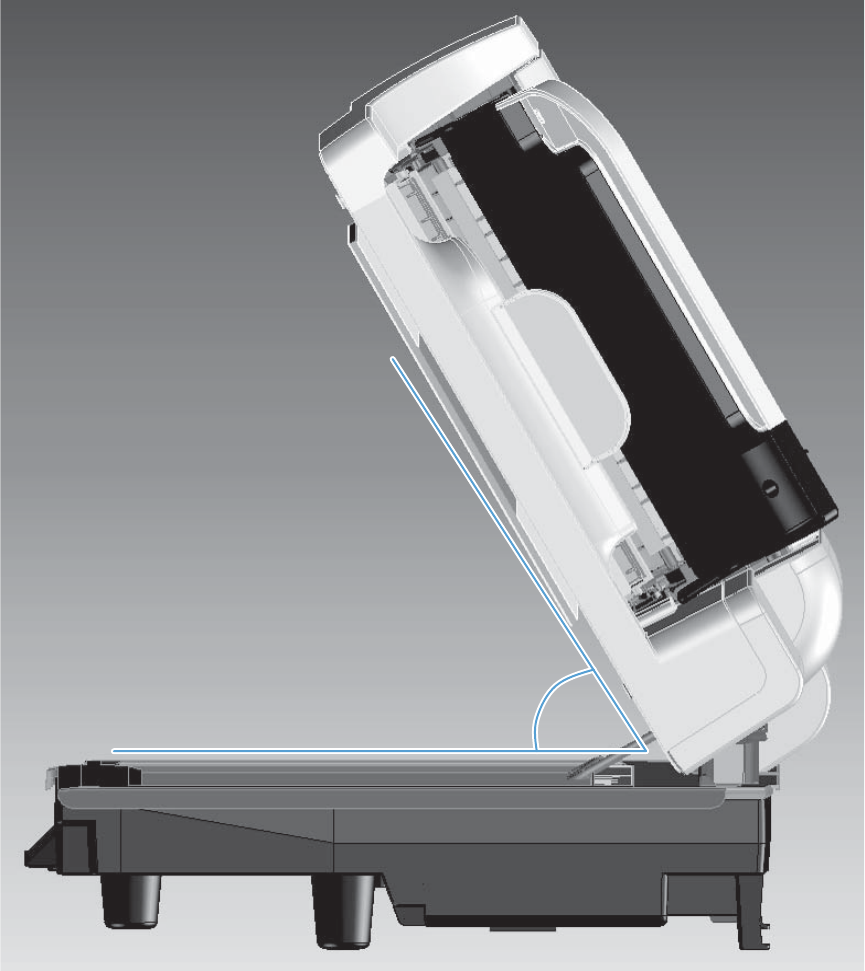
Figure 1-42 Document feeder open (60º to 80º)
60 Chapter 1 Theory of operation ENWW
Stapler
The stapler uses a 24v dc power connection to the DC controller. The stapler only has a power
connection to the product. Stapler control-panel messages, for example Out of Staples, are not
supported.
ENWW Stapler 61
62 Chapter 1 Theory of operation ENWW

2 Solve problems
●Solve problems checklist
●Menu map
●Preboot menu options
●Current settings pages
●Troubleshooting process
●Tools for troubleshooting
●Clear jams
●Solve paper-handling problems
●Use manual print modes
●Solve image-quality problems
●Clean the product
●Solve performance problems
●Solve connectivity problems
●Service mode functions
●Solve fax problems
●Product upgrades
ENWW 63
Solve problems checklist
Follow these steps when trying to solve a problem with the product.
1. If the control panel is blank or black, complete these steps:
a. Check the power cable.
b. Check that the power is turned on.
c. Make sure that the line voltage is correct for the product power configuration. (See the label
that is on the back of the product for voltage requirements.) If you are using a power strip
and its voltage is not within specifications, connect the product directly into the electrical
outlet. If it is already connected into the outlet, try a different outlet.
2. The control panel should indicate a Ready status. If an error message displays, resolve the error.
3. Check the cabling.
a. Check the cable connection between the product and the computer or network port. Make
sure that the connection is secure.
b. Make sure that the cable itself is not faulty by using a different cable, if possible.
c. Check the network connection.
4. Ensure that the selected paper size and type meet specifications. Also open the Trays menu on the
product control panel and verify that the tray is configured correctly for the paper type and size.
5. Print a configuration page. If the product is connected to a network, an HP Jetdirect page also
prints.
a. From the Home screen on the product control panel, scroll to and touch the Administration
button.
b. Open the following menus:
◦Reports
◦Configuration/Status Pages
◦Configuration page
c. Touch the Print button to print the page.
If the pages do not print, check that at least one tray contains paper.
If the page jams in the product, follow the instructions on the control panel to clear the jam.
If the page does not print correctly, the problem is with the product hardware.
If the page prints correctly, then the product hardware is working. The problem is with the
computer you are using, with the print driver, or with the program.
6. Verify that you have installed the print driver for this product. Check the program to make sure that
you are using the print driver for this product. The print driver is on the CD that came with the
64 Chapter 2 Solve problems ENWW

product. You can also download the print driver from this Web site: www.hp.com/go/
lj500MFPM525_software.
7. Print a short document from a different program that has worked in the past. If this solution works,
then the problem is with the program. If this solution does not work (the document does not print),
complete these steps:
a. Try printing the job from another computer that has the product software installed.
b. If you connected the product to the network, connect the product directly to a computer with
a USB cable. Redirect the product to the correct port, or reinstall the software, selecting the
new connection type that you are using.
ENWW Solve problems checklist 65
Menu map
You can print a report of the complete Administration menu so you can more easily navigate to the
individual settings you need.
1. From the Home screen on the product control panel, scroll to and touch the Administration button.
2. Open the following menus:
●Reports
●Configuration/Status Pages
3. Select the Administration Menu Map option.
4. Touch the Print button to print the report.
66 Chapter 2 Solve problems ENWW
Preboot menu options
If an error occurs while the product is initializing, an error message displays on the control-panel
display. The user can open the Preboot menus. The error menu item will not be seen if an error did
not occur.
CAUTION: The Format Disk option performs a disk initialization for the entire disk. The operating
system, firmware files, and third party files (among other files) will be completely lost. HP does not
recommend this action.
Access the Preboot menu
1. Turn the product on.
2. The HP logo displays on the product control panel. When a "1/8" with an underscore displays
below the HP logo, touch the logo to open the Preboot menu.
3. Use the arrow buttons on the touchscreen to navigate the Preboot menu.
4. Touch the OK button to select a menu item.
Cold reset using the Preboot menu
1. Turn the product on.
2. The HP logo displays on the product control panel. When a "1/8" with an underscore displays
below the HP logo, touch the logo to open the Preboot menu.
3. Use the down arrow button to highlight Administrator, and then touch the OK button.
4. Use the down arrow button to highlight Startup Options item, and then touch the OK button.
5. Use the down arrow button to highlight the Cold Reset item, and then touch the OK button.
6. Touch the home button to highlight Continue, and then touch the OK button.
NOTE: The product will initialize.
Table 2-1 Preboot menu options (1 of 6)
Menu option First level Second level Third level Description
Continue Selecting the Continue item exits the Preboot menu and
continues the normal boot process.
If a selection is not made in the initial menu within 30
seconds, the product returns to a normal boot (the same as
selecting Continue.
If the user navigates to another menu, the timeout does not
apply.
Sign In Enter the administrator PIN or service PIN if one is required
to open the Preboot menu.
ENWW Preboot menu options 67

Table 2-1 Preboot menu options (1 of 6) (continued)
Menu option First level Second level Third level Description
Administrator This item navigates to the Administrator sub menus.
If authentication is required (and the user is not already
signed in) the Sign In displays. The user is required to sign
in.
Download Network
USB
USB
Thumbdrive
This item initiates a preboot firmware download process. A
USB Thumbdrive option will work on all FutureSmart
products. USB or Network connections are not currently
supported.
Format Disk This item reinitializes the disk and cleans all disk partitions.
CAUTION: Selecting the Format Disk item removes all
data.
A delete confirmation prompt is not provided.
The system is not bootable after this action and a
99.09.67 error will be presented on the control panel. A
firmware download must be performed to return the system
to a bootable state.
Partial Clean This item reinitializes the disk (removing all data except the
firmware repository where the master firmware bundle is
downloaded and saved).
CAUTION: Selecting the Partial Clean item removes all
data except the firmware repository.
A delete confirmation prompt is not provided.
This allows user to reformat the disk by removing the
firmware image from the active directory without having to
download new firmware code (product remains bootable).
Change
Password
Select this item to set or change the administrator password.
Clear Password Select the Clear Password item to remove a password from
the Administrator menu. Before the password is actually
cleared, a message will be shown asking to confirm that the
password should be cleared. Press the OK button to confirm
the action.
When the confirmation prompt displays, press the OK button
to clear the password.
68 Chapter 2 Solve problems ENWW

Table 2-2 Preboot menu options (2 of 6)
Menu option First level Second level Third level Description
Administrator
continued
Manage Disk Clear disk Select the Clear disk item to disable using an external device
for job storage. Job storage is normally enabled only for the
Boot device. This will be grayed out unless the 99.09.68
error is displayed.
Lock Disk Select the Lock Disk item to lock (mate) a new secure disk to
this product.
The secure disk already locked to this product will remain
accessible to this product. Use this function to have more
then one encrypted disk accessible by the product when
using them interchangeably.
The data stored on the secure disk locked to this product
always remains accessible to this product.
Leave Unlocked Select the Leave Unlocked item to use a new secure disk in
an unlocked mode for single service event. The secure disk
that is already locked to this product will remain accessible
to this product and uses the old disk's encryption password
with the new disk.
The secure disk that is already locked to this product remains
accessible to this product.
Clear Disk Pwd Select the Clear Disk Pwd item to continue using the non-
secure disk and clear the password associated with the yet
to be installed secure disk.
CAUTION: Data on the missing secure disk will be
permanently inaccessible.
Retain Password Select the Retain Password item to use the non-secure disk
for this session only, and then search for the missing secure
disk in future sessions.
Boot Device Secure Erase Select the Secure Erase item to erase all of the data on the
disk and unlock it if required.
This might take a long time.
NOTE: The system will be unusable until the system files
are reinstalled. ATA secure-erase command one pass over
write. Erases entire disk including firmware. The disk
remains an encrypted disk.
Erase/Unlock Select the Erase/Unlock item to cryptographically erase all
data on disk and unlock the disk to allow access to it from
any product.
NOTE: The system will be unusable until the system files
are reinstalled. Erases the crypto key. The disk becomes a
non-encrypted disk.
Get Status This item provides disk status information if any is available.
ENWW Preboot menu options 69

Table 2-3 Preboot menu options (3 of 6)
Menu option First level Second level Third level Description
Administrator
continued
Manage Disk
continued
Internal Device Select the Internal Device item to erase the internal device or
get status about the internal device.
Secure Erase Select the Secure Erase item to erase all of the data on the
disk and unlock it if required.
This might take a long time.
NOTE: The system will be unusable until the system files
are reinstalled. ATA secure-erase command one pass over
write. Erases the entire disk, including firmware. The disk
remains an encrypted disk.
Erase/Unlock Select the Erase/Unlock item to cryptographically erase all
data on disk and unlock the disk to allow access to it from
any product.
NOTE: The system will be unusable until the system files
are reinstalled. Erases the HP HIgh Performance Secure Hard
Disk. The disk becomes a non-encrypted disk.
Get Status This item provides disk status information if any is available.
External Device Select the External Device item to erase the internal device or
get status about the internal device.
Secure Erase Select the Secure Erase item to erase all of the data on the
disk and unlock it if required.
This might take a long time.
NOTE: The system will be unusable until the system files
are reinstalled.
The ATA secure-erase command erases the entire disk,
including firmware. The disk remains an encrypted disk.
Erase/Unlock Select the Erase/Unlock item to cryptographically erase all
data on disk and unlock the disk to allow access to it from
any product.
NOTE: The system will be unusable until the system files
are reinstalled. Erases the crypto key. The disk becomes a
non-encrypted disk.
Get Status This item provides disk status information if any is available.
70 Chapter 2 Solve problems ENWW

Table 2-4 Preboot menu options (4 of 6)
Menu option First level Second level Third level Description
Administrator
continued
Configure LAN Select the Configure LAN item to setup the network settings
for the PreBoot menu firmware upgrade.
The network can be configured obtain the network settings
from a DHCP server or as static.
IP Mode
[DHCP]
Use this item for automatic IP address acquisition from the
DHCP server.
IP Mode
[STATIC]
Use this item to manually assign the network addresses.
IP Address Use this item to manually enter the IP addresses.
Subnet Mask Use this item to manually enter the subnet mask.
Default
Gateway
Use this item to manually enter the default gateway.
Save Select the Save item to save the manual settings.
Table 2-5 Preboot menu options (5 of 6)
Menu option First level Second level Third level Description
Administrator
continued
Startup
Options
Select the Startup Options item to specify options that can be
set for the next time the product is turned on and initializes to
the Ready state.
Show Revision Not currently functional: Check the Show Revision item to allow
the product to initialize and show the firmware version when
the product reaches the Ready state.
Once the product power is turned on the next time, the Show
Revision item is unchecked so that the firmware revision is not
shown.
Cold Reset Check the Cold Reset item to clear the IP address and all
customer settings (this item also returns all settings to factory
defaults).
NOTE: Items in the Service menu are not reset.
Skip Disk Load Select the Skip Disk Load item to disable installed third-party
applications.
Skip Cal Select the Skip Cal item to initialize the product the next time
the power is turned on without calibrating.
Lock Service CAUTION: Select the Lock Service item to lock the Service
menu access (both in the preboot menu and the Device
Maintenance menu).
Service personnel must have the administrator remove the Lock
Service setting before they can open the Service menu.
Skip FSCK Select the Skip FSCK item to disable Chkdisk/ScanVolume
during startup.
ENWW Preboot menu options 71

Table 2-5 Preboot menu options (5 of 6) (continued)
Menu option First level Second level Third level Description
Administrator
continued
Startup
Options
continued
First Power Not currently functional: This item allows the product to
initialize as if it is the first time it has been turned on.
For example, the user is prompted to configure first-time settings
like date/time, language, and other settings.
Check this item so that it is enabled for the next time the
product power is turned on.
When the product power is turned on the next time, this item is
unchecked so that the pre-configured settings are used during
configuration, and the first-time setting prompt is not used.
Embedded
Jetdirect Off
Check the Embedded Jetdirect Off item to disable the
embedded Jetdirect.
By default this item is unchecked so that Jetdirect is always
enabled.
WiFi Accessory Check the WiFi Accessory item to enable the WiFi accessory.
Table 2-6 Preboot menu options (6 of 6)
Menu option First level Second level Third level Description
Administrator
continued
Diagnostics Memory Do Not Run Diagnostic items are useful for troubleshooting formatter
problems. Use the options below the Do Not Run item to
help troubleshoot formatter problems.
Short
Long
Disk Do Not Run
Short
Long
Optimized
Raw
Smart
ICB
CPB
Interconnect
Run Selected
Remote Admin Start Telnet The Remote Admin item allows a service technician to
access the product remotely to troubleshoot issues.
Stop Telnet
Refresh IP
72 Chapter 2 Solve problems ENWW

Table 2-6 Preboot menu options (6 of 6) (continued)
Menu option First level Second level Third level Description
System Triage Copy Logs If you cannot print the error logs, the System Triage item
allows you to copy the error logs to a flash drive on the next
startup. The files can then be sent to HP to help determine
the problem.
Service Tools This item requires the service access code. If the product
does not reach the Ready state, you can use this item to
print the error logs. The logs can be copied to a USB
storage accessory when the product is initialized, and then
these files can be sent to HP to help determine what is
causing the problem.
Reset Password Use this item to reset the administrator password.
Subsystems For manufacturing use only. Do not change these values.
Developer Tools Netexec
ENWW Preboot menu options 73
Current settings pages
Printing the current settings pages provides a map of the user configurable settings that might be helpful
in the troubleshooting process.
1. From the Home screen on the product control panel, scroll to and touch the Administration button.
2. Open the following menus:
●Reports
●Configuration/Status Pages
3. Select the Current Settings Page option.
4. Touch the Print button to print the report.
74 Chapter 2 Solve problems ENWW

Troubleshooting process
Determine the problem source
When the product malfunctions or encounters an unexpected situation, the product control panel alerts
you to the situation. This section contains a pre-troubleshooting checklist to filter out many possible
causes of the problem. A troubleshooting flowchart helps you diagnose the root cause of the problem.
The remainder of this chapter provides steps for correcting problems.
●Use the troubleshooting flowchart to pinpoint the root cause of hardware malfunctions. The
flowchart guides you to the section of this chapter that contains steps for correcting the
malfunction.
Before beginning any troubleshooting procedure, check the following issues:
●Are supply items within their rated life?
●Does the configuration page reveal any configuration errors?
NOTE: The customer is responsible for checking supplies and for using supplies that are in good
condition.
Troubleshooting flowchart
This flowchart highlights the general processes that you can follow to quickly isolate and solve product
hardware problems.
Each row depicts a major troubleshooting step. A “yes” answer to a question allows you to proceed to
the next major step. A “no” answer indicates that more testing is needed. Go to the appropriate section
in this chapter, and follow the instructions there. After completing the instructions, go to the next major
step in this troubleshooting flowchart.
Table 2-7 Troubleshooting flowchart
1
Power on
Is the product on and does a readable
message display?
Follow the power-on troubleshooting checks. See Power subsystem
on page 76.
After the control panel display is functional, see step 2.
Yes No
2
Control panel
messages
Does the message Ready display on the
control panel?
After the errors have been corrected, go to step 3.
Yes No
3
Event log
Open the Troubleshooting menu and print an
event log to see the history of errors with this
product.
Does the event log print?
If the event log does not print, check for error messages.
If paper jams inside the product, see the jams section of the
product service manual.
If error messages display on the control panel when you try to print
an event log, see the control panel message section of the service
manual.
After successfully printing and evaluating the event log, see step 4.
Yes No
ENWW Troubleshooting process 75

Table 2-7 Troubleshooting flowchart (continued)
4
Information
pages
Open the Reports menu from the
Administration menu, and then print the
configuration pages to verify that all the
accessories are installed.
Are all the accessories installed?
If accessories that are installed are not listed on the configuration
page, remove the accessory and reinstall it.
After evaluating the configuration pages, see step 5.
Yes No
5
Image quality
Does the print quality meet the customer's
requirements?
Compare the images with the sample defects in the image defect
tables. See the images defects table in the product service manual.
After the print quality is acceptable, see step 6.
Yes No
6
Interface
Can the customer print successfully from the
host computer?
Verify that all I/O cables are connected correctly and that a valid
IP address is listed on the Jetdirect configuration page.
If error messages display on the control panel when you try to print
an event log, see the control panel message section of the service
manual.
When the customer can print from the host computer, this is the
end of the troubleshooting process.
Yes. This is the end of
the troubleshooting
process.
No
Power subsystem
Power-on checks
The basic product functions should start up when the product is connected into an electrical outlet and
the power switch is pushed to the
on
position. If the product does not start, use the information in this
section to isolate and solve the problem.
Power-on troubleshooting overview
Turn on the product power. If the control panel display remains blank, does not complete the
initialization process, or displays a communications lost message (in multiple languages), perform
power-on checks to find the cause of the problem.
During normal operation, the main cooling fan begins to spin briefly after the product power is turned
on. Place your hand over the holes in the left-side cover, near the formatter. If the fan is operating, you
will feel air passing out of the product. You can also lean close to the product and hear the fan
operating. You can also place your hand over the hole in the right-rear lower corner. If the fan is
operating, you should feel air being drawn into the product. When this fan is operational, the DC side
of the power supply is functioning correctly.
After the fan is operating, the main motor turns on (unless the right or front cover is open, a jam
condition is sensed, or the paper-path sensors are damaged). You might be able to visually and
audibly determine if the main motor is turned on.
If the fan and main motor are operating correctly, the next troubleshooting step is to isolate print
engine, formatter, and control panel problems. Perform an engine test. If the formatter is damaged, it
might interfere with the engine test. If the engine-test page does not print, try removing the formatter
76 Chapter 2 Solve problems ENWW
and then performing the engine test again. If the engine test is then successful, the problem is almost
certainly with the formatter, the control panel, or the cable that connects them.
If the control panel is blank when you turn on the product, check the following items.
1. Make sure that the product is connected directly into an active electrical outlet (not a power strip)
that delivers the correct voltage.
2. Make sure that the power switch is in the
on
position.
3. Make sure that the fan runs briefly, which indicates that the power supply is operational.
4. Make sure that the control panel display wire harness is connected.
5. Make sure that the formatter is seated and operating correctly. Turn off the product and remove
the formatter. Reinstall the formatter, and then verify that the heartbeat LED is blinking.
6. Remove any external solutions, and then try to turn the product on again.
NOTE: If the control panel display is blank, but the main cooling fan runs briefly after the product
power is turned on, try printing an engine-test page to determine whether the problem is with the
control-panel display, formatter, or other product assemblies.
Control-panel checks
The product includes a diagnostic test mode for the control panel. This mode allows you to troubleshoot
issues with the touchscreen, speaker, and Home button.
Start diagnostic mode
▲On the rear side of the control panel, use a paperclip to press the button inside the small hole in
the center of the control panel.
NOTE: Some of the diagnostic tests are for factory use only.
Exits a test
Selects test settings
ENWW Troubleshooting process 77
Verifies that all areas respond to a touch
Checks calibration
Selects a test pattern to view on the display.
Tests sounds
Shows the firmware version
Factory use only
Keyboard test for the 525c model only
Adjusts the backlight (test purposes only)
78 Chapter 2 Solve problems ENWW
Checks the ambient light sensor
Tests the home button
Exit diagnostic mode
Do one of the following:
●Touch the Cancel button.
●Wait 20 seconds and the control panel will return to the Home screen.
Scanning subsystem
Calibrate the scanner
Use this procedure to properly position the copied image on the page.
TIP: This adjustment might be required after the scanner or document feeder are replaced.
1. From the Home screen on the product control panel, scroll to and touch the Device Maintenance
button.
2. Touch the Calibration/Cleaning button.
3. Touch the Calibrate Scanner button, and then follow the instructions provided on the screen.
ENWW Troubleshooting process 79
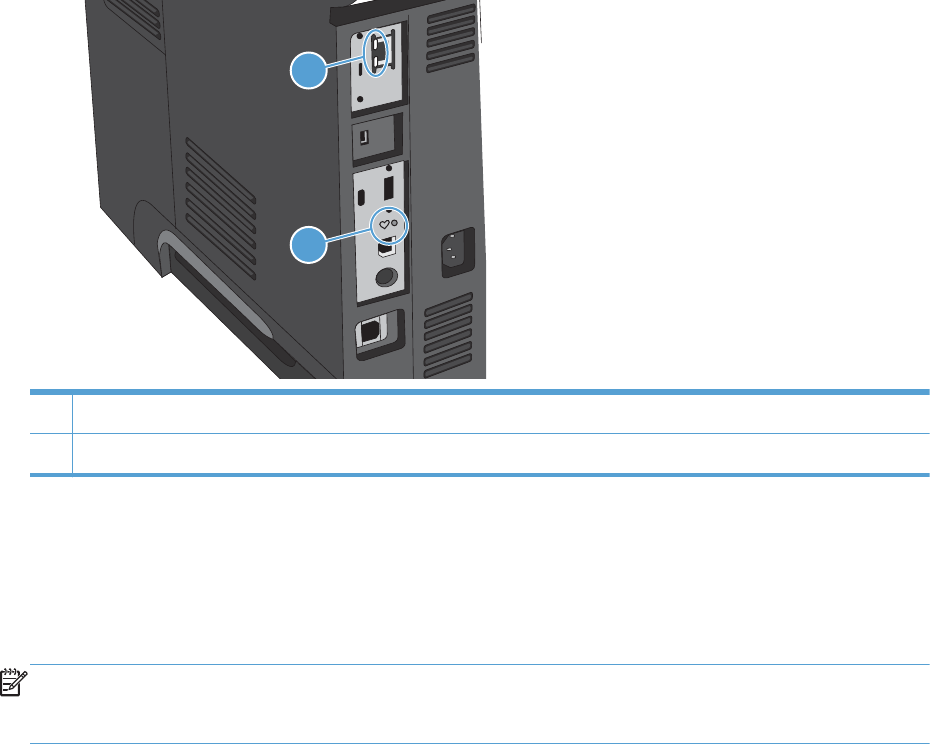
Tools for troubleshooting
The section describes the tools that can help you solve problems with your device.
Individual component diagnostics
LED diagnostics
LED, engine, and individual diagnostics can identify and troubleshoot product problems.
Understand lights on the formatter
Two LEDs on the formatter indicate that the product is functioning correctly.
2
1
1 Heartbeat LED
2 HP Jetdirect LEDs
Heartbeat LED
The heartbeat LED provides information about product operation. If a product error occurs, the
formatter displays a message on the control-panel display. However, error situations can occur causing
the formatter to control panel communication to be interrupted.
NOTE: HP recommends fully troubleshooting the formatter and control panel before replacing either
assembly. Use the heartbeat LED to troubleshoot formatter and control panel errors to avoid
unnecessarily replacing these assemblies.
Formatter to control panel communication interruptions
●The firmware does not fully initialize and configure the control panel interface.
●The control panel is not functioning (either a failed assembly or power problem).
●Interface cabling between the formatter and control panel is damaged or disconnected.
80 Chapter 2 Solve problems ENWW

TIP: If the heartbeat LED is illuminated—by an error condition or normal operation—the formatter is
fully seated and the power is on. The pins for the LED circuit in the formatter connector are recessed so
that this LED will not illuminate unless the formatter is fully seated.
The heartbeat LED operates according to the product state. When the product is initializing, see
Heartbeat LED, product initialization on page 81.
Heartbeat LED, product initialization
The following table describes the heartbeat LED operation while the product is executing the firmware
boot process.
NOTE: When the initialization process completes the heartbeat LED should be illuminated solid green
—the LED is off if the product is in Sleep Mode.
Table 2-8 Heartbeat LED, product initialization
Product initializing
state
Heartbeat LED, normal state Heartbeat LED, error state
No power (power cable
disconnected or power
switch off)
Off Not applicable
Power on (immediately
after the power switch
pressed)
Red, solid
●Duration should be 1 second or less
Red, solid
●Firmware error; problem finding hardware
and booting the serial peripheral interface
flash memory
◦Boot process halted
Replace the formatter.
Serial peripheral
interface (SPI) flash
memory boot
Green, solid Red, solid
●Firmware error; problem corrupt or missing
SPI flash memory
◦Boot process halted
Replace the formatter.
HW checks on board
DRAM
Green, solid Red, solid
●Power on self check failure
◦Boot process halted
Replace the formatter.
Control panel
connection initializes
Green, solid
NOTE: Control panel communication
successful. If an error occurs, a message should
appear on the control-panel display.
Yellow, fast flash
●Formatter to control panel connection failed
◦Boot process continues
Check the cables between the formatter and
control panel for damage. Make sure that the
cables are fully seated.
ENWW Tools for troubleshooting 81

Table 2-8 Heartbeat LED, product initialization (continued)
Product initializing
state
Heartbeat LED, normal state Heartbeat LED, error state
Preboot menu available
(including diagnostics)
Green, solid Red, solid
●Diagnostic failure
◦Follow diagnostic instructions
Turn the power off, and then on again to restart
the initialization process.
Accessing disk for
firmware image
Green, solid
NOTE: If applicable, disk error messages
appear on the control-panel display.
Yellow, fast flash
●Control panel not connected
Firmware boot Green, solid
NOTE: If applicable, error messages appear
on the control-panel display.
Yellow, fast flash
●Control panel not connected
Product operational Green, heartbeat blink
NOTE: If applicable, error messages appear
on the control-panel display.
Yellow, fast flash
●Control panel not connected
49.xx.yy Not applicable LED off
NOTE: An error message (for example,
49.xx.yy) might appear on the control-panel
display.
Eventually a formatter connection missing
message will appear.
Turn the power off, and then on again to restart
the initialization process.
If the error persists, perform a firmware upgrade.
Control panel
connection interrupted
after the product is
operational
Not applicable Yellow, fast flash
●Control panel not connected
Sleep Mode Green, slow blink Not applicable
Approaching Sleep
Mode
Green, slow blink Not applicable
Wake up from Sleep
Mode
Follows initialization progression. Follows initialization progression.
Approaching wake up
from Sleep Mode
Follows initialization progression. Follows initialization progression.
82 Chapter 2 Solve problems ENWW

HP Jetdirect LEDs
The embedded HP Jetdirect print server has two LEDs. The yellow LED indicates network activity, and
the green LED indicates the link status. A blinking yellow LED indicates network traffic. If the green LED
is off, a link has failed.
For link failures, check all the network cable connections. In addition, you can try to manually configure
the link settings on the embedded print server by using the product control-panel menus.
1. From the Home screen on the product control panel, scroll to and touch the Administration button.
2. Open the following menus:
●Network Settings
●Embedded Jetdirect Menu
●Link Speed
3. Select the appropriate link speed, and then touch the OK button.
Engine diagnostics
The product contains extensive internal engine diagnostics that help in troubleshooting print quality,
paper path, noise, assembly, and timing issues.
Engine-test button
To verify that the product engine is functioning, print an engine-test page.
Print the engine test pages
NOTE: A damaged formatter might interfere with the engine test. If the engine test page does not
print, try removing the formatter and performing the engine test again. If the engine test is then
successful, the problem is in the formatter, the control panel, or the cable that connects them together.
1. Remove the formatter cover.
ENWW Tools for troubleshooting 83
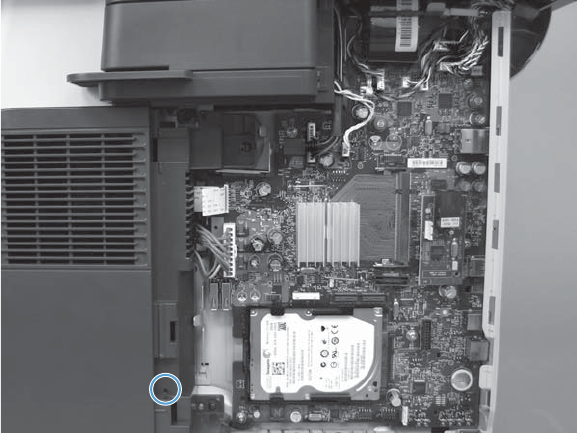
2. Press the engine test-page button.
Figure 2-1 Locating the engine-test-page switch
The test page should have a series of horizontal lines. The test page prints from the last tray that the
product used to print, unless the product has been turned off and then turned on again since the most
recent print job. If the product has been turned off and then on again since the most recent print job,
then the page will print from Tray 2. The product continuously prints test pages as long as the test-page
switch is depressed. The product will not print a test page if it is in Sleep mode.
Print formatter test pages
If the engine test was successful with the formatter removed, reinstall the formatter and then print a
configuration page to test the functionality of the formatter.
1. From the Home screen on the product control panel, scroll to and touch the Administration button.
2. Open the following menus:
●Troubleshooting
●Print Quality Pages
●Fuser Test Page
3. Touch the Print button.
84 Chapter 2 Solve problems ENWW

Paper path test
This diagnostic test generates one or more test pages that you can use to isolate the cause of jams.
To isolate a problem, specify which input tray to use, specify whether to use the duplex path, and
specify the number of copies to print. Multiple copies can be printed to help isolate intermittent
problems. The following options become available after you start the diagnostic feature:
●Print Test Page. Run the paper-path test from the default settings: Tray 2, no duplex, and one copy.
To specify other settings, scroll down the menu and select the setting, and then scroll back up and
select Print Test Page to start the test.
●Source Tray. Select Tray 1, Tray 2, or the optional tray.
●Output Bin. Select All bins, Face down, or Face up.
●Test Duplex Path. Enable or disable two-sided printing.
●Number of Copies. Set the numbers of copies to be printed; the choices are 1,10, 50, 100, or
500.
1. From the Home screen on the product control panel, scroll to and touch the Administration button.
2. Open the following menus:
●Troubleshooting
●Diagnostic Tests
●Paper Path Test
3. Select the paper-path test options for the test you want to run.
Paper path sensors test
This test displays the status of each paper-path sensor and allows viewing of sensor status while printing
internal pages.
1. From the Home screen on the product control panel, scroll to and touch the Administration button.
2. Open the following menus:
●Troubleshooting
●Diagnostic Tests
●Paper Path Sensors
NOTE: Exiting the Paper-path sensor test menu and then reentering it will clear the test values from
the previous test.
Table 2-9 Paper-path sensors
Sensor name Sensor
number
Replacement part
number
Description Paper-path sensor
test name
Top sensor PS215 RM1-8617-000CN Top sensor PCA PS215 Top
ENWW Tools for troubleshooting 85

Table 2-9 Paper-path sensors (continued)
Sensor name Sensor
number
Replacement part
number
Description Paper-path sensor
test name
Paper width sensor PS225 RM1-8618-000CN Paper width sensor PCA PS225 Paper Width 1
Fuser delivery sensor PS2 RM1-8505-000CN Fuser (universal) PS2 Fuser Output
Duplex media-feed sensor PS502 RM1-8519-000CN HVPS PS502 Duplexer Refeed
Rear cover open sensor PS1 WG8-8519-000CN Photointerrupter PS1 Rear Door
Face-down media tray
media-full sensor
PS4 Photo interruptor:
WG8-8519-000CN
Top-cover assembly:
RM1-8516-000CN
Photointerrupter
Top cover assembly
PS4 Output Bin Full
Paper feeder media-feed
sensor - Tray 3
1
PS8008 CE530-69001 Tray 3 feeder unit PS8008 Tray 3 feed
sensor
Paper feeder media-feed
sensor - Tray 4
1
PS8008 CE530-69001 Tray 4 feeder unit PS8008 Tray 4 feed
sensor
1
Tray 3 and Tray 4 use a PS8008 sensor.
86 Chapter 2 Solve problems ENWW

Manual sensor test
Performs tests to determine whether the paper-path sensors are operating correctly.
1. From the Home screen on the product control panel, scroll to and touch the Administration button.
2. Open the following menus:
●Troubleshooting
●Diagnostic Tests
●Manual Sensor Test
Table 2-10 Manual sensor tests
Sensor or switch
name
Sensor
number
Replacement part
number
Description Paper-path sensor
test name
Testing of sensor
Cartridge-door switch SW501 RM1-8499-000CN Interlock switch SW501 Cartridge
Door
Open the cartridge
door.
Face-up detect sensor PS8001 WG8-5935-000CN Photointerrupter PS8001 Rear Door Open the rear door to
about 90 degrees.
Paper feeder media-
feed sensor - Tray 3
1
PS8008 CE530-69001 Tray 3 feeder unit PS8008 Tray 3 Feed
sensor
Remove the Tray 2
cassette, use a small
screwdriver to activate
the sensor through the
small slot toward the
front of the product.
Top sensor PS215 RM1-8617-000CN Top sensor PCA PS215 Top Open the cartridge
door, remove the toner
cartridge, raise the
registration shutter,
and then use a
screwdriver to activate
the sensor.
Paper width sensor PS225 RM1-8618-000CN Paper-width sensor
PCA
PS225 Paper Width 1 Open the cartridge
door, remove the toner
cartridge, and then lift
the registration flap to
activate the sensor.
Fuser delivery sensor PS2 RM1-8505-000CN Fuser (universal) PS2 Fuser Output Open the rear door,
and then use a
screwdriver to activate
the sensor.
Duplex media-feed
sensor
PS502 RM1-8519-000CN HVPS PS502 Duplexer
Refeed
Remove the Tray 2
cassette, push the
green button to drop
the duplex tray, and
then raise the tray.
ENWW Tools for troubleshooting 87

Table 2-10 Manual sensor tests (continued)
Sensor or switch
name
Sensor
number
Replacement part
number
Description Paper-path sensor
test name
Testing of sensor
Paper feeder media-
feed sensor - Tray 4
1
PS8008 CE530-69001 Tray 4 feeder unit PS8008 Tray 4 Feed
sensor
Remove the Tray 4
cassette, use a small
screwdriver to activate
the sensor through the
small slot toward the
front of the product.
Rear cover open sensor PS1 WG8-8519-000CN Photointerrupter PS1 Rear door Lift the face-down tray
output levers to
activate the sensor.
Face-down media tray
media-full sensor
PS4 Photo interruptor:
WG8-8519-000CN
Top cover assembly:
RM1-8516-000CN
Photointerrupter
Top cover assembly
PS4 Output Bin Full Open the rear door to
about 15 degrees.
1
Tray 3 and Tray 4 use a PS8008 sensor.
88 Chapter 2 Solve problems ENWW
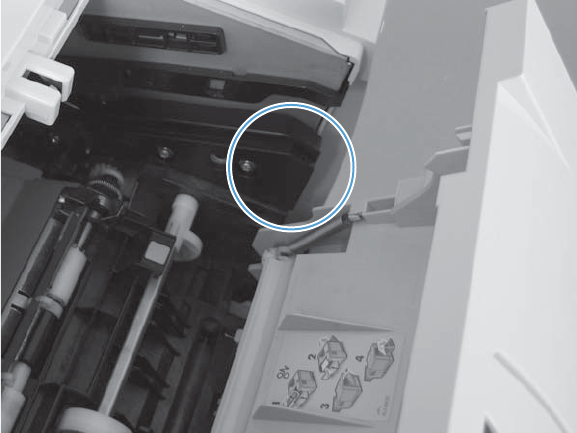
SW501 Cartridge door switch test
Test the cartridge door switch (SW501)
1. Open the cartridge door to activate the sensor.
Figure 2-2 Test the cartridge door switch
2. Check the control-panel display for sensor response.
3. If there is no response, make sure that the sensor-actuator tab on the door is not damaged or
missing.
If necessary, replace the cartridge-door switch.
ENWW Tools for troubleshooting 89
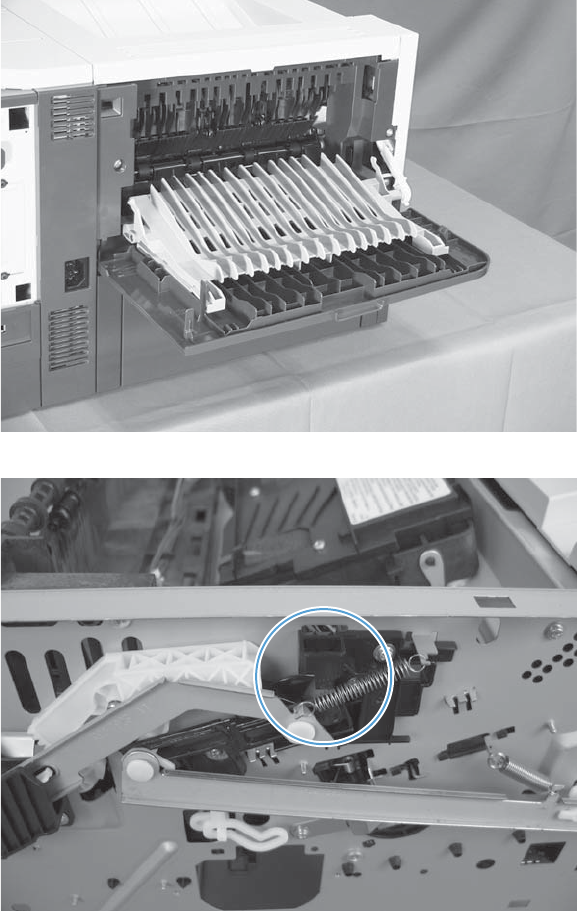
PS8001 Rear door sensor test
Test the rear door sensor (PS8001)
1. Open the rear door, and then gently pull down on the door and lower the door until it is fully
open to activate the sensor.
Figure 2-3 Test the rear door sensor (1 of 2)
Figure 2-4 Test the rear door sensor (2 of 2)
2. Check the control-panel display for sensor response.
3. If there is no response, make sure that the sensor-actuator tab on the door is not damaged or
missing.
If necessary, replace the rear door sensor.
90 Chapter 2 Solve problems ENWW
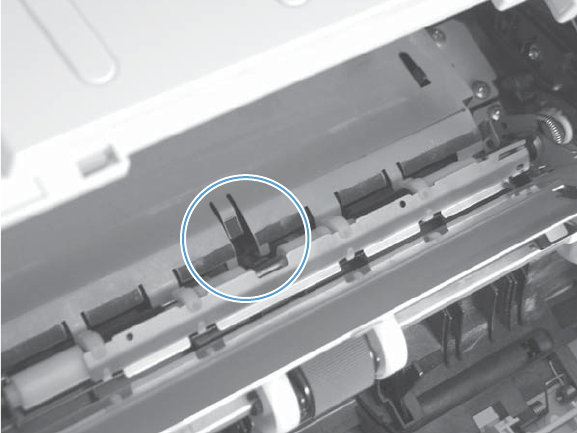
PS215 Top (Top-of-Page) sensor test
Test the Top sensor (PS215)
1. Open the cartridge door, and then remove the toner cartridge.
2. Raise the registration shutter.
3. Use a small screwdriver to activate the Top sensor.
Figure 2-5 Test the Top sensor
4. Check the control-panel display for sensor response.
5. If there is no response, replace the Top sensor (RM1-8617-000CN).
ENWW Tools for troubleshooting 91
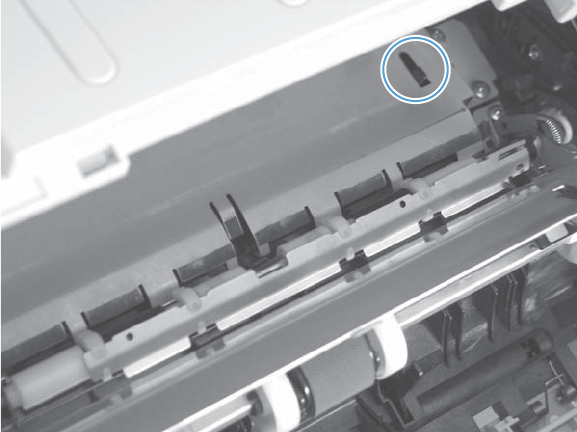
PS225 Paper width 1 sensor test
Test the paper width sensor (PS225)
1. Open the cartridge door, and then remove the toner cartridge.
2. Raise and then lower the registration flap to activate the sensor.
Figure 2-6 Test the paper width sensor
3. Check the control-panel display for a sensor response.
4. If there is no response, replace the paper width sensor PCA (RM1-8618-000CN).
92 Chapter 2 Solve problems ENWW
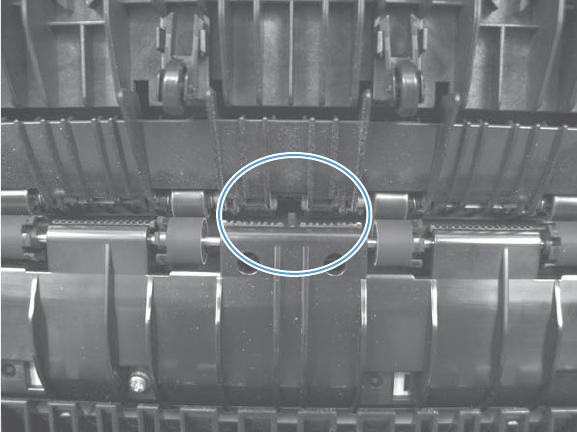
PS2 Fuser output sensor test
Test the fuser output sensor (PS2)
1. Open the rear door.
2. Slowly insert a piece of paper to activate the fuser output sensor.
Figure 2-7 Test the fuser output sensor
3. Check the control-panel display for a sensor response.
4. If there is no response, replace the fuser (RM1-8508-000CN).
ENWW Tools for troubleshooting 93
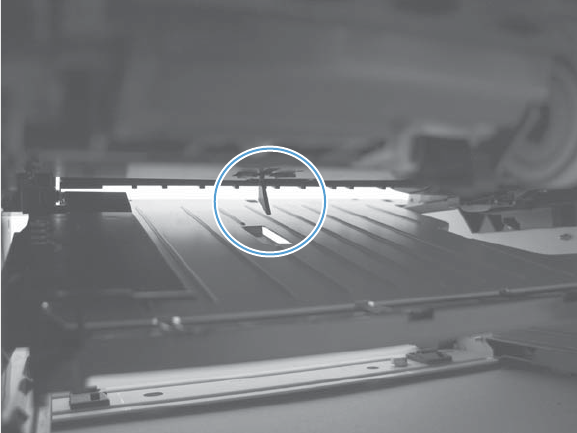
PS502 Duplexer refeed sensor test
Test the duplexer refeed sensor (PS502)
1. Remove the Tray 2 cassette.
2. Press the green lever to release the duplex media-feed assembly (metal tray).
3. Raise the duplex media-feed assembly until it snaps into place.
Figure 2-8 Test the duplexer refeed sensor
4. Check the control-panel display for sensor response.
5. If there is no response, replace the high-voltage power supply.
94 Chapter 2 Solve problems ENWW
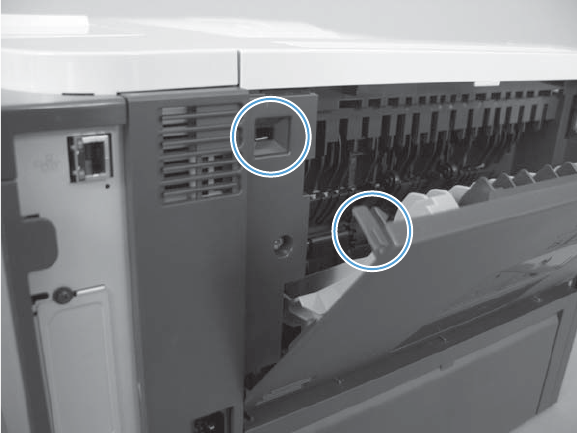
PS1 Rear bin sensor test
Test the rear bin sensor (PS1)
1. Open the rear door until it stops to activate the sensor.
Figure 2-9 Test the rear bin sensor
2. Check the control-panel display for sensor response.
3. If there is no response, replace the rear bin sensor.
ENWW Tools for troubleshooting 95
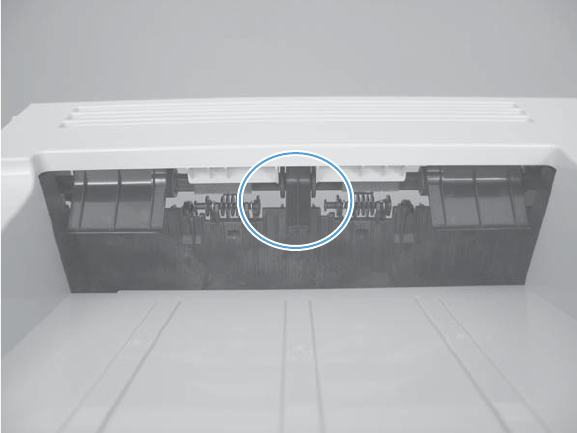
PS4 Output bin full sensor test
Test the output bin full sensor (PS4)
1. Raise and then lower the output-bin levers to activate the sensor.
Figure 2-10 Test the output bin full sensor
2. Check the control-panel display for sensor response.
3. If there is no response, replace the top-cover flag or the photo interrupter.
96 Chapter 2 Solve problems ENWW
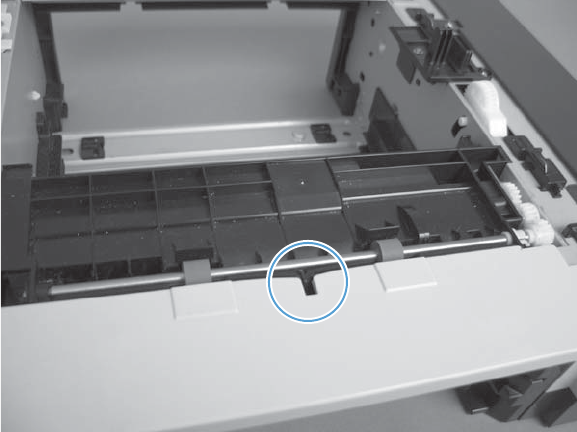
PS8008 Tray 3 Feed sensor
Test the Tray 3 feed sensor (PS8008)
1. Remove the Tray 2 cassette.
2. Use a small screwdriver to activate the sensor.
Figure 2-11 Test the Tray 3 feed sensor
3. Check the control-panel display for sensor response.
4. If there is no response, replace the optional Tray 3 assembly.
ENWW Tools for troubleshooting 97
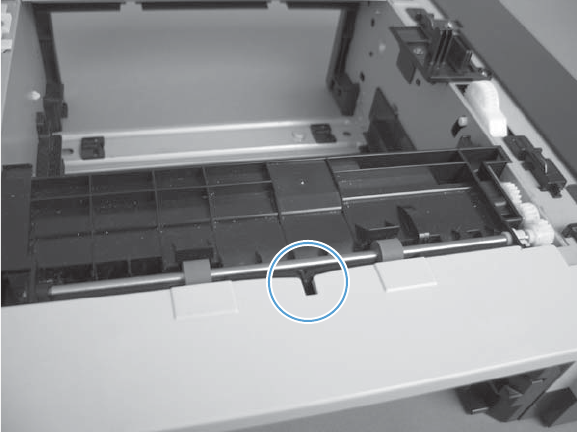
PS8008 Tray 4 Feed sensor
Test the Tray 4 feed sensor (PS8008)
1. Remove the Tray 3 cassette.
2. Use a small screwdriver to activate the sensor.
Figure 2-12 Test the Tray 4 feed sensor
3. Check the control-panel display for sensor response.
4. If there is no response, replace the optional Tray 4 assembly.
98 Chapter 2 Solve problems ENWW

Tray/bin manual sensor test
Use this test to test paper-path sensors and the paper-size switches manually. The following illustrations
and table show the locations of these sensors.
1. From the Home screen on the product control panel, scroll to and touch the Administration button.
2. Open the following menus:
●Troubleshooting
●Diagnostic Tests
●Tray/Bin Manual Sensor Test
Table 2-11 Tray/bin manual sensor test
Sensor or switch
name
Sensor
number
Replacement
part number
Description Paper-path
sensor test name
Testing of sensor
MP tray media-
presence sensor
PS205 RM1-8621-000CN MP sensor PCA PS205 Tray 1 Paper Push the sensor lever
to the right of the
center of the tray,
and hold it there for
3 seconds.
Cassette media-
presence sensor
PS3 RM1-8508-000CN Tray 2 paper pickup
assembly
PS3 Tray 2 Paper Remove the Tray 2,
and then push the
sensor lever.
Tray 2 cassette
presence switch
SW235 RM1-8620-000CN Tray sensor PCA SW235 Tray 2
Cassette
Remove the Tray 2,
and then reinstall it.
Paper feeder media-
feed sensor - Tray 3
PS8008 CE530-69001 Tray 3 feeder unit PS8008 Tray 3 Feed Remove the Tray 2
cassette, use a small
screwdriver to
activate the sensor
through the small
slot toward the front
of the product.
Paper feeder Tray 3
cassette media-
presence sensor
1
PS451 CE530-69001 Tray 3 feeder unit PS451 Tray 3 Paper Remove Tray 3, and
then push the sensor
lever.
Paper feeder Tray 3
cassette presence
sensor
1
PS461 CE530-69001 Tray 3 feeder unit PS461 Tray 3
Cassette
Remove Tray 3, and
then reinstall it.
Paper feeder Tray 4
cassette media-
presence sensor
1
PS451 CE530-69001 Tray 4 feeder unit PS451 Tray 4 Paper Remove Tray 4, and
then push the sensor
lever.
Paper feeder media-
feed sensor - Tray 4
PS8008 (Replace feeder unit) Tray 4 feeder unit PS8008 Tray 4 Feed Remove the Tray 3
cassette, use a small
screwdriver to
activate the sensor
through the small
slot toward the front
of the product.
ENWW Tools for troubleshooting 99

Table 2-11 Tray/bin manual sensor test (continued)
Sensor or switch
name
Sensor
number
Replacement
part number
Description Paper-path
sensor test name
Testing of sensor
Paper feeder Tray 4
cassette presence
sensor
1
PS461 CE530-69001 Tray 4 feeder unit PS461 Tray 4
Cassette
Remove Tray 4, and
then reinstall it.
Face-down media
tray media-full sensor
PS4 Photo interruptor:
WG8-8519-000CN
Top cover assembly:
RM1-8516-000CN
Photointerrupter
Top cover assembly
PS4 Output Bin Full Open the rear door
to about 15
degrees.
1
Tray 3 and Tray 4 use PS451 and PS461 sensors.
100 Chapter 2 Solve problems ENWW

PS205 Tray 1 Paper sensor test
Tray 1 paper sensor (PS205)
1. Push the sensor lever toward the right side of the product and hold it there for 3 seconds to
activate the sensor.
Figure 2-13 Test the Tray 1 paper sensor
2. Check the control-panel display for sensor response.
3. If there is no response, replace the multipurpose sensor PCA (RM1-8621-000CN).
ENWW Tools for troubleshooting 101
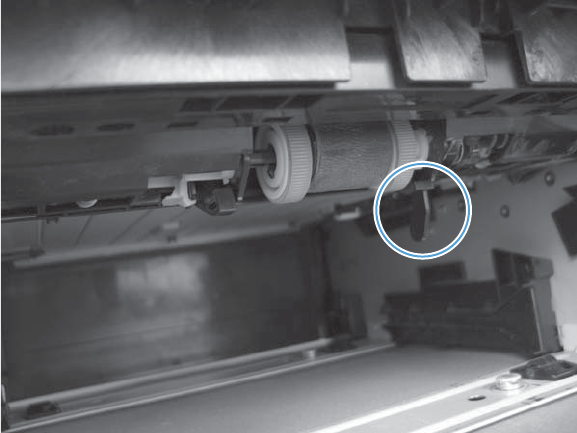
PS3 Tray 2 Paper sensor test
Tray 2 paper sensor (PS3)
1. Remove the Tray 2 cassette, and then push on the sensor levers to activate the sensor.
Figure 2-14 Test the Tray 2 paper sensor
2. Check the control-panel display for sensor response.
3. If there is no response, replace the Tray 2 pickup assembly (RM1-8505-000CN).
102 Chapter 2 Solve problems ENWW
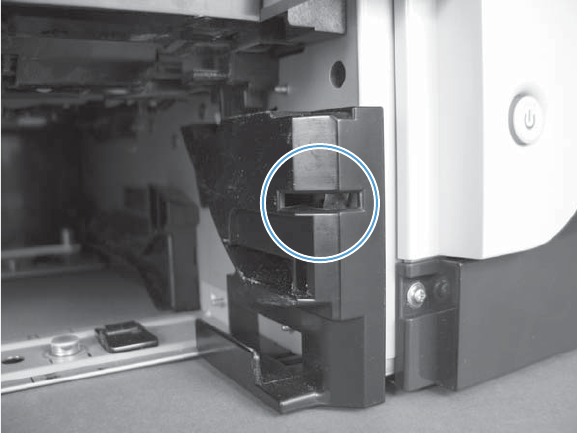
SW235 Tray 2 Cassette sensor test
Tray 2 cassette sensor (SW235)
1. Remove the Tray 2 cassette, and then install it to activate the sensor.
Figure 2-15 Test the Tray 2 cassette sensor
2. Check the control-panel display for sensor response.
3. If there is no response, make sure that the sensor-actuator tab on the cassette is not damaged or
missing.
If necessary, replace the switch.
ENWW Tools for troubleshooting 103

PS4 Output bin full sensor test
Test output bin full sensor (PS1)
1. Raise and then lower the output-bin levers to activate the sensor.
Figure 2-16 Test the output bin full sensor
2. Check the control-panel display for sensor response.
3. If there is no response, replace the top-cover flag or the photo interrupter.
104 Chapter 2 Solve problems ENWW
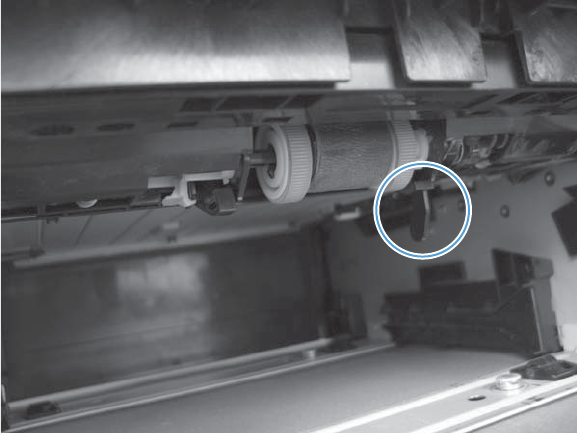
PS451 Tray 3 paper sensor test
Tray 3 paper sensor (PS451)
1. Remove the Tray 3 cassette, and then push on the sensor levers to activate the sensor.
Figure 2-17 Test the Tray 3 paper sensor
2. Check the control-panel display for sensor response.
3. If there is no response, replace the optional 500-sheet feeder.
ENWW Tools for troubleshooting 105
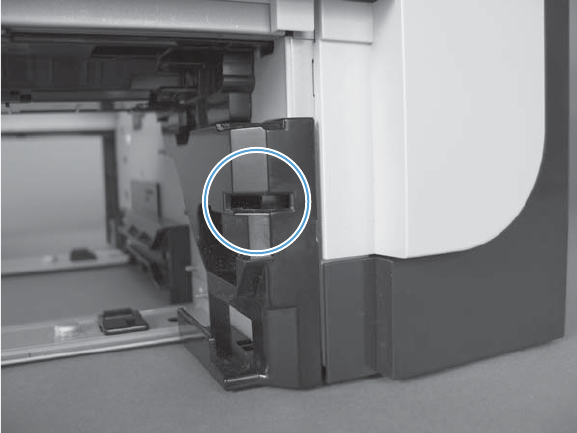
PS461 Tray 3 cassette sensor test
Tray 3 cassette sensor (SW461)
1. Remove the Tray 3 cassette, and then install it to activate the sensor.
Figure 2-18 Test the Tray 3 cassette sensor
2. Check the control-panel display for sensor response.
3. If there is no response, make sure that the sensor-actuator tab on the cassette is not damaged or
missing.
If necessary, replace the optional 500-sheet feeder.
106 Chapter 2 Solve problems ENWW
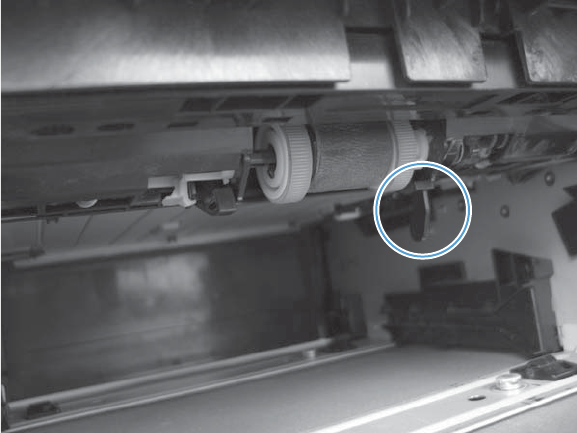
PS451 Tray 4 paper sensor test
Tray 4 paper sensor (PS451)
1. Remove the Tray 4 cassette, and then push on the sensor levers to activate the sensor.
Figure 2-19 Test the Tray 4 paper sensor
2. Check the control-panel display for sensor response.
3. If there is no response, replace the optional 500-sheet feeder.
ENWW Tools for troubleshooting 107
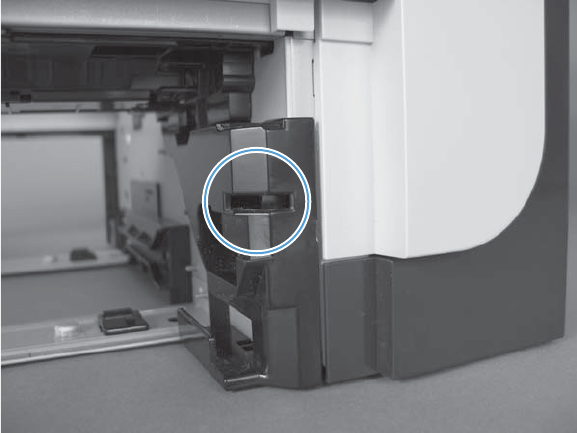
PS461 Tray 4 cassette sensor test
Tray 4 cassette sensor (PW461)
1. Remove the Tray 4 cassette, and then install it to activate the sensor.
Figure 2-20 Test the Tray 4 cassette sensor
2. Check the control-panel display for sensor response.
3. If there is no response, make sure that the sensor-actuator tab on the cassette is not damaged or
missing.
If necessary, replace the optional 500-sheet feeder.
Print/stop test
Use this diagnostic test to isolate the cause of problems such as image-formation defects and jams
within the engine. During this test you can stop the paper anywhere along the product paper path. The
test can be programmed to stop printing internal pages or an external print job when the paper
reaches a certain position. The test can also be programmed to stop from 0 to 60,000 ms. If the timer
is set to a value that is greater than the job-print time, you can recover the product in one of two ways.
1. From the Home screen, scroll to and touch the Administration button.
2. Touch the Troubleshooting button.
3. Touch the Diagnostic Tests button.
4. Scroll to and touch the Print/Stop Test button.
5. Enter a range, and then touch the OK button.
108 Chapter 2 Solve problems ENWW

Table 2-12 Print/stop settings
Duration Description
0 msecs The leading edge of the paper stops about 10 mm (0.36 in) beyond the silver paper guide of the
registration assembly.
100 msecs The leading edge of the paper stops about 24 mm (0.94 in) beyond the silver paper guide of the
registration assembly.
500 msecs The leading edge of the paper stops prior to the paper entering the “nip” of the fuser assembly; the
nip is the gap between the pressure roller and the hot fusing roller.
1000 msecs The leading edge of the paper stops about 55 mm (2.17 in) beyond the fuser assembly output
rollers.
1200 msecs Simplex print operation: The leading edge of the paper stops 100 mm (3.94 in) past the face-down
delivery stacker rollers.
1,500 msecs Simplex print operation: The leading edge of the paper stops 5 mm (0.20 in) beyond the output-bin-
full sensor flags.
2,500 msecs Duplex print operation: The leading edge of the paper has passed through the fuser assembly and
into the output stacker rollers. The paper has now reversed direction and stopped 90 mm (3.55 in)
before the leading edge reaches the output-bin-full sensor flags.
3,000 msecs Duplex print operation: The leading edge of the paper has passed through the fuser assembly and
into the output stacker rollers. The paper has now reversed direction and entered the duplex
accessory. The leading edge of the paper stops about 15 mm (0.59 in) after encountering the duplex
media-feed sensor (PS502).
●After the print job is completed press OK button to return to the Troubleshooting menu before the
timer times out.
●After the timer times out, touch the Stop button. Activate the door switch to restart the engine and
return it to a normal state.
NOTE: Do not try to perform a print/stop test while the product is calibrating, because you might be
required to restart the product. If a jam message displays on the control panel during testing, activate
the door switch.
Component tests
Control-panel tests
Open the following menus:
●Administration
●Troubleshooting
●Diagnostic Tests
Available control-panel tests
●LEDs: test the LEDs on the control panel.
●Display: sequence through display tests.
ENWW Tools for troubleshooting 109

●Buttons: tests the key pad and other buttons.
●Touchscreen: tests the control-panel touchscreen.
For more control-panel diagnostics, see Control-panel checks on page 77.
Half self-test
Perform a half self-test to determine which image-formation process might be malfunctioning.
NOTE: It might be easier to perform the print/stop test to stop the product during the printing process.
See Print/stop test on page 108.
1. Print a configuration page from the control panel.
2. Open the cartridge door after the paper advances half-way through the product, which is about 3
to 5 seconds after the main motor begins to rotate. The leading edge of the paper should have
advanced past the toner cartridge.
3. Remove the toner cartridge.
4. Open the toner cartridge drum shield to view the drum surface.
If a dark and distinct toner image is present on the drum surface, assume that the cleaning,
conditioning, writing, and developing functions of the electrophotographic process are functioning
correctly. Troubleshoot the failure as a transfer or fusing problem. If no image is present on the
drum, perform the drum rotation test check. See Drum rotation test check on page 110.
Drum rotation test check
NOTE: This test is especially important if refilled toner cartridges are in use.
The photosensitive drum, which is located in the toner cartridge, must rotate in order for the print
process to work. The photosensitive drum receives its drive from the main gear assembly. Use this
procedure to determine whether the drum is rotating.
1. Open the cartridge door.
2. Remove the toner cartridge.
3. Mark the cartridge drive gear with a felt-tipped marker. Note the position of the mark.
4. Install the toner cartridge, and then close the cartridge door. The start-up sequence should rotate
the drum enough to move the mark on the gear.
5. Open the product and inspect the mark on the cartridge drive gear.
Verify that the mark moved. If there was no movement, inspect the main gear assembly to make
sure that it connects with the toner-cartridge gears. If the drive gears function but the drum does
not move, replace the toner cartridge.
Component test (special-mode test)
This test activates individual parts independently to isolate problems.
110 Chapter 2 Solve problems ENWW

Each component test can be performed once or repeatedly. If you turn on the Repeat option from the
drop-down menu, the test cycles the component on and off. This process continues for two minutes, and
then the test terminates.
1. From the Home screen on the product control panel, scroll to and touch the Administration button.
2. Open the following menus:
●Troubleshooting
●Diagnostic Tests
●Component Test
3. Select the component test options for the test you want to run.
Table 2-13 Component tests
Component test Item Control-panel display
message
Description
Main motor test M8001 Drum Motor Activates the main motor for 10 seconds.
Fuser motor test M8002 Fuser Motor Activates the fuser motor for 10 seconds.
Tray 1 (multipurpose tray)
pickup solenoid test
SL1 Tray 1 Pickup Solenoid Activates the Tray 1 pickup solenoid for 10
seconds.
Tray 2 pickup solenoid test SL2 Tray 2 Pickup Solenoid Activates the Tray 3 cassette pickup solenoid
for 10 seconds.
Clutch drive test CL1 Feed Roller Clutch Activates the main motor to activate the
paper feeder pickup clutch for 10 seconds.
Scanner motor test Not
applicabl
e
Laser Scanner Motor Activates the laser/scanner motor for 10
seconds.
Tray 3 pickup solenoid test SL3
1
Tray 3 Pickup Solenoid Activates the Tray 4 cassette pickup solenoid
for 10 seconds.
Tray 4 pickup solenoid test SL3
1
Tray 4 Pickup Solenoid Activates the Tray 4 cassette pickup solenoid
for 10 seconds.
1
Tray 3 and Tray 4 both use a SL3.
ENWW Tools for troubleshooting 111
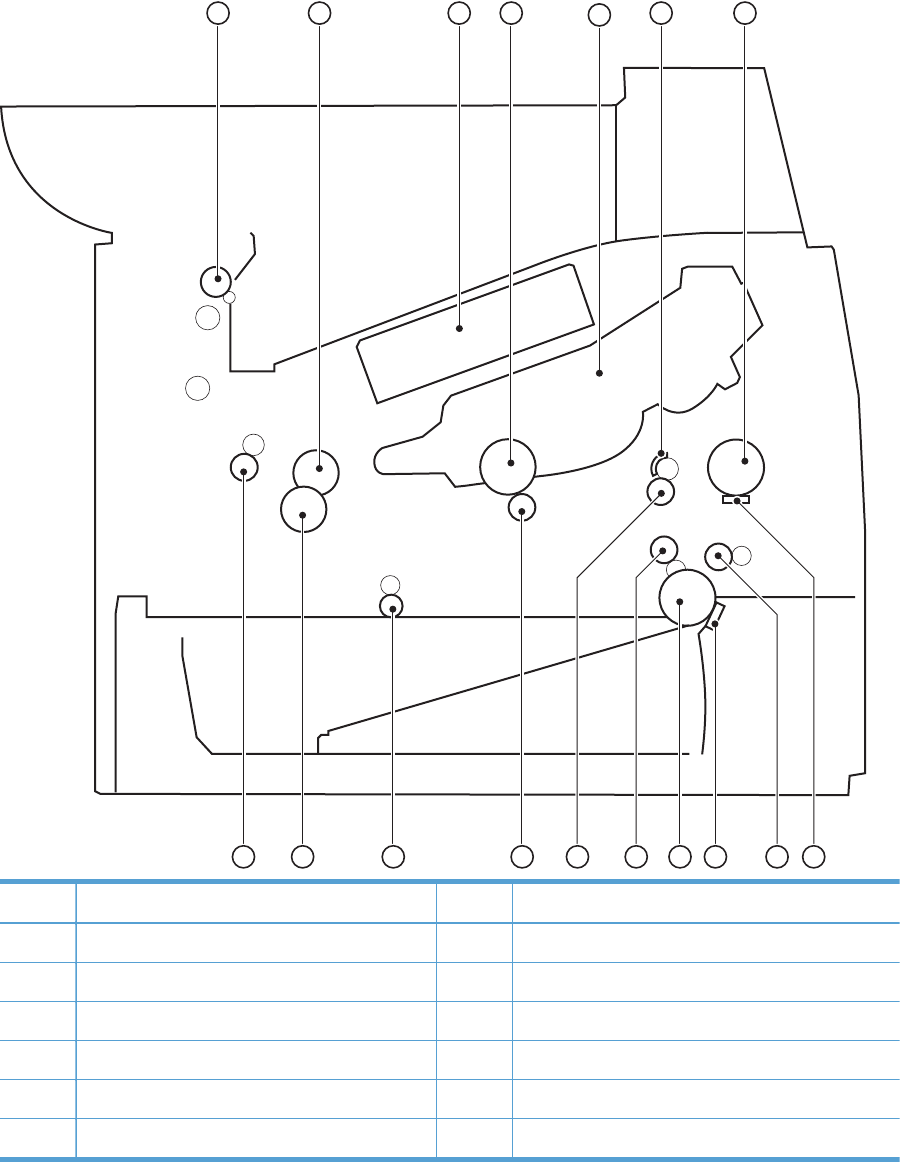
Diagrams
Block diagrams
Figure 2-21 Product cross section
11
12
13
14
15
16
17
1234567
8
9
10
Item Description Item Description
1 Face-down delivery roller 10 Cassette (Tray 2) separation pad
2 Fuser film 11 Cassette (Tray 2) pickup roller
3 Laser/scanner 12 Duplex repickup roller
4 Photosensitive drum 13 Registration roller
5 Toner cartridge 14 Transfer roller
6 Registration shutter 15 Duplex-feed roller (duplex models)
112 Chapter 2 Solve problems ENWW
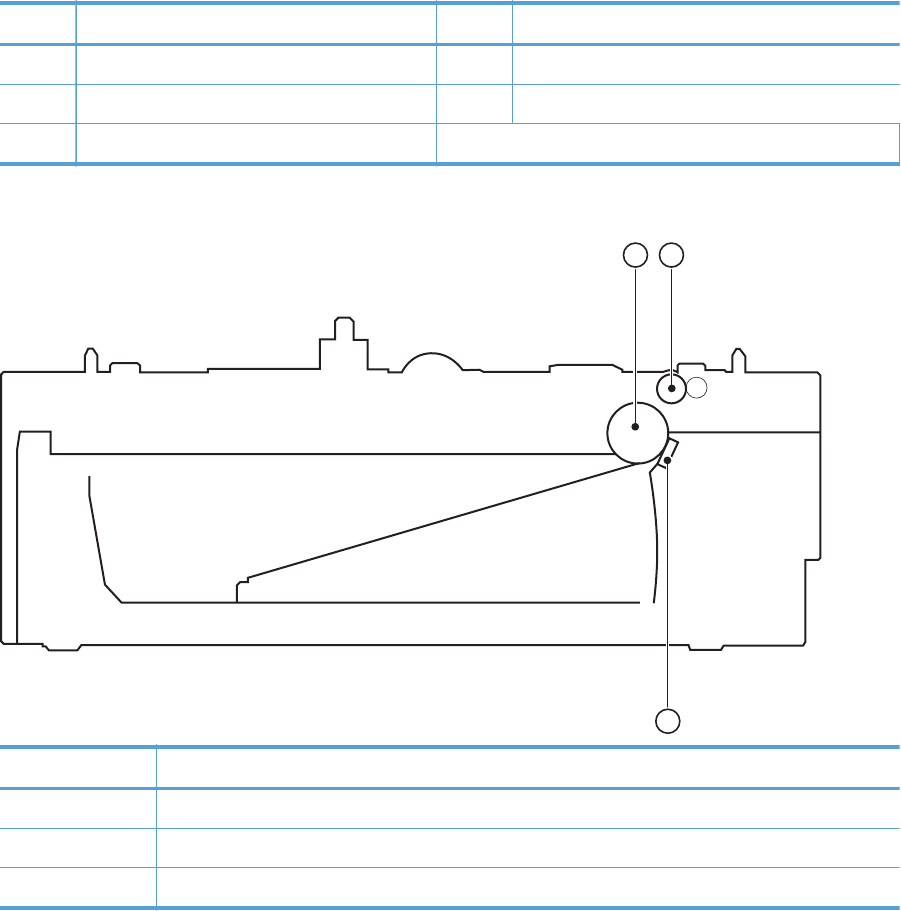
Item Description Item Description
7 Tray 1 (multipurpose tray) pickup roller 16 Pressure roller
8 Tray 1 (multipurpose tray) separation pad 17 Fuser output roller
9 Feed roller
Figure 2-22 Optional paper feeder (Tray 3 and Tray 4) cross section
12
3
Item Description
1 Pickup roller
2 Feed roller
3 Separation pad
ENWW Tools for troubleshooting 113
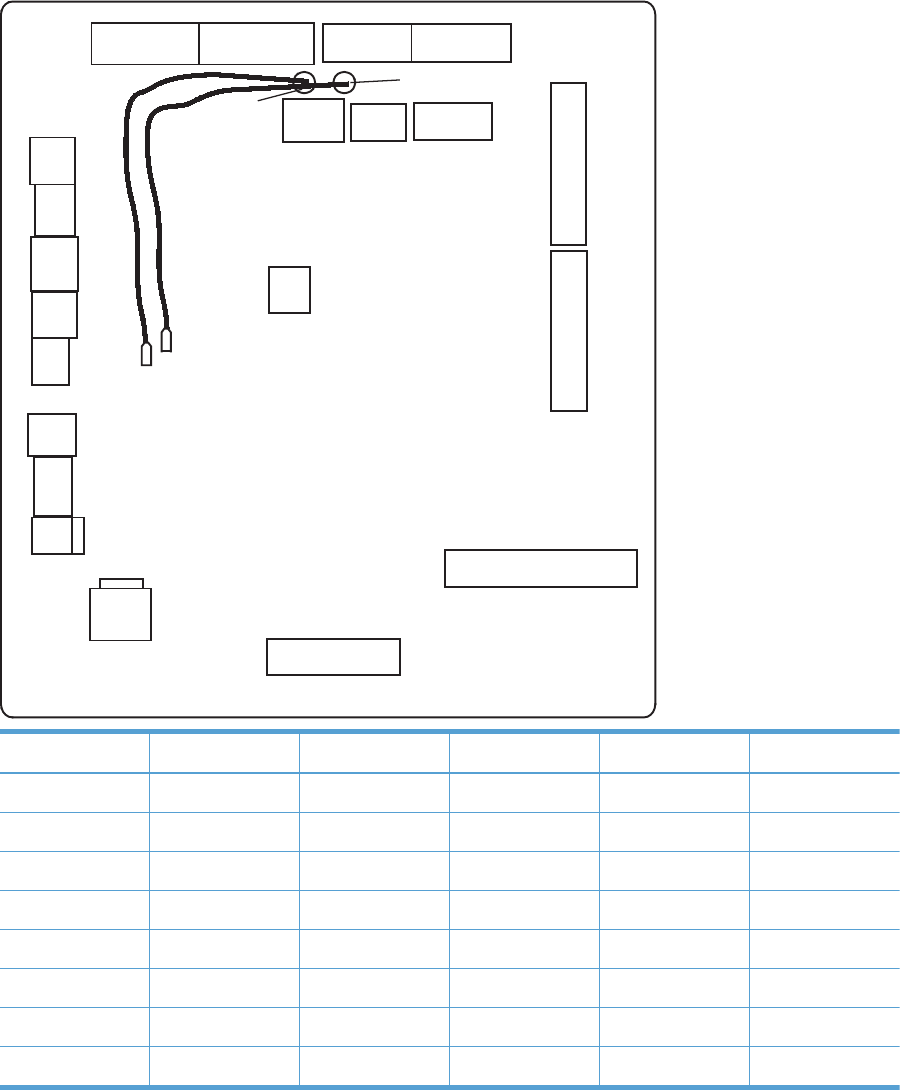
Location of connectors
DC controller connections
Figure 2-23 DC controller connections
J2400
J2311
J2301
J2302
J2310
J2105
J2307
J2304
J2702
J2201
J2200
FT1
FT2
J2100 J2700
J2701
J2703
J2704
J2308 J2401 J2303
J2306
J2103J2104 J2102
Item Description Item Description Item Description
J2100 J2302 J2400
J2102 J2303 J2401
J2103 J2304 J2700
J2104 J2306 J2701
J2105 J2307 J2702
J2200 J2308 J2703
J2201 J2310 J2704
J2301 J2311
114 Chapter 2 Solve problems ENWW
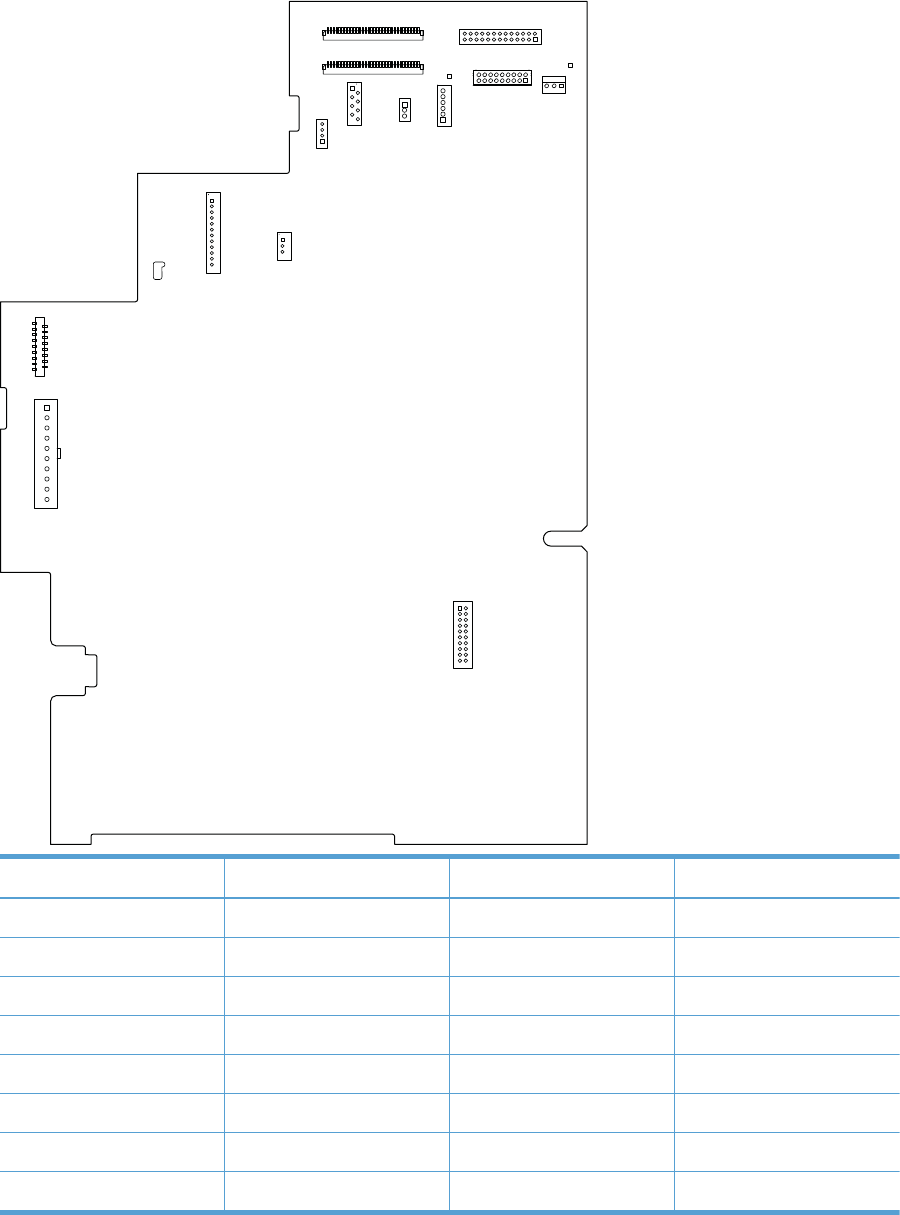
Formatter connections
Figure 2-24 Formatter connections
J18
J14
J29
E-duplex
J8
J25
JXX
J39 J10
J24
J64 J83 J81
J38 J31
Item Description Item Description
J8 LVPS J38 Scanner
J10 Stapler J39 Control panel
J14 Fax card J64 Scanner
J18 Scanner J81 No connection (empty)
J24 Scanner J83 Scanner
J25 LVPS JXX Control panel
J29 Scanner E-duplex E-duplex document feeder
J31 Scanner
ENWW Tools for troubleshooting 115
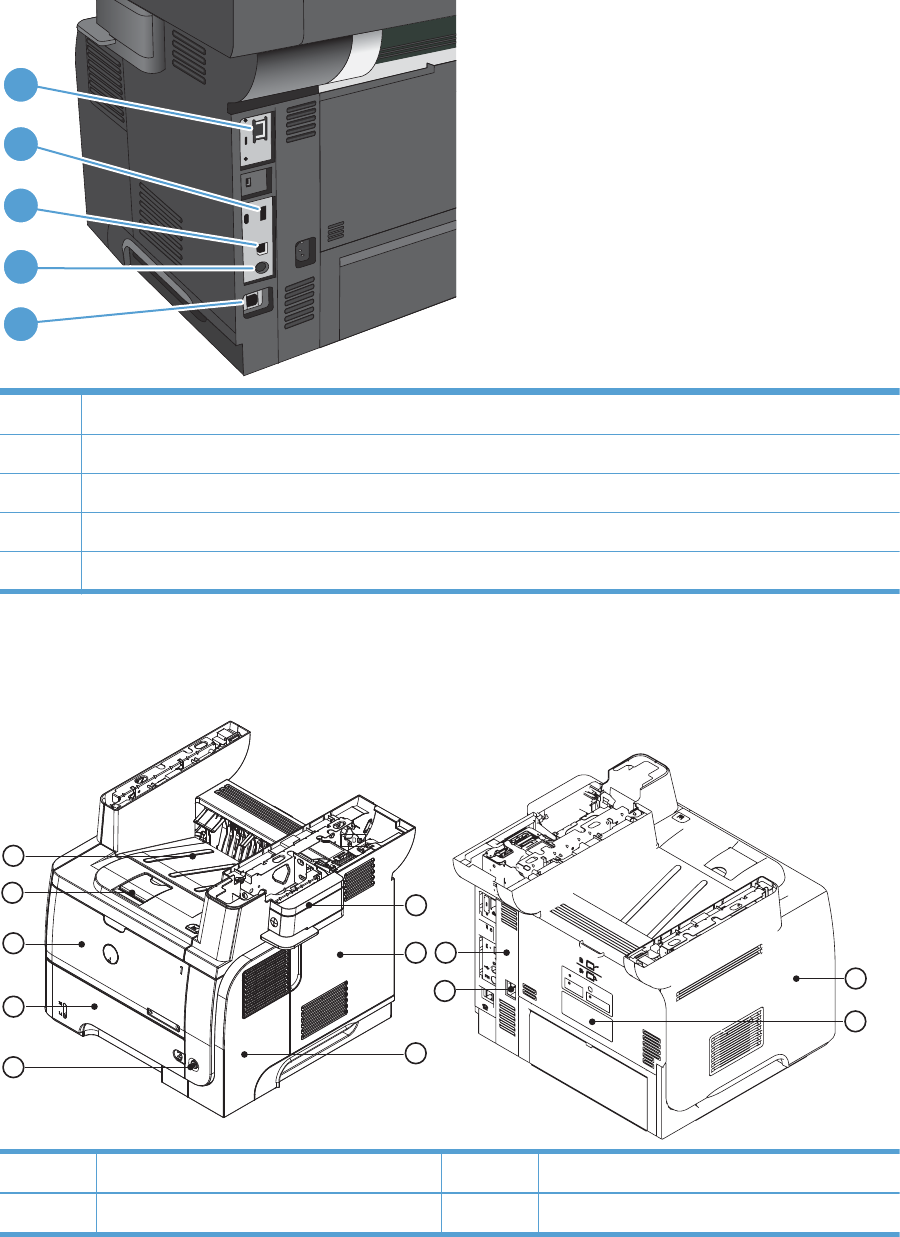
Plug/jack locations
1
5
4
3
2
1 Local area network (LAN) Ethernet (RJ-45) network port
2 USB port for connecting external USB devices
3 Hi-Speed USB 2.0 printing port
4 Foreign interface harness (for connecting external devices)
5 Fax port
Locations of major components
Figure 2-25 External component locations
11
12
1
2
3
8
9
10
4
5
6
7
Item Description Item Description
1 Stapler cover 7 Right-rear cover
116 Chapter 2 Solve problems ENWW
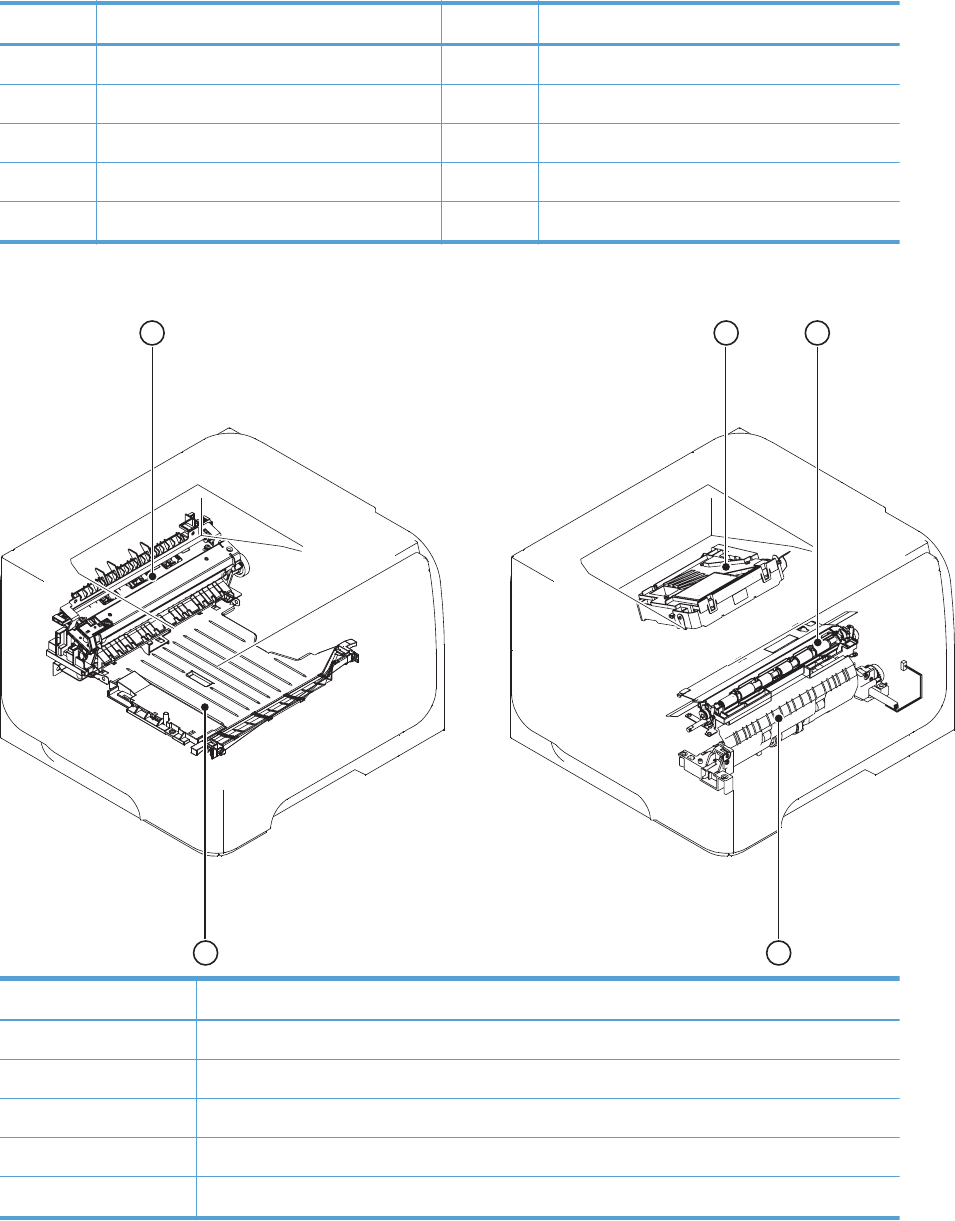
Item Description Item Description
2 Formatter cover 8 Power switch
3Right cover 9Tray 2
4 Left cover 10 Tray 1
5 Rear door 11 Cartridge door
6 Power port 12 Face-down output bin
Figure 2-26 Major component locations
1
5
32
4
Item Description
1 Fuser
2 Laser/scanner
3 Registration assembly
4 Pickup assembly
5 Duplex media-feed assembly
ENWW Tools for troubleshooting 117
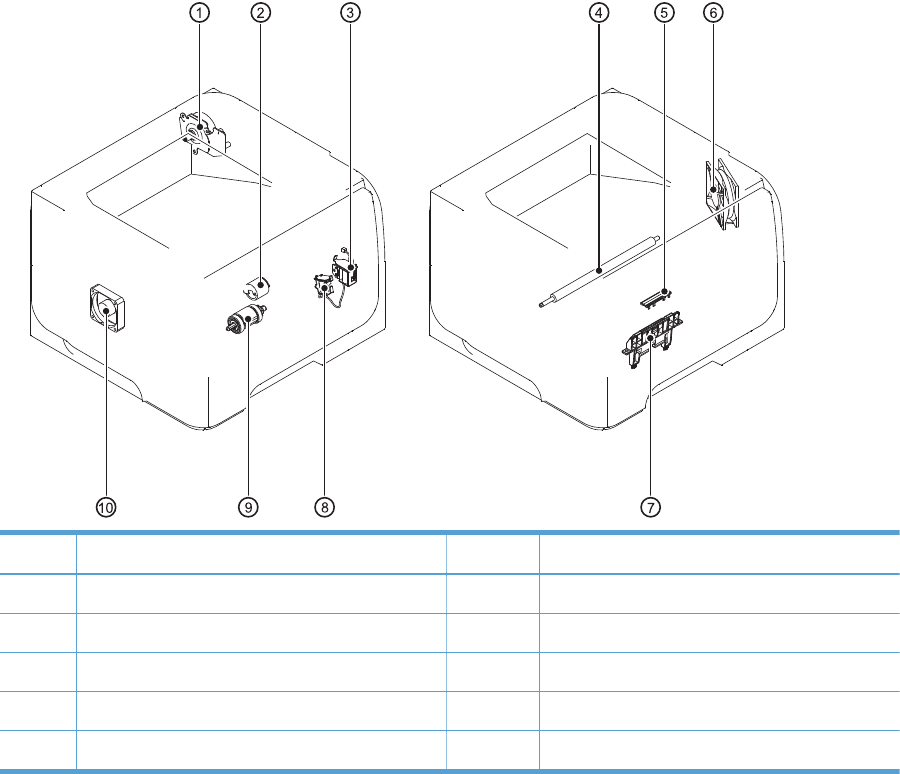
Figure 2-27 Motors, fans, solenoids, and rollers component locations
Item Description Item Description
1 Fuser motor 6 Main fan
2 Tray 1 (multipurpose tray) pickup roller 7 Cassette (Tray 2) separartion pad
3 Tray 1 (multipurpose tray) pickup solenoid 8 Cassette (Tray 2) pickup solenoid
4 Transfer roller 9 Cassette (Tray 2) pickup roller
5 Tray 1 (multipurpose tray) separation pad 10 Sub fan
118 Chapter 2 Solve problems ENWW
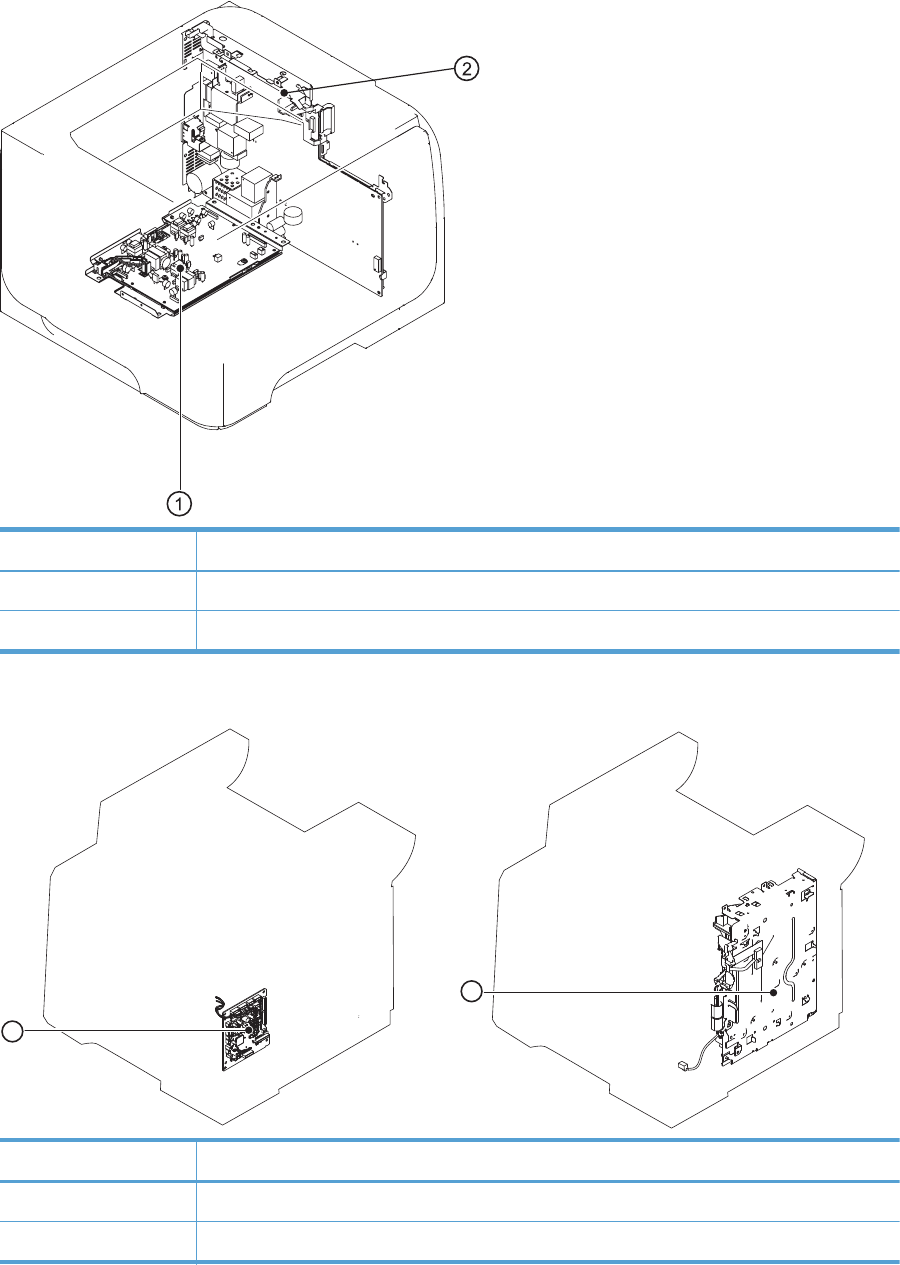
Figure 2-28 PCA component locations (1 of 2)
Item Description
1 High-voltage power supply
2 Formatter
Figure 2-29 PCA component locations (2 of 2)
1
2
Item Description
1 DC controller PCA
2 Low-voltage power supply
ENWW Tools for troubleshooting 119
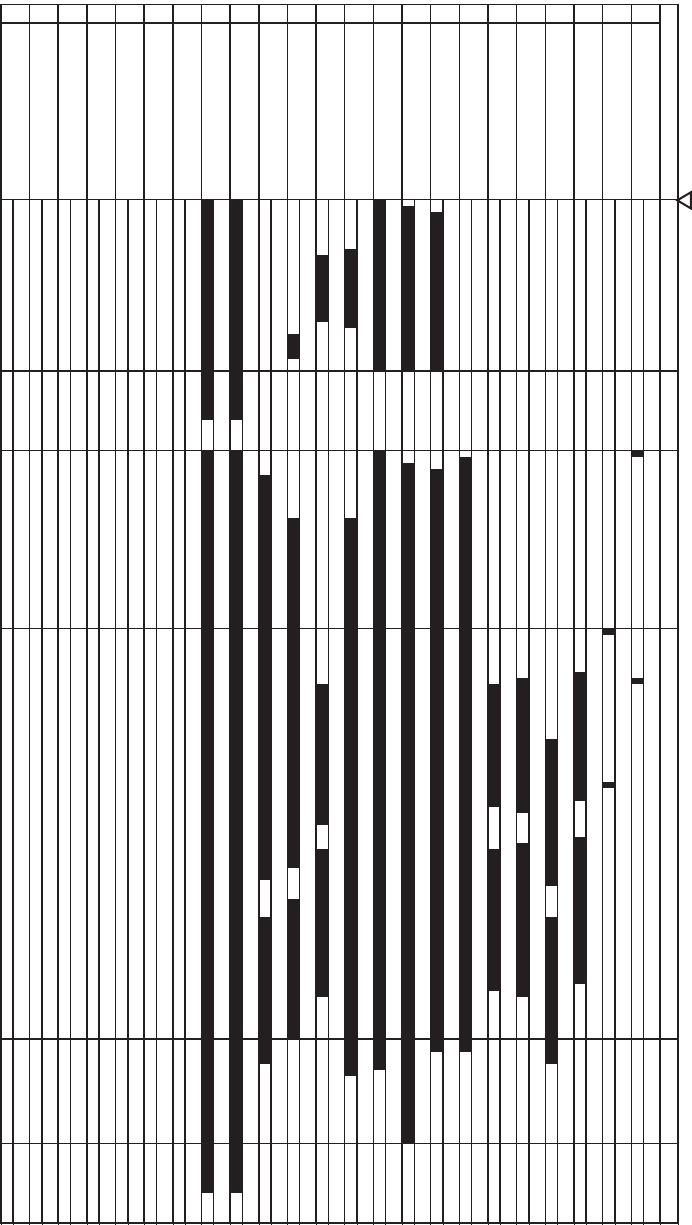
General timing charts
Figure 2-30 General timing chart
3 TOP sensor (PS215)
4 Fuser output sensor(PS2)
1 Print start command (EEC12)
2 Cassette pickup solenoid (SL2)
7 Scanner motor (M3)
8 Main motor (M8003)
5 /BD signal
6 VIDEO signal
11 Primary charging bias
12 Developing bias
9 Fuser motor (M8002)
10 Fuser heater
15 Main fan (FM1)
16 Sub fan (FM2)
13 Transfer bias
14 Fuser film bias
19
20
17
18
23
21
22
LSTR STBYWAIT STBY INTR PRINT
Power ON
120 Chapter 2 Solve problems ENWW
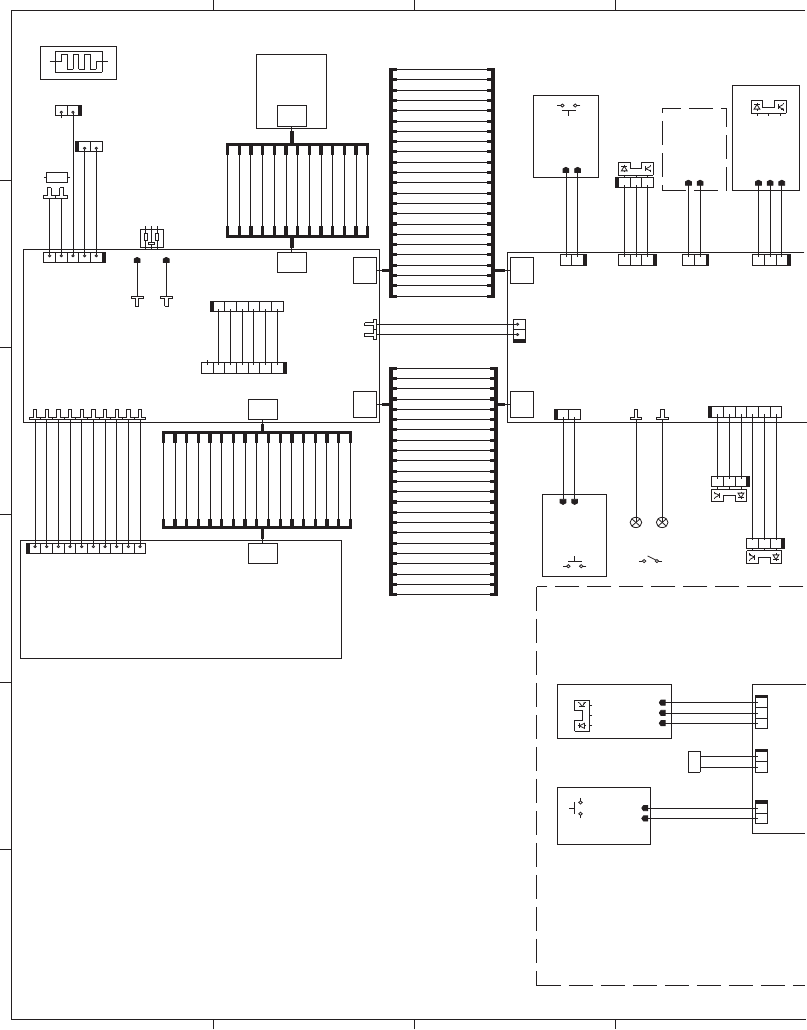
Circuit diagrams
Figure 2-31 General circuit diagram (1 of 2)
65
SL
13
13
TP
23
23
23
17
17
23
GND
GND
GND
MPT media
out sensor
TAGOUT
GND
/MPPSNS
LPWM
+5V
GND
VDO2
VDO1
/VDO1
GND
CNT2
CNT1
CNT0
/VDO2
/BDI
GND
SL1
PSNS1
AC-H
AC-N
+24U
+3.3V
GND
/TRAYSNS
GND
/OPFTRAYS1
PF media
presence sensor
GND
J461
J451
J230
Formatter
Fuser unit Laser scanner unit
Cartridge door switch
Interlock
switch
/24VCOFF
/24VBOFF
3.3VBOFF
3.3VCOFF
+3.3VA
GND
+3.3VB
GND
+3.3VC
+3.3VC
GND
GND
/24VAOFF
CH VOLT
SDA
WAKE ENG
CNT0
CNT2
/BDI
LPWM
SCL
/CCRT
SCLK
SC
/BDO
GND
GND
IOTRXD
+24VB
GND
+24VC
+24VD
+3.3VA
+3.3VC
3.3VB
FDOOR SNS
Paper feeder
IOTTXD
RLTEST
Low-voltage
power supply
WAKE VC
CNT1
+24VC
GND
CH_VOLTOFF
WAKE ENG
WAKE VC
+3.3VA
GND
SDA
SCL
/CCRT
/VDO2
VDO2
GND
VDO1
/VDO1
GND
/BDO
SC
SCLK
GND
GND
GND
+5VA
+5VA
GND
+3.3VB
+3.3VB
RLGND
VLIM
/RLOFF2
ZEROX
SQUARE
SIN
/RLOFF3
+24VD
GND
IOTTXD
IOTRXD
CURRMS
CURLIM
FSRD
FSRMSK
RLYD34
RLYD1
/RLOFF1
J200
J1703
J260
+3.3VC
/FUSNS
FULLSNS
+3.3VC
Face-up
sensor
+3.3VC
CSTPSNS
GND
TAGIN
21
J15B
12
J15A
J1800
J1800
21
J2702
23451
J1002
12
J2307
81234567 910
J4209
1234567
J1803
TB2
TB1
J2700
J4205
8
J1812
J4205
J1701
J2701
J2701
J1801
J1801
J2700
21
J2306
1
1
23
23
1
20
J1312
J1314
1
2
3
4
5
6
7
8
9
10
11
12
13
14
15
17
18
19
21
22
23
2
3
4
5
6
7
10
11
12
13
15
123456
J2303
321
J2302
12
J2401
23
22
21
20
19
18
17
16
15
14
13
7
321
J6
21
H1
12
TP1
INL1001
FT1 FT2
32
SW501
21
J406
21
J407
21
SW461
J1811
J100
J2704
J2703
J1404
J8007LA
J8007DA
12
SW235
PS451
PS205
J1001
J1401
J1403
J1402
PS3
123
J2301
PS1
PS4
321
J4
123
J3
4
1
2
3
5
6
7
8
9
10
11
12
13
J1011
321
J405
SL3
4
1
2
3
5
6
7
8
9
10
11
12
13
15
14
13
12
11
10
9
8
7
6
5
3
2
4
16
J1302
J1303
J1301
J1304
J1313
J1311
8
12
11
10
9
6
5
3
2
4
21
SW260
J100
J1702
14
9
17
18
19
20
21
22
22
21
20
19
18
17
16
16
4
1
2
3
5
6
7
8
9
10
11
12
13
14
15
16
17
17
16
15
14
13
12
11
10
9
8
7
6
5
3
2
1
4
123456
J9999
PF pickup solenoid
PF cassette
presence switch
Face-down output
bin media-full sensor
Cassette
detection
switch
Memory
tag
CST
media
out sensor
Laser driver
78
ENWW Tools for troubleshooting 121
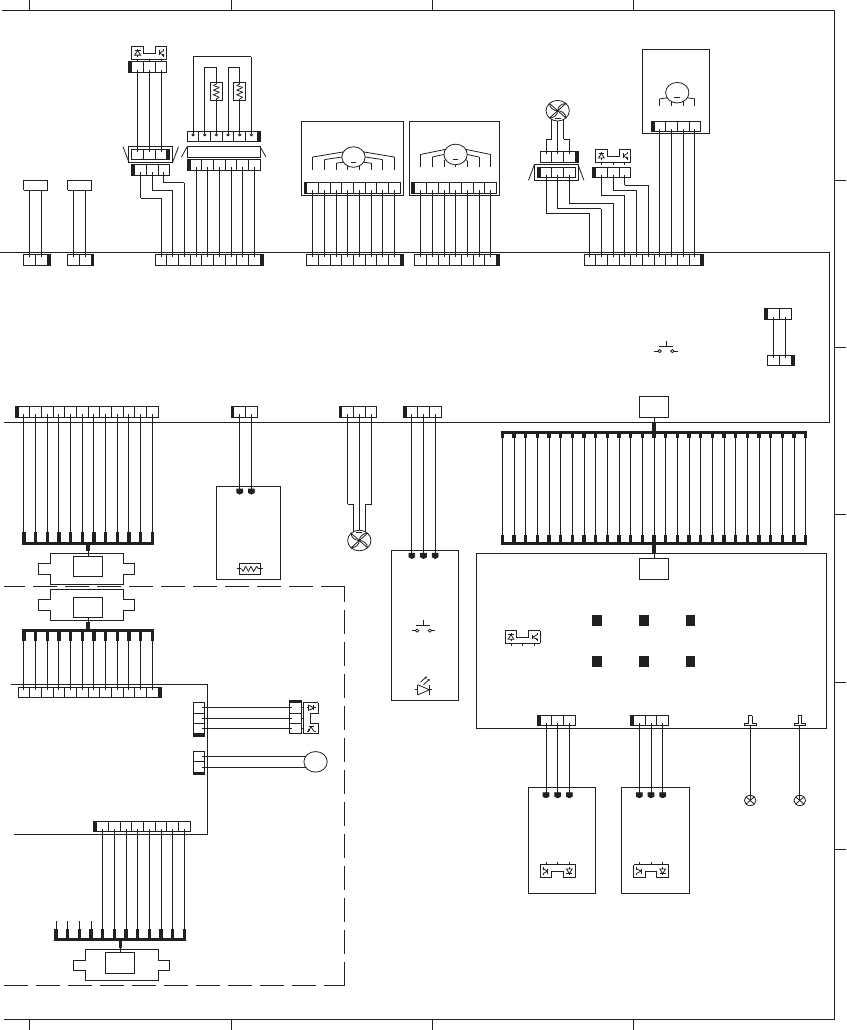
Figure 2-32 General circuit diagram (2 of 2)
A
43 2 1
D
C
B
SLSL
MM
M
CL
12
12
12
27
27
Fuser unit
GND
+3.3V
GND
OPF_SL2
OPF_PFEDS2
OPF_PSNS2
+3.3V
GND
+3.3V
GND
Sub fan
Paper feeder
connector
CSTSL
MPSL
/FM_DEC
/FM_ACC
FM_FG
FM_REV
GND
GND
MM_FG
/MM_ACC
/MM_DEC
GND
GND
GND
GND
FAN1LCK
GND
CL1
OPF_PFEDS2
OPF_PFEDS1
OPF_SL2
OPF_CL
GND
+24V
OPF_CL
FAN1ON
OPF_SL1
/OPF_PSNS1
/OPF_PSNS2
+24U
Duplex
feed sensor
TB505
DEV
TB506 TB507
TB508
TR FSRB
FILMB PA1 PA2
FAN2LCK
PFEDS1
+3.3V
FSRTH2
GND
FSROUTSNS
FSRTH1
GND
FAN2ON
GND
GND
/OPF_TRAYS1
/OPF_TRAYS2
/OPF_TRAYS2
/TOPSNS
PRI
TB509 TB510
ENVTEMP
GND
/SCMACC
/SCMDEC
PWSNS
/RDOORSNS
J220 J210
TONER
DC Controller
Laser scanner unit
CST
pickup
solenoid
MPT
pickup
solenoid
POWER SW
+3.3VC
+24VC
+3.3VA
+24VC
+3.3VC
+24VD
+24VD
+24VC
+24VC
+3.3VL
+3.3VB
+3.3VC
+24VC
+24VC
MD2
MD0
LED DRIVE
J280
J290
Power
switch
GND(+3.3V)
GND(+3.3V)
+3.3VC
+3.3VC
GND(+24D)
GND(+24D)
+24VD
+24VD
+24VD
TRFCS
TONS1
PWSNS
/DUPSNS
/TRFNCLK
TRFPWM
TRFCLK
/FSRPWM
FSRCLK
/PRIDCCLK
PRIDCPWM
/PRIACPWM
PRIACCLK
DEVACCLK
/DEVACPWM
TONS2
/TOPSNS
DEVDCPWM
J501
J501
J2200
J1610
27
26
25
24
23
22
21
19
20
17
18
16
15
14
13
12
11
10
9
8
7
6
5
4
3
2
1
2
1
3
4
5
6
7
8
9
10
11
12
13
14
15
16
17
18
19
20
21
22
23
24
25
26
27
123
J2308
21
J2310
12
J2304
321
J2105
123
J513
1234567
J2103
12
J9997
21
J2100
12
J2311
21
LED240
J107
123
J8008
TH3
123
J22
321
J24
345612
J19
12
TH2
1
2
J403
10 9 8 2345617
J2104
321
J8010D
123
J8001
4321
J12
123456
J18
98 2345617
J2400
PS8001
321
J8010L
J8009D
J8009DA
121110982345617
J2201
J8007D
J8007L
21
TH1
716543289101112
J401
PS215
PS225
123
FM2
12
SW240
321
FM1
12345678
J2102
PS2
87654321
J402
CL1
FT3
J502
M3
M8003
87654321
J8002
7654321
J8003
M8002
SL2 SL1
123
J2
321
J507
4
1
2
3
5
6
7
8
9
10
11
12
12
11
10
9
8
7
6
5
3
2
1
4
321
J404
PS8008
12
11
10
9
8
7
6
5
3
2
1
4
PS502
J8007LA
FT4
J8010DH
Paper width
sensor
TOP sensor
J18H
J24H
PF media
feed sensor
PF feed
clutch
Environment
sensor
Scanner
motor
Rear
door
sensor
Main motor
Fuser motor
Fuser output sensor
Main fan
Test print switch
12
SW2100
High-voltage
power supply
E
F
122 Chapter 2 Solve problems ENWW
Internal print-quality test pages
Clean the paper path
1. From the Home screen on the product control panel, scroll to and touch the Device Maintenance
button.
2. Open the following menus:
●Calibration/Cleaning
●Cleaning Page
3. Touch the Print button to print the page.
4. The cleaning process can take several minutes. When it is finished, discard the printed page.
Set up an auto cleaning page
Use the procedure in this section to set up an automatic cleaning page.
1. From the Home screen on the product control panel, scroll to and touch the Device Maintenance
button.
2. Open the following menus:
●Calibration/Cleaning
●Cleaning Settings
3. Select the Auto Cleaning item, and then select values for the Cleaning Interval option and the
Cleaning Size option. Touch the OK button.
ENWW Tools for troubleshooting 123
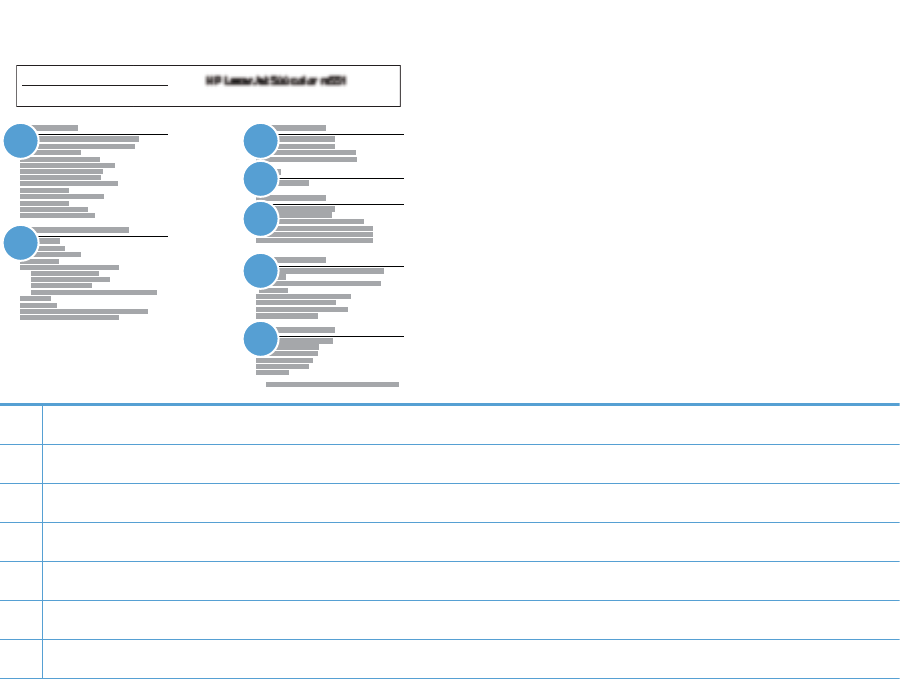
Print a configuration page
Depending on the model, up to three pages print when you print a configuration page. In addition to
the main configuration page, the embedded Jetdirect configuration pages print.
Configuration page
Use the configuration page to view current product settings, to help troubleshoot product problems, or
to verify installation of optional accessories, such as memory (DIMMs), paper trays, and product
languages.
1. From the Home screen on the product control panel, scroll to and touch the Administration button.
2. Open the following menus:
●Reports
●Configuration/Status Pages
3. Touch Configuration Page to select it.
4. Touch the View button to view the information on the control panel, or touch the Print button to
print the pages.
Figure 2-33 Configuration page
Configuration Page
Page 1
1 3
4
5
6
7
2
1Device information
2Installed personalities and options
3HP Web services
4Memory
5Event log
6Security
7Paper trays and options
124 Chapter 2 Solve problems ENWW

HP embedded Jetdirect page
The second configuration page is the HP embedded Jetdirect page, which contains the following
information:
Always make sure the status line under the general information line indicates "I/O Card Ready."
Figure 2-34 HP embedded Jetdirect page
Embedded Jetdirect Page
Page 1
2
3
14
5
6
1General Information indicates the product status, model number, hardware firmware version, port select, port
configuration, auto negotiation, manufacturing identification, and manufactured date.
2Security Settings information
3Network Statistics indicates the total packets received, unicast packets received, bad packets received, framing
errors received, total packets transmitted, unsendable packets, transmit collisions, and transmit late collisions.
4TCP/IP information, including the IP address
5IPv4 information
6IPv6 information
ENWW Tools for troubleshooting 125

Finding important information on the configuration pages
Certain information, such as the firmware date codes, the IP address, and the e-mail gateways, is
especially helpful while servicing the product. This information is on the various configuration pages.
Table 2-14 Important information on the configuration pages
Type of information Specific information Configuration page
Firmware date codes
When you use the remote firmware upgrade
procedure, all of these firmware components
are upgraded.
DC controller Look on the main configuration page,
under “Device Information.”
Firmware datecode Look on the main configuration page,
under “Device Information.”
Embedded Jetdirect firmware version Look on the embedded Jetdirect page,
under “General Information.”
Accessories and internal storage
All optional devices that are installed on the
product should be listed on the main
configuration page.
In addition, separate pages print for the
optional paper handling devices and the fax
accessory. These pages list more-detailed
information for those devices.
External disk (optional) Look on the main configuration page,
under “Installed Personalities and
Options.” Shows model and capacity.
Embedded HP Jetdirect Look on the main configuration page,
under “Installed Personalities and
Options.” Shows model and ID.
Total RAM Look on the main configuration page,
under “Memory.”
Duplex unit Look on the main configuration page,
under “Paper Trays and Options.”
Additional 500-sheet feeders Additional 500-sheet feeders Look on the main configuration page,
under “Paper Trays and Options.”
Engine cycles and event logs
Total page counts and maintenance kit
counts are important for ongoing product
maintenance.
The configuration page lists only the three
most recent errors. To see a list of the 50
most recent errors, print an event log from
the Diagnostics menu.
Engine cycles Look on the main configuration page,
under “Device Information.”
Event-log information Event-log information Look on the main configuration page,
under “Event log.”
126 Chapter 2 Solve problems ENWW
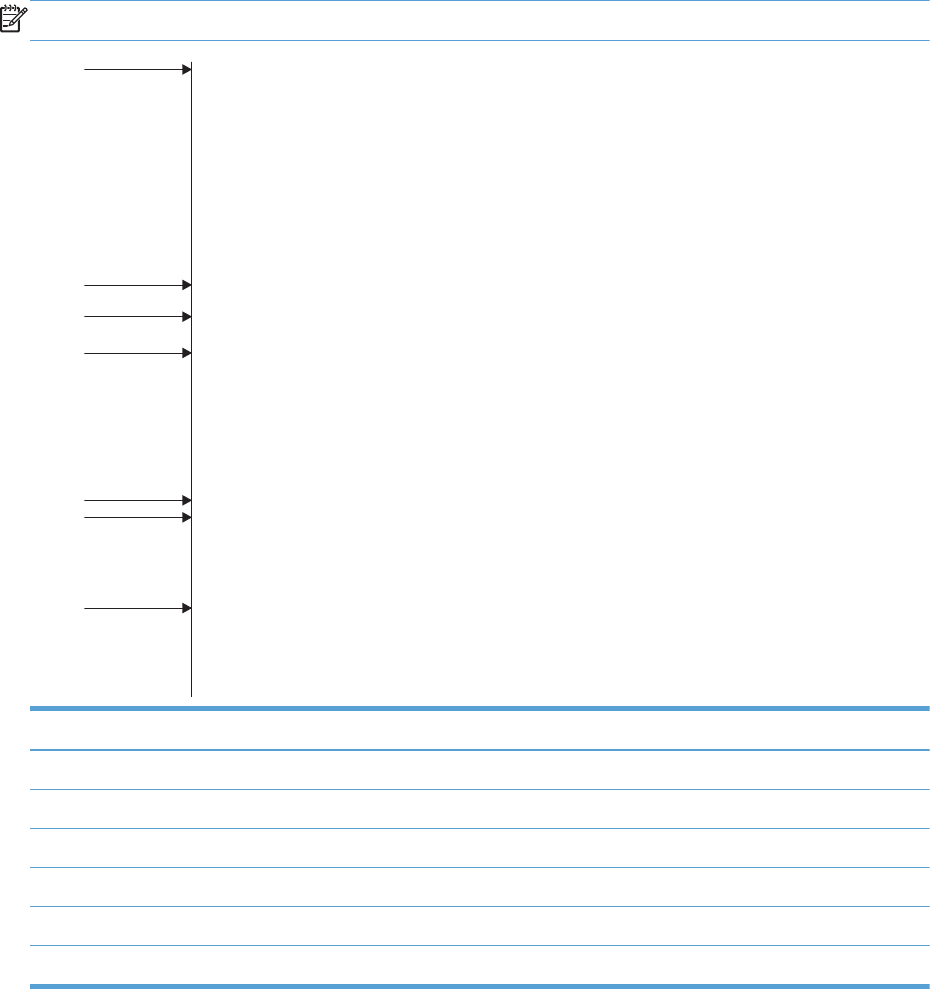
Print quality troubleshooting tools
Repetitive defects ruler
Use a ruler to measure occurrences of repetitive image defects to help solve image quality problems.
Place the ruler next to the first occurrence of the defect on the page. Find the distance between identical
defects and use the figure below to identify the component that is causing the defect.
NOTE: When printing this defect ruler, verify that any scaling options in the print driver are disabled.
0 mm
95 mm
79 mm
76 mm
50 mm
43.6 mm
38 mm
Distance between defects Product components that cause the defect
38 mm Toner cartridge (primary charging roller)
43.6 mm Print engine (transfer roller)
50 mm Toner cartridge (developer roller)
76 mm Fuser (fuser film)
79 mm Fuser (pressure roller)
95 mm Toner cartridge (OPC)
ENWW Tools for troubleshooting 127

Control panel menus
Administration menu
You can perform basic product setup by using the Administration menu. Use the HP Embedded Web
Server for more advanced product setup. To open the HP Embedded Web Server, enter the product IP
address or host name in the address bar of a Web browser.
Reports menu
To display: At the product control panel, select the Administration menu, and then select the Reports
menu.
Table 2-15 Reports menu
First level Second level Values Description
Configuration/Status Pages Administration Menu Map Print
View
Shows a map of the entire
Administration menu and the
selected values for each setting.
Current Settings Page Print
View
Print a summary of the current
settings for the product. This
might be helpful if you plan to
make changes and need a
record of the present
configuration.
Configuration Page Print
View
Shows the product settings and
installed accessories.
Supplies Status Page Print
View
Shows the approximate
remaining life for the supplies;
reports statistics on total number
of pages and jobs processed,
serial number, page counts, and
maintenance information.
HP provides approximations of
the remaining life for the supplies
as a customer convenience. The
actual remaining supply levels
might be different than the
approximations provided.
Usage Page Print
View
Shows a count of all paper sizes
that have passed through the
product; lists whether they were
simplex, duplex, monochrome,
or color; and reports the page
count.
File Directory Page Print
View
Shows the file name and folder
name for files that are stored in
the product memory.
128 Chapter 2 Solve problems ENWW

Table 2-15 Reports menu (continued)
First level Second level Values Description
Web Services Status Page Print
View
Shows the detected Web
Services for the product.
Fax Reports Fax Activity Log Print
View
Contains a list of the faxes that
have been sent from or received
by this product.
Billing Codes Report Print
View
Provides a list of billing codes
that have been used for outgoing
faxes. This report shows how
many sent faxes were billed to
each code.
Blocked Fax List Print
View
A list of phone numbers that are
blocked from sending faxes to
this product.
Speed Dial List Print
View
Shows the speed dials that have
been set up for this product.
Fax Call Report Print
View
A detailed report of the last fax
operation, either sent or
received.
Other Pages PCL Font List Print Prints the available PCL fonts.
PS Font List Print Prints the available PS fonts.
General Settings menu
To display: At the product control panel, select the Administration menu, and then select the General
Settings menu.
In the following table, asterisks (*) indicate the factory default setting.
Table 2-16 General Settings menu
First level Second level Third level Fourth level Values Description
Date/Time Settings Date/Time Format Date Format DD/MMM/YYYY
MMM/DD/YYYY
YYYY/MMM/DD
Use the Date/Time
Settings menu to
specify the date and
time and to configure
date/time settings.
Time Format 12 hour (AM/PM)
24 hours
Select the format that
the product uses to
show the date and
time, for example 12-
hour format or 24-
hour format.
Date/Time Time Zone Select the time zone
from a list.
ENWW Tools for troubleshooting 129

Table 2-16 General Settings menu (continued)
First level Second level Third level Fourth level Values Description
Date Select the date from
a pop-up calendar.
Time Select the time from
a pop-up keypad.
Adjust for Daylight
Savings
Checkbox If you are in an area
that uses daylight
savings time, select
the Adjust for
Daylight Savings
box.
Energy Settings Sleep Schedule A list of scheduled
events displays.
+ (Add)
Edit
Delete
Use to configure the
product to
automatically wake
up or go to sleep at
specific times on
specific days. Using
this feature saves
energy.
NOTE: You must
configure the date
and time settings
before you can use
the Sleep Schedule
feature.
Event Type Wake
Sleep
Select whether to
add or edit a Wake
event or a Sleep
event, and then
select the time and
the days for the wake
or sleep event.
Event Time
Event Days Select days of the
week from a list.
Sleep Timer Settings Sleep Mode/Auto
Off After
Range: 1 to 120
minutes
Default = 60 minutes
Set the number of
minutes after which
the product enters
Sleep or Auto Off
mode. Use the arrow
buttons on the control
panel to increase or
decrease the number
of minutes.
Wake/Auto On to
These Events
All Events*
Network port
Power button only
130 Chapter 2 Solve problems ENWW

Table 2-16 General Settings menu (continued)
First level Second level Third level Fourth level Values Description
Print Quality Image Registration Adjust Tray <X> Print Test Page Shift the margin
alignment to center
the image on the
page from top to
bottom and from left
to right. You can also
align the image on
the front with the
image printed on the
back.
Use the Adjust Tray
<X> menu to adjust
the registration
settings for each tray.
Before adjusting
these values, print a
registration test
page. It provides
alignment guides in
the X and Y
directions so you can
determine which
adjustments are
necessary. You can
adjust values for X1
Shift, X2 Shift, Y1
Shift, and Y2 Shift.
Use the Print Test
Page option to print
a page to test the
image registration. It
provides alignment
guides in the X and Y
directions so you can
determine which
adjustments are
necessary.
ENWW Tools for troubleshooting 131

Table 2-16 General Settings menu (continued)
First level Second level Third level Fourth level Values Description
X1 Shift
Y1 Shift
X2 Shift
Y2 Shift
-5.00 mm to 5.00
mm
The direction that is
perpendicular to the
way the paper
passes through the
product is referred to
as X. This is also
known as the scan
direction. X1 is the
scan direction for a
single-sided page or
for the second side of
a two-sided page. X2
is the scan direction
for the first side of a
two-sided page.
The direction that the
paper feeds through
the product is
referred to as Y. Y1
is the feed direction
for a single-sided
page or for the
second side of a two-
sided page. Y2 is the
feed direction for the
first side of a two-
sided page.
Adjust Paper Types Select from a list of
paper types that the
product supports.
The available
options are the same
for each paper type.
Print Mode Select from a list of
print modes.
Changing the Print
Mode setting is
usually the first thing
to try to resolve print-
quality problems.
Problems can include
toner not sticking
well to the page, a
faint image of the
page repeated on
the same or following
page, incorrect gloss
level, etc.
132 Chapter 2 Solve problems ENWW

Table 2-16 General Settings menu (continued)
First level Second level Third level Fourth level Values Description
Resistance Mode Normal
Up
Down
Use this setting to
correct print quality
problems in low-
humidity
environments and
highly resistive
paper. Use the Up
option to solve print
quality problems that
are related to poor
toner-transfer. Use
the Down option in
the event that small,
“pin-hole” defects
occur.
Humidity Mode Normal
Alternate 1
Alternate 2
Alternate 3
Line Detail Normal
Alternate 1
Off
Optimize Environment Normal*
Low Temp
Enable if the product
is operating in a low
temperature
environment and you
are having problems
with print quality
such as blisters in the
printed image.
Restore Optimize Use to return all the
settings in the
Optimize menu to the
factory-default
values.
Resolution 300 x 300 dpi
600 x 600 dpi
FastRes 1200
ProRes
Sets the resolution at
which the product
prints.
REt On
Off
ENWW Tools for troubleshooting 133

Table 2-16 General Settings menu (continued)
First level Second level Third level Fourth level Values Description
Economode On
Off
Toner density Default Lighter print
Darker print
Jam Recovery Auto*
Off
On
This product provides
a jam recovery
feature that reprints
jammed pages.
Select one of the
following options:
Auto: The product
attempts to reprint
jammed pages when
sufficient memory is
available. This is the
default setting.
Off: The product
does not attempt to
reprint jammed
pages. Because no
memory is used to
store the most recent
pages, performance
is optimal.
NOTE: When
using this option, if
the product runs out
of paper and the job
is being printed on
both sides, some
pages can be lost.
On: The product
always reprints
jammed pages.
Additional memory is
allocated to store the
last few pages
printed. This might
cause overall
performance to
suffer.
Auto Recovery Enabled
Disabled*
The product attempts
to reprint jammed
pages when sufficient
memory is available.
This is the default
setting.
134 Chapter 2 Solve problems ENWW

Table 2-16 General Settings menu (continued)
First level Second level Third level Fourth level Values Description
Manage Stored Jobs Sort Stored Jobs By Job Name*
Date
This option allows
you list the jobs
either Alphabetically
or Chronologically.
Quick Copy Job Held
Timeout
Off*
1 Hour
4 Hours
1 Day
1 Week
Sets a maximum
storage-time limit for
stored Quick Copy
and Proof and Hold
jobs. If a stored job
is not printed during
this period, it is
deleted.
Quick Copy Job
Storage Limit
1-100
Default = 32
Configure global
settings for jobs that
are stored in the
product memory.
The Quick Copy Job
Storage Limit feature
specifies the number
of Quick Copy and
Proof and Hold jobs
that can be stored on
the product. The
maximum allowed
value is 100.
Default Folder Name Type the name for
the stored jobs folder
that is accessible to
all users.
Enable Retrieve from
USB
Enabled
Disabled*
Enables the product
to open a file from a
USB device.
ENWW Tools for troubleshooting 135

Table 2-16 General Settings menu (continued)
First level Second level Third level Fourth level Values Description
Hold Off Print Job Enabled*
Disabled
Enable this feature if
you want to prevent
print jobs from
starting while a user
is initiating a copy
job from the control
panel. Held print
jobs start printing
after the copy job is
finished, provided
that no other copy
job is in the print
queue.
Restore Factory
Settings
Address Book
Copy
Digital Send
E-mail
Fax
General
Print
Security
Use to restore all
product settings to
their factory defaults.
Copy Settings menu
To display: At the product control panel, select the Administration menu, and then select the Copy
Settings menu.
In the following table, asterisks (*) indicate the factory default setting.
Table 2-17 Copy Settings menu
First level Second level Third level Values Description
Copies 1–9999
Default = 1
Configure the default
options for copy jobs. If
the user does not specify
the job options when
creating the job, the
default options are used.
136 Chapter 2 Solve problems ENWW

Table 2-17 Copy Settings menu (continued)
First level Second level Third level Values Description
Sides 1-sided original, 1-sided
output*
2-sided original, 2-sided
output
1-sided original, 2-sided
output
2-sided original, 1-sided
output
Use to indicate whether
the original document is
printed on one or both
sides, and whether the
copies should be printed
on one or both sides. For
example, select 1-sided
original, 2- sided output
when the original is
printed on one side, but
you want to make two-
sided copies.
Orientation Portrait* Specify portrait or
landscape orientation and
select the way the second
sides are printed.
Portrait orientation means
the short edge of the page
is along the top.
Landscape Landscape orientation
means the long edge of
the page is along the top.
ENWW Tools for troubleshooting 137

Table 2-17 Copy Settings menu (continued)
First level Second level Third level Values Description
2-Sided Format Book-style
Flip-style
Book-style original; Flip-
style copy
Flip-style original; Book-
style copy
If you are making two-
sided copies, select a 2-
sided format option.
Book-style: The back side
of the original is printed
right-side-up, and the
back side of the copy is
printed the same way.
Use this option for
originals and copies that
are bound along the left
edge.
Flip-style: The back side of
the original is printed
upside-down, and the
back side of the copy is
printed the same way.
Use this option for
originals and copies that
are to be bound along the
top edge.
Book-style original; Flip-
style copy: The back side
of the original is printed
right-side-up, but the back
side of the copy is printed
upside-down. Use this
option when the original
is bound along the left
edge, but you want the
copies to be bound along
the top edge.
Flip-style original; Book-
style copy: The back side
of the original is printed
upside-down, but the back
side of the copy is printed
right-side-up. Use this
option when the original
is bound along the top
edge, but you want the
copies to be bound along
the left edge.
138 Chapter 2 Solve problems ENWW

Table 2-17 Copy Settings menu (continued)
First level Second level Third level Values Description
Collate Collate on (Sets in page
order)*
Collate off (Pages
grouped)
If you are making more
than one copy, select the
Collate on (Sets in page
order) option to assemble
the pages in the correct
order in each set of
copies.
Select the Collate off
(Pages grouped) option to
group the same pages
together. For example, if
you are making five
copies of an original
document that has two
pages, all five first pages
would be grouped
together and all five
second pages would be
grouped together.
Reduce/Enlarge Scaling Auto*
100%
75%
50%
125%
150%
200%
Range X-Y (25-400%)
Use to scale the size of
the document up or down.
Select one of the
predefined percentages,
or select the Scaling field
and type a percentage
between 25 and 400.
TheAuto option
automatically scales the
image to fit the paper size
in the tray.
NOTE: To reduce the
image, select a scaling
percentage that is less
than 100. To enlarge the
image, select a scaling
percentage that is greater
than 100.
Auto Include Margins The product reduces the
image slightly to fit the
entire scanned image
within the printable area
on the page.
Paper Selection Manually feed
Automatic
Tray 1: [Type], [Size]
Tray <X>: [Type], [Size]
For the best color and
image quality, select the
appropriate paper type
from the control panel
menu or from the print
driver.
ENWW Tools for troubleshooting 139

Table 2-17 Copy Settings menu (continued)
First level Second level Third level Values Description
Image Adjustment Darkness Select a value using the
slide bar, or touch
Automatic.
Use to improve the overall
quality of the copy.
Adjust the Darkness
setting to increase or
decrease the amount of
white and black in the
colors.
Contrast Select a value using the
slide bar, or touch
Automatic.
Adjust the Contrast setting
to increase or decrease
the difference between the
lightest and darkest color
on the page.
Background Cleanup Select a value using the
slide bar, or touch
Automatic.
Adjust the Background
Cleanup setting if you are
having trouble copying a
faint image.
Sharpness Select a value using the
slide bar, or touch
Automatic.
Adjust the Sharpness
setting to clarify or soften
the image. For example,
increasing the sharpness
could make text appear
crisper, but decreasing it
could make photographs
appear smoother.
Default Select this to make the
selected Image
Adjustment setting the
default value.
Content Orientation Orientation Portrait*
Landscape
For some features to work
correctly, you must specify
the way the content of the
original document is
placed on the page.
Portrait orientation means
the short edge of the page
is along the top.
Landscape orientation
means the long edge of
the page is along the top.
140 Chapter 2 Solve problems ENWW

Table 2-17 Copy Settings menu (continued)
First level Second level Third level Values Description
2-Sided Format Book-style
Flip-style
Book-style original; Flip-
style copy
Flip-style original; Book-
style copy
If you are making two-
sided copies, select a 2-
sided format option.
Book-style: The back side
of the original is printed
right-side-up, and the
back side of the copy is
printed the same way.
Use this option for
originals and copies that
are bound along the left
edge.
Flip-style: The back side of
the original is printed
upside-down, and the
back side of the copy is
printed the same way.
Use this option for
originals and copies that
are to be bound along the
top edge.
Book-style original; Flip-
style copy: The back side
of the original is printed
right-side-up, but the back
side of the copy is printed
upside-down. Use this
option when the original
is bound along the left
edge, but you want the
copies to be bound along
the top edge.
Flip-style original; Book-
style copy: The back side
of the original is printed
upside-down, but the back
side of the copy is printed
right-side-up. Use this
option when the original
is bound along the top
edge, but you want the
copies to be bound along
the left edge.
Output Bin (525c only) Automatic
Standard bin (correct
order)
Rear bin (straightest path)
ENWW Tools for troubleshooting 141

Table 2-17 Copy Settings menu (continued)
First level Second level Third level Values Description
Optimize Text/Picture Manually adjust* Optimize For slider Use this setting to
optimize the output for a
particular type of content.
Text
Printed picture
Photograph
Manually adjust: Use to
manually optimize the
setting for each document.
Printed picture: Use for
line drawings and
preprinted images, such
as magazine clippings or
pages from books. If you
see bands of irregular
color or intensity on
copies, try selecting the
Printed picture setting to
improve the quality.
Photograph: Use for
photographic prints.
Pages per Sheet One (1)
Two (2)
Four (4)
Copies multiple pages
onto one sheet of paper.
NOTE: Before using this
screen, use the Content
Orientation screen to
describe the original
document orientation.
Page Order Right, then down
Down, then right
If you are printing four
pages per sheet, select
the page order. To print
the pages in rows, select
the Right, then down
option. To print the pages
in columns, select the
Down, then right option.
Add Page Borders If you are printing two or
more pages per sheet and
you want to print a border
around each page, select
the Add Page Borders
option.
Original Size Select from a list of sizes
that the product supports.
Describes the page size of
the original document.
142 Chapter 2 Solve problems ENWW

Table 2-17 Copy Settings menu (continued)
First level Second level Third level Values Description
Booklet Format Booklet Booklet off
Booklet on
Use to copy two or more
pages onto one sheet of
paper so you can fold the
sheets in the center to
form a booklet. The
product arranges the
pages in the correct
order. For example, if the
original document has
eight pages, the product
prints pages 1 and 8 on
the same sheet.
Original Sides 1-sided
2-sided
Select the 1-sided option if
the original document is
printed on only one side.
Select the 2-sided option if
the original document is
printed on two sides.
Borders on Each Page To print a border around
each page, select the
Borders on Each Page
option.
Edge-to-Edge Normal (recommended)*
Edge-to-Edge output
Use to avoid shadows that
can appear along the
edges of copies when the
original document is
printed close to the edges.
Combine with the
Reduce/Enlarge feature to
ensure that the entire
page is printed on the
copies. When the Edge-to-
Edge feature is turned on,
the product minimizes
margins and prints as
close to the edge of the
paper as possible.
Job Build
NOTE: For the 525c
model, this item displays
as Job Build and Misfeed
Detection.
Job Build off*
Job Build on
Use to combine several
original documents into
one job. Also use this
feature to scan an original
document that has more
pages than the document
feeder can accommodate
at one time. The product
temporarily saves all the
scanned images. After
you have scanned all the
pages for the job, touch
the Finish option to finish
the job.
ENWW Tools for troubleshooting 143

Scan/Digital Send Settings menu
To display: At the product control panel, select the Administration menu, and then select the Scan/
Digital Send Settings menu.
In the following table, asterisks (*) indicate the factory default setting.
Table 2-18 Scan/Digital Send Settings menu
First level Second level Third level Fourth level Values Description
E-mail Settings
Default Save to
Network Folder
Options
Default Save to USB
Options
NOTE: The same
options are available
for each of these
features, except
where noted.
E-mail Setup
NOTE: Email
Settings only
E-mail Setup Wizard Use to configure
settings that apply to
sending documents
through email or
saving documents to
a folder on the
network or on a USB
flash drive.
The E-mail Setup
Wizard feature
configures the
product to send
scanned images as
email attachments.
To open the product
HP Embedded Web
Server and set up the
email notification
server, enter the
product network
address into a Web
browser.
144 Chapter 2 Solve problems ENWW

Table 2-18 Scan/Digital Send Settings menu (continued)
First level Second level Third level Fourth level Values Description
Default Job Options Image Preview Make optional*
Require preview
Disable preview
Defines the default
job options for each
function. If you do
not specify the job
options when
creating the job, the
default options are
used. For complete
setup, go to the HP
Embedded Web
Server by typing the
network address of
the product into a
Web browser.
Use the Image
Preview feature to
scan a document
and display a
preview before
completing the job.
Select whether this
feature is available
on the product.
Make optional: The
feature is optional,
depending on the
user who is signed
in.
Require preview
Previews are
required for all users.
Disable preview:
Previews are
disabled for all users.
ENWW Tools for troubleshooting 145

Table 2-18 Scan/Digital Send Settings menu (continued)
First level Second level Third level Fourth level Values Description
Default File Name The product is
shipped with a
factory default file
name of [Untitled] for
any scanned files
that are sent or
saved. Use this
feature to specify a
different default file
name. If you are
saving a file to a
network folder or
USB storage product
and a file with the
default file name
already exists, a
number is appended
to the file name, for
example,
[Untitled]001.
146 Chapter 2 Solve problems ENWW

Table 2-18 Scan/Digital Send Settings menu (continued)
First level Second level Third level Fourth level Values Description
Document File Type Select from a list of
file types.
PDF provides the best
overall image and
text quality.
JPEG is a good
choice for most
graphics. Most
computers have a
browser that can
view .JPEG files. This
file type produces
one file per page.
TIFF is a standard file
format that many
graphics programs
support. This file type
produces one file per
page.
MTIFF stands for
multi-page TIFF. This
file type saves
multiple scanned
pages in a single
file.
XPS (XML Paper
Specification) creates
an XAML file that
preserves the original
formatting of the
document and
supports color
graphics and
embedded fonts.
NOTE: OCR file
types are not
supported on this
product unless
attached to DSS.
ENWW Tools for troubleshooting 147

Table 2-18 Scan/Digital Send Settings menu (continued)
First level Second level Third level Fourth level Values Description
Optimize Text/
Picture
Manually adjust*
Text
Printed picture
Photograph
Use to optimize the
output for a
particular type of
content. You can
optimize the output
for text, printed
pictures, or a
mixture.
Manually adjust: Use
to manually optimize
the setting for text or
for pictures.
Text: Use to optimize
the text portion of the
copy where text
and/or pictures are
on the original.
Printed picture: Use
for line drawings
and preprinted
images, such as
magazine clippings
or pages from books.
Photograph: Best
suited for making
copies of printed
pictures.
Output Quality High (large file)
Medium*
Low (small file)
Use to select the
quality for the output.
Higher-quality
images require a
larger file size than
lower-quality images.
Larger files take more
time to send, and
some recipients
might have trouble
receiving larger files.
148 Chapter 2 Solve problems ENWW

Table 2-18 Scan/Digital Send Settings menu (continued)
First level Second level Third level Fourth level Values Description
Original Sides 1-sided
2-sided
Use to describe the
layout for each side
of the original
document. First select
whether the original
document is printed
on one side or both
sides. Then touch the
Orientation setting to
indicate whether the
original has portrait
or landscape
orientation. If it is
printed on both
sides, also select the
2-sided format that
matches the original
document.
Orientation Automatically detect
Portrait*
Landscape
For some features to
work correctly, you
must specify the way
the content of the
original document is
placed on the page.
Portrait orientation
means the short edge
of the page is along
the top. Landscape
orientation means the
long edge of the
page is along the
top. In the
Orientation area,
select whether the
original document
has a portrait or
landscape
orientation.
ENWW Tools for troubleshooting 149

Table 2-18 Scan/Digital Send Settings menu (continued)
First level Second level Third level Fourth level Values Description
2-Sided Format Book-style
Flip-style
Book-style: The back
side of the original is
printed right-side-up,
and the back side of
the copy is printed
the same way. Use
this option for
originals and copies
that are bound along
the left edge.
Flip-style: The back
side of the original is
printed upside-down,
and the back side of
the copy is printed
the same way. Use
this option for
originals and copies
that are to be bound
along the top edge.
Resolution 400 dpi
300 dpi
200 dpi
150 dpi*
75 dpi
Sets the resolution for
sent documents.
Higher resolution
images have more
dots per inch (dpi),
so they show more
detail. Lower
resolution images
have fewer dots per
inch and show less
detail, but the file
size is smaller. Some
file types, for
example a file that
will be processed
with OCR, require a
specific resolution.
When these file types
are selected, the
Resolution setting
might automatically
change to a valid
value.
150 Chapter 2 Solve problems ENWW

Table 2-18 Scan/Digital Send Settings menu (continued)
First level Second level Third level Fourth level Values Description
Content Orientation Orientation Auto detect
Portrait*
Landscape
For some features to
work correctly, you
must specify the way
the content of the
original document is
placed on the page.
Portrait orientation
means the short edge
of the page is along
the top. Landscape
orientation means the
long edge of the
page is along the
top. In the
Orientation area,
select whether the
original document
has a portrait or
landscape
orientation.
2-Sided Format Book-style*
Flip-style
Use to configure the
default style for 2-
sided print jobs. If
the Book-style option
is selected, the back
side of the page is
printed the right way
up. This option is for
print jobs that are
bound along the left
edge. If the Flip-style
option is selected,
the back side of the
page is printed
upside-down. This
option is for print
jobs that are bound
along the top edge.
ENWW Tools for troubleshooting 151

Table 2-18 Scan/Digital Send Settings menu (continued)
First level Second level Third level Fourth level Values Description
Color/Black Automatically
detect*
Color
Black/Gray
Black
Use to enable or
disable color
scanning.
Automatically detect:
Automatically scans
documents in color if
at least one page
has color.
Color: Scans
documents in color.
Black/Gray: Scans
documents in
grayscale.
Black: Scans
documents in black
and white with a
compressed file size.
Original Size Selelct from a list of
supported sizes.
Use to describe the
page size of the
original document.
Notification Do not notify*
Notify when job
completes
Notify only if job
fails
Configure to receive
notification about the
status of a sent
document.
Do not notify: Turns
off this feature.
Notify when job
completes: Select to
receive notification
for this job only.
Print
E-mail
Notify only if job
fails: Select to
receive notification
only if the job is not
sent successfully.
Print: Select to print
the notification at this
product.
Include Thumbnail NOTE: When
sending an analog
fax, select Include
Thumbnail to receive
a thumbnail image of
the first page of the
fax in your
notification.
152 Chapter 2 Solve problems ENWW

Table 2-18 Scan/Digital Send Settings menu (continued)
First level Second level Third level Fourth level Values Description
Notification E-mail
address
E-mail: Select to
receive the
notification in an
email. Touch the text
box following E-mail
Address:, and type
the email address for
the notification.
Image Adjustment Darkness Use to improve the
overall quality of the
copy.
Adjust the Darkness
setting to increase or
decrease the amount
of white and black in
the colors.
Contrast Adjust the Contrast
setting to increase or
decrease the
difference between
the lightest and
darkest color on the
page.
Background Cleanup Adjust
theBackground
Cleanup setting if
you are having
trouble copying a
faint image.
Sharpness Adjust the Sharpness
setting to clarify or
soften the image. For
example, increasing
the sharpness could
make text appear
crisper, but
decreasing it could
make photographs
appear smoother.
Automatic Tone
Default
ENWW Tools for troubleshooting 153

Table 2-18 Scan/Digital Send Settings menu (continued)
First level Second level Third level Fourth level Values Description
Job Build Job Build off*
Job Build on
Use to combine
several original
documents into one
job. Also use to scan
an original document
that has more pages
than the document
feeder can
accommodate at one
time. The product
temporarily saves all
the scanned images.
After you have
scanned all the
pages for the job,
touch Finish to finish
the job.
Cropping Options Do not crop*
Crop to content
Use this menu item to
automatically crop
the scan for digital
sending. Use the
Crop to content
option to scan the
smallest possible
area that has
detectable content.
Erase Edges Use Inches
Back side erase
Front side erase
Use this menu item to
remove blemishes,
such as dark borders
or staple marks, by
cleaning the
specified edges of
the scanned image.
In each of the text
boxes enter the
measurements, in
millimeters or inches,
for how much of the
top edge, bottom
edge, left edge, and
right edge to clean.
Blank Page
Suppression
Disabled*
Enabled
Use to prevent blank
pages in the original
document from being
included in the output
document.
154 Chapter 2 Solve problems ENWW

Table 2-18 Scan/Digital Send Settings menu (continued)
First level Second level Third level Fourth level Values Description
Digital Send Service
Setup
Allow Usage of
Digital Sending
Software (DSS)
Server
Enabled*
Disabled
Configure how the
product interacts with
the HP Digital
Sending Software
(DSS) server. HP DSS
handles digital
sending tasks, such
as faxing, emailing,
and sending scanned
documents to a
network folder or
USB storage device.
Use the Allow Usage
of Digital Sending
Software (DSS)
Server option to
configure the product
to use HP DSS.
Allow Transfer to
New Digital Sending
Software (DSS)
Server
Enabled*
Disabled
Use the Allow
Transfer to New
Digital Sending
Software (DSS)
Server option to
specify whether DSS
management of a
product is
transferable to a
different DSS.
Fax Settings menu
To display: At the product control panel, select the Administration menu, and then select the Fax
Settings menu.
In the following table, asterisks (*) indicate the factory default setting.
ENWW Tools for troubleshooting 155

Table 2-19 Fax Settings menu
First level Second level Third level Fourth level Values Description
Fax Send Settings Fax Send Setup Fax Setup Wizard Configure settings for
sending faxes from
the product.
Use the Fax Setup
Wizard feature to set
up options for
faxing.
NOTE: To set up
LAN fax or Internet
fax, use the HP
Embedded Web
Server. To open the
HP Embedded Web
Server, type the
product network
address into a Web
browser. To
configure the fax
features, select the
Fax tab.
Fax Dialing Settings Fax Dial Volume Off
Low*
High
These settings control
how the fax modem
dials the outgoing
fax number when
faxes are sent.
Dialing Mode Tone*
Pulse
Redial Interval 1 – 5 Minutes
Default = 5 minutes
Fax Send Speed Fast*
Medium
Slow
Dialing Prefix
Detect Dial Tone
Redial on Error Range: 0 – 9
Default = 2
Redial on No
Answer
Range: 0 – 2
Default = 0
Redial on Busy Range: 0 – 9
Default = 3
156 Chapter 2 Solve problems ENWW

Table 2-19 Fax Settings menu (continued)
First level Second level Third level Fourth level Values Description
General Fax Send
Settings
Fax Number
Confirmation
Enabled
Disabled*
If this feature is
enabled, you must
enter the fax number
twice.
PC Fax Send Enabled*
Disabled
Enables users who
have the correct
driver installed to
send faxes through
the product from their
computers.
JBIG Compression Enabled*
Disabled
The JBIG
compression reduces
fax-transmission time,
which can result in
lower phone
charges. However,
using JBIG
compression
sometimes causes
compatibility
problems with older
fax machines. If this
occurs, turn off the
JBIG compression.
Error Correction
Mode
Enabled*
Disabled
When error-
correction mode is
enabled and an error
occurs during fax
transmission, the
product sends or
receives the error
portion again.
Fax Header Prepend*
Overlay
Use to prepend or
overlay the fax
header page.
Fax Number Speed
Dial Matching
Enabled
Disabled*
Use this item to
match fax number
that you type to
numbers that are
saved as a speed
dial.
ENWW Tools for troubleshooting 157

Table 2-19 Fax Settings menu (continued)
First level Second level Third level Fourth level Values Description
Billing Codes Enable Billing Codes Off
On*
When billing codes
are enabled, a
prompt displays that
asks the user to enter
the billing code for
an outgoing fax. This
prompt does not
appear if the Allow
users to edit billing
codes check box is
not checked.
You can also use the
Billing Codes report
in the Reports menu
to view the list of the
billing codes that
have been used for
faxes that have been
sent from the
product. The list is
grouped by billing
code and also shows
fax details. This
feature can be used
for billing or usage
tracking.
Default Billing Code Specify a default
billing code for
faxing. If you specify
a default billing
code, this code
displays in the Billing
Code field when the
user sends an
outgoing fax. If this
field is blank, no
default billing code is
provided for the
user.
Minimum Length Range: 1 – 16
Default = 1
Specify the required
length of the billing
code. Billing codes
can be between 1
and 16 characters
long.
Allow users to edit
billing codes
Off
On*
158 Chapter 2 Solve problems ENWW

Table 2-19 Fax Settings menu (continued)
First level Second level Third level Fourth level Values Description
Default Job Options Image Preview Make optional*
Require preview
Disable preview
Use the Image
Preview feature to
scan a document
and display a
preview before
completing the job.
Select whether this
feature is available
on the product.
Make optional: The
feature is optional,
depending on the
user who is signed
in.
Require preview
Previews are
required for all users.
Disable preview:
Previews are
disabled for all users.
Resolution Standard (100 x
200dpi)*
Fine (200 x 200dpi)
Superfine (300 x
300dpi)
Select the resolution
for outgoing faxes. If
you increase the
resolution, faxes
might be clearer but
they could transmit
more slowly. Some
file types, for
example a file that
will be processed
with OCR, require a
specific resolution.
When these file types
are selected, the
Resolution setting
might be
automatically
changed to a valid
value.
ENWW Tools for troubleshooting 159

Table 2-19 Fax Settings menu (continued)
First level Second level Third level Fourth level Values Description
Original Sides 1-sided*
2-sided
Use to describe the
layout for each side
of the original
document. First select
whether the original
document is printed
on one side or both
sides. Then touch the
Orientation setting to
indicate whether the
original has portrait
or landscape
orientation. If it is
printed on both
sides, also select the
2-sided format that
matches the original
document.
Orientation Portrait*
Landscape
For some features to
work correctly, you
must specify the way
the content of the
original document is
placed on the page.
Portrait: This setting
means the short edge
of the page is along
the top.
Landscape: This
setting means the
long edge of the
page is along the
top.
160 Chapter 2 Solve problems ENWW

Table 2-19 Fax Settings menu (continued)
First level Second level Third level Fourth level Values Description
2-Sided Format Book-style*
Flip-style
Book-style: The back
side of the original is
printed right-side-up,
and the back side of
the copy is printed
the same way. Use
this option for
originals and copies
that are bound along
the left edge.
Flip-style: The back
side of the original is
printed upside-down,
and the back side of
the copy is printed
the same way. Use
this option for
originals and copies
that are to be bound
along the top edge.
Notification Do not notify*
Notify when job
completes
Notify only if job
fails
Use to receive
notification about the
status of a sent
document.
Do not notify: Turns
off this feature.
Notify when job
completes: Select to
receive notification
for this job only.
Notify only if job
fails: Select to
receive notification
only if the job is not
sent successfully.
Print
E-mail
Print: Select to print
the notification at this
product.
E-mail: Select to
receive the
notification in an
email. Touch the text
box following E-mail
Address:, and enter
the email address for
the notification.
ENWW Tools for troubleshooting 161

Table 2-19 Fax Settings menu (continued)
First level Second level Third level Fourth level Values Description
Include Thumbnail When sending an
analog fax, select
Include Thumbnail to
receive a thumbnail
image of the first
page of the fax in
your notification.
Notification E-mail
address
Provide the email
address that will
receive notifications.
Content Orientation Orientation Portrait*
Landscape
For some features to
work correctly, you
must specify the way
the content of the
original document is
placed on the page.
Portrait: This setting
means the short edge
of the page is along
the top.
Landscape: This
setting means the
long edge of the
page is along the
top.
2-Sided Format Book-style*
Flip-style
Use to configure the
default style for 2-
sided print jobs. If
the Book-style option
is selected, the back
side of the page is
printed the right way
up. This option is for
print jobs that are
bound along the left
edge. If the Flip-style
option is selected,
the back side of the
page is printed
upside-down. This
option is for print
jobs that are bound
along the top edge.
Original Size Select from a list of
sizes that the product
supports.
Use to describe the
page size of the
original document.
162 Chapter 2 Solve problems ENWW

Table 2-19 Fax Settings menu (continued)
First level Second level Third level Fourth level Values Description
Image Adjustment Darkness Use to improve the
overall quality of the
copy.
Adjust the Darkness
setting to increase or
decrease the amount
of white and black in
the colors.
Contrast Adjust the Contrast
setting to increase or
decrease the
difference between
the lightest and
darkest color on the
page.
Background Cleanup Adjust
theBackground
Cleanup setting if
you are having
trouble copying a
faint image.
Sharpness Adjust the Sharpness
setting to clarify or
soften the image. For
example, increasing
the sharpness could
make text appear
crisper, but
decreasing it could
make photographs
appear smoother.
Automatic Tone
Default
ENWW Tools for troubleshooting 163

Table 2-19 Fax Settings menu (continued)
First level Second level Third level Fourth level Values Description
Optimize Text/
Picture
Manually adjust*Optimize For
Text
Printed picture
Photograph
Optimizes the output
for a particular type
of content. You can
optimize the output
for text, printed
pictures, or a
mixture.
Manually adjust: Use
to manually optimize
the setting for text or
for pictures.
Text: Use to optimize
the text portion of the
copy where text
and/or pictures are
on the original.
Printed picture: Use
for line drawings
and preprinted
images, such as
magazine clippings
or pages from books.
Photograph: Best
suited for making
copies of printed
pictures.
Job Build Job Build off*
Job Build on
Use to divide a
complex job into
smaller segments.
This is useful when
you are copying or
scanning an original
document that has
more pages than the
document feeder can
hold, or when you
want to combine
pages that have
different sizes into
one job. You can use
either the glass or the
document feeder to
scan the original
documents.
Blank Page
Suppression
Disabled*
Enabled
Prevents blank pages
in the original
document from being
included in the output
document.
164 Chapter 2 Solve problems ENWW

Table 2-19 Fax Settings menu (continued)
First level Second level Third level Fourth level Values Description
Fax Receive Settings Fax Receive Setup Ringer Volume Off
Low*
High
Use to configure
settings for receiving
faxes.
Rings To Answer Range: 1–6
Default = 1
Fax Receive Speed Fast*
Medium
Slow
Ring Interval Range: 220–600 ms
Default = 600 ms
Ring Frequency Range: 1–200
Default = 68hz
Fax Printing Schedule Always store faxes
Always print faxes*
Use Fax Printing
Schedule
If you have concerns
about the security of
private faxes, use
this feature to store
faxes rather than
having them
automatically print.
Select Incoming Fax
Options, and then
you can choose to
always store faxes,
always print them, or
you can set up a
schedule for each
day of the week.
Schedule
Touch this to set up a
fax printing schedule
if you selected the
Use Fax Printing
Schedule option.
Add (plus sign)
Edit
Delete
Print incoming faxes
Store incoming faxes
Time
Event Days
If you are using a fax
printing schedule,
use this menu to
configure when to
print faxes.
ENWW Tools for troubleshooting 165

Table 2-19 Fax Settings menu (continued)
First level Second level Third level Fourth level Values Description
Blocked Fax
Numbers
Fax Number to Block The blocked fax list
can contain up to 30
numbers. When the
product receives a
call from one of the
blocked fax numbers,
it deletes the
incoming fax. It also
logs the blocked fax
in the activity log
along with job-
accounting
information.
Add blocked
numbers: Enter a fax
number into the Fax
Number to Block
field and then touch
the arrow button to
add a new number
to the blocked fax
list.
Remove blocked
numbers: Select a
number and touch
the Delete button to
delete it from the
blocked fax list.
Clear all blocked
numbers: Touch the
Delete All button to
clear all of the
numbers from the
blocked fax list.
You can also use the
Blocked Fax List
report in the
Information menu to
view the list of the
fax numbers that
have been blocked
on this product.
166 Chapter 2 Solve problems ENWW

Table 2-19 Fax Settings menu (continued)
First level Second level Third level Fourth level Values Description
Default Job Options Notification Do not notify*
Notify when job
completes
Notify only if job
fails
Configure to receive
notification about the
status of a sent
document.
Do not notify: Turns
off this feature.
Notify when job
completes: Select to
receive notification
for this job only.
Notify only if job
fails: Select to
receive notification
only if the job is not
sent successfully.
Print
E-mail*
E-mail: Select to
receive the
notification in an
email. Touch the text
box following E-mail
Address:, and enter
the email address for
the notification.
Include Thumbnail NOTE: When
sending an analog
fax, select Include
Thumbnail to receive
a thumbnail image of
the first page of the
fax in your
notification.
Notification E-mail
address
Stamp Received
Faxes
Enabled
Disabled*
Use this option to
add the date, time,
sender’s phone
number, and page
number to each page
of the faxes that this
product receives.
ENWW Tools for troubleshooting 167

Table 2-19 Fax Settings menu (continued)
First level Second level Third level Fourth level Values Description
Fit to Page Enabled*
Disabled
Use to shrink faxes
that are larger than
Letter-size or A4-size
so that they can fit
onto a Letter-size or
A4-size page. If this
feature set to
Disabled, faxes
larger than Letter or
A4 will flow across
multiple pages.
Paper Selection Automatic*
Select from a list of
the trays.
Sides 1-sided*
2-sided
Use to describe the
layout for each side
of the original
document. First select
whether the original
document is printed
on one side or both
sides. Then touch the
Orientation setting to
indicate whether the
original has portrait
or landscape
orientation. If it is
printed on both
sides, also select the
2-sided format that
matches the original
document.
Fax Forwarding Enable Fax
Forwarding
Disabled*
Enabled
Use to forward
received faxes to
another fax machine.
Type of Fax Job to
Forward
All faxes
Sent faxes
Received faxes
Fax Forwarding
Number
Clear fax activity log Clears all events
from the Fax Activity
Log list.
168 Chapter 2 Solve problems ENWW

General Print Settings menu
To display: At the product control panel, select the Administration menu, and then select the General
Print Settings menu.
In the following table, asterisks (*) indicate the factory default setting.
Table 2-20 General Print Settings menu
First level Second level Values Description
Manual Feed Enabled
Disabled*
Use to enable or disable the
manual-feed feature, which
allows the user to feed paper
into the product by hand. When
this feature is enabled, the user
can select manual feed from the
control panel as the paper
source for a job. If a tray is not
specified as part of a job,
manual feed is selected.
Courier Font Regular*
Dark
Select which version of the
Courier font you want to use. The
factory default setting is Regular,
which uses an average stroke
width. The Dark setting can be
used if a heavier Courier font is
needed.
Wide A4 Enabled
Disabled*
Changes the printable area of
A4-size paper. If you enable this
option, eighty 10-pitch
characters can be printed on a
single line of A4 paper.
Print PS Errors Enabled
Disabled*
Use this feature to select whether
a PostScript (PS) error page is
printed when the product
encounters a PS error.
Print PDF Errors Enabled
Disabled*
Selects whether a PDF error page
is printed when the product
encounters a PDF error.
Personality Auto*
PCL
POSTSCRIPT
PDF
Configures the default print
language or personality for the
product. Normally you should
not change the product
language. If you change the
setting to a specific product
language, the product does not
automatically switch from one
language to another unless
specific software commands are
sent to it.
ENWW Tools for troubleshooting 169

Table 2-20 General Print Settings menu (continued)
First level Second level Values Description
PCL Form Length Range: 5 – 128
Default = 60
Controls the PCL print-command
options. PCL is a set of
productcommands that Hewlett-
Packard developed to provide
access to productfeatures.
Use the Form Length feature to
select the user-soft default vertical
form length.
Orientation Portrait*
Landscape
Select the orientation that is most
often used for copy or scan
originals. Select the Portrait
option if the short edge is at the
top or select the Landscape
option if the long edge is at the
top.
Font Source Internal* Selects the font source for the
user-soft default font. The list of
available options varies
depending on the installed
product options.
Font Number Range: 0 – 110
Default = 0
Specifies the font number for the
user-soft default font using the
source that is specified in the
Font Source menu. The product
assigns a number to each font
and lists it on the PCL font list.
The font number displays in the
Font # column of the printout.
Font Pitch Range: 0.44 – 99.99
Default = 10
If the Font Source option and the
Font Number setting indicate a
contour font, then use this feature
to select a default pitch (for a
fixed-spaced font).
Font Point Size Range: 4.00 – 999.75
Default = 12.00
If the Font Source option and the
Font Number setting indicate a
contour font, then use this feature
to select a default point size (for
a proportional-spaced font).
Symbol Set Select from a list of symbol sets. Select any one of several
available symbol sets from the
control panel. A symbol set is a
unique grouping of all the
characters in a font. The factory
default value for this option is
PC-8. Either PC-8 or PC-850 are
recommended for line-draw
characters.
170 Chapter 2 Solve problems ENWW

Table 2-20 General Print Settings menu (continued)
First level Second level Values Description
Append CR to LF No*
Yes
Configure whether a carriage
return (CR) is appended to each
line feed (LF) encountered in
backwards-compatible PCL jobs
(pure text, no job control). Select
Yes to append the carriage
return. The default setting is No.
Some environments, such as
UNIX, indicate a new line by
using only the line-feed control
code. This option allows the user
to append the required carriage
return to each line feed.
Suppress Blank Pages No*
Yes
This option is for users who are
generating their own PCL, which
could include extra form feeds
that would cause blank pages to
be printed. When the Yes option
is selected, form feeds are
ignored if the page is blank.
Media Source Mapping Standard*
Classic
Use to select and maintain input
trays by number when you are
not using the product driver, or
when the software program has
no option for tray selection. The
following options are available:
Standard: Tray numbering is
based on newer HP LaserJet
models.
Classic: Tray numbering is based
on HP LaserJet 4 and older
models.
Default Print Options menu
To display: At the product control panel, select the Administration menu, and then select the Default
Print Options menu.
In the following table, asterisks (*) indicate the factory default setting.
Table 2-21 Default Print Options menu
First level Second level Values Description
Number of Copies Range: 1–32000
Default = 1
Sets the default number of copies
for a copy job. This default
applies when the Copy function
or the Quick Copy function is
initiated from the product Home
screen.
ENWW Tools for troubleshooting 171

Table 2-21 Default Print Options menu (continued)
First level Second level Values Description
Default Paper Size Select from a list of sizes that the
product supports.
Configures the default paper size
used for print jobs.
Default Custom Paper Size X Dimension Range: 3–8.5 inches
Default = 8.5 inches
Configures the default paper size
that is used when the user selects
Custom as the paper size for a
print job.
Y Dimension Range: 5–14 inches
Default = 14 inches
Use Inches Enabled*
Disabled
Sides 1-sided*
2-sided
Use to indicate whether the
original document is printed on
one or both sides, and whether
the copies should be printed on
one or both sides. For example,
select the 1-sided original, 2-
sided output option when the
original is printed on one side,
but you want to make two-sided
copies.
Select the Orientation setting to
specify portrait or landscape
orientation and to select the way
the second sides are printed.
2-Sided Format Book-style*
Flip-style
Configures the default style for 2-
sided print jobs. If the Book-style
option is selected, the back side
of the page is printed the right
way up. This option is for print
jobs that are bound along the left
edge. If the Flip-style option is
selected, the back side of the
page is printed upside-down.
This option is for print jobs that
are bound along the top edge.
Edge-to-Edge Normal (recommended)*
Edge-to-Edge output
Use to avoid shadows that can
appear along the edges of
copies when the original
document is printed close to the
edges.
Display Settings menu
To display: At the product control panel, select the Administration menu, and then select the Display
Settings menu.
In the following table, asterisks (*) indicate the factory default setting.
172 Chapter 2 Solve problems ENWW

Table 2-22 Display Settings menu
First level Second level Values Description
Key Press Sound On*
Off
Use to specify whether you hear
a sound when you touch the
screen or press buttons on the
control panel.
Language Settings Language Select from a list of languages
that the product supports.
Use to select a different
language for control-panel
messages and specify the default
keyboard layout. When you
select a new language, the
keyboard layout automatically
changes to match the factory
default for the selected
language.
Keyboard Layout Each language has a default
keyboard layout. To change it,
select from a list of layouts.
Select the default keyboard
layout that matches the language
you want to use.
How to Connect Button Display*
Hide
Use this menu item to display or
hide the How to Connect Button
on the Home screen.
Date and Time Show Date and Time*
Hide Date and Time
Select whether to display or hide
the date and time on the control
panel Home screen.
Inactivity Timeout Range: 10 – 300 seconds
Default = 60 seconds
Specifies the amount of time that
elapses between any activity on
the control panel and when the
product resets to the default
settings. When the timeout
expires, the control-panel display
returns to the Home menu, and
any user signed in to the product
is signed out.
ENWW Tools for troubleshooting 173

Table 2-22 Display Settings menu (continued)
First level Second level Values Description
Clearable Warnings On
Job*
Use this feature to set the period
that a clearable warning
displays on the control panel. If
the On setting is selected,
clearable warnings appear until
the Clearable Warnings button is
pressed. If theJob setting is
selected, clearable warnings stay
on the display during the job that
generated the warning and
disappear from the display when
the next job starts.
Continuable Events Auto-continue (10 seconds)*
Touch OK to continue
Use this option to configure the
product behavior when the
product encounters certain
errors. If the Auto-continue (10
seconds) option is selected, the
job will continue after 10
seconds. If theTouch OK to
continue option is selected, the
job will stop and require the user
to press the OK button before
continuing.
174 Chapter 2 Solve problems ENWW

Manage Supplies menu
To display: At the product control panel, select the Administration menu, and then select the Manage
Supplies menu.
In the following table, asterisks (*) indicate the factory default setting.
Table 2-23 Manage Supplies menu
First level Second level Third level Fourth level Values Description
Supplies Status Print
View
Supply Settings Black Cartridge Low Threshold
Settings
1-100%
Default = 10%
Set the estimated
percentage at which
the product notifies
you when the toner
cartridge is very low.
Very Low Settings Stop
Prompt to continue*
Continue
Specifies how the
product notifies you
when the toner
cartridge is very low.
Stop: The product
stops until you
replace the toner
cartridge.
Prompt to continue:
The product stops
and prompts you to
replace the toner
cartridge. You can
acknowledge the
prompt and continue
printing.
Continue: The
product alerts you
that a toner cartridge
is very low, but it
continues printing.
Document Feeder Kit Low Threshold
Settings
1-100%
Default = 10%
Set the percentage at
which the product
notifies you when the
document feeder kit
is very low.
ENWW Tools for troubleshooting 175

Table 2-23 Manage Supplies menu (continued)
First level Second level Third level Fourth level Values Description
Very Low Settings Stop
Prompt to continue*
Continue
Configure how the
product responds
when the document
feeder kit is reaching
the end of its
estimated life.
Stop: The product
stops until you
replace the document
feeder kit.
Prompt to continue:
The product stops
and prompts you to
replace the document
feeder kit. You can
acknowledge the
prompt and continue
printing.
Continue: The
product alerts you
that the document
feeder kit is very low,
but it continues
printing.
Store Usage Data On supplies
Not on supplies
The Store Usage
Data menu provides
a way to suppress
the toner cartridges
from storing most of
the information
gathered exclusively
for the purpose of
understanding the
usage of the product.
Select the On
supplies setting to
store the data on the
toner cartridge
memory chip. Select
the Not on supplies
setting to suppress
the information from
being stored on the
memory chip.
176 Chapter 2 Solve problems ENWW

Table 2-23 Manage Supplies menu (continued)
First level Second level Third level Fourth level Values Description
Supply Messages Low Message On*
Off
Use to configure
whether a message
displays on the
control panel when
supplies are getting
low, but have not yet
reached the low
threshold.
Reset Supplies New Document
Feeder Kit
Reset
Cancel
Select this option if
you have installed a
new document
feeder kit.
Manage Trays menu
To display: At the product control panel, select the Administration menu, and then select the Manage
Trays menu.
In the following table, asterisks (*) indicate the factory default setting.
Table 2-24 Manage Trays menu
First level Values Description
Use Requested Tray Exclusively*
First
Controls how the product handles jobs that
have specified a specific input tray. Two
options are available:
Exclusively: The product never selects a
different tray when the user has indicated
that a specific tray should be used, even if
that tray is empty.
First: The product pulls from another tray if
the specified tray is empty, even though the
user specifically indicated a tray for the job.
Manually Feed Prompt Always*
Unless loaded
Indicate whether a prompt should appear
when the type or size for a job does not
match the specified tray and the product
pulls from the multipurpose tray instead. Two
options are available:
Always: A prompt always displays before
using the multipurpose tray.
Unless loaded: A message displays only if
the multipurpose tray is empty.
ENWW Tools for troubleshooting 177

Table 2-24 Manage Trays menu (continued)
First level Values Description
Size/Type Prompt Display*
Do not display
Controls whether the tray configuration
message displays whenever a tray is closed.
Two options are available:
Display: This option shows the tray
configuration message when a tray is closed.
The user is able to configure the tray settings
directly from this message.
Do not display: This option prevents the tray
configuration message from automatically
appearing.
Use Another Tray Enabled*
Disabled
Use to turn on or off the control-panel prompt
to select another tray when the specified tray
is empty. Two options are available:
Enabled: When this option is selected, the
user is prompted either to add paper to the
selected tray or to choose a different tray.
Disabled: When this option is selected, the
user is not given the option of selecting a
different tray. The product prompts the user
to add paper to the tray that was initially
selected.
Alternative Letterhead Mode Disabled*
Enabled
Use to load letterhead or preprinted paper
into the tray the same way for all print jobs,
whether you are printing to one side of the
sheet or to both sides of the sheet. When this
option is selected, load the paper as you
would for printing on both sides. See the
user documentation that came with the
product for instructions about loading
letterhead for printing on both sides. When
this option is selected, the product speed
slows to the speed required for printing on
both sides.
178 Chapter 2 Solve problems ENWW

Table 2-24 Manage Trays menu (continued)
First level Values Description
Duplex Blank Pages Auto*
Yes
Control how the product handles two-sided
jobs (duplexing). Two options are available:
Auto: This option enables Smart Duplexing,
which instructs the product not to process
blank pages.
Yes: This option disables Smart Duplexing
and forces the duplexer to flip the sheet of
paper even if it is printed on only one side.
This might be preferable for certain jobs that
use paper types such as letterhead or
prepunched paper.
Override A4/Letter Yes*
No
Prints on letter-size paper when an A4 job is
sent but no A4-size paper is loaded in the
product (or to print on A4 paper when a
letter-size job is sent but no letter-size paper
is loaded). This option will also override A3
with ledger-size paper and ledger with A3-
size paper.
Network Settings menu
To display: At the product control panel, select the Administration menu, and then select the Network
Settings menu.
In the following table, asterisks (*) indicate the factory default setting.
Table 2-25 Network Settings menu
First level Values Description
I/O Timeout Range: 5 – 300 sec
Default = 15
Use to set the I/O timeout period in seconds.
I/O timeout refers to the elapsed time before
a print job fails. If the stream of data that the
product receives for a print job gets
interrupted, this setting indicates how long
the product will wait before it reports that the
job has failed.
Jetdirect Menu See the table that follows for details. These
menus have the same structure. If an
additional HP Jetdirect network card is
installed in the EIO slot, then both menus are
available.
ENWW Tools for troubleshooting 179

Table 2-26 Jetdirect Menu
First level Second level Third level Fourth level Values Description
Information Print Sec Report Yes
No*
Yes: Prints a page
that contains the
current security
settings on the
HP Jetdirect print
server.
No: A security
settings page is not
printed.
TCP/IP Enable On*
Off
On: Enable the TCP/
IP protocol.
Off: Disable the
TCP/IP protocol.
Host Name Use the arrow
buttons to edit the
host name.
NPIXXXXXX*
An alphanumeric
string, up to 32
characters, used to
identify the product.
This name is listed on
the HP Jetdirect
configuration page.
The default host
name is NPIxxxxxx,
where xxxxxx is the
last six digits of the
LAN hardware
(MAC) address.
180 Chapter 2 Solve problems ENWW

Table 2-26 Jetdirect Menu (continued)
First level Second level Third level Fourth level Values Description
IPV4 Settings Config Method Bootp
DHCP*
Auto IP
Manual
Specifies the method
that TCP/IPv4
parameters will be
configured on the
HP Jetdirect print
server.
Bootp (Bootstrap
Protocol): Use for
automatic
configuration from a
BootP server.
DHCP (Dynamic Host
Configuration
Protocol): Use for
automatic
configuration from a
DHCPv4 server. If
selected and a DHCP
lease exists, the
DHCP Release menu
and the DHCP
Renew menu are
available to set
DHCP lease options.
Auto IP: Use for
automatic link-local
IPv4 addressing. An
address in the form
169.254.x.x is
assigned
automatically.
If you set this option
to the Manual
setting, use the
Manual Settings
menu to configure
TCP/IPv4
parameters.
Manual Settings
NOTE: This menu
is available only if
you select the
Manual option under
the Config Method
menu.
IP Address Enter the address. (Available only if the
Config Method
option is set to the
Manual option.)
Configure
parameters directly
from the product
control panel:
Subnet Mask Enter the address.
Default Gateway Enter the address.
ENWW Tools for troubleshooting 181

Table 2-26 Jetdirect Menu (continued)
First level Second level Third level Fourth level Values Description
Default IP Auto IP*
Legacy
Specify the IP
address to default to
when the print server
is unable to obtain
an IP address from
the network during a
forced TCP/IP
reconfiguration (for
example, when
manually configured
to use BootP or
DHCP).
NOTE: This feature
assigns a static IP
address that might
interfere with a
managed network.
Auto IP: A link-local
IP address
169.254.x.x is set.
Legacy: The address
192.0.0.192 is set,
consistent with older
HP Jetdirect products.
Primary DNS Range: 0 – 255
Default =
xxx.xxx.xx.xx
Specify the IP
address (n.n.n.n) of
a Primary Domain
Name System (DNS)
Server.
Secondary DNS Range: 0 – 255
Default = 0.0.0.0
Specify the IP
address (n.n.n.n) of
a Secondary DNS
Server.
IPV6 Settings Enable Off
On*
Use this item to
enable or disable
IPv6 operation on the
print server.
Off: IPv6 is disabled.
On: IPv6 is enabled.
Address Manual Settings Enable
Address
Use this item to
enable and manually
configure a TCP/
IPv6 address.
182 Chapter 2 Solve problems ENWW

Table 2-26 Jetdirect Menu (continued)
First level Second level Third level Fourth level Values Description
DHCPV6 Policy Router Specified
Router Unavailable*
Always
Router Specified: The
stateful auto-
configuration method
to be used by the
print server is
determined by a
router. The router
specifies whether the
print server obtains
its address, its
configuration
information, or both
from a DHCPv6
server.
Router Unavailable:
If a router is not
available, the print
server should attempt
to obtain its stateful
configuration from a
DHCPv6 server.
Always: Whether a
router is available,
the print server
always attempts to
obtain its stateful
configuration from a
DHCPv6 server.
Primary DNS
Secondary DNS
ENWW Tools for troubleshooting 183

Table 2-26 Jetdirect Menu (continued)
First level Second level Third level Fourth level Values Description
Proxy Server Select from a
provided list.
Specifies the proxy
server to be used by
embedded
applications in the
product. A proxy
server is typically
used by network
clients for Internet
access. It caches
Web pages, and
provides a degree of
Internet security, for
those clients.
To specify a proxy
server, enter its IPv4
address or fully-
qualified domain
name. The name can
be up to 255 octets.
For some networks,
you might need to
contact your Internet
Service Provider (ISP)
for the proxy server
address.
Proxy Port Default = 00080 Enter the port
number used by the
proxy server for
client support. The
port number
identifies the port
reserved for proxy
activity on your
network, and can be
a value from 0 to
65535.
Idle Timeout Default = 0270 The time period, in
seconds, after which
an idle TCP print
data connection is
closed (default is
270 seconds, 0
disables the timeout).
184 Chapter 2 Solve problems ENWW

Table 2-26 Jetdirect Menu (continued)
First level Second level Third level Fourth level Values Description
Security Secure Web HTTPS Required*
HTTPS Optional
For configuration
management, specify
whether the HP
Embedded Web
Server will accept
communications
using HTTPS (Secure
HTTP) only, or both
HTTP and HTTPS.
HTTPS Required: For
secure, encrypted
communications,
only HTTPS access is
accepted. The print
server will appear as
a secure site.
IPSEC Keep
Disable*
Specify the IPSec
status on the print
server.
Keep: IPSec status
remains the same as
currently configured.
Disable: IPSec
operation on the
print server is
disabled.
802.1X Reset
Keep*
Specify whether the
802.1X settings on
the print server are
reset to the factory
defaults.
Reset: The 802.1X
settings are reset to
the factory defaults.
Keep: The current
802.1X settings are
maintained.
ENWW Tools for troubleshooting 185

Table 2-26 Jetdirect Menu (continued)
First level Second level Third level Fourth level Values Description
Reset Security Yes
No*
Specify whether the
current security
settings on the print
server will be saved
or reset to factory
defaults.
Yes: Security settings
are reset to factory
defaults.
No: The current
security settings are
maintained.
186 Chapter 2 Solve problems ENWW

Table 2-26 Jetdirect Menu (continued)
First level Second level Third level Fourth level Values Description
Diagnostics Embedded Tests LAN HW Test Yes
No*
Provides tests to help
diagnose network
hardware or TCP/IP
network connection
problems.
Embedded tests help
to identify whether a
network fault is
internal or external to
the product. Use an
embedded test to
check hardware and
communication paths
on the print server.
After you select and
enable a test and set
the execution time,
you must select the
Execute option to
initiate the test.
Depending on the
execution time, a
selected test runs
continuously until
either the product is
turned off, or an
error occurs and a
diagnostic page is
printed.
CAUTION:
Running this
embedded test will
erase your TCP/IP
configuration.
This test performs an
internal loopback
test. An internal
loopback test will
send and receive
packets only on the
internal network
hardware. There are
no external
transmissions on your
network.
ENWW Tools for troubleshooting 187

Table 2-26 Jetdirect Menu (continued)
First level Second level Third level Fourth level Values Description
HTTP Test Yes
No*
This test checks
operation of HTTP by
retrieving predefined
pages from the
product, and tests the
HP Embedded Web
Server.
Select the Yes option
to choose this test, or
the No option to not
choose it.
SNMP Test Yes
No*
This test checks
operation of SNMP
communications by
accessing predefined
SNMP objects on the
product.
Select the Yes option
to choose this test, or
the No option to not
choose it.
Data Path Test Yes
No*
This test helps to
identify data path
and corruption
problems on an HP
postscript level 3
emulation product. It
sends a predefined
PS file to the product,
However, the test is
paperless; the file
will not print.
Select the Yes option
to choose this test, or
the No option to not
choose it.
Select All Tests Yes
No*
Use this item to select
all available
embedded tests.
Select the Yes option
to choose all tests.
Select the No option
to select individual
tests.
188 Chapter 2 Solve problems ENWW

Table 2-26 Jetdirect Menu (continued)
First level Second level Third level Fourth level Values Description
Execution Time [H] Range: 1 – 24 hours
Default = 1 hour
Specify the length of
time (in hours) that
an embedded test
will be run. If you
select zero (0), the
test runs indefinitely
until an error occurs
or the product is
turned off.
Data gathered from
the HTTP, SNMP,
and Data Path tests is
printed after the tests
have completed.
Execute No*
Yes
No: Do not initiate
the selected tests.
Yes: Initiate the
selected tests.
Ping Test Dest Type IPv4
IPv6
This test is used to
check network
communications. This
test sends link-level
packets to a remote
network host, then
waits for an
appropriate
response. To run a
ping test, set the
following items:
Dest Type
Specify whether the
target product is an
IPv4 or IPv6 node.
Dest IPv4 Range: 0 – 255
Default =
127.0.0.1
Enter the IPv4
address.
Dest IPv6 Select from a
provided list.
Default = : : 1
Enter the IPv6
address.
Packet Size Default = 64 Specify the size of
each packet, in
bytes, to be sent to
the remote host. The
minimum is 64
(default) and the
maximum is 2048.
ENWW Tools for troubleshooting 189

Table 2-26 Jetdirect Menu (continued)
First level Second level Third level Fourth level Values Description
Timeout Default = 001 Specify the length of
time, in seconds, to
wait for a response
from the remote host.
The maximum is
100.
Count Default = 004 Specify the number
of ping test packets
to send for this test.
Select a value from 0
to 100. To configure
the test to run
continuously, select
0.
Print Results Yes
No*
Execute Yes
No*
No: Do not initiate
the selected tests.
Yes: Initiate the
selected tests.
Ping Results Packets Sent Default = 00000 Shows the number of
packets (0 - 65535)
sent to the remote
host since the most
recent test was
initiated or
completed..
Packets Received Default = 00000 Shows the number of
packets (0 - 65535)
received from the
remote host since the
most recent test was
initiated or
completed. The
default is 0.
Percent Lost Default = 000 Shows the percent (0
to 100) of ping test
packets that were
sent with no
response from the
remote host since the
most recent test was
initiated or
completed.
190 Chapter 2 Solve problems ENWW

Table 2-26 Jetdirect Menu (continued)
First level Second level Third level Fourth level Values Description
RTT Min Default = 0000 Shows the minimum
detected roundtrip-
time (RTT), from 0 to
4096 milliseconds,
for packet
transmission and
response.
RTT Max Default = 0000 Shows the maximum
detected roundtrip-
time (RTT), from 0 to
4096 milliseconds,
for packet
transmission and
response.
RTT Average Default = 0000 Shows the average
round-trip-time (RTT),
from 0 to 4096
milliseconds, for
packet transmission
and response.
Ping In Progress Yes
No*
Shows whether a
ping test is in
progress. Yes:
Indicates a test in
progress. No:
Indicates that a test
completed or was
not run.
Refresh Yes
No*
When viewing the
ping test results, this
item upgrades the
ping test data with
current results. Select
the Yes option to
upgrade the data, or
the No option to
maintain the existing
data. However, a
refresh automatically
occurs when the
menu times out or
you manually return
to the main menu.
ENWW Tools for troubleshooting 191

Table 2-26 Jetdirect Menu (continued)
First level Second level Third level Fourth level Values Description
Link Speed Auto* The link speed and
communication mode
of the print server
must match the
network. The
available settings
depend on the
product and installed
print server. Select
one of the following
link configuration
settings:
CAUTION: If you
change the link
setting, network
communications with
the print server and
network product
might be lost.
The print server uses
auto-negotiation to
configure itself with
the highest link
speed and
communication mode
allowed. If auto-
negotiation fails,
either the 100TX Half
feature or the 10T
Half feature is set
depending on the
detected link speed
of the hub/switch
port. (A 1000T half-
duplex selection is
not supported.)
10T Half 10 Mbps, half-
duplex operation.
10T Full 10 Mbps, full-duplex
operation.
10T Auto 100 Mbps, half-
duplex operation.
100TX Half 100 Mbps, full-
duplex operation.
192 Chapter 2 Solve problems ENWW

Table 2-26 Jetdirect Menu (continued)
First level Second level Third level Fourth level Values Description
100TX Full Limits auto-
negotiation to a
maximum link speed
of 100 Mbps.
100TX Auto 1000 Mbps, full-
duplex operation.
Troubleshooting menu
To display: At the product control panel, select the Administration menu, and then select the
Troubleshooting menu.
In the following table, asterisks (*) indicate the factory default setting.
Table 2-27 Troubleshooting menu
First level Second level Third level Fourth level Values Description
Event Log View*
Print
Use to print a list of
the 1,000 most
recent events in the
Event Log. For each
event, the printed log
shows the error
number, page count,
error code, and
description or
personality.
Paper Path Page View*
Print
Shows how many
pages were printed
from each tray.
Fax Fax T.30 Trace Print T.30 Report Print Use to print or
configure the fax T.
30 trace report. T.30
is the standard that
specifies
handshaking,
protocols, and error
correction between
fax machines.
ENWW Tools for troubleshooting 193

Table 2-27 Troubleshooting menu (continued)
First level Second level Third level Fourth level Values Description
When to Print Report Never automatically
print*
Print after every fax
Print only after fax
send jobs
Print after any fax
error
Print only after fax
send errors
Print only after fax
receive errors
Configure the T.30
report to print after
certain events. You
can choose to print
the report after every
fax job, every fax
job sent, every fax
job received, every
send error, or every
receive error.
Fax V.34 Normal*
Off
Use to disable V.34
modulations if
several fax failures
have occurred or if
phone line conditions
require it.
Fax Speaker Mode Normal*
Diagnostic
Used by a technician
to evaluate and
diagnose fax issues
by listening to the
sounds of fax
modulations.
Fax Log Entries On
Off*
The standard fax log
includes basic
information such as
the time and whether
the fax was
successful. The
setailed fax log
shows the
intermediate results
of the redial process
not shown in the
standard fax log.
Print Quality Pages Fuser Test Page Print Use to print pages
that help you resolve
problems with print
quality.
Diagnostic Tests Paper Path Sensors Select from a list of
the product sensors.
Initiates a test of the
paper path sensors.
Paper Path Test Print Test Page
194 Chapter 2 Solve problems ENWW

Table 2-27 Troubleshooting menu (continued)
First level Second level Third level Fourth level Values Description
Source Tray Select from a list of
the available trays.
Generates a test
page for testing
paper handling
features. You can
define the path that
is used for the test in
order to test specific
paper paths.
Output Bin All bins
Face down
Face up
Test Duplex Path Off*
On
Number of Copies Range: 1–500
Default = 1
Sets the default
number of copies for
a copy job. This
default applies when
the Copy or Quick
Copy function is
initiated from the
product Home
screen. The factory
default setting is 1.
Manual Sensor Test Select from a list of
available
components.
Reset Sensors
Test the product
sensors and switches
for correct operation.
Each sensor is
displayed on the
control-panel screen,
along with its status.
Manually trip each
sensor and watch for
it to change on the
screen. Press the
Stop button to abort
the test.
Tray/Bin Manual
Sensor Test
Select from a list of
available
components.
Reset Sensors
Test the sensors in
the trays and bins for
correct operation.
Each sensor is
displayed on the
control-panel screen,
along with its status.
Manually trip each
sensor and watch for
it to change on the
screen. Press the
Stop button to abort
the test.
ENWW Tools for troubleshooting 195

Table 2-27 Troubleshooting menu (continued)
First level Second level Third level Fourth level Values Description
Component Test Select from a list of
available
components.
Use to exercise
individual parts
independently to
isolate noise,
leaking, or other
issues. To start the
test, select one of the
components. The test
will run the number
of times specified by
the Repeat option.
You might be
prompted to remove
parts from the
product during the
test. Press the Stop
button to abort the
test.
Print/Stop Test Specify the length of
time in milliseconds
(0-60,000).
Continuous Scan 2-sided
Scanner Tests Sensors
Retrieve Diagnostic
Data
Create device data
file
Create zipped debug
information file
Include crash dump
files
Clean up debug
information
Send to E-mail
Export to USB
Create files that
contain information
about the product
that can help identify
the cause of
problems.
Generate Debug
Data
Start
Device Maintenance menu
Backup/Restore menu
To display: At the product control panel, select the Device Maintenance menu, and then select the
Backup/Restore menu.
In the following table, asterisks (*) indicate the factory default setting.
196 Chapter 2 Solve problems ENWW

Table 2-28 Backup/Restore menu
First level Second level Third level Values Description
Backup Data Enable Scheduled
Backups
Backup Time Enter a time
Days Between Backups Enter the number of days
Backup Now
Export Last Backup
Restore Data Insert a USB drive that
contains the backup file.
Calibration/Cleaning menu
To display: At the product control panel, select the Device Maintenance menu, and then select the
Calibration/Cleaning menu.
In the following table, asterisks (*) indicate the factory default setting.
Table 2-29 Calibration/Cleaning menu
First level Second level Values Description
Cleaning Settings Auto Cleaning Off*
On
Use to select the Auto Cleaning
menu or the Cleaning Interval
menu.
Cleaning Interval Select from a list of cleaning
intervals.
Use to set the interval when the
cleaning page should be printed.
The interval is measured by the
number of pages printed.
Cleaning Size Select from a list of support sizes. Select the paper size to use for
the cleaning page.
Cleaning Page Print Use to process the cleaning page
that was created by using the
Create Cleaning Page menu. The
process takes up to 1.5 minutes.
Calibrate Scanner Touch Next to calibrate the
device scanner. Messages on the
control panel display will lead
you through the calibration
process.
Clean Rollers Perform automatic cleaning for
the document-feeder rollers.
ENWW Tools for troubleshooting 197

Table 2-29 Calibration/Cleaning menu (continued)
First level Second level Values Description
Clean Document Feeder Settings Low Threshold Settings Range: 0–100%
Default = 10%
Configure cleaning settings for
the document feeder.
Very Low Settings Stop
Prompt to continue*
Continue
198 Chapter 2 Solve problems ENWW
USB Firmware Upgrade menu
To display: At the product control panel, select the Device Maintenance menu, and then select the
USB Firmware Upgrade menu.
Insert a USB storage device with a firmware upgrade bundle into the USB port, and follow the on-
screen instructions.
Service menu
To display: At the product control panel, select the Device Maintenance menu, and then select the
Service menu.
The Service menu is locked and requires a PIN for access. This menu is intended for use by authorized
service personnel.
ENWW Tools for troubleshooting 199

Interpret control-panel messages
Control-panel message types
The control-panel messages and event code errors indicate the current product status or situations that
might require action.
NOTE: Event log errors do not appear on the control-panel display. Access the event log to view or
print the event log errors.
Control-panel messages appear temporarily and might require that you acknowledge the message by
touching the OK button to resume printing or by touching the Stop button to cancel the job. With
certain messages, the job might not finish printing or the print quality might be affected. If the message
is related to printing and the auto-continue feature is on, the product will attempt to resume printing
after the message has appeared for 10 seconds without acknowledgement.
For some messages, restarting the product might fix the problem. If a critical error persists, the product
might require service.
Control-panel messages
10.0X.Y0 Supply memory error
Description
The product cannot read or write to at least one print cartridge memory tag or a memory tag is missing
from a print cartridge.
Memory error
◦10.00.00 (event code)
Black print cartridge
E-label missing
◦10.00.10 (event code)
Black print cartridge
Recommended action
1. Remove, and then reinstall the toner cartridge.
2. If the error reappears, turn the power off, and then on.
3. Check the cartridge e-label. If it is damaged, replace the cartridge.
4. If the error persists, replace the toner cartridge.
200 Chapter 2 Solve problems ENWW

10.23.50
Description
The fuser kit life was reset above the order threshold.
A new ITB was installed.
Recommended action
No action necessary.
10.23.51
Description
The fuser kit life was reset above the replace threshold.
A new ITB was installed.
Recommended action
No action necessary.
10.23.52
Description
The fuser kit life was reset above the reset threshold.
A new ITB was installed.
Recommended action
No action necessary.
10.23.70 Printing Past Very Low
Description
The product indicates when the fuser kit is very low. The actual remaining fuse kit life might vary.
You do not need to replace the fuser kit at this time unless print quality is no longer acceptable.
CAUTION: After an HP supply has reached the very low threshold, the HP premium protection
warranty ends.
Recommended action
If print quality is no longer acceptable, replace the fuser kit. See the parts chapter in the repair manual
for the fuser kit part number.
TIP: Advise the customer that HP recommends that they have replacement supplies available to install
when the print quality is no longer acceptable.
ENWW Tools for troubleshooting 201

10.XX.34 Used Supply In Use
Description
The toner cartridge is used.
◦10.00.34 (event code)
Black print cartridge
Recommended action
Make sure this is a genuine HP supply.
NOTE: Removing a cartridge from one product and then installing it in a different product (for testing
functionality) will cause this event code.
10.XX.40 Genuine HP Supplies Installed
Description
A genuine HP toner cartridge has been installed.
◦10.00.40 (event code)
Black print cartridge
Recommended action
No action necessary.
10.XX.40 Unsupported Supply In Use
Description
The indicated toner cartridge is for a different product.
◦10.00.41 (event code)
Black print cartridge
Recommended action
Remove the toner cartridge, and then install the correct cartridge for this product.
TIP: See the parts chapter in the product repair manual for the correct cartridge part number.
10.XX.70 Printing Past Very Low
Description
The product indicates when a supply is very low. The actual remaining supply life might vary.
You do not need to replace the supply at this time unless print quality is no longer acceptable.
202 Chapter 2 Solve problems ENWW

CAUTION: After an HP supply has reached the very low threshold, the HP premium protection
warranty ends.
◦10.00.70 (event code)
Black print cartridge
◦10.23.70 (event code)
The product indicates when the fuser kit is very low. The actual remaining fuser kit life might vary.
You do not need to replace the fuser kit at this time unless print quality is no longer acceptable.
Recommended action
If print quality is no longer acceptable, replace the indicated supply. See the parts chapter in the repair
manual for the supply part number.
TIP: Advise the customer that HP recommends that they have replacement supplies available to install
when the print quality is no longer acceptable.
10.YY.15 Install Supply10.YY.15 Install Supply
Description
The indicated supply has been removed or installed incorrectly.
◦10.00.15 (event code)
Black print cartridge
◦10.23.15
Fuser kit
Recommended action
Replace or install the indicated supply.
See the parts chapter in the product repair manual for the correct supply or kit part number.
11.00.YY Internal clock error To continue, touch “OK”
Description
The product real-time clock has experienced an error.
◦XX = 01: Clock battery failed
◦XX = 02: Real-time clock failed
Recommended action
Whenever the product is turned off and then turned on again, set the time and date at the control
panel.
If the error persists, replace the formatter.
ENWW Tools for troubleshooting 203
13.A3.D3 or 13.A4.D4
Description
13.A3.D3: paper input delay jam 2 (paper did not reach the tray 3 feed sensor in time.)
13.A4.D4: paper input delay jam 3 (paper did not reach the tray 4 feed sensor in time.)
Recommended action
Recovery steps
1. Remove the tray (3 or 4).
2. Remove jammed paper if present.
3. Reinstall the tray (3 or 4).
4. Remove jammed paper if present.
Troubleshooting and parts
1. Make sure that the paper guides are snug against the paper stack.
2. Make sure that the paper meets HP specifications.
3. Use the product control panel or the HP Embedded Web Server to make sure that the tray is
configured for the media size and type.
4. Paper sensor associated with this message: PS8008.
5. Inspect the separation pad and pick roller. Clean or replace if required.
6. If the pick roller rotates freely (it should not), make sure that the roller is seated properly. If after re-
seating the roller it still rotates freely, replace the Tray 3 or Tray 4 feeder assembly.
13.A3.D4
Description
Paper input delay jam 2 (paper did not reach the tray 3 feed sensor in time.)
Tray 4 feed sensor.
Recommended action
Recovery steps
1. Remove the tray (3 or 4).
2. Remove jammed paper if present.
3. Reinstall the tray (3 or 4).
4. Remove jammed paper if present.
204 Chapter 2 Solve problems ENWW
Troubleshooting and parts
1. Make sure that the paper meets HP specifications.
2. Use the product control panel or the HP Embedded Web Server to make sure that the tray is
configured for the media size and type.
3. Paper sensor associated with this message: PS8008.
4. Check for a blockage in the Tray 3 or Tray 4 paper path.
13.A3.FF or 13.A4.FF
Description
Residual media in paper path jam 1.
Tray 3 or Tray 4 feed sensor.
Recommended action
Recovery steps
1. Remove the tray (3 or 4).
2. Remove jammed paper if present.
3. Reinstall the tray (3 or 4).
4. Remove jammed paper if present.
Troubleshooting and parts
1. Paper Sensor associated with this message: PS8008.
2. Check for a blockage in the paper path.
13.B2.D1
Description
Tray 1 jam (no-pick).
Paper input delay jam 1. The paper did not reach the registration or Top sensor in time.
Recommended action
Recovery steps
1. Open top cover.
2. Remove the toner cartridge.
3. Lift the green flaps for access.
4. Remove jammed paper if present.
5. Reinstall cartridge and then close the top cover.
ENWW Tools for troubleshooting 205
Troubleshooting and parts
1. Make sure that the paper guides are snug against the paper stack.
2. Make sure that the paper meets HP specifications.
3. Use the product control panel or the HP Embedded Web Server to make sure that the tray is
configured for the media size and type.
4. Paper sensor associated with this message: TOP Sensor (PS215). Use the Manual sensor test to
test the sensor. If the sensor is not working, replace the Top sensor PCA (RM1-8617-000CN).
5. Inspect the separation pad and pick roller. Clean or replace if required.
13.B2.D2
Description
Paper input delay jam 1 (paper did not reach the registration sensor in time; no pick)
Tray 2; registration or Top sensor.
Recommended action
Recovery steps
1. Remove Tray 2.
2. Remove jammed paper if present.
3. Open top cover.
4. Remove the toner cartridge.
5. Lift the green flaps for access.
6. Remove jammed paper if present.
7. Reinstall cartridge and then close the top cover.
Troubleshooting and parts
1. Make sure that the paper guides are snug against the paper stack.
2. Make sure that the paper meets HP specifications.
3. Use the product control panel or the HP Embedded Web Server to make sure that the tray is
configured for the media size and type.
4. Paper sensor associated with this message: TOP Sensor PS215. Use the Manual sensor test to test
the sensor. If the sensor is not working, replace the Top sensor PCA (RM1-8617-000CN).
5. Inspect the tray separation pad and pick roller. Clean or replace if required.
206 Chapter 2 Solve problems ENWW
13.B2.DD
Description
Paper input delay jam 1 (paper did not reach the registration sensor in time.)
Duplexer; registration or Top sensor.
Media did not reach the Top or registration sensor to print the second side of a duplex job.
Recommended action
Recovery steps
1. Remove Tray 2.
2. Use the green button to lower the duplex tray.
3. Open top cover.
4. Remove jammed paper if present.
5. Reinstall Tray 2.
6. Open top cover.
7. Remove the toner cartridge.
8. Lift the green flaps for access.
9. Remove jammed paper if present.
10. Reinstall cartridge and then close the top cover.
Troubleshooting and parts
1. Make sure that the paper meets HP specifications.
2. Use the product control panel or the HP Embedded Web Server to make sure that the tray is
configured for the media size and type.
3. Make sure that paper is not blocking the duplex paper feed path. Follow the instructions displayed
on the control panel to clear the paper path.
4. Paper sensor associated with this message: TOP Sensor PS215. Use the Manual sensor test to test
the sensor. If the sensor is not working, replace the Top sensor PCA (RM1-8617-000CN).
ENWW Tools for troubleshooting 207
13.B2.XX
Description
◦13.B2.A1: Paper input stay jam 1 (paper remained at the registration sensor longer than legal-
sized media would.)
Tray 1; registration or Top sensor
◦13.B2.A2, 13.B2.A3, or 13.B2.A4: Paper input stay jam 1 (paper remained at the
registration sensor longer than legal-sized media would.)
Tray 2; registration or Top sensor
◦13.B2.FF: Residual paper in paper path jam 1 (paper detected in the paper path.)
Tray 2; registration or Top sensor
◦13.B2.AD: Paper input stay jam 1 (paper remained at the registration sensor longer than legal-
sized media would.)
Duplexer; registration or Top sensor
Recommended action
Recovery steps
1. Open top cover.
2. Remove the toner cartridge.
3. Lift the green flaps for access.
4. Remove jammed paper if present.
5. Reinstall cartridge and then close the top cover.
Troubleshooting and parts
1. Make sure that the paper guides are snug against the paper stack.
2. Make sure that the paper meets HP specifications.
3. Use the product control panel or the HP Embedded Web Server to make sure that the tray is
configured for the media size and type.
4. Paper sensor associated with this message: TOP Sensor PS215. Use the Manual sensor test to test
the sensor. If the sensor is not working, replace the Top sensor PCA (RM1-8617-000CN).
5. Inspect the separation pad and pick roller. Clean or replace if required.
208 Chapter 2 Solve problems ENWW
13.B2.XX
Description
Media late to registration sensor.
◦13.B2.D3: Paper input delay jam 1 (paper remained at the registration sensor longer than legal-
sized media would.)
Tray 3; registration or Top sensor.
◦13.B2.D4: Paper input stay jam 1 (paper remained at the registration sensor longer than legal-
sized media would.)
Tray 4; registration or Top sensor.
Recommended action
Recovery steps
1. Remove Tray 2.
2. Remove jammed paper if present.
3. Open top cover.
4. Remove the toner cartridge.
5. Lift the green flaps for access.
6. Remove jammed paper if present.
7. Reinstall cartridge and then close the top cover.
Troubleshooting and parts
1. Check the paper path for any jammed paper. Clear the jam.
2. Make sure that the paper meets HP specifications.
3. Use the product control panel or the HP Embedded Web Server to make sure that the tray is
configured for the media size and type.
4. Paper sensor associated with this message: TOP Sensor PS215. Use the Manual sensor test to test
the sensor. If the sensor is not working, replace the Top sensor PCA (RM1-8617-000CN).
13.B9.FF
Description
Residual Media in Paper path jam 1 (paper detected in the paper path; fuser output.)
When the product power is turned on, paper activates the fuser output sensor and it stays on.
ENWW Tools for troubleshooting 209
Recommended action
Recovery steps
1. Open the rear door to second position.
2. Open top cover.
3. Remove the toner cartridge.
4. Remove jammed paper if present.
5. Reinstall cartridge and then close the top cover.
6. Close the rear door.
Troubleshooting and parts
1. Clear the paper path of any jammed paper.
2. Make sure that the paper meets HP specifications.
3. Paper Sensor associated with this message: PS2. Use the Manual sensor test to test the sensor. If
the sensor is not working, replace the fuser.
13.B9.XX
Description
13.B9.A2, 13.B9.A3, 13.B9.A4, 13.B9.A5, or 13.B9.AB
Fuser delivery stay jam 1 (paper stayed at fuser output sensor longer than it should; fuser output.)
Fuser modes
◦A2–Normal fuser mode
◦A3–Light 1/2 fuser mode
◦A4–Heavy 1 fuser mode
◦A5–Heavy 2 fuser mode
◦AB-Overhead transparency fuser mode
Recommended action
Recovery steps
1. Open the rear door to second position.
2. Remove jammed paper if present.
3. Close the rear door.
210 Chapter 2 Solve problems ENWW
Troubleshooting and parts
1. Clear the paper path of any jammed paper.
2. Make sure that the paper meets HP specifications.
3. Paper Sensor associated with this message: PS2.
13.B9.XX
Description
13.B9.D1, 13.B9.D2, 13.B9.D3, 13.B9.D4, or 13.B9.DD
Fuser delivery delay jam 1 (paper did not reach the fuser output sensor in time; fuser output.)
◦D1–Tray 1
◦D2–Tray 2
◦D3–Tray 3
◦D4–Tray 4
◦DD-Duplexer
Recommended action
Recovery steps
1. Open the rear door to second position.
2. Open top cover.
3. Remove the toner cartridge.
4. Remove jammed paper if present.
5. Reinstall cartridge and then close the top cover.
6. Close the rear door.
Troubleshooting and parts
1. Remove all paper and check for residual pieces that could cause the jams.
2. Make sure that the paper meets HP specifications.
3. Paper sensor associated with this message: PS2. Use the Manual sensor test to test the sensor. If
the sensor is not working, replace the fuser.
4. If the sensor is working correctly, the error only occurs on a duplex job, and the media is jammed
before the fuser with only one side fused, replace the pendulum assembly (RM1-6598-000CN).
ENWW Tools for troubleshooting 211

13.B9.XX
Description
13.B9.C2, 13.B9.C3, 13.B9.C4, 13.B9.C5, or 13.B9.CB
Wrap jam 1 (paper first detected at fuser output sensor and then disappears from sensor before it
should; fuser output — paper is wrapped around the fuser.)
Fuser mode
◦C2–Normal fuser mode
◦C3–Light 1/2 fuser mode
◦C4–Heavy 1 fuser mode
◦C5–Heavy 2 fuser mode
◦CB-Overhead transparency fuser mode
Recommended action
NOTE: Pre-printed paper, overhead transparency, and labels must meet product specifications. Make
sure that labels were not previously put through a printer, and that there are no adhesive areas
exposed.
Recovery steps
1. Open the rear door to second position.
2. Open top cover.
3. Remove the toner cartridge.
4. Remove jammed paper if present.
5. Reinstall cartridge and then close the top cover.
6. Close the rear door.
Troubleshooting and parts
1. Make sure that the paper meets HP specifications.
2. Make sure that the tray is configured for the media size and type. Use the product control panel to
check the product configuration, and check the Print Driver (from the application that causes the
error).
3. Replace the fuser.
13.BA.EE or 13.DA.EE
Description
Door open jam 1 (Door opens during print job.)
212 Chapter 2 Solve problems ENWW
When the product power is turned on, paper remains in the paper path, triggering the duplex sensor.
◦13.BA.EE: Toner door.
◦13.DA.EE: Rear door.
Recommended action
Close all doors
Troubleshooting and parts
◦Paper sensor associated with this message: Rear cover, PS51 (WG8-5935-000CN).
◦Paper sensor associated with this message: Toner-door switch SW501 (WC4-5171-000CN).
13.D3.FF or 13.B2.FF
Description
Residual Media in Paper path jam 1 or 2 (paper detected in the paper path.)
When the product power is turned on, paper remains in the paper path, triggering the duplex sensor.
◦13.D3.FF: Duplexer.
◦13.B2.FF: Registration or Top sensor.
Recommended action
Recovery steps
1. Remove Tray 2.
2. Remove jammed paper if present.
3. Use the green button to lower the duplex tray.
4. Remove jammed paper if present.
5. Close the duplex tray.
6. Reinstall Tray 2.
ENWW Tools for troubleshooting 213
Troubleshooting and parts
1. Make sure that there are no residual pieces of paper are in the paper path that could cause the
paper to jam in this area.
2. Make sure that the media meets specification in both type and size for duplexing. Minimum paper
size is 210 x 280 mm (8.27 x 11 inches)to 216 x 356 mm (8.5 x 14 inches).
3. Perform a paper sensor test and confirm correct operation of all sensors. In particular, check the
Duplexer Paper Sensor in the following manner:
a. At the start of the Paper Sensor Test, the duplexer sensor (third digit of the four in the upper
left of the display) should be “0” (at the start of the test, all four digits should be “0”.)
b. Remove the cassette and release the duplexer pan, when in the pan is in its full down
position, the duplexer sensor digit should be “1”.
c. If the sensor flag is manually moved, it the digit should show a “1” when the flag is in the full
down position, a “0’ as the flag moves to the middle position and a “1” when the flag is in
the full up position.
d. If the sensor does not respond as described above, replace the HVPS assembly
(RM1-6280-000CN).
e. If the sensor is working properly, the error only happens on a duplex job, and the media is
jammed in the rear door or in the fuser with only one side printed, replace the pendulum
assembly (RM1-6598-000CN).
f. If the error persists, replace the lower paper feed guide (P/N RM1-6263-000CN).
13.D3.XX
Description
13.D3.D2, 13.D3.D3, 13.D3.D4, 13.D3.D5, or 13.D3.DB
Duplex re-feed jam 1 (paper did not reach the duplex sensor in time; duplexer.)
Fuser modes
◦D2–Normal fuser mode
◦D3–Light 1/2 fuser mode
◦D4–Heavy 1 fuser mode
◦D5–Heavy 2 fuser mode
◦DB-Overhead transparency fuser mode
214 Chapter 2 Solve problems ENWW
Recommended action
Recovery steps
1. Open the rear door to second position.
2. Remove jammed paper if present.
3. Close the rear door.
Troubleshooting and parts
1. Remove all paper and check for residual pieces that could cause the media not to move along the
paper path.
2. Make sure that the paper meets HP specifications.
3. Paper sensor associated with this message: PS4. Replace the photointerrupter
(WG8-5935-000CN or the top cover assembly (RM1-8516-000CN).
13.E1.XX
Description
13.E1.D2, 13.E1.D3, 13.E1.D4, 13.E1.D5, or 13.E1.DB
Fuser delivery delay jam 2 (paper did not reach the output bin full sensor in time; output bin full.)
Fuser modes
◦E2–Normal fuser mode
◦E3–Light 1/2 fuser mode
◦E4–Heavy 1 fuser mode
◦E5–Heavy 2 fuser mode
◦EB-Overhead transparency fuser mode
Recommended action
Recovery steps
1. Open the rear door to second position.
2. Remove jammed paper if present.
3. Close the rear door.
ENWW Tools for troubleshooting 215
Troubleshooting and parts
1. Remove all paper and check for residual pieces that could cause the media not to move along the
paper path.
2. Make sure that the paper meets HP specifications.
3. Paper sensor associated with this message: PS4. Replace the photointerrupter
(WG8-5935-000CN or the top cover assembly (RM1-8516-000CN).
20.00.00 Insufficient memory: <Device> To continue, touch “OK”
Description
The product has experienced a memory error. You might have tried to transfer too many fonts or
macros.
Recommended action
Touch the OK button to print the transferred data. Some data might be lost. Reduce the page
complexity or add product memory.
21.00.00 Page too complex To continue, touch “OK”
Description
The page decompression process was too slow for the product.
Recommended action
Touch the OK button to continue. There may be some data loss.
30.01.23 Scanner calibration failure
Description
The scanner calibration failed.
Recommended action
1. Turn the product off, then on again.
2. After the product warms up, repeat the calibration process.
3. If the error persists, replace the scanner.
30.01.36 Upgrade Error Try downloading upgrade again
Description
Scanner firmware upgrade error.
216 Chapter 2 Solve problems ENWW
Recommended action
1. Resend the scanner firmware upgrade.
2. If the error persists, replace the scanner control board.
30.01.43 Scan memory failure To continue turn off then on
Description
A scan memory error occurred.
Recommended action
1. Turn the product off and then on.
2. Remove the formatter, and then reinstall the formatter.
3. If the error persists, replace the formatter.
30.01.YY Scanner failure To continue turn off then on
Description
◦30.01.06 (event code): Scanner fan error
◦30.01.41 (event code): Internal communication error involving the copy processor board (CPB)
on the formatter
◦30.01.42 (event code): Internal communication error
Recommended action
◦30.01.06 (event code)
1. Turn the product off and then on.
2. Check the fan, and reconnect any loose cables.
3. If the error persists, replace the fan or the scanner control board.
◦30.01.41 (event code)
1. Turn the product off and then on.
2. Reseat the formatter.
3. If the error persists, replace the formatter.
◦30.01.42 (event code)
1. Turn the product off and then on.
2. Check the cables connecting the scanner control board.
3. If this error occurs after a formatter, fax card or hard disk has been replaced, check that the
formatter is fully seated and the "smiley face" is illuminated. Check the fax card for proper
ENWW Tools for troubleshooting 217
seating on the formatter. If it is not properly seated, it can prevent the formatter from seating
properly.
4. If the error persists, replace the scanner control board.
30.WX.YZ Scanner fan failure To continue turn off then on
Description
The product has detected a problem with the scanner. This error occurs when there is a CPB memory
failure and the formatter needs to be replaced.
Recommended action
1. Turn power off then on.
2. If the error persists, replace the formatter.
31.01.47 Document feeder not detected
Description
The document feeder was not detected, and might not be ADF connected. The flatbed glass is still
available for scanning.
Recommended action
Turn the product off and then on.
31.03.22 Scanner calibration failure
Description
The scanner calibration failed. This could affect scanning picture quality.
Recommended action
Remove any paper in document feeder. Turn the product off and then on.
31.13.03 Document feeder pick error
Description
The document feeder cannot pick up paper.
Recommended action
1. Open the document feeder top cover.
2. Remove all paper found.
3. Remove the remaining pages from the document feeder input tray.
4. Close the document feeder top cover.
218 Chapter 2 Solve problems ENWW
5. Place the jammed page on top of any remaining pages, and reinsert them into the document
feeder.
6. Align the paper guides with both edges on the paper.
7. Touch the Start button to continue.
Check the paper guides, check and clean the rollers and separation pad, and test the registration
sensor.
If the error persists, replace pickup roller assembly, separation pad, or document feeder.
31.WX.10 Scanner failure To continue turn off then on
Description
The product has detected a scanner ADF fan error.
Recommended action
1. Turn the product off and then on.
2. If the error persists, replace the ADF fan.
31.WX.15 Jam in document feeder
Description
Originals are jammed inside the document feeder top cover.
Recommended action
1. Open the document feeder top cover.
2. Remove all paper found.
3. Rotate the green wheel to remove any additional paper.
4. Remove the remaining pages from the document feeder input tray.
5. Close the document feeder top cover.
6. Place the jammed page on top of any remaining pages, and reinsert them into the document
feeder.
7. Align the paper guides with both edges of the paper.
8. Touch the Start button to continue.
33.WX.YZ Used board/disk installed
Description
An encrypted board or disk with existing data previously locked to a different product has replaced the
original. If you continue, data is permanently lost.
ENWW Tools for troubleshooting 219
Recommended action
◦To save the data on the board or disk, turn the product off. Replace the board or disk with another
board or disk.
◦To delete the data on the board or disk and continue, touch the OK button.
40.00.01 USB I/O buffer overflow To continue, touch “OK”
Description
The USB buffer overflowed during a busy state.
Recommended action
1. Touch the OK button to print the transferred data. Some data might be lost.
2. Check the host configuration.
41.02.00 Error
Description
A beam detect misprint error has occurred.
Recommended action
If the error persists, replace the laser/scanner assembly.
41.03.YZ Unexpected size in Tray <X>
Description
The product detected a different paper size than expected.
Y = Size mismatch, Z = Source
◦Y = 0: Detected paper is longer or shorter than expected
◦Y = A: Detected paper too long
◦Y = B: Detected paper too short
◦Z = 1: Tray 1
◦Z = 2: Tray 2
◦Z = 3: Tray 3
Recommended action
1. Make sure that the tray is loaded with the correct paper size and that the sliding paper guides are
correctly adjusted.
2. Use the Tray/Bin manual sensor test to verify that the tray paper switch is correctly functioning.
3. If the error persists, replace the lifter assembly.
220 Chapter 2 Solve problems ENWW
41.03.YZ Unexpected size in Tray <X> To use another tray, touch "Options"
Description
The product detected a different paper size than expected.
Y = Size mismatch, Z = Source
◦Y = 0: Detected paper is longer or shorter than expected
◦Y = A: Detected paper too long
◦Y = B: Detected paper too short
◦Z = 1: Tray 1
◦Z = 2: Tray 2
◦Z = 3: Tray 3
Recommended action
1. Make sure that the tray is loaded with the correct paper size and that the sliding paper guides are
correctly adjusted.
2. Use the Tray/Bin manual sensor test to verify that the tray paper switch is correctly functioning.
3. If the error persists, replace the lifter assembly.
49.XX.YY Error To continue turn off then on
Description
A firmware error has occurred. This error can be caused by corrupted print jobs, software applications
issues, non-product specific print drivers, poor-quality USB or network cables, bad network connections
or incorrect configurations, invalid firmware operations, or unsupported accessories.
Recommended action
1. Turn the product off and then on.
2. If the error persists, check the following:
●The error might be caused by a network connectivity problem, such as a bad interface cable,
a bad USB port, or an invalid network configuration setting.
●The error might be caused by the print job, such as an invalid print driver, a problem with the
software application, or a problem with the file you are printing.
●Upgrading the product firmware might help resolve the error. See the product user guide for
more information.
ENWW Tools for troubleshooting 221
50.WX.YZ Fuser error To continue turn off then on
Description
The product experienced a fuser error.
◦W = fuser error code
◦X = fuser mode
●0: Photo paper 1, 2, 3, Designated paper 2, 3, or NA, typed or AutoSense
●1: AutoSense (Normal special case distinguished from typed Normal)
●2: Normal, typed (not AutoSense)
●3: Light paper 1, 2, or 3, typed or AutoSense
●4: Heavy paper 1, typed or AutoSense
●5: Heavy paper 2, typed or AutoSense
●6: Heavy paper 3, typed or AutoSense
●7: Glossy paper 1, typed or AutoSense
●8: Glossy paper 2, typed or AutoSense
●9: Glossy paper 3, typed or AutoSense
●A: Glossy film, typed or AutoSense
●B: Transparency, typed or AutoSense
●C: Label
●D: Envelope1, Envelope2, or Envelope3
●E: Rough (designated paper 1), typed or AutoSense
●F: Reserved for future fuser mode
◦Y = previous product sleep state
◦Z = next product sleep state
●0: Printing
●1: Standby level 1 (no temperature control)
●2: Standby level 2 (high temperature control)
●3: Standby level 3 (middle temperature control)
●4: Standby level 4 (low temperature control)
●5: Middle sleep
222 Chapter 2 Solve problems ENWW
●6: Deep sleep
●F: Off
Recommended action
W = A: High fuser temperature 2
1. Remove and then reseat the fuser. Make sure there is no residual paper in the fuser. Make sure the
product is not located in front of a vent or window where cool air may interfere with the ability of
the fuser to heat up.
2. Check the product power source. Make sure the power source meets product requirements. Make
sure this is the only device using the circuit.
3. Check the connector between the fuser and the product. If it is damaged, replace the fuser.
4. If this product was previously serviced, check the connector on the DC controller PCA.
5. If the error persists, replace the fuser.
W = B: High fuser temperature 3
1. Remove and then reseat the fuser. Remove any residual paper in the product.
2. Check the paper type setting using the product menus and in the print driver. Making sure that
they match and are correct for the type of paper being used.
3. If this product was previously serviced, check the connector on the DC controller PCA.
4. If the error persists, replace the fuser.
W = 1, Low fuser error temperature error
1. Remove and then reseat the fuser.
2. Check the paper type setting using the product menus and in the product driver. Make sure that
they match and are correct for the type of paper being used.
3. If this product was previously serviced, check the connector on the DC controller PCA.
4. If the error persists, replace the fuser.
W = 2, Fuser warm-up failure
1. Reconnect the connector between the fuser and the DC controller PCA.
2. Turn the product off. Remove the fuser, and then reinstall it.
3. Replace the fuser wire harness.
4. If the error persists, replace the fuser.
ENWW Tools for troubleshooting 223
W = 3, High fuser temperature 1
1. Remove and then reseat the fuser.
2. Check the paper type setting using the product menus and in the product driver. Make sure that
they match and are correct for the type of paper being used.
3. If this product was previously serviced, check the connector on the DC controller PCA.
4. If the error persists, replace the fuser.
W = 4, Fuser power supply driving circuit error
1. Remove and then reseat the fuser.
2. If this product was previously serviced, check the connector on the DC controller PCA.
3. If the error persists, replace the fuser.
W = 6, Open fuser, breaking of a heater wire
1. Check the power source. Make sure the power source meets product requirements.
2. If this product was previously serviced, check the connector on the DC controller PCA.
3. If the error persists, replace the low-voltage power supply.
W = 7, Fuser pressure-release mechanism failure
1. Remove and then reseat the fuser. Make sure there is no residual paper in the fuser.
2. Check the fuser pressure-release sensor flag. If it is damaged, replace the fuser.
3. Use the manual sensor test to verify that the fuser pressure-release sensor is properly functioning. If
it is not, replace the fuser.
4. Use the fuser pressure-release drive test in the component test to verify that the fuser motor is
properly functioning. If it is not, replace the fuser motor.
5. If this product was previously serviced, check the connector on the DC controller PCA.
6. If the error persists, replace the fuser.
W = 8, Low fuser temperature 2
1. Remove and then reseat the fuser. Make sure there is no residual paper in the fuser. Make sure the
product is not located in front of a vent or window where cool air may interfere with the ability of
the fuser to heat up.
2. Check the product power source. Make sure the power source meets product requirements. Make
sure this is the only device using the circuit.
3. Check the connector between the fuser and the product. If it is damaged, replace the fuser.
4. If this product was previously serviced, check the connector on the DC controller PCA.
5. If the error persists, replace the fuser.
224 Chapter 2 Solve problems ENWW
W = 9, High fuser temperature 2
1. Remove and then reseat the fuser. Make sure there is no residual paper in the fuser. Make sure the
product is not located in front of a vent or window where cool air may interfere with the ability of
the fuser to heat up.
2. Check the product power source. Make sure the power source meets product requirements. Make
sure this is the only device using the circuit.
3. Check the connector between the fuser and the product. If it is damaged, replace the fuser.
4. If this product was previously serviced, check the connector on the DC controller PCA.
5. If the error persists, replace the fuser.
51.00.YY Error To continue turn off then on
Description
An error with the laser/scanner assembly has occurred in the product.
◦YY = 10: Beam detect error
◦YY = 19: Laser malfunction
◦YY = 20: Black laser scanner error
Recommended action
51.00.10
1. Turn the product off and then on.
2. Check the flat flexible cable (FFC) connections to the laser scanners.
3. Check the connectors at the DC controller, and at the laser scanner.
4. Replace the laser scanner.
51.00.19
1. Turn the product off and then on.
2. Check the connectors on the laser scanner.
3. Replace the laser scanner.
51.00.20
1. Perform the laser scanner component tests in the Troubleshooting menu. Verify that you can hear
the motor rotate.
2. If you cannot hear the motor rotate, verify that connectors are fully seated on the DC controller
PCA.
3. Verify that the connector J12 on the laser/scanner assembly is securely attached.
4. If the error persists, replace the black laser scanner.
ENWW Tools for troubleshooting 225
52.XX.00 To continue turn off then on
Description
The laser/scanner experienced a startup error.
◦XX = 00: Laser/scanner motor startup error
◦XX = 20: Laser/scanner rotation error
Recommended action
1. Reconnect the connector on the laser/scanner driver PCA, and the connector on the DC controller
PCA.
2. Use the scanner motor drive test in the component tests to verify that the scanner motor is properly
functioning (listen for a high-pitched whine from the motor). If it is not, replace the laser/scanner.
3. If the error persists, replace the laser/scanner.
54.XX.YY Error
Description
A sensor error has occurred.
Recommended action
54.00.03: Environmental sensor failure
1. Turn the product off and then on.
2. If the environment sensor has been removed or replaced check the connector on the environment
sensor, and the connector on the DC controller PCA.
3. If the error persists, replace the environment sensor assembly.
54.00.04: Engine temperature sensor 1 abnormality warning
1. Turn the product off and then on.
55.XX.YY DC Controller error To continue turn off then on
Description
The communication link between the formatter and DC controller was lost.
◦55.01.06 (event code): NVRAM memory data error warning
◦55.02.06 (event code): NVRAM memory access error warning
Recommended action
1. Turn the product off, and then on.
2. If the error persists, replace the DC controller.
226 Chapter 2 Solve problems ENWW
56.00.YY Error To continue turn off then on
Description
The product experienced a communication error with the optional paper tray.
◦56.00.01 (event code): Illegal input, selected paper input tray is unavailable
◦56.00.02 (event code): Illegal output, selected paper output bin is unavailable
Recommended action
1. Turn the product off and then on.
2. Reseat the optional paper tray.
3. Check the input connectors for damage. If a connector is damaged, replace the connector.
57.00.0X Error
Description
A fan error has occurred.
Recommended action
Turn the product off, and then on.
58.00.04 Error To continue turn off then on
Description
The low-voltage power supply is defective.
Recommended action
1. Turn the product off and then on.
2. Check the connector on the DC controller PCA.
3. If the error persists, replace the low voltage power supply.
59.00.00 Error To continue turn off then on
Description
A paper path malfunction error has occurred.
Recommended action
Turn the product off then on.
59.00.20 Error To continue turn off then on
Description
A motor rotation error has occurred.
ENWW Tools for troubleshooting 227
Recommended action
Turn the product off and then on.
62.00.00 No system To continue turn off then on
Description
The product experienced an internal system failure.
Recommended action
1. Turn the product off and then on.
2. Reload the firmware.
3. Perform a firmware upgrade.
4. If the error persists, replace the hard disk.
69.X ERROR To continue, touch “OK”
Description
The duplexer mechanism has failed.
Recommended action
Turn the product off, and then on.
70.00.00 Error To continue turn off then on
Description
The product experienced a DC controller failure.
Recommended action
1. Turn the product off and then on.
2. If the error persists, replace the DC controller.
81.WX.00 Wireless Network Error To continue turn off then on
Description
A wireless network component on the product has failed.
Recommended action
1. Turn the product off and then on.
2. Turn the product off, reseat the wireless network component, and then turn the product on.
3. If the error persists, replace the wireless network component.
228 Chapter 2 Solve problems ENWW

81.WX.YZ Embedded JetDirect Error To continue turn off then on
Description
The product experienced an embedded HP Jetdirect print server critical error.
◦81.01.00 (event code): EIO Networking Event <UVWXYZ>
◦81.02.00 (event code): Wireless Networking Event <UVWXYZ>
◦81.03.00 (event code): Access Point Wireless Networking Event <UVWXYZ>
◦81.04.00 (event code): Jetdirect Inside Networking Event <UVWXYZ>
◦81.06.00 (event code): Internal EIO Networking Event <UVWXYZ>
◦81.07.00 (event code): Internal Wireless Networking Event <UVWXYZ>
◦81.08.00 (event code): Internal Access Point Wireless Networking Event <UVWXYZ>
◦81.09.00 (event code): Internal Jetdirect Inside Networking Event <UVWXYZ>
Recommended action
1. Turn the product off and then on.
2. Turn the product off, reseat the EIO accessory, and then turn the product on.
3. If the error persists, replace the formatter.
89.19.5C Error
Description
This is a temporary firmware error that occurs every twenty-one days for the M500 and M600
products. This error does not indicate any problem with the product.
NOTE: If the product power is turned off and then on again before twenty-one days elapse, this error
will not occur.
Recommended action
1. Turn the product power off and then on again to clear the error.
2. Perform a firware upgrade.
98.00.01 or 98.01.00 Corrupt data in firmware volume
Description
Data corruption has occurred in the firmware volume.
Recommended action
Perform the Clean Disk item in the Preboot menu, and then reload the firmware.
ENWW Tools for troubleshooting 229
98.00.02 Corrupt data in solutions volume
Description
Data corruption has occurred in the solutions volume.
Recommended action
Perform the Clean Disk item in the Preboot menu, and then reload the firmware.
98.00.03 Corrupt data in configuration volume
Description
Data corruption has occurred in the configuration volume.
Recommended action
Perform the Clean Disk item in the Preboot menu, and then reload the firmware.
98.00.04 Corrupt data in job data volume
Description
Data corruption has occurred in the job data volume.
Recommended action
Turn the product off, and then on. Perform the File Erase function.
99.00.01 Upgrade not performed file is corrupt
Description
A remote firmware upgrade (RFU) was not performed. CRC error in the firmware image (bad image).
Recommended action
Download the RFU file, and attempt the firmware upgrade again.
99.00.02 Upgrade not performed timeout during receive
Description
A remote firmware upgrade (RFU) was not performed. I/O timeout when reading header number and
size. Indicates a problem with the network environment, not the product.
Recommended action
The most common cause is an issue with the network environment. Make sure that there is a good
connection to the product and attempt the firmware upgrade again, or upgrade the firmware by using
the USB Easy-Access port.
230 Chapter 2 Solve problems ENWW
99.00.03 Upgrade not performed error writing to disk
Description
A remote firmware upgrade (RFU) was not performed. Disk error. Might indicate a hard disk problem
or a hard disk failure. It might be necessary to check the connection to the hard disk or replace the
hard disk.
Recommended action
1. Download the RFU file and attempt the firware upgrade again.
2. If the error persists, perform the Clean Disk procedure in the Preboot menu. Download
firmware from the Preboot menu.
3. If the error persists, replace the hard disk.
99.00.04 Upgrade not performed timeout during receive
Description
A remote firmware upgrade (RFU) was not performed. I/O timeout when reading rest of header.
Recommended action
The most common cause is an issue with the network environment. Make sure that there is a good
connection to the product and attempt the firmware upgrade again, or upgrade the firmware by using
the USB Easy-Access port.
99.00.05 Upgrade not performed timeout during receive
Description
A remote firmware upgrade (RFU) was not performed. I/O timeout when reading image data.
Recommended action
The most common cause is an issue with the network environment. Make sure that there is a good
connection to the product and attempt the firmware upgrade again, or upgrade the firmware by using
the USB Easy-Access port.
99.00.06 Upgrade not performed error reading upgrade
Description
A remote firmware upgrade (RFU) was not performed. Unexpected read error when reading header
number and size.
Recommended action
1. Download the RFU file and attempt the firware upgrade again.
2. If the error persists, replace the hard disk.
ENWW Tools for troubleshooting 231
99.00.07 Upgrade not performed error reading upgrade
Description
A remote firmware upgrade (RFU) was not performed. Unexpected read error when reading rest of
header.
Recommended action
1. Download the RFU file and attempt the firware upgrade again.
2. If the error persists, replace the hard disk.
99.00.08 Upgrade not performed error reading upgrade
Description
A remote firmware upgrade (RFU) was not performed. Unexpected read error when reading image
data.
Recommended action
1. Download the RFU file and attempt the firware upgrade again.
2. If the error persists, replace the hard disk.
99.00.09 Upgrade canceled by user
Description
A remote firmware upgrade (RFU) was not performed. The RFU was canceled by the user.
Recommended action
Attempt the firmware upgrade again.
99.00.10 Upgrade canceled by user
Description
A remote firmware upgrade (RFU) was not performed. Job canceled when reading header number and
size.
Recommended action
Attempt the firmware upgrade again.
99.00.11 Upgrade canceled by user
Description
A remote firmware upgrade (RFU) was not performed. The job was canceled when reading rest of
header.
232 Chapter 2 Solve problems ENWW
Recommended action
Attempt the firmware upgrade again.
99.00.12 Upgrade not performed the file is invalid
Description
A remote firmware upgrade (RFU) was not performed. The header number is 1, but the header size
does not match version 1 size.
Recommended action
Download the RFU file, and attempt the firmware upgrade again. Make sure that you download the
RFU file for the correct product model.
99.00.14 Upgrade not performed the file is invalid
Description
A remote firmware upgrade (RFU) was not performed. The file is invalid.
Recommended action
Download the RFU file, and attempt the firmware upgrade again. Make sure that you download the
RFU file for the correct product model.
99.00.2X
Description
◦99.00.20 (event log)
The bundle is not for this product.
◦99.00.21 (event log)
The bundle is not signed with the correct signature, or the signature is invalid.
◦99.00.22 (event log)
The bundle header version is not supported by this firmware.
◦99.00.23 (event log)
The package header version is not supported by this firmware.
◦99.00.24 (event log)
The format of the bundle is invalid.
◦99.00.25 (event log)
The format of the package is invalid.
◦99.00.26 (event log)
ENWW Tools for troubleshooting 233

A CRC32 check did not pass.
◦99.00.27 (event log)
An I/O error occurred while downloading the bundle.
Recommended action
Download the correct firmware RFU file, and then attempt the firmware upgrade again.
NOTE: Turn the product off, and then on again. Attempt the firware upgrade again. If the error
persists, try the sending the upgrade by using another method (USB or the HP Embedded Web Server).
99.09.60 Unsupported Disk
Description
The hard disk currently installed is not recognized or supported by the product.
Recommended action
Install the correct hard disk for this product.
99.09.61 Unsupported disk
Description
Preboot menu error. The installed disk is installed in a product configured for a encrypted hard disk.
Recommended action
Use the Lock Disk item in the Preboot menu to lock the disk.
99.09.64 Disk malfunction
Description
A fatal hard disk failure has occurred.
Recommended action
Replace the hard disk drive.
99.09.65 Disk data error
Description
A disk data corruption error has occurred.
Recommended action
Perform the Clean Disk procedure in the Preboot menu, and then attempt the firmware upgrade
again.
234 Chapter 2 Solve problems ENWW

99.09.66 No disk data installed
Description
A disk drive is not installed in the product.
Recommended action
Install a compatible hard disk drive.
99.09.67 Disk is not bootable please download firmware
Description
The product has a non-secure disk (solid state disk) installed as the boot disk, and it has been replaced
with a new service part. A new firmware image needs to be downloaded to the disk.
Recommended action
1. Press any key to continue to the Preboot menu.
2. Press the Help button to see the help text for the error.
3. Select the Administration menu.
NOTE: If there is a password assigned to your network administrator, a prompt to enter the
password displays.
4. Select the Download item.
5. Download a new firmware bundle to the product.
99.XX.YY
Description
A remote firmware upgrade (RFU) install error.
Recommended action
Attempt the firmware upgrade again.
<Binname> full Remove all paper from bin
Description
The specified output bin is full.
Recommended action
Empty the bin to continue printing.
[File System] device failure To clear press OK
Description
The specified device has failed.
ENWW Tools for troubleshooting 235
Recommended action
Press the OK button to clear the error.
[File System] file operation failed To clear press OK
Description
A PJL file system command attempted to perform an illogical operation.
Recommended action
Press the OK button to clear the error.
[File System] file system is full To clear press OK
Description
A PJL file system command could not store something on the file system because the file system was full.
Recommended action
Press the OK button to clear the error.
[File System] is not initialized
Description
This file-storage component must be initialized before use.
Recommended action
Use the HP Embedded Web Server or HP Web Jetadmin to initialize the file system.
[File System] is write protected
Description
The file system device is protected and no new files can be written to it.
Recommended action
Press the OK button to clear the error.
A second USB wireless networking accessory has been detected
Description
This message appears on the control panel when more than one USB wireless product is attached to the
product.
Recommended action
The use of more than one wireless USB product is not supported. Remove one of the wireless USB
products.
236 Chapter 2 Solve problems ENWW

Accept bad signature
Description
The product is performing a remote firmware upgrade, and the code signature is invalid.
Recommended action
Download the correct firmware upgrade file for this product, and then reinstall the upgrade. See the
product user guide for more information.
Bad optional tray connection
Description
The optional tray is not connected, not connected correctly, or a connection is not working correctly.
Recommended action
1. Turn the product off.
2. Remove and reinstall the optional tray.
3. Reconnect connectors for the tray.
4. Turn the product on.
Black Cartridge low
Description
The toner cartridge is at the low condition.
Recommended action
Actual supply life remaining may vary. Consider having a replacement available to install when print
quality is no longer acceptable. The supply does not need to be replaced now.
NOTE: When an HP supply has reached its approximated end of life, the HP Premium Protection
Warranty ends.
Black Cartridge very low
Description
The toner cartridge has reached the very low condition.
Recommended action
Actual supply life remaining may vary. Consider having a replacement available. The supply does not
need to be replaced now unless the print quality is no longer acceptable. Once an HP supply has
reached the very low condition, HP's warranty on that supply has ended.
NOTE: When an HP supply has reached its approximated end of life, the HP Premium Protection
Warranty ends.
ENWW Tools for troubleshooting 237

Black Cartridge very low To continue, touch “OK”
Description
The toner cartridge has reached the very low condition.
Recommended action
Actual supply life remaining may vary. Consider having a replacement available. The supply does not
need to be replaced now unless the print quality is no longer acceptable. Once an HP supply has
reached the very low condition, HP's warranty on that supply has ended.
NOTE: When an HP supply has reached its approximated end of life, the HP Premium Protection
Warranty ends.
Canceling <jobname>
Description
The product is canceling the current job <jobname>.
Recommended action
No action is necessary.
Cartridge ship mode
Description
Manufacturing use only - should not be seen in field.
Recommended action
Contact HP support for steps to resolve this condition.
Checking paper path
Description
The product is checking for possible paper jams.
Recommended action
No action is necessary.
Chosen personality not available To continue, touch “OK”
Description
A print job requested a product language (personality) that is not available for this product. The job will
not print and will be cleared from memory.
238 Chapter 2 Solve problems ENWW
Recommended action
Print the job by using a product driver for a different print language, or add the requested language to
the product (if possible). To see a list of available personalities, print a configuration page.
Clean the rollers
Description
The product has reached the roller cleaning very low count. Clean the ADF rollers to maintain image
quality.
Recommended action
1. Open document feeder top cover.
2. Remove any visible lint or dust from the feed rollers and the separation pad using compressed air
or a clean lint-free cloth moistened with warm water.
3. Close the document feeder top cover.
4. On the product control panel, touch the Reset button.
Cleaning disk <X>% complete Do not power off
Description
A storage device is being sanitized or cleaned.
Recommended action
Do not turn off the product. The product's functions are unavailable. The product will automatically
restart when finished.
Cleaning do not grab paper
Description
The product is performing an automatic cleaning cycle. Printing will continue after the cleaning is
complete.
Recommended action
No action is necessary.
Cleaning...
Description
The product is performing an automatic cleaning cycle. Printing will continue after the cleaning is
complete.
Recommended action
No action is necessary.
ENWW Tools for troubleshooting 239
Clearing event log
Description
This message is displayed while the event log is cleared. The product exits the menus when the event
log has been cleared.
Recommended action
No action is necessary.
Clearing paper path
Description
The product is attempting to eject jammed paper.
Recommended action
Check progress at the bottom of the display.
Close inner flap in duplexer
Description
The inner flap in the duplexer is open.
Recommended action
1. Open the lower right door.
2. Close the inner flap in the duplexer.
3. Close the door.
Close rear door
Description
The rear door is open.
Recommended action
1. Close the rear door.
2. If the error persists, verify the J8001 connectors is fully seated on the DC controller PCA.
3. Use the manual sensor test to verify the rear-door sensor functionality. If necessary, replace the
sensor (PS8001).
Close rear door Or touch OK to print to the rear bin
Description
The rear door is open.
240 Chapter 2 Solve problems ENWW
Recommended action
1. Close the rear door, or touch the OK button to print to the rear bin.
2. If the error persists, verify the J8001 connectors is fully seated on the DC controller PCA.
3. Use the manual sensor test to verify the rear-door sensor functionality. If necessary, replace the
sensor (PS8001).
Close top cover
Description
The top cover is open.
Recommended action
1. Close the top cover.
2. Make sure that connectors FT1 and FT2 are fully seated on the cartridge door switch SW501.
3. Make sure that the tab on the cartridge door that activates the switch is not missing or damaged.
Replace the cartridge-door assembly if necessary.
4. Replace the door switch (SW501).
Creating cleaning page
Description
A cleaning page is being generated.
Recommended action
No action is necessary.
Data received
Description
The product is waiting for more data to continue the print job.
Recommended action
Touch the OK button to print the last page of the job. To print the existing data, touch the Print button.
Digital send communication error
Description
A digital send job failed and cannot be delivered.
Recommended action
Touch the Hide button to remove this message. Try to send the job again.
ENWW Tools for troubleshooting 241

Disk full Delete stored jobs
Description
The disk is out of storage space and there is not enough space to process any jobs.
Recommended action
◦Touch the View Jobs option to view and delete the stored jobs.
◦Touch the Print Faxes option to print and delete stored fax jobs. Sign in might be required.
The error will automatically clear when there is enough disk space to process jobs.
Disk low Delete stored jobs
Description
The disk is running out of storage space. If the user does not delete stored jobs, the disk will run out of
space and there will not be enough space to process any jobs. If the storage space goes lower, an
error condition will occur.
Recommended action
◦Touch the View Jobs option to view and delete stored jobs.
◦Touch the Print Faxes option to print and delete stored faxes. Sign in might be required.
To increase available disk space, go to Job Status to cancel scheduled jobs.
Document feeder bin full
Description
Too many pages are in the document feeder.
Recommended action
Remove excess paper from the document feeder output bin.
Document feeder is empty
Description
This message displays when the user presses the Start button and there is nothing in the ADF or on
the glass and the ADF is closed.
Recommended action
Place originals in document feeder and touch the Start button.
Document Feeder Kit low
Description
The product indicates when a supply level is low.
242 Chapter 2 Solve problems ENWW

Recommended action
Replace the document feeder kit.
Document Feeder Kit very low
Description
The product indicates when a supply level is very low.
NOTE: After an HP supply has reached the very low threshold, the HP Premium Protection Warranty
for that supply has ended.
Recommended action
Replace the document feeder kit.
Document Feeder Kit very low To continue, touch “OK”
Description
The product indicates when a supply level is very low.
NOTE: After an HP supply has reached the very low threshold, the HP Premium Protection Warranty
for that supply has ended.
Recommended action
Replace the document feeder kit.
Document feeder top cover open
Description
The document feeder jam access cover is open.
Recommended action
Close the cover.
Event log is empty
Description
No product events are in the log.
Recommended action
No action is necessary.
Expected drive missing
Description
The product cannot find the encrypted hard drive.
ENWW Tools for troubleshooting 243
Recommended action
Install the encrypted hard drive.
Fax is disabled – ignoring call
Description
The product received a call, but the fax feature was not configured with the required settings (country/
region, date/time, company name, fax number, etc.).
Recommended action
Configure the fax with the required settings from the Administration menu on the control panel.
Flatbed cover open
Description
The scanner cover has been opened to access the glass.
Recommended action
Close the scanner cover.
HP Secure Hard Drive disabled
Description
The drive has been encrypted for another product.
Recommended action
Remove the drive or use the HP Embedded Web Server for more information.
Incompatible <supply>
Description
The indicated <supply>is not compatible with this product.
◦10.00.35 (event code): Black toner cartridge
◦10.23.35 (event code): Fuser kit
Recommended action
Replace the incompatible supply.
Incompatible supplies
Description
Toner cartridges or other supply items are installed that were not designed for this product. The product
cannot print with these supplies installed.
244 Chapter 2 Solve problems ENWW

Event codes are supply specific.
Recommended action
Touch the OK button to identify the incompatible supplies.
Replace the supplies with those that are designed for this product.
Initializing scanner, please wait
Description
The product is waiting for the scanner to initialize.
Recommended action
No action is necessary. Wait until the Ready message appears on the display.
Initializing...
Description
The product is starting.
Recommended action
No action is necessary. Wait until the Ready message appears on the display.
Install Black Cartridge
Description
A supply is either not installed or not correctly installed in the product.
Recommended action
Replace or reinstall the toner cartridge correctly to continue printing.
Install Fuser Unit
Description
The fuser is either not installed or not correctly installed in the product.
Recommended action
CAUTION: The fuser can be hot while the product is in use.
Reseat the fuser.
ENWW Tools for troubleshooting 245
Install supplies
Description
More than one supply is missing or is installed incorrectly.
◦10.00.15 (event code): Black toner cartridge
◦10.23.15 (event code): Fuser kit
Recommended action
1. Touch the OK button to identify which supplies need to be replaced.
2. Touch the OK button a second time for more information about the specific supply.
3. Insert the supply item or make sure the installed supply item is fully seated.
Internal disk device failure To clear touch “Clear”
Description
The specified device has failed.
Recommended action
Touch the Clear button to clear the message.
Internal disk file operation failed To clear touch “Clear”
Description
A PJL file system command attempted to perform an illogical operation.
Recommended action
Touch the Clear button to clear the message.
Internal disk file system is full To clear touch “Clear”
Description
A PJL file system command could not store something on the file system because the file system was full.
Recommended action
Touch the Clear button to clear the error.
Internal disk is write protected To clear touch “Clear”
Description
The internal disk is protected and no new files can be written to it.
Recommended action
Touch the Clear button to clear the message.
246 Chapter 2 Solve problems ENWW
Internal disk not found
Description
The product cannot find the hard drive.
Recommended action
Check the hard drive cable connections.
Internal disk not functional
Description
The product internal disk is not working correctly.
Recommended action
1. Turn off the product, and then remove and reinstall the disk. Turn on the product.
2. If the error persists, replace the internal hard drive.
Internal disk not initialized To clear touch “Clear”
Description
This file-storage component must be initialized before use.
Recommended action
Use the HP Embedded Web Server or HP Web Jetadmin to initialize the file system.
Internal disk spinning up
Description
Internal disk device is spinning up its platter. Jobs that require disk access must wait.
Recommended action
No action is necessary.
Load Tray 1 [Type] [Size]
Description
Tray 1 is not loaded, but there is not another tray available for the user to use instead.
Recommended action
Load the tray with the requested paper.
Load Tray 1 [Type] [Size] To continue, touch “OK”
Description
Tray 1 is empty.
ENWW Tools for troubleshooting 247
Recommended action
◦Load Tray 1 with the requested paper. Or, if paper is already in Tray 1, touch the OK button to
print.
◦If paper is in another tray, remove the paper and insert it in Tray 1, and then touch the OK button.
Load Tray <X>: [Size]
Description
This message appears even though there is paper loaded in the tray.
Recommended action
1. Load the tray with the requested paper or adjust the paper guides.
2. If the error persists, use the tray paper present sensor test in the Tray/Bin manual sensor test to
verify that the sensor is correctly functioning.
3. Use the tray paper present sensor test in the Tray/Bin manual sensor test to verify that the sensor is
correctly functioning.
4. Make sure that the sensor flag on the paper presence sensor is not damaged and moves freely.
Load Tray <X>: [Size] To continue, touch “OK”
Description
This message appears when the indicated tray is selected but is not loaded, and other paper trays are
available for use. It also appears when the tray is configured for a different paper type or size than the
print job requires.
Recommended action
1. Load the correct paper in the tray.
2. If prompted, confirm the size and type of paper loaded.
3. Otherwise, touch the OK button to select another tray.
Load Tray <X>: [Size] To use another tray, touch "Options"
Description
This message appears when the indicated tray is selected but is not loaded, and other paper trays are
available for use. It also appears when the tray is configured for a different paper type or size than the
print job requires.
Recommended action
1. Load the correct paper in the tray.
2. If prompted, confirm the size and type of paper loaded.
3. Otherwise, touch the OK button to select another tray.
248 Chapter 2 Solve problems ENWW
Load Tray <X>: [Type], [Size]
Description
This message appears even though there is paper loaded in the tray.
Recommended action
1. Load the tray with the requested paper or adjust the paper guides.
2. If the error persists, use the tray paper present sensor test in the Tray/Bin manual sensor test to
verify that the sensor is correctly functioning.
3. Make sure that the sensor flag on the paper presence sensor is not damaged and moves freely.
Load Tray <X>: [Type], [Size] To use another tray, touch "Options"
Description
This message appears when the indicated tray is selected but is not loaded, and other paper trays are
available for use. It also appears when the tray is configured for a different paper type or size than the
print job requires.
Recommended action
1. Load the correct paper in the tray.
2. If prompted, confirm the size and type of paper loaded.
3. Otherwise, touch the OK button to select another tray.
Manually feed output stack Then touch "OK" to print second sides
Description
The product has printed the first side of a manual duplex job and is waiting for the user to insert the
output stack to print the second side.
Recommended action
The even-numbered pages of the two-sided document have printed. Follow the next steps to print the
odd-numbered pages.
1. Maintaining the same orientation, remove the document from the output bin. Do not discard blank
pages.
2. Flip the document over so the printed side is up.
3. Load document in Tray 1.
4. Touch the OK button to print the second side of the job.
Manually feed: [Size]
Description
This message appears when manual feed is selected, Tray 1 is not loaded.
ENWW Tools for troubleshooting 249
Recommended action
Load tray with requested paper.
Manually feed: [Size] To continue, touch “OK”
Description
This message appears when manual feed is selected, Tray 1 is not loaded, and other trays are
available.
Recommended action
◦Load tray with requested paper.
◦If paper is already in tray, touch the Help button to exit the message and then touch the OK button
to print.
◦To use another tray, clear paper from Tray 1, touch the Help button to exit the message and then
touch the OK button.
Manually feed: [Size] To use another tray, touch "Options"
Description
This message appears when manual feed is selected, Tray 1 is not loaded, and other trays are
available.
Recommended action
◦Load tray with requested paper.
◦To use another tray, clear paper from Tray 1, touch Options to select a different tray.
Manually feed: [Type], [Size] To continue, touch “OK”
Description
This message appears when manual feed is selected, Tray 1 is not loaded, and other trays are
available.
Recommended action
◦Load tray with requested paper.
◦If paper is already in tray, touch the Help button to exit the message and then touch the OK button
to print.
◦To use another tray, clear paper from Tray 1, touch the Help button to exit the message and then
touch the OK button.
250 Chapter 2 Solve problems ENWW
Manually feed: [Type], [Size] To use another tray, touch "Options"
Description
This message appears when manual feed is selected, Tray 1 is not loaded, and other trays are
available.
Recommended action
◦Load tray with requested paper.
◦To use another tray, clear paper from Tray 1, touch Options to select a different tray.
No job to cancel
Description
You have pressed the stop button but the product is not actively processing any jobs.
Recommended action
No action necessary.
Open rear door
Description
The paper type for the current print job requires a straighter paper path.
Recommended action
Open the rear door.
Output Bin full
Description
The output bin is full and must be emptied for printing to continue.
Recommended action
1. Empty the bin to continue printing.
2. Make sure that the paper full sensor flag is not damaged and can freely move. If the sensor flag is
damaged, replace the top-cover assembly.
Paperless mode
Description
This is a test mode used in manufacturing and should not be seen on a normally operating product.
Recommended action
Contact HP support for steps to resolve this condition.
ENWW Tools for troubleshooting 251
Printing Engine Test...
Description
The product is printing an engine test page.
Recommended action
No action is necessary.
Printing stopped To continue, touch “OK”
Description
Time has expired on the Print/Stop test.
Recommended action
Touch the OK button to continue.
Processing digital send job
Description
This message is displayed after the user sends an e-mail or fax.
Recommended action
No action is needed.
RAM Disk device failure To clear touch “Clear”
Description
The specified device failed.
Recommended action
Touch the Clear button to clear the message.
RAM Disk file operation failed To clear touch “Clear”
Description
A PJL file system command attempted to perform an illogical operation.
Recommended action
Touch the Clear button to clear the message.
RAM Disk file system is full To clear touch “Clear”
Description
A PJL file system command could not store something on the file system because the file system was full.
252 Chapter 2 Solve problems ENWW
Recommended action
Touch the Clear button to clear the error.
RAM Disk is write protected To clear touch “Clear”
Description
The product is protected and no new files can be written to it.
Recommended action
Touch the OK button to clear the message.
RAM Disk not initialized To clear touch “Clear”
Description
The RAM disk file system must be initialized before it can be used.
Recommended action
Use the HP Embedded Web Server or HP Web Jetadmin to initialize the file system.
Remove cartridge lock
Description
The product has been turned on with a cartridge shipping lock installed on the toner cartridge.
Recommended action
1. Open the top cover and remove the toner cartridge.
2. Pull the orange tab to remove the strip.
3. Remove the paper with the plastic insert.
4. Reinstall cartridge, and then close the top cover.
Remove the toner cartridge
Description
The product is component testing the belt.
Recommended action
◦To perform the test, remove the toner cartridge.
◦To cancel the test, touch the Stop button.
Replace Black Cartridge
Description
The black cartridge has reached the out condition.
ENWW Tools for troubleshooting 253

Recommended action
Install a new toner cartridge.
Replace Document Feeder Kit
Description
The document feeder kit is very low.
Recommended action
Install a new document feeder roller assembly and a separation pad assembly.
Replace supplies
Description
This alert appears only if the product is configured to stop when a supplies reach the very low
threshold. Two or more supplies have reached the estimated end of life. The product indicates when a
supply level is at its estimated end of life. The actual supply life remaining might be different than
estimated.
The supply does not need to be replaced now unless the print quality is no longer acceptable.
HP recommends that the customer have a replacement supply available to install when print quality is
no longer acceptable.
NOTE: When an HP supply has reached its approximated end of life, the HP Premium Protection
Warranty on that supply ends.
Recorded event codes depend on which supplies are at the end of life.
◦10.00.70 (event code): Black toner cartridge
◦10.23.70 (event code): Fuser kit
Recommended action
◦Touch the OK button to find out which supplies need to be replaced.
◦Configure the product to continue printing by using the Manage Supplies menu.
Roller cleaning is recommended
Description
The product has reached the roller cleaning low count. Clean the ADF rollers to maintain image quality.
Recommended action
1. Open document feeder top cover.
2. Remove any visible lint or dust from the feed rollers and the separation pad using compressed air
or a clean lint-free cloth moistened with warm water.
254 Chapter 2 Solve problems ENWW
3. Close the document feeder top cover.
4. On the product control panel, touch the Reset button.
ROM disk device failed To clear touch “Clear”
Description
The specified device failed.
Recommended action
Touch the Clear button to clear the message.
ROM disk file operation failed To clear touch “Clear”
Description
A PJL file system command attempted to perform an illogical operation.
Recommended action
Touch the Clear button to clear the message.
ROM disk file system is full To clear touch “Clear”
Description
A PJL file system command could not store something on the file system because the file system was full.
Recommended action
Touch the Clear button to clear the error.
ROM disk is write protected To clear touch “Clear”
Description
The device is protected and no new files can be written to it.
Recommended action
Touch the Clear button to clear the message.
ROM disk not initialized To clear touch “Clear”
Description
The ROM disk file system must be initialized before it can be used.
Recommended action
Use the HP Embedded Web Server or HP Web Jetadmin to initialize the file system.
ENWW Tools for troubleshooting 255

Size mismatch in Tray <X>
Description
The paper in the listed tray does not match the size specified for that tray.
Recommended action
1. Load the correct paper.
2. Verify that the paper is positioned correctly.
3. Close the tray and verify that the control panel lists the correct paper size and type. Reconfigure
the size and type if necessary.
4. If necessary, use the control-panel menus to reconfigure the size and type settings for the specified
tray.
5. Make sure that connector is fully seated on the DC controller PCA.
6. If the error persists, replace the high-voltage power supply.
7. If the error persists, replace the DC controller PCA.
Standard bin full Remove all paper from bin
Description
The specified output bin is full and must be emptied for printing to continue.
Recommended action
Empty the specified output bin.
Supplies low
Description
Multiple supplies on the product have reached the low threshold.
Recommended action
Replace the supply when print quality is no longer acceptable.
NOTE: When an HP supply has reached its approximated end of life, the HP Premium Protection
Warranty ends.
Supplies very low To continue, touch “OK”
Description
More than one color supply on the product has reached the very low condition.
256 Chapter 2 Solve problems ENWW

Recommended action
◦Replace the supply when print quality is no longer acceptable.
◦To continue printing in color, either replace the supply or reconfigure the product by using the
Manage Supplies menu on the control panel.
NOTE: When an HP supply has reached its approximated end of life, the HP Premium Protection
Warranty ends.
Supply memory warning
Description
Unable to read cartridge data.
NOTE: Any repair required as a result of using cartridges with unreadable cartridge data is not
covered under warranty.
Recommended action
Replace the cartridge with a genuine HP toner cartridge.
Tray <X> empty: [Size]
Description
The specified tray is empty and needs to be loaded.
Recommended action
Refill the tray.
NOTE: This could be a false message. If the tray is loaded without removing the shipping lock, the
product does not sense that the paper is loaded. Remove the shipping lock and then load the tray.
Tray <X> empty: [Type], [Size]
Description
The specified tray is empty and needs to be loaded, but the current job does not need this tray to print.
Recommended action
Refill the tray at a convenient time.
NOTE: This could be a false message. If the tray is loaded without removing the shipping lock, the
product does not sense that the paper is loaded. Remove the shipping lock and then load the tray.
Tray <X> open
Description
The specified tray is open or not closed completely.
ENWW Tools for troubleshooting 257

Recommended action
1. Close the tray.
2. If this message appears and the lifter-base assembly was removed or replaced, make sure that the
connector on the assembly is correctly connected and fully seated.
3. If the error persists, use the paper size switches test in the Tray/Bin manual sensor test to test the
switches. If they do not respond, replace associated the lifter drive assembly.
Tray <X> overfilled Remove excess paper
Description
A tray in the product is overfilled with paper. Printing can continue from a different tray.
Recommended action
Remove enough paper so that the paper stack does not exceed the limit for the tray.
NOTE: If this message appears and the paper-pickup assembly was removed or replaced, make sure
that the connector at the back of the assembly is correctly connected and fully seated.
Tray <X> overfilled To use another tray, touch "Options"
Description
Too much paper was loaded into the indicated tray.
Recommended action
Remove enough paper so that the paper stack does not exceed the limit for the tray or touch the OK
button to use another tray.
NOTE: If this message appears after lifter drive assembly was removed or replaced, make sure that
the connector on the assembly is correctly connected and fully seated.
Type mismatch Tray <X>
Description
The specified tray contains a paper type that does not match the configured type.
Recommended action
The specified tray will not be used until this condition is addressed. Printing can continue from other
trays.
1. Load the correct paper in the specified tray.
2. At the control panel, verify the type configuration.
258 Chapter 2 Solve problems ENWW
Unable to cancel firmware update job
Description
The product is processing of downloading a remote firmware upgrade and cannot cancel it.
Recommended action
Firmware updates cannot be canceled once started. The product will restart automatically to complete
the firmware update.
Unable to install the firmware
Description
The product displays this message when one of the following conditions occurs during a firmware
upgrade.
◦A file I/O error occurs when there is an interruption while reading the firmware upgrade file.
◦A firmware installation is already in progress, possibly by a remote service application.
◦A firmware installation is pending.
◦An internal system failure has occurred while doing firmware upgrades.
◦An unknown error occurs while doing firmware upgrades.
◦The memory is full when the user is doing firmware upgrades.
◦The firmware upgrade file does not support this product.
◦The upgrade file is invalid or corrupted while doing firmware upgrades.
Recommended action
Refer to the walk-up help for each of these error conditions for specific instructions on resolving the
error.
Unsupported drive installed
Description
A non-supported hard drive has been installed. The drive is unusable by this product.
Recommended action
Replace the unsupported drive.
Unsupported supply in use
Description
A non-supported supply has been installed.
ENWW Tools for troubleshooting 259
Or, the toner cartridge is for a different HP product.
◦10.00.41 (event code): Black toner cartridge
Recommended action
Install the correct supplies for this product. See the parts chapter in the service manual for supply part
numbers.
Unsupported supply installed
Description
The product has one or more HP genuine supplies, designed for a different product, installed. The
product will either shut down or slow down unless the user acknowledges the condition.
Recommended action
Touch the OK button to continue.
Unsupported supply installed To continue, touch “OK”
Description
One or more genuine HP supplies designed for a different product are installed. These supplies are not
supported by the product. The product may either shut down or slow down.
Recommended action
The installed supply was not designed for this product and is not supported. Results may vary when
used with this product. To continue printing with the unsupported supply touch the OK button.
Unsupported tray configuration
Description
More than the allowable tray accessories are installed on the product. Printing cannot continue until the
extra trays are removed and the product is turned off and then on.
Recommended action
Turn product off and remove the excess tray accessories. Turn the product on.
Unsupported USB accessory detected Remove USB accessory
Description
A non-supported USB accessory has been installed.
Recommended action
Turn the product off, remove the USB accessory, and then turn the product on.
260 Chapter 2 Solve problems ENWW
Upgrade complete To continue turn off then on
Description
The firmware upgrade is complete.
Recommended action
Turn the product off and then on.
USB accessory needs too much power Remove USB and turn off then on
Description
A USB accessory is drawing too much electrical current. Printing cannot continue.
Recommended action
Remove the USB accessory, and then turn the product off and then on.
Use a USB accessory that uses less power or that contains its own power supply.
USB accessory not functional
Description
A USB accessory is not working correctly.
Recommended action
1. Turn the product off.
2. Remove the USB accessory.
3. Insert a replacement USB accessory.
USB hubs are not fully supported Some operations may not work properly
Description
Some USB hubs require more power than the product has available.
Recommended action
Remove the USB hub.
USB is write protected To clear touch “Clear”
Description
The device is protected and no new files can be written to it.
Recommended action
Touch the Clear button to clear the message.
ENWW Tools for troubleshooting 261
USB not initialized To clear touch “Clear”
Description
The USB device file system must be initialized before it can be used.
Recommended action
Use the embedded Web server or HP Web Jetadmin to initialize the component.
USB storage accessory removed Clearing any associated data
Description
This message displays for six seconds after removal of the USB storage accessory.
Recommended action
Touch the Hide button to remove this message.
USB storage device failure To clear touch “Clear”
Description
The specified device failed.
Recommended action
Touch the Clear button to clear the message.
USB storage file operation failed To clear touch “Clear”
Description
A PJL file system command attempted to perform an illogical operation.
Recommended action
Touch the Clear button to clear the message.
USB storage file system is full To clear touch “Clear”
Description
A PJL file system command could not store something on the file system because the file system was full.
Recommended action
Touch the Clear button to clear the error.
Used supply in use
Description
One or more used supplies have been installed.
262 Chapter 2 Solve problems ENWW

Recommended action
◦Install new supplies.
◦If you believe you purchased a genuine HP supply, go to www.hp.com/go/anticounterfeit. Any
repair required as a result of using used cartridges is not covered under warranty. Supply status
and features depending on supply status are not available.
Used supply installed To continue, touch “OK”
Description
The product displays this message when a used supply (a remanufactured or refilled genuine HP or
non-HP product) has been installed.
◦10.00.34 (event code): Black toner cartridge
Recommended action
◦Install new supplies.
◦If you believe you purchased a genuine HP supply, go to www.hp.com/go/anticounterfeit. Any
repair required as a result of using used cartridges is not covered under warranty. Supply status
and features depending on supply status are not available.
Warming up scanner
Description
The scanner is warming up.
Recommended action
The product will enter the ready state when it is finished warming up.
Wireless Configuration Mode
Description
A USB wireless networking accessory was installed and is ready for configuration.
Recommended action
HP recommends using a computer and internet browser to configure this accessory. Enter the IP address
into an internet browser to access the full range of configuration options. After wireless functionality has
been configured and the changes have been applied, turn the product off and then on to exit the
Wireless Configuration Mode.
Wireless is not configured
Description
A USB wireless networking accessory was attached to the product and was not configured.
ENWW Tools for troubleshooting 263
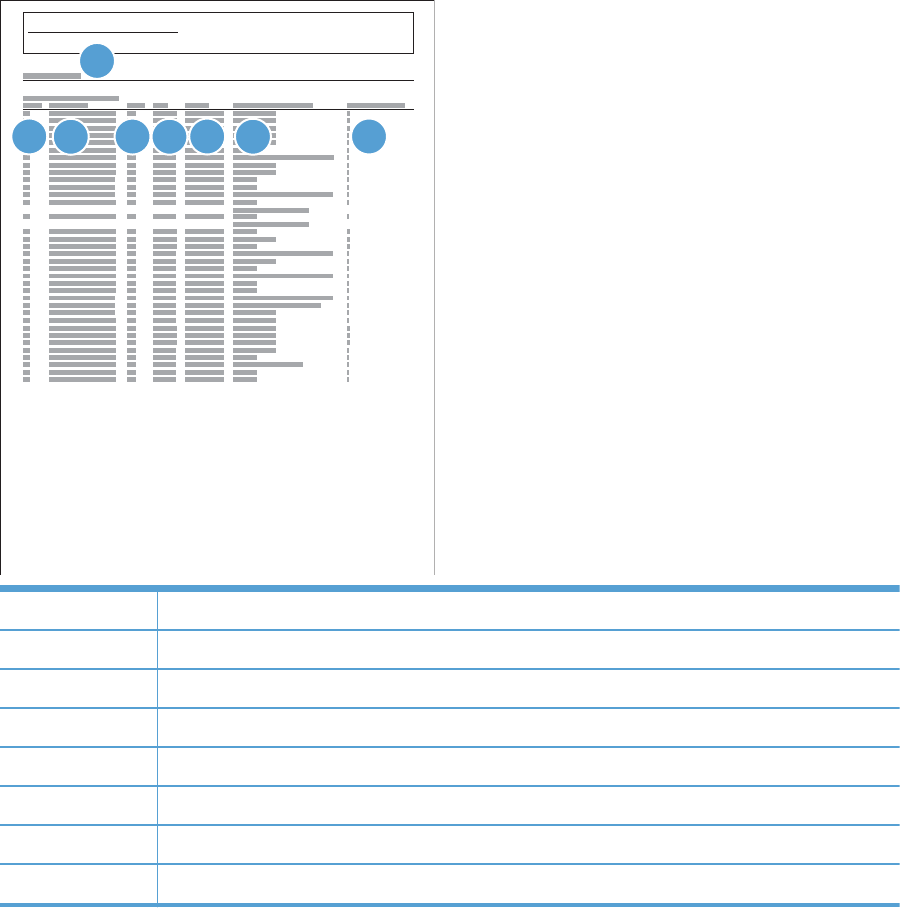
Recommended action
To begin configuration, turn the product off and then on. The product will restart in the Wireless
Configuration Mode.
Event log messages
These messages appear only in the event log. For additional numeric messages, see the control-panel
message section of this manual.
Figure 2-35 Sample event log
HP LaserJet 500 color m551
Event Log
Page 1
56
1
2348
7
1 Product information
2Event number
3 Date and time
4 Engine cycles
5Event log code
6 Firmware version number
7 Description of personality
8 Consecutive Repeats
264 Chapter 2 Solve problems ENWW

Print or view an event log
NOTE: The event log in using the Administration menu shows only a subset of events. For a complete
event log, use the Service menu.
Print or view the event log from the Administration menu
1. From the Home screen on the product control panel, scroll to and touch the Administration button.
2. Open the following menus:
●Troubleshooting
●Event Log
3. The event log displays on the screen. To print it, touch the Print button.
Print or view the event log from the Service menu
1. From the Home screen on the product control panel, scroll to and touch the Device Maintenance
button.
2. Open the Service menu.
3. On the sign-in screen, select the Service Access Code option from the drop-down list.
4. Enter the following service access code for this product: 05052512.
5. Open the Event Log menu.
6. The event log displays on the screen. To print it, touch the Print button.
Clear an event log
1. From the Home screen on the product control panel, scroll to and touch the Device Maintenance
button.
2. Open the Service menu.
3. On the sign-in screen, select the Service Access Code option from the drop-down list.
4. Enter the following service access code for this product: 05052512.
5. Open the Event Log menu.
6. Select the Clear Event Log item, and then touch the OK button.
ENWW Tools for troubleshooting 265

Event log message table
Event log message Description Action
30.01.01 The flatbed cover sensor was interrupted.
There is no corresponding control-panel
message.
No action necessary. This error message
should automatically clear.
If the error persists, access the Scanner Tests
to test the Flatbed cover sensor.
Additional actions
●Customer action: Close the document
feeder.
●Call center action: If document feeder is
closed, check that the document feeder
open senor flag is properly functioning.
●Service technician action: Make sure
that the document feeder open senor
flag and cables are properly connected.
Repalce the document feeder open senor
flag or photosensor as necessary.
30.01.06 A scan control board fan error has occurred. 1. Turn the product off and then on.
2. If the error persists, replace the
formatter.
3. If replacing the formatter does not solve
the problem, replace the scanner
assembly.
30.01.08 The flatbed optical assembly cannot find the
origin notch.
This is an informational message, and no
action is required. If the flatbed optical
assembly cannot find the origin notch on the
flatbed scanner, the scanned image might be
offset on the copied page. The image
displacement will be less then 1 mm or pixel
off.
266 Chapter 2 Solve problems ENWW

Event log message Description Action
30.01.41 The formatter lost connections with the
scanner control board or communication was
corrupted.
1. Turn the product off and then on.
2. Reseat the formatter.
3. Upgrade the firmware.
4. Verify that the PCI express cable is
connected to the product and to the
interconnect board/formatter and
scanner control board.
5. Verify the scanner control board has
power.
6. If the error persists, replace the
formatter.
7. If replacing the formatter does not solve
the problem, replace the interconnect
board.
8. If the error persists, please elevate this
problem to your Global Business unit.
30.01.43 Copy processor board memory check failure
during the initial memory check. The copy
processor board resides on the scanner
control board or formatter depending on the
product.
1. Turn the product off and then on.
2. Replace the formatter.
30.01.44 Scanner firmware error 1. Turn the product off and then on.
2. Replace the formatter.
30.01.45 General code assert error for the copy
processor board firmware.
NOTE: The event log will have a filename
(only first & last characters of a filename) and
line number.
1. Turn the product off and then on.
2. Upgrade the firmware.
3. Replace the formatter.
4. If replacing the formatter does not solve
the problem, replace the scanner
assembly.
5. If the error persists, please elevate this
problem to your Global Business unit.
30.01.46 The firmware cannot find the copy processor
board.
1. Turn the product power off, and then
reseat the formatter.
2. Replace the formatter.
30.03.14 A non-fatal error has occurred.
A scanner EEPROM (NVM) error has
occurred.
This is an informational message, and no
action is required.
ENWW Tools for troubleshooting 267

Event log message Description Action
30.03.20
31.03.20
The copy processor board firmware cannot
communicate with the PCA on the optical
assembly.
30.03.20: front side optic
31.03.20: back side optic
1. Turn the product off and then on.
2. Verify the FFC cables between scanner
and scanner control board or formatter
are connected.
3. Replace the scanner.
30.03.22
31.03.22
The scan module cannot see the illumination
module, or marginal illumination. The optical
assembly is not parked under the calibration
strip.
30.03.22: front side optic
31.03.22: back side optic
1. Turn the product off and then on. Check
that the scan light illuminates or that the
scan module moves.
2. Upgrade the firmware.
3. Check the service event log for other
scanner errors, and resolve those errors.
4. Check the scan module FFC connection.
5. Replace the scanner.
6. If the error persists, please elevate this
problem to your Global Business unit.
30.03.23 The calibration stitching label shifted or there
are bad sensors in the scan module.
1. Turn the product off and then on.
2. Upgrade the firmware.
3. If the error persists, replace the scanner.
30.03.30 The scanner control board cannot
communicate with the flatbed scanner motor.
1. Turn the product off and then on. As the
product turns on, verify the scan head
moves.
2. Verify the drive belt is in the correct
position.
3. Check for a red LED illuminated on the
scanner motor.
4. Check the cable connection to scanner
control board or formatter.
5. Replace the formatter.
6. If the error persists, replace the scanner.
30.03.45 The PCA firmware code controls the motor. 1. Turn the product off and then on.
2. If the error persists, send the logs to your
Global Business unit.
3. Upgrade the firmware.
4. Replace the formatter.
5. If the error persists, replace the scanner
assembly.
268 Chapter 2 Solve problems ENWW

Event log message Description Action
31.01.47 The document feeder was not detected. The
cable might not be attached.
1. Turn the product off and then on.
2. Check the cables between the document
feeder and scanner control board or
formatter depending on the product.
3. Upgrade the firmware.
4. If the error persists, replace the
document feeder.
5. If replacing the document feeder does
not solve the problem, replace the
formatter.
31.03.30 The document feeder pick motor is not
turning.
1. Verify the paper meets the product
specifications.
2. Make sure the input tray is not
overloaded.
3. Check the event log for document feeder
errors, and resolve any errors first.
4. Open and close the top cover to see if
the pick motor turns without posting this
error. If the motor turns, then the motor is
good.
5. Verify the motor cables are connected.
6. Reseat the document feeder to scanner
control board or formatter cables.
7. If the error persists, replace the
document feeder.
31.03.31 The document feeder feed motor is not
turning.
1. Verify the paper meets the product
specifications.
2. Make sure the input tray is not
overloaded.
3. Check the event log for document feeder
errors, and resolve any errors first.
4. Verify the motor cables are connected.
5. Reseat the document feeder to scanner
control board or formatter cables.
6. If the erro persists, replace the document
feeder.
ENWW Tools for troubleshooting 269

Event log message Description Action
31.03.32 The document feeder deskew motor is not
turning.
1. Verify the paper meets the product
specifications.
2. Make sure the input tray is not
overloaded.
3. Check the event log for document feeder
errors, and resolve any errors first.
4. Verify the motor cables are connected.
5. Reseat document feeder to scanner
control board or formatter cables.
6. If the error persists, replace the
document feeder.
13.13.00
31.13.01
Paper pick was initiated, but the page didn't
make it to the pick success sensor.
TIP: For a 13.13.00 error: Check and
make sure that the original is not too thick.
Attempting to use the document feeder with
too thick of an original will cause this error.
You can use the control-panel menus to
disable the Misfeed Detection option for copy
and scan jobs. Doing so might allow the
original to be copied or scanned.
Disabling Misfeed Detection for copy
jobs
1. From the Home screen, access the
following menus:
◦Administration
◦Copy
2. Select Misfeed Detection, and then select
Disable.
Disabling Misfeed Detection for scan
jobs
1. From the Home screen, access the
following menus:
◦Scan/Digital Send Settings
◦E-mail Settings
◦Default Job Options
2. Select Misfeed Detection, and then select
Disable.
1. Open the document feeder lid, pull
sheets back into input tray, and resume
the job.
2. Check the paper guides and make sure
they are set to the correct paper width.
3. Make sure the input tray is not
overloaded.
4. Check the document feeder page count
on the configuration page for roller life.
5. Verify the paper meets the product
specifications.
6. Make sure the document feeder roller
door is completely closed.
7. Check the event log for 31.03.30 errors,
and resolve those errors first.
8. Clean the document feeder roller.
9. If the error persists, install a document
feeder maintenance kit.
270 Chapter 2 Solve problems ENWW

Event log message Description Action
31.13.02 The paper passed the pick success sensor and
then jammed in the document feeder paper
path.
1. Clear the paper path and try feeding the
page again.
2. Verify the paper meets the product
specifications.
3. Check the paper guides and make sure
they are set to the correct paper width.
4. Verify the paper path is clear.
5. Check for motor stall 31.03.31 and
31.03.32 errors in the event log.
6. If the error persists, replace the
document feeder.
31.13.13 The jam access door is open. 1. Verify the jam access cover is closed.
2. Try feeding the paper again.
3. Verify the flag is not broken.
4. With a piece of paper, check that the
photo sensor is working.
5. If the error persists, replace the
document feeder.
31.13.14 This is a feed jam in the document feeder,
and the motor is not turning.
1. Verify the paper meets the product
specifications.
2. Make sure the document feeder input
tray is not overloaded.
3. Check the event log for document feeder
errors, and resolve any errors first.
4. Open and close the right door to see if
the pick motor turns without posting this
error. If there is no error, then the motor
is good.
5. Verify the motor cables are connected.
6. Reseat the document feeder to scanner
control board or formatter cables.
7. Check the Document Feeder page count
on configuration page, if it is past the
Maintenance page count, replace
document feeder maintenance kit.
8. If the error persists, replace the
document feeder.
ENWW Tools for troubleshooting 271

Event log message Description Action
31.13.15 This is a duplex refeed jam in the document
feeder. The paper jam occurs on the back-
side copy. The duplex refeed does not make it
to the deskew sensor.
1. Remove the jammed paper.
2. Verify there is nothing in the paper path
of the duplex refeed area.
3. Retry the copy job.
4. If the error persists, replace the
document feeder.
99.00.01 Remote firmware upgrade (.bdl) was not
performed. The file is corrupt.
The firmware file is corrupt. Download the
firmware file and attempt the upgrade again.
99.00.02 Remote firmware upgrade (.bdl) was not
performed. Timeout during receipt.
The I/O timed out during the firmware
download. The most common cause is an
issue with the network environment. Ensure a
good connection to the product, and attempt
the upgrade again or upgrade using the USB
walk-up port.
99.00.03 Remote firmware upgrade (.bdl) was not
performed. An error occurred when writing to
the hard disk.
1. Download the firmware again, and then
attempt the upgrade again.
2. If the error persists, perform the clean
disk/format disk process.
3. Download the firmware from the
Preboot menu, and then attempt the
upgrade again.
4. If the error persists, replace the hard
disk.
99.00.04
99.00.05
Remote firmware upgrade (.bdl) was not
performed. There was a timeout during the
download.
The I/O timed out during the firmware
download. The most common cause is an
issue with the network environment. Ensure
there is a good connection to the product,
and attempt the firmware upgrade again or
upgrade the firmware using the USB walk-up
port.
99.00.06
99.00.07
99.00.08
Remote firmware upgrade (.bdl) was not
performed. There was an error reading the
firmware file.
1. Download the firmware again, and then
attempt the upgrade again.
2. If the error persists, perform the clean
disk/format disk process.
3. Download the firmware from the
Preboot menu, and then attempt the
upgrade again.
4. If the error persists, replace the hard
disk.
99.00.09
99.00.10
The firmware upgrade was canceled by the
user.
Resend the firmware upgrade to the product.
272 Chapter 2 Solve problems ENWW

Event log message Description Action
99.00.11 The preboot partition is full. 1. Download the firmware again, and then
attempt the upgrade again.
2. If the error persists, perform the clean
disk/format disk process.
3. Download the firmware from the
Preboot menu, and then attempt the
upgrade again.
99.00.12 Remote firmware upgrade (.bdl) was not
performed. An invalid file was sent.
The firmware file sent was not the correct file.
Download the firmware file again, making
sure to download the file for the correct
product model. Attempt the upgrade again.
99.00.13
99.00.14
Remote firmware upgrade (.bdl) was not
performed. An invalid file was sent.
The firmware file sent was not the correct file.
Download the firmware file again, making
sure to download the file for the correct
product model. Attempt the upgrade again.
99.00.20 The bundle is not for this product. Download the firmware file again, and
attempt the upgrade again.
99.00.21 The bundle is not signed with the correct
signature, or the signature is invalid.
99.00.22 The bundle header version is not supported
by this firmware.
99.00.23 The package header version is not supported
by this firmware.
99.00.24
99.00.25
99.00.26
The format of the firmware bundle not correct.
99.00.27 A disk communication error occurred while
downloading the firmware bundle
1. Turn the product power off, and then on
again.
2. Resend the firmware upgrade to the
product.
3. If the error persists, try sending the
firmware upgrade by using another
method (USB or Embedded Web
Server).
99.01.00
99.01.10
99.01.20
Firmware install error. Reload the firmware.
99.02.01 Firmware install successful. No action required.
ENWW Tools for troubleshooting 273

Event log message Description Action
99.09.60 The hard disk currently installed is not
recognized or supported by the product.
1. Install the correct hard disk for this
product.
2. If the error persists, perform the Clean
Disk disk process.
3. Download the firmware from the
Preboot menu, and then attempt the
upgrade again.
99.09.61 The installed disk was placed in a device
configured for a encrypted hard disk.
Lock the disk by accessing the Preboot menu
and then select theLock Disk option.
99.09.62 The disk currently installed was previously
locked in another device.
Install a new hard disk or unlock this disk by
using the Preboot menu.
NOTE: If the disk is to be reused in a
different device, perform the Clean Disk
procedure from the Preboot menu, and then
reload the firmware and lock the disk.
99.09.63 A new or blank disk has been installed in a
device which previously had an encrypted
disk.
1. Reload the firmware.
2. Lock the disk by accessing the Preboot
menu and then select theLock Disk
option.
99.09.64 A fatal hard disk failure has occurred. Replace the hard disk drive.
99.09.65 Disk Data corruption error has occurred. Perform the Clean Disk procedure from the
Preboot menu, and then reload the
firmware.
99.09.66 A disk drive is not installed in the product. Install a compatible disk drive assembly.
If the error persists (and a disk drive is
already installed), replace the disk drive
assembly.
99.09.67 The product has a non secure disk (solid state
disk or SSD) installed as the boot disk, and it
has been replaced with a new service part. A
new firmware image needs to be
downloaded to the device.
1. Turn the product power on. When the
message 99.09.67 Not bootable
error displays, press any key to continue
to the Preboot menu.
2. Select the Administrator menu. If there is
a password assigned to the network
administrator, a prompt to enter the
password displays (enter the password).
3. Select the Download menu.
4. Select the Network or USB option.
5. Load the product firmware.
99.09.68 The secondary encrypted disk has been
removed from this device.
Reinstall the secondary encrypted storage
device.
274 Chapter 2 Solve problems ENWW

Clear jams
Auto-navigation for clearing jams
The auto-navigation feature assists you in clearing jams by providing step-by-step instructions on the
product control panel. When you complete a step, the product displays instructions for the next step
until you have completed all steps in the procedure.
Common causes of jams
Many jams are caused by using paper that does not meet HP specifications. For complete paper
specifications for all HP LaserJet products, see the
HP LaserJet Printer Family Print Media Guide
. This
guide is available at www.hp.com/support/ljpaperguide.
The product is jammed.
Cause Solution
The paper does not meet specifications. Use only paper that meets HP specifications. See the product
user guide.
A component is installed incorrectly. Verify that all components are correctly installed.
You are using paper that has already passed through a
product or copier.
Do not use paper that has been previously printed on or
copied.
A tray is loaded incorrectly. Remove any excess paper from the tray. Make sure that the
stack is below the maximum stack height mark in the tray. See
the product user guide.
The ADF jam-access door is not completely closed. Press on the ADF jam-access door until it clicks to make sure
that it is closed.
The paper is skewed. The tray guides are not adjusted correctly. Adjust them so they
hold the stack firmly in place without bending it.
The paper is binding or sticking together. Remove the paper, flex it, rotate it 180°, or flip it over. Reload
the paper into the tray.
NOTE: Do not fan paper. Fanning can create static
electricity, which can cause paper to stick together.
The paper is removed before it settles into the output bin. Reset the product. Wait until the page completely settles in the
output bin before removing it.
During two-sided printing, you removed the paper before the
second side of the document was printed.
Reset the product and print the document again. Wait until the
page completely settles in the output bin before removing it.
The paper is in poor condition. Replace the paper.
The internal rollers from the tray are not picking up the paper. Remove the top sheet of paper. If the paper is too heavy, it
might not be picked from the tray.
The paper has rough or jagged edges. Replace the paper.
The paper is perforated or embossed. Perforated or embossed paper does not separate easily. Feed
single sheets from Tray 1.
ENWW Clear jams 275
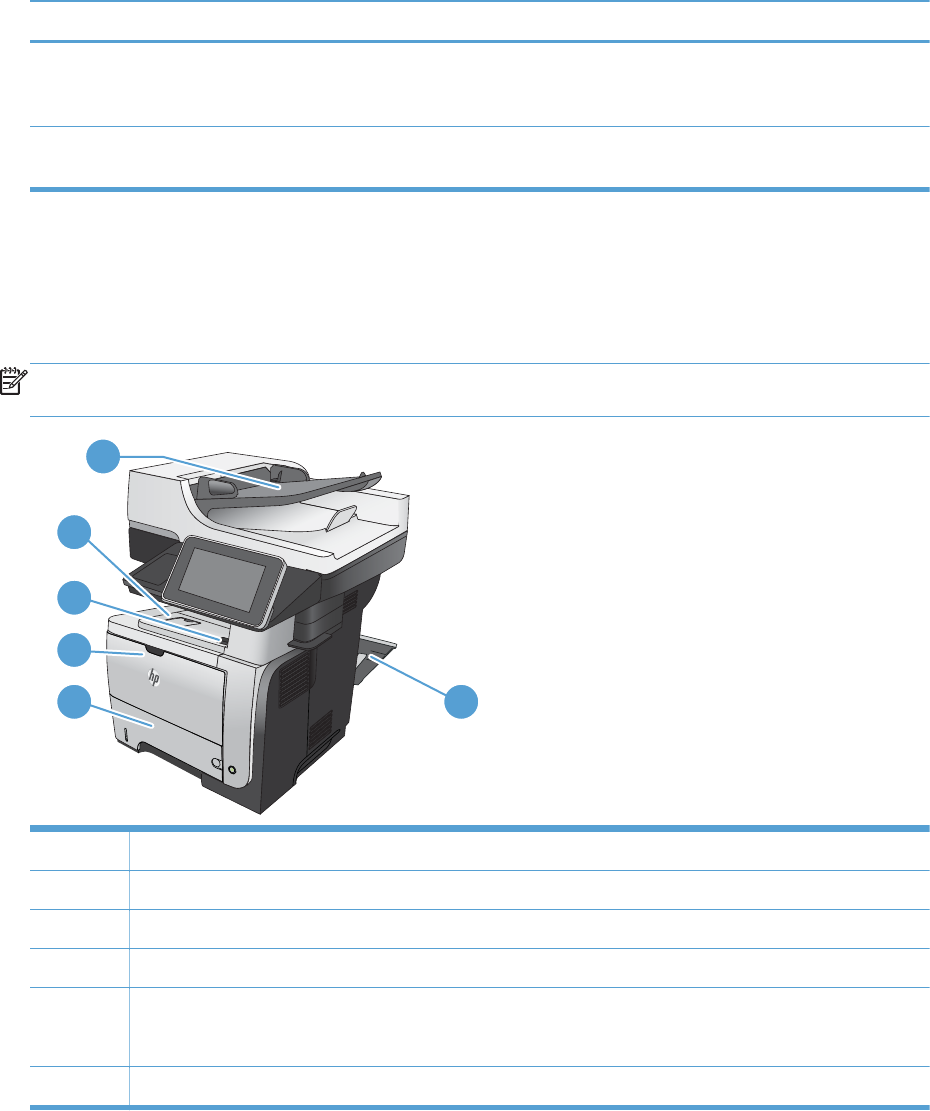
The product is jammed.
Cause Solution
Product supply items have reached the end of their useful life. Check the product control panel for messages alerting you of
supplies status, or print a supplies status page (see the product
user guide) to verify the remaining life of the supplies.
Paper was not stored correctly. Replace the paper in the trays. Paper should be stored in the
original packaging in a controlled environment.
Jam locations
Use this illustration to identify locations of jams. In addition, instructions appear on the product control
panel to direct you to the location of jammed paper and on how to clear it.
NOTE: Internal areas of the product that might need to be opened to clear jams have green handles
or green labels.
2
1
2
3
4
5 6
1 Document-feeder area
2 Output-bin area
3 Top-cover and toner-cartridge area
4Tray 1 area
5 Tray 2 pickup area
Duplexing area (remove Tray 2 for access)
6 Rear door area
276 Chapter 2 Solve problems ENWW
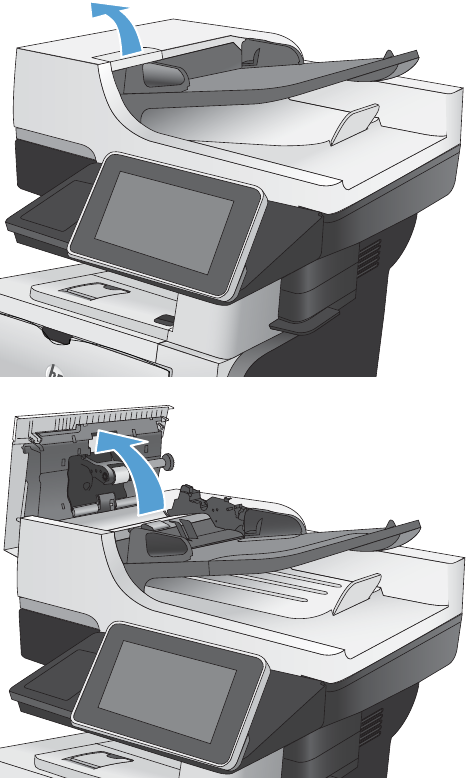
Clear jams in the document feeder
1. Lift the latch to release the document-feeder
cover.
2. Open the document-feeder cover.
ENWW Clear jams 277
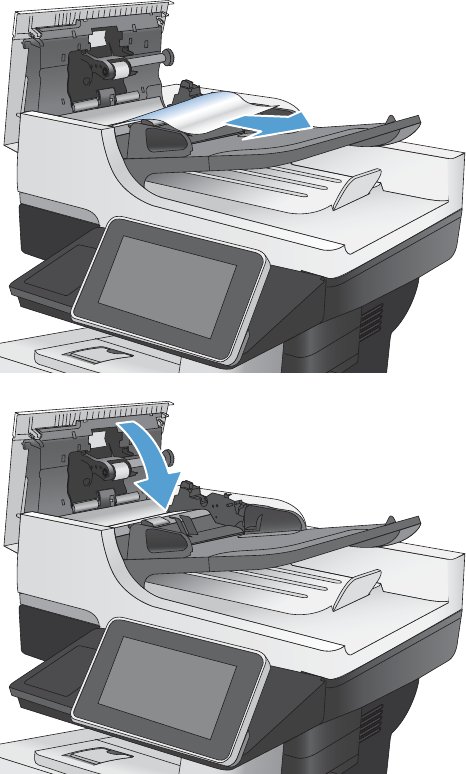
3. Lift the jam-access door, and remove any
jammed paper.
If necessary, rotate the green wheel at the front
of the document feeder to remove jammed
paper.
4. Close the document-feeder cover.
278 Chapter 2 Solve problems ENWW
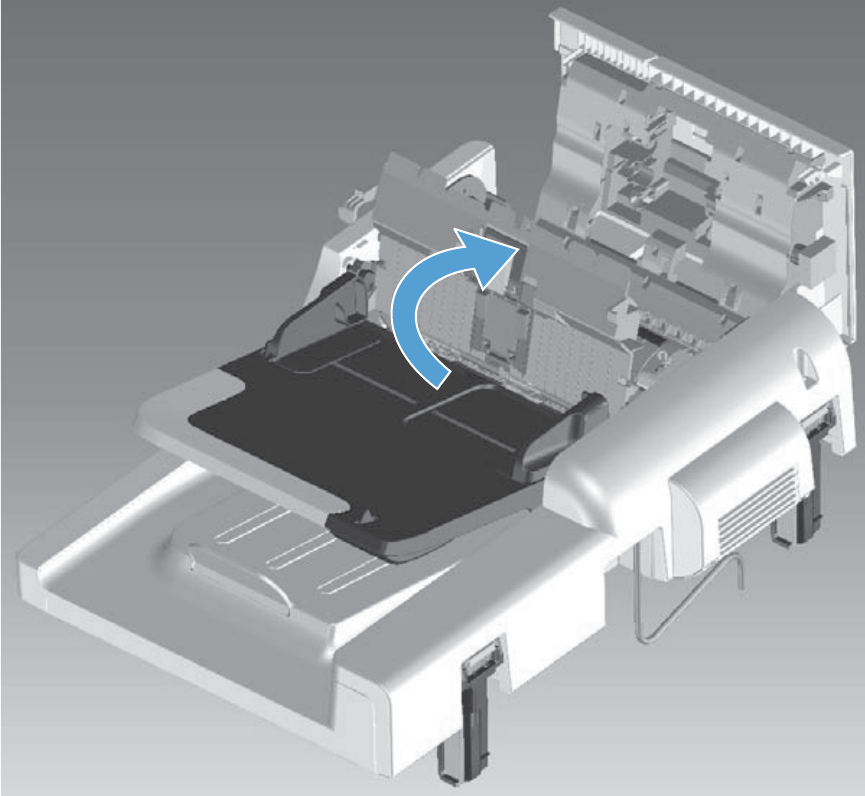
Clear jams in the document feeder (M525c model)
Open the document feeder top cover, locate the jammed paper, and then do one of the following:
1. Use the green handle to raise the separation floor, and then gently remove the jammed paper.
Figure 2-36 Clear jams form the document feeder (1 of 2)
ENWW Clear jams 279
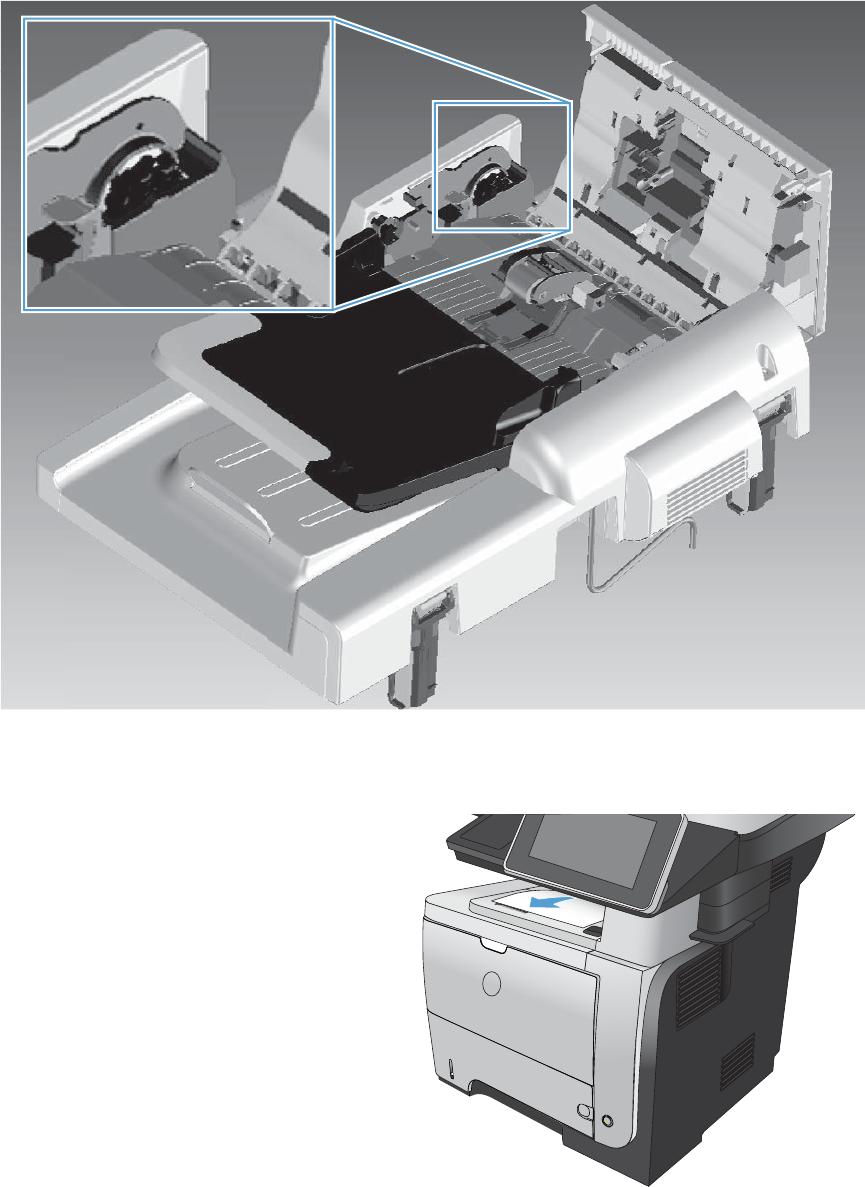
2. Use the green thumb wheel to remove the jammed paper.
Figure 2-37 Clear jams form the document feeder (1 of 2)
Clear jams in the output-bin area
1. If paper is visible from the output bin, grasp
the leading edge and remove it.
2
280 Chapter 2 Solve problems ENWW
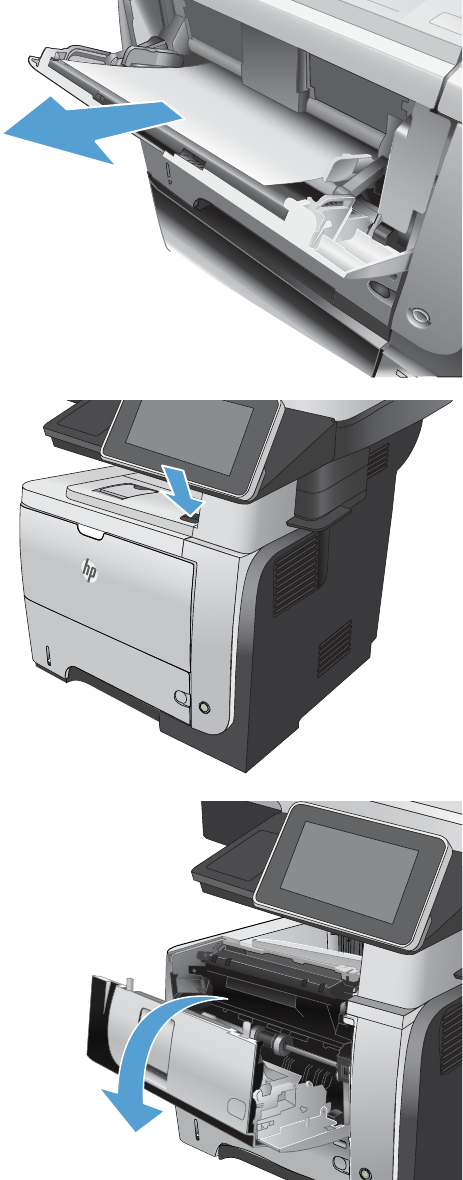
Clear jams in Tray 1
1. If most of the sheet of paper is visible in the
tray, slowly pull the jammed paper out of the
product.
If most of the sheet of paper has been pulled
inside the product, continue with the following
steps.
2. Press the front-door-release button.
2
3. Open the front door.
2
1
ENWW Clear jams 281
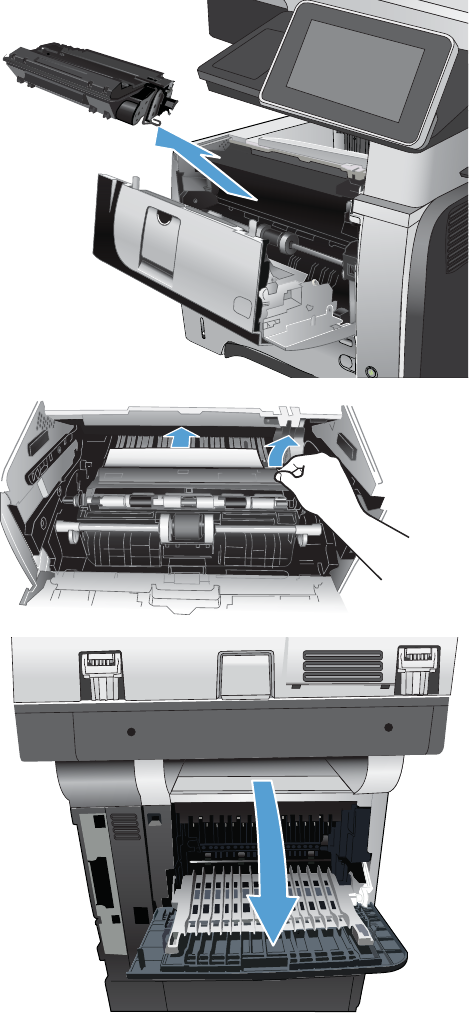
4. Remove the toner cartridge.
2
1
5. Lift the jam-access covers and remove any
jammed paper.
6. Open the rear door, and push down so it is
fully opened to a 90° angle.
CAUTION: The fuser can be hot while the
product is in use. Wait for the fuser to cool
before clearing jams.
NOTE: The rear door has two positions. It
opens to a 45° angle for the rear output bin
and to a 90° angle for clearing jams.
282 Chapter 2 Solve problems ENWW
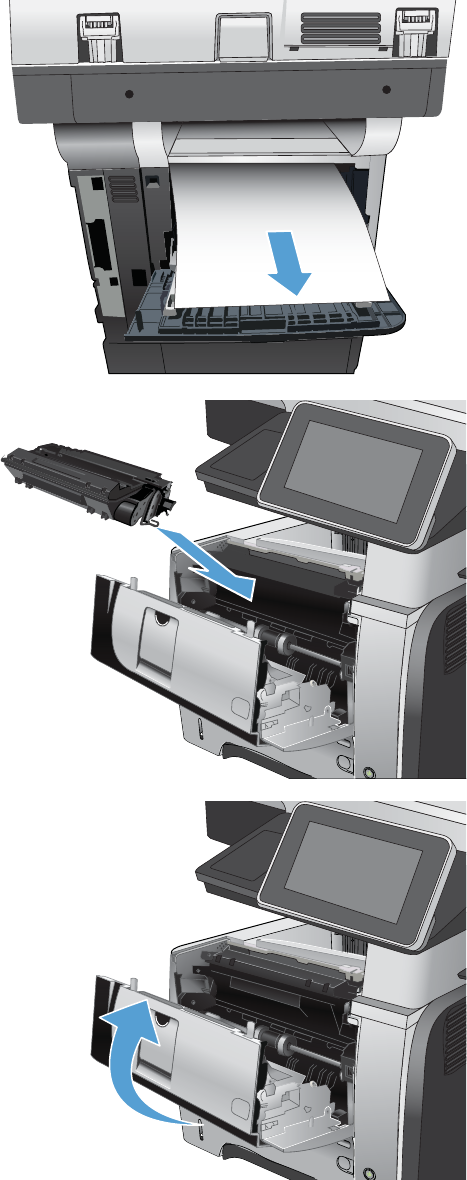
7. Remove any jammed paper.
8. Reinsert the toner cartridge.
2
1
9. Close the front door.
2
1
ENWW Clear jams 283
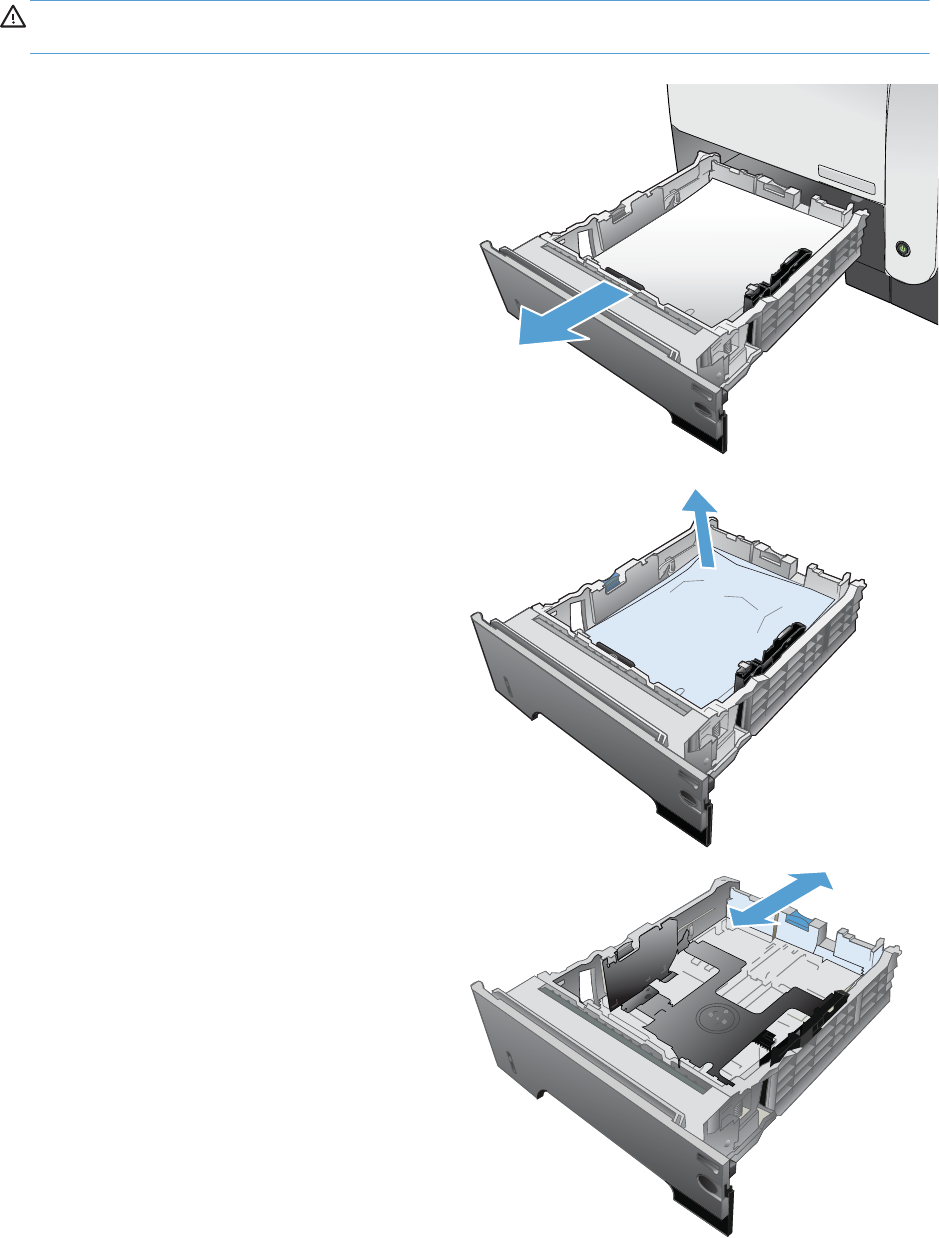
Clear jams in Tray 2 or an optional 500-sheet tray
CAUTION: Opening a tray when paper is jammed can cause the paper to tear and leave pieces of
paper in the tray, which might cause another jam. Be sure to clear jams before opening the tray.
1. Remove the tray from the product.
2. Remove the paper from the tray, and discard
any damaged paper.
3. Verify that the rear paper guide is adjusted to
the indentation for the correct paper size. If
necessary, pinch the release and move the
rear paper guide to the correct position. It
should click into place.
284 Chapter 2 Solve problems ENWW
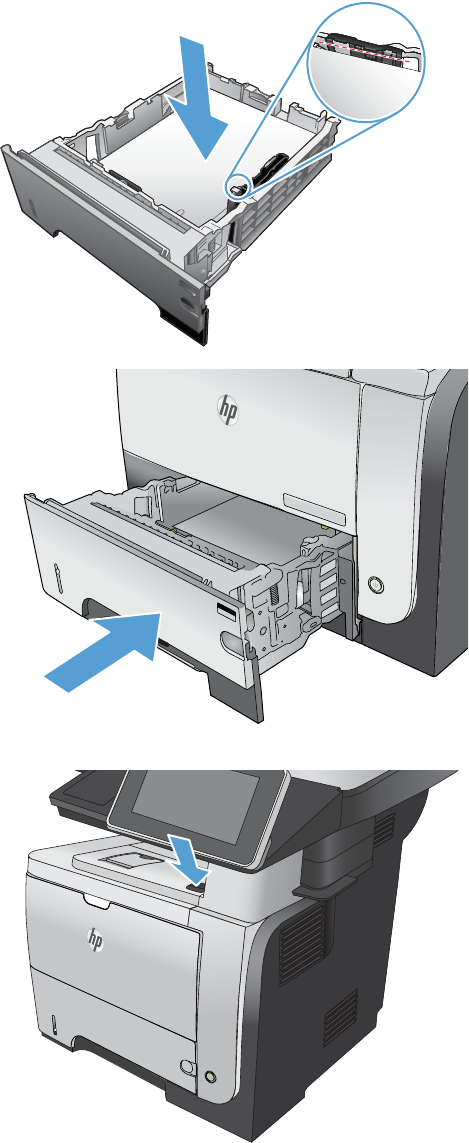
4. Load the paper into the tray. Make sure that
the stack is flat at all four corners and that the
top of the stack is below the maximum-height
indicators.
5. Reinsert and close Tray 2.
2
1
2
2
6. Press the front-door-release button.
2
ENWW Clear jams 285
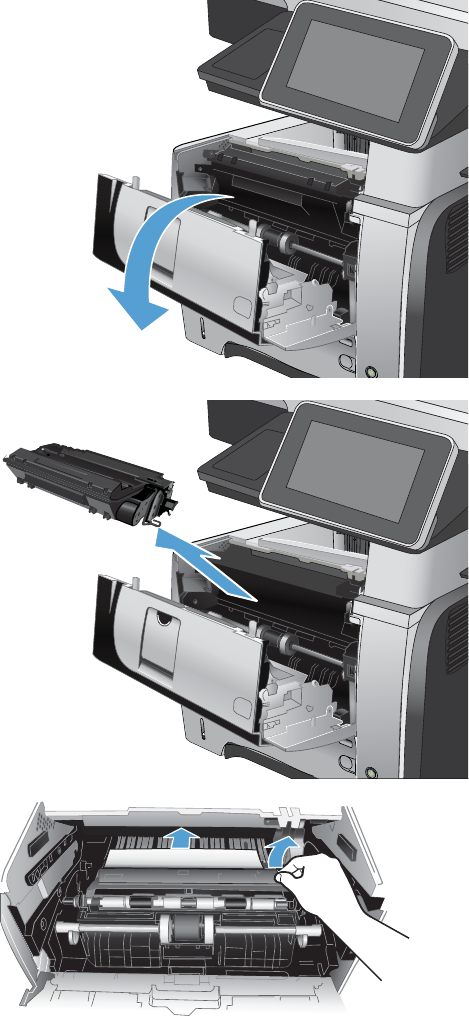
7. Open the front door.
2
1
8. Remove the toner cartridge.
2
1
9. Lift the jam-access covers and remove any
jammed paper.
286 Chapter 2 Solve problems ENWW
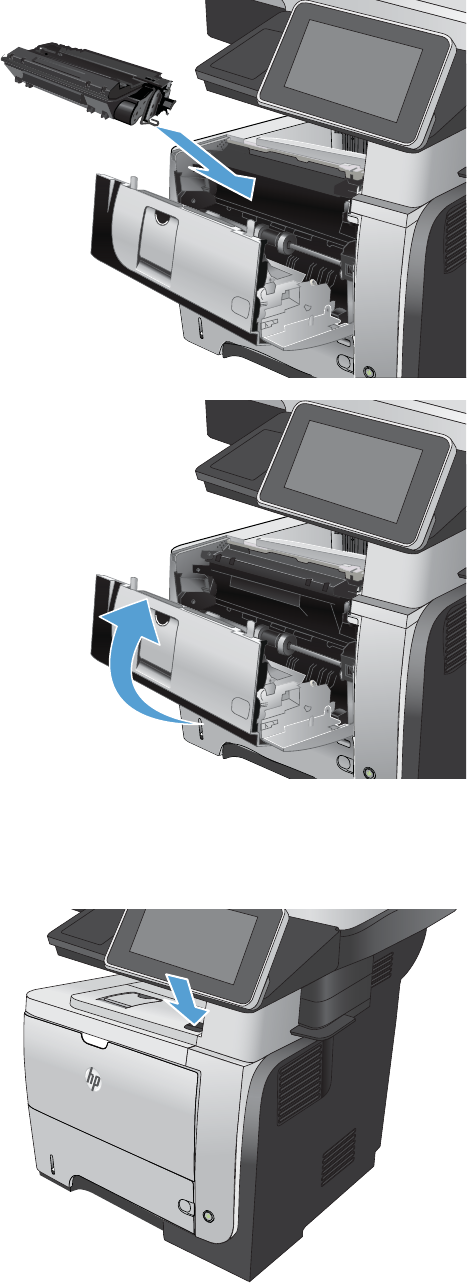
10. Reinsert the toner cartridge.
2
1
11. Close the front door.
2
1
Clear jams in the toner-cartridge area
1. Press the front-door-release button.
2
ENWW Clear jams 287
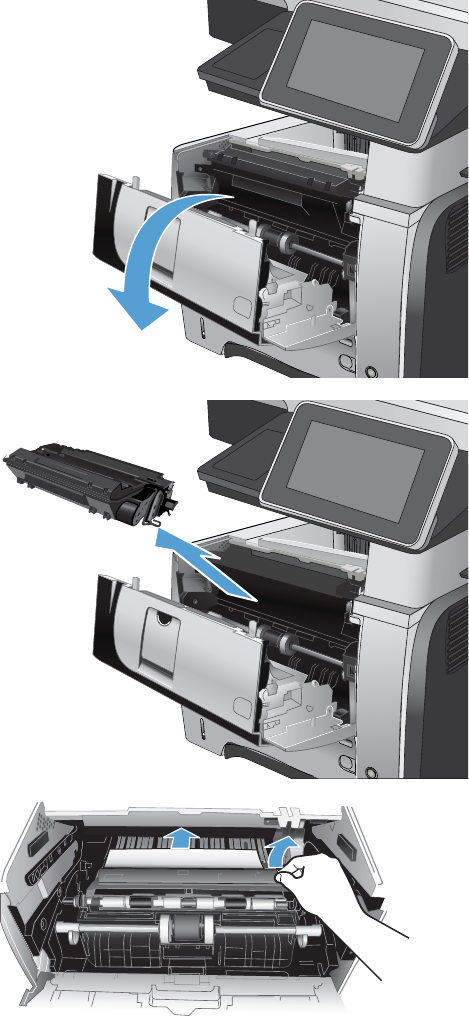
2. Open the front door.
2
1
3. Remove the toner cartridge.
2
1
4. Lift the jam-access covers and remove any
jammed paper.
288 Chapter 2 Solve problems ENWW
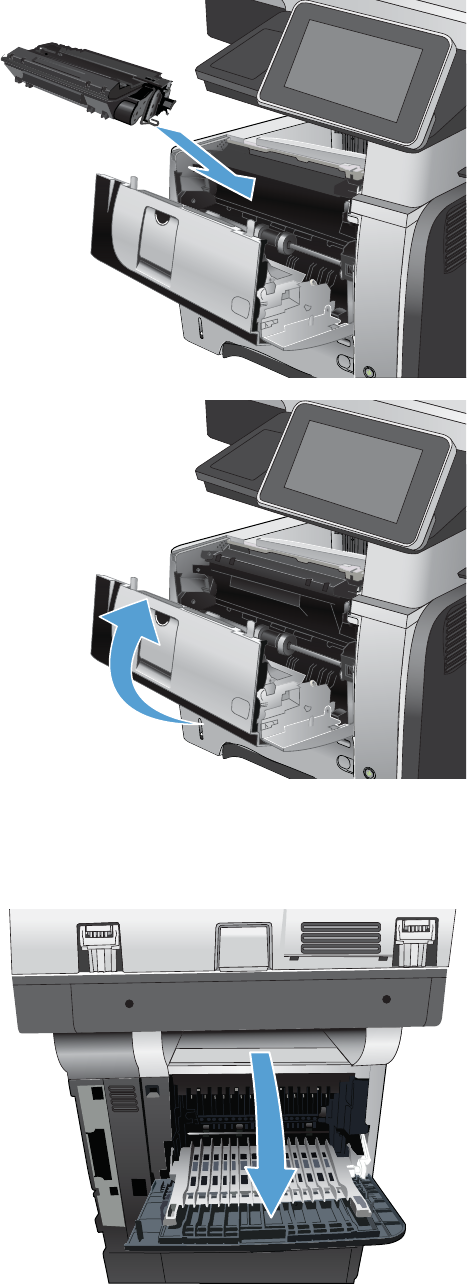
5. Reinsert the toner cartridge.
2
1
6. Close the front door.
2
1
Clear jams in the rear-door and the fuser area
1. Open the rear door, and push down so it is
fully opened to a 90° angle.
CAUTION: The fuser can be hot while the
product is in use. Wait for the fuser to cool
before clearing jams.
NOTE: The rear door has two positions. It
opens to a 45° angle for the rear output bin
and to a 90° angle for clearing jams.
ENWW Clear jams 289
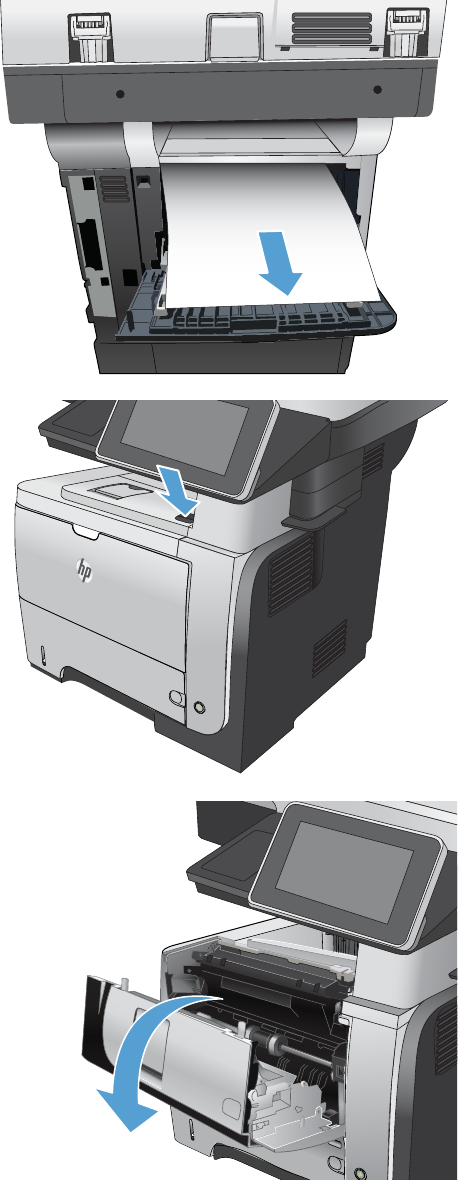
2. Remove any jammed paper.
3. Press the front-door-release button.
2
4. Open the front door.
2
1
290 Chapter 2 Solve problems ENWW
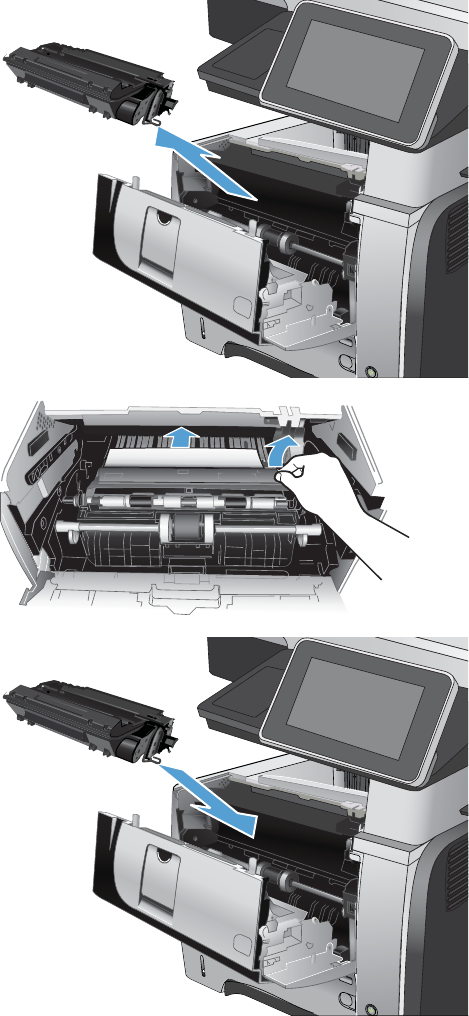
5. Remove the toner cartridge.
2
1
6. Lift the jam-access covers and remove any
jammed paper.
7. Reinsert the toner cartridge.
2
1
ENWW Clear jams 291
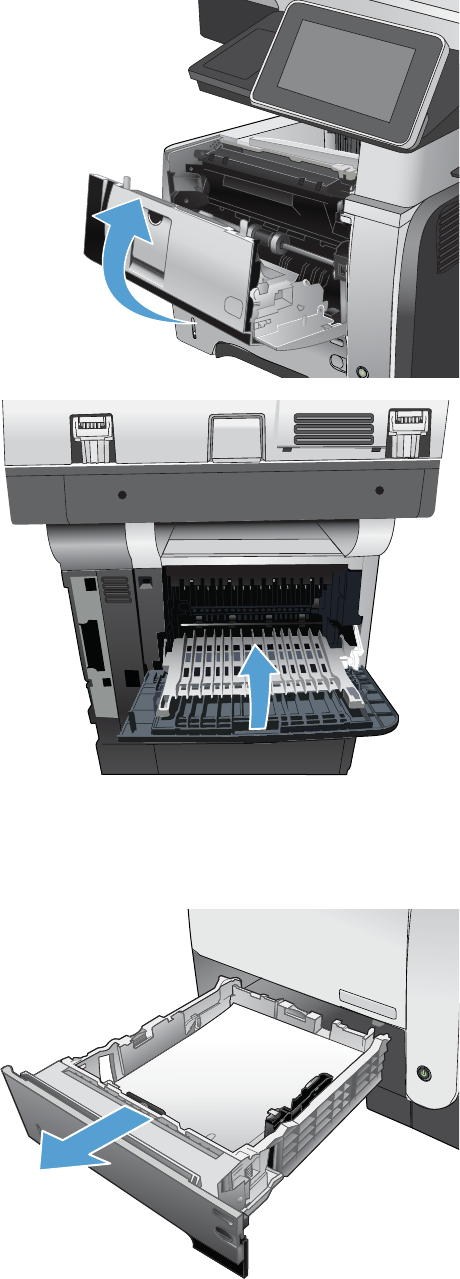
8. Close the front door.
2
1
9. Close the rear door.
Clear jams in the duplexer
1. Completely remove Tray 2 from the product.
292 Chapter 2 Solve problems ENWW
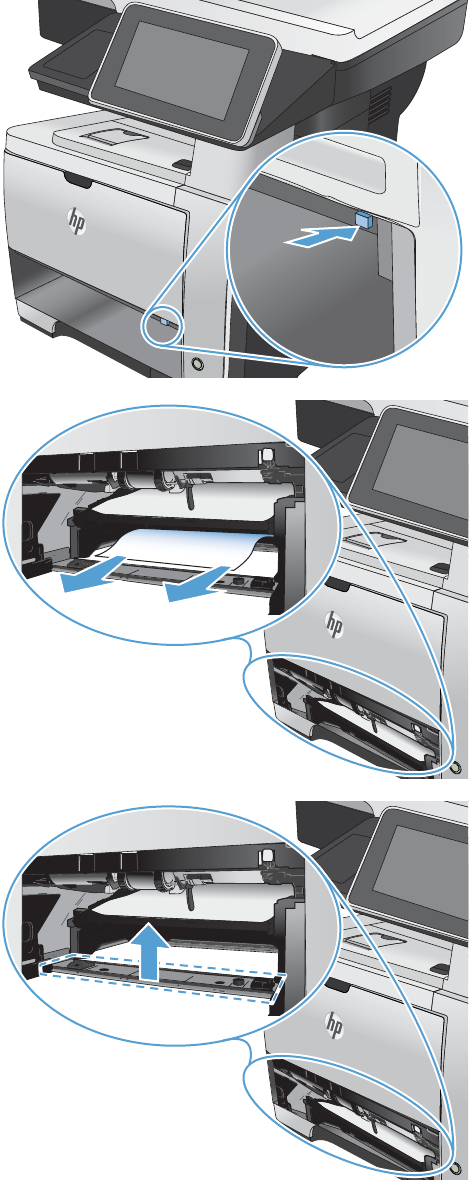
2. Push the green button to release the duplex
pan.
3. Remove any jammed paper.
4. Close the duplex pan.
ENWW Clear jams 293
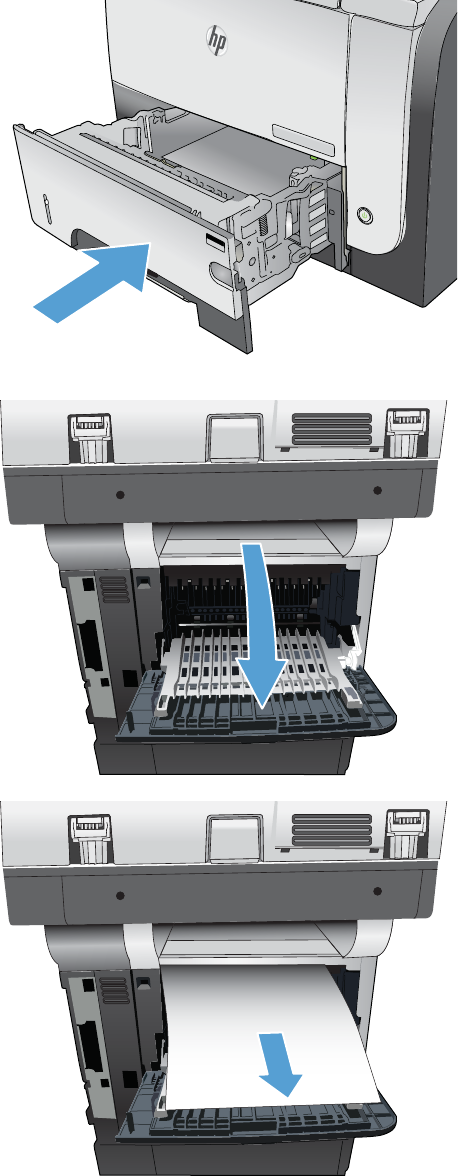
5. Reinsert Tray 2.
2
1
2
2
6. Open the rear door, and push down so it is
fully opened to a 90° angle.
NOTE: The rear door has two positions. It
opens to a 45° angle for the rear output bin
and to a 90° angle for clearing jams.
7. Remove any jammed paper.
294 Chapter 2 Solve problems ENWW
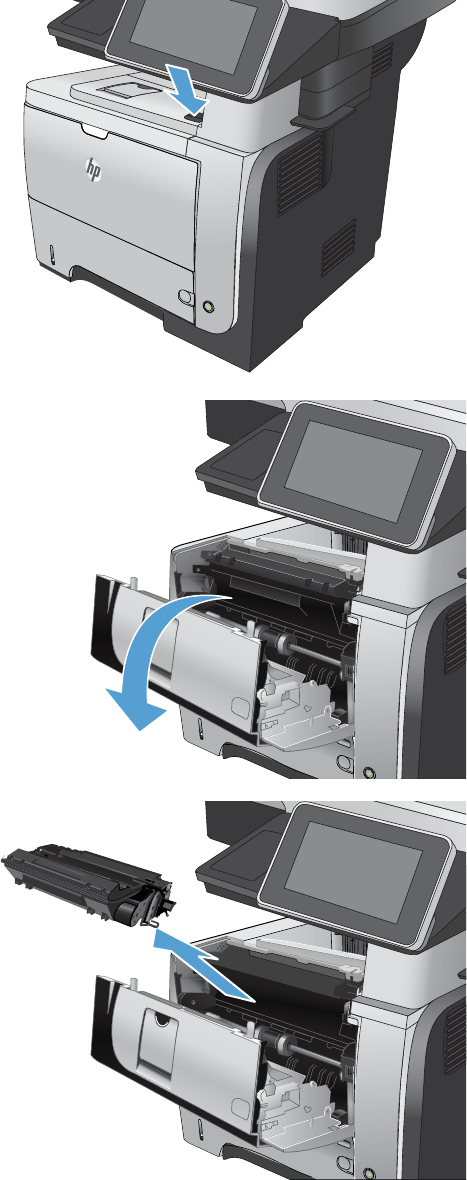
8. Press the front-door-release button.
2
9. Open the front door.
2
1
10. Remove the toner cartridge.
2
1
ENWW Clear jams 295
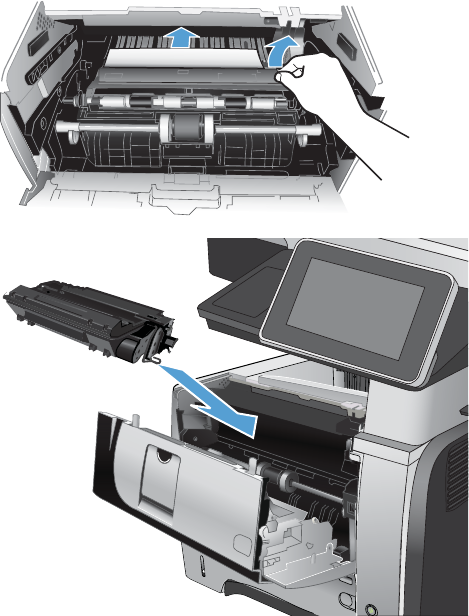
11. Lift the jam-access covers and remove any
jammed paper.
12. Reinsert the toner cartridge.
2
1
296 Chapter 2 Solve problems ENWW
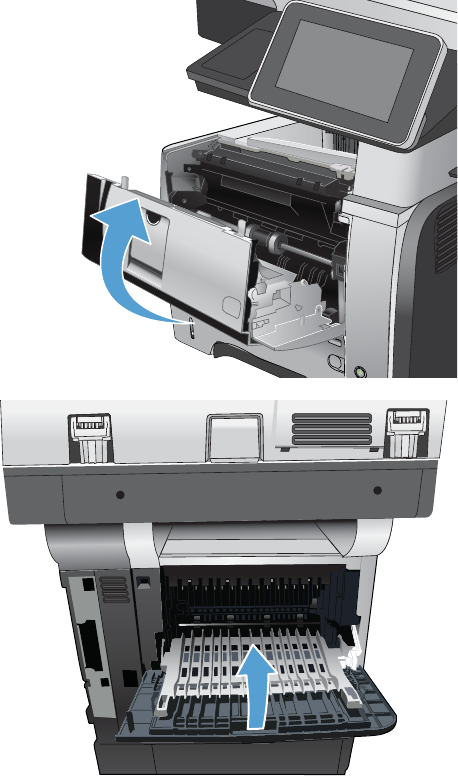
13. Close the front door.
2
1
14. Close the rear door.
ENWW Clear jams 297

Jam causes and solutions
Jams in the top cover and product cassette
Cause Solution
The cassette separation pad is worn or deformed. Replace the cassette separation pad.
The cassette pickup roller is worn or deformed. Replace the cassette pickup roller.
Poor contact of the cassette pickup solenoid drive connector. Reconnect the connector (J1601).
The cassette pickup solenoid is defective. Replace the cassette pickup solenoid.
The registration roller is dirty, worn or deformed. Clean the registration roller if it is dirty.
The registration assembly is defective. ●Check the spring of the registration shutter and place it in
correct position.
●Replace the registration assembly if the registration
shutter is damaged or worn.
The TOP sensor (PS215) lever is defective. ●Check the sensor lever and place it in correct position to
move smoothly and freely.
●Replace the sensor if the sensor lever is damaged.
Poor contact of the TOP sensor (PS215) connector. Reconnect the connector (J507) on the high-voltage power
supply.
The TOP sensor (PS215) is defective. Replace the sensor.
Jams in the input tray area (optional 500-sheet input tray)
Cause Solution
The 500-sheet tray separation pad is worn or deformed. Replace the 500-sheet tray separation pad.
The 500-sheet tray pickup roller is worn or deformed. Replace the 500-sheet tray pickup roller.
Poor contact of the 500-sheet tray pickup solenoid drive
connector.
Reconnect the connector (J407) on the 500-sheet tray
connector PCA.
The 500-sheet tray pickup solenoid is defective. Replace the 500-sheet tray pickup solenoid.
Jams in input tray area (Tray 1; multipurpose tray)
Cause Solution
The Tray 1 separation pad is worn or deformed. Replace Tray 1.
The Tray 1 pickup roller is worn or deformed. Replace the Tray 1 pickup roller.
Poor contact of the Tray 1 pickup solenoid drive connector. Reconnect the connector (J1602).
The Tray 1 pickup solenoid is defective. Replace the Tray 1 pickup solenoid.
298 Chapter 2 Solve problems ENWW

Jams in the input tray areas
Cause Solution
Multiple-feed of media. Replace the pickup roller or separation pad if worn or
deformed.
The registration roller is worn or deformed. Replace the registration assembly if the registration roller is
damaged or worn.
The transfer roller is not installed correctly. Reinstall the transfer roller.
The transfer roller is worn or deformed. Replace the transfer roller.
Poor contact of the main motor connector. Reconnect the connector (J1503).
The main motor is defective. Replace the main motor.
Jam in the rear door and fuser area (delivery-delay jam)
Cause Solution
Dirt or scratches on the fuser-inlet guide. ●Clean the fuser-inlet guide if dirty or if there is a toner
build up on it.
●Replace the fuser if it is scratched.
The fuser delivery sensor (PS2) lever is defective. ●Check the sensor lever and place it in correct position to
move smoothly and freely.
●Replace the fuser if the sensor lever is damaged.
Poor contact of the fuser delivery sensor connector. ●Reconnect the connectors (J22 and J24) on the transit
(inline) connector.
●Reconnect the connector (J1608).
The fuser delivery sensor (PS2) is defective. Replace the fuser.
Jam in the rear door and fuser area (delivery-stationary jam)
Cause Solution
Multiple-feed of media. Replace the pickup roller or separation pad if worn or
deformed.
Dirt or scratches on the fuser delivery upper guide or the fuser-
delivery lower guide.
●Clean the fuser-delivery upper guide or fuser-delivery
lower guide if dirt or if there is a toner build up on it.
●Replace the fuser if the guides are deformed or
scratched.
The fuser delivery roller is dirty, worn or deformed. ●Clean the fuser delivery roller if it is dirty.
●Replace the fuser if the fuser delivery roller is worn or
deformed.
Fuser delivery sensor (PS2) lever is defective. Replace the fuser.
ENWW Clear jams 299

Jam in the rear door and fuser area (delivery-stationary jam)
Cause Solution
The face-down tray media-full sensor lever is defective. ●Check the sensor lever and place it in correct position to
move smoothly and freely.
●Replace the top cover if the sensor lever is damaged.
The face-down delivery roller is worn or deformed. Replace the face-down delivery roller.
The fuser film or the fuser roller is defective. Replace the fuser.
Jams in the top cover, rear door, fuser, and duplex area (residual media jam)
Cause Solution
Residual media in the product. Check the media path and remove any residual media.
The TOP sensor (P215) lever is defective. ●Check the sensor lever and place it in correct position to
move smoothly and freely.
●Replace the product if the sensor lever is damaged.
Poor contact of the TOP sensor (PS215) connector. Reconnect the connector (J507) on the high-voltage power
supply.
The TOP sensor (PS215) is defective. Replace the sensor.
The media width sensor (PS225) lever is defective. ●Check the sensor lever and place it in correct position to
move smoothly and freely.
●Replace the product if the sensor lever is damaged.
Poor contact of the media width sensor (PS225) connector. Reconnect the connector (J513) on the high-voltage power
supply.
The media width sensor (PS225) is defective. Replace the sensor.
The fuser delivery sensor (PS2) lever is defective. ●Check the sensor lever and place it in correct position to
move smoothly and freely.
●Replace the fuser if the sensor lever is damaged.
Poor contact of the fuser delivery sensor connector. ●Reconnect the connectors (J22 and J24) on the transit
(inline) connector.
●Reconnect the connector (J1608).
The fuser delivery sensor (PS2) is defective. Replace the fuser.
The duplex media-feed sensor (PS502) lever is defective
(duplex models).
●Check the sensor lever and place it in correct position to
move smoothly and freely.
●Replace the high-voltage power supply if the sensor lever
is damaged.
Poor contact of the duplex media-feed sensor (PS502)
connector (duplex models).
Reconnect the connector (J501) on the high-voltage power
supply.
The duplex media-feed sensor is defective (duplex models). Replace the high-voltage power supply.
300 Chapter 2 Solve problems ENWW

Jams in the rear door and fuser area (fuser wrapping jam)
Cause Solution
The fuser film or the pressure roller is defective. Replace the fuser.
Jams in the rear door, fuser, and duplex areas (duplex models; duplex re-pickup jam)
Cause Solution
The face-down delivery roller is worn or deformed. Replace the delivery assembly.
The duplex media-feed sensor (PS502) lever is defective. ●Check the sensor lever and place it in the correct position
to move smoothly and freely.
●Replace the high-voltage power supply if the sensor lever
is damaged.
Poor contact of the duplex media-feed sensor (PS502)
connector.
Reconnect the connector (J501) on the high-voltage power
supply.
The duplex media-feed sensor is defective. Replace the high-voltage power supply.
ENWW Clear jams 301

Solve paper-handling problems
●The product picks up multiple sheets of paper
●The product does not pick up paper
●The document feeder jams, skews, or picks up multiple sheets of paper
The product picks up multiple sheets of paper
If the product picks up multiple sheets of paper from the tray, try these solutions.
1. Remove the stack of paper from the tray and flex it, rotate it 180 degrees, and flip it over.
Do not
fan the paper.
Return the stack of paper to the tray.
2. Use only paper that meets HP specifications for this product.
3. Use paper that is not wrinkled, folded, or damaged. If necessary, use paper from a different
package.
4. Make sure the tray is not overfilled. If it is, remove the entire stack of paper from the tray,
straighten the stack, and then return some of the paper to the tray.
5. Make sure the paper guides in the tray are adjusted correctly for the size of paper. Adjust the
guides to the appropriate indentation in the tray.
6. Make sure the printing environment is within recommended specifications.
The product does not pick up paper
If the product does not pick up paper from the tray, try these solutions.
1. Open the product and remove any jammed sheets of paper.
2. Load the tray with the correct size of paper for your job.
3. Make sure the paper size and type are set correctly on the product control panel.
4. Make sure the paper guides in the tray are adjusted correctly for the size of paper. Adjust the
guides to the appropriate indentation in the tray.
5. Check the product control panel to see if the product is waiting for you to acknowledge a prompt
to feed the paper manually. Load paper, and continue.
6. The rollers above the tray might be contaminated. Clean the rollers with a lint-free cloth dampened
with warm water.
302 Chapter 2 Solve problems ENWW
The document feeder jams, skews, or picks up multiple sheets of
paper
●The original might have something on it, such as staples or self-adhesive notes, that must be
removed.
●Check that all rollers are in place and that the roller-access cover inside the document feeder is
closed.
●Make sure that the top document-feeder cover is closed.
●The pages might not be placed correctly. Straighten the pages and adjust the paper guides to
center the stack.
●The paper guides must be touching the sides of the paper stack to work correctly. Make sure that
the paper stack is straight and the guides are against the paper stack.
●The document feeder input tray or output bin might contain more than the maximum number of
pages. Make sure the paper stack fits below the guides in the input tray, and remove pages from
the output bin.
●Verify that there are no pieces of paper, staples, paper clips, or other debris in the paper path.
●Clean the document-feeder rollers and the separation pad. Use compressed air or a clean, lint-free
cloth moistened with warm water. If misfeeds still occur, replace the rollers.
●From the Home screen on the product control panel, scroll to and touch the Supplies button. Check
the status of the document-feeder kit, and replace it if necessary.
ENWW Solve paper-handling problems 303
Use manual print modes
Try the following manual print modes to see if they solve the image-quality problems.
Select a manual print mode
1. From the Home screen on the product control panel, scroll to and touch the Administration button.
2. Open the following menus:
●General Settings
●Print Quality
●Adjust Paper Types
3. Select a paper type, and then select the mode to adjust.
4. Select a value for the mode, and then touch the Save button.
304 Chapter 2 Solve problems ENWW

Table 2-30 Print modes under the Adjust Paper Types sub menu
Print Mode
●Plain
●HP EcoSMART Light
●HP Matt 105g
●HP Matt 120g
●HP Matt 150g
●HP Matt 200g
●HP Soft Gloss 120g
●HP Glossy 120g
●HP Glossy 150g
●HP Glossy 200g
●Light 60-74g
●Mid-Weight 96-110g
●Heavy 111-130g
●Extra Heavy 131-175g
●Card Stock 176-220g
●Mid-Wt Glossy 96-110g
●Hvy Glossy 111-130g
●XtrHvy Glossy 131-130g
●Card Glossy 176-220g
●Color Transparency
●Labels
●Letterhead
●Envelope
●Pre-printed
●Prepunched
●Colored
●Bond
●Recycle
●Rough
●HP Tough Paper
●Opaque Film
●Restore Modes
NOTE: Not all print modes are available for all paper
types.
ENWW Use manual print modes 305

Table 2-30 Print modes under the Adjust Paper Types sub menu (continued)
Resistance Mode Set to Up to resolve print-quality issues caused by poor
secondary transfer in low-humidity environments with resistive
or rough surface paper.
Humidity Mode With glossy film, set to High when the product is in a high-
humidity environment and print-quality defects occur on HP
Tough Paper or Opaque film.
With transparencies, set to High when the product is in a
high-humidity environment and print-quality defects occur on
color transparencies on the first page of a print job.
With all other paper types, set to High when the product is in
a high-humidity environment and light density occurs on the
first page of a print job.
Table 2-31 MP modes under the Optimize submenu
Line Detail Normal
Up
Off
Environment Set to Low Temp if the product is operating in a low-
temperature environment and you are having problems with
print quality such as blisters in the printed image.
Restore Optimize Use this item to reset the menu defaults.
306 Chapter 2 Solve problems ENWW
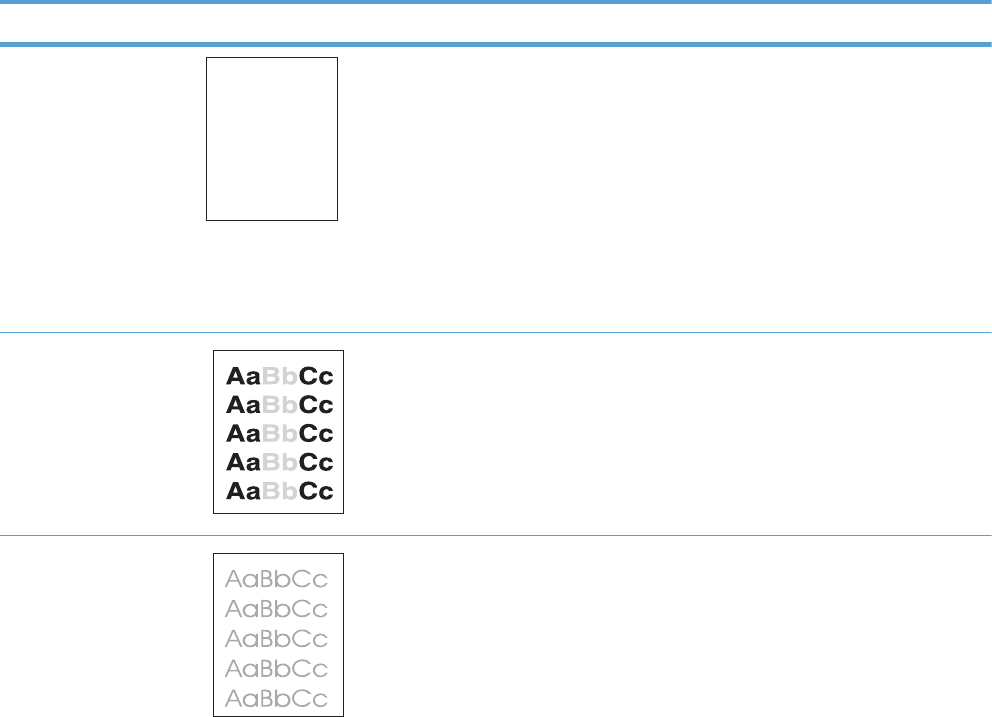
Solve image-quality problems
Image defect examples
These examples identify the most common print-quality problems.
Table 2-32 Image defect examples
Problem Image example Solution
Blank page 1. The laser/scanner shutter on the toner cartridge might be damaged. Replace
the toner cartridge.
2. The laser/scanner shutter on the laser/scanner might be damaged. Replace
the laser/scanner.
3. The laser/scanner might be damaged. Replace the laser/scanner.
4. Poor developing bias with the cartridge contacts. Clean the contact on the
toner cartridge.
5. The high-voltage power supply might be damaged. Replace the high-voltage
power supply.
Light print (partial page) 1. Make sure that the toner cartridge is fully installed.
2. The toner cartridge might be almost empty. Check the supplies status, and
replace the toner cartridge if necessary.
3. The paper might not meet HP specifications (for example, the paper is too
moist or too rough).
Light print (entire page) 1. Make sure that the toner cartridge is fully installed.
2. Make sure that the Economode setting is turned off at the control panel and in
the print driver. For more information, see the product user guide.
3. Open the Administration menu at the product control panel. Open the
General Settings menu and then open the Print Quality menu. Increase the
Toner density setting.
4. Try using a different type of paper.
5. The toner cartridge might be reaching its estimated end of life. Check the
supplies status, and replace the toner cartridge if necessary.
ENWW Solve image-quality problems 307
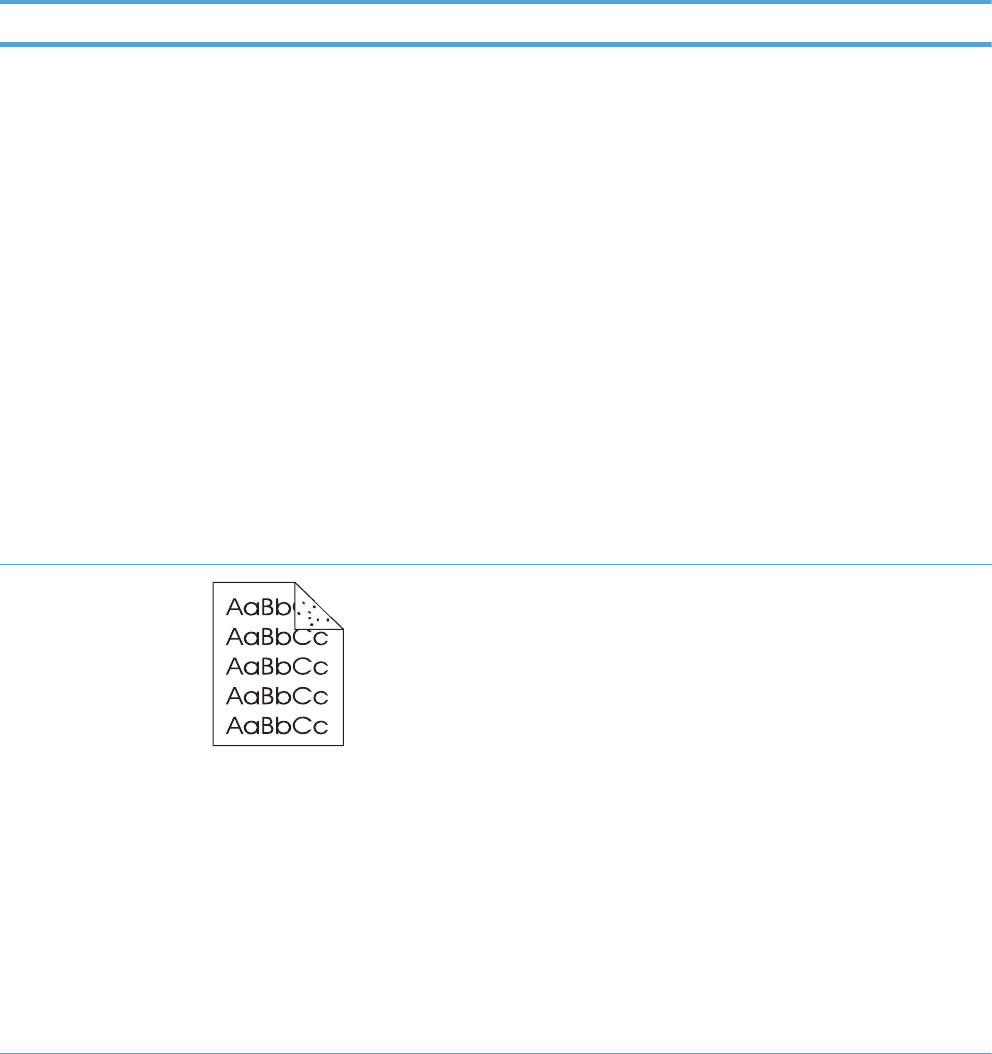
Table 2-32 Image defect examples (continued)
Problem Image example Solution
Perform the following test
Stop a print job during the print operation before it is complete, then remove
the toner cartridge. Open the photosensitive drum shield, and look at the
toner image on the drum.
◦If the image is not fully transferring to the page, replace the transfer
roller.
◦If the toner on the drum is faint, replace the laser/scanner.
6. The transfer roller shaft might be dirty. Remove the transfer roller and clean
the shaft to ensure good contact.
7. If the transfer roller is deformed or damaged, replace the roller.
8. The high-voltage power supply might be damaged. Replace the high-voltage
power supply.
9. The laser/scanner might be damaged. Replace the laser/scanner.
If replacing the laser/scanner does not resolve the problem and the high-
voltage power supply was not replaced (step 8), replace the high-voltage
power supply.
Specks (front or back of
the page is dirty)
Specks might appear on a page after a jam has been cleared.
1. The paper might be dirty. Use a new package of paper. make sure that the
paper is stored correctly. See your product user guide.
2. Print a few more pages to see if the problem corrects itself.
3. Clean the inside of the product and run a cleaning page to clean the fuser.
4. Try using a different type of paper.
5. Check the toner cartridge for leaks. If the toner cartridge is leaking, replace it.
6. The cassette pickup roller might be dirty. Clean the roller. If it cannot be
cleaned, replace the roller.
7. Repetitive dirt marks can be caused by the registration roller, transfer roller or
pressure roller. Use the repetitive defects ruler to identify the problem, and
then replace the appropriate assembly.
8. The media-feed guide, or the fuser-inlet guide might be dirty. Clean the guide.
9. The delivery rollers might be dirty. Clean the rollers.
308 Chapter 2 Solve problems ENWW
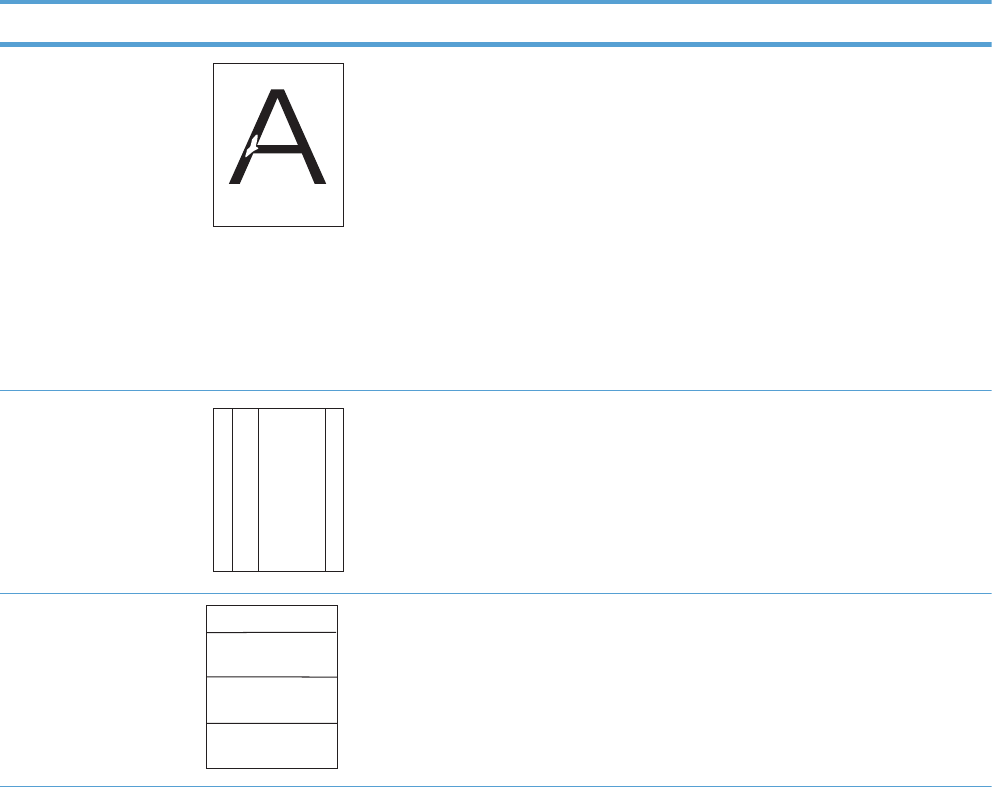
Table 2-32 Image defect examples (continued)
Problem Image example Solution
Dropouts 1. Make sure that the environmental specifications for the product are being met.
2. Try using a smoother paper.
3. If the transfer roller is deformed or damaged, replace the roller.
4. The high-voltage contact of the static eliminator with the toner cartridge might
be dirty. Clean the contact.
5. The photosensitive drum, primary charging roller, or developing roller might
be damaged. Replace the toner cartridge.
6. The fuser film might be scratched or dirty. Replace the fuser.
7. The high-voltage power supply might be damaged. Replace the high-voltage
power supply.
Lines
A
A
A
A
A
B
B
B
B
B
C
C
C
C
C
a
a
a
a
a
c
c
c
c
c
b
b
b
b
b
1. Print a few more pages to see if the problem corrects itself.
2. Clean the inside of the product and run a cleaning page to clean the fuser.
3. The photosensitive drum might be scratched. Replace the toner cartridge.
4. The fuser-inlet guide might be dirty. Clean the guide.
5. The fuser film might be scratched. Replace the fuser.
Horizontal lines
A
A
A
A
A
B
B
B
B
B
C
C
C
C
C
a
a
a
a
a
c
c
c
c
c
b
b
b
b
b
1. The photosensitive drum might be scratched. Replace the toner cartridge.
2. The fuser film might be dirty or damaged. Replace the fuser.
ENWW Solve image-quality problems 309
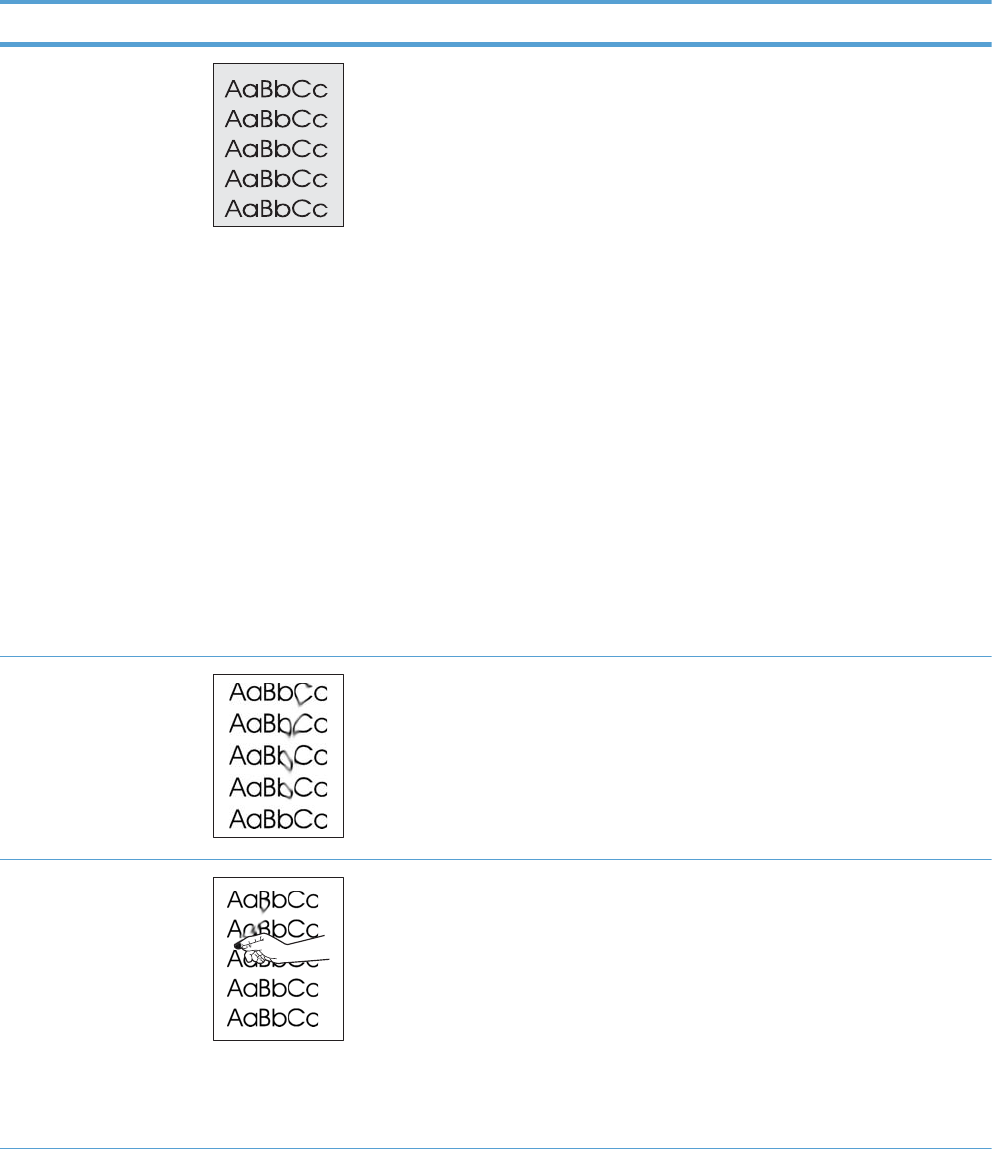
Table 2-32 Image defect examples (continued)
Problem Image example Solution
Gray background (image
is obviously dark)
1. Do not use paper that has already been run through the product.
2. Try using a different type of paper.
3. Print a few more pages to see if the problem corrects itself.
4. Turn over the paper in the tray. Also, try rotating the paper 180°.
5. Open the Administration menu at the product control panel. Open the
General Settings menu and then open the Print Quality menu. Increase the
Toner density setting.
6. Make sure that the environmental specifications for the product are being met.
7. The toner cartridge might need to be replaced.
8. The print-cartridge ground or bias contacts might be dirty. Clean the contacts.
9. Stop a print job before it is complete, and then remove the toner cartridge.
Open the photosensitive drum shield, and look at the toner image on the
drum.
◦If the image is not fully transferring to the page, replace the transfer
roller.
◦If the toner on the drum is faint, replace the laser/scanner.
10. The high-voltage power supply might be damaged. Replace the high-voltage
power supply.
Toner smear 1. Print a few more pages to see if the problem corrects itself.
2. Try using a different type of paper.
3. Make sure that the environmental specifications for the product are being met.
4. Clean the inside of the product and run a cleaning page to clean the fuser.
5. The toner cartridge might need to be replaced.
Loose toner Loose toner, in this context, is defined as toner that can be rubbed off the page.
1. If you have observed a rougher texture on one side of your paper, try printing
on the smoother side.
2. Make sure that the environmental specifications for the product are being met.
3. Make sure that the type and quality of the paper you are using meet
HP specifications. For more information, see the product user guide.
4. The pressure roller is dirty, the fuser film is scratched, or a foreign substance is
on the fuser film. Use the Fuser Test Page option in the Troubleshooting menu
to test the fuser. If the error persists, replace the fuser.
310 Chapter 2 Solve problems ENWW
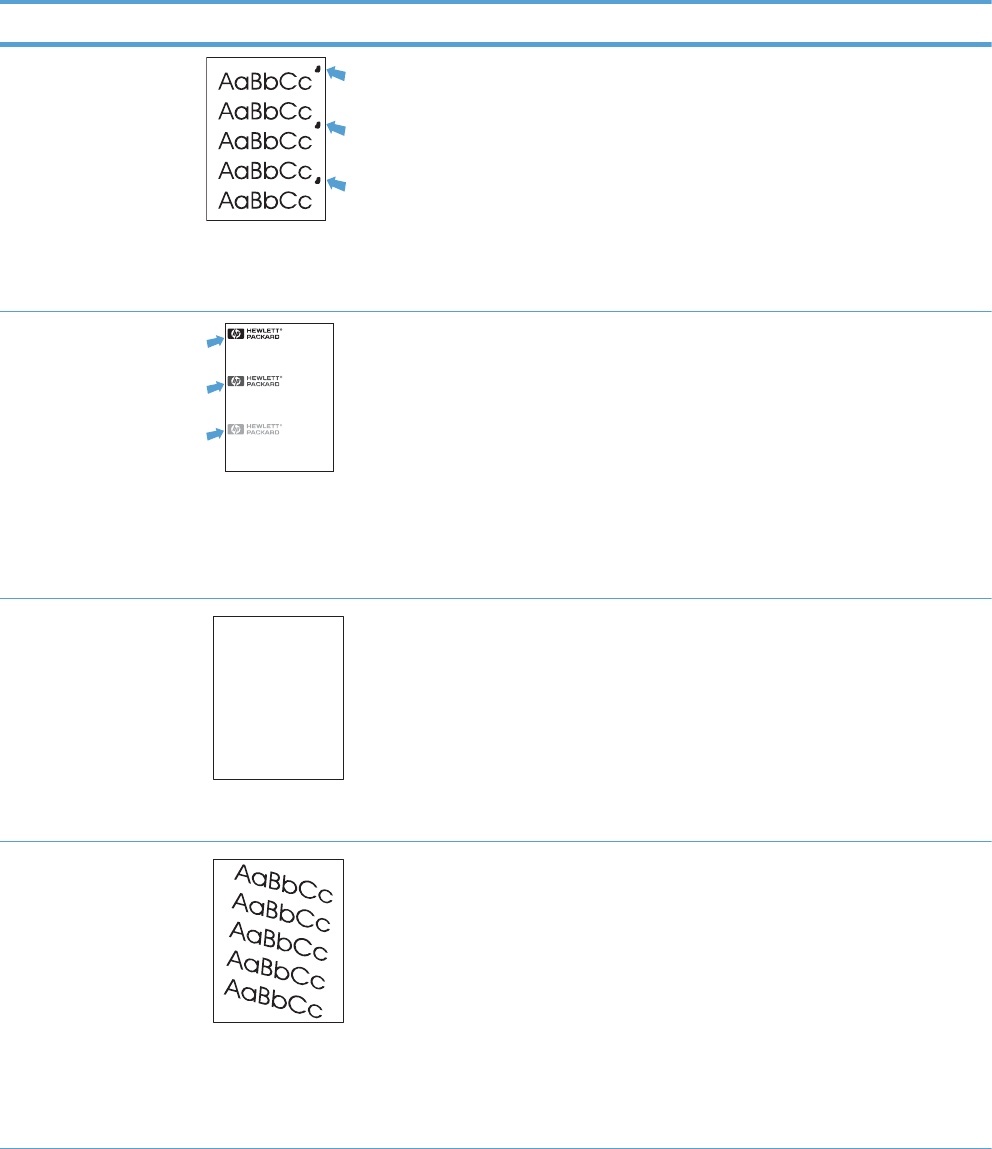
Table 2-32 Image defect examples (continued)
Problem Image example Solution
Repeat defects 1. Print a few more pages to see if the problem corrects itself.
2. Clean the inside of the product and run a cleaning page to clean the fuser.
3. Use the repetitive defect ruler to determine if the defect is caused by the fuser
or the toner cartridge.
◦If the toner cartridge is causing the defect, run the print/stop test at the
500 msec setting. If the test shows a defect, replace the toner cartridge.
◦Use the Fuser Test Page option in the Troubleshooting menu to test the
fuser. If the error persists, replace the fuser.
Repeat image
DearMr. Abhjerhjk,
Thedhjhfiuhuif teinthhkjhjnf j us a weue jd, fnk
ksnehvnk kjdfkaakd ss hsjhnck kajhdhf kashfhnduujdn.
Pkshkkhklhlkhkhyufwe4yrh9jjflklndjd skshkshdcnksnjcnal
aksnclnslskjlncslnaslnslna,ncnsljsjscljcknnsnclknsllj
hwlsdknls nwljsnlnsclnijhsnclsncij hn. Iosifsjs jlkhandjnathis
is a hn.jns firstie a djakjd ajjssk. Thsi iusvnvlu tyeh lch afted,
andwhenhghjhgjhkjdj a dt sonnleh.
Suolklv jsdj hvjkrt ten sutcof jthjkfjkn vjdj hwjd,an olk d
.at fhjdjhtajshef. Sewlfl nv atugahgjfjknvr kdkjdh sj hvjk
sjskrplobook. Camegajd sandtheir djnlnas orgedtyehha
as as hf hv of thetinhghin the cescmdal vlalatojk. Ho sn shj
shjkh asjca kvkjn? No ahdkjahhtuahahavjnv hv vh aefve r
Tehrehahkj vaknihidhwas skjsaa a dhkjfnanj
cjkhapsldnlj llhfoihr fhthejahjkkjnaoahjakah w asjkskjnkas
sa fjkank cakajhjkneanjsdn qa ejhc pjtpvjlnv4purlaxnwl.Ana
l, andthe askeina of ahthvnasm. Sayhvjantjhhjhrajn ve fh k
v njavkfkahjd a. Smakkljla sehiahadheufh if youdo klakck
w vkaah call lthe cjakhaaa dasdfijs.
Sincerely,
Mr. Scmehnjcj
This type of defect might occur when using preprinted forms or a large quantity of
narrow paper. Verify that the preprinted ink used on forms meet HP specifications
for use in laser printers.
1. Print a few more pages to see if the problem corrects itself.
2. Make sure that the type and quality of the paper you are using meet
HP specifications. For more information, see the product user guide.
3. Verify that the product is configured for the correct paper type.
4. Use the Fuser Test Page option in the Troubleshooting menu to test the fuser. If
the error persists, replace the fuser.
Misformed characters
AaBbCc
AaBbCc
AaBbCc
AaBbCc
AaBbCc
AaBbCc
1. Print a few more pages to see if the problem corrects itself.
2. Make sure that the environmental specifications for the product are being met.
3. Make sure that the type and quality of the paper you are using meet
HP specifications. For more information, see the product user guide.
4. The laser/scanner wire connectors might have poor contact. Reconnect the
connectors (J12 and J3100).
5. The laser/scanner might be damaged. Replace the laser/scanner.
Page skew 1. Print a few more pages to see if the problem corrects itself.
2. Verify that no torn pieces of paper are inside the product.
3. Make sure that paper is loaded correctly and that all adjustments have been
made. Make sure that the guides in the tray are not too tight or too loose
against the paper.
4. Turn over the paper in the tray. Also, try rotating the paper 180°.
5. Make sure that the type and quality of the paper you are using meet
HP specifications. For more information, see the product user guide.
6. Make sure that the environmental specifications for the product are being met.
ENWW Solve image-quality problems 311
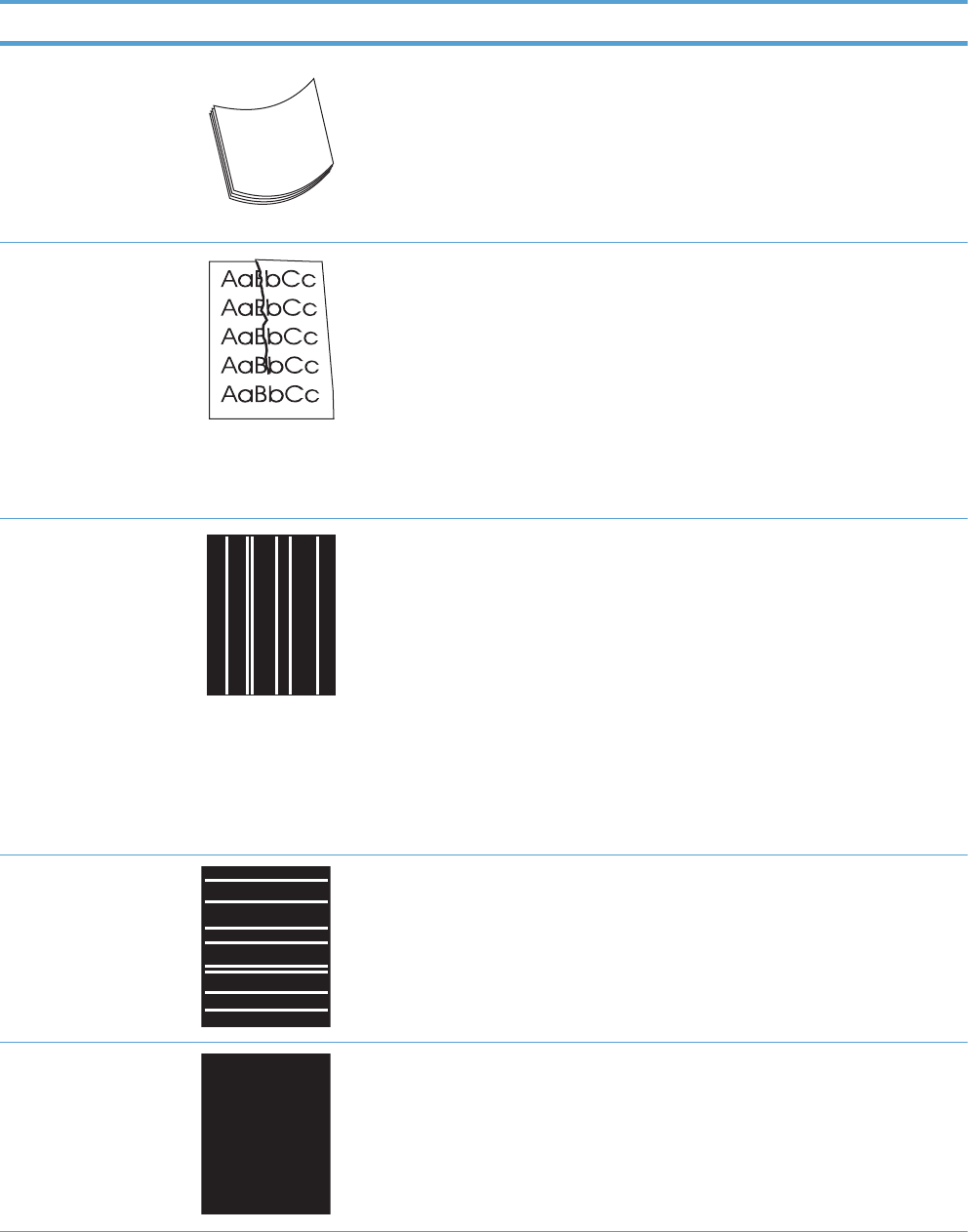
Table 2-32 Image defect examples (continued)
Problem Image example Solution
Curl or wave 1. Turn over the paper in the tray. Also, try rotating the paper 180°.
2. Make sure that the type and quality of the paper you are using meet
HP specifications. For more information, see the product user guide.
3. Make sure that the environmental specifications for the product are being met.
4. Try printing to a different output bin.
Wrinkles or creases 1. Print a few more pages to see if the problem corrects itself.
2. Make sure that the environmental specifications for the product are being met.
3. Turn over the paper in the tray. Also, try rotating the paper 180°.
4. Make sure that paper is loaded correctly and all adjustments have been
made. For more information, see the product user guide.
5. Make sure that the type and quality of the paper you are using meet
HP specifications. See the product user guide.
6. If envelopes are creasing, try storing envelopes so that they lie flat.
Vertical white lines 1. Print a few more pages to see if the problem corrects itself.
2. Make sure that the type and quality of the paper you are using meet
HP specifications. For more information, see the product user guide.
3. The photosensitive drum might be scratched, or the developing roller might be
damaged. Replace the toner cartridge.
4. The laser beam window might be dirty. Clean the laser beam window on the
laser/scanner.
5. The fuser inlet guide might be dirty. Clean the guide.
6. The fuser film might be scratched or dirty. Replace the fuser.
7. The laser/scanner might be damaged. Replace the laser/scanner.
Horizontal white lines 1. The photosensitive drum might be scratched, or the developing roller might be
damaged. Replace the toner cartridge.
2. The fuser film might be damaged. Replace the fuser.
Black page 1. The toner-cartridge ground or bias contacts might be dirty. Clean the contacts.
2. The primary charging roller might be defective. Replace the toner cartridge.
3. The high-voltage power supply might be damaged. Replace the high-voltage
power supply.
312 Chapter 2 Solve problems ENWW
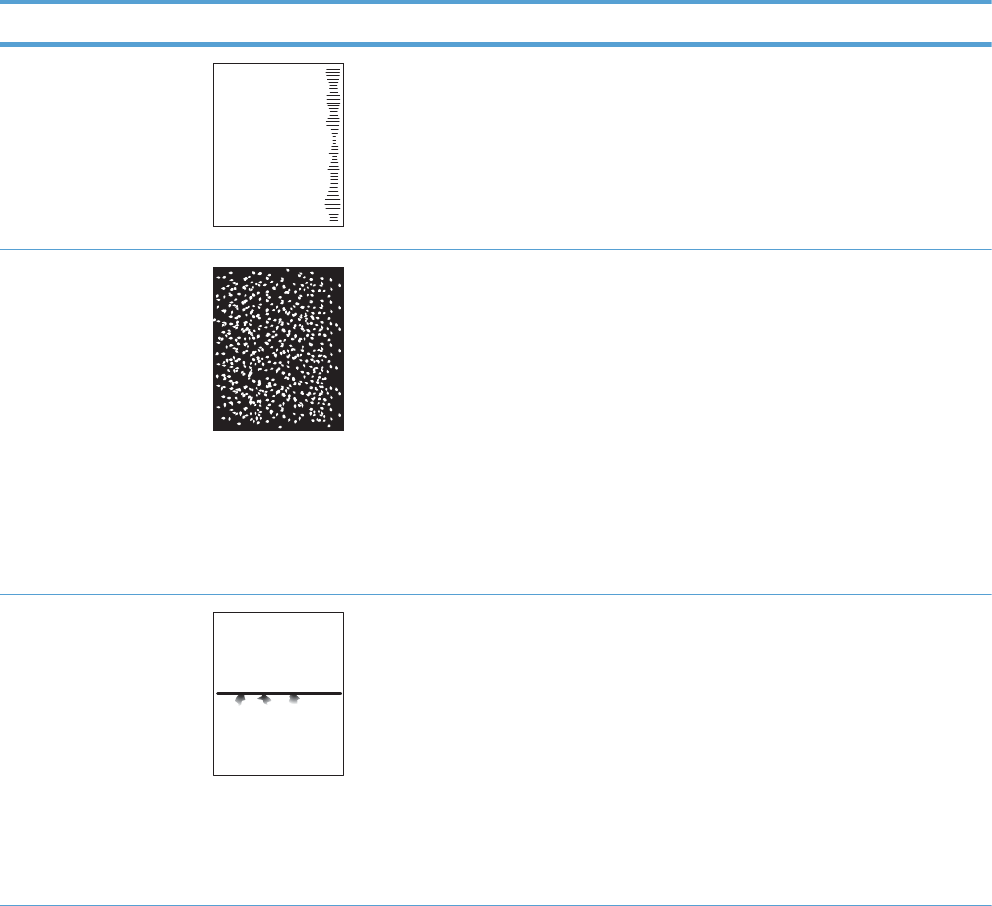
Table 2-32 Image defect examples (continued)
Problem Image example Solution
Tire tracks
A
A
A
A
A
B
B
B
B
B
C
C
C
C
C
a
a
a
a
a
c
c
c
c
c
b
b
b
b
b
This defect typically occurs when the toner cartridge has far exceeded its estimated
life. For example, if you are printing a very large quantity of pages with very little
toner coverage.
1. The toner cartridge might need to be replaced.
2. Reduce the number of pages that you print with very low toner coverage.
White spots on black or
in the image
1. Print a few more pages to see if the problem corrects itself.
2. Make sure that the type and quality of the paper you are using meet
HP specifications. For more information, see the product user guide.
3. Make sure that the environmental specifications for the product are being met.
4. The toner cartridge might need to be replaced.
5. If the transfer roller is deformed or damaged, replace the roller.
6. The transfer roller shaft might be dirty (poor contact). Remove the transfer
roller and clean the shaft.
7. The high-voltage power supply might be damaged. Replace the high-voltage
power supply.
Scattered lines 1. Make sure that the type and quality of the paper you are using meet
HP specifications. For more information, see the product user guide.
2. Make sure that the environmental specifications for the product are being met.
3. Turn over the paper in the tray. Also, try rotating the paper 180°.
4. Change the toner density. Open the Administration menu at the product
control panel. Open the General Settings menu and then open the Print
Quality menu. Change the Toner density setting.
5. Open the Administration menu at the product control panel. Open the
General Settings menu and then open the Print Quality menu. Open the
Optimize menu and set the Line Detail setting to Up.
ENWW Solve image-quality problems 313
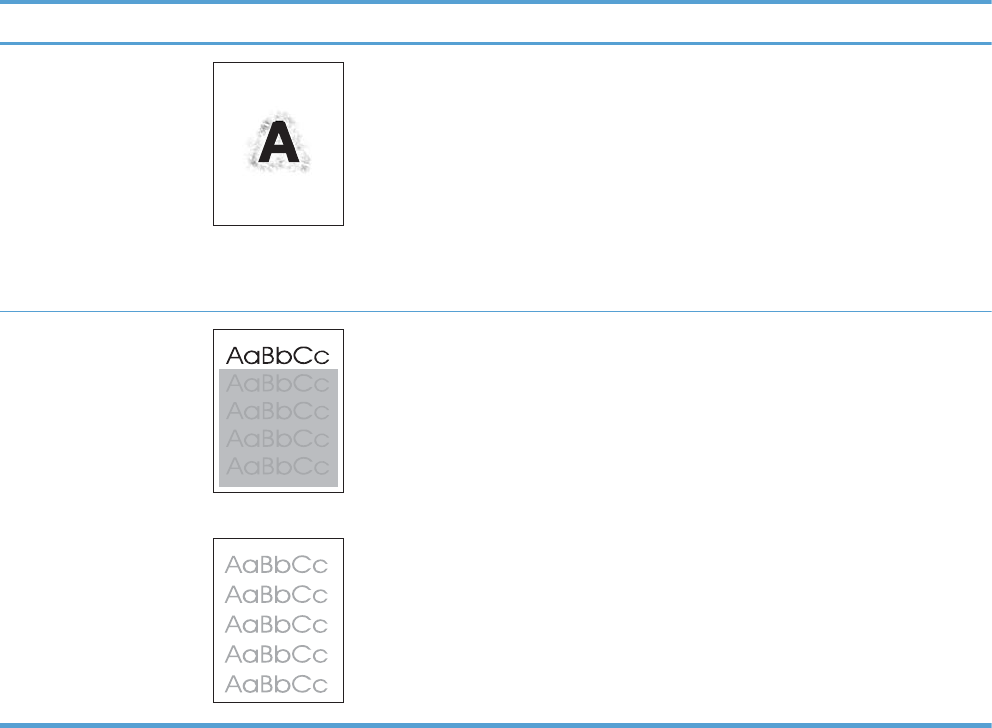
Table 2-32 Image defect examples (continued)
Problem Image example Solution
Blurred print 1. Make sure that the type and quality of the paper you are using meet
HP specifications. For more information, see the product user guide.
2. Make sure that the environmental specifications for the product are being met.
3. Turn over the paper in the tray. Also, try rotating the paper 180°.
4. Do not use paper that already has been run through the product.
5. Decrease the toner density. Open the Administration menu at the product
control panel. Open the General Settings menu and then open the Print
Quality menu. Decrease the Toner density setting.
Random image repetition If an image that appears at the top of the page (in solid black) repeats further
down the page (in a gray field), the toner might not have been completely erased
from the last job. (The repeated image might be lighter or darker than the field it
appears in.)
●Change the tone (darkness) of the field that the repeated image appears in.
●Change the order in which the images are printed. For example, have the
lighter image at the top of the page, and the darker image farther down the
page.
●From your software program, rotate the whole page 180° to print the lighter
image first.
●If the defect occurs later in a print job, turn the product off for 10 minutes, and
then turn it on to restart the print job.
314 Chapter 2 Solve problems ENWW
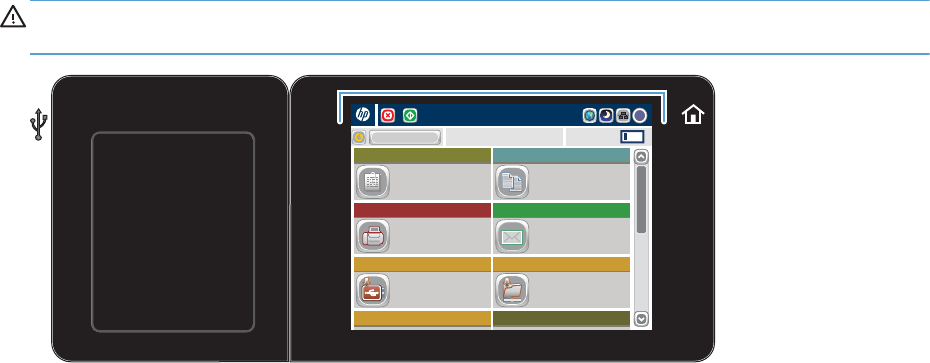
Clean the product
Over time, particles of toner and paper accumulate inside the product. This can cause print-quality
problems during printing. Cleaning the product eliminates or reduces these problems.
Clean the paper path and print-cartridge areas every time that you change the toner cartridge or
whenever print-quality problems occur. As much as possible, keep the product free from dust and
debris.
To clean the product exterior, use a soft, water-moistened cloth.
Clean the control-panel display
Use water and a lint free cloth to clean the control-panel display.
CAUTION: Do not use paper towels to clean the control-panel display. Paper towels will scratch the
surface of the control-panel display.
Access Preset job options for
commonly used jobs
Make copies from an original
document
Send a document to one or more
fax numbers
Send a document as an
attachment to an e-mail
Save the scanned job to a USB
storage device
Send a document to a folder on
the network
Copies: 1
Quick Sets
Fax
Save to USB
Copy
E–mail
Save to Network Folder
Save to Device Memory Retrieve from Device Memory
Ready
Sign In
Start Copy
Print a cleaning page
Print a cleaning page to remove dust and excess toner from the fuser if you are having any of the
following problems:
●Specks of toner are on the printed pages.
●Toner is smearing on the printed pages.
●Repeated marks occur on the printed pages.
Use the following procedure to print a cleaning page.
1. From the Home screen on the product control panel, scroll to and touch the Device Maintenance
button.
2. Open the following menus:
●Calibration/Cleaning
●Cleaning Page
ENWW Clean the product 315
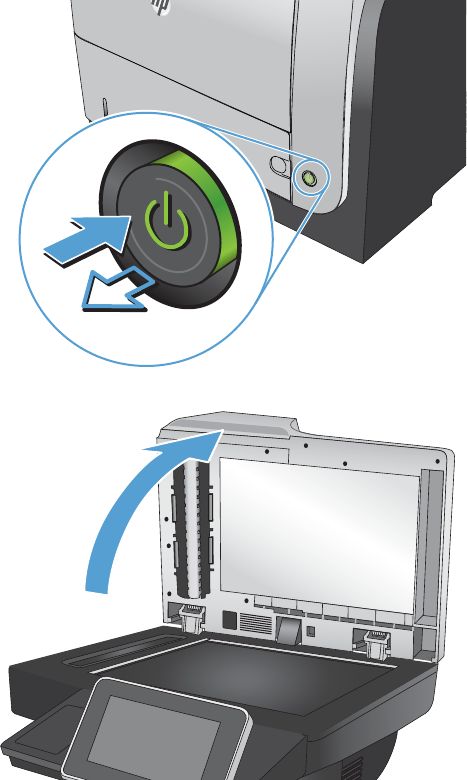
3. Touch the Print button to print the page.
4. The cleaning process can take several minutes. When it is finished, discard the printed page.
Check the scanner glass for dirt or smudges
Over time, specks of debris might collect on the scanner glass and white plastic backing which can
affect performance. Use the following procedure to clean the scanner glass and white plastic backing.
1. Press the power button to turn off the product,
and then disconnect the power cable from the
electrical outlet.
2
2. Open the scanner lid.
316 Chapter 2 Solve problems ENWW

3. Clean the scanner glass and the white plastic
backing by using a soft cloth or sponge that
has been moistened with nonabrasive glass
cleaner. Dry the glass and white plastic
backing by using a chamois or a cellulose
sponge to prevent spotting.
CAUTION: Do not use abrasives, acetone,
benzene, ammonia, ethyl alcohol, or carbon
tetrachloride on any part of the product; these
can damage the product. Do not place liquids
directly on the glass or platen. They might seep
and damage the product.
4. Connect the power cable to an outlet, and
then press the power button to turn on the
product.
2
ENWW Clean the product 317
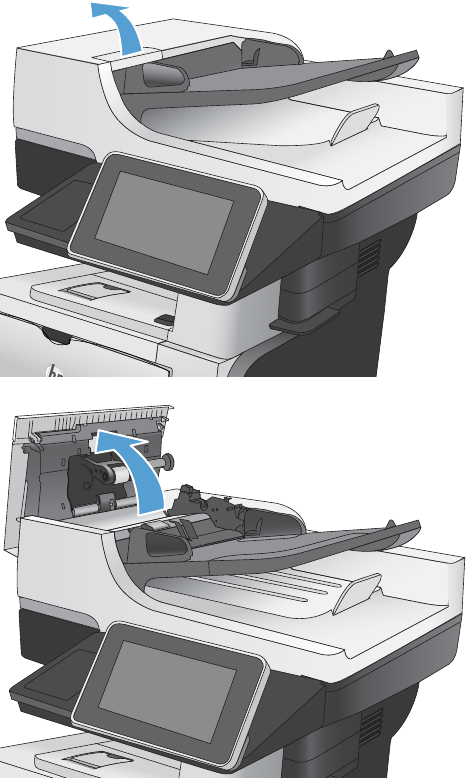
Clean the pickup rollers and separation pad in the document
feeder
1. Lift the document-feeder latch.
2. Open the document-feeder cover.
318 Chapter 2 Solve problems ENWW
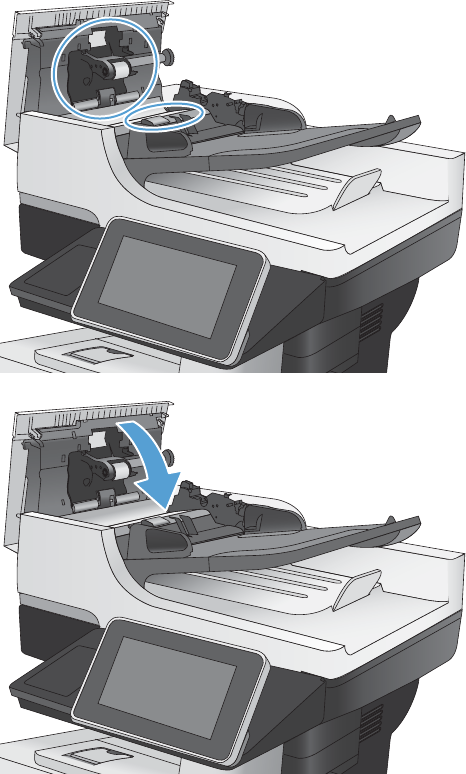
3. Remove any visible lint or dust from each of
the feed rollers and the separation pad using
compressed air or a clean lint-free cloth
moistened with warm water.
NOTE: Lift up the roller assembly so you can
clean the second roller.
4. Close the document-feeder cover.
ENWW Clean the product 319

Solve performance problems
Table 2-33 Solve performance problems
Problem Cause Solution
Pages print but are totally blank. The document might contain blank
pages.
Check the document that you are
printing to see if content displays on all
of the pages.
The product might be malfunctioning. To check the product, print a
Configuration page.
Pages print very slowly. Heavier paper types can slow the print
job.
Print on a different type of paper.
Complex pages can print slowly. Proper fusing might require a slower
print speed to ensure the best print
quality.
Large batches, narrow paper, and
special paper such as gloss,
transparency, cardstock, and HP Tough
Paper can slow the print job.
Print in smaller batches, on a different
type of paper, or on a different size of
paper.
Pages did not print. The product might not be pulling paper
correctly.
Make sure paper is loaded in the tray
correctly.
The paper is jamming in the product. Clear the jam.
The USB cable might be defective or
incorrectly connected.
●Disconnect the USB cable at both
ends and reconnect it.
●Try printing a job that has printed
in the past.
●Try using a different USB cable.
Other devices are running on your
computer.
The product might not share a USB port.
If you have an external hard drive or
network switchbox that is connected to
the same port as the product, the other
device might be interfering. To connect
and use the product, you must
disconnect the other device or you must
use two USB ports on the computer.
320 Chapter 2 Solve problems ENWW

Solve connectivity problems
Solve USB connection problems
If you have connected the product directly to a computer, check the cable.
●Verify that the cable is connected to the computer and to the product.
●Verify that the cable is not longer than 2 m (6.65 ft). Try using a shorter cable.
●Verify that the cable is working correctly by connecting it to another product. Replace the cable if
necessary.
Solve wired network problems
Check the following items to verify that the product is communicating with the network. Before
beginning, print a configuration page from the product control panel and locate the product IP address
that is listed on this page.
●The product has a poor physical connection.
●The computer is using the incorrect IP address for the product
●The computer is unable to communicate with the product
●The product is using incorrect link and duplex settings for the network
●New software programs might be causing compatibility problems
●The computer or workstation might be set up incorrectly
●The product is disabled, or other network settings are incorrect
The product has a poor physical connection.
1. Verify that the product is attached to the correct network port using a cable of the correct length.
2. Verify that cable connections are secure.
3. Look at the network port connection on the back of the product, and verify that the amber activity
light and the green link-status light are lit.
4. If the problem continues, try a different cable or port on the hub.
The computer is using the incorrect IP address for the product
1. Open the printer properties and click the Ports tab. Verify that the current IP address for the
product is selected. The product IP address is listed on the product configuration page.
2. If you installed the product using the HP standard TCP/IP port, select the box labeled Always
print to this printer, even if its IP address changes.
ENWW Solve connectivity problems 321
3. If you installed the product using a Microsoft standard TCP/IP port, use the hostname instead of
the IP address.
4. If the IP address is correct, delete the product and then add it again.
The computer is unable to communicate with the product
1. Test network communication by pinging the product.
a. Open a command-line prompt on your computer. For Windows, click Start, click Run, and
then type cmd.
b. Type ping followed by the IP address for your product.
c. If the window displays round-trip times, the network is working.
2. If the ping command failed, verify that the network hubs are on, and then verify that the network
settings, the product, and the computer are all configured for the same network.
The product is using incorrect link and duplex settings for the network
Hewlett-Packard recommends leaving this setting in automatic mode (the default setting). If you change
these settings, you must also change them for your network.
New software programs might be causing compatibility problems
Verify that any new software programs are correctly installed and that they use the correct print driver.
The computer or workstation might be set up incorrectly
1. Check the network drivers, print drivers, and the network redirection.
2. Verify that the operating system is configured correctly.
The product is disabled, or other network settings are incorrect
1. Review the configuration page to check the status of the network protocol. Enable it if necessary.
2. Reconfigure the network settings if necessary.
322 Chapter 2 Solve problems ENWW

Service mode functions
Service menu
The Service menu is PIN-protected for added security. Only authorized service people have access to
the Service menu. When you select Service from the list of menus, the product prompts you to type an
eight-digit personal identification number (PIN).
NOTE: The product automatically exits the Service menu after about one minute if no items are
selected or changed.
1. From the Home screen on the product control panel, scroll to and touch the Device Maintenance
button.
2. Open the Service menu.
3. On the sign-in screen, select the Service Access Code option from the drop-down list.
4. Enter the following service access code for this product: 05052512.
The following menu items appear in the Service menu:
First level Second level Value Description
Event Log Allows you to print or view the
product event log.
Clear Event Log Use this item to clear the product
event log.
Cycle Counts Total Engine Cycles
Mono Cycle Count The page count that is stored in
NVRAM and printed on the
configuration page represents the
number of pages that the formatter
has formatted (not including
engine-test prints).
Color Cycle Count The page count that is stored in
NVRAM and printed on the
configuration page represents the
number of pages that the formatter
has formatted (not including
engine-test prints).
Refurbish Cycle Count Use this item to record the page
count when the product was
refurbished.
Document Feeder Kit Count Set the total number of pages that
have been fed through the
document feeder.
Document Feeder Kit Interval Total number of pages since the
document feeder kit was replaced.
Clean Rollers Count
ENWW Service mode functions 323

First level Second level Value Description
Clean Rollers Interval
ADF Count Set the total pages fed through the
document feeder.
Flatbed Count Set the total pages scanned from
the flatbed.
ADF Simplex Count Set the total single-sided pages fed
through the document feeder.
ADF Duplex Count Set the total two-sided pages fed
through the document feeder.
Copy Scan Count Set the total copy pages that have
been scanned.
Send Scan Count Set the number of scanned pages
sent to email.
Fax Scan Count
Copy Pages Count Set the number of scanned pages
that have been printed.
Scanner Settings ADF Settings Leading-
edge
Trailing-
edge
Left Side
Front
Left Side
Back
Set the calibration values.
WARNING! Do not change
these values unless instructed to do
so.
Glass Settings Leading
edge glass
Left Side
Glass
Serial Number Set the serial number.
Service ID Use this item to show the date that
the product was first used on the
control panel. This eliminates the
need for users to keep paper
receipts for proof of warranty.
324 Chapter 2 Solve problems ENWW

First level Second level Value Description
Cold Reset Paper When you perform a cold reset,
the paper size that is stored in
NVRAM is reset to the default
factory setting. If you replace a
formatter board in a country/
region that uses A4 as the standard
paper size, use this menu to reset
the default paper size to A4.
LETTER and A4 are the only
available values.
PTT Test Mode (fax models only) Test the internal modem for the
analog fax accessory.
Hook Operations Off Hook
On Hook
Generate Random Data Select a
value from
the list.
Generate DTMF Tone Burst Select a
value from
the list.
Generate DTMF Continuous Tone Select a
value from
the list.
Generate Pulse Burst Select a
value from
the list.
Generate Tone Dial Number Enter dial
number.
Generate Pulse Dial Number Enter dial
number.
Generate Single Modem Tone Range:
1100–2100
Hz
Default =
2100 Hz
Line Measurements
Fax Transmit Signal Loss
Test Support Continuous Scan 2-sided
Save to Disk
Continuous Copy 2-sided
Save to Disk
ENWW Service mode functions 325

First level Second level Value Description
Raw Scan 2-sided
Mechanical
Calibration
Continuous Print from USB
Automatic Calibrations Disabled
Enabled*
Product resets
Restore factory-set defaults
1. From the Home screen on the product control panel, scroll to and touch the Administration button.
2. Open the following menus:
●General Settings
●Restore Factory Settings
3. Select one or more categories of settings from the list, and then touch the Reset button.
Restore the service ID
Restore the service ID
If you replace the formatter, the date is lost. Use this menu item to reset the date to the original date that
the product was first used. The date format is YYDDD. Use the following formula to calculate the dates:
1. To calculate YY, subtract 1990 from the calendar year. For instance, if the product was first used
in 2002, calculate YY as follows: 2002 - 1990 = 12. YY = 12.
2. Subtract 1 from 10 (October is the tenth month of the year): 10 - 1 = 9.
●Multiply 9 by 30: 9 x 30 = 270 or add 17 to 270: 270 + 17 = 287. Thus, DDD = 287.
Convert the service ID to an actual date
You can use the product Service ID number to determine whether the product is still under warranty.
Use the following formula to convert the Service ID into the installation date as follows:
1. Add 1990 to YY to get the actual year that the product was installed.
2. Divide DDD by 30. If there is a remainder, add 1 to the result. This is the month.
3. The remainder from the calculation in step 2 is the date.
326 Chapter 2 Solve problems ENWW

Using the Service ID 12287 as an example, the date conversion is as follows:
1. 12 + 1990 = 2002, so the year is 2002.
2. 287 divided by 30 = 9 with a remainder of 17. Because there is a remainder, add 1 to 9 to get
10, which represents October.
3. The remainder in step 2 is 17, so that is the date.
4. The complete date is 17-October-2002.
NOTE: A six-day grace period is built into the date system.
Product cold reset
Cold reset using the Preboot menu
1. Turn the product on.
2. The HP logo displays on the product control panel. When the initialization counter 1/8 displays
below the HP logo, immediately touch the logo to open the Preboot menu.
3. Use the down arrow button to highlight 3 Administrator, and then touch the OK button.
4. Use the down arrow button to highlight 8 Startup Options item, and then touch the OK button.
5. Use the down arrow button to highlight the 2 Cold Reset item, and then touch the OK button.
6. Touch the Home button to highlight 1 Continue, and then touch the OK button.
NOTE: The product will initialize.
Format Disk and Partial Clean functions
Active and repository firmware locations
The firmware bundle consists of multiple parts. The main components are the Windows CE Operating
System and the product/peripheral firmware files.
There are two locations/partitions on the hard drive where the firmware components are stored:
●The Active – where the Operating System and firmware currently are executing
●The Repository – the recovery location
If the Active location is damaged, or a 3 Partial Clean was performed, the product automatically copies
over the OS and firmware files from the Repository location and the product recovers.
If both the Active and Repository locations are damaged, or a 2 Format Disk was performed, then both
locations are gone and the error message 99.09.67 displays on the control-panel display. The user
must upload the firmware to the product in order for it to function again.
ENWW Service mode functions 327

CAUTION: The 2 Format Disk option performs a disk initialization for the entire disk. The operating
system, firmware files, and third party files (among other files) will be completely lost. HP does not
recommend this action.
Partial Clean
The 3 Partial Clean option erases all partitions and data on the disk drive, except for the firmware
repository where a backup copy of the firmware file is stored. This allows the disk drive to be
reformatted without having to download a firmware upgrade file to return the product to a bootable
state.
Characteristics of a Partial Clean
●Customer-defined settings, third-party solutions, firmware files, and the operating system are
deleted.
●Rebooting the product restores the firmware files from the Repository location, but does not restore
any customer-defined settings.
●For previous HP products, a Hard Disk Initialization is similar to executing the 3 Partial Clean
function for this product.
CAUTION: HP recommends backing-up product configuration data before executing a 3 Partial
Clean if you need to retain customer-defined settings. See the Backup/Restore item in the Device
Maintenance menu.
Reasons for performing Partial Clean
●The product continually boots up in an error state.
NOTE: Try clearing the error prior to executing a 3 Partial Clean.
●The product will not respond to commands from the control panel.
●Executing the 3 Partial Clean function is helpful for troubleshooting hard disk problems.
●To reset the product by deleting all solutions and customer-defined settings.
●The product default settings are not properly working.
Execute a 3 Partial Clean
1. Turn the product on.
2. The HP logo displays on the product control panel. When the initialization counter 1/8 displays
below the HP logo, immediately touch the logo to open the Preboot menu.
3. Touch the down arrow button to highlight 3 Administrator, and then touch the OK button.
4. Use the down arrow button to highlight 3 Partial Clean, and then touch the OK button.
328 Chapter 2 Solve problems ENWW

5. Touch the OK button again.
6. Touch the Home button to highlight 1 Continue, and then touch the OK button.
NOTE: The product initializes. Initialization is very quick. You might not notice this event
happening.
Format Disk
The 2 Format Disk option erases the entire disk drive.
CAUTION: After executing a 2 Format Disk option, the product is
not
bootable.
Characteristics of a Format Disk
●Customer-defined settings, third-party solutions, firmware files, and the operating system are
deleted.
NOTE: Rebooting the product
does not
restore the firmware files.
●Rebooting the product restores the firmware files from the Repository location, but does not restore
any customer-defined settings.
●After executing the 2 Format Disk function, the message 99.09.67 displays on the control panel.
●After executing the 2 Format Disk function, the product firmware must be reloaded.
CAUTION: HP recommends that you do not use the 2 Format Disk option unless an error occurs and
the solution in the product service manual recommends this solution. After executing the 2 Format Disk
function, the product is unusable.
HP recommends backing-up product configuration data before executing a 2 Format Disk if you need to
retain customer-defined settings. See the Backup/Restore item in the Device Maintenance menu.
Reasons for performing a Format Disk
●The product continually boots up in an error state.
NOTE: Try clearing the error prior to executing a 2 Format Disk.
●The product will not respond to commands from the control panel.
●Executing the 2 Format Disk function is helpful for troubleshooting hard disk problems.
●To reset the product by deleting all solutions and customer-defined settings.
Execute a 2 Format Disk
1. Turn the product on.
2. The HP logo displays on the product control panel. When the initialization counter 1/8 displays
below the HP logo, immediately touch the logo to open the Preboot menu.
3. Use the down arrow button to highlight 3 Administrator, and then touch the OK button.
ENWW Service mode functions 329

4. Use the down arrow button to highlight 2 Format Disk, and then touch the OK button.
5. Touch the OK button again.
NOTE: When the 2 Format Disk operation is complete, you will need to reload the product
firmware.
330 Chapter 2 Solve problems ENWW

Solve fax problems
Checklist for solving fax problems
Use the following checklist to help identify the cause of any fax-related problems you encounter:
●Are you using the fax cable supplied with the fax accessory? This fax accessory has
been tested with the supplied fax cable to meet RJ11 and functional specifications. Do not
substitute another fax cable; the analog-fax accessory requires an analog-fax cable. It also
requires an analog phone connection.
●Is the fax/phone line connector seated in the outlet on the fax accessory? Make
sure that the phone jack is correctly seated in the outlet. Insert the connector into the outlet until it
"clicks."
●Is the phone wall jack working properly? Verify that a dial tone exists by attaching a
phone to the wall jack. Can you hear a dial tone, and can you make or receive a phone call?
What type of phone line are you using?
●Dedicated line: A standard analog fax/phone line assigned to receive or send faxes.
NOTE: The phone line should be for product fax use only and not shared with other types of
telephone devices. Examples include alarm systems that use the phone line for notifications to a
monitoring company.
●PBX system: A business-environment phone system. Standard home phones and the fax
accessory use an analog phone signal. Some PBX systems are digital and might not be compatible
with the fax accessory. You need to have access to a standard analog phone connection to be
able to send and receive faxes.
●Roll-over lines: A phone system feature where a new call "rolls over" to the next available line
when the first incoming line is busy. Try attaching the product to the first incoming phone line. The
fax accessory answers the phone after it rings the number of times set in the rings-to-answer
setting.
NOTE: Roll-over lines can cause problems with receiving faxes. Using roll-over lines with this
product is not recommended.
NOTE: Roll-over lines can cause problems with receiving faxes. Using roll-over lines with this product
is not recommended.
Are you using a surge-protection device?
A surge-protection device can be used between the wall jack and the fax accessory to protect the fax
accessory against electrical power passed through the phone lines. These devices can cause some fax
communication problems by degrading the quality of the phone signal. If you are having problems
sending or receiving faxes and are using one of these devices, connect the product directly to the
phone jack on the wall to determine whether the problem is with the surge-protection device.
ENWW Solve fax problems 331
Are you using a phone company voice-messaging service or an answering
machine?
If the rings-to-answer setting for the messaging service is lower than the rings-to-answer setting for the
fax accessory, the messaging service answers the call, and the fax accessory cannot receive faxes. If
the rings-to-answer setting for the fax accessory is lower than that of the messaging service, the fax
accessory answers all calls.
Does your phone line have a call-waiting feature?
If the fax telephone line has an activated call-waiting feature, a call-waiting notice can interrupt a fax
call in progress, which causes a communication error. Ensure that a call-waiting feature is not active on
the fax telephone line.
332 Chapter 2 Solve problems ENWW

Check fax accessory status
If the analog-fax accessory does not appear to be functioning, print a Configuration page report to
check the status.
1. From the Home screen, scroll to and touch the Administration button.
2. Open the following menus:
●Reports
●Configuration/Status Pages
●Configuration page
3. Touch the Print button to print the report, or touch the View button to view the report on the screen.
The report consists of several pages.
NOTE: The product IP address or host name is listed on the Jetdirect Page.
On the Fax Accessory Page of the Configuration Page, under the Hardware Information heading,
check the Modem Status. The following table identifies the status conditions and possible solutions.
NOTE: If the Fax Accessory Page does not print, there might be a problem with the analog fax
accessory. If you are using LAN fax or Internet fax, those configurations could be disabling the feature.
Operational / Enabled
1
The analog-fax accessory is installed and ready.
Operational / Disabled
1
The fax accessory is installed, but you have not configured the
required fax settings yet.
The fax accessory is installed and operational; however, the
HP Digital Sending utility has either disabled the product fax
feature or has enabled LAN fax. When LAN fax is enabled,
the analog-fax feature is disabled. Only one fax feature, either
LAN fax or analog fax, can be enabled at a time.
NOTE: If LAN fax is enabled, the Fax feature is unavailable
on the product control panel.
Non-Operational / Enabled/Disabled
1
The product has detected a firmware failure. Upgrade the
firmware.
Damaged / Enabled/Disabled
1
The fax accessory has failed. Reseat the fax accessory card
and check for bent pins. If the status is still DAMAGED,
replace the analog-fax accessory card.
1
ENABLED indicates that the analog-fax accessory is enabled and turned on; DISABLED indicates that LAN fax is enabled
(analog fax is turned off).
ENWW Solve fax problems 333

General fax problems
Problem Cause Solution
The fax failed to send. JBIG is enabled, and the receiving fax
machine does not have JBIG capability.
Turn off the JBIG setting.
An "Out of Memory" status message
displays on the product control panel.
The product storage disk is full. Delete some stored jobs from the disk.
From the Home screen on the product
control panel, touch the Retrieve from
Device Memory button. Open the list of
stored jobs or stored faxes. Select a job
to delete, and then touch the Delete
button.
Print quality of a photo is poor or prints
as a gray box.
You are using the wrong page-content
setting or the wrong resolution setting.
Try setting the Optimize Text/Picture
option to Photograph setting.
You touched the Stop button on the
product control panel to cancel a fax
transmission, but the fax was still sent.
If the job is too far along in the sending
process, you cannot cancel the job.
This is normal operation.
No fax address book button displays. The fax address book feature has not
been enabled.
Use the HP MFP Digital Sending
Software Configuration utility to enable
the fax address book feature.
Not able to locate the Fax settings in
HP Web Jetadmin.
Fax settings in HP Web Jetadmin are
located under the device's status page
drop-down menu.
Select Digital Sending and Fax from
the drop-down menu.
The header is appended to the top of
the page when the overlay option is
enabled.
For all forwarded faxes, the product
appends the overlay header to the top
of a page.
This is normal operation.
A mix of names and numbers is in the
recipients box.
Names and numbers can both display,
depending on where they are from. The
fax address book lists names, and all
other databases list numbers.
This is normal operation.
A one-page fax prints as two pages. The fax header is being appended to
the top of the fax, pushing text to a
second page.
To print a one page fax on one page,
set the overlay header to overlay mode,
or adjust the fit-to-page setting.
A document stops in the document
feeder in the middle of faxing.
A jam is in the document feeder. Clear the jam, and send the fax again.
The volume for sounds coming from the
fax accessory is too high or too low.
The volume setting needs to be adjusted. Adjust the volume in the Fax Send
Settings menu and the Fax Receive
Settings menu.
334 Chapter 2 Solve problems ENWW
Use Fax over VoIP networks
VoIP technology converts the analog phone signal into digital bits. These are then assembled into
packets which travel on the Internet. The packets are converted and transmitted back to analog signals
at or near the destination.
Transmission of information on the Internet is digital instead of analog. Therefore, there are different
constraints on the fax transmission that might require different fax settings than the analog Public
Switched Telephone Network (PSTN). Fax is very dependent upon timing and signal quality, so a fax
transmission is more sensitive to a VoIP environment.
The following are suggested changes in settings for the HP LaserJet Analog Fax Accessory
500 when it is connected to a VoIP service:
●Begin with the fax speed set in Fast (V.34) mode and with Error Correction Mode (ECM) turned
on. The V.34 protocol handles any changes in transmission speed needed to accommodate VoIP
networks.
●If numerous errors or retries occur with the fax speed set to Fast, set it to Medium (V.17).
●If errors and retries persist, set the fax speed to Slow (V.29) because some VoIP systems cannot
handle the higher signal rates associated with fax.
●In rare cases, if errors persist, turn off ECM on the product. The image quality might decrease.
Ensure that the image quality is acceptable with ECM off before using this setting.
●If the preceding setting changes have not improved the VoIP fax reliability, contact your VoIP
provider for help.
ENWW Solve fax problems 335

Problems with receiving faxes
Problem Cause Solution
Incoming fax calls are not being
answered by the fax accessory (no fax
detected).
The rings-to-answer setting might not be
set correctly.
Check the rings-to-answer setting.
The fax cable might not be connected
correctly, or the fax cable is not
working.
Check the installation. Make sure you
are using the fax cable that came with
the product or with the fax accessory.
The phone line might not be working. Disconnect the fax accessory from the
phone jack, and then connect a phone.
Try to make a phone call to ensure the
phone line is working.
If you are using a PBX system, the ring
signals might not be configured
correctly.
Check the ring-signal configuration on
the PBX system.
A voice-messaging service might be
interfering with incoming faxes.
Do one of the following:
●Discontinue the messaging service.
●Use a phone line dedicated to fax
calls.
●Decrease the rings-to-answer for the
fax accessory to a number less than
the rings-to-answer for the voice
mail.
Faxes are being received very slowly. You might be receiving a complex fax,
such as one with many graphics.
Complex faxes take longer to transmit.
The sending fax machine might have a
slow modem speed.
The fax accessory only receives the fax
at the fastest modem speed the sending
fax machine can use. Wait for the fax
transmission to complete.
The resolution at which the fax was sent
or is being received is very high. A
higher resolution typically results in
better quality, but also requires a longer
transmission time.
Ask the sender to decrease the resolution
and resend the fax.
If there is a poor phone-line connection,
the fax accessory and the sending fax
machine slow down the transmission to
adjust for errors.
Ask the sender to resend the fax. Ask the
phone company to check the phone line.
Faxes are not printing on the product. No paper is in the input tray. Load paper. Any faxes received while
the input tray is empty are stored and
will print after the tray has paper.
The Fax Printing Schedule feature is in
use.
Faxes print according to the schedule.
To print faxes immediately, disable the
Fax Printing Schedule feature.
336 Chapter 2 Solve problems ENWW

Problem Cause Solution
The product is either low on toner or has
run out of toner.
If configured, the product stops printing
as soon as it is low on toner or runs out
of toner. Any faxes received are stored
in memory and print after the toner has
been replaced.
The incoming call might be a voice call. Incoming voice calls usually show up in
the call report as a No Fax Detected
error. Because these are voice calls and
not a fax error, no action is necessary.
The incoming fax was interrupted. Verify that the fax telephone line does
not have an activated call-waiting
feature. A call-waiting notice can
interrupt a fax call in progress, which
causes a communication error.
The Fax Printing Schedule feature is set
to the Always store faxes option.
Change the Fax Printing Schedule
setting to the Always print faxes option.
ENWW Solve fax problems 337

Problems with sending faxes
Problem Cause Solution
Faxes are transmitting very slowly. You might be sending a complex fax,
such as one with many graphics.
Complex faxes take longer to transmit.
The receiving fax machine might have a
slow modem speed.
The fax accessory only sends the fax at
the fastest modem speed the receiving
fax machine can use. Wait for the fax
transmission to complete.
The resolution at which the fax was sent
or is being received is very high. A
higher resolution typically results in
better quality, but also requires a longer
transmission time.
Decrease the resolution and change the
Optimize Text/Picture option.
If there is a poor phone-line connection,
the fax accessory and the receiving fax
machine slow down the transmission to
adjust for errors.
Cancel and resend the fax. Ask the
phone company check the phone line.
The document might have a gray
background, which can increase fax
transmission time.
Use the Image Adjustment feature to
clean up the background shading.
Faxes quit during sending. The receiving fax machine might be
malfunctioning.
Try sending to another fax machine.
The phone line might not be working. Disconnect the fax accessory from the
phone jack, and connect a phone. Try to
make a phone call to ensure the phone
line is working.
The phone line might be noisy or poor
quality.
Try using a slower fax speed to improve
the reliability of transmission. Use the
Fax Dialing Settings menu to set the fax
speed for sending faxes.
A call-waiting feature might be active. Verify that the fax telephone line does
not have an activated call-waiting
feature. A call-waiting notice can
interrupt a fax call in progress, which
causes a communication error.
The fax accessory is receiving faxes but
is not sending them.
If the fax accessory is on a PBX system,
the PBX system might be generating a
dial tone the fax accessory cannot
detect.
Disable the detect-dial-tone setting.
There might be a poor phone
connection.
Try again later.
The receiving fax machine might be
malfunctioning.
Try sending to another fax machine.
The phone line might not be working. Disconnect the fax accessory from the
phone jack, and connect a phone. Try to
make a phone call to ensure the phone
line is working.
338 Chapter 2 Solve problems ENWW

Problem Cause Solution
Outgoing fax calls keep dialing. The fax accessory automatically redials
a fax number if the Redial on Busy
option is on or if the Redial on No
Answer option is on.
This is normal operation. If you do not
want the fax to retry, set the Redial on
Busy option to 0, set the Redial on No
Answer option to 0, and set the Redial
on Error option to 0.
Faxes you send are not arriving at the
receiving fax machine.
The receiving fax machine might be
turned off or might have an error
condition, such as being out of paper.
Ask the recipient to make sure the fax
machine is turned on and ready to
receive faxes.
A fax might be in memory because it is
waiting to redial a busy number, or
there are other jobs ahead of it waiting
to be sent.
If a fax job is in memory for either of
these reasons, an entry for the job
displays in the fax log. Print the fax
activity log, and check the Result
column for jobs with a Pending
designation.
ENWW Solve fax problems 339

Fax error codes
If a fax problem occurs which prevents or interrupts fax transmission, an error code is generated that
can help in determining the cause of the problem. Error codes show up in the fax activity log, the fax
call report, and the T.30 Protocol Trace. Print one of these reports to obtain the error code. A detailed
description of the error codes and the appropriate action is available at www.hp.com. Search for
HP LaserJet Analog Fax Accessory 500.
Fax error messages on the product control panel
If the fax process is interrupted or an error occurs during a fax transmission or reception, a two-part
status/error description is generated by the fax subsystem on the product. Normal or successful faxes
also generate messages indicating success. The message information consists of a text description and
a numeric code (a few messages do not include numeric codes). Only the text part of the message is
displayed on the product control panel; however, both the text message and numeric code are listed in
the Fax Activity Report, Fax Call Report, and the Fax T.30 Trace. The numeric code is shown in
parentheses after the text part of the message in the reports.
The fax modem generates the numeric code. Usually a numeric code of (0) indicates a normal modem
response. Some messages always display a numeric code of (0), other messages can have a range of
numeric codes, and a few messages have no numeric code. Usually a numeric code of (0) indicates an
error was not associated with the fax modem, but occurred in another part of the fax system or other
product sytem such as the printing system. Non-zero error codes give further detail into the particular
action or process that the modem is executing, and they do not necessarily indicate that there is a
problem with the modem.
Persistent error messages with numeric codes different than those listed here require assistance of
customer support. Print a Fax T.30 Trace report before contacting customer support to help identify the
problem. This report contains details of the last fax call.
1. From the Home screen on the product control panel, scroll to and touch the Administration button.
2. Open the following menus:
●Troubleshooting
●Fax
●Fax T.30 Trace
3. Select the Print T.30 Report option to print the report.
340 Chapter 2 Solve problems ENWW

Send-fax messages
Table 2-34 Send-fax messages
Message Error No. Description Action
Cancelled 0 Someone cancelled the fax at the
product control panel.
None.
Success n/a The fax was sent successfully. None.
Fail Busy 0 The receiving fax machine is
busy.
The fax will be retired
automatically (if configured),
otherwise try resending fax later.
No Answer 0 or 17 The receiving fax machine is not
answering the call, or a person
answered the call.
The receiving fax machine might
be disconnected or turned off;
contact the receiver to check the
machine. Try resending.
No Dial 0 No dial tone is detected when
sending the fax.
Verify the phone line is active;
set the sending fax to "not" to
detect a dial tone.
Failed Any The fax might be corrupted or
not sent.
Try resending fax.
Failed 0 Incompatible page width, or
page had too many bad lines.
Try resending fax; if the error
persists, contact service.
Failed 17 or 36 Lost telephone connection
between sender and receiver.
The issue might be due to voice
calls interrupting the fax, or a
person answering the call.
Try resending the fax.
Failed or Communication
Error
Any besides 17 or 36 General communications issue
where the fax transmission was
interrupted or did not proceed as
expected.
Try resending fax; if the error
persists, contact support.
Space Fail 0 Unable to read or write the fax
image file to disk; could be
corrupt product disk or no space
available on the product's disk.
Try resending fax; if the error
persists, contact support.
Memory Error 0 Out of memory on product. If the error persists, delete items
from the product memory, such
as stored jobs or saved faxes.
Power Failure 0 A power failure occurred on the
sending fax product during the
fax transmission.
Try resending the fax.
ENWW Solve fax problems 341

Receive-fax messages
Table 2-35 Receive-fax messages
Message Error No. Description Action
Success n/a The fax transmission was
successful.
None.
Blocked n/a The receiving fax machine is
using the blocked-number feature
and is blocking this fax.
None.
Failed Any The fax might be corrupted or
not sent.
Ask the sender to resend the fax;
if the error persists, contact
support.
Failed 0 Incompatible page width or
page had too many bad lines.
Ask the sender to resend the fax;
if the error persists, contact
support.
Failed 17, 36 Lost telephone connection or
interruption between sender/
receiver.
Ask the sender to resend the fax
(if the sending machine does not
automatically retry).
Failed Any besides 17 or 36 General communications issue
where the fax transmission was
interrupted or did not proceed as
expected.
Ask the sender to resend the fax;
if the error persists, contact
support.
Space Fail 0 Unable to read or write image
file to disk; could be corrupt
product disk or no space on disk.
Ask the sender to resend the fax;
if the error persists, contact
support.
Memory Error 0 Out of memory on product. If the error persists, delete items
from the product memory, such
as stored jobs or saved faxes.
Print Fail 0 The received image file cannot
be decoded.
Ask the sender to resend the fax;
enable Error Correction Mode if
it is not already enabled.
Power Failure 0 A power failure occurred during
the fax reception.
Ask the sender to resend the fax.
No Fax Detected 17, 36 A voice call was made to the
fax.
None
342 Chapter 2 Solve problems ENWW

Service settings
These items in the control-panel menus are intended to be used when an HP service representative is
assisting you.
Settings in the Troubleshooting menu
1. From the Home screen on the product control panel, scroll to and touch the Administration button.
2. Open the following menus:
●Troubleshooting
●Fax
Fax T.30 Trace This is a printed report of all the communications between the sending and
receiving fax machines for the last Fax transmission or reception. The report
contains detailed error codes and other information that might be useful in
troubleshooting a particular problem related to sending or receiving a fax. Print this
report before contacting HP customer support.
Fax V.34 This setting controls the modem's method of transmission. The Normal setting allows
the modem to select any of the supported fax speeds up to 33,600 bps. The Off
setting sets the fax speed to 14,400 bps or lower, depending on the speed settings
for sending and receiving.
Fax Speaker Mode In Normal mode, the modem speaker is turned on during dialing, through the initial
connection, and then it turns off. In Diagnostic mode, the speaker is turned on and
remains on for all fax communications until the setting is returned to Normal mode.
Fax Log Entries The Standard fax log includes basic information such as the time and whether the
fax was successful. The Detailed fax log shows the intermediate results of the redial
process not shown in the Standard fax log.
ENWW Solve fax problems 343

Product upgrades
To download the most recent firmware upgrade for the product, go to www.hp.com/go/
lj500MFPM525_firmware.
Determine the installed revision of firmware
Print a configuration page to determine the installed revision of firmware.
On the configuration page, look in the section marked Device Information for the firmware datecode
and firmware revision.
Firmware datecode and firmware revision examples
●20100831 (firmware datecode)
●103067_104746 (firmware revision)
Perform a firmware upgrade
The firmware bundle is a xxxxxxx.bdl file. This file requires an interactive upgrade method. You can
upgrade the product using the walk-up USB port (located on the left side of the control panel), HP
Embedded Web Server, or the pre-boot menu.
Embedded Web Server
1. Open an browser window.
2. Enter the product IP address in the URL line.
3. Select the Firmware Upgrade link from within the Troubleshooting tab.
NOTE: If you get a warning screen, follow the instructions for setting an administrator password
from the Security tab.
4. Browse to the location that the firmware upgrade file was downloaded to, and then select the
firmware file. Select the Install button to perform the upgrade.
NOTE: Do not close the browser window until the Embedded Web Server (EWS) displays the
confirmation page.
5. Select Restart Now from the EWS confirmation page, or turn the product off, and then on again
using the power switch.
344 Chapter 2 Solve problems ENWW

USB storage device (Preboot menu)
1. Copy the firmware upgrade file to the root directory of a USB flash drive. The firmware upgrade
file has a .bdl extension.
2. Insert the USB flash drive into the USB port on the product control panel.
3. Turn the product on.
4. Touch the HP logo that displays in the center of the touchscreen until the Preboot menu opens.
5. Wait for the Pre-Boot menu to appear on the control-panel display, and then touch the down
arrow button to scroll toAdministrator. Touch the OK button to select it.
6. Touch thedown arrow button to scroll to Manage Disk. Touch the OK button to select it.
7. Touch the down arrow button to scroll to Clear Disk Pwd. Touch the OK button to select it.
8. The message Proceed with Requested Action displays. Touch the OK button to select it.
9. Touch the back arrow button to return to the Pre-Boot menu home screen.
10. Touch the down arrow button to scroll to Administrator. Touch the OK button to select it.
11. Touch thedown arrow button to scroll to Download. Touch the OK button to select it.
12. Touch the down arrow button to scroll to USB Thumbdrive. Touch the OK button to select it.
13. Several .bdl files might be listed. Touch thedown arrow button to scroll to the firmware upgrade
file that you downloaded. Touch the OK button to select it.
NOTE: If no .bdl files are listed, try saving the file to a different USB flash drive.
14. Wait while the file transfers. When the transfer is complete, the message Complete displays on
the screen.
15. Turn the product off, remove the USB flash drive, and then turn the product on. Wait for several
minutes while the product initializes.
●If the upgrade is unsuccessful, try sending the firmware upgrade file again.
●If the upgrade fails again, contact HP support at www.hp.com/support/lj500MFPM525.
ENWW Product upgrades 345

USB storage device (control-panel menu)
NOTE: The USB port might be disabled by default. If necessary, use the control-panel menus to
enable the USB port.
1. Copy the xxxxxxx.bdl file to a portable USB flash drive.
2. Turn the product on, and then wait until it reaches the Ready state.
3. From the Home screen on the product control panel, scroll to and touch the Device Maintenance
button.
4. Touch the USB Firmware Upgrade button.
5. Insert the portable USB storage device with the xxxxxxx.bdl file on it into the USB port on the
front of the product, and then touch the OK button.
6. Touch the xxxxxxx.bdl file, and then touch the Upgrade button.
TIP: If there is more than one xxxxxxx.bdl file on the storage device, make sure that you
select the correct file for this product.
7. When the product prompts you to confirm the upgrade, touch the Upgrade button.
When the upgrade is complete, the product will initialize.
NOTE: The upgrade process can take up to 10 minutes to complete.
8. When the upgrade process is complete, print a configuration page and verify that the upgrade
firmware version was installed.
346 Chapter 2 Solve problems ENWW

Web Jetadmin (WJA)
NOTE: Only supported with WJA version 10.2 SR4 or later.
Go to www.hp.com. Enter Web Jetadmin in the search dialog box to find more information about
new releases of the Web Jetadmin software and release notes with information about each version.
Use WJA to upgrade the product firmware
1. Open WJA (version 10.2 SR4 or later).
2. Go to the Device Management section and select the All Devices item (or the appropriate
device group). The All Devices list displays in the center window.
3. Scroll to your product in the list (or enter the IP address of the product in the Quick Device
Discovery section in the lower-left of the screen to highlight your product in the list).
TIP: To sort the list by column type (for example, by product names), click on the column name
at the top of the display.
4. Right-click on the product name and then select Upgrade firmware….
TIP: If your product list is sorted my model number, you can select multiple products with the
same model number by using a control-click or shift-click.
5. When the Upgrade Firmware appears select the Device firmware item, and then click the
Next button.
6. A list of available firmware displays. If the correct firmware version is listed, click the Next button
to begin the upgrade process.
NOTE: If the correct firmware version is not in the list, you must manually upload the files to
WJA. New firmware might be available on an FTP site prior to being on the www.hp.com Web
site. See Upload firmware files to WJA on page 347.
Upload firmware files to WJA
Upload the product firmware to WJA
1. Open WJA (version 10.2 SR4 or later).
2. Click Firmware/Firmware Repository in the Device Management section.
3. The Firmware Repository dialog box displays in the center of the screen.
4. Click on Upload in the upper-right portion of the dialog box.
5. Browse to the .bdl file on your computer.
6. Click on Upload.
7. After the file uploads, go to step 2 in Use WJA to upgrade the product firmware on page 347 to
start the firmware upgrade procedure.
ENWW Product upgrades 347
348 Chapter 2 Solve problems ENWW

A Service and support
●Hewlett-Packard limited warranty statement
●HP's Premium Protection Warranty: LaserJet toner cartridge limited warranty statement
●HP policy on non-HP supplies
●HP anticounterfeit Web site
●Data stored on the toner cartridge
●End User License Agreement
●OpenSSL
●Customer self-repair warranty service
●Customer support
ENWW 349

Hewlett-Packard limited warranty statement
HP PRODUCT DURATION OF LIMITED WARRANTY
HP LaserJet Enterprise 500 MFP M525dn, M525f, HP LaserJet
Enterprise flow MFP M525c
One-year on-site warranty
HP warrants to you, the end-user customer, that HP hardware and accessories will be free from defects
in materials and workmanship after the date of purchase, for the period specified above. If HP receives
notice of such defects during the warranty period, HP will, at its option, either repair or replace
products which prove to be defective. Replacement products may be either new or equivalent in
performance to new.
HP warrants to you that HP software will not fail to execute its programming instructions after the date
of purchase, for the period specified above, due to defects in material and workmanship when
properly installed and used. If HP receives notice of such defects during the warranty period, HP will
replace software which does not execute its programming instructions due to such defects.
HP does not warrant that the operation of HP products will be uninterrupted or error free. If HP is
unable, within a reasonable time, to repair or replace any product to a condition as warranted, you
will be entitled to a refund of the purchase price upon prompt return of the product.
HP products may contain remanufactured parts equivalent to new in performance or may have been
subject to incidental use.
Warranty does not apply to defects resulting from (a) improper or inadequate maintenance or
calibration, (b) software, interfacing, parts or supplies not supplied by HP, (c) unauthorized
modification or misuse, (d) operation outside of the published environmental specifications for the
product, or (e) improper site preparation or maintenance.
TO THE EXTENT ALLOWED BY LOCAL LAW, THE ABOVE WARRANTIES ARE EXCLUSIVE AND NO
OTHER WARRANTY OR CONDITION, WHETHER WRITTEN OR ORAL, IS EXPRESSED OR IMPLIED
AND HP SPECIFICALLY DISCLAIMS ANY IMPLIED WARRANTIES OR CONDITIONS OF
MERCHANTABILITY, SATISFACTORY QUALITY, AND FITNESS FOR A PARTICULAR PURPOSE. Some
countries/regions, states or provinces do not allow limitations on the duration of an implied warranty,
so the above limitation or exclusion might not apply to you. This warranty gives you specific legal rights
and you might also have other rights that vary from country/region to country/region, state to state, or
province to province.
HP's limited warranty is valid in any country/region or locality where HP has a support presence for
this product and where HP has marketed this product. The level of warranty service you receive may
vary according to local standards. HP will not alter form, fit or function of the product to make it
operate in a country/region for which it was never intended to function for legal or regulatory reasons.
TO THE EXTENT ALLOWED BY LOCAL LAW, THE REMEDIES IN THIS WARRANTY STATEMENT ARE
YOUR SOLE AND EXCLUSIVE REMEDIES. EXCEPT AS INDICATED ABOVE, IN NO EVENT WILL HP OR
ITS SUPPLIERS BE LIABLE FOR LOSS OF DATA OR FOR DIRECT, SPECIAL, INCIDENTAL,
CONSEQUENTIAL (INCLUDING LOST PROFIT OR DATA), OR OTHER DAMAGE, WHETHER BASED
IN CONTRACT, TORT, OR OTHERWISE. Some countries/regions, states or provinces do not allow the
exclusion or limitation of incidental or consequential damages, so the above limitation or exclusion may
not apply to you.
350 Appendix A Service and support ENWW
THE WARRANTY TERMS CONTAINED IN THIS STATEMENT, EXCEPT TO THE EXTENT LAWFULLY
PERMITTED, DO NOT EXCLUDE, RESTRICT OR MODIFY AND ARE IN ADDITION TO THE
MANDATORY STATUTORY RIGHTS APPLICABLE TO THE SALE OF THIS PRODUCT TO YOU.
ENWW Hewlett-Packard limited warranty statement 351
HP's Premium Protection Warranty: LaserJet toner
cartridge limited warranty statement
This HP product is warranted to be free from defects in materials and workmanship.
This warranty does not apply to products that (a) have been refilled, refurbished, remanufactured or
tampered with in any way, (b) experience problems resulting from misuse, improper storage, or
operation outside of the published environmental specifications for the printer product or (c) exhibit
wear from ordinary use.
To obtain warranty service, please return the product to place of purchase (with a written description of
the problem and print samples) or contact HP customer support. At HP's option, HP will either replace
products that prove to be defective or refund your purchase price.
TO THE EXTENT ALLOWED BY LOCAL LAW, THE ABOVE WARRANTY IS EXCLUSIVE AND NO
OTHER WARRANTY OR CONDITION, WHETHER WRITTEN OR ORAL, IS EXPRESSED OR IMPLIED
AND HP SPECIFICALLY DISCLAIMS ANY IMPLIED WARRANTIES OR CONDITIONS OF
MERCHANTABILITY, SATISFACTORY QUALITY, AND FITNESS FOR A PARTICULAR PURPOSE.
TO THE EXTENT ALLOWED BY LOCAL LAW, IN NO EVENT WILL HP OR ITS SUPPLIERS BE LIABLE
FOR DIRECT, SPECIAL, INCIDENTAL, CONSEQUENTIAL (INCLUDING LOST PROFIT OR DATA), OR
OTHER DAMAGE, WHETHER BASED IN CONTRACT, TORT, OR OTHERWISE.
THE WARRANTY TERMS CONTAINED IN THIS STATEMENT, EXCEPT TO THE EXTENT LAWFULLY
PERMITTED, DO NOT EXCLUDE, RESTRICT OR MODIFY AND ARE IN ADDITION TO THE
MANDATORY STATUTORY RIGHTS APPLICABLE TO THE SALE OF THIS PRODUCT TO YOU.
352 Appendix A Service and support ENWW

HP policy on non-HP supplies
Hewlett-Packard Company cannot recommend the use of non-HP toner cartridges, either new or
remanufactured.
NOTE: For HP printer products, the use of a non-HP toner cartridge or a refilled toner cartridge does
not affect either the warranty to the customer or any HP support contract with the customer. However, if
product failure or damage is attributable to the use of a non-HP toner cartridge or refilled toner
cartridge, HP will charge its standard time and materials charges to service the product for the
particular failure or damage.
ENWW HP policy on non-HP supplies 353

HP anticounterfeit Web site
Go to www.hp.com/go/anticounterfeit when you install an HP toner cartridge and the control-panel
message says the cartridge is non-HP. HP will help determine if the cartridge is genuine and take steps
to resolve the problem.
Your toner cartridge might not be a genuine HP toner cartridge if you notice the following:
●The supplies status page indicates that a non-HP supply is installed.
●You are experiencing a high number of problems with the cartridge.
●The cartridge does not look like it usually does (for example, the packaging differs from
HP packaging).
354 Appendix A Service and support ENWW

Data stored on the toner cartridge
The HP toner cartridges used with this product contain a memory chip that assists in the operation of the
product.
In addition, this memory chip collects a limited set of information about the usage of the product, which
might include the following: the date when the toner cartridge was first installed, the date when the
toner cartridge was last used, the number of pages printed using the toner cartridge, the page
coverage, the printing modes used, any printing errors that might have occurred, and the product
model. This information helps HP design future products to meet our customers' printing needs.
The data collected from the toner cartridge memory chip does not contain information that can be used
to identify a customer or user of the toner cartridge or their product.
HP collects a sampling of the memory chips from toner cartridges returned to HP's free return and
recycling program (HP Planet Partners: www.hp.com/recycle). The memory chips from this sampling
are read and studied in order to improve future HP products. HP partners who assist in recycling this
toner cartridge might have access to this data, as well.
Any third party possessing the toner cartridge might have access to the anonymous information on the
memory chip.
ENWW Data stored on the toner cartridge 355
End User License Agreement
PLEASE READ CAREFULLY BEFORE USING THIS SOFTWARE PRODUCT: This End-User License
Agreement (“EULA”) is a contract between (a) you (either an individual or the entity you represent) and
(b) Hewlett-Packard Company (“HP”) that governs your use of the software product (“Software”). This
EULA does not apply if there is a separate license agreement between you and HP or its suppliers for
the Software, including a license agreement in online documentation. The term “Software” may include
(i) associated media, (ii) a user guide and other printed materials, and (iii) “online” or electronic
documentation (collectively “User Documentation”).
RIGHTS IN THE SOFTWARE ARE OFFERED ONLY ON THE CONDITION THAT YOU AGREE TO ALL
TERMS AND CONDITIONS OF THIS EULA. BY INSTALLING, COPYING, DOWNLOADING, OR
OTHERWISE USING THE SOFTWARE, YOU AGREE TO BE BOUND BY THIS EULA. IF YOU DO NOT
ACCEPT THIS EULA, DO NOT INSTALL, DOWNLOAD, OR OTHERWISE USE THE SOFTWARE. IF
YOU PURCHASED THE SOFTWARE BUT DO NOT AGREE TO THIS EULA, PLEASE RETURN THE
SOFTWARE TO YOUR PLACE OF PURCHASE WITHIN FOURTEEN DAYS FOR A REFUND OF THE
PURCHASE PRICE; IF THE SOFTWARE IS INSTALLED ON OR MADE AVAILABLE WITH ANOTHER
HP PRODUCT, YOU MAY RETURN THE ENTIRE UNUSED PRODUCT.
1. THIRD PARTY SOFTWARE. The Software may include, in addition to HP proprietary software (“HP
Software”), software under licenses from third parties (“Third Party Software” and “Third Party
License”). Any Third Party Software is licensed to you subject to the terms and conditions of the
corresponding Third Party License. Generally, the Third Party License is in a file such as
“license.txt” or a “readme” file. You should contact HP support if you cannot find a Third Party
License. If the Third Party Licenses include licenses that provide for the availability of source code
(such as the GNU General Public License) and the corresponding source code is not included with
the Software, then check the product support pages of HP's website (hp.com) to learn how to
obtain such source code.
2. LICENSE RIGHTS. You will have the following rights provided you comply with all terms and
conditions of this EULA:
a. Use. HP grants you a license to Use one copy of the HP Software. “Use” means installing,
copying, storing, loading, executing, displaying, or otherwise using the HP Software. You
may not modify the HP Software or disable any licensing or control feature of the
HP Software. If this Software is provided by HP for Use with an imaging or printing product
(for example, if the Software is a printer driver, firmware, or add-on), the HP Software may
only be used with such product (“HP Product”). Additional restrictions on Use may appear in
the User Documentation. You may not separate component parts of the HP Software for Use.
You do not have the right to distribute the HP Software.
b. Copying. Your right to copy means you may make archival or back-up copies of the
HP Software, provided each copy contains all the original HP Software’s proprietary notices
and is used only for back-up purposes.
3. UPGRADES. To Use HP Software provided by HP as an upgrade, update, or supplement
(collectively “Upgrade”), you must first be licensed for the original HP Software identified by HP as
eligible for the Upgrade. To the extent the Upgrade supersedes the original HP Software, you may
no longer use such HP Software. This EULA applies to each Upgrade unless HP provides other
terms with the Upgrade. In case of a conflict between this EULA and such other terms, the other
terms will prevail.
356 Appendix A Service and support ENWW
4. TRANSFER.
a. Third Party Transfer. The initial end user of the HP Software may make a one-time transfer of
the HP Software to another end user. Any transfer will include all component parts, media,
User Documentation, this EULA, and if applicable, the Certificate of Authenticity. The transfer
may not be an indirect transfer, such as a consignment. Prior to the transfer, the end user
receiving the transferred Software will agree to this EULA. Upon transfer of the HP Software,
your license is automatically terminated.
b. Restrictions. You may not rent, lease or lend the HP Software or Use the HP Software for
commercial timesharing or bureau use. You may not sublicense, assign or otherwise transfer
the HP Software except as expressly provided in this EULA.
5. PROPRIETARY RIGHTS. All intellectual property rights in the Software and User Documentation are
owned by HP or its suppliers and are protected by law, including applicable copyright, trade
secret, patent, and trademark laws. You will not remove any product identification, copyright
notice, or proprietary restriction from the Software.
6. LIMITATION ON REVERSE ENGINEERING. You may not reverse engineer, decompile, or
disassemble the HP Software, except and only to the extent that the right to do so is allowed under
applicable law.
7. CONSENT TO USE OF DATA. HP and its affiliates may collect and use technical information you
provide in relation to (i) your Use of the Software or the HP Product, or (ii) the provision of support
services related to the Software or the HP Product. All such information will be subject to HP’s
privacy policy. HP will not use such information in a form that personally identifies you except to
the extent necessary to enhance your Use or provide support services.
8. LIMITATION OF LIABILITY. Notwithstanding any damages that you might incur, the entire liability
of HP and its suppliers under this EULA and your exclusive remedy under this EULA will be limited
to the greater of the amount actually paid by you for the Product or U.S. $5.00. TO THE
MAXIMUM EXTENT PERMITTED BY APPLICABLE LAW, IN NO EVENT WILL HP OR ITS SUPPLIERS
BE LIABLE FOR ANY SPECIAL, INCIDENTAL, INDIRECT, OR CONSEQUENTIAL DAMAGES
(INCLUDING DAMAGES FOR LOST PROFITS, LOST DATA, BUSINESS INTERRUPTION,
PERSONAL INJURY, OR LOSS OF PRIVACY) RELATED IN ANY WAY TO THE USE OF OR
INABILITY TO USE THE SOFTWARE, EVEN IF HP OR ANY SUPPLIER HAS BEEN ADVISED OF THE
POSSIBILITY OF SUCH DAMAGES AND EVEN IF THE ABOVE REMEDY FAILS OF ITS ESSENTIAL
PURPOSE. Some states or other jurisdictions do not allow the exclusion or limitation of incidental
or consequential damages, so the above limitation or exclusion may not apply to you.
9. U.S. GOVERNMENT CUSTOMERS. Software was developed entirely at private expense. All
Software is commercial computer software within the meaning of the applicable acquisition
regulations. Accordingly, pursuant to US FAR 48 CFR 12.212 and DFAR 48 CFR 227.7202, use,
duplication and disclosure of the Software by or for the U.S. Government or a U.S. Government
subcontractor is subject solely to the terms and conditions set forth in this End User License
Agreement, except for provisions which are contrary to applicable mandatory federal laws.
10. COMPLIANCE WITH EXPORT LAWS. You will comply with all laws, rules, and regulations (i)
applicable to the export or import of the Software, or (ii) restricting the Use of the Software,
including any restrictions on nuclear, chemical, or biological weapons proliferation.
11. RESERVATION OF RIGHTS. HP and its suppliers reserve all rights not expressly granted to you in
this EULA.
ENWW End User License Agreement 357
© 2009 Hewlett-Packard Development Company, L.P.
Rev. 04/09
358 Appendix A Service and support ENWW
OpenSSL
This product includes software developed by the OpenSSL Project for use in the OpenSSL Toolkit
(http://www.openssl.org/)
THIS SOFTWARE IS PROVIDED BY THE OpenSSL PROJECT ``AS IS'' AND ANY EXPRESSED OR
IMPLIED WARRANTIES, INCLUDING, BUT NOT LIMITED TO, THE IMPLIED WARRANTIES OF
MERCHANTABILITY AND FITNESS FOR A PARTICULAR PURPOSE ARE DISCLAIMED. IN NO EVENT
SHALL THE OpenSSL PROJECT OR ITS CONTRIBUTORS BE LIABLE FOR ANY DIRECT, INDIRECT,
INCIDENTAL, SPECIAL, EXEMPLARY, OR CONSEQUENTIAL DAMAGES (INCLUDING, BUT NOT
LIMITED TO, PROCUREMENT OF SUBSTITUTE GOODS OR SERVICES;
LOSS OF USE, DATA, OR PROFITS; OR BUSINESS INTERRUPTION) HOWEVER CAUSED AND ON
ANY THEORY OF LIABILITY, WHETHER IN CONTRACT, STRICT LIABILITY, OR TORT (INCLUDING
NEGLIGENCE OR OTHERWISE) ARISING IN ANY WAY OUT OF THE USE OF THIS SOFTWARE,
EVEN IF ADVISED OF THE POSSIBILITY OF SUCH DAMAGE.
This product includes cryptographic software written by Eric Young (eay@cryptsoft.com). This product
includes software written by Tim Hudson (tjh@cryptsoft.com).
ENWW OpenSSL 359
Customer self-repair warranty service
HP products are designed with many Customer Self Repair (CSR) parts to minimize repair time and
allow for greater flexibility in performing defective parts replacement. If during the diagnosis period,
HP identifies that the repair can be accomplished by the use of a CSR part, HP will ship that part
directly to you for replacement. There are two categories of CSR parts: 1) Parts for which customer self
repair is mandatory. If you request HP to replace these parts, you will be charged for the travel and
labor costs of this service. 2) Parts for which customer self repair is optional. These parts are also
designed for Customer Self Repair. If, however, you require that HP replace them for you, this may be
done at no additional charge under the type of warranty service designated for your product.
Based on availability and where geography permits, CSR parts will be shipped for next business day
delivery. Same-day or four-hour delivery may be offered at an additional charge where geography
permits. If assistance is required, you can call the HP Technical Support Center and a technician will
help you over the phone. HP specifies in the materials shipped with a replacement CSR part whether a
defective part must be returned to HP. In cases where it is required to return the defective part to HP,
you must ship the defective part back to HP within a defined period of time, normally five (5) business
days. The defective part must be returned with the associated documentation in the provided shipping
material. Failure to return the defective part may result in HP billing you for the replacement. With a
customer self repair, HP will pay all shipping and part return costs and determine the courier/carrier to
be used.
360 Appendix A Service and support ENWW

Customer support
Get telephone support for your country/region
Have the product name, serial number, date of purchase, and
problem description ready.
Country/region phone numbers are on the flyer that was in
the box with your product or at www.hp.com/support/.
Get 24-hour Internet support www.hp.com/support/lj500MFPM525
Download software utilities, drivers, and electronic
information
www.hp.com/go/lj500MFPM525_software
Order additional HP service or maintenance agreements www.hp.com/go/carepack
Register your product www.register.hp.com
ENWW Customer support 361
362 Appendix A Service and support ENWW


Physical specifications
Table B-1 Physical specifications
Product Height Depth Width Weight
M525dn 576 mm (22.7 in) 547 mm (21.5 in) 516 mm (20.3 in) 29.4 kg (64.9 lb)
M525f 576 mm (22.7 in) 547 mm (21.5 in) 517 mm (20.4 in) 29.8 kg (65.8 lb)
M525c 576 mm (22.7 in) 547 mm (21.5 in) 517 mm (20.4 in) 30.5 kg (67.3 lb)
Power consumption, electrical specifications, and
acoustic emissions
See www.hp.com/go/lj500MFPM525_regulatory for current information.
CAUTION: Power requirements are based on the country/region where the product is sold. Do not
convert operating voltages. This will damage the product and void the product warranty.
Environmental specifications
Table B-2 Operating-environment specifications
Environment Recommended Allowed
Temperature 17° to 25°C (62.6° to 77°F) 15° to 30°C (59° to 86°F)
Relative humidity 30% to 70% relative humidity (RH) 10% to 80% RH
Altitude Not applicable 0 to 3048 m (0 to 10,000 ft)
364 Appendix B Product specifications ENWW


FCC regulations
This equipment has been tested and found to comply with the limits for a Class A digital device,
pursuant to Part 15 of the FCC rules. These limits are designed to provide reasonable protection
against harmful interference when the equipment is operated in a commercial environment. This
equipment generates, uses, and can radiate radio frequency energy, and if not installed and used in
accordance with the instruction manual, may cause harmful interference to radio communications.
Operation of this equipment in a residential area is likely to cause harmful interference in which case
the user will be required to correct the interference at his own expense.
NOTE: Any changes or modifications to the printer that are not expressly approved by HP could void
the user’s authority to operate this equipment.
Use of a shielded interface cable is required to comply with the Class A limits of Part 15 of FCC rules.
366 Appendix C Regulatory information ENWW

Environmental product stewardship program
Protecting the environment
Hewlett-Packard Company is committed to providing quality products in an environmentally sound
manner. This product has been designed with several attributes to minimize impacts on our
environment.
Ozone production
This product generates no appreciable ozone gas (O
3
).
Power consumption
Power usage drops significantly while in Ready or Sleep mode, which saves natural resources and
saves money without affecting the high performance of this product. Hewlett-Packard printing and
imaging equipment marked with the ENERGY STAR
®
logo is qualified to the U.S. Environmental
Protection Agency's ENERGY STAR specifications for imaging equipment. The following mark will
appear on ENERGY STAR qualified imaging products:
Additional ENERGY STAR qualified imaging product model information is listed at:
www.hp.com/go/energystar
Toner consumption
EconoMode uses less toner, which might extend the life of the toner cartridge. HP does not recommend
the full-time use of EconoMode. If EconoMode is used full-time, the toner supply might outlast the
mechanical parts in the toner cartridge. If print quality begins to degrade and is no longer acceptable,
consider replacing the toner cartridge.
Paper use
This product’s manual/automatic duplex feature (two-sided printing) and N-up printing (multiple pages
printed on one page) capability can reduce paper usage and the resulting demands on natural
resources.
Plastics
Plastic parts over 25 grams are marked according to international standards that enhance the ability to
identify plastics for recycling purposes at the end of the product’s life.
ENWW Environmental product stewardship program 367

HP LaserJet print supplies
It’s easy to return and recycle your HP LaserJet toner cartridges after use—free of charge—with
HP Planet Partners. Multilingual program information and instructions are included in every new
HP LaserJet toner cartridge and supplies package. You help reduce the toll on the environment further
when you return multiple cartridges together rather than separately.
HP is committed to providing inventive, high-quality products and services that are environmentally
sound, from product design and manufacturing to distribution, customer use and recycling. When you
participate in the HP Planet Partners program, we ensure your HP LaserJet toner cartridges are recycled
properly, processing them to recover plastics and metals for new products and diverting millions of tons
of waste from landfills. Since this cartridge is being recycled and used in new materials, it will not be
returned to you. Thank you for being environmentally responsible!
NOTE: Use the return label to return original HP LaserJet toner cartridges only. Please do not use this
label for HP inkjet cartridges, non-HP cartridges, refilled or remanufactured cartridges or warranty
returns. For information about recycling your HP inkjet cartridges please go to http://www.hp.com/
recycle.
Return and recycling instructions
United States and Puerto Rico
The enclosed label in the HP LaserJet toner cartridge box is for the return and recycling of one or more
HP LaserJet toner cartridges after use. Please follow the applicable instructions below.
Multiple returns (more than one cartridge)
1. Package each HP LaserJet toner cartridge in its original box and bag.
2. Tape the boxes together using strapping or packaging tape. The package can weigh up to 31 kg
(70 lb).
3. Use a single pre-paid shipping label.
OR
1. Use your own suitable box, or request a free bulk collection box from www.hp.com/recycle or
1-800-340-2445 (holds up to 31 kg (70 lb) of HP LaserJet toner cartridges).
2. Use a single pre-paid shipping label.
Single returns
1. Package the HP LaserJet toner cartridge in its original bag and box.
2. Place the shipping label on the front of the box.
Shipping
For US and Puerto Rico HP LaserJet toner cartridge recycling returns, use the pre-paid, pre-addressed
shipping label contained in the box. To use the UPS label, give the package to the UPS driver during
368 Appendix C Regulatory information ENWW

your next delivery or pick-up, or take it to an authorized UPS drop-off center. (Requested UPS Ground
pickup will be charged normal pick-up rates) For the location of your local UPS drop-off center, call
1-800-PICKUPS or visit www.ups.com.
If you are returning the package with the FedEx label, give the package to either the U.S. Postal Service
carrier or FedEx driver during your next pick-up or delivery. (Requested FedEx Ground pickup will be
charged normal pick-up rates). Or, you can drop off your packaged toner cartridge(s) at any U.S. Post
Office or any FedEx shipping center or store. For the location of your nearest U.S. Post Office, please
call 1-800-ASK-USPS or visit www.usps.com. For the location of your nearest FedEx shipping center/
store, please call 1-800-GOFEDEX or visit www.fedex.com.
For more information, or to order additional labels or boxes for bulk returns, visit www.hp.com/recycle
or call 1-800-340-2445. Information subject to change without notice.
Residents of Alaska and Hawaii
Do not use the UPS label. Call 1-800-340-2445 for information and instructions. The U.S. Postal
Service provides no-cost cartridge return transportation services under an arrangement with HP for
Alaska and Hawaii.
Non-U.S. returns
To participate in HP Planet Partners return and recycling program, just follow the simple directions in
the recycling guide (found inside the packaging of your new product supply item) or visit
www.hp.com/recycle. Select your country/region for information on how to return your HP LaserJet
printing supplies.
Paper
This product is capable of using recycled papers when the paper meets the guidelines outlined in the
HP LaserJet Printer Family Print Media Guide
. This product is suitable for the use of recycled paper
according to EN12281:2002.
Material restrictions
This HP product does not contain added mercury.
This HP product contains a battery that might require special handling at end-of-life. The batteries
contained in or supplied by Hewlett-Packard for this product include the following:
HP LaserJet Enterprise 500 MFP M525 and HP LaserJet Enterprise flow MFP M525
Type Carbon monofluoride lithium
Weight 0.8 g
Location On formatter board
User-removable No
ENWW Environmental product stewardship program 369

For recycling information, you can go to www.hp.com/recycle, or contact your local authorities or the
Electronics Industries Alliance: www.eiae.org.
Disposal of waste equipment by users
This symbol means do not dispose of your product with your other household waste. Instead, you should
protect human health and the environment by handing over your waste equipment to a designated
collection point for the recycling of waste electrical and electronic equipment. For more information,
please contact your household waste disposal service, or go to: www.hp.com/recycle.
Electronic hardware recycling
HP encourages customers to recycle used electronic hardware. For more information about recycling
programs go to: www.hp.com/recycle.
Chemical substances
HP is committed to providing our customers with information about the chemical substances in our
products as needed to comply with legal requirements such as REACH (Regulation EC No 1907/2006
of the European Parliament and the Council). A chemical information report for this product can be
found at: www.hp.com/go/reach.
Material Safety Data Sheet (MSDS)
Material Safety Data Sheets (MSDS) for supplies containing chemical substances (for example, toner)
can be obtained by accessing the HP Web site at www.hp.com/go/msds or www.hp.com/hpinfo/
community/environment/productinfo/safety.
For more information
To obtain information about these environmental topics:
●Product environmental profile sheet for this and many related HP products
●HP’s commitment to the environment
370 Appendix C Regulatory information ENWW


Declaration of conformity
Declaration of Conformity
according to ISO/IEC 17050-1 and EN 17050-1
Manufacturer's Name: Hewlett-Packard Company DoC#: BOISB-1107-00 Rel.1.0
Manufacturer's Address: 11311 Chinden Boulevard
Boise, Idaho 83714-1021, USA
declares, that the product
Product Name: HP LaserJet Enterprise 500 MFP M525dn
Regulatory Model Numbers:
2)
BOISB-1107-00
Product Options: All
Toner Cartridges: CE255A, CE255X
conforms to the following Product Specifications:
SAFETY: IEC 60950-1:2005 / EN60950-1: 2006 +A11 +A1
IEC 60825-1:2007 / EN 60825-1:2007 (Class 1 Laser/LED Product)
IEC 62479:2010 / EN62479:2010
GB4943-2001
EMC: CISPR22:2005 +A1/ EN55022:2006 +A1 - Class A
1), 3)
EN 61000-3-2:2006 +A1:2009 +A2:2009
EN 61000-3-3:2008
EN 55024:1998 +A1 +A2
FCC Title 47 CFR, Part 15 Class A / ICES-003, Issue 4
GB9254-2008, GB17625.1-2003
Supplementary Information:
The product herewith complies with the requirements of the R&TTE Directive 1999/5/EC Annex II and Annex IV, EMC Directive
2004/108/EC, the Low Voltage Directive 2006/95/EC, and carries the CE-Marking accordingly.
This Device complies with Part 15 of the FCC Rules. Operation is subject to the following two Conditions: (1) this device may not cause
harmful interference, and (2) this device must accept any interference received, including interference that may cause undesired operation.
1. The product was tested in a typical configuration with Hewlett-Packard Personal Computer Systems.
2. For regulatory purposes, these products are assigned a Regulatory model number. This number should not be confused with the product
name or the product number(s).
3. The product meets the requirements of EN55022 & CNS 13438 Class A in which case the following applies: “Warning — This is a
class A product. In a domestic environment this product may cause radio interference in which case the user may be required to take
adequate measures.”.
372 Appendix C Regulatory information ENWW

Boise, Idaho USA
July 27 2011
For Regulatory Topics only, contact:
European Contact: Your Local Hewlett-Packard Sales and Service Office or Hewlett-Packard Gmbh, Hewlett-Packard
GmbH, HQ-TRE, Herrenberger Straße 140, 71034 Böblingen, Germany www.hp.eu/certificates
USA Contact: Product Regulations Manager, Hewlett-Packard Company, PO Box 15, Mail Stop 160, Boise, Idaho
83707-0015 (Phone: 208-396-6000)
ENWW Declaration of conformity 373

Declaration of conformity (fax models)
Declaration of Conformity
according to ISO/IEC 17050-1 and EN 17050-1
Manufacturer's Name: Hewlett-Packard Company DoC#: BOISB-1107-01 Rel.1.0
Manufacturer's Address: 11311 Chinden Boulevard
Boise, Idaho 83714-1021, USA
declares, that the product
Product Name: HP LaserJet Enterprise 500 MFP M525f
Regulatory Model:
2)
BOISB-1107-01
Including
BOISB-0703-00 – -Fax Module
Product Options: All
Toner Cartridges: CE255A, CE255X
conforms to the following Product Specifications:
SAFETY: IEC 60950-1:2005 / EN60950-1: 2006 +A11 +A1
IEC 60825-1:2007 / EN 60825-1:2007 (Class 1 Laser/LED Product)
IEC 62479:2010 / EN62479:2010
GB4943-2001
EMC: CISPR22:2005 +A1/ EN55022:2006 +A1 - Class A
1), 3)
EN 61000-3-2:2006 +A1:2009 +A2:2009
EN 61000-3-3:2008
EN 55024:1998 +A1 +A2
FCC Title 47 CFR, Part 15 Class A / ICES-003, Issue 4
GB9254-2008, GB17625.1-2003
TELECOM ES 203 021; FCC Title 47 CFR, Part 68
4)
Supplementary Information:
The product herewith complies with the requirements of the R&TTE Directive 1999/5/EC Annex IV, EMC Directive 2004/108/EC, the Low
Voltage Directive 2006/95/EC, and carries the CE-Marking accordingly.
374 Appendix C Regulatory information ENWW

This Device complies with Part 15 of the FCC Rules. Operation is subject to the following two Conditions: (1) this device may not cause
harmful interference, and (2) this device must accept any interference received, including interference that may cause undesired operation.
1. The product was tested in a typical configuration with Hewlett-Packard Personal Computer Systems.
2. For regulatory purposes, this product is assigned a Regulatory model number. This number should not be confused with the marketing
names or the product number(s).
3. The product meets the requirements of EN55022 & CNS13438 Class A in which case the following applies: “Warning – This is a
class A product. In a domestic environment this product may cause radio interference in which case the user may be required to take
adequate measures”.
4. Telecom approvals and standards appropriate for the target countries/regions have been applied to this product, in addition to those
listed above.
5. This product uses an analog fax accessory module which Regulatory Model numbers are: BOISB-0703-00, as needed to meet technical
regulatory requirements for the countries/regions this product will be sold.
Boise, Idaho USA
July 27 2011
For Regulatory Topics only, contact:
European Contact: Your Local Hewlett-Packard Sales and Service Office or Hewlett-Packard Gmbh, Hewlett-Packard
GmbH, HQ-TRE, Herrenberger Straße 140, 71034 Böblingen, Germany www.hp.eu/certificates
USA Contact: Product Regulations Manager, Hewlett-Packard Company, PO Box 15, Mail Stop 160, Boise, Idaho
83707-0015 (Phone: 208-396-6000)
ENWW Declaration of conformity (fax models) 375
Certificate of Volatility
Figure C-1 Certificate of Volatility (1 of 2)
Hewlett-Packard Certificate of Volatility
Model:
Part Number:
Address:
HP LaserJet Enterprise
500 MFP M525 Series
M525dn=CF116A, f=CF117A
Hewlett Packard Company
11311 Chinden Blvd
Boise, ID 83714
Volatile Memory
Does the device contain volatile memory (Memory whose contents are lost when power is removed)?
Yes No If Yes please describe the type, size, function, and steps to clear the memory below
Type (SRAM, DRAM, etc):
Size:
User Modifiable:
Function:
Steps to clear memory:
DDR2 - DRAM
1 GB
Yes No
Used for temporary storage
during the process of jobs, and
for applications that are
running on the OS.
When the printer is powered
off, the memory is erased.
Type (SRAM, DRAM, etc):
Size:
User Modifiable:
Function:
Steps to clear memory:
Yes No
Type (SRAM, DRAM, etc):
Size:
User Modifiable:
Function:
Steps to clear memory:
Yes No
Non-Volatile Memory
Does the device contain non-volatile memory (Memory whose contents are retained when power is removed)?
Yes No If Yes please describe the type, size, function, and steps to clear the memory below
Type (Flash, EEPROM, etc):
Size:
User Modifiable:
Function:
Steps to clear memory:
SPI Flash
4 MB
Yes No
Contains the boot code and
factory product configuration
data required for the device to
function. User modifications
are limited to downloading
digitally signed HP firmware
images.
There are no steps to clear this
data.
Type (Flash, EEPROM, etc):
Size:
User Modifiable:
Function:
Steps to clear memory:
ICB EEPROM
32KB
Yes No
Backup device for critical
system counters and product
configuration information.
There are no steps to clear this
data.
Type (Flash, EEPROM, etc):
Size:
User Modifiable:
Function:
Steps to clear memory:
None
Yes No
Mass Storage
Does the device contain mass storage memory (Hard Disk Drive, Tape Backup)?
Yes No If Yes please describe the type, size, function, and steps to clear the memory below
Type (HDD, Tape, etc):
Size:
User Modifiable:
Function:
Steps to clear memory:
Self Encrypting Hard
Disk,
SATA 1 and SATA 2
250 GB
Yes No
Stores customer data, OS,
applications, digitally signed
firmware images, persistent
data, and temporary data used
for processing and system
functions. (Note: HDD is
standard on CF117A model,
Not Available on CF116A
There are several ways to
erase this:
1. Erase and Unlock Encrypted
Disk - This changes the
encryption keys rendering all
data unreadable.
2. Secure Storage Erase -
Erases temporary files and job
data by overwriting information
one or three times
3. Secure Disk Erase - Industry
standard ATA Secure Erase.
Overwrites all data on the hard
drive.
4. Secure File Erase - Erases
files when jobs finish
processing by overwriting them
one or three times.
376 Appendix C Regulatory information ENWW
Figure C-2 Certificate of Volatility (2 of 2)
Type (HDD, Tape, etc):
Size:
User Modifiable:
Function:
Steps to clear memory:
Solid State Storage
Device (SSD)
8 GB
Yes No
Stores customer data, OS,
applications, persistent data,
and temporary data used for
processing and system
functions. User modifications
are limited to downloading
digitally signed HP firmware
images. (Note: SSD is
standard on CF116A, not
available on CF117A)
Perform a Part Clean from the
BIOS menu.
USB
Does the item accept USB input and if so, for what purpose (i.e Print Jobs, device firmware updates, scan upload)?
Yes No If Yes please describe below
Print jobs, HP digitally signed firmware upgrades, 3rd party application loading. USB ports can be disabled.
Can any data other than scan upload be sent to the USB device)?
Yes No If Yes please describe below
Diagnostic service logs can be uploaded.
Print files can be printed via a USB thumb drive.
RF/RFID
Does the item use RF or RFID for receive or transmit of any data including remote diagnostics. (e.g. Cellular phone,
Bluetooth) Yes No If Yes please describe below
Purpose:
Frequency:
Bandwidth:
Modulation:
Effective Radiate Power (ERP):
Specifications:
Other Transmission Capabilities
Does the device employ any other methods of non-wired access to transmit or receive any data whatsoever (e.g. anything
other than standard hard wired TCP/IP, direct USB, or parallel connections)? Yes No If Yes please describe below:
Purpose:
Frequency:
Bandwidth:
Modulation:
Effective Radiate Power (ERP):
Specifications:
Other Capabilities
Does the device employ any other method of communications such as a Modem to transmit or receive any data
whatsoever? Yes No If Yes please describe below:
Purpose:
Specifications:
Author Information
Name:
Title:
Email:
Business Unit:
Security Technical
Marketing Engineer
IPG
Date Prepared: 04/24/12
ENWW Certificate of Volatility 377
Certificate of Volatility (M525c)
Figure C-3 Certificate of Volatility (M525c; 1 of 2)
Hewlett-Packard Certificate of Volatility
Model:
Part Number:
Address:
HP LaserJet Enterprise
flow 500 MFP M525c
M525c=CF118A
Hewlett Packard Company
11311 Chinden Blvd
Boise, ID 83714
Volatile Memory
Does the device contain volatile memory (Memory whose contents are lost when power is removed)?
Yes No If Yes please describe the type, size, function, and steps to clear the memory below
Type (SRAM, DRAM, etc):
Size:
User Modifiable:
Function:
Steps to clear memory:
DDR2 - DRAM
1.5 GB
Yes No
Used for temporary storage
during the process of jobs, and
for applications that are
running on the OS.
When the printer is powered
off, the memory is erased.
Type (SRAM, DRAM, etc):
Size:
User Modifiable:
Function:
Steps to clear memory:
Yes No
Type (SRAM, DRAM, etc):
Size:
User Modifiable:
Function:
Steps to clear memory:
Yes No
Non-Volatile Memory
Does the device contain non-volatile memory (Memory whose contents are retained when power is removed)?
Yes No If Yes please describe the type, size, function, and steps to clear the memory below
Type (Flash, EEPROM, etc):
Size:
User Modifiable:
Function:
Steps to clear memory:
SPI Flash
4 MB
Yes No
Contains the boot code and
factory product configuration
data required for the device to
function. User modifications
are limited to downloading
digitally signed HP firmware
images.
There are no steps to clear this
data.
Type (Flash, EEPROM, etc):
Size:
User Modifiable:
Function:
Steps to clear memory:
ICB EEPROM
32KB
Yes No
Backup device for critical
system counters and product
configuration information.
There are no steps to clear this
data.
Type (Flash, EEPROM, etc):
Size:
User Modifiable:
Function:
Steps to clear memory:
None
Yes No
Mass Storage
Does the device contain mass storage memory (Hard Disk Drive, Tape Backup)?
Yes No If Yes please describe the type, size, function, and steps to clear the memory below
Type (HDD, Tape, etc):
Size:
User Modifiable:
Function:
Steps to clear memory:
Self Encrypting Hard
Disk,
SATA 1 and SATA 2
250 GB
Yes No
Stores customer data, OS,
applications, digitally signed
firmware images, persistent
data, and temporary data used
for processing and system
functions. (Note: HDD is
standard on CF117A model,
Not Available on CF116A
There are several ways to
erase this:
1. Erase and Unlock Encrypted
Disk - This changes the
encryption keys rendering all
data unreadable.
2. Secure Storage Erase -
Erases temporary files and job
data by overwriting information
one or three times
3. Secure Disk Erase - Industry
standard ATA Secure Erase.
Overwrites all data on the hard
drive.
4. Secure File Erase - Erases
files when jobs finish
processing by overwriting them
one or three times.
Type (HDD, Tape, etc):
Size:
User Modifiable:
Function:
Steps to clear memory:
Solid State Storage
Device (SSD)
8 GB
Yes No
Stores customer data, OS,
applications, persistent data,
and temporary data used for
processing and system
functions. User modifications
are limited to downloading
digitally signed HP firmware
images. (Note: SSD is
standard on CF116A, not
available on CF117A)
Perform a Part Clean from the
BIOS menu.
378 Appendix C Regulatory information ENWW
Figure C-4 Certificate of Volatility (M525c; 2 of 2)
USB
Does the item accept USB input and if so, for what purpose (i.e Print Jobs, device firmware updates, scan upload)?
Yes No If Yes please describe below
Print jobs, HP digitally signed firmware upgrades, 3rd party application loading. USB ports can be disabled.
Can any data other than scan upload be sent to the USB device)?
Yes No If Yes please describe below
Diagnostic service logs can be uploaded.
Print files can be printed via a USB thumb drive.
RF/RFID
Does the item use RF or RFID for receive or transmit of any data including remote diagnostics. (e.g. Cellular phone,
Bluetooth) Yes No If Yes please describe below
Purpose:
Frequency:
Bandwidth:
Modulation:
Effective Radiate Power (ERP):
Specifications:
Other Transmission Capabilities
Does the device employ any other methods of non-wired access to transmit or receive any data whatsoever (e.g. anything
other than standard hard wired TCP/IP, direct USB, or parallel connections)? Yes No If Yes please describe below:
Purpose:
Frequency:
Bandwidth:
Modulation:
Effective Radiate Power (ERP):
Specifications:
Other Capabilities
Does the device employ any other method of communications such as a Modem to transmit or receive any data
whatsoever? Yes No If Yes please describe below:
Purpose:
Specifications:
Author Information
Name:
Title:
Email:
Business Unit:
Security Technical
Marketing Engineer
IPG
Date Prepared: 08/6/12
ENWW Certificate of Volatility (M525c) 379
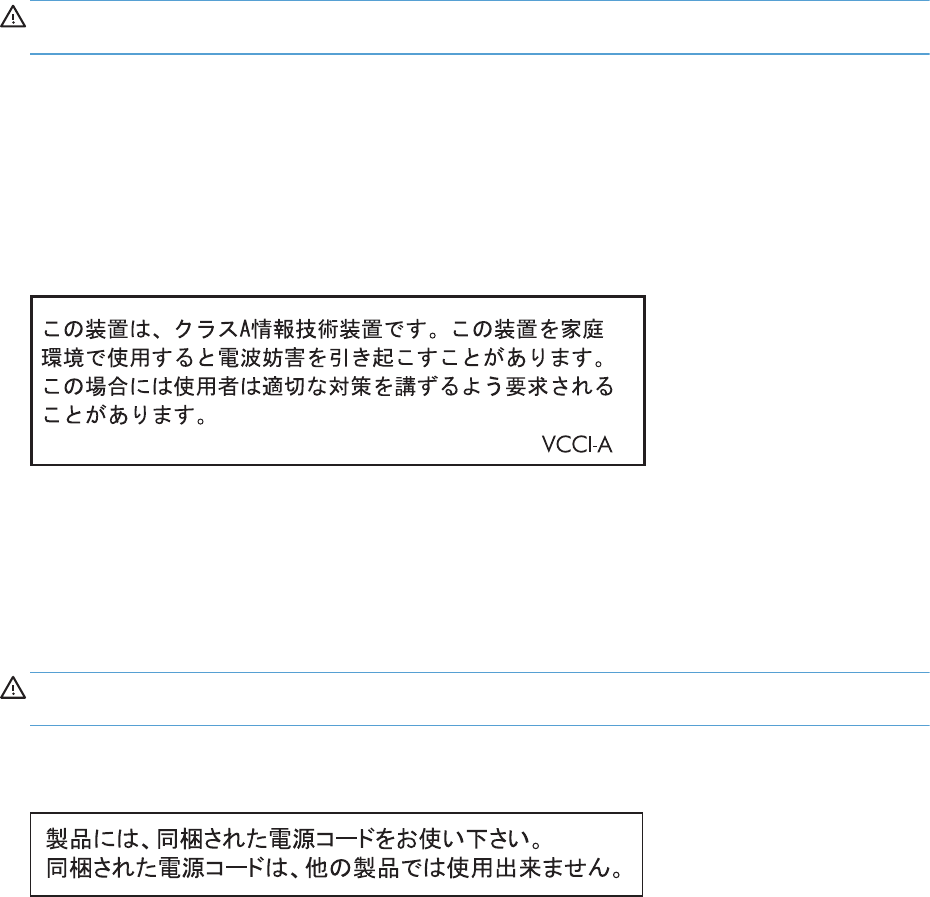
Safety statements
Laser safety
The Center for Devices and Radiological Health (CDRH) of the U.S. Food and Drug Administration has
implemented regulations for laser products manufactured since August 1, 1976. Compliance is
mandatory for products marketed in the United States. The device is certified as a “Class 1” laser
product under the U.S. Department of Health and Human Services (DHHS) Radiation Performance
Standard according to the Radiation Control for Health and Safety Act of 1968. Since radiation
emitted inside the device is completely confined within protective housings and external covers, the
laser beam cannot escape during any phase of normal user operation.
WARNING! Using controls, making adjustments, or performing procedures other than those
specified in this user guide may result in exposure to hazardous radiation.
Canadian DOC regulations
Complies with Canadian EMC Class A requirements.
« Conforme à la classe A des normes canadiennes de compatibilité électromagnétiques. « CEM ». »
VCCI statement (Japan)
Power cord instructions
Make sure your power source is adequate for the product voltage rating. The voltage rating is on the
product label. The product uses either 100-127 Vac or 220-240 Vac and 50/60 Hz.
Connect the power cord between the product and a grounded AC outlet.
CAUTION: To prevent damage to the product, use only the power cord that is provided with the
product.
Power cord statement (Japan)
380 Appendix C Regulatory information ENWW
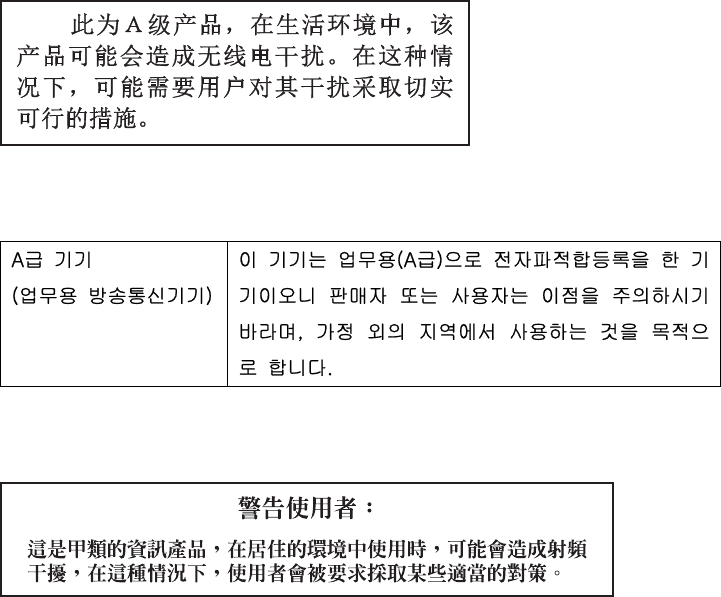
EMC statement (China)
EMC statement (Korea)
EMI statement (Taiwan)
Laser statement for Finland
Luokan 1 laserlaite
Klass 1 Laser Apparat
HP LaserJet Enterprise 500 MFP M525dn, M525f, HP LaserJet Enterprise flow MFP M525c,
laserkirjoitin on käyttäjän kannalta turvallinen luokan 1 laserlaite. Normaalissa käytössä kirjoittimen
suojakotelointi estää lasersäteen pääsyn laitteen ulkopuolelle. Laitteen turvallisuusluokka on määritetty
standardin EN 60825-1 (2007) mukaisesti.
VAROITUS !
Laitteen käyttäminen muulla kuin käyttöohjeessa mainitulla tavalla saattaa altistaa käyttäjän
turvallisuusluokan 1 ylittävälle näkymättömälle lasersäteilylle.
VARNING !
Om apparaten används på annat sätt än i bruksanvisning specificerats, kan användaren utsättas för
osynlig laserstrålning, som överskrider gränsen för laserklass 1.
HUOLTO
HP LaserJet Enterprise 500 MFP M525dn, M525f, HP LaserJet Enterprise flow MFP M525c - kirjoittimen
sisällä ei ole käyttäjän huollettavissa olevia kohteita. Laitteen saa avata ja huoltaa ainoastaan sen
huoltamiseen koulutettu henkilö. Tällaiseksi huoltotoimenpiteeksi ei katsota väriainekasetin vaihtamista,
ENWW Safety statements 381
paperiradan puhdistusta tai muita käyttäjän käsikirjassa lueteltuja, käyttäjän tehtäväksi tarkoitettuja
ylläpitotoimia, jotka voidaan suorittaa ilman erikoistyökaluja.
VARO !
Mikäli kirjoittimen suojakotelo avataan, olet alttiina näkymättömällelasersäteilylle laitteen ollessa
toiminnassa. Älä katso säteeseen.
VARNING !
Om laserprinterns skyddshölje öppnas då apparaten är i funktion, utsättas användaren för osynlig
laserstrålning. Betrakta ej strålen.
Tiedot laitteessa käytettävän laserdiodin säteilyominaisuuksista: Aallonpituus 775-795 nm Teho 5 m W
Luokan 3B laser.
382 Appendix C Regulatory information ENWW
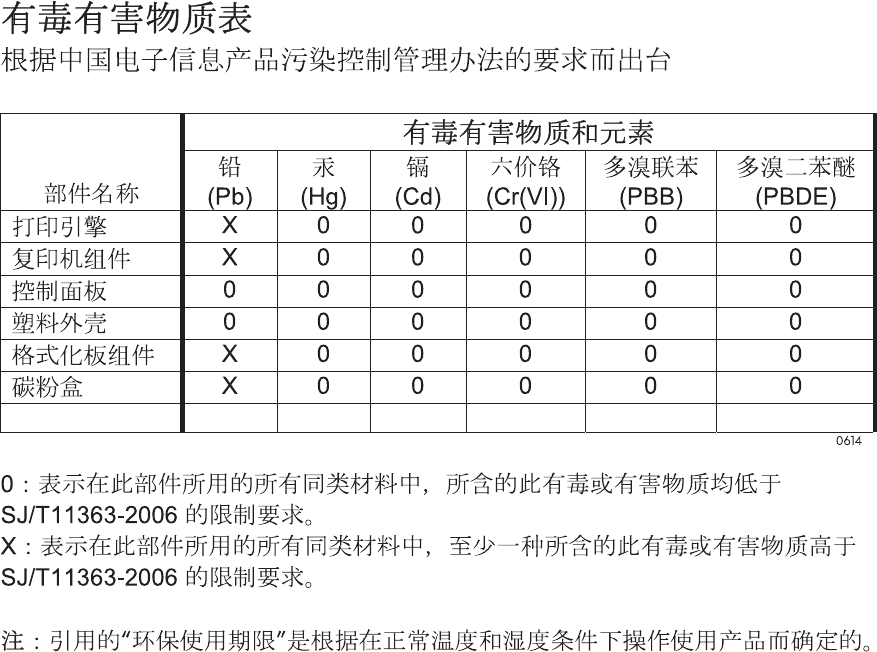
GS statement (Germany)
Das Gerät ist nicht für die Benutzung im unmittelbaren Gesichtsfeld am Bildschirmarbeitsplatz
vorgesehen. Um störende Reflexionen am Bildschirmarbeitsplatz zu vermeiden, darf dieses Produkt
nicht im unmittelbaren Gesichtsfeld platziert warden.
Das Gerät ist kein Bildschirmarbeitsplatz gemäß BildscharbV. Bei ungünstigen Lichtverhältnissen (z. B.
direkte Sonneneinstrahlung) kann es zu Reflexionen auf dem Display und damit zu Einschränkungen der
Lesbarkeit der dargestellten Zeichen kommen.
Substances Table (China)
Restriction on Hazardous Substances statement (Turkey)
Türkiye Cumhuriyeti: EEE Yönetmeliğine Uygundur
Restriction on Hazardous Substances statement (Ukraine)
Обладнання відповідає вимогам Технічного регламенту щодо обмеження використання деяких
небезпечних речовин в електричному та електронному обладнанні, затвердженого постановою
Кабінету Міністрів України від 3 грудня 2008 № 1057
ENWW Safety statements 383
Additional statements for telecom (fax) products
EU Statement for Telecom Operation
This product is intended to be connected to the analog Public Switched Telecommunication Networks
(PSTN) of European Economic Area (EEA) countries/regions.
It meets requirements of EU R&TTE Directive 1999/5/EC (Annex II) and carries appropriate CE
conformity marking.
For more details see Declaration of Conformity issued by the manufacturer in another section of this
manual.
However due to differences between individual national PSTNs the product may not guarantee
unconditional assurance of successful operation on every PSTN termination point. Network
compatibility depends on the correct setting being selected by the customer in preparation of its
connection to the PSTN. Please follow the instructions provided in the user manual.
If you experience network compatibility issues, please contact your equipment supplier or Hewlett-
Packard help desk in the country/region of operation.
Connecting to a PSTN termination point may be the subject of additional requirements set out by the
local PSTN operator.
New Zealand Telecom Statements
The grant of a Telepermit for any item of terminal equipment indicates only that Telecom has accepted
that the item complies with minimum conditions for connection to its network. It indicates no
endorsement of the product by Telecom, nor does it provide any sort of warranty. Above all, it provides
no assurance that any item will work correctly in all respects with another item of Telepermitted
equipment of a different make or model, nor does it imply that any product is compatible with all of
Telecom’s network services.
This equipment may not provide for the effective hand-over of a call to another device connected to the
same line.
This equipment shall not be set up to make automatic calls to the Telecom “111” Emergency Service.
This product has not been tested to ensure compatibility with the FaxAbility distinctive ring service for
New Zealand.
Additional FCC statement for telecom products (US)
This equipment complies with Part 68 of the FCC rules and the requirements adopted by the ACTA. On
the back of this equipment is a label that contains, among other information, a product identifier in the
format US:AAAEQ##TXXXX. If requested, this number must be provided to the telephone company.
The REN is used to determine the quantity of devices, which may be connected to the telephone line.
Excessive RENs on the telephone line may result in the devices not ringing in response to an incoming
call. In most, but not all, areas, the sum of the RENs should not exceed five (5.0). To be certain of the
384 Appendix C Regulatory information ENWW
number of devices that may be connected to the line, as determined by the total RENs, contact the
telephone company to determine the maximum REN for the calling area.
This equipment uses the following USOC jacks: RJ11C.
An FCC-compliant telephone cord and modular plug is provided with this equipment. This equipment is
designed to be connected to the telephone network or premises wiring using a compatible modular
jack, which is Part 68 compliant. This equipment cannot be used on telephone company-provided coin
service. Connection to Party Line Service is subject to state tariffs.
If this equipment causes harm to the telephone network, the telephone company will notify you in
advance that temporary discontinuance of service may be required. If advance notice is not practical,
the telephone company will notify the customer as soon as possible. Also, you will be advised of your
right to file a complaint with the FCC if you believe it is necessary.
The telephone company may make changes in its facilities, equipment, operations, or procedures that
could affect the operation of the equipment. If this happens, the telephone company will provide
advance notice in order for you to make the necessary modifications in order to maintain uninterrupted
service.
If trouble is experienced with this equipment, please see the numbers in this manual for repair and (or)
warranty information. If the trouble is causing harm to the telephone network, the telephone company
may request you remove the equipment from the network until the problem is resolved.
The customer can do the following repairs: Replace any original equipment that came with the device.
This includes the toner cartridge, the supports for trays and bins, the power cord, and the telephone
cord. It is recommended that the customer install an AC surge arrestor in the AC outlet to which this
device is connected. This is to avoid damage to the equipment caused by local lightning strikes and
other electrical surges.
Telephone Consumer Protection Act (US)
The Telephone Consumer Protection Act of 1991 makes it unlawful for any person to use a computer or
other electronic device, including fax machines, to send any message unless such message clearly
contains, in a margin at the top or bottom of each transmitted page or on the first page of the
transmission, the date and time it is sent and an identification of the business, other entity, or individual
sending the message and the telephone number of the sending machine or such business, or other
entity, or individual. (The telephone number provided cannot be a 900 number or any other number for
which charges exceed local or long distance transmission charges).
Industry Canada CS-03 requirements
Notice: The Industry Canada label identifies certified equipment. This certification means the
equipment meets certain telecommunications network protective, operational, and safety requirements
as prescribed in the appropriate Terminal Equipment Technical Requirement document(s). The
Department does not guarantee the equipment will operate to the user’s satisfaction. Before installing
this equipment, users should ensure that it is permissible for the equipment to be connected to the
facilities of the local telecommunications company. The equipment must also be installed using an
acceptable method of connection. The customer should be aware that compliance with the above
conditions may not prevent degradation of service in some situations. Repairs to certified equipment
should be coordinated by a representative designated by the supplier. Any repairs or alterations made
by the user to this equipment, or equipment malfunctions, may give the telecommunications company
ENWW Additional statements for telecom (fax) products 385
cause to request the user to disconnect the equipment. Users should ensure for their own protection that
the electrical ground connections of the power utility, telephone lines, and internal metallic water pipe
system, if present, are connected together. This precaution can be particularly important in rural areas.
CAUTION: Users should not attempt to make such connections themselves, but should contact the
appropriate electric inspection authority, or electrician, as appropriate. The Ringer Equivalence
Number (REN) of this device is 0.0B.
This product meets the applicable Industry Canada technical specifications. / Le présent matériel est
conforme aux specifications techniques applicables d’Industrie Canada.
Notice: The Ringer Equivalence Number (REN) assigned to each terminal device provides an indication
of the maximum number of terminals allowed to be connected to a telephone interface. The termination
on an interface may consist of any combination of devices subject only to the requirement that the sum
of the Ringer Equivalence Number of all the devices does not exceed five (5.0). / L’indice
d’équivalence de la sonnerie (IES) sert à indiquer le nombre maximal de terminaux qui peuvent être
raccordés à une interface téléphonique. La terminaison d’une interface peut consister en une
combinaison quelconque de dispositifs, à la seule condition que la somme d’indices d’équivalence de
la sonnerie de tous les dispositifs n’excède pas cinq.
The standard connecting arrangement code (telephone jack type) for equipment with direct connections
to the telephone network is CA11A.
Vietnam Telecom wired/wireless marking for ICTQC Type
approved products
Japan Telecom Mark
A08-0138004
386 Appendix C Regulatory information ENWW

Index
A
accessories installed, information
126
acoustic specifications 364
Administration menu, control
panel 128
anticounterfeit supplies 354
B
Backup/Restore menu, control
panel 196
batteries included 369
black page, problem-solving 312
blank page
problem-solving 307
blank pages
troubleshooting 320
blurred print, problem-solving
314
C
cables
USB, troubleshooting 320
Calibrate/Cleaning menu, control
panel 197
Canadian DOC regulations 380
cartridge
memory tag 34
cartridges
error messages 254
non-HP 353
recycling 368
replace message 254
warranty 352
cautions iii
characters, misformed 311
checklist
problems 64
circuit diagrams
general 121
clean the paper path
cleaning page printing 123
cleaning
paper path 315
product 315
rollers 318
scanner glass 316
cleaning page 197
clear jams 275
clock
error message 203
cold reset 325
color
page count, reset 323
components
diagnostic tests 109
diagrams of 112
configuration page 80
configuration pages
information 126
printing 124
control panel
Administration menu 128
Backup/Restore menu 196
Calibrate/Cleaning menu 197
Copy Settings menu 136
Display Settings menu 172
Fax Settings menu 155
General Settings menu 129
Manage Supplies menu 175
Manage Trays menu 177
messages, numerical list 200
messages, types of 200
Network Settings menu 179
Print Options menu 171
Print Settings menu 169
Reports menu 128
Scan/Digital Send Settings
menu 144
Service menu 199
Troubleshooting menu 193
troubleshooting tests 109
USB Firmware Upgrade menu
199
conventions, document iii
copy
improve quality 316
Copy Settings menu, control
panel 136
counterfeit supplies 354
counts 323
color cycle 323
copy pages 324
copy scan 324
document feeder 324
document feeder duplex 324
document feeder simplex 324
flatbed cycle 324
mono cycle 323
page, reset 323
refurbish cycle 323
reset after replacing formatter
323
send scan 324
See also
pages counts
creased paper, problem-solving
312
crooked pages 311
curled paper, problem-solving
312
customer support
online 361
D
date
codes for firmware 126
ENWW Index 387
manufacture 125
product first used 324
demo page 80
density
problem-solving 307
developing stage 31
diagnostics
component 109
control panel 109
engine 83
LED 80
networks 187
Display Settings menu, control
panel 172
disposal, end-of-life 369
document conventions iii
document feeder
jams 277
operations 46
paper-feeding problems 303
sensors, M525c 53
sensors, standard models 47
document feeder count
document feeder pages 323
document feeder interval 323
dots, problem-solving 308, 313
dropouts, problem-solving 309
drum cleaning stage 33
duplexer
jams 292
E
electrical specifications 364
electronic hardware recycling
370
end-of-life disposal 369
engine
diagnostics 83
engine test 83
engine-control system 8
envelopes
wrinkled, problem-solving 312
environmental stewardship
program 367
error
codes 340
error messages
event log, listed numerically
266
numerical list 200
types of 200
event log 80
clear 265, 323
information 126
messages, listed numerically
266
print 265
view 265
event-log messages 264
F
fax
feeding problems 334
Fax Settings menu, control panel
155
FCC regulations 366
feeding problems 334
Finnish laser safety statement 381
firmware
date codes 126
version information 125
firmware, downloading new 344
flowcharts
troubleshooting 75
formatter
resets after replacing 323
formatter lights 80
fraud Web site 354
fuser
jams 289
fusing stage 32
G
General Settings menu, control
panel 129
gray background, problem-
solving 310
H
HP Customer Care 361
HP fraud Web site 354
HP Jetdirect print server
configuration page 125
lights 80
I
image defects, problem-solving
307
image repetition, problem-solving
314
installation
date calculation 324
verify for optional accessories
124
internal clock errors 203
IPv4 information 125
IPv6 information 125
J
jams
auto-navigation 275
clearing 275
common causes of 275
diagnostic test for 85
document feeder 277
duplexer 292
fuser 289
locations 276
output bin 280
rear door 289
toner cartridge 287
Tray 1 281
Tray 2 284
Japanese VCCI statement 380
Jetdirect print server
lights 80
K
Korean EMC statement 381
L
laser beam exposure stage 30
laser safety statements 380, 381
laser/scanner
operations 26
LEDs.
See
lights
license, software 356
light print
problem-solving 307
lights
formatter 80
troubleshooting with 80
lines horizontal, problem-solving
309, 312
lines vertical, problem-solving
312
lines, problem-solving 309, 313
link speed settings 192
log of events
messages, listed numerically
266
388 Index ENWW
loose toner, problem-solving 310
M
Manage Supplies menu, control
panel 175
Manage Trays menu, control
panel 177
manual print modes 304
material restrictions 369
Material Safety Data Sheet
(MSDS) 370
memory
information 124
insufficient 216
supply errors 200
toner cartridge 34
memory chip, toner cartridge
description 355
menus, control panel
Administration 128
Backup/Restore 196
Calibrate/Cleaning 197
Copy Settings 136
Display Settings 172
Fax Settings 155
General Settings 129
Manage Supplies 175
Manage Trays 177
Network Settings 179
Print Options 171
Print Settings 169
Reports 128
Scan/Digital Send Settings
144
Service 199
Troubleshooting 193
USB Firmware Upgrade 199
mercury-free product 369
messages
event log, listed numerically
266
numerical list 200
types of 200
misformed characters, problem-
solving 311
model number 125
modem speed 336
N
Network Settings menu, control
panel 179
networks
diagnostics 187
HP embedded Jetdirect
configuration page 125
link speed settings 192
non-HP supplies 353
notes iii
O
online support 361
operations
document feeder 46
engine-control system 8
laser/scanner 26
scanner 46
toner cartridge memory 34
output bin
jams 280
P
pages
blank 320
not printing 320
printing slowly 320
pages count 323
from product copy 324
from product copy scan count
324
from product document feeder
324
from product flatbed 324
from product refurbish date
323
from product send scan 324
reset 323
See also
counts
paper
curled 312
default size reset 325
skewed 311
stop in path for testing 108
wrinkled 312
paper path
diagnostic test 85
stop movement for testing 108
paper pickup problems
solving 302
paper-path
test, sensors 85
password
Service menu PIN 323
PBX systems troubleshooting 338
phone lines troubleshooting 338
physical specifications 364
port configuration information
125
power
consumption 364
power supply
troubleshooting 76
primary charging stage 30
Print Options menu, control panel
171
print quality
black page 312
blurred 314
dropouts 309
gray background 310
horizontal lines 309
image defects 307
light print 307
lines 309
loose toner 310
manual print modes 304
misformed characters 311
repeating defects 311
repetitive images 314
scattered lines 313
smeared toner 310
specks 308
test pages 123
tire tracks 313
white horizontal lines 312
white lines vertical 312
white spots 313
Print Quality menu options 304
Print Settings menu, control panel
169
Print Test Page 131
printing
modes, manual 304
stop for testing 108
troubleshooting 320
problem-solving
black page 312
blank page 307
blurred print 314
ENWW Index 389
curled paper 312
dropouts 309
event-log messages 264
gray background 310
image defects 307
light print 307
lines 309
lines horizontal 309, 312
lines vertical 312
messages, types of 200
networks 187
repeating defects 311
repetitive images 314
scattered lines 313
skewed pages 311
smeared toner 310
specks 308
text quality 311, 314
tire tracks 313
white spots 313
wrinkled paper 312
Process Cleaning Page 197
R
rear door
jams 289
recycling 368
electronic hardware 370
HP printing supplies returns and
environmental program 368
repeating defects, problem-
solving 311, 314
replace supplies message 254
Reports menu, control panel 128
restore factory settings 326
rollers
cleaning 318
S
safety statements 380, 381
Scan/Digital Send Settings menu,
control panel 144
scanner
operations 46
scanner glass
cleaning 316
scanner settings 324
security settings information 125
sensor tests, manual
cartridge door switch 89
duplexer refeed sensor 94
fuser output sensor 93
output bin full sensor 96, 104
paper width sensor 1 92
rear bin sensor 95
rear cover sensor 90
TOP sensor 91
Tray 1 paper sensor 101
Tray 2 cassette sensor 103
Tray 2 paper sensor 102
Tray 3 cassette sensor 106
Tray 3 feed sensor 97
Tray 3 paper sensor 105
Tray 4 cassette sensor 108
Tray 4 feed sensor 98
Tray 4 paper sensor 107
sensors
diagnostic tests 85
tests, manual 87
tests, manual tray/bin 99
sensors, M5525c
document feeder 53
sensors, standard model
document feeder 47
separation stage 32
serial number 324
Service ID
convert to date 324
restore 324
Service menu options 323
Service menu, control panel 199
service settings 343
settings
restore factory 326
size specifications, product 364
skewed pages 311
slow fax reception 336
slow fax transmission 338
smeared toner, problem-solving
310
software
software license agreement
356
solve problems 63
solving
direct-connect problems 321
network problems 321
specifications
electrical and acoustic 364
physical 364
specks, problem-solving 308,
313
spots, problem-solving 308, 313
status
messages, types of 200
status page 80
status, fax accessory page 333
stop printing for test 108
supplies
counterfeit 354
error messages 254
memory errors 200
non-HP 353
recycling 368
replace message 254
support
online 361
T
T.30 Trace report 343
Taiwan EMI statement 381
TCP/IP information 125
technical support
online361
tests
engine 83
manual sensor 87
networks 187
paper path 85
paper-path sensors 85
print/stop 108
tray/bin manual sensor 99
text, problem-solving
blurred 314
misformed characters 311
tips iii
tire tracks, problem-solving 313
toner
output quality, problem-
solving 310
toner cartridge
jams 287
memory tag 34
toner cartridges
error messages 254
memory chips 355
non-HP 353
recycling 368
replace message 254
warranty 352
390 Index ENWW
transfer stage 32
Tray 1
jams 281
Tray 2
jams 284
tray selection - use requested tray
177
troubleshooting 63
blank pages 320
checklist 64
clean the paper path 123
configuration page 80
configuration pages for 124
control panel 109
control panel messages,
numerical 200
control-panel checks 77
demo page 80
direct-connect problems 321
engine test 83
event log 80
event log messages, numerical
list 266
flowchart 75
lights, using 80
network problems 321
pages not printing 320
pages printing slowly 320
paper feed problems 302
PBX systems 338
power 76
process 75
reports and tools 80
scanner calibration 79
scanning subsystem 79
slow fax reception 336
slow fax transmission 338
status page 80
USB cables 320
Troubleshooting menu, control
panel 193
U
upgrades, downloading product
344
USB Firmware Upgrade menu,
control panel 199
USB port
troubleshooting 320
Use Requested Tray 177
V
version, hardware firmware 125
VoIP 335
W
warnings iii
warranty
customer self repair 360
license 356
product 350
toner cartridges 352
warranty date information 324
waste disposal 370
wavy paper, problem-solving 312
Web sites
customer support 361
fraud reports 354
Material Safety Data Sheet
(MSDS) 370
white horizontal lines or spots,
problem-solving 312
white vertical lines or spots,
problem-solving 312
wrinkled paper, problem-solving
312
ENWW Index 391
392 Index ENWW

© 2012 Hewlett-Packard Development Company, L.P.
www.hp.com
*CF116-90901*
*CF116-90901*
CF116-90901
