Huawei Union User Guide Huawei Union Manual
2017-11-29
: Huawei-Union-Manual huawei-union-manual manuals phones
Open the PDF directly: View PDF  .
.
Page Count: 128 [warning: Documents this large are best viewed by clicking the View PDF Link!]
- Title
- Contents
- Introduction
- Get Started
- Basic Operations
- Your Phone Interface
- Phone App
- Contacts
- Messaging and Internet
- Camera and Video
- Apps and Features
- Connectivity
- Settings
- Basic Settings
- Wi-Fi Settings Menu
- Bluetooth Settings
- Location Access Settings
- Data Traffic Management Settings
- More Settings
- Display Settings
- Sound Settings
- Storage Settings
- Battery Settings
- Applications Settings
- Security Settings
- Lock Screen Settings
- Language & Input Settings
- Backup and Reset
- Accounts
- Date & Time Settings
- Accessibility Settings
- About Phone
- For Assistance
- Copyright Information
- Index
Available applications and services are subject to change at any time.

i
Table of Contents
Introduction 1
AbouttheUserGuide 1
AccessInstructionsonPhone 1
LaunchtheGuide 1
GetStarted 2
PartsandFunctions 2
SIMCard 3
SDCard 5
InsertSDCard 5
RemoveSDCard 7
FormatSDCard 8
BatteryUse 9
InserttheBattery 9
RemovetheBattery 10
ChargetheBattery 11
TurnYourPhoneOnandOff 12
UsetheTouchscreen 13
ActivationandService 15
CompletetheSetupScreens 16
BasicOperations 18
Basics 18
HomeScreenandApplications(Apps)List 18
PhoneSettingsMenu 18
PortraitandLandscapeScreenOrientation 18
CaptureScreenshots 19
Applications 19
LaunchApplications 19
AppsList 20
PhoneNumber 20
SilentMode/AirplaneMode 21
SilentMode 21
AirplaneMode 21
EnterText 22
TouchscreenKeyboards 22
AndroidKeyboard 22

ii
TipsforEditingText 23
GoogleAccount 24
CreateaGoogleAccount 24
SignIntoYourGoogleAccount 25
GooglePlayStore 25
FindandInstallanApp 26
RequestaRefundforaPaidApp 26
UpdateanApp 27
UninstallanApp 27
GetHelpwithGooglePlay 27
LockandUnlockYourScreen 28
UpdateYourPhone 28
UpdateYourPhoneSoftware 28
UpdateYourProfile 30
UpdateYourPRL 30
YourPhoneInterface 31
HomeScreenBasics 31
HomeScreenLayout 31
ExtendedHomeScreens 32
StatusBarandNotificationPanel 32
StatusBar 32
NotificationPanel 34
CustomizetheHomeScreen 34
ChangetheWallpaper 34
AddShortcutstotheHomeScreen 35
AddWidgetstotheHomeScreen 35
CreateaFolder 35
PhoneApp 37
PlaceandAnswerCalls 37
CallUsingthePhoneDialer 37
CallEmergencyNumbers 38
AnswerPhoneCalls 39
In-CallScreenLayoutandOperations 40
PlaceaCallfromContacts 41
CallfromCallLogs 41
OptionalServices 41
VoicemailSetup 41
VisualVoicemail 42

iii
SetUpVisualVoicemail 42
ReviewVisualVoicemail 43
ListentoMultipleVoicemailMessages 43
VisualVoicemailOptions 44
ConfigureVisualVoicemailSettings 44
CallerIDBlocking 45
CallWaiting 45
ConferenceCalling 46
CallForwarding 46
CallSettings 47
AccessCallSettings 47
CallSettingsOptions 47
TTYMode 48
Contacts 50
AddaContact 50
SaveaPhoneNumber 51
ViewContacts 51
EditaContact 52
DeleteaContact 52
ShareaContact 52
ImportContacts 53
BackUpContacts 53
MessagingandInternet 55
TextandMultimediaMessaging 55
SendaTextMessage 55
SendaMultimediaMessage(MMS) 56
SaveandResumeaDraftMessage 56
NewMessagesNotification 56
ManageMessageConversations 57
TextandMMSOptions 59
Gmail 60
CreateandSendaGmailMessage 60
GmailCompositionOptions 60
CheckReceivedGmailMessages 61
UseGmailLabels 61
ArchiveGmailThreads 62
MuteGmailThreads 62
DeleteGmailThreads 62

iv
SearchGmailMessages 62
ReportSpamorPhishingGmail 62
AddAnotherGoogle(Gmail)Account 63
SwitchingBetweenGmailAccounts 63
Email 63
SetUpanEmailAccount 63
AddanEmailAccount 64
AddanExchangeActiveSyncAccount 64
ComposeandSendEmail 65
CheckYourEmail 65
OptionsWhenReviewingEmailMessages 66
DeleteanEmailAccount 66
ManageYourEmailInbox 66
Browser 67
UsetheBrowser 67
BrowserSettings 68
AddaBookmark 68
ViewBrowserHistory 68
ChromeBrowser 69
CameraandVideo 70
TakePicturesandRecordVideos 70
TakeaPicture 70
LaunchtheCameraFromtheGallery 70
CaptureModes 71
RecordVideos 72
ViewPicturesandVideosUsingGallery 73
EditPictures 74
SharePicturesandVideos 74
SendPicturesorVideosbyEmail 74
SendaPictureorVideobyMultimediaMessage 75
SendPicturesorVideosUsingBluetooth 75
SharePicturesandVideosonFacebook 76
SharePicturesonFlickr 76
SharePicturesonPicasa 77
ShareVideosonYouTube 77
CameraSettings 78
AppsandFeatures 79
NavigationApps 79

v
GoogleMaps 79
Hangouts 79
GoogleSearch 79
Calculator 80
Calendar 80
AddanEventtotheCalendar 80
ViewCalendarEvents 81
SyncCalendars 81
SynchronizeanExchangeActiveSyncCalendar 82
Clock 82
SetAlarms 83
AdditionalClockFeatures 83
Safe 84
Backup 84
PhoneManager 85
YouTube 86
ViewYouTubeVideos 86
PostaVideotoYouTube 86
GooglePlayMusicApp 87
PlayMusicwithGooglePlay 87
GooglePlayMusicScreenLayout 87
CreatePlaylistsinGooglePlayMusic 88
Notepad 88
Connectivity 89
TransferFilesbetweenYourPhoneandaComputer 89
FileTransferTips 89
TransferFilesbetweenthePhoneandaComputer 89
Wi-Fi 90
TurnWi-FiOnandConnecttoaWirelessNetwork 90
Wi-FiSettings 90
DisconnectWi-Fi 91
Wi-FiDirect 91
Bluetooth 91
BluetoothInformation 92
EnabletheBluetoothFeature 92
PairBluetoothDevices 92
ConnecttoaPairedBluetoothDevice 93
SendInformationUsingBluetooth 94

vi
ReceiveDataviaBluetooth 94
Settings 96
BasicSettings 96
Wi-FiSettingsMenu 96
BluetoothSettings 97
LocationAccessSettings 98
DataTrafficManagementSettings 98
MoreSettings 99
DisplaySettings 99
SoundSettings 100
StorageSettings 101
BatterySettings 101
ApplicationsSettings 101
SecuritySettings 102
LockScreenSettings 103
ScreenLock 103
DisabletheScreenLock 104
Language&InputSettings 105
BackupandReset 106
Accounts 107
Date&TimeSettings 108
AccessibilitySettings 108
AboutPhone 110
ForAssistance 112
Troubleshooting 112
Specifications 113
BoostAccountInformationandHelp 114
ManageYourAccount 114
Re-Boost 115
CopyrightInformation 116
Index 117

Introduction 1
Introduction
Thefollowingtopicsdescribethebasicsofusingthisguideandyournewphone.
About the User Guide
ThankyouforpurchasingyournewHuaweiUnion.Thefollowingtopicsexplainhowbesttousethis
guidetogetthemostoutofyourphone.
Before Using Your Phone
ReadtheGetStartedguideandImportantInformationbookletthatwerepackagedwithyourphone
thoroughlyforproperusage.
Accessibleservicesmaybelimitedbysubscriptioncontractconditions.
Descriptions in the User Guide
Notethatmostdescriptionsinthisguidearebasedonyourphone'ssetupatthetimeofpurchase.
Unlessotherwisenoted,instructionsbeginfromthephone'shomescreen,whichisdisplayedby
tapping .Someoperationdescriptionsmaybesimplified.
Screenshots and Key Labels
Screenshotsandotherillustrationsinthisuserguidemayappeardifferentlyonyourphone.Key
labelsintheuserguidearesimplifiedfordescriptionpurposesanddifferfromyourphone'sdisplay.
Other Notations
Intheuserguide,thephonemaybereferredtoeitheras"phone,""device,"or"handset."A
microSD™ormicroSDHC™cardisreferredtoasan"SDCard"ora"memorycard."
Access Instructions on Phone
Thesetopicswillhelpyoufindhelponyournewphoneandwillintroducethebasicsofusingyour
phone'stouchscreenifyouareanewuser.
Launch the Guide
Forthefulluserguide,gotohttp://devicehelp.boostmobile.com/andsearchforHUAWEIUnion.
Get Started 2
Get Started
Thefollowingtopicsgiveyoualltheinformationyouneedtosetupyourphoneandwirelessservice
thefirsttime.
Parts and Functions
Thesetopicsillustrateyourphone’sprimarypartsandkeyfunctions.
Note:Yourphone'sscreensandappslayoutsaresubjecttochange.Thisuserguideusessample
imagesonly.
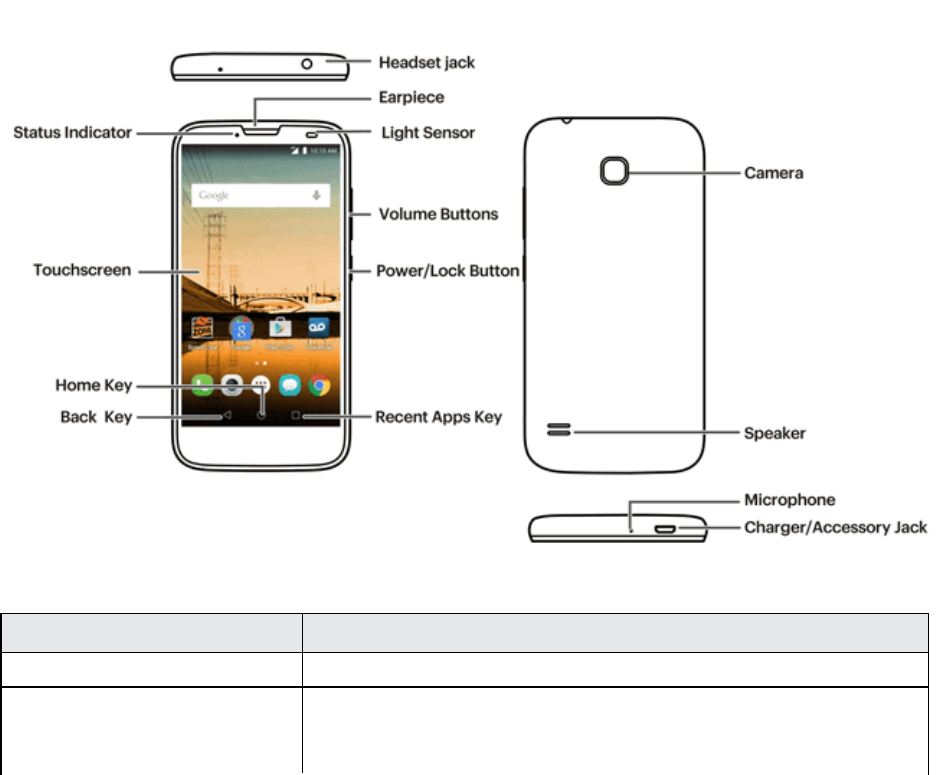
Phone Layout
Thefollowingillustrationoutlinesyourphone’sprimaryexternalfeaturesandkeys.
Note:Beforeyoustart,removetheTPprotectivefilm.
Part Description
Statusindicator Displaysaphonenotification,chargingstatus,oralert.
Touchscreen Displaysalltheinformationneededtooperateyourphone,suchasthe
callstatus,theContactslist,andthedateandtime.Alsoprovidesone-
tapaccesstoallofyourfeaturesandapplications.

Get Started 3
Part Description
Home keyReturnsyoutotheHomescreen.
Back keyLetsyoureturntothepreviousscreen,orcloseadialogbox,options
menu,theNotificationspanel,oronscreenkeyboard.
Recent apps keyDisplaysalistofrecentlyusedapplications.
Power key Letsyouturnthephoneonorofforturnthescreenonoroff,orswitch
yourphonetosilentmode,vibrationmode,orairplanemode.
Volume key Allowsyoutoadjusttheringtoneormediavolumeoradjustthevoice
volumeduringacall.
Light sensor Detectshowcloseanobjectistothesurfaceofthescreen.Thisis
typicallyusedtodetectwhenyourfaceispressedupagainstthe
screen,suchasduringaphonecall.
Whiletalkingonthephone,thesensordetectstalkactivityandlocks
thekeypadtopreventaccidentalkeypresses.
Earpiece Letsyouhearthecallerandautomatedprompts.
Headset jack Allowsyoutoplugineitherastereoheadsetoranoptionalheadsetfor
convenient,hands-freeconversations.
Camera Letsyoutakepicturesandvideos.
Speaker Letsyouhearthedifferentringtonesandsounds.Thespeakeralsolets
youhearthecaller’svoiceinspeakerphonemode.
Microphone Transmitsyourvoiceforphonecallsorrecordsyourvoiceorambient
soundsforvoicerecordingsandvideos.
Micro USB port AllowsyoutoconnectthephonechargerortheUSBcable(included).
CAUTION!Insertinganaccessoryintotheincorrectjackmaydamagethephone.
SIM Card
TheSIMcardisanICcardcontainingphonenumberandothercustomerinformation.
Handling a SIM Card
KeepthefollowinginmindwhenhandlingaSIMcard.
n CustomerisresponsibleforanydamagecausedbyinsertingSIMcardinanother-brandICcard
reader,etc.Thecompanyisnotresponsibleinsuchcase.
n AlwayskeeptheICchipclean.
n Wipecleanwithadry,softcloth.
n Avoidapplyinglabels.MaydamageSIMcard.
n SeeinstructionsincludedwithSIMcardforhandling.
n SIMcardisthepropertyofthecompany.
Get Started 4
n SIMcardisreplaceable(atcost)incaseofloss/damage.
n ReturnSIMcardtothecompanywhencancellingsubscription.
n ReturnedSIMcardsarerecycledforenvironmentalpurposes.
n NotethatSIMcardspecificationsandperformancemaychangewithoutnotice.
n ItisrecommendedthatyoukeepaseparatecopyofinformationthatisstoredonSIMcard.The
companyisnotresponsiblefordamagesfromstoredinformationthatislost.
n AlwaysfollowemergencyprocedurestosuspendserviceifyourSIMcardorphone(SIMcard
inserted)islost/stolen.Fordetails,contactCustomerService.
n Alwayspoweroffphonebeforeinserting/removingSIMcard.
Insert a SIM Card
FollowtheseinstructionstoinsertaSIMcard.Remembertopoweroffyourphonebeforeinserting
aSIMcard.
Note:Yourphone’sSIMcardispreinstalled.Theseinstructionsareforreferenceonly.
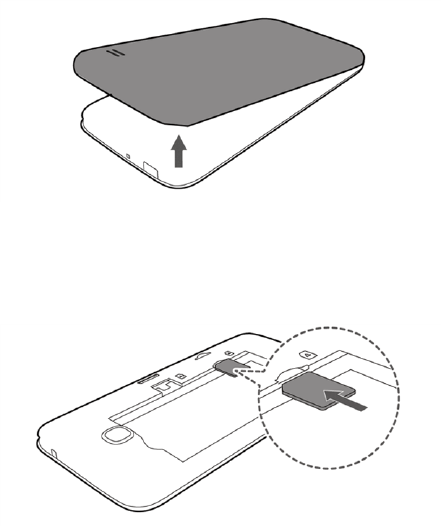
1. Removethebatterycover.
l Liftgentlyinthedirectionshown.
2. InsertaSIMcard.
l InsertgentlywithgoldICchipfacingdownward.
Get Started 5
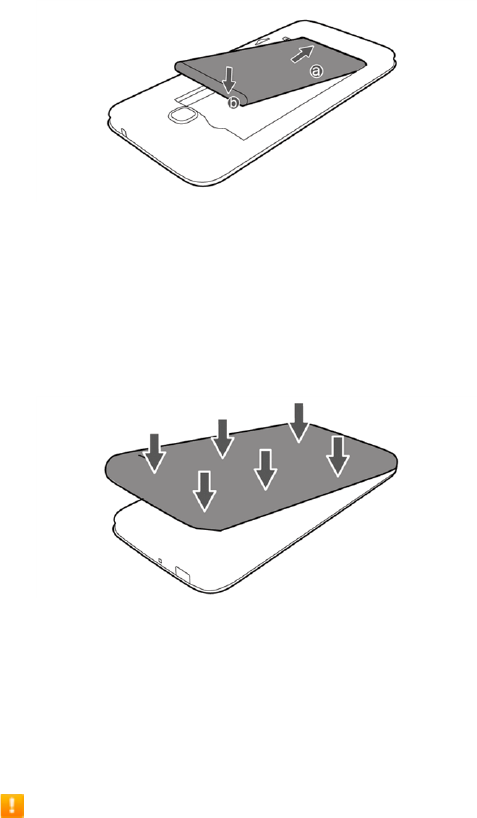
3. Insertthebattery.
l Angletheedgelabeleda(withthecontacts)intothebottomendofthebattery
compartment.
l Pushtheedgelabeledbintothecompartmentuntilthebatteryclicksfirmlyintoplace.
4. Attachthebatterycover.
l Makesureallthetabsaresecureandtherearenogapsaroundthecover.
SD Card
YourphonesupportstheuseofanoptionalSDcard(notincluded)toexpanditsstoragecapacity.It
supportscardsupto32GB.Somecardsmaynotoperateproperlywithyourphone.
SD Card Cautions
Data:InformationstoredonSDCardcanbecomelostorchangedaccidentlyorasaresultof
damage.Itisrecommendedthatyoukeepaseparatecopyofimportantdata.Thecompanyis
notresponsiblefordamagesfromdatathatislostorchanged.
Reading/Writing Data:Neverpowerofforremovebatterywhilereadingorwritingdata.
Battery Level:Alowbatterychargemaypreventreading/writingtoSDCard.
Handling SD Card:Use/storeSDCardsawayfromthereachofinfants.Maycausechokingif
swallowed.
Insert SD Card
FollowthesestepstoinsertanoptionalSDcard(notincluded).Makesuretopoweryourphoneoff
beforeinsertingorremovingaSDcard.
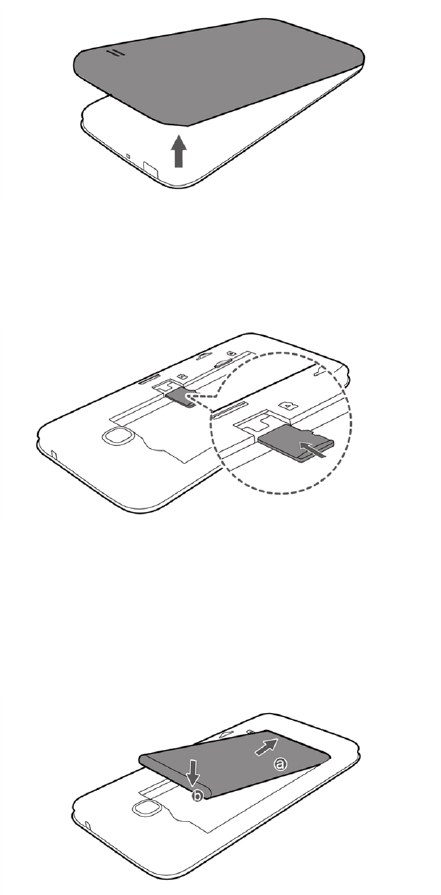
Get Started 6
1. Removethebatterycover.
l Liftgentlyinthedirectionshown.
2. InsertaSDcard.
l InsertSDCardallthewaygentlywithoutbendingandwithterminalsfacingdown.
l InsertonlySDCards.
3. Insertthebattery.
l Angletheedgelabeleda(withthecontacts)intothebottomendofthebattery
compartment.
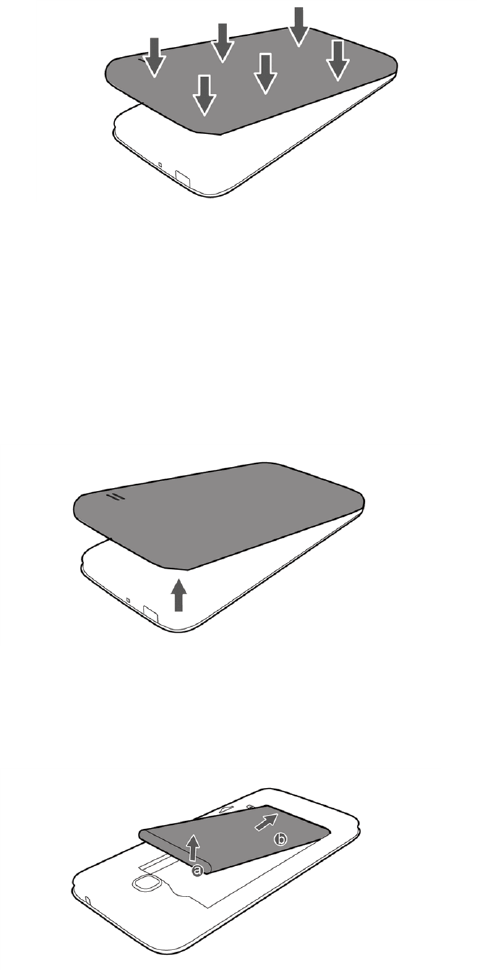
Get Started 7
l Pushtheedgelabeledbintothecompartmentuntilthebatteryclicksfirmlyintoplace.
l Makesureallthetabsaresecureandtherearenogapsaroundthecover.
Remove SD Card
FollowtheseinstructionstoremoveanSDcard.Alwayspowerthephoneoffbeforeinsertingor
removinganSDcard.
1. Removethebatterycover.
l Liftgentlyinthedirectionshown.
2. Removethebattery.
l Liftupwardgentlyasshown.
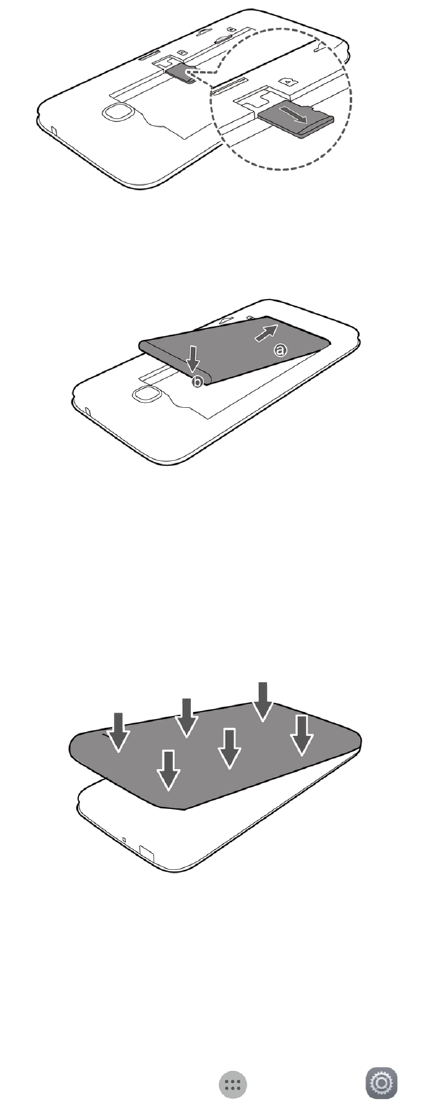
Get Started 8
3. RemovetheSDcard.
4. Insertthebattery.
l Angletheedgelabeleda(withthecontacts)intothebottomendofthebattery
compartment.
l Pushtheedgelabeledbintothecompartmentuntilthebatteryclicksfirmlyintoplace.
5. Attachthebatterycover.
l Makesureallthetabsaresecureandtherearenogapsaroundthecover.
Format SD Card
WhenyouinsertanoptionalSDcardforthefirsttime,itisrecommendedthatyouformatitonyour
phone.
1. Fromhome,tapApps >Settings .
2. TapStorage>My SD card>Erase SD card.
3. TapErase SD cardagain.
4. TapErase everythingtoconfirm.
Get Started 9
AlldataontheSDcardiserased,andthecardisformattedforuseonyourphone.
Battery Use
Thefollowingtopicsexplainhowtoinsertandremoveyourphone’sbattery.
Battery Cautions
Storage:Avoidstoringorleavingbatterywithnochargeremaining.Savedinformationand
settingsmaybecomelostorchanged,orbatterymaybecomeunusable.Chargeonceeverysix
monthsbeforestoringorleavingunusedforalongperiod.
Bulges:Dependingonuse,bulgesmayappearnearendofbatterylife.Thisdoesnotaffect
safety.
Replacing Battery:Thebatteryisaconsumableitem.Itneedstobereplacedifoperatingtime
shortensnoticeably.Purchaseanewbattery.
Cleaning:Cleansoiledterminalsbetweenbatteryandphonewithaclean,drycottonswab.
Soiledterminalscanresultinapoorconnectionandpreventcharging,etc.
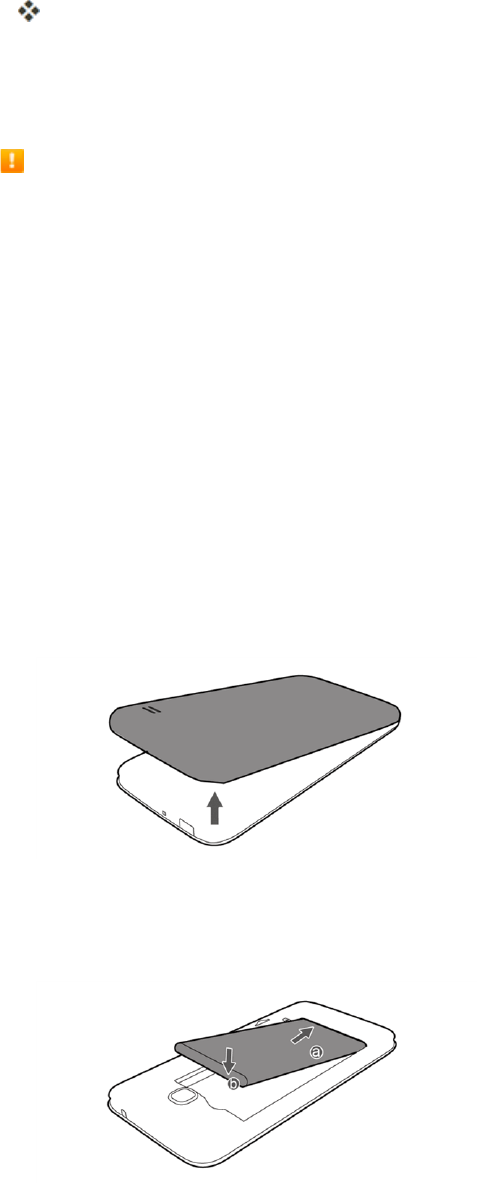
Insert the Battery
Followtheseinstructionstoinsertyourphone’sbatterysafelyandproperly.
1. Removethebatterycover.
l Liftgentlyinthedirectionshown.
2. Insertthebattery.
l Alignthecontactsofthebatterywiththecontactsinthephone.
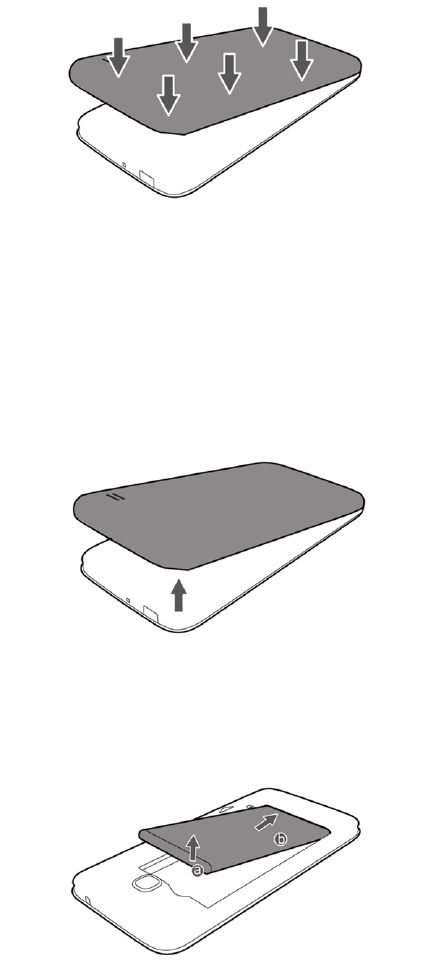
Get Started 10
3. Attachthebatterycover.
l Makesureallthetabsaresecureandtherearenogapsaroundthecover.
Remove the Battery
Followtheseinstructionstoremoveyourphone’sbattery.Alwayspowerthephoneoffbefore
removingthebattery.
1. Removethebatterycover.
l Liftgentlyinthedirectionshown.
2. Removethebattery.
l Liftupwardgentlyasshown.
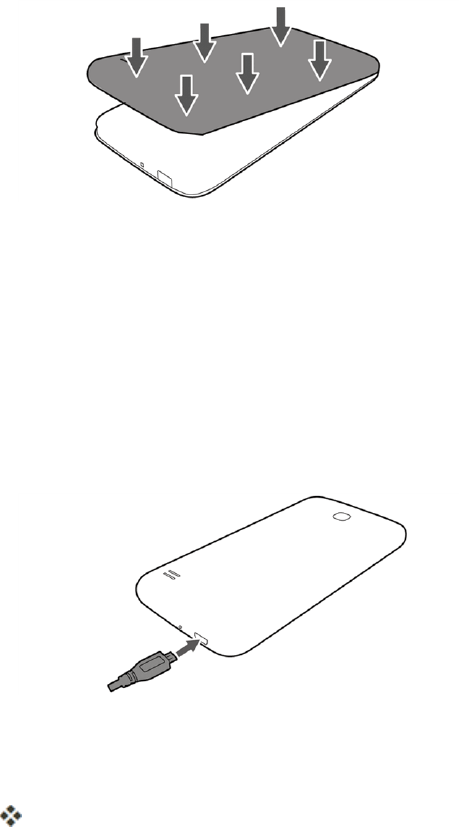
Get Started 11
3. Attachthebatterycover.
l Makesureallthetabsaresecureandtherearenogapsaroundthecover.
Charge the Battery
Followtheseinstructionstochargeyourphone’sbatteryusingeithertheincludedACadapterorvia
aUSBconnectiononyourcomputer.
Charge Using the AC Adapter
1. PlugtheUSBconnectorintothecharger/accessoryjackonthebottomofyourphone.
2. PlugtheotherendoftheUSBcableintotheACadapter.
3. PlugtheACadapterintoanelectricaloutlet.
Theindicatorlightilluminateswhenchargingstarts.Thelightturnsgreenwhenthebatteryis
almostfulloralreadyfull.
4. Aftercharging,disconnectthephonefromthecharger.
l UnplugtheACadapterfromtheoutlet,andremovetheUSBcablefromthephoneandthe
ACadapter.
Charge Using a PC Connection
BeforeusingaPCconnectiontochargeyourphone,ensurethatthecomputeristurnedon.
Dependingonthetypeofconnection,yourphone’sbatterymaynotcharge.
1. InsertthesmallendoftheUSBcordintothecharger/accessoryjackonthebottomofyour
phone.
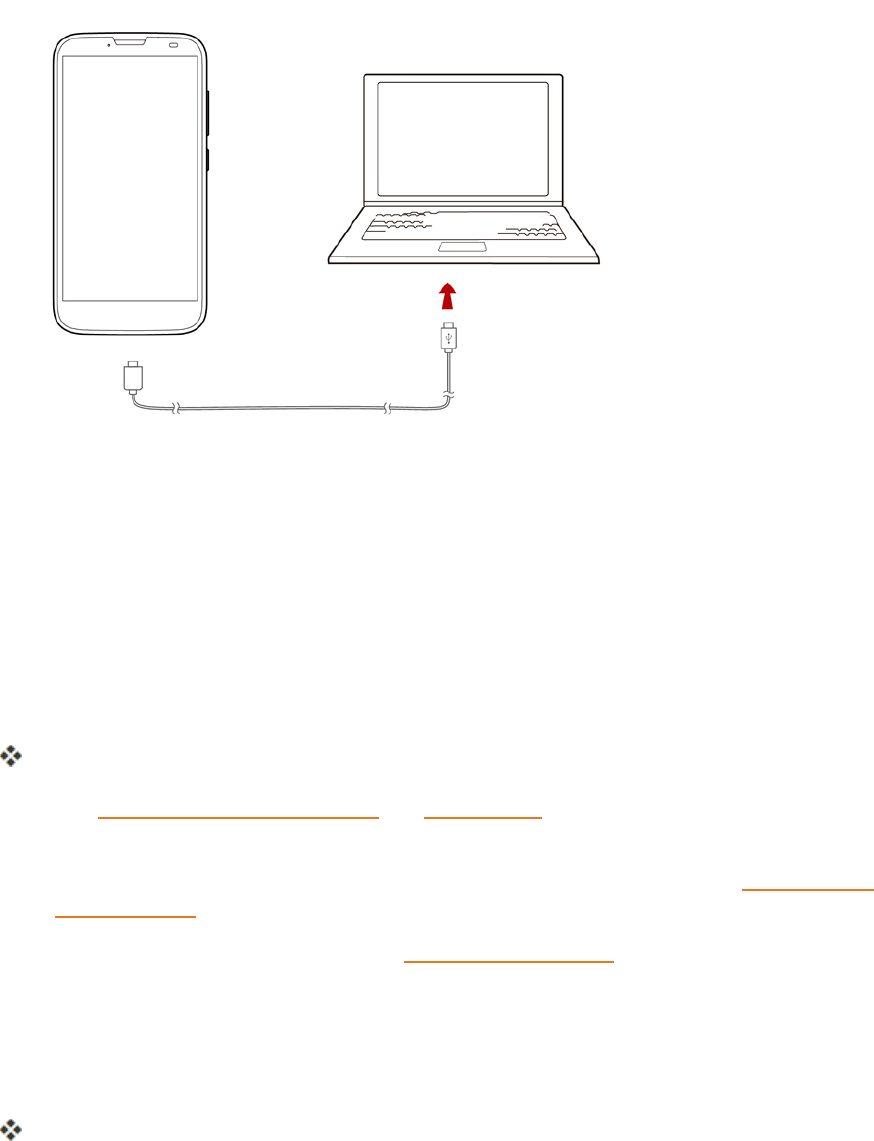
Get Started 12
2. InsertthelargeendoftheUSBcordintoanexternalUSBportonyourcomputer.
3. Aftercharging,removetheUSBcablefromboththephoneandthecomputer.
Turn Your Phone On and Off
Theinstructionsbelowexplainhowtoturnyourphoneonandoff.
Turn Your Phone On
n PressandholdthePower/Lockbutton.
Yourphonewillpoweron.Dependingonthesettings,youmayseethelockscreen.
l SeeLockandUnlockYourScreenandScreenLockforinformationaboutusingthescreen
lock.
l Thefirsttimeyouturnthephoneon,youwillseethestartupscreens.SeeCompletethe
SetupScreensfordetails.
l Ifyourphoneisnotyetactivated,seeActivationandServiceformoreinformation.
Turn Your Phone Off
1. PressandholdthePower/Lockbuttontoopenthephoneoptionsmenu.
2. TapPower offtoturnthephoneoff.
Yourphonewillpoweroff.
Yourscreenremainsblankwhileyourphoneisoff(unlessthebatteryischarging).
Get Started 13
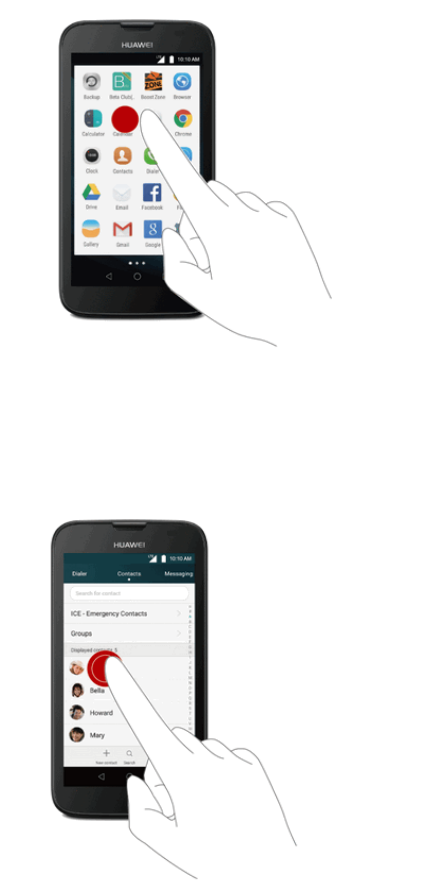
Use the Touchscreen
Yourphone’stouchscreenletsyoucontrolactionsthroughavarietyoftouchgestures.
Tap or Touch
Whenyouwanttotypeusingtheonscreenkeyboard,selectitemsonscreensuchasapplicationand
settingsicons,orpressonscreenbuttons,simplytaportouchthemwithyourfinger.
Touch and Hold
Toopentheavailableoptionsforanitem(forexample,acontactorlinkinaWebpage),touchand
holdtheitem.
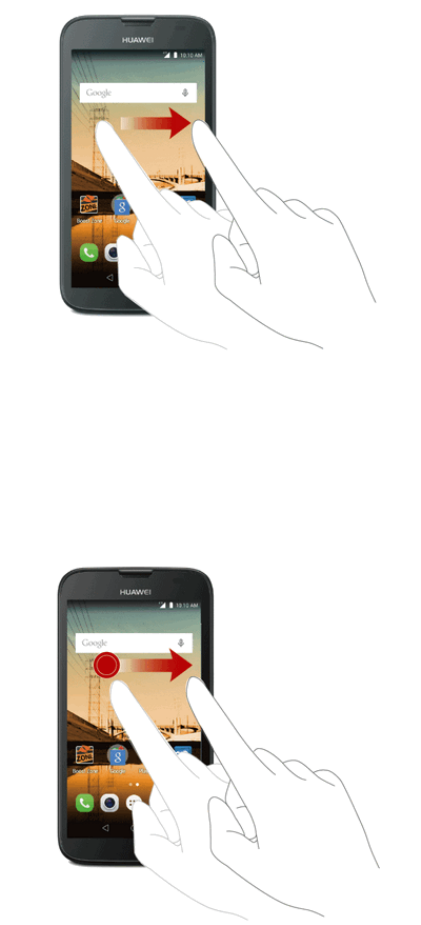
Get Started 14
Swipe or Slide
Toswipeorslidemeanstoquicklydragyourfingerverticallyorhorizontallyacrossthescreen.
Drag
Todrag,pressandholdyourfingerwithsomepressurebeforeyoustarttomoveyourfinger.While
dragging,donotreleaseyourfingeruntilyouhavereachedthetargetposition.
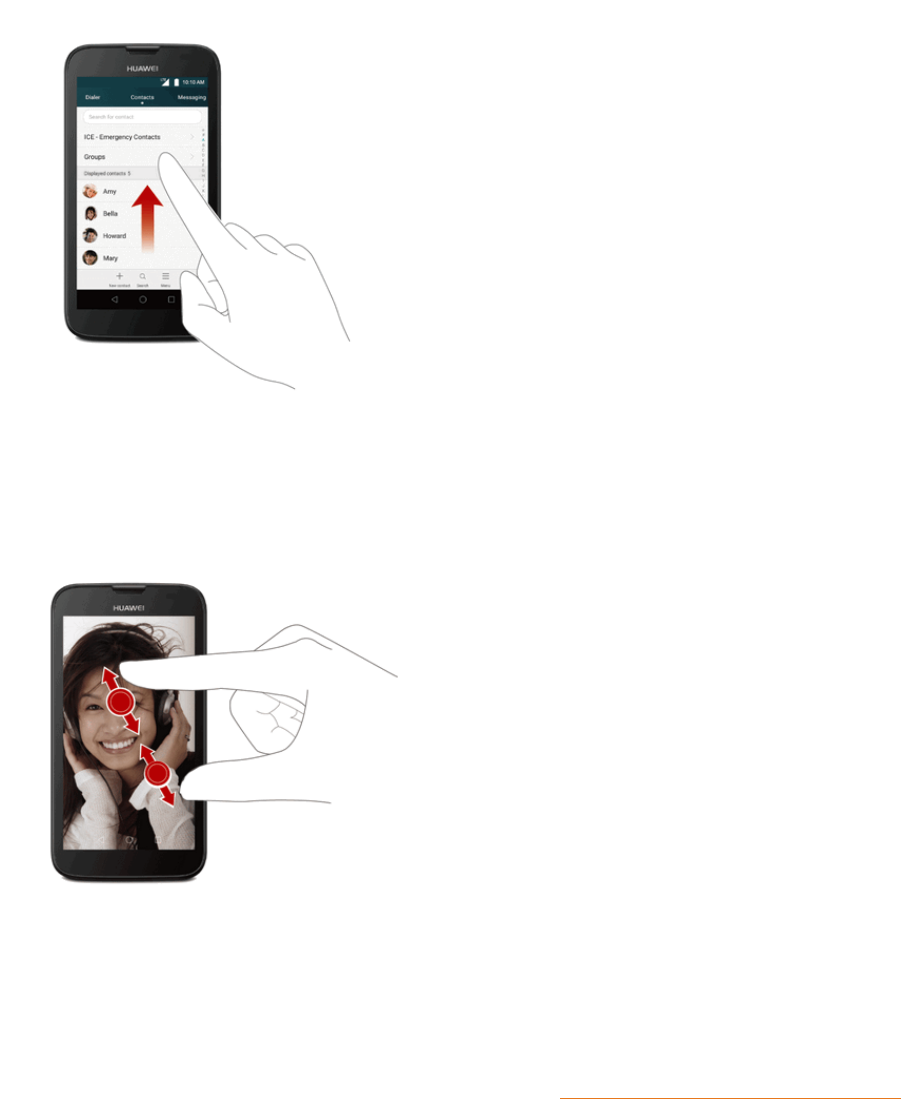
Get Started 15
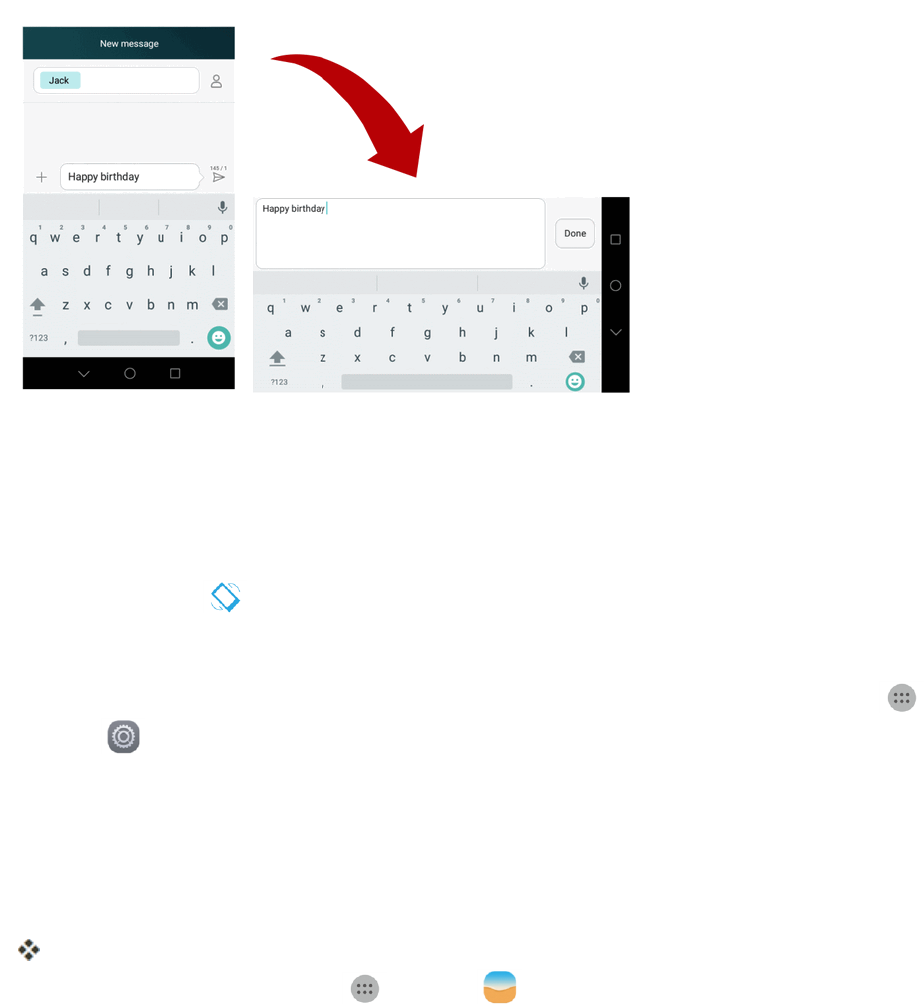
Flick
Flickingthescreenissimilartoswiping,exceptthatyouneedtoswipeyourfingerinlight,quick
strokes.Thisfingergestureisalwaysinaverticaldirection,suchaswhenflickingthecontactsor
messagelist.
Pinch and Spread
“Pinch”thescreenusingyourthumbandforefingertozoomoutor“spread”thescreentozoomin
whenviewingapictureoraWebpage.(Movefingersinwardtozoomoutandoutwardtozoomin.)
Activation and Service
Beforeusingyourphone,youmustsetupyourservicewithBoostMobile.Youwillneedyour
phone’sserialnumber(MEID),printedonastickerinsidethebatterycompartment.
FormoreinformationaboutyourBoostMobileaccount,seeBoostAccountInformationandHelp.

Get Started 16
Create Your Account and Pick Your Plan
SetupyourBoostMobileaccount.
1. Fromyourcomputer,visitboostmobile.com/activate.
2. Enteryourphone’sMEIDandclickstart activation process.
l Yourphone’sMEID(serialnumber)isprintedonthestickerlocatedonthebackofyour
phoneinthebatterycompartment.Thisnumbercanalsobefoundonthebottompanelof
thephone’spackage.
3. Followtheremaininginstructionstochooseyourplanandselectapaymentmethod.
4. Followtheactivationinstructionsbelowandyou’llbeabletostartusingyourphone.
Note:Youcanalsoactivatebyphonebycalling1-888-BOOST-4U(1-888-266-7848)fromany
otherphone.
Activate Your Phone
Aftersettingupyouraccountonboostmobile.com,simplyturnyourdeviceon.Yourdeviceis
designedtoactivateautomatically.IfyouareswappingfromanotherBoostMobiledevicetoanew
one,besuretoturnofftheolddevicebeforeswappingtheserialnumber(MEID).OncetheMEID
swapiscomplete,turnonthenewdeviceandtheprogramminginformationwillbepushedtoyour
deviceautomatically.
Youcanalsostarttheactivationprocessmanually.
n Fromhome,tapApps >Settings >Activate this device.
Complete the Setup Screens
Thesetupscreenshelpyousetupcertainfeaturesandpreferencesonyourphone.Onceyour
phonehasbeenturnedon,youwillseeaWelcomemessage.Youcanthencompletethesetup
process.
Note:Youmaybeabletocompletethesetupscreensbeforeyourphonehasbeenactivatedon
youraccount.
1. FromtheWelcomescreen,selectalanguageandtapNexttogetstarted.
l Toskipanysection,tapNextorSkip.
Note:OntheWelcomescreen,theremayalsobeanAccessibilitybutton.Ifyouarevisually
impairedorhardofhearing,tapAccessibilitytochangetheaccessibilitysettings.
2. Followtheonscreeninstructionstocompleteeachsection.Foreachtopic,youwillhavethe
optiontoskipitandcontinuetothenextscreen.

Get Started 17
l Wi-Fi®–Ifprompted,followthepromptstosignintoanavailableWi-Finetwork.For
securedWi-Finetworks,youwillneedtoenterapassword.SeeWi-Fiformoredetails.
l Google (Add your account)–TapEnter your emailandcompletethestepstosigninto
yourcurrentGoogleAccount,ortapOr create a new accounttosetupanewGoogle
Account.TapSkiptoskipGooglesetup.Thefollowingoptionsmayapplydependingon
yourselection:
o Enter your email–EnteryourGmailaddressandpasswordandtapAccepttoagree
tothetermsofserviceandprivacypolicyandsignintoyourcurrentGoogleAccount.
o Or create a new account–FollowtheinstructionstosignupforanewGoogle
Account.Therewillbescreenstoenteryourfirstandlastnames,createanemail
address(Gmail),createapassword,enterrecoveryinformation(includingabackup
emailaddressandrecoveryquestion),anoptiontojoinGoogle+,andanoptionto
enablepurchasesfromtheGooglePlaystoreapp.TapNextbetweeneachscreen.
o Set up payment info–SelectbillingoptionsforpurchasesmadethroughGooglePlay.
SelectRemind me latertoskipthisstep.
o Get your apps & data–IfyouareusingaGoogleAccountyouhadsetupona
previousAndroiddevice,youcanchoosetousethatdevice'sbackupinformationto
restorebacked-upapps,data,systemsettings,Wi-Fipasswords,etc.,fromtheprevious
devicetoyournewphone.TapSet up as a new devicetoskipthisstep.
o Google services–SelectyourGooglelocationandserviceoptionsandthentapNext.
l Terms and Conditions–ReadanyapplicableEndUserLicenseAgreementsorTerms
andConditionsforusingyourphone,andtapAgreetocontinue.
l Personalize your phone–Ifapplicable,enteryourfirstandlastnameandtapNext.This
informationisusedbythephonetopersonalizecertainapps.
3. TapFinish.Yoursetupisnowcomplete.Followtheonscreeninstructionstolearnaboutbasic
tapmenunavigation,viewtutorials,orjustgetstarted.
Yourphoneisnowsetupforuse.Ifyouskippedanypartofthesetup,youcanaccess
additionaloptionsthroughtheAppsscreenorthroughSettings.
Note:YoudonotneedtosignupforaGoogleAccounttouseyourphone.However,todownload
appsfromGooglePlay,youmustlinkyourphonetoaGoogleAccount.

Basic Operations 18
Basic Operations
Thefollowingtopicsoutlinebasicfeaturesandoperationsofyourphone.
Basics
Thefollowingtopicsofferanoverviewofyourphone’sbasicoperations.
Home Screen and Applications (Apps) List
Mostofyourphone’soperationsoriginatefromthehomescreenortheappslist.
1. FromanyscreenpresstheHomekey todisplaythehomescreen.
2. TapApps todisplaytheappslist.
Forinformationaboutusingthehomescreen,seeHomeScreenBasics.
Select Options and Navigate Screens
Tapicons,onscreenkeys,andotheritemstoopenoractivatetheassignedfunction.
n TapBack toreturntothepreviousscreen.
Recent Applications
YoucandisplayalistofrecentlyusedapplicationsusingtheRecentAppskey.
n Tap Recent Apps toviewalistofrecentlyusedapplications.
Phone Settings Menu
Youcancustomizeyourphone’ssettingsandoptionsthroughtheSettingsmenu.
n Fromhome,tapApps >Settings .
Formoreinformation,seeSettings.
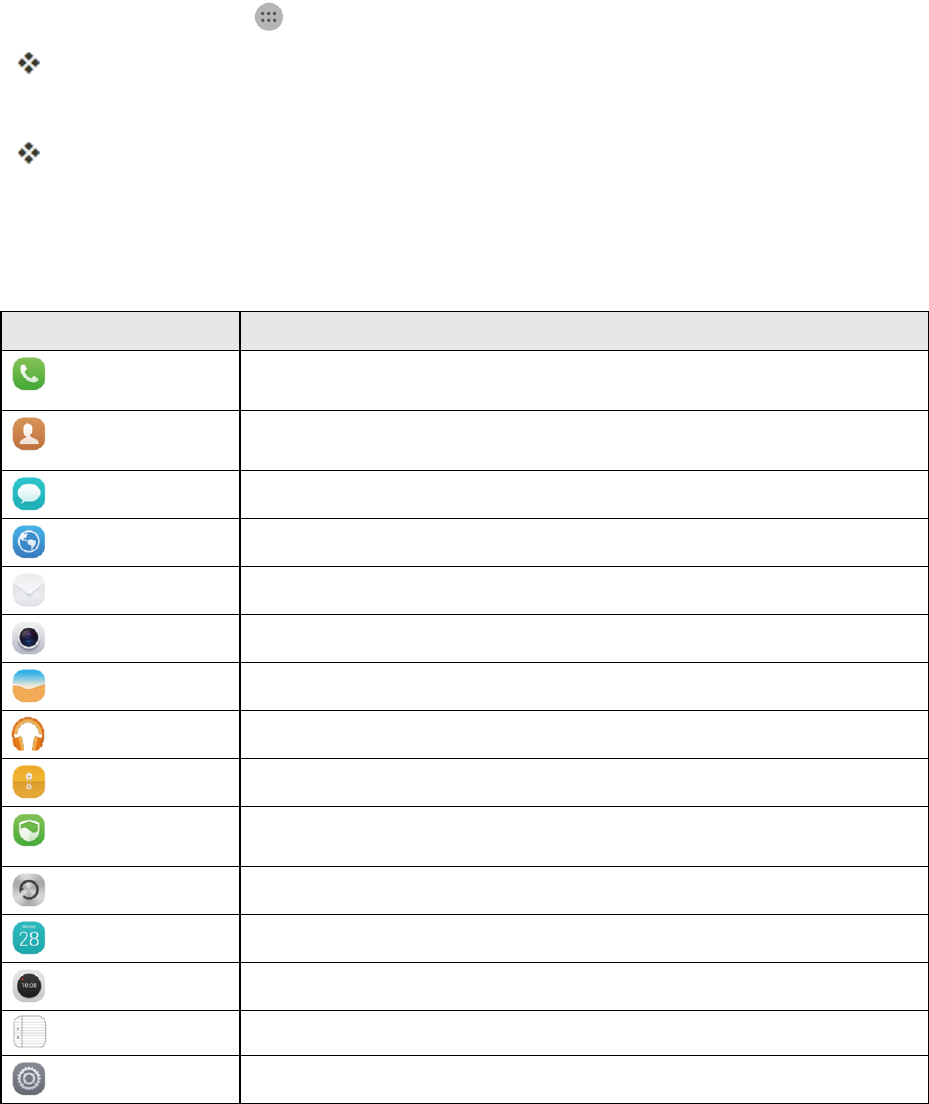
Portrait and Landscape Screen Orientation
Thedefaultorientationforyourphone’sscreenisportrait(vertical),butmanyappswillchangeto
landscapeorientation(widescreen)whenyourotatethephonesideways.
Basic Operations 19
Note:Notallscreenswilladjustforlandscapeorientation.
Turn Screen Rotation On or Off
1. Pulldownthestatusbartodisplaythequicksettingsmenu.
2. TapAuto-rotate toturntheoptiononoroff.
l YoumayneedtoscrollleftorrighttoseetheScreenrotationoption.
Note:Youcanalsosettherotationoptionfromthemainsettingsmenu.Fromhome,tapApps
>Settings >Display>Auto-rotatescreen.
Capture Screenshots
Youcanuseyourphone’spowerandhomekeystocapturescreenshots.
n PressandholdthePower/LockbuttonandVolume downkeyatthesametimetocapturea
screenshotofthecurrentscreen.
ThecurrentscreenshotwillbecapturedandstoredintheScreenshotsalbuminthephone’s
Gallery.Fromhome,tapApps >Gallery .
Applications
Thefollowingtopicsdescribehowtoaccesstheapplications(apps)listandlaunchappsonyour
phone.
Launch Applications
Allinstalledappscanbeaccessedandlaunchedfromtheappslist.
Basic Operations 20
1. Fromhome,tapApps .
Theappslistopens.
2. Tapandappicontolaunchthecorrespondingapplication.
Theapplicationopens.
Apps List
Theappslistexpandstoincludeanyappsyoudownloadandinstallonyourphone.Thefollowing
tableoutlinestheprimaryappsthathavebeenpreinstalledonyourphone.
App Function
Dialer Makeandanswercalls.Yourphonesupportssmartdialinganddialingfrom
yourcontactslistorcalllog.
Contacts Managephonenumbers,emailaddresses,andothercontactdetails.Youcan
importcontactsfromyourpreviousphone.
Messaging Sendorreceivetextmessagesandmultimediamessages.
Browser BrowseWebpagesandmanageyourbookmarks.
Email Sendorreceiveemails,andsynchronizeemailaccounts.
Camera Takephotosorshootvideos.
Gallery Browse,manage,oreditphotos.
Play Music Manageyourplaylistsandplaysongs.
Files Managefilesandapplicationsonyourphone.
Phone Manager Runsecurityscansofyourphone,filterharassmentcallsandmessages,set
applicationaccesspermissions,andoptimizethesystem.
Backup Backupyourphonedatatopreventdataloss.
Calendar Manageyourpersonalandworklivesonscheduleandcreateeventreminders.
Clock Addalarms,viewworldtimes,andusetimersandstopwatches.
Notepad Recordyourthoughtsandotherusefulinformation.
Settings Configureyourphonesettings.
Phone Number
Followtheinstructionsbelowtodisplayyourphone’swirelessphonenumber.

Basic Operations 21
1. Fromhome,tapApps >Settings >About phone.
2. TapStatus.
YouwillseethenumberlistedunderMy phone number.
Silent Mode/Airplane Mode
Thefollowingtopicsexplainhowtouseyourphone’sSilentModeandAirplaneModesettings.
Silent Mode
Silentmodesetsyourphone’sringtone,operationsounds,notifications,etc.,nottosoundtoavoid
disturbingothersaroundyou.
Note:Camerashutter,videostart/stoptones,andcertainothersoundsmaystillbeactiveduring
silentmode.
Tosetsilentmode:
1. PressandholdthePower/Lockbuttontodisplaythedeviceoptionsmenu.
2. Tapthespeakericonuntilyousee Silent.
Yourphoneisnowinsilentmode.
Tip:Youcanalsoaccesssilentmodethroughthestatusbarmenu.Dragthestatusbardownand
tapthespeakericonuntilyouseeSilent .
Torestoresoundsettings:
1. PressandholdthePower/Lockbuttontodisplaythedeviceoptionsmenu.
2. Tapthespeakericonuntilyousee Sound.
Yourphone’ssoundsettingsarenowrestored.
Tip:Youcanalsorestoresoundthroughthestatusbarmenu.Dragthestatusbardownandtapthe
speakericonuntilyouseeSound .
Airplane Mode
Airplanemodeturnsoffallfunctionsthatemitorreceivesignals,whileleavingyourphoneonsoyou
canuseappsthatdon’trequireasignalordata.
Toturnonairplanemode:
1. PressandholdthePower/Lockbuttontodisplaythedeviceoptionsmenu.
2. TapAirplane mode.

Basic Operations 22
Yourphoneisnowinairplanemode.Youwillseetheairplanemodeicon inthestatus
bar.
Toturnoffairplanemode:
1. PressandholdthePower/Lockbuttontodisplaythedeviceoptionsmenu.
2. TapAirplane mode.
Yourphone’swirelessconnectionfeaturesarenowrestored.
Enter Text
YoucantypeonyourphoneusingoneoftheavailabletouchscreenkeyboardsorGooglevoice
typing.
Touchscreen Keyboards
YourphoneoffersyouAndroidkeyboardforenteringtext.Thekeyboardappearautomatically
onscreenwhenyoutapatextentryfield,andtheycanbeusedineitherportraitorlandscapemode.
YoucanalsousetheGoogleVoicetypingoptiontoentertextusingyourvoice.
Android keyboardletsyouuseatraditionalQWERTYsetuptoentertext.Additionaloptions
expandyourabilitytoentertextfasterandmoreaccurately.SeeAndroidKeyboardfordetails.
Note:Keyboardlayoutsandoptionsmaychangedependingonwhereyou’reusingthem.For
example,ifyou’reenteringtexttodoaWebsearch,asearchiconmaybeavailableinsteadofan
enterkey.
Android Keyboard
TheAndroidkeyboardoffersatraditionalQWERTYkeyboardsetupforenteringtextbytapping
keys(likeonacomputer),alongwithenhancementsandoptionsthatallowyoutoentertextfaster
andmoreaccurately,suchascontinuouskeyinput,personalizedusagedictionaries,andmore.
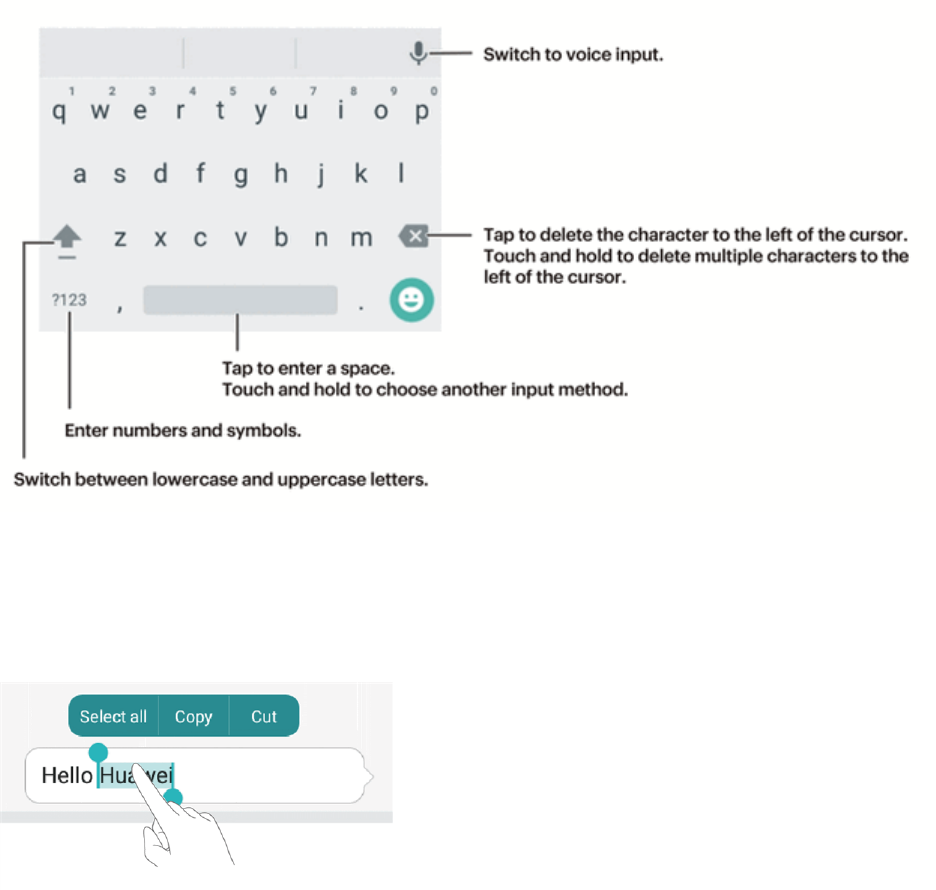
Basic Operations 23
Tips for Editing Text
Yourphonegivesyoumanyoptionstomakeenteringtexteasier,includingcopying,cutting,and
pastingtext,usingvoice-to-textinput,customizingtheuserdictionary,usingpredictivetext,and
more.
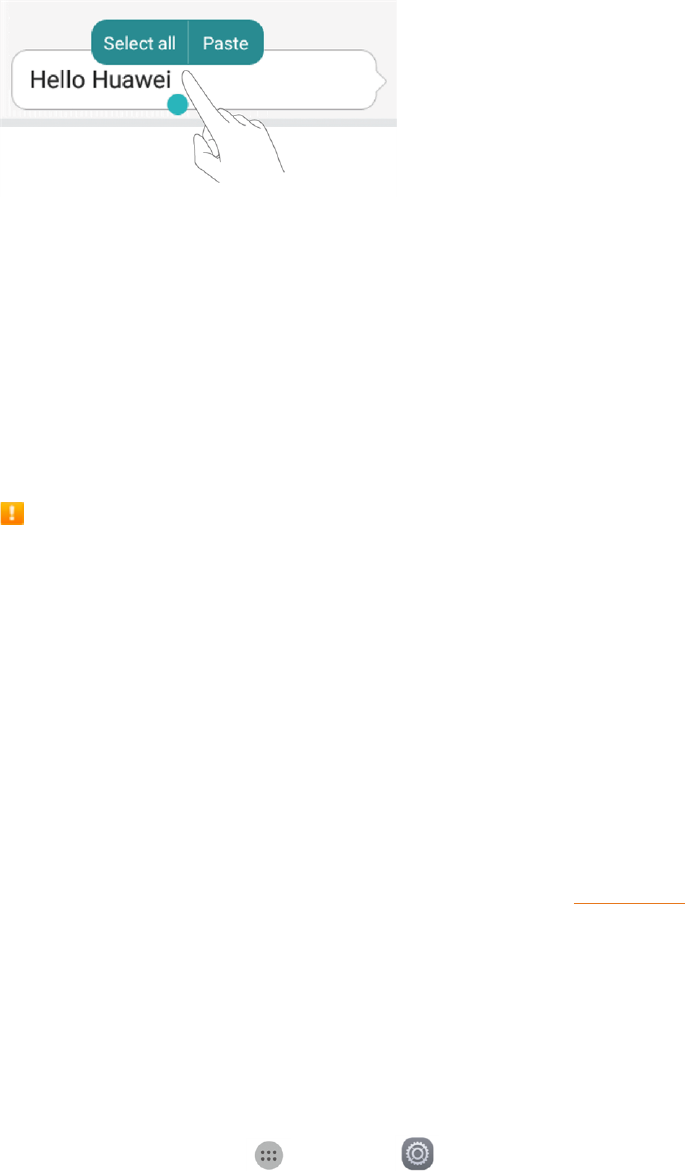
n Select text:Touchandholdthetexttobringup.Thendragortoselectmoreorlesstext,ortap
Select alltoselectalltextinatextbox.
n Copy text:SelecttextandtapCopy.
n Cut text:SelecttextandtapCut.
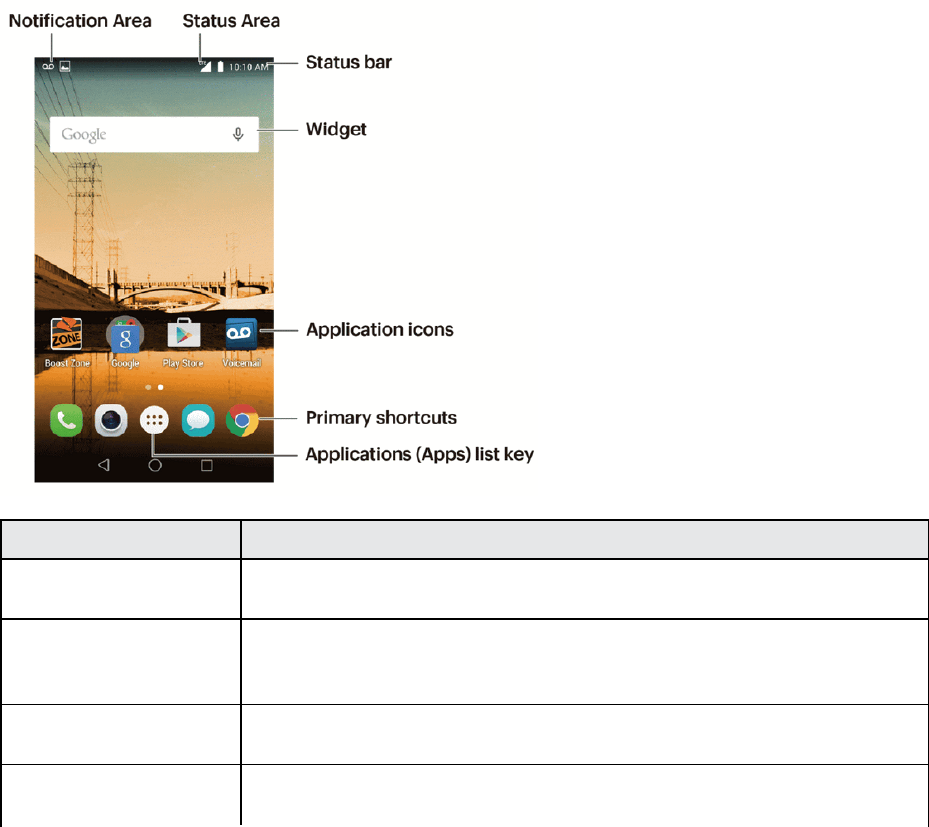
n Paste text:TouchandholdwhereyouwanttoinsertthetextandthentapPaste.
Basic Operations 24
Tosavebatterypower,thephoneautomaticallyturnsoffthescreenafteracertainperiodoftime
whenyouleaveitidle.Youwillstillbeabletoreceivemessagesandcallswhilethephone’sscreen
isoff.
Google Account
YouwillneedaGoogleAccounttoaccessseveralphonefeaturessuchasGmail,GoogleMaps,
Hangouts,andGooglePlayapplications.BeforeyouareabletoaccessGoogleapplications,you
mustenteryouraccountinformation.Theseapplicationssyncbetweenyourphoneandyouronline
GoogleAccount.
Google Account Cautions
BesurenottoforgetyourGoogleAccountIDorpassword.
Create a Google Account
IfyoudonotalreadyhaveaGoogleAccount,youcancreateoneonlineorusingyourphone.
Note:YoucanalsocreateandsignintoyourGoogle/Gmailaccountthroughyourphone’sSetup
application.
Note:AlthoughyouneedaGmailaccounttousecertainfeaturesofyourphone,suchasGoogle
Play,youdonotneedtouseGmailasthedefaultaccountforyourphone.
Create a Google Account Online
1. Fromacomputer,launchaWebbrowserandnavigatetogoogle.com.
2. Onthemainpage,clickSign-in>Create an account.
3. Followtheonscreenpromptstocreateyourfreeaccount.
4. LookforanemailfromGoogleintheemailboxyouprovided,andrespondtotheemailto
confirmandactivateyournewaccount.
Create a Google Account Using Your Phone
1. Fromhome,tapApps >Settings >Accounts.
2. TapAdd account.
3. TapGoogleandthentapOr create a new account.

Basic Operations 25
4. Followtheonscreeninstructionstocreateyouraccount.
Note:WhensettingupanewGoogleAccount,eitheronyourphoneoronline,youwillbeprompted
toaddasecondaryemailaddress.EnterasecondGmailaddressoranyotheremailaddressfrom
whichyoucurrentlysendandreceiveemail.Thisaddressisusedtoauthenticateyouraccount
shouldyoueverencounterproblemsorforgetyourpassword.ItisstronglyencouragedforAndroid
userssoyoucanregainaccesstoGoogleservicesandpurchasesonyourphone.
Sign In to Your Google Account
IfyouhaveaGoogleAccountbuthavenotyetsignedinwithyourphone,followtheseinstructionsto
signintoyourGoogleAccount.
1. Fromhome,tapApps >Settings >Accounts.
2. TapGoogle.
3. EnteryourGmailusernameandpassword,andthentapNext.
4. AfteryourphoneconnectswiththeGoogleservers,selecttheitemsyouwouldliketosyncwith
yourphoneandthentapSync now.
YouaresignedintoyourGoogleAccount,andyourphonewillsynchronizetheselected
items.
Google Play Store
GooglePlay™istheplacetogotofindnewAndroidapps,books,movies,andmusicforyour
phone.Choosefromawidevarietyoffreeandpaidcontentrangingfromproductivityappsand
gamestobestsellingbooksandblockbustermoviesandmusic.Whenyoufindwhatyouwant,you
caneasilydownloadandinstallitonyourphone.
ToaccesstheGooglePlaystoreapp,youmustfirstconnecttotheInternetusingyourphone’sWi-
FiormobiledataconnectionandsignintoyourGoogleAccount.SeeBrowserandSignIntoYour
GoogleAccountfordetails.
Installing Applications
ManydifferentkindsofapplicationscanbeinstalledonyourphonefromGooglePlay(provided
byGoogleInc.).Thecompanyisnotresponsibleinanywayforuser-installedapplications
(quality,reliability,legality,fitnessforapurpose,credibility,accuracy,etc.)orresulting
malfunctions(viruses,etc.).
Important:Ourpoliciesoftendonotapplytothird-partyapplications.Third-partyapplicationsmay
accessyourpersonalinformationorrequireustodiscloseyourcustomerinformationtothethird-
partyapplicationprovider.Tofindouthowathird-partyapplicationwillcollect,access,use,or
discloseyourpersonalinformation,checktheapplicationprovider’spolicies,whichcanusuallybe
foundontheirwebsite.Ifyouaren’tcomfortablewiththethird-partyapplication’spolicies,don’tuse
theapplication.

Basic Operations 26
Find and Install an App
WhenyouinstallappsfromGooglePlayappandusethemonyourphone,theymayrequireaccess
toyourpersonalinformation(suchasyourlocation,contactdata,andmore)oraccesstocertain
functionsorsettingsofyourphone.Downloadandinstallonlyappsthatyoutrust.
1. Fromhome,tap Apps > Play Store .
2. WhenyouopentheGooglePlaystoreappforthefirsttime,theTermsofServicewindowwill
appear.TapAccepttocontinue.
3. Browsethroughthecategories(Apps,Games,Movies & TV,Music,Books,or
Newsstand),findanitemyou'reinterestedin,andtapthename.
l Browsethroughfeaturedapps.Scrollthroughthelistoffeaturedappswhenyouopen
GooglePlay.
l TapontheGooglePlaysearchbaratthetopofthescreen,enterthenameortypeofapp
you'relookingfor.
4. Tapanapptoreadadescriptionabouttheappanduserreviews.
5. TapINSTALL(forfreeapplications)ortheprice(forpaidapplications).
Note:Ifyouhavenotalreadydoneso,youwillneedtosetupapaymentmethodtopurchasepaid
appsfromGooglePlay.
6. Thesubsequentscreennotifiesyouwhethertheappwillrequireaccesstoyourpersonal
informationoraccesstocertainfunctionsorsettingsofyourphone.Ifyouagreetothe
conditions,tapACCEPT(forfreeapps)orACCEPTandthenBUY(forpaidapps)tobegin
downloadingandinstallingtheapp.
l Ifyouhavenotalreadysetupapaymentmethod,tapCONTINUEandthenfollowthe
promptstoarrangepaymentandcompletethepurchase.
Theselectedappisdownloadedandinstalledonyourphone.
Warning: Read the notification carefully!Beespeciallycautiouswithapplicationsthathave
accesstomanyfunctionsorasignificantamountofyourdata.OnceyoutapOKonthisscreen,you
areresponsiblefortheresultsofusingthisitemonyourphone.
Purchasing Applications
Purchaseappsatyourownrisk.Thecompanyisnotresponsibleforanydisadvantageresulting
foruserorthirdparties.
Request a Refund for a Paid App
Ifyouarenotsatisfiedwithanapp,youcanaskforarefundwithin15minutesofthepurchase.Your
creditcardisnotchargedandtheappisuninstalledfromyourphone.
Ifyouchangeyourmind,youcaninstalltheappagain,butyoucan’trequestarefundasecondtime.

Basic Operations 27
1. Fromhome,tap Apps >Play Store .
2. Tap >My Apps.
3. Taptheapptouninstallforarefund.Thedetailsscreenfortheappopens.
4. TapRefund,andthentapYestoconfirm.Yourappisuninstalledandthechargeiscancelled.
Update an App
Dependingonyoursettings,manyappswillupdateautomatically,oryoucanupdateappsdirectly
fromthePlayStoreapp.
Update an App Directly
1. Fromhome,tap Apps >Play Store .
2. Tap >My Apps.
3. Taptheappyouwanttoupdate,andthentapUPDATE>ACCEPT.
Theappupdateisdownloadedandinstalled.
Uninstall an App
YoucanuninstallanyappthatyouhavedownloadedandinstalledfromGooglePlay.
1. Fromhome,tap Apps >Play Store .
2. Tap >My Apps.
3. OntheInstalledscreen,taptheappyouwanttouninstall,andthentapUNINSTALL>OK.
Theappisuninstalledandremovedfromyourphone.
Get Help with Google Play
TheGooglePlaystoreappoffersanonlinehelpoptionifyouhavequestionsorwanttoknowmore
abouttheapp.
1. Fromhome,tap Apps >Play Store .
2. Tap >Help & Feedback.
TheWebbrowserwilltakeyoutotheGooglePlayHelpWebpage,whereyouwillfind
comprehensive,categorizedinformationaboutGooglePlay.

Basic Operations 28
Lock and Unlock Your Screen
Yourphoneallowsyoutoquicklyturnthescreenoffwhennotinuseandtoturnitbackonand
unlockitwhenyouneedit.
Turn the Screen Off When Not in Use
n Toquicklyturnthescreenoff,pressthePower/Lockbutton.PressingthePower/Lockbutton
againorreceivinganincomingcallwillturnonyourphonescreenandshowthelockscreen.
Tosavebatterypower,thephoneautomaticallyturnsoffthescreenafteracertainperiodoftime
whenyouleaveitidle.Youwillstillbeabletoreceivemessagesandcallswhilethephone’sscreen
isoff.
Note:Forinformationonhowtoadjustthetimebeforethescreenturnsoff,seeDisplaySettings.
Turn the Screen On and Unlock It
1. Toturnthescreenon,pressthePower/Lockbutton.
2. Slideyourfingerinanydirectiontounlockthescreen.
l Ifyouhavesetupascreenlock,youwillbepromptedtodrawthepatternorenterthe
passwordorPIN.SeeScreenLock.
Update Your Phone
Fromtimetotime,updatesmaybecomeavailableforyourphone.Youcandownloadandapply
updatesthroughtheSettings>System updatemenu.
Software Update Cautions
During update:Thephonecannotbeuseduntilthesoftwareupdateiscomplete.Itmaytake
timetoupdateyourphone’ssoftware.
Signal during update:Updateyourphonewheresignalreceptionisgood,anddonotchange
locationduringtheupdateprocess.Makesurethebatteryisadequatelychargedbefore
beginninganupdate.Aweaksignalorlowbatteryduringanupdatemaycausetheupdateto
fail.Anupdatefailuremaydisablethephone.
Other functions during update:Otherphonefunctionscannotbeusedduringasoftware
update.
Update Your Phone Software
Youcanupdateyourphone'ssoftwareusingtheSystemUpdateoption.
Before Updating Your Phone
Updatingyourphonemayresultinalossofsaveddatadependingontheconditionofyourphone
(malfunctioning,damaged,waterseepage,etc.).Youmustbackupallcriticalinformationbefore
updatingyourphonefirmware.

Basic Operations 29
Back Up All Data Prior to Update
TobackupyourGmailinformation:
1. Fromhome,tapApps >Settings >Accounts>Google.
2. TaptheSync-alltosyncyourGoogleAccountinformation.
Tobackupstoredtextmessages:
1. Fromhome,tapApps >Messaging .
2. Selectthetextmessagefromthelisttoviewthemessagethread.
3. Touchandholdonaportionofthetextmessagefromthestring.TheMessageoptionscontext
menuappears.
Note:Youcanbackupstoredtextmessagesbyforwardingthemtoyourownphonenumber.Open
themessagesafteryouhaveupdatedyourfirmware.
4. TapForward.
5. EnteryourphonenumberandtapSend.
TobackupyourGoogleapps:
YourGoogleapppurchasesarereloadedremotelyandcanbere-installedaftertheupdateis
applied.
1. Fromhome,tapApps >Play Store .
2. Tap >My Apps>ALLtab.
3. ScrollthroughthelistofpreviouslydownloadedGoogleappsandchoosethoseyouwishto
reinstall.
4. Followtheonscreeninstructions.
Asanaddedprecaution,topreserveanydataonyourSDcard,pleaseunmountitfromyourphone
priortostartingtheupdateprocess.Fromhome,tapApps >Settings >Storage>
Unmount SD card.
Update Your Phone’s Software
Onceyouhavebackedupallyourdata,usetheUpdate nowoptiontoupdateyourphone’s
software.
1. Fromhome,tapApps >Settings >System update.
2. TapUpdateHuawei software.

Basic Operations 30
Yourphoneautomaticallydownloadsandinstallsanyavailableupdates.Youmayberequired
topoweryourphoneoffandbackontocompletethesoftwareupgrade.
Confirm Your Current Phone Firmware
1. Fromhome,tapApps >Settings >System update>Update firmware.
2. Followtheonscreeninstructions.
Update Your Profile
Thisoptionallowsyoutoautomaticallyupdateyouronlineuserprofileinformation.Ifyouchooseto
changeyourusernameandselectanewoneonline,youmustthenupdatetheusernameonyour
phone.
1. Fromhome,tapApps >Settings >System update>Update profile.
2. Followtheonscreeninstructions.
Thephonewilldownloadandinstalltheprofileupdateandyouwillseeaconfirmationwhen
complete.
Note:Ifyourdataservicesoraccountsyncingeverseemstogooutunexpectedly,usethisfeature
toreconnectwiththenetwork.
Update Your PRL
ThisoptionallowsyoutodownloadandupdatethePRL(preferredroaminglist)automatically.
1. Fromhome,tapApps >Settings >System update>Update PRL.
2. Followtheonscreeninstructions.
ThephonewilldownloadandinstallthePRLupdateandyouwillseeaconfirmationwhen
complete.
Your Phone Interface 31
Your Phone Interface
Thefollowingtopicsdescribehowtouseandcustomizeyourphone’shomescreen,understandthe
statusbar,andusethenotificationswindow.
Home Screen Basics
Thehomescreenisthestartingpointforyourphone’sapplications,functions,andmenus.Youcan
customizeyourhomescreenbyaddingapplicationicons,shortcuts,folders,widgets,andmore.
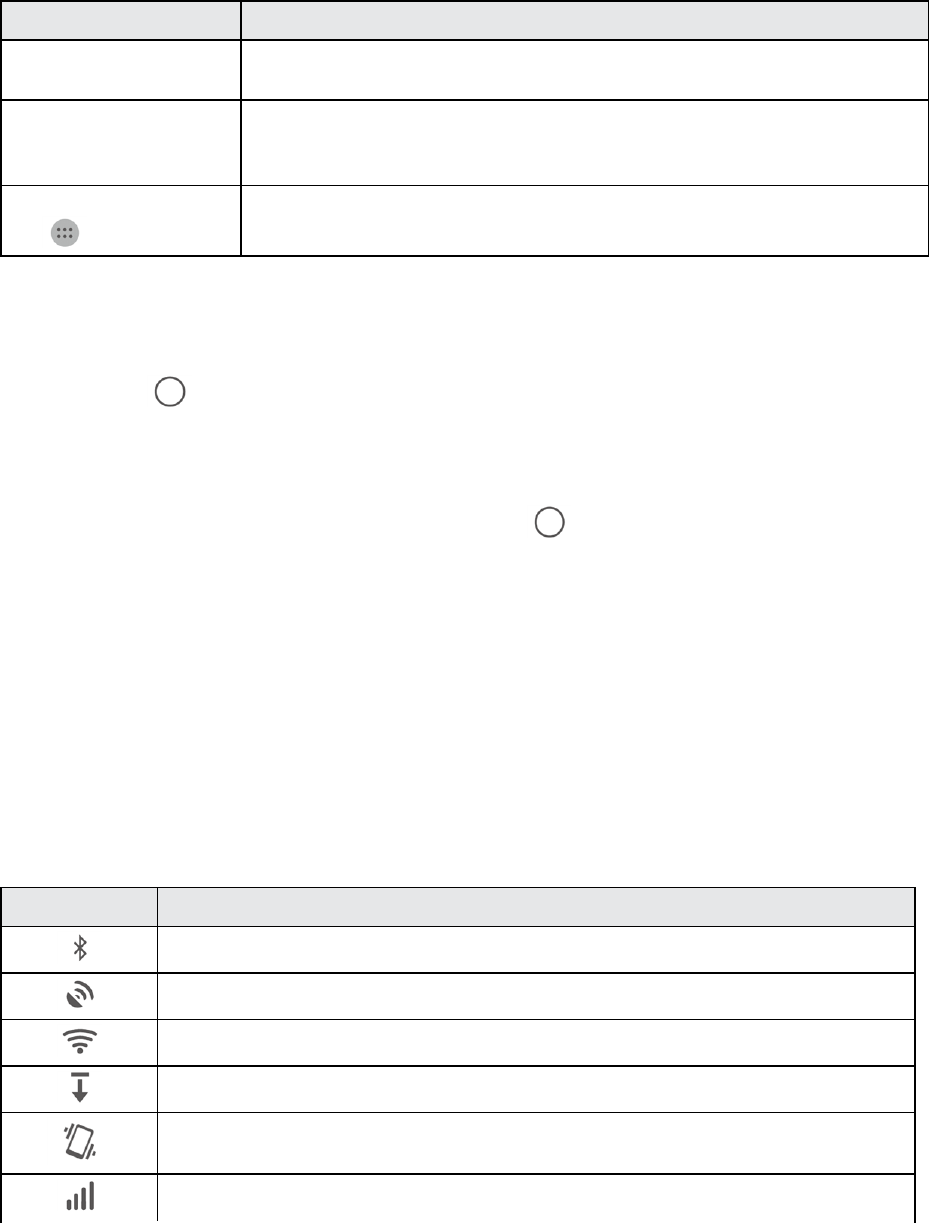
Home Screen Layout
Yourhomescreenextendsbeyondtheinitialscreen.Swipethescreenleftorrighttodisplay
additionalscreens.
Item Description
Notification Area ThenotificationareaoftheStatusBar(ontheleft)displaysnotificationsfor
incomingmessages,missedcalls,applicationupdates,andmore.
Status Area ThestatusareaoftheStatusBar(ontheright)displaysphoneandservice
statusinformationsuchassignalstrength,batterystatus,Wi-Fianddata
connectivity,ringerstatus,andtime.
Status bar Thestatusbardisplaysiconstonotifyyouofyourphone’sstatus(ontheright
side)andnotifications(ontheleftside).
Widget Widgetsareself-containedonscreenappsthatresideonyourphone’shome
screen.
Your Phone Interface 32
Item Description
Application icons Applicationiconsareshortcutstofavoriteapplications.Youcanaddand
removetheseshortcutsasyouwish.
Primary shortcuts Primaryshortcutsareapplicationshortcutsthatappearinthesamelocationon
allofyourphone’shomescreens.Thesearecustomizableexceptforthe
Applications(Apps)shortcut,whichremainsstatic.
Applications (Apps) list
key
Taptoopentheapplications(apps)list.Theappslistkeyisaprimaryshortcut
availablefromallhomescreens.
Note:Yourphone’shomescreenscyclethroughsothatyoucankeepswipinginonedirectionand
makeitbacktothemainhomescreen.Thesmallcirclesabovetheprimaryshortcutsletyouknow
yourcurrentscreenposition.
Tip:TapHome toreturntothemainhomescreenfromanyotherscreen.
Extended Home Screens
Inadditiontothemainhomescreen,yourphonefeaturesextendedhomescreenstoprovidemore
spaceforaddingicons,widgets,andmore.PressHome todisplaythemainhomescreenand
thenslidethescreenrightorlefttomovefromthemainscreentoanextendedscreen.
Status Bar and Notification Panel
Yourphone’sstatusandnotificationsareavailableataglanceatthetopofthescreen.
Status Bar
Thestatusbaratthetopofthehomescreenprovidesphoneandservicestatusinformationonthe
rightsideandnotificationalertsontheleft.Toviewthenotificationpaneloraccessthequicksettings
menu,pulldownthestatusbarfromthetopofthescreen.
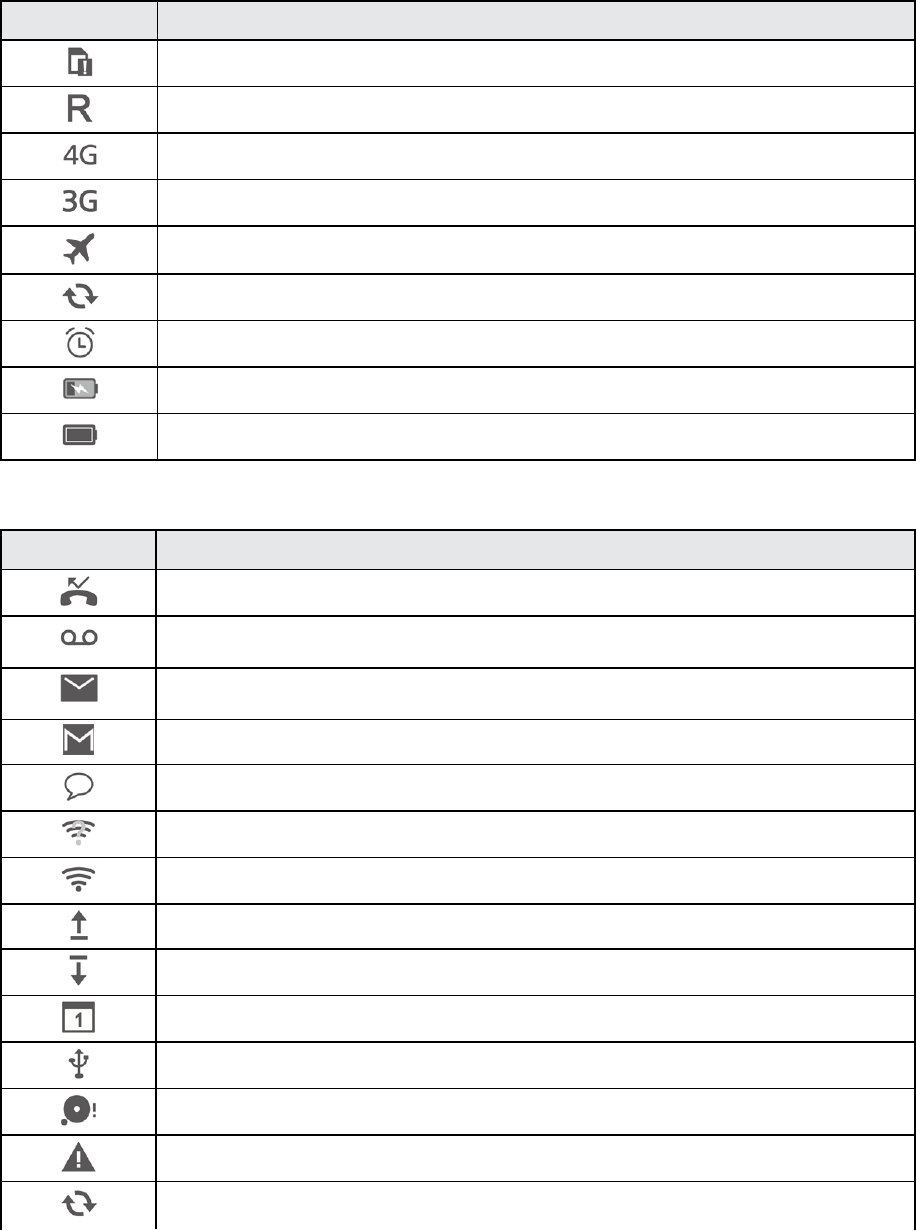
Main Status Icons
Icon Status
Bluetooth®active
GPSactive
Wi-Fiactive
Downloading
Vibrate
Network(fullsignal)
Your Phone Interface 33
Icon Status
NoSIMcardfound
Network(roaming)
4GLTEdataservice
3G(dataservice)
Airplanemode
Syncactive
Alarmset
Battery(charging)
Battery(fullcharge)
Main Notification Icons
Icon Notification
Missedcall
Newvoicemail
Newemail
NewGmail
NewtextorMMSmessage
Wi-Finetworkavailable
ConnectedtoaWi-Finetwork
Uploadingdata
Downloadingdata
Upcomingevents
USBconnection
Phonememoryfull
Sign-inorsynchronizationproblem
Synchronizingdata
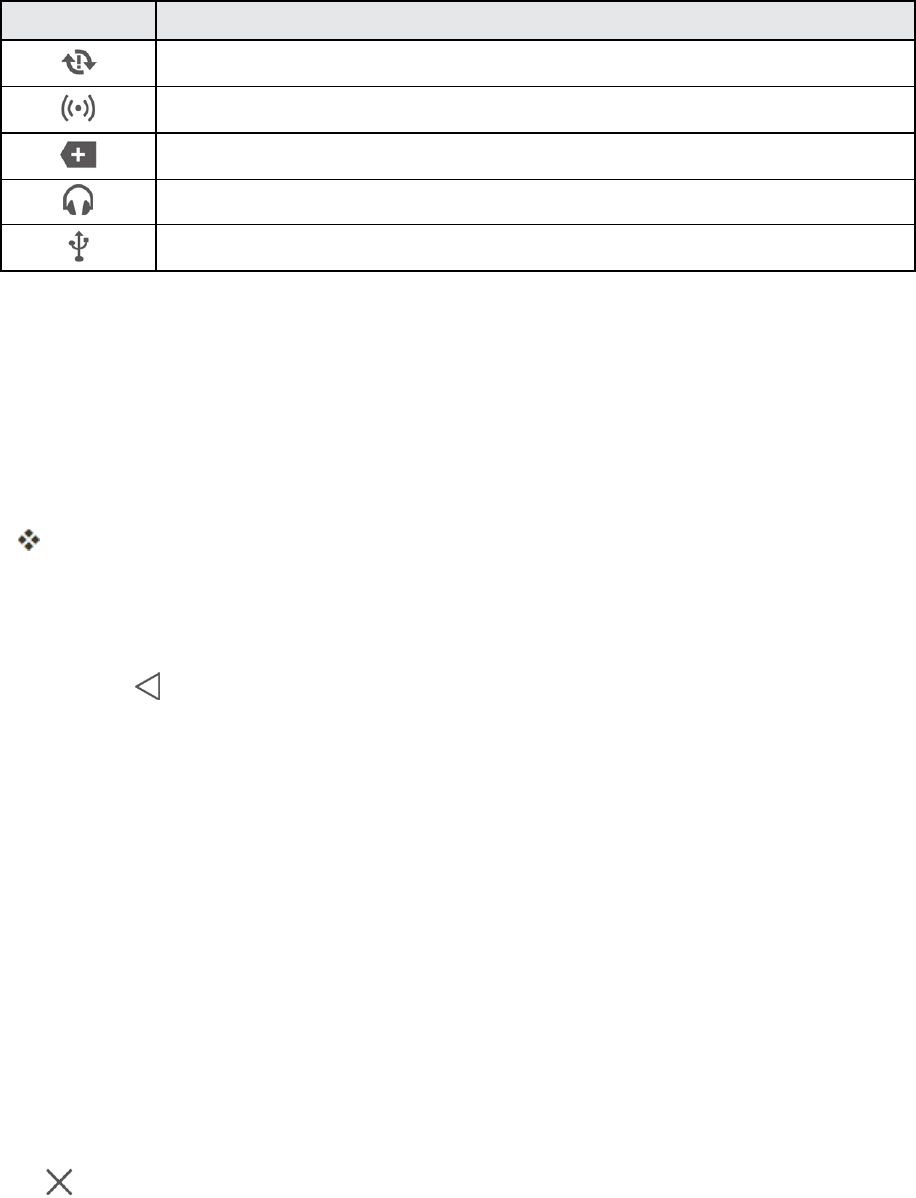
Your Phone Interface 34
Icon Notification
Synchronizationfailed
PortableWi-Fihotspoton
Morenotifications
Headsetpluggedin
USBdebuggingmodeenabled
Notification Panel
Yourphone’snotificationsappearattheleftsideofthestatusbar,andyoucanaccessthefull
notificationpanelbypullingdownthestatusbar.Fromthere,youcanchecknotifications,download
updates,openmessagingapps,usethequicksettingsmenu,andmore.
Open the Notification Panel
n Pulldownthestatusbar.(Slideyourfingerdownfromthetopofthescreen.)
Thenotificationpanelopens.Tochecknotifications,tapaniteminthelist.
Close the Notification Panel
n Slidethenotificationpanelup.(Slideyourfingerupfromthebottomofthescreen.)
n TapBack toclosethenotificationpanel.
Notification Panel Layout
Thenotificationpanelgivesyouaccessbothtonotificationsandthequicksettingsmenu.
Swipedownfromthestatusbartoopenthenotificationpanel.Swipeleftorrighttoswitchbetween
thenotificationandshortcuttabs.
Customize the Home Screen
Learnhowtosetthewallpaperandadd,move,orremoveshortcuts,widgets,andfoldersfromthe
homescreen.
Operations for Rearranging the Home Screen
n Moving Widgets and Icons:Fromhome,touchandholdanitemandthendragittothe
desiredlocation.
n Deleting Widgets and Icons:Fromhome,touchandholdanitemandthendragittoRemove
.
Change the Wallpaper
Selectandassignyourphone’sbackgroundwallpaper.

Your Phone Interface 35
1. Fromhome,touchandholdanemptyspace,andthentapWALLPAPERS.
l Youcanalsoaccessthewallpapermenuthroughsettings.TapApps >Settings >
Display > Wallpaper.
2. Tapanoptiontoselectthewallpaper.
l Home screentosetthebackgroundwallpaperforyourhomescreen.SelectfromGallery,
Wallpapers,orLive Wallpapers.
l Lock screentosetthewallpaperforyourphone’slockscreen.SelectfromGalleryor
Wallpapers.
l TapRandom changeswitchtomakethehomescreenwallpaperchangeautomaticallyat
periodicintervals.
Note:IfyouselectGallery,youwillneedtoselectanalbumandapicture.Onceselected,usethe
croptooltoresizeandpositiontheimageandthentapDone.
Add Shortcuts to the Home Screen
Youcanaddshortcutsforquickaccesstofavoriteappsfromthehomescreen.
1. Fromhome,tapApps .
2. Touchandholdanappicon.
3. Dragtheicontoanemptylocationononeofthehomescreens.
Theshortcutisaddedtothehomescreen.
Add Widgets to the Home Screen
Youcanaddwidgetstoyourphone’shomescreen.Widgetsareself-containedappsthatdisplayon
ahomescreen.Unlikeashortcut,theWidgetworkslikeasanonscreenapplication.Thereareall
kindsofwidgets,includinglinkstoaspecificcontact,Internetbookmarks,Facebook®status
windows,Gmailandemailaccounts,andmanyothers.
1. Fromhome,touchandholdanemptyspaceuntilthephonevibrates.
2. TapWIDGETS.
3. Touchandholdawidgeticon.
Theiconwilldisengageandyouwillseethumbnailsofyourhomescreens.
4. Dragtheicontoanemptylocationononeofthehomescreens.
Thewidgetisaddedtothehomescreen.
Create a Folder
Youcangrouphomescreenshortcutsintofoldersforconvenientaccess.
Your Phone Interface 36
n Draganiconontopofanothericontocreateafoldercontainingbothapplications.
Note:Torenamethefolder,openthefolderandthentouchandholdthefoldername.

Phone App 37
Phone App
Thefollowingtopicsoutlinetheuseofyourdevice’sphoneapptoplaceandreceivecalls,use
voicemail,setupandmanagecontacts,andmore.
Place and Answer Calls
Thefollowingtopicsdescribehowtodirectlydialcalls,howtoanswerincomingcalls,andhowto
usethein-callscreenoptions.
Adjust In-Call Volume
n Adjusting Call Volume:PresstheVolumekeyupordownduringthecall.
Troubleshooting
Question:Difficultyduringcall.
Answer 1:Itmaynotbepossibletomakeacallproperlyinanoisylocation.
Answer 2:WhencallingusingSpeaker,checkthecallvolume.Raisingthecallvolumemay
makecallingdifficult.
Question:Soundpopsmomentarilyduringacall.
Answer:Areyouchanginglocationwhilecalling?Soundpopswhensignalisweakandthe
phoneswitchestoadifferentarea.
Emergency Call Cautions
EmergencycallsarerestrictedinAirplanemode.
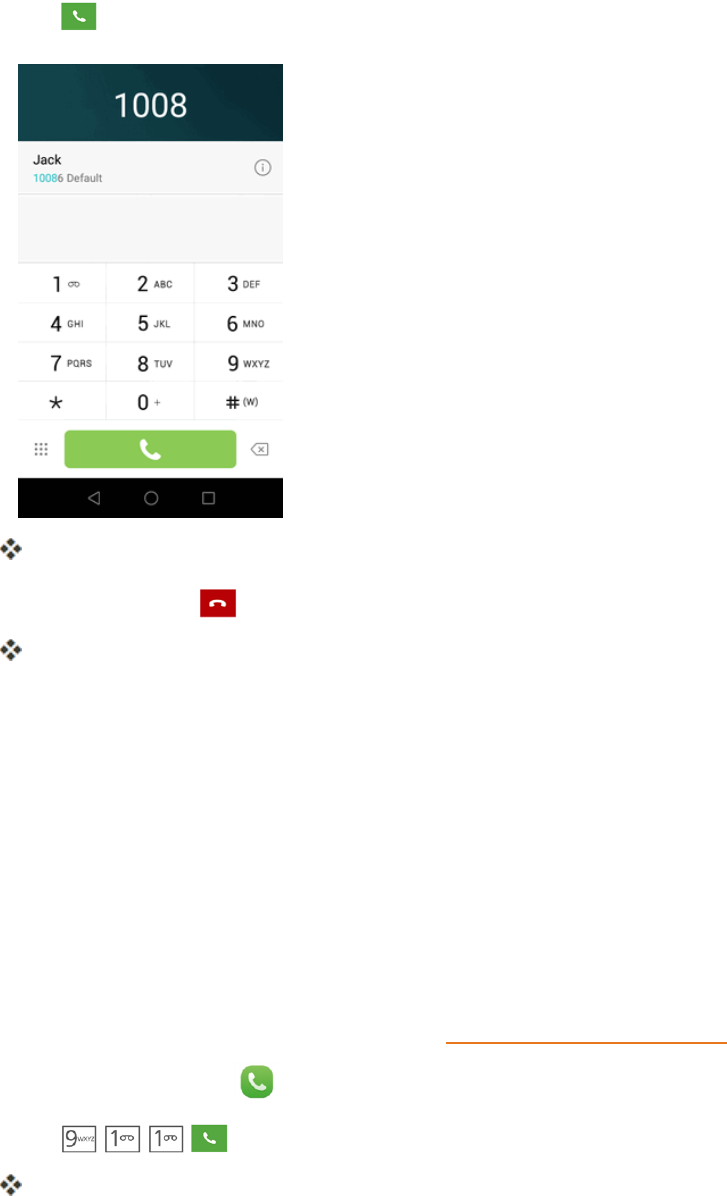
Call Using the Phone Dialer
Themost“traditional”waytoplaceacallisbyusingthephone’sdialerscreen.
1. Fromhome,tapDialer todisplaythephonescreen.
2. Tapthenumberkeysonthedialpadtoenterthephonenumber.
l Asyouenterdigits,SmartDialsearchesforcontactsthatmatch.Ifyouseethenumberyou
wanttodial,tapittoplacethecallimmediatelywithoutenteringtherestofthenumber.
Phone App 38
3. Tap tocallthenumber.
Thephonedialsthenumber.Thecallbeginswhentheotherpartyanswers.
4. Toendthecall,tap .
Thecallends.
Troubleshooting
Question:Calldoesnotconnect.
Answer 1:Wasthenumberdialedusingtheareacode?Ifnot,trydialingusingthefull10-digit
numberincludingtheareacode.
Answer 2:Areyouinanareawithpoorwirelesscoverage?Trycallingagainfromanother
area.
Call Emergency Numbers
Youcanplacecallsto9-1-1evenifthephone’sscreenislockedoryouraccountisrestricted.
1. Unlockthescreen.Formoreinformation,seeLockandUnlockYourScreen.
2. Fromhome,tapDialer .
3. Tap .
Aslongasyouareinanareacoveredbywirelessservice,theemergencycallisplaced.

Phone App 39
Enhanced 9-1-1 (E 9-1-1) Information
ThisphonefeaturesanembeddedGlobalPositioningSystem(GPS)chipnecessaryforutilizingE
9-1-1emergencylocationserviceswhereavailable.
Whenyouplaceanemergency9-1-1call,theGPSfeatureofyourphoneseeksinformationto
calculateyourapproximatelocation.Dependingonseveralvariables,includingavailabilityand
accesstosatellitesignals,itmaytakeupto30secondsormoretodetermineandreportyour
approximatelocation.
Important:Alwaysreportyourlocationtothe9-1-1operatorwhenplacinganemergencycall.
Somedesignatedemergencycalltakers,knownasPublicSafetyAnsweringPoints(PSAPs),may
notbeequippedtoreceiveGPSlocationinformationfromyourphone.
Answer Phone Calls
Thefollowinginformationletsyouknowhowtoanswerincomingcalls,mutetheringeronincoming
calls,rejectincomingcalls,andmore.
Whenyoureceiveaphonecallfromacontact,theIncomingcallscreenappearsanddisplaysthe
callerIDicon,name,andphonenumberofthecallingparty.Whenyoureceiveaphonecallfrom
someonewhoisnotstoredinPeople,onlythedefaultcallerIDiconandphonenumberappearon
theIncomingcallscreen.
Note:Ifyourphoneisturnedoff,allcallsautomaticallygotovoicemail.
Answer an Incoming Call
1. Whenacallarrives,tap toanswerit.
2. Toendthecall,tap .
Mute the Ringing Sound
Tomutetheringerwithoutrejectingthecall,youcandoanyofthefollowing:
n PresstheVolumebuttondown.
n Placethephonefacedownonalevelsurface.
Reject an Incoming Call
n Whenacallarrives,tap torejectit.
Theringtoneorvibrationwillstopandcallwillbesentdirectlytovoicemail.
Reject a Call and Send a Text Message
Youcanrejectanincomingcallandautomaticallysendatextmessagetothecaller.
1. Whenacallarrives,tap .
Phone App 40
Theringtoneorvibrationwillstopandyouwillseealistofpresettextmessages.
2. Taponeofthemessagestosendittothecaller.
Theselectedmessagewillbedeliveredtothecaller.
l YoucanedittherejectmessagesthroughtheCallsettingsmenu.Fromthephoneapp,tap
Menu >Call settings>Reject calls with SMSandedittherejectmessages.
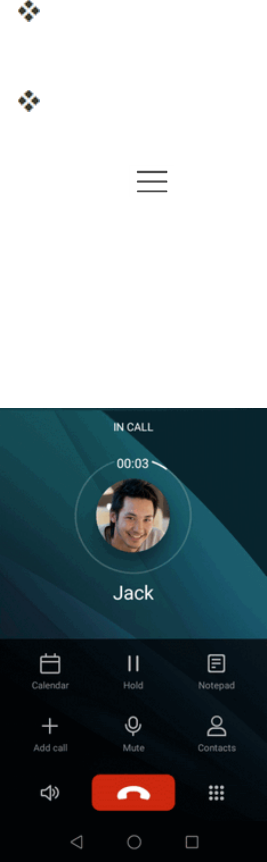
In-Call Screen Layout and Operations
Whileyou’reonacall,youwillseeanumberofonscreenoptions.
In-Call Screen Layout
Tapoptionstoactivatethemduringacall.
n Calendar:ViewtheCalendar.
n Hold:Placethecurrentcallonhold.
n Notepad:Viewyournotes.
n Add call:Startathree-waycall.
n Merge calls:Jointwocurrentlyactivecalls(conference).
n Mute:Mutethecallsothattheotherpartycan'thearyou.
n Contacts:Displayyourcontacts.

Phone App 41
n :Activatethespeakerforahands-freecall.
n :Endthecurrentcall.
n :Openthedialer.
Warning:Becauseofhighervolumelevels,donotplacethephonenearyourearduring
speakerphoneuse.
Note:TheHeadsetbuttonisactivatedtoshowthecurrentcallisroutedtotheconnectedBluetooth
headset.
Place a Call from Contacts
YoucanplacephonecallsdirectlyfromentriesinyourContactslist.
1. Fromhome,tapDialer todisplaythephoneapp.
2. TapContactstodisplaytheContactslist.
3. Tapacontact.
4. Tapthenumberyouwanttocall.
Thephonedialsthenumber.Thecallbeginswhentheotherpartyanswers.
5. Toendthecall,tap .
Call from Call Logs
TheCalllogslistletsyouquicklyplacecallstorecentincoming,outgoing,ormissednumbers.
1. Fromhome,tapDialer todisplaythephoneapp.
2. Fromthecalllog,tapthecontactornumberyouwanttocall.
Thephonedialsthenumber.Thecallbeginswhentheotherpartyanswers.
3. Toendthecall,tap .
Optional Services
Thefollowingtopicsoutlineadditionalvoice-relatedservicesavailablewithyourphone,including
callservices,voicemail,andmore.
Voicemail Setup
Youshouldsetupyourvoicemailandpersonalgreetingassoonasyourphoneisactivated.Always
useapasswordtoprotectagainstunauthorizedaccess.Yourphoneautomaticallytransfersall
unansweredcallstoyourvoicemail,evenifyourphoneisinuseorturnedoff.
Phone App 42
1. Fromhome,tapDialer .
2. Touchandhold todialyourvoicemailnumber.
3. Followthesystempromptsto:
l Createyourpassword.
l Recordyournameannouncement.
l Recordyourgreeting.
Important:Voicemail Password–Itisstronglyrecommendedthatyoucreateapasswordwhen
settingupyourvoicemailtoprotectagainstunauthorizedaccess.Withoutapassword,anyonewho
hasaccesstoyourphoneisabletoaccessyourvoicemailmessages.
Visual Voicemail
VisualVoicemailgivesyouaquickandeasywaytoaccessyourvoicemail.Nowyoucanfindexactly
themessageyouarelookingforwithouthavingtolistentoeveryvoicemailmessagefirst.This
featureperiodicallygoesouttoyourvoicemail,andgathersthecallerinformationfromallofthe
currentvoicemails.Itthenpopulatesalistwiththecallernameandnumber,alongwiththelengthof
timeandprioritylevelofthevoicemailmessage.
Set Up Visual Voicemail
SettingupVisualVoicemailfollowsmanyofthesameproceduresassettinguptraditional
voicemail.Youshouldsetupyourvoicemailandpersonalgreetingassoonasyourphoneis
activated.Yourphoneautomaticallytransfersallunansweredcallstoyourvoicemail,evenifyour
phoneisinuseorturnedoff.
Note:Tosetupyourtraditionalvoicemailbox,seeVoicemailSetup.
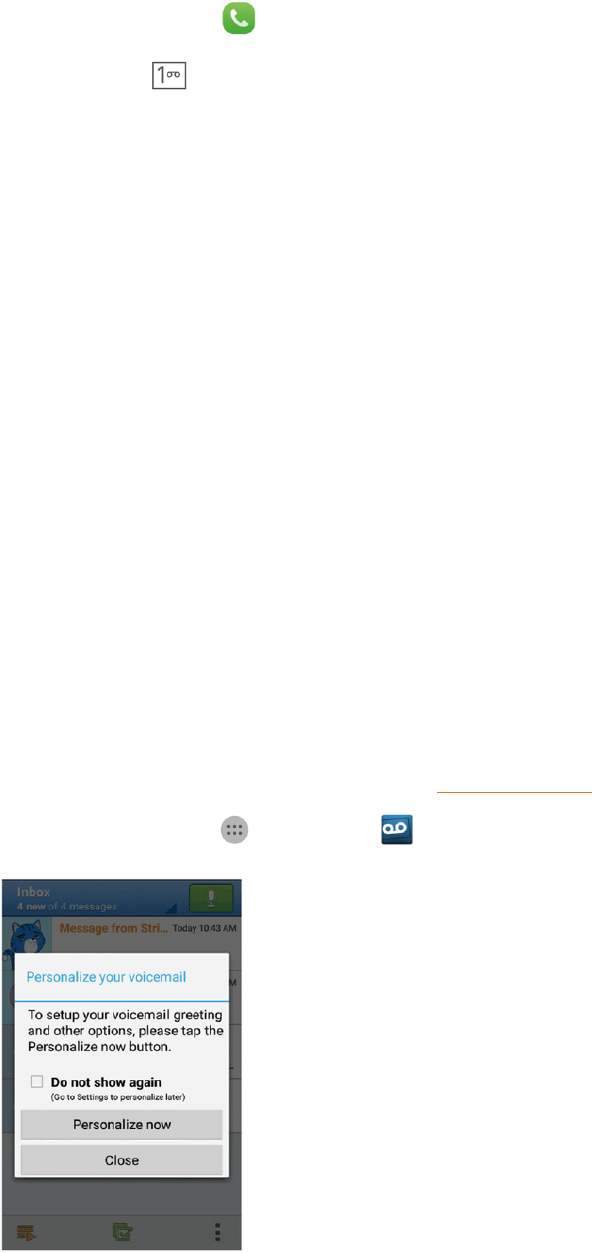
1. Fromhome,tap Apps >Voicemail .
Phone App 43
You’llseeaPersonalizeyourvoicemailprompt.
2. TapPersonalize nowandfollowthesystempromptsto:
l Createapassword(partofstandardvoicemail).
l Recordyournameannouncement.
l Recordyourgreeting.
3. TaptheWelcometoVoicemailmessageonthescreentoplayabriefexplanationofthe
voicemailservices.
Important:Voicemail Password–Itisstronglyrecommendedthatyoucreateapasswordwhen
settingupyourvoicemailtoprotectagainstunauthorizedaccess.Withoutapassword,anyonewho
hasaccesstoyourphoneisabletoaccessyourvoicemailmessages.
4. TaptheWelcometoVoicemailmessageonthescreentoplayabriefexplanationofthe
voicemailservices.
Review Visual Voicemail
VisualVoicemailletsyoueasilyaccessandselectwhichmessagesyouwanttoreview.
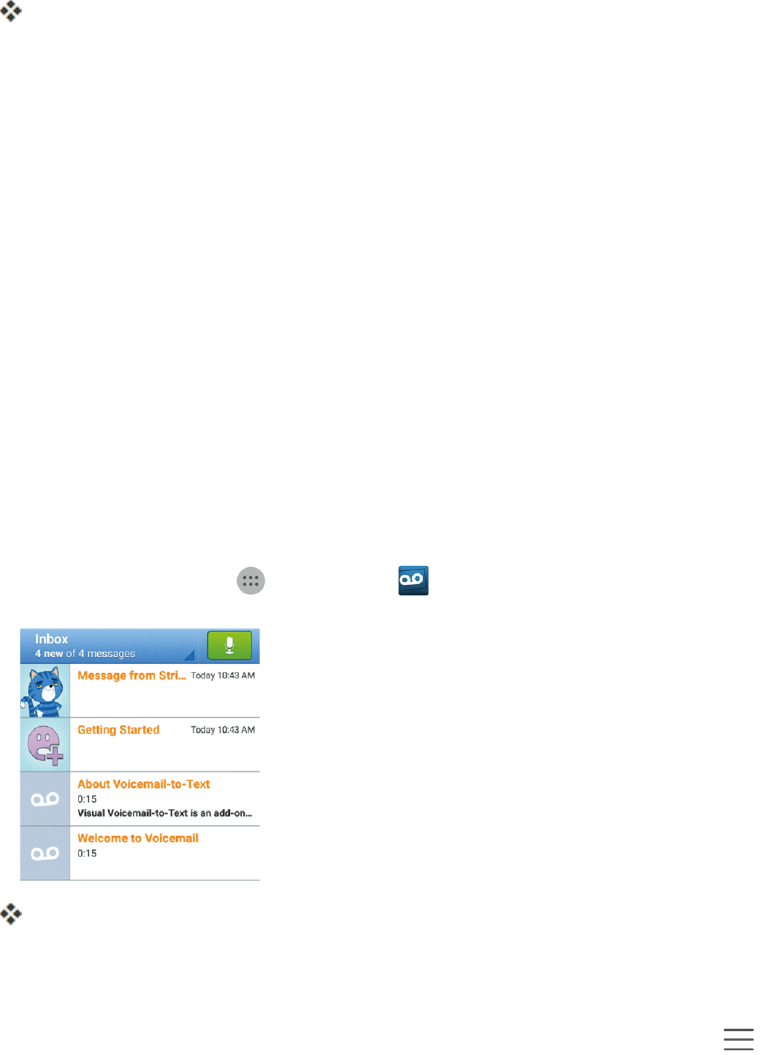
1. Fromhome,tapApps >Voicemail .
Youwillseethevoicemailinbox.
2. Tapamessagetoreviewit.
Tip:Thereareseveraliconsatthebottomofthereviewscreenformaintenance,storage,
messaging,andotheroptions.Foranexplanationofallyouroptions,tapMenu >Help>
Visual Voicemail Menu>Visual Voicemail Menu.
Listen to Multiple Voicemail Messages
Whenyouaredonelisteningtoavoicemailmessageyoucaneasilyaccessothervoicemail
messageswithoutreturningtothemainvoicemailscreen.
1. Listentothecurrentvoicemailmessage.
2. Swipeyourfingerleftorrighttodisplaythenextorpreviousmessage.
Phone App 44
Thenextorpreviousmessagewillbeginplayingautomatically.
Youcannavigatethroughvoicemailmessagesasfrequentlyasyou'dlike.Youcanevenmoveto
thenextorpreviousmessagebeforeyou'refinishedlisteningtothecurrentone.
Visual Voicemail Options
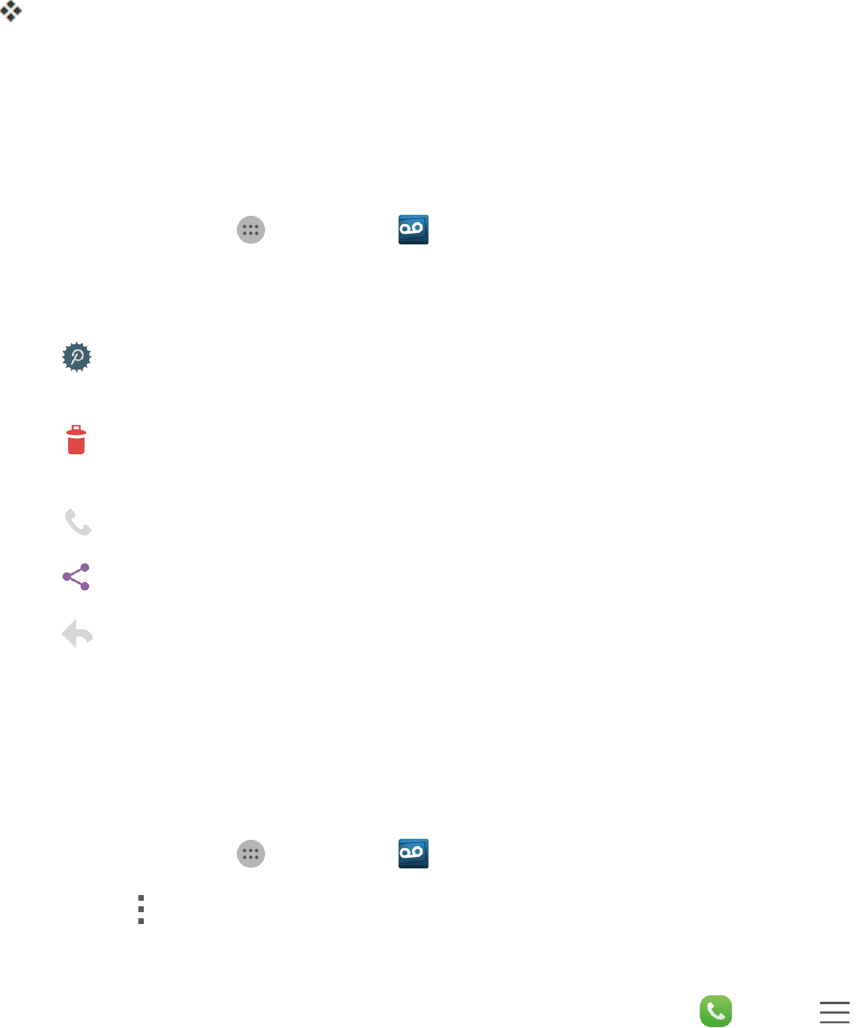
Yourvisualvoicemailoptionsappearasiconsatthebottomofthevoicemailreviewscreen.
1. Fromhome,tapApps >Voicemail .
2. Tapamessagetoreviewit.Thefollowingoptionsareavailablewhilereviewingavoicemail
message:
l Subscribe:SubscribetothepremiumVoice-to-Texttranscriptionservice.(Requires
anadditionalmonthlycharge.)
l Delete:Deleteselectedmessagesfromyourcurrentlistofavailablevoicemail
messages.
l Call:Callthenumberthemessagecamefrom.
l Share:Sharethemessage.
l Reply:Replytothemessageviatextorvoicemessage.
Note:Notalloptionsareavailableforallmessages.
Configure Visual Voicemail Settings
TheVisualVoicemailsettingsmenuletsyouaccesssettingsfornotifications,pictures,greetings,
andmore.
1. Fromhome,tapApps >Voicemail .
2. Tap Menu >Settings.
3. Selectanoptiontochangeitssettings.
Note:VoicemailsettingscanalsobeaccessedfromhomebytappingDialer >Menu >
Call settings>Voicemail.
Change Your Main Greeting via the Voicemail Menu
YourmaingreetingcanbechangeddirectlyviatheVisualVoicemailsystem.Thisdirectaccess
savesyoufromhavingtonavigatewithinthevoicemailmenu.
Phone App 45
1. Fromhome,tapApps >Voicemail .
2. TapMenu >Settings >Preferences> Personalize voicemail.
3. TapOKtoconnecttothevoicemailsystem.Followthepromptstochangeyourcurrent
greeting.
Edit the Display Name via the Voicemail Menu
FromyourVisualVoicemailmenu,youcanquicklychangethenameornumberattachedtoyour
voicemessages.
1. Fromhome,tapApps >Voicemail .
2. TapMenu >Settings>Display >Display name.
3. Taptheexistingidentificationfieldandenteranewidentifyingnameornumber(usedtoidentify
youtorecipientsofyourvoicemessages).
4. TapOKtosaveyourinformation.
Caller ID Blocking
CallerIDidentifiesacallerbeforeyouanswerthephonebydisplayingthenumberoftheincoming
call.Ifyoudonotwantyournumberdisplayedwhenyoumakeacall,followthesesteps.
1. Fromhome,tapDialer .
2. Tap .
3. Enteraphonenumber.
4. Tap .
Yourcallerinformationwillnotappearontherecipient’sphone.
Call Waiting
Whenyou’reonacall,CallWaitingalertsyoutoincomingcallsbysoundingtwobeeps.Your
phone’sscreeninformsyouthatanothercalliscominginanddisplaysthecaller’sphonenumber(if
itisavailable).
Torespondtoanincomingcallwhileyou’reonacall:
n Tap .(Thisputsthefirstcalleronholdandanswersthesecondcall.)
n Toendyourpreviouscallandacceptthenewcall,tapEnd last call.
Phone App 46
Note:Forthosecallswhereyoudon’twanttobeinterrupted,youcantemporarilydisableCall
Waitingbypressing beforeplacingyourcall.CallWaitingisautomaticallyreactivated
onceyouendthecall.
Conference Calling
Withconferencecalling,alsoknownas3-waycalling,youcantalktotwopeopleatthesametime.
Whenusingthisfeature,thenormalairtimerateswillbechargedforeachofthetwocalls.
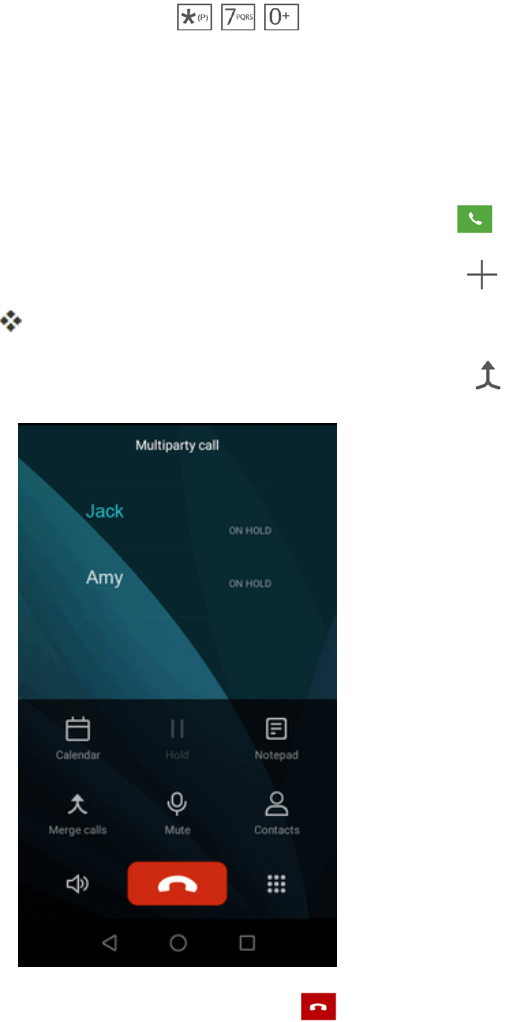
1. OnthePhonescreen,enteranumberandtap (orplaceacallfromLogorContacts).
2. Onceyouhaveestablishedtheconnection,tap tocallthesecondparticipant.
Thisputsthefirstcalleronholdanddialsthesecondnumber.
3. Whenyou’reconnectedtothesecondparty,tap .Yourconferencecallisnowinsession.
4. Toendthethree-waycall,tap .
Note:Ifoneofthepeopleyoucalledhangsupduringyourcall,youandtheremainingcallerstay
connected.Ifyouinitiatedthecallandarethefirsttohangup,allcallersaredisconnected.
Call Forwarding
CallForwardingletsyouforwardallyourincomingcallstoanotherphonenumber–evenwhenyour
phoneisturnedoff.YoucancontinuetomakecallsfromyourphonewhenyouhaveactivatedCall
Forwarding.

Phone App 47
Note:Youarechargedahigherrateforcallsyouhaveforwarded.
ToactivateCallForwarding:
1. Fromhome,tapDialer .
2. TapMenu >Call settings >Call forwarding settings.
3. Selectaforwardingmode.
4. Entertheareacodeandphonenumbertowhichyouwantyourcallsforwarded.
5. TapActivate.
YouwillhearatonetoconfirmtheactivationofCallForwarding.Allcallstoyourwireless
numberwillbeforwardedtothedesignatedphonenumber.
TodeactivateCallForwarding:
1. Fromhome,tapDialer .
2. TapMenu >Call settings >Call forwarding settings.
3. TapDeactivate.
Youwillhearatonetoconfirmthedeactivation.
Call Settings
TheCallsettingsmenuletsyouconfigureyourvoicemailoptionsandanumberofothersettingsfor
thephoneapplication.
Access Call Settings
FollowtheseinstructionstoaccessCallsettings.
1. Fromhome,tapDialer .
2. TapMenu >Call settings.
TheCallsettingsmenudisplays.
Call Settings Options
UsetheCallsettingsmenutoadjustthefollowingsettings:
Settings Description
Phone ringtone Setaphoneringtone.
Vibrate when ringing Setthephonetovibratewhenanincomingcallarrives.

Phone App 48
Settings Description
Power button ends call SetthephonetoendcallsbypressingthePower/Lockbutton.
Reject call with SMS Createoreditmessagestorejectincomingcalls.
Plus code dialing Setpluscodedialingpolicy.
Voicemail Configureyourvoicemail.
Dialer touch tones Setthephoneplayatonewhenthedialingkeypadistapped.
TTY mode Enableserviceonyourphone.
Hearing aids Improvethesoundqualityofyourphonewhenusinghearingaids.
DTMF tones SetthelengthofDTMFtones,whichareusedwhenpressingthe
keypadwhileonacall.
Call forwarding settings Forwardallyourincomingcallstoanotherphonenumber.
Call waiting Letsyouansweranotherincomingcallwhenyouarealreadyinacalland
switchbetweenthetwocalls.
TTY Mode
ATTY(teletypewriter,alsoknownasaTDDorTextTelephone)isatelecommunicationsdevice
thatallowspeoplewhoaredeaf,hardofhearing,orwhohavespeechorlanguagedisabilities,to
communicatebytelephone.
YourphoneiscompatiblewithselectTTYdevices.PleasecheckwiththemanufacturerofyourTTY
devicetoensurethatitsupportsdigitalwirelesstransmission.YourphoneandTTYdevicewill
connectusingaspecialcablethatplugsintoyourphone’sheadsetjack.Ifthiscablewasnot
providedwithyourTTYdevice,contactyourTTYdevicemanufacturertopurchasetheconnector
cable.
ToturnTTYModeonoroff:
1. Fromhome,tapDialer >Menu >Call settings>TTY mode.
2. TapTTY Full,TTY HCO,orTTY VCOtoturnTTYmodeon.
–or–
TapTTY OfftoturnTTYmodeoff.
Yourphone’sTTYmodeisset.
Note:Whenenabled,TTYmodemayimpairtheaudioqualityofnon-TTYdevicesconnectedtothe
headsetjack.
Warning:9-1-1 Emergency Calling
ItisrecommendedthatTTYusersmakeemergencycallsbyothermeans,including
TelecommunicationsRelayServices(TRS),analogcellular,andlandlinecommunications.
WirelessTTYcallsto9-1-1maybecorruptedwhenreceivedbypublicsafetyansweringpoints
(PSAPs),renderingsomecommunicationsunintelligible.Theproblemencounteredappears
Phone App 49
relatedtoTTYequipmentorsoftwareusedbyPSAPs.Thismatterhasbeenbroughttothe
attentionoftheFCC,andthewirelessindustryandthePSAPcommunityarecurrentlyworkingto
resolvethis.

Contacts 50
Contacts
TheContactsapplicationletsyoustoreandmanagecontactsfromavarietyofsources,including
contactsyouenterandsavedirectlyinyourphoneaswellascontactssynchronizedwithyour
GoogleAccount,yourPC,compatibleemailprograms(includingExchangeServer),andyour
Facebookfriends.
Contacts Cautions
InformationsavedinContactsmaybelostorchangedifthebatteryisremovedforalongperiod
orleftuncharged.Accidentormalfunctionmayalsocauselossorchangetoinformation.Itis
recommendedthatyoukeepaseparatecopyofcontactsandotherimportantinformation.The
companyisnotresponsibleforanydamagesfromlostorchangedcontacts.
Add a Contact
Youcanaddcontactsfromyourphone’sPhoneapplication.Enterdetailssuchasname,phone
numbers,emailaddresses,mailingaddresses,andmore.
1. Fromhome,tapApps >Contacts .
YouwillseetheContactslist.
2. Tap toaddacontact.
3. Selectalocationtosavethecontactfromtheoptionsmenu.
4. Enterthecontactname,phonenumber,andotherdetails.
5. Ifyouhavemultipleaccounttypesassociatedwithyourphone,selectacontacttype.
l SelectGoogleifyouwanttosavecontactstoyourGoogleAccount;thesewillbesynced
automaticallywithyourGoogleAccountonline.
l SelectDeviceasthesyncaccountifyouwantyourcontactsonyourphoneonly;theywill
notbesyncedwithyourGoogleAccount.
Note:Toaddmorephonenumbers,emailaddresses,etc.,tap ontherightsideoftheentry
field.
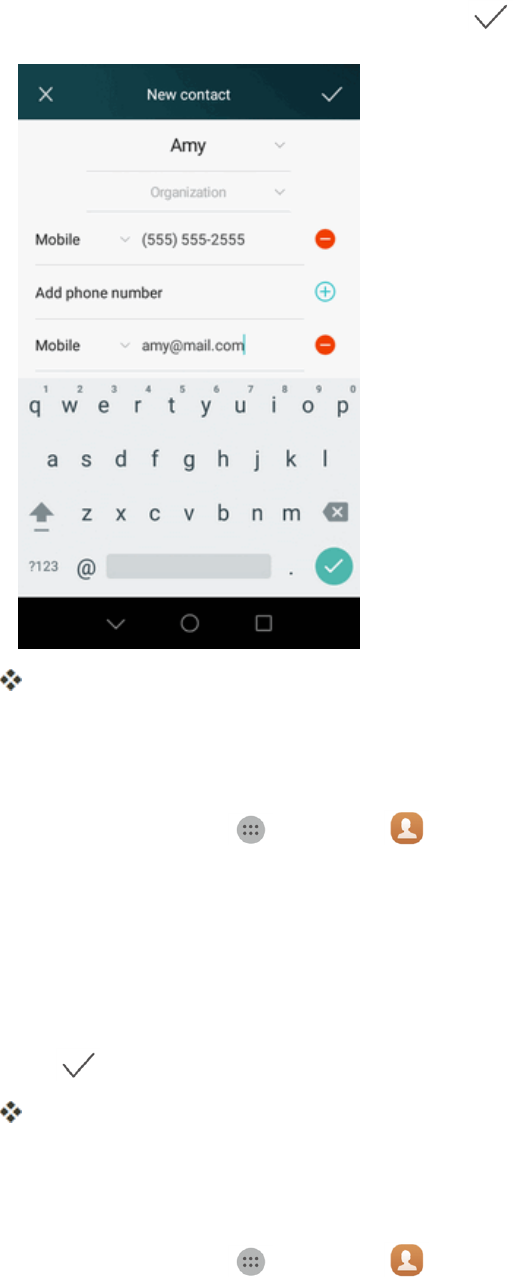
Contacts 51
6. Whenyouhavefinishedaddinginformation,tap .
Thecontactisadded.
Save a Phone Number
YoucansaveaphonenumbertoContactsdirectlyfromthephonedialpad.
1. Fromhome,tapApps >Contacts .
2. Enteraphonenumber.
l Toaddthenumbertoanewcontact,tapCreate new contact.
l Toaddthenumbertoanexistingcontact,tapSave to existing contact.
3. Enterthecontactname,phonenumber,andotherdetailsifnecessary.
4. Tap .
Thecontactisadded.
View Contacts
Viewacontact’sdetailsbydisplayingacontactentry.
1. Fromhome,tapApps >Contacts .

Contacts 52
YouwillseetheContactslist.
2. Tapacontacttoviewitsdetails.
Edit a Contact
Onceyou’veaddedacontact,youcanaddoreditanyoftheinformationintheentry,assignacaller
IDpicture,customizewithauniqueringtone,andmore.
1. Fromhome,tapApps >Contacts .
YouwillseetheContactslist.
2. Tapacontacttoviewitsdetails.
3. TapEdit .
4. Tapanyfieldyouwanttochangeoradd.SeeAddaContact.
5. Addoredittheinformation,andthentap .
Note:Toselectatype(label)foraphonenumber,emailaddress,orpostaladdress(suchas
Mobile,Home,Work,etc.),tapthetypetotheleftofthefield.
Note:Toaddmorephonenumbers,emailaddresses,etc.,tap ontherightsideoftheentry
field.
Delete a Contact
Youcandeleteacontactfromthecontactsdetailspage.
1. Fromhome,tapApps >Contacts .
YouwillseetheContactslist.
2. TapMenu >Delete contact.
3. TapDelete.
Tip:YoucanalsotouchandholdthecontactfromthecontactlistandthentapDelete.
Share a Contact
YoucanquicklysharecontactsusingBluetooth,email,Gmail,ortextmessaging.
1. Fromhome,tapApps >Contacts .
YouwillseetheContactslist.
2. Tapacontacttodisplayit,andthentapShare contacts .
3. IntheShare contactsmenu,selectamethod:

Contacts 53
l Bluetooth:SendtheinformationviaBluetooth.SeeBluetoothforinformationonpairing
andsendingviaBluetooth.
l Drive:UploadthecontactinformationtoGoogleDrive.
l Email:Sendtheinformationasanemailattachment.Ifprompted,selectanemailaccount.
Addressthemessage,addasubjectandamessage,andthentapSend.SeeCompose
andSendEmailfordetailsonsendingemail.
l Gmail:SendtheinformationasaGmailattachment.Addressthemessage,addasubject
andamessage,andthentapSend.SeeCreateandSendaGmailMessagefordetails.
l Messaging:Sendtheinformationinatextmessage.Selectacontactorenterawireless
phonenumberoremailaddress,enteranyadditionalinformation,andthentapSend.For
moreinformationontextmessaging,seeSendaMultimediaMessage(MMS).
l Wi-Fi Direct:SendtheinformationbyWi-Fidirect.
4. Completetherequiredstepsaspromptedfortheselectedmethod.
Theselectedcontactwillbeshared.
Import Contacts
YourphoneoffersacoupleofoptionsforimportingcontactsfrominstalledSDmemorycardsor
externaldevicesviaUSB.
Before Importing Contacts from an SD Card
YouwillneedtohaveinstalledanSDcardwithpreviouslybackedupcontactsinformationintoyour
phonebeforeyoucanimportcontacts.SeeSDCardforSDcardinformation.
Import Contacts from an SD Card or USB Storage
1. Fromhome,tapApps >Contacts .
YouwillseetheContactslist.
2. TapMenu >Import/Export.
3. TapImport from storage.
4. Selectadestinationfortheimportedcontacts.
5. Followtheonscreeninstructionstocompletetheimport.
Thecontactsareimportedandstoredintheselectedaccount.
Back Up Contacts
IfyouaresavingcontactstoanaccountthatdoesnotautomaticallybackthemupviatheCloud,you
canmanuallybackthemuptoanoptionalinstalledSDCardforre-importifneeded.

Contacts 54
Before Backing Up Contacts to a SD Card
YouwillneedtohaveinstalledanSDcardwithpreviouslybackedupcontactsinformationintoyour
phonebeforeyoucanbackupyourcontacts.SeeSDCardforSDcardinformation.
Back Up Contacts to Your SD Card
1. Fromhome,tapApps >Contacts .
YouwillseetheContactslist.
2. TapMenu >Import/Export.
3. TapExport to storage.
4. TapOKtoconfirmtheexport.
5. Followtheonscreeninstructionstocompletetheexport.
ThecontactsareexportedandsavedtotheinstalledSDcard.

Messaging and Internet 55
Messaging and Internet
Withwirelessserviceandyourphone’smessaginganddatacapabilities,youhavetheopportunity
toshareinformationthroughmanydifferentchannelsandaccounts,includingGmail(Google),
personalandcorporateemail,textandmultimediamessaging,socialnetworkingaccounts,and
Hangouts.
Text and Multimedia Messaging
Withtextmessaging(SMS),youcansendandreceiveinstanttextmessagesbetweenyour
wirelessphoneandanothermessaging-readyphone.
Multimediamessages,orMMS,cancontaintextandpictures,recordedvoice,audioorvideofiles,
pictureslideshows,contactcards(vCard),orappointments(vCalendar).
Seeyourserviceplanforapplicablechargesformessaging.
Send a Text Message
Quicklycomposeandsendtextmessagesonyourphone.
1. Fromhome,tap Messaging .
2. OntheMessagingscreen,tapNew message .
TheComposescreenopens.
3. Fillinoneormorerecipients.Youcan:
l EnterphonenumbersdirectlyintheEnterrecipientfield.Ifyou’resendingthemessageto
severalphonenumbers,separatethephonenumberswithacomma.Asyouenter
information,anymatchingphonenumbersfromyourcontactslistaredisplayed.Tapa
matchtoenterthatnumberoraddressdirectly.
l Tapthe icon,andthenselectthecontactstowhomyouwanttosendthemessage.
Youcanalsoselectcontactgroupsasrecipients.Whenyouhaveselectedallthemessage
recipients,tap .
4. Tapthe“Type message”boxandthenstartcomposingyourmessage.
Note:AcounterappearsabovetheSendbutton( )totellyouhowmanycharactersyouhave
enteredandhowmanycharactersareleft.Onceyougooverthe160-characterlimit,anew
messageiscreatedbutautomaticallyjoinedintoonewhenreceived.
5. Whendone,tap tosendthetextmessage.

Messaging and Internet 56
Send a Multimedia Message (MMS)
Whenyouneedtoaddalittlemoretoatextmessage,youcansendamultimediamessage(MMS)
withpictures,voicerecordings,audioorvideofiles,contactcards(vCard),orappointments
(vCalendar).
1. Fromhome,tap Messaging .
2. OntheMessagingscreen,tapNew message .TheComposescreenopens.
3. Fillinoneormorerecipients.Youcan:
l EnterphonenumbersdirectlyintheEnterrecipientfield.Ifyou’resendingthemessageto
severalphonenumbers,separatethephonenumberswithacomma.Asyouenter
information,anymatchingphonenumbersfromyourcontactslistaredisplayed.Tapa
matchtoenterthatnumberoraddressdirectly.
l Tapthe icon,andthenselectthecontactstowhomyouwanttosendthemessage.
Youcanalsoselectcontactgroupsasrecipients.Whenyouhaveselectedallthemessage
recipients,tap .
4. Tapthe“Type message”box,andthenstartcomposingyourmessage.
5. Tap toselectanattachmenttypeandthenselecttheattachmentyouwanttoadd.
6. Tap tosendtheMMSmessage.
Save and Resume a Draft Message
Whilecomposingatextormultimediamessage,tapBack toautomaticallysaveyourmessage
asadraft.
Toresumecomposingthemessage:
1. Fromhome,tapMessaging .
2. OntheMessagingscreen,tapthemessagetoresumeeditingit.
3. Whenyoufinisheditingthemessage,tap .
New Messages Notification
Dependingonyournotificationsettings,thephonewillplayaringtone,vibrate,ordisplaythe
messagebrieflyinthestatusbarwhenyoureceiveanewtextormultimediamessage.Tochange
thenotificationfornewtextandmultimediamessages,seeTextandMMSOptionsfordetails.

Messaging and Internet 57
Anewmessageicon( )alsoappearsinthenotificationsareaofthestatusbartonotifyyouofa
newtextormultimediamessage.TheMessagesapplicationicon(ifshownontheHomescreen)
alsodisplaysthenumberofnewmessages.
n Toopenthemessage,pulldownthestatusbartoopenthenotificationpanel.Tapthenew
messagetoopenandreadit.ForinformationonreadingandreplyingtomessagesseeManage
MessageConversations.
Manage Message Conversations
Textandmultimediamessagesthataresenttoandreceivedfromacontact(oranumber)are
groupedintoconversationsormessagethreadsintheMessagingscreen.TextorMMS
conversationsletyouseeexchangedmessages(similartoachatprogram)withacontactonthe
screen.
Read a Text Message
n Dooneofthefollowing:
l OntheMessagingscreen,tapthetextmessageorconversationtoopenandreadit.
l Ifyouhaveanewmessagenotification,dragthestatusbardowntoopenthenotifications
window.Tapthenewmessagetoopenandreadit.
ToreturntotheMessagingscreenfromaconversation,tapBack .
Note:Toviewthedetailsofaparticularmessage,intheconversation,touchandholdthemessage
toopentheoptionsmenu,andthentapMenu >View details.
Note:IfamessagecontainsalinktoaWebpage,tapthemessageandthentapthelinktoopenitin
theWebbrowser.
Note:Ifamessagecontainsaphonenumber,tapthemessageandthentapthephonenumberto
dialthenumberoraddittoyourcontacts.
View a Multimedia Message (MMS)
1. Fromhome,tap Messaging .
2. OntheMessagingscreen,tapamultimediamessageorconversationtoopenit.
3. TaptheDownloadicontoopentheattachment.
l IftheattachmentisavCardcontact,itisimportedtoyourphone’scontactslist.Formore
information,seeContacts.
l IftheattachmentisavCalendarfile,youcanchoosethecalendarwhereyouwanttosave
theevent.ForinformationonusingCalendar,seeCalendar.

Messaging and Internet 58
4. Tosavetheattachmenttodevicememoryoramemorycard,tap attherightsideofthe
message.
Note:WhenAuto-retrieveinMMSsettingsisdisabled,onlythemessageheaderisdownloaded.To
downloadtheentiremessage,tap attherightsideofthemessage.Fordetails,seeTextand
MMSOptions.
Note:Ifyouareconcernedaboutthesizeofyourdatadownloads,checkthemultimediamessage
sizebeforeyoudownloadit.
Reply to a Message
1. Fromhome,tap Messaging .
2. OntheMessagingscreen,tapaconversationtoopenit.
3. Tapthetextboxatthebottomofthescreen,enteryourreplymessage,andthentap .
Note:Toreplytoatextmessagewithamultimediamessage,openthetextmessage,tap to
selectanattachmenttypeandthenselectimages,videos,orothermultimediafiles.Thetext
messageisautomaticallyconvertedintoamultimediamessage.
Protect (Lock) a Message
Youcanlockamessagesothatitwillnotbedeletedevenifyoudeletetheothermessagesinthe
conversation.
1. Fromhome,tap Messaging .
2. OntheMessagingscreen,tapaconversation.
3. Touchandholdthemessagethatyouwanttolock,andthentapMenu >Lock.
Alockiconisdisplayedattherighthandsideofthemessage.
Delete Conversations
1. Fromhome,tap Messaging .
2. OntheMessagingscreen,taptheconversationthatyouwanttodelete.
3. TapDelete .
4. Whenpromptedtoconfirm,tapDelete.Anylockedmessagesinthethreadwillnotbedeleted
unlessyouselecttheDelete locked messagescheckbox.
Delete a Single Message
1. Whileviewingaconversation,touchandholdthemessagethatyouwanttodelete.

Messaging and Internet 59
l Ifthemessageislocked,tapUnlock messageontheoptionsmenuandholdthemessage
todisplaytheoptionsmenuagain.
2. TapDelete .
3. Whenpromptedtoconfirm,tapDelete.
Note:Lockedmessageswillnotbedeleted,unlessyouselecttheDelete locked messagescheck
boxbeforeconfirmingthedeletion.
View Contact Information from a Message
Whenyouhavereceivedamessagefromsomeoneinyourstoredcontacts,youcantapthe
contact’spictureoriconintheconversationtoopenamenuofoptions.Dependingonthestored
contactinformation,youcanviewthecontactdetails,placeaphonecallorsendanemailmessage
tothecontact,andmore.
Text and MMS Options
ThemessagessettingsmenuletsyoucontroloptionsforyourtextandMMSmessagesincluding
messagelimits,sizesettings,andnotifications.
1. Fromhome,tap Messaging .
2. OntheMessagingscreen,tapMenu >Settings.
3. Configuremessagesettings.
Common settings
n Attach signature:Whenenabled,atextsignatureisautomaticallyaddedtomessagesyou
send.
n Edit signature:Afterenablingsignatures,enteratextsignature.
n Common phrases:Managethecommonphrasesthatbeusedfrequently.
Notification Settings
n Message preview:Whenenabled,apreviewofanewmessageappearsintheStatusbarwith
themessagenotification.
n Tone:Selectthisoptionifyouwantthephonetosoundwhenanewtextormultimedia
messagearrives.
n Vibrate:Selectthisoptionifyouwantthephonetovibratewhenanewtextormultimedia
messagearrives.

Messaging and Internet 60
Storage Settings
n Delete old messages:Automaticallydeleteoldermessages,exceptforlockedmessages,
whenthesetlimitsarereached.
n Text message limit:Choosethemaximumnumberoftextmessagestostoreineach
conversation.(Thisdoesnotincludelockedmessages.)
n Multimedia message limit:ChoosethemaximumnumberofMMSmessagestostoreineach
conversation.(Thisdoesnotincludelockedmessages.)
Gmail
UseGoogle’sGmailserviceandyourGoogleAccounttosend,receive,andmanageyourGmail
messages.BeforeusingGmail,youmustregisteraGoogle(Gmail)Accountonyourphone.See
GoogleAccountfordetails.
Gmail Cautions
GmailishandledasemailfromaPC.RestrictingemailfromPCsonyourphonepreventsyour
phonefromreceivingGmail.
Create and Send a Gmail Message
UseyourphonetocreateandsendGmailmessages.
1. Fromhome,tapApps >Gmail .
2. Intheinbox,tapCompose .
3. Enterthemessagerecipient(s),subject,andmessage,andthentapSend .
Gmail Composition Options
ChoosefromtheoptionsbelowwhencomposingaGmailmessage.
n Adding Cc/Bcc:IntheTofield,tap todisplayCcandBccfields.
n Attaching Pictures or Videos:Inthemailcompositionwindow,tapAttach file .Locate
andtapthepictureorvideoyouwanttoattach.
n Save as a Draft (Send Later):Whilecomposingyourmessage,tapMore options >Save
draft.Themessageissavedasadraftforlater.
n Delete Mail Being Composed:Inthemailcompositionwindow,tapMore options >
Discard>DISCARD.
Note:Toviewyourdraftemailmessages,intheinbox,tapMenu >Drafts.Toviewyoursent
messages,intheinbox,tapMenu >Sent.

Messaging and Internet 61
Check Received Gmail Messages
Yourphoneallowsyoutoaccess,read,andreplytoallyourGmailmessages.
Open New Gmail Messages
WhennewGmailarrives,youwillsee inthestatusbar.
1. Pulldownthestatusbartodisplaythenotificationpanel.
2. Tapthenewmessagefromthenotificationswindow.
ThenewGmailmessageopens.
l IfyouhavetwoormorenewGmailmessages,tappingthenotificationopenstheGmail
inbox.
Open Gmail Messages
YoucanalsoreadandreplytoallyourGmailmessagesfromtheGmailinbox.
1. Fromhome,tapApps >Gmail .
2. Tapthemessagethreadyouwanttoview.
Themessagethreadopens,withthenewestmessagedisplayed.
Options when Reviewing Gmail Messages
n Replying to Gmail Messages:WiththeGmailmessageopen,tap ,composeyourreply
message,andtap Send .
l Toreplytoall,tapReply all.
n Forwarding Gmail Messages:WiththeGmailmessageopen,tapForward,enterarecipient
andanadditionalmessage,andtapSend .
Use Gmail Labels
Gmailsavesallmailinonebox,butyoucanaddlabelsthatallowyoutosortyourGmail
conversationthreads.Forexample,whenanewthreadstartswithareceivedmail,thelabel"Inbox"
isautomaticallyaddedtothethread.Bythenaddingthelabel"travel,"allthreadswith"travel"are
showninalist.
1. Fromhome,tapApps >Gmail .
2. Touchandholdaconversationthreadtoaddacheckmarktoit,andthentap >Move to.
3. Tapalabelforthethread.
Thethreadisaddedtotheselectedlabel.

Messaging and Internet 62
Archive Gmail Threads
RemovesentandreceivedGmailthreadssotheydonotappearintheinbox.Whenrepliesarrive
forarchivedthreads,theyappearintheinboxagain.
1. Fromhome,tapApps >Gmail .
2. Touchandholdaconversationthread(ortouchthethread'sicon/picture)toaddacheckmarkto
it,andthentapArchive.
Thethreadisnowarchived.
Mute Gmail Threads
Ifregisteredonamailinglist,therewillbethreadswithalways-continuingconversations.Forlong
threadsthatarenotimportant,mutethethreadsandtheywillnolongerappearintheinbox.When
mailarrivesthatincludesuser'saddressasarecipientorinCc,mailwillagainappearintheinbox.
1. Fromhome,tapApps >Gmail .
2. Touchandholdaconversationthread(ortouchthethread'sicon/picture)toaddacheckmarkto
it,andthentapMore options >Mute.
Thethreadisnowhidden.
Delete Gmail Threads
IfyounolongerwishtokeepaGmailconversationthread,youcansimplydeleteitfromtheinbox.
1. Fromhome,tapApps >Gmail .
2. Touchandholdaconversationthreadtoaddacheckmarktoit,andthentap .
Search Gmail Messages
Ifyouneedtofindaspecificmessageormessagethread,youcansearchGmailfromtheinbox.
1. Fromhome,tapApps >Gmail .
2. Tap .
3. Enteryoursearchtextandtap .
Thesearchresultsappear.Tapamessageorthreadfromthelisttodisplayit.
Report Spam or Phishing Gmail
YoucanreportspamorphishingGmailmessagesfromyourphone’sGmailinbox.

Messaging and Internet 63
1. Fromhome,tapApps >Gmail .
2. Touchandholdaconversationthreadtoaddacheckmarktoit,andthentapOptions >
Report spamorReport phishing.
TheselectedmessageisreportedasspamorphishingGmail.
Add Another Google (Gmail) Account
IfyouhavemultipleGmailaccountsyouwishtoviewonyourphone,youcanaddthemfromthe
Settings>Accountsmenu.
1. Fromhome,tapSettings >Accounts.
2. TapGoogle.
3. EnteryourGmailusernameandpassword,andthentapNext.
4. AfteryourphoneconnectswiththeGoogleservers,selecttheitemsyouwouldliketosyncwith
yourphoneandthentapSync now.
YouaresignedintoyourGoogleAccount,andyoucanaccessbothofyourGmailaccounts
fromtheGmailapp.
Switching Between Gmail Accounts
IfyouhavemorethanoneGmailaccountsetup,youcanswitchbetweenthemintheGmailapp.
1. Fromhome,tapApps >Gmail .
2. Tap .
3. Taptheaccounttoopentheaccountlist.
4. Selecttheemailaccountyouwanttouse.
Theselectedaccountinboxisdisplayed.
Email
UsetheMailapplicationtosendandreceiveemailfromyourwebmailorotheraccounts,using
POP3orIMAP,oraccessyourExchangeActiveSyncaccountforyourcorporateemailneeds.
Set Up an Email Account
Yourphonesupportsseveraltypesofemailaccountsandallowsyoutohavemultipleemail
accountssetupatonetime.
Beforesettingupanemailaccount,makesureyouhavetheusername(userID),password,server
name,etc.,soyoucangetsetupsuccessfully.

Messaging and Internet 64
1. Fromhome,tap Apps > Email .
Apopupwindowforaddinganaccountappearsifnoemailaccounthasbeenpreviouslyset
up.
2. Followtheonscreeninstructionstosetupyouremailaccount.
Theemailaccountissetupandyouwillbeginreceivingemail.
Add an Email Account
Youcanaddseveraltypesofpersonalemailaccounts,suchasPOP3andIMAPaccounts,onyour
phone.
Add an Email Account
Youcanaddemailaccountsdirectlyfromtheemailapp,evenifyouhaveanotheremailaccountset
up.
1. Fromhome,tap Apps >Email .
2. Enteryouremailaddressandpassword,andthentapNext.
3. Followtheonscreeninstructionstoconfigureyouraccount.Thesystemwillthenautomatically
connecttotheserver.
Onceyouraccountissetup,Inboxwillbedisplayed.
Add an Exchange ActiveSync Account
IfyousynchronizeyourphonewithyourExchangeActiveSyncaccount,youcanread,manage,and
sendemailinthesameeasywayaswithaPOP3/IMAPaccount.However,youcanalsoaccess
somepowerfulExchangefeatures.
Important:BeforesettingupaMicrosoftExchangeActiveSyncAccount,contactyourcompany’s
ExchangeServeradministratorforrequiredaccountsettingsinformation.
1. Fromhome,tap Apps >Email .
2. TapCorporate.
3. EntertheEmail addressandPasswordfortheemailaccountandthentapManual setup.
4. Entertherequiredinformation:
l Domain\username:Enteryournetworkdomainandusername,separatedby“\”.
l Password:Enteryournetworkaccesspassword(case-sensitive).
l Exchange server:Enteryoursystem’sExchangeserverremoteemailaddress.Obtainthis
informationfromyourcompanynetworkadministrator.

Messaging and Internet 65
l Use secure connection (SSL):Taptoplaceacheckmarkinthebox,ifyoursystem
requiresSSLencryption.
l Use client certificate:Taptoplaceacheckmarkinthebox,ifyoursystemrequires
certification.
5. Followtheonscreeninstructionstoconfigureyouraccount.Thesystemwillthenautomatically
connecttotheserver.
OnceyourExchangeaccountissetup,Inboxwillbedisplayed.
Compose and Send Email
Composeandsendemailusinganyaccountyouhavesetuponyourphone.Increaseyour
productivitybyattachingfilessuchaspictures,videos,ordocumentstoyouremailmessages.
1. Fromhome,tap Apps >Email .
l Ifyouwanttoswitchtoadifferentemailaccount,taptheaccountnameatthetopofthe
screenandselectanotheraccount.
2. TapCompose .
3. Enterthemessagerecipient(s),subject,andmessage.
4. Tap .
Check Your Email
Youcanalsoopenandreademailmessagesdirectlyfromtheemailinbox.Readingandreplyingto
emailonyourphoneisassimpleasonyourcomputer.
1. Fromhome,tap Apps >Email .
2. InInbox,tap intheupperleftcornertoselectanemailaccount.
3. Taptheemailyouwanttoread.Thenyoucan:
l TapDelete todeleteit.
l TapReply toreplytoit.
l TapReply all toreplaytoall.
l TapForward toreplaytoall.
l Swipeleftorrightonthescreentoreadthepreviousornextemail.
Tip:InInbox,swipedowntorefreshyouremaillist.

Messaging and Internet 66
Options When Reviewing Email Messages
Choosefromtheoptionsbelowwhenreviewingyouremailmessages.
n Resetting Mail as Unread:Tapthecheckboxontheleftsideofareadmessageandthentap
Mark unread .
n Deleting Email:Tapthecheckboxontheleftsideofamessageormessagesandthentap
Delete .
n Syncing Accounts Manually:Syncsentandreceivedemailmessagesmanuallyatanytime
regardlessoftheautomaticsyncsettings.Switchtotheaccountyouwanttosyncandthendrag
thescreendowntorefreshtheemail.
n Replying to Email Messages:Withanemailmessageopen,tapReply orReply all
,composeyourreplymessage,andtapSend .
n Forwarding Email Messages:Withtheemailmessageopen,tapForward ,entera
recipientandanadditionalmessage,andtapSend .
Delete an Email Account
Youcandeleteanemailaccountfromyourphoneifyounolongerwishtoreceivemessagesforthe
accountonyourphone.
1. Fromhome,tap Apps > Email .
2. Tap Menu >Settings.
3. Selecttheaccountyouwanttoremove.
4. TapRemove accountthenOK.
Theaccountisdeletedfromyourphone.
Manage Your Email Inbox
Youremailinboxprovidesmanagementoptionsforviewing,sorting,anddeletingyouremail
messages.
View Your Email Inbox
1. Fromhome,tap Apps > Email .
2. Taptheemailaccountatthetopofthescreentoselectadifferentinbox,ortapCombined view
toseeallyouremailinboxesatonce.

Messaging and Internet 67
Refresh an Email Account
Whateveryourautomaticsynchronizationsettingsare,youcanalsosynchronizeyoursentand
receivedemailmessagesmanuallyatanytime.
n InInbox,swipedowntorefreshyouremaillist.
Sort Email Messages
1. Ontheemailaccountinbox,tapMenu >Sort by.
2. SelectfromtheoptionstosortemailmessagesbyDate (latest),Date (oldest),Sender (A to
Z),Sender (Z to A),Unread/Read.
Delete an Email Message
1. Ontheemailaccountinbox,touchandholdthemessageyouwanttodelete.
2. Ontheoptionsmenu,tapDelete .
Delete Multiple Email Messages
1. Ontheemailaccountinbox,tapthecheckboxnexttothemessagesyouwanttodelete.
2. TapDelete .
Browser
Yourphone’sWebbrowsergivesyoufullaccesstobothmobileandtraditionalwebsitesonthego,
using3G,4G,orWi-Fidataconnections.
SSL/TLS
SSL(SecureSocketsLayer)andTLS(TransportLayerSecurity)areprotocolsforencrypting
sent/receiveddata.WhileinascreenconnectedbySSL/TLS,dataisencryptedtosafely
send/receiveprivateinformation,creditcardnumbers,corporatesecrets,etc.,andprovide
protectionagainstonlinethreats(eavesdropping,falsification,impersonation,etc.).
SSL/TLS Cautions
Whenopeningasecuredpage,usersmustdecideastheirresponsibilitywhetherornottoopen
thepagewithuseofSSL/TLS.[CarrierName]andtheapplicableCertificationAuthoritiesmake
noguaranteeswhatsoevertousersregardingsecurityofSSL/TLS.
Use the Browser
Launchingthebrowserisaseasyastappinganicon.

Messaging and Internet 68
n Fromhome,tapApps >Browser .
Thebrowseropens.
l ThefirsttimeyoulaunchInternet,youmaybepromptedtoenteryour10-digitwireless
phonenumbertoaccesstheBoosthomepage.
l YoucanalsolaunchthebrowserbytappingaURLinatextmessage,emailmessage,or
Gmailmessage.
Browser Settings
CustomizeyourexperiencewiththeInternetthroughthebrowsersettingsmenu.
1. Fromhome,tapApps >Browser .
2. Tap > ,andcustomizeyourbrowsersettings.
Add a Bookmark
Bookmarkfavoritesitesusingthebrowsermenuoptions.
1. Fromhome,tapApps >Browser .
2. NavigatetotheWebpageyouwanttobookmark,andtapMenu >Add bookmark.
3. Checkorchangethebookmarktitle,URL,etc.,andthentap .
TheWebpageisaddedtobookmarks.
Bookmark Options
n Editing Bookmarks:Fromthebrowser,tapMenu >Bookmarks & history,touchand
holdabookmark,tapEdit bookmark,editthebookmark,andthentap .
n Deleting Bookmarks:Fromthebrowser,tapMenu >Bookmarks & history,touchand
holdabookmark,tapDelete bookmark,andthentapOK.
n Show Saved Web Pages:Fromthebrowser,tapMenu >Bookmarks & history>
Saved pages,andthentapasavedpagetoopenit.
View Browser History
Usethebrowsermenuoptionstoviewyourbrowsinghistory.
1. Fromhome,tapApps >Browser .
2. TapMenu >Bookmarks & history.

Messaging and Internet 69
l Ifyoudon’tseeBookmarks,pulldowntheWebpagetodisplaytheaddressbar.
3. TaptheHistorytabandthentapanentry.
TheWebpageopens.
Usetabbedbrowsingtoswitchbetweenwebsitesquicklyandeasily.
1. Fromhome,tapApps >Browser .
2. TapTabs .
Thetabswindowopens.
l Ifyoudon’tseeTabs ,dragtheWebpagedowntodisplaytheaddressbar.
3. Tap .
Anewtabappears.
l Toswitchtabs,taponeoftheavailablethumbnailsinthetabswindow.
Chrome Browser
Inadditiontothedefault"Internet"Webbrowser,yourphonesupportstheChromemobileWeb
browser.IfyouaresignedinwithaGoogleAccount,theChromebrowserwillimportallyour
bookmarksandotherWebpreferencesforuseonyourphone.
1. Fromhome,tapApps >Chrome .
2. Taptheaddressbaratthetopandentersearchwords(foraGooglesearch)oraWebaddress
(URL).
ThesearchresultsappearoraWebpageopens.
Chrome Support
n Tofindon-phonehelpwithChrome,fromChrome,tapMenu >Help & Feedback.
AWebpagewillopendisplayingGooglehelpforChrome.
Tip:Formoreinformation,fromyourcomputer,visit:google.com/intl/en/chrome/browser/mobile/.

Camera and Video 70
Camera and Video
Youcanusethecameraorvideocameratotakeandsharepicturesandvideos.
Take Pictures and Record Videos
Thefollowingtopicsteachyouhowtotakepicturesandrecordvideoswithyourphone’scamera.
Camera Cautions
If Lens Becomes Dirty:Fingerprints/smudgesonlenspreventcapturingofclearstill
images/videos.Wipelenswithasoftclothbeforehand.
Avoid Exposure to Direct Sunlight:Becarefulnottoexposelenstodirectsunlightforlong
periods.Maydiscolorcolorfilterandaffectcolorofimages.
Mobile Light Warning
DonotshineMobileLightclosetoeyes.DonotlookdirectlyatMobileLightwhenshining.Do
notshineMobileLightatotherpeople'seyes.Mayaffecteyesight,etc.
Take a Picture
Youcantakehigh-resolutionpicturesusingyourphone’scamera.
Note:IfyouhaveanSDcardinstalled,picturesandvideosarestoredtotheSDcard.Ifnocardis
installed,picturesandvideosaresavedtoyourphone’smemory.
1. Fromhome,tapApps >Camera .
2. Aimthecameraatyoursubjectandthentap .
3. Release totakethepicture.
TheshutterclicksandthepictureiscapturedandsavedtoyourphoneorSDcard.
Launch the Camera From the Gallery
TheGalleryletsyouquicklylaunchtheCameraandtakeaphoto.
1. Fromhome,tapApps >Gallery .
2. UnderPhotos,swipedownonthealbumstodisplaytheviewfinderinhalfscreenmode,and
thenswipedownagaintolaunchthecamera.
3. Tap totakeaphoto.
4. Tap Returntoreturntogallery.

Camera and Video 71
Capture Modes
Yourphonesupportsavarietyofcapturescenarios,suchasscenery,portrait,anddynamic.Follow
theinstructionsbelowtoviewyourphone’scapturemodes.
1. Fromhome,tap >Camera .
2. Tap toviewthecapturemodes:
l Panorama:Yourphonetakesseveralphotoscontinuouslyasyoupanandstitchesthem
intoonecompletepanoramicshot.
l HDR:Enhanceaphototakenunderinsufficientorexcessivelightingconditions.
l Watermark:Addvariouswatermarkstoyourphotos.
l Audio note:Youcanrecordabriefaudioclipafteryoutakeaphoto.
l Audio control:Tap andenablethismodeunderSettings.Youcanissuevoice
commandstohaveyourcameratakephotosforyou.
l Timer:Tap andenablethismodeunderSettingstosetacountdowntimerfortakinga
photo.
l Touch to capture:Tap andenablethismodeunderSettings.Tapthescreentotake
aphoto.
l Ultra snapshot:Tap andenablethismodeunderSettings.Whenthescreenisoffor
locked,frametheobjectyouwanttocaptureandpresstheVolumedownkeytwicetotake
aphoto.
Taking a Panoramic Photo
1. Fromhome,tap >Camera .
2. Tap >Panoramatoswitchtopanoramashootingmode.
3. Tap tostartshooting.
4. Followtheonscreeninstructionsandmoveyourphoneslowlytocapturemultiplephotos.
5. Tap tostopshooting.Thecameraautomaticallystitchesthephotostogethertocreateone
panoramicphotograph.

Camera and Video 72
Adding Watermarks to Photos
1. Fromhome,tap Apps >Camera .
2. Tap >Watermarktoswitchtowatermarkmode.
3. Swipeleftorrightandselectthedesiredwatermark.
4. Dragthewatermarktoadjustitsposition.
5. Tap .
Taking a Photo Using Audio Control
1. Fromhome,tapApps >Camera .
2. Tap > >Audio control.
3. TapAudio controltoswitchtotheaudiocontrolmode.Thenyoucan:
4. Tapanalbum(suchasCamera).
l Getyourphonetotakeaphotowhenyouissueavoicecommand.
l Getyourphonetotakeaphotowhenthesurroundingnoisereachesacertaindecibellevel.
5. Framethesceneyouwanttocapture.Yourphonewilltakeaphotoautomaticallywhenyou
issueavoicecommandorthesurroundingnoisereachesacertaindecibellevel.
Record Videos
Recordhigh-qualityvideosusingyourphone’svideocamera.
Note:IfyouhaveanSDcardinstalled,picturesandvideosarestoredtotheSDcard.Ifnocardis
installed,picturesandvideosaresavedtoyourphone’smemory.
1. Fromhome,tapApps >Camera .
2. SwipelefttoswitchtoVideomode.
3. Tap tostartrecording.
4. Whilerecording,tapanobjectorapositiononthescreentofocusonit.Tap topause
recording,andtap toresume.
5. Tap tostoprecording.
ThecamerastopsrecordingandthevideoiscapturedandsavedtoyourphoneorSDcard.

Camera and Video 73
View Pictures and Videos Using Gallery
UsingtheGalleryapplication,youcanviewpicturesandwatchvideosthatyou’vetakenwithyour
phone’scamera,downloaded,orcopiedontoyourstoragecardorphonememory.Youcanalso
takealookatyourpicturesandyourfriends’picturesthatareonyoursocialnetworks(Facebook
andFlickronly).
Forpicturesthatareonyourstoragecardorphonememory,youcandobasiceditingsuchas
rotatingandcropping.Youcanalsoeasilyassignapictureasyourcontactpictureorwallpaperand
sharepictureswithyourfriends.
View Pictures and Videos
Youcanaccessandviewallyourstoredpicturesandvideosfromyourphone’sGallery.
1. Fromhome,tap Apps > Gallery .
2. Tapanalbum(suchasCamera).
l Toselectanotheralbum,tapBack toreturntotheAlbumstab.
3. Tapanimagetoviewthepictureorvideo.
l Tapapictureorvideotoviewitfullscreen.
l Whenviewingpicturesandvideos,youcantouchandholdanimagetoopenaselection
menuandchoosewhattodowiththepictureorvideo.
Pictures and Videos: Review Screen
Aftercapturingapictureorvideo,fromthecamerascreen,tapthethumbnailimageatthebottom
rightcornerofthescreentoseetheiteminthereviewscreen.Fromthere,youcanaccessoptions
suchassave,view,send,ordeletethepictureorvideo.
Pictures and Videos: Options while Viewing
n Zoom In or Out on a Picture or Video:Tapthescreentwiceorpinchthescreentozoomin
oroutonapictureorvideo.
n Viewing Videos:Usetheonscreencontrolstoplay,pause,orstopthevideoplayback.
AfterselectinganalbumfromtheAlbumstab,youcanbrowsethroughthepicturesandvideosof
thatalbum.Tapapictureorvideotoviewitinfullscreen.Bydefault,thepicturesandvideosinan
albumaredisplayedingridview.
Note:Whenviewingpictures,youcantouchandholdonapictureorvideotoopenaselection
menuandchoosewhattodowiththepictureorvideo.

Camera and Video 74
Edit Pictures
Whetheryou’rebrowsingpicturesinfilmstriporgridviewintheGalleryapplication,youcantouch
andholdonapicturetoopenaselectionmenuandchoosetodeletethepicture,rotateorcropit,
andmore.
Rotate and Save a Picture
1. Fromhome,tap Apps > Gallery .
2. Tapanalbum(suchasCamera).
3. Tapthepictureyouwanttorotate.
4. TapEdit >Rotate .
ThepictureisrotatedandsavedtothephoneorSDcard,dependingonyoursettings.
Crop a Picture
1. Fromhome,tap Apps > Gallery .
2. Tapanalbum(suchasCamera).
3. Tapthepictureyouwanttocrop.
4. TapEdit >Crop .
5. Toadjustthecropboxsize,touchandholdtheedgeofthebox.Whendirectionalarrows
appear,dragyourfingerinwardtooroutwardtoresizethecropbox.
l Tomovethecropboxtothepartofthepicturethatyouwanttocrop,dragthecropboxto
thedesiredsizeandposition.
6. Tap checkmarkontheupperrightcornerofthescreen.
Thecroppedpictureissavedinthealbumasacopy.Theoriginalpictureremainsunedited.
Share Pictures and Videos
TheGalleryapplicationletsyousendpicturesandvideosusingemailormultimediamessages.You
cansharepicturesonyoursocialnetworks(suchasFacebook,Flickr,Picasa,andTwitter)and
sharevideosonYouTube.Youcanalsosendthemtoanotherphoneoryourcomputerusing
Bluetooth.
Send Pictures or Videos by Email
Youcansendseveralpictures,videos,orbothinanemailorGmailmessage.Theyareaddedasfile
attachmentsinyouremail.FormoreinformationaboutusingemailandGmail,seeComposeand
SendEmailorCreateandSendaGmailMessage.

Camera and Video 75
1. Fromhome,tap Apps >Gallery .
2. Tapanalbum(suchasCamera).
3. Tapthealbumthatcontainsthepicturesorvideosyouwanttoshare.
4. Tapthepicturesorvideosyouwanttoshare.
l Toselectmultipleitems,touchandholdanimagetoturnonmultipleselect.Tapalltheitems
youwanttoinclude.
5. TapShare andthentapEmailorGmail.
6. Followonscreenpromptstocompleteandsendthemail.
Note:IfyouselectedMailandyouhavemultipleemailaccounts,thedefaultemailaccountwillbe
used.
FormoreinformationaboutusingemailandGmail,seeComposeandSendEmailorCreateand
SendaGmailMessage.
Send a Picture or Video by Multimedia Message
MultimediaMessaging(MMS)letsyousendpicturesandvideosusingyourphone’smessaging
app.Althoughyoucansendseveralpicturesorvideosinamultimediamessage,itmaybebetterto
justsendoneatatime,especiallyifthefilesarelargeinsize.
1. Fromhome,tap Apps >Gallery .
2. Tapanalbum(suchasCamera).
3. Tapthealbumthatcontainsthepicturesorvideosyouwanttoshare.
4. Tapthepicturesorvideosyouwanttoshare.
l Toselectmultipleitems,touchandholdanimagetoturnonmultipleselect.Tapalltheitems
youwanttoinclude.
5. TapShare andthentapMessaging.
6. Followtheonscreenpromptstocompleteandsendthemessage.
Formoreinformationaboutsendingmultimediamessages,seeSendaMultimediaMessage
(MMS).
Send Pictures or Videos Using Bluetooth
Youcanselectseveralpictures,videos,orbothandsendthemtosomeone’sphoneoryour
computerusingBluetooth.

Camera and Video 76
1. Fromhome,tap Apps > Gallery .
2. Tapanalbum(suchasCamera).
3. Tapthealbumthatcontainsthepicturesorvideosyouwanttoshare.
4. Tapthepicturesorvideosyouwanttoshare.
l Toselectmultipleitems,touchandholdanimagetoturnonmultipleselect.Tapalltheitems
youwanttoinclude.
5. TapShare andthentapBluetooth.
6. Followtheonscreenpromptstocompleteandsendthefiles.
Formoreinformation,seeBluetooth.
Share Pictures and Videos on Facebook
YoucansharepicturesandvideosfromyourphonedirectlytoyourFacebookaccount.Youneedto
beloggedintoyourFacebookaccounttouploadpicturesandvideos.
Note:BeforeyoucanuseFacebookonyourphone,youhavetodownloadandinstalltheappfrom
GooglePlay.
1. Fromhome,tap Apps > Gallery .
2. Tapanalbum(suchasCamera).
3. Tapthealbumthatcontainsthepicturesorvideosyouwanttoshare.
4. Tapthepicturesorvideosyouwanttoshare.
l Toselectmultipleitems,touchandholdanimagetoturnonmultipleselect.Tapalltheitems
youwanttoinclude.
5. TapShare andthentapFacebook.
6. Addacaptionandanyotherinformationyouwantforthephotoandpostit.
Share Pictures on Flickr
YouneedtobeloggedintoyourFlickraccounttouploadpictures.
Note:BeforeyoucanuseFlickronyourphone,youhavetodownloadandinstalltheappfrom
GooglePlay.
1. Fromhome,tap Apps > Gallery .
2. Tapanalbum(suchasCamera).
3. Tapthealbumthatcontainsthepicturesorvideosyouwanttoshare.

Camera and Video 77
4. Tapthepicturesorvideosyouwanttoshare.
l Toselectmultipleitems,touchandholdanimagetoturnonmultipleselect.Tapalltheitems
youwanttoinclude.
5. TapShare andthentapFlickr.
6. Followtheonscreeninstructionstoaddadescriptionforthephotoanduploadit.
Note:IfyouarenotloggedintoyourFlickraccount,youwillbepromptedtologinanddownloadthe
FlickrDownloaderapplication.Followtheonscreeninstructionstoproceed.
Share Pictures on Picasa
YouneedtobesignedintoaGoogleAccounttouploadpicturestothePicasa™pictureorganizing
service.
Note:BeforeyoucanusePicasaonyourphone,youhavetodownloadandinstalltheappfrom
GooglePlay.
1. Fromhome,tapApps > Gallery .
2. Tapanalbum(suchasCamera).
3. Tapthealbumthatcontainsthepicturesorvideosyouwanttoshare.
4. Tapthepicturesorvideosyouwanttoshare.
l Toselectmultipleitems,touchandholdanimagetoturnonmultipleselect.Tapalltheitems
youwanttoinclude.
5. TapShare andthentapPicasa.
6. Selecttheonlinealbumwhereyouwanttouploadthepictures,ortap tocreateanew
album.
7. TapUpload.Youcanviewthepicturesonlineatpicasaweb.google.com.
Share Videos on YouTube
YoucanshareyourvideosbyuploadingthemtoYouTube™.Beforeyoudothis,youmustcreatea
YouTubeaccountandsignintothataccountonyourphone.
1. Fromhome,tap Apps > Gallery .
2. Tapanalbum(suchasCamera).
3. Tapthealbumthatcontainsthevideosyouwanttoshare.
4. Tapthevideosyouwanttoshare.

Camera and Video 78
l Toselectmultiplevideos,touchandholdanimagetoturnonmultipleselect.Tapallthe
videosyouwanttoinclude.
5. TapShare andthentapYouTube.
6. Selecttheaccountthatyouwanttosigninwith.
7. Enterthepromptedinformation,suchasdescriptionandtags,andselectaprivacyoption.
8. Tap tostarttheuploading.
Camera Settings
Youcanadjustyourcamera’ssettingsusingtheiconsonthemaincamerascreenandthefull
camerasettingsmenu.
Youcanconfigureyourcamera’ssettingstofitanysituationandevent.
1. Fromhome,tapApps >Camera .
2. TapMenu > .
3. Selectyourdesiredsettings.

Apps and Features 79
Apps and Features
Thefollowingtopicsdetailmanyofyourphone’stoolsandfeaturessuchasnewsservices,maps
andnavigation,calendar,clock,socialnetworkingapps,music,memos,andmore.
Navigation Apps
Yourphoneoffersanumberoflocation-basednavigationprogramstohelpyoufigureoutwhere
youareandgetyouwhereyou’regoing.
Enable Location Services on Your Phone
Tobeginusinganylocation-basedservices,youmustenableyourphone’slocationfeature.For
informationaboutsettingyourphone’slocationoptions,seeLocationAccessSettings.
Google Maps
UsetheGoogleMapsapptodetermineyourlocation,finddirections,browselocalbusinessesand
attractions,rateandreviewplaces,andmore.
1. Fromhome,tapApps >Maps .
l Ifprompted,followtheonscreeninstructionstoaccepttermsofuse.
2. Enteranaddress,city,facilityname,etc.,andthentapacandidateintheresultslist.
Amapofthespecifiedlocationopens.
Hangouts
HangoutsisGoogle'sinstantmessagingservice.UsetocommunicatewithotherHangoutusers,
andalsousevideocalling.LogintoaGoogleaccountbeforehand(seeGoogleAccount).
1. Fromhome,tapApps >Hangouts .
2. Tap tostartanewHangout.
3. Typeaname,email,number,orcircle,orselectacontactfromthelist.
4. Type tostartamessagechatortap tostartavideochat.
Note:YoucanuseHangoutsasyourphone’sdefaultmessagingapp,orasastandaloneIMapp.If
yousetHangoutsasthedefaultmessagingapp,theMessagesappwillbedisabled.
Google Search
SearchinformationsavedonthephoneandinphoneapplicationsaswellasontheInternet.
1. Fromhome,taptheGooglesearchbarortapApps >Google .

Apps and Features 80
l Ifconfirmationappears,followonscreeninstructions.
l IfadescriptionforGoogleNowappears,tapNextandreadinformation.TapEnableonthe
lastpageifyouwanttouseGoogleNow.
2. Enterthekeywordsyouwanttofind,andthentap .
Searchresultsappear.
l Tosearchbyvoice,tap inthesearchbarandspeakyoursearchterms.
Calculator
Yourphone’sconvenientbuilt-incalculatorletsyouperformbasicmathematicalequations.
1. Fromhome,tapApps >Calculator .
2. Taponscreenkeysforcalculations.
Calculationresultsappear.
Calendar
UseCalendartocreateandmanageevents,meetings,andappointments.YourCalendarhelps
organizeyourtimeandremindsyouofimportantevents.Dependingonyoursynchronization
settings,yourphone’sCalendarstaysinsyncwithyourCalendarontheWeb,Exchange
ActiveSynccalendar,GoogleCalendar,andOutlookcalendar.
InordertosyncwithyourGooglecalendar,youmustsignintoaGoogleaccountonyourphone.
SeeGoogleAccount.
Calendar Operations
1. Fromhome,tapApps > Calendar .
2. OntheCalendarscreen,youcan:
l SelectMonth,Week,andDay toswitchbetweenthemonth,week,anddayviews.
l Inmonth,week,ordayview,swipeleftorrighttochangethemonth,week,ordaythatis
displayed.
Add an Event to the Calendar
AddeventstoyourcalendardirectlyfromtheCalendarapplication.

Apps and Features 81
1. Fromhome,tapApps > Calendar .
2. TapNew event .
3. Enteraneventtitle,startdate/time,enddate/time,etc.,andthentap .
Theeventisaddedtoyourcalendar.
Selecting a Calendar
n Ifyouhavemorethanonecalendar,selectacalendarinwhichtoaddevents:
l SelectMy Calendartocreateaneventthatwillappearonlyonyourphone.
l SelectyourGoogleAccounttocreateaGoogleCalendarevent.IfyouhaveseveralGoogle
CalendarsontheWeb,selectoneinwhichtoaddyourevent.
o YoucancreatemultipleGoogleCalendarsonlyinGoogleCalendarontheWeb.After
creatingtheminGoogleCalendarontheWeb,you’llbeabletoseetheminthe
Calendarapplicationonyourphone.Formoreinformationaboutcreatingand
managingmultipleGoogleCalendars,visittheGooglewebsite:calendar.google.com.
l IfyouhavesynchronizedyourphonewithanExchangeActiveSyncaccountorOutlookon
yourcomputer,youcanalsoselectthesecalendars.
l SelectPC SynctocreateanOutlookCalendareventtosyncwithyourcomputer.
l SelectExchangetocreateanExchangeActiveSynccalendarevent.
View Calendar Events
YoucandisplaytheCalendarindaily,weekly,monthly,oragendaview.TochangetheCalendar
view,taptheYear,Month,Week,Day,Agenda,or Tasktabsalongtheside.
1. Fromhome,tapApps > Calendar .
2. Tapadateandthentapanevent.
Theeventdetailsappear.
l Ineventdetails,tapEdit toedittheevent.
l TapDelete andfollowtheprompts.
Sync Calendars
Youcanselectwhichcalendarsyou’dliketosynconyourphone,alongwithwhattypesof
informationyouwanttosync.

Apps and Features 82
1. Fromhome,tapApps >Calendar .
2. TapMenu >Calendars to display.
3. Selectsyncoptionsbytappingtheslidersnexttoeachdisplayoption.
4. TapMenu >Calendars to sync.
Theselectedcalendarssync.
Synchronize an Exchange ActiveSync Calendar
IfyouhavesetupaMicrosoftExchangeActiveSyncaccountonyourphone,youcanalso
synchronizeExchangeActiveSynccalendareventsonyourphone.Calendareventsonyour
ExchangeActiveSyncwillalsoshowinCalendarifyouchosetosynchronizewiththeExchange
ActiveSyncServer.
1. Fromhome,tapApps >Settings >Accounts>Corporate.
2. Taptheaccountyouwanttosynchronize.
l Toconfirmyoursyncsettings,taptheswtichnexttoSync Calendartoturniton.
3. TapSync now.
Note:Forinformationaboutaddinganaccount,seeAddanExchangeActiveSyncAccount.
Clock
Yourphonehasaclockappthatletsyousetalarms,viewtimeintimezonesaroundtheworld,use
astopwatch,setatimer,anduseyourphoneasadeskclock.
Checking the Time
Youcancheckthephoneanytimeonyourphone.Thecurrenttimedisplaysintheupperright
cornerofthestatusbar.Manywidgetsandlockscreensalsodisplaythetimeandprovideoptions
forhowtimeisdisplayed.
Setting Date and Time
Yourphoneautomaticallyreceivesthecurrentdateandtimefromthewirelessnetwork.Youcan
setthedatebyhandbyoverridingthedefaultsetting.
1. Fromhome,tapApps >Clock .
2. TapWorld clock tab.
3. TapSettings >Date & time.

Apps and Features 83
4. TaptheswitchnexttoAutomatic date & timetoturnitoff.
5. TapSet timeandselectatime.
6. TapOK.
Set Alarms
Setmultiplealarmsusingyourphone’sClockapp.
1. Fromhome,tapApps >Clock .
2. TaptheAlarmtabandthentapAdd .
3. Setthealarmoptions,includingtime,days,repeatpattern,alarmtype,alarmtone,andvolume,
andthentap .
Thealarmisset.
Additional Clock Features
Yourphone’sclockappprovidesadditionalusefulfeaturesincludingworldclock,stopwatch,and
timerfunctions.Allfeaturesareavailablefromtheclockappdisplay.
n Fromhome,tapApps >Clock .
World Clock
Theworldclockletsyoukeeptrackofthecurrenttimeinmultiplecitiesaroundtheglobe.
1. Fromtheclockapp,tapWorld Clock.
2. TapAdd andselectacity.
3. Repeattoaddmultiplecities.
Stopwatch
Thestopwatchletsyoutimeeventsdowntothehundredthofasecond.
1. Fromtheclockapp,tapStopwatch.
2. TapStart tobegintiming.
3. TapPause tostoptiming.
l AdditionaloptionsincludeLaptokeeptrackoflaps,Restarttocontinuetiming,andResetto
resetthestopwatchtozero.
Timer
Thetimerprovidesacountdowntimerforupto99hours,59minutes,and59seconds.
Apps and Features 84
1. Fromtheclockapp,tapTimer.
2. Dragthereddottosetthetimer.
3. TapStart tobeginthetimer.
4. TapPause tostoptiming.
5. TapReset toclearthetimer.
Safe
Thesafehelpsyousecureimportantfilesandprotectsyourprivacy.
Enable the Safe World Clock
1. Fromhome,tapApps >Files .
2. UnderCategoriesorLocal,tapSafe.
3. TapEnable.
4. Followtheonscreeninstructionstoenteryourpasswordandsetupthesecurityquestion,and
thentapDone.
Add Files to the Safe
1. Fromhome,tapApps >Files .
2. UnderCategoriesorLocal,tapSafe.
3. Enterthepassword,andthentapDone.
4. TapAdd.
5. Followtheonscreeninstructionsandselectwhichfilesyouwanttoaddtothesafe.
6. TapAddtoaddtheselectedfilestothesafe.
Backup
Thesafehelpsyousecureimportantfilesandprotectsyourprivacy.
Back Up Data to Local Storage
1. Fromhome,tapApps >Backup .
2. TapNew backup.
3. Selectthedatayouwanttobackup,andthenfollowtheonscreeninstructionstoperformthe
backup.
Bydefault,backupdataissavedtotheHuaweiBackup folderinFiles.
Apps and Features 85
Restore Data from Local Storage
1. Fromhome,tapApps >Backup .
2. Selectthedatayouwanttorestore.
3. Ifthebackupfileisencrypted,followtheonscreeninstructionstoenteryourpassword,andthen
tapOK.
4. Selectthedatayouwanttorestore,andthentapRestore.
Phone Manager
PhoneManagerisHuawei'suniquesystemmanagementapplicationthatletsyoubetterprotect
andmanageyourphone.WithPhoneManager,youcan:
n Scanforproblemsandcleansystemtrashtooptimizeyoursystem.
n Enablepowersavingmodetomaximizeyourphone'sstandbytime.
n Blockunwantedcalls,messages,andnotifications.
Optimize the System
UsetheWi-FisettingsmenutomanuallysetyourWi-Ficonnectionoptions.
n TapScanorTouch to scan.Youcanviewyourphone'srunningstatus,cleansystemtrash,
optimizethesystem,andeliminatesecuritythreats.
n TapPhone accelerator todisplayrunningapplicationsandclosethosethatarenotneeded.
n TapStorage cleanertoscanthecache,cleansystemtrash,andremoveinfrequently-used
applications,installationpackagesandtrash.
Power Saving
1. Fromhome,tapApps >Phone Manager .
2. TapPower savingtocheckyourphone'spowerconsumptionandextendyourphone's
standbytime.Youcanswitchtodifferencepowersavingmodesasrequired.
Harassment Filter
Fromhome,tap Apps >Phone Manager .Thenyoucan:
n TapHarassment filtertosetablacklistandwhitelisttoblockunwantedmessagesandcalls.
n TapNotification centertoblockunwantedpushnotificationsfromthespecifiedapplications.
n EnableDo not disturb.Yourphonewillringonlywhenyoureceivecallsfromallowed
contacts.Tonesandvibrationsforothercalls,messages,andnotificationswillbedisabled.

Apps and Features 86
Security and Privacy
1. Fromhome,tap Apps >Phone Manager .
2. TapApp locktoenableapplockandsetthepasswordforaccessinglockedapplications.
Manage Data Usage
1. Fromhome,tap Apps >Phone Manager .
2. TapTraffic managertoconfiguredataplanlimitsandwarnings,andviewdetaileddatausage
information.
YouTube
ViewvideosuploadedtoYouTubeanduploadyourownvideostoyourYouTubeaccount.
View YouTube Videos
YoucanusetheYouTubeapptoviewvideosonYouTubeevenifyouaren’tsignedintoaYouTube
account.
1. Fromhome,tapApps >YouTube .
l Ifyou’repromptedtoprovideconfirmationtousethesite,followtheonscreeninstructionsto
continue.
2. SearchthroughtheYouTubechannelsandtapavideoyouwanttosee.
Thevideoplaysonyourphonescreen.
l Tapthescreentopauseorresumeplaywhilewatching.
Post a Video to YouTube
YoucanpostvideostoyourYouTubeaccountfromyourphone.Beforeposting,youmustsetupa
YouTubeaccountandsignintoitonyourphone.
1. Fromhome,tapApps >YouTube .
2. Tap >Uploads.
3. Selectavideotoupload.
l Enteratitle,description,andtags,andselectaprivacysetting.
4. Tap .
ThevideoisuploadedtoyourYouTubechannel.
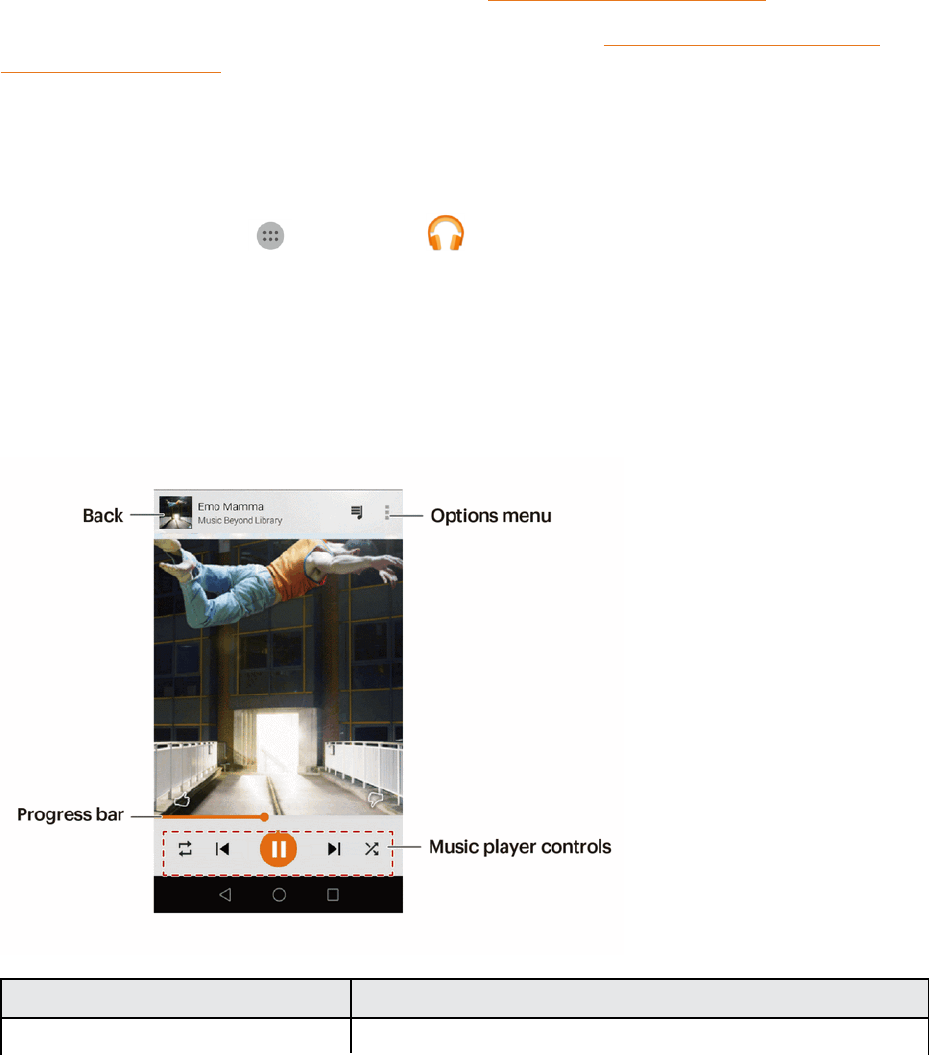
Apps and Features 87
Google Play Music App
TheGooglePlayMusicappletsyoubrowse,shop,andplaybacksongspurchasedfromGoogle
Playaswellassongsyouhaveloadedfromyourownmusiclibrary.Themusicyouchooseis
automaticallystoredinyourGooglePlayMusiclibraryandinstantlyreadytoplayviastreamingor
download.
FormoreinformationaboutGooglePlayMusic,visitplay.google.com/about/music.
Note:Forinformationaboutloadingmusicontoyourphone,seeTransferFilesBetweenYour
PhoneandaComputer.
Play Music with Google Play
UsetheGooglePlayMusicapptolistentoallyourmusiconyourphone.Compatiblemusicfile
formatsinclude*.mp3,*.mid,*.amr,*.awb,*.3gp,*.mp4,*.m4a,*.aac,*.wav,*.ogg,*.flac,*.mkv.
1. Fromhome,tap Apps >Play Music .
2. FlickthescreenleftorrighttoselectalibrarycategorysuchasArtistorAlbums.
3. Tapanitemfromthecategorywindowandthentapasong.
Google Play Music Screen Layout
ThefollowingdiagramoutlinesthemainfeaturesofthePlayMusicappplayerscreen.
Feature Description
Back Tapthethumbnailtoreturntothesonglist.

Apps and Features 88
Feature Description
Progress bar Dragtheslidertocontroltheplayback.
Music player controls Usethebuttonsheretocontroltheplayback.
Options menu Viewtheinformationaboutthealbumorsong.
Create Playlists in Google Play Music
Organizemusicintoplayliststofiteveryoccasion.
1. Fromhome,tap Apps >Play Music .
2. FlickthescreenleftorrightandselectalibrarycategorysuchasArtistorAlbums.
3. Tap nexttoanitemfromthecategorywindowandthentapAdd to playlist.
4. TapNew playlist.
5. EnteranameandtapCREATE PLAYLIST.
Theplaylistiscreated.
6. ReturntothelibraryviewandselectAlbumsorSongs.
7. Tap nexttoanitemandthentapAdd to playlist.
Thesongoralbumisaddedtotheplaylist.Repeattoaddmoreitemstotheplaylist.
Adding Currently Playing Music to a Playlist
n Fromtheplayerview,tap >Add to playlist.
Themusicisaddedtotheplaylist.
Notepad
Useyourphone’snotepadapptosavetext,memos,lists,andmore.
1. Fromhome,tapApps >Notepad .
2. TapNew noteandthenenteryournote'scontent.
3. Tap .
Oncethenoteissaved,youcanalsofollowtheonscreeninstructionstoshareordeletethe
note,oraddittoyourfavorites.
Connectivity 89
Connectivity
Thefollowingtopicsaddressyourphone’sconnectivityoptions,includingUSBfiletransferand
tethering,Wi-Fi,Bluetooth,IRconnectivity,andmore.
Transfer Files between Your Phone and a
Computer
YoucanusethesuppliedUSBconnectortoconnectyourphonedirectlytoyourcomputerand
transfermusic,pictures,andothercontentfiles.
Forexample,ifyouhaveamusicalbumstoredonyourcomputerthatyouwanttolistentoonyour
phonewithanyofthemusicapps,justattachyourphonetothecomputerandcopythefilestothe
musicfolder.
File Transfer Tips
n IfyouwanttosavedatatoanSDcardonyourphone,makesuretheSDcardisinstalledand
active.SeeSDCard.
n AvoidremovingthebatteryorSDcardwhiletransferringdata.
n Dataexchangemayusethemethodsoutlinedinthefollowingtable:
Method Description
Photos Read,manage,andtransfermultimediafilesinyourphonestorage.
Files Read,manage,andtransferfilesinyourphonestorage.
USB drive IfyouhaveaSDcardinstalled,youcanuseyourphoneasaUSBstorage
device,readdataontheSDcard,andtransferdatatoandfromacomputer.
Transfer Files between the Phone and a Computer
1. ConnectyourphonetoyourcomputerusingthesuppliedUSB/chargingcable.
l Insertthelargerendofthecabletothecharger/accessoryjackatthebottomofthephone.
l InserttheUSBendofthecableintoanavailableUSBportonyourcomputer.Youmay
needtoremovetheUSBcablefromthechargingheadtoaccessit.
2. Pulldownthestatusbartodisplaythenotificationpanel.SelecteitherPhotosorFiles.
Anydriversrequiredwillbeinstalledautomaticallyonthecomputer.
3. Oncethedriversareinstalled,double-clickthenewdriveiconthatappearsonyourcomputerto
viewtheimagesstoredonyourphone.
4. Selectafolder(forexample,Musicforsongsandalbums)andcopyfilestoitfromyour
computer.
5. Whenyouaredone,disconnectyourphonefromyourcomputer.

Connectivity 90
ThetransferredfilesarenowsavedtoyourphoneorSDcard.
Wi-Fi
Wi-FiprovideswirelessInternetaccessoverdistancesofupto300feet.Touseyourphone’sWi-Fi,
youneedaccesstoawirelessaccesspointor“hotspot.”
TheavailabilityandrangeoftheWi-Fisignaldependsonanumberoffactors,including
infrastructureandotherobjectsthroughwhichthesignalpasses.
Turn Wi-Fi On and Connect to a Wireless Network
Usethewirelessandnetworkssettingmenutoenableyourphone’sWi-Firadioandconnecttoan
availableWi-Finetwork.
1. Fromhome,tapApps >Settings .
2. TapWi-Fi.
3. TaptheWi-FislidertoturnWi-Fion.
l TodisableWi-Fi,taptheslideragain.
4. TapaWi-Finetworktoconnect,enterthepassword(ifit’snotanopennetwork),andthentap
Connect.
YourphoneisconnectedtotheWi-Finetwork.Youwillsee( )inthestatusbar.
l Thepassword,forahouseholdwirelessLANrouter,issometimesfoundonastickeronthe
router(WEP,WPA,KEY,etc.).Contacttheroutermanufacturerforinformation.For
passwordforapublicwirelessLAN,checkwithuser'sserviceprovider.
l Enteringapasswordisnotrequiredifanaccesspointisnotsecurityprotected.
Note:Thenexttimeyourphoneconnectstoapreviouslyaccessedsecuredwirelessnetwork,you
willnotbepromptedtoenterthepasswordagain,unlessyouresetyourphonetoitsfactorydefault
settingsoryouinstructthephonetoforgetthenetwork.
Note:Wi-Finetworksareself-discoverable,whichmeansnoadditionalstepsarerequiredforyour
phonetoconnecttoaWi-Finetwork.Itmaybenecessarytoprovideausernameandpasswordfor
certainclosedwirelessnetworks.
Wi-Fi Settings
UsetheWi-FisettingsmenutomanuallysetyourWi-Ficonnectionoptions.
1. Fromhome,tapApps >Settings .
2. TapWi-Fi.
3. TaptheWi-FislidertoturnWi-Fion.
l TodisableWi-Fi,taptheslideragain.

Connectivity 91
4. TapMenu >Advanced settings.
5. ConfigureyourWi-Fisettings.
YourWi-Fisettingschangesaresaved.
Disconnect Wi-Fi
YoumaywishtodisconnectfromaconnectedWi-FinetworkwithoutturningWi-Fioff.
1. Fromhome,tapApps >Settings .
2. TapWi-Fi.
3. TapthenameoftheconnectedaccesspointandthentapForget.
Wi-Fiisdisconnected.
l Afterdisconnectingfromanaccesspoint,youmayneedtore-enterthepasswordto
reconnect.
Wi-Fi Direct
UseWi-FiDirecttoconnectdirectlytootherWi-FiDirectdevicessimplyviaWi-Fi,withoutan
accesspointorviatheInternet.
1. Fromhome,tapApps >Settings .
2. TapWi-Fi.
3. TaptheWi-FislidertoturnWi-Fion.
4. TapWi-Fi direct.
l Wi-FiDirectandWi-Fiareunavailableatthesametime.
5. Tapadevicewithwhichtoconnect.
l IfconnectedviaWi-Fi,youwillseeaconfirmation.Followtheonscreeninstructions.
6. Accepttheconnectionontheotherdevice.
l Ifaconnectionisnotacceptedafteracertainperiod,theconnectionrequestiscancelled.
l Tostopaconnection,taptheconnecteddeviceandthentapOK.
Bluetooth
Bluetoothisashort-rangecommunicationstechnologythatallowsyoutoconnectwirelesslytoa
numberofBluetoothdevices,suchasheadsetsandhands-freecarkits,andBluetooth-enabled
handhelds,computers,printers,andwirelessphones.TheBluetoothcommunicationrangeis
usuallyapproximately30feet.
Connectivity 92
Bluetooth Hints
Question:Can’tuseBluetooth?
Answer:Isyourphoneinairplanemode?Bluetoothisunavailableinairplanemode.
Bluetooth Function Cautions
Informationmaynotappearcorrectlyonconnecteddevicesdependingonthetransferreddata.
Bluetooth Information
BluetoothisatechnologythatenableswirelessconnectionwithPCs,Bluetoothdeviceswithhands-
freefeatures,etc.
Function Description
Audio output Listentomusic,etc.,wirelessly.
Hands-free calls Callhands-free,usingBluetooth-capablehands-freedevicesandheadsets.
Data exchange ExchangedatawithBluetoothdevices.
Enable the Bluetooth Feature
Usethesettingsmenutoenableordisableyourphone’sBluetoothcapabilities.
n WirelessconnectiontoallBluetoothfunctionsisnotguaranteedforthephone.
n Thephonemaynotconnectproperlydependingontheotherdevice.
n Noisemaybeexperiencedwithwirelesscallsandhands-freecallsdependingontheconditions.
ToenableBluetooth
1. Fromhome,tapApps >Settings .
2. TapBluetooth.
3. TaptheslidertoturnBluetoothon.
l TodisableBluetooth,taptheslideragain.
Tip:YoucanalsoturnBluetoothonoroffwiththetogglemenuinthenotificationswindow.Dragthe
statusbardowntodisplaythenotificationswindowandthentapBluetoothtoturnBluetoothonor
off.
Note:TurnoffBluetoothwhennotinusetoconservebatterypower,orinplaceswhereusinga
wirelessphoneisprohibited,suchasaboardanaircraftandinhospitals.
Pair Bluetooth Devices
SearchforandpairnearbyBluetoothdevices.RegisteredBluetoothdevicescanbeconnected
simply.
n EnabletheBluetoothfunctionontheBluetoothdevicesbeingpairedbeforehand.

Connectivity 93
TopairBluetoothdevices:
1. Fromhome,tapApps >Settings .
2. TapBluetooth.
l Nearbydevicesappearinthe“Availabledevices”list.
l Ifatargetdeviceisnotdetected,tapScantosearchagain.
3. Tapadevicefromthe“Availabledevices”list,andfollowtheonscreeninstructionstopairwith
thedevice.
l MethodstoacceptaBluetoothconnectiondifferdependingonthedevicesused.
Unpairing from a Paired Device
1. FromtheBluetoothsettingsmenu,tapSettings nexttothepaireddeviceyouwishto
unpair.
2. TapUnpair.
Thedeviceisunpairedfromyourphone.Tomakeanotherconnectionwiththedevice,youwill
needtopairagain.
Connect to a Paired Bluetooth Device
YoucanlistentomusicoveraBluetoothstereoheadset,orhavehands-freeconversationsusinga
compatibleBluetoothheadsetorcarkit.It’sthesameproceduretosetupstereoaudioandhands-
freedevices.
1. Fromhome,tapApps >Settings .
2. TapBluetooth.
l PairedBluetoothdevicesappearinthe“Paireddevices”list.
3. Tapadevicefromthe“Paireddevices”list.
Thepairingandconnectionstatusisdisplayedbelowthedevice’snameintheBluetoothdevices
section.Whenthedeviceisconnectedtoyourphone,theBluetoothpairedicon isdisplayedin
thestatusbar.Dependingonthetypeofdeviceyouhaveconnected,youcanthenstartusingthe
headsetorcarkittolistentomusicormakeandreceivephonecalls.
Note:DuetodifferentspecificationsandfeaturesofotherBluetooth-compatibledevices,display
andoperationsmaybedifferent,andfunctionssuchastransferorexchangemaynotbepossible
withallBluetooth-compatibledevices.

Connectivity 94
Send Information Using Bluetooth
YoucanuseBluetoothtotransferinformationbetweenyourphoneandanotherBluetooth-enabled
devicesuchasaphoneornotebookcomputer.
Types of Data You Can Send via Bluetooth
Youcansendthefollowingtypesofinformation,dependingonthedeviceyouaresendingto:
n Imagesandvideos
n Calendarevents
n Contacts
n Audiofiles
Intheinstructionsbelow,Contactsdataisbeingusedasanexample.
Sending Contacts Data via Bluetooth
1. Fromhome,tapApps >Contacts .
YouwillseetheContactslist.
2. Tapacontacttosend.
3. TapShare contacts > Bluetooth.
4. Tapapaireddevicetoreceivethedata.
l Ifyouseeamessagetoconfirm,followtheonscreeninstructions.
Receive Data via Bluetooth
YourphoneiscapableofreceivingawidevarietyoffiletypeswithBluetooth,includingpictures,
musictracks,anddocumentssuchasPDFs.
1. WhenanotherdeviceattemptstosendafiletoyourphoneviaBluetooth,youwillseearequest
toacceptthefile.
2. TapAccept.
l Whenyourphonereceivesafile,youwillseeanotification.Toopenthefileimmediately,
pulldownthestatusbartodisplaythenotificationpanel,andthentapthenotification.
l Whenyouopenareceivedfile,whathappensnextdependsonthefiletype:
o Mediafilesanddocumentsareusuallyopeneddirectlyinacompatibleapplication.For
example,ifyouopenamusictrack,itstartsplayingintheMusicapplication.

Connectivity 95
o ForavCalendarfile,selectthecalendarwhereyouwanttosavetheevent,andthentap
Import.ThevCalendarisaddedtoyourCalendarevents.(Formoreinformationon
usingtheCalendar,seeCalendar.)
o ForavCardcontactfile,iftherearemultiplevCardfilesonyourstoragecard,youcan
choosetoimportone,several,orallofthosecontactstoyourcontactslist.

Settings 96
Settings
Thefollowingtopicsprovideanoverviewofitemsyoucanchangeusingyourphone’sSettings
menus.
Basic Settings
Fromthehomescreen,tapApps >Settings toaccessyourphone’ssettingsmenu.
Thetablebelowoutlinesthetop-levelsettingscategories.
Category Description
Wi-Fi EnableandsetWi-Fioptions.
Bluetooth EnableBluetoothconnections.
Data traffic management Checkyourphone’sdatausage.
Location access Selectyourphone’slocationaccessoptions.
More Setadditionalwirelessandnetworkfunctions.
Display Setwallpaper,brightness,etc.
Sound Setringtone,operationtones,etc.
Screen lock &
passwords
Setyourphone’slockscreenoptions.
Accessibility Setaccessibilityoptionssuchasscreenmagnification,hearingaid
compatibility,etc.
Access Settings
1. Fromhome,tapApps >Settings .
2. Selectsettings.
Settingsaremadeandapplied.
Wi-Fi Settings Menu
TheWi-FisettingsmenuletsyouturnWi-Fionoroff,setupandconnecttoavailableWi-Fi
networks,andconfigureadvancedWi-Fioptions.
FormoreinformationaboutWi-Fisettings,seeWi-Fi.
1. Fromhome,tapApps >Settings .
2. TapWi-Fi.
3. TaptheWi-FislidertoturnWi-Fion.
l TodisableWi-Fi,taptheslideragain.

Settings 97
4. TapaWi-Finetwork,enterthepassword,andtapConnect.
5. ConfigureyourWi-Fisettings.
YourWi-Fisettingschangesaresaved.
l Thepassword,forahouseholdwirelessLANrouter,issometimesfoundonastickeronthe
router(WEP,WPA,KEY,etc.).Contacttheroutermanufacturerforinformation.For
passwordforapublicwirelessLAN,checkwithuser'sserviceprovider.
l Enteringapasswordisnotrequiredifanaccesspointisnotsecurityprotected.
Advanced Wi-Fi Settings
TheadvancedWi-Fisettingsmenuletsyousetupandmanagewirelessaccesspoints.
n Enable Notification when Open Networks Are Available:FromWi-Fisettings,tapMenu
>Advanced Settings>Network notification.
l ThesettingisavailablewhenWi-Fiisturnedon.
l TapNetwork notificationtoturntheoptiononoroff.
n Set Timing for Pausing a Connection:FromWi-Fisettings,tapMenu >Advanced
Settings>Keep Wi-Fi on during sleepandthenselectasetting.
n Check MAC Address:FromWi-Fisettings,tapMenu >Advanced Settings.
l MACAddressappearsbelow“MACAddress.”
n Check IP Address:FromWi-Fisettings,tapMenu >Advanced Settings.
l IPAddressappearsbelow“IPAddress.”
Bluetooth Settings
Yourphone’sBluetoothcapabilitiesletyouusewirelessheadsets,sendandreceivepicturesand
files,andmore.Fordetailsonyourphone’sBluetoothusage,seeBluetooth.
1. Fromhome,tapApps >Settings .
2. TapBluetooth.
3. FromtheBluetoothscreen,configurethesesettings:
l TapTurn onBluetoothtoturnBluetoothOnorOff.
l TapVisibilitytoenableordisablevisibilitytootherBluetoothdevices.Whenyourdeviceis
visible,otherdevicescanfindyourdevicesduringascan.Yourdeviceremainsvisiblefor
theperiodoftimesetintheVisibilitytimeoutsetting.
l TapDevice name torenamethephonename.
Settings 98
l TapSearchtosearchforvisibleBluetoothdevices.Aftersearching,tapadevicetopairwith
it.
l TapMenu >Visibility timeout tosetthelengthoftimeyourdeviceisvisibletoother
deviceswhenyouturnonvisibility.
Location Access Settings
YourLocationServicessettingsmenuletsyouselecthowyourphonedeterminesitslocation(using
thewirelessnetworks,GPSsatellites,both,orneither).
Location Settings Overview
YourLocationsettingsmenuallowsyoutoconfigurethefollowingoptions.
Location Setting Description
Access my location Enableordisableyourphone'slocationservices.
Location mode Selectalocatingmethod:Highaccuracy,Powersaving,orGPSonly.
Enable Location Services
Beforeusinganyfeaturesthatrequirelocationassistance,youmustenableyourphone’slocation
services.
1. Fromhome,tapApps >Settings .
2. Tap Location access.
3. TapAccess my location.
Yourphone’slocationservicesareenabled.
l Ifyouseeaconfirmation,followtheonscreeninstructionstoconnect.
Access Location Settings
1. Fromhome,tapApps >Settings .
2. Tap Location access.
3. Configurethedesiredsettings.
Yourlocationsettingsareappliedandsaved.
Data Traffic Management Settings
Yourphone'sdatausagecontrolfunctionletsyoucheckandcontrolyourdatausage.
Settings 99
1. Fromhome,tapApps >Settings .
2. TapData traffic management.
3. FromtheBluetoothscreen,configurethesesettings:
l Tap Package settingstosetthedatausagelimits.
l Tap Traffic use rankingtoviewthedatausagedailyormonthly.
l Tap Networked appstoviewthenetworkedapplicationsonyourphone.
More Settings
TheMoresettingsmenuprovidesaccesstoadditionalwirelessandnetworkoptions,suchas
mobilenetworks,VPN,roaming,andmore.
More Settings Options
Setting Description
Airplane mode Disableallsettingsthatemitorreceivesignals.Phonestayspoweredon.
Mobile networks Setanetworkmode,etc.
VPN AddaVirtualPrivateNetwork(VPN).
Emergency Alerts SetEmergencyalerts.
Access More Settings Options
1. Fromhome,tapApps >Settings .
2. UnderWireless & networks,tapMore.
3. Setitems.
Yoursettingsaresavedandimplemented.
Display Settings
Adjustingyourphone’sdisplaysettingsnotonlyhelpsyouseewhatyouwant,itcanalsohelp
increasebatterylife.
Display Settings Overview
Thesoundsettingsmenuallowsyoutoconfigurethefollowingoptions:
Display Setting Description
Wallpaper Setawallpaper.
Font size Setfontsizefordisplay.

Settings 100
Display Setting Description
Daydream Enableordisablethescreensaver.Ifthisfunctionisenabled,thescreen
saverwillrunautomaticallywhileyourphoneisbeingcharged.
Indicator light Enableordisabletheblinkingindicatorwhenyoureceivenotifications.
Display carrier name Enableordisableyourcarriernameinthestatusbar.
Display network speed Displayorhidethecurrentnetworkspeed.
Brightness Setthedisplaybrightness.
Sleep Setwhenyourscreenturnsoff.Whenidleforaspecifiedperiod,thescreen
locksautomaticallytosavebatterypower.
Auto rotate screen Setwhetheryourscreenauto-rotates.Ifthisfunctionisturnedon,your
screen'sorientationwillchangeautomaticallywiththewayyouholdyour
phonewhenyouperformcertainactions,suchasbrowsingaWebpage,
viewingapicture,orwritingamessage.
Access Display Settings
1. Fromhome,tapApps >Settings .
2. TapDisplay.
3. Setyourdisplayoptions.
Yourdisplaysettingsaresavedandapplied.
Sound Settings
Thesoundsettingsmenuletsyoucontrolyourphone’saudio,fromringtonesandalertstotaptones
andnotifications.
Sound Settings Overview
Thesoundsettingsmenuallowsyoutoconfigurethefollowingoptions:
Sound Setting Description
Volume Setvolumeforringtones,alarms,systemfeatures,etc.
Silent mode Setsilentmode.
Vibrate in silent mode Enableordisablevibrationwhenyourphoneisinsilentmode.
Vibrate Type Setvibrationtype.
Phone ringtone Setyourphone’sdefaultringtone.
Vibrate when ringing Enableordisablevibrationwhenyourphonerings.
Default notification tone Setatonefordefaultphonenotifications.
Dial pad touch tones Enabletonesforphonedialerscreen.
Touch sounds Settoneoptionsforscreentapes.

Settings 101
Sound Setting Description
Screen lock sound Setatonewhenlocking/unlockingthescreen.
Screenshot tone Setatonewhentakingascreenshot.
Vibrate on touch Enablevibrationwhentappingthescreen.
Emergency tone Setatoneforincomingemergencyalerts.
Access Sound Settings
1. Fromhome,tapApps >Settings .
2. TapSound.
3. Setyoursoundoptions.
Yoursoundsettingsaresavedandapplied.
Storage Settings
Thestoragesettingsmenuletsyoumanageinternalstorageonyourphoneandprovidesmenu
choicesforanoptionalSDcard(notincluded).
1. Fromhome,tapApps >Settings .
2. TapStorage.
3. Checkortapitems.
Reviewyourstoragesettings.
Battery Settings
Monitoryourphone’sbatteryusagethroughthissettingsmenu.Viewwhichfunctionsare
consumingyourbattery’schargeandatwhatpercentage.
1. Fromhome,tapApps >Settings .
2. Tap Battery.
3. Tapitemstoviewdetails.
Checkyourbatteryconditionandaccessadditionaloptions.
Applications Settings
Checkinstalledapplicationsandrunningapplications.
Applications Settings Overview
ItemsthatcanbecheckedintheAppssettingsmenuarethefollowing.

Settings 102
Apps Setting Description
Downloaded Checkdownloadedapps.
On SD Card CheckappsonyouroptionalinstalledSDcard.
Running Checkrunningapps.
All Checkallapps.
Access Apps Settings
1. Fromhome,tapApps >Settings .
2. TapManage apps.
3. Tapitemstoviewdetails.
Checkyourapplicationsettingsconditionandaccessadditionaloptions.
l Dependingontheappanditslocation,youmaybeabletoforcetheappclosed,uninstallor
disabletheapp,clearcacheanddata,andmore.
Security Settings
TheSecuritysettingsmenusletyousetencryptionoptions,passwordvisibility,administrator
settings,andcredentialstorageoptions.
Security Settings Overview
ManysecuritysettingsaredependentonScreenlocksettings,SIMlocksettings,etc.Thefollowing
tableoutlinesthemainsettingsavailablethroughtheSecuritysettingsmenu:
Security Setting Description
Encrypt phone Encryptalldataonyourphone.
Set up SIM card lock SetyourSIMcardPIN.
Show passwords Toggletoshoworhidepasswordswhenenteringformdata.
Device administrators Vieworturnoffdeviceadministrators.
Unknown sources AllowordenyinstallationofappsfromsourcesotherthantheGooglePlay
Storeapp.
Allow HiSuite to use HDB Enableordisableconnectingyourphonewithcomputer.
Revoke HiSuite to use HDB RevokeallHiSuiteconnectionauthorizationsyouhavegranted.
Storage type Displaystoragetype.
Trusted credentials DisplaytrustedCAcertificates.
Install from SD card InstallcertificatesfromSDcard.
Clear credentials Removeallcertificates.
Trusted agents Viewordeactivatetrustedagents.
Apps with usage access Setappaccessrestriction.
Screen lock Setyourphonetobeunlockedbeforeusingit.

Settings 103
Access Security Settings
Beforeusinganyfeaturesthatrequirelocationassistance,youmustenableyourphone’slocation
services.
1. Fromhome,tapApps >Settings .
2. Tap Security.
3. Setyoursecurityoptions.
Yoursecuritysettingsareappliedandsaved.
Lock Screen Settings
Thelockscreensettingsletyousetyourmethodforunlockingyourphone,customizelockscreen
options,determinewhethertoshowpop-uptipsforunlockingthephone,andenteryourowner
informationtobedisplayedonthelockscreen.
Screen Lock
Youcanincreasethesecurityofyourphonebycreatingascreenlock.Whenenabled,youhaveto
drawthecorrectunlockpatternonthescreen,enterthecorrectPIN,orenterthecorrectpassword
tounlockthephone’scontrolkeys,buttons,andtouchscreen.
Inorderfromleastsecuretomostsecure,theavailablescreenlockoptionsare:
n None
n Pattern
n PIN
n Password
Important:Toprotectyourphoneanddatafromunauthorizedaccess,itisrecommendedthatyou
usethehighestsecuritylevelavailable(Passwordprotection).Itisalsorecommendedyou
frequentlychangeyourpasswordtoensurethesafetyofyourphoneandpersonaldata.
Access Screen Lock Settings
1. Fromhome,tapApps >Settings .
2. TapScreen lock & passwords.
3. TapPassword.

Settings 104
Use a Screen Unlock Pattern
1. FromtheScreenlocksettingsmenu,tap Pattern.
2. Drawthescreenunlockpatternbyconnectingatleastfourdotsinavertical,horizontal,or
diagonaldirection.Liftyourfingerfromthescreenwhenfinished.
3. TapContinue.
4. Whenprompted,drawthescreenunlockpatternagain,andthentapConfirm.
5. EnterabackupPIN,tapContinue,re-enterthePIN,andtapOKtosaveyourscreenunlock
pattern.
l Ifyoufailtodrawthecorrectunlockpatternonthescreenafterfiveattempts,youwillbe
promptedtowaitfor30secondsbeforeyoucantryagain.
Use a Screen Unlock PIN
1. FromtheScreenlocksettingsmenu,tapPIN.
2. EnteraPIN,tapContinue,re-enteryourPIN,andtapOKtosavethesetting.
l IfyoufailtoenterthecorrectPINafterfiveattempts,youwillbepromptedtowaitfor30
secondsbeforeyoucantryagain.
Use a Screen Unlock Password
1. FromtheScreenlocksettingsmenu,tap Password.
2. Enterapassword,tapContinue,andthenenteryourpasswordagainandtapOKtosavethe
setting.
l Ifyoufailtoenterthecorrectpasswordafterfiveattempts,youwillbepromptedtowaitfor
30secondsbeforeyoucantryagain.
Important:Toprotectyourphoneanddatafromunauthorizedaccess,itisrecommendedthatyou
usethescreenunlockpassword(highestsecurity).Itisalsorecommendedthatyoufrequently
changeyourpasswordtoensurethesafetyofyourphoneandpersonaldata.
Disable the Screen Lock
Followtheinstructionsbelowtoturnoffyourcurrentscreenlock.
1. Fromhome,tapApps >Settings .
2. TapScreen lock & passwords.
3. TapPassword.
4. Drawyourunlockscreenpattern,enteryourPIN,orenteryourpassword.

Settings 105
Thescreenlockisdisabled.
l Ifyoufailtoenterthecorrectpasswordafterfiveattempts,youwillbepromptedtowaitfor
30secondsbeforeyoucantryagain.
Language & Input Settings
Yourphone’slanguageandinputsettingsletyouselectalanguageforthephone’smenusand
keyboards,selectandconfigurekeyboardsettings,configurespeechinputsettings,andsetyour
phone’smouse/trackpadoptions.
Language and Input Settings Overview
YoucansetthefollowingoptionsintheLanguageandinputsettingsmenu:
Language and Input Setting Description
Language & region Setthelanguageforyourdisplayandmenus.
Default keyboard Setthedefaultmethodforenteringtext.
Android keyboard SetAndroidkeyboardoptions.
Google voice typing SetoptionsforGoogleVoicetextentry.
Spelling correction Enablespellingcorrectionwhenenteringtext.
Voice input Setyourvoicesearchoptions.
Text-to-speech output Settext-to-speechoptions.
Pointer speed Setthespeedofthepointerforamouse/trackpad.
Access Language and Input Setting Options
1. Fromhome,tapApps >Settings .
2. Tap Language & input.
3. Setoptions.
Thelanguageandinputsettingsareappliedandsaved.
Language and Input Options
Someofthelanguageandinputoptionsaredetailedbelow.
n Set the Display Language:FromtheLanguageandinputsettingsmenu,tapLanguage &
regionandthentapalanguagetoassignit.
n Set Input Method:FromtheLanguageandinputsettingmenu,tapDefaultkeyboardand
thentapaninputmethod.
n Enable Voice Input:FromtheLanguageandinputsettingsmenu,tapGoogle voice typing
totoggletheoptiononoroff.

Settings 106
Set Voice Output when Using Voice Search:FromtheLanguageandinputsettingsmenu,tap
Voice input,tapasettingsoption,andfollowtheonscreeninstructions.
n Set Output for Text-to-Speech Output:FromtheLanguageandinputsettingsmenu,tap
Text-to-speech output,tapasettingsoption,andfollowtheonscreeninstructions.
n Set Speed of Pointer for Mouse/Trackpad:FromtheLanguageandinputsettingsmenu,
tapPointer speed,dragthebartoadjustthespeed,andtapOK.
1. Fromhome,tapApps >Settings > Language & region.
2. Tapanavailablelanguage(EnglishorEspañol).
Backup and Reset
Yourphone’sBackup and resetmenuletsyoubackupyourphone’sdataandsettingstoGoogle
serversbeforeresettingyourphonetotheoriginalfactorysettings.TheFactorydatareseterases
alldatafromthephone’sapplicationstorage,including:
n YourGoogleAccount
n Allotheremailandsocialnetworkingaccounts
n Systemandapplicationdataandsettings
n Downloadedapplications
Backup and Reset Overview
ThefollowingoptionsareavailableintheBackupandresetmenu:
Backup and Reset Option Description
Back up my data Enablebackupforapplicationdata,Wi-Fipasswords,andother
settingstoGoogleservers.
Backup account Selecttheaccountusedtobackupdata.
Automatic restore Whenreinstallinganapplication,backedupsettingsanddatawillbe
restored.
Factory data reset Resetallsettingsanddeletealldataonphone.
n Performingafactorydatareseterasesalldataonthephone.Itisrecommendedthatyouback
upimportantdatabeforeperformingafactorydatareset.
n Erasedinformationcannotberestored.Onlyerasedataafteryouaresureyouhavesaved
everythingyouneed.

Settings 107
Access Backup and Reset Options
1. Fromhome,tapApps >Settings .
2. Tap Backup &reset.
3. Setoptions.
Thebackupandresetsettingsareappliedandsaved.
l Ifyou’reperformingaFactoryDataReset,followthepromptstoconfirmthedataremoval.
Thephonewillerasealldataandreboot.
Factory Data Reset
Tip:Beforeperformingafactorydataresetonyourphone,youmaywanttounmountaninstalled
SDmemorycardtoavoidlosinganydatayoumayhavestoredonit.Fromhome,tapApps >
Settings >Storage>Unmount SD cardtounmountthestoragecard.
1. FromtheBackupandresetmenu,tapFactory data reset.
2. ReadthefactorydataresetinformationpageandtapReset phone.
3. TapReset phone.
Yourphonewillpowerdownandresetitself,whichmaytakeupto10minutes.
l Oncethephonehasreset,itwillrunthroughtheHandsFreeActivationandupdate
processesagain.Whenfinished,youwillseetheWelcomescreenandSetupapplication.
SeeCompletetheSetupScreenstostartover.
Accounts
TheAccountssettingsmenuletsyouaddandmanageallyouremail,socialnetworking,andpicture
andvideosharingaccounts.
Set Up a New Account
1. Fromhome,tapApps >Settings .
2. TapAccounts>Add account.
3. Tapanaccounttypeandthenfollowtheonscreeninstructionstoaddtherequiredaccount
information,andthentapDone.
Theaccountisaddedtotheaccountslist.

Settings 108
Manage Existing Accounts
1. Fromhome,tapApps >Settings .
2. TapAccounts,andthentaptheaccountyouwanttoset.
3. Setyouraccountsettings,andthentapDone.
Theaccountoptionsareupdated.
Date & Time Settings
Usethedateandtimesettingsmenueithertoautomaticallyusethenetwork-provideddateandtime
ormanuallysetthesevalues,aswellasselecttimeanddateformatoptions.
Date and Time Overview
Thefollowingdateandtimeoptionsmaybeconfigured:
Date and Time Option Description
Automatic date & time Setthedateandtimeautomaticallyviatheconnectedwirelessnetwork.
Set date Setthedatemanually(onlyavailablewhenAutomaticdateandtimeoption
isdisabled).
Set time Setthetimemanually(onlyavailablewhenAutomaticdateandtimeoption
isdisabled).
Automatic time zone Usethenetworktimezoneorsetthetimezonemanually.
Select time zone Setthetimezonemanually(onlywhenAutomatictimezoneisdisabled)
Use 24-hour format Enableordisable24-hourformat.
Select date format Setthedatedisplayformat.
Dual clocks Displaydualclocksonthelockscreenwhenroaming.
Access Date and Time Options
1. Fromhome,tapApps >Settings .
2. Tap Date & time.
3. Setavailabledateandtimeoptions.
Yourdateandtimesettingsareappliedandsaved.
Accessibility Settings
TheAccessibilitymenuletsyouenableandmanageaccessibility-relatedapplications.

Settings 109
1. Fromhome,tapApps >Settings .
2. Tap Accessibility.
3. Setavailableaccessibilityoptions.
Youraccessibilitysettingsareappliedandsaved.
Service
DisplaystheservicesinstalledforAccessibilitiesuse.
1. Fromhome,tapApps >Settings .
2. Tap Accessibility.
3. UnderService,setthefollowingoptionsasyouwant.
l TalkBack:TaptheTalkBackswitch(attheupper-rightcornerofthescreen)toenableor
disableit.AfteryouenableTalkBackandExplore by touch,youcanusedifferent
gesturestooperateyourphone.
l Switch Access:TaptheSwitch Accessswitch(attheupper-rightcornerofthescreen)to
enableordisableit.Switch Accessallowsyoutocontrolyourphoneusingconfigurable
keycombination.
System
Allowsyoutoconfigurethefollowingsystemoptions.
1. Fromhome,tapApps >Settings .
2. Tap Accessibility.
3. UnderSystem,setthefollowingoptionsasyouwant.
l Captions:TaptheCaptionsswitchtoenableordisableit.Followtheonscreeninstructions
toconfiguretheLanguage,Text size,andCaption style.
l Magnification gestures:TaptheMagnification gesturesswitch(attheupper-right
cornerofthescreen)toenableordisableit.Afteryouenablethisfunction,youcanzoomin
andoutbytriple-touchingthescreen.
l Power button ends call:TaptheswitchnexttoPower button ends calltoenableor
disableit.Afteryouenablethisfunction,youcanendvoicecallsbypressingthePower/Lock
button.
l Press volume button to answer:TaptheswitchnexttoPress volume button to
answer toenableordisableit.Afteryouenablethisfunction,youcananswervoicecallsby
pressingtheVolumebutton.

Settings 110
l Speak passwords:TaptheswitchnexttoSpeak passwords toenableordisableit.
Enablethisfunctiontoallowvoiceconfirmationofcharacterswheninputtingpasswords.
l Accessibility shortcut:TaptheAccessibility shortcutswitch(attheupper-rightcorner
ofthescreen)toenableordisableit.Afteryouenablethisfunction,youcanopen
accessibilityoptionsquicklyonanyscreen.
l Text-to-speech output:Text-to-speechoutputprovidesaudiblereadoutoftext,for
example,thecontentsoftextmessages,andtheCallerIDforincomingcalls.
l Touch & hold delay:Configurethedelayinterval.
l Persisten Notification:TapthePersisten Notificationswitch(attheupper-rightcorner
ofthescreen)toenableordisableit.Enablethisfunctiontoalertsoundrepeatedlywhen
thereareunreadnotifications.
Display
Allowsyoutoconfigurethedisplayoptions.
1. Fromhome,tapApps >Settings .
2. Tap Accessibility.
3. UnderDisplay,tapColor correctiontoconfigureit.
Hearing
Allowsyoutoconfigurethefollowinghearingoptions.
1. Fromhome,tapApps >Settings .
2. Tap Accessibility.
3. UnderHearing,setthefollowingoptionsasyouwant.
l Sound balance:Allowsyoutomanuallyadjustthesounddirection.
l Mono audio:TaptheswitchnexttoMono audiotoenableordisableit.Afteryouenable
thisfunction,youcanchangethesoundtoStereoorMono.
l Disable all sounds:TaptheswitchnexttoDisable all sounds toenableordisableit.
Enablethisfunctiontoturnoffallsounds.
About Phone
Theaboutphonemenuletsyouaccessimportantphoneinformation,searchforandapplyupdates,
andviewlegalandsafetyinformation.
About Phone Overview
ThefollowingAboutPhoneitemsmaybereviewedorset:

Settings 111
About Phone Item Description
Model number Checkthephone’smodelnumber.
Build number Checkthecurrentphone'sbuildnumber.
CPU Checkthecurrentphone'sCPU.
RAM Checkthecurrentphone'sRAM.
Internal storage Checkthecurrentphone'sinternalstorage.
Resolution Checkthecurrentphone'sresolution.
Android version ChecktheAndroidversionnumber.
Baseband version Checkthephone’sbasebandversion.
Kernel version Checkthephone’skernelversion.
Status Checkyourphone’sstatus.
Legal information Checkcopyrightinformation,termsofuse,etc.
Access About Phone Options
1. Fromhome,tapApps >Settings .
2. Tap About Phone.
3. Selectorviewavailableoptions.
Yourphoneinformationisdisplayed.

For Assistance 112
For Assistance
Thefollowingtopicsaddressareasofsupportforyourphone,includingtroubleshooting,
specifications,accountinformation,warrantyinformation,andcustomerservicecontact
information.
Troubleshooting
Checkthequestionsandanswersbelowfortroubleshootingsolutionsforcommonphoneissues.
Check Here First
Question:Phonefreezes/operationisunstable.
Answer:Turnthephoneonagain.Ifyouareunabletoturnthephoneoff,removeandreplace
theBattery,andthenturnthephoneonagain.Datathatwasbeingeditediserasedafteryour
phoneispoweredonagain.
Question:Operationisunstableafteranewapplicationwasinstalled.
Answer:Thenewlyinstalledapplicationmaybethecause.UninstalltheapplicationinSafe
mode.SeeUninstallanApp.ToturnthephoneoninSafemode:
l To enable the Safe mode, with the phone turned off, press the Power/Lockbuttonand then
press and hold the Volume down key until the device starts up.
o AfterturningthephoneoninSafemode,"SafeMode"appearsatlowerleft.
o AfterrestartinginSafemode,yourphonecanbepoweredonasusual.
o BeforeturningthephoneoninSafemode,itisrecommendedthatyoubackup
importantdata.
o BypoweringthephoneoninSafemode,addedwidgetsmaybedeleted.
Question:Cannotusephone,mail,orInternet.
Answer 1:Checkwhetheryouarewheresignalisweakoroutofservicearea.
Answer 2:Powerthephoneonagain.
Answer 3:IsthephoneinAirplanemode?TocheckthatAirplanemodeiscancelled:
l Fromhome,tapApps >Settings ,underWireless & networkstapMore >
Airplane mode.
Answer 4:Isdatacommunicationdisabled?Tocheckthatdatacommunicationisenabled:
l Fromhome,tapApps >Settings >Data traffic management.
Answer 5:Isadisabledaccesspointset?Toresettoinitialsettings:

For Assistance 113
l Fromhome,tapApps >Settings ,underWireless & networkstapMore>
Mobile networks>Access Point Names>Menu >Reset to default.
Question:Batterylevelgoesdownquickly.
Answer:Areyouwheresignalisweakorhavebeenoutofserviceareaforalongperiod?
CallingwheresignalisweakorbeingoutofserviceareausesalotofBattery.
Question:Cannotinstallapplications.
Answer:ApplicationscannotbeinstalledwithonlyalittlefreespaceonthephoneorSDcard.
Tocheckfreespace,seeStorageSettings.Applicationsnotsupportedbyyourphonecannot
beinstalled.
Question:Cannotunlockscreen.
Answer:Powerthephoneonagain.Ifyouareunabletoturnthephoneoff,removeand
replacetheBattery,andthenpowerthephoneonagain.Datathatwasbeingeditediserased
afterthephoneispoweredonagain.
Specifications
Thefollowingtableslistyourphone’sandbattery’sspecifications.
Phone Specifications
Item Description
Weight Batteryinstalled:Approx.153g
Continuous Talk Time 3G:Approx.12hours
GSM:Approx.16hours
Continuous Standby Time 3G:Approx.300hours
GSM:Approx.300hours
Charging Time Approx.2.5hours
Dimensions (H x W x D) Approx.136x67.9x9.9mm
Maximum Output CDMA:24W
WCDMA:23.5W
GSMLB:32.5W
GSMHB:29.5W
Communication Speed LTECategory4:Upto150.8Mbpsdownlink/upto51.0Mbpsuplink

For Assistance 114
Battery Specifications
Item Description
Voltage 3.8V
Type Lithium-ion
Capacity 2000mAh
Dimensions (D x W x H) Approx.4.5(max4.7)x41.5x83.5mm
Boost Account Information and Help
Findoutaboutmanagingyouraccountonlineandonyourphone,buyingadditionalminutesforyour
plan,andgettinghelp.
FormoreinformationaboutyourBoostMobileaccount,aswellasotherBoostMobileservices,visit
usat:boostmobile.com.
Manage Your Account
Accessinformationaboutyouraccount.Youcan:
n Checkyourminutes.
n Re-Boost®(addmoneytoyouraccount).
n Changeplans.
n Andmore.
From Your Phone
Accessaccountinformationandotherself-servicetoolsfromBoostZone.
n Fromhome,tapApps >BoostZone .
Youcanalsodialdirectlyforaccesstocertaininformation:
n Dial (#BAL)tocheckaccountbalance.
n Dial (#ADD)tomakeapayment.
n Dial tolaunchBoostZoneorcallBoostCustomerCare(dependingonyour
Settings)togetanswerstootherquestions.
From Your Computer
n Visitboostmobile.com,clickMy Account,andloginwithyourwirelessphonenumberand
accountPIN.
For Assistance 115
From Any Other Phone
n BoostCustomerCare:1-888-BOOST-4U(1-888-266-7848).
Re-Boost
BoostMobilemakesiteasytoaddmoneytoyouraccount.Youdecideexactlyhowandwhereyou
wanttopay.Keepyouraccountactivebyusingyourphoneandaddingmoneytoyouraccount.
Pay with Cash
FindanAuthorizedRe-BoostRetailernearyou.PickupaRe-BoostCardorrechargeforaslowas
$10attheregister,whereavailable.
Pay Anytime with a Credit/Debit Card
Dial (#ADD)toaddmoneyfromyourphoneorvisitMy Accountat
boostmobile.comtodoitonline.Securelyregisteryourcredit/debitcardwithBoostformore
convenientone-timepaymentsortosetupeasyAutoRe-Boostpayments.
Set Up Worry-Free Payments with Auto Re-Boost℠
It’stheeasiestwaytomakesureyouraccountstaysonandactive.Useacreditcard,debitcardor
bankaccount—whatever’sbestforyou.
Visitboostmobile.com/reboosttogetthedetailsonallyourRe-Boostoptions.

Copyright Information 116
Copyright Information
©2015BoostWorldwide,Inc.Allrightsreserved.
, ,and aretrademarksorregisteredtrademarksofHuaweiTechnologiesCo.,Ltd.
Android™isatrademarkofGoogleInc.
LTEisatrademarkofETSI.
TheBluetooth®wordmarkandlogosareregisteredtrademarksownedbyBluetoothSIG,Inc.and
anyuseofsuchmarksbyHuaweiTechnologiesCo.,Ltd.isunderlicense.
Othertrademarks,product,serviceandcompanynamesmentionedmaybethepropertyoftheir
respectiveowners.
Tobetterunderstandhowweprotectyourpersonalinformation,pleaseseetheprivacypolicyat
http://consumer.huawei.com/privacy-policy.
Index 117
3
3-wayCalling46
A
AboutPhone110
AccessibilitySettings108
AccessoryJack3
Accounts
Addnew107
Manage108
Settings107
ActivationandService15
AirplaneMode21
Alarm83
AndroidKeyboard22,105
AnsweraCall39
Apps
Findandinstall26
Launch19
List20
Requestrefunds26
Uninstall27
Update27
AppsandFeatures79
AppsSettings101
AutoRotateScreen100
B
BackKey3
BackUpandReset106
Backup84
BasiicOperations18
Battery
Charge11
Insert9
Remove10
Settings101
Use9
Bluetooth91
Connect93
Pairdevices92
Receiveinformation94
Sendinformation94
Settings97
Sharepicturesandvideos75
Turnonoroff92
BluetoothInformation92
Bookmark68
BoostAccountInformationandHelp114
Brightness100
Browser67
Bookmark68
History68
Launchconnection67
Settings68
C
Calculator80
Calendar80
Addevent80
Sync81
SyncExchangeActiveSynccalendar82
Viewevents81
CallForwarding46
CallLogs
Makecallfrom41
CallSettings
Access47
Options47
CallWaiting45
CallerIDBlocking45
Camera
LaunchfromGallery70
Settings78
Takeapicture70
CameraandVideo70
CaptureModes71
CaptureScreenshots19
CarKit
Connect93
Charger/AccessoryJack3
Chrome69
Clock82
Additionalfeatures83
Setalarm83
Stopwatch83
Timer83
WorldClock83
ConferenceCalling46
Connectivity89
Contacts50
Addcontact50
Backup53
Delete52
Index
Index 118
Edit52
Import53
Makecallfrom41
Saveaphonenumber51
Share52
View51
D
DatatrafficManagementSettings98
Date&TimeSettings108
DeviceAdministrators102
DisplaySettings99
Drag14
E
EditPictures74
EditingText23
Email63
Addaccount64
AddExchangeActiveSyncaccount64
Composeandsend65
Deleteaccount66
Manageinbox66
Optionswhenreviewingmessages66
Setup63
Sharepicturesandvideos74
Viewandreply65
EmergencyNumbers38
EncryptDevice102
Enhanced9-1-1(E9-1-1)39
EnterText22
ExchangeActiveSync
Addaccount64
ExtendedHomeScreen32
F
FactoryDataReset107
Files
Transferbetweenphoneandcomputer89
Flick15
Folders35
Font
Size99
ForAssistance112
G
Gallery
Viewpicturesandvideos73
GetStarted2
Gmail60
Addanotheraccount63
Archivethreads62
CompositionOptions60
Createaccount24
Createandsendmessage60
Deletethreads62
Labels61
Mutethreads62
Newmessages61
Readandreply61
Readmessages61
Reportphishing62
Reportspam62
Searchmessages62
Sharepicturesandvideos74
Switchaccounts63
Google
Chrome69
Createaccount24
Hangouts79
GoogleAccount24
Signin25
GoogleMaps79
GooglePlay
Findandinstallapps26
Help27
Store25
GooglePlayMusic87
Createplaylists88
Playmusic87
Screenlayout87
GoogleSearch79
GoogleVoiceTyping105
GPSSatellites98
H
Hangouts79
Headset
Connect93
HeadsetJack3
HomeScreen
AddFolders35
AddShortcuts35
AddWidgets35
Basics31
Customize34
Extended32
Layout31
HomeScreenandAppsList18
Index 119
I
ImportContacts53
In-CallScreenLayoutandOperations40
IncomingCall
Answer39
Reject39
InputSettings105
Internet55
K
Keyboard
Defaultsettings105
Touchscreen22
L
Language105
LanguageSettings105
Location
GPSsatellites98
Wirelessnetworks98
LocationServices98
LockScreenSettings103
M
ManageYourAccount114
Maps79
Messaging55
MMS
Options59
Sendmessages56
MoreSettings99
MultimediaMessaging
Sharepicturesandvideos75
Music
GooglePlayMusic87
N
Navigation
GoogleMaps79
NavigationApps79
Notepad88
NotificationIcons33
NotificationPanel34
Notifications33
O
OptionalServices41
P
Phone
Dialer37
Partsandfunctions2
PhoneCalls37
Answer39
Emergencynumbers38
PlaceandAnswer37
UsingCallLogs41
Usingcontacts41
Usingphonekeypad37
PhoneInterface31
PhoneLayout(illustration)2
PhoneManager85
PhoneNumber20
Savetocontacts51
PhoneSettingsMenu18
PhoneUpdate
PRL30
Profile30
Software28
Picasa
Sharepictures77
Pictures
Crop74
Rotate74
ShareonFlickr76
ShareviaBluetooth75
Shareviamessaging75
Takewithcamera70
View73
PicturesandVideos
ShareonFacebook76
Shareviaemail74
Picures
ShareviaPicasa77
Pinch15
PlayMusic87
PlayStore25
Findandinstallapps26
PointerSpeed105
PowerKey3
PowerOff12
PowerOn12
PRLUpdate30
R
Re-Boost115
RejectIncomingCall39
Ringtone100
Index 120
S
Safe84
SaveaPhoneNumber51
ScreenLock103
Disable104
ScreenOrientation
PortraitandLandscape18
ScreenRotation100
ScreenUnlockPassword104
ScreenUnlockPattern104
ScreenUnlockPIN104
SDCard5
Format8
Insert5
Remove7
SecuritySettings102
Settings96
Overview96
SetupScreens16
Share
Contacts52
SilentMode21,100
SIMCard3
Slide14
SoundSettings100
Speaker3
Specifications113
Spread15
StatusBar32
StatusIcons32
Stopwatch83
Storage
Settings101
Swipe14
T
TakePicturesandRecordVideos70
Tap13
Text-to-Speech105
TextandMultimediaMessaging55
TextEditing23
TextEntry22
TextMessaging
Conversations57
Draftmessages56
Notifications56
Options59
Sendmessages55
Timer83
Touch13
TouchandHold13
Touchscreen13
Keyboard22
Turnoff28
Turnon28
Troubleshooting112
TTYMode48
TurnDeviceOff12
TurnDeviceOn12
Typing22
U
UpdateYourPhone28
V
VideoCamera
Recordvideo72
Videos
Record72
ShareviaBluetooth75
Shareviamessaging75
ShareviaYouTube77
View73
VisualVoicemail42
Listentomultiplemessages43
Options44
Review43
Setup42
Settings44
VoiceSearch105
Voicemail
Displayname45
Greeting44
Setup41
Volume100
Key3
W
Wallpaper34,99
Web
Launchconnection67
Wi-Fi90
Disconnect91
Settings90
Settingsmenu96
Turnonandconnect90
Wi-FiDirect91
Widgets35
WorldClock83
