¬ ICAR Web SDK Integration Manual EN
ICAR_WebSDK_Integration_Manual_EN
User Manual:
Open the PDF directly: View PDF  .
.
Page Count: 29

Web SDK. Integration Manual
___________________________________________________________________________
MItek Manual
Ronda Can Fatjó, 11, edificio A1 Planta 1, 08290
Parc Tecnològic del Vallès Cerdanyola del Vallès, Barcelona
Tel_ +34935942474 / Fax_ +34935942479 / Email_ soporte@miteksystems.com
https://www.miteksystems.es
Web SDK
Integration Manual
Version 1.4.13
26/09/2018

Web SDK. Integration Manual
___________________________________________________________________________
Content
INTRODUCTION ........................................................................................................................................................ 4
ICARSDK.VIDEO ....................................................................................................................................................... 4
ICARSDK.FACECAPTURE .......................................................................................................................................... 4
ICARSDK.DOCUMENTCAPTURE ................................................................................................................................. 4
ICARSDK.VIDEO ....................................................................................................................................................... 5
STEP 1: LOADING THE ICARSDK.VIDEO ...................................................................................................................... 5
STEP 2: ADDING A VIDEO COMPONENT ....................................................................................................................... 5
STEP 3: INITIALIZE VIDEO CAPTURE ............................................................................................................................ 5
METHODS OF ICARSDK.VIDEO................................................................................................................................... 6
IcarSDK.video.initialize(videoInput [, options]) ................................................................................................... 6
IcarSDK.video.start() .......................................................................................................................................... 7
IcarSDK.video.pause() ....................................................................................................................................... 7
IcarSDK.video.cleanUp() ................................................................................................................................... 7
IcarSDK.video.isInitialized() ............................................................................................................................... 7
IcarSDK.video.requestFrame() .......................................................................................................................... 8
IcarSDK.video.changeCamera() ........................................................................................................................ 8
IcarSDK.video. getNumberOfCameras()............................................................................................................ 8
COMPLETE INTEGRATION EXAMPLE ............................................................................................................................ 9
ICARSDK.FACECAPTURE ..................................................................................................................................... 11
STEP 1: CREATE AN HTML PAGE WITH THE NEEDED ELEMENTS ................................................................................. 11
STEP 2: CONFIGURE FACECAPTURE ........................................................................................................................ 11
STEP 3: DEFINE CALLBACK FUNCTION TO GATHER RESULTS ....................................................................................... 12
STEP 4: START FACE CAPTURE PROCESS ................................................................................................................. 12
FACE CAPTURE RESULTS CALLBACK FUNCTION ......................................................................................................... 12
METHODS OF ICARSDK.FACECAPTURE .................................................................................................................... 13
IcarSDK.faceCapture.create(videoInput, requestFrameCB, onFaceCaptureCB [, options]) ........................... 13
IcarSDK.faceCapture.start() ............................................................................................................................. 13
IcarSDK.faceCapture.stop() ............................................................................................................................. 14
IcarSDK.faceCapture.isRunning() .................................................................................................................... 14
CUSTOMIZATION OF FACECAPTURE USING OPTIONS .................................................................................................. 14
Guiding Messages Customization ................................................................................................................... 14
Changing Waiting Number Seconds of Blinking .............................................................................................. 15
Disabling Liveness ........................................................................................................................................... 15
Max Number of Attemps .................................................................................................................................. 15
Interocular Distance ......................................................................................................................................... 15
Font Customization .......................................................................................................................................... 16
Position Text Customization ............................................................................................................................ 16
Background Layer Customization .................................................................................................................... 16
Internal Parameters Customization .................................................................................................................. 17
VIDEO FRAME CAPTURE CUSTOMIZATION FOR FACE CAPTURE .................................................................................. 17
COMPLETE INTEGRATION EXAMPLE OF FACECAPTURE ............................................................................................... 18
.................................................................................................................................................................................. 19

3
ICARSDK.DOCUMENTCAPTURE .......................................................................................................................... 20
STEP 1: CREATE AN HTML PAGE WITH THE NEEDED ELEMENTS ................................................................................. 20
STEP 2: CONFIGURE DOCUMENTCAPTURE ............................................................................................................... 20
STEP 3: DEFINE CALLBACK FUNCTION TO GATHER RESULTS ....................................................................................... 21
STEP 4: START DOCUMENT CAPTURE PROCESS ........................................................................................................ 21
DOCUMENT CAPTURE RESULTS CALLBACK FUNCTION ................................................................................................ 21
METHODS OF ICARSDK.DOCUMENTCAPTURE ........................................................................................................... 22
IcarSDK.documentCapture.create(videoInput,requestFrameCB,onDocCaptureCB [, options]) ...................... 22
IcarSDK.documentCapture.start() .................................................................................................................... 23
IcarSDK.documentCapture.stop() .................................................................................................................... 23
IcarSDK.documentCapture.manualTrigger() ................................................................................................... 23
IcarSDK. documentCapture.isRunning() .......................................................................................................... 23
CUSTOMIZATION OF DOCUMENTCAPTURE USING OPTIONS ......................................................................................... 23
Internal Parameters Customization .................................................................................................................. 23
Guiding Messages Customization ................................................................................................................... 24
Max Number of Attemps .................................................................................................................................. 24
Font Customization .......................................................................................................................................... 25
Position Text Customization ............................................................................................................................ 25
Background Layer Customization .................................................................................................................... 25
Image Template Customization ....................................................................................................................... 25
Blurring Test Customization ............................................................................................................................. 26
VIDEO FRAME CAPTURE CUSTOMIZATION FOR DOCUMENT CAPTURE ......................................................................... 26
COMPLETE INTEGRATION EXAMPLE OF DOCUMENTCAPTURE ...................................................................................... 27
.................................................................................................................................................................................. 27
SDK COMPATIBILITY ............................................................................................................................................. 29
DESKTOP COMPUTERS ............................................................................................................................................ 29
MOBILE DEVICES ..................................................................................................................................................... 29
NOTE:
In October 2017, ICAR was acquired by Mitek Systems which means the
ICAR portfolio is proprietary of Mitek Systems. Any reference to ICAR
since now refers to Mitek.
Technical Documentation for IDCloud Web Services
_____________________________________________________________________________________________________
4
Introduction
Camera control on web context is not an easy task. We know it because we have dealt with it. There are
different usage scenarios (mobility, desktop), device quality (mobile camera with 15MPx vs 640x480 webcam
with no autofocus) and several OS. Moreover, assisting your users to obtain a good image of their document
using these tools needs more than a simple acquisition guide. Finally, acquiring a portrait of the person being
sure that it is not a printed photo is a must to avoid that you have a real person in front of the camera.
That’s why we created Icar Web SDK.
Icar Web SDK includes a video SDK so you do not need to worry about how to implement video control.
Using our module, you will have a video capturing the frames in a glimpse.
In addition, Icar Web SDK enables you to include into your website a face liveness validation functionality
simply by writting some lines of code, and offers an autocapture functionality to allow the users to get an image
of the document automatically.
IcarSDK.video
Add a video in your website by just adding some lines of code.
IcarSDK.faceCapture
Capture an image of a person only when the
liveness test is checked. Make sure that the face is
correctly positioned and at a good resolution.
IcarSDK.documentCapture
Capture an image of a document. When the
user fits the document to the template, the system
detects the document and acquires the image once
it is on focus.

5
IcarSDK.video
Accessing the camera is not easy from Javascript, because of differences among browsers. Moreover, getting the
image frames at the best resolution is not trivial. To help you in this task, we provide a video module optimized
for the faceCapture API.
Moreover, IcarSDK.faceCapture assumes that all the functionality of the video (initialization, play, request
frames, etc.) is given externally by a user defined module. You can use this module to do that.
There are 3 steps to add video capture to your web site:
1. Load the IcarSDK source code
2. Add a video component.
3. Initialize the video component.
Step 1: Loading the IcarSDK.video
The first step is to load the IcarSDK API into your web page.
Step 2: Adding a video component
Next, you need to create a video component. For example:
Step 3: Initialize video capture
Finally, you must to initialize icarSDK.video, and the video will automatically start to capture frames from the
webcam.
NOTE: Acquisition can be configured for each context, depending on whether you are capturing a face or a
document. See IcarSDK.video.initialize(videoInput [, options]) for further details.
<script async defer src="js/icarSDK.js"></script>
<video id="videoInput" width="640" height="480" autoplay="true"></video>
IcarSDK.video.initialize(videoInput)

Technical Documentation for IDCloud Web Services
_____________________________________________________________________________________________________
6
Methods of IcarSDK.video
IcarSDK.video includes several methods to manage its functionality.
IcarSDK.video.initialize(videoInput [, options])
This method initializes the video. It has a mandatory parameter (videoInput), corresponding to the id associated
to the video component where we want to acquire the video. Additionally, there are some optional parameters
that we can define to configure icarSDK.video. The first one defines the type of capture (modeCapture) that we
are going to do:
‐ IcarSDK.MODE_CAPTURE.GENERAL (default)
‐ IcarSDK.MODE_CAPTURE.FACE
‐ IcarSDK.MODE_CAPTURE.DOCUMENT
‐ IcarSDK.MODE_CAPTURE.DOCUMENT_IDCARD
‐ IcarSDK.MODE_CAPTURE.DOCUMENT_PASSPORT
In the case that you are going to use this module to do faceCapture, we recommend using the mode
IcarSDK.MODE_CAPTURE.FACE. This mode is optimized to do the capture a face and the resolution of the
video is configured to 640x480 (or the closest resolution that supports the camera). If the video is used to capture
documents, the mode IcarSDK.MODE_CAPTURE.DOCUMENT will configure your camera with the best resolution
allowed, but it is possible to specify the kind of document: IcarSDK.MODE_CAPTURE.DOCUMENT_IDCARD and
IcarSDK.MODE_CAPTURE.DOCUMENT_PASSPORT. The default value is IcarSDK.MODE_CAPTURE.GENERAL.
By default, icarSDK.video uses the best camera for each process. When we configure the video module to
capture documents (IcarSDK.MODE_CAPTURE.DOCUMENT), icarSDK.video uses the rear camera in mobile devices
and the first camera found in other cases. When the module is configured to capture the face
(IcarSDK.MODE_CAPTURE.FACE), the camera used is the front camera in mobiles devices and the first one found
in the rest of devices. The video is flipped to make easy to the user to the positioning (except in the case that
icarSDK.video is using the rear camera of a mobile device).
In the case that you would like to select a specific camera, you can do it as follows:
If you need to know how many available cameras are on the system, you can use method getNumberOfCameras
(see below).
If you would like to modify the path where the IcarSDK.video images are stored, you can modify the parameter
pathImages. By default the path of the images that IcarSDK.video uses is ‘./img/’.
var OPTIONS_VIDEO = {
cameraIndex: 1
}
IcarSDK.video.initialize(videoInput, OPTIONS_VIDEO);
var OPTIONS_VIDEO = {
pathImages: ’./images/’
}
IcarSDK.video.initialize(videoInput, OPTIONS_VIDEO);
var OPTIONS_VIDEO = {
modeCapture: IcarSDK.MODE_CAPTURE.FACE
}
IcarSDK.video.initialize(videoInput, OPTIONS_VIDEO);

7
By default, the video is flipped or not automatically depending of the camera and device, but it is possible to
force the flip of the video or disable it using the next parameter:
By default, it only request the user’s video. In the case that you would like to have the audio, you can use the
next parameter:
icarSDK.video allows to know the state of the execution declaring a feedback function at the options.
The function (onFeedBackCallBack) must have the following prototype:
The parameter resultFeedBack can be:
‐ IcarSDK.RESULT_VIDEO.OK
‐ IcarSDK.RESULT_VIDEO.NO_CAMERA_DEVICES
‐ IcarSDK.RESULT_VIDEO.NO_CAMERA_PERMISSION
‐ IcarSDK.RESULT_VIDEO.UNAVAILABLE_CAMERA
‐ IcarSDK.RESULT_VIDEO.UNSUPPORTED_BROWSER
‐ IcarSDK.RESULT_VIDEO.UNKNOWN_ERROR
IcarSDK.video.start()
This method starts the video capture process, if it has been stopped previously. By default, IcarSDK.video module
authomatically starts the video capture process when we initialize the camera.
IcarSDK.video.pause()
This method pauses the video capture process, freezing the current frame.
IcarSDK.video.cleanUp()
This method stops the video process and cleans up all allocated data. Consequently, the video will stop delivering
new frames.
IcarSDK.video.isInitialized()
This method indicates if the video is initialized or not.
var OPTIONS_VIDEO = {
flip_video: false
}
IcarSDK.video.initialize(videoInput, OPTIONS_VIDEO);
var OPTIONS_VIDEO = {
getUserMediaAudio: true
}
IcarSDK.video.initialize(videoInput, OPTIONS_VIDEO);
var OPTIONS_VIDEO = {
callBackFeedBackFunction: onFeedBackCallBack
}
IcarSDK.video.initialize(videoInput, OPTIONS_VIDEO);
onFeedBackCallBack(resultFeedBack)

Technical Documentation for IDCloud Web Services
_____________________________________________________________________________________________________
8
IcarSDK.video.requestFrame()
This method is used to get a capture frame from the video. The parameter needed is a callback function that
IcarSDK.video will call to return the captured image (onFrameReceivedCallback).
The function (onFrameReceivedCallback) must have the following prototype:
Hence, imageResult will contain the captured image when the image is acquired by IcarSDK.video module. The
format of the image is an imageData type
1
.
In future versions, HashCode will contain the hash code computed from the imageData and the private key given
to the client.
IcarSDK.video.changeCamera()
This method changes the camera that the module is using (in the case that there are more than one camera).
When the SDK is using the last camera and you call changeCamera, the new selected camera is the first one on
the list.
IcarSDK.video. getNumberOfCameras()
This method gets the number of available cameras (for instance, in a mobile device usually there is a frontal
and a posterior camera). Since this task is asynchronous, this method needs as parameter the callback function
(onNumCamsReceivedCallback) that will receive the anwer. When the checking process finishes, it will
use the callback function to return the number of cameras found.
The function (onFrameReceivedCallback) must have the following prototype:
Hence, numberCams will contain the number of cameras connected.
1
see https://www.w3schools.com/tags/canvas_imagedata_data.asp
onFrameReceivedCallback(imageResult, hashCode)
onNumCamsReceivedCallback(numberCams)

9
Complete Integration example
Here you can see an example with some of the methods explained before.
<!DOCTYPE html>
<html lang="en">
<head>
<meta charset="utf-8">
<title>Icar vision</title>
<script async defer src="js/icarSDK.js"></script>
</head>
<body>
<table width="640">
<tr><td>
<div style="position: relative;">
<video id="videoInput" width="640" height="480" autoplay="true"></video>
</div>
<td></tr>
<tr> <td>
<input id="Capture" type="button" value="Capture" onclick="getImageFunction();"/>
<input id="Start" type="button" value="Start" onclick="startFunction();" />
<input id="Pause" type="button" value="Pause" onclick="pauseFunction();" />
<input id="Stop" type="button" value="Stop" onclick="stopFunction();" />
<input id="ChangeCamera" type="button" value="Change Camera"
style="visibility: hidden" onclick="changeCameraFunction();" />
</td></tr>
<tr>
<td> <canvas id="resultImage" width="640" height="480"></canvas> </td>
</tr>
</table>

Technical Documentation for IDCloud Web Services
_____________________________________________________________________________________________________
10
<script>
window.onload = function () {
var OPTIONS_VIDEO = {
modeCapture: IcarSDK.MODE_CAPTURE.FACE,
callBackFeedBackFunction: onFeedBackCallBack
}
IcarSDK.video.initialize(videoInput, OPTIONS_VIDEO);
}
function onNumCamsReceivedCallback(numberCams){
if (numberCams>1){ // show the button because there are more than 1 camera
document.getElementById('ChangeCamera').style.visibility = 'visible';
}
}
function getImageFunction(){
IcarSDK.video.requestFrame(onFrameReceivedCallback);
}
function startFunction(){
if (IcarSDK.video.isInitialized()) { // Paused video
IcarSDK.video.start();
} else { // Stopped video
IcarSDK.video.initialize(videoInput);
}
}
function pauseFunction(){
IcarSDK.video.pause();
}
function stopFunction(){
IcarSDK.video.cleanUp();
}
// FUNCTION: onFrameReceivedCallback
// Callback function to be called once the frame is received
// after a call to IcarSDK.video.requestFrame(onFrameReceivedCallback)
// params:
// - imageResult: property where is stored the image captured
function onFrameReceivedCallback(imageResult){
var canvasResult = document.getElementById("resultImage")
canvasResult.className = videoInput.className;
canvasResult.width = imageResult.width;
canvasResult.height = imageResult.height;
var context = canvasResult.getContext('2d');
context.clearRect(0, 0, canvasResult.width, canvasResult.height);
context.putImageData(imageResult, 0, 0);
}
// FUNCTION: onFeedBackCallBack
// Callback function to be called if there is any problem
// executing the webSDK
// params:
// - resultFeedBack: property where is indicated the result of
// the execution. The possible values are:
// IcarSDK.RESULT_VIDEO.OK
// IcarSDK.RESULT_VIDEO.NO_CAMERA_DEVICES
// IcarSDK.RESULT_VIDEO.NO_CAMERA_PERMISSION
// IcarSDK.RESULT_VIDEO.UNAVAILABLE_CAMERA
// IcarSDK.RESULT_VIDEO.UNSUPPORTED_BROWSER
// IcarSDK.RESULT_VIDEO.UNKNOWN_ERROR
function onFeedBackCallBack(resultFeedBack){
switch(resultFeedBack){
case IcarSDK.RESULT_VIDEO.OK:
// Video correctly initialized
break;
case IcarSDK.RESULT_VIDEO.NO_CAMERA_DEVICES:
alert("Camera not detected!");
break;
case IcarSDK.RESULT_VIDEO.NO_CAMERA_PERMISSION:
alert("Not permissions to use the camera!");
break;
case IcarSDK.RESULT_VIDEO.UNAVAILABLE_CAMERA:
alert("Camera is using in other process!");
break;
case IcarSDK.RESULT_VIDEO.UNSUPPORTED_BROWSER:
alert("The browser is not compatible!");
break;
case IcarSDK.RESULT_VIDEO.UNKNOWN_ERROR:
alert("Camera is using in other process!");
break;
}
}
</script>
</body>
</html>
11
IcarSDK.faceCapture
This tutorial shows you how to add facial capture functionality with optional liveness check to a web
page. There are 4 steps to enable faceCapture functionality into your web page:
1. Create an HTML page with the needed elements
2. Configure faceCapture
3. Define callback function to gather results
4. Start faceCapture process
Step 1: Create an HTML page with the needed elements
The first step is to load the IcarSDK into your web page and define a video element, where the API will get the
frames to analize if the face is correctly placed, and, if enabled, if the subject in front of the camera is a real
person or not.
To do that, you need to make sure that you load the API source and that you define a video element in your web
page.
Here is how the API source from IcarSDK API is loaded:
And this is the definition of the video element:
Step 2: Configure faceCapture
Next step is initializing the face capture module. Here you have three options:
1. Use a video tag on your HTML code as video input (not recommended)
2. Integrate integrate IcarSDK.video module for further control of video input (recommended)
3. Use your own video capture code
The first option is the simplest, just call the create method and frames will be captured directly from the video
element received as a parameter:
<script async defer src="js/icarSDK.js"></script>
<div style="position: relative;">
<video id="videoInput" width="640" height="480" autoplay="true"></video>
</div>
IcarSDK.faceCapture.create(videoInput, null, onFaceCaptureResultCallback);
The video element MUST BE WITHIN A DIV container with the position defined as absolute, fixed,
relative or sticky, if we want that all the information that shows the faceLiveness shows correctly.
Besides, the video must start to play before the use of the faceLiveness.

Technical Documentation for IDCloud Web Services
_____________________________________________________________________________________________________
12
However, we highly recommend to use IcarSDK.video, just follow the instructions from page 5.
In case you still need to use your own video capture code, see section Video Frame Capture Customization from
page 17.
Step 3: Define callback function to gather results
Note that the IcarSDK.create method receives as a parameter onFaceCaptureResultCallback. This parameter
must be an integrator-defined callback function that will receive the result of the face liveness process once it is
ended.
Hence, you need to define your own callback function. Here is an example of such a callback that displays the
image received in a canvas if the process is successful:
For further information on the parameters that this callback will receive, see Face capture results callback
function on page 12.
Step 4: Start face capture process
Once the face capture module is initialized, you can start the process.
Face capture results callback function
As stated before, integrators must define their own callback function which will be called by
IcarSDK.faceCapture once the face liveness process is completed.
This callback function must have the following prototype:
The callback will receive the following data in the parameters:
- answerResult: indicates the result of the face capture process. It can be successful
(IcarSDK.ResultProcess.OK), unsuccessful (IcarSDK.ResultProcess.FAIL) or the number of
attempts have been exceeded (IcarSDK.ResultProcess. ATTEMPTS_EXCEEDED).
function onFaceCaptureResultCallback(answerResult, modeCapture, imageResult,
hashCode){
if (answerResult == IcarSDK.ResultProcess.OK){
var canvasIn = document.getElementById("resultImage")
canvasIn.className = videoInput.className;
var context = canvasIn.getContext('2d');
context.clearRect(0, 0, canvasIn.width, canvasIn.height);
context.putImageData(imageResult, 0, 0);
}
}
IcarSDK.faceCapture.start();
function onFaceCaptureResultCallback (answerResult, modeCapture, imageResult, hashCode)

13
- modeCapture: for face capture, it will always be IcarSDK.CaptureMode.AUTO_TRIGGER. The special
value IcarSDK.CaptureMode.MANUAL_TRIGGER is reserved for further versions of the SDK, in case an
special manual trigger function is added.
- imageResult: contains the image captured, which is selected during the liveness process.
- hashCode: this property will contain in future versions of the SDK the hashcode generated from the
image result and the private key provided by the customer.
Next code sniplet presents a sample definition of this callback function: in this example, we check the
result of the execution, and if it is suscessful, we show the captured image in a canvas previously defined:
Methods of IcarSDK.faceCapture
IcarSDK.faceCapture.create(videoInput, requestFrameCB, onFaceCaptureCB [, options])
This function initializes the faceCaptureprocess, and allows to configure its behaviour.
These are the parameters:
• videoInput: The video element id.
• requestFrameCB: In the special case that you are using your own video capture functions,
use this parameter to define the callback that IcarSDK.faceCapture will call whenever it
needs a new frame (see Video Frame Capture Customization for Face Capture for details).
Otherwise use null.
• onFaceCaptureCB: The callback function that IcarSDK.faceCapture will use to return
the result.
• options: This parameter contains a structure that allows you to configure the behavior of the
module, and to personalize the guiding messages. See Customization of faceCapture using
options for the available options.
IcarSDK.faceCapture.start()
Once the video has started playing, the face liveness process can be started using the function start(). The
module will show a face template overlayed to the video input and guiding messages for the user.
At the example from page 18, we have implemented a button in the web site which starts the process when the
user clicks it.
function onFaceCaptureResultCallback(answerResult, modeCapture, imageResult, hashCode){
if (answerResult == IcarSDK.ResultProcess.OK){
var canvasIn = document.getElementById("resultImage")
canvasIn.className = videoInput.className;
var context = canvasIn.getContext('2d');
context.clearRect(0, 0, canvasIn.width, canvasIn.height);
context.putImageData(imageResult, 0, 0);
}
}
<input id="startBtn" type="button" value="Start "
onclick="IcarSDK.faceCapture.start();"/>

Technical Documentation for IDCloud Web Services
_____________________________________________________________________________________________________
14
IcarSDK.faceCapture.stop()
You can stop the faceCapture process calling to the method stop(). This method will stop the process and it will
call to the callback function (onFaceCaptureResultCallback) given a IcarSDK.ResultProcess.FAIL result, and
empty image as a second parameter. You can find it in the example from page 18.
IcarSDK.faceCapture.isRunning()
You can know the state of the process calling to the method isRunning(). This method returns true is the
faceCapture process is running, or false if is stopped (and ready to be run again).
Customization of faceCapture using options
Currently the following customizations are available through options parameter of create method:
Guiding Messages Customization
IcarSDK.faceCapture shows some information messages to guide the user during the liveness process. These
messages can be customized.
To customize the guiding messages, you should proceed as the following example:
Note that if you want to introduce a line break in a string, you should use the character “\n” to indicate where
will be the line break.
Here is the complete list of guiding messages and their default value:
1. MSG_PLACE_FACE_INSIDE: "PLACE THE FACE INSIDE"
2. MSG_STAY_STILL_AND_OPEN_EYES: "PLEASE, STAY STILL\nAND OPEN THE EYES"
3. MSG_NO_EYES_DETECTED: "EYES NOT DETECTED"
4. MSG_COME_CLOSER: "PLEASE, COME CLOSER"
5. MSG_GO_BACK: "PLEASE, GO BACK"
6. MSG_BLURRED_IMAGE: "BLURRED IMAGE"
7. MSG_STAY_STILL: "PLEASE, STAY STILL"
14. MSG_PLACE_HEAD_CENTERED: "PLEASE, PLACE HEAD CENTERED\nINSIDE AND LOOK FRONTALLY"
15. MSG_TAKE_OFF_GLASSES: "IN CASE YOU WEAR GLASSES TAKE THEM OUT"
16. MSG_ACCEPTED: "ACCEPTED"
17. MSG_BLINK_EYES: "PLEASE, BLINK\nEYES SLOWLY"
18. MSG_ABORTED: "ABORTED PROCESS"
19. MSG_STARTING_PROCESS: "INITIALIZING THE PROCESS\n\nIN %n SECONDS\n\nOPEN YOUR EYES
AND\nFOLLOW THE INSTRUCTIONS",
20. MSG_RESTARTING_PROCESS: "RE-STARTING THE PROCESS\n\nIN %n SECONDS\n\nOPEN YOUR EYES
AND\nFOLLOW THE INSTRUCTIONS"
21. MSG_WRONG_POS_DEVICE: " HOLD PHONE UPRIGHT"
var OPTIONS_FACE_CAPTURE = {
MSG_PLACE_FACE_INSIDE: "PLACE THE FACE INSIDE",
MSG_STAY_STILL_AND_OPEN_EYES: "PLEASE, STAY STILL\nAND OPEN THE EYES",
}
IcarSDK.faceCapture.create(videoInput, requestFrameCallback, onFaceCaptureResultCallback,
OPTIONS_FACE_CAPTURE);

15
MSG_STARTING_PROCESS and MSG_RESTARTING_PROCESS are used during the starting and re-starting process and
they show the number of seconds to start the process of capture. If we customize these messages, we can
show the number of seconds introducing “%n” in the string.
Changing Waiting Number Seconds of Blinking
The module faceCapture includes a blinking test to check if the person is a real one or not. This process shows a
previous message to inform about the things that user must to do. By default, this message is showed 3
seconds, but can be customized defining the option parameter NUMBER_SEC_WAITING_STRING_PROCESS.
It is possible disable this message setting NUMBER_SEC_WAITING_STRING_PROCESS to -1.
Disabling Liveness
The module faceCapture is destinated to check if the person that is in front of the camera is a real person or
not, but, in the case that you only need to take a picture when a face is in front of the camera, you can use
faceCapture for this purpose. To do that, you need to define the option parameter
DISABLE_FACE_LIVENESS_CHECK to true.
In this case, faceCapture will ensure that face is in front of the camera and it will capture a clear, well focused
image.
Max Number of Attemps
The module faceCapture has a parameter to indicate the number of attemps for each liveness method. By
default, it is 3, but you can modify it by defining option parameter MAX_ATTEMPTS.
You can disable this property by setting MAX_ATTEMPTS to -1.
Interocular Distance
The module faceCapture uses the detection of the face, by default, to determine the distance between tha user
and the camera, but it is possible to determine the distance (instead of the face detection) using the interocular
distance.
It is possible to activate this property activating the option parameter USE_INTEROCULAR_DISTANCE. By default,
the distance between the eyes should be between the 9% and the 13% of the longest side of the image.
var OPTIONS_FACE_CAPTURE = {
NUMBER_SEC_WAITING_STRING_PROCESS: 3 }
IcarSDK.faceCapture.create(videoInput, requestFrameCallback, onLivenessResultCallback,
OPTIONS_FACE_CAPTURE);
var OPTIONS_FACE_CAPTURE = {
DISABLE_FACE_LIVENESS_CHECK: true }
IcarSDK.faceCapture.create(videoInput, requestFrameCallback, onLivenessResultCallback,
OPTIONS_FACE_CAPTURE);
var OPTIONS_FACE_CAPTURE = {
MAX_ATTEMPTS: 3 }
IcarSDK.faceCapture.create(videoInput, requestFrameCallback, onLivenessResultCallback,
OPTIONS_FACE_CAPTURE);

Technical Documentation for IDCloud Web Services
_____________________________________________________________________________________________________
16
The minimum and maximum distance can be modified by setting MIN_INTEROCULAR_DISTANCE and
MAX_INTEROCULAR_DISTANCE properties.
Font Customization
The module faceCapture shows the information throws texts over the video. The font and color can be
customized as follows:
fontText must be defined following the syntax of the CSS font Property
(https://www.w3schools.com/tags/canvas_font.asp) and colorText must be defined following the w3schools
color names (https://www.w3schools.com/tags/ref_colornames.asp).
Position Text Customization
The position (in vertica) of text showed can be customized as follows:
The value must be between 0 and 1.0. The value indicates the position between the top and the bottom of the
video. By default is 0.33.
Background Layer Customization
The color of the background layer can be customized as follows:
colorBackground must be defined following the w3schools color names
(https://www.w3schools.com/tags/ref_colornames.asp) and alphaBackground must be between 0 and 1.0.
var OPTIONS_FACE_CAPTURE = {
USE_INTEROCULAR_DISTANCE: true }
IcarSDK.faceCapture.create(videoInput, requestFrameCallback, onLivenessResultCallback,
OPTIONS_FACE_CAPTURE);
var OPTIONS_FACE_CAPTURE = {
MIN_INTEROCULAR_DISTANCE: 0.4,
MAX_INTEROCULAR_DISTANCE: 0.6 }
IcarSDK.faceCapture.create(videoInput, requestFrameCallback, onLivenessResultCallback,
OPTIONS_FACE_CAPTURE);
var OPTIONS_FACE_CAPTURE = {
fontText: "bold 16px Arial",
colorText: "white" }
IcarSDK.faceCapture.create(videoInput, requestFrameCallback, onLivenessResultCallback,
OPTIONS_FACE_CAPTURE);
var OPTIONS_ LIVENESS = {
positionCanvasTextInformation: 0.33
}
IcarSDK.faceCapture.create(videoInput, requestFrameCallback, onLivenessResultCallback,
OPTIONS_FACE_CAPTURE);
var OPTIONS_FACE_CAPTURE = {
colorBackground: "#FFFFFF",
alphaBackground: 0.3 }
IcarSDK.faceCapture.create(videoInput, requestFrameCallback, onLivenessResultCallback,
OPTIONS_FACE_CAPTURE);

17
Internal Parameters Customization
There are some other options that can be defined:
- pathImages: path where the faceCapture images are stored, by default the path of the images that
faceCapture uses is ‘./img/’.
- initial_zIndex: start zIndex of the canvas that faceCapture will be create to show information. The
default value is 50.
Video Frame Capture Customization for Face Capture
By default, face liveness extracts the frames directly from de video element received as a parameter during the
creation. This is done by passing a null as the second parameter when you call create:
However, if you want to re-define the way frames are obtained, you can pass your custom defined callback as:
Here is the basic structure of the function that you need to define to customize frame capture:
var OPTIONS_FACE_CAPTURE = {
pathImages: ’./images/’,
initial_zIndex: 10,
}
IcarSDK.faceCapture.create(videoInput, requestFrameCallback, onFaceCaptureResultCallback,
OPTIONS_FACE_CAPTURE);
IcarSDK.faceCapture.create(videoInput,null,onFaceCaptureResultCallback);
IcarSDK.faceCapture.create(videoInput,onFrameReceivedCallback,onFaceCaptureResultCallback);
function onFrameRequestedCallback(onFrameReceivedCallback){
//
// DO SOMETHING TO OBTAIN THE FRAME ONTO A VARIABLE CALLED frameData
// OF TYPE “ImageData”
//(see https://www.w3schools.com/tags/canvas_imagedata_data.asp)
// THEN CALL THE CALLBACK onFrameReceivedCallback TO FEED
// THE FRAME TO FACE CAPTURE MODULE
onFrameReceivedCallback(frameData, hash);
}

Technical Documentation for IDCloud Web Services
_____________________________________________________________________________________________________
18
Complete integration example of faceCapture
Here you can see an example of complete integration of IcarSDK.video and faceCapture.
<!DOCTYPE html>
<html lang="en">
<head>
<meta charset="utf-8">
<title>Icar vision</title>
<script async defer src="js/icarSDK.js"/>
</head>
<body>
<div style="position: relative;">
<video id="videoInput" width="640" height="480" autoplay="true"/>
</div>
<div>
<input id="startBtn" type="button" value="Start"
onclick="IcarSDK.faceCapture.start();" />
<input id="stopBtn" type="button" value="Stop"
onclick="IcarSDK.faceCapture.stop();" />
<br>
<canvas id="resultImage" width="640" height="480"/>
</div>
<script>
window.onload = function () {
var OPTIONS_VIDEO = {
modeCapture: IcarSDK.MODE_CAPTURE.FACE
callBackFeedBackFunction: onFeedBackCallBack
}
IcarSDK.video.initialize(videoInput, OPTIONS_VIDEO);
var OPTIONS_FACE_CAPTURE = {
MSG_PLACE_FACE_INSIDE: "PLACE THE FACE INSIDE",
MSG_STAY_STILL_AND_OPEN_EYES: "PLEASE, STAY STILL\nAND OPEN THE EYES",
MSG_NO_EYES_DETECTED: "EYES NOT DETECTED"
}
IcarSDK.faceCapture.create(videoInput, requestFrameCallback,
onFaceCaptureResultCallback, OPTIONS_FACE_CAPTURE);
}
// function to do the request of the frame to the video (not needed here, but
// as an example)
function requestFrameCallback(onFrameReceivedCallback) {
IcarSDK.video.requestFrame(onFrameReceivedCallback);
}
// Return function that the process will use when it will finish
function onFaceCaptureResultCallback(answerResult, modeCapture, imageResult,
hashCode) {
if (answerResult == IcarSDK.ResultProcess.OK) {
var canvasResult = document.getElementById("resultImage");
canvasResult.className = videoInput.className;
canvasResult.width = imageResult.width;
canvasResult.height = imageResult.height;
var context = canvasResult.getContext('2d');
context.clearRect(0, 0, canvasResult.width, canvasResult.height);
context.putImageData(imageResult, 0, 0);
}
}

19
// FUNCTION: onFeedBackCallBack
// Callback function to be called if there is any problem
// executing the webSDK
// params:
// - resultFeedBack: property where is indicated the result of
// the execution. The possible values are:
function onFeedBackCallBack(resultFeedBack){
switch(resultFeedBack){
case IcarSDK.RESULT_VIDEO.OK:
// Video correctly initialized
break;
case IcarSDK.RESULT_VIDEO.NO_CAMERA_DEVICES:
alert("Camera not detected!");
break;
case IcarSDK.RESULT_VIDEO.NO_CAMERA_PERMISSION:
alert("Not permissions to use the camera!");
break;
case IcarSDK.RESULT_VIDEO.UNAVAILABLE_CAMERA:
alert("Camera is using in other process!");
break;
case IcarSDK.RESULT_VIDEO.UNSUPPORTED_BROWSER:
alert("The browser is not compatible!");
break;
case IcarSDK.RESULT_VIDEO.UNKNOWN_ERROR:
alert("Camera is using in other process!");
break;
}
}
</script>
</body>
</html>

Technical Documentation for IDCloud Web Services
_____________________________________________________________________________________________________
20
IcarSDK.documentCapture
This tutorial shows you how to add a functionality for the automatic capture of a document from a web
page using the device camera, both in desktop and mobile mode. There are 4 steps to enable
documentCapture functionality into your web page:
5. Create an HTML page with the needed elements
6. Configure documentCapture
7. Define callback function to gather results
8. Start documentCapture process
Step 1: Create an HTML page with the needed elements
The first step is to load the IcarSDK script into your web page and define a video element, where the API will get
the frames to analize if the document is correctly placed and will authomatically trigger the capture.
To do that, you need to make sure that you load the API source and that you define a video element in your web
page.
Here is how the API source from IcarSDK API is loaded:
And this is the definition of the video element:
Step 2: Configure documentCapture
Next step is initializing the document capture module. Here you have three options:
4. Use a video tag on your HTML code as video input (not recommended)
5. Integrate integrate IcarSDK.video module for further control of video input (recommended)
6. Use your own video capture code
<script async defer src="js/icarSDK.js"></script>
<div style="position: relative;">
<video id="videoInput" width="640" height="480" autoplay="true"></video>
</div>
The video element MUST BE WITHIN A DIV container with the position defined as absolute, fixed,
relative or sticky, if we want that all the information that shows the faceLiveness shows correctly.
Besides, the video must start to play before the use of the faceLiveness.
21
The first option is the simplest, just call the create method and frames will be captured directly from the video
element received as a parameter:
However, we highly recommend to use IcarSDK.video, because this way you will be able to obtain the best
image resolution; just follow the instructions from page 5.
In case you still need to use your own video capture code, see section Video Frame Capture Customization from
page 26.
Step 3: Define callback function to gather results
Note that the IcarSDK.create method receives as a parameter onDocumentCaptureResultCallback. This
parameter must be an integrator-defined callback function that will receive the result of the document capture
process once it is ended.
Hence, you need to define your own callback function. Here is an example of such a callback that displays the
image received in a canvas if the process is successful:
For further information on the parameters that this callback will receive, see Document capture results callback
function on page 21.
Step 4: Start document capture process
Once the face capture module is initialized, you can start the process.
Document capture results callback function
As stated before, integrators must define their own callback function which will be called by
IcarSDK.documentCapture once the capture process is completed.
This callback function must have the following prototype:
The callback will receive the following data in the parameters:
IcarSDK.documentCapture.create(videoInput, null, onDocumentCaptureResultCallback);
function onDocumentCaptureResultCallback(answerResult, modeCapture, imageResult,
roiData, hashCode){
if (answerResult == IcarSDK.ResultProcess.OK){
var canvasIn = document.getElementById("resultImage")
canvasIn.className = videoInput.className;
var context = canvasIn.getContext('2d');
context.clearRect(0, 0, canvasIn.width, canvasIn.height);
context.putImageData(imageResult, 0, 0);
}
}
IcarSDK.documentCapture.start();
function onDocumentCaptureResultCallback (answerResult, modeCapture, imageResult, roiPoints,
hashCode)

Technical Documentation for IDCloud Web Services
_____________________________________________________________________________________________________
22
- answerResult: indicates the result of the document capture process. It can be successful
(IcarSDK.ResultProcess.OK), unsuccessful (IcarSDK.ResultProcess.FAIL) or the number of
attempts have been exceeded (IcarSDK.ResultProcess. ATTEMPTS_EXCEEDED).
- modeCapture: indicates de mode of the capture used: IcarSDK.CaptureMode.MANUAL_TRIGGER
when the image capture was manually triggered, or IcarSDK.CaptureMode.AUTO_TRIGGER when
the image is taken automatically by detecting the document.
- imageResult: contains the image of the document captured if the capture process was successful.
- roiPoints: this parameter contains the quadrangle coordinates of the region whe the document is.
Hence, it is a vector of 8 positions:
This information should be sent to ID_Cloud to obtain better document processing results (see ID_Cloud
integration manual for details on how to do that).
- hashCode: this parameter will contain in future versions of the SDK the hashcode generated from the
image result and the private key provided by the customer.
Next code sniplet presents a sample definition of this callback function: in this example, we check the result
of the execution, and if it is successful, we show the captured image in a canvas previously defined:
Methods of IcarSDK.documentCapture
These are the methods of this module:
IcarSDK.documentCapture.create(videoInput,requestFrameCB,onDocCaptureCB [, options])
These are the parameters:
• videoInput: The video element id.
• requestFrameCB: In the special case that you are using your own video capture functions,
use this parameter to define the callback that IcarSDK.documentCapture will call whenever
it needs a new frame (see Video Frame Capture Customization for Document Capture for
details). Otherwise use null.
• onDocCaptureCB: The callback function that IcarSDK.documentCapture will use to
return the result.
• options: This parameter contains a structure that allows you to configure the behavior of the
module, and to personalize the guiding messages. See Customization of documentCapture
using options for further details on the available options.
[top_left_x, top_left_y,
top_right_x, top_right_y,
bottom_right_x, bottom_right_y,
bottom_left_x, bottom_left_y]
function onDocumentResultCallback(answerResult, modeCapture, imageResult,
roiPoints, hashCode){
if (answerResult == IcarSDK.ResultProcess.OK){
var canvasIn = document.getElementById("resultImage")
canvasIn.className = videoInput.className;
var context = canvasIn.getContext('2d');
context.clearRect(0, 0, canvasIn.width, canvasIn.height);
context.putImageData(imageResult, 0, 0);
}
}

23
IcarSDK.documentCapture.start()
Once the video has started playing, the document capture process can be started using the function start().
The module will then show a document template overlayed to the video input and guiding messages for the user.
At the example, we have implemented a button in the web site which starts the process when the user clicks it.
IcarSDK.documentCapture.stop()
You can stop the documentCapture process calling to the method stop(). This method will stop the process and
it will call to the callback function (onDocumentResultCallback) given a IcarSDK.ResultProcess.FAIL result,
and empty image as a third parameter. You can find it in the example too.
You can force the module to return the last frame processed when the method stop() is called. You can use a
Boolean parameter to indicate if we want to get tha last image or not stop(true) or stop(false). By
default is false. In case to activate this functionality the callback function will be called given a
IcarSDK.ResultProcess.FAIL as result and a IcarSDK.CaptureMode.AUTO_TRIGGER as modeCapture. The
imageResult parameter will contain the last frame processed and the roiPoints parameter will be empty.
IcarSDK.documentCapture.manualTrigger()
You can force the module to capture a frame manually. This method will capture the current frame of
the video and it will call to the results callback function with a IcarSDK.ResultProcess.OK result, and a
IcarSDK.CaptureMode.MANUAL_TRIGGER.
IcarSDK. documentCapture.isRunning()
You can know the state of the process calling to the method isRunning(). This method returns true is the
documentCapture process is running, or false if is stopped (and ready to be run again).
Customization of documentCapture using options
There are some optional parameters that we can define to customize the document capture UX for seamless
integration onto our webpage.
Internal Parameters Customization
IcarSDK.Document shows a frame on the video to help the user to put the document in front the camera. The
parameters of this frame can be costumized using the following options:
- width_document: width of the document (in mm) that you want to capture. By default, it is 85.6.
- height_document: height of the document (in mm) that you want to capture. By default, 53.98.
- marginPercent_frame: percentage of margin around the frame in the image. By default, it is 0.1,
which is a 10% of the image width or height.
- initial_zIndex: start zIndex of the canvas that documentCapture will be created to show
information. By default, it is 50.
- type_doc_selected: you can choose one of the pre-establish templates:
O IcarSDK.TYPE_DOC.IDCARD (width = 85.6, height = 53.98)
O IcarSDK.TYPE_DOC.PASSPORT (width = 125, height = 88)
<input id="startBtn" type="button" value="Start" onclick="IcarSDK.documentCapture.start();"
/>
Technical Documentation for IDCloud Web Services
_____________________________________________________________________________________________________
24
If width_document or height_document is defined, this option will be ignored.
Here is a code snipplet on how to define these options:
Guiding Messages Customization
IcarSDK.documentCapture shows some information messages to guide the user during the document capture
process. These messages can be customized.
To customize the guiding messages, you should proceed as the following example:
Note that if you want to introduce a line break in a string, you should use the character “\n” to indicate where
will be the line break.
Here is the complete list of guiding messages and their default value:
1. MSG_PLACE_DOC_INSIDE: "PLACE THE DOCUMENT INSIDE",
2. MSG_DOC_OK: "STAY STILL",
3. MSG_DARK_IMAGE: "DARK IMAGE",
4. MSG_BLURRED_IMAGE: "BLURRED IMAGE",
5. MSG_TRY_AGAIN: "TRY REFOCUSING BY APPROACHING\nTHE DOCUMENT AND TRYING AGAIN"
Max Number of Attemps
The module documentCapture has a parameter to indicate the number of attemps. By default, it is 3, but you
can modify it by defining option parameter MAX_ATTEMPTS.
You can disable this property by setting MAX_ATTEMPTS to -1.
var OPTIONS_DOC_CAPTURE = {
width_document: 85.6,
height_document: 53.98,
marginPercent_frame: 0.1,
initial_zIndex: 10,
type_document: IcarSDK.TYPE_DOC.IDCARD
}
IcarSDK.documentCapture.create(videoInput, requestFrameCallback, onDocumentResultCallback,
OPTIONS_DOC_CAPTURE);
var OPTIONS_DOC_CAPTURE = {
MSG_PLACE_DOC_INSIDE: "PLACE THE\nDOCUMENT INSIDE",
MSG_DOC_OK: "STAY STILL ",
}
IcarSDK.documentCapture.create(videoInput, requestFrameCallback,
onDocumentCaptureResultCallback, OPTIONS_DOC_CAPTURE);
var OPTIONS_DOC_CAPTURE = {
MAX_ATTEMPTS: 3 }
IcarSDK.documentCapture.create(videoInput, requestFrameCallback,
onDocumentCaptureResultCallback, OPTIONS_DOC_CAPTURE);
25
Font Customization
The module documentCapture shows the information throws texts over the video. The font and color can be
customized as follows:
fontText must be defined following the syntax of the CSS font Property
(https://www.w3schools.com/tags/canvas_font.asp) and colorText must be defined following the w3schools
color names (https://www.w3schools.com/tags/ref_colornames.asp).
Anyway, text size is responsive and it is adapted to the size of the canvas. If the size of the font defined is too
big, the text is adjusted to the canvas.
Position Text Customization
The position (in vertica) of text showed can be customized as follows:
The value must be between 0 and 1.0. The value indicates the position between the top and the bottom of the
video. By default is 0.33.
Background Layer Customization
The color of the background layer can be customized as follows:
colorBackground, color_lineDetected and color_lineNotDetected must be defined following the w3schools color
names (https://www.w3schools.com/tags/ref_colornames.asp) and alphaBackground must be between 0 and
1.0.
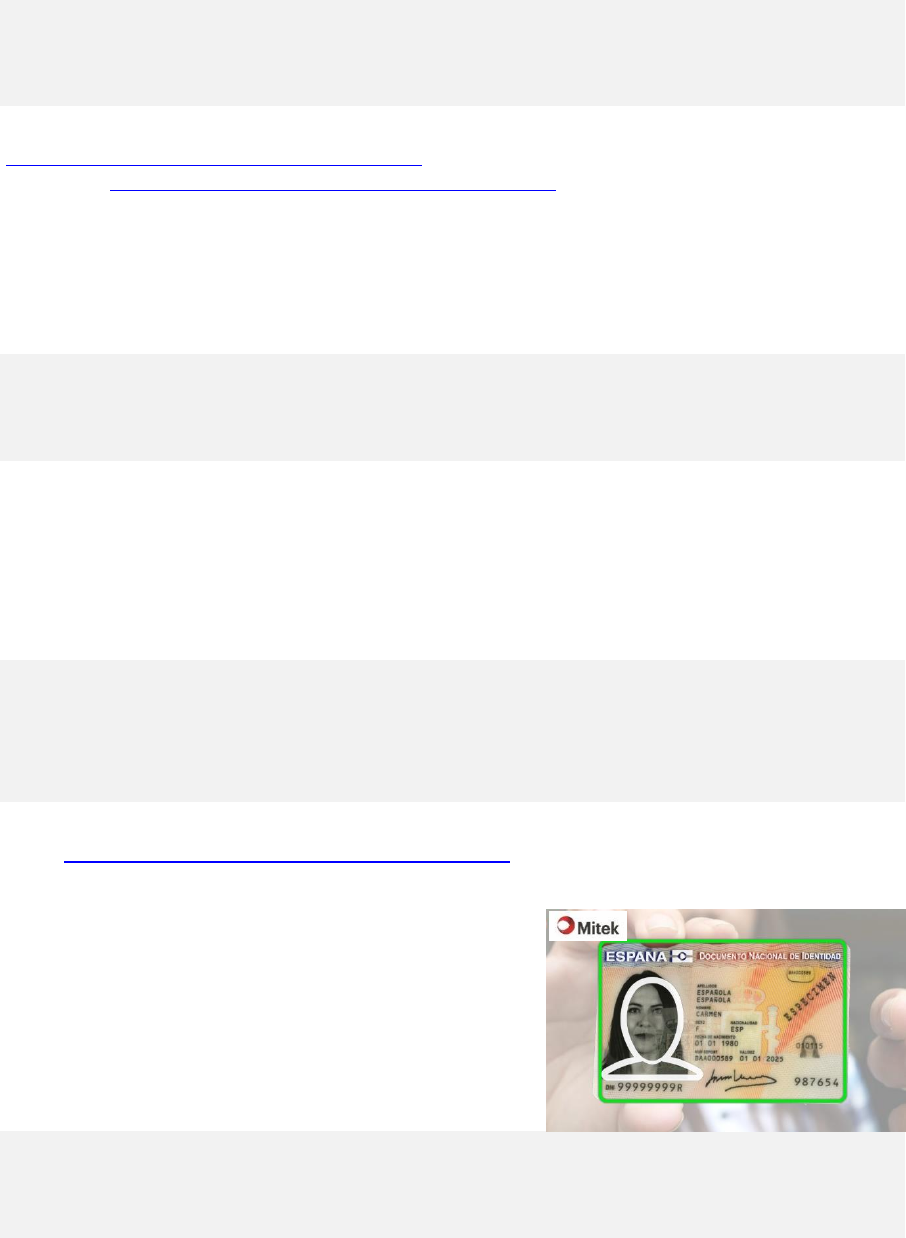
Image Template Customization
The documentCapture module allows show an image inside the
background layer. This image can be used as guide to put the
document on the rectangle. The image template can be
customized as follows:
var OPTIONS_DOC_CAPTURE = {
fontText: "bold 16px Arial",
colorText: "white" }
IcarSDK.documentCapture.create(videoInput, requestFrameCallback,
onDocumentCaptureResultCallback, OPTIONS_DOC_CAPTURE);
var OPTIONS_DOC_CAPTURE = {
positionCanvasTextInformation: 0.33
}
IcarSDK.documentCapture.create(videoInput, requestFrameCallback,
onDocumentCaptureResultCallback, OPTIONS_DOC_CAPTURE);
var OPTIONS_DOC_CAPTURE = {
colorBackground: "#FFFFFF",
alphaBackground: 0.3,
color_lineDetected: "#00FF00",
color_lineNotDetected: "white" }
IcarSDK.documentCapture.create(videoInput, requestFrameCallback,
onDocumentCaptureResultCallback, OPTIONS_DOC_CAPTURE);
var OPTIONS_DOC_CAPTURE = {
path_template_img: " ./img/imgTemplate.png”
}
IcarSDK.documentCapture.create(videoInput, requestFrameCallback,
onDocumentCaptureResultCallback, OPTIONS_DOC_CAPTURE);
Technical Documentation for IDCloud Web Services
_____________________________________________________________________________________________________
26
Automatically the template image is fixed to the size of the rectangle. During the document capture process is
possible to hide, or to show, the image template using the next functions:
• IcarSDK.documentCapture.showTemplateImage()
• IcarSDK.documentCapture.hideTemplateImage()
By default, the template image is showed as the video style is defined. If the video is flipped, the template
image is flipped too. But it can be disabled using the next parameter:
Blurring Test Customization
WebSDK makes a blurring test to verify if the image is blurred or not. The blurring measure is computed
automatically taking in account some properties of the image. This measure can be modified using the
multiplicationFactorBlurring.
By default is 1.0, but can be increased if we want to accept images with less quality. Or decrease if we are sure
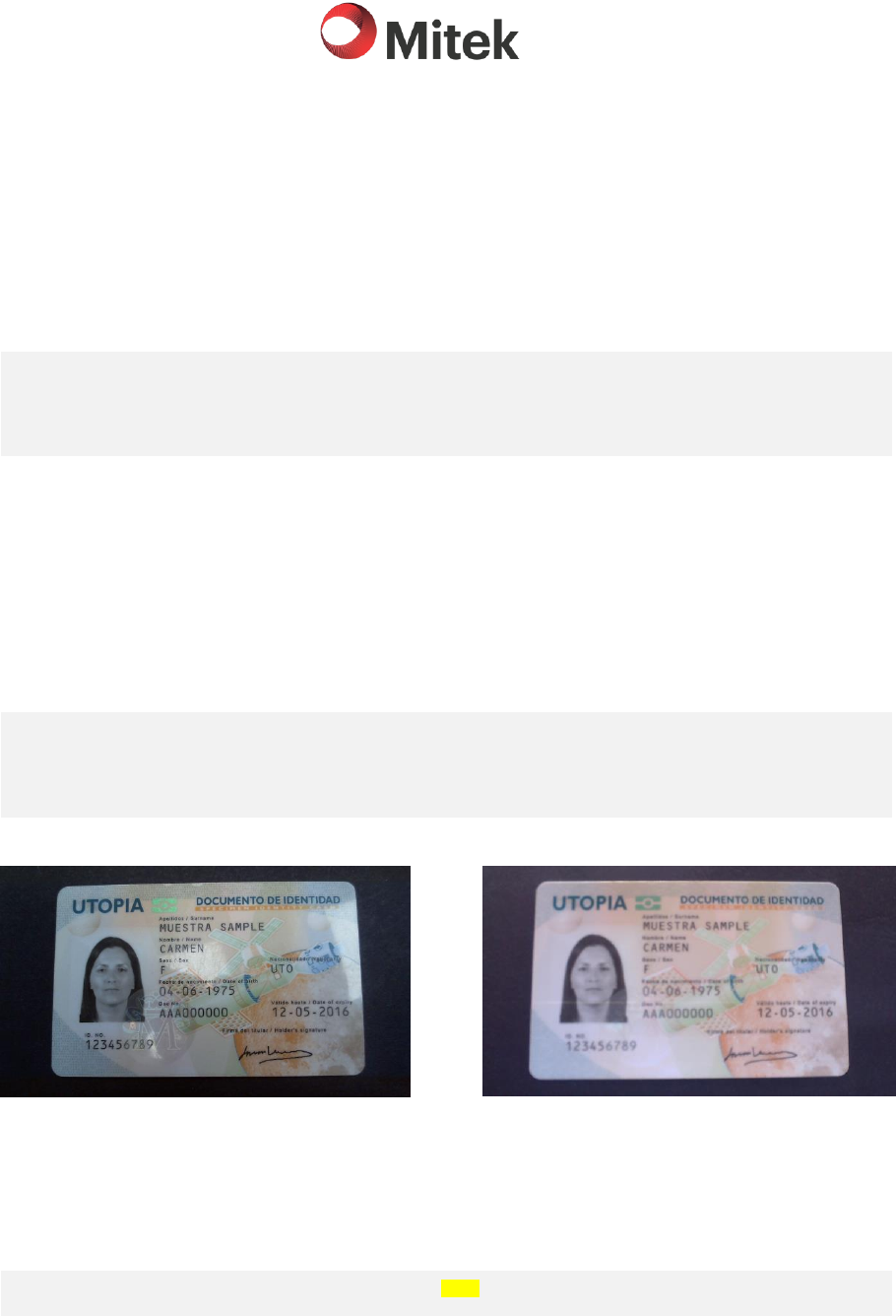
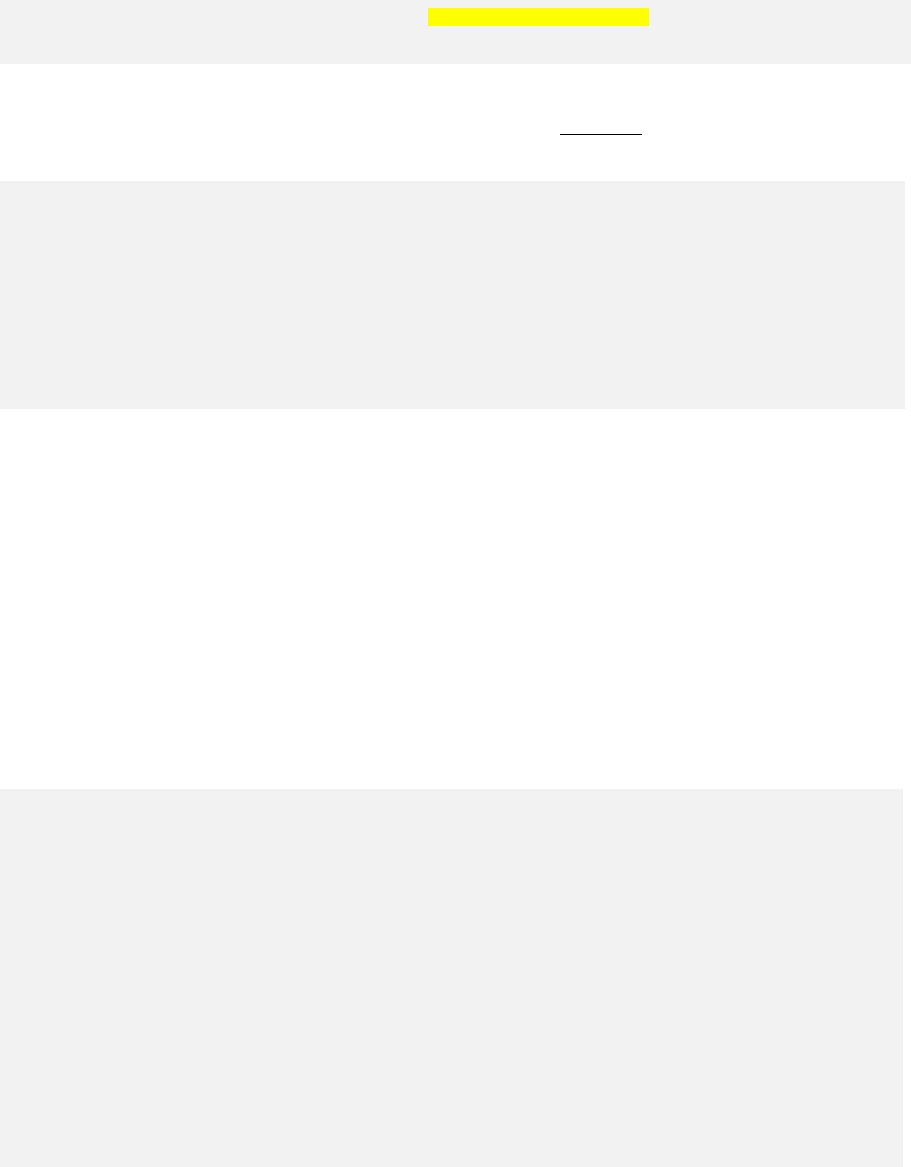
that the camera of the devices has a good performance and the image will be with a great quality.
Next, we show two images captured. One with the default value (1.0), and the second one with value 1.5.
Figure 1 multiplicationFactorBlurring: 1.0 (default)
Figure 2 multiplicationFactorBlurring: 1.5
Video Frame Capture Customization for Document Capture
By default, document capture extracts the frames directly from de video element received as a parameter during
the creation. This is done by passing a null as the second parameter when you call create:
However, if you want to re-define the way frames are obtained, you can pass your custom defined callback as:
var OPTIONS_DOC_CAPTURE = {
flip_template_img: false
}
IcarSDK.documentCapture.create(videoInput, requestFrameCallback,
onDocumentCaptureResultCallback, OPTIONS_DOC_CAPTURE);
var OPTIONS_DOC_CAPTURE = {
multiplicationFactorBlurring: 1.5
}
IcarSDK.documentCapture.create(videoInput, requestFrameCallback,
onDocumentCaptureResultCallback, OPTIONS_DOC_CAPTURE);
IcarSDK.documentCapture.create(videoInput, null, onDocumentResultCallback);
27
Here is the basic structure of the function that you need to define to customize frame capture:
Complete integration example of documentCapture
Here you can see an example of complete integration of IcarSDK.video and IcarSDK.documentCapture.
IcarSDK.documentCapture.create(videoInput,onFrameReceivedCallback,
onDocumentResultCallback);
function onFrameRequestedCallback(onFrameReceivedCallback){
//
// DO SOMETHING TO OBTAIN THE FRAME ONTO A VARIABLE CALLED frameData
// OF TYPE “ImageData”
//(see https://www.w3schools.com/tags/canvas_imagedata_data.asp)
// THEN CALL THE CALLBACK onFrameReceivedCallback TO FEED
// THE FRAME TO DOCUMENT CAPTURE MODULE
onFrameReceivedCallback(frameData, hashCode);
}
<!DOCTYPE html>
<html lang="en">
<head>
<meta charset="utf-8">
<title>Icar vision</title>
<script async defer src="js/icarSDK.js"></script>
</head>
<body>
<div style="position: relative;">
<video id="videoInput" width="640" height="480" autoplay="true"></video>
</div>
<div>
<input id="startBtn" type="button" value="Start"
onclick="IcarSDK.documentCapture.start();" />
<input id="captureBtn" type="button" value="Capture"
onclick="IcarSDK.documentCapture.manualTrigger();" />
<input id="stopBtn" type="button" value="Stop"
onclick="IcarSDK.documentCapture.stop();" /><br>
<canvas id="resultImage" width="640" height="480"></canvas>
</div>

Technical Documentation for IDCloud Web Services
_____________________________________________________________________________________________________
28
<script>
window.onload = function () {
var OPTIONS_VIDEO = {
modeCapture: IcarSDK.MODE_CAPTURE.DOCUMENT,
callBackFeedBackFunction: onFeedBackCallBack
}
IcarSDK.video.initialize(videoInput, OPTIONS_VIDEO);
var OPTIONS_DOCUMENT = {
width_document: 85.6,
height_document: 53.98,
marginPercent_frame: 0.1,
MSG_PLACE_DOC_INSIDE: "PLACE THE\nDOCUMENT INSIDE"
}
IcarSDK. documentCapture.create(videoInput, null, onDocumentResultCallback,
OPTIONS_DOCUMENT);
}
// Return function that the process will call when the process finishes
function onDocumentResultCallback(answerResult, modeCapture, imageResult, roiPoints,
hashCode){
if (answerResult == IcarSDK.ResultProcess.OK){
var canvasResult = document.getElementById("resultImage");
canvasResult.className = videoInput.className;
canvasResult.width = imageResult.width;
canvasResult.height = imageResult.height;
var context = canvasIn.getContext('2d');
context.clearRect(0, 0, canvasResult.width, canvasResult.height);
context.putImageData(imageResult, 0, 0);
}
}
// FUNCTION: onFeedBackCallBack
// Callback function to be called if there is any problem
// executing the webSDK
// params: - resultFeedBack: property where is indicated the result of
// the execution. The possible values are:
function onFeedBackCallBack(resultFeedBack){
switch(resultFeedBack){
case IcarSDK.RESULT_VIDEO.OK:
// Video correctly initialized
break;
case IcarSDK.RESULT_VIDEO.NO_CAMERA_DEVICES:
alert("Camera not detected!");
break;
case IcarSDK.RESULT_VIDEO.NO_CAMERA_PERMISSION:
alert("Not permissions to use the camera!");
break;
case IcarSDK.RESULT_VIDEO.UNAVAILABLE_CAMERA:
alert("Camera is using in other process!");
break;
case IcarSDK.RESULT_VIDEO.UNSUPPORTED_BROWSER:
alert("The browser is not compatible!");
break;
case IcarSDK.RESULT_VIDEO.UNKNOWN_ERROR:
alert("Camera is using in other process!");
break;
}
}
</script>
</body>
</html>
Web SDK. Integration Manual
___________________________________________________________________________
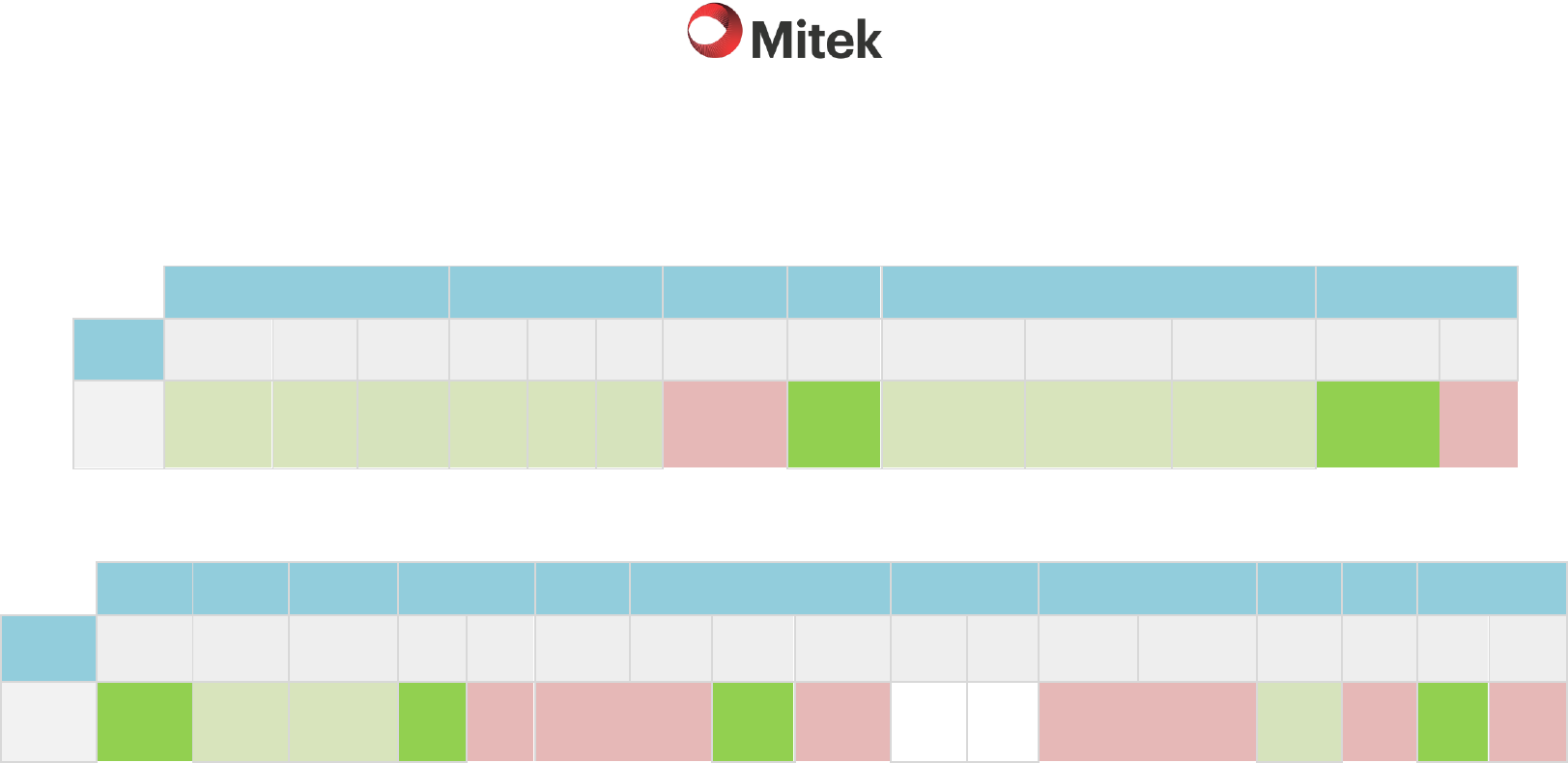
SDK compatibility
Desktop computers
Google Chrome
Firefox
Internet Explorer
Microsoft
Edge
Opera
Safari
Platform /
Feature
Windows
MacOS
Linux
Windows
MacOS
Linux
Windows
Windows
Windows
MacOS
Linux
MacOS
Windows
Webcam
capture
Chrome 23
or later
(needs https)
Chrome 23
or later
(needs
https)
Chrome 23
or later
(needs
https)
Firefox 22
or later
Firefox
22
or later
Firefox
22 or
later
Does not accept
webcam
All
versions
Opera 12.10
or later
(needs https)
Opera 12.10
or later
(needs https)
Opera 12.10
or later
macOS high
Sierra or later
Does not
work
Mobile devices
Safari iOS
Android
Browser
Samsung
Internet
Google Chrome
Amazon Silk
BlackBerry Browser
Nokia Browser
Internet Explorer
Opera
Mobile
Opera
mini
Firefox
Platform /
Feature
iPhone
iPad
Phones &
Tablet
Android
devices
Android
4.0+
iOS*
Kindle Fire
Phones
BB10
Tablet
Nokia X
Symbian
Windows
Phone
Windows 8.x
Android &
Symbian
Java,
iOS
Android
Android,
MeeGo
iOS*
Direct video
capture (*)
iOS 11 or
later (***)
Android 5.0
or later
Samsung 2.0
or later
All
versions
Does not
work
Does not
work
Does not
work
All
versions
Does not
work
Does not
accept direct
video
Does not accept
direct video
All
Versions
(**)
Does not
work
All
versions
Does not
work
(*) Please notice that for face liveness detection, direct video capture is mandatory. This means that therefore in IOS face liveness is not available, since currently no browser accepts in-browser live
video processing, and a native app integrating ID_Mobile SDK is needed instead.
(**) Please notice that webSDK uses the information provided from the camera to flip de image showed. Opera Mobile doesn’t provide any information and the camera is selected by the user, so
the video cannot flipped correctly.
(***) Except 11.0.1 version
