IDA Manual
User Manual:
Open the PDF directly: View PDF  .
.
Page Count: 7
ILS Data Accumulator: The Manual
Dave Chi
June 5, 2018
Contents
1 Introduction 1
2 Java Classes & Hierarchy 1
2.1 MainWindow ....................................... 2
2.2 RequestProcessor ..................................... 3
2.3 Part ............................................ 3
2.4 Condition ......................................... 5
2.5 StringSimilarity ...................................... 5
2.6 XMLConverter ...................................... 5
2.7 The145Crawler ...................................... 6
2.8 TextSim .......................................... 6
2.9 Entry ........................................... 7
3 Deployment 7
1 Introduction
This manual aims to give the user sufficient insight on the process of handling and deploying a
Java application, in particular the ILS Data Accumulator (IDA). JavaFX is the platform that
enables application development. In order to create a JavaFX project in Eclipse, one needs to
install the e(fx)clipse plugin. Further, a layout tool called JavaFX Scene Builder allows easy GUI
development due to the convenient built-in drag-and-drop functionality for window decorations.
The corresponding ’.fxml’ file is automatically generated in Eclipse, where one simply needs to
code the application’s logic. As no use is made of this tool for creating the IDA application, it
is merely a suggestion for future applications. In addition, it is important to have a JDK (Java
Development Kit) version installed, as this software allows application development in Java, and
add this to the build path of the JavaFX project.
2 Java Classes & Hierarchy
In this section, we will go more in detail on the code. The JavaFX project for the IDA application
is ILSDemo. In this project, two packages are stored. The ’application’ package contains the ’.java’
and ’.css’ files and the ’resources’ the likes of ’.jpg’, ’.png’ and so on.
The application is built on several classes, each of which serves its own purpose. These will be
elaborated on in the following subsections. Figure 1shows the hierarchy of the classes.
1
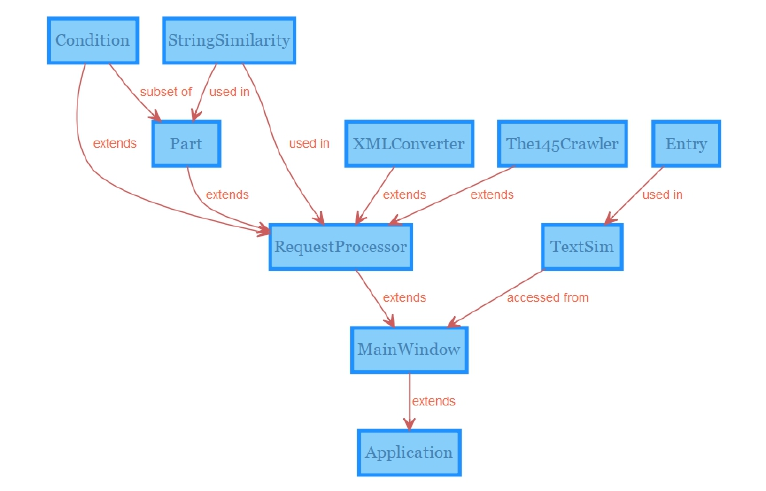
Figure 1: Relation diagram of the classes.
2.1 MainWindow
MainWindow is the class that extends the ’Application’ class, which is the basic class for any
JavaFX application. Therefore, MainWindow is the class that needs to be executed in order
to start the application. In MainWindow, the GUI for the start window and ILS ClientScraper
window are specified and several convenient methods are defined, which are inherited by many
other classes.
The class consists of the following methods:
•The start() method invokes the GUI.
•The helpWindow() method creates the manual window. This method is inherited by
XMLConverter and The145Crawler.
•The browseDirectory() method creates a directory chooser window. This method is in-
herited by XMLConverter and The145Crawler.
•The rename() method creates a window in which the user can specify the output file name.
This method is inherited by XMLConverter and The145Crawler.
•The enterCredentials() creates a login window. This method is inherited by The145Crawler.
•The optionButton() enables the button to activate on ’Enter’ press.
•The okPopup() creates a window with a simple message and an ’OK’ button. This method
is inherited by RequestProcessor,XMLConverter and The145Crawler.
•The popupWithScroll() creates a window with a top and bottom message and a scrollable
list in between. This method is inherited by XMLConverter.
•The waitingScreen() creates a window with no buttons and prompts the user to wait. This
method is inherited by RequestProcessor,XMLConverter and The145Crawler.
•The setCheckBoxEnterPressed() enables a check box to be checked/unchecked on ’Enter’
press. This method is inherited by XMLConverter.
•The addBlackList() creates a list of unreliable companies according to Mr. Frehe. This
method is inherited by RequestProcessor and XMLConverter.
2
•The sendRequest() method handles the events after pressing ’Submit’ and creates a Re-
questProcessor object.
2.2 RequestProcessor
RequestProcessor is a class that extends the ’MainWindow’ class. This class handles the events
of the ILS ClientScraper. Further, it defines several methods that are used in other classes.
The class consists of the following methods:
•The displayConfirmation() method shows the user-specified list of parts and prompts the
user whether to proceed or not.
•The scrape() method creates a new background thread for scraping and handles the events
after it succeeds.
•The connectAndWrite() method executes the task of requesting XML files from ILS and
writing to Excel file.
•The createSoapRequestGetPartStatsAndPricing() method creates a request for inven-
tory and pricing stats.
•The createSoapRequestGetPartsAvailability() method creates a request for parts avail-
ability. This method is inherited by XMLConverter.
•The saveSoapResponse() method stores the response from ILS to an XML file. This
method is inherited by XMLConverter.
•The parseSoapFileGetPartStats() method writes all elements from inventory stats to
Excel file.
•The parseSoapFileGetPartPricing() method writes all elements from quote history to
Excel file. This method is inherited by XMLConverter.
•The parseSoapFileGetPartOverhaulStats() method writes all elements from overhaul
stats to Excel file. This method is inherited by XMLConverter.
•The parseSoapFileGetMROPricing() method writes all elements from MRO quote his-
tory to Excel file. This method is inherited by XMLConverter.
•The parseSoapFileGetPartsAvailabilityShort() method writes some elements from parts
availability to Excel file. This method is inherited by XMLConverter.
•The parseSoapFileGetPartsAvailabilityLong() method writes most elements from parts
availability to Excel file. This method is inherited by XMLConverter.
•The createStatistics() method creates a statistics sheet. This method is inherited by
XMLConverter.
•The createSummary() method creates a summary sheet.
•The round() method rounds numbers to a specified number of decimals. This method is
inherited by Part and Condition.
2.3 Part
Part is a class corresponding to a part that mainly stores its statistics and performs analysis on
these. This class is created to facilitate the analysis. It contains many getters for acquiring the
relevant information on the part.
The class consists of the following methods:
•The getID() method returns the part ID.
3
•The getMinimumDemandMonotonicity() method returns the monotonicity of demand.
•The getDemandSizeMonotonicity() method returns the monotonicity of demand size.
•The getMarketAvailabilityMonotonicity() method returns the monotonicity of market
availability.
•The getSourcesMonotonicity() method returns the monotonicity of available sources.
•The getMostRequestedCondition() method returns the condition with the most occur-
rences in quote history.
•The getInterest() method returns the amount of interest for the part.
•The getCompetition() method returns the amount of competition for the part.
•The getR2() method returns the R2of the trend analysis.
•The getPValue() method returns the p-value of the trend analysis.
•The getSignificance() method returns the conclusion of the trend analysis.
•The getBlackList() method returns the list of unreliable companies according to Mr. Frehe.
•The addQuoteStats() method adds the quote history information to the part.
•The addInventoryStats() method adds the inventory stats information to the part.
•The filterOnDescription() method removes quote entries with dissimilar descriptions.
•The filterOutliers() method removes quote entries with disproportional prices.
•The determineSize() method calculates the estimated demand size.
•The determineRealData() method removes all AR companies from the data.
•The trendAnalysis() method performs trend analysis on demand, market availability and
available sources.
•The getMin() method returns a list of minimum quote prices per condition.
•The getMax() method returns a list of maximum quote prices per condition.
•The getMedian() method returns a list of median quote prices per condition.
•The getRanges() method returns a list of bounds on the quote prices per condition.
•The getAverage() method returns a list of average quote prices per condition.
•The getWeightedAverage() method returns a list of weighted average quote prices per
condition.
•The getReliability() method returns a list of reliability rates for estimated market price
per condition.
•The arrayListOperation() method performs an operation on two lists.
•The allowedRanges() method determines the quote price bounds based on the quartiles.
•The getGrowth() method returns the growth rates of a time series list.
•The getMonotonicity() method returns the monotonicity of a time series.
•The calcMostRequestedCondition() method determines the most requested condition
per condition.
•The calcStats() method performs most statistical analysis and store the results.
•The calcMedian() method calculates the median of a list.
•The calcCompetition() method determines the competition and interest levels.
4
2.4 Condition
Condition is a class corresponding to a condition of a Part object. It conveniently performs
statistical analysis and stores statistics of parts per condition level.
The class consists of the following methods:
•The getCondition() method returns the condition.
•The addAll() method adds all relevant statistics.
•The getMin() method returns the minimum quote price.
•The getMax() method returns the maximum quote price.
•The getMedian() method returns the median quote price.
•The getRanges() method returns the bounds on the quote prices based on the quartiles.
•The getAverage() method returns the average quote price.
•The getStandardDeviation() method returns the standard deviation of the quote prices.
•The getWeightedAverage() method returns the weighted average quote price.
•The getReliability() method returns the reliability rate of the quote prices.
•The filterOutliers() method removes quote entries with disproportional prices.
2.5 StringSimilarity
StringSimilarity is a class that applies the Jaro-Winkler algorithm in order to determine the
string similarity in list. It is used in the classes RequestProcessor and Part to filter by descrip-
tion.
The class consists of the following methods:
•The similarity() method executes the Jaro-Winkler algorithm.
•The getRedundantIndices() method returns all indices to be removed from a list.
2.6 XMLConverter
XMLConverter is a class that allows the user to retrieve every previously retrieved ILS infor-
mation from the archive folder. It creates a separate window in which the user can specify the
output.
The class consists of the following methods:
•The create() method invokes the GUI for XML Converter.
•The find() method executes the process of finding all relevant files in the archive folder and
creates a new background thread for reading the XML files and writing these to an Excel file
and handles the events after the task succeeds.
•The requestILS() method prompts the user to send a request to ILS after some parts
availability information is missing.
•The readAndWrite() method executes the task of reading the XML files and writing them
to an Excel file.
•The runAll() method creates a prompt in case no input is entered and asks whether all
parts should be retrieved.
5
•The enterCredentials() method creates a login window.
•The getID() method creates a new background thread for retrieving new parts availability
information from ILS.
•The parseSoapGetPartStats() method writes all elements from inventory stats to Excel
file.
•The parseSoapGetPartPricing() method writes all elements from quote history to Excel
file.
•The parseSoapGetMROPricing() method writes all elements from MRO quote history
to Excel file.
•The createLastCreationDateSheet() method creates a sheet with last ILS retrieval dates
of inventory and pricing stats.
2.7 The145Crawler
The145Crawler is a class that scrapes MRO parts statistics from the 145 database by means of
crawling. It creates a separate window in which the user can specify the output.
The class consists of the following methods:
•The create() method invokes the GUI for 145 ClientScraper.
•The sendRequest() method handles the events after pressing ’Submit’. A new background
thread is created for crawling, retrieving information and writing to Excel file and the events
after the task is successful are handled.
•The crawl() method executes the process of crawling and retrieving the relevant information.
•The write() method executes the process of writing the retrieved information to an Excel
file.
•The nextNode() method finds the next node containing relevant information.
•The nextStringCell() method creates a new cell in Excel file containing a string.
•The nextNumCell() method creates a new cell in Excel containing a numeric value.
2.8 TextSim
TextSim is a class in a separate window that reads Excel files containing an ’ID’ column and
a ’Description’ column and executes an algorithm in order to find part families based on the
similarities within the ’ID’ and ’Description’ columns. This class is invoked from the MainWindow
class and originally stems from a different JavaFX project. Therefore, TextSim can be seen as a
standalone application with its own purposes.
The class consists of the following methods:
•The start() method invokes the GUI.
•The customizeWindow() method creates a customization window for specifying input
data, algorithm constraints and output preferences.
•The readFile() method reads the input Excel file and displays the columns in the table.
•The browseFile() method creates a file chooser window.
•The convertableToDouble() method checks whether a string can be converted to a double.
•The convertableToInt() method checks whether a string can be converted to an integer.
6
•The calculateScore() method handles the process of executing the algorithm, determining
the part families and writing to output file. It creates a new background thread for this task
and handles the events after the task is successful.
•The okPopup() method creates a window with a simple message and an ’OK’ button.
•The setNextOnEnter() method enables the program to proceed to the next node on ’Enter’
press.
•The helpWindow() method creates the manual window.
2.9 Entry
Entry is a class that stores each row entry of the input Excel data specified in the TextSim
application and stores relevant information during the task. It can be seen as an auxiliary class to
the TextSim class and mainly consists of getters and setters methods.
The class contains the following methods:
•The getEntryNumber() method returns the entry number.
•The setEntryNumber() method sets the entry number.
•The getIDSimilarity() method returns the similarity score for ’ID’.
•The setIDSimilarity() method sets the similarity score for ’ID’.
•The getDescriptionSimilarity() method returns the similarity score for ’ID’.
•The setDescriptionSimilarity() method sets the similarity score for ’Description’.
•The getId() method returns the ’ID’.
•The setId() method sets the ’ID’.
•The getDescription() method returns the ’Description’.
•The setDescription() method sets the ’Description’.
3 Deployment
This section describes the steps for deploying a full-fledged application in Eclipse, so that any user
can install it on their desktop. In order to do this, the Java code needs to be packaged along with
its resources, native library and Java Runtime version. The steps for these tasks are described
here. Furthermore, one needs to make sure to have installed Inno Setup, which is the software for
the installer. Inno Setup also needs to be added to the ’Path’ variable in the windows environment
variables.
First of all, after creating a new JavaFX project in Eclipse, a ’build.fxbuild’ file is automatically
generated. In this file, one needs to fill in every field containing an asterisk and specify the packaging
format. One can then proceed with creating a ’build.xml’ file.
Secondly, one can add icons for the application, which will look nicer than the default icons.
The steps are described in ’Step 2’ in the provided link. Next, one needs to create a ’resources’
subfolder in the ’build’ folder and copy the content of the ’resources’ package containing all images
into this folder. Afterwards, one can modify the ’build.xml’ to add more properties. The icons are
not automatically added yet, so these also need to be specified in this file.
The last step is to run the ’build.xml’ file by right-clicking on it, hover on ’Run As’ and execute
’1 Ant build’. This process should take about 1 minute. After the process, one can find the
installer in the ’build/deploy/bundles’ folder. After installing the application using the installer,
one should find the software in the ’C:/’ folder along with the resources, packages and required
runtime version.
7
