Initial Guide
User Manual:
Open the PDF directly: View PDF  .
.
Page Count: 1
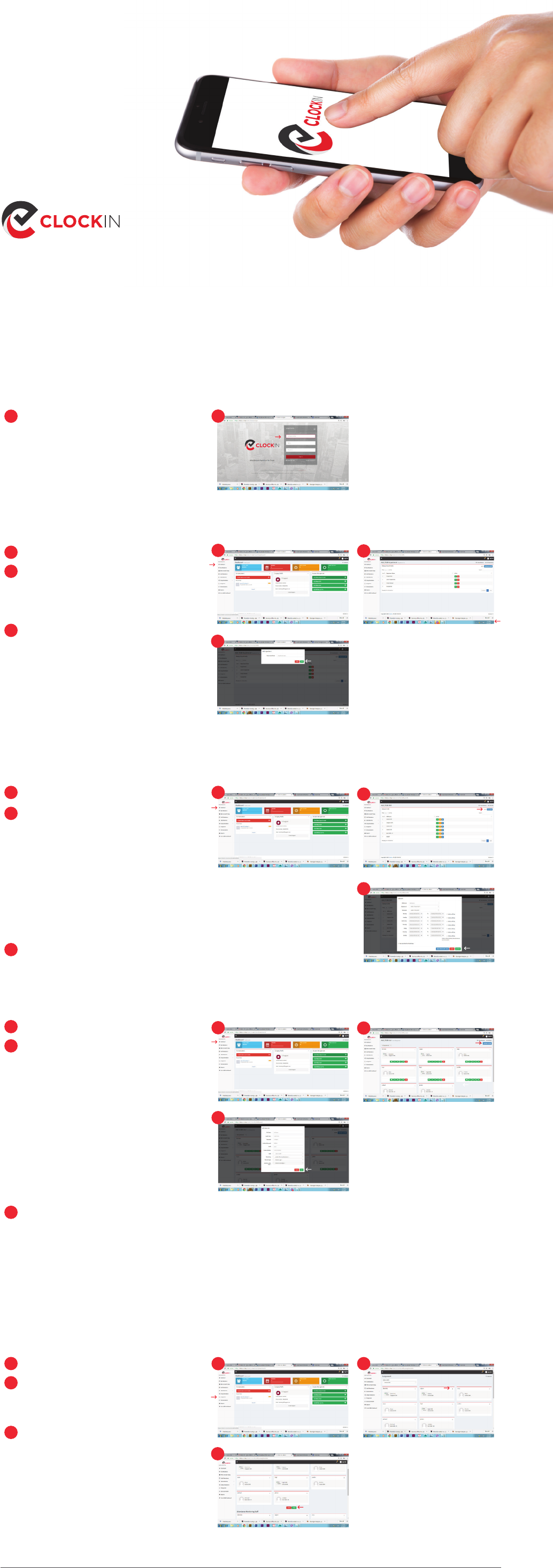
Setting up Clock-in.me is really simple and it should not take more than 10 minutes.
Before we jump right in, you need to follow these steps to setup clock-in.me to work for you.
Step 2 : Setup Departments
INITIAL SET UP
GUIDE
Click on Dashboard
Click on Add New Department
Enter the Name of your Department
If your organisation is not huge then you
might want to use your Company name as
the Department.
Click Add to finishing adding the New Depart-
ment.
Step 3 : Setup Shifts
a
Step 1: Log as Admin account
Go to https://clock-in.me/webapp
Login using Admin account
a
Click on Dashboard
Click on Add New Shift
Enter the Name of the New Shift
Select the Department that the New Shift
belongs to.
Select the Time Zone for the Shift
Select the Time schedule that employees
under at this shift are suppose to report in
from Monday to Sunday.
You can select the Use same time for all work
days option if the time schedule are the same.
You can select the Mark as off day option for
the days that employees need not report to
work on this shift.
Click Add Shift to complete adding the new
shift
a
b
c
b
c
Step 4 : Add Users / Employees
Click on Dashboard
Click Add New User
Enter all user necessary infomations.
Select the Shift that the User belongs to .
Select if this User attendance should be
Monitored. If it is enabled, the Monitorer will
be notified when user did not clock in on time.
By default, all user can clock in and out from
any location. Clock in / out restriction is
enabled in Paid version It allow Remote Login
to be enabled to allow user to clock in / out
from another location other than your office
I P.
Administrative Rights option allows user to
have Adminstator access and login as
Adminstrator for your company Clock-in.me
account.
Click Add to complete adding the User
User will receive an automated email that
contain his username and password as well
as the URL the Clock-in.me webapp to Clock
in / out for their attendance.
a
b
c
a
a
b
c
ab
c
a
ab
c
1.
1.
1.
1.
1.
1.
1.
2.
3.
4.
5.
1.
1.
2.
3.
4.
5.
6.
Step 5 : Assign Attendance Monitoring Staff
Click on Assignment
Click Attendance Monitoring Staff Assign-
ment.
Select the Shift
Select the User(s) who will monitor the shift
Click Assign Monitoring
a
b
c
1.
1.
1.
2.
3.
4.
6.
7.
2.
3.
Shift lets you schedule the time for your users are suppose to report to work.
You can add users from the list to monitor the attendance of the users.
They will receive emails notification when users / employee from the shift
did not clock in at the scheduled time.
b
c
(US) + 1 (206) 2587269 (AUS) + 61 (39) 0216940
www.clock-in.me
ask@clock-in.me
