Installing Raspberry Pi Guide
User Manual:
Open the PDF directly: View PDF  .
.
Page Count: 7
1 - 7
Installing the Air Quality Map on a Raspberry Pi
for Test Purposes
Introduction
These instructions will enable you to install the Connected Humber Air Quality Map API/APP on a
Raspberry Pi for the purposes of testing changes.
These instructions assume you will want to use the NGINX webserver and the MariaDb (MySQL) for
the database.
You will also install a small python program (dbLoader.py) to listen to either the Connected Humber
MQTT broker or a local Mosquitto broker which you can publish test messages to.
Hardware Required
1. A Raspberry Pi 3/3+ would be great as they have on-board WiFi. Possibly this software could
also be installed on any other Linux based hardware and earlier RPi (though the 3+ is faster)
2. Bluetooth Keyboard, mouse and an HDMI monitor you can find out what IP address your Pi
has been given. Thereafter you could use a program called Putty to remote login to a
terminal window
3. An internet connection – the faster the better
Database
For offline testing you will need to install mariaDB (MySQL) and import a mysqldump of the database
so you should get a copy of the dump before you start. Note that a mysqldump will get bigger as
time proceeds. If you are not bothered about testing with historic data you could use a dump
without data but you will need to add some entries to the device and reading_value_types tables
before you can start loading records from the MQTT broker.
Installation
Assuming your Pi has a mouse, keyboard and monitor…
RPi Stretch
1. You should begin by doing a clean install of Raspbian Stretch on an SD card.
a. make a note of the login password you set
b. make a note of the IP address (192.168.1.80 in my case)
2. If the mouse is slow to respond add the following to the end of the /boot/cmdline.txt file
whilst Rasbian updates.
a. usbhid.mousepoll=0
2 - 7
PHP 7.x
You need at least php v7.1. if php –v shows a lower version then you need to upgrade it as follows:-
1. sudo nano /etc/apt/sources.list.d/10-buster.list
add this line
deb http://mirrordirector.raspbian.org/raspbian/ buster main contrib
non-free rpi
2. sudo nano /etc/apt/preferences.d/10-buster
add the following lines
Package: *
Pin: release n=stretch
Pin-Priority: 900
Package: *
Pin: release n=buster
Pin-Priority: 750
3. sudo apt update
NOTE: You may need to change the version number in the following command as time goes by:-
4. sudo apt-get install -t buster php7.3 php7.3-curl php7.3-gd php7.3-fpm php7.3-cli php7.3-
opcache php7.3-mbstring php7.3-xml php7.3-zip
5. php –v
should show you have installed php version 7.3, or later, ok
3 - 7
Webserver
1. sudo apt install nginx
You should now be able to use the browser and access localhost to get the NGINX welcome
screen.
Configure nginx for php :-
2. cd /etc/nginx/sites-available
3. sudo nano default
uncomment the PHP section like this:-
# pass PHP scripts to FastCGI server
#
location ~\.php$ {
include snippets/fastcgi-php.conf;
# With php-fpm (or other unix sockets):
fastcgi_pass unix:/run/php/php7.3-fpm.sock;
# With php-cgi (or other tcp sockets):
#fastcgi_pass 127.0.0.1:9000;
}
We are going to put the Air Quality Web code into the localhost html folder (/var/www/html). If you
know how to setup a virtual site using nginx then you should do so now and use the root of that
server (something like /var/www/mysite.com, maybe)
For systems which may be accessed from the internet you need to lock down access to config
info as follows:-
In Nginx:
nano /etc/nginx/nginx.conf
# put this inside the "server { }" block:
location ^~ /path/to/data/directory {
deny all;
}
NOTE: /path/to/data/directory might be /var/www/html/data if you are not
using a virtual website
In Apache:
Create a file called .htaccess inside the data/ directory with this content
Require all denied
4. Finally, restart the web server

4 - 7
nginx: sudo systemctl restart nginx
apache: sudo service apache2 restart
Database
You will need an sqldump of the database ready before you do this. You could put this on a USB
drive or install an ftp server/client (not covered here)
1. sudo apt install mariadb-client mariadb-server
The password for sudo access to mysql is the same as the pi login password.
To make life easier for now, upload the database and add a user with full access rights. This is ok
on a test machine but you would secure the database against attacks on the live machine. You
would fully secure a public system.
2. sudo mysql –p
> create database aq_db;
> use aq_db;
> source <your sqldump file>
> grant all privileges on aq_db.* to ‘<username>’@’localhost’ identified by ‘<password>’
<username> and <password> will be your dbUser and dbPassword which you need to access
the database and place in the settings files for dbLoader.py and the Air Quality Map.
Update Node-Red & NPM
1. cd $HOME;
2. curl -OL https://gitlab.com/sbrl/bin/raw/master/node-update;
3. chmod +x node-update;
4. ./node-update
Composer
Try this command
composer –V
If it outputs anything composer is already installed on your system. If the version is below
1.8.4 you should update it.
Do not use ‘sudo apt install composer’ – it’s (probably) an older version
Follow the instructions from step 2 here:-
https://www.digitalocean.com/community/tutorials/how-to-install-and-use-composer-on-
debian-8
php -r "copy('https://getcomposer.org/installer', '/tmp/composer-setup.php');"

5 - 7
If you trust the download just run this
sudo php /tmp/composer-setup.php --install-dir=/usr/local/bin --filename=composer
Air Quality Web
Finally, we are going to build the AQW software in a folder then copy the files into /var/www/html.
You need to be logged in as a regular user (pi is fine)
1. cd $HOME
2. git clone https://github.com/ConnectedHumber/Air-Quality-Web
3. cd Air-Quality-Web
4. ./build setup setup-dev
The following warning can be ignored:-
leaflet.marckercluster1.4.1 requires a peer of leaflet@~1.3.1 but none installed
5. NODE_ENV=production ./build client
6. edit the file data/settings.toml and add the database username and password
7. if your database is on a remote machine edit settings.default.toml find the line
host=”127.0.0.1” and set the IP to your database machine.
You will need to ensure your database server allows remote access with a suitably secure
grant command.
Copy the files to the web site root
8. sudo cp –r * /var/www/html
9. sudo chown –R www-data:www-data /var/www/html/*
10. point your browser at localhost/app and the Air-Quality-Map page should display.
Adding New Devices
Currently this is a manual task.
Devices not listed in the devices table are ignored – you will see messages in the dbLoader log file
which says something like ‘processJob(nnn): unresolved device_id. Payload skipped’
Keeping the local database up to date
The database is updated with a python program which subscribers to our broker and processes the
messages it received.
You need to run dbLoader.py on your local machine. You can find it here:-
https://github.com/ConnectedHumber/MQTT/tree/master/Subscriber
You need BOTH dbLoader.py and settings.py.

6 - 7
Edit settings.py and put in the correct username/password for the Connected Humber MQTT broker
and your local database.
Also add logfile rotation by creating a file in /etc/logrotate.d
1. sudo nano /etc/logrotate.d/dbLoader
add the following (if you changed the logFile name in settings.py change it here too).
/var/log/aq_db.log{
missingok
notifyempty
size 50k
daily
compress
maxage 30
rotate 10
create 0644 root root
copytruncate
}
Run dbLoader.py as a background task
2. sudo python dbLoader.py &
You could add the above command to /etc/rc.local to ensure it is fired up if you reboot your Pi.
Database Schema Changes
Currently it is a manual task to add extra columns/tables. If there are any changes it is simpler to
request a new sqldump of the existing database, drop the existing aq_db tables (not the database)
then import the sqldump with the source command as was done earlier.
Local MQTT broker (optional)
You can install Mosquitto as a local MQTT broker then publish test messages to it. If you configure
dbLoader.py to listen to your test broker it will then add you data to your local database.
1. sudo apt-get install mosquito
The mosquito service will run automatically.
You can add password/username to the broker (if you need to). The instructions here will help you
do that.
http://www.steves-internet-guide.com/mqtt-username-password-example/
Finally
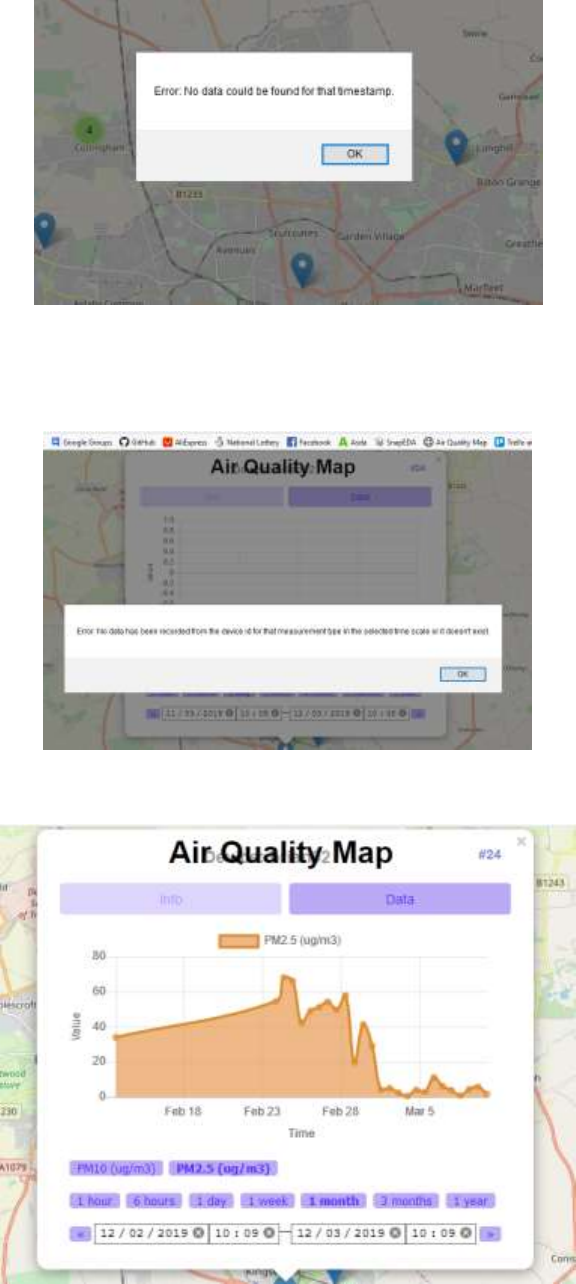
When you fireup the map you will, inevitably, get this message:-
7 - 7
It simply means your database is old and needs fresh data.
And again when you click on a marker.
Click on ok then select a longer timeframe and you should see a chart.
