Instructions
Instructions
User Manual:
Open the PDF directly: View PDF  .
.
Page Count: 3
Extended Colliders 3D (Version 1.0.1)
Extended Colliders 3D provides a quick and easy way to create 3D colliders from primitive
shapes that go beyond Unity's built in sphere, cube and capsule colliders. Each collider is added as a
component to a game object at design time, and then created as a mesh collider at runtime from the
parameters specified. A number of primitive shapes are supported (e.g. cones, cylinders) and each
one has a number of configurable options. This allows a wide range of 3D shapes to be created as
colliders, without the need to create a separate collider mesh, or to use the mesh of the original
object, which may have more triangles than is needed for the collider.
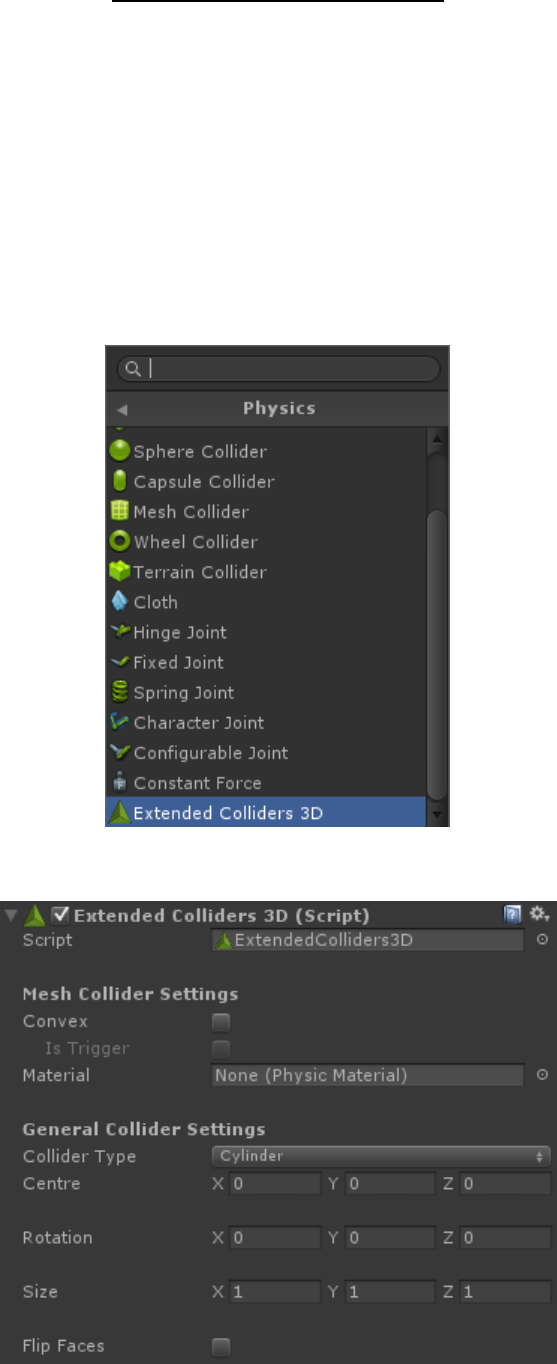
To use the asset, pick the game object that you wish to add the 3D collider to, and add an
Extended Colliders 3D component, which can be found in the Physics menu:
The component with look like this in the inspector window:
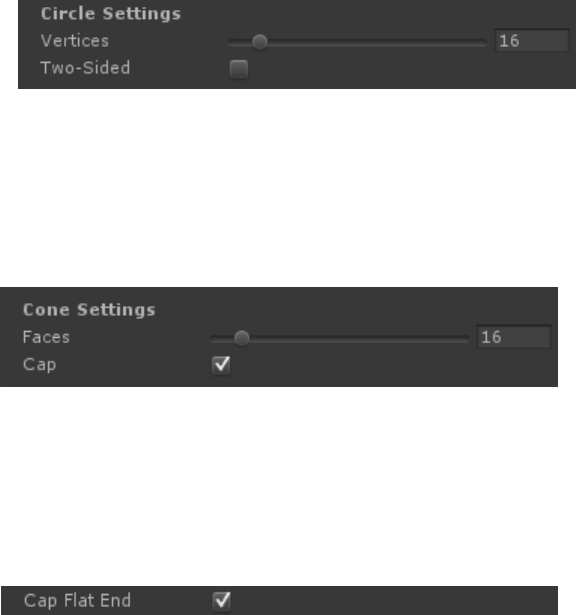
Below is a detailed description of what each of these properties does. Hovering the mouse
over them in the inspector also provides a brief description of each property.
• Mesh Collider Settings – these settings are identical to what you would find on a mesh
collider. They are copied over to the mesh collider that is created at runtime.
• General Collider Settings – Collider Type – this indicates the base primitive shape to use as a
mesh collider. Options include: circle, half circle, cone, half cone, cube, cylinder, half cylinder,
quad or triangle.
• Centre – the centre point of the collider in 3D space.
• Rotation – the rotation of the collider, represented as Euler angles.
• Size – the scale of the collider.
• Flip Faces – whether to flip the faces of the collider. If this is checked then a cylinder, for
example, will have its faces pointing inwards instead of outwards, and hence will become a
tube. Similarly a cube can become the inside of a box.
The next set of options depend on the collider type that has been selected. Each primitive
shape has various options:
• Circle/Half Circle – a flat (half) circle, made from a specified number of vertices.
o Vertices – the number of vertices used to make the circle. More vertices results in a
smoother circle. Can be set as low as three, which makes a triangle.
o Two-sided – whether the circle accepts collisions from both sides.
• Cone
o Faces – the number of faces the cone has. More faces results in a smoother cone.
o Cap – whether to cap the cone. Capping creates an extra set of faces on the bottom of the
cone. If the cone is always sat on the floor, for example, capping would not be necessary.
• Half Cone – same properties as a cone but with this additional option:
o Cap Flat End – whether to add a cap to the flat end of the half cone.
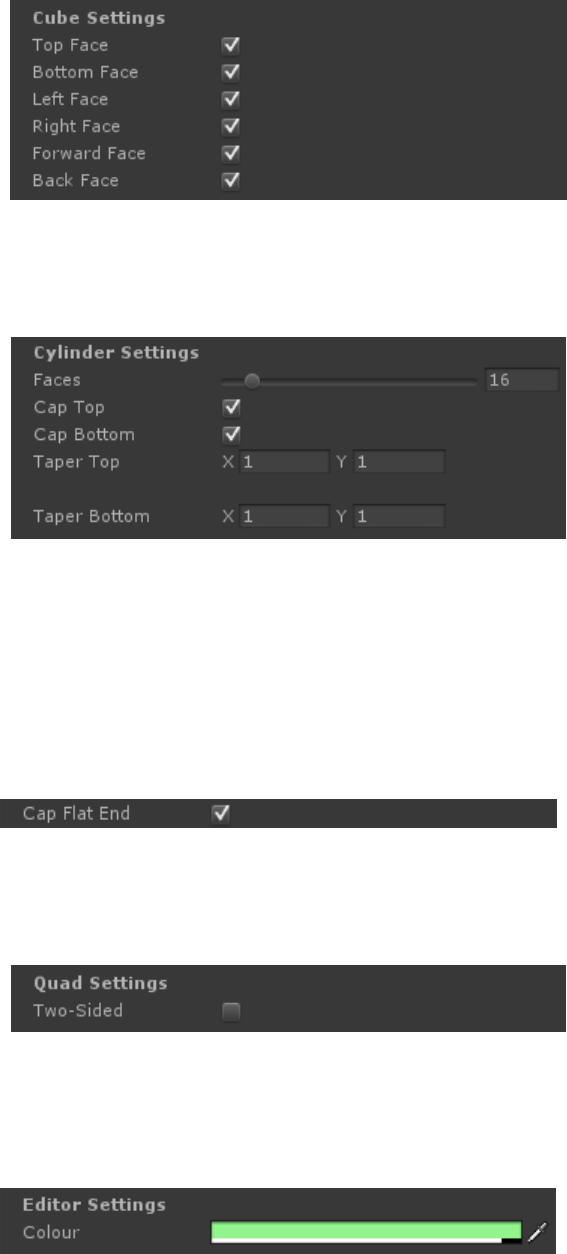
• Cube
o Top/Bottom/Left/Right/Forward/Back Face – each face of a cube can be turned on or off.
• Cylinder
o Faces – the number of faces the cylinder has. More faces result in a smoother cylinder.
o Cap Top/Bottom – whether top add faces to cap the top/bottom of the cylinder.
o Taper Top/Bottom – tapering the cylinder scales the X and Z axis on the top/bottom of the
cylinder. Use this to make the top and bottom of the cylinder different sizes to create, for
example, a funnel shape.
• Half Cylinder – same properties as a cylinder, but with this additional option:
o Cap Flat End – whether to add a cap to the flat end of the half cylinder.
• Quad/Triangle – a quad (two triangles) or a single triangle:
o Two-sided – whether the quad/triangle accepts collisions from both sides.
Below this is an editor setting to set the colour of the collider during development. This is
drawn via a gizmo, so can be displayed as an overlay to the scene view:
When the game is run, the Extended Colliders 3D components are converted into mesh
colliders, and are immediately ready for accepting 3D physics collisions.
