KX TA824 Operating Manual
KX-TA824 Operating Manual manual pdf -FilePursuit
User Manual: KX-TA824 Operating Manual
Open the PDF directly: View PDF  .
.
Page Count: 188 [warning: Documents this large are best viewed by clicking the View PDF Link!]
- Important Information
- Attention
- F.C.C. REQUIREMENTS AND RELEVANT INFORMATION
- Table of Contents
- Operation
- 1.1 Before Operating a Telephone
- 1.2 Basic Operations
- 1.3 Telephone Features
- 1.3.1 Absent Message
- 1.3.2 Account Code Entry
- 1.3.3 Alternate Calling-Ring/Voice
- 1.3.4 Answering, Direct Outside (CO) Line
- 1.3.5 Automatic Callback Busy (Camp-on)
- 1.3.6 Background Music (BGM)
- 1.3.7 Built-in Voice Message (BV)
- 1.3.8 Busy Station Signaling (BSS)
- 1.3.9 Call Forwarding (FWD)-SUMMARY
- 1.3.10 Call Forwarding (FWD)-All Calls
- 1.3.11 Call Forwarding (FWD)-Busy/No Answer
- 1.3.12 Call Forwarding (FWD)-Follow Me
- 1.3.13 Call Forwarding (FWD)-To Outside (CO) Line
- 1.3.14 Call Forwarding (FWD)-CANCEL
- 1.3.15 Call Hold
- 1.3.16 Call Hold, Exclusive
- 1.3.17 Call Hold Retrieve
- 1.3.18 Call Log, Incoming
- 1.3.19 Call Log Display Lock, Incoming in the Personal Area
- 1.3.20 Call Park
- 1.3.21 Call Pickup, Directed
- 1.3.22 Call Pickup, Group
- 1.3.23 Call Pickup Deny
- 1.3.24 Call Retrieving from a TAM (Telephone Answering Machine)
- 1.3.25 Call Splitting
- 1.3.26 Call Transfer-To Extension
- 1.3.27 Call Transfer-To Outside (CO) Line
- 1.3.28 Call Waiting
- 1.3.29 Call Waiting Caller ID
- 1.3.30 Call Waiting from the Telephone Company
- 1.3.31 Conference
- 1.3.32 Conference, Unattended
- 1.3.33 Data Line Security
- 1.3.34 Direct Inward System Access (DISA)
- 1.3.35 Do Not Disturb (DND)
- 1.3.36 Do Not Disturb (DND) Override
- 1.3.37 Door Open
- 1.3.38 Doorphone Call
- 1.3.39 Emergency Call
- 1.3.40 Executive Busy Override-Extension
- 1.3.41 Executive Busy Override-Outside (CO) Line
- 1.3.42 Executive Busy Override Deny
- 1.3.43 Extension Feature Clear
- 1.3.44 Extension Lock
- 1.3.45 External Feature Access (EFA)
- 1.3.46 Flash/Recall
- 1.3.47 Hands-free Answerback
- 1.3.48 Hands-free Operation
- 1.3.49 Headset Operation
- 1.3.50 Hot Line
- 1.3.51 Intercom Call
- 1.3.52 Line Access, Outside (CO) Line-SUMMARY
- 1.3.53 Line Access, Automatic
- 1.3.54 Line Access, Outside (CO) Line Group
- 1.3.55 Line Access, S-CO Line
- 1.3.56 Live Call Screening (LCS) (Voice Mail APT Integration only)
- 1.3.57 Local Carrier-based Voice Mail Service
- 1.3.58 Lockout
- 1.3.59 Log-in/Log-out
- 1.3.60 Message Waiting
- 1.3.61 Message Waiting for Another Extension
- 1.3.62 Message Waiting for Another Extension Lock
- 1.3.63 Microphone Mute
- 1.3.64 One-touch Dialing
- 1.3.65 Operator Call
- 1.3.66 Paging-SUMMARY
- 1.3.67 Paging-All Extensions
- 1.3.68 Paging-All Extensions & External
- 1.3.69 Paging-External
- 1.3.70 Paging-Group
- 1.3.71 Paging and Transfer
- 1.3.72 Paging Answer
- 1.3.73 Paging Deny
- 1.3.74 Paralleled Telephone
- 1.3.75 Personal Speed Dialing
- 1.3.76 Power Failure Transfer
- 1.3.77 Pulse to Tone Conversion
- 1.3.78 Redial, Last Number
- 1.3.79 Redial, Saved Number
- 1.3.80 Room Monitor
- 1.3.81 Secret Dialing
- 1.3.82 System Speed Dialing
- 1.3.83 Time Service
- 1.3.84 Timed Reminder
- 1.3.85 Toll Restriction (TRS)
- 1.3.86 Toll Restriction (TRS) Override by Account Code
- 1.3.87 Two-way Recording in the VPS (Voice Mail APT Integration only)
- 1.3.88 Voice Mail Integration
- 1.3.89 Voice Mail Transfer (Voice Mail APT Integration only)
- 1.3.90 Walking COS
- Operator/Manager Operation
- 2.1 Operator/Manager Service Features
- 2.1.1 Call Log, Incoming in the Common Area-CLEAR ALL
- 2.1.2 Call Log Display Lock, Incoming in the Common Area
- 2.1.3 Common BV Outgoing Messages
- 2.1.4 Manager Programming (Manager only)
- 2.1.5 Outgoing Message (OGM) for DISA
- 2.1.6 Remote Extension Lock
- 2.1.7 System Feature Assignment
- 2.1.8 The 301st Call Log, Incoming in the Common Area Treatment
- 2.1.9 Time Service
- 2.1.10 Timed Reminder, Remote (Wake-up Call)
- 2.1 Operator/Manager Service Features
- Customizing Your Phone & PBX
- Appendix
- Index
Model No.
KX-TA824
Thank you for purchasing a Panasonic Advanced Hybrid System.
Please read this manual carefully before using this product and save this manual for future use.
Advanced Hybrid System
Operating Manual
2 Operating Manual
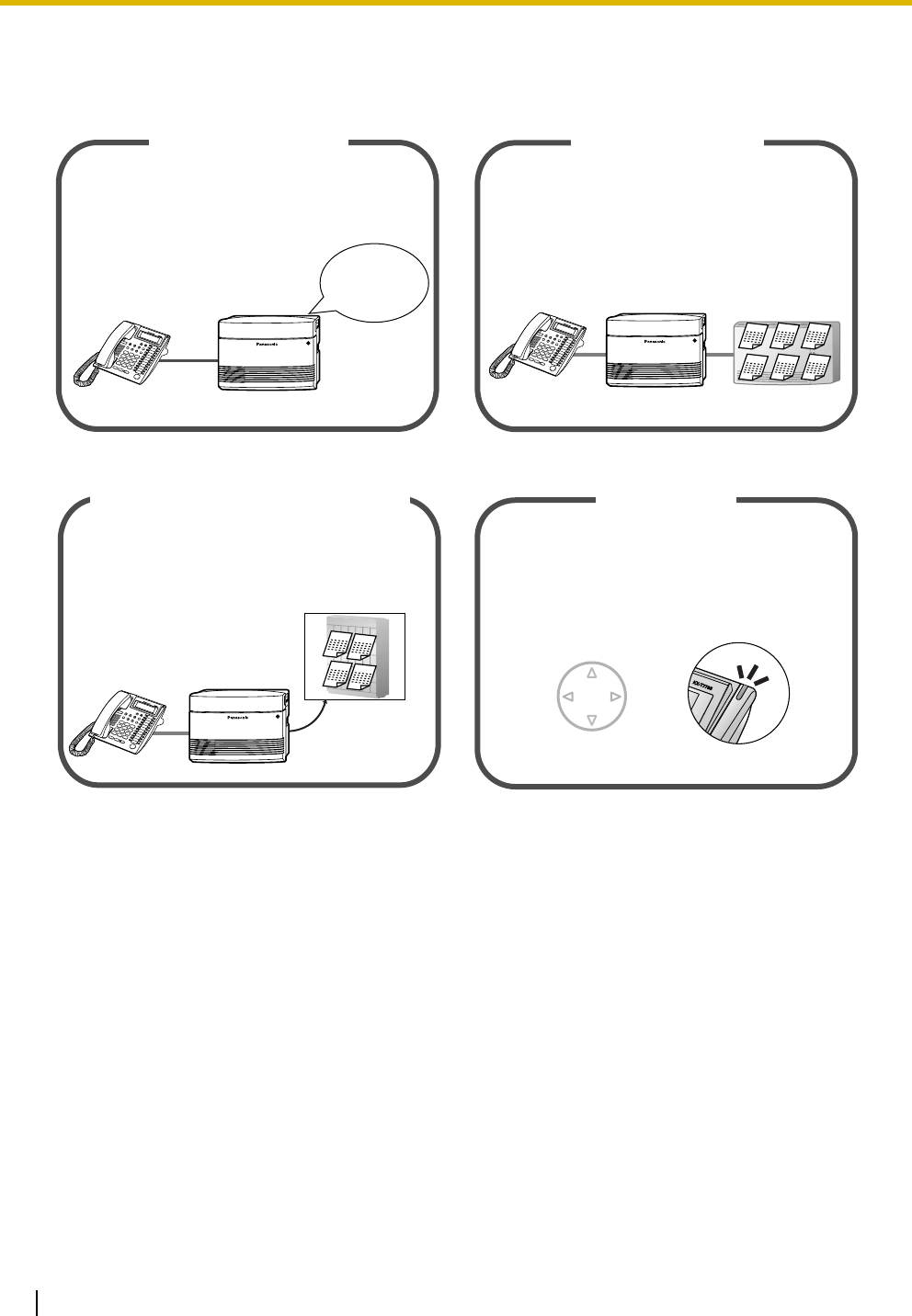
Feature Highlights
1.3.7 Built-in Voice Message (BV) 1.3.88 Voice Mail Integration
1.3.57 Local Carrier-based Voice Mail Service 1.1.1 Before Operating a Telephone
You can set incoming calls to be forwarded
to your personal message area to let callers
leave voice messages when you cannot
answer the phone.
Built-in Voice Message
Hello, this
is 204. Please
leave your
message.
You can set your calls to be forwarded to
a separate Voice Processing System (VPS)
to let callers leave messages in your mailbox
when you cannot answer the phone.
Voice Mail Integration
Message Message Message
Message Message Message
You can receive remote voice mail service
from your telephone company to record caller
messages when you cannot answer the phone.
Local Carrier-based Voice Mail Service
Telephone Company
Message Message
Message Message
A Panasonic telephone that is equipped
with a Navigator Key and a display helps
you to access various features easily.
The Message/Ringer lamp (if equipped)
informs you of any calls or messages
waiting.
Easy Operation
Navigator Key Message/Ringer Lamp
Operating Manual 3
In this manual,
• Proprietary Telephone is abbreviated as "PT"*1.
Single Line Telephone is abbreviated as "SLT".
Proprietary Telephone with a Display is abbreviated as "Display PT".
• The following icons are used as hints and conditions throughout this manual.
1.1.1 Before Operating a Telephone 1.3.34 Direct Inward System Access (DISA)
For more details, consult your dealer.
*1 In this manual, "proprietary telephone" ("PT") means an analog proprietary telephone (APT).
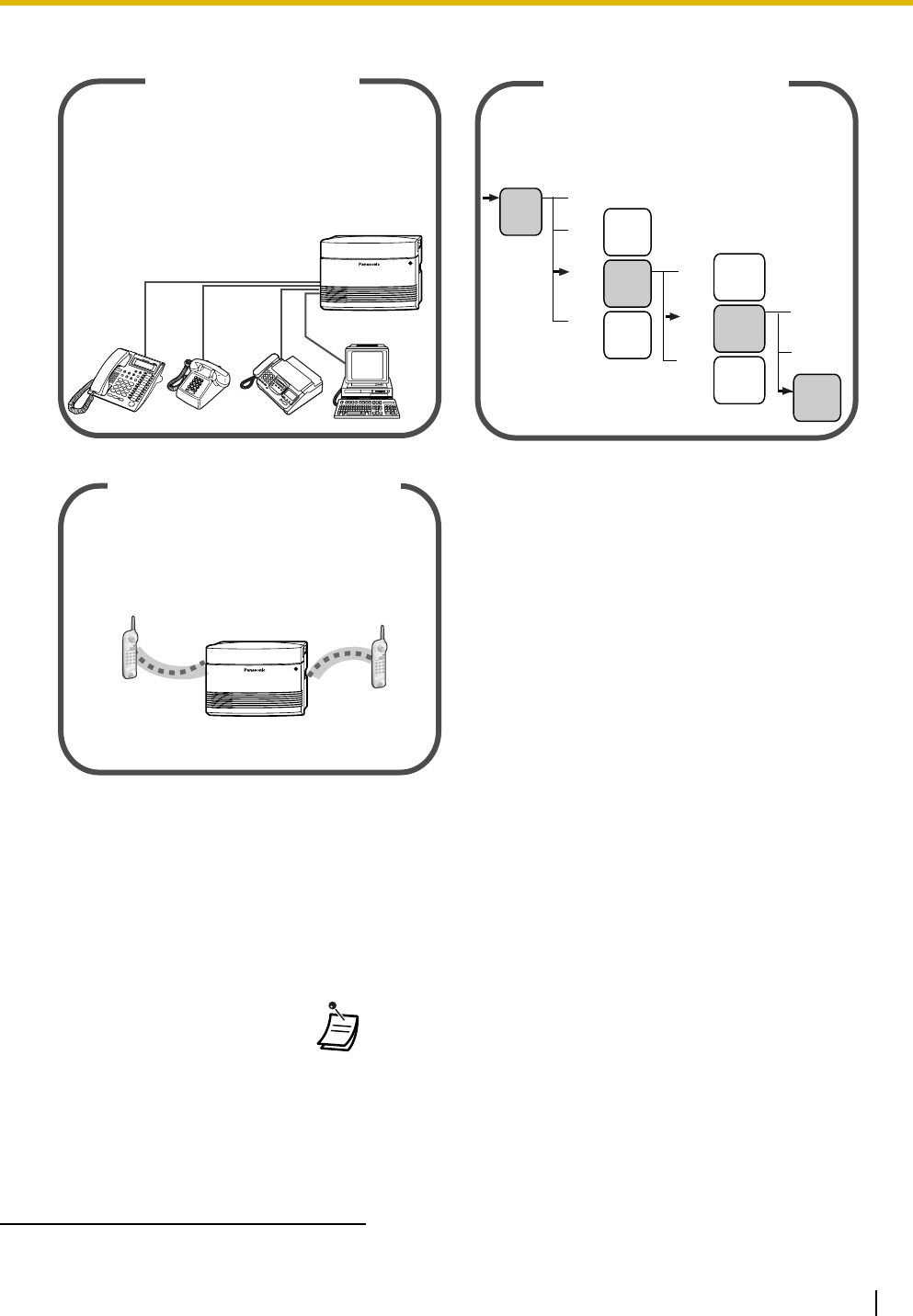
This PBX supports the connection of Panasonic
proprietary telephones (PTs), Direct Station
Selection (DSS) Consoles, and single line
devices such as single line telephones (SLTs),
fax machines, wireless SLTs, and data
terminals.
Advanced Hybrid System
A caller can be directed to the desired party
simply by pressing a single-digit number as
directed by the 3-level DISA outgoing
messages (OGMs).
3-level Automated Attendant
First
DISA
OGM
Dial 0 (Operator)
Dial 1
Dial 2
Dial 3
Dial 0
Dial 1
3-level
DISA
OGM 1
Dial 2
Dial 0
(Mike)
Dial 1
(John)
3-level
DISA
OGM 3
3-level
DISA
OGM 22
3-level
DISA
OGM 24
3-level
DISA
OGM 2
3-level
DISA
OGM 23
Dial 2
(Tony)
This PBX supports wireless proprietary
telephones (PTs). These phones provide system
features that make them superior to standard
cordless telephones.
Wireless Proprietary Telephones
ConditionsHints
!!
!!

4 Operating Manual
Important Information
WARNING
• THIS UNIT MAY ONLY BE INSTALLED AND SERVICED BY QUALIFIED SERVICE
PERSONNEL.
• IF DAMAGE TO THE UNIT EXPOSES ANY INTERNAL PARTS, DISCONNECT THE
POWER SUPPLY CORD IMMEDIATELY AND RETURN THE UNIT TO YOUR DEALER.
• UNPLUG THIS UNIT FROM THE AC OUTLET IF IT EMITS SMOKE, AN ABNORMAL
SMELL OR MAKES UNUSUAL NOISE. THESE CONDITIONS CAN CAUSE FIRE OR
ELECTRIC SHOCK. CONFIRM THAT SMOKE HAS STOPPED AND CONTACT AN
AUTHORIZED PANASONIC FACTORY SERVICENTER.
• WHEN RELOCATING THE EQUIPMENT, FIRST DISCONNECT THE TELECOM
CONNECTION BEFORE DISCONNECTING THE POWER CONNECTION. WHEN THE
UNIT IS INSTALLED IN THE NEW LOCATION, RECONNECT THE POWER FIRST,
AND THEN RECONNECT THE TELECOM CONNECTION.
• THIS UNIT IS EQUIPPED WITH A GROUNDING CONTACT PLUG. FOR SAFETY
REASONS THIS PLUG MUST ONLY BE CONNECTED TO A GROUNDING CONTACT
SOCKET THAT HAS BEEN INSTALLED ACCORDING TO APPLICABLE
REGULATIONS.
• TO PREVENT POSSIBLE FIRE OR ELECTRIC SHOCK, DO NOT EXPOSE THIS
PRODUCT TO RAIN OR MOISTURE.
• THE POWER SUPPLY CORD IS USED AS THE MAIN DISCONNECT DEVICE.
ENSURE THAT THE AC OUTLET IS LOCATED NEAR THE EQUIPMENT AND IS
EASILY ACCESSIBLE.
• TO PROTECT THIS UNIT FROM STATIC ELECTRICITY, DO NOT TOUCH ANY
EXTERNAL CONNECTORS OF THE UNIT.

Operating Manual 5
When using your telephone equipment, basic safety precautions should always be followed to reduce the
risk of fire, electric shock and injury to persons, including the following:
1. Read and understand all instructions.
2. Follow all warnings and instructions marked on the product.
3. Unplug the product from the wall outlet before cleaning. Do not use liquid cleaners or aerosol cleaners.
Clean with a damp cloth.
4. Do not use this product near water, for example, near a bathtub, wash bowl, kitchen sink, or laundry
tub, in a wet basement, or near a swimming pool.
5. Do not place the product on an unstable surface, as a fall may cause serious internal damage.
6. Slots and openings in the front, back and bottom of the cabinet are provided for ventilation; to protect
it from overheating, these openings must not be blocked or covered. The openings should never be
blocked by placing the product on a bed, sofa, rug, or other similar surface while in use. The product
should never be placed near or over a radiator or other heat source. This product should not be placed
in a sealed environment unless proper ventilation is provided.
7. The product should only be connected to the type of electrical power supply specified on the product
label. If you are not sure of the type of power supply to your home, consult your dealer or local power
company.
8. For safety purposes this unit is equipped with a grounded plug. If you do not have a grounded outlet,
please have one installed. Do not bypass this safety feature by tampering with the plug.
9. Do not allow anything to rest on the power cord. Do not locate this product where the power cord may
be stepped on or tripped on.
10. To reduce the risk of fire or electric shock, do not overload wall outlets and extension cords.
11. Do not insert objects of any kind into this product through its slots and openings, as they may touch
dangerous voltage points or short out parts that could result in a risk of fire or electric shock. Never spill
liquid of any kind on or in the product.
12. To reduce the risk of electric shock, do not disassemble this product. Only qualified personnel should
service this product. Opening or removing covers may expose you to dangerous voltages or other risks.
Incorrect reassembly can cause electric shock.
13. Unplug this product from the wall outlet and have it serviced by qualified service personnel in the
following cases:
a) When the power supply cord or plug is damaged or frayed.
b) If liquid has been spilled into the product.
c) If the product has been exposed to rain or water.
d) If the product does not operate according to the operating instructions. Adjust only the controls that
are explained in the operating instructions. Improper adjustment of other controls may result in
damage and may require service by a qualified technician to restore the product to normal
operation.
e) If the product has been dropped or the cabinet has been damaged.
f) If product performance deteriorates.
14. Avoid using wired telephones during an electrical storm. There is a remote risk of electric shock from
lightning.
15. Do not use a telephone in the vicinity of a gas leak to report the leak.
IMPORTANT SAFETY INSTRUCTIONS
SAVE THESE INSTRUCTIONS

6 Operating Manual
Attention
• Keep the unit away from heating appliances and devices that generate electrical noise such as
fluorescent lamps, motors, and televisions. These noise sources can interfere with the performance of
the PBX.
• This unit should be kept free of dust, moisture, high temperature (more than 40 °C [104 °F]), and
vibration, and should not be exposed to direct sunlight.
• If you are having problems making calls to outside destinations, follow this procedure to test the outside
(CO) lines:
1. Disconnect the PBX from all outside (CO) lines.
2. Connect known working single line telephones (SLTs) to those outside (CO) lines.
3. Make a call to an external destination using those SLTs.
If a call cannot be carried out correctly, there may be a problem with the outside (CO) line that the SLT
is connected to. Contact your telephone company.
If all SLTs operate properly, there may be a problem with your PBX. Do not reconnect the PBX to the
outside (CO) lines until it has been serviced by an authorized Panasonic Factory Servicenter.
• Wipe the unit with a soft cloth. Do not clean the unit with abrasive powders or with chemical agents such
as benzene or thinner.
• When using a Panasonic proprietary telephone (PT), use only the correct Panasonic handset.
When you ship the product
Carefully pack and send it prepaid, adequately insured and preferably in the original carton. Attach a
postage-paid letter, detailing the symptom, to the outside of the carton. DO NOT send the product to
the Executive or Regional Sales offices. They are NOT equipped to make repairs.
Product Service
Panasonic Factory Servicenters for this product are listed in the servicenter directory. Consult your
certified Panasonic dealer for detailed instructions.

Operating Manual 7
For Future Reference
Please print, record, and retain the following information for future reference.
Note
The serial number of this product can be found on the label affixed to the unit. You should record the
model number and the serial number of this unit as a permanent record of your purchase to aid in
identification in the event of theft.
MODEL NO.
SERIAL NO.
DATE OF PURCHASE
NAME OF DEALER
DEALER'S ADDRESS
DEALER'S TEL. NO.

8 Operating Manual
F.C.C. REQUIREMENTS AND RELEVANT
INFORMATION
1. Notification to the Telephone Company
This equipment complies with Part 68 of the FCC rules and the requirements adopted by the ACTA. On
the side of this equipment is a label that contains, among other information, a product identifier in the
format US: ACJMF04BKX-TA824. If requested, this number must be provided to the telephone
company.
Installation must be performed by a qualified professional installer. If required, provide the telephone
company with the following technical information:
• Telephone numbers to which the system will be connected
• Make: Panasonic
• Model: KX-TA824
• Certification No.: found on the side of the unit
• Ringer Equivalence No.: 0.4B
• Facility Interface Code: 02LS2
• Service Order Code: 9.0F
• Required Network Interface Jack: RJ11
2. Ringer Equivalence Number (REN)
The REN is used to determine the number of devices that may be connected to a telephone line.
Excessive RENs on a telephone line may result in the devices not ringing in response to an incoming
call. In most, but not all areas, the sum of RENs should not exceed five (5.0). To be certain of the
number of devices that may be connected to a line, as determined by the total RENs, contact the local
telephone company. The REN for this product is part of the product identifier that has the format US:
ACJMF04BKX-TA824. The digits represented by 04 are the REN without a decimal point (e.g., 04 is a
REN of 0.4). For earlier products, the REN is separately shown on the label.
3. Incidence of Harm to the Telephone Lines
If this equipment causes harm to the telephone network, the telephone company will notify you in
advance that temporary discontinuance of service may be required. But if advance notice isn't practical,
the telephone company will notify the customer as soon as possible. Also, you will be advised of your
right to file a complaint with the FCC if you believe it is necessary.
4. Changes in Telephone Company Communications Facilities, Equipment, Operations and
Procedures
The telephone company may make changes in its facilities, equipment, operations or procedures that
could affect the operation of the equipment. If this happens the telephone company will provide
advance notice in order for you to make necessary modifications to maintain uninterrupted service.
5. Trouble with this equipment
If trouble is experienced with this equipment, for repair or warranty information, please see the attached
warranty, which includes the Servicenter Directory. If the equipment is causing harm to the telephone
network, the telephone company may request that you disconnect the equipment until the problem is
resolved.
6. Connection to Party Line
Connection to party line service is subject to state tariffs. Contact the state public utility commission,
public service commission or corporation commission for information.

Operating Manual 9
7. Combined Use with Alarm Equipment
If your home has specially wired alarm equipment connected to the telephone line, ensure the
installation of this equipment does not disable your alarm equipment. If you have questions about what
will disable alarm equipment, consult your telephone company or a qualified installer.
Note
This equipment has been tested and found to comply with the limits for a Class B digital device,
pursuant to Part 15 of the FCC Rules. These limits are designed to provide reasonable protection
against harmful interference in a residential installation. This equipment generates, uses, and can
radiate radio frequency energy and, if not installed and used in accordance with the instructions, may
cause harmful interference to radio communications. However, there is no guarantee that interference
will not occur in a particular installation. If this equipment does cause harmful interference to radio or
television reception, which can be determined by turning the equipment off and on, the user is
encouraged to try to correct the interference by one or more of the following measures:
• Reorient or relocate the receiving antenna.
• Increase the separation between the equipment and receiver.
• Connect the equipment into an outlet on a circuit different from that to which the receiver is
connected.
• Consult the dealer or an experienced radio/TV technician for help.
CAUTION
Any changes or modifications not expressly approved by the party responsible for compliance could
void the user's authority to operate this device.
When programming emergency numbers and/or making test calls to emergency numbers:
1. Remain on the line and briefly explain to the dispatcher the reason for the call before hanging up.
2. Perform such activities in the off-peak hours, such as early morning hours or late evenings.
WARNING
The software contained in the TRS feature to allow user access to the network must be
upgraded to recognize newly established network area codes and exchange codes as
they are placed into service. Failure to upgrade the premises PBXs or peripheral
equipment to recognize the new codes as they are established will restrict the
customer and the customer's employees from gaining access to the network and to
these codes.
KEEP THE SOFTWARE UP-TO-DATE WITH THE LATEST DATA.

10 Operating Manual
Table of Contents
1 Operation............................................................................................... 13
1.1 Before Operating a Telephone .......................................................................................14
1.1.1 Before Operating a Telephone ..........................................................................................14
1.2 Basic Operations.............................................................................................................22
1.2.1 Making Calls......................................................................................................................22
1.2.2 Receiving Calls .................................................................................................................24
1.3 Telephone Features ........................................................................................................25
1.3.1 Absent Message ..............................................................................................................25
1.3.2 Account Code Entry ..........................................................................................................26
1.3.3 Alternate Calling—Ring/Voice ...........................................................................................28
1.3.4 Answering, Direct Outside (CO) Line ................................................................................28
1.3.5 Automatic Callback Busy (Camp-on) ................................................................................29
1.3.6 Background Music (BGM) ................................................................................................30
1.3.7 Built-in Voice Message (BV)..............................................................................................31
1.3.8 Busy Station Signaling (BSS)............................................................................................41
1.3.9 Call Forwarding (FWD)—SUMMARY................................................................................41
1.3.10 Call Forwarding (FWD)—All Calls .....................................................................................43
1.3.11 Call Forwarding (FWD)—Busy/No Answer .......................................................................43
1.3.12 Call Forwarding (FWD)—Follow Me..................................................................................44
1.3.13 Call Forwarding (FWD)—To Outside (CO) Line ................................................................45
1.3.14 Call Forwarding (FWD)—CANCEL ...................................................................................46
1.3.15 Call Hold ........................................................................................................................... 46
1.3.16 Call Hold, Exclusive ..........................................................................................................48
1.3.17 Call Hold Retrieve .............................................................................................................49
1.3.18 Call Log, Incoming ............................................................................................................50
1.3.19 Call Log Display Lock, Incoming in the Personal Area......................................................56
1.3.20 Call Park............................................................................................................................56
1.3.21 Call Pickup, Directed .........................................................................................................58
1.3.22 Call Pickup, Group ............................................................................................................58
1.3.23 Call Pickup Deny...............................................................................................................59
1.3.24 Call Retrieving from a TAM (Telephone Answering Machine) ...........................................60
1.3.25 Call Splitting ......................................................................................................................60
1.3.26 Call Transfer—To Extension ..............................................................................................62
1.3.27 Call Transfer—To Outside (CO) Line.................................................................................63
1.3.28 Call Waiting .......................................................................................................................65
1.3.29 Call Waiting Caller ID ........................................................................................................67
1.3.30 Call Waiting from the Telephone Company .......................................................................69
1.3.31 Conference........................................................................................................................70
1.3.32 Conference, Unattended ...................................................................................................72
1.3.33 Data Line Security.............................................................................................................73
1.3.34 Direct Inward System Access (DISA)................................................................................74
1.3.35 Do Not Disturb (DND) .......................................................................................................78
1.3.36 Do Not Disturb (DND) Override.........................................................................................79
1.3.37 Door Open ........................................................................................................................80
1.3.38 Doorphone Call .................................................................................................................81
1.3.39 Emergency Call.................................................................................................................82
1.3.40 Executive Busy Override—Extension................................................................................83

Operating Manual 11
1.3.41 Executive Busy Override—Outside (CO) Line .................................................................. 85
1.3.42 Executive Busy Override Deny ......................................................................................... 86
1.3.43 Extension Feature Clear ...................................................................................................87
1.3.44 Extension Lock.................................................................................................................. 87
1.3.45 External Feature Access (EFA)......................................................................................... 89
1.3.46 Flash/Recall ...................................................................................................................... 89
1.3.47 Hands-free Answerback.................................................................................................... 90
1.3.48 Hands-free Operation ....................................................................................................... 91
1.3.49 Headset Operation............................................................................................................ 92
1.3.50 Hot Line ............................................................................................................................ 93
1.3.51 Intercom Call..................................................................................................................... 94
1.3.52 Line Access, Outside (CO) Line—SUMMARY.................................................................. 95
1.3.53 Line Access, Automatic..................................................................................................... 96
1.3.54 Line Access, Outside (CO) Line Group............................................................................. 97
1.3.55 Line Access, S-CO Line....................................................................................................98
1.3.56 Live Call Screening (LCS) (Voice Mail APT Integration only) ........................................... 99
1.3.57 Local Carrier-based Voice Mail Service.......................................................................... 102
1.3.58 Lockout ........................................................................................................................... 103
1.3.59 Log-in/Log-out................................................................................................................. 104
1.3.60 Message Waiting ............................................................................................................ 105
1.3.61 Message Waiting for Another Extension ......................................................................... 108
1.3.62 Message Waiting for Another Extension Lock ................................................................ 109
1.3.63 Microphone Mute ............................................................................................................ 110
1.3.64 One-touch Dialing ........................................................................................................... 110
1.3.65 Operator Call................................................................................................................... 111
1.3.66 Paging—SUMMARY ....................................................................................................... 112
1.3.67 Paging—All Extensions................................................................................................... 113
1.3.68 Paging—All Extensions & External ................................................................................. 113
1.3.69 Paging—External ............................................................................................................ 114
1.3.70 Paging—Group ............................................................................................................... 114
1.3.71 Paging and Transfer ........................................................................................................ 115
1.3.72 Paging Answer ................................................................................................................ 116
1.3.73 Paging Deny ................................................................................................................... 116
1.3.74 Paralleled Telephone....................................................................................................... 117
1.3.75 Personal Speed Dialing .................................................................................................. 117
1.3.76 Power Failure Transfer ....................................................................................................119
1.3.77 Pulse to Tone Conversion ............................................................................................... 119
1.3.78 Redial, Last Number .......................................................................................................120
1.3.79 Redial, Saved Number.................................................................................................... 120
1.3.80 Room Monitor ................................................................................................................. 121
1.3.81 Secret Dialing ................................................................................................................. 123
1.3.82 System Speed Dialing .................................................................................................... 124
1.3.83 Time Service................................................................................................................... 125
1.3.84 Timed Reminder ............................................................................................................. 126
1.3.85 Toll Restriction (TRS) ...................................................................................................... 128
1.3.86 Toll Restriction (TRS) Override by Account Code........................................................... 128
1.3.87 Two-way Recording in the VPS (Voice Mail APT Integration only).................................. 128
1.3.88 Voice Mail Integration...................................................................................................... 129
1.3.89 Voice Mail Transfer (Voice Mail APT Integration only)..................................................... 132
1.3.90 Walking COS .................................................................................................................. 133

12 Operating Manual
2 Operator/Manager Operation............................................................. 135
2.1 Operator/Manager Service Features ...........................................................................136
2.1.1 Call Log, Incoming in the Common Area—CLEAR ALL .................................................136
2.1.2 Call Log Display Lock, Incoming in the Common Area ...................................................136
2.1.3 Common BV Outgoing Messages...................................................................................137
2.1.4 Manager Programming (Manager only) ..........................................................................139
2.1.5 Outgoing Message (OGM) for DISA ...............................................................................140
2.1.6 Remote Extension Lock ..................................................................................................143
2.1.7 System Feature Assignment ...........................................................................................145
2.1.8 The 301st Call Log, Incoming in the Common Area Treatment ...................................... 146
2.1.9 Time Service ...................................................................................................................147
2.1.10 Timed Reminder, Remote (Wake-up Call) ......................................................................149
3 Customizing Your Phone & PBX ....................................................... 153
3.1 Personal Programming.................................................................................................154
3.1.1 Programming Information................................................................................................154
3.1.2 Personal Feature Assignment .........................................................................................154
3.1.3 Flexible Button Assignment.............................................................................................157
3.2 System Programming (Manager Programming) ........................................................161
3.2.1 Programming Information................................................................................................161
3.2.2 System Programming (Manager Programming) .............................................................163
4 Appendix ............................................................................................. 167
4.1 Troubleshooting ............................................................................................................168
4.1.1 Troubleshooting...............................................................................................................168
4.2 Feature Number Table ..................................................................................................171
4.2.1 Feature Number Table..................................................................................................... 171
4.3 Tone List ........................................................................................................................177
4.3.1 Tone List..........................................................................................................................177
Index .......................................................................................................... 183

Operating Manual 13
Section 1
Operation
This chapter shows you step by step how to use each feature.
Read this chapter to become familiar with the many useful
features of this PBX.
1.1 Before Operating a Telephone
14 Operating Manual
1.1 Before Operating a Telephone
1.1.1 Before Operating a Telephone
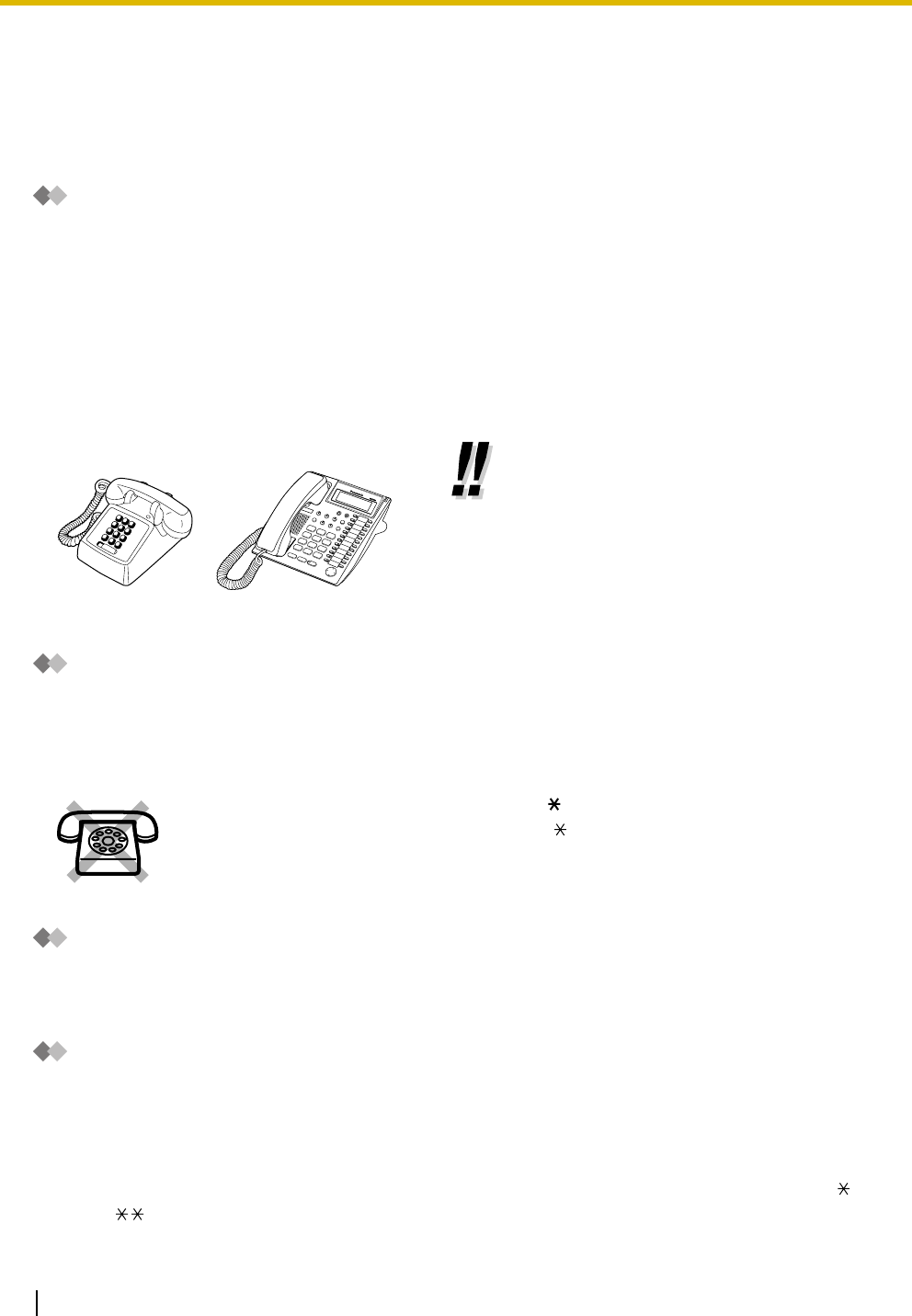
What Kind of Telephone Can Be Used?
You can use a single line device such as a single line telephone (SLT), fax machine, modem, or wireless
telephone, or a Panasonic proprietary telephone (PT) such as the KX-T7731. Some features may not be
available, depending on the telephone you are using.
If you are using a Panasonic PT with special feature buttons, or a display (Display PT), or both, follow the
procedures that use feature buttons or the display, for easy operation.
If you are using an SLT, follow the procedures that use specified numbers to access features (feature
numbers).
If you use a Direct Station Selection (DSS) Console, you can also use the buttons on the DSS Console to
perform operations, instead of the buttons on the connected PT.
Feature Numbers
Features have been assigned feature numbers, which can be entered on your telephone to access the
corresponding feature. Some features are only accessible by entering the feature number. In addition, some
features require other additional parameters to be entered to activate the feature. Where necessary, these
are specified in the text.
Tone
Various tones are used during or after operations to provide you with information. For more details regarding
the types of tones and their meanings, refer to "4.3.1 Tone List" (Appendix).
Display
In this manual, you will see the phrase "the display ...". This refers to the display of a Panasonic PT. When
you use a Panasonic display PT, displayed messages or items help you to operate the telephone.
Your Extension Number
If you use a Panasonic display PT, you can confirm your own extension number by pressing the " " key 2
times (" ") while on-hook, or by accessing personal programming. For more details, refer to "3.1.2
Personal Feature Assignment—Self-extension Number Confirmation".
• If you use a Panasonic PT that does
not have feature buttons, you may
change one of the unused flexible
buttons to a feature button. Refer to
"3.1.3 Flexible Button Assignment".
If you use an SLT that does not have the " " or "#" keys,
it is not possible to access features that have " " or "#" in their feature numbers.
1.1 Before Operating a Telephone
Operating Manual 15
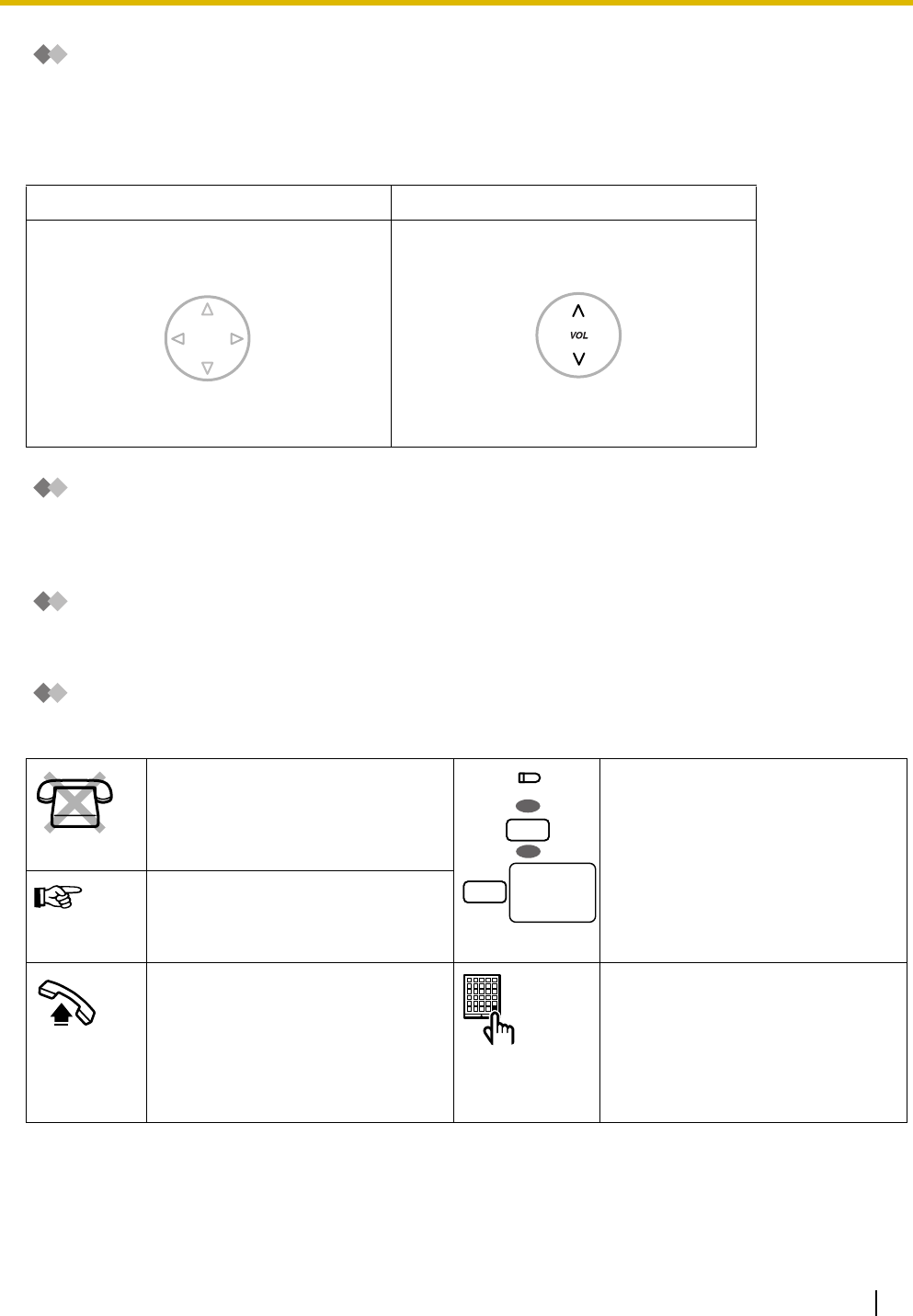
Using a Navigator Key/Volume Key (depending on the type of your PT)
The Navigator Key can be used to control display contrast and volume, or to search for items using the
display. Pressing the Navigator Key in the desired direction will change the contrast, volume level or items
displayed, as shown below. On PTs with a Volume Key, this key can be used to adjust the volume, as shown
below.
Examples
The displays and the illustrations shown throughout this manual as examples are of a telephone connected
to the KX-TA824.
Restrictions
Features that have been restricted through system programming will not be available at your extension.
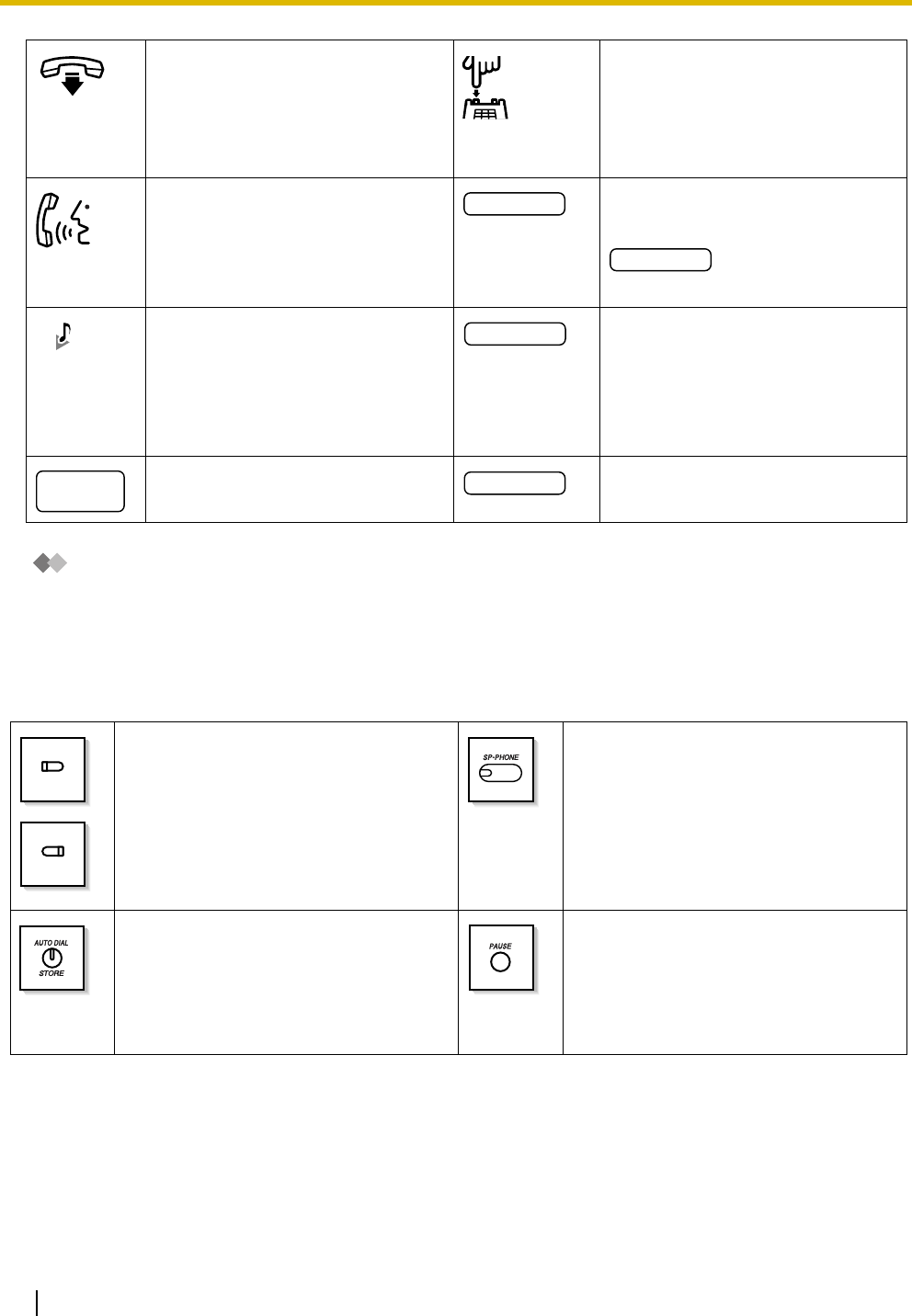
Icon Descriptions
The following icons are used frequently throughout this manual.
Navigator Key Volume Key
This feature cannot be used with an
SLT.
Seize an outside (CO) line by doing
one of the following:
• Press a CO button.
• Dial the automatic line access
number (9).
• Dial the outside (CO) line group
access number (8) and outside
(CO) line group number.
See "Programming" for related
programming, if necessary.
Go off-hook by doing any of the
following:
• Lift the handset.
• Press the SP-PHONE button.
• Press the MONITOR button. (To
start talking, lift the handset.)
Press the Call button on the
Doorphone.
Up
(Level increases)
Down
(Level decreases)
RightLeft
Up
(Level increases)
Down
(Level decreases)
No SLT
outside
(CO) line
group no.
OR
8
9
OR
(CO)
1.1 Before Operating a Telephone
16 Operating Manual
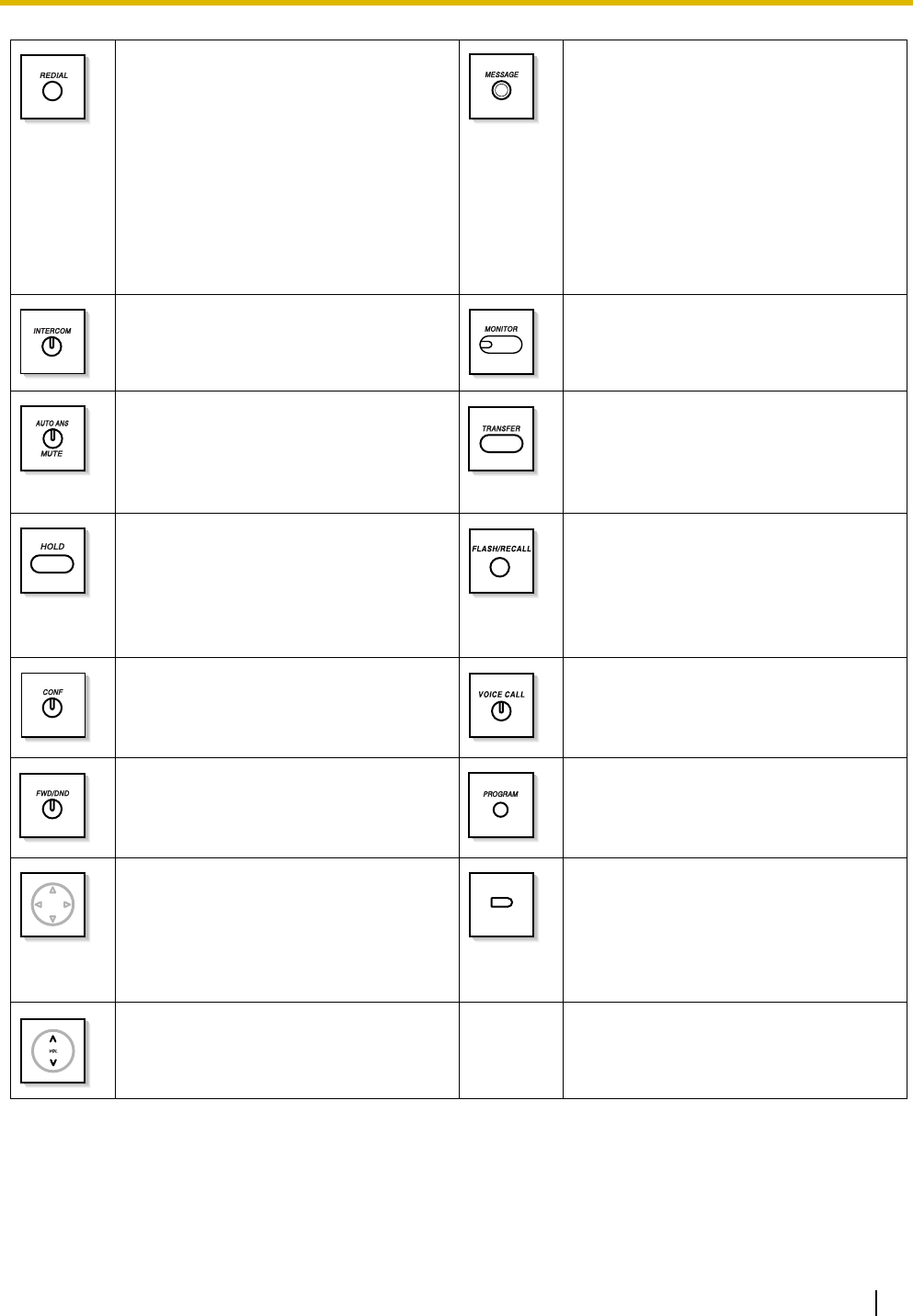
When You Use a Panasonic Proprietary Telephone
If you use a Panasonic PT or DSS Console, you will be able to use some of the useful feature buttons
described below. These buttons simplify certain operations. The illustrations below may differ from the
actual buttons on your telephone.
Fixed Buttons
Go on-hook by doing any of the
following:
• Hang up.
• Press the SP-PHONE button.
• Press the MONITOR button.
Press the Recall/hookswitch briefly.
Ta l k . Enter the required number.
<Example>
Enter the account code.
You will hear a busy, confirmation,
dial, or ringback tone.
B. Tone: Busy Tone
C. Tone: Confirmation Tone
D. Tone: Dial Tone
R. B. Tone: Ringback Tone
Dial an extension number.
Dial an outside telephone number. Dial an extension number or outside
telephone number.
CO:
Used to access an outside (CO) line (or
outside (CO) line group) when making or
receiving a call. The button's
preprogrammed Outside (CO) Line
Access method determines which line is
selected. Can also be customized as a
feature button.
SP-PHONE:
Used to select handset or hands-free
operation.
AUTO DIAL/STORE:
Used for System Speed Dialing/Saved
Number Redial, playing back personal/
common BV outgoing messages (OGMs)
used by the Built-in Voice Message (BV)
feature, and storing program changes.
PAU S E:
Used to insert a dialing pause in a stored
number.
desired no.
account code
extension no.
outside
phone no.
phone no.
(CO)
(CO)
1.1 Before Operating a Telephone
Operating Manual 17
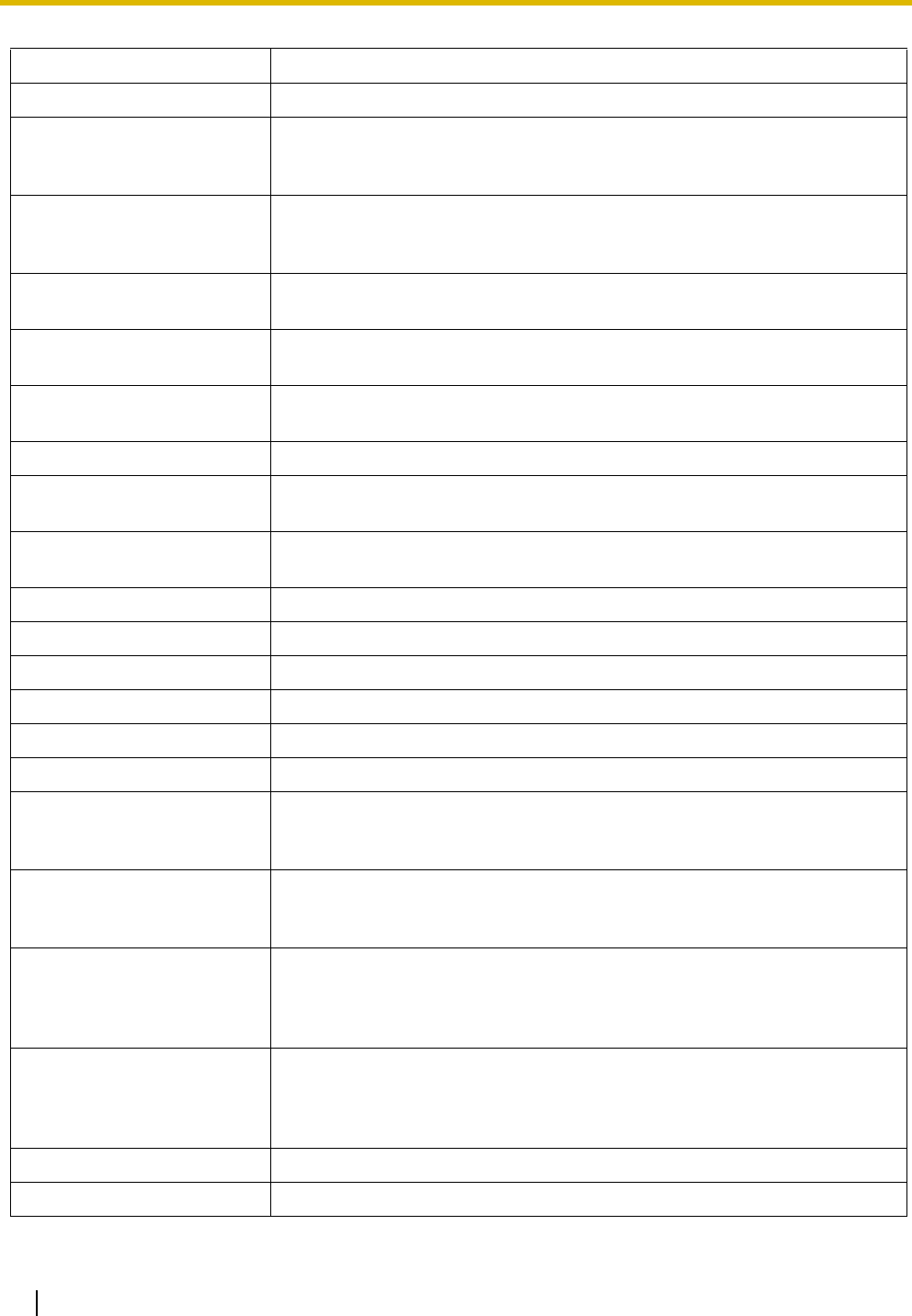
Customized Buttons
Throughout this manual, when the name of a button is written in parentheses, such as "(G-CO)", this means
that it is a flexible button that has been customized. To customize flexible buttons, refer to "3.1.3 Flexible
Button Assignment".
REDIAL:
Used to redial the last number dialed.
MESSAGE:
Used to leave a message waiting
indication, call back the party who left a
message waiting indication, or play back
voice messages. This button is provided
with an LED (Light Emitting Diode),
except for on KX-T7700 series
telephones. With KX-T7700 series
telephones, the Message/Ringer Lamp is
lit when a message waiting indication is
left at your extension.
INTERCOM:
Used to make or receive intercom calls.
MONITOR:
Used to select hands-free dialing and
monitor operation.
AUTO ANS (Auto Answer)/MUTE:
Used to answer an intercom call
automatically in hands-free mode or to
mute the built-in microphone during a
conversation.
TRANSFER:
Used to transfer a call to another party.
HOLD:
Used to place a call on hold.
FLASH/RECALL:
Used to disconnect the current call and
make another call without hanging up, or
to send an EFA (External Feature
Access) signal to the telephone company
or host PBX to access external features.
CONF (Conference):
Used to establish a 3-party conference
call.
VOICE CALL:
Used to answer an intercom call
automatically.
FWD/DND (Call Forwarding/Do Not
Disturb):
Used to set the FWD or DND feature for
the extension.
PROGRAM:
Used to enter and exit programming
mode.
Navigator Key:
Used to adjust the volume of the speaker,
handset and headset, and the display
contrast, or to select desired items.
Programmable Feature (PF):
Located in the right column of the CO
button array on certain telephones or on
the DSS Console. Used to access a
preprogrammed feature. Mostly used as a
One-touch Dialing button.
Volume Key:
Used to adjust the volume of the speaker,
handset and headset.
(PF)
1.1 Before Operating a Telephone
18 Operating Manual
Customized Button Function
Single-CO (S-CO) Used to access a specified outside (CO) line for making or receiving calls.
Group-CO (G-CO)
Used to access an idle outside (CO) line in a specified outside (CO) line group
for making calls. Incoming calls from outside (CO) lines in the assigned outside
(CO) line group arrive at this button.
Other-CO (O-CO)
Used to access an idle outside (CO) line for making calls. Incoming calls from
the assigned outside (CO) lines, which are not assigned to S-CO or G-CO
buttons, arrive at this button.
Direct Station Selection (DSS) Used to call an extension with a one-touch operation.
One-touch Dialing Used to call a preprogrammed party or access a feature with a one-touch
operation.
Message Used to leave a message waiting indication, call back the party who left the
message waiting indication, or play back voice messages.
Message for another extension Used to access voice messages stored for another extension.
FWD/DND (Call Forwarding/
Do Not Disturb) Used to set the FWD or DND feature for the extension.
Save Used to store a telephone number while in a conversation with an outside
party or while hearing a busy tone, and then easily redial the number later.
Conference Used to establish a 3-party conference call.
Log-in/Log-out Used to switch between Log-in and Log-out status.
Extension Lock Used to remotely lock or unlock another extension.
Day Used to change the time service mode to day mode.
Night Used to change the time service mode to night mode.
Lunch Used to change the time service mode to lunch mode.
Caller ID Indication—Common
Used to inform you of calls logged in the common area, store the information
of an incoming call during a conversation, and view caller information while on-
hook and then call back a caller.
Caller ID Indication—Personal
Used to inform you of calls logged in your personal area, store the information
of an incoming call during a conversation, and view caller information while on-
hook and then call back a caller.
Caller ID Selection—Common
Used to display and cycle through the information of an incoming call during a
conversation, while receiving a call, or while viewing caller information, display
the number of logged calls while on-hook, and inform you that the common
area call log is full.
Caller ID Selection—Personal
Used to display and cycle through the information of an incoming call during a
conversation, while receiving a call, or while viewing caller information, display
the number of logged calls while on-hook, and inform you that the personal
area call log is full.
2-way Record Used to record a conversation into your own mailbox.
2-way Transfer Used to record a conversation into the mailbox of a specified extension.

1.1 Before Operating a Telephone
Operating Manual 19
Live Call Screening (LCS) Used to listen while a caller is leaving a message in your voice mailbox and, if
desired, intercept the call.
LCS Cancel
Used to stop monitoring your own voice mailbox while a caller is leaving a
message, or stop the alert tone heard in Private mode while a caller is leaving
a message.
Voice Mail (VM) Transfer Used to transfer a call to the mailbox of a specified extension.
Feature Manual References
• 1.1.59 Fixed Buttons
• 1.1.61 Flexible Buttons
Customized Button Function
1.1 Before Operating a Telephone
20 Operating Manual
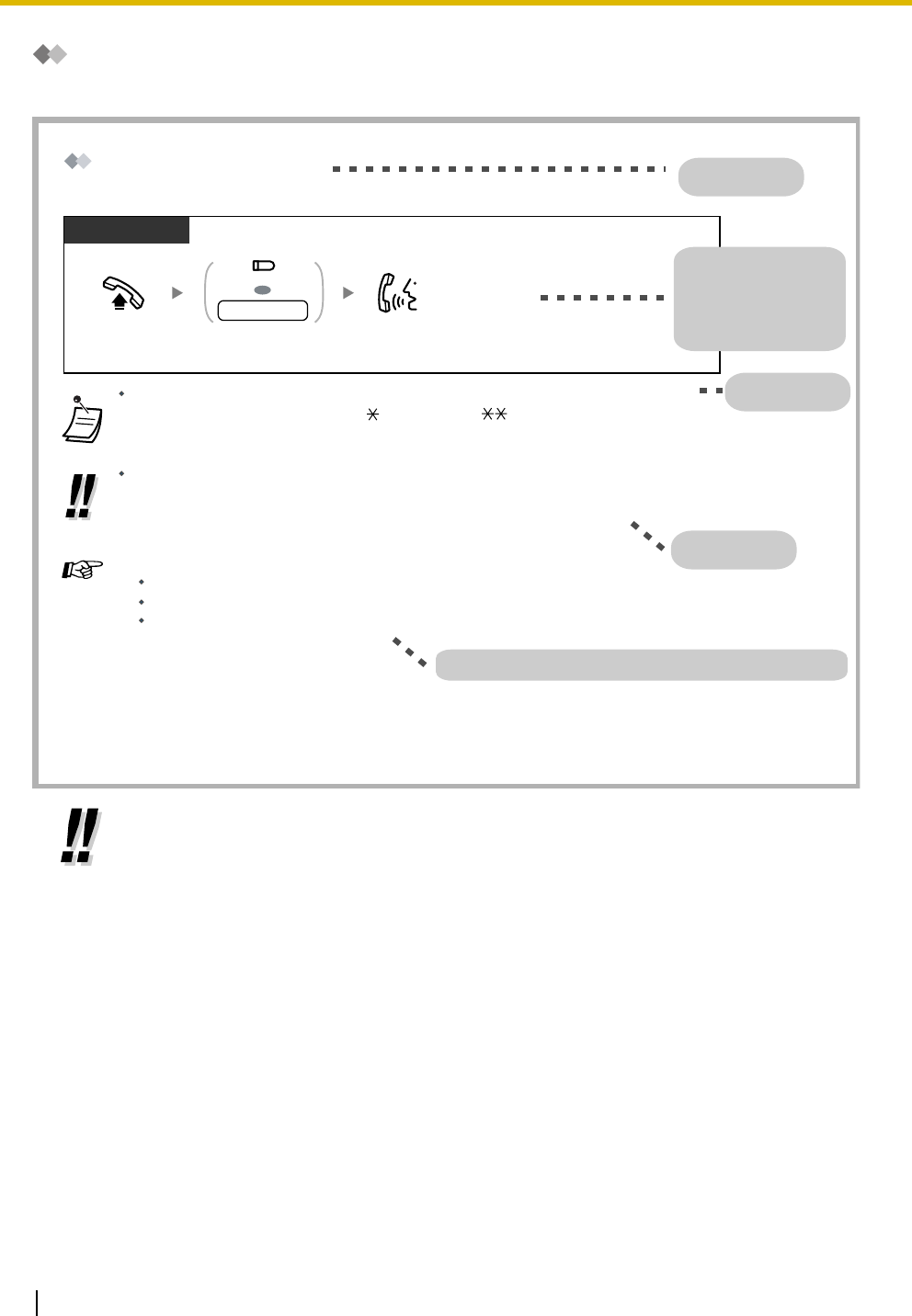
How to Follow the Steps
An example system operation procedure is shown below.
• If your telephone type is not included in the operation steps, for example, only "PT" is
marked and you are using an SLT, your telephone cannot execute that feature.
• If your telephone can use several methods to execute one feature, you can select the
preferred method according to your needs.
Intercom Call
If you use a Panasonic display proprietary telephone (PT), you can confirm your own
extension number by pressing the " " key 2 times (" ") while on-hook, or by accessing
personal programming. For more details, refer to "3.1.2 Personal Feature Assignment—
Self-extension Number Confirmation".
PT/SLT
Off-hook. Talk.Press DSS or dial
extension number.
OR
extension no.
(DSS)
Feature title
Operation steps
Icons and meanings
are explained in
"Icon Descriptions".
Conditions
Hints
References: Related or required programming is noted.
You can call another extension.
Hands-free Operation
You can make an intercom call and have a conversation in hands-free mode using the SP-
PHONE/INTERCOM button. Refer to "1.3.48 Hands-free Operation".
3.1.2 Personal Feature Assignment—Self-extension Number Confirmation
1.3.51 Intercom Call
1.3.48 Hands-free Operation
Operating Manual References
1.1 Before Operating a Telephone
Operating Manual 21
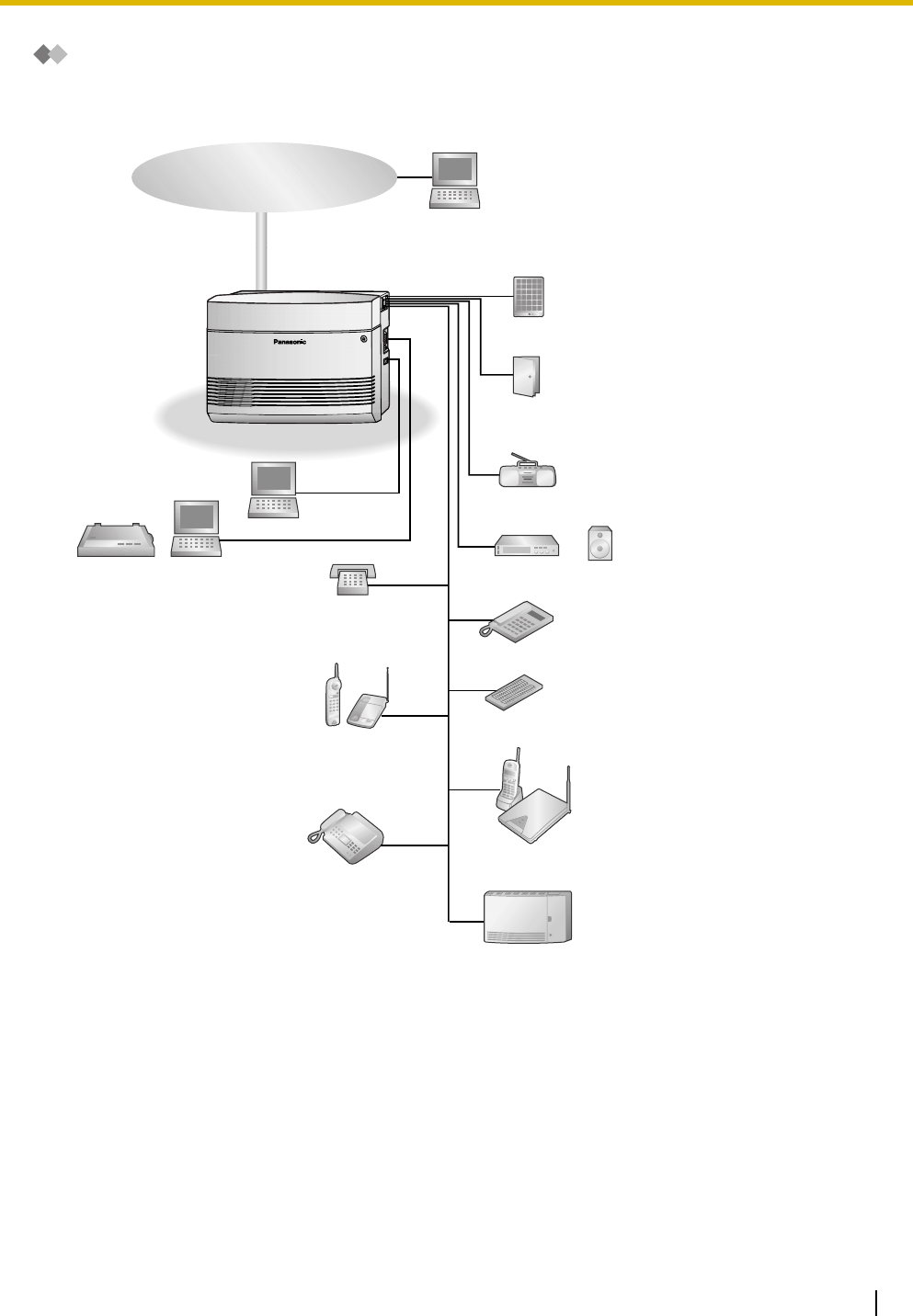
Connection Example
This diagram shows devices that can be connected.
Door Opener/Doorbell/
Door Chime
Doorphone
External Music Source
Pager/Amplifier&Speaker
Voice Processing
System
Computer
SLT
PT
DSS Console
Wireless SLT
Fax/Telephone Answering
Machine
Telephone Company
Wireless PT
Computer
Computer
Printer
1.2 Basic Operations
22 Operating Manual
1.2 Basic Operations
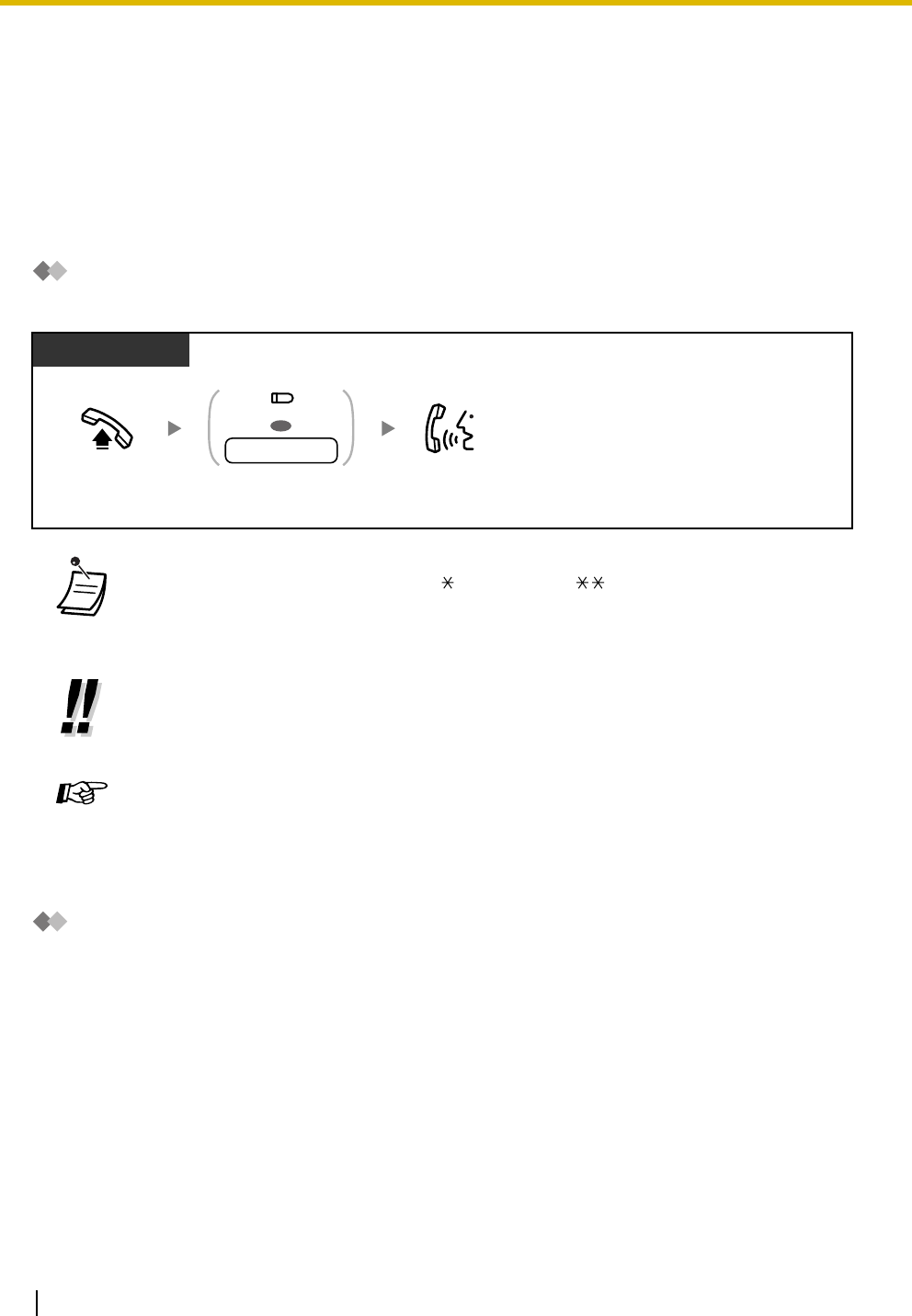
1.2.1 Making Calls
–Intercom Call
–Line Access, Outside (CO) Line
Intercom Call
You can call another extension.
Line Access, Outside (CO) Line
You can call an outside party using one of the following Outside (CO) Line Access methods:
Line Access, Automatic
Line Access, Outside (CO) Line Group
Line Access, S-CO Line
• If you use a Panasonic display proprietary telephone (PT), you can confirm your own
extension number by pressing the " " key 2 times (" ") while on-hook, or by accessing
personal programming. For more details, refer to "3.1.2 Personal Feature Assignment—
Self-extension Number Confirmation".
•Hands-free Operation
You can make an intercom call and have a conversation in hands-free mode using the SP-
PHONE/INTERCOM button. Refer to "1.3.48 Hands-free Operation".
Operating Manual References
•1.3.48 Hands-free Operation
•1.3.51 Intercom Call
•3.1.2 Personal Feature Assignment—Self-extension Number Confirmation
PT/SLT
Off-hook. Talk.Press DSS or dial
extension number.
OR
extension no.
(DSS)
1.2 Basic Operations
Operating Manual 23
• Through personal programming, a proprietary telephone (PT) user can select the
preferred method (Idle Line/No Line/Prime Line) of seizing a line to be used each time the
user goes off-hook.
•Hands-free Operation
You can make an outside (CO) line call and have a conversation in hands-free mode using
the SP-PHONE button. Refer to "1.3.48 Hands-free Operation".
Programming Manual References
[PT Programming]
• [405-407] Flexible Outward Dialing—Day/Night/Lunch
[PC Programming]
• 9.3.2 Incoming / Outgoing [3-2]—Outgoing Call—Day, Night, Lunch
Operating Manual References
•1.3.48 Hands-free Operation
•1.3.52 Line Access, Outside (CO) Line—SUMMARY
•3.1.2 Personal Feature Assignment—Line Preference—Outgoing
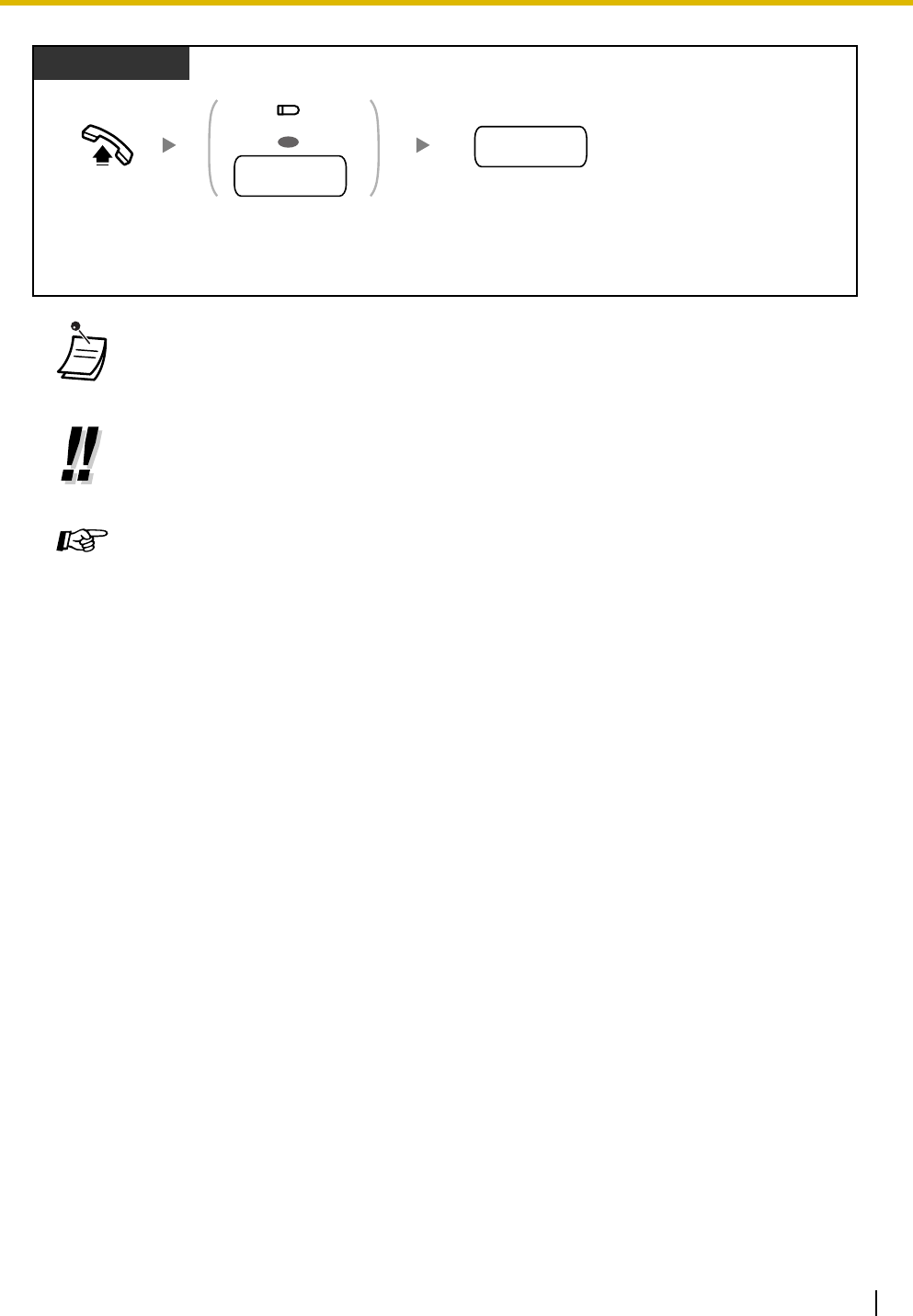
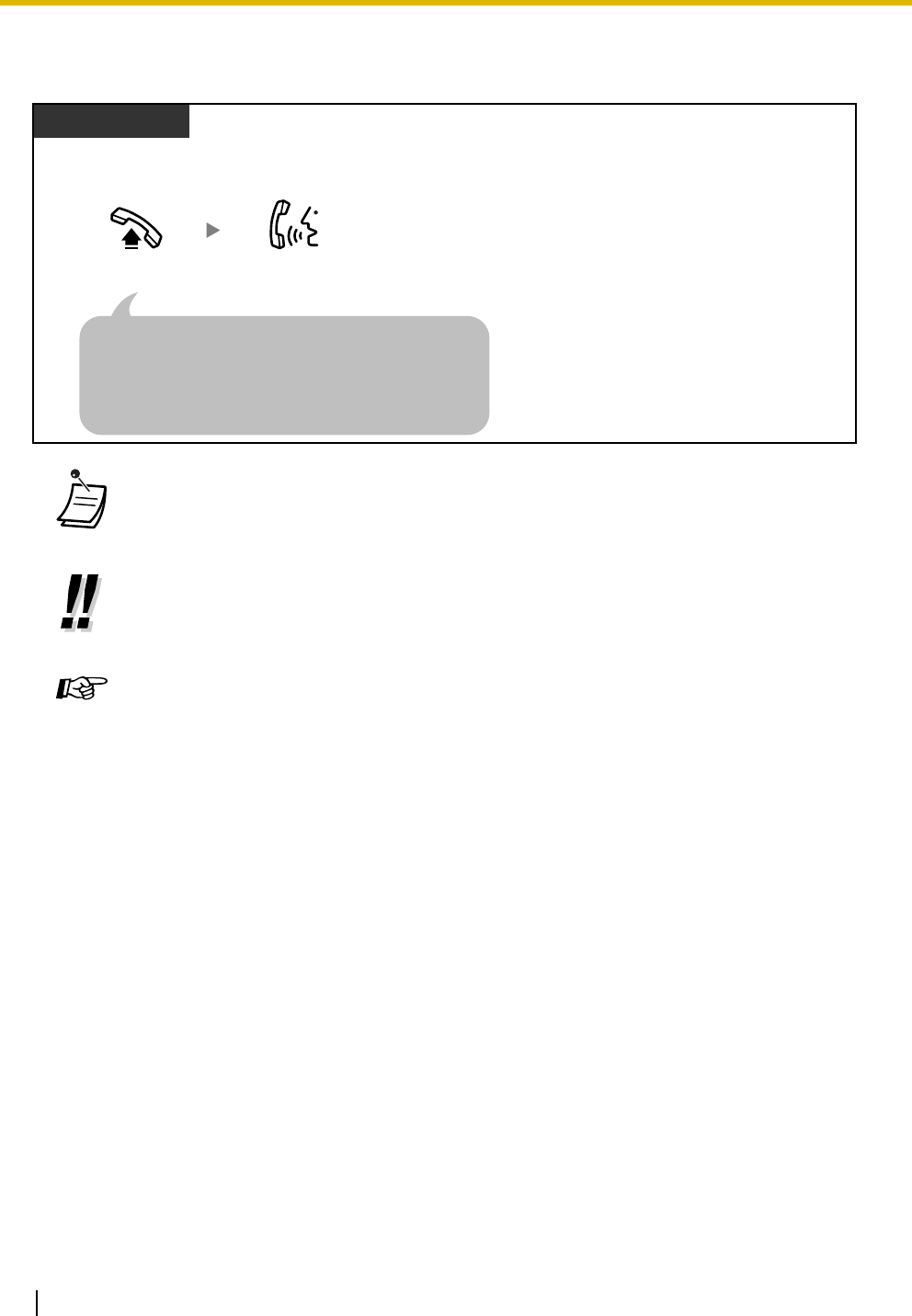
Select the seized line when going off-hook.
Off-hook.
PT/SLT
Press CO or dial outside
(CO) line access number.
outside
phone no.
Dial outside
phone number.
outside (CO)
line access no.
OR
(CO)
1.2 Basic Operations
24 Operating Manual
1.2.2 Receiving Calls
• Through personal programming, a proprietary telephone (PT) user can select the method
used to answer incoming calls from the 3 line preferences (No Line/Prime Line/Ringing
Line).
•Hands-free Operation
You can receive a call and have a conversation in hands-free mode using the SP-PHONE
button. Refer to "1.3.48 Hands-free Operation".
Programming Manual References
[PT Programming]
• [400] CO Line Connection
• [408-410] Flexible Ringing—Day/Night/Lunch
[PC Programming]
• 9.3.2 Incoming / Outgoing [3-2]—Ringing for incoming CO calls—Day, Night, Lunch
• 9.3.3 Detail [3-3]—Connection
Operating Manual References
•1.3.4 Answering, Direct Outside (CO) Line
•1.3.48 Hands-free Operation
•3.1.2 Personal Feature Assignment—
Line Preference—Incoming
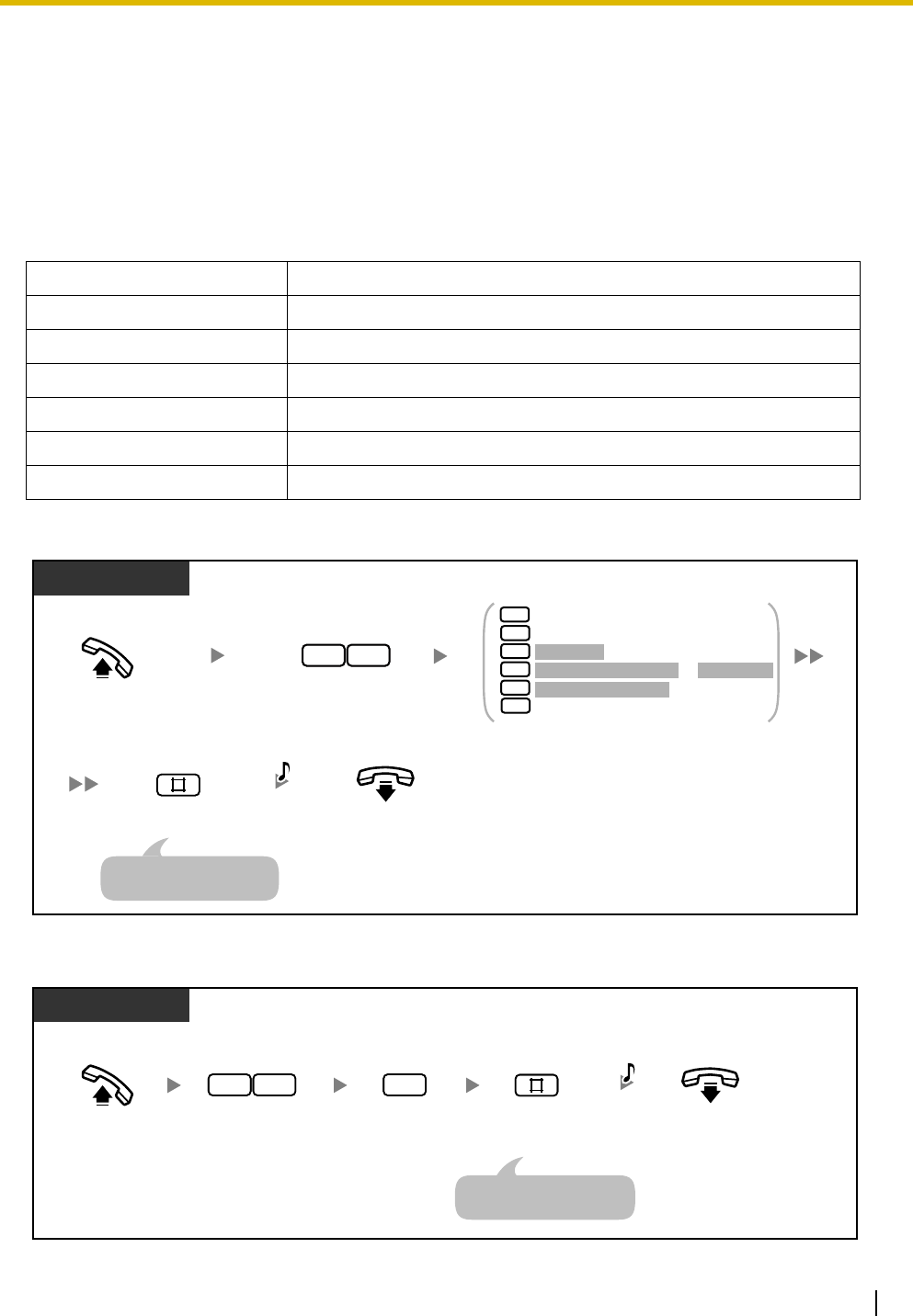
Select the method used to answer incoming calls.
Alternate Receiving—Ring/Voice
Select the Calling method, either ring or the other party's voice.
Talk.
Off-hook.
Select one of the following methods:
· Lift the handset to receive the call on the preferred line.
(Default: Ringing line is selected.)
· Press the SP-PHONE button.
· Press the flashing CO or INTERCOM button directly.
PT/SLT
When your telephone rings, either the CO/INTERCOM button or
the Message/Ringer Lamp flashes.
1.3 Telephone Features
Operating Manual 25
1.3 Telephone Features
1.3.1 Absent Message
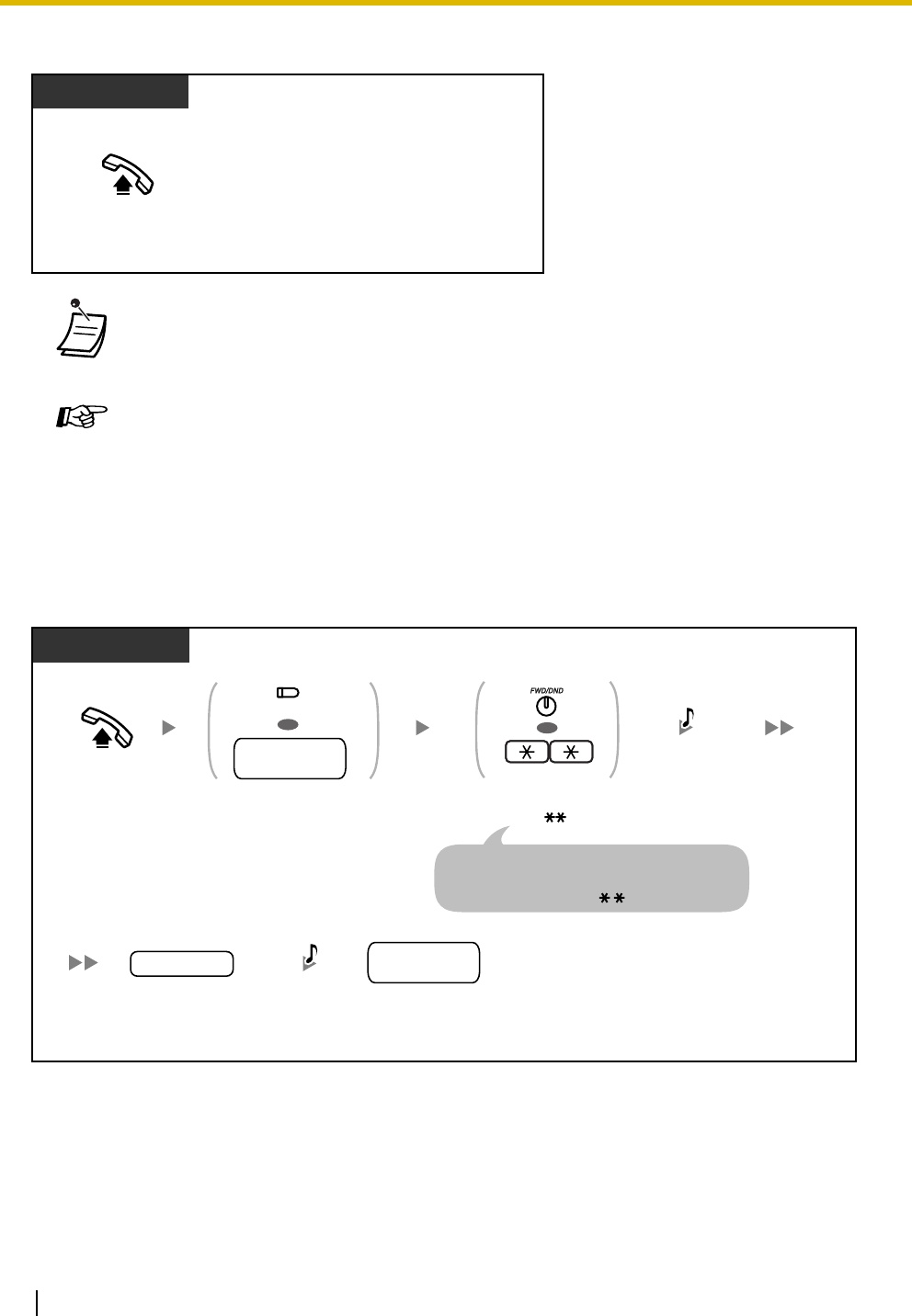
If you are unable to answer calls, you can select a brief message that will be shown on the displays of
Panasonic display proprietary telephone (PT) users when they call you. The message you select can
explain the reason for your absence, and is also shown on the display of your PT every time you go off-hook.
To set
To cancel
Message no. Message
1Will Return Soon
2Gone Home
3At Ext %%% (Extension number)
4Back at %%:%% (Hour:Minute) AM (or PM)
5Out Until %%/%% (Month/Day)
6In a Meeting
Enter required number.
2
3
4
5
6
1
Extension no.
Month (01
–
12) / Day (01
–31)
PT/SLT
Off-hook. Enter 75.
7 5
On-hook.
Enter #.
C.Tone
An SLT user can enter "0"
instead of "#".
Hour (01
–12)
: Minute (00
–59) AM (0) / PM (1)
+
Off-hook. Enter 0.
0
On-hook.
PT/SLT
Enter 75.
7 5
Enter #.
C.Tone
An SLT user can enter "0"
instead of "#".
1.3 Telephone Features
26 Operating Manual
To confirm
1.3.2 Account Code Entry
The manager may give personal account codes to extension users, and check their telephone usage for
accounting purposes. Alternatively, an account code can be specified for each customer, to log call
durations for billing purposes.
• Enter the desired value in the "%" positions. You must enter the number of digits
represented by the number of "%" symbols.
Feature Manual References
• 1.1.1 Absent Message
Off-hook.
Display PT
Off-hook.
PT/SLT
Press CO or dial outside
(CO) line access number.
account code
Enter account code
(4 digits).
outside
phone no.
Dial outside
phone number.
D.Tone 3
outside (CO)
line access no.
OR
D.Tone
(CO)
Press FWD/DND
or enter .
OR
A PT user can press the PAUSE button
instead of the FWD/DND button, and an SLT user
can enter "49" instead of " ".

1.3 Telephone Features
Operating Manual 27
• You may not be able to make an outside (CO) line call without entering an account code
depending on your telephone's mode of account code entry. The mode is assigned to each
extension. For more details, refer to "1.1.2 Account Code Entry" in the Feature Manual.
•A Panasonic proprietary telephone (PT) user can enter an account code during a
conversation or within 30 seconds after the other party hangs up (while hearing a reorder
tone), by pressing the FWD/DND (Call Forwarding/Do Not Disturb) button, then entering
the account code.
• Account codes may use the digits "0 through 9". Non-numeric codes such as FLASH/
RECALL and PAUSE cannot be used.
• You can clear the account code by pressing the " " key or FWD/DND button while
entering the account code, and then re-enter the account code.
•If you hear a reorder tone after entering the account code, the account code entered
does not exist. Enter the correct code.
•For your convenience, you can store a code together with a phone number in the
telephone's memory (e.g., Speed Dialing).
Programming Manual References
[PT Programming]
• [310] Account Code
• [601-603] TRS-COS—Day/Night/Lunch
• [605] Account Code Mode
• [805] SMDR Account Code
[PC Programming]
• 9.1.6 Account Codes [1-5]
• 9.1.8 SMDR [1-7]—Selection for Printing—Account Code
• 9.2.1 Main [2-1]—Account Code Mode
• 9.5.1 Class of Service (COS) [5-1]—Day, Night, Lunch
Feature Manual References
• 1.1.2 Account Code Entry
• 1.1.112 Station Message Detail Recording (SMDR)
• 1.1.118 Toll Restriction (TRS) Override by Account Code
Operating Manual References
•3.1.3 Flexible Button Assignment
Create or edit an FWD/DND (Call Forwarding/Do Not Disturb).

1.3 Telephone Features
28 Operating Manual
1.3.3 Alternate Calling—Ring/Voice
To switch the calling method
1.3.4 Answering, Direct Outside (CO) Line
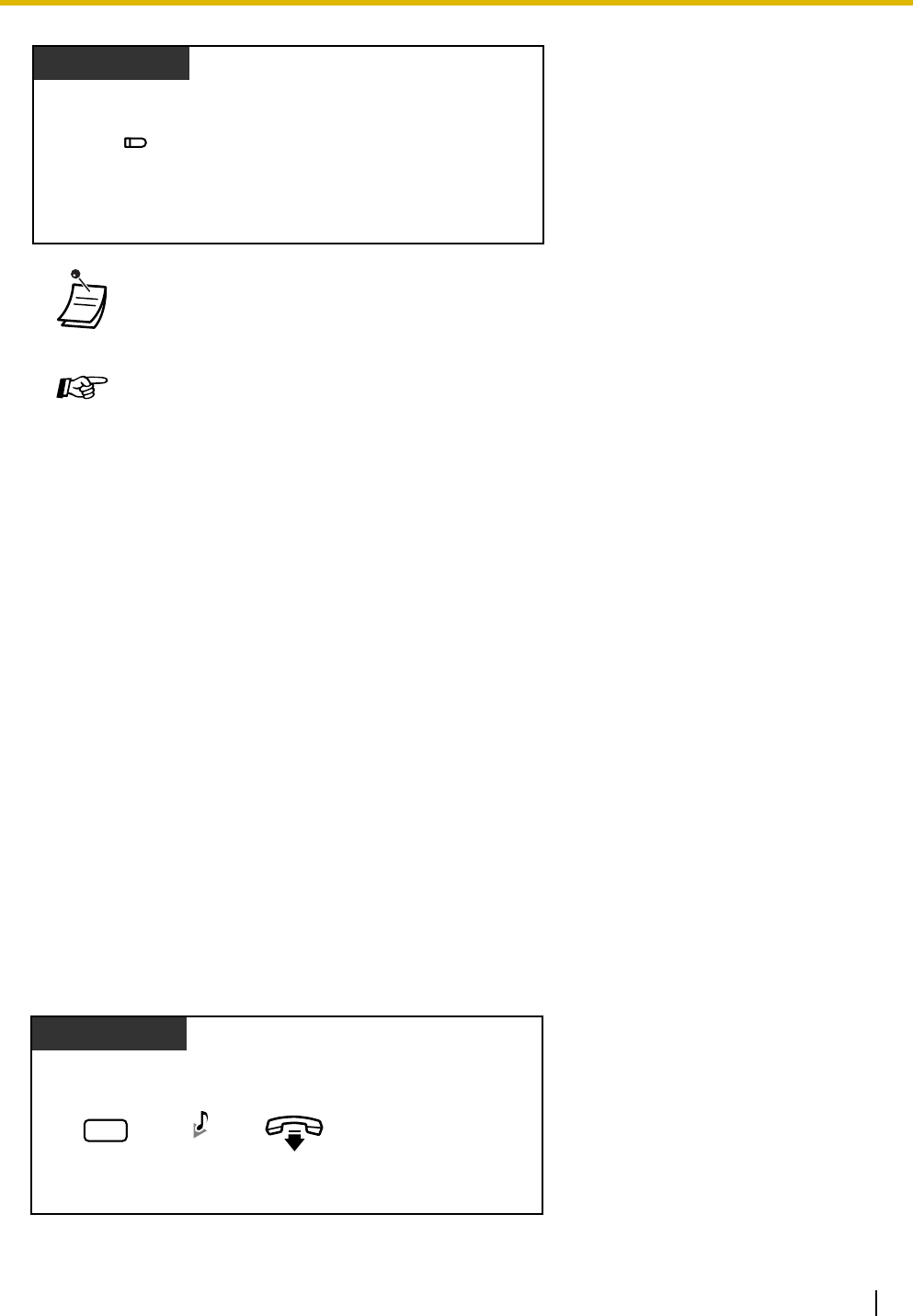
Proprietary telephone (PT) users can choose whether
to be alerted to incoming calls by ringing or by the
caller's voice (Alternate Receiving—Ring/Voice).
The calling extension can override this choice and use
the alternate method.
Ringing (Default): You can call the other party
with a ring tone. You will hear a ringback tone.
Voice-calling: You can talk to the other party
immediately after hearing a confirmation tone. You
will not hear a ringback tone. You will not be able to
hear the other party's voice until he or she answers
the call.
• If the called party uses a single line telephone (SLT), Voice-calling is not available.
• Rotary SLT users cannot use this feature.
Feature Manual References
• 1.1.69 Intercom Call
Operating Manual References
•3.1.2 Personal Feature Assignment—Alternate Receiving—Ring/Voice
Select the alerting method, either ring or the other party's voice.
You can answer an incoming outside (CO) line call by pressing a CO button on
your proprietary telephone (PT). You do not have to lift the handset or press the
SP-PHONE/MONITOR button.
Ring
Ring Hello
OR
After dialing an extension number
Enter .
PT/SLT
Talk.
C.Tone or
R.B.Tone
No SLT
1.3 Telephone Features
Operating Manual 29
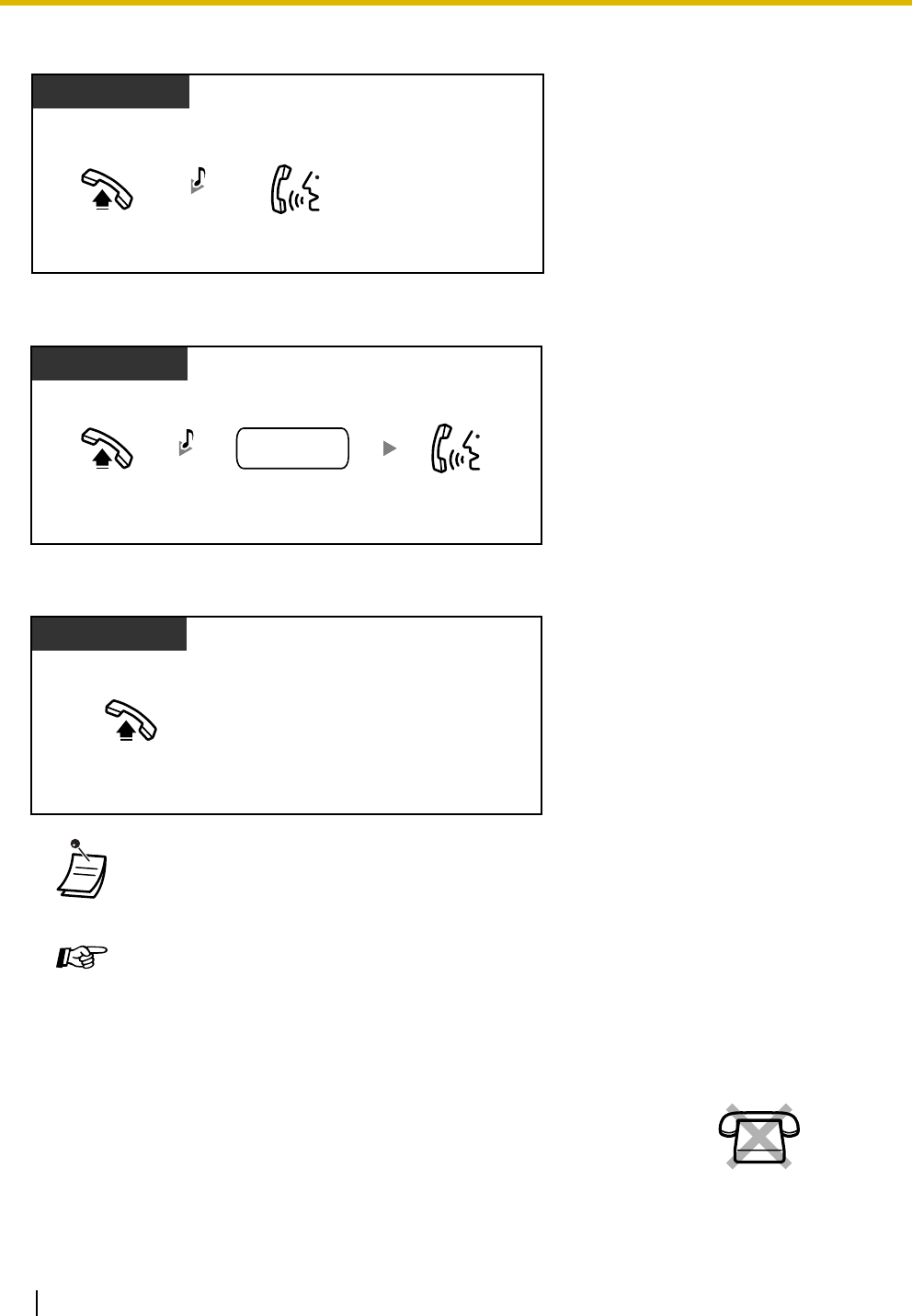
1.3.5 Automatic Callback Busy (Camp-on)
If a dialed extension or a desired outside (CO) line is busy, you can set the Automatic Callback Busy feature.
Then, when the extension or outside (CO) line becomes idle, your telephone will ring automatically.
When you answer the callback ring:
• a dialed extension becomes idle.
• a desired outside (CO) line that is in use by another extension becomes idle.
You cannot set Automatic Callback Busy for a busy party outside of the PBX.
When you answer the callback ring:
• for an outside (CO) line call: the line is seized.
• for an intercom call: the called extension starts ringing automatically.
To set for both an outside (CO) line call and an intercom call
• You can choose which line to answer when multiple incoming outside (CO) line calls arrive
at the same time by pressing the preferred CO button.
Feature Manual References
• 1.1.3 Answering, Direct Outside (CO) Line
Operating Manual References
•1.3.48 Hands-free Operation
•3.1.2 Personal Feature Assignment—Line Preference—Incoming
Select the method used to answer incoming calls.
•3.1.3 Flexible Button Assignment
Create or edit a Single-CO (S-CO) button, Group-CO (G-CO) button, or Other-CO (O-
CO) button.
PT
Press the CO flashing red rapidly.
(CO)
PT/SLT
While hearing a busy tone
Enter 6.
6
On-hook.
C.Tone
1.3 Telephone Features
30 Operating Manual
To answer a callback ring set for a busy extension
To answer a callback ring set for a busy outside (CO) line
To cancel the callback ring (Automatic Callback Busy Cancel)
1.3.6 Background Music (BGM)
• If you do not answer the callback ring within 10 seconds (4 rings), this feature will be
canceled.
Feature Manual References
• 1.1.4 Automatic Callback Busy (Camp-on)
You can listen to background music (BGM) through your telephone speaker
while on-hook. If your extension becomes busy (off-hook, making or receiving a
call etc.), the music will stop. When you go back on-hook, the music starts again.
Off-hook.
PT/SLT
Talk.
While hearing a callback ring
R.B.Tone
Off-hook.
PT/SLT
Talk.
Dial outside phone
number.
outside
phone no.
While hearing a callback ring
D.Tone
Off-hook.
PT/SLT
No SLT

1.3 Telephone Features
Operating Manual 31
To set/cancel
1.3.7 Built-in Voice Message (BV)
–Recording, Playing, or Erasing Personal BV Outgoing Messages
–Forwarding Your Calls to Built-in Voice Message
–Leaving, Playing, or Erasing Voice Messages
• Your PBX can be programmed not to play music when "1" is entered while on-hook.
Programming Manual References
[PT Programming]
• [111] Music on Hold
• [626] BGM Control for APT
[PC Programming]
• 9.1.2 Main [1-2]—Music on Hold
• 9.2.1 Main [2-1]—BGM Control for APT
Feature Manual References
• 1.1.7 Background Music (BGM)
PT
Enter 1.
1
While on-hook

1.3 Telephone Features
32 Operating Manual
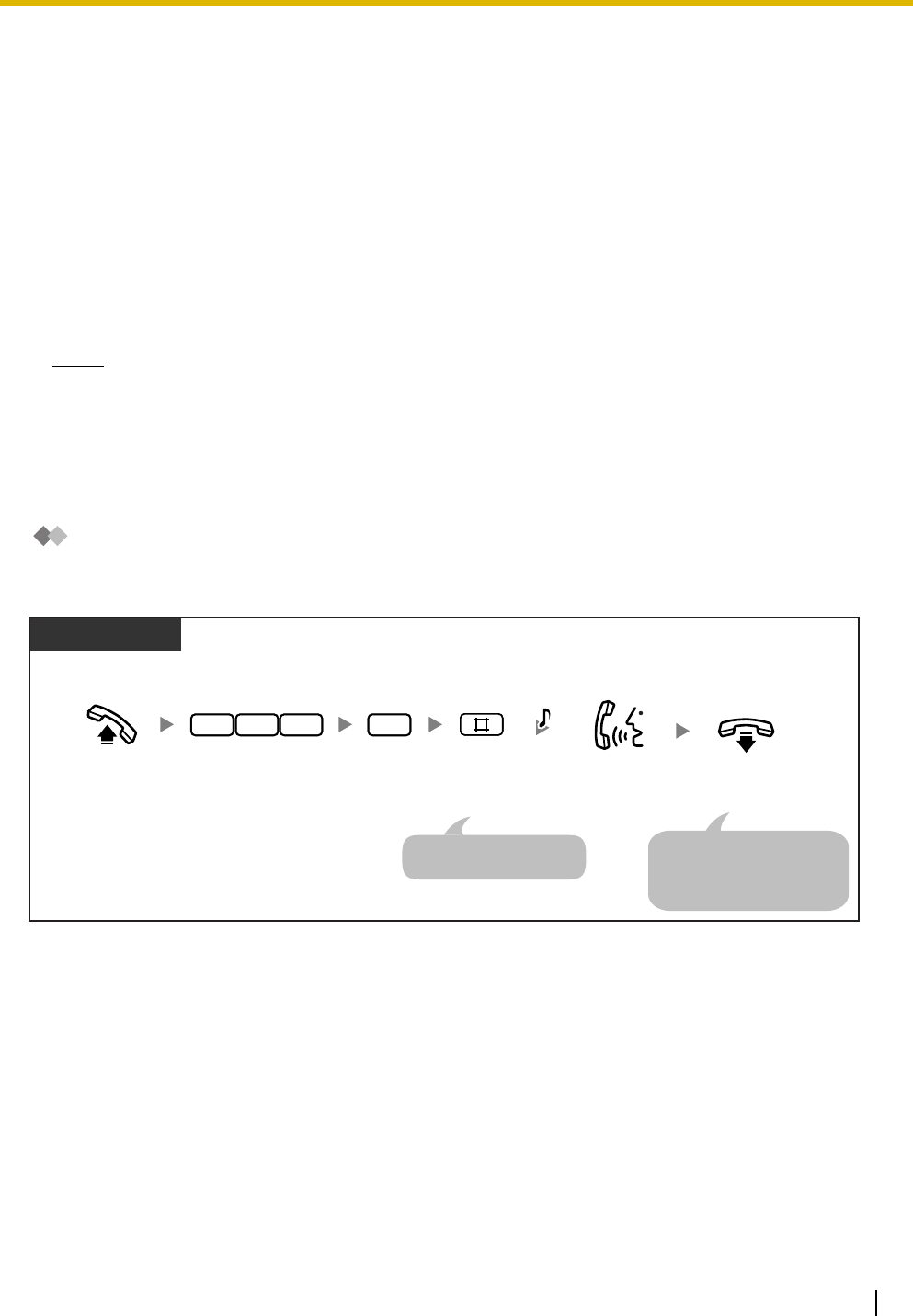
If an optional voice message card is installed in the PBX, a caller can leave a voice message in one of the
voice message areas. There are 2 types of voice message area: personal message area and common
message area.
A personal message area is where callers can leave messages directly for you. When an incoming call (a
call direct to your extension, or a call using the Direct Inward System Access [DISA] Automated Attendant
[AA] service) is forwarded to your personal message area, the caller will hear a personal Built-in Voice
Message (BV) outgoing message (OGM) and can leave a voice message. You can access your personal
message area to play back or erase caller messages.
A common message area is where callers can leave messages for the company. When an outside (CO) line
call is automatically directed to the common message area, or when a DISA call is redirected to the common
message area via Intercept Routing, the caller will hear a common BV OGM and can leave a voice message.
Only the operator or manager can access the common message area to play back or erase caller
messages.
If there are new voice messages in your personal message area or the common message area (if
accessible), you will hear dial tone 4 when going off-hook. Additionally, if your telephone has a MESSAGE
button or Message/Ringer Lamp, the corresponding button or lamp turns on when a message has been left.
You can also perform the following operations:
• You can record, play, or erase a personal BV OGM for your personal message area.
• The operator or manager can record, play, or erase a common BV OGM for the common message
area. Refer to "2.1.3 Common BV Outgoing Messages".
• You can set incoming calls to be forwarded to your personal message area, when you cannot
answer them.
Leaving
one’s desk
Call
Using the Direct Message feature
FWD to Personal
Message Area
Direct to extension
Using the DISA
AA service
Direct to Common
Message Area
Direct to DISA
Call
Outside party
Extension
Extension
Common BV OGM
Common Voice Message
DISA OGM
Personal BV OGM
Personal Voice Message
Operator/Manager
Personal BV OGM
Personal Voice Message
Others
FWD to Personal
Message Area
Intercept timer expires
•
Wrong number is dialed
•
1.3 Telephone Features
Operating Manual 33
• You can leave a voice message in the personal message area of another extension, even if the
extension has not been set to forward incoming calls to its personal message area, or even if no
personal/common BV OGM has been recorded (Direct Message).
When a caller leaves a voice message using the Direct Message feature, the voice message is
automatically linked to the caller information (including the extension number and name [if stored])
in the Incoming Call Log.
• You can access the personal/common message area from an outside telephone by using a
preprogrammed voice message access code. The code to enter differs depending on whether you
are calling directly to an extension (that is forwarded to the extension's message area) or to the
common message area, or you are calling with DISA.
Call Log
When viewing caller information, you can see whether the caller left a voice message. For more details, refer
to "1.3.18 Call Log, Incoming".
Notes
• If you set the Voice Mail Integration feature, the BV feature will not function.
• When another extension user is recording or erasing a personal/common BV OGM, you cannot
perform any operations using the BV feature. When another extension user or an outside caller is
performing operations other than those mentioned above, you may not be able to use the BV
feature. In this case, wait a few minutes and try again.
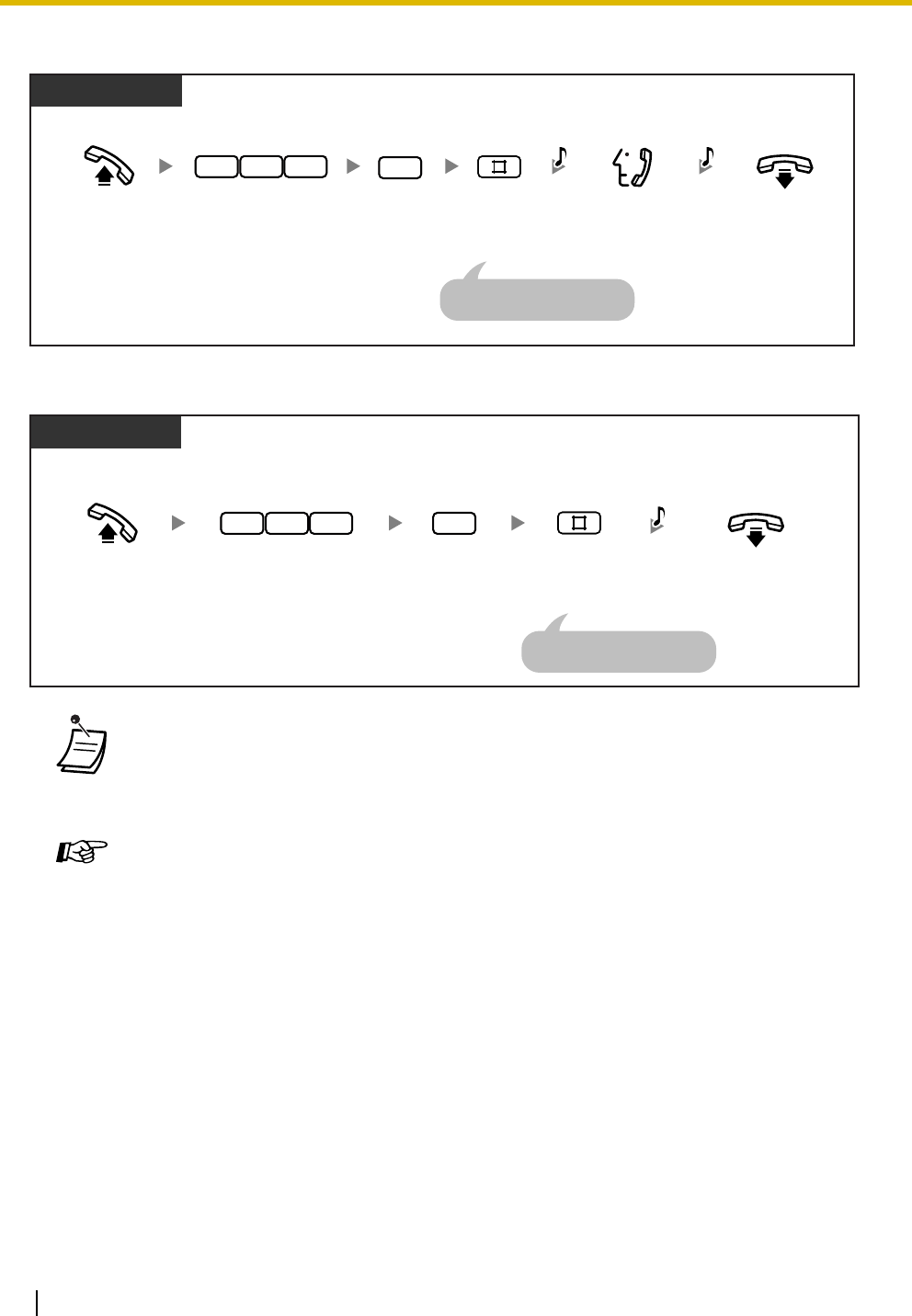
Recording, Playing, or Erasing Personal BV Outgoing Messages
To record
PT/SLT
On-hook.
Record a message.
Off-hook. Enter 723. Enter 1.
C.Tone
2 3 17
A PT user can play back
the message by pressing the
AUTO DIAL/STORE button
instead of going on-hook.
Enter #.
An SLT user can enter "0"
instead of "#".
1.3 Telephone Features
34 Operating Manual
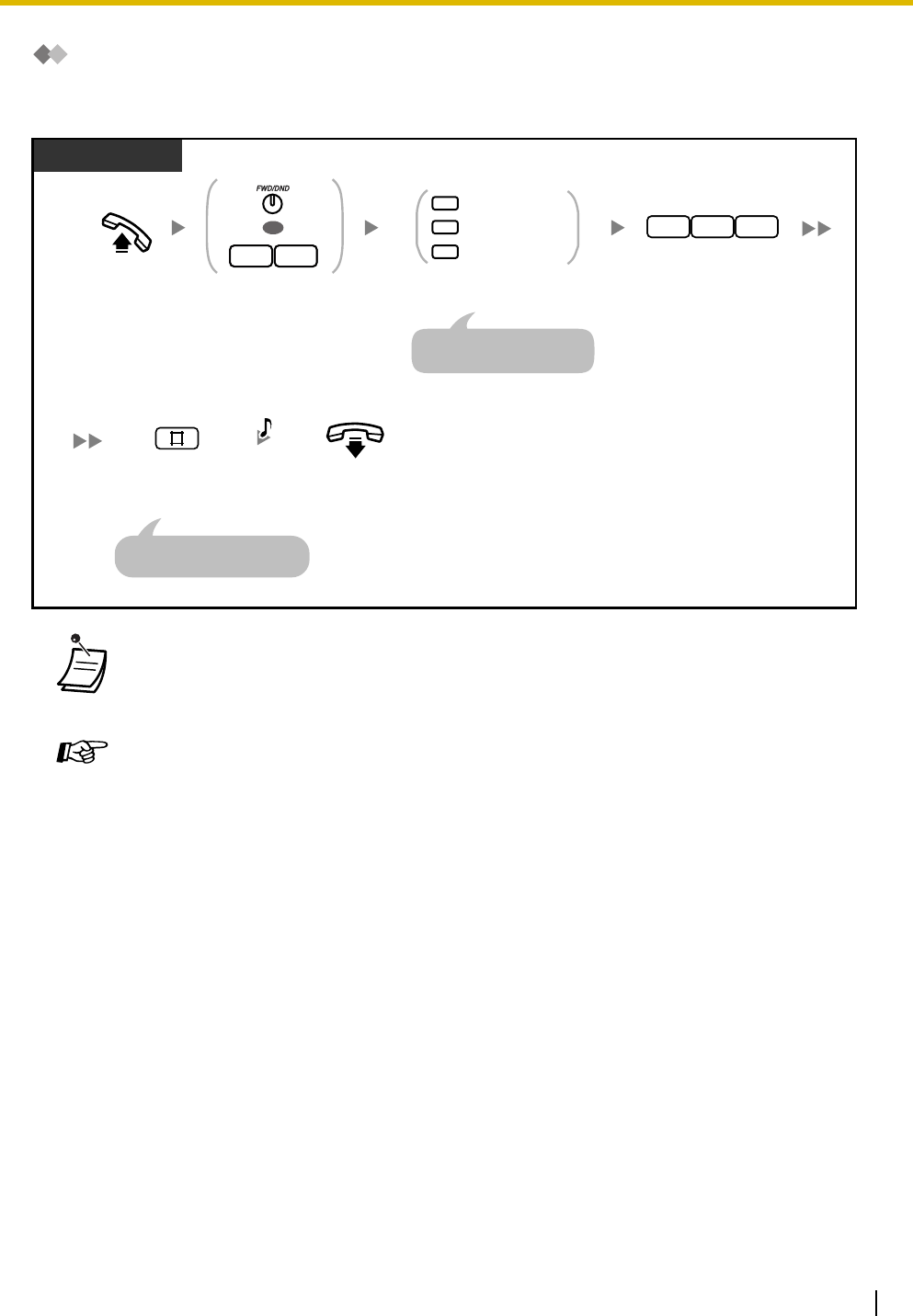
To play back
To erase
• The AUTO DIAL/STORE button light shows the current status as follows:
Off: You are recording a message, or a message has finished playing.
Red on: A message is playing.
• You can stop playback by pressing the AUTO DIAL/STORE button.
Operating Manual References
•2.1.3 Common BV Outgoing Messages
PT/SLT
On-hook.Off-hook. Confirm
the message.
Enter 723.
2 37
C.Tone C.Tone
Enter 2.
2
Enter #.
An SLT user can enter "0"
instead of "#".
PT/SLT
On-hook.Off-hook. Enter 723. Enter 0.
C.Tone
2 3 07
Enter #.
An SLT user can enter "0"
instead of "#".
1.3 Telephone Features
Operating Manual 35
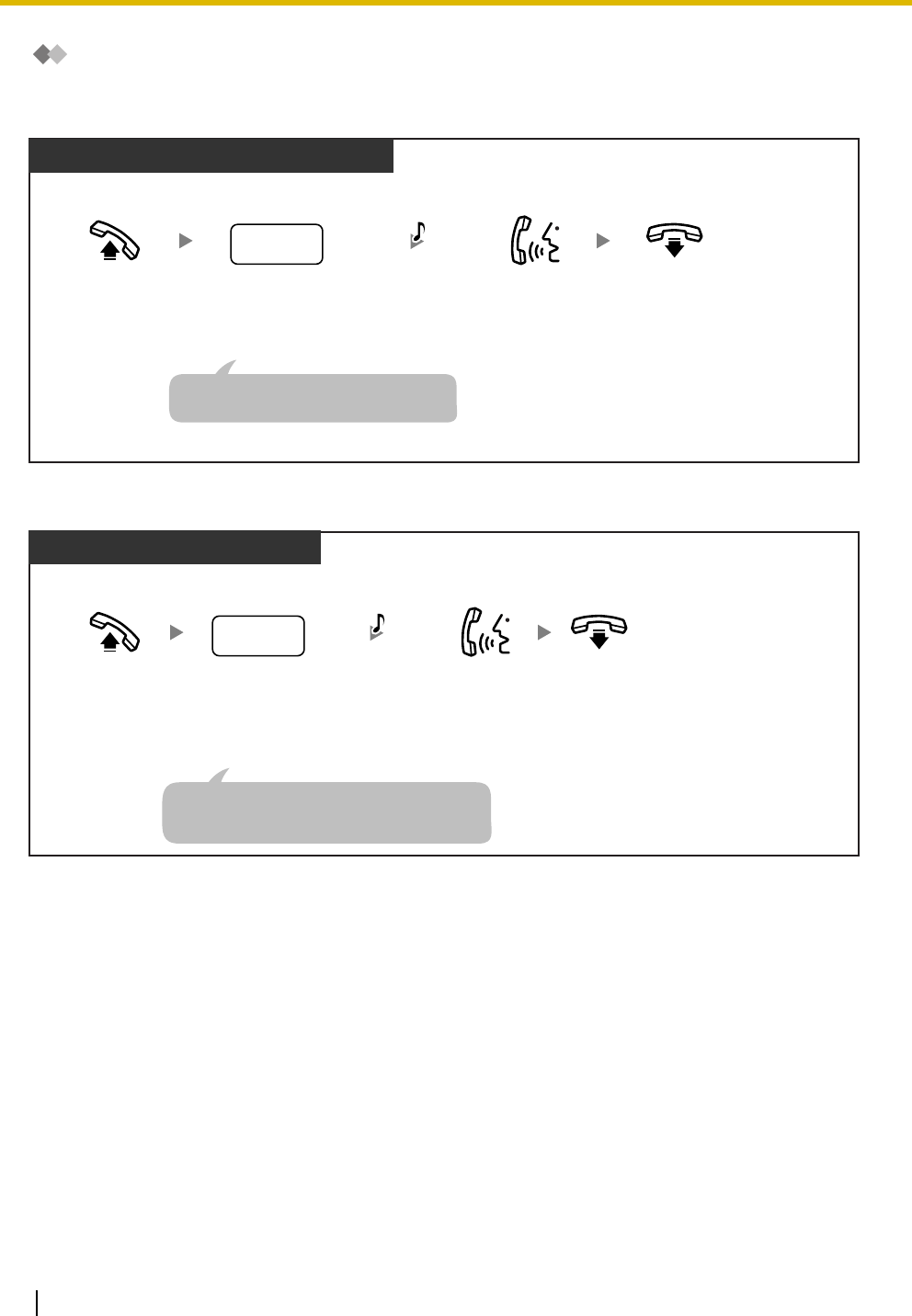
Forwarding Your Calls to Built-in Voice Message
To set/cancel
• Setting this feature also cancels other types of Call Forwarding (FWD)/Do Not Disturb
(DND).
Programming Manual References
[PC Programming]
• 9.2.2 Feature settings [2-2]—FWD/DND
Operating Manual References
•1.3.10 Call Forwarding (FWD)—All Calls
•3.1.3 Flexible Button Assignment
Create or edit an FWD/DND (Call Forwarding/Do Not Disturb).
Off-hook.
PT/SLT
Press FWD/DND
or enter 71.
Enter 725.
17
OR 725
Enter required number.
1
0
2Busy/No Answer
All Calls
Cancel
For "Cancel", go on-hook
directly after entering "0#".
On-hook.
C.Tone
Enter #.
An SLT user can enter "0"
instead of "#".
1.3 Telephone Features
36 Operating Manual
Leaving, Playing, or Erasing Voice Messages
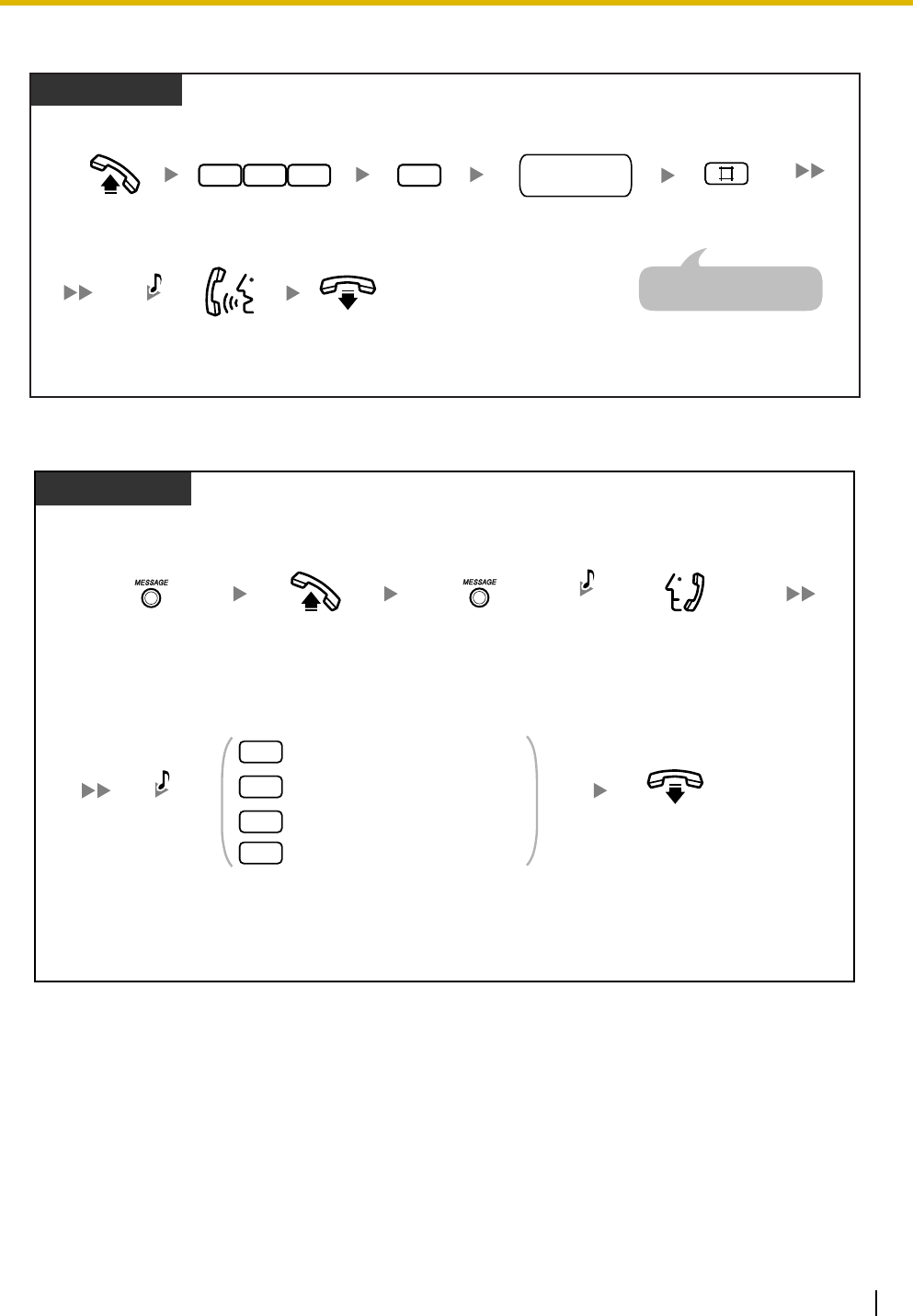
To leave a voice message in a user's personal message area
To leave a voice message in the common message area
On-hook.
Record a
message.
Off-hook.
Personal
BV OGM &
C.Tone
Dial desired phone
number to access
personal message area.
desired
phone no.
From an Outside Telephone/PT/SLT
Calls are forwarded to the personal
message area if set to be forwarded.
On-hook.
Record a
message.
Off-hook.
Common
BV OGM &
C.Tone
Dial desired
phone number to
access common
message area.
desired
phone no.
From an Outside Telephone
DISA calls are transferred to the common
message area when a wrong number is dialed,
or when a specified intercept timer expires.
1.3 Telephone Features
Operating Manual 37
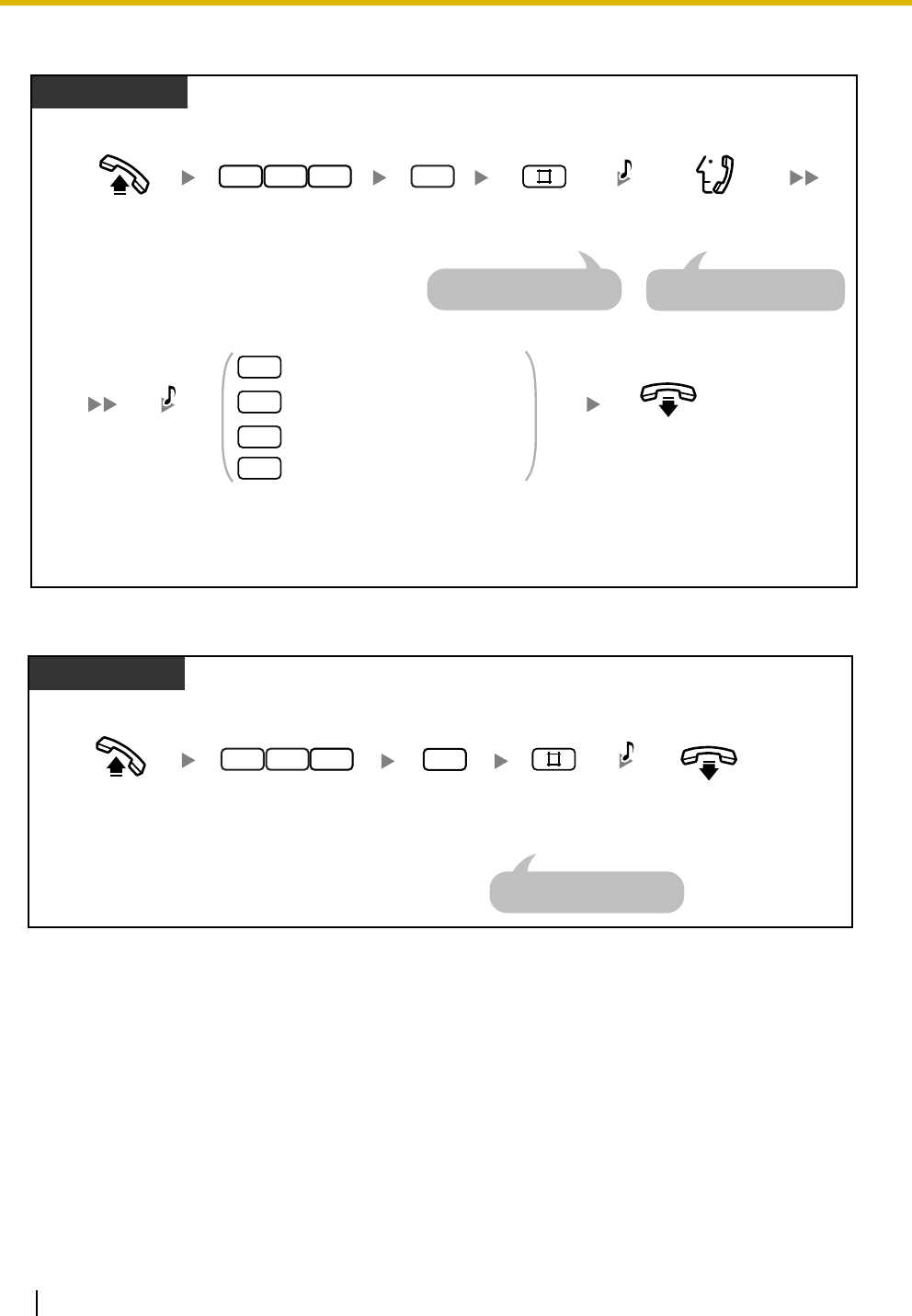
To leave a voice message using Direct Message
To view and play back a voice message in a voice message area
PT/SLT
On-hook.
Record a
message.
Off-hook. Dial another
extension number.
Enter 725. Enter 1.
2 5 17
C.Tone
another
extension no.
Enter #.
An SLT user can enter "0"
instead of "#".
Press MESSAGE.
When the Message/Ringer Lamp or MESSAGE button is lit
(the Caller ID Indication—Personal/Common button will be lit, if assigned)
Display PT
Off-hook. Listen to the message.
Press MESSAGE
until the desired
message is displayed.
To go to the next message
To erase the message*1
Enter 1–3 or 9 while confirming the message or
within 5 s of playback ending.
To go back to the previous message
To play back the message from
the beginning
Voice
Message
1
2
3
9
C.Tone
On-hook.
1.3 Telephone Features
38 Operating Manual
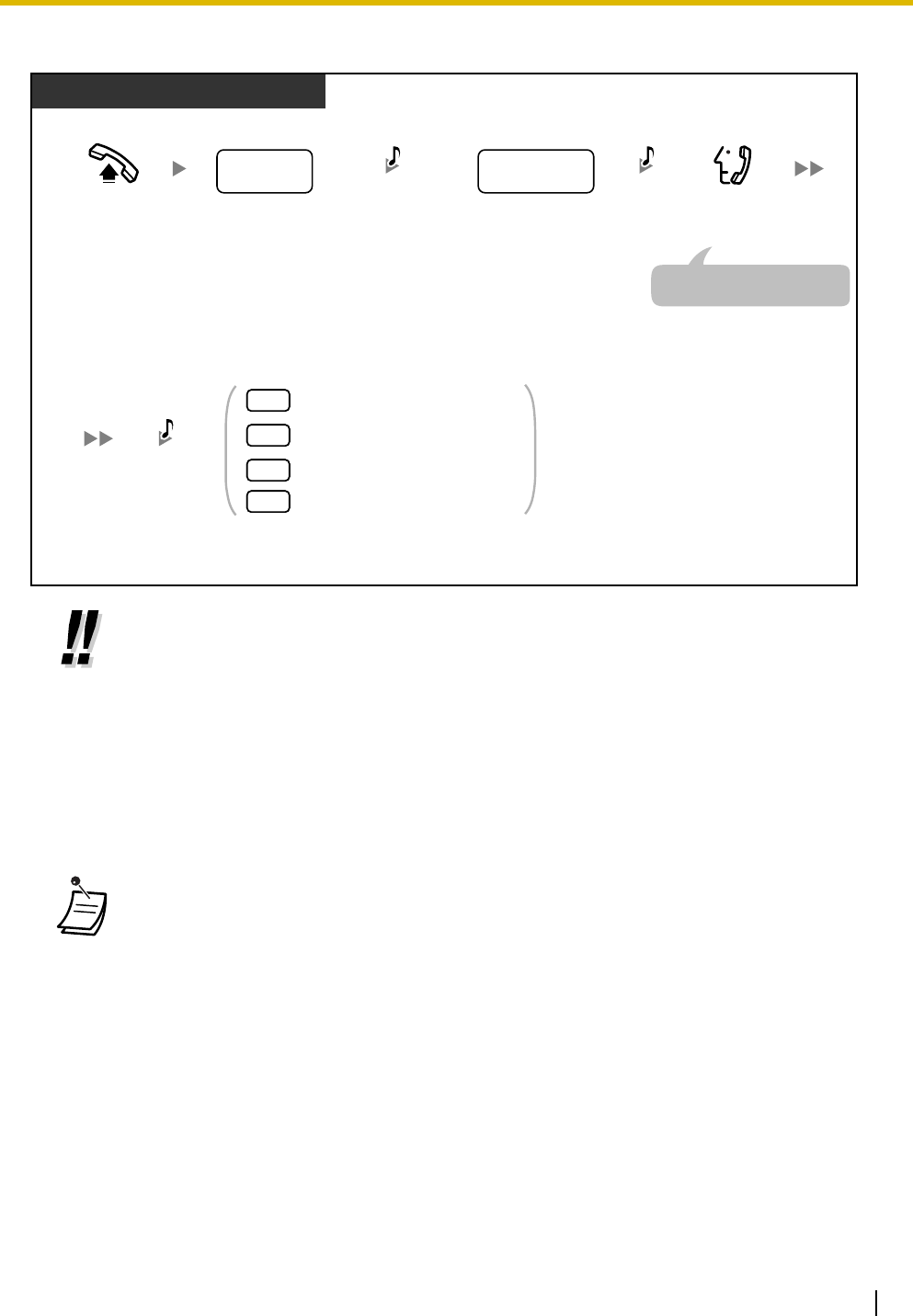
To play back all voice messages in a voice message area
To erase all voice messages in a voice message area
PT/SLT
Off-hook. Listen to the messages.
Enter 725. Enter 2. Enter #.
2 5 27
C.Tone
The messages are played
in the recorded order.
To go to the next message
To erase the message*1
To go back to the previous message
To play back the message from
the beginning
Voice
Message
1
2
3
9
Enter 1–3 or 9 while confirming the message or
within 5 s of playback ending.
On-hook.
An SLT user can enter "0"
instead of "#".
PT/SLT
On-hook.Off-hook.
2 57
C.Tone
Enter 0.Enter 725. Enter #.
0
An SLT user can enter "0"
instead of "#".
1.3 Telephone Features
Operating Manual 39
To play back and/or erase voice messages from an outside telephone
•*
1 To erase a voice message while listening to the message, enter "3". You will hear dial
tone 3. Enter "3" again to erase the message. If you change your mind and decide not to
erase the message, dial another number ("1", "2", or "9") or go on-hook while hearing dial
tone 3.
•*
2 For a directed call to an extension (forwarded to the extension's message area), that
extension's voice message access code must be entered. While hearing the common BV
OGM, the operator/manager's voice message access code must be entered.
•*
3 When you are calling from an outside telephone, after hearing dial tone 3 for 5 seconds,
the next message is automatically played back. You can dial any function number ("1", "2",
"3", or "9") while confirming any message.
• Callers cannot put a call on hold by pressing the TRANSFER or HOLD button while
recording a voice message.
• If you enter a wrong voice message access code, when trying to play back voice
messages from an outside telephone, the call will be disconnected after 10 seconds.
When playback is complete, or you have no voice messages recorded, the call will be
disconnected after 5 seconds.
• When you erase voice messages, the caller's information is erased simultaneously.
• The MESSAGE button light or Message/Ringer Lamp shows the current status of the voice
message area as follows:
Off: No voice messages, or old voice messages only
Red on: New voice messages
If your telephone has no MESSAGE button or Message/Ringer Lamp, you cannot tell by
looking whether there are new voice messages.
From an Outside Telephone
Off-hook. Enter voice message access
code during DISA OGM or
personal/common BV OGM.
Listen to the messages.
To go to the next message
To erase the message*1 *3
To go back to the previous
message
To play back the message from
the beginning
C.Tone
DISA OGM or
Personal/Common
BV OGM
Voice
Message
1
2
3
9
The messages are played
in the recorded order.
desired
phone no. voice message
access code
Dial desired phone
number to access DISA
or personal/common
message area.
Enter 1–3 or 9 while confirming the message or
within 5 s of playback ending.
*2
1.3 Telephone Features
40 Operating Manual
• If a new voice message has been recorded, you will hear dial tone 4 when going off-hook.
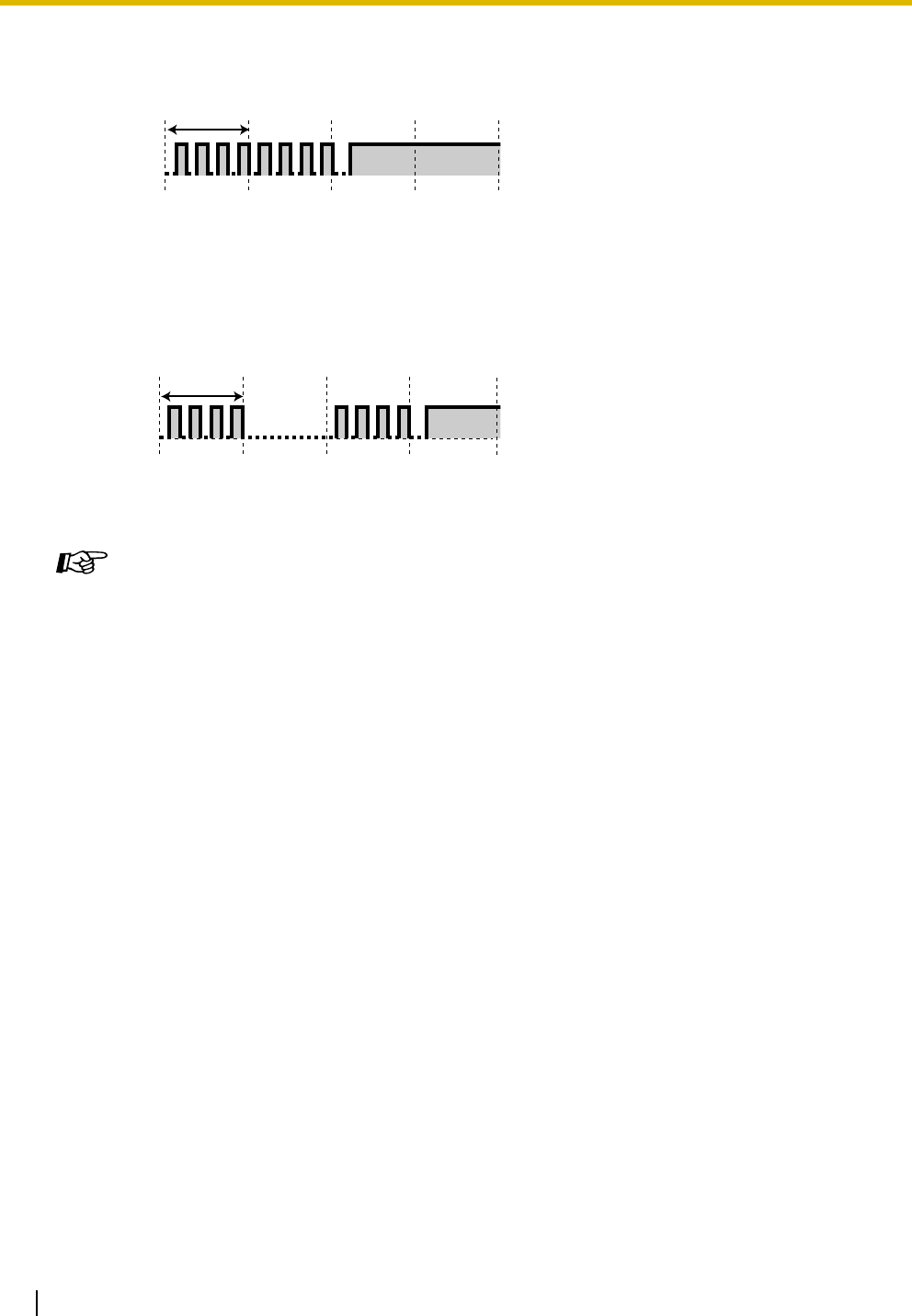
Dial Tone 4
• When the remaining recording time for the PBX is less than 5 minutes or when 125 voice
messages have been recorded, the display informs you that the voice message area is full,
and you hear dial tone 5 when going off-hook. If the remaining recording time goes back
to being 5 minutes or more, for example, when messages are erased, the display returns
to the idle status display and you will hear another dial tone instead of dial tone 5 when
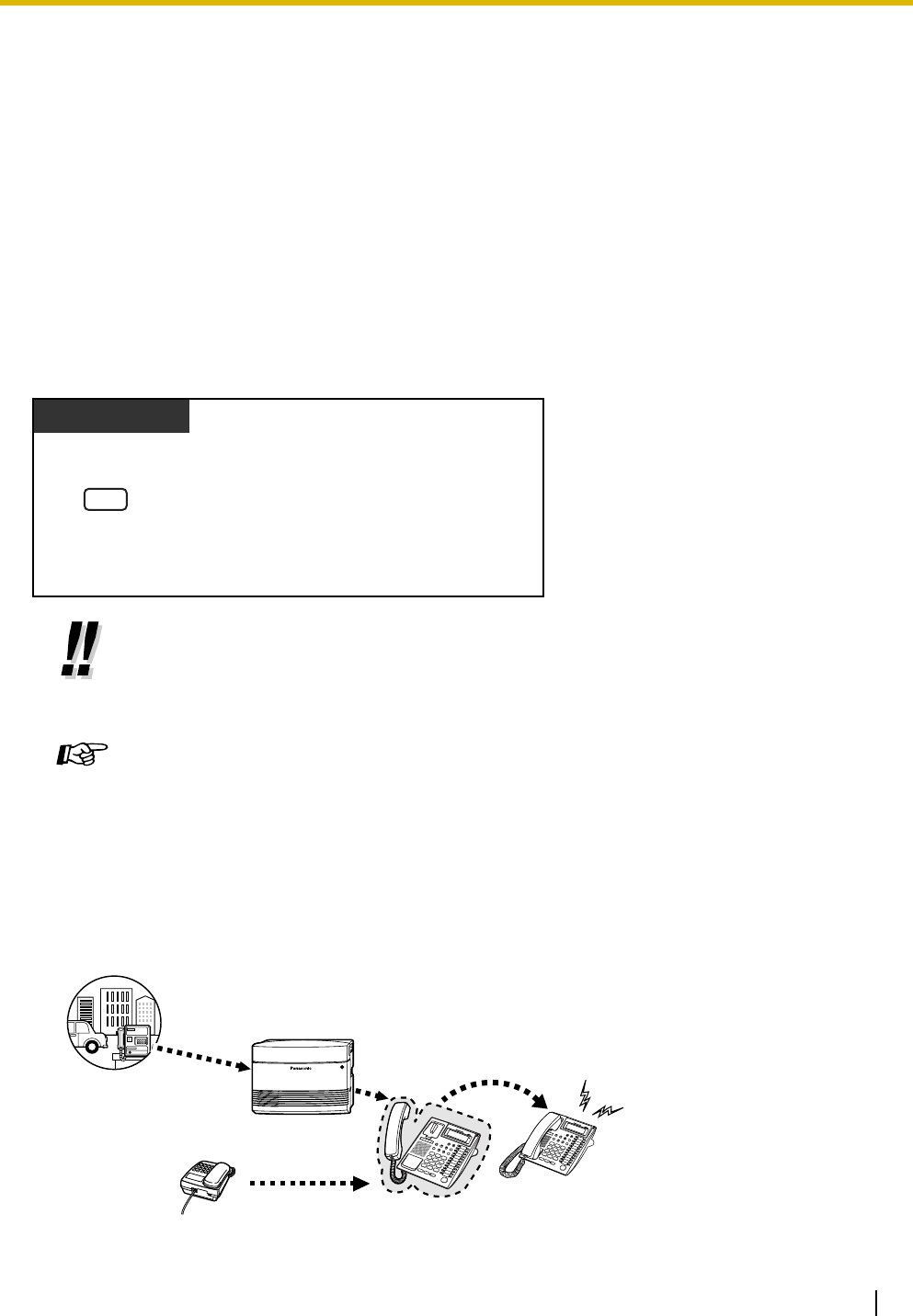
going off-hook.
Dial Tone 5
• A proprietary telephone (PT) user can listen to voice messages by entering the Message
Waiting Answer feature number, "784# (7840)".
Programming Manual References
[PT Programming]
• [214] BV Recording Time
• [215] Common/Personal BV OGM Recording Time
• [414-416] CO Line Mode—Day/Night/Lunch
• [438-440] DISA IRNA to BV—Day/Night/Lunch
• [621] BV Resource
• [622] BV for Extension
• [625] BV Access Code through CO Line
• [807] BV Total Recording Time
• [808] BV Card Initialization
• [963] Call Forwarding Selection
• [999] System Data Clear
[PC Programming]
• 8.4 System Data Clear
• 8.6 BV Card Initialization
• 9.2.1 Main [2-1]—FWD Selection
• 9.3.1 Line Mode [3-1]—Mode of incoming CO calls—Day, Night, Lunch
• 9.8 BV [8]
Feature Manual References
• 1.1.8 Built-in Voice Message (BV)
1 s
1 s
1.3 Telephone Features
Operating Manual 41
1.3.8 Busy Station Signaling (BSS)
If the extension that you want to call is busy, you can send a call waiting tone, to inform the extension user
that your call is waiting. When the extension user hears this tone, he or she can choose to put the current
party on hold, and talk to you.
1.3.9 Call Forwarding (FWD)—SUMMARY
Operating Manual References
•1.3.18 Call Log, Incoming
•1.3.34 Direct Inward System Access (DISA)
•3.1.3 Flexible Button Assignment
Create or edit a Message button, Caller ID Indication—Personal button, or Caller ID
Indication—Common button.
•If you hear a reorder tone after dialing an extension number, this feature is not
available for the other party's phone. This feature is only available if the called extension
has set Call Waiting. To set Call Waiting or to answer a waiting call, refer to "1.3.28 Call
Waiting".
Feature Manual References
• 1.1.9 Busy Station Signaling (BSS)
Operating Manual References
•1.3.28 Call Waiting
PT/SLT
Enter 1.
While hearing a busy tone after dialing an extension number
1
Call
Outside party
Call
Extension Extension
FWD destination
FWD to
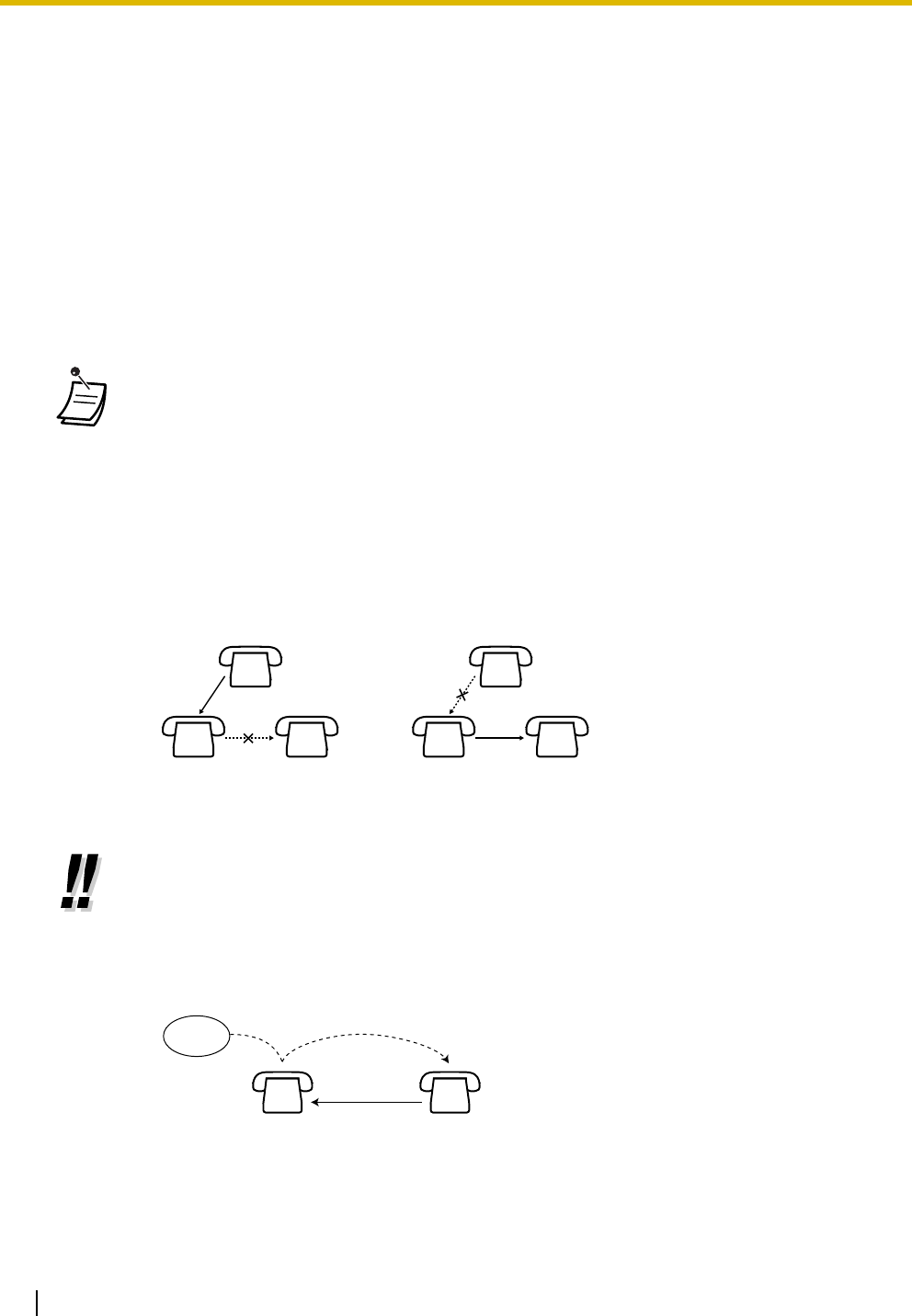
1.3 Telephone Features
42 Operating Manual
You can have your incoming calls forwarded to a specified destination.
The following methods are available:
All Calls:
All calls are forwarded to a specified extension regardless of the status of your extension.
Busy/No Answer (BSY/NA):
All calls are forwarded to a specified extension when you do not answer within a specified time period
or when your extension is busy.
Follow Me (From):
If you fail to set the above-mentioned "All Calls" to forward before you leave your desk, you can set your
calls to be forwarded from the destination extension.
To Outside (CO) Line:
All calls are forwarded to an outside party if your extension is permitted through system programming.
The call duration is limited.
• The FWD/DND button light shows the current status as follows:
Off: Neither feature is set.
Red on: Do Not Disturb (DND) mode
Flashing red slowly: Call Forwarding (FWD) mode
• If a proprietary telephone (PT) user sets the FWD—Busy/No Answer feature, the FWD/
DND button light will keep flashing while on-hook. To stop the button from flashing, go off-
hook and enter "716#".
• A call can only be automatically forwarded one time.
In the example below, extension A's calls are being forwarded to extension B. If extension
B tries to set FWD to extension C, the extension B user hears a reorder tone and the
setting is denied. If extension B has already set FWD to extension C, and extension A tries
to set FWD to extension B, the setting is also denied.
• You can confirm the current FWD destination by pressing the FWD/DND button while on-
hook.
• You can set the voice mail extension number as the FWD destination to receive calls into
your mailbox.
• You can set the Built-in Voice Message (BV) feature number as the FWD destination to
receive calls into one of the voice message areas.
• The destination of an extension's forwarded calls can call or transfer calls to the original
extension.
A
B C
A
B C
FWD—All Calls
Call or
transfer a call
Original FWD destination
Incoming
call
A B

1.3 Telephone Features
Operating Manual 43
1.3.10 Call Forwarding (FWD)—All Calls
You can forward all calls to another extension.
1.3.11 Call Forwarding (FWD)—Busy/No Answer
You can forward your calls to another extension when you do not answer within a specified time period or
when your extension is busy.
Programming Manual References
[PC Programming]
• 9.2.2 Feature settings [2-2]—FWD/DND
Feature Manual References
• 1.1.10 Call Forwarding (FWD)—SUMMARY
Operating Manual References
•1.3.7 Built-in Voice Message (BV)
•1.3.14 Call Forwarding (FWD)—CANCEL
•1.3.35 Do Not Disturb (DND)
•1.3.88 Voice Mail Integration
•3.1.3 Flexible Button Assignment
Create or edit an FWD/DND (Call Forwarding/Do Not Disturb).
Feature Manual References
• 1.1.11 Call Forwarding (FWD)—All Calls
1
7
Off-hook. Press FWD/DND
or enter 71.
Enter 1.Dial destination
extension number.
On-hook.
PT/SLT
OR
C.Tone
Enter #.
destination
extension no.
1
An SLT user can enter "0" instead of "#".
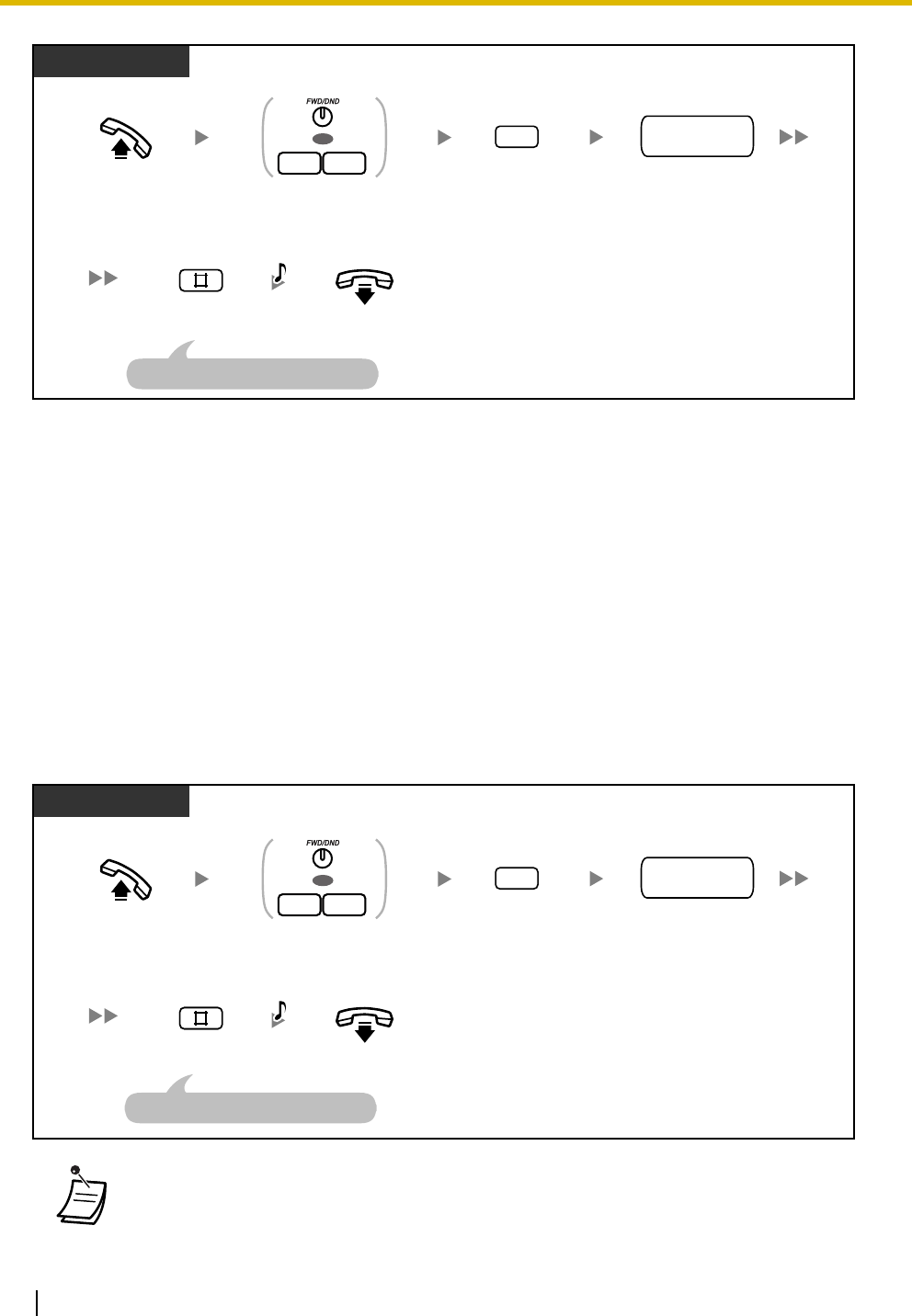
1.3 Telephone Features
44 Operating Manual
Programming Manual References
[PT Programming]
• [202] Call Forwarding Start Time
[PC Programming]
• 9.1.7 Timers [1-6]—Start Time—Call Forwarding
Feature Manual References
• 1.1.12 Call Forwarding (FWD)—Busy/No Answer
1.3.12 Call Forwarding (FWD)—Follow Me
You can set your calls to be forwarded from the destination extension. This is useful if you forget to set "Call
Forwarding (FWD)—All Calls" before you leave your desk.
• This feature can be canceled at your (original) extension or at another (destination)
extension.
1
7
Off-hook. Press FWD/DND
or enter 71.
Enter 2.Dial destination
extension number.
On-hook.
PT/SLT
OR
C.Tone
Enter #.
destination
extension no.
2
An SLT user can enter "0" instead of "#".
1
7
Off-hook. Press FWD/DND
or enter 71.
Enter 5.Dial your
extension number.
On-hook.
PT/SLT
OR
C.Tone
Enter #.
your
extension no.
5
An SLT user can enter "0" instead of "#".
At another extension
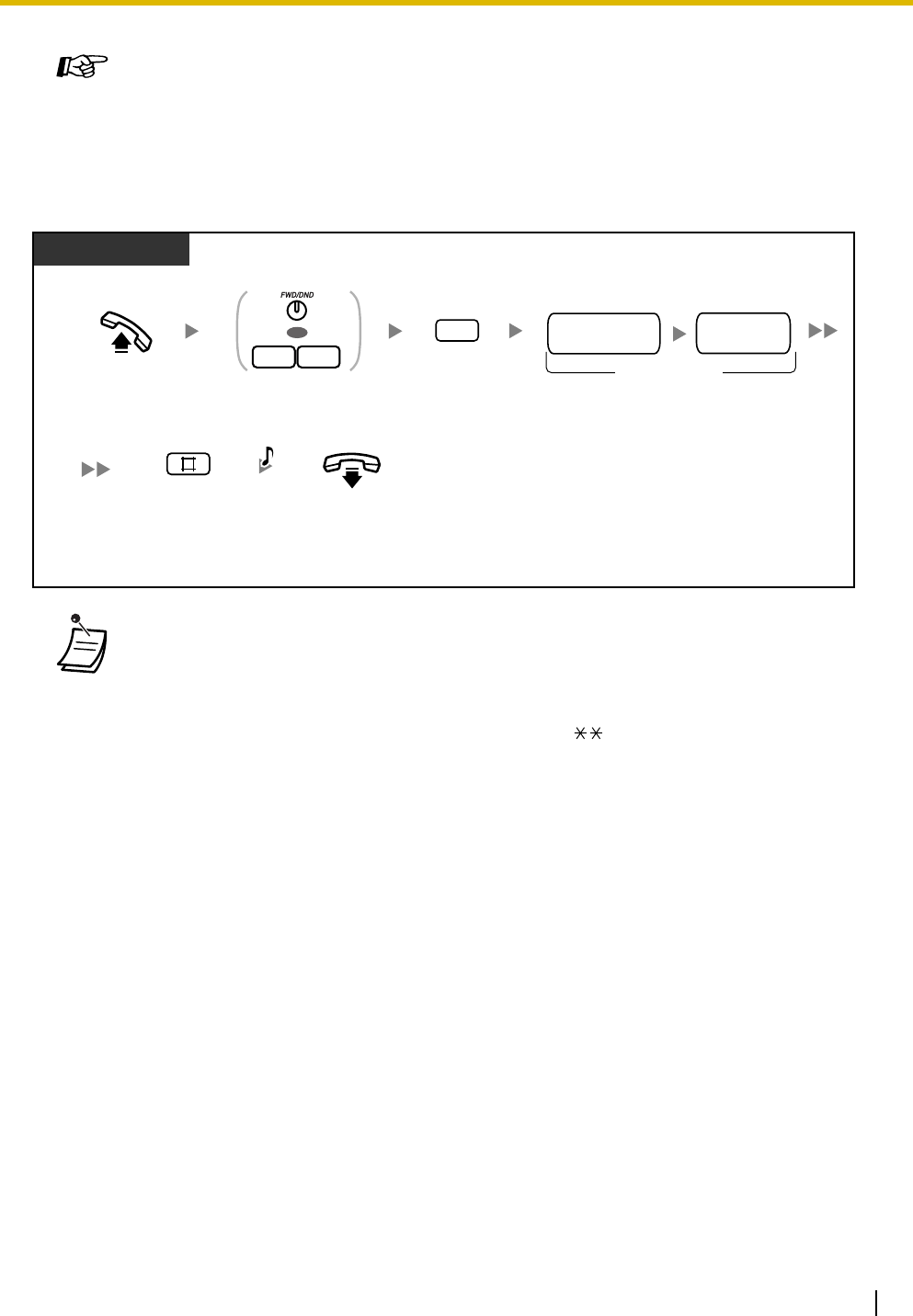
1.3 Telephone Features
Operating Manual 45
1.3.13 Call Forwarding (FWD)—To Outside (CO) Line
You can forward all calls to an outside party if your extension is permitted through system programming.
Programming Manual References
[PT Programming]
• [205] CO-to-CO Line Call Duration
• [414-416] CO Line Mode—Day/Night/Lunch
• [605] Account Code Mode
• [607] Call Forwarding to CO Line
[PC Programming]
• 9.1.7 Timers [1-6]—Call Duration—CO-to-CO Duration Limit
• 9.2.1 Main [2-1]—Account Code Mode, Call Forward to CO
• 9.3.1 Line Mode [3-1]—Mode of incoming CO calls—Day, Night, Lunch
Feature Manual References
• 1.1.14 Call Forwarding (FWD)—To Outside (CO) Line
Feature Manual References
• 1.1.13 Call Forwarding (FWD)—Follow Me
•CO-to-CO Line Call Duration
The length of outside-to-outside (CO-to-CO) line calls may be limited through system
programming.
Both the outside caller and the outside destination will hear a warning tone 15 seconds
before a specified time limit. When the timer expires, the call is disconnected.
• An account code must be entered by pressing the " " key and entering the account
code after the outside (CO) line access number in Account Code—Verify-All/Forced mode.
1
7
Off-hook. Press FWD/DND
or enter 71.
Enter 3.
On-hook.
PT/SLT
OR
C.Tone
Enter #.
3
(Max. 32 digits)
Dial outside (CO) line access number
and then outside phone number.
outside
phone no.
outside (CO)
line access no.
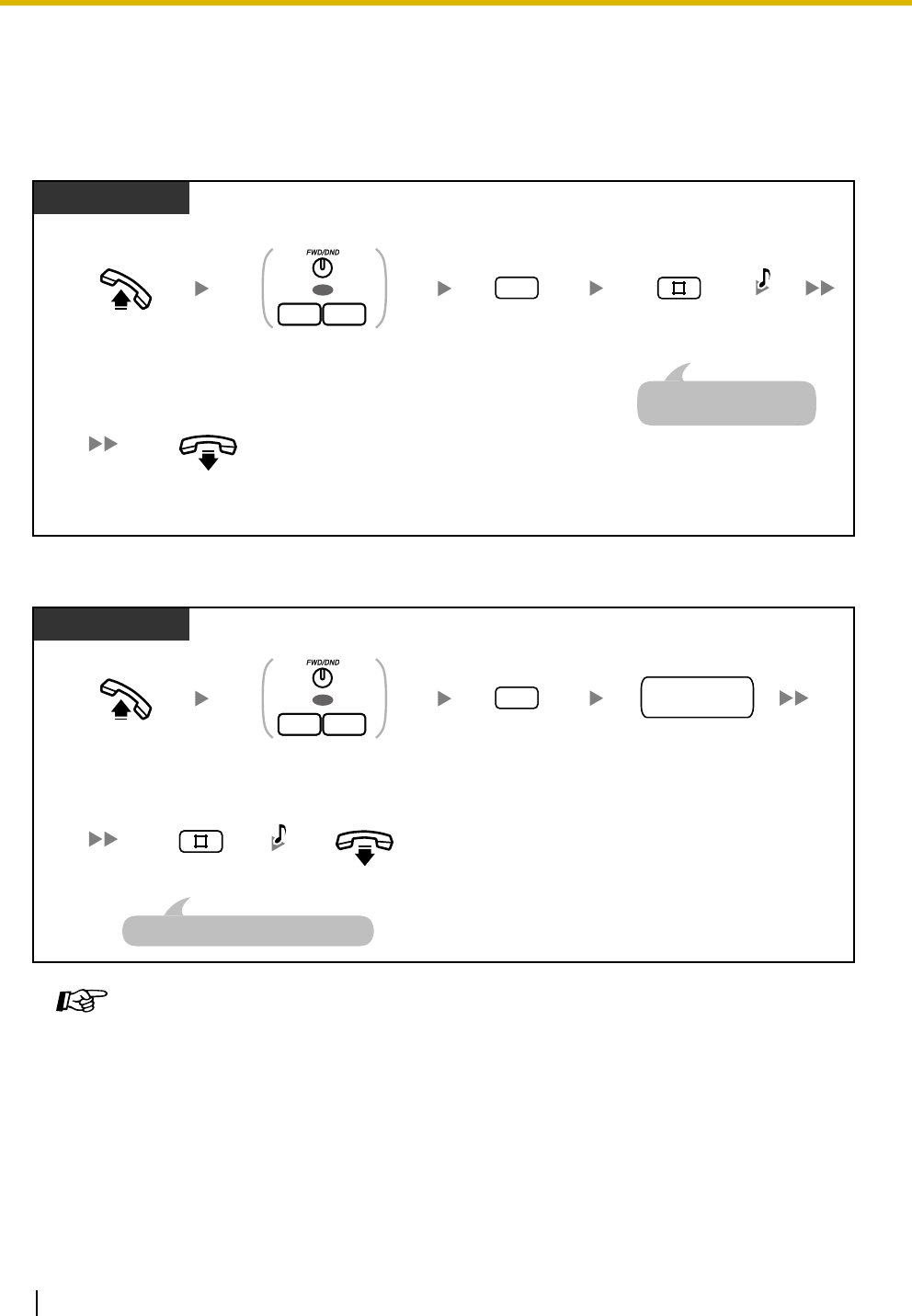
1.3 Telephone Features
46 Operating Manual
1.3.14 Call Forwarding (FWD)—CANCEL
You can cancel Call Forwarding (FWD) at your (original) extension or at another (destination) extension.
To cancel at your extension
To cancel at another extension ("FWD—Follow Me" only)
1.3.15 Call Hold
You can place a call on hold.
Feature Manual References
• 1.1.10 Call Forwarding (FWD)—SUMMARY
1
7
Off-hook. Press FWD/DND
or enter 71.
Enter 0.
On-hook.
PT/SLT
OR
C.Tone
Enter #.
0
An SLT user can enter "0"
instead of "#".
1
7
Off-hook. Press FWD/DND
or enter 71.
Enter 8.Dial your
extension number.
On-hook.
PT/SLT
OR
C.Tone
Enter #.
your
extension no.
8
An SLT user can enter "0" instead of "#".
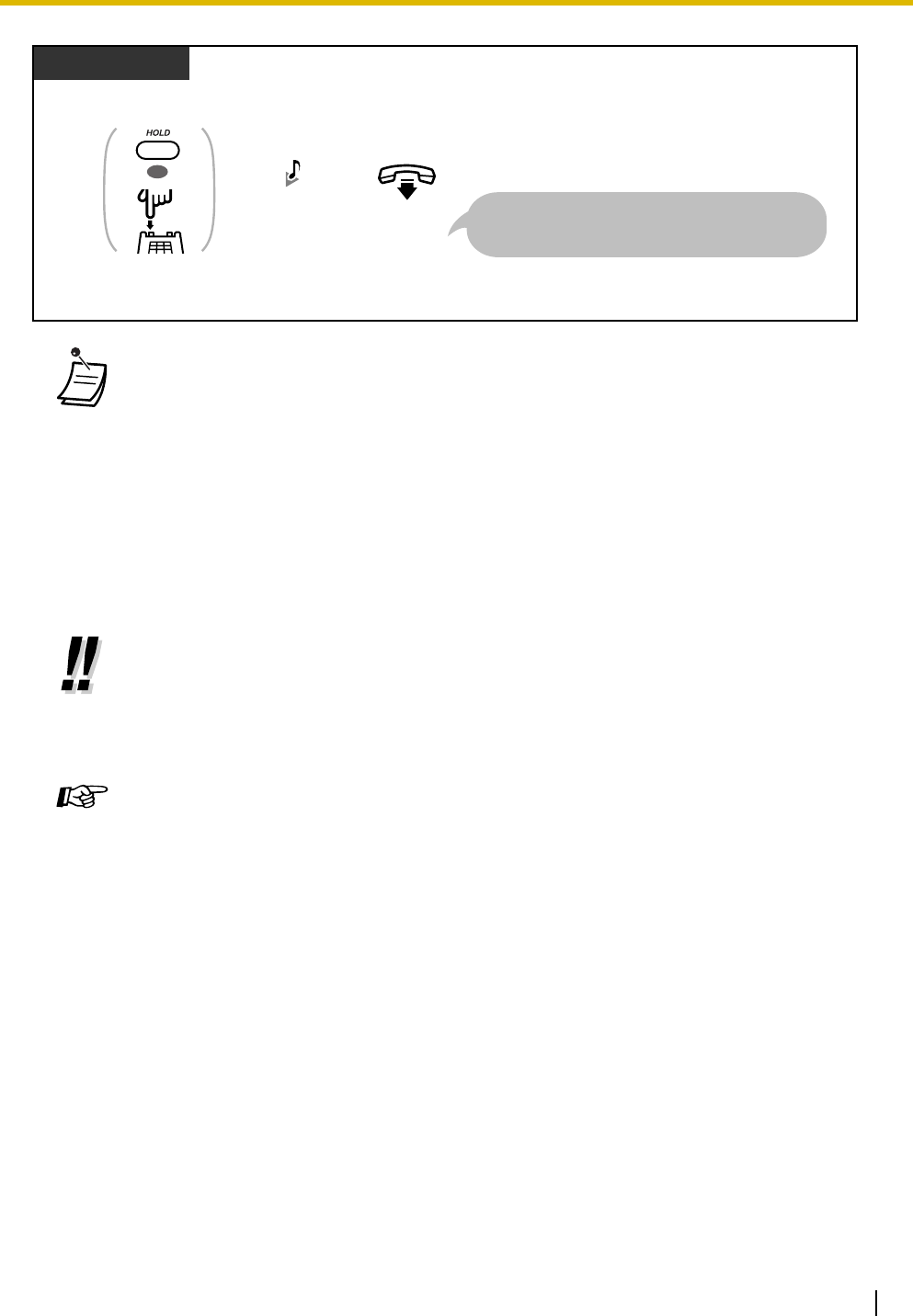
1.3 Telephone Features
Operating Manual 47
• * You may have to enter the Call Hold feature number, "20", after pressing the Recall/
hookswitch on your single line telephone (SLT), depending on the SLT Hold Mode of your
PBX. For more details, refer to "1.1.15 Call Hold" in the Feature Manual.
•Hold Mode Change (proprietary telephone [PT] only)
Pressing the HOLD button again while a call is on hold switches the status from General
Call Hold mode to Exclusive Call Hold mode, or vice versa.
• You cannot hold doorphone calls.
•If a call is not retrieved within a specified time period, you will hear a ring tone. If you
are having a conversation with another party at that time, you will hear an alarm tone. If
an outside (CO) line call is not retrieved within 30 minutes of being put on hold, it will be
automatically disconnected.
• There are 2 types of Call Hold mode. The difference between them is whether other
people can retrieve the held call (Call Hold) or not (Call Hold, Exclusive).
• An SLT user can hold either one intercom call or one outside (CO) line call at a time, while
a PT user can hold one intercom call and multiple outside (CO) line calls. To hold multiple
calls, use the Call Park feature.
Programming Manual References
[PT Programming]
• [104] SLT Hold Mode
• [111] Music on Hold
• [200] Hold Recall Time
[PC Programming]
• 9.1.2 Main [1-2]—Music on Hold
• 9.1.7 Timers [1-6]—Recall Time—Call Hold
• 9.1.11 Detail [1-10]—Single Line Telephone—Hold Mode
Feature Manual References
• 1.1.15 Call Hold
Operating Manual References
•1.3.17 Call Hold Retrieve
•1.3.20 Call Park
On-hook.
During a conversation
PT/SLT
C.Tone
Press HOLD or
Recall/hookswitch.
OR
If an SLT connected in parallel with a PT makes
another call after going on-hook, the call on hold is
transferred to the called party.
*
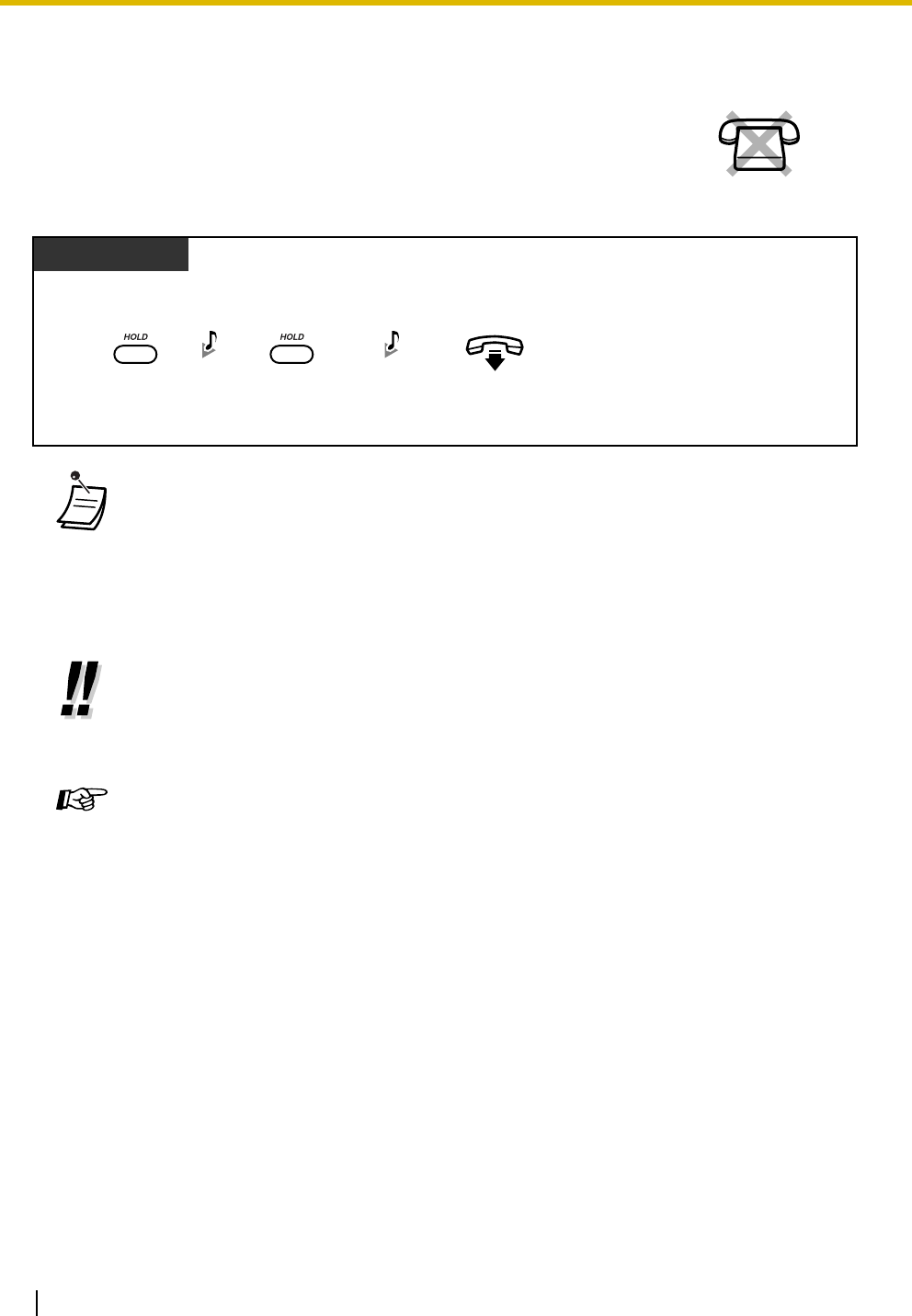
1.3 Telephone Features
48 Operating Manual
1.3.16 Call Hold, Exclusive
You can prevent other extension users from retrieving your held call. Only the
proprietary telephone (PT) user who held the call can retrieve it.
•Hold Mode Change (PT only)
Pressing the HOLD button again while a call is on hold switches the status from General
Call Hold mode to Exclusive Call Hold mode, or vice versa.
•If a call is not retrieved within a specified time period, you will hear a ring tone. If you
are having a conversation with another party at that time, you will hear an alarm tone. If
an outside (CO) line call is not retrieved within 30 minutes of being put on hold, it will be
automatically disconnected.
• There are 2 types of Call Hold mode. The difference between them is whether other
people can retrieve the held call (Call Hold) or not (Call Hold, Exclusive).
• A PT user can hold one intercom call and multiple outside (CO) line calls. To hold multiple
intercom calls, use the Call Park feature.
Programming Manual References
[PT Programming]
• [111] Music on Hold
• [200] Hold Recall Time
[PC Programming]
• 9.1.2 Main [1-2]—Music on Hold
• 9.1.7 Timers [1-6]—Recall Time—Call Hold
Feature Manual References
• 1.1.16 Call Hold, Exclusive
Operating Manual References
•1.3.17 Call Hold Retrieve
•1.3.20 Call Park
No SLT
On-hook.
During a conversation
PT
D.ToneC.Tone
Press HOLD. Press HOLD again.
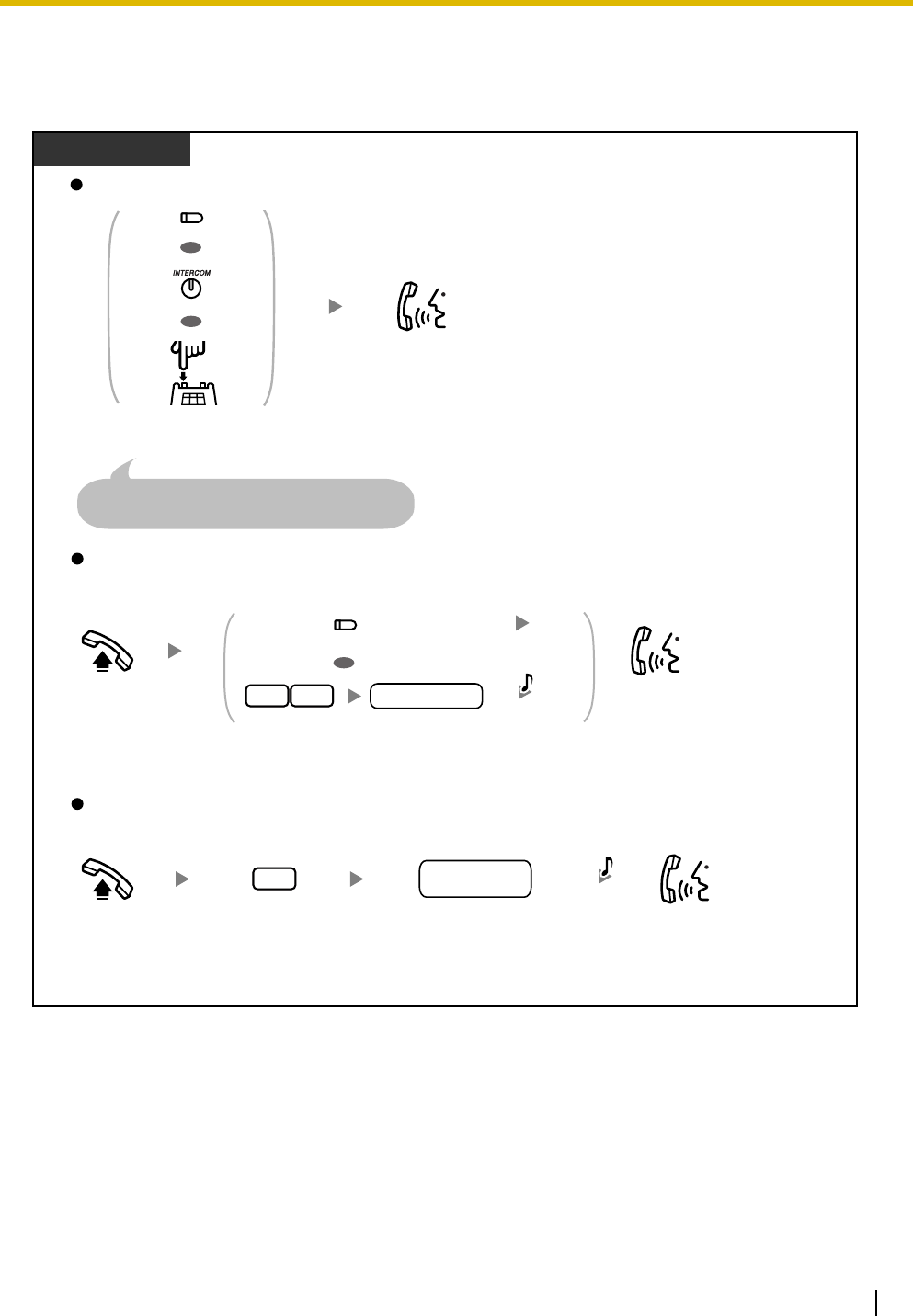
1.3 Telephone Features
Operating Manual 49
1.3.17 Call Hold Retrieve
You can retrieve a call that has been put on hold at the holding extension or by another extension.
Off-hook. Dial holding extension
number.
Off-hook.
At the holding extension
To retrieve an outside (CO) line call put on hold (General Call Hold)
by another extension
To retrieve an intercom call put on hold (General Call Hold) by another extension
PT/SLT
Talk.
Talk.
Talk.
Press CO, or enter 53 and
then dial held line number.
Enter 5.
holding
extension no.
5
Press flashing CO or INTERCOM.
Or press Recall/hookswitch.
C.Tone
held line no.
3
5
OR
OR
OR
OR
(CO)
(CO)
C.Tone
If the handset has been replaced, just go off-hook.
(SLT only, excluding an SLT in parallel with a PT)

1.3 Telephone Features
50 Operating Manual
1.3.18 Call Log, Incoming
If your PBX receives caller information from the telephone company (phone number and/or caller name),
the PBX automatically logs this information each time you do not answer an outside (CO) line call. You can
view a log of unanswered calls later to see who called and when, and use this information to call back the
callers.
There are 2 types of call log areas available in the PBX. One is the personal area, which logs calls for each
extension separately. The other is the common area, which logs calls to multiple extensions and calls via
Direct Inward System Access (DISA) Intercept Routing. Up to 20 calls can be logged in each personal area
and up to 300 calls in the common area.
When the call log in the personal area is full, new calls can either be disregarded or can overwrite the oldest
calls that have already been viewed in the personal area call log. Similarly, when the call log in the common
area is full, new calls can either be disregarded or can overwrite the oldest calls that have already been
viewed in the common area call log. For more details, refer to "2.1.8 The 301st Call Log, Incoming in the
Common Area Treatment".
Voice messages recorded by Built-in Voice Message (BV) are stored separately from caller information.
However, when a caller leaves a voice message, it is automatically linked to the caller information in the
Incoming Call Log. Up to 125 voice messages can be logged. For more details, refer to "1.3.7 Built-in Voice
Message (BV)".
You can also set caller information to be automatically logged into your personal area or the common area
even when you answer an outside (CO) line call.
Additionally, logged phone numbers can be edited so that you can call callers back without worrying about
outside (CO) line access numbers, area codes, etc.
The following information is logged:
• Caller's Phone Number & Name
• Date/Time of receiving call
• Voice Message (if stored)
• The CO or INTERCOM button light shows the current status as follows:
— General Call Hold mode
Flashing green slowly: You have a call on hold.
Flashing red slowly: Another extension has a call on hold.
— Exclusive Call Hold mode
Flashing green at moderate speed: You have a call on hold.
Red on: Another extension has a call on hold.
• Call Park and Call Hold, Exclusive cannot be retrieved by this feature.
• You hear a confirmation tone when the call on hold is retrieved by entering the Call Hold
Retrieve feature number.
Feature Manual References
• 1.1.17 Call Hold Retrieve
Operating Manual References
•1.3.15 Call Hold
•1.3.16 Call Hold, Exclusive
•1.3.20 Call Park
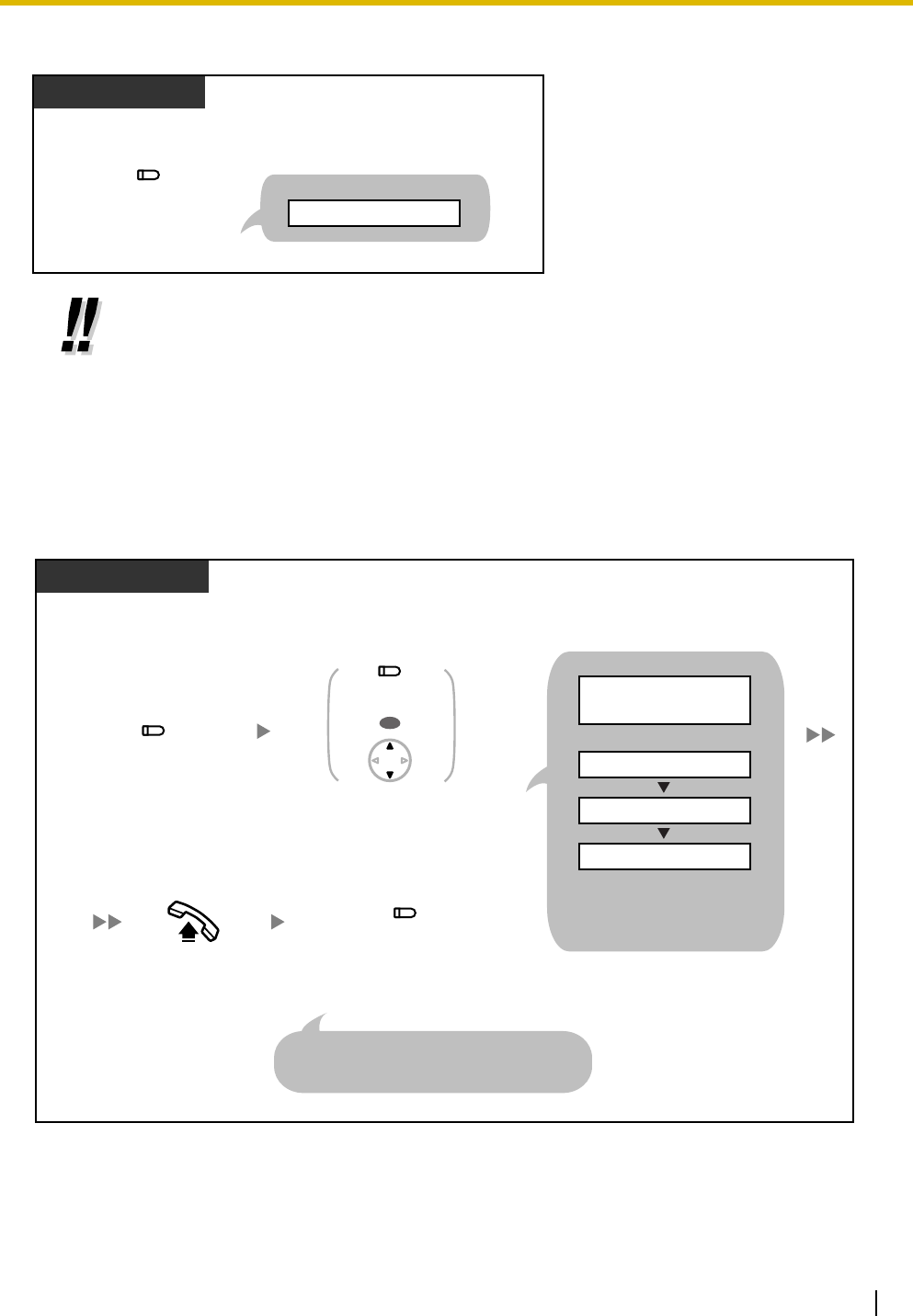
1.3 Telephone Features
Operating Manual 51
To check the number of logged calls
To view caller information and call back a caller
•New: Call records that have not previously been viewed
Old: Call records that have previously been viewed
Both new and old call records are stored in each personal and common area.
• Since the status of call records is always shown on the bottom of a proprietary telephone
(PT) with a 3-line display such as the KX-T7736, pressing the Caller ID Selection—
Personal/Common button while on-hook is not necessary. If both a Caller ID Selection—
Personal button and a Caller ID Selection—Common button are assigned to a PT, the
status of call records of the Caller ID Selection—Common button are shown on the display
while on-hook.
Display PT
Press Caller ID Selection
—Personal/Common.
While on-hook
(Caller ID Selection
—Personal/Common)
<Display Example>
New:002 Old:003
Press Caller ID Indication
—Personal/Common.
Display PT
(Caller ID Indication
—Personal/Common)
When the Caller ID Indication—Personal/Common button is lit
Off-hook. Press Caller ID Indication
—Personal/Common.
(Caller ID Indication
—Personal/Common)
Press Caller ID Indication
—Personal/Common or
the Up or Down Navigator Key
until the caller information is
displayed.
(Caller ID Indication
—Personal/Common)
0 0 2: 0011223344
May15
JOHN WHITE
10:23AM
<Display Example: KX-T7736>
<Display Example: KX-T7731>
002:JOHN WHITE
002: 0011223344
002: May15 10:23A
OR
Press # or Caller ID Selection
—Personal/Common to see
other information on a PT with
a one-line display.
A PT user may press a CO button or dial an
outside (CO) line access number first to seize a
specified outside (CO) line.
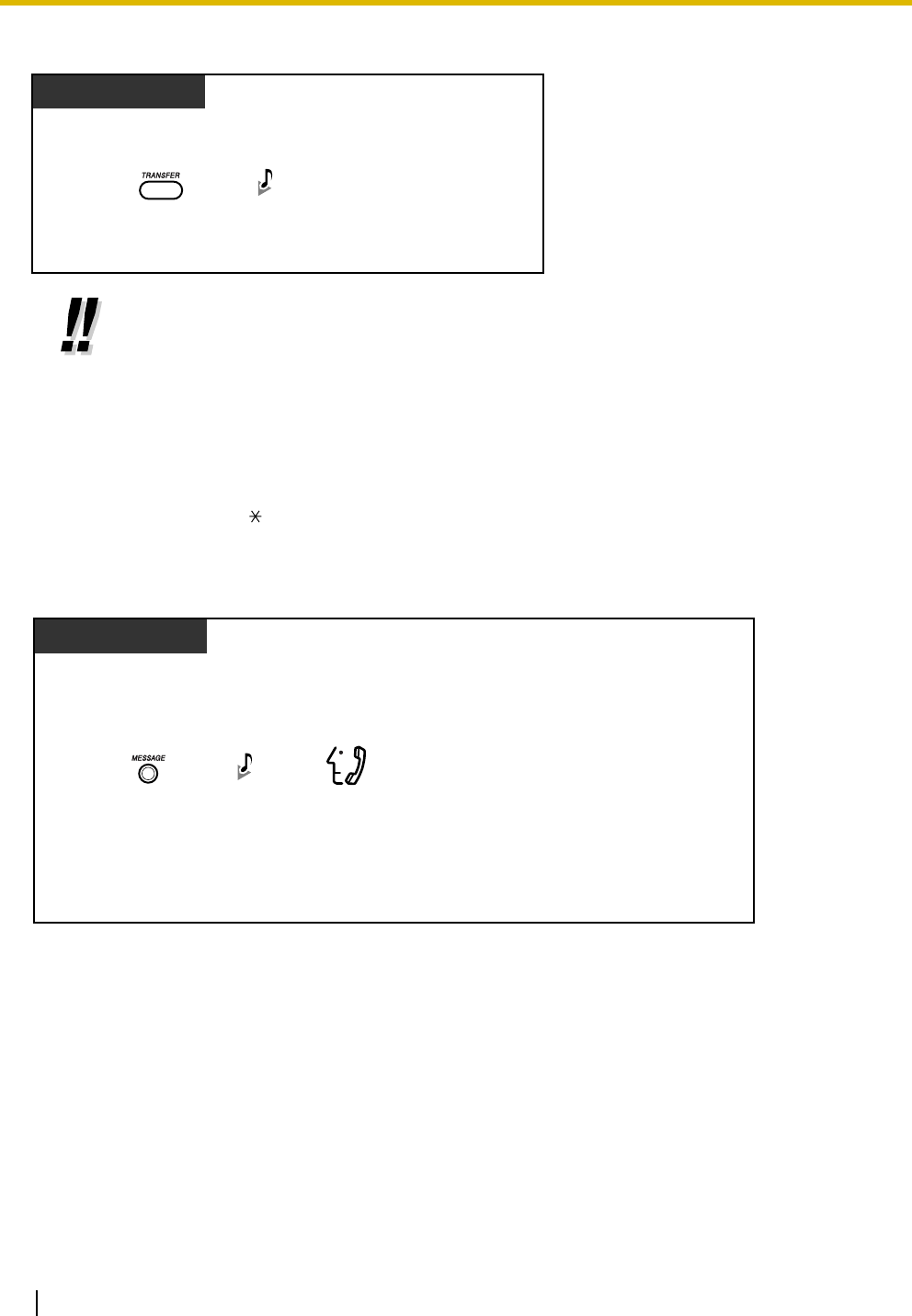
1.3 Telephone Features
52 Operating Manual
To erase caller information
To view caller information and play back an associated voice message in a voice message
area
• If the Call Waiting Caller ID feature is enabled for one or more outside (CO) lines, the
sequence number such as "002:" will be deleted and subsequent information (Caller's
number, etc.) will be moved to the left side of the display.
• Only 12 digits (or characters) of a caller's number (or name) can be displayed even though
up to 16 digits (or characters) of information can be received. To scroll the display, press
the FWD/DND (Call Forwarding/Do Not Disturb) button.
• To return to the idle status display, go off-hook and then on-hook. The display also returns
to the idle status display automatically if no operation is performed for 20 seconds.
• To modify the logged telephone number, press the HOLD button to erase digits and then
use 0 to 9, and PAUSE to add numbers in front of the first digit.
While viewing caller information
Display PT
Press TRANSFER.
C.Tone
Display PT
Press MESSAGE.Listen to the message.
While viewing caller information with an associated voice message
(When the Message/Ringer Lamp or the MESSAGE button is lit)
C.Tone
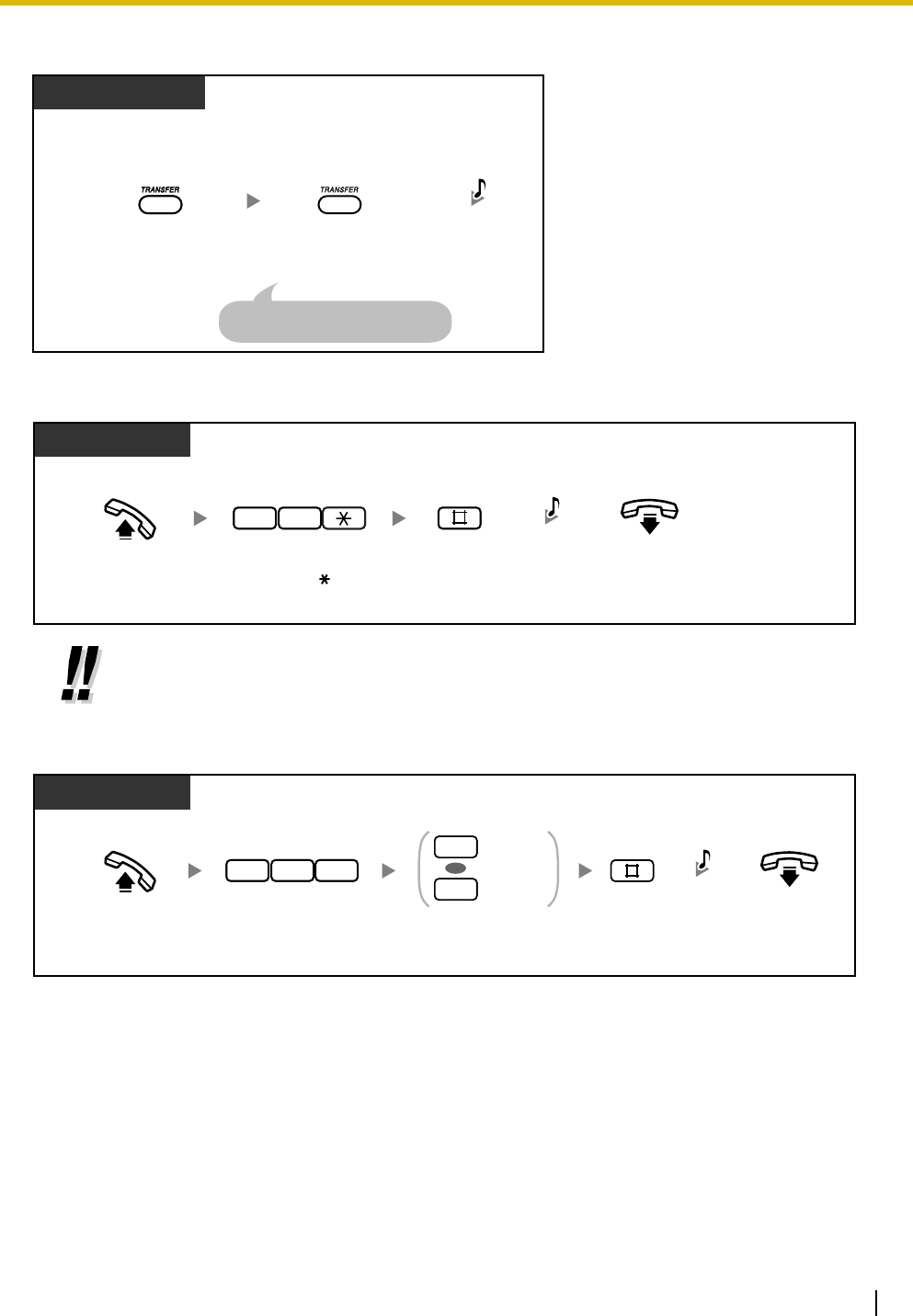
1.3 Telephone Features
Operating Manual 53
To erase caller information, including associated voice message in a voice message area
To erase all caller information in the personal area
To disregard the newest call/overwrite the oldest call in the personal area call log
• Caller information with associated voice messages is not erased by this operation.
• To erase all caller information in the common area, refer to "2.1.1 Call Log, Incoming in the
Common Area—CLEAR ALL".
While viewing caller information or
after playing back the associated voice message
Display PT
Press TRANSFER again to
confirm the deletion.
Press TRANSFER.
C.Tone
The caller information is erased.
7 0 C.Tone
Off-hook. On-hook.
PT
Enter 70 . Enter #.
Disregard
Overwrite
0
1
OR
7 3 7 C.Tone
Off-hook. On-hook.
Enter 0 to disregard
or 1 to overwrite.
Enter #.Enter 737.
PT
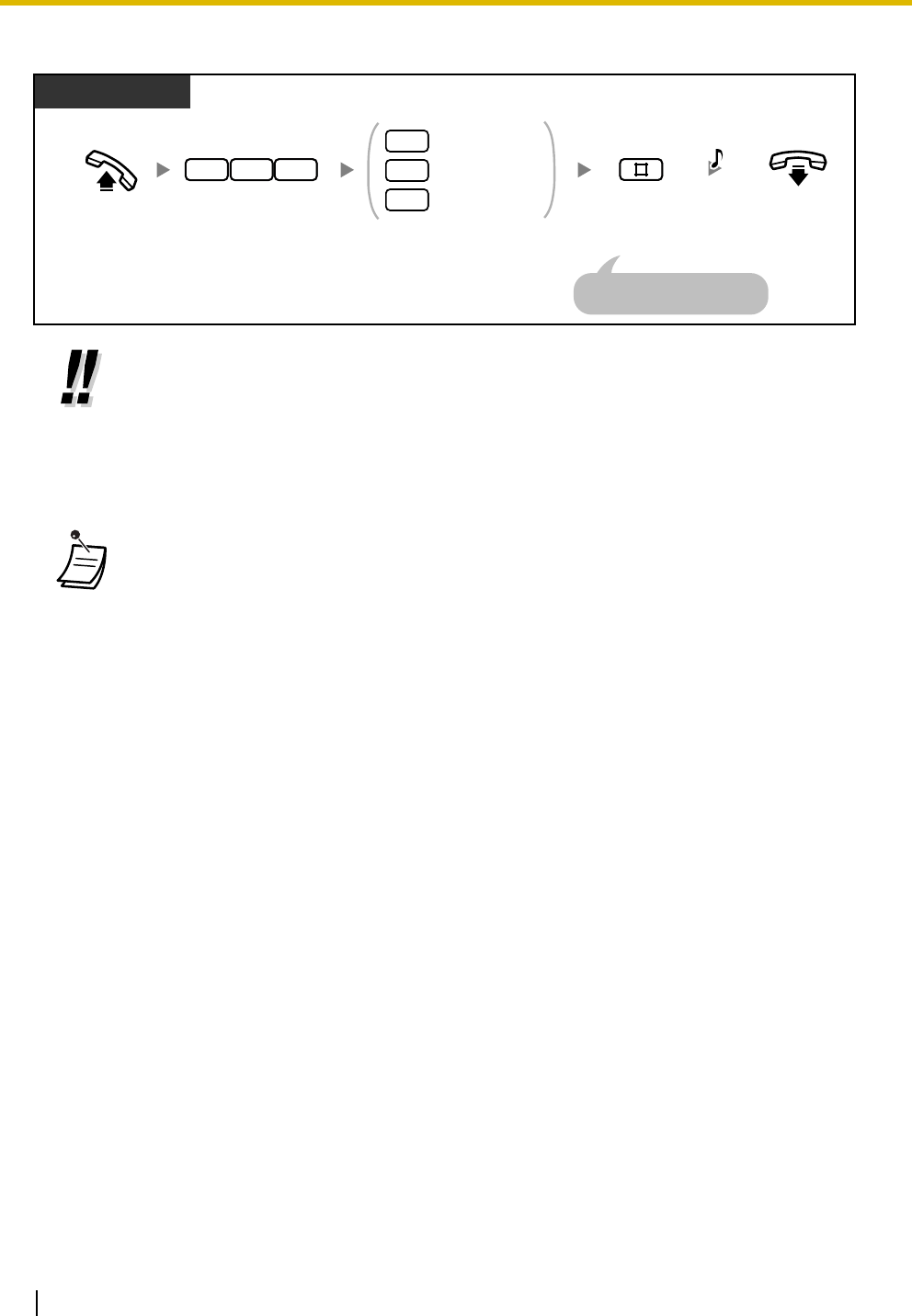
1.3 Telephone Features
54 Operating Manual
To set/cancel logging of caller information when answering a call
• If you press the Caller ID Indication—Personal/Common button during a conversation, the
caller's information is logged regardless of this setting.
• You can set logging of caller information in both the personal area and the common area
at the same time.
• New information of calls that you did not answer will be displayed first.
• Information of answered calls is logged as old (already viewed) information.
• A Caller ID Indication—Personal/Common button can be used to:
– Inform you of calls logged in your personal area or the common area,
– Store the information of an incoming call during a conversation, and
– View caller information while on-hook and call back a caller whose information is
stored in your personal area or the common area.
• A Caller ID Selection—Personal/Common button can be used to:
– Display and cycle through the information of an incoming call during a conversation,
while receiving a call, or while viewing caller information,
– Display the number of logged calls while on-hook, and
– Inform you that the personal or common area call log is full.
• If a Caller ID Indication—Common button is not assigned to any PT when calls arrive at
multiple PTs or via the DISA Intercept Routing feature, caller information will be logged in
the personal area of the PT that is connected to the lowest-numbered jack on the PBX,
and a Caller ID Indication—Personal button will light.
• Even if you answer a call, you can log the caller's information by pressing the Caller ID
Indication button during the conversation.
• You can lock your personal area call log (including caller information with associated voice
messages) so that other extensions cannot access your logged information. Refer to
"1.3.44 Extension Lock".
• Caller information is also logged for unscreened transferred calls, even if not answered. In
this case, the caller information will be logged in the final destination's personal area.
• When viewing caller information with the Caller ID Indication—Common button, an
extension user other than the operator or manager cannot play back associated voice
messages in the common message area. Voice messages in the common message area
can be played back or erased by the operator or manager only.
• If voice messages without caller information are recorded, "Voice Message" will be
shown on a display PT instead of the caller's phone number while you are viewing caller
information.
7 3 8 C.Tone
Off-hook. On-hook.
Enter 738. Enter required number. Enter #.
PT/SLT
Personal area
Common area
Cancel
0
1
2
An SLT user can enter "0"
instead of "#".

1.3 Telephone Features
Operating Manual 55
• Even if there are message waiting indications left at your extension, the Message/Ringer
Lamp or the MESSAGE button light that displays notifications from the Message Waiting
feature turns off while you are viewing caller information with the Caller ID Indication—
Personal/Common button.
• If your telephone has no MESSAGE button, you cannot play back associated voice
messages while viewing caller information.
Programming Manual References
[PT Programming]
• [900] Caller ID
• [901] Caller ID Area Code
• [902] Caller ID Modification for Local Calls
• [903] Caller ID Modification for Long-distance Calls
• [904] Caller ID Log Priority
• [906] Caller ID SMDR Format
• [907] Caller ID SMDR Printout
• [909] Common Area Call Log Check
• [913] Call Waiting Caller ID Assignment
[PC Programming]
• 9.9.1 Main [9-1]—CO Line Settings—Caller ID, CO Line Settings—Call Waiting Caller
ID, Caller ID Modification—Local Area Code (for Local Call 1–5), Caller ID
Modification—Removed Digits, Caller ID Modification—Added Number, Caller ID
SMDR Format, Caller ID SMDR Printout
• 9.9.3 Call Log [9-3]—Caller ID Log Priority, Common Area Call Log Check, 21st Call
Log in Personal Area, Call Log Answered Call
Feature Manual References
• 1.1.30 Caller ID
• 1.1.18 Call Log, Incoming
• 1.1.112 Station Message Detail Recording (SMDR)
Operating Manual References
•1.3.7 Built-in Voice Message (BV)
•1.3.19 Call Log Display Lock, Incoming in the Personal Area
•1.3.44 Extension Lock
•2.1.1 Call Log, Incoming in the Common Area—CLEAR ALL
•2.1.2 Call Log Display Lock, Incoming in the Common Area
•2.1.8 The 301st Call Log, Incoming in the Common Area Treatment
•3.1.3 Flexible Button Assignment
Create or edit a Caller ID Indication—Personal button, Caller ID Indication—Common
button, Caller ID Selection—Personal button, Caller ID Selection—Common button,
or Message button.
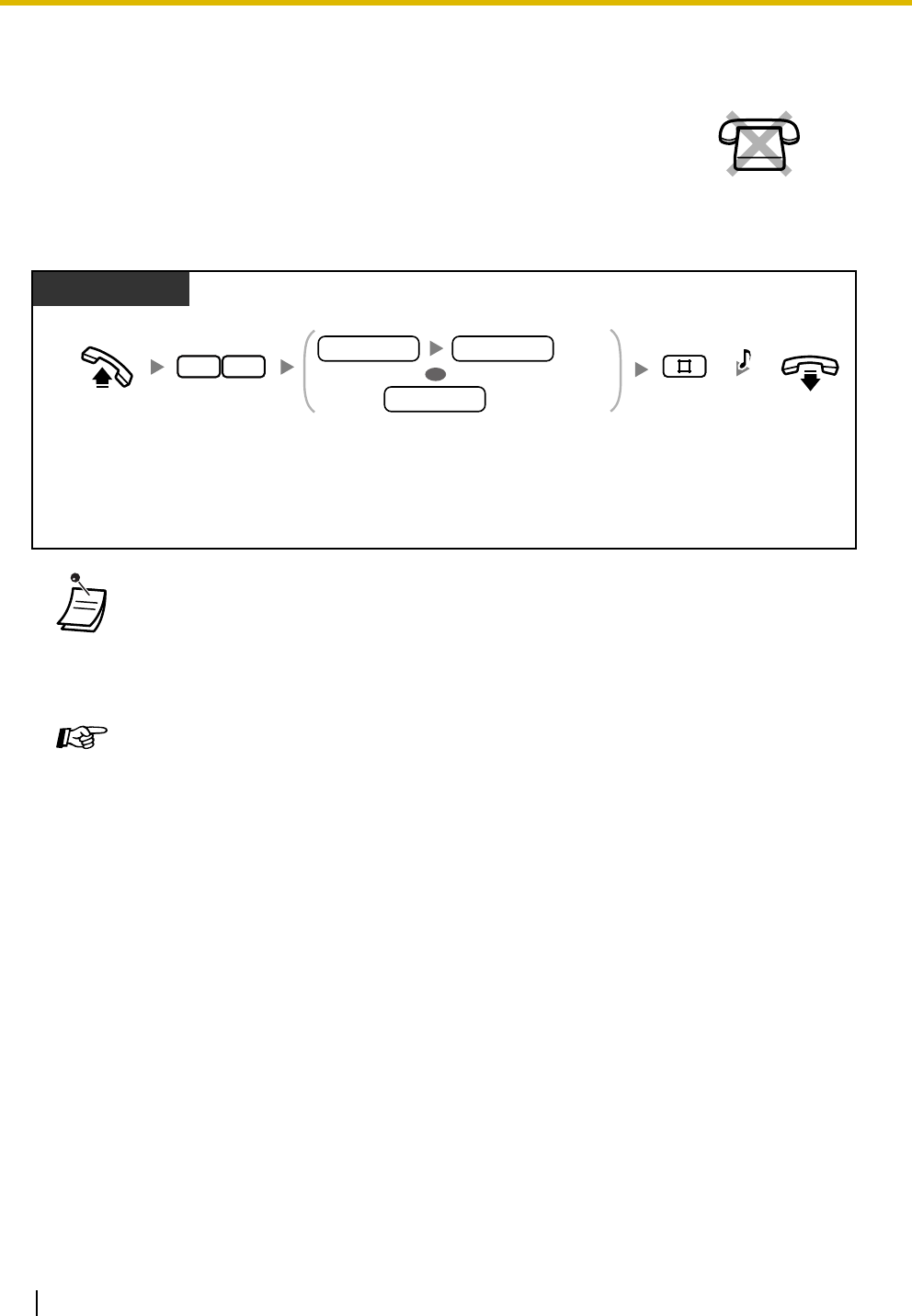
1.3 Telephone Features
56 Operating Manual
1.3.19 Call Log Display Lock, Incoming in the Personal Area
To lock/unlock
1.3.20 Call Park
You can put a call on hold in a common parking zone of the PBX so that any extension can retrieve the
parked call. Up to 10 calls can be parked in the PBX.
You can lock your proprietary telephone (PT) so that Incoming Call Log
information is not shown on the display when you press the Caller ID
Indication—Personal button. This can be useful to prevent other people from
viewing caller information logged in your personal area.
•If you forget the code or cannot unlock your phone, ask your operator or manager.
He or she can unlock your extension (Remote Extension Lock).
• The operator or manager can cancel this feature for all extensions (Extension Lock—
CANCEL ALL).
• This feature also functions as Extension Lock.
Feature Manual References
• 1.1.18 Call Log, Incoming
Operating Manual References
•1.3.18 Call Log, Incoming
•1.3.44 Extension Lock
•2.1.2 Call Log Display Lock, Incoming in the Common Area
•2.1.6 Remote Extension Lock
•2.1.7 System Feature Assignment—Extension Lock—CANCEL ALL
No SLT
Off-hook. On-hook.
PT
Enter 77. Enter lock code (4 digits) 2 times
to lock or one time to unlock.
Enter #.
77
C.Tone
Lock
Unlock
lock code lock code
lock code
OR
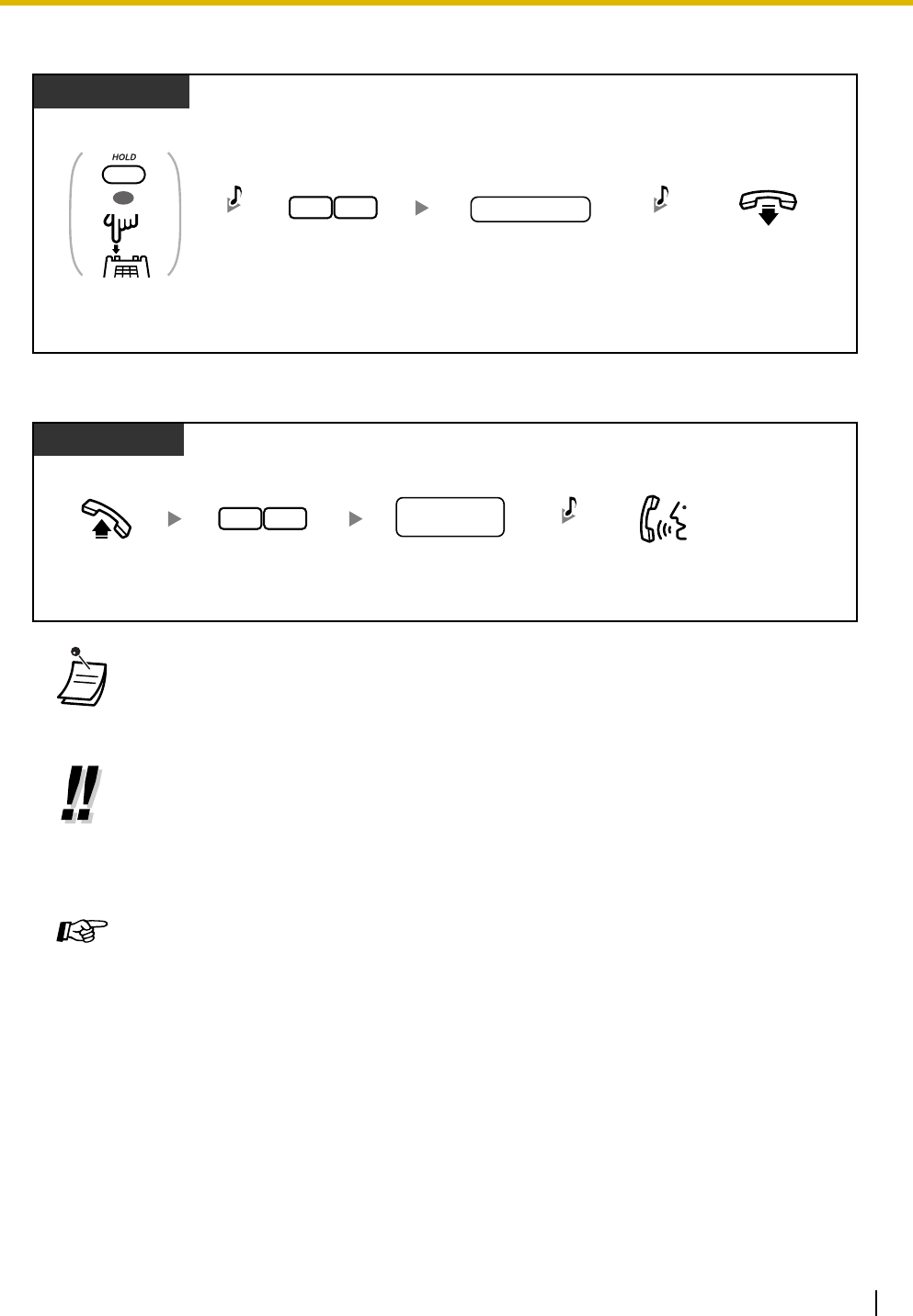
1.3 Telephone Features
Operating Manual 57
To park a call
To retrieve (Call Park Retrieve)
•If a call is not retrieved within a specified time period, you will hear a ring tone. If you
are having a conversation with another party at that time, you will hear an alarm tone. If
an outside (CO) line call is not retrieved within 30 minutes of being put on hold, it will be
automatically disconnected.
•If you hear a busy tone when parking a call, the parking zone is unavailable. Dial
another parking zone number directly.
•If you hear a reorder tone when retrieving a parked call, there is no held call in that
location. Confirm the stored parking zone number.
• After you park a call, you can perform other operations.
Programming Manual References
[PT Programming]
• [200] Hold Recall Time
[PC Programming]
• 9.1.7 Timers [1-6]—Recall Time—Call Hold
Feature Manual References
• 1.1.19 Call Park
Operating Manual References
•1.3.15 Call Hold
•1.3.16 Call Hold, Exclusive
Dial parking
zone number (0–9).
During a conversation
PT/SLT
On-hook.
Enter 22.
parking zone no.
22
C.ToneC.Tone &
D.Tone
Press HOLD or
Recall/hookswitch.
OR
Off-hook. Enter 52. Dial stored parking
zone number (0–9).
stored parking
zone no.
PT/SLT
Talk.
25 C.Tone
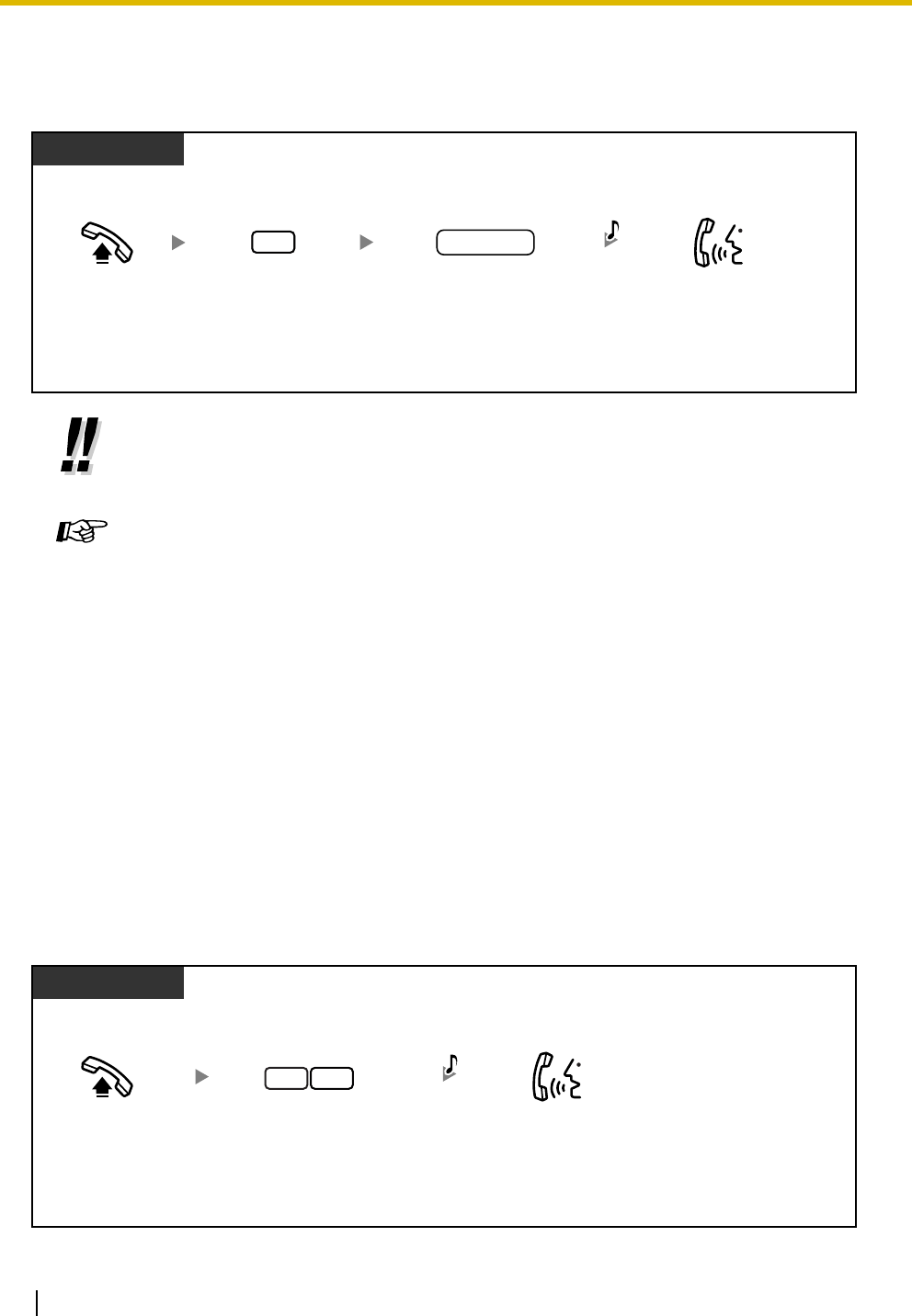
1.3 Telephone Features
58 Operating Manual
1.3.21 Call Pickup, Directed
Without leaving your desk, you can answer an incoming call that is ringing at another extension.
1.3.22 Call Pickup, Group
Without leaving your desk, you can answer an incoming call that is ringing at another extension within your
extension group.
•If you hear a reorder tone when trying to pick up calls with this feature, the ringing
extension has set the Call Pickup Deny feature.
Programming Manual References
[PT Programming]
• [117] Call Pickup Tone
[PC Programming]
• 9.1.11 Detail [1-10]—Extension—Call Pickup Tone
Feature Manual References
• 1.1.20 Call Pickup, Directed
Operating Manual References
•1.3.23 Call Pickup Deny
PT/SLT
Off-hook. Enter 4. Talk.
4
extension no.
C.Tone
(Optional)
Dial extension number.
PT/SLT
Off-hook. Enter 40.Talk.
4 0 C.Tone
(Optional)
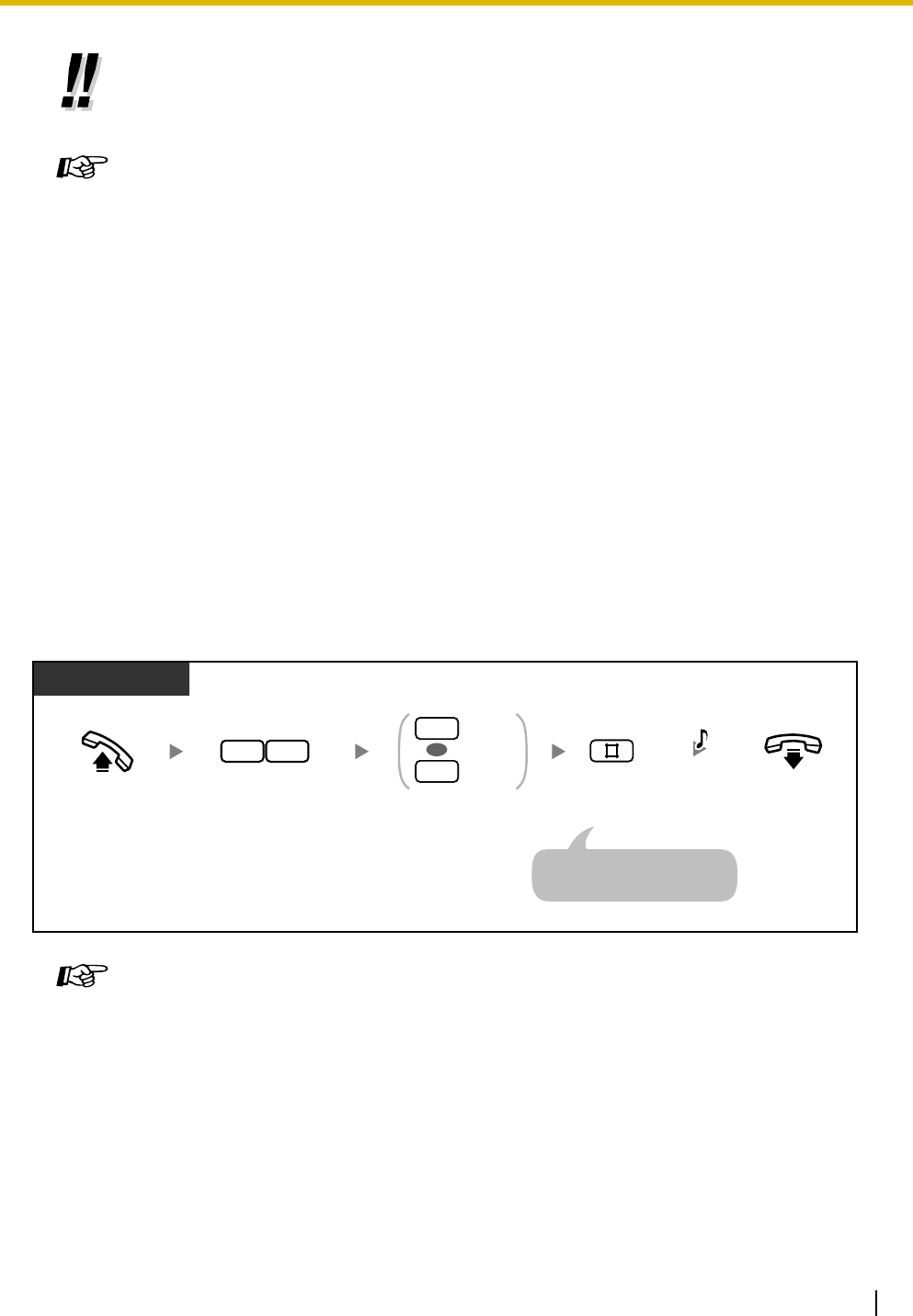
1.3 Telephone Features
Operating Manual 59
1.3.23 Call Pickup Deny
You can prevent other extension users from picking up your calls.
•If you hear a reorder tone when trying to pick up calls with this feature, the ringing
extension has set the Call Pickup Deny feature.
Programming Manual References
[PT Programming]
• [117] Call Pickup Tone
• [600] Extension Group
[PC Programming]
• 9.1.11 Detail [1-10]—Extension—Call Pickup Tone
• 9.2.11 Extension Group [2-6]—Group No.
Feature Manual References
• 1.1.21 Call Pickup, Group
• 1.1.53 Extension Group
Operating Manual References
•1.3.23 Call Pickup Deny
Programming Manual References
[PC Programming]
• 9.2.2 Feature settings [2-2]—Call Pickup Deny
Feature Manual References
• 1.1.22 Call Pickup Deny
Operating Manual References
•1.3.21 Call Pickup, Directed
•1.3.22 Call Pickup, Group
Off-hook. On-hook.
Enter 1 to prevent
or 0 to allow.
Enter #.
PT/SLT
Prevent
Allow
1
0
OR
Enter 72.
27 C.Tone
An SLT user can enter "0"
instead of "#".
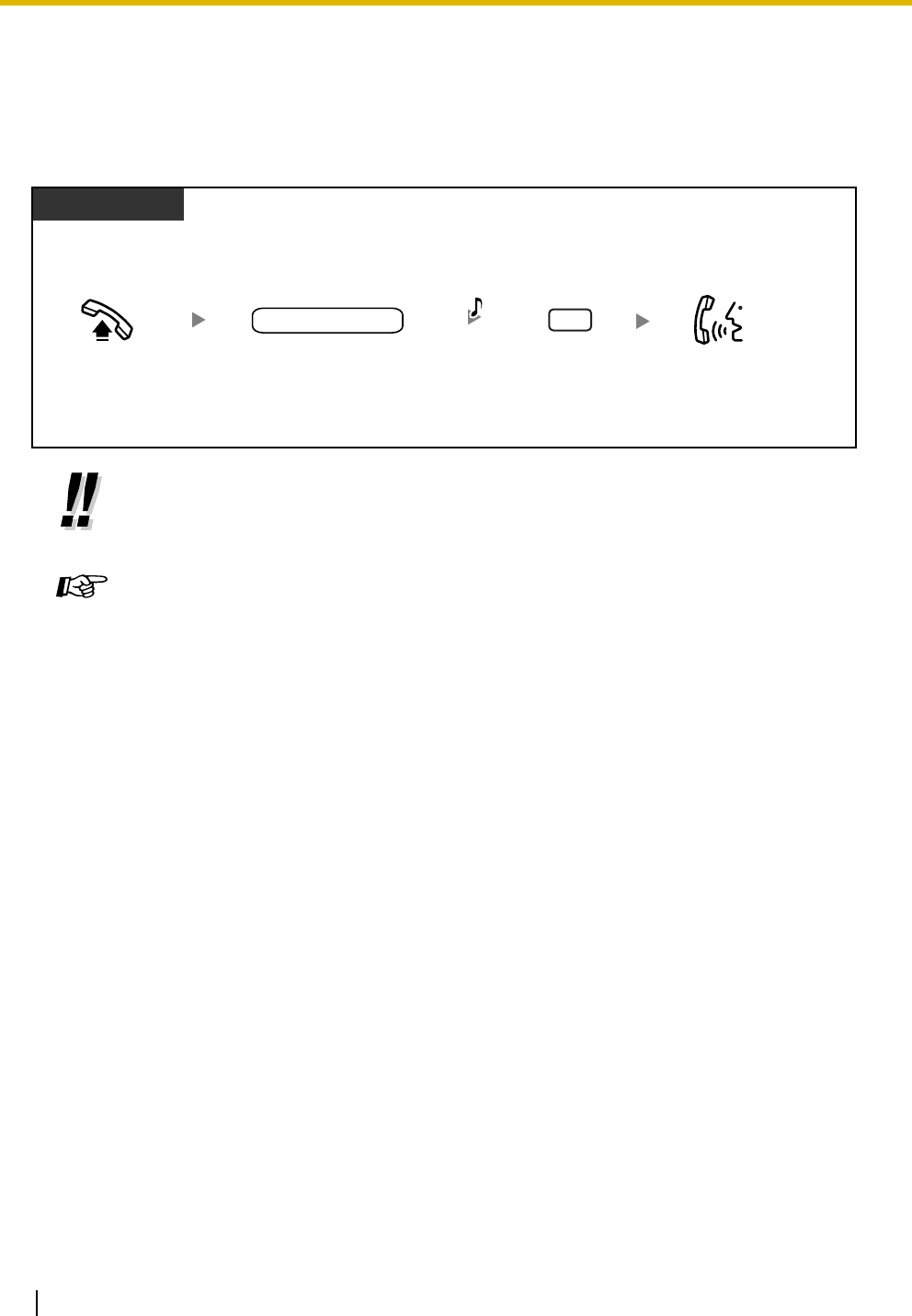
1.3 Telephone Features
60 Operating Manual
1.3.24 Call Retrieving from a TAM (Telephone Answering
Machine)
Without leaving your desk, you can answer an incoming call that was received by a preprogrammed
Telephone Answering Machine (TAM) extension from your phone.
1.3.25 Call Splitting
When talking to one party with another party on hold, you can switch between the 2 parties.
•If you hear a reorder tone when trying to retrieve a call from a TAM, the dialed
extension is not the TAM extension, or the TAM cannot answer the call because it is
performing another operation.
Programming Manual References
[PT Programming]
• [611] TAM Extension
[PC Programming]
• 9.2.1 Main [2-1]—TAM Connection
Feature Manual References
• 1.1.23 Call Retrieving from a TAM (Telephone Answering Machine)
PT/SLT
Off-hook. Dial TAM extension
number.
Enter 4.Talk.
TAM extension no.
B.Tone
While the TAM is answering a call
4
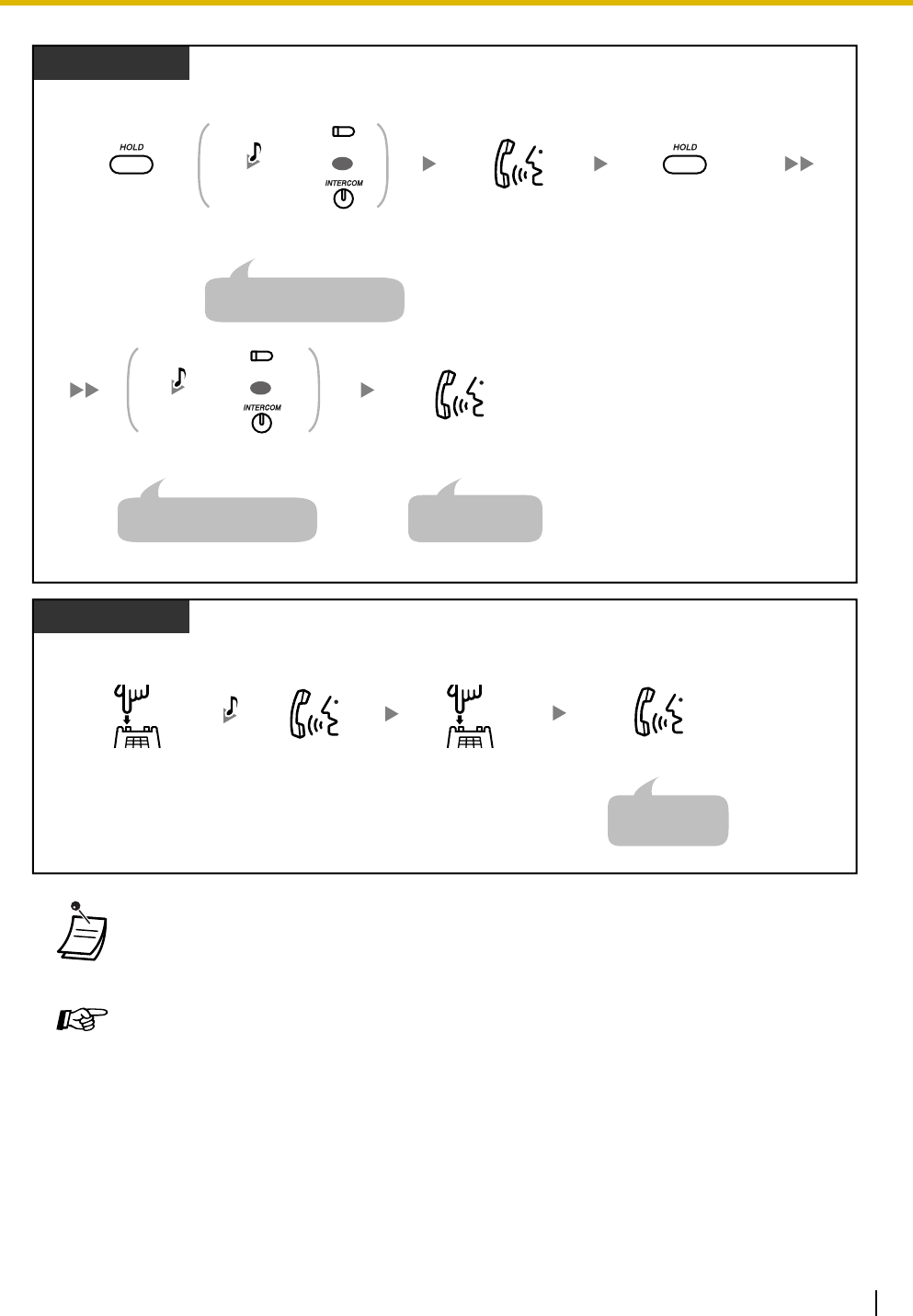
1.3 Telephone Features
Operating Manual 61
• This feature is not available for calls from doorphones or paging announcements.
Feature Manual References
• 1.1.24 Call Splitting
Operating Manual References
•1.3.15 Call Hold
•1.3.16 Call Hold, Exclusive
PT
During a conversation
Press CO or
INTERCOM.
Press HOLD.
OR
Press HOLD.
(CO)
C.Tone
Talk to the
other party.
C.Tone
Press CO or
INTERCOM.
OR
(CO)
Talk to the
original party.
Disregard this step if both
parties are extensions.
Disregard this step if both
parties are extensions.
The other party
will be on hold.
SLT
During a conversation
Press Recall/
hookswitch.
OR
Talk to the
other party.
Press Recall/
hookswitch.
Talk to the original party.
C.Tone &
D.Tone
The other party
will be on hold.
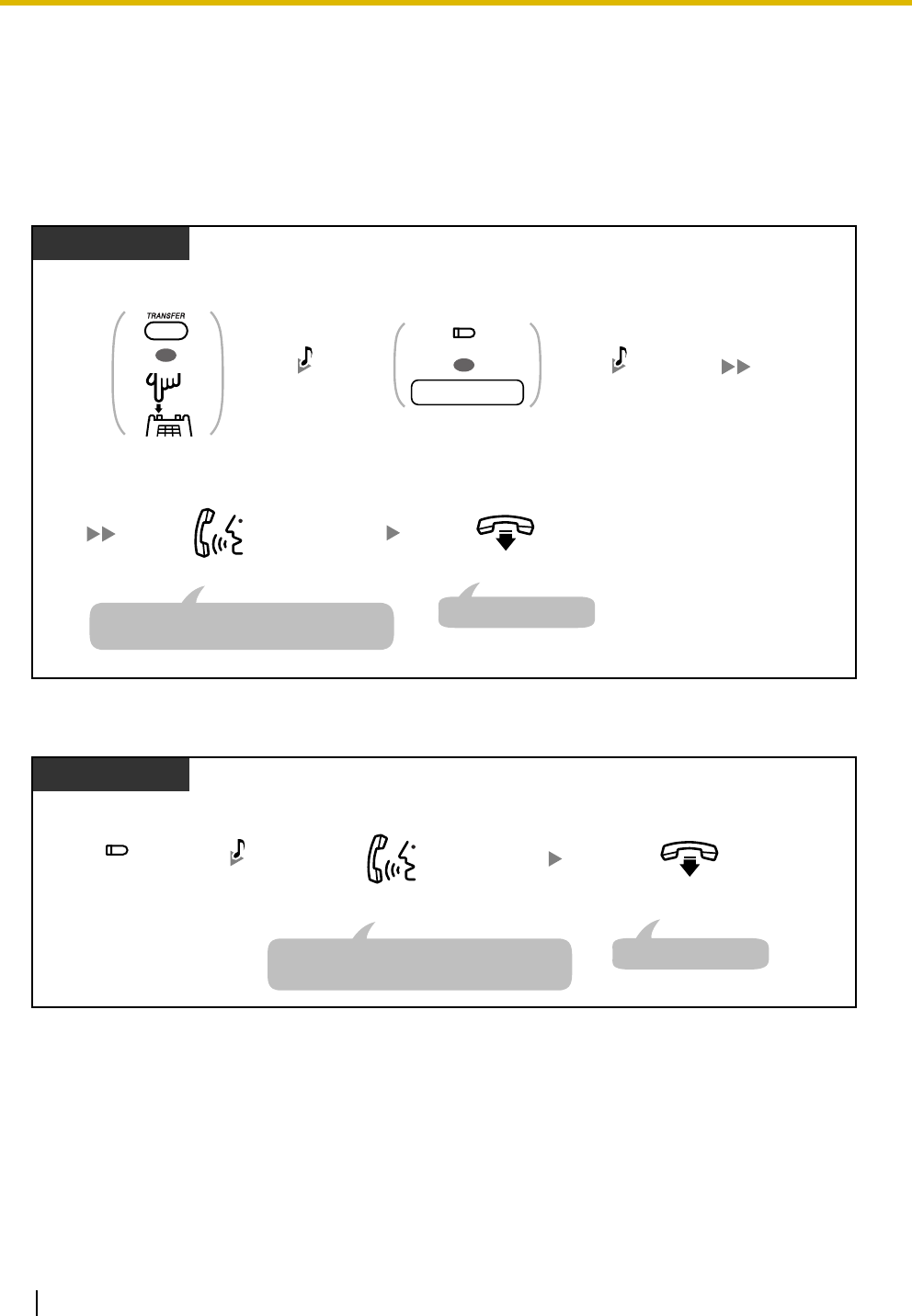
1.3 Telephone Features
62 Operating Manual
1.3.26 Call Transfer—To Extension
You can transfer incoming calls to another extension. Depending on the setting of your PBX, proprietary
telephone (PT) users may also be able to transfer incoming outside (CO) line calls to another extension
simply by pressing the corresponding Direct Station Selection (DSS) button (One-touch Transfer).
To transfer
To transfer with a one-touch operation (One-touch Transfer)
Press DSS or dial
extension number.
On-hook.
Talk.
During a conversation
PT/SLT
Press TRANSFER
or Recall/hookswitch.
extension no.
OR
C.Tone &
D.Tone
(DSS)
OR
R.B.Tone
If you wish, you can inform the destination
extension about the call you are transferring.
The call is transferred.
*
During a conversation
PT
Press DSS.On-hook.
Talk.
(DSS)
R.B.Tone
The call is transferred.
If you wish, you can inform the destination
extension about the call you are transferring.

1.3 Telephone Features
Operating Manual 63
1.3.27 Call Transfer—To Outside (CO) Line
• * You may have to enter the Call Hold feature number, "20", after pressing the Recall/
hookswitch on your single line telephone (SLT), depending on the SLT Hold Mode of your
PBX. For more details, refer to "1.1.15 Call Hold" in the Feature Manual.
• You can go on-hook before the destination extension answers the call. If the destination
extension does not answer the call within a specified time period, you will hear an alarm
tone, and the call will return to you. If you do not answer the call within 30 minutes after it
returns to you, the call will be disconnected.
• When the dialed extension is busy, you may access the extension by entering "1" (Busy
Station Signaling [BSS]) or "2" (Executive Busy Override) and then going on-hook.
•To return to the held call before the destination answers, press the TRANSFER button
or corresponding CO/INTERCOM button, or press the Recall/hookswitch.
Programming Manual References
[PT Programming]
• [005] One-touch Transfer Using a DSS Button
• [104] SLT Hold Mode
• [111] Music on Hold
• [201] Transfer Recall Time
[PC Programming]
• 9.1.2 Main [1-2]—Music on Hold
• 9.1.7 Timers [1-6]—Recall Time—Call Transfer
• 9.1.11 Detail [1-10]—Single Line Telephone—Hold Mode, DSS—One-touch Transfer
Using a DSS Button
Feature Manual References
• 1.1.15 Call Hold
• 1.1.25 Call Transfer—To Extension
Operating Manual References
•3.1.3 Flexible Button Assignment
Create or edit a Direct Station Selection (DSS) button.
You can transfer incoming calls to outside destination when your proprietary
telephone (PT) is permitted through system programming.
No SLT
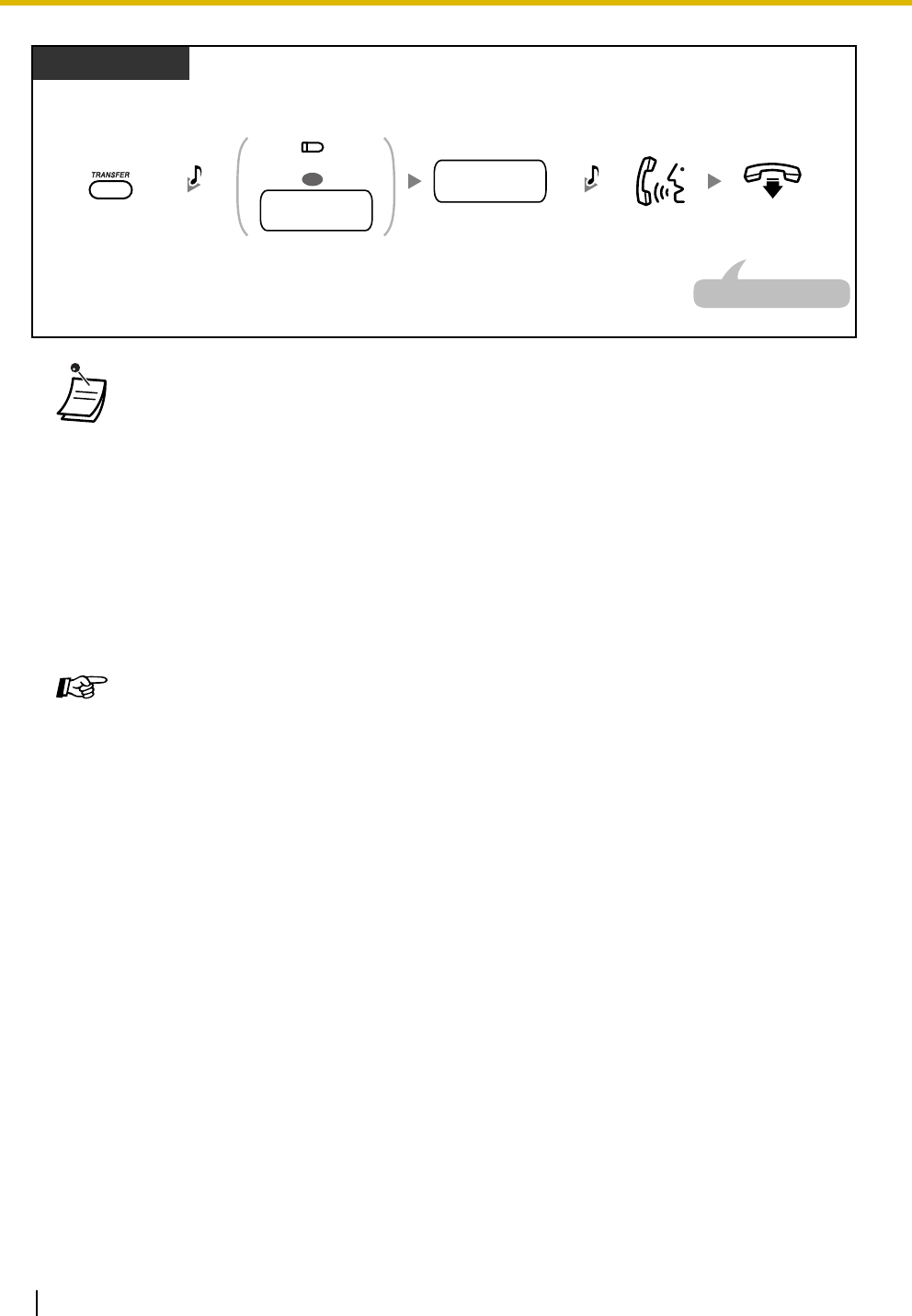
1.3 Telephone Features
64 Operating Manual
•CO-to-CO Line Call Duration
The length of outside-to-outside (CO-to-CO) line calls may be limited through system
programming.
Both the outside caller and the outside destination will hear a warning tone 15 seconds
before a specified time limit. When the timer expires, the call is disconnected.
•To return to the held call before the destination answers, press the TRANSFER button
or corresponding CO/INTERCOM button.
• After transferring the call to an outside party, you can join the call by pressing the CO
button that you used to transfer the call. A 3-party conference call is established
(Conference).
• To change the transfer destination before going on-hook, press the CO button whose
indicator is flashing slowly to retrieve the call, then repeat the Call Transfer procedure.
Programming Manual References
[PT Programming]
• [111] Music on Hold
• [205] CO-to-CO Line Call Duration
• [420] CPC Signal Detection—Incoming
• [606] Call Transfer to CO Line
[PC Programming]
• 9.1.2 Main [1-2]—Music on Hold
• 9.1.7 Timers [1-6]—Call Duration—CO-to-CO Duration Limit
• 9.2.1 Main [2-1]—Transfer to CO
• 9.3.3 Detail [3-3]—CPC Signal Detection—Incoming
Feature Manual References
• 1.1.26 Call Transfer—To Outside (CO) Line
Operating Manual References
•1.3.31 Conference
On-hook.Talk.
Press CO or dial outside
(CO) line access number.
During a conversation
PT
Press TRANSFER. Dial outside phone
number.
outside
phone no.
C.Tone &
D.Tone
R.B.Tone
OR
(CO)
outside (CO)
line access no.
The call is transferred.
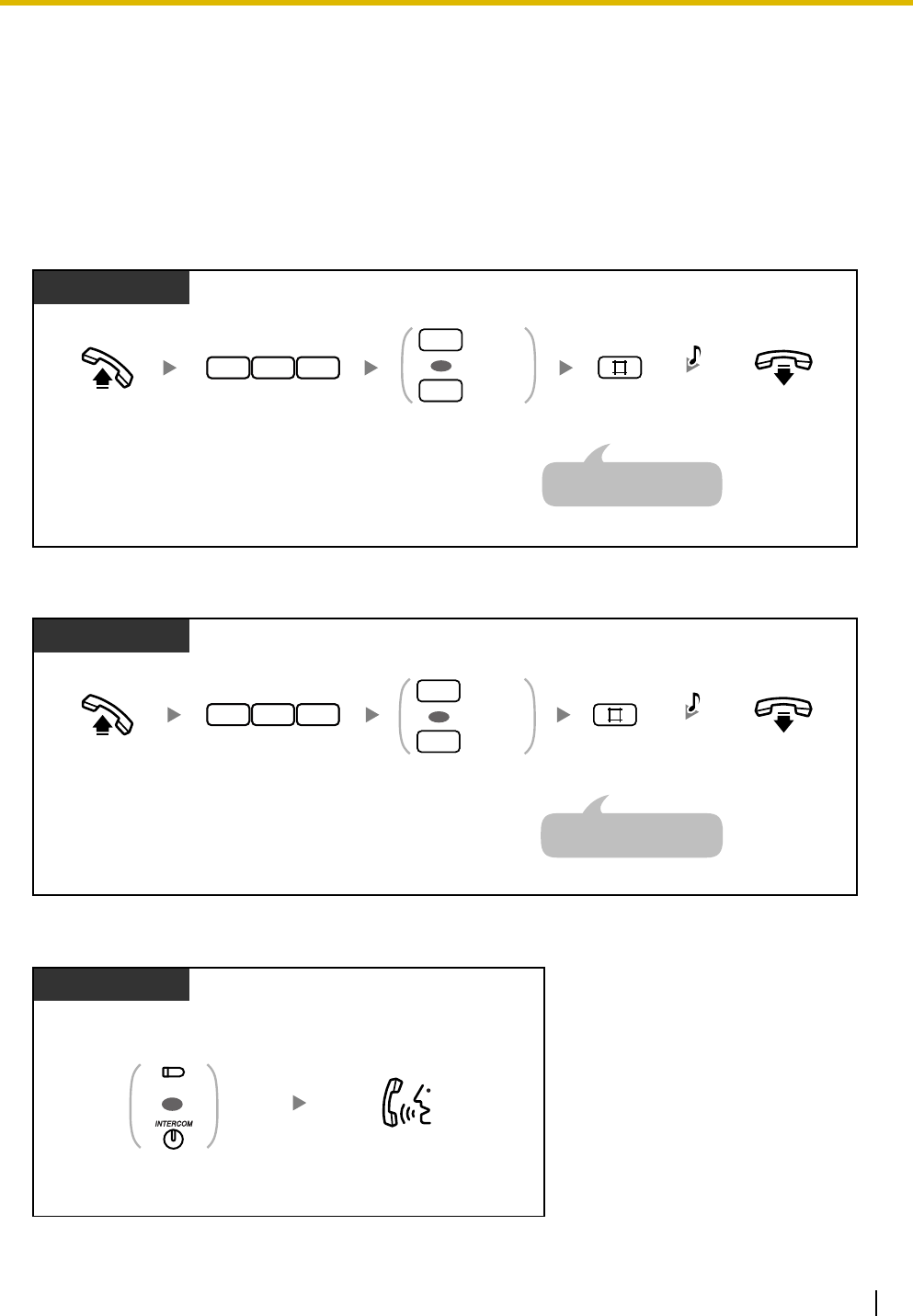
1.3 Telephone Features
Operating Manual 65
1.3.28 Call Waiting
During a conversation, you can be informed of a waiting call by a tone through the built-in speaker of your
proprietary telephone (PT) or the handset of your single line telephone (SLT) (Default: Disable). You can
answer the second call by disconnecting the current call or placing the current call on hold.
To change the call waiting tone using your PT, refer to "3.1.2 Personal Feature Assignment—Call Waiting
Tone Type Selection".
To set/cancel for outside (CO) line calls
To set/cancel for intercom/doorphone calls
To disconnect the current call and then talk to the new party
Off-hook. On-hook.
PT/SLT
Enter 731.
3 17 C.Tone
Enter 1 to set
or 0 to cancel.
Set
Cancel
1
0
OR
Enter #.
An SLT user can enter "0"
instead of "#".
Off-hook. Enter 1 to set
or 0 to cancel.
Enter #.On-hook.
Enter 732.
PT/SLT
Set
Cancel
1
0
OR
3 27 C.Tone
An SLT user can enter "0"
instead of "#".
PT
While hearing a call waiting tone
Talk to the
new party.
Press CO or
INTERCOM.
OR
(CO)
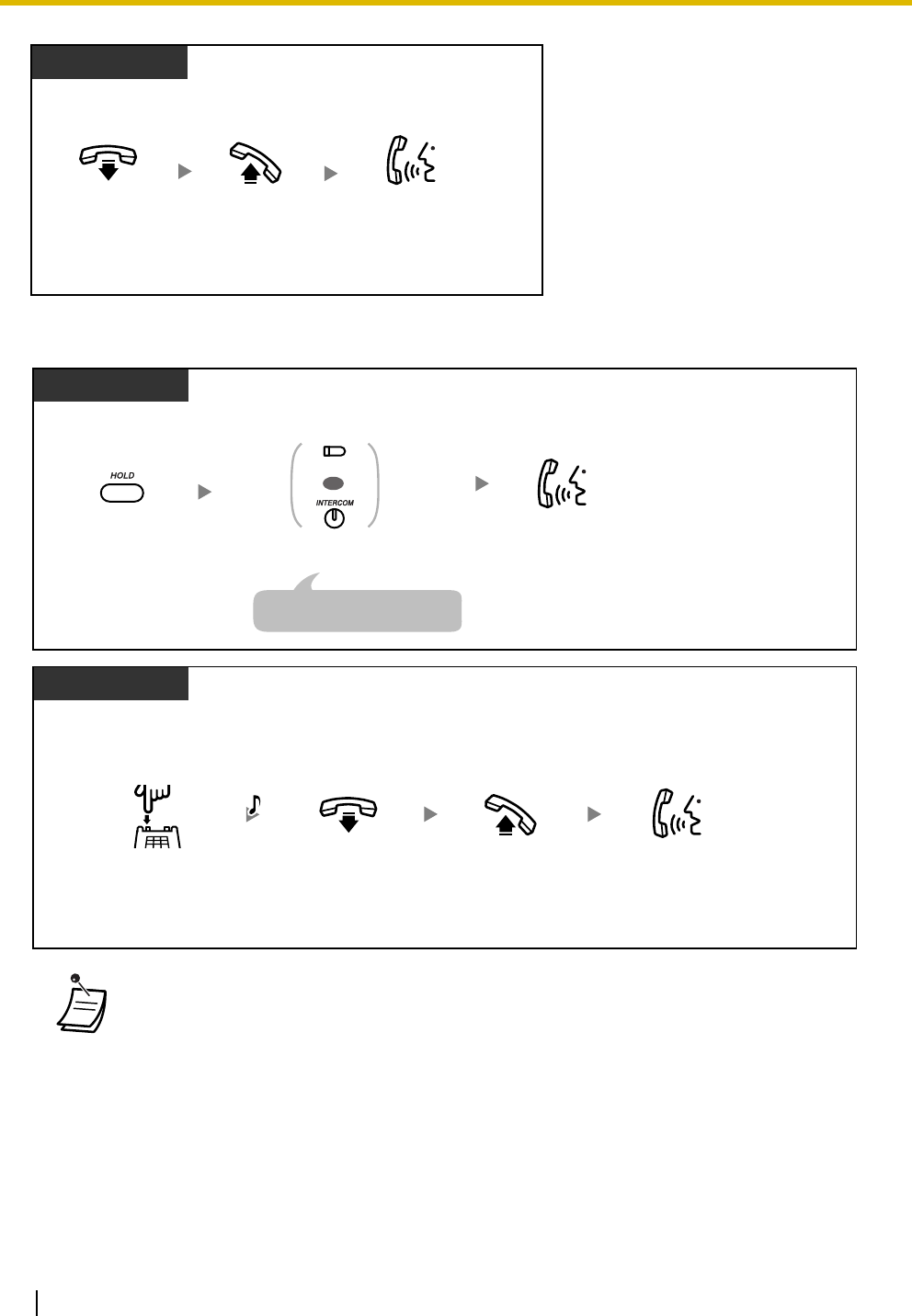
1.3 Telephone Features
66 Operating Manual
To hold the current call and then talk to the new party
• * You may have to enter the Call Hold feature number, "20", after pressing the Recall/
hookswitch on your SLT, depending on the SLT Hold Mode of your PBX. For more details,
refer to "1.1.15 Call Hold" in the Feature Manual.
• An SLT user cannot transfer a new call while holding the current call. To transfer the new
call, first park the original call using the Call Park feature, then go on-hook and off-hook.
• If a call waiting tone is heard but the corresponding CO button does not flash, this tone is
an external call waiting tone from the telephone company. In this case, refer to "1.3.30 Call
Waiting from the Telephone Company" or "1.3.45 External Feature Access (EFA)".
SLT
While hearing a call waiting tone
Off-hook.
On-hook. Talk to the
new party.
PT
Press HOLD.
While hearing a call waiting tone
Disregard this step if both
parties are extensions.
Talk to the
new party.
Press CO or
INTERCOM.
OR
(CO)
SLT
While hearing a call waiting tone
Talk to the
new party.
Press Recall/
hookswitch.
C. Tone &
D.Tone
Off-hook.
On-hook.
*
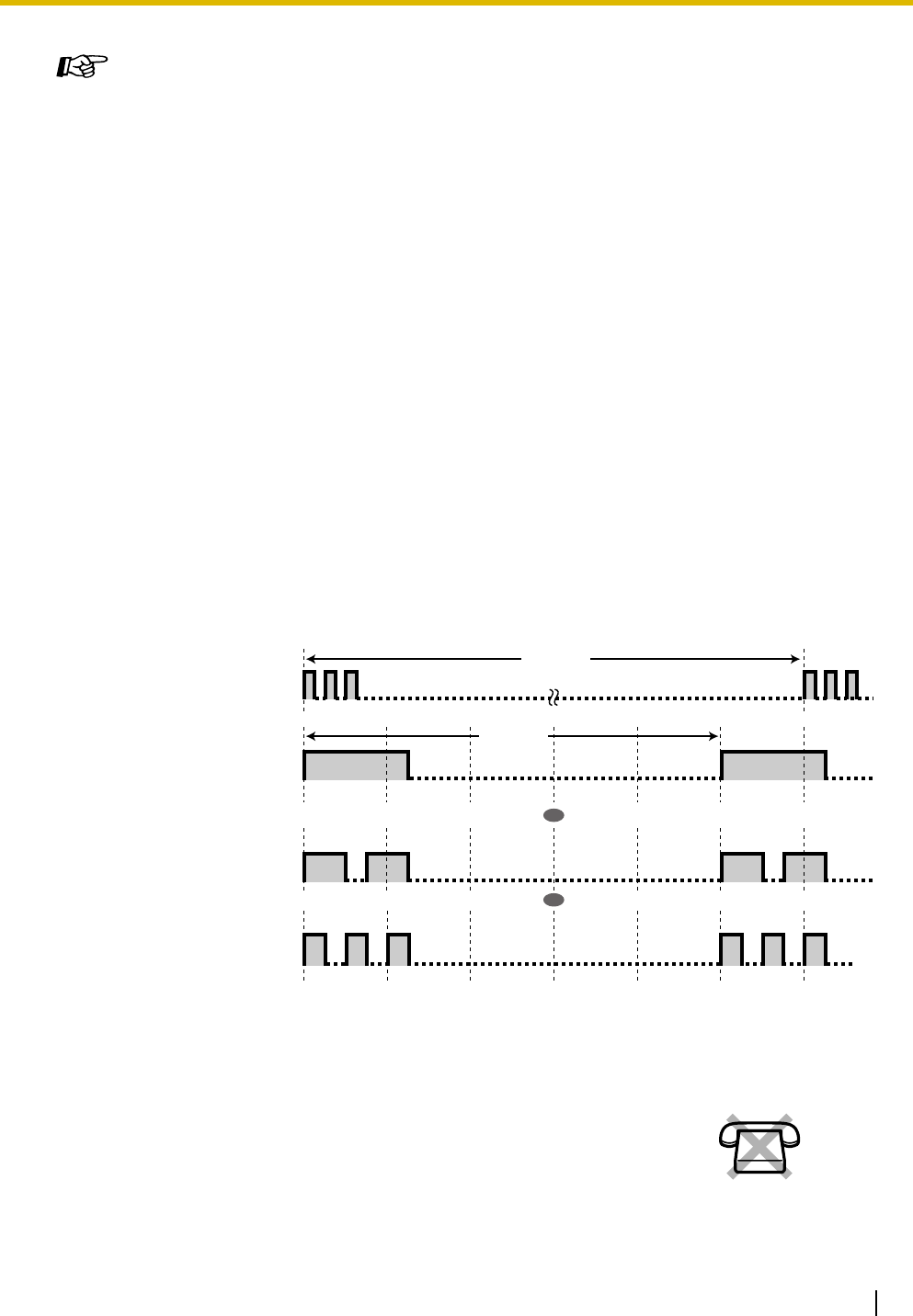
1.3 Telephone Features
Operating Manual 67
1.3.29 Call Waiting Caller ID
Programming Manual References
[PT Programming]
• [104] SLT Hold Mode
• [115] Extension Ring Tone Pattern
• [423] CO Line Ring Tone Pattern
[PC Programming]
• 9.1.11 Detail [1-10]—Extension—Ring Tone Pattern, Single Line Telephone—Hold
Mode
• 9.2.2 Feature settings [2-2]—Call Waiting—intercom calls, Call Waiting—outside calls
• 9.3.3 Detail [3-3]—Ring Tone Pattern
Feature Manual References
• 1.1.15 Call Hold
• 1.1.27 Call Waiting
Operating Manual References
•1.3.8 Busy Station Signaling (BSS)
•1.3.20 Call Park
•1.3.30 Call Waiting from the Telephone Company
•1.3.33 Data Line Security
•1.3.45 External Feature Access (EFA)
•3.1.2 Personal Feature Assignment—Call Waiting Tone Type Selection
Your telephone company may also offer an optional call waiting service, which
can inform you that you have another call on the same outside (CO) line. If Caller
ID service has been contracted for, the new caller's information, such as the
name and telephone number, will be displayed (flashing) on your proprietary
telephone (PT) for a preprogrammed length of time. You can answer the second
call by disconnecting the current call or placing the current call on hold.
Default
(Tone 1)
Special Tones
(Tone 2)
15 s
5 s
OR
OR
No SLT
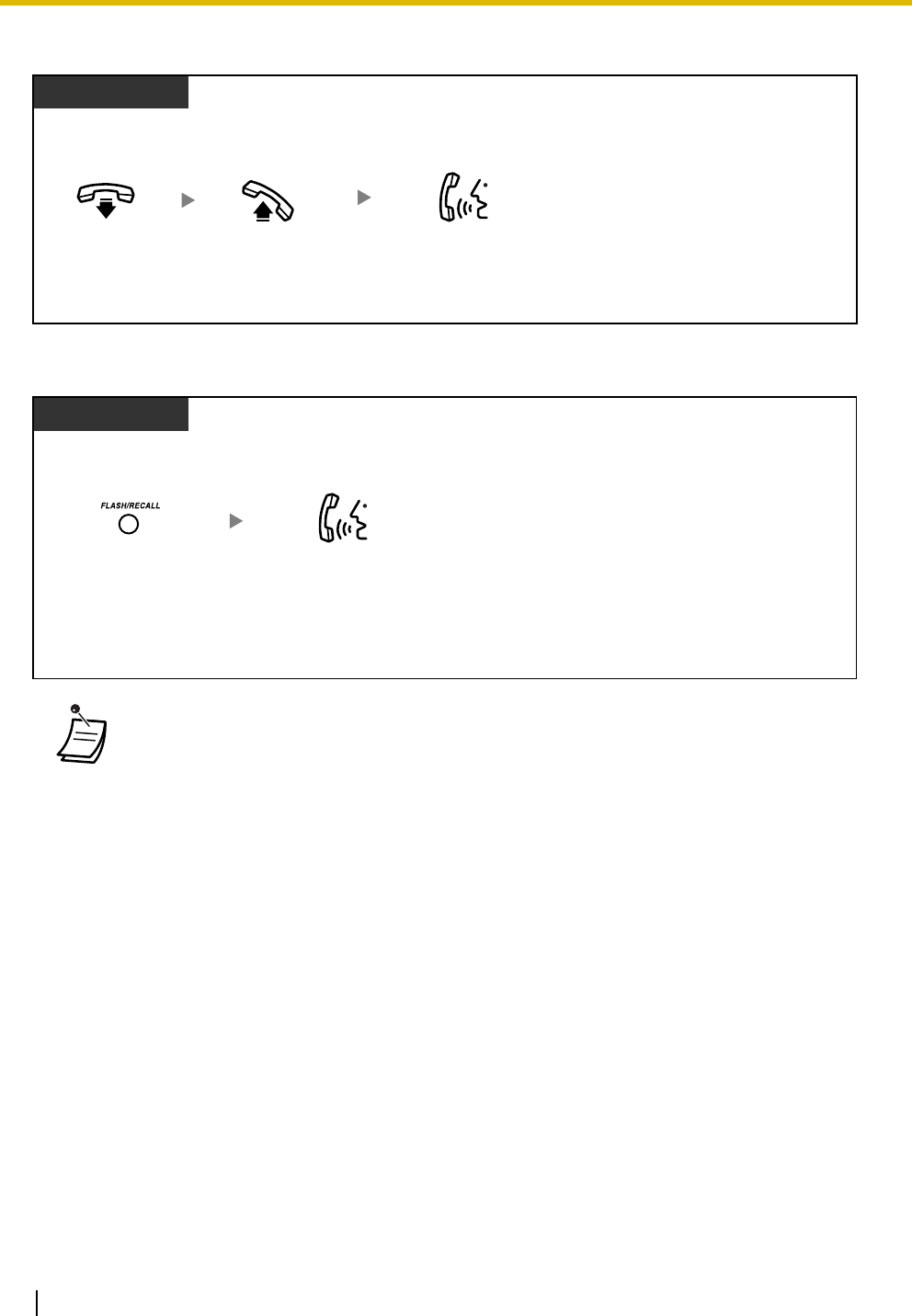
1.3 Telephone Features
68 Operating Manual
To disconnect the current call and then talk to the new party
To hold the current call and then talk to the new party
•To return to the original party, repeat the operation.
• If you do not press the FLASH/RECALL button while the information is displayed
(flashing), the caller information is automatically recorded in your personal area and the
Caller ID Indication—Personal button lights if the call has been directed to your PT. A call
directed to multiple extensions is automatically recorded in the common area and all
corresponding Caller ID Indication—Common buttons light.
• The TRANSFER button, HOLD button, and CONF button do not function while the new
caller information is flashing.
Display PT
While hearing a call waiting tone and viewing caller information
Talk to the
new party.
Off-hook.
On-hook.
Display PT
While hearing a call waiting tone and viewing caller information
Talk to the
new party.
Press FLASH/RECALL.
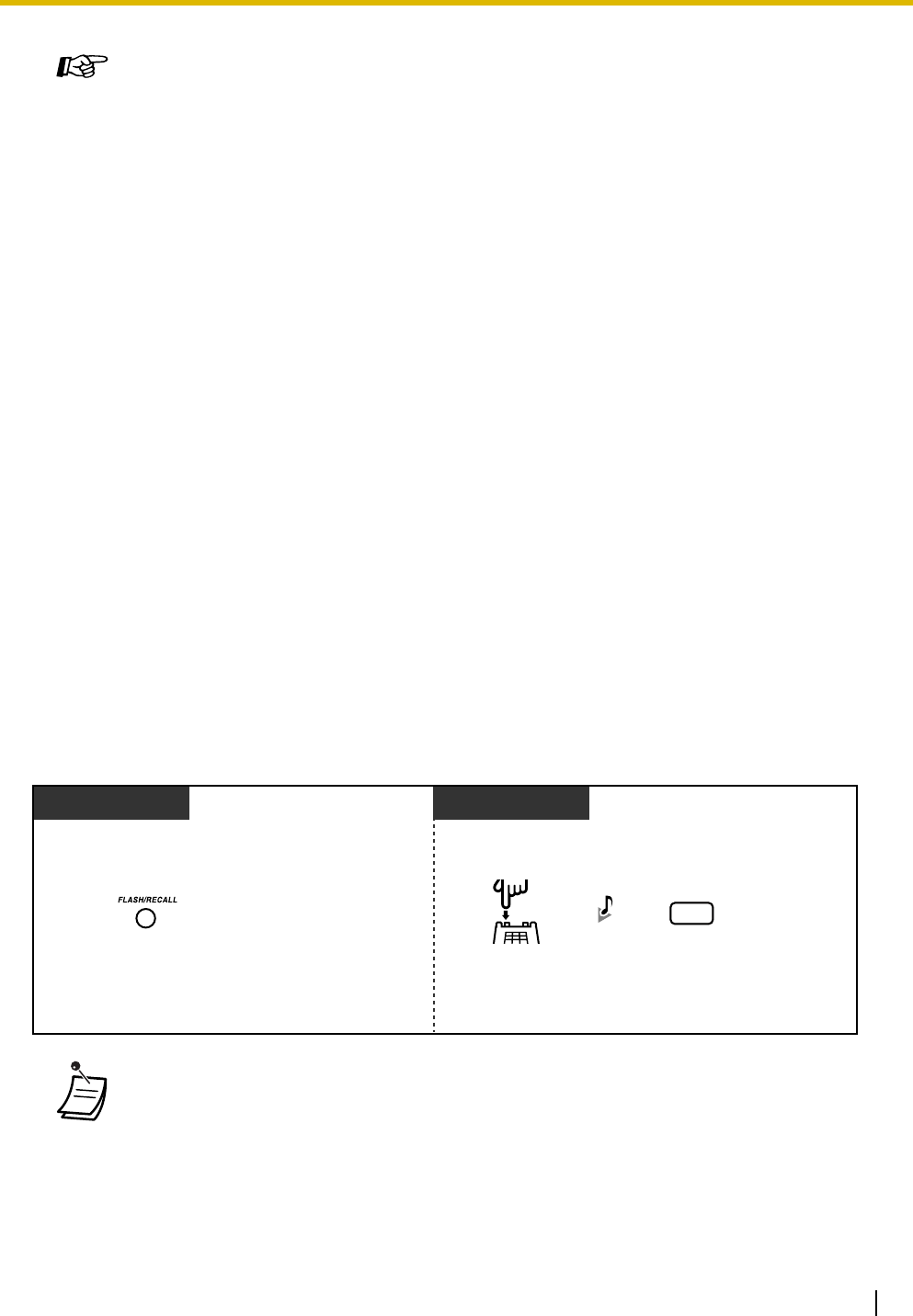
1.3 Telephone Features
Operating Manual 69
1.3.30 Call Waiting from the Telephone Company
Your telephone company may also offer an optional call waiting service, which can inform you that you have
another call on the same outside (CO) line. For more details, consult your telephone company.
Programming Manual References
[PT Programming]
• [414-416] CO Line Mode—Day/Night/Lunch
• [900] Caller ID
• [908] Call Waiting Caller ID Time
• [913] Call Waiting Caller ID Assignment
• [914] Call Waiting Caller ID CAS Receive Time
• [915] Caller ID Checksum
• [968] KX-T7700 Series Incoming Lamp Control
[PC Programming]
• 9.1.11 Detail [1-10]—Proprietary Telephone—KX-T7700 Series Incoming Lamp
Control
• 9.3.1 Line Mode [3-1]—Mode of incoming CO calls—Day, Night, Lunch
• 9.9.1 Main [9-1]—CO Line Settings—Caller ID, CO Line Settings—Call Waiting Caller
ID, Call Waiting Caller ID Time, Call Waiting Caller ID CAS Receive Time, Caller ID
Checksum
Feature Manual References
• 1.1.28 Call Waiting Caller ID
Operating Manual References
•1.3.18 Call Log, Incoming
•To return to the original party, repeat the operation.
PT SLT
Press Recall/
hookswitch.
Press FLASH/RECALL.
While hearing a call waiting tone While hearing a call waiting tone
Enter 6.
6
C. Tone &
D.Tone
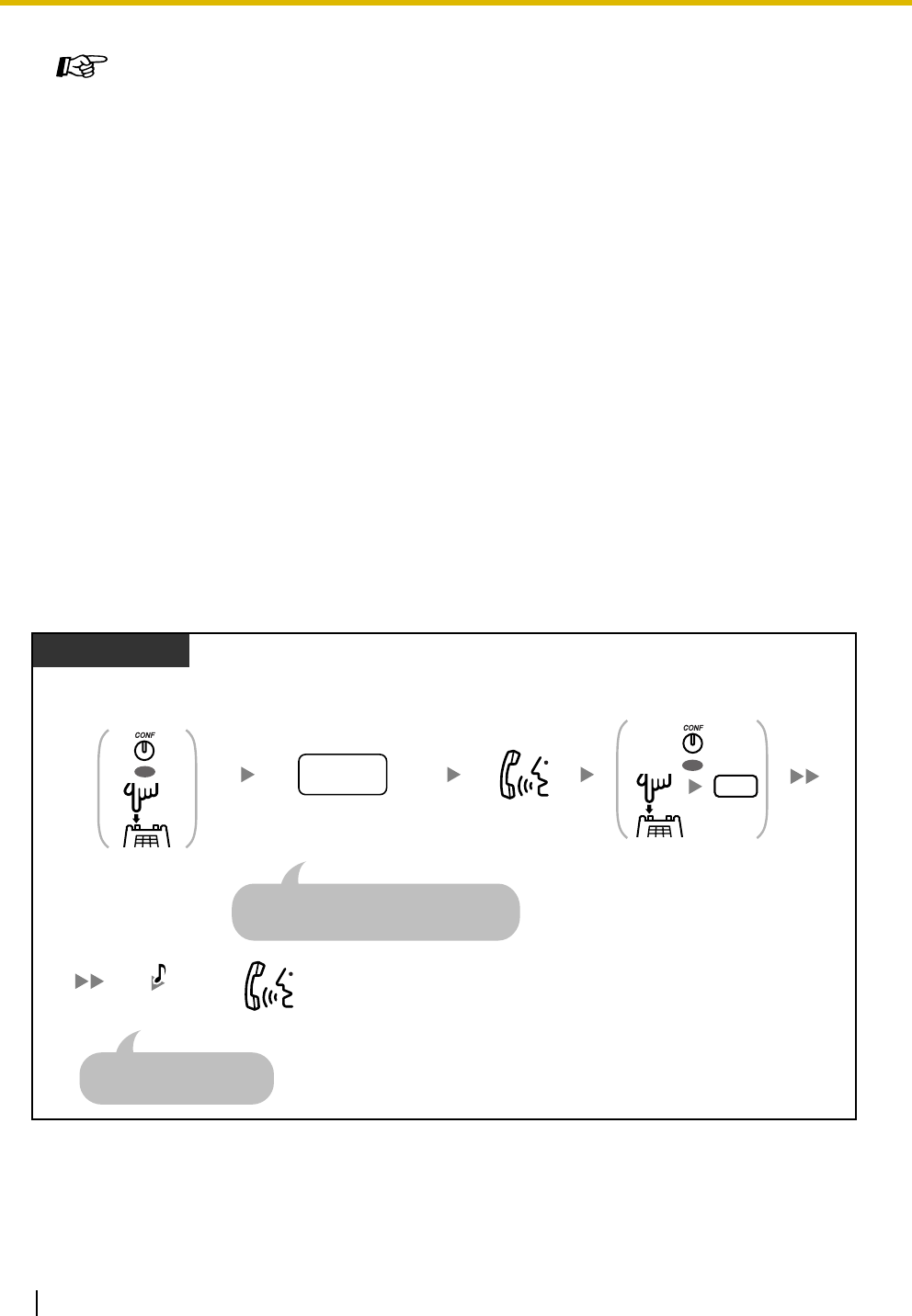
1.3 Telephone Features
70 Operating Manual
1.3.31 Conference
You can add a third party to your conversation. A conference call can be made up of 3 extensions, one
extension and 2 outside parties, or 2 extensions and one outside party.
To establish a 3-party conference call
Programming Manual References
[PT Programming]
• [110] Flash/Recall Key Mode
• [418] Flash/Recall Time
[PC Programming]
• 9.1.11 Detail [1-10]—Proprietary Telephone—Flash/Recall Key Mode
• 9.3.3 Detail [3-3]—Flash/Recall Time
Feature Manual References
• 1.1.15 Call Hold
• 1.1.29 Call Waiting from the Telephone Company
Operating Manual References
•1.3.45 External Feature Access (EFA)
Dial desired
phone number.
For an outside phone number, press the CO
button or seize an outside (CO) line before
dialing the phone number.
PT/SLT
Talk.
During a conversation
desired
phone no.
Talk to the
third party.
OR
C.Tone
(Optional)
Press CONF or
Recall/hookswitch.
Press CONF or
Recall/hookswitch
and then enter 3.
OR
3
A 3-party conference call
is now established.
*
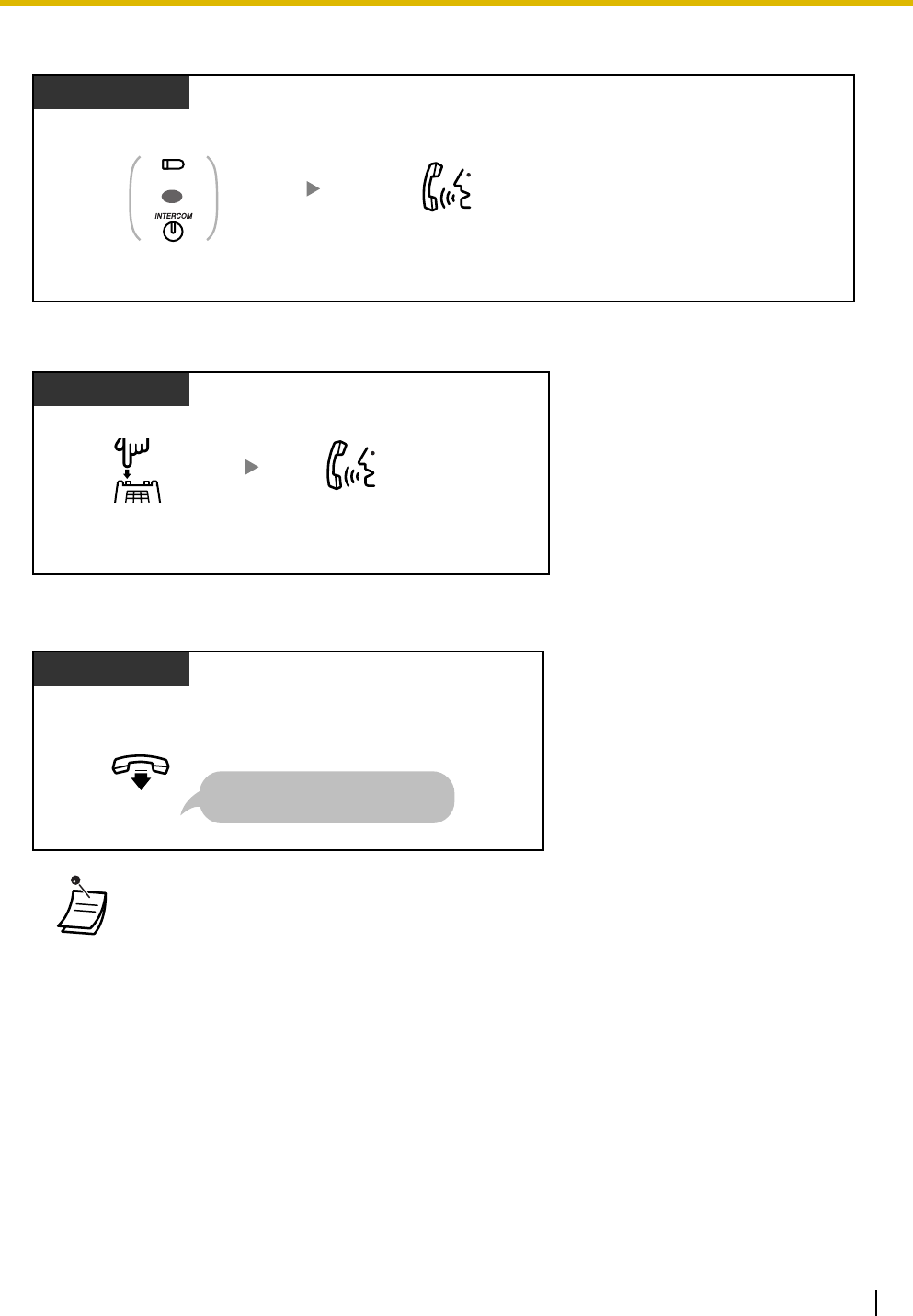
1.3 Telephone Features
Operating Manual 71
To disconnect one party and then talk to the other
To put the third party on hold and talk to the original party
To leave a 3-party conference call
• * You may have to enter the Call Hold feature number, "20", after pressing the Recall/
hookswitch on your single line telephone (SLT), depending on the SLT Hold Mode of your
PBX. For more details, refer to "1.1.15 Call Hold" in the Feature Manual.
•To return to the held call before the third party joins, press the corresponding CO or
INTERCOM button or press the Recall/hookswitch.
• By pressing the CO button corresponding to an outside (CO) line that is not being used by
the conference, a proprietary telephone (PT) user can exit from the conference, leaving
the other 2 parties connected unless they are both on outside (CO) lines. If the other
parties are both on outside (CO) lines, they will be disconnected.
PT
Talk.
During a conversation
Press CO or
INTERCOM.
OR
(CO)
Press Recall/hookswitch.
SLT
Talk.
PT/SLT
When you are talking with 2 extensions or
one extension and one outside party
On-hook.
The other 2 parties can continue
their conversation.
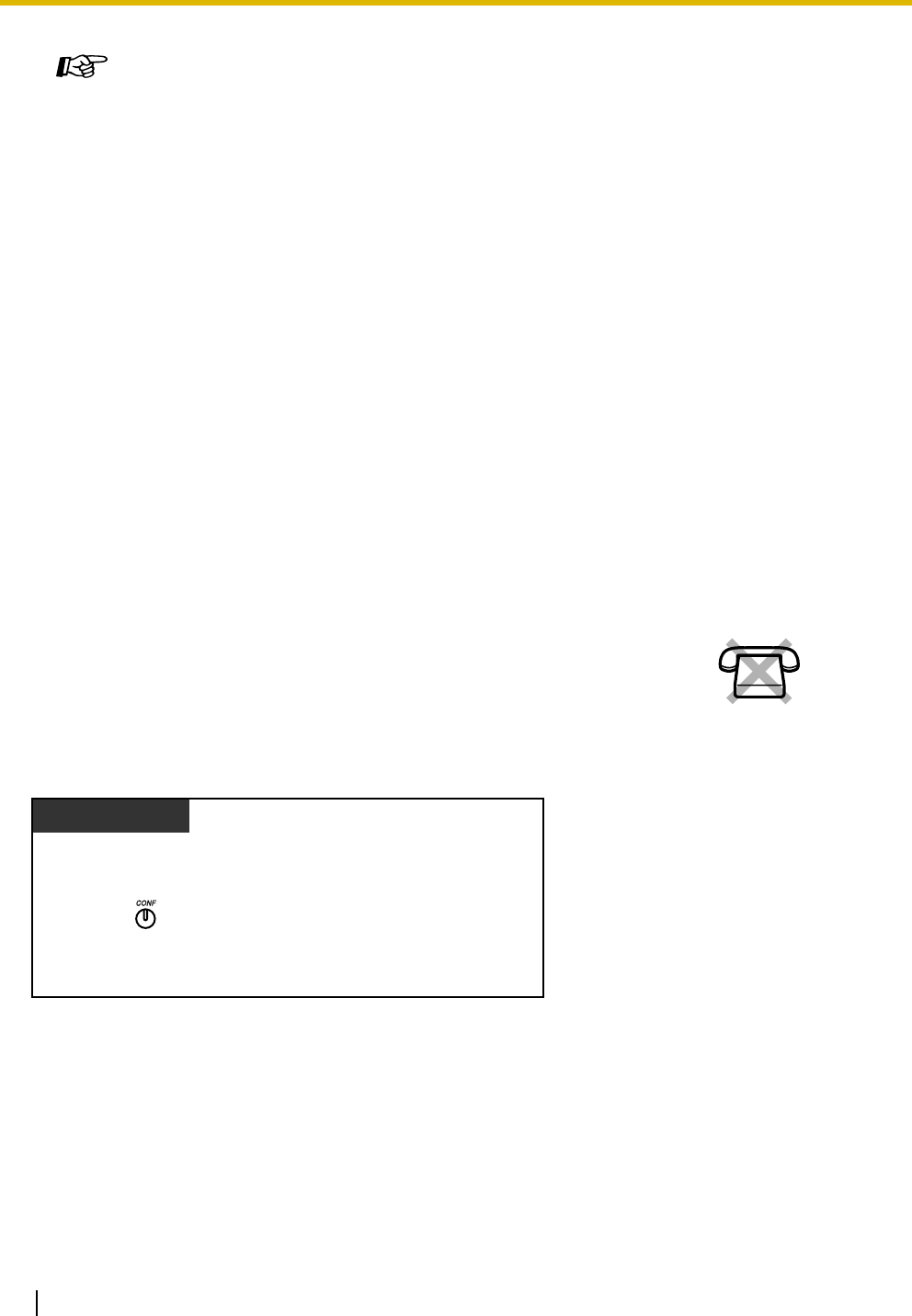
1.3 Telephone Features
72 Operating Manual
1.3.32 Conference, Unattended
To leave a conference call and establish an unattended conference call
Programming Manual References
[PT Programming]
• [104] SLT Hold Mode
• [105] Conference Tone
[PC Programming]
• 9.1.11 Detail [1-10]—Single Line Telephone—Hold Mode, Conference—Conference
To n e
Feature Manual References
• 1.1.15 Call Hold
• 1.1.33 Conference
Operating Manual References
•1.3.32 Conference, Unattended
•1.3.40 Executive Busy Override—Extension
•1.3.41 Executive Busy Override—Outside (CO) Line
•3.1.3 Flexible Button Assignment
Create or edit a Conference button.
The proprietary telephone (PT) user who originated a conference with 2 outside
parties can leave the conference and allow the other parties to continue the
conversation. Certain extensions may be restricted from executing this feature
through system programming. No SLT
PT
When you are talking with 2 outside parties
Press CONF.

1.3 Telephone Features
Operating Manual 73
To return while others are talking
1.3.33 Data Line Security
You can protect the line against audible notification tones, such as call waiting tones or hold alarm tones
during a conversation. Set this feature if your extension has a data communication device such as a
computer or fax machine connected, to ensure secure data transmission.
•CO-to-CO Line Call Duration
The length of outside-to-outside (CO-to-CO) line calls may be limited through system
programming.
Both outside parties will hear a warning tone 15 seconds before a specified time limit.
When the timer expires, the call is disconnected.
The originating extension user will hear a ring tone or an alarm tone before the time limit.
If the originating extension does not return to the conference within a specified time period,
the unattended conference call will be disconnected.
Programming Manual References
[PT Programming]
• [205] CO-to-CO Line Call Duration
• [606] Call Transfer to CO Line
[PC Programming]
• 9.1.7 Timers [1-6]—Call Duration—CO-to-CO Duration Limit
• 9.2.1 Main [2-1]—Transfer to CO
Feature Manual References
• 1.1.34 Conference, Unattended
Operating Manual References
•1.3.31 Conference
•3.1.3 Flexible Button Assignment
Create or edit a Conference button.
PT
Press the CO flashing green at moderate speed.
(CO)
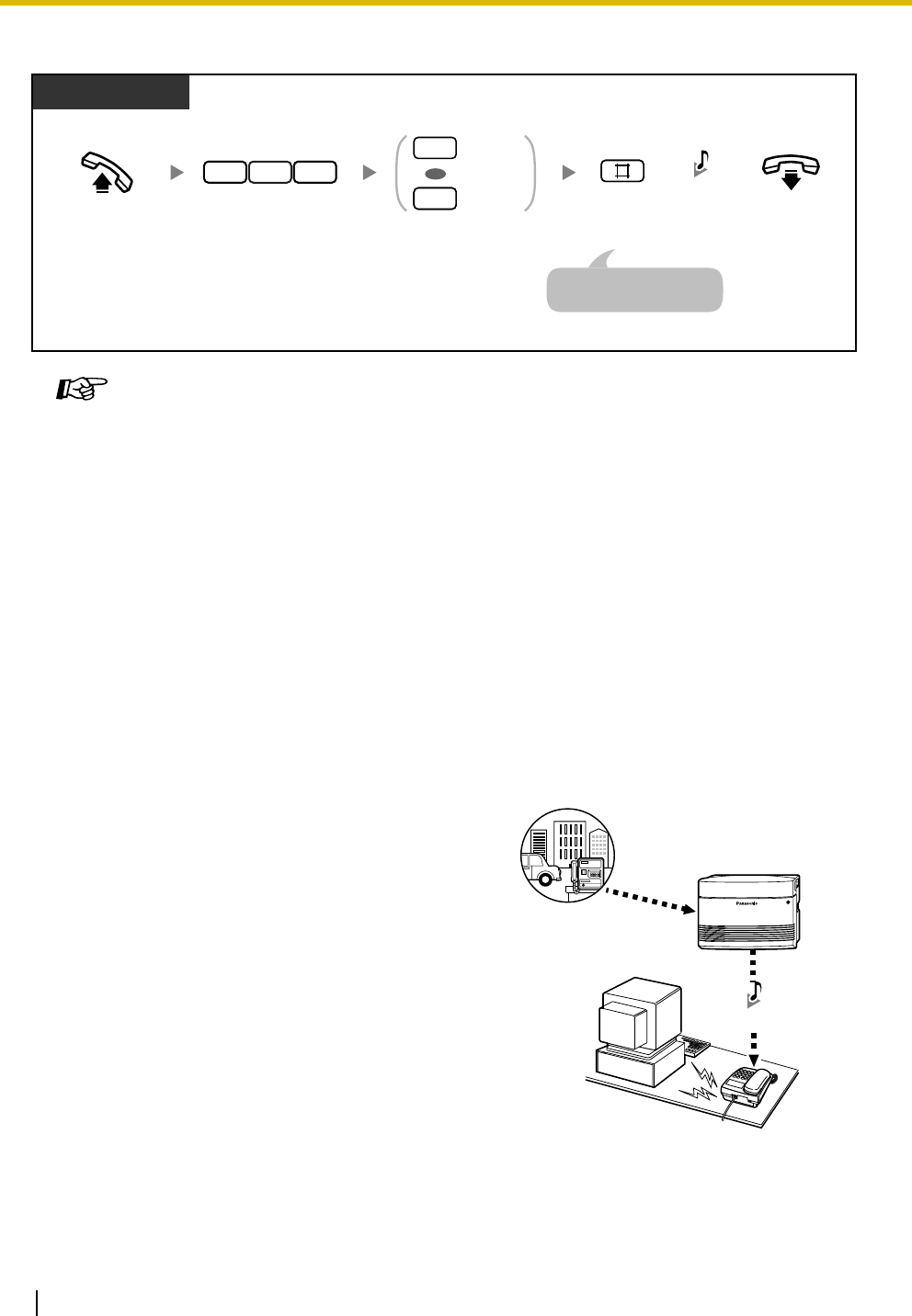
1.3 Telephone Features
74 Operating Manual
To set/cancel
1.3.34 Direct Inward System Access (DISA)
Programming Manual References
[PC Programming]
• 9.2.2 Feature settings [2-2]—Data Line Security
Feature Manual References
• 1.1.15 Call Hold
• 1.1.37 Data Line Security
Operating Manual References
•1.3.28 Call Waiting
•1.3.40 Executive Busy Override—Extension
•1.3.41 Executive Busy Override—Outside (CO) Line
When an outside caller dials a specified telephone
number of the PBX, a prerecorded Direct Inward
System Access (DISA) outgoing message (OGM)
can greet the caller and give information about how
to access an extension. The operator does not
need to be involved. If there is no recorded
message, the caller will hear a short beep instead
of the DISA OGM. The operator or manager can
record, play, or erase a DISA OGM. Refer to "2.1.5
Outgoing Message (OGM) for DISA"
The caller may also be able to access system
features or call an outside party by using the
caller's password (DISA security code), depending
on the security mode. For more details, refer to
"1.1.41 Direct Inward System Access (DISA)" in
the Feature Manual.
Off-hook. On-hook.
Enter 1 to set
or 0 to cancel.
PT/SLT
Enter 730.
3 07
C.Tone
Set
Cancel
1
0
OR
Enter #.
An SLT user can enter "0"
instead of "#".
Call
Outside party
DISA OGM
Supported destinations
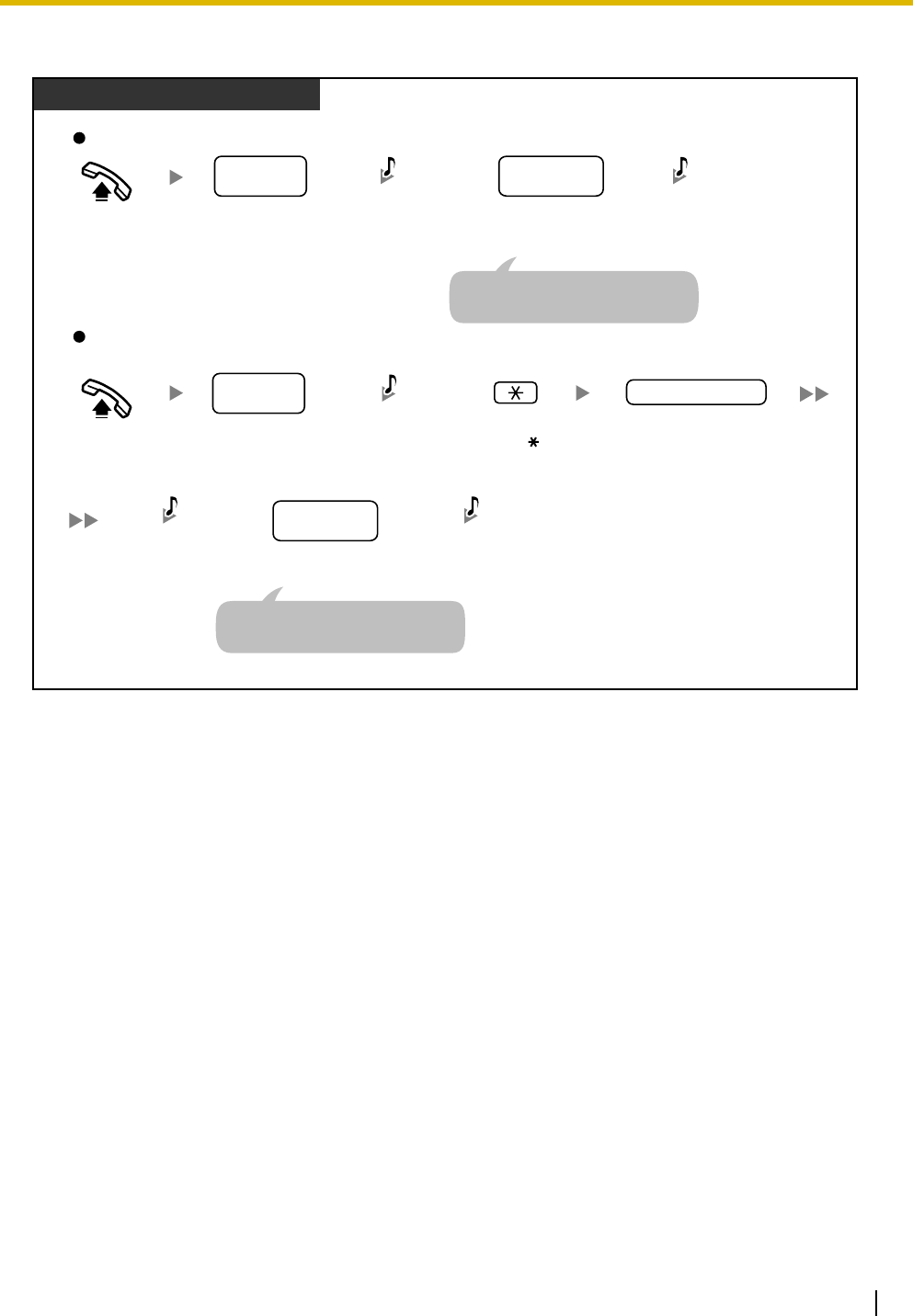
1.3 Telephone Features
Operating Manual 75
To call an extension
Dial DISA
phone number.
DISA
phone no.
From an Outside Telephone
In No Security Mode/Trunk Security Mode
Off-hook.
Dial DISA
phone number.
DISA
phone no.
In All Security Mode
Off-hook.
Enter
.
Enter
DISA security code
(4
–
10 digits).
Dial desired
extension number.
desired
extension no.
Dial desired
extension number.
desired
extension no.
R.B.Tone &
DISA OGM
(or one short beep)
R.B.Tone
R.B.Tone &
DISA OGM
(or one short beep)
One short beep
You can dial the preprogrammed
AA number instead.
DISA security code
R.B.Tone
You can dial the preprogrammed
AA number instead.
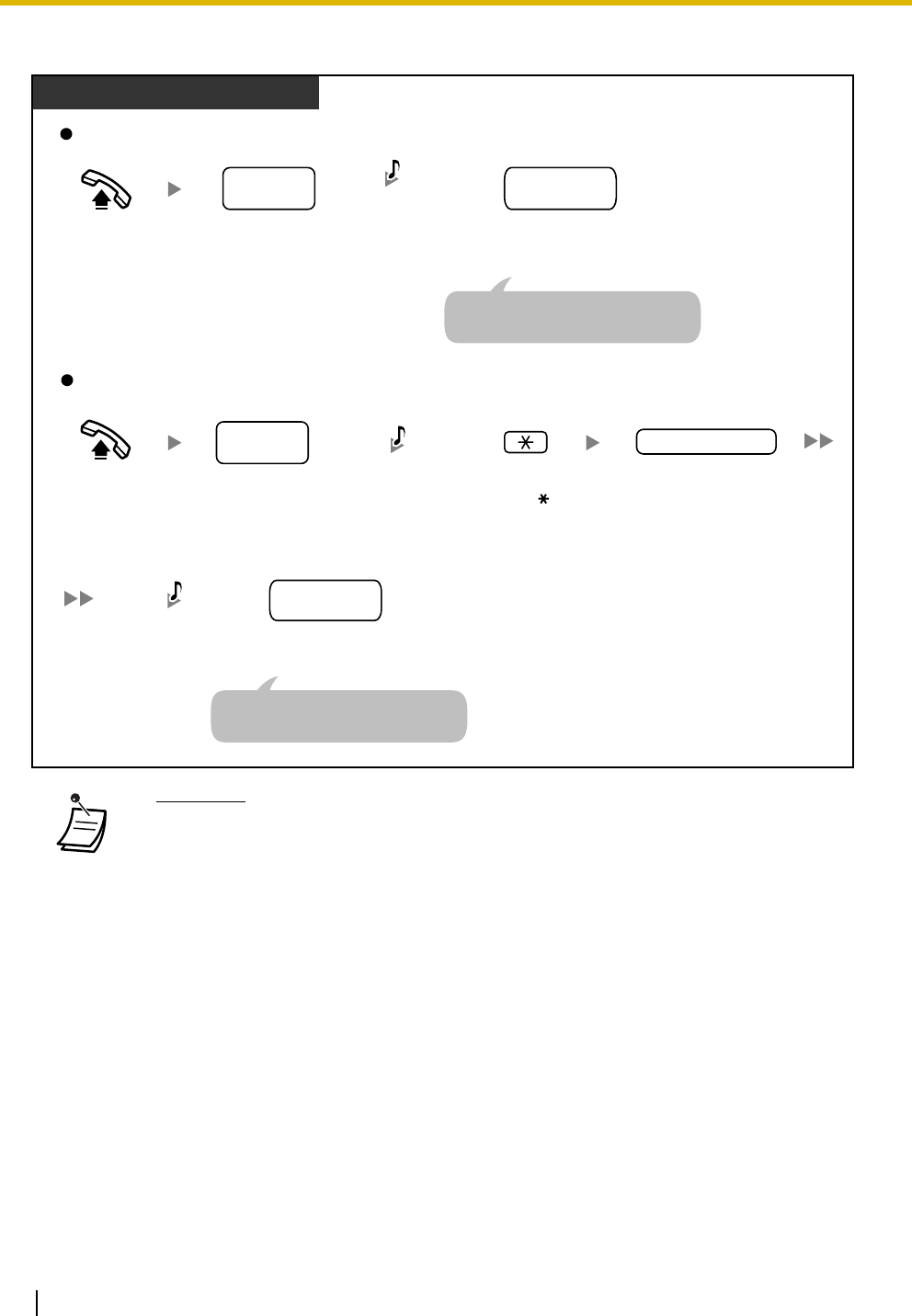
1.3 Telephone Features
76 Operating Manual
To call an outside party
•WARNING
There is a risk that fraudulent telephone calls will be made using the Outside-to-
Outside (CO-to-CO) Line Call feature of DISA.
The cost of such calls will be billed to the owner/renter of the PBX.
To protect the PBX from this kind of fraudulent use, we strongly recommend:
a) Enabling DISA security (Trunk Security or All Security).
b) Keeping DISA security codes secret.
c) Selecting complex, random codes that cannot be easily guessed.
d) Changing codes regularly.
• If you dial 4 digits or more when dialing an extension number, the call will be disconnected.
When you dial an invalid extension number of 3 digits or less, the call is redirected to the
preprogrammed intercept destinations or disconnected, according to system
programming.
•CO-to-CO Line Call Duration
The length of outside-to-outside (CO-to-CO) line calls may be limited through system
programming.
Both the outside caller and the outside destination will hear a warning tone 15 seconds
before a specified time limit. When the timer expires, the call is disconnected.
In No Security Mode
Dial
DISA
phone number
.
In Trunk Security Mode/All Security Mode
From an Outside Telephone
DISA
phone no.
Off-hook.
Off-hook.
Seize an outside (CO) line before
dialing the outside phone number.
Dial outside phone
number.
outside
phone no.
Seize an outside (CO) line before
dialing the outside phone number.
Dial outside phone
number.
outside
phone no.
R.B.Tone &
DISA OGM
(or one short beep)
R.B.Tone &
DISA OGM
(or one short beep)
Dial
DISA
phone number.
DISA
phone no.
One short beep
Enter
.
Enter
DISA security code
(4
–
10 digits).
DISA security code

1.3 Telephone Features
Operating Manual 77
• If the DISA Automated Attendant (AA) service is used, you can access the desired party
simply by pressing a preprogrammed single-digit number (DISA AA number) while or after
hearing a DISA OGM or after a short beep. AA menus can be up to 3 levels deep.
• If you enter an invalid security code 3 times consecutively, the call will be disconnected
automatically. If you enter a DISA security code a second and third time, dialing " " is not
necessary.
Programming Manual References
[PT Programming]
• [009] Extension Number
• [100] Hunting Group Set
• [111] Music on Hold
• [128] Ringback Tone Pattern
• [205] CO-to-CO Line Call Duration
• [408-410] Flexible Ringing—Day/Night/Lunch
• [414-416] CO Line Mode—Day/Night/Lunch
• [420] CPC Signal Detection—Incoming
• [421] CPC Signal Detection—Outgoing
• [438-440] DISA IRNA to BV—Day/Night/Lunch
• [500] DISA Incoming Call Dial Mode
• [501] DISA Built-in AA
• [503] FAX Connection
• [504] DISA Delayed Answer Time
• [505] DISA Wait Time after OGM
• [506] DISA Busy Mode
• [507] DISA Intercept Mode
• [508] DISA Ring Time before Intercept
• [509] DISA Ring Time after Intercept
• [510] DISA No Dial Mode
• [511] DISA Security Mode
• [512] DISA Security Code
• [513] Cyclic Tone Detection
• [514] FAX Tone Detection
• [515] Intercept Time for Internal DISA
• [516] DISA Incoming Assignment
• [517] DISA AA Wait Time
• [518] DISA Tone after Security Code
• [530] DISA Security Code Digits
• [531] DISA Ringback Tone
• [540-549] 3-level AA Assignment
• [600] Extension Group
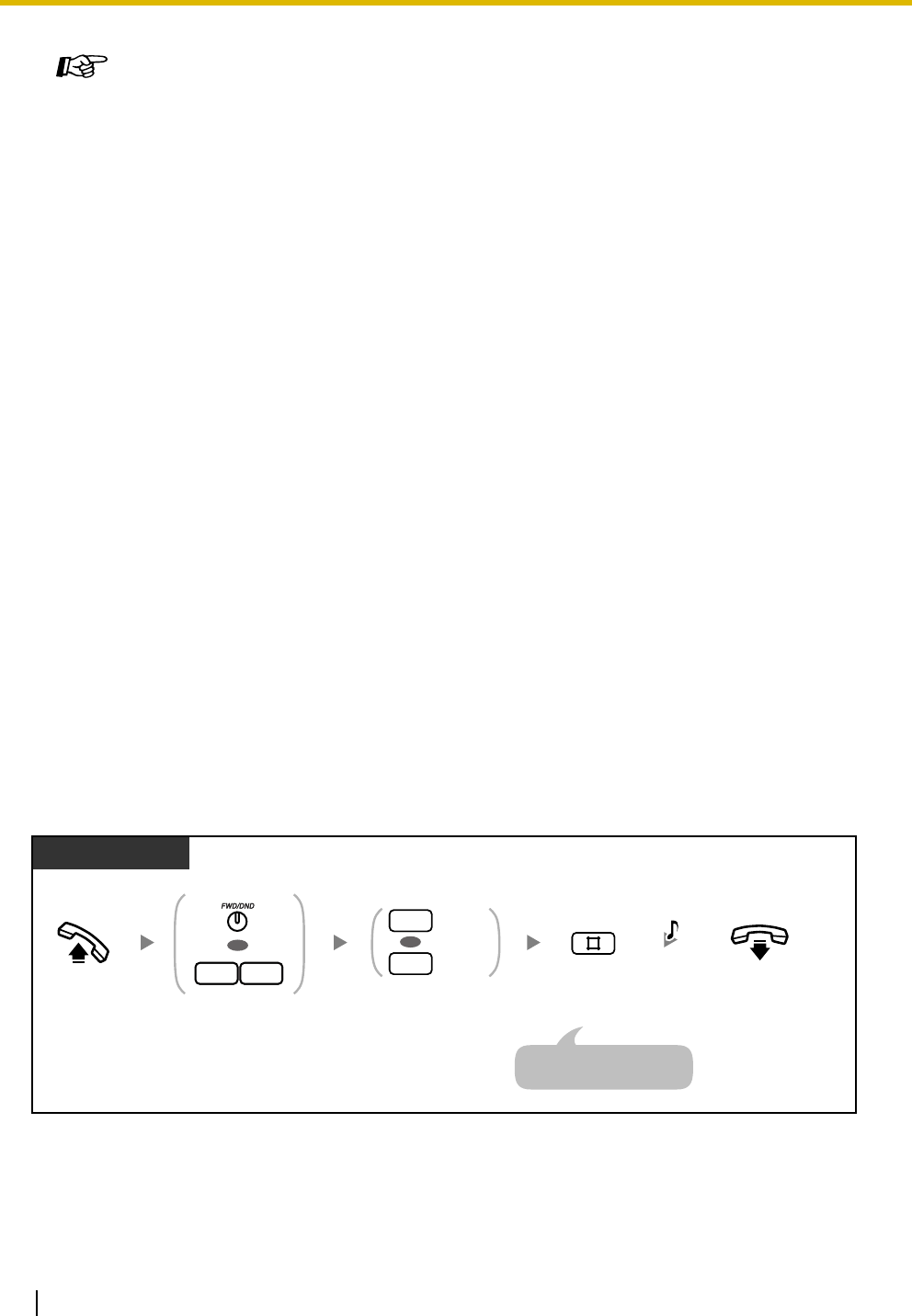
1.3 Telephone Features
78 Operating Manual
1.3.35 Do Not Disturb (DND)
You can set your telephone to prevent incoming calls from ringing at your telephone. This can be useful in
situations where you do not want to be disturbed, for example during a meeting.
To set/cancel
Programming Manual References
[PC Programming]
• 9.1.2 Main [1-2]—Music on Hold
• 9.1.3 Numbering Plan [1-3]—Ext. no.
• 9.1.7 Timers [1-6]—Call Duration—CO-to-CO Duration Limit
• 9.1.11 Detail [1-10]—Extension—Ringback Tone Pattern
• 9.2.11 Extension Group [2-6]—Group No., Extension Hunting—Extension Hunting
• 9.3.1 Line Mode [3-1]—Mode of incoming CO calls—Day, Night, Lunch
• 9.3.2 Incoming / Outgoing [3-2]—Ringing for incoming CO calls—Day, Night, Lunch
• 9.3.3 Detail [3-3]—CPC Signal Detection—Incoming, CPC Signal Detection—
Outgoing
• 9.6 DISA [6]
• 9.8.2 Others [8-2]—DISA IRNA to BV—Day, Night, Lunch
Feature Manual References
• 1.1.41 Direct Inward System Access (DISA)
Operating Manual References
•2.1.5 Outgoing Message (OGM) for DISA
•3.2.2 System Programming (Manager Programming)—
[512] DISA Security Code
[530] DISA Security Code Digits
On-hook.
Enter 4 to set
or 0 to cancel.
Enter #.
PT/SLT
Set
Cancel
4
0
OR
Off-hook. Press FWD/DND
or enter 71.
OR
17
C.Tone
An SLT user can enter "0"
instead of "#".
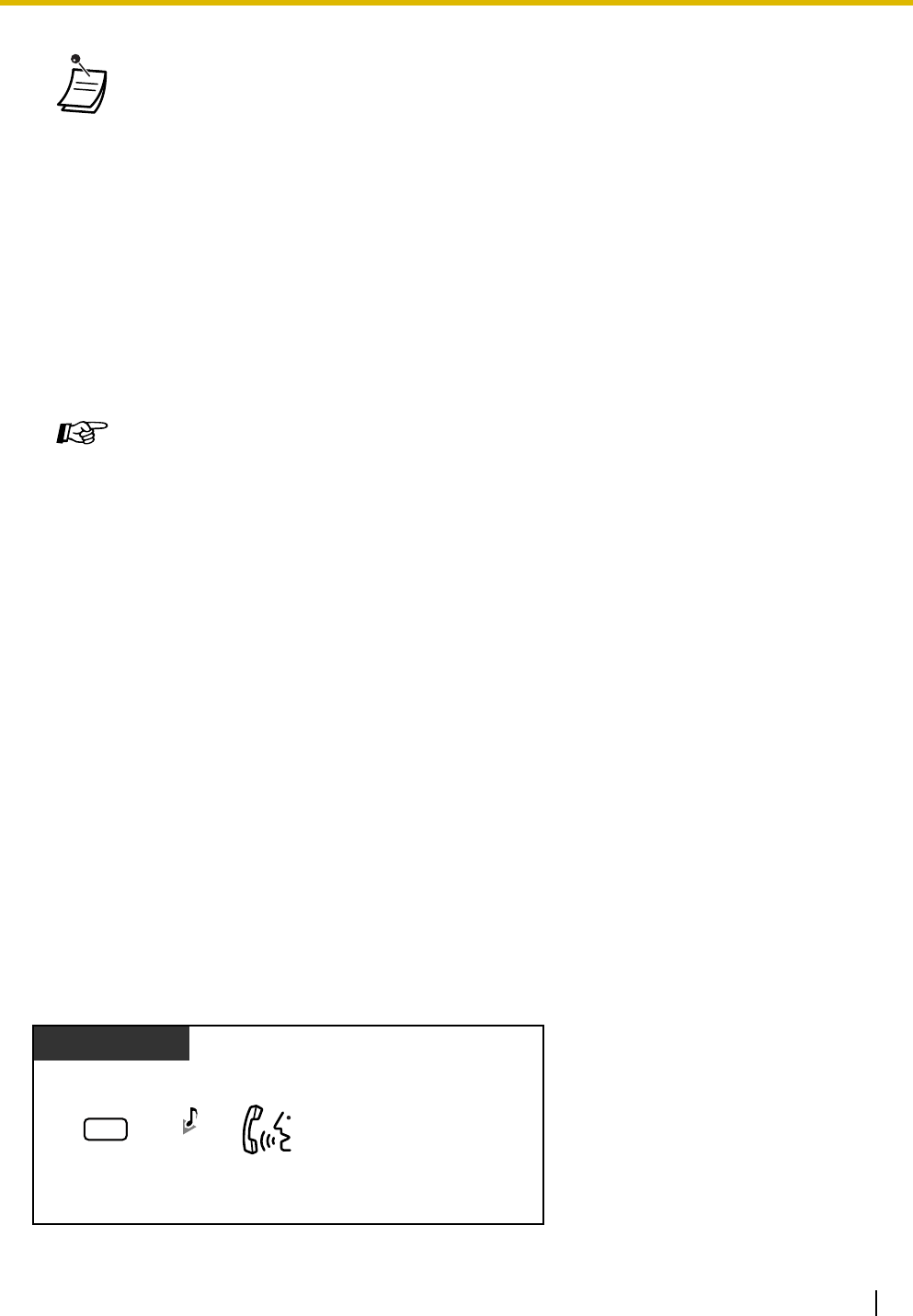
1.3 Telephone Features
Operating Manual 79
1.3.36 Do Not Disturb (DND) Override
You can call users who have set the Do Not Disturb (DND) feature, if your extension is permitted through
system programming.
• The FWD/DND (Call Forwarding/Do Not Disturb) button light shows the current status as
follows:
Off: Neither feature is set.
Red on: DND mode
Flashing red slowly: FWD mode
• If your extension has set this feature, calling extensions will hear a DND tone.
• If this feature is set, the FWD feature does not function.
• Extensions can override this feature and call extensions in DND mode (DND Override) if
they are allowed to do so through system programming.
• Outside (CO) line calls can be received at your extension, but the telephone will not ring.
The corresponding CO button will flash when an outside (CO) line call is received, and you
can answer the call by pressing this button.
• Even if this feature is set, timed reminder alarms and hold recall tones (ring tones or alarm
tones) will still ring.
Programming Manual References
[PT Programming]
• [414-416] CO Line Mode—Day/Night/Lunch
• [609] DND Override
[PC Programming]
• 9.2.1 Main [2-1]—DND Override
• 9.2.2 Feature settings [2-2]—FWD/DND
• 9.3.1 Line Mode [3-1]—Mode of incoming CO calls—Day, Night, Lunch
Feature Manual References
• 1.1.44 Do Not Disturb (DND)
Operating Manual References
•1.3.9 Call Forwarding (FWD)—SUMMARY
•1.3.36 Do Not Disturb (DND) Override
•3.1.3 Flexible Button Assignment
Create or edit an FWD/DND (Call Forwarding/Do Not Disturb) button.
Enter 2.
While hearing the DND tone
PT/SLT
Talk.
R.B.Tone
2
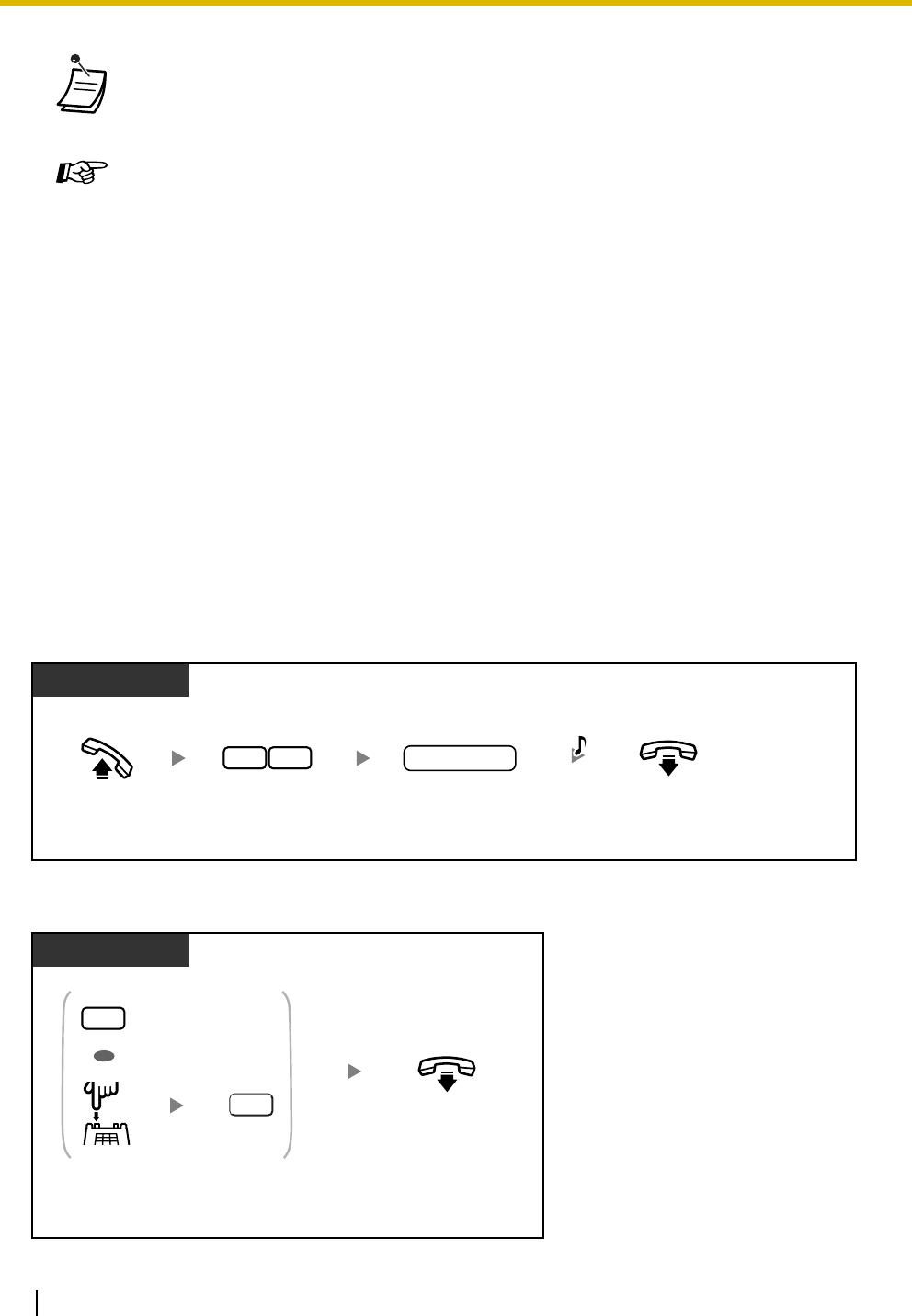
1.3 Telephone Features
80 Operating Manual
1.3.37 Door Open
You can unlock a door from your extension, if enabled through system programming.
From an enabled extension
From an extension that is on a call with a doorphone
• If you hear the DND tone, enter "2", and then hear a busy tone, the called extension is
busy. You can use the Automatic Callback Busy feature.
Programming Manual References
[PT Programming]
• [609] DND Override
[PC Programming]
• 9.2.1 Main [2-1]—DND Override
Feature Manual References
• 1.1.45 Do Not Disturb (DND) Override
Operating Manual References
•1.3.5 Automatic Callback Busy (Camp-on)
•1.3.35 Do Not Disturb (DND)
Off-hook. On-hook.
Dial door opener
number (1–4).
PT/SLT
Enter 55.
5 5 C.Tone
door opener no.
PT/SLT
On-hook.
Enter 5 or press Recall/hookswitch
and then enter 5.
OR
5
5
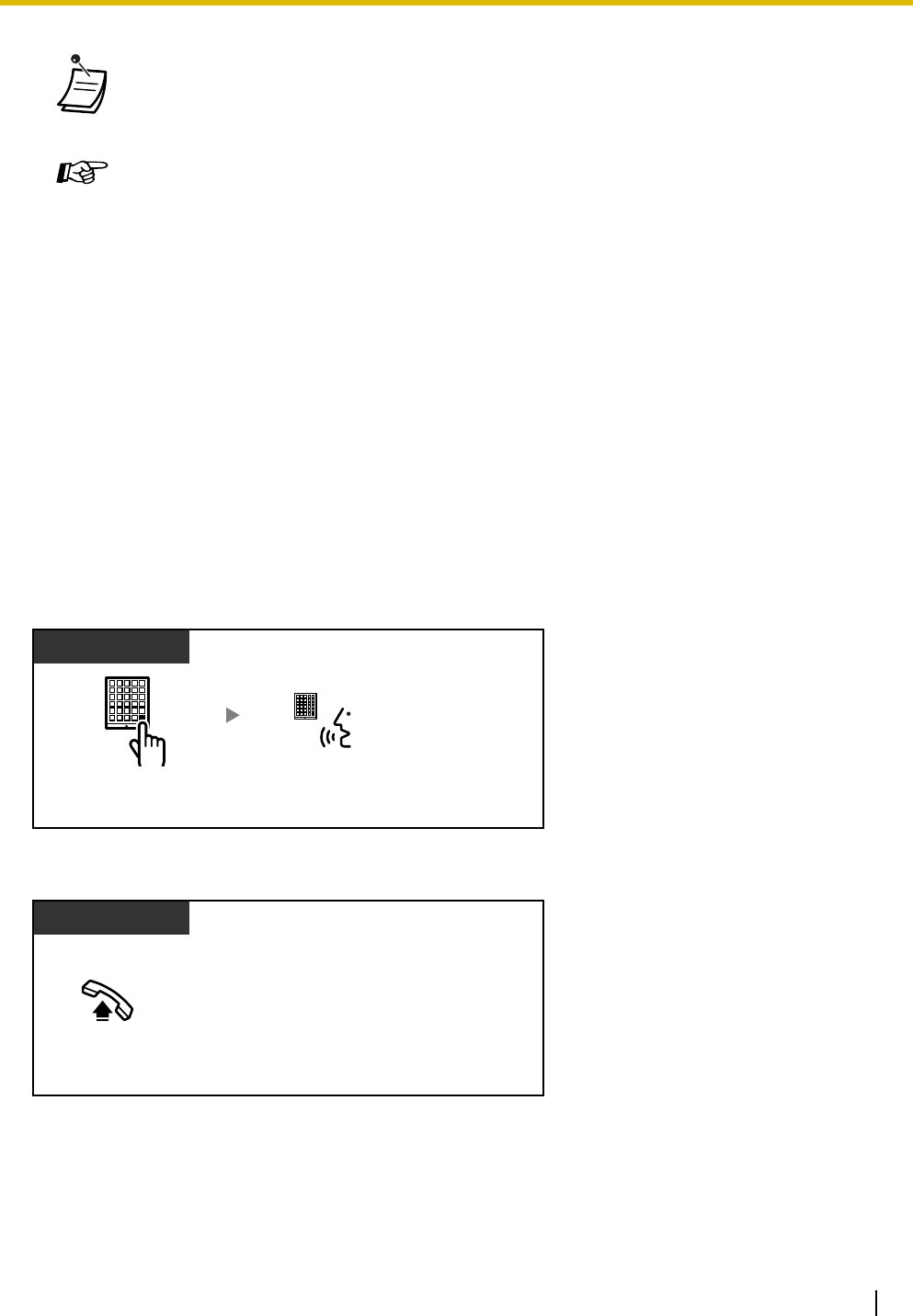
1.3 Telephone Features
Operating Manual 81
1.3.38 Doorphone Call
You can talk to a person at the door through the doorphone. The extensions that are permitted to be called
when a visitor presses the Call button on a doorphone are determined through system programming.
To call from the doorphone
To answer a call from a doorphone
• The door will stay open for a specified time period.
•To keep the door open longer, enter "5" again using a Panasonic proprietary telephone
(PT).
Programming Manual References
[PT Programming]
• [703-705] Door Opener—Day/Night/Lunch
• [709] Door Open Duration
[PC Programming]
• 9.7.1 Ringing & Door Opener [7-1]—Door Opener 1–4—Day, Night, Lunch
• 9.7.2 Others [7-2]—Door Open Duration—Door 1–4
Feature Manual References
• 1.1.46 Door Open
Press Call button
(for 1 s).
Doorphone
Talk.
Off-hook.
PT/SLT
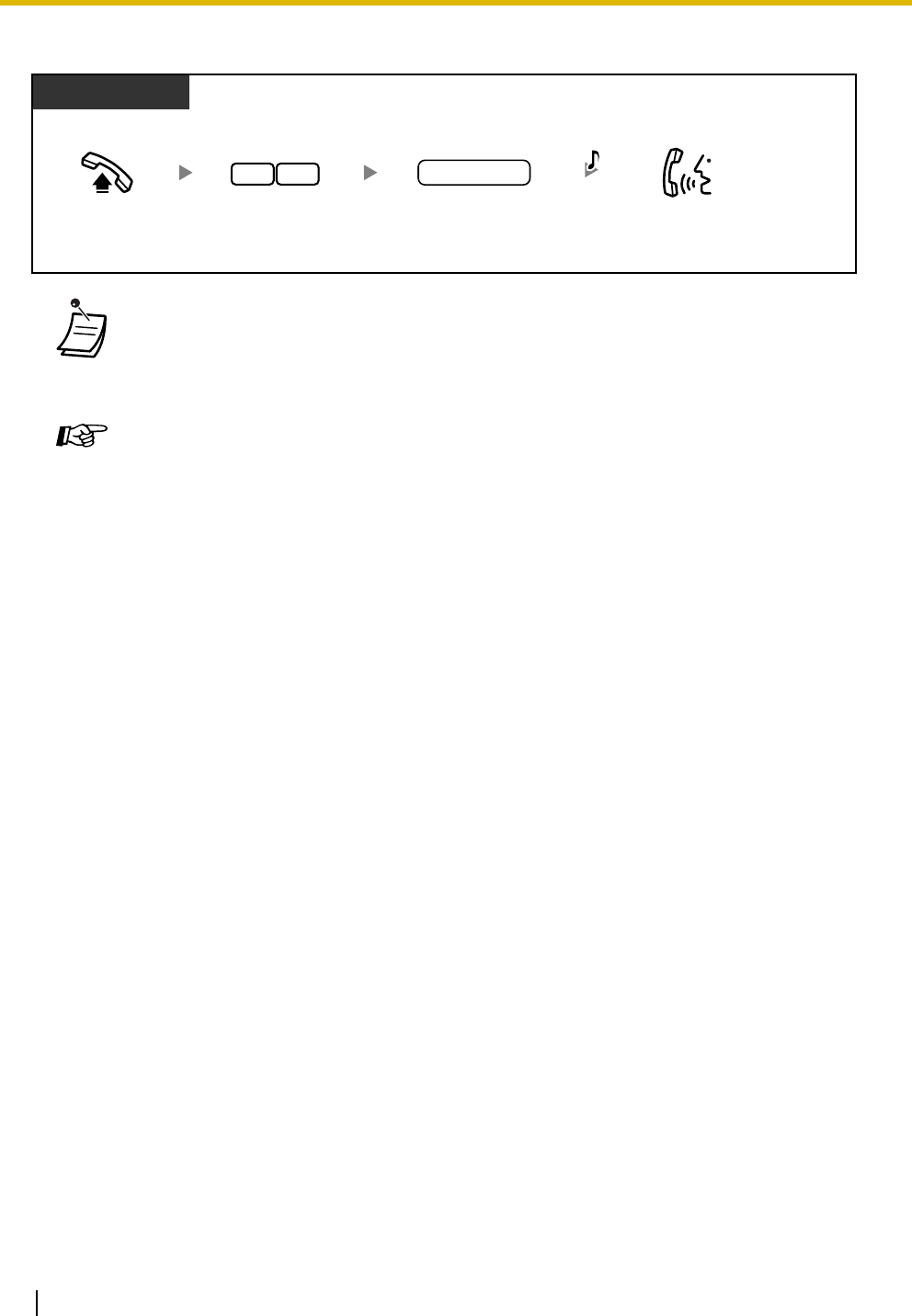
1.3 Telephone Features
82 Operating Manual
To call a doorphone
1.3.39 Emergency Call
You can dial preprogrammed emergency numbers after seizing an outside (CO) line, regardless of any
dialing restrictions on your extension.
• If no one answers a doorphone call within a specified time period, ringing stops and the
call is canceled.
• Doorphones 1 and 2 (or doorphones 3 and 4) cannot be used at the same time. When one
is in use, you cannot have a conversation with the other.
Programming Manual References
[PT Programming]
• [700-702] Doorphone Ringing—Day/Night/Lunch
• [706] Doorphone Ring Tone Pattern
• [707] Doorphone Access Tone
• [708] Doorphone Ring Time
• [710] Doorphone Ring/Chime
• [711] Doorphone Chime Assignment
• [712] Doorphone Chime Pattern
[PC Programming]
• 9.7.1 Ringing & Door Opener [7-1]—Doorphone 1–4—Day, Night, Lunch
• 9.7.2 Others [7-2]—Doorphone Ring Tone Pattern—Door 1–4, Doorphone Access
Tone—Door 1–4, Doorphone Ring Time—Door 1–4, Doorphone Ring / Chime—Door
1–4, Doorphone Chime Assignment—Door 1–4, Doorphone Chime Pattern—Door
1–4
Feature Manual References
• 1.1.47 Doorbell/Door Chime
• 1.1.48 Doorphone Call
Operating Manual References
•1.3.80 Room Monitor
Talk.Off-hook. Dial doorphone
number (1–4).
doorphone no.
PT/SLT
Enter 31.
3 1 C.Tone

1.3 Telephone Features
Operating Manual 83
1.3.40 Executive Busy Override—Extension
You can join an existing intercom call, establishing a 3-party conference call, if your extension is permitted
through system programming.
To join an intercom call
• This feature will function even when:
— In Account Code—Verify-All/Verify-Toll/Forced Mode
— Restricted by the current class of service (COS)
— In Extension Lock
Programming Manual References
[PT Programming]
• [309] Emergency Number
• [403] Host PBX Access Code
[PC Programming]
• 9.3.3 Detail [3-3]—Host PBX Access Codes
• 9.5.4 Emergency Number & Others [5-4]—Emergency Number
Feature Manual References
• 1.1.49 Emergency Call
Off-hook.
PT/SLT
Press CO or dial outside
(CO) line access number.
emergency no.
Dial emergency number.
outside (CO)
line access no.
OR
(CO)
D.Tone
Enter 2.
PT/SLT
Talk.
While hearing a busy tone
C.Tone
(Optional)
A 3-party conference call
is now established.
2
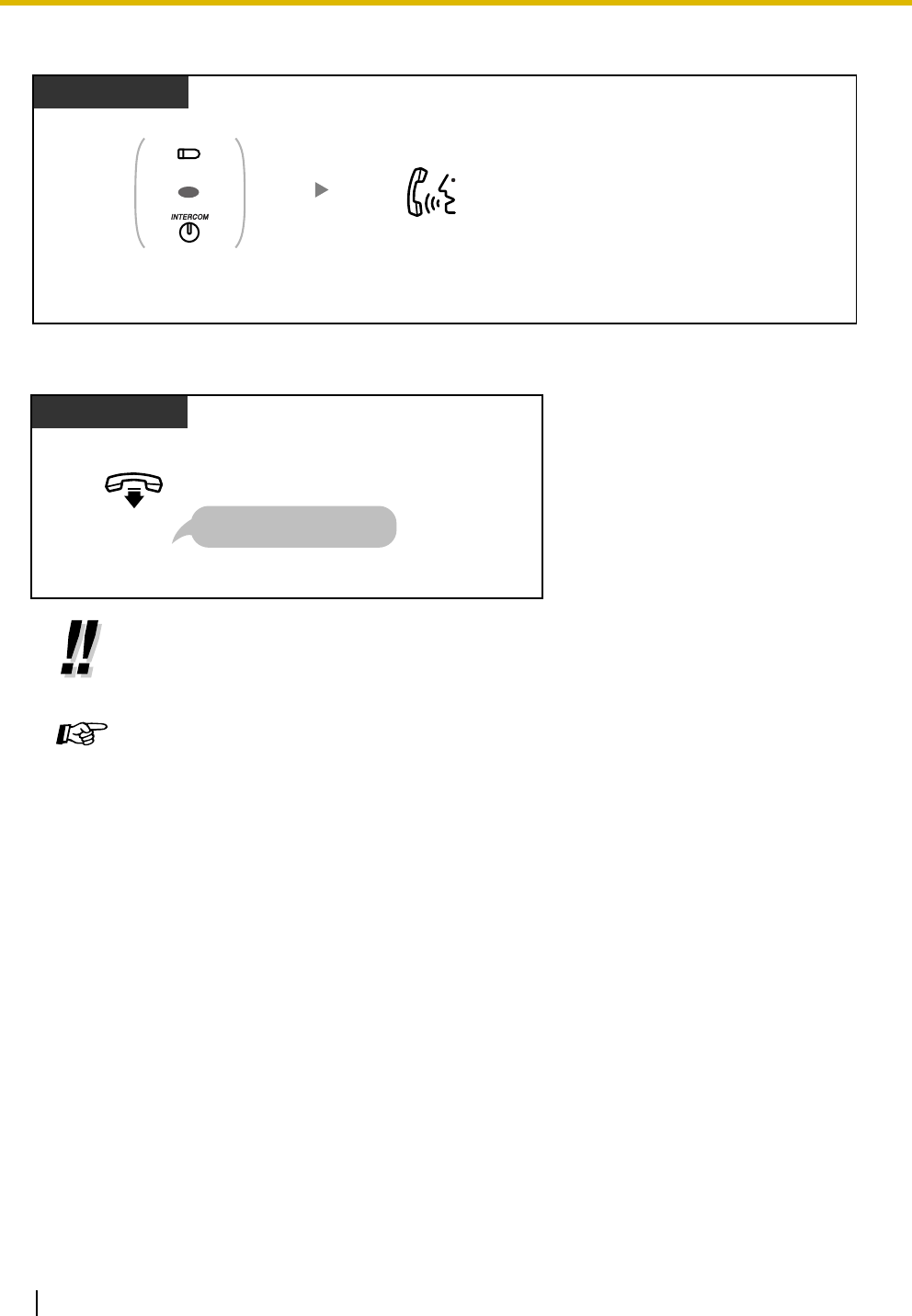
1.3 Telephone Features
84 Operating Manual
To disconnect one party and talk with another when one of the parties is an outside party
To leave the conference call
• You can also prevent others from joining your conversations. Refer to "1.3.42 Executive
Busy Override Deny".
Programming Manual References
[PT Programming]
• [105] Conference Tone
• [608] Executive Busy Override
[PC Programming]
• 9.1.11 Detail [1-10]—Conference—Conference Tone
• 9.2.1 Main [2-1]—Busy Override
Feature Manual References
• 1.1.50 Executive Busy Override—Extension
Operating Manual References
•1.3.42 Executive Busy Override Deny
PT
Press CO or
INTERCOM.
Talk.
OR
(CO)
PT/SLT
On-hook.
The other 2 parties can
continue their conversation.
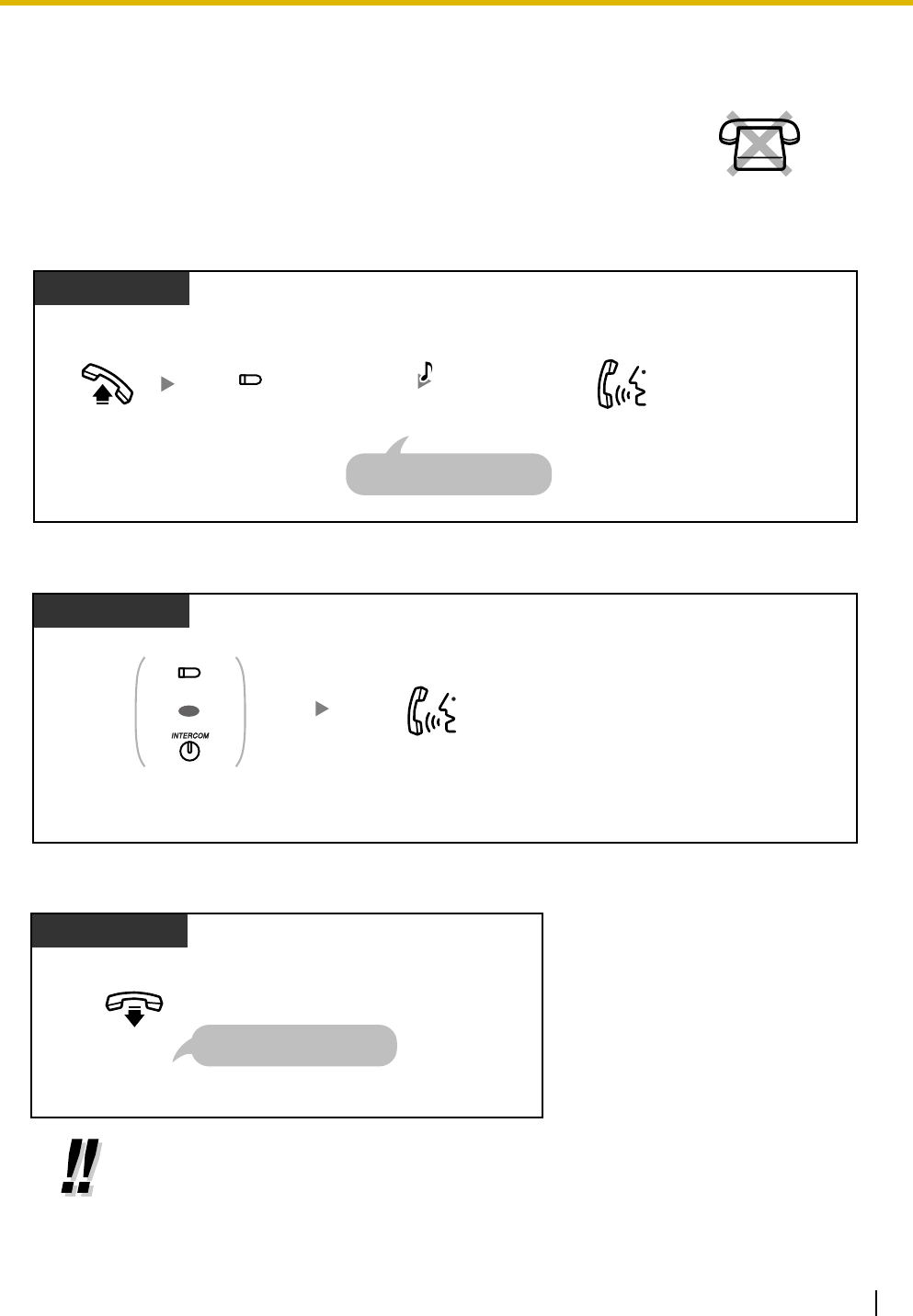
1.3 Telephone Features
Operating Manual 85
1.3.41 Executive Busy Override—Outside (CO) Line
To join an outside (CO) line call
To disconnect one party and talk with another when one of the parties is an outside party
To leave the conference call
You can join an existing outside (CO) line call, establishing a 3-party conference
call, if your proprietary telephone (PT) is permitted through system
programming.
• You can also prevent others from joining your conversations. Refer to "1.3.42 Executive
Busy Override Deny".
No SLT
Off-hook. Press red CO.
PT
Talk.
C.Tone
(Optional)
A 3-party conference call
is now established.
(CO)
PT
Press CO or
INTERCOM.
Talk.
OR
(CO)
PT
On-hook.
The other 2 parties can
continue their conversation.
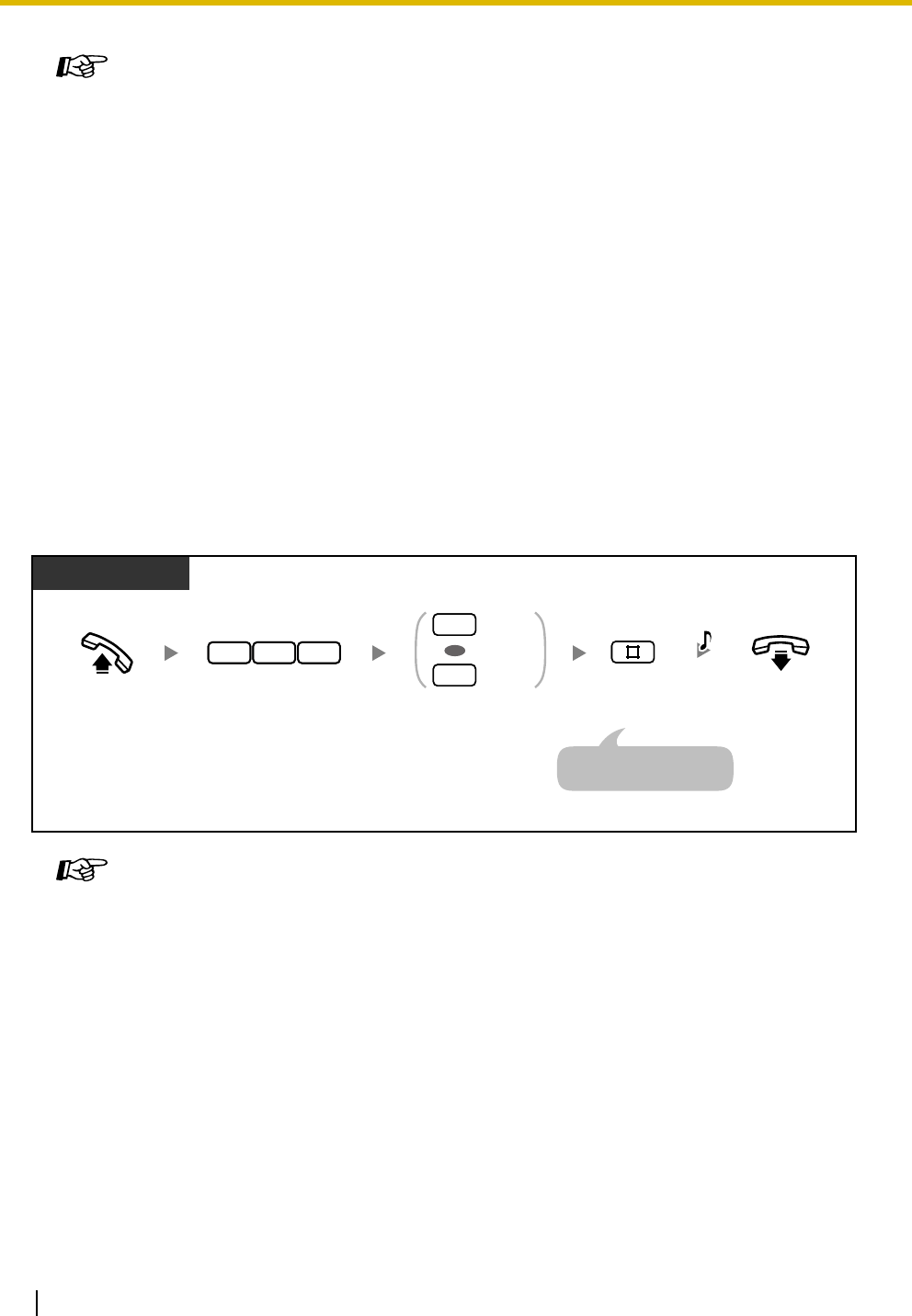
1.3 Telephone Features
86 Operating Manual
1.3.42 Executive Busy Override Deny
You can prevent other extension users from using the Executive Busy Override feature to join an ongoing
call.
Programming Manual References
[PT Programming]
• [105] Conference Tone
• [608] Executive Busy Override
[PC Programming]
• 9.1.11 Detail [1-10]—Conference—Conference Tone
• 9.2.1 Main [2-1]—Busy Override
Feature Manual References
• 1.1.51 Executive Busy Override—Outside (CO) Line
Operating Manual References
•1.3.42 Executive Busy Override Deny
Programming Manual References
[PT Programming]
• [608] Executive Busy Override
[PC Programming]
• 9.2.1 Main [2-1]—Busy Override
• 9.2.2 Feature settings [2-2]—Busy Override Deny
Feature Manual References
• 1.1.50 Executive Busy Override—Extension
• 1.1.51 Executive Busy Override—Outside (CO) Line
Operating Manual References
•1.3.40 Executive Busy Override—Extension
•1.3.41 Executive Busy Override—Outside (CO) Line
Off-hook. On-hook.
PT/SLT
Enter 733.
3 37
C.Tone
Enter 0 to prevent
or 1 to allow.
Allow
Prevent
0
1
OR
Enter #.
An SLT user can enter "0"
instead of "#".
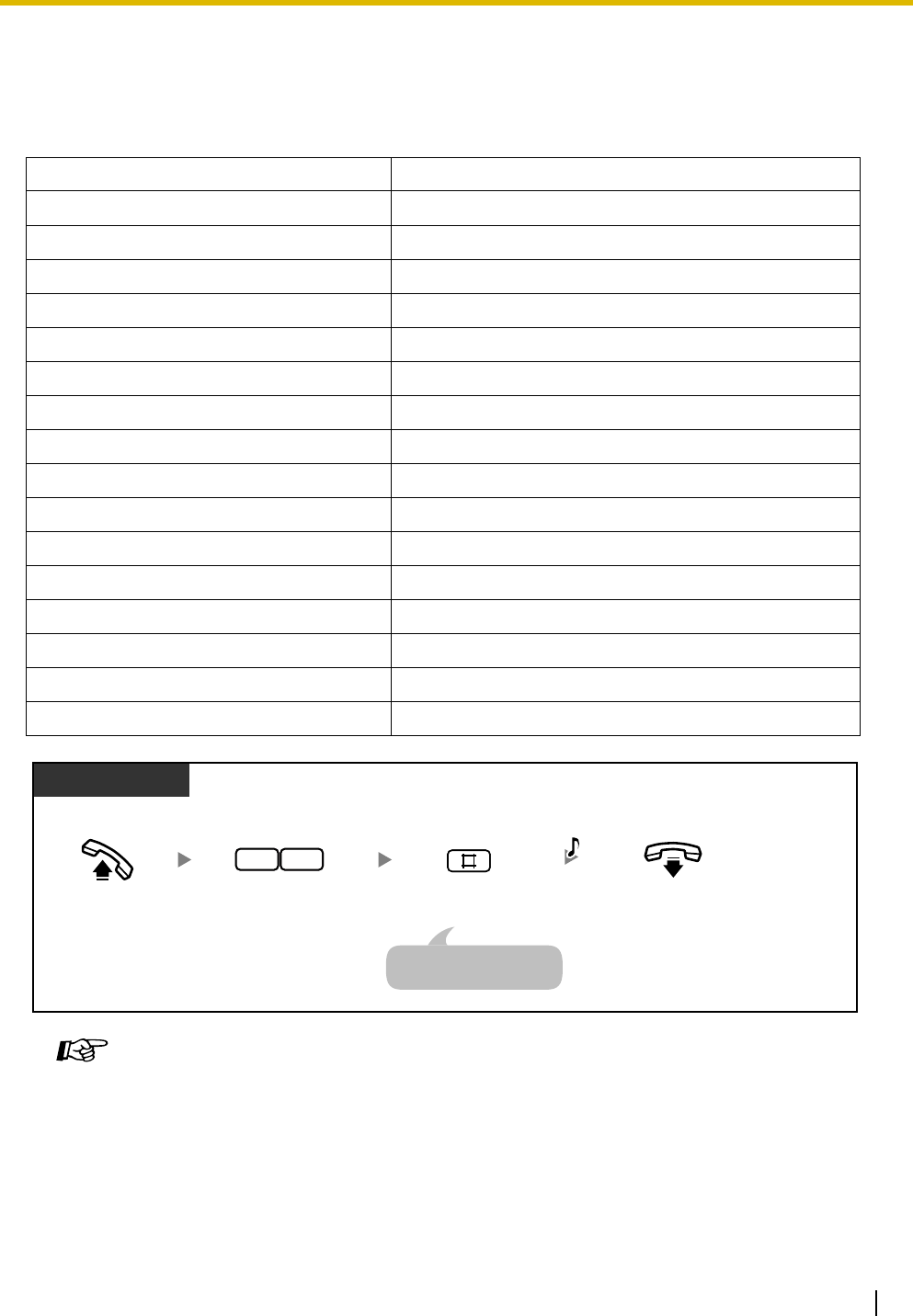
1.3 Telephone Features
Operating Manual 87
1.3.43 Extension Feature Clear
You can reset the settings of the following features on your extension to the default settings.
This feature is also known as Station Feature Clear or Station Program Clear.
1.3.44 Extension Lock
You can lock your extension so that outside (CO) line calls cannot be made. This can be useful to prevent
other people from making inappropriate calls using your extension.
This feature is also known as Electronic Station Lockout.
Feature Value after Extension Feature Clear
Absent Message Off
Automatic Callback Busy Off
Background Music (BGM) Off
Call Forwarding (FWD) Off
Call Pickup Deny Allow
Call Waiting Disable
Data Line Security Off
Do Not Disturb (DND) Off
Executive Busy Override Deny Allow
Hot Line The stored telephone numbers will be cleared.
Log-in/Log-out Log-in
Message Waiting All messages left by other extensions will be cleared.
Paging Deny Allow
Room Monitor Off
Timed Reminder Cleared
Voice Mail Integration Off
Feature Manual References
• 1.1.52 Extension Feature Clear
Off-hook. On-hook.
PT/SLT
Enter 79.
97 C.Tone
Enter #.
An SLT user can enter "0"
instead of "#".
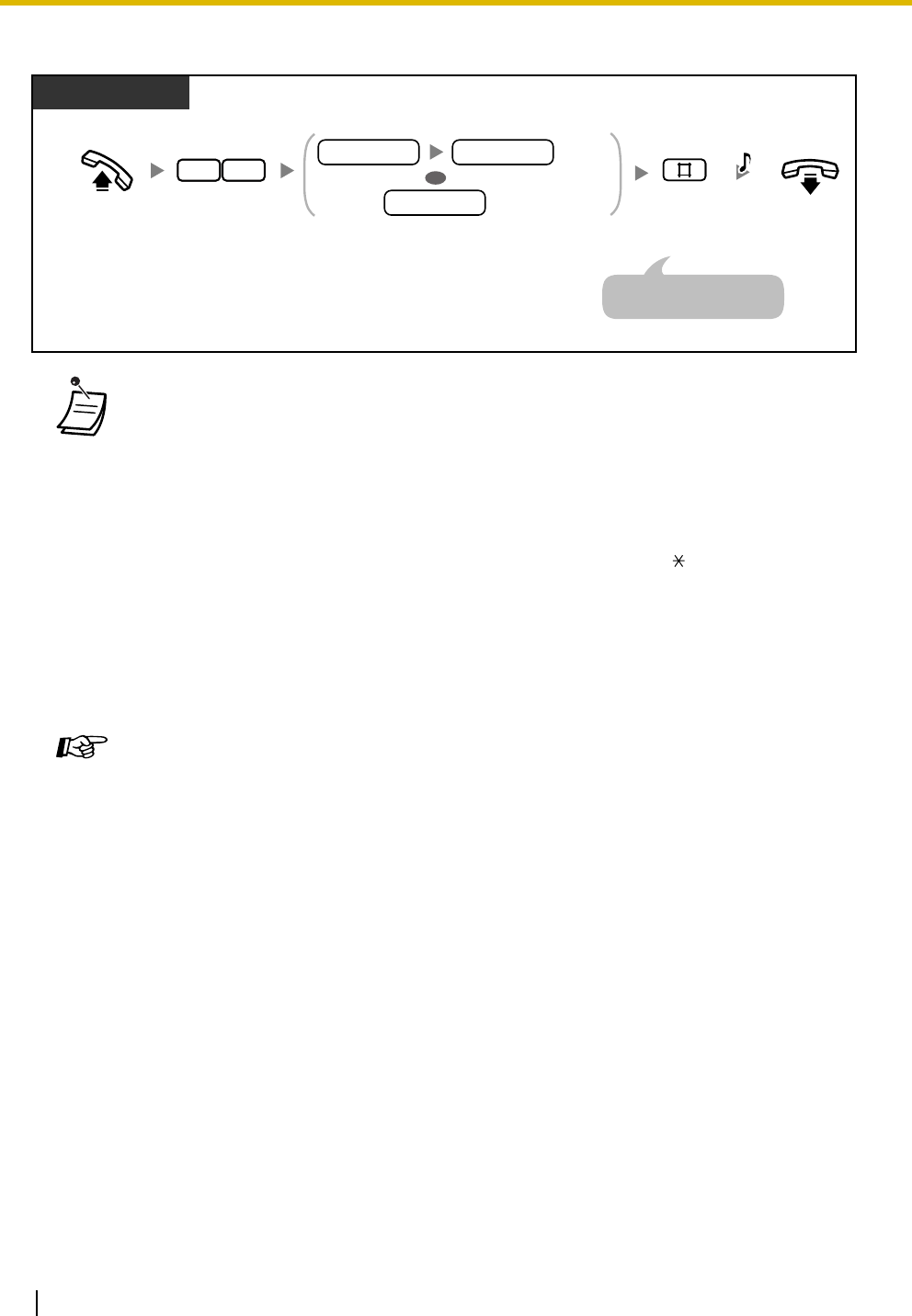
1.3 Telephone Features
88 Operating Manual
To lock/unlock
• If your extension is locked, it cannot be used to perform the following operations:
— Making outside (CO) line calls
— Accessing logged information
However, you may be able to make outside (CO) line calls depending on system
programming.
•If you forget the code or cannot unlock your phone, ask your operator or manager.
He or she can unlock your extension (Remote Extension Lock).
• The lock code must be 4 digits and must not include the "#" or " " characters.
• The operator or manager can cancel this feature for all extensions (Extension Lock—
CANCEL ALL).
• This feature also functions as Call Log Display Lock, Incoming.
The Incoming Call Log for the common area can only be locked or unlocked by the
operator or manager (Call Log Display Lock, Incoming in the Common Area).
Programming Manual References
[PT Programming]
• [108] Flash/Recall Mode for a Locked Extension
• [312] TRS—Extension Lock Class
• [601-603] TRS-COS—Day/Night/Lunch
[PC Programming]
• 9.1.11 Detail [1-10]—Extension—Flash/Recall Mode for a Locked Extension
• 9.5.1 Class of Service (COS) [5-1]—Day, Night, Lunch
• 9.5.4 Emergency Number & Others [5-4]—Extension Lock Class
Feature Manual References
• 1.1.55 Extension Lock
Operating Manual References
•1.3.19 Call Log Display Lock, Incoming in the Personal Area
•2.1.2 Call Log Display Lock, Incoming in the Common Area
•2.1.6 Remote Extension Lock
•2.1.7 System Feature Assignment—Extension Lock—CANCEL ALL
Off-hook. On-hook.
PT/SLT
Enter 77. Enter lock code (4 digits) 2 times
to lock or one time to unlock.
Enter #.
77
C.Tone
Lock
Unlock
lock code lock code
lock code
An SLT user can enter "0"
instead of "#".
OR
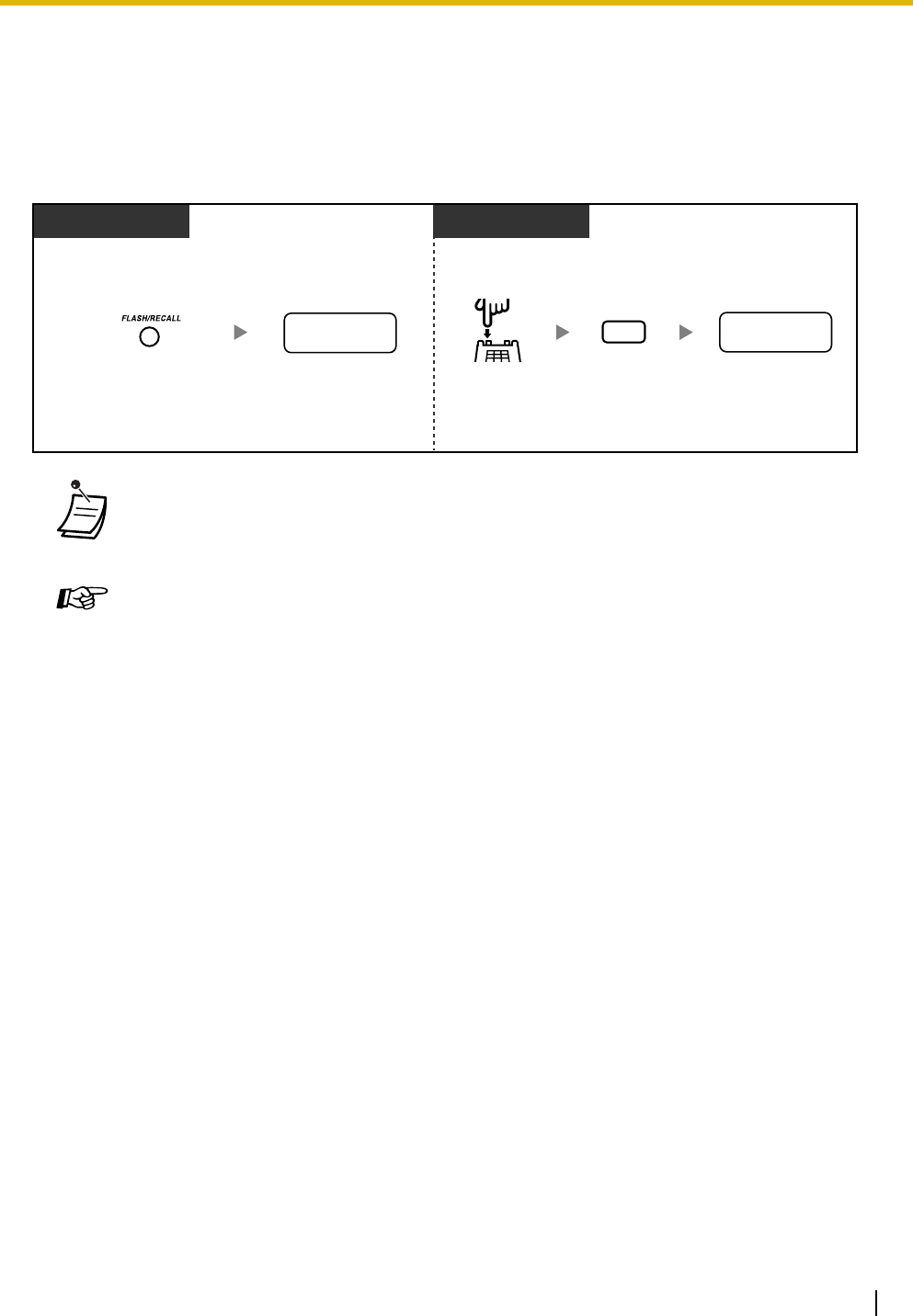
1.3 Telephone Features
Operating Manual 89
1.3.45 External Feature Access (EFA)
You can access special features such as Call Waiting offered by another PBX or a telephone company. This
feature is only available during outside (CO) line calls.
<Example> To hold the current call and then talk to the new party
1.3.46 Flash/Recall
You can disconnect the current call and make a call to another party without going on-hook.
• Consult your dealer for the appropriate service codes.
Programming Manual References
[PT Programming]
• [110] Flash/Recall Key Mode
• [418] Flash/Recall Time
[PC Programming]
• 9.1.11 Detail [1-10]—Proprietary Telephone—Flash/Recall Key Mode
• 9.3.3 Detail [3-3]—Flash/Recall Time
Feature Manual References
• 1.1.56 External Feature Access (EFA)
Operating Manual References
•1.3.46 Flash/Recall
PT SLT
Enter desired
service code.
desired service
code
Enter desired
service code.
Press Recall/
hookswitch.
Press FLASH/RECALL.
During a conversation with an outside party During a conversation with an outside party
Enter 6.
desired service
code
6
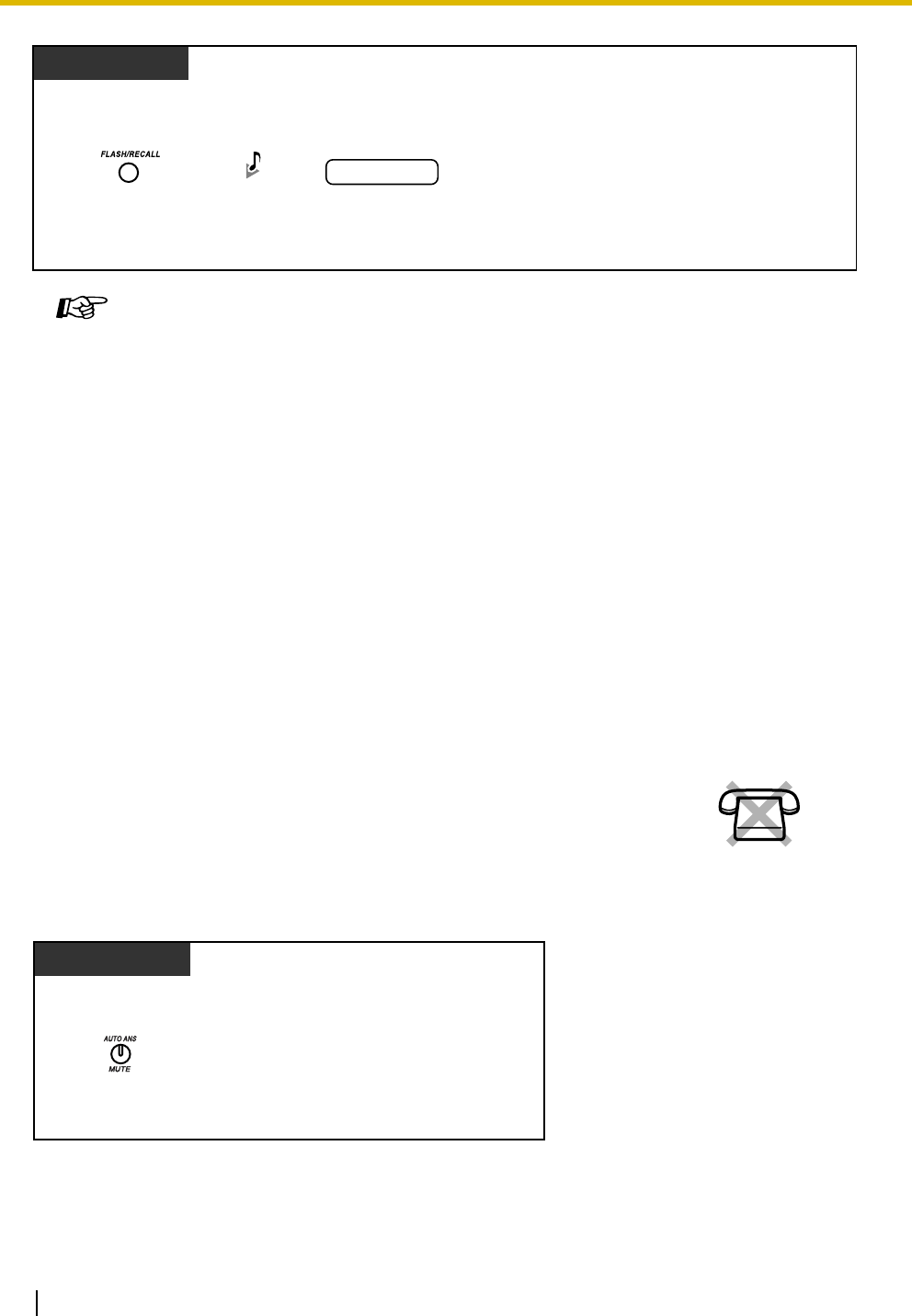
1.3 Telephone Features
90 Operating Manual
1.3.47 Hands-free Answerback
To set/cancel
Programming Manual References
[PT Programming]
• [110] Flash/Recall Key Mode
• [418] Flash/Recall Time
• [422] Disconnect Time
[PC Programming]
• 9.1.11 Detail [1-10]—Proprietary Telephone—Flash/Recall Key Mode
• 9.3.3 Detail [3-3]—Flash/Recall Time, Disconnect Time
Feature Manual References
• 1.1.60 Flash/Recall
Operating Manual References
•1.3.45 External Feature Access (EFA)
You can set your proprietary telephone (PT) to answer incoming intercom calls
without going off-hook. When an intercom call arrives, you will hear the caller
talking without the phone ringing.
PT
While hearing any tone, dialing, or talking
Press FLASH/RECALL.
Dial
phone number.
phone no.
D.Tone
No SLT
Press AUTO ANS/MUTE.
While on-hook
PT
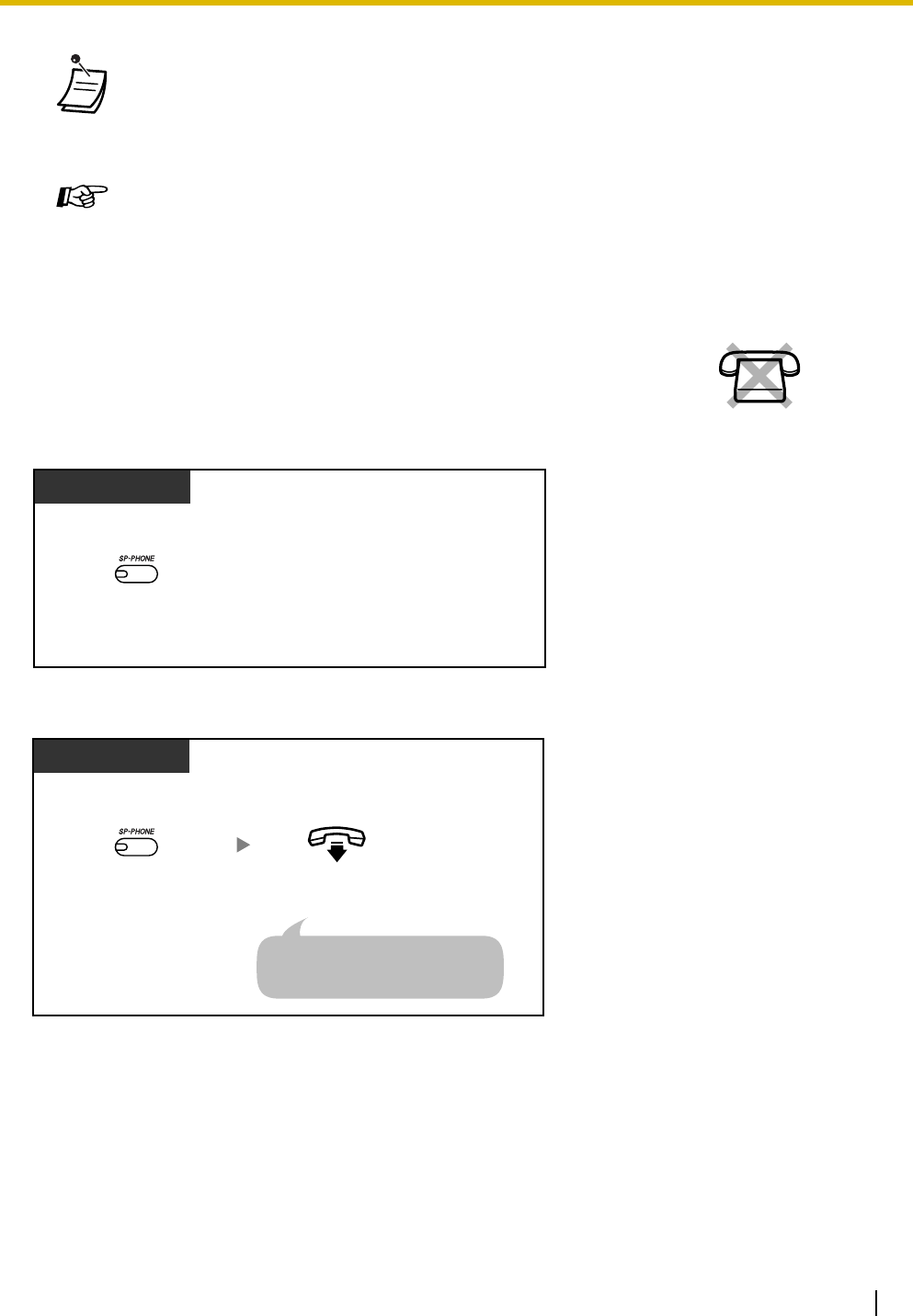
1.3 Telephone Features
Operating Manual 91
1.3.48 Hands-free Operation
To switch from the handset to hands-free mode
• The AUTO ANS/MUTE button light shows the current status as follows:
Off: Not set
Red on: Set
• This feature is not available for incoming outside (CO) line calls and doorphone calls.
Feature Manual References
• 1.1.62 Hands-free Answerback
You can dial and talk to another party in hands-free mode using the SP-PHONE
button.
No SLT
While on-hook
PT
Press SP-PHONE.
Press SP-PHONE.
PT
On-hook.
During a conversation using the handset
Do not go on-hook without pressing
the SP-PHONE button first, or the
call will be disconnected.
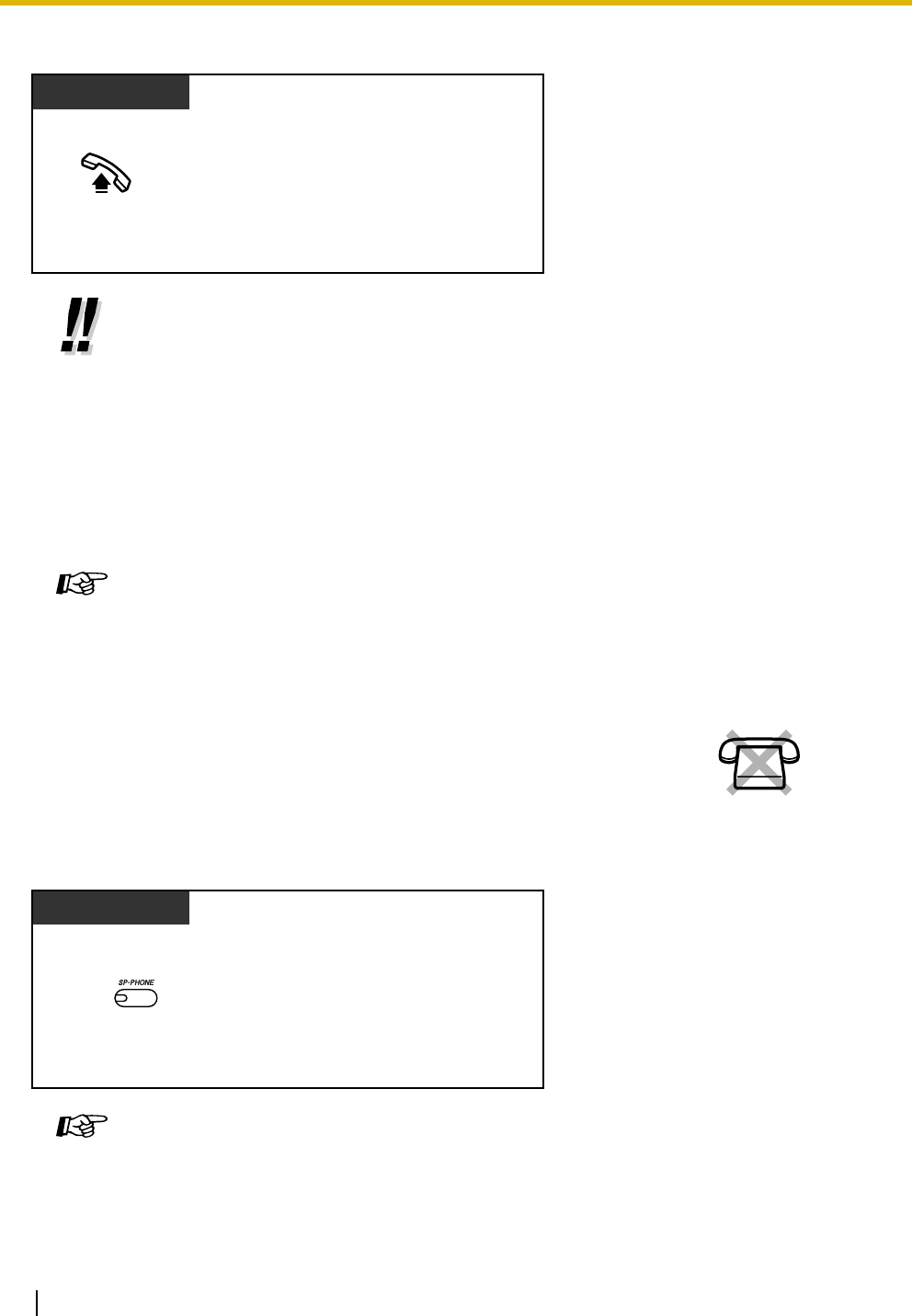
1.3 Telephone Features
92 Operating Manual
To switch from hands-free mode to the handset
1.3.49 Headset Operation
To talk using the headset
•Helpful hints for hands-free operation:
•If it is difficult to hear the other party's voice:
Increase the volume using the Navigator Key or Volume Key.
•If the other party has difficulty hearing you:
Decrease the volume.
•If the other party reports that your voice echoes:
Use the telephone in a room that has curtains, carpeting or both.
•If parts of the conversation cannot be heard:
If you and the other party speak at the same time, parts of your conversation may be
lost. To avoid this, try to speak alternately.
Feature Manual References
• 1.1.63 Hands-free Operation
Connecting an optional headset allows for hands-free conversations.
This feature is also known as Handset/Headset Selection.
Feature Manual References
• 1.1.64 Headset Operation
PT
Off-hook.
During a conversation in hands-free mode
No SLT
Press SP-PHONE.
PT
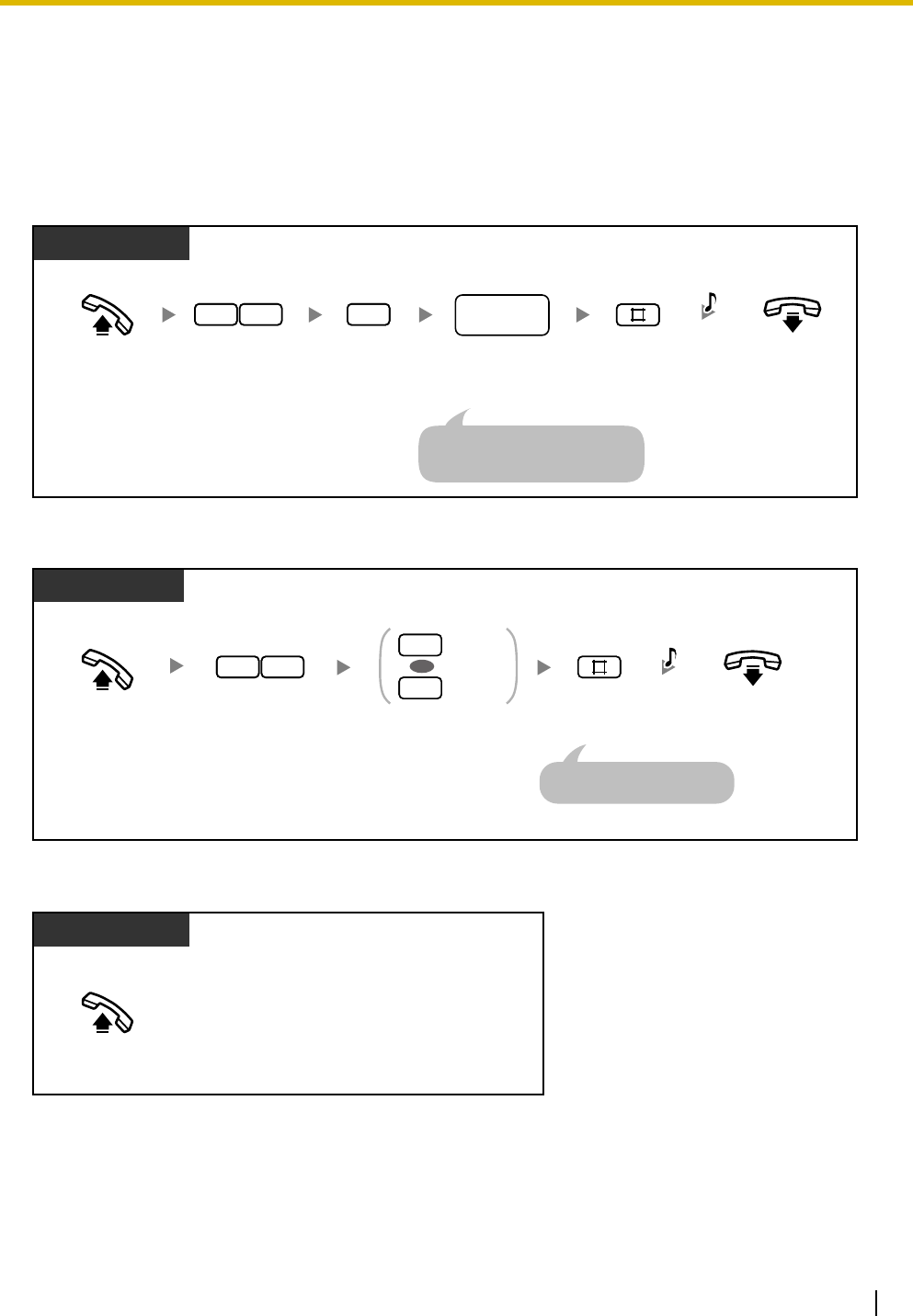
1.3 Telephone Features
Operating Manual 93
1.3.50 Hot Line
A single line telephone (SLT) user can make a call simply by going off-hook, if the telephone number has
been stored beforehand.
This feature is also known as Pickup Dialing.
To store a phone number
To set/cancel
To dial
SLT
Enter #.On-hook.
Off-hook. Dial desired
phone number
(max. 32 digits).
desired
phone no.
Enter
74
.
2
Enter
2
.
4
7C.Tone
Dial an outside (CO) line access
number before the outside phone
number.
SLT
Off-hook. On-hook.
Enter 1 to set
or 0 to cancel.
Enter #.
Set
Cancel
1
0
OR
Enter 74.
47
C.Tone
An SLT user can enter "0"
instead of "#".
Off-hook.
SLT
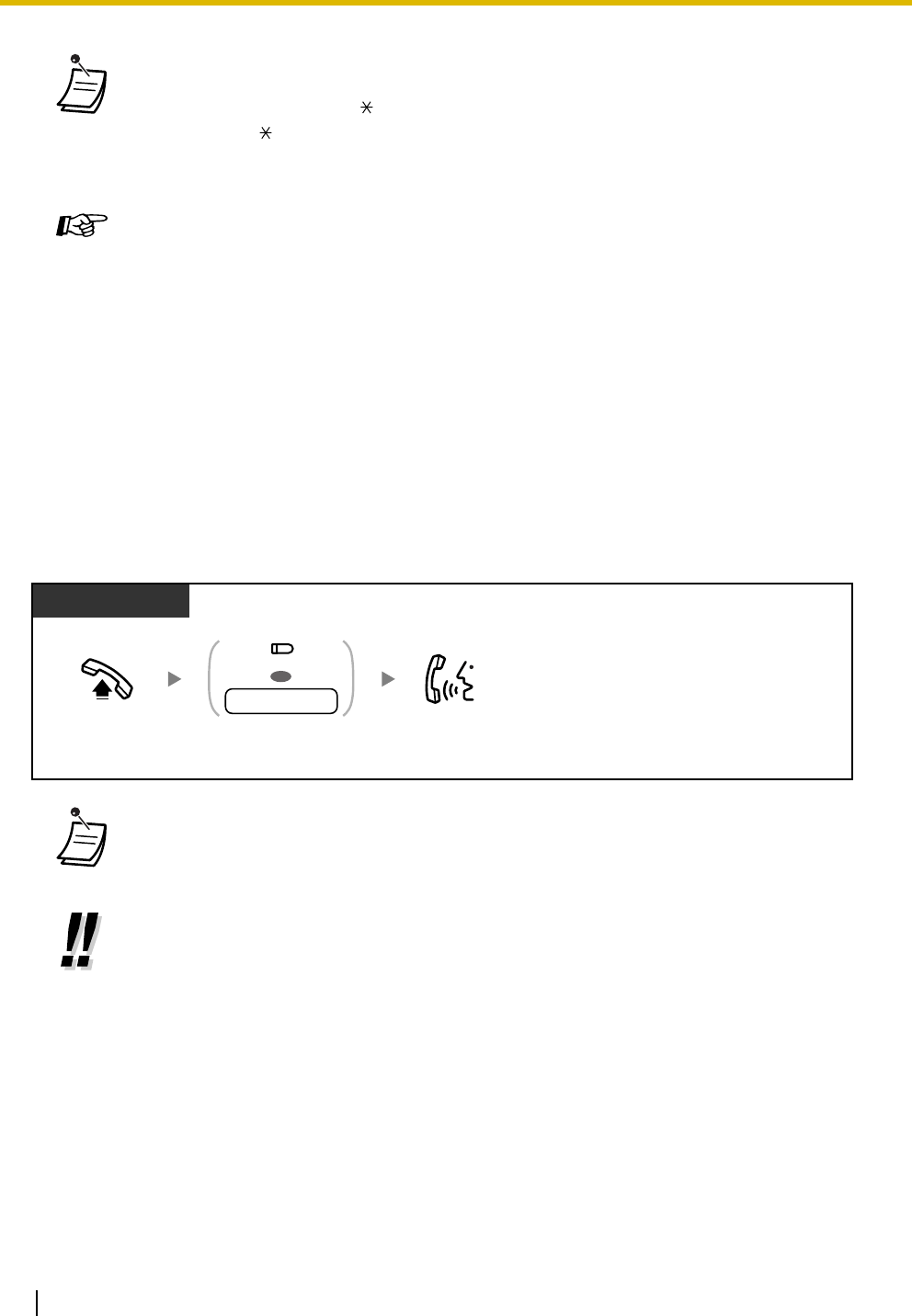
1.3 Telephone Features
94 Operating Manual
1.3.51 Intercom Call
You can call another extension.
•To call another party, dial the desired party's phone number before the preprogrammed
number is dialed.
• Up to 32 digits including " " can be stored. However, depending on your mode of account
code entry, " " may not be regarded as a pause.
• Rotary SLT users cannot program this feature.
Programming Manual References
[PT Programming]
• [203] Hot Line Waiting Time
[PC Programming]
• 9.1.7 Timers [1-6]—Start Time—Hot Line
• 9.2.2 Feature settings [2-2]—Hot Line for SLT
Feature Manual References
• 1.1.66 Hot Line
• The Direct Station Selection (DSS) button light shows the current status as follows:
Off: The extension is idle.
Red on: The extension is on a call.
•For quick operation
If you are the operator or dial certain extension numbers frequently, DSS buttons are
useful.
•Hands-free Operation
You can make an intercom call and have a conversation in hands-free mode using the SP-
PHONE/INTERCOM button. Refer to "1.3.48 Hands-free Operation".
PT/SLT
Off-hook. Talk.Press DSS or dial
extension number.
OR
extension no.
(DSS)

1.3 Telephone Features
Operating Manual 95
1.3.52 Line Access, Outside (CO) Line—SUMMARY
There are 3 methods of seizing an outside (CO) line. Use whichever method you prefer, unless requested
by your manager to use a specific method.
Choose one of the following methods:
Line Access, Automatic
Line Access, Outside (CO) Line Group
Line Access, S-CO Line
Programming Manual References
[PT Programming]
• [009] Extension Number
• [115] Extension Ring Tone Pattern
• [128] Ringback Tone Pattern
• [604] Extension Name
[PC Programming]
• 9.1.3 Numbering Plan [1-3]
• 9.1.11 Detail [1-10]—Extension—Ring Tone Pattern, Extension—Ringback Tone
Pattern
Feature Manual References
• 1.1.69 Intercom Call
Operating Manual References
•1.3.48 Hands-free Operation
•3.1.3 Flexible Button Assignment
Create or edit a Direct Station Selection (DSS) button.
•Line Access, Direct Outside (CO) Line
You can press the S-CO or G-CO button without going off-hook first.
• The Single-CO (S-CO) and Group-CO (G-CO) button lights show the current status as
follows:
Off: The line is idle.
Green on: You are using the line.
Red on: Another extension is using the line (S-CO), or other extensions are using all
outside (CO) lines in the outside (CO) line group (G-CO).
•Emergency Call
You can dial preprogrammed emergency numbers after seizing an outside (CO) line
without any restrictions.
• You may be restricted from making calls to certain outside parties. If you have questions
about your calling restrictions, consult your manager or dealer.
•To make a call to another party without going on-hook, press the FLASH/RECALL
button. Pressing the button will re-access the outside (CO) line and provide an external
dial tone. You can dial the new phone number without going on/off-hook.
•Hands-free Operation
You can make an outside (CO) line call and have a conversation in hands-free mode using
the SP-PHONE button. Refer to "1.3.48 Hands-free Operation".
1.3 Telephone Features
96 Operating Manual
1.3.53 Line Access, Automatic
You can select an idle outside (CO) line automatically. You can also select an idle outside (CO) line from
among the outside (CO) lines that are not assigned to Single-CO (S-CO) or Group-CO (G-CO) buttons (Line
Access Using the Other-CO (O-CO) Button).
To select an idle outside (CO) line automatically
Programming Manual References
[PT Programming]
• [206] Dialing Start Time
• [400] CO Line Connection
• [404] CO Line Group Number
• [405-407] Flexible Outward Dialing—Day/Night/Lunch
• [419] Automatic Designated Line Access
[PC Programming]
• 9.1.7 Timers [1-6]—CO Dialing—Dialing Start Time
• 9.3.2 Incoming / Outgoing [3-2]—Outgoing Call—Day, Night, Lunch
• 9.3.3 Detail [3-3]—Connection, CO Line Group, Automatic Line Access
Feature Manual References
• 1.1.71 Line Access, Outside (CO) Line—SUMMARY
Operating Manual References
•1.3.2 Account Code Entry
•1.3.39 Emergency Call
•1.3.44 Extension Lock
•1.3.46 Flash/Recall
•1.3.48 Hands-free Operation
•1.3.85 Toll Restriction (TRS)
•2.1.6 Remote Extension Lock
•3.1.2 Personal Feature Assignment—Line Preference—Outgoing
Select the seized line when going off-hook.
•3.1.3 Flexible Button Assignment
Create or edit a Single-CO (S-CO) button, Group-CO (G-CO) button, or Other-CO (O-
CO) button.
PT/SLT
Off-hook. Talk.
Dial outside phone
number.
outside
phone no.
Enter automatic line
access number.
9
1.3 Telephone Features
Operating Manual 97
To select an idle unassigned outside (CO) line
1.3.54 Line Access, Outside (CO) Line Group
You can select an idle outside (CO) line in the specified outside (CO) line group (1–8) automatically.
Programming Manual References
[PT Programming]
• [206] Dialing Start Time
• [400] CO Line Connection
• [405-407] Flexible Outward Dialing—Day/Night/Lunch
• [419] Automatic Designated Line Access
[PC Programming]
• 9.1.7 Timers [1-6]—CO Dialing—Dialing Start Time
• 9.3.2 Incoming / Outgoing [3-2]—Outgoing Call—Day, Night, Lunch
• 9.3.3 Detail [3-3]—Connection, Automatic Line Access
Feature Manual References
• 1.1.72 Line Access, Automatic
• You can press the G-CO button without going off-hook first.
PT
Off-hook. Talk.
Dial outside phone
number.
outside
phone no.
Press O-CO.
(O-CO)
Off-hook. Talk.
Press G-CO or dial outside
(CO) line group access
number and then outside
(CO) line group number (1–8).
Dial outside phone
number.
outside
phone no.
OR
8
outside (CO)
line group no.
(G-CO)
PT/SLT
1.3 Telephone Features
98 Operating Manual
1.3.55 Line Access, S-CO Line
You can select a specified outside (CO) line.
Programming Manual References
[PT Programming]
• [206] Dialing Start Time
• [400] CO Line Connection
• [404] CO Line Group Number
• [405-407] Flexible Outward Dialing—Day/Night/Lunch
[PC Programming]
• 9.1.7 Timers [1-6]—CO Dialing—Dialing Start Time
• 9.3.2 Incoming / Outgoing [3-2]—Outgoing Call—Day, Night, Lunch
• 9.3.3 Detail [3-3]—Connection, CO Line Group
Feature Manual References
• 1.1.73 Line Access, Outside (CO) Line Group
• You can press the S-CO button without going off-hook first.
Programming Manual References
[PT Programming]
• [206] Dialing Start Time
• [400] CO Line Connection
• [405-407] Flexible Outward Dialing—Day/Night/Lunch
[PC Programming]
• 9.1.7 Timers [1-6]—CO Dialing—Dialing Start Time
• 9.3.2 Incoming / Outgoing [3-2]—Outgoing Call—Day, Night, Lunch
• 9.3.3 Detail [3-3]—Connection
Feature Manual References
• 1.1.74 Line Access, S-CO Line
PT
Off-hook. Talk.Press S-CO.Dial outside phone
number.
outside
phone no.
(S-CO)

1.3 Telephone Features
Operating Manual 99
1.3.56 Live Call Screening (LCS) (Voice Mail APT Integration only)
Before operating
• Create a Live Call Screening (LCS) button.
• Select the mode, either Hands-free or Private.
• Set the LCS password.
• Set the LCS feature.
To set/cancel the LCS password
While a caller is leaving a message in your mailbox, you can monitor the call,
and choose whether to answer or not. There are 2 methods available. (Default:
Hands-free mode)
Hands-free mode:
You can monitor the message automatically, live through the telephone
speaker.
Private mode:
You will hear the following alert tone while the caller is leaving a message.
This feature is available when the PBX is connected to a Panasonic Voice
Processing System (VPS) that supports APT integration.
1 s
No SLT
Off-hook.
On-hook.
Enter LCS password (3 digits)
2 times to set or one time to cancel.
PT
LCS
password LCS
password
LCS
password
Set
Cancel
77
Enter 77 .
OR
C.Tone
Enter #.
1.3 Telephone Features
100 Operating Manual
To set LCS
To cancel LCS
Operation Flowchart
The operations in the shaded areas can be performed in hands-free mode.
Press Live Call
Screening.
Enter LCS password.
LCS password
PT
(Live Call
Screening)
While on-hook
Press red Live Call Screening.
PT
(Live Call
Screening)
While on-hook
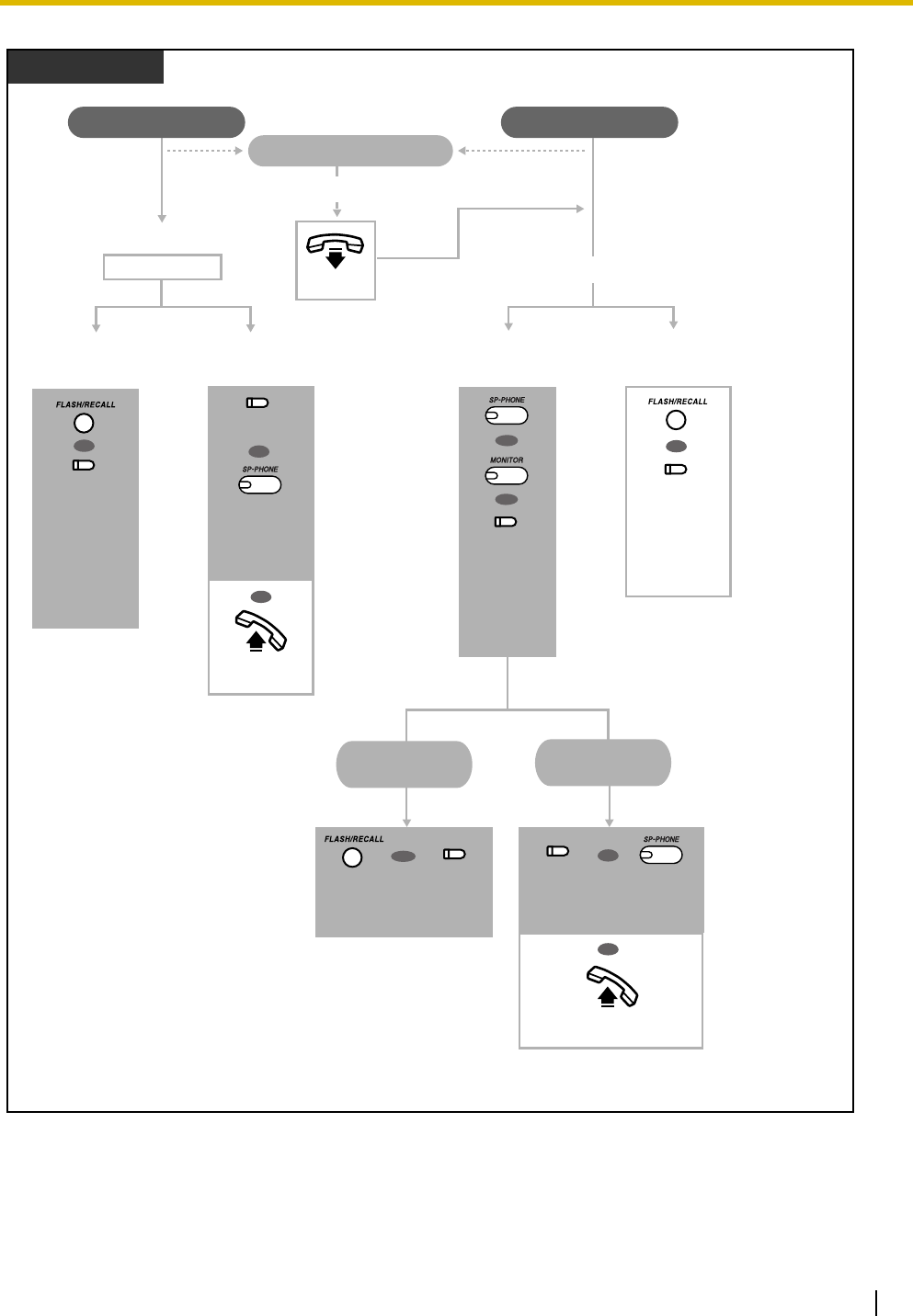
1.3 Telephone Features
Operating Manual 101
Hands-free Mode Private Mode
Stop
monitoring
Answer
the call
Monitor
Monitor
No operation
Stop
monitor Answer
(Alert Tone)
Press FLASH/RECALL
or
LCS Cancel
.
OR
Press FLASH/
RECALL or
LCS Cancel.
Stop the
alert tone
(LCS Cancel)
Off-hook.
OR
OR
Press
Live Call
Screening or
SP-PHONE.
Press
SP-PHONE,
MONITOR
,
or Live Call
Screening.
PT
(Live Call
Screening)
OR
Press
FLASH/
RECALL
or
LCS
Cancel
.
Off-hook.
OR
During a conversation
(Call Waiting Tone)
On-hook.
OR
(Live Call
Screening)
(LCS Cancel)
OR
(LCS Cancel)
Press
Live Call Screening
or SP-PHONE.
(Live Call
Screening)
OR
OR
*
* To hold the current call, press the HOLD button.

1.3 Telephone Features
102 Operating Manual
1.3.57 Local Carrier-based Voice Mail Service
• The Live Call Screening (LCS) button light shows the feature status as follows:
Off: LCS is off.
Flashing green rapidly: An alert tone is ringing (Private mode only).*1
Flashing green slowly: Monitoring.*2
Red on: LCS is on.
*1 The Direct Station Selection (DSS) button light flashes red slowly while monitoring.
*2 The DSS button light flashes red at moderate speed while an alert tone is ringing.
• The operator or manager can clear the LCS password at any extension.
Programming Manual References
[PT Programming]
• [620] LCS Recording Mode Set
[PC Programming]
• 9.2.1 Main [2-1]—LCS Recording Mode
• 9.2.2 Feature settings [2-2]—LCS Password
Feature Manual References
• 1.1.77 Live Call Screening (LCS) (Voice Mail APT Integration only)
Operating Manual References
•2.1.7 System Feature Assignment—Live Call Screening (LCS) Password Control
•3.1.2 Personal Feature Assignment—Live Call Screening [LCS] Mode Set
Select the mode, either monitoring the message through the speaker automatically or
receiving an alert tone, while the caller leaves a message.
•3.1.3 Flexible Button Assignment
Create or edit a Live Call Screening (LCS) button or LCS Cancel button.
It is possible to use voice mail service provided by your telephone company.
After subscription, the telephone company's voice mail system can answer calls
automatically when you are busy or calls are not answered, and callers can leave
their messages in your mailbox of the voice mail system located at the telephone
company. You will receive an indication to notify you that a message is waiting.
The Message/Ringer Lamp will light red and a Single-CO (S-CO) button will
flash red at moderate speed after the mailbox has received messages, on a
proprietary telephone (PT).
No SLT
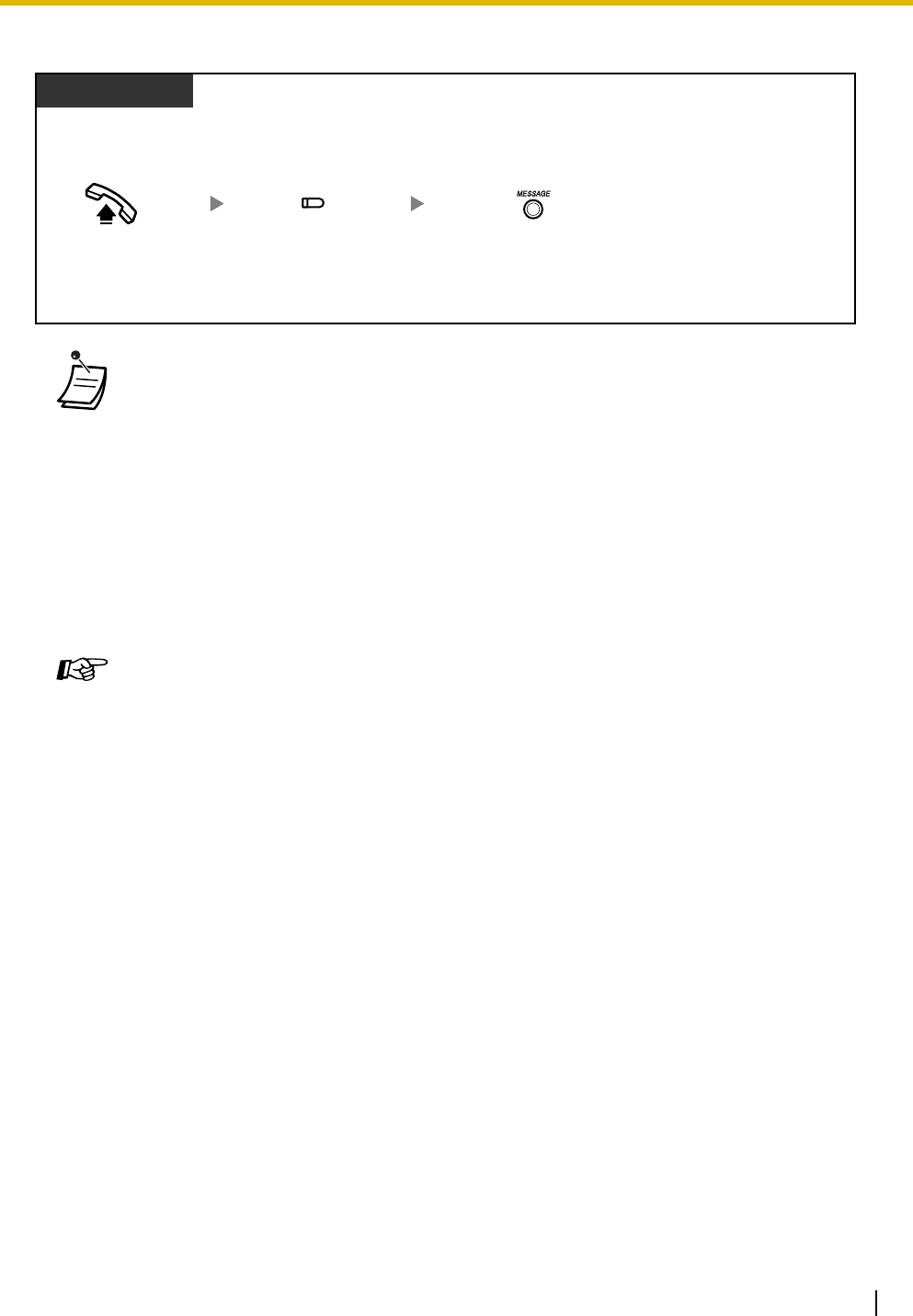
1.3 Telephone Features
Operating Manual 103
To listen to messages
1.3.58 Lockout
If one party in a conversation goes on-hook, the call between both parties will be disconnected. A reorder
tone is sent to the off-hook party before the call is disconnected. No operation is necessary. For more
details, refer to "1.1.79 Lockout" in the Feature Manual.
• If your telephone company sends a special signal (Stutter dial tone) when you seize the
outside (CO) line, this is an indication that a new message was recorded. Approximately
5 seconds after the user hangs up one of the preprogrammed outside (CO) lines, or 3
minutes 46 seconds after the phone stops ringing, the PBX automatically seizes the line
and checks if a message has been recorded. If a new message was recorded in the
mailbox of the telephone company, the Message/Ringer Lamp lights red and the
corresponding S-CO button flashes red moderately.
• If your voice mail service uses a stutter dial tone and the recorded message is over 3
minutes long, in some cases the Message/Ringer Lamp may not light and the
corresponding S-CO button may not flash.
• A contract with your telephone company may be required for local carrier-based voice mail
service. For more details, consult your telephone company.
Programming Manual References
[PT Programming]
• [435] Local Carrier-based Voice Mail Signaling
• [436] Local Carrier-based Voice Mail Access Dial
• [437] Extension Access to Local Carrier-based Voice Mail
[PC Programming]
• 9.3.4 Local Carrier-based VM [3-4]
Feature Manual References
• 1.1.78 Local Carrier-based Voice Mail Service
Operating Manual References
•3.1.3 Flexible Button Assignment
Create or edit a Single-CO (S-CO) button or Message button.
Press MESSAGE.
Off-hook.
PT
When the Message/Ringer Lamp is lit and an S-CO button flashes red at moderate speed
Press S-CO.
(S-CO)
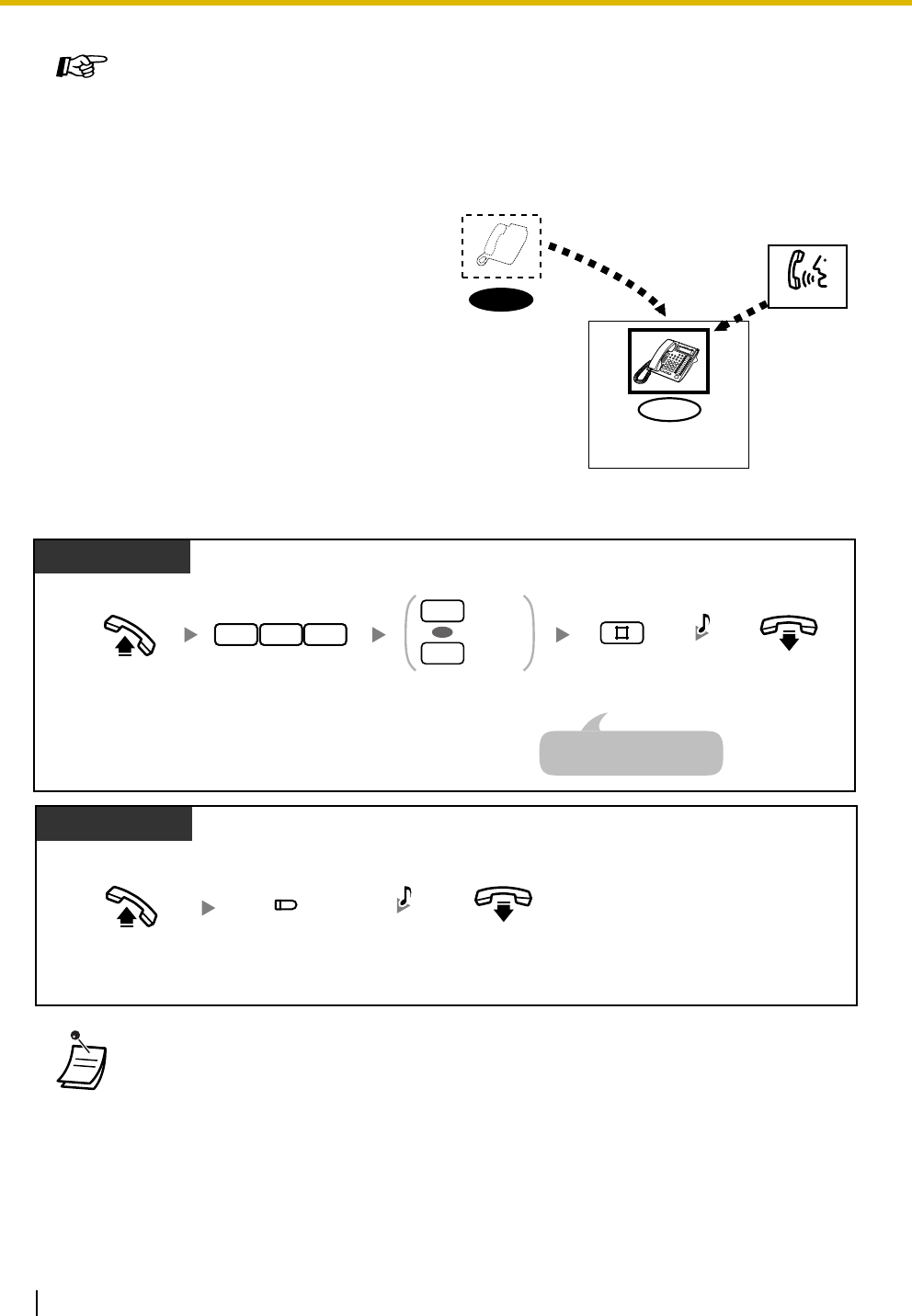
1.3 Telephone Features
104 Operating Manual
1.3.59 Log-in/Log-out
To set Log-in/Log-out
Feature Manual References
• 1.1.79 Lockout
You can change your status in an extension
group (idle extension hunting group/DISA ring
group). When you log out, incoming calls to the
group will not ring at your extension. When you
log back in, calls will again ring at your
extension. (Default: Log-in)
• The Log-in/Log-out button light shows the current status as follows:
Off: Log-in mode
Red on: Log-out mode
• The last member of a group cannot log out.
Log-in
Log-out
Call
Extension Group
Log-in
Log-out
0
1
OR
7 3 6 C.Tone
Off-hook. On-hook.
Enter 0 to log-in
or 1 to log-out.
Enter #.Enter 736.
PT/SLT
An SLT user can enter "0"
instead of "#".
Off-hook. On-hook.
Press Log-in/
Log-out.
PT
C.Tone
(Log-in/Log-out)
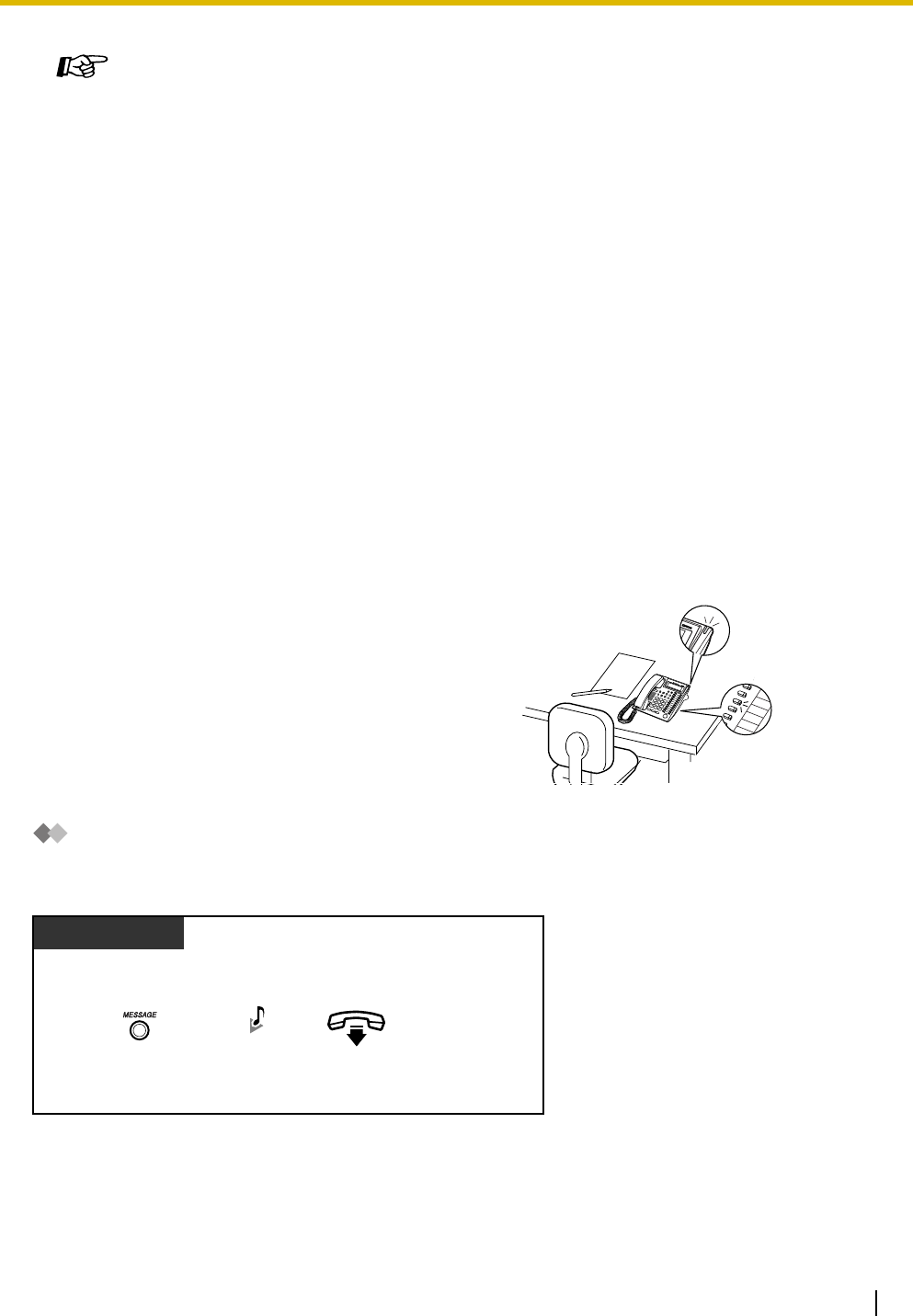
1.3 Telephone Features
Operating Manual 105
1.3.60 Message Waiting
–Leaving a Message Waiting Indication
–Calling Back a Caller Who Left an Indication
Leaving a Message Waiting Indication
To leave a message waiting indication
Programming Manual References
[PT Programming]
• [100] Hunting Group Set
• [600] Extension Group
[PC Programming]
• 9.2.2 Feature settings [2-2]—Log-in / Log-out
• 9.2.11 Extension Group [2-6]—Group No., Extension Hunting—Extension Hunting
Feature Manual References
• 1.1.80 Log-in/Log-out
Operating Manual References
•3.1.3 Flexible Button Assignment
Create or edit a Log-in/Log-out button.
When the called extension is busy or does not answer
your call, you can leave a notification so that the called
party may call you back.
When you receive a message waiting indication, the
MESSAGE button light or Message/Ringer Lamp will
light. You can call back the caller simply by pressing the
lit MESSAGE button.
Message/Ringer Lamp
Message button
light
PT
Press MESSAGE.On-hook.
When the called extension is busy or does not answer
C.Tone
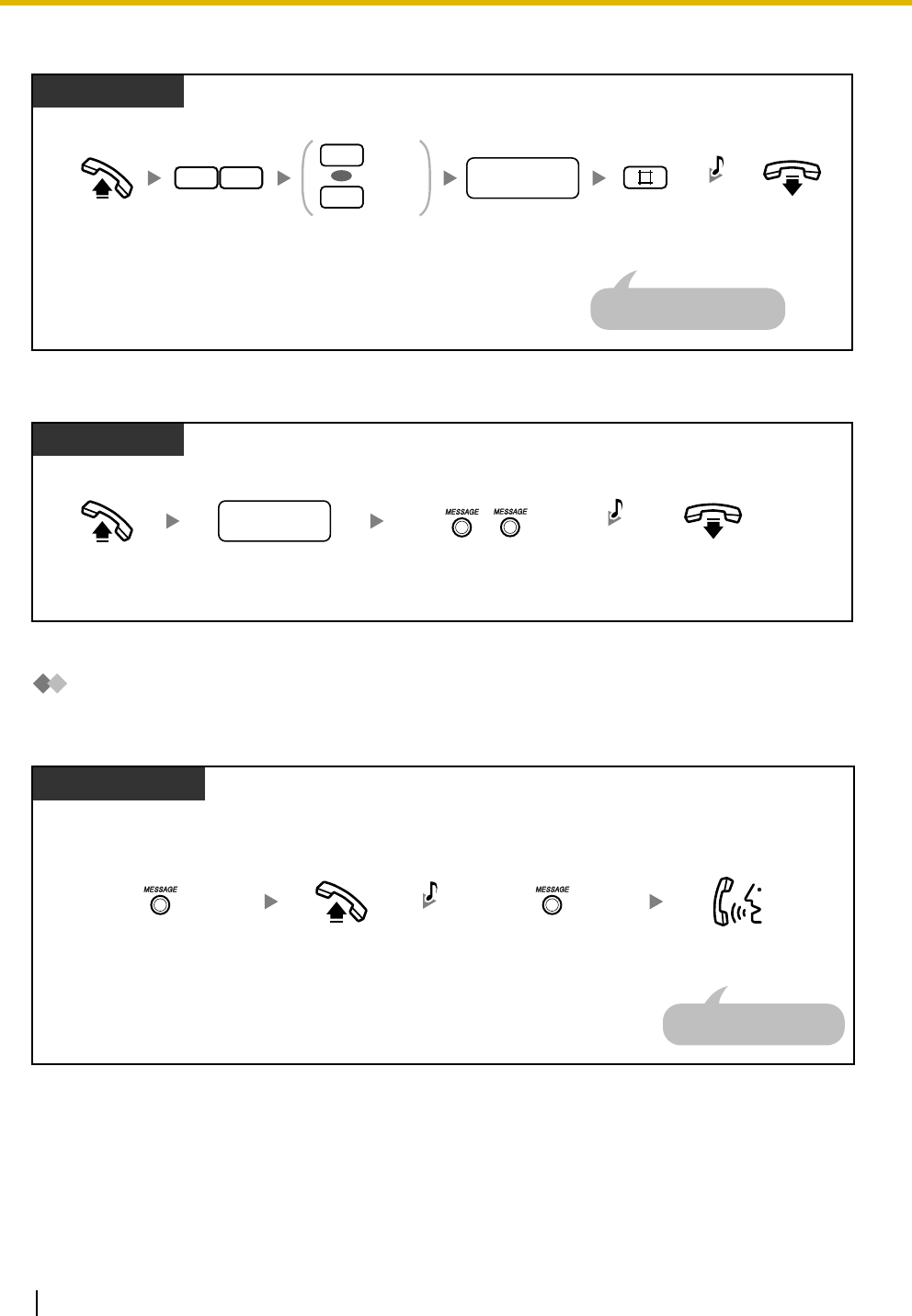
1.3 Telephone Features
106 Operating Manual
To leave/cancel a message waiting indication
To cancel a message waiting indication using the MESSAGE button
Calling Back a Caller Who Left an Indication
To check a received message and call back
PT/SLT
Off-hook. Enter 1 to leave
or 2 to cancel.
On-hook.
Dial desired
extension number.
Leave
Cancel
1
2
OR
07
Enter 70.
desired
extension no.
C.Tone
Enter #.
An SLT user can enter "0"
instead of "#".
PT
Off-hook. On-hook.
Dial desired
extension number.
Press MESSAGE 2 times.
desired
extension no.
C.Tone
While on-hook
Display PT
Press MESSAGE
until the desired
extension is displayed.
Off-hook. Talk.
Press MESSAGE.
D.Tone
The message is cleared
after the conversation.
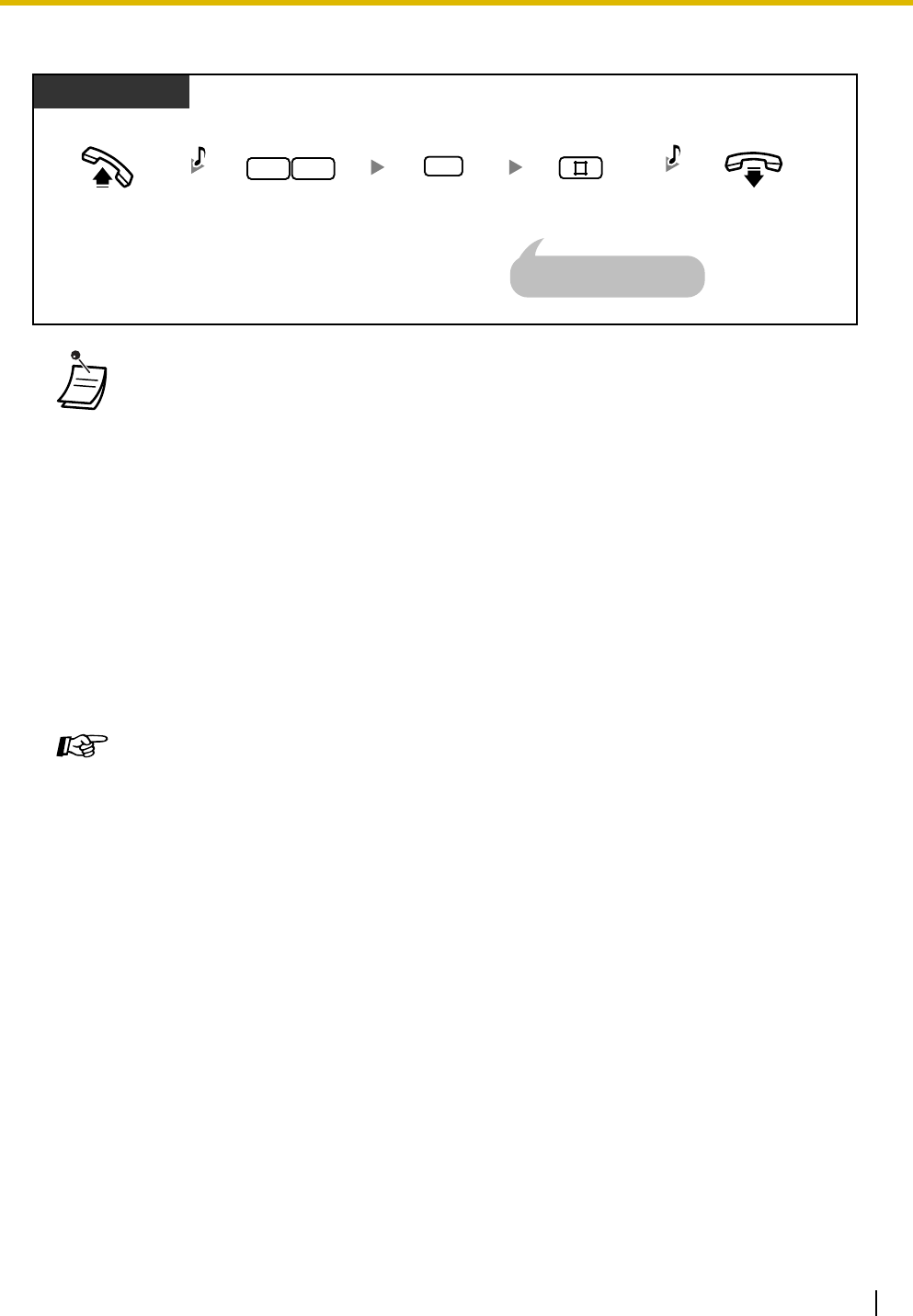
1.3 Telephone Features
Operating Manual 107
To cancel all message waiting indications left at your extension
• The MESSAGE button light or Message/Ringer Lamp shows the current status as follows:
Off: No messages
Red on: New messages.
• The display shows messages in the order received, starting with the selected message.
<Example>
5→6→7→8→1→2→3→4
• The MESSAGE button is used to perform operations and display notifications from both
the Message Waiting and Built-in Voice Message (BV) features. If a message has also
been left in a voice message area, "Voice Message" will be shown on a display PT when
the MESSAGE button is pressed. Refer to "1.3.7 Built-in Voice Message (BV)".
• Each extension can have a maximum of 8 messages waiting when using the Message
Waiting feature, or a maximum of 125 voice messages waiting when using the BV feature.
• If you go off-hook with a single line telephone (SLT) that has messages waiting, a special
dial tone (dial tone 3) will be heard. You can call a caller back or listen to the message by
entering the Message Waiting Answer feature number, "784# (7840)".
Programming Manual References
[PT Programming]
• [619] SLT Message Waiting
[PC Programming]
• 9.2.1 Main [2-1]—SLT MW
Feature Manual References
• 1.1.82 Message Waiting
Operating Manual References
•1.3.7 Built-in Voice Message (BV)
•1.3.61 Message Waiting for Another Extension
•3.1.3 Flexible Button Assignment
Create or edit a Message button.
Off-hook. Enter 70. Enter #.
PT/SLT
07
D.Tone
Enter 0.
0
On-hook.
C.Tone
An SLT user can enter "0"
instead of "#".
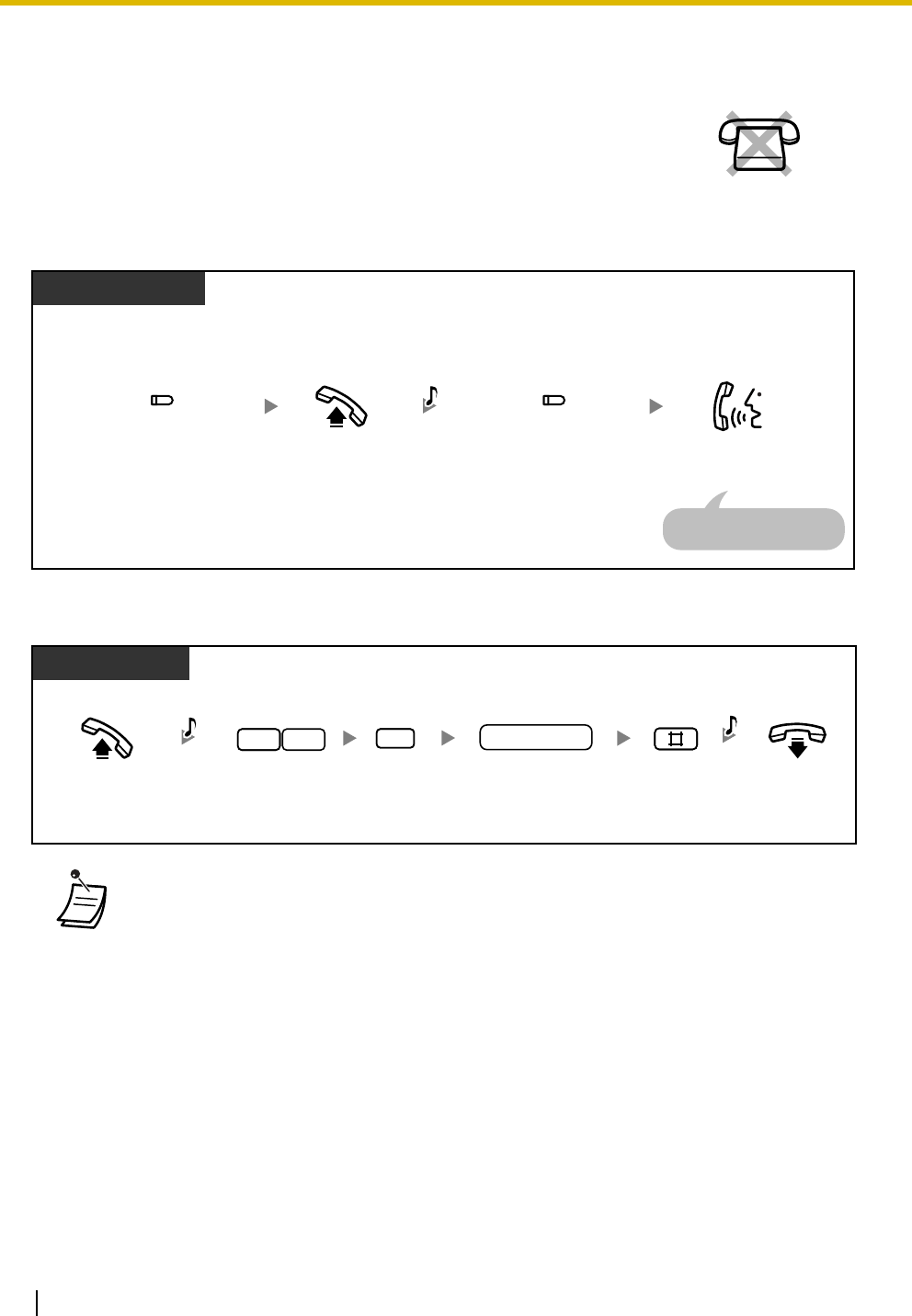
1.3 Telephone Features
108 Operating Manual
1.3.61 Message Waiting for Another Extension
To check a received message and call back
To cancel all message waiting indications left at another extension
You can check messages left at another extension and call back the caller simply
by pressing the lit Message for another extension button, if your proprietary
telephone (PT) is permitted through system programming. You can also clear all
messages left at another extension.
• On your PT, you can establish one or more Message for another extension buttons. These
buttons can display message waiting indications left at other telephones.
•To cancel all message waiting indications left at another extension, it is necessary to
first assign the corresponding Message for another extension buttons on your phone.
• The Message/Message for another extension button light or Message/Ringer Lamp shows
the current status as follows:
Off: No messages
Red on: New messages.
• The display shows messages in the order received, starting with the selected message.
<Example>
5→6→7→8→1→2→3→4
No SLT
While on-hook
Display PT
Press Message for another
extension until the desired
extension is displayed.
Off-hook. Talk.
(Message for
another extension)
Press Message for another
extension.
(Message for
another extension)
D.Tone
The message is cleared
after the conversation.
Off-hook. Enter 70. Enter #.
PT
07
D.Tone
Dial extension number.
3
On-hook.
extension no.
C.Tone
Enter 3.
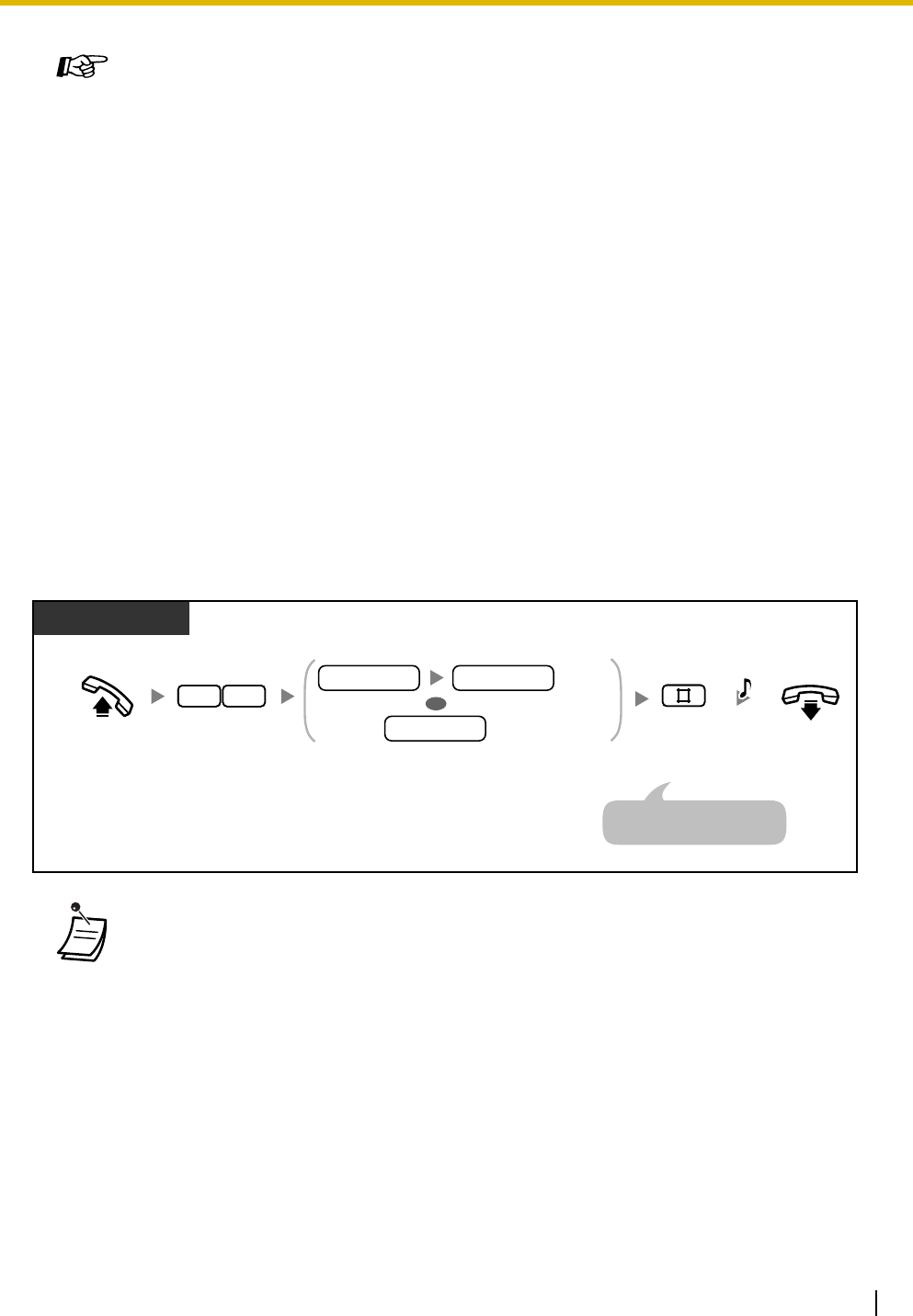
1.3 Telephone Features
Operating Manual 109
1.3.62 Message Waiting for Another Extension Lock
You can lock message waiting indications so that other extensions cannot confirm, call back, or clear
message waiting indications left at your extension.
To lock/unlock message waiting indications
Programming Manual References
[PT Programming]
• [618] Message Waiting for Another Extension
[PC Programming]
• 9.2.1 Main [2-1]—MW for Another Extension
Feature Manual References
• 1.1.83 Message Waiting for Another Extension
Operating Manual References
•1.3.60 Message Waiting
•3.1.3 Flexible Button Assignment
Create or edit a Message for another extension button.
• The operator or manager can cancel this feature for all extensions (Extension Lock—
CANCEL ALL). Even while this lock is on, you can confirm, call back, or clear message
waiting indications left at your own extension.
Off-hook. On-hook.
PT/SLT
Enter 70. Enter lock code (4000–9999)
2 times to lock or one time to unlock.
Enter #.
07
C.Tone
Lock
Unlock
lock code lock code
lock code
An SLT user can enter "0"
instead of "#".
OR
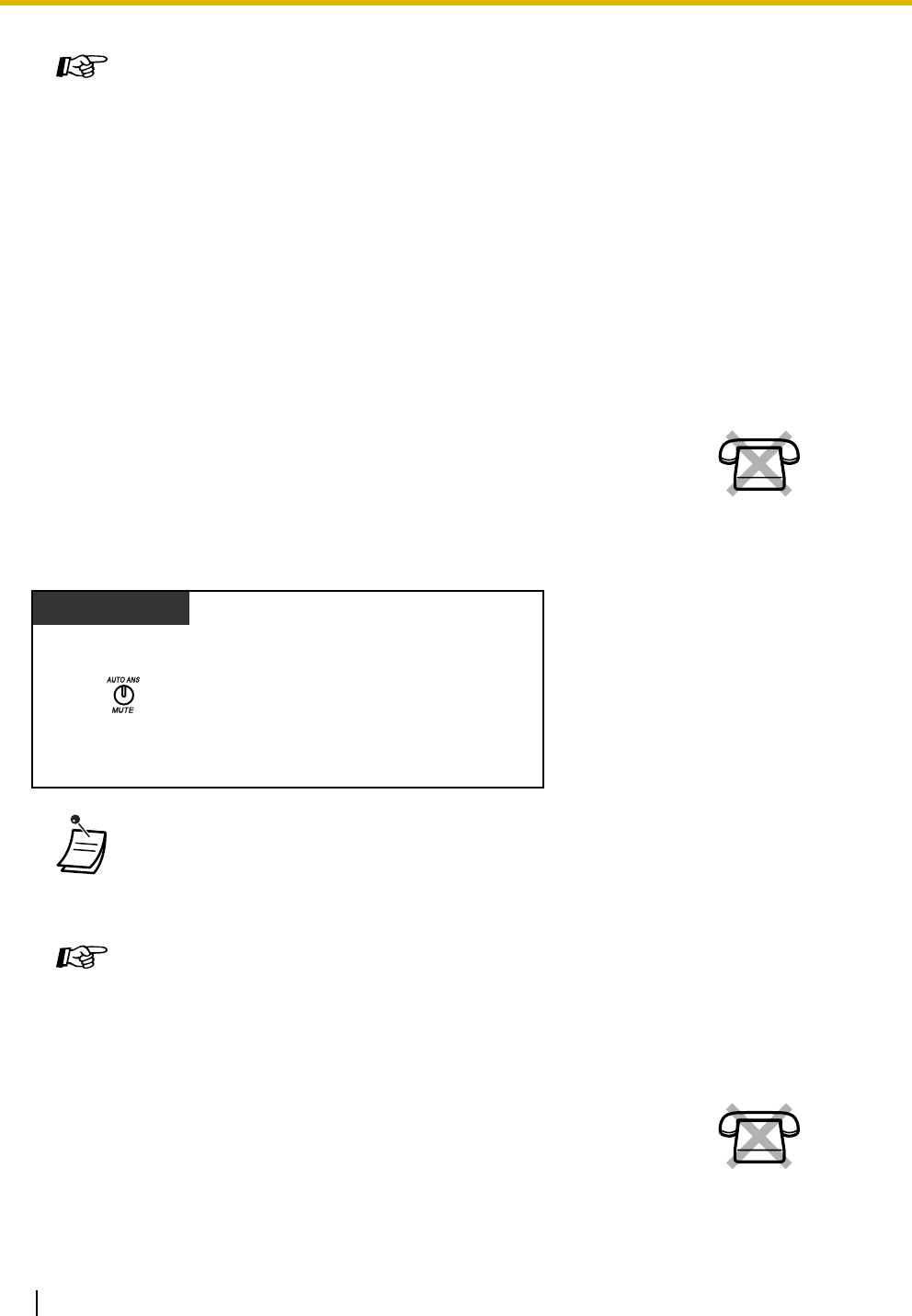
1.3 Telephone Features
110 Operating Manual
1.3.63 Microphone Mute
To set/cancel
1.3.64 One-touch Dialing
Programming Manual References
[PC Programming]
• 9.2.2 Feature settings [2-2]—MW for Another Ext. Lock
Feature Manual References
• 1.1.83 Message Waiting for Another Extension
Operating Manual References
•1.3.61 Message Waiting for Another Extension
•2.1.7 System Feature Assignment—Extension Lock—CANCEL ALL
You can disable the microphone to consult privately with others in the room while
listening to the other party on the phone through the speaker.
• The AUTO ANS/MUTE button light shows the current status as follows:
Off: Normal
Flashing red slowly: Mute
• This feature is only available during a hands-free conversation.
Feature Manual References
• 1.1.84 Microphone Mute
You can dial a phone number (max. 24 digits) previously stored to a flexible
button with a one-touch operation.
No SLT
Press MUTE.
PT
No SLT
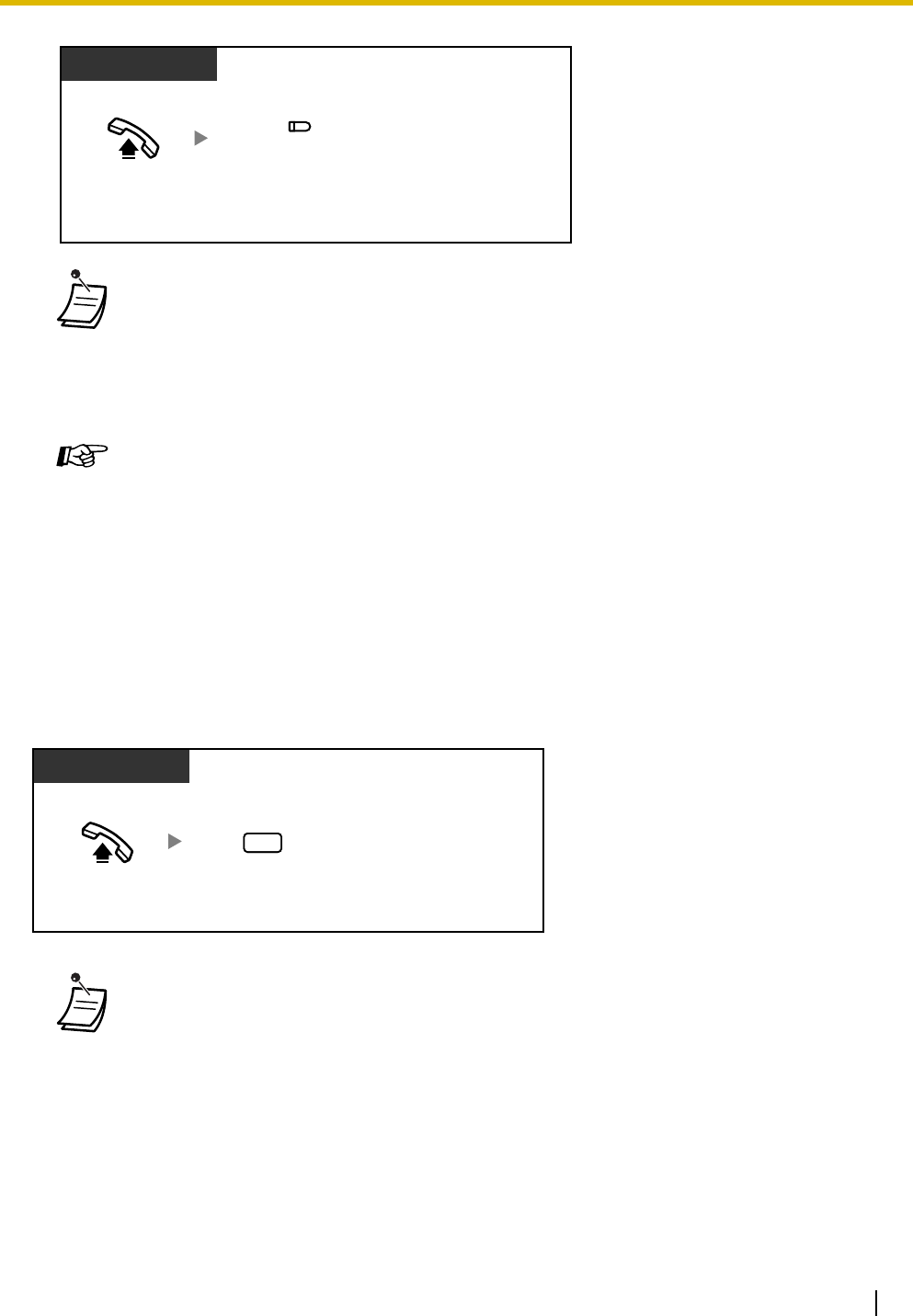
1.3 Telephone Features
Operating Manual 111
1.3.65 Operator Call
You can easily call the extension assigned as the operator extension.
• A telephone number longer than 24 digits can be stored by dividing it among 2 or more
One-touch Dialing buttons.
• You can confirm the stored number of a One-touch Dialing button by pressing it while on-
hook.
• You can press a CO button to select a desired outside (CO) line before pressing the One-
touch Dialing button.
Feature Manual References
• 1.1.86 One-touch Dialing
Operating Manual References
•3.1.3 Flexible Button Assignment
Create or edit a One-touch Dialing button, store the desired phone number, or feature
number.
• If no operator is assigned, you will hear a reorder tone.
Press One-touch
Dialing.
Off-hook.
PT
(One-touch
Dialing)
PT/SLT
Off-hook. Enter 0.
0

1.3 Telephone Features
112 Operating Manual
1.3.66 Paging—SUMMARY
You can make a paging announcement to several people at once. Your paging announcement can be heard
through an external speaker and through the built-in speakers of proprietary telephones (PTs). An extension
user can answer your paging announcement and establish an intercom call. There are 4 types of paging as
shown below:
All Extensions:
Paging through the built-in speakers of all PTs.
All Extensions & External:
Paging through both the built-in speakers of all PTs and an external speaker.
External:
Paging through an external speaker.
Group:
Paging to a certain extension group through the built-in speakers of PTs.
Programming Manual References
[PT Programming]
• [008] Operator Assignment
[PC Programming]
• 9.1.2 Main [1-2]—Operator
Feature Manual References
• 1.1.87 Operator/Manager Features
• Only one person can use the Paging feature at a time. If someone is already using the
Paging feature when you try to make a paging announcement, you will hear a busy tone.
Programming Manual References
[PT Programming]
• [106] External Pager Access Tone
• [600] Extension Group
[PC Programming]
• 9.1.11 Detail [1-10]—Extension—External Pager Access Tone
• 9.2.11 Extension Group [2-6]—Group No.
Feature Manual References
• 1.1.92 Paging—SUMMARY
Operating Manual References
•1.3.71 Paging and Transfer
•1.3.72 Paging Answer
•1.3.73 Paging Deny
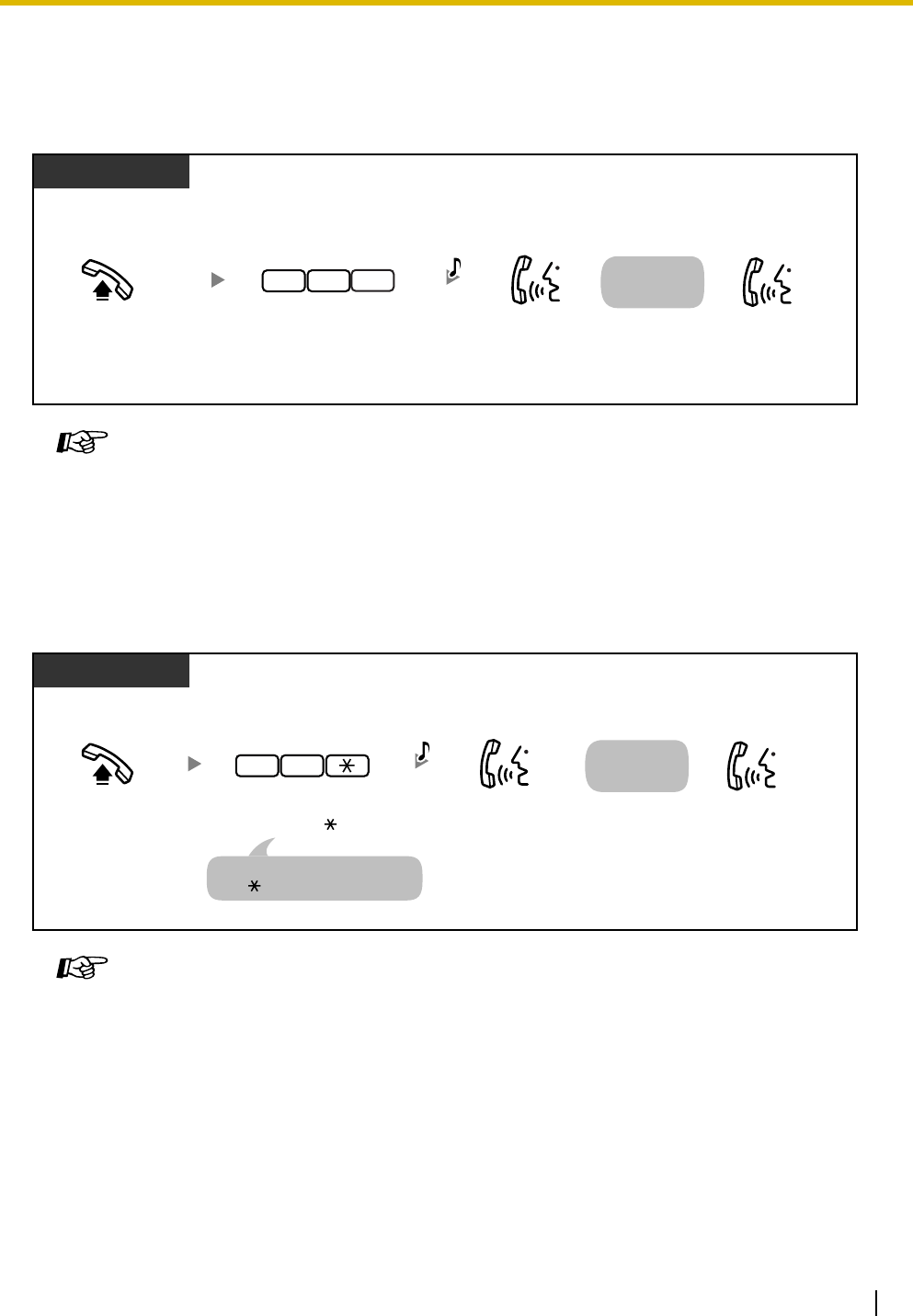
1.3 Telephone Features
Operating Manual 113
1.3.67 Paging—All Extensions
You can make a paging announcement to all extensions. Your paging announcement can be heard through
the built-in speakers of all proprietary telephones (PTs).
1.3.68 Paging—All Extensions & External
You can make a paging announcement to all extensions and over an external speaker. Your paging
announcement can be heard through both the built-in speakers of all proprietary telephones (PTs) and an
external speaker.
Feature Manual References
• 1.1.93 Paging—All Extensions
Programming Manual References
[PT Programming]
• [106] External Pager Access Tone
[PC Programming]
• 9.1.11 Detail [1-10]—Extension—External Pager Access Tone
Feature Manual References
• 1.1.94 Paging—All Extensions & External
Off-hook. Talk.
Announce.
PT/SLT
Enter 330.
Wait for an
answer.
C.Tone
3 3 0
Off-hook. Talk.
Announce.
PT/SLT
Enter 33 .
Wait for an
answer.
C.Tone
3 3
You can enter "339" instead of
"33 ".
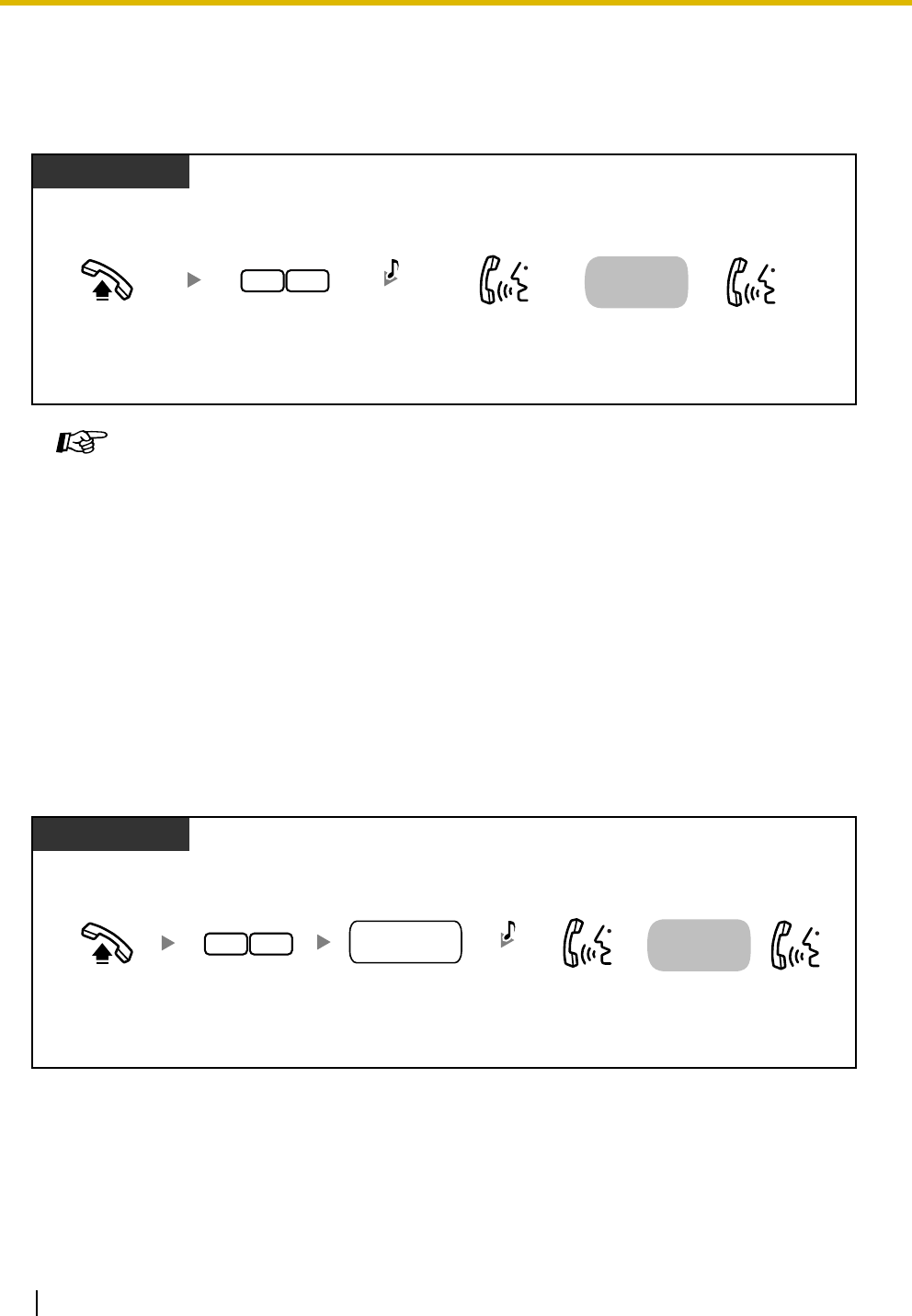
1.3 Telephone Features
114 Operating Manual
1.3.69 Paging—External
You can make a paging announcement through an external speaker. Your paging announcement can be
heard through an external speaker.
1.3.70 Paging—Group
You can make a paging announcement to a certain extension group. Your paging announcement can be
heard through the built-in speakers of the proprietary telephones (PTs) that belong to the certain extension
group.
Programming Manual References
[PT Programming]
• [106] External Pager Access Tone
[PC Programming]
• 9.1.11 Detail [1-10]—Extension—External Pager Access Tone
Feature Manual References
• 1.1.95 Paging—External
Off-hook. Talk.
Announce.
PT/SLT
Enter 34.
Wait for an
answer.
3 4 C.Tone
(Optional
)
Off-hook. Talk.
Announce.
PT/SLT
Enter 33.
Wait for an
answer.
C.Tone
3 3
extension
group no.
Enter extension
group number (1
–
8).
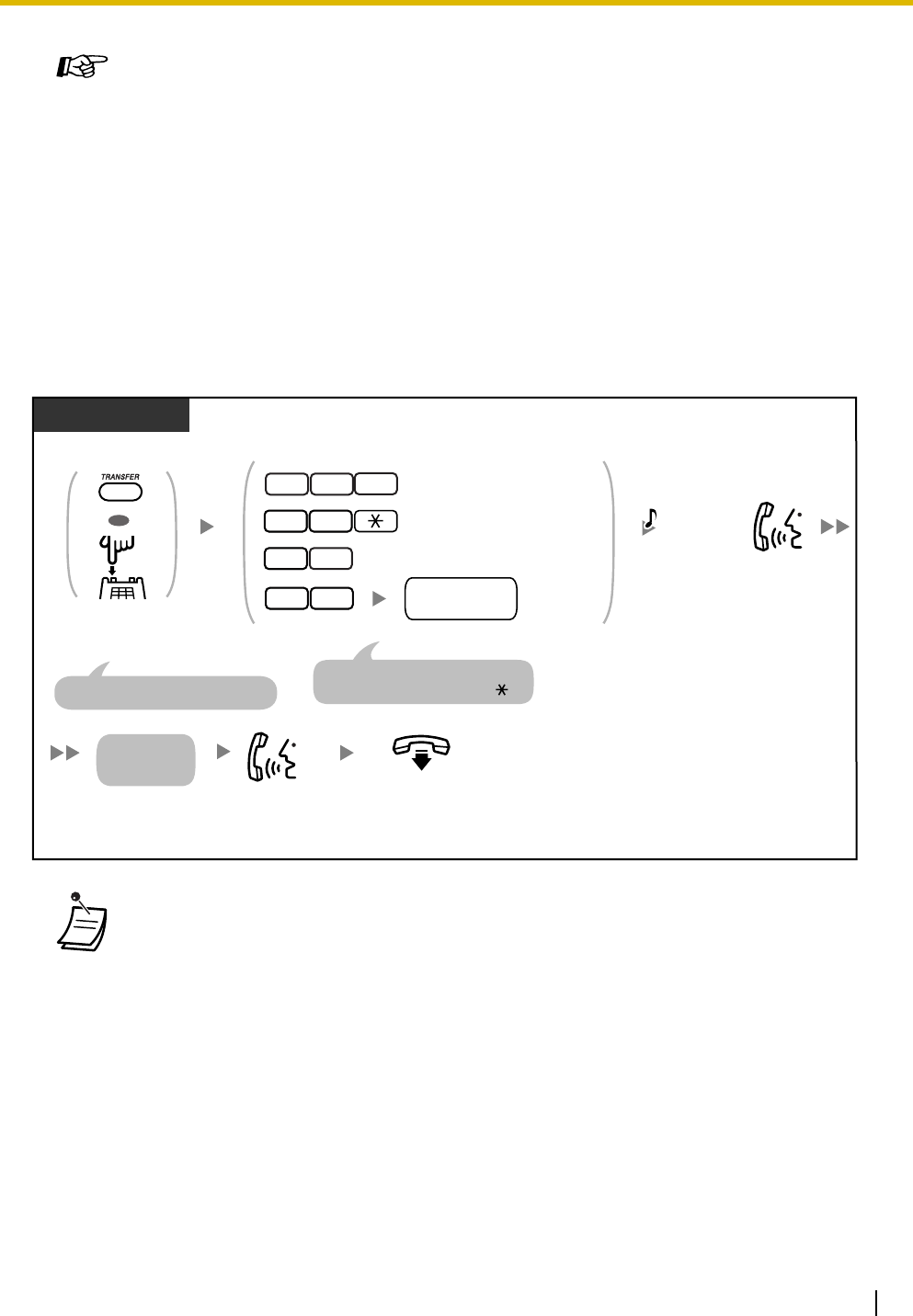
1.3 Telephone Features
Operating Manual 115
1.3.71 Paging and Transfer
You can transfer a call after making a paging announcement.
Programming Manual References
[PT Programming]
• [600] Extension Group
[PC Programming]
• 9.2.11 Extension Group [2-6]—Group No.
Feature Manual References
• 1.1.96 Paging—Group
• * You may have to enter the Call Hold feature number, "20", after pressing the Recall/
hookswitch on your single line telephone (SLT), depending on the SLT Hold Mode of your
PBX. For more details, refer to "1.1.15 Call Hold" in the Feature Manual.
• After you go on-hook, the party on hold can talk to the person who answers the page.
Announce.
Talk. On-hook.
During a conversation
PT/SLT
Wait for an
answer.
The other party is placed on hold.
Press TRANSFER or
Recall/hookswitch.
OR
OR
Enter required number.
For "All Extensions & External", you
can enter "339" instead of "33 ".
C.Tone
(Optional for
"External" only)
extension
group no.
3 3
3 3 0
Group
(1
–
8)
External
All Extensions & External
All Extensions
3
3 3
4
*
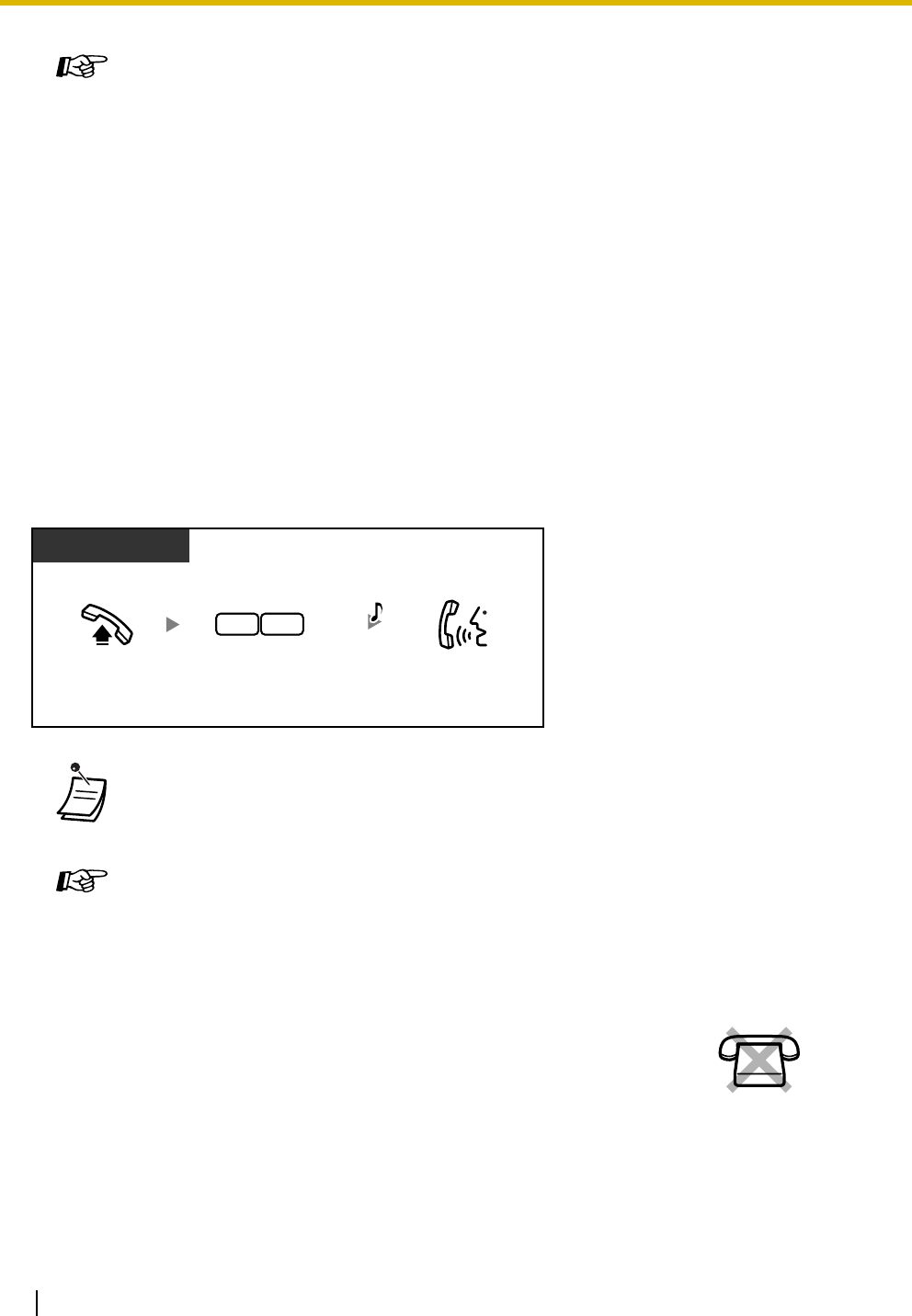
1.3 Telephone Features
116 Operating Manual
1.3.72 Paging Answer
You can answer a paging announcement from any extension.
1.3.73 Paging Deny
Programming Manual References
[PT Programming]
• [104] SLT Hold Mode
• [106] External Pager Access Tone
• [600] Extension Group
[PC Programming]
• 9.1.11 Detail [1-10]—Extension—External Pager Access Tone, Single Line
Telephone—Hold Mode
• 9.2.11 Extension Group [2-6]—Group No.
Feature Manual References
• 1.1.15 Call Hold
• 1.1.92 Paging—SUMMARY
• When an outside (CO) line call is paged and transferred, you can answer the call by
pressing the corresponding CO button whose indicator is flashing slowly.
Feature Manual References
• 1.1.92 Paging—SUMMARY
You can set your proprietary telephone (PT) to not receive paging
announcements.
PT/SLT
Enter 43.Talk.
Off-hook.
34 C.Tone
No SLT
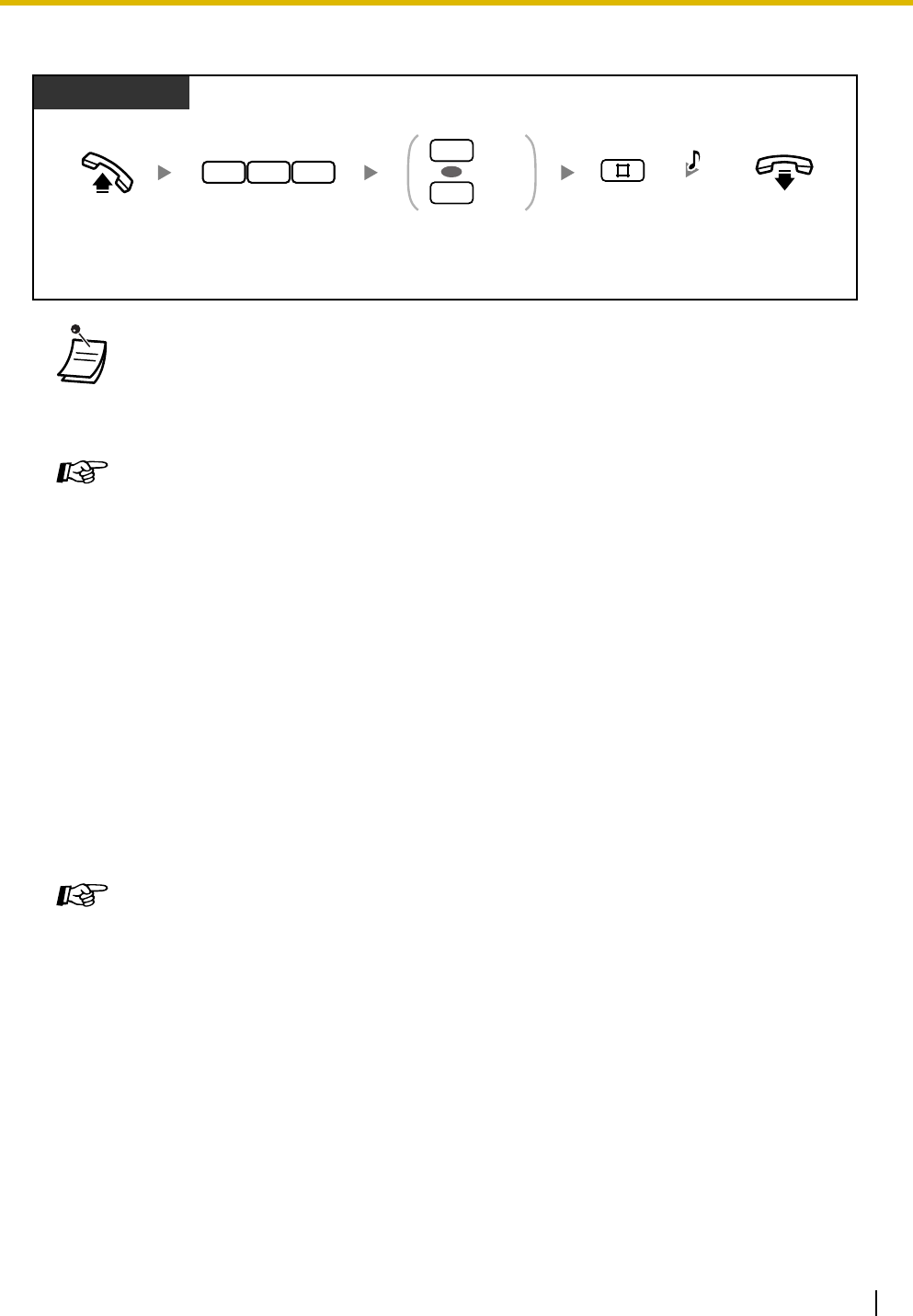
1.3 Telephone Features
Operating Manual 117
To refuse/accept paging announcements
1.3.74 Paralleled Telephone
Any proprietary telephone (PT) can be connected in parallel with a single line device, such as a single line
telephone (SLT), fax machine, or modem.
When parallel mode is used, the 2 telephones function as follows:
• Both share one extension number.
• Either telephone or device can make or answer calls.
For more details, refer to "1.1.97 Paralleled Telephone" in the Feature Manual.
1.3.75 Personal Speed Dialing
You can store up to 10 numbers at your extension for your personal use.
This feature is also known as Station Speed Dialing.
• The following are extensions that cannot receive paging announcements:
— a PT that is ringing or busy
— a PT in Paging Deny mode
— a PT in Do Not Disturb (DND) mode
Programming Manual References
[PC Programming]
• 9.2.2 Feature settings [2-2]—Paging Deny
Feature Manual References
• 1.1.92 Paging—SUMMARY
Feature Manual References
• 1.1.97 Paralleled Telephone
Off-hook. On-hook.
PT
Enter 734.
Refuse
Accept
1
0
OR
Enter 1 to refuse
or 0 to accept.
Enter #.
7 3 4 C.Tone
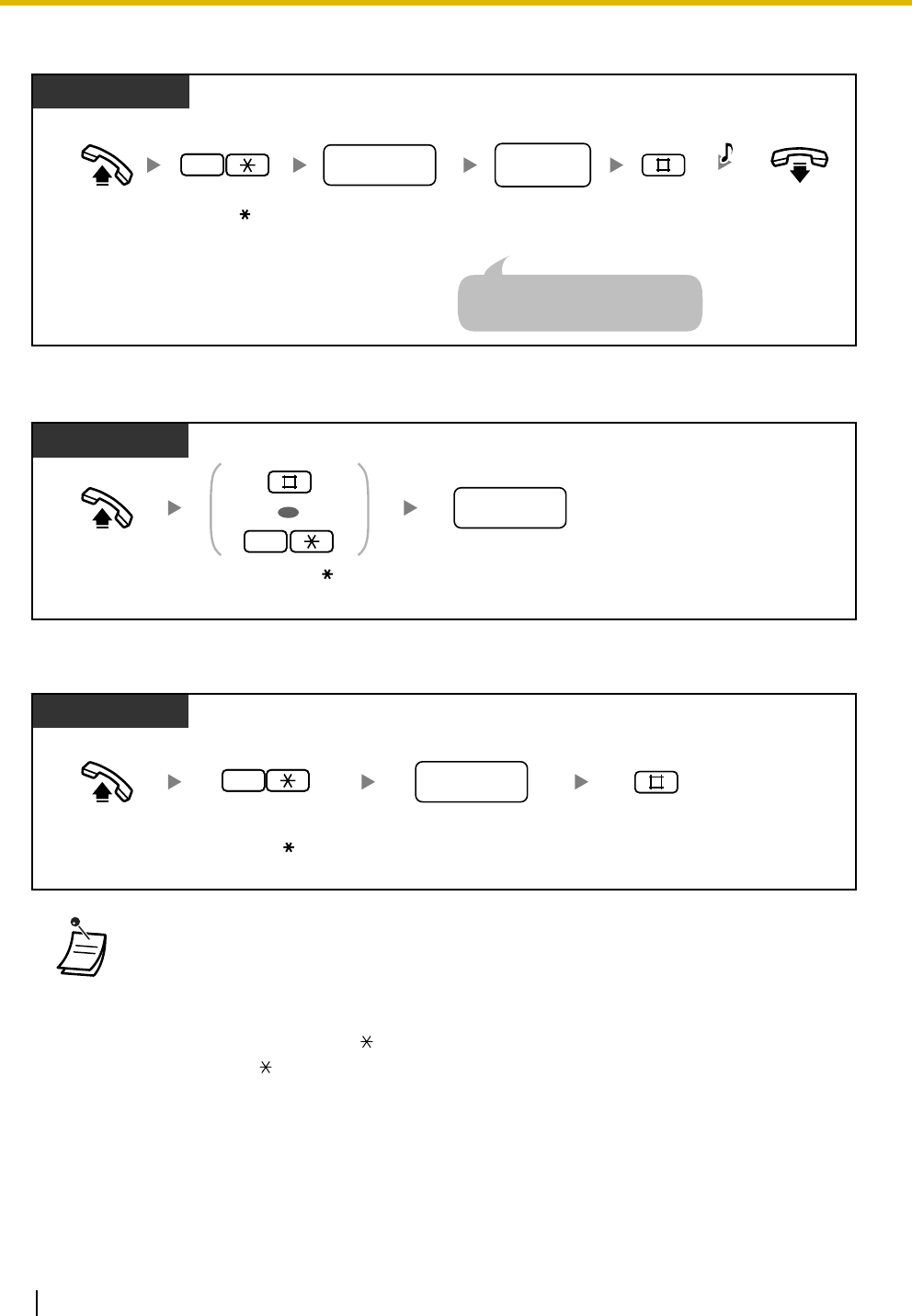
1.3 Telephone Features
118 Operating Manual
To store a phone number
To dial
To confirm
• Personal Speed Dialing numbers (0 through 9) correspond to the numbers (F1 through
F10) of the Programmable Feature (PF) buttons assigned as One-touch Dialing numbers.
Assigning a One-touch Dialing number to PF button "F1" will override Personal Speed
Dialing number "0", and vice versa.
• Rotary single line telephone (SLT) users cannot use this feature.
• Up to 24 digits including " " can be stored. However, depending on your mode of account
code entry, " " may not be regarded as a pause.
Off-hook. Dial personal speed
dialing number (0–9). Enter #.
desired
phone no.
personal speed
dialing no.
Dial desired
phone number
(max. 24 digits).
PT/SLT
On-hook.
2
Enter 2 .
C.Tone
For an outside phone number, dial
an outside (CO) line access number
before the phone number.
PT/SLT
Dial personal speed
dialing number (0–9).
personal speed
dialing no.
Off-hook. Enter # or 1 .
OR
1
Display PT
Dial personal speed
dialing number (0–9).
personal speed
dialing no.
Off-hook. Enter 3 .
3
Enter #.
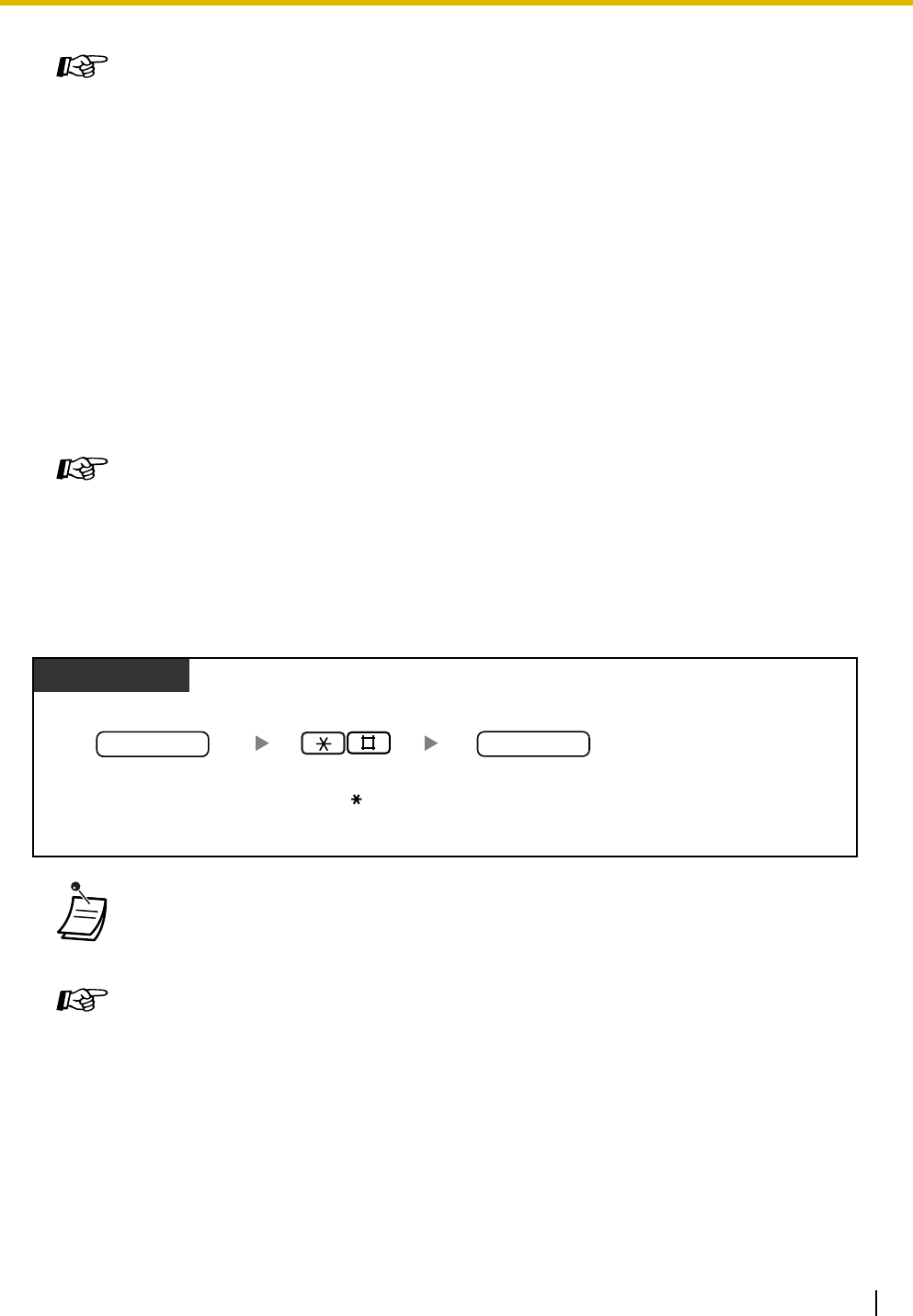
1.3 Telephone Features
Operating Manual 119
1.3.76 Power Failure Transfer
If the power supply to the PBX fails, specific single line telephones (SLTs) are automatically connected to
specific outside (CO) lines (Power Failure Connections). The PBX will switch from the current connections
to Power Failure Connections, and all existing conversations will be disconnected.
Only outside (CO) line calls handled by Power Failure Connections can be made during a power failure. For
more details, refer to "1.1.102 Power Failure Transfer" in the Feature Manual.
1.3.77 Pulse to Tone Conversion
If you are using a pulse-type outside (CO) line, you can temporarily change the dialing mode from pulse to
tone to access computer telephone services that require tone dialing such as Voice Mail.
Feature Manual References
• 1.1.100 Personal Speed Dialing
Operating Manual References
•3.1.3 Flexible Button Assignment
Create or edit a One-touch Dialing button, store the desired phone number, or feature
number.
Feature Manual References
• 1.1.102 Power Failure Transfer
• You cannot change from tone to pulse dialing mode.
Programming Manual References
[PT Programming]
• [119] Redialing after Pulse to Tone Conversion
• [401] Dial Mode
[PC Programming]
• 9.1.11 Detail [1-10]—CO—Redialing after Pulse to Tone Conversion
• 9.3.3 Detail [3-3]—Dial Mode
Feature Manual References
• 1.1.104 Pulse to Tone Conversion
PT/SLT
Enter #. Dial desired number
(Tone mode).
Dial
phone number
(Pulse mode).
phone no. desired no.
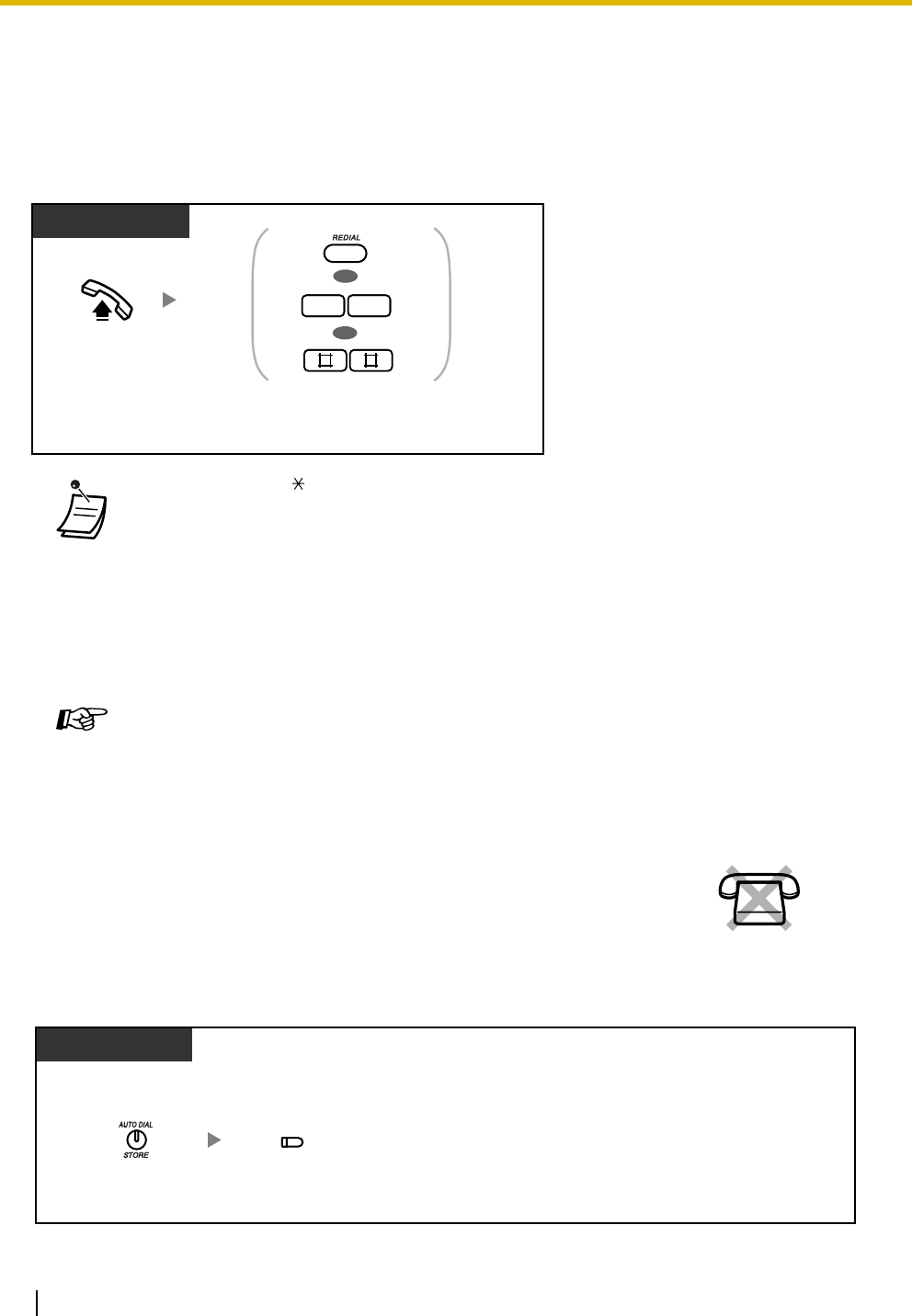
1.3 Telephone Features
120 Operating Manual
1.3.78 Redial, Last Number
Every extension automatically saves the last external telephone number dialed, allowing the same number
to be easily redialed.
To dial
1.3.79 Redial, Saved Number
To save
• Up to 64 digits, " ", "#", PAUSE, and SECRET (INTERCOM) (which stops all or part of
the number from being displayed) can be stored and redialed. The outside (CO) line
access number is not counted as a digit.
• If you hear a busy tone after pressing the REDIAL button, select another line and then
press the REDIAL button or enter the feature number to retry.
• You can confirm the stored number by pressing the REDIAL button while on-hook.
• Pressing the REDIAL button after dialing a telephone number or during a conversation will
disconnect the current call and redial the stored number.
Feature Manual References
• 1.1.105 Redial, Last Number
You can save a telephone number on your proprietary telephone (PT) while in a
conversation with an outside party or while hearing a busy tone, and then easily
redial the number later. The saved number remains available until another
number is stored.
PT/SLT
Off-hook. Press REDIAL or enter 80 or ##.
OR
OR
8 0
No SLT
Press AUTO DIAL/
STORE.
Press Save.
During a conversation or while hearing a busy tone
PT
(Save)
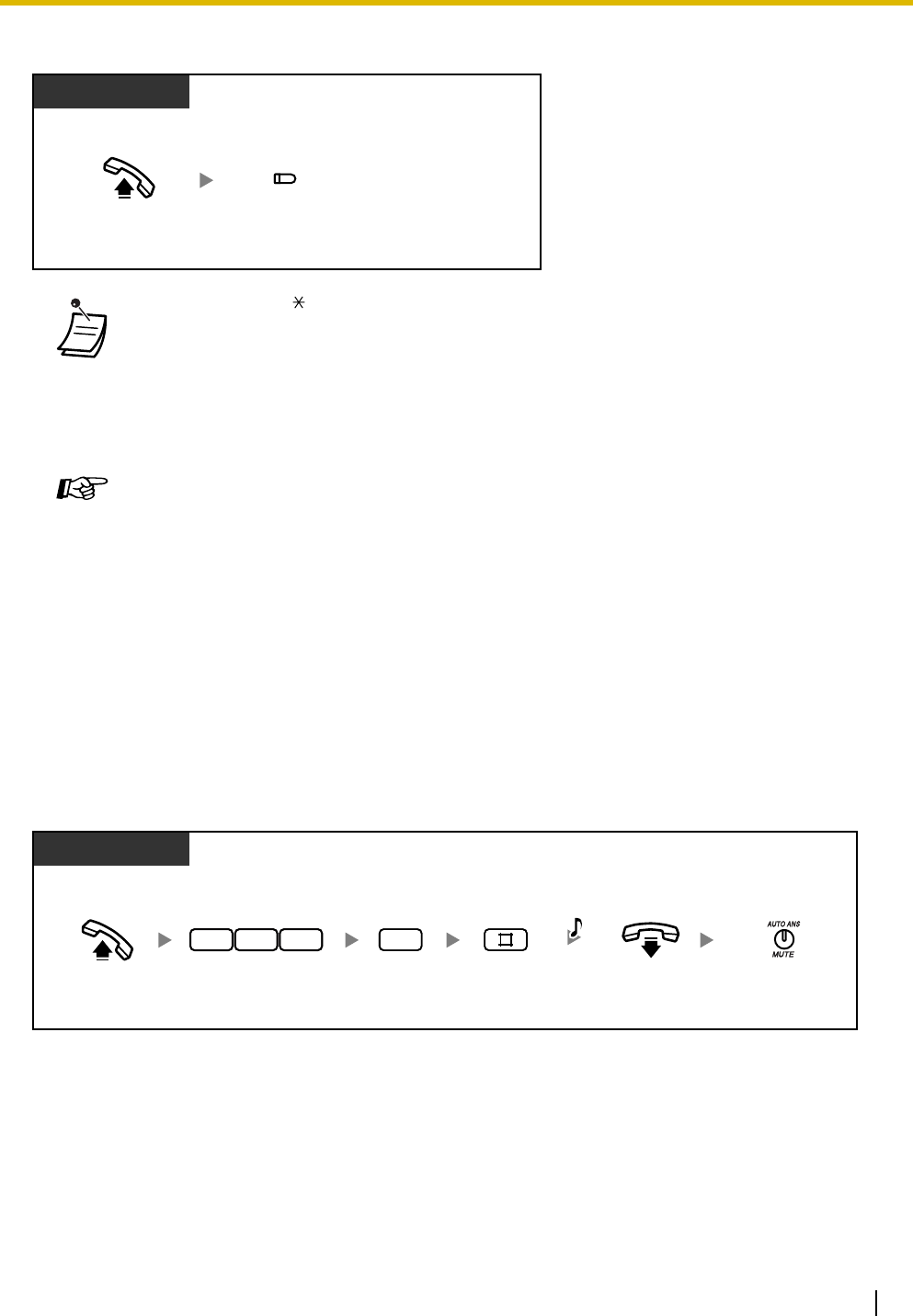
1.3 Telephone Features
Operating Manual 121
To dial
1.3.80 Room Monitor
You can monitor a room through another proprietary telephone (PT), or monitor a door through a doorphone.
The PT you want to monitor should be set in advance to allow monitoring.
To set
• Up to 64 digits, " ", "#", PAUSE, and SECRET (INTERCOM) (which stops all or part of
the number from being displayed) can be stored and redialed. The outside (CO) line
access number is not counted as a digit.
• If you hear a busy tone after pressing the Save button, select another line and then press
the Save button to retry.
• You can confirm the stored number by pressing the Save button while on-hook.
Feature Manual References
• 1.1.106 Redial, Saved Number
Operating Manual References
•3.1.3 Flexible Button Assignment
Create or edit a Save button.
Off-hook. Press Save.
PT
(Save)
Off-hook. On-hook. Press AUTO ANS/
MUTE.
PT
1
Enter 735.Enter 1.
3 57
Enter #.
C.Tone
At the monitored telephone
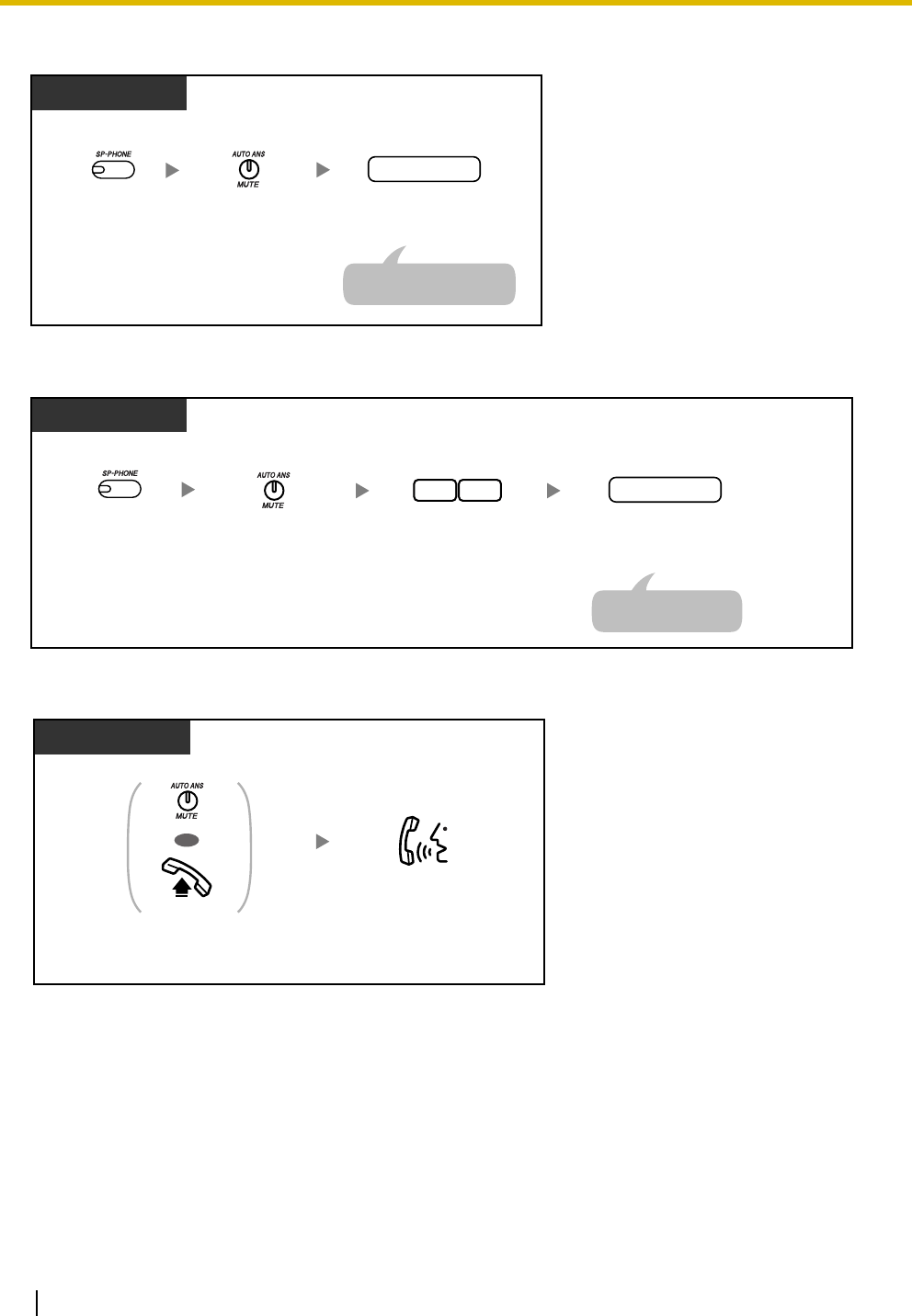
1.3 Telephone Features
122 Operating Manual
To monitor
To monitor through a doorphone
To talk with a person in the monitored room
PT
extension no.
Dial monitored
extension number.
Press
SP-PHONE.
Press
AUTO ANS/MUTE.
Room monitoring starts.
PT
doorphone no.
Dial monitored
doorphone number (1–4).
Enter 31.
13
Press
SP-PHONE.
Press
AUTO ANS/MUTE.
Monitoring starts.
PT
OR
Press AUTO ANS/MUTE
or go off-hook.
Talk.
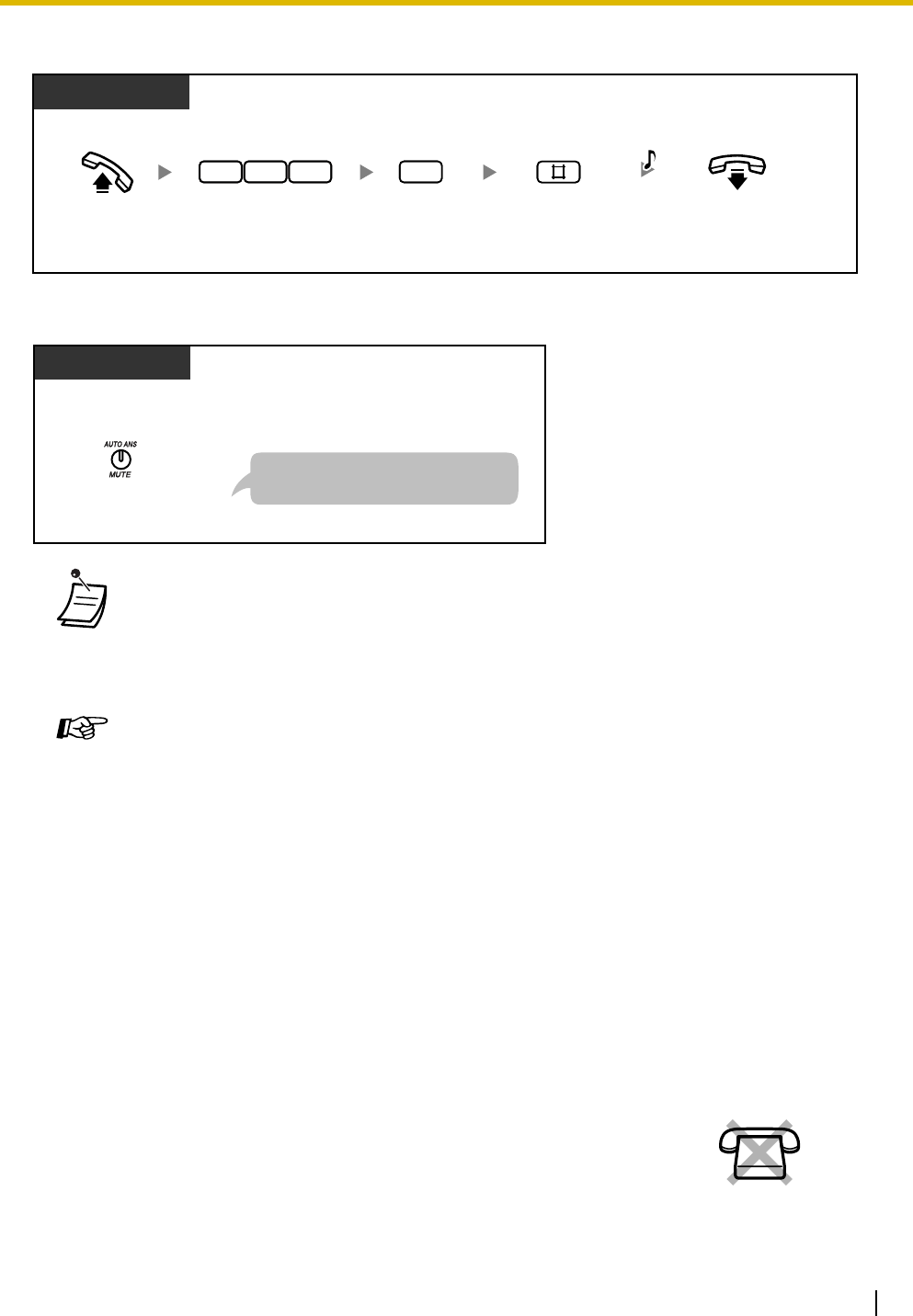
1.3 Telephone Features
Operating Manual 123
To cancel a monitor
To stop a monitor temporarily while on-hook
1.3.81 Secret Dialing
• You can monitor using a PT with an AUTO ANS/MUTE button or a single line telephone
(SLT) with a MUTE button.
• The AUTO ANS/MUTE button light shows the current status as follows:
Off: Not set
Flashing red: Set (Ready for monitoring)
Programming Manual References
[PT Programming]
• [612] Room Monitor
• [707] Doorphone Access Tone
[PC Programming]
• 9.2.1 Main [2-1]—Room Monitor
• 9.2.2 Feature settings [2-2]—Monitored PT set
• 9.7.2 Others [7-2]—Doorphone Access Tone—Door 1–4
Feature Manual References
• 1.1.110 Room Monitor
You can prevent all or part of a System Speed Dialing number or One-touch
Dialing number from being displayed when making a call, by pressing the
INTERCOM button at the beginning and at the end of the number to be hidden.
Off-hook. On-hook.
PT
0
Enter 735.Enter 0.
3 57
Enter #.
C.Tone
At the monitored telephone
Press AUTO ANS/MUTE.
PT
At the monitored telephone
Press the AUTO ANS/MUTE button
to start room monitoring again.
No SLT
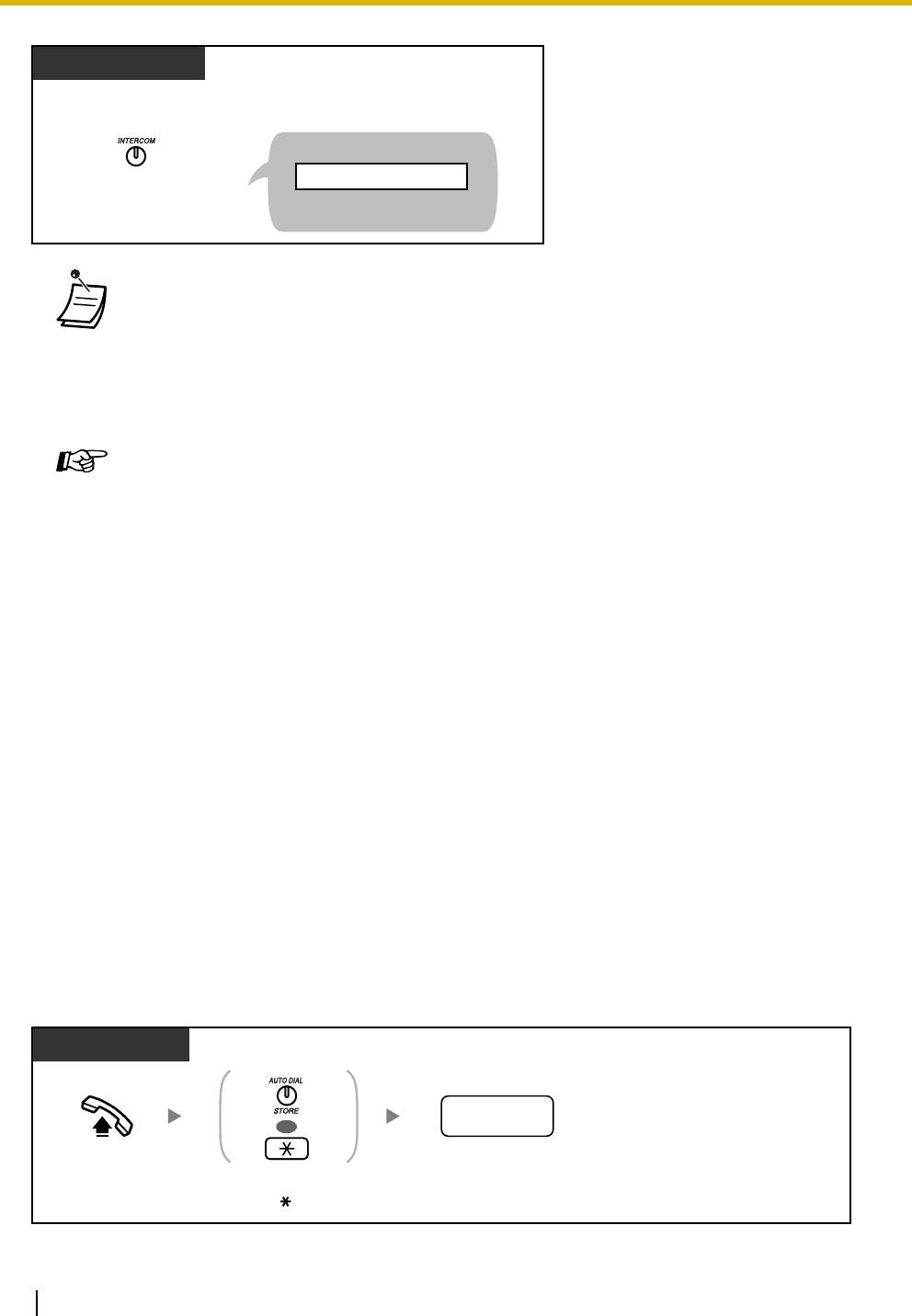
1.3 Telephone Features
124 Operating Manual
1.3.82 System Speed Dialing
You can make calls using preprogrammed speed dialing numbers (max. 100 codes) stored in the PBX.
• The characters for secret code, "[" and "]" (entered by pressing the INTERCOM button),
are counted as one digit each.
• You can conceal one or more parts of a telephone number.
• It is not possible to hide the Outside (CO) Line Access number (9, or 81 through 88) by
pressing the INTERCOM button before dialing it.
• It is programmable whether the hidden part of the number will be shown on SMDR.
Programming Manual References
[PT Programming]
• [001] System Speed Dialing Number
• [803] Secret Number SMDR Print Suppression
[PC Programming]
• 9.1.8 SMDR [1-7]—Selection for Printing—Secret Number
• 9.4.1 System Speed Dialing [4-1]—Line Access Number + Telephone Number
Feature Manual References
• 1.1.111 Secret Dialing
Operating Manual References
•1.3.64 One-touch Dialing
•1.3.82 System Speed Dialing
•3.1.3 Flexible Button Assignment
Create or edit a One-touch Dialing button, store the desired phone number, or feature
number.
Display PT
Press INTERCOM before
and after the part you wish
to conceal.
When storing the phone number
<Display Example>
9-1-[201]...
"201" is not shown on the display
when you dial.
PT/SLT
Off-hook. Dial system speed dialing
number (00–99).
system speed
dialing no.
Press AUTO DIAL
or enter .
OR
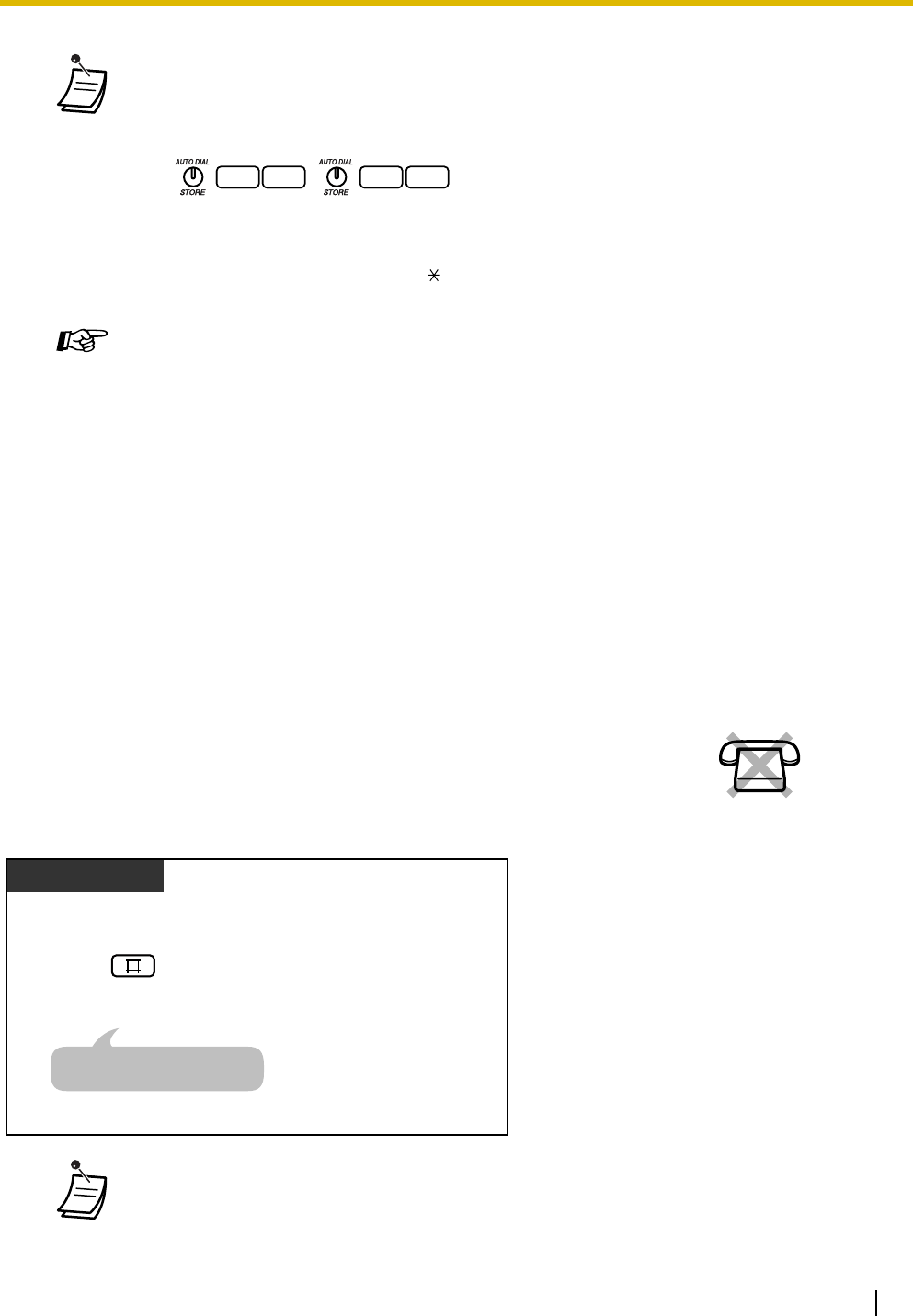
1.3 Telephone Features
Operating Manual 125
1.3.83 Time Service
• A telephone number longer than 32 digits can be stored by dividing it among 2 or more
System Speed Dialing buttons.
<Example>
If the number is divided and stored in system speed dialing numbers 01 and 02:
• Rotary single line telephone (SLT) users cannot use this feature.
• You can press a CO button to select a desired outside (CO) line before pressing the AUTO
DIAL/STORE button or entering " ".
Programming Manual References
[PT Programming]
• [001] System Speed Dialing Number
• [011] System Speed Dialing Name
• [301] TRS—System Speed Dialing Class
[PC Programming]
• 9.4 System Speed Dialing [4]
• 9.5.4 Emergency Number & Others [5-4]—System Speed Dialing Class
Feature Manual References
• 1.1.113 System Speed Dialing
The PBX can be programmed to make and receive calls differently in day/night/
lunch modes. You can confirm the current time service mode (day, night, or
lunch) on the display of your proprietary telephone (PT) while on-hook.
• Time Service can only be set by the operator or manager. Refer to "2.1.9 Time Service".
0 1 0 2
No SLT
Enter #.
While on-hook
Display PT
The display shows the current
mode for 3 s.
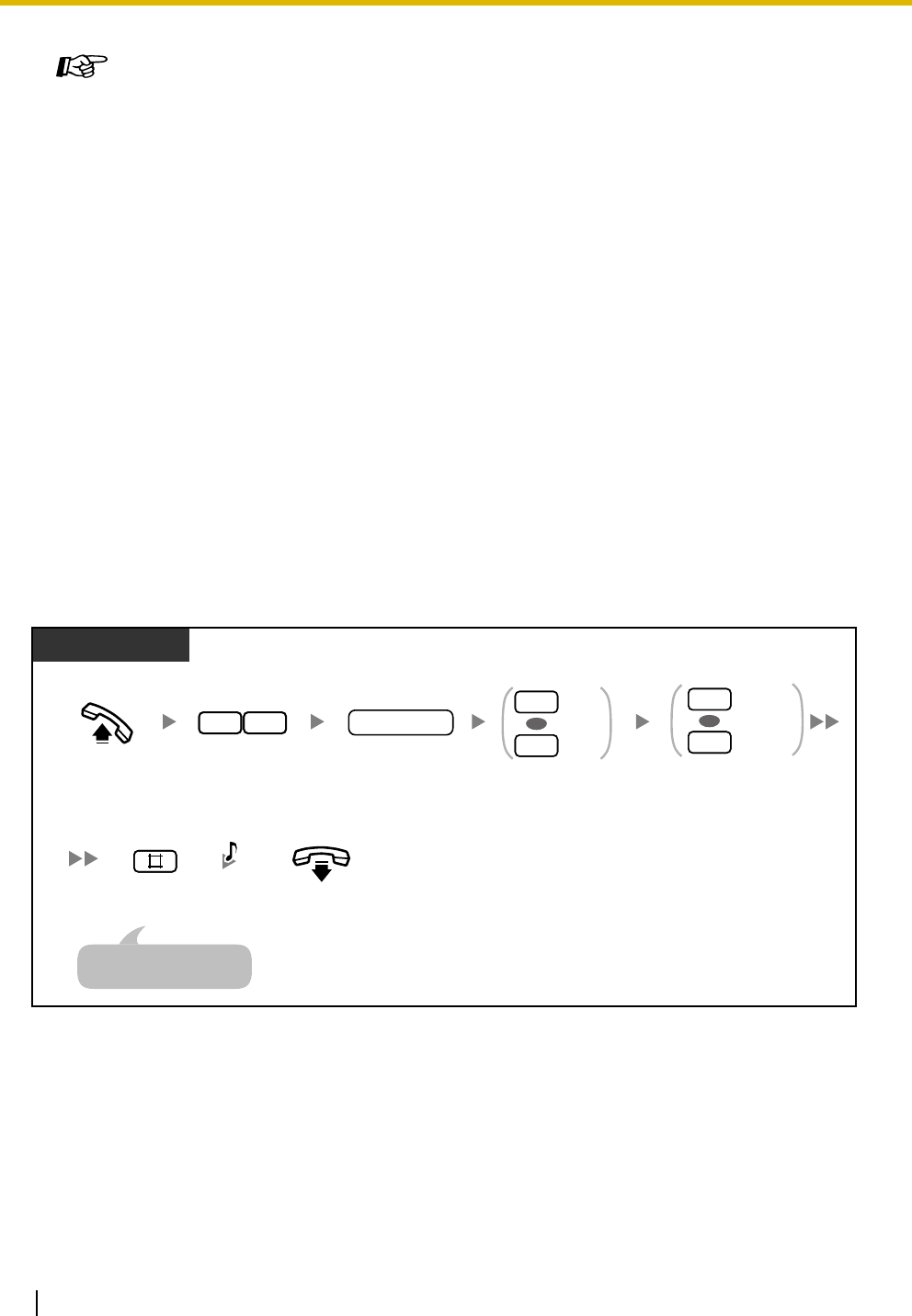
1.3 Telephone Features
126 Operating Manual
1.3.84 Timed Reminder
You can set your telephone to ring at a set time, to remind you of a meeting, appointment, or as a wake-up
call. The alarm can occur either one time or daily (every day until canceled) at a preset time. When you go
off-hook to answer, you hear a special dial tone (dial tone 3).
To set
Programming Manual References
[PT Programming]
• [006] Time Service Switching Mode
• [007] Time Service Start Time
[PC Programming]
• 9.1.4 Time Service [1-4]
• 9.1.5 Time Service [1-4] Time Setting
Feature Manual References
• 1.1.114 Time Service
Operating Manual References
•2.1.9 Time Service
On-hook.
Enter 1 for one time
or 2 for daily.
AM
PM
0
1
Enter hour (01–12) and minute (00–59)
and then 0 for AM or 1 for PM.
hour/minute
Off-hook.
OR
PT/SLT
One time
Daily
1
2
OR
Enter 76.
Enter #.
67
C.Tone
An SLT user can enter "0"
instead of "#".
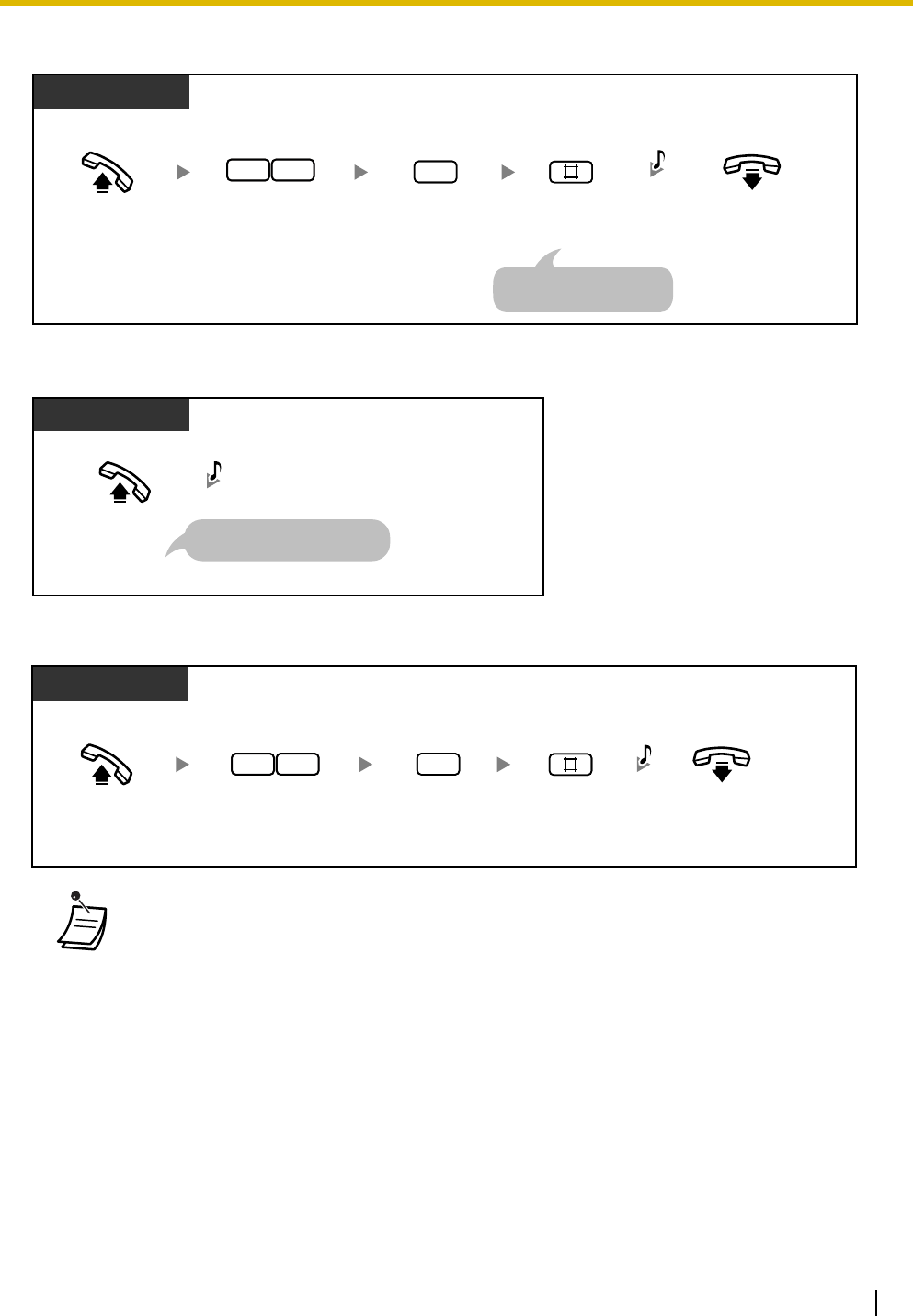
1.3 Telephone Features
Operating Manual 127
To cancel
To stop the alarm
To confirm
• The alarm rings for 30 seconds.
•If you receive an incoming call during an alarm, the ringing for that call will start after
the alarm stops ringing.
• If the telephone is off-hook at the time an alarm is scheduled to ring, the alarm will start
after the telephone goes on-hook again.
Off-hook. On-hook.
PT/SLT
2
Enter 76. Enter 2. Enter #.
67 C.Tone
An SLT user can enter "0"
instead of "#".
PT/SLT
D.Tone 3
Off-hook.
Pressing any button on a PT
also stops the alarm.
Off-hook. On-hook.
Display PT
3
Enter 76. Enter 3. Enter #.
67
D.Tone

1.3 Telephone Features
128 Operating Manual
1.3.85 Toll Restriction (TRS)
Toll Restriction (TRS) can prohibit certain extension users from making unauthorized outside (CO) line calls.
Every extension is assigned to one of 5 classes of service (COSs) for each time service mode through
system programming; COS 1 grants the highest level of authorization, allowing all outside (CO) line calls to
be made, and COS 5 grants the lowest level of authorization. COSs 2 through 5 are used to restrict calls
with a combination of preprogrammed Denied and Exception Code Tables. For more details, refer to
"1.1.117 Toll Restriction (TRS)".
1.3.86 Toll Restriction (TRS) Override by Account Code
You can override TRS temporarily to make a toll call from a toll-restricted telephone. You can carry out this
feature by entering the appropriate account code before dialing the telephone number. For more details,
refer to "1.1.118 Toll Restriction (TRS) Override by Account Code".
1.3.87 Two-way Recording in the VPS (Voice Mail APT Integration
only)
Programming Manual References
[PT Programming]
• [000] Date & Time
[PC Programming]
• 9.1.1 Date & Time [1-1]
• 9.2.2 Feature settings [2-2]—Timed Reminder
Feature Manual References
• 1.1.115 Timed Reminder
Operating Manual References
•2.1.10 Timed Reminder, Remote (Wake-up Call)
Feature Manual References
• 1.1.117 Toll Restriction (TRS)
Feature Manual References
• 1.1.118 Toll Restriction (TRS) Override by Account Code
You can record a conversation into a mailbox while talking on the phone.
You can select the mailbox each time you record a conversation.
This feature is available when the PBX is connected to a Panasonic Voice
Processing System (VPS) that supports APT integration. No SLT
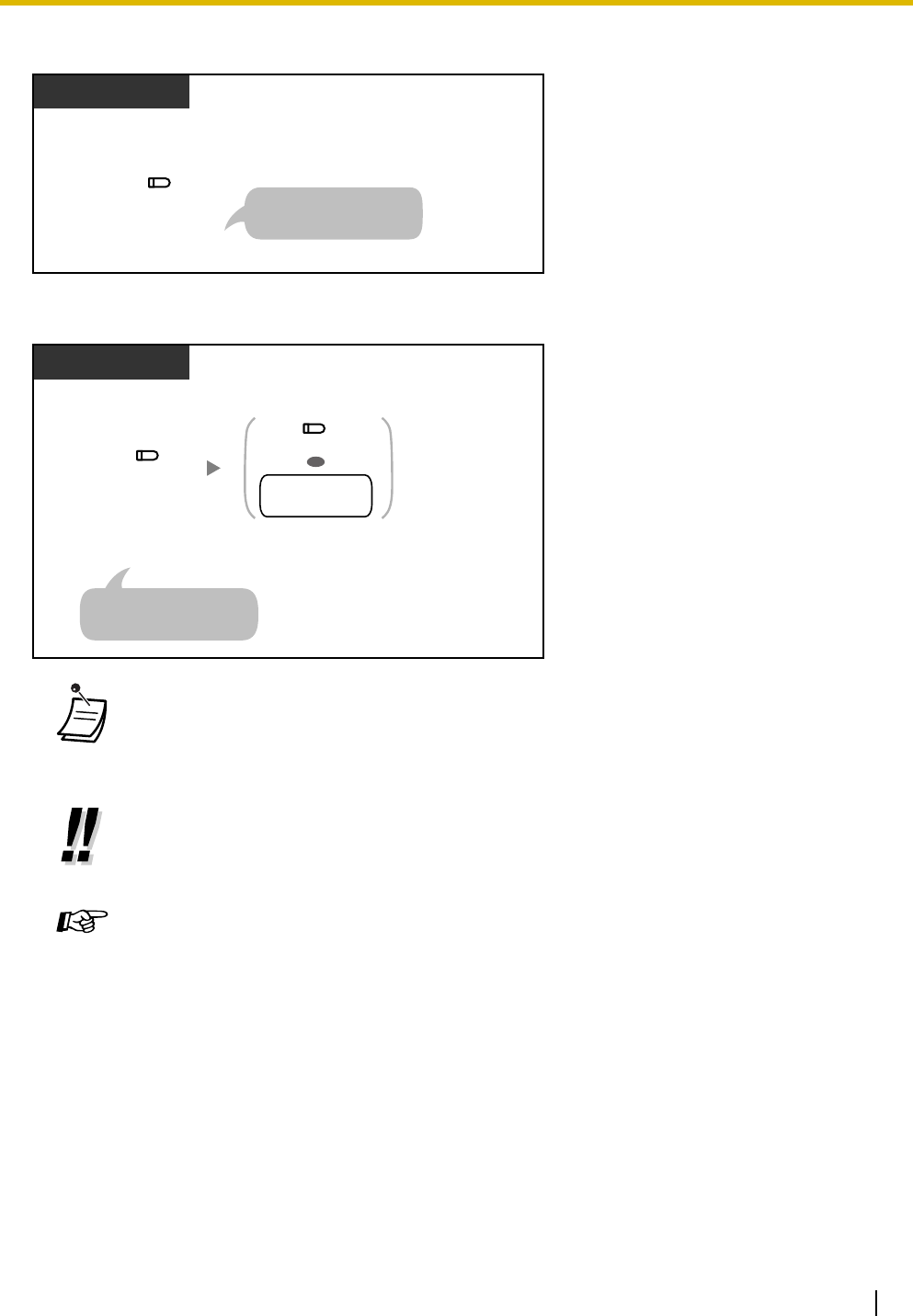
1.3 Telephone Features
Operating Manual 129
To record into your mailbox (2-way Record)
To record into another mailbox (2-way Transfer)
1.3.88 Voice Mail Integration
You or an outside party can access the Voice Processing System (VPS) from a telephone. If you cannot
answer calls, you can set them to be forwarded to your mailbox in a Panasonic VPS that supports either
• The 2-way Record button light or 2-way Transfer button light shows the current status as
follows:
Off: Not recording.
On: Recording the conversation.
•Note:
When you record your 2-way telephone conversations, you should inform the other party
that the conversation is being recorded.
Feature Manual References
• 1.1.119 Two-way Recording into the VPS (Voice Mail APT Integration only)
• 1.1.120 Voice Mail APT Integration
Operating Manual References
•3.1.3 Flexible Button Assignment
Create or edit a 2-way Record button, 2-way Transfer button, or Direct Station
Selection (DSS) button.
Press 2-way Record.
During a conversation
To stop recording,
press this button again.
PT
(2-way
Record)
Press 2-way
Transfer.
During a conversation
Press DSS or dial
another extension
number.
To stop recording,
press this button again.
PT
OR
(DSS)
another
extension no.
(2-way
Transfer)
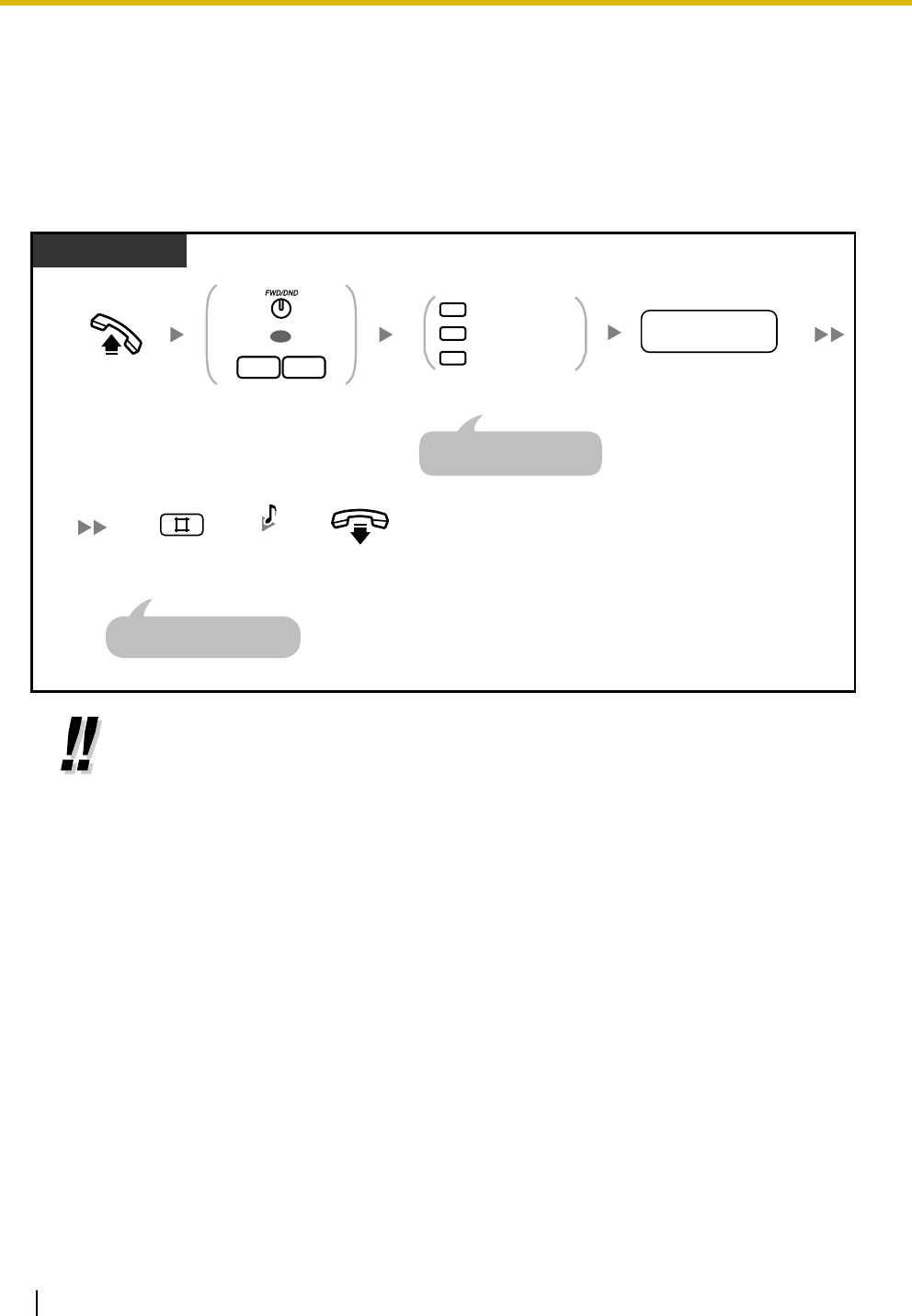
1.3 Telephone Features
130 Operating Manual
Inband (DTMF) Integration (e.g., KX-TVS series VPS/KX-TVA series VPS) or APT Integration (e.g., KX-
TVS50 series VPS/KX-TVA50 series VPS). If your telephone has a MESSAGE button or Message/Ringer
Lamp, the corresponding button or lamp turns on and lets you know you have messages. A single line
telephone (SLT) user will hear dial tone 3 when going off-hook if there are any messages in his or her
mailbox.
To set/cancel
• If your PBX has a Panasonic VPS connected using Inband (DTMF) integration, your PBX
automatically sends a special signal to the Voice Mail port before connecting the caller. To
enable this feature, it may be necessary to set the signal format required by your VPS
before setting the Call Forwarding (FWD) destination to Voice Mail as follows:
– Setting A: only sends the extension number to the Voice Mail port. To set or cancel,
enter "91#" or "90#" respectively after pressing the FWD/DND button or entering "71".
– Setting B (default): sends "#6" followed by the extension number. "#6" is used by a
Panasonic KX-TVS series VPS/KX-TVA series VPS to force the VPS port into voice
mail service. To set or cancel, enter "92#" or "90#" respectively after pressing the
FWD/DND button or entering "71".
For more details, refer to "1.1.121 Voice Mail Inband (DTMF) Integration" in the
Feature Manual.
PT/SLT
Off-hook. Press FWD/DND
or enter 71.
OR
17
voice mail
extension no.
Dial voice mail
extension number.
Enter required number.
1
0
2Busy/No Answer
All Calls
Cancel
For "Cancel", go on-hook
directly after entering "0#".
On-hook.
C.Tone
Enter #.
An SLT user can enter "0"
instead of "#".
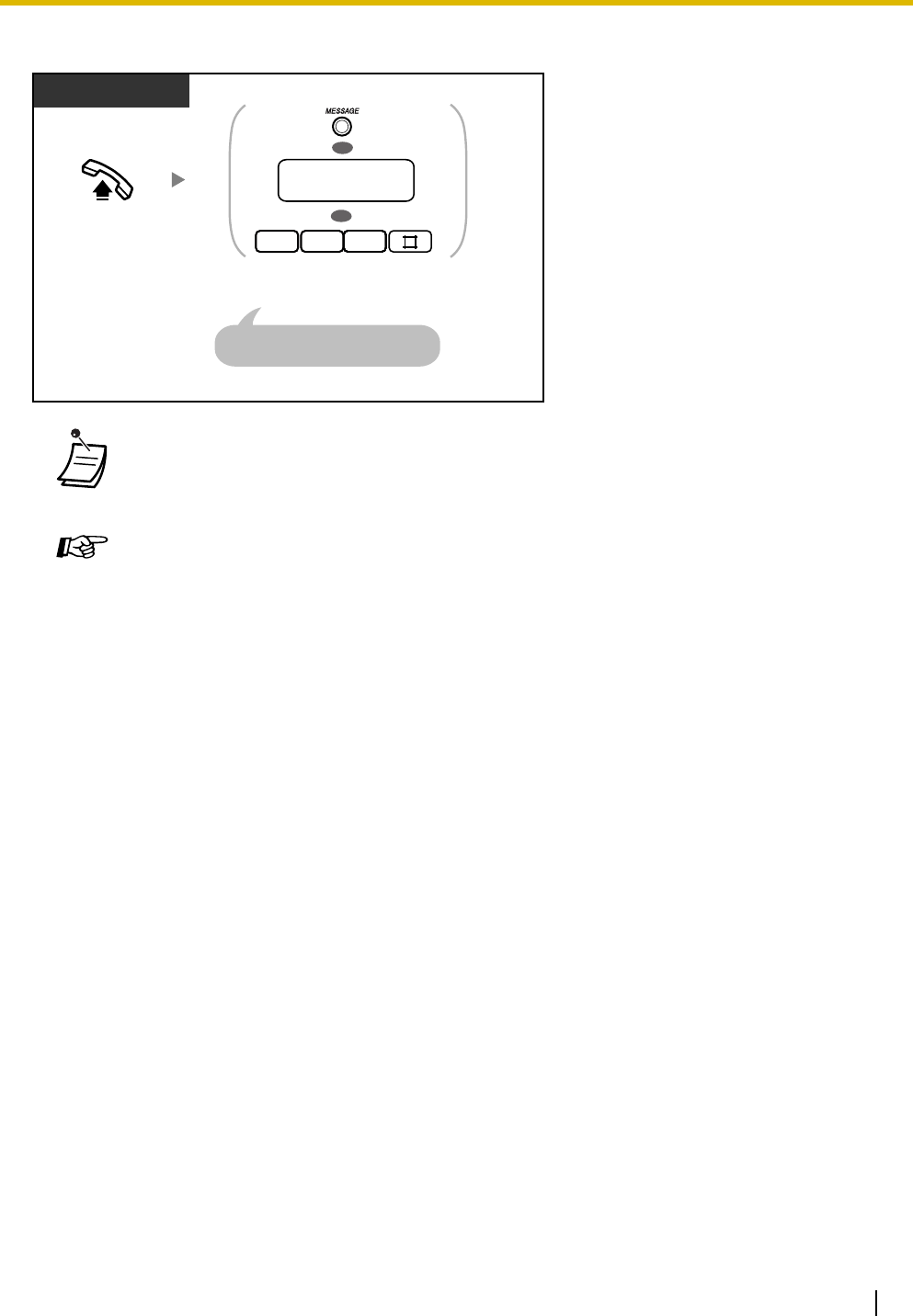
1.3 Telephone Features
Operating Manual 131
To listen to messages
• If a proprietary telephone (PT) user sets the FWD—Busy/No Answer feature, the FWD/
DND button light will keep flashing while on-hook. To stop the button from flashing, go off-
hook and enter "716#".
Programming Manual References
[PT Programming]
• [009] Extension Number
• [100] Hunting Group Set
• [101] Hunting Type
• [102] DTMF Integration Port
• [103] DTMF Integration
• [130] VM 1 APT Port
• [131] VM 2 APT Port
• [408-410] Flexible Ringing—Day/Night/Lunch
• [411-413] Delayed Ringing—Day/Night/Lunch
• [414-416] CO Line Mode—Day/Night/Lunch
• [507] DISA Intercept Mode
• [600] Extension Group
[PC Programming]
• 9.1.2 Main [1-2]—Voice Mail
• 9.1.3 Numbering Plan [1-3]—Ext. no.
• 9.2.2 Feature settings [2-2]—FWD/DND, Voice Mail Integration
• 9.2.11 Extension Group [2-6]
• 9.3.1 Line Mode [3-1]—Mode of incoming CO calls—Day, Night, Lunch
• 9.3.2 Incoming / Outgoing [3-2]—Ringing for incoming CO calls—Day, Night, Lunch
• 9.6.3 Settings [6-2]—Mode—DISA Intercept Mode
Press MESSAGE, dial voice mail
extension number, or enter 784#.
Off-hook.
PT/SLT
OR
voice mail
extension no.
OR
87 444444
An SLT user can enter "7840"
instead of "784#".
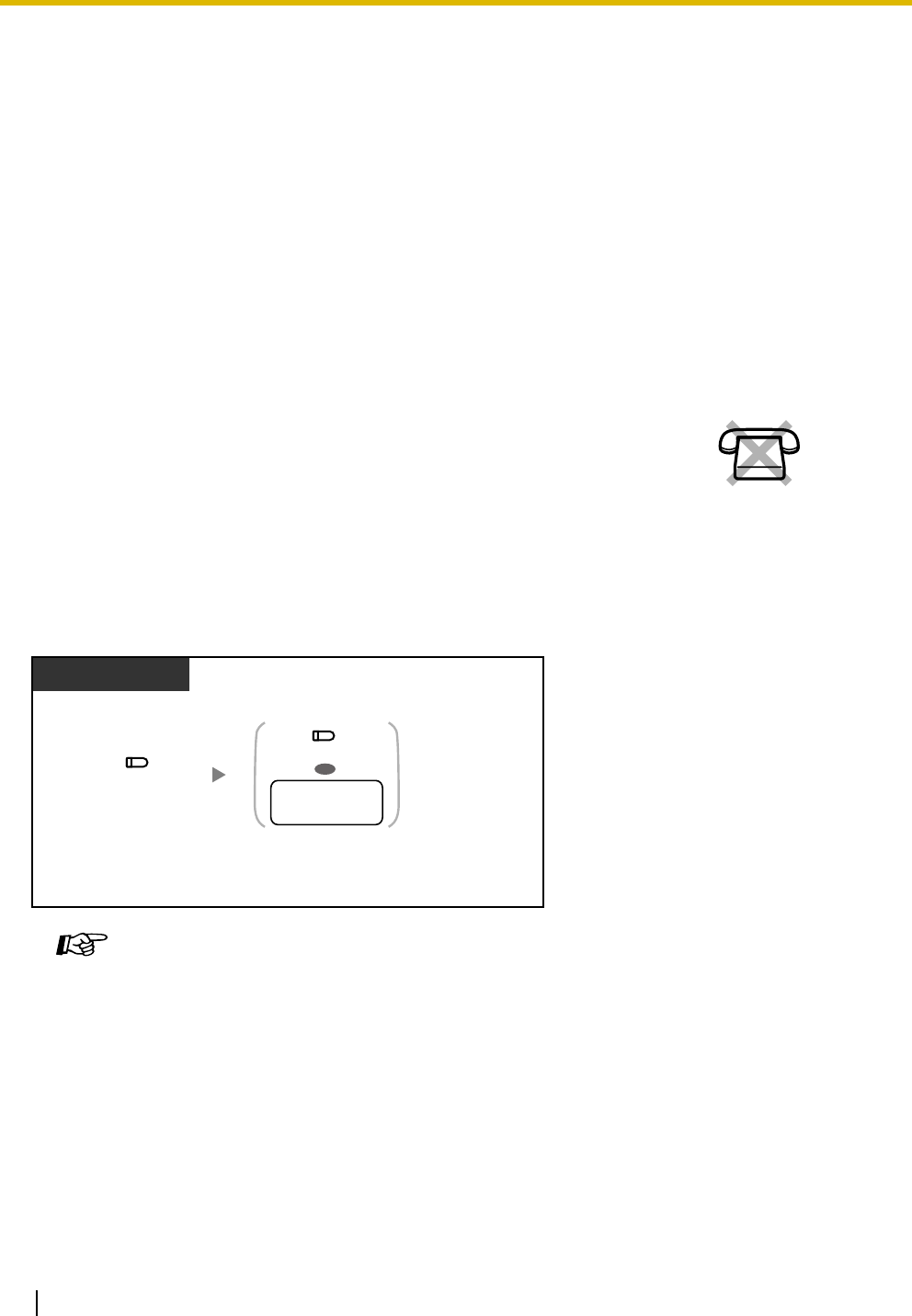
1.3 Telephone Features
132 Operating Manual
1.3.89 Voice Mail Transfer (Voice Mail APT Integration only)
To transfer a call to a mailbox
Feature Manual References
• 1.1.120 Voice Mail APT Integration
• 1.1.121 Voice Mail Inband (DTMF) Integration
Operating Manual References
•1.3.10 Call Forwarding (FWD)—All Calls
•1.3.11 Call Forwarding (FWD)—Busy/No Answer
•3.1.3 Flexible Button Assignment
Create or edit an FWD/DND (Call Forwarding/Do Not Disturb) button or Message
button.
You can transfer received outside (CO) line calls to a mailbox so that calling
parties can leave messages. If you create a Voice Mail Transfer button on your
phone, you can transfer calls to a desired extension without having to enter the
mailbox number.
The maximum recording time for caller messages depends on the Voice
Processing System (VPS).
This feature is available when the PBX is connected to a Panasonic VPS that
supports APT integration.
Feature Manual References
• 1.1.120 Voice Mail APT Integration
Operating Manual References
•3.1.3 Flexible Button Assignment
Create or edit a Voice Mail (VM) Transfer button or Direct Station Selection (DSS)
button.
No SLT
Press DSS or dial desired
extension number.
Press Voice Mail
Transfer.
PT
During a conversation
desired
extension no.
OR
(Voice Mail
Transfer)
(DSS)
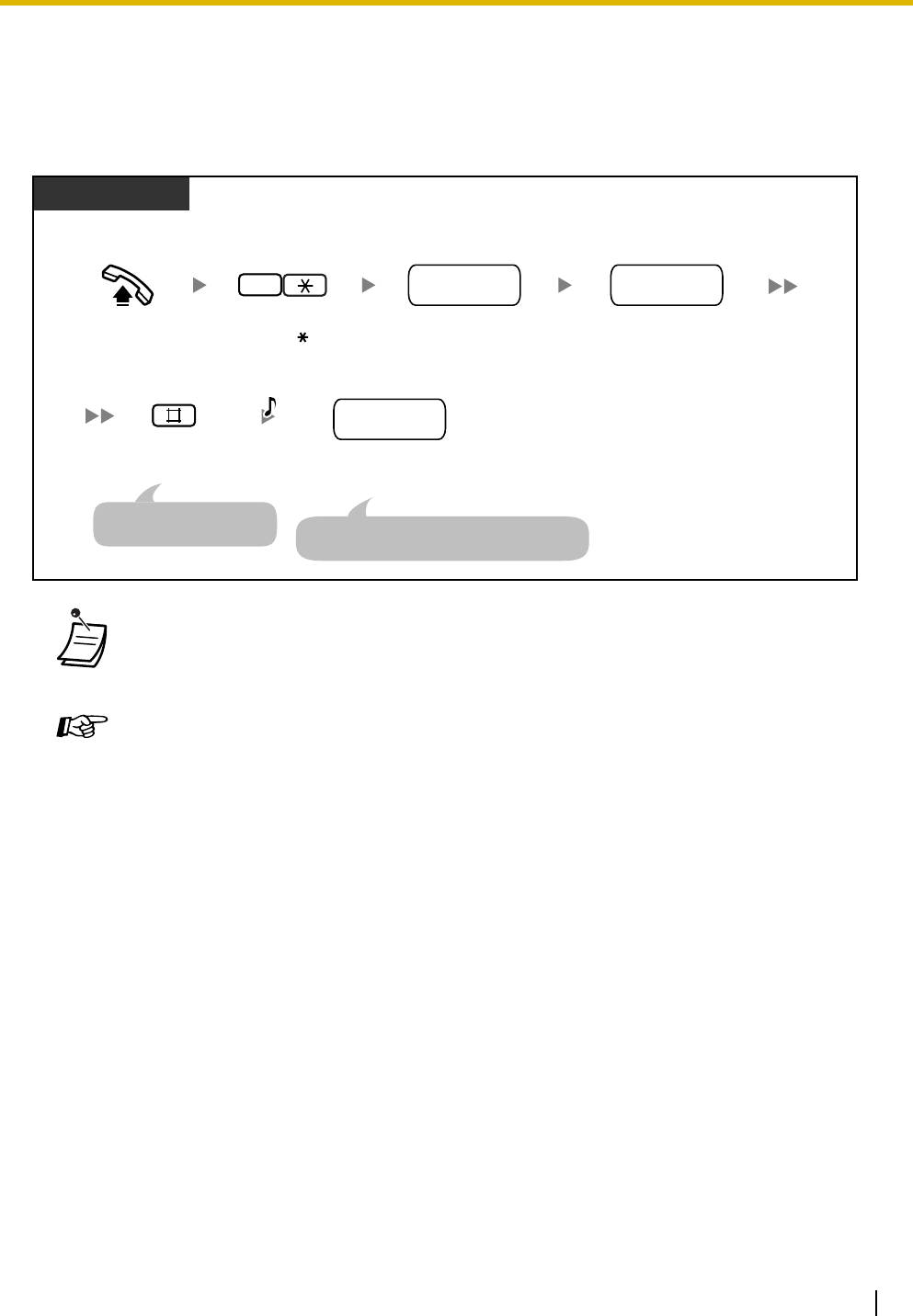
1.3 Telephone Features
Operating Manual 133
1.3.90 Walking COS
You can use your calling privileges (class of service [COS]) at another extension, to override calling
restrictions that have been set at that extension. To use this feature, a preprogrammed extension password
is required. Ask your manager for the extension password.
• Rotary single line telephone (SLT) users cannot use this feature.
Programming Manual References
[PT Programming]
• [601-603] TRS-COS—Day/Night/Lunch
[PC Programming]
• 9.5.1 Class of Service (COS) [5-1]—Day, Night, Lunch
Feature Manual References
• 1.1.117 Toll Restriction (TRS)
• 1.1.122 Walking COS
Operating Manual References
•2.1.7 System Feature Assignment—Extension Password Set (Manager only)
Off-hook.
PT/SLT
7
Enter 7 .
extension
password
outside phone
no.
Enter extension
password.
your
extension no.
Dial your
extension number.
Dial outside
phone number.
C.Tone &
D.Tone
At another extension
Enter #.
An SLT user can enter "0"
instead of "#". Press the CO button or seize an outside (CO)
line before dialing the outside phone number.

1.3 Telephone Features
134 Operating Manual

Operating Manual 135
Section 2
Operator/Manager Operation
This chapter shows the operator and the manager extension
how to control the other extensions or the PBX. Your PBX
supports one manager (extension jack 01) and one operator.
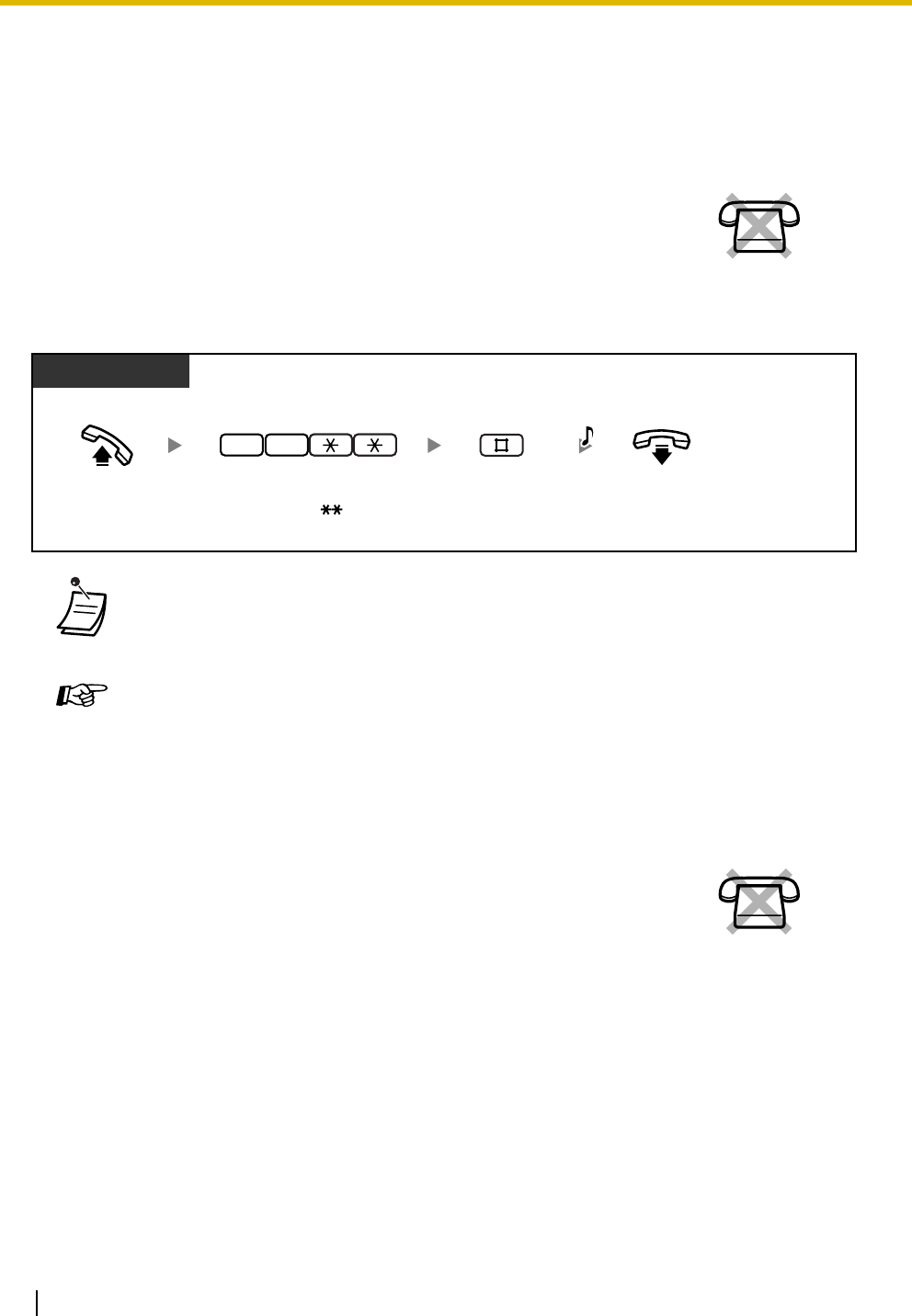
2.1 Operator/Manager Service Features
136 Operating Manual
2.1 Operator/Manager Service Features
2.1.1 Call Log, Incoming in the Common Area—CLEAR ALL
To erase
2.1.2 Call Log Display Lock, Incoming in the Common Area
The operator or manager can erase all caller information logged in the common
area.
• Caller information with associated voice messages is not erased by this operation.
• This feature is not available while someone is viewing caller information logged in the
common area.
Feature Manual References
• 1.1.18 Call Log, Incoming
• 1.1.87 Operator/Manager Features
The operator or manager can lock the displays of proprietary telephones (PTs)
so that the Call Log, Incoming feature is not shown on the display when the
Caller ID Indication—Common button is pressed. This can be useful to prevent
other people from viewing caller information logged in the common area.
No SLT
PT
Off-hook. On-hook.
7 0
Enter 70 . Enter #.
C.Tone
No SLT
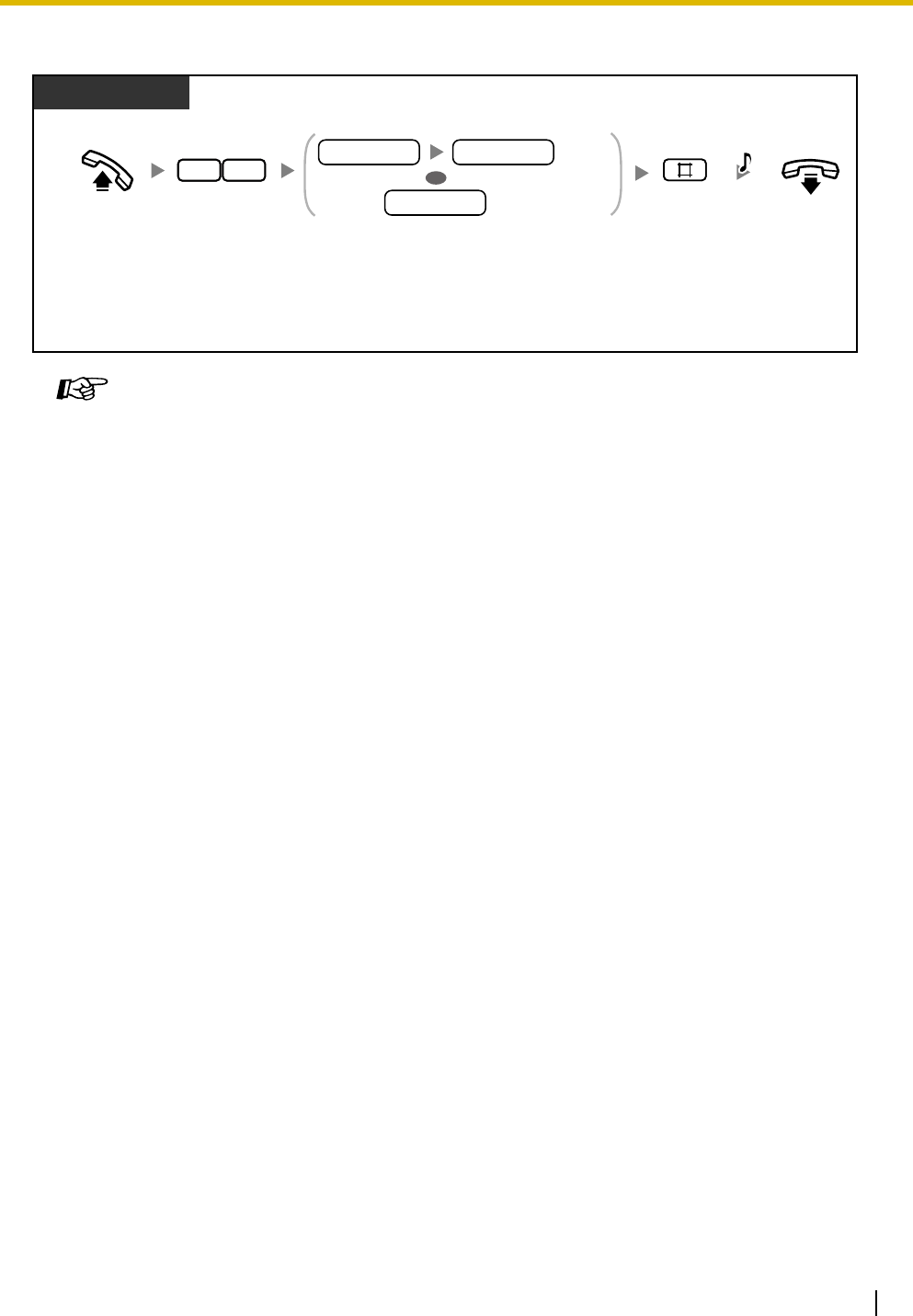
2.1 Operator/Manager Service Features
Operating Manual 137
To lock/unlock
2.1.3 Common BV Outgoing Messages
If an optional voice message card is installed in the PBX, the operator or manager can record, play, or erase
a common Built-in Voice Message (BV) outgoing message (OGM) in the common message area.
When an outside (CO) line call is automatically directed to the common message area, or when a Direct
Inward System Access (DISA) call is redirected to the common message area via Intercept Routing, the
caller will hear a common BV OGM and can leave a voice message. To play back or erase the voice
message, refer to "1.3.7 Built-in Voice Message (BV)".
Feature Manual References
• 1.1.18 Call Log, Incoming
• 1.1.87 Operator/Manager Features
Operating Manual References
•1.3.18 Call Log, Incoming
•1.3.19 Call Log Display Lock, Incoming in the Personal Area
Off-hook. On-hook.
PT
Enter 77. Enter lock code (4 digits) 2 times
to lock or one time to unlock.
Enter #.
77
C.Tone
Lock
Unlock
lock code lock code
lock code
OR
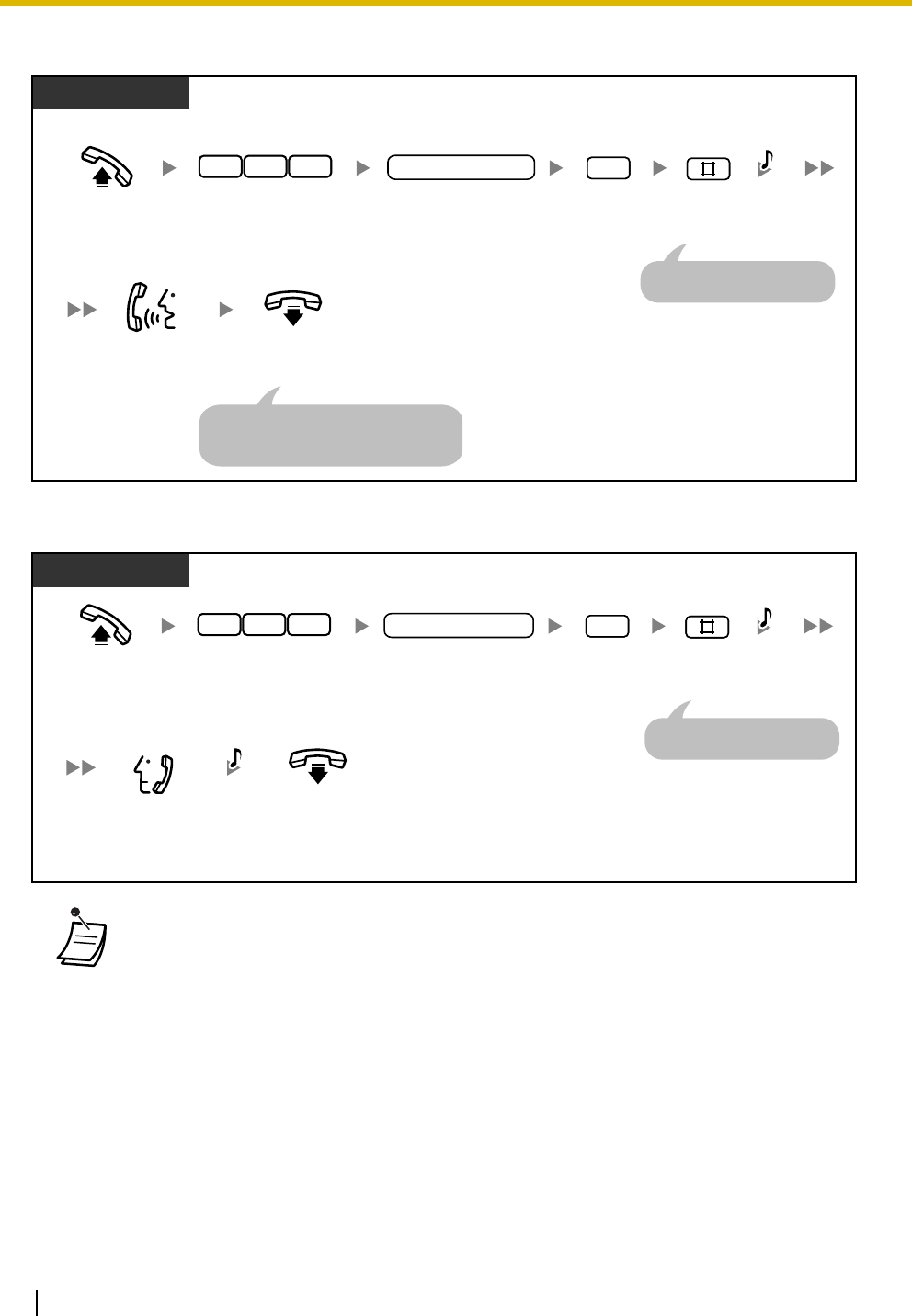
2.1 Operator/Manager Service Features
138 Operating Manual
To record
To play back
• The AUTO DIAL/STORE button light shows the current status as follows:
Off: You are recording a message, or a message has finished playing.
Red on: A message is playing.
• You can stop playback by pressing the AUTO DIAL/STORE button.
PT/SLT
Off-hook.
On-hook.
Enter 722.
2 27
Enter 1. Enter #.
1
Dial common BV OGM
number (01–24).
common BV OGM no.
C.Tone
Record
a message.
A PT user can play back the message
by pressing the AUTO DIAL/STORE
button instead of going on-hook.
An SLT user can enter "0"
instead of "#".
PT/SLT
Off-hook.
On-hook.
Enter 722.
2 27
Enter 2. Enter #.
2
Dial common BV OGM
number (01–24).
common BV OGM no.
C.Tone
Confirm
the message.
An SLT user can enter "0"
instead of "#".
C.Tone
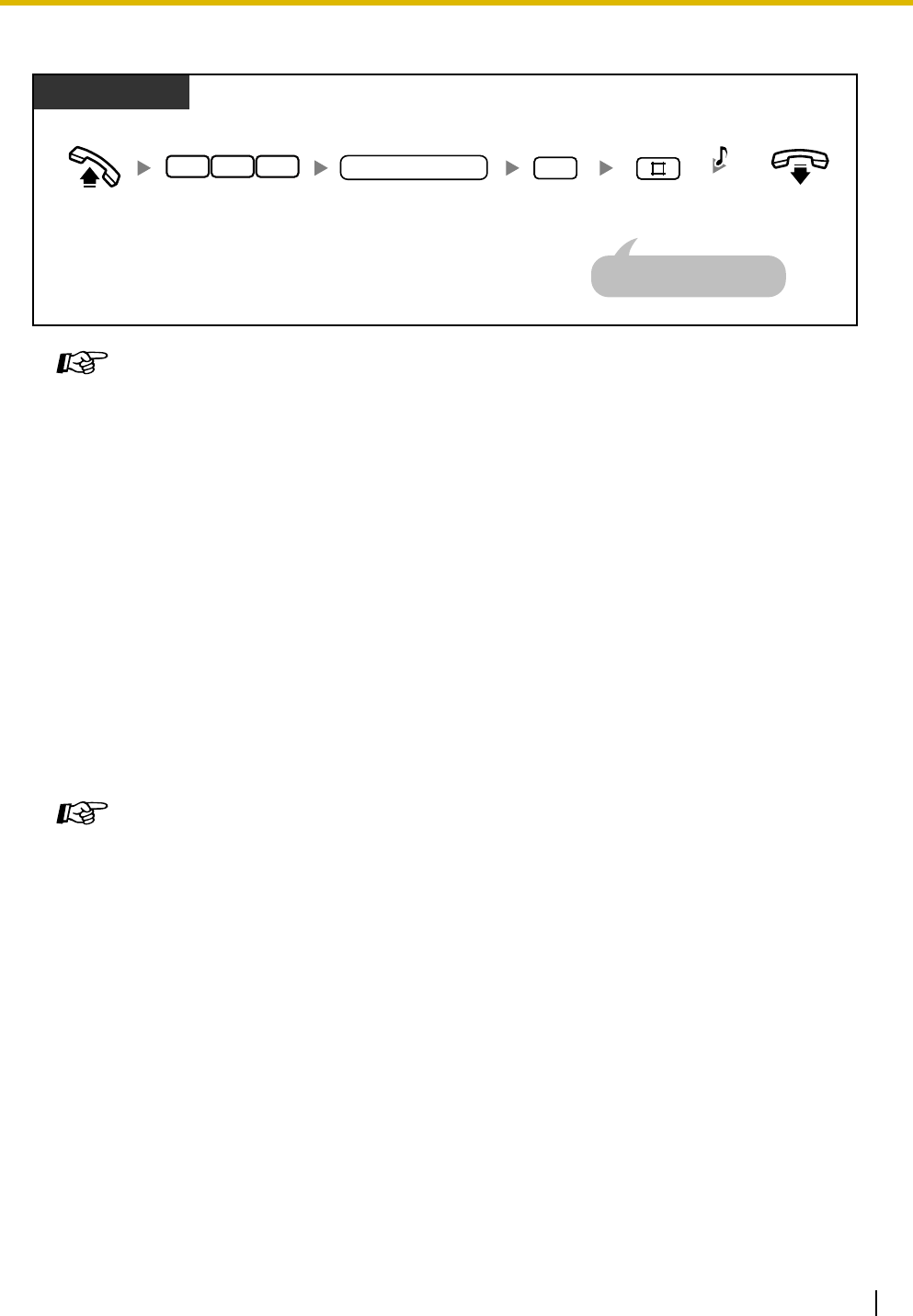
2.1 Operator/Manager Service Features
Operating Manual 139
To erase
2.1.4 Manager Programming (Manager only)
The manager can program the following system programming with the manager password even if he or she
does not know the system password for system programming. For more details, refer to "3.2 System
Programming (Manager Programming)" in this manual.
•[001] System Speed Dialing Number
•[011] System Speed Dialing Name
•[512] DISA Security Code
•[530] DISA Security Code Digits
Feature Manual References
• 1.1.8 Built-in Voice Message (BV)
• 1.1.87 Operator/Manager Features
Operating Manual References
•1.3.7 Built-in Voice Message (BV)
Programming Manual References
[PT Programming]
• [001] System Speed Dialing Number
• [011] System Speed Dialing Name
• [512] DISA Security Code
• [530] DISA Security Code Digits
[PC Programming]
• 9.4 System Speed Dialing [4]
• 9.6.3 Settings [6-2]—Security—DISA Security Codes, Security—DISA Security Code
Length
Feature Manual References
• 1.1.87 Operator/Manager Features
Operating Manual References
•2.1.7 System Feature Assignment—Extension Password Set (Manager only)
•3.2 System Programming (Manager Programming)
PT/SLT
Off-hook. On-hook.
Enter 722.
2 27
Enter 0. Enter #.
0
Dial common BV OGM
number (01–24).
C.Tone
common BV OGM no.
An SLT user can enter "0"
instead of "#".
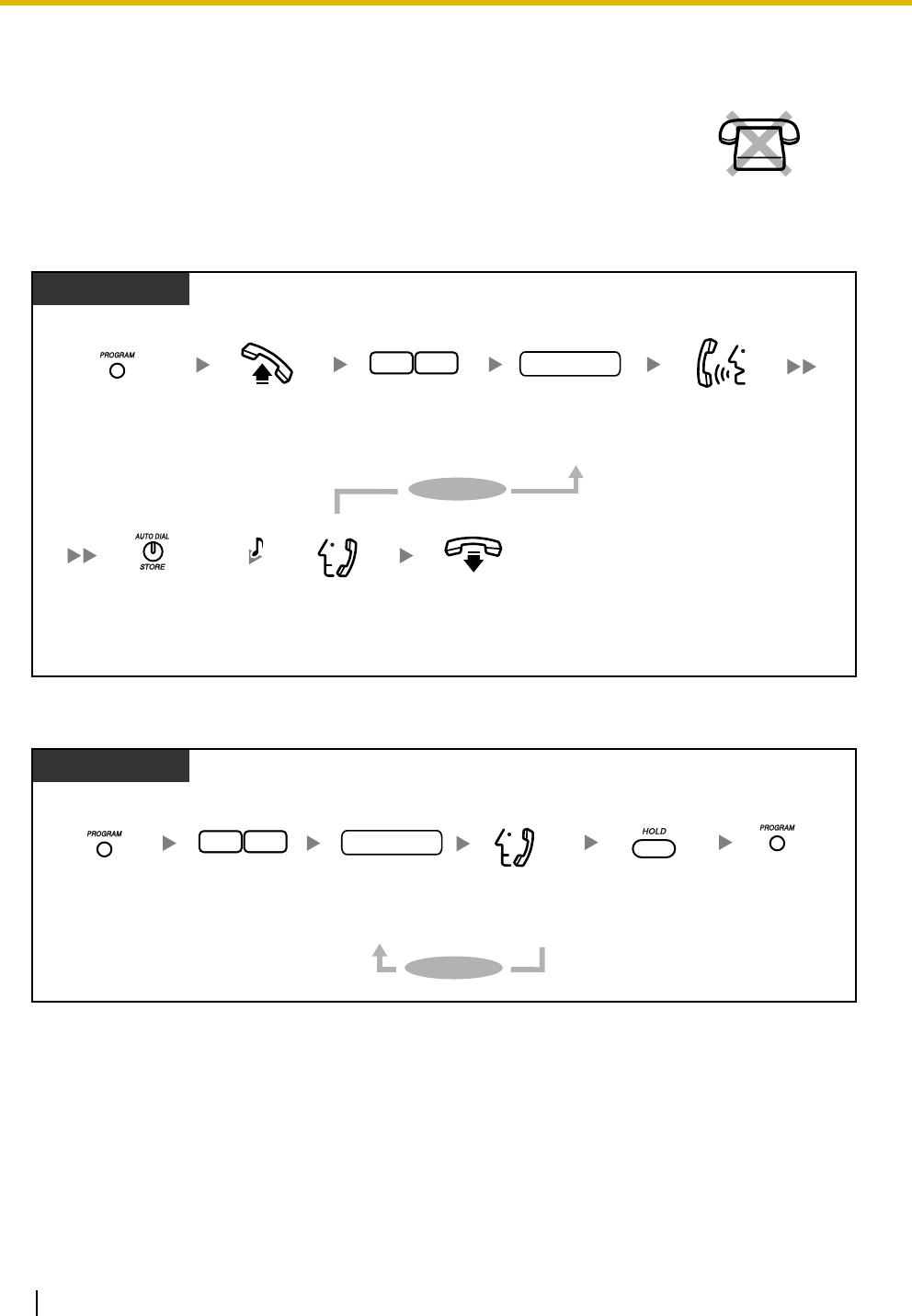
2.1 Operator/Manager Service Features
140 Operating Manual
2.1.5 Outgoing Message (OGM) for DISA
To record OGMs for DISA
To play back OGMs for DISA
The operator or manager can record, play, or erase OGMs used by Direct Inward
System Access (DISA) and 3-level Automated Attendant (AA).
No SLT
PT
Off-hook.
On-hook.
Enter 91.
19
Dial DISA OGM
number (1–8).
DISA OGM no.
C.Tone
Press PROGRAM.
Press STORE.
To continue
Record
a message.
Confirm
the message.
*
1
PT
Enter 92.
29
Dial DISA OGM
number (1–8).
DISA OGM no.
Press PROGRAM.
To continue
*2*1
Confirm
the message.
Press PROGRAM.Press HOLD.
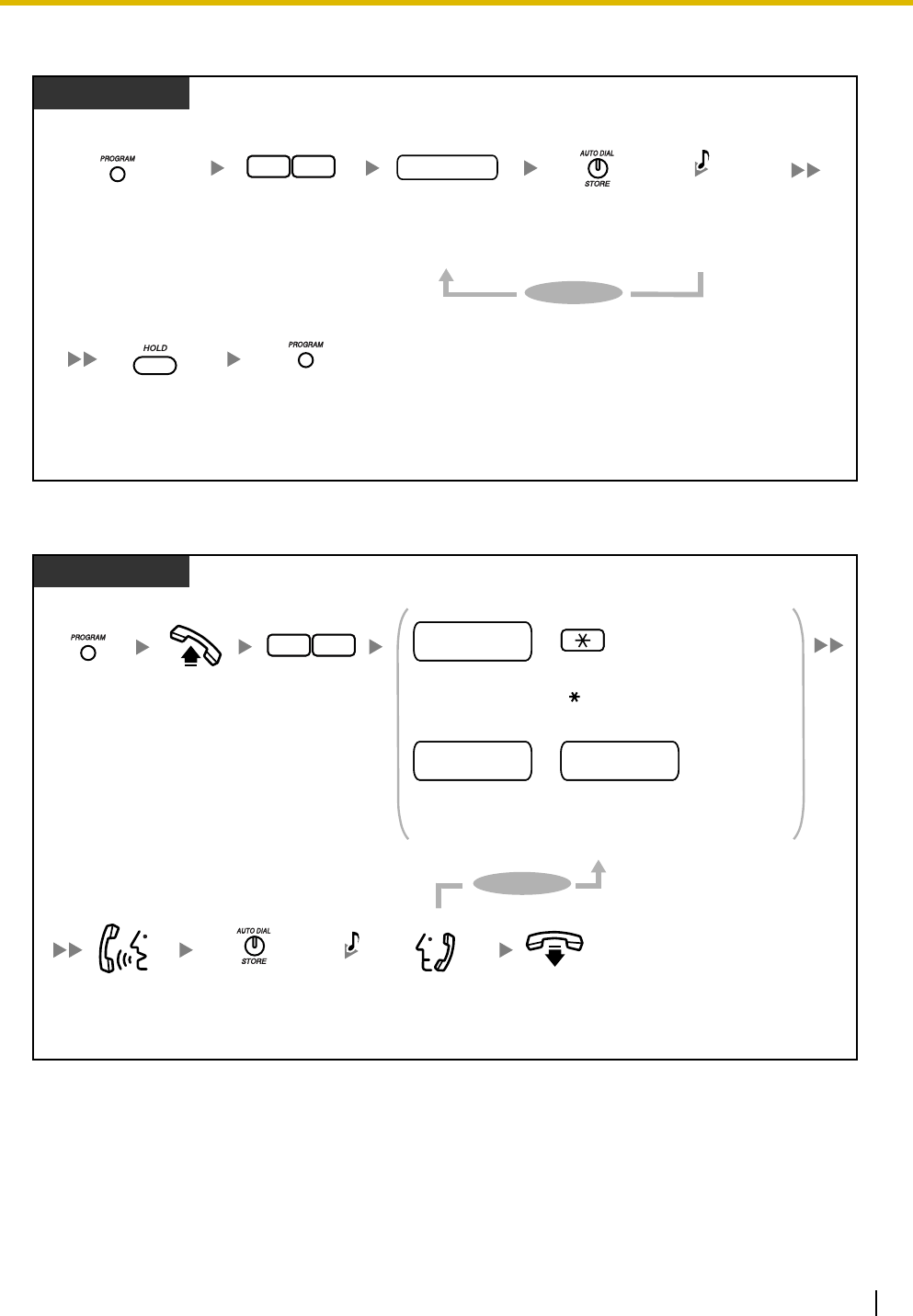
2.1 Operator/Manager Service Features
Operating Manual 141
To erase OGMs for DISA
To record OGMs for 3-level AA
PT
Enter 90.
09
Dial DISA OGM
number (1–8).
DISA OGM no.
C.Tone
Press PROGRAM.Press STORE.
Press PROGRAM.Press HOLD.
To continue
*
3
*
1
PT
Off-hook.
On-hook.
Enter 93.
39
C.Tone
Press
PROGRAM.
Press STORE.
To continue
Confirm
the message.
Record
a message.
Dial AA number for 2-level
DISA OGM (0–9), and enter .
Dial AA number for 2-level DISA OGM (0–9),
and AA number for 3-level DISA OGM (0–9).
AA no. for 2-level
DISA OGM
For 2-level AA
For 3-level AA
+
AA no. for 2-level
DISA OGM
+
AA no. for 2-level
DISA OGM
+
AA no. for 2-level
DISA OGM
AA no. for 2-level
DISA OGM
AA no. for 3-level
DISA OGM
+
*1
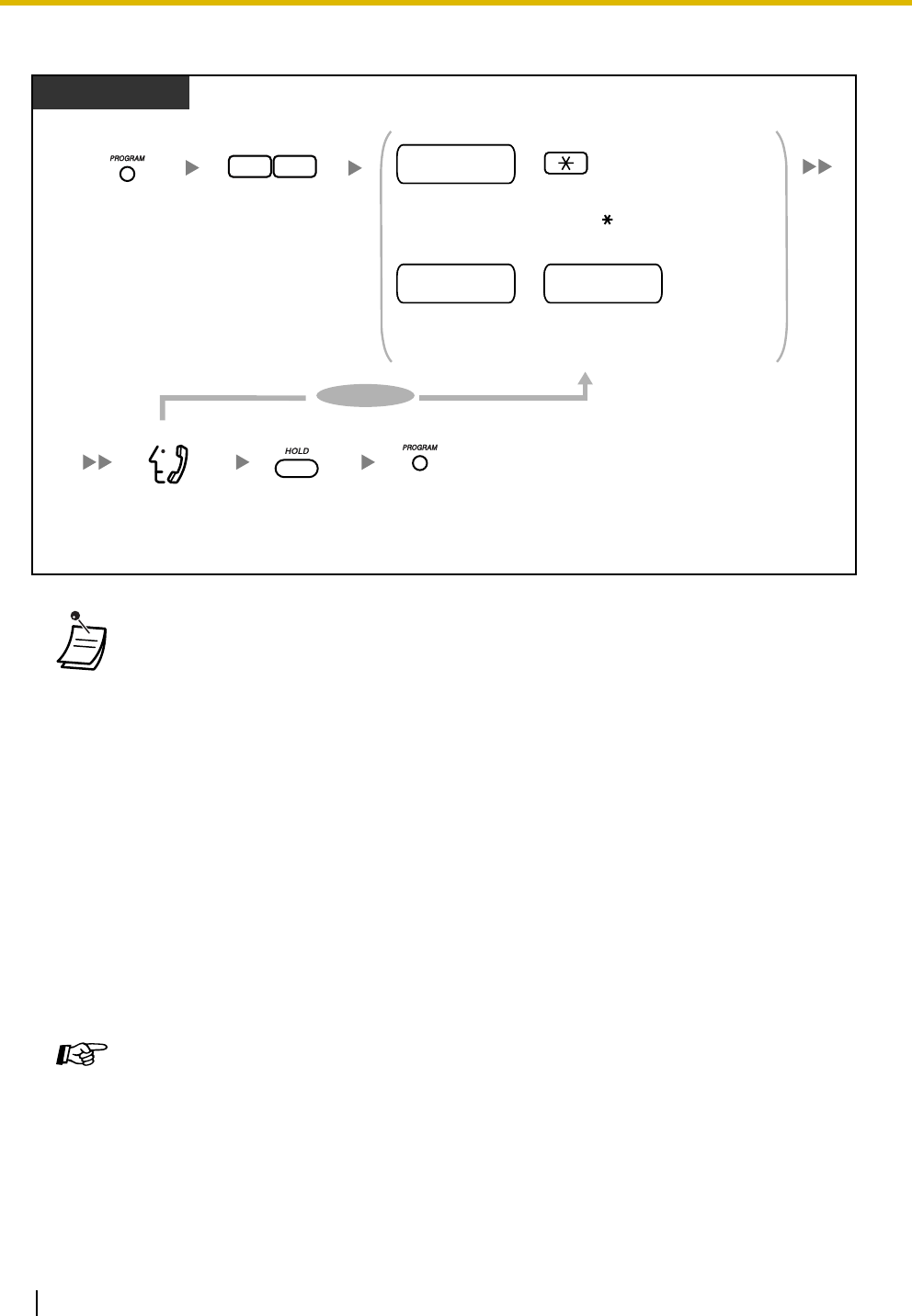
2.1 Operator/Manager Service Features
142 Operating Manual
To play back OGMs for 3-level AA
• Up to 32 messages (DISA: max. 8, 3-level AA: max. 24) can be recorded. A message can
be up to 3 minutes long. The total recording time of the PBX for DISA OGMs is 3 minutes.
When an optional message expansion card for DISA OGMs is added, the total recording
time of the PBX is increased to 6 minutes. When the total time of all recordings becomes
3 (or 6) minutes or more, the PBX automatically stops recording. Record messages using
the handset (not the Hands-free microphone), to reduce background noise.
•*
1 To exit programming mode after the message has played, press the HOLD button and
then the PROGRAM button, or go off-hook and then on-hook.
•*
2 While the message is being played back, you can enter "0", "1", or "2", to erase, record,
or play any OGMs for DISA, or press the SP-PHONE (NEXT) or REDIAL (PREV) button
to start playing other OGMs for DISA.
•*
3 "Delete Complete" is shown on a display proprietary telephone (PT). While this
message is shown, you can enter "0", "1", or "2", to erase, record, or play any OGMs for
DISA.
•*
4 While the message is being played back, you can enter "3" or "4", to record or play any
OGMs for 3-level AA, or press the SP-PHONE (NEXT) or REDIAL (PREV) button to start
playing other OGMs for 3-level AA.
Feature Manual References
• 1.1.87 Operator/Manager Features
• 1.1.88 Outgoing Message (OGM) for DISA
Operating Manual References
•1.3.34 Direct Inward System Access (DISA)
PT
Enter 94.
49
Dial AA number for 2-level
DISA OGM number (0–9), and enter .
Dial AA number for 2-level DISA OGM number (0–9),
and AA number for 3-level DISA OGM number (0–9).
AA no. for 2-level
DISA OGM
To continue
Confirm
the message.
For 2-level AA
For 3-level AA
+
AA no. for 2-level
DISA OGM
+
AA no. for 2-level
DISA OGM
+
AA no. for 2-level
DISA OGM
AA no. for 2-level
DISA OGM
AA no. for 3-level
DISA OGM
+
Press PROGRAM.
*4*1
Press PROGRAM.Press HOLD.
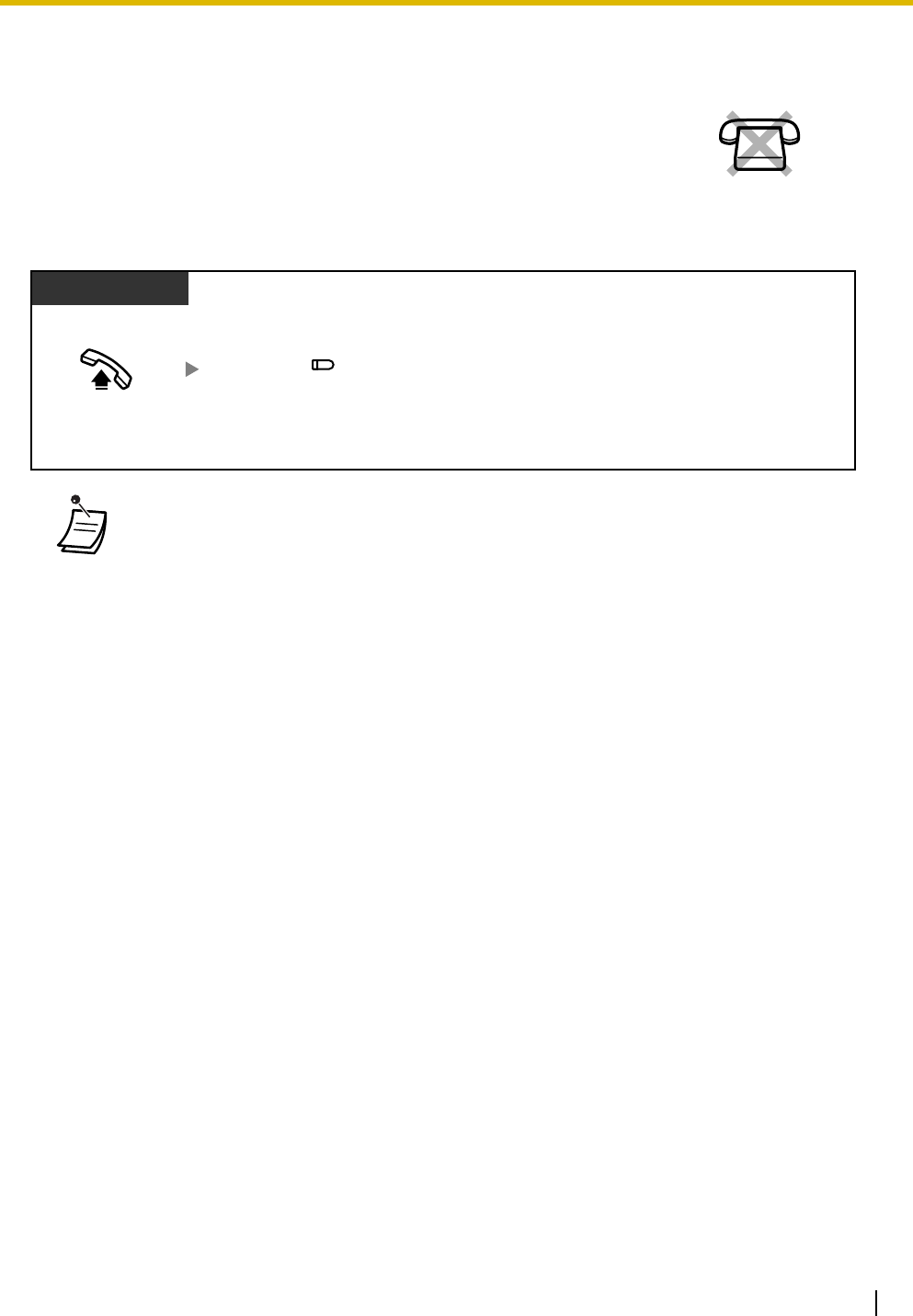
2.1 Operator/Manager Service Features
Operating Manual 143
2.1.6 Remote Extension Lock
To lock/unlock
The operator or manager can lock or unlock an extension.
This feature is also known as Remote Station Lock Control.
• This feature overrides the Extension Lock feature. If Extension Lock has already been set
by the extension user and this feature is set afterwards, the extension user cannot cancel
the lock. Only the operator or manager can cancel the lock.
• The Extension Lock—CANCEL ALL feature can cancel all locks placed on extensions
using this feature. Refer to "2.1.7 System Feature Assignment—Extension Lock—
CANCEL ALL".
• This operation can be performed only if the operator or manager has set the extension
password of the corresponding extension. Refer to "2.1.7 System Feature Assignment—
Extension Password Set (Manager only)".
No SLT
Off-hook.
PT
Press Extension Lock.
(Extension Lock)

2.1 Operator/Manager Service Features
144 Operating Manual
Programming Manual References
[PT Programming]
• [108] Flash/Recall Mode for a Locked Extension
• [312] TRS—Extension Lock Class
• [601-603] TRS-COS—Day/Night/Lunch
[PC Programming]
• 9.1.11 Detail [1-10]—Extension—Flash/Recall Mode for a Locked Extension
• 9.2.2 Feature settings [2-2]—Remote Extension Lock
• 9.5.1 Class of Service (COS) [5-1]—Day, Night, Lunch
• 9.5.4 Emergency Number & Others [5-4]—Extension Lock Class
Feature Manual References
• 1.1.87 Operator/Manager Features
• 1.1.107 Remote Extension Lock
Operating Manual References
•1.3.44 Extension Lock
•2.1.7 System Feature Assignment—Extension Lock—CANCEL ALL
•2.1.7 System Feature Assignment—Extension Password Set (Manager only)
•3.1.3 Flexible Button Assignment
Create or edit an Extension Lock button.
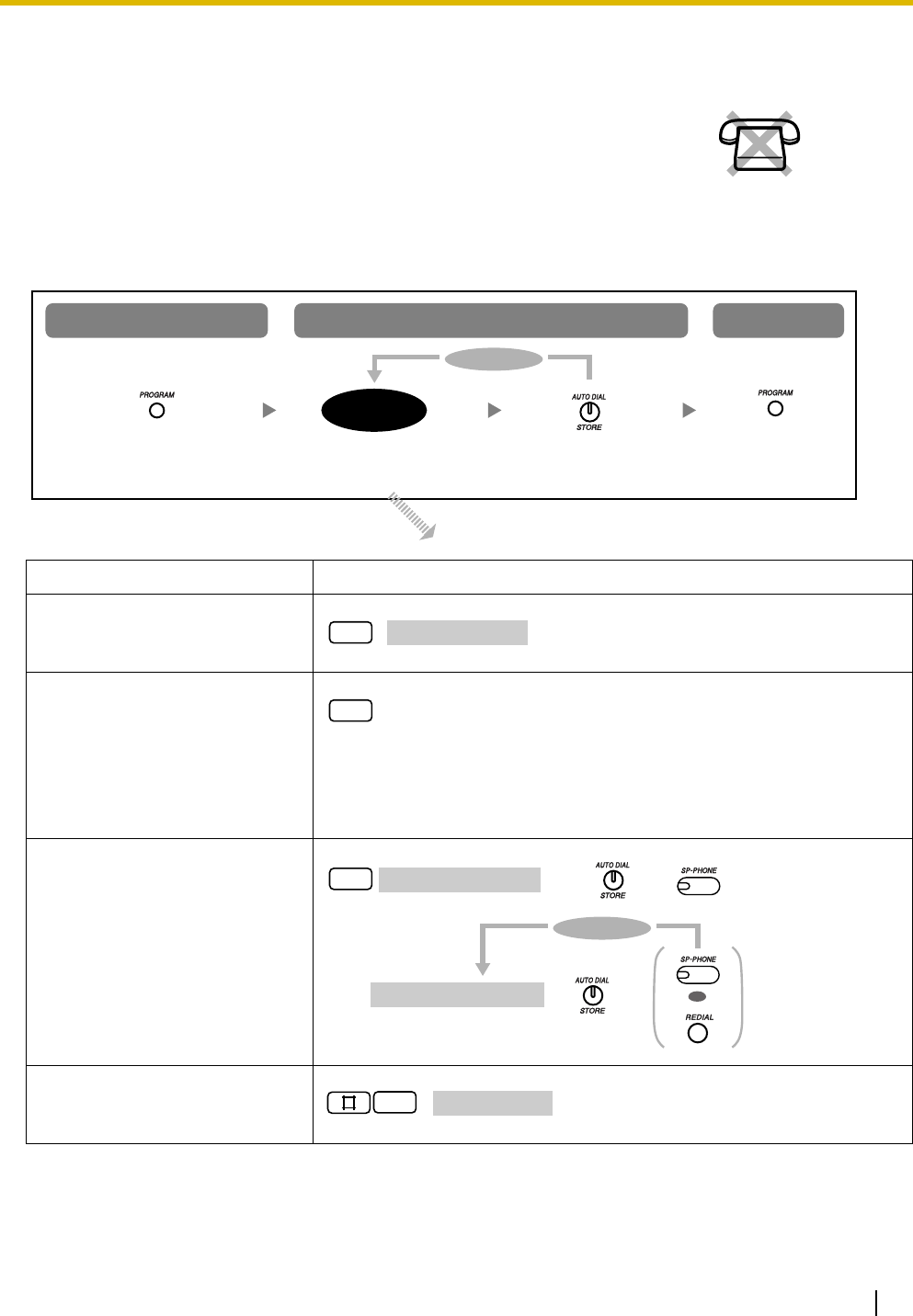
2.1 Operator/Manager Service Features
Operating Manual 145
2.1.7 System Feature Assignment
The operator or manager can set the following system features while in
programming mode.
• Date & Time Set
• Extension Lock—CANCEL ALL
• Extension Password Set (Manager only)
• Live Call Screening (LCS) Password Control
Setting Procedure
Adjusting the current date and
time
(Date & Time Set)
Canceling Extension Lock, Call
Log Display Lock, Incoming in the
Personal Area, and Message
Waiting for Another Extension
Lock at all extensions
(Extension Lock—CANCEL
ALL)
Setting a password to each
extension
(Extension Password Set
[Manager only])*2
Clearing the LCS Password
(Live Call Screening [LCS]
Password Control)
No SLT
Follow procedure.
To program To exit
To enter programming mode
programming
input
Press STORE.
To continue
Press PROGRAM.Press PROGRAM.
0
*
1
date and time
8
7manager password
*3
++
+extension password ++
To continue
OR
*4
2
extension no.

2.1 Operator/Manager Service Features
146 Operating Manual
2.1.8 The 301st Call Log, Incoming in the Common Area
Treatment
•*
1 Year (00–99), Month (01–12), Day (01–31), Day of the week (0–6: Sun–Sat), Hour (01–
12), Minute (00–59), AM/PM (0/1)
•*
2 The preprogrammed extension password can be used for the Walking COS feature and
the Remote Extension Lock feature. Each extension's password must be unique.
•*
3 You can enter the system password instead of the password of the extension connected
to extension jack 01 (manager password). For more details, refer to "[002] System
Password" or "9.1.2 Main [1-2]" in the Programming Manual.
•*
4 Extension numbers are displayed in the order of the jack numbers when you press the
SP-PHONE (NEXT) or REDIAL (PREV) button.
Programming Manual References
[PT Programming]
• [002] System Password
[PC Programming]
• 9.1.2 Main [1-2]—System Password
• 9.2.3 PT personal settings [2-3]—Extension Password
Feature Manual References
• 1.1.87 Operator/Manager Features
Operating Manual References
•1.3.19 Call Log Display Lock, Incoming in the Personal Area
•1.3.44 Extension Lock
•1.3.56 Live Call Screening (LCS) (Voice Mail APT Integration only)
•1.3.62 Message Waiting for Another Extension Lock
•1.3.90 Walking COS
•2.1.6 Remote Extension Lock
The call log in the common area can store up to 300 call records. The operator
or manager can select how new calls are treated when this call log is full; either
the newest call is disregarded (i.e., not logged), or the oldest call whose
information has been viewed is overwritten by the newest call. The Caller ID
Selection—Common button lights when the call log in the common area is full. No SLT
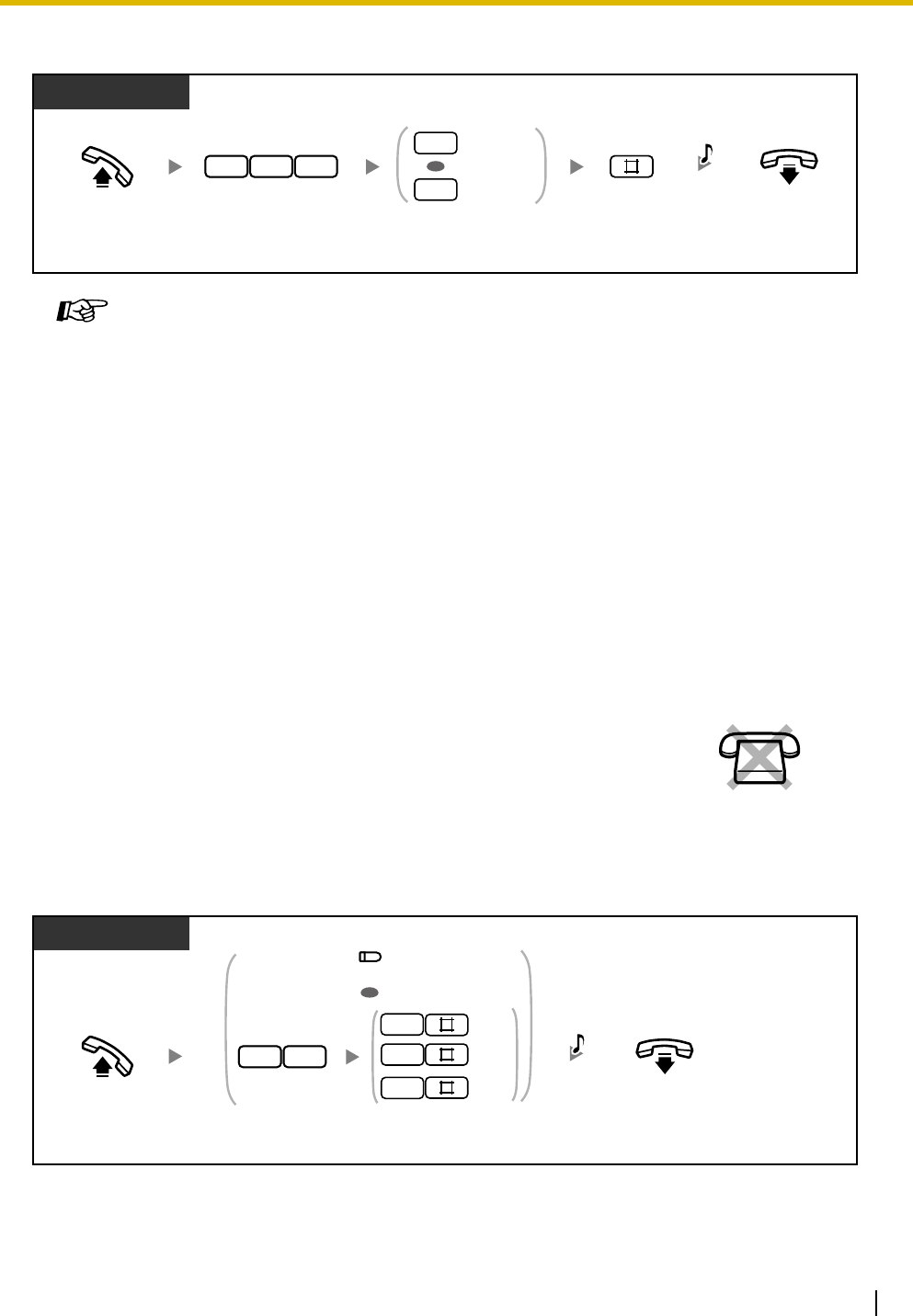
2.1 Operator/Manager Service Features
Operating Manual 147
To disregard the newest call/overwrite the oldest call in the common area call log
2.1.9 Time Service
To change the time service mode manually
Programming Manual References
[PC Programming]
• 9.9.3 Call Log [9-3]—301st Call Log in Common Area
Feature Manual References
• 1.1.18 Call Log, Incoming
• 1.1.87 Operator/Manager Features
Operating Manual References
•1.3.18 Call Log, Incoming
•3.1.3 Flexible Button Assignment
Create or edit a Caller ID Selection—Common button.
The PBX can be programmed to make and receive calls differently in each time
service mode (day, night, and lunch).
The time service mode can be set to be changed manually (manual mode) or
automatically at preprogrammed times (automatic mode) through system
programming. Even if automatic mode has been selected, the operator or
manager can change the current time service mode manually.
PT
Off-hook. On-hook.
Enter 737.
3 77
Enter 2 to disregard
or 3 to overwrite.
Enter #.
C.Tone
Disregard
Overwrite
2
3
OR
No SLT
PT
Off-hook. On-hook.
Day
Press Day, Night, or Lunch or
enter 781# to 783# as you desire.
C.Tone
OR
(Day, Night, Lunch)
1
87 2
3
Night
Lunch
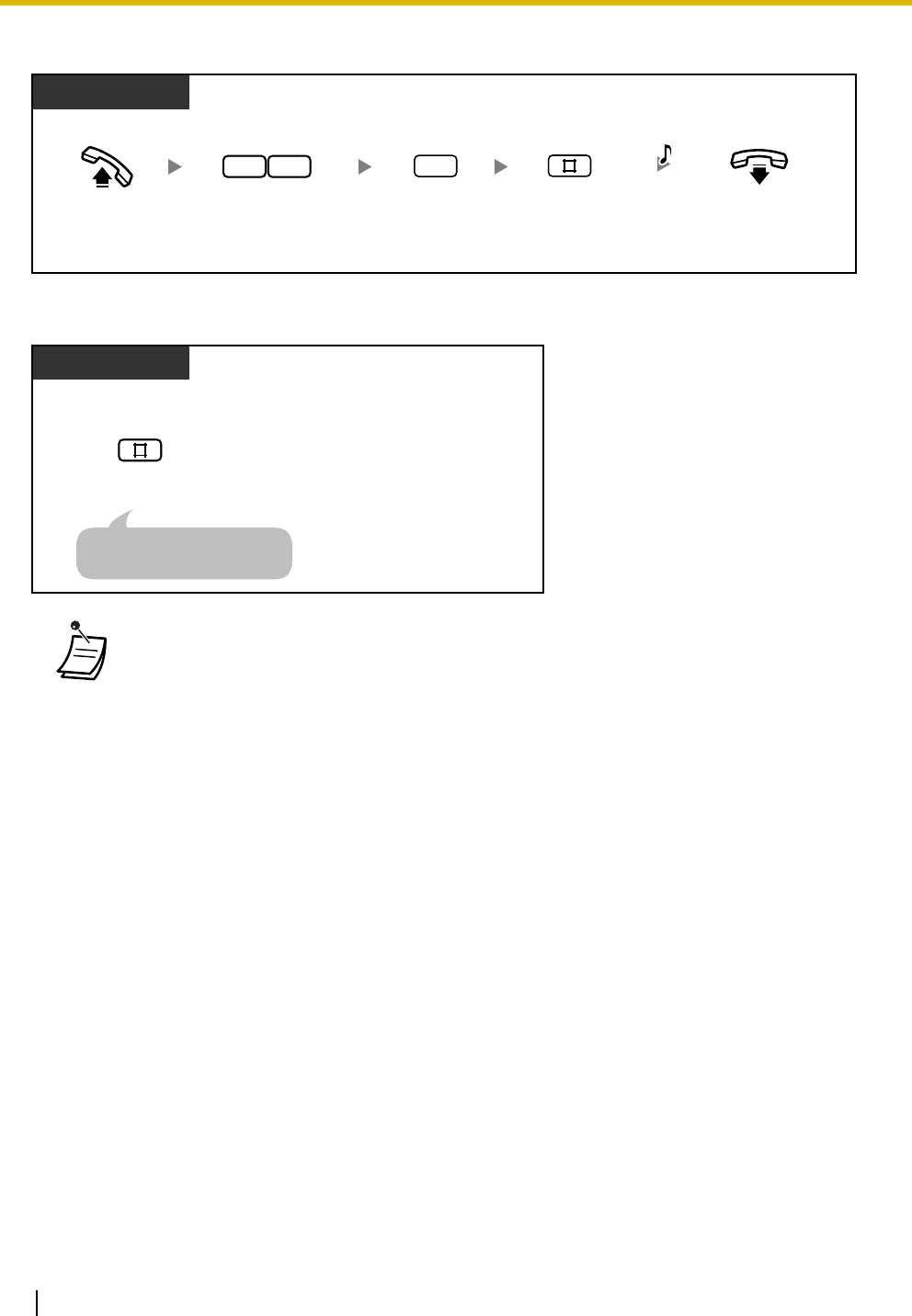
2.1 Operator/Manager Service Features
148 Operating Manual
To return to automatic mode after changing the time service mode manually
To confirm the current time service mode
• The Day, Night, and Lunch button lights show the current status as follows:
Off: Not set
Red on: Set
• If lunch mode is set manually by entering "783#" while in automatic mode, the time service
mode will not change automatically until you return to automatic mode by entering "780#".
However, if day mode or night mode is set manually, the mode will still change
automatically as programmed.
• It is not possible to cancel the current time service mode while in manual mode. Instead,
enter the feature number corresponding to the time service mode you wish to set.
PT
Off-hook. On-hook.
Enter 78.
87
Enter 0.
C.Tone
0
Enter #.
Display PT
While on-hook
Enter #.
The display shows the current
mode for 3 s.

2.1 Operator/Manager Service Features
Operating Manual 149
2.1.10 Timed Reminder, Remote (Wake-up Call)
Programming Manual References
[PT Programming]
• [006] Time Service Switching Mode
• [007] Time Service Start Time
• [405-407] Flexible Outward Dialing—Day/Night/Lunch
• [408-410] Flexible Ringing—Day/Night/Lunch
• [411-413] Delayed Ringing—Day/Night/Lunch
• [414-416] CO Line Mode—Day/Night/Lunch
• [438-440] DISA IRNA to BV—Day/Night/Lunch
• [601-603] TRS-COS—Day/Night/Lunch
• [700-702] Doorphone Ringing—Day/Night/Lunch
• [703-705] Door Opener—Day/Night/Lunch
[PC Programming]
• 9.1.4 Time Service [1-4]
• 9.1.5 Time Service [1-4] Time Setting
• 9.3.1 Line Mode [3-1]—Mode of incoming CO calls—Day, Night, Lunch
• 9.3.2 Incoming / Outgoing [3-2]—Ringing for incoming CO calls—Day, Night, Lunch,
Outgoing Call—Day, Night, Lunch
• 9.5.1 Class of Service (COS) [5-1]—Day, Night, Lunch
• 9.7.1 Ringing & Door Opener [7-1]—Doorphone 1–4—Day, Night, Lunch, Door
Opener 1–4—Day, Night, Lunch
• 9.8.2 Others [8-2]—DISA IRNA to BV—Day, Night, Lunch
Feature Manual References
• 1.1.87 Operator/Manager Features
• 1.1.114 Time Service
Operating Manual References
•3.1.3 Flexible Button Assignment
Create or edit a Day button, Night button, or Lunch button.
The operator or manager can remotely set or cancel the Timed Reminder
feature for any extension.
No SLT
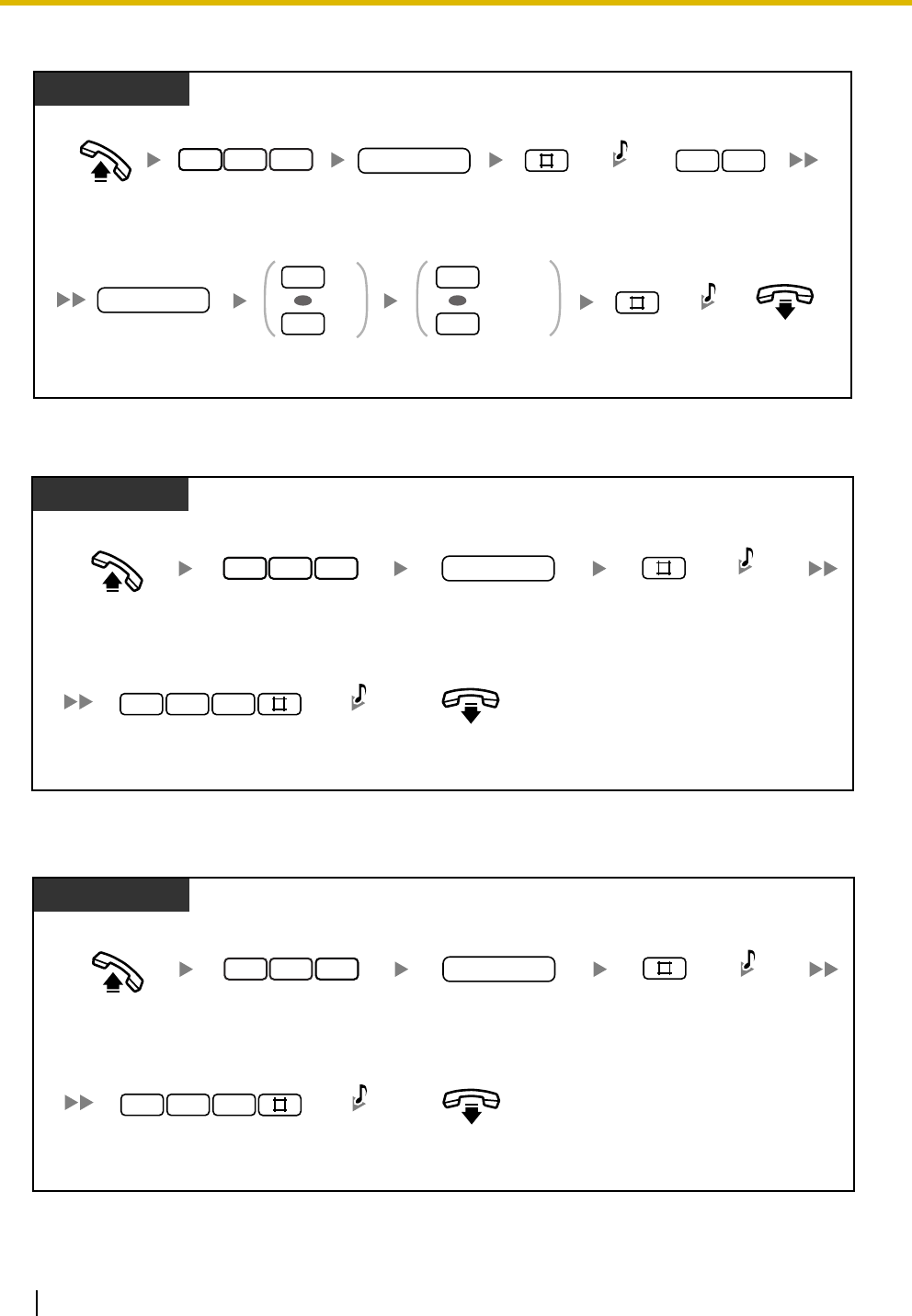
2.1 Operator/Manager Service Features
150 Operating Manual
To set
To cancel
To confirm
On-hook.
Off-hook. Enter 764.
Enter 1 for one time
or 2 for daily.
One time
Daily
Enter 0 for AM
or 1 for PM.
AM
PM
Enter hour (01
–
12)
and minute (00
–
59).
hour/minute
Dial extension
number.
PT
extension no.
6 47
Enter #. Enter 76.
7 6
0
1
OR
1
2
OR
Enter #.
C.Tone
C.Tone
& D.Tone
Off-hook.
On-hook.
Enter 764. Dial extension
number.
PT
extension no.
6 47
Enter #.
C.Tone
& D.Tone
Enter 762#.
7 6 2
C.Tone
Off-hook.
On-hook.
Enter 764. Dial extension
number.
Display PT
extension no.
6 47
Enter #.
Enter 763#
.
7 6 3
D.Tone
C.Tone
& D.Tone

2.1 Operator/Manager Service Features
Operating Manual 151
Programming Manual References
[PT Programming]
• [000] Date & Time
[PC Programming]
• 9.1.1 Date & Time [1-1]
• 9.2.2 Feature settings [2-2]—Timed Reminder
Feature Manual References
• 1.1.116 Timed Reminder, Remote
Operating Manual References
•1.3.84 Timed Reminder

2.1 Operator/Manager Service Features
152 Operating Manual

Operating Manual 153
Section 3
Customizing Your Phone & PBX
This chapter shows you how to customize your proprietary
telephone (PT) or PBX according to your needs.
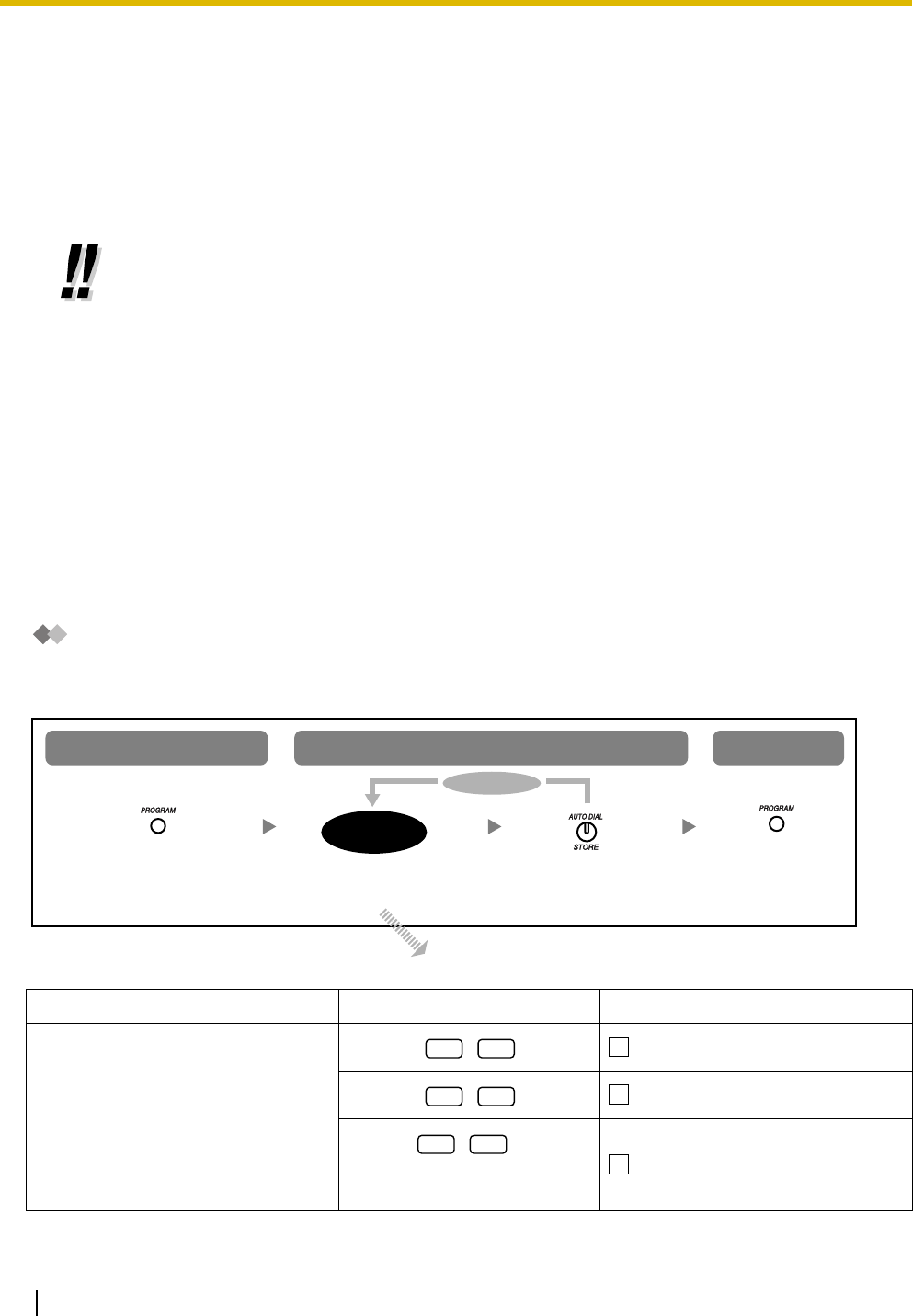
3.1 Personal Programming
154 Operating Manual
3.1 Personal Programming
3.1.1 Programming Information
You can customize various features of your telephone, such as line preferences and customized buttons.
Additionally, you can return all customized features to their default settings.
3.1.2 Personal Feature Assignment
You can perform the following while in programming mode:
–Personal Programming
–Personal Programming Data Reset
–Self-extension Number Confirmation
Personal Programming
The default settings are shown in bold letters. For later reference, place a check mark in the boxes below to
indicate your customized setting.
• Because certain settings are retained in your proprietary telephone (PT) (not in the PBX),
before replacing or changing your PT, we recommend resetting all customized features to
their default settings.
• The PROGRAM button is used to enter or exit programming mode.
• In order to program your extension, it must be idle, on-hook, and holding no calls.
• While you are programming your extension, it is treated as a busy extension.
Item Program Number Setting
Which line do you prefer to seize
when you go off-hook to make a call?
(Line Preference—Outgoing)
No line
An idle outside (CO) line
+
outside (CO) line no.
(1–8)*
An assigned outside (CO) line
Follow program
number.
To program To exit
To enter programming mode
program
number
Press STORE.
To continue
Press PROGRAM.Press PROGRAM.
1 1
1 2
13
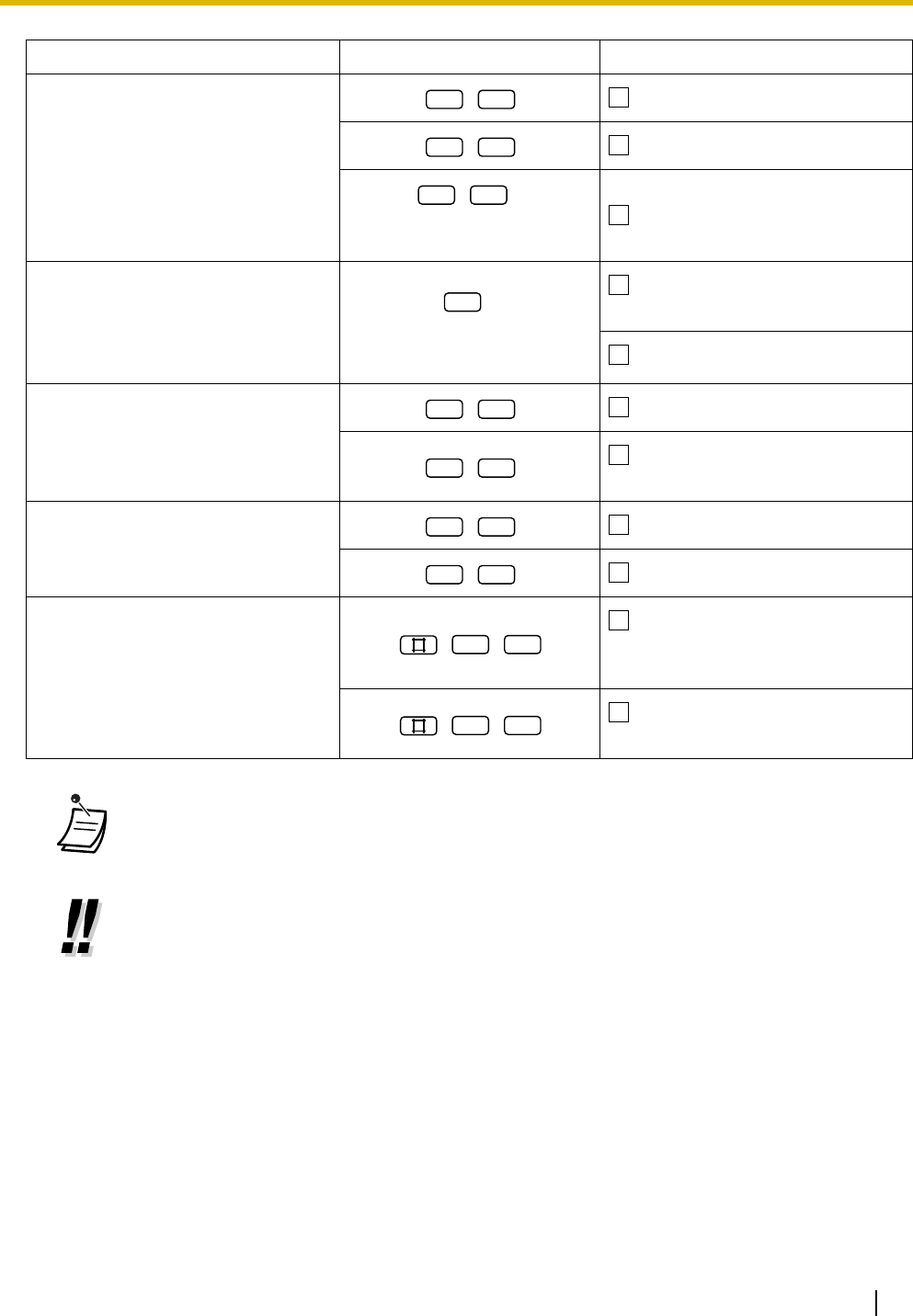
3.1 Personal Programming
Operating Manual 155
Which line do you prefer to answer
when you go off-hook?
(Line Preference—Incoming)
No line
A ringing line
+
outside (CO) line no.
(1–8)*
An assigned outside (CO) line
From which outside (CO) lines do you
want to receive calls at your
extension?
(Outside (CO) Line Ringing
Selection)
+
outside (CO) line no.
(1–8)*
Ring—assigned outside (CO)
lines
Ring—all outside (CO) lines
How do you prefer to receive intercom
calls?
(Alternate Receiving—Ring/Voice)
Ringing (Tone Call)
Directly—The party's voice is
heard without ringing.
Which call waiting tone do you prefer
for intercom/outside (CO) line calls?
(Call Waiting Tone Type Selection)
Tone 1
Tone 2
Which service do you prefer when a
calling party is recording a message
in your mailbox?
(Live Call Screening [LCS] Mode Set)
You can monitor the message
through the telephone speaker.
(Hands-free mode)
Only an alert tone is heard.
(Private mode)
•* If there are only 3 lines in the PBX, outside (CO) line numbers 4 through 8 cannot be
used.
• After the program number is entered, the program title and the selection are displayed.
• After you have changed a setting, the STORE button turns red and one beep is heard. If
the setting was invalid, 3 beeps are heard.
Item Program Number Setting
2 1
2 2
23
3
4 1
4 2
5 1
5 2
1 1
1 2
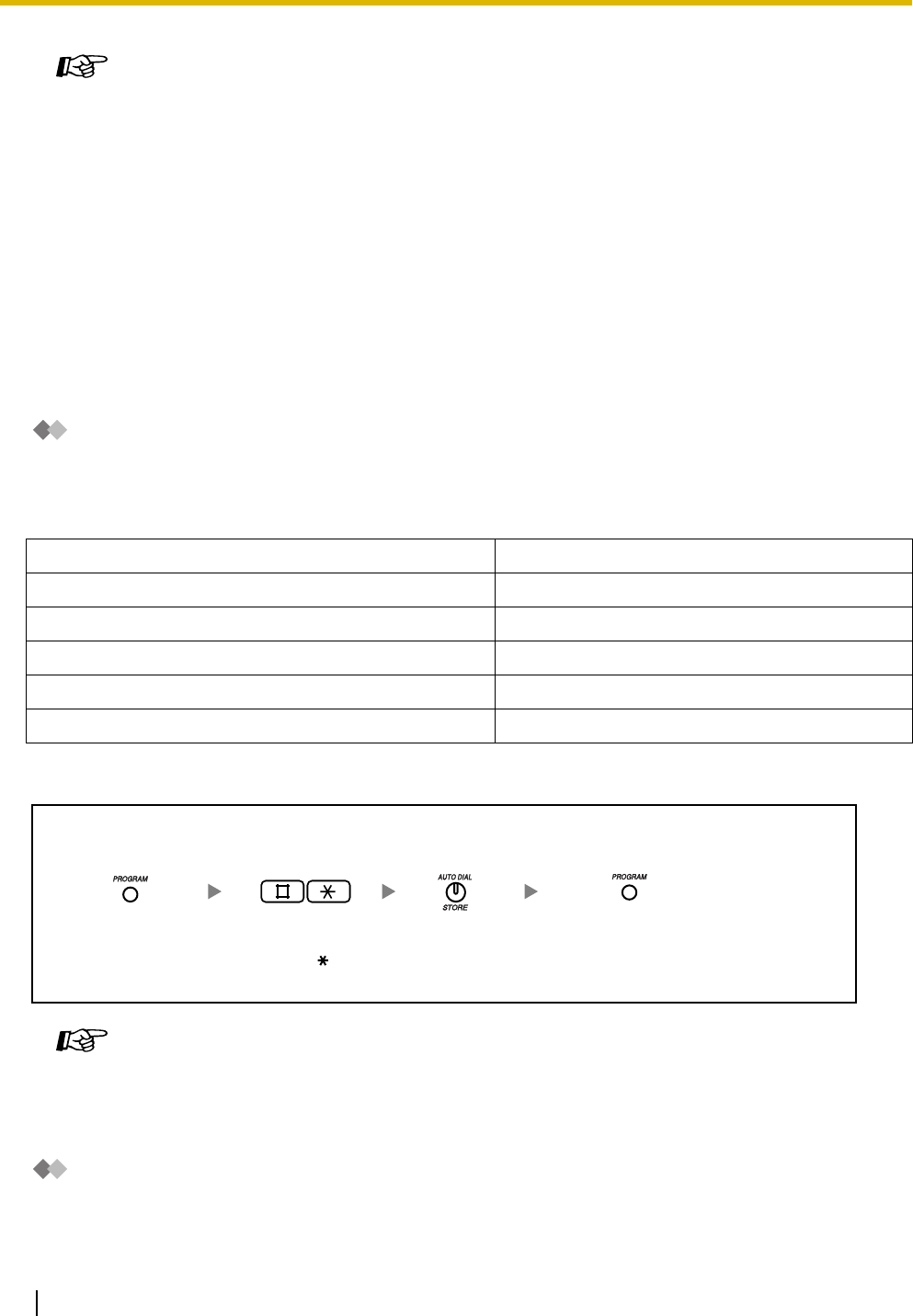
3.1 Personal Programming
156 Operating Manual
Personal Programming Data Reset
You can reset the following features to their default settings.
This operation also cancels the AUTO ANS/MUTE status of both the Hands-free Answerback feature and
the Room Monitor feature.
To return features to default
Self-extension Number Confirmation
You can confirm your jack and extension number.
Programming Manual References
[PC Programming]
• 9.2.3 PT personal settings [2-3]—Line Preference—Outgoing, Line Preference—
Incoming, CO Line Ringing Selection—CO1–8, Alternate Receiving, Call Waiting
Ton e Ty p e , LCS Mode
Feature Manual References
• 1.1.27 Call Waiting
• 1.1.69 Intercom Call
• 1.1.75 Line Preference—Incoming
• 1.1.76 Line Preference—Outgoing
• 1.1.77 Live Call Screening (LCS) (Voice Mail APT Integration only)
• 1.1.90 Outside (CO) Line Ringing Selection
Feature Default Setting
Line Preference—Outgoing No line
Line Preference—Incoming A ringing line
Outside (CO) Line Ringing Selection Ring—all outside (CO) lines
Alternate Receiving—Ring/Voice Ringing (Tone Call)
Call Waiting Tone Type Selection Tone 1
Feature Manual References
• 1.1.62 Hands-free Answerback
• 1.1.103 PT Programming
• 1.1.110 Room Monitor
Press STORE.Enter # .
Press PROGRAM.Press PROGRAM.
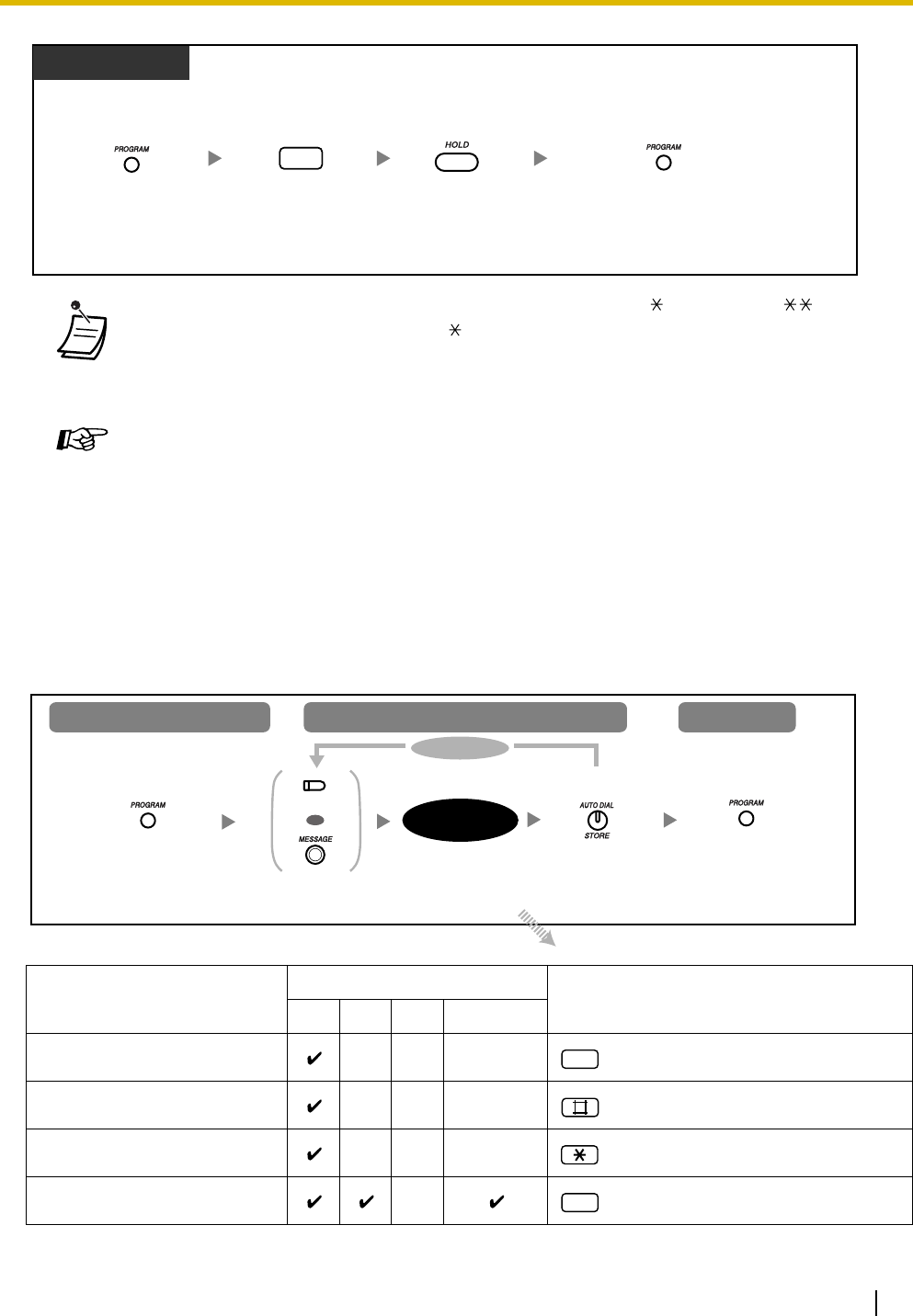
3.1 Personal Programming
Operating Manual 157
3.1.3 Flexible Button Assignment
You can customize the flexible CO buttons, Direct Station Selection (DSS) buttons, Programmable Feature
(PF) buttons, and MESSAGE buttons on your proprietary telephone (PT) and DSS Console by assigning
the following features to them. For example, if your telephone has more CO buttons than the number of
outside (CO) lines connected to your PBX, you can customize unused CO buttons by assigning them to be
One-touch Dialing buttons.
• You can also confirm your extension number by pressing the " " key 2 times (" ") while
on-hook. Every time you press the " " key, the display switches between "date (month,
day) and time", "date (month, day, year, day of the week)", and "extension number (and
extension name if stored)".
Feature Manual References
• 1.1.43 Display Information
Button Programmable Button Programming Input
CO DSS PF MESSAGE
Single-CO (S-CO) + outside (CO) line no. (1–8)*1
Group-CO (G-CO) + outside (CO) line group no. (1–8)*1
Other-CO (O-CO)
Direct Station Selection (DSS) + extension no.*1
Press HOLD.Enter 6.
6
Display PT
Press PROGRAM.Press PROGRAM.
Press CO, DSS,
PF, or MESSAGE.
To exit
To program
To enter the programming mode
Follow
programming input.
To continue
programming
input
Press STORE.
(CO, DSS, PF)
OR
Press PROGRAM.Press PROGRAM.
0
1
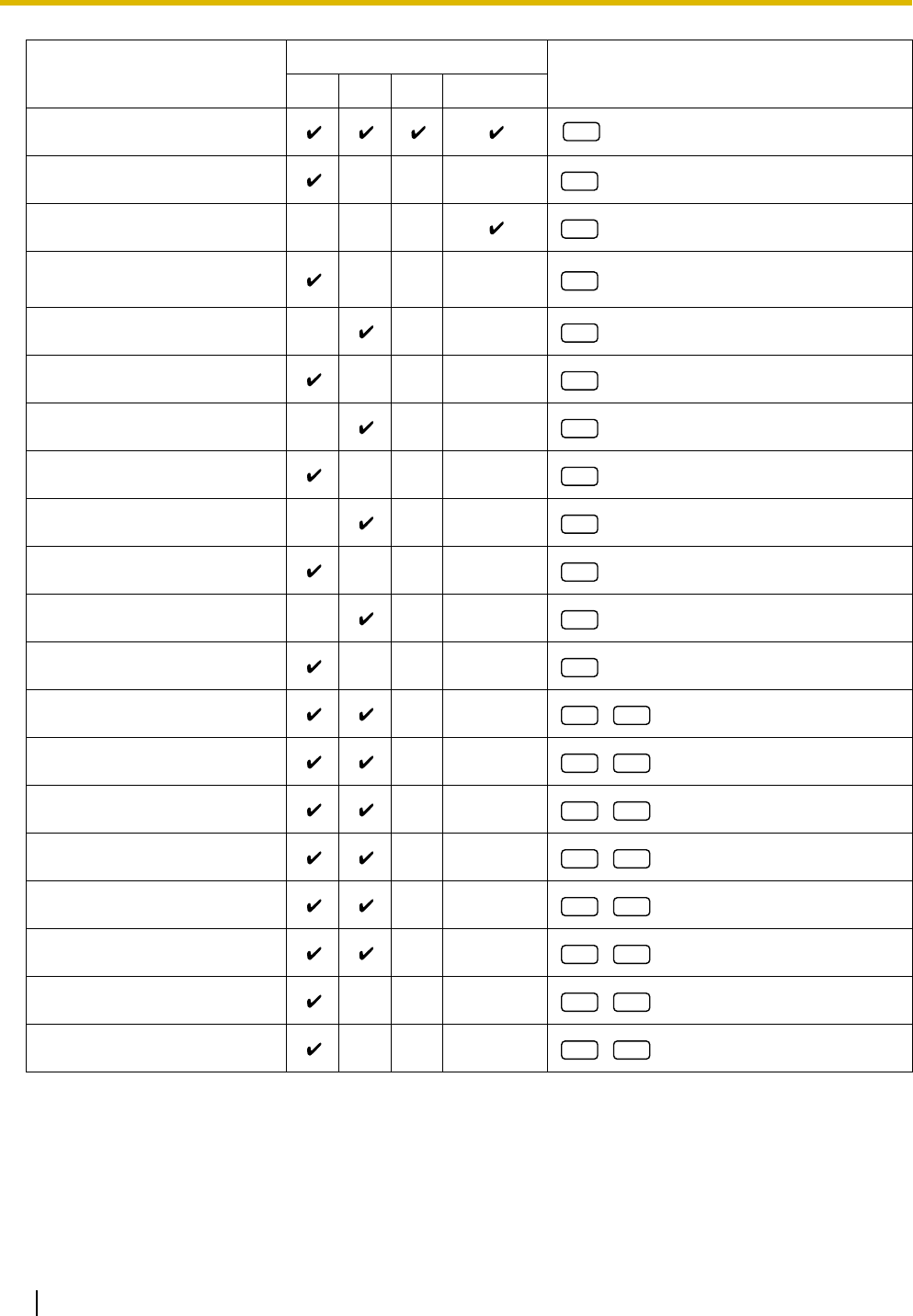
3.1 Personal Programming
158 Operating Manual
One-touch Dialing*2+ desired no.*1(max. 24 digits)
Conference
Message*4
FWD/DND (Call Forwarding/
Do Not Disturb)
Day*5
Save
Night*5
Caller ID Indication—Personal
Lunch*5
Caller ID Selection—Personal
Extension Lock*5 + extension no.*1
Log-in/Log-out
2-way Record*6 + voice mail extension no.*1
2-way Transfer*6 + voice mail extension no.*1
Live Call Screening (LCS)*6
LCS Cancel*6
Voice Mail (VM) Transfer*6 + voice mail extension no.*1
Message for another extension + extension no.*1
Caller ID Indication—Common
Caller ID Selection—Common
Button Programmable Button Programming Input
CO DSS PF MESSAGE
2*3
3
3
4
4
5
5
6
6
7
7
8
9 0
9 1
9 2
93
9 4
9 5
9 6
9 7
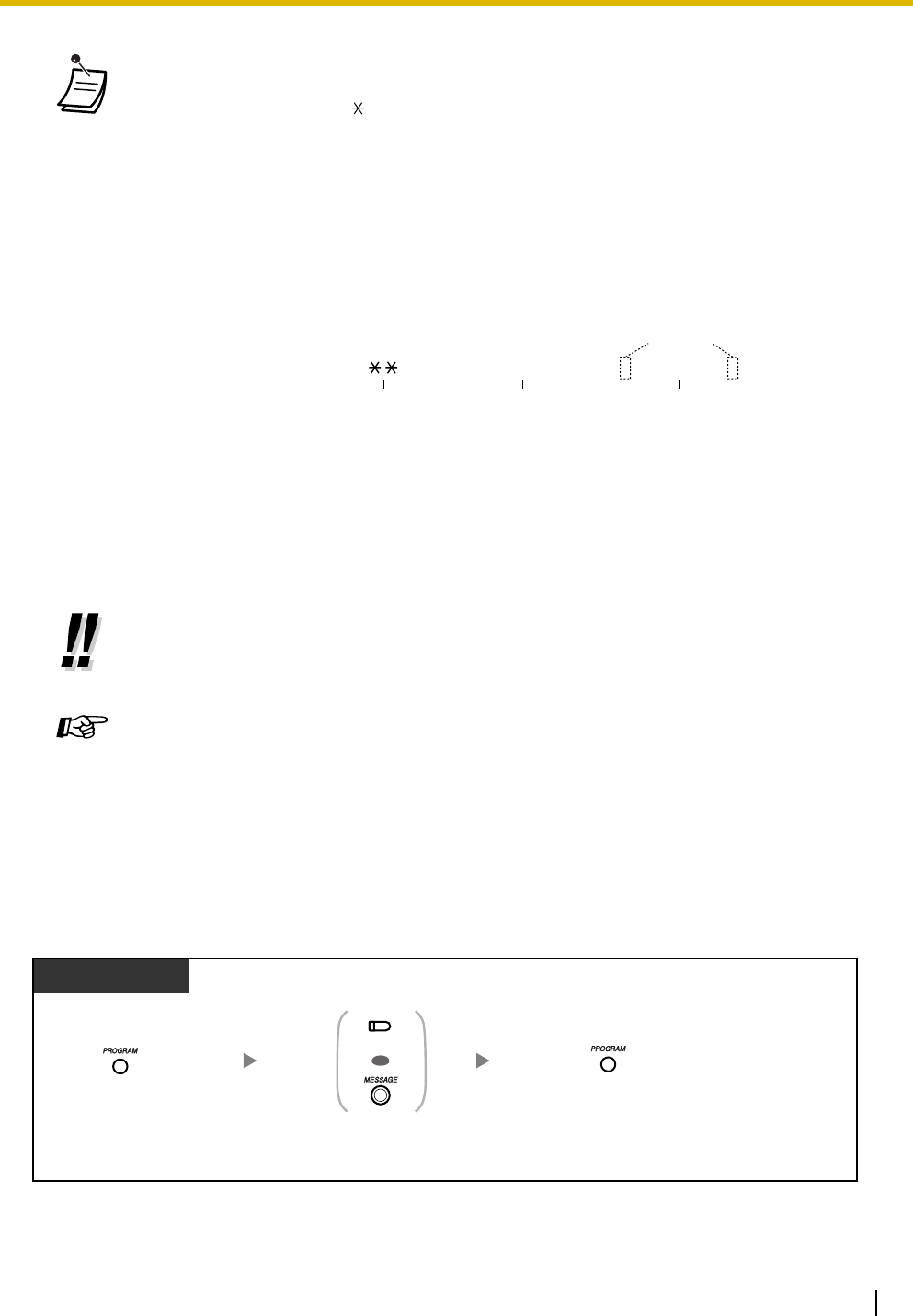
3.1 Personal Programming
Operating Manual 159
To confirm a button setting
•*
1 To erase an incorrect entry, press the TRANSFER (CLEAR) button. The TRANSFER
button becomes the CLEAR button during programming.
•*
2 Digits "0 through 9", " ", "#", PAUSE, and SECRET (INTERCOM) can be stored.
If you do not want to display the stored number when making a call, press the SECRET
(INTERCOM) button before and after the numbers you wish to conceal.
If you store an outside party's number, you should first store an outside (CO) line access
number (9, 81–88).
If you need to enter an account code when making outside (CO) line calls, you can enter
the Account Code feature number and specified account code after the outside (CO) line
access number.
<Example>
•*
3 For a PF button, "2" need not be entered before the desired number.
•*
4 Allows you to restore the Message Waiting feature to the Message button.
•*
5 This button is only available for the operator/manager.
•*
6 This button is used for Voice Mail Integration features.
• You can program DSS and PF buttons only from the paired PT.
Programming Manual References
[PC Programming]
• 9.2.4 Flexible Buttons [2-4]
• 9.2.8 DSS Console [2-5]—DSS buttons, PF buttons
Feature Manual References
• 1.1.61 Flexible Buttons
Account code
feature number
Account code
1234
Automatic line
access number
9
Phone number
SECRET
[ 123 4567 ]
Press CO, DSS,
PF, or MESSAGE.
(CO, DSS, PF)
OR
Display PT
Press PROGRAM.Press PROGRAM.
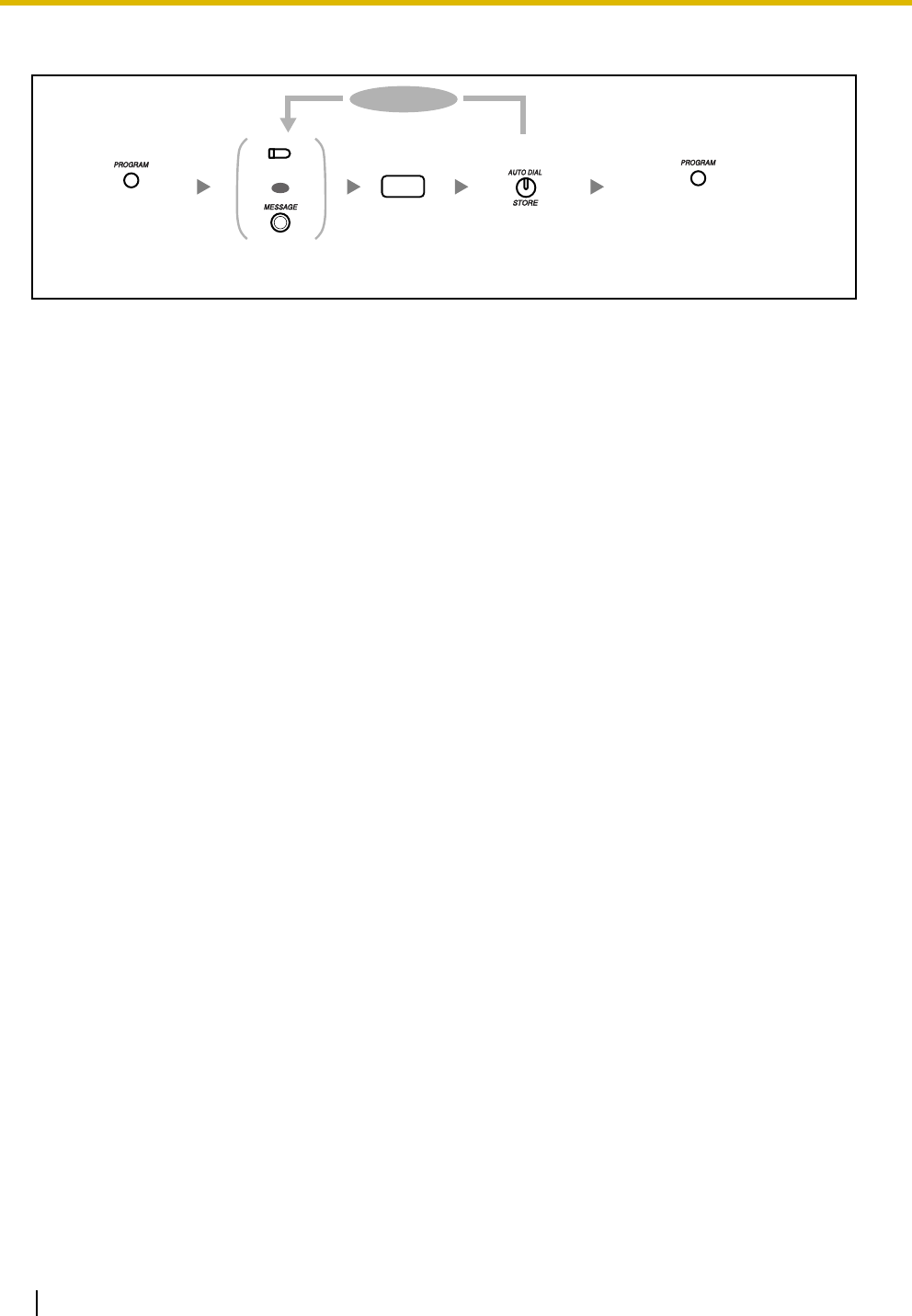
3.1 Personal Programming
160 Operating Manual
To clear a button setting
Press STORE.
2
Enter 2.
To continue
Press CO, DSS,
or MESSAGE.
(CO, DSS)
OR
Press PROGRAM.Press PROGRAM.

3.2 System Programming (Manager Programming)
Operating Manual 161
3.2 System Programming (Manager Programming)
3.2.1 Programming Information
You can change the default settings of your PBX according to your requirements.
Customizable programming items are shown below, with the program number in parentheses.
•[001] System Speed Dialing Number
•[011] System Speed Dialing Name
•[512] DISA Security Code
•[530] DISA Security Code Digits
Available Extension
The extension connected to extension jack 01
Required Telephone
A Panasonic proprietary telephone (PT) with a display (e.g., KX-T7731)
Manager Password
To enter programming mode, the manager password (the password of the extension connected to extension
jack 01) is required. You can enter the system password instead of the manager password. Ask your
administrator or dealer for the manager password or system password.
Conditions
In order to perform programming, your extension must be idle, on-hook, and holding no calls.
List
Before programming, decide the settings and write them down. Your notes will provide a useful record of the
programming for future reference. Your dealer also has programming records that contain all dealer-
performed system programming. If necessary, you can request copies of these records to confirm the
available facilities and features.
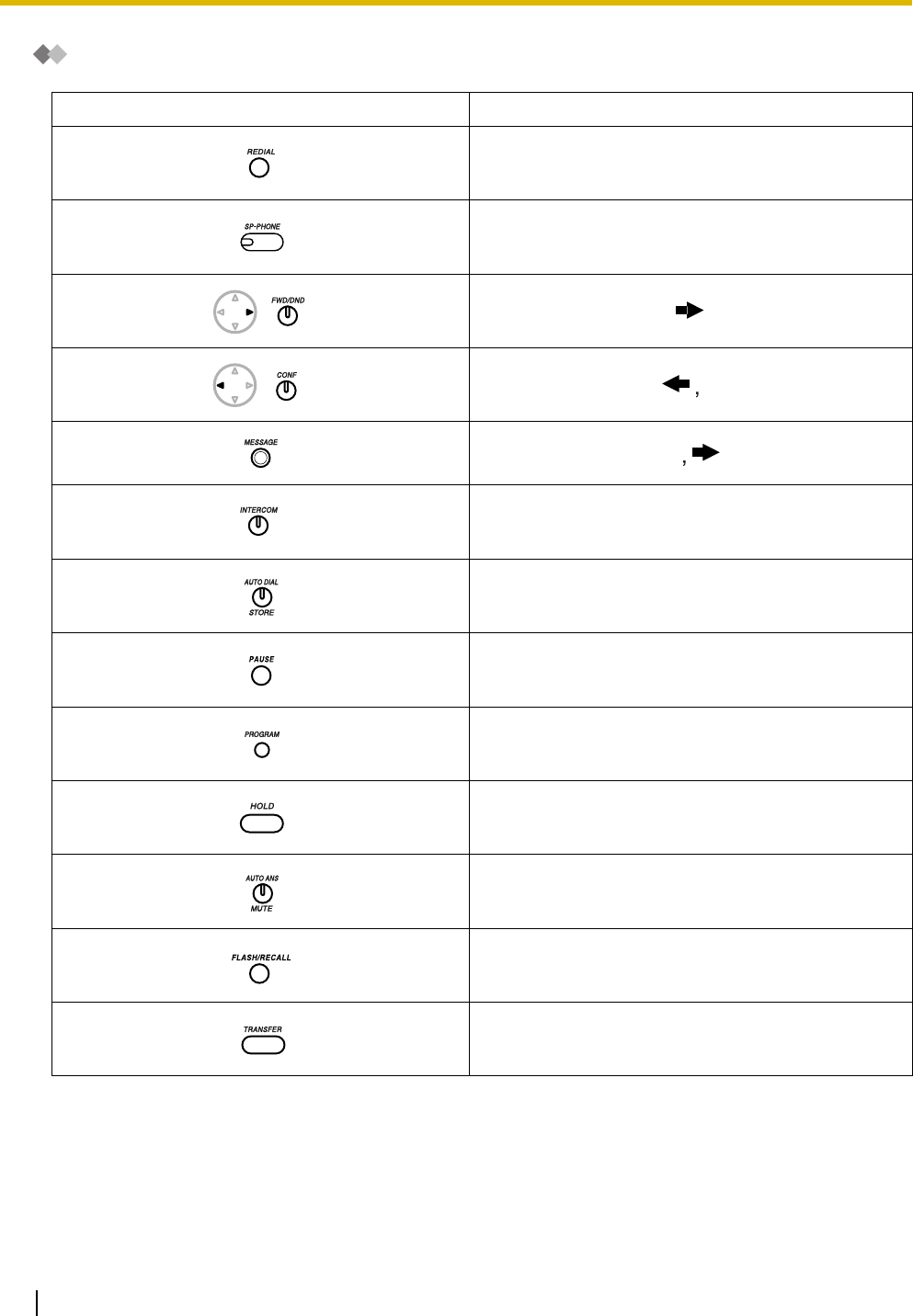
3.2 System Programming (Manager Programming)
162 Operating Manual
Icon Descriptions
Fixed Button (KX-T7700 series) Function
PREV (PREVIOUS)
NEXT
SECRET
STORE
PAU S E
PROGRAM
END
SELECT
FLASH
CLEAR
–
–
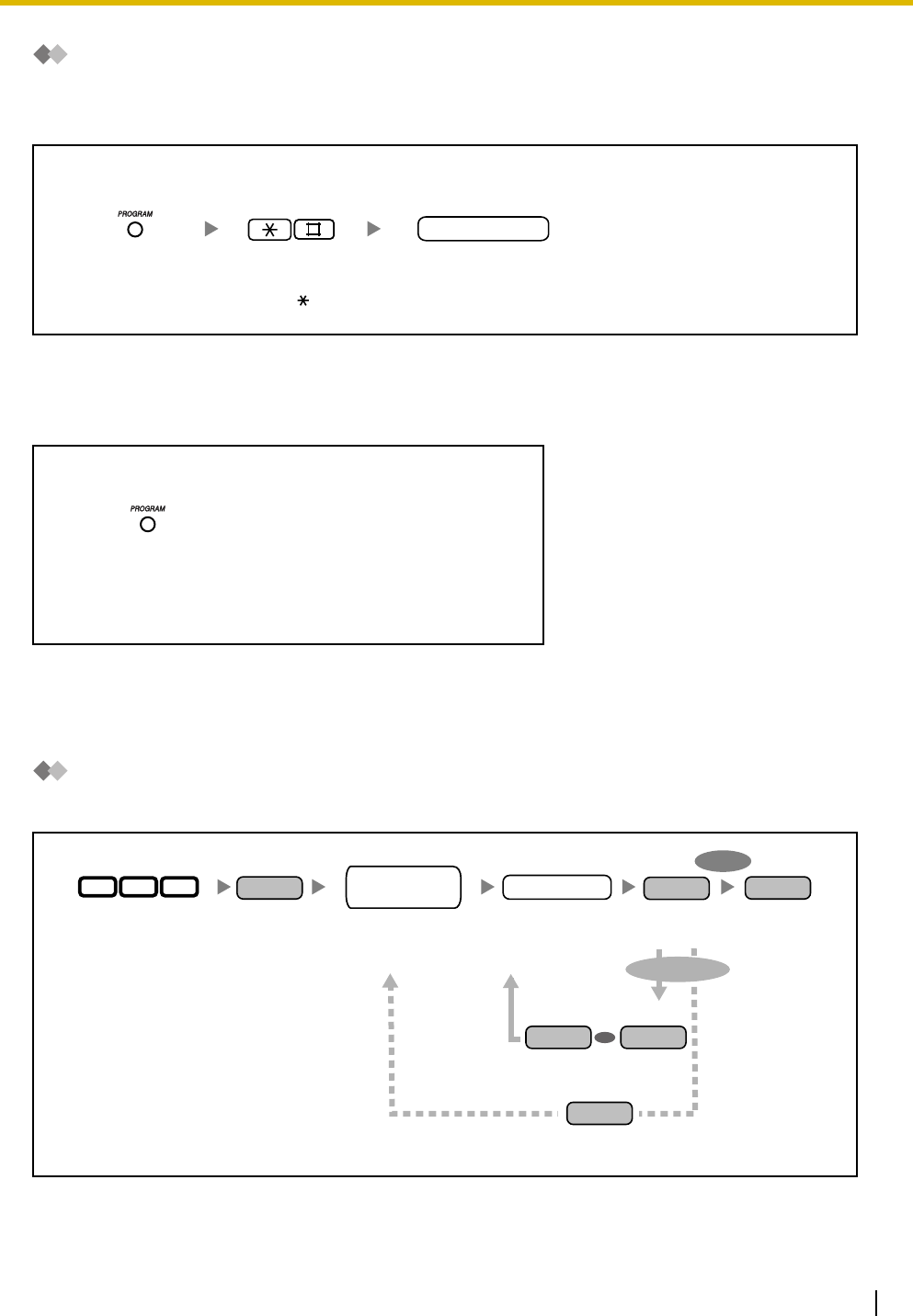
3.2 System Programming (Manager Programming)
Operating Manual 163
Procedure
The basic steps are shown below.
1. To enter programming mode
2. To program
You can enter each program number (3 digits).
3. To exit programming mode
3.2.2 System Programming (Manager Programming)
[001] System Speed Dialing Number
You can store frequently used phone numbers for convenient dialing.
Enter manager password.Enter #.
manager password
Press PROGRAM.
Press PROGRAM.
Enter 001. Dial system
speed dialing
number (00–99).
Dial phone
number
(max. 32 digits).
phone no.
Press PREV.Press NEXT.
Press SELECT.
To continue
To end
0 0 1 system speed
dialing no.
OR
Press NEXT.
NEXT
Press STORE.
STORE
Press END.
END
NEXT PREV
SELECT
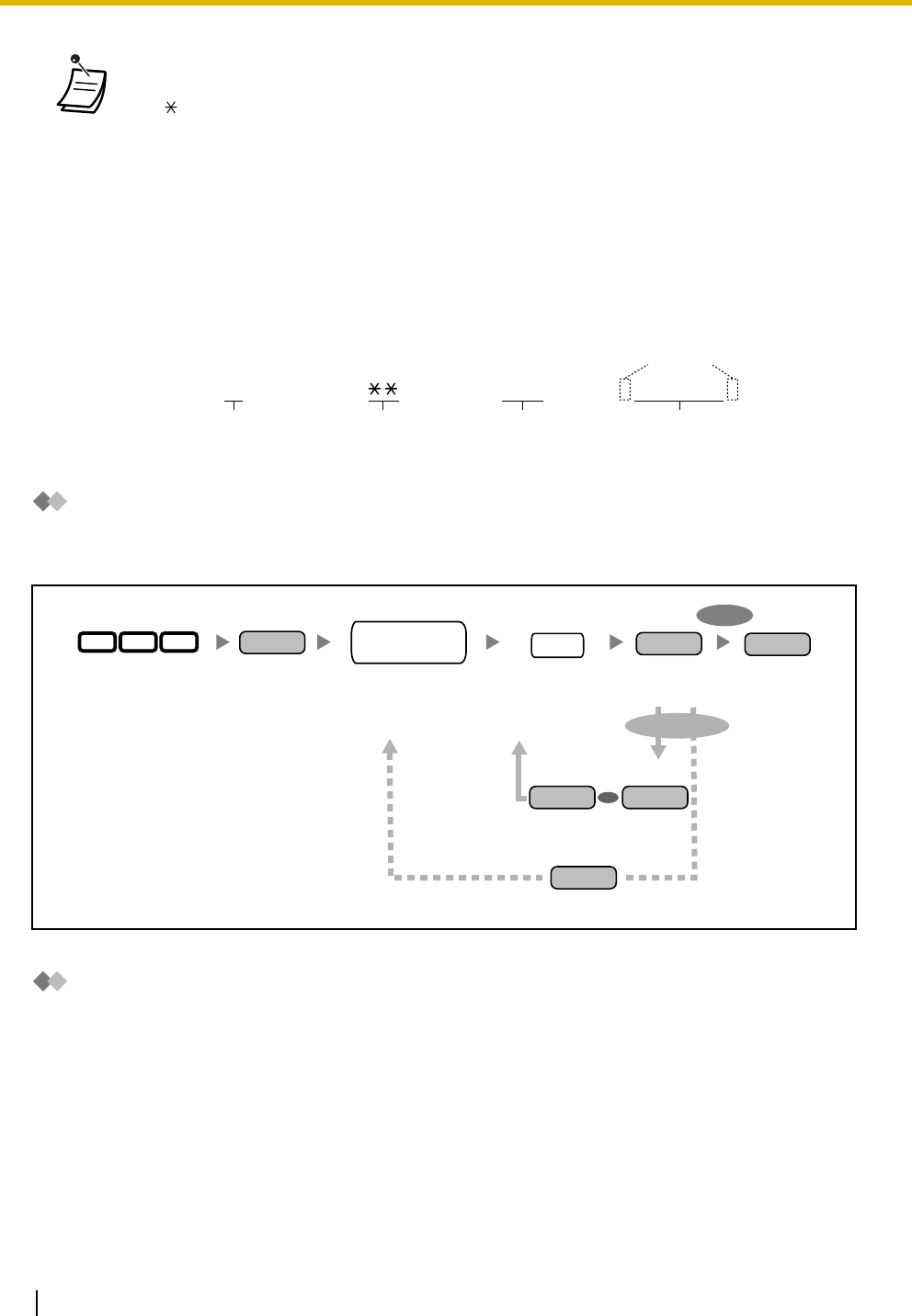
3.2 System Programming (Manager Programming)
164 Operating Manual
[011] System Speed Dialing Name
You can store the name associated with each speed dialing number. These names are displayed when
making calls using the System Speed Dialing feature. To enter characters, refer to "Entering Characters".
[512] DISA Security Code
You can assign required Direct Inward System Access (DISA) security codes if "Trunk Security" or "All
Security" is selected in [511] DISA Security Mode.
• If the desired number is more than 32 digits, divide the number and store it into more than
one speed dialing number.
•"", "#", FLASH/RECALL, PAUSE, SECRET (INTERCOM), and "– (CONF)" can also be
stored.
• If you do not want to display the stored number when making a call, press the SECRET
(INTERCOM) button before and after the numbers you wish to conceal.
If you store an outside party's number, you should first store an outside (CO) line access
number (9, 81–88).
If you need to enter an account code when making outside (CO) line calls, you can enter
the Account Code feature number and specified account code after the outside (CO) line
access number.
<Example>
Account code
feature number
Account code
1234
Automatic line
access number
9
Phone number
SECRET
[ 123 4567 ]
Enter 011. Dial system
speed dialing
number (00–99).
Press SELECT.
Press NEXT. Press PREV.
To continue
To end
0 1 1
Enter name
(max. 16
characters).
name
system speed
dialing no.
Press NEXT.
NEXT
Press STORE.
STORE
Press END.
END
OR
NEXT PREV
SELECT
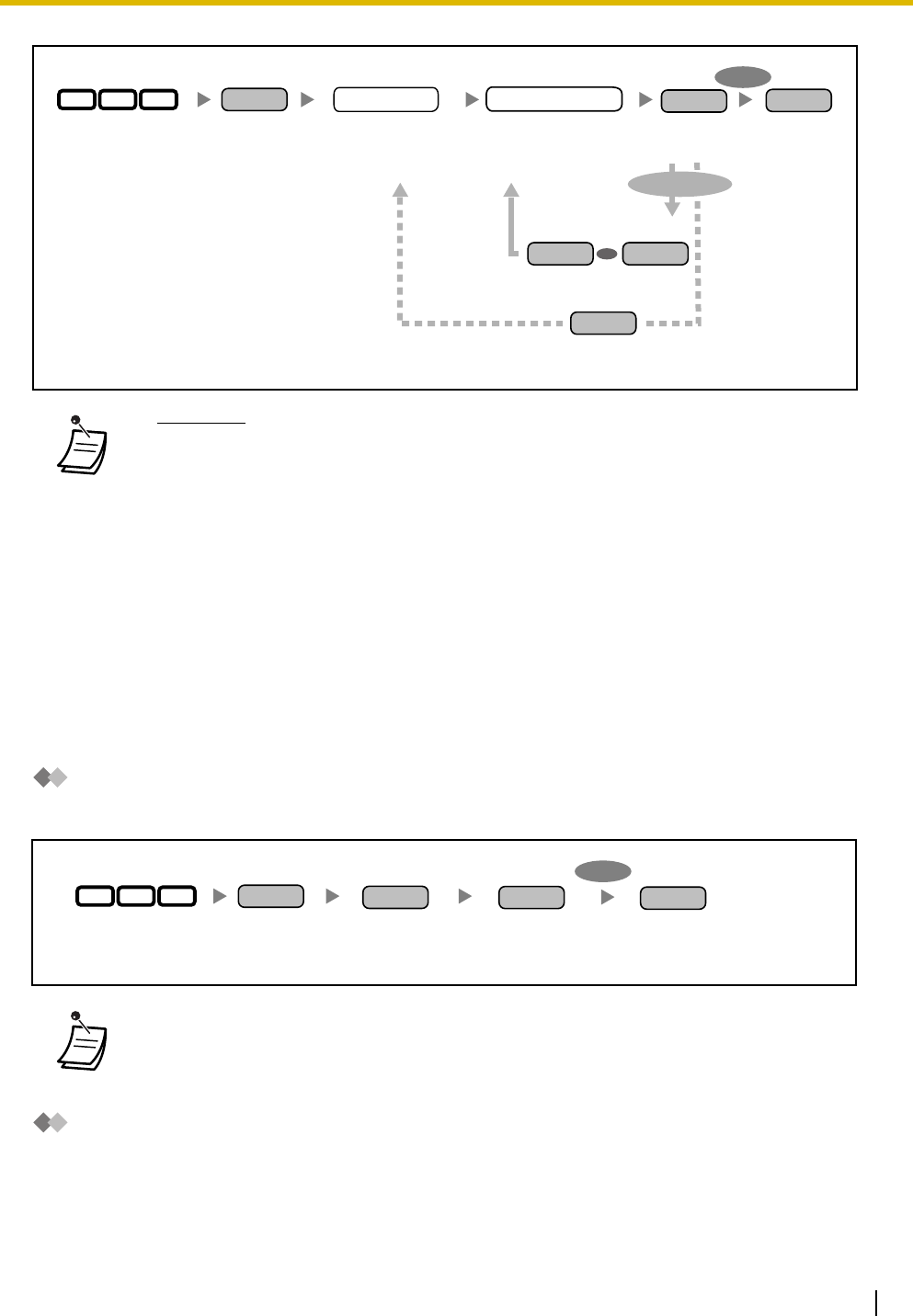
3.2 System Programming (Manager Programming)
Operating Manual 165
[530] DISA Security Code Digits
You can select the number of digits used for DISA security codes assigned in [512] DISA Security Code.
Entering Characters
You can enter the following characters. The tables below show you the characters available for each button.
Table 1 (Alphabet mode)/Table 2 (Numeral mode)
•WARNING
There is a risk that fraudulent telephone calls will be made using the Outside-to-
Outside (CO-to-CO) Line Call feature of DISA.
The cost of such calls will be billed to the owner/renter of the PBX.
To protect the PBX from this kind of fraudulent use, we strongly recommend:
a) Enabling DISA security (Trunk Security or All Security).
b) Keeping DISA security codes secret.
c) Selecting complex, random codes that cannot be easily guessed.
d) Changing codes regularly.
• Security code numbers (not security codes) are logged by Station Message Detail
Recording (SMDR).
• The number of digits required for DISA security codes can be assigned in [530] DISA
Security Code Digits.
• When this setting is changed, all assigned DISA security codes are cleared.
STORE
Press NEXT.Enter 512. Press STORE. Press END.Enter security code
(4–10 digits).
security code
Press NEXT.Press PREV.
To continue
To end
512
Enter code
number (1–4).
code no.
NEXT END
OR
NEXT PREV
Press SELECT.
SELECT
Press NEXT.Enter 530.
530
NEXT
Press SELECT
(4–10 digits).
SELECT
To end
Press STORE.
STORE
Press END.
END
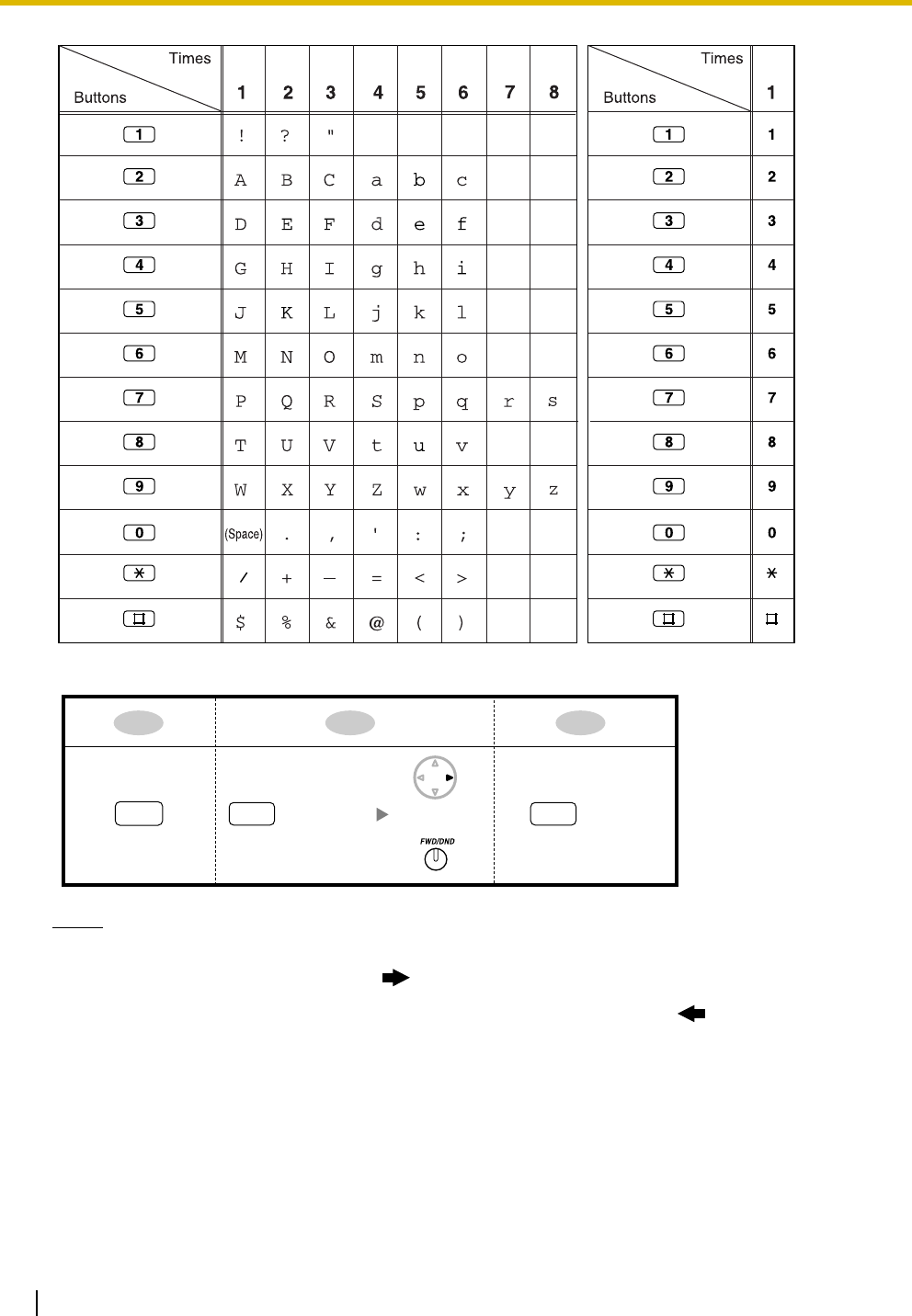
3.2 System Programming (Manager Programming)
166 Operating Manual
<Example> To enter "Ann",
Notes
• To toggle between "Alphabet mode" and "Numeral mode", press SELECT.
• To move the cursor right, press .
• To delete all characters, press CLEAR. To delete a character, press .
Ann
6(5 times) 6(5 times)
2OR

Operating Manual 167
Section 4
Appendix
This chapter provides Troubleshooting, the Feature Number
Table and Tone List. Check the Troubleshooting section before
consulting your dealer.
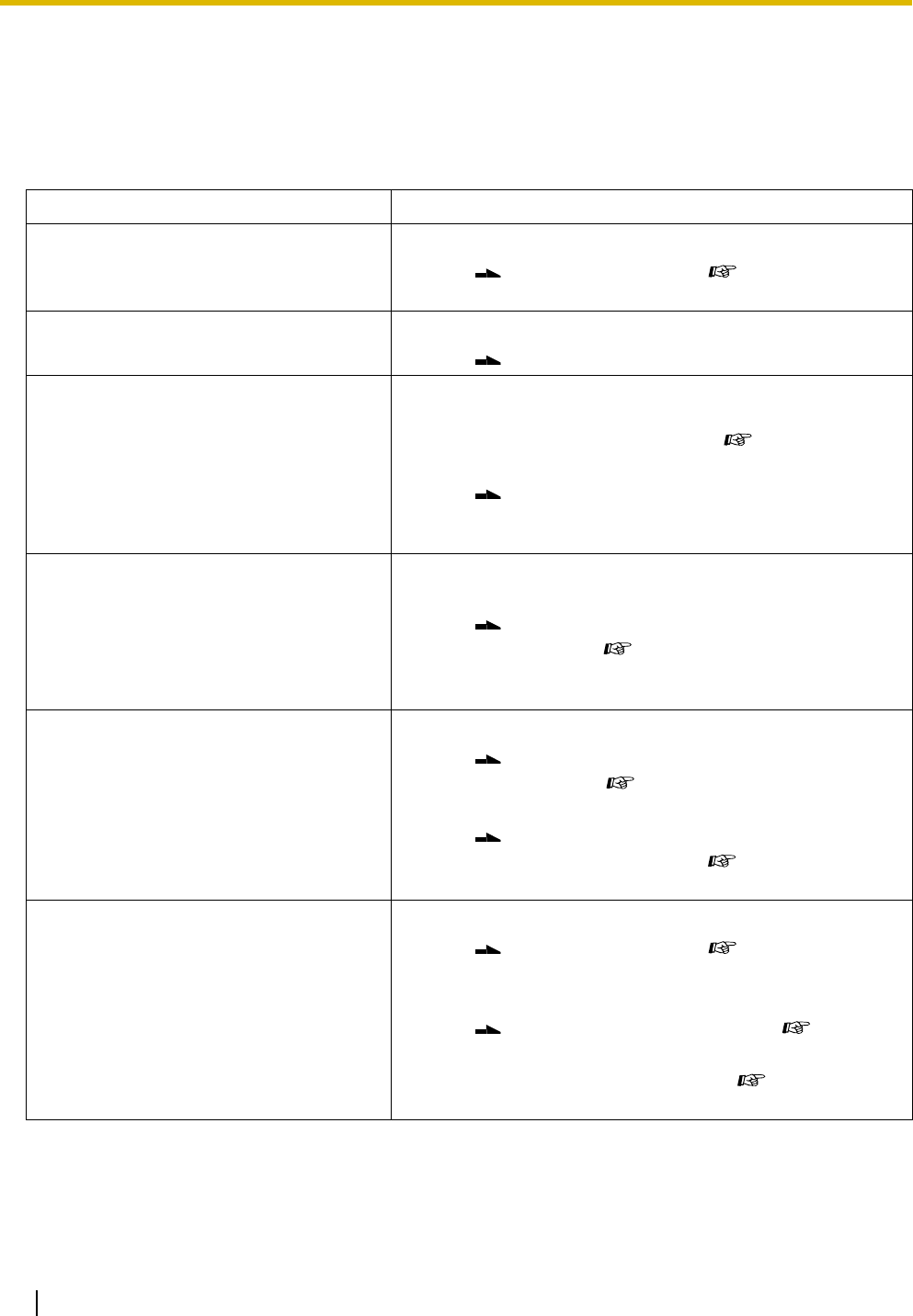
4.1 Troubleshooting
168 Operating Manual
4.1 Troubleshooting
4.1.1 Troubleshooting
Problem Remedy
I cannot make calls using the telephone. •The telephone is locked.
Unlock your telephone. ( 1.3.44 Extension
Lock, 2.1.6 Remote Extension Lock)
Some features do not function. •System management may restrict certain features.
Consult your manager or dealer.
I cannot make calls to other extensions
using a proprietary telephone (PT).
•An idle or assigned outside (CO) line is being
seized. The line seized when going off-hook was
changed in personal settings. ( 3.1.2 Personal
Feature Assignment—Line Preference—Outgoing)
If this setting has been changed, press the
INTERCOM button after going off-hook, and then
follow the instructions.
My new telephone does not function
correctly.
•The previous extension's settings have not been
cleared.
Clear the settings and then program your desired
settings again. ( 1.3.43 Extension Feature Clear,
3.1.2 Personal Feature Assignment, 3.1.3 Flexible
Button Assignment)
My PT does not have the button needed
to perform a certain operation.
•Some models do not have certain feature buttons.
Customize a flexible button to function as the
desired button. ( 3.1.3 Flexible Button
Assignment)
Enter the specified feature number instead of
pressing the feature button. ( 1.1.1 Before
Operating a Telephone)
When I try to make an outside (CO) line
call, I hear a reorder tone, or the display
shows "Restricted".
•The telephone is locked.
Unlock your telephone. ( 1.3.44 Extension
Lock, 2.1.6 Remote Extension Lock)
•Toll Restriction (TRS) is activated.
Consult your manager or dealer. ( 1.3.85 Toll
Restriction (TRS))
•An account code is required. ( 1.3.90 Walking
COS, 1.3.2 Account Code Entry)
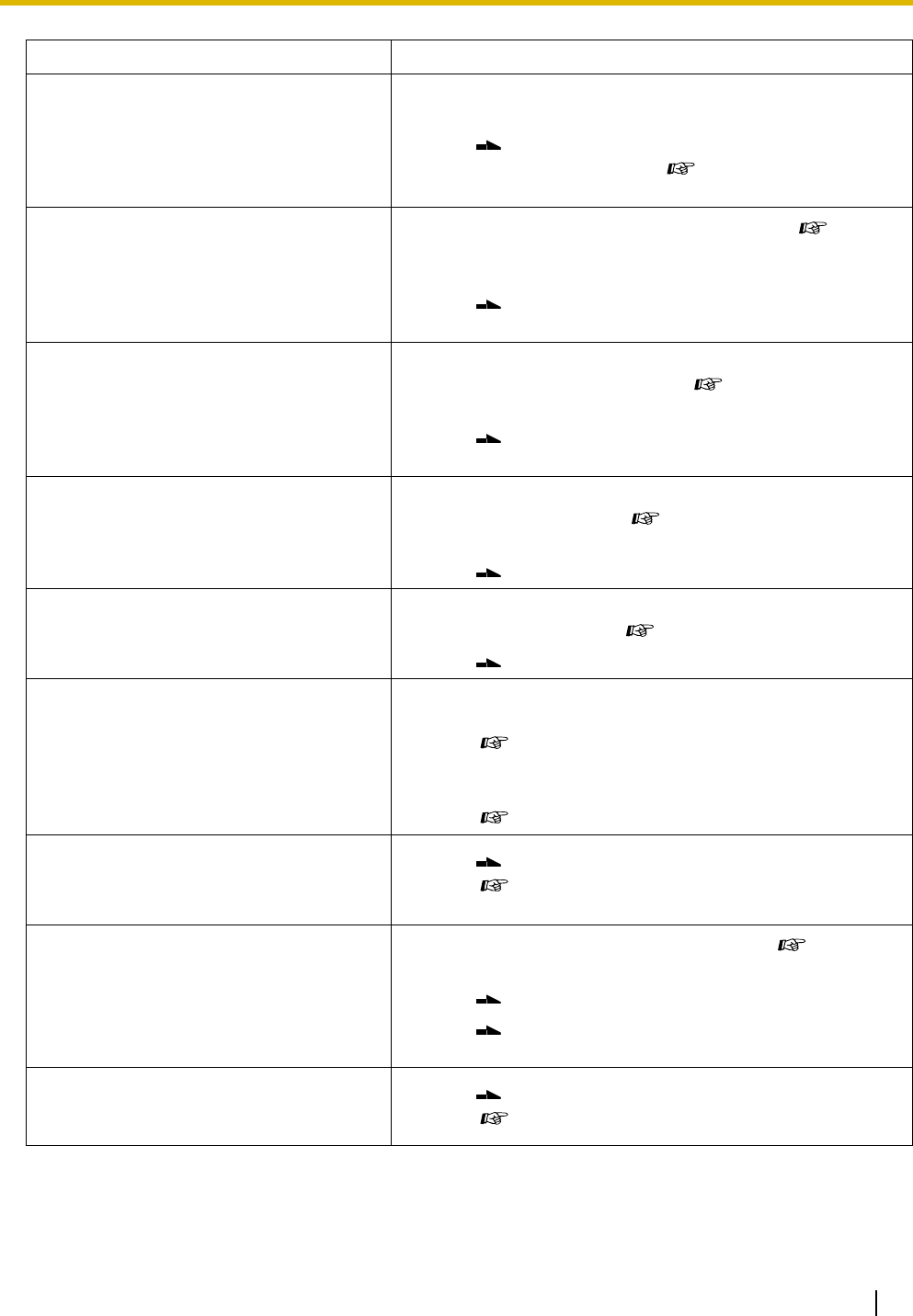
4.1 Troubleshooting
Operating Manual 169
I cannot make an outside (CO) line call
using a One-touch Dialing button or
Speed Dialing.
•An outside (CO) line access number was not
stored with the phone number.
An outside (CO) line access number is required for
outside (CO) line calls. ( 1.2.1 Making Calls, 3.1.3
Flexible Button Assignment)
During a conversation with an outside
party, the call was disconnected.
•The specified time limit has run out. ( 1.3.27
Call Transfer—To Outside (CO) Line, 1.3.32
Conference, Unattended)
Consult your dealer about extending the time limit,
if necessary.
The Redial feature does not function. •The stored number is more than 64 digits long, or
is an extension number. ( 1.3.78 Redial, Last
Number, 1.3.79 Redial, Saved Number)
Redialing can only be used with outside (CO) line
numbers of 64 digits or less.
I cannot access computer services,
telephone banking, etc.
•A tone signal is required and your outside (CO) line
is set to "Pulse". ( 1.3.77 Pulse to Tone
Conversion)
Change the dialing mode.
Computer or fax machine
communication was interrupted.
•An indication tone may have interrupted
communication. ( 1.3.33 Data Line Security)
Set your line to not receive signaling tones.
I cannot send a call waiting tone to the
dialed extension.
•The other party has not set the Call Waiting
feature.
( 1.3.8 Busy Station Signaling (BSS), 1.3.28 Call
Waiting)
•The other party has set Data Line Security.
( 1.3.33 Data Line Security)
I forgot my extension password. • Ask your manager to assist you.
( 2.1.7 System Feature Assignment—Extension
Password Set [Manager only])
Music started playing through the
telephone's speaker.
•This is Background Music (BGM). ( 1.3.6
Background Music (BGM))
Turn off the music by entering "1" while on-hook.
Ask your manager or dealer to set your extension
not to play music when "1" is entered while on-hook.
I want to prevent a number that is stored
in memory from being displayed when
making a call.
• Conceal the number.
( 1.3.81 Secret Dialing)
Problem Remedy
4.1 Troubleshooting
170 Operating Manual
I want to confirm my extension number. • Confirm your extension number by pressing the
"" key 2 times while on-hook, or through personal
programming.
( Your Extension Number in 1.1.1 Before
Operating a Telephone, 3.1.2 Personal Feature
Assignment—Self-extension Number Confirmation)
The date and/or time are not correct. • Ask your operator or manager to change the date
or time. ( Date & Time Set in 2.1.7 System Feature
Assignment)
The display is dim. • Change the display contrast level.
( 1.1.1 Before Operating a Telephone)
The MESSAGE/Message button light or
Message/Ringer Lamp is lit.
•There are 3 possible reasons:
(1) Someone has left a message waiting indication
for you,
(2) Someone has left a Built-in Voice Message (BV)
for you, or
(3) Someone has left a Voice Mail message for you.
Press the MESSAGE/Message button to call the
party back or receive the message.
"Voice Msg Full" is displayed. •The maximum voice message recording time has
been reached.
Delete voice messages stored in your personal
message area or in the common message area.
It may take about 10 seconds for the display to
return to the idle status display even if the remaining
recording time becomes 5 minutes or more.
( 1.3.7 Built-in Voice Message (BV))
A power failure has occurred. •When a power failure occurs...
All functions of the PBX and Panasonic PTs stop. The
following outside (CO) lines will be connected to the
assigned single line telephones (SLTs):
Outside (CO) line 1: extension jack 01
Outside (CO) line 4: extension jack 09
Outside (CO) line 7: extension jack 17
This allows outside (CO) line conversations between
the specified SLTs and outside destinations.
•When the power is turned back on...
Your PBX restarts with the stored data automatically.
Memory is protected by a factory-provided lithium
battery. There is no memory loss except for the data
associated with Automatic Callback Busy, Redial, and
Call Park.
Problem Remedy
4.2 Feature Number Table
Operating Manual 171
4.2 Feature Number Table
4.2.1 Feature Number Table
The numbers listed below are the feature numbers to access the PBX features.
Feature (While a dial tone is heard) Numbering Additional Number
1.3.1 Absent Message
–To set 75 1–6 (+ parameter) + #/0
– To cancel 75 0 + #/0
1.3.2 Account Code Entry /49 account code + outside phone no.
1.3.7 Built-in Voice Message (BV)
– To record personal BV OGM 723 1 + #/0
– To play back personal BV OGM 723 2 + #/0
– To erase personal BV OGM 723 0 + #/0
– To set your calls to be forwarded to BV 71 1 (All Calls) or 2 (Busy/No Answer) +
725 + #/0
– To cancel your calls to be forwarded to
BV
71 0 (Cancel) + #/0
– To leave a voice message using Direct
Message
725 1 + extension no. + #/0
– To play back all voice messages in a
voice message area
725 2 + #/0
– To erase all voice messages in a voice
message area
725 0 + #/0
1.3.10 Call Forwarding (FWD)—All Calls 71 1 (All Calls) + extension no. + #/0
1.3.11 Call Forwarding (FWD)—Busy/No Answer 71 2 (Busy/No Answer) + extension no. +
#/0
1.3.12 Call Forwarding (FWD)—Follow Me 71 5 (Follow Me) + your extension no. +
#/0
1.3.13 Call Forwarding (FWD)—To Outside (CO)
Line
71 3 (To Outside (CO) Line) + outside
(CO) line access no. + outside phone
no. + #
1.3.14 Call Forwarding (FWD)—CANCEL
– To cancel at your extension 71 0 (Cancel) + #/0
– To cancel at another extension 71 8 (Follow Me Cancel) + your
extension no. + #/0

4.2 Feature Number Table
172 Operating Manual
1.3.17 Call Hold Retrieve
– To retrieve an outside (CO) line call 53 no. (1–8) of outside (CO) line being
held
– To retrieve an intercom call 5extension no. that put the call on hold
1.3.18 Call Log, Incoming
– To erase all caller information in the
personal area
70 #
– To disregard the newest call in the
personal area
737 0 + #
– To overwrite the oldest call in the
personal area
737 1 + #
– To set logging of caller information when
answering a call
738 1 (Personal area) or 2 (Common
area) + #/0
– To cancel logging of caller information
when answering a call
738 0 (Cancel) + #/0
1.3.19 Call Log Display Lock, Incoming in the
Personal Area
–To lock 77 4-digit lock code 2 times + #
–To unlock 77 stored lock code + #
1.3.20 Call Park
– To park a call 22 parking zone no. (0–9)
–To retrieve 52 stored parking zone no. (0–9)
1.3.21 Call Pickup, Directed 4extension no.
1.3.22 Call Pickup, Group 40
1.3.23 Call Pickup Deny
– To prevent 72 1 + #/0
–To allow 72 0 + #/0
1.3.28 Call Waiting
– To set for outside (CO) line calls 731 1 + #/0
– To cancel for outside (CO) line calls 731 0 + #/0
– To set for intercom calls/doorphone calls 732 1 + #/0
– To cancel for intercom calls/doorphone
calls
732 0 + #/0
1.3.30 Call Waiting from the Telephone Company 6
1.3.33 Data Line Security
–To set 730 1 + #/0
– To cancel 730 0 + #/0
Feature (While a dial tone is heard) Numbering Additional Number

4.2 Feature Number Table
Operating Manual 173
1.3.35 Do Not Disturb (DND)
–To set 71 4 (Do Not Disturb [DND]) + #/0
– To cancel 71 0 (Cancel) + #/0
1.3.37 Door Open 55 door opener no. (1–4)
1.3.38 Doorphone Call 31 doorphone no. (1–4)
1.3.42 Executive Busy Override Deny
– To prevent 733 0 + #/0
–To allow 733 1 + #/0
1.3.43 Extension Feature Clear 79 #/0
1.3.44 Extension Lock
–To lock 77 4-digit lock code 2 times + #/0
– To unlock 77 stored lock code + #/0
1.3.45 External Feature Access (EFA) 6
1.3.50 Hot Line
–To store 74 2 + phone no. + #
–To set 74 1 + #/0
– To cancel 74 0 + #/0
1.3.51 Intercom Call 100–199
1.3.53 Line Access, Automatic 9 outside phone no.
1.3.54 Line Access, Outside (CO) Line Group 8 outside (CO) line group no. (1–8) +
outside phone no.
1.3.56 Live Call Screening (LCS) (Voice Mail APT
Integration only)
– To set the LCS password 77 3-digit LCS password 2 times + #
– To cancel the LCS password 77 stored LCS password + #
1.3.59 Log-in/Log-out
–To log in 736 0 + #/0
– To log out 736 1 + #/0
1.3.60 Message Waiting
–To leave 70 1 + extension no. + #/0
– To cancel 70 2 + extension no. + #/0
– To cancel all indications left at your
extension
70 0 + #/0
Feature (While a dial tone is heard) Numbering Additional Number
4.2 Feature Number Table
174 Operating Manual
1.3.61 Message Waiting for Another Extension
– To cancel all indications left at another
extension
70 3 + extension no. + #
1.3.62 Message Waiting for Another Extension
Lock
– To lock indications left at your extension 70 4-digit (4000–9999) lock code 2 times
+ #/0
– To unlock indications left at your
extension
70 stored lock code + #/0
1.3.65 Operator Call 0
1.3.67 Paging—All Extensions 33 0
1.3.68 Paging—All Extensions & External 33 or 9
1.3.69 Paging—External 34
1.3.70 Paging—Group 33 extension group no. (1–8)
1.3.72 Paging Answer 43
1.3.73 Paging Deny
–To refuse 734 1 + #
– To accept 734 0 + #
1.3.75 Personal Speed Dialing
–To store 2personal speed dialing no. (0–9) +
phone no. + #
– To dial 1/# personal speed dialing no. (0–9)
– To confirm 3personal speed dialing no. (0–9) + #
1.3.78 Redial, Last Number 80/##
1.3.80 Room Monitor
–To set 735 1 + #
– To cancel 735 0 + #
– To monitor through a doorphone 31 doorphone no. (1–4)
1.3.82 System Speed Dialing system speed dialing no. (00–99)
1.3.84 Timed Reminder
–To set 76 hour/minute + 0 (AM)/1 (PM) + 1 (one
time)/2 (daily) + #/0
– To cancel 76 2 + #/0
– To confirm 76 3 + #
Feature (While a dial tone is heard) Numbering Additional Number
4.2 Feature Number Table
Operating Manual 175
1.3.88 Voice Mail Integration
– To set your calls to be forwarded to a
VPS
71 1 (All Calls) or 2 (Busy/No Answer) +
voice mail extension no. + #/0
– To cancel your calls to be forwarded to a
VPS
71 0 (Cancel) + #/0
– To listen to messages 784 #/0
1.3.90 Walking COS 7extension password + your extension
no. + #/0
2.1.1 Call Log, Incoming in the Common Area—
CLEAR ALL*
70 #
2.1.2 Call Log Display Lock, Incoming in the
Common Area*
–To lock 77 4-digit lock code 2 times + #
– To unlock 77 stored lock code + #
2.1.3 Common BV Outgoing Messages*
–To record 722 common BV outgoing message
(OGM) no. (01–24) + 1 + #/0
– To play back 722 common BV OGM no. (01–24) + 2 +
#/0
– To erase 722 common BV OGM no. (01–24) + 0 +
#/0
2.1.8 The 301st Call Log, Incoming in the
Common Area Treatment*
– To disregard the newest call 737 2 + #
– To overwrite the oldest call 737 3 + #
2.1.9 Time Service*
– To set (Day/Night/Lunch) 78 (1/2/3) + #
– To cancel 78 0 + #
2.1.10 Timed Reminder, Remote (Wake-up Call)*
–To set 764 extension no. + # + 76 + hour/minute
+ 0 (AM)/1 (PM) + 1 (one time)/2
(daily) + #
– To cancel 764 extension no. + # + 76 + 2 + #
–To confirm 764 extension no. + # + 76 + 3 + #
• * This feature is only available for the operator/manager.
Feature (While a dial tone is heard) Numbering Additional Number
4.2 Feature Number Table
176 Operating Manual
Feature (While a busy tone or DND tone is heard) Numbering
1.3.5 Automatic Callback Busy (Camp-on) 6
1.3.8 Busy Station Signaling (BSS) 1
1.3.40 Executive Busy Override—Extension/1.3.36 Do Not Disturb (DND)
Override
2
Feature (While dialing or talking) Numbering
1.3.3 Alternate Calling—Ring/Voice
1.3.24 Call Retrieving from a TAM (Telephone Answering Machine) 4*
1.3.31 Conference 3
1.3.37 Door Open 5
1.3.77 Pulse to Tone Conversion #
• * Dial after dialing the TAM's extension number and hearing a busy tone.
Feature (When the extension is on-hook) Numbering
1.3.6 Background Music (BGM)
– To set/cancel 1
1.3.83 Time Service/2.1.9 Time Service
– To confirm the current mode #
3.1.2 Personal Feature Assignment—Self-extension Number Confirmation
– To switch the display between "date (month, day) and time", "date
(month, day, year, day of the week)", and "extension number (and
extension name if stored)"
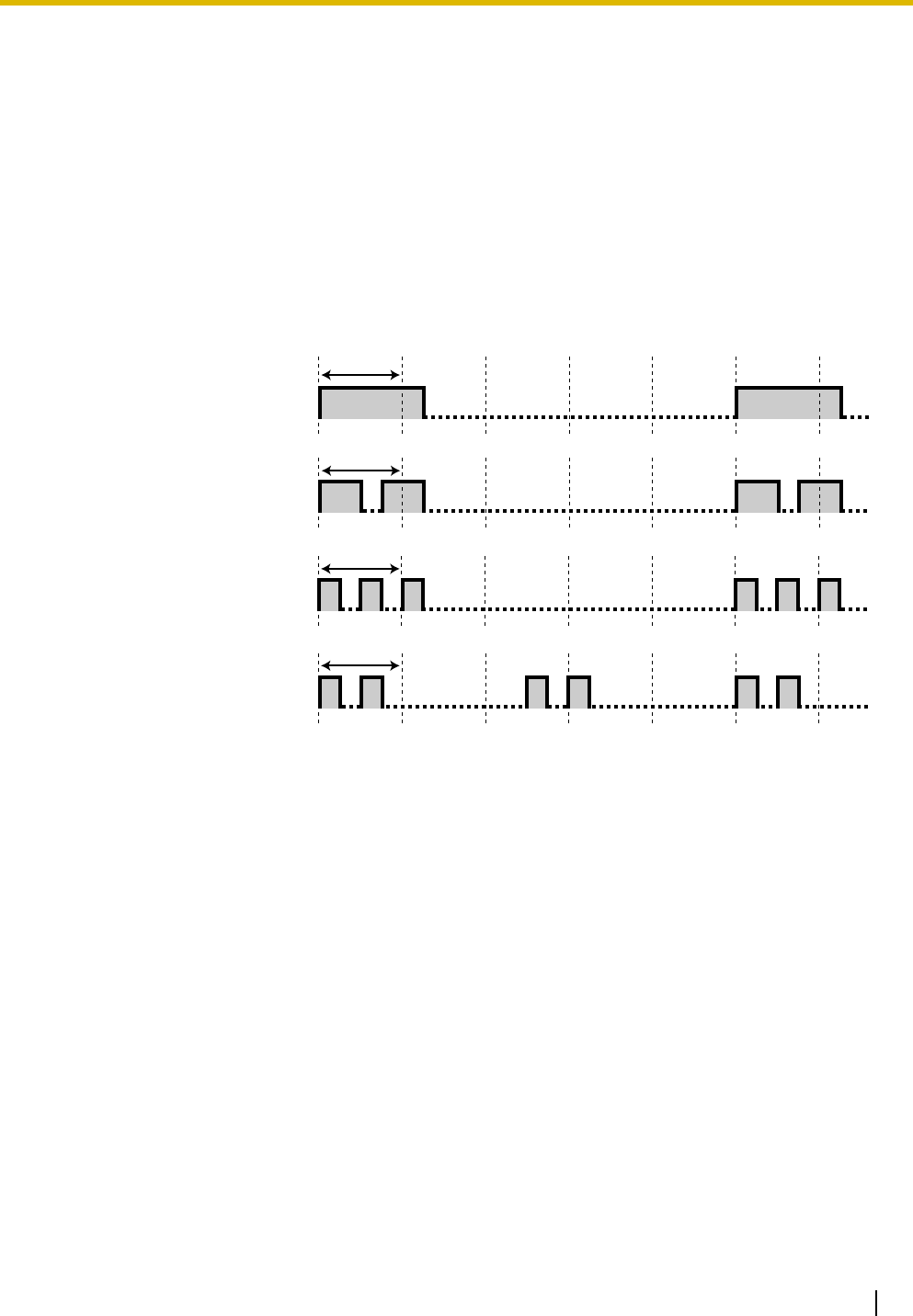
4.3 Tone List
Operating Manual 177
4.3 Tone List
4.3.1 Tone List
While On-hook
Ring Tone Patterns
The following ring tone patterns can be assigned to incoming call types (outside (CO) line, intercom, or
doorphone calls), or are fixed for certain call types (Hold Recall, Timed Reminder, or Camp-on Recall).
Single
(Incoming calls/Hold Recall
[outside (CO) line calls])
Double
(Incoming calls/Hold Recall
[intercom calls])
Tr i p l e
(Incoming calls/Timed
Reminder)
S-Double
(Incoming calls [doorphone
calls only]/Camp-on Recall)
1 s
1 s
1 s
1 s
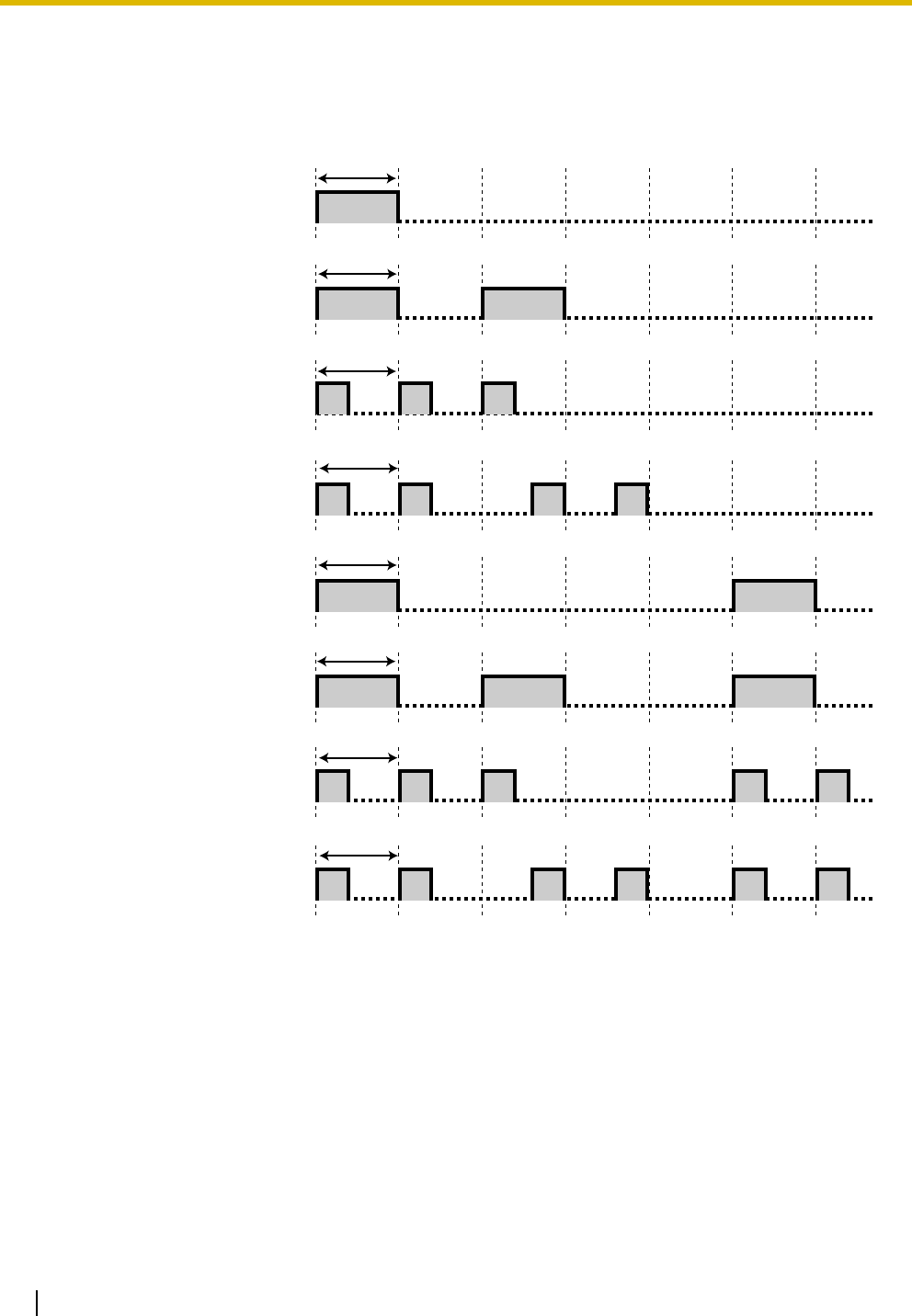
4.3 Tone List
178 Operating Manual
Doorphone Chime Patterns
The following doorphone chime patterns can be assigned to each doorphone when doorbells and door
chimes are connected to the PBX.
* Chime patterns 1 to 4 are played only one time during the doorphone ringing time.
Pattern 1*
Pattern 2*
Pattern 3*
Pattern 4*
Pattern 5
Pattern 6
Pattern 7
Pattern 8
1 s
1 s
1 s
1 s
1 s
1 s
1 s
1 s
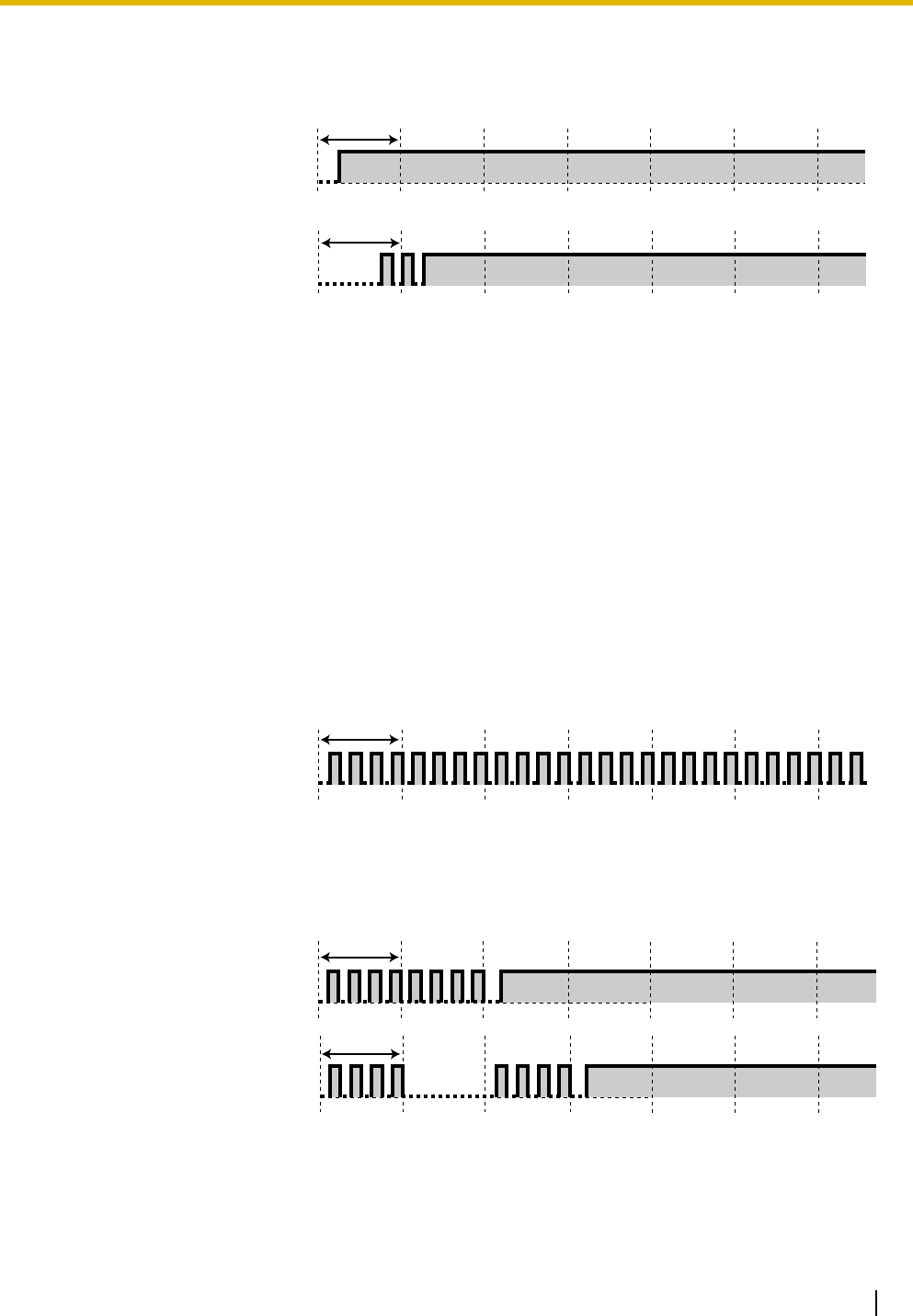
4.3 Tone List
Operating Manual 179
When Going Off-hook
Dial Tones
Tone 1
Normal
Tone 2
Any of the following features is
set:
• Absent Message
• Background Music
(BGM) (proprietary
telephone [PT] only)
• Call Forwarding
(FWD)
• Call Pickup Deny
• Data Line Security
• Do Not Disturb (DND)
• Extension Lock
• Hot Line (single line
telephone [SLT] only)
• Message Waiting (PT
only)
• Remote Extension
Lock
• Timed Reminder
Tone 3
• When going off-hook
with an SLT that has
messages waiting
• When Account Code
Entry is performed
• When answering a
call from Timed
Reminder
Tone 4
A new voice message has
been recorded (Built-in Voice
Message [BV]).
Tone 5
The remaining voice message
recording time is less than 5
minutes or 125 voice
messages have been recorded
(Built-in Voice Message [BV]).
1 s
1 s
1 s
1 s
1 s
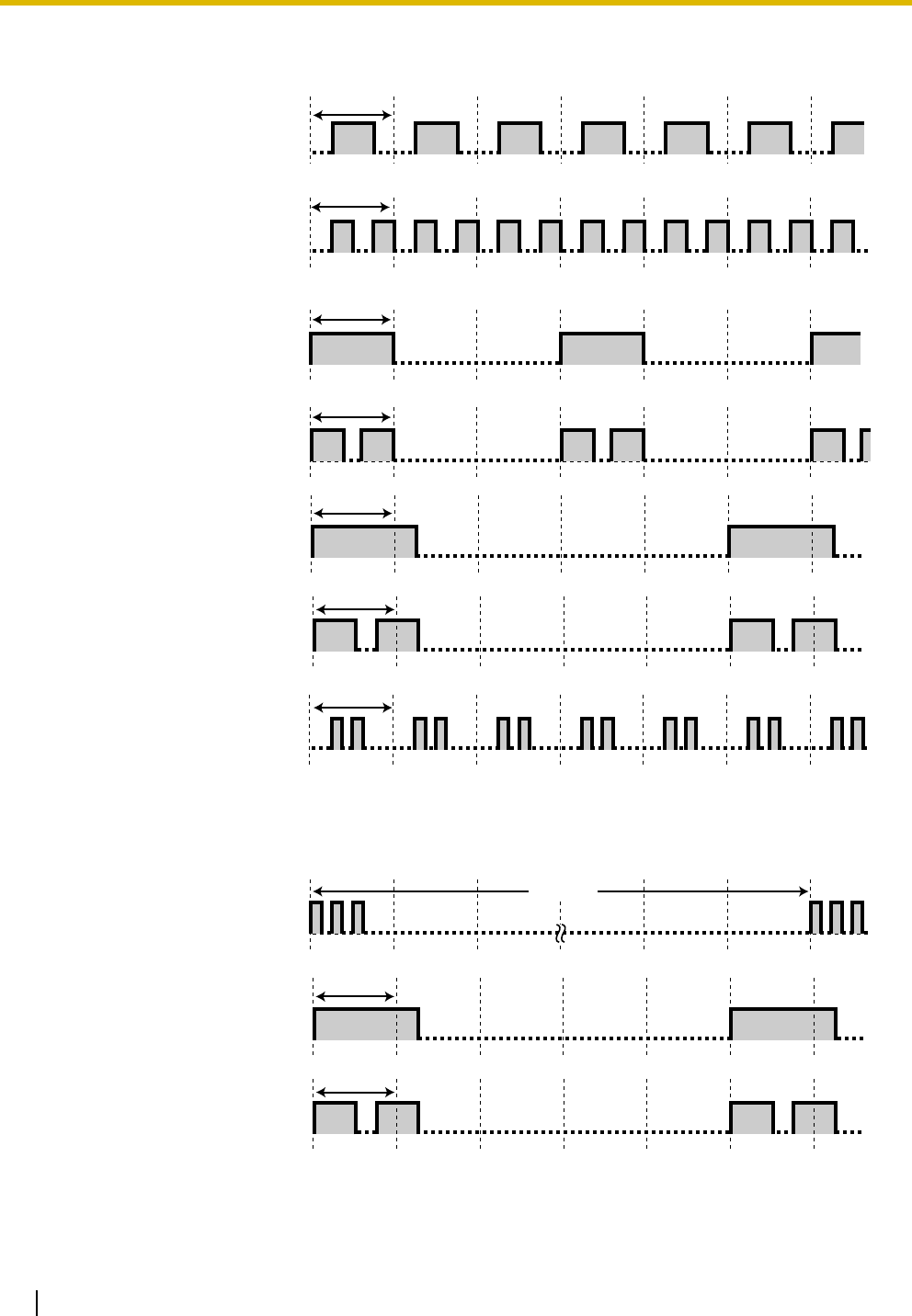
4.3 Tone List
180 Operating Manual
When Making Calls
While Off-hook
Busy Tone
Reorder Tone
The outside (CO) line you tried
to seize is not assigned or was
denied.
Ringback Tones
Single (3-s interval)
Double (3-s interval)
Single (5-s interval)
Double (5-s interval)
DND Tone
The dialed extension is
refusing incoming calls.
Indication Tones
Tone 1 (Call Waiting Tone)
Tone 2 (Call Waiting Tone)
Single
Double
1 s
1 s
1 s
1 s
1 s
1 s
1 s
15 s
1 s
1 s
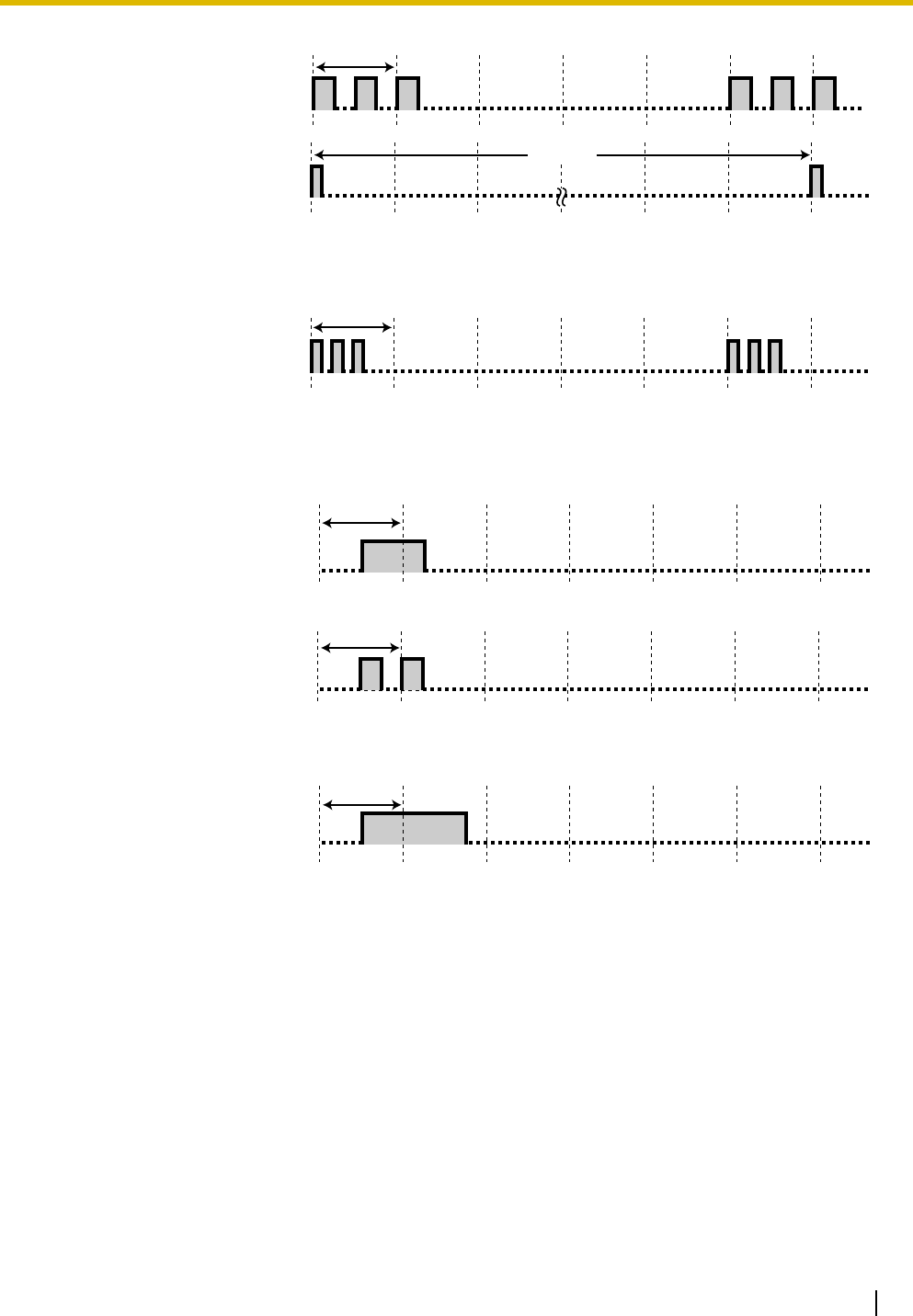
4.3 Tone List
Operating Manual 181
When Talking to an Outside Party
When Setting the Features or Programming
Tr i p l e
Tone 3 (Hold Alarm Tone)
A call has been on hold for
longer than the specified time.
Warning Tone
This tone is sent 15 seconds
before the specified time for
disconnection.
Confirmation Tones
Tone 1
The feature was set
successfully, or the Extension
Lock feature was set or
canceled.
Tone 2
The new feature setting was
the same as the previous
setting, or certain features
were successfully performed or
accessed (e.g., Call Hold,
Automatic Callback Busy).
Tone 3
Before the following features
activate:
• Retrieving a held call
• Picking up another
call
• Establishing a
conference call
• Paging/Answering a
paging
announcement
1 s
15 s
1 s
1 s
1 s
1 s

4.3 Tone List
182 Operating Manual

Operating Manual 183
Index

Index
184 Operating Manual
Symbols
[001] System Speed Dialing Number
163
[011] System Speed Dialing Name
164
[512] DISA Security Code
164
[530] DISA Security Code Digits
165
Numerics
2-way Record
18
,
158
2-way Transfer
18
,
158
3-level Automated Attendant
3
A
Absent Message
25
,
171
Account Code Entry
26
,
171
Alternate Calling—Ring/Voice
28
,
176
Alternate Receiving—Ring/Voice
155
Answering, Direct Outside (CO) Line
28
Appendix
167
AUTO ANS (Auto Answer)/MUTE
17
AUTO DIAL/STORE
16
Automated Attendant (AA)
77
Automatic Callback Busy (Camp-on)
29
Automatic Callback Busy Cancel
30
B
Background Music (BGM)
30
Basic Operations
22
Before Operating a Telephone
14
BGM —> Background Music (BGM)
30
BSS —> Busy Station Signaling (BSS)
41
Built-in Voice Message (BV)
31
Busy Station Signaling (BSS)
41
Busy Tone
180
BV —> Built-in Voice Message (BV)
31
C
Call Forwarding (FWD)
171
Call Forwarding (FWD)—All Calls
43
Call Forwarding (FWD)—Busy/No Answer
43
Call Forwarding (FWD)—CANCEL
46
Call Forwarding (FWD)—Follow Me
44
Call Forwarding (FWD)—SUMMARY
41
Call Forwarding (FWD)—To Outside (CO) Line
45
Call Hold
46
Call Hold Retrieve
49
,
171
Call Hold, Exclusive
48
Call Log Display Lock, Incoming in the Common Area
136
Call Log Display Lock, Incoming in the Personal Area
56
Call Log, Incoming
50
Call Log, Incoming in the Common Area—CLEAR ALL
136
Call Park
56
,
172
Call Park Retrieve
57
Call Pickup
172
Call Pickup Deny
59
,
172
Call Pickup, Directed
58
Call Pickup, Group
58
Call Retrieving from a TAM (Telephone Answering Machine)
60
Call Splitting
60
Call Transfer—To Extension
62
Call Transfer—To Outside (CO) Line
63
Call Waiting
65
,
172
Call Waiting Caller ID
67
Call Waiting from the Telephone Company
69
Call Waiting Tone
180
Call Waiting Tone Type Selection
155
Caller ID Indication—Common
18
,
158
Caller ID Indication—Personal
18
,
158
Caller ID Selection—Common
18
,
158
Caller ID Selection—Personal
18
,
158
CO
16
Common BV OGM
31
,
137
Common BV Outgoing Messages
137
CONF
17
Conference
18
,
70
,
158
Conference, Unattended
72
Confirmation Tones
181
Connection Example
21
Customized Buttons
17
Customizing Your Phone & PBX
153
D
Data Line Security
73
,
172
Date & Time Set
145
Day
18
,
158
Dial Tones
179
Direct Inward System Access (DISA)
74
Direct Message
33
Direct Station Selection (DSS)
18
,
157
DISA —> Direct Inward System Access (DISA)
74
Display
14
DND —> Do Not Disturb (DND)
78
DND Tone
180
Do Not Disturb (DND)
78
,
172
Do Not Disturb (DND) Override
79
Door Open
80
,
173
Doorphone Call
81
Doorphone Chime Patterns
178
E
Electronic Station Lockout —> Extension Lock
87
Emergency Call
82
Entering Characters
165
Examples
15
Executive Busy Override Deny
86
,
173
Executive Busy Override—Extension
83
Executive Busy Override—Outside (CO) Line
85
Extension Feature Clear
87
Extension Lock
18
,
56
,
87
,
158
Extension Lock—CANCEL ALL
145
Extension Password
133
,
143
,
146
Extension Password Set
145
External Feature Access (EFA)
89
F
Feature Highlights
2
Feature Number Table
171
Feature Numbers
14

Index
Operating Manual 185
Fixed Buttons
16
FLASH/RECALL
17
Flash/Recall
89
Flexible Button Assignment
157
For Future Reference
7
FWD —> Call Forwarding (FWD)
41
FWD/DND (Call Forwarding/Do Not Disturb)
17
,
18
,
158
G
Group-CO (G-CO)
18
,
157
H
Handset/Headset Selection —> Headset Operation
92
Hands-free Answerback
90
Hands-free Operation
91
Headset Operation
92
HOLD
17
Hold Alarm Tone
181
Hot Line
93
How to Follow the Steps
20
I
Icon Descriptions
15
,
162
Incoming Call Log in the Common Area—CLEAR ALL
175
Indication Tones
180
INTERCOM
17
Intercom Call
22
,
94
L
LCS —> Live Call Screening (LCS)
99
LCS Cancel
19
,
158
LCS Password Control
145
Line Access, Automatic
96
Line Access, Outside (CO) Line
22
Line Access, Outside (CO) Line Group
97
Line Access, Outside (CO) Line—SUMMARY
95
Line Access, S-CO Line
98
Line Preference—Incoming
155
Line Preference—Outgoing
154
Live Call Screening (LCS)
19
,
158
Live Call Screening (LCS) (Voice Mail APT Integration only)
99
Live Call Screening (LCS) Mode Set
155
Local Carrier-based Voice Mail Service
102
Lockout
103
Log-in/Log-out
18
,
104
,
158
,
173
Lunch
18
,
158
M
Making Calls
22
Manager Password
146
,
161
Manager Programming (Manager only)
139
MESSAGE
17
Message
18
,
158
Message for another extension
18
,
158
Message Waiting
105
,
173
Message Waiting for Another Extension
108
Message Waiting for Another Extension Lock
109
Microphone Mute
110
MONITOR
17
N
Navigator Key
17
Night
18
,
158
O
One-touch Dialing
18
,
110
,
158
One-touch Transfer
62
Operation
13
Operator Call
111
Operator/Manager Operation
135
Operator/Manager Service Features
136
Other-CO (O-CO)
18
,
157
Outgoing Message (OGM) for DISA
74
,
140
Outside (CO) Line Ringing Selection
155
P
Paging and Transfer
115
Paging Answer
116
Paging Deny
116
Paging—All Extensions
113
Paging—All Extensions & External
113
Paging—External
114
Paging—Group
114
Paging—SUMMARY
112
Paralleled Telephone
117
PAUSE
16
Personal BV OGM
31
,
33
Personal Feature Assignment
154
Personal Programming
154
Personal Programming Data Reset
156
Personal Speed Dialing
117
Pickup Dialing —> Hot Line
93
Power Failure Transfer
119
PROGRAM
17
Programmable Feature (PF)
17
Programming Information
154
,
161
Pulse to Tone Conversion
119
,
176
R
Receiving Calls
24
REDIAL
17
Redial, Last Number
120
Redial, Saved Number
120
Remote Extension Lock
143
Remote Station Lock Control —> Remote Extension Lock
143
Remote Timed Reminder (Wake-up Call)
175
Reorder Tone
180
Restrictions
15
Ring Tone Patterns
177
Ringback Tones
180
Room Monitor
121
S
Save
18
,
158
Secret Dialing
123
Self-extension Number Confirmation
156

Index
186 Operating Manual
Single-CO (S-CO)
18
,
157
SP-PHONE
16
Station Feature Clear —> Extension Feature Clear
87
Station Program Clear —> Extension Feature Clear
87
Station Speed Dialing —> Personal Speed Dialing
117
System Feature Assignment
145
System Password
146
,
161
System Programming
161
System Programming (Manager Programming)
161
,
163
System Speed Dialing
124
T
TAM —> Telephone Answering Machine (TAM)
60
Telephone Answering Machine (TAM)
60
Telephone Features
25
The 301st Call Log, Incoming in the Common Area Treatment
146
Time Service
125
,
147
,
175
Timed Reminder
126
,
174
Timed Reminder, Remote (Wake-up Call)
149
To select an idle outside (CO) line automatically
96
To select an idle unassigned outside (CO) line
97
Toll Restriction (TRS)
128
Toll Restriction (TRS) Override by Account Code
128
Tone
14
Tone List
177
TRANSFER
17
Troubleshooting
168
Two-way Recording in the VPS (Voice Mail APT Integration only)
128
U
Using a Navigator Key/Volume Key (depending on the type of your PT)
15
V
VOICE CALL
17
Voice Mail (VM) Transfer
19
,
158
Voice Mail Integration
129
Voice Mail Transfer (Voice Mail APT Integration only)
132
Volume Key
17
W
Walking COS
133
,
175
Warning Tone
181
What Kind of Telephone Can Be Used?
14
When You Use a Panasonic Proprietary Telephone
16
Wireless Proprietary Telephones
3
Y
Your Extension Number
14

Index
Operating Manual 187

Panasonic Consumer Electronics Company
Division of Panasonic Corporation of North America
One Panasonic Way
Secaucus, NJ 07094
Panasonic Puerto Rico, lnc.
Ave. 65 de Infantería, Km. 9.5
San Gabriel Industrial Park
Carolina, Puerto Rico 00985
http://www.panasonic.com/csd
Copyright:
This material is copyrighted by Panasonic Communications Co., Ltd., and may be reproduced for internal
use only. All other reproduction, in whole or in part, is prohibited without the written consent of Panasonic
Communications Co., Ltd.
© 2005 Panasonic Communications Co., Ltd. All Rights Reserved.
PSQX3404ZA KK0405MN0
