L779 Summit Lab Manual
User Manual:
Open the PDF directly: View PDF  .
.
Page Count: 111 [warning: Documents this large are best viewed by clicking the View PDF Link!]

Adobe Summit 2019
LEARNING LABS
L779 - Deploy Adobe Experience Cloud
on a Website in 90 Minutes Using
Adobe Launch

Adobe.com/go/summit2019-l779 experienceleague.adobe.com
1
Table of Contents
EXPERIENCE LEAGUE .................................................................................................................................................................................. 4
INTELLIGENT GUIDANCE ....................................................................................................................................................................................................................... 4
COMMUNITY ............................................................................................................................................................................................................................................. 4
CONNECT WITH EXPERTS ..................................................................................................................................................................................................................... 4
JOIN NOW .................................................................................................................................................................................................................................................. 4
EXPERIENCE LEAGUE LEARNING LABS ................................................................................................................................................ 5
OVERVIEW ................................................................................................................................................................................................................................................. 5
ENVIRONMENT ......................................................................................................................................................................................................................................... 5
TOOLS .......................................................................................................................................................................................................................................................... 5
Go URL ................................................................................................................................................................. 5
Q&A ...................................................................................................................................................................... 5
Continue the Conversation ................................................................................................................................... 5
Community ........................................................................................................................................................... 5
OVERVIEW ....................................................................................................................................................................................................... 7
KEY TAKEAWAYS ..................................................................................................................................................................................................................................... 7
PREREQUISITES ......................................................................................................................................................................................................................................... 7
LESSON 1 - CREATE A LAUNCH PROPERTY ......................................................................................................................................... 8
LEARNING OBJECTIVES ......................................................................................................................................................................................................................... 8
EXERCISE 1.1: GO TO LAUNCH ........................................................................................................................................................................................................... 8
EXERCISE 1.2: CREATE A PROPERTY ................................................................................................................................................................................................. 9
LESSON 2 - ADD THE LAUNCH EMBED CODE ................................................................................................................................. 12
LEARNING OBJECTIVES ........................................................................................................................................................................................................................ 12
EXERCISE 2.1: COPY THE EMBED CODE ........................................................................................................................................................................................ 12
EXERCISE 2.2: IMPLEMENT THE EMBED CODE IN THE <HEAD> ELEMENT ....................................................................................................................... 13
LESSON 3 - SWITCH LAUNCH ENVIRONMENTS WITH THE EXPERIENCE CLOUD DEBUGGER ..................................... 14
LEARNING OBJECTIVES ........................................................................................................................................................................................................................ 14
EXERCISE 3.1: CREATE A LIBRARY .................................................................................................................................................................................................... 14
EXERCISE 3.2: GET THE URL OF YOUR DEVELOPMENT ENVIRONMENT ......................................................................................................................... 16
EXERCISE 3.3: REPLACE THE LAUNCH URL ON THE WE.RETAIL DEMO SITE ................................................................................................................ 16
LESSON 4 - ADD A DATA ELEMENT, A RULE, AND A LIBRARY ................................................................................................. 19
LEARNING OBJECTIVES ........................................................................................................................................................................................................................ 19
EXERCISE 4.1: CREATE A DATA ELEMENT ...................................................................................................................................................................................... 19
EXERCISE 4.2: CREATE A RULE ......................................................................................................................................................................................................... 21
EXERCISE 4.3: SAVE YOUR CHANGES TO A LIBRARY .............................................................................................................................................................. 23
LESSON 5 - ADD THE EXPERIENCE CLOUD ID SERVICE .............................................................................................................. 25
LEARNING OBJECTIVES ....................................................................................................................................................................................................................... 25
EXERCISE 5.1: ADD THE ID SERVICE EXTENSION ...................................................................................................................................................................... 25
Exercise 5.1.1: Validate the Extension ................................................................................................................ 27
EXERCISE 5.2: SEND CUSTOMER IDS ............................................................................................................................................................................................ 28
Exercise 5.2.1: Create Data Elements for Customer IDs ..................................................................................... 28
Exercise 5.2.2: Add a Rule to Send the Customer IDs - (EXTRA CREDIT) ............................................................ 31
Exercise 5.2.3: Validate the Customer IDs .......................................................................................................... 35

Adobe.com/go/summit2019-l779 experienceleague.adobe.com
2
Exercise 5.2.4: Additional Validation Tips .......................................................................................................... 37
LESSON 6 - ADD ADOBE TARGET ........................................................................................................................................................ 39
LEARNING OBJECTIVES ....................................................................................................................................................................................................................... 39
EXERCISE 6.1: ADD THE TARGET PRE-HIDING SNIPPET ........................................................................................................................................................ 39
EXERCISE 6.2: ADD THE TARGET EXTENSION .......................................................................................................................................................................... 40
EXERCISE 6.3: LOAD TARGET AND FIRE THE GLOBAL MBOX ............................................................................................................................................. 42
Exercise 6.3.1: Validate the Global Mbox ........................................................................................................... 44
EXERCISE 6.4: ADD PARAMETERS ................................................................................................................................................................................................ 46
Exercise 6.4.1: Add an Mbox Parameter ............................................................................................................ 47
Exercise 6.4.2: Profile Parameters ...................................................................................................................... 49
Exercise 6.4.3: Entity Parameters ....................................................................................................................... 50
Exercise 6.4.4: Add Customer ID Parameters ..................................................................................................... 51
Exercise 6.4.5: Add the Property Token Parameter (optional) ........................................................................... 52
Exercise 6.4.6: Add an Order Confirmation mbox .............................................................................................. 56
Exercise 6.4.7: Custom mboxes .......................................................................................................................... 61
EXERCISE 6.5: LIBRARY HEADER AND LIBRARY FOOTER ....................................................................................................................................................... 61
LESSON 7 - ADD ADOBE ANALYTICS .................................................................................................................................................. 62
LEARNING OBJECTIVES ....................................................................................................................................................................................................................... 62
PREREQUISITES ...................................................................................................................................................................................................................................... 62
EXERCISE 7.1: ADD THE ANALYTICS EXTENSION ....................................................................................................................................................................... 62
EXERCISE 7.2: SEND THE PAGE VIEW BEACON ......................................................................................................................................................................... 65
Exercise 7.2.1: Validate the Page View Beacon .................................................................................................. 67
EXERCISE 7.3: ADD VARIABLES WITH RULES ............................................................................................................................................................................ 69
Exercise 7.3.1: Use Case ..................................................................................................................................... 69
Exercise 7.3.2: Create Data Element for Page Type ........................................................................................... 69
Exercise 7.3.3: Create Data Element for Product Id ........................................................................................... 70
Exercise 7.3.4: Add the Adobe Analytics Product String Extension .................................................................... 71
Exercise 7.3.5: Create the Rule for Product Detail Pages ................................................................................... 73
Exercise 7.3.6: Validate the Product Detail Page Data ....................................................................................... 77
EXERCISE 7.4: SEND A TRACK LINK BEACON ............................................................................................................................................................................. 78
Exercise 7.4.1: Use Case ..................................................................................................................................... 78
Exercise 7.4.2: Create the Rule in Launch ........................................................................................................... 79
Exercise 7.4.3: Validate the Track Link Beacon .................................................................................................. 83
EXERCISE 7.5: ADD A PLUG-IN ........................................................................................................................................................................................................ 84
Exercise 7.5.1: Make the Analytics Object Globally Accessible .......................................................................... 84
Exercise 7.5.2: Including the doPlugins Function ............................................................................................... 85
Exercise 7.5.3: Add Function Code for the Plug-in .............................................................................................. 85
Exercise 7.5.4: The getValOnce() Plug-in ............................................................................................................ 86
Exercise 7.5.5: Calling Plug-ins from Within doPlugins ...................................................................................... 86
Exercise 7.5.6: Validate the Plug-ins .................................................................................................................. 87
LESSON 8 - ADD ADOBE AUDIENCE MANAGER ............................................................................................................................ 90
LEARNING OBJECTIVES ...................................................................................................................................................................................................................... 90
PREREQUISITES ..................................................................................................................................................................................................................................... 90
EXERCISE 8.1: IMPLEMENTATION OPTIONS ................................................................................................................................................................................. 91
EXERCISE 8.2: ENABLE SERVER-SIDE FORWARDING ............................................................................................................................................................... 91
Exercise 8.2.1: Enable Server-Side Forwarding in the Analytics Admin Console ................................................ 91
Exercise 8.2.2: Enable Server-Side Forwarding in Launch .................................................................................. 93
Exercise 8.2.3: Validate the Server-Side Forwarding .......................................................................................... 95

Adobe.com/go/summit2019-l779 experienceleague.adobe.com
3
LESSON 9 - EXPERIENCE CLOUD INTEGRATIONS ......................................................................................................................... 98
LEARNING OBJECTIVES ...................................................................................................................................................................................................................... 98
PREREQUISITES ..................................................................................................................................................................................................................................... 98
EXERCISE 9.1: AUDIENCES ................................................................................................................................................................................................................ 98
Exercise 9.1.1: Validate the Audiences integration ............................................................................................ 99
EXERCISE 9.2: ANALYTICS FOR TARGET (A4T) ..................................................................................................................................................................... 100
Exercise 9.2.1: Validate the A4T Implementation ............................................................................................ 100
EXERCISE 9.3: CUSTOMER ATTRIBUTES ..................................................................................................................................................................................... 102
Exercise 9.3.1: Validate the Customer Attributes Implementation .................................................................. 102
LESSON 10 - PUBLISH YOUR LAUNCH PROPERTY ...................................................................................................................... 104
LEARNING OBJECTIVES ..................................................................................................................................................................................................................... 104
EXERCISE 10.1: PUBLISH TO STAGING ......................................................................................................................................................................................... 104
EXERCISE 10.2: PUBLISH TO PRODUCTION ............................................................................................................................................................................... 108
ADDITIONAL RESOURCES ..................................................................................................................................................................... 110
Adobe.com/go/summit2019-l779 experienceleague.adobe.com
4
Experience League
Experience Makers are made with Experience League. Kickstart your Customer Experience
Management abilities with personalized learning to develop your skills, engage with a global
community of your peers and earn career advancing recognition.
Intelligent Guidance
The Intelligent Guidance site is full of recommended step-by-step learning and events that are
based on the preferences selected in your profile
Community
Get and stay connected, meet other experts like yourself, and get answers in minutes from our
global community of practitioners. No more waiting for support tickets. Now you can share
your ideas with us and instantly vote with your peers on future product enhancements.
Connect to a community of 150,000+ peers to get you answers in minutes.
Connect with Experts
When you need more support, Experience League connects you with Adobe experts ready to
work with you in a 1:1 setting.
Join Now
Join the League today at experienceleague.adobe.com

Adobe.com/go/summit2019-l779 experienceleague.adobe.com
5
Experience League Learning Labs
Overview
Experience League Learning Labs at Summit are guided learning sessions that connect you with
Adobe experts and your peers. It’s another way Experience League is helping you kickstart your
Adobe know-how to get the most out of Adobe Experience Cloud. Sign up for Experience
League at experienceleague.adobe.com
Environment
Fast-track your Adobe expertise with 90-minute guided learning sessions. We empower you
with preloaded software on each computer and walk you through the lab with step-by-step
guidance.
Tools
Go URL
In the footer of this lab manual you’ll find an Adobe “go” URL that will redirect you to a
dedicated thread on our Experience League community where you’ll find all the resources &
links for this lab. In addition, we’ll continue to monitor these threads for Q&A, discussion, and
guidance to continue your learning.
Q&A
Each lab has reserved time for question and answer. However, if you aren’t able to get your
question answered during the lab or you’d prefer a written response, please use the GO URL in
the footer to post your question on the community thread for this lab. Adobe has experts
monitoring these threads prepared to answer your questions and ensure your success in
mastering the content contained within this lab.
Continue the Conversation
Don’t let this lab coming to an end be the end of our conversation. We’ve created a dedicated
space to collaborate with you and your peers around this lab’s content. Join us as you
implement these concepts into your business and share your success and trails.
Community
In addition to Adobe experts from Customer Care, Product, Engineering, and other groups, we
have over 150,000 of your peers on our communities.
General Questions
Search through our ever-growing goldmine of questions or ask your own and get answers in
minutes.

Adobe.com/go/summit2019-l779 experienceleague.adobe.com
6
Ideas
Have a great idea that you’d like to see Adobe implement? Come share or vote on ideas in our
Experience League communities to influence product roadmap.
Feedback
Our product team often seeks your feedback by posting polls on our community. Ensure your
voice is heard by participating.

Adobe.com/go/summit2019-l779 experienceleague.adobe.com
7
Overview
Implementing the Experience Cloud in Websites with Launch is the perfect starting point for
front-end developers or technical marketers who want to learn how to implement the Adobe
Experience Cloud solutions on their website.
Each lesson contains how-to exercises and foundational information to help you implement the
Experience Cloud and understand its value. Callouts are provided to highlight information which
might be useful to customers migrating from our older tag manager - Dynamic Tag
Management. Demo sites are provided for you to complete the tutorial, so you can learn the
underlying techniques in a safe environment. After completing this tutorial, you should be
ready to start implementing all of your marketing solutions through Launch on your own
website.
Key Takeaways
1. Create a Launch Property
2. Install a Launch Property on a website
3. Add the following Adobe Experience Cloud solutions:
– Experience Cloud ID Service
– Adobe Target
– Adobe Analytics
– Adobe Audience Manager
4. Create rules and data elements to send data to the Adobe solutions
5. Validate the implementation using the Adobe Experience Cloud Debugger
6. Publish changes in Launch through development, staging, and production
environments
Prerequisites
In these lessons, it is assumed that you have an Adobe Id and the required permissions to
complete the exercises. If not, you may need to reach out to your Experience Cloud
Administrator to request access.
• For Launch, you must have permission to Develop, Approve, Publish, Manage
Extensions, and Manage Environments. For more information on Launch permissions,
see the documentation.
• For Adobe Analytics, you must know your tracking server and which report suites you
will use to complete this tutorial
• For Audience Manager, you must know your Audience Manager Subdomain (also
known as the “Partner Name” “Partner ID,” or “Partner Subdomain”)
Adobe.com/go/summit2019-l779 experienceleague.adobe.com
8
Lesson 1 - Create a Launch Property
Learning Objectives
In this lesson, you will create your first Launch property.
A property is basically a container that you fill with extensions, rules, data elements, and libraries
as you deploy tags to your site.
At the end of this lesson, you will be able to:
• Log into the Launch user interface
• Create a new Launch property
• Configure a Launch property
Exercise 1.1: Go to Launch
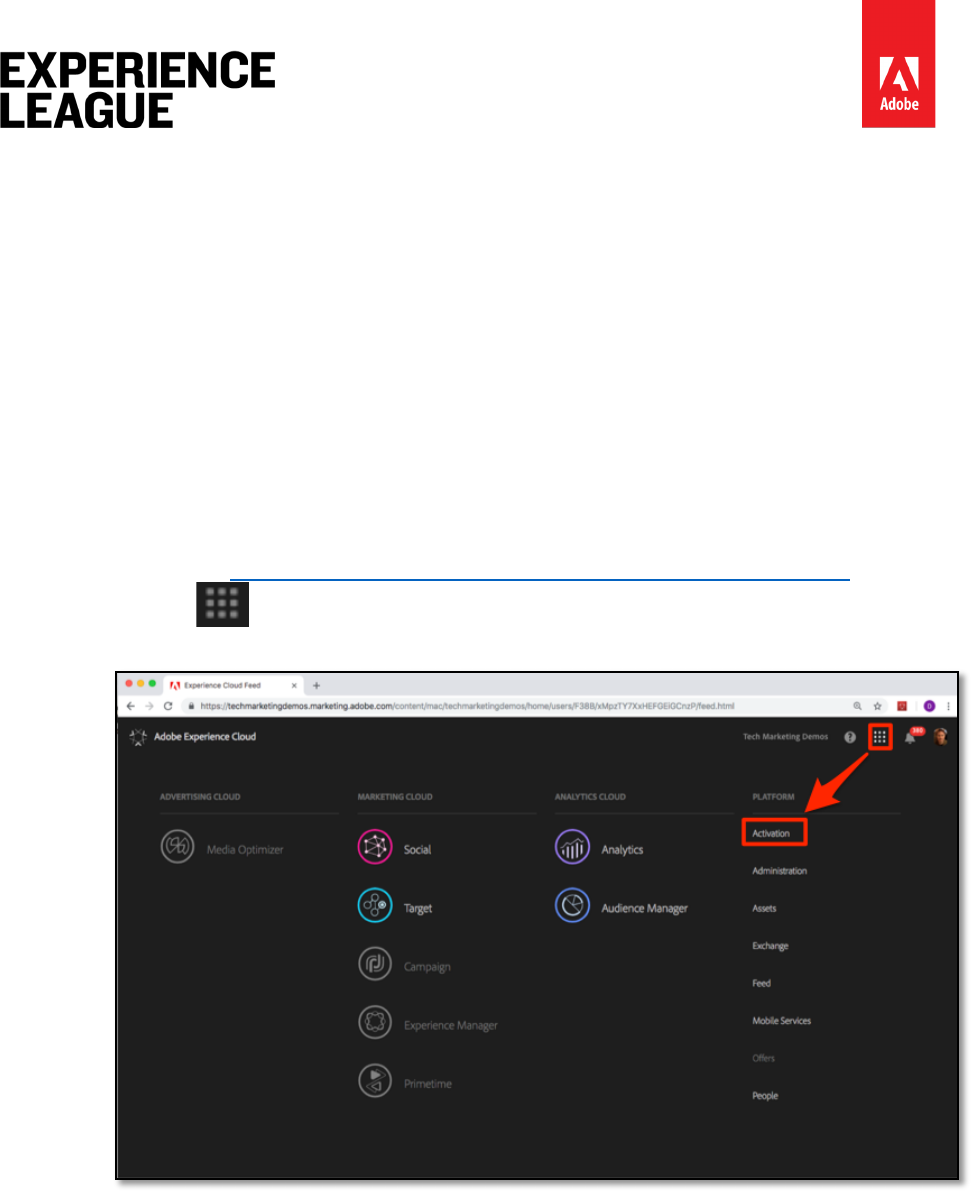
1. Log into the Adobe Experience Cloud at https://experiencecloud.adobe.com
2. Click the icon to open the solution switcher
3. Select [Activation] from the menu
Adobe.com/go/summit2019-l779 experienceleague.adobe.com
9
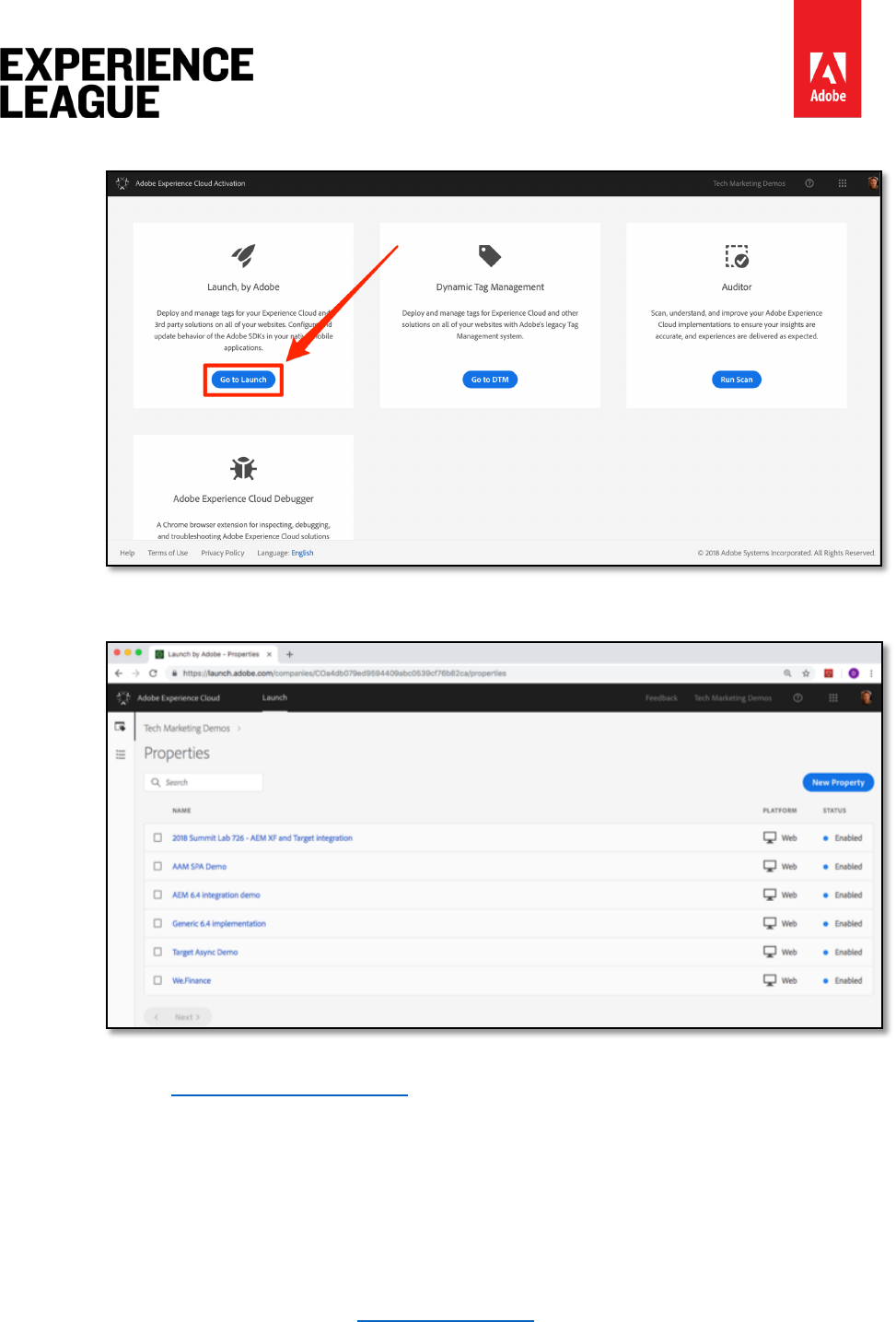
4. Under [Launch, by Adobe], click the [Go to Launch] button
5. You should now see the Properties screen (if no properties have ever been
created in the account, this screen might be empty):
6. If you use Launch frequently, you can also bookmark the following URL and log in
directly https://launch.adobe.com
Exercise 1.2: Create a Property
A property is basically a container that you fill with extensions, rules, data elements, and
libraries as you deploy tags to your site. A property can be any grouping of one or more
domains and subdomains. You can manage and track these assets similarly. For example,
suppose that you have multiple websites based on one template, and you want to track the
same assets on all of them. You can apply one property to multiple domains. For more
information on creating properties, see "Create a Property" in the product documentation.
Adobe.com/go/summit2019-l779 experienceleague.adobe.com
10
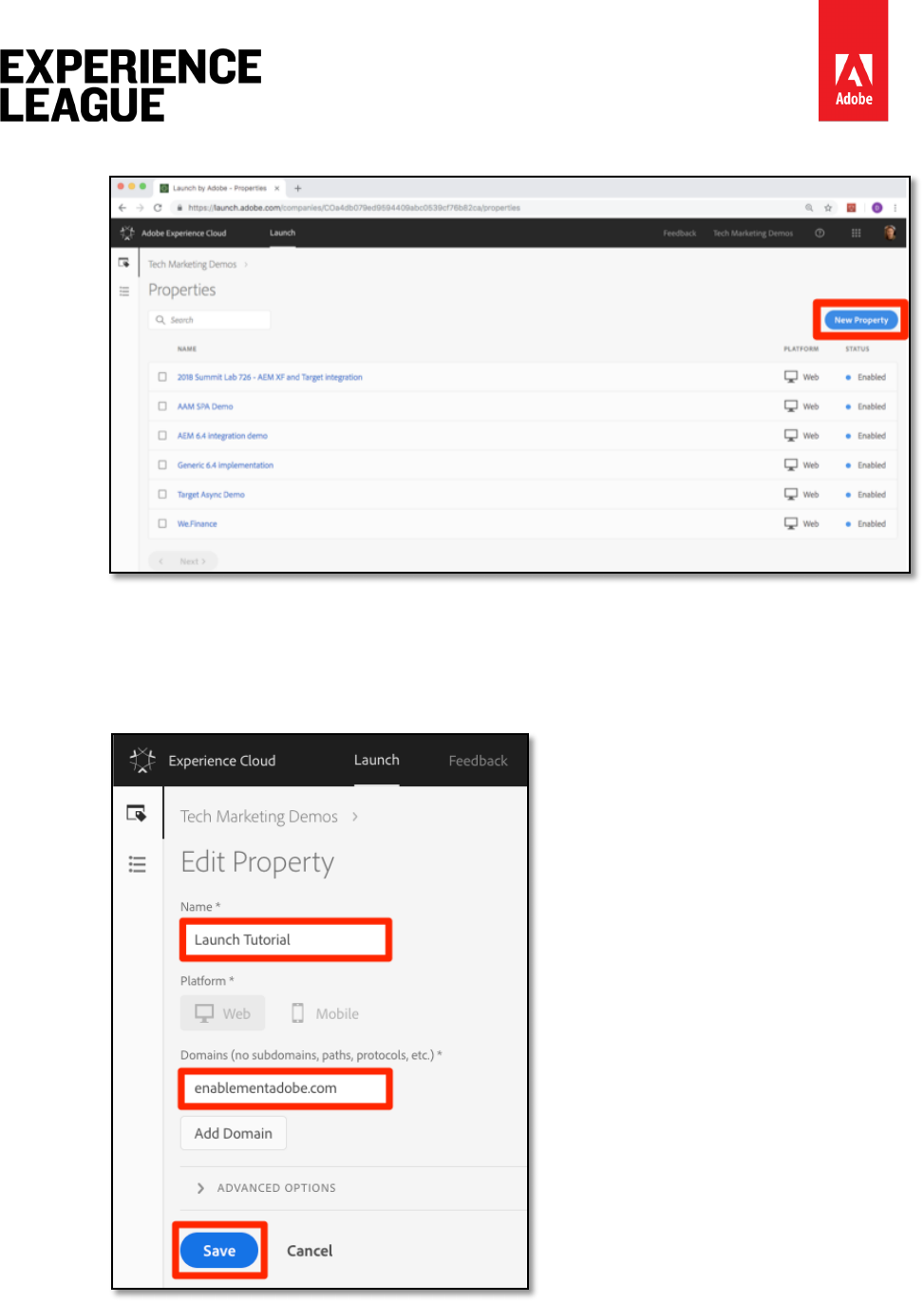
1. Click the [New Property] button:
2. Name your property (type: Launch Tutorial)
3. As the domain, enter enablementadobe.com since you will be using this property
in conjunction with the We.Retail demo site which is hosted on this domain
4. Leave the selected platform as Web for this tutorial
5. Click the [Save] button
Adobe.com/go/summit2019-l779 experienceleague.adobe.com
11
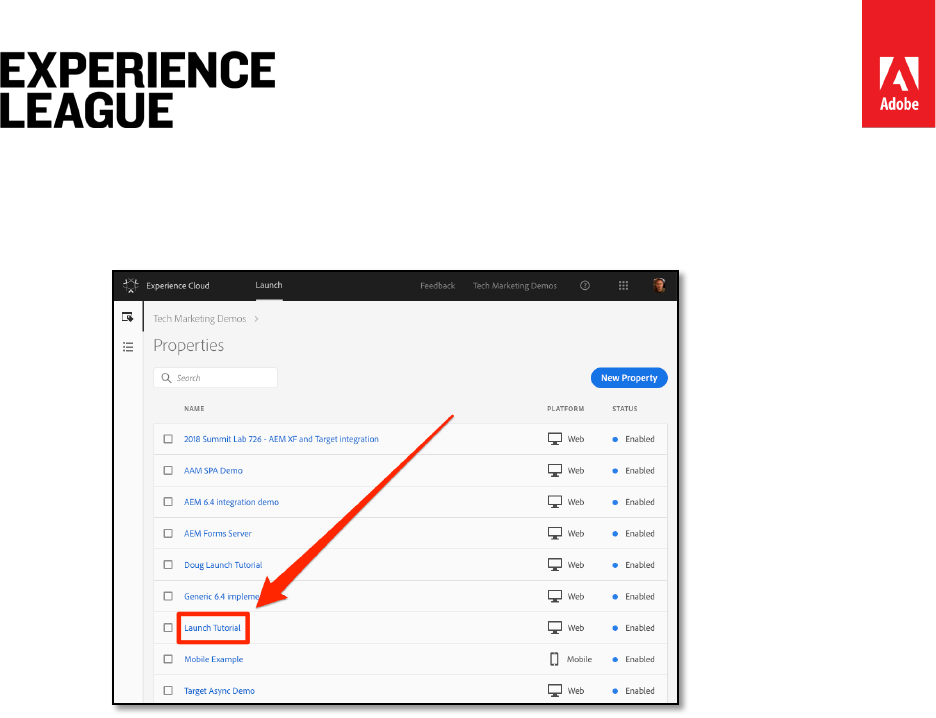
6. Your new property should display on the Properties page. Note that if you check the
box next to the property name, options to [Configure] or [Delete] the property
appear above the property list. Click on the name of your property (e.g. Launch
Tutorial) to open the Overview screen.
Adobe.com/go/summit2019-l779 experienceleague.adobe.com
12
Lesson 2 - Add the Launch Embed Code
In this lesson, you will implement the asynchronous embed code of your Launch property's
Development environment. Along the way, you will learn about two main concepts of Launch -
Environments and Embed Codes.
Learning Objectives
At the end of this lesson, you will be able to:
• Obtain the embed code for your Launch property
• Understand the difference between a Development, Staging, and Production
environment
• Add a Launch embed code to an html document
• Explain the optimal location of the Launch embed code in relation to other code in
the <head> of an html document
Exercise 2.1: Copy the Embed Code
The embed code is a <script> tag that you put on your webpages to load and execute the
logic you build in Launch. If you load the library asynchronously, the browser continues to load
the page, retrieves the Launch library, and executes it in parallel. In this case, there is only one
embed code, which you put in the <head>. (When Launch is deployed synchronously, there are
two embed codes, one which you put in the <head> and another which you put before the
</body>).
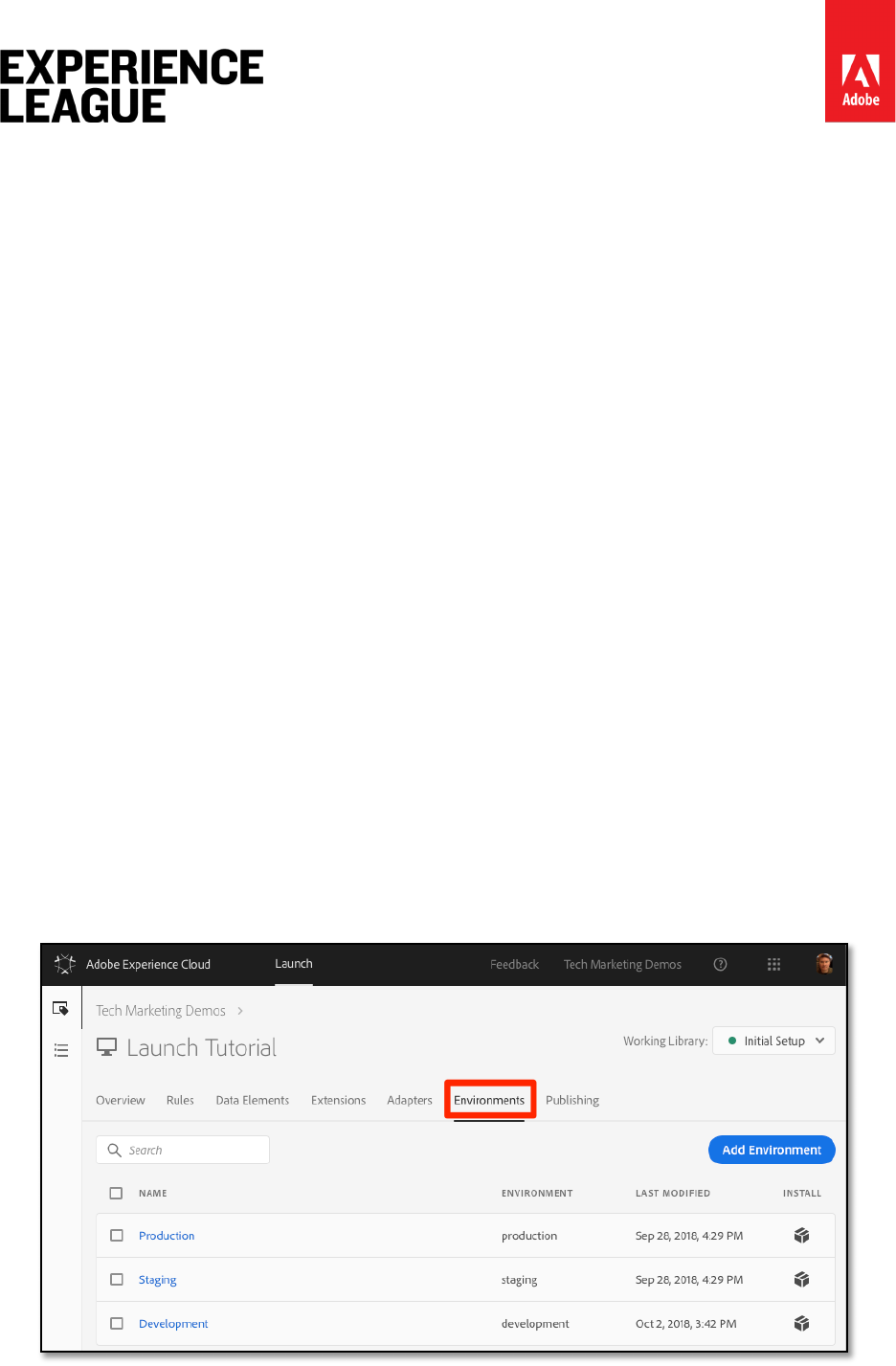
From the property Overview screen, click on the Environments tab to go to the environments
page.
Note that Development, Staging, and Production environments have been pre-created for you.
Adobe.com/go/summit2019-l779 experienceleague.adobe.com
13
Development, Staging, and Production environments correspond to the typical environments in
the code development and release process. Code is first written by a developer in a
Development environment. When they have completed their work, they send it to a Staging
environment for QA and other teams to review. Once the QA and other teams are satisfied, the
code is then published to the Production environment, which is the public-facing environment
which your visitors experience when they come to your website.
Launch permits additional Development environments, which is useful in large organizations in
which multiple developers are working on different projects at the same time.
These are the only environments we need to complete the tutorial. Environments allow you to
have different working versions of your Launch libraries hosted at different URLs, so you can
safely add new features and make them available to the right users (e.g. developers, QA
engineers, the public, etc.) at the right time.
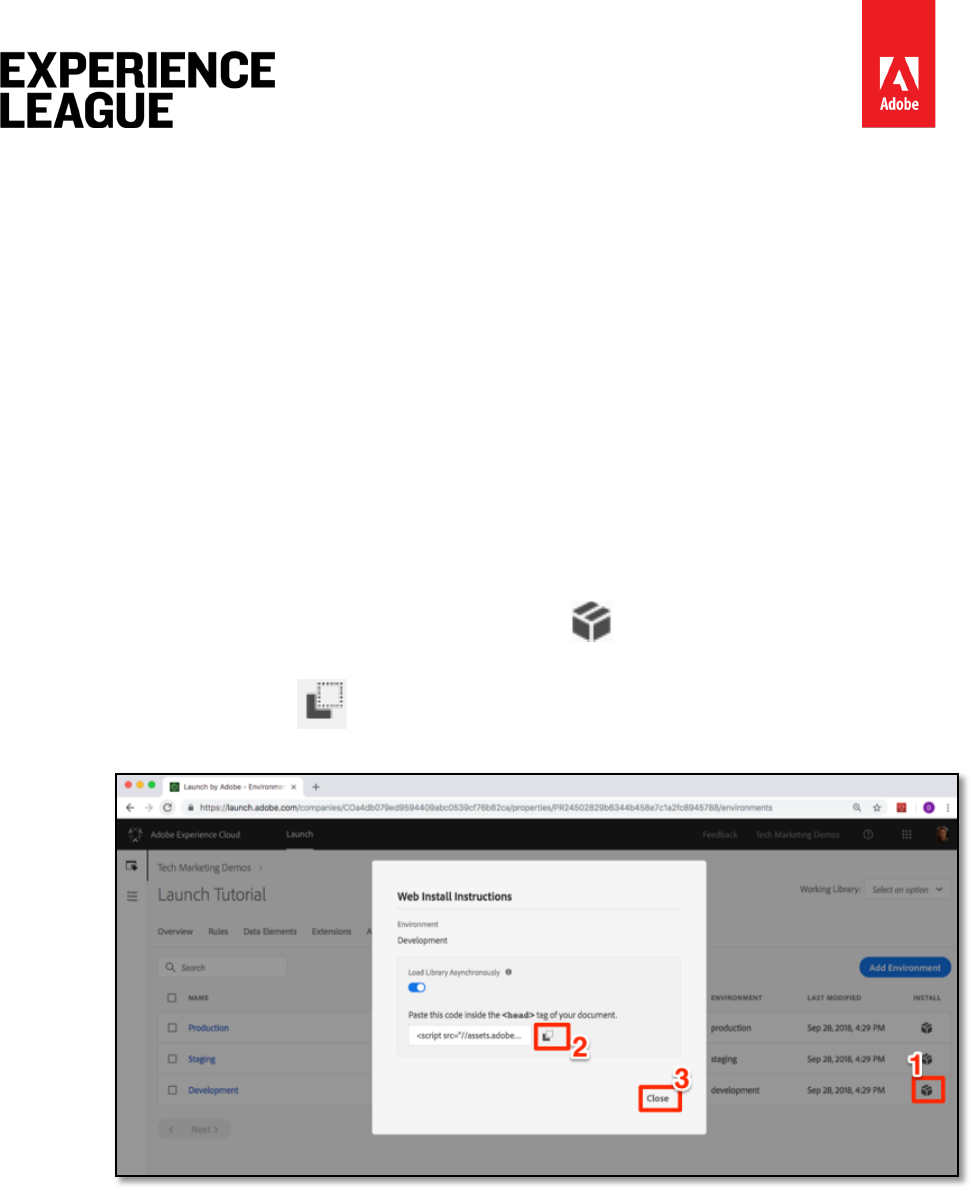
Now let's copy the embed code:
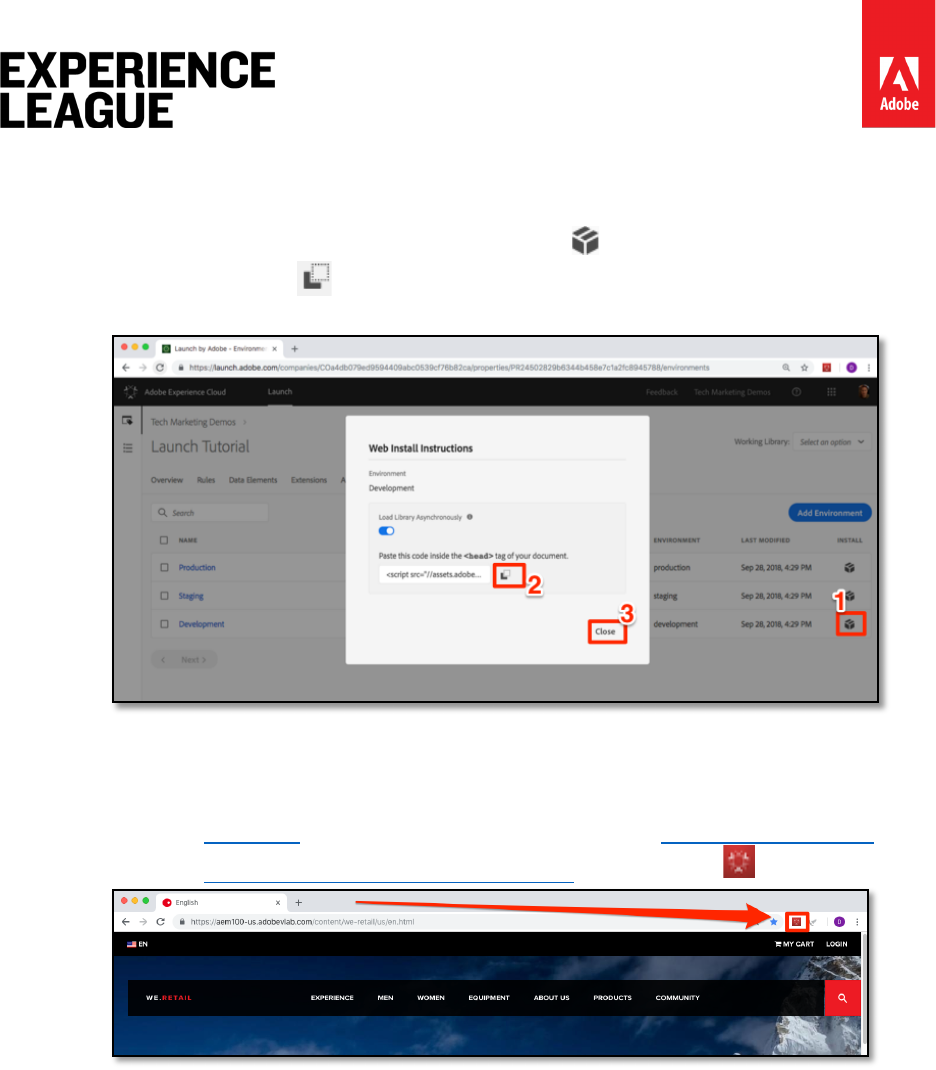
1. In the [Development] row, click the Install icon to open the modal.
2. Note that Launch will default to the asynchronous embed codes
3. Click the Copy icon to copy the embed code to your clipboard.
4. Click [Close] to close the modal.
Exercise 2.2: Implement the Embed Code in the <head> element
The embed code should be implemented in the <head> element of all HTML pages that will
share the property. You might have one or several template files which control the <head>
globally across the site, making it a straightforward process to add Launch.
Adobe.com/go/summit2019-l779 experienceleague.adobe.com
14
Lesson 3 - Switch Launch Environments with the
Experience Cloud Debugger
In this lesson you will use the Adobe Experience Cloud Debugger extension to replace the
Launch property hardcoded on the We.Retail demo site (http://bit.ly/WeRetail) with your own
property. This technique is called environment switching and will be helpful later, when you
work with Launch on your own website. You will be able to load your production website in
your browser, but with your development Launch environment. This enables you to confidently
make and validate Launch changes independently from your regular code releases. After all,
this separation of marketing tag releases from your regular code releases is one of the main
reasons customers use Launch in the first place!
Learning Objectives
At the end of this lesson, you will be able to:
• Use the Debugger to load an alternate Launch environment
• Use the Debugger to validate that you have loaded an alternate Launch environment
Exercise 3.1: Create a Library
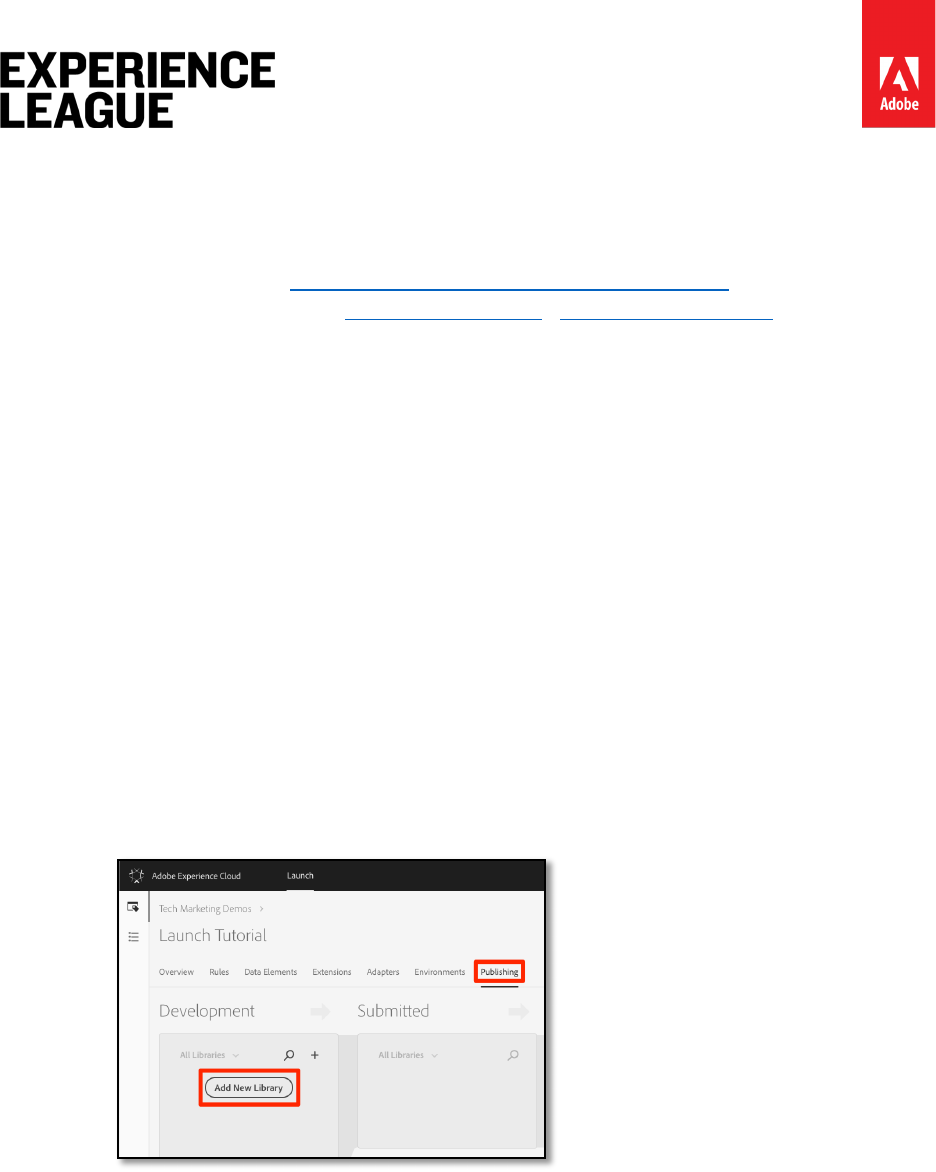
Even though Launch has created you an Embed Code for each Library, we have not yet
PUBLISHED anything to that location.
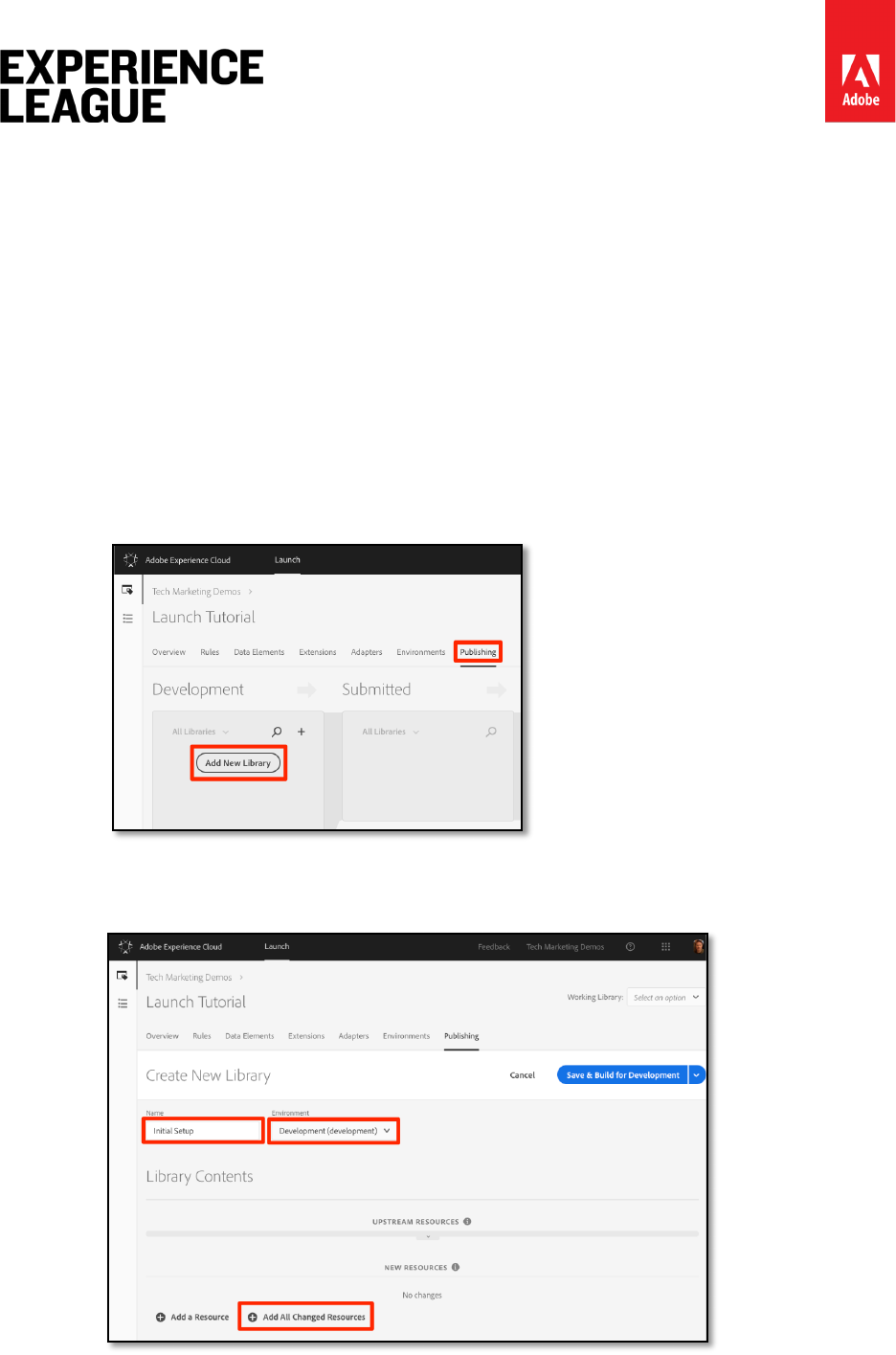
1. Go to the [Publishing] tab
2. Click [Add New Library]
3. Name the Library "Initial Setup"
4. Select [Environment > Development]
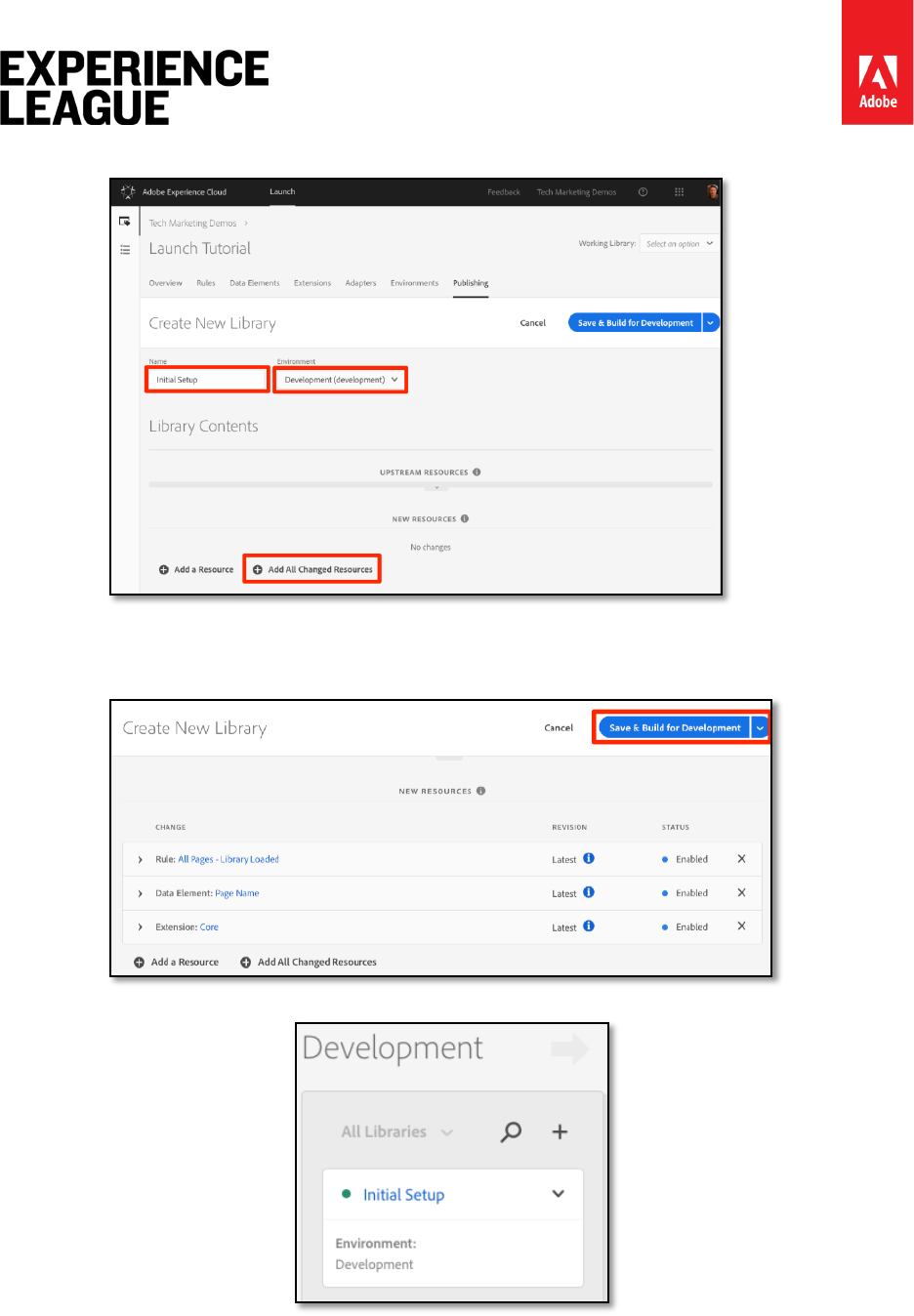
Adobe.com/go/summit2019-l779 experienceleague.adobe.com
15
5. Click [Add All Changed Resources]
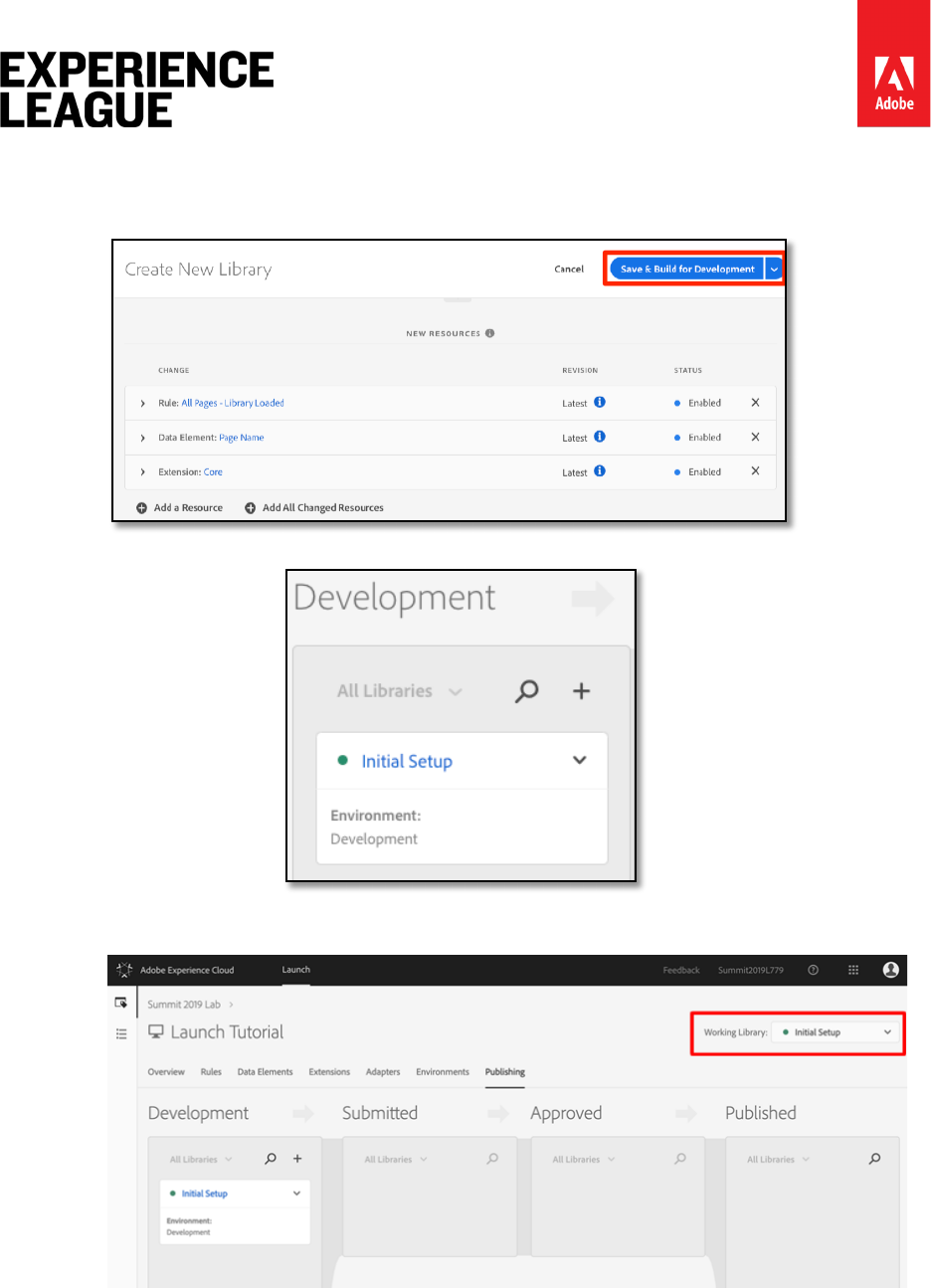
6. Note that after clicking [Add All Changed Resources] Launch summarizes the
changes you just made.
7. Click [Save & Build for Development]
After a few moments, the status dot will turn green indicating the library successfully built.
Adobe.com/go/summit2019-l779 experienceleague.adobe.com
16
Exercise 3.2: Get the URL of your Development Environment
1. In your Launch property, open the Environments page
2. In the [Development] row, click the Install icon to open the modal
3. Click the Copy icon to copy the embed code to your clipboard
4. Click [Close] to close the modal
Exercise 3.3: Replace the Launch URL on the We.Retail Demo Site
1. Open the We.Retail demo site in your Chrome browser: http://bit.ly/WeRetail
2. Open the Experience Cloud Debugger extension by clicking the icon
Adobe.com/go/summit2019-l779 experienceleague.adobe.com
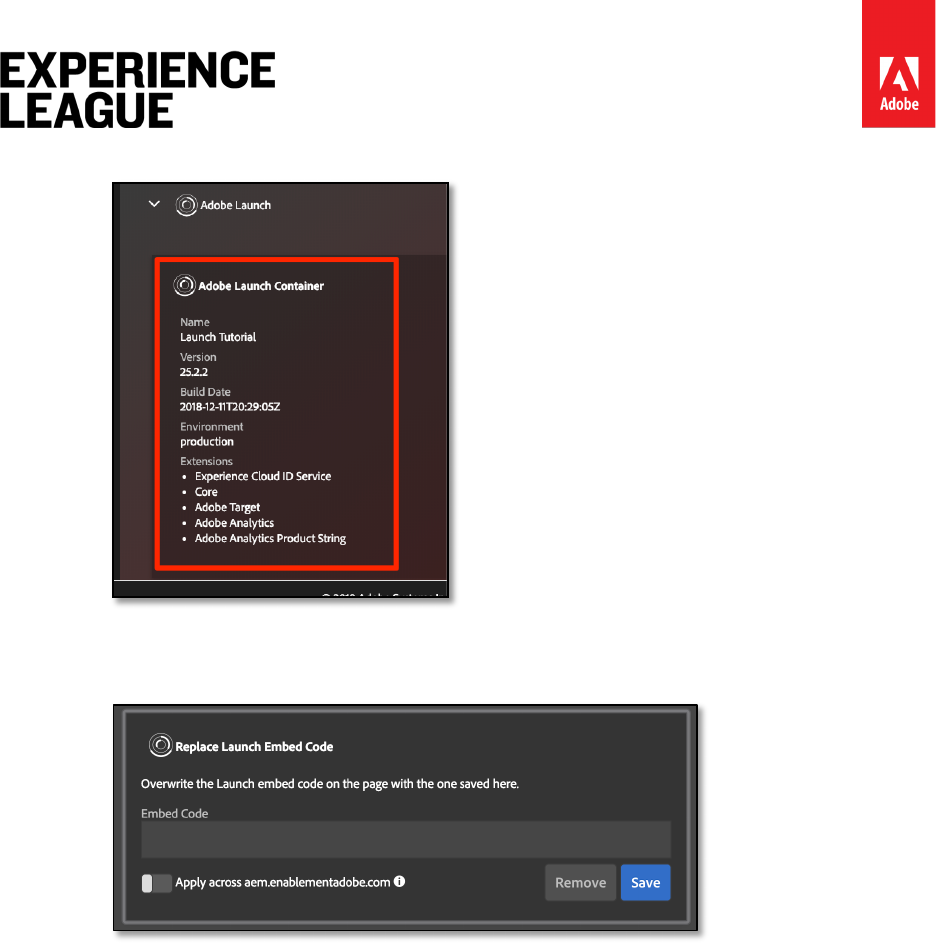
17
3. Note that the currently implemented Launch property is shown on the Summary tab
4. Go to the Tools tab
5. Click [Adobe Launch > Replace Launch Embed Code > Embed Code] button to open
the text input field:
6. Before you paste your embed code, make sure the Chrome tab with the We.Retail
site the one in focus behind the Debugger (not the tab with this tutorial or the tab
with the Launch interface)
7. Paste the embed code that is in your clipboard into the input field
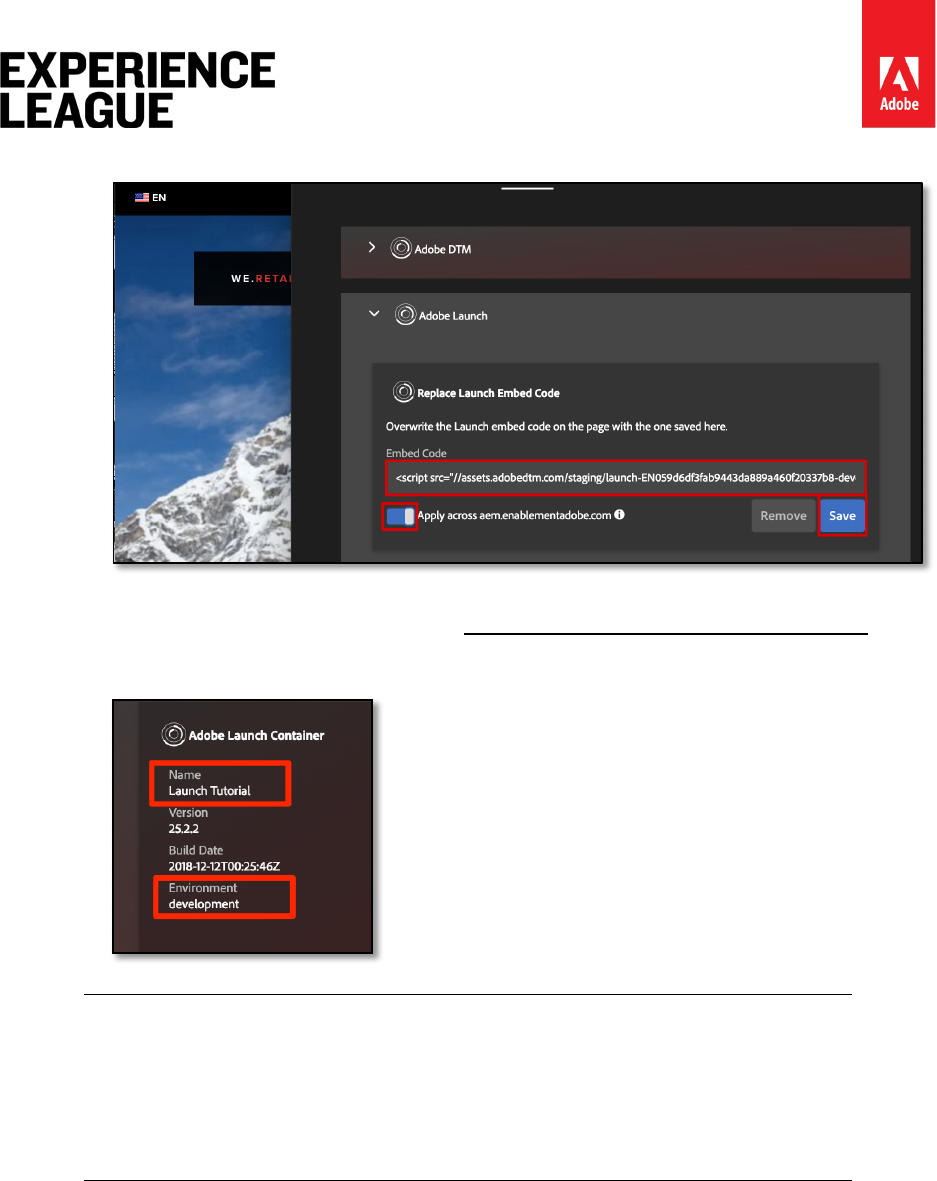
Adobe.com/go/summit2019-l779 experienceleague.adobe.com
18
8. Click the disk icon to save
9. Reload the We.Retail site and check the Summary tab of the Debugger. Under the
Launch section, you should now see your Development Property is being used.
Confirm that both the Name of the property matches yours and that the
Environment says "development."
The Debugger will save this configuration and replace the Launch embed
codes whenever you come back to the We.Retail site. It will not impact other
sites you visit in other open tabs. To stop the Debugger from replacing the
embed code, click the "X" next to the embed code in the Tools tab of the
Debugger.
As you continue the tutorial, you will use this technique of mapping the We.Retail site to your
own Launch property to validate your Launch implementation. When you start using Launch on
your production website, you can use this same technique to validate changes you make to
your Development and Staging Environments before you publish them to Production.
Adobe.com/go/summit2019-l779 experienceleague.adobe.com
19
Lesson 4 - Add a Data Element, a Rule, and a Library
In this lesson, you will create your first Data Element, Rule, and Library.
Data Elements and Rules are the basic building blocks of Launch. Data Elements store the
attributes you want to send to your marketing and advertising solutions, while Rules fire the
requests to those solutions under the right conditions. Libraries are the JavaScript files that load
on the page to do all of the work. In this lesson, you will use all three to make our sample page
do something.
Learning Objectives
At the end of this lesson, you will be able to:
• Create a data element
• Create a rule
• Create a library
• Add changes to a library
• Validate that your library is loading in your web browser
• Use the "Working Library" feature to work more efficiently
Exercise 4.1: Create a data element
Data elements are Launch’s version of a data layer. They can store values from your own data
layer object, cookies, local storage objects, query string parameters, page elements, meta tags,
etc. In this exercise, you will create a data element for Page Name, which you will use later in
your Target and Analytics implementations.
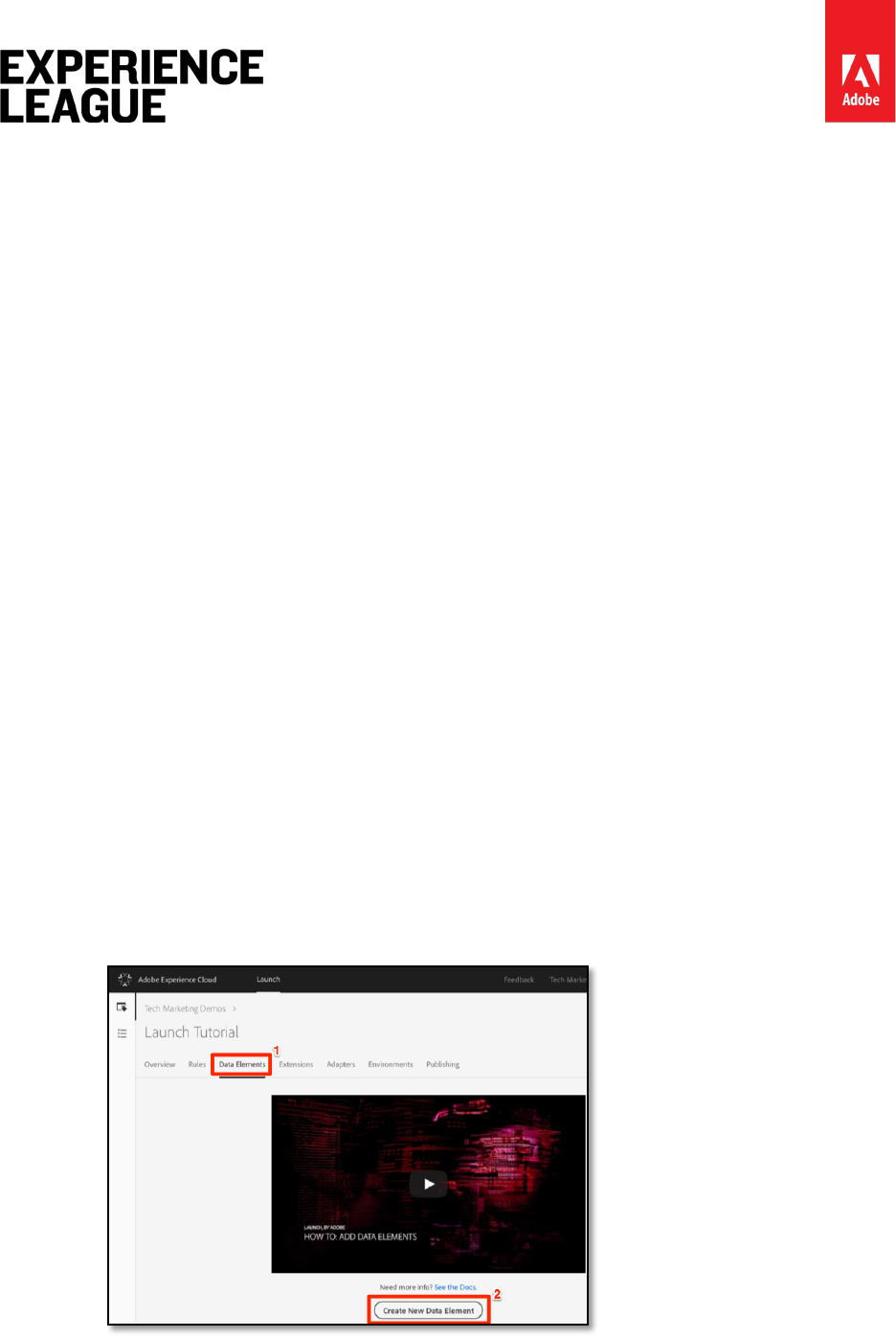
1. In the top navigation, click [Data Elements]
2. Since you haven't created any data elements yet in this property, a brief video
appears with additional information on this topic. Watch this video, if you like.
3. Click the [Create New Data Element] button:
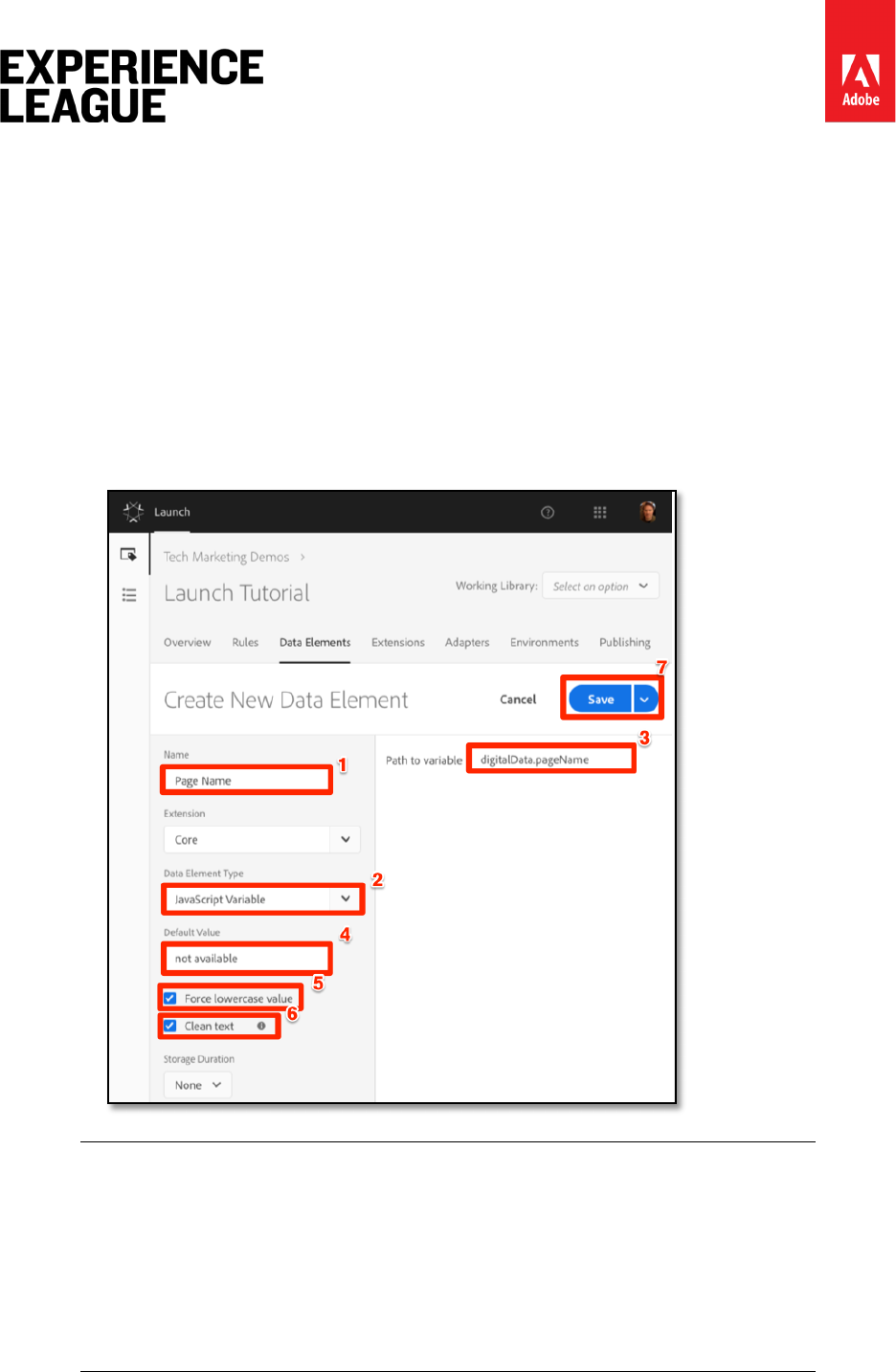
4. Name the data element, e.g. Page Name
Adobe.com/go/summit2019-l779 experienceleague.adobe.com
20
5. Use the [JavaScript Variable] Data Element type to point to a value in your sample
page's data layer:
digitalData.page.pageInfo.pageName
6. Use "not available" as the [Default Value]. The [Default Value] tells Launch what
value to use for the data element if your JavaScript Variable specified above is not
found.
7. Check the boxes for [Force lowercase value] and [Clean text] to standardize the case
and remove extraneous spaces
8. Leave [None] as the [Storage Duration] setting since this value will typically be
different on every page
9. Click the [Save] button to save the data element
DTM Migrators: New data element types have been added to Launch, which
did not exist in DTM. Some of the new data element types include Local
Storage, Session Storage, Page Info, and Random Number.
Data element capabilities can be extended with Extensions. For example, the
ContextHub extension allows you to add data elements using features of the
extension.
Adobe.com/go/summit2019-l779 experienceleague.adobe.com
21
Exercise 4.2: Create a Rule
Next you will use this data element in a simple rule. Rules are one of the most powerful
features in Launch and allow you to specify what should happen as the visitor interacts with
your website. When the criteria outlined in your rules are met, the rule triggers the action you
have specified.
You are going to create a rule that outputs the Page Name data element value to the browser
console.
To create a rule
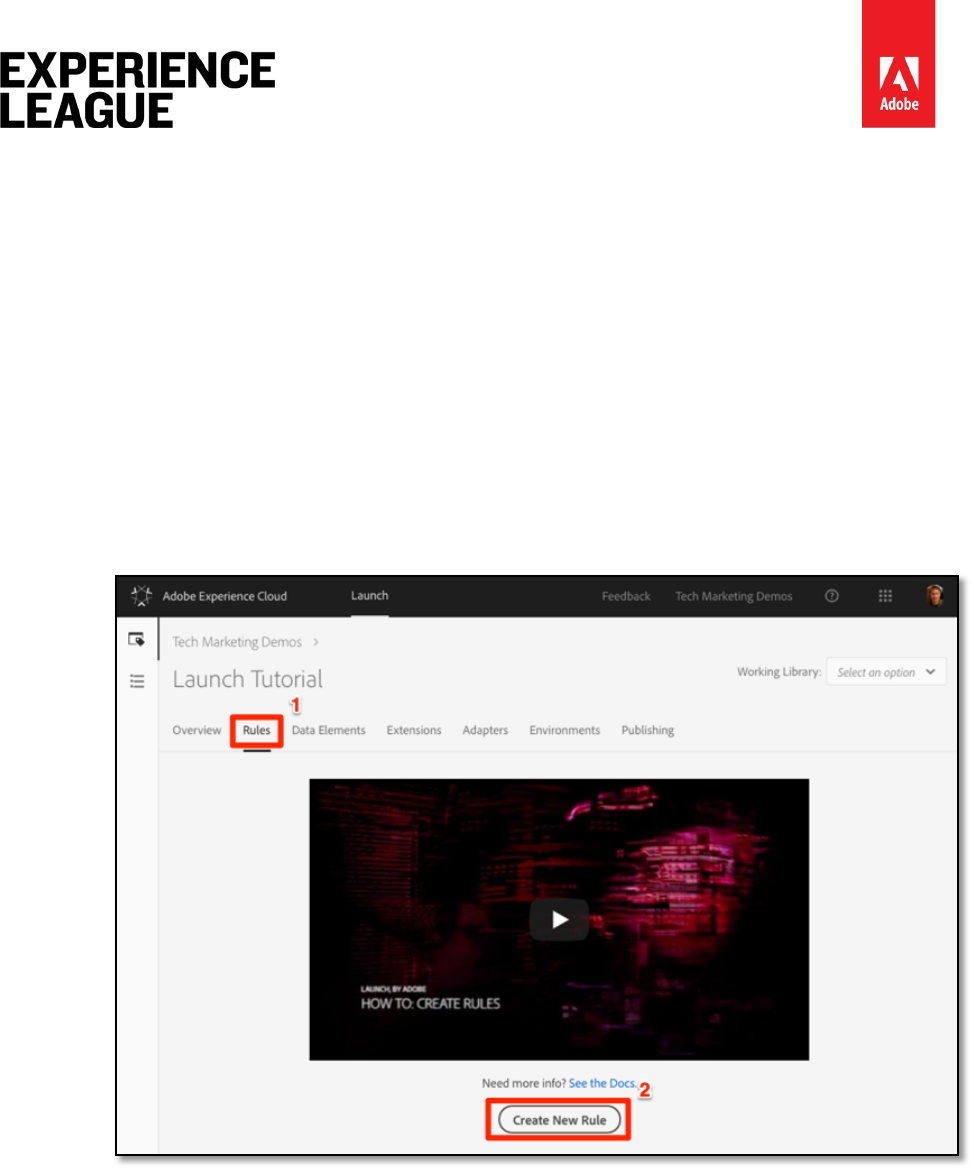
1. In the top navigation, click [Rules]
2. Since you haven't created any rules yet in this property, a brief video appears with
additional information on the topic. Watch this video, if you like.
3. Click the [Create New Rule] button:
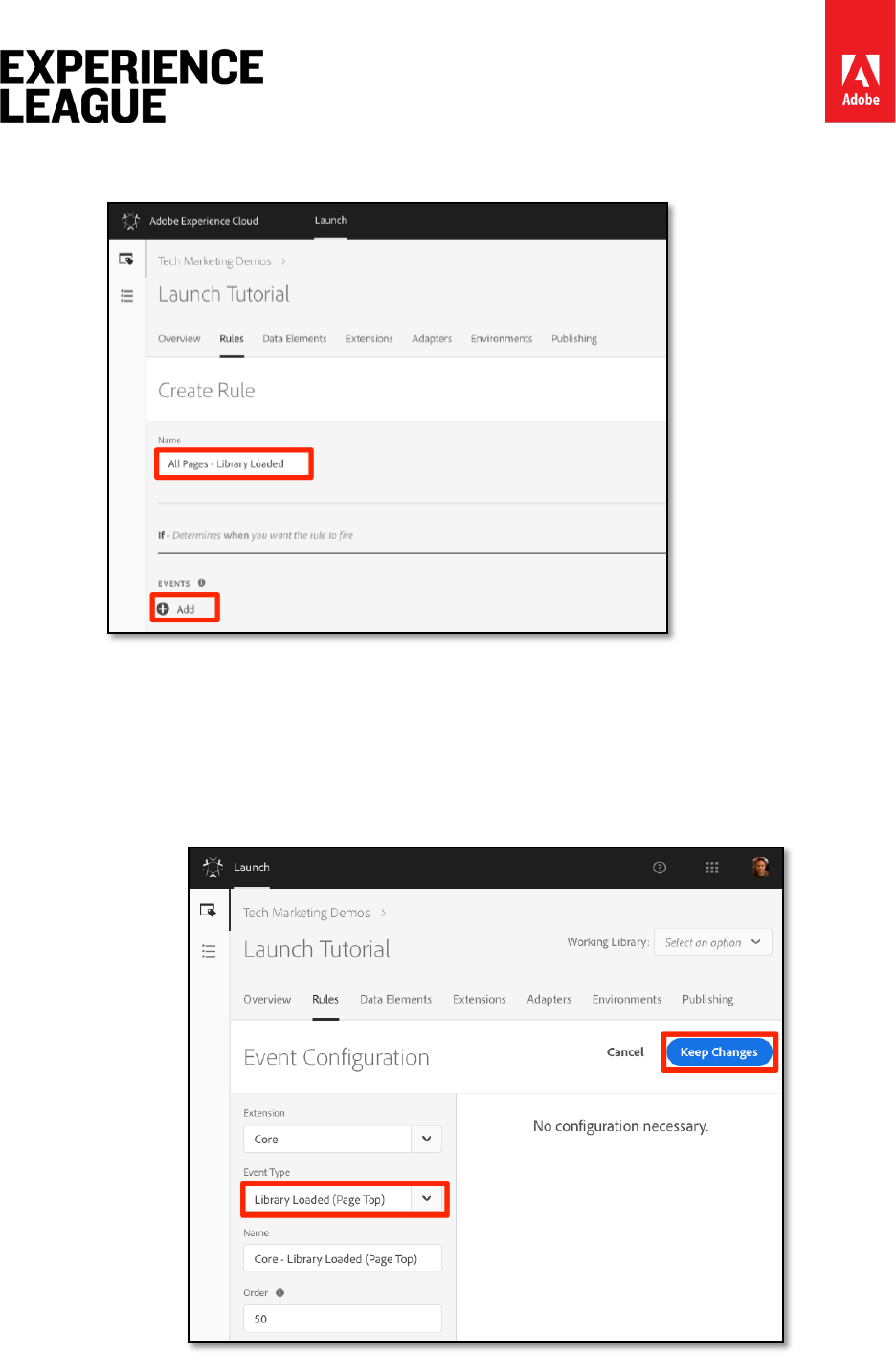
4. Name the Rule: ”All Pages - Library Loaded” This naming convention
indicates where and when the rule will fire, making it easier to identify and re-use as
your Launch property matures.
Adobe.com/go/summit2019-l779 experienceleague.adobe.com
22
5. Under Events, click [Add]. The Event tells Launch when the rule should fire and can
be many things, including a page load, a click, a custom JavaScript event, etc.
i. As the Event Type, select [Library Loaded (Page Top)]. Note that when you
select the Event Type, Launch pre-populates a name for the event using
your selection. Also note that the default order for the event is 50. Ordering
is a powerful feature in Launch which gives you precise control over the
sequence of actions when you have multiple rules that are triggered by the
same event. You will use this feature later in the tutorial.
ii. Click the [Keep Changes] button
Adobe.com/go/summit2019-l779 experienceleague.adobe.com
23
6. Since this rule should fire on all pages, leave [Conditions] blank. If you open the
Conditions modal, you will see that conditions can add both restrictions and
exclusions based on a large variety of options, including URLs, data element values,
date ranges, and more.
7. Click [Save] to save the rule
Exercise 4.3: Save Your Changes to a Library
After configuring a collection of extensions, data elements, and rules in the Launch interface,
you need to package these capabilities and logic into a set of JavaScript code that you can
deploy on your website so that marketing tags will fire when visitors come to the site. A library
is the set of JavaScript code that will do this.
1. Go to the [Publishing] tab
2. Click [Add New Library]
3. Name the Library "Initial Setup"
4. Select [Environment > Development]
5. Click [Add All Changed Resources]
Adobe.com/go/summit2019-l779 experienceleague.adobe.com
24
6. Note that after clicking [Add All Changed Resources] Launch summarizes the
changes you just made.
7. Click [Save & Build for Development]
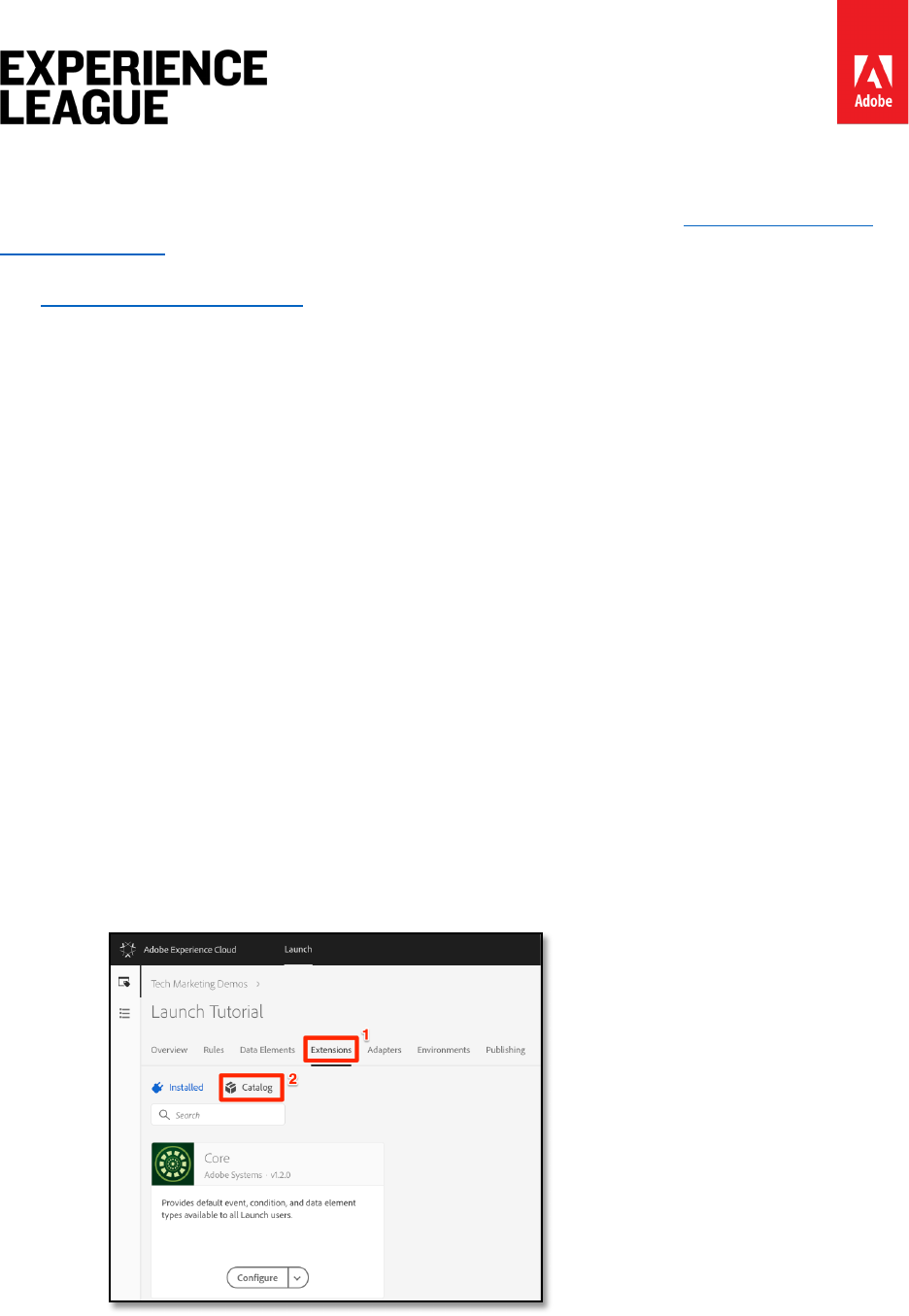
After a few moments, the status dot will turn green indicating the library successfully built.
8. Now Select this new Library as your “Working Library” Doing this will automatically
build and publish to the “Development” environment each time you save a change.
Adobe.com/go/summit2019-l779 experienceleague.adobe.com
25
Lesson 5 - Add the Experience Cloud ID Service
This lesson will guide your through the steps required to implement the Experience Cloud ID
Service extension and send customer ids.
The Experience Cloud ID Service sets a common visitor id across all Adobe solutions in order to
power Experience Cloud capabilities such as audience-sharing between solutions. You can also
send your own customer ids to the Service to enable cross-device targeting and integrations
with your Customer Relationship Management (CRM) system.
Learning Objectives
At the end of this lesson, you will be able to:
• Add the ID Service extension
• Create a data element to collect your customer ids
• Create a rule that uses the "Set Customer IDs" action to send the customer ids to
Adobe
• Use the rule ordering feature to sequence rules that fire on the same event
Exercise 5.1: Add the ID Service Extension
Since this is the first extension you are adding, here is a quick overview of extensions.
Extensions are one of the core features of Launch. An extension is an integration built by
Adobe, an Adobe partner, or any Adobe customer that adds new and endless options for the
tags that you can deploy to your website. If you think of Launch as an operating system,
extensions are the apps that you install so Launch can do the things you need it to do.
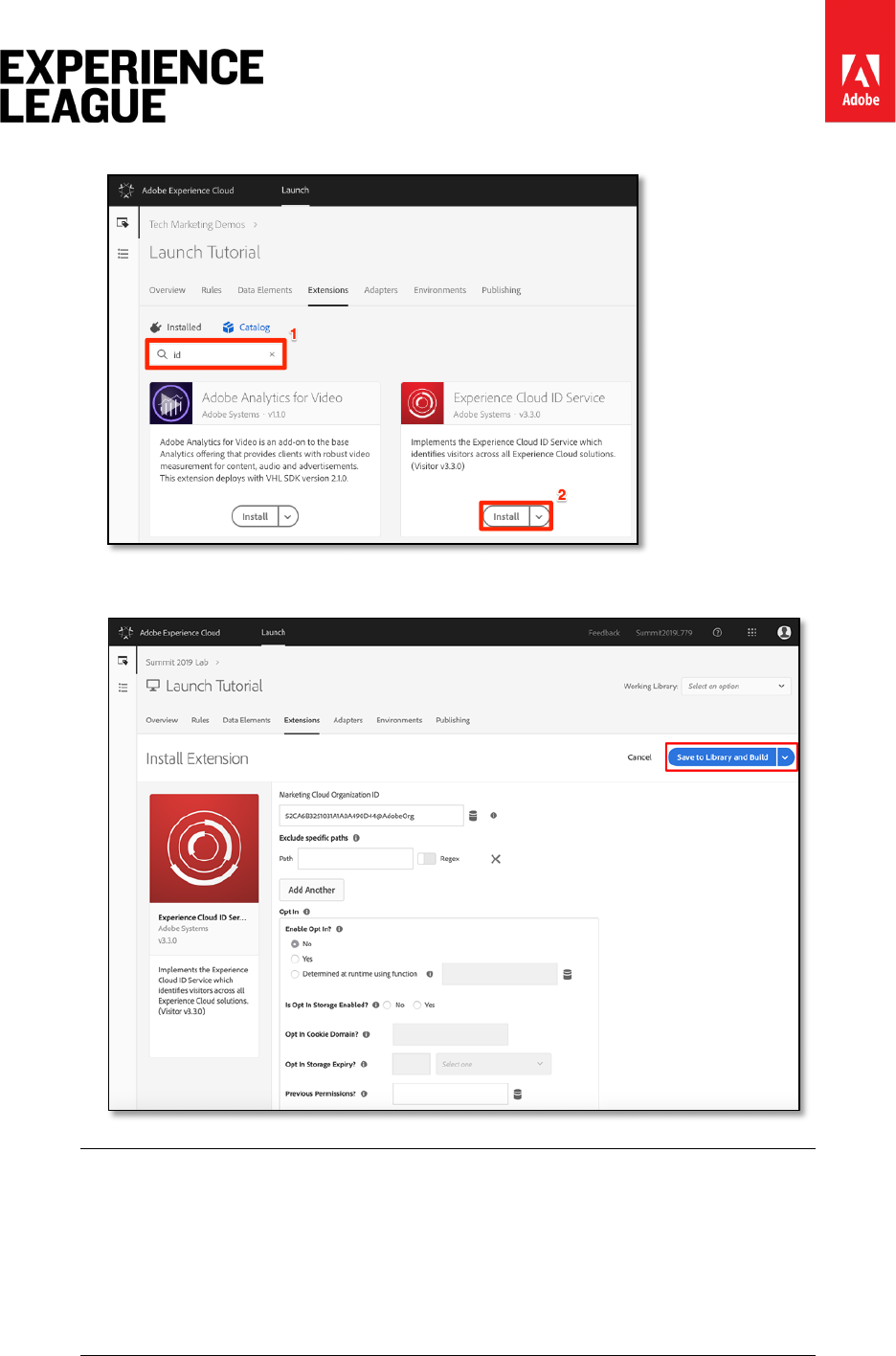
1. In the top navigation, click [Extensions]
2. Click [Catalog] to go to the Extensions Catalog page
3. Note the variety of extensions that are available in the Catalog
4. In the filter at the top, type "id" to filter the Catalog
Adobe.com/go/summit2019-l779 experienceleague.adobe.com
26
5. On the card for the Experience Cloud ID Service, click [Install]
6. Note that your Experience Cloud Organization ID has been auto-detected for you.
7. Leave all of the default settings and click [Save to Library and Build]
Each version of the ID Service extension comes with a specific version of
VisitorAPI.js which is noted in the extension description. You update the
VisitorAPI.js version by updating the ID Service extension.
This tutorial will not cover Adobe’s Opt-In Configurations but be aware this is
where you can suppress Adobe Beacons and Cookies until Consent is collected.
Adobe.com/go/summit2019-l779 experienceleague.adobe.com
27
Exercise 5.1.1: Validate the Extension
The ID Service extension is one of the few Launch extensions that makes a request without
having to use a rule action. The extension will automatically make a request to the ID Service on
the first page load of the first visit to a website. Once the ID has been requested, it will be
stored in a first party cookie beginning with "AMCV_".
1. Open the We.Retail site
2. Make sure the Debugger is mapping the Launch property to your Development
environment, as described in the earlier lesson.
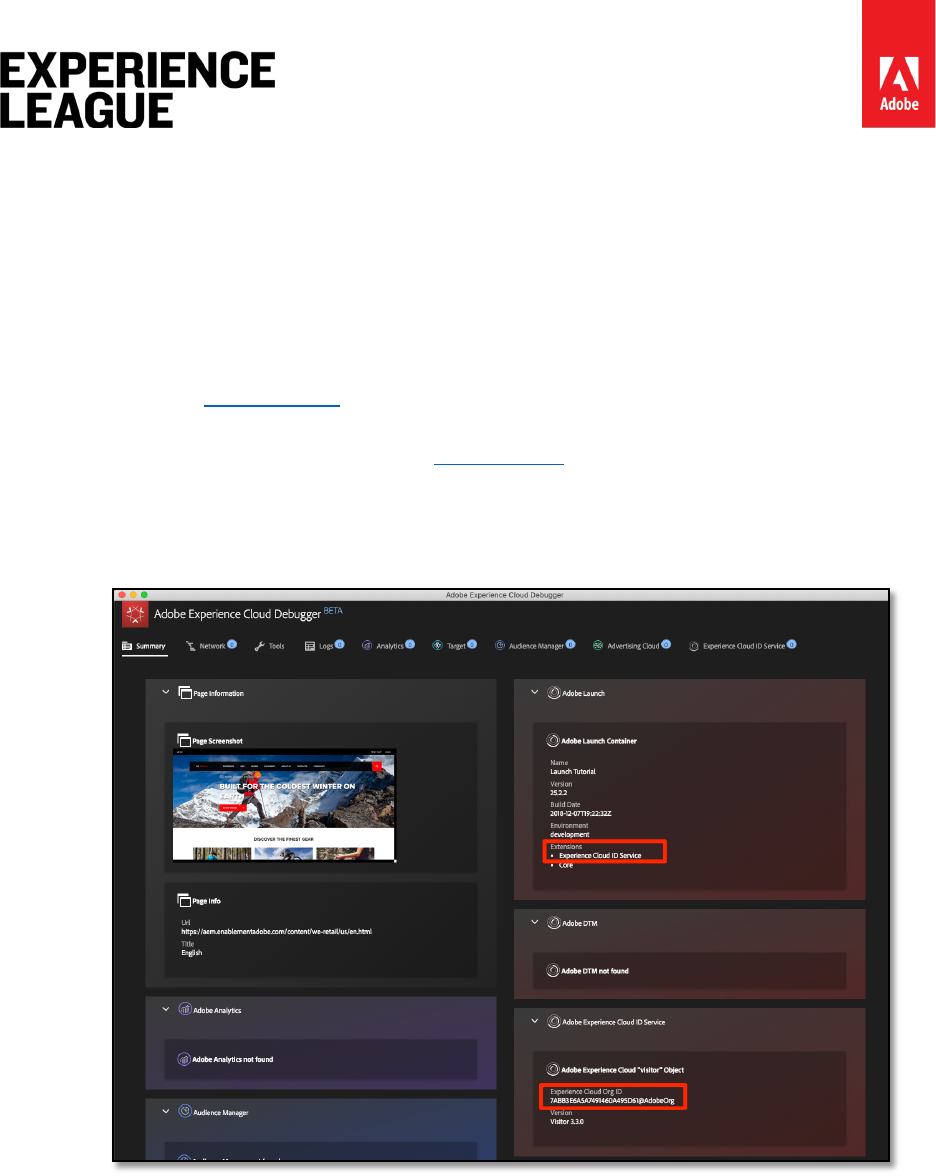
3. On the Summary tab of the Debugger, the Launch section should indicate that the
Experience Cloud ID Service extension is implemented.
4. Also, on the Summary tab, the ID Service section should populate with the same Org
ID that was on your extension configuration screen in the Launch interface:
Adobe.com/go/summit2019-l779 experienceleague.adobe.com
28
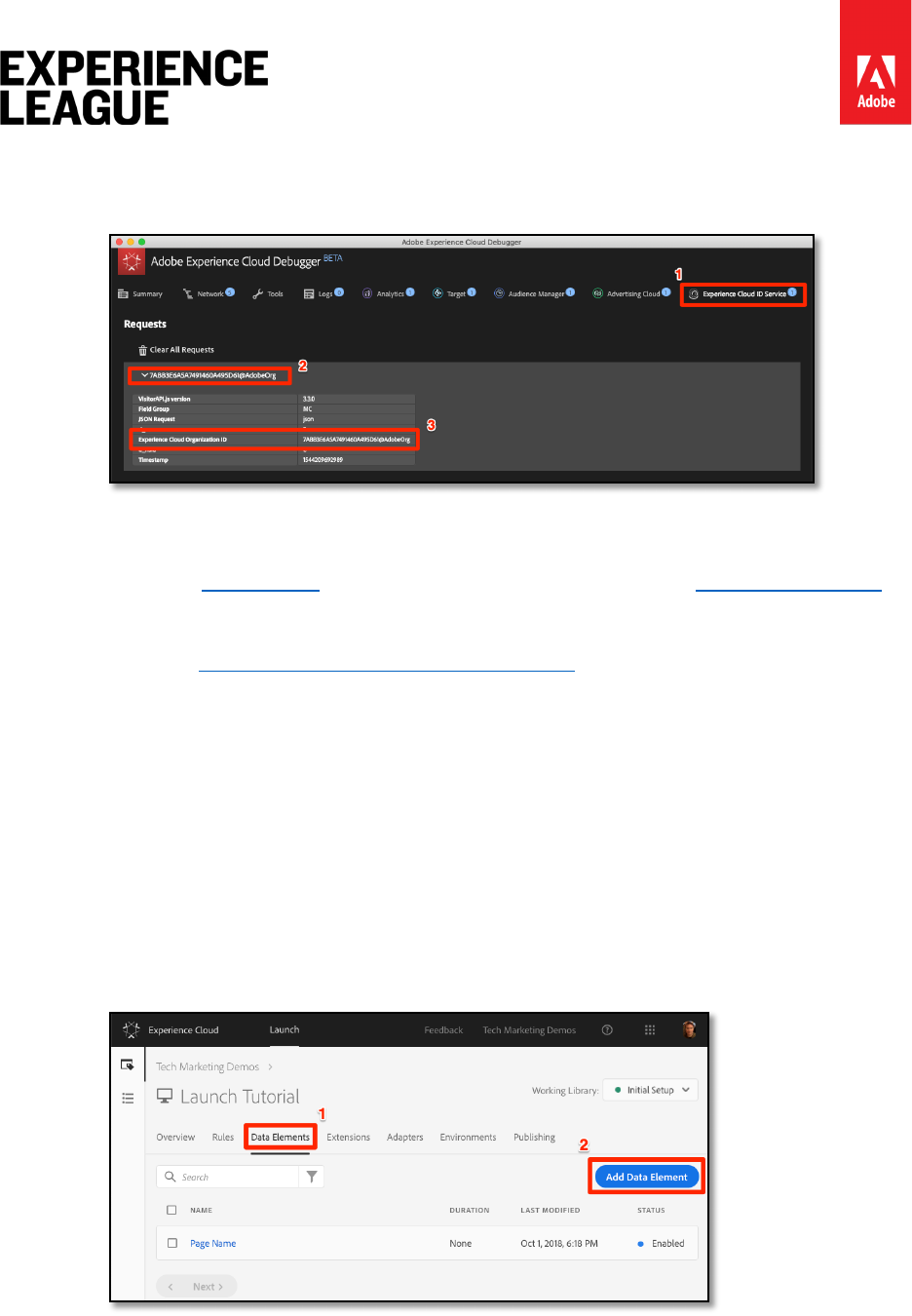
5. The initial request to retrieve the Visitor ID might appear in the ID Service tab of the
Debugger. It might have already been requested, though, so don't worry if you don't
see it:
Exercise 5.2: Send Customer IDs
Next, you will send a Customer ID to the ID Service. This will allow you to integrate your CRM
with the Experience Cloud as well as track visitors across devices.
In the earlier lesson, Add Data Elements, Rules, and Libraries you created a data element and
used it in a rule. Now, you will use those same techniques to send a Customer ID when the
visitor is authenticated.
Exercise 5.2.1: Create Data Elements for Customer IDs
Start by creating two data elements:
1. Authentication State—to capture whether or not the visitor is logged in
2. Email (Hashed)—to capture the hashed version of the email address (used as the
customer ID) from the data layer
To create the data element for Authentication State
1. Click [Data Elements] in the top navigation
2. Click the [Add Data Element] button
3. Name the data element Authentication State
4. For the [Data Element Type], select [Custom Code]
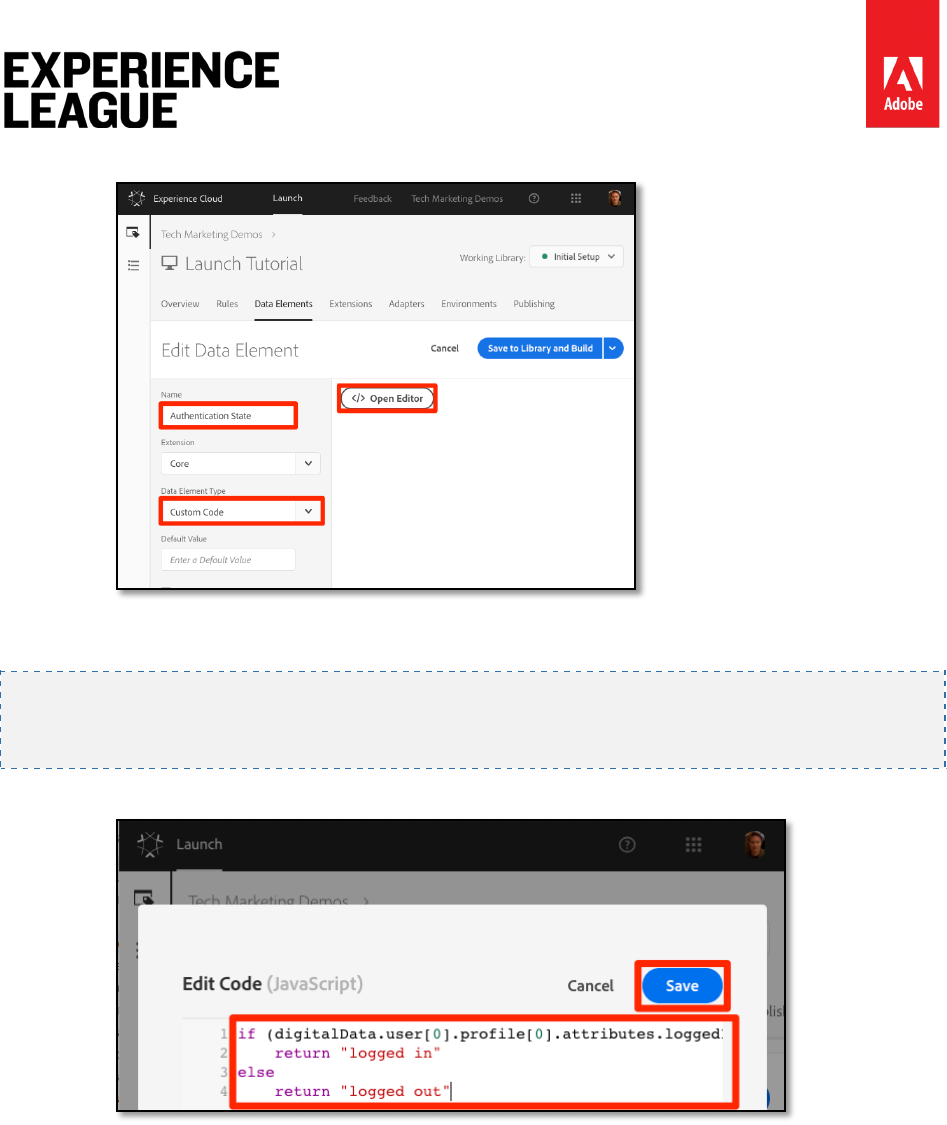
Adobe.com/go/summit2019-l779 experienceleague.adobe.com
29
5. Click the [Open Editor] button
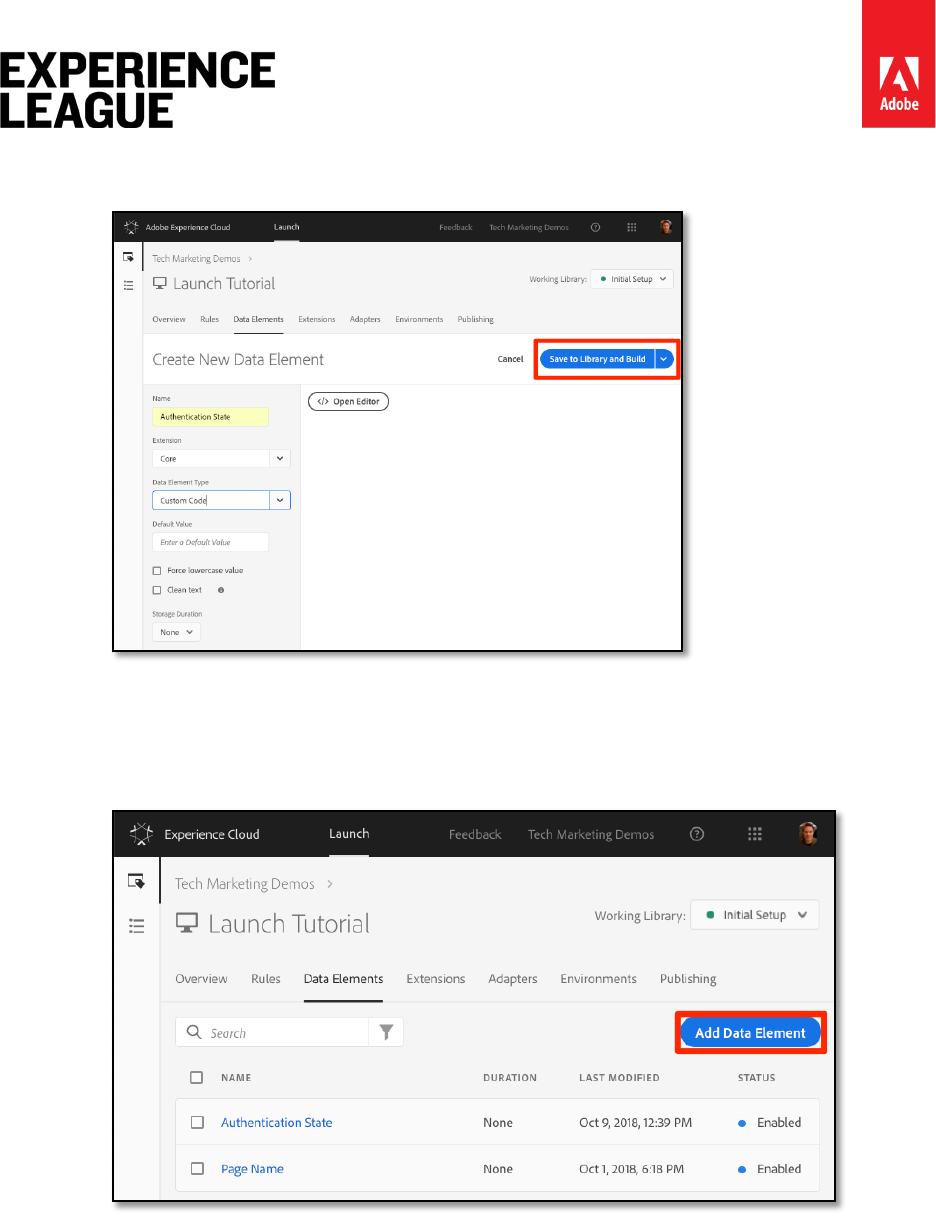
6. In the [Edit Code] window, use the following code to return values of "logged in" or
"logged out" based on an attribute in the We.Retail site's data layer:
if (digitalData.user[0].profile[0].attributes.loggedIn)
return "logged in"
else
return "logged out"
7. Click [Save] to save the custom code
8. Leave all of the other settings on their default values
Adobe.com/go/summit2019-l779 experienceleague.adobe.com
30
9. Click [Save to Library and Build] to save the data element and return to the data
elements page
By knowing the authentication state of the user, you know when a customer id should exist on
the page to send to the ID Service. The next step is to create a data element for the customer id
itself. On the We.Retail demo site, you will use the hashed version of the visitor's email address.
10. Click the [Add Data Element] button
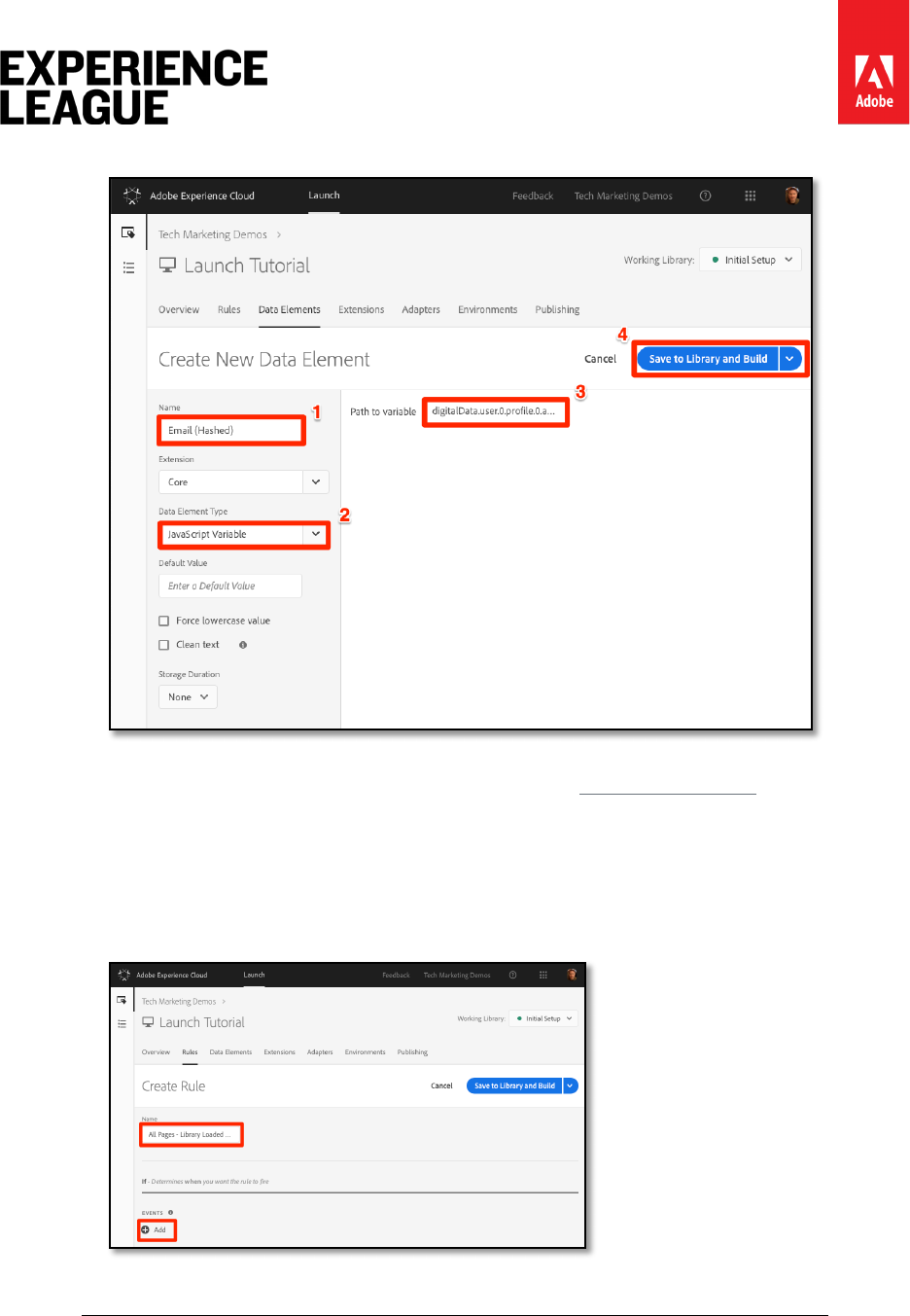
11. Name the data element Email (Hashed)
12. For the [Data Element Type], select [JavaScript Variable]
13. As the [Path to variable], use the following pointer to a variable in the We.Retail
site's data layer:
digitalData.user.0.profile.0.attributes.username
14. Leave all of the other settings on their default values
Adobe.com/go/summit2019-l779 experienceleague.adobe.com
31
15. Click [Save to Library and Build] to save the data element
Exercise 5.2.2: Add a Rule to Send the Customer IDs - (EXTRA CREDIT)
The Experience Cloud ID Service passes the Customer IDs in rules using an action called “Set
Customer IDs.” You will now create a rule to trigger this action when the visitor is
authenticated.
1. In the top navigation, click [Rules]
2. Click [Add Rule] to open the Rule Builder
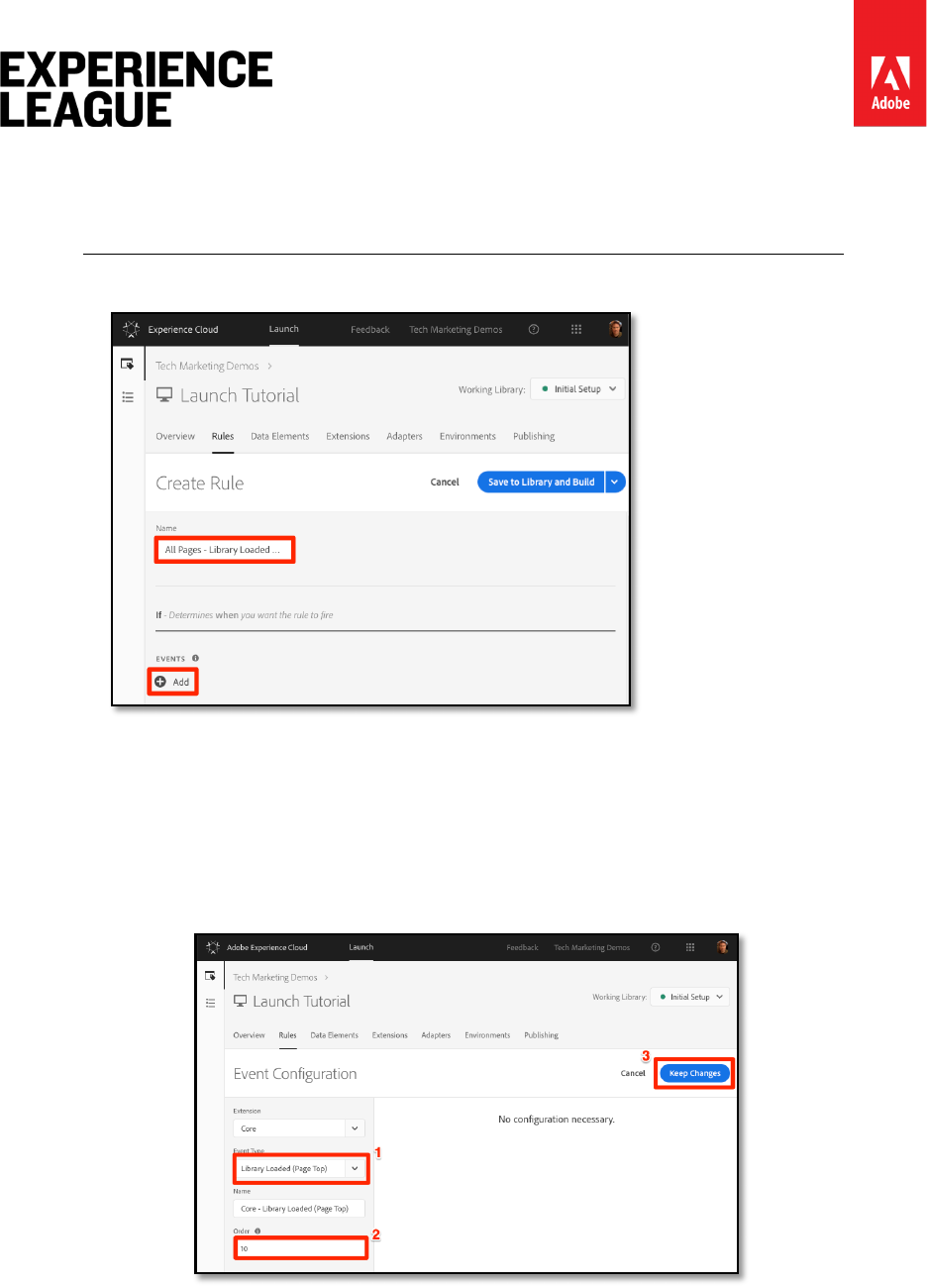
3. Name the rule All Pages - Library Loaded - Authenticated - 10
This naming convention indicates you are firing this rule at the top of all pages
when the user is authenticated and it will have an order of “10”. Using a
Adobe.com/go/summit2019-l779 experienceleague.adobe.com
32
naming convention like this - instead of naming it for the solutions triggered in
the actions - will allow you to minimize the overall number of rules needed by
your implementation.
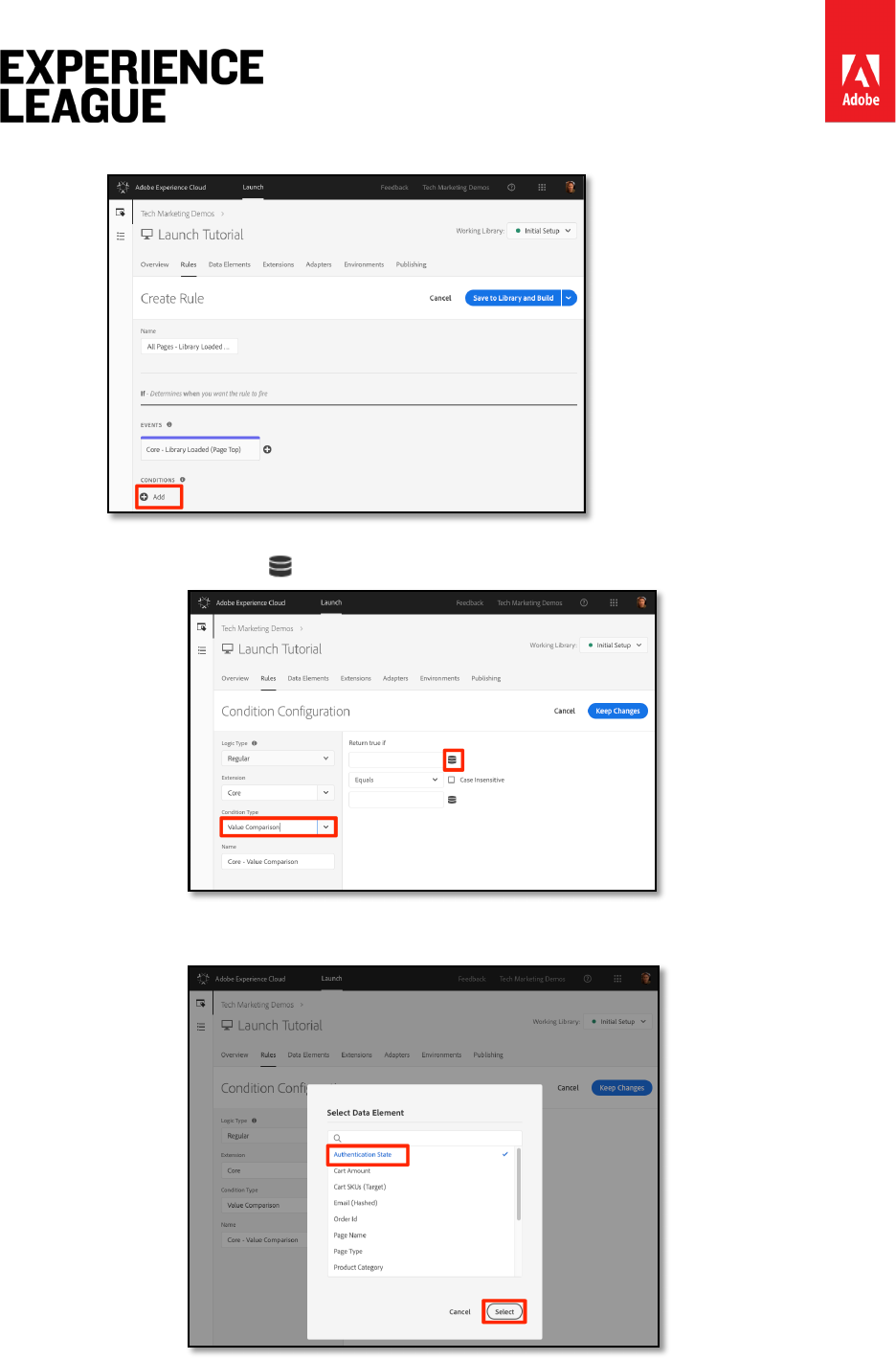
4. Under [Events] click [Add]
i. For the [Event Type] select [Library Loaded (Page Top)]
ii. For the [Order] enter 10. The Order controls the sequence of rules that are
triggered by the same event. Rules with a lower order will fire before rules
with a higher order. In this case, you want to set the customer ID before you
fire the Target request, which you will do in the next lesson with a rule with
an order of 50 .
iii. Click the [Keep Changes] button to return to the Rule Builder
Adobe.com/go/summit2019-l779 experienceleague.adobe.com
33
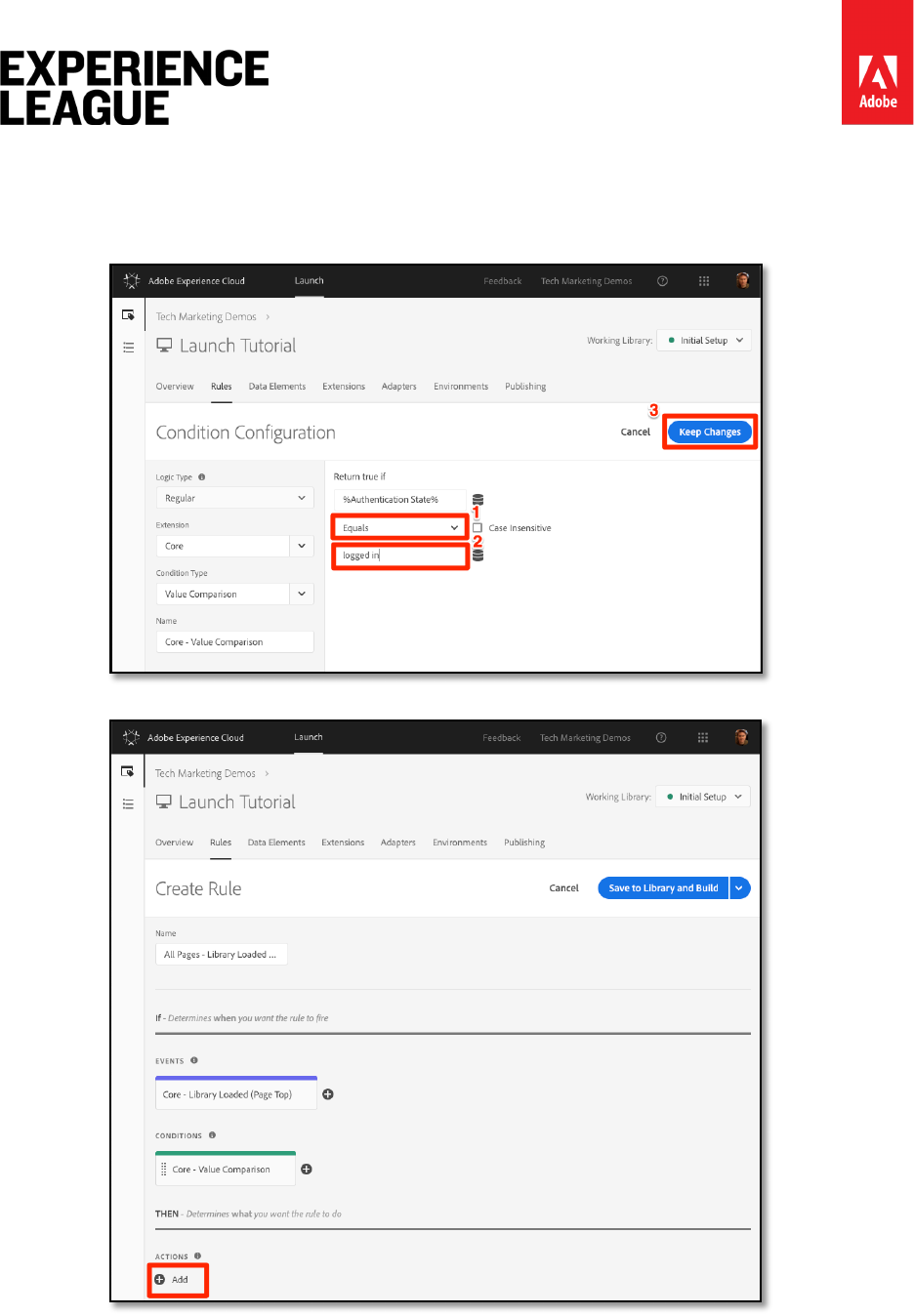
5. Under [Conditions] click [Add]
i. For the [Condition Type] select [Value Comparison]
ii. Click the icon to open the Data Element modal
iii. In the Data Element Modal, click on [Authentication State] and then click
[Select]
Adobe.com/go/summit2019-l779 experienceleague.adobe.com
34
6. Make sure Equals is the operator
7. Type "logged in" in the text field, causing the rule to fire whenever the Data Element
“Authentication State” has a value of “logged in”
8. Click [Keep Changes]
9. Under [Actions] click [Add]
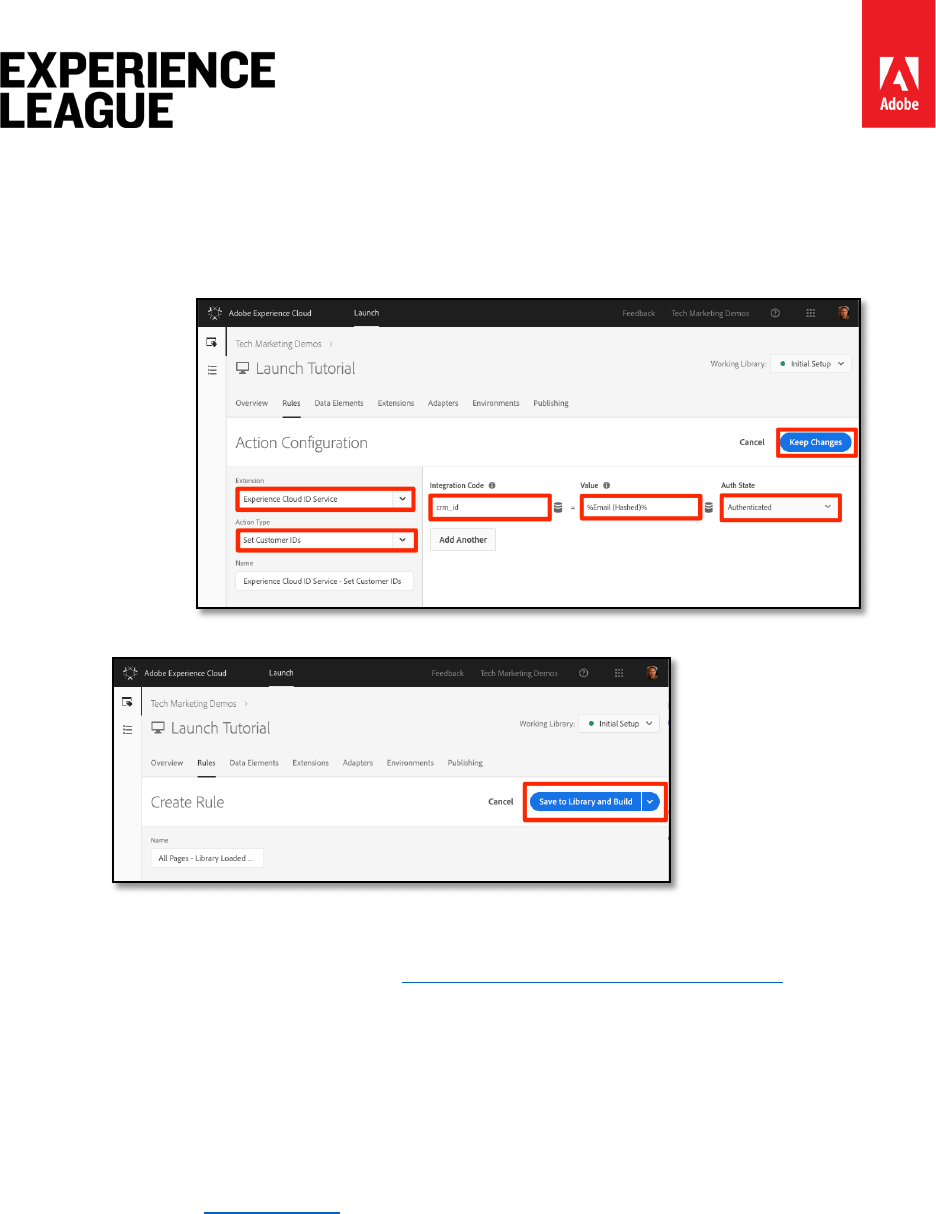
i. For the [Extension] select [Experience Cloud ID Service]
ii. For the [Action Type] select [Set Customer IDs]
iii. For the [Integration Code] enter crm_id
Adobe.com/go/summit2019-l779 experienceleague.adobe.com
35
iv. For the [Value] enter open the Data Element selector modal and select the
Email (Hashed)
v. For the [Auth State] select [Authenticated]
vi. Click the [Keep Changes] button to save the action and return to the Rule
Builder
10. Click the [Save to Library and Build] button to save the rule
You've now created a rule that will send the Customer ID as a variable crm_id when the visitor
is Authenticated. Since you specified the Order as 10 this rule will fire before your All Pages
- Library Loaded rule created in the Add Data Elements, Rules and Libraries lesson which
uses the default Order value of 50.
Exercise 5.2.3: Validate the Customer IDs
To validate your work, you will log into the We.Retail site to confirm the behavior of the new
rule.
To log into the We.Retail site
1. Open the We.Retail site
Adobe.com/go/summit2019-l779 experienceleague.adobe.com
36
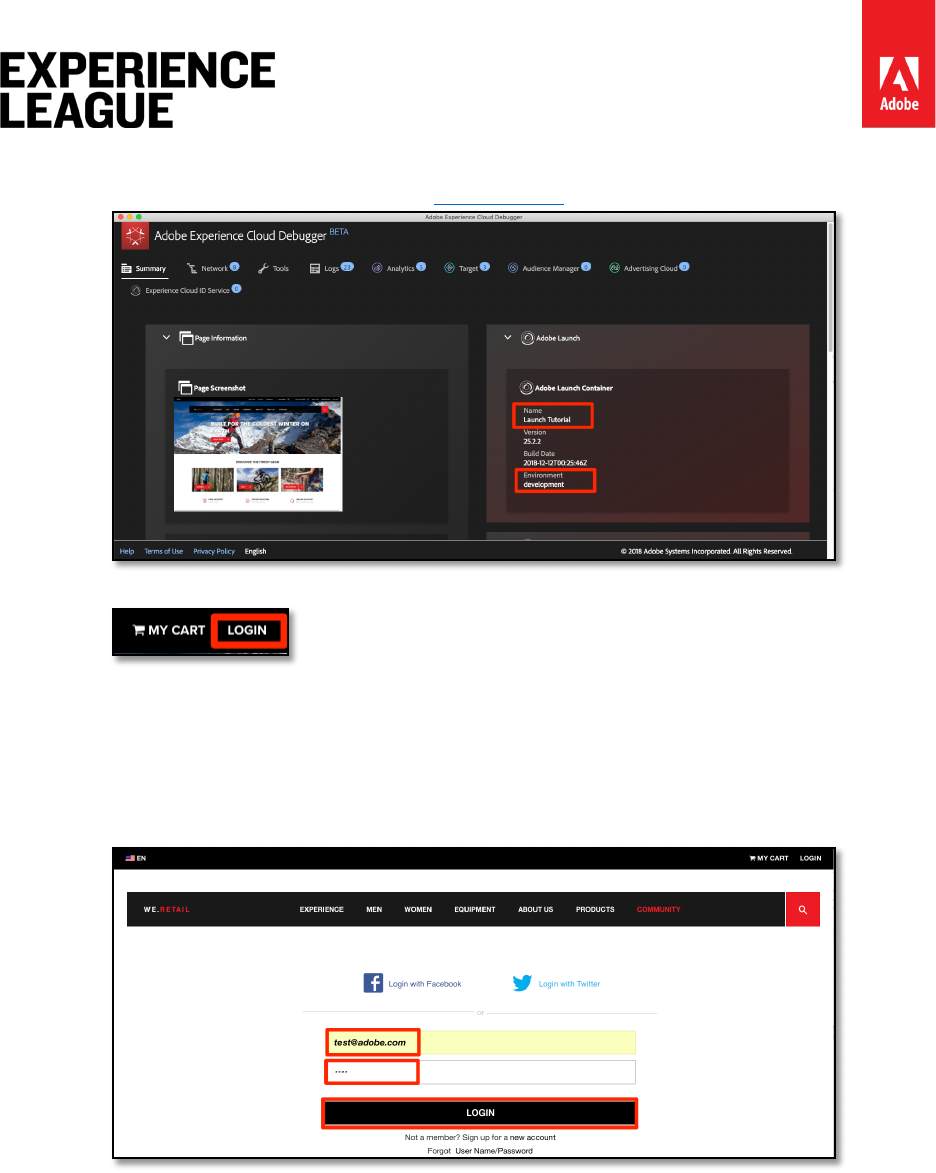
2. Make sure the Debugger is mapping the Launch property to your Development
environment, as described in the earlier lesson
3. Click the [LOGIN] link in the top right corner of the We.Retail site
4. Login using the info below:
Username: test@adobe.com
Password: test
5. Click the [LOGIN] button
6. Return to the Homepage!
Exercise 5.2.3.1: Confirm the Customer IDs
Now, confirm the customer id is sent to the Service using the Debugger extension.
1. Make sure the tab with the We.Retail site is in focus
2. In the Debugger, go to the Experience Cloud ID Service tab
3. Expand your Org ID
4. Click on the cell with the Customer ID - crm_id value
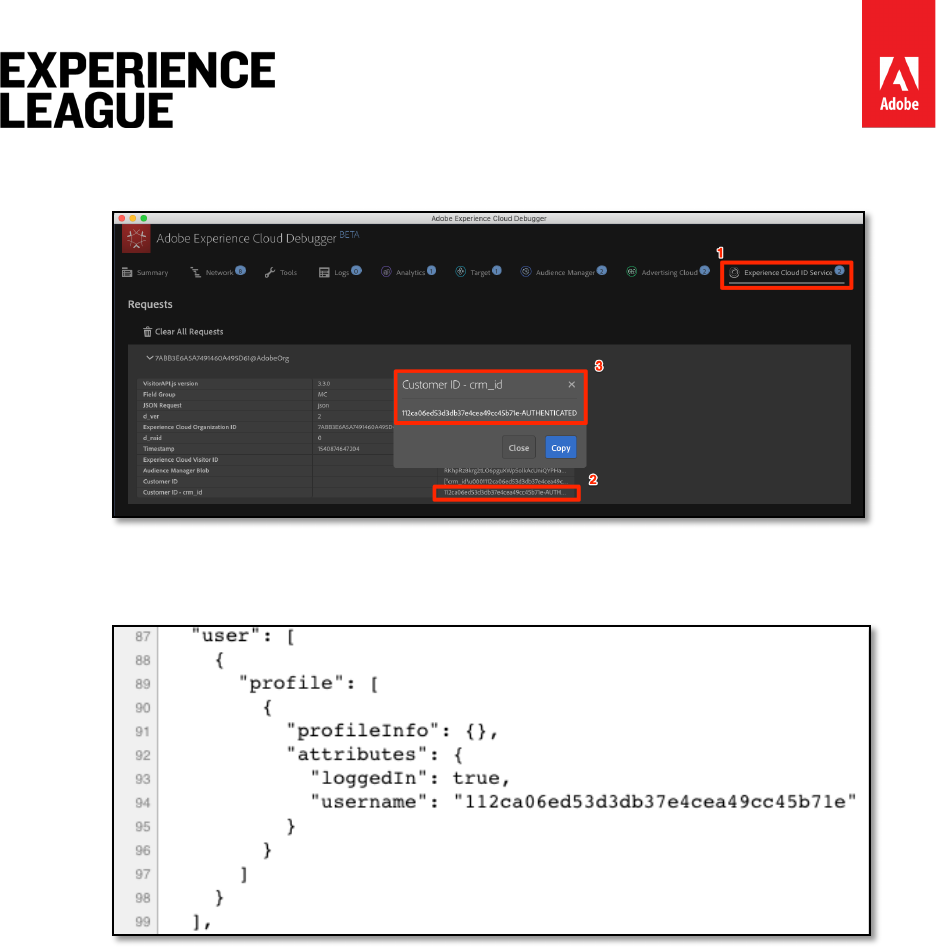
Adobe.com/go/summit2019-l779 experienceleague.adobe.com
37
5. In the modal, note the customer id value and that the AUTHENTICATED state is
reflected:
6. Note that you can confirm the hashed email value by viewing the source code of the
We.Retail page and looking at the username property. It should match the value you
see in the Debugger:
Exercise 5.2.4: Additional Validation Tips
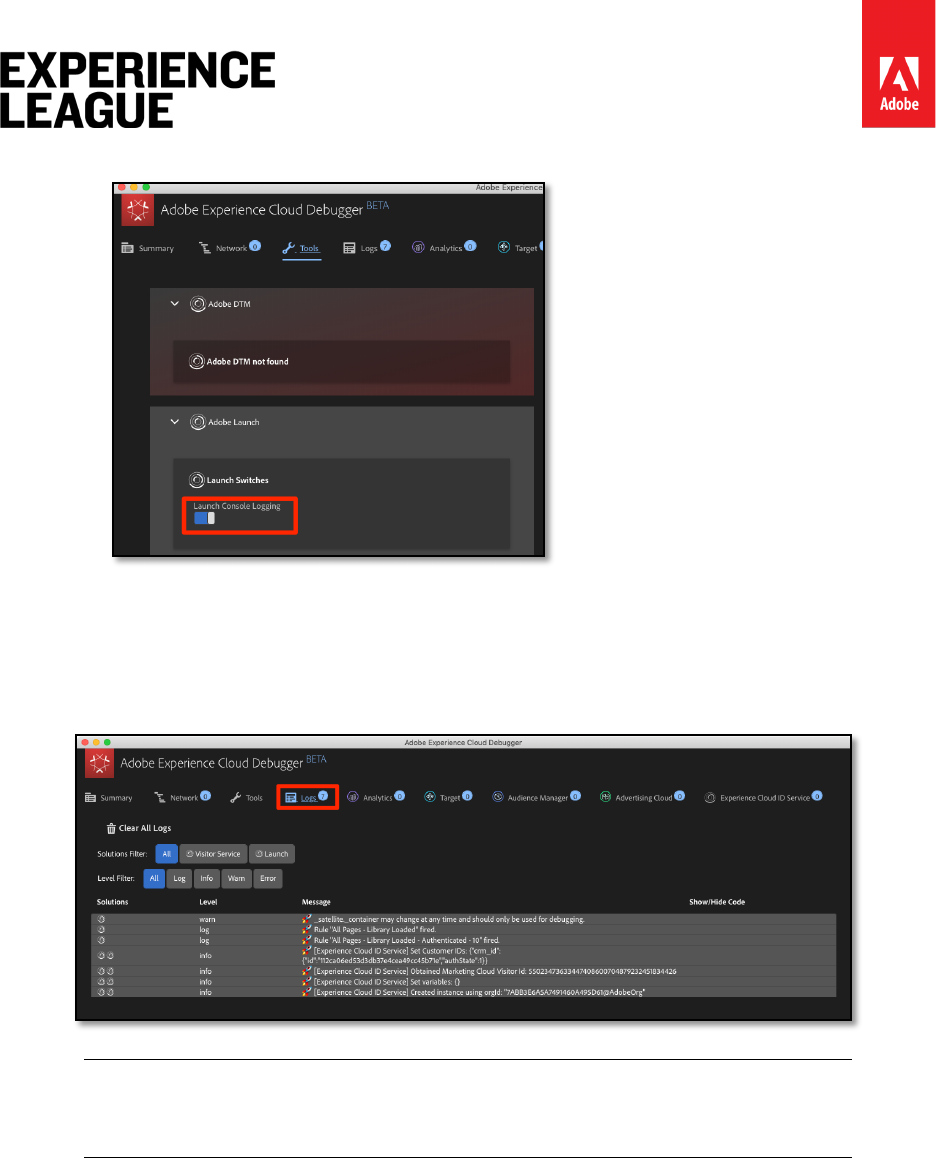
Launch also has rich console logging features. To turn them on:
1. Go to the [Tools] tab in the Debugger
Adobe.com/go/summit2019-l779 experienceleague.adobe.com
38
2. Turn on the [Launch Console Logging] toggle
This will turn on console logging both in your browser console and in the Logs tab of the
Debugger. You should see the logging of all of the rules you have created so far! Note that new
log entries are added to the top of the list, so your rule "All Pages - Library Loaded -
Authenticated - 10" should fire before the "All Pages - Library Loaded" rule and appear below it
in the Debugger's Console Logging:
Tip: All new log entries are added to the top of the list when using the Adobe
Experience Cloud Debugger

Adobe.com/go/summit2019-l779 experienceleague.adobe.com
39
Lesson 6 - Add Adobe Target
In this lesson, we will implement the Adobe Target extension with a global request and custom
parameters.
Adobe Target is the Adobe Marketing Cloud solution that provides everything you need to tailor
and personalize your customers' experience, so you can maximize revenue on your web and
mobile sites, apps, social media, and other digital channels.
Learning Objectives
At the end of this lesson, you will be able to:
1. Add the pre-hiding snippet used to manage flicker when using Target with
asynchronous Launch embed codes
2. Add the Target extension
3. Fire the global mbox
4. Add parameters to the global mbox
5. Explain how profile and entity parameters can be added to the global mbox
6. Fire the order confirmation mbox with required parameters
7. Explain how to add advanced configurations such as Library Header and Library
Footer code
8. Validate a Target implementation
Exercise 6.1: Add the Target Pre-Hiding Snippet
Before we get started, we need to make a slight update to the Launch embed codes. When the
Launch embed codes are loaded asynchronously, the page may finish rendering before the
Target library is fully loaded and has performed its content swap. This can lead to what is
known as "flicker" where default content briefly displays before being replaced by the
personalized content specified by Target. If you want to avoid this flicker, we strongly
recommend hardcoding a special pre-hiding snippet immediately before Launch's asynchronous
embed codes.
This has already been done on the We.Retail site for you, but this the code you would put right
above the embed code:
<script>
//prehiding snippet for Adobe Target with asynchronous Launch deployment
(function(g,b,d,f){(function(a,c,d){if(a){var
e=b.createElement("style");e.id=c;e.innerHTML=d;a.appendChild(e)}})(b.getElementsByTagName
("head")[0],"at-body-style",d);setTimeout(function(){var
a=b.getElementsByTagName("head")[0];if(a){var c=b.getElementById("at-body-
style");c&&a.removeChild(c)}},f)})(window,document,"body {opacity: 0
!important}",3E3);
</script>

Adobe.com/go/summit2019-l779 experienceleague.adobe.com
40
You can view the source of We.Retail if you want to see where it is in the example around like
115.
This pre-hiding behavior is controlled by two configurations at the very end of the snippet,
which can be customized but are usually best left on the default settings:
• body {opacity: 0 !important} specifies the css definition to use for the pre-
hiding until Target loads. By default, the entire body will be hidden. If you have a
consistent DOM structure with an easily identifiable container element wrapping all
of the content below your navigation, for example, and you never wanted to test or
personalize your navigation, you could use this setting to limit the pre-hiding to that
container element.
• 3E3 which specifies the timeout setting for the pre-hiding. By default, if Target hasn't
loaded in three seconds the page will be shown. This should be extremely rare.
For more details and to obtain the un-minified pre-hiding snippet, please see the Adobe Target
extension with an asynchronous deployment
Exercise 6.2: Add the Target Extension
The Adobe Target extension supports client-side implementations using Target's JavaScript SDK
for the modern web, at.js. Customers still using Target's older library, mbox.js, should upgrade
to at.js in order to use Launch.
The Target extension consists of two main parts:
1. The extension configuration, which manages the core library settings
2. Rule actions to do the following:
i. Load Target (at.js)
ii. Add Params to All Mboxes
iii. Add Params to Global Mbox
iv. Fire Global Mbox
In this first exercise we will add the extension and look at the configurations. In later exercises
we will use the actions.
1. Go to [Extensions > Catalog]
2. Type target in the filter to quickly locate the Adobe Target extension
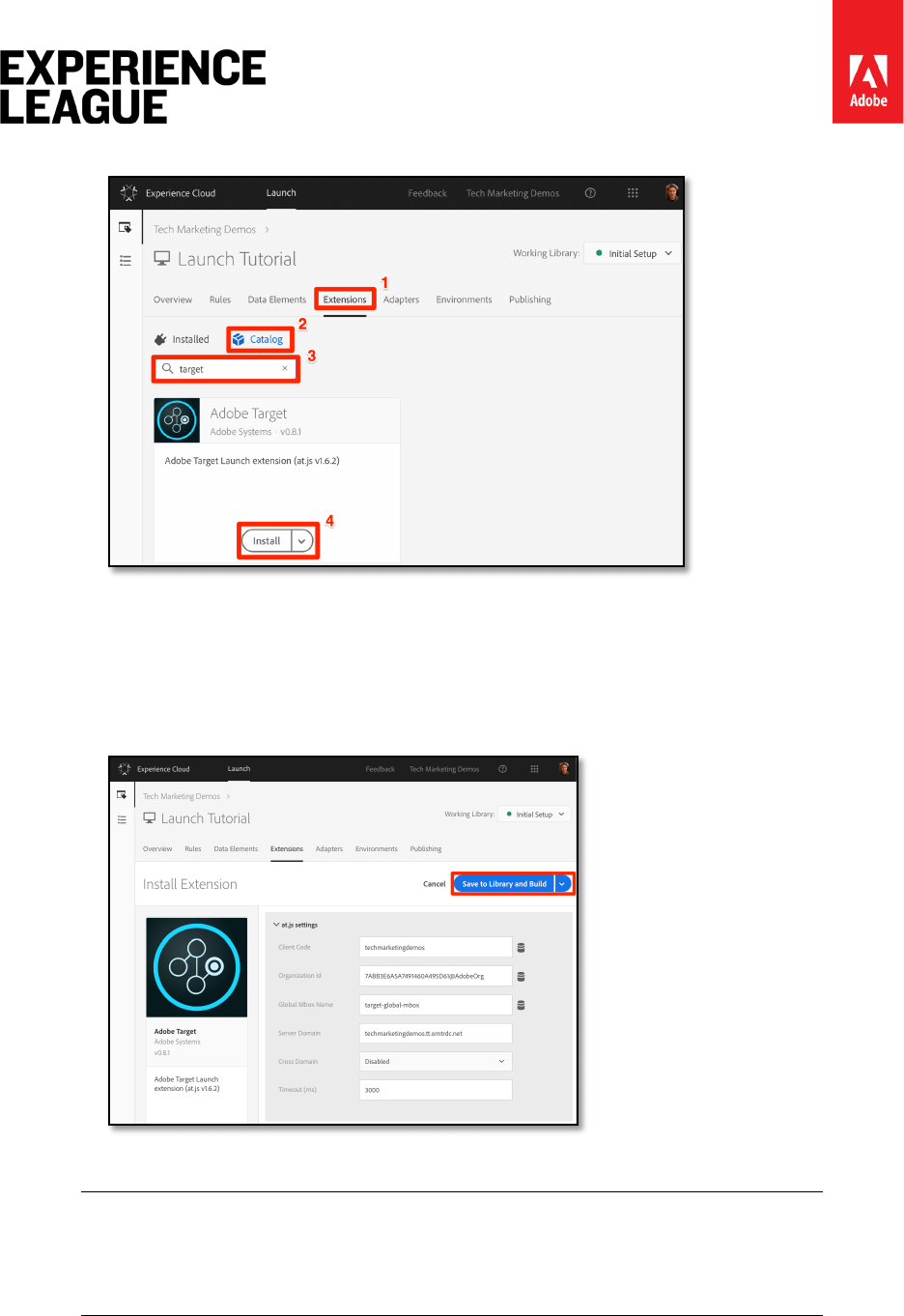
Adobe.com/go/summit2019-l779 experienceleague.adobe.com
41
3. Click [Install]
4. When you add the extension, it will import many, but not all of your at.js settings
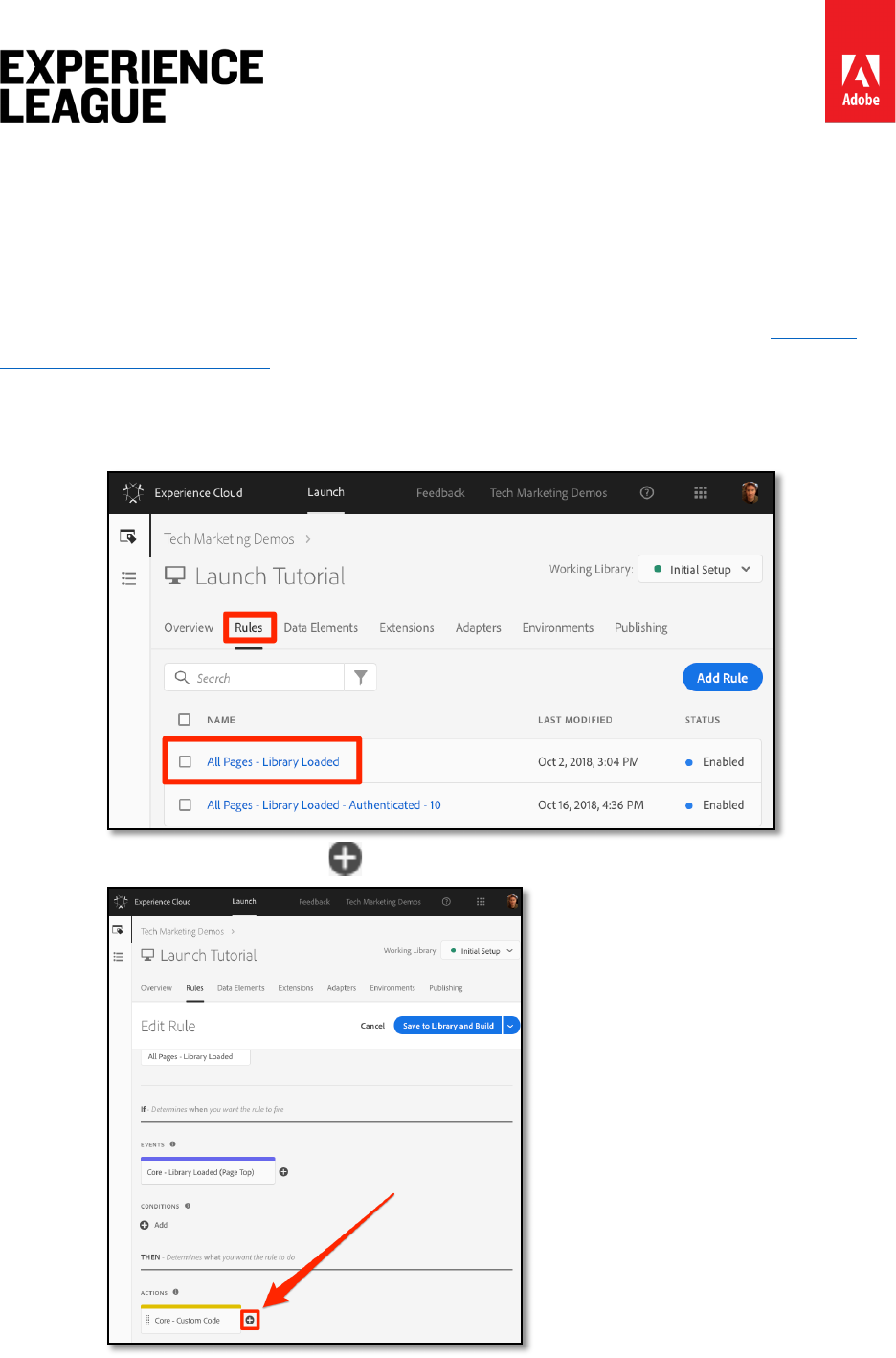
from the Target interface, as pictured below. One setting that will not be imported is
the Timeout, which will always be 3000ms after adding the extension. For the
tutorial, leave the default settings. Note, that on the left-hand side it will show the
at.js version that ships with the current version of the extension.
5. Click [Save to Library and Build]
At this point, Target isn't really doing anything, so there is nothing to validate.
Each version of the Target extension comes with a specific version of at.js,
which is listed in the extension description. You update the at.js version by
updating the Target extension.
Adobe.com/go/summit2019-l779 experienceleague.adobe.com
42
Exercise 6.3: Load Target and Fire the Global Mbox
Marketers use Target to control the visitor experience on the page when testing and targeting
content. Because of this important role in the display of the page, you should load Target as
early as possible to minimize the impact on page visibility. In this section, we will load the
Target JavaScript library - at.js - as well as fire the global mbox.
You can use the All Pages - Library Loaded rule you created in the lesson "Add Data
Elements, Rules and Libraries" to implement Target because it is already triggered on the first
event that will fire on a page load - the Library Loaded event.
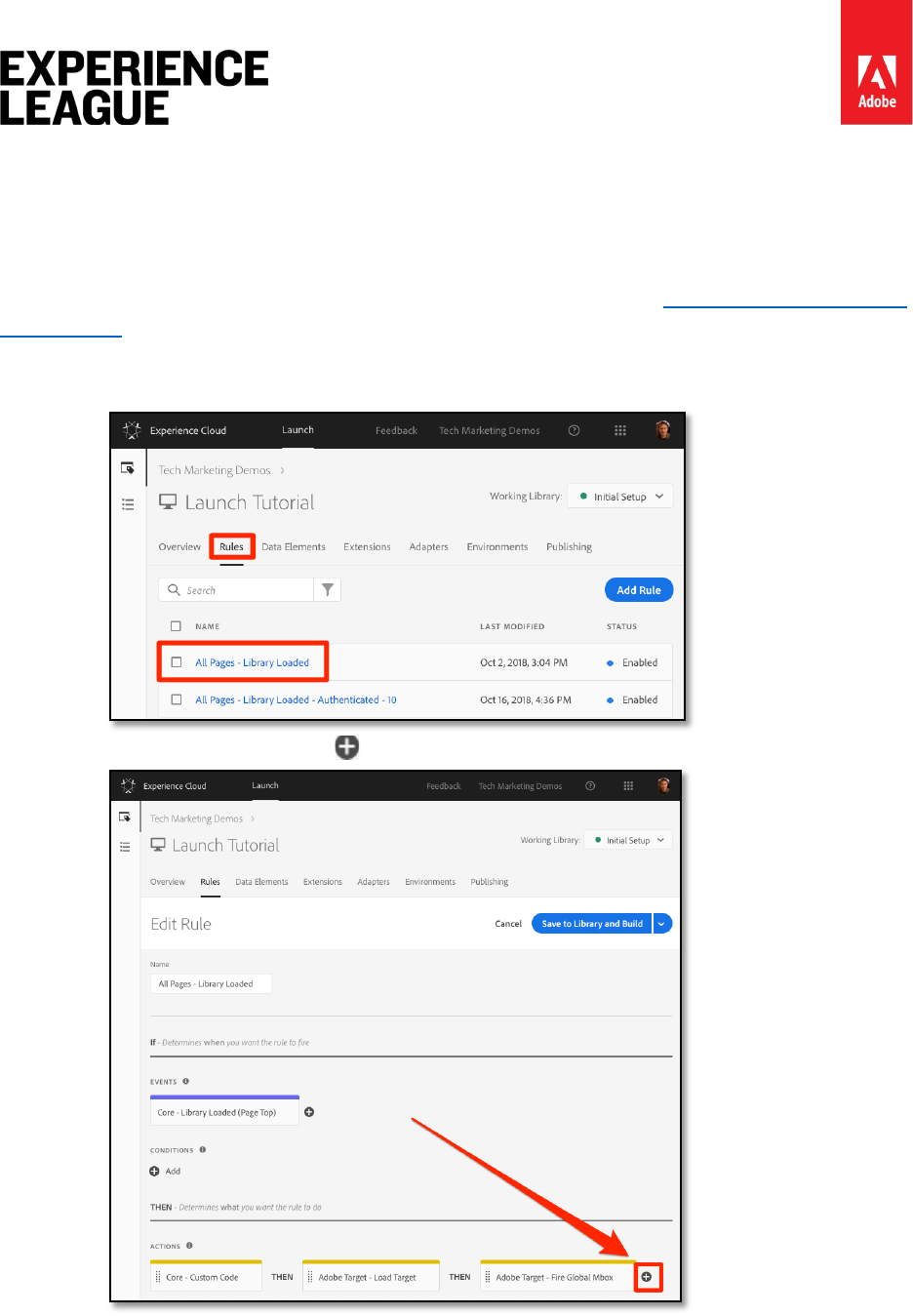
1. Go to the [Rules] in the top navigation and then click on All Pages - Library
Loaded to open the rule editor
2. Under Actions, click the to add a new action

Adobe.com/go/summit2019-l779 experienceleague.adobe.com
43
3. Select [Extension > Adobe Target]
4. Select [Action Type > Load Target]
5. Click [Keep Changes]
With the Load Target action added, at.js will load on the page. However, no Target requests
will fire until we add the Fire Global Mbox action.
To add the Fire Global Mbox action
1. Under Actions, click the again to add another action
2. Select [Extension > Adobe Target]
3. Select [Action Type > Fire Global Mbox]
4. There are some configurations available for the global mbox related to whether or
not to hide the page and CSS selector to use for pre-hiding. These settings work in
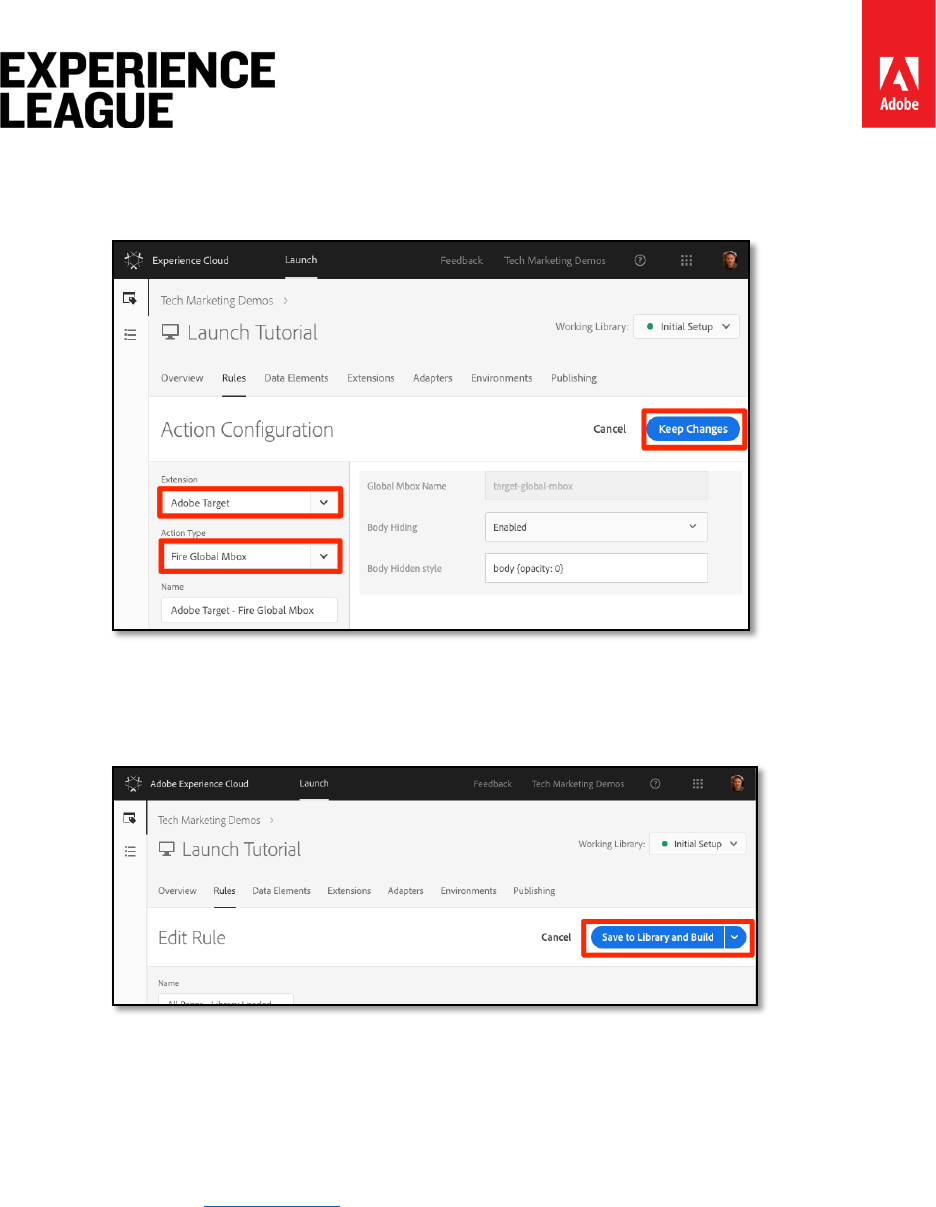
Adobe.com/go/summit2019-l779 experienceleague.adobe.com
44
conjunction with the pre-hiding snippet hardcoded on the page. Leave the default
settings.
5. Click [Keep Changes]
6. The new action is added in sequence after the Load Target action and the actions
will execute in this order. You can drag-and-drop the actions to rearrange the order,
but in this scenario, Load Target needs fire before the Fire Global Mbox.
7. Click [Save to Library and Build]
Exercise 6.3.1: Validate the Global Mbox
Now that you have added the Target extension and fired the Load Target and Fire Global
Mbox actions, there should be a global mbox request made on all pages where your Launch
property is used.
1. Open the We.Retail site
Adobe.com/go/summit2019-l779 experienceleague.adobe.com
45
2. Make sure the Debugger is mapping the Launch property to your Development
environment, as described in the earlier lesson
3. Go to the Summary Tab of the Debugger
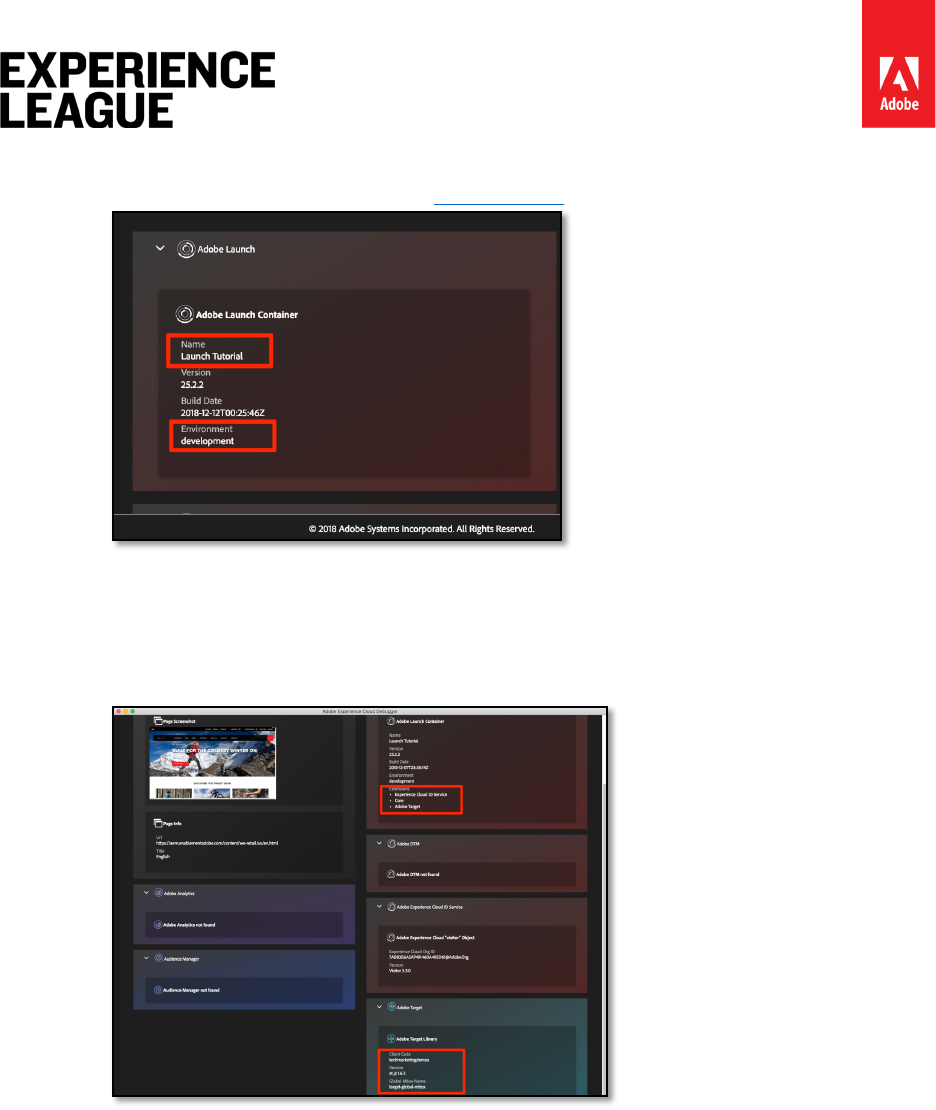
4. In the Launch section, confirm that Target appears under the Extensions
heading
5. In the Target section, confirm that your client code, at.js library version, and your
global mbox name appear
Adobe.com/go/summit2019-l779 experienceleague.adobe.com
46
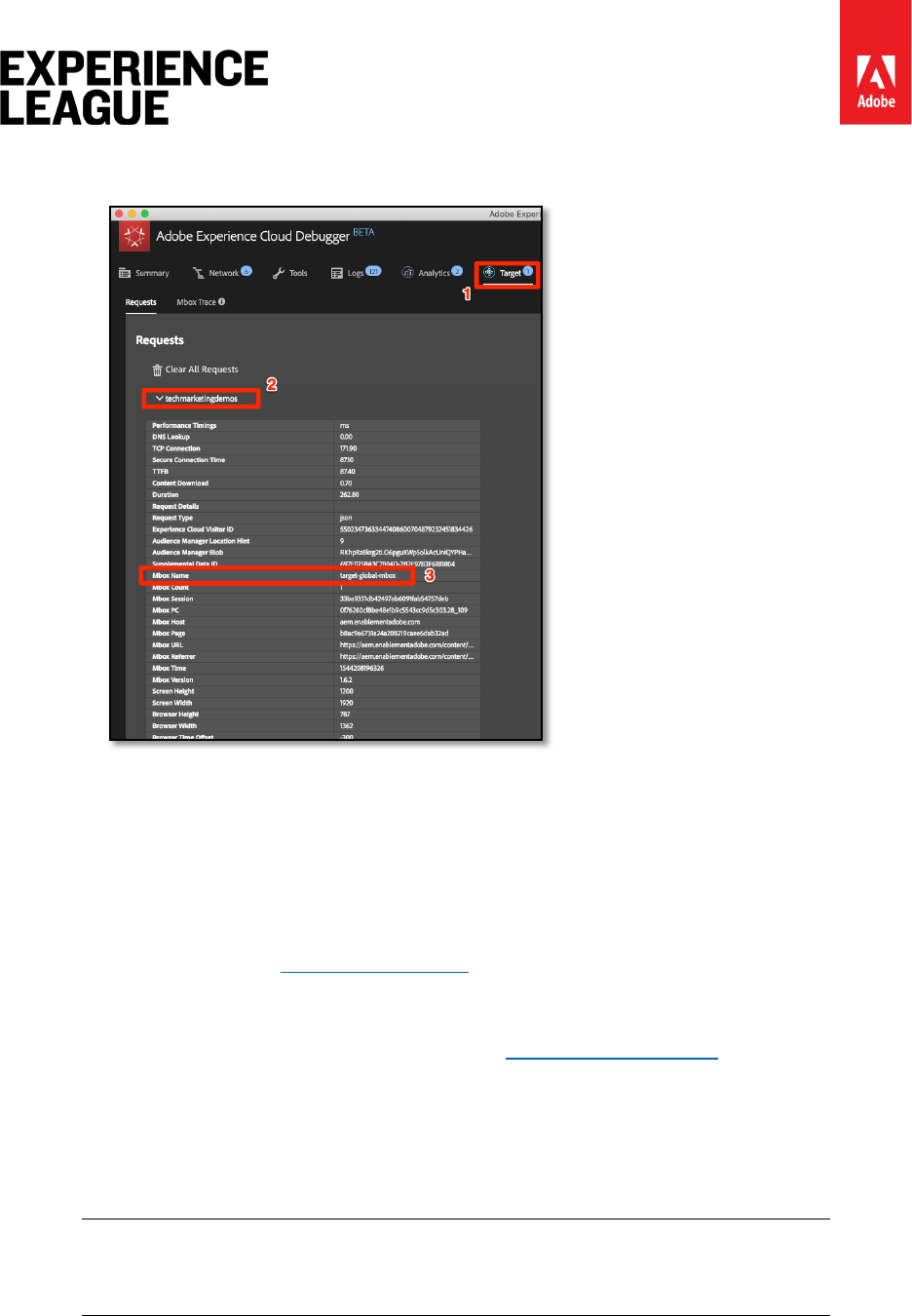
6. Finally, go to the Target tab, expand your client code, and confirm that the request
for your global mbox appears:
Congratulations! You've implemented the global mbox!
Exercise 6.4: Add Parameters
Passing parameters in the Target request adds powerful capabilities to your targeting, testing,
and personalization activities. The Launch extension provides two actions to pass parameters:
1. Add Params to Global Mbox, which adds parameters to global mbox requests
(equivalent to the targetPageParams() method)
2. Add Params to All Mboxes, which adds parameters in all mbox requests, e.g.
the global mbox plus additional mbox requests made from Custom Code actions or
hardcoded on your site (equivalent to the targetPageParamsAll() method)
These actions can be used before the Load Target action and can set different parameters on
different pages based on your rule configurations. Use the rule ordering feature you used when
setting Customer IDs with the ID Service to set additional parameters on the Library Loaded
event before the rule firing the global mbox.
Tip: Since most implementations use the global mbox for activity delivery, it
usually sufficient to just use the Add Params to Global Mbox action.
Adobe.com/go/summit2019-l779 experienceleague.adobe.com
47
Exercise 6.4.1: Add an Mbox Parameter
Mbox parameters are used to pass custom data to Target, enriching your personalization
capabilities. They are ideal for attributes that change frequently during a browsing session such
as the page name, template, etc. and do not persist.
Let's add the Page Name data element that we created earlier in the Add Data Elements, Rules
and Libraries lesson as an mbox parameter.
1. Go to the [Rules] in the top navigation and then click on All Pages - Library
Loaded to open the rule editor.
2. Under Actions, click the to add a new action
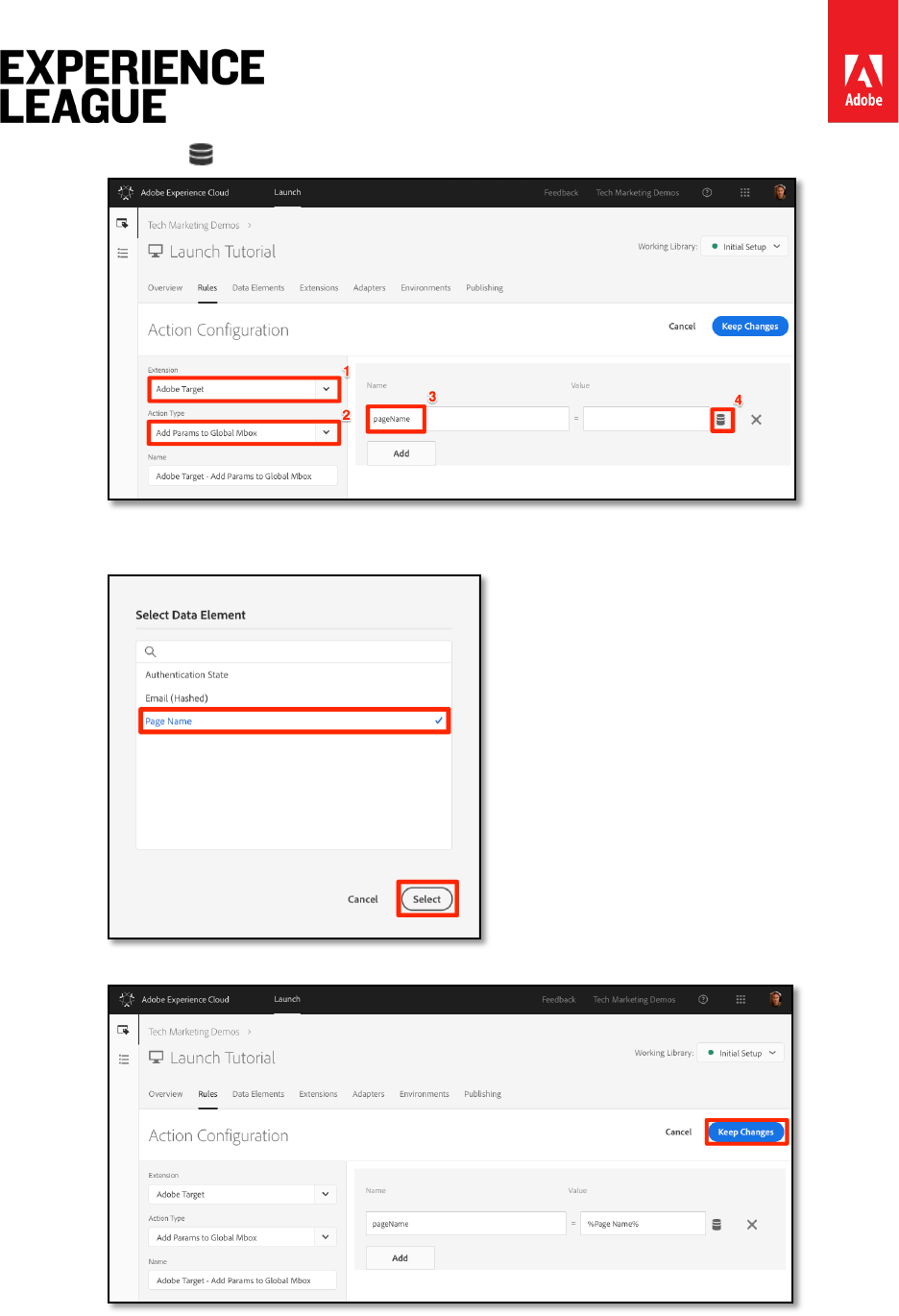
3. Select [Extension > Adobe Target]
4. Select [Action Type > Add Params to Global Mbox]
5. Enter pageName as the [Name]
Adobe.com/go/summit2019-l779 experienceleague.adobe.com
48
6. Click the to open the data element modal
7. Click the Page Name data element
8. Click the [Select] button
9. Click [Keep Changes]
Adobe.com/go/summit2019-l779 experienceleague.adobe.com
49
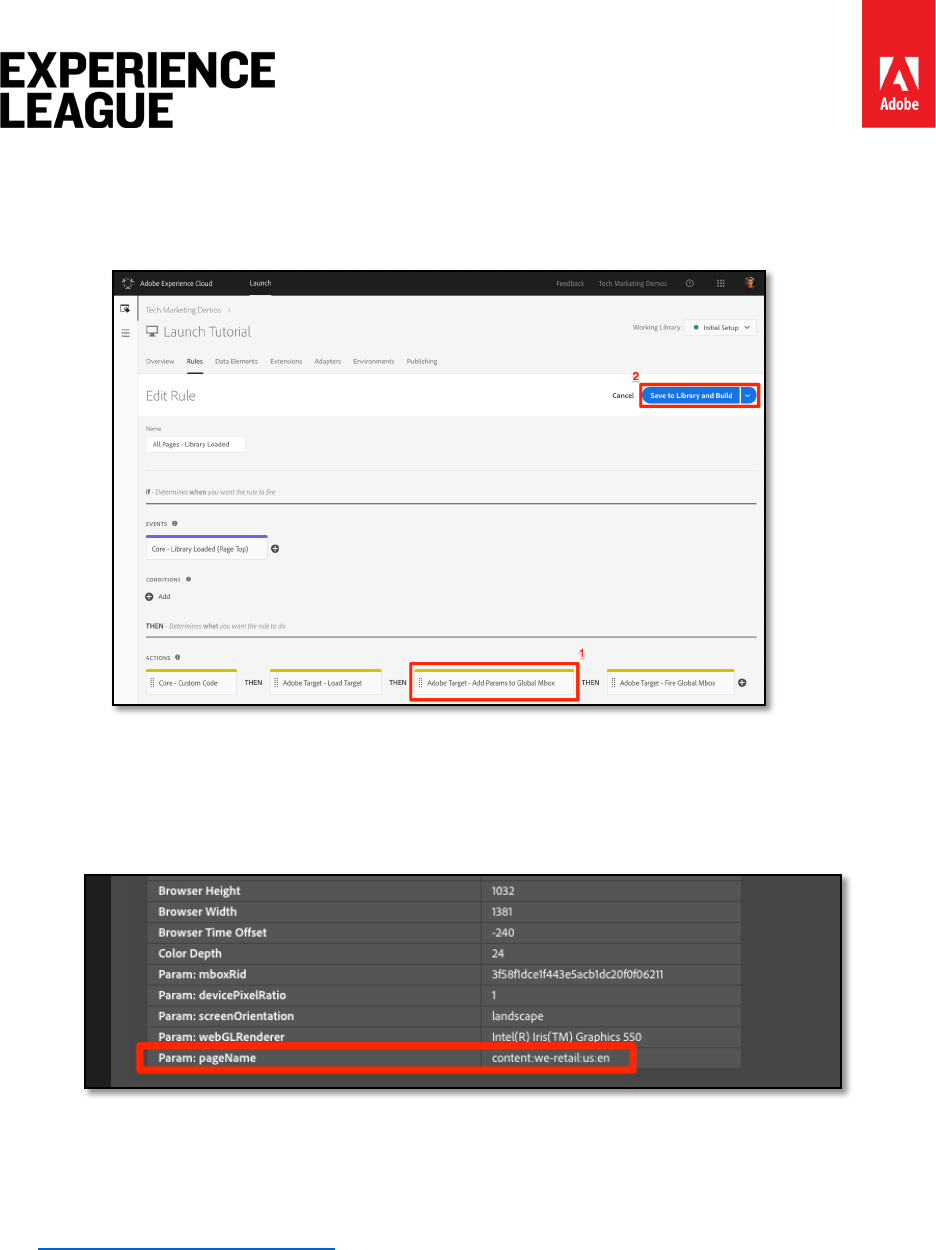
10. Click-and-drag on the left edge of the Add Params to Global Mbox action to
rearrange the actions so that Add Params to Global Mbox is before the Fire
Global Mbox action (it can be before or after Load Target)
11. Click [Save to Library and Build]
Exercise 6.4.1.1: Validate the Mbox Parameter
Reload the We.Retail site with it mapped to your property with Experience Cloud Debugger.
Now go to the [Target] tab in the Debugger. Expand your client code and look at the requests.
You should see the new pageName parameter passed in the request:
Exercise 6.4.2: Profile Parameters
Similar to mbox parameters, profile parameters are also passed through the Target request.
However, profile parameters get stored in Target's visitor profile database and will persist for
the duration of the visitor's profile. You can set them on one page of your site and use them in
Target activities on another page. Here is an example from an automobile website. When a
visitor goes to a vehicle page, you could pass a profile parameter "profile.lastViewed=sportscar"
to record their interest in that particular vehicle. When the visitor browses to other, non-
vehicle pages you can target content based on their last vehicle viewed. Profile parameters are
ideal for attributes that rarely change or are only available on certain pages
Adobe.com/go/summit2019-l779 experienceleague.adobe.com
50
You won't pass any profile parameters in this tutorial, but the workflow is almost identical to
what you just did when passing the pageName mbox parameter. The one difference is you need
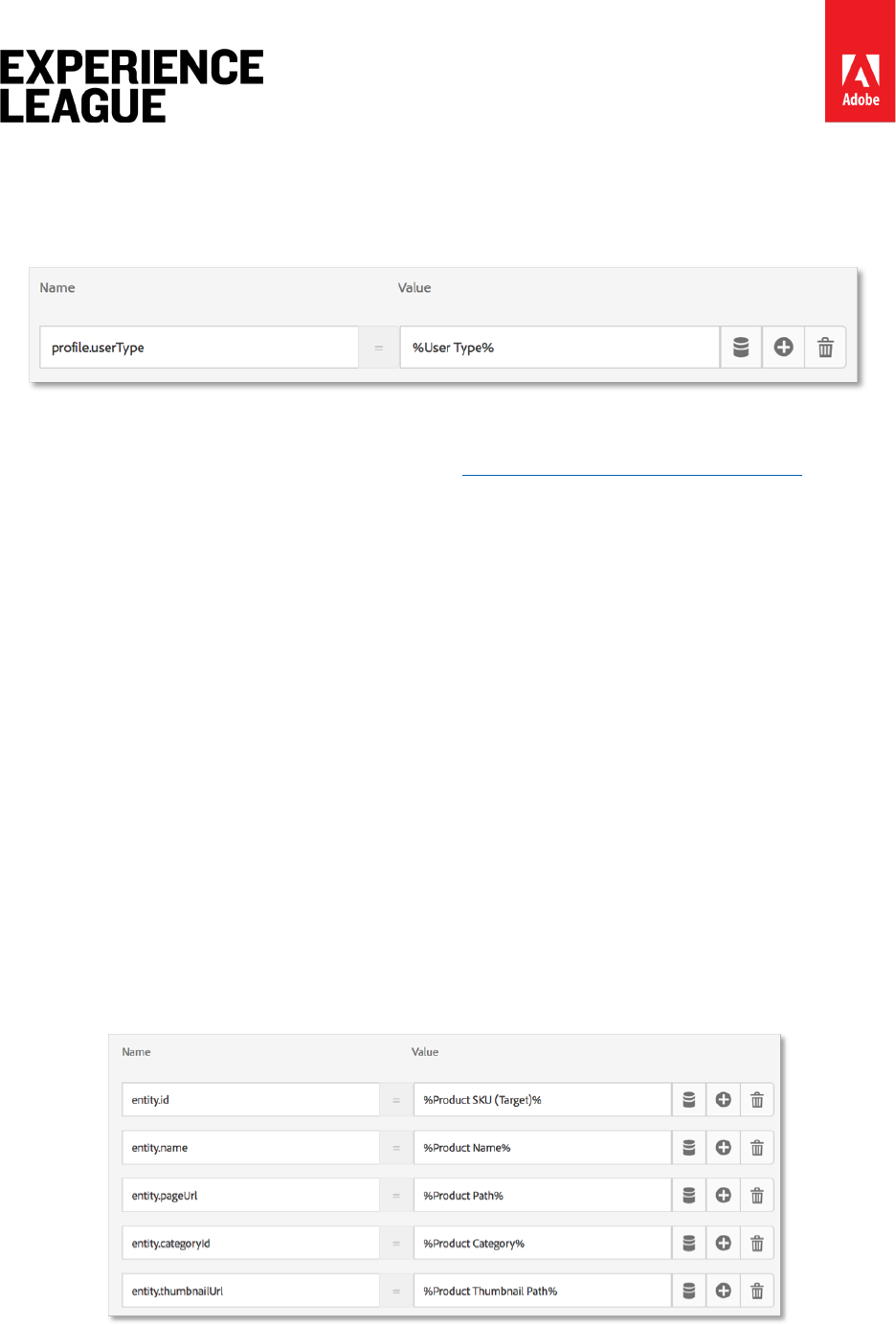
to give profile parameter names a profile. prefix. This is what a profile parameter called
"userType" would look like in the Pass Parameters to Global Mbox action:
Exercise 6.4.3: Entity Parameters
Entity parameters are special parameters used in Recommendations implementations for three
main reasons:
1. As a key to trigger product recommendations. For example, when using a
recommendations algorithm like "People who viewed Product X, also viewed Y," "X" is
the "key" of the recommendation. It is usually the product sku (entity.id) or
category (entity.categoryId) that the visitor is currently viewing.
2. To collect visitor behavior to power recommendations algorithms, such as "Recently
Viewed Products" or "Most Viewed Products"
3. To populate the Recommendations catalog. Recommendations contains a database
of all of the products or articles on your website, so they can be served in the
recommendation offer. For example, when recommending products, you typically
want to display attributes like the product name (entity.name) and image
(entity.thumbnailUrl). Some customers populate their catalog using backend
feeds, but they can also be populated using entity parameters in Target requests.
You don't need to pass any profile parameters in this tutorial, but the workflow is identical to
what you did earlier when passing the pageName mbox parameter - just give the parameter a
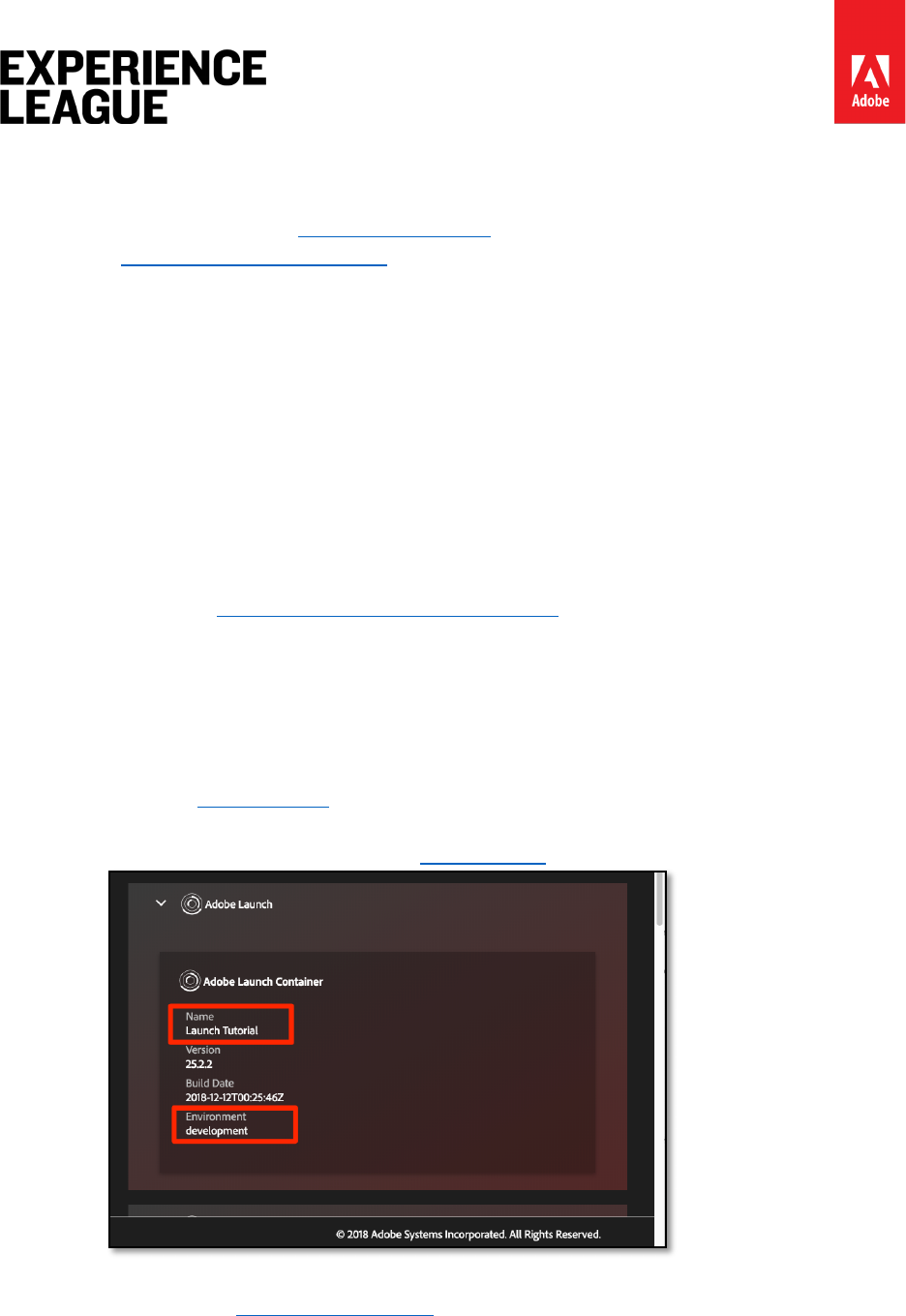
name prefixed with "entity." and map it to the relevant data element. Note that some common
entities have reserved names that must be used (e.g. entity.id for the product sku). This is what
it would look like to set entity parameters in the Pass Parameters to Global Mbox
action:
Adobe.com/go/summit2019-l779 experienceleague.adobe.com
51
Exercise 6.4.4: Add Customer ID Parameters
The collection of customer ids with the Experience Cloud ID Service makes it easy to import
CRM data into Target using the Customer Attributes feature of the Adobe Experience Cloud. It
also enables cross-device visitor stitching, allowing you to maintain a consistent user experience
as your customers switch between say a laptop and their mobile device.
It is imperative that the Customer ID is set in the ID Service's Set Customer IDs action
before firing the global mbox. To that end, make sure you have the following capabilities on
your site:
• The customer ID must be available on the page before the Launch Embed Code
• The Experience Cloud ID Service extension must be installed
• You must use the "Set Customer IDs" action in a rule that fires at the "Library Loaded
(Page Top)" event
• Use the "Fire global mbox" action in a rule that fires after the "Set Customer IDs"
action
In the previous lesson, Add the Experience Cloud ID Service, you created the All Pages -
Library Loaded - Authenticated - 10 rule to fire the "Set Customer ID" action.
Because this rule has an Order setting of 10, the customer ids are set before our our global
mbox fires from the All Pages - Library Loaded rule with its Order setting of 50. So,
you have already implemented the collection of customer ids for Target!
Exercise 6.4.4.1: Validate the Customer ID
1. Open the We.Retail site
2. Make sure the Debugger is mapping the Launch property to your Development
environment, as described in the earlier lesson
3. Log into the We.Retail site using the credentials test@adobe.com/test
4. Return to the We.Retail homepage
5. Open the Debugger
6. Go to the Target tab
Adobe.com/go/summit2019-l779 experienceleague.adobe.com
52
7. Expand your client code
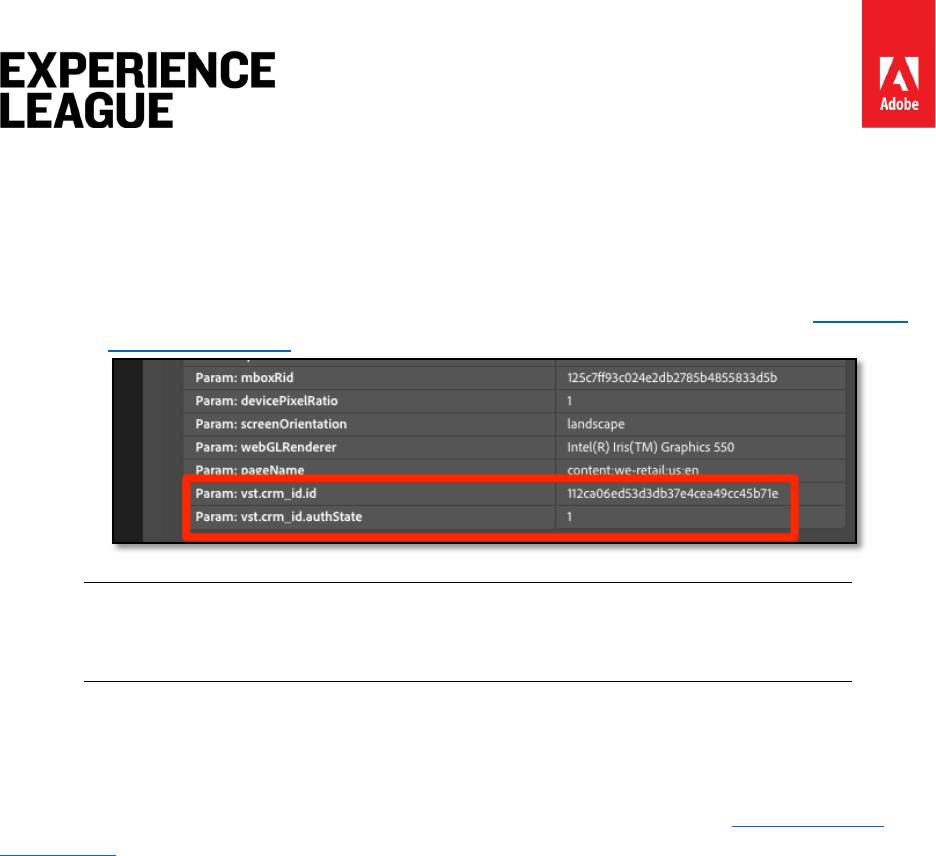
8. You should see parameters in the latest Target request for vst.crm_id.id and
vst.crm_id.authState. vst.crm_id.id should have a value of the hashed
email address and vst.crm_id.authState should have a value of 1 to represent
authenticated. Note that crm_id is the Integration Code you specified in
the ID Service configuration and must align with the key you use in your Customer
Attributes data file
Warning: The Experience Cloud ID Service will allow you to send multiple ids to
the Service, however, only the first one will be sent to Target.
Exercise 6.4.5: Add the Property Token Parameter (optional)
This is an optional exercise for Target Premium customers.
The property token is a reserved parameter used with the Target Premium Enterprise User
Permissions feature. It is used to define different digital properties so that different members of
an Experience Cloud Organization can be assigned different permissions on each property. For
example, you might want one group of users to be able to set up Target activities on your web
site, but not in your mobile application.
Target properties are analogous to Launch properties and Analytics report suites. An enterprise
with multiple brands, websites, and marketing teams might use a different Target property,
Launch property and Analytics report suite for each website or mobile app. Launch properties
are differentiated by their embed codes, Analytics report suites are differentiated by their
report suite id, and Target properties are differentiated by their property token parameter.
The property token is implemented just like an mbox parameter. Just name the parameter
"at_property" and paste in the value provided in the Target interface. If you are implementing
multiple sites with a single Launch property, you could manage the at_property value via a data
element.
Here is an optional exercise, if you are a Target Premium customer and would like to implement
a property token in your Tutorial property:
1. In a separate tab, open the Target user interface
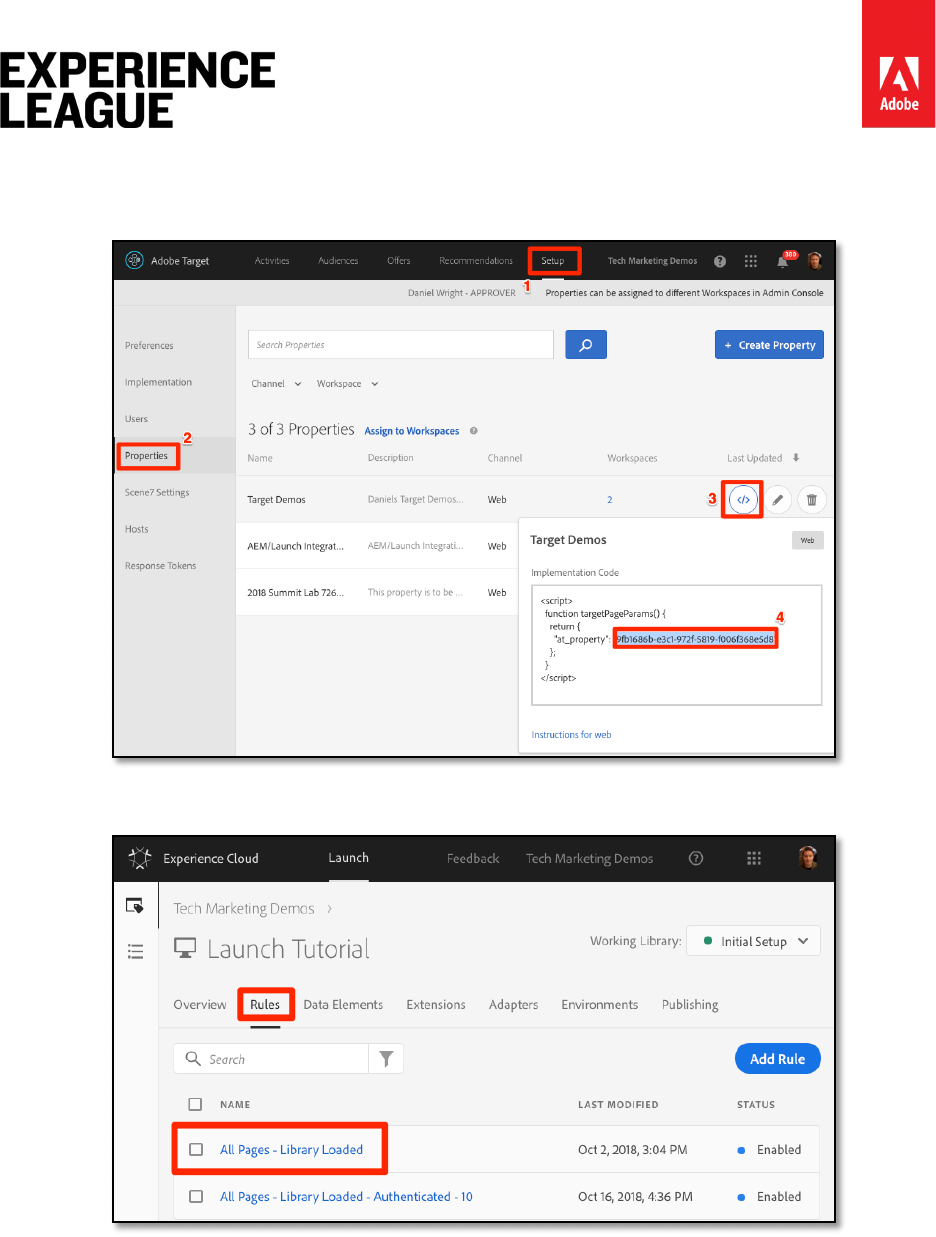
2. Go to [Setup > Properties ]
Adobe.com/go/summit2019-l779 experienceleague.adobe.com
53
3. Identify the Property that you want to use and click the [</> ] (or create a new
property)
4. Copy the at_property value to your clipboard
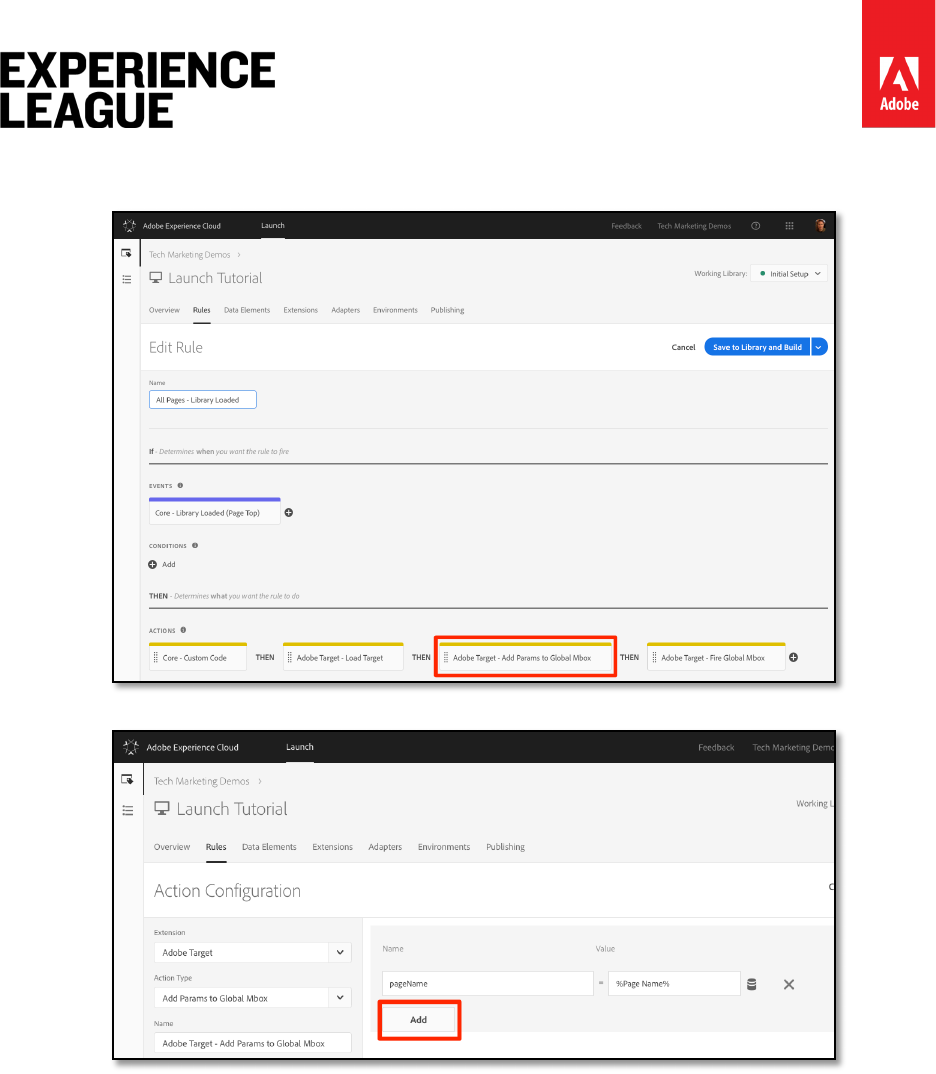
5. In your Launch tab, go to the [Rules] in the top navigation and then click on All
Pages - Library Loaded to open the rule editor.
Adobe.com/go/summit2019-l779 experienceleague.adobe.com
54
6. Under Actions, click the Adobe Target - Add Params to Global Mbox
action to open the Action Configuration
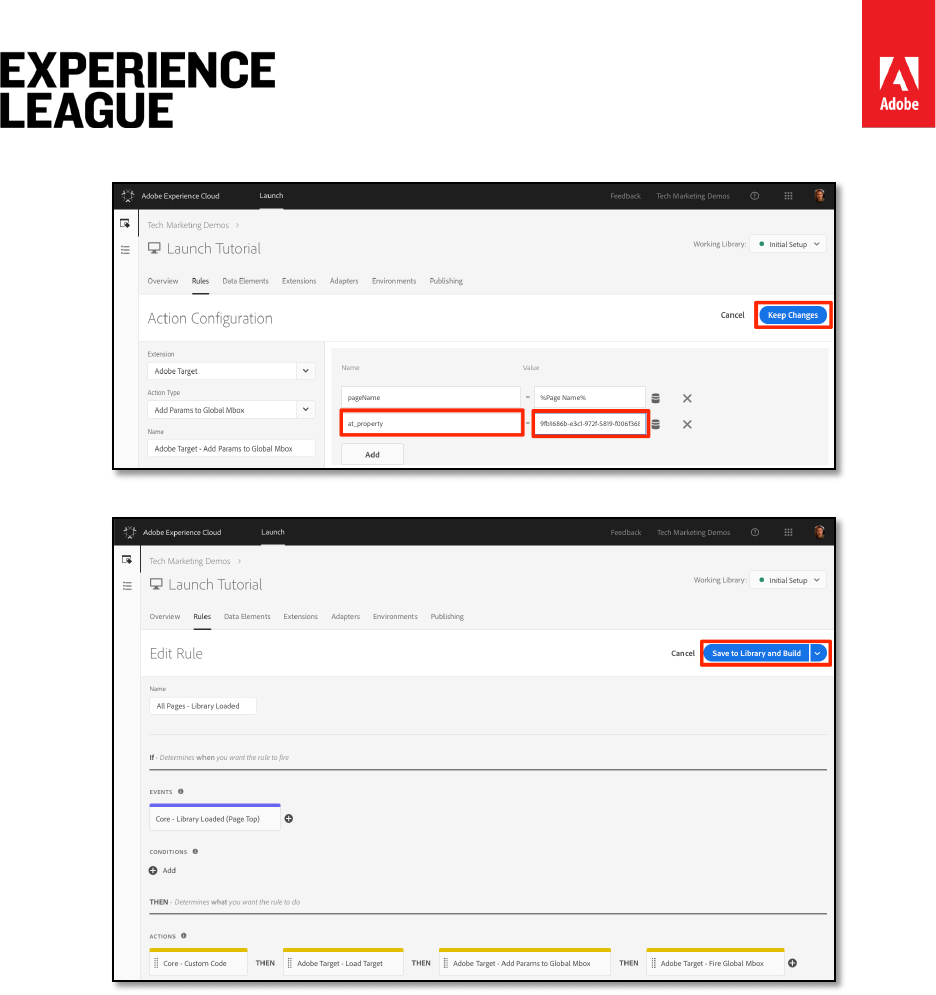
7. Under the pageName parameter, click the [Add] button
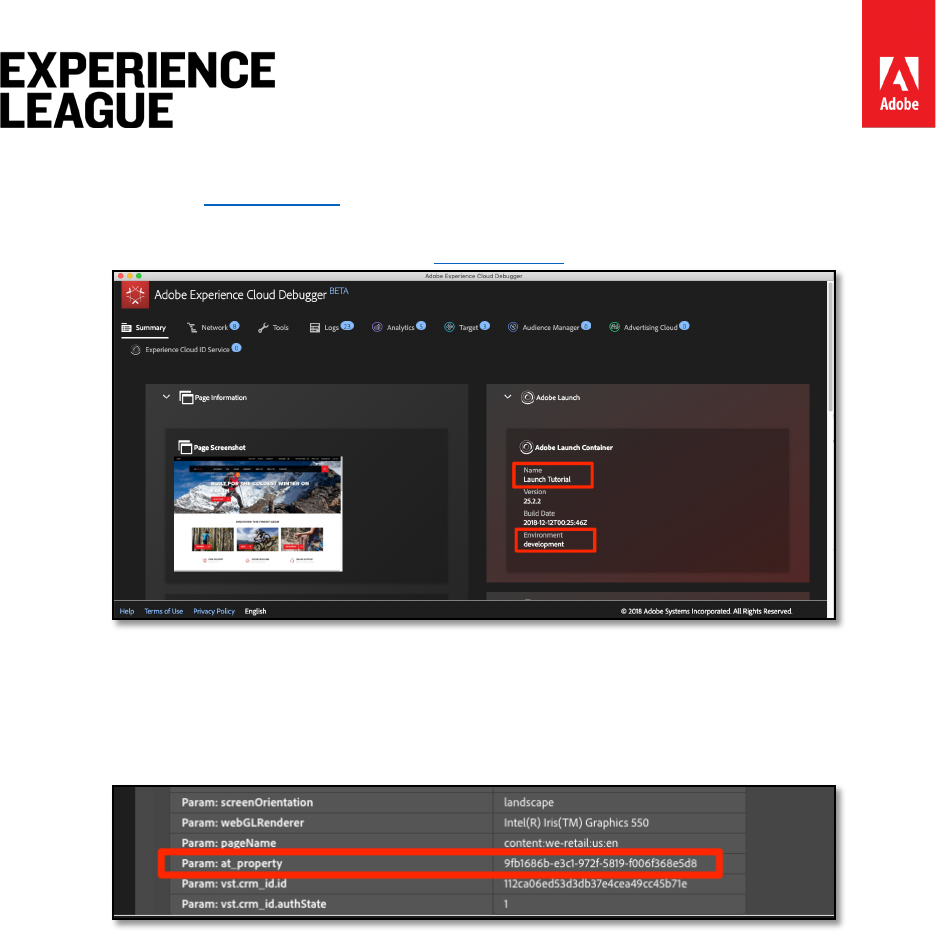
8. Name the parameter at_property and paste in the value you copied from the
Target interface
Adobe.com/go/summit2019-l779 experienceleague.adobe.com
55
9. Click [Keep Changes]
10. Click [Save to Library and Build]
Adobe.com/go/summit2019-l779 experienceleague.adobe.com
56
Exercise 6.4.5.1: Validate the Property Token
1. Open the We.Retail site
2. Make sure the Debugger is mapping the Launch property to your Development
environment, as described in the earlier lesson
3. Open the Debugger
4. Go to the Target tab
5. Expand your client code
6. You should see the parameter for "at_property" in every global mbox request as you
browse the site:
Exercise 6.4.6: Add an Order Confirmation mbox
The order confirmation mbox is a special type of mbox used to define order submissions in
Target. The inclusion of three specific mbox parameters - orderId, orderTotal, and
productPurchasedId - is what turns an mbox into an order mbox. In addition to reporting
revenue, the order mbox also does the following:
1. De-duplicates accidental order resubmissions
2. Filters extreme orders (any order whose total was more than three standard
deviations from the mean)
3. Uses a different algorithm behind the scenes to calculate statistical confidence
4. Creates a special, downloadable Audit report of individual order details
The best practice is to use and order confirmation mbox in all order funnels, even on non-retail
sites. For example, lead generation sites usually have lead funnels with a unique "lead id"
generated at the end. These sites should implement an order mbox, using a static value (e.g.
"1") for the orderTotal.

Adobe.com/go/summit2019-l779 experienceleague.adobe.com
57
Customers using the Analytics for Target (A4T) integration for most of their reporting should
also implement the order mbox, since A4T is not yet compatible with activity types like Auto
Allocate, Automated Personalization and Auto Target. Additionally, the order mbox is a critical
element in Recommendations implementations, powering algorithms based on purchase
behavior.
The order confirmation mbox should fire from a rule that is only triggered on your order
confirmation page or event. Often, it can be combined with a rule setting the Adobe Analytics
purchase event. It must be configured using the Custom Code action of the Core extension,
using the appropriate data elements to set the orderId, orderTotal, and productPurchasedId
parameters.
Let's add the data elements and rule we need to fire an order confirmation mbox on the
We.Retail site. Since you have already created several data elements, these instructions will be
abbreviated.
To create the data element for Order Id
1. Click [Data Elements] in the top navigation
2. Click [Add Data Element]
3. Name the data element Order Id
4. Select [Data Element Type > JavaScript Variable]
5. Use digitalData.cart.orderId as the Path to Variable
6. Check the Clean text option
7. Click [Save to Library and Build]
To create the data element for the Cart Amount
1. Click [Add Data Element]
2. Name the data element Cart Amount
3. Select [Data Element Type > JavaScript Variable]
4. Use digitalData.cart.cartAmount as the Path to Variable
5. Check the Clean text option
6. Click [Save to Library and Build]
To create the data element for Cart SKUs (Target)
1. Click [Add Data Element]
2. Name the data element Cart SKUs (Target)
3. Select [Data Element Type > Custom Code]
4. For Target, the skus must be a comma separated list. This custom code will reformat
the data layer array into the proper format. In the custom code editor, paste the
following:

Adobe.com/go/summit2019-l779 experienceleague.adobe.com
58
var targetProdSkus="";
for (var i=0; i<digitalData.cart.cartEntries.length; i++) {
if(i>0) {
targetProdSkus = targetProdSkus + ",";
}
targetProdSkus = targetProdSkus + digitalData.cart.cartEntries[i].sku;
}
return targetProdSkus;
5. Check the Force lowercase value option
6. Check the Clean text option
7. Click [Save to Library and Build]
Now we need to create a rule to fire the global mbox with the order parameters on the order
confirmation page.
To create the rule for Order Confirmation page
1. Click [Rules] in the top navigation
2. Click [Add Rule]
3. Name the rule Order Confirmation Page - Library Loaded - 60
4. Click [Events > Add]
i. Select [Event Type > Library Loaded (Page Top)]
ii. Change the Order to 60 so that it will fire after the Load Target action
(which is in our All Pages - Library Loaded rule where Order is set
to 50)
iii. Click [Keep Changes]
5. Click [Conditions > Add]
i. Select [Condition Type > Path Without Query String]
ii. For Path equals enter thank-you.html
iii. Toggle on the Regex option to change the logic from equals to contains
(you can use the Test feature to confirm the test will pass with the URL
https://aem.enablementadobe.com/content/we-
retail/us/en/user/checkout/order/thank-you.html
iv. Click [Keep Changes]
6. Click [Actions > Add]
i. Select [Action Type > Custom Code]
ii. Click [Open Editor]
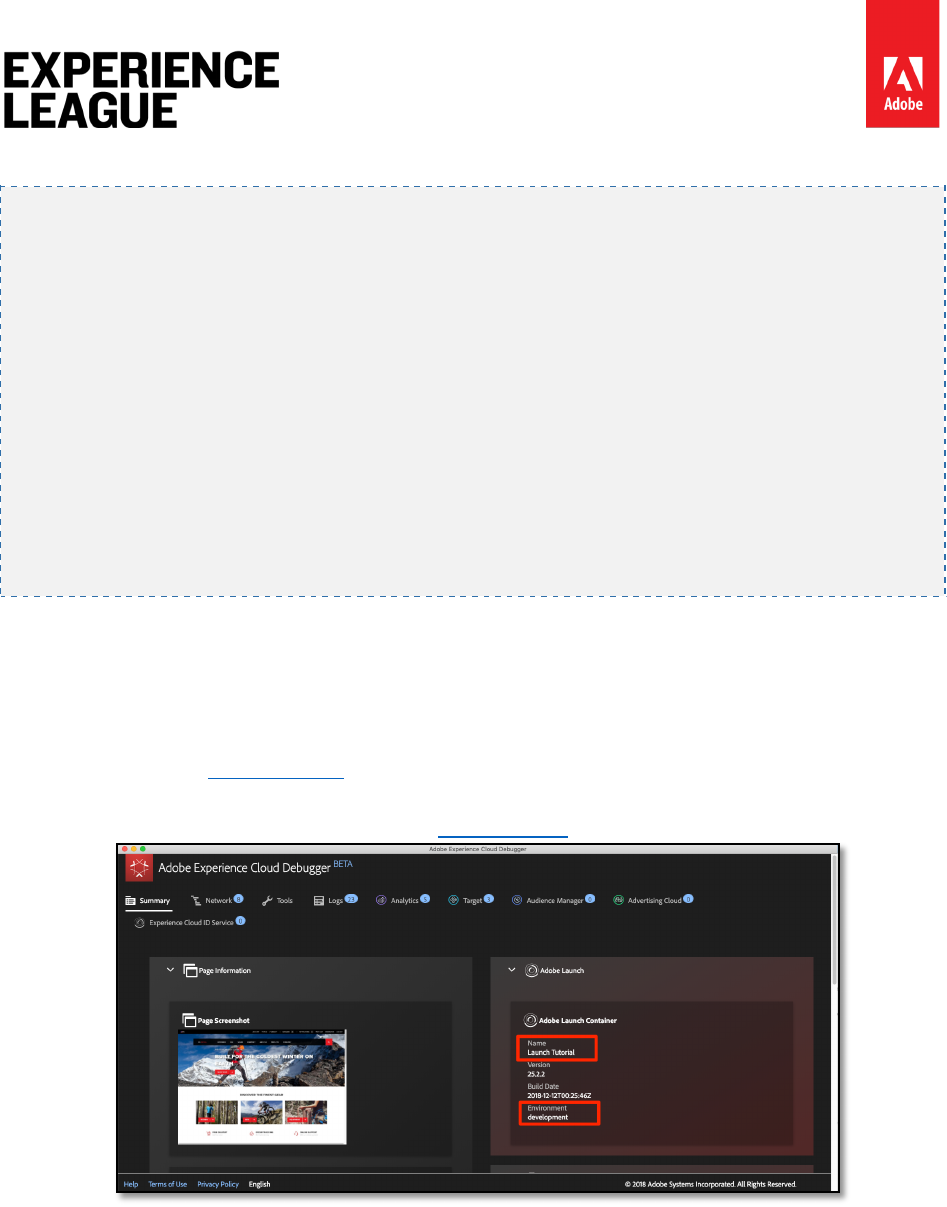
Adobe.com/go/summit2019-l779 experienceleague.adobe.com
59
iii. Paste the following code into the Edit Code modal
adobe.target.getOffer({
"mbox": "orderConfirmPage",
"params":{
"orderId": _satellite.getVar('Order Id'),
"orderTotal": _satellite.getVar('Cart Amount'),
"productPurchasedId": _satellite.getVar('Cart SKUs (Target)')
},
"success": function(offer) {
adobe.target.applyOffer({
"mbox": "orderConfirmPage",
"offer": offer
});
},
"error": function(status, error) {
console.log('Error', status, error);
}
});
iv. Click [Save] to save the custom code
v. Click [Keep Changes] to keep the action
7. Click [Save to Library and Build]
Exercise 6.4.6.1: Validate the Order Confirmation Mbox
1. Open the We.Retail site
2. Make sure the Debugger is mapping the Launch property to your Development
environment, as described in the earlier lesson
3. Browse the site and add several products to your cart
4. Continue to checkout
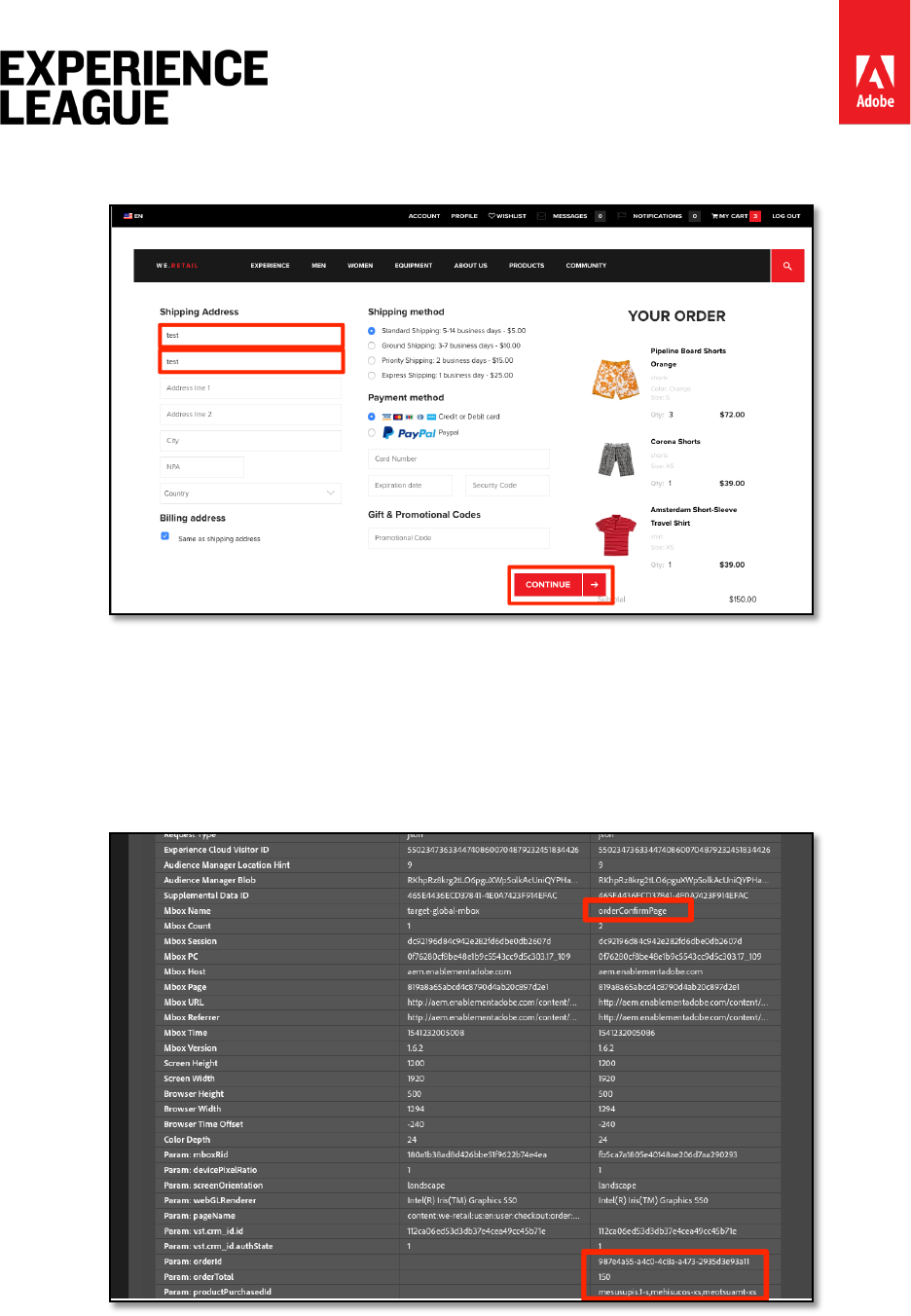
Adobe.com/go/summit2019-l779 experienceleague.adobe.com
60
5. During the checkout process the only required fields are First Name and Last
Name
6. On the Review Order page, be sure to click the Place Order button
7. Look in the Debugger
8. Go to the Target tab
9. Expand your client code
10. You should see the orderConfirmPage request as the latest Target request with
the orderId, orderTotal, and productPurchasedId parameters populated with the
details of your order
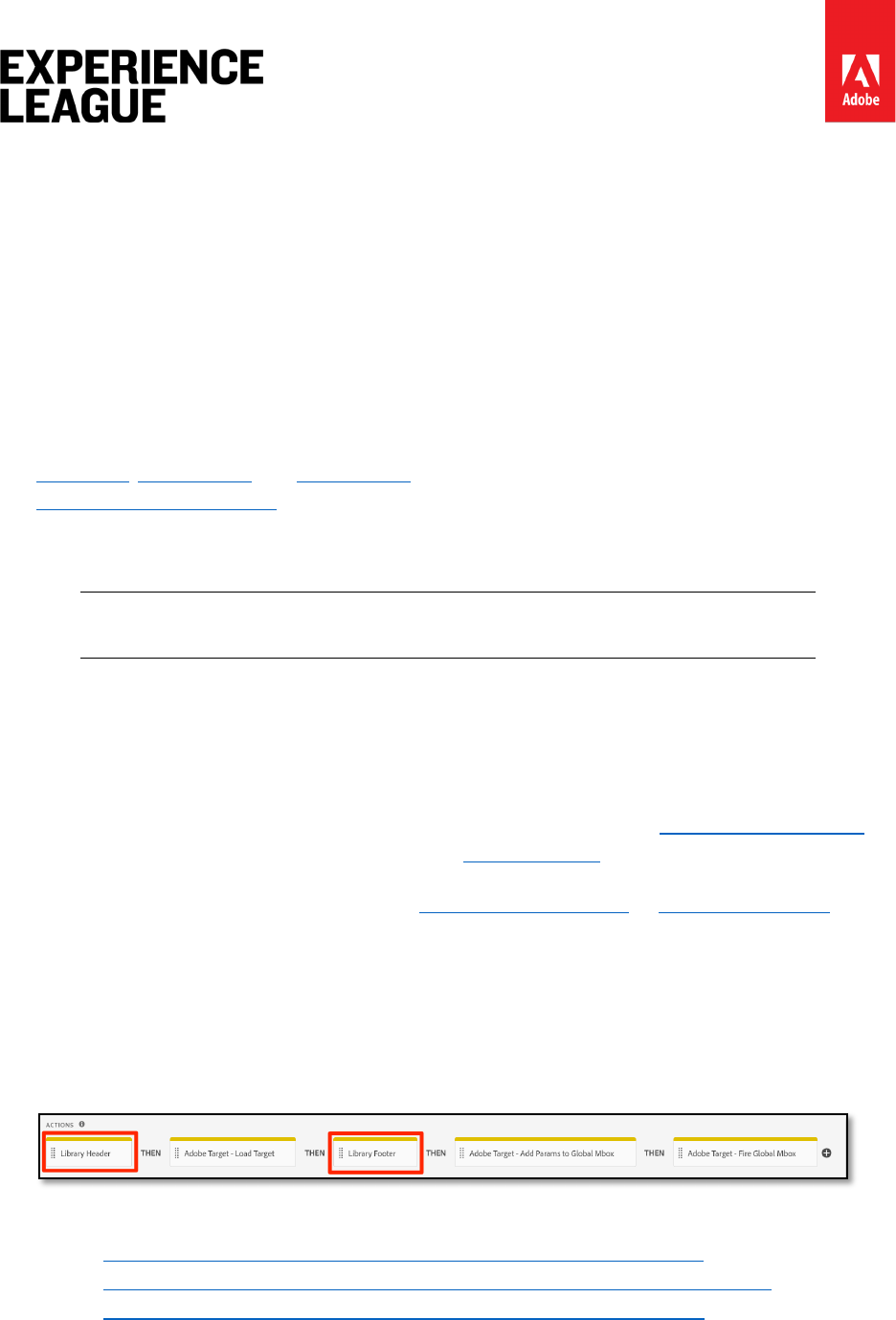
Adobe.com/go/summit2019-l779 experienceleague.adobe.com
61
Exercise 6.4.7: Custom mboxes
There rare instances when you need to make Target requests other than the global and order
confirmation mbox. For example, sometimes important data you would like to use for
personalization is not defined on the page before the Launch embed codes - it might be
hardcoded on the bottom of the page or get returned from an asynchronous API request. This
data can still be sent to Target using an additional request, although it will not be optimal to use
this request for content delivery since the page will already visible. It can be used to enrich the
visitor profile for later use (using profile parameters) or to populate the Recommendations
catalog.
In these circumstances, use the Custom Code action in the Core extension to fire an mbox using
the getOffer()/applyOffer() and trackEvent() methods. This is very similar to what you just did in
the Order Confirmation mbox exercise, but you will just use a different mbox name and will not
use the special order parameters. Be sure to use the [Load Target] action before making mbox
calls from custom code.
All links available at adobe.com/go/summit2019-l779
Exercise 6.5: Library Header and Library Footer
The Edit at.js screen in the Target user interface has locations in which you can paste custom
JavaScript that will execute immediately before or after the at.js file.
The Library Header is sometimes used to override at.js settings via the targetGlobalSettings()
function or pass data from third parties using the Data Providers feature
The Library Footer is sometimes used to add at.js library extensions or at.js custom event
listeners.
To replicate this capability in Launch, just use the Custom Code action in the Core extension and
sequence the action before (Library Header) or after (Library Footer) the Load Target action.
This can be done in the same rule as the Load Target action (as pictured below) or in
separate rules with events or order settings that will reliably fire before or after the rule
containing Load Target:
To learn more about use cases for custom headers and footers see the following resources:
• Use dataProviders to integrate third-party data into Adobe Target
• Implement dataProviders to integrate third-party data into Adobe Target
• Use Response Tokens and at.js Custom Events with Adobe Target

Adobe.com/go/summit2019-l779 experienceleague.adobe.com
62
Lesson 7 - Add Adobe Analytics
In this lesson, you will implement the Adobe Analytics extension and create rules to send data
to Adobe Analytics.
Adobe Analytics is an industry-leading solution that empowers you to understand your
customers as people and steer your business with customer intelligence.
Learning Objectives
At the end of this lesson, you will be able to:
1. Add the Adobe Analytics extension
2. Set global variables using the extension
3. Add the page view beacon
4. Add additional variables using rules
5. Add click-tracking and other event-based beacons
6. Add Analytics plugins
There are many things that could be implemented for Analytics in Launch. This lesson is not
exhaustive, but should give you a solid overview of the main techniques you will need for
implementing in your own site.
Prerequisites
You should have already completed the lessons in Configure Launch and Add the ID Service.
Additionally, you will need at least one report suite ID and your tracking server. If you don't
have a test/dev report suite that you can use for this tutorial, please create one. If you are
unsure how to do that, see the documentation. You can retrieve your tracking server from your
current implementation, Adobe Consultant or Customer Care representative.
Exercise 7.1: Add the Analytics Extension
The Analytics extension consists of two main parts:
1. The extension configuration, which manages the core AppMeasurement.js library
settings and can set global variables
2. Rule actions to do the following:
i. Set Variables
ii. Clear Variables
iii. Send the Analytics Beacon
To add the Analytics extension
1. Go to [Extensions > Catalog]
2. Locate the Adobe Analytics extension
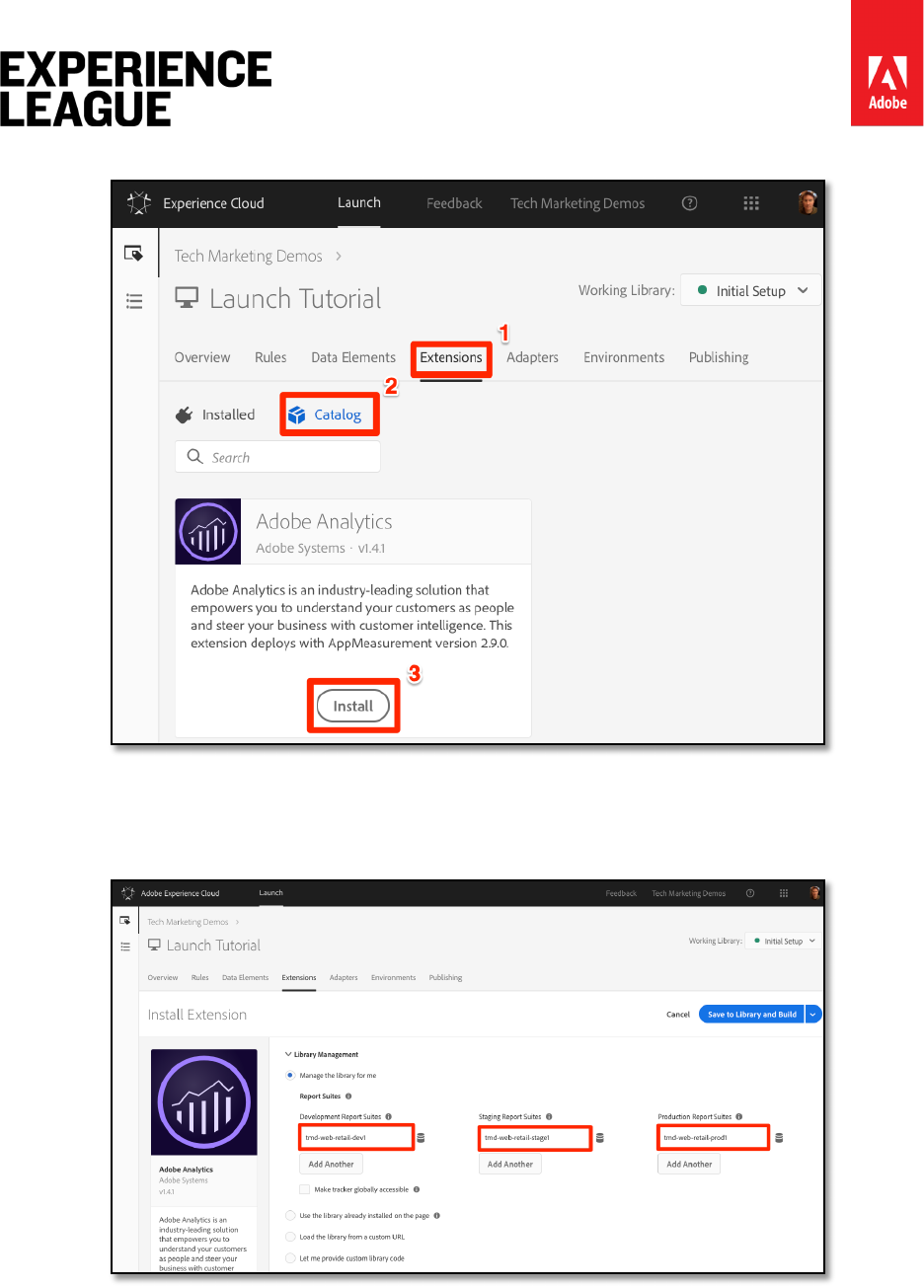
Adobe.com/go/summit2019-l779 experienceleague.adobe.com
63
3. Click [Install]
4. Under [Library Management > Report Suites], enter the report suite ids you would
like to use with each Launch environment (It's okay to use one report suite for all
environments in this tutorial, but in real life you would want to use separate report
suites, as shown in the image below)
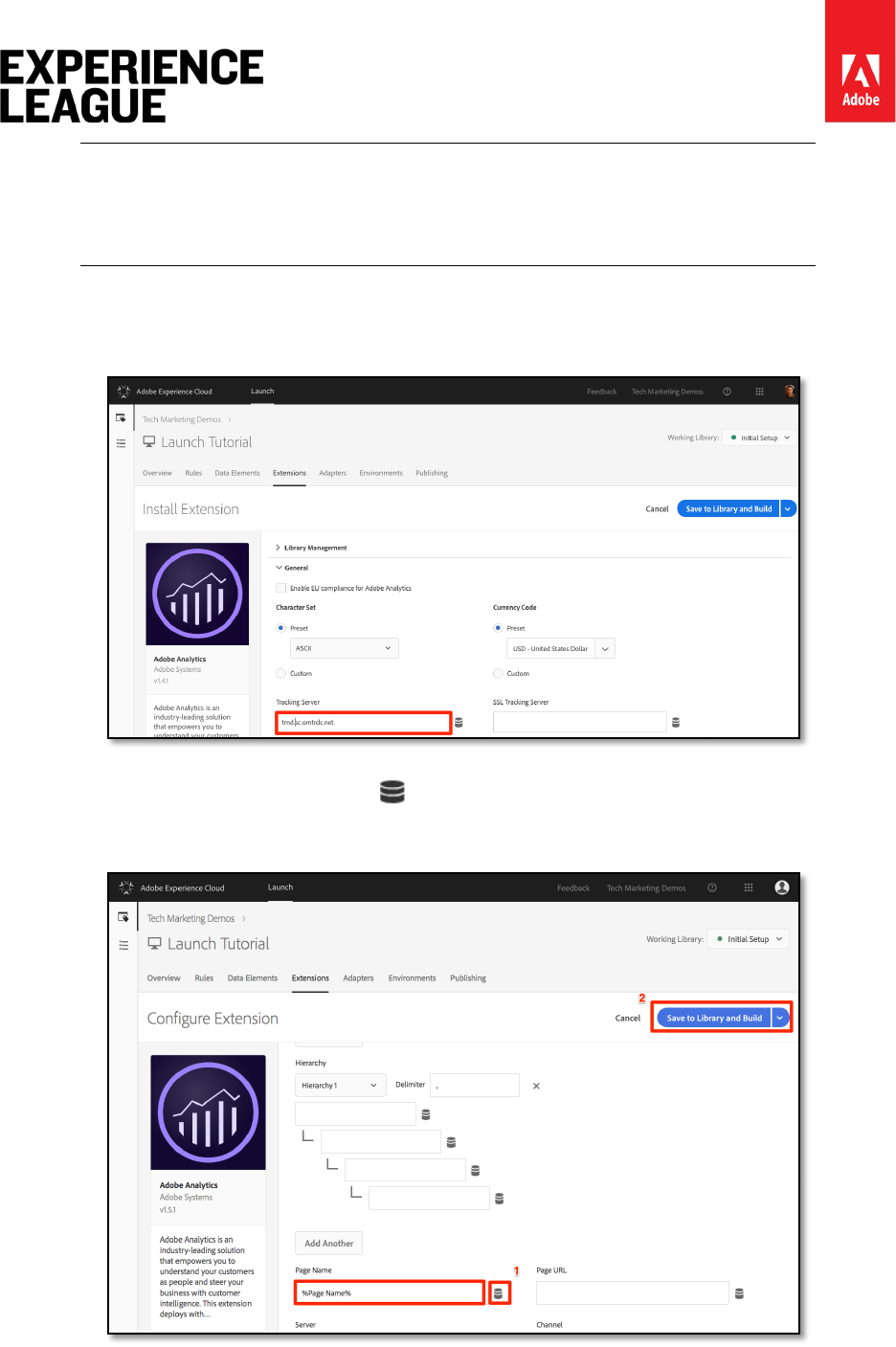
Adobe.com/go/summit2019-l779 experienceleague.adobe.com
64
We recommend using the [Manage the library for me option] as the [Library
Management] setting as it makes it much easier to keep the
AppMeasurement.js library up-to-date.
5. Under [General > Tracking Server], enter your tracking server, e.g.
"tmd.sc.omtrdc.net." Enter your SSL Tracking Server if your site supports
https://
6. In the [Global Variables section], set the [Page Name] variable using your Page
Name data element. Click the icon to open the modal and choose the page Page
Name data element)
7. Click [Save to Library and Build]
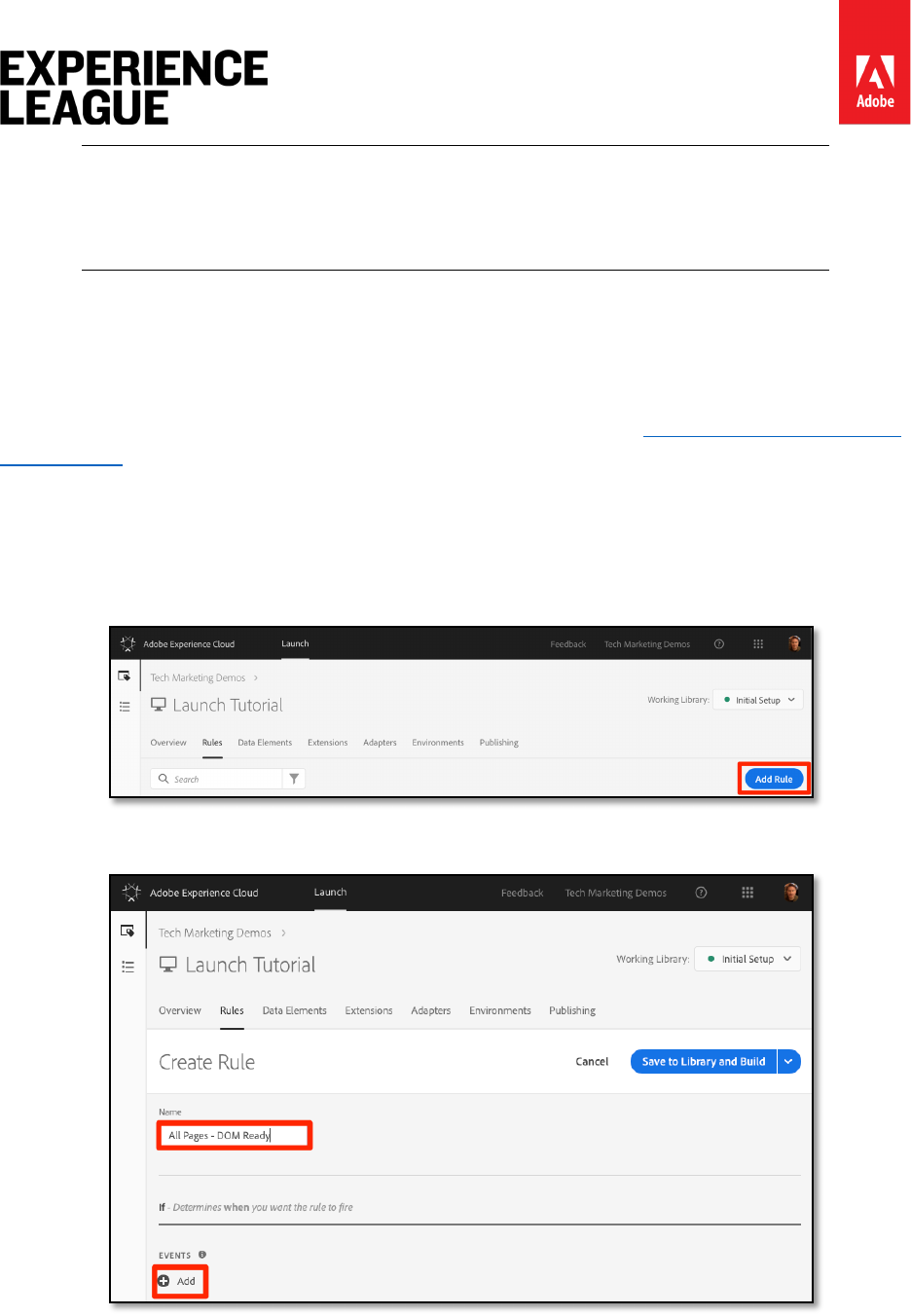
Adobe.com/go/summit2019-l779 experienceleague.adobe.com
65
Global variables can be set in the extension configuration or in rule actions. Be
aware that when setting variables in the extension configuration, the data
layer must be defined before the Launch embed codes.
Exercise 7.2: Send the Page View Beacon
Now you will create a rule to fire the Analytics beacon, which will send the [Page Name]
variable set in the extension configuration.
You have already created an "All Pages - Library Loaded" rule in the Add a Data Element, a Rule
and a Library lesson of this tutorial, which is triggered on every page when the Launch library
loads. You could use this rule for Analytics as well, however this setup requires all data layer
attributes used in the Analytics beacon to be defined before the Launch embed codes. To allow
more flexibility with the data collection, you will create a new "all pages" rule triggered on DOM
Ready to fire the Analytics beacon.
1. Go to the [Rules] section in the top navigation and then and then click [Add Rule]
2. Name the rule All Pages - DOM Ready
3. Click [Events > Add] to open the Event Configuration screen
4. Select [Event Type > DOM Ready] (Note that the order of the rule is "50")

Adobe.com/go/summit2019-l779 experienceleague.adobe.com
66
5. Click [Keep Changes]
6. Under Actions, click the to add a new action
7. Select [Extension > Adobe Analytics]
8. Select [Action Type > Send Beacon]
9. Leave Tracking set to s.t(). Note that if you wanted to make an s.tl() call in a
click-event rule you could do that using the Send Beacon action, as well.
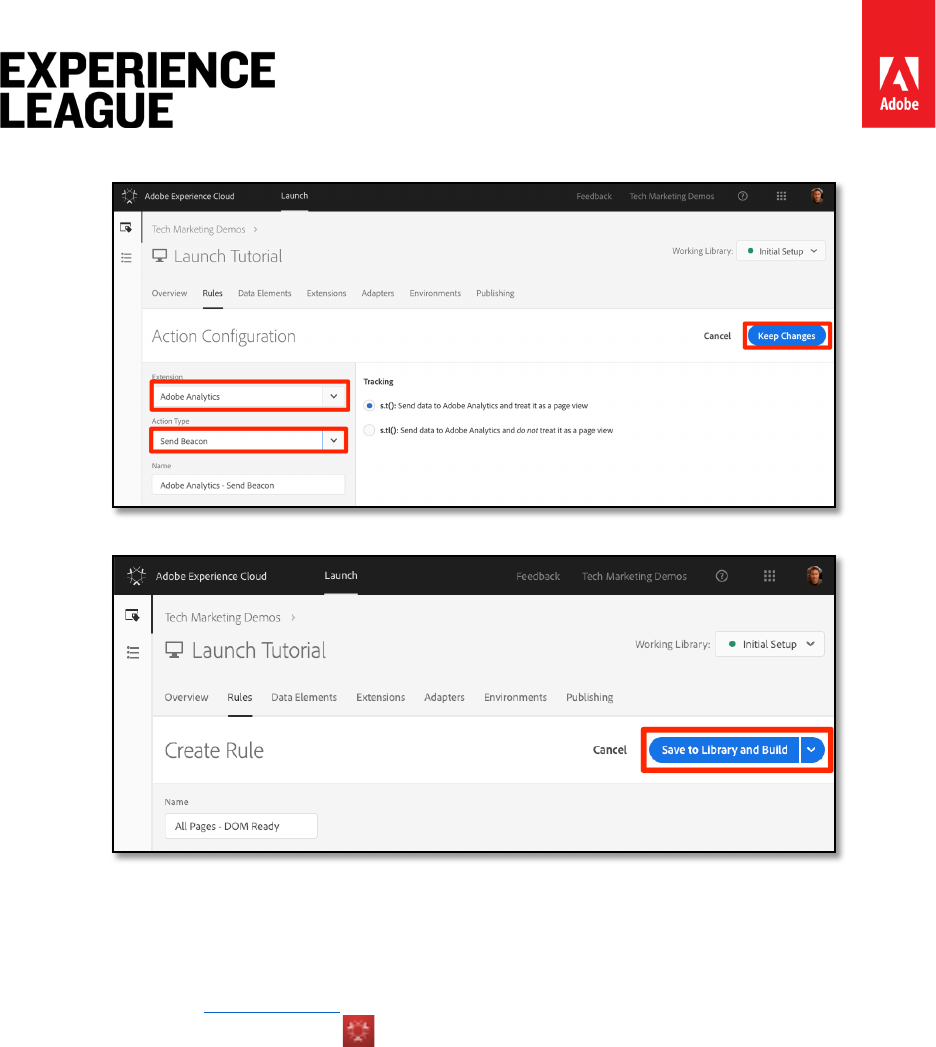
Adobe.com/go/summit2019-l779 experienceleague.adobe.com
67
10. Click the [Keep Changes] button
11. Click [Save to Library and Build]
Exercise 7.2.1: Validate the Page View Beacon
Now that you have created a rule to send an Analytics beacon, you should be able to see the
request in the Experience Cloud Debugger.
1. Open the We.Retail site in your Chrome browser
2. Click the Debugger icon to open the [Adobe Experience Cloud Debugger]

Adobe.com/go/summit2019-l779 experienceleague.adobe.com
68
3. Make sure the Debugger is mapping the Launch property to your Development
environment, as described in the earlier lesson
4. Click to open the Analytics tab
5. Expand your Report Suite name to show all of the requests made to it
6. Confirm the request has fired with the Page Name variable and value
If the Page Name is not showing up for you, go back through the steps in this
page to make sure that you haven't missed anything.
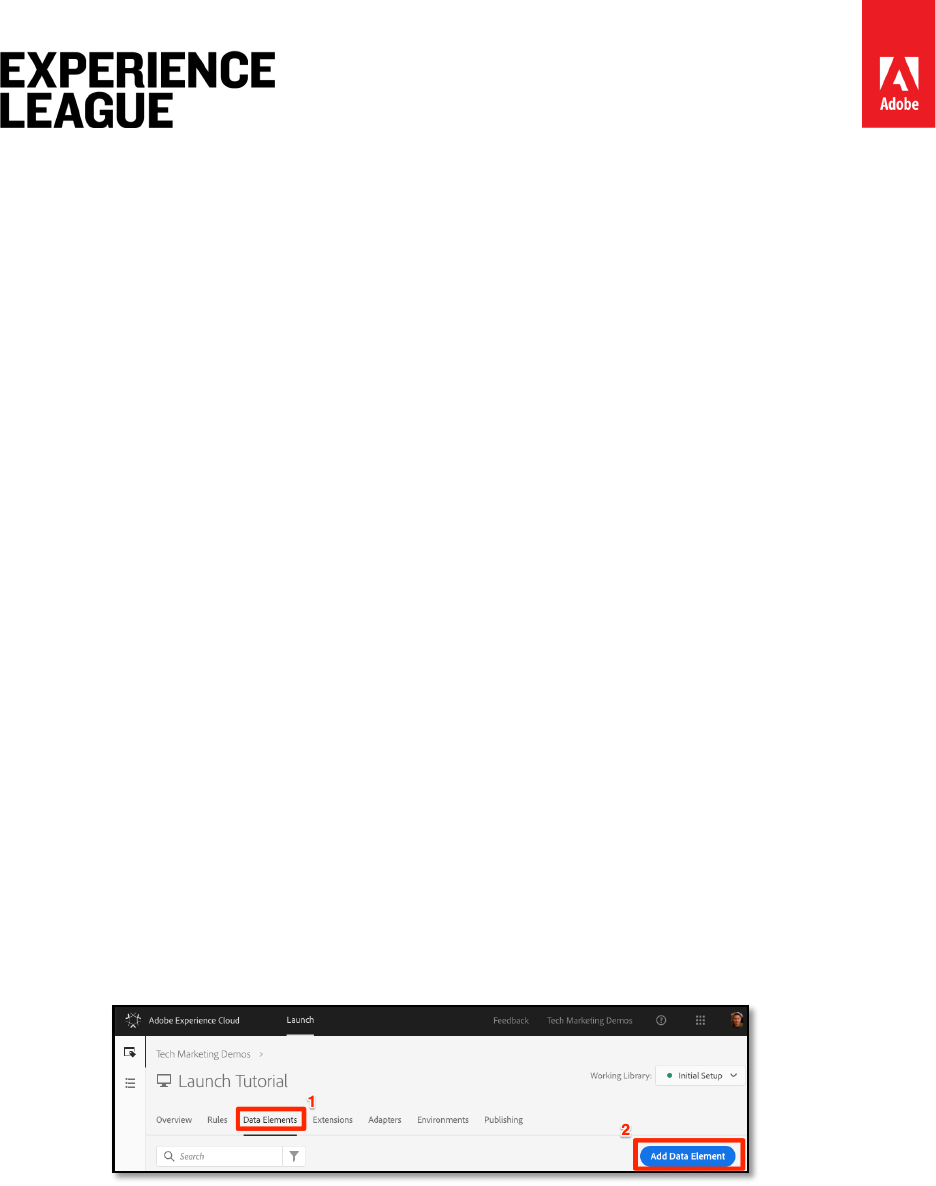
Adobe.com/go/summit2019-l779 experienceleague.adobe.com
69
Exercise 7.3: Add Variables with Rules
When you configured the Analytics Extension, you populated the pageName variable in the
extension configuration. This is a fine location to populate other global variables such as eVars
and props, provided the value is available on the page before the Launch embed code loads.
A more flexible location to set variables - as well as events - is in rules using the Set
Variables action. Rules allow you to set different Analytics variables and events under
different conditions. For example, you could set the prodView only on product detail pages
and the purchase event only on order confirmation pages. This section will teach you how to
set variables using rules.
Exercise 7.3.1: Use Case
Product Detail Pages (PDP) are important points for data collection on retail sites. Typically, you
want Analytics to register that a product view occurred and which product was viewed. This is
helpful in understanding which products are popular with your customers. On a media site,
article or video pages could use similar tracking techniques to the ones you will use in this
section. When you load a Product Detail Page, you might want to put that value into a "Page
Type" eVar, as well as set some events and the product id. This will allow us to see the
following in our analysis:
1. How many times product detail pages are loaded
2. Which specific products are viewed and how many times
3. How other factors (campaigns, search, etc) affect how many PDP's people load
Exercise 7.3.2: Create Data Element for Page Type
First you need to identify which pages are the Product Detail pages. You will do that with a Data
Element.
1. Click [Data Elements] in the top navigation
2. Click [Add Data Element]
3. Name the data element Page Type
4. Select [Data Element Type > JavaScript Variable]
5. Use digitalData.page.category.type as the Path to Variable
6. Check the Clean text and Force Lower Case options
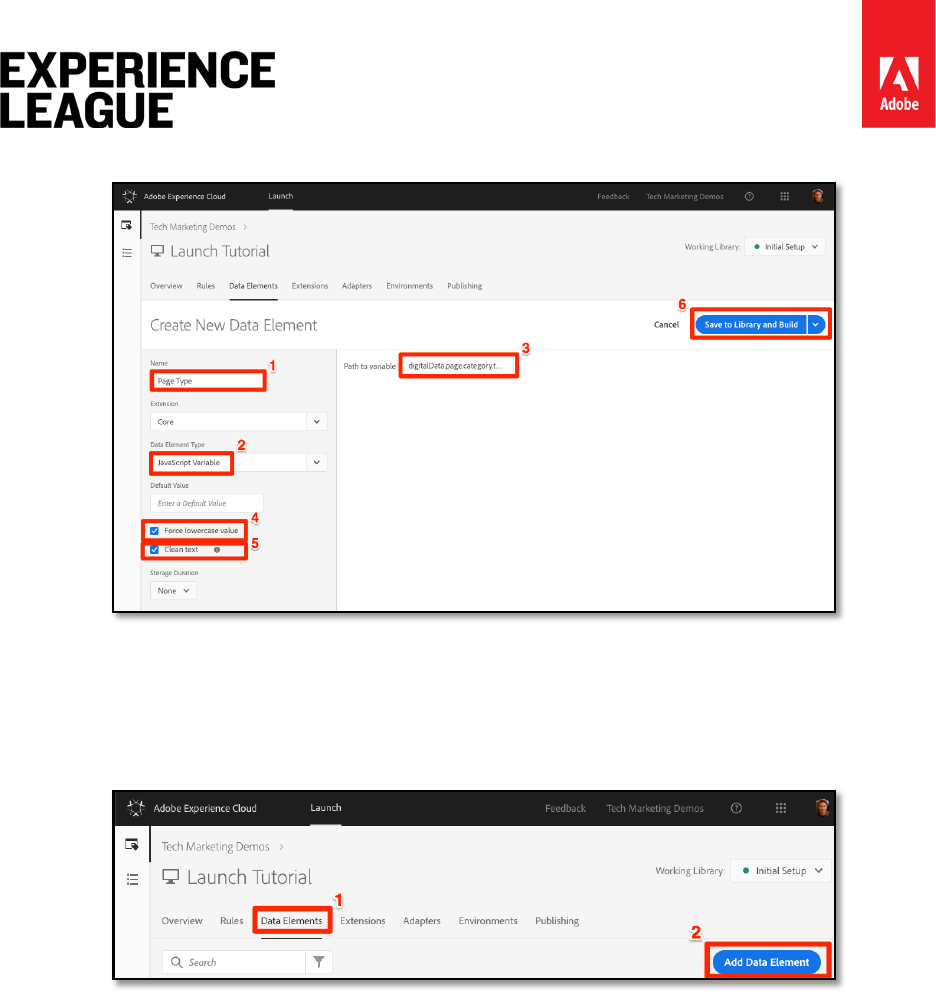
Adobe.com/go/summit2019-l779 experienceleague.adobe.com
70
7. Click [Save to Library and Build]
Exercise 7.3.3: Create Data Element for Product Id
Next, you will collect the product id of the current Product Detail page with a Data Element
1. Click [Data Elements] in the top navigation
2. Click [Add Data Element]
3. Name the data element Product Id
4. Select [Data Element Type > JavaScript Variable]
5. Use digitalData.product.0.productInfo.sku as the Path to Variable
6. Check the Force lowercase value option
7. Check the Clean text option
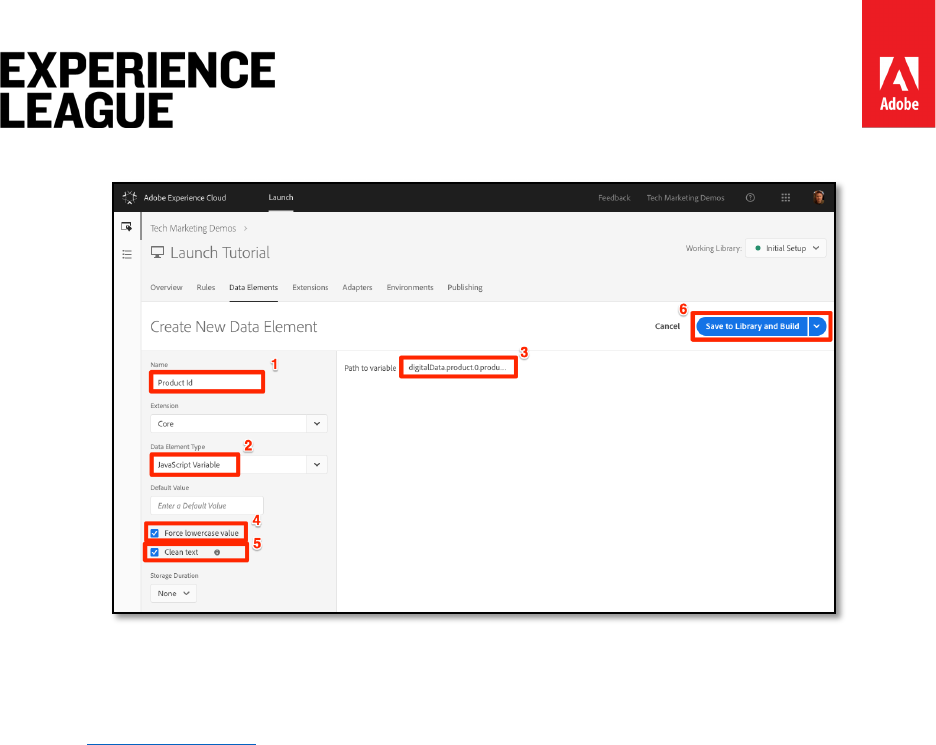
Adobe.com/go/summit2019-l779 experienceleague.adobe.com
71
8. Click [Save to Library and Build]
Exercise 7.3.4: Add the Adobe Analytics Product String Extension
If you are already familiar with Adobe Analytics implementations, you are probably familiar
with the products variable. The products variable has a very specific syntax and gets used
slightly different ways depending on the context. To help make the population of the products
variable easier in Launch, three additional extensions have already been created in the Launch
extension marketplace! In this section you will add an extension created by Adobe Consulting
to use on the Product Detail page.
1. Go to the [Extensions > Catalog] page
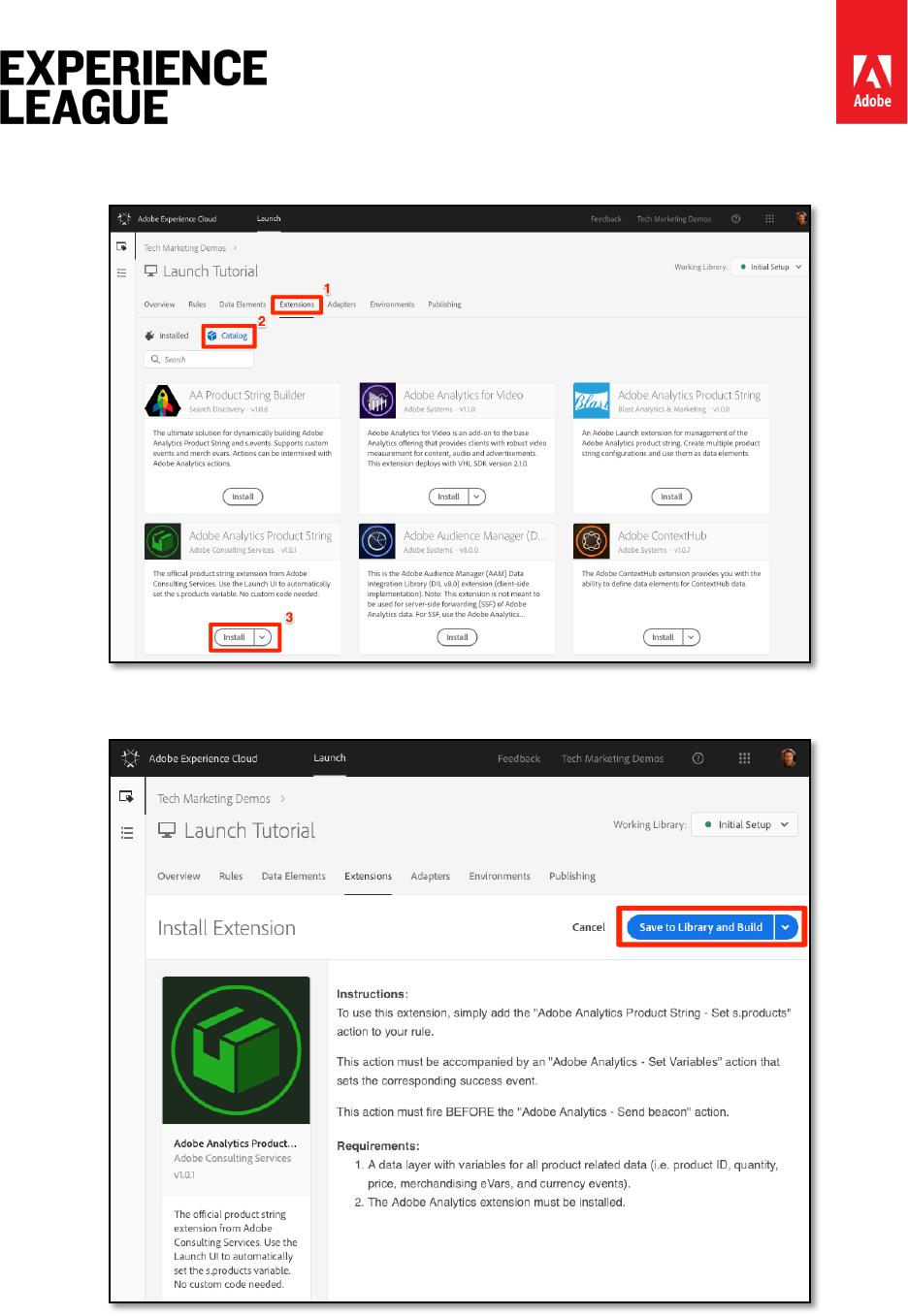
Adobe.com/go/summit2019-l779 experienceleague.adobe.com
72
2. Find the Adobe Analytics Product String extension by Adobe Consulting
Services and click [Install]
3. Take a moment to read the instructions
4. Click [Save to Library and Build]
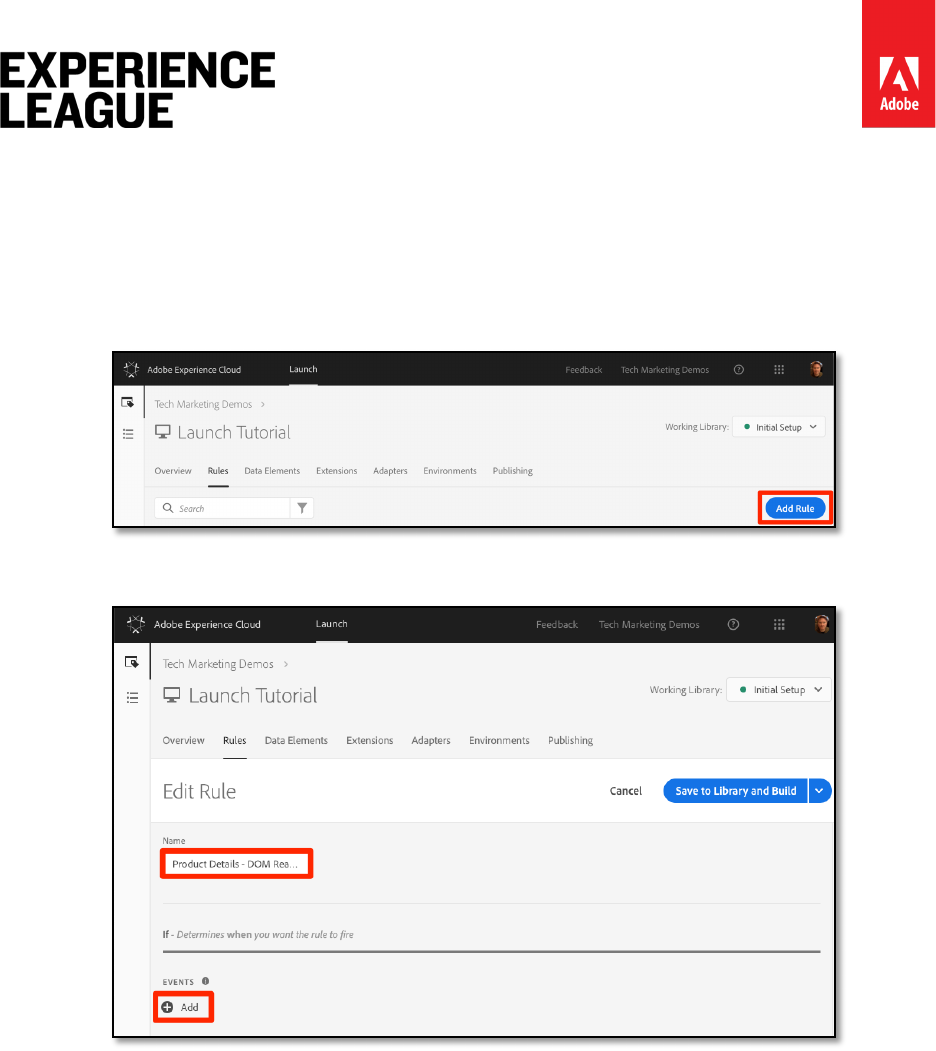
Adobe.com/go/summit2019-l779 experienceleague.adobe.com
73
Exercise 7.3.5: Create the Rule for Product Detail Pages
Now, you will use your new data elements and extension to build your Product Detail page rule.
For this functionality, you will create another page load rule, triggered by DOM Ready.
However, you will use a condition so that it only fires on the Product Detail pages and the order
setting so that it fires before the rule that sends the beacon.
1. Go to the [Rules] section in the top navigation and then and then click [Add Rule]
2. Name the rule Product Details - DOM Ready
3. Click [Events > Add] to open the Event Configuration screen
4. Select [Event Type > DOM Ready]
5. Set the [Order] to 40, so that the rule will run before the rule containing the
Analytics > Send Beacon action
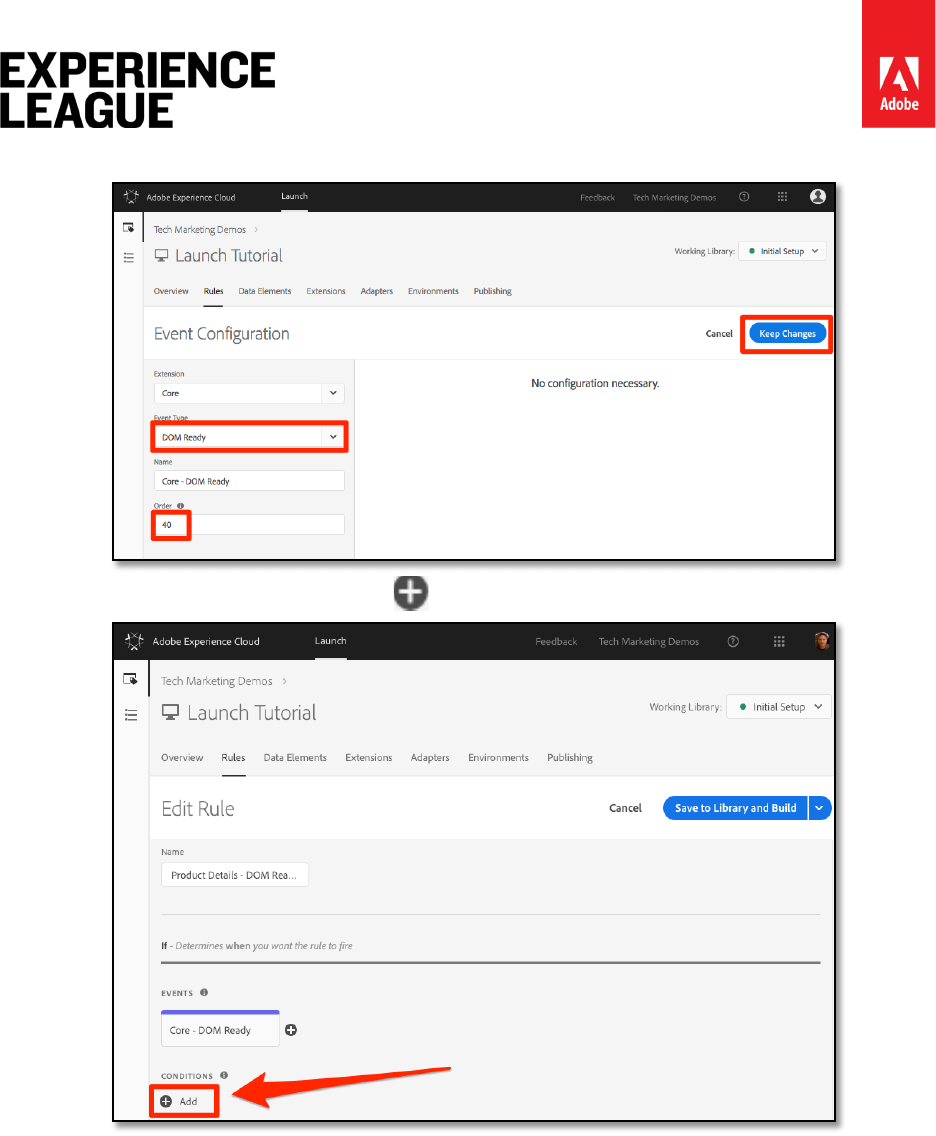
Adobe.com/go/summit2019-l779 experienceleague.adobe.com
74
6. Click [Keep Changes]
7. Under [Conditions], click the to open the Condition Configuration screen
i. Select [Condition Type > Value Comparison]
ii. Use the data element picker, choose Page Type in the first field
iii. Select [Contains] from the comparison operator dropdown
iv. In the next field type product-page (this is the unique part of the page
type value pulled from the data layer on PDP's)
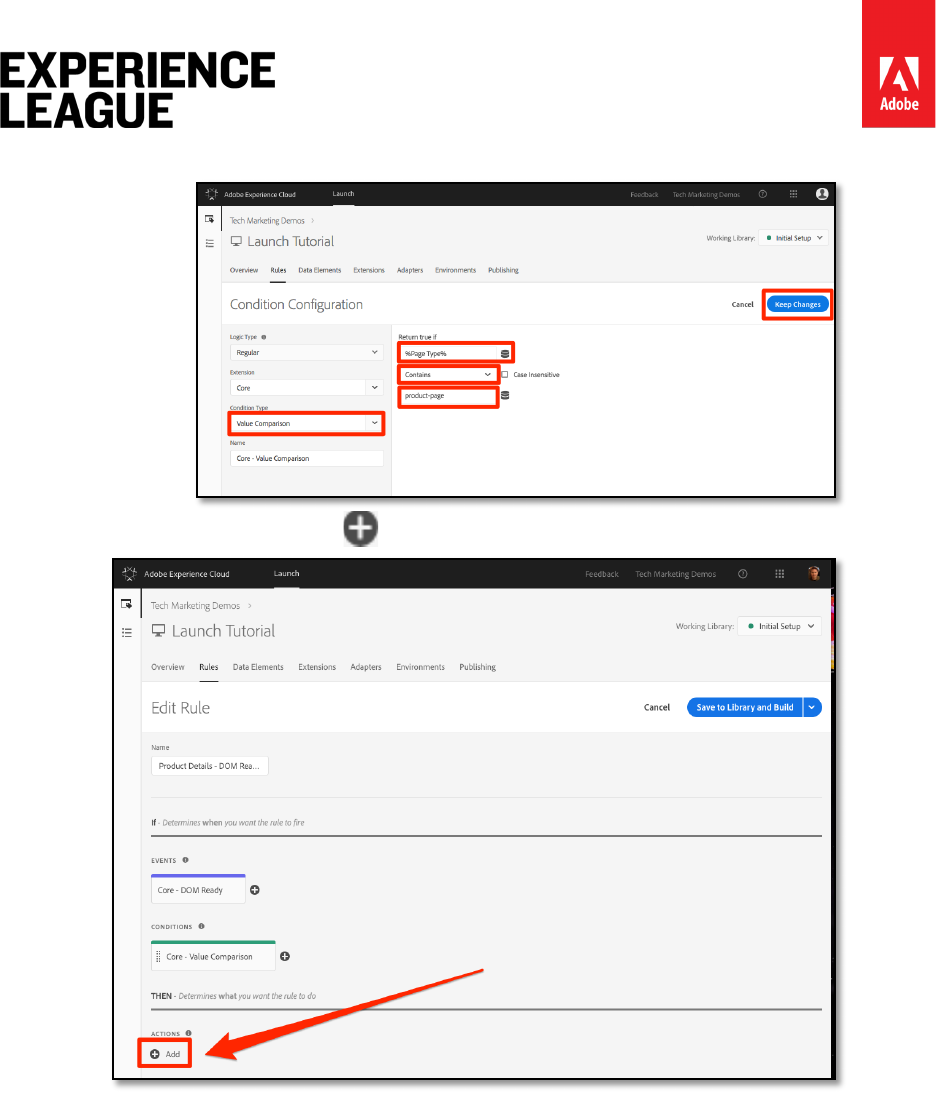
Adobe.com/go/summit2019-l779 experienceleague.adobe.com
75
v. Click [Keep Changes]
8. Under Actions, click the to add a new action
9. Select [Extension > Adobe Analytics]
10. Select [Action Type > Set Variables]
11. Select [eVar1 > Set as] and enter product detail page
12. Set [event1], leaving the optional values blank
13. Under Events, click the [Add Another] button
14. Set the [prodView] event, leaving the optional values blank

Adobe.com/go/summit2019-l779 experienceleague.adobe.com
76
15. Click [Keep Changes]
16. Under Actions, click the to add a new action
17. Select [Extension > Adobe Analytics Product String]
18. Select [Action Type > Set s.products]
19. In the [Analytics E-commerce Event] section, select [prodView]
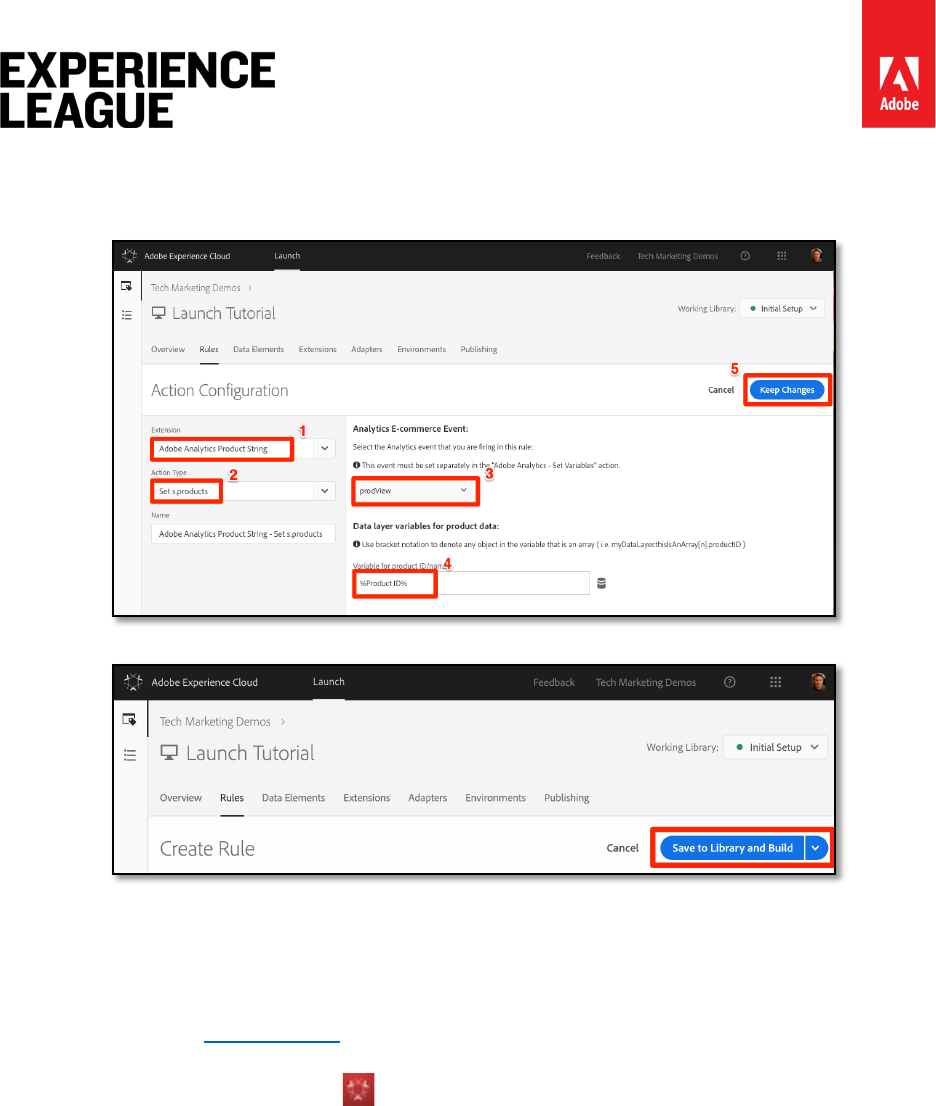
Adobe.com/go/summit2019-l779 experienceleague.adobe.com
77
20. In the [Data layer variables for product data] section, use the Data Element picker
to choose the Product Id data element
21. Click [Keep Changes]
22. Click [Save to Library and Build]
Exercise 7.3.6: Validate the Product Detail Page Data
You just created a rule that sets variables before the beacon is sent. You should now be able to
see the new data going out in the hit in the Experience Cloud Debugger.
1. Open the We.Retail site in your Chrome browser
2. Navigate to any product detail page
3. Click the Debugger icon to open your [Adobe Experience Cloud Debugger]
4. Click to the Analytics tab
5. Expand your Report Suite
6. Notice the Product Detail Variables that are now in the debugger, namely that
eVar1 has been set to "product detail page", that the Events variable has been set
to "event1" and "prodView", that the products variable is set with the product id of
the product you are viewing, and that your Page Name is still set by the Analytics
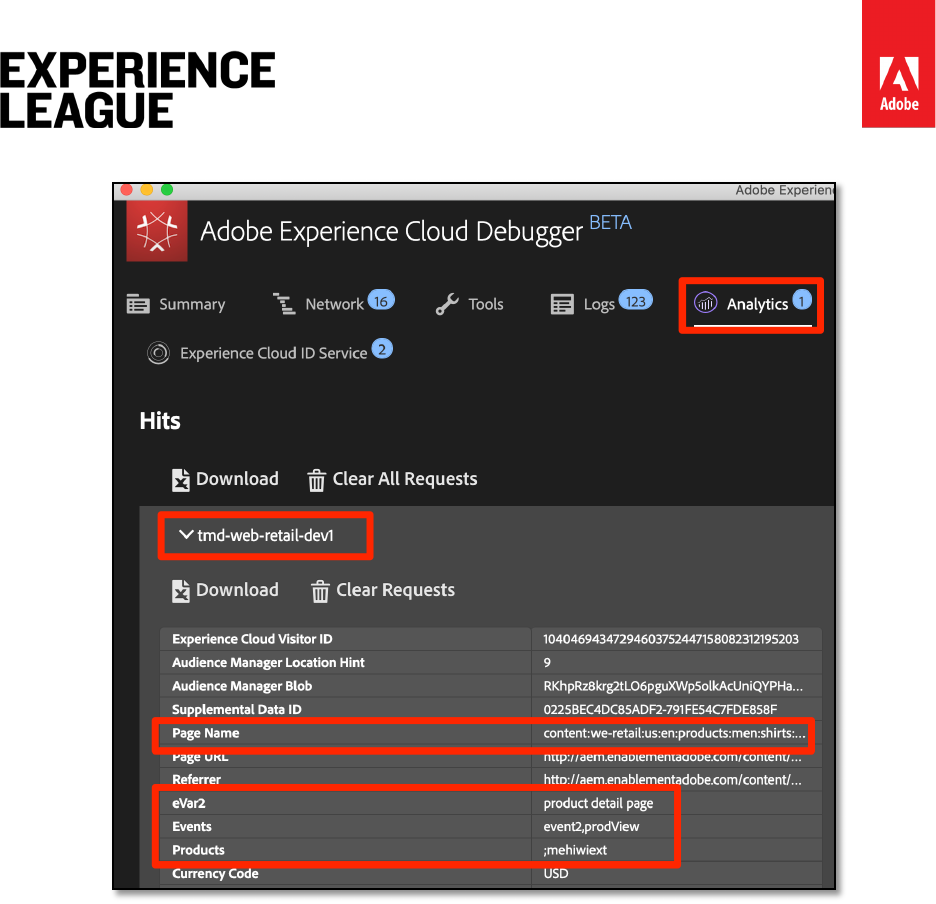
Adobe.com/go/summit2019-l779 experienceleague.adobe.com
78
extension
Exercise 7.4: Send a Track Link Beacon
When a page loads, you typically fire a page load beacon triggered by the s.t() function. This
automatically increments a page view metric for the page listed in the pageName variable.
However, sometimes you don't want to increment page views on your site, because the action
that is taking place is "smaller" (or maybe just different) than a page view. In this case, you will
use the s.tl() function, which is commonly referred to as a "track link" request. Even though
it is referred to as a track link request, it doesn't have to be triggered on a link click. It can be
triggered by any of the events that are available to you in the Launch rule builder, including
your own custom JavaScript.
In this tutorial, you will trigger an s.tl() call using one of the coolest JavaScript events, an
Enters Viewport event.
Exercise 7.4.1: Use Case
For this use case, you want to know if people are scrolling down on our We.Retail home page
far enough to see the New Arrivals section of our page. There is some internal discord at our
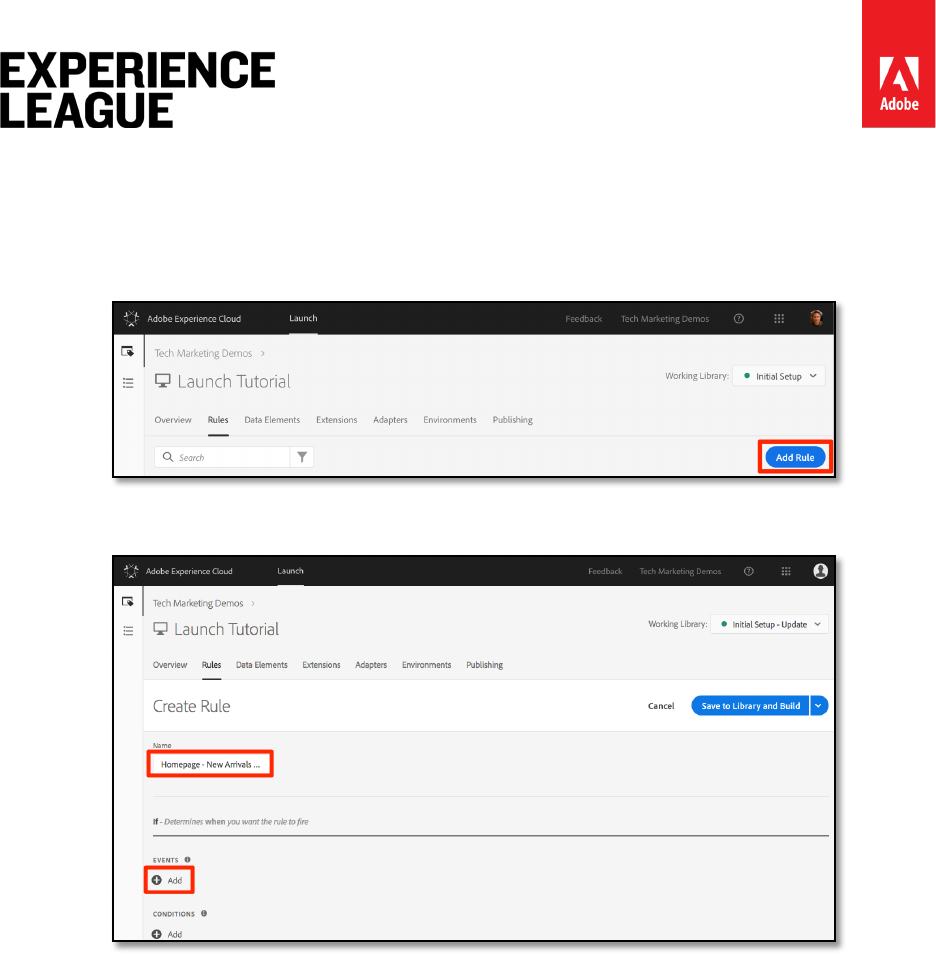
Adobe.com/go/summit2019-l779 experienceleague.adobe.com
79
company about whether people are even seeing that section or not, so you want to use
Analytics to determine the truth.
Exercise 7.4.2: Create the Rule in Launch
1. Go to the [Rules] section in the top navigation and then click [Add Rule]
2. Name the rule Homepage - New Arrivals enters Viewport
3. Click [Events > Add] to open the Event Configuration screen
4. Select [Event Type > Enters Viewport]. This will bring up a field where you need to
enter the CSS selector that will identify the item on your page that should trigger the
rule when it enters view in the browser.
5. Go back to the home page of We.Retail and scroll down to the New Arrivals section.
6. Right-click on the space between the "NEW ARRIVALS" title and the items in this
section, and select Inspect from the right-click menu. This will get you close to
what you want.
7. Right around there, possibly right under the selected section, you are looking for a
div with class="we-productgrid aem-GridColumn aem-GridColumn--
default--12". Locate this element.
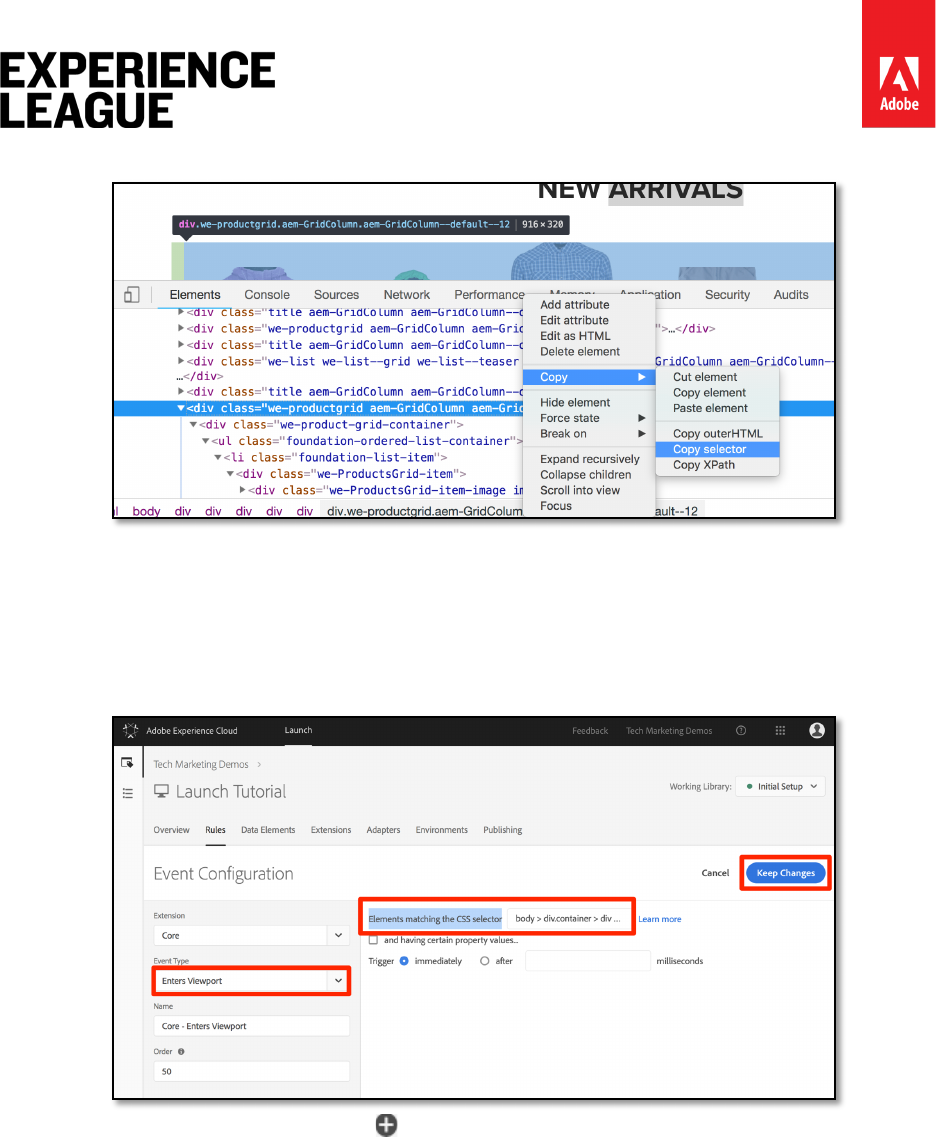
Adobe.com/go/summit2019-l779 experienceleague.adobe.com
80
8. Right-click on this element and select [Copy > Copy Selector]
9. Go back to Launch, and paste this value from the clipboard into the field labeled
Elements matching the CSS selector.
i. On a side note, it is up to you to decide how to identify CSS selectors. This
method is a bit fragile, as certain changes on the page may break this
selector. Please consider this when using any CSS selectors in Launch.
10. Click [Keep Changes]
11. Under Conditions, click the to add a new condition
12. Select [Condition Type > Value Comparison]
13. Use the data element picker, choose Page Name in the first field
14. Select [Equals] from the comparison operator dropdown
15. In the next field type content:we-retail:us:en (this is the page name of the
home page as pulled from the data layer - we only want this rule to run on the home
page)
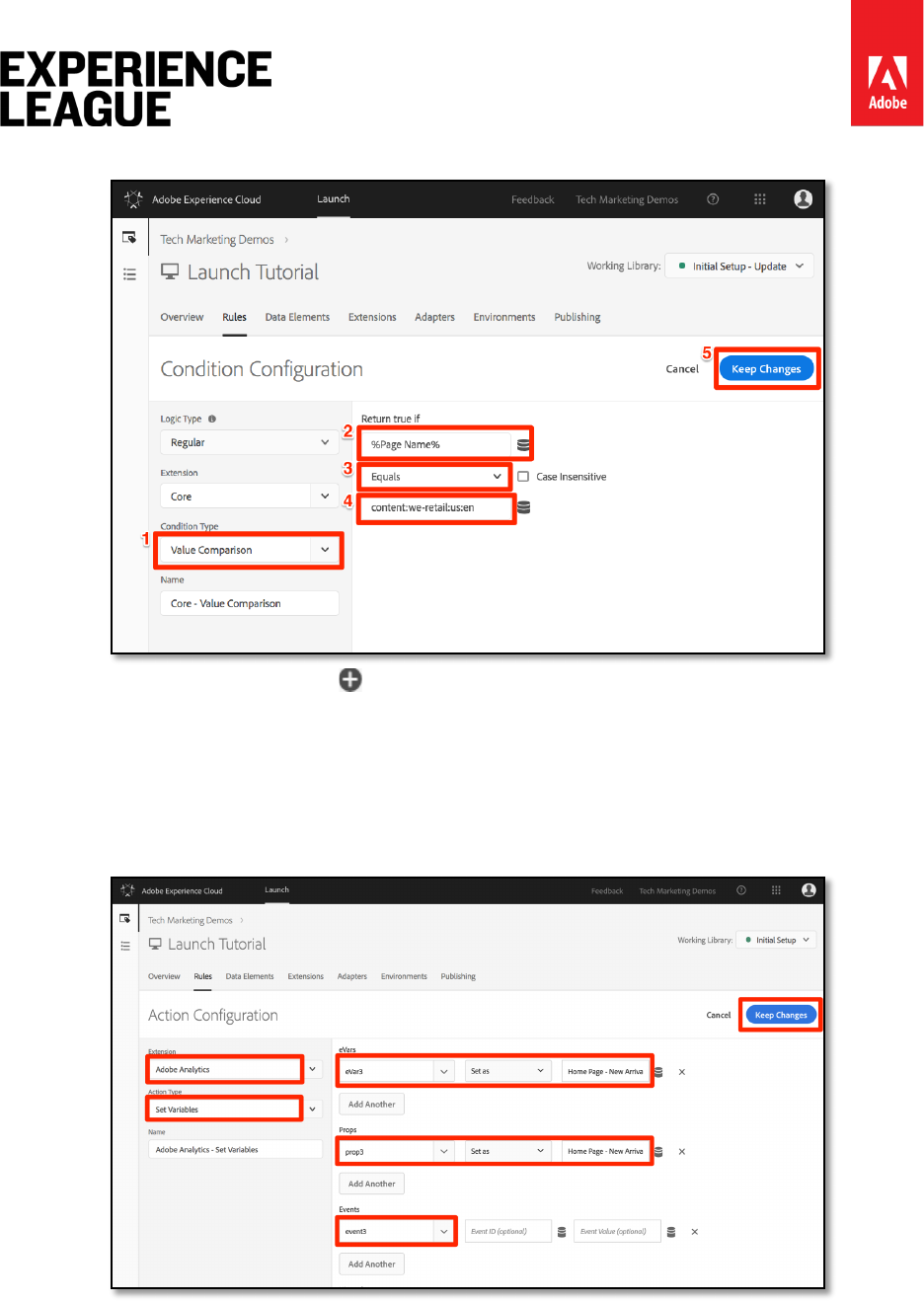
Adobe.com/go/summit2019-l779 experienceleague.adobe.com
81
16. Click [Keep Changes]
17. Under Actions, click the to add a new action
18. Select [Extension > Adobe Analytics]
19. Select [Action Type > Set Variables]
20. Set eVar3 to Home Page - New Arrivals
21. Set prop3 to Home Page - New Arrivals
22. Set the Events variable to event3
23. Click [Keep Changes]
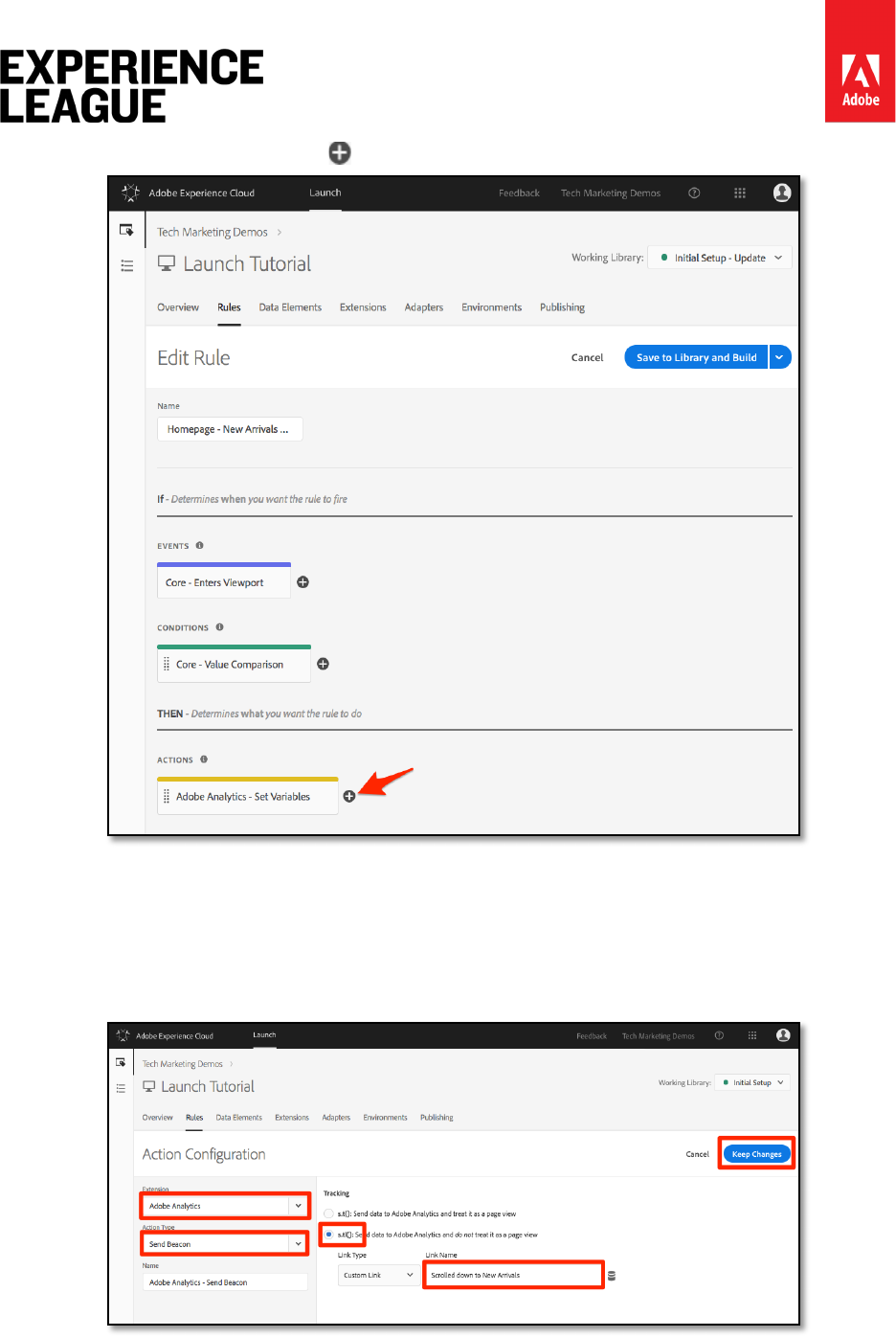
Adobe.com/go/summit2019-l779 experienceleague.adobe.com
82
24. Under Actions, click the to add another new action
25. Select [Extension > Adobe Analytics]
26. Select [Action Type > Send Beacon]
27. Choose the [s.tl()] tracking option
28. In the [Link Name] field, enter Scrolled down to New Arrivals. This value
will be placed into the Custom Links report in Analytics.
29. Click [Keep Changes]
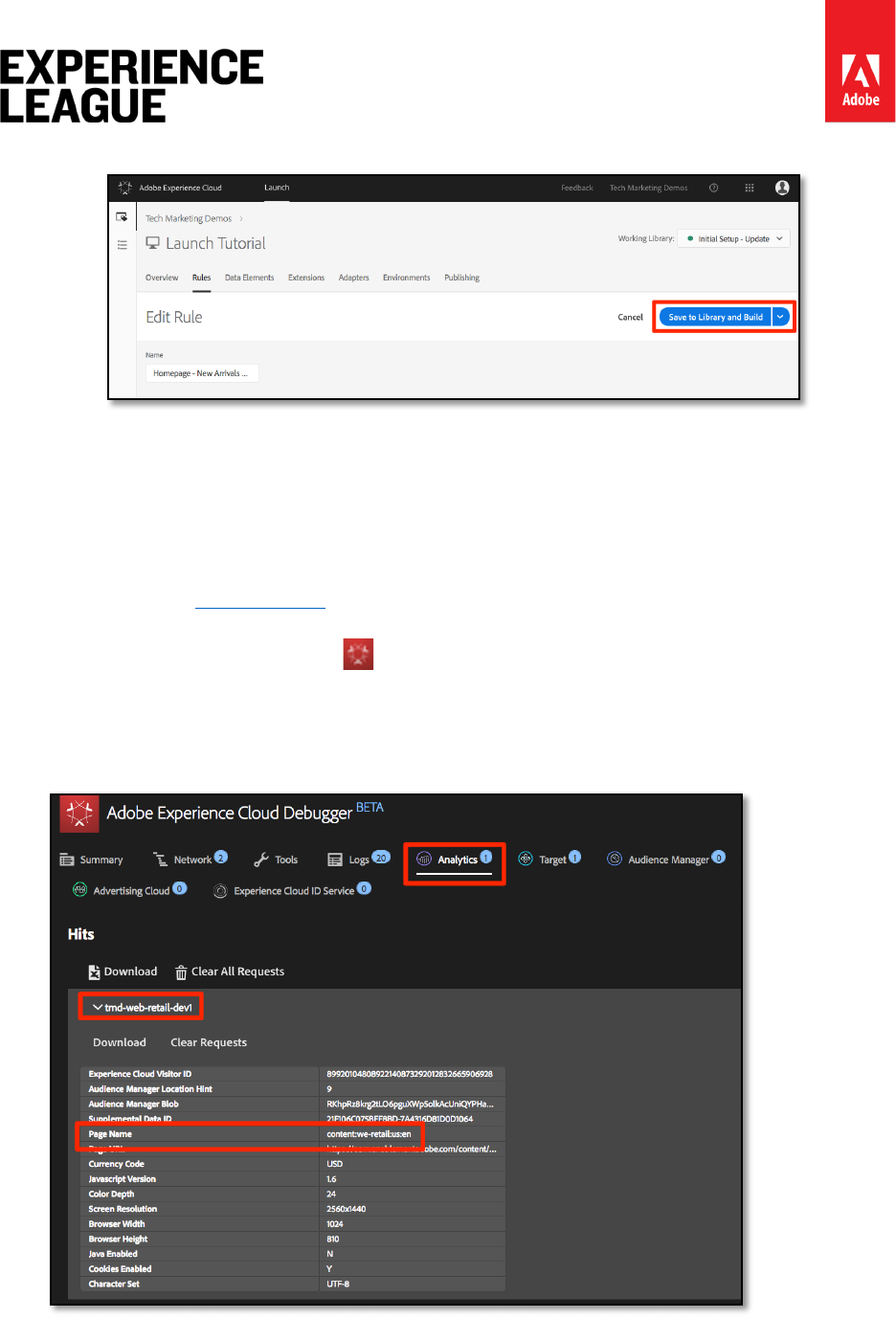
Adobe.com/go/summit2019-l779 experienceleague.adobe.com
83
30. Click [Save to Library and Build]
Exercise 7.4.3: Validate the Track Link Beacon
Now you will want to make sure that this hit goes in when you scroll down to the New Arrivals
section of the Home Page of our site. When you first load the homepage, the request shouldn't
be made, but as you scroll down and the section comes into view, the hit should fire with our
new values.
1. Open the We.Retail site in your Chrome browser and make sure you are at the top
of the home page.
2. Click the [debugger icon] to open your [Adobe Experience Cloud Debugger]
3. Click to the Analytics tab
4. Expand your Report Suite's hit
5. Notice the normal page view hit for the home page with the page name, etc. (but
nothing in eVar3 or prop3).
6. Leaving the Debugger open, scroll down on your site until you can see the New
Arrivals section

Adobe.com/go/summit2019-l779 experienceleague.adobe.com
84
7. View the Debugger again, and another Analytics hit should have appeared. This hit
should have the params associated with the s.tl() hit that you set up, namely:
i. LinkType = "link_o" (this means that the hit is a custom link hit, not a
page view hit)
ii. LinkName = "Scrolled down to New Arrivals"
iii. prop3 = "Home Page - New Arrivals"
iv. eVar3 = "Home Page - New Arrivals"
v. Events = "event3"
Exercise 7.5: Add a Plug-in
A Plug-in is a piece of JavaScript code that you can add to your implementation to perform a
specific function that is not built into the product. Plug-ins can be built by you, by other Adobe
Customers/Partners, or by Adobe Consulting.
To implement plug-ins, there are basically three steps:
1. Include the doPlugins function, where the plug-in will be referenced
2. Add the main function code for the plug-in
3. Include the code that calls the function and sets variables, etc.
Exercise 7.5.1: Make the Analytics Object Globally Accessible
If you are going to add the doPlugins function (below) and use plug-ins, you need to check a box
to make the Analytics "s" object available globally in the Analytics implementation.
1. Go to [Extensions > Installed]
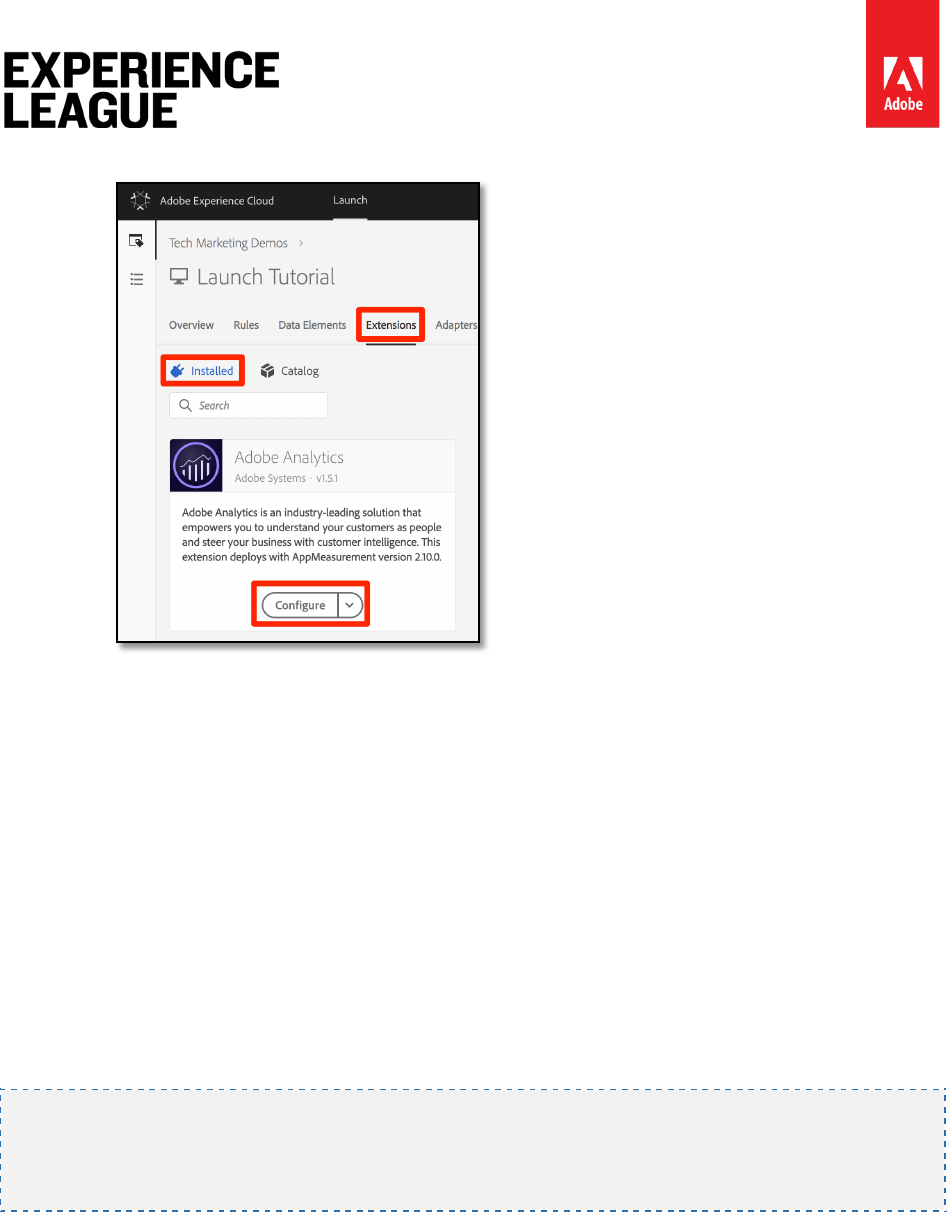
Adobe.com/go/summit2019-l779 experienceleague.adobe.com
85
2. In the Adobe Analytics extension, Click [Configure]
3. Under [Library Management], select the box labeled Make tracker globally
accessible. As you can see in the help bubble, this will make the tracker be
scoped globally under window.s, which will be important as you refer to it in your
customer JavaScript.
Exercise 7.5.2: Including the doPlugins Function
To add plug-ins, you need to add a function called doPlugins. This function is not added by
default, but once added, is handled by the AppMeasurement library, and is called last when a
hit is being sent into Adobe Analytics. Therefore, you can use this function to run some
JavaScript to set variables that are easier set this way.
1. While still in the Analytics extension, scroll down and expand the section titled
Configure Tracker Using Custom Code.
2. Click [Open Editor]
3. Paste the following code into the code editor:
/* Plugin Config */
s.usePlugins=true
s.doPlugins=function(s) {
/* Add calls to plugins here */
}
4. Keep this window open for the next step
Exercise 7.5.3: Add Function Code for the Plug-in
You are actually going to call two plug-ins in this code, but one of them is built into the
AppMeasurement library, so for that one you do not need to add the function to call. However,
for the second one, you do need to add the function code as well. This function is called
getValOnce().
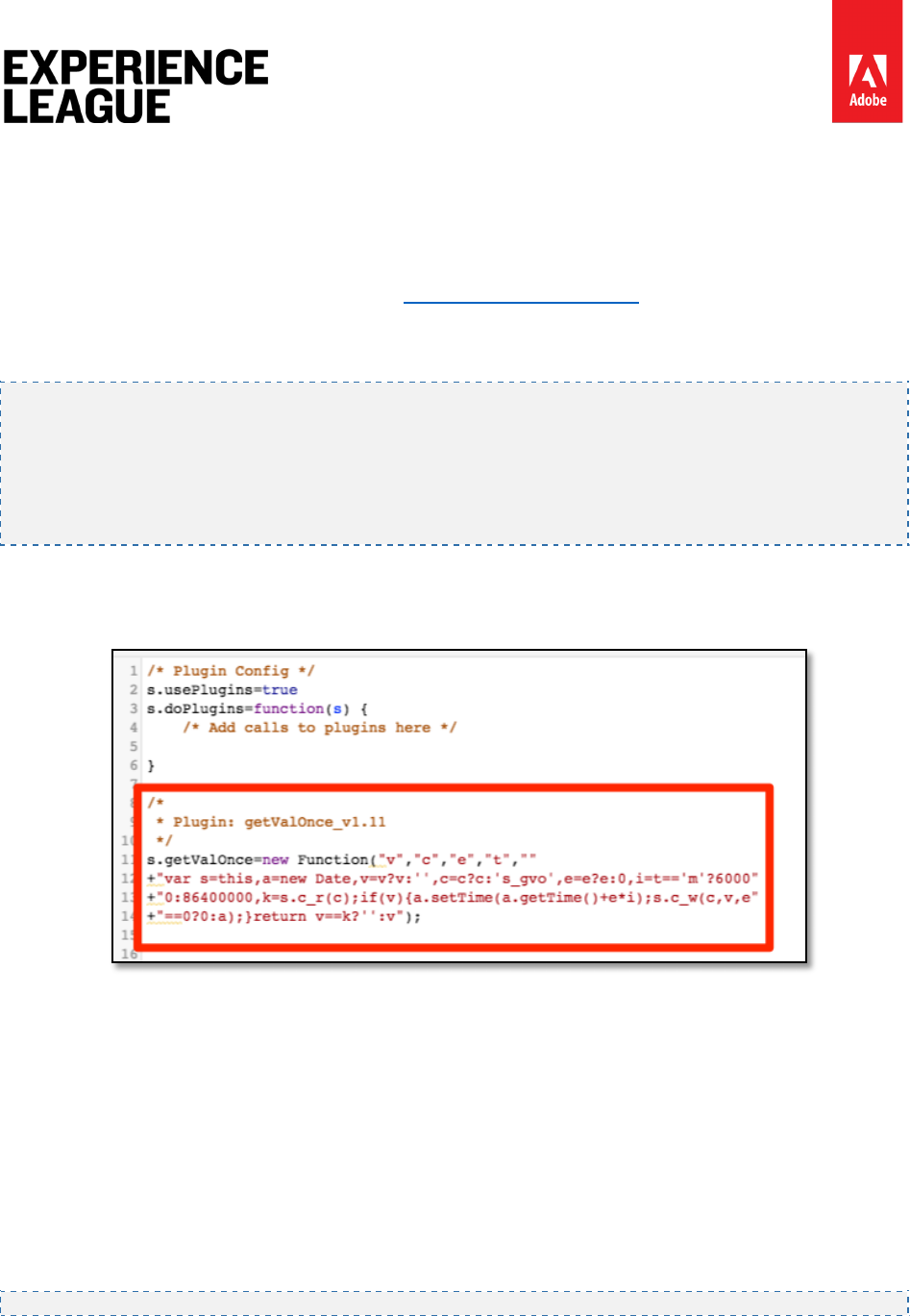
Adobe.com/go/summit2019-l779 experienceleague.adobe.com
86
Exercise 7.5.4: The getValOnce() Plug-in
The purpose of this plug-in is to keep values from getting falsely duplicated in the code when a
visitor refreshes a page or uses the browser's back button to go back to a page where a value
was set. In this lesson, you will use it to keep the clickthrough event from being duplicated.
The code for this plug-in is available in the Analytics Documentation, but it is included here for
your ease of copy/paste.
1. Copy the following code
/*
* Plugin: getValOnce_v1.11
*/
s.getValOnce=new Function("v","c","e","t",""
+"var s=this,a=new Date,v=v?v:'',c=c?c:'s_gvo',e=e?e:0,i=t=='m'?6000"
+"0:86400000,k=s.c_r(c);if(v){a.setTime(a.getTime()+e*i);s.c_w(c,v,e"
+"==0?0:a);}return v==k?'':v");
2. Paste it into the code window in the Analytics extension (if you don't still have it
open, re-open it as per the previous step), completely below the doPlugins function
(not inside of it).
You can now call this plug-in from within doPlugins.
Exercise 7.5.5: Calling Plug-ins from Within doPlugins
Now that the code is there and can be referenced, you can make the calls to plug-ins within the
doPlugins function.
First you will call a plug-in which has been incorporated into the AppMeasurement library, and
so is known as a "utility." It is referred to as s.Util.getQueryParam, because it is part of the
s object, is a built-in utility, and will grab values (based on a parameter) from the query string in
the URL.
1. Copy the following code:
s.campaign = s.Util.getQueryParam("cid");
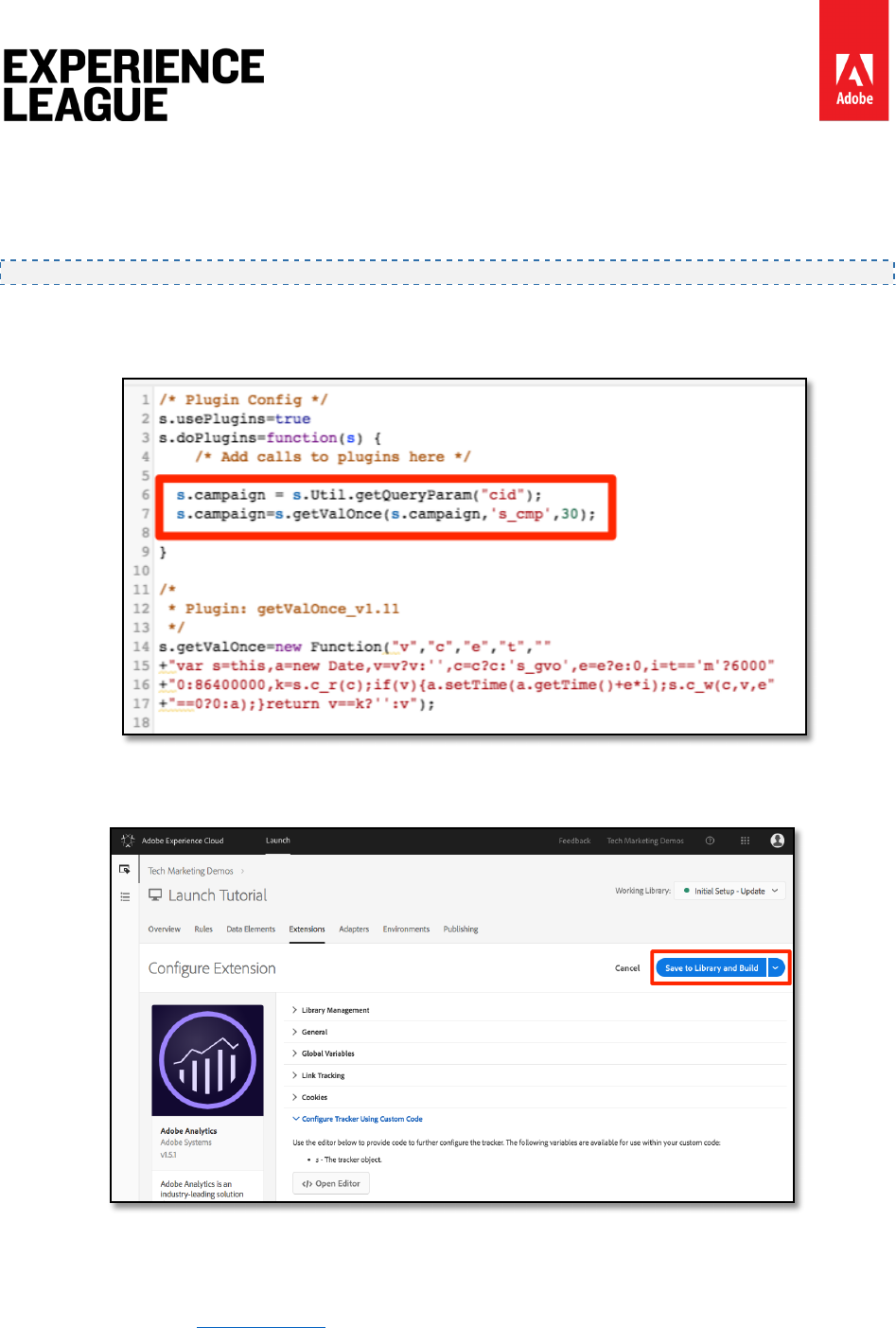
Adobe.com/go/summit2019-l779 experienceleague.adobe.com
87
2. Paste it into the doPlugins function. This will look for a parameter called cid in the
current page URL and place it into the s.campaign variable.
3. Now call the getValOnce function by copying the following code and pasting it in
right below the call to getQueryParam:
s.campaign=s.getValOnce(s.campaign,'s_cmp',30);
This code will make sure that the same value is not sent in more than once in a row for 30
days (see the documentation for ways to customize this code to your needs).
4. Save the code window
5. Click [Save to Library and Build]
Exercise 7.5.6: Validate the Plug-ins
Now you can make sure that the plug-ins are working.
1. Open the We.Retail site in your Chrome browser
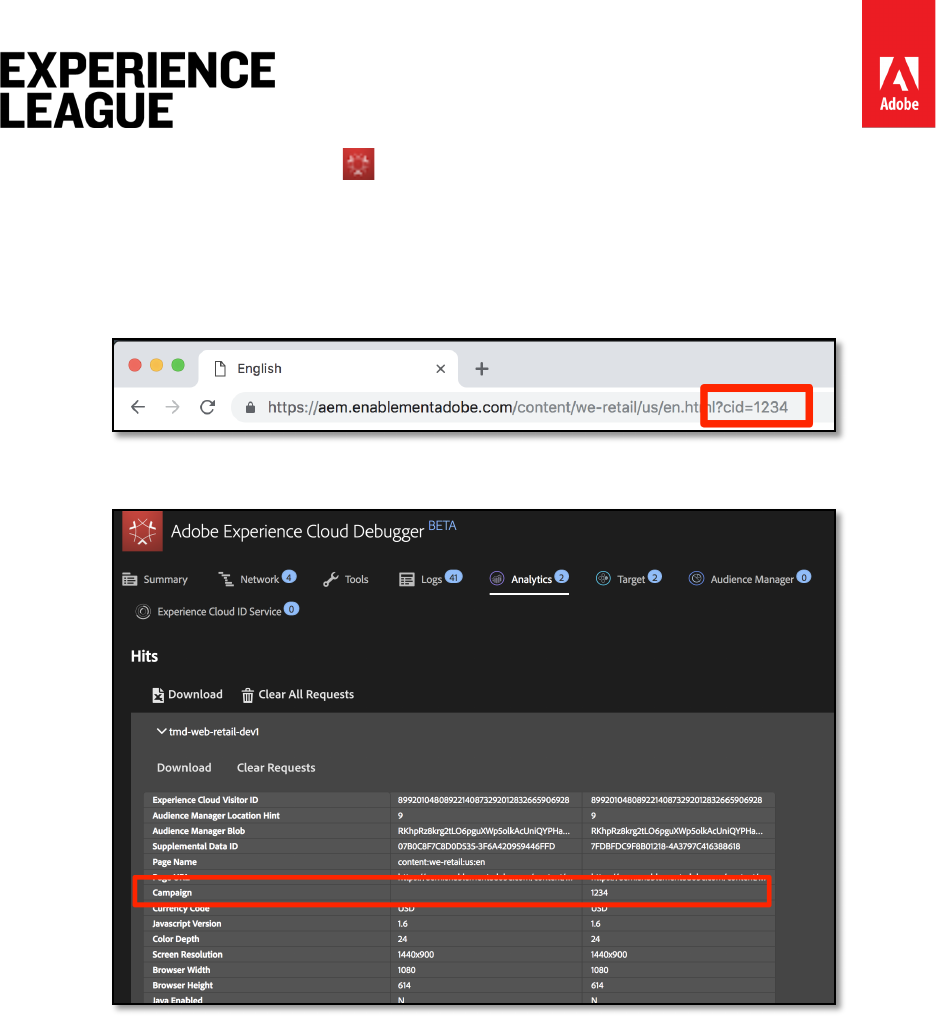
Adobe.com/go/summit2019-l779 experienceleague.adobe.com
88
2. Click the Debugger icon to open the [Adobe Experience Cloud Debugger]
3. Click to the Analytics tab
4. Expand your Report Suite
5. Notice the Analytics hit does not have a Campaign variable
6. Leaving the Debugger open, go back to the We.Retail site and add ?cid=1234 to
the URL and hit Enter to refresh the page with that query string included
7. Check the Debugger and confirm that there is a second Analytics request with a
Campaign variable set to 1234
8. Go back and refresh the We.Retail page again, with the query string still in the URL
9. Check the next hit in the Debugger, and the Campaign variable should not be
present, because the getValOnce plug-in has made sure that it doesn't get
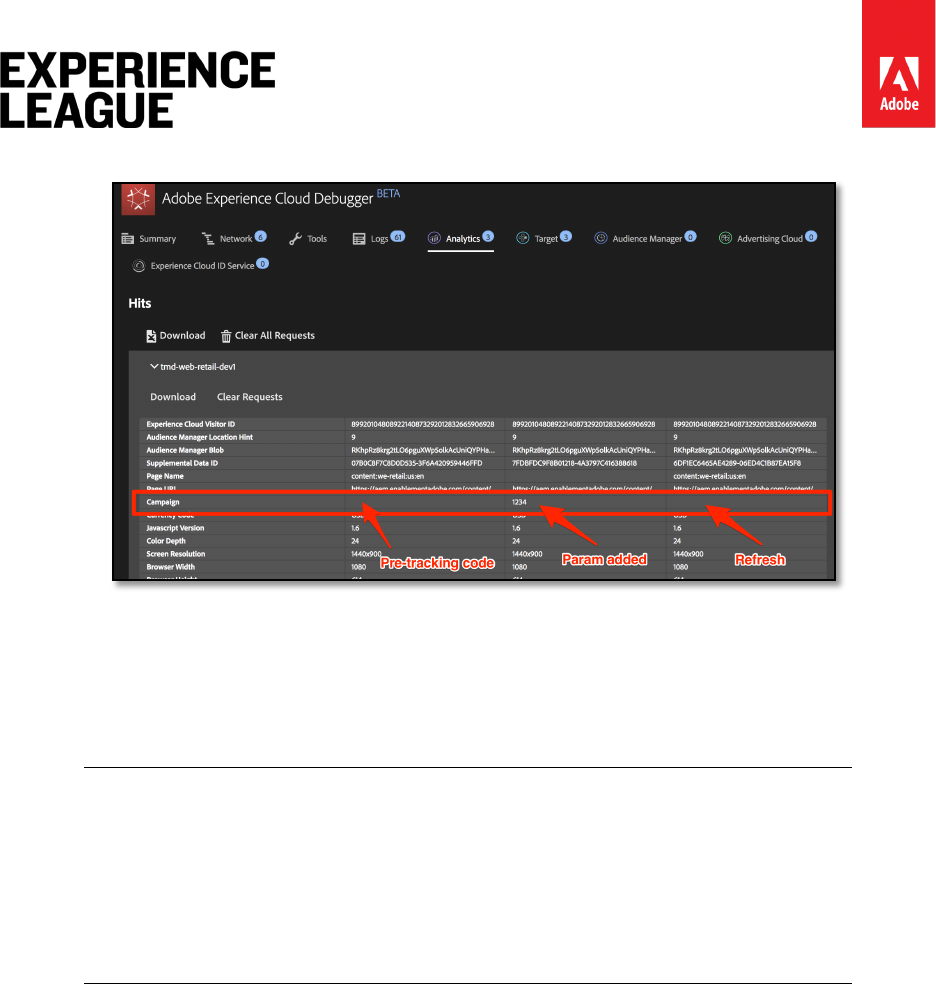
Adobe.com/go/summit2019-l779 experienceleague.adobe.com
89
duplicated and look like another person came in from the campaign tracking code.
10. BONUS: You can test this over and over by changing the value of the cid parameter
in the query string. The Campaign variable should only be there if it is the first time
you run the page with the value. If you are not seeing the Campaign value in the
debugger, simply change the value of the cid in the query string of the URL, hit
enter, and you should see it again in the debugger.
There are actually a few different ways to grab a parameter out of the query
string of the URL, including in the Analytics extension configuration. However,
in these other non-plug-in options, they don't provide the ability to stop
unnecessary duplication, as you have done here with the getValOnce plug-in.
This is the author's favorite method, but you should determine which method
works best for you and your needs.
Nice work! You have completed the Analytics section. Of course, there are many other things
that you can do to enhance our Analytics implementation, but hopefully this has given you
some of the core skills you will need to tackle the rest of your needs.

Adobe.com/go/summit2019-l779 experienceleague.adobe.com
90
Lesson 8 - Add Adobe Audience Manager
This lesson will guide you through the steps to enable Adobe Audience Manager using Server-
Side Forwarding.
Adobe Audience Manager (AAM) provides industry-leading services for online audience data
management, giving digital advertisers and publishers the tools they need to control and
leverage their data assets to help drive sales success.
Learning Objectives
At the end of this lesson, you will be able to:
1. Describe the two main ways to implement Audience Manager in a website
2. Add Audience Manager using Server-Side Forwarding of the Analytics beacon
3. Validate the Audience Manager implementation
Prerequisites
In order to complete this lesson, you will need:
1. To have completed the lessons in Configure Launch, Add Adobe Analytics, and Add
the ID Service.
2. Admin access to Adobe Analytics so that you can enable Server-Side Forwarding for
the report suite you are using for this tutorial. Alternatively, you can ask an existing
admin at your organization to do this for you, following the instructions below.
3. Your “Audience Manager Subdomain” (also known as the “Partner Name” “Partner
ID,” or “Partner Subdomain”). If you already have Audience Manager implemented
on your actual website, the easiest way to obtain it is to go to your actual website
and open the Debugger. The subdomain is available on the Summary tab, in the
Audience Manager section:
If you don't already have Audience Manager implemented, please follow these instructions to
obtain your Audience Manager Subdomain.
Adobe.com/go/summit2019-l779 experienceleague.adobe.com
91
Exercise 8.1: Implementation Options
There are two ways to implement Audience Manager in a website:
• Server-Side Forwarding (SSF) - for customers with Adobe Analytics, this is the
easiest and recommended way to implement. Adobe Analytics forwards data to
AAM on Adobe's backend, allowing for one less request on the page. This also
enables key integration features and conforms with our best practices for Audience
Manager code implementation and deployment.
• Client-Side DIL - This approach is for customers who do not have Adobe Analytics.
DIL code (Data Integration Library Code, the AAM JavaScript configuration code)
sends data directly from the web page into Audience Manager.
Since you have already deployed Adobe Analytics in this tutorial, you will deploy Audience
Manager using Server-Side Forwarding. For a complete description and requirements list for
Server-Side forwarding, please review the documentation, so that you are familiar with how it
works, what is required, and how to validate.
All links available at adobe.com/go/summit2019-l779
Exercise 8.2: Enable Server-Side Forwarding
There are two main steps in doing a SSF implementation:
1. Turning on a "switch" in the Analytics Admin Console to forward data from Analytics
to Audience Manager per report suite.
2. Putting the code in place, which is done via Launch. In order for this to work correctly,
you will need to have the Experience Cloud ID Service extension installed, as well as
the Analytics extension (You will actually not need the AAM extension, which is
explained below).
Exercise 8.2.1: Enable Server-Side Forwarding in the Analytics Admin Console
A configuration in the Adobe Analytics Admin Console is required to start forwarding data from
Adobe Analytics to Adobe Audience Manager. Since it can take up to four hours to start
forwarding the data, you should do this step first.
Exercise 8.2.1.1: To Enable SSF in the Analytics Admin Console
1. Log into Analytics via the Experience Cloud UI. If you don't have Admin access to
Analytics, you will need to talk to your Experience Cloud or Analytics admin to assign
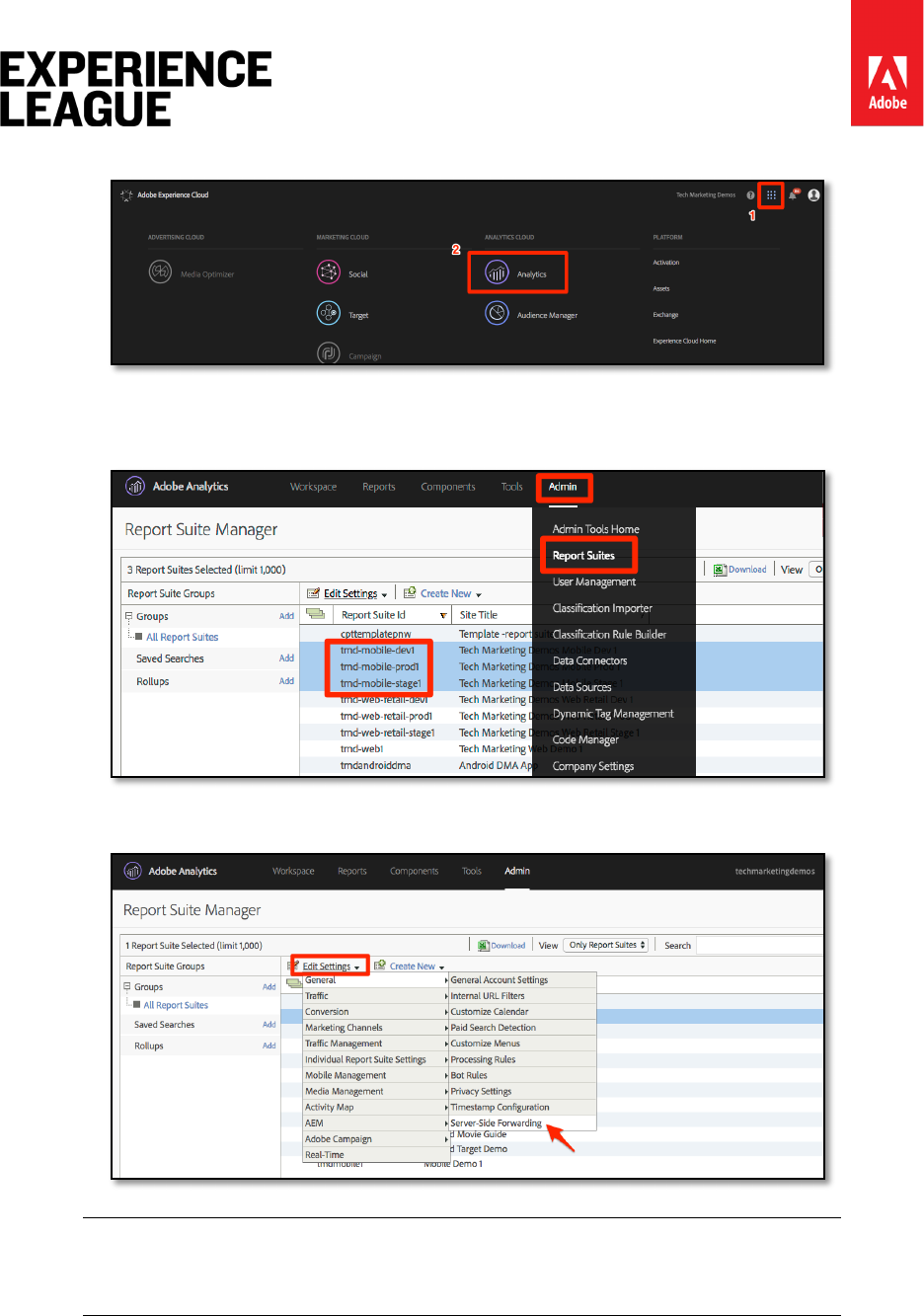
Adobe.com/go/summit2019-l779 experienceleague.adobe.com
92
you access or complete these steps for you.
2. From the top navigation in Analytics, choose [Admin > Report Suites], and from the
list, select (multi-select) the report suite(s) that you want to forward to Audience
Manager.
3. From the Report Suites screen and with the report suite(s) selected, choose [Edit
Settings > General > Server-Side Forwarding].
Warning: As stated above, you will need to have administrator privileges to
see this menu item.
4. Once on the Server-Side Forwarding page, read the info and check the box to
[Enable Server-Side Forwarding] for the report suite(s).
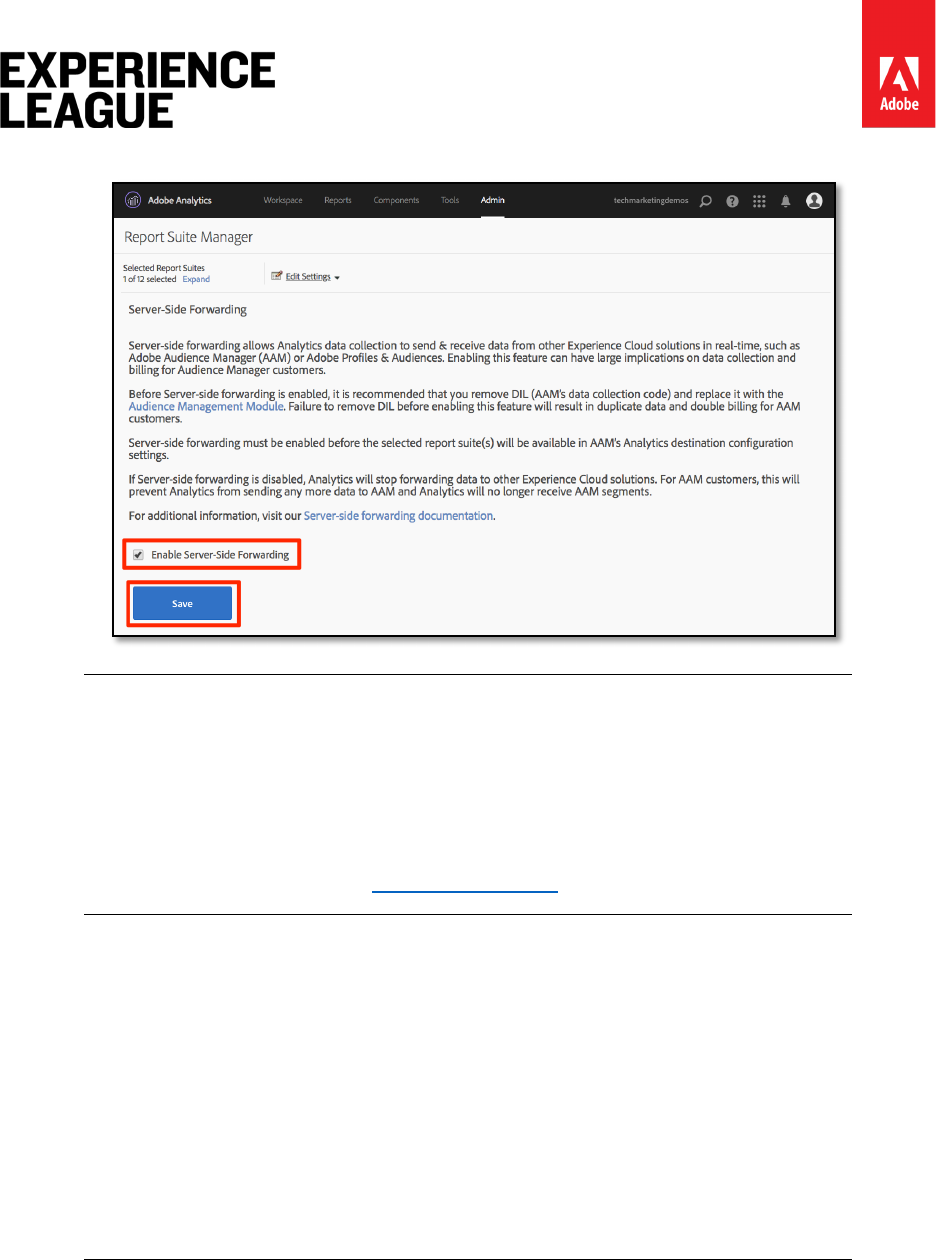
Adobe.com/go/summit2019-l779 experienceleague.adobe.com
93
5. Click [Save]
Since SSF needs to be enabled per report suite, don't forget to repeat this step
for your real report suites when you are deploying SSF on your actual site's
report suite.
Also, if the SSF option is grayed out, you will need to "map the report suite(s)
to your Experience Cloud Org in order to enable the option. This is explained in
the documentation.
Once this step has been completed, and if you have the Experience Cloud ID Service enabled,
data will be forwarded from Analytics to AAM. However, to complete the process so that the
response comes back correctly from AAM to the page (and also to Analytics via the Audience
Analytics feature), you must complete the following step in Launch as well. Don't worry, it's
super easy.
Exercise 8.2.2: Enable Server-Side Forwarding in Launch
This is the second of two steps for enabling SSF. You have already flipped the switch in the
Analytics Admin Console, and now you just need to add the code, which Launch will do for you
if you simply check the right box.
NOTE: To implement Server-Side Forwarding of Analytics data into AAM, we
will actually edit/configure the Analytics extension in Launch, not the AAM
extension. The AAM extension is used exclusively for Client-Side DIL
implementations, for those who do not have Adobe Analytics. So the following

Adobe.com/go/summit2019-l779 experienceleague.adobe.com
94
steps are correct when they send you into the Analytics extension to set this
up.
1. Go to [Extensions > Installed] and click to configure the Analytics extension.
2. Expand the Adobe Audience Manager section
3. Check the box to [Automatically share Analytics Data with Audience Manager]. This
will add the Audience Manager "Module" (code) to the Analytics
AppMeasurement.js implementation.
4. Add your “Audience Manager Subdomain” (also known as the “Partner Name,”
“Partner ID,” or “Partner Subdomain”). Follow these instructions to obtain your
Audience Manager Subdomain.
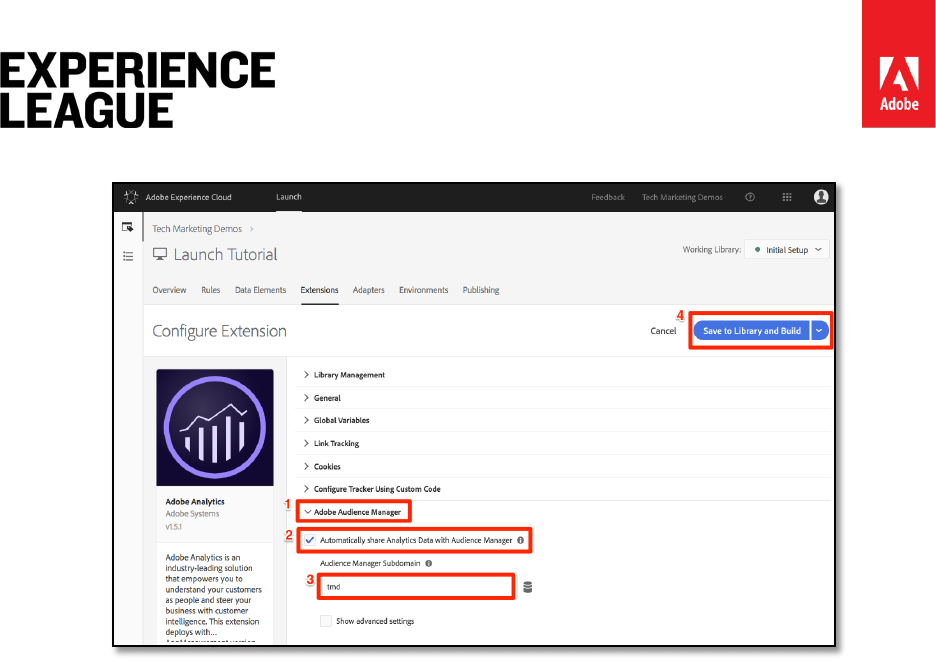
Adobe.com/go/summit2019-l779 experienceleague.adobe.com
95
5. Click [Save to Library and Build]
Server-Side Forwarding code is now implemented!
Exercise 8.2.3: Validate the Server-Side Forwarding
The main way to validate that the Server-Side Forwarding is up and running is by looking at the
response to any of your Adobe Analytics hits. We'll get to that in a minute. In the mean time,
let's check a couple of other things that can help us make sure that it is working the way we
want it to.
The code that Adobe Launch installs to handle the forwarding, and especially the response from
AAM to the page, is called the Audience Manager "Module." We can use the Experience Cloud
Debugger to ensure that it has loaded.
1. Open the We.Retail site
2. Click the debugger icon in your browser to open the Experience Cloud debugger
3. Staying on the Summary tab, scroll down to the Analytics section
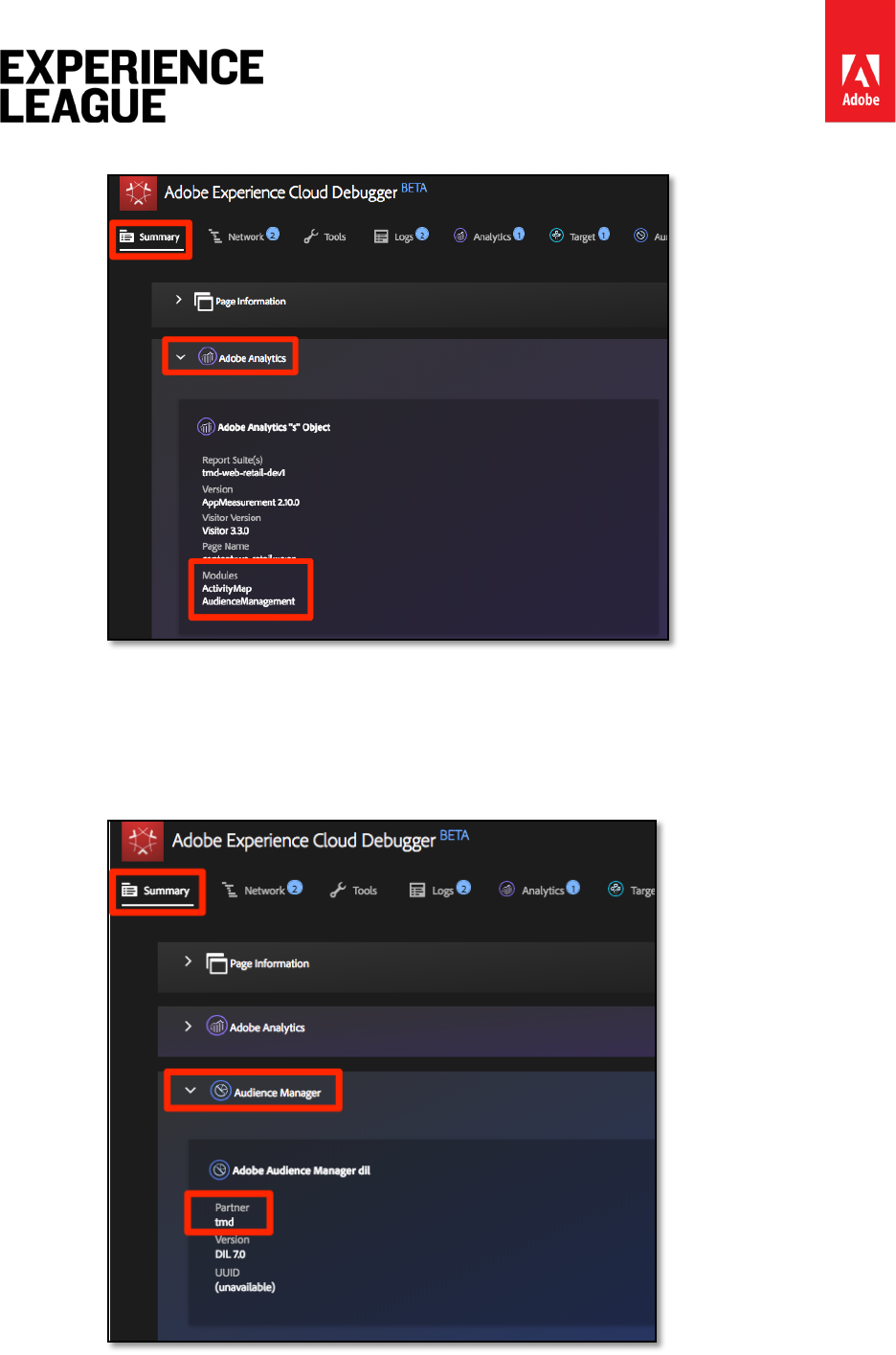
Adobe.com/go/summit2019-l779 experienceleague.adobe.com
96
4. Verify that AudienceManagement is listed under the Modules section
Next, we can also verify that the debugger is picking up the right "partner ID" (AKA Partner
subdomain, etc.) from the code.
1. While still in the debugger, and still on the Summary tab, scroll down to the
Audience Manager section
2. Verify your Partner ID/Subdomain under "Partner"
Adobe.com/go/summit2019-l779 experienceleague.adobe.com
97
Warning: You may notice that the Audience Manager section of the debugger
refers to "DIL", which is the "Data Integration Library," and typically refers to a
client-side implementation, as opposed to the server-side approach that we
have implemented here. The truth is that the AAM "Module" (used in this SSF
approach) uses a lot of the same code as the client-side DIL library, and so this
debugger is currently reporting it as such. If you have followed the steps in this
tutorial, and the rest of the items in this validation section are correct, you
may rest assured that server-side forwarding is working.

Adobe.com/go/summit2019-l779 experienceleague.adobe.com
98
Lesson 9 - Experience Cloud Integrations
In this lesson, you will review the key integrations between the solutions you just implemented.
The good news is that by completing the earlier lessons, you have already implemented the
code-aspects of the integrations! You don't need to do any additional work in this lesson
besides reading and validating.
Learning Objectives
At the end of this lesson, you will be able to:
1. Explain the basic use cases for Audience Sharing, Analytics for Target (A4T) and
Customer Attributes integrations
2. Validate the basic client-side implementation aspects of these integrations
Prerequisites
You should complete all of the previous lessons in this tutorial before following the instructions
in this lesson.
There are many user-permissions requirements, account configurations, and provisioning steps
that are required to fully use these integrations and which are beyond the scope of this tutorial.
If you are not already using these integrations in your current implementation of the
Experience Cloud, you should consider the following:
– Review the full requirements of the Core Services integrations
– Review the full requirements of the Analytics for Target integration
– Have an Administrator of your Experience Cloud Organization request provisioning of
these integrations
All links available at adobe.com/go/summit2019-l779
Exercise 9.1: Audiences
Audiences is part of the People Core Service and allows you to share audiences between
solutions. For example you can create an audience in Audience Manager and use it to deliver
personalized content with Target.
The main requirements to implement A4T - which you have already done - are to:
1. Implement the Experience Cloud Id Service
2. Implement Audience Manager
3. Implement other solutions which you would like to receive or create audiences, such
as Target and Analytics
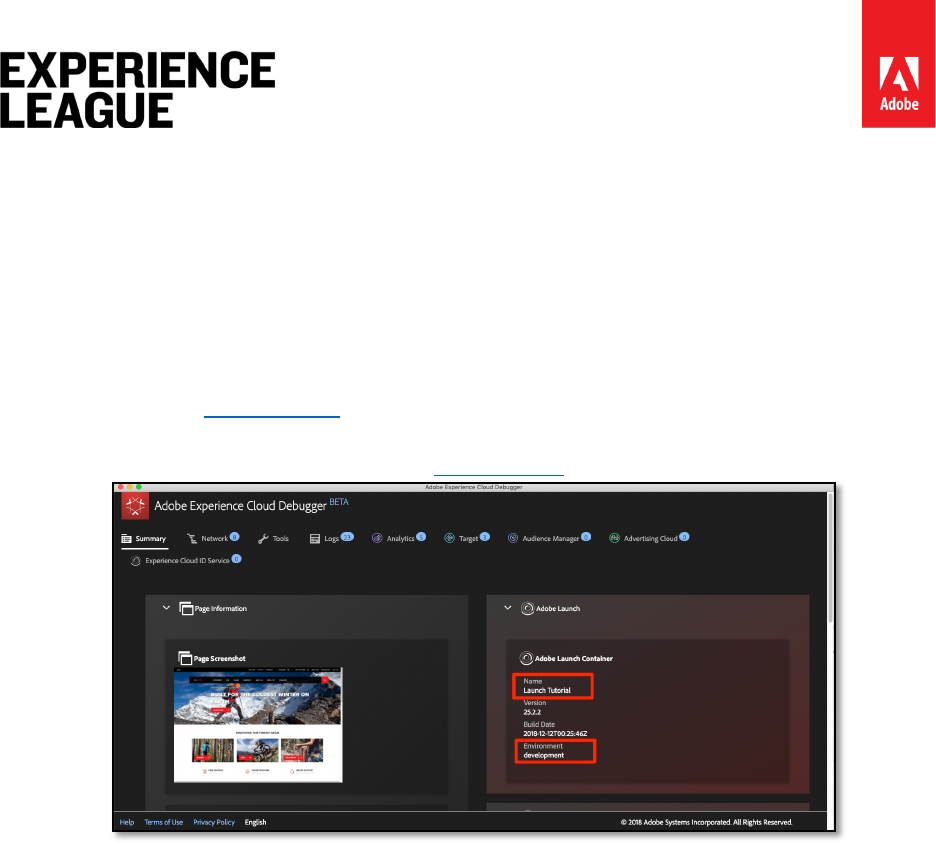
Adobe.com/go/summit2019-l779 experienceleague.adobe.com
99
Exercise 9.1.1: Validate the Audiences integration
The best way to validate the Audiences integration is to actually build an audience, share it to
another solution, and then fully use it in the other solution (e.g. confirm that a visitor who
qualifies for an AAM segment can qualify for a Target activity targeted to that segment).
However, this is beyond the scope of this tutorial.
These validation steps will focus on the critical part visible in the client-side implementation--the
Visitor ID.
1. Open the We.Retail site
2. Make sure the Debugger is mapping the Launch property to your Development
environment, as described in the earlier lesson
3. Go to the Network tab of the Debugger
4. Click [Clear All Requests] just to clean things up
5. Reload the We.Retail page, making sure that you see both the Target and Analytics
requests in the Debugger
6. Reload the We.Retail page again
7. You should now see four requests in the Network tab of the Debugger - two for
Target and two for Analytics
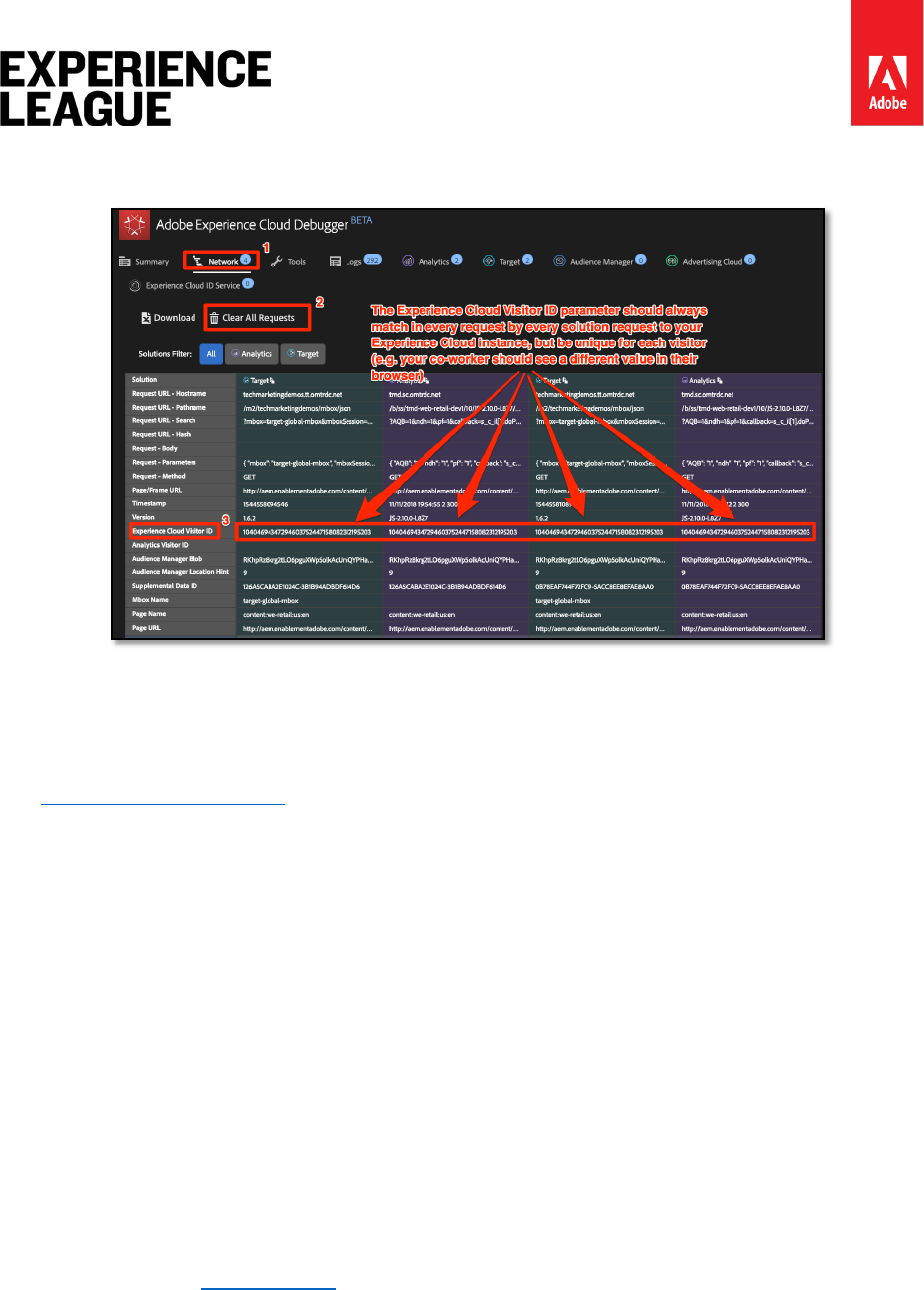
Adobe.com/go/summit2019-l779 experienceleague.adobe.com
100
8. Look in the row labeled "Experience Cloud Visitor ID." The IDs in every request by
every solution should always be the same.
9. The IDs are unique per visitor, which you can confirm by asking a co-worker to
repeat these steps.
Exercise 9.2: Analytics for Target (A4T)
The Analytics for Target (A4T) integration allows you to leverage your Analytics data as the
source for reporting metrics in Target.
The main requirements to implement A4T - which you have already done - are to:
1. Implement the Experience Cloud Id Service
2. Fire the global mbox before the Analytics page view beacon
A4T works by stitching together a server-side request from Target to Analytics with the
Analytics page view beacon, which we call "hit-stitching." Hit-stitching requires that the Target
request which delivers the activity (or increments a Target-based goal metric) have a parameter
which matches a parameter in the Analytics page view beacon. This parameter is called the
supplemental data id (SDIDs).
Exercise 9.2.1: Validate the A4T Implementation
The best way to validate the A4T integration is to actually build a Target activity using A4T and
validate the reporting data, however this is beyond the scope of this tutorial. This tutorial will
show you how to confirm that the supplemental data ids match between the solution calls.
1. Open the We.Retail site
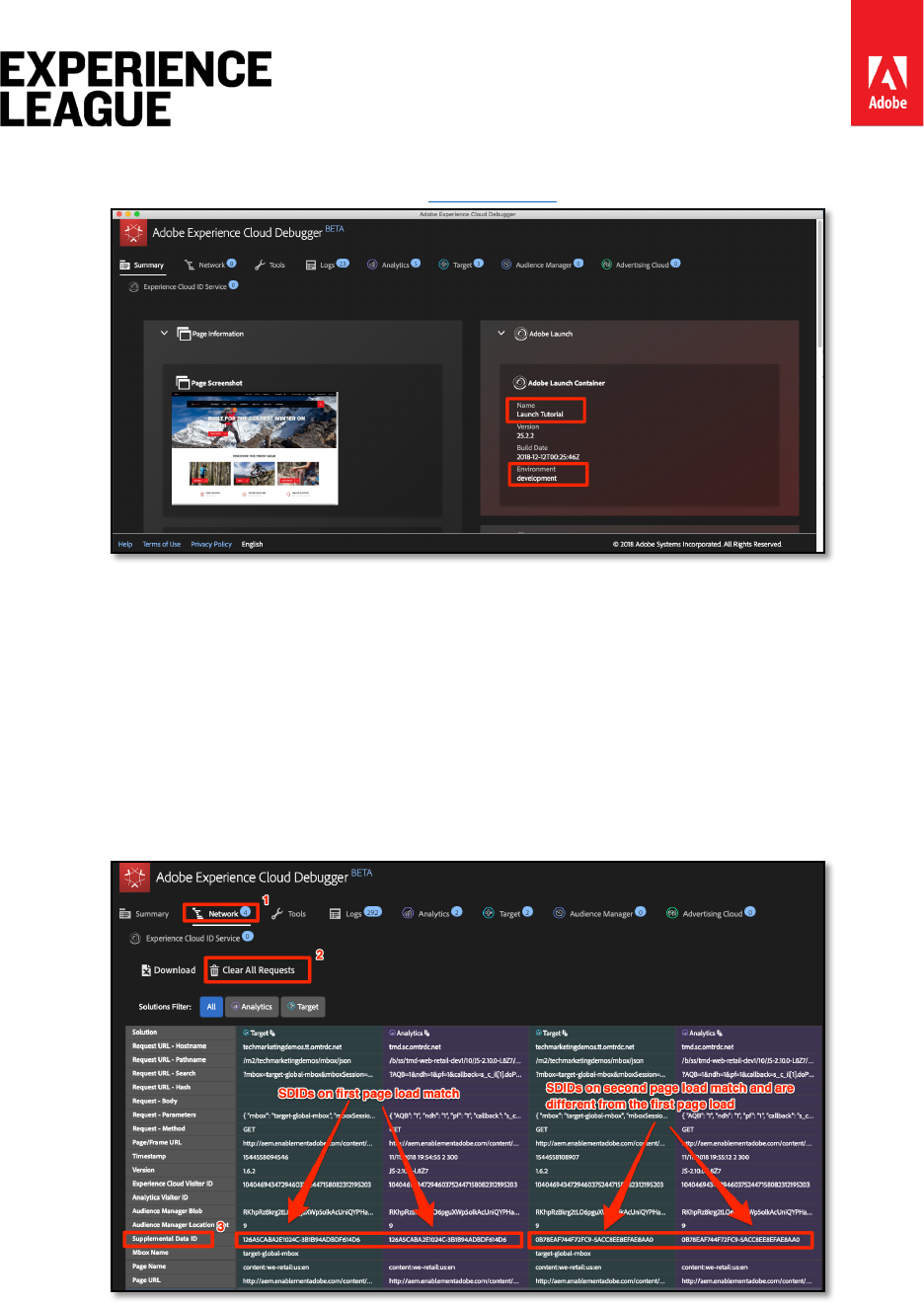
Adobe.com/go/summit2019-l779 experienceleague.adobe.com
101
2. Make sure the Debugger is mapping the Launch property to your Development
environment, as described in the earlier lesson
3. Go to the Network tab of the Debugger
4. Click [Clear All Requests] just to clean things up
5. Reload the We.Retail page, making sure that you see both the Target and Analytics
requests in the Debugger
6. Reload the We.Retail page again
7. You should now see four requests in the Network tab of the Debugger - two for
Target and two for Analytics
8. Look in the row labeled "Supplemental Data ID." The IDs from the first page load
should match between Target and Analytics. The IDs from the second page load
should also match, but be different from the first page load.
If you make additional Target requests in the scope of a page load (not including single-page
apps) that are part of A4T activities, it's good to give them unique names (not target-global-
mbox) so that they will continue to have the same SDIDs of the initial Target and Analytics
requests.
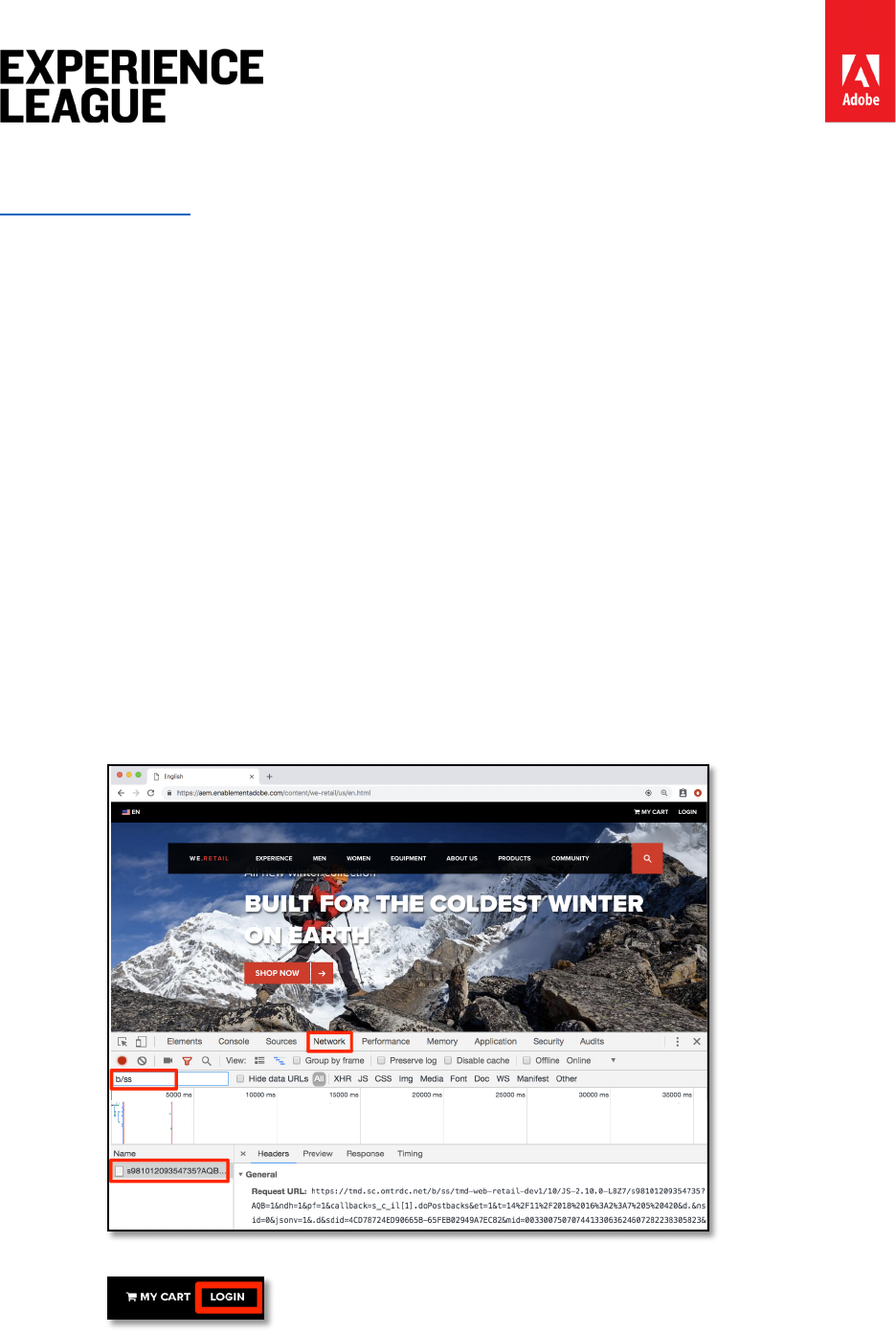
Adobe.com/go/summit2019-l779 experienceleague.adobe.com
102
Exercise 9.3: Customer Attributes
Customer Attributes is a part of the People Core Service that allows you to upload data from
your customer relationship management (CRM) database and leverage it in Adobe Analytics
and Adobe Target.
The main requirements to implement Customer Attributes - which you have already done - are
to:
1. Implement the Experience Cloud Id Service
2. Set Customer Ids via the Id Service before Target and Analytics fire their requests
(which you accomplished using the rule ordering feature in Launch)
Exercise 9.3.1: Validate the Customer Attributes Implementation
You have already validated that the Customer IDs are passed to both the ID Service and to
Target in earlier lessons. You can also validate the Customer ID in the Analytics hit as well. At
this time, the Customer ID is one of the few parameters that does not show up in the
Experience Cloud Debugger, so you will use the browser's JavaScript Console to view it.
1. Open the We.Retail site
2. Open your browser's Developer Tools
3. Go to the Network tab
4. In the filter field, type b/ss which will limit what you see to the Adobe Analytics
requests
5. Click the [LOGIN] link in the top right corner of the site
Username: test@adobe.com
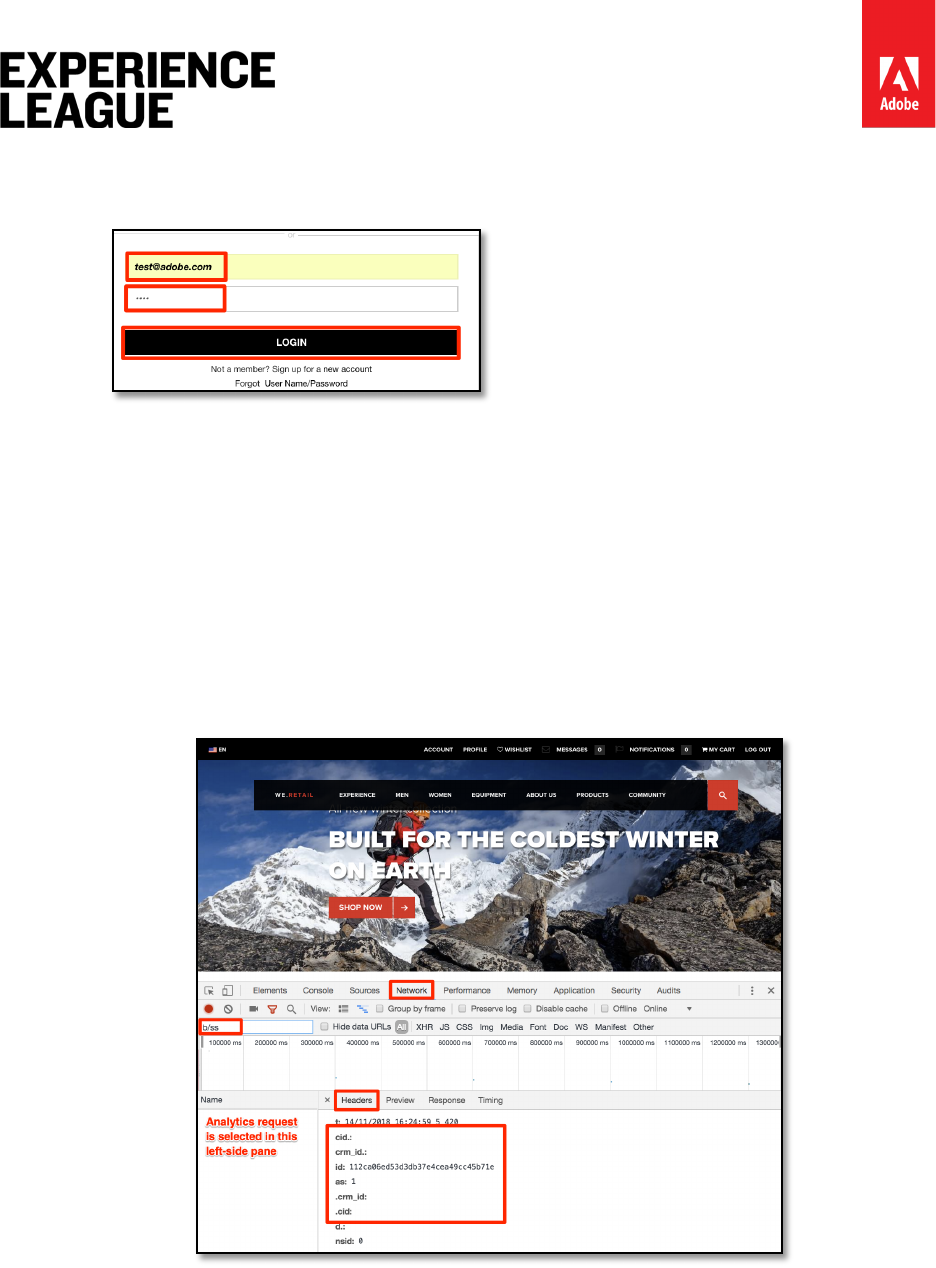
Adobe.com/go/summit2019-l779 experienceleague.adobe.com
103
Password: test
6. Click the [LOGIN] button
7. It should return you to the Homepage, which will also trigger a beacon that you can
see in the Developer Tools. If you are taken to the account info page, click on the
WE.RETAIL logo to return to the homepage.
8. Click on the request and select the Headers tab
9. Scroll down until you see some nested parameters
i. cid - this is the standard delimiter for the Customer ID portion of the request
ii. crm_id - This is the custom integration code, which you specified in the ID
Service lesson
iii. id - The Customer ID value coming from your Email (Hashed) data
element
iv. as - The Authentication State, with "1" meaning logged in

Adobe.com/go/summit2019-l779 experienceleague.adobe.com
104
Lesson 10 - Publish your Launch Property
Now that you have implemented some key solutions of the Adobe Experience Cloud in your
Development environment, it's time to learn the publishing workflow.
Learning Objectives
At the end of this lesson, you will be able to:
1. Publish a Development library to the Staging environment
2. Map a Staging library to your production website using the Debugger
3. Publish a Staging library to the Production environment
Exercise 10.1: Publish to Staging
Now that you have created and validated your library in the Development environment, it is
time to publish it to Staging.
1. Go to the [Publishing] page
2. Open the dropdown next to your library and select [Submit for Approval]
3. Click the [Submit] button in the dialog
4. Your library will now appear in the [Submitted] column in an unbuilt state:
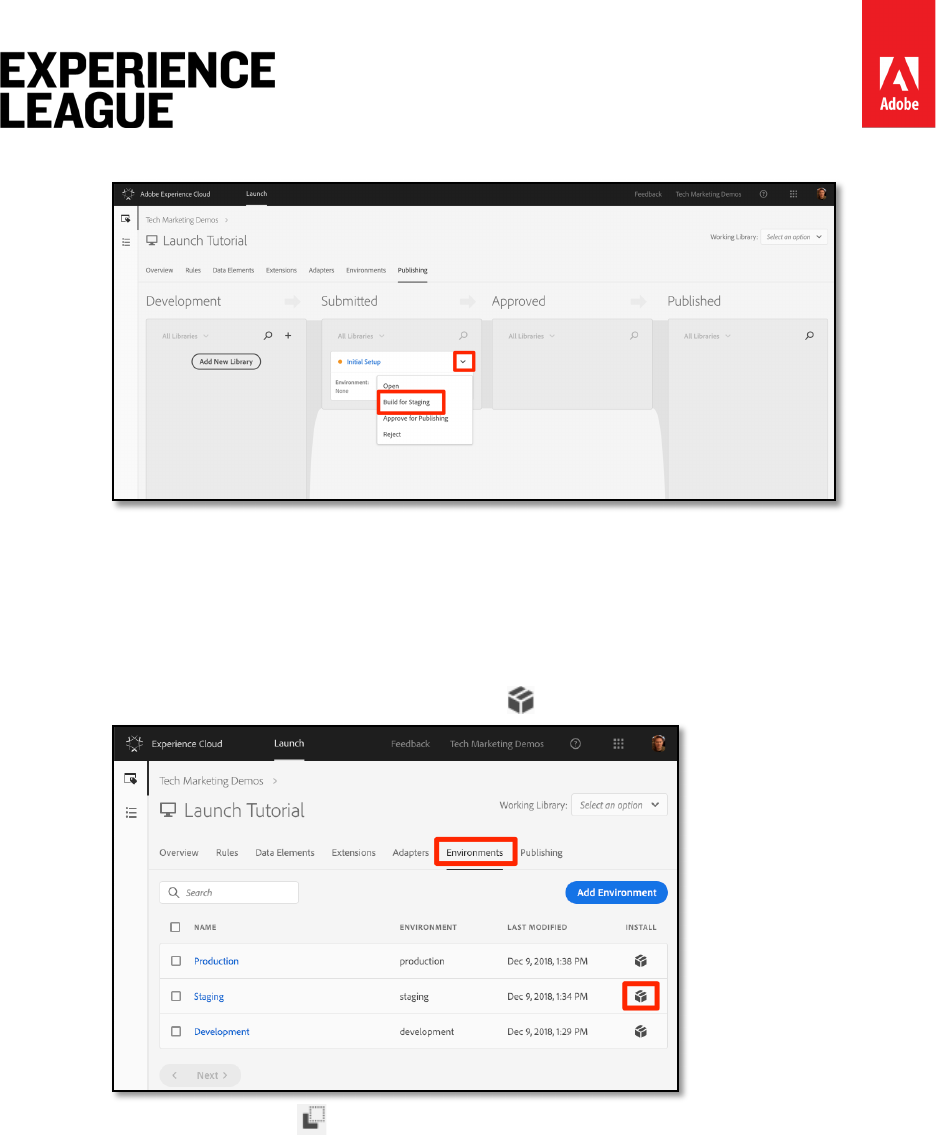
Adobe.com/go/summit2019-l779 experienceleague.adobe.com
105
5. Open the dropdown and select [Build for Staging]
6. Once the green-dot icon appears, the library can be previewed in the Staging
environment.
In a real-life scenario, the next step in the process would typically be to have your QA team
validate the changes in the Staging library. They can do this using the Debugger.
1. In your Launch property, open the [Environments] page
2. In the [Staging] row, click the Install icon to open the modal
3. Click the Copy icon to copy the embed code to your clipboard
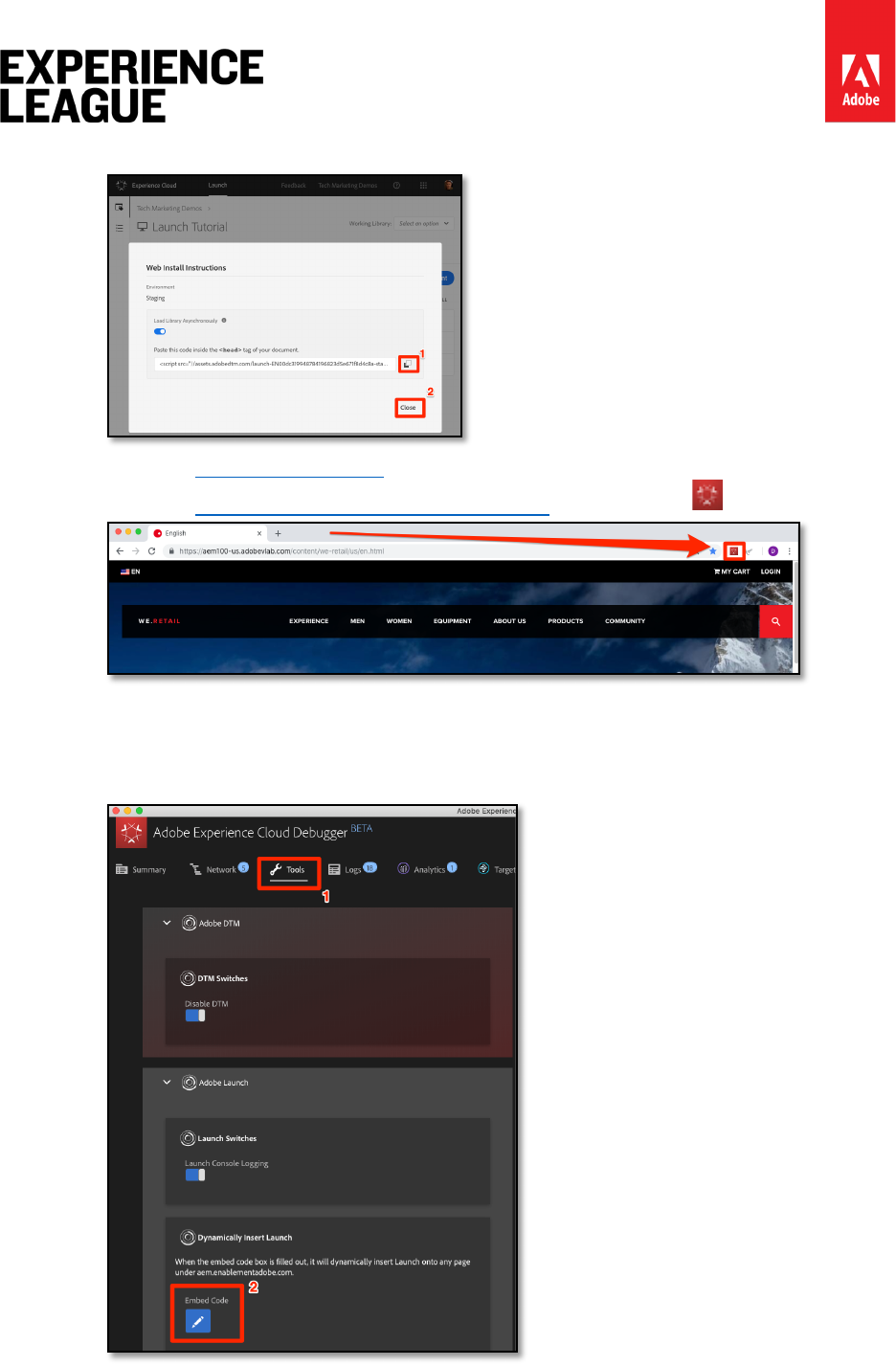
Adobe.com/go/summit2019-l779 experienceleague.adobe.com
106
4. Click [Close] to close the modal
5. Open the We.Retail demo site in your Chrome browser
6. Open the Experience Cloud Debugger extension by clicking the icon
7. Go to the Tools Tab
8. Click [Adobe Launch > Dynamically Insert Launch > Embed Code] button to open
the text input field (it might currently have the URL of your Development embed
code):
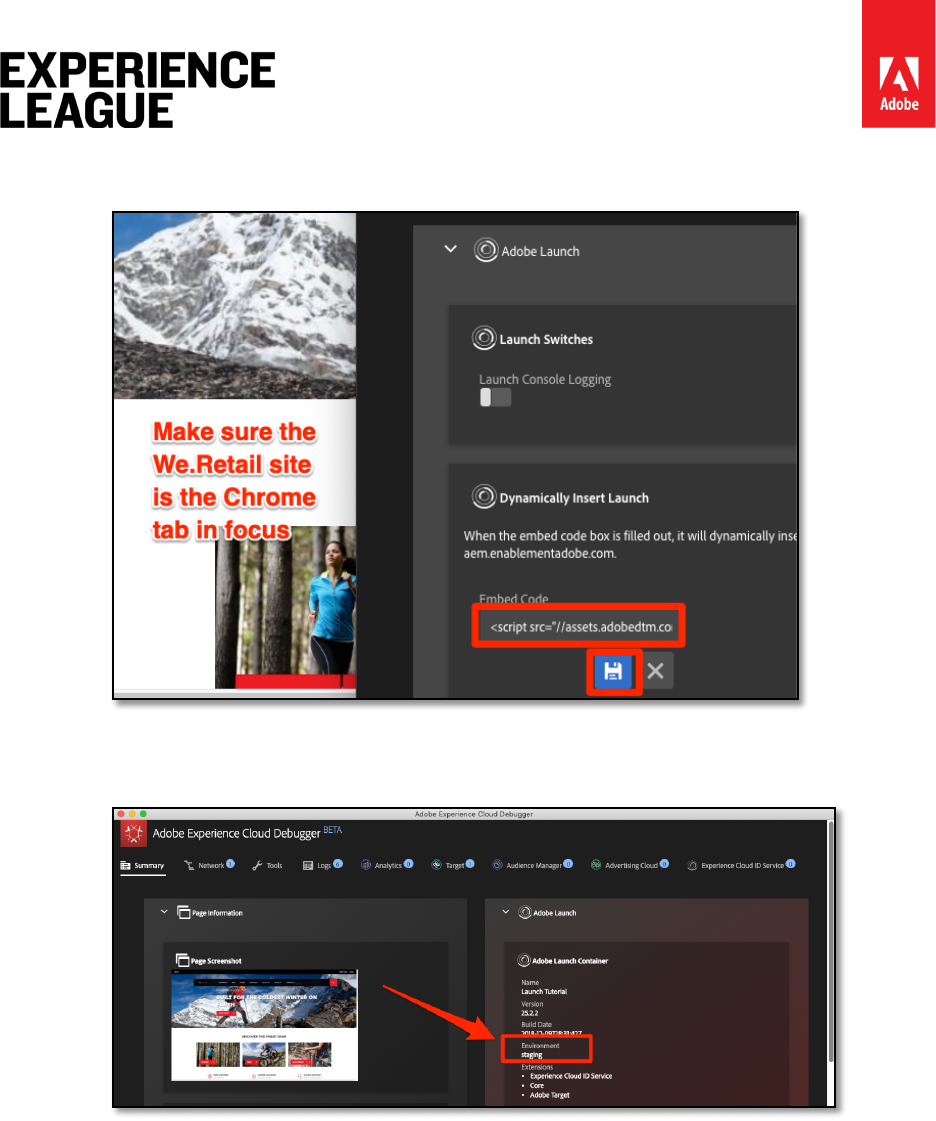
Adobe.com/go/summit2019-l779 experienceleague.adobe.com
107
9. Paste the Staging embed code that is in your clipboard
10. Click the disk icon to save
11. Reload and check the Summary tab of the Debugger. Under the Launch section, you
should now see your Staging Property is implemented, showing your property name
(I.e. "Launch Tutorial" or whatever you named your property)!
In real-life, once your QA team has signed off by reviewing the changes in the Staging
environment it is time to publish to production.
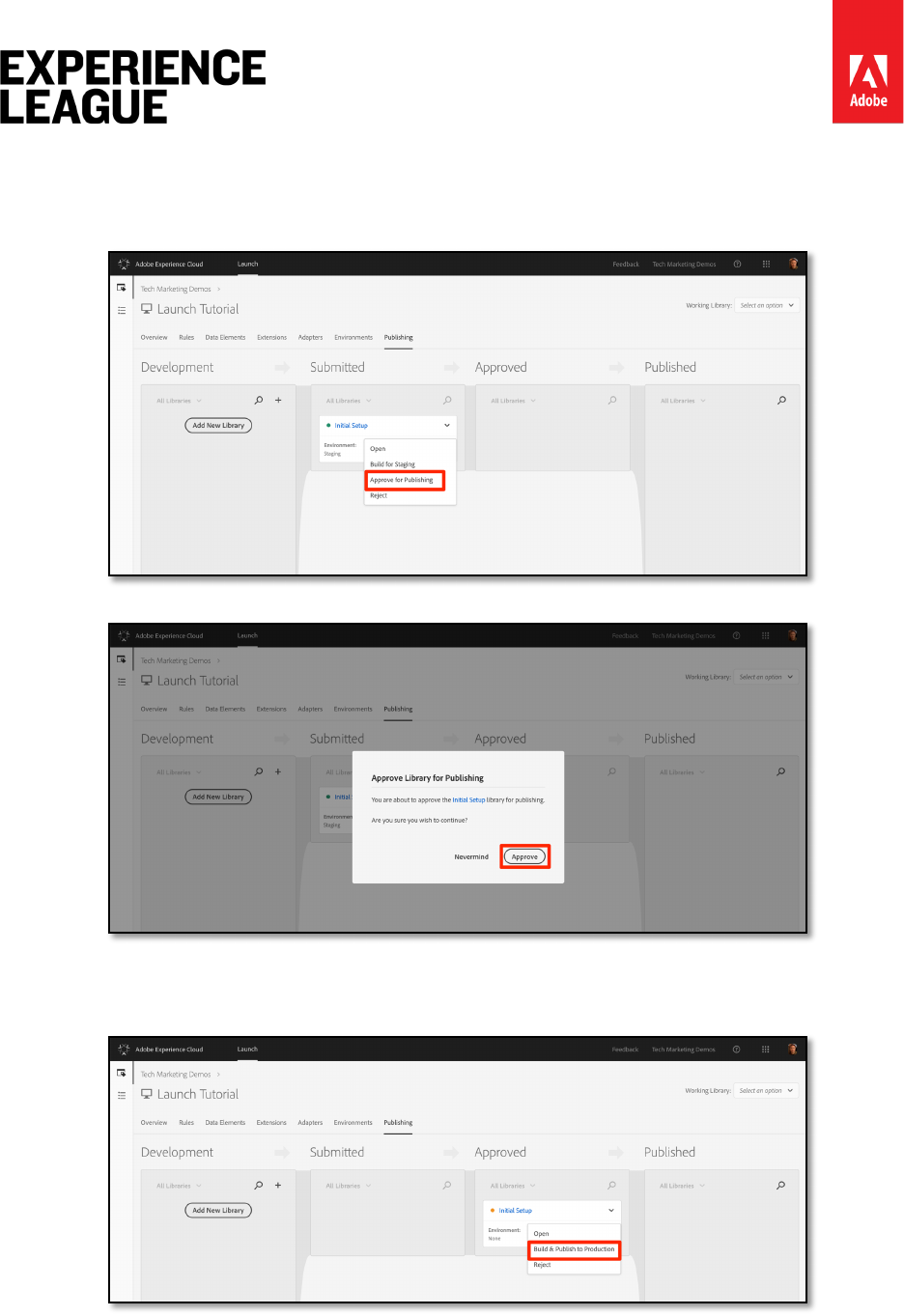
Adobe.com/go/summit2019-l779 experienceleague.adobe.com
108
Exercise 10.2: Publish to Production
1. Go to the [Publishing] page
2. From the dropdown, click [Approve for Publishing]:
3. Click the [Approve] button in the dialog box:
4. The library will now appear in the [Approved] column in the unbuilt state (yellow
dot):
5. Open the dropdown and select **[Build and Publish to Production]:
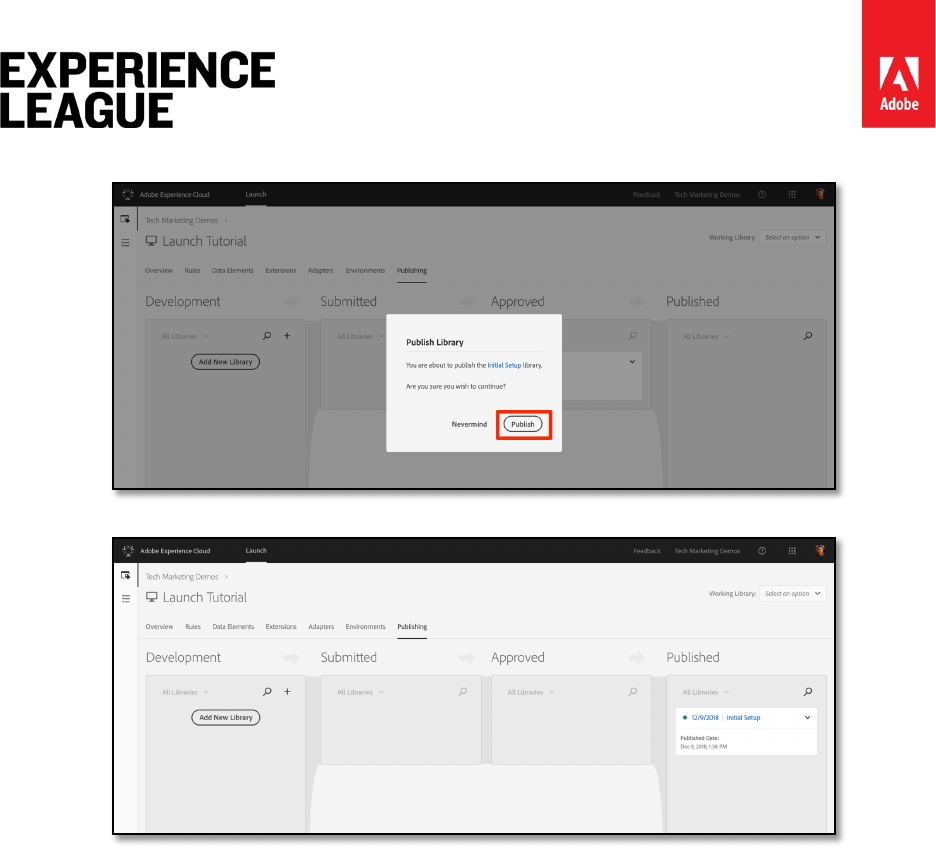
Adobe.com/go/summit2019-l779 experienceleague.adobe.com
109
6. Click the [Publish] in the dialog box:
7. The library will now appear in the [Published] column
That’s it! You've completed the tutorial and published your first property in Launch!

Adobe.com/go/summit2019-l779 experienceleague.adobe.com
110
Additional Resources
Additional resources can be found at adobe.com/go/summit2019-l779
