HP LaserJet 3380 All In One Service Manual ENWW LJ3380
User Manual: LJ3380
Open the PDF directly: View PDF  .
.
Page Count: 330 [warning: Documents this large are best viewed by clicking the View PDF Link!]
- Product information
- Product configuration
- Product features
- Overview of product
- Product identification
- Product specifications
- Warranty statement
- HP’s Premium Protection print-cartridge warranty
- Extended warranty
- Print-cartridge information
- FCC regulations
- Telephone Consumer Protection Act (United States)
- IC CS-03 requirements
- Declaration of Conformity
- Safety statements
- Regulatory information for the European Union countries/regions
- Operation
- Operating environment
- Identifying the control-panel components
- Control-panel menu structure
- Product media specifications
- Guidelines for using media
- Loading media
- Selecting originals for the automatic document feeder (ADF)
- Media information for the flatbed
- Loading originals to copy or scan
- Printer output paths
- Maintenance
- Operational overview
- Removal and replacement
- Removal and replacement strategy
- Scanner assemblies
- Printer right-side cover
- Scanner side covers
- Automatic document feeder (ADF) assembly
- ADF pickup-roller assembly
- ADF document-feed guide/cleanout comb
- ADF input-tray flag
- ADF separation pad
- Control-panel bezel
- To reinstall the control-panel bezel
- Control panel
- Control-panel chassis
- Speaker
- Scanner PCA
- ADF scanner glass
- Separation of the scanner from the printer
- External components
- Printer assemblies
- Laser/scanner assembly
- Height flapper
- Left and right support covers (front corner brackets)
- Transfer upper guide assembly
- Transfer roller
- Line interface unit (LIU)
- Formatter
- Left bottom frame support
- Fuser assembly
- Output rollers
- Stepping motor
- Solenoid
- Fan assembly
- Pickup assembly
- Paper lift-plate assembly and pickup roller shaft
- To reinstall the paper lift-plate assembly
- Right plate assembly
- Left plate assembly
- Bottom assemblies
- Troubleshooting
- Basic troubleshooting
- Control-panel messages
- Event-log codes
- Solving image-quality problems
- Repetitive image-defect ruler
- Solving paper-feed problems
- Solving problems with digital subscriber line (DSL) connections
- Connecting additional devices
- Functional checks
- Updating or recovering the firmware code
- Troubleshooting tools
- Service-mode functions
- System settings for localized products
- Main wiring
- Locations of connectors
- Locations of connectors and switches
- Parts and diagrams
- Index

service
hp
all-in-one
LaserJet 3380

hp LaserJet 3380 all-in-one
Service Manual
Copyright Information
© 2004 Copyright Hewlett-Packard
Development Company, L.P.
Reproduction, adaptation, or translation
without prior written permission is prohibited
except as allowed under copyright laws.
The information contained in this document
is subject to change without notice.
The only warranties for HP products and
services are set forth in the express warranty
statements accompanying such products
and services. Nothing herein should be
construed as constituting an additional
warranty. HP shall not be liable for technical
or editorial errors or omissions contained
herein.
Part number: Q2660-90901
Edition 1, 1/2004
Trademark Credits
Microsoft, Windows, and MS-DOS are U.S.
registered trademarks of Microsoft
Corporation.
PostScript ® is a trademark of Adobe
Systems Incorporated.
All other products mentioned herein may be
trademarks of their respective companies.
Safety Information
WARNING!
Potential Shock Hazard
Always follow basic safety precautions when
using this product to reduce risk of injury
from fire or electric shock.
Read and understand all instructions in the
user guide.
Observe all warnings and instructions
marked on the product.
Use only a grounded electrical outlet when
connecting the HP LaserJet 3380 all-in-one
product to a power source. If you don’t know
whether the outlet is grounded, check with a
qualified electrician.
Do not touch the contacts on the end of any
of the sockets on the HP LaserJet 3380 all-
in-one. Replace damaged cords
immediately.
Unplug this product from wall outlets before
cleaning.
Do not install or use this product near water
or when you are wet.
Install the product securely on a stable
surface.
Install the product in a protected location
where no one can step on or trip over the
power cord, and the power cord will not be
damaged.
If the product does not operate normally, see
the online user guide.
Refer all servicing questions to qualified
personnel.
Table of contents
1 Product information
Product configuration ................................................................................................................2
Hardware description ..........................................................................................................2
Firmware description .........................................................................................................2
Software and supported operating systems........................................................................2
Product features ........................................................................................................................4
Overview of product ..................................................................................................................5
Hardware components .......................................................................................................5
Product identification..................................................................................................................6
Model and serial numbers ..................................................................................................6
Product specifications ...............................................................................................................7
Physical specifications.........................................................................................................7
Environmental specifications...............................................................................................7
Performance........................................................................................................................7
Electrical specifications.......................................................................................................8
Acoustic emissions..............................................................................................................9
Skew specifications.............................................................................................................9
Fax specifications..............................................................................................................10
Printable area (margins)....................................................................................................10
Battery specifications.........................................................................................................10
Warranty statement .................................................................................................................12
HP’s Premium Protection print-cartridge warranty...................................................................13
Extended warranty...................................................................................................................14
Print-cartridge information .......................................................................................................15
Refilled print cartridges ....................................................................................................15
HP LaserJet printing supplies ...........................................................................................15
HP Printing Supplies Returns and Recycling Program information..................................15
FCC regulations....................................................................................................................... 17
Telephone Consumer Protection Act (United States)..............................................................19
IC CS-03 requirements............................................................................................................20
Declaration of Conformity ........................................................................................................21
Safety statements....................................................................................................................22
Laser safety statement......................................................................................................22
Canada DOC regulations..................................................................................................22
Laser statement for Finland...............................................................................................23
Korean EMI statement.......................................................................................................23
Australia.............................................................................................................................23
Regulatory information for the European Union countries/regions..........................................24
2 Operation
Operating environment ............................................................................................................26
Identifying the control-panel components ...............................................................................27
Fax controls ...................................................................................................................... 27
Alphanumeric buttons .......................................................................................................28
Menu and cancel controls .................................................................................................28
ENWW iii
Copy, scan, and start controls ..........................................................................................29
Control-panel menu structure .................................................................................................30
To use the control-panel buttons.......................................................................................30
To print the control-panel menu structure.........................................................................30
Product media specifications ..................................................................................................34
Supported media sizes and types ....................................................................................34
Guidelines for using media .....................................................................................................36
Paper and transparencies ................................................................................................36
Common media problems ................................................................................................36
Labels ............................................................................................................................... 37
Envelopes .........................................................................................................................37
Card stock and heavy media ............................................................................................38
Loading media .........................................................................................................................40
Media input tray ................................................................................................................40
Priority input tray ............................................................................................................... 40
Specific types of media .....................................................................................................40
Selecting originals for the automatic document feeder (ADF) ................................................41
Specifications for ADF originals .......................................................................................41
Media information for the flatbed ............................................................................................42
Loading originals to copy or scan ...........................................................................................43
To load originals onto the flatbed scanner .......................................................................43
To load originals into the ADF input tray ..........................................................................43
Printer output paths .................................................................................................................45
Output bin and straight-through output path ....................................................................45
3 Maintenance
Life expectancies of parts that wear .......................................................................................48
Scanner calibration .................................................................................................................49
Cleaning the product ...............................................................................................................50
Cleaning the glass.............................................................................................................50
Cleaning the lid backing....................................................................................................51
Cleaning the paper path....................................................................................................51
Cleaning the print-cartridge area.......................................................................................52
Cleaning the pickup roller..................................................................................................54
Cleaning the printer separation pad .................................................................................55
User-replaceable parts ............................................................................................................56
Replacing the pickup roller................................................................................................56
Replacing the printer separation pad................................................................................58
Replacing an ADF..............................................................................................................61
Replacing an ADF pickup-roller assembly........................................................................62
Removing and replacing the product control-panel bezel.................................................65
4 Operational overview
Basic functions ........................................................................................................................68
Basic sequence of operation (formatter-to-printer) .................................................................69
Basic sequence of operation (scanner)...................................................................................71
Formatter system .................................................................................................................... 73
Central processing unit .....................................................................................................73
Line interface unit (LIU) ....................................................................................................73
Motor controller PCA ........................................................................................................73
Flash memory ...................................................................................................................7 3
Standard boot process .....................................................................................................73
RAM ..................................................................................................................................74
Parallel interface or universal serial bus (USB) interface .................................................74
Control panel ....................................................................................................................74
iv ENWW
EconoMode (Draft mode) .................................................................................................74
MEt .................................................................................................................................... 75
Enhanced I/O .................................................................................................................... 75
PJL overview ....................................................................................................................75
Scanner and ADF functions and operation .............................................................................76
Scanner functions .............................................................................................................76
Scanner operation ............................................................................................................77
ADF operation ...................................................................................................................77
ADF paper path and ADF sensors ...................................................................................78
ADF jam detection ............................................................................................................78
Printer functions and operation ...............................................................................................79
Engine control unit (power system) ..................................................................................79
Image-formation system ...................................................................................................85
Printer paper-feed system ................................................................................................86
Jam detection ...................................................................................................................87
Fax functions and operation ....................................................................................................89
PSTN operation ................................................................................................................89
The fax subsystem ...........................................................................................................89
Formatter in the fax subsystem ........................................................................................89
LIU in the fax subsystem ..................................................................................................89
Fax page storage in flash memory ...................................................................................92
5 Removal and replacement
Removal and replacement strategy ........................................................................................97
Required tools ...................................................................................................................97
Before performing service.................................................................................................97
After performing service....................................................................................................98
Print cartridge ...................................................................................................................98
Parts removal order ..........................................................................................................98
Scanner assemblies ..............................................................................................................101
Printer right-side cover ...................................................................................................101
Scanner side covers .......................................................................................................102
Automatic document feeder (ADF) assembly ................................................................104
ADF pickup-roller assembly ............................................................................................105
ADF document-feed guide/cleanout comb .....................................................................107
ADF input-tray flag...........................................................................................................108
ADF separation pad ........................................................................................................109
Control-panel bezel ........................................................................................................110
To reinstall the control-panel bezel ................................................................................111
Control panel ..................................................................................................................112
Control-panel chassis .....................................................................................................113
Speaker...........................................................................................................................114
Scanner PCA ..................................................................................................................115
ADF scanner glass .........................................................................................................118
Separation of the scanner from the printer ...........................................................................119
Separate the scanner from the printer.............................................................................119
External components ............................................................................................................122
Height guides...................................................................................................................122
Left-side door ..................................................................................................................122
Back cover ......................................................................................................................123
Printer top cover .............................................................................................................125
Front-cover assembly .....................................................................................................125
Printer assemblies .................................................................................................................130
Laser/scanner assembly..................................................................................................130
Height flapper..................................................................................................................130
ENWW v
Left and right support covers (front corner brackets) .....................................................131
Transfer upper guide assembly.......................................................................................132
Transfer roller .................................................................................................................132
Line interface unit (LIU) ..................................................................................................133
Formatter ........................................................................................................................134
Left bottom frame support ..............................................................................................135
Fuser assembly ..............................................................................................................136
Output rollers ..................................................................................................................139
Stepping motor ...............................................................................................................141
Solenoid .......................................................................................................................... 141
Fan assembly .................................................................................................................142
Pickup assembly .............................................................................................................144
Paper lift-plate assembly and pickup roller shaft ............................................................145
To reinstall the paper lift-plate assembly.........................................................................148
Right plate assembly ......................................................................................................149
Left plate assembly .........................................................................................................150
Bottom assemblies ................................................................................................................152
ECU fuses and ECU pan ................................................................................................152
Paper-feed assembly ......................................................................................................155
6 Troubleshooting
Basic troubleshooting ............................................................................................................161
Control-panel messages .......................................................................................................166
Alert and warning messages ..........................................................................................166
Critical error messages ...................................................................................................174
Event-log codes.....................................................................................................................177
Solving image-quality problems ............................................................................................179
Checking the print cartridge ............................................................................................179
Solving print image-quality problems .............................................................................179
Solving scanning (copying) image-quality problems ......................................................188
Repetitive image-defect ruler ................................................................................................194
Solving paper-feed problems ................................................................................................195
Jams occur in the printer.................................................................................................195
Solving print paper-feed problems .................................................................................197
Jams occur in the automatic document feeder (ADF).....................................................199
Solving scanner (copier) paper-feed problems ..............................................................202
Solving problems with digital subscriber line (DSL) connections..........................................204
Connecting additional devices...............................................................................................205
Dedicated fax line............................................................................................................205
Shared phone line...........................................................................................................205
To connect additional devices.........................................................................................205
Functional checks .................................................................................................................208
Engine test ......................................................................................................................208
Control-panel check.........................................................................................................208
Half self-test functional check .........................................................................................209
Drum-rotation functional check ......................................................................................210
Heating-element check ...................................................................................................210
High-voltage power-supply check ..................................................................................211
Paper-path check ...........................................................................................................213
Updating or recovering the firmware code ............................................................................215
Firmware update by using flash executable ...................................................................215
Firmware-recovery DIMM ...............................................................................................215
Troubleshooting tools ............................................................................................................217
Printing a configuration report, demonstration page, or menu structure ........................217
Printing all fax reports at once ........................................................................................217
vi ENWW
T.30 protocol trace ..........................................................................................................217
Service-mode functions .........................................................................................................238
Secondary service menu ................................................................................................238
Developer’s menu ...........................................................................................................239
Adjusting the country/region code parameters................................................................240
Soft reset.........................................................................................................................241
NVRAM init ..................................................................................................................... 241
Printer job language (PJL) software commands ............................................................242
System settings for localized products..................................................................................243
Main wiring ............................................................................................................................ 245
Locations of connectors ........................................................................................................247
Locations of connectors and switches ..................................................................................248
7 Parts and diagrams
Ordering parts and supplies...................................................................................................250
Parts.................................................................................................................................250
Related documentation and software..............................................................................250
Parts that wear ................................................................................................................250
Accessories............................................................................................................................251
Memory............................................................................................................................251
Print cartridges and toner supplies..................................................................................251
Cables.............................................................................................................................. 251
Common hardware .........................................................................................................252
Parts kits..........................................................................................................................253
How to use the parts lists and diagrams.........................................................................253
Scanner assemblies...............................................................................................................254
External assemblies...............................................................................................................262
Internal assemblies................................................................................................................268
Alphabetical parts list.............................................................................................................286
Numerical parts list.................................................................................................................295
Index
ENWW vii
viii ENWW
List of tables
Table 1-1. HP LaserJet 3380 all-in-one physical specifications..........................................7
Table 1-2. HP LaserJet 3380 all-in-one environmental specifications ...............................7
Table 1-3. HP LaserJet 3380 all-in-one performance specifications..................................7
Table 1-4. HP LaserJet 3380 all-in-one electrical specifications .......................................8
Table 1-5. HP LaserJet 3380 all-in-one acoustic emissions ..............................................9
Table 1-6. HP LaserJet 3380 all-in-one skew specifications..............................................9
Table 1-7. HP LaserJet 3380 all-in-one fax specifications ...............................................10
Table 1-8. HP LaserJet 3380 all-in-one battery................................................................10
Table 2-1. Control-panel menu structure..........................................................................30
Table 2-2. Supported media types....................................................................................34
Table 2-3. Common media problems................................................................................36
Table 3-1. Life expectancies of parts that wear ...............................................................48
Table 4-1. Basic sequence of operation (printer)..............................................................69
Table 4-2. Basic sequence of operation (scanner)...........................................................71
Table 4-3. Product startup messages...............................................................................74
Table 6-1. Alert and warning messages ........................................................................166
Table 6-2. Critical error messages..................................................................................174
Table 6-3. Event-log codes.............................................................................................177
Table 6-4. Fax receive codes..........................................................................................219
Table 6-5. Fax send codes..............................................................................................224
Table 6-6. Fax phase sequence......................................................................................230
Table 6-7. Appropriate responses...................................................................................232
Table 6-8. Fax abbreviations...........................................................................................233
Table 6-9. System settings..............................................................................................243
Table 6-10. Switch functions.............................................................................................248
Table 7-1. Technical support websites............................................................................250
Table 7-2. Memory modules............................................................................................251
Table 7-3. Print cartridges and toner cloth......................................................................251
Table 7-4. Cables and power cords................................................................................251
Table 7-5. Common fasteners.........................................................................................252
Table 7-6. Screws for the print engine............................................................................252
Table 7-7. Parts kits.........................................................................................................253
Table 7-8. Scanner and ADF...........................................................................................255
Table 7-9. Scanner and ADF...........................................................................................257
Table 7-10. ADF rollers and separation pad.....................................................................259
Table 7-11. Control-panel assembly.................................................................................261
Table 7-12. External components.....................................................................................263
Table 7-13. Printer covers.................................................................................................265
Table 7-14. Paper tray.......................................................................................................267
Table 7-15. Major assemblies...........................................................................................269
Table 7-16. Internal components (1 of 2)..........................................................................271
Table 7-17. Internal components (2 of 2)..........................................................................273
Table 7-18. Right plate assembly......................................................................................275
Table 7-19. Left plate assembly........................................................................................277
Table 7-20. Electrical components....................................................................................279
Table 7-21. Paper-pickup assembly (1 of 2).....................................................................281
ENWW ix
Table 7-22. Paper-pickup assembly (2 of 2).....................................................................283
Table 7-23. Fuser assembly..............................................................................................285
Table 7-24. Alphabetical parts list.....................................................................................286
Table 7-25. Numerical parts list.........................................................................................295
xENWW
List of figures
Figure 1-1. Product hardware components..........................................................................5
Figure 1-2. Identification label .............................................................................................6
Figure 2-1. Product dimensions .........................................................................................26
Figure 2-2. Fax controls .....................................................................................................27
Figure 2-3. Alphanumeric buttons .....................................................................................28
Figure 2-4. Menu and cancel controls ...............................................................................28
Figure 2-5. Copy, scan, and start controls ........................................................................29
Figure 2-6. Output bin ........................................................................................................45
Figure 2-7. Straight-through output path............................................................................45
Figure 3-1. Cleaning the flatbed glass................................................................................50
Figure 3-2. Cleaning the scanner strip...............................................................................51
Figure 3-3. Cleaning the lid backing...................................................................................51
Figure 3-4. Unplug the product...........................................................................................52
Figure 3-5. Remove the print cartridge...............................................................................53
Figure 3-6. Clean the print-cartridge cavity........................................................................53
Figure 3-7. Insert the print cartridge...................................................................................53
Figure 3-8. Plug in the product...........................................................................................54
Figure 3-9. Inserting the pickup roller.................................................................................54
Figure 3-10. Cleaning the printer separation pad (1 of 4)....................................................55
Figure 3-11. Cleaning the printer separation pad (2 of 4)....................................................55
Figure 3-12. Cleaning the printer separation pad (3 of 4)....................................................55
Figure 3-13. Cleaning the printer separation pad (4 of 4)....................................................55
Figure 3-14. Replacing the pickup roller (1 of 9)..................................................................56
Figure 3-15. Replacing the pickup roller (2 of 9)..................................................................56
Figure 3-16. Replacing the pickup roller (3 of 9)..................................................................56
Figure 3-17. Replacing the pickup roller (4 of 9)..................................................................57
Figure 3-18. Replacing the pickup roller (5 of 9)..................................................................57
Figure 3-19. Replacing the pickup roller (6 of 9)..................................................................57
Figure 3-20. Replacing the pickup roller (7 of 9)..................................................................57
Figure 3-21. Replacing the pickup roller (8 of 9)..................................................................58
Figure 3-22. Replacing the pickup roller (9 of 9)..................................................................58
Figure 3-23. Replacing the printer separation pad (1 of 9)..................................................58
Figure 3-24. Replacing the printer separation pad (2 of 9)..................................................59
Figure 3-25. Replacing the printer separation pad (3 of 9)..................................................59
Figure 3-26. Replacing the printer separation pad (4 of 9)..................................................59
Figure 3-27. Replacing the printer separation pad (5 of 9)..................................................59
Figure 3-28. Replacing the printer separation pad (6 of 9)..................................................60
Figure 3-29. Replacing the printer separation pad (7 of 9)..................................................60
Figure 3-30. Replacing the printer separation pad (8 of 9)..................................................60
Figure 3-31. Replacing the printer separation pad (9 of 9)..................................................61
Figure 3-32. Replacing the ADF (1 of 6)...............................................................................61
Figure 3-33. Replacing the ADF (2 of 6)...............................................................................61
Figure 3-34. Replacing the ADF (3 of 6)...............................................................................62
Figure 3-35. Replacing the ADF (4 of 6)...............................................................................62
Figure 3-36. Replacing the ADF (5 of 6)...............................................................................62
Figure 3-37. Replacing the ADF (6 of 6)...............................................................................62
ENWW xi
Figure 3-38. Replacing the ADF pickup-roller assembly (1 of 9).........................................63
Figure 3-39. Replacing the ADF pickup-roller assembly (2 of 9).........................................63
Figure 3-40. Replacing the ADF pickup-roller assembly (3 of 9).........................................63
Figure 3-41. Replacing the ADF pickup-roller assembly (4 of 9).........................................63
Figure 3-42. Replacing the ADF pickup-roller assembly (5 of 9).........................................64
Figure 3-43. Replacing the ADF pickup-roller assembly (6 of 9).........................................64
Figure 3-44. Replacing the ADF pickup-roller assembly (7 of 9).........................................64
Figure 3-45. Replacing the ADF pickup-roller assembly (8 of 9).........................................64
Figure 3-46. Replacing the ADF pickup-roller assembly (9 of 9).........................................65
Figure 3-47. Replacing the control-panel bezel (1 of 4).......................................................65
Figure 3-48. Replacing the control-panel bezel (2 of 4).......................................................65
Figure 3-49. Replacing the control-panel bezel (3 of 4).......................................................66
Figure 3-50. Replacing the control-panel bezel (4 of 4).......................................................66
Figure 4-1. Product configuration ......................................................................................68
Figure 4-2. Printer timing diagram .....................................................................................70
Figure 4-3. Optical diagram of scanner .............................................................................76
Figure 4-4. Document scanner path ..................................................................................78
Figure 4-5. Printer unit functional block diagram ...............................................................79
Figure 4-6. ECU loads .......................................................................................................81
Figure 4-7. High-voltage power supply circuit ...................................................................83
Figure 4-8. Overview of laser/scanner operation ..............................................................84
Figure 4-9. Image-formation block diagram ......................................................................85
Figure 4-10. Printer paper path ...........................................................................................87
Figure 4-11. Solenoid, photosensors, and switches ...........................................................88
Figure 5-1. Remove the print cartridge ..............................................................................98
Figure 5-2. Parts removal order (1 of 2).............................................................................99
Figure 5-3. Parts removal order (2 of 2)...........................................................................100
Figure 5-4. Remove the printer right-side cover (1 of 3) .................................................101
Figure 5-5. Remove the printer right-side cover (2 of 3) .................................................102
Figure 5-6. Remove the printer right-side cover (3 of 3) .................................................102
Figure 5-7. Remove the scanner right-side cover (1 of 2)................................................103
Figure 5-8. Remove the scanner right-side cover (2 of 2) ...............................................103
Figure 5-9. Remove the left-side scanner cover (1 of 2)..................................................104
Figure 5-10. Remove the left-side scanner cover (2 of 2) .................................................104
Figure 5-11. Remove the ADF assembly ..........................................................................105
Figure 5-12. Remove the ADF pickup-roller assembly (1 of 5)..........................................105
Figure 5-13. Remove the ADF pickup-roller assembly (2 of 5)..........................................106
Figure 5-14. Remove the ADF pickup-roller assembly (3 of 5)..........................................106
Figure 5-15. Remove the ADF pickup-roller assembly (4 of 5)..........................................107
Figure 5-16. Remove the ADF pickup-roller assembly (5 of 5)..........................................107
Figure 5-17. Remove the ADF document-feed guide/cleanout comb ...............................108
Figure 5-18. Install the ADF document-feed guide/cleanout comb ...................................108
Figure 5-19. Remove the ADF input-tray flag.....................................................................109
Figure 5-20. Correct positioning of the ADF input-tray spring ...........................................109
Figure 5-21. Remove the ADF separation pad ..................................................................110
Figure 5-22. Remove the control-panel bezel ...................................................................110
Figure 5-23. Reinstall the control-panel bezel (1 of 2) ......................................................111
Figure 5-24. Reinstall the control-panel bezel (2 of 2) ......................................................111
Figure 5-25. Remove the control panel (1 of 2) .................................................................112
Figure 5-26. Remove the control panel (2 of 2)..................................................................113
Figure 5-27. Remove the control-panel chassis (1 of 2) ...................................................113
Figure 5-28. Remove the control-panel chassis (2 of 2) ...................................................114
Figure 5-29. Reinstall the control-panel chassis................................................................114
Figure 5-30. Remove the speaker (1 of 2).........................................................................115
Figure 5-31. Remove the speaker (2 of 2).........................................................................115
Figure 5-32. Remove the scanner PCA (1 of 3).................................................................116
xii ENWW
Figure 5-33. Remove the scanner PCA (2 of 3) ................................................................116
Figure 5-34. Remove the scanner PCA (3 of 3).................................................................117
Figure 5-35. Remove the ADF scanner glass ...................................................................118
Figure 5-36. Install the ADF scanner glass .......................................................................118
Figure 5-37. Separate the scanner from the printer (1 of 4) ..............................................119
Figure 5-38. Separate the scanner from the printer (2 of 4) ..............................................120
Figure 5-39. Separate the scanner from the printer (3 of 4) ..............................................120
Figure 5-40. Separate the scanner from the printer (4 of 4) ..............................................121
Figure 5-41. Remove the height guides.............................................................................122
Figure 5-42. Remove the left-side door .............................................................................123
Figure 5-43. Remove the back cover (1 of 2) ....................................................................124
Figure 5-44. Remove the back cover (2 of 2) ....................................................................124
Figure 5-45. Remove the printer top cover.........................................................................125
Figure 5-46. Remove the print-cartridge door (1 of 2) .......................................................126
Figure 5-47. Remove the print-cartridge door (2 of 2) .......................................................126
Figure 5-48. Remove the front cover (1 of 2) ....................................................................127
Figure 5-49. Remove the front cover (2 of 2) ....................................................................127
Figure 5-50. Front cover removed .....................................................................................128
Figure 5-51. Remove the front guide assembly (1 of 3) ....................................................128
Figure 5-52. Remove the front guide assembly (2 of 3) ....................................................129
Figure 5-53. Remove the front guide assembly (3 of 3) ....................................................129
Figure 5-54. Remove the laser/scanner assembly.............................................................130
Figure 5-55. Remove the height flapper.............................................................................131
Figure 5-56. Remove the left and right support covers .....................................................131
Figure 5-57. Remove the transfer upper guide assembly..................................................132
Figure 5-58. Remove the transfer roller ............................................................................133
Figure 5-59. Remove the LIU (1 of 2) ................................................................................133
Figure 5-60. Remove the LIU (2 of 2).................................................................................134
Figure 5-61. Remove the formatter (1 of 3) .......................................................................135
Figure 5-62. Remove the formatter (2 of 3) .......................................................................135
Figure 5-63. Remove the left bottom frame support..........................................................136
Figure 5-64. Remove the fuser assembly (1 of 4) .............................................................137
Figure 5-65. Remove the fuser assembly (2 of 4) .............................................................137
Figure 5-66. Remove the fuser assembly (3 of 4) .............................................................138
Figure 5-67. Remove the fuser assembly (4 of 4) .............................................................139
Figure 5-68. Remove the output rollers (1 of 2) ................................................................140
Figure 5-69. Remove the output rollers (2 of 2) ................................................................140
Figure 5-70. Remove the stepping motor ..........................................................................141
Figure 5-71. Remove the solenoid (1 of 2) ........................................................................141
Figure 5-72. Remove the solenoid (2 of 2) ........................................................................142
Figure 5-73. Remove the fan (1 of 2) ................................................................................143
Figure 5-74. Remove the fan (2 of 2) ................................................................................143
Figure 5-75. Remove the pickup assembly (1 of 3) ..........................................................144
Figure 5-76. Remove the pickup assembly (2 of 3) ..........................................................144
Figure 5-77. Remove the pickup assembly (3 of 3) ..........................................................145
Figure 5-78. Remove the paper lift-plate assembly (1 of 4)...............................................146
Figure 5-79. Remove the paper lift-plate assembly (2 of 4) ..............................................146
Figure 5-80. Remove the paper lift-plate assembly (3 of 4) ..............................................147
Figure 5-81. Remove the paper lift-plate assembly (4 of 4) ..............................................147
Figure 5-82. Remove the pickup roller shaft .....................................................................148
Figure 5-83. Paper lift-plate springs ..................................................................................148
Figure 5-84. Remove the right plate assembly (1 of 2) .....................................................149
Figure 5-85. Remove the right plate assembly (2 of 2) .....................................................150
Figure 5-86. Remove the left plate assembly (1 of 2)........................................................150
Figure 5-87. Remove the left plate assembly (2 of 2) .......................................................151
Figure 5-88. Remove the ECU pan (1 of 5) .......................................................................152
ENWW xiii
Figure 5-89. Remove the ECU pan (2 of 5) .......................................................................153
Figure 5-90. Remove the ECU pan (3 of 5) .......................................................................153
Figure 5-91. Remove the ECU pan (4 of 5) .......................................................................154
Figure 5-92. Remove the ECU pan (5 of 5) .......................................................................155
Figure 5-93. Remove the paper-feed assembly (1 of 4) ...................................................156
Figure 5-94. Remove the paper-feed assembly (2 of 4) ...................................................156
Figure 5-95. Remove the paper-feed assembly (3 of 4) ...................................................157
Figure 5-96. Remove the paper-feed assembly (4 of 4) ...................................................157
Figure 6-1. Repetitive image defect ruler ........................................................................194
Figure 6-2. Engine test switch .........................................................................................208
Figure 6-3. Locating connectors for the heating-element check .....................................211
Figure 6-4. Print cartridge high-voltage connection points (right side) ............................212
Figure 6-5. Print cartridge high-voltage connection points (left side) ..............................212
Figure 6-6. High-voltage connector assembly (right side) ...............................................213
Figure 6-7. High-voltage connector assembly (left side) .................................................213
Figure 6-8. Overriding SW301 .........................................................................................214
Figure 6-9. Using the firmware-recovery DIMM ..............................................................215
Figure 6-10. Example of a T.30 trace of a successfully sent fax ......................................236
Figure 6-11. Example of a T.30 trace of a successfully received fax ................................237
Figure 6-12. Main wiring (1 of 2) ........................................................................................245
Figure 6-13. Main wiring (2 of 2) ........................................................................................246
Figure 6-14. Locations of printer connectors .....................................................................247
Figure 6-15. Locations of connectors and switches ..........................................................248
Figure 7-1. Scanner and ADF...........................................................................................254
Figure 7-2. Scanner covers and ADF...............................................................................256
Figure 7-3. ADF rollers and separation pad.....................................................................258
Figure 7-4. Control-panel assembly.................................................................................260
Figure 7-5. External components.....................................................................................262
Figure 7-6. Printer covers.................................................................................................264
Figure 7-7. Paper tray ......................................................................................................266
Figure 7-8. Internal components.......................................................................................268
Figure 7-9. Internal components (1 of 2)..........................................................................270
Figure 7-10. Internal components (2 of 2)..........................................................................272
Figure 7-11. Right plate assembly......................................................................................274
Figure 7-12. Left plate assembly........................................................................................276
Figure 7-13. Electrical components ...................................................................................278
Figure 7-14. Paper-pickup assembly (1 of 2) ....................................................................280
Figure 7-15. Paper-pickup assembly (2 of 2).....................................................................282
Figure 7-16. Fuser assembly .............................................................................................284
xiv ENWW
1
Product information
This chapter provides information about the following topics.
Product configuration ................................................................................................................2
Hardware description ..........................................................................................................2
Firmware description .........................................................................................................2
Software and supported operating systems........................................................................2
Product features ........................................................................................................................4
Overview of product ..................................................................................................................5
Hardware components .......................................................................................................5
Product identification..................................................................................................................6
Model and serial numbers ..................................................................................................6
Product specifications ...............................................................................................................7
Physical specifications.........................................................................................................7
Environmental specifications...............................................................................................7
Performance........................................................................................................................7
Electrical specifications.......................................................................................................8
Acoustic emissions..............................................................................................................9
Skew specifications.............................................................................................................9
Fax specifications..............................................................................................................10
Printable area (margins)....................................................................................................10
Battery specifications.........................................................................................................10
Warranty statement .................................................................................................................12
HP’s Premium Protection print-cartridge warranty...................................................................13
Extended warranty...................................................................................................................14
Print-cartridge information .......................................................................................................15
Refilled print cartridges ....................................................................................................15
HP LaserJet printing supplies ...........................................................................................15
HP Printing Supplies Returns and Recycling Program information..................................15
FCC regulations....................................................................................................................... 17
Telephone Consumer Protection Act (United States)..............................................................19
IC CS-03 requirements............................................................................................................20
Declaration of Conformity ........................................................................................................21
Safety statements....................................................................................................................22
Laser safety statement......................................................................................................22
Canada DOC regulations..................................................................................................22
Laser statement for Finland...............................................................................................23
Korean EMI statement.......................................................................................................23
Australia.............................................................................................................................23
Regulatory information for the European Union countries/regions..........................................24
ENWW 1
Product configuration
Hardware description
The product provides the following features:
●Prints at 1200 dots-per-inch (dpi).
●The flatbed scanner scans at 600 pixels-per-inch (ppi) with 24-bits per pixel (bpp) and has
an automatic document feeder (ADF) that holds up to 50 pages.
●The formatter and the line interface unit (LIU) provide Group-3-compatible faxing
capabilities.
●The product prints 20 pages per minute (ppm) on letter-size paper or 19 ppm on A4.
●The main input tray has a 250-sheet capacity for continuous, multiple-page printing.
●The priority input tray accommodates manual feeding of up to ten sheets.
●Both trays are center-justified for all supported paper sizes.
●The output bin holds up to 125 sheets.
●The product has a very fast first-page-out, at less than eight seconds.
●When the fuser has reached operational temperature, the first-copy-out speed is 12
seconds when using the flatbed scanner and less than 18 seconds when using the ADF.
●The formatter board contains 4 MB of ROM and 32 MB of RAM, and an embedded 32-bit
Coldfire V4e processor.
●One DIMM slot is available for font or memory expansion (supporting an 8 MB, 16 MB,
32 MB, or 64 MB DIMM).
●The print engine has a 1,000 average (10,000 peak) page-per-month duty cycle.
●With 5 percent toner coverage, the standard print-cartridge life is 2,500 pages and the
high-capacity print-cartridge life is 3,500 pages.
Firmware description
The firmware in the product includes:
●PCL 5e, PCL 6, and PostScript
®
(PS) Level 2 emulation
●45 PCL and 35 PS fonts
●Memory Enhancement technology (MEt) with hardware compression and decompression
●Resolution Enhancement technology (REt) and EconoMode functionality
Software and supported operating systems
The following software components are included with the product:
●HP Toolbox
●HP LaserJet Scan
●TWAIN or WIA Scan Driver
●HP LaserJet Fax
●Readiris OCR (not installed with other software; separate installation is required)
2Chapter 1 Product information ENWW
●Printer drivers (PCL 5e, PCL 6, and PS)
●Installer/uninstaller
The following operating systems are supported:
●Windows 98Se (second edition)
●Windows Millennium Edition (Me)
●Windows 2000
●Windows XP (32-bit)
●Mac OS 9.1 or 9.2.x
●Mac OS X (10.2.x only)
●Driver-only support for Windows 98 (first edition), Windows XP 64-bit, and Windows 2003
Server
ENWW Product configuration 3
Product features
The HP LaserJet 3380 all-in-one is designed to perform the following tasks:
●Print: Print documents with HP LaserJet quality.
●Copy: Make up to 99 laser-quality copies of a 50-page original. It also enlarges, reduces,
lightens/darkens, and collates copies.
●Scan: Scan documents to create electronic text or graphics files.
●Fax: Send and receive documents by using standard fax communications.
4Chapter 1 Product information ENWW
Overview of product
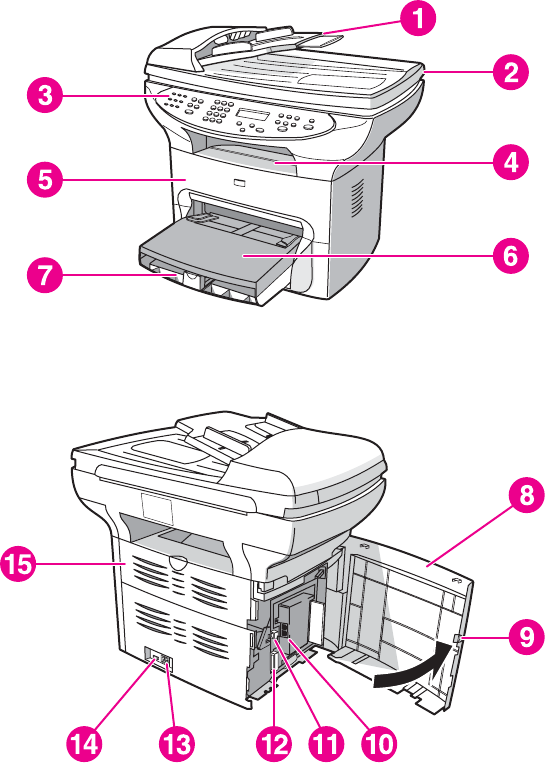
Hardware components
Use the following illustrations to identify the hardware components.
Figure 1-1. Product hardware components (1 of 2)
Figure 1-1. Product hardware components (2 of 2)
1 Automatic document feeder (ADF) input tray
2 Flatbed scanner lid
3 Product control panel
4 Output bin
5 Print-cartridge door
6 Priority input tray
7 Media input tray (also called the main input tray)
8 Left side panel
9 Left side panel latch
10 Fax interface ports
11 USB port
12 Parallel port
13 Power receptacle
14 Power switch
15 Straight-through output door
ENWW Overview of product 5
Product identification
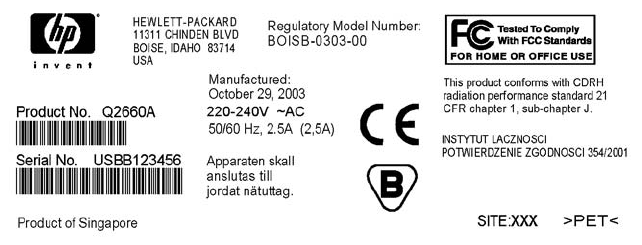
Model and serial numbers
The model number and serial number are listed on an identification label that is located on the
inside of the print-cartridge door. The serial number contains information about the country/
region of origin, revision level, production code, and production number of the product. The
label also contains power-rating and regulatory information.
Depending on the country/region where the product is sold, the identification label looks
similar to the following example.
Figure 1-2. Identification label
6Chapter 1 Product information ENWW

Product specifications
Physical specifications
Table 1-1. HP LaserJet 3380 all-in-one physical specifications
Dimension Specification
Height 74 cm (19.5 inches)
Depth 81 cm (20.5 inches)
Width 53 cm (21.5 inches)
Weight 15.9 kg (35 lbs)
Environmental specifications
Table 1-2. HP LaserJet 3380 all-in-one environmental specifications
Category Specification
Operating environment (product plugged into an
ac outlet)
●Temperature: 15° to 32.5° C (59° to 90.5° F)
●Humidity: 10 to 80 percent relative humidity
(no condensation)
Storage environment (product not plugged into an
ac outlet)
●Temperature: -20° to 40° C (-4° to 104° F)
●Humidity: Less than 95 percent relative
humidity (no condensation)
Performance
Table 1-3. HP LaserJet 3380 all-in-one performance specifications
Item Value
Print resolution 1200 by 1200 dpi
Scan resolution 600 by 600 dpi
Print speed, letter-size paper 20 pages per minute (ppm)
Print speed, A4-size paper 19 ppm
Copy speed, letter-size paper 20 ppm
Main input tray capacity 250 sheets of 75 g/m2 (20 lb bond) paper
Priority input tray capacity 10 sheets of 75 g/m2 (20 lb bond) paper
ADF input tray capacity 50 sheets of 75 g/m2 (20 lb bond) paper
Output bin capacity 125 sheets of 75 g/m2 (20 lb bond) paper
ENWW Product specifications 7
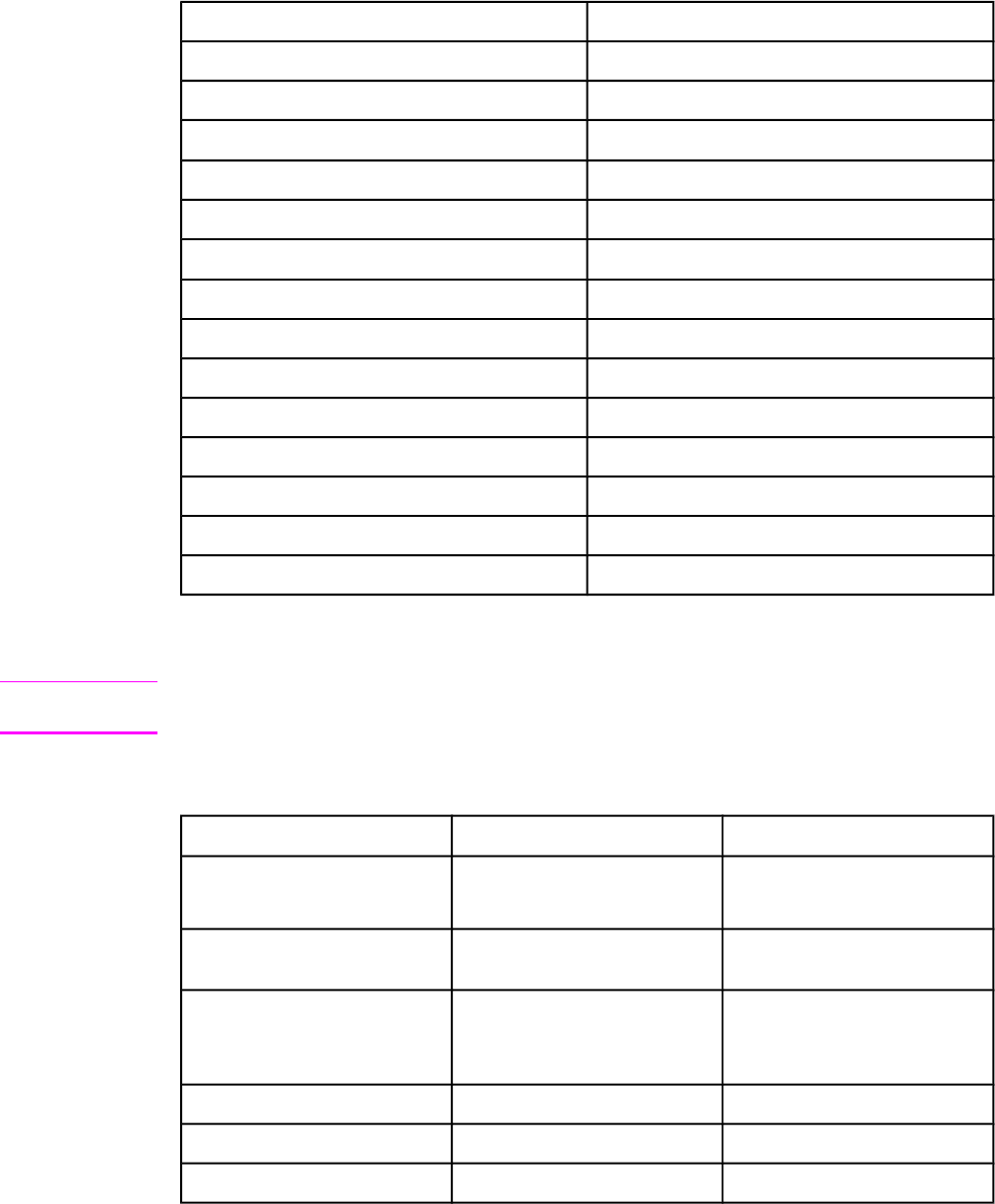
Item Value
Printer minimum paper size 76 by 127 mm (3 by 5 inches)
Printer maximum paper size 216 by 356 mm (8.5 by 14 inches)
Printer media weight 60 to 163 g/m2 (16 to 43 lb bond)
ADF minimum paper size 127 by 127 mm (5 by 5 inches)
ADF maximum paper size 216 by 381 mm (8. 5 by 15 inches)
ADF media weight 60 to 90 g/m2 (16 to 24 lb bond) paper
Flatbed minimum paper size no minimum size
Flatbed maximum paper size 216 by 356 mm (8.5 by 14 inches)
Flatbed media weight not applicable
Base memory 4 MB ROM and 32 MB RAM
Print resolution 1,200 dpi
Duty cycle 1,000 pages per month (average)
Printer control language (PCL) PCL 5e and PCL 6
PostScript (PS) PS Level 2 emulation
Electrical specifications
WARNING! Power requirements are based on the country/region where the product is sold. Do not
convert operating voltages. This might damage the product and void the product warranty.
Table 1-4. HP LaserJet 3380 all-in-one electrical specifications
Item 1110-volt models 2220-volt models
Power requirements 110 to 127 V (+/- 10 percent)
50 to 60 Hz (+/- 2 Hz)
220 to 240 V (+/- 10 percent)
50 to 60 Hz (+/- 2 Hz)
Minimum recommended circuit
capacity for typical product
4.5 amps 2.3 amps
Power Consumption (average,
in watts)
During printing (20 ppm)
330 W (average) 330 W (average)
During standby 14 W (average) 14 W (average)
Power Save mode 9 W (average) 9 W (average)
Off 0 W (average) 0 W (average)
1
Values subject to change. See http://www.hp.com/support/lj3380 for current information.
2
Note: The 110-volt and 220-volt power sources are not interchangeable.
Table 1-3. HP LaserJet 3380 all-in-one performance specifications (continued)
8Chapter 1 Product information ENWW

Acoustic emissions
Table 1-5. HP LaserJet 3380 all-in-one acoustic emissions
Category Specification
Sound power level Declared per ISO 9296
Printing (20 ppm)
Idle
LWAd=6.1 Bels (A) [61 dB (A)]
Essentially inaudible
SPL - Bystander position Declared per ISO 9296
Printing (20 ppm)
Idle
LpAm=48 dB(A)
Essentially inaudible
1
Values subject to change. See http://www.hp.com/support/lj3380 for current information.
During other operations, acoustic emissions can vary.
Skew specifications
Note The media registration defines how a sheet of media is positioned relative to the
electrophotographic image on the drum. The specified tolerances do not include variation from
nominal in the media dimensions. All vertical lines will be parallel to the reference, or left edge
of the media, within the specifications.
Table 1-6. HP LaserJet 3380 all-in-one skew specifications
Category Specification
Print skew—All vertical lines are parallel to the
left edge of the print media.
0.80% (2.0 mm over 250 mm [0.079 inch over 9.84
inches] in length) for cut-sheet media (except A5
size)
1.50% (3.3 mm over 220 mm [0.13 inch over 8.66
inches] in length) for envelopes, postcards, and
A5-size media
0.87% (1.65 mm over 190 mm [1.065 inches over
7.48 inches] in width) for cut-sheet media (leading
edge)
First line/leading edge skew—The distance of
the first line on the page from the leading edge of
the page.
4.23 mm ± 2.0 mm (0.16 inch ± 0.07 inch) for cut-
sheet media
4.23 mm ± 2.5 mm (0.16 inch ± 0.09 inch) for thick
media over 105 g/m2 (28 lb)
15.0 mm ± 3.5 mm (0.59 inch ± 0.13 inch) for
envelopes and postcards
Left margin—The distance of the left-most
vertical line from the left edge of the page.
4.23 mm ± 2.0 mm (0.16 inch ± 0.07 inch) for cut-
sheet media
15.0 mm ± 3.5 mm (0.59 inch ± 0.13 inch) for
envelopes and postcards
ENWW Product specifications 9
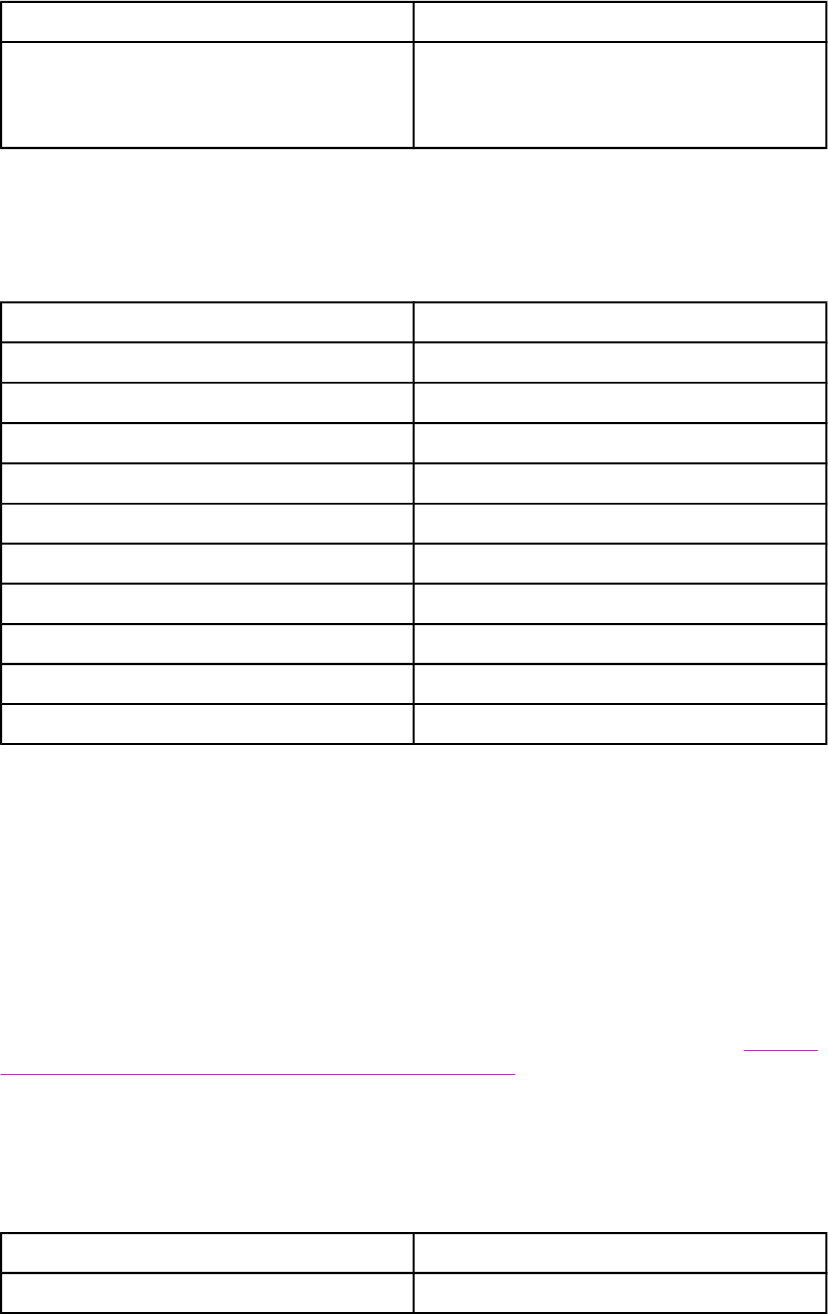
Category Specification
Parallelism All vertical lines must be parallel within an absolute
value of 0.6% [1.5 mm over 250 mm (0.05 inch
over 9.85 inches) in length] for letter-size cut-
sheet media.
Fax specifications
Table 1-7. HP LaserJet 3380 all-in-one fax specifications
Category Specification
Fax transmission speed 3 seconds/page (ITU-T Test Image #1)
Fax compatibility ITU Group 3; ECM
Fax coding schemes MH, MR, and MMR
Modem speed Up to 33,600 bits per second (bps)
Speed dialing Yes
Distinctive ring detect Yes
Fax resolution (standard) 203 by 98 dots per inch (dpi)
Fax resolution (fine) 203 by 196 dpi
Fax resolution (superfine) 300 by 300 dpi (no halftone)
Fax resolution (photo) 300 by 300 dpi (halftone enabled)
Printable area (margins)
For printed and copied documents, the product can print within the following margins:
●top: 4.2 mm (0.17 inches)
●bottom: 5 mm (0.20 inches)
●left: 4.2 mm (0.17 inches)
●right: 4.2 mm (0.17 inches)
For scanned documents, the margins are determined by the scanning software. The original
document's size must be within the size ranges for the ADF or flatbed scanner. See Table 1-
3. HP LaserJet 3380 all-in-one performance specifications for the size ranges.
Battery specifications
Table 1-8. HP LaserJet 3380 all-in-one battery
Description Specification
Battery material Polycarbon monoflouride lithium
Table 1-6. HP LaserJet 3380 all-in-one skew specifications (continued)
10 Chapter 1 Product information ENWW

Description Specification
Battery type Button or coin cell battery (soldered to formatter,
not replaceable)
Quantity per unit 1
Weight Approximately 1 gram (0.04 ounce)
Lithium type Solid
Battery manufacturers Rayovac of Madison, Wisconsin, USA; and
Panasonic of Secaucus, New Jersey, USA
Table 1-8. HP LaserJet 3380 all-in-one battery (continued)
ENWW Product specifications 11
Warranty statement
HP PRODUCT
HP LaserJet 3380 all-in-one
DURATION OF LIMITED WARRANTY
One year from date of purchase.
HP warrants to you, the end-user customer, that HP hardware, accessories, and supplies, will be free from defects
in materials and workmanship after the date of purchase, for the period specified above. If HP receives notice of
such defects during the warranty period, HP will, at its option, either repair or replace products which prove to be
defective. Replacement products may be either new or like new.
HP warrants to you that HP software will not fail to execute its programming instructions after the date of purchase,
for the period specified above, due to defects in material and workmanship when properly installed and used. If
HP receives notice of such defects during the warranty period, HP will replace software media which does not
execute its programming instructions due to such defects.
HP does not warrant that the operation of HP products will be uninterrupted or error-free. If HP is unable, within a
reasonable time, to repair or replace any product to a condition as warranted, you will be entitled to a refund of the
purchase price upon prompt return of the product.
HP products may contain remanufactured parts equivalent to new in performance or may have been subject to
incidental use.
Warranty does not apply to defects resulting from (a) improper or inadequate maintenance or calibration, (b)
software, interfacing, parts, or supplies not supplied by HP, (c) unauthorized modification or misuse, (d) operation
outside of the published environmental specifications for the product, or (d) improper site preparation or
maintenance.
HP MAKES NO OTHER EXPRESS WARRANTY OR CONDITION WHETHER WRITTEN OR ORAL. TO THE
EXTENT ALLOWED BY LOCAL LAW, ANY IMPLIED WARRANTY OR CONDITION OF MERCHANTABILITY,
SATISFACTORY QUALITY, OR FITNESS FOR A PARTICULAR PURPOSE IS LIMITED TO THE DURATION OF
THE EXPRESS WARRANTY SET FORTH ABOVE. Some countries/regions, states, or provinces do not allow
limitations on the duration of an implied warranty, so the above limitation or exclusion might not apply to you. This
warranty gives you specific legal rights and you might also have other rights that vary from country/region to
country/region, state to state, or province to province. TO THE EXTENT ALLOWED BY LOCAL LAW, THE
REMEDIES IN THIS WARRANTY STATEMENT ARE YOUR SOLE AND EXCLUSIVE REMEDIES. EXCEPT AS
INDICATED ABOVE, IN NO EVENT WILL HP OR ITS SUPPLIERS BE LIABLE FOR LOSS OF DATA OR FOR
DIRECT, SPECIAL, INCIDENTAL, CONSEQUENTIAL (INCLUDING LOST PROFIT OR DATA), OR OTHER
DAMAGE, WHETHER BASED IN CONTRACT, TORT, OR OTHERWISE. Some countries/regions, states, or
provinces do not allow the exclusion or limitation of incidental or consequential damages, so the above limitation or
exclusion may not apply to you.
FOR CONSUMER TRANSACTIONS IN AUSTRALIA AND NEW ZEALAND, THE WARRANTY TERMS
CONTAINED IN THIS STATEMENT, EXCEPT TO THE EXTENT LAWFULLY PERMITTED, DO NOT EXCLUDE,
RESTRICT OR MODIFY AND ARE IN ADDITION TO THE MANDATORY STATUTORY RIGHTS APPLICABLE TO
THE SALE OF THIS PRODUCT TO YOU.
HP MAKES NO OTHER EXPRESS WARRANTY OR CONDITION WHETHER WRITTEN OR ORAL. TO THE
EXTENT ALLOWED BY LOCAL LAW, ANY IMPLIED WARRANTY OR CONDITION OF MERCHANTABILITY,
SATISFACTORY QUALITY, OR FITNESS FOR A PARTICULAR PURPOSE IS LIMITED TO THE DURATION OF
THE EXPRESS WARRANTY SET FORTH ABOVE. Some countries/regions, states, or provinces do not allow
limitations on the duration of an implied warranty, so the above limitation or exclusion might not apply to you. This
warranty gives you specific legal rights and you might also have other rights that vary from country/region to
country/region, state to state, or province to province.
12 Chapter 1 Product information ENWW
HP’s Premium Protection print-cartridge warranty
Limited warranty statement
This HP print cartridge is warranted to be free from defects in materials and workmanship.
This warranty does not apply to print cartridges that (a) have been refilled, refurbished,
remanufactured or tampered with in any way, (b) experience problems resulting from misuse,
improper storage, or operation outside of the published environmental specifications for the
printer product or (c) exhibit wear from ordinary use.
To obtain warranty service, please return the product to place of purchase (with a written
description of the problem and print samples) or contact HP customer support. At HP’s option,
HP will either replace products that prove to be defective or refund your purchase price.
TO THE EXTENT ALLOWED BY LOCAL LAW, THE ABOVE WARRANTY IS EXCLUSIVE
AND NO OTHER WARRANTY OR CONDITION, WHETHER WRITTEN OR ORAL, IS
EXPRESSED OR IMPLIED AND HP SPECIFICALLY DISCLAIMS ANY IMPLIED
WARRANTIES OR CONDITIONS OF MERCHANTABILITY, SATISFACTORY QUALITY, AND
FITNESS FOR A PARTICULAR PURPOSE.
TO THE EXTENT ALLOWED BY LOCAL LAW, IN NO EVENT WILL HP OR ITS SUPPLIERS
BE LIABLE FOR DIRECT, SPECIAL, INCIDENTAL, CONSEQUENTIAL (INCLUDING LOST
PROFIT OR DATA), OR OTHER DAMAGE, WHETHER BASED IN CONTRACT, TORT, OR
OTHERWISE.
THE WARRANTY TERMS CONTAINED IN THIS STATEMENT, EXCEPT TO THE EXTENT
LAWFULLY PERMITTED, DO NOT EXCLUDE, RESTRICT OR MODIFY AND ARE IN
ADDITION TO THE MANDATORY STATUTORY RIGHTS APPLICABLE TO THE SALE OF
THIS PRODUCT TO YOU.
ENWW HP’s Premium Protection print-cartridge warranty 13
Extended warranty
In most countries/regions, HP Care Pack provides additional coverage, beyond standard
warranty, for the HP device and for all HP-supplied internal components. This hardware
maintenance can uplift the standard warranty, for example, from next-day to same-day
service, and/or extend it up to 5 years. HP Care Pack can also provide Express Exchange or
onsite service. For more information, see the support flyer that came with your device for the
appropriate phone numbers and information.
14 Chapter 1 Product information ENWW
Print-cartridge information
The print cartridge is designed to simplify replacement of the major consumable parts. The
print cartridge contains the printing mechanism and a supply of toner.
At 5 percent page coverage, a standard print cartridge will print approximately 2,500 pages.
As page coverage increases, yield decreases. These estimates are only approximate; usage
conditions and print patterns can cause results to vary.
Refilled print cartridges
While Hewlett-Packard does not prohibit the use of refilled print cartridges during the warranty
period or while the product is under a maintenance contract, it is not recommended for the
following reasons:
●Repairs resulting from the use of refilled cartridges are not covered under Hewlett-Packard
warranty or maintenance contracts.
●Hewlett-Packard has no controls or processes to ensure that a refilled cartridge functions
at the high level of reliability of a new HP LaserJet print cartridge. Hewlett-Packard also
cannot predict the long-term reliability effect on the product from using different toner
formulations found in refilled cartridges.
●The print quality of HP LaserJet print cartridges influences the customer’s perception of
the product. Hewlett-Packard has no control over the actual print quality of a refilled
cartridge.
●Parts that are critical to print quality might not be replaced when the cartridge is refilled
with toner.
HP LaserJet printing supplies
In many countries/regions, this product's printing supplies (for example the print cartridge) can
be returned to HP through the HP Printing Supplies Returns and Recycling Program. An
easy-to-use and free take-back program is available in more than 30 countries/regions.
Multilingual program information and instructions are included in every new HP LaserJet print
cartridge and supplies package.
HP Printing Supplies Returns and Recycling Program
information
Since 1990, the HP Printing Supplies Returns and Recycling Program has collected millions
of used LaserJet print cartridges that otherwise might have been discarded in the world's
landfills. The HP LaserJet print cartridges and supplies are collected and bulk shipped to our
resource and recovery partners, who disassemble the cartridges. Remaining materials are
separated and converted into raw materials for use by other industries to make a variety of
useful products.
U.S. returns
For a more environmentally responsible return of used cartridges and supplies, HP
encourages the use of bulk returns. Simply bundle two or more cartridges together and use
the single, pre-paid, pre-addressed UPS label that is supplied in the package that the new
cartridge comes in. For more information in the U.S., call (1) (800) 340-2445 or visit the HP
LaserJet Supplies website at http://www.hp.com/recycle.
ENWW Print-cartridge information 15

FCC regulations
This equipment has been tested and found to comply with the limits for a Class B digital
device, pursuant to Part 15 of the FCC rules. These limits are designed to provide reasonable
protection against harmful interference in a residential installation. This equipment generates,
uses, and can radiate radio frequency energy. If not installed and used in accordance with the
instructions, it may cause harmful interference to radio communications. However, there is no
guarantee that interference will not occur in a particular installation. If this equipment does
cause harmful interference to radio or television reception, which can be determined by turning
the equipment off and on, the user is encouraged to try to correct the interference by one or
more of the following measures:
●Reorient or relocate the receiving antenna.
●Increase separation between equipment and receiver.
●Connect equipment to an outlet on a circuit different from that to which the receiver is
located.
●Consult your dealer or an experienced radio/TV technician.
Note Any changes or modifications to the printer that are not expressly approved by HP could void
the user’s authority to operate this equipment.
Note Use of a shielded interface cable is required to comply with the Class B limits of Part 15 of
FCC rules.
FCC Part 68 Requirements (United States)
This equipment complies with FCC rules, Part 68. On the back of this equipment is a label
that contains, among other information, the FCC registration number and ringer equivalence
number (REN) for this equipment. If requested, this information must be provided to the
telephone company. The REN is used to determine the quantity of devices which may be
connected to the telephone line. Excessive RENs on the telephone line may result in the
devices not ringing in response to an incoming call. In most, but not all, areas, the sum of the
RENs should not exceed five (5.0). To be certain of the number of devices that may be
connected to the line, as determined by the total RENs, contact the telephone company to
determine the maximum REN for the calling area.
This equipment uses the following USOC jacks: RJ11C.
ENWW FCC regulations 17
An FCC-compliant telephone cord and modular plug is provided with this equipment. This
equipment is designed to be connected to the telephone network or premises wiring using a
compatible modular jack which is Part 68 compliant. This equipment cannot be used on
telephone company-provided coin service. Connection to Party Line Service is subject to state
tariffs. If this equipment causes harm to the telephone network, the telephone company will
notify you in advance that temporary discontinuance of service may be required. If advance
notice isn't practical, the telephone company will notify the customer as soon as possible.
Also, you will be advised of your right to file a complaint with the FCC if you believe it is
necessary. The telephone company may make changes in its facilities, equipment,
operations, or procedures that could affect the operation of the equipment. If this happens, the
telephone company will provide advance notice in order for you to make the necessary
modifications in order to maintain uninterrupted service. If trouble is experienced with this
equipment, please see the numbers in the front of this manual for repair and (or) warranty
information. If the trouble is causing harm to the telephone network, the telephone company
may request you remove the equipment from the network until the problem is resolved. The
following repairs can be done by the customer: Replace any original equipment that came with
the product. This includes the print cartridge, the supports for trays and bins, the power cord,
and the telephone cord. It is recommended that the customer install an ac surge arrestor in the
ac outlet to which this device is connected. This is to avoid damage to the equipment caused
by local lightning strikes and other electrical surges.
18 Chapter 1 Product information ENWW
Telephone Consumer Protection Act (United States)
The Telephone Consumer Protection Act of 1991 makes it unlawful for any person to use a
computer or other electronic device, including fax machines, to send any message unless
such message clearly contains, in a margin at the top or bottom of each transmitted page or
on the first page of the transmission, the date and time it is sent and an identification of the
business, other entity, or individual sending the message and the telephone number of the
sending machine or such business, other entity, or individual. (The telephone number provided
cannot be a 900 number or any other number for which charges exceed local or long-distance
transmission charges.) In order to program this information into a fax, please see the fax
guide.
ENWW Telephone Consumer Protection Act (United States) 19

IC CS-03 requirements
NOTICE: The Industry Canada label identifies certified equipment. This certification means the
equipment meets certain telecommunications network protective, operational, and safety
requirements as prescribed in the appropriate Terminal Equipment Technical Requirement
document(s). The Department does not guarantee the equipment will operate to the user’s
satisfaction. Before installing this equipment, users should ensure that it is permissible for the
equipment to be connected to the facilities of the local telecommunications company. The
equipment must also be installed using an acceptable method of connection. The customer
should be aware that compliance with the above conditions may not prevent degradation of
service in some situations. Repairs to certified equipment should be coordinated by a
representative designated by the supplier. Any repairs or alterations made by the user to this
equipment, or equipment malfunctions, may give the telecommunications company cause to
request the user to disconnect the equipment. Users should ensure for their own protection
that the electrical ground connections of the power utility, telephone lines, and internal metallic
water pipe system, if present, are connected together. This precaution can be particularly
important in rural areas.
CAUTION Users should not attempt to make such connections themselves, but should contact the
appropriate electric inspection authority, or electrician, as appropriate. The Ringer Equivalence
Number (REN) of this product is 0.7.
Notice: The Ringer Equivalence Number (REN) assigned to each terminal device provides an
indication of the maximum number of terminals allowed to be connected to a telephone
interface. The termination on an interface may consist of any combination of devices subject
only to the requirement that the sum of the Ringer Equivalence Number of all the devices does
not exceed five (5.0). The standard connecting arrangement code (telephone jack type) for
equipment with direct connections to the telephone network is CA11A.
20 Chapter 1 Product information ENWW
Declaration of Conformity
Declaration of Conformity
according to ISO/IEC Guide 22 and EN 45014
Manufacturer’s Name: Hewlett-Packard Company
Manufacturer’s Address: 11311 Chinden Boulevard
Boise, Idaho 83714-1021, USA
declares that the product
Product Name: LaserJet 3380 all-in-one
Regulatory Model Number: BOISB-0303-00
Product Options: All
conforms to the following Product Specifications:
Safety: IEC 60950:1999 / EN 60950:2000
IEC 60825-1:1993 + A1:1996 + A2:2001 / EN 60825-1:1994 + A11:1996 + A2:2001 (Class 1 Laser/LED Product)
GB4943-1995
EMC: CISPR 22:1998 / EN 55022:1998 - Class B
1
EN 61000-3-2:1995 / A14:2000
EN 61000-3-3:1995
EN 55024:1998
FCC Title 47 CFR, Part 15 Class B
2
/ ICES-003, Issue 3
GB9254-1998
Telecom: TBR-21:1998; EG 201 121:1998
Supplementary Information:
The product herewith complies with the requirements of the EMC Directive 89/336/EEC, the Low Voltage Directive 73/23/EEC, the R&TTE
Directive 1995/5/EC (Annex II), and carries the CE-Marking accordingly:
1
The product was tested in a typical configuration with Hewlett-Packard Personal Computer Systems.
2
This Device complies with Part 15 of the FCC Rules. Operation is subject to the following two Conditions: (1) this device may not cause
harmful interference, and (2) this device must accept any interference received, including interference that may cause undesired operation.
3
For regulatory purposes, this product is assigned a Regulatory model number. This number should not be confused with the marketing name
(HP LaserJet 3380) or the product number (Q2660A).
Boise, Idaho 83714, U.S.A.
November 1, 2003
For regulatory topics only:
Australia Contact Product Regulations Manager, Hewlett-Packard Australia, Ltd. 31-41 Joseph Street Blackburn, Victoria 3130, Australia
European Contact Your Local Hewlett-Packard Sales and Service Office or Hewlett-Packard Gmbh, Department HQ-TRE / Standards
Europe Herrenberger Strasse 140 Böblingen, D-71034, (+49-7031-14-3143)
USA Contact Product Relations Manager, Hewlett-Packard Company PO Box 15, Mail Stop 160 Boise, ID 83707-0015, USA (208-
396-6000)
ENWW Declaration of Conformity 21

Safety statements
Laser safety statement
The Center for Devices and Radiological Health (CDRH) of the U.S. Food and Drug
Administration has implemented regulations for laser products manufactured since August 1,
1976. Compliance is mandatory for products marketed in the United States. This printer is
certified as a “Class 1” laser product under the U.S. Department of Health and Human
Services (DHHS) Radiation Performance Standard according to the Radiation Control for
Health and Safety Act of 1968. Since radiation emitted inside this printer is completely
confined within protective housings and external covers, the laser beam cannot escape during
any phase of normal user operation.
WARNING! Using controls, making adjustments, or performing procedures other than those specified in
this manual can result in exposure to hazardous radiation.
Canada DOC regulations
This equipment complies with Canadian EMC Class B requirements.
Conforme á la classe B des normes canadiennes de compatibilité électromagnétiques. <<
CEM>>.
22 Chapter 1 Product information ENWW
Laser statement for Finland
LASERTURVALLISUUS
LUOKAN 1 LASERLAITE
KLASS 1 LASER APPARAT
HP LaserJet 3380 all-in-one-laserkirjoitin on käyttäjän kannalta turvallinen luokan 1 laserlaite.
Normaalissa käytössä kirjoittimen suojakotelointi estää lasersäteen pääsyn laitteen
ulkopuolelle.
Laitteen turvallisuusluokka on määritetty standardin EN 60825-1:1994 + A11:1996 + A2:2001
mukaisesti.
VAROITUS!
Laitteen käyttäminen muulla kuin käyttöohjeessa mainitulla tavalla saattaa altistaa käyttäjän
turvallisuusluokan 1 ylittävälle näkymättömälle lasersäteilylle.
VARNING!
Om apparaten används på annat sätt än i bruksanvisning specificerats, kan användaren
utsättas för osynlig laserstrålning, som överskrider gränsen för laserklass 1.
HUOLTO
HP LaserJet 3380 all-in-one-kirjoittimen sisällä ei ole käyttäjän huollettavissa olevia kohteita.
Laitteen saa avata ja huoltaa ainoastaan sen huoltamiseen koulutettu henkilö. Tällaiseksi
huoltotoimenpiteeksi ei katsota väriainekasetin vaihtamista, paperiradan puhdistusta tai muita
käyttäjän käsikirjassa lueteltuja, käyttäjän tehtäväksi tarkoitettuja ylläpitotoimia, jotka voidaan
suorittaa ilman erikoistyökaluja.
VARO!
Mikäli kirjoittimen suojakotelo avataan, olet alttiina näkymättömälle lasersäteilylle laitteen
ollessa toiminnassa. Älä katso säteeseen.
VARNING!
Om laserprinterns skyddshölje öppnas då apparaten är i funktion, utsättas användaren för
osynlig laserstrålning. Betrakta ej strålen.
Tiedot laitteessa käytettävän laserdiodin säteilyominaisuuksista:
Aallonpituus 770-795 nm
Teho 5 mW
Luokan 3B laser
Korean EMI statement
Australia
This equipment complies with Australian EMC requirements.
ENWW Safety statements 23
Regulatory information for the European Union countries/regions
This equipment has been designed to work in all of the countries/regions of the European
Economic Area (Public Switched Telephone Networks) only. Network compatibility is
dependent on internal software settings. Contact your equipment supplier if it is necessary to
use the equipment on a different telephone network. For further product support, contact
Hewlett-Packard at the phone numbers provided in the support flyer that came with the
product.
24 Chapter 1 Product information ENWW
2
Operation
This chapter provides information about setting up and using the HP LaserJet 3380 all-in-one.
Operating environment ............................................................................................................26
Identifying the control-panel components ...............................................................................27
Fax controls ...................................................................................................................... 27
Alphanumeric buttons .......................................................................................................28
Menu and cancel controls .................................................................................................28
Copy, scan, and start controls ..........................................................................................29
Control-panel menu structure .................................................................................................30
To use the control-panel buttons.......................................................................................30
To print the control-panel menu structure.........................................................................30
Product media specifications ..................................................................................................34
Supported media sizes and types ....................................................................................34
Guidelines for using media .....................................................................................................36
Paper and transparencies ................................................................................................36
Common media problems ................................................................................................36
Labels ............................................................................................................................... 37
Envelopes .........................................................................................................................37
Card stock and heavy media ............................................................................................38
Loading media .........................................................................................................................40
Media input tray ................................................................................................................40
Priority input tray ............................................................................................................... 40
Specific types of media .....................................................................................................40
Selecting originals for the automatic document feeder (ADF) ................................................41
Specifications for ADF originals .......................................................................................41
Media information for the flatbed ............................................................................................42
Loading originals to copy or scan ...........................................................................................43
To load originals onto the flatbed scanner .......................................................................43
To load originals into the ADF input tray ..........................................................................43
Printer output paths .................................................................................................................45
Output bin and straight-through output path ....................................................................45
ENWW 25
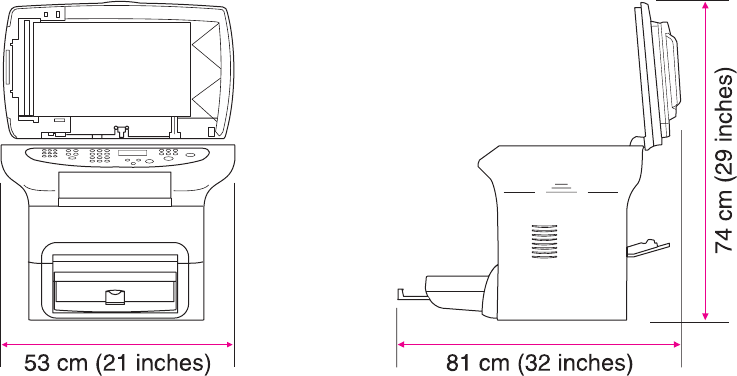
Operating environment
Place the product on a sturdy, level surface in a well-ventilated area that meets the following
environmental requirements:
●temperature: 15° to 32.5° C (59° to 90.5° F)
●humidity: 10 to 80 percent relative humidity (no condensation)
●away from direct sunlight, open flames, and ammonia fumes
●sufficient space around the product to allow for access and ventilation
Figure 2-1. Product dimensions
26 Chapter 2 Operation ENWW
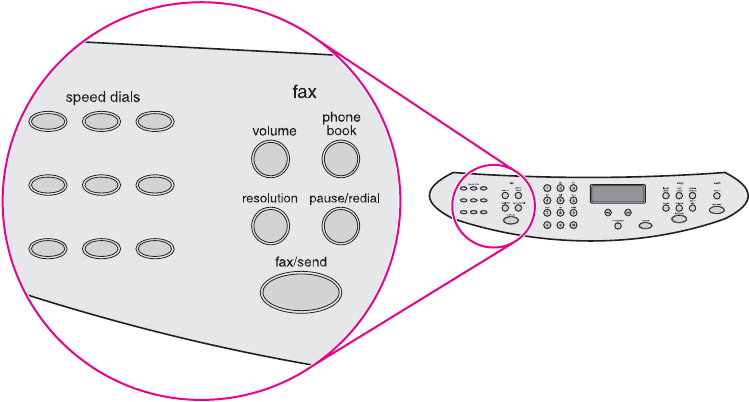
Identifying the control-panel components
This section provides details about the control-panel components.
Fax controls
Use the fax controls to send and receive faxes. These controls and the fax menu or software
are used to change commonly used fax settings. For complete instructions about using the
product's fax features, see the fax guide.
Figure 2-2. Fax controls
The product has extensive faxing capabilities. For a full description of the fax capabilities, see
the fax guide.
ENWW Identifying the control-panel components 27
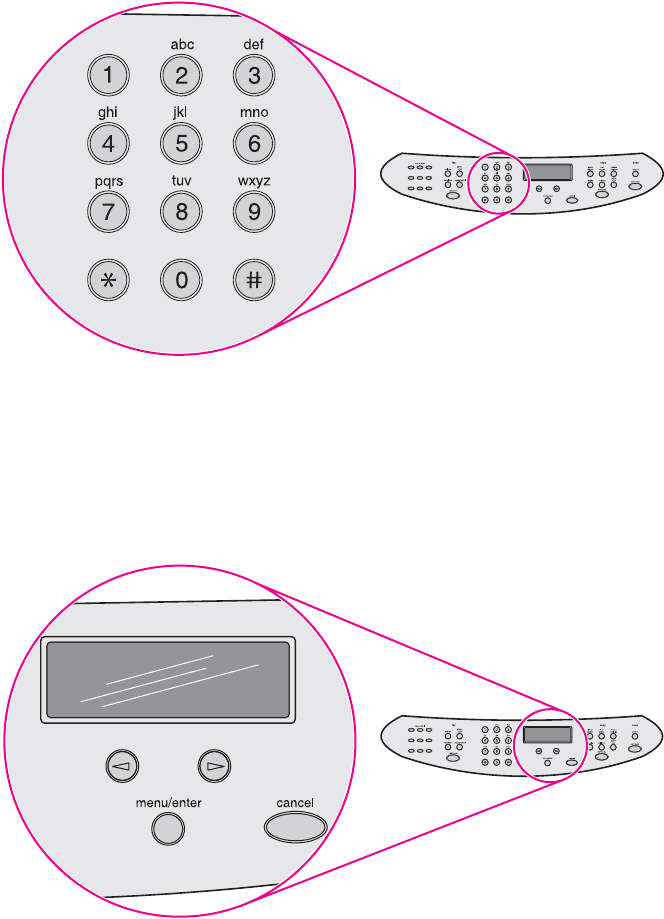
Alphanumeric buttons
Use the alphanumeric buttons to type fax data into the control-panel display screen and to
dial phone numbers for faxing. For a full description of using the alphanumeric buttons, see
the fax guide.
Figure 2-3. Alphanumeric buttons
Menu and cancel controls
Use these controls to select menu options, determine the product status, and cancel the
current job.
Figure 2-4. Menu and cancel controls
28 Chapter 2 Operation ENWW
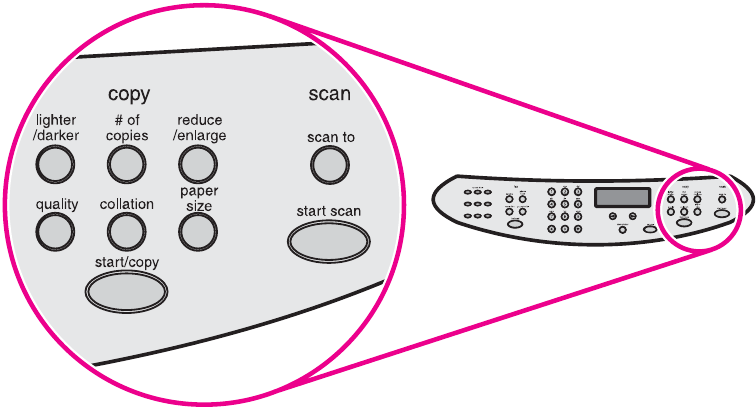
Copy, scan, and start controls
Use these controls to change commonly used default settings, to start scanning, or to start
copying. For instructions about copying, see "Copying" in the user guide. For instructions
about scanning, see "Scanning" in the user guide. The user guide is on the product CD.
Figure 2-5. Copy, scan, and start controls
ENWW Identifying the control-panel components 29

Control-panel menu structure
Use the following hierarchical diagram of the control-panel menu structure to make changes to
settings and features.
To use the control-panel buttons
1. Press
MENU
/
ENTER
to begin.
2. Use the < or > button to select one of the options from the main menu, and then press
MENU
/
ENTER
.
3. Use the < or > button to select one of the options from the submenu, and then press
MENU
/
ENTER
.
4. If applicable, use the < or > button to select one of the options from the second submenu,
and then press
MENU
/
ENTER
.
To print the control-panel menu structure
1. Press
MENU
/
ENTER
.
2. Use the < or > button to select Reports, and then press
MENU
/
ENTER
.
3. Use the < or > button to select Menu structure, and then press
MENU
/
ENTER
. The product
exits the menu settings and prints the report.
To see which settings are currently selected, print a configuration report. See Troubleshooting
tools for instructions.
Table 2-1. Control-panel menu structure
Main Menu Submenu Submenu Submenu
Fax Job status
Fax Functions Send fax later
Stop Recv to PC
Reprint last
Polling receive
Clear saved faxs
Time/Date, Header Time/Date
Fax Header
Copy setup Default Quality
Def. Light/Dark
Def. Collation
Def. # of copies
Def. Redu/Enlrg
30 Chapter 2 Operation ENWW

Main Menu Submenu Submenu Submenu
Reports Demo Page
Fax Activity log Print log now
Auto Log Print
Fax Call report Print report now
Print report
Include 1st page
PhoneBook report
Menu structure
Config report
Block Fax list
Billing report
Usage page
PCL Font list
PS Font list
All fax reports
Table 2-1. Control-panel menu structure (continued)
ENWW Control-panel menu structure 31

Main Menu Submenu Submenu Submenu
Fax setup Phone Book Individual setup Add
Delete
Group setup Add/Edit group
Delete group
Del. # In group
Delete all
Fax Send setup Def. Resolution
Def. Light/Dark
Def. Glass Size
Dialing Mode
Redial if busy
Redial-no answer
Redial Comm Err.
Dial Prefix
Detect dial tone
Billing codes
Fax Recv. setup Answer mode
Rings To answer
Answer Ring Type
Extension Phone
Silence Detect
Fit to page
Stamp faxes
Forward fax
Block faxes Add entry
Delete entry
Clear all
All faxes Error correction
V.34
Common settings Language
Def. Paper Size
Print Density
Volume settings Alarm volume
Ring volume
Key Press volume
PhoneLine Volume
Table 2-1. Control-panel menu structure (continued)
32 Chapter 2 Operation ENWW

Main Menu Submenu Submenu Submenu
Service Print T.30 trace
Restore defaults
Cleaning Mode
Power Save time
Less paper curl
Table 2-1. Control-panel menu structure (continued)
ENWW Control-panel menu structure 33

Product media specifications
The product accepts a variety of media. Properties such as weight, grain, and moisture
content are important factors that affect printer performance and output quality. Media should
conform to the guidelines in the user guide on the product CD. Media that does not meet HP
guidelines might cause poor print quality, increased jams, or premature wear on the product.
CAUTION Damage caused by media that does not meet HP's specifications is not covered by the HP
warranty or service agreements.
Supported media sizes and types
The printer supports media within this size range:
●Minimum: 76 by 127 mm (3 by 5 inches)
●Maximum: 216 by 356 mm (8.5 by 14 inches)
The ADF supports media within this size range:
●Minimum: (127 by 127 mm) (5 by 5 inches)
●Maximum: (216 by 381 mm) (8.5 by 15 inches)
Media-type settings control the temperature of the fuser. To optimize the print quality, change
the settings to match the media that you are using. The following are the media types that the
product supports and the associated fuser mode.
Note Narrow and heavy media can cause the printer to print more slowly.
Table 2-2. Supported media types
Media type Fuser mode
Plain Normal
Preprinted Normal
Letterhead Normal
Transparency OHT
Prepunched Normal
Labels Thick
Bond Thick
Recycled Normal
Color Normal
Light <75 g/m2Low
Heavy (90 to 105 g/m2)Thick
Cardstock (105 to 176 g/m2)Extra Rough
Envelope Envelope
34 Chapter 2 Operation ENWW

Media type Fuser mode
Rough Thick
Unspecified Uses default setting
Table 2-2. Supported media types (continued)
ENWW Product media specifications 35

Guidelines for using media
Use the information in this section to choose the proper print media.
Paper and transparencies
Paper must be of good quality and free of cuts, nicks, tears, spots, loose particles, dust,
wrinkles, holes, and curled or bent edges. Check the label on the paper package for details
about the type of paper (such as bond or recycled).
Some paper causes print-quality problems, jamming, or damage to the printer.
Note Do not use letterhead that is printed with low-temperature inks, such as those used in some
types of thermography; raised letterhead; or colored paper or preprinted forms that use inks
incompatible with the printer temperature (200° C, or 392° F, for 0.1 second).
Transparencies must be able to withstand 200° C (392° F), the printer's maximum
temperature.
Common media problems
Table 2-3. Common media problems
Symptom Problem with
paper
Solution
Poor print quality or problems with
feeding.
Too moist, too
rough, too smooth,
or embossed.
Faulty lot.
Try another kind of paper between 100
and 250 Sheffield.
Use a fresh ream of paper to ensure
proper moisture content.
Poor toner adhesion Too smooth. Try another kind of paper between 100
and 250 Sheffield.
Make sure the proper paper type is
selected, so the fuser is set for the
proper mode.
Dropouts, jamming, or curl. Stored improperly. Store paper flat in its moisture-proof
wrapping.
Gray area along the edge of the page. Media might be
too heavy.
Use a lighter-weight media.
Increased gray background shading. Might be too dark,
or you are using
recycled paper.
Use whiter-colored media.
Reduce the contrast by pressing the
L
IGHTER
/D
ARKER
button on the control
panel.
Excessive curl, or problems with
feeding.
Too moist, wrong
grain direction, or
short-grain
construction.
Use long-grain paper. Print using the
straight-through output path.
For copy or fax jobs, select less paper
curl in the service menu. For print jobs,
select a lighter-weight media type from
the printer driver or the HP Toolbox.
36 Chapter 2 Operation ENWW

Symptom Problem with
paper
Solution
Jamming, or damage to printer. Cutouts or
perforations.
Do not use media that has cutouts or
perforations.
Problems with feeding. Ragged edges. Use good-quality media.
Labels
Note For best results, use only HP-brand labels. To order HP supplies, visit http://www.hp.com.
When selecting labels, consider the following factors:
●Adhesives: The adhesive material should be stable at 200° C (392° F), the product's
maximum temperature.
●Arrangement: Use only labels that have no exposed backing between them. Labels can
peel off sheets that have spaces between the labels, causing serious jams.
●Curl: Prior to printing, labels must lie flat with no more than 13 mm (0.5 inch) of curl in any
direction.
●Condition: Do not use labels that contain wrinkles, bubbles, or other indications of
separation. Never use a sheet of labels that has already been run through the printer.
Envelopes
Envelope construction is critical. Envelope fold lines can vary considerably, not only between
manufacturers, but also within a box from the same manufacturer. Successful printing on
envelopes depends on the quality of the envelopes. When selecting envelopes, consider the
following factors:
●Weight: The weight of the envelope paper should not exceed 105 g/m
2
(28 lb), or jamming
might result.
●Construction: Before printing, envelopes should lie flat with less than 6 mm (0.25 inch)
curl and should not contain air. Envelopes that trap air can cause problems.
●Condition: Make sure that the envelopes are not wrinkled, nicked, or otherwise
damaged.
●Sizes: Supported envelope sizes range from 90 by 160 mm (3.5 by 6.3 inches) to 178 by
254 mm (7 by 10 inches).
Store envelopes flat. If air is trapped in an envelope, creating an air bubble, the envelope
might wrinkle during printing.
Table 2-3. Common media problems (continued)
ENWW Guidelines for using media 37
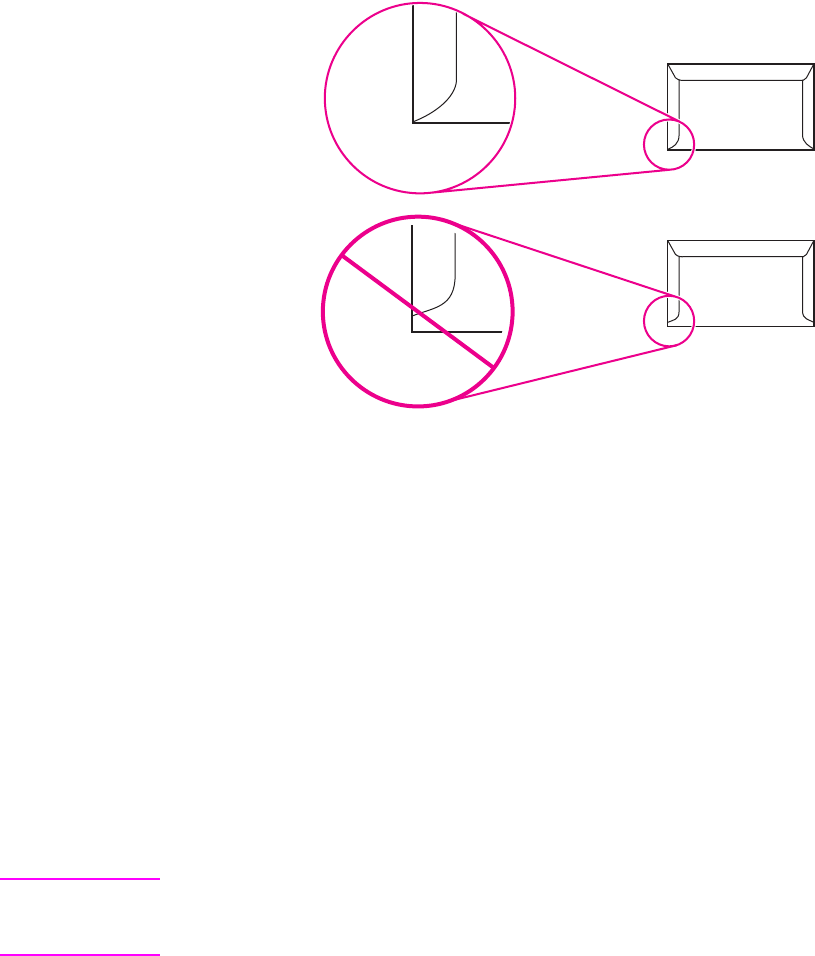
Envelopes with double-side seams
An envelope with double-side-seam construction has vertical seams at both ends of the
envelope rather than diagonal seams. This style is more likely to wrinkle during printing. Make
sure that the seam extends all the way to the corner of the envelope as shown in the following
illustration:
Envelopes with adhesive strips or flaps
Envelopes with a peel-off adhesive strip or with more than one flap that folds over to seal
must use adhesives that are compatible with the heat (200° C, or 392° F) and pressure in the
printer. The extra flaps and strips might cause wrinkling, creasing, or jams.
Envelope storage
Store envelopes flat to ensure good print quality. If air is trapped in and envelope, creating an
air bubble, the envelope might wrinkle during printing.
Card stock and heavy media
Some card stock performs better than others because the construction is better suited for
feeding through a laser device. For optimum performance, do not use media that is heavier
than 163 g/m
2
(43 lb). Media that is too heavy might cause misfeeds, stacking problems,
jams, poor toner fusing, poor print quality, or excessive mechanical wear.
Note You might be able to print on heavier media if you do not fill the input tray to capacity and if
you use media that has a smoothness rating of 100 to 180 Sheffield. Use the straight-through
paper path for heavier media.
Card stock construction
●Smoothness: 135 to163 g/m
2
(36 to 43 lb) card stock should have a smoothness rating
of 100 to 180 Sheffield. 60 to 135 g/m
2
(16 to 36 lb) card stock should have a smoothness
rating of 100 to 250 Sheffield.
●Construction: Card stock should lie flat with less than 5 mm (0.2 inch) of curl.
38 Chapter 2 Operation ENWW
●Condition: Make sure that the card stock is not wrinkled, nicked, or otherwise damaged.
●Sizes: Use only card stock within the following size range:
–Minimum: 76 by 127 mm (3 by 5 inches)
–Maximum: 216 by 356 mm (8.5 by 14 inches)
Card stock guidelines
●If the card stock curls or jams, use the straight-through output path.
●Set margins at least 2 mm (0.08 inch) away from the edges.
ENWW Guidelines for using media 39

Loading media
This section provides information about loading media in the input trays.
Media input tray
The media input tray holds up to 250 sheets of 75-g/m
2
(20-lb) paper or a 25-mm (0.98-inch)
stack of heavier media. Load media with the top forward and the side to be printed on facing
up. To prevent jams and skew, always adjust the side media guides.
Priority input tray
The priority input tray holds up to ten pages of 75-g/m
2
(20-lb) paper or one envelope,
transparency, or card. Load media with the top forward and the side to be printed on facing
up. To prevent jams and skew, always adjust the side media guides.
If you try to print on media that is wrinkled, folded, or damaged in any way, a jam might occur.
See the user guide on the product CD for more information.
Note When you add new media, make sure that you remove all of the media from the input tray and
straighten the stack of new media. This helps prevent multiple sheets of media from feeding
through the printer at one time, reducing jams.
Specific types of media
●Transparencies and labels: Load transparencies and labels with the top forward and the
side to be printed on facing up. See the user guide on the product CD for more
information.
●Envelopes: Load envelopes with the narrow, stamp side forward and the side to be
printed on facing up. See the user guide on the product CD for more information.
●Letterhead and preprinted forms: Load with the top forward and the side to be printed
on facing up. See the user guide for more information.
●Cards and custom-sized media: Load with the narrow side forward and the side to be
printed on facing up. See the user guide on the product CD for more information.
40 Chapter 2 Operation ENWW

Selecting originals for the automatic document feeder (ADF)
Use either the ADF or the flatbed scanner for most copying, scanning, and faxing needs.
Specifications for ADF originals
●Input capacity: The ADF holds up to 50 sheets of flat, 60- to 90- g/m
2
(16- to 24-pound)
plain paper.
●Media size: Use only plain paper that is within the following size range:
–Minimum: 127 mm by 127 mm (5 by 5 inches)
–Maximum: 215.9 mm by 381 mm (8.5 by 15 inches)
Note You must use the flatbed to scan or copy small or delicate originals (such as newsprint,
business cards, and photos), or documents that have tears, perforations, or punch holes. If
you want to fax such items, first make a copy on the flatbed and then fax the copy.
Perform the following actions to minimize the possibility of jams:
●Remove self-stick notes.
●Remove staples and paper clips.
●Straighten any curls, folds, or wrinkles in documents before putting them into the
document feeder tray.
●Do not insert any document that contains glue, correction fluid, or wet ink.
●Do not insert gum-backed paper or labels.
●Avoid multiple-copy forms.
●Do not scan originals that are larger or smaller than supported size limitations. See the
user guide on the product CD for more information.
Note To obtain good results, it is important to use the correct re-entry and color settings for the job.
See the user guide on the product CD for more information.
ENWW Selecting originals for the automatic document feeder (ADF) 41
Media information for the flatbed
Use the flatbed scanner for copying, scanning, and faxing if the media is fragile, thin, thick, or
damaged (folded, wrinkled), or to produce a high-quality copy or file. The flatbed scanner
provides the best copy and scan quality.
The flatbed has no minimum size specification, and accepts a maximum size of legal-size
media (215.9 mm by 355.6 mm, or 8.5 inches by 14 inches). In order to make a copy of a
legal-size document, the paper size must be changed by using the
PAPER
SIZE
button.
Otherwise, the copy will be cropped to the default paper size.
42 Chapter 2 Operation ENWW
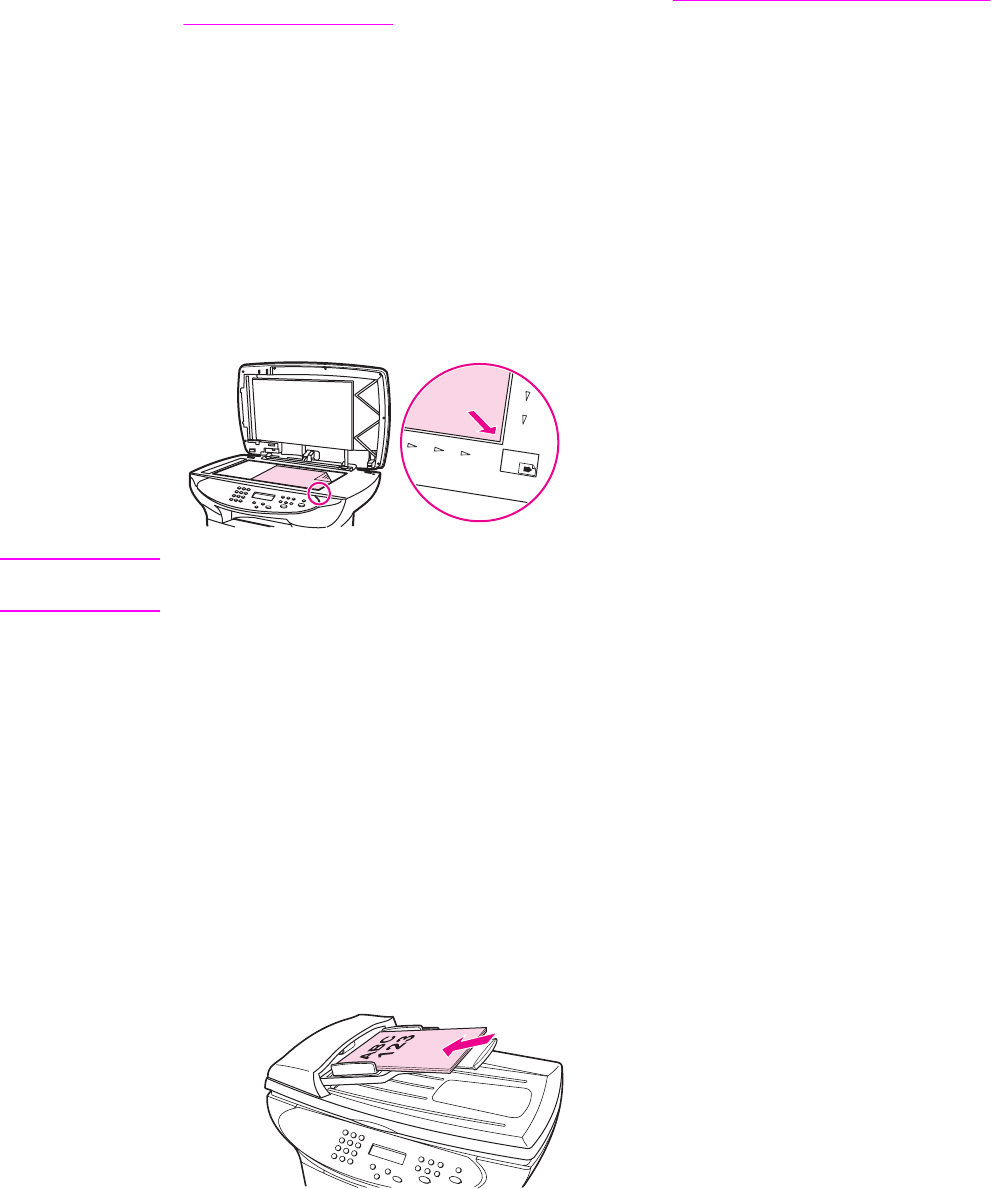
Loading originals to copy or scan
Use these instructions to load originals into the product for copying or scanning. For the best-
quality scans and copies, use the flatbed scanner. See Selecting originals for the automatic
document feeder (ADF) for guidelines to choose original documents for scanning and
copying.
To load originals onto the flatbed scanner
1. Make sure that the ADF is clear and does not hold media.
2. Lift the flatbed scanner cover.
3. Place the original document face-down on the flatbed scanner, with the top, left corner of
the document located in the lower-right corner of the glass.
4. Gently close the lid.
5. The document is ready to be copied or scanned.
CAUTION To prevent damage to the product, do not allow the scanner lid to fall onto the flatbed scanner
surface. Always close the scanner lid when the product is not in use.
To load originals into the ADF input tray
The ADF capacity is up to 50 sheets of 75-g/m
2
(20-lb) media (depending on the thickness of
the media), or until the ADF input tray is full.
The minimum size for media in the ADF is 127 by 127 mm (5 by 5 inches). For smaller sizes,
use the flatbed scanner. The maximum size for media in the ADF is 215.9 mm wide by 381 mm
long (8.5 by 15 inches).
1. Make sure the flatbed scanner is clear and does not hold media.
2. Close the flatbed scanner cover and put the top end of the original media stack into the
ADF input tray, with the media stack face-up and the first page to be scanned, copied, or
faxed on top of the stack.
3. Slide the media stack into the ADF until the media does not move any farther.
ENWW Loading originals to copy or scan 43
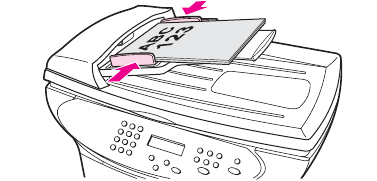
4. Adjust the media guides until they are snug against the sides of the stack.
5. The document is now ready to be copied or scanned.
6. After scanning, the document is delivered to the output tray in the correct order.
44 Chapter 2 Operation ENWW
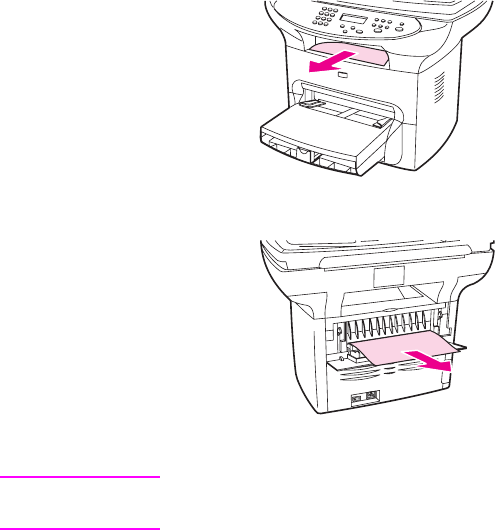
Printer output paths
The HP LaserJet 3380 all-in-one has two output paths. Use the main output bin when printing
normal and large, collated documents. Use the straight-through output path when printing
envelopes, transparencies, heavy media, or any media that tends to curl when printed.
Output bin and straight-through output path
The output bin is located between the scanner and the printer. Printed media is collected here
in the correct sequence when the straight-through output door is closed.
To use the straight-through output path, open the straight-through output door on the rear of
the product. Multipage documents are delivered in reverse order when the straight-through
output door is open.
Figure 2-6. Output bin
Figure 2-7. Straight-through output path
Note Printed media does not stack when using the straight-through output path. The media drops to
the surface below unless each sheet is removed as it exits the printer.
ENWW Printer output paths 45
46 Chapter 2 Operation ENWW
3
Maintenance
This chapter provides information about the following topics.
Life expectancies of parts that wear .......................................................................................48
Scanner calibration .................................................................................................................49
Cleaning the product ...............................................................................................................50
Cleaning the glass.............................................................................................................50
Cleaning the lid backing....................................................................................................51
Cleaning the paper path....................................................................................................51
Cleaning the print-cartridge area.......................................................................................52
Cleaning the pickup roller..................................................................................................54
Cleaning the printer separation pad .................................................................................55
User-replaceable parts ............................................................................................................56
Replacing the pickup roller................................................................................................56
Replacing the printer separation pad................................................................................58
Replacing an ADF..............................................................................................................61
Replacing an ADF pickup-roller assembly........................................................................62
Removing and replacing the product control-panel bezel.................................................65
ENWW 47

Life expectancies of parts that wear
When servicing the product, inspect any parts that wear. Replace them as needed, based on
failure or wear rather than on usage.
The following table lists approximate schedules for replacing consumables.
Table 3-1. Life expectancies of parts that wear
Description Part number Life (estimated) Remarks
Print cartridge1 (user-
replaceable)
C7115A 2,500 pages When print becomes
faint, redistribute toner
in the cartridge by
gently shaking the
cartridge from side to
side.
C7115X 3,500 pages
Printer transfer roller RM1-0550-000CN 50,000 pages Can affect print quality
and paper movement.
Printer pickup roller RL1-0303-000CN 50,000 pages Look for glazing and/or
cracks.
Can affect print quality
and paper movement.
Printer separation pad RF0-1014-020CN 50,000 pages Can affect paper
movement.
Fuser assembly (100-
127 V)
RM1-0841-000CN 50,000 pages Can affect print quality
and paper movement.
Fuser assembly (220-
240 V)
RM1-0842-000CN 50,000 pages Can affect print quality
and paper movement.
ADF separation pad C7309-60009 50,000 pages Can affect movement of
documents to be
scanned or copied.
ADF C9143-60107 50,000 pages Can affect movement of
documents to be
scanned or copied.
ADF pickup roller
assembly
C7309-60016 50,000 pages Can affect movement of
documents to be
scanned or copied.
1
The estimated print cartridge life is based on letter- or A4-sized paper with an average of 5
percent toner coverage and a medium density setting. Print cartridge life can be extended
further by using draft-mode settings to conserve toner.
48 Chapter 3 Maintenance ENWW

Scanner calibration
The scanner calibrates itself automatically at the start of scan of copy jobs. Normally, you do
not need to initiate the calibration, but you can initiate the calibration through the secondary
service menu and produce a report that shows the calibration results. See Secondary service
menu.
ENWW Scanner calibration 49
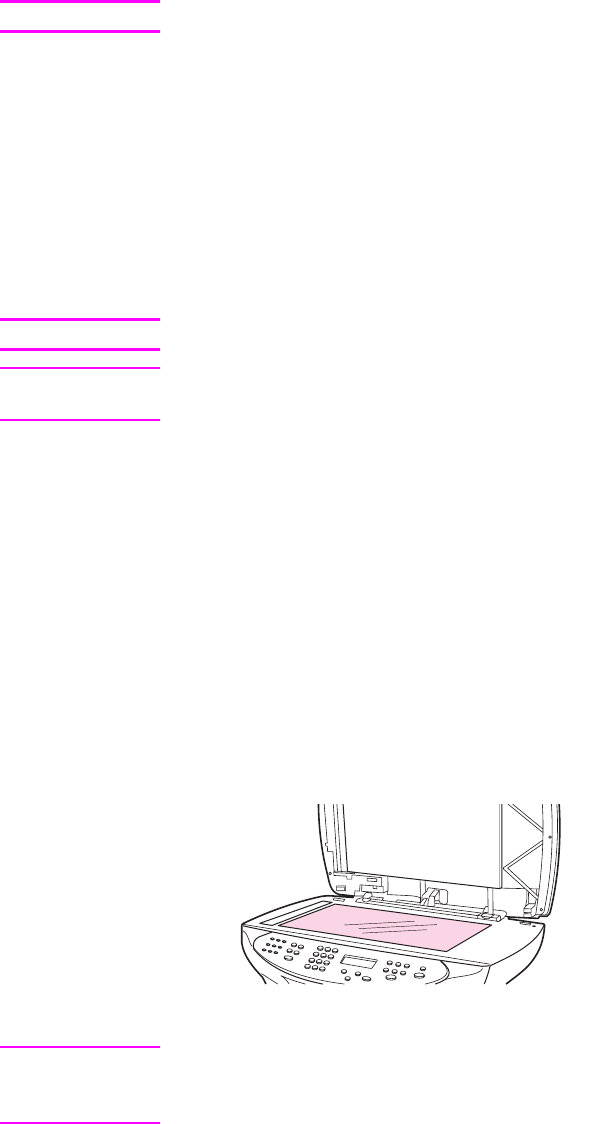
Cleaning the product
WARNING! Before you perform these steps, unplug the product to avoid the shock hazard.
To maintain quality, thoroughly clean the product when these conditions exist:
●any time a new print cartridge is installed
●after printing approximately 2,500 pages
●whenever print-quality problems appear
Clean the outside of the product by using a water-dampened cloth. Clean the inside by using
only a dry, lint-free cloth (such as a lens tissue).
To avoid permanent damage to the print cartridge, do not use ammonia-based or ethyl
alcohol-based cleaners on or around the product.
WARNING! Avoid touching the heating element in the fuser. It might be very hot and can cause burns.
CAUTION Do not touch the surface of the black-sponge transfer roller. Contaminants on the roller can
cause print-quality problems.
Cleaning the glass
Dirty glass, contaminated from fingerprints, smudges, hair, and so on, slows down
performance and affects the accuracy of special features, such as fit-to-page and copy. Dirty
glass can also cause vertical lines to appear on copies. Use the following procedure to clean
the glass.
To clean the glass
1. Use the power switch to turn off the product, unplug the power cord from the electrical
socket, and then raise the lid.
2. Clean the glass by using a soft cloth or sponge that has been moistened with nonabrasive
glass cleaner.
Figure 3-1. Cleaning the flatbed glass
CAUTION Do not use abrasives, acetone, benzene, ammonia, ethyl alcohol, or carbon tetrachloride on
any part of the product; these can damage the product. Do not place liquids directly on the
glass. They might seep under it and damage the product.
50 Chapter 3 Maintenance ENWW
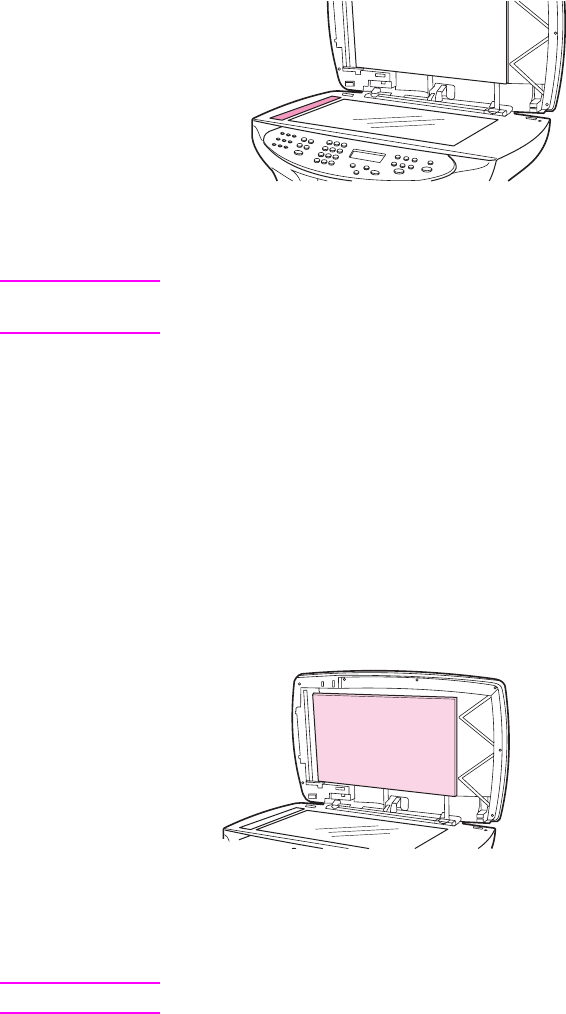
3. Clean the scanner strip by using a soft cloth or sponge that has been moistened with
nonabrasive glass cleaner.
Figure 3-2. Cleaning the scanner strip
4. Dry the glass with a chamois or cellulose sponge to prevent spotting.
Note Dust might appear on the underside of the glass, but this cannot be cleaned, and it has no
effect on the copy or scan quality.
Cleaning the lid backing
Minor debris can accumulate on the white document lid backing that is located underneath the
ADF lid. Use the following procedure to clean the lid backing.
To clean the lid backing
1. Use the power switch to turn off the product, unplug the power cord from the electrical
socket, and then raise the lid.
2. Clean the white document lid backing with a soft cloth or sponge that has been moistened
with a mild soap and warm water.
Figure 3-3. Cleaning the lid backing
3. Wash the backing gently to loosen debris; do not scrub the backing.
4. Dry the backing with a chamois or soft cloth.
CAUTION Do not use paper-based wipes, as these might scratch the backing.
5. Plug the product in, and use the power switch to turn on the product.
6. If this procedure does not clean the backing thoroughly, repeat the previous steps but use
isopropyl alcohol rather than soap and water, and then wipe the backing with a damp cloth
to remove any residual alcohol.
Cleaning the paper path
The product features a special cleaning mode to clean the paper path.
ENWW Cleaning the product 51
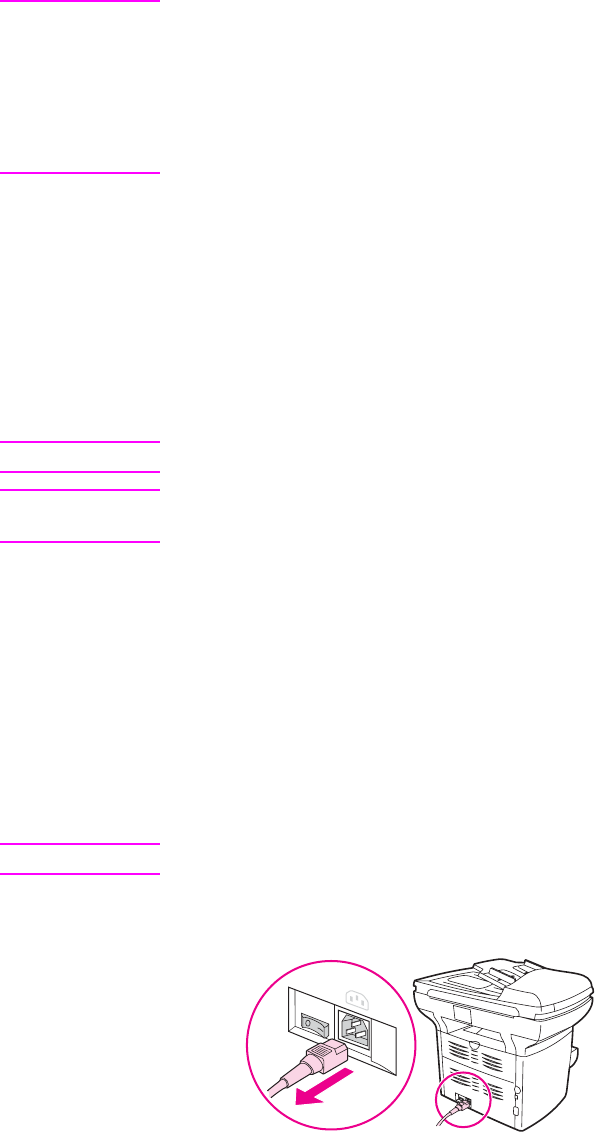
Note This process requires using a transparency to remove dust and toner from the print paper
path. Do not use bond or rough paper.
Make sure that the transparency used in this cleaning process meets the media requirements
for the printer.
If transparency film is unavailable, you can use paper. If you must use paper, perform the
procedure two or three times to ensure proper cleaning.
To clean the paper path
1. Load a transparency, if one is available, in the priority input tray.
2. Make sure that the product is in the Ready state.
3. Press
MENU
/
ENTER
, and then press < or > to highlight Service, and then press
MENU
/
ENTER
4. Press < or > to highlight Cleaning Mode, and then press
MENU
/
ENTER
.
5. The transparency feeds through the printer slowly. Discard the transparency.
Note The
FAX
/
SEND
and
CANCEL
lights blink until the cleaning process is complete.
Note If no transparency is available, use paper instead, but repeat the cleaning process several
times.
Cleaning the print-cartridge area
You do not need to clean the print-cartridge area often. However, cleaning this area can
improve the quality of your printed sheets. During the printing process, paper, toner, and dust
particles can accumulate inside the product. Over time, this buildup can cause print-quality
problems, such as toner specks or smearing. To correct and prevent these types of problems,
you can clean the print-cartridge area and the media path.
To clean the print-cartridge area
WARNING! Wait for the product to cool before beginning this procedure.
1. Before cleaning the product, use the power switch to turn it off, and then unplug the power
cord.
Figure 3-4. Unplug the product
52 Chapter 3 Maintenance ENWW
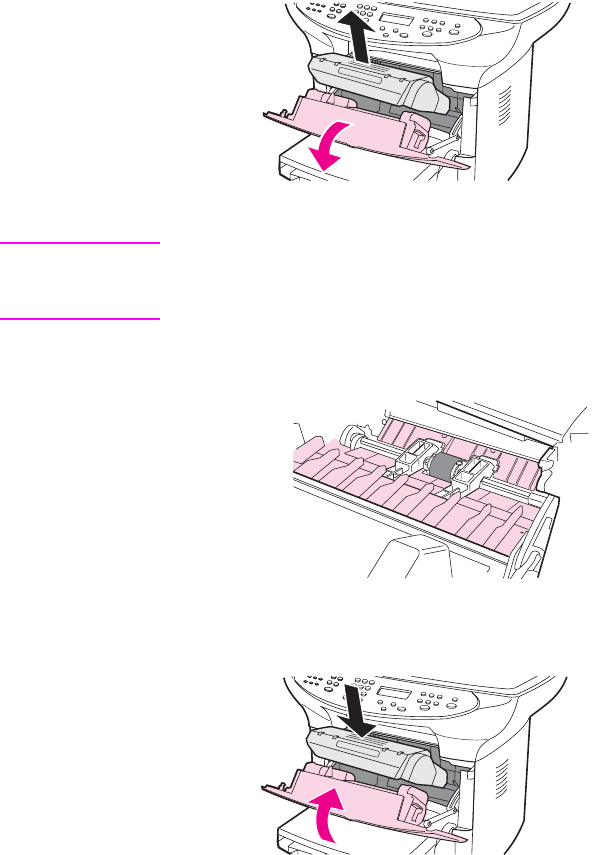
2. Open the print-cartridge door, and remove the print cartridge.
Figure 3-5. Remove the print cartridge
CAUTION To prevent damage, do not expose the print cartridge to light. Cover the print cartridge or
place it in a black plastic bag, if necessary. Also, do not touch the black-sponge transfer roller
inside the device. By doing so, you can damage the product.
3. Use a dry, lint-free cloth, or an HP toner cloth (part number 5090-3379) to wipe any
residue from the paper-path area and the print-cartridge cavity.
Figure 3-6. Clean the print-cartridge cavity
4. Replace the print cartridge, and close the print-cartridge door.
Figure 3-7. Insert the print cartridge
ENWW Cleaning the product 53
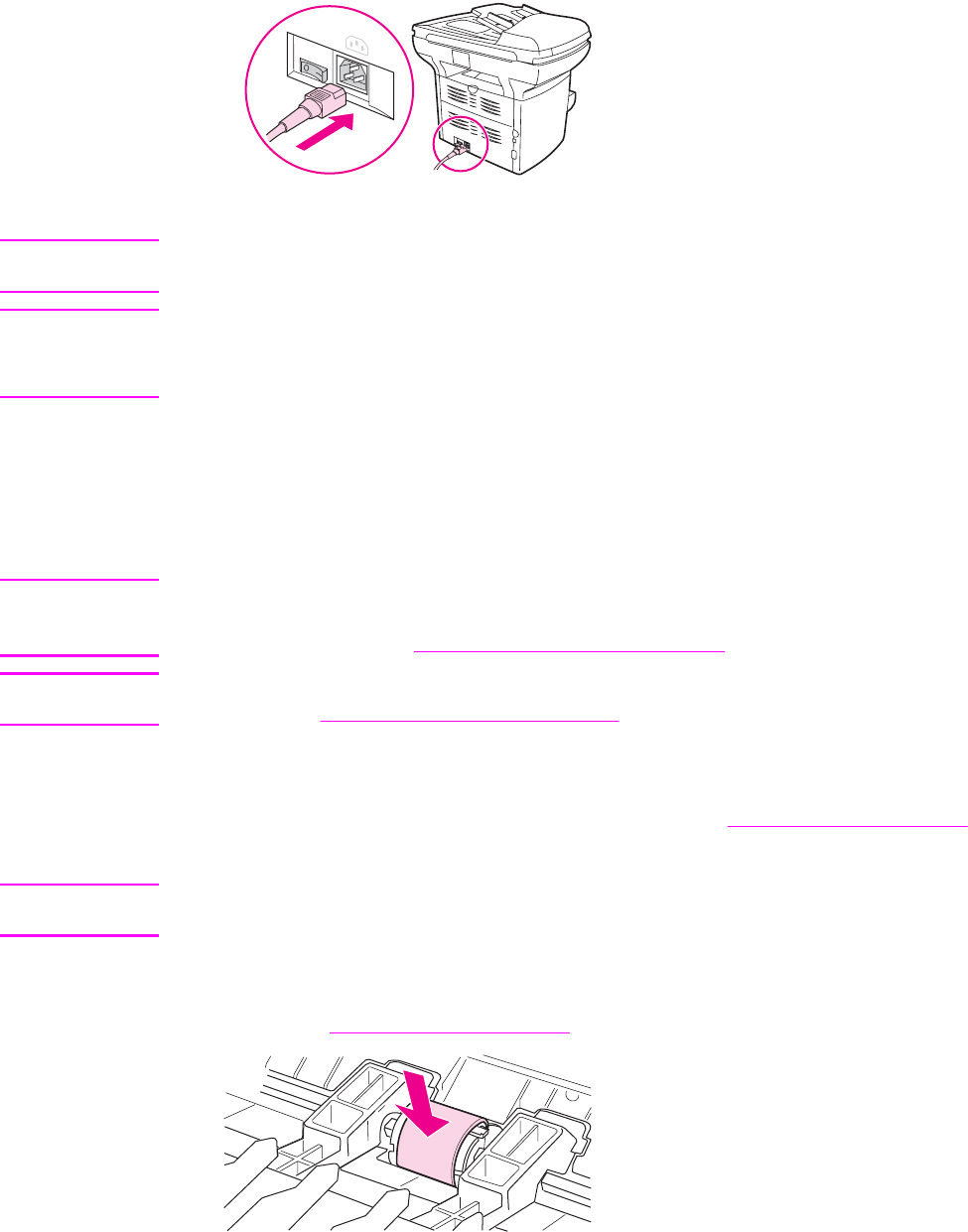
5. Plug the product in, and use the power switch to turn on the product.
Figure 3-8. Plug in the product
WARNING! Do not spray or use water inside the product. Failure to follow this warning can result in severe
damage to the product or serious personal injury.
Note If toner gets on your clothing or other fabric, wipe off the toner with a dry cloth. Wash the items
in cold water and air-dry them. If toner gets on your hands, wash your hands in cold water.
Hot water or heat from a dryer can set toner into fabric.
Cleaning the pickup roller
If the product regularly picks up multiple sheets of media at one time or picks up no sheets at
all, clean or replace the pickup roller. Before replacing the pickup roller, try to clean it. To clean
the pickup roller, use the following instructions.
Note When the product picks no sheets of paper, the cause is almost always a dirty or worn pickup
roller. When the product picks multiple sheets of paper, the cause is almost always a dirty or
worn separation pad. See Cleaning the printer separation pad for instructions.
Note If the product is feeding multiple transparencies at one time, the pickup roller is probably not
the cause. See Solving print paper-feed problems for more information.
To clean the pickup roller
Remove the pickup roller as described in steps 1 through 5 of To replace the pickup roller.
1. Dampen a lint-free cloth with warm water, and use it to clean the roller.
WARNING! Do not use abrasives, acetone, benzene, ammonia, ethyl alcohol, or carbon tetrachloride on
any part of the product; these can damage the product.
2. Using a dry, lint-free cloth, wipe the pickup roller to remove loosened dirt.
3. Allow the pickup roller to dry completely before you reinstall it in the product (see steps 6
through 9 of To replace the pickup roller).
Figure 3-9. Inserting the pickup roller
54 Chapter 3 Maintenance ENWW
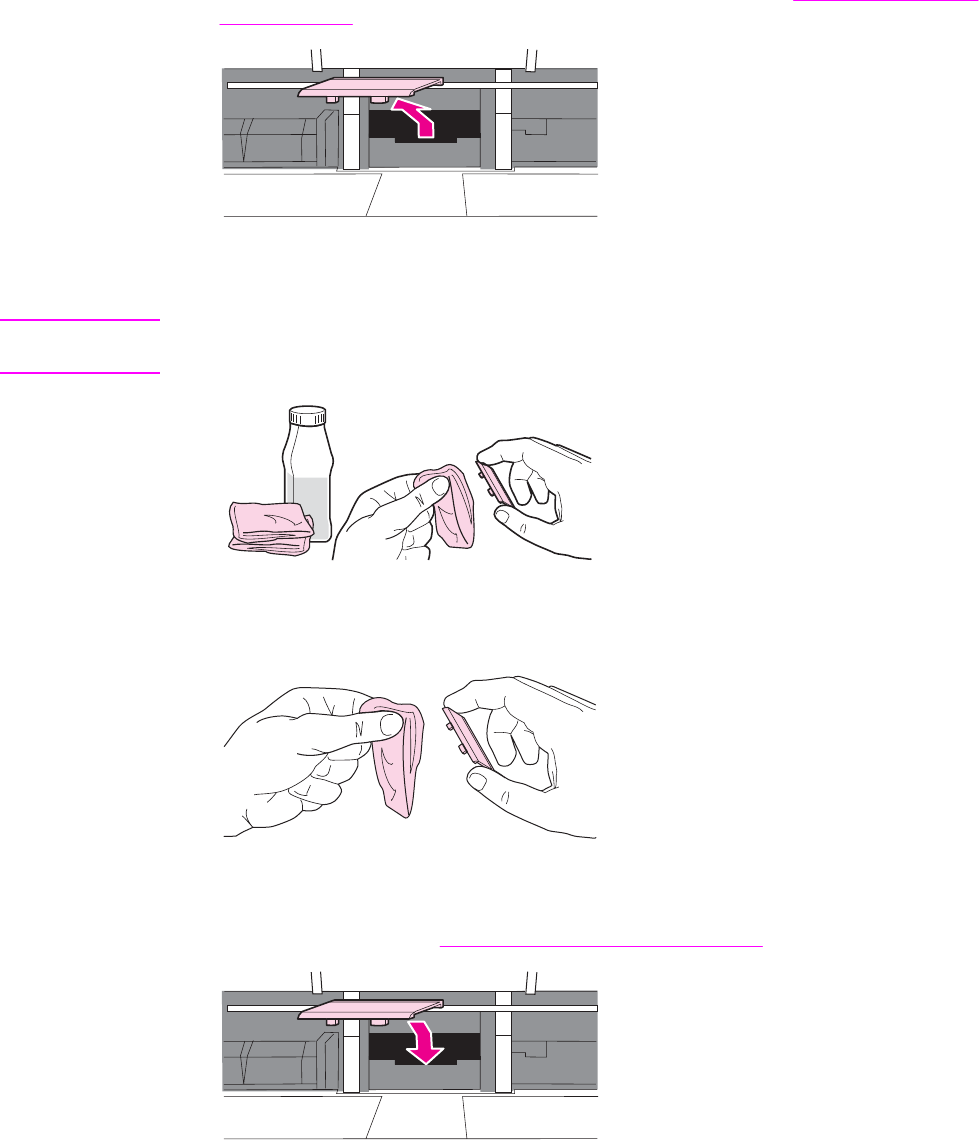
Cleaning the printer separation pad
If you want to clean the separation pad rather than replace it, use the following instructions.
1. Remove the separation pad as described in steps 1 through 5 of Replacing the printer
separation pad.
Figure 3-10. Cleaning the printer separation pad (1 of 4)
2. Dampen a lint-free cloth with isopropyl alcohol, and scrub the separation pad.
WARNING! Alcohol is flammable. Keep the alcohol and cloth away from an open flame. Before you close
the product and plug in the power cord, allow the alcohol to dry completely.
Figure 3-11. Cleaning the printer separation pad (2 of 4)
3. Using a dry, lint-free cloth, wipe the pad to remove loosened dirt.
Figure 3-12. Cleaning the printer separation pad (3 of 4)
4. Allow the pad to dry completely before you reinstall it in the printer. To reinstall the pad,
see steps 6 through 8 of Replacing the printer separation pad.
Figure 3-13. Cleaning the printer separation pad (4 of 4)
ENWW Cleaning the product 55
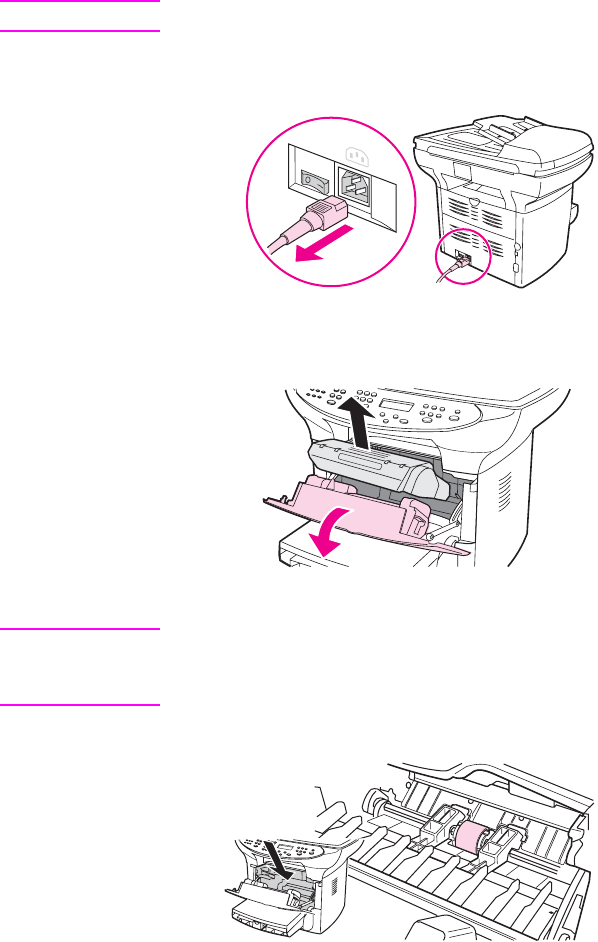
User-replaceable parts
The following sections provide procedures that the user can follow to replace certain parts.
Replacing the pickup roller
If the product does not pick up media from the tray, the cause is almost always a dirty or
damaged pickup roller. If cleaning the pickup roller does not resolve the problem, replace the
pickup roller.
To replace the pickup roller
CAUTION Failure to complete this procedure might damage the product.
1. Use the power switch to turn off the product, and then unplug the power cord. Allow the
product to cool.
Figure 3-14. Replacing the pickup roller (1 of 9)
2. Open the print-cartridge door, and remove the print cartridge.
Figure 3-15. Replacing the pickup roller (2 of 9)
CAUTION To prevent damage, do not expose the print cartridge to light. Cover the print cartridge or
place it in a black plastic bag, if necessary. Also, do not touch the black-sponge transfer roller
inside the product. Touching the transfer roller can damage the product.
3. Find the pickup roller.
Figure 3-16. Replacing the pickup roller (3 of 9)
56 Chapter 3 Maintenance ENWW
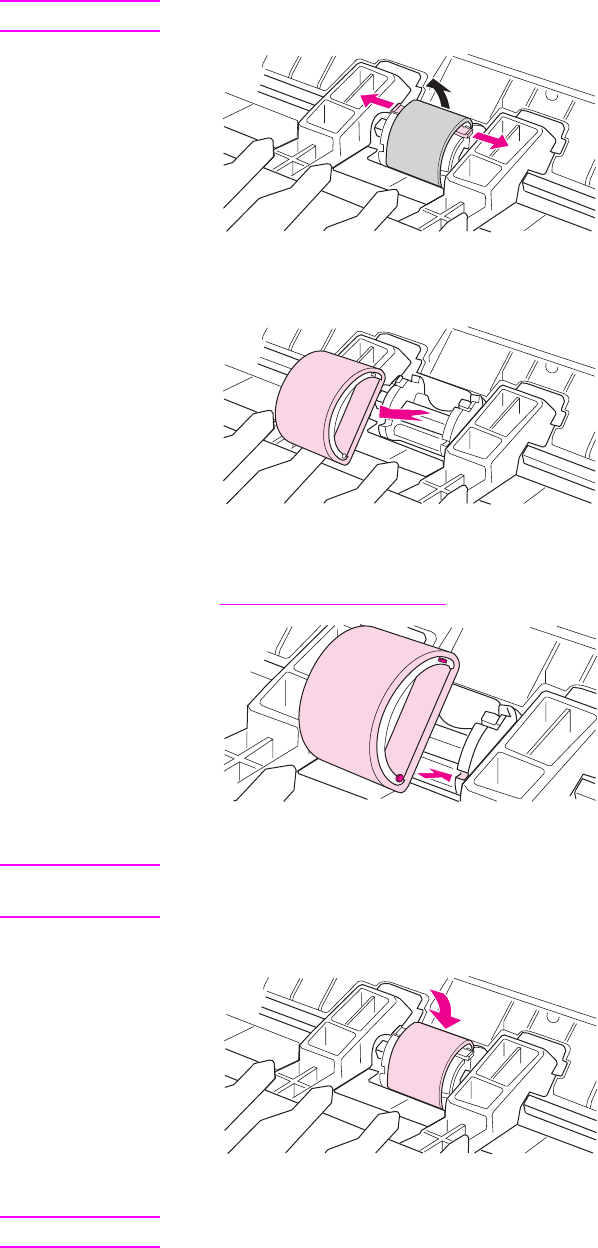
4. Release the small, black tabs on either side of the pickup roller, and rotate the pickup
roller toward the front.
Note Use gentle pressure to release the tabs to avoid breaking them.
Figure 3-17. Replacing the pickup roller (4 of 9)
5. Gently pull the pickup roller up and out.
Figure 3-18. Replacing the pickup roller (5 of 9)
6. Position the new or cleaned part in the slot that held the pickup roller previously. See
Cleaning the pickup roller for instructions.
Figure 3-19. Replacing the pickup roller (6 of 9)
Note Circular and rectangular pegs on each side prevent you from incorrectly positioning the pickup
roller.
7. Rotate the top of the new pickup roller away from you until both sides snap into place.
Figure 3-20. Replacing the pickup roller (7 of 9)
Note Touching the transfer roller can damage the product.
ENWW User-replaceable parts 57
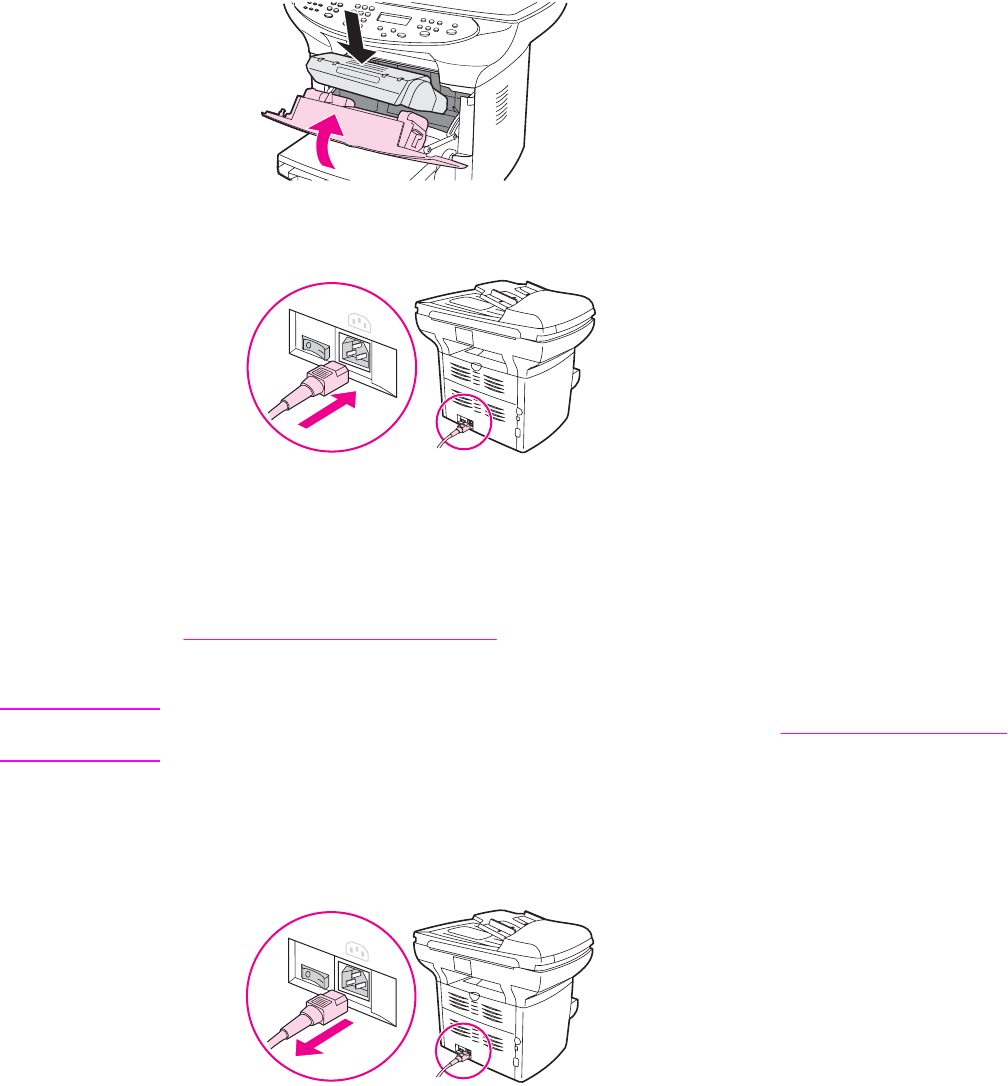
8. Reinstall the print cartridge, and close the print-cartridge door.
Figure 3-21. Replacing the pickup roller (8 of 9)
9. Plug the product in, and then use the power switch to turn on the product.
Figure 3-22. Replacing the pickup roller (9 of 9)
Replacing the printer separation pad
If the input tray feeds more than one sheet at a time, try cleaning the separation pad. See
Cleaning the printer separation pad. If cleaning does not resolve the problem, replace the
printer separation pad. Recurring feed problems indicate that the printer separation pad is
worn.
Note Before you replace the separation pad, clean the pickup roller. See Cleaning the pickup roller
for instructions.
To replace the printer separation pad
1. Use the power switch to turn off the product, and then unplug the power cord. Allow the
product to cool.
Figure 3-23. Replacing the printer separation pad (1 of 9)
58 Chapter 3 Maintenance ENWW
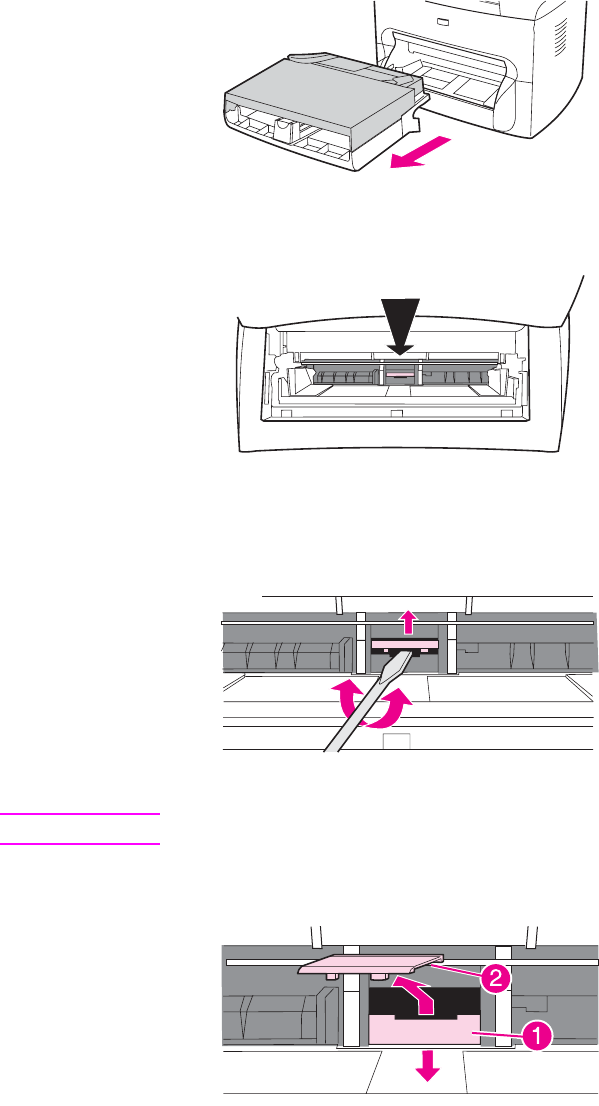
2. Remove the input trays.
Figure 3-24. Replacing the printer separation pad (2 of 9)
3. Find the blue separation pad.
Figure 3-25. Replacing the printer separation pad (3 of 9)
4. To pry the separation pad up from the spring-loaded base, insert a flat-blade screwdriver
in the slot under the separation pad and twist until the tabs are free.
Figure 3-26. Replacing the printer separation pad (4 of 9)
CAUTION Touching the black sponge-roller can damage the product.
5. Reach in through the opening, push the spring-loaded base down (1) with one hand, and
pull the separation pad up (2) with the other hand.
Figure 3-27. Replacing the printer separation pad (5 of 9)
ENWW User-replaceable parts 59
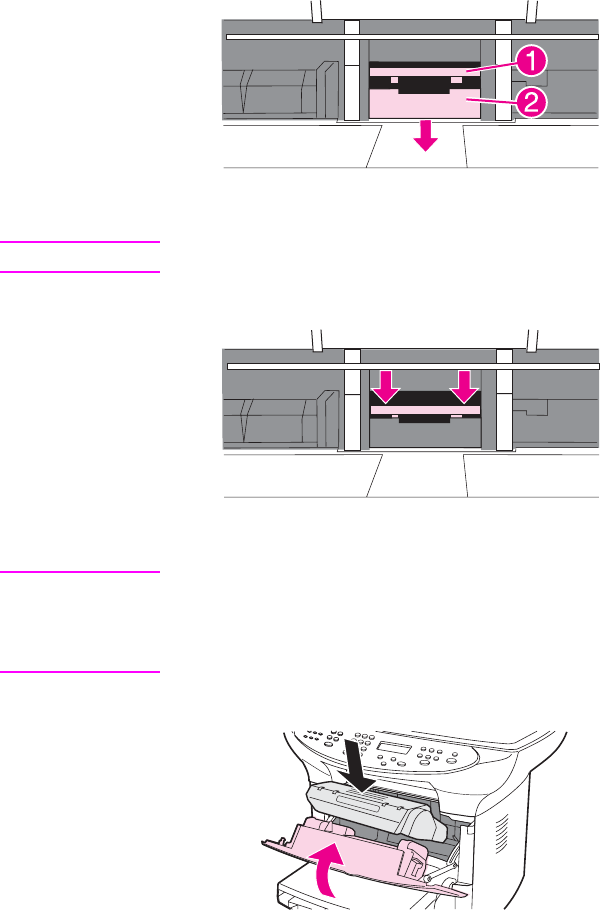
6. With one hand, position the new separation pad in the slot that held the previous
separation pad (1). With the other hand, reach through the input tray opening and push
the spring-loaded base down (2).
Figure 3-28. Replacing the printer separation pad (6 of 9)
Note The tab on the right is larger, which helps you position the separation pad correctly.
7. Snap both sides of the separation pad firmly into place.
Figure 3-29. Replacing the printer separation pad (7 of 9)
CAUTION Make sure that the separation pad is straight and that no space exists between the separation
pad and the spring-loaded base. If the separation pad is not straight or if space exists on one
side, remove the separation pad, make sure that the larger tab is on the right, reinsert the
separation pad, and snap both sides into place.
8. Reinsert the print cartridge, and close the print-cartridge door.
Figure 3-30. Replacing the printer separation pad (8 of 9)
60 Chapter 3 Maintenance ENWW
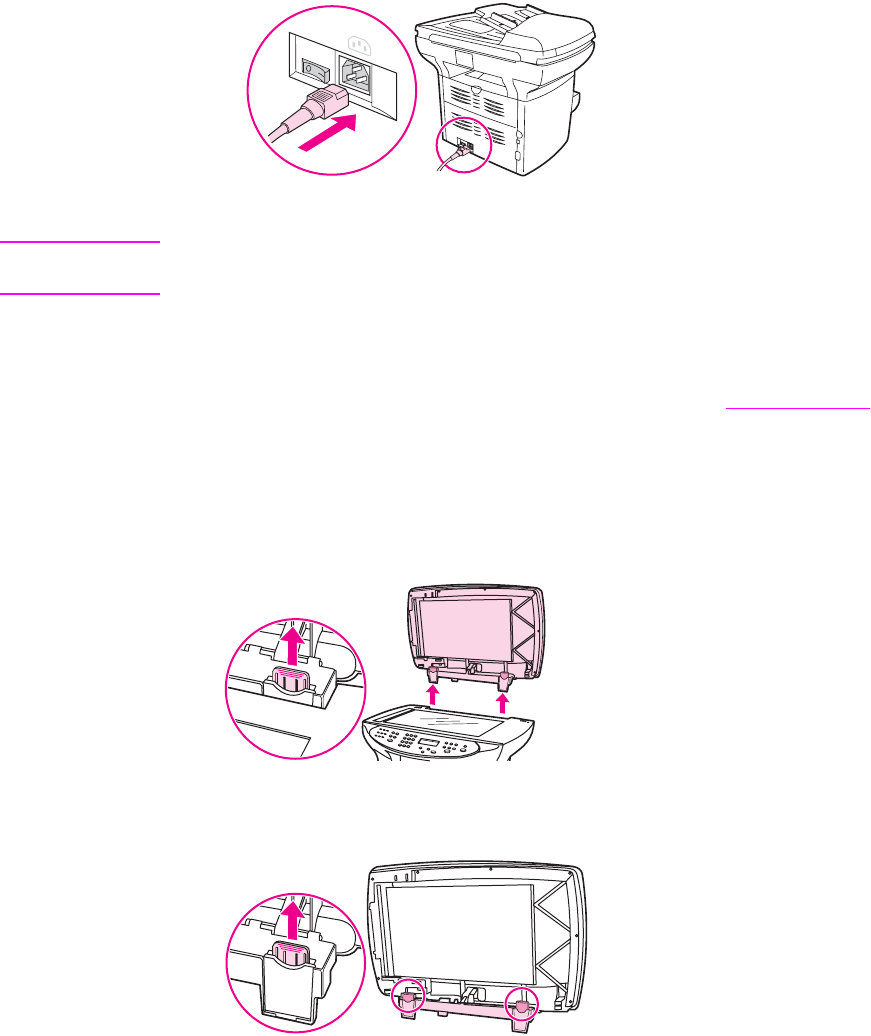
9. Plug the product in, and use the power switch to turn on the product.
Figure 3-31. Replacing the printer separation pad (9 of 9)
Note If the pad is not properly positioned, the product might be noisy or the media might not feed at
all.
Replacing an ADF
If the automatic document feeder (ADF) jams repeatedly, see Troubleshooting to try to resolve
the problem. If necessary, follow these instructions to replace the ADF.
To install a replacement ADF
1. Pull up both hinge tabs, and remove the ADF by opening the ADF lid and gently lifting
straight up.
Figure 3-32. Replacing the ADF (1 of 6)
2. On the new ADF, unfold the hinges and pull up the tab on each hinge.
Figure 3-33. Replacing the ADF (2 of 6)
ENWW User-replaceable parts 61
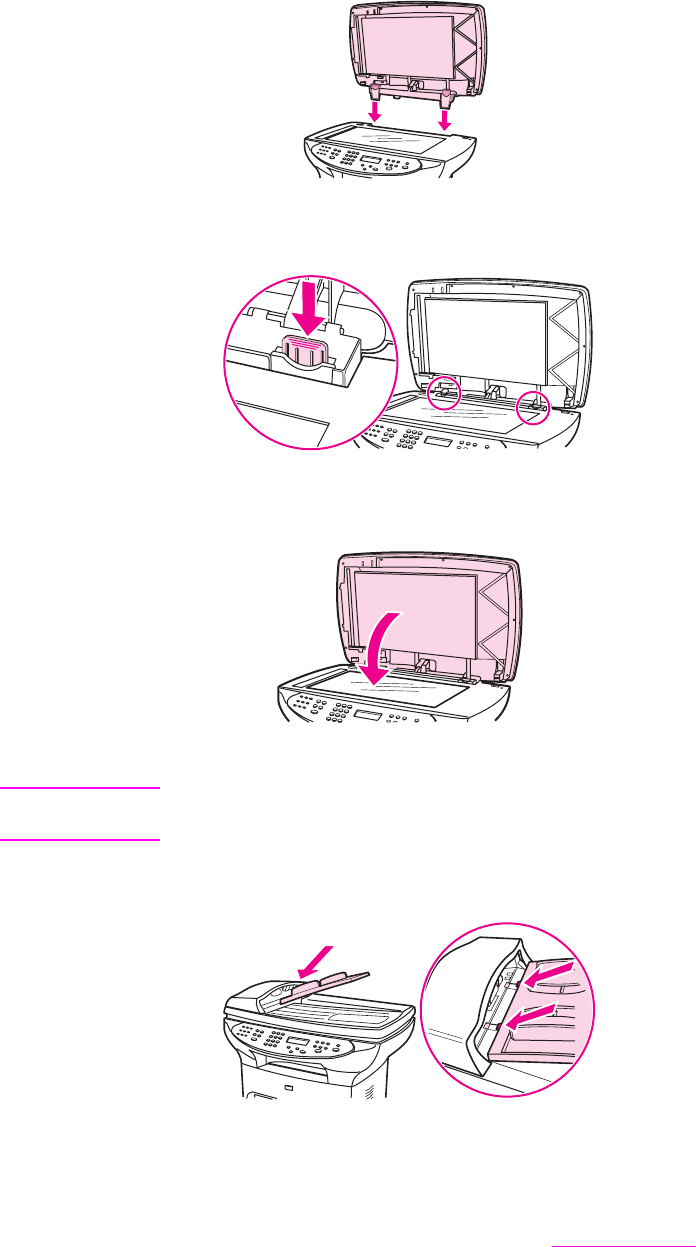
3. Install the new ADF by inserting the hinges straight down into the product.
Figure 3-34. Replacing the ADF (3 of 6)
4. Push down on both tabs until they click.
Figure 3-35. Replacing the ADF (4 of 6)
5. Gently close the ADF lid.
Figure 3-36. Replacing the ADF (5 of 6)
CAUTION To avoid damaging the product, do not allow the ADF lid to fall onto the flatbed scanner.
Always close the ADF lid when the product is not in use.
6. Install the ADF input tray by aligning the two tabs on the input tray with the two grooves in
the ADF lid and sliding the tray into the grooves until it snaps into place.
Figure 3-37. Replacing the ADF (6 of 6)
Replacing an ADF pickup-roller assembly
If the ADF has trouble picking paper, see Troubleshooting to try to resolve the problem. If
necessary, replace the ADF pickup-roller assembly. To remove the existing assembly, follow
these instructions.
62 Chapter 3 Maintenance ENWW
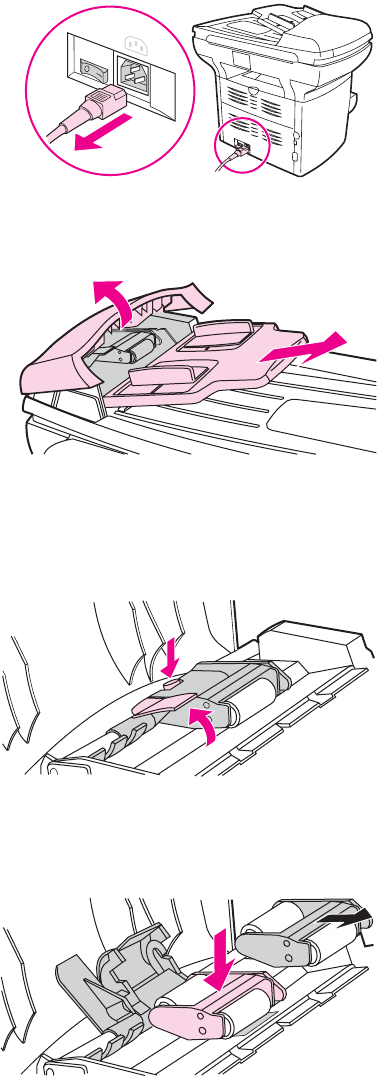
To replace the ADF pickup-roller assembly
1. Use the power switch to turn off the product, and then unplug the power cord.
Figure 3-38. Replacing the ADF pickup-roller assembly (1 of 9)
2. Remove the input tray and open the ADF cover.
Figure 3-39. Replacing the ADF pickup-roller assembly (2 of 9)
3. Press the round, green button while lifting the green lever. Rotate the green lever until it
stops in the open position. The old pickup roller assembly should remain on the black
surface.
Figure 3-40. Replacing the ADF pickup-roller assembly (3 of 9)
4. Remove the old assembly and put the new one in exactly the same place. The largest
roller goes in back, and the gear side is away from you.
Figure 3-41. Replacing the ADF pickup-roller assembly (4 of 9)
ENWW User-replaceable parts 63
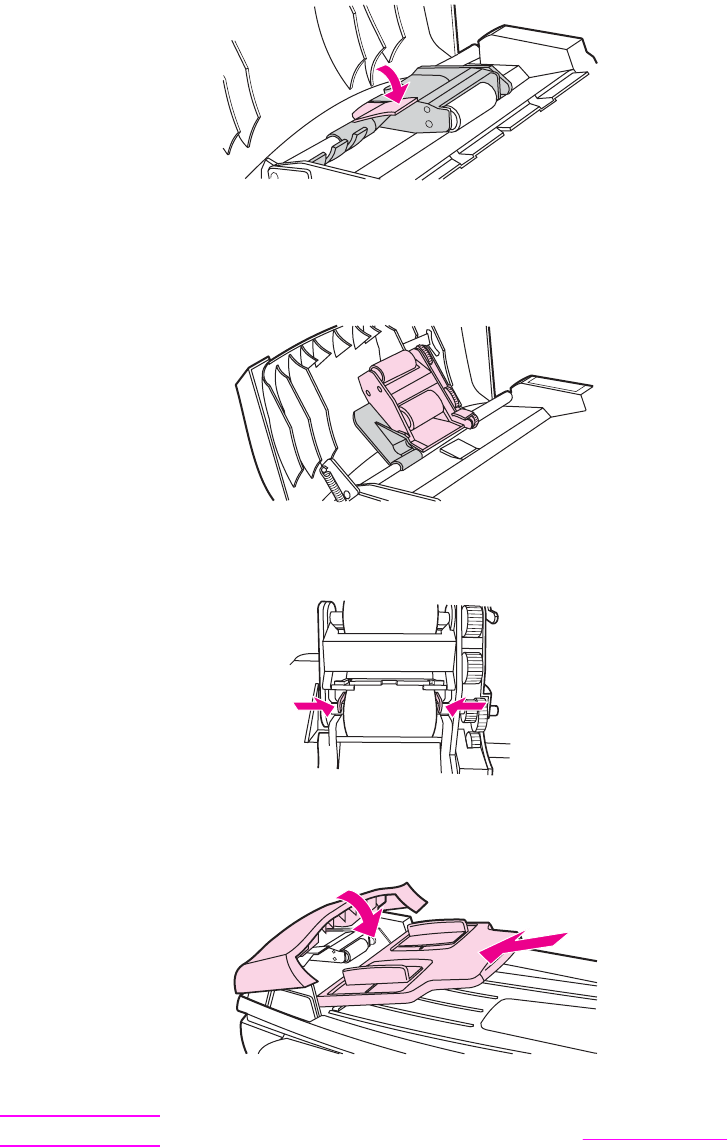
5. Lower the green lever so that the flat green part fits between the rollers. Press down on
the green lever until you hear it snap into place.
Figure 3-42. Replacing the ADF pickup-roller assembly (5 of 9)
6. To check for proper installation, lift the green lever until it remains in the open position.
The new pickup roller assembly should be secured to the lever assembly and should not
fall out.
Figure 3-43. Replacing the ADF pickup-roller assembly (6 of 9)
7. Make sure that both sides of the assembly are secured by the green hooks.
Figure 3-44. Replacing the ADF pickup-roller assembly (7 of 9)
8. Lower the green lever assembly and close the ADF lid. Reinstall the input tray.
Figure 3-45. Replacing the ADF pickup-roller assembly (8 of 9)
Note If you are experiencing jams in the ADF, see Troubleshooting.
64 Chapter 3 Maintenance ENWW
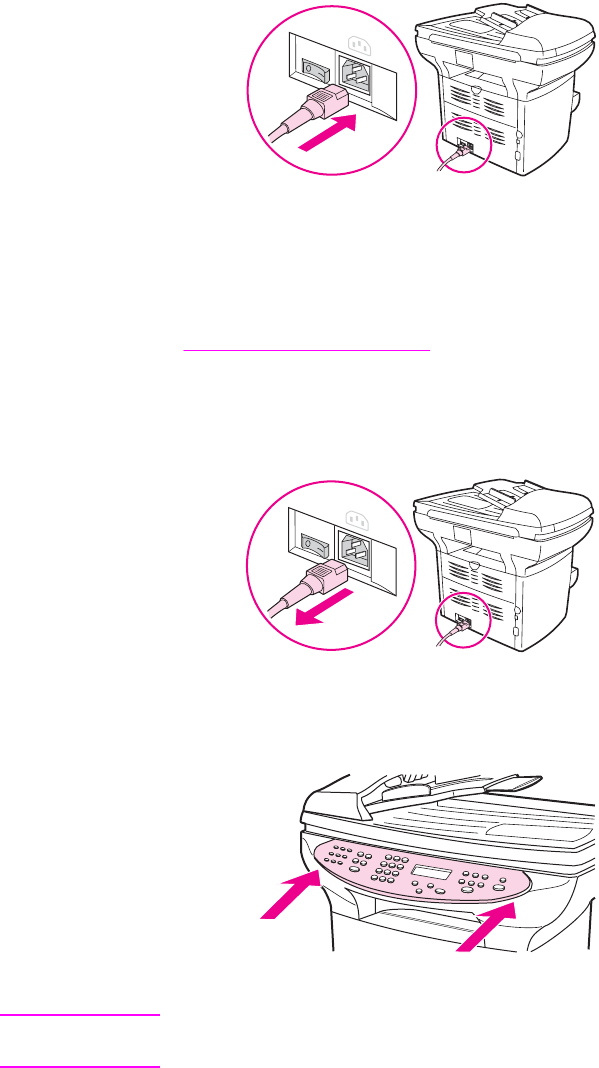
9. Plug the product in, and use the power switch to turn on the product.
Figure 3-46. Replacing the ADF pickup-roller assembly (9 of 9)
Removing and replacing the product control-panel bezel
The control-panel bezel is available in several languages. To order a different bezel, see
Ordering parts and supplies.
To replace the product control-panel bezel
1. Use the power switch to turn off the product, and then unplug the power cord.
Figure 3-47. Replacing the control-panel bezel (1 of 4)
2. Remove the existing product control-panel bezel by lifting up on both sides of the cover
edges until all of the snaps are disengaged. Set the old bezel aside.
Figure 3-48. Replacing the control-panel bezel (2 of 4)
CAUTION Be careful not to touch any components or buttons inside the exposed product control-panel
area.
ENWW User-replaceable parts 65
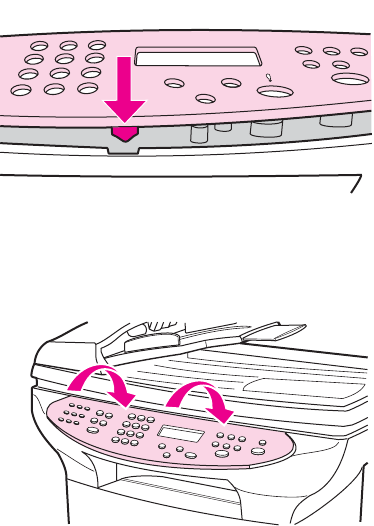
3. Align the tab in the center of the bottom of the bezel with the slot on the product.
Figure 3-49. Replacing the control-panel bezel (3 of 4)
4. Press the bottom of the bezel onto the product, and then continue to press while pushing
your hands up toward the top of the bezel until it snaps into place.
Figure 3-50. Replacing the control-panel bezel (4 of 4)
5. Plug the product in, and use the power switch to turn on the product.
66 Chapter 3 Maintenance ENWW
4
Operational overview
This chapter contains information about the following topics.
Basic functions ........................................................................................................................68
Basic sequence of operation (formatter-to-printer) .................................................................69
Basic sequence of operation (scanner)...................................................................................71
Formatter system .................................................................................................................... 73
Central processing unit .....................................................................................................73
Line interface unit (LIU) ....................................................................................................73
Motor controller PCA ........................................................................................................73
Flash memory ...................................................................................................................7 3
Standard boot process .....................................................................................................73
RAM ..................................................................................................................................74
Parallel interface or universal serial bus (USB) interface .................................................74
Control panel ....................................................................................................................74
EconoMode (Draft mode) .................................................................................................74
MEt .................................................................................................................................... 75
Enhanced I/O .................................................................................................................... 75
PJL overview ....................................................................................................................75
Scanner and ADF functions and operation .............................................................................76
Scanner functions .............................................................................................................76
Scanner operation ............................................................................................................77
ADF operation ...................................................................................................................77
ADF paper path and ADF sensors ...................................................................................78
ADF jam detection ............................................................................................................78
Printer functions and operation ...............................................................................................79
Engine control unit (power system) ..................................................................................79
Image-formation system ...................................................................................................85
Printer paper-feed system ................................................................................................86
Jam detection ...................................................................................................................87
Fax functions and operation ....................................................................................................89
PSTN operation ................................................................................................................89
The fax subsystem ...........................................................................................................89
Formatter in the fax subsystem ........................................................................................89
LIU in the fax subsystem ..................................................................................................89
Fax page storage in flash memory ...................................................................................92
ENWW 67
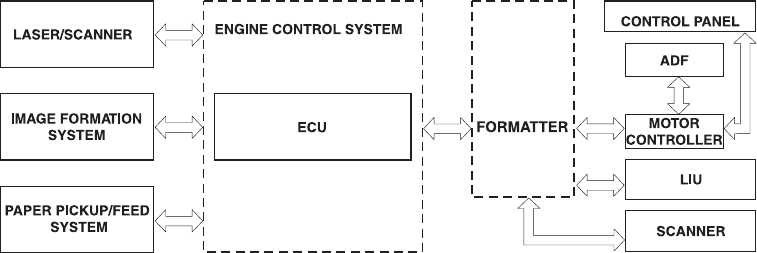
Basic functions
This chapter presents a functional overview of the HP LaserJet 3380 all-in-one. The following
systems are discussed:
●printer functions and operation
–engine controller unit (ECU) system/power system
–laser/scanner system
–image-formation system
–paper-feed system (printer) and document-feed system (document scanner)
●formatter functions
●scanner and ADF functions and operation
●fax functions and operation
The full product consists of the following components:
●the scanner (flatbed and ADF)
●the printer
●the formatter
●the motor controller board
●the line interface unit (LIU)
Each of these systems brings its own characteristic functionality to the product: scanning,
printing, and telecommunications, respectively. These systems interact to provide copying and
faxing capability.
●The scanner and printer work together to make copies.
●The scanner and LIU work together to send faxes.
●The LIU and printer work together to receive faxes.
The ECU controls the operation sequences of the printer. The formatter controls the operation
sequences of the LIU and document scanner.
Figure 4-1. Product configuration
68 Chapter 4 Operational overview ENWW

Basic sequence of operation (formatter-to-printer)
The microprocessor (CPU) on the ECU controls the operation sequence of the printer. The
following events take place during normal printer operation:
Table 4-1. Basic sequence of operation (printer)
Period Purpose Remarks
WAIT. After the product is turned
on until the end of the initial
rotation of the main motor.
To clear the drum surface of
potential and to clean the
primary charging roller.
Detects whether or not the
cartridge is installed.
STBY (Standby). From the end
of the WAIT period or the LSTR
period until the pickup command
is sent from the formatter. Or,
from the end of the LSTR period
until the product is turned off.
To keep the product ready to
print.
INTR (Initial Rotation). After the
pickup command has been sent
from the formatter until the
media reaches the pickup
solenoid.
To stabilize the photosensitive
drum sensitivity in preparation
for printing.
To clean the transfer charging
roller.
PRINT (Print). From the end of
the INTR period until the primary
voltage goes off.
To form images on the
photosensitive drum based on
the VIDEO signals (/VDO, VDO)
that the formatter sends, and to
transfer the toner image onto the
media.
LSTR (Last Rotation). After the
primary voltage goes off until the
main motor stops rotating.
To deliver the last page.
To clean the primary charging
roller.
When the formatter sends the
pickup command, the printer
enters the INTR period
immediately after the end of the
LSTR period.
ENWW Basic sequence of operation (formatter-to-printer) 69
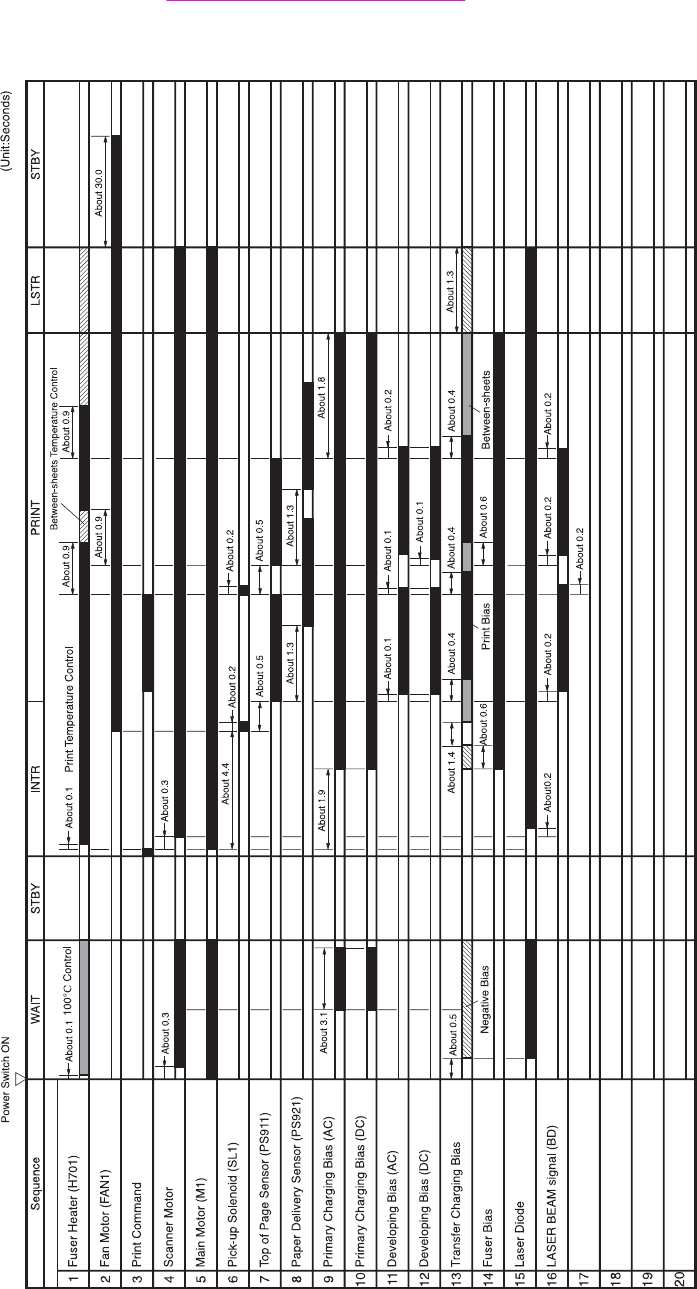

Basic sequence of operation (scanner)
Table 4-2. Basic sequence of operation (scanner)
Period Purpose Remarks
WAIT. After the product is turned
on until the message Scanner
Bulb warming up appears on
the control-panel display.
To perform the firmware
initialization.
Tests RAM and establishes
communication with the control
panel.
AMBIENT LIGHT DETECT.
From the end of the WAIT period
until the scanner bulb is turned
on.
To determine the level of
ambient light in the environment.
The scanner makes a short
move toward the ADF. If
ambient light is too bright, the
scanner moves away from the
ADF until it is under the bezel (in
shadow). At the end of this
period, the scanner bulb is
turned on.
INITIAL WARMUP. From the
end of the AMBIENT LIGHT
DETECT period until the
scanner begins moving.
To warm up the scanner bulb. The length of this period varies
depending on product age and
environmental conditions.
However, this period will timeout
(end) if the scanner bulb does
not warm up within 2 minutes,
and an error message appears
on the control panel.
HOME FIND. From the end of
INITIAL WARMUP until the
Ready message appears on the
control-panel display.
To position the scanner at the
home position under the bezel at
the document-origin end of the
flatbed, and to perform the final
lamp warmup checks.
The scanner performs several
back-and-forth movements
during this period. The scanner
finds its home position by
scanning, not by using any sort
of sensor.
READY. From the end of HOME
FIND until the STANDBY period.
To keep the product ready to
print, scan, copy, or fax with no
scanner warmup delay.
The scanner remains in the
READY state for 10 minutes
following HOME FIND or
following the last scanner usage.
STANDBY. Occurs 10 minutes
after the start of the READY
period, or 10 minutes after the
last scanner usage (copy/scan/
fax).
To reduce power consumption
and increase scanner bulb life.
The scanner performs a HOME
FIND before going into standby.
POWERSAVE. Occurs a
minimum of 2 hours and a
maximum of 12 hours (user
configurable) after the start of
the READY period, or after the
last scanner usage.
To reduce power consumption
and increase scanner-bulb life
beyond what can be achieved
with STANDBY.
A workday modeling algorithm
governs the actual powersave
behavior.
ENWW Basic sequence of operation (scanner) 71

Period Purpose Remarks
CALIBRATION. From the time
the copy/scan/fax button is
pressed until the STAGE period.
To compensate for variability in
the scanning system.
Calibration is performed by
moving the scanner back-and-
forth several times near the
home position. If the previous
period was STANDBY or
POWERSAVE, a short delay
occurs. The message Scanner
Bulb warming up appears on
the control-panel display during
this delay.
STAGE. From the end of
CALIBRATION until the SCAN
period.
For an ADF scan: to position the
scanner under the ADF
scanning window, and then to
position the original document's
leading edge at the scanning
position.
For a flatbed scan: to position
the scanner at the document-
origin position before scanning
the original.
For an ADF scan, the page feeds
partway into the scanner, then
stops briefly.
For a flatbed scan, the STAGE
period is built-in to the SCAN
period, so STAGE is not visible
externally.
SCAN.
For an ADF scan: From the end
of the brief pause that follows the
STAGE period until the EJECT
or following-page STAGE
period.
For a flatbed scan: From the end
of CALIBRATION until the
REHOME period.
To scan one page of the original
document.
For an ADF scan: another
STAGE period follows this
period if another page of the
original document is present in
the ADF. Otherwise, the EJECT
period follows.
For a flatbed scan: The
REHOME period follows this
period.
EJECT. (ADF only) From the
end of the SCAN period until the
original document page is
completely ejected from the
scanner.
To clear the last page of the
original document from the
scanner.
REHOME. From the end of the
EJECT period (ADF) or the
SCAN period (flatbed) until the
Ready message appears on the
control-panel display.
To return the scanner to the
home position.
A short back-and-forth sequence
occurs as the scanner reaches
the home position before the
Ready message appears on the
control-panel display.
Table 4-2. Basic sequence of operation (scanner) (continued)
72 Chapter 4 Operational overview ENWW

Formatter system
The formatter coordinates the major systems. It is responsible for the following tasks or
actions:
●controlling the motor controller board
●formatting and controlling copies
●receiving and processing print data from the printer interface
●monitoring the control panel and relaying printer-status information
●developing and coordinating data placement and timing with the print engine
●communicating with the host computer through the bidirectional interface
●communicating fax data to and from the LIU
The formatter receives print data from the bidirectional enhanced capabilities port (ECP) mode
interface or universal serial bus (USB) interface and converts it into a dot image. The ECU
synchronizes the image-formation system with the paper-feed system and signals the
formatter to send the print-image data. The formatter sends the print-image data (dots) in the
form of a video signal, and the printing process begins.
Central processing unit
The formatter incorporates an embedded 32-bit Coldfire V4e processor operating at 90 MHz.
Line interface unit (LIU)
The LIU provides the required safety isolation, signal coupling, and impedance matching
between the telephone line and the modem chipset that is located on the formatter.
Motor controller PCA
The motor controller PCA contains motor-driver circuitry for the ADF motor and the scan-
module position motor. The motor controller PCA also provides electrical interface from the
formatter to the control-panel PCA and to the speaker.
Flash memory
The formatter system includes firmware code that controls the product. The code is stored in
flash memory, which allows the firmware code to be recovered or updated. The firmware
update and recovery process is described in Troubleshooting.
Standard boot process
When the product is unplugged or the power is off, the firmware code is stored on the
formatter in two blocks. The first block of code is an executable boot block (about 64 K of
code). The second block of code is a compressed version of the product control code.
When the product is turned on, the boot block decompresses the product control code and
stores it in RAM. Then the product performs a full startup with the control code running from
RAM.
ENWW Formatter system 73

Product startup messages
The LED display contains different messages depending upon the progress of the boot
process:
Table 4-3. Product startup messages
Message Cause Solution
-blank- (Blank display for many seconds
after power-on.) Boot-block
failure.
The flash memory requires a
DIMM recovery of the firmware
code (see chapter 6).
Contact Service Control-code failure. The flash memory requires a
DIMM recovery of the firmware
code (see chapter 6).
Hewlett-Packard
<<<
(Moving-cursor HP display)
The product is starting up. Wait for the Ready message.
Ready......... Product startup is complete and
the product is ready for use.
Begin using the product.
RAM
The product contains two types of random-access memory (RAM):
●One bank of nonvolatile RAM (NVRAM) stores parameters.
●Dynamic random access memory (DRAM) provides temporary storage of the product
program code along with copy, scan, and print data.
Parallel interface or universal serial bus (USB) interface
The formatter receives incoming data through its bidirectional ECP or USB interface. These
interfaces provide high-speed, two-way communication between the product and the host,
allowing you to change product settings and monitor product status from the host computer.
Control panel
The control panel consists of the following features:
●six groups of buttons to control fax, copy, scan, and configuration functionality
●a 2-by-16 LCD display that shows status, menus, and messages
●two front-panel status lights (one next to the
CANCEL
button and one next to the
FAX
/
SEND
button)
EconoMode (Draft mode)
When you select EconoMode in the printer driver, the product uses less toner, which extends
the life of the print cartridge. Using EconoMode produces a lighter image because less toner is
on the page.
74 Chapter 4 Operational overview ENWW
MEt
HP Memory Enhancement technology (MEt) effectively doubles the standard memory through
a variety of font- and data-compression methods.
Enhanced I/O
The enhanced I/O (EIO) feature allows product memory to be used for storing data received
from the host computer. When EIO is enabled, you can send more data to the product in
shorter amounts of time, so that you can return to the software program more quickly. The EIO
feature has the following options:
●Auto —the product uses EIO memory allocation to increase the speed of data transfer
from the host computer to the product, if necessary. The default setting is Auto.
●Off —the minimum amount of product memory is used to store data that is sent from the
host computer.
●Page Protect—the formatter creates the entire page image in page-buffer memory before
physically moving the media through the printer. This process ensures that the entire page
will be printed.
Page complexity (ruling lines, complex graphics, or dense text) can exceed the printer’s ability
to create the page image fast enough to keep pace with the image-formation process. If Page
Protect is disabled and a page is too complex, the page might print in sections (for example,
the top half on one page and the bottom half on the next page). Some print-data loss is likely
in these instances, and an error message will appear on the control-panel display.
PJL overview
Printer job language (PJL) is an integral part of configuration, in addition to the standard
printer command language (PCL). With standard ECP cabling, the product can use PJL to
perform the following functions:
●Two-way communication with the host computer through a bidirectional parallel
connection. The product can communicate information to the host (such as the control-
panel status).
●Isolation of print environment settings from one print job to the next. For example, if a
print job is sent to the product in landscape mode, the subsequent print jobs print in
landscape only if they are formatted for landscape printing.
ENWW Formatter system 75
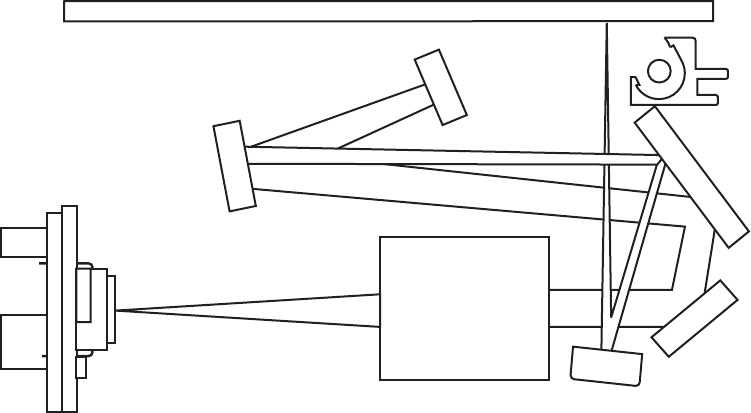
Scanner and ADF functions and operation
The following sections describe how the document scanner and the automatic document
feeder (ADF) function.
Scanner functions
The scanner uses a light source, a color-separation method, and a charge-coupled device
array (CCD) to collect optical information about the document and transform that into an image
file. The scanner consists of these elements:
●a lamp (cold-cathode fluorescent bulb)
●five mirrors and a lens
●a CCD
Lens
CCFL Lamp
Scanner Glass
600 ppi CCD
Figure 4-3. Optical diagram of scanner
The scanner lamp illuminates a small strip of the document (called the raster line). The mirrors
direct the light through the lens to the CCD. The CCD senses and records the light, creating
an analog representation of the raster line. If the ADF is being used, the document then
advances in the ADF to the next raster line. If the flatbed is being used, the scanner module
advances to the next raster line. This advancing and collection process continues to the end
of the sheet.
The image data is collected in the motor controller board, where it is processed and sent to the
formatter. The formatter then handles the image data, outputting it as a copy, sending it
through the LIU as a fax, or directing it to the computer as scanner output.
The image data collected for scans is 600 pixels per inch (ppi). The image data collected for
copies is 300 ppi. Each pixel has 8 bits for each of the three colors (256 grayscale levels for
each color) or a total of 24 bits per pixel (24-bit color).
76 Chapter 4 Operational overview ENWW
Scanner operation
At startup and periodically at other times, the scanner assembly moves systematically to
locate its home position. It then calibrates to a white strip located under the glass at the right
end of the scan tub.
If the product detects a document in the ADF when a copy or scan is initiated (from the
software or the control panel), the scan module moves to the left side of the scan tub and
stops. The image is acquired as the paper is fed through the ADF past the scanner module.
If no document is detected in the ADF, the scan module acquires the image from the flatbed
glass while slowly moving within the scan tub.
ADF operation
Standby (paper-loading) mode: In standby mode, the pickup roller is up and the stack-stop
is down, preventing the user from inserting the original document too far. When a document is
inserted correctly, the paper-present sensor detects its presence.
The standard operation of the ADF consists of the pick, feed, and lift steps.
Pick: When it receives a copy or scan command, the ADF motor engages the gear train to
lower the pickup-roller assembly and raise the stack-stop. The first roller, called the pre-pick
roller, moves the top few sheets forward into the ADF. The next roller is the pickup roller. This
roller contacts the ADF separation pad, which separates multiple pages into single sheets.
Feed: The single sheet continues through the path. Along the way, the form sensor, which is a
set distance from the ADF glass, detects the sheet. This alerts the scanner to start when the
page reaches the glass. The scanner acquires the image, one raster line at a time, until it
detects the end of the page. The page is then ejected. The pick and feed steps are repeated
as long as paper is detected in the ADF input tray.
Lift: When no more paper is detected in the ADF input tray and the form sensor detects the
trailing edge of the last page, the last sheet is ejected and the motor turns in a sequence that
lifts the pick roller assembly to standby (paper-loading) mode again.
The ADF will not function when the ADF lid is open. The paper path is incomplete if the ADF
lid is lifted from the glass.
ENWW Scanner and ADF functions and operation 77
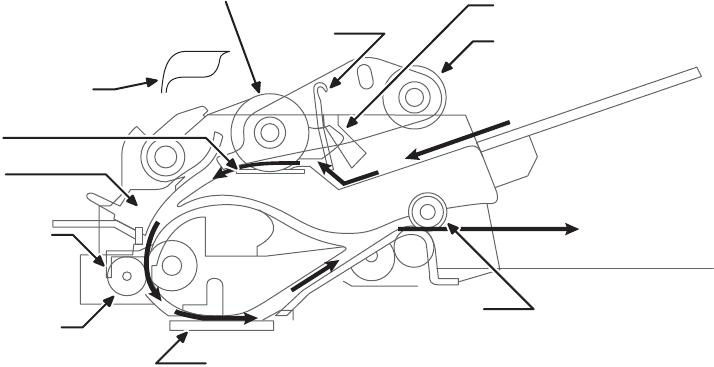
ADF paper path and ADF sensors
The following diagram shows the ADF paper path.
PAGE EJECTS FULLY
OUTPUT AREA
ADF glass
Prescan rollers
INPUT TRAY
Form sensor
Postscan
rollers
Pre-pick roller
Picks top sheet
Stack stop
Pick roller Paper present sensor
ADF door
open flag
Separation pad
Cleanout
Figure 4-4. Document scanner path
The paper-present sensor determines if paper is in the ADF. The form sensor detects the top
and bottom edges of the document. One other sensor detects an open ADF door.
ADF jam detection
The ADF has two sensors that detect paper. The paper-present sensor detects the presence
of media in the ADF input tray. The form sensor detects media moving through the ADF. If a
jam is detected, the ADF immediately stops the paper feeding and a jam message appears on
the control-panel display.
A jam can be detected under any of the following conditions:
●Document-feeder jam—When documents are detected in the ADF input tray, and a
command to copy, scan or fax is received, the scan module travels to the left side of the
scan assembly and stops beneath the ADF scanner glass. The ADF then attempts three
times, or for about ten seconds, to advance the paper to the form sensor. If the paper
does not advance, the scan module travels back to the home position on the right side of
the scanner assembly. The message Document feeder mispick. Reload. appears on the
control-panel display.
●Long-document jam—If the paper has advanced to trigger the form sensor, but the
trailing edge is not detected within the time allowed for a 381-mm (15-inch) document (the
maximum allowable page length for the ADF), the scanner returns to the home position at
the right side of the scanner assembly. The message Doc feeder jam. Clear, Reload.
appears on the control-panel display.
●Stall jam—When a page that is less than 381 mm (15 inches) long has advanced to the
form sensor but has not left it within the expected time, the paper has probably stalled or
jammed. The scanner returns to the home position at the right side of the scanner
assembly. The message Doc feeder jam. Clear, Reload. appears on the control-panel
display.
●Other—If the paper stops in the ADF and the scan module remains under the ADF
scanner glass, an internal firmware error has probably occurred. This is usually remedied
by cycling the power.
78 Chapter 4 Operational overview ENWW
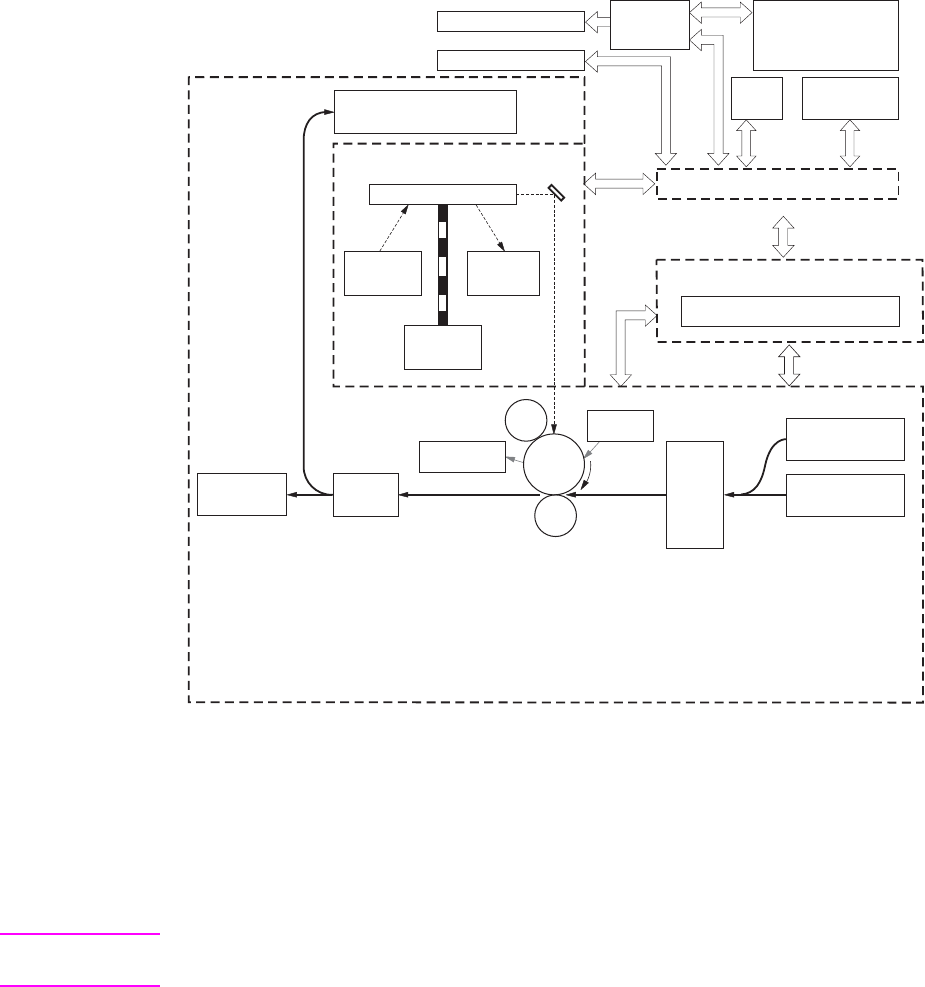
Printer functions and operation
Printer functions are divided into four groups:
●engine control
●image formation
●laser/scanner
●pickup and feed
The following is a block diagram of the printer and its relationship to the ADF/scanner and
LIU.
PAPER PICKUP/FEED
SYSTEM
Cleaning
unit
Face-down bin
Fuser
Developing
unit
Pickup
control
Transfer
charging
roller
Primary
charging
roller
LASER/SCANNER
Scanning mirror
Laser
diode
Scanner
motor
BD sensor
Photo-
sensitive
drum
ENGINE CONTROL SYSTEM
ECU
Face-up bin
Formatter
Priority Input Tray
Main Input Tray
LIU Computer
ADF
Scanner system
Control Panel
Motor
controller
Figure 4-5. Printer unit functional block diagram
Engine control unit (power system)
The engine control unit (ECU) coordinates all print engine activities, drives the laser, and
coordinates print data from the formatter with the image-formation process. The ECU also
includes the power supply and distribution circuitry.
Note In several other HP LaserJet products, the ECU is also known as the controller PCA or the dc
controller PCA.
ENWW Printer functions and operation 79
The ECU controls the following systems and functions:
●Power system
–ac power distribution
–dc power distribution
–high-voltage power distribution
–low-voltage power distribution
●Paper motion and monitoring
●Motors
–main motor (M1)
–fan motor (FN1)
●Printer laser/scanner
●Image formation
●Fuser
–temperature control
–failure detection
80 Chapter 4 Operational overview ENWW
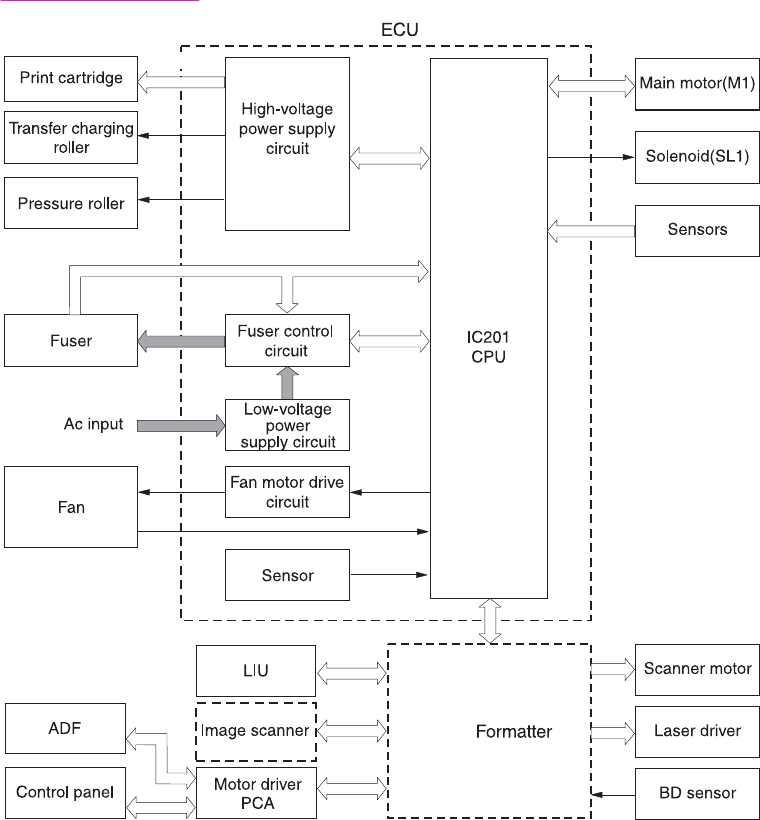
Figure 4-6. ECU loads shows the various ECU loads.
Figure 4-6. ECU loads
Power system within the ECU
The ac, dc, and high-voltage power supply circuits are all contained within the ECU.
Ac power distribution
The ac power circuitry supplies ac voltage whenever the power cord is connected to the ac
power source. Ac voltage is distributed to the dc power supply circuitry and to the ac driver
circuitry, which controls ac voltage to the fuser assembly heating element.
Dc power distribution
The dc power distribution circuitry, located on the ECU, distributes +3.3 Vdc, +5 Vdc, +24
Vdc, and +32 Vdc as follows:
ENWW Printer functions and operation 81

●+3.3 Vdc: Formatter
Laser/beam-detect circuitry
ECU
Photosensors
LIU
ADF sensors
Control Panel
●+5 Vdc: Formatter
ECU
Laser/beam-detect circuitry
LIU
●+24 Vdc: Printer paper-path motor
Exhaust fan
Laser/scanner motor
Solenoid
Formatter (routing only)
High-voltage power supply
Fuser safety circuit
Scanner (CCD)
●+32 Vdc: ADF motor
Scanner motor
Formatter (routing only)
High-voltage power distribution
The high-voltage power supply applies an overlap of dc and ac voltage to the primary-charging
roller and the developing roller. This circuit also applies a positive or negative dc voltage to the
transfer roller according to the instructions from the engine control unit.
82 Chapter 4 Operational overview ENWW
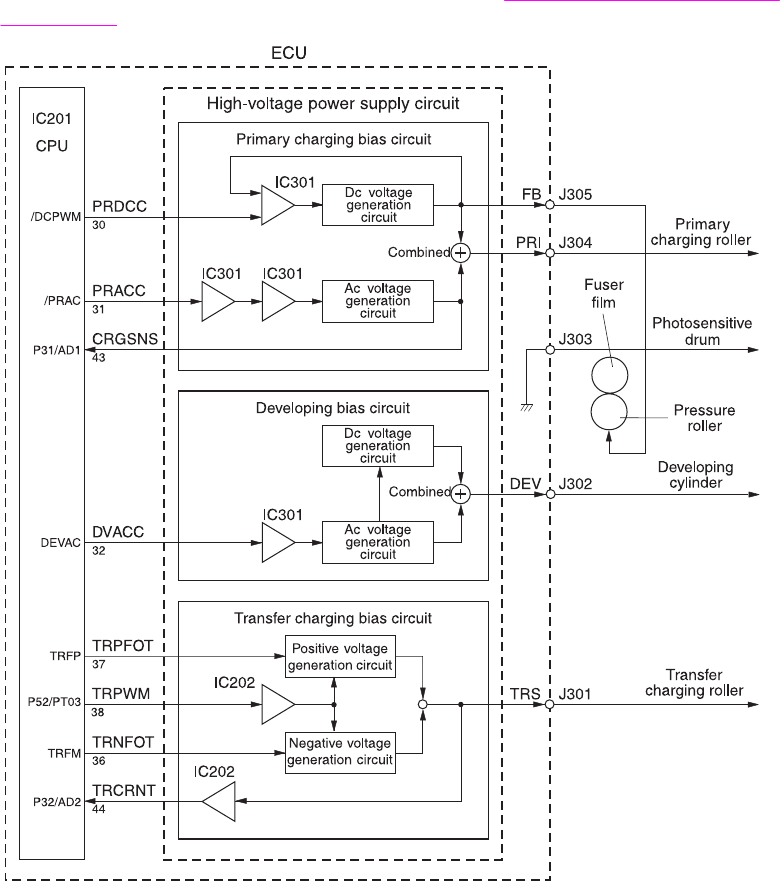
This circuit also controls the image density by changing the primary ac voltage and the
developing ac bias according to the print-density setting. Figure 4-7. High-voltage power
supply circuit shows the high-voltage power supply circuit.
Figure 4-7. High-voltage power supply circuit
Low-voltage power distribution
The low-voltage power supply circuit converts ac power into +24 Vdc, +5 Vdc, and +3.3 Vdc
as required by the printer. The +24 Vdc is divided into +24 V, which is supplied constantly from
the low-voltage power supply circuit, and +24 U, which is supplied to the high-voltage power
supply circuit and which acts as the door-open detection. When the top cover is open, the
door-open switch (SW301) cuts the +24 U to the high-voltage power supply circuit.
The circuit contains a fuse for overvoltage protection. FU101 breaks and cuts power if
overcurrent flows through the power cord. FU102 (on 110-127 V models) breaks at a lower
amperage, as required for lower-voltage units.
In addition, the +24 Vdc and +3.3 Vdc power circuitry contains an overcurrent protection
circuit that automatically shuts off dc voltage output to prevent power-supply failures if current
flow is excessive or voltage generation is abnormal. The circuit automatically resets itself when
the printer is turned off.
ENWW Printer functions and operation 83
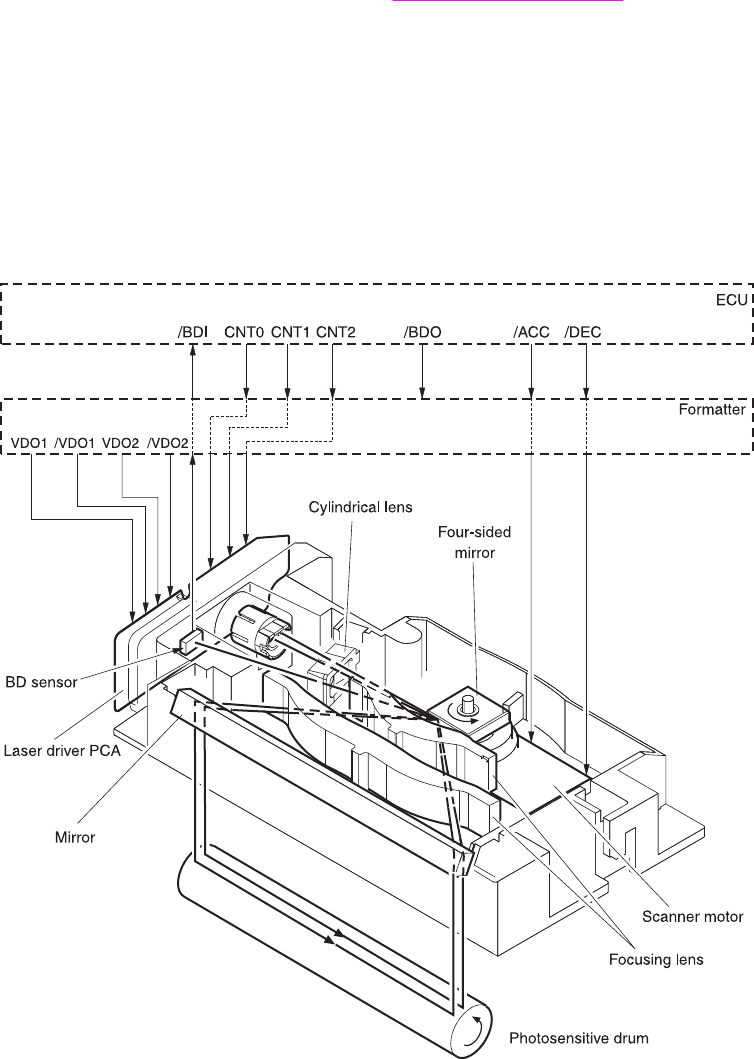
Paper-motion monitoring and control
The ECU controls paper motion in the printer by continuously monitoring the various paper
sensors and coordinating the timing with the other print processes.
For a detailed explanation of paper movement and the interaction of the photosensors and
solenoid with the paper-motion process, see Printer paper-feed system.
Motors
The ECU controls the motors. The main motor provides all of the paper movement in the
printer. The fan motor rotates the fan to cool the printer.
Printer laser/scanner drive
The laser/scanner system is controlled by the ECU, which sends laser control signals CNT0,
CNT1, and CNT2, and by the formatter, which sends video signals /VDO1, VDO1, /VDO2, and
VDO2.
Figure 4-8. Overview of laser/scanner operation
84 Chapter 4 Operational overview ENWW
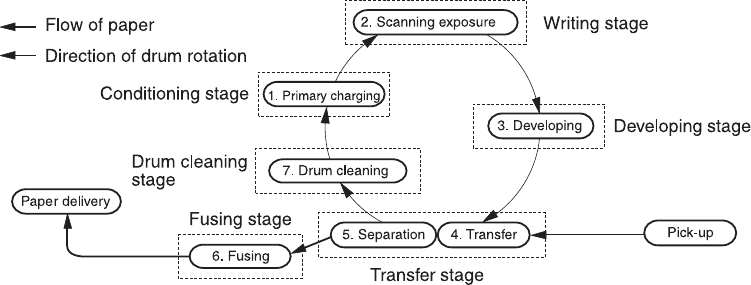
Image-formation system
Laser printing requires the interaction of several different technologies, including electronics,
optics, and electrophotographics, to provide a printed page. Each process functions
independently and must be coordinated with the other printer processes. Image formation
consists of seven processes:
Figure 4-9. Image-formation block diagram
The seven image-formation processes
1. Conditioning stage (primary charging)—This process applies a uniform negative
charge to the surface of the drum with the primary-charging roller, which is located in the
print cartridge. The primary-charging roller is coated with conductive rubber. An ac bias is
applied to the roller to erase any residual charges from any previous image. In addition,
the primary charging roller applies a negative dc bias to create a uniform negative
potential on the drum surface. The print density setting modifies the dc voltage.
2. Writing stage (scanning exposure)—During this process, a modulated laser diode
projects the beam onto a rotating scanning mirror. As the mirror rotates, the beam reflects
off the mirror, first through a set of focusing lenses, then off a mirror, and finally through a
slot in the top of the print cartridge, and onto the photosensitive drum. The beam sweeps
the drum from left to right, discharging the negative potential wherever the beam strikes
the surface. This creates a latent electrostatic image, which later is developed into a
visible image. Because the beam sweeps the entire length of the drum while the drum
rotates, the entire surface area of the drum can be covered. At the end of each sweep, the
beam strikes the beam-detect lens, generating the beam-detect signal (BD signal). The BD
signal is sent to the ECU, where it is converted to an electrical signal that synchronizes the
output of the next scan line of data.
3. Developing stage—During this process, the latent electrostatic image is present on the
drum. The toner particles obtain a negative surface charge by rubbing against the
developing cylinder, which is connected to a negative dc supply. The negatively charged
toner is attracted to the discharged (exposed, grounded) areas of the drum, and it is
repelled from the negatively charged (unexposed) areas.
4. Transfer stage—During this process, the toner image on the drum surface is transferred
to the media. The transfer roller applies a positive charge to the back of the media, which
attracts the negatively charged toner on the drum surface to the media. After separation,
the drum is cleaned and conditioned for the next image.
5. Separation stage—During this process, the media separates from the drum. To stabilize
the feed system and prevent toner dropouts on the printed image at low temperature and
humidity, the static eliminator reduces the charge on the back of the media.
ENWW Printer functions and operation 85

6. Fusing stage—During this process, the heat and pressure fuse the toner into the media
to produce a permanent image. The media passes between a heated fusing element and a
soft pressure roller, which melt the toner and press it into the media.
7. Drum-cleaning stage—During this process, the cleaning blade is in contact with the
surface of the drum at all times. As the drum rotates during printing, the cleaning blade
wipes excess toner off the drum and stores it in the waste toner receptacle.
Print cartridge
As the focal point of the image-formation system, the print cartridge contains toner and houses
the cleaning, conditioning, and developing stages of the process. The print cartridge contains
the photosensitive drum, primary charging roller, developing station, toner cavity, and cleaning
station. By including these components (which wear, degrade, or are consumed) in the
replaceable print cartridge, the need for many service calls is eliminated. The special
photosensitive properties of the drum form an image on the drum surface and then transfer the
image to media.
CAUTION The print cartridge does not include a light-blocking shutter. Do not expose the drum to light,
which can permanently damage the drum. Protect the print cartridge whenever you remove it.
Printer paper-feed system
The main input tray and the priority input tray merge into one main input area. Media placed in
any of these areas activates the paper detection sensor (PS931), which informs the ECU that
media is present. The following steps occur when the product receives a print job:
Step 1 The ECU activates the laser/scanner assembly and the motor. Paper motion begins when
the ECU energizes the solenoid (SL1).
Step 2 The paper-pickup roller rotates once. The paper-lift plate pushes the media against the
pickup roller.
Step 3 The pickup roller moves the top sheet and advances it to the feed assembly drive rollers.
To ensure that only one sheet is fed, a main separation pad and two subpads hold the
remainder of the stack in place.
Step 4 The feed-assembly drive rollers advance the media to the paper-top sensor (PS911). This
sensor informs the ECU of the exact location of the leading edge of media, so that the
image that is being written on the photosensitive drum can be precisely positioned on the
page.
Step 5 The feed-assembly drive rollers then advance the media to the transfer area, where the
toner image on the photosensitive drum is transferred to the media.
Step 6 After the image is transferred, the media enters the fuser assembly, where heat from the
fuser and pressure from the pressure roller permanently bond the toner image to media.
The paper-delivery sensor (PS921) determines that the media has successfully moved
out of the fusing area.
Step 7 The fuser assembly exit rollers deliver media to either the paper output bin or the
straight-through output path, according to the position of the straight-through output path
door.
86 Chapter 4 Operational overview ENWW
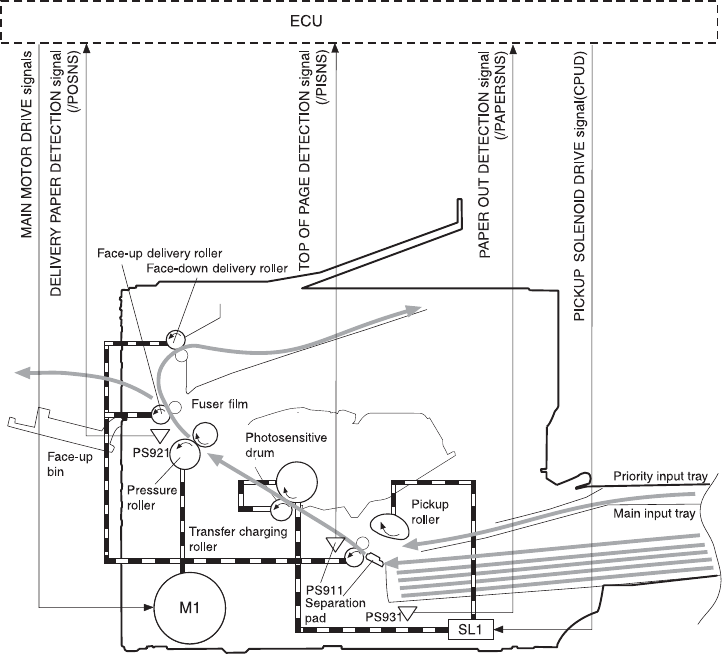
PS911: Paper-top sensor
PS921: Paper-delivery sensor
PS931: Paper-detection sensor
M1: Main motor
SL1: Pickup solenoid
Figure 4-10. Printer paper path
Jam detection
The paper-detection sensor (PS931) detects the presence of media in either the priority input
tray or the main input tray. The paper-top sensor (PS911) and the paper-delivery sensor
(PS921) detect media moving through the printer. If a jam is detected, the ECU immediately
stops the printing process and a jam message appears on the control-panel display.
A jam can be detected under any of the following conditions:
●Pickup delay jam—Media does not reach the paper-top sensor (PS911) after the pickup
solenoid (SL1) has been turned on twice (the original pickup plus a retry) within 2
seconds.
●Pickup stationary jam—The paper-top sensor (PS911) does not detect the trailing edge
of media within 1 second of detecting the leading edge.
●Delivery-delay jam—The paper-delivery sensor (PS921) does not detect the leading
edge of media within 1.5 seconds after the paper-top sensor (PS911) detects the leading
edge.
ENWW Printer functions and operation 87
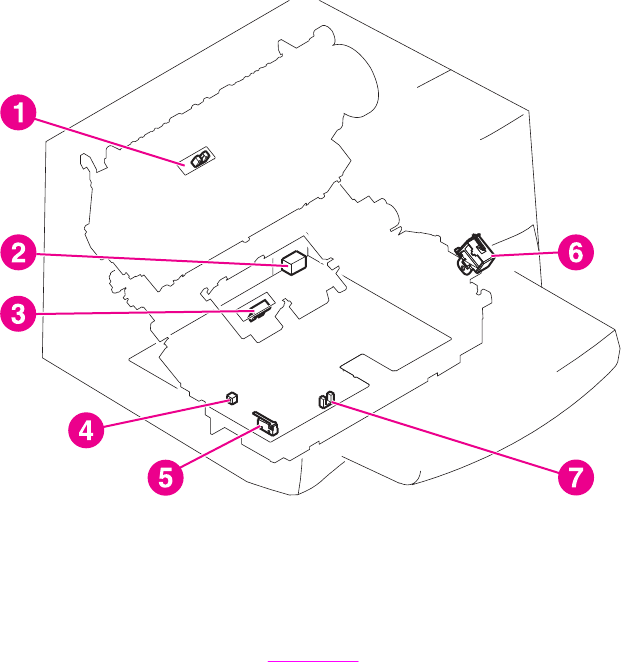
●Wrapping jam—The paper-delivery sensor (PS921) does not detect the trailing edge of
the media within 0.1 second after the paper-top sensor (PS911) detects the leading edge
and 1 second has passed since the paper-delivery sensor (PS921) detected the leading
edge.
●Delivery-stationary jam—The paper-delivery sensor (PS921) does not detect the leading
edge of media within 1.6 seconds after the paper-top sensor (PS911) detects the trailing
edge.
●Residual paper jam—The paper-top sensor (PS911) or the paper-delivery sensor
(PS921) detect media during the initial rotation period.
●Door open jam—The paper-top sensor (PS911) or the paper-delivery sensor (PS921)
detect media while the print-cartridge door is open.
Solenoid, photosensors, and switches
The following figure shows the locations of the solenoid, photosensors, and switches.
Figure 4-11. Solenoid, photosensors, and switches
1 Paper-delivery sensor (PS921) senses when paper has successfully moved out of the fusing area.
2 Power switch.
3 Paper-top sensor (PS911) detects the leading and trailing edges of the paper. It synchronizes the
photosensitive drum and the top of the paper.
4 Engine-test switch (SW201), see Engine test for an explanation of the switch.
5 Door-open switch (SW301) detects whether or not the print-cartridge door is closed and the print
cartridge is installed properly. Printing cannot continue until the print-cartridge door is closed and the
print cartridge is in its correct position.
6 Solenoid (SL1) activates the pickup roller.
7 Paper-detection sensor (PS931) senses when paper is in the media input tray or the priority input
tray.
88 Chapter 4 Operational overview ENWW
Fax functions and operation
The following sections describe the fax capabilities of the product.
PSTN operation
The public switched telephone network (PSTN) operates by having a central office (CO) that
generates a constant voltage on the TIP and RING wires (48 V, usually). A device goes on-
hook by connecting impedance (such as 600 ohms for the U.S.) across TIP and RING,
allowing a line current to flow. The CO can detect this current and can send impulses, such as
dial tones. The product generates more signaling tones, such as dialing digits, to tell the CO
how to connect the call. The product can also detect tones, such as a busy tone from the CO,
that tell it how to behave.
When the call is finally connected, the CO behaves as if it were a piece of wire connecting the
sender and receiver. This is the period during which all of the fax signaling and data transfer
occurs. When a call is completed, the circuit opens again and line current flow ceases,
removing the CO connection from both the sender and the receiver.
All of this is done with a two-wire arrangement. The two wires are called TIP and RING on all
phone systems. On most phone systems, the wires appear on pins 3 and 4 of the RJ-11
modular jack (the one on the LIU). These two wires do not have to be polarized because all
the equipment works with either TIP or RING on pin 3 and the other wire on pin 4. This means
that cables of either polarity can interconnect and will still work.
These are the basic functions of PSTN operation that are assumed in the design of the fax
subsystem. The product generates and detects the signaling tones, currents, and data signals
that are required to transmit and receive faxes on the PSTN.
The fax subsystem
The formatter, LIU, firmware, and software all contribute to the fax functionality. The designs
of the formatter and LIU, along with parameters in the firmware, determine the majority of the
regulatory requirements for telephony on the product.
The fax subsystem is designed to support V.34 fax transmission, lower speeds (such as V.17
fax), and older fax machines.
Formatter in the fax subsystem
The formatter contains the modem chipset (DSP and CODEC) that controls the basic fax
functions of tone generation and detection, along with channel control for the fax
transmissions.
The CODEC and its associated circuitry act to control transmit and receive gains, and to
compensate for transmission signal coupling into the receive channel. The formatter also
contains circuitry that adds termination impedance to help match the telephone network
impedance.
LIU in the fax subsystem
Two versions of LIU are used in the HP LaserJet 3380 all-in-one. One is used in the North
American, South American, and Asian countries/regions. The other is used primarily in
European countries/regions.
ENWW Fax functions and operation 89
The following are features that are different in the European version:
●a different voltage-protection device
●current limiting of the dc current
●filtering for the countries/regions that use billing or metering tones
●control of the impedance of the dc circuit through the SHUNT signal
Because the TIP and RING are not polarized, all LIU circuitry that connects to TIP and RING
is bidirectional. The LIU operates identically when TIP and RING are reversed.
Safety isolation
The most important function of the LIU is the safety isolation between the high-voltage,
transient-prone environment of the telephone network (telephone network voltage [TNV]) and
the low-voltage analog and digital circuitry of the formatter (secondary extra-low voltage
[SELV]). This safety isolation provides both customer safety and product reliability in the
telecom environment.
Any signals that cross the isolation barrier do so either optically or magnetically. The
breakdown voltage rating of barrier-critical components is greater than 1.5 kV.
Safety-protection circuitry
In addition to the safety barrier, the LIU protects against RING and over-current events.
Telephone over-voltages can be either differential mode or common mode. The RING can be
transient in nature (a lightning-induced surge or ESD) or continuous (a power line crossed with a
phone line). The LIU protection circuitry provides margin against combinations of RING
events.
Common mode protection is provided by the selection of high-voltage-barrier critical
components (transformer, relay, and optoisolators). The safety barrier of the LIU PCB traces
and the clearance between the LIU and surrounding components also contribute to common
mode protection.
A voltage suppressor (a crowbar-type SIDACTOR) provides differential protection. This device
becomes low impedance at approximately 300 V differential, and crowbars to a low voltage. A
series thermal switch works in conjunction with the crowbar for continuous RING events, such
as crossed power lines.
When the differential RING is continuous, the resulting over-current causes the thermal switch
to become high impedance, disconnecting RING from the network and protecting the crowbar
from thermal overload. The thermal switch automatically resets to low impedance after the
over-current condition is removed, reconnecting RING to the network.
Data path
The magnetically coupled signals that cross the isolation barrier go either through a
transformer or a relay. The TIP and RING signals use a transformer to cross the isolation
barrier.
TIP and RING are the two-wire paths for all signals from the telephone network. All signaling
and data information comes across them, including fax tones and fax data.
The telephone network uses dc current to determine the hook state of the telephone, so line
current must be present during a call. On some line interfaces this current flows through the
transformer, but on the LIU, a capacitor blocks the current from going into the transformer.
90 Chapter 4 Operational overview ENWW
Blocking the current with a capacitor prevents the core of the transformer from being saturated
by the high dc voltage, which can affect the ac signal quality. Rather than permitting the
current to flow through the transformer, this LIU directs the current through another circuit
called a gyrator or dc hold circuit. This creates the path for the central office-current flow when a
call is in progress.
Hook state
Another magnetically coupled signal is the control signal that disconnects the downstream
telephone devices (such as a phone or answering machine). A control signal originating on the
formatter can change the relay state, causing the auxiliary jack (downstream jack) to be
disconnected from the circuit.
The product takes control of calls that it recognizes as fax calls. If the product does not directly
pick up the call, it monitors incoming calls for the fax tone or for the user to direct it to receive a
fax. This idle mode is also called eavesdropping. This mode is active when the product is on-
hook but current exists in the downstream phone line because another device is off-hook.
During eavesdropping, the receive circuit is enabled but has a different gain from the current
that is generated during normal fax transmissions.
The product does not take control of the line unless it detects a fax tone or the operator tells it
to connect manually. This feature allows the user to make voice calls from a phone that is
connected to the product without being cut off if a fax is received.
Downstream current detection
The aux phone detect signal is optically coupled. This signal tells the firmware that an active
phone (or modem or answering machine) is connected to the auxiliary port of the product (the
right side of the RJ-11 jack).
A circuit that can detect current above a certain threshold generates the downstream-current-
detection signal. The downstream current goes through a resistor, generating a voltage. If this
voltage is above the threshold level, the signal changes state.
The downstream-current-detection signal is coupled back to the formatter through an
optoisolator and across the safety isolation barrier. The firmware uses this signal to ensure
that the product does not go off-hook (and disconnect a downstream call) until it has been
authorized to do so (by a manual fax start or detection of the appropriate tones).
Hook switch control
Another optically coupled signal is the hook switch control. This signal from the formatter
causes an optoisolator on the LIU to activate (making an open circuit into a short circuit).
When shorted, the circuit is drawing dc current from the central office and is considered “on-
hook.” When open, no dc current flows and the state is considered to be “off-hook.”
For pulse dialing, the optoisolator is toggled on and off with a particular timing sequence to
generate pulses that the central offices of the telephone company recognizes as dialing digits.
Ring detect
Another optically coupled signal on the LIU is ring detect. Ring detect is a combination of
voltage levels and cadence (time on and time off). Both must be present in order for the
product to detect a valid ring.
The LIU works with the firmware to determine if an incoming signal is an answerable ring.
When circuits on the LIU detect a ring voltage above a certain threshold, a corresponding
signal is passed to the formatter to indicate that the ring is above the threshold. The firmware
then measures the amount of time that the signal is high and low, and qualifies the cadence to
determine whether it is a valid ring.
ENWW Fax functions and operation 91
Line current control
The dc current from the CO needs to have a path to flow from TIP to RING. Because the
current does not flow in the transformer, a path through some transistors and diodes (the dc
hold circuit) acts like a simulated inductor (thus replacing the function of the transformer). This
dc hold circuit is the main component of the voltage-current characteristic between TIP and
RING.
Two other functions of this block of circuits are the current limit and the SHUNT for Europe.
Current limit basically maintains a constant current from TIP to RING after the voltage reaches
about 50 mA. Even if the voltage varies, the current will remain the same.
The SHUNT function changes the impedance (the current-voltage characteristic) during
certain special events, such as pulse dialing and when the devices goes on-hook.
During such an event, the firmware tells the DSP on the formatter to activate SHUNT. A
signal goes to the LIU through an optoisolator (optically coupled), which changes the state of
some transistors so that the board has a linear current characteristic (normally, it is current-
limited). Then more current can flow to the network, as required by these special events.
Billing (metering) tone filters
Switzerland and Germany provide high-frequency ac signals on the phone line in order to bill
customers. The LC (inductor, capacitor) notch filters are provided on the European LIUs to
prevent these billing signals from adversely affecting the data path and the dc hold circuit.
An additional filter in the cable (for certain countries/regions) can, in some cases, supplement
these LC notch filters. Because these billings signals are not used in the U.S., these filters are
not present on the U.S. LIU.
Fax page storage in flash memory
Fax pages are the electronic images of the document page. They can be created in any of
three ways: scanned to be sent to another fax machine, generated to be sent by the
computer, or received from a fax machine to be printed.
The product stores all fax pages in flash memory automatically. After these pages are written
into flash memory they are stored until the pages are sent to another fax machine, printed on
the product, transmitted to the computer, or erased by the user.
These pages are stored in flash memory, which is the nonvolatile memory that can be
repeatedly read from, written to, and erased. The product has 4 MB of flash memory, of which
3.4 MB is available for fax storage. The remaining 0.6 MB is used for the file system and
reclamation. Adding RAM does not affect the fax page storage because the product does not
use RAM for storing fax pages.
Stored fax pages
The user can reprint stored fax pages in case of errors. Other fax devices store fax pages in
either normal RAM or short-term RAM. Normal RAM immediately loses its data when power is
lost, while short-term RAM loses its data about 60 minutes after a power failure. Flash memory
maintains its data for years without any applied power.
Advantages of flash memory storage
Fax pages stored in flash memory are persistent. They are not lost as a result of a power
failure, no matter how long the power is off. Users can reprint faxes in case the print cartridge
runs out of toner or the product experiences other errors while printing faxes.
92 Chapter 4 Operational overview ENWW
The product also has scan-ahead functionality that makes use of flash memory. Scan-ahead
automatically scans pages into flash memory before a fax job is sent. This allows the sender to
pick up their original document immediately after it is scanned, eliminating the need to wait
until the fax is transmission is complete.
Because fax pages are stored in flash memory, not RAM, more RAM is available to handle
larger and more complicated copy and print jobs.
ENWW Fax functions and operation 93
94 Chapter 4 Operational overview ENWW
5
Removal and replacement
This chapter provides information about the following topics.
Removal and replacement strategy ........................................................................................97
Required tools ...................................................................................................................97
Before performing service.................................................................................................97
After performing service....................................................................................................98
Print cartridge ...................................................................................................................98
Parts removal order ..........................................................................................................98
Scanner assemblies ..............................................................................................................101
Printer right-side cover ...................................................................................................101
Scanner side covers .......................................................................................................102
Automatic document feeder (ADF) assembly ................................................................104
ADF pickup-roller assembly ............................................................................................105
ADF document-feed guide/cleanout comb .....................................................................107
ADF input-tray flag...........................................................................................................108
ADF separation pad ........................................................................................................109
Control-panel bezel ........................................................................................................110
To reinstall the control-panel bezel ................................................................................111
Control panel ..................................................................................................................112
Control-panel chassis .....................................................................................................113
Speaker...........................................................................................................................114
Scanner PCA ..................................................................................................................115
ADF scanner glass .........................................................................................................118
Separation of the scanner from the printer ...........................................................................119
Separate the scanner from the printer.............................................................................119
External components ............................................................................................................122
Height guides...................................................................................................................122
Left-side door ..................................................................................................................122
Back cover ......................................................................................................................123
Printer top cover .............................................................................................................125
Front-cover assembly .....................................................................................................125
Printer assemblies .................................................................................................................130
Laser/scanner assembly..................................................................................................130
Height flapper..................................................................................................................130
Left and right support covers (front corner brackets) .....................................................131
Transfer upper guide assembly.......................................................................................132
Transfer roller .................................................................................................................132
Line interface unit (LIU) ..................................................................................................133
Formatter ........................................................................................................................134
Left bottom frame support ..............................................................................................135
Fuser assembly ..............................................................................................................136
Output rollers ..................................................................................................................139
Stepping motor ...............................................................................................................141
Solenoid .......................................................................................................................... 141
Fan assembly .................................................................................................................142
Pickup assembly .............................................................................................................144
Paper lift-plate assembly and pickup roller shaft ............................................................145
ENWW 95
To reinstall the paper lift-plate assembly.........................................................................148
Right plate assembly ......................................................................................................149
Left plate assembly .........................................................................................................150
Bottom assemblies ................................................................................................................152
ECU fuses and ECU pan ................................................................................................152
Paper-feed assembly ......................................................................................................155
96 Chapter 5 Removal and replacement ENWW

Removal and replacement strategy
This chapter documents the removal and replacement of field replaceable parts (FRUs) only.
Reinstallation is generally the reverse of removal. Occasionally, notes and hints are included
to provide directions for difficult or critical replacement procedures.
WARNING! Unplug the power cord from the power outlet (at the wall receptacle) before attempting to
service the product. If this warning is not followed, severe injury can result. Certain functional
checks during troubleshooting must be performed with power supplied to the product.
However, the power supply should be disconnected during removal.
Sheet-metal and plastic edges in the product can be sharp. Use caution when servicing this
product.
Never operate or service the product with the protective cover removed from the laser/
scanner assembly. The invisible reflected beam can damage eyesight.
CAUTION The product contains components that are sensitive to electrostatic discharge (ESD). Always
perform service work at an ESD-protected workstation. If an ESD-protected workstation is not
available, discharge body static by grasping the print-engine chassis before touching an
ESD-sensitive component. Ground the print engine chassis before servicing the product.
CAUTION Do not bend or fold the flat-flexible cables (FFCs) during the removal or reinstallation process.
Note For service purposes, the upper part of the HP LaserJet 3380 all-in-one is, in effect, the
"scanner" and the lower part is the "printer." Together, they also act as a photocopier or fax
machine, but the service description here is simplified by referring to copier or fax functionality
only when specifically necessary.
Hint To install a self-tapping screw, first turn it counterclockwise to align it with the existing thread
pattern, and then carefully turn it clockwise to tighten. Do not overtighten.
Required tools
●#2 Phillips screwdriver with magnetic tip
●Small flat-blade screwdriver
●#8 torx screwdriver
●Needle-nose pliers
●ESD mat (if available)
●Penlight (optional)
CAUTION Do not use a pozidrive screwdriver or any motorized screwdriver. These can damage screws
or screw-threads on the product.
Before performing service
●If possible, print a configuration page and menu structure report so that the customer's
settings can be restored. See Troubleshooting tools.
●Remove all media from the product.
●Remove the media input tray.
●Turn off the power by using the power switch.
ENWW Removal and replacement strategy 97
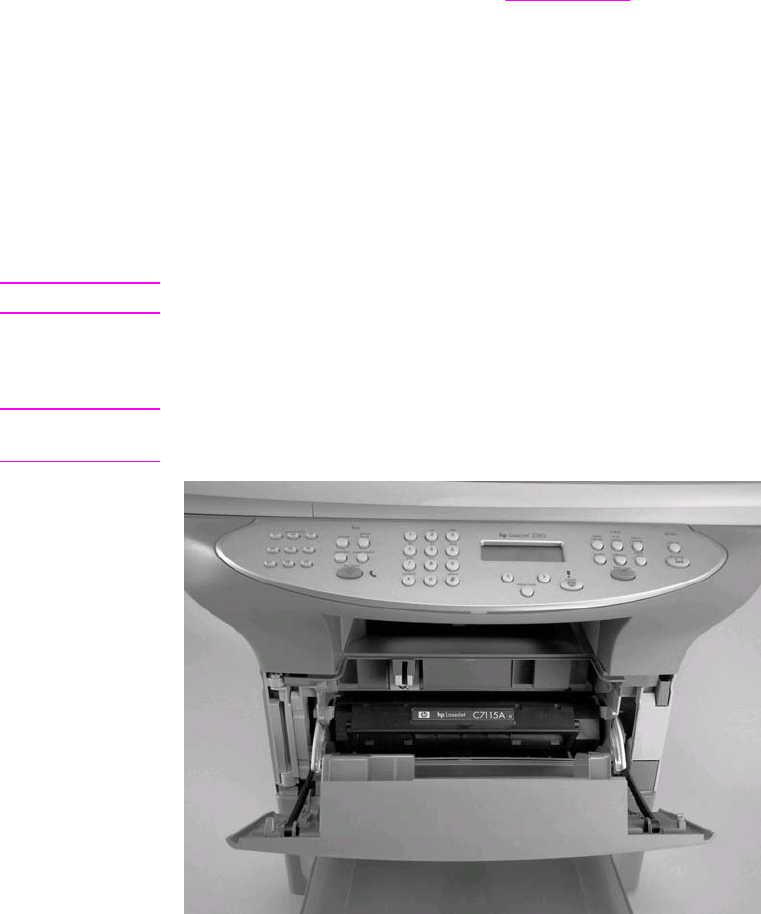
●Unplug the power cord from the wall receptacle.
●Place the product on an ESD mat, if available. If an ESD-protected workstation is not
available, discharge body static and ground the print engine chassis before servicing the
product.
●Remove the print cartridge (see Print cartridge).
After performing service
●Replace the print cartridge.
●Reload the input tray with media.
●Restore customer configuration settings.
Print cartridge
Note You will feel resistance when you open the print-cartridge door.
1. Open the print-cartridge door.
2. Grasp the print cartridge and remove it from the product.
CAUTION To prevent damage, do not expose the print cartridge to direct or bright light. Cover it with a
piece of paper.
Figure 5-1. Remove the print cartridge
Parts removal order
Use the following diagrams to determine which parts must be removed before removing other
parts.
1. Locate the part that you want to remove on one of the diagrams.
2. If the part is on the first diagram, separation of the printer from the scanner is not
required.
98 Chapter 5 Removal and replacement ENWW

3. If the part is on the second diagram, you are required to separate the scanner from the
printer before removing the part.
Scanner/printer separation not required:
ADF pickup-roller assembly
ADF document-feed guide/cleanout comb
ADF separation pad
height guides
transfer roller
LIU
ADF lid
ADF scanner glass and frame
control-panel bezel
control-panel assembly
control-panel chassis
speaker
left-side scanner cover
scanner motor controller board
left-side door
right-side cover
scanner right-side cover
back cover
stepping motor
formatter
left-bottom frame-support
pickup assembly
engine deflector shield
print-cartridge door
front cover (also requires removing left-side door and right-side cover)
front-guide assembly
pickup assembly (also requires removing formatter)
paper lift-plate assembly
Figure 5-2. Parts removal order (1 of 2)
ENWW Removal and replacement strategy 99

Scanner/printer separation required:
Note The scanner assembly might be contaminated if it is opened outside of a cleanroom
environment. For this reason, the entire scanner assembly is replaceable only as a unit.
Replacing the scanner assembly as an entire assembly replaces the CCD scan module, the
CCD scan motor, and the cable. If the ADF fails, it too is replaceable only as an entire
assembly. Replacing the ADF replaces the ADF cable and other ADF submechanisms.
top cover
laser/scanner assembly
height flapper
left and right support covers
transfer upper-guide assembly
(left-side door, right-side cover, top cover)
fuser
output rollers
solenoid and fan
(print-cartridge door, front cover, front-guide assembly)
right-plate assembly and (formatter)
(left-bottom frame support)
ECU
paper-feed assembly
(formatter and RFI deflector shield)
left-plate assembly
Figure 5-3. Parts removal order (2 of 2)
100 Chapter 5 Removal and replacement ENWW
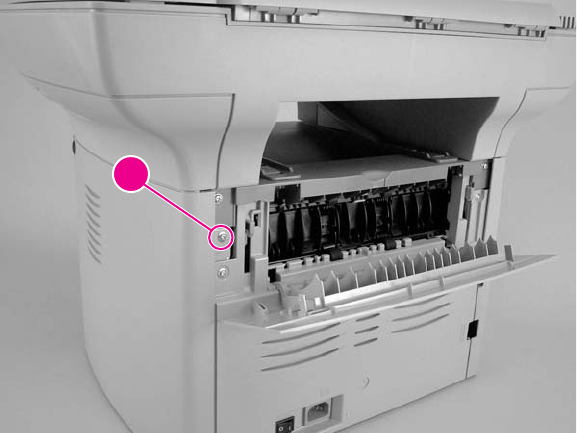
Scanner assemblies
The parts described in this section can all be removed without separating the scanner from the
printer.
Printer right-side cover
1. Open the print-cartridge door.
2. Open the straight-through output door.
3. Remove one screw (callout 1).
1
Figure 5-4. Remove the printer right-side cover (1 of 3)
ENWW Scanner assemblies 101
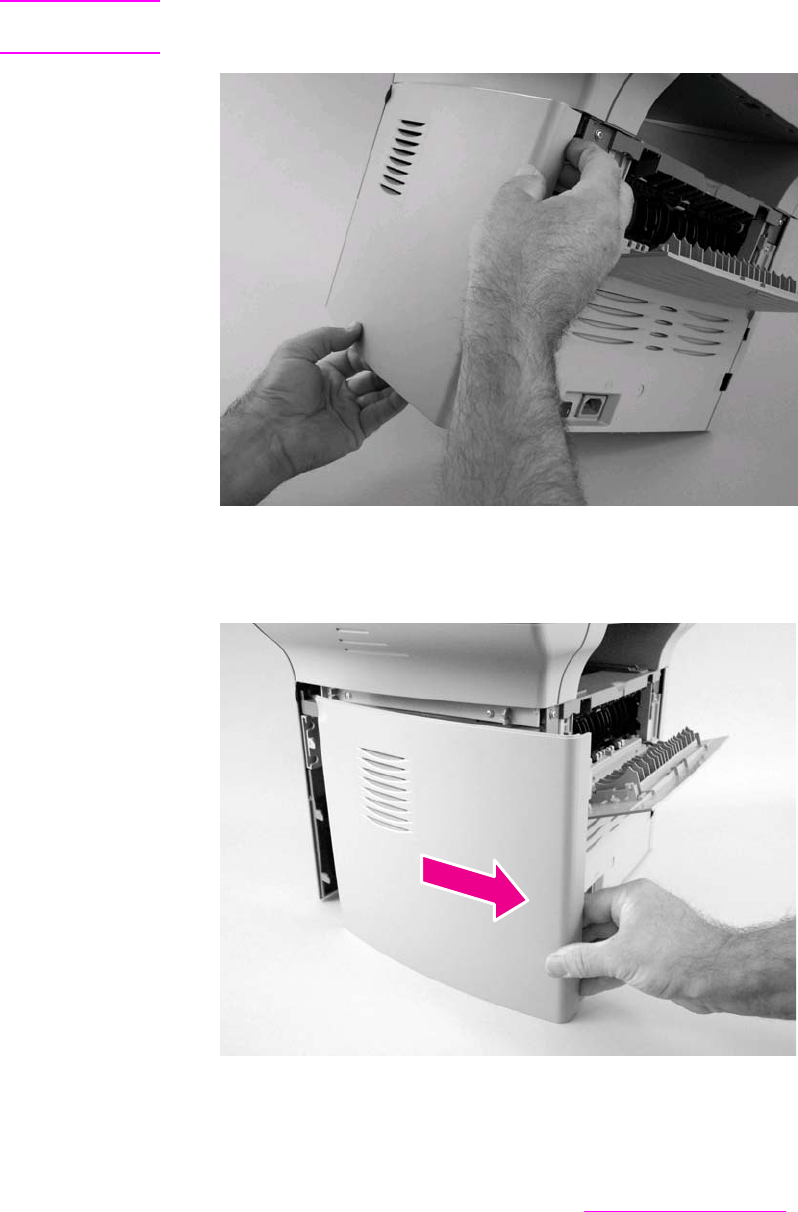
4. Lift the right side of the product, and release the tab on the bottom of the cover.
Note You can slide the product slightly over the edge of a table to gain access to this tab if you do
not want to lift the product.
Figure 5-5. Remove the printer right-side cover (2 of 3)
5. Slightly separate the cover from the product, and then pull it towards the back of the
product to remove it.
Figure 5-6. Remove the printer right-side cover (3 of 3)
Scanner side covers
1. Remove the printer right-side cover. See Printer right-side cover.
102 Chapter 5 Removal and replacement ENWW
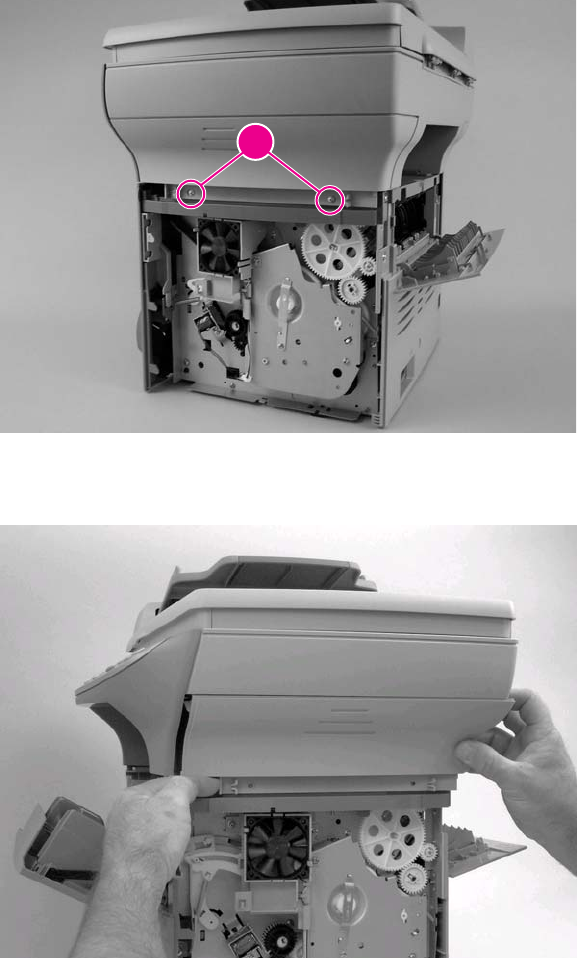
2. Remove the two screws (callout 1) that fasten the scanner right-side cover in place.
1
Figure 5-7. Remove the scanner right-side cover (1 of 2)
3. Slide the cover toward the back of the product, and remove it.
Figure 5-8. Remove the scanner right-side cover (2 of 2)
ENWW Scanner assemblies 103
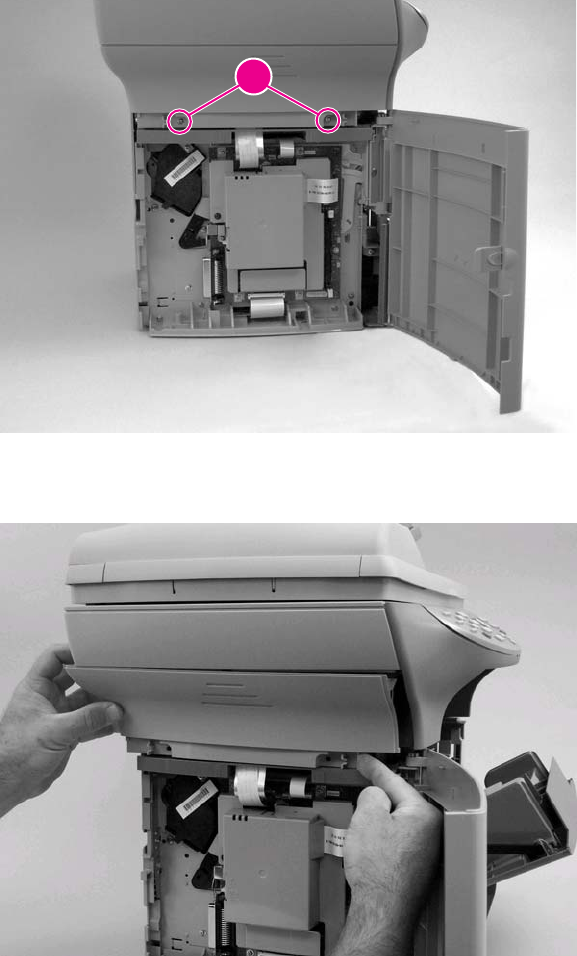
4. Open the print cartridge door and the left-side door to expose the screws (callout 2) that
hold the scanner left side cover.
2
Figure 5-9. Remove the left-side scanner cover (1 of 2)
5. Slide the cover toward the back of the product, and remove it.
Figure 5-10. Remove the left-side scanner cover (2 of 2)
Automatic document feeder (ADF) assembly
1. Open the cover.
2. Pull the two hinge-tab locking shims straight up (callout 1).
104 Chapter 5 Removal and replacement ENWW
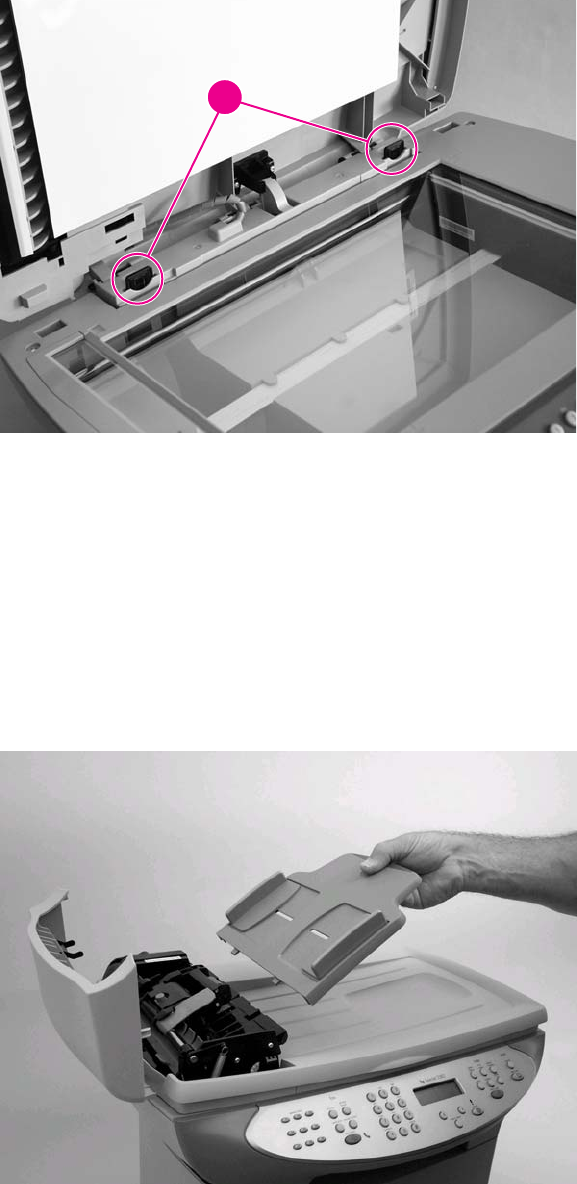
3. Slightly close the cover, and then gently lift it up to remove it.
1
Figure 5-11. Remove the ADF assembly
ADF pickup-roller assembly
The ADF pickup-roller assembly and document-feed guide/cleanout comb are user-
replaceable parts, but the ADF separation pad is not. Instructions for replacing the pickup-
roller assembly and the document-feed guide/cleanout comb appear in chapter 3 of this
manual and are repeated here. If the ADF has trouble picking paper, the ADF pickup-roller
assembly might need to be replaced.
1. Make sure that the product power is off, and then open the ADF cover. Rotate the input
tray up and then away from the scanner.
Figure 5-12. Remove the ADF pickup-roller assembly (1 of 5)
ENWW Scanner assemblies 105
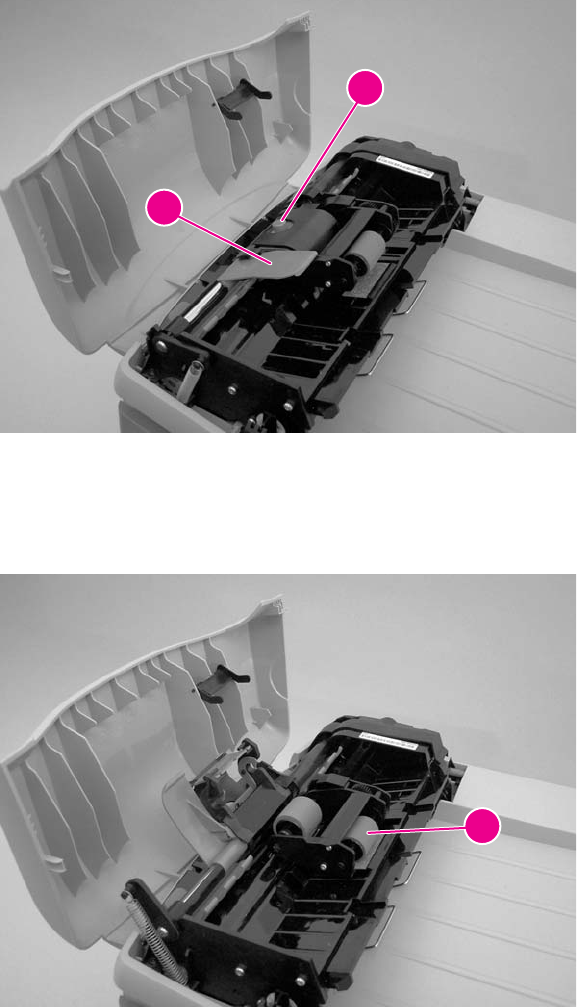
2. Press the round, green button (callout 1) while lifting the green lever (callout 2). Rotate the
green lever until it stops in the open position. The pickup-roller assembly will remain on
the black surface.
1
2
Figure 5-13. Remove the ADF pickup-roller assembly (2 of 5)
3. Remove the pickup-roller assembly, and put the replacement assembly (callout 3) in
exactly the same place. The largest roller goes in back, and the gear side faces toward the
back of the product.
3
Figure 5-14. Remove the ADF pickup-roller assembly (3 of 5)
106 Chapter 5 Removal and replacement ENWW
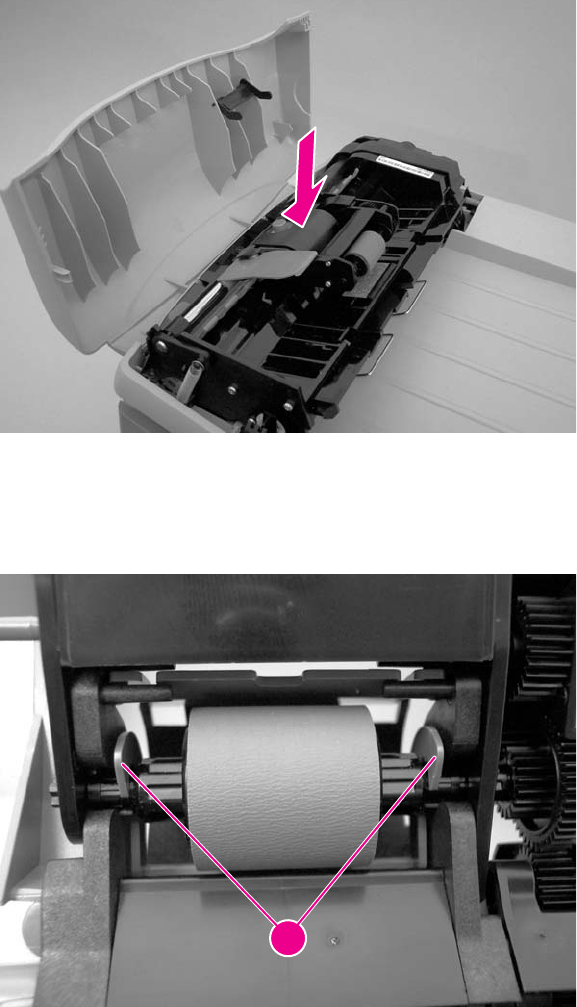
4. Lower the green lever until the flat, green part fits between the rollers. Press down on the
pickup roller frame until the assembly snaps into place.
Figure 5-15. Remove the ADF pickup-roller assembly (4 of 5)
5. To check for proper installation, lift the green lever until it remains open. The new pickup-
roller assembly should be secured to the lever assembly and should not fall out. Make
sure that both sides of the assembly are secured by the green hooks (callout 4).
4
Figure 5-16. Remove the ADF pickup-roller assembly (5 of 5)
ADF document-feed guide/cleanout comb
1. Open the ADF door.
ENWW Scanner assemblies 107
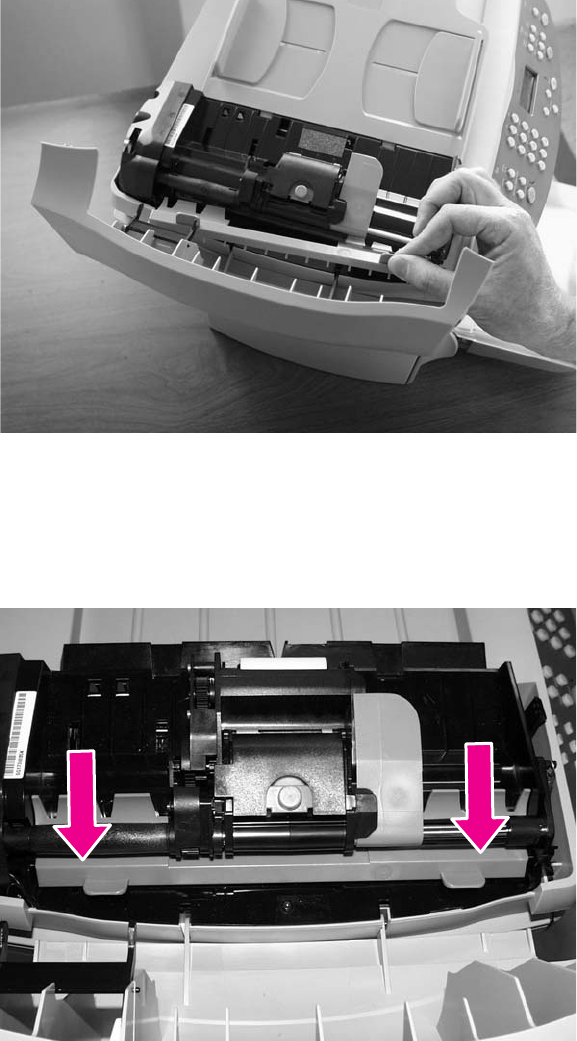
2. Unsnap the ADF document-feed guide/cleanout-comb one side at a time, and then gently
pull the guide back to remove it.
Figure 5-17. Remove the ADF document-feed guide/cleanout comb
Reinstallation tip
Make sure that both sides of the ADF document-feed guide/cleanout comb snap into
place. Otherwise, ADF jams might occur.
Figure 5-18. Install the ADF document-feed guide/cleanout comb
ADF input-tray flag
1. Open the ADF cover.
108 Chapter 5 Removal and replacement ENWW
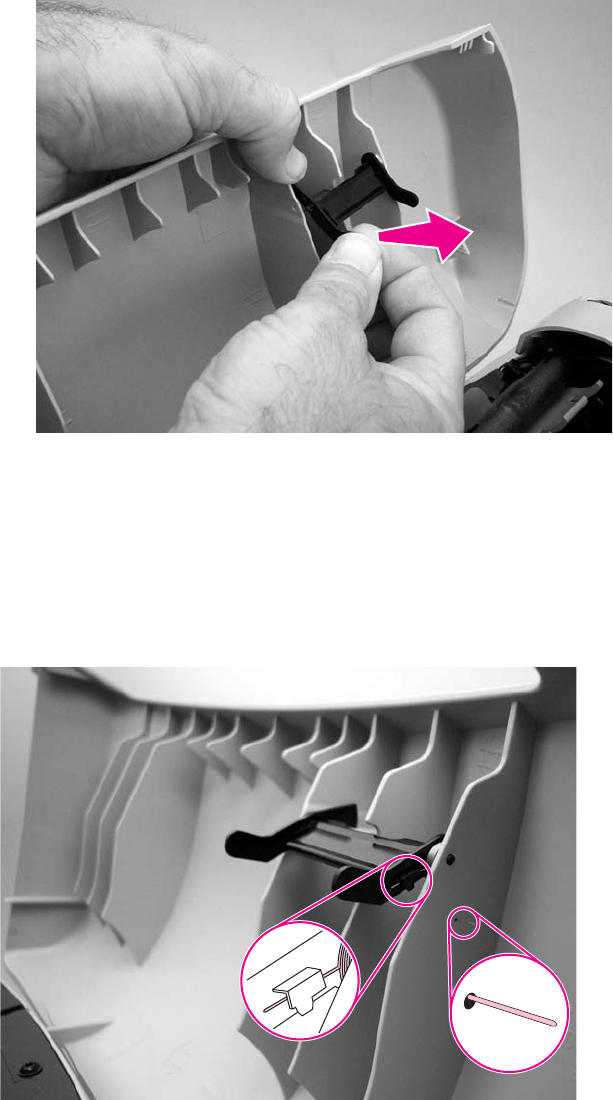
2. Gently flex the plastic rib that retains the flag hinge until the front flag hinge clears the
mounting hole. Rotate the ADF input-tray flag until the hinge pin clears the plastic rib. Pull
the flag towards you to release the back hinge.
Figure 5-19. Remove the ADF input-tray flag
Reinstallation tip
When reinstalling the ADF input-tray flag, make sure that the long, straight end of the spring is
tucked under the lip on the flag and that the bent end of the spring threads through the hole in
the plastic rib that retains the flag.
Make sure that the ADF input-tray flag can move freely.
Figure 5-20. Correct positioning of the ADF input-tray spring
ADF separation pad
1. Open the ADF door. Use the green lever to raise the pickup-roller assembly.
ENWW Scanner assemblies 109
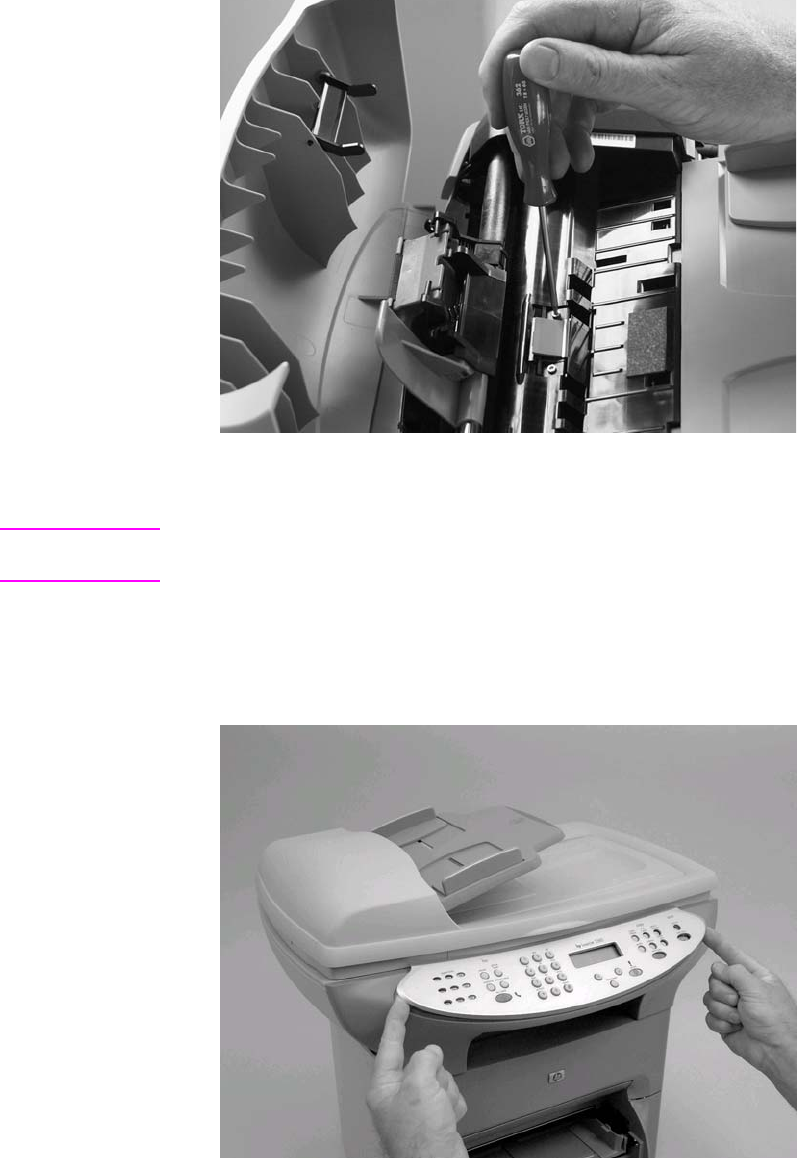
2. Use a #8 torx driver to remove the two screws that secure the ADF separation pad.
Figure 5-21. Remove the ADF separation pad
3. Pull gently on the rubber ADF separation pad to remove it .
CAUTION Avoid touching the flatbed glass or the ADF separation pad. Skin oils and fingerprints can
contaminate the glass or pad and cause print-quality problems or paper-pickup problems.
Control-panel bezel
1. Remove the control-panel bezel by lifting up on the edges of both sides of the bezel until
all of the snaps are disengaged. Set the bezel aside.
Figure 5-22. Remove the control-panel bezel
110 Chapter 5 Removal and replacement ENWW
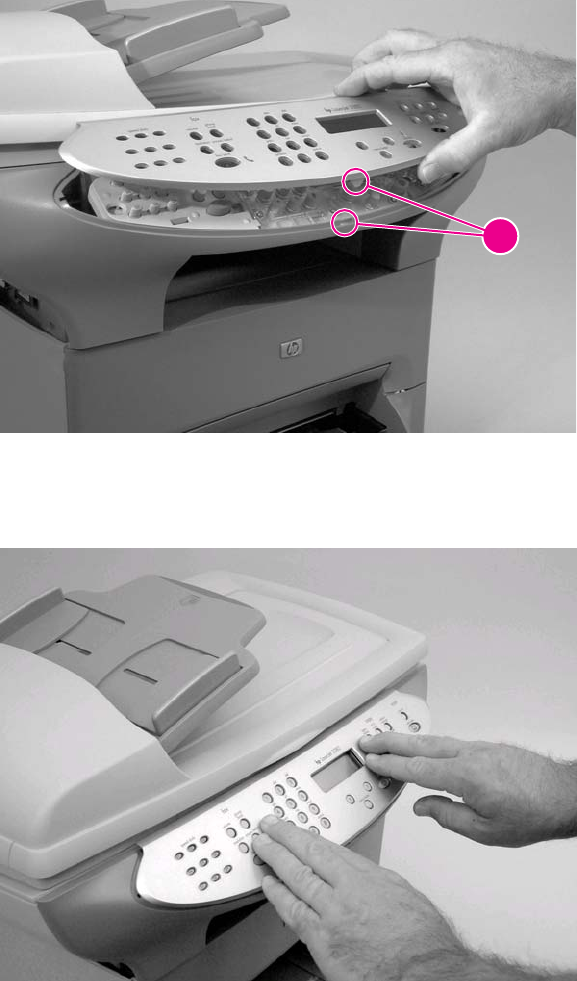
To reinstall the control-panel bezel
1. Align the tab at the base of the new bezel with the lower notch at the bottom of the control
panel (callout 1). The bezel tab should align with the inside of the notch.
1
Figure 5-23. Reinstall the control-panel bezel (1 of 2)
2. Press the bottom of the bezel onto the control panel first, and then continue to press while
pushing up toward the top of the bezel until it snaps into place.
Figure 5-24. Reinstall the control-panel bezel (2 of 2)
ENWW Scanner assemblies 111
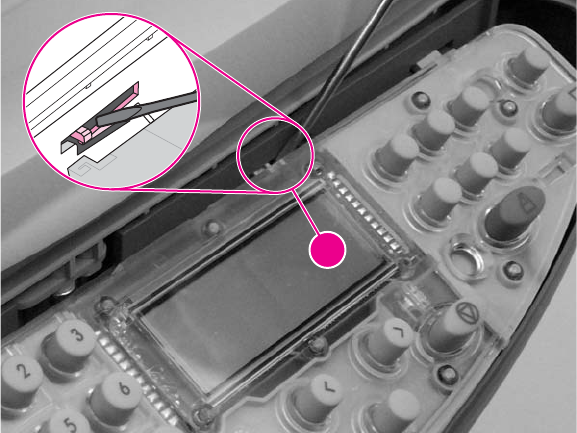
Control panel
1. Four sliding tabs are at the top of the control panel. The second tab from the right locks
into place. Use a small flat-blade screwdriver to press down on the locking portion of the
snap-fit that holds the tab (callout 1), and slide the control panel to the right while pressing
down on the tab. (The inset shows the snap-fit.)
1
Figure 5-25. Remove the control panel (1 of 2)
112 Chapter 5 Removal and replacement ENWW
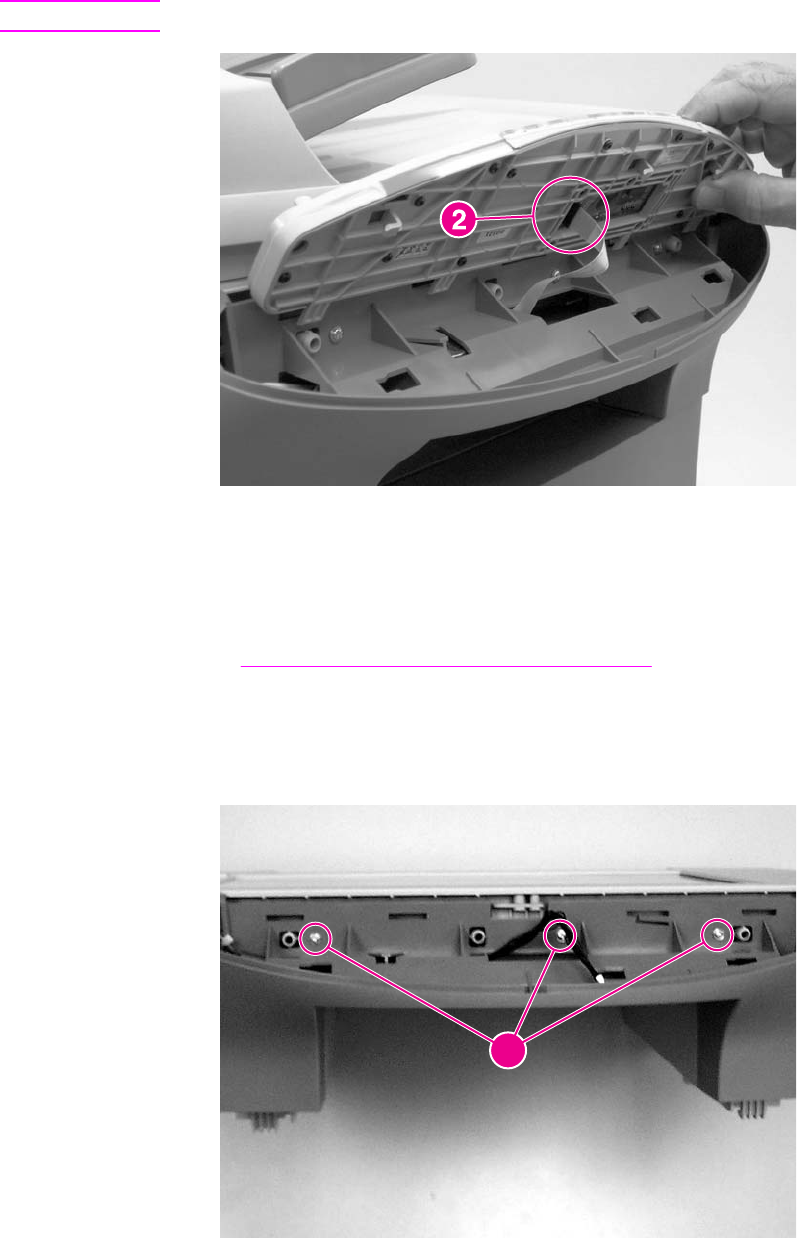
2. Gently lift the bottom of the control panel up. Disconnect the cable (callout 2) from the
back of the control panel.
CAUTION Do not bend or fold the FFCs during the removal or reinstallation process.
Figure 5-26. Remove the control panel (2 of 2)
Reinstallation tip
Insert the four tabs into the slots, push the control panel down, and then slide the control
panel to the left to lock it in place. Make sure that the snap-fit locks at the same tab shown
in Figure 5-25. Remove the control panel (1 of 2).
Control-panel chassis
1. Remove three screws (callout 1).
1
Figure 5-27. Remove the control-panel chassis (1 of 2)
ENWW Scanner assemblies 113
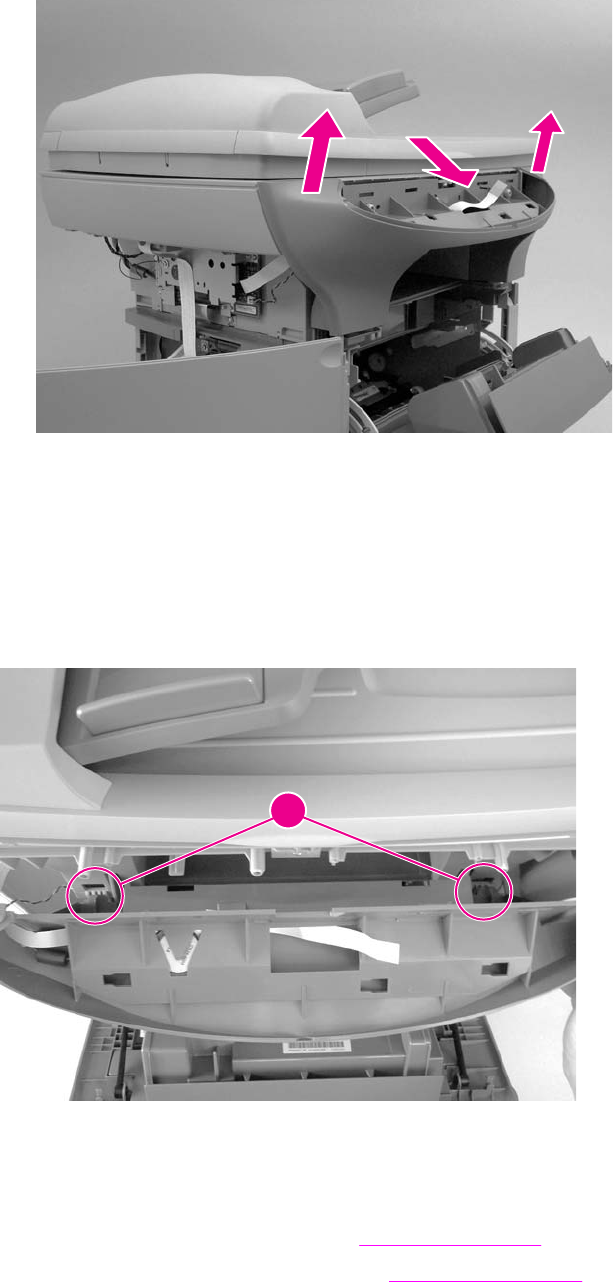
2. Remove the control-panel chassis by lifting up on both sides of the chassis to release the
tabs on the corners, and then pull the chassis away from the scanner body.
Figure 5-28. Remove the control-panel chassis (2 of 2)
Reinstallation tip
The speaker and control-panel cable are both replaceable parts. Make sure that the control-
panel cable and speaker cable are correctly routed when reinstalled.
Align the bottom guides on the control-panel chassis with the slots on the scanner assembly
(callout 2). Push the control-panel chassis in firmly until it snaps into place.
2
Figure 5-29. Reinstall the control-panel chassis
Speaker
1. Remove the left scanner cover. See Scanner side covers.
2. Remove the control-panel chassis. See Control-panel chassis.
114 Chapter 5 Removal and replacement ENWW
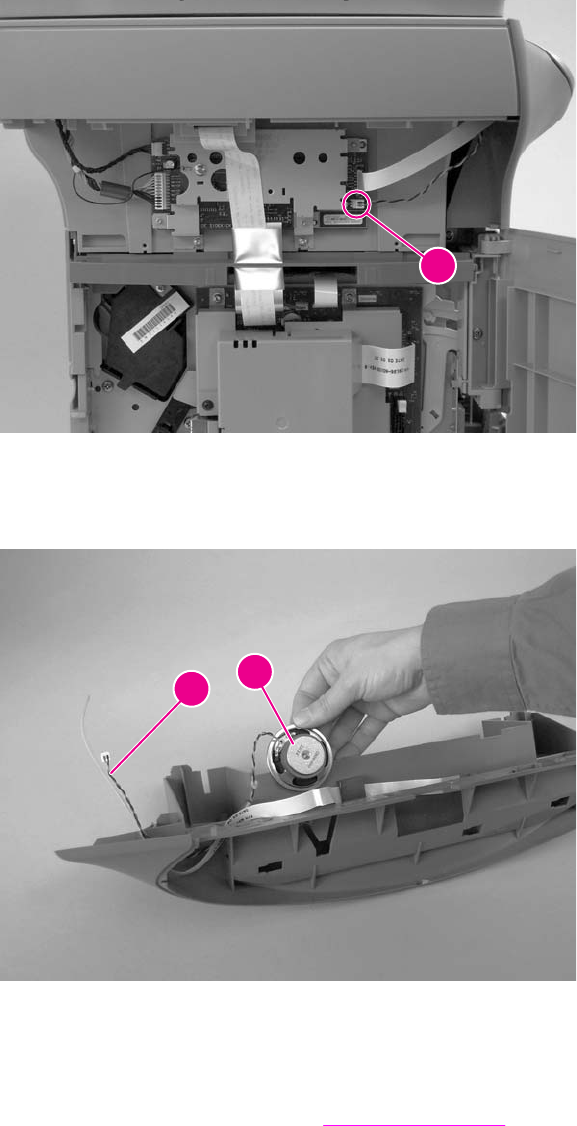
3. Disconnect the speaker cable connector (callout 1) on the scanner PCA.
1
Figure 5-30. Remove the speaker (1 of 2)
4. Unthread the speaker cable (callout 2) from the back of the control-panel chassis, and
slide the speaker out (callout 3).
23
Figure 5-31. Remove the speaker (2 of 2)
Scanner PCA
1. Remove the left scanner cover. See Scanner side covers.
ENWW Scanner assemblies 115
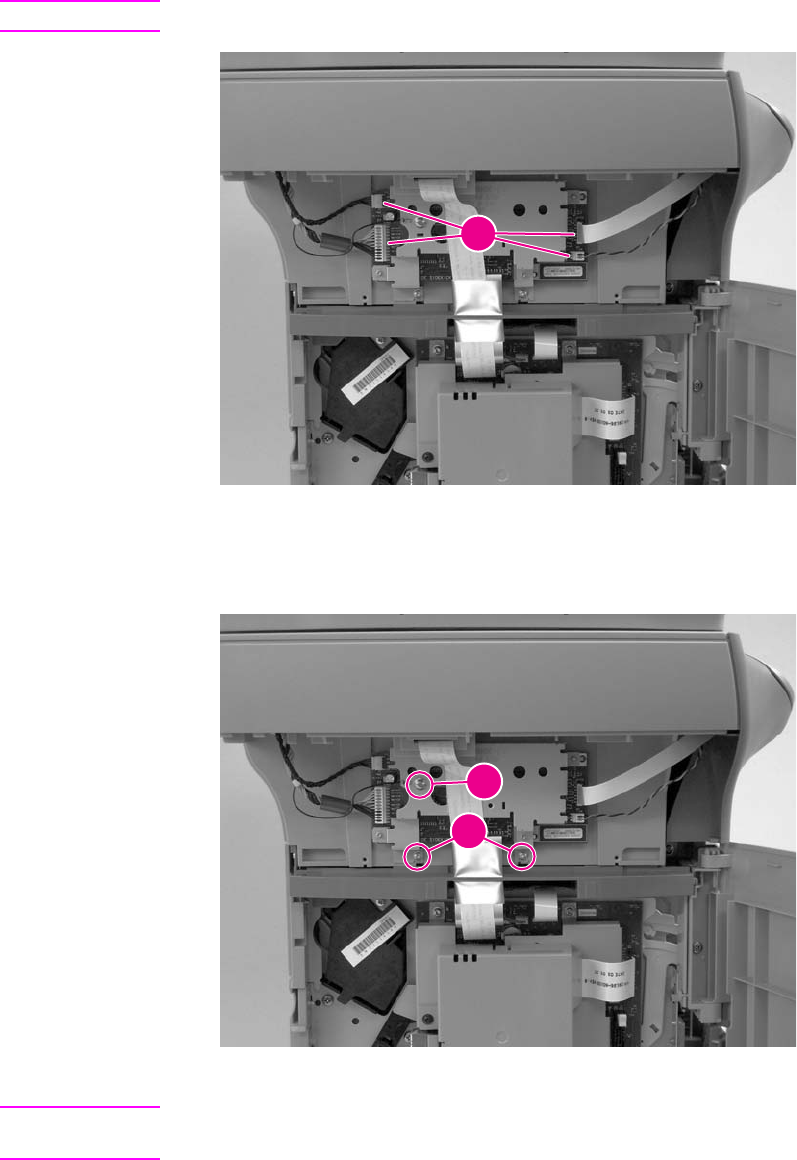
2. Disconnect four cables from the scanner PCA (callout 1).
CAUTION Do not bend or fold the FFCs during the removal or reinstallation process.
1
Figure 5-32. Remove the scanner PCA (1 of 3)
3. Remove the screw shown in callout 2, and remove the wire that it holds in place.
4. Remove the two screws shown in callout 3, and then remove the scanner PCA.
2
3
Figure 5-33. Remove the scanner PCA (2 of 3)
Note If the scanner and printer are not separated, disconnect the two FFCs at the top of the
formatter before removing the scanner PCA (callout 4).
116 Chapter 5 Removal and replacement ENWW
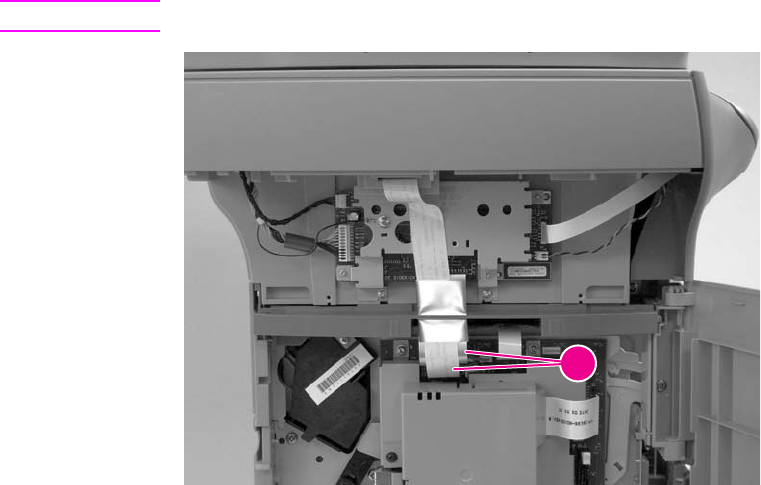
CAUTION Do not bend or fold the FFCs during the removal or reinstallation process.
4
Figure 5-34. Remove the scanner PCA (3 of 3)
ENWW Scanner assemblies 117
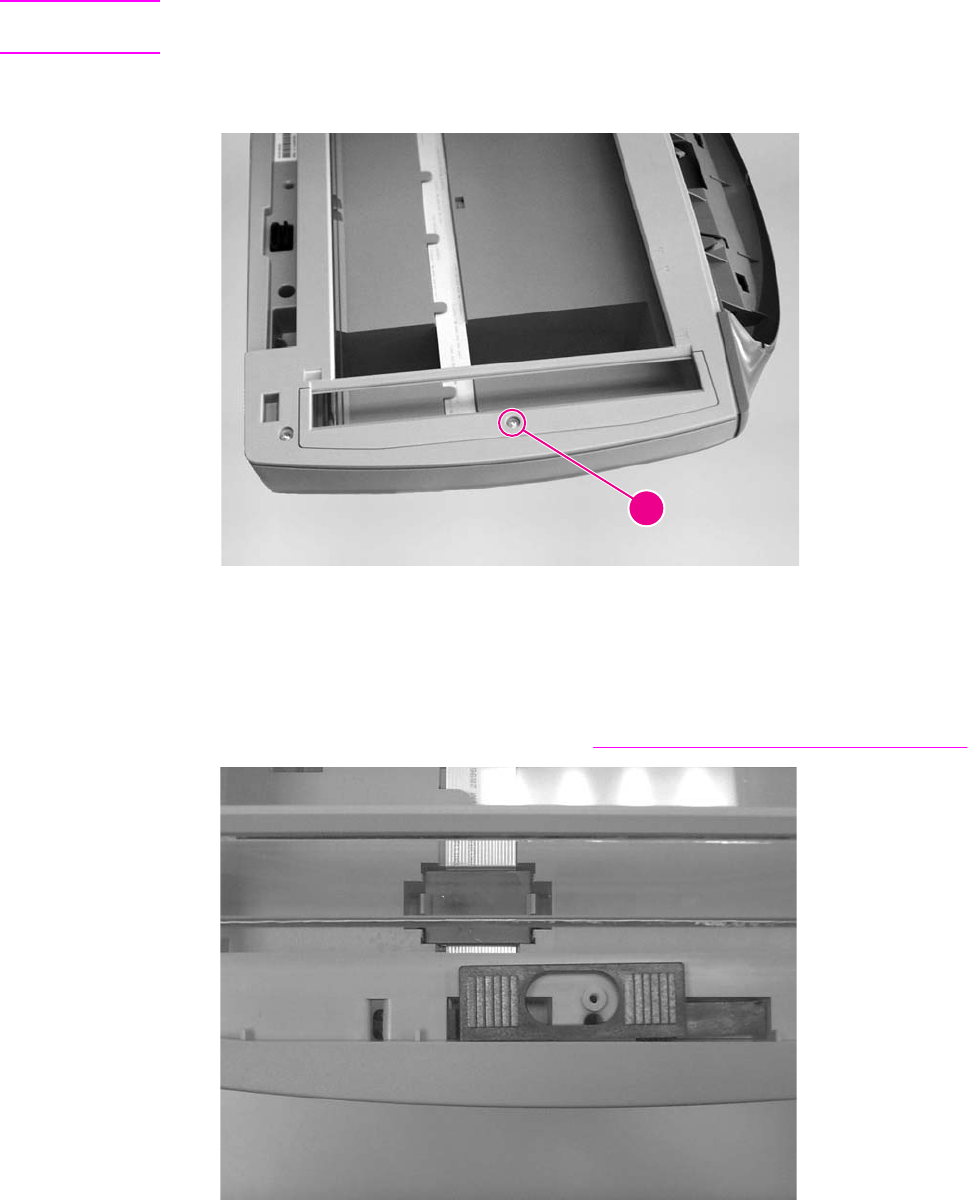
ADF scanner glass
CAUTION Avoid touching the flatbed glass or the ADF separation pad. Skin oils and fingerprints can
contaminate the glass or pad and cause print-quality problems.
1. Remove one screw (callout 1), lift out the plastic ADF scanner-glass frame, and then lift
out the glass.
1
Figure 5-35. Remove the ADF scanner glass
Reinstallation tip
Replace the glass first, and then install the frame. Make sure the lock mechanism is in the
released position. Press down on the frame and glass until the lock mechanism snaps
back into the locked position, as shown in Figure 5-36. Install the ADF scanner glass.
Figure 5-36. Install the ADF scanner glass
118 Chapter 5 Removal and replacement ENWW
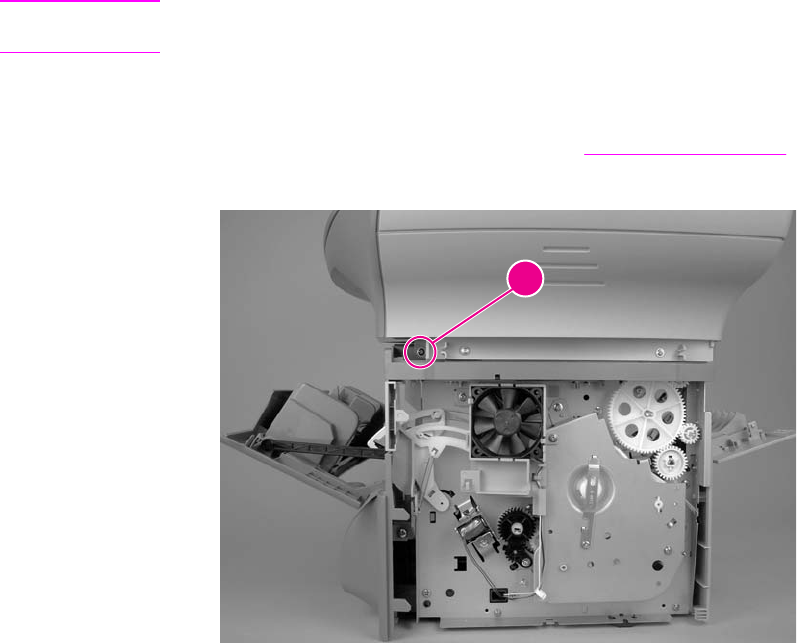
Separation of the scanner from the printer
The upper part of the HP LaserJet 3380 is, in effect, the "scanner" and the lower part is the
"printer." Together, they also act as a photocopier or fax machine, but the service description
here is simplified by referring to copier or fax functionality only when specifically necessary.
CAUTION You must unplug the printer before separating the scanner from the printer, or you might
damage both the printer and the scanner.
Separate the scanner from the printer
1. Remove the printer right-side cover. See Printer right-side cover.
2. Remove the screw on the right side of the printer (callout 1).
1
Figure 5-37. Separate the scanner from the printer (1 of 4)
ENWW Separation of the scanner from the printer 119
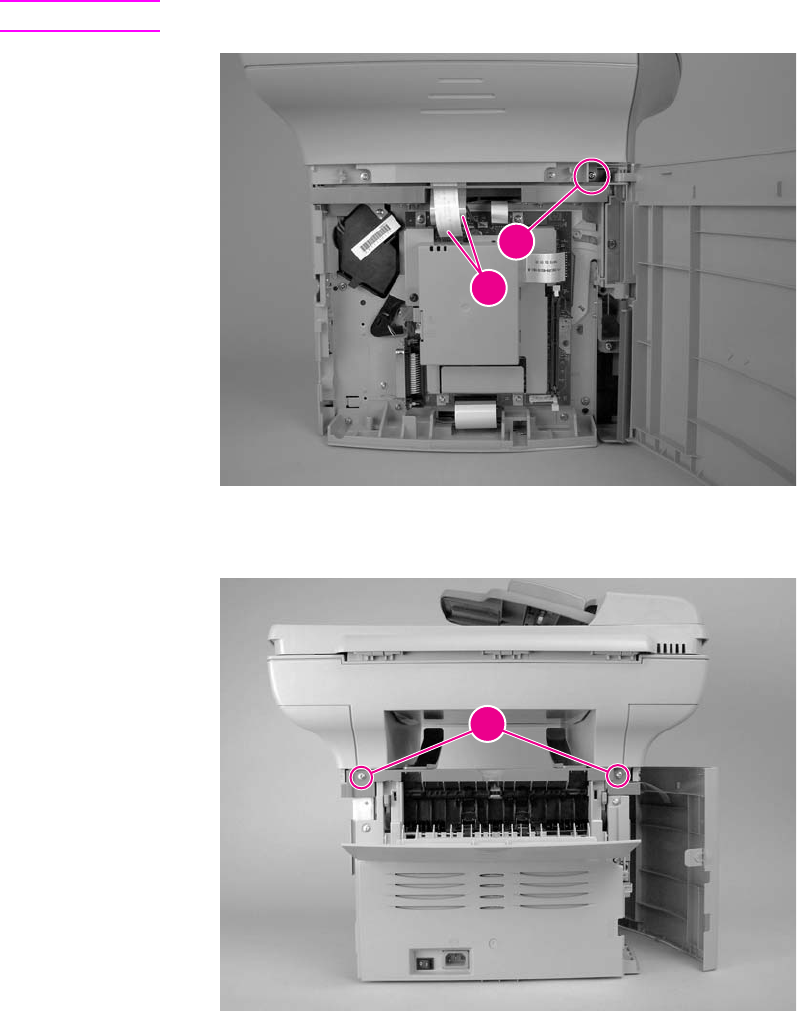
3. Open the left-side door, and remove the screw on the left side of the printer (callout 2).
Disconnect the two FFCs at the top of the formatter (callout 3).
CAUTION Do not bend or fold the FFCs during the removal or reinstallation process.
2
3
Figure 5-38. Separate the scanner from the printer (2 of 4)
4. Remove the two screws from the back of the product (callout 4).
4
Figure 5-39. Separate the scanner from the printer (3 of 4)
120 Chapter 5 Removal and replacement ENWW
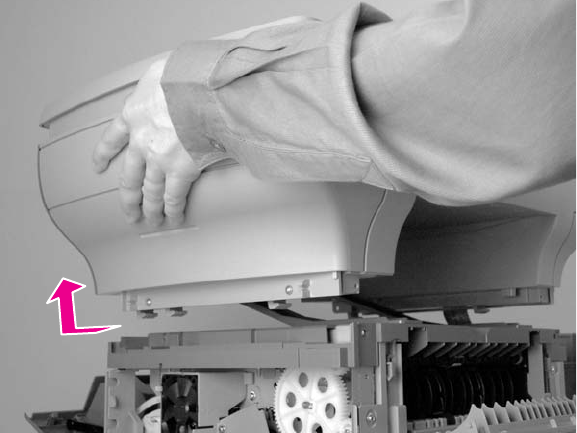
5. Slide the scanner toward the front of the product, and lift it upward to separate it from the
printer.
Figure 5-40. Separate the scanner from the printer (4 of 4)
ENWW Separation of the scanner from the printer 121
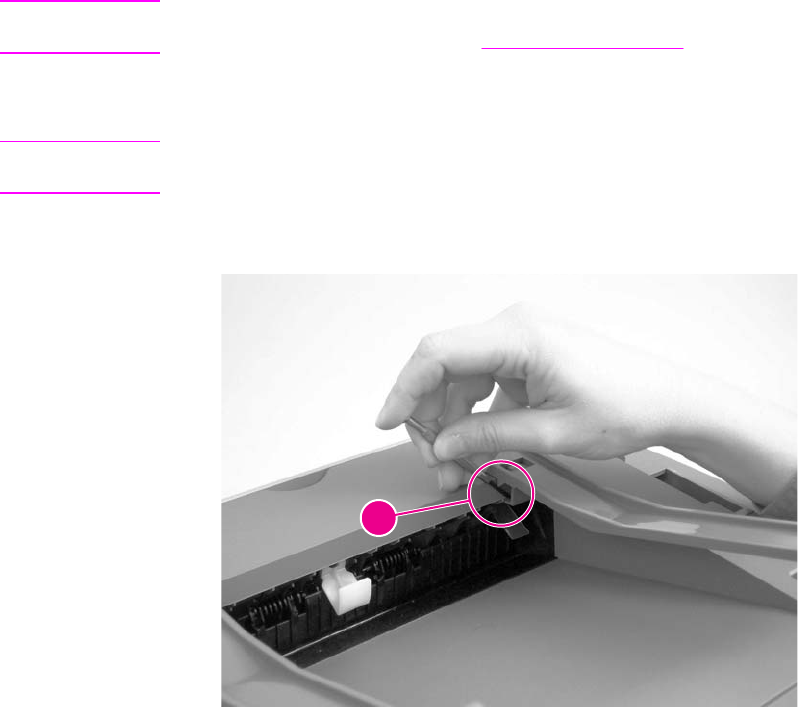
External components
This section includes the procedures to remove the height guides and the printer covers.
Note The procedure for removing the printer right-side cover is included in the section for separating
the scanner from the printer. See Printer right-side cover.
Height guides
Note This procedure can be completed without separating the scanner and printer. For clarity only,
the following steps show the scanner and printer separated.
1. Use a short, flat-blade screwdriver to gently push down on the height-guide locking tab
(callout 1).
1
Figure 5-41. Remove the height guides
2. With the locking tab depressed, slide the height guide toward the front of the product, and
then remove it.
Reinstallation tip
The height guides are marked with an R to indicate a right-side guide and an L to indicate a
left-side guide.
Left-side door
1. Open the left-side door.
122 Chapter 5 Removal and replacement ENWW
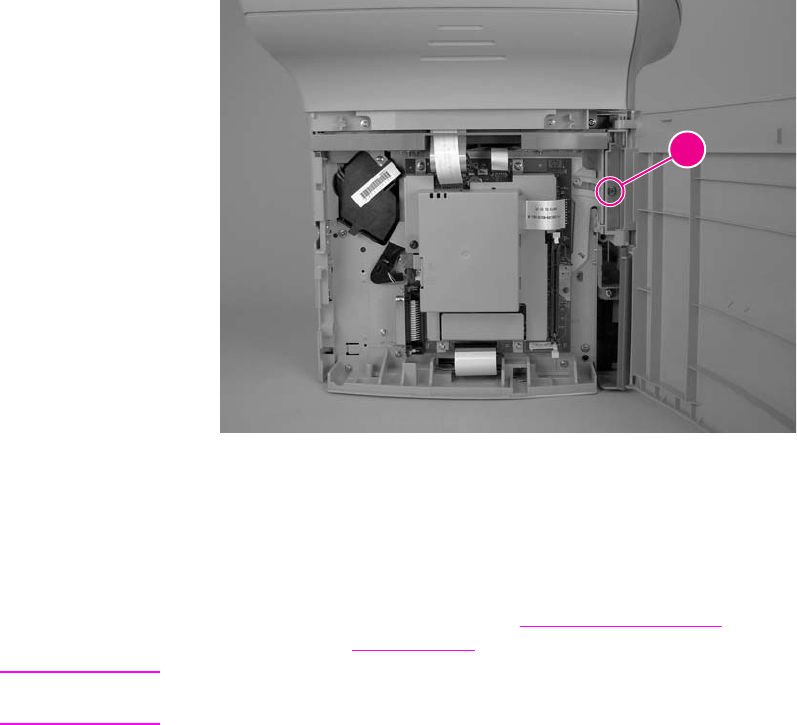
2. Remove the screw (callout 1) in the center of the door hinge.
1
Figure 5-42. Remove the left-side door
3. Lift the door away.
Back cover
1. Remove the right-side cover (see Printer right-side cover), and open or remove the left-
side door (see Left-side door).
Note The back cover can be removed without removing the left-side door, but removing the back
cover removes the support for the left-side door, which leaves it vulnerable to breakage.
2. Open the straight-through output door.
ENWW External components 123
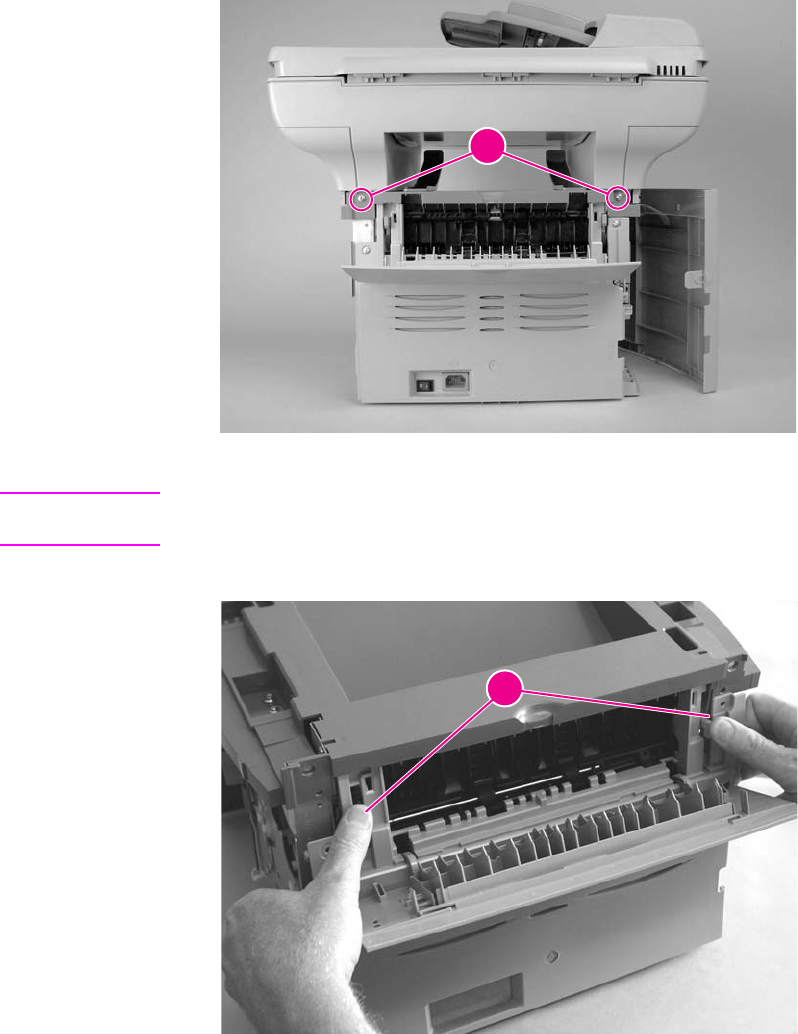
3. Remove two screws (callout 1).
1
Figure 5-43. Remove the back cover (1 of 2)
Note The back cover has two tabs (not shown): one on the side of the printer, and one on the bottom
of the printer. You can use a screwdriver to press on the side tab.
4. Press down and hold the two fuser release levers (callout 2), and pull off the back cover.
2
Figure 5-44. Remove the back cover (2 of 2)
Reinstallation tip
When reinstallilng the back cover, make sure that the two fuser release levers feed through
the slots in the back cover.
124 Chapter 5 Removal and replacement ENWW
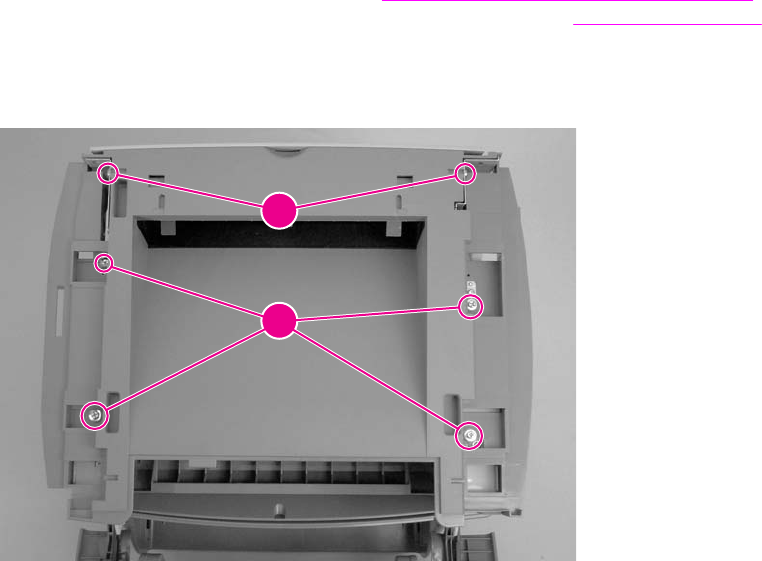
Printer top cover
1. Separate the printer from the scanner (see Separation of the scanner from the printer).
Remove the left-side door, right-side cover, and back cover (see External components),
and open the print cartridge door.
2. Remove two screws on the sides of the printer (callout 1). Remove the four large screws
on the top of the printer (callout 2), and then lift the cover off the printer.
1
2
Figure 5-45. Remove the printer top cover
Front-cover assembly
The front-cover assembly is composed of three pieces:
●the print-cartridge door
●the front cover (the frame that surrounds the main input tray)
●the front guide assembly (the internal shelf that attaches the front cover and the print-
cartridge door to the product)
Print-cartridge door
1. Open the print-cartridge door.
ENWW External components 125
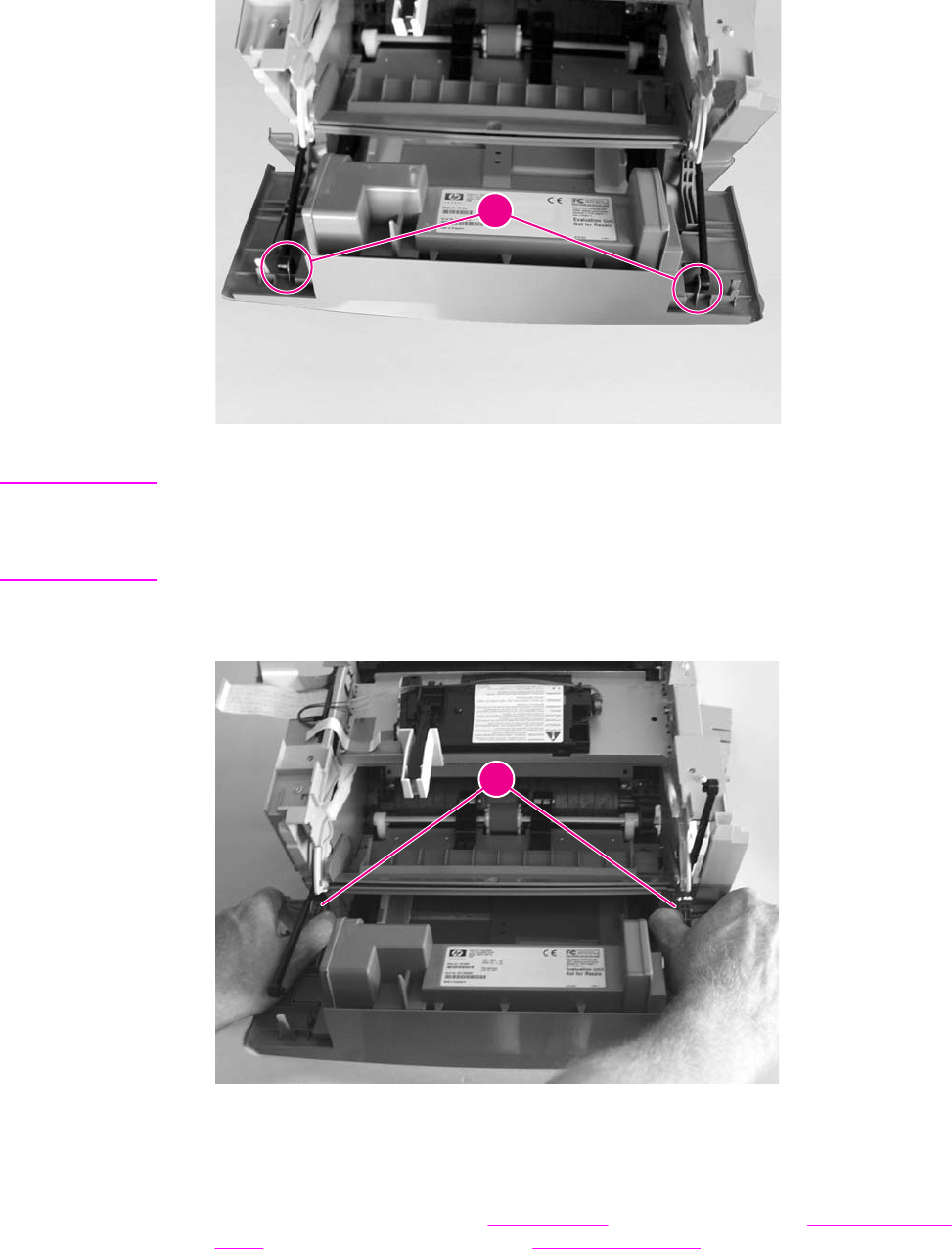
2. On both sides, pull the connecting links outward (callout 1) and disconnect them.
1
Figure 5-46. Remove the print-cartridge door (1 of 2)
CAUTION If the link arms fall back into or are pushed back into the printer when they are disconnected
from the print-cartridge door, the interlocking mechanism might come apart and require
reassembly. To avoid damage, disconnect the link arms from the print-cartridge mechanism
and set them aside.
3. Detach the print-cartridge door hinge (callout 2) on the right side by firmly flexing the hinge
arm to the right. Then rock the print-cartridge door to the left to remove it.
2
Figure 5-47. Remove the print-cartridge door (2 of 2)
Front cover
1. Remove the left-side door (see Left-side door), right-side cover (see Printer right-side
cover), and print-cartridge door (see Print-cartridge door).
126 Chapter 5 Removal and replacement ENWW
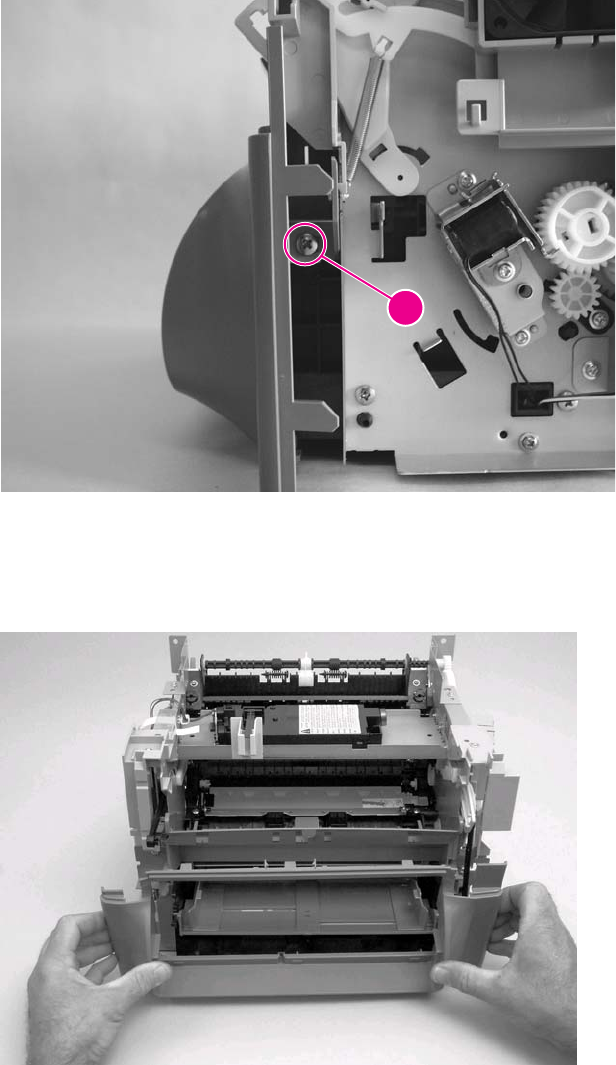
2. Loosen two screws (one shown, callout 1), one on each side of the cover.
1
Figure 5-48. Remove the front cover (1 of 2)
3. Push down on both the top-center and bottom-center of the front cover at the same time
until the top center tabs pop out of place. Keep pressure on the bottom-center of the
panel to guard against breaking the tab.
Figure 5-49. Remove the front cover (2 of 2)
4. Pull the panel forward just far enough to release the remaining tabs.
5. Rotate the bottom of the panel forward to remove it.
ENWW External components 127
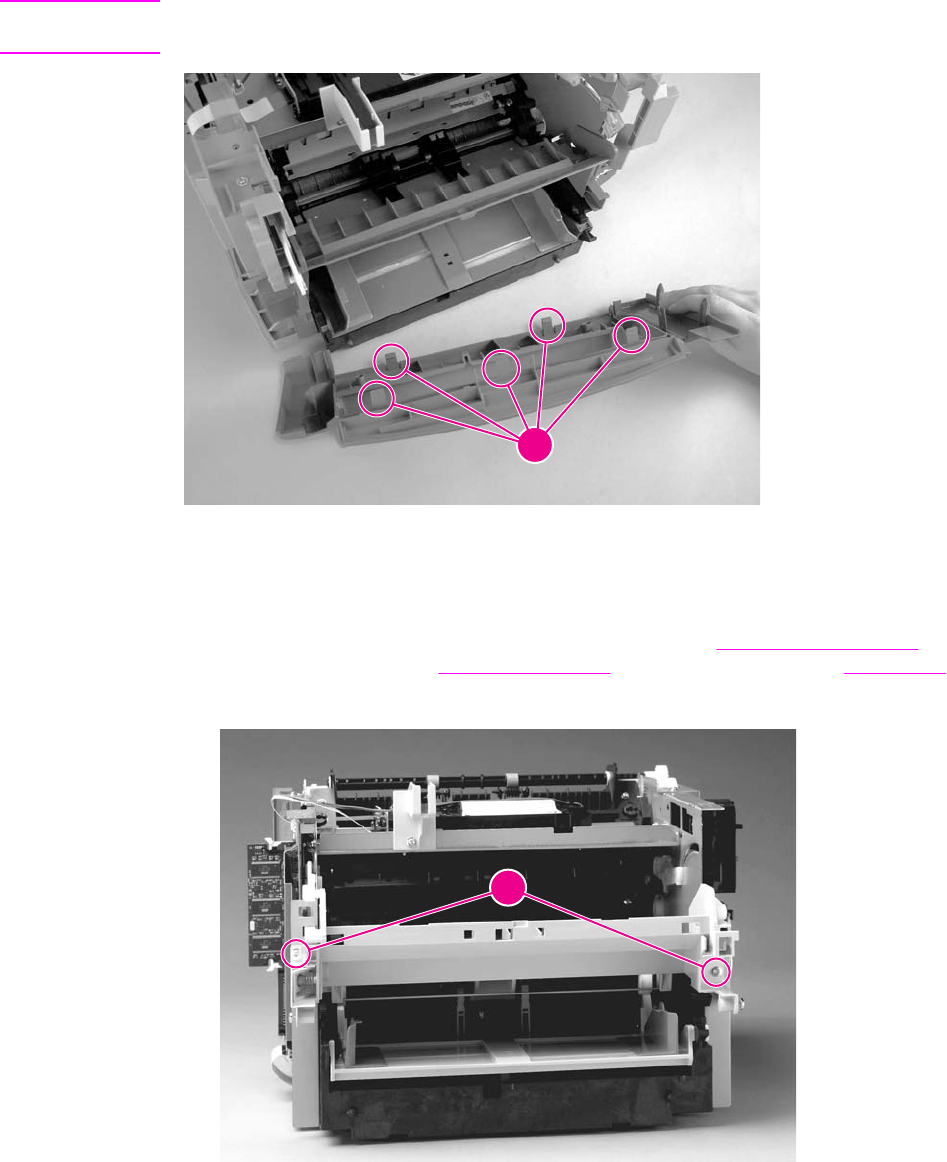
CAUTION When removing the front cover, be aware of all the tab locations to guard against breakage
(callout 2).
2
Figure 5-50. Front cover removed
Front guide assembly
1. Open the left-side door and remove the right cover (see Printer right-side cover), the
print-cartridge door (see Print-cartridge door), and the front cover (see Front cover).
2. From the front of the printer, remove two screws (callout 1).
1
Figure 5-51. Remove the front guide assembly (1 of 3)
128 Chapter 5 Removal and replacement ENWW
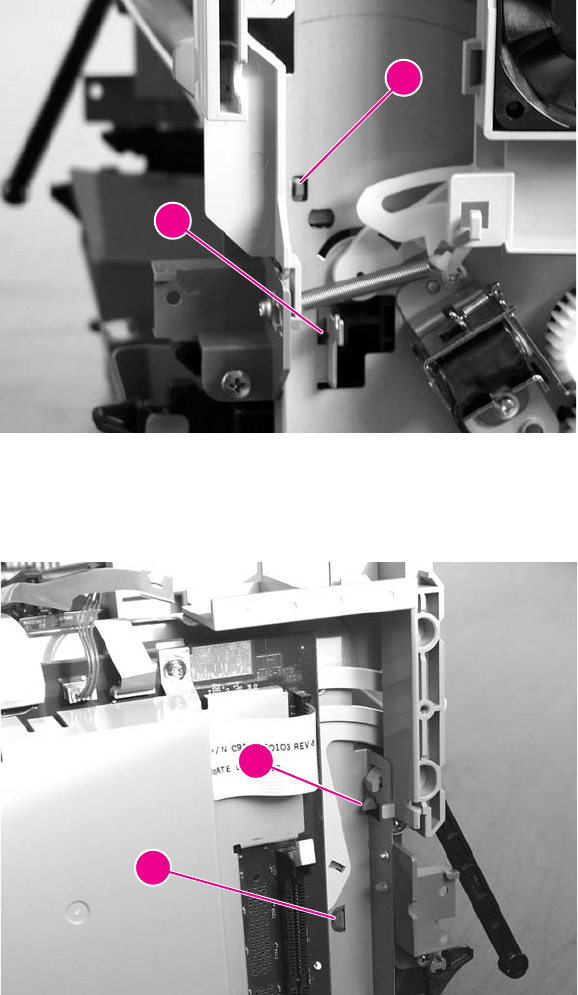
3. On the right side, release the upper tab (callout 2) and the lower tab (callout 3).
2
3
Figure 5-52. Remove the front guide assembly (2 of 3)
4. On the left side, release the upper tab (callout 2) and the lower tab (callout 3).
5. Remove the front guide assembly.
4
5
Figure 5-53. Remove the front guide assembly (3 of 3)
ENWW External components 129
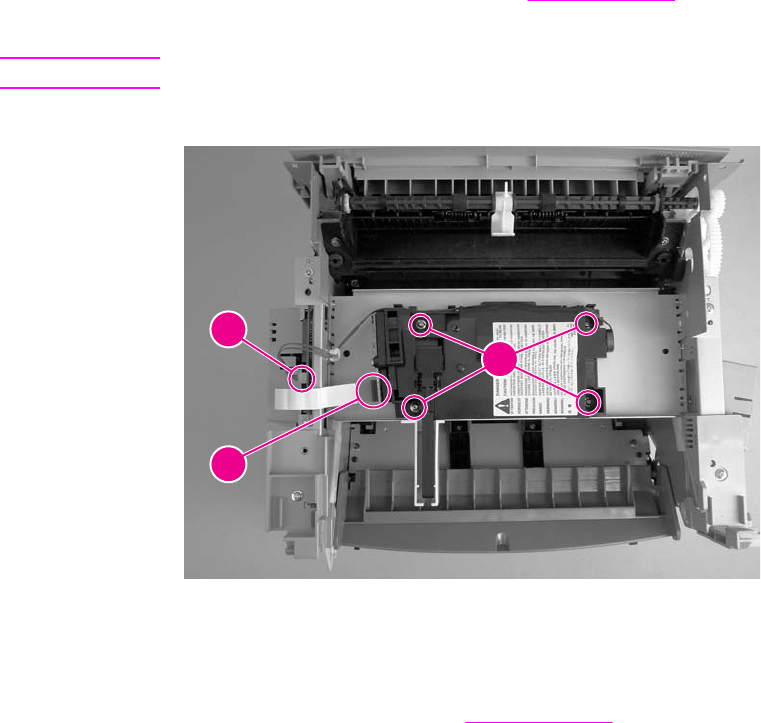
Printer assemblies
This section includes procedures to remove the major internal printer assemblies.
Laser/scanner assembly
1. Remove the printer top cover (see Printer top cover).
2. Remove one connector (callout 1), one FFC (callout 2), and four screws (callout 3).
CAUTION Do not bend or fold the FFCs during the removal or reinstallation process.
3. Remove the laser/scanner assembly.
3
1
2
Figure 5-54. Remove the laser/scanner assembly
Height flapper
1. Remove the top cover (see Printer top cover).
130 Chapter 5 Removal and replacement ENWW
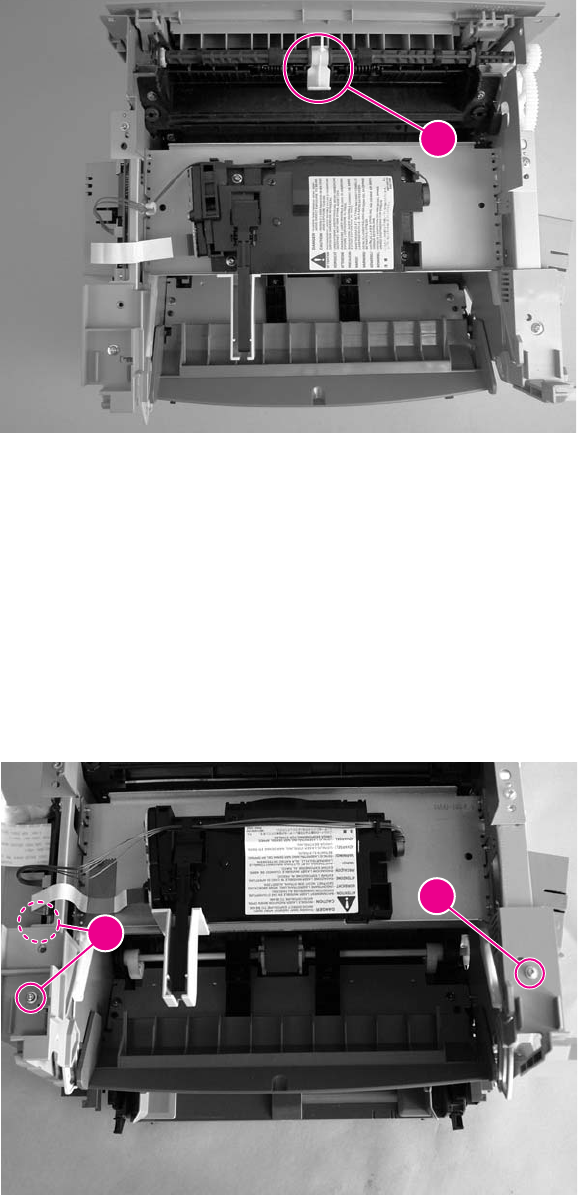
2. Grasp the height flapper and gently pry it off of the face-down roller shaft.
1
Figure 5-55. Remove the height flapper
Reinstallation tip
To install the height flapper, place the flat side down (into the printer) and firmly press down
until it snaps over the center of the face-down roller shaft.
Left and right support covers (front corner brackets)
1. Remove the two screws holding the left support cover (callout 1) and one screw holding
the right support cover (callout 2). Lift up the covers and rotate them toward the front to
remove them.
1
2
Figure 5-56. Remove the left and right support covers
ENWW Printer assemblies 131
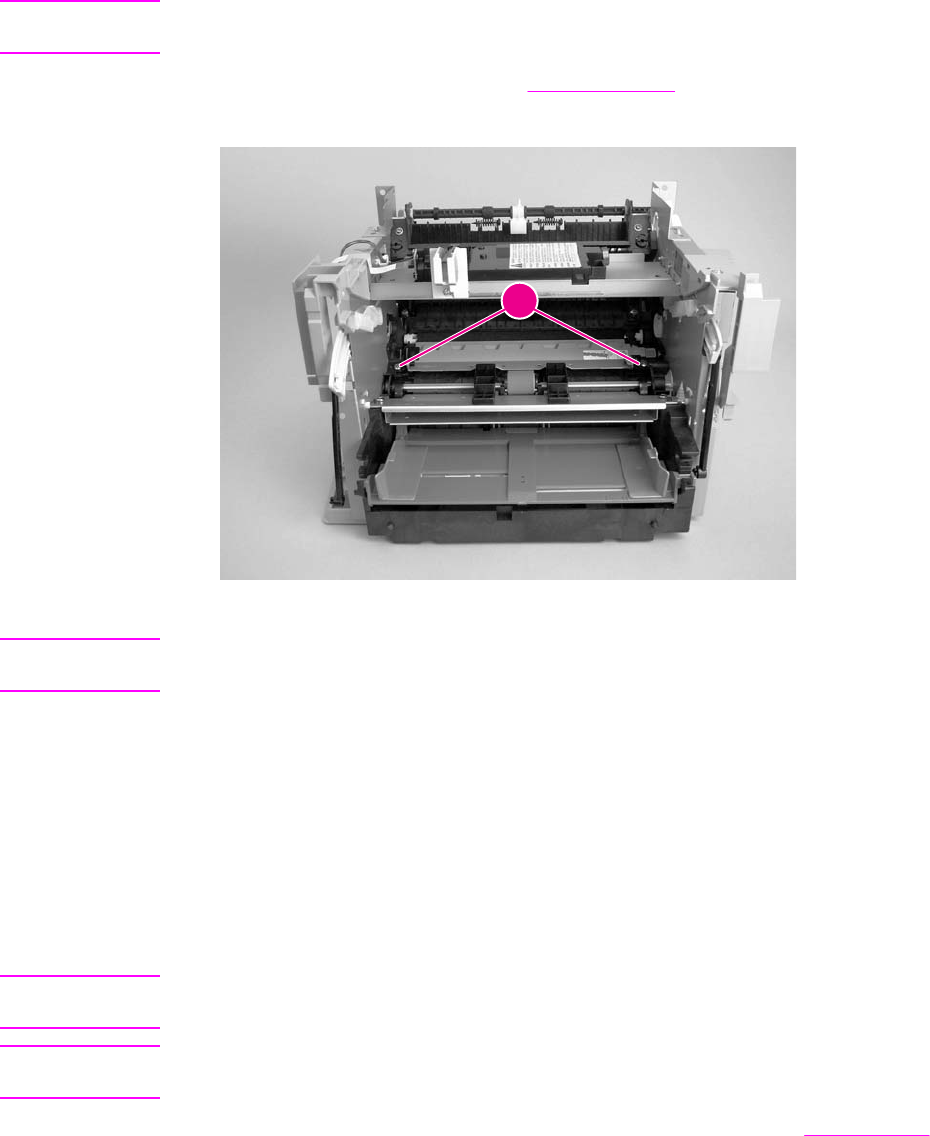
Transfer upper guide assembly
Note It is not necessary to remove the front cover assembly. For clarity only, the front cover
assembly is not shown in the following procedure.
1. Remove the printer top cover (see Printer top cover).
2. Remove two screws (callout 1).
1
Figure 5-57. Remove the transfer upper guide assembly
CAUTION Do not touch the black-sponge portion of the transfer roller. Lay a piece of paper over the
roller before working in this area.
3. Lift the transfer upper guide assembly up and out of the printer.
Reinstallation tip
When installing the transfer upper guide assembly, install the right-side of the guide first to
prevent it from lifting up during installation and to ensure that the tip of the ESD grounding
spring is properly seated.
Transfer roller
CAUTION Do not touch the black-sponge portion of the transfer roller. Lay a piece of paper over the
roller before working in this area.
Note A small grounding spring is located underneath the right side of the transfer roller. Do not
misplace this grounding spring.
1. Open the print-cartridge door, and remove the print cartridge (see Print cartridge).
2. Use needle-nose pliers to gently squeeze the two small tabs on the transfer roller.
132 Chapter 5 Removal and replacement ENWW

3. Lift the transfer roller up, slide it to the right, and lift it out of the printer.
Figure 5-58. Remove the transfer roller
Line interface unit (LIU)
1. Open or remove the left-side door (see Left-side door).
2. Remove one screw (callout 1) at the left of the formatter board.
3. Disconnect the flat flexible cable (FFC) (callout 2) from the connector.
CAUTION Do not bend or fold the FFCs during the removal or reinstallation process.
4. Rotate the mounting-screw side of the LIU away from the formatter, and then disengage
the mounting hook.
2
1
Figure 5-59. Remove the LIU (1 of 2)
ENWW Printer assemblies 133
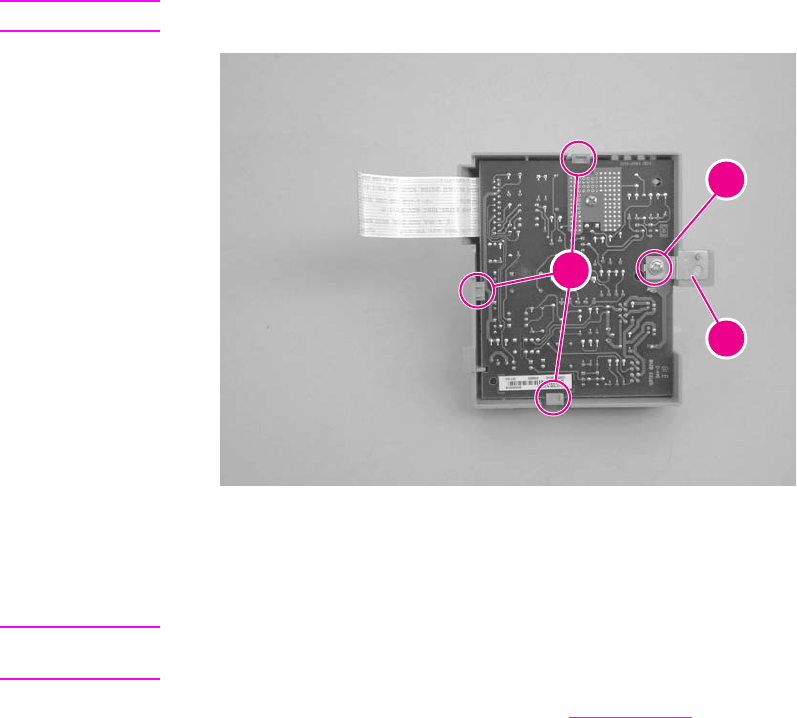
5. To separate the LIU PCA from the cover, turn the LIU over, remove the screw (callout 3),
and then pry the tabs open (callout 4). Slide the LIU PCA out of the cover.
Note Be careful not to misplace the LIU groundstrap (callout 5).
3
5
4
Figure 5-60. Remove the LIU (2 of 2)
Formatter
Note Removal of the LIU is not necessary to remove the formatter. However, it might make
reinstallation easier.
1. Open or remove the left-side door (see Left-side door).
134 Chapter 5 Removal and replacement ENWW
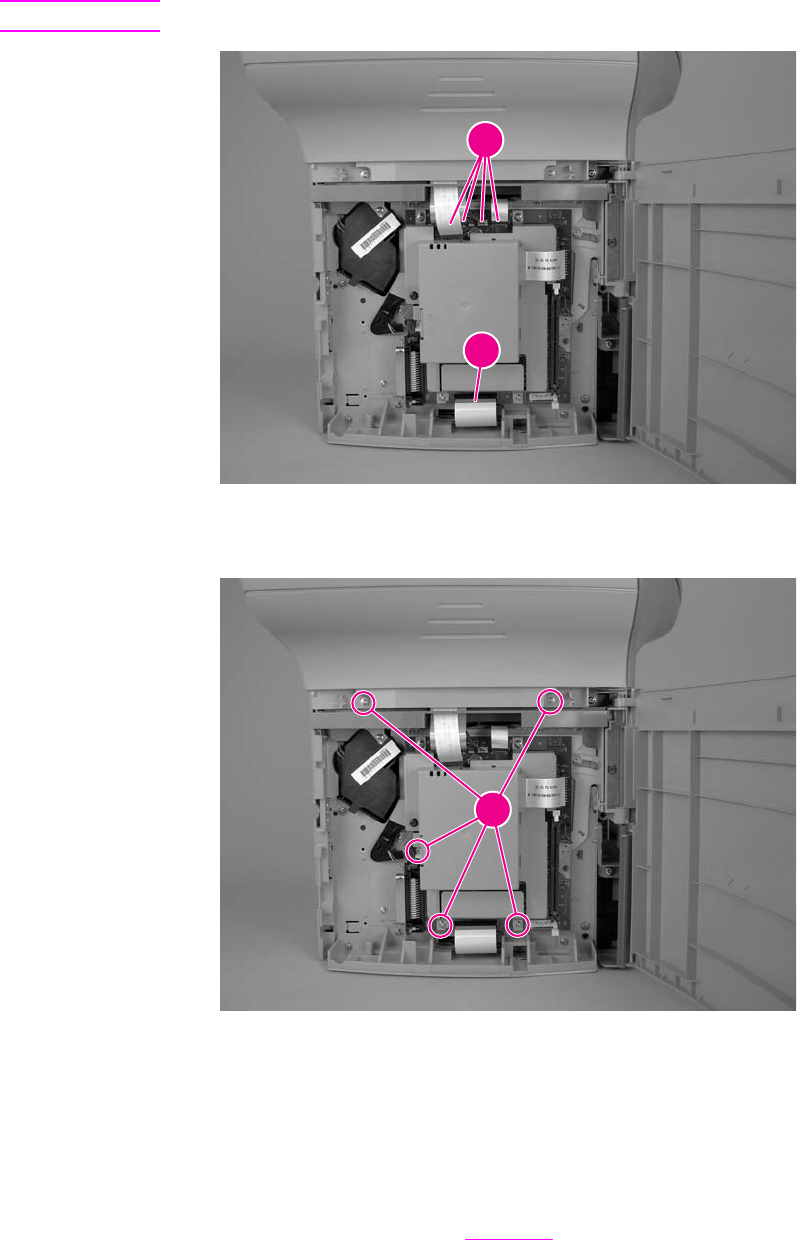
2. At the bottom of the formatter, disconnect the FFC (callout 1). Along the top of the
formatter, disconnect the three FFCs and one wire connector (callout 2) .
CAUTION Do not bend or fold the FFCs during the removal or reinstallation process.
2
1
Figure 5-61. Remove the formatter (1 of 3)
3. Remove five screws (callout 3).
3
Figure 5-62. Remove the formatter (2 of 3)
4. Rotate the bottom of the formatter up and off of the hooks on the chassis and remove it.
Left bottom frame support
1. Open the left-side door.
2. Remove the formatter. See Formatter.
ENWW Printer assemblies 135
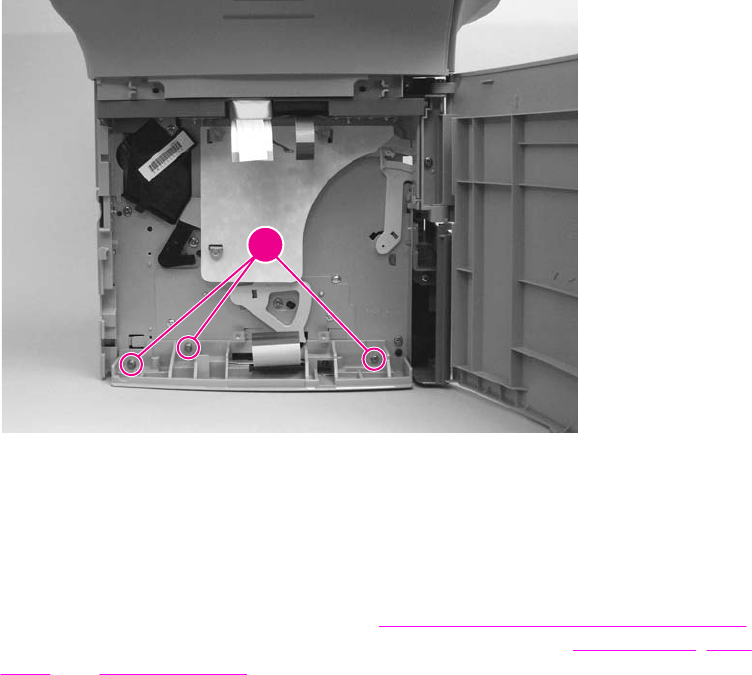
3. Remove three screws (callout 1).
1
Figure 5-63. Remove the left bottom frame support
4. Remove the left bottom frame support.
Fuser assembly
1. Separate the scanner from the printer (see Separation of the scanner from the printer) and
remove the left side door, back cover, and printer top cover (see Left-side door, Back
cover, and Printer top cover).
2. Remove two screws (callout 1) from the right-side fuser support plate.
136 Chapter 5 Removal and replacement ENWW
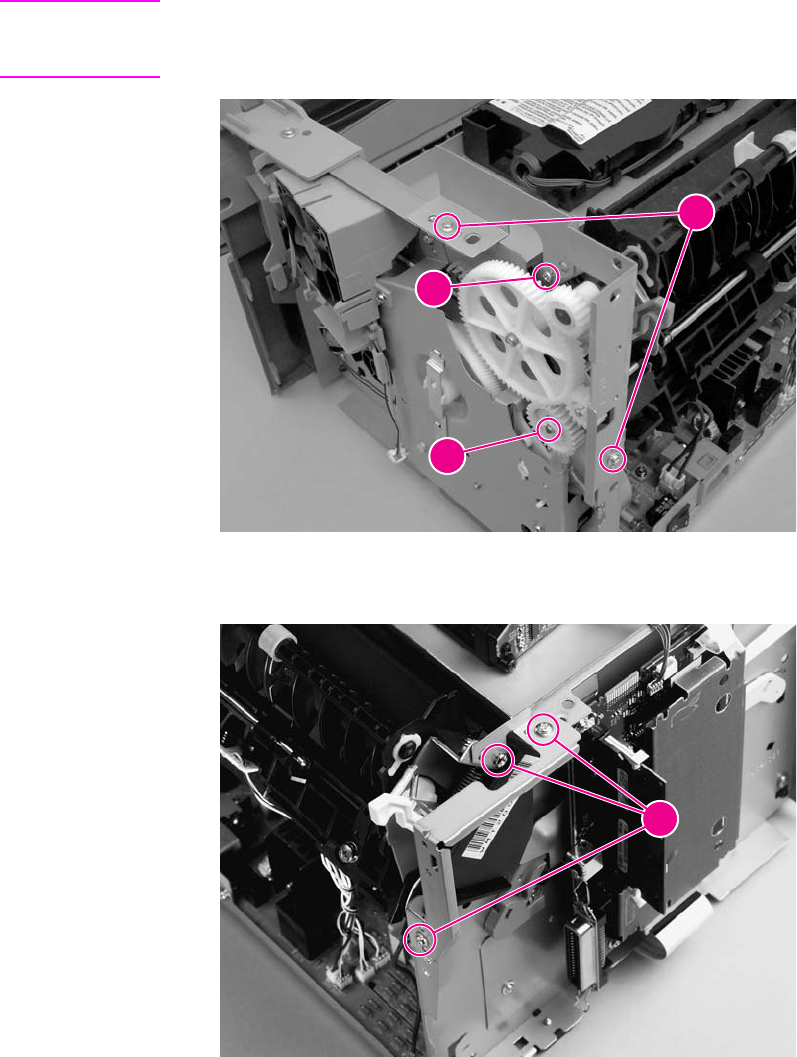
3. Remove a third screw (callout 2) from behind the large gear on the right-side fuser plate,
and remove it.
Note You can gain access to the third screw through the holes in the large, 69T gear. If you need to
realign the 69T gear, you must first remove the pressure-roller gear. Release the tab (callout
3), and remove the pressure-roller gear.
1
2
3
Figure 5-64. Remove the fuser assembly (1 of 4)
4. Remove three screws (callout 4) from the left-side fuser plate and remove it.
4
Figure 5-65. Remove the fuser assembly (2 of 4)
ENWW Printer assemblies 137
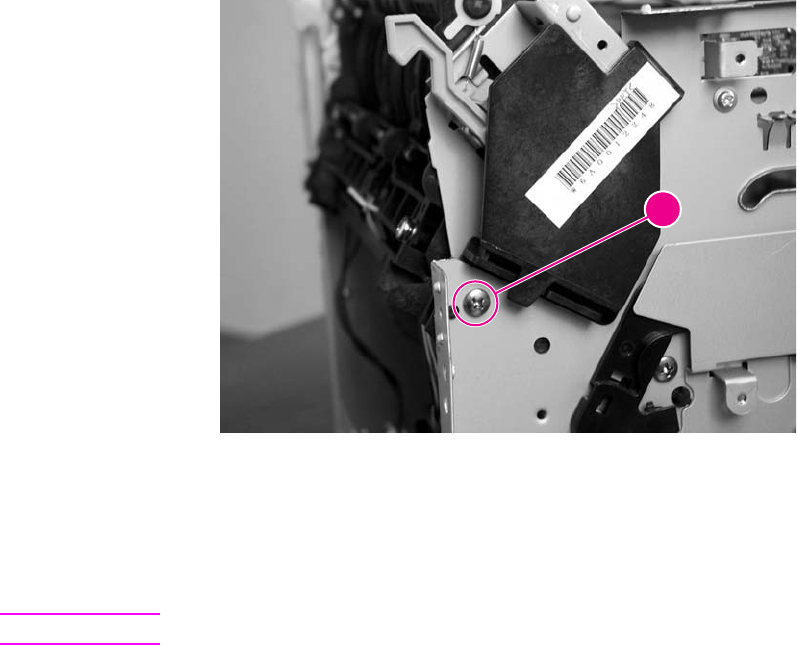
5. Remove two screws (one shown in callout 5), one from each side of the printer.
5
Figure 5-66. Remove the fuser assembly (3 of 4)
6. Unplug the fuser cable connector (callout 6) by pressing and releasing the tab on the back
of the connector.
7. Remove one screw (callout 7) from the paper-delivery sensor, and lift out the paper-
delivery sensor.
Note The paper-delivery sensor is included with a replacement fuser.
8. Unplug the spade connector (callout 8).
9. Unplug five smaller cable connectors (callout 9) from the ECU, and unwind the cables from
the fuser assembly.
138 Chapter 5 Removal and replacement ENWW
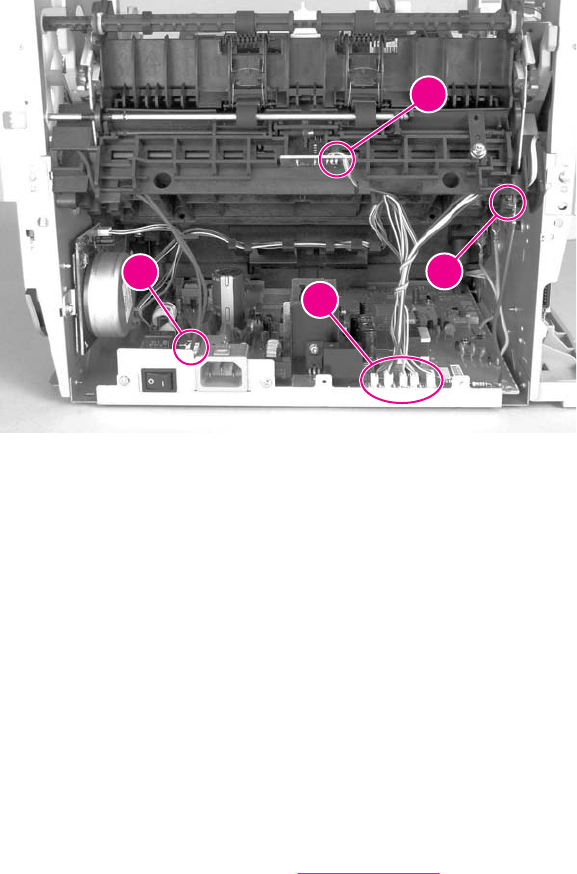
10. Pull the printer frame outward on both sides, and gently lift out the fuser assembly. The
left and right fuser plates are detached when the fuser is removed.
698
7
Figure 5-67. Remove the fuser assembly (4 of 4)
Reinstallation tip
Remove the large gear from the end of the fuser assembly, return the fuser assembly to
the chassis, and replace the large gear.
Output rollers
The product has two output rollers:
●face-down delivery assembly
●face-up roller
Face-down delivery assembly (output roller)
1. Remove the fuser assembly (see Fuser assembly).
ENWW Printer assemblies 139
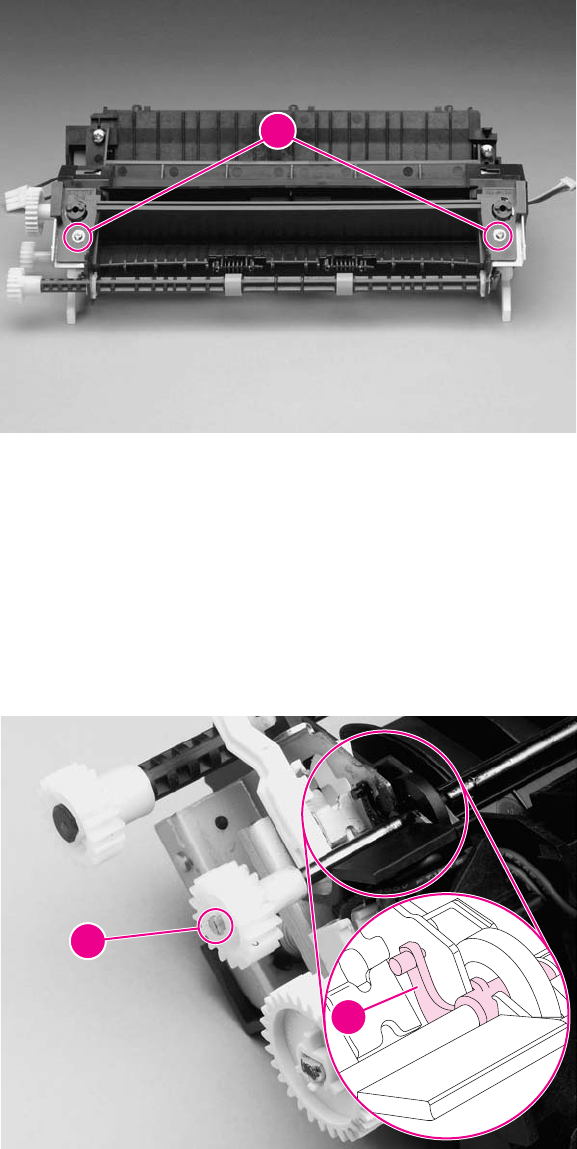
2. Remove two screws (callout 1) on the fuser, and lift the face-down delivery assembly
away from the fuser assembly.
1
Figure 5-68. Remove the output rollers (1 of 2)
Face-up roller (output roller)
1. Turn the fuser assembly over.
2. Remove the gear (callout 1) from the face-up roller, and release the tab (callout 2) on the
face-up roller bushing.
3. Rotate the face-up roller bushing forward until the pin releases.
4. Slide the face-up roller away from the gear side, and lift it out of the fuser assembly.
1
2
Figure 5-69. Remove the output rollers (2 of 2)
Reinstallation tip
Flex the face-up roller bushing to pop the pin into place.
140 Chapter 5 Removal and replacement ENWW
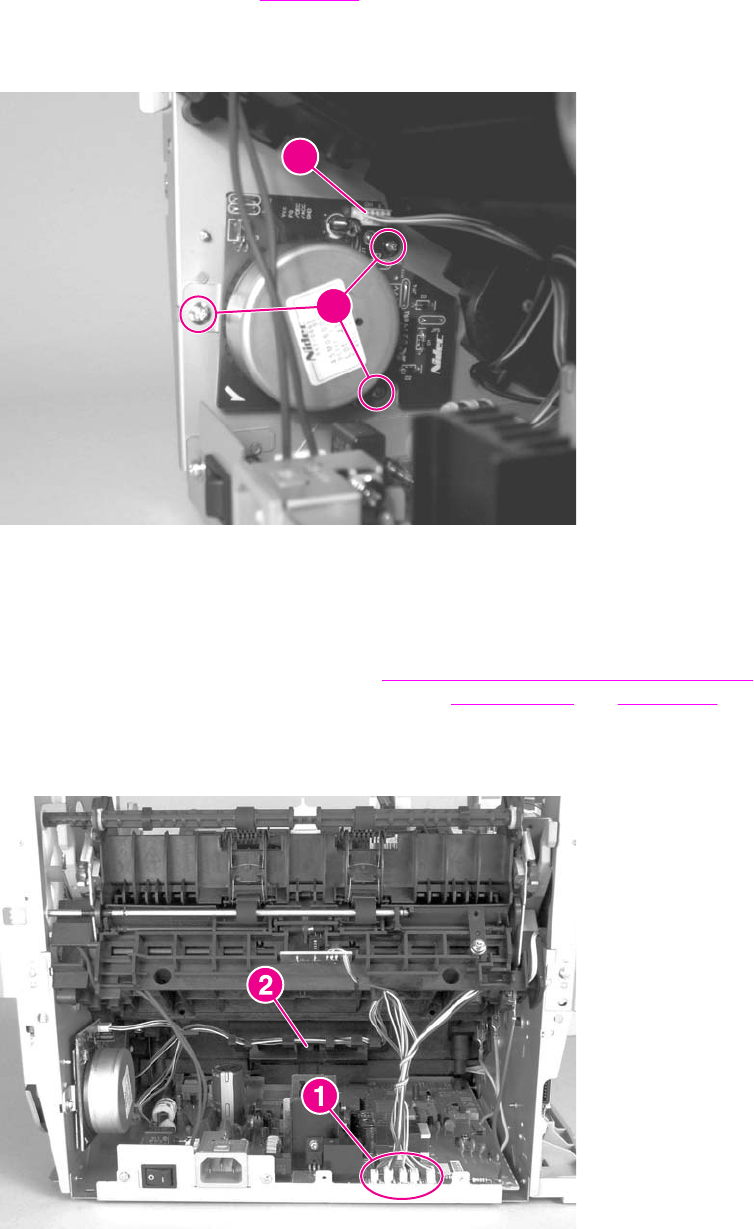
Stepping motor
1. Remove the back cover (see Back cover).
2. Disconnect the motor cable connector (callout 1) on the side of the motor.
3. Remove the three screws (callout 2) from the motor and then remove the motor.
1
2
Figure 5-70. Remove the stepping motor
Solenoid
1. Separate the scanner from the printer (see Separation of the scanner from the printer),
and remove the left-side door and back cover (see Left-side door and Back cover).
2. Unplug five cable connectors (callout 1) from the ECU, and unwind the bundle of cables.
3. Carefully unwind the cables from the cable guides (callout 2).
Figure 5-71. Remove the solenoid (1 of 2)
ENWW Printer assemblies 141
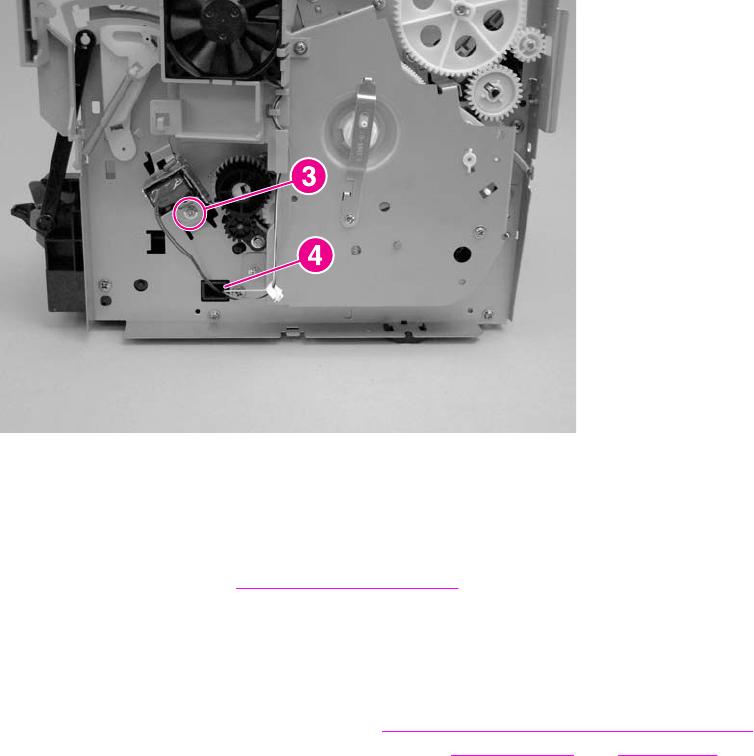
4. Remove the screw (callout 3) on the solenoid.
5. Gently thread the solenoid cable through the hole (callout 4) in the right-side plate.
6. Lift off the solenoid.
Figure 5-72. Remove the solenoid (2 of 2)
Reinstallation tip
If you have trouble rerouting the cables through the hole (callout 2) in the right-side plate,
remove the ECU pan (see ECU fuses and ECU pan) before rerouting the cables through
the hole.
Fan assembly
1. Separate the scanner from the printer (see Separation of the scanner from the printer )
and remove the left-side door and back cover (see Left-side door and Back cover).
2. Unplug the five cable connectors (callout 1) from the ECU, and unwind the bundle of
cables.
142 Chapter 5 Removal and replacement ENWW
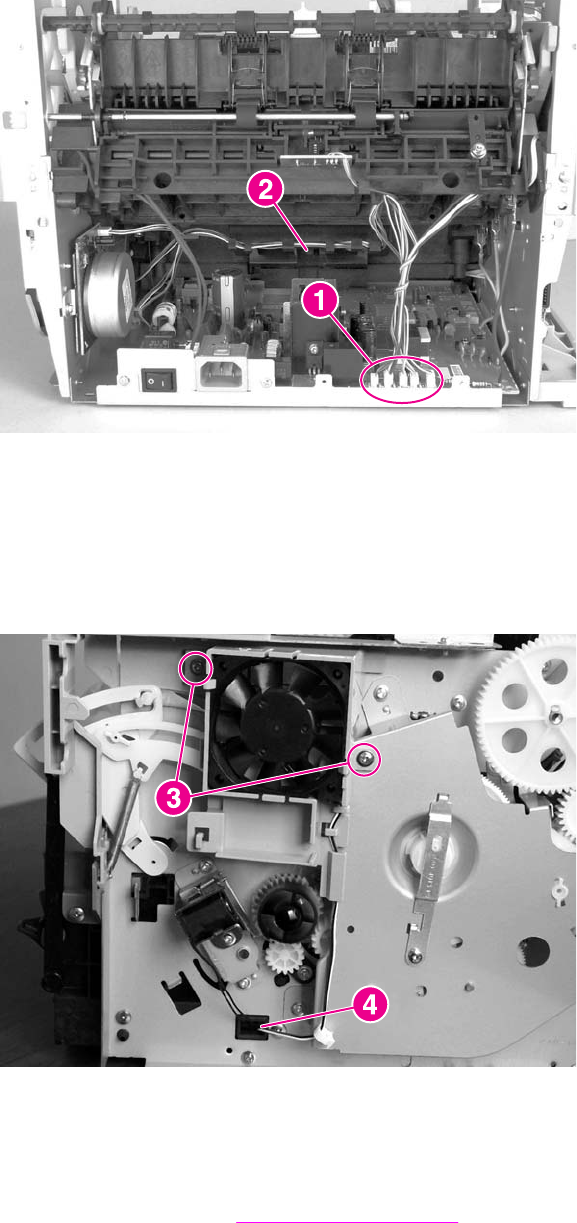
3. Carefully unwind the cables from the cable guides (callout 2).
Figure 5-73. Remove the fan (1 of 2)
4. Remove two screws (callout 3).
5. Remove the fan assembly.
6. Gently thread the fan cable through the hole (callout 4) in the right-side plate.
7. Remove the fan assembly.
Figure 5-74. Remove the fan (2 of 2)
Reinstallation tip
If you have trouble rerouting the cables through the hole (callout 4) in the right-side plate,
remove the ECU pan (see ECU fuses and ECU pan) before rerouting the cables through
the hole.
ENWW Printer assemblies 143
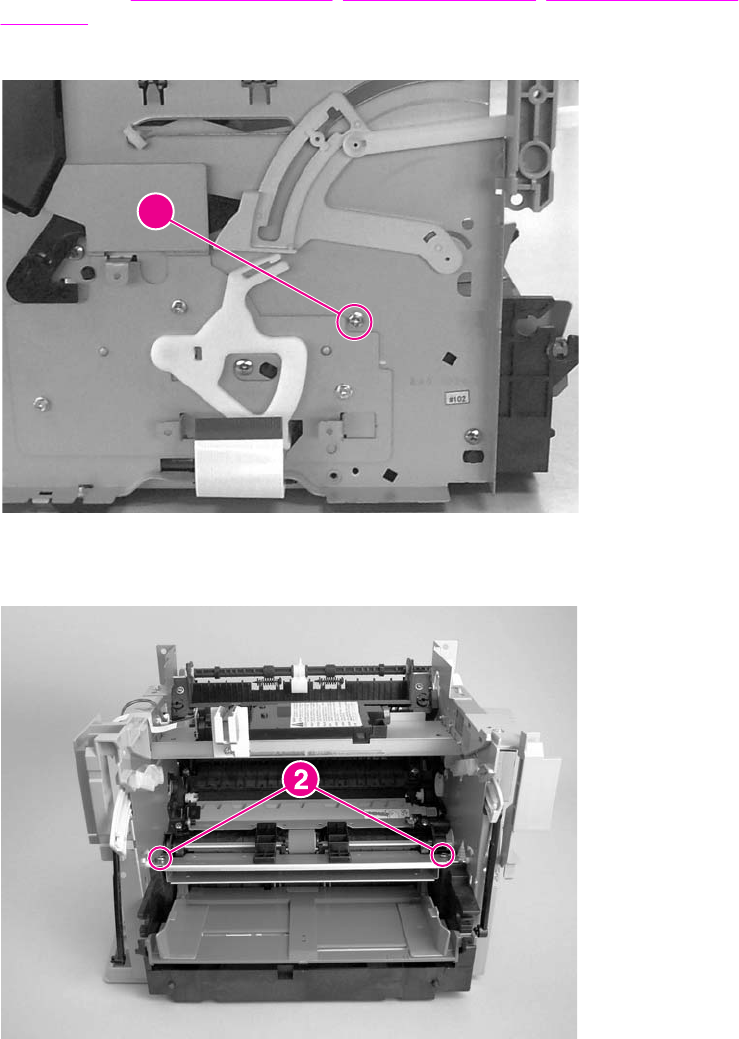
Pickup assembly
1. Remove the right-side cover, print-cartridge door, front cover, front-guide assembly, and
formatter (see Printer right-side cover, Front-cover assembly, Front guide assembly, and
Formatter).
2. Remove one screw (callout 1).
1
Figure 5-75. Remove the pickup assembly (1 of 3)
3. Remove two screws (callout 2) on the top of the upper metal shield.
Figure 5-76. Remove the pickup assembly (2 of 3)
4. Lift the upper metal shield (callout 3) straight up, and remove it.
144 Chapter 5 Removal and replacement ENWW
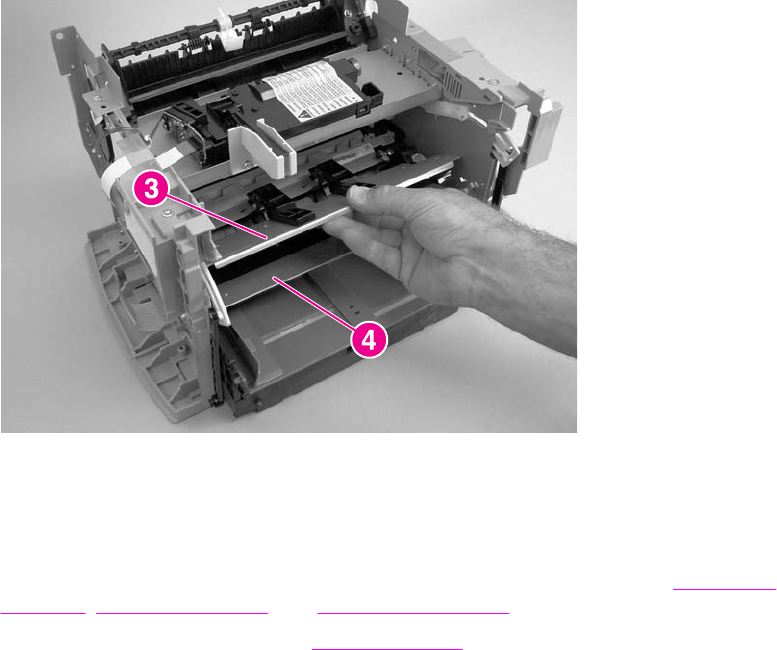
5. Lift the lower metal shield (callout 4) straight up, and remove it.
Figure 5-77. Remove the pickup assembly (3 of 3)
Paper lift-plate assembly and pickup roller shaft
1. Remove the front cover, print-cartridge door, and front guide assembly (see Front-cover
assembly, Print-cartridge door, and Front guide assembly).
2. Remove the pickup assembly (see Pickup assembly).
ENWW Printer assemblies 145
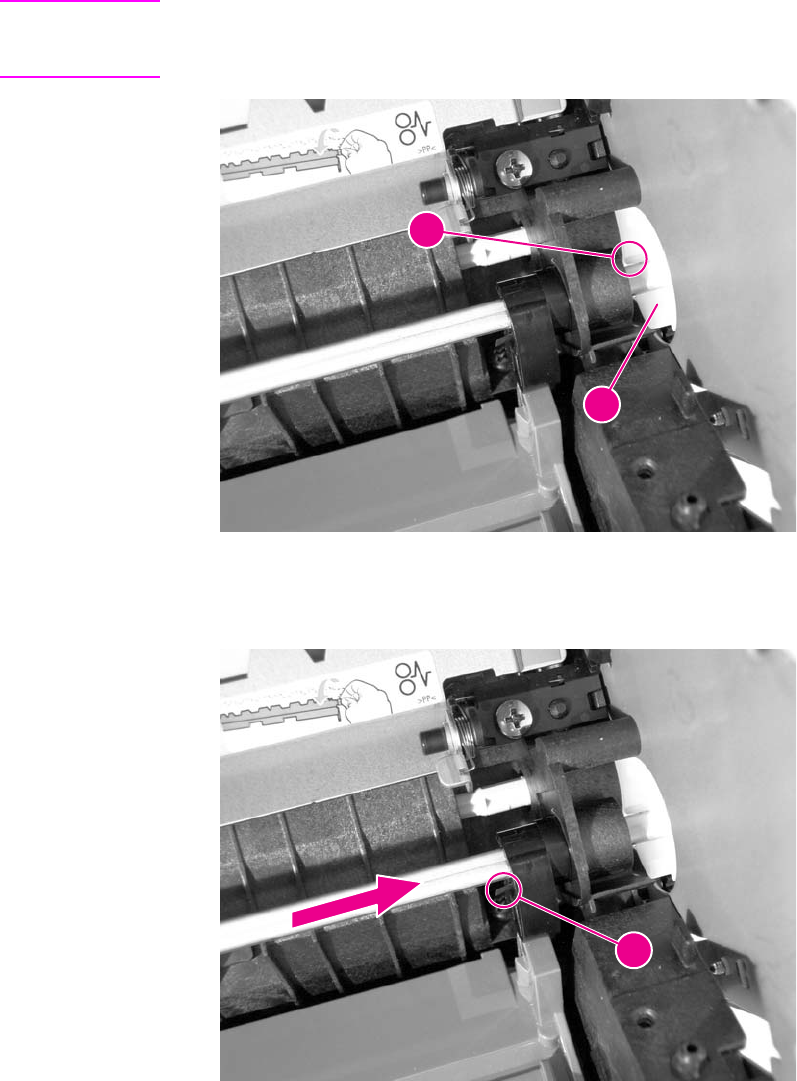
3. Remove the solenoid clutch gears (callout 1) by releasing the locking tab inside of the
printer (callout 2) and sliding the gears off of the shaft and away from the left side of the
product.
CAUTION The solenoid clutch gear assembly is made up of two gears with a small compression spring
between them. Do not separate these gears when removing them or you might lose the
spring.
1
2
Figure 5-78. Remove the paper lift-plate assembly (1 of 4)
4. Release the locking tab (callout 3) on the pickup-roller shaft and slide the shaft toward the
right until the left end releases.
3
Figure 5-79. Remove the paper lift-plate assembly (2 of 4)
146 Chapter 5 Removal and replacement ENWW

5. Carefully angle the left end of the shaft toward the back of the product.
Figure 5-80. Remove the paper lift-plate assembly (3 of 4)
6. Flip up the paper lift-plate and lift it straight up to remove it.
Figure 5-81. Remove the paper lift-plate assembly (4 of 4)
ENWW Printer assemblies 147
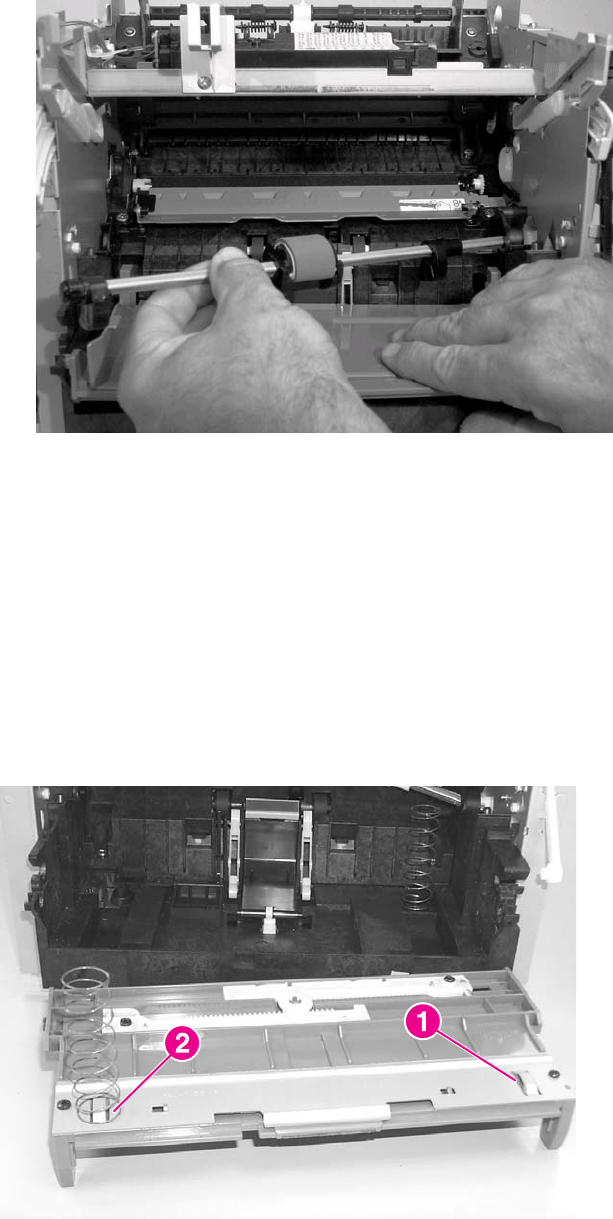
7. If you want to remove the pickup roller shaft, carefully angle the left side outward.
Figure 5-82. Remove the pickup roller shaft
Reinstallation tip
Be sure that the clutch on the pickup roller shaft is aligned with the follower (the large
plastic tab) on the paper lift-plate.
To reinstall the paper lift-plate assembly
Make sure that the vertical paper sensor (the narrow, black, plastic piece to the left of the
separation-pad arm) is in an upright position. Also, make sure that the two springs are
correctly positioned under the plate. The springs rest under the lift-plate and encircle the
metal tabs shown in the picture (callouts 1 and 2).
Figure 5-83. Paper lift-plate springs
148 Chapter 5 Removal and replacement ENWW
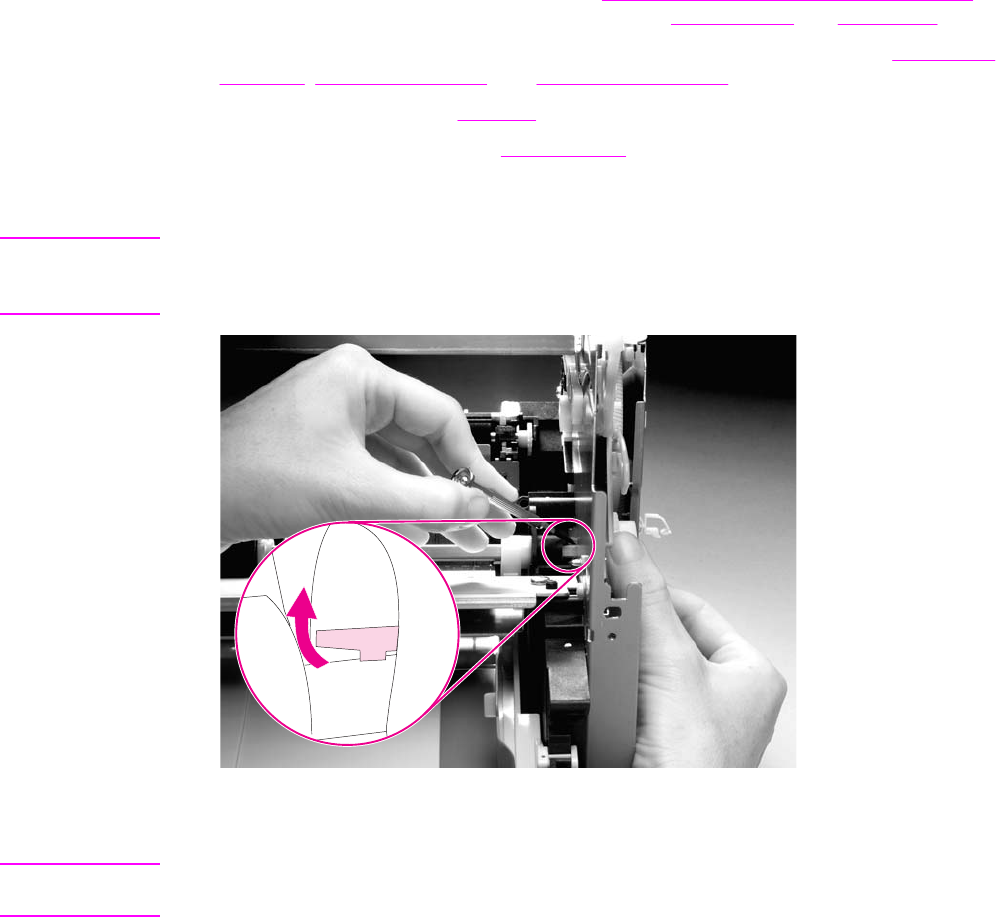
Right plate assembly
1. Separate the scanner from the printer (see Separation of the scanner from the printer),
and remove the left-side door and back cover (see Left-side door and Back cover).
2. Remove the front cover, print-cartridge door, and front guide assembly (see Front-cover
assembly, Print-cartridge door, and Front guide assembly).
3. Remove the solenoid (see Solenoid).
4. Remove the fan assembly (see Fan assembly).
5. Use a small, flat-blade screwdriver to release the locking tab inside of the printer, and slide
the solenoid clutch gears off of the shaft and away from the left side of the product.
CAUTION The solenoid-clutch-gear assembly is made up of two gears with a small compression spring
between them. Do not separate these gears when removing them or you might lose the
spring.
Figure 5-84. Remove the right plate assembly (1 of 2)
6. Remove seven screws (callout 1).
Note If you have not already removed the fuser, remove the fuser screw and the largest gear on the
fuser (these are already removed in the photo), and remove the 69T gear (callout 2).
ENWW Printer assemblies 149
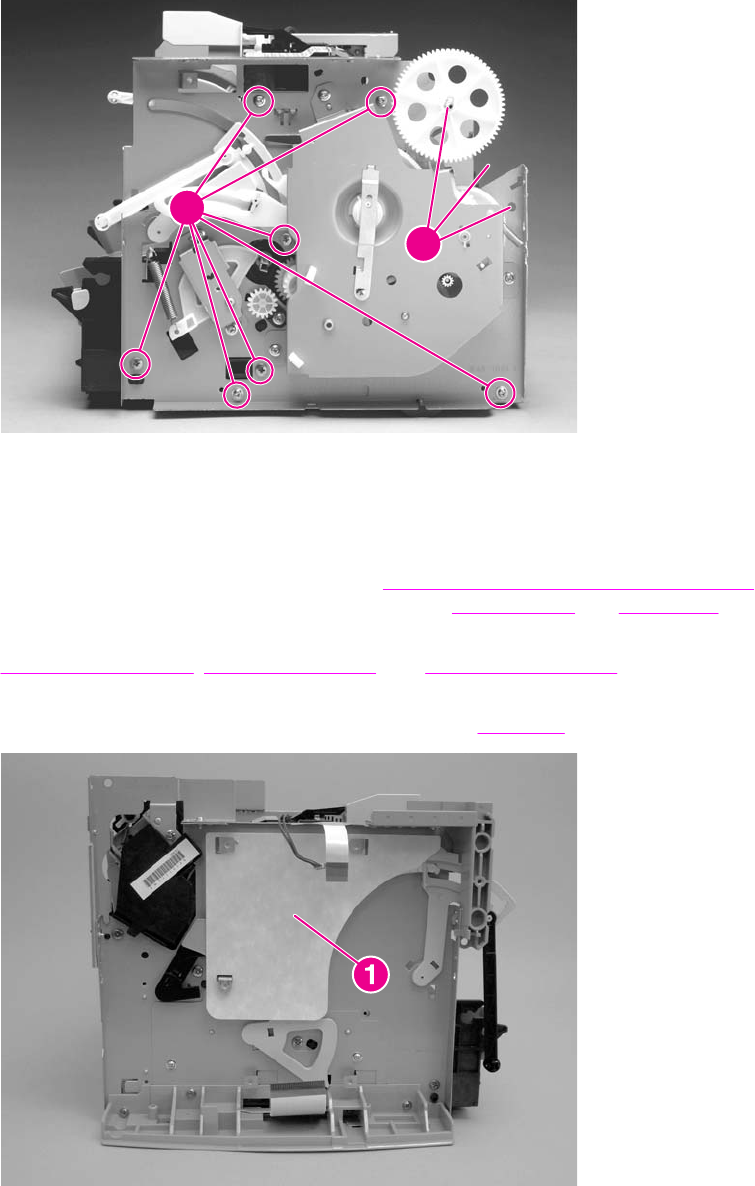
7. Remove the right plate assembly.
1
2
Figure 5-85. Remove the right plate assembly (2 of 2)
Left plate assembly
1. Separate the scanner from the printer (see Separation of the scanner from the printer),
and remove the left-side door and back cover (see Left-side door and Back cover).
2. Remove the front cover, the print-cartridge door, and the front guide assembly (see pages
Front-cover assembly, Print-cartridge door, and Front guide assembly).
3. Remove the formatter and the deflector shield (callout 1). (To remove the deflector shield,
slip it off of the tabs after removing the formatter. See Formatter.)
Figure 5-86. Remove the left plate assembly (1 of 2)
4. Remove six screws (callout 2). If you have not already removed the fuser, remove the
fuser screw (callout 3).
150 Chapter 5 Removal and replacement ENWW
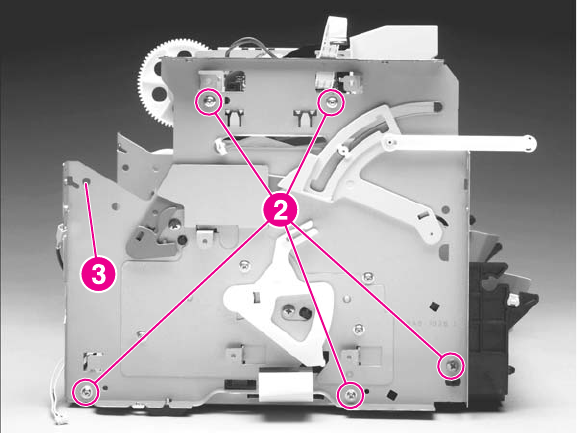
5. Remove the left plate assembly.
Figure 5-87. Remove the left plate assembly (2 of 2)
ENWW Printer assemblies 151
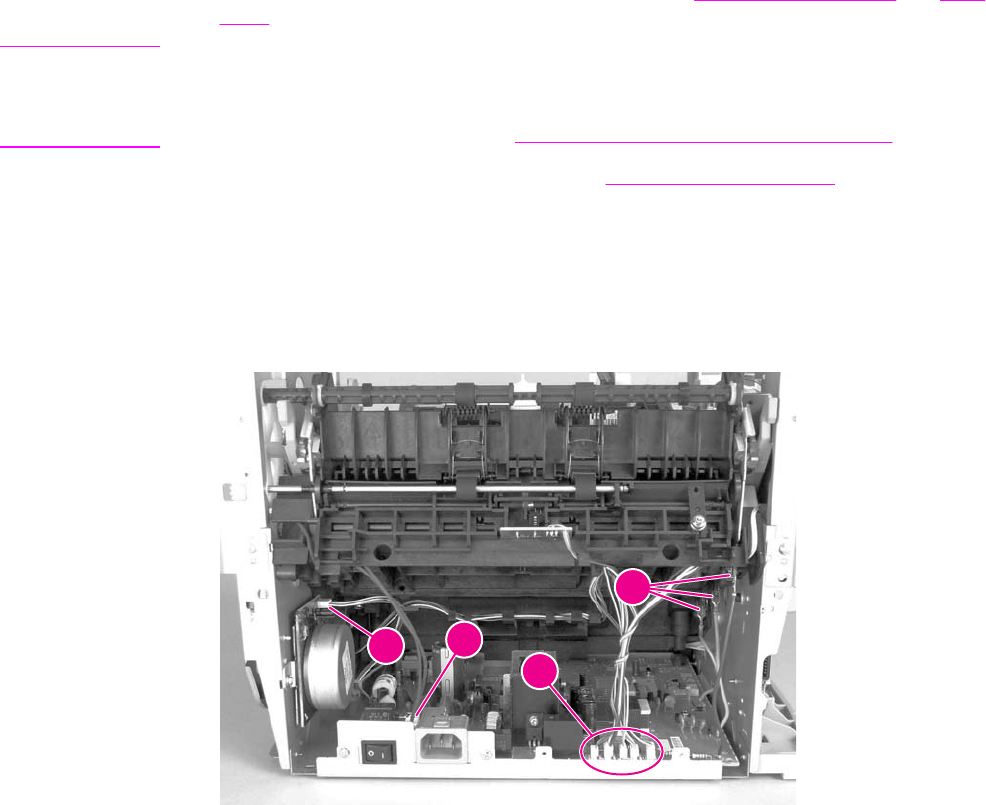
Bottom assemblies
This section includes procedures to remove the ECU fuses, the ECU pan, and the paper-feed
assembly.
ECU fuses and ECU pan
1. Remove the right-side cover and the back cover (see Printer right-side cover and Back
cover).
Note By removing these two covers, you can replace the two fuses (if necessary) on the ECU
without removing the ECU pan. The fuse closest to the back of the product is 10 amps for the
110 V model and 20 amps for the 220 V model. The other fuse is 2.5 amps for both models.
(The fuses are shown in callout 12 in Figure 5-92. Remove the ECU pan (5 of 5).)
2. Remove the left bottom frame support (see Left bottom frame support).
3. Unplug the three spade connectors (callout 1).
4. Disconnect the motor cable connector (callout 2) on the side of the motor.
5. Unplug the fuser cable connector (callout 3) by pressing and releasing the tab on the back
of the connector.
6. Unplug five cable connectors (callout 4) from the ECU.
4
1
23
Figure 5-88. Remove the ECU pan (1 of 5)
152 Chapter 5 Removal and replacement ENWW
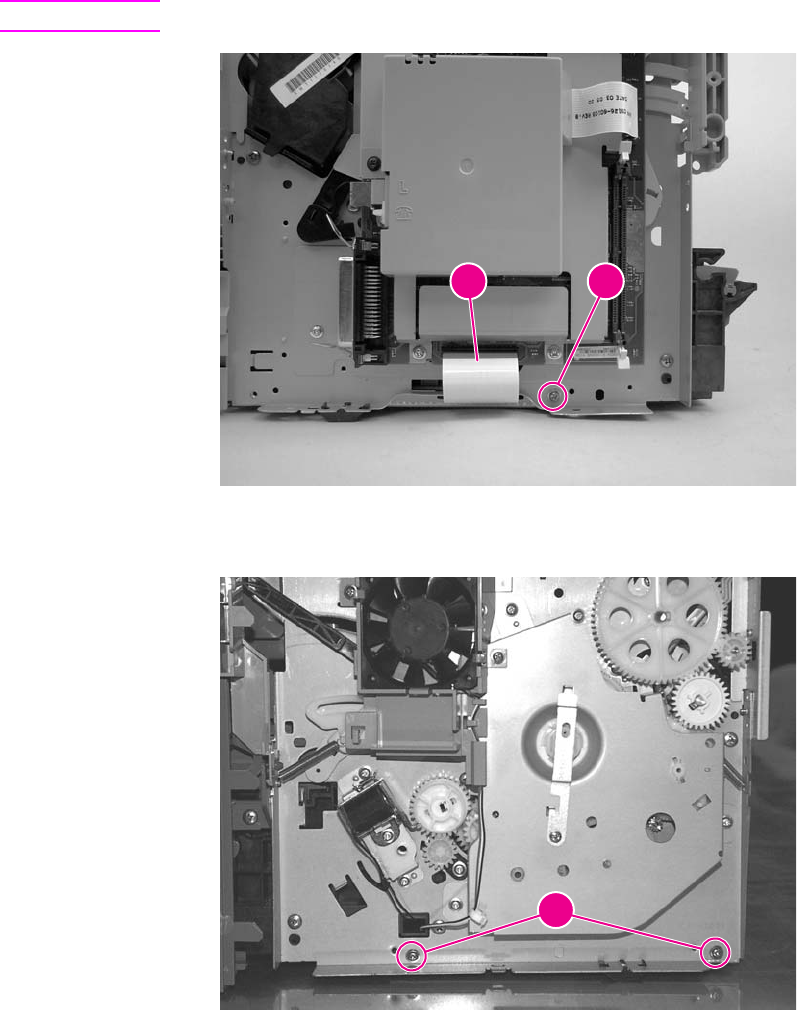
7. Disconnect the FFC from the formatter (callout 5). Remove one screw (callout 6) on the
left side of the printer.
CAUTION Do not bend or fold the FFCs during the removal or reinstallation process.
5 6
Figure 5-89. Remove the ECU pan (2 of 5)
8. Remove two screws (callout 7) on the right side of the printer.
7
Figure 5-90. Remove the ECU pan (3 of 5)
ENWW Bottom assemblies 153
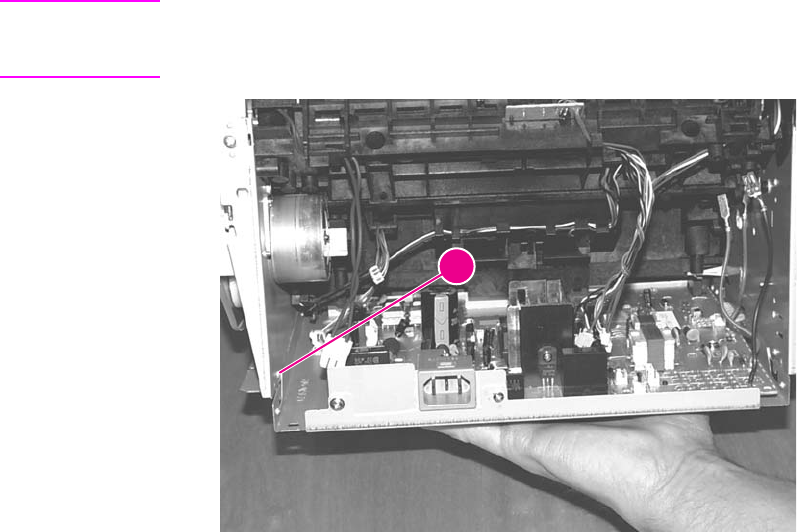
9. Gently lift the ECU pan in the printer and slide it backward to free it from the pins on the
inside of the printer (callout 8).
Note The entire ECU board can be replaced as a single unit. (Only the soldered cables ship with the
replacement board; if other cables are damaged during removal, you will have to purchase
new ones.)
8
Figure 5-91. Remove the ECU pan (4 of 5)
10. Remove three screws (callout 9).
11. Disconnect the wire from the connector (callout 10).
12. Remove the two screws (callout 11) on either side of the power connection.
154 Chapter 5 Removal and replacement ENWW
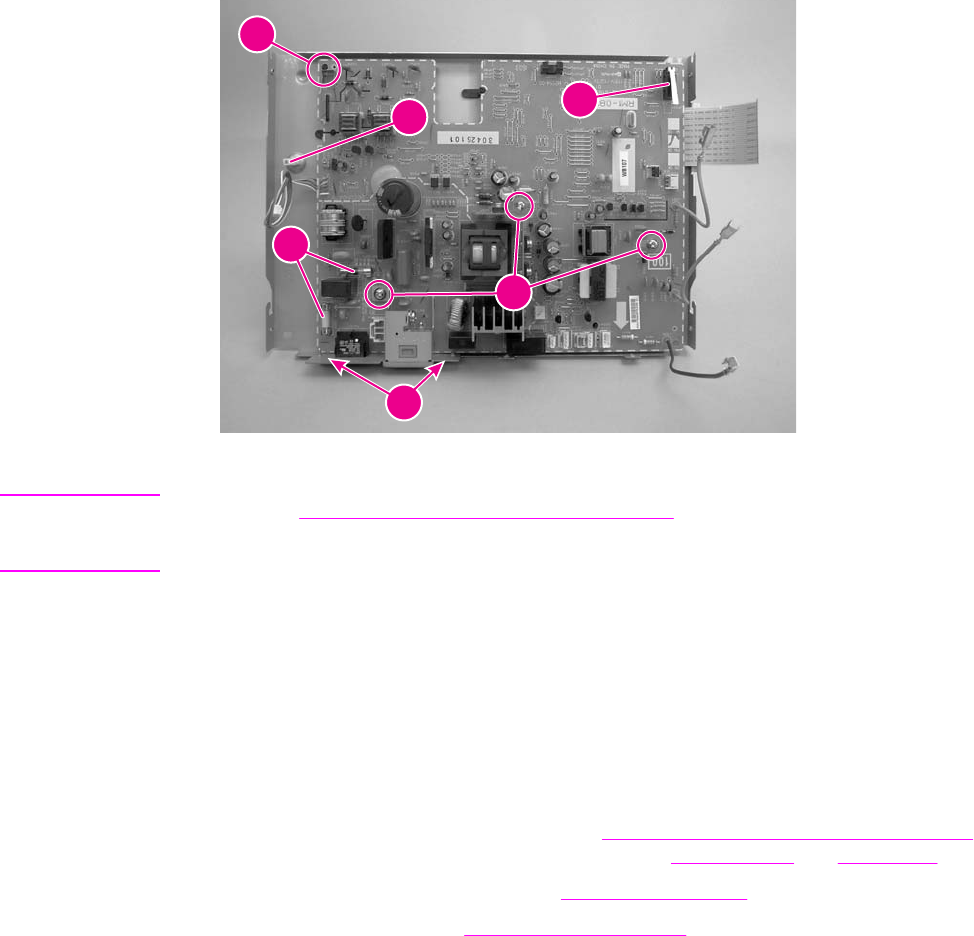
13. Lift the ECU out of the ECU pan.
9
10
12
13
14
11
Figure 5-92. Remove the ECU pan (5 of 5)
Note Callout 12 in Figure 5-92. Remove the ECU pan (5 of 5) shows the two fuses on the ECU. The
fuse closest to the back of the product is 10 amps for the 110 V model and 20 amps for the
220 V model. The other fuse is 2.5 amps for both models.
Reinstallation tip
Slide the ECU into the product from front to back to ensure that the microswitch (callout
13) is under, not behind, the plastic lever that protrudes into the ECU area from the
formatter-side of the product. Sliding the ECU into the product from front to back also
ensures that the post in callout 14 contacts the grounding spring in the engine.
Paper-feed assembly
1. Separate the scanner from the printer (see Separation of the scanner from the printer),
and remove the left-side door and back cover (see Left-side door and Back cover).
2. Remove the right plate assembly (see Right plate assembly).
3. Remove the ECU pan (see ECU fuses and ECU pan).
4. Unwind the fan and solenoid cables from the cable guides (callout 1) on the paper-feed
mechanism.
5. Remove two screws (callout 2) from the paper-feed mechanism.
ENWW Bottom assemblies 155
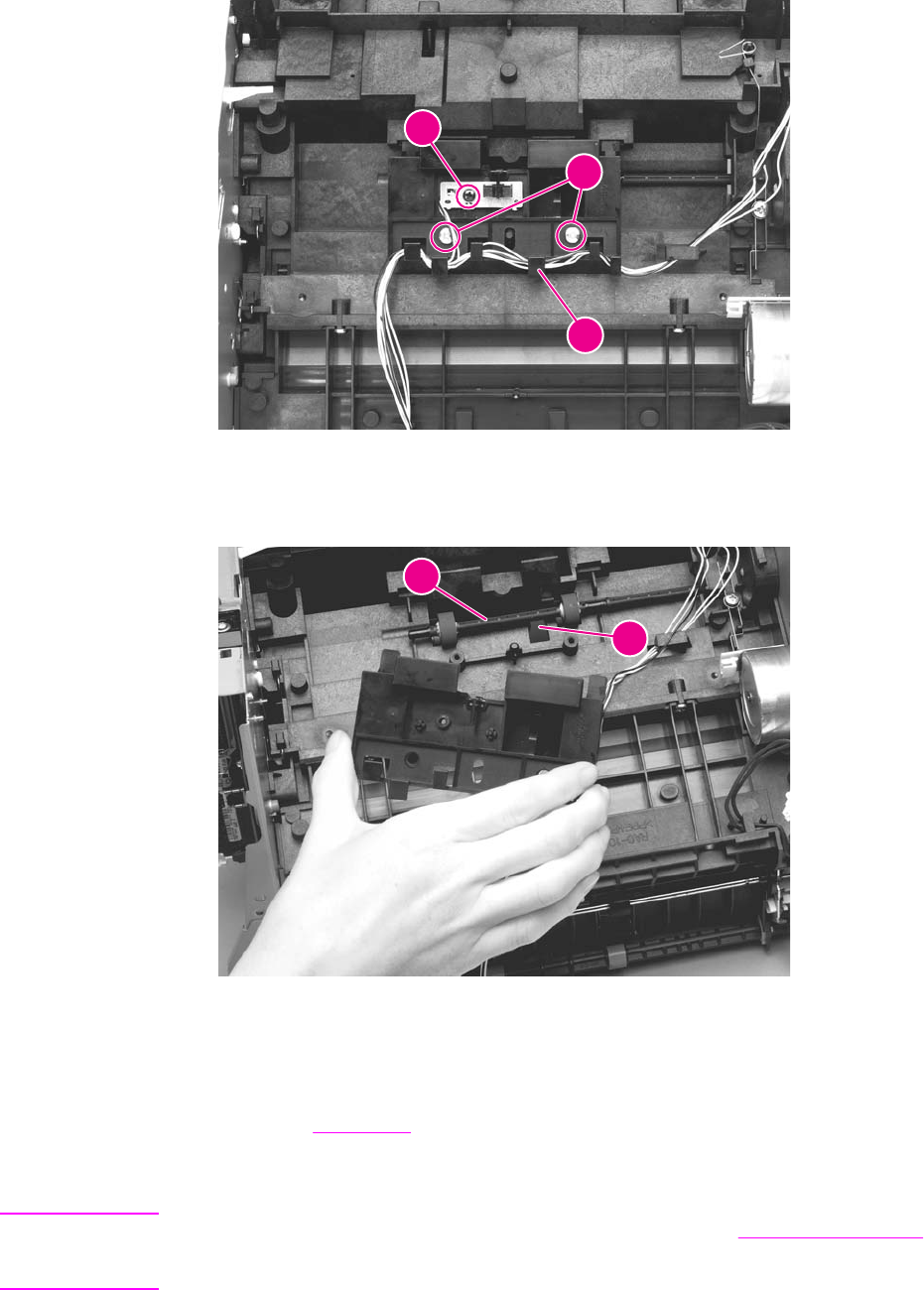
6. Remove one screw (callout 3) from the paper-sensor PCB assembly.
1
2
3
Figure 5-93. Remove the paper-feed assembly (1 of 4)
7. Separate two bushings (on the bottom of the paper-feed mechanism) from the paper-feed
roller shaft (callout 4), and lift the paper-feed mechanism up and out.
4
5
Figure 5-94. Remove the paper-feed assembly (2 of 4)
Reinstallation tip
Insert the bottom of the sensor flag into the hole (callout 5) in front of the paper-feed roller
shaft. See To reinstall for more details about the sensor flag.
8. Use needle-nose pliers to push the two tabs away from the end of the paper-feed-roller
shaft.
Note For ease of removal, first remove the right plate assembly (see Right plate assembly). Do not
remove the gear shield, because the gears and springs can easily separate and be
misplaced.
156 Chapter 5 Removal and replacement ENWW
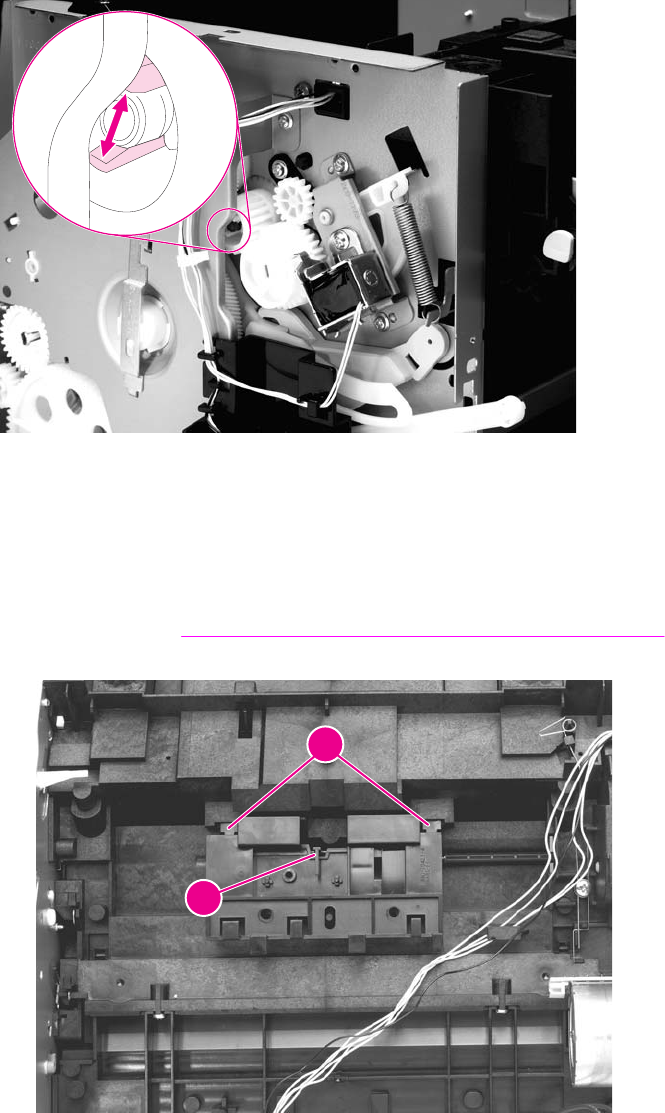
9. Pull the paper-feed roller shaft toward the left side of the product and remove it.
Figure 5-95. Remove the paper-feed assembly (3 of 4)
To reinstall
a. Insert the two tabs (callout 6) on the paper-feed assembly into the two recesses.
b. Insert the bottom of the sensor flag into the hole in front of the paper-feed roller shaft
(see callout 5 in Figure 5-94. Remove the paper-feed assembly (2 of 4)). The top of
the sensor flag (callout 7) should move freely.
6
7
Figure 5-96. Remove the paper-feed assembly (4 of 4)
ENWW Bottom assemblies 157
158 Chapter 5 Removal and replacement ENWW
6
Troubleshooting
This chapter provides information about the following topics.
Basic troubleshooting ............................................................................................................161
Control-panel messages .......................................................................................................166
Alert and warning messages ..........................................................................................166
Critical error messages ...................................................................................................174
Event-log codes.....................................................................................................................177
Solving image-quality problems ............................................................................................179
Checking the print cartridge ............................................................................................179
Solving print image-quality problems .............................................................................179
Solving scanning (copying) image-quality problems ......................................................188
Repetitive image-defect ruler ................................................................................................194
Solving paper-feed problems ................................................................................................195
Jams occur in the printer.................................................................................................195
Solving print paper-feed problems .................................................................................197
Jams occur in the automatic document feeder (ADF).....................................................199
Solving scanner (copier) paper-feed problems ..............................................................202
Solving problems with digital subscriber line (DSL) connections..........................................204
Connecting additional devices...............................................................................................205
Dedicated fax line............................................................................................................205
Shared phone line...........................................................................................................205
To connect additional devices.........................................................................................205
Functional checks .................................................................................................................208
Engine test ......................................................................................................................208
Control-panel check.........................................................................................................208
Half self-test functional check .........................................................................................209
Drum-rotation functional check ......................................................................................210
Heating-element check ...................................................................................................210
High-voltage power-supply check ..................................................................................211
Paper-path check ...........................................................................................................213
Updating or recovering the firmware code ............................................................................215
Firmware update by using flash executable ...................................................................215
Firmware-recovery DIMM ...............................................................................................215
Troubleshooting tools ............................................................................................................217
Printing a configuration report, demonstration page, or menu structure ........................217
Printing all fax reports at once ........................................................................................217
T.30 protocol trace ..........................................................................................................217
Service-mode functions .........................................................................................................238
Secondary service menu ................................................................................................238
Developer’s menu ...........................................................................................................239
Adjusting the country/region code parameters................................................................240
Soft reset.........................................................................................................................241
NVRAM init ..................................................................................................................... 241
Printer job language (PJL) software commands ............................................................242
System settings for localized products..................................................................................243
Main wiring ............................................................................................................................ 245
Locations of connectors ........................................................................................................247
ENWW 159

Basic troubleshooting
Is Power-on successful?
When the product is connected to a grounded power source, the words Hewlett Packard appear with moving
cursors to indicate that the firmware code is loading, and the printer motor rotates for approximately 5 seconds.
When the firmware is done loading (30 to 40 seconds after power-on), the message Scanner Bulb warming up
appears on the control panel, and the scan head moves back and forth for 10 to 15 seconds. If you lift the lid, you
will see that the scanner bulb is lit. Near the end of this time, the ADF motor turns on for about 2 seconds.
Cause Solution
No power is available because of a failed power source,
cable, switch, or fuse. (No LEDs are lit and the display is
blank.)
1. Verify that the product is plugged in to a functional power
source.
2. Verify that the power cable is functional and that the
power switch is on.
3. Verify that FU101 (FU102 for 110-volt units) on the ECU
is not open.
4. If all of these conditions are correct, replace the ECU.
The printer motor does not rotate. 1. Verify that the print cartridge is present.
2. Verify that the product doors are closed.
3. Verify that media is loaded in an input tray.
4. Verify that the printer paper-path sensors are functional.
5. Verify that the motor connector J402 is seated into the
ECU.
6. Verify that the motor is correctly mounted to the product
chassis.
7. If all of these conditions are correct, replace the ECU.
8. If, after replacing the ECU, the printer motor still does not
rotate, replace the motor.
The ADF motor does not rotate, or the scanner bulb does not
turn on.
1. Verify that the scanner connector is seated in both the
formatter and the motor controller board.
2. Check all the cabling on the motor controller board. Make
sure no cables are loose or damaged.
3. If the ADF motor still does not rotate, replace the ADF.
4. If the scanner bulb still does not turn on, replace the
scanner assembly.
5. If the problem persists, replace parts one at a time in the
following order until the problem is resolved: the motor
controller board, the formatter, and, finally, the ECU.
ENWW Basic troubleshooting 161

Is the product ready?
The control panel should function without error messages.
Cause Solution
An error message appears on the control-panel display. Consult the list of common messages, which appears later in
this chapter, to correct the error. See Control-panel messages.
The control panel is not functional. Verify that the control-panel cable is seated into both the
control panel and the motor controller board. Also check the
connections between the motor controller board and the
formatter. If all cables are undamaged and are seated
correctly, but the problem persists, replace the control panel.
The control-panel display is blank, but the LEDs are lit. 1. Print a page from a software program. If the page prints,
verify that the control-panel cables are correctly seated.
2. Recover the firmware by using the flash executable file or
the recovery DIMM. See Updating or recovering the
firmware code.
3. If the problem persists, replace the control panel.
4. If the problem persists, replace the motor controller
board.
5. If the problem persists, replace the formatter.
The control-panel display and LEDs function, but buttons do
not work.
Replace the control panel.
Squiggly lines appear on the control-panel display. This is normal. If the problem persists, run a control-panel
check. See Control-panel check.
Do engine tests and self-tests print?
Print an engine test, which is explained in Engine test. The engine test should print without paper-feed problems or
print-quality problems. Also print a configuration report (see Troubleshooting tools).
Note: The formatter must be connected in order to perform an engine test.
Cause Solution
The engine test is successful, but the configuration report
does not print.
Replace the formatter.
The engine test is not successful. Replace the ECU.
An error message appears on the control-panel display. Consult the list of common messages, which appears later in
this chapter, to correct the error. See Control-panel messages.
Media does not move smoothly through the printer paper-
path.
Isolate printer paper-path problems by performing a paper-
path check. See Paper-path check.
Documents print with poor print quality. See Solving image-quality problems.
162 Chapter 6 Troubleshooting ENWW

Is the copy function operational?
Place the configuration report into the ADF and make a copy. The report should feed smoothly through the ADF
and copies should print without print-quality problems. Also make a copy from the flatbed.
Cause Solution
The flatbed produces poor-quality copies. 1. If the print quality from the internal tests and the copy from
the ADF are acceptable, clean the flatbed glass.
2. If, after performing the maintenance, the problem
persists, replace the scanner assembly.
The ADF produces poor-quality copies. 1. If the print quality from the internal tests and the copy from
the flatbed are acceptable, clean the ADF scanner glass
or, if it is damaged, replace the glass.
2. If the problem persists, replace the scanner assembly.
Media does not move smoothly through the ADF path. Clean the ADF pick roller and ADF separation pad. If the
problem persists, replace the ADF pick roller and ADF
separation pad. If the problem persists, replace the ADF.
Does the product send a fax?
Connect the phone line and verify the dial tone (by using a hand set, if necessary). Attempt to send a fax.
Cause Solution
The fax cord is plugged into the additional device connector
on the back of the product.
Verify that the fax cord is plugged into the fax interface port
(the bottom phone-cord connector) on the back of the
product.
The telephone line is not operational or the product is not
plugged into the telephone line.
Make sure that the product is plugged into a telephone line
that is known to work. Press
FAX
/
SEND
and listen for a dial
tone. Try a different line.
The phone cord is faulty or is plugged into the wrong
connector.
Try plugging the phone cord into the other connector on the
LIU. Try a new cord.
The product’s fax settings are set incorrectly. Review and reset the product’s fax settings.
The flat flexible cable between the formatter and the LIU is
damaged or incorrectly seated.
Inspect, and reseat or replace the flat flexible cable between
the LIU and the formatter.
The LIU is not operational. Replace the LIU. If the problem persists, replace the
formatter.
If the customer is using a digital subscriber line (DSL)
connection, the setup might be incorrect.
See Solving problems with digital subscriber line (DSL)
connections for information about setting up DSL
connections.
ENWW Basic troubleshooting 163
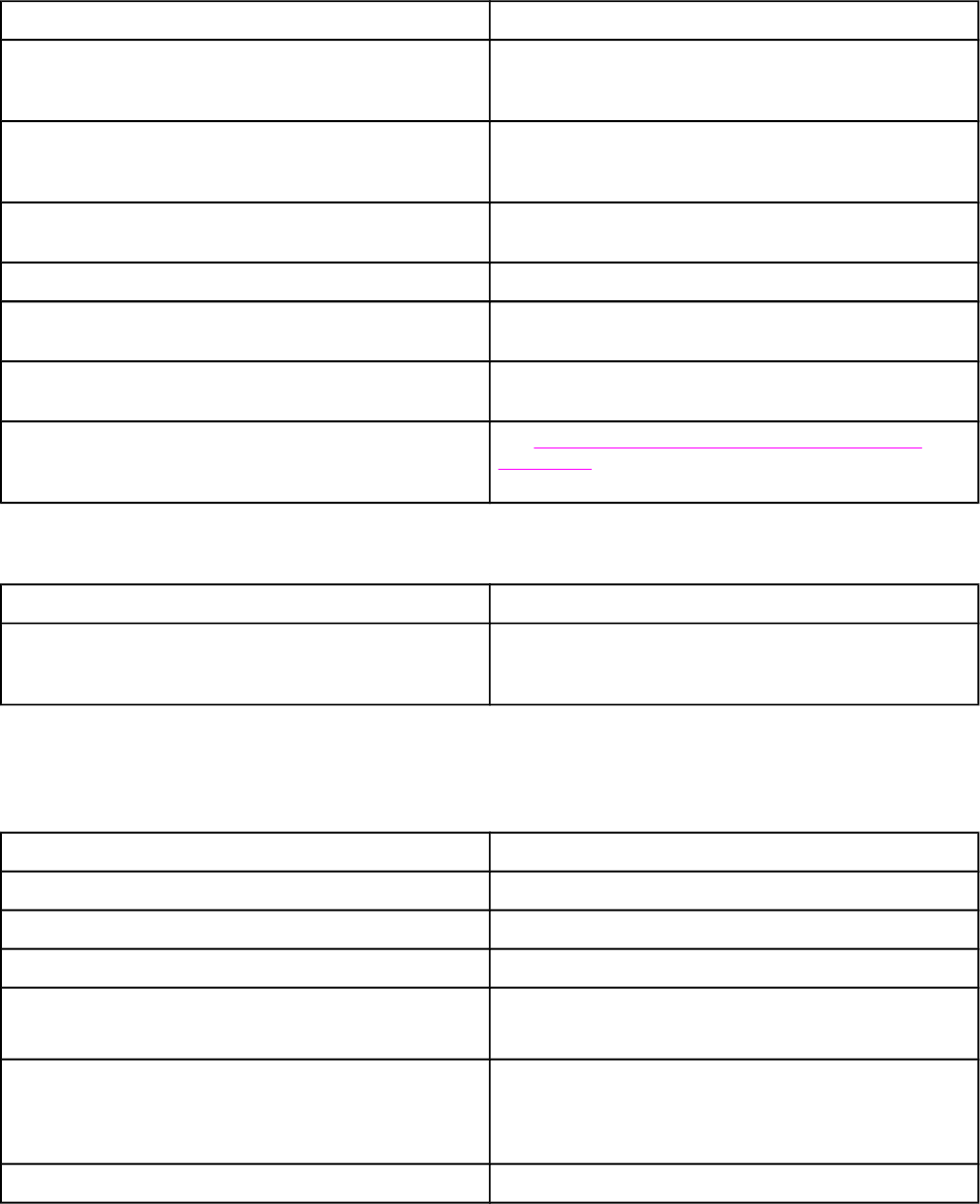
Does the product receive a fax?
Use another fax machine to send a fax to the product.
Cause Solution
The fax cord is plugged into the additional device connector
on the back of the product.
Verify that the fax cord is plugged into the fax interface port
(the bottom phone-cord connector) on the back of the
product.
The telephone line is not operational or the product is not
plugged into the telephone line.
Make sure that the product is plugged into a telephone line
that is known to work. Press
FAX
/
SEND
and listen for a dial
tone. Try a different line.
Too many telephone devices are plugged in, or telephone
devices are not connected in the correct order.
Make sure that the product is the only device on the telephone
line, and try again to receive the fax.
The product’s fax settings are set incorrectly. Review and reset the product’s fax settings.
The flat flexible cable between the formatter and the LIU is
damaged or incorrectly seated.
Inspect and reseat or replace the flat flexible cable between
the LIU and the formatter.
The LIU is not operational. Replace the LIU. If the problem persists, replace the
formatter.
If the customer is using a digital subscriber line (DSL)
connection, the setup might be incorrect.
See Solving problems with digital subscriber line (DSL)
connections for information about setting up DSL
connections.
Is the product software installed correctly?
Cause Solution
The product software is not installed, or an error occurred
during software installation.
Uninstall and then reload the product software. Make sure to
use the correct installation procedure and the correct port
setting.
Does the product print from the computer?
Connect the parallel cable or USB cable between the product and the computer. Use a word-processing program to
send a print job to the product.
Cause Solution
The cable is not connected correctly. Reconnect the cable.
An incorrect driver is selected. Select the correct driver.
Other devices are connected to the parallel or USB port. Disconnect the other devices and try again to print.
An LPT port driver problem exists in Microsoft Windows. Reset the computer’s port settings.
Verify that the port is set for bidirectional communication.
A problem exists in the USB device in the computer's device
manager.
1. Uninstall the printer driver.
2. Delete the USB devices in the device manager.
3. Reinstall the printer driver.
The formatter has failed. Replace the formatter.
164 Chapter 6 Troubleshooting ENWW

Does the product scan to the computer?
Initiate a scan from the computer’s basic desktop software or from the product.
Cause Solution
Other devices are connected to the parallel port or USB port. Disconnect the other devices, and try again to scan.
The computer’s parallel-port hardware is not bidirectional. Check the computer documentation to see if the port
configuration can be changed.
The BIOS settings for the parallel port are set incorrectly. Reset the computer’s port settings. If the problem persists,
reset the BIOS settings in CMOS.
Polling is turned off in HP Toolbox, or HP Toolbox is not
running.
Start HP Toolbox and turn on polling.
ENWW Basic troubleshooting 165

Control-panel messages
The majority of the control-panel messages are intended to guide the user through normal
operation. The control-panel messages indicate the status of the current operation, and
include a page count on the second line of the display, if appropriate. When the product is
receiving fax data, print data, or scanning commands, control-panel messages indicate this
status. In addition, alert messages, warning messages, and critical error messages indicate
situations that might require some action.
Note You must use the fax cord that came with the product in order to ensure that the product
functions correctly.
Alert and warning messages
Alert and warning messages appear temporarily and might require the user to acknowledge
the message by pressing
MENU
/
ENTER
to resume or by pressing
CANCEL
to cancel the job. With
certain warnings, the job might not complete or the print quality might be affected. If the alert
or warning message is related to printing and the auto-continue feature is on, the product will
attempt to resume the printing job after the warning has appeared for 10 seconds without
acknowledgement.
Note Event-log codes are not listed here. For a list of event-log codes, see Event-log codes.
Table 6-1. Alert and warning messages
Control panel message Event log
error
message
Description Recommended action
###: [Group Name] Phbook/
SpeedDial
None The product is waiting for you to
press a programmed one-touch
button or enter a speed-dial code to
a group-dial code.
Begin adding fax numbers to the
group-dial code. See “To manage
group-dial entries” in the fax guide.
Canceled copy. Clear document None The
CANCEL
button was pressed to
cancel the current job while pages
were feeding from the ADF. The
cancel process does not
automatically clear the ADF.
Pull the document release door
open, remove the jammed item,
and close the door. Then, clear the
items in the ADF tray and start
over.
Canceled scan. Clear document None The
CANCEL
button was pressed to
cancel the current job while pages
were feeding from the ADF. The
cancel process does not
automatically clear the ADF.
Pull the document release door
open, remove the jammed item,
and close the door. Then, clear the
items in the ADF tray and start
over.
Canceled send. Clear document None The
CANCEL
button was pressed to
cancel the current job while pages
were feeding from the ADF tray.
The cancel process does not
automatically clear the ADF.
Pull the document release door
open, remove the jammed item,
and close the door. Then, clear the
items in the ADF tray and start
over.
Cleaning Mode.
Wait 1-3 min.
None The product is running an internal
cleaning cycle.
Wait for the product to finish the
cleaning cycle. The message will
clear when the cycle is finished.
166 Chapter 6 Troubleshooting ENWW

Control panel message Event log
error
message
Description Recommended action
Comm. error None A fax communication error occurred
between the product and the
sender or receiver. For descriptions
of communication errors, see Table
6-4. Fax receive codes and Table
6-5. Fax send codes.
Allow the product to retry sending
the fax. Unplug the product
telephone cord from the wall, plug
in a telephone, and try making a
call. Plug the product phone cord
into a jack for another phone line.
Try a different phone cord. If the
error persists, check the flat flexible
cable between the LIU and the
formatter. Reseat or replace the
cable.
Update the firmware. See Updating
or recovering the firmware code.
If the error persists, replace the
LIU.
Device error. [enter] to cont. None An internal error occurred in the
product.
Press
MENU
/
ENTER
to resume the job.
Device is busy.
Try again later
None The product is currently in use. Wait for the product to finish the
current job.
Doc feeder jam
Clear, Reload
None A piece of media is jammed in the
ADF tray.
Open the document release door,
clear the jam, close the document
release door, and reload the paper
into the ADF tray.
If the error persists, replace the
ADF separation pad and ADF
pickup roller.
Document feeder mispick. Reload None Media in the ADF tray was not
picked up.
Remove the media from the ADF
tray, and then reload it.
If the error persists, replace the
ADF pick roller and the ADF
separation pad.
Door open or no
print cartridge
None The print cartridge door is open, or
the print cartridge is not installed
properly.
1. Check that the print cartridge
door and left-side door are
completely closed.
2. Forcefully open and close the
print-cartridge door to make
sure that the print cartridge is
seated.
3. Check that the print cartridge is
correctly installed. (See Print
cartridge for more information.)
4. Check that the door and print
cartridge interlocks are
operating correctly. (See
Paper-path check for more
information about the door
interlock.)
Table 6-1. Alert and warning messages (continued)
ENWW Control-panel messages 167

Control panel message Event log
error
message
Description Recommended action
Engine comm. error None The product experienced an
internal communication error.
This is a warning message only.
Job output might be affected.
Fax is busy
Canceled send
None The fax line to which you were
sending a fax was busy. The
product has canceled sending the
fax.
Call the recipient to ensure that the
fax machine is on and ready.
Check that you are dialing the
correct fax number.
Check that the Redial if busy
option is enabled.
Check for a dial tone on the phone
line by pressing
FAX
/
SEND
.
Make sure that the phone is
working by disconnecting the
product, plugging in a telephone to
the phone line, and making a voice
call.
Plug the product phone cord into a
jack for another phone line, and try
sending the fax again.
Try a different phone cord.
If the error persists, check the flat
flexible cable between the LIU and
the formatter. Reseat or replace the
cable.
If the error persists, replace the
LIU.
Table 6-1. Alert and warning messages (continued)
168 Chapter 6 Troubleshooting ENWW

Control panel message Event log
error
message
Description Recommended action
Fax is busy
Redial pending
None The fax line to which you were
sending a fax was busy. The
product automatically redials the
busy number. (See “Changing the
redial setting” in the fax guide.)
Allow the product to retry sending
the fax.
Call the recipient to ensure that the
fax machine is on and ready.
Check that you are dialing the
correct fax number.
Check for a dial tone on the phone
line by pressing
FAX
/
SEND
.
Make sure that the phone is
working by disconnecting the
product, plugging in a telephone to
the phone line, and making a voice
call.
Plug the product phone cord into a
jack for another phone line, and try
sending the fax again.
Try a different phone cord.
If the error persists, check the flat
flexible cable between the LIU and
the formatter. Reseat or replace the
cable.
If the error persists, replace the
LIU.
Fax memory full
Canceling recv.
None During the fax transmission, the
product ran out of memory. Only the
pages that fit into memory will be
printed.
Print all of the faxes and have the
sender resend the fax. Cancel all
fax jobs or clear the faxes from
memory (see “Deleting faxes from
memory” in the fax guide).
Note: Adding a memory DIMM does
not help resolve this issue.
Fax memory full
Canceling send
None During the fax job, the memory
filled. All pages of the fax have to be
in memory for a fax job to work
correctly. Only the pages that fit into
memory were sent.
Print all received faxes or wait until
all pending faxes are sent.
Ask the sender to send the fax
again.
Cancel all fax jobs or clear the faxes
from memory (see “Deleting faxes
from memory” in the fax guide).
Table 6-1. Alert and warning messages (continued)
ENWW Control-panel messages 169

Control panel message Event log
error
message
Description Recommended action
Fax recv. error None An error occurred while trying to
receive a fax.
Ask the sender to resend the fax.
Try faxing back to the sender or
another fax machine.
Check for a dial tone on the phone
line by pressing
FAX
/
SEND
.
Check that the telephone cord is
securely connected by unplugging
and replugging the cord.
Make sure that the phone is
working by disconnecting the
product, plugging in a telephone to
the phone line, and making a voice
call.
Turn off error-correction mode
(ECM), and turn off V.34. Ask the
sender to resend the fax.
Connect the product to a different
phone line.
If the error persists, check the flat
flexible cable between the LIU and
the formatter. Reseat or replace the
cable.
If the error persists, replace the
LIU.
Fax Send error None An error occurred while trying to
send a fax.
Try resending the fax.
Try faxing to another fax number.
Check for a dial tone on the phone
line by pressing
FAX
/
SEND
.
Check that the telephone cord is
securely connected by unplugging
and replugging the cord.
Make sure that the phone is
working by disconnecting the
product, plugging in a telephone to
the phone line, and making a voice
call.
Connect the product to a different
phone line.
If the error persists, check the flat
flexible cable between the LIU and
the formatter. Reseat or replace the
cable.
If the error persists, replace the
LIU.
Table 6-1. Alert and warning messages (continued)
170 Chapter 6 Troubleshooting ENWW

Control panel message Event log
error
message
Description Recommended action
Fit to Page on
flatbed only
None The copy reduce/enlarge feature
(called "Fit to Page") applies only to
copies made from the flatbed
scanner.
Use the flatbed or select another
reduction/enlargement setting.
Group dial not allowed in group None The speed-dial code that you typed
is programmed for a group. Adding
a group-dial to another group-dial is
not allowed.
Add one-touch buttons
(programmed as an individual
speed dial) or speed-dial codes to a
group-dial.
Invalid date None An invalid date was entered, such
as June 35.
Re-enter the date.
Invalid entry None Invalid data or response. Correct the entry.
Mem. low 1 copy
Press [cancel]
None The product completed making one
copy. The remaining copies have
been canceled because of low
product-memory.
Press
CANCEL
to clear the error.
Break the job into smaller jobs that
contain fewer pages.
Memory is low
Try again later
None The product does not have enough
memory to start a new job.
Wait until the current job is finished
before starting a new job.
Memory is low.
Press [enter]
None The product memory has been
almost completely filled.
Allow the product to finish the job,
or press
MENU
/
ENTER
to cancel the
job.
Memory low
Only 1 copy made
None The product does not have enough
memory to complete the collated
copy job.
Break the job into smaller jobs that
contain fewer pages.
No Dial Tone None The product could not detect a dial
tone.
Check for a dial tone on the phone
line by pressing
FAX
/
SEND
.
Unplug the telephone cord from
both the product and the wall and
replug the cord.
Unplug the product telephone cord
from the wall, plug in a telephone,
and try making a call.
Plug the product phone cord into a
jack for another phone line. See
“Changing the detect-dial-tone
setting” in the fax guide.
Update the firmware. See Updating
or recovering the firmware code.
If the error persists, replace the
LIU.
If, after replacing the LIU, the error
persists, replace the formatter.
No document sent None The product did not scan any
pages, or it did not receive any
pages from the computer to
transmit a fax.
Try sending the fax again.
Table 6-1. Alert and warning messages (continued)
ENWW Control-panel messages 171

Control panel message Event log
error
message
Description Recommended action
No fax answer.
Canceled send
None Attempts to redial a fax number
failed, or the “Redial-no answer”
option was turned off.
Call the recipient to ensure that the
fax machine is on and ready.
Check that you are dialing the
correct fax number.
Check that the redial option is
enabled.
Unplug the telephone cord from
both the product and the wall and
replug the cord.
Unplug the product telephone cord
from the wall, plug in a telephone,
and try making a call.
Plug the product phone cord into a
jack for another phone line.
If the error persists, check the flat
flexible cable between the LIU and
the formatter. Reseat or replace the
cable.
If the error persists, replace the
LIU.
No fax answer.
Redial pending
None The receiving fax line did not
answer. The product attempts to
redial after a few minutes.
Allow the product to retry sending
the fax.
Call the recipient to ensure that the
fax machine is on and ready.
Check that you are dialing the
correct fax number.
If the product continues to redial,
unplug the product telephone cord
from the wall, plug in a telephone,
and try making a call.
Plug the product phone cord into a
jack for another phone line.
Try a different phone cord.
If the error persists, check the flat
flexible cable between the LIU and
the formatter. Reseat or replace the
cable.
If the error persists, replace the
LIU.
Table 6-1. Alert and warning messages (continued)
172 Chapter 6 Troubleshooting ENWW

Control panel message Event log
error
message
Description Recommended action
No fax detected None The product answered the incoming
call but did not detect that a fax
machine was calling.
Allow the product to retry receiving
the fax.
Try a different phone cord.
Plug the product phone cord into a
jack for another phone line.
If the error persists, check the flat
flexible cable between the LIU and
the formatter. Reseat or replace the
cable.
If the error persists, replace the
LIU.
No fax pages
to reprint
None The product attempted to execute
“Reprint Last” when no faxes were
in memory.
Receive a fax before attempting to
use this option.
No paper pickup
[enter] to cont.
None The print engine has failed to pick
up a piece of media.
Reload the media in the input tray
and press
MENU
/
ENTER
to continue
the job. If the error persists, replace
the printer pickup roller.
Out of range None An invalid number was typed. Retype the number.
Page too complex
[enter] to cont.
none The product could not print the
current page because of its
complexity.
Press
MENU
/
ENTER
to clear the
message.
Allow the product to finish the job,
or press
CANCEL
to cancel the job.
Phone Book ###
is empty
None The one-touch button or speed-dial
code has not been programmed
and therefore cannot be added to a
group.
Press
MENU
/
ENTER
to program the
one-touch or speed-dial. To
program a group-dial, press
CANCEL
and use the control panel menu to
create a new group. Press
CANCEL
if
you do not want to program the
one-touch or speed-dial.
Printer jam
Clear paper path
None The product has detected a jam. Clear the jam. The job should
continue to print. If it does not, try
reprinting the job.
If media jams frequently, see
Maintenance.
Scanner reserved
for PC scan
None A computer is using the product to
create a scan.
Wait until the computer scan has
finished, or cancel the scan from
the computer software, or press
CANCEL
.
Scanning error
Cannot connect
None The product cannot transmit scan
information to a computer.
Make sure that the connection
cable is not loose or damaged.
Replace the cable if necessary, and
try the scan again.
Settings cleared None The product has cleared job
settings.
Re-enter any appropriate job
settings.
Table 6-1. Alert and warning messages (continued)
ENWW Control-panel messages 173

Critical error messages
Critical error messages can indicate some kind of failure. Cycling the power might fix the
problem. If a critical error persists, the product might require service.
Table 6-2. Critical error messages
Control panel message Event log
error
message
Description Recommended action
50 Fuser Error None The product has experienced an
internal hardware error.
Turn off the power switch, wait at
least 20 minutes, and then turn on
the power switch and wait for the
product to initialize.
Check the cabling connections to
the heating element.
If a surge protector is being used,
remove it. Plug the printer directly
into the wall socket. Use the power
switch to turn the product on.
Perform the heating-element check
(see Heating-element check).
If the error persists, replace the
heating element.
If, after replacing the heating
element, the error persists, replace
the ECU.
51 Laser Error None The product has experienced an
internal hardware error.
Turn off the power by using the
power switch, wait at least 30
seconds, and then turn on the
power and wait for the product to
initialize.
Check the cabling connections to
the laser scanner assembly.
Try connecting the product to a
different power source or surge
protector.
If the error persists, replace the
laser scanner assembly.
174 Chapter 6 Troubleshooting ENWW

Control panel message Event log
error
message
Description Recommended action
52 Scanner Error None The product has experienced an
internal hardware error.
Turn off the power by using the
power switch, wait at least 30
seconds, and then turn on the
power and wait for the product to
initialize.
Make sure that the flat, flexible
cables (FFCs) are properly
connected on the formatter and on
the laser/scanner.
Try connecting the product to a
different power source or surge
protector.
If the error persists, replace the
laser scanner assembly.
57 Fan Error
Turn off then on
none The product has experienced a
problem with its internal fan.
Turn off the power by using the
power switch, wait at least 30
seconds, and then turn on the
power and wait for the product to
initialize.
Check the fan cable connectors.
If the error persists, replace the fan.
79 Error
Turn off then on
None The product has experienced an
internal firmware error.
Turn off the power by using the
power switch, wait at least 30
seconds, and then turn on the
power and wait for the product to
initialize.
If the error persists, upgrade the
firmware. See Updating or
recovering the firmware code.
ADF door is open None The ADF lid is open or a sensor is
malfunctioning.
Make sure the ADF lid is closed.
Make sure that the ADF is
completely seated. If necessary,
remove the ADF and reinstall it.
If the message persists, turn off the
power by using the power switch,
wait at least 30 seconds, and then
turn on the power and wait for the
product to initialize.
Try another power source.
If the sensor is not functioning,
replace the ADF.
CCD Scanner Error None The scanner assembly experienced
an internal error.
Turn off the power by using the
power switch, wait at least 30
seconds, and then turn on the
power and wait for the product to
initialize. Try another power source.
If the error persists, replace the
scanner assembly.
Table 6-2. Critical error messages (continued)
ENWW Control-panel messages 175

Control panel message Event log
error
message
Description Recommended action
Scanner Bulb Failure None The scanner assembly experienced
an error in scanner bulb
functionality.
Turn off the power by using the
power switch, wait at least 30
seconds, and then turn on the
power and wait for the product to
initialize.
Try another power source.
If the error persists, lift the cover to
see if the scanner bulb is
illuminating. If it is not illuminating,
replace the scanner assembly.
If the bulb is illuminating, the scan
module might be too far to the right
to find the calibration strip during
startup. Use the following
procedure to move the scan module
so it begins the startup cycle farther
to the left:
1. Cycle the power and watch the
movement of the scan module.
The scan module will move to
the left and the bulb will turn
on. When it does, cycle the
power.
2. Repeat the first step until the
scan module is about 3 cm
(about 1 inch) from the right
edge of the scan glass.
3. Turn on power by using the
power switch.
If the error persists, replace the
scanner assembly.
Table 6-2. Critical error messages (continued)
176 Chapter 6 Troubleshooting ENWW

Event-log codes
These codes appear in the event-log section of the configuration report. Use this table to
associate an event-log code with a description of the event.
Table 6-3. Event-log codes
Event code Event sub-code Event
10 the line in the file at which the
event occurred
asserts
20 10 receive-fax directory is missing
20 20 send-fax directory is missing
20 30 send-ID file is corrupted
20 40 receive-ID file is corrupted
20 50 fax log is corrupted
20 60 flash init as a result of firmware
upgrade
20 6060 write to flash failed
79 2 access error
79 3 address error
79 4 illegal instruction
79 8 privilege violation
79 9 trace fault
79 10 unimplemented line-a opcode
79 11 unimplemented line-f opcode
79 14 format error
79 15 uninitialized interrupt
79 120 ASIC fault
79 5 or 6 or 7 reserved
30016 0 insufficient memory
30017 0 print page punt
30035 0 NVRAM error
30036 0 NVRAM service error
30108 0 MIO connection break
30109 0 data communication error
30110 0 MIO buffer overflow
ENWW Event-log codes 177

Event code Event sub-code Event
30111 0 parallel buffer overflow
35028 0 bad MIO
35031 0 invalid personality
50003 0 bad fuser
50004 0 bad beam detect
50005 0 bad scanner motor
50006 0 bad fan
50007 0 engine communication error
50012 0 bad malfunction
50013 0 laser malfunction
Table 6-3. Event-log codes (continued)
178 Chapter 6 Troubleshooting ENWW

Solving image-quality problems
If the problem occurs when printing, see Solving print image-quality problems.
If the problem occurs when copying or scanning, see Solving scanning (copying) image-quality
problems.
Also, see Solving print paper-feed problems and Jams occur in the automatic document
feeder (ADF).
Checking the print cartridge
Image-formation defects are frequently the result of problems in the print cartridge. If the
source of the defect is not immediately evident, always replace the print cartridge before
troubleshooting image defects.
Use the following checklist to make sure that the print cartridge is still operable.
□Make sure that the print cartridge is seated properly.
□Check the print cartridge to see if it has been disassembled or refilled.
□Inspect the print cartridge to see if toner is leaking through worn seals.
□Check the surface of the photosensitive drum in the cartridge to see if it has been
damaged or scratched. Touching the drum contaminates the photosensitive surface and
can cause spotting and image defects.
□Blurred areas on printed pages indicate that the photosensitive drum in the cartridge has
been overexposed to light. Because overexposure to light causes permanent damage to
the photosensitive drum, the cartridge should be replaced.
To redistribute the toner in the print cartridge
Before installing a new print cartridge or when the toner begins to run low, redistribute the
toner by rotating the cartridge back and forth five or six times.
Solving print image-quality problems
Use the following tables to help solve problems with printed pages.
Note Some image-quality problems can be isolated by performing printer functional tests. See
Functional checks. Image quality problems can also be caused by using cables that are not
IEEE-1284 compliant.
ENWW Solving image-quality problems 179
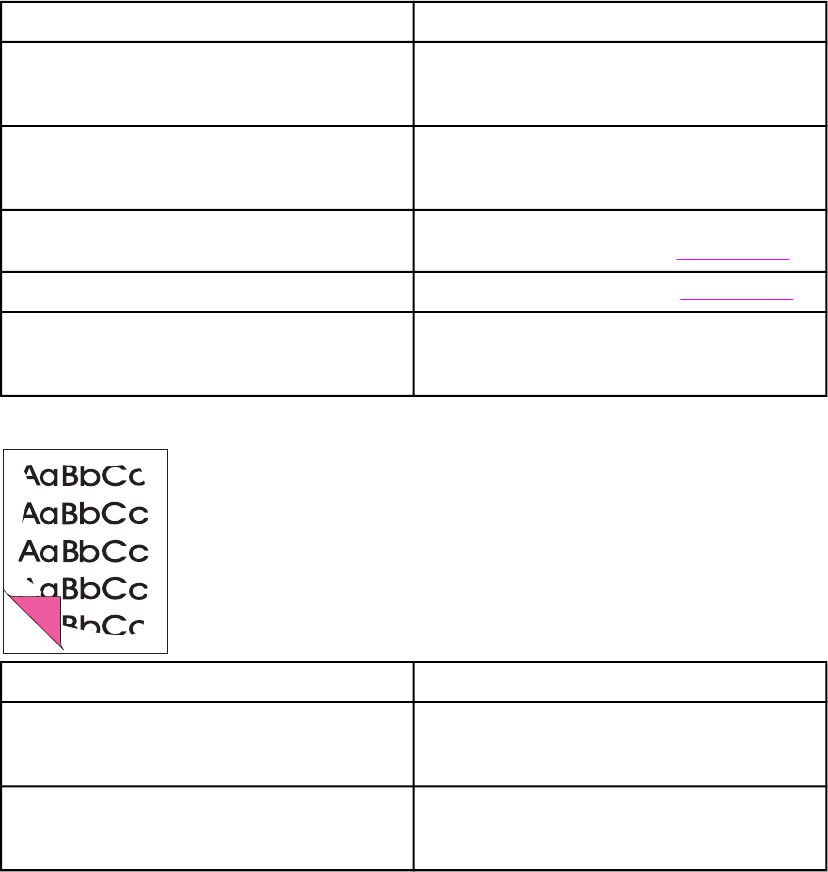
Pages do not print.
Cause Solution
The product is not plugged in, or the power switch
is not on.
Make sure that the product is plugged into a live
wall outlet or power strip and that the power switch
is turned on.
The computer cable is loose. Check that the parallel cable or USB cable
between the product and the computer is securely
connected.
The tape was not removed from the print
cartridge.
Remove the print cartridge, remove the tape, and
reinstall the print cartridge. See Print cartridge.
The print cartridge is out of toner. Replace the print cartridge. See Print cartridge.
The media does not meet HP’s specifications (for
example, it is too moist or too rough).
Make sure that the media meets specifications
detailed in the HP LaserJet Printer Family Print
Media Guide.
Parts of the page around the edges are not printing.
Cause Solution
The product cannot print to the edge of the paper.
The printer has minimum margins on each edge
of 4.23 mm (0.167 inch).
To fit the image into this printable area, slightly
reduce the size of the image.
The reduction setting is set incorrectly. Check the reduction setting in the “Print” or
“Setup” window from within the program that you
are using.
180 Chapter 6 Troubleshooting ENWW
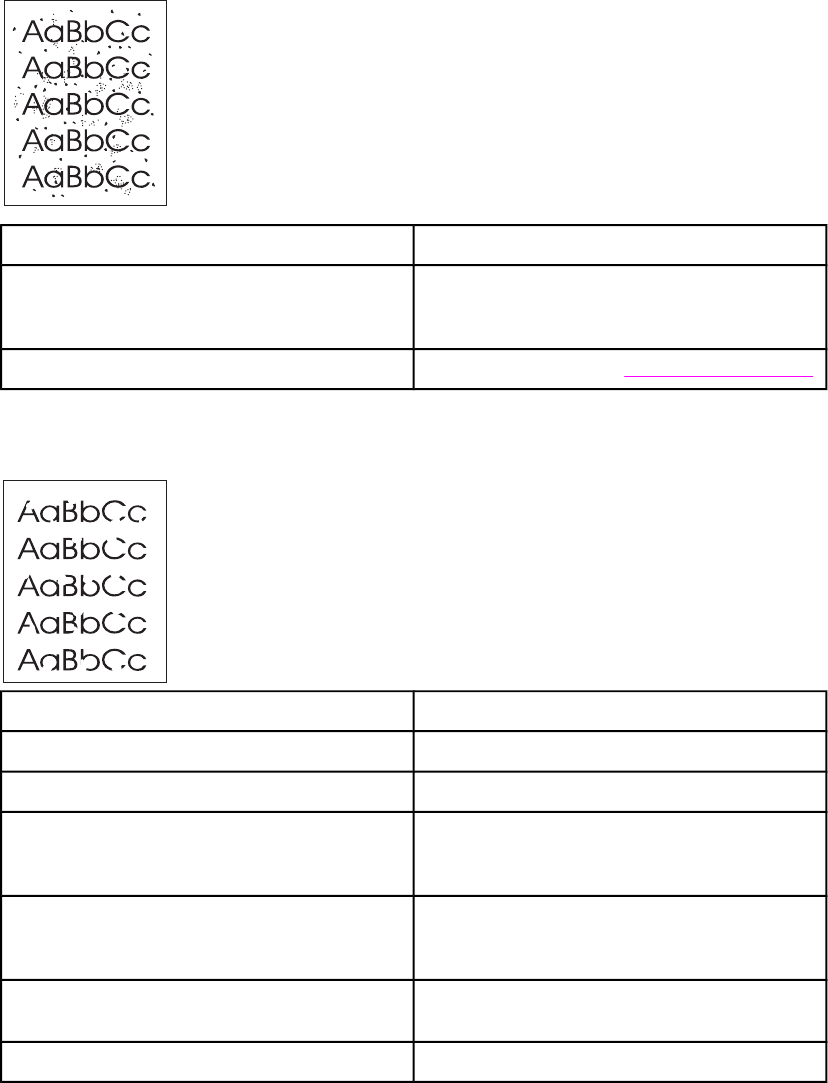
Toner specks appear on the printed page.
.
Cause Solution
The media does not meet HP’s specifications (for
example, it is too moist or too rough).
Make sure that the media meets specifications
detailed in the HP LaserJet Printer Family Print
Media Guide.
The print path needs to be cleaned. Clean the print path. See To clean the paper path.
Characters are only partially printed (also referred to as dropouts).
Cause Solution
A single sheet of paper is defective. Try reprinting the job.
The print density needs to be adjusted. Adjust the print density from the HP Toolbox.
The moisture content of the paper is inconsistent,
or the paper has moist or wet spots on the
surface.
Make sure that the media meets specifications
detailed in the HP LaserJet Printer Family Print
Media Guide.
The paper was damaged by inconsistent
manufacturing processes.
Make sure that the media meets specifications
detailed in the HP LaserJet Printer Family Print
Media Guide.
Draft mode or EconoMode is selected in the
driver.
Try the normal or best setting.
The print cartridge is defective. Replace the print cartridge.
ENWW Solving image-quality problems 181
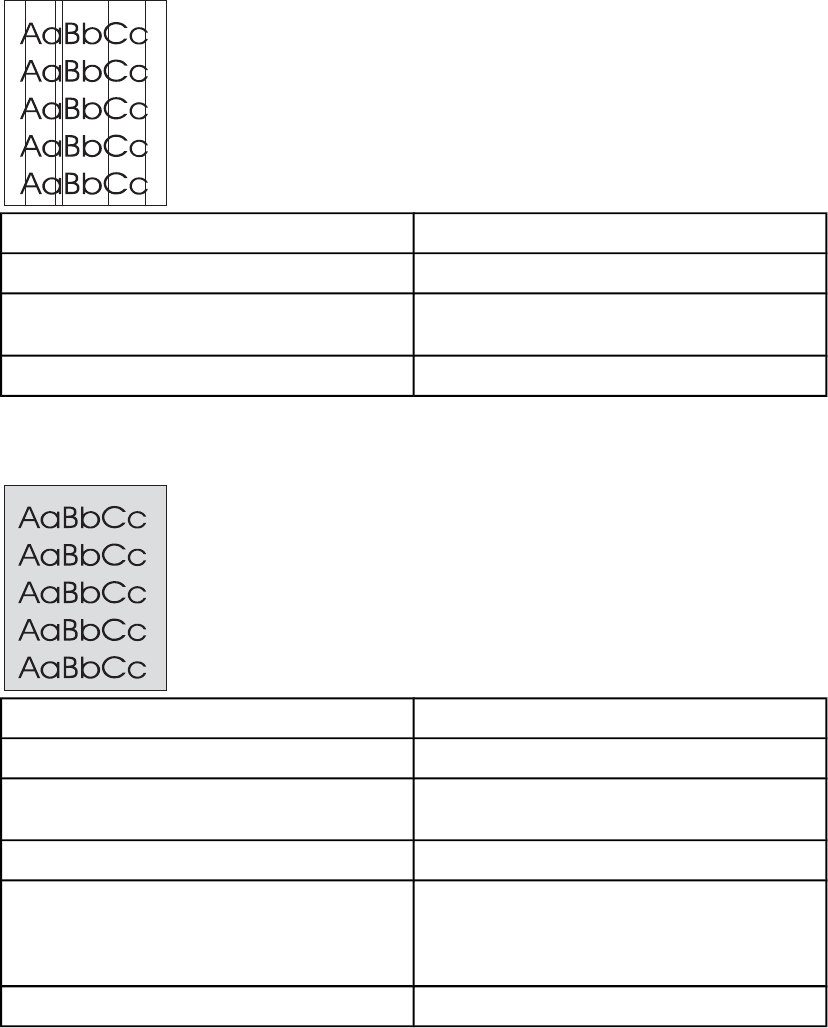
Vertical lines appear on the printed page.
Cause Solution
The priority input tray is not in place. Adjust the priority input tray.
The photosensitive drum inside the print cartridge
is scratched.
Replace the print cartridge.
The fuser is damaged or has an obstruction. Replace the fuser.
The printed page has a gray background.
Cause Solution
The priority input tray is not in place. Adjust the priority input tray.
The print density setting is too high. Decrease the amount of background shading by
using the HP Toolbox.
The media basis-weight is too high. Change the media to a lower basis-weight.
The humidity level is too low. Very low humidity can increase the amount of
background shading. Move the product to a
different location, or decrease the background
shading by using the HP Toolbox.
The print cartridge needs to be replaced. Replace the print cartridge.
182 Chapter 6 Troubleshooting ENWW
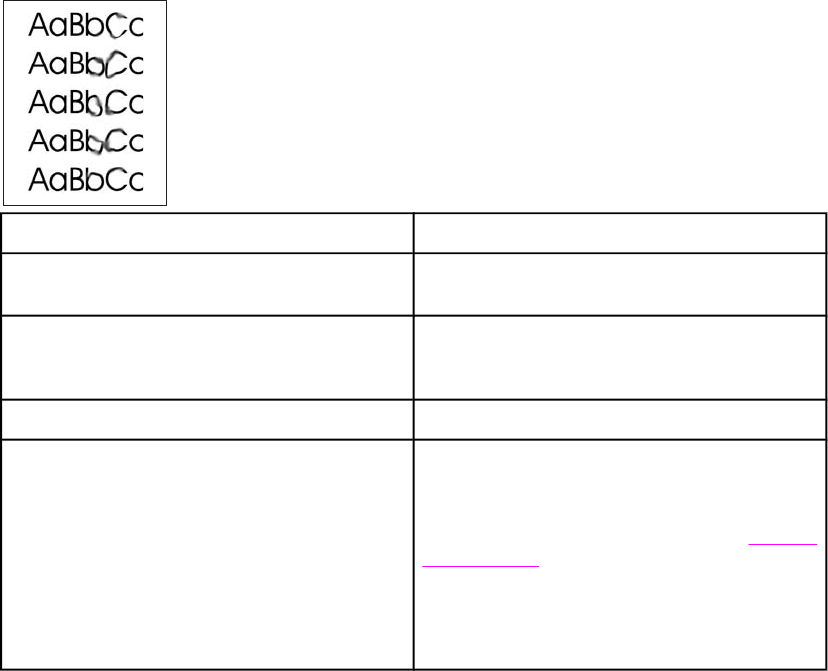
Toner smears appear on the printed page.
Cause Solution
If the toner smears appear on the leading edge of
the media, the media guides are dirty.
Wipe the media guides with a dry, lint-free cloth.
The media does not meet HP’s specifications (for
example, it is too moist or too rough).
Make sure that the media meets specifications
detailed in the HP LaserJet Printer Family Print
Media Guide.
The print cartridge needs to be replaced. Replace the print cartridge.
The fuser temperature is too low. The fuser
temperature varies according to the type of media
being used.
In the Paper tab of the driver, under Type is:,
select the appropriate media type from the drop-
down list.
Perform the heating element check. See Heating-
element check.
If the error persists, replace the heating element.
If, after replacing the heating element, the error
persists, replace the ECU.
ENWW Solving image-quality problems 183
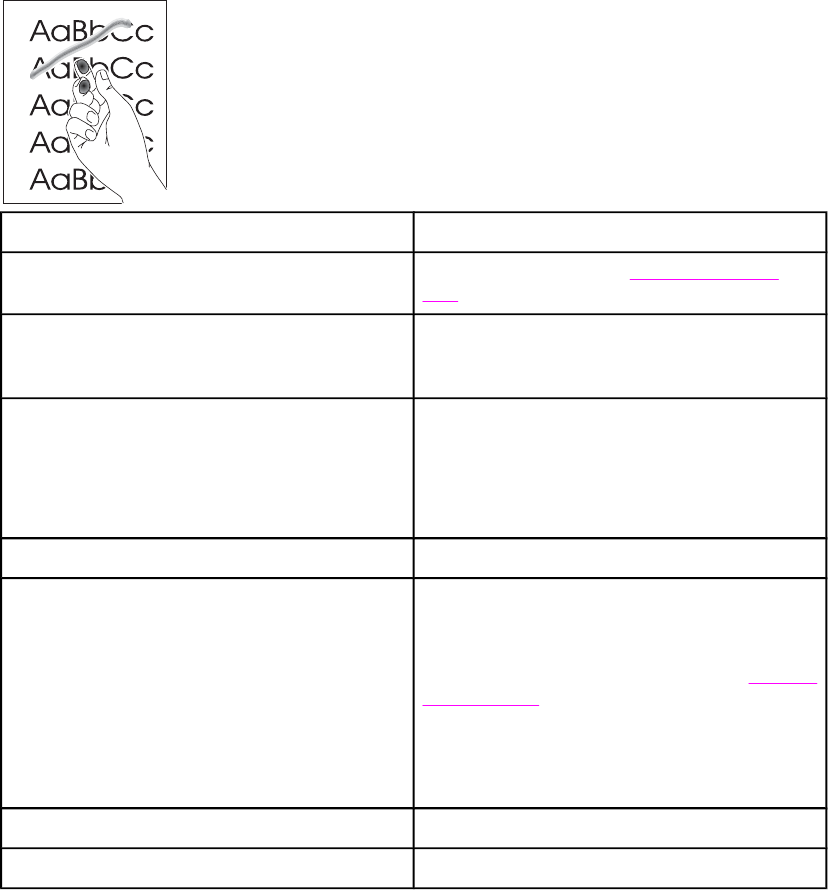
The toner is loose, and it does not stay attached to the printed page.
Cause Solution
The inside of the printer is dirty. Clean the print path. (See To clean the paper
path.)
The media does not meet HP’s specifications (for
example, it is too moist or too rough).
Make sure that the media meets specifications
detailed in the HP LaserJet Printer Family Print
Media Guide.
The driver is not set for the correct media. 1. On the Paper tab of the printer driver, under
Type is:, select the correct media type from
the drop-down list.
2. Select the correct media by using the HP
Toolbox.
The power strip is not working correctly. Plug the product directly into an ac outlet.
The fuser temperature is too low. The fuser
temperature varies according to the media type
being used.
In the Paper tab of the printer driver, under Type
is:, select the correct media type from the drop-
down list.
Perform the heating element check. See Heating-
element check.
If the error persists, replace the heating element.
If, after replacing the heating element, the error
persists, replace the ECU.
The fuser film is torn or has holes. Replace the fuser.
The print cartridge needs to be replaced. Replace the print cartridge.
184 Chapter 6 Troubleshooting ENWW
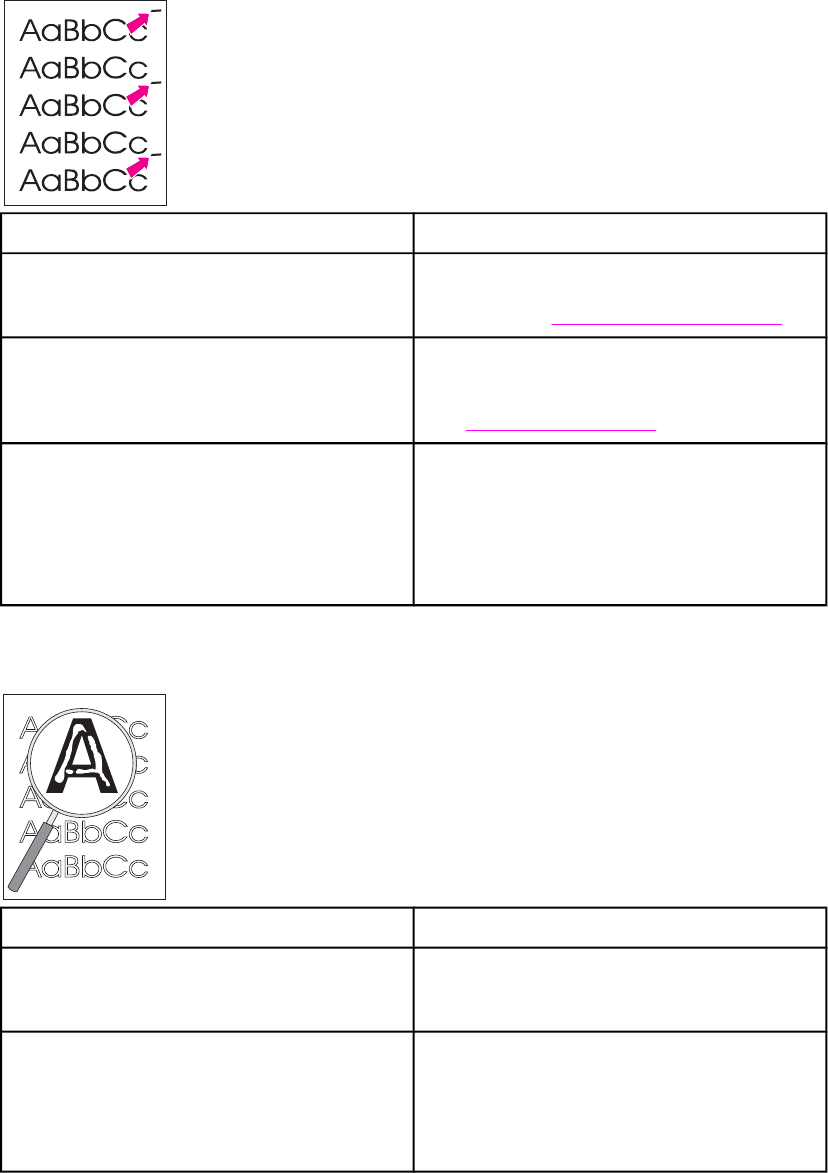
Repetitive vertical defects appear on the printed page.
Cause Solution
If the repetitive mark occurs at equal distance
between marks, either the print cartridge or a
printer roller is damaged.
Use the defect ruler to identify the spacing. Check
the appropriate component and replace if
necessary. See Repetitive image-defect ruler.
The internal parts have toner on them. If the defects occur on the back of the page, the
problem will probably correct itself after a few
more printed pages. Otherwise, clean the printer.
(See To clean the paper path.)
The driver is not set for the correct media. 1. In the Paper tab of the printer driver, under
Type is:, select the correct media type from
the drop-down list. (This affects the current
print job only.)
2. Select the correct media from the HP
Toolbox.
Characters are poorly formed and are producing hollow images.
Cause Solution
The media is too slick. Try a different media. Make sure that the media
meets specifications detailed in the HP LaserJet
Printer Family Print Media Guide.
The driver is not set for the correct media. 1. In the Paper tab of the printer driver, under
Type is:, select the correct media type from
the drop-down list. (This affects the current
print job only.)
2. Select the correct media through HP Toolbox.
ENWW Solving image-quality problems 185
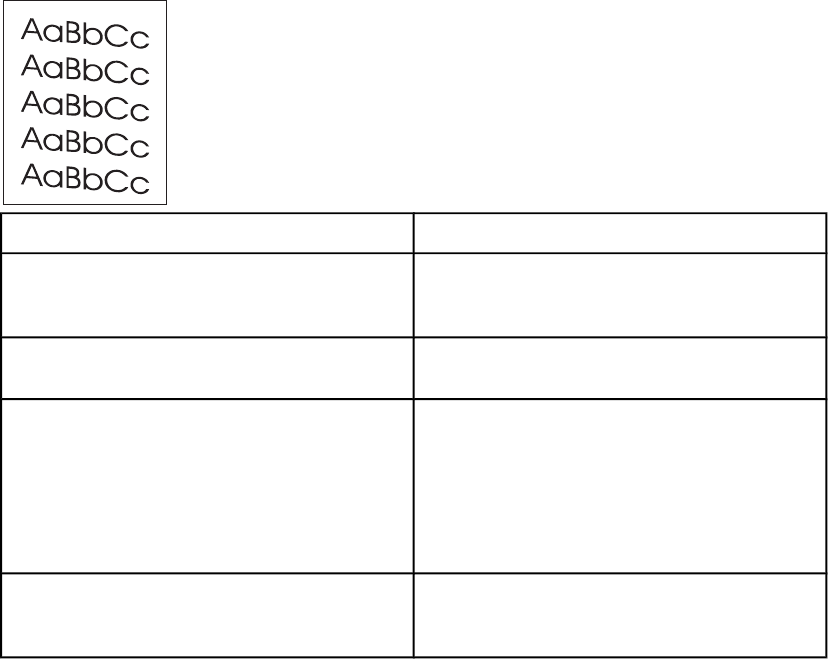
Pages are skewed (crooked).
Cause Solution
The media is loaded incorrectly. Reload the media, and make sure that the media
guides are not too tight or too loose against the
media stack.
The media guides are broken or missing. Replace the media input tray or the paper-pickup
unit.
The input tray is too full. Remove some of the sheets. The main input tray
can hold up to 250 sheets of 75-g/m2 (20-lb)
bond-weight paper (less for heavier paper) or from
20 to 30 envelopes. The priority input tray can hold
up to ten sheets of 75-g/m2 (20-lb) bond-weight
paper (one sheet of heavier paper) or one
envelope.
The type and quality of media does not meet HP’s
specifications.
Make sure that the media meets specifications
detailed in the HP LaserJet Printer Family Print
Media Guide.
186 Chapter 6 Troubleshooting ENWW
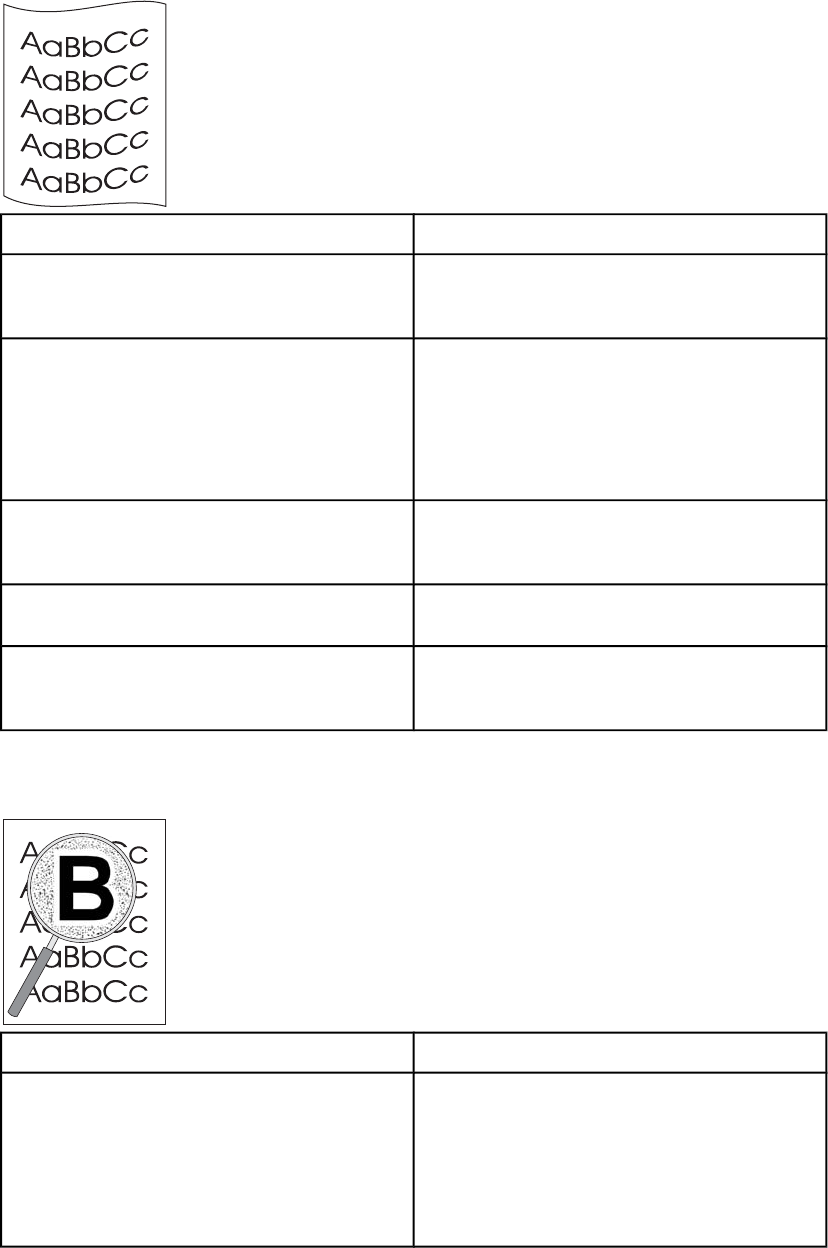
The printed page has curls or waves.
Cause Solution
Paper curl is inherent to the laser printing
process; it occurs when paper is subjected to
heat.
Curled paper tends to relax as it cools. Place the
paper on a flat surface while it is cooling.
The environment is too warm or too humid. 1. Both high temperatures and high humidity
levels cause media to curl. Move the product
to a different environment.
2. Use a different media. Make sure that the
media meets specifications detailed in the HP
LaserJet Printer Family Print Media Guide.
The media was in the input tray for too long. Turn the stack of media over and put it back in the
tray. Rotate the media 180° and put it back in the
tray.
The standard paper path is not working correctly. Open the straight-through output door on the back
of the product and use this paper path.
The fuser temperature is too high. The fuser
temperature varies according to the type of media
being used.
Select a lighter-weight media type from the printer
driver or the HP Toolbox.
Large amounts of toner are scattered around the characters.
Cause Solution
The media resistivity is too high. 1. Use a different media. Make sure that the
media meets specifications detailed in the HP
LaserJet Printer Family Print Media Guide.
2. Turn the stack of media over and put it back in
the tray.
3. Use media that is designed for laser printers.
ENWW Solving image-quality problems 187
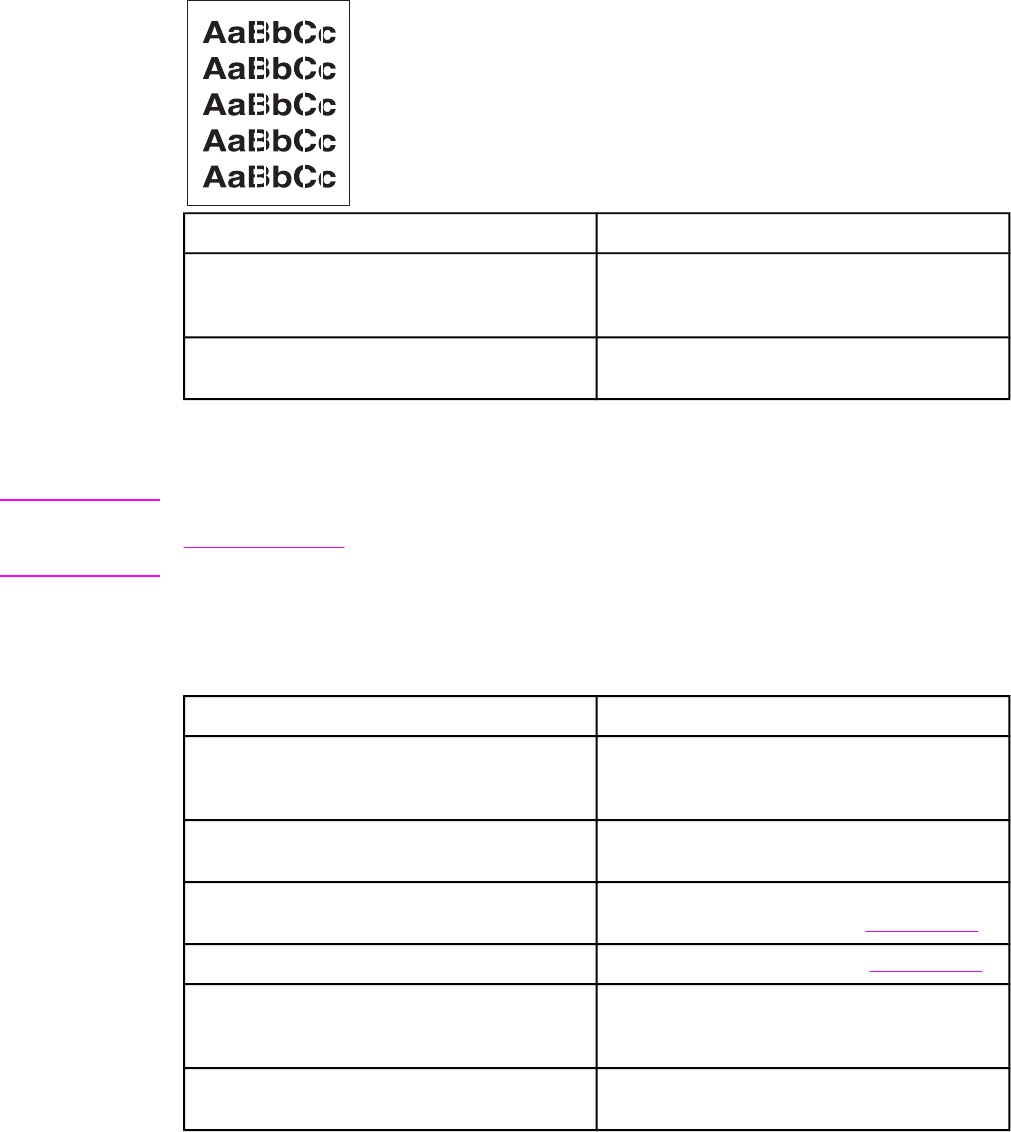
Vertical white stripes appear.
Cause Solution
The media does not meet HP’s specifications (for
example, it is too moist or too rough).
Make sure that the media meets specifications
detailed in the HP LaserJet Printer Family Print
Media Guide.
The toner is low. Gently shake the print cartridge back and forth to
redistribute the toner.
Solving scanning (copying) image-quality problems
Note Some image-quality problems can be isolated by performing printer functional tests. See
Functional checks. Image quality problems can also be caused by using cables that are not
IEEE-1284 compliant.
Pages do not print.
Cause Solution
The product is not plugged in, or the power switch
is not on.
Make sure that the product is plugged into a live
wall outlet or power strip and that the power switch
is turned on.
The computer cable is loose. Check that the cable between the product and the
computer is securely connected.
The tape was not removed from the print
cartridge.
Remove the print cartridge, remove the tape, and
reinstall the print cartridge. (See Print cartridge.)
The print cartridge is out of toner. Replace the print cartridge. (See Print cartridge.)
The media does not meet HP’s specifications (for
example, it is too moist or too rough).
Make sure that the media meets specifications
detailed in the HP LaserJet Printer Family Print
Media Guide.
The original was loaded upside-down. Load the original with the side to be scanned
facing up in the ADF or down on the flatbed.
188 Chapter 6 Troubleshooting ENWW
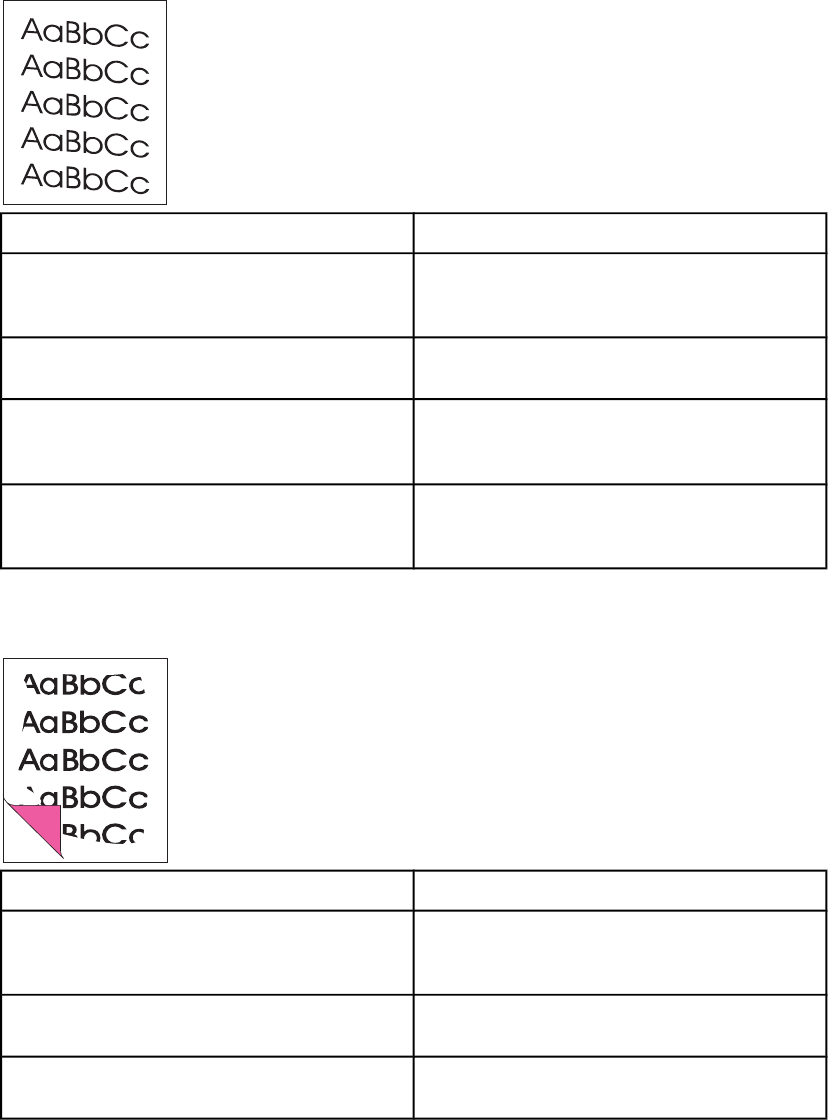
Pages are skewed (crooked).
Cause Solution
The media is loaded incorrectly. Reload the media, and make sure that the media
guides are not too tight or too loose against the
media stack.
The media guides are broken or missing. Replace the media input tray or the paper-pickup
unit.
The ADF input tray is too full. Remove some of the sheets. The ADF input tray
can hold up to 50 sheets of 75-g/m2 (20-lb) bond-
weight paper.
The type and quality of media does not meet HP’s
specifications.
Make sure that the media meets specifications
detailed in the HP LaserJet Printer Family Print
Media Guide.
Parts of the page around the edges are not printing.
Cause Solution
The product cannot print to the edge of the paper.
The printer has minimum margins on each edge
of 4.23 mm (0.167 inch).
To fit the image into this printable area, slightly
reduce the size of the image.
If copying, the reduction setting is incorrect. Copied images will be clipped if the image on the
original is too close to the edge of the original.
The paper size setting is incorrect. Set the correct page size on the control-panel
menu.
ENWW Solving image-quality problems 189
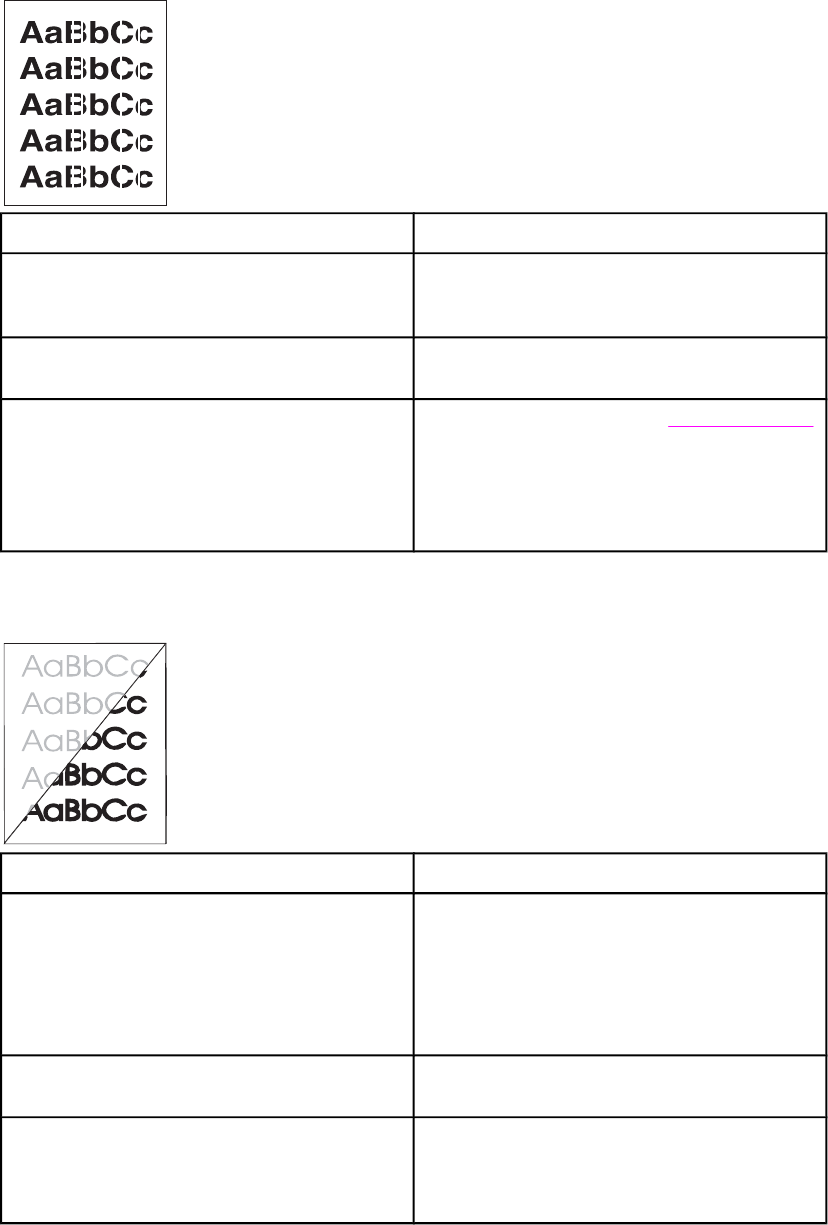
Vertical white stripes appear.
Cause Solution
The media does not meet HP’s specifications (for
example, it is too moist or too rough).
Make sure that the media meets specifications
detailed in the HP LaserJet Printer Family Print
Media Guide.
The toner is low. Gently shake the print cartridge back and forth to
redistribute the toner.
If copying with the ADF, the ADF glass is dirty. 1. Clean the ADF glass. See To clean the glass.
2. If the problem persists, replace the print
cartridge.
3. If the problem persists, replace the fuser
assembly.
Copies or scanned images are too light or too dark.
Cause Solution
The contrast is not set correctly. 1. Adjust the contrast and resolution settings on
the control-panel menu or from the
HP Toolbox.
2. Check that the contrast and resolution
settings are correct. See the user guide for
more information.
The original image is very light or very dark. Adjust the resolution and contrast setting(s) on the
control-panel menu or from the HP Toolbox.
The scanned image is too light or too dark
because the original was on colored paper.
If the original was on a colored paper, including
brown recycled paper, the text might not be clear.
Adjust the resolution, contrast, and brightness
settings from HP Toolbox.
190 Chapter 6 Troubleshooting ENWW
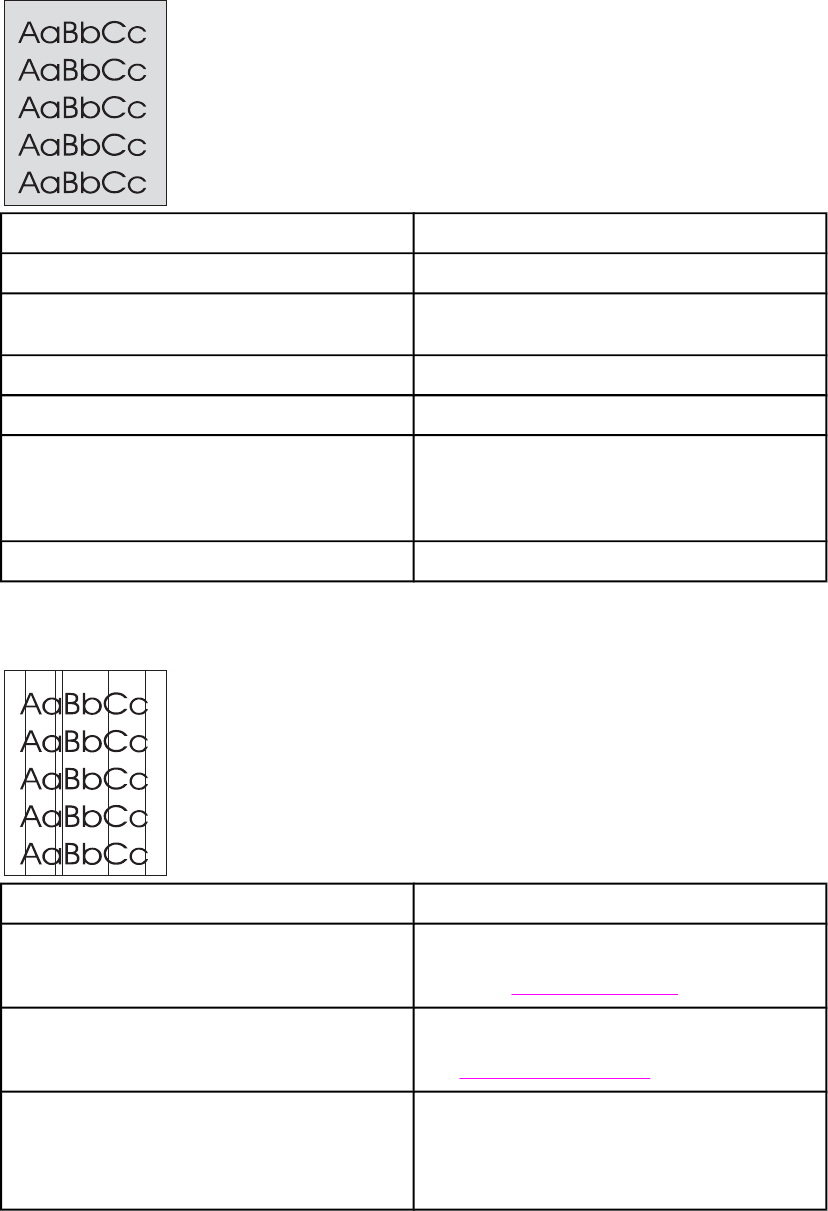
The printed page has a gray background.
Cause Solution
The priority input tray is not in place. Adjust the priority input tray.
The print density setting is too high. Decrease the amount of background shading by
using the HP Toolbox.
The lighter/darker setting is incorrect. Adjust the lighter/darker setting to a lighter level.
The media basis-weight is too high. Change the media to a lower basis-weight.
The humidity level is too low. Very low humidity can increase the amount of
background shading. Move the product to a
different location, or decrease the background
shading by using the HP Toolbox.
The print cartridge needs to be replaced. Replace the print cartridge.
Vertically-aligned black streaks or smears appear on successive pages.
Cause Solution
The ADF glass is dirty. Try copying from the flatbed scanner. If the
problem occurs only with the ADF, clean the ADF
glass. See Cleaning the product.
The printer needs to be cleaned. If the problem occurs when copying from the
flatbed scanner and the ADF, clean the printer.
See To clean the paper path.
A component is damaged. (For example, the
photosensitive drum inside the print cartridge is
scratched.)
1. Replace the print cartridge if it is damaged
and if maintenance procedures do not
improve print quality.
2. Replace the scanner assembly.
ENWW Solving image-quality problems 191
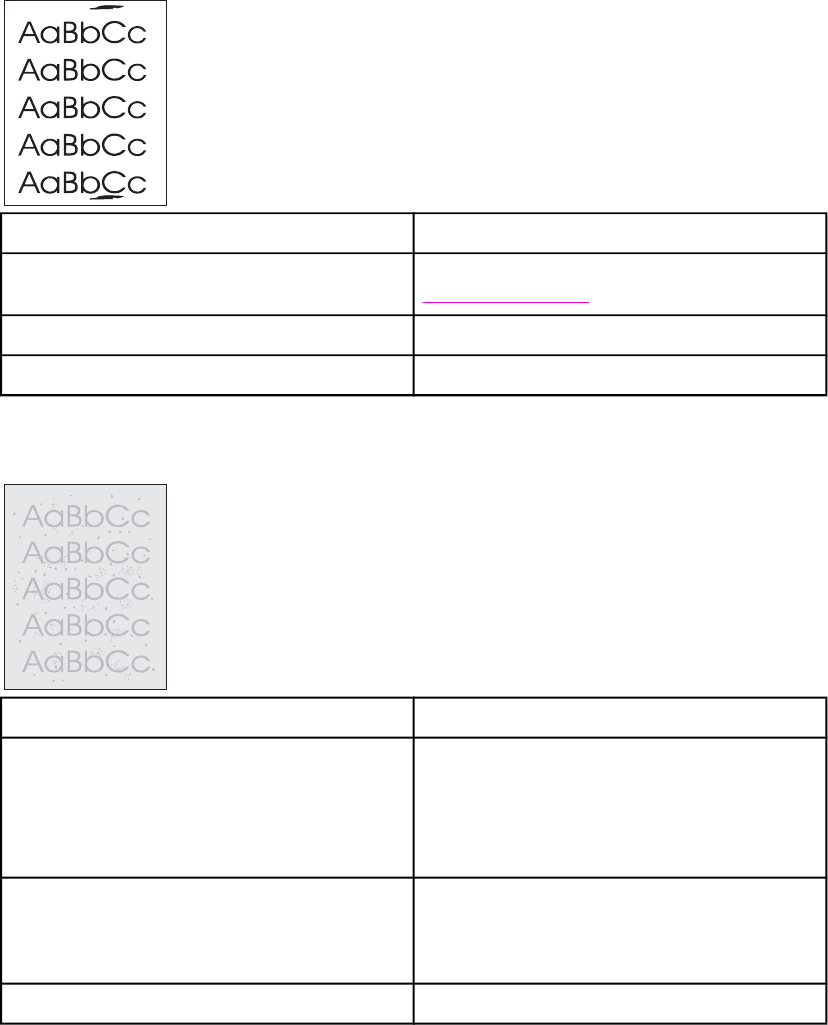
Scanned images have black dots or streaks.
Cause Solution
The scanner glass is dirty. Clean the ADF path and flatbed glass. See
Cleaning the product.
A problem exists with the scanner assembly. Replace the scanner assembly.
The toner drum in the print cartridge is damaged. Replace the print cartridge.
Scanned text is not clear.
Cause Solution
The contrast, resolution, or brightness needs to be
adjusted before scanning.
1. Adjust the contrast and resolution settings
from the HP Toolbox.
2. Check that the contrast and resolution
settings are correct. See the user guide
section for more information.
The original is on colored paper. If the original is on colored paper, including brown
recycled paper, the text might not be clear. Try
adjusting the resolution, contrast, and brightness
settings from the HP Toolbox.
There is a problem with the scanner assembly. Replace the scanner assembly.
192 Chapter 6 Troubleshooting ENWW
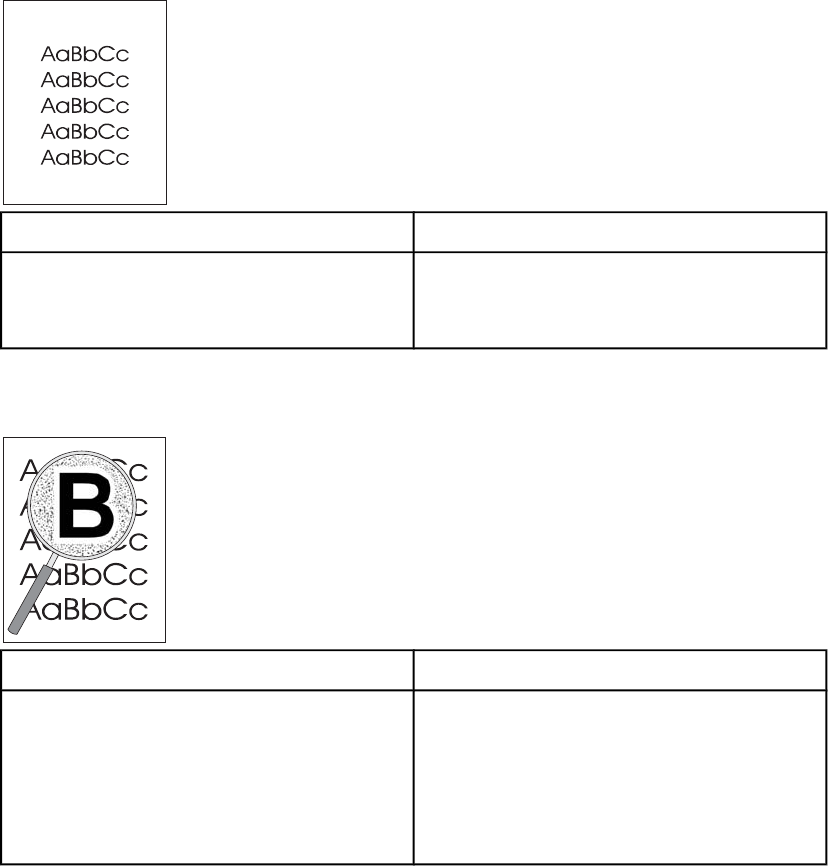
Images are scanning at a reduced size.
Cause Solution
The HP software settings are set to reduce the
scanned image.
1. Adjust the settings from the HP Toolbox.
2. Adjust the settings in the HP LaserJet Scan
software.
Large amounts of toner are scattered around the characters.
Cause Solution
The media resistivity is too high. 1. Use a different media type. Make sure that the
media meets specifications detailed in the HP
LaserJet Printer Family Print Media Guide.
2. Turn the stack of media over and put it back in
the tray.
3. Use media that is designed for laser printers.
ENWW Solving image-quality problems 193
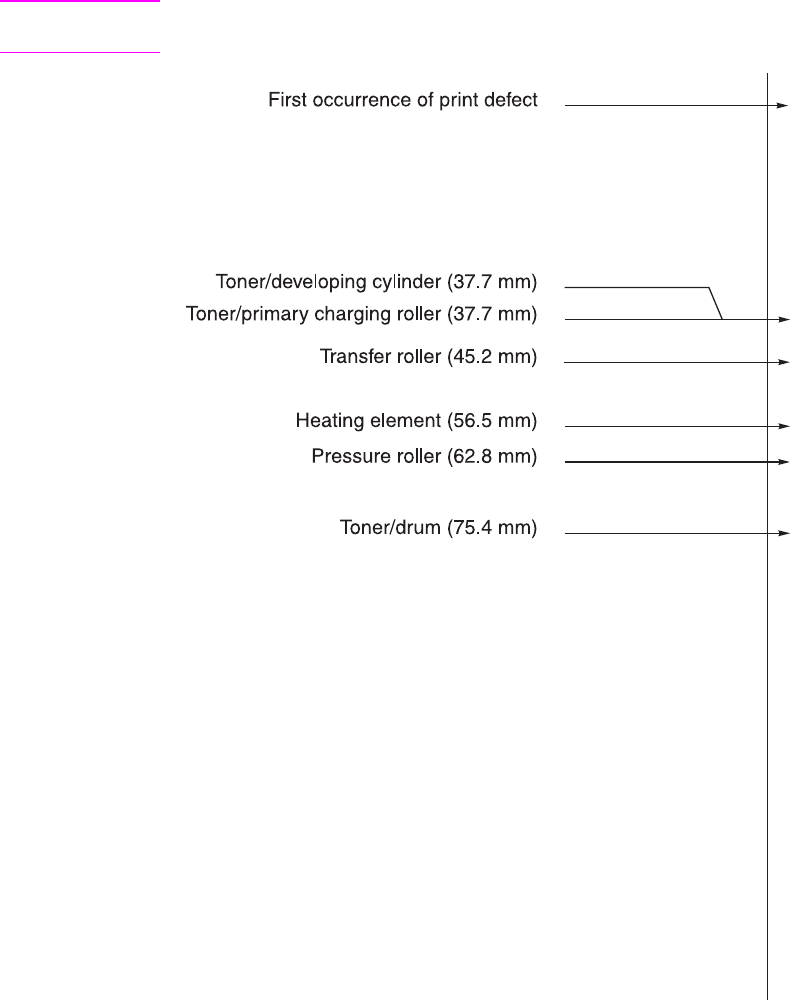
Repetitive image-defect ruler
Use the repetitive image-defect ruler to help solve image-quality problems. Place the top line
on the ruler next to the first occurrence of the defect on the page. Find the mark that points to
the next instance of the defect to identify the component that is causing the defect.
Note The repetitive image defect ruler is for reference only and might not display or print to exact
scale.
Figure 6-1. Repetitive image defect ruler
194 Chapter 6 Troubleshooting ENWW
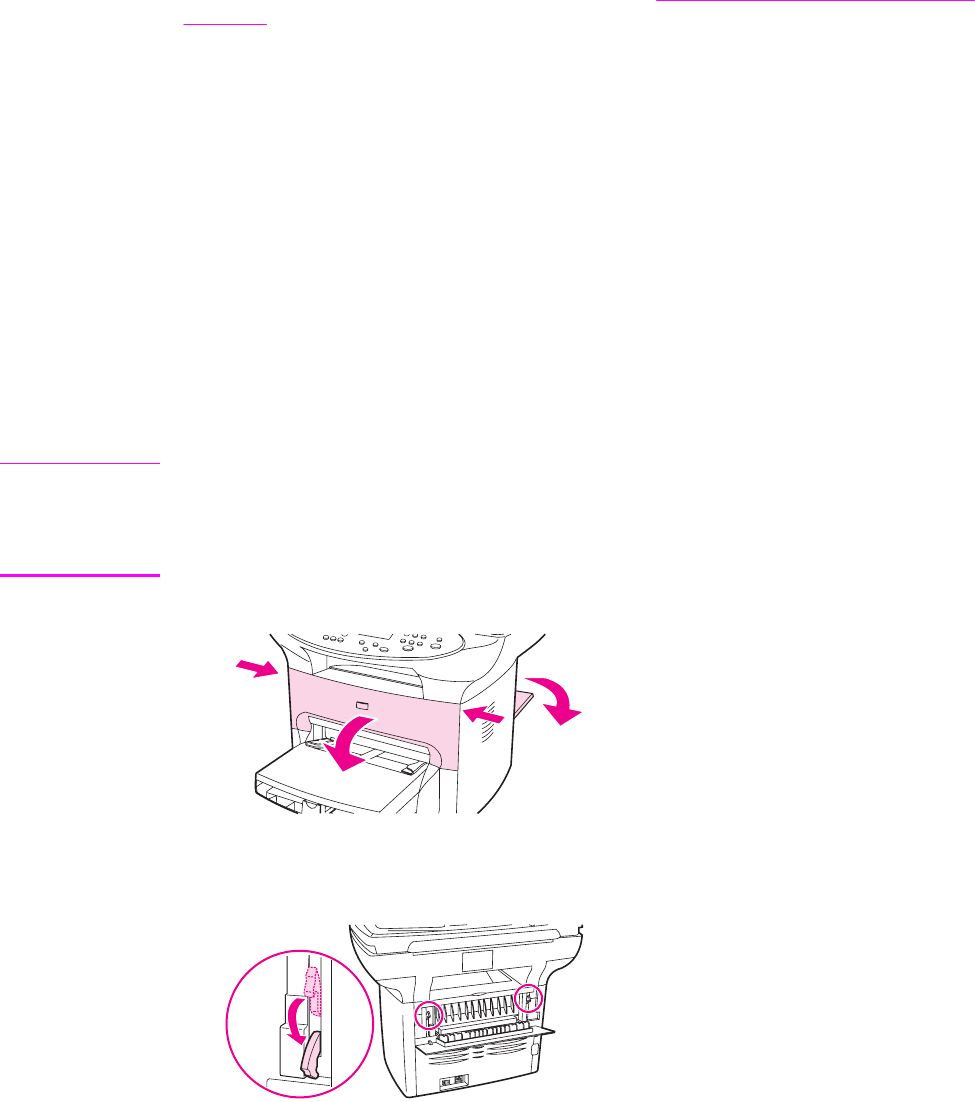
Solving paper-feed problems
Use the information in his section to solve problems related to moving paper or documents
through the product.
If the problem occurs when copying or scanning, see Solving scanner (copier) paper-feed
problems.
Jams occur in the printer
Occasionally, media becomes jammed during a print job. Try the following remedies before
you attempt to clear the jam:
●Make sure that the media meets specifications.
●Make sure that the media is not wrinkled, folded, or damaged.
●Make sure that the product is clean.
●Make sure that the input trays are loaded properly and are not too full.
●When printing to the straight-through output path, close and open the door again to make
sure that the green pressure release levers are closed.
To clear a jam
CAUTION Jams might result in loose toner on the page. If toner falls on clothing, wash it in cold water.
Hot water will permanently set the toner into the fabric. If toner is on your hands, wash them in
cold water.
Do not use a sharp object, such as a pencil or scissors, to remove jammed media.
1. Open the print-cartridge door and the straight-through output door.
2. Rotate the green pressure release levers at the back of the product downward. If it is
possible to remove the media from the front of the product without removing the print
cartridge, do so, and continue with step 4.
ENWW Solving paper-feed problems 195
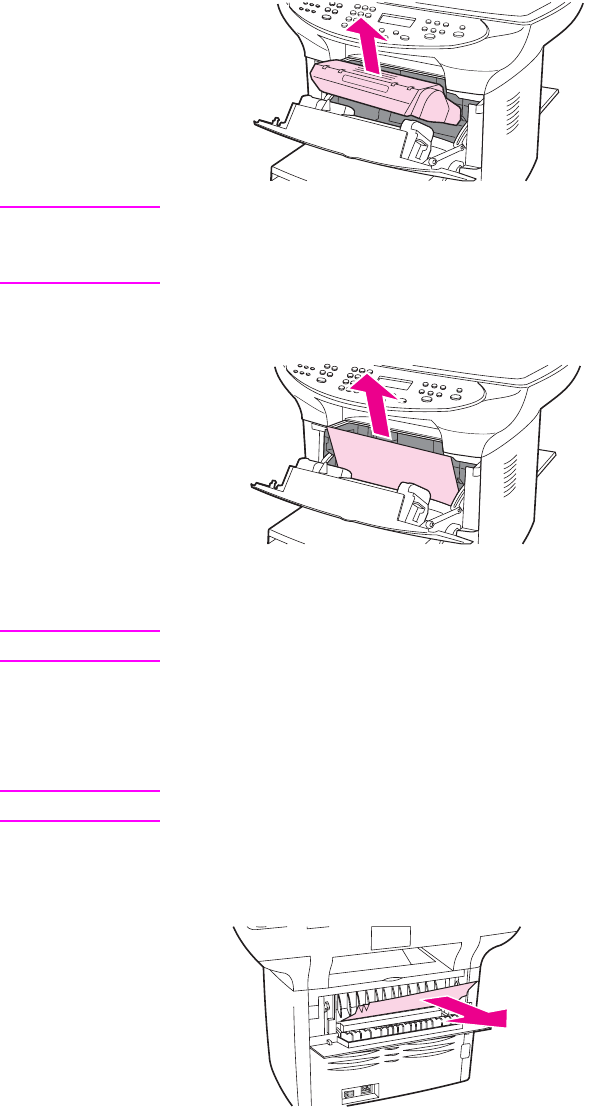
3. Grasp the handle on the print cartridge, remove the print cartridge, and set it aside.
CAUTION To prevent damage to the print cartridge, do not expose it to light any longer than necessary.
Place the print cartridge in a paper bag or other opaque container until you can place it back in
the device.
4. With both hands, grasp the side of the media that is most visible (this includes the
middle), and carefully pull it free from the product.
5. After the jammed media is removed, replace the print cartridge, and close the print-
cartridge door and the straight-through output door.
Note The pressure release levers automatically close when the straight-through output door closes.
6. After clearing a jam, turn off the product, and then turn it on again.
To clear other media jams
CAUTION Never use a sharp object, such as a pencil or scissors, to remove jammed media.
If the media has crumpled and jammed in the back of the product, open the straight-through
output door. Release the two green fuser levers. Gently pull the media out of the rollers. Close
the straight-through output door.
196 Chapter 6 Troubleshooting ENWW
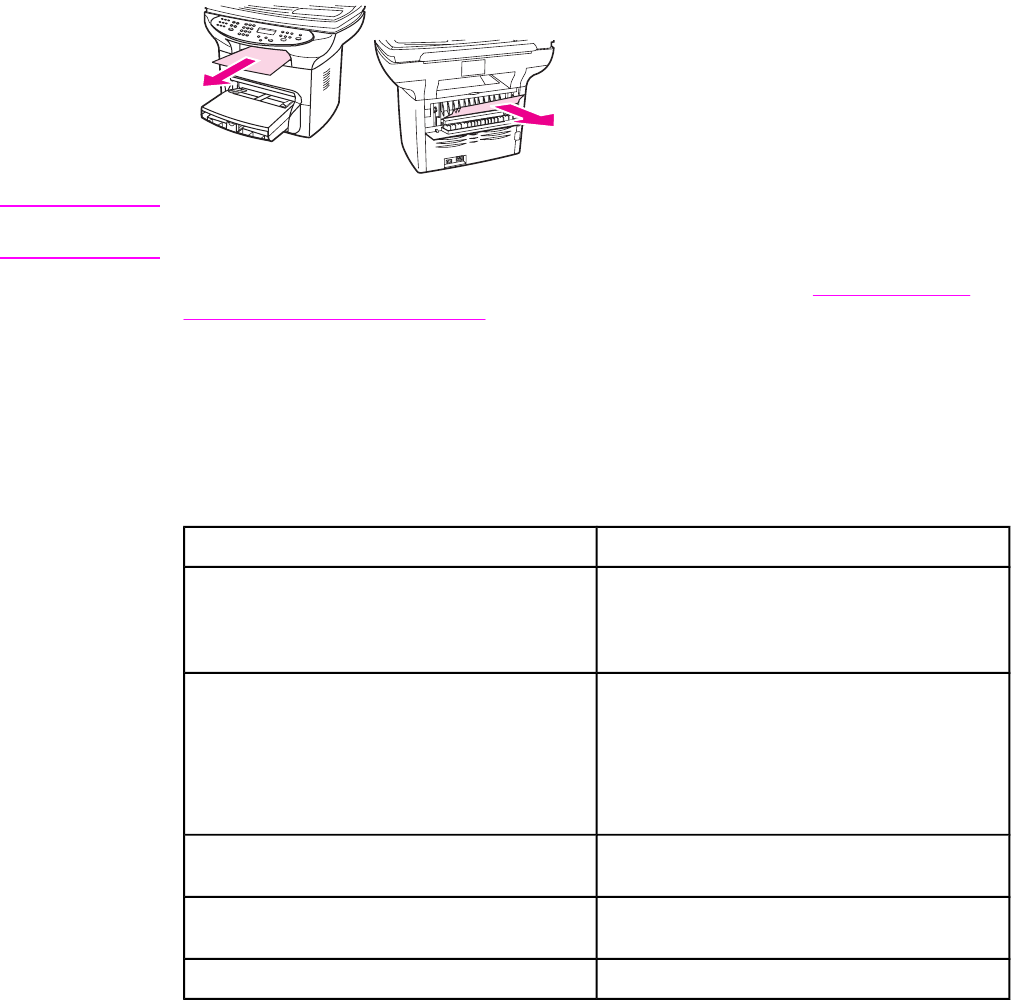
If the media has jammed where it exits the product, release the two green fuser levers, grasp
the leading edge of the media, and pull the media out through the output bin. Re-engage the
fuser levers before attempting to print again.
Note If you turned the product off before clearing the jam, turn it on again, and then resend the
printing or copying job.
If the media has jammed in the automatic document feeder (ADF), see Jams occur in the
automatic document feeder (ADF).
Solving print paper-feed problems
Pages are coming out curled or wrinkled.
Cause Solution
Paper curl is inherent to the laser printing
processes, and occurs when paper is subjected to
heat. Paper curl tends to relax as the paper cools
while resting on a flat surface.
Make sure that the media meets specifications
detailed in the HP LaserJet Printer Family Print
Media Guide.
Paper is curled or wrinkled when printing. Open the straight-through output door on the back
of the product and use this paper path.
In the printer driver, on the Paper or Paper/
Quality tab, select a lighter-weight media type,
such as Light <75 g/m2, to reduce the fuser
temperature.
Paper is curled when faxing or copying. In the Service menu on the control panel, select
Less paper curl to reduce the fuser temperature.
Paper is not stored properly. Whenever possible, store paper in its sealed ream
at room temperature.
The media is too long for the printer output bin. Use the long media extension.
ENWW Solving paper-feed problems 197

Print is misaligned on the page (skewed pages).
Cause Solution
The media input tray is overfilled. Remove some of the media.
The paper guides are not set correctly, are
broken, or are missing.
Be sure to center the paper with the side media
guides. Verify that the guides are not adjusted too
tightly or too loosely against the paper. Check for
broken or missing guides and replace as
necessary.
The paper’s weight or surface finish does not
meet HP’s specifications.
Make sure that the media meets specifications
detailed in the HP LaserJet Printer Family Print
Media Guide.
198 Chapter 6 Troubleshooting ENWW

The printer feeds multiple sheets or jams frequently from the main input tray or priority input
tray.
Cause Solution
Paper guides are not adjusted properly. Slide the guides against the sides of the stack in
the media input tray or the priority input tray to
center the paper. Make sure the guides are not
adjusted too tightly.
Paper was not removed from the main input tray
before refilling the tray.
Always remove paper from the main input tray
before refilling it.
The main input tray or priority input tray is
overfilled.
Remove some of the sheets. The main input tray
can hold up to 250 sheets of 75-g/m 2 (20-lb)
bond-weight paper (less for heavier paper) or from
20 to 30 envelopes. The priority input tray can hold
up to ten sheets of 75-g/m 2 (20-lb) bond-weight
paper (one sheet of heavier paper) or one
envelope.
The paper was poorly cut by the manufacturer and
is sticking together.
“Break” the ream of paper by curving it into an
upside-down u-shape; this can effectively
decrease multifeeds. Also try turning the paper
around to feed the opposite end first, or use a
different type of paper.
Transparencies tend to stick to each other. Remove the stack of transparencies, and bend it
along each of the four edges to separate the
sheets.
If the problem persists, feed transparencies one-
at-a-time.
The paper does not meet HP’s specifications for
print media.
Make sure that the media meets specifications
detailed in the HP LaserJet Printer Family Print
Media Guide.
The output capacity was exceeded in the paper
output bin.
Do not allow more than 125 sheets of 75 g/m2
(20-lb) bond-weight paper (less for heavier paper)
to fill the paper output bin.
The pickup roller is dirty or damaged. Clean the pickup roller. See Cleaning the pickup
roller.
Replace the pickup roller. See To replace the
pickup roller.
The separation pad is dirty or damaged. Clean the separation pad. See Cleaning the
printer separation pad.
Replace the separation pad. See Replacing the
printer separation pad.
A sensor is not operating properly. Check the sensors to make sure that none is
jammed. If a sensor cannot be corrected, replace
the sensor.
Jams occur in the automatic document feeder (ADF)
Occasionally, media becomes jammed during a copy, scan, or fax job.
ENWW Solving paper-feed problems 199
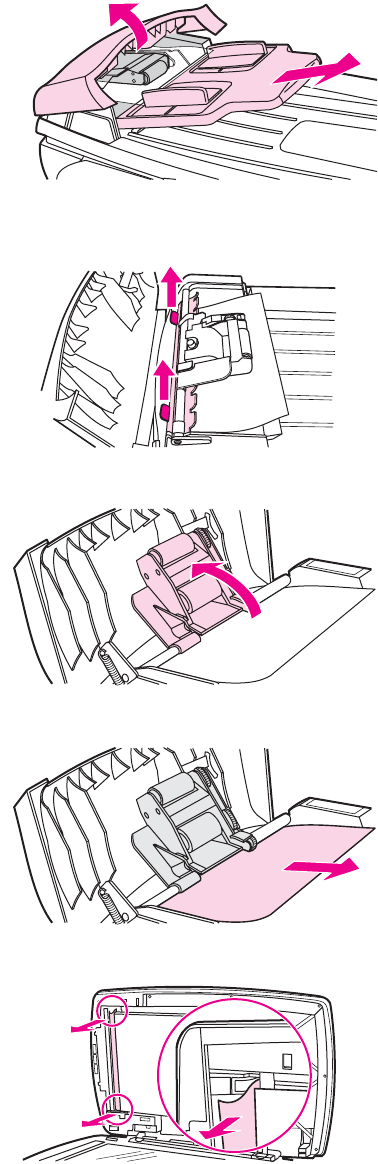
You are notified of a media jam by a software error message and the Doc feeder jam Clear,
Reload message that appears on the device control panel display.
To clear a media jam from the automatic document feeder (ADF)
1. Remove the ADF input tray and open the ADF cover.
2. Remove the jam cleanout part. Using both hands, lift up on the two handles until the part
unsnaps. Rotate and lift out the cleanout part and set it aside.
3. Lifting the green lever, rotate the pick mechanism until it stays open.
4. Gently try to remove the page without tearing it. If you feel resistance, go to the next step.
5. Open the ADF lid and gently loosen the media by using both hands.
200 Chapter 6 Troubleshooting ENWW
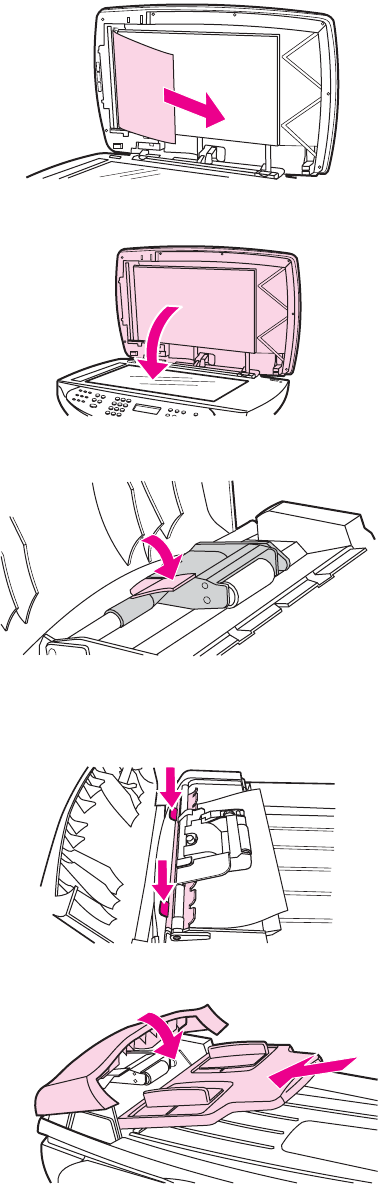
6. When the media is free, gently pull it out in the direction shown.
7. Close the lid to the flatbed scanner.
8. Lower the green lever.
9. Reinstall the cleanout part by inserting it as shown. Push down on the two tabs until the
part snaps into place. Install the cleanout part correctly, because future jamming might
occur if the cleanout part is not replaced correctly.
10. Close the ADF lid and replace the ADF input tray.
ENWW Solving paper-feed problems 201

Solving scanner (copier) paper-feed problems
Long pages stop feeding through the ADF.
Cause Solution
The document is too long. The maximum document length is 381 mm (15
inches). If the document is too long, copy
segments of it and scan each copy.
The paper delivery sensor is damaged. Check the paper delivery sensor to make sure it is
not jammed. If the sensor cannot be corrected,
replace it.
Scanned items are crooked.
Cause Solution
The media input tray guides are not set correctly,
are broken, or are missing.
Be sure to center the paper with the media input
tray guides. Verify that the guides are not adjusted
too tightly or too loosely against the paper. Check
for broken or missing guides and replace as
necessary.
Pages refeed into the ADF.
Cause Solution
The media is damaged. Make sure that the media is not folded or torn, and
that it meets specifications detailed in the HP
LaserJet Printer Family Print Media Guide.
202 Chapter 6 Troubleshooting ENWW

The ADF feeds multiple sheets or jams frequently from the media input tray.
Cause Solution
The media input tray guides are not adjusted
properly.
Remove the document from the media input tray.
Straighten the item, then reinsert it. Slide the
guides against the sides of the item to center it.
Make sure that the guides are not adjusted too
tightly.
The media input tray is overfilled. Remove some of the sheets. The media input tray
can hold up to 50 pages, depending on the
thickness of the pages.
The item was too thick, too slick, or otherwise did
not meet specifications.
Make sure that the media meets specifications
detailed in the HP LaserJet Printer Family Print
Media Guide.
The ADF pickup roller is dirty or worn. Clean or replace the ADF pickup roller. See To
replace the ADF pickup-roller assembly.
The ADF document feed guide is not installed
properly.
Ensure that both sides of the ADF document feed
guide are snapped in properly.
The ADF pickup roller is damaged or worn. Replace the ADF pickup roller. See To replace the
ADF pickup-roller assembly.
The ADF separation pad is dirty, damaged, or
worn.
Replace the ADF separation pad. See ADF
separation pad.
The sensor is not operating properly. Check the sensor to make sure it is not jammed. If
a sensor cannot be corrected, replace the ADF
assembly.
A problem exists in the ADF path. Check the path for obstructions. Readjust as
necessary or replace the ADF assembly.
ENWW Solving paper-feed problems 203

Solving problems with digital subscriber line (DSL) connections
A digital subscriber line (DSL) uses digital technology over standard copper phone wires. DSL
services rely on an AM signal. The HP LaserJet 3380 all-in-one is a Group 3 fax device, which
operates below the DSL capability and is not directly compatible with digital signals. However,
if specified during the DSL line setup, the signal on a DSL line can be separated so that some
of the bandwidth is used to transmit an analog signal (for voice and fax) while the remaining
bandwidth is used to transmit digital data. Split the signal to use both the telephone or fax and
the computer on the same line and at the same time.
Note Not all printers and faxes are compatible with DSL services. HP does not guarantee that the
HP LaserJet all-in-one product will be compatible with all DSL service lines or providers.
The DSL modem requires a high-pass filter. Sometimes when DSL service is installed, the
service provider supplies a splitter, which includes a low-pass filter, for the normal house
phone wiring. If not, the user should contact the DSL provider, and request a filter or splitter to
enable a fax modem to operate on the line.
Note HP recommends discussing DSL line setup options with the DSL service provider. Consult the
DSL provider for technical installation requirements.
204 Chapter 6 Troubleshooting ENWW

Connecting additional devices
Depending on how the phone lines are set up, additional devices can be connected to the
phone line along with the HP LaserJet 3380 all-in-one. In general, no more than three devices
should be connected to a single phone line. If too many devices are connected to a single
phone line, one or more of the devices might not detect an incoming call. If this occurs,
disconnect one or more of the devices.
Note This product cannot replace a computer modem. It cannot act as a modem for sending and
receiving e-mail, for connecting to the Internet, or for communicating with other computers.
Dedicated fax line
If the product is connected to a phone line that is used only for fax calls, the following devices
can be connected:
●Caller ID box
●Modem—An internal or external computer modem can be connected to the fax line if the
fax line is to be used for e-mail or access to the Internet. However, faxes might not be
sent or received while the line is being used for these purposes.
●Extra phone—An extra phone line can be connected to the fax line if the fax is to be used
for making outgoing calls.
Do not connect an answering machine or computer voicemail system to the fax line. If the
customer uses computer voicemail, connect the external or internal modem to the dedicated
phone line. Then, use the dedicated voice line to connect to the Internet and receive
voicemail.
Shared phone line
If the product is connected to a phone line that is shared between fax calls and voice calls, or
if the phone line has two phone numbers assigned and uses a ring-pattern service, the
following devices can be connected:
●Caller ID box
●Modem—An internal or external computer modem can be connected to the fax line if the
fax line is to be used for e-mail or access to the Internet. However, faxes might not be
sent or received while the line is being used for these purposes.
●Phone—Connect a phone to the shared phone line to make or answer voice calls on the
shared line.
●Answering machine or computer voicemail system—Connect these devices to the same
phone jack that the product uses in order to make sure that the different devices do not
interfere with one another.
Note It is possible to connect devices to another phone jack for the same phone line (for example,
in another room). However, the devices might interfere with faxing and with each other.
To connect additional devices
Connect additional devices in the order that is described in the following steps. The output
port for each device is connected to the input port of the next device, which forms a "chain."
Skip the steps for devices that the customer is not using, and continue to the next device.
ENWW Connecting additional devices 205
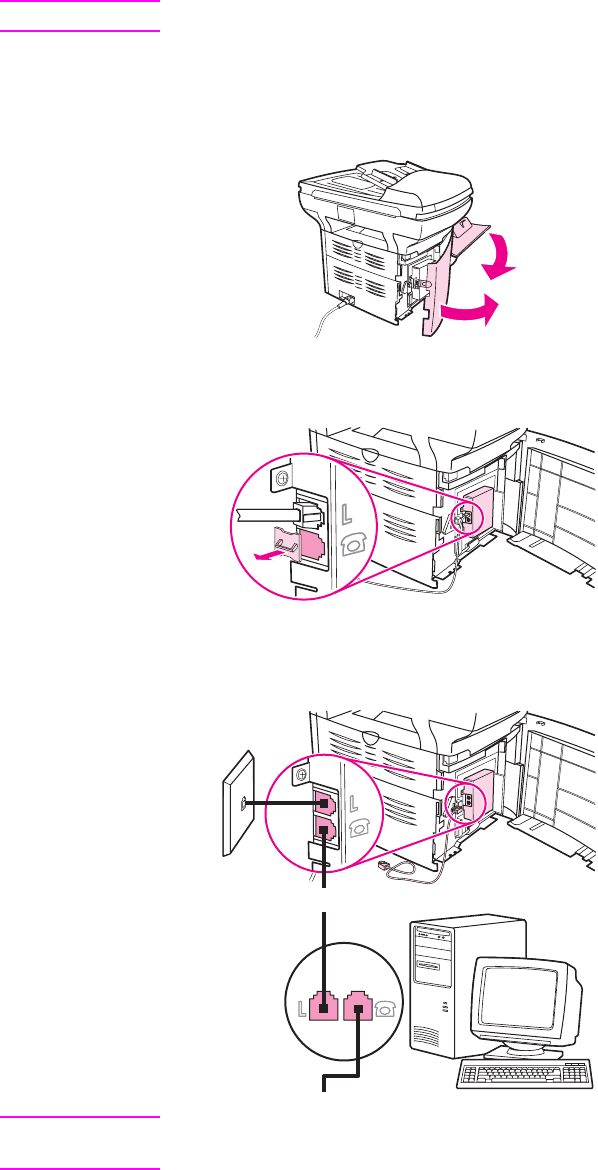
Note Do not connect more than three devices to the telephone line.
1. Unplug the power cords for all the devices that you want to connect.
2. Make sure that the product is connected to a telephone jack before continuing.
3. Open the print-cartridge door, and then open the left-side cover to reveal the fax ports.
4. Remove the plastic insert from the "telephone" port (the port that is marked with the
telephone icon).
5. To connect an internal or external modem on a computer, plug one end of a telephone
cord into the product “telephone” port. Plug the other end of the telephone cord into the
modem “line” port.
Note Some modems have a second “line” port to connect to a dedicated voice line. If there are two
“line” ports, see the modem documentation to verify which port is the correct “line” port.
206 Chapter 6 Troubleshooting ENWW
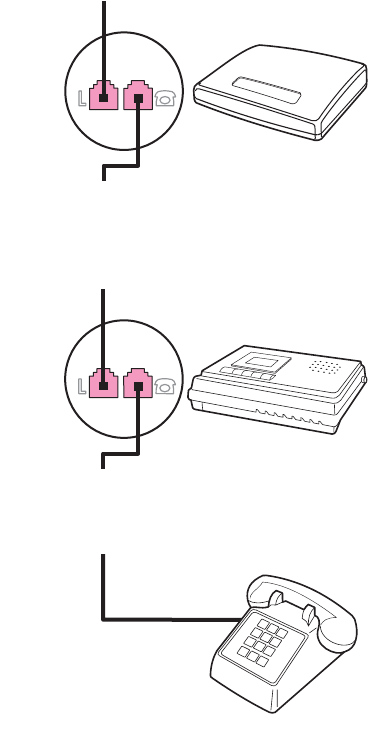
6. To connect a caller-ID box, plug a telephone cord into the previous device’s “telephone”
port. Plug the other end of the telephone cord into the caller-ID box “line” port.
7. To connect an answering machine, plug a telephone cord into the previous device’s
“telephone” port. Plug the other end of the telephone cord into the answering machine
“line” port.
8. To connect a telephone, plug a telephone cord into the previous device’s “telephone” port.
Plug the other end of the telephone cord into the telephone “line” port.
9. After connecting additional devices, plug all of the devices into their power sources.
10. Close the left-side cover, and then close the print-cartridge door. When closing the left-
side cover, make sure that the fax cords are routed through the upper notch in the cover.
ENWW Connecting additional devices 207
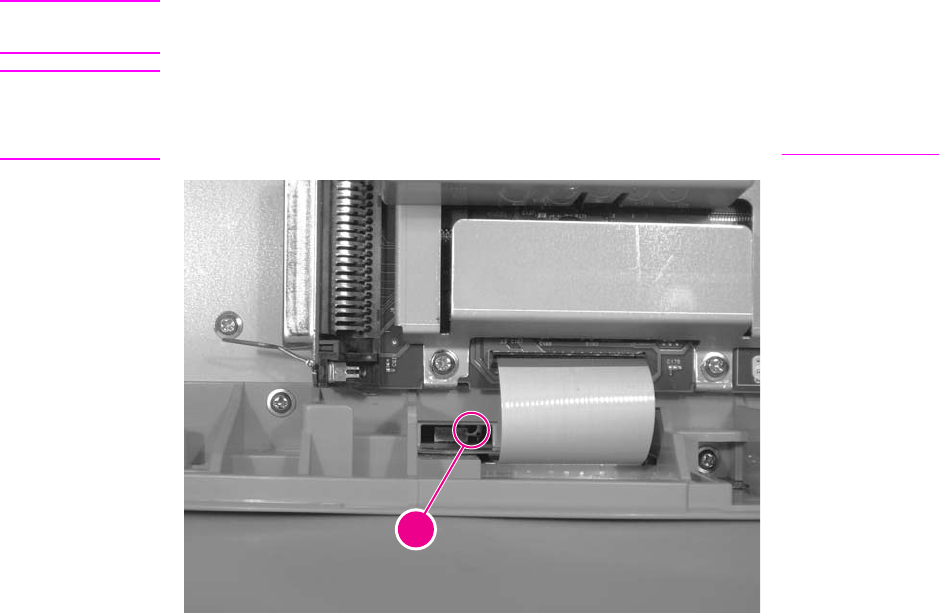
Functional checks
Use the following procedures to help diagnose and solve problems that occur in the print
engine.
Engine test
The engine test is used to verify that the print engine is functioning correctly. The formatter is
bypassed during an engine test, so the engine test is useful for isolating printer problems. The
engine test prints horizontal lines down the entire printable area of a page and is also useful
for checking and adjusting registration.
Printing an engine test
The engine test switch is inside the left side door, below the formatter.
To print an engine test, open the left side door and use a non-conductive probe to depress the
engine test switch. A single test page will print.
CAUTION Use a non-conductive probe to depress the engine test switch. Inserting a conductive probe to
depress the switch can damage the product.
Note The formatter must be connected to the ECU in order to perform an engine test. Otherwise,
the printer does not print.
You must override the print cartridge door interlock (SW 301). (See Paper-path check.)
1
Figure 6-2. Engine test switch
Control-panel check
Perform the control-panel check to verify that all the control-panel buttons and LEDs are
functioning. If any control-panel button or LED is not functioning, replace the control panel.
208 Chapter 6 Troubleshooting ENWW

To perform the control-panel check
Note Perform this procedure as quickly as possible in order to complete the control-panel check
before the formatter begins communicating with the control panel. The control-panel test
continues until all of the buttons have been tested or until the formatter attempts to
communicate with the control panel (after approximately 40 seconds). The control-panel test
will be interrupted if it is not completed before communication occurs.
1. Turn the product power on by using the power switch.
2. Immediately press the > and
CANCEL
buttons simultaneously.
3. Press and hold down the > and
CANCEL
buttons until the message Passed MEM Test
appears on the control-panel display.
4. Release the > and
CANCEL
buttons.
5. Press the
MENU
/
ENTER
button to test the control-panel display LEDs. Continue to press
MENU
/
ENTER
until the message Scroll Check--Press Enter To Pass appears on the control-
panel display.
6. Press
MENU
/
ENTER
again.
7. The name of a control-panel button will appear on the control-panel display. Press the
corresponding button on the control panel. Repeat this step until all of the control-panel
buttons have been tested.
Note The control-panel test continues until all of the buttons have been tested or there is no activity
at the control panel for about 20 seconds. After testing all of the control-panel buttons (or
when there is no activity at the control panel for about 20 seconds), the product exits the test
and continues the startup processes.
Half self-test functional check
The purpose of the half self-test check is to determine which image-formation process is
malfunctioning. The image-formation process can be subdivided into the following stages:
●conditioning stage (charges the drum)
●writing stage (writes a latent image to the drum with the laser)
●development stage (forms a toner image on the drum)
●transfer stage (transfers the image to paper)
●separation stage (separates the media from the drum)
●fusing stage (applies heat and pressure to make the image on paper permanent)
●cleaning stage (removes excess toner from the drum)
To perform a half self-test check
1. Print a self-test page. (See Troubleshooting tools.)
2. Open the print cartridge door after the paper advances halfway through the printer (about 5
seconds after the motor begins rotation). The leading edge of the paper should have
advanced past the print cartridge.
3. Remove the print cartridge.
ENWW Functional checks 209

4. Open the print cartridge drum shield to view the drum surface. If a dark and distinct toner
image is present on the drum surface, assume that the first three functions of the image-
formation process are functioning (through the development stage). Troubleshoot the
failure as a transfer or fusing problem.
To perform other checks
If, during the half self-test check, no image is present on the photosensitive drum, perform
these checks:
1. Make sure that you removed the entire length of the sealing tape from the print cartridge
before you installed the cartridge.
2. Perform a drum-rotation functional check. (See Drum-rotation functional check .)
3. Perform a high-voltage power-supply check. (See High-voltage power-supply check.)
Drum-rotation functional check
The photosensitive drum, which is located in the print cartridge, must rotate in order for the
print process to work. The photosensitive drum receives its drive from the main drive
assembly.
Note This test is especially important if refilled print cartridges have been used.
1. Open the print-cartridge door.
2. Remove the print cartridge.
3. Mark the drive gear on the cartridge with a felt-tipped marker. Note the position of the
mark.
4. Install the print cartridge and close the print-cartridge door. The startup sequence should
rotate the drum enough to move the mark.
5. Open the print-cartridge door and inspect the gear that was marked in step 3. Verify that
the mark moved.
If the mark did not move, inspect the main drive assembly to make sure that it is meshing with
the print-cartridge gears. If the drive gears appear functional and the drum does not move,
replace the print cartridge.
Heating-element check
Paper passes between the heating element and a soft pressure roller to fuse toner to the
paper.
1. Unplug the product for at least ten minutes. Remove the right cover (see Printer right-side
cover) and back cover (see Back cover).
2. Verify that the thermistor connector is seated into both the product chassis and the ECU.
3. Unplug the fuser cable connector (callout 1) by pressing and releasing the tab on the back
of the connector. To measure the continuity of the heating element, measure the
resistance between the two pins at the end of the cable.
Note Normal resistance is 25 ohms +/- 10 ohms for the 110 V product and 80 ohms +/- 20 ohms for
the 220 V product.
If no resistance is measured, replace the fuser.
210 Chapter 6 Troubleshooting ENWW
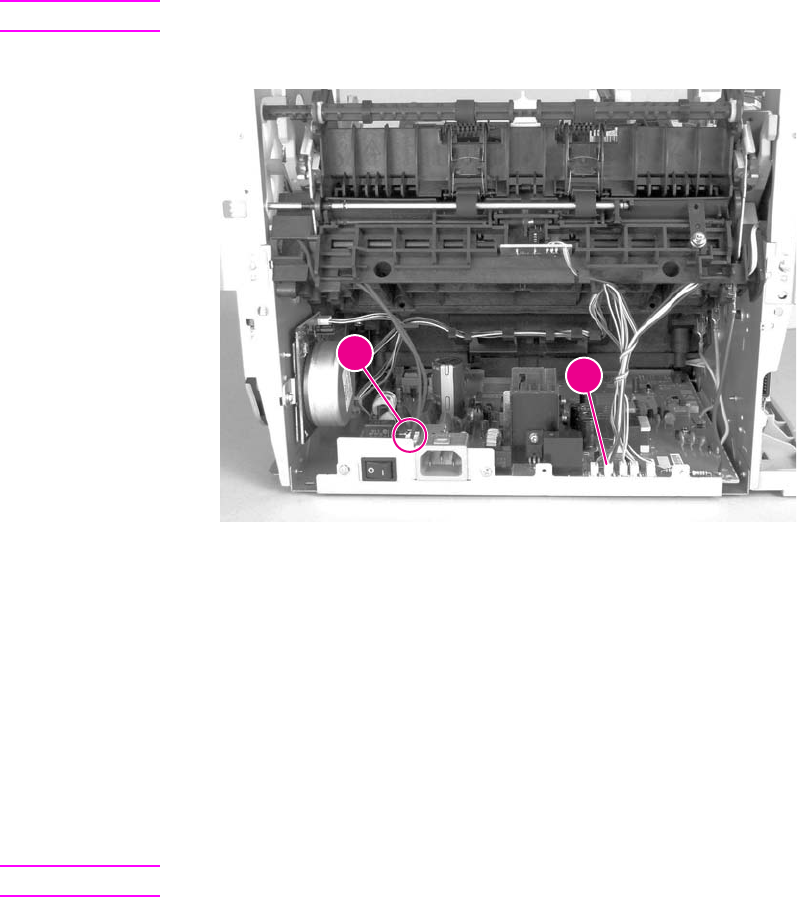
4. Remove the thermistor connector (callout 2), and measure the resistance between J206
pins one and two and between J206 pins three and four.
Note Normal resistance between both pairs of pins is 370 K ohms +/- 50 K ohms at 20° C (68° F).
If no resistance is measured, replace the fuser.
12
Figure 6-3. Locating connectors for the heating-element check
High-voltage power-supply check
The high-voltage power-supply PCA provides the necessary voltages for the image-formation
processes.
To check the print-cartridge connection points
Turn the print cartridge over and visually inspect the three connection points on the ends of
the print cartridge: one on the right side (callout 1), and two on the left side (callout 2). If they
are dirty or corroded, clean the connection. If they are damaged, replace the print cartridge.
Note One of the connection points on the left side is underneath the print-cartridge shutter.
ENWW Functional checks 211
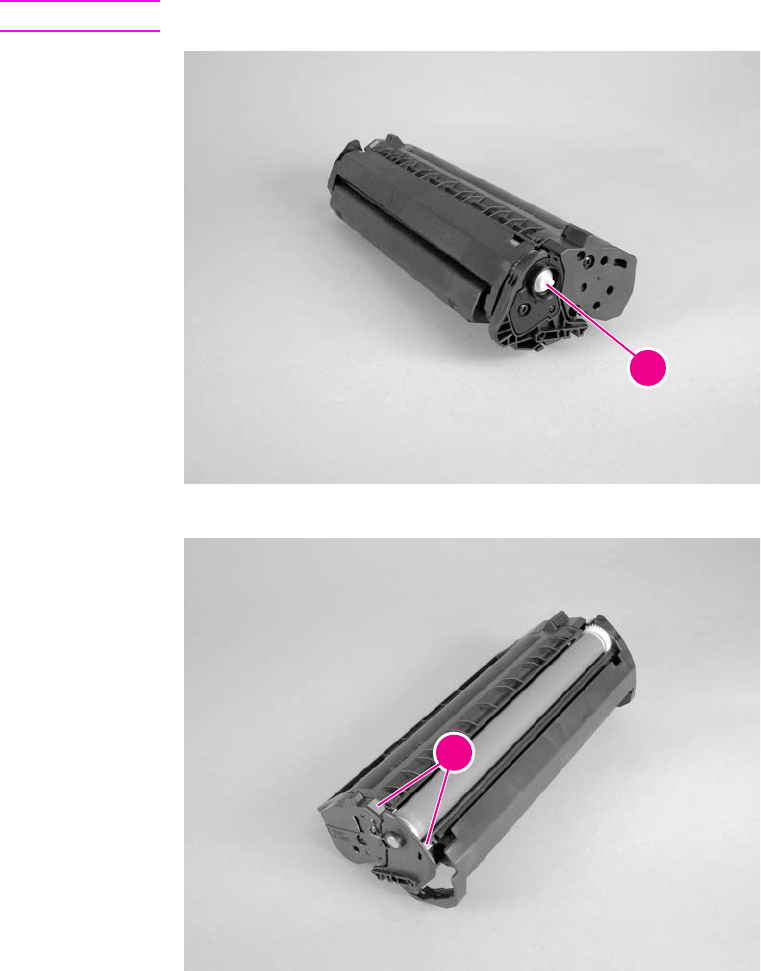
Note Use only isopropyl alcohol to clean the connections.
1
Figure 6-4. Print cartridge high-voltage connection points (right side)
2
Figure 6-5. Print cartridge high-voltage connection points (left side)
212 Chapter 6 Troubleshooting ENWW
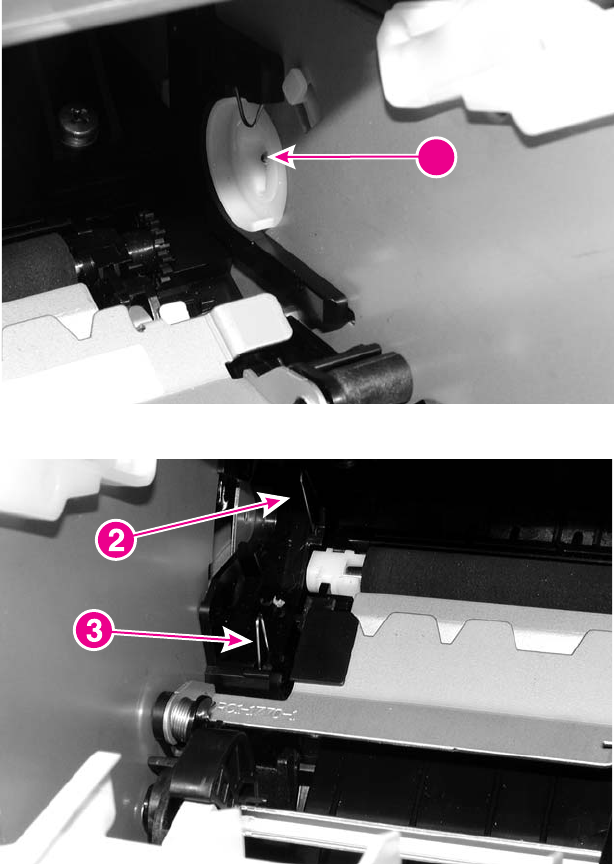
To check the high-voltage connector assembly
The assembly uses three spring-loaded pins to contact the print cartridge: drum ground
(callout 1), charging (callout 2), and developing roller (callout 3). Verify that the pins are not
dirty or corroded and that the spring-loading action is functional. If the pins are dirty, clean
them using isopropyl alcohol only. If they are damaged, replace the high-voltage connector
assembly.
1
Figure 6-6. High-voltage connector assembly (right side)
Figure 6-7. High-voltage connector assembly (left side)
Paper-path check
If media is not being picked up or is not moving through the paper path, you might want to
observe all of the paper-motion activities. Overriding the door interlock (SW301) allows you to
observe these activities:
●motor rotation
●solenoid action
●kick-plate motion
ENWW Functional checks 213
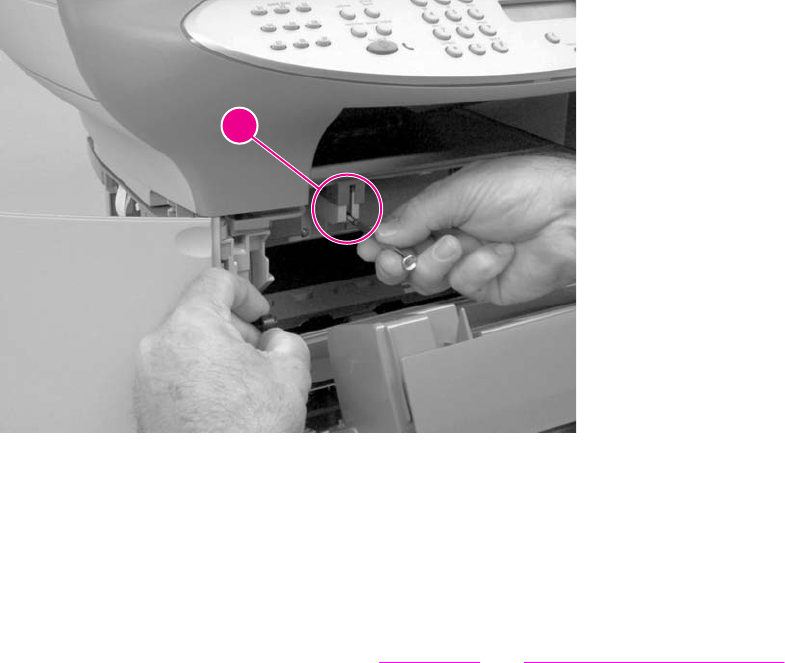
●paper pickup-roller motion
●drive-roller, transfer-roller, fuser-roller and gear, and delivery-roller motion
To override SW301
1
Figure 6-8. Overriding SW301
1. Open the left-side door and the print-cartridge door. Disengage the two print-cartridge
door arms.
2. Install the print cartridge, which will press SW301.
3. Press down the laser/scanner interlock switch (callout 1) on the laser/scanner.
4. While SW301 and the laser/scanner interlock are engaged, perform an engine test or
self-test to observe paper motion. See Engine test and Half self-test functional check.
214 Chapter 6 Troubleshooting ENWW
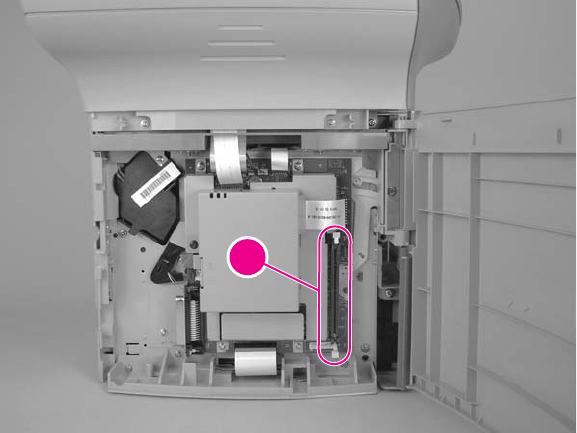
Updating or recovering the firmware code
The product has a flash-memory-based formatter that enables the firmware code to be
updated in the event that new firmware is released for the product. Using flash memory also
provides a way to recover the firmware in the event of code corruption or failure.
Firmware update by using flash executable
The configuration page lists the firmware version of the product. On flash-memory-based
products, you can update the firmware code by downloading the latest flash executable for the
product and running the program according to the readme instructions that come with it. Turn
the printer off and then on before running the executable file. If the firmware becomes
corrupted or fails (usually because of an interruption when attempting to update the firmware),
the product no longer functions. In this case, a firmware-recovery DIMM is available from HP.
Firmware-recovery DIMM
A firmware-recovery DIMM can be obtained from HP in the rare event that the firmware in
flash memory becomes corrupted. When the DIMM is installed in the DIMM slot on the
formatter and the product is turned on, the DIMM loads the latest firmware code into the
product.
To use the firmware-recovery DIMM
1. Order a firmware-recovery DIMM (RDIMM) from HP. Retain the return mailer.
2. Turn off the product.
3. Open the left-side door, and install the firmware-recovery DIMM into the DIMM slot
(callout 1).
1
Figure 6-9. Using the firmware-recovery DIMM
4. Turn on the product. The firmware-recovery DIMM takes a few minutes to automatically
restore both blocks of firmware code. Wait until the message Complete appears on the
control-panel display.
5. Turn off the product and remove the recovery DIMM.
ENWW Updating or recovering the firmware code 215
6. Turn on the product. It should start up normally.
7. Use the provided packaging to return the recovery DIMM to HP.
216 Chapter 6 Troubleshooting ENWW
Troubleshooting tools
Use the control panel to print configuration reports and demonstration pages. The
configuration report shows the settings that have been selected from the control panel.
Printing a configuration report is also considered a "self test" for the printer, although any of
the reports can serve this purpose. A printout of the control-panel menu structure is a useful
reference if you alter settings in the menu.
Printing a configuration report, demonstration page, or menu
structure
1. Press
MENU
/
ENTER
.
2. Use the < or > button to select Reports and then press
MENU
/
ENTER
.
3. Use the < or > button to select either Config report, Demo Page, or Menu Structure and
then press
MENU
/
ENTER
. The product exits the Menu settings and prints the report.
Printing all fax reports at once
To print all fax reports at once:
1. Press
MENU
/
ENTER
.
2. Use the < or > button to select Reports and then press
MENU
/
ENTER
.
3. Use the < or > button to select All fax reports and then press
MENU
/
ENTER
. The product
exits the Menu settings and prints the reports.
When you print all reports at once, the following reports are printed:
●Fax activity log—recent faxes sent and received, and their status
●Billing log (if enabled)—sorted by billing code
●Block fax list (if enabled)—fax numbers you have blocked
●Usage report—pages printed, copied, scanned, or faxed
●Configuration report—current control-panel settings, including the following sections:
–System information
–Reports
–Fax settings
–User defaults
–Service
–Page counts
●Speed-dial report—one-touch, speed-dial, and group-dial report
T.30 protocol trace
Use a T.30 protocol trace report to troubleshoot fax transmission issues.
To print a T.30 protocol trace report
1. Press
MENU
/
ENTER
.
ENWW Troubleshooting tools 217

2. Use the < or > button to select Service and then press
MENU
/
ENTER
.
3. Use the < or > button to select Print T.30 trace and then press
MENU
/
ENTER
.
4. Use the < or > button to select Now and then press
MENU
/
ENTER
. The product exits the
Menu settings and prints the reports.
Send a fax from the product or receive a fax to the product from another fax machine. Print a
T.30 trace report after the fax prints.
Explanations of some of the report column headings follow:
●Date and Time identify when the fax begins. Match this information with the fax log of
errors.
●Type is the type of fax activity: send or receive.
●Identification is the phone number to which a fax is sent.
●Result explains the status of the fax:
–“OK” means that the fax was successful.
–“Pending” faxes are in memory or are printing.
–For error codes and their meanings, see Table 6-4. Fax receive codes and Table 6-5.
Fax send codes.
Fax error-correction mode (ECM)
Normally, the product monitors the signals on the telephone line while it is sending or receiving a
fax. If the product detects an error during the transmission and the error-correction mode is On,
the product can request that the portion of the fax be resent. The factory-set default for error-
correction mode is On.
To change the error-correction setting
1. Press
MENU
/
ENTER
.
2. Use the < or > button to select Fax setup, and then press
MENU
/
ENTER
.
3. Use the < or > button to select All faxes, and then press
MENU
/
ENTER
.
4. Use the < or > button to select Error correction, and then press
MENU
/
ENTER
.
5. Use the < or > button to select On or Off, and then press
MENU
/
ENTER
to save the
selection.
V.34 fax standard
V.34 is the industry-wide fax standard for full-duplex modems that transmit at speeds up to
28,000 bps. When V.34 is turned on, the product automatically adjusts the transmission speed
based on the clarity of the image. Turning V.34 off can resolve some fax transmission issues.
To change the V.34 setting
1. Press
MENU
/
ENTER
.
2. Use the < or > button to select Fax setup, and then press
MENU
/
ENTER
.
3. Use the < or > button to select All faxes, and then press
MENU
/
ENTER
.
4. Use the < or > button to select V.34, and then press
MENU
/
ENTER
.
5. Use the < or > button to select On or Off, and then press
MENU
/
ENTER
to save the
selection.
218 Chapter 6 Troubleshooting ENWW

Fax receive and fax send codes
The following tables list the fax receive and fax send codes that appear in the fax activity log.
To print a fax activity log, press
MENU
/
ENTER
, press < or > to select Reports, and then select
Print log now.
Table 6-4. Fax receive codes
Code Description Recommended action
200 The fax session has been completed
without errors.
None required.
221 The user has pressed
CANCEL
, which
caused the fax session to be
prematurely halted.
Allow the product to receive the fax.
222 The product has answered a call but
has been unable to detect the
presence of a fax machine. Typically,
this is caused by the product
answering a voice call.
-Or-
The remote user canceled the fax
transmission by pressing
CANCEL
immediately before, or just as, the
product answered the call.
-Or-
The remote machine automatically
ended the call immediately before, or
just as, the product answered the
call.
-Or-
The remote (calling) fax machine
identified a feature incompatibility
between the two machines and
disconnected immediately before
transmitting any additional fax tones
or T.30 frames. (This is a very rare
and non-standard behavior.)
1. Confirm that the remote caller is a fax
machine and not a voice call. (Typically
the remote user must inform the caller
that the fax session failed.)
2. If the remote machine ends the call just
as the product starts receiving, reduce
the ring count after which the product
answers. Or, suggest that the remote
user manually dial to the product and
then manually start the fax session by
pressing S
TART
after fax tones have been
heard from the product.
3. Confirm that the remote user is not
inadvertently attempting a poll
transmission from the product instead of
transmitting to the product.
4. Reconfigure the local fax machine to use
different configuration settings, change
ECM to the opposite of the current
setting, and/or select a slower reception
speed.
223 (ECM
error)
The product has been unable to
receive an entire page even after
multiple attempts to receive the parts
of the page that contain errors. This
is usually caused by extremely poor
line conditions.
Attempt to receive the fax again after
telephone-line conditions have improved.
-Or-
Set the ECM to Off. Errors might still occur,
which might result in degraded image quality
on the received page. However, the ability to
receive the entire document will be improved.
ENWW Troubleshooting tools 219

Code Description Recommended action
224 The product has received one or
more pages that contain excessive
errors. This is usually caused by
extremely poor line conditions.
Because the ECM is not used during
this session, errors are not corrected.
Some non-HP machines might try to
resend the failed pages, but it is
impossible to determine from the
resent pages if the problems with the
previously received pages have been
corrected.
Attempt to receive the fax again after
telephone-line conditions have improved.
225 The remote machine has attempted
to initiate a remote diagnostic
session with this machine, even
though remote diagnostic access is
locally disabled.
Enable the remote diagnostics capability on
the product.
226 The remote machine has attempted
to initiate a remote diagnostic
session with this machine, but the
remote diagnostic versions that the
two machines support are
incompatible.
None. Remote diagnostics cannot occur
between machines that have incompatible
remote diagnostic versions.
227 The remote machine has attempted
to initiate a fax session at a speed
and modulation that the product does
not support.
Reconfigure the product to receive at a
slower speed.
228 The remote machine has attempted
to initiate a poll transmission from the
product even though the product is
not configured for poll transmission.
1. Confirm that the remote user intends to
use polling. The remote user might have
inadvertently attempted to poll. If this is
the case, reattempt a normal
transmission from the remote machine.
2. If the remote user intended to use
polling, confirm that the product was
correctly configured for poll transmission.
229 The remote machine has attempted
to initiate a secure poll transmission
from the product but has not provided
a valid password.
Confirm that the remote user is the person for
whom the polled document is intended. If so,
make sure that the remote user has the
correct password and that the product is
configured with the same password.
230 The remote machine has attempted
to initiate an operation that requires
error correction but has not selected
error correction for the session.
Enable the ECM on both the product and the
remote machine.
231 The remote machine has attempted
to initiate a transmission to the
product even though the ability to
receive is disabled at the product.
Ensure that the product is capable of
receiving a document. Check that paper is
correctly loaded, paper is not jammed within
the machine, and any other system
abnormalities have been cleared.
Table 6-4. Fax receive codes (continued)
220 Chapter 6 Troubleshooting ENWW

Code Description Recommended action
232 233 234
235 (ECM
error) 236
(ECM error)
237
A communication failure has
occurred between the two machines.
-Or-
The user at the remote machine
might have pressed
CANCEL
.
-Or-
The power at the remote machine
has been interrupted or deliberately
turned off, causing the fax session to
be interrupted.
1. Attempt to receive the fax again after
telephone-line conditions have
improved.
2. If the error persists, and error correction
is in use for the fax session, disable the
ECM.
238 239 (ECM
error) 240
(ECM error)
241 (ECM
error)
The remote fax machine sent an
unexpected communication.
None. This is a defect in the remote sending
machine.
242 The remote fax machine is
attempting to receive instead of
send. Both machines have attempted
to start receiving at the same time.
It is possible to accidentally initiate a
fax reception after dialing on many
machines, if there is no paper in the
machine, or if the paper is not
correctly loaded and cannot be
sensed by the appropriate document
sensor.
Ensure that a document is ready and is
correctly loaded in the transmitting fax
machine and that the remote machine is
attempting to transmit and not to receive.
243 244 The user of the remote machine has
pressed the Stop button on that
machine, which caused the session
to be prematurely terminated.
-Or-
The remote fax machine identified a
feature incompatibility between the
two machines and has terminated
the session. For example, the
product tried to initiate polling, but the
remote machine did not support this
mode of operation.
1. Confirm that the remote user is not
inadvertently attempting a poll
transmission from the product, instead of
transmitting to the product. This mode of
operation must be specially configured
on the product. If poll transmission from
the product is the appropriate mode of
operation, confirm that the product has
been configured for this operation.
2. Reconfigure the local fax machine to use
different configuration settings, change
the ECM setting to the opposite of the
current setting, or select a slower
reception speed.
Table 6-4. Fax receive codes (continued)
ENWW Troubleshooting tools 221

Code Description Recommended action
245 246 (ECM
error)
The user of the remote machine has
pressed the Stop button on that
machine, which caused the session
to be prematurely terminated.
The product has been “holding off”
the remote machine during reception
of a large or complex document
because the remote machine lacks
available memory. This hold-off time
has exceeded the timeout (typically
60 seconds) that the remote machine
uses, and the remote machine has
terminated the session.
1. If the document was large, ask the
remote user to retransmit the document
as two or more smaller documents.
2. Disable ECM and attempt to receive the
fax again.
247 - 251 The remote machine is apparently
stuck in the “on” mode.
None.
252 Telephone-line conditions were too
poor to receive a fax.
1. Attempt to receive the fax again after
telephone-line conditions have
improved.
2. Configure the machine to start receiving
at a lower speed.
3. If the product successfully received
several pages of a larger document, ask
the remote user to transmit the
document in several smaller parts.
253 The remote machine has attempted
to initiate a page transmission using
a page width that is not supported by
the product.
Ask the remote user to reconfigure the remote
machine to transmit using a “normal” (letter/
A4) page width.
281 The product has not received any
data at the start of a page during
non-ECM reception although the
modem has not detected a remote
disconnect. The remote machine is
probably transmitting fill bytes
instead of data, and is either broken
or jammed.
Ask the remote user to check his or her
machine, and then ask the remote user to
send the fax again.
282 The product has not received any
data at the start of a page during
ECM reception although the modem
has not detected a remote
disconnect. The remote machine is
probably transmitting sync frames
instead of data, and is either broken
or jammed.
Ask the remote user to check his or her
machine, and then ask the remote user to
send the fax again.
283 The product has detected that the
modem carrier has stopped. Either
the line has been disconnected or the
remote machine has aborted the
transmission.
Ask the remote user to check his or her
machine, and then ask the remote user to
send the fax again.
Table 6-4. Fax receive codes (continued)
222 Chapter 6 Troubleshooting ENWW

Code Description Recommended action
284 The product has not received any
data during non-ECM page reception
and a timeout failure has occurred.
The remote machine is probably
transmitting fill bytes instead of data,
and is either broken or jammed.
Ask the remote user to check his or her
machine, and then ask the remote user to
send the fax again.
285 The product has stopped receiving
any data during an ECM page
reception although the modem has
not detected a remote disconnect.
The remote machine is probably
transmitting sync frames instead of
data, and is either broken or
jammed.
Ask the remote user to check his or her
machine, and then ask the remote user to
send the fax again.
286 The remote machine has transmitted
invalid data. The product has
received frames with errors during an
ECM reception and requested
retransmission of the failed frames.
The data that is resent does not
correspond to the data that was
requested. This is an implementation
error from the remote machine.
Disable ECM, and ask the remote user to
send the fax again.
290 Between pages, the remote machine
has attempted to renegotiate the
session mode from ECM to non-
ECM. This operation is not
supported, and the session has been
abandoned.
Ask the remote user to send the fax again,
and to split the document into two portions:
the ECM and non-ECM portions. Some
machines will attempt to use non-ECM for
photo mode, so this might be associated with
a between-page encoding change to support
photo mode.
291 This is not a communication error,
and it is not expected that this error
will occur under non-development
scenarios. Reception has failed
because the local unit is unable to
open to receive data. This error
might be associated with low
memory, although low memory
should not produce the error unless
other conditions are contributing to
the problem.
If the error persists, turn the product off and
then on again.
292 The remote machine has attempted
to renegotiate the encoding mode
from non-JPEG to JPEG. This
operation is not supported, and the
session has been abandoned.
Ask the remote user to send the fax again,
and to split the document into two portions:
the JPEG and non-JPEG portions. Some
machines will attempt to use JPEG for photo
mode, so this might be associated with a
between-page encoding change to support
photo mode.
Table 6-4. Fax receive codes (continued)
ENWW Troubleshooting tools 223

Table 6-5. Fax send codes
Code Description Recommended action
300 The fax session has been completed
without errors.
None required.
311 The user has pressed the S
TOP
button, which caused the session to
be prematurely halted before all
pages have been transmitted.
None required.
312 A remote fax device has failed to
answer the call. Specifically, fax tones
or the fax handshake from a remote
machine has not been detected.
Typically this is caused by the user
calling the wrong number, or when
the correct number has been called
but the machine has been configured
not to answer, or when the remote
machine has been temporarily
disabled because of a condition such
as a lack of paper or a jam.
Confirm that the remote fax machine is ready
to receive a document, and attempt to send
the fax again.
313 A busy signal has been detected each
time that the product has attempted to
call the remote machine.
Attempt to send the fax again when the line is
no longer busy.
314 The product has attempted to initiate
a remote diagnostic session but has
detected that remote diagnostics are
disabled at the remote machine.
Ask the remote user to enable remote
diagnostics on the remote machine.
315 The product has attempted to initiate
a remote diagnostic session but has
detected that the remote diagnostic
version supported by the remote
machine is incompatible.
No solution. Remote diagnostics cannot
occur between machines that have
incompatible remote diagnostic versions.
316 The product is set up to initiate
document transmission, but it has
detected that the remote machine is
not able to receive a document. This
error should be rare because a
remote machine normally will not
answer if it cannot receive a
document. An exception is if the
remote machine is configured for poll
transmission but is unable to receive.
Configure the remote machine for reception.
Typically the remote user configures the
remote machine, which can include loading
paper, clearing jams, and clearing other
system abnormalities.
317 The remote machine cannot support
a fax reception at any speed or
modulation that the product supports.
None.
318 The remote machine cannot support
a fax reception at the page width that
the product selected.
None.
224 Chapter 6 Troubleshooting ENWW

Code Description Recommended action
319 The product has attempted to initiate
a binary file transfer (BFT) but has
detected that the remote machine
does not support this mode of
operation.
1. Ask the remote user to enable the BFT
capability on the remote machine if it is
supported.
2. Retransmit the document as a normal
fax, rather than attempting a BFT
transfer.
320 The product is set up to initiate poll
reception with a remote machine, but
it has detected that the remote
machine is not configured to do this.
Poll transmission from a remote
machine is typically configured on a
session-by-session basis.
Confirm that the local user wants to attempt a
poll reception. If not, reconfigure the product
for a normal fax transmission.
-Or-
Configure the remote machine for poll
transmission. The remote user must first load
a document to transmit and then configure the
machine for polling.
321 A communication error with the
receiving fax machine was caused by
poor telephone-line conditions.
Attempt to send the fax again when
telephone-line conditions have improved.
322 - 324 Telephone-line conditions are too
poor to send a fax.
1. Attempt to send the fax again when
telephone-line conditions have
improved.
2. If the session fails after transmitting
several pages of a large document,
retransmit the document as several
smaller documents.
325 - 328
(ECM error)
Telephone-line conditions are poor. Attempt to send the fax again when
telephone-line conditions have improved.
-Or-
Disable ECM. Errors might still occur, and
might result in a degraded image quality on
the received page. However, the ability to
transmit the entire document will be
improved.
329 - 331 The remote machine has reported
that one or more pages have been
received (while ECM was off) with
excessive errors. This error does not
result in the session being terminated
immediately. Subsequent page
transmission can still occur, and later
pages might be received without
error.
Attempt to send the fax again when
telephone-line conditions have improved.
-Or-
Select a lower speed for the initial
transmission speed.
332 - 343 A defect exists in the remote fax
machine.
Send to or receive from another fax machine.
Table 6-5. Fax send codes (continued)
ENWW Troubleshooting tools 225

Code Description Recommended action
344 - 348
349-353 (ECM
error) 354-
355
The remote machine has failed to
respond to a fax command from the
product because the connection is
interrupted.
-Or-
The remote user has pressed the
Stop button while the remote machine
was receiving.
-Or-
Under rare conditions, incompatibility
between the two machines can cause
the remote machine to simply
abandon the call.
1. Attempt to send the fax again when
telephone-line conditions have
improved.
2. If the fax session was using error
correction, disable ECM.
356 - 361
362-366 (ECM
error)
The remote user has pressed the
Stop button, which caused the
session to be aborted.
-Or-
The remote machine has
encountered a system problem (such
as no paper or a jam), which has
inhibited it from receiving any more
pages, and which has caused it to
terminate the session prematurely.
-Or-
The remote machine has
encountered a feature incompatibility,
which caused it to terminate the
session.
1. Configure the remote machine for
document reception by clearing any
paper jams, loading sufficient paper, and
clearing any other system errors.
2. Configure the local fax machine to use
different configurations, toggle the ECM
state, or select a slower reception speed.
367 - 372
373-377 (ECM
error) 378-
379
The remote machine is apparently
stuck in the “on” mode.
None.
380 The remote machine has failed to
issue a valid response to a CTC
frame. This occurs during ECM
transmission after multiple
retransmissions of erroneous data.
None; a defect exists in the remote machine.
381 The remote machine has failed to
respond to a fax command from the
product because the connection is
interrupted.
-Or-
The remote user has pressed the
Stop button while the remote machine
was receiving.
1. Attempt to send the fax again when
telephone-line conditions have
improved.
2. Disable ECM.
Table 6-5. Fax send codes (continued)
226 Chapter 6 Troubleshooting ENWW

Code Description Recommended action
382 The remote fax machine has been
“holding off” the local fax machine
from continuing the ongoing
transmission because of a temporary
low-memory condition at the remote
machine. If this “hold-off” period
exceeds a machine's specific timeout
value, the session is terminated.
Resend the document as two or more
separate fax transmissions. Wait several
minutes between the end of one transmission
and the start of the next transmission.
-Or-
Disable ECM.
383 The remote machine has failed to
respond to a fax command from the
product because the connection was
interrupted.
-Or-
The remote user has pressed the
Stop button while the remote machine
was receiving.
Attempt to send the fax again when
telephone-line conditions have improved
-Or-
Disable ECM.
384 The product has attempted a black
JPEG transmission to a machine that
does not support this mode.
Use a different mode, and attempt to send the
fax again.
386 The product has failed to complete
phase 3 of the initial V.34 handshake
after originating a fax session. This is
usually caused by poor line
conditions, although it might be a
compatibility issue with certain
machines or line conditions.
1. Attempt to send the fax again when
telephone-line conditions have
improved.
2. Disable V.34 on the product and attempt
the transmission with the V.17 mode.
387 The product has failed to successfully
negotiate the initial V.8 handshake
with the remote machine after
originating a fax session. Typically,
this occurs when the remote machine
is not fax-capable or has disabled
reception. It might also be a
compatibility issue with certain
machines or line conditions.
1. Attempt to send the fax again when
telephone-line conditions have
improved.
2. Disable V.34 on the product and attempt
the transmission using the V.17 mode.
388 The product has originated a fax
session and detected a remote fax
machine but has been unable to
detect any T30 frames. If the machine
is in V.17 mode, the connection
probably has been interrupted. In
V.34 mode, this error might also
occur because of compatibility
problems with certain machines or
line conditions.
1. Attempt to send the fax again when
telephone-line conditions have
improved.
2. Disable V.34 on the product and attempt
the transmission with the V.17 mode.
389 The product has originated a fax
session and has reattempted V.8
negotiations multiple times without
success.
1. Attempt to send the fax again when
telephone-line conditions have
improved.
2. Disable V.34 on the product and attempt
the transmission with the V.17 mode.
Table 6-5. Fax send codes (continued)
ENWW Troubleshooting tools 227

Code Description Recommended action
390 The product has originated a fax
session while using error correction
(either V.34 or V.17). Transmission of
an image has been abandoned after a
timeout when no data has become
ready for transmission. This is most
likely caused by a low-memory
condition, although it could be caused
by other internal problems that cause
data generation for transmission to
stall.
Attempt to send the fax again after making
sure that documents stored in memory are
printed, and that the unit has paper ready for
printing. If the problem persists, reinitialize
permanent storage.
391 The product has originated a fax
session without error correction (not
V.34). Transmission of an image has
been abandoned after a timeout when
no data has become ready for
transmission. This is most likely
caused by a low-memory condition,
although it could be caused by other
internal problems that stall the data
generation for transmission.
Attempt to send the fax again after making
sure that documents that are stored in
memory are printed, and that the unit has
paper ready for printing. If the problem
persists, reinitialize permanent storage.
392 The product has answered a fax
session and completed the initial V.34
handshake but has been unable to
detect any T.30 frames. This failure is
caused by either compatibility
problems with certain machines or
line conditions.
1. Ask the remote user to send the fax
again when telephone-line conditions
have improved.
2. Disable V.34 on the product and attempt
the transmission with the V.17 mode.
393 The product has failed to complete
phase 3 of the initial V.34 handshake
after answering a fax session. This is
usually caused by poor line
conditions, although it might be a
compatibility issue with certain
machines or line conditions.
1. Ask the remote user to send the fax
again when telephone-line conditions
have improved.
2. Disable V.34 on the product and attempt
the transmission with the V.17 mode.
394 The product has failed to successfully
negotiate the initial V.8 handshake
with the remote machine after
answering a fax session. Typically,
this occurs when the calling machine
is not fax-capable. It might also be a
compatibility issue with certain
machines or line conditions.
1. Ask the remote user to send the fax
again when telephone-line conditions
have improved.
2. Disable V.34 on the product and attempt
the transmission with the V.17 mode.
395 An unexpected T.30 frame has been
received between pages during a
multipage V.34 reception. This is
almost certainly a compatibility
problem with the remote machine,
and might be caused by an error with
the implementation of the remote
machine.
1. Ask the remote user to send the fax
again when telephone-line conditions
have improved.
2. Disable V.34 on the product and attempt
the transmission with the V.17 mode.
Table 6-5. Fax send codes (continued)
228 Chapter 6 Troubleshooting ENWW

Code Description Recommended action
396-409 An error occurred during a V.34
transmission when the product was
unable to correctly complete the
handshake with the remote machine
and was consequently unable to
transmit a T.30 frame. This occurs
when the line was disconnected or if
line conditions degrade during the
session.
Attempt to receive the fax again when
telephone-line conditions have improved.
410-419 An error occurred during a V.34
reception when the product was
unable to correctly complete the
handshake with the remote machine
and was consequently unable to
transmit a T.30 frame. This occurs
when the line is disconnected or if line
conditions degrade during the
session.
Attempt to receive the fax again when
telephone-line conditions have improved.
420 V.34 negotiations have failed from the
originating machine during phase 4.
Phase 4 occurs after V.8 and before
the first T.30 frames are exchanged.
These compatibility problems have
been observed when sending to non-
HP units.
Attempt to receive the fax again when
telephone-line conditions have improved.
421 V.34 negotiations have failed from the
originating machine during phase 3.
Phase 3 occurs after V.8, before
phase 4, and before the first T.30
frames are exchanged. These
compatibility problems have been
observed when sending to non-HP
units.
Attempt to receive the fax again when
telephone-line conditions have improved.
422 V.34 negotiations have failed from the
answering machine during phase 4.
Phase 4 occurs after V.8 and before
the first T.30 frames are exchanged.
Ask the remote user to send the fax again
when telephone-line conditions have
improved.
423 V.34 negotiations have failed from the
answering machine during phase 3.
Phase 3 occurs after V.8, before
phase 4, and before the first T.30
frames are exchanged.
Ask the remote user to send the fax again
when telephone-line conditions have
improved.
430 The transmitting machine is unable to
send continuous "ones" at the end of
the control channel before starting the
primary channel. This is a V.34 error.
This error might be associated with
line conditions, although it is more
likely to be caused by internal modem
problems.
Ask the remote user to send the fax again
when telephone-line conditions have
improved.
Table 6-5. Fax send codes (continued)
ENWW Troubleshooting tools 229
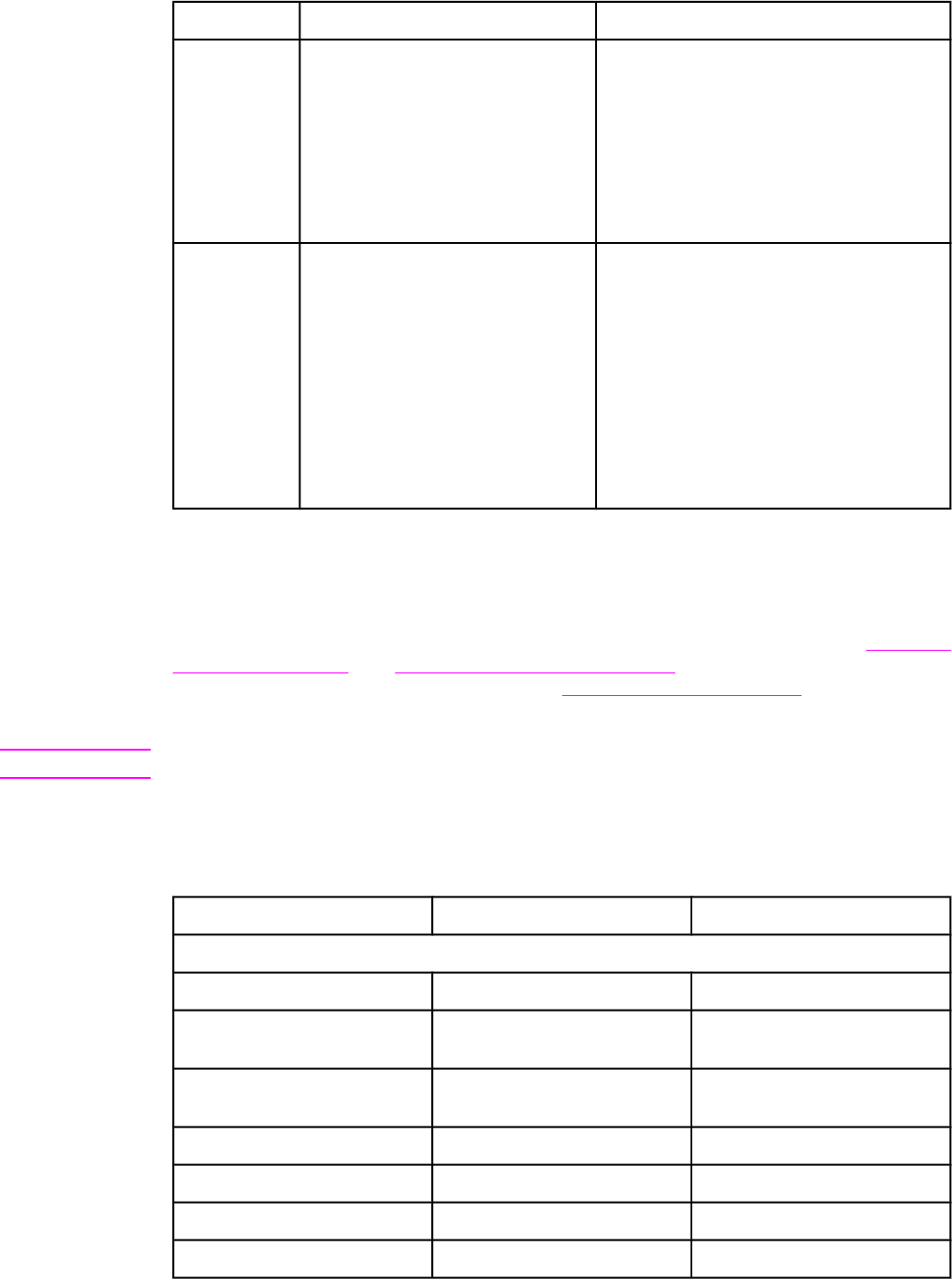
Code Description Recommended action
431 The transmitting machine has not
received a response after aborting a
transmission. Depending upon when
the session is aborted, some remote
machines might not respond. The
product always attempts to abort the
session in such a way that the remote
machine can respond to the final
PPS_EOP.
No action required. The session was aborted.
440-444 An error occurred during a V.34
transmission after one or more partial
pages (image data) were transmitted
through the primary channel. The
transmitting machine was unable to
restart the control channel in order to
resume the T.30 handshake. This
typically occurs when the receiving
machine prematurely disconnects
while receiving a partial page,
although the problem can be caused
by compatibility issues.
Attempt to receive the fax again when
telephone-line conditions have improved.
Translating the fax trace report
Print a fax log report. The fax log report contains information about the product’s interpretation
of the problem.
Read the time sequences, looking for abnormal activity on the fax trace report. See Table 6-6.
Fax phase sequence, and Table 6-7. Appropriate responses, to separate normal from
abnormal activity. Fax abbreviations appear in Table 6-8. Fax abbreviations.
Identify the phase in which the error occurred.
Note ??? represents an unidentified command.
Examples of a successfully sent fax and a successfully received fax appear after the tables.
Table 6-6. Fax phase sequence
Sequence Calling station Called station
Phase A—Call setup sequence
1Ring signal
2CNG tone beep, 1100 Hz for 1
second
3Transmit CED, 2100 Hz for 3
seconds
4Transmit NSF
5Transmit CSI
6Transmit DIS
7DIS detected
Table 6-5. Fax send codes (continued)
230 Chapter 6 Troubleshooting ENWW
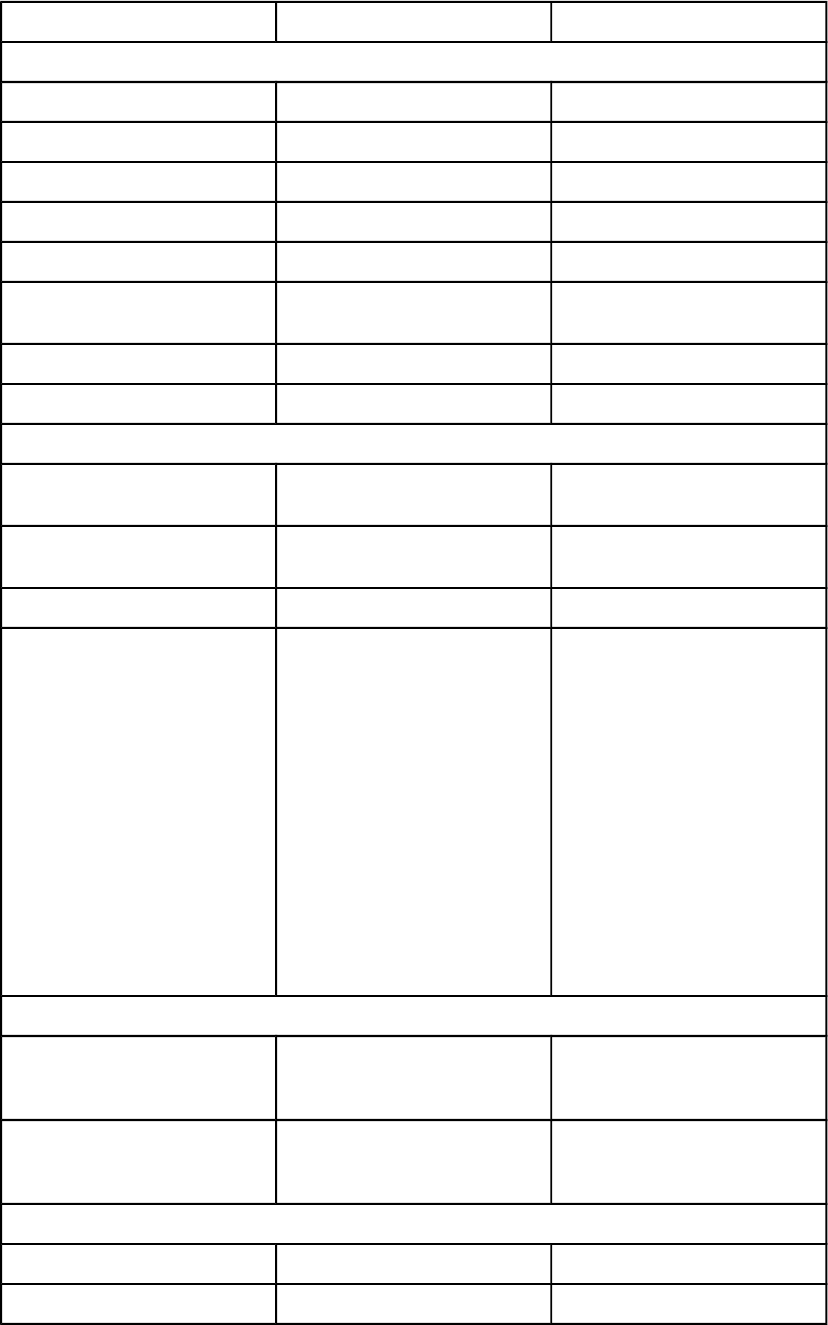
Sequence Calling station Called station
Phase B—Pre-message procedure (negotiate compatible format/protocol)
8Transmit TSI
9Transmit DCS, select mode
10 DCS detected
11 Transmit TCF/training
12 Transmit FSK
13 Training (synchronize signals),
check for errors
14 Transmit CFR
15 Detect CFR
Phase C—Message transmission (page/scan transmission)
16 Transmit message (FSK,
followed by date)
17 Receive message (SCAN),
check for errors
18 Transmit FSK
19 At end of message, send one of
the following:
●EOM
●EOP
●MPS
●PRI-Q
●PPS-NULL
●PPS-MPS
●PPS-EOM
●PPS-EOP
●PPS-PRI-Q
Phase D—Post-message transmission (next page/end of transmission)
20 Detect EOM, EOP, MPS, PRI-Q,
PPS-NULL, PPS-MPS, PPS-
EOM, PPS-EOP, or PPS-PRI-Q
21 Transmit MCF response to
confirmation signals of post-
message responses
Phase E—Call release (hangup sequence)
21 Transmit DCN
22 Station hangs up
Table 6-6. Fax phase sequence (continued)
ENWW Troubleshooting tools 231

Table 6-7. Appropriate responses
Commands Comments Appropriate responses
(NSF) (CSI) DIS Identifying capabilities: from a
manual receiver or an auto-
answer unit
(NSC) (CIG) DTC (TSI) DCS
(NSF) (CSI) DIS (CRP) (TSI)
(NSS) (PWD) (SEP) (CIG) DTC
(PWD) (SUB) (TSI) DCS
(NSC) (CIG) DTC Mode-setting command: from
calling unit
(TSI) DCS (NSF) (CSI) DIS
(PWD) (SEP) (CIG) DTC Poll operation (CRP) (TSI) (NSS)
(TSI) DCS (TSI) (NSS) Mode-setting command: from
manual transmitter or automatic
receiver
CFR FTT (NSC) (CIG) DTC
(PWD (SUB) (TSI) DCS Command is always followed by
phasing/training
(NSC) (CIG) DTC
CTC Mode-setting command: from
the transmitter to the receiver
(CTR) (CRP)
(EOR-NULL) Indicates the next block
transmission from the
transmitter to the receiver
(ERR) (RNR) (CRP)
Any one of the following:
●(EOR-EOP)
●(EOR-EOM)
●(EOR-PRI-MPS)
●(EOR-PRI-EOP)
●(EOR-PRI-EOM)
The receiver (ERR)
(RNR)
PIN
(CRP)
Any one of the following:
●MPS
●EOP
●EOM
●(PRI-MPS)
●(PRI-EOP)
●(PRI-EOM)
Post-message commands MCF
RTP
RTN
PIP
PIN
(CRP)
(PPS-NULL) Post-message command for a
partial page from the transmitter
to the receiver
(PPR)
MCF
(RNR)
(CRP)
232 Chapter 6 Troubleshooting ENWW

Commands Comments Appropriate responses
Any one of the following:
●(PPS-MPS)
●(PPS-EOP)
●(PPS-EOM)
●(PPS-PRI-MPS)
●(PPS-PRI-EOP)
●(PPS-PRI-EOM)
Post-message commands for a
complete page from the
transmitter to the receiver
(PPR)
MCF
(RNR)
PIP
PIN
(CRP)
(RR) Ask for the status of the
receiver: from the transmitter to
the receiver
(RNR)
(ERR)
MCF
PIP
PIN
(CRP)
DCN Phase E command None
Table 6-8. Fax abbreviations
Abbreviation Function Signal format (“X”= any #)
CED Called station identification 2100 Hz
CFR Confirmation to receive X010 0001 1850 or 1650 Hz for 3
seconds
CIG Calling subscriber identification 1000 0010
CNG Calling tone 1100 Hz for 500 ms
CRP Command repeat X101 1000
CSI Called subscriber identification 0000 0010
CTC Continue to correct X100 1000
CTR Response to continue to correct X010 0011
dBM -dBM signal strength detected
from sending station (number is
deviation from average value)
Range in -7.5 to -43
DCN Disconnect X101 1111
DCS Digital command signal X100 0001
DIS Digital identification signal 0000 0001
DTC Digital transmit command 1000 0001
EOM End of message X111 0001 1100 Hz
EOP End of procedure X111 0100
Table 6-7. Appropriate responses (continued)
ENWW Troubleshooting tools 233

Abbreviation Function Signal format (“X”= any #)
EOR End of retransmission X111 0011
EQM Eye quality monitor—a measure
of the modem signal quality,
lower numbers indicate better
signals
0-99
ERR Response for end of
retransmission
X011 1000
ECD Facsimile coded date 0110 0000
FCF Facsimile
FCS Frame check sequence
FDM File diagnostics message X011 1111
FIF Facsimile information field
FSK Frequency shift key: Low-speed
command identifier separating
commands/scans; precedes
command mode.
FTT Failure to train: The 1.5 seconds
of the Training Check Frame
(TCF) indicates line conditions
are not good enough for this
modulation
X010 0010
GC Group command 2100 Hz for 1.5 to 100 seconds
GI Group identification 1850 Hz
HDLC High-level data link control
LCS Line conditioning signals 1100 Hz
MCF Message confirmation X011 0001
1850 Hz
MSG Message received high speed
data
MPS Multipage signal X111 0010
NSF Nonstandard facilities command 1000 0100
NSS Nonstandard setup X100 0100
PID Procedure interrupt disconnect X011 0110
PIN Procedural interrupt negative X011 0100
PIP Procedural interrupt positive X011 0101
PIS Procedural interrupt signal 462 Hz for 3 seconds
PPS Partial-page signal X111 1101
PPS-EOM Partial-page signal—end of
message
X111 1101
Table 6-8. Fax abbreviations (continued)
234 Chapter 6 Troubleshooting ENWW

Abbreviation Function Signal format (“X”= any #)
PPS-EOP Partial-page signal—end of
procedure
X111 1101
PPS-MPS Partial-page signal—multipage
signal
X111 1101
PPS-NULL Partial-page signal—null X111 1101
PPR Partial-page request X011 1101
PRI-EOM Procedure interrupt—end of
message
X111 1001
PRI-EOP Procedure interrupt—end of
procedure
X111 1100
PRI-MPS Procedure interrupt—multipage
signal
X111 1010
RCP Return to control for partial page 0110 0001
RNR Receive not ready X011 0111
RR Receive ready X111 0110
RTC Return to control mode Six EOLs
RTN Retrain negative X011 0010
RTP Retrain positive X011 0011
TCF Training check field Zeroes for 1 5 5
TSI Transmitting subscriber
identification
X100 0010
PWD Password (for polling) 1000 0011
PWD Password (for transmission) X100 0101
SCAN Data-packets or scan-line count
SEP Selective polling 1000 0101
SUB Sub-address X100 0011
V.xx Protocol version used (Group 3
only)
V.27 = 4800/2400
V.29 = 9600/7200
V.33 = 14400/12000
V.17 = 14400/12000/9600/7200
XID Exchange identification
procedure
??? Unidentified command
sequence
Table 6-8. Fax abbreviations (continued)
ENWW Troubleshooting tools 235
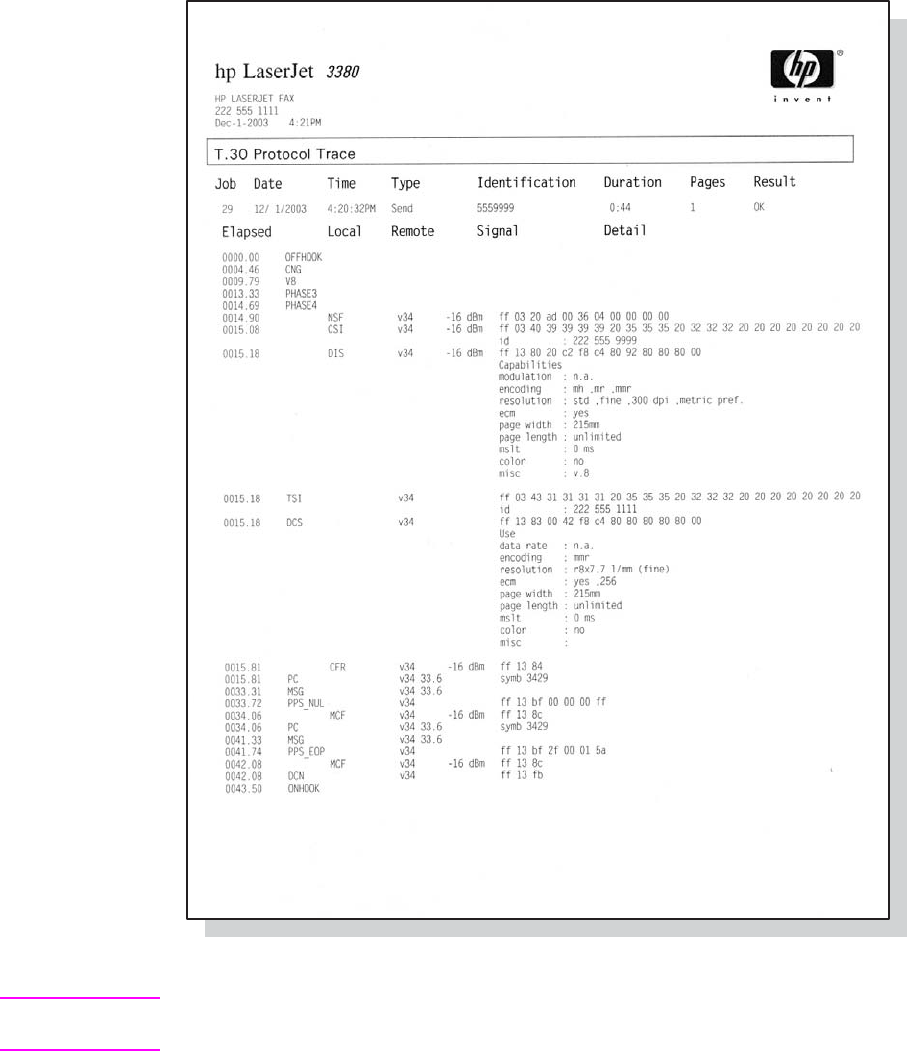
Figure 6-10. Example of a T.30 trace of a successfully sent fax
Note Phase A, call establishment, does not show up on a trace report. Phase C is the phase in
which faxed pages are transferred.
236 Chapter 6 Troubleshooting ENWW
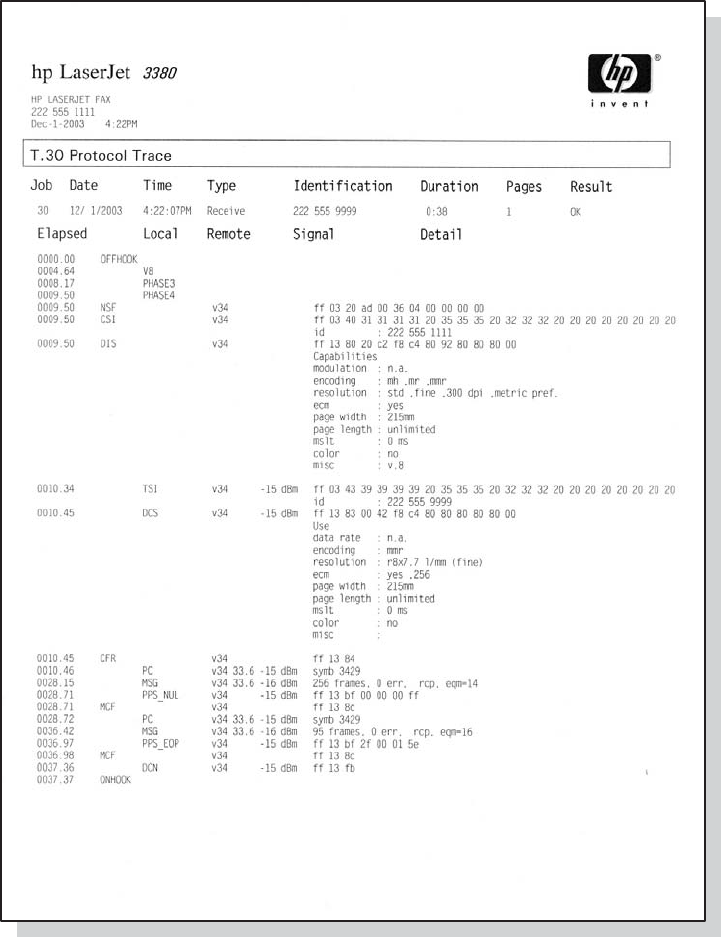
Figure 6-11. Example of a T.30 trace of a successfully received fax
ENWW Troubleshooting tools 237

Service-mode functions
Use the following information to perform system-wide reset procedures and to adjust certain
global settings such as the country/region. Users do not have access to this information.
Secondary service menu
Use the secondary service menu to perform various tests and print service reports. The
following is a hierarchical diagram of the secondary service menu.
Main menu Submenu Submenu
2ndary Service Service Reports Continuous Self-Test
DS Fax
DS No Fax
Extended Keymap
Translations
Location codes
Data Store
Error Report
Scan Calibration
Scanline data Red-corrected
Blue-corrected
Green-corrected
Red-uncorrected
Blue-uncorrected
Green-uncorrected
Location USA
1=Yes 2=No
Clock Dithering On
Off
Park Scanner
To gain access to the secondary service menu
1. Make sure that the control-panel display reads Ready.
2. Press
MENU
/
ENTER
.
3. Press 2 on the keypad.
Note You can gain access to the secondary service menu from any other menu by pressing 2.
4. Use the < or > button to navigate the secondary service menu.
238 Chapter 6 Troubleshooting ENWW
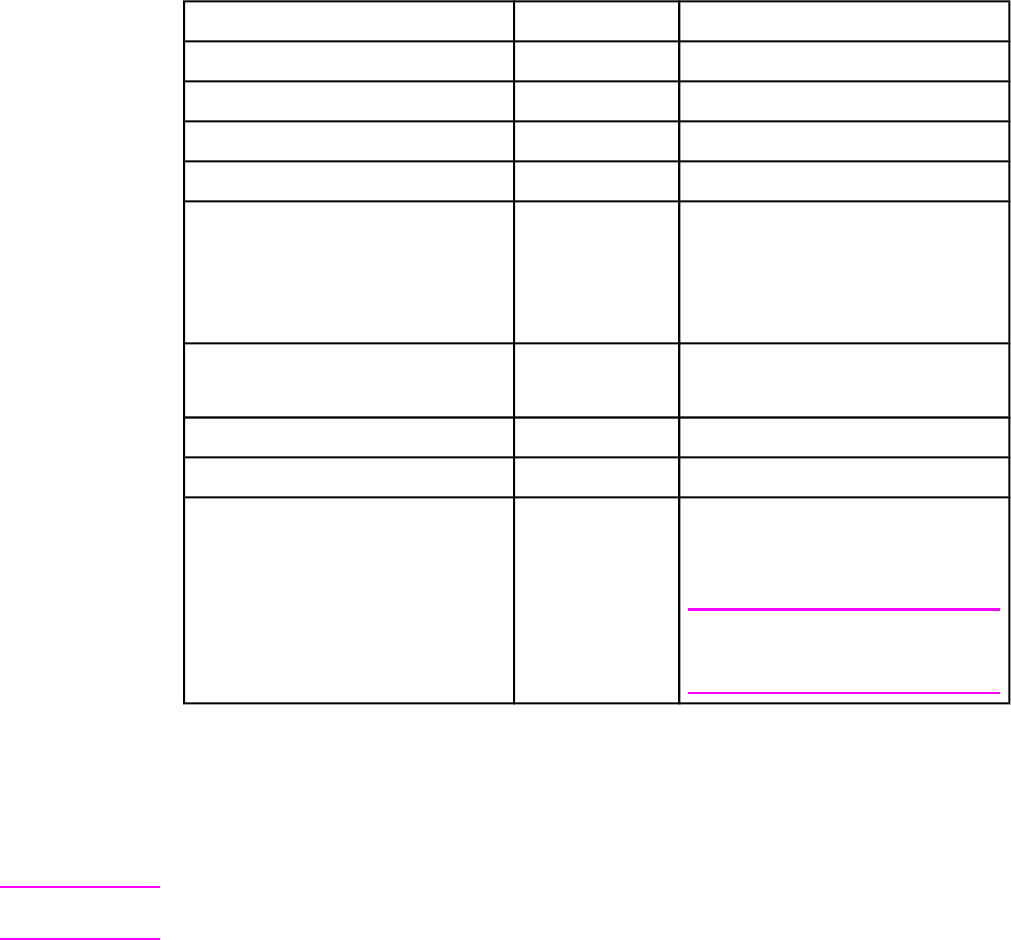
5. To exit the secondary service menu and remove it from the menu tree, press
CANCEL
to
return to the Ready display, and then press
CANCEL
again.
To print a list of all the Fax data-store parameters
1. From the secondary service menu, use the < or > button to select Service reports, and
press
MENU
/
ENTER
.
2. Use the < or > button to select DS-Fax, and press
MENU
/
ENTER
.
Developer’s menu
Use the developer’s menu to adjust fax data-store parameters and to run various tests. The
following is a hierarchical diagram of the developer’s menu.
Main menu Submenu Submenu
Developer’s menu Display test
Read Register
Write Register
R/W parameter
Monitor test Onhook monitor
Offhook monitor
Eavesdrop Test
Signal Pwr Mon.
LIU test LIU inputs
LIU ID
Loopback test
Data Store
Transmit test OFFHOOK
ONHOOK
DIAL NUMBER
Note
Several other options are available
under this menu.
To gain access to the developer’s menu:
1. Make sure that the control-panel display reads Ready.
2. Press
MENU
/
ENTER
.
3. Simultaneously press the * and # buttons on the keypad.
Note You can gain access to the developer’s menu from any other menu by simultaneously
pressing the * and # buttons on the keypad.
ENWW Service-mode functions 239

4. Use the < or > button to navigate the developer’s menu.
5. To exit the developer’s menu and remove it from the menu tree, press
CANCEL
to return to
the Ready display, and then press
CANCEL
again.
To adjust fax data-store parameters
When you adjust fax data-store parameters, the product does not alert you to incorrect input
values. Changing fax data-store parameters can render the product illegal or inoperable.
Note Before adjusting the fax data-store parameters, you can print a list of all the parameters from
the secondary service menu. See To print a list of all the Fax data-store parameters.
1. On the developer’s menu, use the < or > button to navigate to R/W PARAMETER, and
then press
MENU
/
ENTER
.
2. Use the < or > button to locate the parameter that you want to change. The current setting
appears on the control-panel display.
3. Type the new value for the fax data-store parameter, and then press
MENU
/
ENTER
.
To scroll quickly to a particular data-store parameter
When R/W PARAMETER appears on the control-panel display, jump directly to any
parameter ID that does not contain a 2 by typing the ID on the keypad. (Pressing 2 brings up
the secondary service menu.) To change a parameter that has a 2 in its ID, type the ID of the
closest parameter that does not have a 2 and then use the < or > button to locate the
parameter that you want to change. For example, to move quickly to parameter 152, enter 151 >.
Adjusting the country/region code parameters
Three situations can occur that necessitate changing the country/region or language settings
for the product:
1. The customer has moved to a different country/region from where the product was
purchased.
2. The information has been erased because of an NVRAM initialization.
3. The formatter was replaced.
Use the information in the following sections to adjust the country/region and language
settings.
To change the country/region from one location to another
1. Press
MENU
/
ENTER
, and then press 2 to gain access to the Secondary Service menu.
2. Press < or > to select Location, and then press
MENU
/
ENTER
.
3. Press < or > until the correct location appears.
4. When the correct location appears, press
MENU
/
ENTER
. Press 1 to confirm the new location.
The product automatically turns itself off and then on after the setting is confirmed.
To set the language and location if none is set
If the language and location settings have been erased because NVRAM has been initialized,
or if the formatter has been replaced, the product automatically prompts for the language and
the location when it is turned on.
240 Chapter 6 Troubleshooting ENWW

Note The customer cannot send or receive faxes until these settings have been established.
1. Press < or > until the correct language appears.
2. When the correct language appears, press
MENU
/
ENTER
, and then press 1 to confirm the
selection.
3. Press < or > until the correct country/region appears.
Note The list of countries/regions that appears on the control-panel display depends on the LIU that
is installed in the product.
4. When the correct country/region appears, press
MENU
/
ENTER
, and then press 1 to confirm
the selection.
5. After both the language and the location settings are established, the product
automatically turns itself off and then on.
Soft reset
Before performing an NVRAM init, attempt a soft reset, which does not reset configuration
settings or cause loss of data.
To perform a soft reset
1. Press
MENU
/
ENTER
.
2. Simultaneously press then release the * button and the # button to enter the Developer's
menu.
3. Press the < or > button until the message REINIT FFS appears on the second line of the
control-panel display.
4. Press
MENU
/
ENTER
.
5. The process takes approximately 2.5 minutes. During that time, the control-panel display
will change several times before returning to Ready.
6. When the Ready message appears on the control-panel display, press
CANCEL
to exit the
Developer's menu.
NVRAM init
NVRAM init returns all stored parameters in NVRAM to factory default values or to a default
ROM value, depending on the variable, and performs a system reset.
Performing NVRAM init can cause the product to violate local telephone regulations. Reset the
language and country/region after performing NVRAM init.
NVRAM init resets the following settings and information:
●All menu settings are reset to factory default values, including fax header and company
name.
●Factory settings such as formatter number, page counts, and factory paper settings are
reset.
●All faxes in memory are erased.
●All speed-dials, group-dials, and phone book entries are erased.
●All localization settings, including language and country/region, are reset.
ENWW Service-mode functions 241
To perform NVRAM init
1. Turn off the product.
2. Press and hold down the * and
MENU
/
ENTER
buttons.
3. Continue to hold down the buttons while you turn on the product. Hold the buttons through
the entire power-on sequence.
4. When Permanent Storage Init. appears on the control-panel display, release the
buttons.
5. When the message Language appears on the control-panel display, set the correct
language and country/region.
6. Allow the product to return to Ready before using the product.
Printer job language (PJL) software commands
Many PJL scripts are available for restoring parameters such as paper size and page counts
after the formatter has been replaced. For comprehensive instructions, see the Printer Job
Language Technical Manual and the Printer Job Language Technical Manual Addendum.
242 Chapter 6 Troubleshooting ENWW

System settings for localized products
Two LIUs are available for the product. The list of available countries/regions that appears in
the Secondary service menu (in the Location submenu) varies according to the LIU that is
installed in the product. The default system settings vary for each country/region. The following
table lists the default system settings for each country/region. Be sure to reset any user-
defined settings that differ from these settings.
Table 6-9. System settings
Country/region LIU installed Default media
size1
Date format Time format
Argentina USA Letter ddmmyy am/pm
Australia USA A4 ddmmyy am/pm
Austria Europe A4 ddmmyy 24 hour
Belgium Europe A4 ddmmyy 24 hour
Brazil USA A4 ddmmyy 24 hour
Bulgaria Europe A4 ddmmyy 24 hour
Canada USA Letter ddmmyy am/pm
China USA A4 yymmdd 24 hour
Croatia Europe A4 ddmmyy 24 hour
Czech Republic Europe A4 ddmmyy 24 hour
Denmark Europe A4 ddmmyy 24 hour
Finland Europe A4 ddmmyy 24 hour
France Europe A4 ddmmyy 24 hour
Germany Europe A4 ddmmyy 24 hour
Greece Europe A4 ddmmyy am/pm
Hong Kong SAR USA A4 yymmdd am/pm
Hungary Europe A4 yymmdd 24 hour
India USA A4 ddmmyy 24 hour
Indonesia USA A4 ddmmyy 24 hour
Ireland Europe A4 ddmmyy 24 hour
Israel Europe A4 ddmmyy 24 hour
Italy Europe A4 ddmmyy 24 hour
Korea USA A4 yymmdd am/pm
Luxemburg Europe A4 ddmmyy 24 hour
Malaysia USA A4 ddmmyy 24 hour
ENWW System settings for localized products 243

Country/region LIU installed Default media
size1
Date format Time format
Mexico USA Letter ddmmyy am/pm
Netherlands Europe A4 ddmmyy 24 hour
New Zealand USA A4 ddmmyy am/pm
Norway Europe A4 ddmmyy 24 hour
Pakistan USA A4 ddmmyy am/pm
Peru USA Letter ddmmyy am/pm
Philippines USA Letter mmddyy am/pm
Poland Europe A4 yymmdd 24 hour
Portugal Europe A4 ddmmyy 24 hour
Romania Europe A4 ddmmyy 24 hour
Russia Europe A4 ddmmyy 24 hour
Singapore USA A4 ddmmyy am/pm
Slovak Republic Europe A4 ddmmyy 24 hour
South Africa Europe A4 yymmdd am/pm
Spain Europe A4 ddmmyy 24 hour
Sri Lanka USA A4 ddmmyy 24 hour
Sweden Europe A4 yymmdd 24 hour
Switzerland Europe A4 ddmmyy 24 hour
Taiwan USA A4 yymmdd am/pm
Thailand USA A4 ddmmyy 24 hour
Turkey Europe A4 ddmmyy 24 hour
United Kingdom Europe A4 ddmmyy 24 hour
United States USA Letter mmddyy am/pm
Vietnam USA A4 ddmmyy am/pm
1
The default media-size setting that is listed is the same for the printer input trays and the fax
glass-size setting.
Table 6-9. System settings (continued)
244 Chapter 6 Troubleshooting ENWW
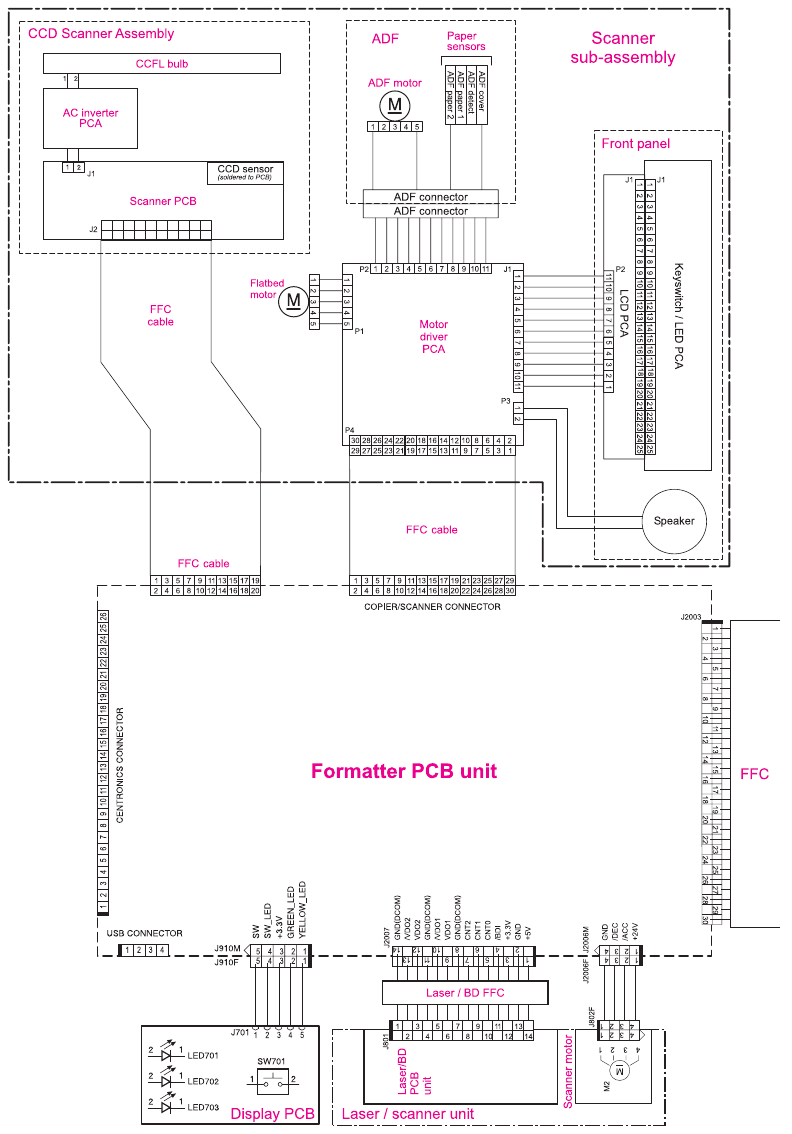
Main wiring
Figure 6-12. Main wiring (1 of 2)
ENWW Main wiring 245
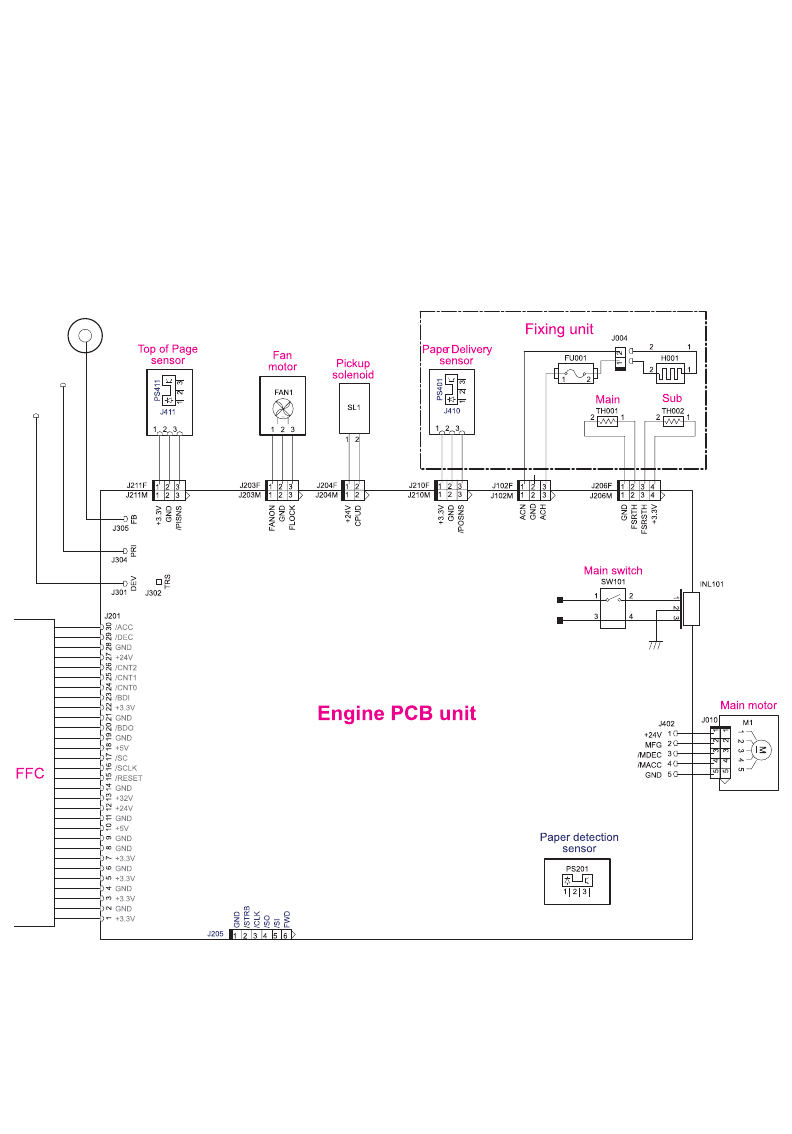
Figure 6-13. Main wiring (2 of 2)
246 Chapter 6 Troubleshooting ENWW
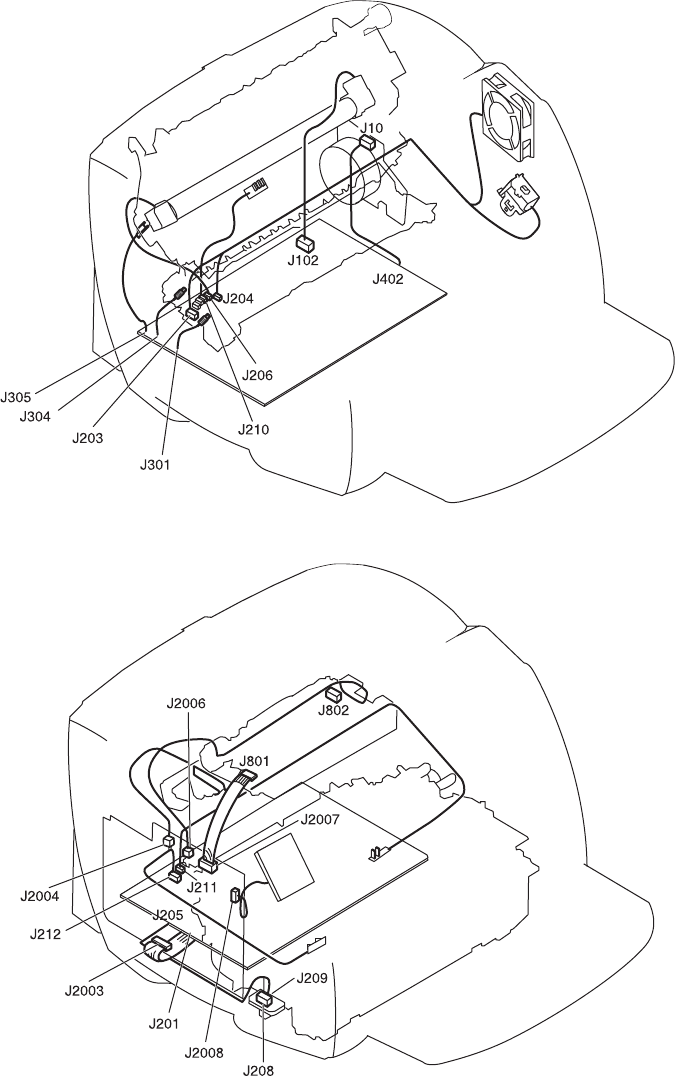
Locations of connectors
Figure 6-14. Locations of printer connectors
ENWW Locations of connectors 247
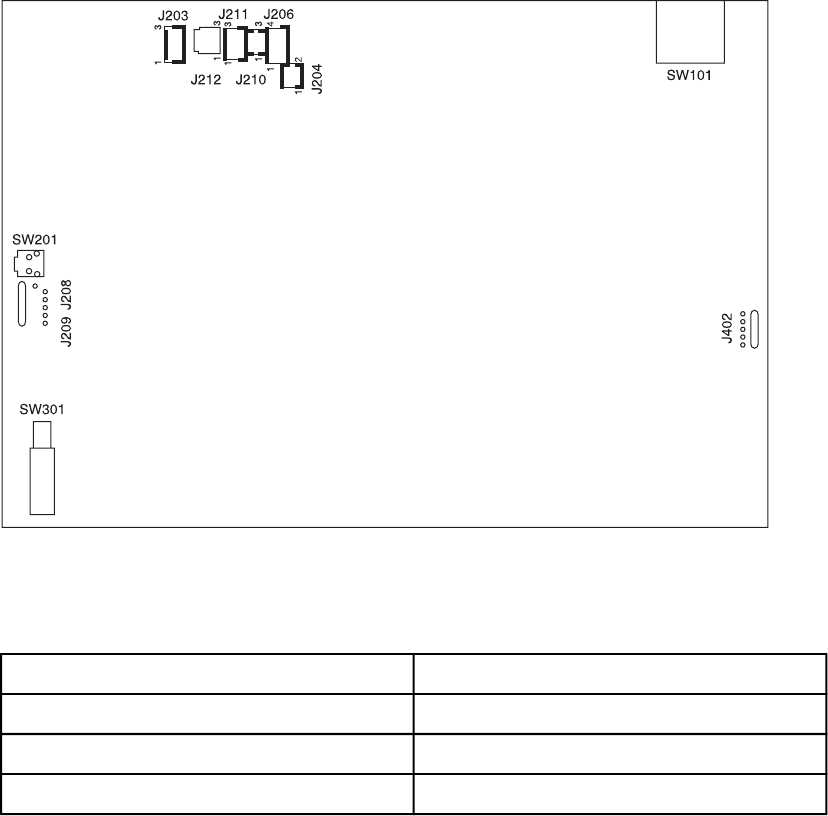
Locations of connectors and switches
Figure 6-15. Locations of connectors and switches
Table 6-10. Switch functions
SW number Function
SW101 Power switch
SW201 Switch for test print
SW301 Switch for detection of open door
248 Chapter 6 Troubleshooting ENWW
7
Parts and diagrams
This chapter contains the following sections.
Ordering parts and supplies...................................................................................................250
Parts.................................................................................................................................250
Related documentation and software..............................................................................250
Parts that wear ................................................................................................................250
Accessories............................................................................................................................251
Memory............................................................................................................................251
Print cartridges and toner supplies..................................................................................251
Cables.............................................................................................................................. 251
Common hardware .........................................................................................................252
Parts kits..........................................................................................................................253
How to use the parts lists and diagrams.........................................................................253
Scanner assemblies...............................................................................................................254
External assemblies...............................................................................................................262
Internal assemblies................................................................................................................268
ENWW 249

Ordering parts and supplies
Parts
Order replacement parts from the following website: https//partsdirect.hp.com/epdo/default/
mainmenu.asp.
Related documentation and software
Order documentation and software from the websites listed in Table 7-1. Technical support
websites.
Table 7-1. Technical support websites
HP Connect Online
(for HP partners)
http://www.connect-online.hp.com
HP Customer Care Call Centers
Information for contacting HP call centers in specific
countries/regions.
http://www.hp.com/support/callcenters
HP Online Technical Support
Software drivers, support documentation, and
answers to frequently asked questions
http://www.hp.com/support
HP Technical Training (North America)
Classes and schedules
http://www.compaq.com/training
Note: Select your country/region in the "select a
country or region" field at the top, right corner of
the page.
Parts
Parts information
http://partsurfer.hp.com
Parts that wear
The parts on the product that wear are listed in Maintenance in Table 3-1. Life expectancies
of parts that wear. Parts are available directly from Hewlett-Packard at the following URL:
http://partsdirect.hp.com.
250 Chapter 7 Parts and diagrams ENWW

Accessories
Memory
Table 7-2. Memory modules
Product name Description Part number
Dual inline memory module
(DIMM)
8 MB C7842A
DIMM 16 MB C7843A
DIMM 32 MB C7845A
DIMM 64 MB C7846A
Print cartridges and toner supplies
Table 7-3. Print cartridges and toner cloth
Product name Description Part number
Print cartridge 2,500-page cartridge C7115A
Print cartridge 3,500-page cartridge C7115X
Toner cloth Ideal for wiping up toner spills 5090-3379
Cables
Table 7-4. Cables and power cords
Product name Description Part number
Parallel cable 2-meter (6.6-foot) IEEE-1284
parallel cable
C2950A
Parallel cable 3-meter (9.8-foot) IEEE-1284
parallel cable
C2951A
USB cable 2-meter (6.6-foot) USB cable 8121-0539
USB cable 0.6-meter (2-foot) USB cable 8121-0549
Fax telephone cord 2-wire, 3-meter (9.8-foot) fax
telephone cord
8121-0811
Power cord, 1.8 m (6 feet) U.S./Canada 8120-8382
Power cord, 1.8 m (6 feet) Europe 8120-0516
Power cord, 1.8 m (6 feet) Switzerland 8120-0519
ENWW Accessories 251
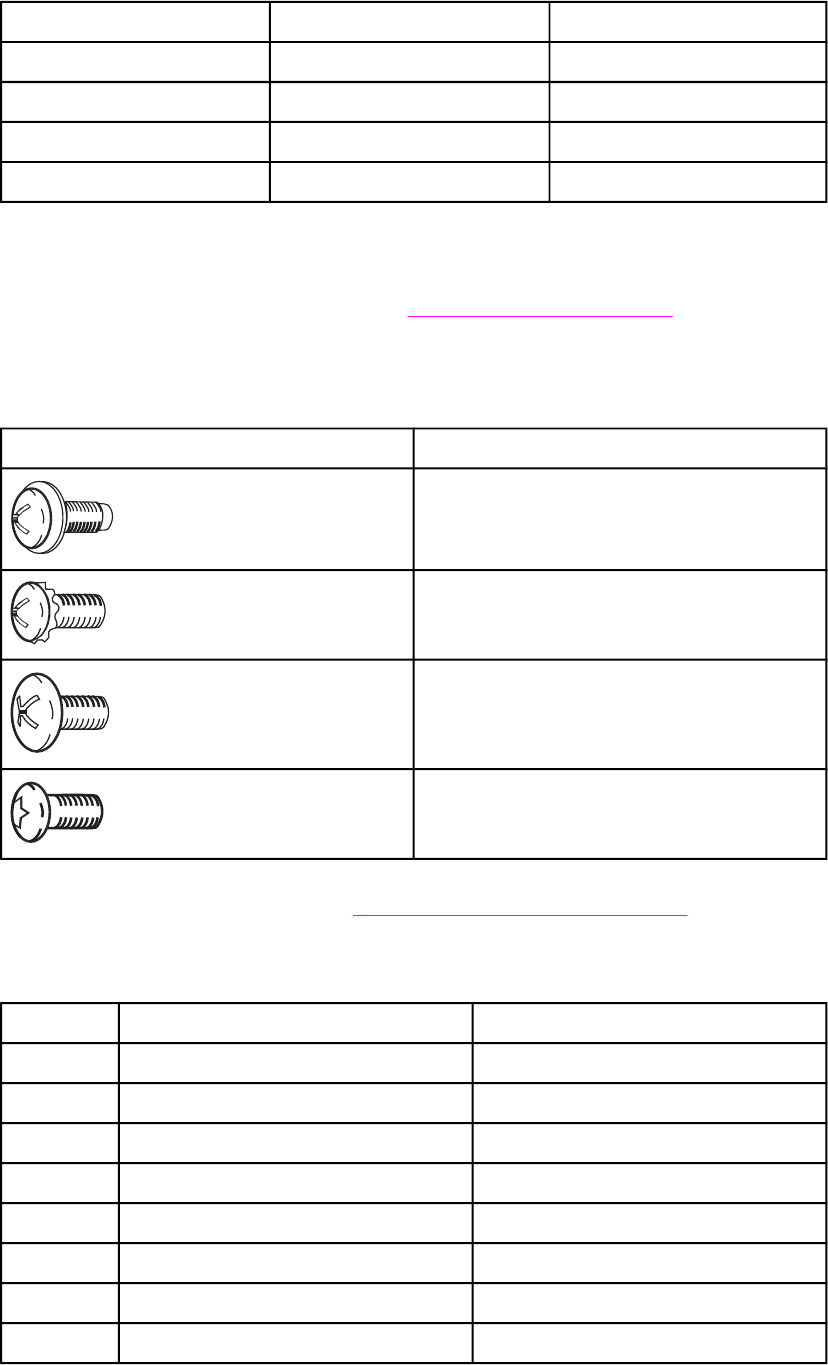
Product name Description Part number
Power cord, 1.8 m (6 feet) UK 8120-0517
Power cord, 1.8 m (6 feet) Danish 8120-0518
Power cord, 1.8 m (6 feet) South America 8120-0520
Power cord, 1.8 m (6 feet) Israel 8120-0521
Common hardware
The product has four common fasteners. See Table 7-5. Common fasteners for a description
of these screw types.
Table 7-5. Common fasteners
Example Description
Screw, machine, truss head
Screw, star
Screw, self-tapping
Screw, torx
Screws for the print engine are sold individually rather than in a kit. Consider ordering
quantities of each screw that is listed in Table 7-6. Screws for the print engine.
Table 7-6. Screws for the print engine
Reference Description Part number
S1 Screw, RS, M4x12 XA9-0722-000CN
S2 Screw, with star washer, M3x6 XA9-0828-000CN
S3 Screw, with washer, M3x8 XA9-1420-000CN
S4 Screw, M4x14 XA9-1421-000CN
S5 Screw, RS, M3x6 XA9-1495-000CN
S6 Screw, TP, M3x8 XA9-1503-000CN
S7 Screw, RS, M3x8 XA9-1504-000CN
S8 Screw, with washer, M3x6 RB9-0818-000CN
Table 7-4. Cables and power cords (continued)
252 Chapter 7 Parts and diagrams ENWW
Reference Description Part number
S9 Screw, tap, truss head, M4x10 RB9-0819-000CN
S10 Screw, tap, binding head, M3x8 RB9-0820-000CN
S11 Screw, tap, truss head, M3x8 XB4-7300-809CN
S12 Screw, TP, M3x6 XA9-1418-000CN
Note Screws for the scanner portion of the product are listed in the appropriate parts diagrams in
this chapter.
Parts kits
The gear kit includes the following items: 19T gear, 31T gear, ratchet, and compression
spring.
The service parts kit includes left and right cartridge guides and the cartridge-guide holders.
Table 7-7. Parts kits
Item Part number
Gear kit RY7-5081-000CN
Service parts kit 5851-1172
How to use the parts lists and diagrams
The figures in this chapter illustrate the major subassemblies in the product and their
component parts. A table (material list) follows each exploded assembly diagram. Each table
lists the reference designator, the associated part number for the item, and a description of the
part.
Screws for the print engine are not listed in the main parts tables. For convenience, the part
numbers for the screws are included within the diagrams.
Parts that have no reference designator or part number are not field-replaceable units and
cannot be ordered.
While looking for a part number, pay careful attention to the voltage listed in the description
column to make sure that the part number selected is for the correct product model.
Table 7-6. Screws for the print engine (continued)
ENWW Accessories 253
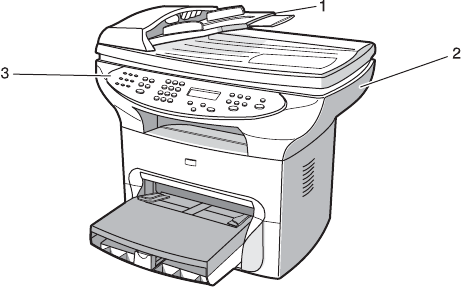
Scanner assemblies
Figure 7-1. Scanner and ADF
254 Chapter 7 Parts and diagrams ENWW

Table 7-8. Scanner and ADF
Ref Description Part number Qty
1Automatic document feeder (ADF) C9143-60107 1
2Scanner assembly C2660-60106 1
3Control panel (see table 7-11)
ENWW Scanner assemblies 255
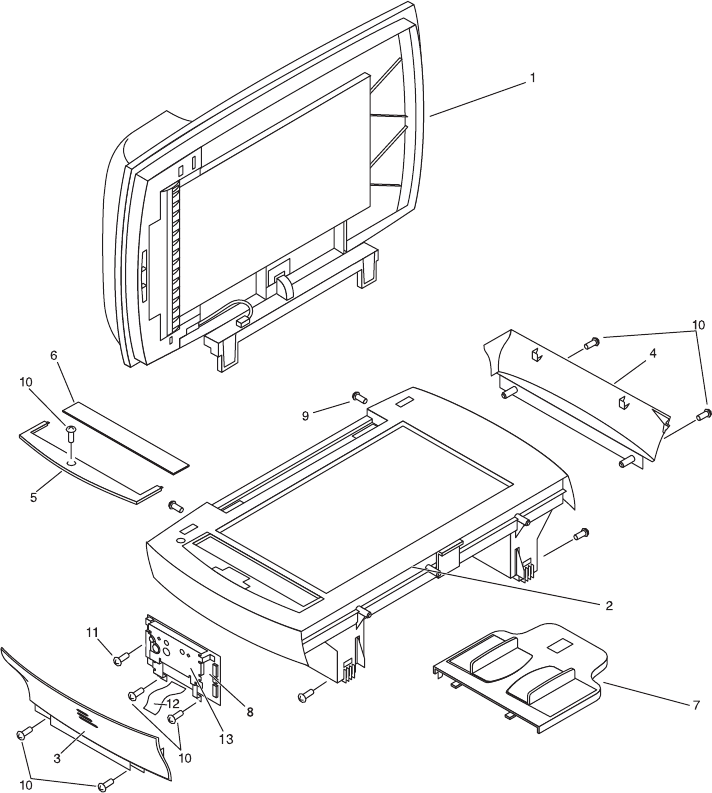
Figure 7-2. Scanner covers and ADF
256 Chapter 7 Parts and diagrams ENWW

Table 7-9. Scanner and ADF
Ref Description Part number Qty
1 ADF C9143-60107 1
2Scanner assembly Q2660-60106 1
3Left midpanel scanner cover C9124-40002 1
4Right midpanel scanner cover C9124-40003 1
5ADF glass frame C9124-40005 1
6ADF glass C7296-00014 1
7ADF input tray C9143-60102 1
8Scanner PCA Q2657-60001 1
9Screws that secure scanner to printer 0515-4331 4
10 Screws for scanner side panels, scanner
formatter, and ADF glass frame
0515-4330 7
11 Screw for scanner formatter 0515-4257 1
12 Scanner flat flexible cable (FFC) assembly
(includes FCC C9124-60116 and shield)
Q2660-60103 1
13 RFI shield, ADF C9124-00002
ENWW Scanner assemblies 257
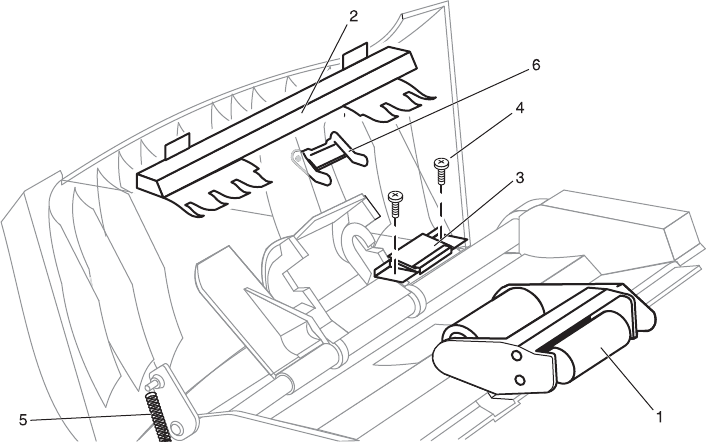
Figure 7-3. ADF rollers and separation pad
258 Chapter 7 Parts and diagrams ENWW

Table 7-10. ADF rollers and separation pad
Ref Description Part number Qty
1ADF pickup roller assembly C7309-60049 1
2ADF document feed guide C7309-40153 1
3ADF separation pad C7309-60009 1
4Torx screw 0624-1055 2
5ADF input-tray spring C7309-80013 1
6ADF input-tray flag C7309-40013 1
ENWW Scanner assemblies 259
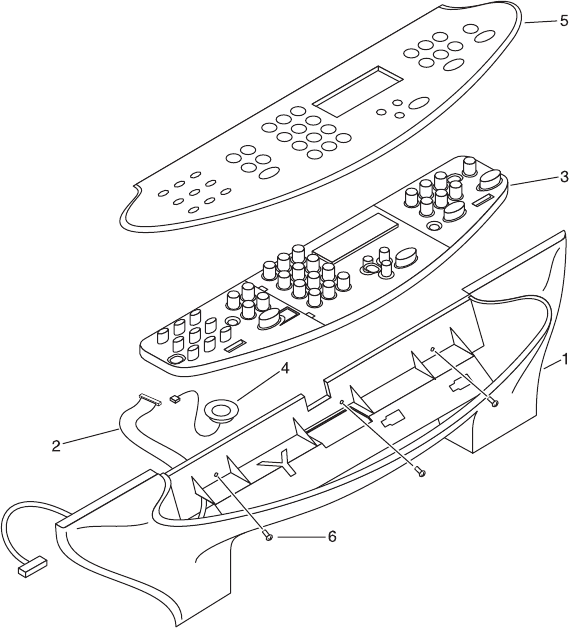
Figure 7-4. Control-panel assembly
260 Chapter 7 Parts and diagrams ENWW

Table 7-11. Control-panel assembly
Ref Description Part number Qty
1Control-panel chassis C9124-40006 1
2Control-panel cable Q2660-60104 1
3Control panel Q2660-60101 1
4 Speaker C9124-60113 1
6Screws for control-panel chassis 0515-4330 3
5English 3380 Bezel Q2660-40003
5French 3380 Bezel Q2660-40004
5German 3380 Bezel Q2660-40005
5German unpainted 3380 Bezel Q2660-40028
5Italian 3380 Bezel Q2660-40006
5Spanish 3380 Bezel Q2660-40007
5Danish 3380 Bezel Q2660-40008
5Dutch 3380 Bezel Q2660-40009
5Finnish 3380 Bezel Q2660-40010
5Norwegian 3380 Bezel Q2660-40026
5Portuguese 3380 Bezel Q2660-40011
5Swedish 3380 Bezel Q2660-40012
5Czech 3380 Bezel Q2660-40013
5Hungarian 3380 Bezel Q2660-40014
5Polish 3380 Bezel Q2660-40015
5Russian 3380 Bezel Q2660-40016
5Slovak 3380 Bezel Q2660-40017
5Turkish 3380 Bezel Q2660-40018
5Arabic 3380 Bezel Q2660-40019
5Greek 3380 Bezel Q2660-40020
5Hebrew 3380 Bezel Q2660-40021
5Korean 3380 Bezel Q2660-40022
5Simplified Chinese 3380 Bezel Q2660-40023
5Traditional Chinese 3380 Bezel Q2660-40024
5Thai 3380 Bezel Q2660-40025
5Vietnamese 3380 Bezel Q2660-40029
ENWW Scanner assemblies 261
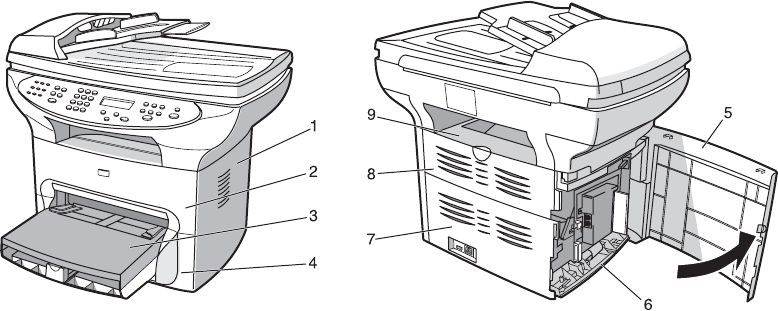
External assemblies
Figure 7-5. External components
262 Chapter 7 Parts and diagrams ENWW

Table 7-12. External components
Ref Description Part number Qty
1Right side cover RG0-1116-000CN 1
2Print-cartridge door RG0-1115-000CN 1
3Paper-tray assembly (see table 7-14)
4Front cover RA0-1450-020CN 1
5Left side cover RG0-1113-000CN 1
6Left bottom frame support RA0-1470-000CN 1
7Back cover (includes straight-through output
door)
RG0-1114-000CN 1
8Straight-through output door (includes back
cover)
RG0-1114-000CN 1
9Top cover RF0-1100-030CN 1
110-volt replacement unit Q2660-60055
220-volt replacement unit Q2660-60065
ENWW External assemblies 263
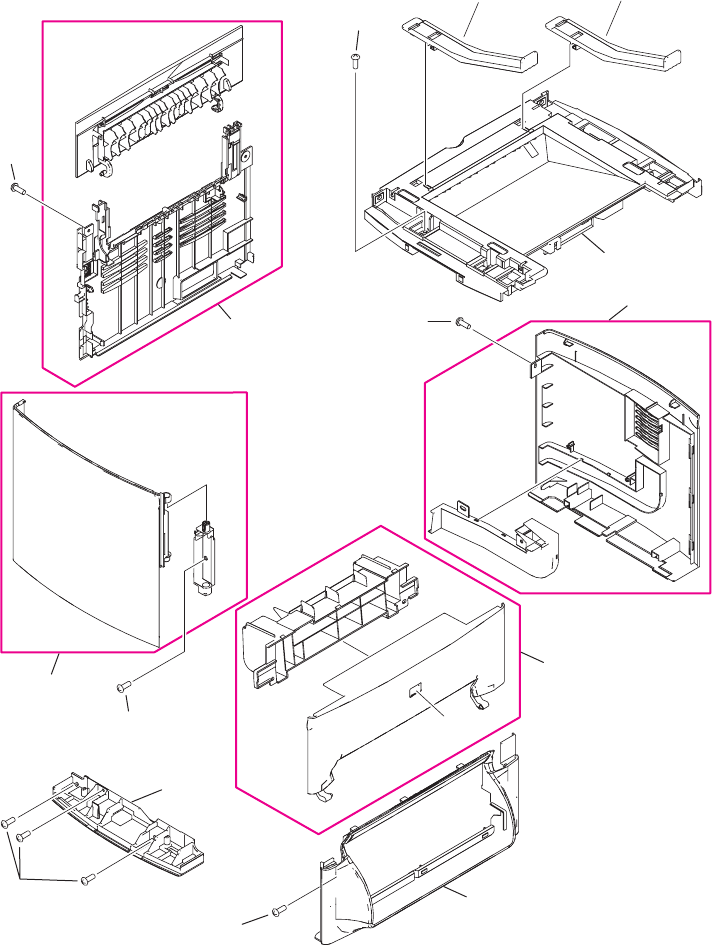
12
3
4
5
10
6
7
8
9
S7
S1
S7
S9
S6
S9
Figure 7-6. Printer covers
264 Chapter 7 Parts and diagrams ENWW

Table 7-13. Printer covers
Ref Description Part number Qty
1Left height guide RC1-2191-000CN 1
2Right height guide RC1-2392-000CN 1
3Cover, top RF0-1100-030CN 1
4Cover, right-side assembly RG0-1116-000CN 1
5Door, print-cartridge assembly RG0-1115-000CN 1
6Cover, front RA0-1450-020CN 1
7Support, left bottom frame RA0-1470-000CN 1
8Cover, left assembly RG0-1113-000CN 1
9Cover, back assembly RG0-1114-000CN 1
10 HP jewel 7121-8043 1
S1 Screw, RS, M4x12 XA9-0722-000CN 1
S6 Screw, TP, M3x8 XA9-1503-000CN 3
S7 Screw, RS, M3x8 XA9-1504-000CN 2
S9 Screw, tap, truss head, M4x10 RB9-0819-000CN 2
ENWW External assemblies 265
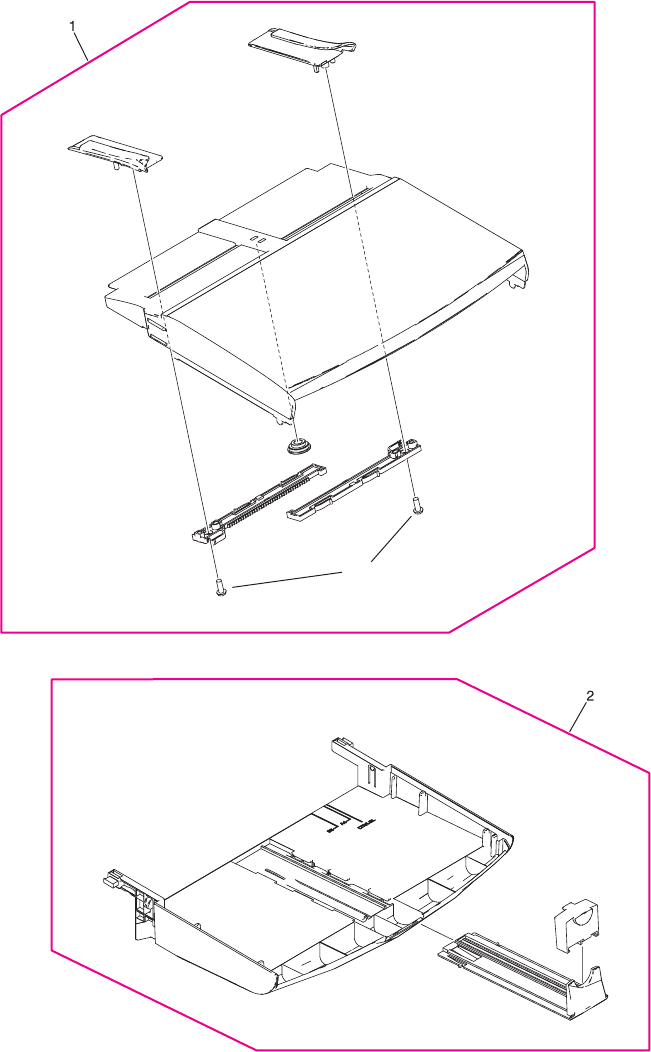
S11
Figure 7-7. Paper tray
266 Chapter 7 Parts and diagrams ENWW

Table 7-14. Paper tray
Ref Description Part number Qty
1Paper-pickup cover assembly RG0-1122-000CN 1
2Printer pickup-tray assembly RG0-1121-000CN 1
S11 Screw, tap, truss head, M3x8 XB4-7300-809CN 2
ENWW External assemblies 267
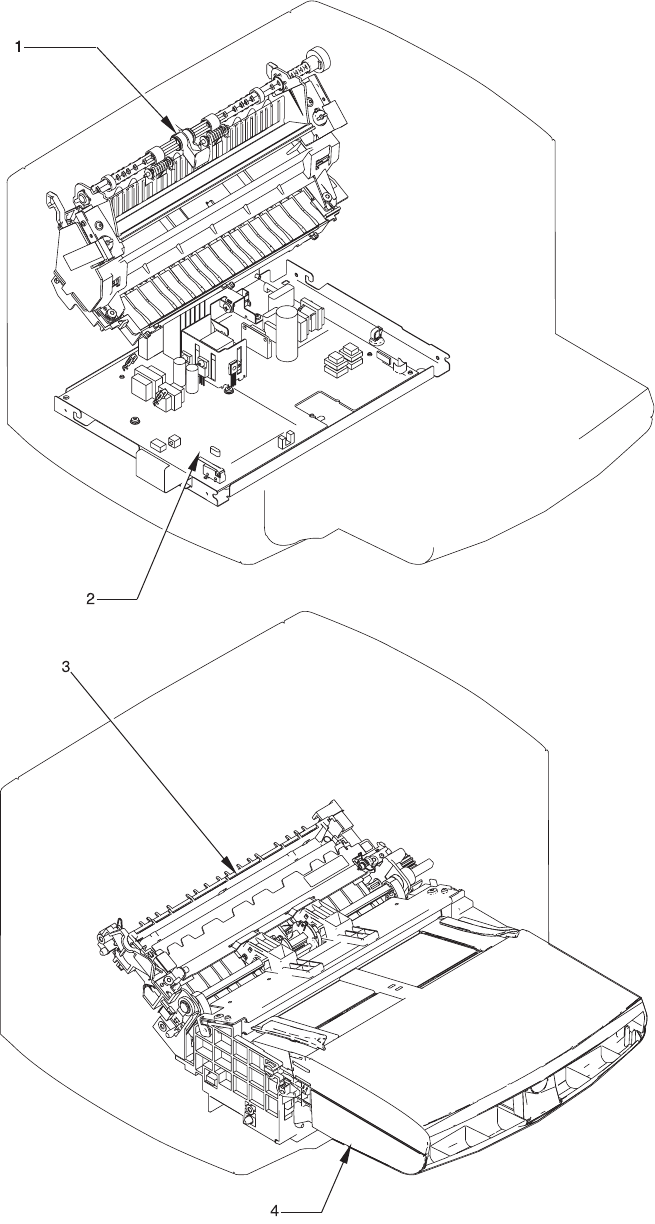
Internal assemblies
Figure 7-8. Internal components
268 Chapter 7 Parts and diagrams ENWW

Table 7-15. Major assemblies
Ref Description Part number Qty
1Fuser assembly (110-127 V) RM1-0999-000CN 1
Fuser assembly (220-240 V) RM1-1000-000CN 1
2Electrical components assembly (see table 7-
20)
3Paper-pickup assembly RM1-0838-000CN 1
4Paper-pickup-tray assembly (see table 7-14)
Gear kit RY7-5081-000CN
Service parts kit 5851-1172
ENWW Internal assemblies 269
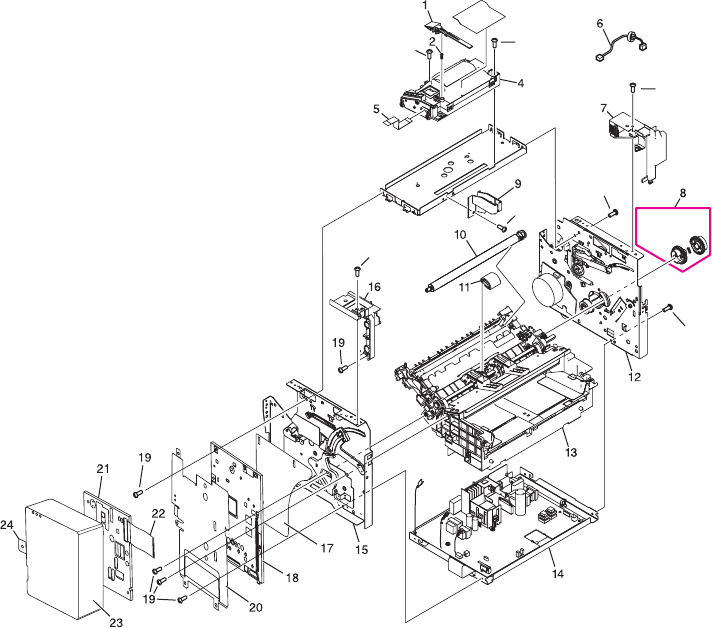
S7
S7
S7
S7
S6
S5
S10
Figure 7-9. Internal components (1 of 2)
270 Chapter 7 Parts and diagrams ENWW

Table 7-16. Internal components (1 of 2)
Ref Description Part number Qty
1Shutter lever RA0-1182-000CN 1
2Spring, compression RA0-1169-000CN 1
4Laser/scanner assembly RM1-0524-030CN 1
5Cable, laser/scanner FFC RK2-0185-000CN 1
6Cable, laser/scanner motor RM1-0832-000CN 1
7Cover, right support RA0-1452-000CN 1
8Pickup gear assembly RM1-0551-000CN 1
9Guide, shutter RC1-2195-000CN 1
10 Transfer roller RM1-0550-000CN 1
11 Pickup roller RL1-0303-000CN 1
12 Right plate assembly RM1-0835-000CN 1
13 Paper-pickup assembly RM1-0838-000CN 1
14 ECU (110-127 V) RM1-0833-000CN 1
ECU (220-240 V) RM1-0834-000CN 1
15 Left plate assembly RM1-0836-000CN 1
16 Cover, left support RA0-1444-000CN 1
17 Engine deflector shield Q2660-40002 1
18 Formatter, fax Q2658-60001 1
19 Screw, formatter 0515-2908 5
20 RFI shield Q2660-00002 1
21 LIU, NA/WW C9138-60001 1
LIU, EMEA C9138-60002 1
22 Cable modem FCC C9126-60103 1
23 LIU cover C9126-40003 1
24 LIU groundstrap C9126-00001 1
S5 Screw, RS, M3x6 XA9-1495-000CN 1
S6 Screw, TP, M3x8 XA9-1503-000CN 1
S7 Screw, RS, M3x8 XA9-1504-000CN 4
S10 Screw, tap, binding head M3x8 RB9-0820-000CN 1
ENWW Internal assemblies 271
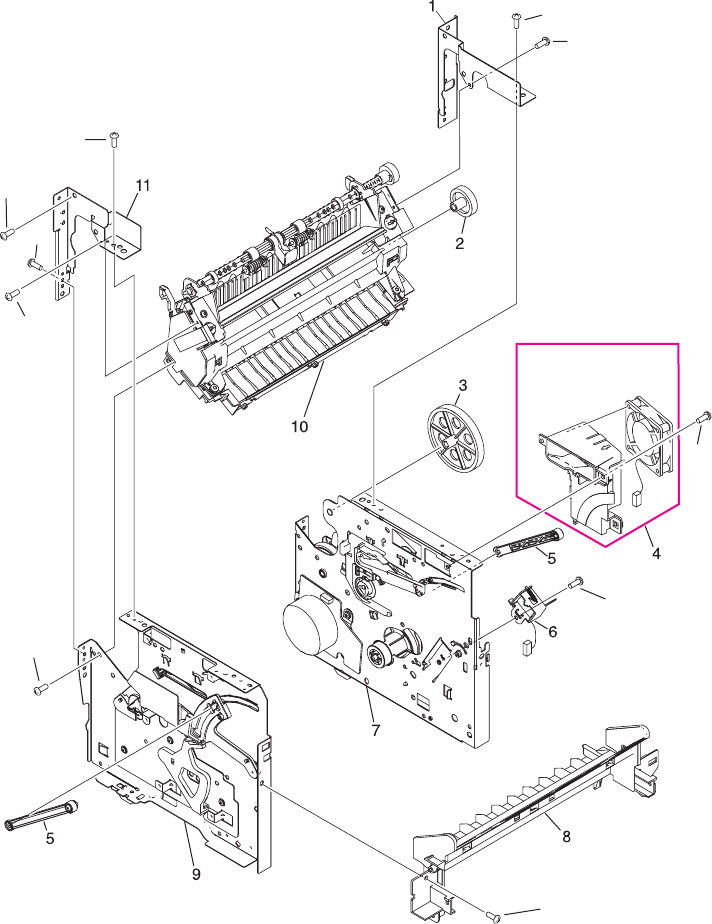
S9
S9
S5
S5
S8
S5
S8
S6
S5
S7
Figure 7-10. Internal components (2 of 2)
272 Chapter 7 Parts and diagrams ENWW

Table 7-17. Internal components (2 of 2)
Ref Description Part number Qty
1Fuser plate, right RA0-1447-000CN 1
2Gear, 29T RA0-1088-000CN 1
3Gear, 69T RA0-1176-000CN 1
4Fan assembly RM1-0846-000CN 1
5Connecting link RA0-1457-000CN 2
6Solenoid, 24 Vdc RK2-0064-000CN 1
7Right plate assembly RM1-0835-000CN 1
8Guide, front RA0-1451-000CN 1
9Left plate assembly RM1-0836-000CN 1
10 Fuser, 110 V RM1-0999-000CN 1
Fuser, 220 V RM1-1000-000CN 1
11 Fuser plate, left RA0-1446-000CN 1
S5 Screw, RS, M3x6 XA9-1495-000CN 4
S6 Screw, TP, M3x8 XA9-1503-000CN 1
S7 Screw, RS, M3x8 XA9-1504-000CN 1
S8 Screw, with washer, M3x6 RB9-0818-000CN 2
S9 Screw, tap, truss head, M4x10 RB9-0819-000CN 2
ENWW Internal assemblies 273
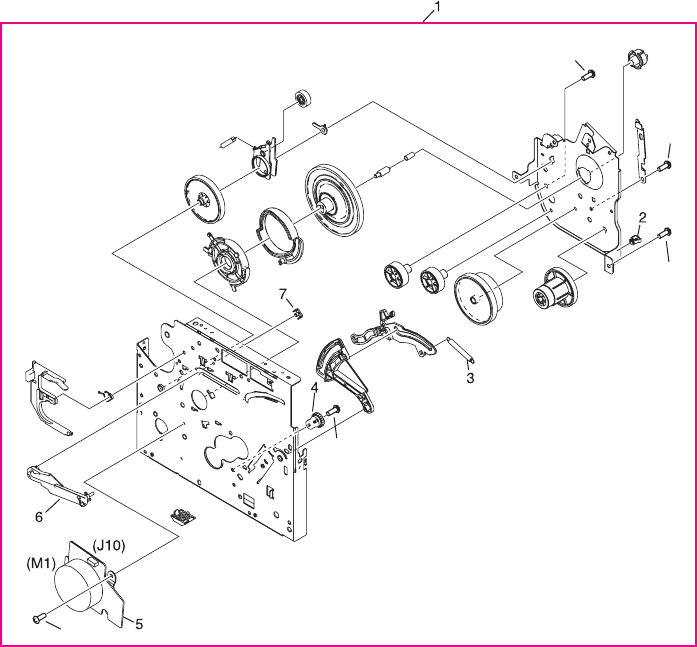
S6
S8
S5
S7
S5
Figure 7-11. Right plate assembly
274 Chapter 7 Parts and diagrams ENWW

Table 7-18. Right plate assembly
Ref Description Part number Qty
1Right plate assembly RM1-0835-000CN 1
2Clamp, cable WT2-5694-000CN 1
3Spring, tension RA0-1212-000CN 1
4Gear, 17T RA0-1172-000CN 1
5Motor, stepping RK2-0062-000CN 1
6Right cartridge guide (part of service-parts kit) 5851-1172 1
7Cartridge-guide holder (part of service-parts kit) 5851-1172 2
S5 Screw, RS, M3x6 XA9-1495-000CN 2
S6 Screw, TP, M3x8 XA9-1503-000CN 1
S7 Screw, RS, M3x8 XA9-1504-000CN 1
S8 Screw, with washer, M3x6 RB9-0818-000CN 1
ENWW Internal assemblies 275
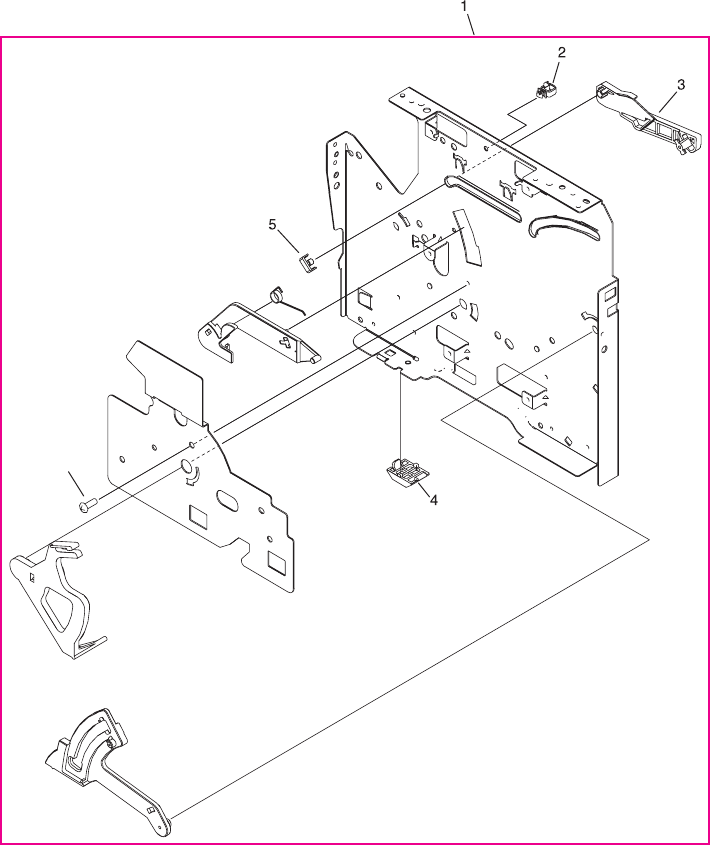
S5
Figure 7-12. Left plate assembly
276 Chapter 7 Parts and diagrams ENWW

Table 7-19. Left plate assembly
Ref Description Part number Qty
1Left plate assembly RM1-0836-000CN 1
2Clamp, cable WT2-5694-000CN 1
3Left cartridge guide (part of service-parts kit) 5851-1172 1
4Foot, rubber RA0-1412-000CN 1
5Cartridge-guide holder (part of service-parts kit) 5851-1172 2
S5 Screw, RS, M3x6 XA9-1495-000CN 1
ENWW Internal assemblies 277
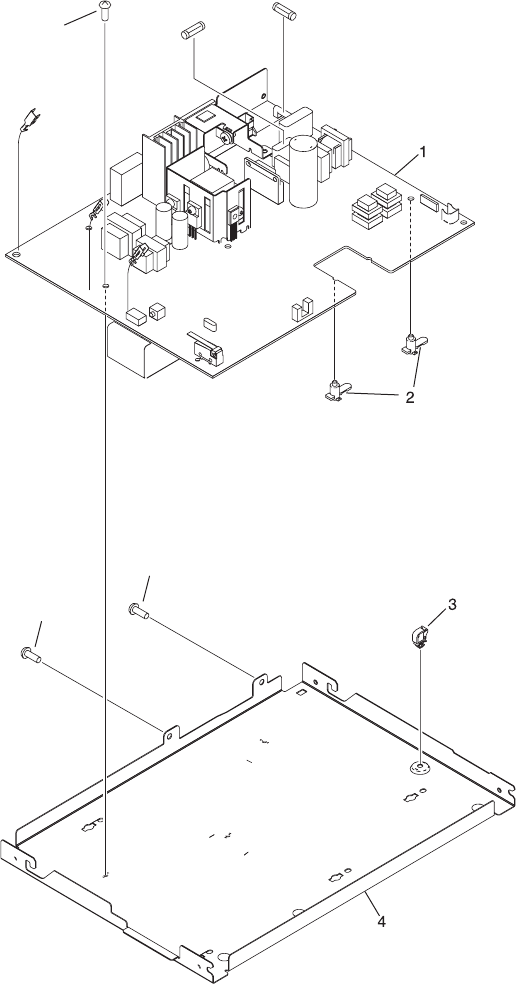
S3
S2
S3
Figure 7-13. Electrical components
278 Chapter 7 Parts and diagrams ENWW

Table 7-20. Electrical components
Ref Description Part number Qty
1Engine controller PCB assembly, 110-127 V RM1-0833-000CN 1
Engine controller PCB assembly, 220-240 V RM1-0834-000CN 1
2PCB spacer RA0-1128-000CN 6
3Clamp, cable WT2-5694-000CN 1
4Engine controller case RA0-1127-000CN 1
S2 Screw, with star washer, M3x6 XA9-0828-000CN 1
S3 Screw, with washer, M3x8 XA9-1420-000CN 2
ENWW Internal assemblies 279
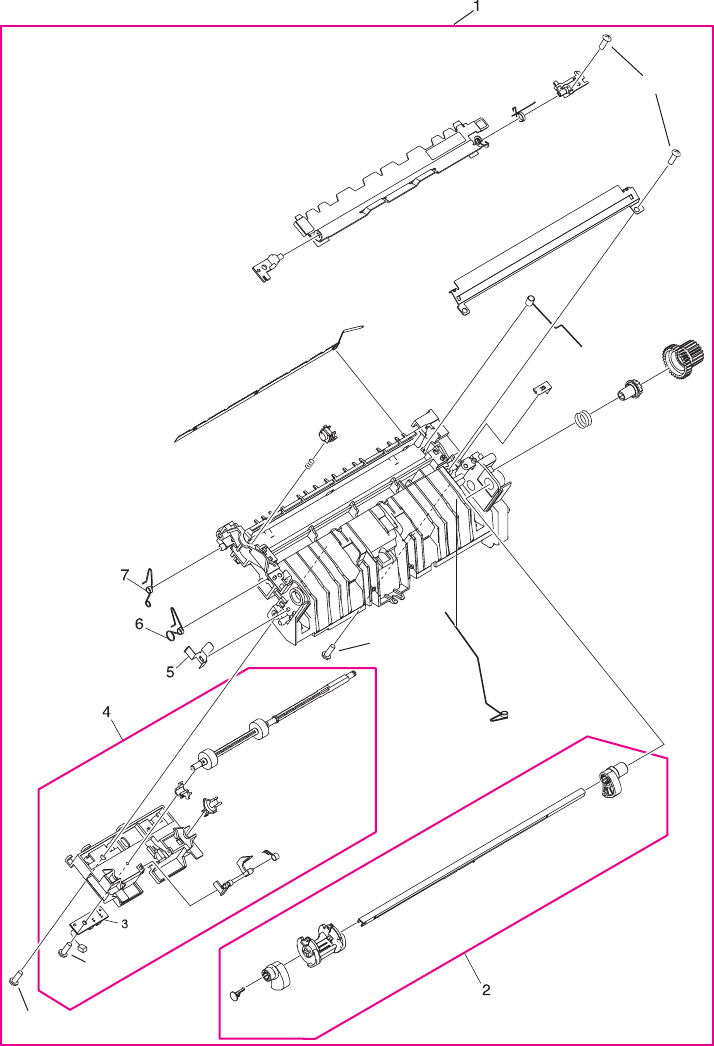
S9
S10
S4
S9
Figure 7-14. Paper-pickup assembly (1 of 2)
280 Chapter 7 Parts and diagrams ENWW

Table 7-21. Paper-pickup assembly (1 of 2)
Ref Description Part number Qty
1Paper-pickup assembly (also includes all parts
shown in the next figure)
RM1-0838-000CN 1
2Paper-pickup-shaft assembly RM1-0533-000CN 1
3Paper-sensor PCB assembly RM1-0851-000CN 1
4Feed-roller holder assembly RM1-0839-000CN 1
5Grounding plate RA0-1072-000CN 1
6Spring, torsion RA0-1035-000CN 1
7Spring, torsion RA0-1200-000CN 1
S4 Screw, M4x14 XA9-1421-000CN 1
S9 Screw, tap, truss head, M4x10 RB9-0819-000CN 3
S10 Screw, tap, binding head, M3x8 RB9-0820-000CN 1
ENWW Internal assemblies 281
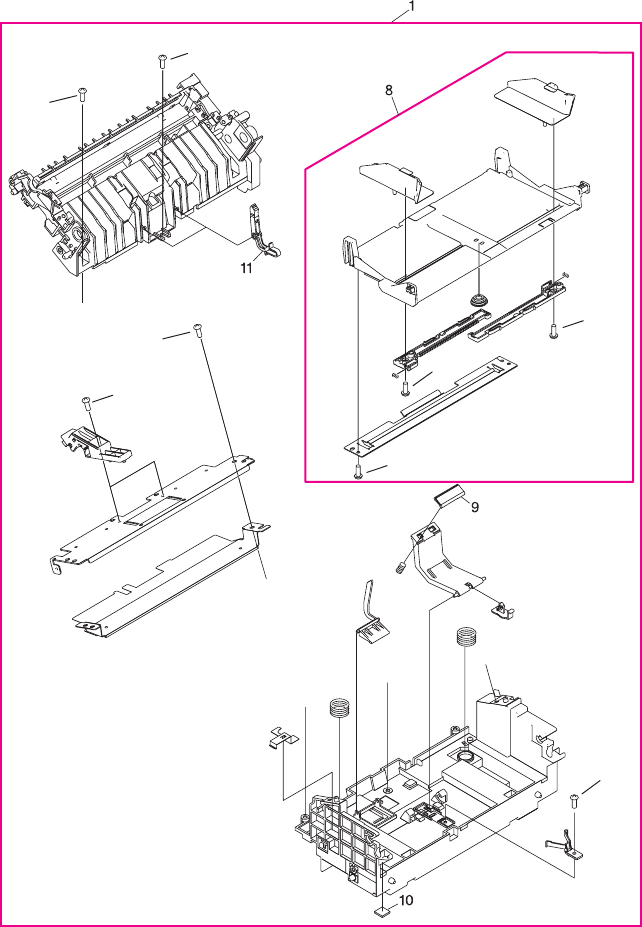
S10
S10
S12
S9
S9
S4
S10
S10
Figure 7-15. Paper-pickup assembly (2 of 2)
282 Chapter 7 Parts and diagrams ENWW

Table 7-22. Paper-pickup assembly (2 of 2)
Ref Description Part number Qty
1Paper-pickup assembly (also includes all parts
shown in the previous figure)
RM1-0838-000CN 1
8Paper lift-plate assembly RM1-0840-000CN 1
9Separation pad RF0-1014-020CN 1
10 Foot, rubber (paper pickup) RA0-1003-000CN 2
11 Sub pad RC1-1794-000CN 2
S4 Screw, M4x14 XA9-1421-000CN 1
S9 Screw, tap, truss head, M4x10 RB9-0819-000CN 2
S10 Screw, tap, binding head, M3x8 RB9-0820-000CN 4
S12 Screw, TP, M3x6 XA9-1418-000CN 1
ENWW Internal assemblies 283
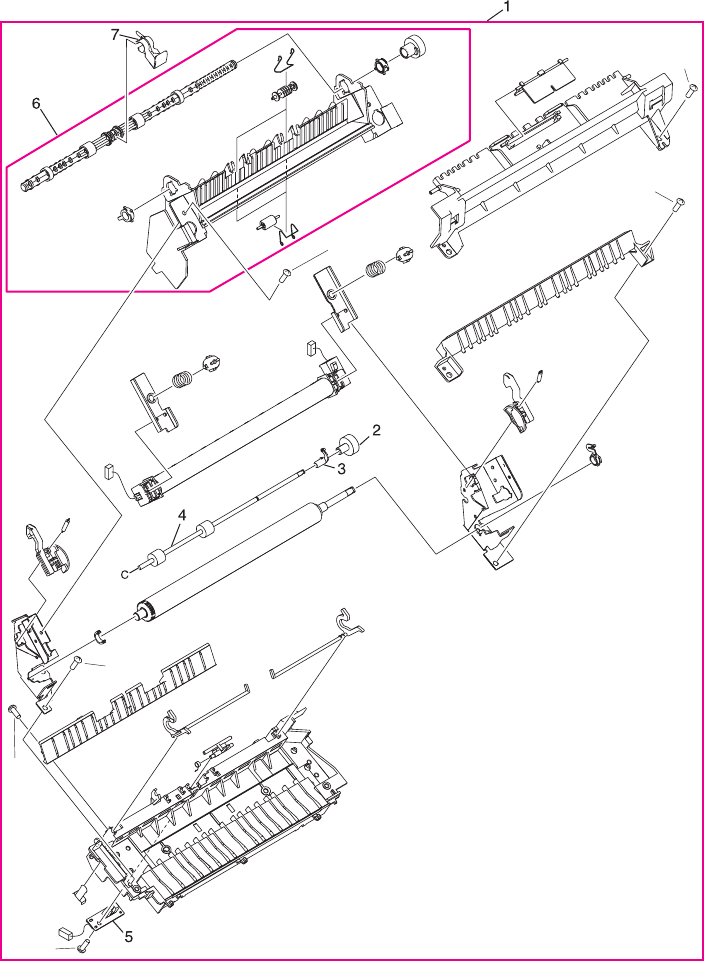
S6
S4
S4
S9
S4
S10
Figure 7-16. Fuser assembly
284 Chapter 7 Parts and diagrams ENWW

Table 7-23. Fuser assembly
Ref Description Part number Qty
1Fuser assembly, 110 V RM1-0841-000CN 1
1Fuser assembly, 220 V RM1-0842-000CN 1
2Gear, 17T RA0-1089-000CN 1
3 Bushing RA0-1104-000CN 1
4Face-up roller RF0-1003-000CN 1
5Delivery sensor PCB assembly RM1-0852-000CN 1
6Face-down paper-delivery assembly RM1-0556-000CN 1
7Flapper, height RC1-2393-000CN 1
S4 Screw, M4x14 XA9-1421-000CN 3
S6 Screw, TP, M3x8 XA9-1503-000CN 1
S9 Screw, tap, truss head, M4x10 RB9-0819-000CN 1
S10 Screw, tap, binding head, M3x8 RB9-0820-000CN 1
ENWW Internal assemblies 285

Alphabetical parts list
Table 7-24. Alphabetical parts list
Description Part number Table and page
110-volt replacement unit Q2660-60055 Table 7-12 on page
263
220-volt replacement unit Q2660-60065 Table 7-12 on page
263
ADF C9143-60107 Table 7-9 on page 257
ADF document feed guide C7309-40153 Table 7-10 on page
259
ADF glass C7296-00014 Table 7-9 on page 257
ADF glass frame C9124-40005 Table 7-9 on page 257
ADF input tray C9143-60102 Table 7-9 on page 257
ADF input-tray flag C7309-40013 Table 7-10 on page
259
ADF input-tray spring C7309-80013 Table 7-10 on page
259
ADF pickup roller assembly C7309-60049 Table 7-10 on page
259
ADF separation pad C7309-60009 Table 7-10 on page
259
Arabic 3380 Bezel Q2660-40019 Table 7-11 on page
261
Automatic document feeder (ADF) C9143-60107 Table 7-8 on page 255
Back cover (includes straight-through output door) RG0-1114-000CN Table 7-12 on page
263
Bushing RA0-1104-000CN Table 7-23 on page
285
Cable modem FCC C9126-60103 Table 7-16 on page
271
Cable, laser/scanner FFC RK2-0185-000CN Table 7-16 on page
271
Cable, laser/scanner motor RM1-0832-000CN Table 7-16 on page
271
Cartridge-guide holder (part of service-parts kit) 5851-1172 Table 7-18 on page
275
Cartridge-guide holder (part of service-parts kit) 5851-1172 Table 7-19 on page
277
Clamp, cable WT2-5694-000CN Table 7-18 on page
275
286 Chapter 7 Parts and diagrams ENWW

Description Part number Table and page
Clamp, cable WT2-5694-000CN Table 7-19 on page
277
Clamp, cable WT2-5694-000CN Table 7-20 on page
279
Connecting link RA0-1457-000CN Table 7-17 on page
273
Control panel Q2660-60101 Table 7-11 on page
261
Control panel (see table 7-11) Table 7-8 on page 255
Control-panel cable Q2660-60104 Table 7-11 on page
261
Control-panel chassis C9124-40006 Table 7-11 on page
261
Cover, back assembly RG0-1114-000CN Table 7-13 on page
265
Cover, front RA0-1450-020CN Table 7-13 on page
265
Cover, left assembly RG0-1113-000CN Table 7-13 on page
265
Cover, left support RA0-1444-000CN Table 7-16 on page
271
Cover, right support RA0-1452-000CN Table 7-16 on page
271
Cover, right-side assembly RG0-1116-000CN Table 7-13 on page
265
Cover, top RF0-1100-030CN Table 7-13 on page
265
Czech 3380 Bezel Q2660-40013 Table 7-11 on page
261
Danish 3380 Bezel Q2660-40008 Table 7-11 on page
261
Delivery sensor PCB assembly RM1-0852-000CN Table 7-23 on page
285
Door, print-cartridge assembly RG0-1115-000CN Table 7-13 on page
265
Dutch 3380 Bezel Q2660-40009 Table 7-11 on page
261
ECU (110-127 V) RM1-0833-000CN Table 7-16 on page
271
ECU (220-240 V) RM1-0834-000CN Table 7-16 on page
271
Table 7-24. Alphabetical parts list (continued)
ENWW Alphabetical parts list 287

Description Part number Table and page
Electrical components assembly (see table 7-20) Table 7-15 on page
269
Engine controller case RA0-1127-000CN Table 7-20 on page
279
Engine controller PCB assembly, 110-127 V RM1-0833-000CN Table 7-20 on page
279
Engine controller PCB assembly, 220-240 V RM1-0834-000CN Table 7-20 on page
279
Engine deflector shield Q2660-40002 Table 7-16 on page
271
English 3380 Bezel Q2660-40003 Table 7-11 on page
261
Face-down paper-delivery assembly RM1-0556-000CN Table 7-23 on page
285
Face-up roller RF0-1003-000CN Table 7-23 on page
285
Fan assembly RM1-0846-000CN Table 7-17 on page
273
Feed-roller holder assembly RM1-0839-000CN Table 7-21 on page
281
Finnish 3380 Bezel Q2660-40010 Table 7-11 on page
261
Flapper, height RC1-2393-000CN Table 7-23 on page
285
Foot, rubber RA0-1412-000CN Table 7-19 on page
277
Foot, rubber (paper pickup) RA0-1003-000CN Table 7-22 on page
283
Formatter, fax Q2658-60001 Table 7-16 on page
271
French 3380 Bezel Q2660-40004 Table 7-11 on page
261
Front cover RA0-1450-020CN Table 7-12 on page
263
Fuser assembly (110-127 V) RM1-0999-000CN Table 7-15 on page
269
Fuser assembly (220-240 V) RM1-1000-000CN Table 7-15 on page
269
Fuser assembly, 110 V RM1-0841-000CN Table 7-23 on page
285
Fuser assembly, 220 V RM1-0842-000CN Table 7-23 on page
285
Table 7-24. Alphabetical parts list (continued)
288 Chapter 7 Parts and diagrams ENWW

Description Part number Table and page
Fuser plate, left RA0-1446-000CN Table 7-17 on page
273
Fuser plate, right RA0-1447-000CN Table 7-17 on page
273
Fuser, 110 V RM1-0999-000CN Table 7-17 on page
273
Fuser, 220 V RM1-1000-000CN Table 7-17 on page
273
Gear kit RY7-5081-000CN Table 7-15 on page
269
Gear, 17T RA0-1172-000CN Table 7-18 on page
275
Gear, 17T RA0-1089-000CN Table 7-23 on page
285
Gear, 29T RA0-1088-000CN Table 7-17 on page
273
Gear, 69T RA0-1176-000CN Table 7-17 on page
273
German 3380 Bezel Q2660-40005 Table 7-11 on page
261
German unpainted 3380 Bezel Q2660-40028 Table 7-11 on page
261
Greek 3380 Bezel Q2660-40020 Table 7-11 on page
261
Grounding plate RA0-1072-000CN Table 7-21 on page
281
Guide, front RA0-1451-000CN Table 7-17 on page
273
Guide, shutter RC1-2195-000CN Table 7-16 on page
271
Hebrew 3380 Bezel Q2660-40021 Table 7-11 on page
261
HP jewel 7121-8043 Table 7-13 on page
265
Hungarian 3380 Bezel Q2660-40014 Table 7-11 on page
261
Italian 3380 Bezel Q2660-40006 Table 7-11 on page
261
Korean 3380 Bezel Q2660-40022 Table 7-11 on page
261
Laser/scanner assembly RM1-0524-030CN Table 7-16 on page
271
Table 7-24. Alphabetical parts list (continued)
ENWW Alphabetical parts list 289

Description Part number Table and page
Left bottom frame support RA0-1470-000CN Table 7-12 on page
263
Left cartridge guide (part of service-parts kit) 5851-1172 Table 7-19 on page
277
Left height guide RC1-2191-000CN Table 7-13 on page
265
Left midpanel scanner cover C9124-40002 Table 7-9 on page 257
Left plate assembly RM1-0836-000CN Table 7-16 on page
271
Left plate assembly RM1-0836-000CN Table 7-17 on page
273
Left plate assembly RM1-0836-000CN Table 7-19 on page
277
Left side cover RG0-1113-000CN Table 7-12 on page
263
LIU cover C9126-40003 Table 7-16 on page
271
LIU groundstrap C9126-00001 Table 7-16 on page
271
LIU, EMEA C9138-60002 Table 7-16 on page
271
LIU, NA/WW C9138-60001 Table 7-16 on page
271
Motor, stepping RK2-0062-000CN Table 7-18 on page
275
Norwegian 3380 Bezel Q2660-40026 Table 7-11 on page
261
Paper lift-plate assembly RM1-0840-000CN Table 7-22 on page
283
Paper-pickup assembly RM1-0838-000CN Table 7-15 on page
269
Paper-pickup assembly RM1-0838-000CN Table 7-16 on page
271
Paper-pickup assembly (also includes all parts shown
in the next figure)
RM1-0838-000CN Table 7-21 on page
281
Paper-pickup assembly (also includes all parts shown
in the previous figure)
RM1-0838-000CN Table 7-22 on page
283
Paper-pickup cover assembly RG0-1122-000CN Table 7-14 on page
267
Paper-pickup-shaft assembly RM1-0533-000CN Table 7-21 on page
281
Table 7-24. Alphabetical parts list (continued)
290 Chapter 7 Parts and diagrams ENWW

Description Part number Table and page
Paper-pickup-tray assembly (see table 7-14) Table 7-15 on page
269
Paper-sensor PCB assembly RM1-0851-000CN Table 7-21 on page
281
Paper-tray assembly (see table 7-14) Table 7-12 on page
263
PCB spacer RA0-1128-000CN Table 7-20 on page
279
Pickup gear assembly RM1-0551-000CN Table 7-16 on page
271
Pickup roller RL1-0303-000CN Table 7-16 on page
271
Polish 3380 Bezel Q2660-40015 Table 7-11 on page
261
Portuguese 3380 Bezel Q2660-40011 Table 7-11 on page
261
Print-cartridge door RG0-1115-000CN Table 7-12 on page
263
Printer pickup-tray assembly RG0-1121-000CN Table 7-14 on page
267
RFI shield Q2660-00002 Table 7-16 on page
271
RFI shield, ADF C9124-00002 Table 7-9 on page 257
Right cartridge guide (part of service-parts kit) 5851-1172 Table 7-18 on page
275
Right height guide RC1-2392-000CN Table 7-13 on page
265
Right midpanel scanner cover C9124-40003 Table 7-9 on page 257
Right plate assembly RM1-0835-000CN Table 7-16 on page
271
Right plate assembly RM1-0835-000CN Table 7-17 on page
273
Right plate assembly RM1-0835-000CN Table 7-18 on page
275
Right side cover RG0-1116-000CN Table 7-12 on page
263
Russian 3380 Bezel Q2660-40016 Table 7-11 on page
261
Scanner assembly C2660-60106 Table 7-8 on page 255
Scanner assembly Q2660-60106 Table 7-9 on page 257
Table 7-24. Alphabetical parts list (continued)
ENWW Alphabetical parts list 291

Description Part number Table and page
Scanner flat flexible cable (FFC) assembly (includes
FCC C9124-60116 and shield)
Q2660-60103 Table 7-9 on page 257
Scanner PCA Q2657-60001 Table 7-9 on page 257
Screw for scanner formatter 0515-4257 Table 7-9 on page 257
Screw, formatter 0515-2908 Table 7-16 on page
271
Screw, M4x14 XA9-1421-000CN Table 7-21 on page
281
Screw, M4x14 XA9-1421-000CN Table 7-22 on page
283
Screw, M4x14 XA9-1421-000CN Table 7-23 on page
285
Screw, RS, M3x6 XA9-1495-000CN Table 7-16 on page
271
Screw, RS, M3x6 XA9-1495-000CN Table 7-17 on page
273
Screw, RS, M3x6 XA9-1495-000CN Table 7-18 on page
275
Screw, RS, M3x6 XA9-1495-000CN Table 7-19 on page
277
Screw, RS, M3x8 XA9-1504-000CN Table 7-13 on page
265
Screw, RS, M3x8 XA9-1504-000CN Table 7-16 on page
271
Screw, RS, M3x8 XA9-1504-000CN Table 7-17 on page
273
Screw, RS, M3x8 XA9-1504-000CN Table 7-18 on page
275
Screw, RS, M4x12 XA9-0722-000CN Table 7-13 on page
265
Screw, tap, binding head M3x8 RB9-0820-000CN Table 7-16 on page
271
Screw, tap, binding head, M3x8 RB9-0820-000CN Table 7-21 on page
281
Screw, tap, binding head, M3x8 RB9-0820-000CN Table 7-22 on page
283
Screw, tap, binding head, M3x8 RB9-0820-000CN Table 7-23 on page
285
Screw, tap, truss head, M3x8 XB4-7300-809CN Table 7-14 on page
267
Screw, tap, truss head, M4x10 RB9-0819-000CN Table 7-13 on page
265
Table 7-24. Alphabetical parts list (continued)
292 Chapter 7 Parts and diagrams ENWW

Description Part number Table and page
Screw, tap, truss head, M4x10 RB9-0819-000CN Table 7-17 on page
273
Screw, tap, truss head, M4x10 RB9-0819-000CN Table 7-21 on page
281
Screw, tap, truss head, M4x10 RB9-0819-000CN Table 7-22 on page
283
Screw, tap, truss head, M4x10 RB9-0819-000CN Table 7-23 on page
285
Screw, TP, M3x6 XA9-1418-000CN Table 7-22 on page
283
Screw, TP, M3x8 XA9-1503-000CN Table 7-13 on page
265
Screw, TP, M3x8 XA9-1503-000CN Table 7-16 on page
271
Screw, TP, M3x8 XA9-1503-000CN Table 7-17 on page
273
Screw, TP, M3x8 XA9-1503-000CN Table 7-18 on page
275
Screw, TP, M3x8 XA9-1503-000CN Table 7-23 on page
285
Screw, with star washer, M3x6 XA9-0828-000CN Table 7-20 on page
279
Screw, with washer, M3x6 RB9-0818-000CN Table 7-17 on page
273
Screw, with washer, M3x6 RB9-0818-000CN Table 7-18 on page
275
Screw, with washer, M3x8 XA9-1420-000CN Table 7-20 on page
279
Screws for control-panel chassis 0515-4330 Table 7-11 on page
261
Screws for scanner side panels, scanner formatter,
and ADF glass frame
0515-4330 Table 7-9 on page 257
Screws that secure scanner to printer 0515-4331 Table 7-9 on page 257
Separation pad RF0-1014-020CN Table 7-22 on page
283
Service parts kit 5851-1172 Table 7-15 on page
269
Shutter lever RA0-1182-000CN Table 7-16 on page
271
Simplified Chinese 3380 Bezel Q2660-40023 Table 7-11 on page
261
Table 7-24. Alphabetical parts list (continued)
ENWW Alphabetical parts list 293

Description Part number Table and page
Slovak 3380 Bezel Q2660-40017 Table 7-11 on page
261
Solenoid, 24 Vdc RK2-0064-000CN Table 7-17 on page
273
Spanish 3380 Bezel Q2660-40007 Table 7-11 on page
261
Speaker C9124-60113 Table 7-11 on page
261
Spring, compression RA0-1169-000CN Table 7-16 on page
271
Spring, tension RA0-1212-000CN Table 7-18 on page
275
Spring, torsion RA0-1035-000CN Table 7-21 on page
281
Spring, torsion RA0-1200-000CN Table 7-21 on page
281
Straight-through output door (includes back cover) RG0-1114-000CN Table 7-12 on page
263
Sub pad RC1-1794-000CN Table 7-22 on page
283
Support, left bottom frame RA0-1470-000CN Table 7-13 on page
265
Swedish 3380 Bezel Q2660-40012 Table 7-11 on page
261
Thai 3380 Bezel Q2660-40025 Table 7-11 on page
261
Top cover RF0-1100-030CN Table 7-12 on page
263
Torx screw 0624-1055 Table 7-10 on page
259
Traditional Chinese 3380 Bezel Q2660-40024 Table 7-11 on page
261
Transfer roller RM1-0550-000CN Table 7-16 on page
271
Turkish 3380 Bezel Q2660-40018 Table 7-11 on page
261
Vietnamese 3380 Bezel Q2660-40029 Table 7-11 on page
261
Table 7-24. Alphabetical parts list (continued)
294 Chapter 7 Parts and diagrams ENWW

Numerical parts list
Table 7-25. Numerical parts list
Part number Description Table and page
Control panel (see table 7-11) Table 7-8 on page 255
Paper-tray assembly (see table 7-14) Table 7-12 on page 263
Electrical components assembly (see table 7-20) Table 7-15 on page 269
Paper-pickup-tray assembly (see table 7-14) Table 7-15 on page 269
0515-2908 Screw, formatter Table 7-16 on page 271
0515-4257 Screw for scanner formatter Table 7-9 on page 257
0515-4330 Screws for scanner side panels, scanner formatter,
and ADF glass frame
Table 7-9 on page 257
0515-4330 Screws for control-panel chassis Table 7-11 on page 261
0515-4331 Screws that secure scanner to printer Table 7-9 on page 257
0624-1055 Torx screw Table 7-10 on page 259
5851-1172 Service parts kit Table 7-15 on page 269
5851-1172 Right cartridge guide (part of service-parts kit) Table 7-18 on page 275
5851-1172 Cartridge-guide holder (part of service-parts kit) Table 7-18 on page 275
5851-1172 Left cartridge guide (part of service-parts kit) Table 7-19 on page 277
5851-1172 Cartridge-guide holder (part of service-parts kit) Table 7-19 on page 277
7121-8043 HP jewel Table 7-13 on page 265
C2660-60106 Scanner assembly Table 7-8 on page 255
C7296-00014 ADF glass Table 7-9 on page 257
C7309-40013 ADF input-tray flag Table 7-10 on page 259
C7309-40153 ADF document feed guide Table 7-10 on page 259
C7309-60009 ADF separation pad Table 7-10 on page 259
C7309-60049 ADF pickup roller assembly Table 7-10 on page 259
C7309-80013 ADF input-tray spring Table 7-10 on page 259
C9124-00002 RFI shield, ADF Table 7-9 on page 257
C9124-40002 Left midpanel scanner cover Table 7-9 on page 257
C9124-40003 Right midpanel scanner cover Table 7-9 on page 257
C9124-40005 ADF glass frame Table 7-9 on page 257
C9124-40006 Control-panel chassis Table 7-11 on page 261
C9124-60113 Speaker Table 7-11 on page 261
ENWW Numerical parts list 295

Part number Description Table and page
C9126-00001 LIU groundstrap Table 7-16 on page 271
C9126-40003 LIU cover Table 7-16 on page 271
C9126-60103 Cable modem FCC Table 7-16 on page 271
C9138-60001 LIU, NA/WW Table 7-16 on page 271
C9138-60002 LIU, EMEA Table 7-16 on page 271
C9143-60102 ADF input tray Table 7-9 on page 257
C9143-60107 Automatic document feeder (ADF) Table 7-8 on page 255
C9143-60107 ADF Table 7-9 on page 257
Q2657-60001 Scanner PCA Table 7-9 on page 257
Q2658-60001 Formatter, fax Table 7-16 on page 271
Q2660-00002 RFI shield Table 7-16 on page 271
Q2660-40002 Engine deflector shield Table 7-16 on page 271
Q2660-40003 English 3380 Bezel Table 7-11 on page 261
Q2660-40004 French 3380 Bezel Table 7-11 on page 261
Q2660-40005 German 3380 Bezel Table 7-11 on page 261
Q2660-40006 Italian 3380 Bezel Table 7-11 on page 261
Q2660-40007 Spanish 3380 Bezel Table 7-11 on page 261
Q2660-40008 Danish 3380 Bezel Table 7-11 on page 261
Q2660-40009 Dutch 3380 Bezel Table 7-11 on page 261
Q2660-40010 Finnish 3380 Bezel Table 7-11 on page 261
Q2660-40011 Portuguese 3380 Bezel Table 7-11 on page 261
Q2660-40012 Swedish 3380 Bezel Table 7-11 on page 261
Q2660-40013 Czech 3380 Bezel Table 7-11 on page 261
Q2660-40014 Hungarian 3380 Bezel Table 7-11 on page 261
Q2660-40015 Polish 3380 Bezel Table 7-11 on page 261
Q2660-40016 Russian 3380 Bezel Table 7-11 on page 261
Q2660-40017 Slovak 3380 Bezel Table 7-11 on page 261
Q2660-40018 Turkish 3380 Bezel Table 7-11 on page 261
Q2660-40019 Arabic 3380 Bezel Table 7-11 on page 261
Q2660-40020 Greek 3380 Bezel Table 7-11 on page 261
Q2660-40021 Hebrew 3380 Bezel Table 7-11 on page 261
Q2660-40022 Korean 3380 Bezel Table 7-11 on page 261
Q2660-40023 Simplified Chinese 3380 Bezel Table 7-11 on page 261
Table 7-25. Numerical parts list (continued)
296 Chapter 7 Parts and diagrams ENWW

Part number Description Table and page
Q2660-40024 Traditional Chinese 3380 Bezel Table 7-11 on page 261
Q2660-40025 Thai 3380 Bezel Table 7-11 on page 261
Q2660-40026 Norwegian 3380 Bezel Table 7-11 on page 261
Q2660-40028 German unpainted 3380 Bezel Table 7-11 on page 261
Q2660-40029 Vietnamese 3380 Bezel Table 7-11 on page 261
Q2660-60055 110-volt replacement unit Table 7-12 on page 263
Q2660-60065 220-volt replacement unit Table 7-12 on page 263
Q2660-60101 Control panel Table 7-11 on page 261
Q2660-60103 Scanner flat flexible cable (FFC) assembly (includes
FCC C9124-60116 and shield)
Table 7-9 on page 257
Q2660-60104 Control-panel cable Table 7-11 on page 261
Q2660-60106 Scanner assembly Table 7-9 on page 257
RA0-1003-000CN Foot, rubber (paper pickup) Table 7-22 on page 283
RA0-1035-000CN Spring, torsion Table 7-21 on page 281
RA0-1072-000CN Grounding plate Table 7-21 on page 281
RA0-1088-000CN Gear, 29T Table 7-17 on page 273
RA0-1089-000CN Gear, 17T Table 7-23 on page 285
RA0-1104-000CN Bushing Table 7-23 on page 285
RA0-1127-000CN Engine controller case Table 7-20 on page 279
RA0-1128-000CN PCB spacer Table 7-20 on page 279
RA0-1169-000CN Spring, compression Table 7-16 on page 271
RA0-1172-000CN Gear, 17T Table 7-18 on page 275
RA0-1176-000CN Gear, 69T Table 7-17 on page 273
RA0-1182-000CN Shutter lever Table 7-16 on page 271
RA0-1200-000CN Spring, torsion Table 7-21 on page 281
RA0-1212-000CN Spring, tension Table 7-18 on page 275
RA0-1412-000CN Foot, rubber Table 7-19 on page 277
RA0-1444-000CN Cover, left support Table 7-16 on page 271
RA0-1446-000CN Fuser plate, left Table 7-17 on page 273
RA0-1447-000CN Fuser plate, right Table 7-17 on page 273
RA0-1450-020CN Front cover Table 7-12 on page 263
RA0-1450-020CN Cover, front Table 7-13 on page 265
RA0-1451-000CN Guide, front Table 7-17 on page 273
Table 7-25. Numerical parts list (continued)
ENWW Numerical parts list 297

Part number Description Table and page
RA0-1452-000CN Cover, right support Table 7-16 on page 271
RA0-1457-000CN Connecting link Table 7-17 on page 273
RA0-1470-000CN Left bottom frame support Table 7-12 on page 263
RA0-1470-000CN Support, left bottom frame Table 7-13 on page 265
RB9-0818-000CN Screw, with washer, M3x6 Table 7-17 on page 273
RB9-0818-000CN Screw, with washer, M3x6 Table 7-18 on page 275
RB9-0819-000CN Screw, tap, truss head, M4x10 Table 7-13 on page 265
RB9-0819-000CN Screw, tap, truss head, M4x10 Table 7-17 on page 273
RB9-0819-000CN Screw, tap, truss head, M4x10 Table 7-21 on page 281
RB9-0819-000CN Screw, tap, truss head, M4x10 Table 7-22 on page 283
RB9-0819-000CN Screw, tap, truss head, M4x10 Table 7-23 on page 285
RB9-0820-000CN Screw, tap, binding head M3x8 Table 7-16 on page 271
RB9-0820-000CN Screw, tap, binding head, M3x8 Table 7-21 on page 281
RB9-0820-000CN Screw, tap, binding head, M3x8 Table 7-22 on page 283
RB9-0820-000CN Screw, tap, binding head, M3x8 Table 7-23 on page 285
RC1-1794-000CN Sub pad Table 7-22 on page 283
RC1-2191-000CN Left height guide Table 7-13 on page 265
RC1-2195-000CN Guide, shutter Table 7-16 on page 271
RC1-2392-000CN Right height guide Table 7-13 on page 265
RC1-2393-000CN Flapper, height Table 7-23 on page 285
RF0-1003-000CN Face-up roller Table 7-23 on page 285
RF0-1014-020CN Separation pad Table 7-22 on page 283
RF0-1100-030CN Top cover Table 7-12 on page 263
RF0-1100-030CN Cover, top Table 7-13 on page 265
RG0-1113-000CN Left side cover Table 7-12 on page 263
RG0-1113-000CN Cover, left assembly Table 7-13 on page 265
RG0-1114-000CN Back cover (includes straight-through output door) Table 7-12 on page 263
RG0-1114-000CN Straight-through output door (includes back cover) Table 7-12 on page 263
RG0-1114-000CN Cover, back assembly Table 7-13 on page 265
RG0-1115-000CN Print-cartridge door Table 7-12 on page 263
RG0-1115-000CN Door, print-cartridge assembly Table 7-13 on page 265
RG0-1116-000CN Right side cover Table 7-12 on page 263
RG0-1116-000CN Cover, right-side assembly Table 7-13 on page 265
Table 7-25. Numerical parts list (continued)
298 Chapter 7 Parts and diagrams ENWW

Part number Description Table and page
RG0-1121-000CN Printer pickup-tray assembly Table 7-14 on page 267
RG0-1122-000CN Paper-pickup cover assembly Table 7-14 on page 267
RK2-0062-000CN Motor, stepping Table 7-18 on page 275
RK2-0064-000CN Solenoid, 24 Vdc Table 7-17 on page 273
RK2-0185-000CN Cable, laser/scanner FFC Table 7-16 on page 271
RL1-0303-000CN Pickup roller Table 7-16 on page 271
RM1-0524-030CN Laser/scanner assembly Table 7-16 on page 271
RM1-0533-000CN Paper-pickup-shaft assembly Table 7-21 on page 281
RM1-0550-000CN Transfer roller Table 7-16 on page 271
RM1-0551-000CN Pickup gear assembly Table 7-16 on page 271
RM1-0556-000CN Face-down paper-delivery assembly Table 7-23 on page 285
RM1-0832-000CN Cable, laser/scanner motor Table 7-16 on page 271
RM1-0833-000CN ECU (110-127 V) Table 7-16 on page 271
RM1-0833-000CN Engine controller PCB assembly, 110-127 V Table 7-20 on page 279
RM1-0834-000CN ECU (220-240 V) Table 7-16 on page 271
RM1-0834-000CN Engine controller PCB assembly, 220-240 V Table 7-20 on page 279
RM1-0835-000CN Right plate assembly Table 7-16 on page 271
RM1-0835-000CN Right plate assembly Table 7-17 on page 273
RM1-0835-000CN Right plate assembly Table 7-18 on page 275
RM1-0836-000CN Left plate assembly Table 7-16 on page 271
RM1-0836-000CN Left plate assembly Table 7-17 on page 273
RM1-0836-000CN Left plate assembly Table 7-19 on page 277
RM1-0838-000CN Paper-pickup assembly Table 7-15 on page 269
RM1-0838-000CN Paper-pickup assembly Table 7-16 on page 271
RM1-0838-000CN Paper-pickup assembly (also includes all parts
shown in the next figure)
Table 7-21 on page 281
RM1-0838-000CN Paper-pickup assembly (also includes all parts
shown in the previous figure)
Table 7-22 on page 283
RM1-0839-000CN Feed-roller holder assembly Table 7-21 on page 281
RM1-0840-000CN Paper lift-plate assembly Table 7-22 on page 283
RM1-0841-000CN Fuser assembly, 110 V Table 7-23 on page 285
RM1-0842-000CN Fuser assembly, 220 V Table 7-23 on page 285
RM1-0846-000CN Fan assembly Table 7-17 on page 273
Table 7-25. Numerical parts list (continued)
ENWW Numerical parts list 299

Part number Description Table and page
RM1-0851-000CN Paper-sensor PCB assembly Table 7-21 on page 281
RM1-0852-000CN Delivery sensor PCB assembly Table 7-23 on page 285
RM1-0999-000CN Fuser assembly (110-127 V) Table 7-15 on page 269
RM1-0999-000CN Fuser, 110 V Table 7-17 on page 273
RM1-1000-000CN Fuser assembly (220-240 V) Table 7-15 on page 269
RM1-1000-000CN Fuser, 220 V Table 7-17 on page 273
RY7-5081-000CN Gear kit Table 7-15 on page 269
WT2-5694-000CN Clamp, cable Table 7-18 on page 275
WT2-5694-000CN Clamp, cable Table 7-19 on page 277
WT2-5694-000CN Clamp, cable Table 7-20 on page 279
XA9-0722-000CN Screw, RS, M4x12 Table 7-13 on page 265
XA9-0828-000CN Screw, with star washer, M3x6 Table 7-20 on page 279
XA9-1418-000CN Screw, TP, M3x6 Table 7-22 on page 283
XA9-1420-000CN Screw, with washer, M3x8 Table 7-20 on page 279
XA9-1421-000CN Screw, M4x14 Table 7-21 on page 281
XA9-1421-000CN Screw, M4x14 Table 7-22 on page 283
XA9-1421-000CN Screw, M4x14 Table 7-23 on page 285
XA9-1495-000CN Screw, RS, M3x6 Table 7-16 on page 271
XA9-1495-000CN Screw, RS, M3x6 Table 7-17 on page 273
XA9-1495-000CN Screw, RS, M3x6 Table 7-18 on page 275
XA9-1495-000CN Screw, RS, M3x6 Table 7-19 on page 277
XA9-1503-000CN Screw, TP, M3x8 Table 7-13 on page 265
XA9-1503-000CN Screw, TP, M3x8 Table 7-16 on page 271
XA9-1503-000CN Screw, TP, M3x8 Table 7-17 on page 273
XA9-1503-000CN Screw, TP, M3x8 Table 7-18 on page 275
XA9-1503-000CN Screw, TP, M3x8 Table 7-23 on page 285
XA9-1504-000CN Screw, RS, M3x8 Table 7-13 on page 265
XA9-1504-000CN Screw, RS, M3x8 Table 7-16 on page 271
XA9-1504-000CN Screw, RS, M3x8 Table 7-17 on page 273
XA9-1504-000CN Screw, RS, M3x8 Table 7-18 on page 275
XB4-7300-809CN Screw, tap, truss head, M3x8 Table 7-14 on page 267
Table 7-25. Numerical parts list (continued)
300 Chapter 7 Parts and diagrams ENWW
Index
Symbols/Numerics
69T gear
removing 136
A
abbreviations, fax 233
ac bias 85
ac power distribution 81
accessories
ordering 251
acoustic emissions 9
adding paper 40
ADF
clearing jams 199
diagrams and part numbers 257
document-feed guide, removing 107
features 4
feeding problems, troubleshooting 202
glass, removing 118
input tray 5
input-tray flag, removing 108
life expectancy 48
loading originals 43
ordering 254
output bin 5
pickup roller assembly, removing 105
pickup-roller assembly, changing 62
removing 61, 104
replacing 61
separation pad, removing 109
specifications 41
ADF paper jams 78
ADF paper pickup assembly
diagrams and part numbers 259
ADF separation pad
diagrams and part numbers 259
life expectancy 48
ADF, copier, scanner
feeding problems, troubleshooting 202
adhesive labels, printing 40
adjusting
fax data-store parameters 239
alcohol, cleaning with
high-voltage connection points 211, 213
printer separation pad 55
alignment
specifications 9
troubleshooting 186, 189, 198
alphanumeric buttons 28
answering machines
connecting to product 207
appropriate responses, fax 232
arrays, copier/scanner optical system 76
assemblies, internal 268
Australia
EMC statement 23
automatic document feeder
capacity 2
feeding problems, troubleshooting 202
removing 104
B
back cover
removing 123
background, gray 182, 191
base memory 2
battery
specifications 10
beam detect (BD) signal 85
bezel for product control panel
removing 110
replacing 65, 111
bidirectional communications 73, 75
bidirectional ECP 74
billing log 217
bin, output
capacity 2
printing to 45
bits per pixel (bpp), maximum 2
black dots, troubleshooting
printed pages 181, 187
scanned images 192
black streaks, troubleshooting 191
blinking lights 166
block diagram
image formation 85
printer 79
product functions 79
block fax list 217
boot process 73
bpp (bits per pixel), maximum 2
breaking paper reams 199
ENWW Index 301
buffer memory 75
buttons
alphanumeric 28
control panel 27, 29
bypassing formatter 208
C
cables
ECU 154
ordering 251
calibration
scanner 49
caller-ID boxes
connecting to product 207
Canada DOC regulations 22
cancel control 28
capacity
output bin 2
card stock
specifications for 38
cards
printing 40
Care Pack, HP 14
cartridge door
removing 125
cartridges
checking 179, 211
drum-rotation check 210
extending life of 74
high-capacity 2
life expectancies 48
operations 85, 86
part numbers 251
recycling 15
refilled 15
removing 98
central processing unit (CPU), formatter 73
characters, misprinted 181, 185
charge-coupled device (CCD)
operations 76
charging roller
operations 85
power supply 82
checklists
print cartridge inspection 179
troubleshooting 161
checks
drum rotation 210
engine 208
half-self-test 209
heating element 210
high-voltage power supply 211
paper path 213
circuit capacity specifications 8
circuitry, ECU power system 81
classes, HP Technical Training 250
cleaning
exterior 50
glass 50
high-voltage connection points 211, 213
lid backing 51
media guides 183
pickup roller 54
print path 52
printer separation pad 55
cleaning stage, image-formation process 86
clearing jams
ADF 199
device 195
clipped pages, troubleshooting 180, 189
cloth, toner 251
CO 89
codes
event log 177
Coldfire processor 73
color, scanning specifications 7
colored paper, troubleshooting 190
commands, PJL 242
common settings menu 32
communication operations 73, 75
complex pages, printing 75
components 5
components, diagrams and part numbers
electrical 278
internal 268
conditioning stage, image formation process 85
configuration report, printing 217
connection points
high-voltage power supply 213
print cartridge 211
connectors, locations 247
consumables
ordering 250
consumption, power 8
contact image sensor
troubleshooting 192
continuous self-test 238
contrast, troubleshooting 190
control panel
alphanumeric buttons 28
chassis, removing 113
components 74
copy, scan, and start controls 29
fax controls 27
location 5
menu structure 30
menu, status, and cancel controls 28
removing 112
reports, printing 217
speaker, removing 114
troubleshooting 162, 208
using 30
302 Index ENWW
control panel assembly
diagrams and part numbers 260
control panel, printer
light messages 166
copier
operations 73, 76
copier/scanner
feeding problems, troubleshooting 202
operations 76
removing 119
specifications 7
copy setup menu 30
copy speed 7
copying
troubleshooting 163
country/region of origin, identifying 6
coverage, printer 15
covers, removing
back 123
front 125
left side 122
printer top 125
right side 101
scanner 102
CPU, formatter 73
crooked pages, troubleshooting 186, 189, 198
crooked scans, troubleshooting 202
curl, troubleshooting 187, 197
custom-sized media, loading 40
Customer Care Online 250
cut-off edges 180, 189
D
dark copies or scans, troubleshooting 190
data communication operations 73, 75
date menu 30
dc bias 85
dc power distribution 81
Declaration of Conformity 21, 22
delay jams 87
delivery roller, observing 214
delivery sensor, paper (PS921)
feeding operations 86
jam detection operations 87
delivery-delay jams 87
delivery-stationary jams 88
demonstration report, printing 217
density
operations 83
troubleshooting 181
developer’s menu 239
developing roller 82
developing stage, image-formation process 85
dimensions, product 7, 26
DIMMs
firmware recovery 215
part numbers 251
slots 2
document feeder, ADF
capacity 2
documentation
ordering 250
doors
print cartridge 125
dots per inch, maximum 2
dots, troubleshooting
printed pages 181, 187
scanned images 192
dpi, maximum 2
draft mode 74
DRAM, formatter 73
drive roller, observing 214
drivers
included 2
ordering 250
dropouts, troubleshooting 181, 185
drum
inspecting 179
operations 85, 86
rotation functional check 210
troubleshooting 182
drum cleaning stage, image formation process 86
DSL
troubleshooting 204
duty cycle 2
dynamic random access memory (DRAM), formatter
73
E
ECM 218
EconoMode 74
ECP (Extended Capabilities Port) interface 73
ECU
cables 154
electrical components 278
functions 79
jam detection operations 87
laser/scanner operations 84
loads 81
paper feeding operations 86
power system 81
removing 152
troubleshooting 162
edges, not printing 180, 189
electrical components, diagrams and part numbers
278
electrical specifications 8
electrophotographic processes
operations 85
testing 209
ENWW Index 303
element, heating
check 210
operations 86
EMC statement for Australia 23
EMI statement for Korea 23
Engine Control Unit . See ECU
engine test
performing 208
Enhanced I/O 75
envelopes
loading 40
specifications for 37
environmental specifications 7, 26
equipment components 5
error correction
setting 218
error messages
critical 174
European Union regulatory information 24
event log
codes 177
exit rollers, fuser assembly 86
Extended Capabilities Port (ECP) interface 73
extended warranty 14
F
face-down delivery assembly
removing 139
face-up roller
removing 140
faceplate
removing and replacing 65
fan assembly
removing 142
fasteners, types of 252
fax
abbreviations 233
activity report 217
appropriate responses 232
billing (metering) tone filters 92
coding schemes 10
compatibility 10
controls 27
data path 90
data-store parameters 239
downstream current detection 91
error codes 219
functions menu 30
hook state 91
hook switch control 91
line current control 92
page storage in flash 92
phase sequence 230
report, interpreting 230
resolution 10
ring detect 91
safety isolation 90
safety protection circuitry 90
send codes 224
setup menu 32
speed 10
subsystem 89
T.30 protocol trace report 217
trace report 217
troubleshooting 163, 164
fax (LIU)
functions and operation 89
FCC regulations 17
features
firmware 2
hardware 4
feed assembly
drive rollers 86
removing 155
feed system, paper 86
feeding problems, troubleshooting
copier/scanner 202
frequent 56
printer 197
field replaceable units (FRUs)
procedures for replacing 97
film, transparency
cleaning print path with 52
loading 40
Finland laser safety 23
firmware code
recovering or updating 215
storing 73
firmware features 2
first page out 2
flash executable update of firmware 215
flash memory
firmware 73
flashing lights 166
flatbed
loading originals 43
media specifications 42
flowchart, troubleshooting 161
focusing lenses, operations 85
fonts, included 2
form sensor, ADF
jam detection 78
formatter
bypassing 208
copier/scanner operations 76
features 2
in the fax subsystem 89
operations 73
removing 134
304 Index ENWW
frame support, left bottom
removing 135
front cover
removing 126
front cover assembly
removing 125
front guide assembly
removing 128
FRUs (field replaceable units)
procedures for replacing 97
fuser
modes for media types 34
fuser assembly
diagrams and part numbers 284
exit rollers 86
heating element check 210
life expectancy 48
operations 86
removing 136
temperature, adjusting 183, 184
troubleshooting 182
fuser roller, observing 214
fuses 152
fusing stage, image-formation process 86
G
gear kit
ordering 253
gear, 69T 136
glass, cleaning 50
gray background, troubleshooting 182, 191
group-dial report 217
guide assembly
removing 128
guides
cleaning 183
troubleshooting 202
H
half-self-test functional check 209
hardware
components 5
features 4
maintenance agreements 14
headers, fax
menu 30
heating element
check 210
operations 86
height flapper
removing 130
height guides
removing 122
height, product 7, 26
high-capacity print cartridges 2
high-voltage power supply
connector assembly, checking 213
operations 82
testing 211
HP Care Pack 14
HP Customer Care Online 250
HP Technical Training 250
humidity
specifications 7
troubleshooting 182, 187, 191
I
I/O, Enhanced 75
IC CS-03 requirements 20
idle mode, power consumption 8
image density
troubleshooting 181
voltage operations 83
image formation process
operations 85
image quality, troubleshooting
copies and scans 188
printed pages 179
repetitive image defect ruler 194
image sensor
troubleshooting 192
image-formation process
operations 85
testing 209
indicator lights, printer control panel
error messages 166
initializing 241
input tray, paper
illustration 5
inserting media 40
internal components
diagrams and part numbers 271, 272
INTR (Initial Rotation Period) 69
isolated job settings 75
isopropyl alcohol, cleaning with
high-voltage connection points 211, 213
printer separation pad 55
J
jams
ADF 203
clearing 195
copier/scanner 203
detection operations 87
paper input trays 199
K
keys, numeric. See control panel
kick plate motion, observing 213
kits
ordering 253
Korean EMI statement 23
ENWW Index 305
L
label, model and serial number 6
labels
printing 40
specifications for 37
language settings
changing 240
languages, printer 75
laser safety statement 22
laser/scanner
removing 130
laser/scanner assembly
operations 84
latent electrostatic image 85
leading edge
ADF 78
detection operations 78, 86, 87
LEDs, printer control panel
error messages 166
left and right support covers
removing 131
left bottom frame support
removing 135
left door
removing 122
left plate assembly
removing 150
length, product 7, 26
lenses, operations 85
letterhead, loading 40
life expectancies
extending print cartridge 74
high-capacity print cartridges 2
recycling used print cartridges 15
lift plate
operations 86
light copies or scans, troubleshooting 190
lights, printer control panel
error messages 166
line interface unit
removing 133
lines, troubleshooting
copies or scans 188, 190, 191
printed pages 182
LIU
fax subsystem 89
functions and operation 89
removing 133
safety isolation circuitry 90
safety protection 90
loading
media 40
originals 43, 44
loads, ECU 81
location settings
changing 240
long pages, copying or scanning 202
loose toner, troubleshooting 184
lower metal shield, pickup assembly 144
LPT ports, troubleshooting 164
LSTR (Last Rotation Period) 69
M
machine screws 252
main input tray
feeding operations 86
feeding problems, troubleshooting 199
maintenance agreements 14
manuals
ordering 250
margins
minimum 180, 189
media
common problems 36
guidelines 36
loading 40
sizes 7, 34
specifications 34
types 34
media guides
cleaning 183
troubleshooting 202
media input tray
loading 40
memory
base 2
buffer 75
formatter 73
ordering 251
Memory Enhancement technology (MEt) 2, 75
menu
developer’s 239
secondary service 238
menu control 28
menu structure
printing 30, 217
using 30
messages, error 166
metal shields, pickup assembly 144
mirror operations 85
misalignment
specifications 9
troubleshooting 186, 189, 198
model number 6
modem
connecting to product 206
speed 10
motor
operations 84
removing 141
rotation, observing 213
motor controller 73
306 Index ENWW
multifeeds
copier/scanner 203
printer input trays 199
N
non-volatile RAM 74
NVRAM
initialization 241
operations 73
O
one-touch report 217
Online Customer Care, HP 250
operating environment, specifications 7, 26
operating systems
supported 2
optical system 76
optical system, copier/scanner
troubleshooting 192
order of
operations 69, 71
printed pages 45
removing parts 98
troubleshooting steps 161
ordering parts and supplies 250
output bin
capacity 2
illustration 5
printing to 45
output path
cleaning 52
operations 86
output rollers
removing 139, 140
overhead transparencies
cleaning print path with 52
loading 40
P
Page Protect 75
pages per minute 7
pages per month 2
pan
ECU, removing 152
paper
breaking reams 199
common problems 36
guidelines 36
loading 40
specifications 34
specifications for 36
storing 197
paper feed problems, troubleshooting
copier/scanner 202
printer 197
paper feed system 86
paper guides
cleaning 183
troubleshooting 202
paper jams
copier/scanner 203
detection operations 87
printer input trays 199
paper lift plate
operations 86
removing 145
replacing 148
paper path
cleaning 52
testing 213
troubleshooting 217
paper pickup assembly
removing 144
paper tray
diagrams and part numbers 266
paper-delivery sensor (PS921)
feeding operations 86
jam detection operations 87
paper-detection sensor (PS931) 86, 87
paper-feed assembly
removing 155
paper-pickup assembly
diagrams and part numbers 266, 280
paper-present sensor, ADF 78
paper-top sensor (PS911) 86, 87
parallel cable, ordering 251
parallel port
troubleshooting 165
parameters 239
partial characters, troubleshooting 181, 185
parts
ordering 250
removing and replacing 97
parts kits
ordering 253
parts that wear 48
path
feeding operations 86, 87
paper 217
print, cleaning 52
testing 213
PCL (printer command language) 75
phase sequence, fax 230
Phillips screwdrivers 97
phonebook report 217
phones, connecting extra 207
photosensitive drum
inspecting 179
operations 85, 86
rotation functional checks 210
troubleshooting 182
ENWW Index 307
photosensors
locating 88
paper feed system 86
physical specifications 7
pickup assembly
diagrams and part numbers 266, 280
removing 144
pickup delay jams 87
pickup roller
changing 56
cleaning 54
life expectancy 48
observing 214
operations 86
shaft, removing 145
pickup solenoid (SL1)
locating 88
observing 213
operations 86, 87
removing 141
pickup stationary jam
ADF 78
pins
heating element 210
high-voltage power supply 213
pixels per inch, maximum 2
PJL (printer job language)
commands 242
features 75
plate assemblies, removing 149, 150
pliers, required 97
ports
ECP (Extended Capabilities) 73
on printer 5
ports, troubleshooting
LPT 164
parallel 165
PostScript fonts, included 2
power
specifications 8
power cable, ordering 251
power receptacle 5
power supplies
disconnecting 97
ECU 81
testing high-voltage 211
power switch 5
pozidriv screwdrivers 97
ppm (pages per minute) 7
preprinted paper, loading 40
pressure roller, operations 86
primary-charging roller
operations 85
power supply 82
print cartridge door
removing 125
print cartridges
checking 179, 211
cleaning 52
drum-rotation check 210
extending life of 74
high-capacity 2
life expectancies 48
operations 85, 86
ordering 251
recycling 15
refilled 15
removing 98
print density
troubleshooting 181
voltage operations 83
print modes 34
print path
cleaning 52
feeding operations 86, 87
testing 213
PRINT period 69
print quality
troubleshooting 179
printer
separation pad, changing 58
printer command language (PCL) 75
printer covers
diagrams and part numbers 264
printer drivers, ordering 250
printer job language (PJL)
commands 242
features 75
printer pickup roller
life expectancy 48
observing 214
operations 86
shaft, removing 145
printer separation pad
cleaning 55
life expectancy 48
operations 86
printer/scanner separation 119
printing
feed problems 197
loading media 40
troubleshooting 164, 188
priority input tray
feeding operations 86
feeding problems, troubleshooting 199
loading 40
processor, formatter 73
product control-panel bezel, replacing 65
production code 6
308 Index ENWW
programs
included 2
protocol trace report, printing 217
PSTN 89
Q
quality, troubleshooting
copies and scans 188
printed pages 179
repetitive image defect ruler 194
R
RAM
base 2
formatter 73
reams, breaking 199
recovering firmware 215
recycling print cartridges 15
redistributing toner 179
reduction settings 180, 193
refilled print cartridges 15
regulations
European Union 24
FCC 17
removing parts 97, 98
repetitive defects, troubleshooting 185, 194
replacement intervals
consumables 48
print cartridges 2
recycling used print cartridges 15
replacing
ADF pickup-roller assembly 62
pickup roller 56
product control-panel bezel 65
replacing parts 97, 98
reports
continuous self-test 238
fax trace 217
menu 31
printing 217
printing fax reports 217
secondary service 238
T.30 protocol trace 217
reset
soft 241
residual paper jams 88
resistance, heating element 210
resizing scanned images 193
resolution
faxing 10
maximum 2
scanning 7
Resolution Enhancement technology (REt) 2
revision level 6
right cover, printer
removing 101
right plate assembly
removing 149
RING 89
rollers
life expectancies 48
observing 214
ROM
base 2
rotation
drum 210
motor 213
ruler, repetitive defect 194
S
scanline data 238
scanner
ADF glass, removing 118
calibration 49
diagrams and part numbers 257
document path 78
image quality, troubleshooting 188
loading originals 43
operations 73, 76
ordering 254
PCA, removing 115
removing 119
specifications 7
scanning
troubleshooting 165
scanning exposure stage, image-formation process
85
scatter, toner 187
schedules, HP Technical Training 250
screwdrivers, required 97
screws
ordering 252
types of 252
secondary service menu 238
self test
continuous 238
sensor flag, paper-feed assembly 156, 157
sensors
locating 88
paper feed system 86
separation of scanner and printer 119
separation pads
cleaning 55
life expectancies 48
operations 86
separation stage, image-formation process 85
sequence
operations 69, 71
printed pages 45
removing parts 98
troubleshooting steps 161
ENWW Index 309
serial number 6
service menu 33
service parts kit
ordering 253
settings
default 243
print job 75
shaft, pickup roller 145
shields, pickup assembly 144
signals, VIDEO 69
size
margins, minimum 180, 189
printer 7, 26
scanned images 193
skew
copies or scans, troubleshooting 202
printed pages, troubleshooting 186, 189, 198
specifications 9
slots, DIMM 2
smears, toner 183
soft reset 241
software
included 2
installation, troubleshooting 164
ordering 250
solenoid (SL1)
locating 88
observing 213
operations 86, 87
removing 141
space requirements 26
speaker
removing 114
special media
common problems 36
specifications 37, 39
specifications
acoustic 9
battery 10
electrical 8
fax 10
media 34
specks, toner 181, 187
speed
data transfer 75
during copying 7
printing and copying 7
processor 73
speed dial report 217
spots
printed pages 181, 187
scanned images 192
stages
image formation 85, 209
operation sequence 69, 71
star screws 252
startup messages 74
statements
Australian EMC 23
Declaration of Conformity 21, 22
FCC Part 68 requirements 17
Finland laser 23
IC CS-03 requirements 20
Korean EMI 23
laser safety 22
Telephone Consumer Protection Act 19
static eliminator, operations 85
stationary jams
ADF 78
status control 28
status information, relaying 73, 75
STBY (Standby) period 69
storage environment, specifications 7
stored fax pages
advantages of flash memory storage 92
storing paper 197
straight-through paper path 45
streaks, vertical black 191
stripes, vertical white 188, 190
subpads
operations 86
supplies, ordering 250
support, technical 250
SW301, overriding 213
switches
engine test 208
paper path test 213
system reset 241
system settings
default 243
T
T.30 protocol trace report, printing 217
technical support 250
Technical Training 250
Telephone Consumer Protection Act 19
telephone port 5
telephones, connecting extra 207
temperature
fuser settings 183, 184
specifications 7
storing paper 197
troubleshooting 187
tests
drum rotation 210
engine 208
half-self functional check 209
heating element 210
high-voltage power supply 211
paper path 213
text, troubleshooting
misprinted 181, 185
scanned 192
thermistor connector 210
310 Index ENWW
time/date, header menu 30
timing diagram, general 70
TIP 89
toner
cloth, ordering 251
image formation operations 85
loose, troubleshooting 184
ordering 251
redistributing 179
scattered, troubleshooting 187
smears, troubleshooting 183
specks, troubleshooting 181, 187
waste cleaning operations 86
toner cartridge. See print cartridges
tools, required 97
top cover
removing 125
trace report, printing 217
trailing edge, detection
ADF 78
Training, HP Technical 250
transfer roller
cleaning around 50
life expectancy 48
observing 214
operations 85
power supply 82
removing 132
transfer stage, image-formation process 85
transfer upper guide
removing 132
transparencies
cleaning print path with 52
loading 40
specifications for 36
trays
loading 40
troubleshooting
control panel 162, 208
copying 163
DSL 204
ECU (Engine Control Unit) 162
faxing 163, 164
image quality 179
LPT ports 164
media jams 195
print quality 179
printing 164
scanning 165
software installation 164
troubleshooting steps 161
truss head screws 252
two-way communications 73, 75
U
unplugging printer 97
updating firmware code 215
upper metal shield, pickup assembly 144
USB
cable, ordering 251
interface 73, 74
port 5
V
V.34
enabling or disabling 218
V.34 fax standard 218
ventilation requirements 26
vertical black streaks, troubleshooting 191
vertical defects, troubleshooting 185
vertical lines, troubleshooting 182
vertical white stripes, troubleshooting 188, 190
VIDEO signals 69
voltage
dc power supply 81
high-voltage power supply 83
W
WAIT period 69
warranty
extended 14
print cartridge 13
refilled cartridges, impact on 15
statement 12
waste toner receptacle 86
wave, troubleshooting 187, 197
websites 250
weight
printer 7
white stripes, troubleshooting 188, 190
width, product 7, 26
wiring diagrams 245
wrapping jams 88
wrinkled pages, troubleshooting 197
writing stage, image-formation process 85
ENWW Index 311
312 Index ENWW

© 2004 Hewlett-Packard Development Company, LP
www.hp.com/support/lj3380
Q2660-90901
*Q2660-90901*
*Q2660-90901*
