D000011475 DotMAP110 User Manual Enx Landis MAP110 Software Manual3
User Manual: Home
Open the PDF directly: View PDF  .
.
Page Count: 122 [warning: Documents this large are best viewed by clicking the View PDF Link!]
Software Tools
.MAP
Service Tool
.MAP110
User Manual
Date: 12.10.2012
File name: D000011475 dotMAP110 User Manual en.docx
© Landis+Gyr D000011475 en s
2/122 Revision history
© Landis+Gyr D000011475 en s – .MAP110 Service Tool – User Manual
Revision history
Version Date Comments
a 28.02.2005 First edition
b 31.05.2005 Changes to release 1.1
c 22.09.2005 Changes to release 1.2
d 05.12.2006 Changes to release 2.2
e 14.12.2006 Field strength indication for GSM installation support changed
f 14.01.2010 Changes to release 3.3
New document number D000011475 replaces H 71 0200 0332
(version index continued)
g 29.01.2009 Changes to release 3.4
h 06.03.2010 Sections 1 "Overview" and 2 "Installation" updated.
All communication surveys new with photos. All communication screenshots
adapted to changed software.
Designation "meter" generally replaced with "device".
Section 5.8 "Command Tree" expanded with user command tree.
Section 7.2.5 "Generating Export Files for MAP100" new.
Section 7.3.2 "Firmware Update AD-xP/xG" new.
Section 7.5.6 "Setting MAP100 File Export" new.
Section 7.5.7 "Checking for Updates" new.
Section 10 "Short Description of Device Security System" updated
Several minor changes (text, layout, screenshots, index).
k 20.12.2010 Changes to .MAP110 release 4.0
m 12.01.2011 Adaptation to tool changes: progress bar no longer in status bar, command tree
command name changes, several minor changes (text, layout, screenshots).
n 30.05.2011 Changes to .MAP110 release 4.1
p 02.11.2011 Changes to .MAP110 release 4.2
q 02.03.2012 Changes to .MAP110 release 4.3
r 21.05.2012 Changes to .MAP110 release 4.4; New Licensing.
s 12.10.2012 Changes to .MAP110 release 4.5; New command tree structure with generic
and device specific commands; Time base selection for profile readout for
devices supporting this feature.
Nothing in this document shall be construed as a representation or guarantee in respect of the performance, quality or durability of the
specified product. Landis+Gyr accepts no liability whatsoever in respect of the specified product under or in relation to this document.
Subject to change without notice.

Introduction 3/122
D000011475 en s – .MAP110 Service Tool – User Manual © Landis+Gyr
Introduction
The present user manual is designed for the Landis+Gyr .MAP110 Service
Tool Version 4.5 and higher.
This user manual contains all information required for the use of the
Landis+Gyr .MAP110 Service Tool. It not only provides explanations
concerning functionality and general procedures, but also gives detailed,
illustrated instructions on how to use the software.
The contents of this user manual are intended for technically qualified per-
sonnel of energy supply companies responsible for service tasks (installa-
tion, readout and maintenance) for Landis+Gyr devices.
The Landis+Gyr .MAP110 Service Tool runs on PCs with Windows operat-
ing system. To understand this user manual, you need basic knowledge of
Windows and its terms, as well as a general idea of how to operate a PC.
Furthermore, you need to be familiar with the functional principles of the
various devices supported by the Landis+Gyr .MAP110 Service Tool, which
are described in the corresponding user manuals and functional specifica-
tions.
The following conventions are used in this manual:
1. 2. 3. Ordinal numbers are used for individual steps in the instruc-
tions.
Extra Buttons, menu names and individual menu items appear in
bold text.
[F1] Keys are shown in square brackets.
[Ctrl]+[V] Key combinations are shown with a plus sign (e.g. [Ctrl] key
kept pressed while pressing [V] key)
"Options" Names of windows and elements appear in quotation marks.
Scope
Purpose
Target group
Conditions
Conventions

4/122 Table of contents
© Landis+Gyr D000011475 en s – .MAP110 Service Tool – User Manual
Table of contents
1 Overview .................................................................................................................................... 6
1.1 Functions ................................................................................................................................. 6
1.2 Communication Channels ....................................................................................................... 6
1.3 Communication Protocols ........................................................................................................ 7
1.4 Editions .................................................................................................................................... 7
2 Installation ................................................................................................................................... 8
3 Licensing ..................................................................................................................................... 9
3.1 Licensing Concept ................................................................................................................... 9
3.2 Entering License Data ........................................................................................................... 10
3.3 Changing the License ............................................................................................................ 11
4 First Steps .................................................................................................................................. 12
5 Description of User Interface ................................................................................................... 15
5.1 Overview ................................................................................................................................ 15
5.2 Menu Bar ............................................................................................................................... 16
5.3 Toolbars ................................................................................................................................. 16
5.3.1 Application Toolbar .......................................................................................................... 16
5.3.2 Access Level Toolbar ....................................................................................................... 16
5.3.3 Address Toolbar ............................................................................................................... 16
5.3.4 Device Toolbar ................................................................................................................. 17
5.3.5 Communication Channel Toolbar ..................................................................................... 17
5.4 Command Tree Window ........................................................................................................ 18
5.5 Result Window ....................................................................................................................... 21
5.6 Command Log ....................................................................................................................... 22
5.7 Communication Log ............................................................................................................... 23
5.8 Status Bar .............................................................................................................................. 25
5.9 Evaluation Window ................................................................................................................ 25
6 Communication with Devices .................................................................................................. 26
6.1 Interface to Device ................................................................................................................. 26
6.2 Establishing the Communication with Devices ...................................................................... 26
6.3 Communication Settings ........................................................................................................ 27
6.3.1 Data Linking Principle ...................................................................................................... 28
6.3.2 Defining Device Data ....................................................................................................... 31
6.3.3 Defining Communication Channel Data ........................................................................... 33
6.3.4 Defining Address Data ..................................................................................................... 40
6.3.4.1 Importing Address Book ................................................................................................... 40
6.3.4.2 Defining Phone Numbers ................................................................................................. 42
6.3.4.3 Defining IP Addresses ...................................................................................................... 43
6.3.5 Defining Links between Devices and Communication Channels ..................................... 45
6.3.6 Defining Access Levels .................................................................................................... 48
6.3.7 Addressing Devices ......................................................................................................... 49
6.4 Communication Examples ..................................................................................................... 50
6.4.1 Serial Connection to a local Bus ...................................................................................... 50
6.4.2 Modem Connection .......................................................................................................... 51
6.4.3 Network Connection via a LAN ........................................................................................ 52
6.4.4 Network Connection via the Internet ................................................................................ 53
6.5 Reference to Other Documents ............................................................................................. 54

Table of contents 5/122
D000011475 en s – .MAP110 Service Tool – User Manual © Landis+Gyr
7 Application of .MAP110 Functions ......................................................................................... 55
7.1 Read Commands .................................................................................................................. 55
7.1.1 Simple Read Commands ................................................................................................ 55
7.1.2 Extended Read Commands ............................................................................................ 56
7.1.3 Read Commands for Profiles .......................................................................................... 57
7.1.4 Emergency Readout ........................................................................................................ 60
7.2 Write Commands .................................................................................................................. 61
7.2.1 Set Communication Inputs .............................................................................................. 62
7.2.2 Modify SMS Configuration Settings ................................................................................. 63
7.2.3 Modify Communication Unit Settings ............................................................................... 64
7.2.4 Modify Time of Use ......................................................................................................... 65
7.2.5 Primary Values Adaptation .............................................................................................. 67
7.3 Execute Commands .............................................................................................................. 68
7.3.1 SMS Test Transmission .................................................................................................. 69
7.3.2 Firmware Update AD-xP/xG ............................................................................................ 70
7.3.3 Firmware Update E450 and AD-xE ................................................................................. 73
7.4 Diagnostic Commands .......................................................................................................... 77
7.4.1 Vector Diagram ............................................................................................................... 77
7.4.2 GSM Installation Support ................................................................................................ 78
7.4.3 DIP Table ........................................................................................................................ 79
7.4.4 Security System .............................................................................................................. 81
7.4.5 Load Profile Analysis ....................................................................................................... 82
7.5 Auxiliary Functions ................................................................................................................ 84
7.5.1 Displaying Help Topics .................................................................................................... 84
7.5.2 Changing the Language of the User Interface ................................................................. 85
7.5.3 Displaying the Current Version of the Program ............................................................... 85
7.5.4 Setting Colour for Disabled Commands .......................................................................... 86
7.5.5 Setting Delay Times ........................................................................................................ 87
7.5.6 Activating Command Confirmation .................................................................................. 88
7.5.7 Selecting the Calendar Base ........................................................................................... 89
7.5.8 Defining File Locations .................................................................................................... 90
7.5.9 Enabling MAP100 File Export ......................................................................................... 91
7.5.10 Displaying Read-me File ................................................................................................. 93
7.5.11 Checking for Updates ...................................................................................................... 94
8 De-installation ........................................................................................................................... 95
9 Support ...................................................................................................................................... 96
10 Short Description of Device Security System ....................................................................... 97
10.1 Introduction ........................................................................................................................... 97
10.2 Security Attributes ................................................................................................................. 97
10.3 Access Levels ....................................................................................................................... 97
10.4 Access Levels and their Application ..................................................................................... 98
11 OBIS Identification Codes ..................................................................................................... 100
11.1 General Description ............................................................................................................ 100
11.2 Examples ............................................................................................................................ 102
12 Functional Range per User Group ........................................................................................ 106
13 List of Abbreviations .............................................................................................................. 119
14 Index ........................................................................................................................................ 120
6/122 Overview
© Landis+Gyr D000011475 en s – .MAP110 Service Tool – User Manual
1 Overview
The Landis+Gyr .MAP110 Service Tool supports services needed to install
Landis+Gyr devices (meters, communication modules and communication
units), to read billing and diagnostic values and to perform maintenance
operations.
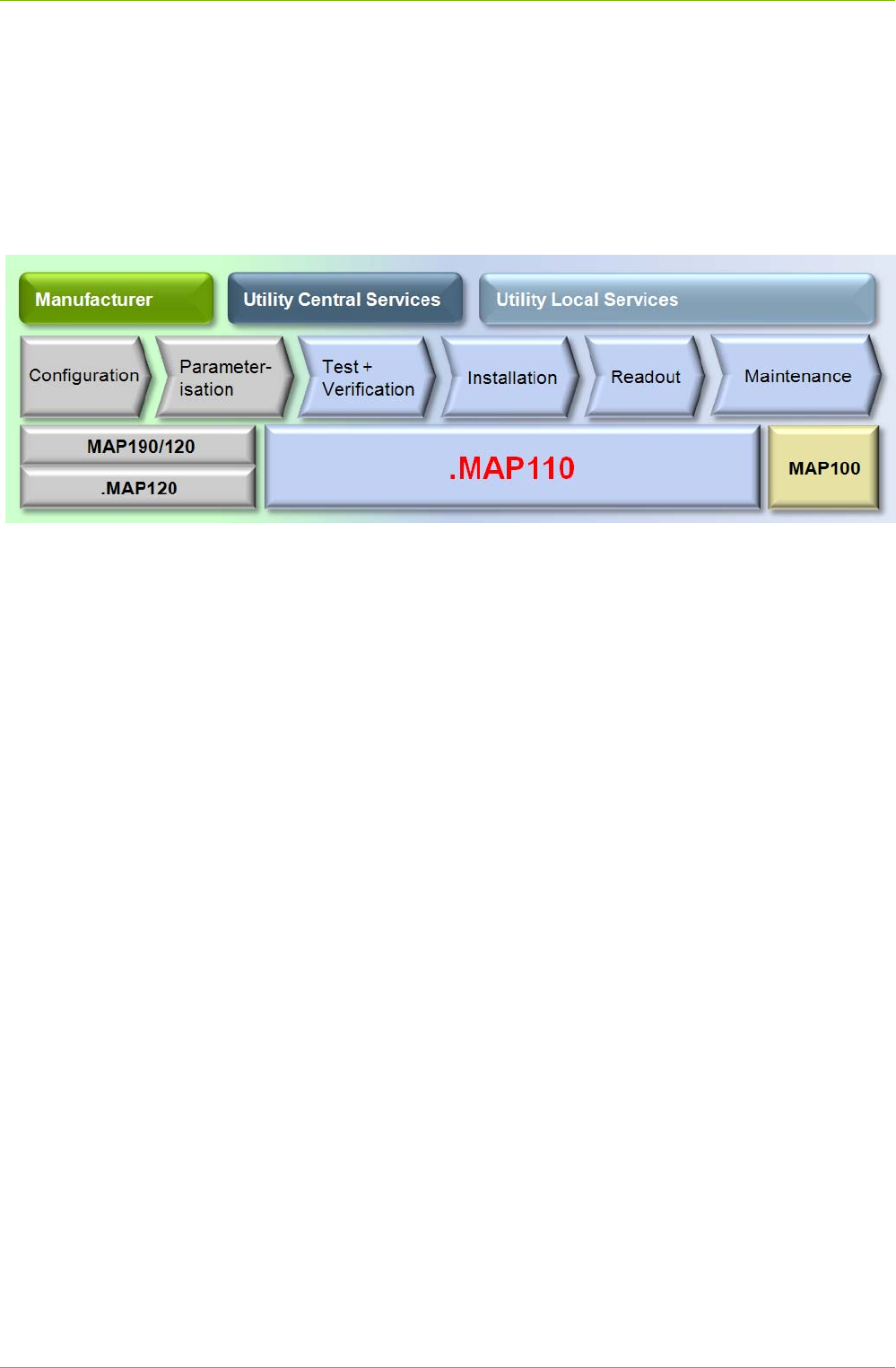
The following diagram illustrates the various fields of application of the
Landis+Gyr .MAP Tools.
1.1 Functions
The Landis+Gyr .MAP110 Service Tool supports the following range of
functions:
Installation:
setting of clock and ID numbers, reset of registers and profiles, com-
munication test functions, vector diagram, primary data adaptation
Reading of data:
billing values, diagnostic values, profiles, export data
Maintenance:
readout and modification of time of use, of all communication para-
meters or of selected parameters (e.g. various thresholds), visualization
of the security system, firmware update
1.2 Communication Channels
The Landis+Gyr .MAP110 Service Tool can communicate with the devices
via the following communication channels:
Serial: Optical reading head, Bluetooth reading head, RS232, RS485,
CS, M-Bus
Modem: PSTN, GSM
Network: GPRS, Ethernet

Overview 7/122
D000011475 en s – .MAP110 Service Tool – User Manual © Landis+Gyr
1.3 Communication Protocols
The Landis+Gyr .MAP110 Service Tool supports the following communi-
cation protocols:
dlms / HDLC
dlms / COSEM Wrapper over TCP
IEC 62056-21 (formerly known as IEC 1107)
1.4 Editions
To ensure the maximum possible flexibility for users of the Landis+Gyr
.MAP110 Service Tool, the software can be licensed for various user
groups with different functionality:
Standard (full functionality, currently the same as Certification)
Certification (certification authority)
Engineering (laboratory use)
Installation (field use)
Reader (local and remote)
Field Inspection (installation check)
Consumer (final customer)
The edition is determined by the licence data (see section 3 "Licensing").
Detailed information on the functions which can be performed by the user
groups can be found in section 12 "Functional Range per User Group").

8/122 Installation
© Landis+Gyr D000011475 en s – .MAP110 Service Tool – User Manual
2 Installation
This section describes the installation of the Landis+Gyr .MAP110 Service
Tool on the hard disk of your PC.
To be able to run the Landis+Gyr .MAP110 Service Tool, your PC must be
equipped with the operating system Windows XP, Windows Vista or Win-
dows 7.
For 64 bit operating systems, special 64 bit hardware drivers (e.g. optical
head) are necessary, 32 bit drivers don’t work! Landis+Gyr does not deliver
any hardware drivers, since we are not producing/selling these products.
Additionally, the following system components, which are not part of the
Landis+Gyr .MAP110 Service Tool, must be installed on your PC:
.NET Framework Version 4.0
MS Excel 2003 or higher (for enhanced diagnostic functions)
Administrator privileges on your computer are required for the installation
and the licensing.
The installation software for the Landis+Gyr .MAP110 Service Tool can be
downloaded to your PC via the Internet from the homepage
www.landisgyr.com. Please contact your sales representative to receive the
required username and password for the download.
Please read the file "Readme.txt" with current information about the present
version of the Landis+Gyr .MAP110 Service Tool.
Start the installation file "Setup.exe" and then follow the instructions of the
setup wizard.
Close the Landis+Gyr .MAP110 Service Tool, if it is in use. Then start the
installation file "Setup.exe" and follow the instructions of the setup wizard.
When upgrading a former version 4.5 to the latest version 4.5, the former
version will be automatically replaced by the newer one. All data including
the license and the communication profiles is kept.
When upgrading a former version 4.0, 4.1, 4.2, 4.3 or 4.4 to the latest
version 4.5, the new version can be installed in parallel to a former version
in a separate directory. All data including the license is kept.
When upgrading a former version 3.x to the latest version 4.5, the new
version can be installed in parallel to a former version in a separate direc-
tory. The license is kept but the communication profiles are lost and must
be entered again. However, it is possible to import the phone book of a for-
mer version. Use the import function in the new address book for this (see
section 6.3.4 "Defining Address Data").
Former versions 1.x and 2.x can't be upgraded.
Landis+Gyr recommend to remove older versions since they will no longer
be supported.
The required language must be selected at installation time. It can be
changed again at any time in the Landis+Gyr .MAP110 Service Tool.
System requirements
Administrator
privileges
Installation software
Preparation
First installation
Upgrades
Language
Licensing 9/122
D000011475 en s – .MAP110 Service Tool – User Manual © Landis+Gyr
3 Licensing
This section explains the licensing concept and describes the steps neces-
sary for licensing the Landis+Gyr .MAP110 Service Tool.
3.1 Licensing Concept
After installation, the Landis+Gyr .MAP110 Service Tool is in the unlicensed
state, i.e. it can only be used as demo version with reduced range of func-
tions. In order to permit the use of the Landis+Gyr .MAP110 Service Tool
without restrictions, it must be licensed for the intended use (available edi-
tions see section 1.4 "Editions"). For this purpose, the following licensing
data can be obtained from the Landis+Gyr representative responsible,
which must be entered in the Landis+Gyr .MAP110 Service Tool:
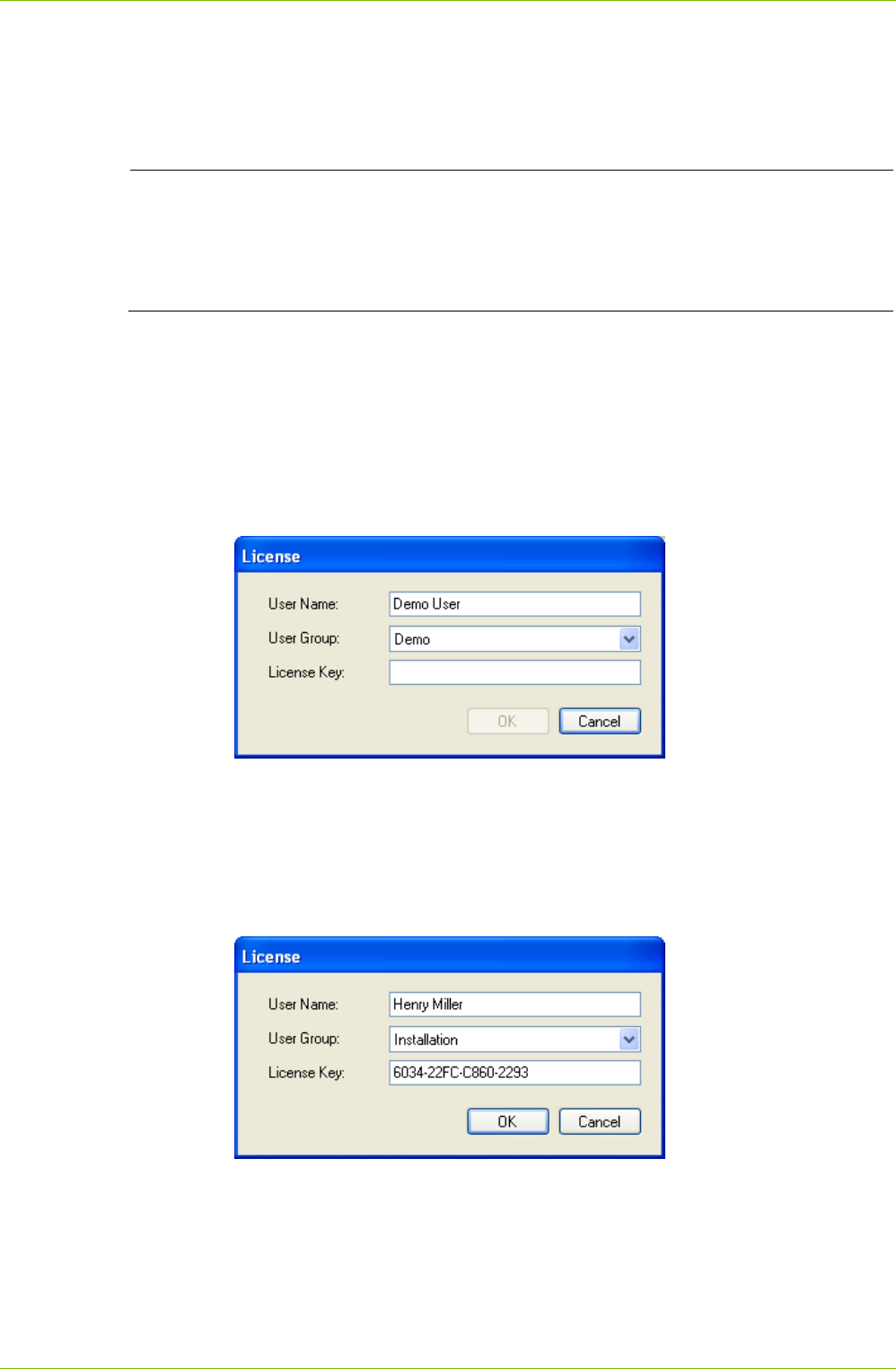
User Name
User Group
License Key
The procedure is described in section 3.2 "Entering License Data".
MAP110 licence key remains valid for .MAP110
The license key for the former Landis+Gyr MAP110 Service Tool is also
valid for the Landis+Gyr .MAP110 Service Tool. If MAP110 is already
installed on the computer, the license will be automatically imported into
.MAP110.
The license of the Landis+Gyr .MAP110 Service Tool version 4.4 or higher
is handled individually per Windows user and per .MAP110 main version on
a single PC. If several persons share the same PC, the required .MAP110
user group with its specific functionality can therefore be individually as-
signed to each Windows user (with former versions the same license was
used for all Windows users of a single PC and all .MAP110 versions).
When upgrading a former MAP110 version 3.x or .MAP110 version 4.0,
4.1, 4.2 or 4.3 to version 4.4 or higher the current license is kept, i.e. it is
copied once for each Windows user of the PC from the former version.
From version 4.4 any license change or a new license only affects the
current Windows user and the current .MAP110 main version.
The license conditions remain unchanged, i.e. all existing and new licenses
can be further used by one or several Windows users on one or several PCs.
Please note, that normally the user name in the .MAP110 licence and the
Windows user name are different. The user name in the .MAP110 licence is
usually the name of the person that applied for the licence.
10/122 Licensing
© Landis+Gyr D000011475 en s – .MAP110 Service Tool – User Manual
3.2 Entering License Data
This section describes the licensing procedure required for unrestricted use
of the Landis+Gyr .MAP110 Service Tool. The license data received from
Landis+Gyr following your order is required for this purpose.
Administrator privileges required
Administrator privileges on your computer are required for the licensing.
Under Windows 7 you can achieve this by right clicking on the start com-
mand and then selecting the entry "Run as administrator" in the popup
menu appearing.
Procedure:
1. Click on Start and then under Programs select the Landis+Gyr
.MAP110 command from the menu Landis+Gyr .MAP110 4.5 in the
Landis+Gyr program group.
The Landis+Gyr .MAP110 Service Tool is started.
2. Select License from the Tools menu.
The "License" window appears.
3. Enter the user name provided by Landis+Gyr in the "User Name" entry
box.
4. Select the user group provided by Landis+Gyr in the "User Group"
selection field.
5. Enter the licence key provided by Landis+Gyr in the "License Key"
entry box.
6. Click on OK.
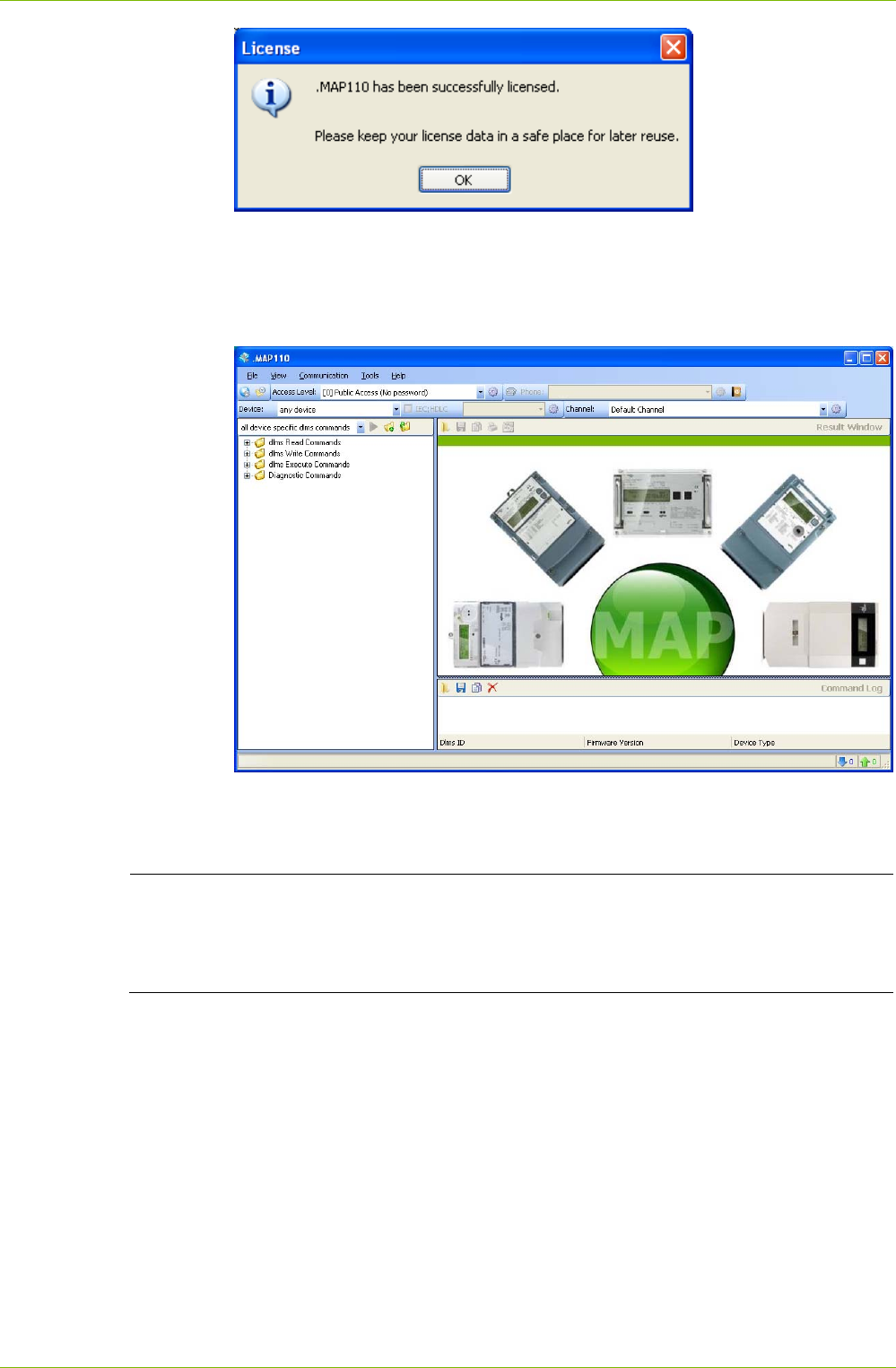
The licence data is checked and a success message is displayed.
Licensing 11/122
D000011475 en s – .MAP110 Service Tool – User Manual © Landis+Gyr
7. Click on OK.
The licensing procedure is terminated. The accessible commands or
device types, respectively, can be selected in the selection box above
the command tree and the available commands are displayed in the
command tree.
The Landis+Gyr .MAP110 Service Tool is now ready for use according
to the instructions given in sections 4 "First Steps" or 7 "Application of
.MAP110 Functions", respectively.
Keep the license key in a safe place
Please note that due to security reasons the license key is not shown any-
more if the "License" window is reopened. Keep the license key in a safe
place for further use.
3.3 Changing the License
The license can be changed by requesting new license data from Landis+Gyr
and entering this in the "License" window (see section 3.2 "Entering License
Data").
12/122 First Steps
© Landis+Gyr D000011475 en s – .MAP110 Service Tool – User Manual
4 First Steps
This section gives an introductory example of how a communication con-
nection is made to a device with the Landis+Gyr .MAP110 Service Tool and
how data can be read from the device.
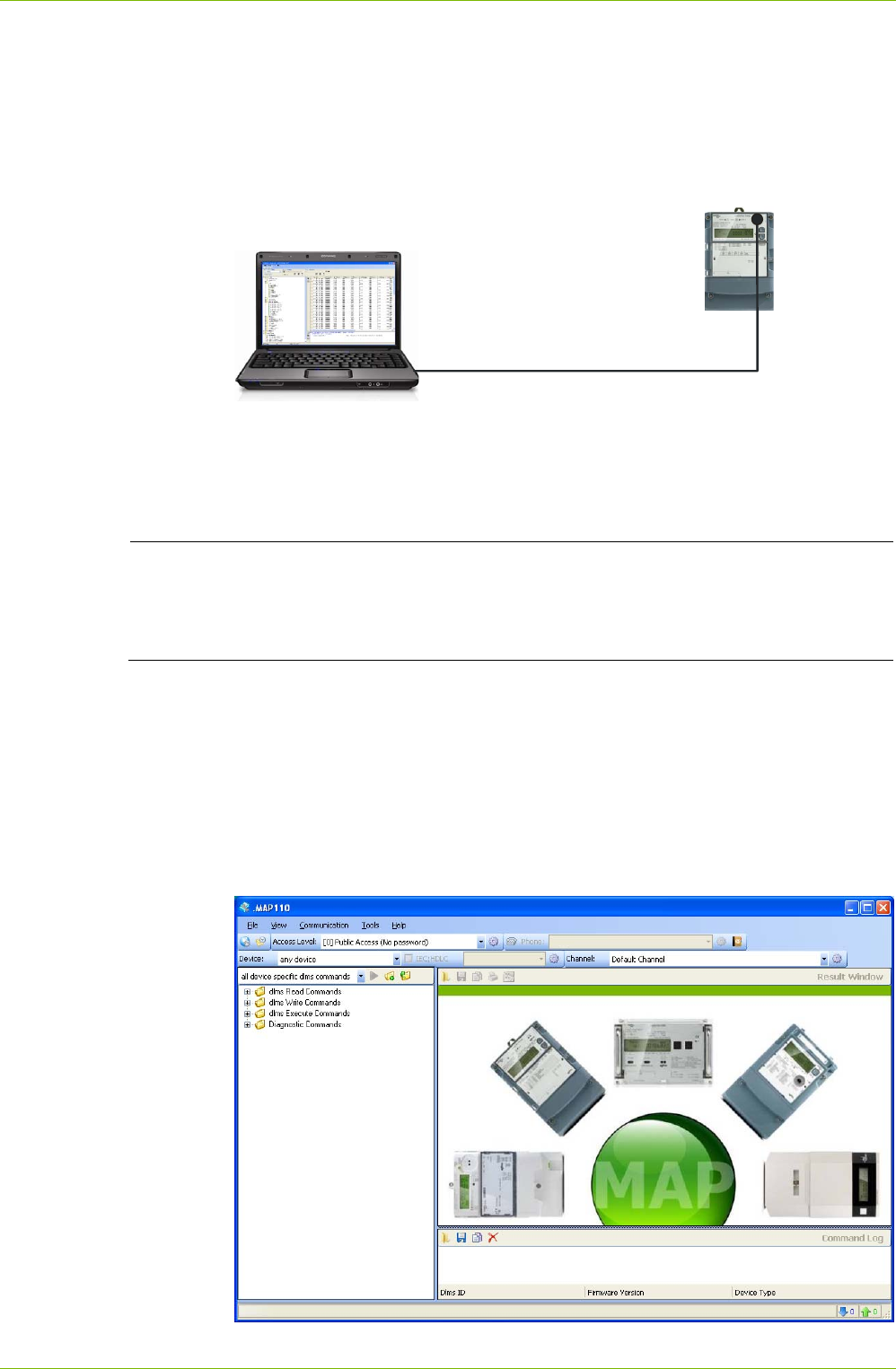
Device
serial connection
(USB or COM port)
PC with
.MAP110
A device ready for operation and an optical reading head for connection to
a serial interface (USB or COM port) are required for this purpose. The
Landis+Gyr .MAP110 Service Tool must also be installed on the PC and
licensed, e.g. for user group "Installation".
Default channel is COM1
Please note that the default channel is COM1. If your optical head is con-
nected to another COM port, the readout fails unless you adapt the channel
setting accordingly (see section 6.3 "Communication Settings").
Procedure:
1. Connect the cable of the optical reading head fitted on the device to
the serial interface of the PC.
2. Click on Start and then under Programs select the Landis+Gyr
.MAP110 command from the menu Landis+Gyr .MAP110 4.5 in the
Landis+Gyr program group.
The Landis+Gyr .MAP110 Service Tool is started.
First Steps 13/122
D000011475 en s – .MAP110 Service Tool – User Manual © Landis+Gyr
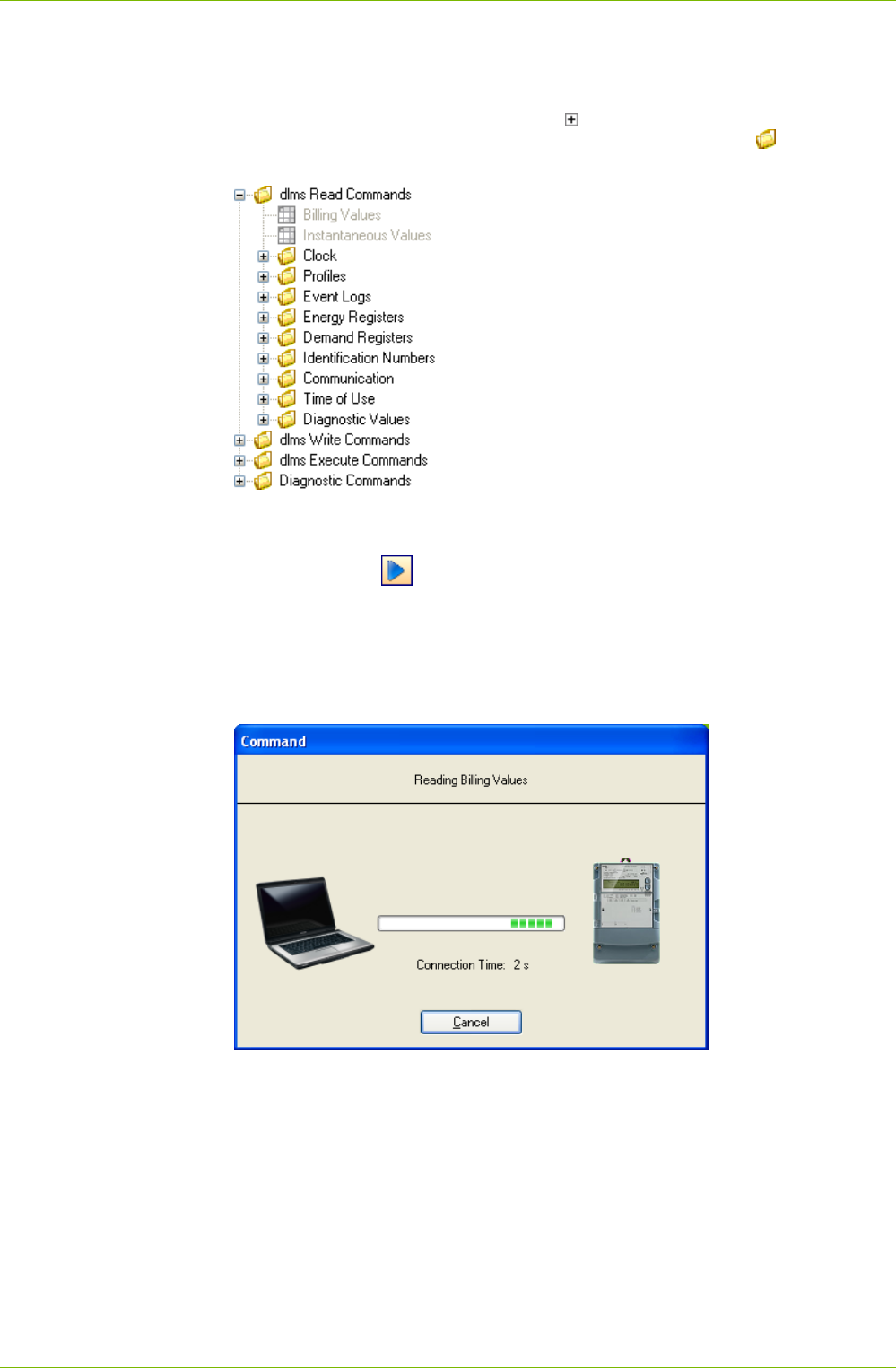
3. In the selection box above the command tree select either the entry "all
dlms commands" or the device type (family) connected.
4. Open the "dlms Read Commands" folder in the command tree.
For this purpose click the symbol before the "dlms Read
Commands" folder or double-click on the folder symbol .
The available commands for the selected device type are displayed:
5. Mark the "Billing Values" command in the command tree under "dlms
Read Commands" by clicking it.
6. Click on the button above the command tree to execute the "Billing
Values" command.
Communication begins after selecting the command and the device
data are read from the device connected. During this process, which
can take several minutes depending on the number of items to be
read, the "Command" window is displayed.
After completing the readout the device data is displayed in the display
area of the Landis+Gyr .MAP110 Service Tool.
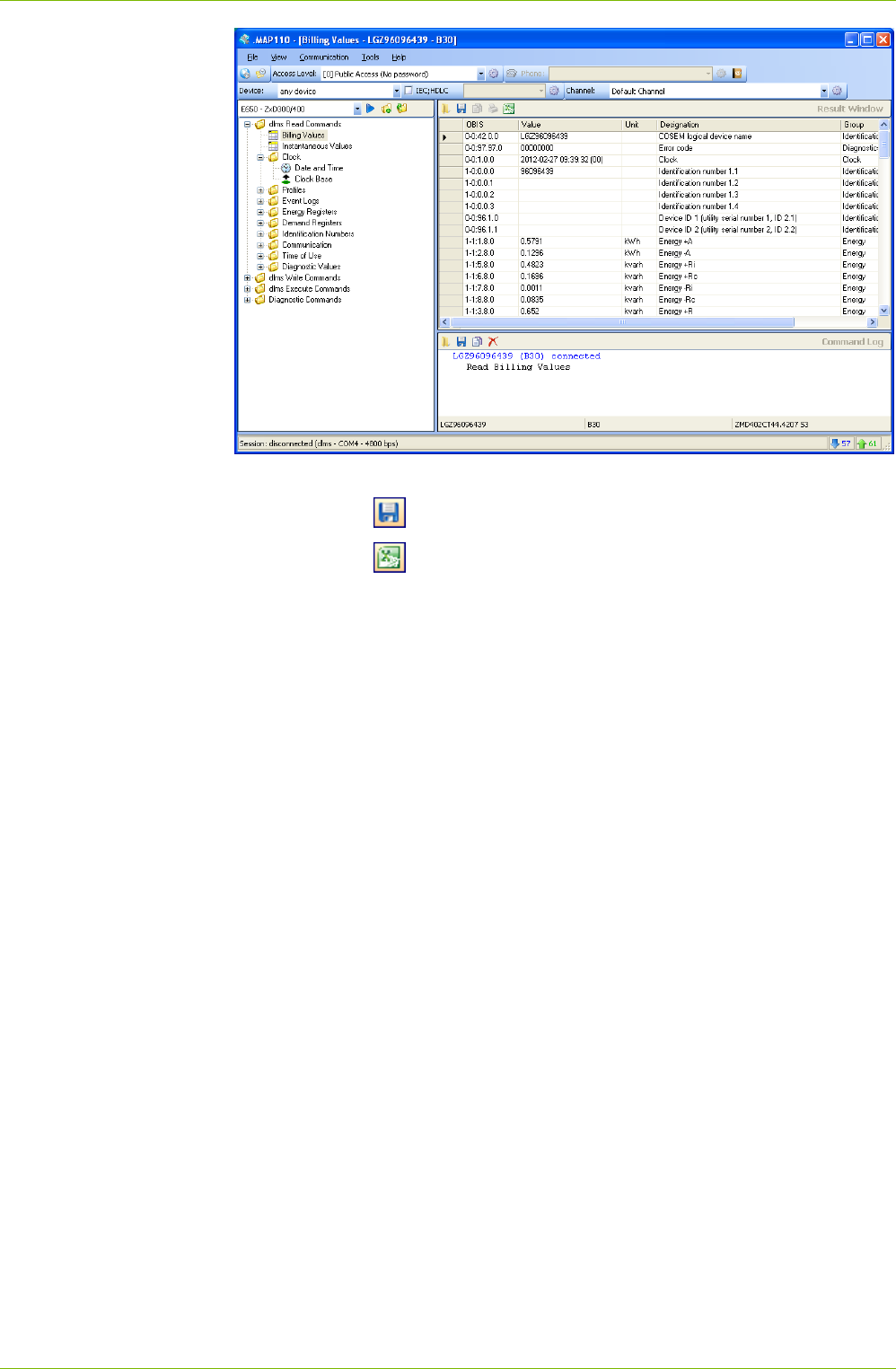
14/122 First Steps
© Landis+Gyr D000011475 en s – .MAP110 Service Tool – User Manual
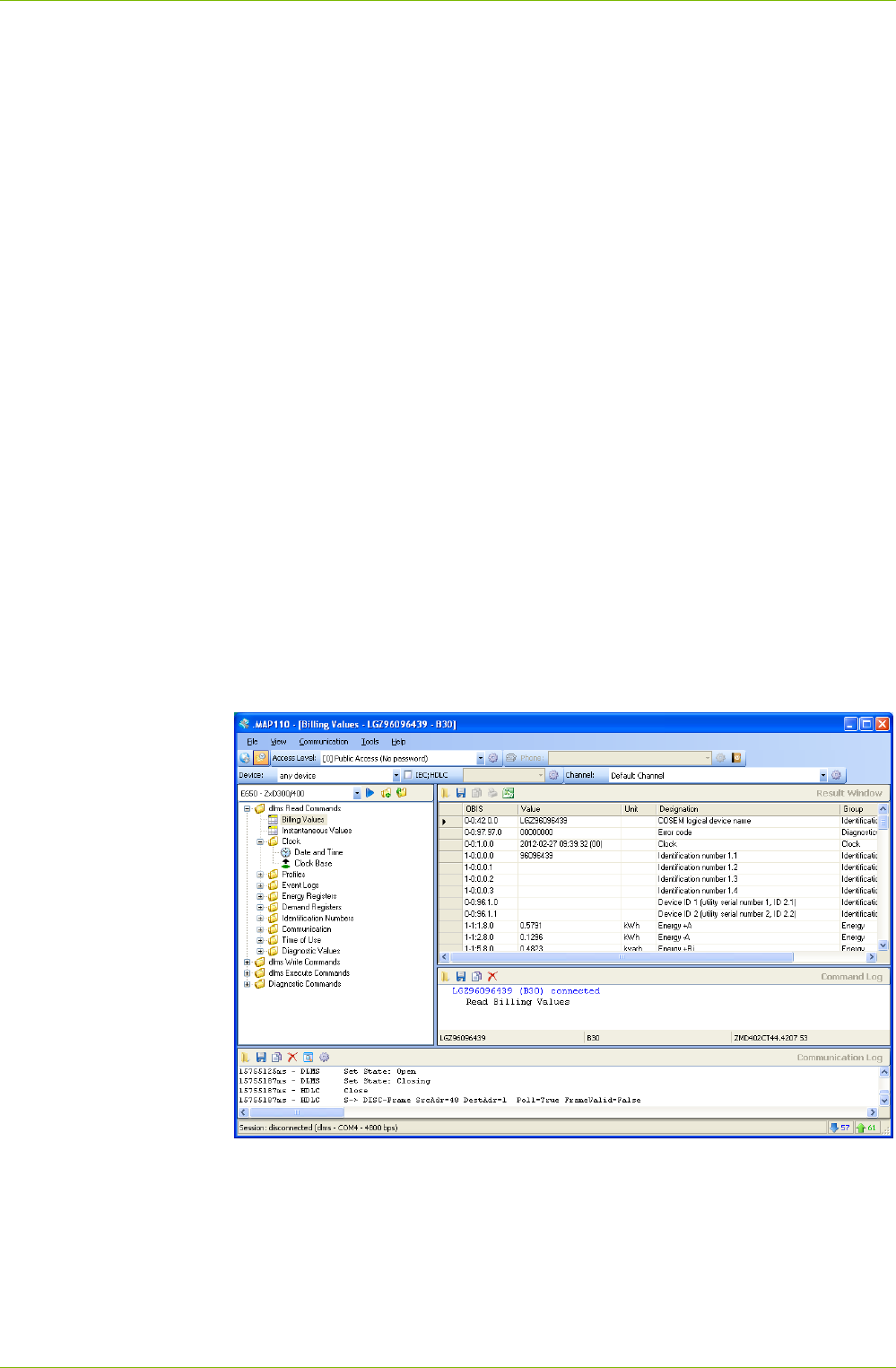
7. Examine the data read out in the table in the display area.
By clicking the data read out can be saved in an XML or text file.
By clicking the data read out can be transferred to the Microsoft
Excel table calculation program.
This concludes the introductory example. Further instructions with more
detailed explanations are provided in the following sections.
Description of User Interface 15/122
D000011475 en s – .MAP110 Service Tool – User Manual © Landis+Gyr
5 Description of User Interface
This section describes the user interface of the Landis+Gyr .MAP110
Service Tool.
5.1 Overview
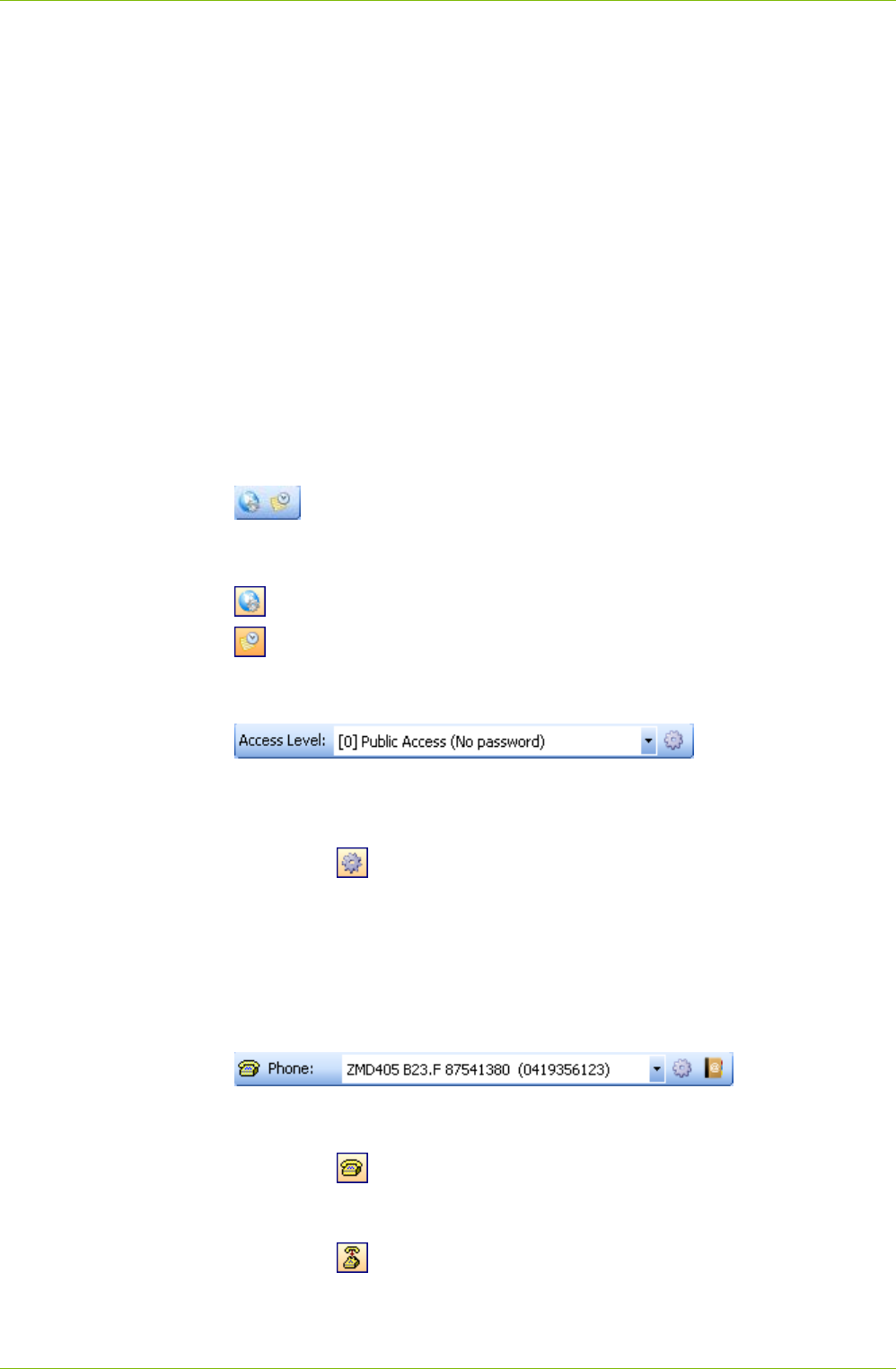
The user interface of the Landis+Gyr .MAP110 Service Tool comprises the
following areas:
Menu bar (1) with the "File", "View", "Communication", "Tools" and
"Help" menus to select functions.
Toolbars (2):
– Application toolbar
– Access level toolbar
– Address toolbar (either phone number or IP address is visible)
– Device toolbar
– Communication channel toolbar
Command tree (3)
Result window (4)
Command log (5) for recording events, results, error messages, etc.
Communication log (6) for recording and analysing communication
activities
Status bar (7) for displaying characteristic data of the device connected.
The sizes of the areas for the command tree, result window and command
log window can be set individually with the movable separator situated in
between (click separator and move with mouse button pressed).
The items in the selection area can be arranged individually by moving to
another position (click dotted line and move with mouse button pressed).
The status bar and the communication log can be faded in or out using the
menu points of the "View" menu.
16/122 Description of User Interface
© Landis+Gyr D000011475 en s – .MAP110 Service Tool – User Manual
5.2 Menu Bar
The menu bar of the Landis+Gyr .MAP110 Service Tool contains the follow-
ing menus for selecting functions:
File menu for saving result or log window data, for opening data saved
in the result or log windows and for ending the application.
View menu to fade in or out the status bar and the communication log.
Communication menu to connect and disconnect devices and to make
communication settings.
Tools menu to select functions for licensing, startup language setting
and option setting.
Help menu to select online help, release notes and version display and
to check for available updates.
5.3 Toolbars
5.3.1 Application Toolbar
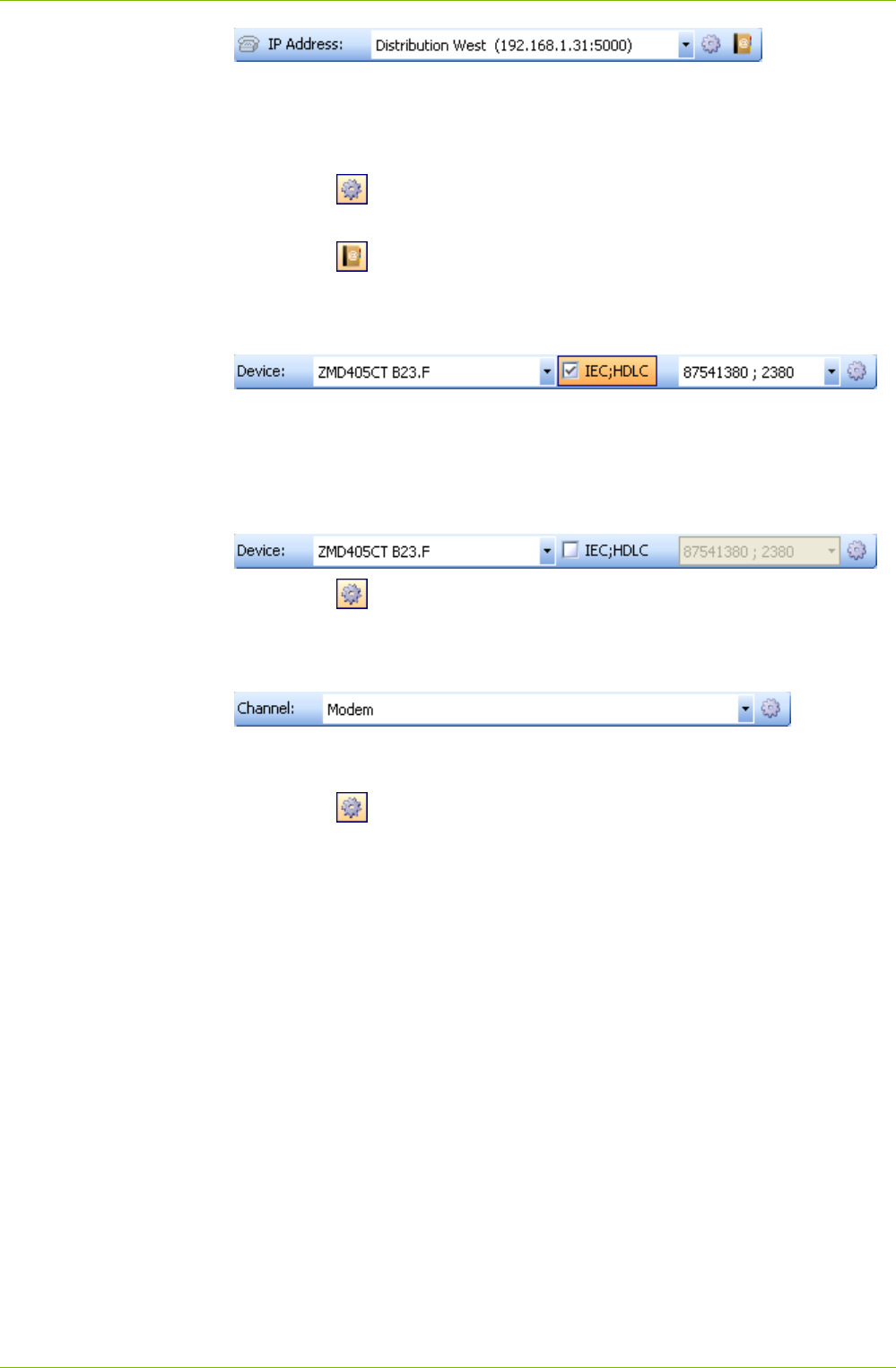
The application toolbar contains the following buttons for direct selection of
functions frequently required:
opens the communication settings window
fades the command log window in or out
5.3.2 Access Level Toolbar
The access level toolbar allows selection of the required access level. Only
fully defined access levels are displayed, a level can occur more than once
with different settings.
Clicking on in the access level toolbar displays the access level
settings (see section 6.3.6 "Defining Access Levels").
5.3.3 Address Toolbar
The phone number or IP address selection boxes displayed depending on
the communication settings allow selection of the corresponding entry in
the address book.
The phone number of the required modem can be selected in the "Phone"
selection box if a modem is selected as communication channel.
Clicking on in the address toolbar makes the connection to the
selected phone number. When the connection is made, the selection box is
blocked and the symbol on the button changes its appearance.
Clicking on in the address toolbar interrupts the modem connection.
Description of User Interface 17/122
D000011475 en s – .MAP110 Service Tool – User Manual © Landis+Gyr
The IP address and port number of the required device can be selected in
the "IP Address" selection box, provided a network card is selected as
interface in the communication profile settings. The phone symbol is de-
activated.
Clicking on in the address toolbar displays the selected address
definition in the "Address Book" window, where it can be modified.
Clicking on in the address toolbar displays the address book (see
section 6.3.4 "Defining Address Data").
5.3.4 Device Toolbar
The device toolbar allows the selection of devices with predefined settings
(device family and device addresses).
With the checkbox "IEC;HDLC" you can deactivate and again activate the
device address and in the selection box you can select all defined device
addresses.
Clicking on in the device toolbar displays the device settings (see
section 6.3.2 "Defining Device Data").
5.3.5 Communication Channel Toolbar
The communication channel toolbar allows the selection of communication
channels with predefined settings (e.g. interface, transmission protocols etc.).
Clicking on in the communication channel toolbar displays the channel
settings (see section 6.3.3 "Defining Communication Channel Data").
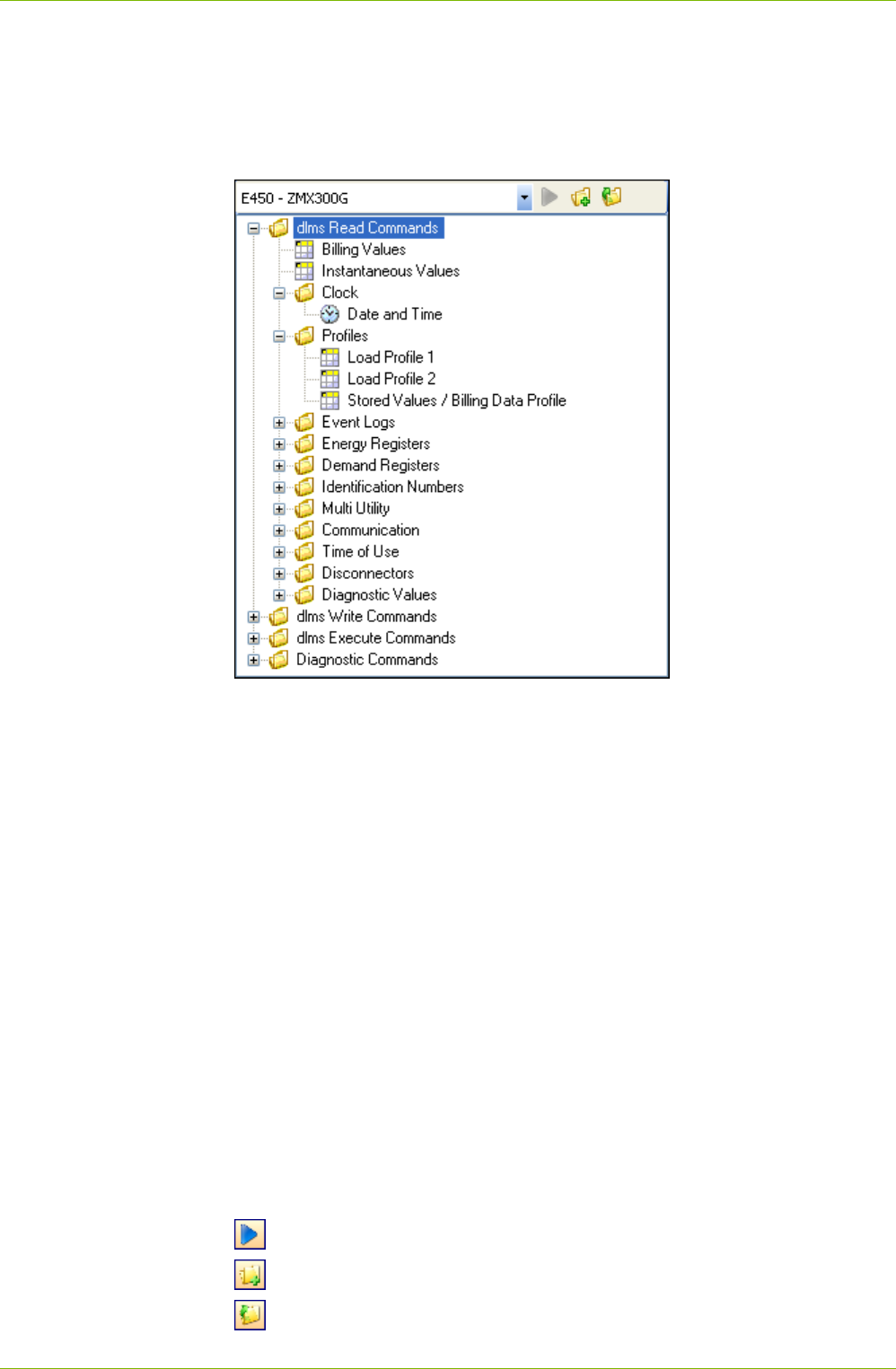
18/122 Description of User Interface
© Landis+Gyr D000011475 en s – .MAP110 Service Tool – User Manual
5.4 Command Tree Window
All available commands for the licensed user group are displayed in a tree
view corresponding to the device selected in the selection box on the top
left side of the window. Instead of a specific device, selection of all IEC
commands or of all dlms commands is also possible.
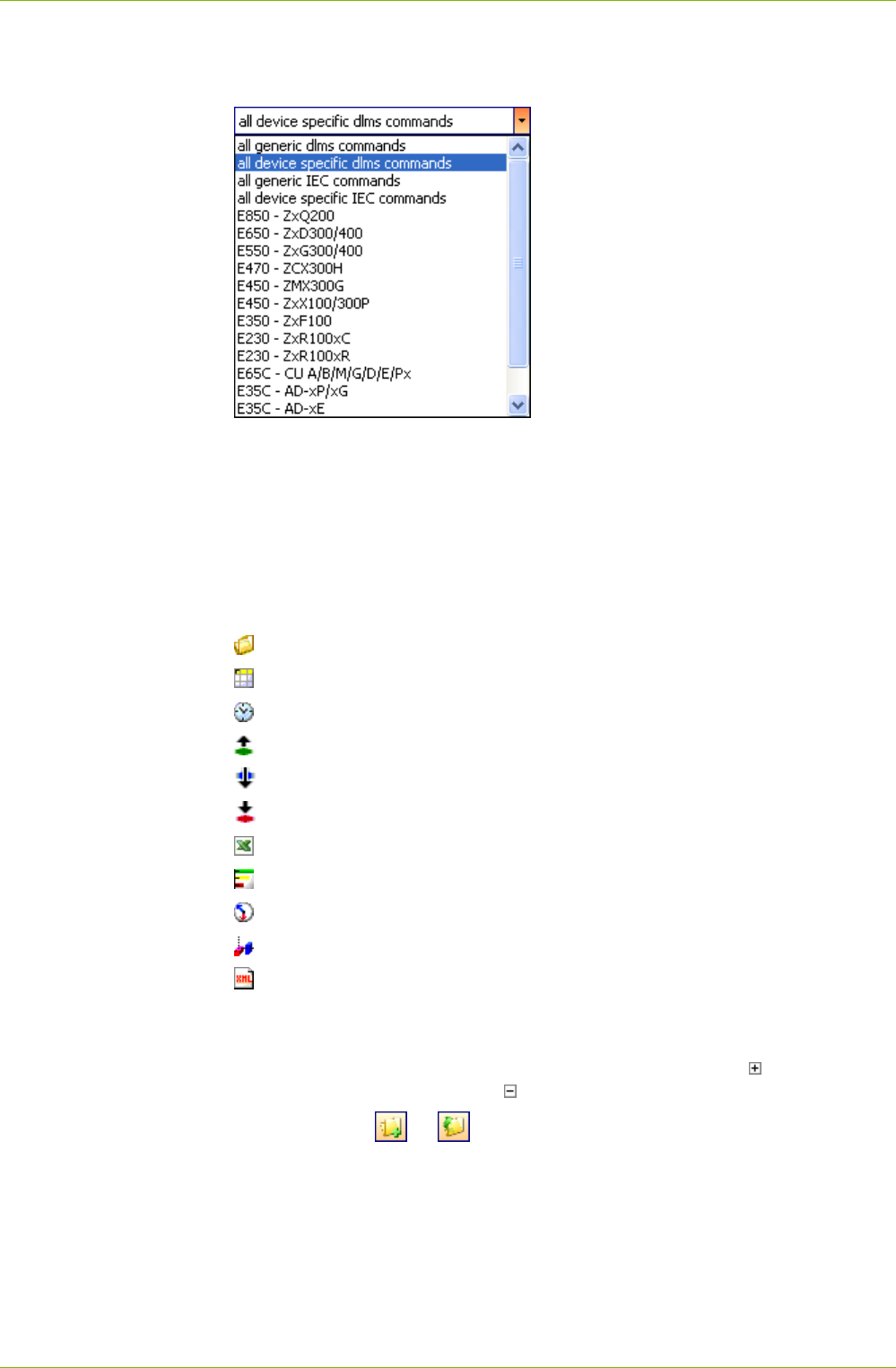
Instead of a specific device type it is also possible to choose one of the
following command groups in the command tree:
all generic dlms commands
all device specific dlms commands
all generic IEC commands
all device specific IEC commands
Generic commands work with all devices, with new, not yet supported
Landis+Gyr devices as well as with devices of other manufacturers. There
are only few generic dlms commands available but many generic IEC
commands.
Device specific commands only work with Landis+Gyr devices supporting
the corresponding command. All commands not available for the connected
device are marked in colour in the command tree (see paragraph "Display
of disabled commands in the command tree".
When selecting a device in the device toolbar the command tree is
automatically switched to the corresponding device type.
The toolbar of the command tree window contains the following buttons:
Executes the selected command of the tree
Expands all folders of the tree
Collapses all folders of the tree
Toolbar
Description of User Interface 19/122
D000011475 en s – .MAP110 Service Tool – User Manual © Landis+Gyr
In the selection field of the command tree it is possible to choose command
sets for all supported Landis+Gyr devices and also the generic and device
specific command groups described above:
A tree view, e.g. as generally familiar from the file system tree of Windows
Explorer, is ideally suited for navigating in ordered structures with folders
and subfolders.
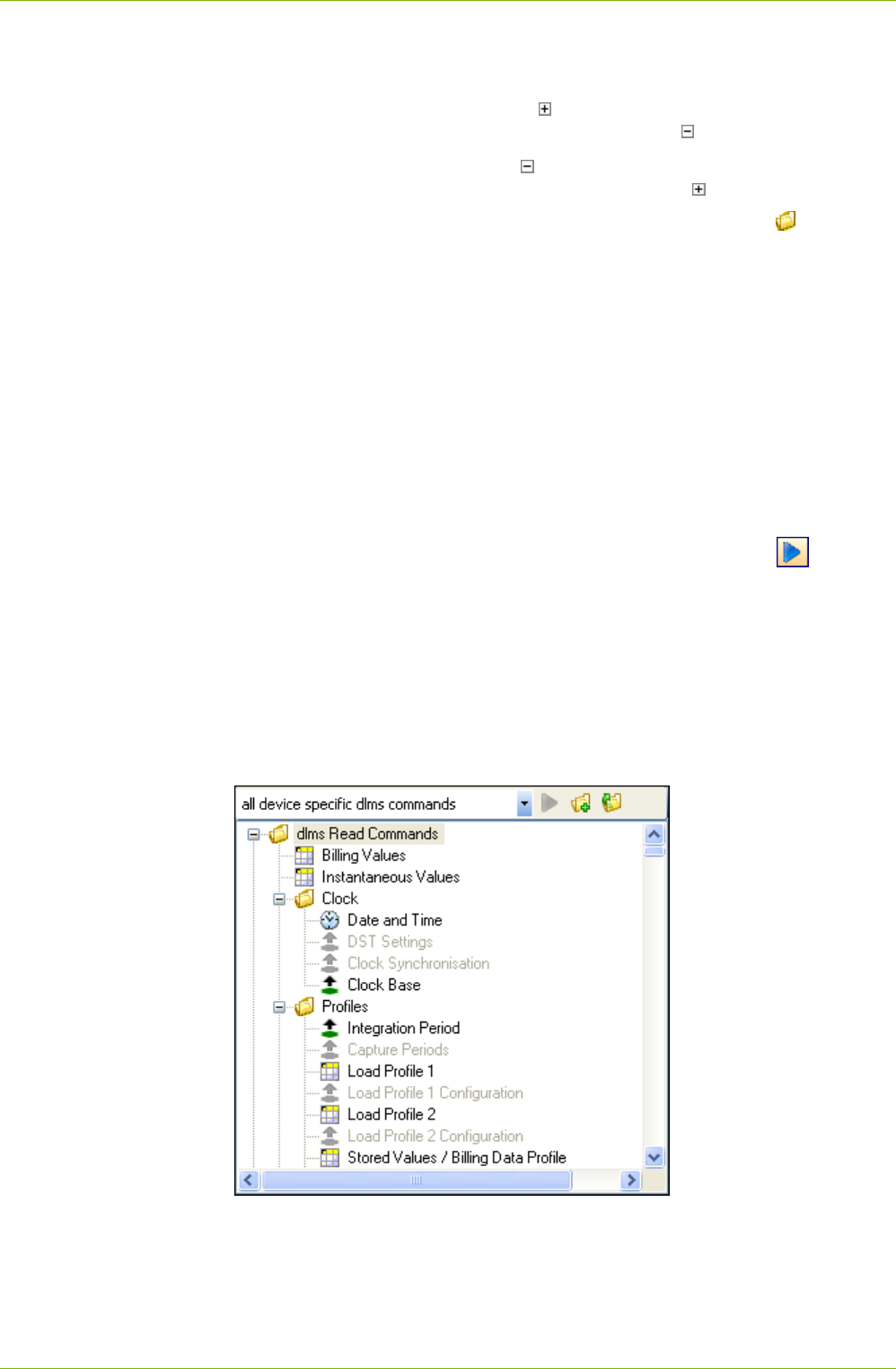
For the Landis+Gyr .MAP110 Service Tool the command tree consists of a
hierarchic arrangement of tree items (folders and commands).
Tree items are shown as follows:
Folders
Read commands for values (device values, profiles, etc.)
Read or write commands for date and time
Read commands for parameters (e.g. read identification number)
Write commands for parameters (e.g. write identification number)
Execute commands (e.g. reset register)
Excel evaluation (e.g. load profile analysis)
GSM installation support
Vector diagram
DIP table
Emergency readout
Each folder can be expanded and collapsed individually.
Collapsed folder items are preceded by an expansion sign , expanded
folder items by a collapse sign .
Use the buttons or of the command tree window toolbar to expand
or collapse all folders. Clicking the right mouse button inside the command
tree window and then selecting the "Expand all" or "Collapse all" entry in
the pop-up menu appearing has the same effect.
Selection field
Tree view
Tree items
Folder handling
20/122 Description of User Interface
© Landis+Gyr D000011475 en s – .MAP110 Service Tool – User Manual
To expand or collapse individual folders there are the following possibilities:
Using the mouse:
Clicking on the expansion sign of a folder expands this folder
(the expansion sign changes to a collapse sign ).
Clicking on the collapse sign of a folder collapses this folder
(the collapse sign changes to an expansion sign ).
The relevant folder is opened or closed by double-clicking or the text
following.
Using the keyboard:
Pressing the [*] key of the numerical keyboard expands the whole tree
below the selected folder (i.e. all subfolders and commands will be
visible).
Pressing the [+] or [–] key of the numerical keyboard toggles between
the expanded and collapsed tree view.
A command can be executed in various ways:
double-clicking on the command or
marking the command by clicking and then clicking on the button of
the command tree window toolbar or
clicking the right mouse button on the command and then selecting the
"Execute selected command" entry in the pop-up menu appearing.
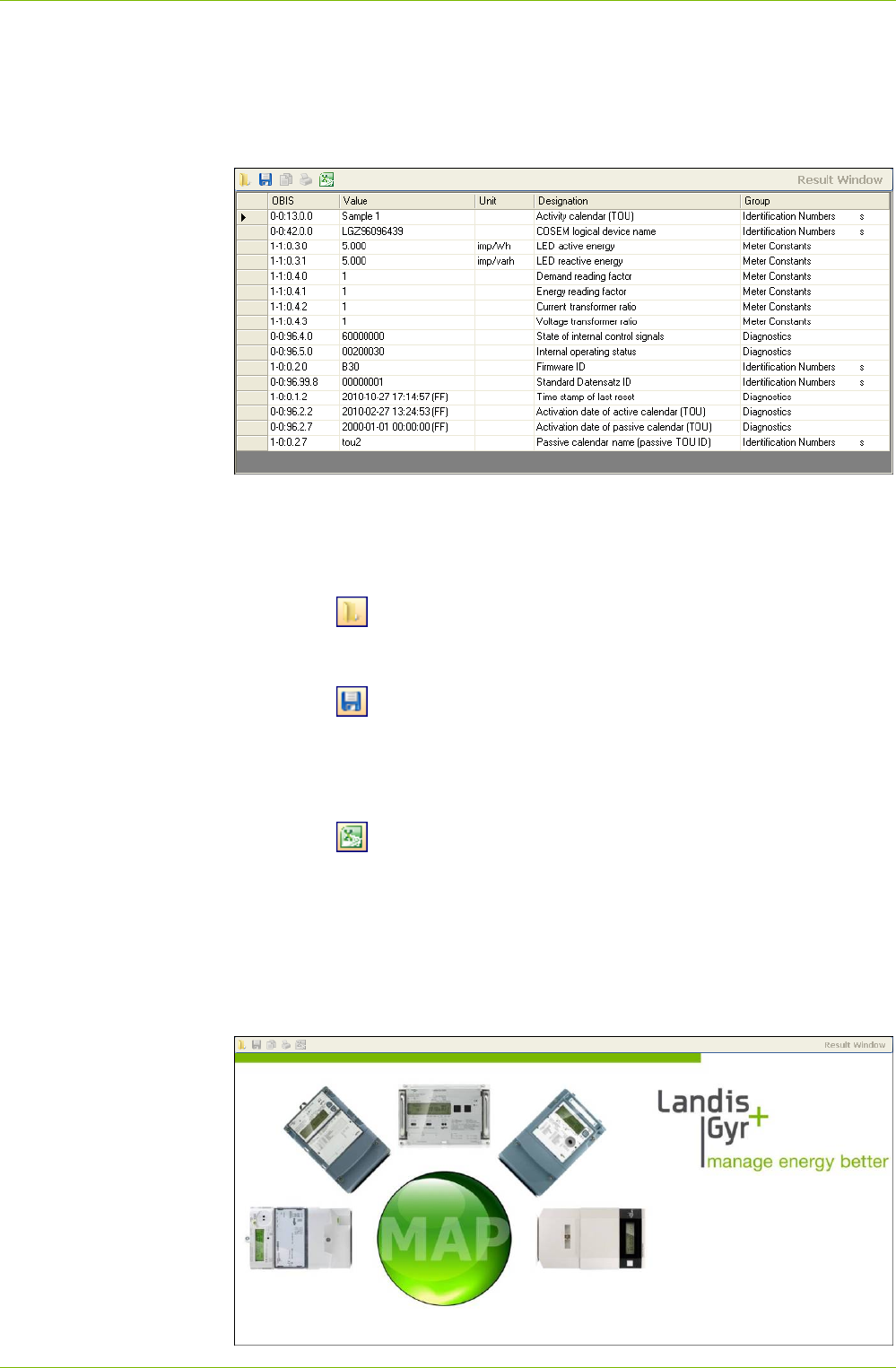
All commands not available in the connected device are marked in colour
(grey in the example below) in the command tree. The identification colour
can be set under Options in the Tools menu (see section 7.5.4 "Setting
Colour for Disabled Commands").
If there is no connection to a device, all commands are shown unavailable.
The commands can be selected, however, e.g. read out a value. Once a
connection to the meter has been set up, the commands available are then
displayed correctly corresponding to the connected device.
Command execution
Display of disabled
commands in the
command tree
Description of User Interface 21/122
D000011475 en s – .MAP110 Service Tool – User Manual © Landis+Gyr
5.5 Result Window
Readout results (device values, profiles, etc.) are shown in tabular form or
as graphic evaluation (e.g. DIP table) in the result window. The following
example shows current device values.
The data can either be displayed by readout from a device with the corre-
sponding command or by opening a previously saved file.
The column widths of tables can be changed with the mouse (click edge of
column and move while holding down the mouse button).
Clicking on in the result window toolbar opens the "Open Result File"
dialogue window to display result files previously saved again in the result
window.
Clicking on in the result window toolbar opens the "Save as" dialogue
window to save the data displayed in a freely selected directory either as
XML file (default) or as text file. Clicking the right mouse button in the result
window followed by selection of the Save as menu item in the pop-up menu
appearing has the same effect.
Clicking on in the result window toolbar exports the data displayed for
any desired further processing in the Excel table calculation program. Click-
ing the right mouse button in the result window followed by selection of the
Open with Excel menu item in the pop-up menu appearing has the same
effect.
Provided no data is yet shown in the result window, e.g. after starting the
Landis+Gyr .MAP110 Service Tool, the following background picture can
be seen in the result window.
22/122 Description of User Interface
© Landis+Gyr D000011475 en s – .MAP110 Service Tool – User Manual
5.6 Command Log
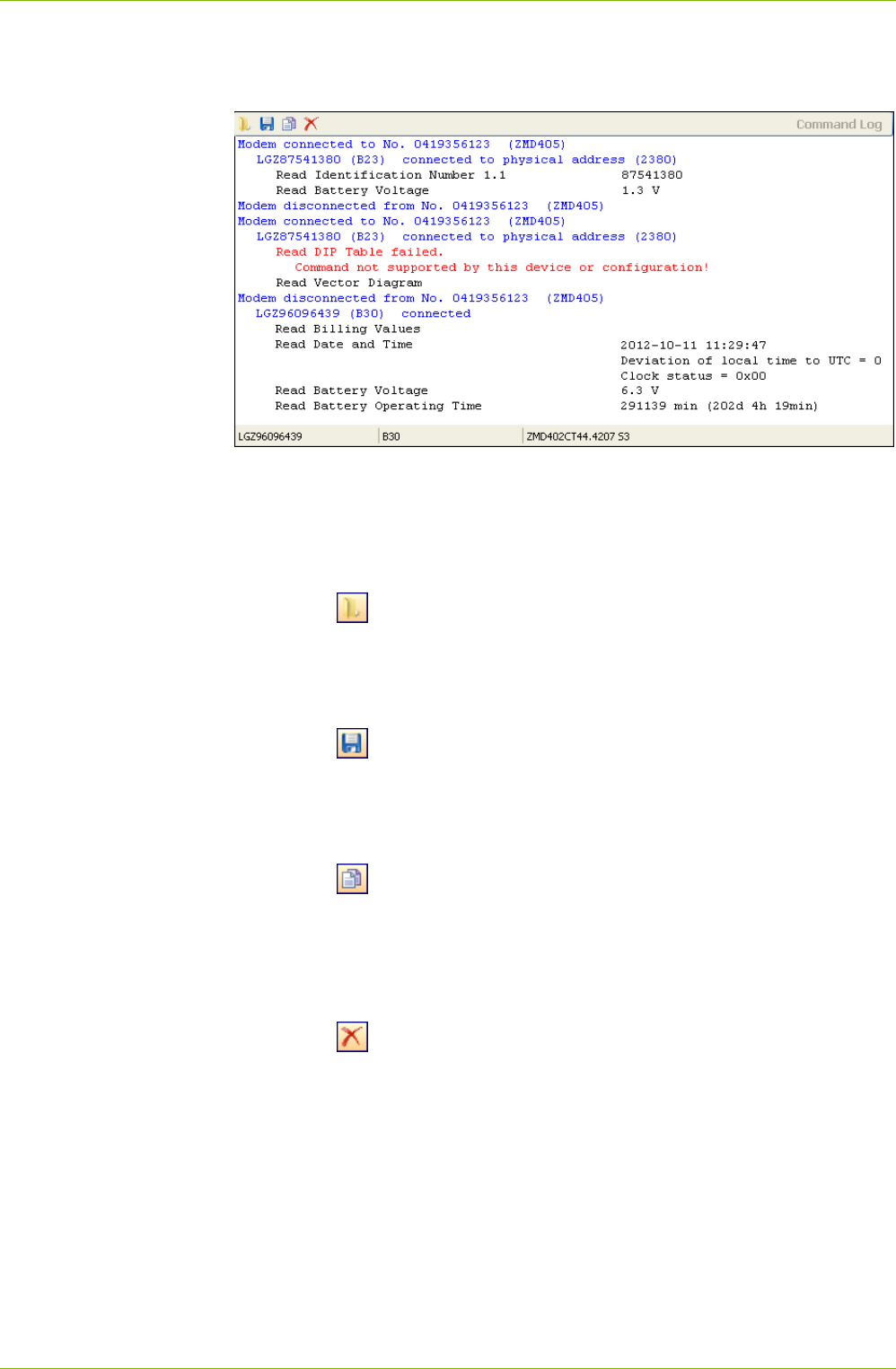
In the command log window, all activities are logged.
This includes connection messages (blue), command execution messages
(black) and error messages (red).
For the command execution messages the result is displayed immediately
afterwards if it is not displayed as a table in the result window (e.g. readout
of current values) or as evaluation in its own window (e.g. vector diagram).
Clicking on in the command log toolbar opens the "Open Command
Log" dialogue window to display protocols previously saved again in the
command log window. Clicking the right mouse button in the command log
window followed by selection of the Open menu item in the pop-up menu
appearing has the same effect.
Clicking on in the command log toolbar opens the "Save as" dialogue
window to save the log displayed in a freely selected directory either as
RTF file (default) or as text file. Clicking the right mouse button in the
command log window followed by selection of the Save as menu item in the
pop-up menu appearing has the same effect.
Clicking on in the command log toolbar copies the content of the
command log window to the Windows clipboard, from where it can be
inserted into another application (e.g. in a word processing program).
Clicking the right mouse button in the command log window followed by
selection of the Copy all menu item in the pop-up menu appearing has the
same effect.
Clicking on in the command log toolbar deletes the command log.
Clicking the right mouse button in the command log window followed by
selection of the Clear menu item in the pop-up menu appearing has the
same effect.
The contents of the command log window can be processed as required,
e.g. by inserting comments, deletion of individual points, marking of points
and copying these with [Ctrl]+[C] to the Windows clipboard, etc.
By selecting the Open entry in the File menu protocols previously saved
can be displayed again in the command log window.
Description of User Interface 23/122
D000011475 en s – .MAP110 Service Tool – User Manual © Landis+Gyr
The following device data is displayed in the status bar of the command log
window as soon as a connection is made to the device and at least one
command has been executed:
Logical device name (left)
Software identification (centre)
Device configuration (hard and software) (right)
5.7 Communication Log
Additional knowledge required
Additional knowledge is required to analyze communication activities.
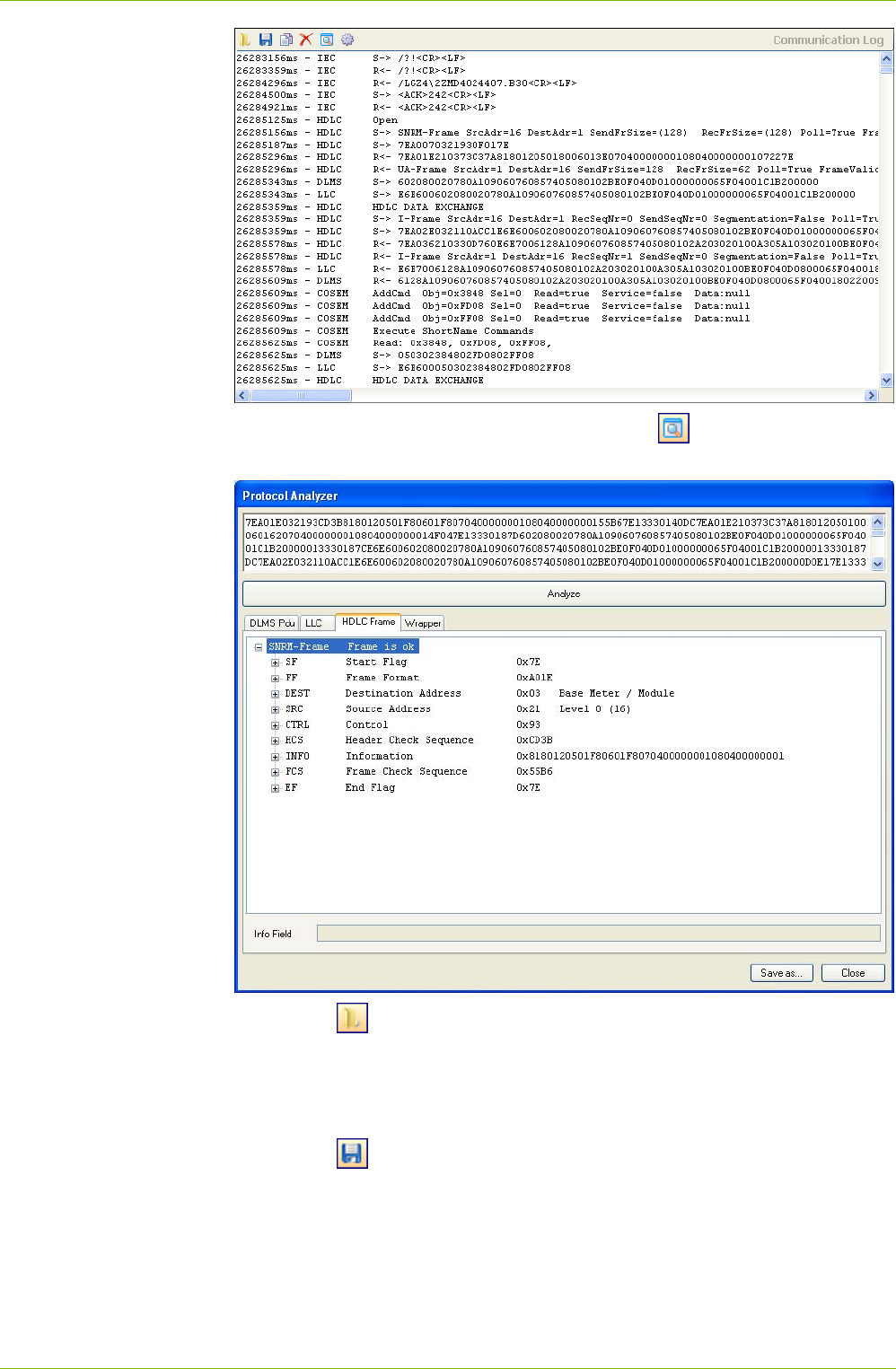
Clicking on in the application toolbar shows or hides the communi-
cation log window, where all communication activities can be traced and
analysed.
First, the trace level has to be adjusted for each trace type supported as
follows:
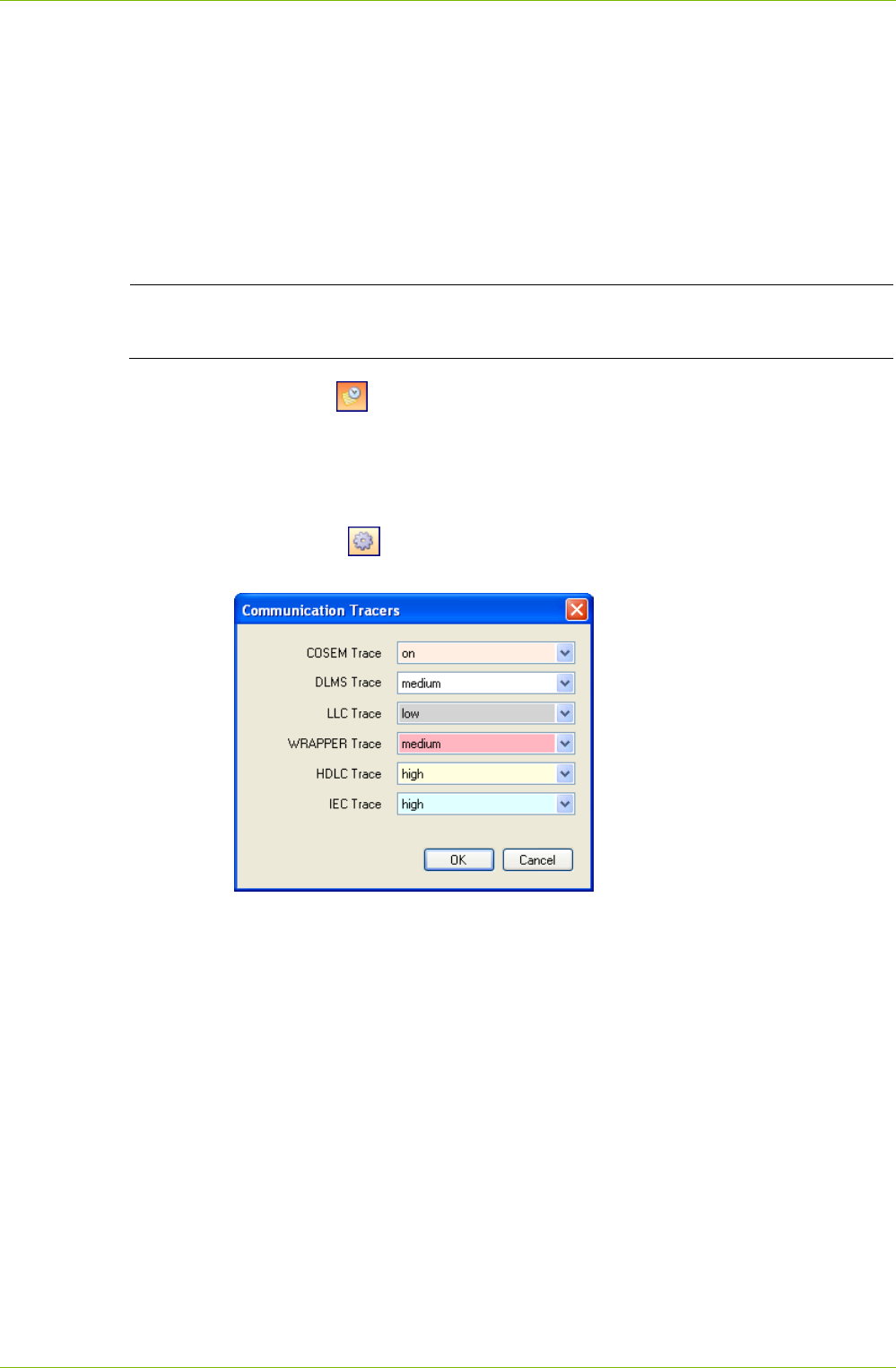
1. Click on in the communication log toolbar.
The "Communication Tracers" window appears.
2. Select in the "COSEM Trace" selection field whether the COSEM Trace
shall be on or off.
3. Select in the other selection fields the resolution of the DLMS, LCC,
WRAPPER, HDLC and IEC tracers (low, medium, high) or switch them
off.
4. Click on OK.
All communication activities are traced in the communication log according
to the settings made.
24/122 Description of User Interface
© Landis+Gyr D000011475 en s – .MAP110 Service Tool – User Manual
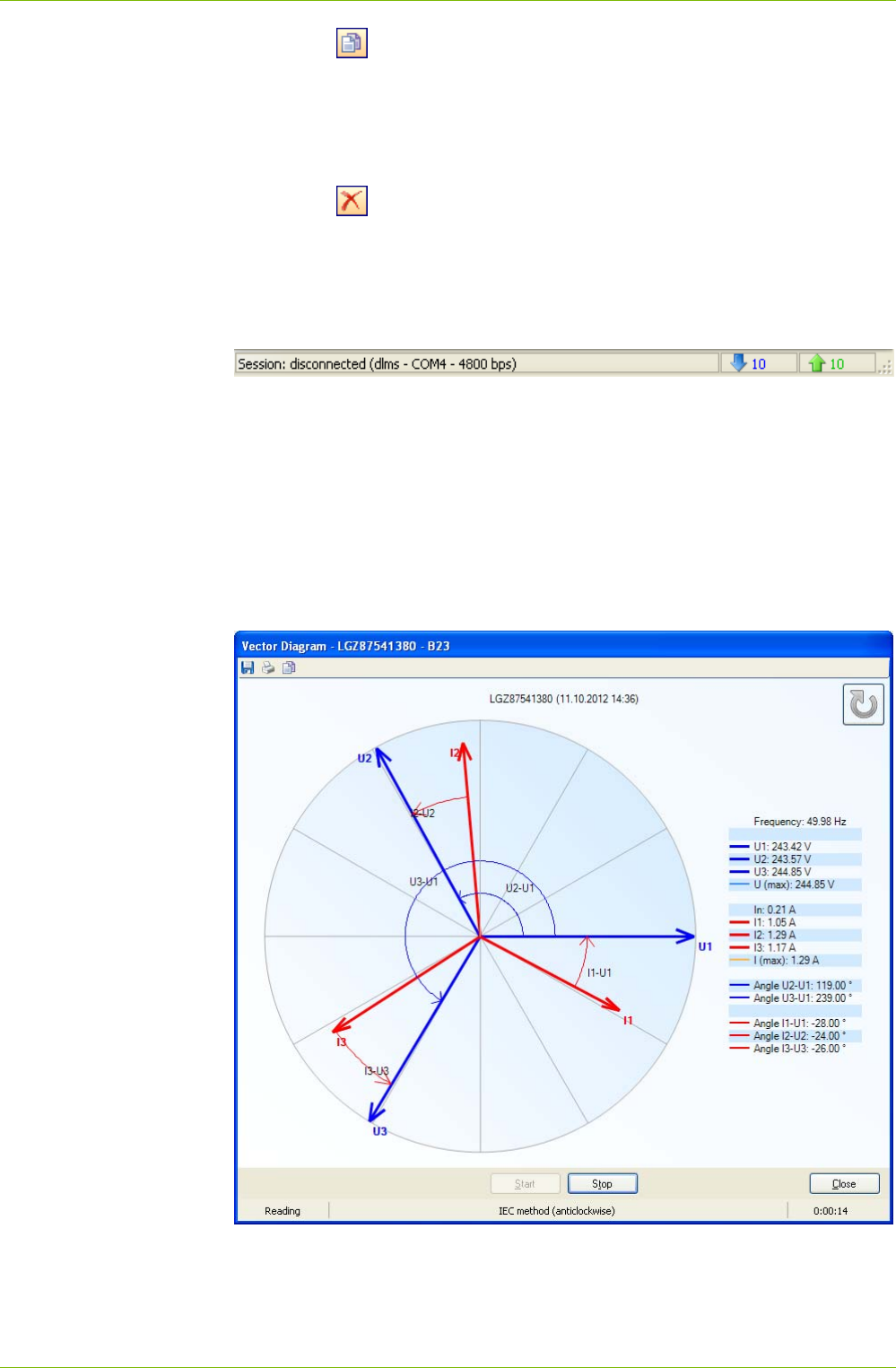
To analyse a specific string, mark it and click on in the communication
log toolbar. This opens the "Protocol Analyzer" window.
Clicking on in the communication log toolbar opens the "Open Commu-
nication Log" dialogue window to display logs previously saved again in the
communication log window. Clicking the right mouse button in the commu-
nication log window followed by selection of the Open Log File menu item in
the pop-up menu appearing has the same effect.
Clicking on in the communication log toolbar opens the "Save as"
dialogue window to save the log displayed in a freely selected directory
either as RTF file (default) or as text file. Clicking the right mouse button in
the communication log window followed by selection of the Save as menu
item in the pop-up menu appearing has the same effect.
Description of User Interface 25/122
D000011475 en s – .MAP110 Service Tool – User Manual © Landis+Gyr
Clicking on in the communication log toolbar copies the content of the
communication log window to the Windows clipboard, from where it can be
inserted into another application (e.g. in a word processing program).
Clicking the right mouse button in the command log window followed by
selection of the Copy all menu item in the pop-up menu appearing has the
same effect.
Clicking on in the communication log toolbar deletes the communica-
tion log. Clicking the right mouse button in the communication log window
followed by selection of the Clear menu item in the pop-up menu appearing
has the same effect
5.8 Status Bar
The following data is displayed in the status bar:
Session information, e.g. busy or disconnected (left)
Protocol, port and transmission rate (in parentheses)
Number of objects sent (blue) and received (green)
5.9 Evaluation Window
Diagnostic commands such as "GSM Installation Support" or "Vector Dia-
gram" are displayed in separate evaluation windows.

26/122 Communication with Devices
© Landis+Gyr D000011475 en s – .MAP110 Service Tool – User Manual
6 Communication with Devices
This section describes all aspects of communication with devices, in parti-
cular the communication settings in the Landis+Gyr .MAP110 Service Tool
for various applications.
6.1 Interface to Device
The communication connection from the Landis+Gyr .MAP110 Service Tool
to one or more devices can be made in various ways:
With a serial connection to a device.
– With an optical reading head placed at the optical interface of the
device (only point-to-point connection to a device possible).
– With a Bluetooth reading head (radio transmission over short
distances, only point-to-point connection to a device possible).
– With a direct connection to a device, e.g. via an RS232, M-Bus or
Ethernet interface as used in various communication units. If the
communication unit has a second interface, multiple connections
are possible to further devices.
With a modem connection to a device or several devices, if these are
connected together by a multiple connection by RS485, CS or M-Bus.
Note: the modem must first have been installed and configured on the
PC.
With a network connection over the Internet to a device or several
devices, if these are connected together by a multiple connection by
RS485, CS or M-Bus. Note: For TCP/IP connections over the Internet
via a gateway (e.g. a Landis+Gyr iMega server) a virtual COM port and
a corresponding standard modem driver must have been installed.
6.2 Establishing the Communication with Devices
Once the communication settings have been made (see section 6.3
"Communication Settings") the communication with a device can be
established as follows:
Select the required device from the "Device" selection box.
Select the required communication channel from the "Channel"
selection box.
Select the required access level from the "Access Level" selection box
(for modem connections the predefined access level is used and the
selection box is inhibited until the connection is established, then the
selection is possible). Only access levels, which have been completely
defined in the communication settings, are displayed for selection (see
also section 6.3.6 "Defining Access Levels")
Only for modem connections: select the required phone number from
the "Phone" selection box.
Only for modem connections: click on in the address toolbar to
establish the connection to the device.
Only for network connections: select the required IP address number
from the "IP Address" selection box.
Execute the required command from the command tree.
Communication with Devices 27/122
D000011475 en s – .MAP110 Service Tool – User Manual © Landis+Gyr
6.3 Communication Settings
The communication settings in the Landis+Gyr .MAP110 Service Tool
comprise the following four data categories:
Device
Communication channels
Address
Access levels
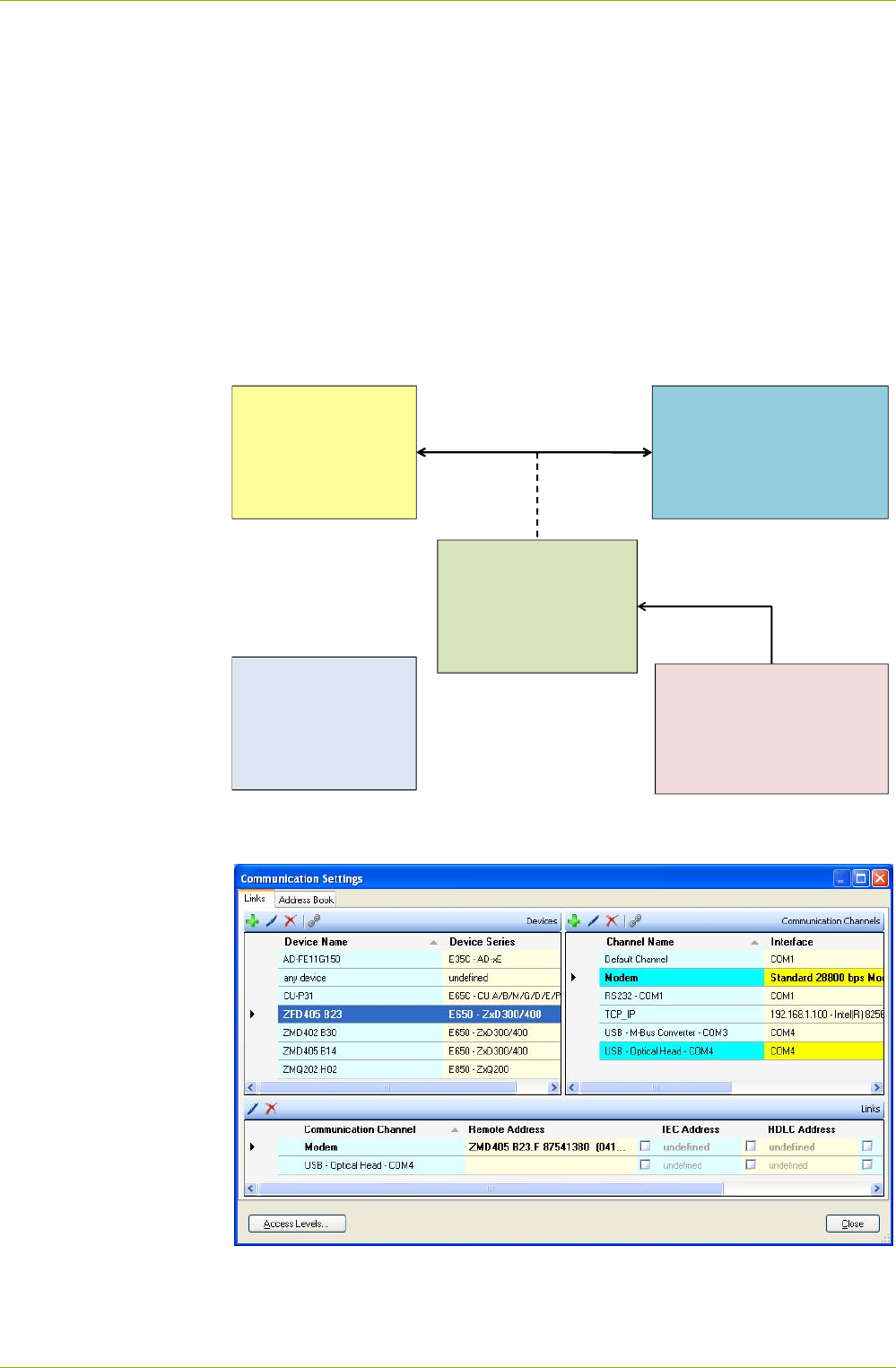
Device, communication channel and addresses are linked in a suitable way
(see following overview diagram and section 6.3.1 "Data Linking") to allow
flexible and convenient use.
Device
• device series
• logical device
• physical addresses
Communication channel
• physical layer (interface)
• link layer (IEC, hdlc, wrapper)
• application layer (dlms, IEC)
Link
• gateway
• use of physical addresses
• remote address
Address book
• IP addresses
• phone numbers
Access levels
•UID
• passwords
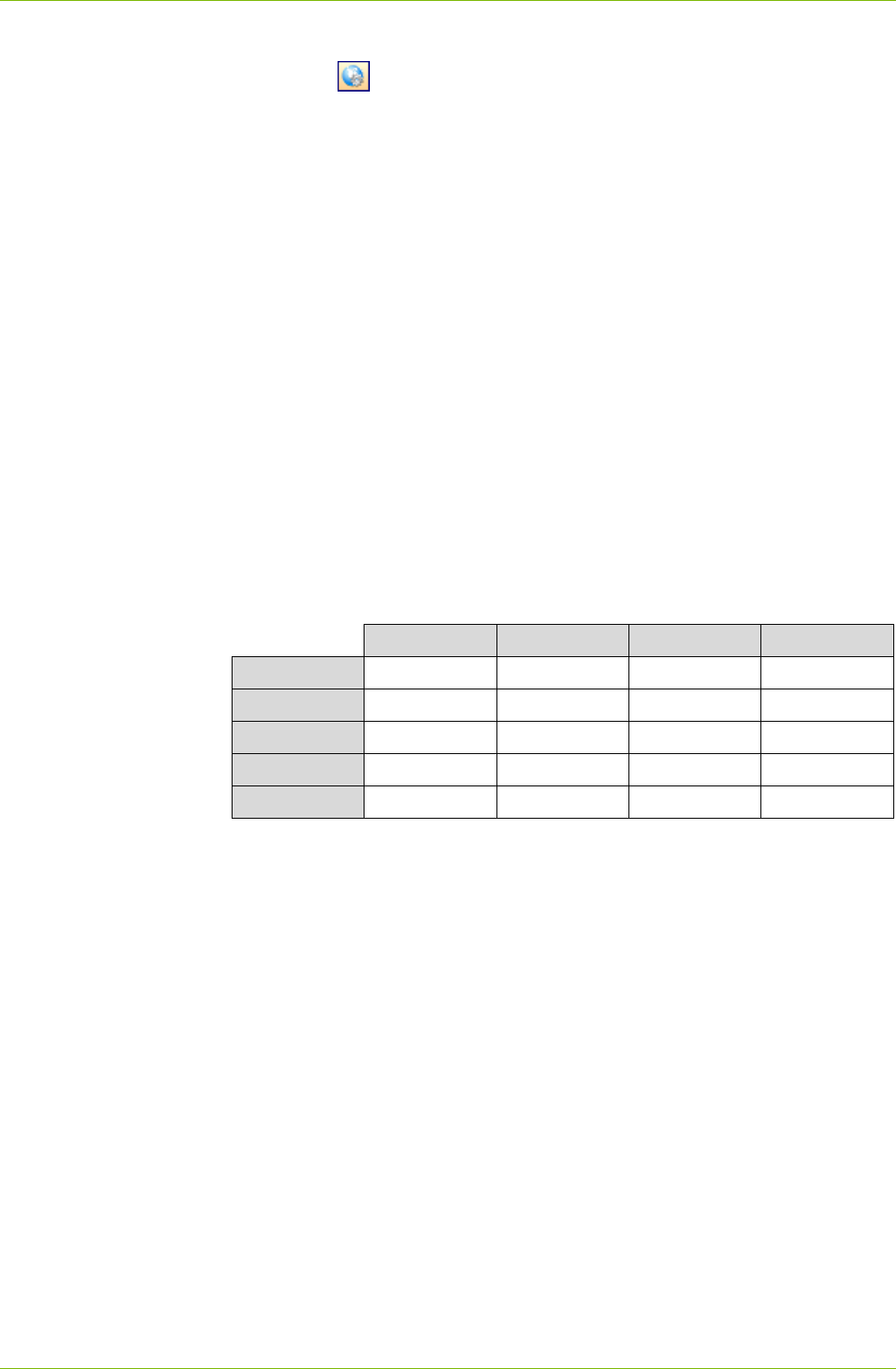
All communication settings can be defined and modified in the "Communi-
cation Settings" window.
28/122 Communication with Devices
© Landis+Gyr D000011475 en s – .MAP110 Service Tool – User Manual
To display this window
click on in the application toolbar or
select Communication settings from the Communication menu
The "Links" tab with the last used device is selected when opening the
window.
The following subsections explain the principals, the recommended order of
data acquisition for all data categories and specify the individual data fields.
Examples of various communication connections are shown in section 6.4
"Communication Examples".
All communication settings are stored per user in the files "DeviceConnection
SettingsV8.xml" and "AddressBookV8.xml" which are located in the direc-
tory defined under Options in the Tools menu (see section 7.5.8 "Defining
File Locations").
6.3.1 Data Linking Principle
Each defined device can be linked to one or several defined communication
channels and each communication channel can be linked to one or several
defined devices.
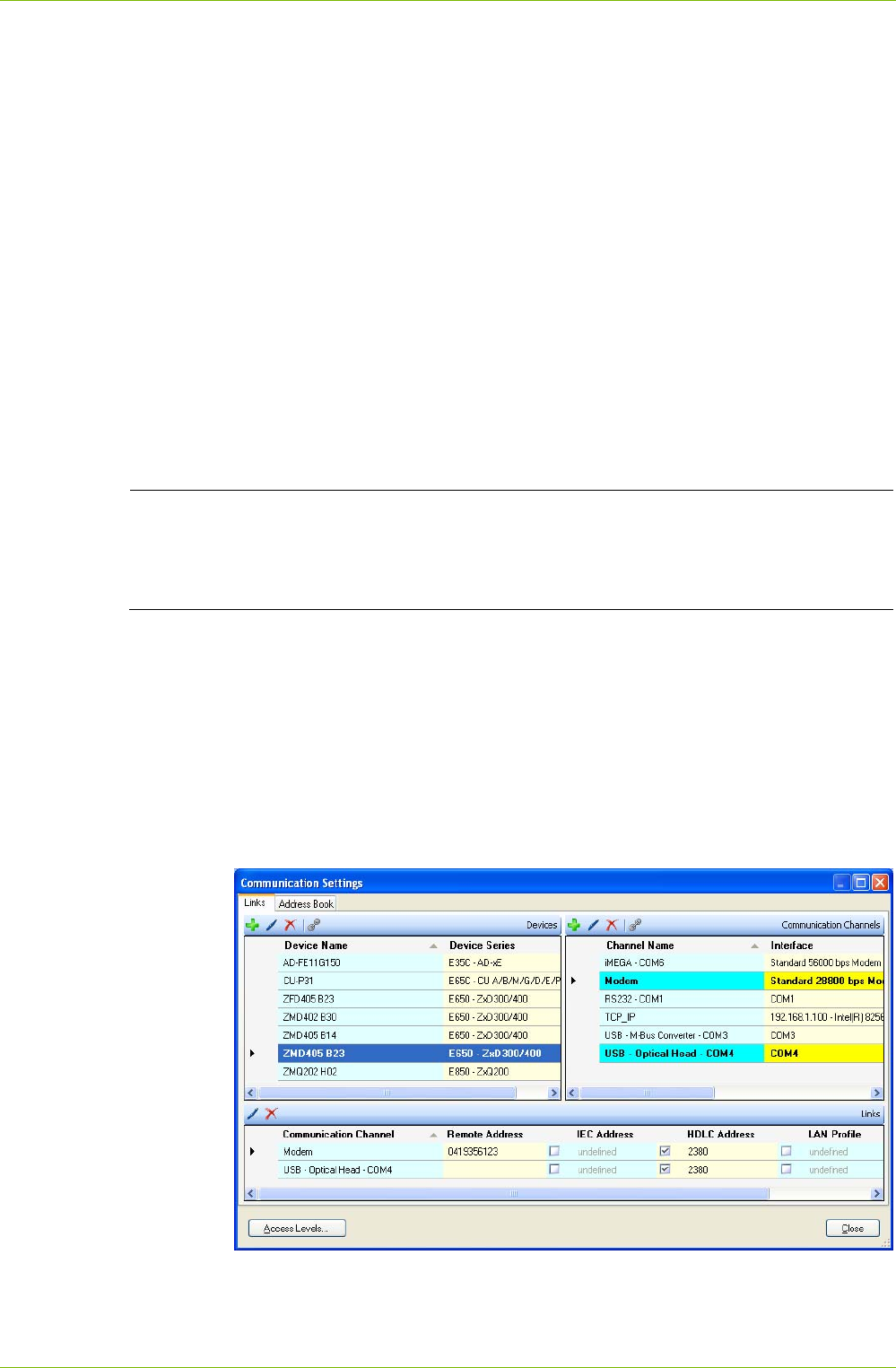
4 devices and 4 communication channels are defined and linked according
to the following matrix.
Channel 1 Channel 2 Channel 3 Channel 4
Device 1 x
Device 2 x x x
Device 3 x
Device 4 x x
any device x x
This means:
Device 1 is accessible via channel 1
Device 2 is accessible via channels 1, 2 and 4
Device 3 is accessible via channel 3
Device 4 is accessible via channels 2 and 4
Channel 1 is usable for communication with device 1 and 2
Channel 2 is usable for communication with device 2 and 4
Channel 3 is usable for communication with device 3
Channel 4 is usable for communication with device 2 and 4
Additionally, there is always a default device "any device" defined, which is
automatically linked with all communication channels.
Only the usable (linked) communication channels for a selected device are
selectable in the channel selection box (see section 5.3.4 "Device Toolbar".
Example
Communication with Devices 29/122
D000011475 en s – .MAP110 Service Tool – User Manual © Landis+Gyr
For each device/communication channel link the following attributes can be
defined, if required:
IEC address (if defined for the device)
HDLC address (if defined for the device)
Phone number (for modem communication channels only)
IP address and port number (for TCP/IP communication channels only)
Gateway LAN profile and address*
* If a device in a local network is not reachable directly, a gateway must
be used (Example: Zigbee device via Ethernet gateway). The gateway
needs additional information to forward dlms requests to the correct
device in the local network:
– the network must be identified by a number (LAN profile) and
– the address of the device in the local network must be given in the
correct format (LAN address).
For further details please refer to the description of the gateway.
Gateway feature not yet supported by Landis+Gyr devices
Please note that the gateway feature is for future expansion only and not
yet supported by the Landis+Gyr devices. For the time being make sure to
disable it.
If more than one communication channel is defined for a device, one
channel can be determined as preferred channel. When selecting this
device the preferred channel is always selected as default channel.
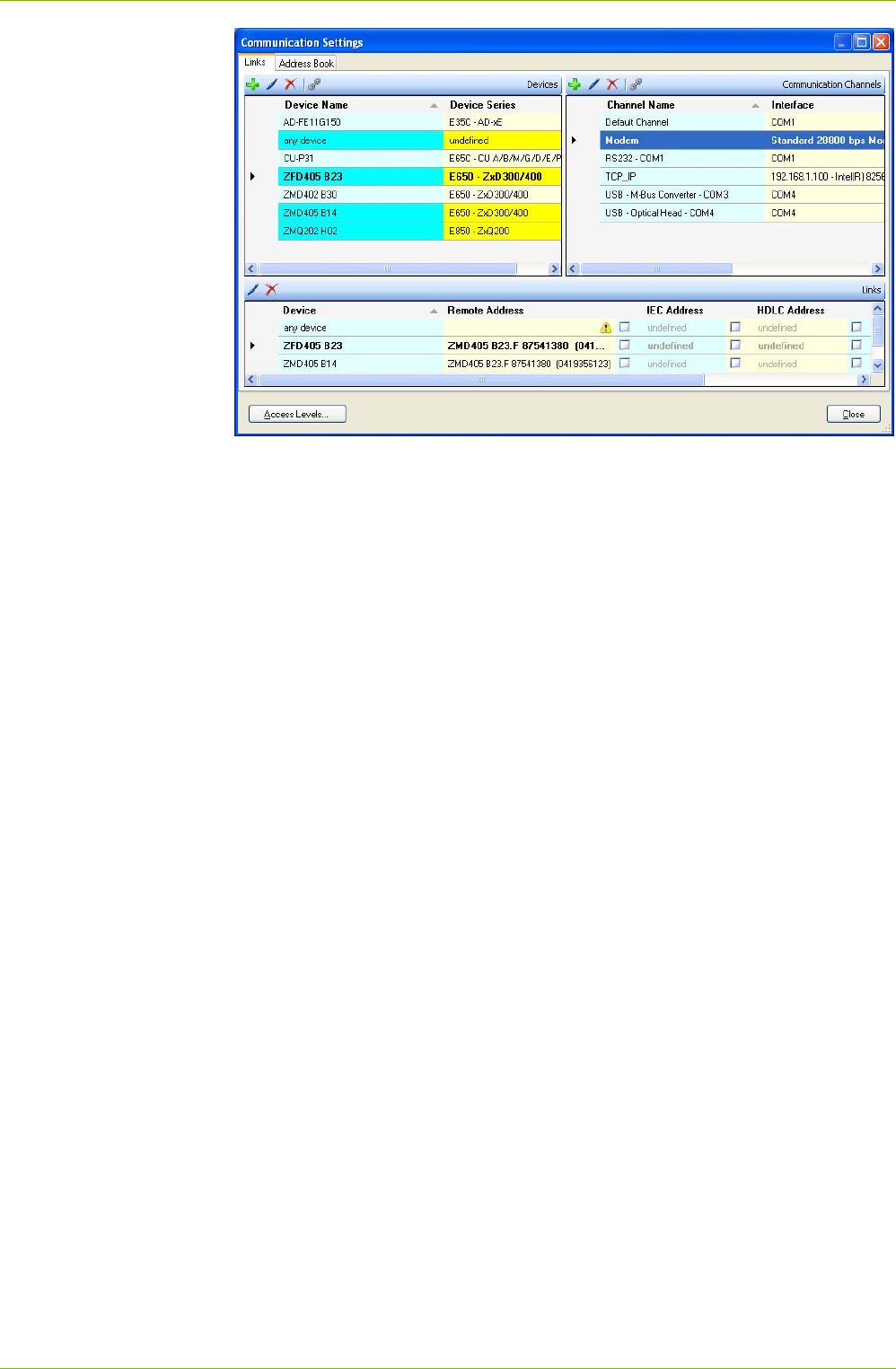
The data linking is indicated in the "Communication Settings" window as
shown below.
In the following figure a device is selected in the "Devices" area. The device
is highlighted (blue). All the linked communication channels are also high-
lighted in the "Communication Channels" area (light blue/yellow) and the
links with their attributes are shown in the "Links" area.
In the figure below a communication channel is selected in the "Communi-
cation Channels" area (highlighted blue). All the linked devices are also
highlighted in the "Devices" area (light blue/yellow) and the links with their
attributes are shown in the "Links" area.
30/122 Communication with Devices
© Landis+Gyr D000011475 en s – .MAP110 Service Tool – User Manual
Landis+Gyr recommend to define the required data in the following
sequence:
1. Devices (see section 6.3.2 "Defining Device Data")*
2. Communication channels (see section 6.3.3 "Defining Communication
Channel Data")
3. Addresses (see section 6.3.4 "Defining Address Data")*
4. Links between devices and communication channels including the rele-
vant attributes (see section 6.3.5 "Defining Links between Devices and
Communication Channels"
5. Access levels (see section 6.3.6 "Defining Access Levels").
* If a Landis+Gyr MAP110 (version 3.x) or .MAP110 (version 4.x) Service
Tool is already installed on the computer, its phone or address book can be
imported. With the import of a MAP110 phone book additionally all device
addresses from the phone book are converted into devices. In this case it is
advisable to import the phone book first and then define the new device
definitions and communication channels.
Communication with Devices 31/122
D000011475 en s – .MAP110 Service Tool – User Manual © Landis+Gyr
6.3.2 Defining Device Data
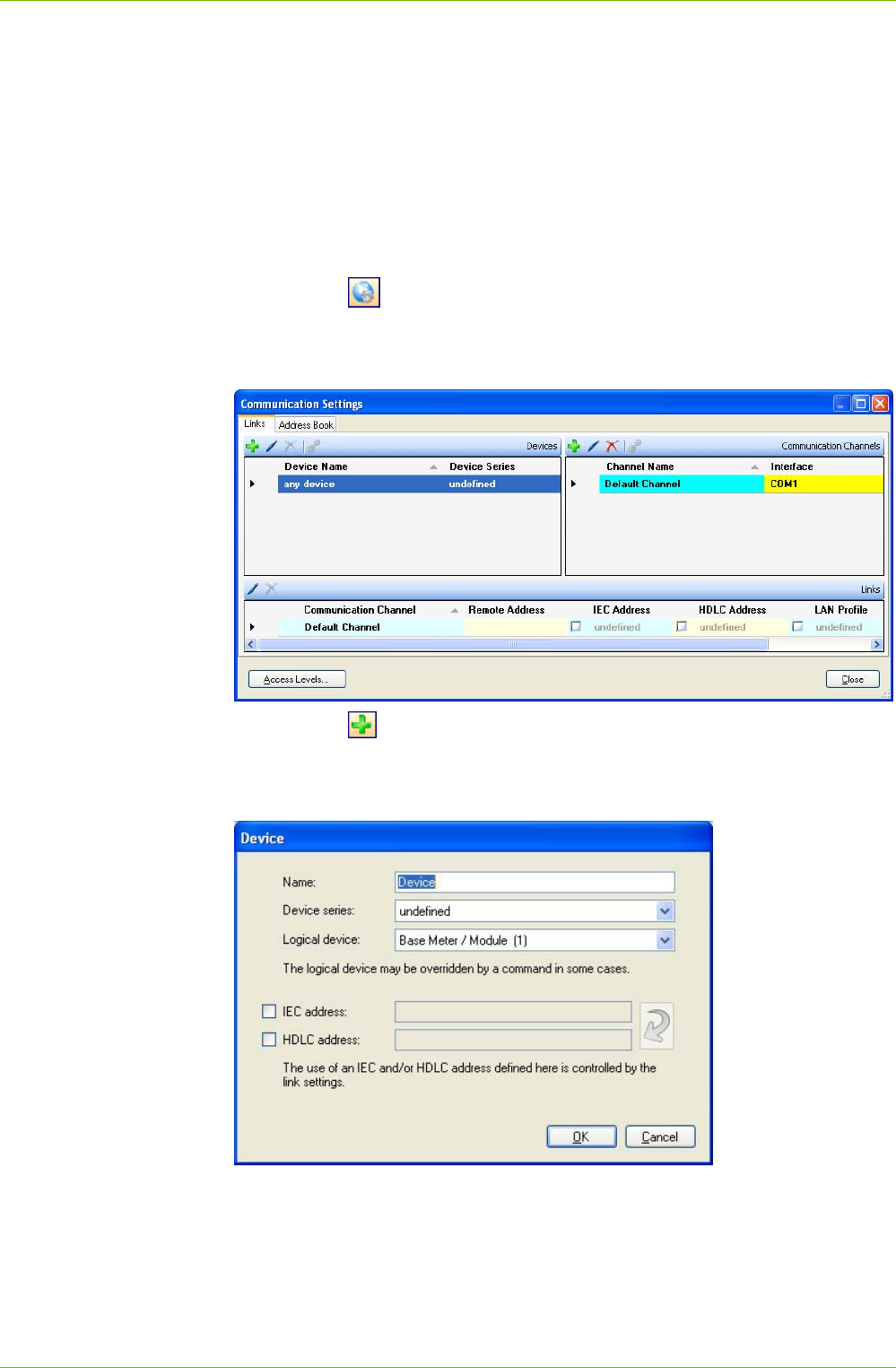
After the installation of the .MAP110 Service Tool, only a default device
named "any device" and a default communication channel named "Default
Channel" are defined. With this default communication settings, a local
readout of a meter with an optical reading head connected to port COM1 is
possible (see section 4 "First Steps").
The following basic procedure should be adopted to produce and store a
new device definition (specific examples are given in section 6.4 "Com-
munication Examples"):
1. Click on in the application toolbar or select Communication
settings from the Communication menu.
The "Communication Settings" window appears with selected tab
"Links".
2. Click on in the window toolbar in the "Devices" area.
The "Device" window appears. The entry box "Name" contains the
placeholder name "Device", all other boxes are filled with the data of
the selected device and can now be modified.
3. Enter a name for the new device definition in the entry box "Name".
4. Select the device series in the selection box "Device series".
With this setting the command tree is automatically switched to the
appropriate view. If you leave "undefined", no adaptation of the
command tree occurs.
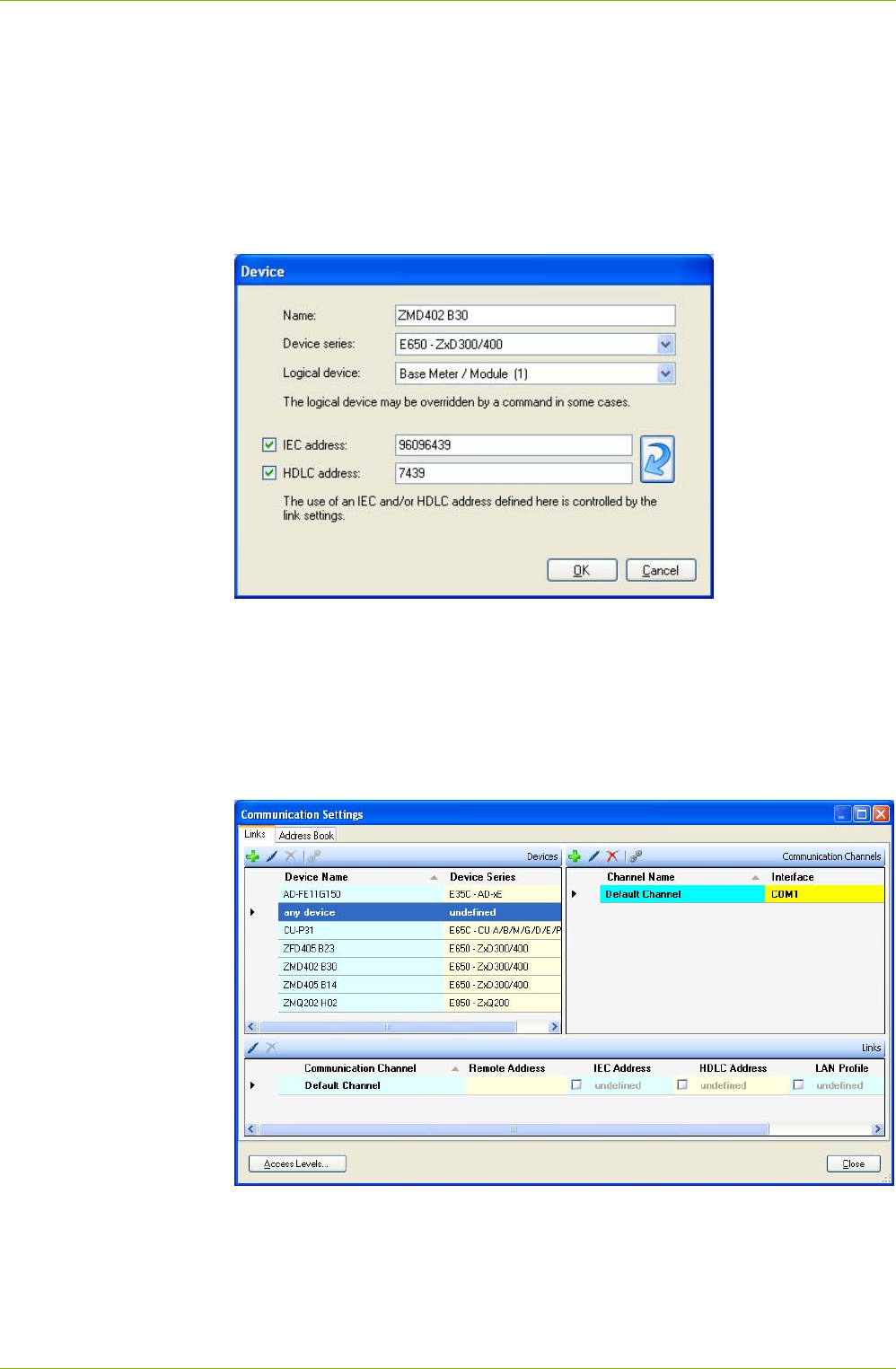
32/122 Communication with Devices
© Landis+Gyr D000011475 en s – .MAP110 Service Tool – User Manual
5. Select the device type in the selection box "Logical device": "Base
meter / Module (1)" or "Communication Unit (17)".
Note that the logical device may be overridden by a command in some
cases.
6. If a device address shall be used: set a tick to the "IEC address" and/or
"HDLC address" checkbox and enter the address(es). If you enter an
IEC address first and then click on the arrow button behind the two
entry boxes, the HDLC address is automatically calculated and entered
(see section 6.3.7 "Addressing Devices").
7. Click on OK.
The new device definition is saved and then appears as entry in the
device list ("Devices" area).
8. Define further devices in the same way (repeat points 2 to 7).
9. If you have imported address data from a MAP110 phone book, modify
the "undefined" device series to the appropriate device series and
delete imported devices which are not required.
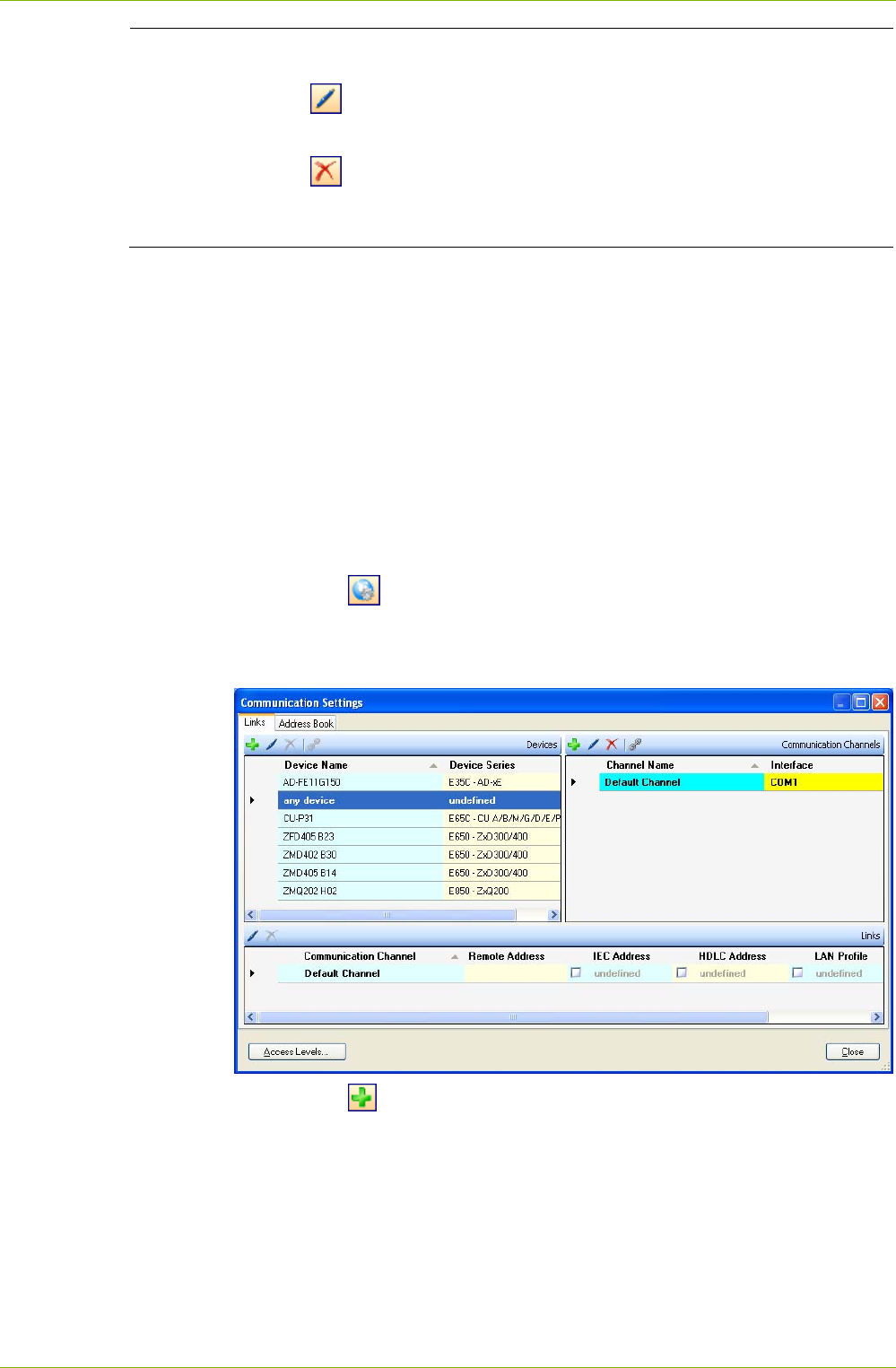
Communication with Devices 33/122
D000011475 en s – .MAP110 Service Tool – User Manual © Landis+Gyr
Modifying or deleting device definitions
Click on in the window toolbar in the "Devices" area to modify the
marked device definition or double click on the device definition.
Click on in the window toolbar in the "Devices" area to delete the
marked device definition. Deletions must be confirmed.
The default device definition "any device" can't be deleted.
10. Click on Close.
The "Communication Settings" window disappears.
6.3.3 Defining Communication Channel Data
After the installation of the .MAP110 Service Tool only a default device
named "any device" and a default communication channel named "Default
Channel" are defined. With this default communication settings a local
readout of a meter with an optical reading head connected to port COM1 is
possible (see section 4 "First Steps").
The following basic procedure should be adopted to produce and store a
new communication channel definition (specific examples are given in
section 6.4 "Communication Examples"):
1. Click on in the application toolbar or select Communication
settings from the Communication menu.
The "Communication Settings" window appears with selected tab
"Links" (here with devices defined according to the previous section).
2. Click on in the window toolbar in the "Communication Channels"
area.
The "Communication Channel" window appears. All fields are filled with
the data of the selected communication channel and can now be modi-
fied.
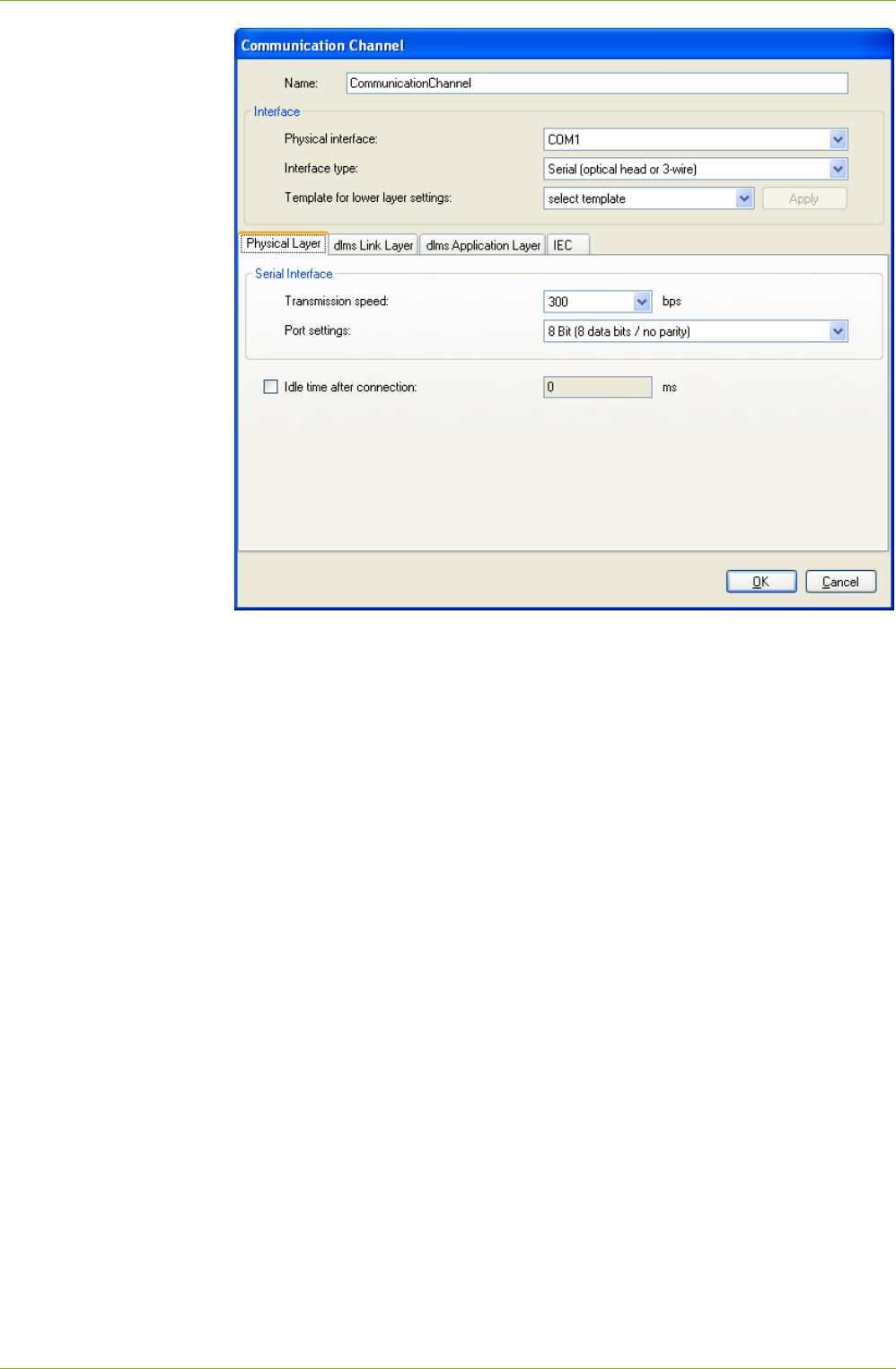
34/122 Communication with Devices
© Landis+Gyr D000011475 en s – .MAP110 Service Tool – User Manual
3. Select the serial interface to be used in the "Physical interface" selec-
tion box or the modem to be used for remote communication and for
Ethernet connections the entry of the network card to be used. The
COM port number of a serial interface can be found in the Windows
device manager.
4. Select the "Serial (optical head or 3-wire)", "Bluetooth optical head
(PMR_1)" or "Bluetooth optical head (PMR_1A)" type used in the
"Interface type" selection box for serial communication, depending on
how the device is connected. The selection box is inhibited for modem
and Ethernet connections. This is necessary because an echo signal is
often produced when using an optical reading head, which can be sup-
pressed by the .MAP tool. This effect does not occur with other con-
nections than optical.
5. Select the suitable template for the communication channel settings in
the "Template for lower layer settings" selection box. The following
templates are available (selection possibilities dependent on the
selected physical interface and interface type):
- Serial - IEC
- Serial - dlms
- M-Bus - dlms
- Bluetooth - IEC
- Bluetooth - dlms
- PSTN Modem
- GSM Modem
- Wired - HDLC
- Wired - Wrapper
Communication with Devices 35/122
D000011475 en s – .MAP110 Service Tool – User Manual © Landis+Gyr
- Wireless - HDLC
- Wireless - Wrapper
After selection of a template and clicking on "Apply" all communication
channel settings are set automatically. You can directly proceed with
point 24 or check the settings according to the following steps.
6. Select the "Physical Layer" tab.
7. Select the transmission rate corresponding to the device in the "Trans-
mission speed" selection box for local communication. The selection
box is inhibited for modem and Ethernet connections.
8. Select the required communication port settings in the "Port settings"
selection box:
- 8 Bit (8 data bits / no parity) (default), to be used normally
- 9 Bit (8 data bits / even parity), to be used if the connection to the
serial interface of the PC is made via an USB M-Bus converter
The selection box is inhibited for modem and Ethernet connections.
9. Tick the "Idle time after connection" checkbox if you want to modify the
default initial delay (IEC standard value = 0), e.g. with GSM networks.
Then enter the required value in the "Idle time after connection" entry
box.
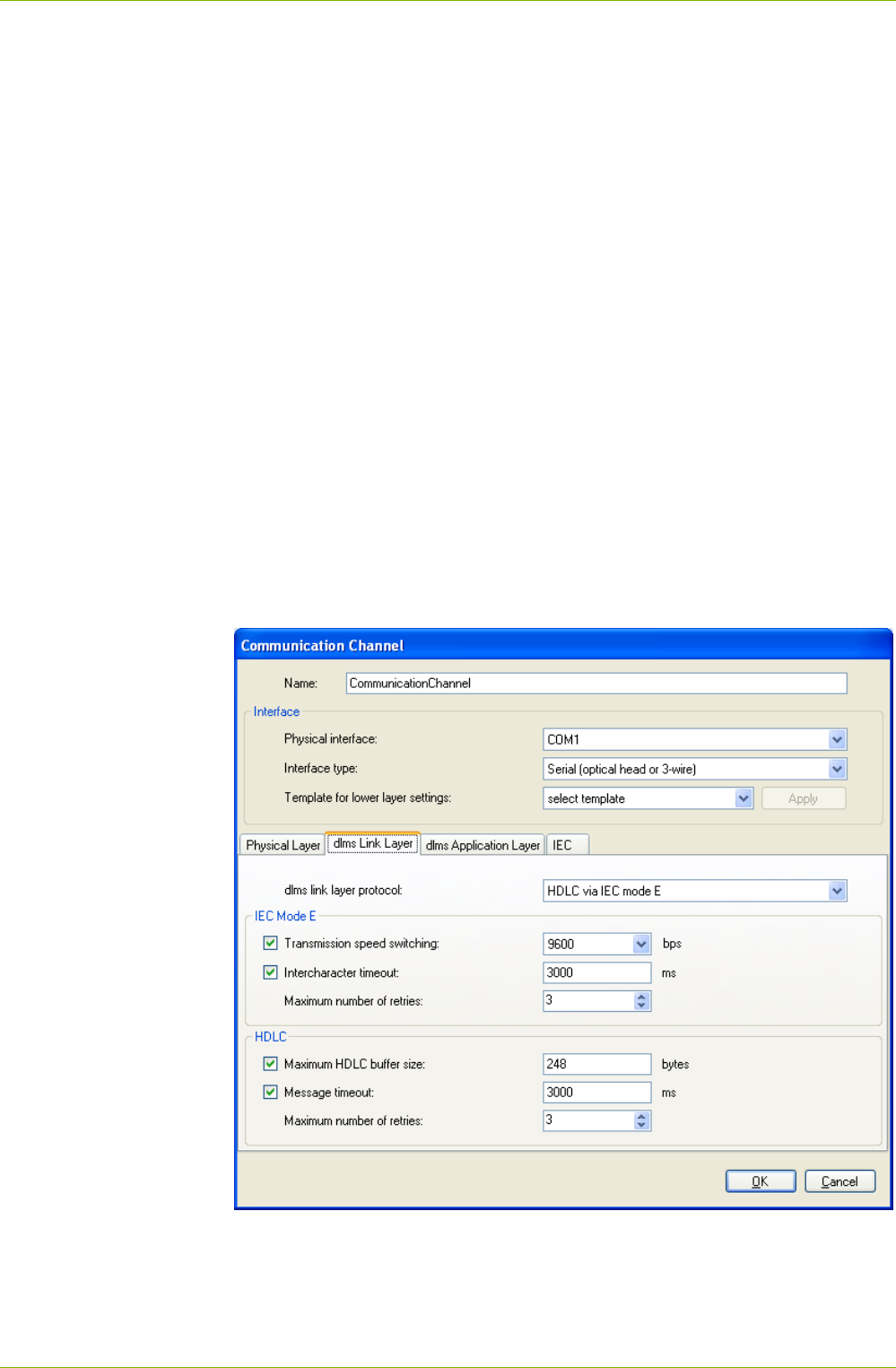
10. Select the "dlms Link Layer" tab (the settings on this tab apply if the
dlms protocol is used).

36/122 Communication with Devices
© Landis+Gyr D000011475 en s – .MAP110 Service Tool – User Manual
11. Select the required protocol for the planned activity in the "dlms Link
layer protocol" selection box. Possible settings:
- HDLC, if the HDLC protocol must be used
- HDLC via IEC mode E (default), if the IEC protocol must be used
for opening the communication
- COSEM Wrapper, if the COSEM Wrapper over the TCP protocol
must be used
12. Depending on the selected link layer protocol, the IEC Mode E, HDLC
or COSEM Wrapper areas are displayed to make the required settings.
In the IEC Mode E area (only displayed if "HDLC via IEC mode E" is
selected as link layer protocol):
- Transmission speed switching: Select the required maximum trans-
mission rate (default = 9600 bps). Untick the checkbox if you don't
want to allow transmission rate switching.
Note: In case of modem or network connections no real change is
made but only the transmission rate character in the protocol is
altered.
- Intercharacter timeout: After expiration of the set time the trans-
mission is automatically ended if no further data is transmitted. If
you untick the checkbox, no automatic termination of the transmis-
sion occurs.
- Maximum number of retries: Select the number of retries (default
value = 3). If you select 0, no retries occur.
In the HDLC area (only displayed if "HDLC" or "HDLC via IEC mode E"
is selected as link layer protocol):
- Maximum HDLC buffer size: Tick the checkbox if you want to mod-
ify the default value (248 bytes). The HDLC buffer size determines
how many useful data can be transmitted in one data packet. Re-
duce the value in case of communication problems.
- Message timeout: If you untick the checkbox, no automatic termi-
nation of the transmission occurs.
- Maximum number of retries: Select the number of retries (default
value = 3). If you select 0, no retries occur.
In the COSEM Wrapper area (only displayed if "COSEM Wrapper" is
selected as link layer protocol):
- Message timeout: If you untick the checkbox, no automatic termi-
nation of the transmission occurs.
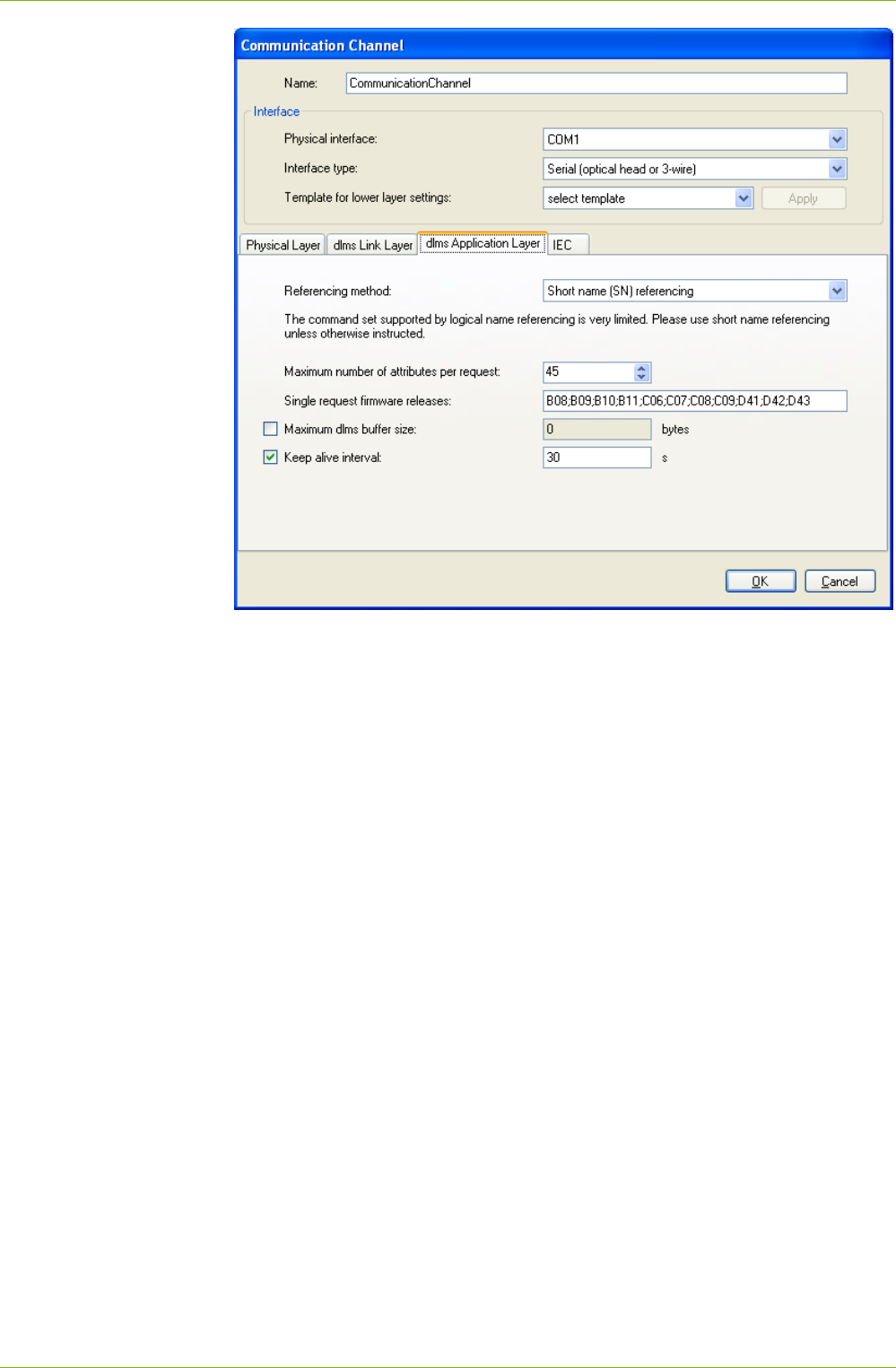
13. Select the "dlms Application Layer" tab (the settings on this tab apply if
the dlms protocol is used).
Communication with Devices 37/122
D000011475 en s – .MAP110 Service Tool – User Manual © Landis+Gyr
14. Select "Short name (SN) referencing" or "Logical name (LN) referenc-
ing" method. The command set supported by LN referencing is very
limited. The .MAP tools only work with short names. Therefore SN
referencing is the preferred choice unless otherwise instructed.
15. Enter the "Maximum number of attributes per request". In case of
readout problems this value (default = 45) can be reduced down to 1.
It should be noted that this slows down the readout.
16. If required, modify the "Single request firmware releases". This entry
box contains all versions (separated by semicolons), for which automa-
tically single requests will be used.
17. If not inhibited, tick the "Maximum dlms buffer size" checkbox if you
want to modify the maximum buffer size in the .MAP tool for writing of
data (default value = 0). Then enter the required value in the "Maxi-
mum dlms buffer size" entry box. Principally the buffer sizes for writing
and reading reported from the device are used. If a maximum buffer
size is determined, this size is not exceeded, even if the device reports
a bigger write buffer size. If you untick the checkbox, the buffer size is
unlimited, i.e. buffer size indicated by the device is used.
18. Keep alive interval: After this time an "Alive-Packet" is to be sent in
order to maintain the connection. The value must be greater than the
message timeout value. If you untick the checkbox, the function is
switched off.
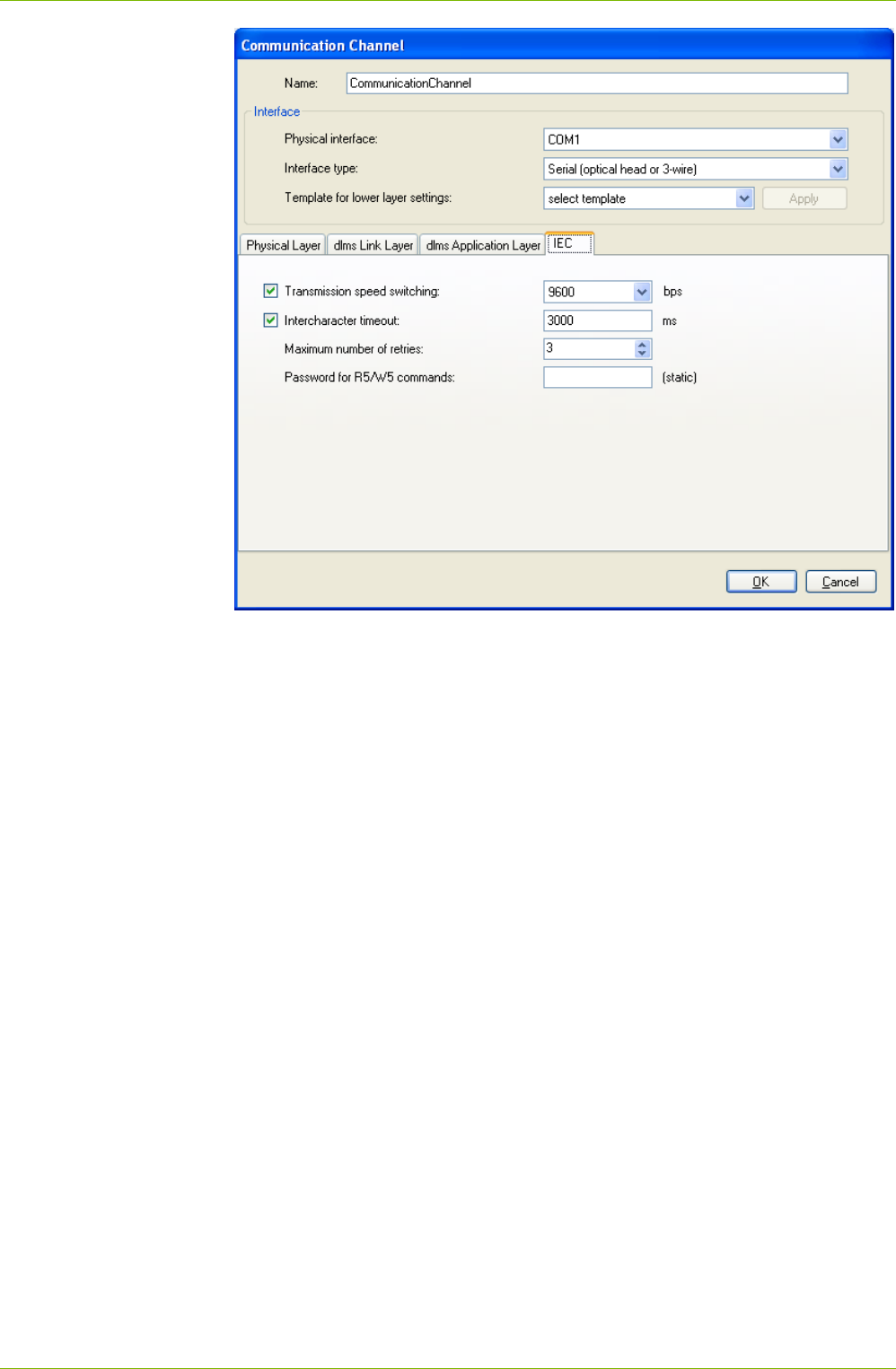
19. Select the "IEC" tab (the settings on this tab apply if the IEC protocol is
used).
38/122 Communication with Devices
© Landis+Gyr D000011475 en s – .MAP110 Service Tool – User Manual
20. Select the required maximum transmission rate (default = 9600 bps) in
the "Transmission speed switching" selection box. Untick the checkbox
if you don't want to allow transmission rate switching.
Note: In case of modem or network connections no real change is
made but only the transmission rate character in the protocol is altered.
21. Intercharacter timeout: After expiration of the set time the transmission
is automatically ended if no further data is transmitted. If you untick the
"Intercharacter timeout" checkbox, no automatic termination of the
transmission occurs.
22. Select the number of retries (default value = 3) in the "Maximum
number of retries" selection box. If you select 0, no retries occur.
23. Enter the required static password (8 characters) for R5/W5 commands
in the "Password for R5/W5 commands" entry box.
24. Enter a name for the new communication channel definition in the entry
box "Name".
25. Click on OK.
The new communication channel definition is saved and then appears
as entry in the communication channel list ("Communication Channels"
area).
26. Define further required communication channels in the same way
(repeat points 2 to 25).
27. Delete the default communication channel definition "Default Channel"
from the communication channel list if it is no longer required.
Communication with Devices 39/122
D000011475 en s – .MAP110 Service Tool – User Manual © Landis+Gyr
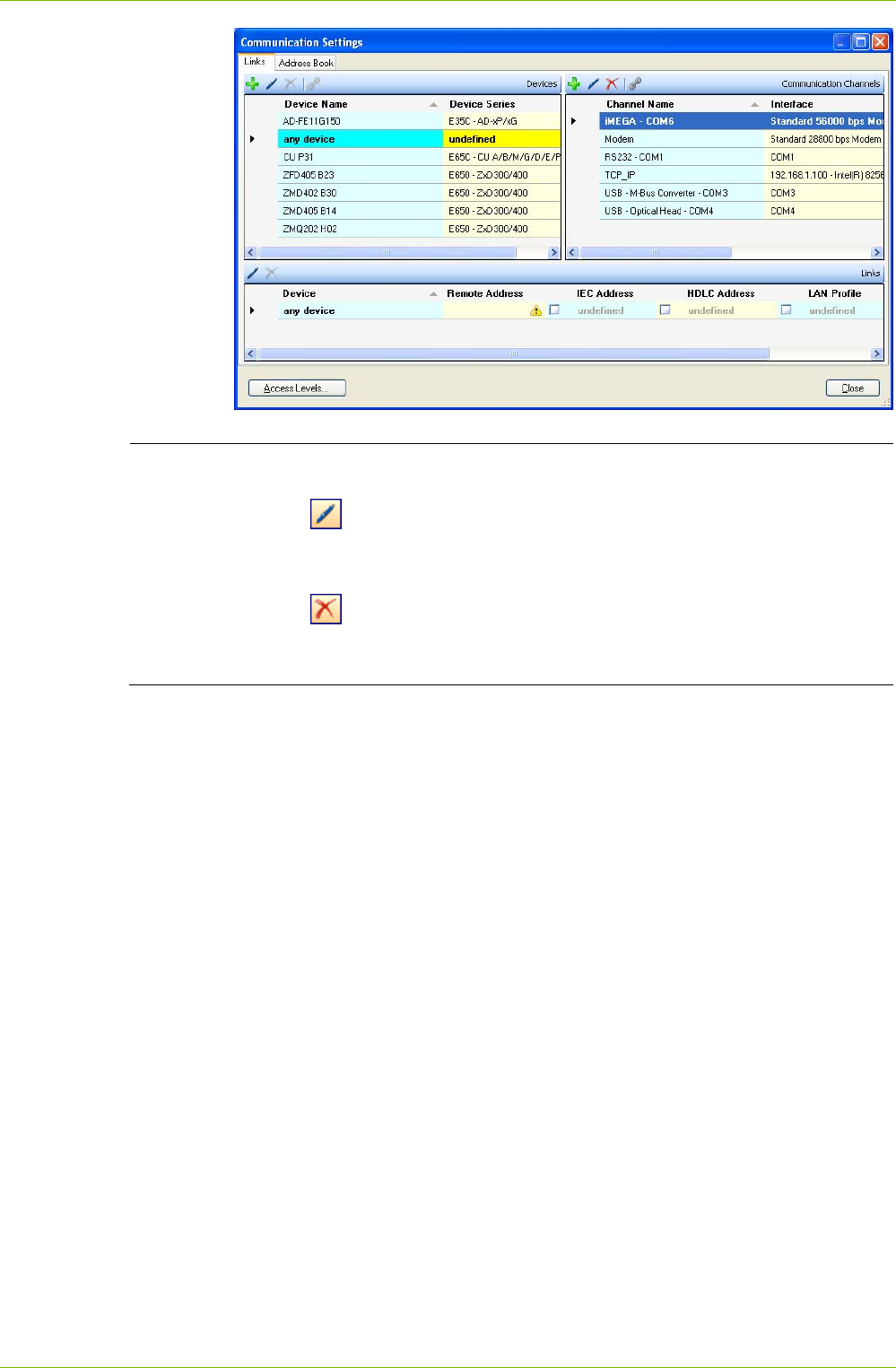
Modifying or deleting communication channel definitions
Click on in the window toolbar in the "Communication Channels" area
to modify the marked entry of the communication channel list or double
click on the entry.
Click on in the window toolbar in the "Communication Channels" area
to delete the marked entry of the communication channel list. Deletions
must be confirmed.
28. Click on Close.
The "Communication Settings" window disappears.
40/122 Communication with Devices
© Landis+Gyr D000011475 en s – .MAP110 Service Tool – User Manual
6.3.4 Defining Address Data
After the installation of the .MAP110 Service Tool, no address data (IP
addresses and phone numbers) are defined.
If the Landis+Gyr MAP110 or .MAP110 Service Tool is already installed on
the computer, its address book can be imported.
6.3.4.1 Importing Address Book
Import an existing address book as follows:
1. Click on in the application toolbar or select Communication
settings from the Communication menu.
The "Communication Settings" window appears with selected tab
"Links".
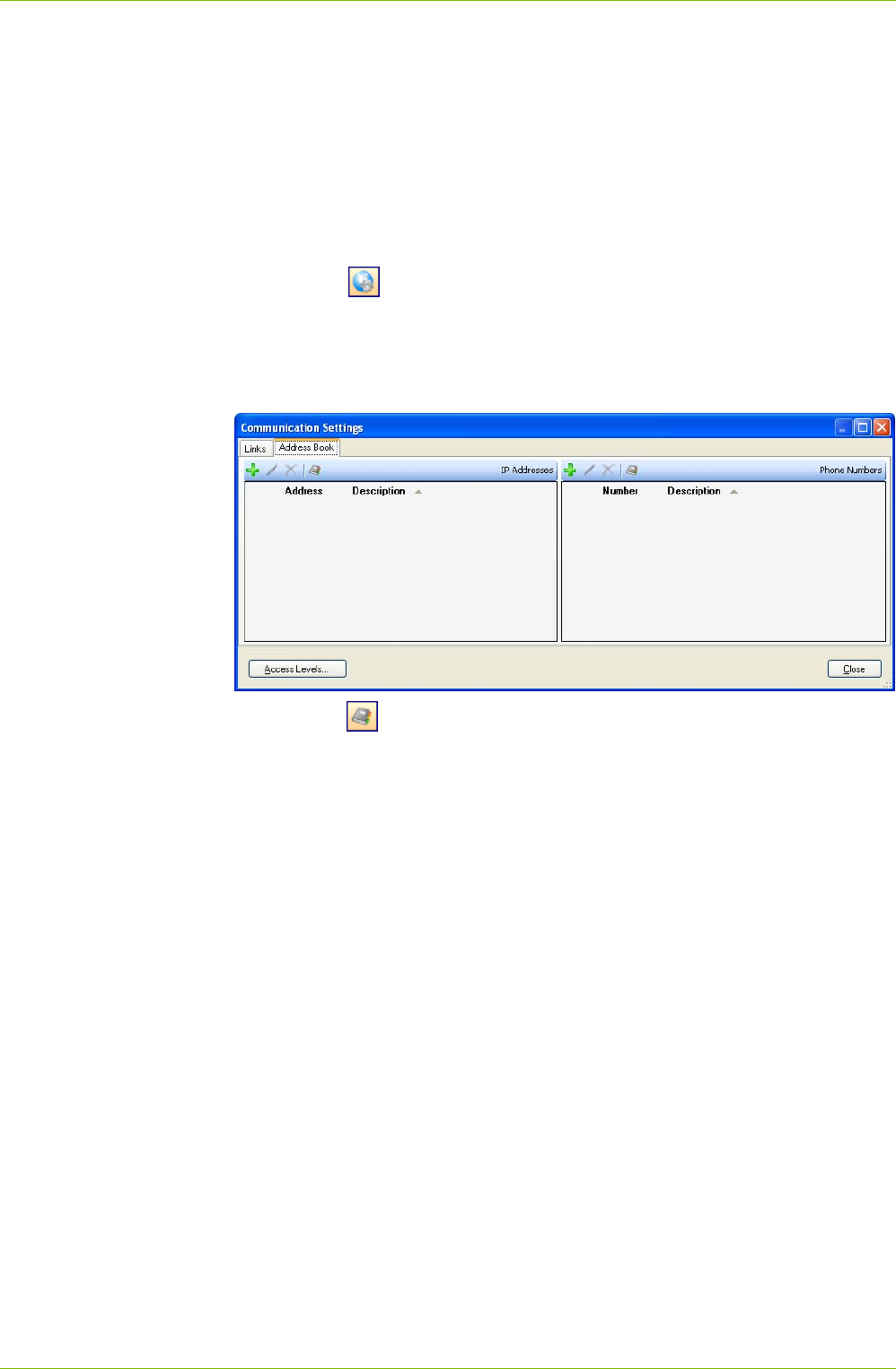
2. Select the "Address Book" tab.
3. Click on in the window toolbar for IP addresses or phone numbers.
The "Import Address Book" window (open dialog) appears.
4. Select in the open dialog the phone book file to be imported (the corre-
sponding directory of the latest installed MAP110 version 3.x will be
selected by default, to directories of .MAP versions 4.x you must navi-
gate yourself):
- "PhoneBook.xml" for importing a MAP110 phone book or
- "AddressBookV7.xml" or "AddressBookV8.xml" for importing a
.MAP110 phone book.
5. Click on Open.
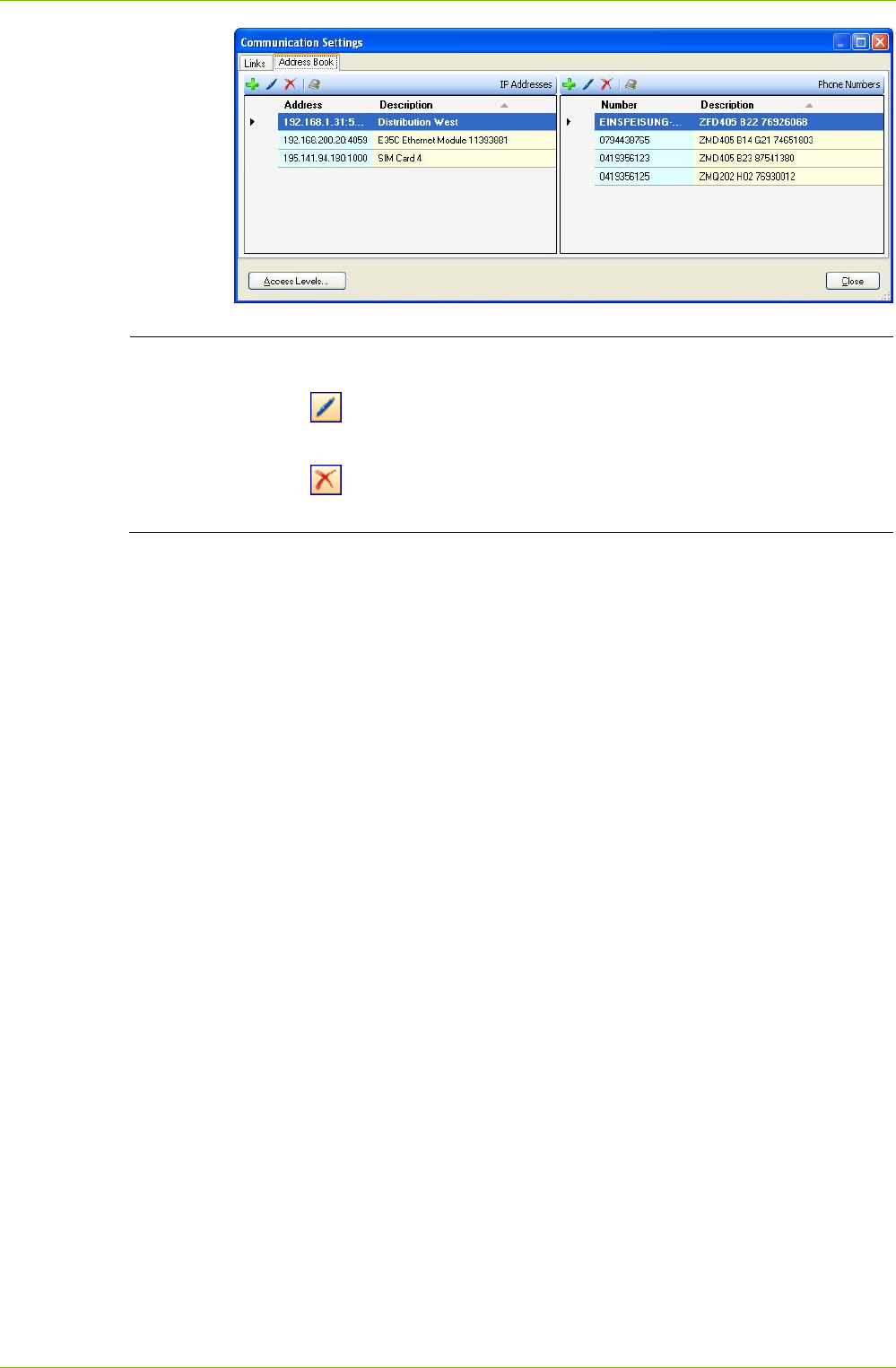
All IP addresses and phone numbers are imported from the selected
address book if not already existing in the .MAP110 address book. The
imported data appear as entries in the IP addresses list and in the
phone number list.
When a MAP110 phone book "PhoneBook.xml" has been imported,
additionally all device addresses are converted into devices.
Communication with Devices 41/122
D000011475 en s – .MAP110 Service Tool – User Manual © Landis+Gyr
Modifying or deleting address book entries
Click on in the window toolbar to modify the marked entry of the
address book or double click on the entry.
Click on in the window toolbar to delete the marked entry of the
address book. Deletions must be confirmed.
6. Click on Close.
The "Communication Settings" window disappears.
7. If you have imported address data from a MAP110 phone book
"PhoneBook.xml", check the device settings (see section 6.3.2
"Defining Device Data") again, since device addresses from the
imported phone book have been converted into devices. Before you
can use the device definitions created that way these have to be linked
manually with a communication channel (see section 6.3.5 "Defining
Links between Devices and Communication Channels").
42/122 Communication with Devices
© Landis+Gyr D000011475 en s – .MAP110 Service Tool – User Manual
6.3.4.2 Defining Phone Numbers
Define the phone numbers required for modem connections as follows:
1. Click on in the application toolbar or select Communication
settings from the Communication menu.
The "Communication Settings" window appears with selected tab
"Links".
2. Select the "Address Book" tab.
3. Click on in the window toolbar for phone numbers (right window).
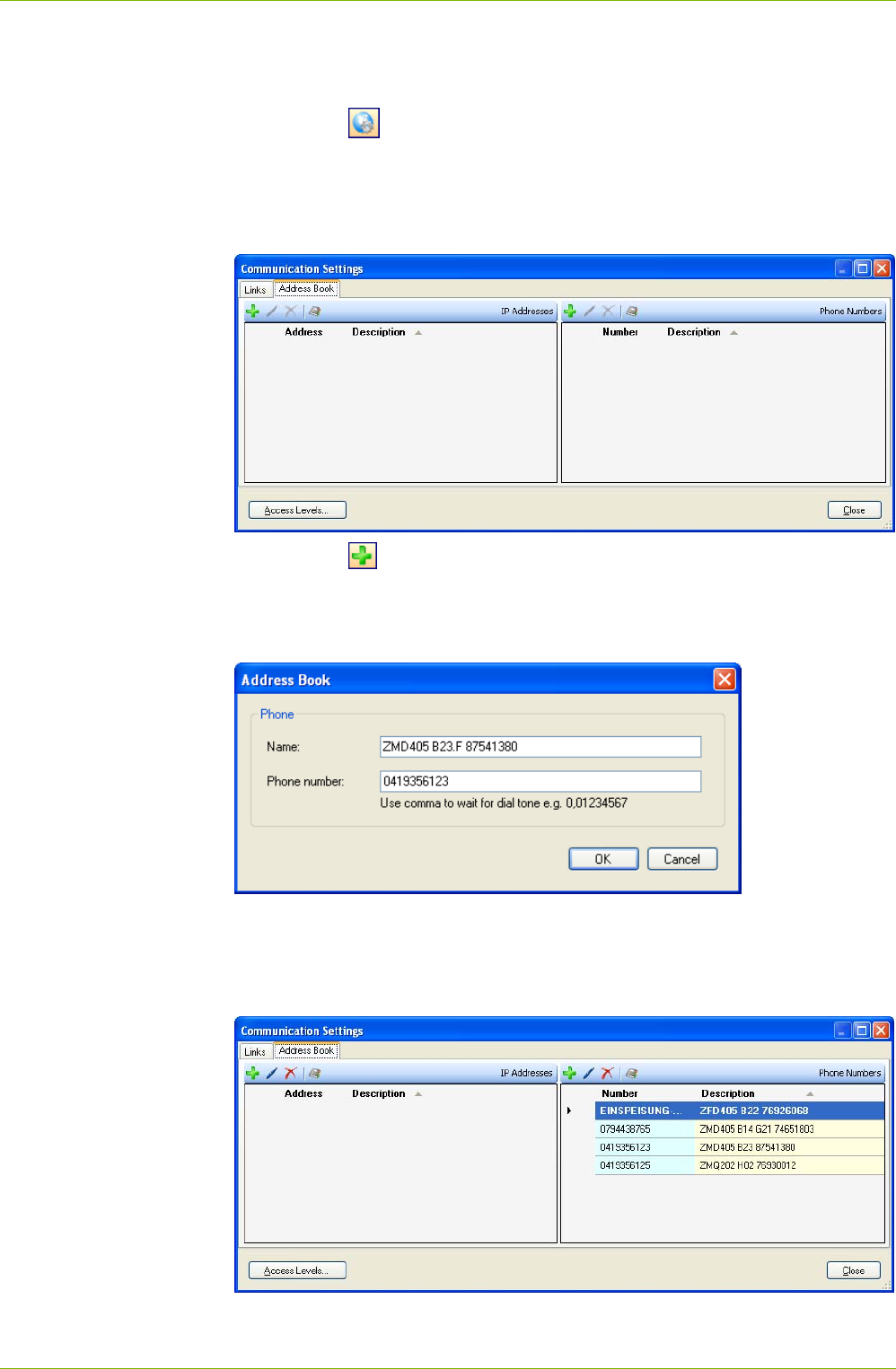
The "Address Book" window appears.
4. Enter a clear designation of the device in the "Name" entry box and the
phone number of the desired device in the "Phone number" entry box.
5. Click on OK.
The "Address Book" window disappears. The phone number is saved
and then appears as entry in the address book.
6. Define further phone numbers in the same way (repeat points 3 to 5).
Communication with Devices 43/122
D000011475 en s – .MAP110 Service Tool – User Manual © Landis+Gyr
Modifying or deleting address book entries
Click on in the window toolbar to modify the marked entry of the
address book or double click on the entry.
Click on in the window toolbar to delete the marked entry of the
address book. Deletions must be confirmed.
7. Click on Close.
The "Communication Settings" window disappears.
6.3.4.3 Defining IP Addresses
Define the IP addresses required for TCP/IP connections as follows:
1. Click on in the application toolbar or select Communication
settings from the Communication menu.
The "Communication Settings" window appears with selected tab
"Links".
2. Select the "Address Book" tab.
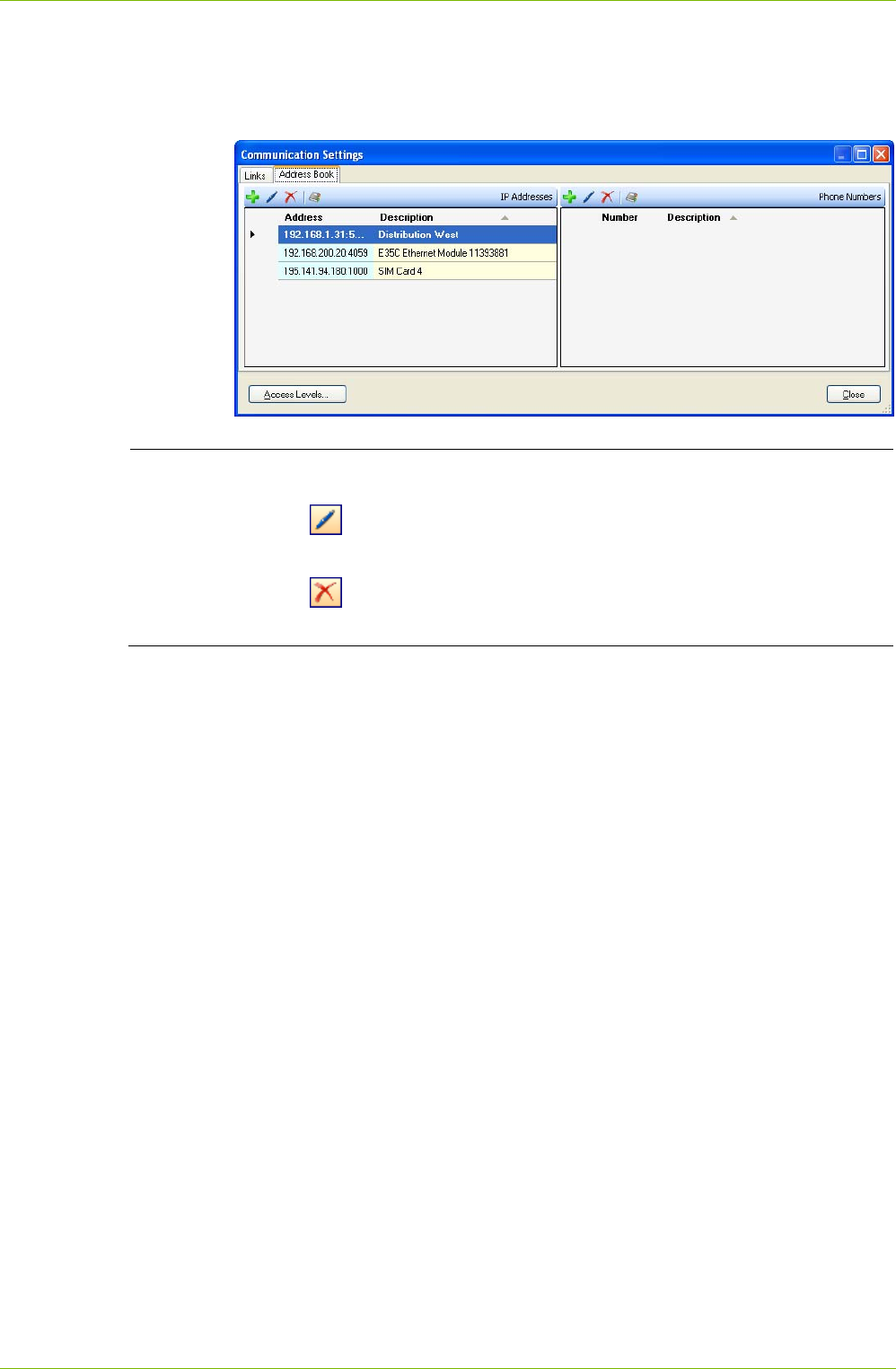
3. Click on in the window toolbar for IP addresses (left window).
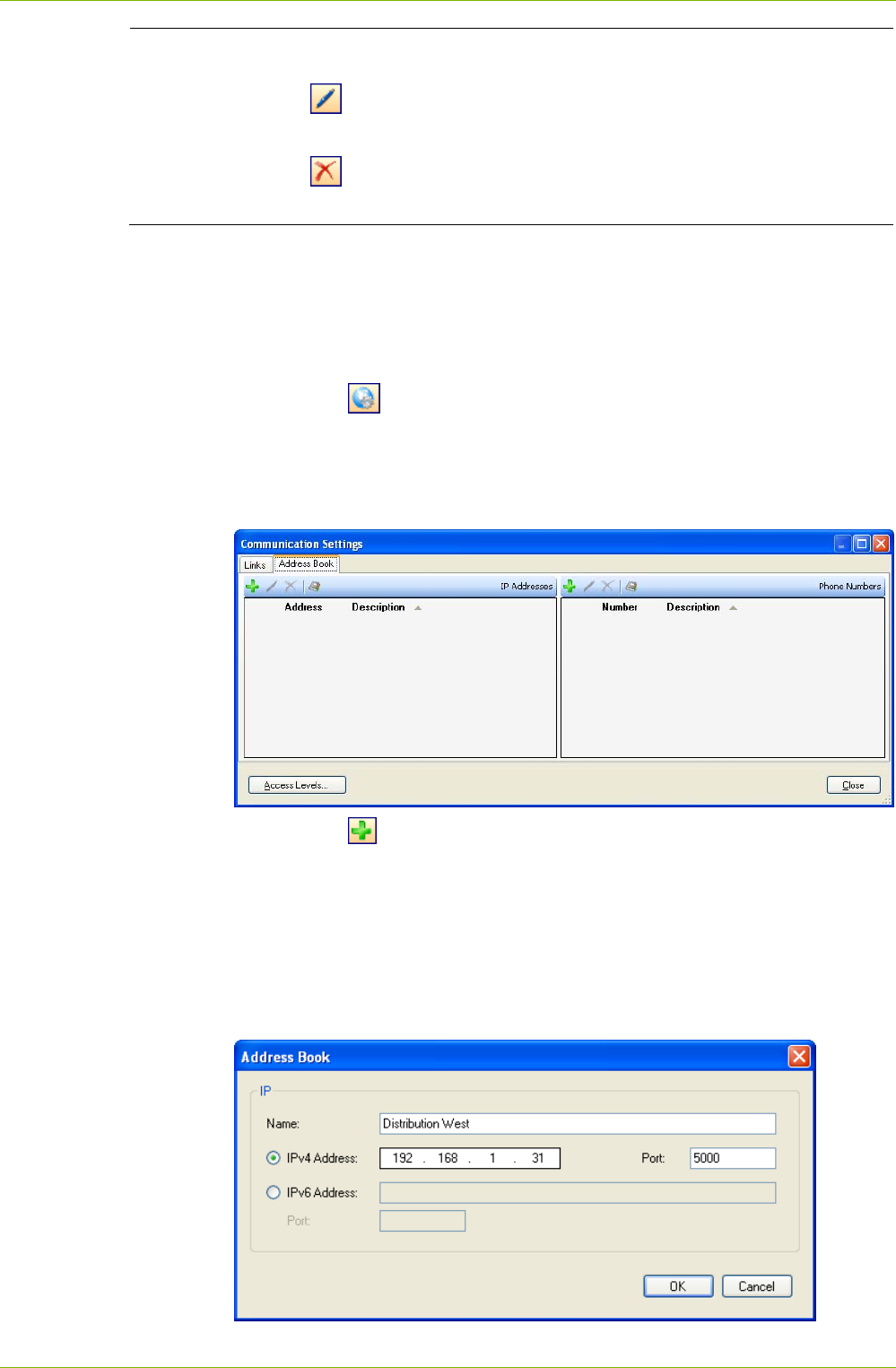
The "Address Book" window appears.
4. Enter a clear designation of the device location in the "Name" entry
box.
5. Select with the corresponding radio button whether an IPv4 address or
an IPv6 address shall be entered. Enter the IPv4 or IPv6 address in the
corresponding entry box and the port number of the desired device in
the "Port" entry box.
44/122 Communication with Devices
© Landis+Gyr D000011475 en s – .MAP110 Service Tool – User Manual
6. Click on OK.
The "Address Book" window disappears. The IP address is saved and
then appears as entry in the address book.
7. Define further IP addresses in the same way (repeat points 3 to 6).
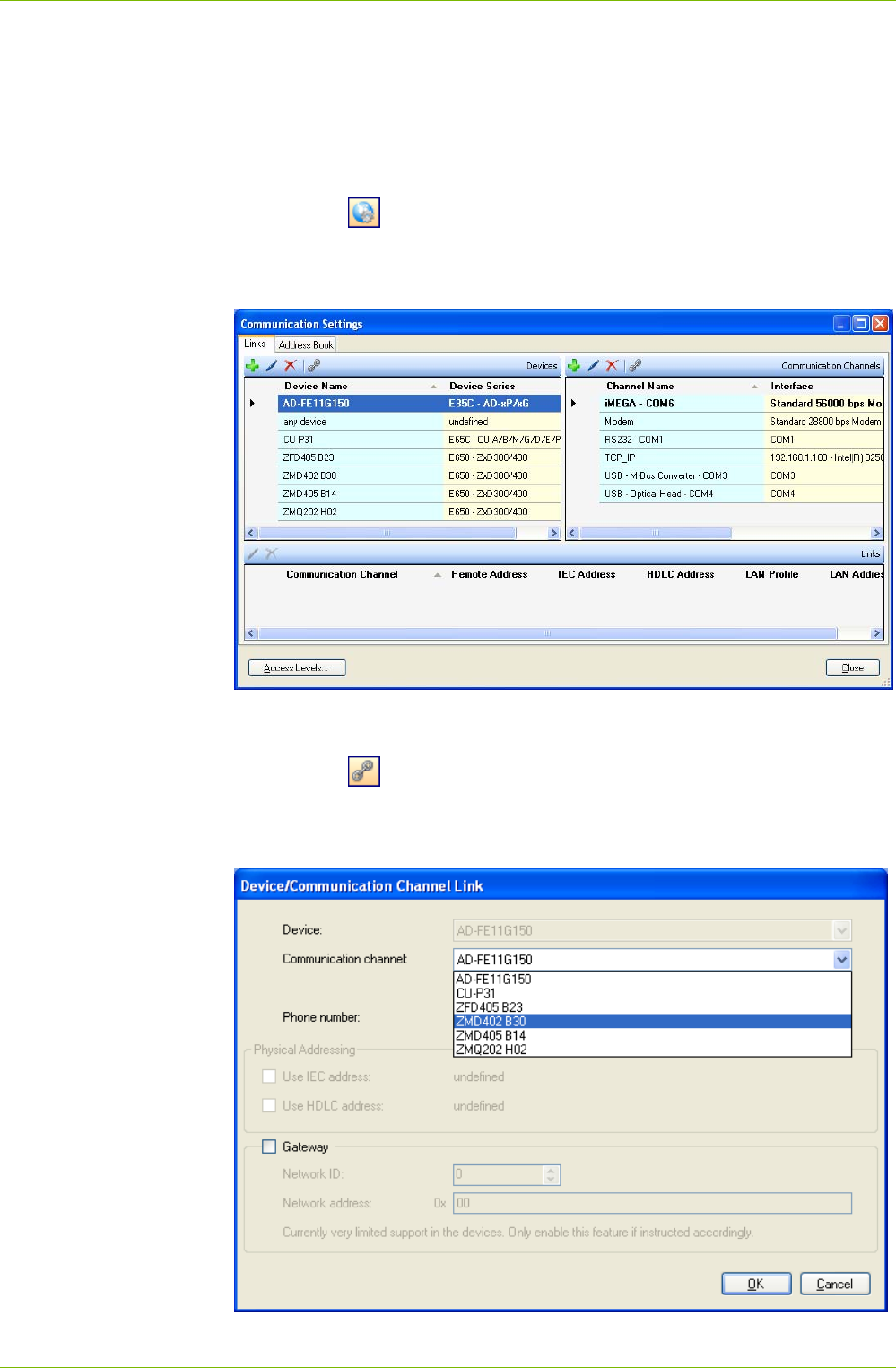
Modifying or deleting address book entries
Click on in the window toolbar to modify the marked entry of the
address book or double click on the entry.
Click on in the window toolbar to delete the marked entry of the
address book. Deletions must be confirmed.
8. Click on Close.
The "Communication Settings" window disappears.
Communication with Devices 45/122
D000011475 en s – .MAP110 Service Tool – User Manual © Landis+Gyr
6.3.5 Defining Links between Devices and Communication Channels
When the definition of devices, communication channels and addresses
has been finished according to the previous sections, the links between
these data must be defined.
Proceed as follows:
1. Click on in the application toolbar or select Communication
settings from the Communication menu.
The "Communication Settings" window appears with selected tab
"Links". The device list and the communication list are displayed.
2. Select a device from the device list (or alternatively a channel from the
communication channels list).
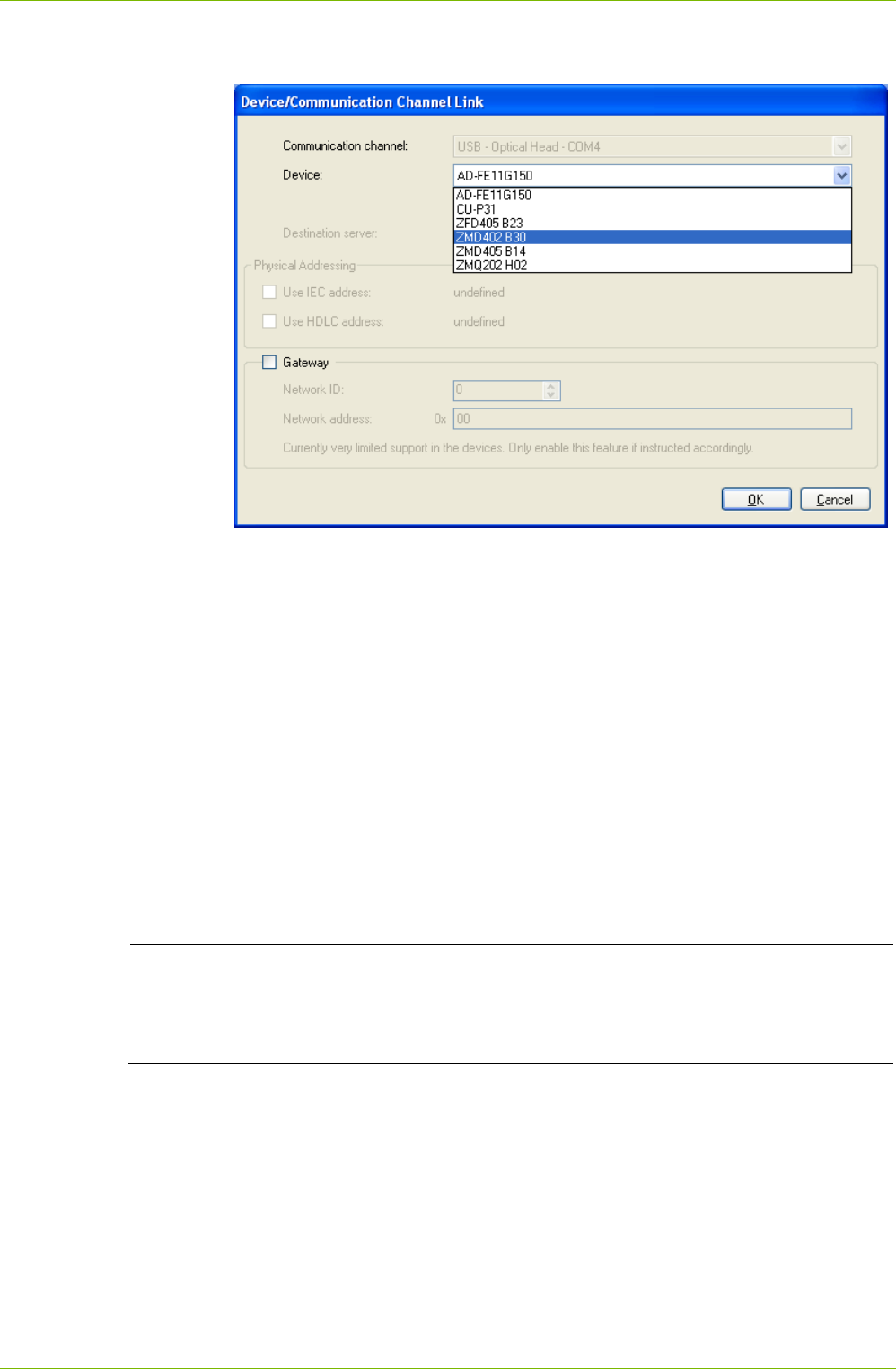
3. Click on in the window toolbar in the "Devices" area (or alterna-
tively in the "Communications Channels" area).
The "Device/Communication Channel Link" window appears with the
device fixed and the communication channel selectable:
46/122 Communication with Devices
© Landis+Gyr D000011475 en s – .MAP110 Service Tool – User Manual
or alternatively with the communication channel fixed and the device
selectable:
4. In the "Communication Channel" selection box select one of the
defined communication channels (or alternatively in the "Device"
selection box one of the defined devices).
5. If more than one communication channel is defined for a device, one
channel can be determined as preferred channel. When selecting this
device the preferred channel is always selected as default channel.
Tick for this the checkbox "This is the preferred channel for this
device". The preferred channel is then marked with a yellow star in the
"Communication Settings" window.
6. Only for modem communication channels: in the "Phone Number"
selection box select one of the defined phone numbers.
7. Only for TCP/IP communication channels: in the "Destination server"
selection box select one of the defined IP addresses.
8. If the IEC or HDLC address defined for the device shall be used: set a
tick to the "Use IEC address" or "Use HDLC address" checkbox.
Gateway feature not yet supported by Landis+gyr devices
Please note that the gateway feature is for future expansion only and not
yet supported by the Landis+Gyr devices. For the time being make sure to
disable it.
9. If a gateway shall be used: set a tick to the "Gateway" checkbox, select
a network ID and enter the required network address.
10. Click on OK.
The "Device/Communication Channel Link" window disappears and the
new defined link is displayed in the communication channel links list
("Links" area).
11. If more than one communication channels shall be usable to access
the device (or alternatively if more than one device shall be accessible
via the communication channel), define another link the same way
(repeat points 3 to 10).
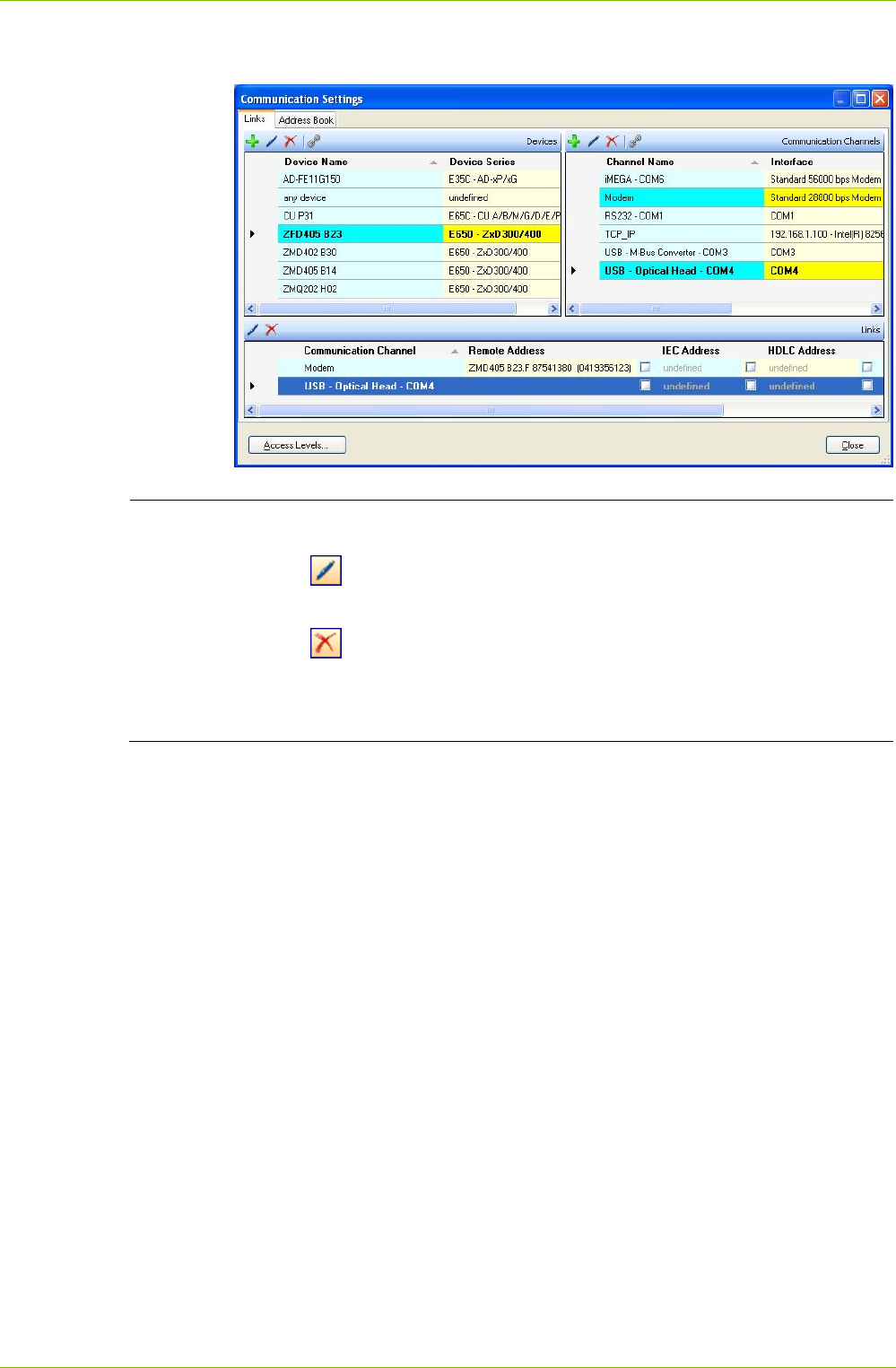
Communication with Devices 47/122
D000011475 en s – .MAP110 Service Tool – User Manual © Landis+Gyr
12. Define the links for all devices (or alternatively for all communication
channels) the same way (repeat points 2 to 11).
Modifying or deleting links
Click on in the window toolbar in the "Links" area to modify the marked
entry of the link list or double click on the entry.
Click on in the window toolbar in the "Links" area to delete the marked
entry of the link list. Deletions must be confirmed.
Links related to the default device "any device" can't be deleted, they only
can be edited.
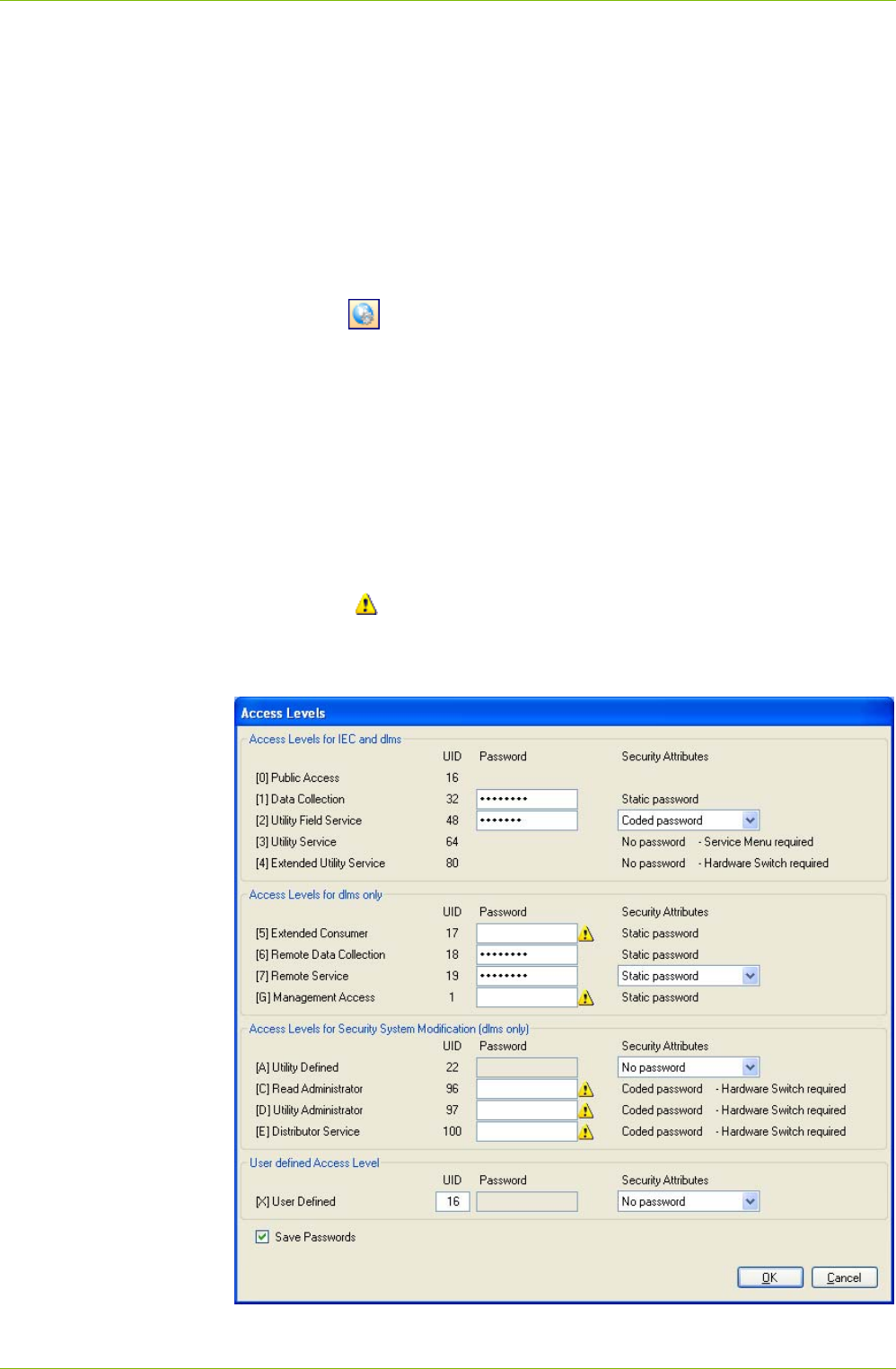
48/122 Communication with Devices
© Landis+Gyr D000011475 en s – .MAP110 Service Tool – User Manual
6.3.6 Defining Access Levels
After the installation of the .MAP110 Service Tool no passwords for the
different access levels are defined. Therefore only the access levels without
password protection, e.g. "[0] Public Access" can be used (see example in
section 4 "First Steps").
The various access levels and their fields of application are described in
section 10 "Short Description of Device Security System".
Define the passwords used by the .MAP110 Service Tool for all required
access levels according to the passwords set in the devices as follows:
1. Click on in the application toolbar or select Communication
settings from the Communication menu.
The "Communication Settings" window appears with selected tab
"Links".
2. Click on Access Levels.
The "Access Levels" window appears.
3. For access levels [2], [7], [A] and [X] select the password type (No
password, Static password, Coded password or Key).
4. Enter the required passwords in the password entry boxes.
Note that static passwords must have exactly 8 characters, coded
passwords exactly 7 characters and encryption keys exactly 32 char-
acters. A symbol is displayed behind the entry field, as long as the
access level is not correctly defined (e.g. missing or incomplete pass-
word). Accordingly marked access levels will not be shown in the
access level toolbar.
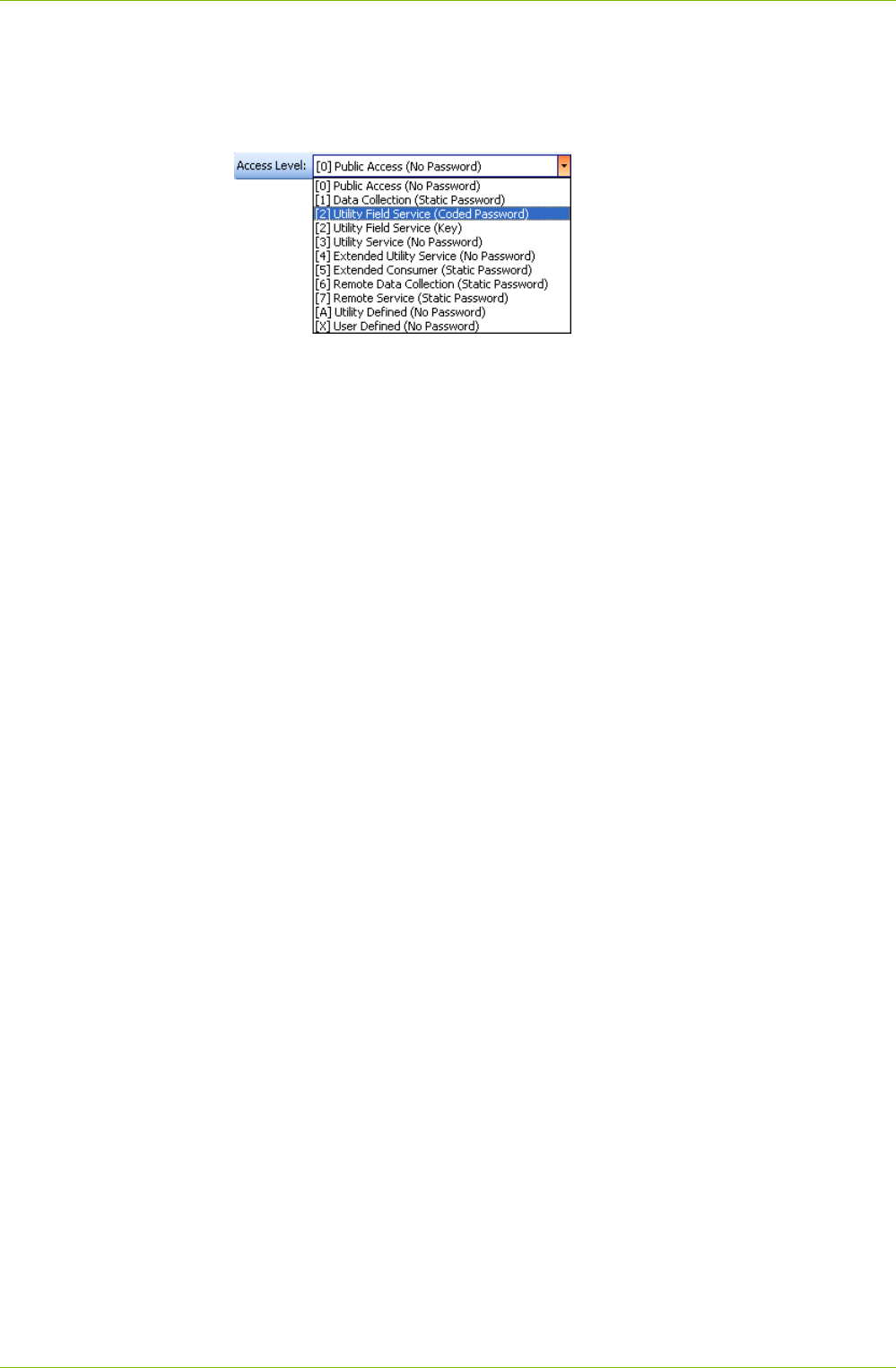
Communication with Devices 49/122
D000011475 en s – .MAP110 Service Tool – User Manual © Landis+Gyr
5. Repeat points 3 and 4 for the access levels [2], [7], [A] and [X] if on any
of these access levels a further password type shall be usable (in this
case both password types are stored and displayed in the access level
toolbar, in the following example Coded password and Key for access
level [2]).
6. Untick the checkbox "Save Passwords" if the password should not be
saved. In this case all passwords entered get lost when terminating the
program.
7. Click on OK.
The passwords are stored and the "Access Levels" window disappears.
All access levels, which have been completely defined will be selectable
in the "Access Level" selection box of the access level toolbar.
8. Click on Close.
The "Communication Settings" window disappears.
6.3.7 Addressing Devices
For point-to-point connections, the device does not need to be specially
addressed. However, with multi-drop, all devices connected to a bus
system (RS485 or CS) must have their own address for individual access.
This address is called the physical device address. In fact, even two
physical device addresses are used, one for the IEC protocol (IEC device
address) and the other for the DLMS protocol (HDLC device address).
Unless otherwise specified on the order, the following parameter values are
set as defaults for these physical device addresses:
Physical IEC device address = serial number (printed on face plate of
device), e.g. 73852799.
Physical HDLC device address = last 4 digits of serial number plus
1000 (because with dlms the range of addresses is limited and some
addresses are reserved), e.g. 3799 for a serial number 73852799 (2799
+ 1000 = 3799).
The physical device addresses are saved as parameters of the basic meter
and not in the possibly used E65C communication unit. A change of the
E65C communication unit does therefore not affect the addressing. With
the Landis+Gyr .MAP110 Service Tool, the physical device addresses of
the devices can be read with the read commands under "Communication"
or modified with the write commands under "Communication".
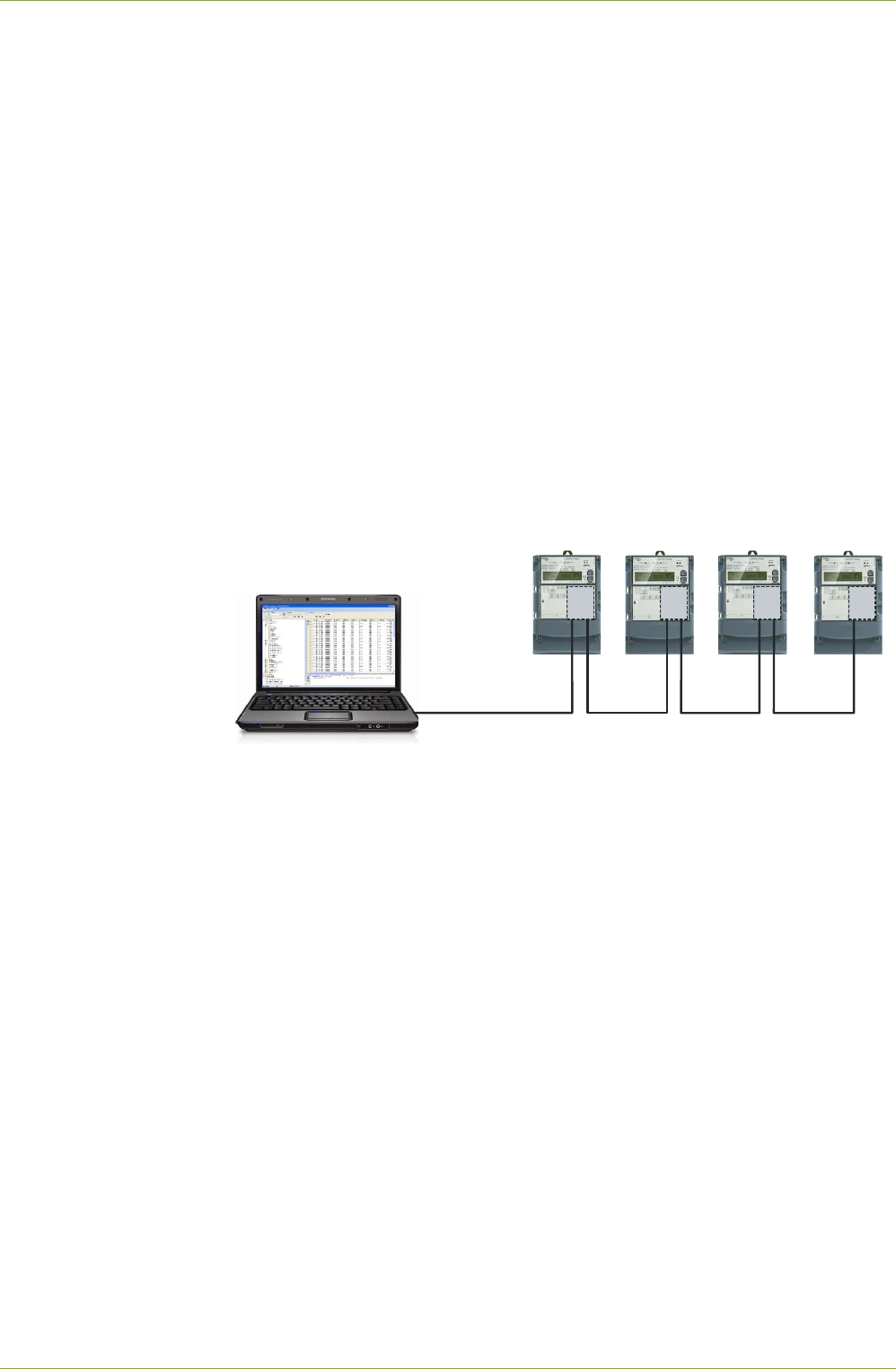
50/122 Communication with Devices
© Landis+Gyr D000011475 en s – .MAP110 Service Tool – User Manual
6.4 Communication Examples
This section provides some examples to show how communication connec-
tions are made to devices via various communication paths and for various
applications:
Serial connection (see section 6.4.1)
Modem connection (see section 6.4.2)
Network connections (see sections 6.4.3 and 6.4.4)
It is assumed in all examples that the physical connections (e.g. cable
or modem connections) have already been made and the Landis+Gyr
.MAP110 Service Tool has already been started.
6.4.1 Serial Connection to a local Bus
This example shows how a multiple connection is made to several devices
mutually connected via RS485 interfaces. dlms is used as communication
protocol. In the layout diagram below, the device numbers are given for ad-
dressing.
Device
76048477
RS232
PC with
.MAP110
Device
75005282
Device
73706202
Device
74651799
RS485 RS485 RS485
CU
B2
CU
B1
CU
B2
CU
B2
Procedure:
1. In the "Device" selection box, select the device you want to read out
device and in the "Channel" selection box the corresponding channel (if
more than one channel is assigned to this device) or create a new
device with the following settings (for procedure see section 6.3.2
"Defining Device Data" and section 6.3.3 "Defining Communication
Channel Data"):
- Physical interface = COM-Port assigned to the RS232 interface
- Interface type = Serial (optical head or 3-wire)
- Template for lower layer settings = Serial - dlms
- Activated HDLC address = 9477 (this is calculated from the last 4
digits of the serial number 76048477 plus 1000 (see section 6.3.7
"Addressing Devices"). Note: to address an other meter change the
device address accordingly in the device definition.
2. In the "Access Level" selection box select the required access level for
the intended activity e.g. "[2] Utility Field Service".
3. Select the required command in the command tree.
The command is executed.
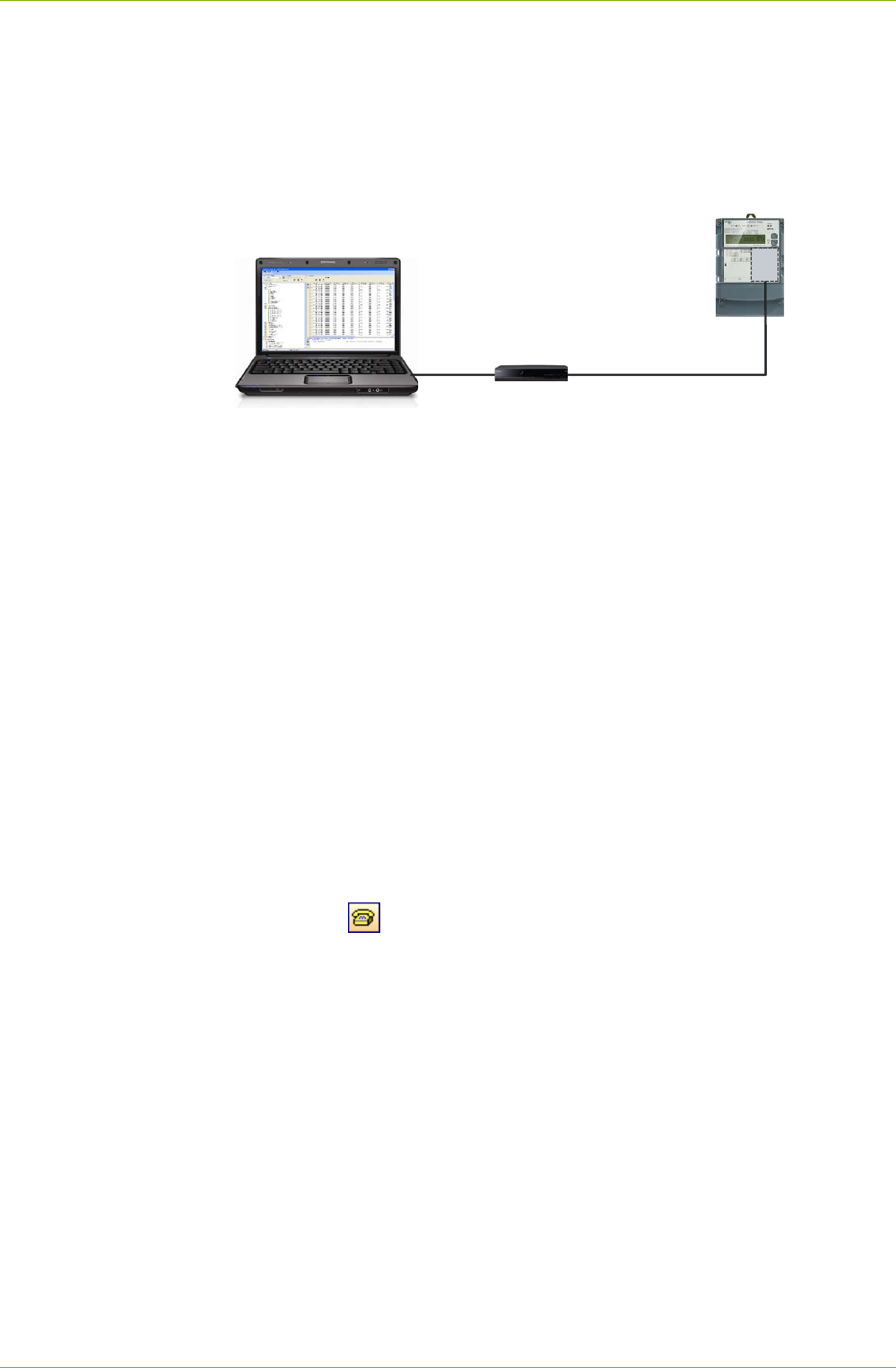
Communication with Devices 51/122
D000011475 en s – .MAP110 Service Tool – User Manual © Landis+Gyr
6.4.2 Modem Connection
This example shows how a point-to-point connection is made for remote
communication with a single device fitted with a communication unit with
PSTN modem (CU-M2x) or with GSM modem (CU-G3x). dlms is used as
communication protocol.
USB or
RS232
PC with
.MAP110
Device
PSTN modem
Modem connection 33600 bps
CU
M2x
If further devices are connected to the device (multiple connection), their
addressing has to be done with the physical device addresses as shown in
the example in section 6.4.1 "Serial Connection to a local Bus".
Procedure:
1. In the "Device" selection box select the device you want to communi-
cate with and in the "Channel" selection box the corresponding channel
(if more than one channel is assigned to this device) or create a new
device with the following settings (for procedure see section 6.3.2
"Defining Device Data" and section 6.3.3 "Defining Communication
Channel Data"):
- Physical interface = The available PSTN (or GSM) modem
- Template for lower layer settings = PSTN (or GSM) Modem
2. In the "Access Level" selection box select the required access level for
the intended work e.g. "[6] Remote Data Colection".
3. In the "Phone" selection box select the required phone number of the
connected device. If not already predefined, define it (for procedure
see section 6.3.4 "Defining Address Data").
4. Click on in the address toolbar to make connection to the modem.
While making the connection the "Command" window is displayed with
a progress indication.
When the connection is made, it is indicated in the command log
window and in the status bar.
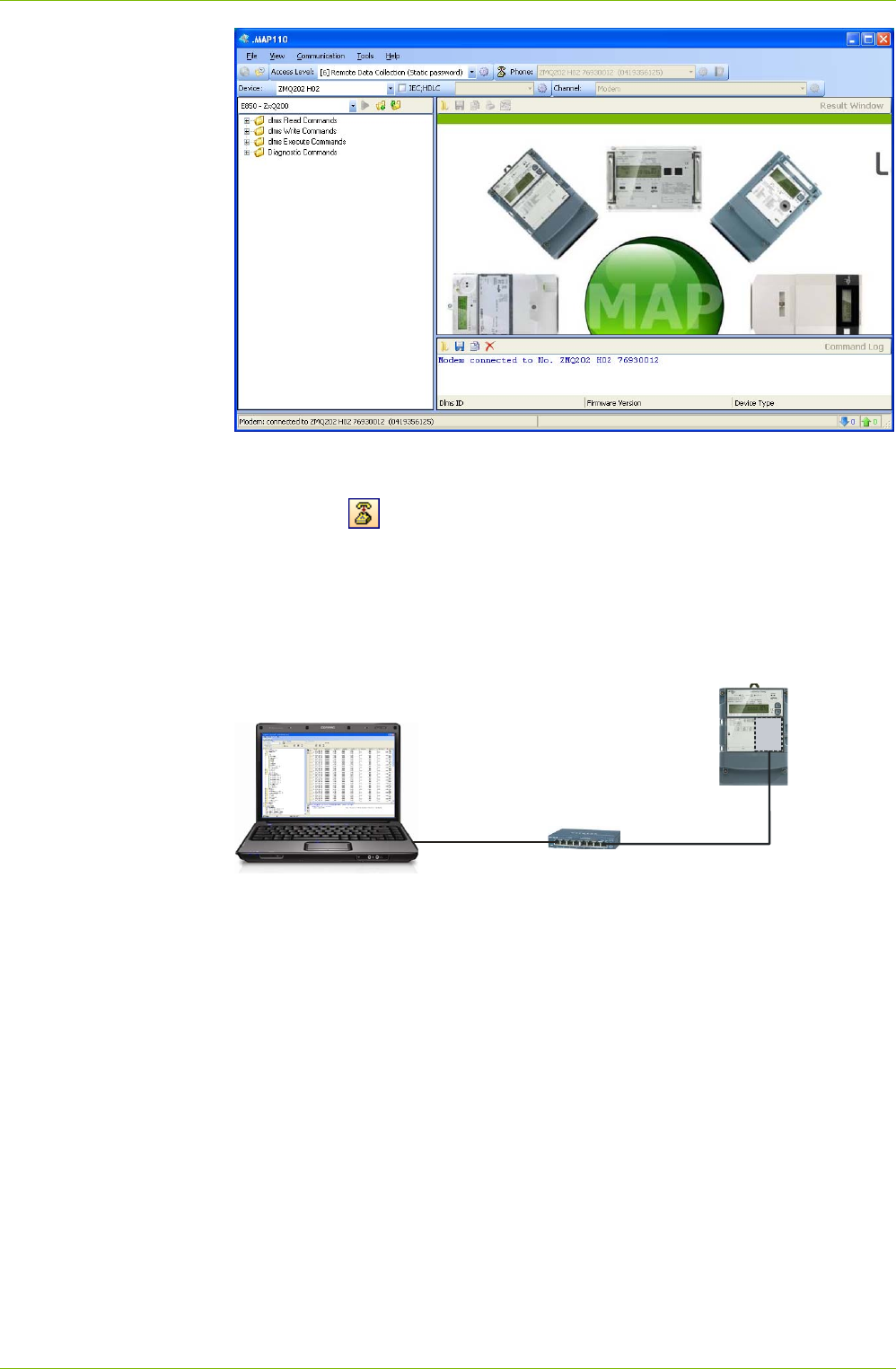
52/122 Communication with Devices
© Landis+Gyr D000011475 en s – .MAP110 Service Tool – User Manual
5. Select the required command in the command tree.
The command is executed.
6. Click on in the address toolbar to conclude the modem connection.
6.4.3 Network Connection via a LAN
This example shows how a point-to-point connection is made via a LAN to
a single device equipped with a communication unit CU-E2x.
Ethernet
PC with
.MAP110
Device
Switch or Router
Ethernet
CU
E2x
If further devices are connected to the device (multiple connection), their
addressing has to be done with the physical device addresses as shown in
the example in section 6.4.1 "Serial Connection to a local Bus".
Procedure:
1. In the "Device" selection box select the device you want to communi-
cate with and in the "Channel" selection box the corresponding channel
(if more than one channel is assigned to this device) or create a new
device with the following settings (for procedure see section 6.3.2
"Defining Device Data" and section 6.3.3 "Defining Communication
Channel Data"):
- Physical interface = The available network card
- Template for lower layer settings = Wired HDLC
2. In the "Access Level" selection box select the required access level for
the intended activity e.g. "[2] Utility Field Service".
3. In the "IP Address" selection box select the required IP address of the
connected device. If not already predefined, define it (for procedure
see section 6.3.4 "Defining Address Data").
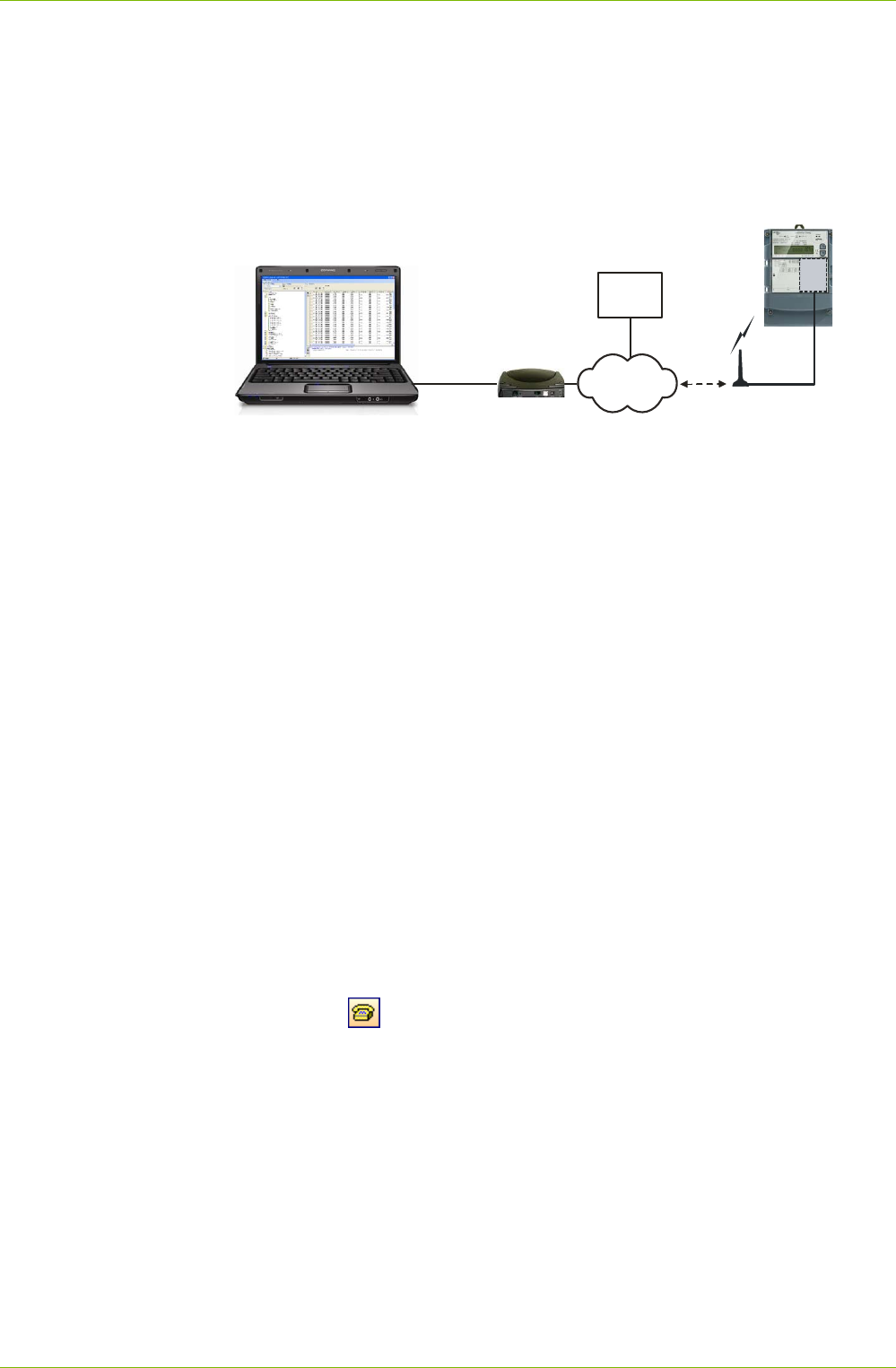
Communication with Devices 53/122
D000011475 en s – .MAP110 Service Tool – User Manual © Landis+Gyr
4. Select the required command in the command tree.
Communication is started and the command executed.
6.4.4 Network Connection via the Internet
This example shows how a point-to-point connection via the Internet is
made to a single device equipped with a communication unit CU-P3x.
PC with
.MAP110
Device
GPRS
CU
P3x
ADSL
Modem
Internet
iMEGA
Server
Ethernet
virtual
COM port
If further devices are connected to the device (multiple connection), their
addressing has to be done with the physical device addresses as shown in
the example in section 6.4.1 "Serial Connection to a local Bus".
Procedure:
1. In the "Device" selection box select the device you want to communi-
cate with and in the "Channel" selection box the corresponding channel
(if more than one channel is assigned to this device) or create a new
device with the following settings (for procedure see section 6.3.2
"Defining Device Data" and section 6.3.3 "Defining Communication
Channel Data"):
- Physical interface = Modem, which has been defined for the virtual
COM port to the iMEGA server
- dlms link layer protocol = Corresponding to the characteristics of the
device connected, e.g. HDLC
- Idle time after connection = 500 ms
- Message timeout = 10000 ms (this avoids the common session to
be finished because of interruptions during data transmission)
2. In the "Phone" selection box select the required network ID of the
connected device (this is treated for the call via the virtual COM port
like a telephone number). If not already predefined, define it (for
procedure see section 6.3.4 "Defining Address Data").
3. Click on in the address toolbar to make connection to the iMEGA
server.
While making the connection the "Command" window is displayed with
a progress indication.
When the connection is made, it is indicated in the command log
window and in the status bar.
4. In the "Access Level" selection box select the required access level for
the intended activity e.g. "[6] Remote Data Collection".
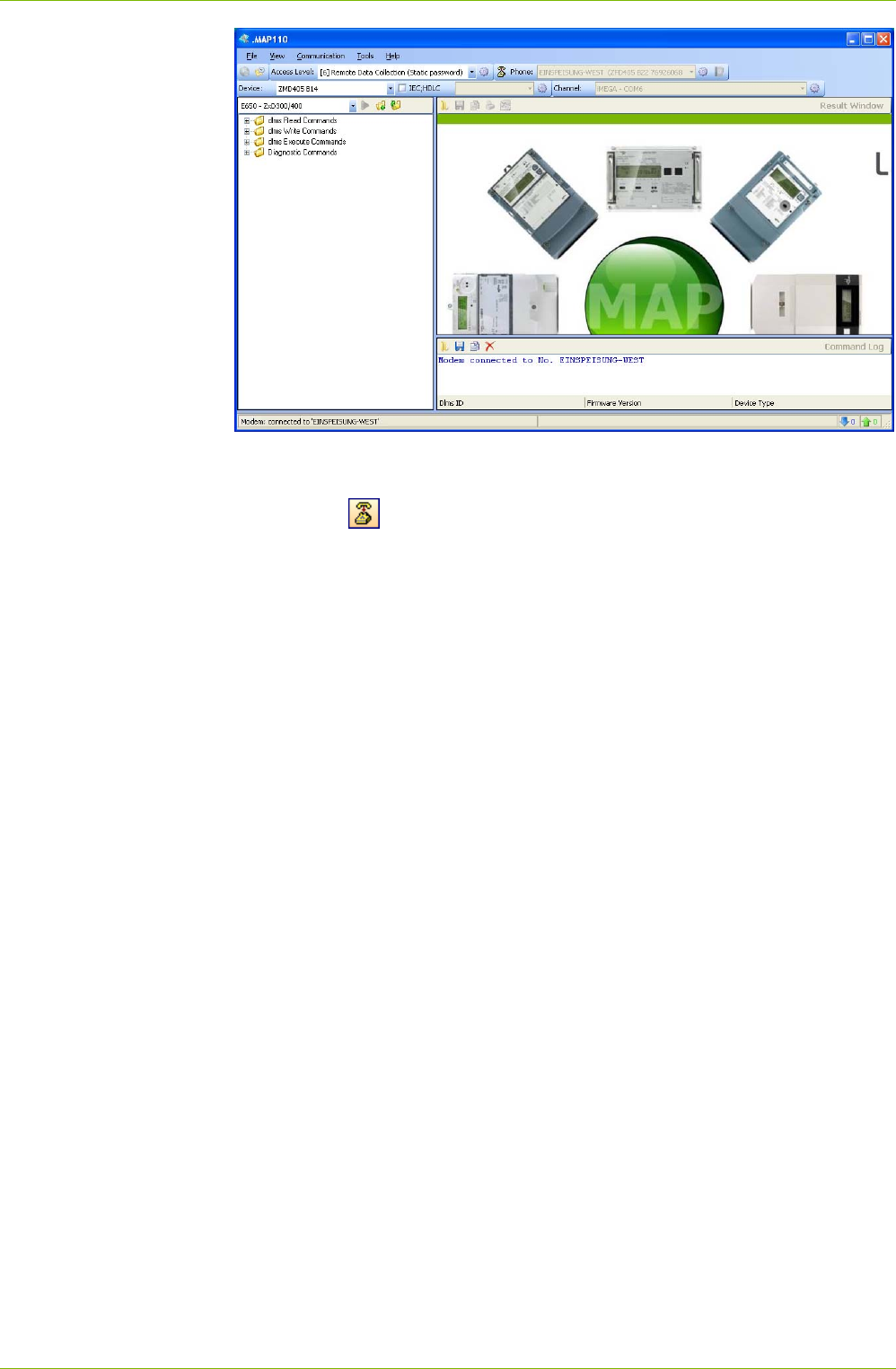
54/122 Communication with Devices
© Landis+Gyr D000011475 en s – .MAP110 Service Tool – User Manual
5. Select the required command in the command tree.
The command is executed.
6. Click on in the address toolbar to conclude the connection to the
iMEGA server.
6.5 Reference to Other Documents
Detailed information about Landis+Gyr Dialog communication solutions can
be found in the following documents.
Data sheets for the various communication units or modules
User manuals for the various communication units or modules
Functional descriptions of communication units or modules
Detailed application notes for numerous reference applications with
various communication units or modules for different transmission
media
All these documents as well as advisory services are available from the
competent representative of Landis+Gyr.
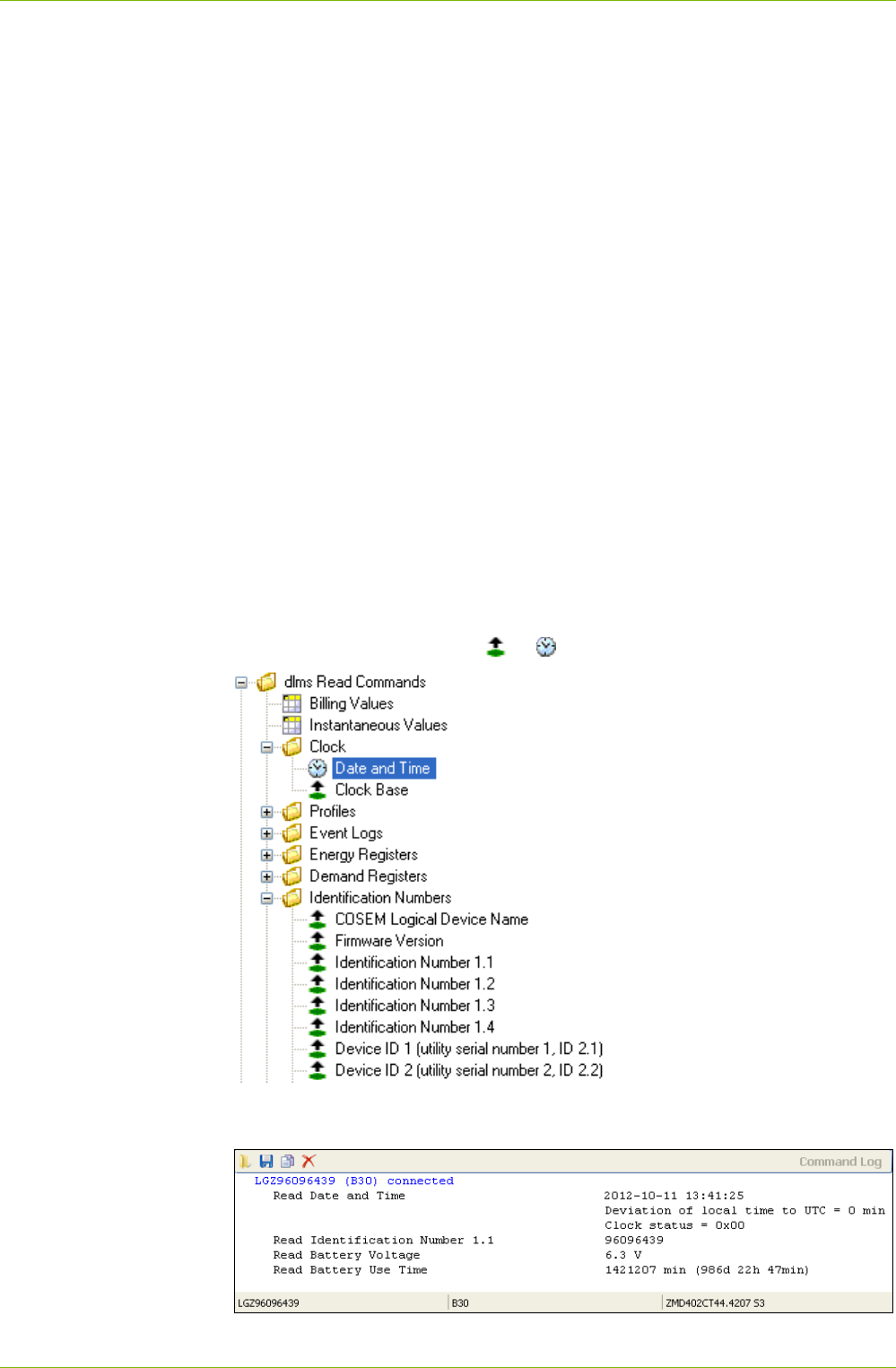
Application of .MAP110 Functions 55/122
D000011475 en s – .MAP110 Service Tool – User Manual © Landis+Gyr
7 Application of .MAP110 Functions
This section contains instructions for the use of functions of the Landis+Gyr
.MAP110 Service Tool and for interpretation or further processing of results.
The selection of commands and their execution is described in section 5.4
"Command Tree" under "Command execution".
7.1 Read Commands
Section 12 "Functional Range per User Group" describes which read com-
mands are available to the individual user groups. The following read com-
mands are explained as examples:
Simple read commands for parameters and values
Extended read commands
Read commands for event logs
Read commands for load profiles
Other read commands can be used in a similar way.
7.1.1 Simple Read Commands
Simple read commands read out an individual parameter or value from the
device which is displayed in the trace window.
For execution, select the corresponding read command in the command
tree marked with the symbol or .
The parameters or values read out each appear in a line in the command
log window (command left, result right):
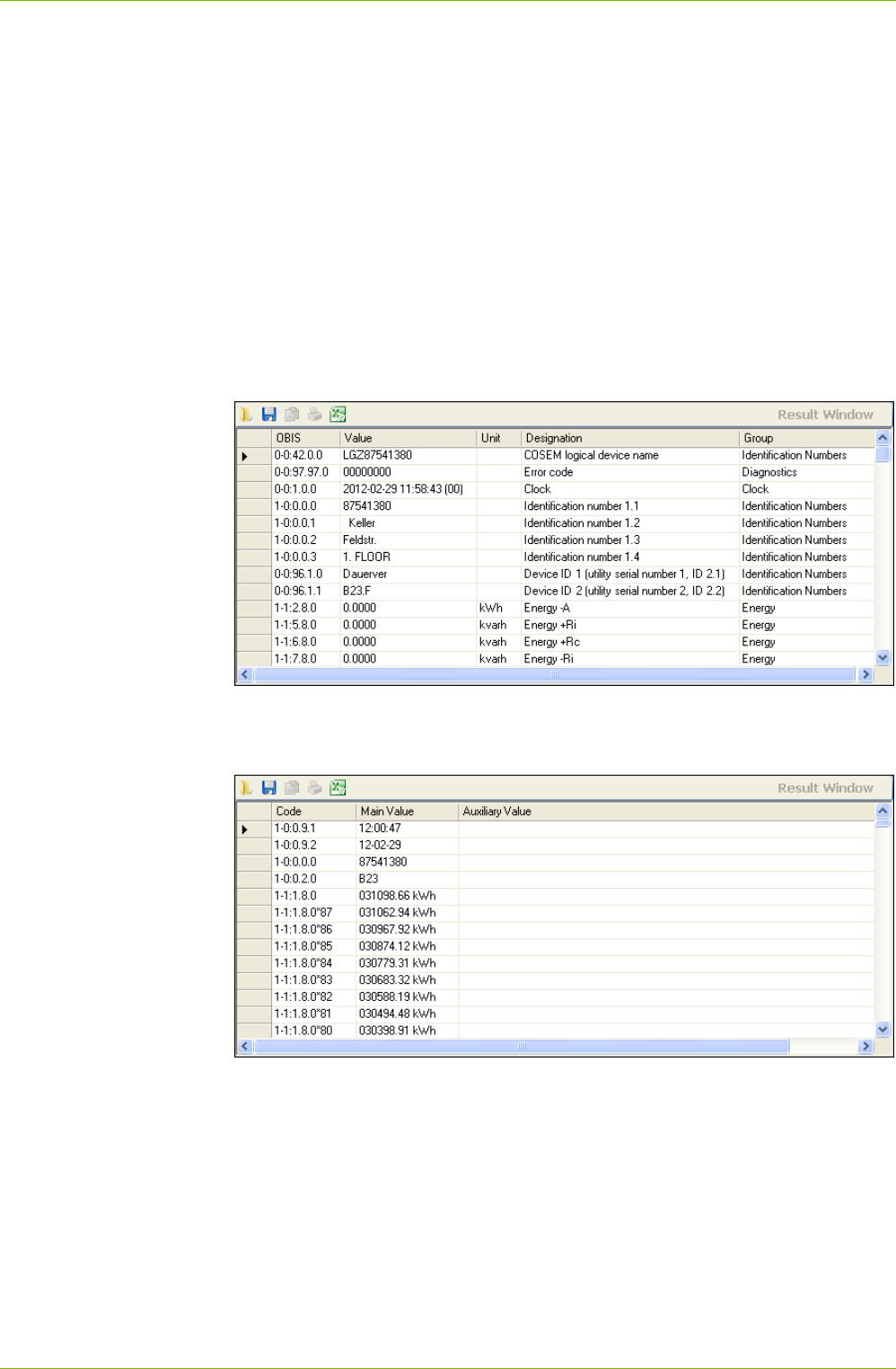
56/122 Application of .MAP110 Functions
© Landis+Gyr D000011475 en s – .MAP110 Service Tool – User Manual
7.1.2 Extended Read Commands
For extended read commands, a table of values and parameters is read out
from the device and displayed in the result window.
To execute, select the "Billing Values" or "Instantaneous Values" read com-
mand (dlms devices) or "Data Readout" (IEC devices) in the command
tree.
The table read out is shown in the result window. Each column of the table
can be sorted in increasing or decreasing order by clicking on the relevant
column heading. The table is sorted alphanumerically and the selected
sorting sequence indicated in the column heading with an arrow pointing
upwards for increasing or downwards for decreasing sequence.
For readout according to dlms, the table contains the OBIS code for every
value or parameter (see section 11 "OBIS Identification Codes"), the dis-
play value, the unit, exact designation and the group.
With readout according to IEC the table contains the code (identification
value) for every value or parameter, the main value and where present an
auxiliary value (e.g. date and time for demand values).
The table can be saved as XML or text file for further processing or ex-
ported directly to the Excel table calculation program (see section 5.5
"Result Window").
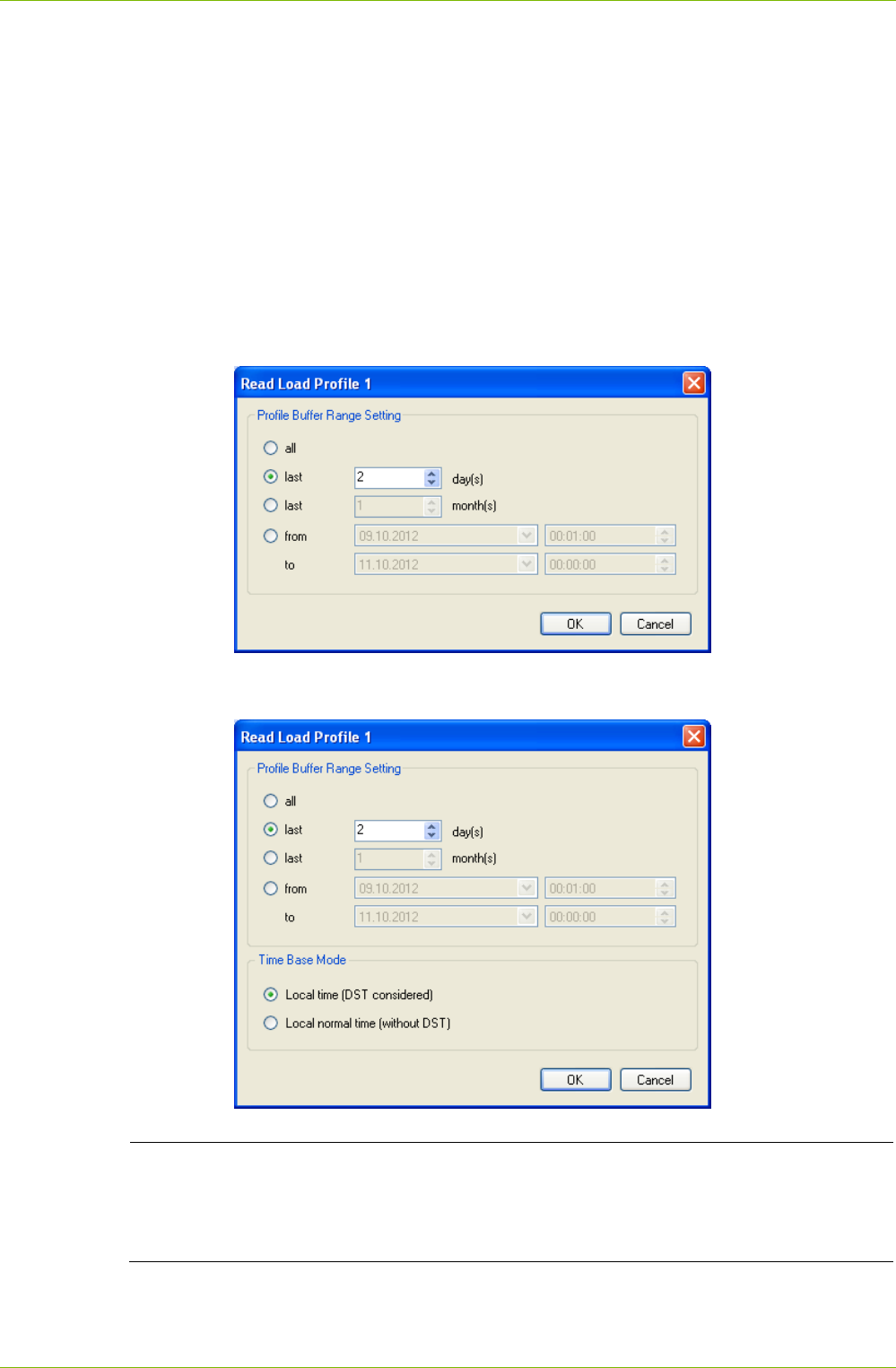
Application of .MAP110 Functions 57/122
D000011475 en s – .MAP110 Service Tool – User Manual © Landis+Gyr
7.1.3 Read Commands for Profiles
With read commands for profiles (event logs, load profiles etc.) the profile
memory is read from the device and shown in the result window.
For execution, select a "Profiles" or "Event Logs" read command in the
command tree.
The profile range to be read out can be specified in a dialogue window:
all (default)
last x days (with x entered)
last x months (with x entered)
from a specific starting date to a specific final date
For devices that support this feature, the desired time base (with or without
daylight saving time) can be chosen additionally:
Shortening readout time by data selection
It is highly recommended to perform a data selection before readout of load
profiles, since readout of the entire profile can take a considerable time
(above all if the device has a short integrating period).
The profile data read out is shown as a table in the result window. With
readout by dlms, the table contains for instance for a load profile the date
and time-of-day, profile status word and the register status recorded for
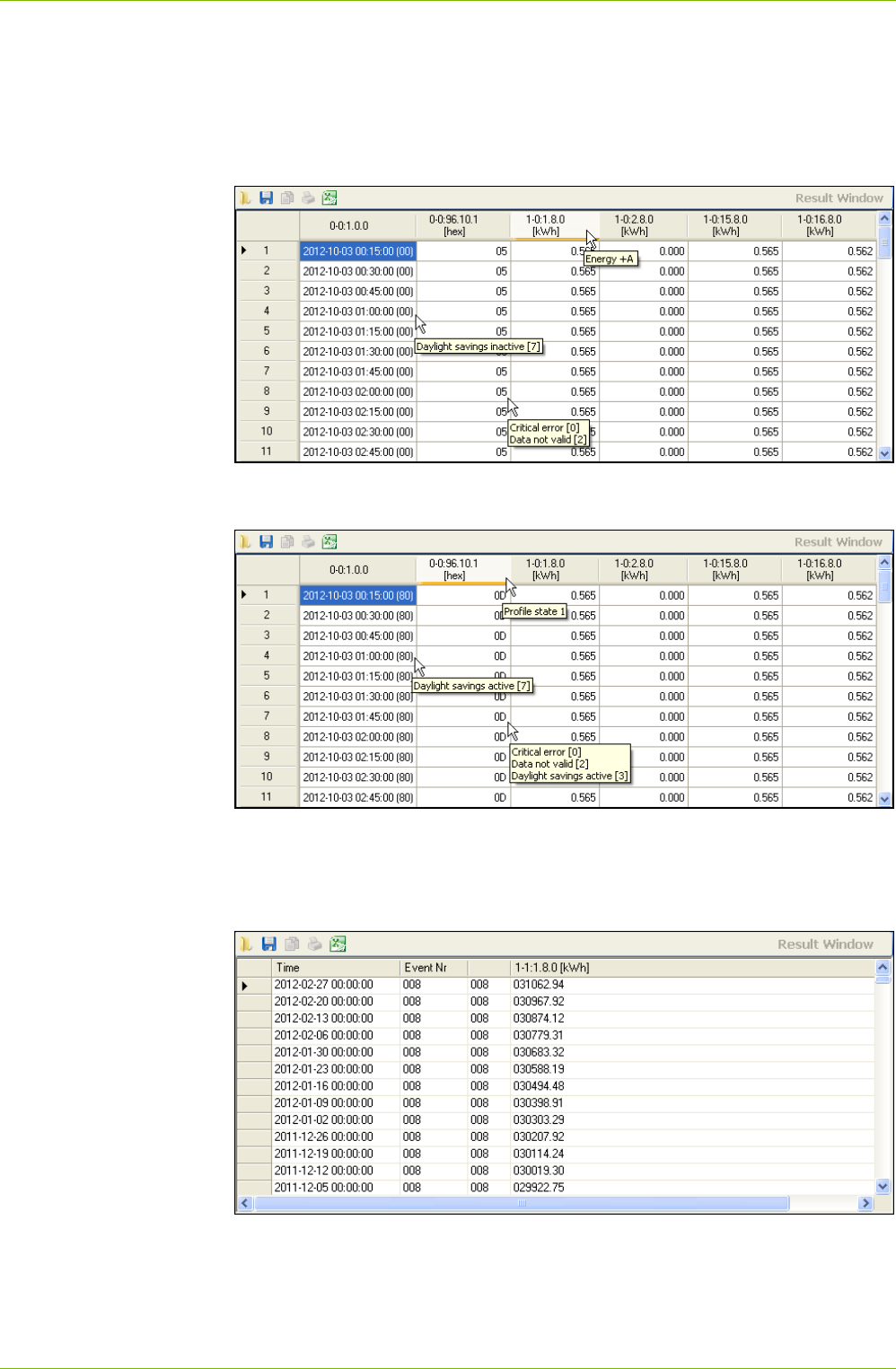
58/122 Application of .MAP110 Functions
© Landis+Gyr D000011475 en s – .MAP110 Service Tool – User Manual
every integrating period. An explanatory text is displayed by positioning the
mouse pointer on a column heading or cell. For example the significance of
the coded profile status word are decoded directly and all individual events
displayed.
Example 1: Readout by dlms of a load profile (time base: local normal time
without DST).
Example 2: Readout by dlms of a load profile (time base: local time with
DST).
With readout according to IEC the table contains the same data for every
profile entry as for readout under dlms, although they are shown slightly
differently (e.g. preceding zeros).
Example 3: Readout according to IEC of an event log.
The table can be saved as XML or text file for further processing or ex-
ported directly to the Excel table calculation program (see section 5.5
"Result Window").
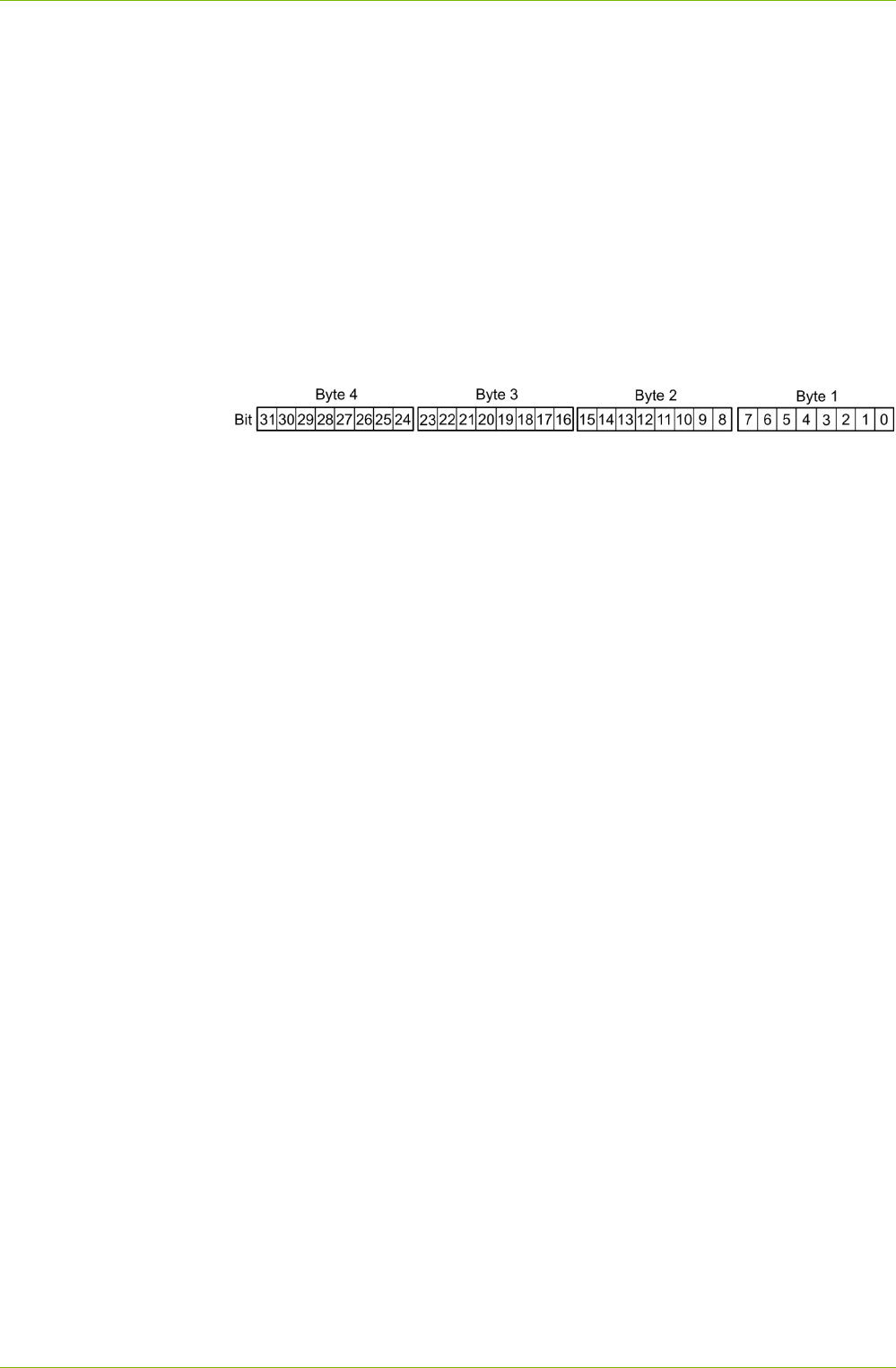
Application of .MAP110 Functions 59/122
D000011475 en s – .MAP110 Service Tool – User Manual © Landis+Gyr
A complete list with details, which event types can be recorded under which
event number in the event log, is contained in the functional descriptions of
the devices.
A complete list with details, which individual events are displayed under
what numbers (corresponding to the bit of the status word) is also con-
tained in the functional descriptions of the devices.
The profile status word indicates the current status of the device and the
network it is connected to.
The profile status word has a size of 4 bytes and can be restricted to 2
bytes by parameterisation with the Landis+Gyr MAP120. In this case only
the bytes 1 and 2 (bits 0 to 15) are available. In the IEC readout only the
bytes 1 and 2 will be included no matter the parameterisation.
Bit assignment in profile status word:
Event types and event
numbers
Profile status word
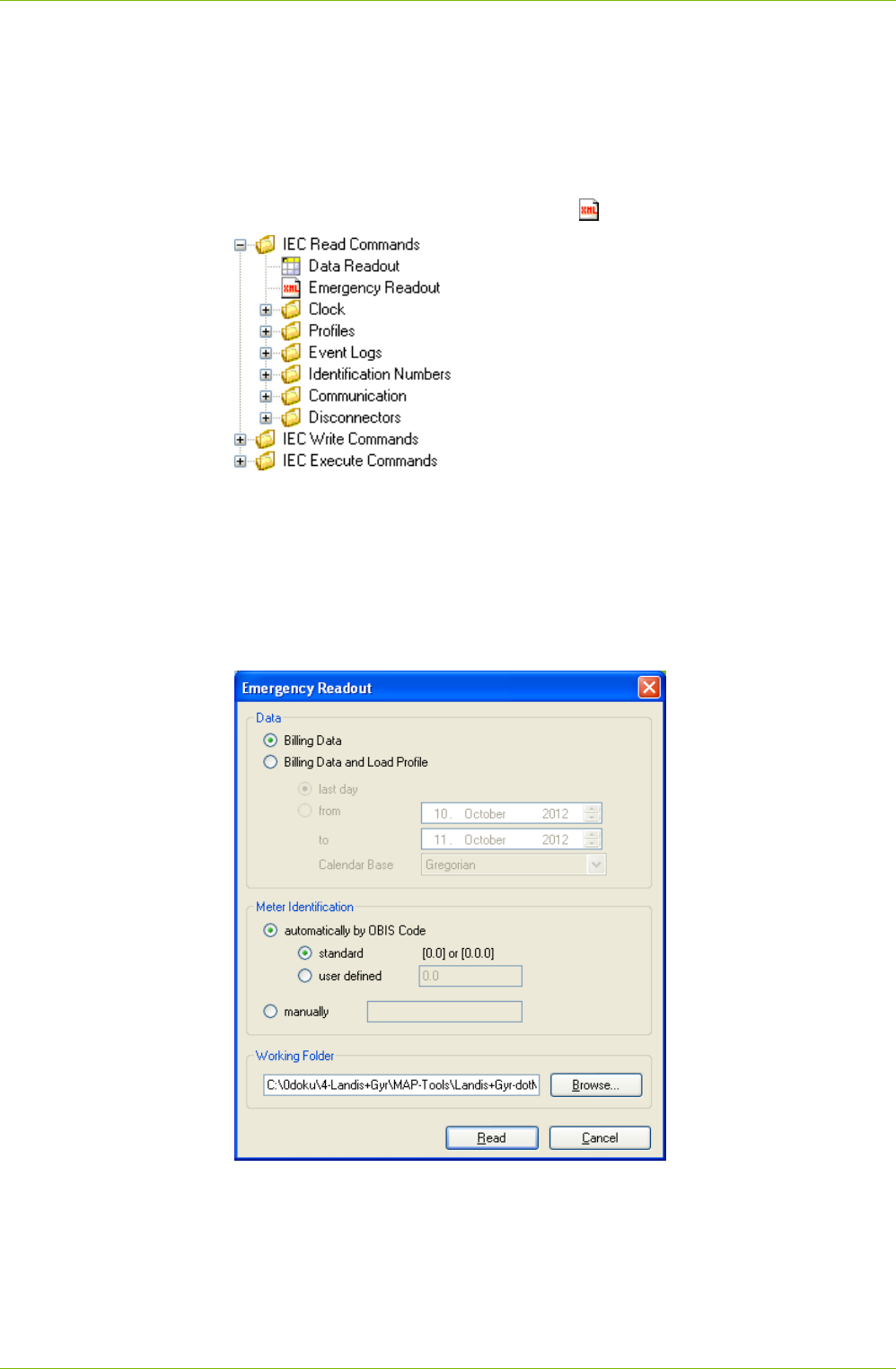
60/122 Application of .MAP110 Functions
© Landis+Gyr D000011475 en s – .MAP110 Service Tool – User Manual
7.1.4 Emergency Readout
With the read command for emergency readout the device data can be
read out into a XML file, e.g. if communication between the central system
and the device fails (for IEC protocol only). This XML file can be imported
later on into the Landis+Gyr automatic device reading system "Converge".
For execution, select the read command for emergency readout in the
command tree marked with the symbol .
The following data can be specified in a dialogue window:
read out only billing data or billing data and load profile in the range
specified
device identification automatically by OBIS code contained in the billing
data or manually
working folder, where the XML file shall be saved
After clicking Read the selected data will be saved into a XML file in the
working folder specified.
The file name corresponds to the device identification, the extension is xml,
e.g. "77708190.xml". If the same device is read out several times, the previ-
ous file is overwritten without warning.
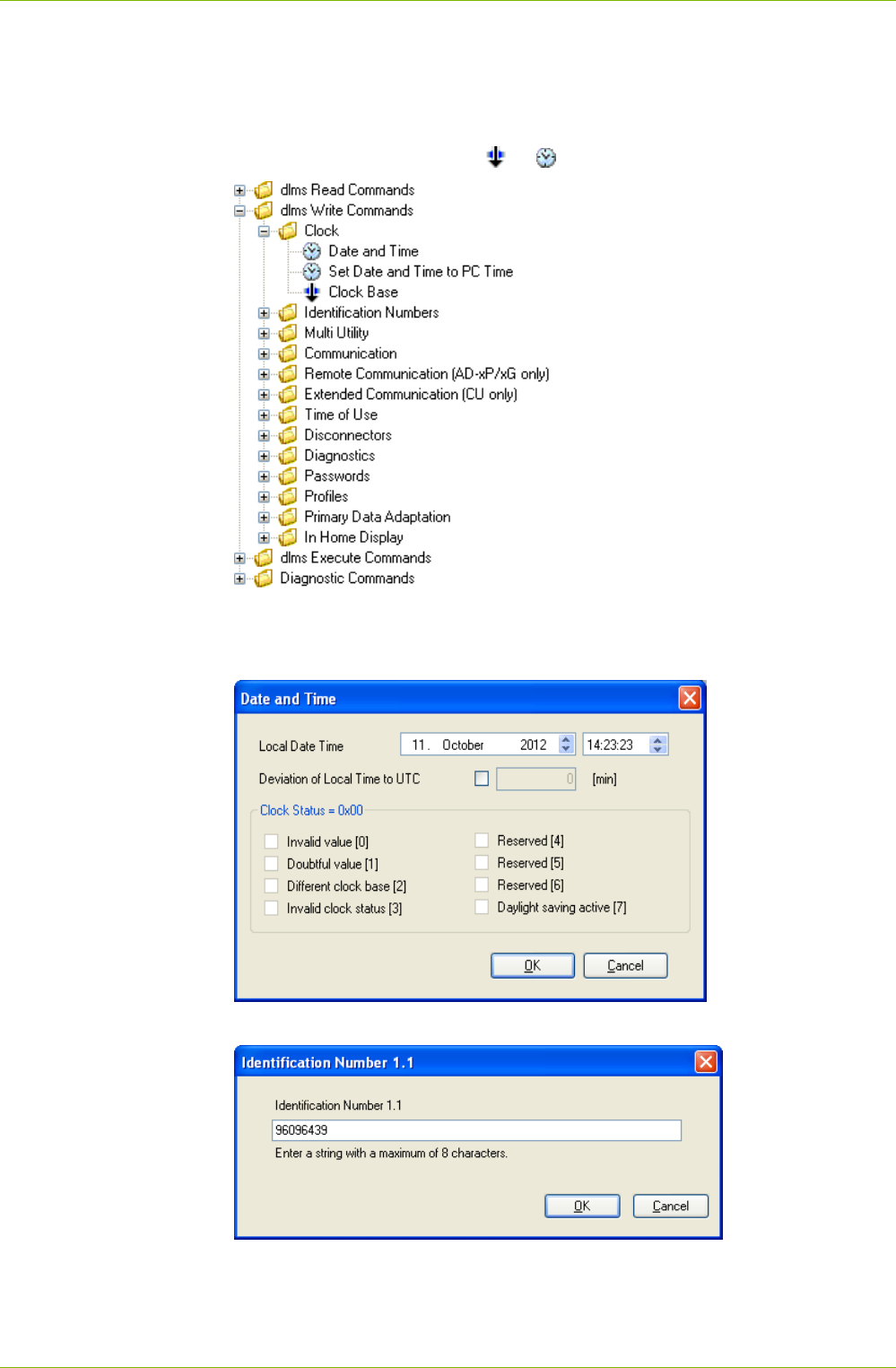
Application of .MAP110 Functions 61/122
D000011475 en s – .MAP110 Service Tool – User Manual © Landis+Gyr
7.2 Write Commands
Section 12 "Functional Range per User Group" describes which write com-
mands are available to the individual user groups.
For execution, select the corresponding write command in the command
tree marked with the symbol or .
With write commands, the current parameter or value is always read out
first from the device and displayed in a dialogue window for modification,
e.g. for setting time and date:
or for writing an identification number:
Modify the data displayed and then click on Ok. The modified data is
written in the device and recorded in the command log window (command
left, value right):
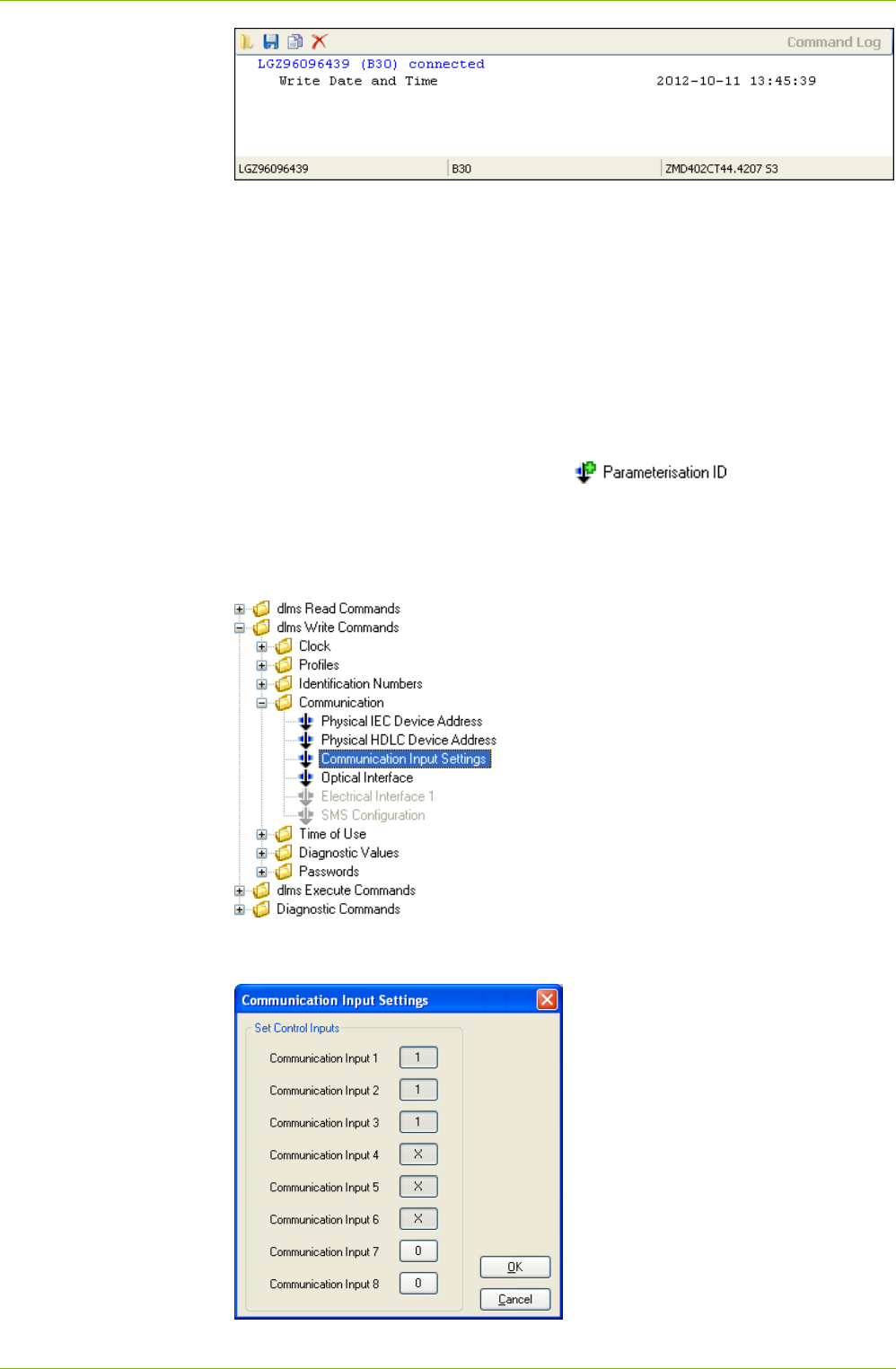
62/122 Application of .MAP110 Functions
© Landis+Gyr D000011475 en s – .MAP110 Service Tool – User Manual
Further write commands are explained as examples in the following sub-
sections.
With the execution of the following write commands, a MAP100 export file
in MAP100 V2.0 format is generated and saved in the directory defined in
the .MAP110 option settings (see section 7.5.9 "Enabling MAP100 File
Export"), if the function is activated:
- Parameterisation ID
- Passwords level 1, 2 and E
- Time of use (TOU)
- Billing period reset.
These write commands are recognisable in the command tree from the
green plus sign added to the icon, e.g. .
7.2.1 Set Communication Inputs
For execution, select the "Communication Input Settings" write command in
the "Communication" folder of the command tree.
All communication inputs are displayed in the dialogue window. By clicking
on a field you can toggle between 0, 1 and X (value remains the same).
Click on OK to write the values set into the device.
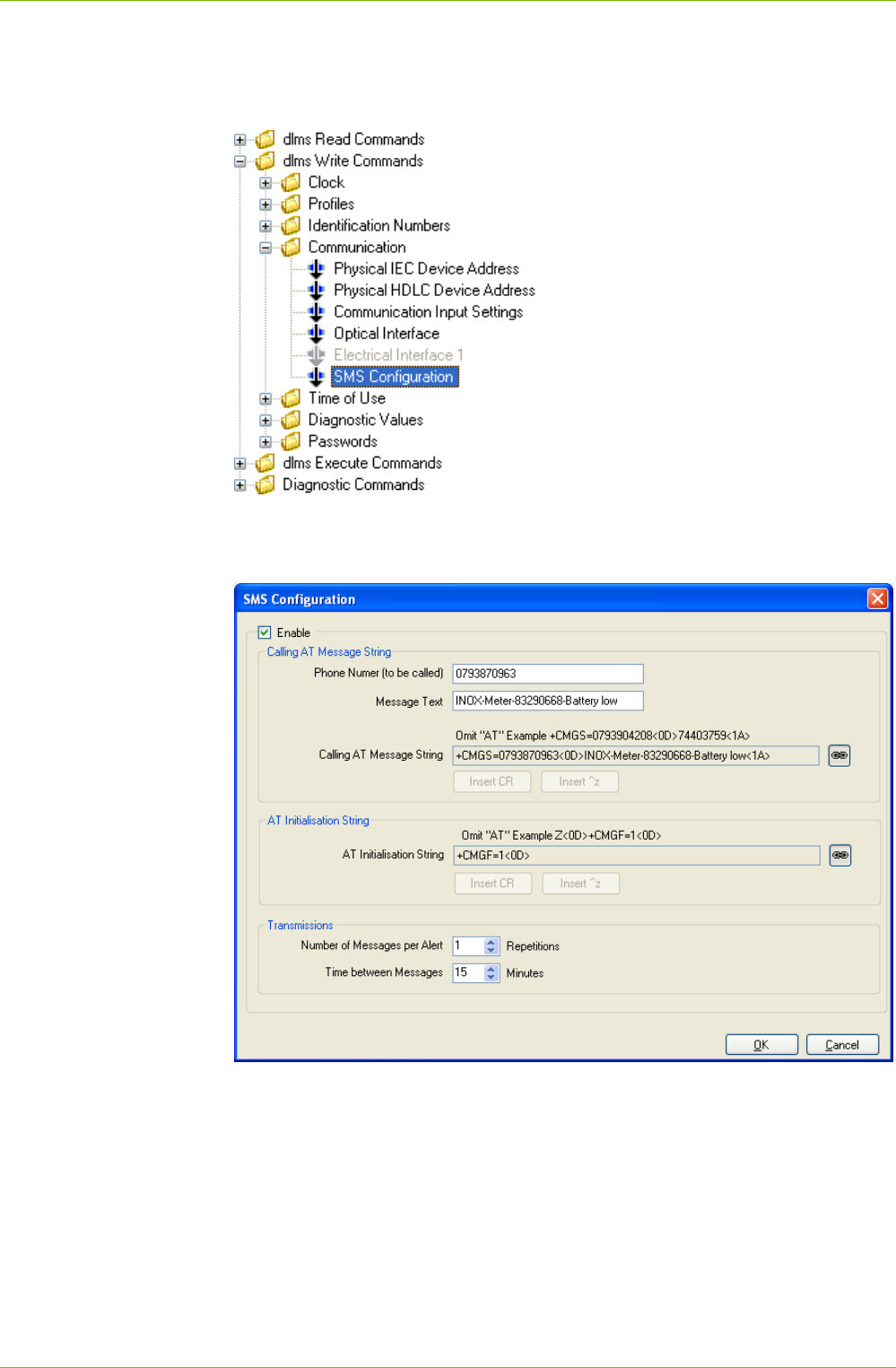
Application of .MAP110 Functions 63/122
D000011475 en s – .MAP110 Service Tool – User Manual © Landis+Gyr
7.2.2 Modify SMS Configuration Settings
For execution, select the "SMS Configuration" write command in the "Com-
munication" folder of the command tree.
The SMS configuration data is displayed in the dialogue window. You can
modify the phone number, the message text, the initialisation string and the
transmission parameters.
Click on OK to write the values set into the device.
You can check the settings with the execute command "SMS Test" (see
7.3.1 "SMS Test Transmission").
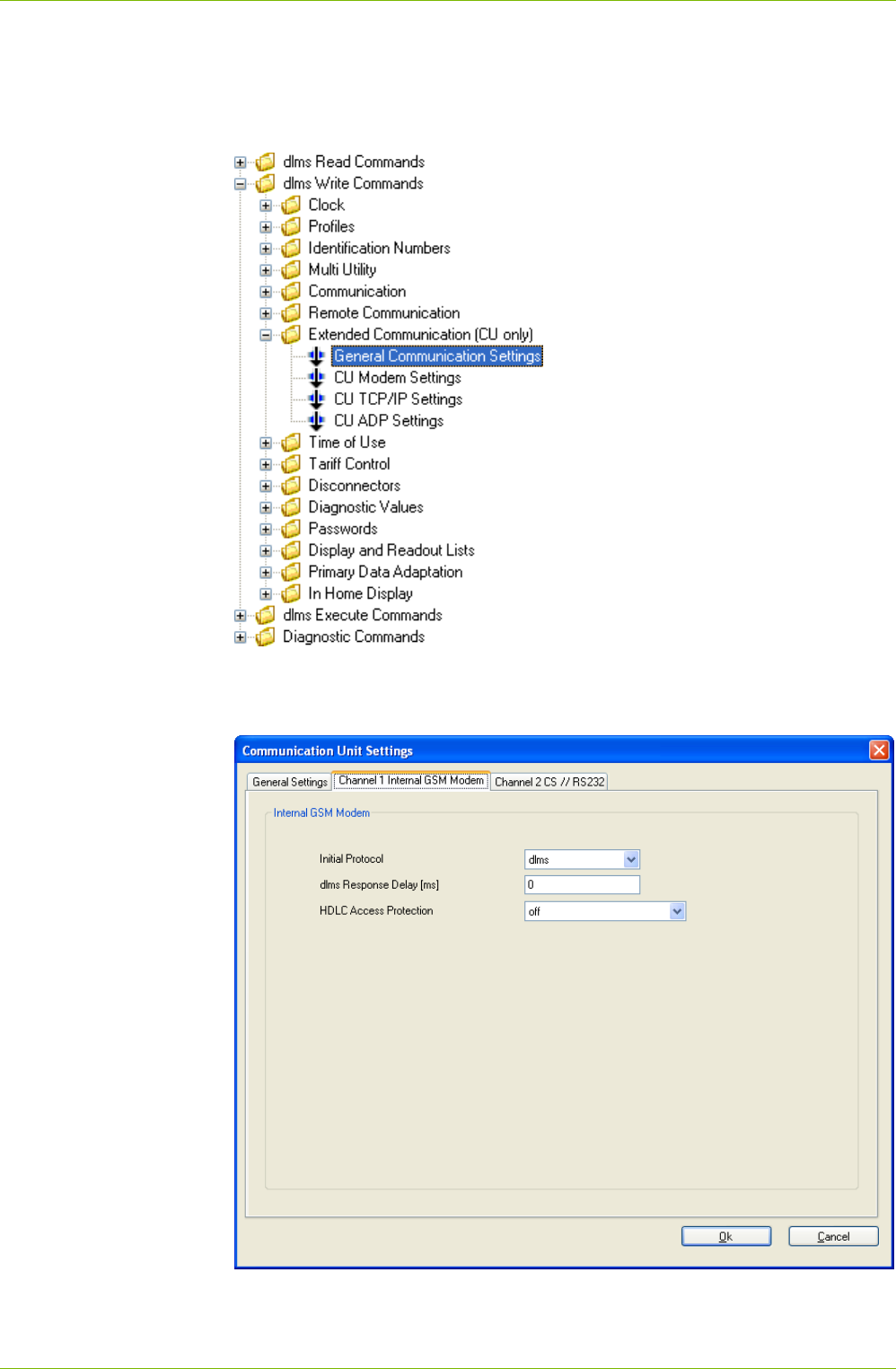
64/122 Application of .MAP110 Functions
© Landis+Gyr D000011475 en s – .MAP110 Service Tool – User Manual
7.2.3 Modify Communication Unit Settings
The write commands in the folder "Extended Communication (CU only)" of
the command tree allow you to modify the settings of communication units
and communication unit adapters (ADP).
In the dialogue window you can modify the corresponding communication
settings, e.g. the modem configuration of a communication unit with GSM /
GPRS modem, as shown in the following figure.
Click on OK to write the values set into the communication unit.
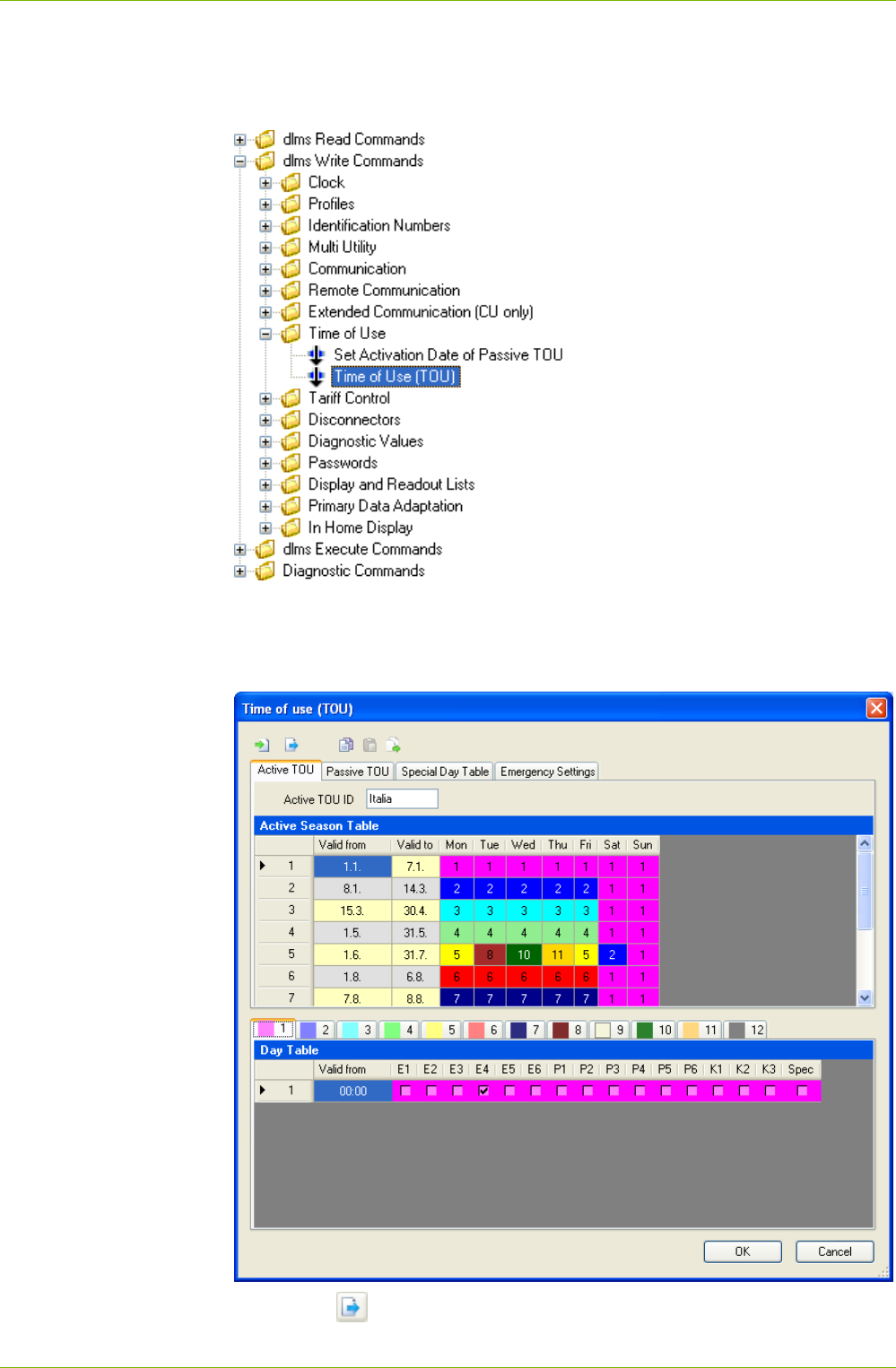
Application of .MAP110 Functions 65/122
D000011475 en s – .MAP110 Service Tool – User Manual © Landis+Gyr
7.2.4 Modify Time of Use
For execution, select the "Time of use (TOU)" write command in the "Time
of Use" folder of the command tree.
In the dialogue window "Time of use (TOU)" you can modify the TOU read
out from the device and write it back again into the device. You can also
save a read out TOU in a XML file or load a saved XML file into the
.MAP110 to write it into the device.
Clicking on opens the "Save as" dialogue window to save the TOU in a
freely selected directory as XML file.
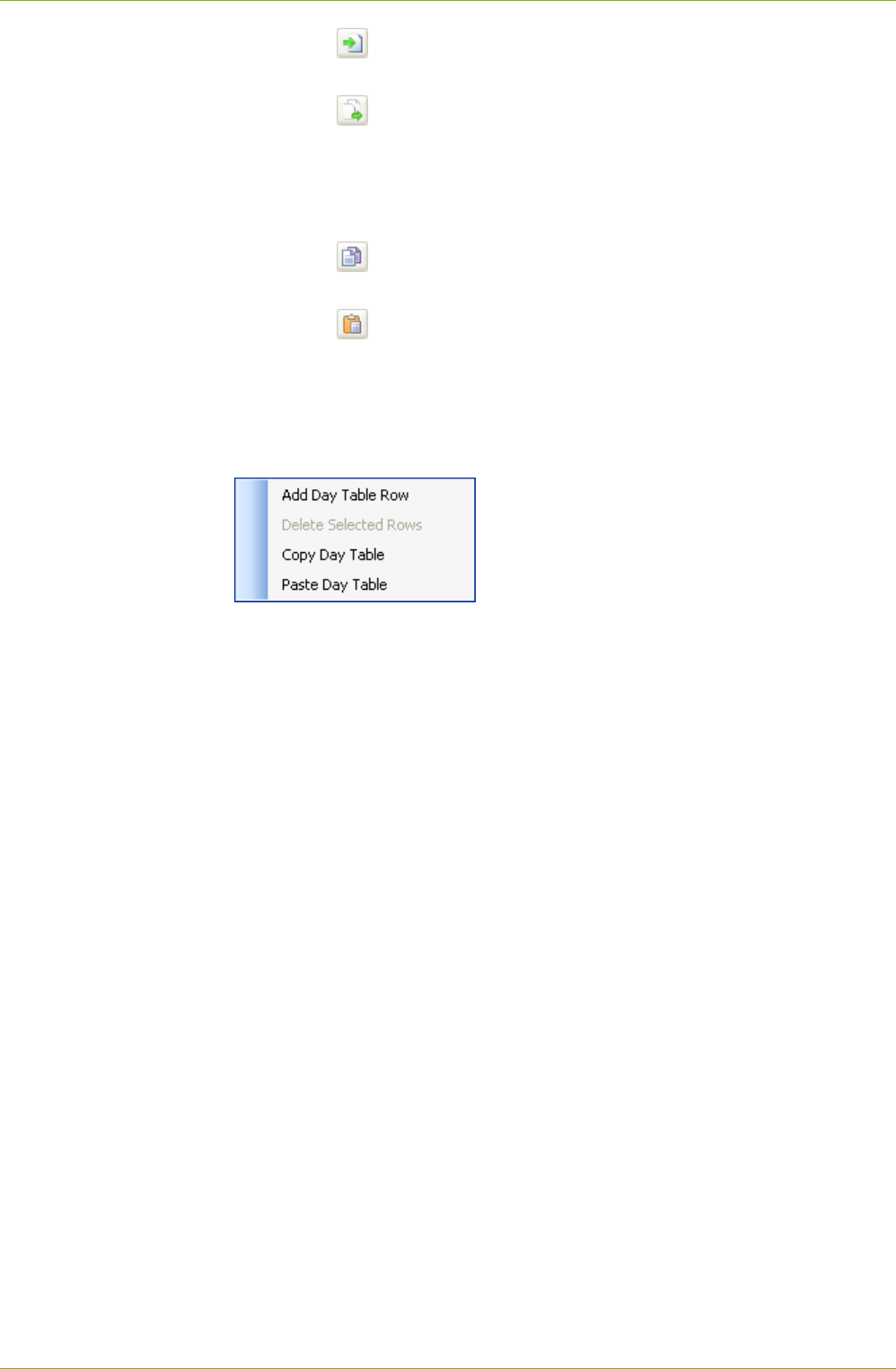
66/122 Application of .MAP110 Functions
© Landis+Gyr D000011475 en s – .MAP110 Service Tool – User Manual
Clicking on opens the "Open File" dialogue window to load a TOU
saved in a XML file.
Clicking on copies the active TOU into the passive TOU.
You can also copy the entire TOU or an individual table to the Windows
clipboard to paste it afterwards into the TOU of another device connected
to the .MAP110 and write it into this device. The TOU of the different device
families are thereby exchangeable among themselves.
Clicking on copies the entire TOU from the .MAP110 to the Windows
clipboard.
Clicking on copies an individual table from the Windows clipboard into
the .MAP110.
To copy an individual table to the Windows clipboard or to paste it from the
Windows clipboard, click in the "Time of use (TOU)" dialogue window on a
table and then select the corresponding copy or paste command in the pop-
up menu appearing.
Via the Windows clipboard it is also possible to import an entire TOU from a
Landis+Gyr .MAP120 Parameter Editor. The transfer in the opposite direc-
tion from .MAP110 to .MAP120 is however not supported.
Click on OK to write the modified or imported TOU into the device. After-
wards the "Time of use (TOU)" dialogue window disappears again.
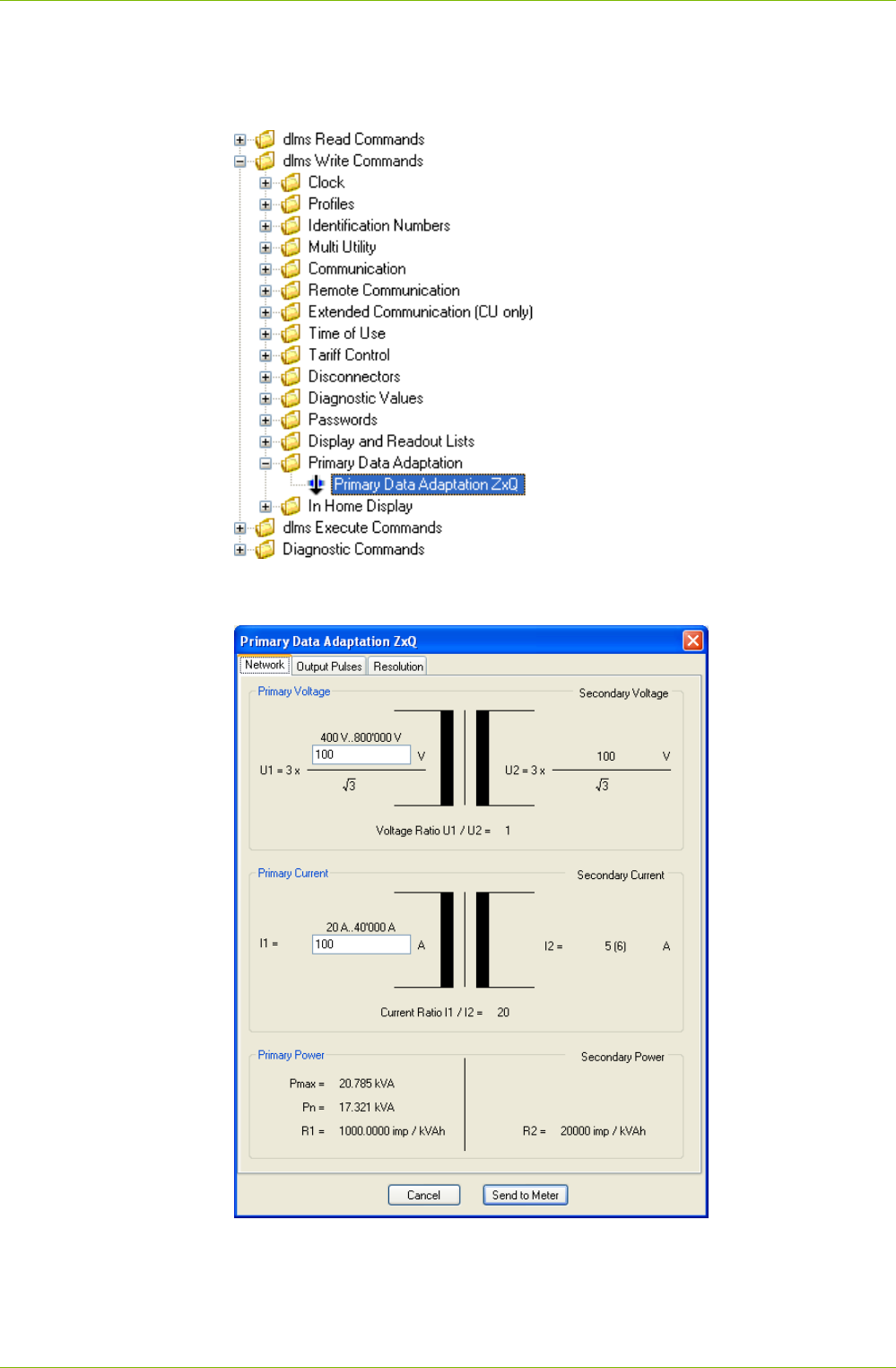
Application of .MAP110 Functions 67/122
D000011475 en s – .MAP110 Service Tool – User Manual © Landis+Gyr
7.2.5 Primary Values Adaptation
For execution, select the "Primary Data Adaptation" write command in the
"Primary Data Adaptation" folder of the command tree.
In the dialogue window you can modify the primary value adaptation
settings of transformer connected devices.
Click on Send to Meter to write the values set into the device.
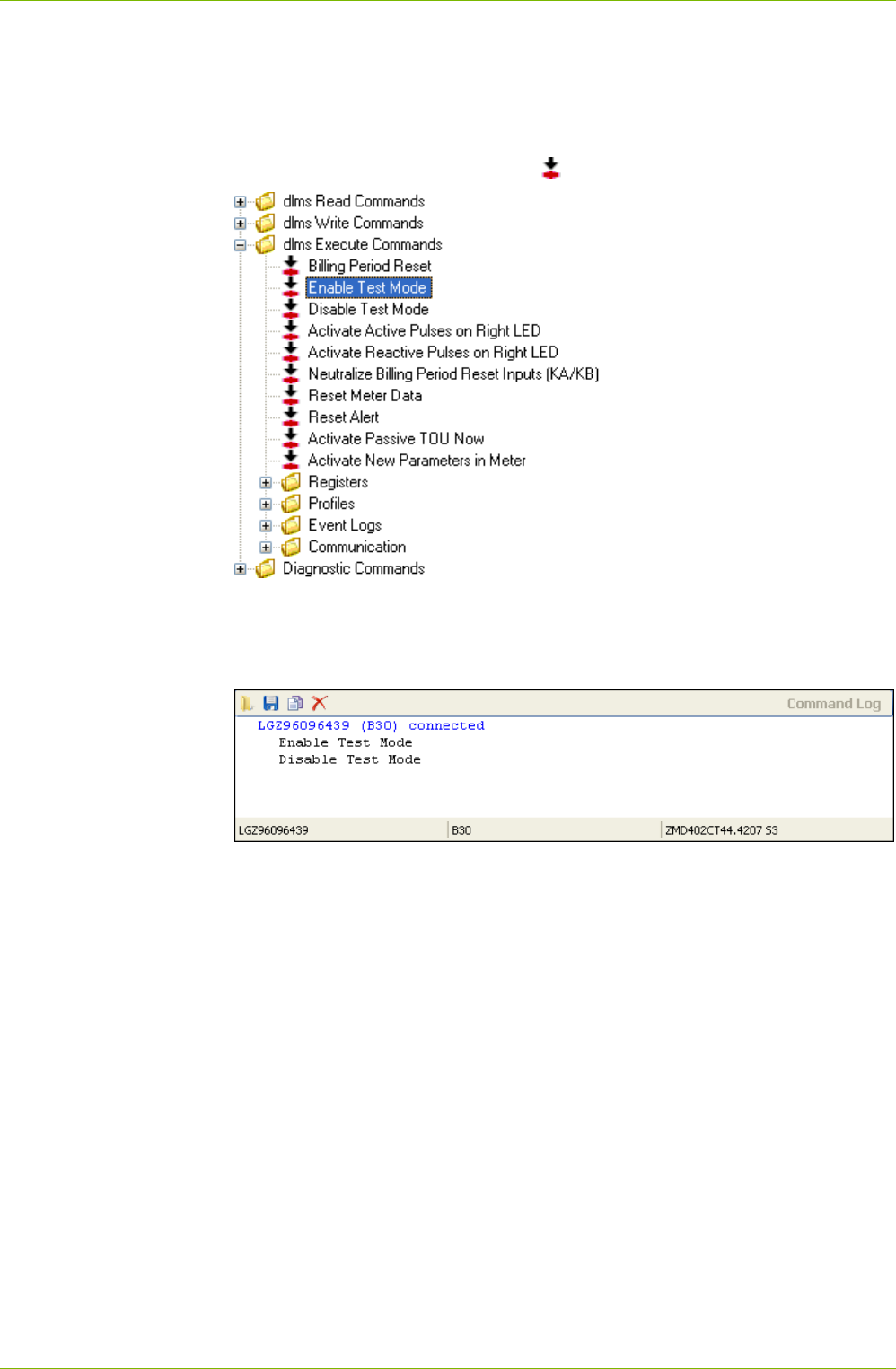
68/122 Application of .MAP110 Functions
© Landis+Gyr D000011475 en s – .MAP110 Service Tool – User Manual
7.3 Execute Commands
Section 12 "Functional Range per User Group" describes which execute
commands are available to the individual user groups.
For execution, double click the relevant execution command in the com-
mand tree marked with the symbol .
The execute command is normally transmitted to the device without addi-
tional dialogue (exception: see 7.3.1 "SMS Test Transmission") and exe-
cuted there. The commands executed are recorded in the command log
window:
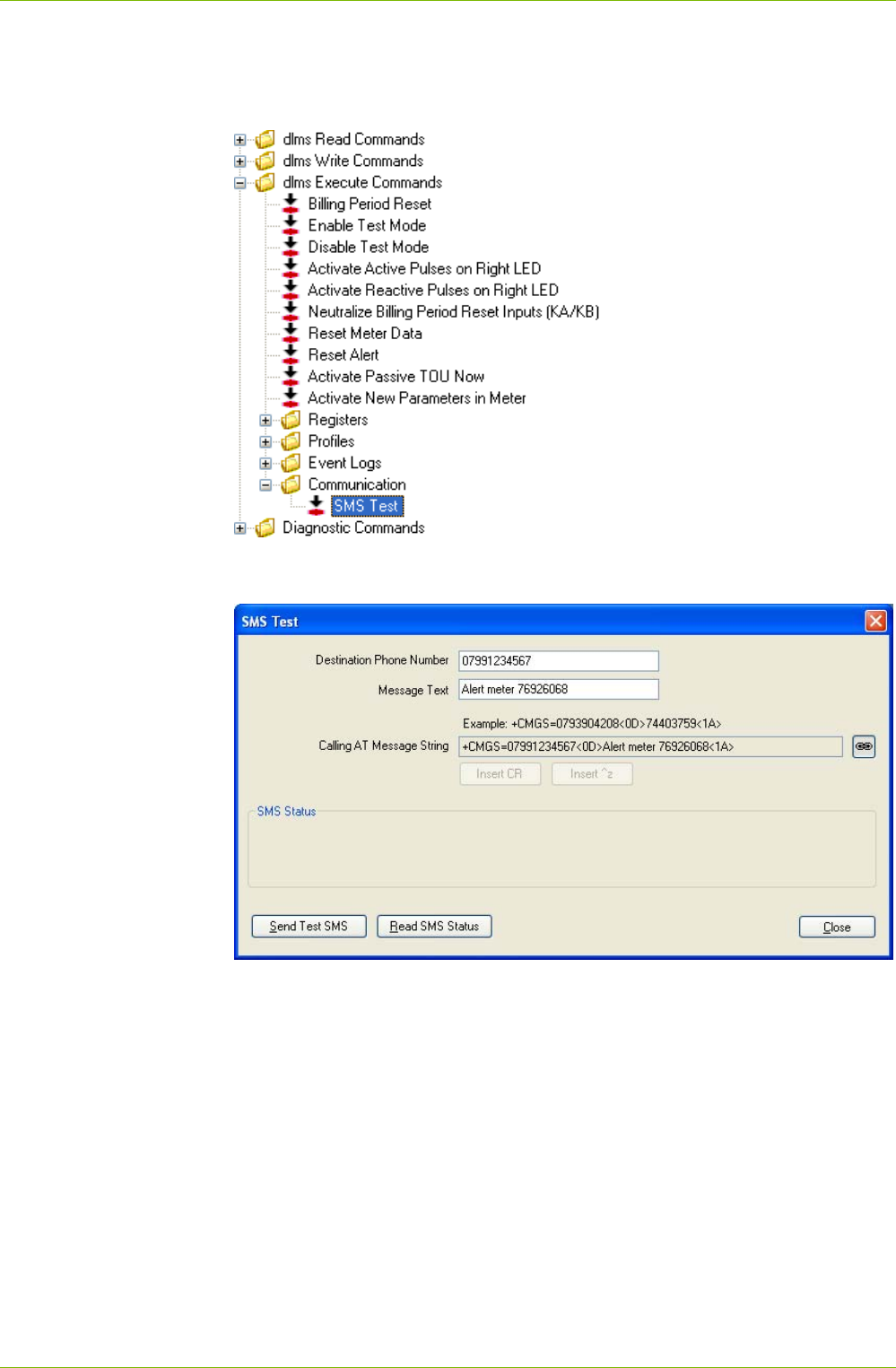
Application of .MAP110 Functions 69/122
D000011475 en s – .MAP110 Service Tool – User Manual © Landis+Gyr
7.3.1 SMS Test Transmission
For execution, select the "SMS Test" execute command of the command
tree.
The "SMS Test" dialogue window appears. In this window you can enter
the phone number to be called and the message text of the test SMS.
Click on Send Test SMS to send the Test SMS.
By clicking on Read SMS Status you can display the SMS status.
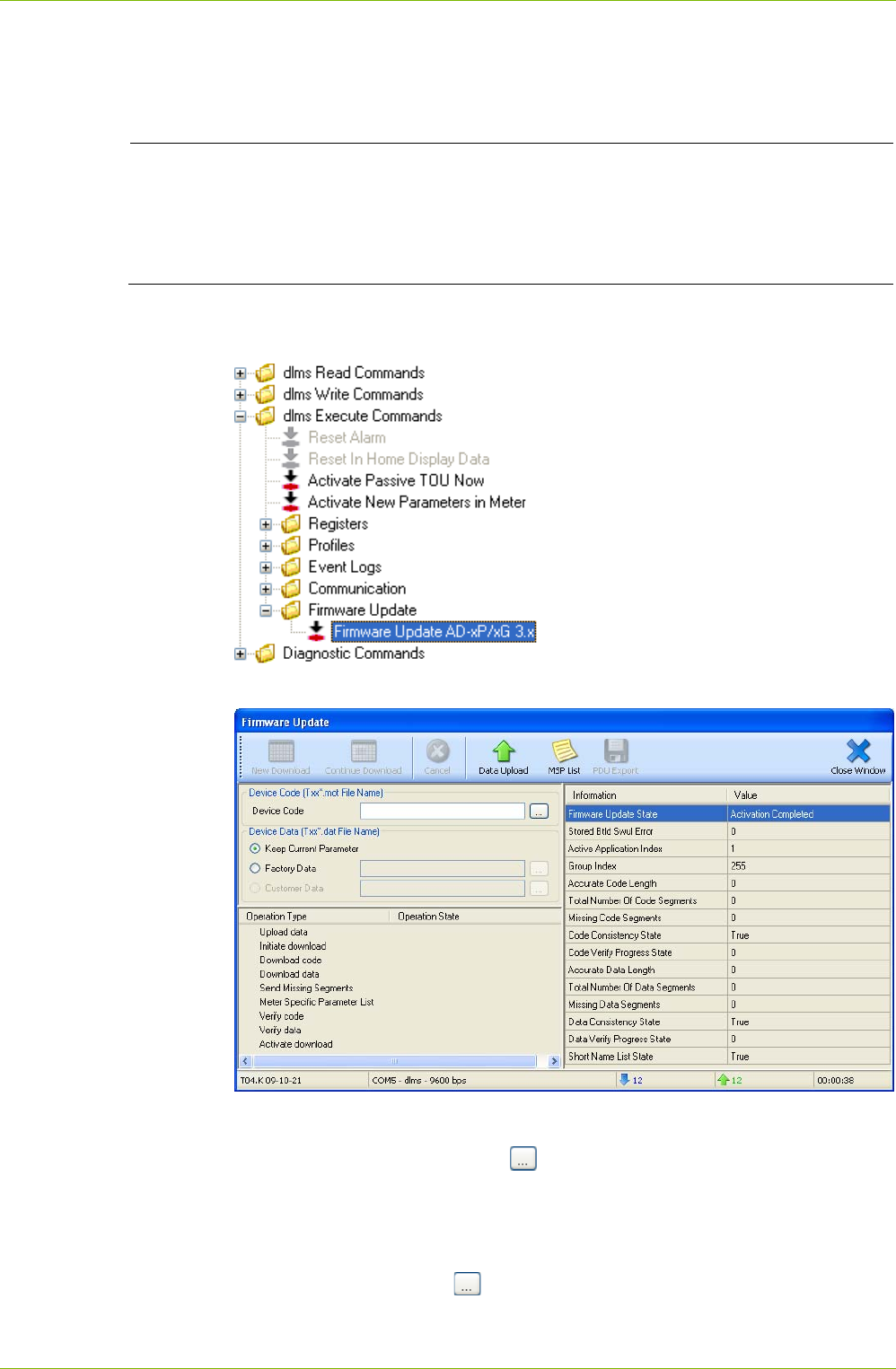
70/122 Application of .MAP110 Functions
© Landis+Gyr D000011475 en s – .MAP110 Service Tool – User Manual
7.3.2 Firmware Update AD-xP/xG
This execute command is only applicable for communication modules
AD-xP/xG version 3.x.
Additional knowledge required
Additional knowledge is required to apply this execute command. The
following information provides only an overview about this command.
Please contact your sales representative to receive further information
about this command.
For execution, select the "Firmware Update AD-xP/xG 3.x" execute
command of the command tree.
The "Firmware Update" window appears.
Enter the name of the MOT file with the new firmware version in the entry
field "Device Code" or select a file in the "Select Device Code File" window,
which appears after clicking on .
In the "Device Data" area, select whether the current parameters shall be
kept or whether a factory parameterisation shall be executed. Enter the
name of the DAT file in the entry field "Factory Data" for the factory para-
meterisation or select a file in the "Select Factory Data File" window, which
appears after clicking on .
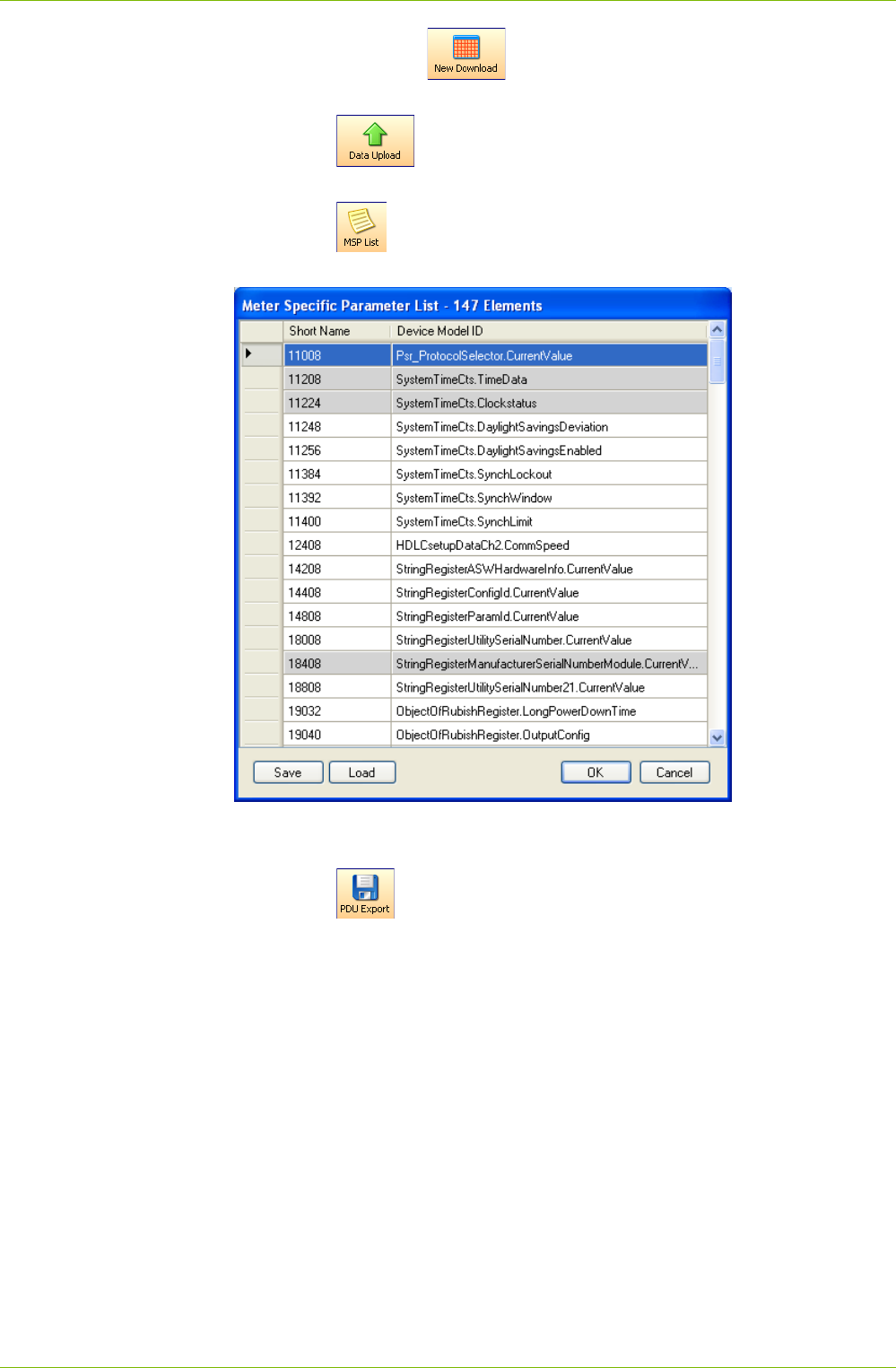
Application of .MAP110 Functions 71/122
D000011475 en s – .MAP110 Service Tool – User Manual © Landis+Gyr
Afterwards the button is activated and can be used to download
the new firmware version into the device.
Clicking on reads the data from the device and saves the data in
a DAT file.
Clicking on reads a device specific parameter list from the device
and displays this in a window.
The list can be edited by deleting entries or by adding new entries at the
end of the list. Click on Save to save the list as XML file.
Clicking on exports the device data as Protocol Data Unit (PDU) in
an XML file.
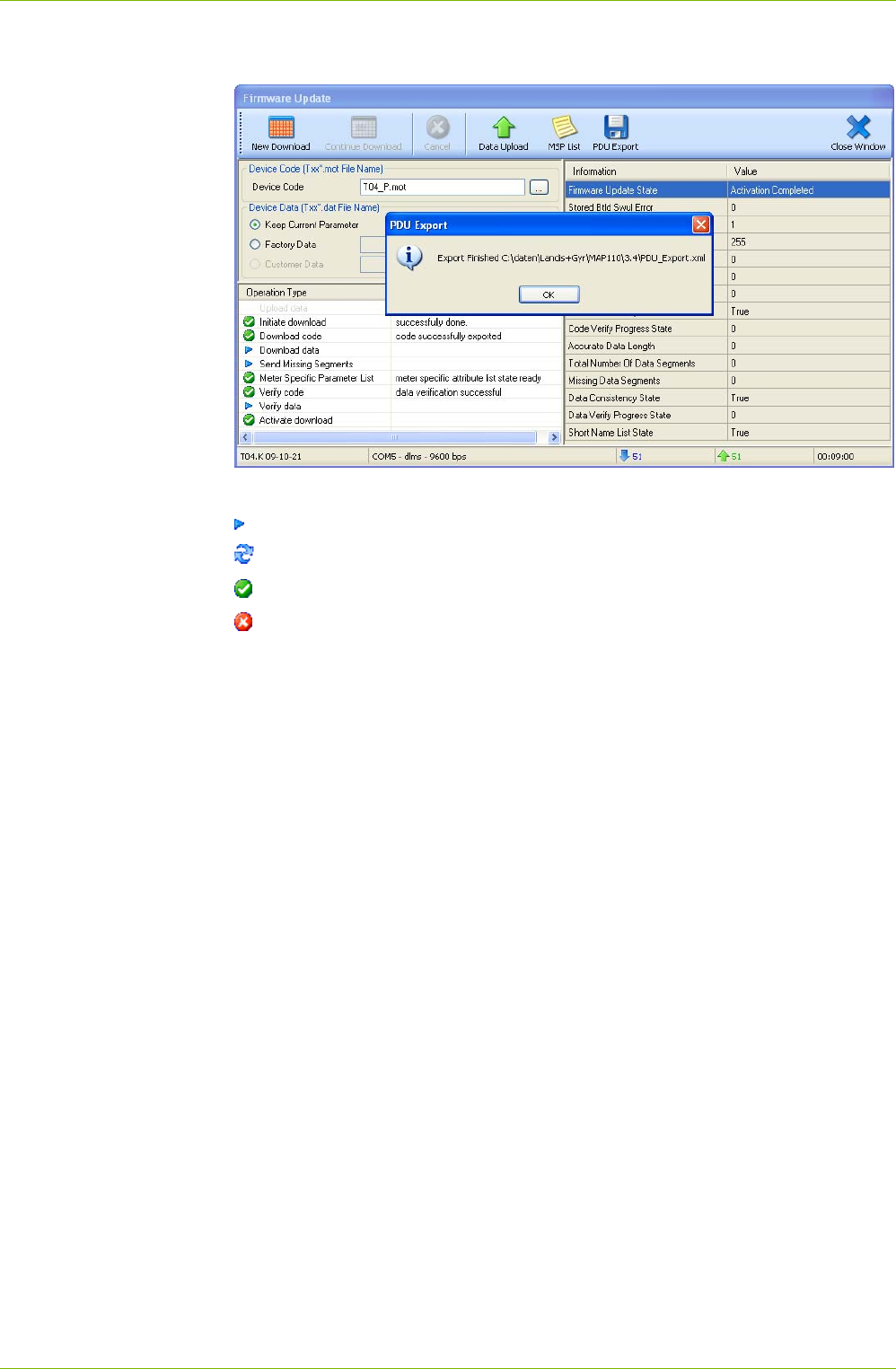
72/122 Application of .MAP110 Functions
© Landis+Gyr D000011475 en s – .MAP110 Service Tool – User Manual
The operation types and operation states are displayed in the "Firmware
Update" window.
The icons in column "Operation Type" have the following signification:
indicates a process not yet executed.
indicates a running process.
indicates a process successfully terminated.
indicates a failed process.
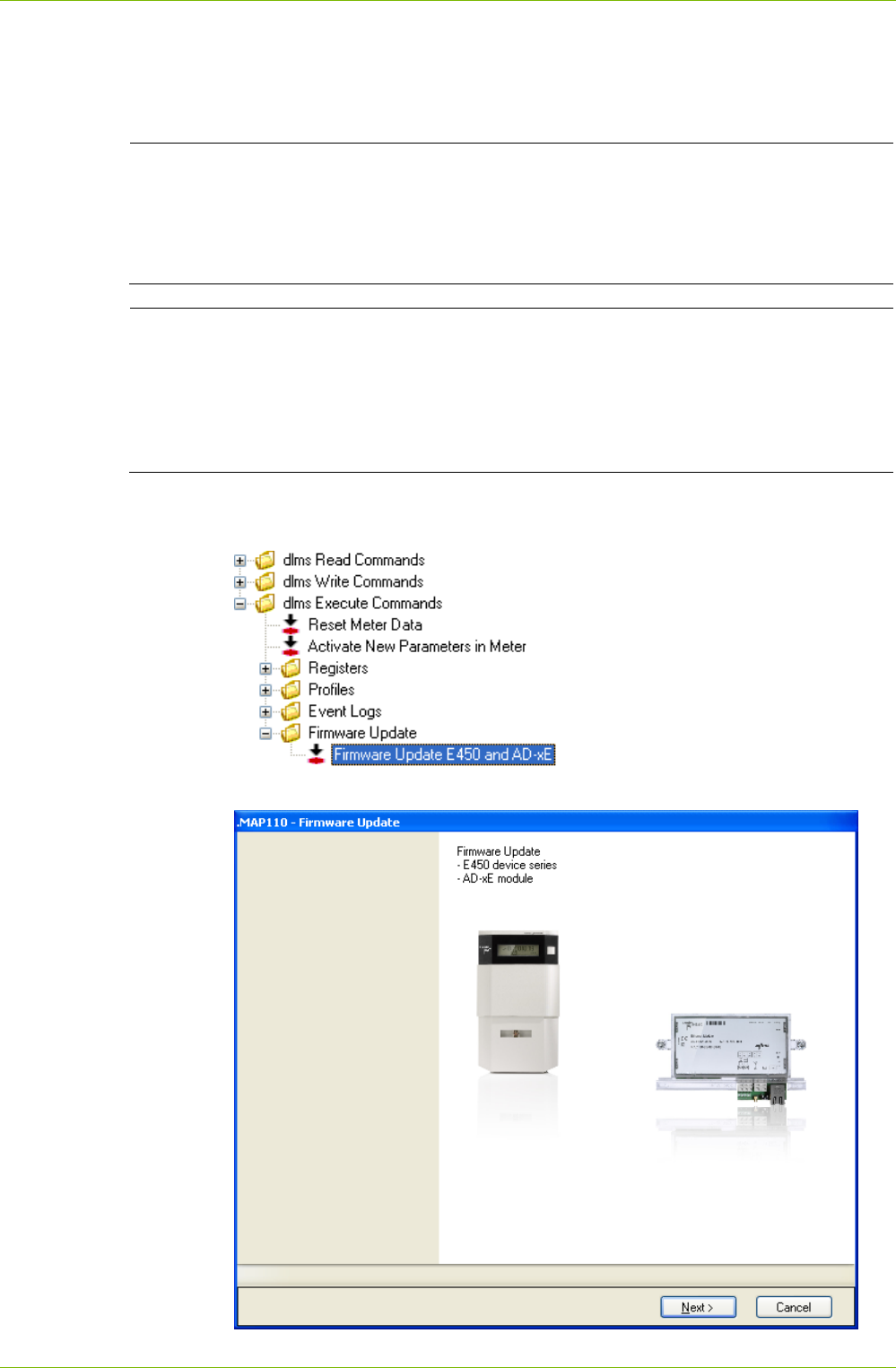
Application of .MAP110 Functions 73/122
D000011475 en s – .MAP110 Service Tool – User Manual © Landis+Gyr
7.3.3 Firmware Update E450 and AD-xE
This execute command is only applicable for E450 meters and communi-
cation modules AD-xE.
Additional knowledge required
Additional knowledge is required to apply this execute command. The
following information provides only an overview about this command.
Please contact your sales representative to receive further information
about this command.
Required firmware file
A binary file with the new firmware version of the device is required for
the firmware update. This binary file (e.g. V03.02.03.00.bin) provided by
Landis+Gyr has to be stored in any directory of your computer. The
.MAP110 Service Tool generates an image file with the data of the binary
file.
For execution, select the "Firmware Update E450 and AD-xE" execute
command of the command tree.
The Update Wizard "Firmware Update" appears.
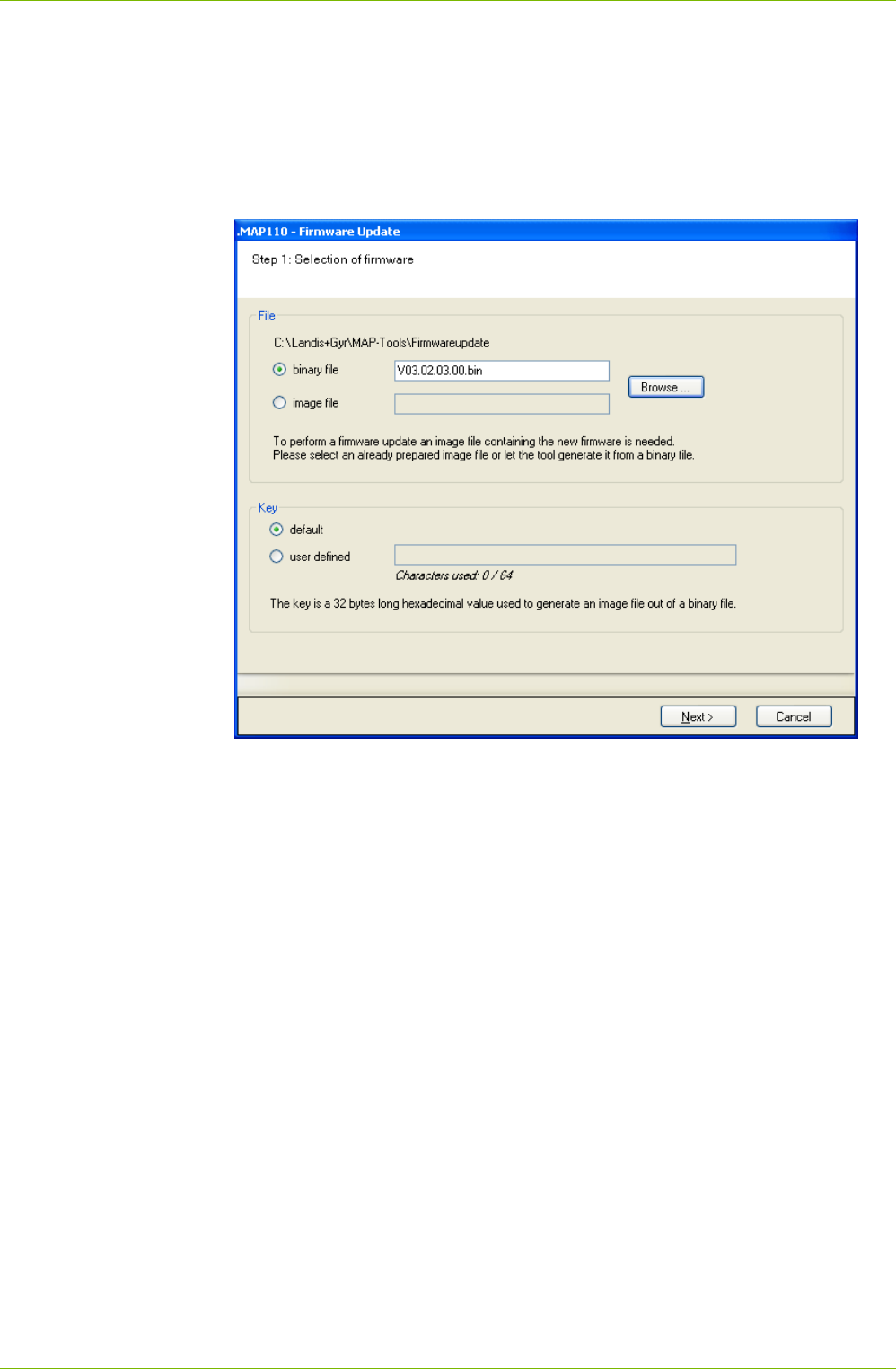
74/122 Application of .MAP110 Functions
© Landis+Gyr D000011475 en s – .MAP110 Service Tool – User Manual
This Wizard guides you through the update process:
1. Click on Next >.
The screen "Step 1: Selection of firmware" appears with preselected
options "binary file" in the "File" area and "default" in the "Key" area.
2. Click on Browse and in the appearing "Open" window select the binary
file received from Landis+Gyr and stored on your computer.
The path and name of the selected binary file will be displayed.
If you have received instead of a binary file an image file from
Landis+Gyr, you can click on the option "image file" and select the
image file instead of the binary file.
3. Select the option "user defined" if you want to use a user defined key
for signing the image file to be generated from the binary file instead of
the device family specific standard key and then enter your key of
exactly 256 bit length (64 characters) in hexadecimal form.
The "Key" area is only activated if the option "binary file" is selected in
the "File" area.
4. Click on Next >.
An image file is generated from the binary file and signed with the
selected key.
The screen "Step 2: Initialisation of transfer" appears.
The following data about the firmware will be displayed: :
– Identification of the currently loaded firmware in the device
– Identification, size and signature of the new firmware
– Total size, block size and number of blocks of the new firmware.
5. In the "New Firmware" area select whether the complete firmware or
only the ZigBee stack or the metrologically relevant part of the firmware
is to be updated.
6. In the "Activation" area select whether the firmware shall be activated
immediately after the transfer or at a later point in time to be entered.
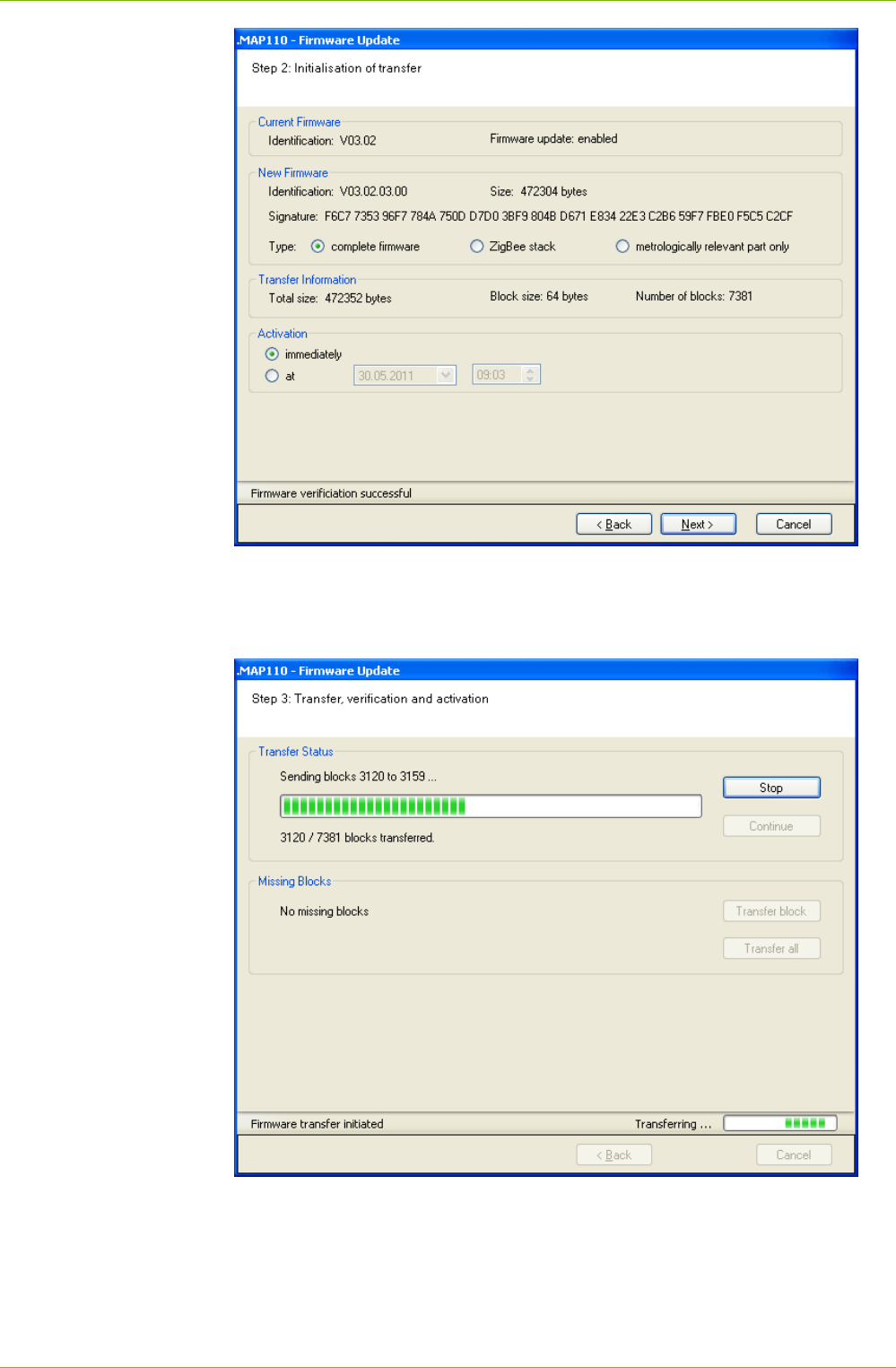
Application of .MAP110 Functions 75/122
D000011475 en s – .MAP110 Service Tool – User Manual © Landis+Gyr
7. Click on Next >.
The screen "Step 3: Transfer, verification and activation" appears and
the new firmware is transferred to the device. The progress is indicated
in the "Transfer Status" area.
Wait until all blocks are transferred and verified and the subsequent
firmware activation is started. Then the following display appears:
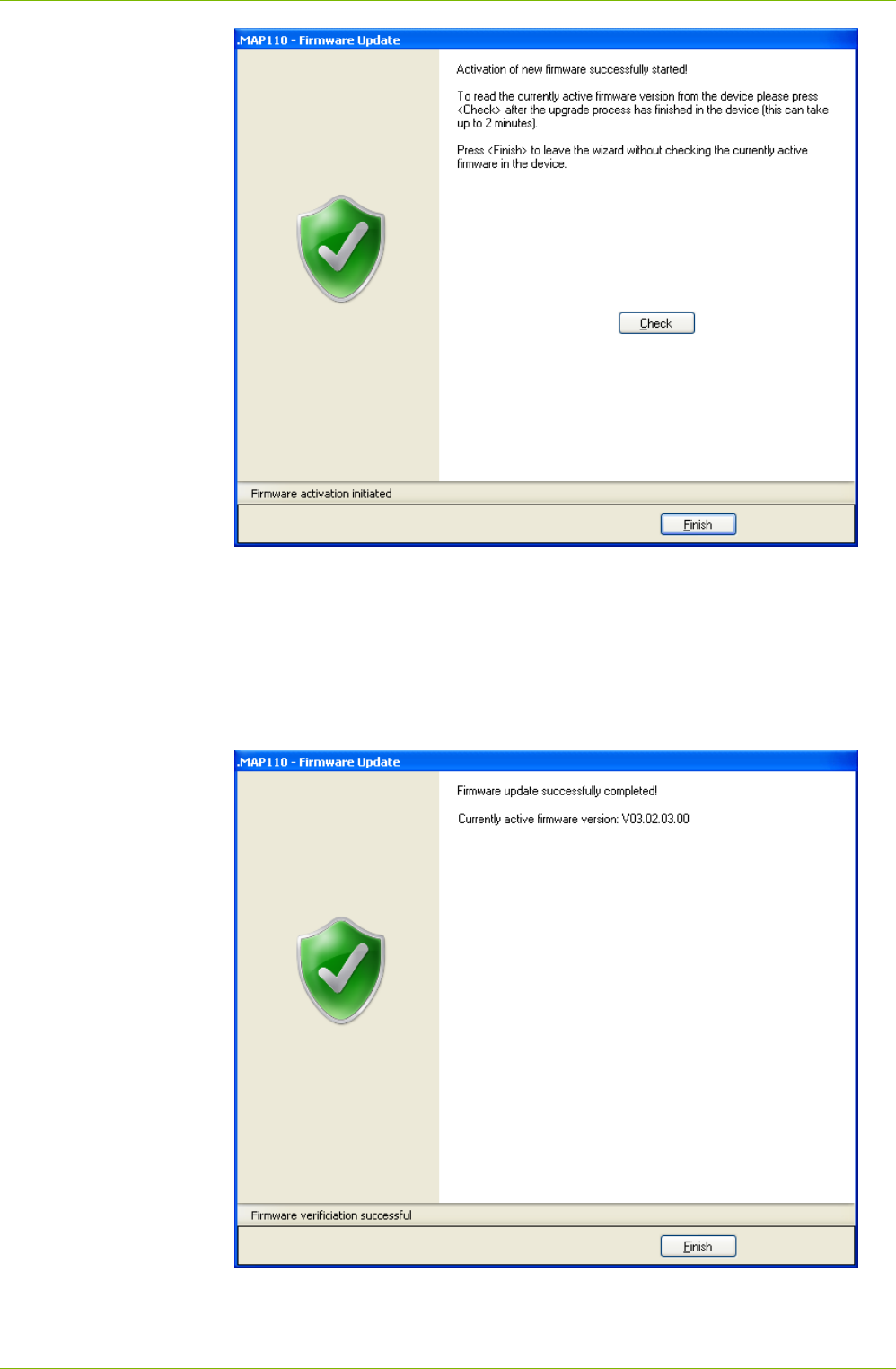
76/122 Application of .MAP110 Functions
© Landis+Gyr D000011475 en s – .MAP110 Service Tool – User Manual
8. Click on Check.
The wizard starts polling the device every 5 seconds and as soon the
communication is possible the currently active firmware version is read
from the device. The designation of button Check changes to Stop.
With this button the check can be aborted. Please note that the activa-
tion of a new firmware can take several minutes. During this time no
communication with the device is possible. After the check the follow-
ing display appears:
9. Click on Finish.
This concludes the firmware update.
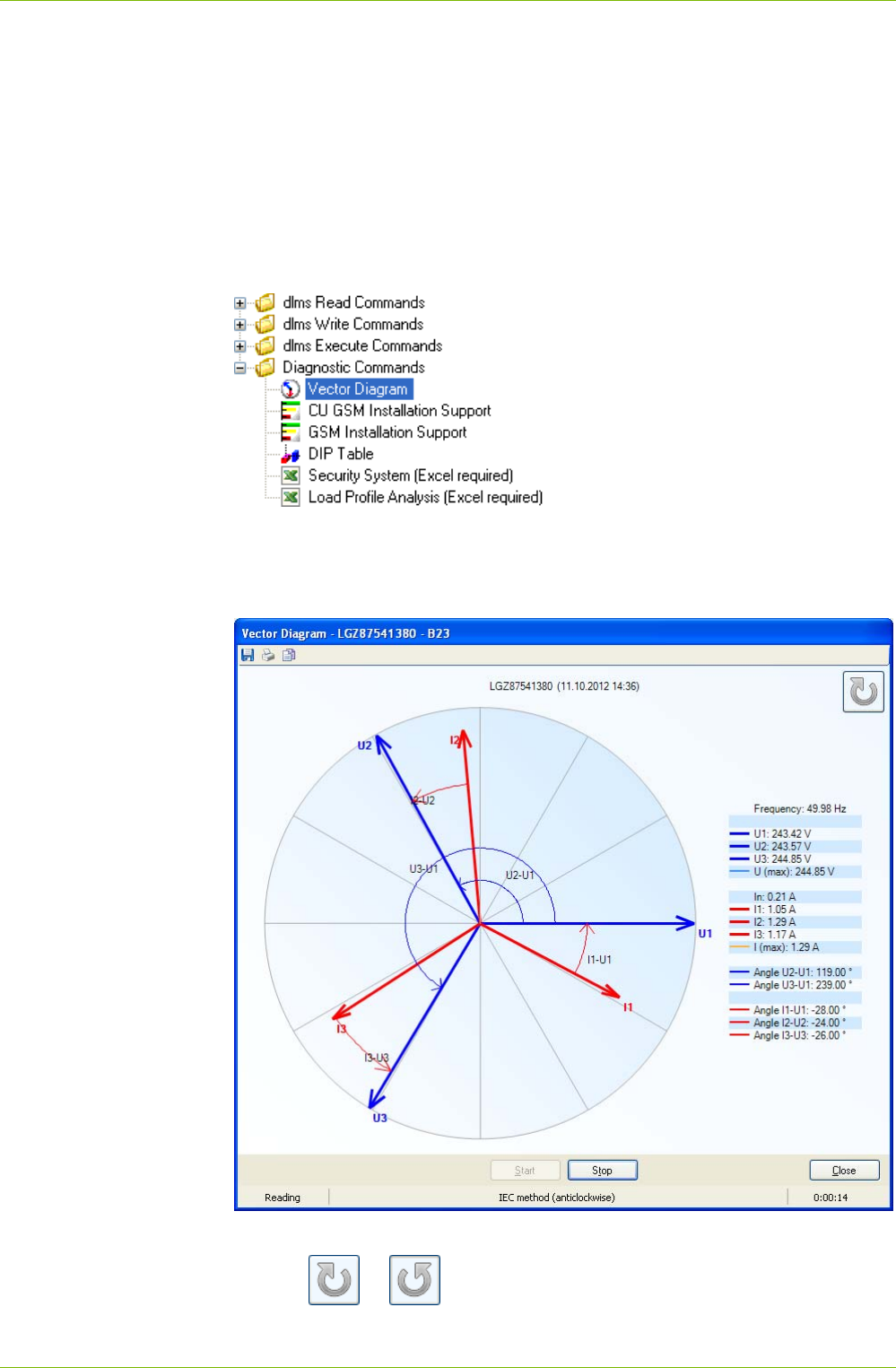
Application of .MAP110 Functions 77/122
D000011475 en s – .MAP110 Service Tool – User Manual © Landis+Gyr
7.4 Diagnostic Commands
Section 12 "Functional Range per User Group" describes which diagnostic
commands are available to the individual user groups.
7.4.1 Vector Diagram
A vector diagram of the currents and voltages of the device connected can
be displayed with this diagnostic command.
For execution, select the "Vector Diagram" diagnostic command in the
command tree.
A vector diagram is shown in the "Vector Diagram" window, which is cal-
culated from the continuously read instantaneous values of voltages, cur-
rents and phase angles. The individual instantaneous values measured by
the meter are displayed next to the diagram.
Clicking Stop interrupts a current readout of the instantaneous values.
Clicking or respectively, switches between the anticlockwise
view to the clockwise view.
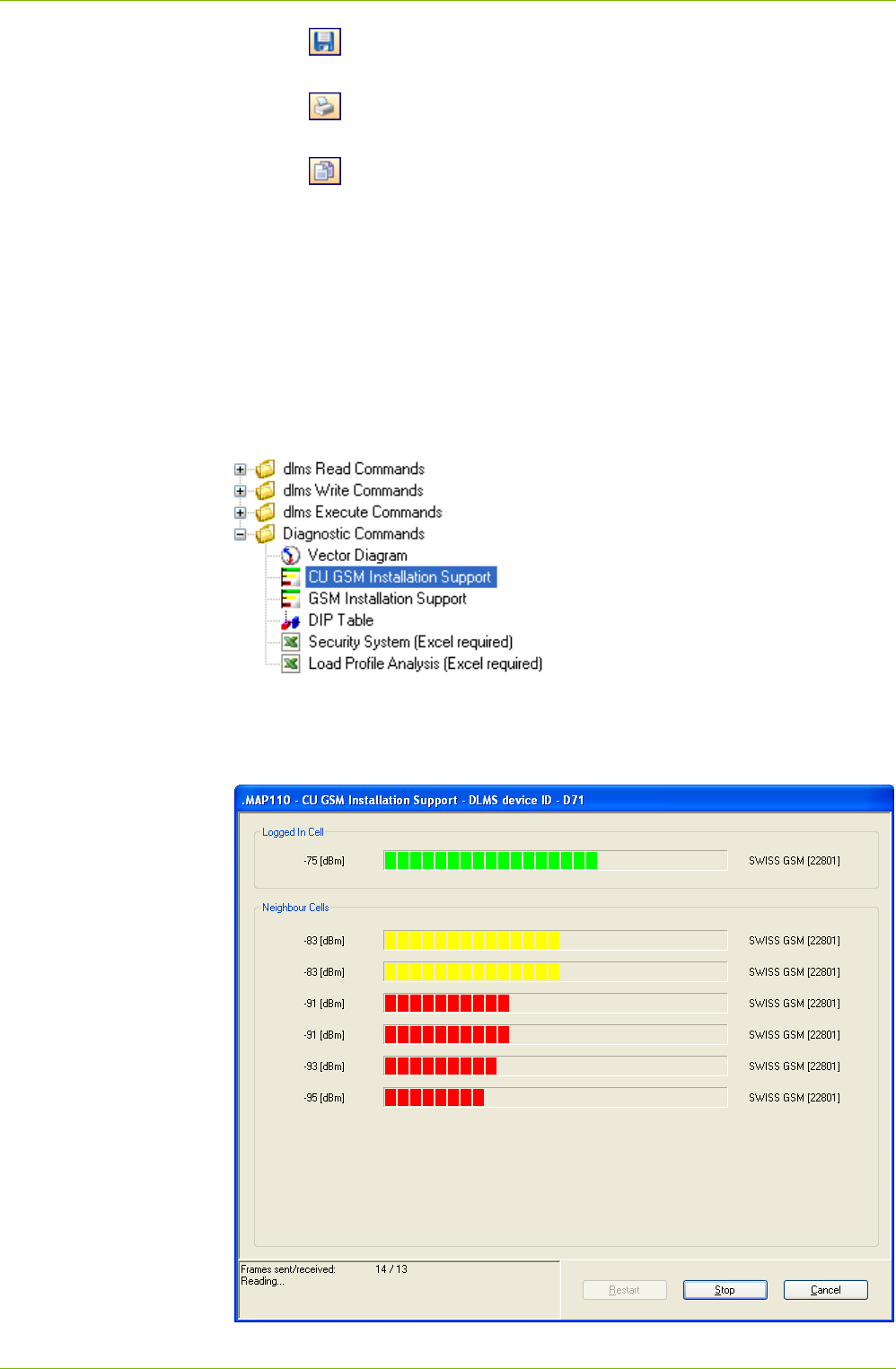
78/122 Application of .MAP110 Functions
© Landis+Gyr D000011475 en s – .MAP110 Service Tool – User Manual
Clicking opens the "Save as" dialogue window to save the data dis-
played in a freely selected directory as XML file.
Clicking displays a print preview, from which the vector diagram can be
printed on the standard printer.
Clicking copies the vector diagram to the Windows clipboard, from
where it can be inserted in another application (e.g. in a word processing
program).
The diagnostic command is ended with Close.
7.4.2 GSM Installation Support
This diagnostic command can only be used if the device connected has a
communication unit with GSM modem or if an AD-FG/CG communication
module is to be addressed.
For execution, select the "CU GSM Installation Support" or "GSM Installa-
tion Support" diagnostic command in the command tree.
The field strengths of the cell logged in and all neighbouring cells are dis-
played in the "GSM Installation Support" window. When used on the spot
this allows the optimum antenna position to be determined or a check of the
received field strength.
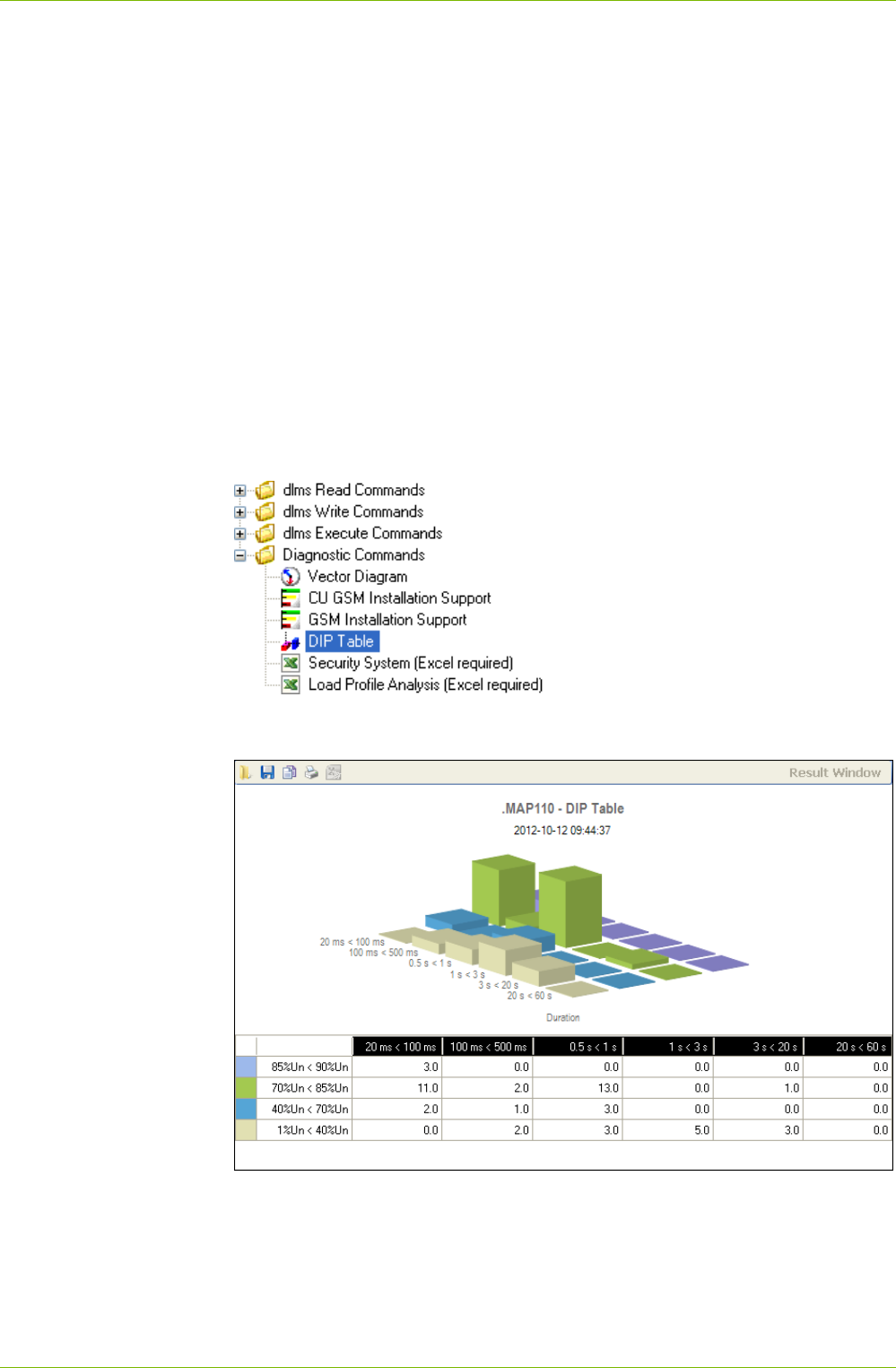
Application of .MAP110 Functions 79/122
D000011475 en s – .MAP110 Service Tool – User Manual © Landis+Gyr
Measurement of field strength is
continuously updated if the values are read out via device and optical
head and no communication takes place simultaneously via the GSM
channel, or
not continuously updated if the values are read out via the GSM chan-
nel (in this case the values measured immediately after making the
connection are displayed).
Clicking Stop interrupts a current measurement of field strength.
Clicking Restart repeats the interrupted measurement of field strength.
The diagnostic command is ended with Cancel.
7.4.3 DIP Table
A graphic evaluation of all voltage failures occurring since the last deletion
of the DIP table can be performed with this diagnostic command.
For execution, select the "DIP Table" diagnostic command in the command
tree.
A diagram and a table with number, duration and category of voltage fail-
ures are shown in the result window.
The categories, i.e. the severity of the voltage failures, are shown in colour,
e.g. voltage failures of 1 to 40 % of rated voltage in violet. The table contains
a line for each category, the diagram a series of bars in the x-direction.
The number of voltage failures occurring is shown in the table as numeral
and in the diagram as bar height.
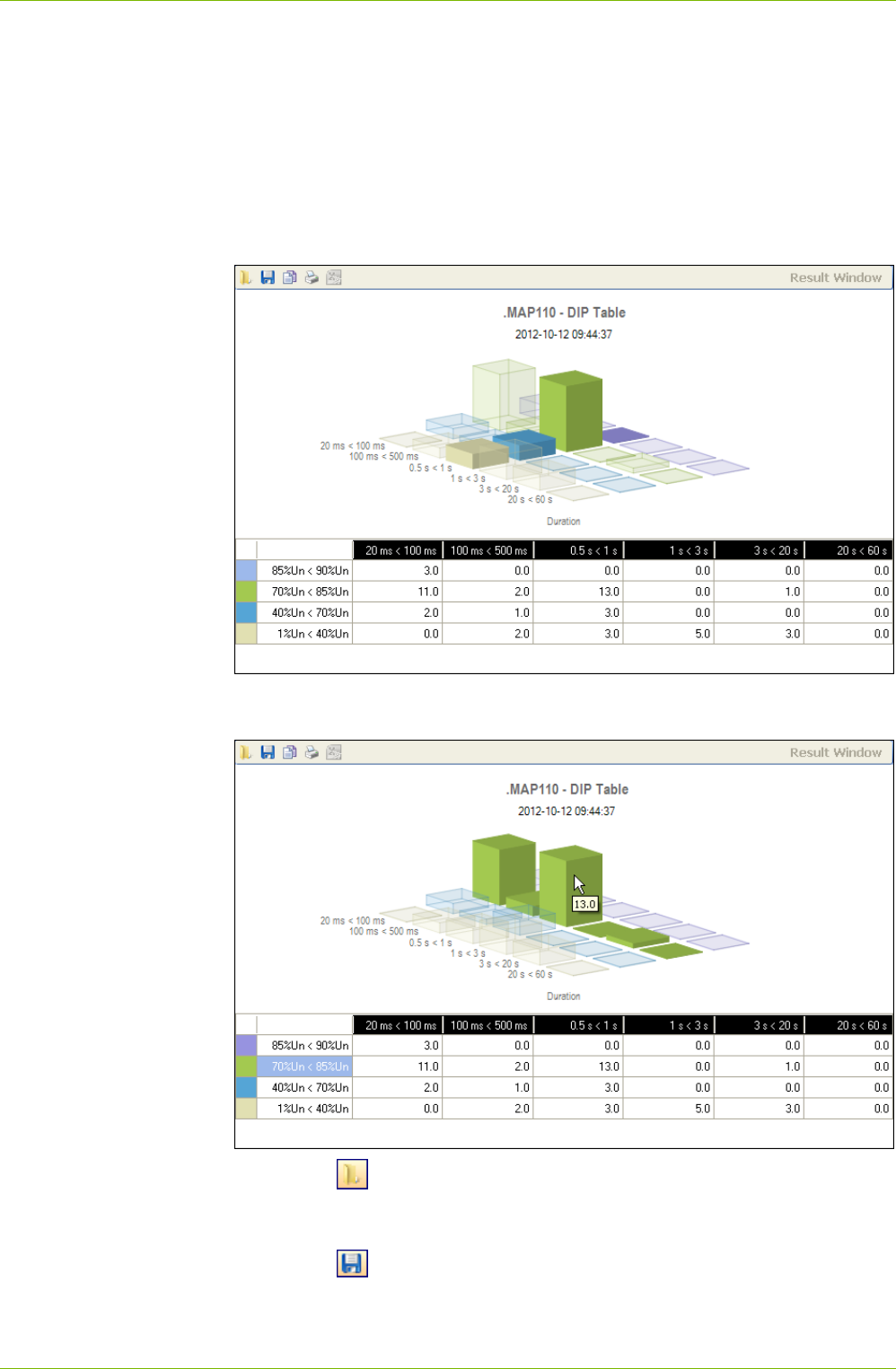
80/122 Application of .MAP110 Functions
© Landis+Gyr D000011475 en s – .MAP110 Service Tool – User Manual
The duration of the voltage failures is divided into four ranges: 20 to 100
ms, 100 to 500 ms, 0.5 to 1 s, 1 to 3 s, 3 to 20 s and 20 to 60 s. The table
contains a column for each range, the diagram a series of bars in the y-axis
with bars of different colour.
If a change has occurred since the last readout, the relevant bar is shown
in red.
When a column or line heading or cell in the table is clicked, the corre-
sponding bar series in the x or y axis or the relevant individual bar is shown
highlighted.
When the cursor is placed on a bar in the diagram, the corresponding value
is indicated in the diagram.
Clicking on in the result window toolbar opens the "Open Result File"
dialogue window to display result files previously saved again in the result
window.
Clicking on in the result window toolbar opens the "Save as" dialogue
window to save the data displayed in a freely selected directory as XML file.
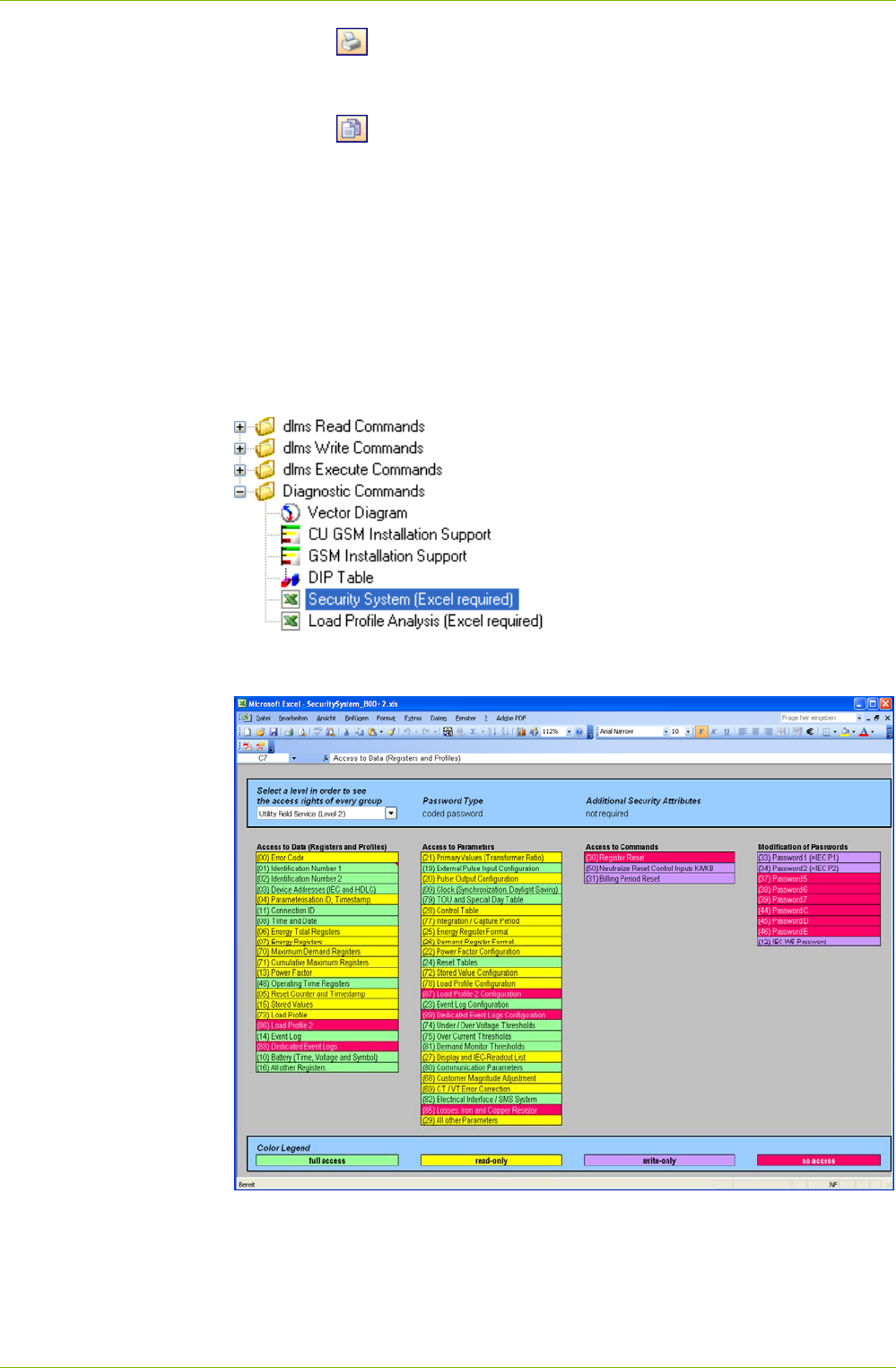
Application of .MAP110 Functions 81/122
D000011475 en s – .MAP110 Service Tool – User Manual © Landis+Gyr
Clicking on in the result window toolbar displays a printing preview,
from which the contents of the result window can be printed with the
standard printer specified.
Clicking on in the result window toolbar copies the content of the result
window to the Windows clipboard, from where it can be inserted in another
application (e.g. in a word processing program).
Deletion of the DIP table can be performed with the "Reset DIP Table"
diagnostic command.
7.4.4 Security System
With this diagnostic command the device security system data can be
displayed with the Excel table calculation program.
For execution, select the "Security System" diagnostic command in the
command tree.
The security system data is read from the device connected and displayed
as follows in the Excel table calculation program:
The desired security level can be selected in the selection box at top left.
The access rights for the level selected for individual data, parameters,
commands and passwords are then displayed by means of colours accord-
ing to the colour code.
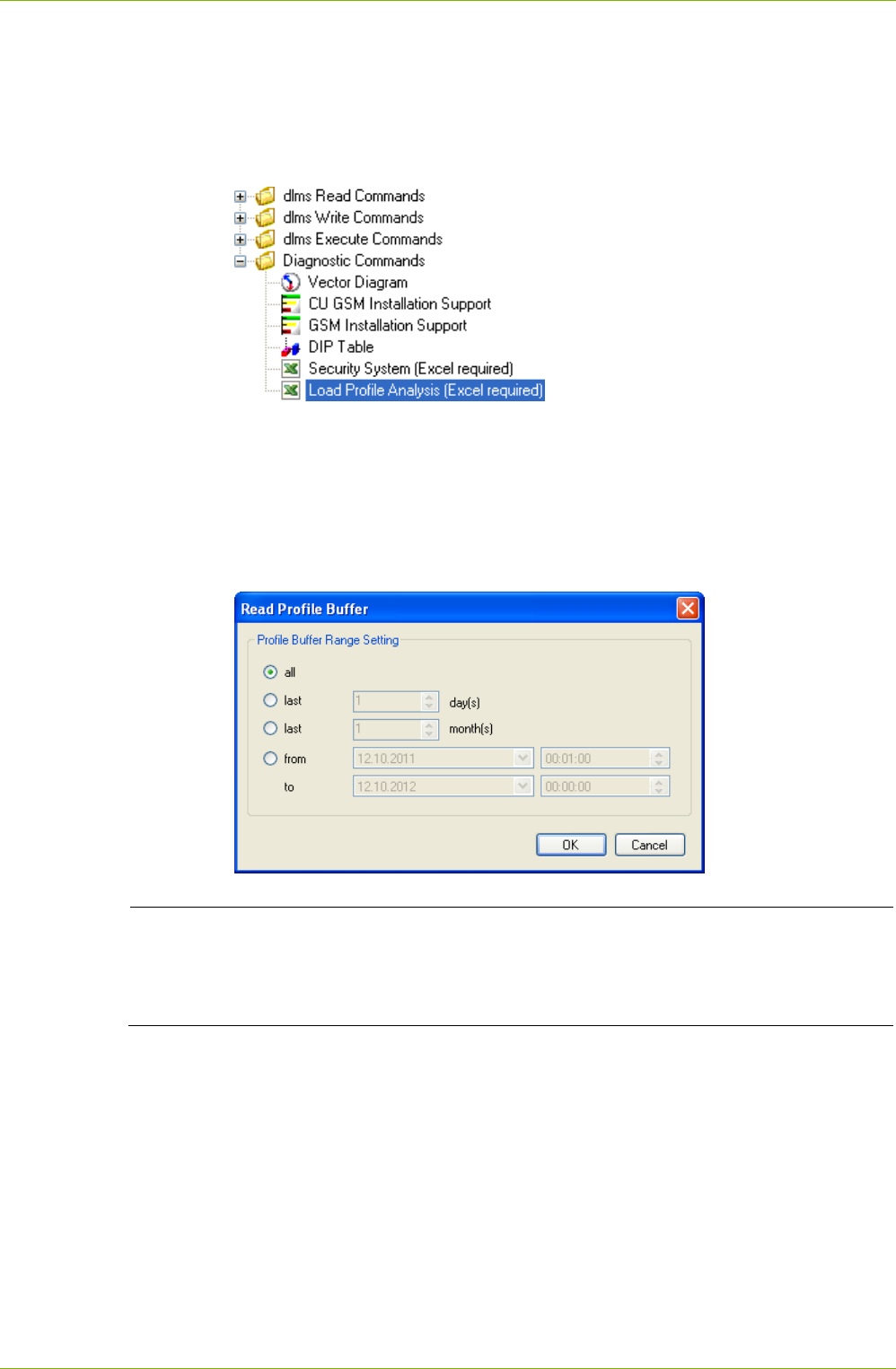
82/122 Application of .MAP110 Functions
© Landis+Gyr D000011475 en s – .MAP110 Service Tool – User Manual
7.4.5 Load Profile Analysis
With this diagnostic command an evaluation of the device load profile can
be displayed with the Excel table calculation program.
For execution, select the "Load Profile Analysis" diagnostic command in the
command tree.
The profile range to be read out can be specified in a dialogue window:
all (default)
last x days (with x entered)
last x months (with x entered)
from a specific starting date to a specific final date
Shortening readout time by data selection
It is highly recommended to perform a data selection before readout, since
readout of the entire event log can take a considerable time (above all if the
device has a short integrating period).
The load profile data is read from the device connected.
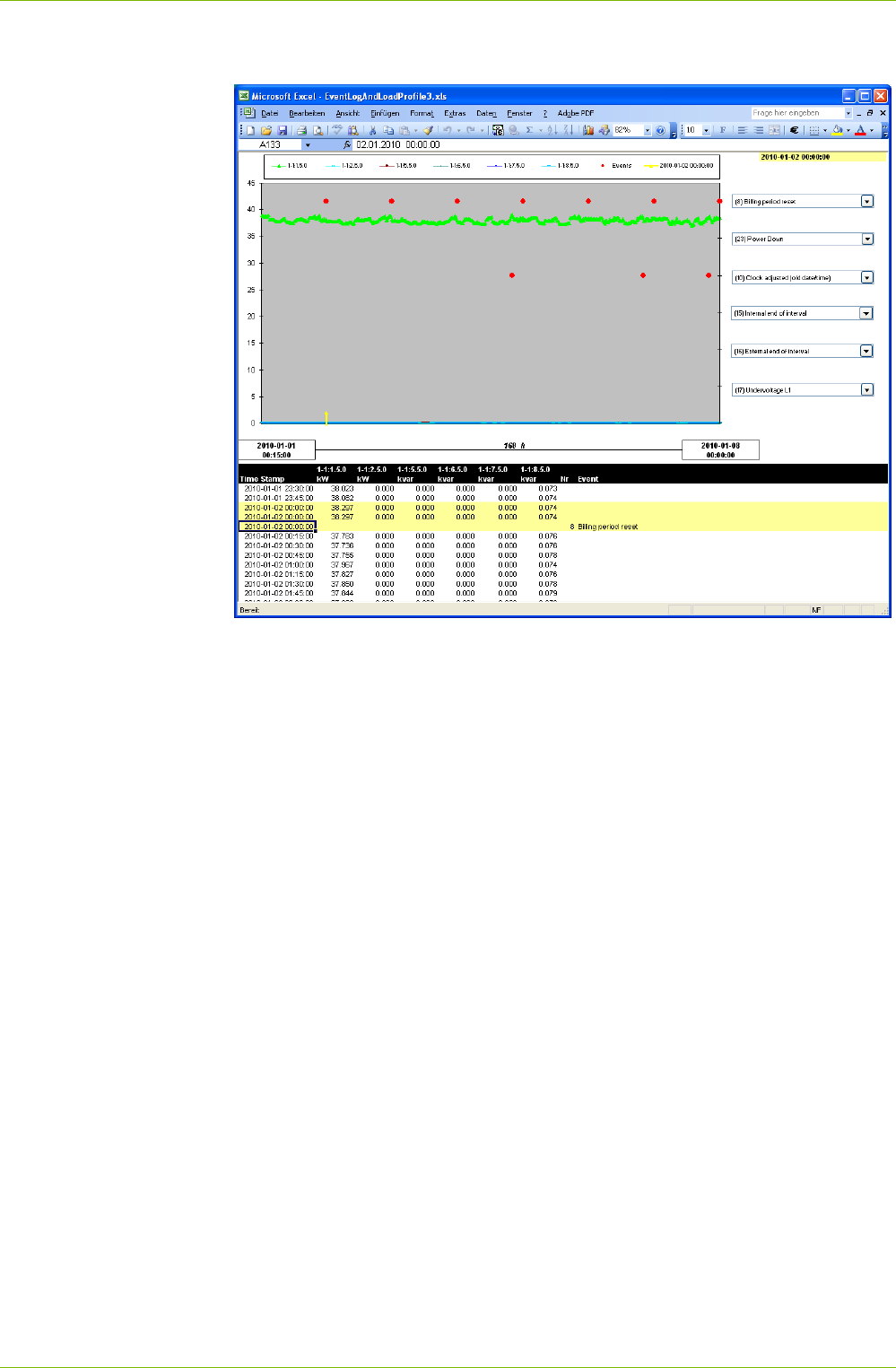
Application of .MAP110 Functions 83/122
D000011475 en s – .MAP110 Service Tool – User Manual © Landis+Gyr
The load profile data read out is shown as follows with the Excel table
calculation program:
The various mean demand values per integrating period are displayed in a
diagram in the upper section by means of colours according to the colour
code.
The events to be shown can be selected in the selection boxes on the right.
If a corresponding event has occurred in the period under review, it is
shown in the diagram with a red dot at the level of the selection box.
The individual load profile values and events can be seen in the table below
the diagram. Navigation is possible in the table with the arrow keys or the
wheel of a roller mouse. A yellow arrow at the lower edge of the diagram
indicates on which data in the table the cursor is currently placed.
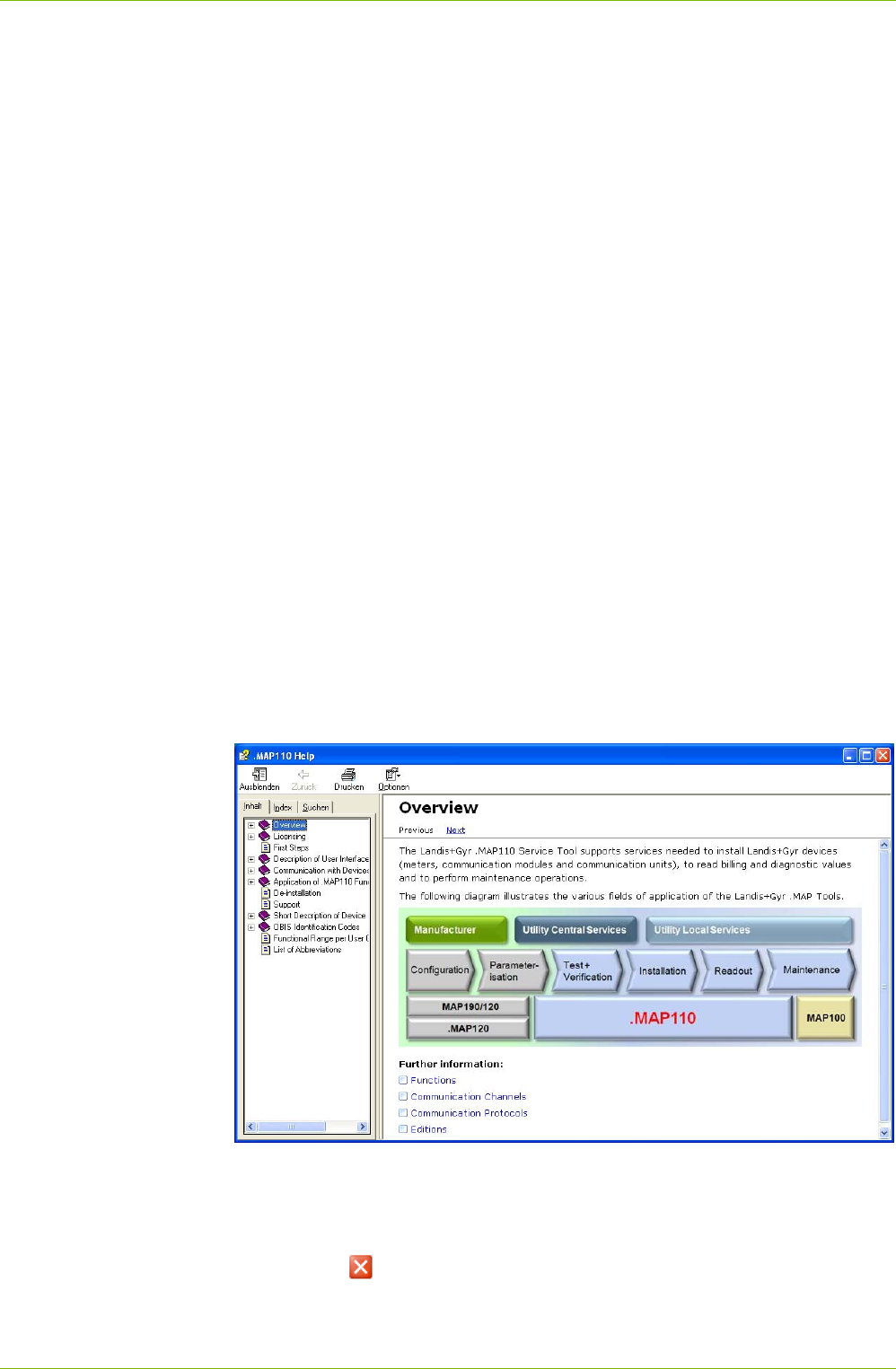
84/122 Application of .MAP110 Functions
© Landis+Gyr D000011475 en s – .MAP110 Service Tool – User Manual
7.5 Auxiliary Functions
This section describes some auxiliary functions of the Landis+Gyr .MAP110
Service Tool:
displaying help topics
changing the language of the user interface
displaying the current version of the program
setting the colour for disabled commands
setting delay times
activating command confirmation
selecting the calendar base
defining file locations
enabling MAP100 file export
displaying read-me file
checking for updates
7.5.1 Displaying Help Topics
This function permits access to the help texts for the Landis+Gyr .MAP110
Service Tool. These help texts correspond to the contents of this user
manual.
Procedure:
1. Press function key [F1] or select Help from the Help menu.
The online help for the Landis+Gyr .MAP110 Service Tool appears.
2. Find the desired information.
Since the help function is a standard Windows function, it will not be
explained at this point. More details are found in the Windows manual
belonging to your PC.
3. Click on to close the online help.
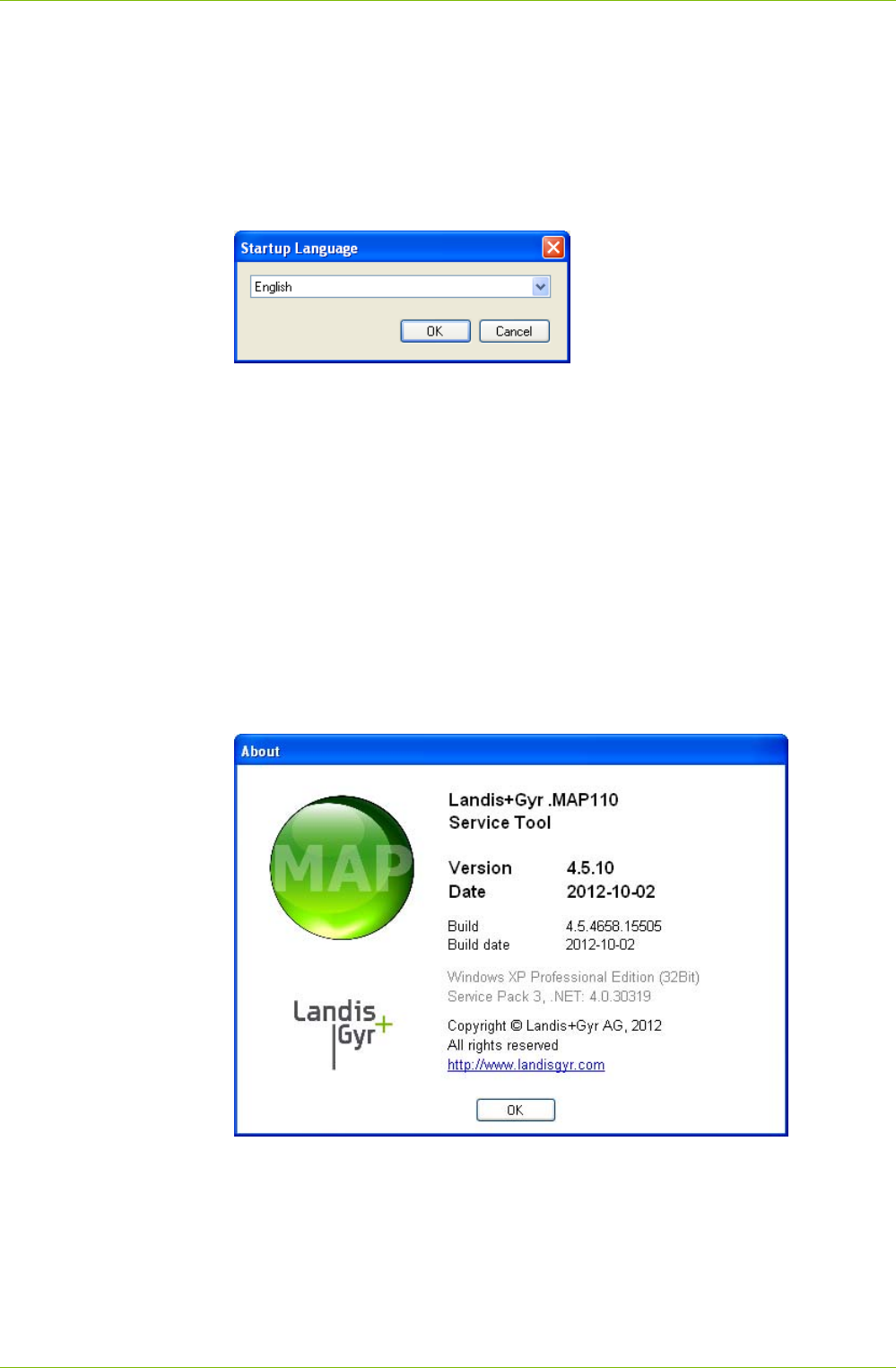
Application of .MAP110 Functions 85/122
D000011475 en s – .MAP110 Service Tool – User Manual © Landis+Gyr
7.5.2 Changing the Language of the User Interface
This function allows changing the language of the .MAP110 Service Tool
user interface.
Procedure:
1. Select Startup language from the Tools menu.
The "Startup Language" window appears.
2. Select the desired language.
3. Click on OK.
The "Startup Language" window disappears.
The selected language will be used upon the next startup of the
.MAP110 Service Tool.
7.5.3 Displaying the Current Version of the Program
This function permits the display of information on the current program
version.
Procedure:
1. Select About .MAP110 from the Help menu.
The "About" window appears. It contains information about the current
version of the program.
2. Click on OK.
The "About" window disappears.
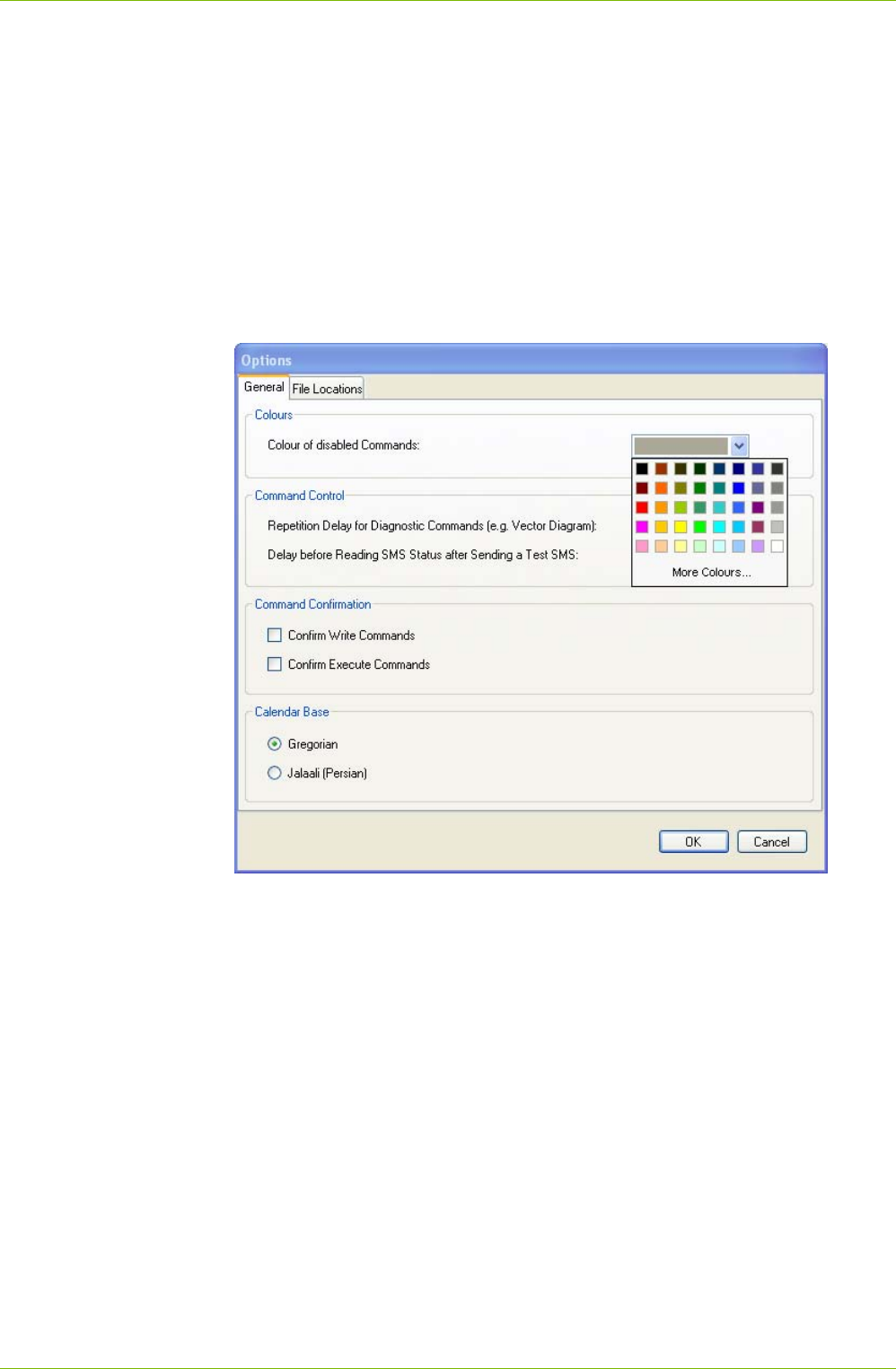
86/122 Application of .MAP110 Functions
© Landis+Gyr D000011475 en s – .MAP110 Service Tool – User Manual
7.5.4 Setting Colour for Disabled Commands
The colour for emphasising disabled commands can be set individually with
this setting (see also 5.4 "Command Tree").
Procedure:
1. Select Options from the Tools menu.
The "Options" window appears.
2. Select the "General" tab.
The colour currently selected for disabled commands is shown.
3. Click on the "Colour of disabled Commands" selection box.
A colour pallet is displayed.
4. Select the desired colour.
The newly selected colour is displayed in the "Colour of disabled
Commands" selection box.
5. Click on OK.
The "Options" window disappears and the disabled commands are
emphasised in the new colour in the command tree.
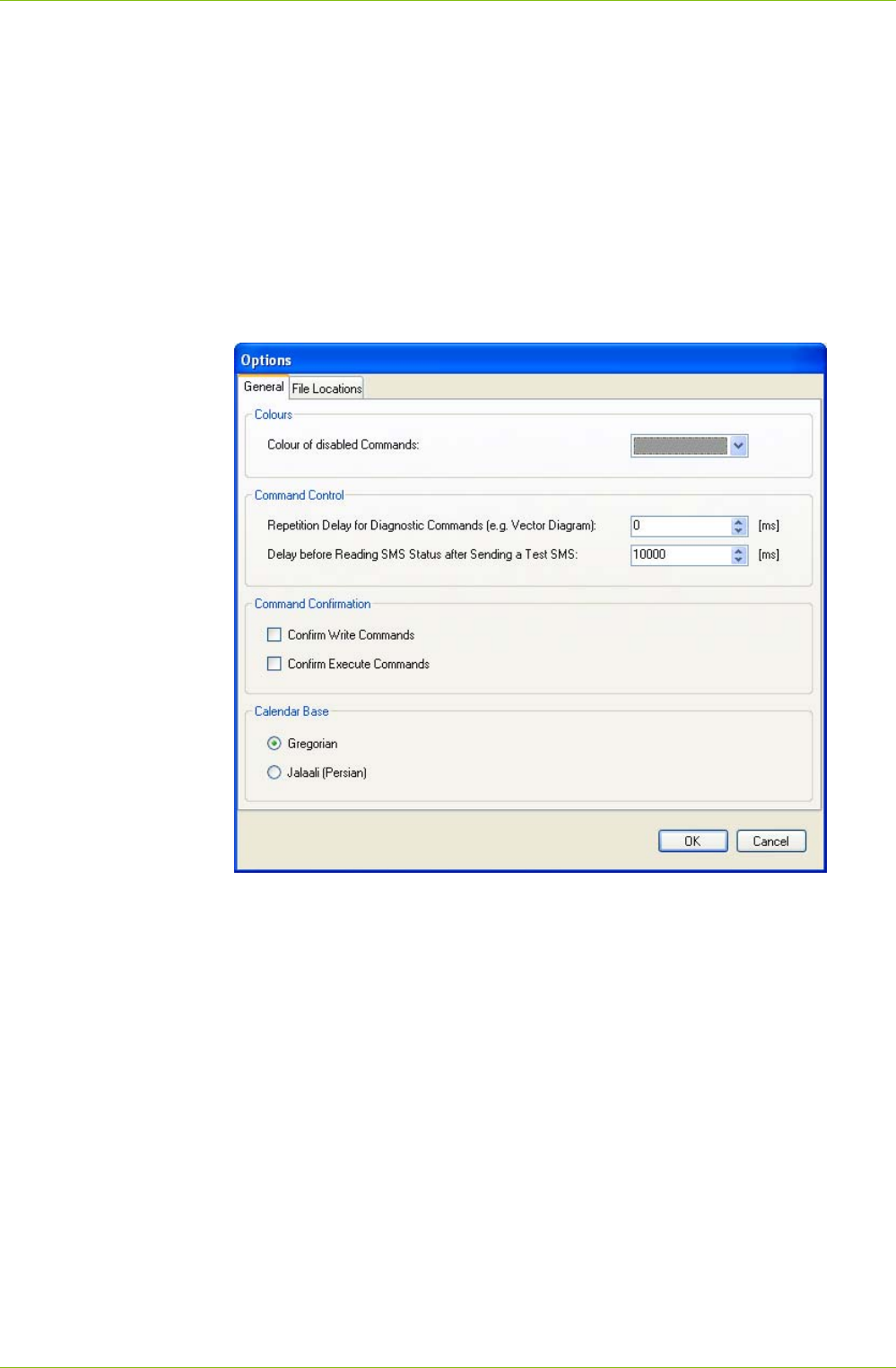
Application of .MAP110 Functions 87/122
D000011475 en s – .MAP110 Service Tool – User Manual © Landis+Gyr
7.5.5 Setting Delay Times
The repetition delay for diagnostic commands and the repetition delay be-
fore reading the status of sent test SMS messages can be set individually
with this setting.
Procedure:
1. Select Options from the Tools menu.
The "Options" window appears.
2. Select the "General" tab.
3. Enter the desired delay times in the corresponding entry fields in the
"Command Control" area.
4. Click on OK.
The "Options" window disappears and the new settings are saved.
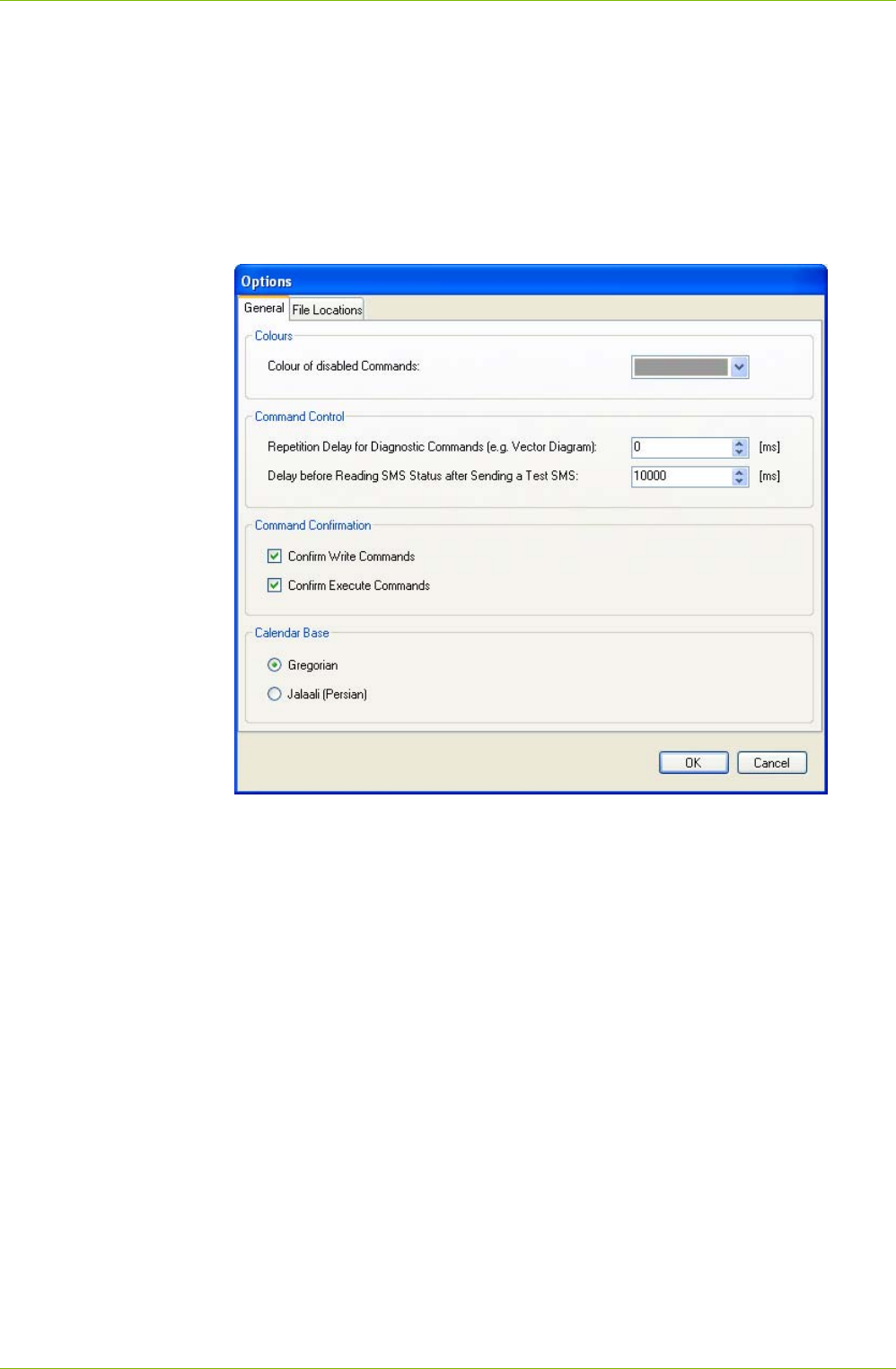
88/122 Application of .MAP110 Functions
© Landis+Gyr D000011475 en s – .MAP110 Service Tool – User Manual
7.5.6 Activating Command Confirmation
Procedure:
1. Select Options from the Tools menu.
The "Options" window appears.
2. Select the "General" tab.
3. Set a tick in the checkboxes of the "Command Confirmation" area for
the command(s) which shall be confirmed prior to execution.
4. Click on OK.
The "Options" window disappears and the new settings are saved.
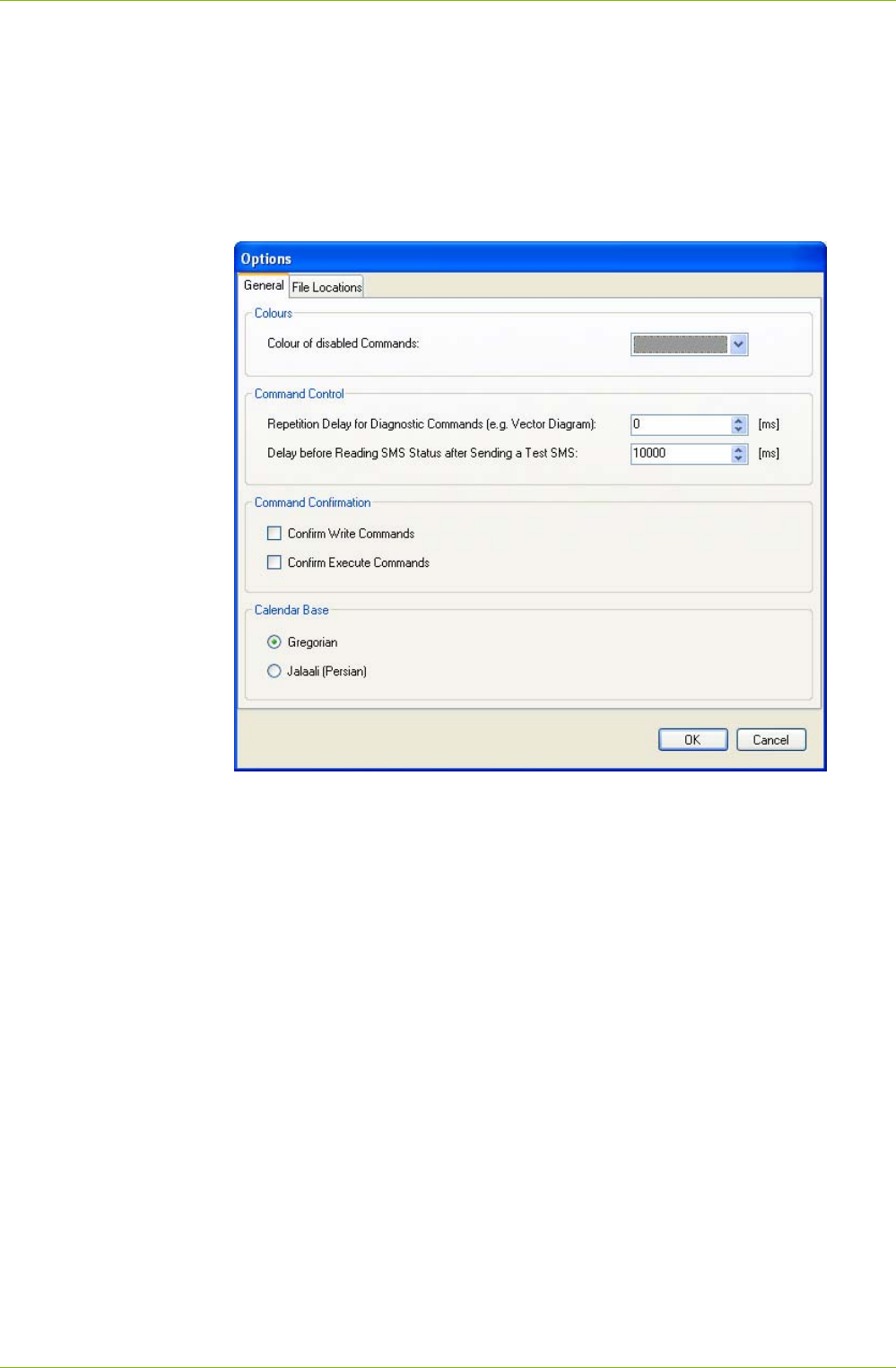
Application of .MAP110 Functions 89/122
D000011475 en s – .MAP110 Service Tool – User Manual © Landis+Gyr
7.5.7 Selecting the Calendar Base
Procedure:
1. Select Options from the Tools menu.
The "Options" window appears.
2. Select the "General" tab.
3. Select the required calendar base in the "Calendar Base" area.
4. Click on OK.
The "Options" window disappears and the new settings are saved.
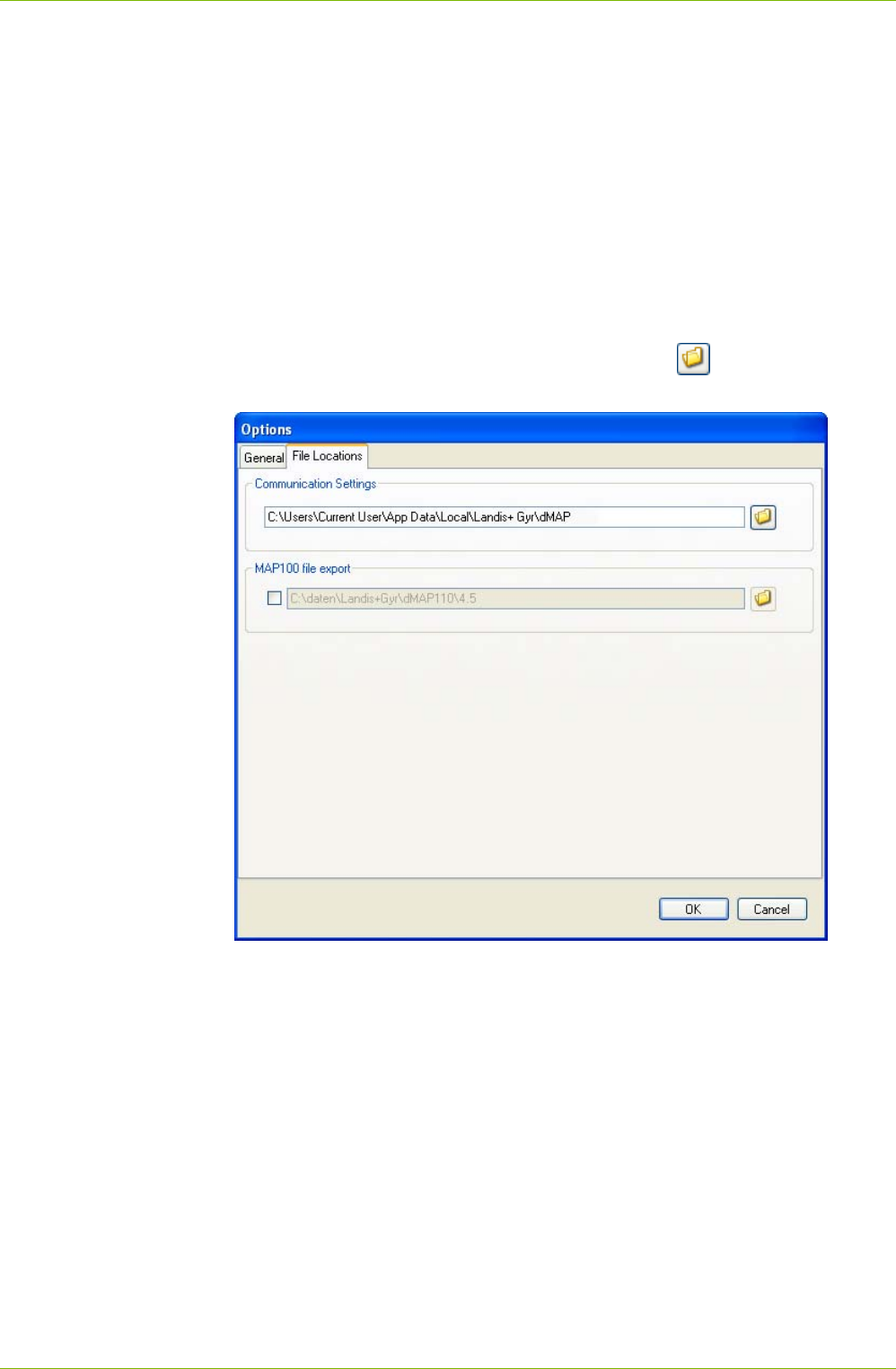
90/122 Application of .MAP110 Functions
© Landis+Gyr D000011475 en s – .MAP110 Service Tool – User Manual
7.5.8 Defining File Locations
The path where communication settings are saved, can be set with this
setting.
Defining a directory also accessible by other users of a PC allows the
sharing of communication settings with these users. The communication
settings can also be used with other .MAP tools.
Procedure:
1. Select Options from the Tools menu.
The "Options" window appears.
2. Select the "File Locations" tab.
3. In the "Communication Settings" area click on and select a direc-
tory in the tree appearing or enter the path to the desired directory.
4. Click on OK.
The "Options" window disappears and the new settings are saved.
All communication settings are stored in the files "DeviceConnectionSettings
V8.xml" and "AddressBookV8.xml". Please note that these files will not be
automatically transferred into the new directory. If required, the files have to
be copied or moved manually.
The default directory for an initial installation under Windows 7 is
"C:\Users\Current User\AppData\Local\Landis+ Gyr\dMAP" or under
Windows XP is "C:\Documents and Settings\Current User\ Application
Data\Landis+Gyr\dMAP", respectively.
The communication settings are used by all .MAP applications of a user.
Other users of a shared PC can also use the same communication settings,
provided that a directory for file locations has been defined, to which all
users have access (the above mentioned default directory is user specific).
Application of .MAP110 Functions 91/122
D000011475 en s – .MAP110 Service Tool – User Manual © Landis+Gyr
7.5.9 Enabling MAP100 File Export
MAP100 export files (scripts) for mass parameterisation of devices with the
MAP100 Upload Tool can be generated and stored in a designated direc-
tory during execution of the following write commands (marked with in
the command tree):
Parameterisation ID
Passwords level 1, 2 and E
Time of use (TOU)
Billing period reset
Only MAP100 V2.0 supported
Note that only MAP100 V2.0 is supported, i.e. the export data is in the
MAP100 V2.0 format.
The export file names have the following format: vvv_name_date_time.rep
where
vvv = Firmware version of the device
name = Designation of the write command
date = Generation date in the format YYYYMMDD (year, month, day)
time = Generation time in the format hhmmss (hour, minute, second)
rep = File extension for all MAP100 files (repair)
Example of the file name for a TOU exported into a ZMD405CT with
firmware version B30 on 26th February 2010 at 16:45 hours:
B30_TimeOfUseDS_20100226_164500.rep
The generation of MAP100 files can be activated and the definition, where
these files are saved, can be set with the following procedure.
To avoid unintentional creation of files, please make sure to disable the
feature again after successful creation of the needed data files.
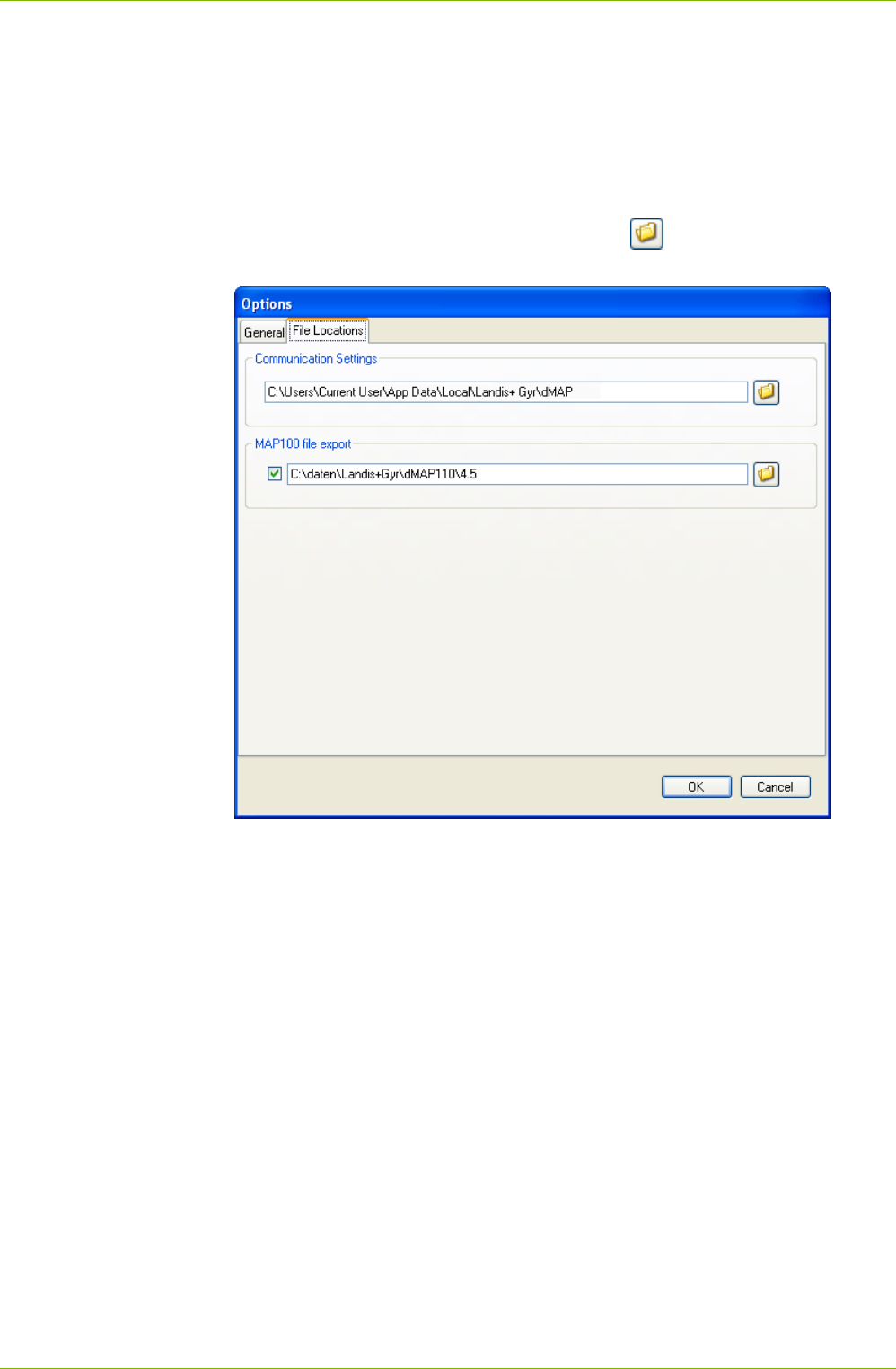
92/122 Application of .MAP110 Functions
© Landis+Gyr D000011475 en s – .MAP110 Service Tool – User Manual
Procedure:
1. Select Options from the Tools menu.
The "Options" window appears.
2. Select the "File Locations" tab.
3. Tick the checkbox "MAP100 file export" to activate or remove the tick
to deactivate the function.
4. In the "MAP100 file export" area click on and select a directory in
the tree appearing or enter the path to the desired directory.
5. Click on OK.
The "Options" window disappears and the new settings are saved.
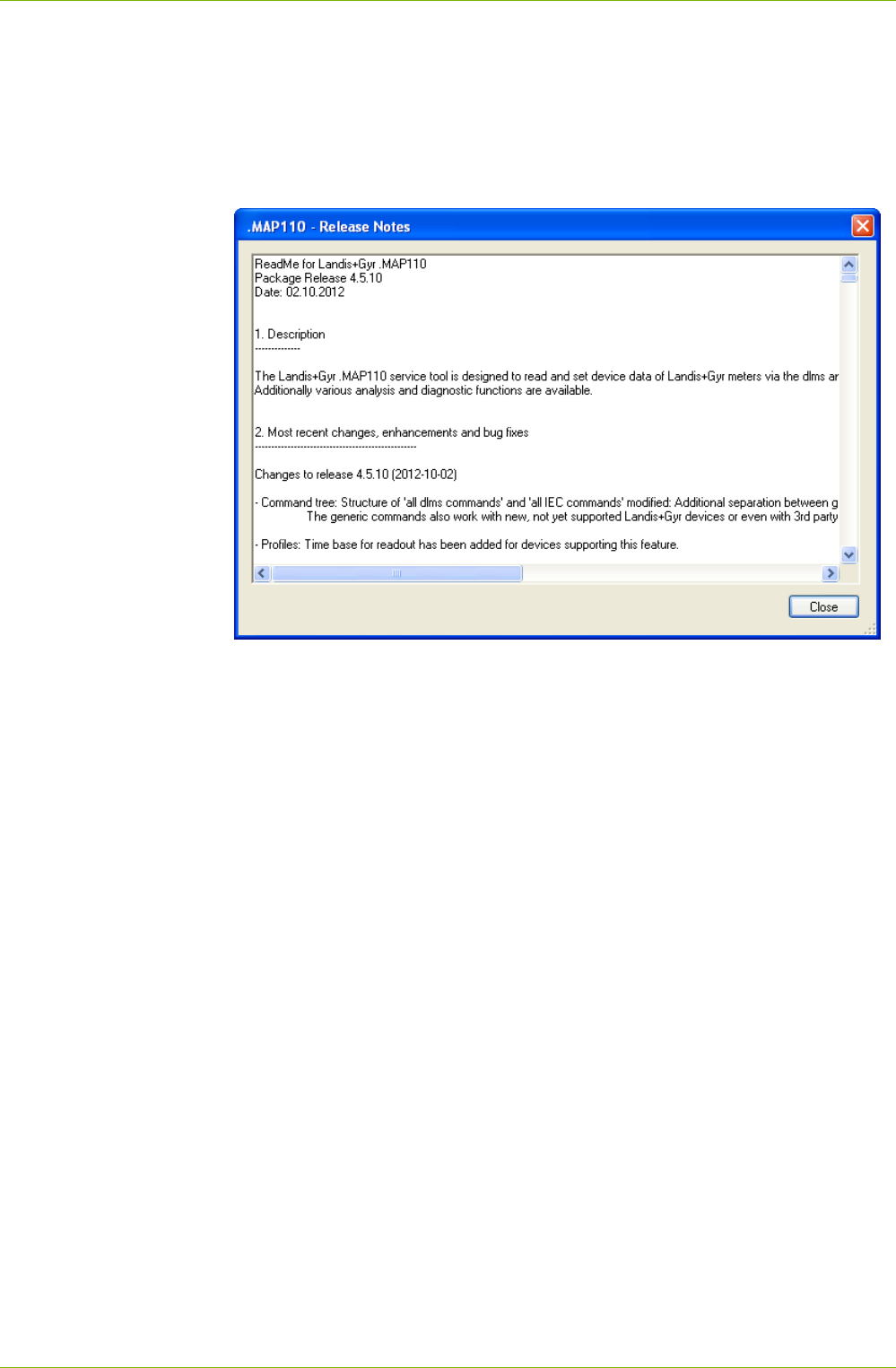
Application of .MAP110 Functions 93/122
D000011475 en s – .MAP110 Service Tool – User Manual © Landis+Gyr
7.5.10 Displaying Read-me File
This function displays the latest read-me file.
Procedure:
1. Select Release Notes from the Help menu.
The latest read-me file appears.
2. Obtain the information you are interested in.
3. Click on Close to close the read-me file again.
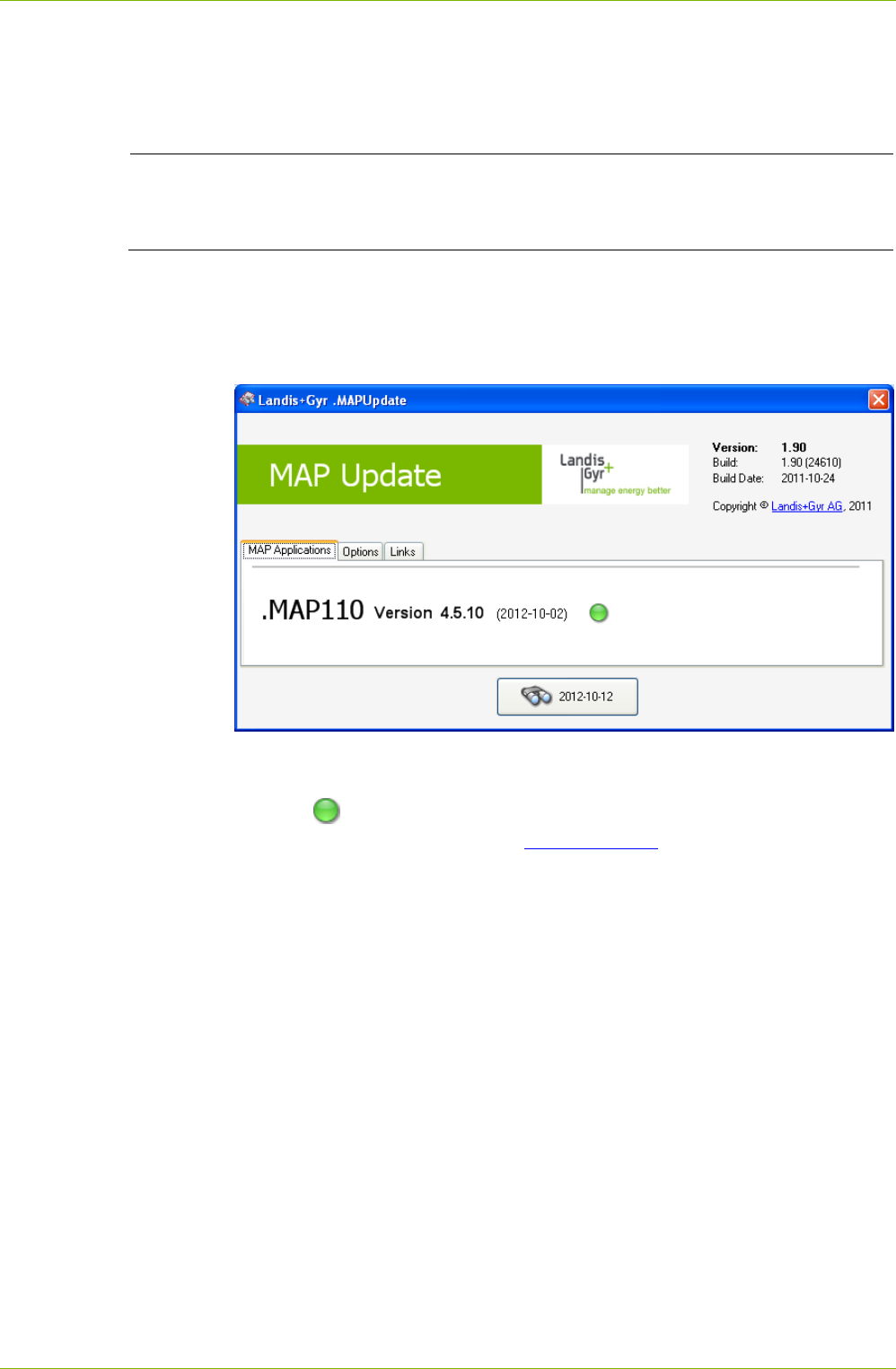
94/122 Application of .MAP110 Functions
© Landis+Gyr D000011475 en s – .MAP110 Service Tool – User Manual
7.5.11 Checking for Updates
This function permits checking whether the installed .MAP110 version is up
to date.
Internet access required
To perform a check for updates the PC must have access to the Internet,
since the .MAP Home Page must be contacted for this.
Procedure:
1. Select Check for updates from the Help menu.
The "Landis+Gyr .MAPUpdate" window appears.
An automatic query is performed on the MAP Home Page to determine
the latest released version available.
The icon is displayed, if the installed version is up to date. If this is
not the case, click on the link Landis+Gyr AG to access the MAP Soft-
ware Download area and download and install the latest version of the
.MAP110 software.
2. Close the "Landis+Gyr .MAPUpdate" window.

De-installation 95/122
D000011475 en s – .MAP110 Service Tool – User Manual © Landis+Gyr
8 De-installation
This section describes how to de-install the Landis+Gyr .MAP110 Service
Tool from the hard disk of your PC.
If the Landis+Gyr .MAP110 Service Tool is no longer needed, it should be
de-installed. To do so, use the de-installation program delivered and in-
stalled together with the .MAP110.
Automatic overwriting
If the Landis+Gyr .MAP110 Service Tool version 4.5.x (e.g. 4.5.03) is to be
updated with the latest version 4.5.y (e.g. 4.5.10), the latest version will be
automatically installed over the older version. In this case, it is not neces-
sary to de-install the former version.
Procedure:
Click on Start and then under Programs select the Landis+Gyr .MAP110
Uninstall command from the menu Landis+Gyr .MAP110 4.5 in the
Landis+Gyr program group.
The de-installation program is started. Please follow the instructions on the
screen.

96/122 Support
© Landis+Gyr D000011475 en s – .MAP110 Service Tool – User Manual
9 Support
The following is designed to help you take the right measure to tackle any
problems you may experience when using the Landis+Gyr .MAP110
Service Tools.
If a problem arises try to solve it yourself first by applying the following
measures:
Consult the appropriate section of this manual.
Invoke the help function as described in section 7.5.1 "Displaying Help
Topics".
Read the content of the Readme.txt file, supplied with the software.
If these measures do not help, contact your local Landis+Gyr representa-
tive.

Short Description of Device Security System 97/122
D000011475 en s – .MAP110 Service Tool – User Manual © Landis+Gyr
10 Short Description of Device Security System
10.1 Introduction
The data and parameters of the Landis+Gyr devices are protected against
unintended or improper access by a flexible, multi-stage security system. It
is very similar to the one used in computer systems and consists of several
access levels (users) with different access rights.
Detailed information on the security system for the relevant devices is pro-
vided in the associated functional descriptions.
10.2 Security Attributes
For each access level, various security attributes can be defined that must
be fulfilled to gain access.
Protected by the verification seal, there is for many devices (e.g. under the
main face plate) a block of security switches or jumpers. Their position
must be defined in order to gain access to a particular level.
It may be defined that access to a certain level will only be granted from the
service menu. To enter the service menu, the utility seal must be removed.
A password may be defined for some access levels. Either a static 8-char-
acter password, a coded 7-character password or a 32-character encryp-
tion key can be used.
If a static password is used, the user only needs to know the password. It is
checked by the device and access is granted if the passwords match.
If a coded password or an encryption key is used, the user not only needs
to know the password but also an encryption algorithm. Due to the encryp-
tion, a Landis+Gyr tool is required to access such a level.
Only the characters '0' to '9' and 'A' to 'F' are allowed for passwords and
keys.
The access to a certain level may be restricted so that it is only granted via
selected communication channels. Access is for instance possible via the
optical interface, the integrated interface and both communication channels
of the communication unit.
10.3 Access Levels
The Landis+Gyr devices feature up to 15 different access levels (level 0 to
9 and A to E) with different access rights each. For groups of registers and
parameters, it can be defined which level is required to read and which
level is required to write.
Each access level is protected by security attributes which must be fulfilled
to gain access. In order to simplify the handling and to ensure compatibility
to other device series, most of the security attributes have been partially or
completely fixed.
All access levels are technically strictly independent i.e. a higher access
level does not automatically bear all rights of the lower access levels.
Switches protected by
the verification seal
Entering the service
menu
Passwords/Keys
Communication
channels
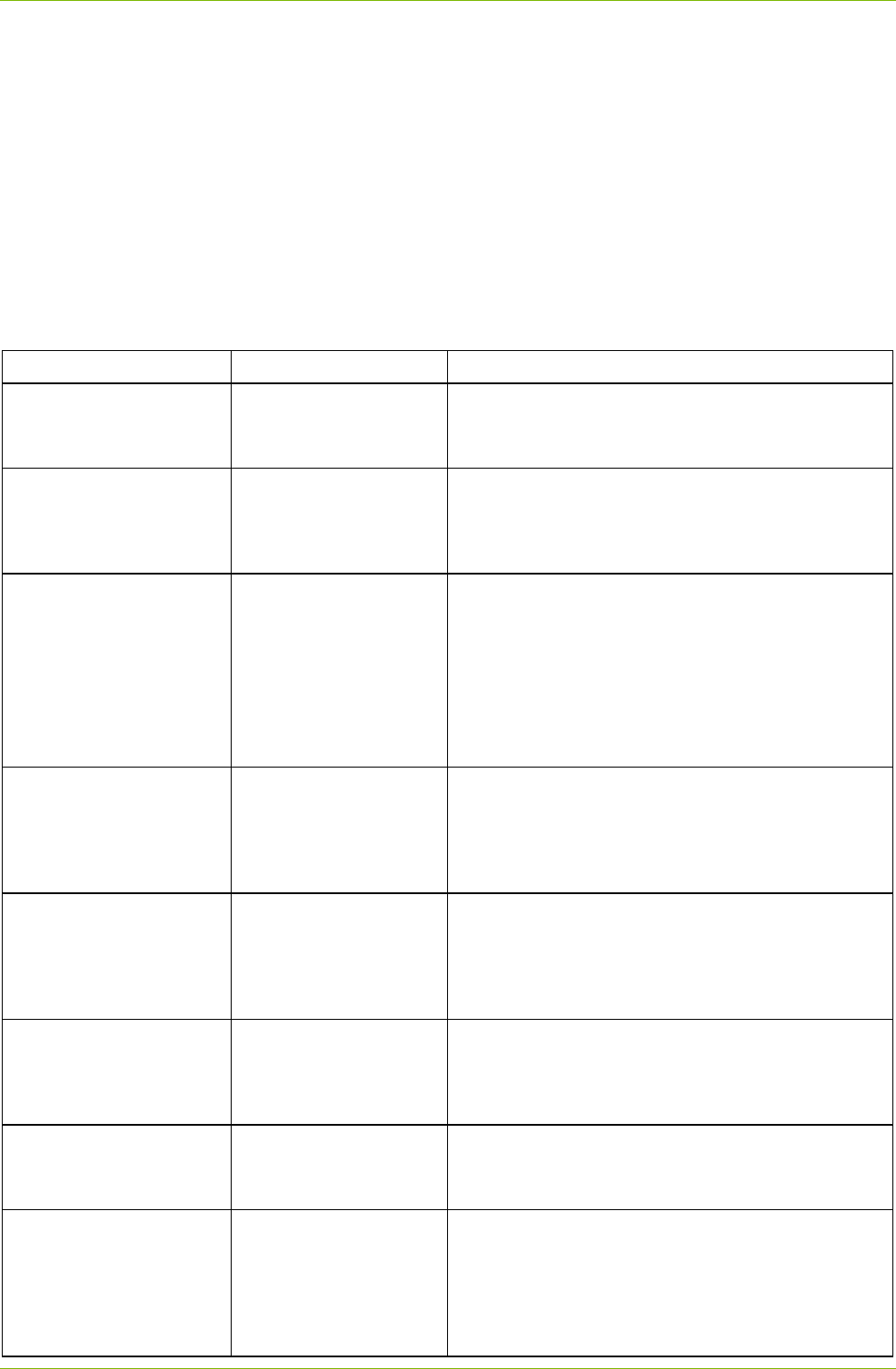
98/122 Short Description of Device Security System
© Landis+Gyr D000011475 en s – .MAP110 Service Tool – User Manual
10.4 Access Levels and their Application
The table below describes all access levels with their security attributes and
their typical application. The access rights are defined by the utility when
ordering the device. They depend on the needs of the utility and on the
national regulations.
For levels 0 to 4 access is possible via the dlms and the IEC protocol, for
levels 5 to G via the dlms protocol only. The UID (user identification) is
used in dlms communication to select the access level.
Please note that not all access levels are available in all devices, the table
below therefore just gives an overview. Please always refer to the func-
tional description of the currently used device.
Level Security attributes Access rights and typical application examples
0
Public Access
UID = 16
without password
without breaking a seal
all interfaces
This access level is always available. All dlms devices
can be accessed on this level.
All data can be read but there is no write access.
1
Data Collection
UID = 32
with static password
without breaking a seal
interfaces selectable
Readout of billing data by means of a handheld termi-
nal or possibly by a central system.
All billing data is readable.
Limited write access possible, e.g. time/date.
2
Utility Field Service
UID = 48
with coded password or
encryption key
without breaking a seal
interfaces selectable
Landis+Gyr Tool required
because of coded pass-
word or encryption algo-
rithm
Maintenance tasks.
All parameters and all billing data are readable.
Limited write access to uncritical data is possible, e.g.
device addresses, identification numbers, phone num-
bers etc.
3
Utility Service
UID = 64
without password
breaking the utility seal
necessary
local interfaces only
Installation or maintenance work in the utility and in the
field.
All parameters and all billing data are readable.
Limited write access to settable data is possible, e.g.
battery operating time, switching tables etc.
4
Extended Utility Service
UID = 80
without password
breaking the verification
seal necessary
local interfaces only
Installation or maintenance work in the utility.
Verification is usually required afterwards.
All parameters and all billing data are readable.
Write access to all data is possible, e.g. parameter-
isation, register clearing, password setting etc.
5
Extended Consumer
UID = 17
with static password
without breaking a seal
interfaces selectable
Write access for the end user.
All parameters and most billing data are readable.
Limited write access to the end user data is possible,
e.g. monitor thresholds.
6
Remote Data Collection
UID = 18
with static password
without breaking a seal
remote interfaces only
Remote readout of billing data by a central system.
All billing data is readable.
Limited write access is possible, e.g. time/date.
7
Remote Service
UID = 19
with static or coded
password
without breaking a seal
remote interfaces only
Installation or maintenance work in connection with a
central system.
All parameters and all billing data are readable.
Limited write access to settable data is possible, e.g.
switching tables, device addresses, identification
numbers, phone numbers etc.
Short Description of Device Security System 99/122
D000011475 en s – .MAP110 Service Tool – User Manual © Landis+Gyr
Level Security attributes Access rights and typical application examples
G
Management
UID = 1
with static password
without breaking a seal
all interfaces
Installation or maintenance work after verification
(locally or via a central system).
All parameters and all billing data are readable.
Limited write access to settable data is possible, e.g.
switching tables, device addresses, identification
numbers, phone numbers etc.
8, 9 Reserved for future expansion.
A
Utility Defined
UID = 22
attributes selectable at
ordering time
No typical application defined.
A
ccess rights defined at ordering time according to the
needs of the utility.
B Reserved for future expansion.
C
Read Administrator
UID = 96
with static password
without breaking a seal
Allocation of read access rights
All parameter and all billing data are readable.
Read access rights for all lower levels (0 to B) can be
allocated.
D
Utility Administrator
UID = 97
with coded password
breaking the verification
seal necessary
local interfaces only
Landis+Gyr Tool required
because of coded pass-
word
Same as level 4.
In addition, changes in the utility security system are
possible:
Read and write access rights can be adapted and all
passwords can be changed.
E
Distributor Service
UID = 100
with coded password
breaking the verification
seal necessary
local interfaces only
Landis+Gyr Tool required
because of coded pass-
word
Service access of the distributor.
Identical to level D.
In addition, changing the access rights and the pass-
word of the utility administrator is possible.

100/122 OBIS Identification Codes
© Landis+Gyr D000011475 en s – .MAP110 Service Tool – User Manual
11 OBIS Identification Codes
11.1 General Description
For OBIS (Object Identification System) the structure A-B:C.D.E.F applies,
whereby the individual groups have the following significance:
A
Defines the characteristic of the data item to be identified, e.g. ab-
stract data, electricity-, gas-, heat- or water-related data.
B
Defines the channel number, i.e. the number of the input of a meter-
ing equipment having several inputs for the measurement of energy
of the same or different types (e.g. in data concentrators, registration
units). This enables data from different sources to be identified.
C
Defines the abstract or physical data items related to the information
source concerned, e.g. active power, reactive power, apparent
power, power factor, current or voltage.
D
Defines types, or the result of the processing of physical quantities
according to various specific algorithms. The algorithms can deliver
energy and demand quantities as well as other physical quantities.
E
Defines the further processing of measurement results to tariff reg-
isters, according to the tariffs in use. For abstract data or for meas-
urement results for which tariffs are not relevant, this value group can
be used for further classification.
F
Defines the storage of data according to different billing periods.
Where this is not relevant, this value group can be used for further
classification.
To simplify the reading in the index field, individual groups of the OBIS
code can be omitted. The abstract or physical data C and type of data D
must be shown. A full specification of the OBIS identification number
system can be found in standard IEC 62056-61.
Only the values of interest to metering devices are explained below with a
collection of examples.
Group A of the OBIS identification can theoretically have values in the
range between 0 and 9. Only the values
0 (abstract objects) and
1 (electricity related objects)
appear in the Landis+Gyr .MAP110 Service Tool.
Group B of the OBIS identification can theoretically have values in the
range between 0 and 64. Only the values
0 (no channel specified)
1 (channel 1) and
2 (channel 2)
appear in the Landis+Gyr .MAP110 Service Tool.
Group C of the OBIS identification can have values in the range between 0
and 255. The individual values are differently assigned depending on the
value of group A. The values for abstract items (group A = 0) are of no in-
terest at this point, since they are largely specific to either context, country
or manufacturer.
Group A
Group B
Group C
OBIS Identification Codes 101/122
D000011475 en s – .MAP110 Service Tool – User Manual © Landis+Gyr
The following table shows the values of group C of the OBIS identification
for electricity related objects. It has the form of a matrix and is read as
follows: the value 46 for instance stands for reactive energy in the second
quadrant for phase L2.
General purpose objects 0
Active energy import (+A) ∑ Li 1 L1 21 L2 41 L3 61
export (-A) ∑ Li 2 L1 22 L2 42 L3 62
Reactive energy import (+R) ∑ Li 3 L1 23 L2 43 L3 63
export (-R) ∑ Li 4 L1 24 L2 44 L3 64
Quadrant I (+Ri) ∑ Li 5 L1 25 L2 45 L3 65
Quadrant II (-Rc) ∑ Li 6 L1 26 L2 46 L3 66
Quadrant III (-Ri) ∑ Li 7 L1 27 L2 47 L3 67
Quadrant IV (+Rc) ∑ Li 8 L1 28 L2 48 L3 68
Apparent energy import (+VA) ∑ Li 9 L1 29 L2 49 L3 69
export (-VA) ∑ Li 10 L1 30 L2 50 L3 70
Current ∑ Li 11 L1 31 L2 51 L3 71
Voltage ∑ Li 12 L1 32 L2 52 L3 72
Power factor ∑ Li 13 L1 33 L2 53 L3 73
Frequency
14 L1 34 L2 54 L3 74
Active energy quadrant I+IV+II+III L1 35 L2 55 L3 75
Active energy quadrant I+IV-II-III L1 36 L2 56 L3 76
Quadrant I L1 37 L2 57 L3 77
Quadrant II L1 38 L2 58 L3 78
Quadrant III L1 39 L2 59 L3 79
Quadrant IV L1 40 L2 60 L3 80
Phase angles 81
Neutral current 91
Neutral voltage 92
Service information* 96
Error message* 97
Log data* 98
Profile data* 99
* In all data readouts the OBIS code is shown in .MAP110 in numeric format only
(as defined in the standard) instead of partly using characters. Affected values:
"C"=96, "F"=97, "L"=98 and "P"=99. This now allows a correct referencing to the
standard.
The values 128 to 255 have Manufacturer-specific definitions.
Some examples of Landis+Gyr definitions are:
Value Application
130 Sum of all phases: reactive energy quadrant I+IV+II+III
131 Sum of all phases: reactive energy quadrant I+II-III-IV
102/122 OBIS Identification Codes
© Landis+Gyr D000011475 en s – .MAP110 Service Tool – User Manual
Value Application
132 Sum of all phases: reactive energy quadrant I+IV
133 Sum of all phases: reactive energy quadrant II+III
150 Phase 1: reactive energy quadrant I+IV+II+III
151 Phase 1: reactive energy quadrant I+II-III-IV
152 Phase 1: reactive energy quadrant I+IV
153 Phase 1: reactive energy quadrant II+III
170 Phase 2: reactive energy quadrant I+IV+II+III
171 Phase 2: reactive energy quadrant I+II-III-IV
172 Phase 2: reactive energy quadrant I+IV
173 Phase 2: reactive energy quadrant II+III
190 Phase 3: reactive energy quadrant I+IV+II+III
191 Phase 3: reactive energy quadrant I+II-III-IV
192 Phase 3: reactive energy quadrant I+IV
193 Phase 3: reactive energy quadrant II+III
Group D of the OBIS identification can have values in the range between 0
and 255. The individual values are differently assigned depending on the
value of group A and C, but are not described here.
Group E of the OBIS identification can have values in the range between 0
and 255. In the Landis+Gyr .MAP110 Service Tool for group E for electric-
ity-related items (group A = 1) the values corresponding to the number of
tariffs specified mainly appear (0 = total of all tariffs, 1 = tariff 1, 2 = tariff 2,
etc.). Other values apply for specific values of group C, but these are not
described here.
Group F of the OBIS identification can have values in the range between 0
and 255. In the Landis+Gyr .MAP110 Service Tool group F is not used and
is therefore always set to 255.
11.2 Examples
The following table shows a selection of OBIS identification numbers and
explains their significance.
OBIS code
(decimal) OBIS code (hex) Description
A B C D E F
0-0:1.0.0 00 00 01 00 00 FF Clock
0-0:42.0.0 00 00 2A 00 00 FF dlms device identification
0-0:96.1.0 00 00 60 01 00 FF Identification number 2.1
0-0:96.1.1 00 00 60 01 01 FF Identification number 2.2
0-0:96.2.0 00 00 60 02 00 FF Number of parameterisations
0-0:96.2.1 00 00 60 02 01 FF Date and time of last parameterisa-
tion
0-0:96.2.2 00 00 60 02 02 FF Activation date TOU
0-0:96.2.3 00 00 60 02 03 FF Date of last RCR program change
Group D
Group E
Group F
OBIS Identification Codes 103/122
D000011475 en s – .MAP110 Service Tool – User Manual © Landis+Gyr
OBIS code
(decimal) OBIS code (hex) Description
A B C D E F
0-0:96.240.0 00 00 60 F0 00 FF EEPROM identification
0-0:96.240.13 00 00 60 F0 0D FF Hardware ID
0-0:96.3.1 00 00 60 03 01 FF Input terminal states base meter
0-0:96.3.2 00 00 60 03 02 FF Output terminal states base meter
0-0:96.4.0 00 00 60 04 00 FF Internal control signal states
0-0:96.5.0 00 00 60 05 00 FF Internal operating state
0-0:96.6.0 00 00 60 06 00 FF Operating time of battery
0-0:96.6.3 00 00 60 06 03 FF Battery voltage
0-0:96.7.0 00 00 60 07 00 FF Number of phase fails L1..L3
0-0:96.7.1 00 00 60 07 01 FF Number of phase fails L1
0-0:96.7.2 00 00 60 07 02 FF Number of phase fails L2
0-0:96.7.3 00 00 60 07 03 FF Number of phase fails L3
0-0:96.8.0 00 00 60 08 00 FF Total operating time
0-0:96.8.t 00 00 60 08 t FF Operating time (t = tariff number)
0-0:96.90 00 00 60 5A FF FF Configuration ID
0-0:96.90.1 00 00 60 5A 01 FF Physical IEC device address
0-0:96.90.2 00 00 60 5A 02 FF Physical HDLC device address
1-0:96.2.7 00 00 60 02 07 FF Activation date passive TOU
0-0:97.97.0 00 00 61 61 00 FF Error code register
0-0:98.1.0*126 00 00 62 01 00 7E Stored values
0-0:240.1.0 00 00 F0 01 00 FF Device functions
0-1:96.2.5 00 01 60 02 05 FF Date and time of last calibration
0-1:96.240.8 00 01 60 F0 08 FF Hardware ID of base meter
0-1:96.3.1 00 01 60 03 01 FF Input terminal states extension board
0-1:96.3.2 00 01 60 03 02 FF Output terminal states extension
board
0-2:96.240.8 00 02 60 F0 08 FF Hardware ID of extension board
0-2:96.240.9 00 02 60 F0 09 FF Reference hardware ID of extension
board
1-0:0.0.1 01 00 00 00 00 FF Identification number 1.1
1-0:0.0.2 01 00 00 00 01 FF Identification number 1.2
1-0:0.0.3 01 00 00 00 02 FF Identification number 1.3
1-0:0.0.4 01 00 00 00 03 FF Identification number 1.4
1-0:0.1.0 01 00 00 01 00 FF Reset counter
1-0:0.1.2 01 00 00 01 02 FF Time and date of last billing period
reset
1-0:0.2.0 01 00 00 02 00 FF Software ID
1-0:0.2.1 01 00 00 02 01 FF Parameterisation ID
1-0:0.2.3 01 00 00 02 03 FF Ripple control receiver ID
104/122 OBIS Identification Codes
© Landis+Gyr D000011475 en s – .MAP110 Service Tool – User Manual
OBIS code
(decimal) OBIS code (hex) Description
A B C D E F
1-0:0.2.4 01 00 00 02 04 FF Connection ID
1-0:0.2.7 01 00 00 02 07 FF Passive TOU ID
1-0:0.9.5 01 00 00 09 05 FF Weekday
1-0:96.99.8 01 00 60 69 08 FF Display and IEC readout ID
1-0:99.1.0 01 00 63 01 00 FF Load profile
1-0:99.98.0 01 00 63 62 00 FF Event log
1-1:0.3.0 01 01 00 03 00 FF Meter constant active energy
1-1:0.3.1 01 01 00 03 01 FF Meter constant reactive energy
1-1:0.4.0 01 01 00 04 00 FF Scale factor for demand display
1-1:0.4.1 01 01 00 04 01 FF Scale factor for energy display
1-1:0.4.2 01 01 00 04 02 FF Current transformer ratio
1-1:0.4.3 01 01 00 04 03 FF Voltage transformer ratio
1-1:13.0.0 01 01 0D 00 00 FF Average billing period power factor
1-1:13.3.n 01 01 0D 03 n FF Power factor minimum (n = number)
1-1:13.31.n 01 01 0D 23 n FF Power factor threshold (n = number)
1-1:13.35.n 01 01 0D 23 n FF Power factor monitor threshold
(n = number)
1-1:13.5.0 01 01 0D 00 00 FF Last average power factor
1-1:13.7.0 01 01 0D 07 00 FF Total power factor
1-1:14.7.0 01 01 0E 07 00 FF Mains frequency
1-1:16.7.0 01 01 10 07 00 FF Active energy
1-1:31.7.0 01 01 1F 07 00 FF Current L1
1-1:31.35.0 01 01 1F 23 00 FF Overcurrent threshold L1
1-1:32.7.0 01 01 20 07 00 FF Voltage L1
1-1:32.31.0 01 01 20 1F 00 FF Undervoltage threshold L1
1-1:32.35.0 01 01 20 23 00 FF Overvoltage threshold L1
1-1:33.7.0 01 01 21 07 00 FF Power factor L1
1-1:51.7.0 01 01 33 07 00 FF Current L2
1-1:51.35.0 01 01 33 23 00 FF Overcurrent threshold L2
1-1:52.7.0 01 01 34 07 00 FF Voltage L2
1-1:52.31.0 01 01 34 1F 00 FF Undervoltage threshold L2
1-1:52.35.0 01 01 34 23 00 FF Overvoltage threshold L2
1-1:53.7.0 01 01 35 07 00 FF Power Factor L2
1-1:71.7.0 01 01 47 07 00 FF Current L3
1-1:71.35.0 01 01 47 23 00 FF Overcurrent threshold L3
1-1:72.7.0 01 01 48 07 00 FF Voltage L3
1-1:72.31.0 01 01 48 1F 00 FF Undervoltage threshold L3
1-1:72.35.0 01 01 48 23 00 FF Overvoltage threshold L3
1-1:73.7.0 01 01 49 07 00 FF Power Factor L3
OBIS Identification Codes 105/122
D000011475 en s – .MAP110 Service Tool – User Manual © Landis+Gyr
OBIS code
(decimal) OBIS code (hex) Description
A B C D E F
1-1:81.7.0 01 01 51 07 00 FF Angle U(L1) to U(L1)
1-1:81.7.1 01 01 51 07 01 FF Angle U(L2) to U(L1)
1-1:81.7.2 01 01 51 07 02 FF Angle U(L3) to U(L1)
1-1:81.7.3 01 01 51 07 04 FF Angle I(L1) to U(L1)
1-1:81.7.4 01 01 51 07 05 FF Angle I(L2) to U(L1)
1-1:81.7.5 01 01 51 07 06 FF Angle I(L3) to U(L1)
1-1:91.7.0 01 01 5B 07 00 FF Neutral current
1-1:91.35.0 01 01 5B 23 00 FF Overcurrent threshold N
1-1:131.7.0 01 01 83 07 00 FF Reactive energy
1-1:m.2.0 01 01 m 02 00 FF Cumulative maximum demand
(m = measured quantity)
1-1:m.4.0 01 01 m 04 00 FF Current average demand
(m = measured quantity)
1-1:m.6.t 01 01 m 06 t FF Maximum demand register
(m = measured quantity, t = tariff
number)
1-1:m.8.0 01 01 m 08 00 FF Total energy register (m = measured
quantity)
1-1:m.8.t 01 01 m 08 t FF Energy register (cumulative)
(m = measured quantity, t = tariff
number)
1-1:m.9.t 01 01 m 09 t FF Energy register (billing period delta
value) (m = measured quantity, t =
tariff number)
1-1:m.29.t 01 01 m 1D t FF Energy register (registration period
delta value) (m = measured quantity,
t = tariff number)
1-1:m.35.n 01 01 m 23 n FF Demand register monitor threshold
(m = measured quantity, n = number)
1-2:82.8.0 01 02 52 08 00 FF Counter S0 pulses input 1
1-3:82.8.0 01 03 52 08 00 FF Counter S0 pulses input 2
a-2:m.8.0 a 02 m 08 00 FF External pulse input 1 (a = medium,
m = measured quantity)
a-3:m.8.0 a 03 m 08 00 FF External pulse input 2 (a = medium,
m = measured quantity)
106/122 Functional Range per User Group
© Landis+Gyr D000011475 en s – .MAP110 Service Tool – User Manual
12 Functional Range per User Group
The following tables show the functions which can be performed for the
different user groups (note right-hand columns for dlms and IEC).
Read Commands User Group
Consumer (final customer)
Field Inspection
Reader
Installation (field use)
Engineering (laboratory use)
Certification
Read Commands dlms IEC
Billing Values (Data Readout )
Instantaneous Values
Emergency Readout
Clock
Date and Time
DST Settings
Clock Synchronisation
Clock Base
0-0:1.0.0 Clock
Date, Time and DST Flag
Profiles
Integration Period
Capture Periods
Load Profile 1 R5
Load Profile 1 Configuration
Load Profile 2
Load Profile 2 Configuration
Stored Values/Billing Data Profile
Energy Profile
Daily Snapshot Profile
Event Logs
(Standard) Event Log R5
Disconnector Control Log
Parameter Changes Log
Firmware Update Log
Communication Monitoring
M-Bus Event Log
Remote Communication Log
Received Signal Strength Profile
Demand Monitoring
Overcurrent Log
Functional Range per User Group 107/122
D000011475 en s – .MAP110 Service Tool – User Manual © Landis+Gyr
User Group
Consumer (final customer)
Field Inspection
Reader
Installation (field use)
Engineering (laboratory use)
Certification
Read Commands dlms IEC
Current 10 Highest Maximum Demands
Log
Last 10 Highest Maximum Demands
Log
Before Last 10 Highest Maximum
Demands Log
Demand Monitor 1 to 4 Log
Power Quality Monitoring
Power Quality Log
Overvoltage Log
Undervoltage Log
Phase Failure Log
Power Failure Log
Current Voltage Quality Losses Log
Last Voltage Quality Losses Log
Before Last Voltage Quality Losses Log
Fraud Monitoring
Fraud Detection Log
Strong DC Field Detection Log
Front Cover Removal Log
Terminal Cover Removal Log
Phase Sequence Reversal Log
Negative Active Energy Flow Log
Current with Undervoltage Log
Open/Shortened CT Log
Undercurrent Log
Overcurrent in Neutral Log
Energy Registers
Energy Total Registers
Energy Registers
Current Hour Registers
Demand Registers
Last Average Demand Registers
Maximum Demand Registers
Identification Numbers
COSEM Logical Device Name
Firmware Version
108/122 Functional Range per User Group
© Landis+Gyr D000011475 en s – .MAP110 Service Tool – User Manual
User Group
Consumer (final customer)
Field Inspection
Reader
Installation (field use)
Engineering (laboratory use)
Certification
Read Commands dlms IEC
Extended Firmware Version
Extended Firmware Version CU
Identification Numbers 1.1 to 1.4
Device ID 1 to 6
(utility serial number 1 to 6, ID 2.1 to 2.5)
Connection ID
Parameterisation ID
Configuration ID
Last Configuration Change ID
Multi Utility
Multi Utility Registers
M-Bus Device n (n= 1 to 4)
Multi Utility Profile n
Identification Numbers M-Bus Device n
Configuration M-Bus Device n
Extended Configuration M-Bus Device n
Communication
Physical Device Addresses IEC
IP Address
Ethernet MAC Address
CS/S0 Type
Optical Interface
Maximum Retries and retry Timeout
Electrical Interface 1 and 2
Electrical Interface
SMS Configuration
Mobile and SIM Card Identification
Remote Communication
General Settings
GSM Modem Settings
GPRS Modem Settings
TCP/IP Settings
PLC Settings
Extended Communication (CU only)
General Communication Settings
CU Modem Settings
Functional Range per User Group 109/122
D000011475 en s – .MAP110 Service Tool – User Manual © Landis+Gyr
User Group
Consumer (final customer)
Field Inspection
Reader
Installation (field use)
Engineering (laboratory use)
Certification
Read Commands dlms IEC
Mobile and SIM Card Identification
CU TCP/IP Settings
CU ADP Settings
IPT Status
Time of Use
Time of Use (TOU)
Extended Time of Use (TOU)
Passive TOU ID and Activation Date
Active TOU ID and Activation Date
Tariff control
Tariff Table
Disconnectors
Electricity Disconnector
M-Bus Disconnector 1 to 4
Fraud Detection
Terminal Cover Counter
Strong DC Field Counter
Antitampering Event Log
Diagnostic Values
Operating Time Registers
Power Factor Registers
Power Factor Monitor Thresholds 1 and 2
Demand Monitor Thresholds
Battery Use Time 1 and 2
Battery Voltage
Billing Period Counter
Date and Time of Last Billing Period Reset
Billing Period Reset Settings
Energy Snapshot Counter
Date and Time of Last Energy Snapshot
Energy Snapshot Settings
Date and Time of Last Parameterisation
Number of Parameterisations
Date and Time of Last Calibration
Pulse Output Constant
Power Quality Functions
110/122 Functional Range per User Group
© Landis+Gyr D000011475 en s – .MAP110 Service Tool – User Manual
User Group
Consumer (final customer)
Field Inspection
Reader
Installation (field use)
Engineering (laboratory use)
Certification
Read Commands dlms IEC
Maximum Demand Supervision
Current Supervision
Error Code
I/O Control Status
Internal Control Status
Internal Operating Status
Display and Readout Lists
Recall List
Service List
Readout List
No Power Display List
Auto Scroll Display List
Manual Scroll Display List
Engineering Menu Maximum Retries and
Timeout
Consumer Message
Primary Value Adaptation
Primary Value Adaptation ZxQ
In Home Display
In Home Display RF Address
In Home Display Parameters
Consumer Message
Functional Range per User Group 111/122
D000011475 en s – .MAP110 Service Tool – User Manual © Landis+Gyr
Write Commands User Group
Consumer (final customer)
Field Inspection
Reader
Installation (field use)
Engineering (laboratory use)
Verification
Write Commands dlms IEC
Clock
Date and Time
Set Date and Time to PC Time
Clock Base
DST Settings
Clock Synchronisation
Date, Time and DST Flag
Set Date and Time to PC Time
Set Date and Time to PC Time (Jalaali)
Day Counter and Season Number
Profiles
Integration Period
Caption Periods
Load Profile 1 and 2 Configuration
Identification Numbers
Identification Numbers 1.1 to 1.4
Device ID 1 to 2
(utility serial number 1 to 2, ID 2.1 to 2.2)
Device ID 3 to 5
(utility serial number 3 to 5, ID 2.3 to 2.5)
Connection ID
Customer ID
Meter ID
Manufacturer ID
Parameterisation ID
Last Configuration Change ID
Multi Utility
M-Bus Device n (n= 1 to 4)
Utility Serial Number 2 M-Bus Device n
Configuration M-Bus Device n
Extended Configuration M-Bus Device n
Install M-Bus Device n
Transfer Key to M-Bus Device n
Deinstall M-Bus Device n
112/122 Functional Range per User Group
© Landis+Gyr D000011475 en s – .MAP110 Service Tool – User Manual
User Group
Consumer (final customer)
Field Inspection
Reader
Installation (field use)
Engineering (laboratory use)
Verification
Write Commands dlms IEC
Communication
Physical Device Addresses IEC
Ethernet MAC Address
CS/S0 Type
Communication Input Settings
Optical Port Lock
Optical Interface
Optical Interface Maximum Retries and
Retry Timeout
Electrical Interface 1 and 2
Electrical Interface
SMS Configuration
Remote Communication
General Settings
GSM Modem Settings
GPRS Modem Settings
TCP/IP Settings
PLC Settings
Extended Communication (CU only)
General Communication Settings
CU Modem Settings
CU TCP/IP Settings
CU ADP Settings
Time of Use
Set Activation Time of Passive TOU
Time of Use (TOU)
Extended Time of Use (TOU)
Tariff Control
Tariff Table
Rate control by electrical signal
Rate control by electrical signal (inverted)
Rate control by command
Rate Switching
Disconnectors
Electricity Disconnector
Functional Range per User Group 113/122
D000011475 en s – .MAP110 Service Tool – User Manual © Landis+Gyr
User Group
Consumer (final customer)
Field Inspection
Reader
Installation (field use)
Engineering (laboratory use)
Verification
Write Commands dlms IEC
M-Bus Disconnector 1 to 4
Diagnostic Values
Billing Period Reset Settings
Energy Snapshot Settings
Power Factor Monitor Thresholds 1 and 2
Demand Monitor Thresholds
Single Reset Settings
Pulse Output Constant
Power Quality Functions
Maximum Demand Supervision
Current Supervision
Passwords
Password Data Collection (Level 1)
Password Utility Field Service (Level 2)
Password IEC W5
Password Extended Consumer (Level 5)
Password Management Access (Level G)
Password Remote Data Collection (Level 6)
Password Remote Service (Level 7)
Password User Defined (Level A)
Password Read Administrator (Level C)
Password Utility Administrator (Level D)
Password Distributor Service (Level E)
Password Level 1 Communication Unit
Password Level 2 Communication Unit
Password Level A Communication Unit
Encryption Key M-Bus Device 1 to 4
Password Optical Interface
Password Engineering Menu
Password P1
Password P2
Encryption Key P2
Display and Readout Lists
Recall List
114/122 Functional Range per User Group
© Landis+Gyr D000011475 en s – .MAP110 Service Tool – User Manual
User Group
Consumer (final customer)
Field Inspection
Reader
Installation (field use)
Engineering (laboratory use)
Verification
Write Commands dlms IEC
Service List
Readout List
No Power Display List
Register Resolution
Auto Scroll Display List
Manual Scroll Display List
Engineering Menu Maximum Retries and
Timeout
Consumer Message
Primary Data Adaptation
Primary Data Adaptation ZxQ
In Home Display
Consumer Message
In Home Display RF Address
In Home Display Parameters
Functional Range per User Group 115/122
D000011475 en s – .MAP110 Service Tool – User Manual © Landis+Gyr
Execute Commands User Group
Consumer (final customer)
Field Inspection
Reader
Installation (field use)
Engineering (laboratory use)
Verification
Execute Commands dlms IEC
Billing Period Reset
Take Energy Snapshot
Enable/Disable Testmode
Enable/Disable Transm. Contacts Testmode
Activate Active Pulses on Right LED
Activate Reactive Pulses on Right LED
Enable/Disable Energy Registers in Display
Neutralize Billing Period Reset Inputs (KA/KB)
Reset Meter Data
Reset Alert
Reset Alarm
Reset DIP Table
Reset In Home Display Data
Activate Passive TOU Now
Activate New Parameters in Meter
Activate New Parameters in CU
Activate New Firmware in Meter
Activate New Firmware in CU
Reset Temper Flags
Enable/Disable Energy Registers in Display
Display Text Message
Registers
Reset Billing Period Counter
Reset Energy Snapshot Counter
Reset Operating Time 1 and 2 of Battery
Reset all Registers and Profiles
Reset all Energy Registers
Reset Energy and Demand Registers
Reset all Energy Total Registers
Reset all Multi Utility Registers
Reset Error Register
Reset Alarm Register
116/122 Functional Range per User Group
© Landis+Gyr D000011475 en s – .MAP110 Service Tool – User Manual
User Group
Consumer (final customer)
Field Inspection
Reader
Installation (field use)
Engineering (laboratory use)
Verification
Execute Commands dlms IEC
Reset Diagnostic Registers
Reset Event Counters
Reset all Over and Undervoltage Counters
Reset all Over and Undercurrent Counters
Reset Demand Registers
Profiles
Reset Stored Values/Billing Data Profile
Reset Energy Profiles
Reset Daily Snapshot Profile
Reset Load Profile 1
Reset Load Profile 2
Reset Multi Utility Profiles
Reset all Profiles
Event Logs
Reset (Standard) Event Log W5
Reset all Dedicated Event Logs
Reset Disconnector Control Log
Reset Parameter Changes Log
Demand Monitoring
Reset Over Current Log
Reset Maximum Demand Logs (all 3)
Reset Demand Monitor 1-4 Log
Power Quality Monitoring
Reset Power Quality Log
Reset Overvoltage Log
Reset Undervoltage Log
Reset Phase Failure Log
Reset Power Failure Log
Reset Voltage Quality Losses Logs (all 3)
Fraud Monitoring
Reset Fraud Detection Log
Reset Strong DC Field Detection Log
Reset Front Cover Removal Log
Reset Terminal Cover Removal Log
Functional Range per User Group 117/122
D000011475 en s – .MAP110 Service Tool – User Manual © Landis+Gyr
User Group
Consumer (final customer)
Field Inspection
Reader
Installation (field use)
Engineering (laboratory use)
Verification
Execute Commands dlms IEC
Reset Phase Sequence Reversal Log
Reset Negative Active Energy Flow Log
Reset Current with Undervoltage Log
Reset Open/Shortened CT Log
Reset Undercurrent Log
Reset Overcurrent in Neutral Log
Communication Monitoring
Reset M-Bus Event Log
Reset Remote Communication Event Log
Reset Received Signal Strength Profile
Communication
SMS Test
Enable/Disable Field Strength Indication
Activate GPRS communication
Close current GPRS window
Close all GPRS windows
Set to 'PLC NEW' State
Leave ZigBee Network
Fraud Detection
Reset Terminal Cover Counter
Reset Strong DC Field Counter
Reset Antitampering Event Log
Reset Optical Interface Unsuccessful
Retries Counter
Reset Engineering Menu Unsuccessful
Retries Counter
Firmware Update
Firmware Update AD-xP/xG 3.x
Firmware Update E450 and AD-xE
Firmware Update CU-P4
118/122 Functional Range per User Group
© Landis+Gyr D000011475 en s – .MAP110 Service Tool – User Manual
Diagnostic Commands User Group
Consumer (final customer)
Field Inspection
Reader
Installation (field use)
Engineering (laboratory use)
Verification
Diagnostic Commands dlms IEC
Vector Diagram
CU GSM Installation Support
GSM Installation Support
DIP Table
Security System *
Load Profile Analysis *
* MS Excel is required to perform these diagnostic functions.

List of Abbreviations 119/122
D000011475 en s – .MAP110 Service Tool – User Manual © Landis+Gyr
13 List of Abbreviations
This section explains some abbreviations used in this user manual or on
dialogue windows of the Landis+Gyr .MAP110 application in alphabetical
order.
Please consult also the metering glossary published on the Landis+Gyr
homepage www.landisgyr.eu under "Support" "Metering Glossary".
Definition
Description
Distribution Line Message Specification
Messaging system defined originally as part of the application layer of the
protocol stack for distribution line carrier systems (IEC 61334-4-41, 1996).
Its universality and its independence of the actual communication channel
allowed dlms to become the choice of the metering industry for any meter-
ing application (Device Language Message Specification).
Energy Data Identification System
Identification number system for clear identification of energy data accord-
ing to DIN 43863-3:1997.
Global System for Mobile communications
Wireless communication network for data and voice transmission.
High Level Data Link Control
Communication protocol used by COSEM (IEC 62056-46), specifying the
data link layer. The HDLC standard is ISO/IEC 13239, 2000 (second edi-
tion). Some older COSEM implementations rely on the first, 1996 edition of
the standard.
International Electrotechnical Commission
IEC 62056-21 is the standard "Electricity metering - Data exchange for
meter reading, tariff and load control - Part 21: Direct local data exchange".
This is the third edition of the formerly well-known standard IEC 61107 (IEC
1107).
Meter Application Product
The .MAP software tools have been developed and distributed by
Landis+Gyr to support electricity meters. This group of tools comprises the
.MAP 110 Service Tool and the .MAP120 Parameter Editor.
Object Identification System
Identification number system for clear identification of dlms items.
Public Switched Telephone Network
The public switched telephone network can be used for data transmission.
To this purpose a modem (modulator/demodulator) must be inserted be-
tween computer and telephone network and also between the telephone
network and the remote device.
Vereinigung Deutscher Elektrizitätswerke
VDEW is the central organisation of the German electrical industry. It com-
bines and represents the interests of its members and is consultant and
forward-looking body for energy questions (refer also to www.strom.de).
Abbreviation
dlms
EDIS
GSM
HDLC
IEC
.MAP
OBIS
PSTN
VDEW

120/122 Index
© Landis+Gyr D000011475 en s – .MAP110 Service Tool – User Manual
14 Index
.MAP ........................................................... 119
Access level data .......................................... 48
Access level toolbar ...................................... 16
Access levels ................................................ 97
Activating command confirmation ................. 88
Address book import ..................................... 40
Address data ................................................ 40
Address toolbar ............................................ 16
Addressing devices ...................................... 49
Application of .MAP110 functions ................. 55
Application of access levels .......................... 98
Application toolbar ........................................ 16
Auxiliary functions ......................................... 84
Bit assignment in profile status word ............ 59
Calendar base setting ................................... 89
Changing
the language of the user interface ............ 85
the license .................................................. 11
Checking for updates .................................... 94
Command confirmation setting ..................... 88
Command execution ..................................... 20
Command log window .................................. 22
Command tree .............................................. 18
Command tree toolbar .................................. 18
Communication channel data ................. 33, 45
Communication channel toolbar ................... 17
Communication channels ............................... 6
Communication examples ............................ 50
Communication log window .......................... 23
Communication protocols ............................... 7
Communication settings ............................... 27
Communication solutions ............................. 54
Conditions for the use of this user manual ..... 3
Conventions .................................................... 3
Copy
command log window content ............. 22, 25
result window ............................................ 81
vector diagrams ........................................ 78
Current version of the program ..................... 85
Data Linking .................................................. 28
Defining file locations .................................... 90
Defining IP addresses .................................. 43
Defining phone numbers .............................. 42
De-installation ............................................... 95
Delay times settings ..................................... 87
Delete command log window ........................ 22
Delete communication log window ............... 25
Device address ............................................. 49
Device data ................................................... 31
Device security system ................................. 97
Device toolbar ............................................... 17
Diagnostic commands .......................... 77, 118
DIP table ....................................................... 79
reset .......................................................... 81
Direct connection .......................................... 26
dlms ............................................................ 119
EDIS ........................................................... 119
Edit command log window content ............... 22
Editions ........................................................... 7
Emergency readout ...................................... 60
Emphasising commands available in the
command tree ........................................... 20
Entering license data .................................... 10
Establishing communication ......................... 26
Ethernet connection ...................................... 52
Evaluation window ........................................ 25
Event types ................................................... 59
Examples of OBIS identification codes ....... 102
Execute commands .............................. 68, 115
Firmware update AD-xG ........................... 70
Firmware update E450 and AD-xE ........... 73
SMS test transmission .............................. 69
Export result window content ........................ 21
Fields of application of .MAP tools .................. 6
File locations setting ..................................... 90
Firmware update AD-xG ............................... 70
Firmware update E450 and AD-xE ............... 73
First installation ............................................... 8
First steps ..................................................... 12
Folder handling ............................................. 19
Functional range
for dlms devices ...................................... 106
for IEC devices ........................................ 106
per user group ......................................... 106
Functions of the .MAP110 .............................. 6
Further documents........................................ 54
GSM installation support............................... 78
HDLC .......................................................... 119
IEC .............................................................. 119
Import address book ..................................... 40
Improper data access ................................... 97
Installation ...................................................... 8
Interface to device ........................................ 26
Internet connection ....................................... 53
IP address definition ..................................... 43
IP address selection ..................................... 16
Language .................................................. 8, 85
Licence data ................................................. 10
License key entry .......................................... 10
Licensing concept ........................................... 9
List of abbreviations .................................... 119
Load profile analysis ..................................... 82
Loading TOU ................................................ 66
Local connection ........................................... 26
Menu bar ...................................................... 16
Modem connection ................................. 26, 51
Modify
communication unit settings ...................... 64
primary value adaptation ........................... 67
SMS configuration settings ....................... 63
Time of Use ............................................... 65
Multiple connection ....................................... 50

Index 121/122
D000011475 en s – .MAP110 Service Tool – User Manual © Landis+Gyr
Network connection
via a LAN ................................................... 52
via the Internet ........................................... 53
OBIS identification codes ............................ 100
Object identification system OBIS ............... 100
Online help .................................................... 84
Parameter overwriting protection .................. 97
Password protection ..................................... 97
Phone number definition ............................... 42
Phone number selection ............................... 16
Physical device address ............................... 49
Print
result window ............................................. 81
vector diagrams ......................................... 78
Problem solving ............................................ 96
Profile status word ........................................ 59
Program version ............................................ 85
PSTN .......................................................... 119
Purpose of this user manual ........................... 3
Read commands ................................... 55, 106
for current device data ............................... 56
for emergency readout .............................. 60
for load profiles .......................................... 57
simple ........................................................ 55
Reading head ................................................ 26
Read-me file .................................................. 93
Release notes ............................................... 93
Reset DIP table ............................................. 81
Result window ............................................... 21
Save
command log window content . 21, 22, 24, 80
communication log window content ........... 24
result window content .................... 21, 78, 80
TOU ........................................................... 65
Screen areas ................................................. 15
Security attributes ......................................... 97
Security switches .......................................... 97
Security system ....................................... 81, 97
Selecting the calendar base .......................... 89
Serial connection .......................................... 50
Set communication inputs ............................. 62
Setting colour for inactive commands ........... 86
Setting delay times ........................................ 87
Setting MAP100 File Export .......................... 91
Simple read commands ................................ 55
SMS test transmission .................................. 69
Status bar ...................................................... 25
Support ......................................................... 96
System requirements ...................................... 8
Target group of this user manual .................... 3
Toolbars ........................................................ 16
Tree items ..................................................... 19
Tree view ...................................................... 19
Update check ................................................ 94
Upgrades ........................................................ 8
User groups .................................................... 7
User interface ................................................ 15
VDEW ......................................................... 119
Vector diagram .............................................. 77
Write commands ................................... 61, 111
Modify communication unit settings........... 64
Modify primary value adaptation ............... 67
Modify SMS configuration settings ............ 63
Modify Time of Use ................................... 65
Set communication inputs ......................... 62

Contact:
Landis+Gyr AG
Theilerstrasse 1
CH-6301 Zug
Switzerland
Phone: +41 41 935 6000
www.landisgyr.com
