Ligo User Guide
User Manual:
Open the PDF directly: View PDF  .
.
Page Count: 7
Ligo user guide
Version: 1.1
Last modified: Sept 6, 2018
Author: Paul Ripley
Introduction
This document is provides a short overview of how to use Ligo. The audience is assumed to be a non-
technical data scientist / researcher.
What is the linking application
Ligo has two primary purposes: 1) identifying common entities in a comma separated values (.csv)
formatted dataset [de-duplication] 2) identifying common entities between two datasets [linking].
Working with data files
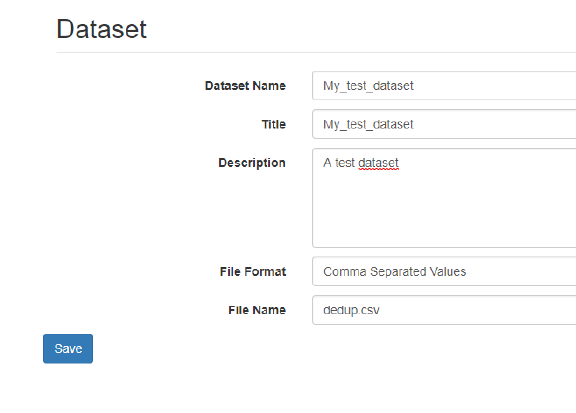
Datasets are the source of data for Ligo. To add a new dataset to Ligo, you first must add your data file
to the dataset folder (files/media/datasets). Currently, only comma separated values (.csv) files are
supported.
Once you save the information about your dataset, you should see the dataset properties page.
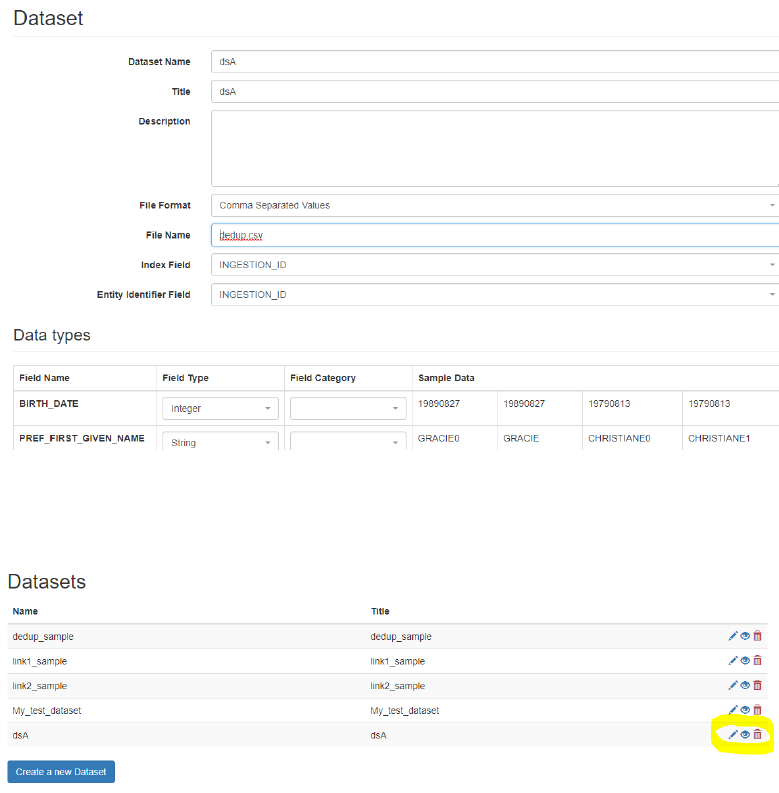
On this page you can set the index and entity identifier fields as well as map fields in your dataset to
field types. It should be noted that “Field Category” is not currently used. After you’ve saved the new
dataset you can view, edit or delete it via the main Datasets page.
Projects
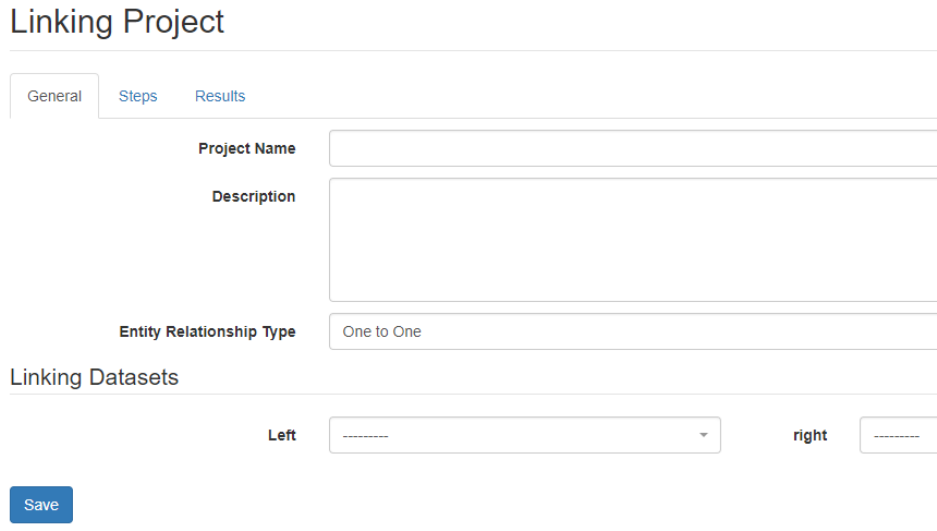
You can perform deduplication and linking on your datasets via projects. When you create a new
project you will be prompted to pick either the deduplication or linking project. A deduplication project
finds common entities within a single dataset, whereas a linking project finds common entities between
two datasets.
Relationship type
For linking projects only, you must select a relationship type. A linking project’s relationship type
determines if a record can be linked to one or more records in the other dataset. As an example a
dataset of people being linked to a dataset of addresses may have a one-to-many relationship type i.e.,
a person record may have one or many addresses records matched with it.
Steps
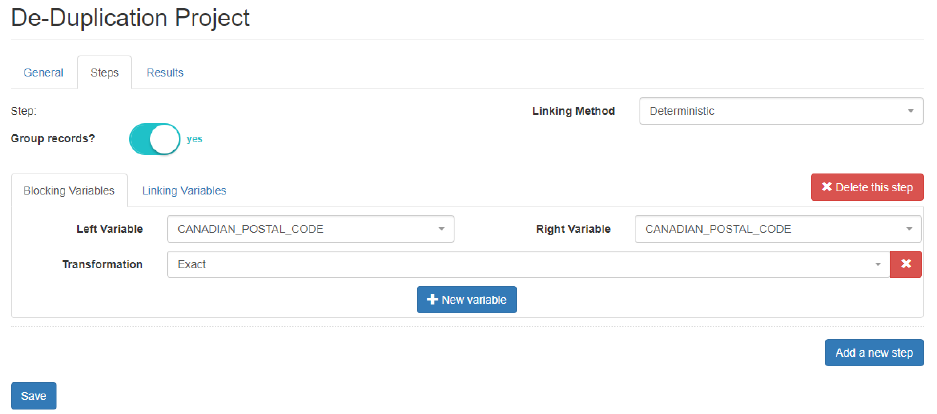
Within a project you can create one or more steps. Each step consists of blocking and linking sub-steps.
You can use blocking conditions to restrict the linking search space. Within the restricted search space
created by the blocking conditions, your linking conditions are applied. As an example, if the blocking
condition is that postal codes must exactly match (see below), then the linking conditions (e.g., matching
last names) will only be applied to records where the postal codes matched exactly. Appendix B
provides a description of all the comparison methods / transformations available.
Multiple Steps
You may find that one set of blocking and linking criteria is insufficient for your deduplication / linking
purposes; therefore, it may be useful for you add additional project steps. Using multiple steps allows
you to effectively do multiple “rounds” of blocking and linking.
Group records
By default, matched rows in a step are excluded from future steps (“Group” is set to “yes”). However,
there may be situations where you want the criteria of multiple steps to be considered when creating
entities (i.e., an “OR” across multiple steps). As an example, suppose you had a project with 4 steps and
you want steps 2 and 3 to be considered at the same time when creating entities. You would set
“Group” to “yes” for steps 1, 3, and 4 and “Group” to “no” for step 2.
Results
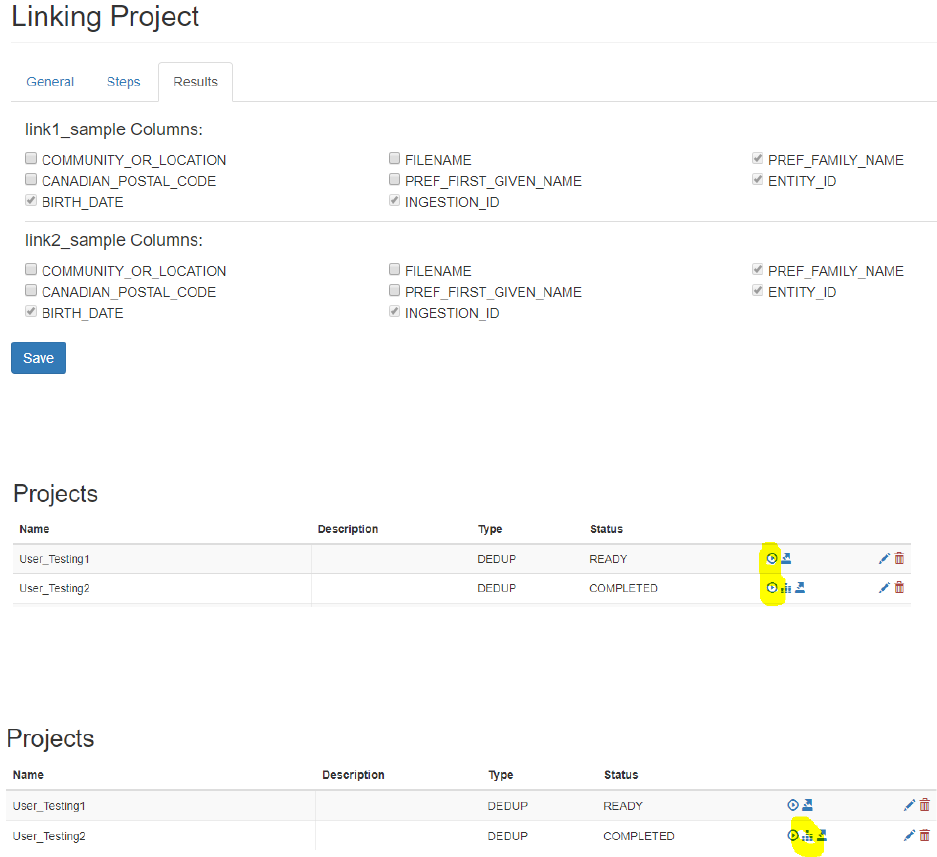
Once you’ve entered your blocking / linking criteria, you can select the “Results” tab to control what
fields you would like to be included in your project results file. Check the boxes of fields you would like
to see in your results.
Running a project
To run a project, click the “Run Project” icon on the main project page.
Viewing project results
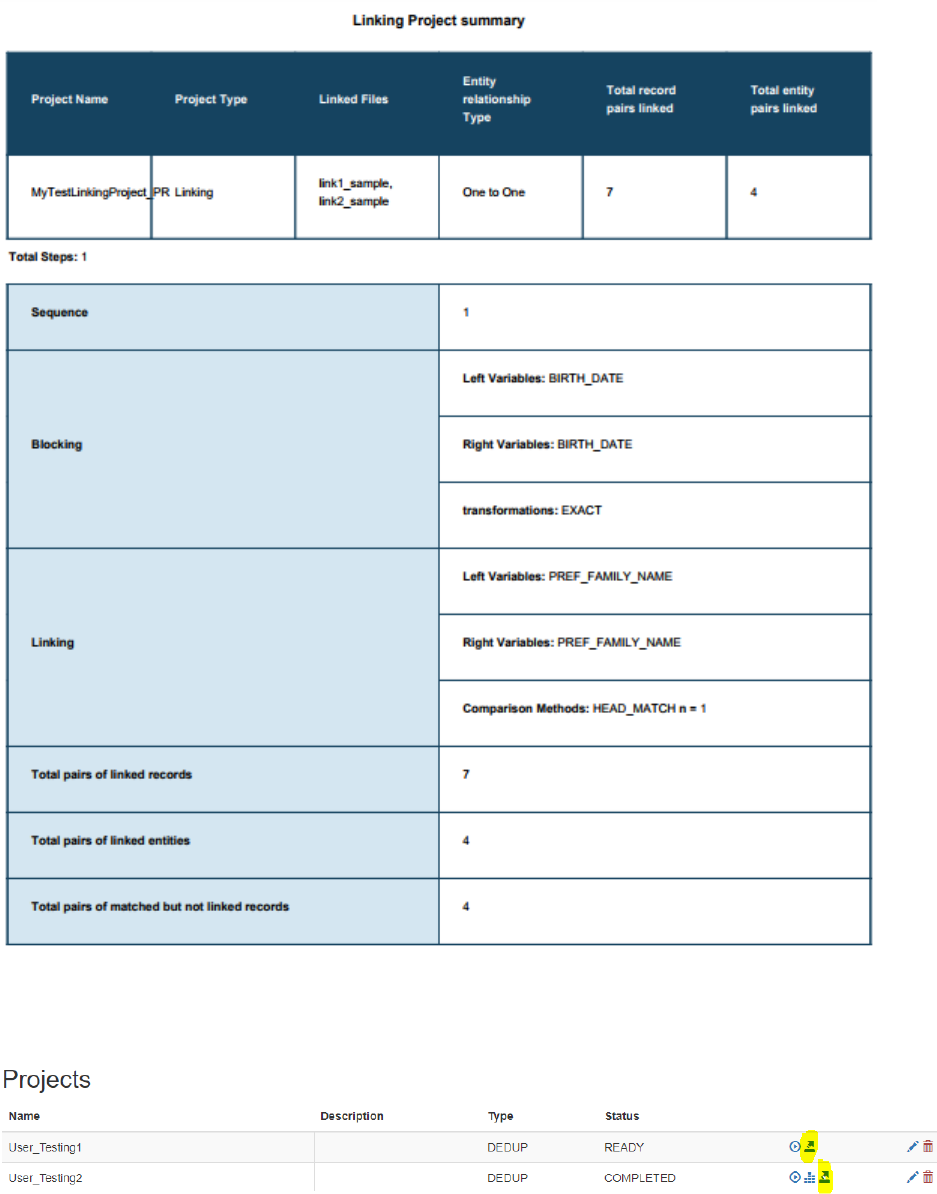
Once your project has finished running you will see a “View Results” icon.
You can view a PDF of your results by clicking on the icon.
Export to JSON
You can export your project’s configuration as JSON by clicking on the “Export to JSON” icon. Importing
JSON is currently not supported.
Appendix A: Definitions
Blocking variable - is a field used in the linking environment to limit (like a SQL where clause) the
records over which to apply the linking algorithm
Dataset – a data file; typically in comma separated values (CSV) format
Entity identifier – flags a column in a data file for tracking which rows relate to the same entity
Group [in a deduplication project] – see “Group Records” section
Linking variables - is a field used in conjunction with a comparison rule to specify the conditions for
matching records
Deterministic linkage - as opposed to probabilistic linkage, matches with all applied comparison
rules having equal weighting
Deduplication project - is a project for deduplicating a data file
Linking method - is a property of a linking project that determines whether the project uses
deterministic or probabilistic linking
Linking project - is a project for linking two datasets
Relationship type [of a linking project] - defines for a linking project how the two data files relate to
each other e.g., 1-1, 1-m, m-1
Appendix B: Comparison methods / Transformations
Blocking
Exact: left and right variables must match exactly
Soundex Encoding: https://en.wikipedia.org/wiki/Soundex
New York State Identification and Intelligence System:
https://en.wikipedia.org/wiki/New_York_State_Identification_and_Intelligence_System
Linking
Levenshtein: https://en.wikipedia.org/wiki/Levenshtein_distance
Jaro-Winkler: https://en.wikipedia.org/wiki/Jaro%E2%80%93Winkler_distance
Synonym Names: left and right variables are synonyms of each other
Exact matching: left and right variables must match exactly
Both values empty: left and right variables should both be empty
One value should be empty: either the left or right variable but not both should be empty
Both values exist: left and variables are both non-empty
Soundex: https://en.wikipedia.org/wiki/Soundex
New York State Identification and Intelligence System:
https://en.wikipedia.org/wiki/New_York_State_Identification_and_Intelligence_System
Substring match: given a start and end index, the substring of both left and right variables match
First n characters: first n characters of left and right variables match
Last n characters: last n characters of left and right variables match
Exact string-length: both left and right variables have a specified length
Field Specific Value: both left and right variables match a specific value
Absolute difference: https://en.wikipedia.org/wiki/Absolute_difference
