Load Cell Amplifier HX711 Breakout Hookup Guide Learn.sparkfun.com
User Manual:
Open the PDF directly: View PDF  .
.
Page Count: 10
Load Cell Amplifier HX711 Breakout Hookup Guide
SHOP LEARN BLOG SUPPORT
CONTRIBUTORS: SARAH AL-MUTLAQ, ALEX THE GIANT
FAVORITE 5
Introduction
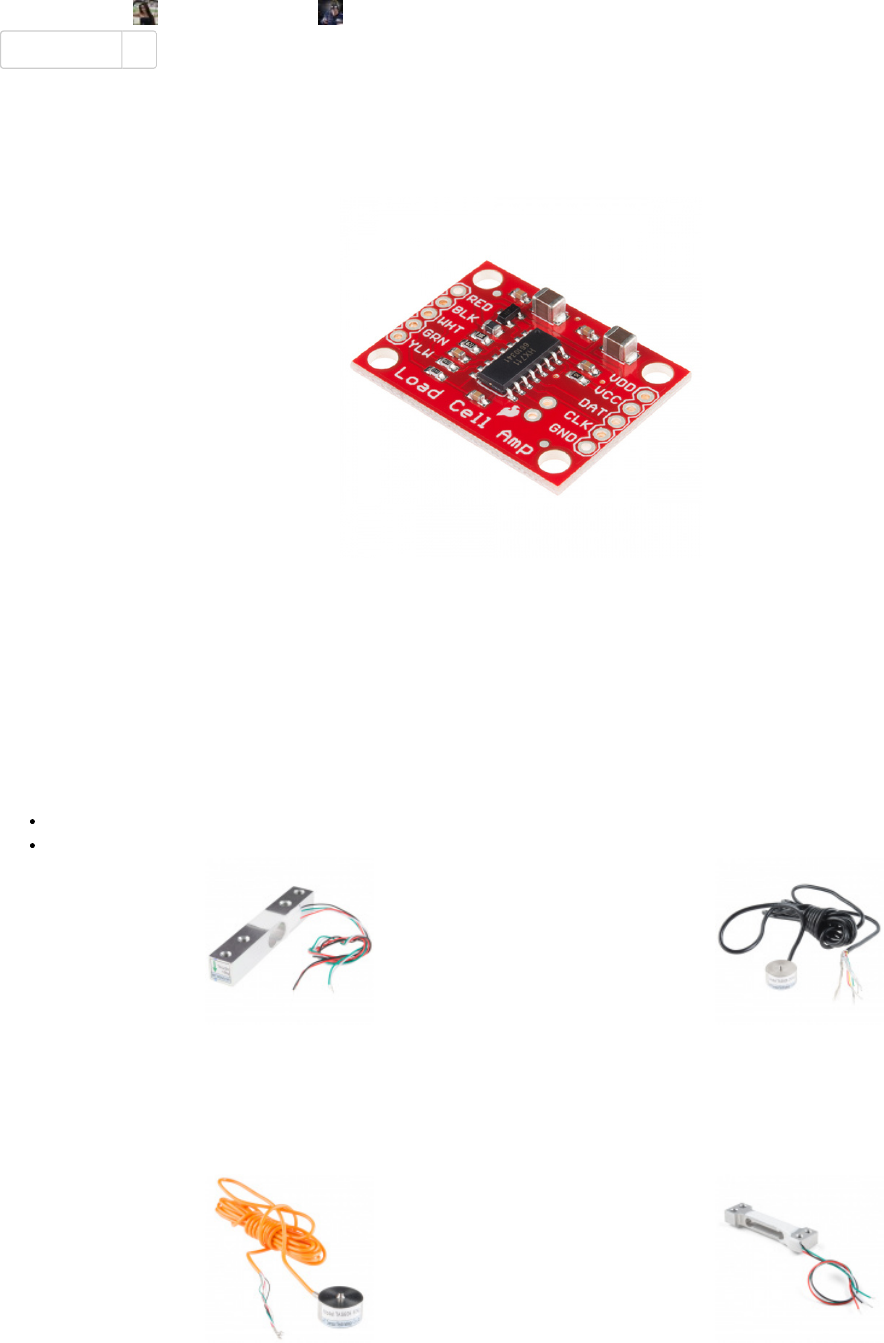
The HX711 load cell amplifier is used to get measurable data out from a load cell and strain gauge. This Hookup Guide will show you how to
get started with this amplifier using some of the various load cells we carry at SparkFun.
Required Materials
For this simple hook up guide we will just be hooking up a load cell with the HX711 amplifier, and showing how you would hook up four load
sensors with a combinator board and the HX711 amplifier. To follow along, you’ll need:
SparkFun Load Cell Amplifier - HX711
Any Strain Gauge Based Load Cell:
SparkFun Load Cell Amplifier - HX711
SEN-13879
$9.95
30
Load Cell - 10kg, Straight Bar (TAL220)
SEN-13329
$8.50
3
Load Cell - 200kg, Disc (TAS606)
SEN-13332
$59.95
4
Load Cell - 50kg, Disc (TAS606) Mini Load Cell - 500g, Straight Bar (TAL221)
If you are planning on using load sensors you will need to obtain or purchase four units. We recommend our Combinator Board to make it
easy to turn the four strain gauges into a wheatstone bridge type load cell. (Single strain gauge load cells only have three wires instead of
four.)
Suggested Reading
If you aren’t familiar with the following concepts, we recommend reviewing them before beginning to work with the HX711 Load Cell
Amplifier Board.
Load Cell Set Up
SEN-13331
$59.95
SEN-14728
$9.95
1
How to Solder: Through-Hole Soldering
This tutorial covers everything you need to know about through-
hole soldering.
Battery Technologies
The basics behind the batteries used in portable electronic devices:
LiPo, NiMH, coin cells, and alkaline.
How to Power a Project
A tutorial to help figure out the power requirements of your project.
Installing Arduino IDE
A step-by-step guide to installing and testing the Arduino software
on Windows, Mac, and Linux.
Getting Started with Load Cells
A tutorial defining what a load cell is and how to use one.
1. [Strain gauges are two wired organized metal foil or wires that are set up in such a way that the resistance changes when it is compressed or stretched. When a strain gauge is placed
on something (usually metallic in nature) its resistance changes based on the stress experienced by that something. When a single strain gauge is hooked up to a metallic cell, we are
calling that a load sensors, which have three output wires. Load cells usually has four strain gauges hooked up in a wheatstone bridge formation, which have four output wires. For more
information on load cells, strain gauges, and wheatstone bridges see our tutorial.]↩
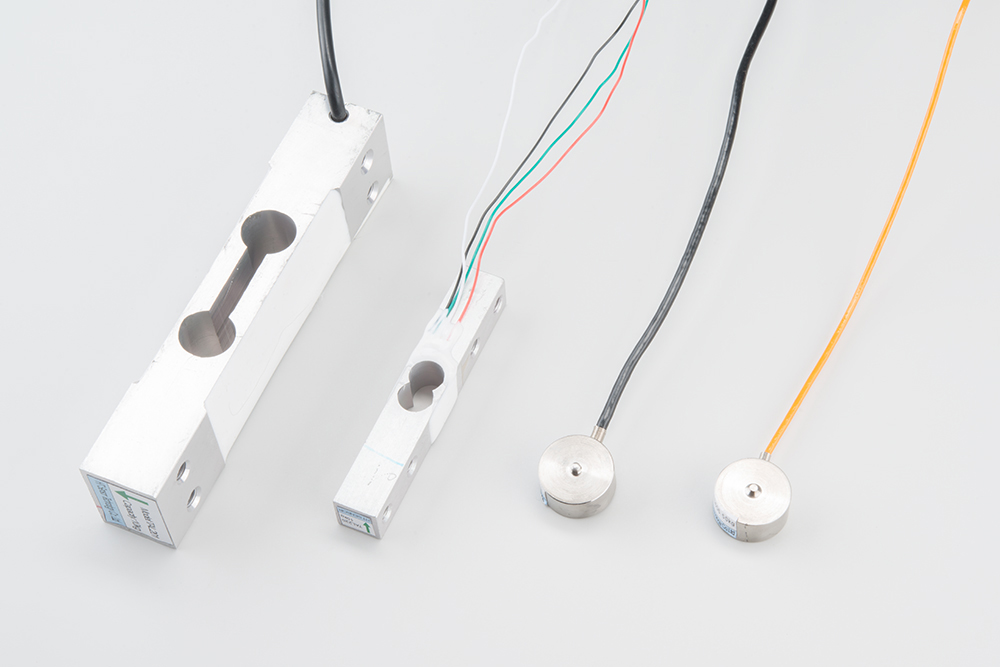
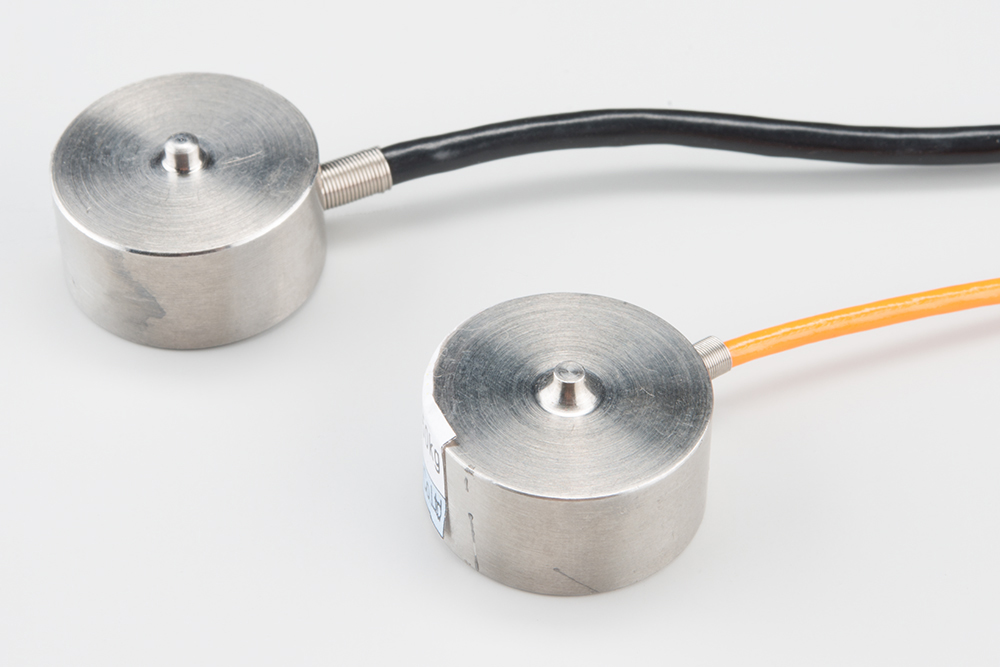
A selection of different load cells
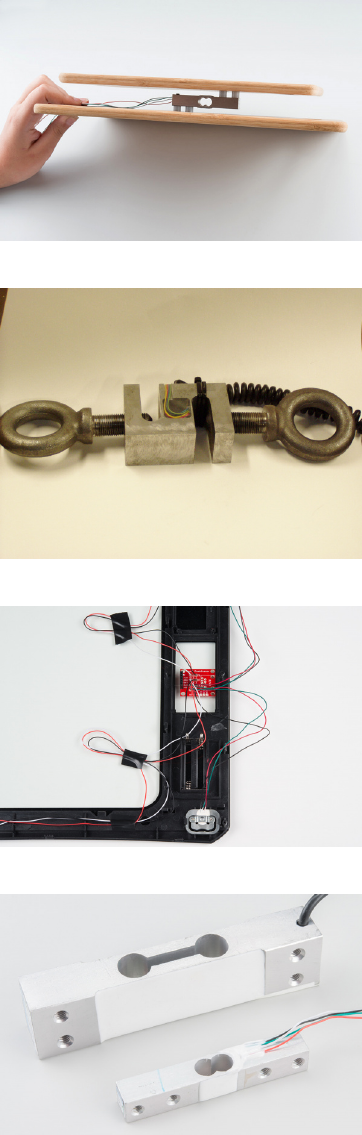
Depending on the type of load cell you are using, the configuration of how it should be hooked up to plates or surfaces will change. Below
are a few different types of setups.
Bar load cell between a two plate configuration
S load cell configuration
Possible four disc load cell configuration in something like a bathroom scale
Bar strain gauge based load cells
Usually with larger, non-push button bar load cells you will want to hook up the load cell between two plates in a “Z” shape, with fitting
screws and spacers so that the strain can be correctly measured as shown below:
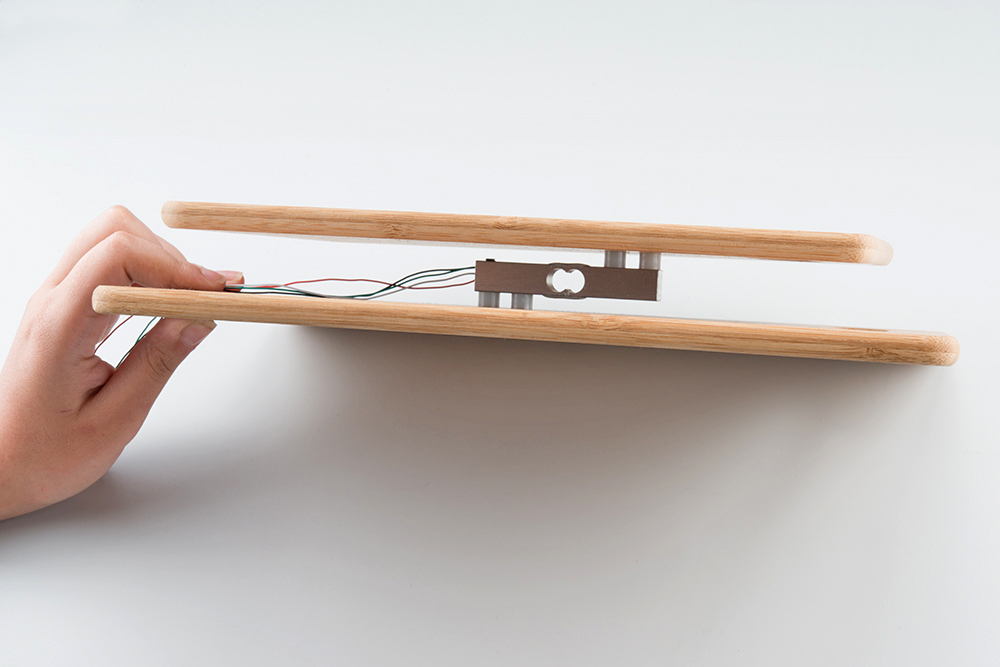
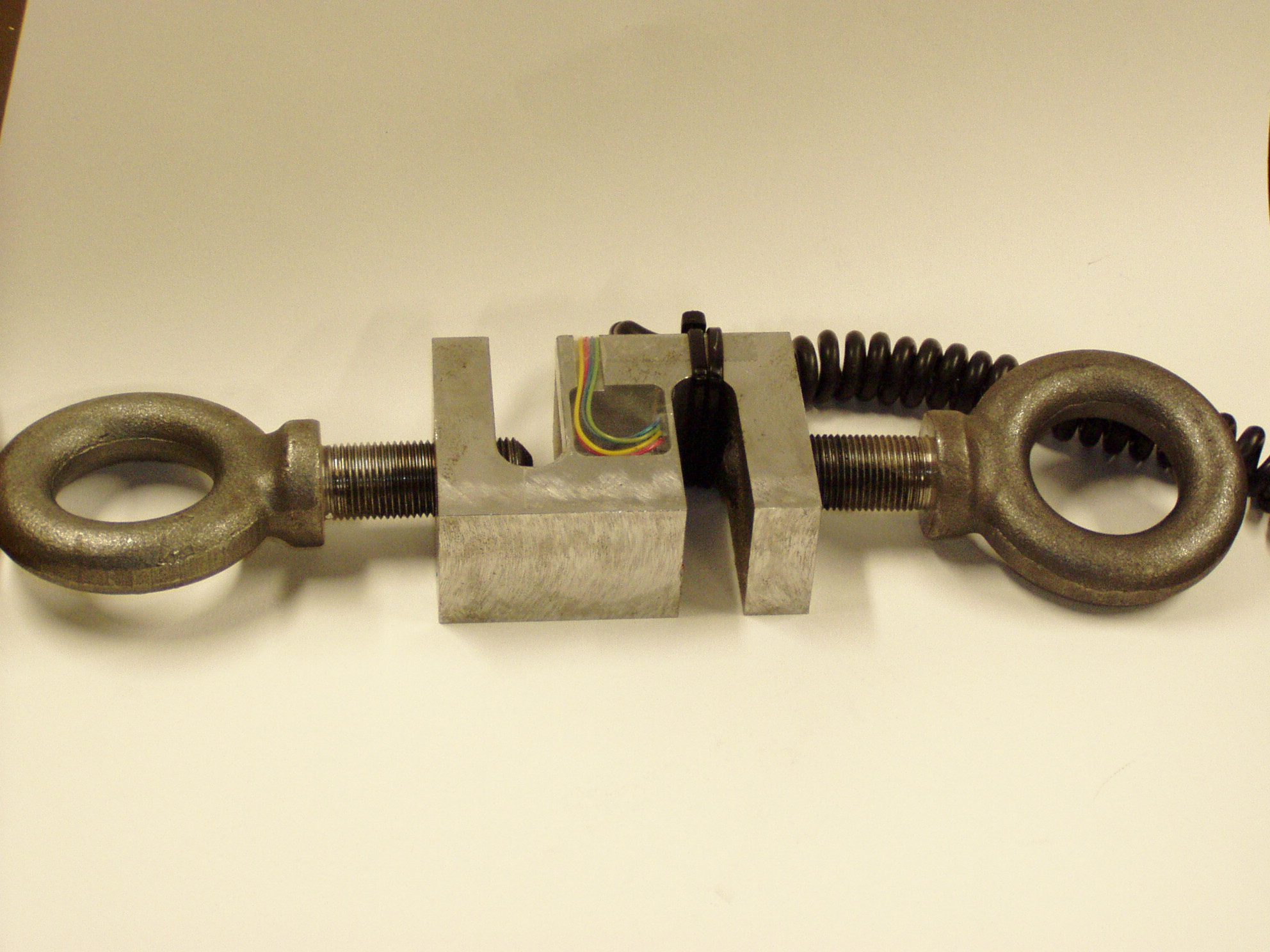
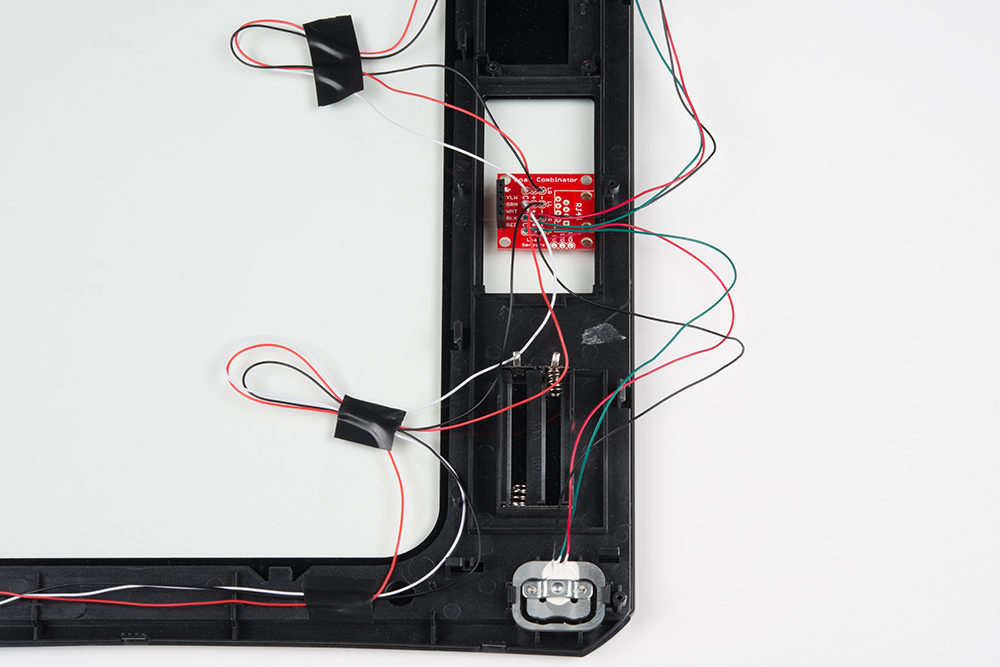
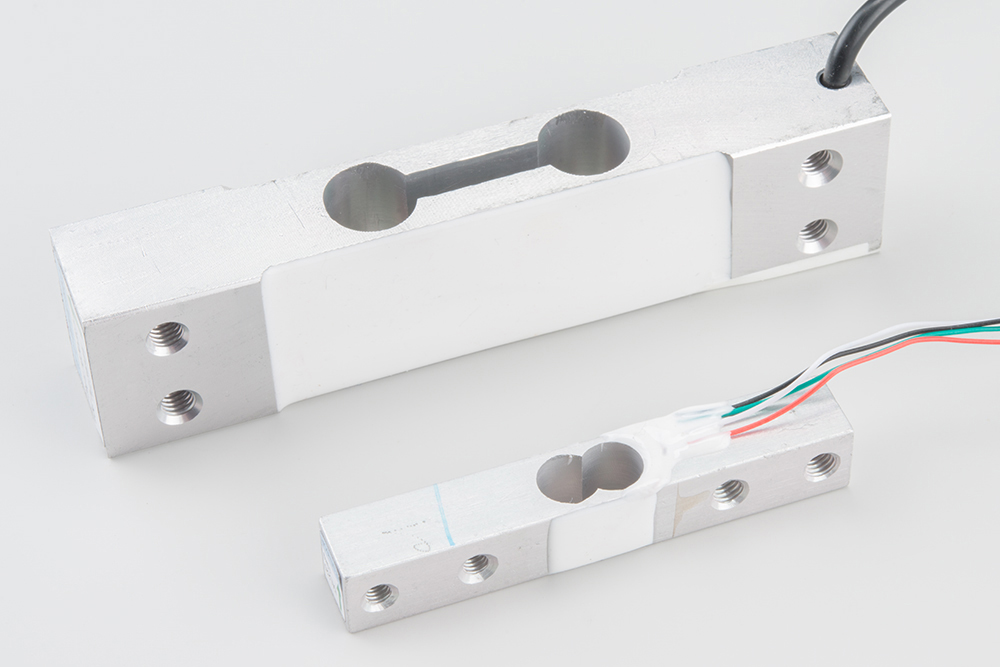
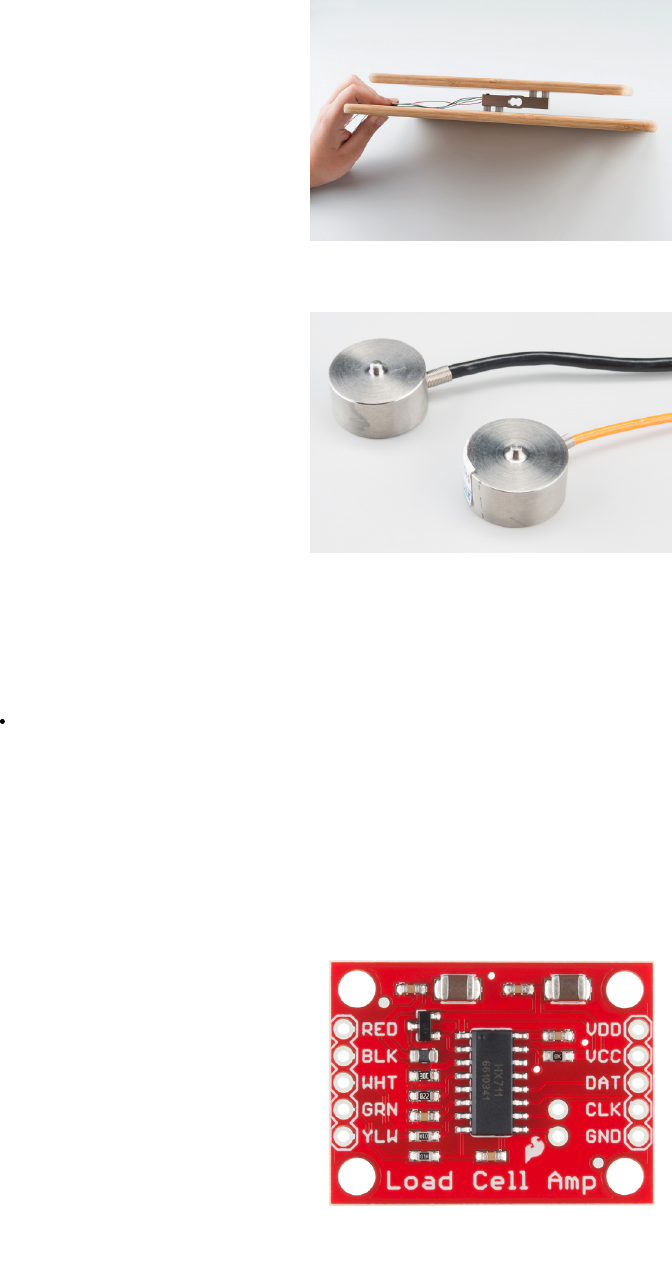
Note that only one side of the load cell is screwed into each board. This provides a moment of force, or torque, on the strain gauge rather
than just compression force, which is easier to measure and much more accurate.
For smaller, push-button or disc load cells, you will want to make sure to screw in the disc to a bottom plate (or surface you are measuring
force against), and center the beam, plate, or whatever else you are wishing to measure the force of onto the “button” on the top. Usually
another plate with a hole is used to make sure whatever you are measuring is hitting the same spot on the load cell each time, but it is not
necessary.
Make sure to read the datasheet for the load cell you are using and get the correct screws to fit into it.
Note: If you are hooking together four of the SparkFun Load Sensors using the Combinator board, you should position the four load
sensors equidistant from each other, just like the bathroom scales shown in this tutorial.
Load cell measurements can be off by +/- 5% due to a range of things including temperature, creep, vibration, drift, and other electrical and
mechanical interferences. Before you install your scale, take a moment and design your system to allow for easy calibration or be able to
adjust the code parameters to account for these variations.
Hardware Hookup
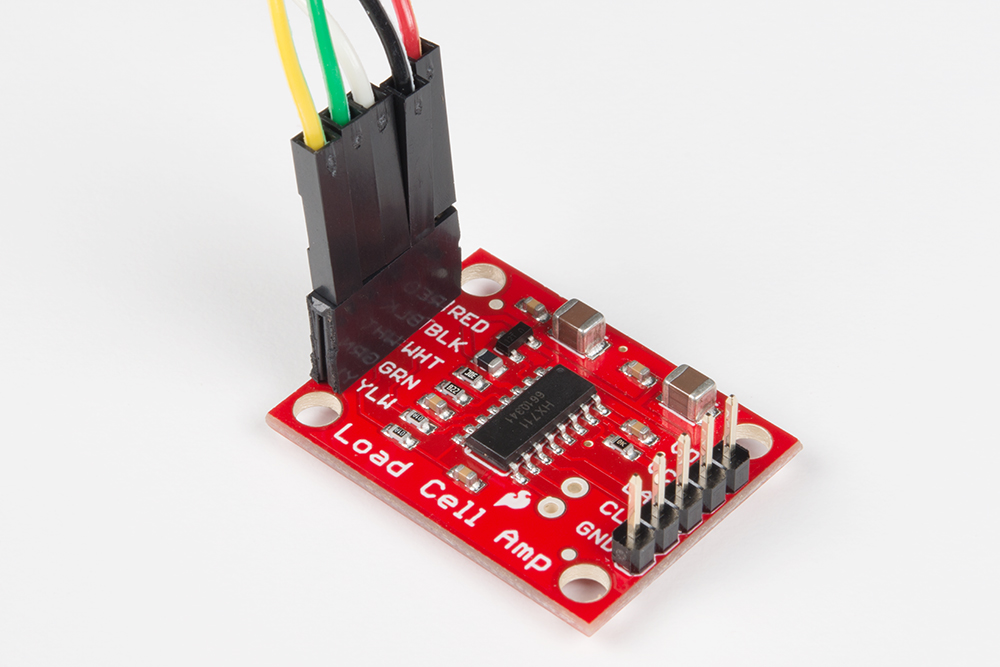
The HX711 Load Cell Amplifier accepts five wires from the load cell. These pins are labeled with colors; RED, BLK, WHT, GRN, and YLW.
These colors correspond to the conventional color coding of load cells, where red, black, green and white wires come from the strain gauge
on the load cell and yellow is an optional ground wire that is not hooked up to the strain gauge but is there to ground any small outside EMI
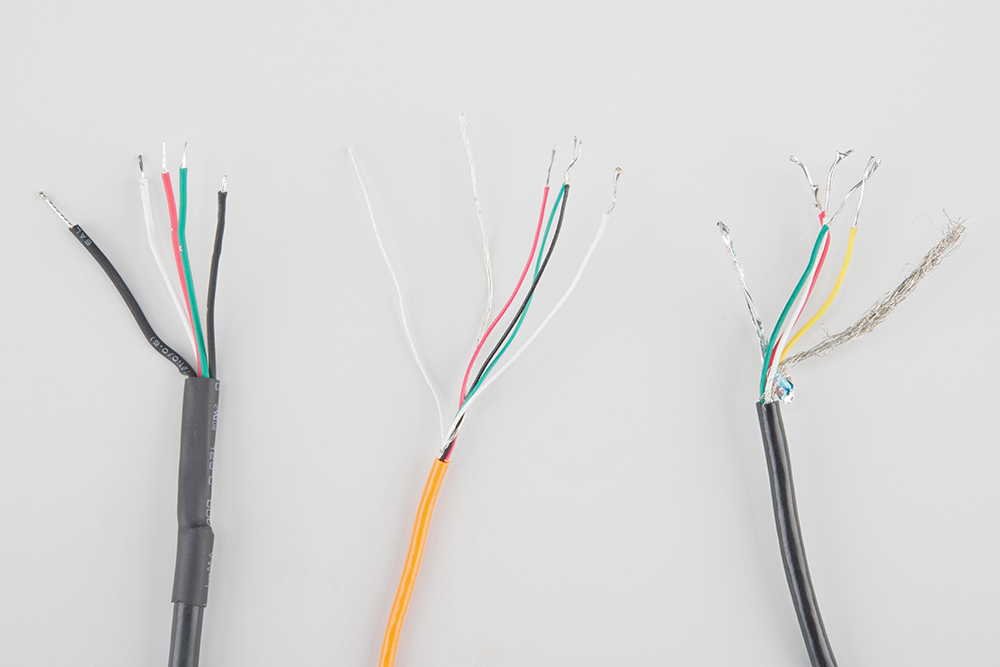
(electromagnetic interference). Sometimes instead of a yellow wire there is a larger black wire, foil, or loose wires to shield the signal wires
to lessen EMI.

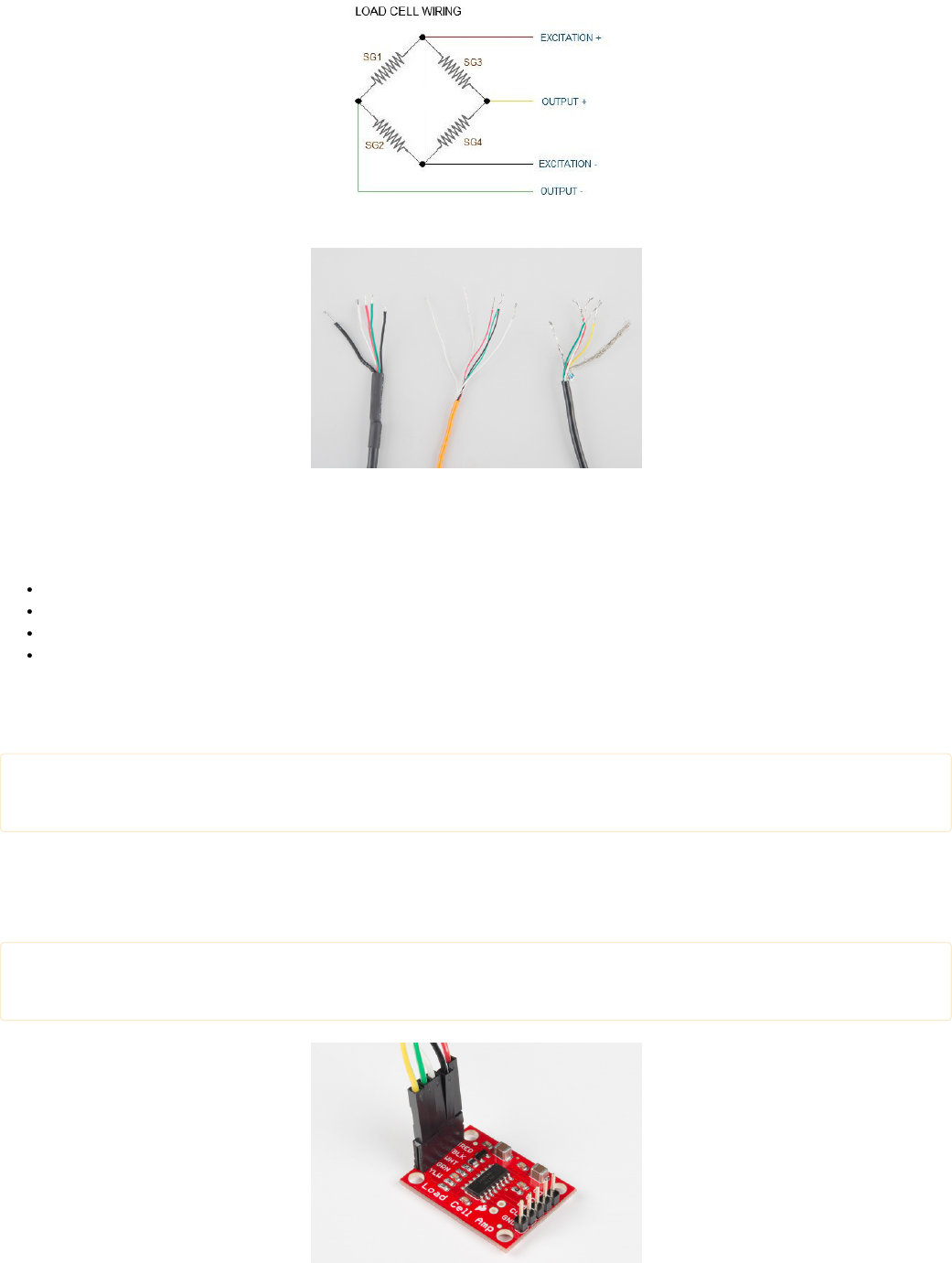
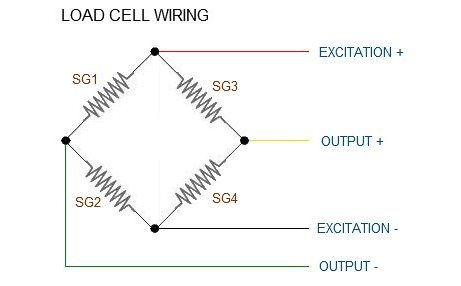
Four strain gauges (SG1 through 4) hooked up in a wheatstone bridge formation
Here we have a large black wire, some loose wires, and foil and loose wires respectively as EMI buffers
In General, each load cell has four strain gauges that are hooked up in a wheatstone bridge formation as shown above.
The four wires coming out from the wheatstone bridge on the load cell are usually:
Excitation+ (E+) or VCC is red
Excitation- (E-) or ground is black.
Output+ (O+), Signal+ (S+)+ or Amplifier+ (A+) is white
O-, S-, or A- is green or blue
Some load cells might have slight variations in color coding such as blue instead of green or yellow instead of black or white if there are only
four wires (meaning no wire used as an EMI buffer). You might have to infer a little from the colors that you have, but in general you will
usually see these colors.
If the readings from the HX711 are opposite of what you are expect (for example the values decrease as you increase weight) simply
reverse the O+/O- wires.
Once the load cell is is hooked up to the amplifier, you can hook up VDD, VCC, DAT, CLK, and GND to a microcontroller such as a
RedBoard or Arduino board.
Note VCC is the analog voltage to power the load cell. VDD is the digital supply voltage used to set the logic level.
PRO TIP: In many cases, you can just short VCC and VDD together. If your microcontroller uses 3.3V logic however, you'll want to
connect VCC to 5V and VDD to 3.3V.
Load cell wires hooked up to the HX711 Amplifier board
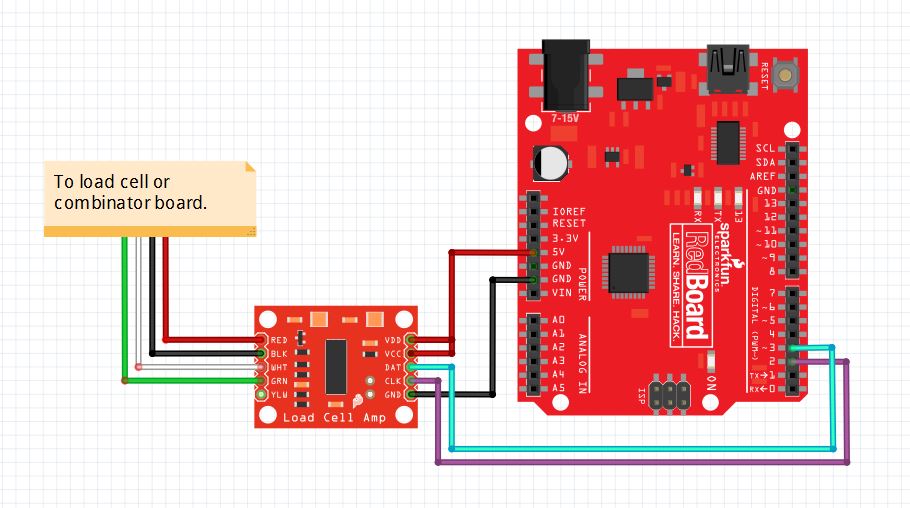
The example code has DAT and CLK hooked up to pin 3 and 2 respectively, but this is easily changed in the code. Any GPIO pin will work
for either. Then VCC and VDD just need to be hooked up to 2.7-5V and GND to ground on your microcontroller.
Fritzing diagram of HX711 amplifier connected to a RedBoard
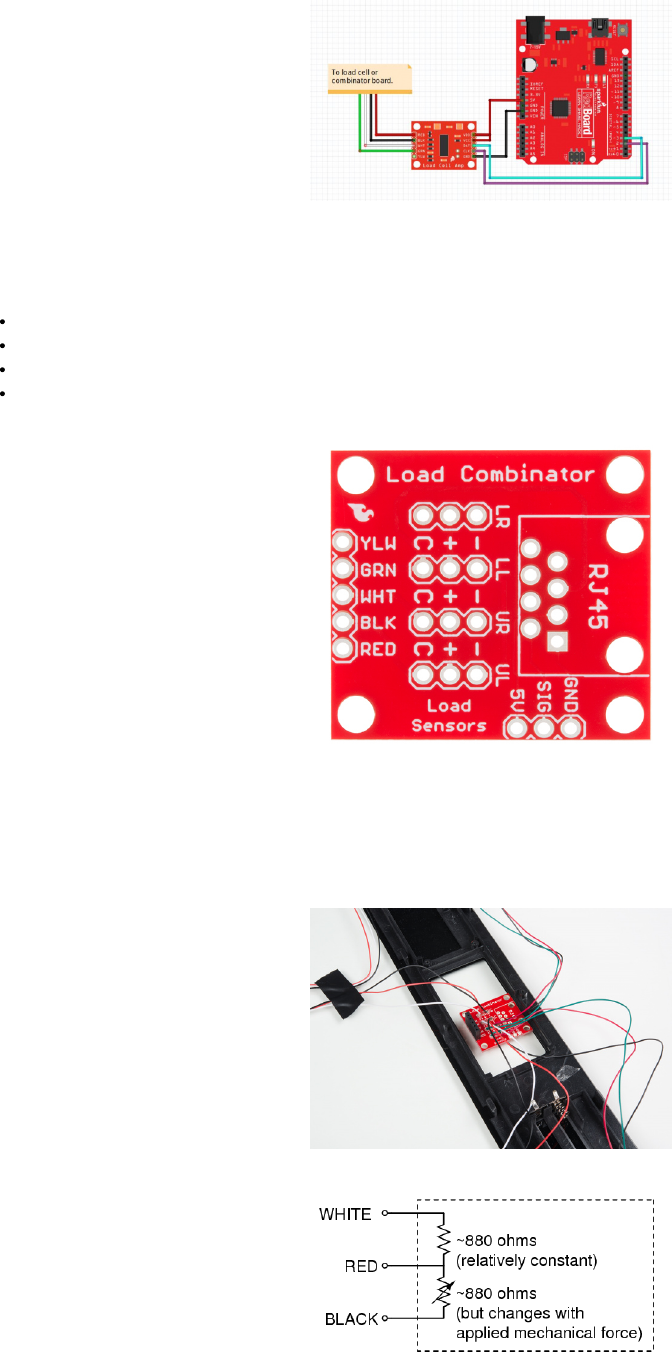
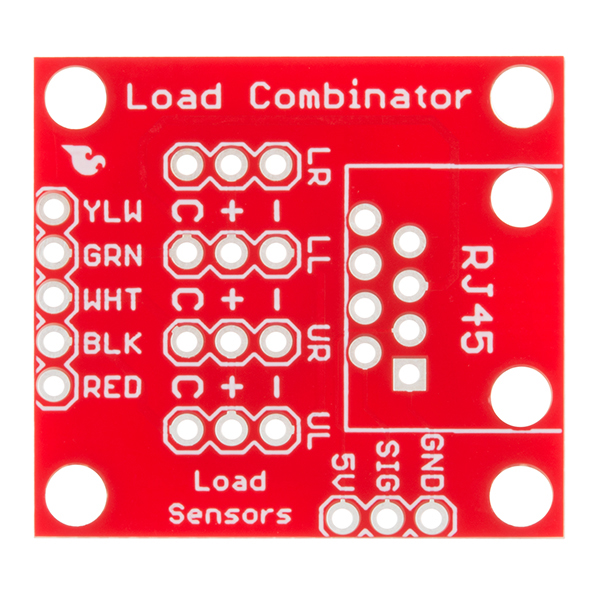
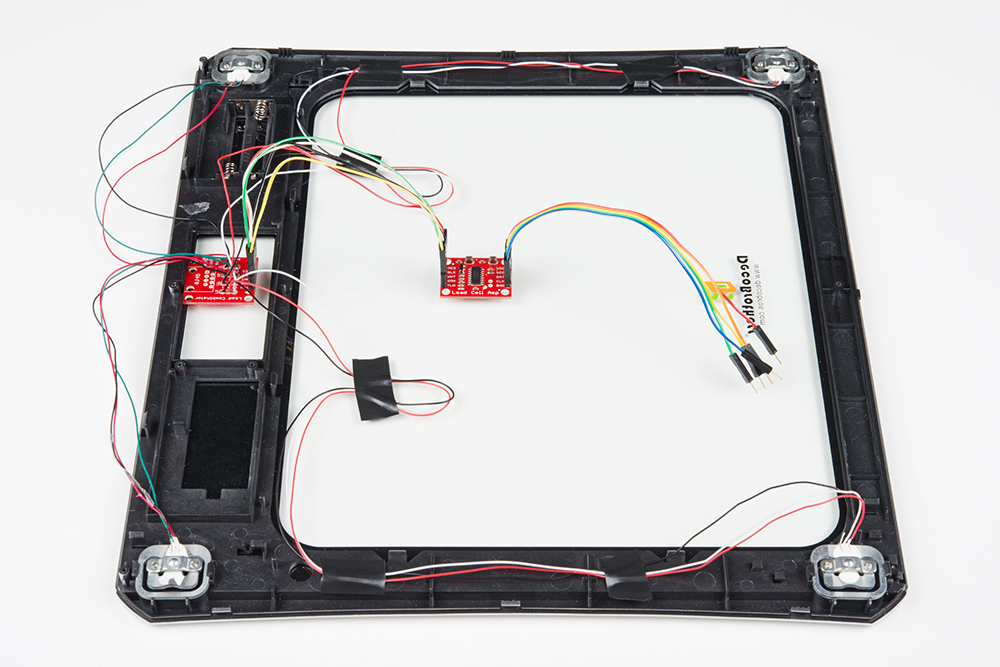
Now, if you would like to set up four single load sensors with our combinator board and amplifier, connect the five pins labeled RED, BLK,
WHT, GRN, YLW on the combinator to the matching pins on the amplifier. Next, connect each of the four load sensors to the following pins:
Load Sensor → Load Combinator Board
Red → C
Black → -
White → +
The combinator board also has room for an 8 pin RJ45 socket, which can be used to connect your project via Ethernet cables for long
distance applications.
Another nice thing about our combinator board is that most home scales use four single strain gauge load sensors, so this is a handy board
for hacking your own scales at home!
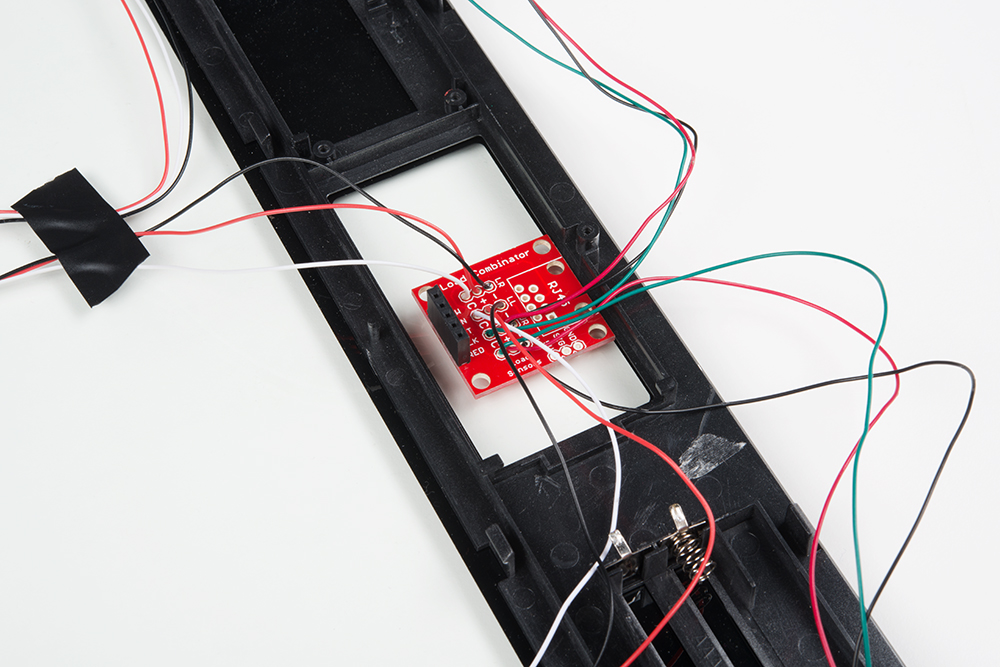
Hacked home scale’s four load sensors hooked up to our combinator board
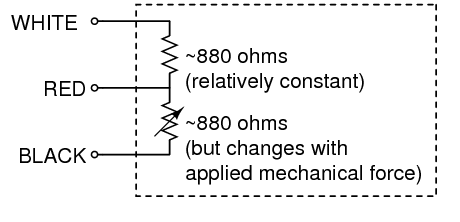
Example of a single strain gauge, or load sensor. Here RED is the center tap
For load sensors, there isn’t a set color coded standard. Comparing the scale pictured above with the load sensor schematic, while the
black wires matched, the red and white wires were swapped. Also, only two of the four sensors used a white wire for the ‘center tap’ of the
load sensor, the other two used green. I connected the black wires to “-”, the red to “+”, and the white and green wires to “C”.
To determine how to hook up your single strain gauge load cells to the combinator, measure the resistance between the three wires. You
should find a larger resistance (close to double) between a pair. In our example the resistance between red and black was 1.6 kΩ, and the
resistance between white/green and red was 800 Ω. Therefore, the center tap to the strain gauge is the white/green wire. The center tap or
center pin of your strain gauge connects to the “C” pin on the combinator. The larger resistance wires (red and black in this example)
connect to the “+” and “-” pins on the combinator.
The combinator board hooks up the four load sensors in such a way that two resistors in the wheatstone bridge configuration are constant
values and the other two are variable in this way:
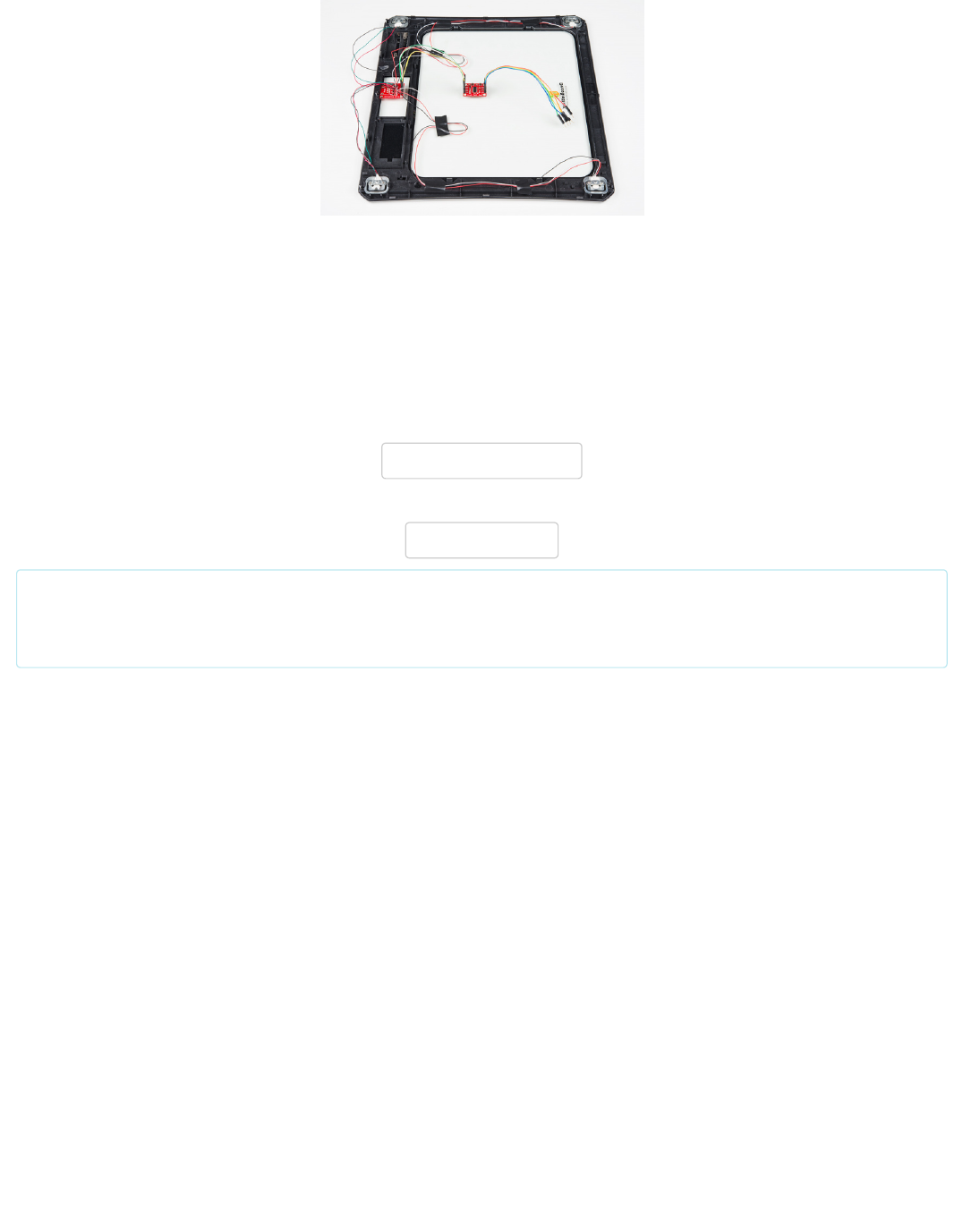
To hook up the combinator board to the HX711 match the RED, BLK, WHT, and GRN pins
Once you have the combinator board successfully soldered to the twelve wires, you can now connect it to the HX711 amplifier board via the
4 standard load cell wires. You can use short jumper wires or if your electronics are a long distance away from your scale consider using an
RJ45 connector and an ethernet cable to connect the combinator to the HX711 amplifier.
Arduino Code
Now that you have your load cell, amplifier, and microcontroller hooked up, you can add your code and start calibrating your setup.
You can download the most up-to-date code from the link below.
GITHUB REPOSITORY
The example code also depends on this excellent library from bogde:
HX711 LIBRARY
Note: This example assumes you are using the latest version of the Arduino IDE on your desktop. If this is your first time using
Arduino, please review our tutorial on installing the Arduino IDE.
If you have not previously installed an Arduino library, please check out our installation guide.
The first thing you will want to work with is the calibration code: “SparkFun_HX711_Calibration”:

/*
Example using the SparkFun HX711 breakout board with a scale
By: Nathan Seidle
SparkFun Electronics
Date: November 19th, 2014
License: This code is public domain but you buy me a beer if you use this and we meet someday (Beerware license).
This is the calibration sketch. Use it to determine the calibration_factor that the main example uses. It also
outputs the zero_factor useful for projects that have a permanent mass on the scale in between power cycles.
Setup your scale and start the sketch WITHOUT a weight on the scale
Once readings are displayed place the weight on the scale
Press +/- or a/z to adjust the calibration_factor until the output readings match the known weight
Use this calibration_factor on the example sketch
This example assumes pounds (lbs). If you prefer kilograms, change the Serial.print(" lbs"); line to kg. The
calibration factor will be significantly different but it will be linearly related to lbs (1 lbs = 0.453592 kg).
Your calibration factor may be very positive or very negative. It all depends on the setup of your scale system
and the direction the sensors deflect from zero state
This example code uses bogde's excellent library: https://github.com/bogde/HX711
bogde's library is released under a GNU GENERAL PUBLIC LICENSE
Arduino pin 2 -> HX711 CLK
3 -> DOUT
5V -> VCC
GND -> GND
Most any pin on the Arduino Uno will be compatible with DOUT/CLK.
The HX711 board can be powered from 2.7V to 5V so the Arduino 5V power should be fine.
*/
#include "HX711.h"
#define DOUT 3
#define CLK 2
HX711 scale(DOUT, CLK);
float calibration_factor = -7050; //-7050 worked for my 440lb max scale setup
void setup() {
Serial.begin(9600);
Serial.println("HX711 calibration sketch");
Serial.println("Remove all weight from scale");
Serial.println("After readings begin, place known weight on scale");
Serial.println("Press + or a to increase calibration factor");
Serial.println("Press - or z to decrease calibration factor");
scale.set_scale();
scale.tare(); //Reset the scale to 0
long zero_factor = scale.read_average(); //Get a baseline reading
Serial.print("Zero factor: "); //This can be used to remove the need to tare the scale. Useful in permanent scale pr
ojects.
Serial.println(zero_factor);
}
void loop() {
scale.set_scale(calibration_factor); //Adjust to this calibration factor
Serial.print("Reading: ");
Serial.print(scale.get_units(), 1);
Serial.print(" lbs"); //Change this to kg and re-adjust the calibration factor if you follow SI units like a sane pe
rson
Serial.print(" calibration_factor: ");
Serial.print(calibration_factor);
Serial.println();
if(Serial.available())

{
char temp = Serial.read();
if(temp == '+' || temp == 'a')
calibration_factor += 10;
else if(temp == '-' || temp == 'z')
calibration_factor -= 10;
}
}
Once you have calculated your calibration factor of your load cell set up, you can move on to other code, such as the simple scale output
example code, “SparkFun_HX711_Example”:
/*
Example using the SparkFun HX711 breakout board with a scale
By: Nathan Seidle
SparkFun Electronics
Date: November 19th, 2014
License: This code is public domain but you buy me a beer if you use this and we meet someday (Beerware license).
This example demonstrates basic scale output. See the calibration sketch to get the calibration_factor for your
specific load cell setup.
This example code uses bogde's excellent library: https://github.com/bogde/HX711
bogde's library is released under a GNU GENERAL PUBLIC LICENSE
The HX711 does one thing well: read load cells. The breakout board is compatible with any wheat-stone bridge
based load cell which should allow a user to measure everything from a few grams to tens of tons.
Arduino pin 2 -> HX711 CLK
3 -> DAT
5V -> VCC
GND -> GND
The HX711 board can be powered from 2.7V to 5V so the Arduino 5V power should be fine.
*/
#include "HX711.h"
#define calibration_factor -7050.0 //This value is obtained using the SparkFun_HX711_Calibration sketch
#define DOUT 3
#define CLK 2
HX711 scale(DOUT, CLK);
void setup() {
Serial.begin(9600);
Serial.println("HX711 scale demo");
scale.set_scale(calibration_factor); //This value is obtained by using the SparkFun_HX711_Calibration sketch
scale.tare(); //Assuming there is no weight on the scale at start up, reset the scale to 0
Serial.println("Readings:");
}
void loop() {
Serial.print("Reading: ");
Serial.print(scale.get_units(), 1); //scale.get_units() returns a float
Serial.print(" lbs"); //You can change this to kg but you'll need to refactor the calibration_factor
Serial.println();
}
Check out the other example code in the Github repo for powering down the HX711 (github) and known zero startup (github).
Resources and Going Further
Now that you’ve successfully got your HX711 up and running, it’s time to incorporate it into your own project!
For more information, check out the resources below:
Schematic (PDF)
Eagle Files (ZIP)

HX711 Datasheet
GitHub
Design Files & Example Code
Library
SFE Product Showcase: Dog Treat Dispenser
Need some inspiration for your next project? Check out some of these related tutorials:
Need even more? Check out these additional links below:
SparkFun IoT Beehive
The Internet of Bees: Adding Sensors to Monitor Hive Health
GitHub Repo: Open Scale
Phidgets: Load Cell Primer - Article about wheatstone bridges and load cell types
OpenScale Applications and Hookup Guide
OpenScale allows you to have a permanent scale for industrial and
biological applications. Learn how to use the OpenScale board to
read and configure load cells.
Getting Started with Load Cells
A tutorial defining what a load cell is and how to use one.
IoT Industrial Scale
What does a baby elephant weigh? How much impact force does a
jump have? Answer these questions and more by building your very
own IoT industrial scale using the SparkFun OpenScale.
IoT Weight Logging Scale
This tutorial will show you how to make a scale that logs your
weight to a custom website on the Internet. The principles can be
extrapolated to any type of data.
