Vision Max User Manual Engraver
User Manual: Vision MAX Engraver Manual Troubleshoot Vision MAX Engraver |
Open the PDF directly: View PDF  .
.
Page Count: 177 [warning: Documents this large are best viewed by clicking the View PDF Link!]

© 2014 Vision Engraving Systems
Vision Max User Manual
Revised: 7/3/2014
All rights reserved. No parts of this work may be reproduced in any form or by any means - graphic, electronic, or
mechanical, including photocopying, recording, taping, or information storage and retrieval systems - without the written
permission of the publisher.
Products that are referred to in this document may be either trademarks and/or registered trademarks of the respective
owners. The publisher and the author make no claim to these trademarks.
While every precaution has been taken in the preparation of this document, the publisher and the author assume no
responsibility for errors or omissions, or for damages resulting from the use of information contained in this document or
from the use of programs and source code that may accompany it. In no event shall the publisher and the author be liable
for any loss of profit or any other commercial damage caused or alleged to have been caused directly or indirectly by this
document.
Revised: 7/3/2014
Vision Max User Manual
© 2014 Vision Engraving Systems

3Contents
3
© 2014 Vision Engraving Systems
Table of Contents
Part I Introduction 5
................................................................................................................................... 61 Disclaimer and Warranty Information
................................................................................................................................... 82 Safety Precautions
Part II Software Installation and Connections 9
................................................................................................................................... 101 Computer Requirements
................................................................................................................................... 112 Max Connections
.......................................................................................................................................................... 12Direct Connection to Computer
.......................................................................................................................................................... 19Network Connection
.......................................................................................................................................................... 22Using a Network Hub - ONLY
................................................................................................................................... 293 Vision Software Installation
Part III Operation 39
................................................................................................................................... 391 General Description and Terminology
................................................................................................................................... 442 The Pendant Controls
................................................................................................................................... 623 Set Home Procedure
................................................................................................................................... 634 Set Surface Procedures
................................................................................................................................... 655 Using the Measure Feature
................................................................................................................................... 686 Holding Down Material
................................................................................................................................... 717 Sending Jobs to Your Machine
Part IV Example Jobs 73
................................................................................................................................... 731 Level 1 Jobs - Using the T-Slot Table
.......................................................................................................................................................... 78Positioning the T-Slot Table
.......................................................................................................................................................... 85Diamond Drag Engraving
......................................................................................................................................................... 86Example Job 1 - Diamond Drag
.......................................................................................................................................................... 95Rotary Engraving
......................................................................................................................................................... 97Example Job 2 - Rotary Engraving
.......................................................................................................................................................... 101Burnishing
......................................................................................................................................................... 103Example Job 3 - Burnishing
.......................................................................................................................................................... 112Profile Cutting
......................................................................................................................................................... 114Example Job 4 - Profile Cutting
.......................................................................................................................................................... 126Reverse Engraving/Color Filling
......................................................................................................................................................... 126Example Job 5 - Reverse Engraving
................................................................................................................................... 1372 Level 2 Job Example - Using the Vise
.......................................................................................................................................................... 137Example Job 6 - Engraving Pens
................................................................................................................................... 1473 Level 3 Job Examples - Using the Rotary Axis
.......................................................................................................................................................... 147Example Job 7 - Diamond Drag Engraving Round Objects
.......................................................................................................................................................... 155Example Job 8 - Deep Engraving Round Objects
Part V Feeds and Speeds 163

Vision Max User Manual4
© 2014 Vision Engraving Systems
Part VI Maintenance 165
Part VII Optional Accessories 171
................................................................................................................................... 1711 Vacuum Chip Removal System
................................................................................................................................... 1722 Hold Down Clamps
................................................................................................................................... 1743 Fixtures
................................................................................................................................... 1774 Clamping Vises
Introduction 5
© 2014 Vision Engraving Systems
1 Introduction
About This Manual
This manual is designed to provide you with information about your Vision Max Engraver, beginning
with unpacking the machine and continuing through installation, operation and maintenance. This
manual does not attempt to teach the user how to become an expert in engraving, computer usage, or
engraving software usage. Some previous knowledge of engraving terms and the engraving process is
certainly beneficial. For information on the Vision Engraving Software, see the Vision Engraving
Software manual. For more information on your individual computer system, see your computer's
user manual or contact your computer distributor.
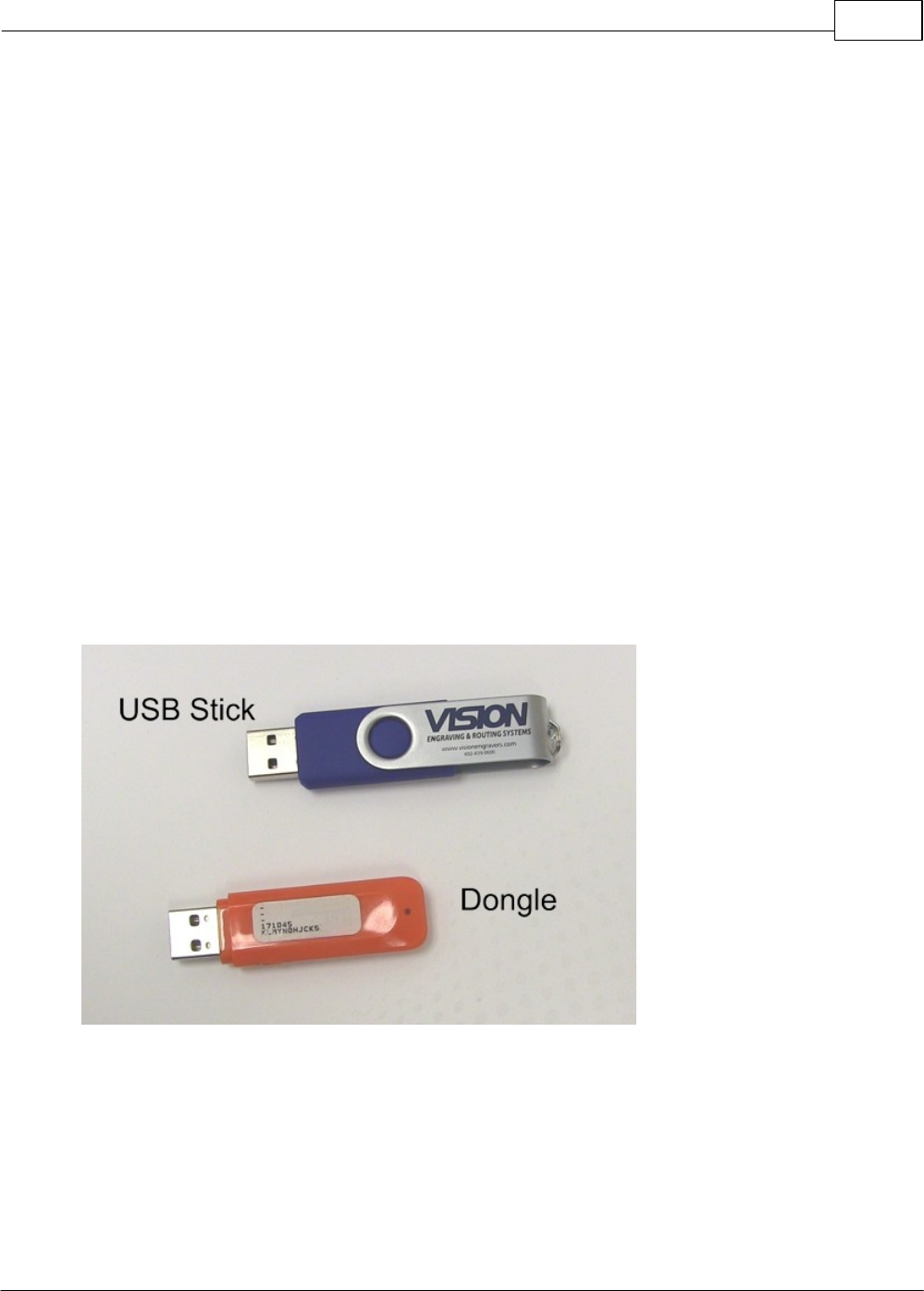
Important Note:
The Vision software is available in two versions; one with a dongle, and one
that is "dongle-less" and is loaded on to a USB Memory stick.
If your machine was delivered with, or you currently have the orange software
dongle, DO NOT LOSE IT!
Without the dongle, you will not be able to run Vision software.

Vision Max User Manual6
© 2014 Vision Engraving Systems
1.1 Disclaimer and Warranty Information
Limits of Liability / Disclaimer of Warranty
The information contained within this manual has been carefully checked and is believed to be
accurate, however, Vision makes no representations or warranties for this manual, and assumes no
responsibility for inaccuracies, errors, or omissions that may be contained within this manual. In no
event shall Vision be liable for any loss of profit including (but not limited to) direct, indirect, special,
incidental, consequential, or other damages resulting from any defect or omission in this manual, even
if previously advised of the possibility of such damages.
In the interest of continued product development, Vision reserves the right to make improvements to this
manual and the products it describes at any time, without notice or obligation.
Limited Warranty:
Vision Computerized Engraving and Routing Systems (and Retrofit Tables)
Vision Computerized Engraving and Routing Systems (Vision) warrants that for a period of two (2)
years from the date of shipment to the original purchaser of either a Series 4 Controller, Phoenix,
Vision or Table Retrofit (the System), that the System will be free from defects in material and
workmanship under normal use and service. Upon written notification, we will transfer the remaining
warranty to a new customer. This warranty shall cover all elements except for items covered by
separate manufacturer’s warranties and consumable items. “Consumable” items include, but shall not
be limited to, belts, brushes, lubricants, and cutters furnished with the System, for which no warranty is
provided.
In the event a defect is discovered during the warranty period, within thirty days of discovery, but no
later than the last day of the warranty period as described above, the user shall contact Vision for
instructions regarding disposition of the problem. Vision shall, at its option, either (1) repair the affected
product with new or refurbished parts, or (2) provide a replacement. Any incidental costs, including the
cost of shipment from the user’s location to the point of repair and return, and any installation
performed by the user, shall be at the expense of the user.
This warranty covers normal use only and shall be void in the event that the System is altered or
modified without authorization by Vision, or is subject to abuse, neglect, or other misuse by the user.
The warranties for Third-Party Hardware and Third-Party Software shall run directly from the
manufacturers of such hardware and software to the user. Vision makes no warranties, expressed or
implied, with regard to Third-Party Hardware or Third-Party Software.

Introduction 7
© 2014 Vision Engraving Systems
Vision does not warrant any product, component, or part not manufactured by Vision that was not
supplied by Vision. (Third-party items, including but not limited to software, are subject to their own
manufacturer’s warranties.) Vision does not warrant defects caused by a failure to provide a suitable
environment for the system, by unauthorized attachments, by modifications or repairs other than by
Vision, by use of the System for other than its original intention, or by other misuse or abuse of the
System.
Extended Warranty
An Extended Warranty may be purchased which extends the terms of the original equipment Warranty
in 1 year increments for a period of up to 30 days after the original equipment Warranty expires. An
Extended Warranty may also be purchased for a period of up to 30 days after an existing Extended
Warranty expires. Extended Warranties cannot be purchased on any equipment that is 7 or more years
old, or if there is a Lapse of Warranty. Age of equipment is determined from the date of shipment to the
original buyer.
Lapse of Warranty
If an Extended Warranty is not purchased within 30 days of the expiration of the original equipment
Warranty, or within 30 days of the expiration of an existing Extended Warranty, the equipment will be in
Lapse of Warranty. An Extended Warranty can never again be purchased for any equipment that is in
Lapse of Warranty. It is the responsibility of the purchaser of the equipment to maintain accurate
records and to know the expiration date of any Warranty.
The above and foregoing is the only warranty of any kind, either expressed or implied, by statute or
otherwise, regarding the System, its fitness, quality, merchantability, or otherwise. Any warranties
implied by law are hereby expressly disclaimed. No oral or written information or advice given by
Vision, its Dealers, Distributors, Agents, or Employees shall create a warranty or in any way increase
the scope of this warranty. Neither Vision, nor anyone else who has been involved in the creation,
production, or delivery of the System shall be liable for any direct, indirect, consequential, or incidental
damages (including damages for loss of business profits, business interruption, loss of business
information, and the like) arising out of the use of, or inability to use, the product.
Any software supplied by Vision in conjunction with the purchase of the System for use therewith shall
be governed by its own separate software license and warranty agreement.
Terms and Conditions are subject to change
For Warranty Service Call: (602) 439-0700
Please have your machine serial number ready before calling.
Vision Engraving & Routing Systems is owned and operated by Western Engraver's Supply, Inc.
Phoenix, Arizona, USA
Vision Max User Manual8
© 2014 Vision Engraving Systems
1.2 Safety Precautions
Keep hands clear of the bottom of the spindle during operation.
There are no user serviceable parts inside the machine. Please contact qualified service personnel
for service issues.
Openings are provided in the machine's base for ventilation. Do not cover the openings or place the
machine in an environment where the openings may become blocked.
Never insert anything into the ventilation openings. Doing so may create a danger of electric shock.
Do not expose the equipment to rain or use it near water. You can clean the machine with a damp
cloth, but be sure to disconnect the power cord.
Always stop the machine before making any adjustments.
Do not operate the equipment with any covers removed.
Wear safety glasses when cutting any materials that emit chips.
Use extreme caution when inserting or removing cutters.
Before any servicing, disconnect the power cord.
To avoid electric shock or equipment damage, ensure that the equipment is connected to the
appropriate electrical source as noted in the installation procedures.
Never operate the equipment with damaged or frayed power cords, loose connections, or exposed
extension cords where the cord could create a tripping hazard.
Be sure to hold the plug, not the cord, when disconnecting the equipment from an electrical socket or
power source.
Place the equipment in a location with low humidity and a minimum of dust. Avoid placing the
equipment in direct sunlight or in locations with excessive heat. Follow the maintenance instructions
for proper cleaning of the controller air filter.
If your equipment does not operate properly; in particular, if there are any unusual sounds or smells
coming from it, immediately unplug it and contact a service technician or your local distributor.
Unplug the machine when it is going to be left unused for an extended period of time.

Introduction 9
© 2014 Vision Engraving Systems
2 Software Installation and Connections
In the following sections, equipment and Vision software installation will be outlined. There are three
connection configurations possible to Vision Max.
The first is a direct cable connection to your computer via the network port. There is a special
"crossover" cable supplied with the machine for this connection type. This configuration is for a stand
alone computer that is NOT connected to a WIRED network or internet. The machine can be connected
to a computer that is connected to a wireless network in this manner.
The second configuration is for connection to a wired network using a standard network cable (DO NOT
use the crossover cable when connecting to a network). In this configuration, the machine will be
recognized as a network device. Connection to the machine in this manner is the easier of the two
connection types. If there are no network connections available, a network hub can be added to allow
connection of the machine to your network.
The third configuration is for a connection from the computer to a hub (or router) and then to the
machine. This is WITHOUT a computer network. Standard Ethernet cables are used in this
configuration.
Please call your distributor or the service department at Vision for assistance if you are having
problems making these connections.
IT IS HIGHLY RECOMMENDED THAT THE COMPUTER USED TO OPERATE THE VISION
ENGRAVER OR ROUTER BE CONNECTED TO THE INTERNET. THIS ALLOWS THE USER TO
ALLOW VISION'S TECHNICAL SUPPORT TO ACCESS THE MACHINE AND TROUBLESHOOT IF
NECESSARY.

Vision Max User Manual10
© 2014 Vision Engraving Systems
2.1 Computer Requirements
Minimum System
Requirements
CPU:
Dual Core (2.0GHz or higher)
Hard Drive:
120 GB
RAM:
1GB + OS Requirements
Operating System:
Windows 8 32/64 Bit
Windows 7 32/64 Bit
Windows Vista 32/64 Bit
Windows XP 32 Bit
Ports:
USB port for security dongle
Local or network Ethernet port to connect machine
Suggested System
Requirements
CPU:
Quad Core (3.0 GHz or higher)
Hard Drive:
250 GB (or more)
RAM:
4GB + OS Requirements
Operating System:
Windows 8 32/64 Bit
Windows 7 32/64 Bit
Ports:
USB port for security dongle
Local or network Ethernet port to connect machine
Software Installation and Connections 11
© 2014 Vision Engraving Systems
2.2 Max Connections
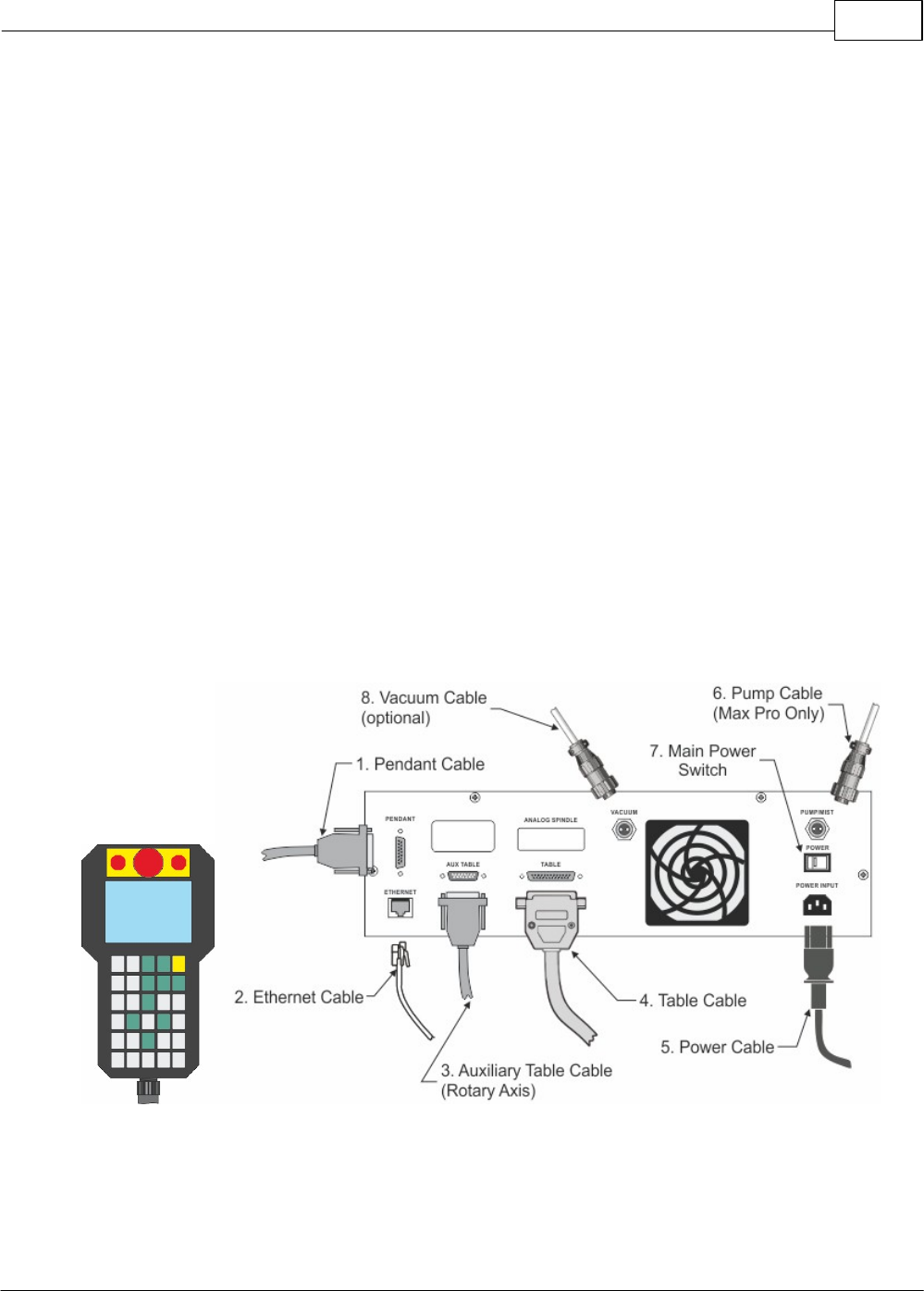
The Vision Max machine has an integrated controller inside the base of the machine. The machine
needs to have the following cables connected to the controller.
1. The engraver's Pendant is connected to the Pendant cable port.
2. The Ethernet Cable from your computer, hub or network is connected to the Ethernet port.
3. The Auxiliary Table Cable is connected to the Aux Table port and powers the machine's rotary axis.
4. The Table Cable connects from 25 pin connector on the engraver to the Table port.
5. The Power Cable connects a 110 - 220 VAC electrical source to the controller and powers the
controller, table and spindle.
6. The Pump Cable (Max Pro only) connects to the Pump/Mist port and powers the machine's water
pump for glass engraving.
7. Main Power switch (for reference only)
8. If you machine was equipped with the optional Vacuum Chip Removal System, the Vacuum Cable
from the vacuum pump will connect to the Vacuum port.
Series 4 Pendant and Integrated Controller Connections
Vision Max User Manual12
© 2014 Vision Engraving Systems
2.2.1 Direct Connection to Computer
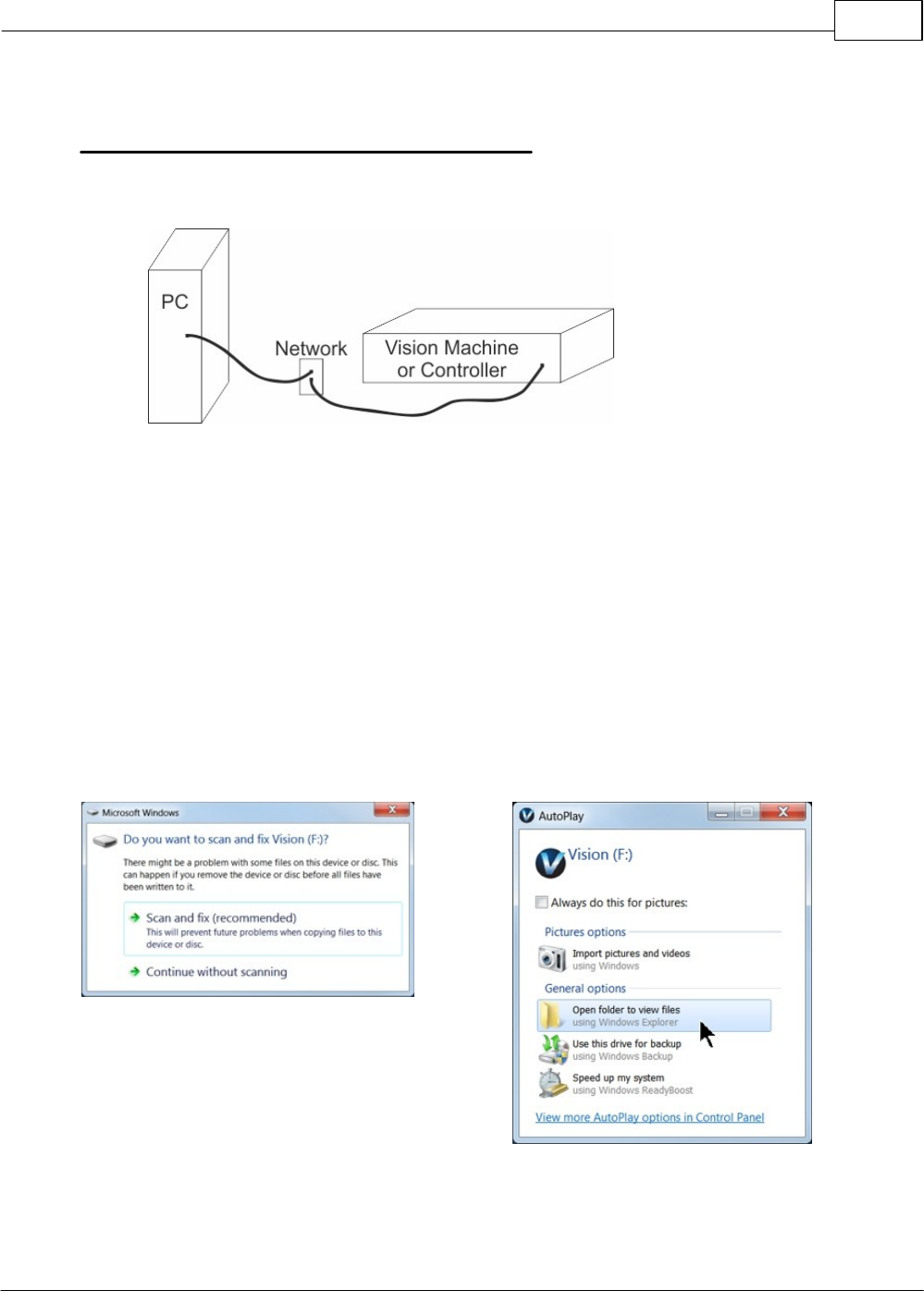
Direct Connection to Computer Using Crossover Cable
Once the machine is connected directly to your computer's network port with the crossover cable (the
gray colored cable), turn the machine on.The power switch for the Max is located on the left rear of the
machine's base. Once the machine has initialized, plug the supplied Vision USB drive into an available
USB port on your computer.
NOTE - This installation is performed on a Windows 7 PC. For Windows Vista or Windows XP, the
screens are slightly different.
The computer will recognize the USB drive
and the following screen will appear.
Select Continue without scanning.
Select Open folder to view files.
Software Installation and Connections 13
© 2014 Vision Engraving Systems
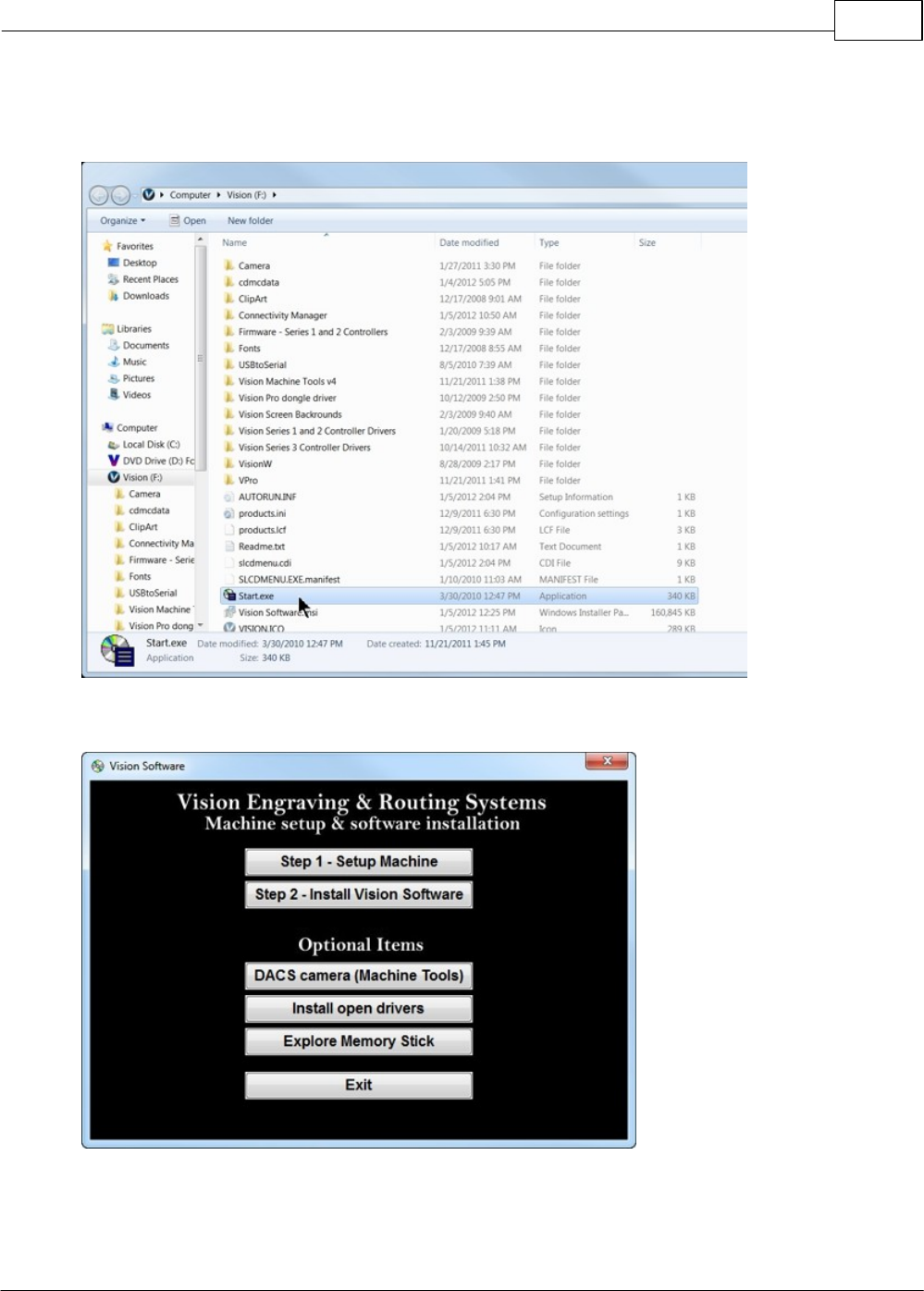
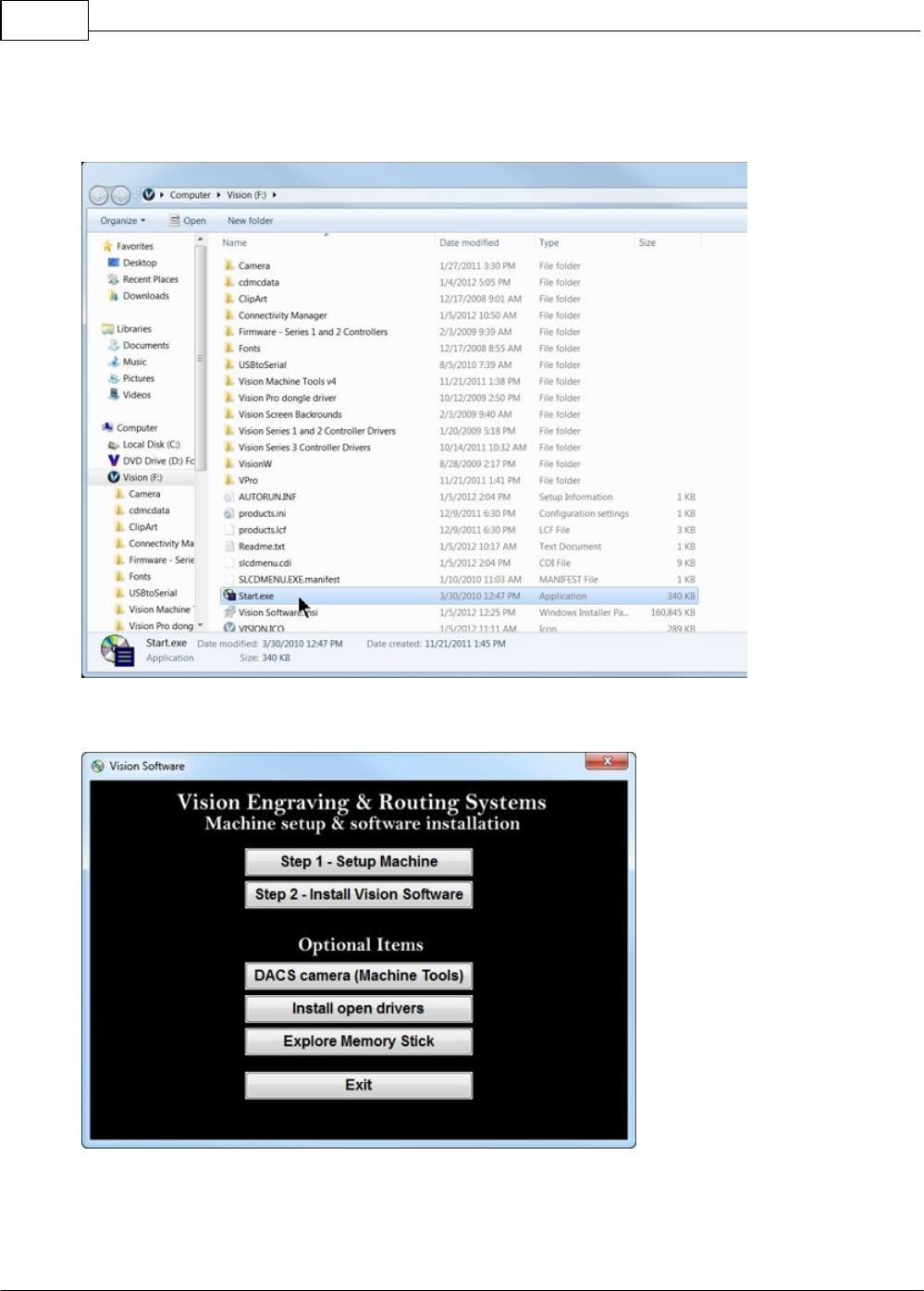
Locate the file named Start and double click on the file to start the installation. The screen below shows
Start.exe, but your computer might not show the .exe portion.
Select Step 1 - Setup Machine. This installs the Vision Connectivity Manager software.
Vision Max User Manual14
© 2014 Vision Engraving Systems
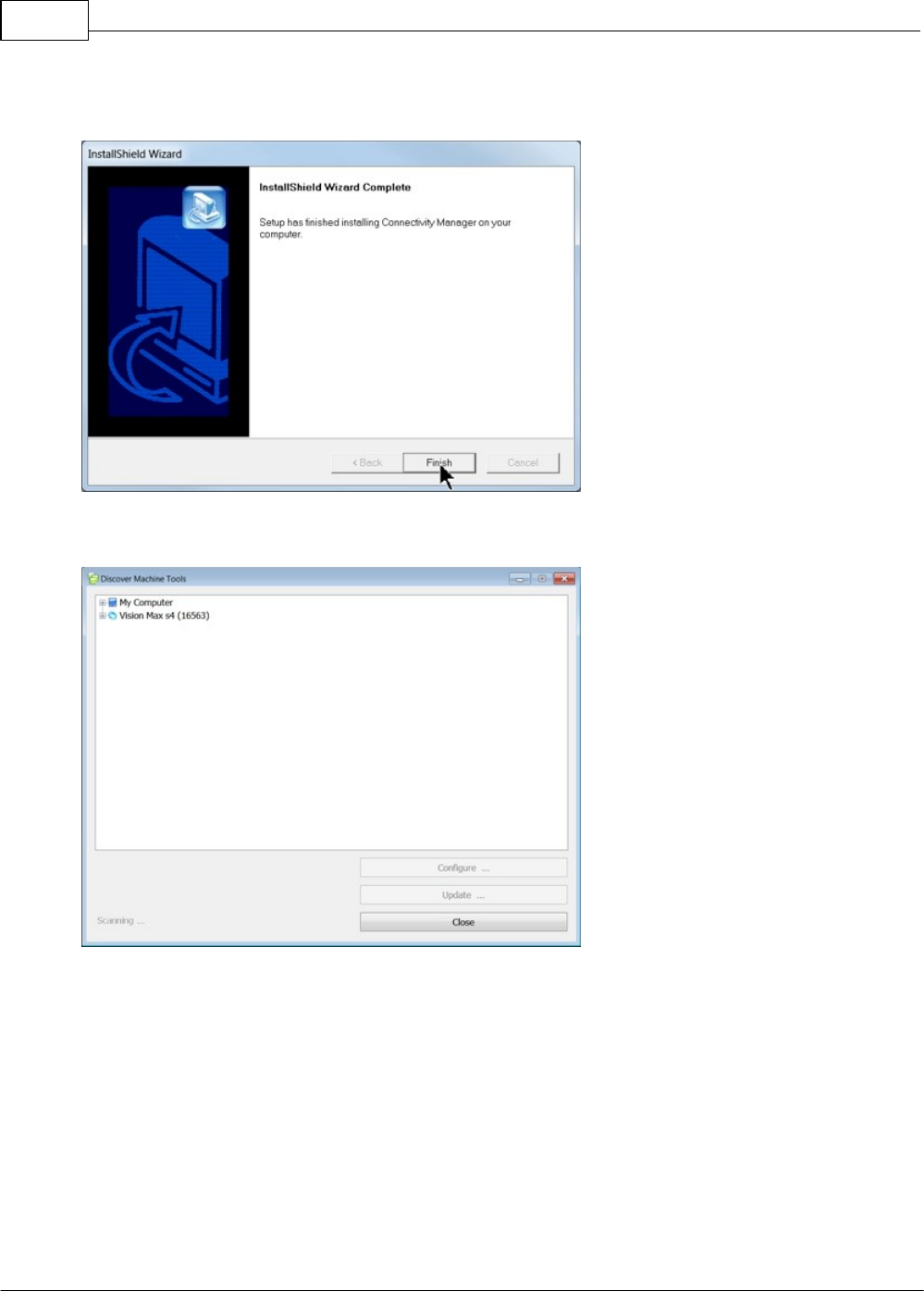
When the software is installed, select Finish.
The Connectivity Manager will search for available Vision devices.
Software Installation and Connections 15
© 2014 Vision Engraving Systems
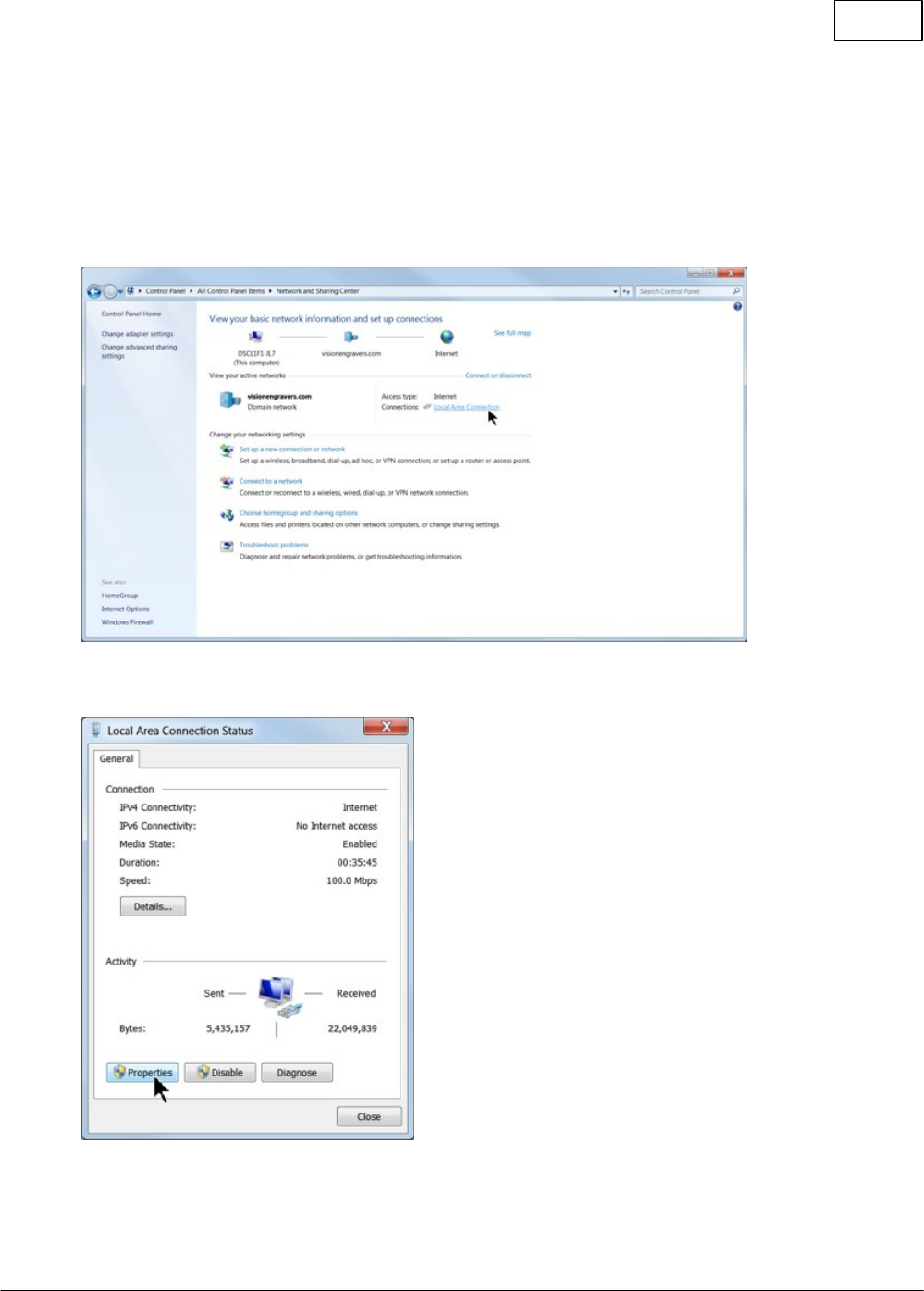
The computer's IP address will need to be set. NOTE - this should not cause any conflicts with your
computer's wireless IP address, which is determined by the computer's wireless network card. To set
the computer's IP address, open the Window's Control Panel. Depending on how you have this folder
set, you will either see Network and Internet, or you will see the Network and Sharing Center
immediately. If you see Network and Internet, select View Network Status and Tasks (which opens the
Network and Sharing Center). If you see the Network and Sharing Center, open it. Then select Local
Area Connection (as shown below).
Select Properties.
Vision Max User Manual16
© 2014 Vision Engraving Systems
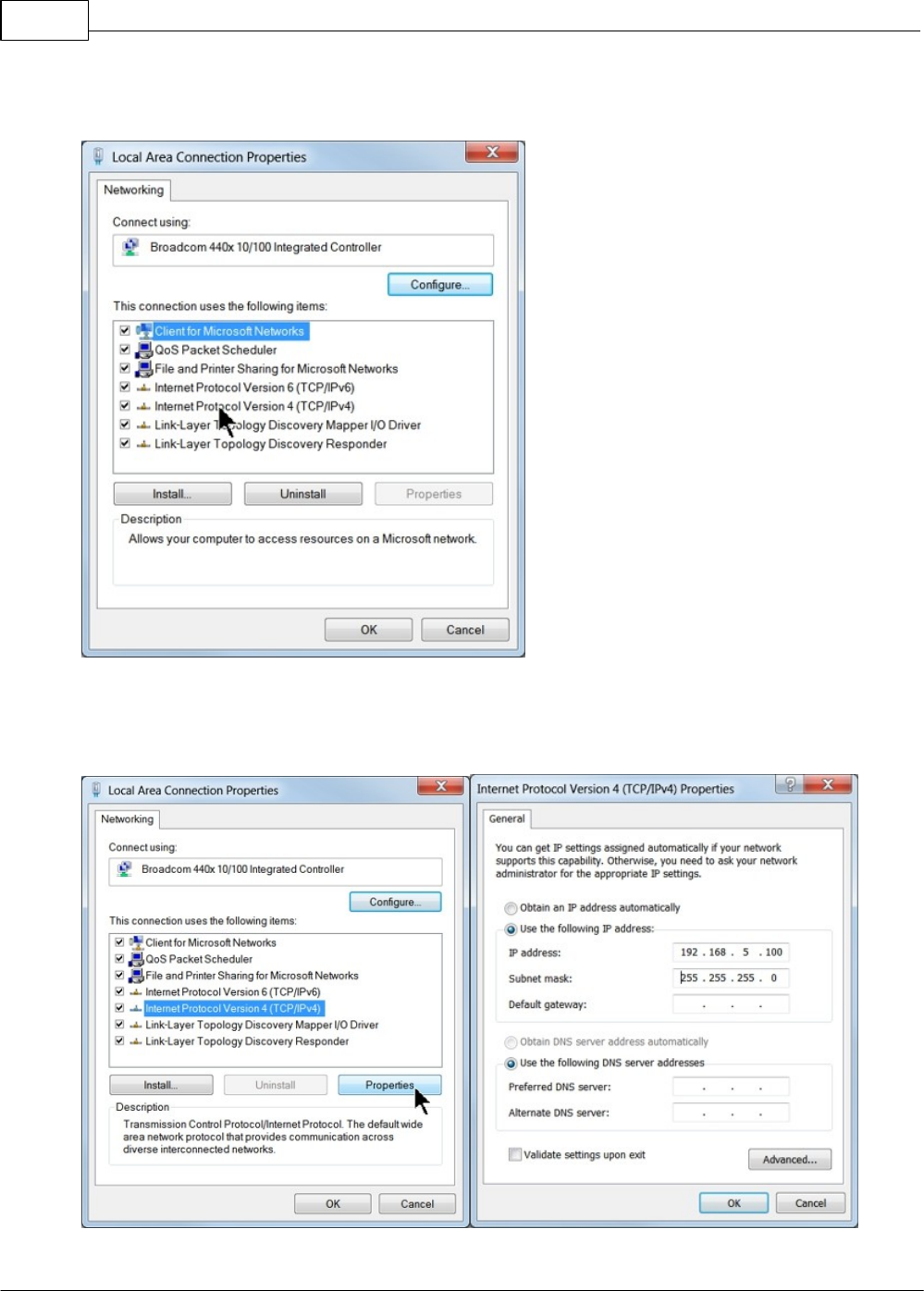
Then, select Internet Protocol Version 4 (TCP/IPv4).
Then select Properties. Select Use the following IP address: and enter 192.168.5.100 and set the
Subnet mask to 255.255.255.0 as shown. Then select OK and close any other network configuration
windows.
Software Installation and Connections 17
© 2014 Vision Engraving Systems
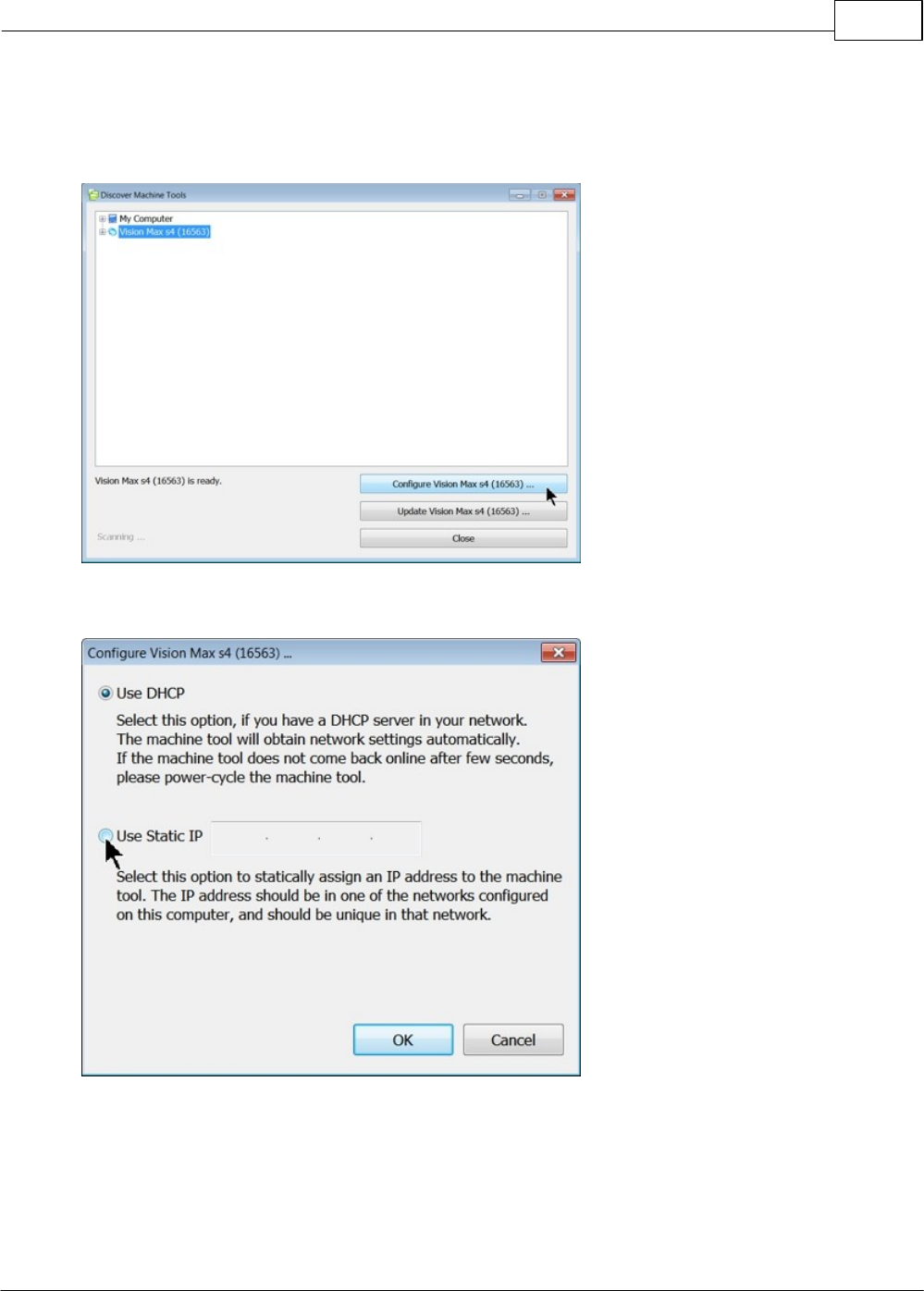
The IP address of the machine will need to be set to set up the connections properly. Select the + box
next to the machine now listed in the Discover Machine Tools window to expand the information. Then
select Configure (Your Machine) at the bottom of the screen.
Select Use Static IP.
Vision Max User Manual18
© 2014 Vision Engraving Systems
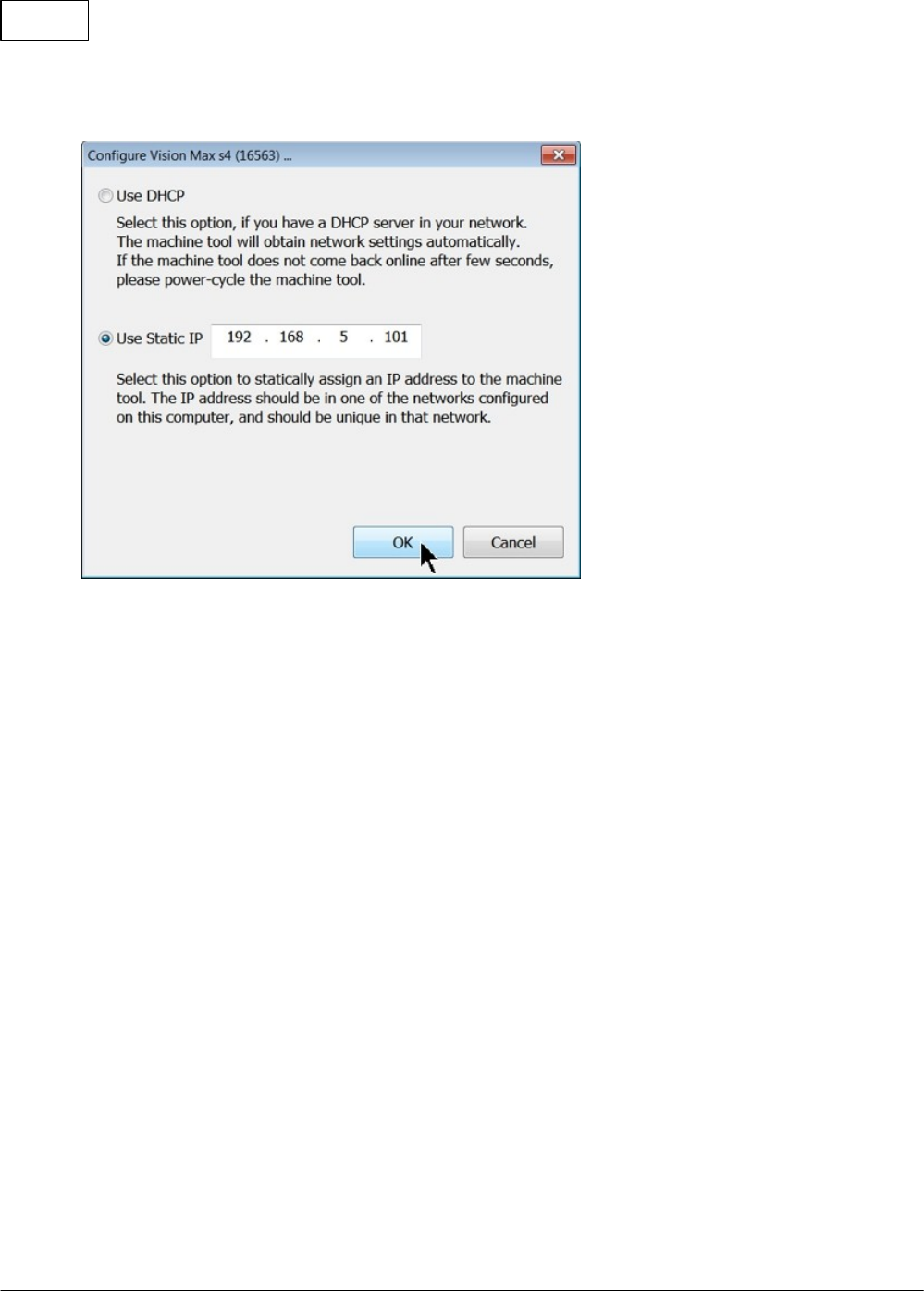
Set the IP address (as shown) to 192.168.5.101, then select OK. This sets the machine's IP address.
The configuration is complete at this point. Close the Discover Machine Tools window and return to the
Main Installation Screen to proceed with the Vision software installation in the next section.
Software Installation and Connections 19
© 2014 Vision Engraving Systems
2.2.2 Network Connection
Connecting via Standard Network Cable to Network
Once the machine is connected to your network, turn the machine on. The power switch for the Max is
located on the left rear of the machine's base. Once the machine has initialized, plug the supplied
Vision USB drive into an available USB port on your computer.
NOTE - This installation is performed on a Windows 7 PC. For Windows Vista or Windows XP, the
screens are slightly different.
The computer will recognize the USB drive
and the following screen will appear.
Select Continue without scanning.
Select Open folder to view files.
Vision Max User Manual20
© 2014 Vision Engraving Systems
Locate the file named Start and double click on the file to start the installation. The screen below shows
Start.exe, but your computer might not show the .exe portion.
Select Step 1 - Setup Machine. This installs the Vision Connectivity Manager software.
Software Installation and Connections 21
© 2014 Vision Engraving Systems
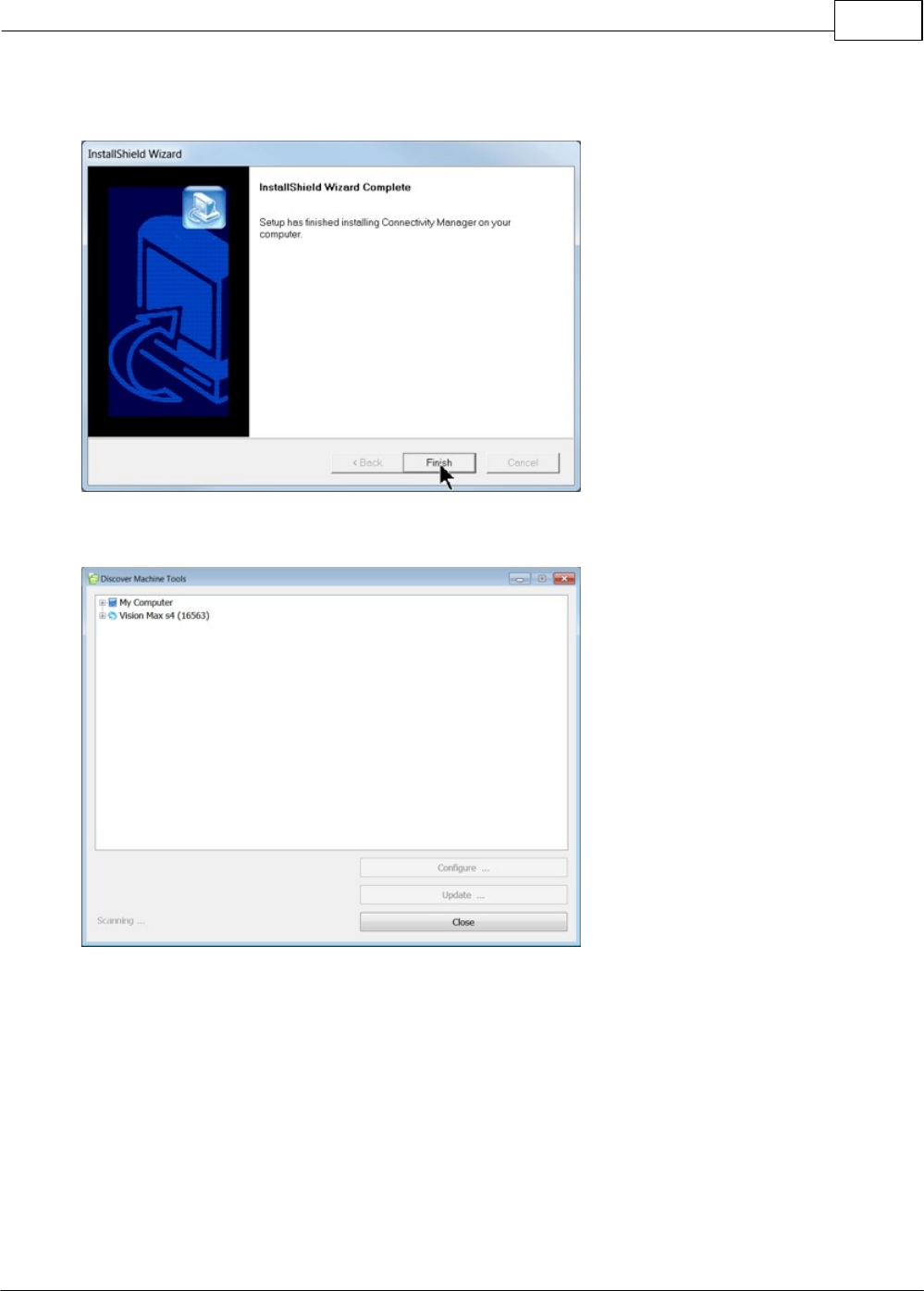
When the software is installed, select Finish.
The Connectivity Manager will search for available Vision devices.
The configuration is complete at this point. Close the Machine Tools Discovery window and return to
the Main Installation Screen to proceed with the Vision software installation in the next section.
Vision Max User Manual22
© 2014 Vision Engraving Systems
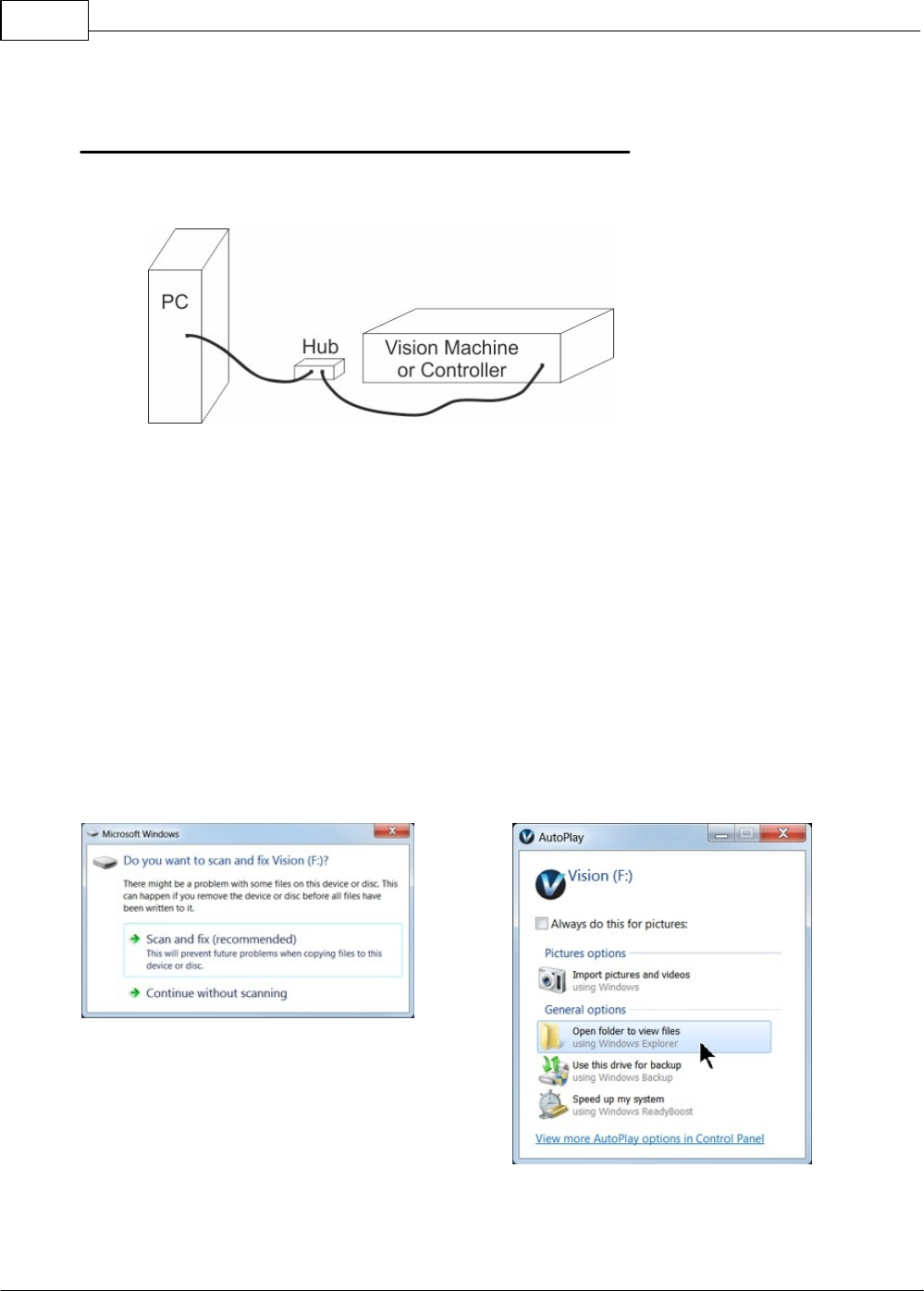
2.2.3 Using a Network Hub - ONLY
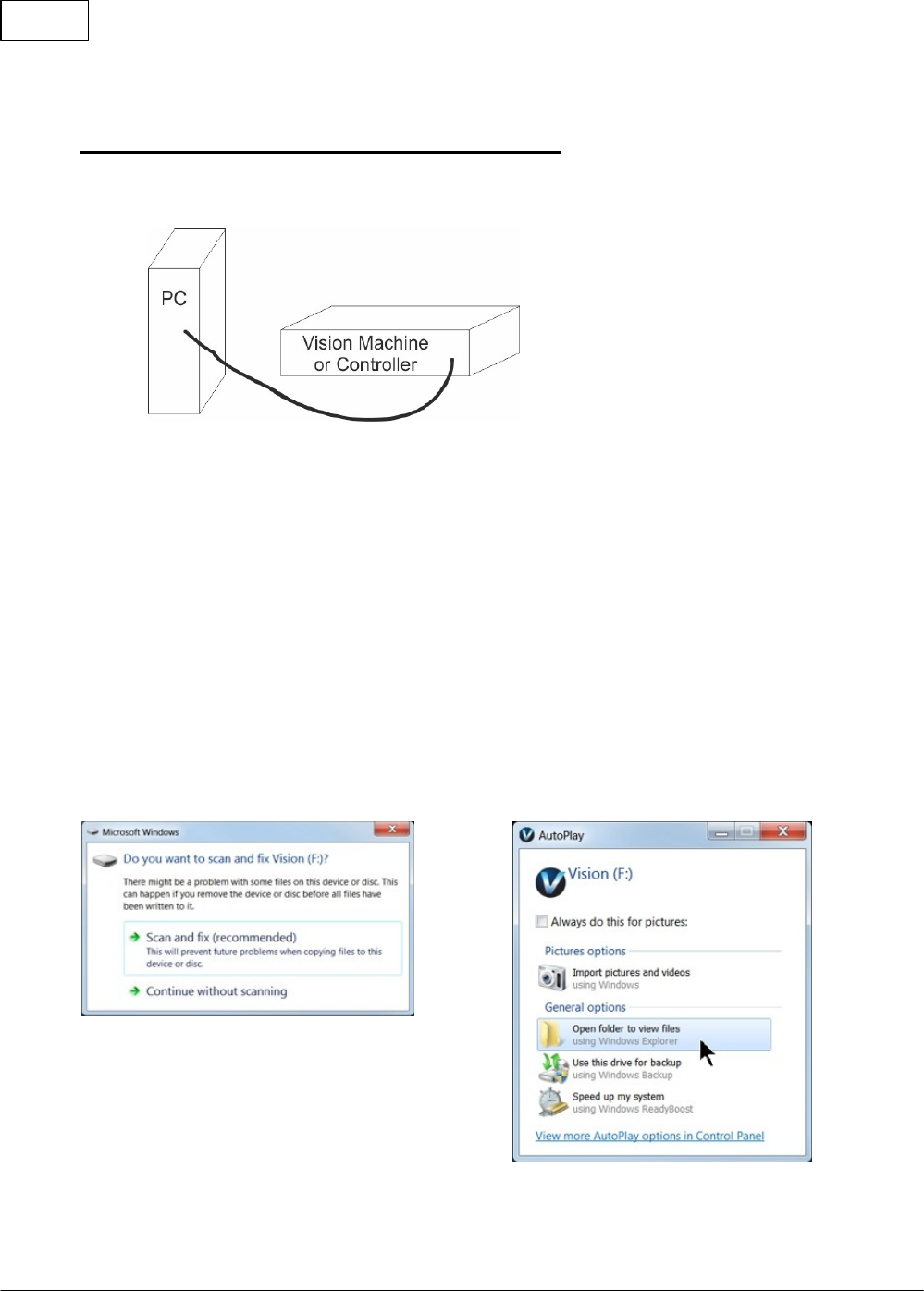
Connection from PC to Hub or Router to Machine or Controller
Once the machine is connected to a hub or router, and the hub or router is connected to your
computer's network port, turn the machine on. The power switch for the Max is located on the left rear
of the machine's base. Once the machine has initialized, plug the supplied Vision USB drive into an
available USB port on your computer.
NOTE - This installation is performed on a Windows 7 PC. For Windows Vista or Windows XP, the
screens are slightly different.
The computer will recognize the USB drive
and the following screen will appear.
Select Continue without scanning.
Select Open folder to view files.
Software Installation and Connections 23
© 2014 Vision Engraving Systems
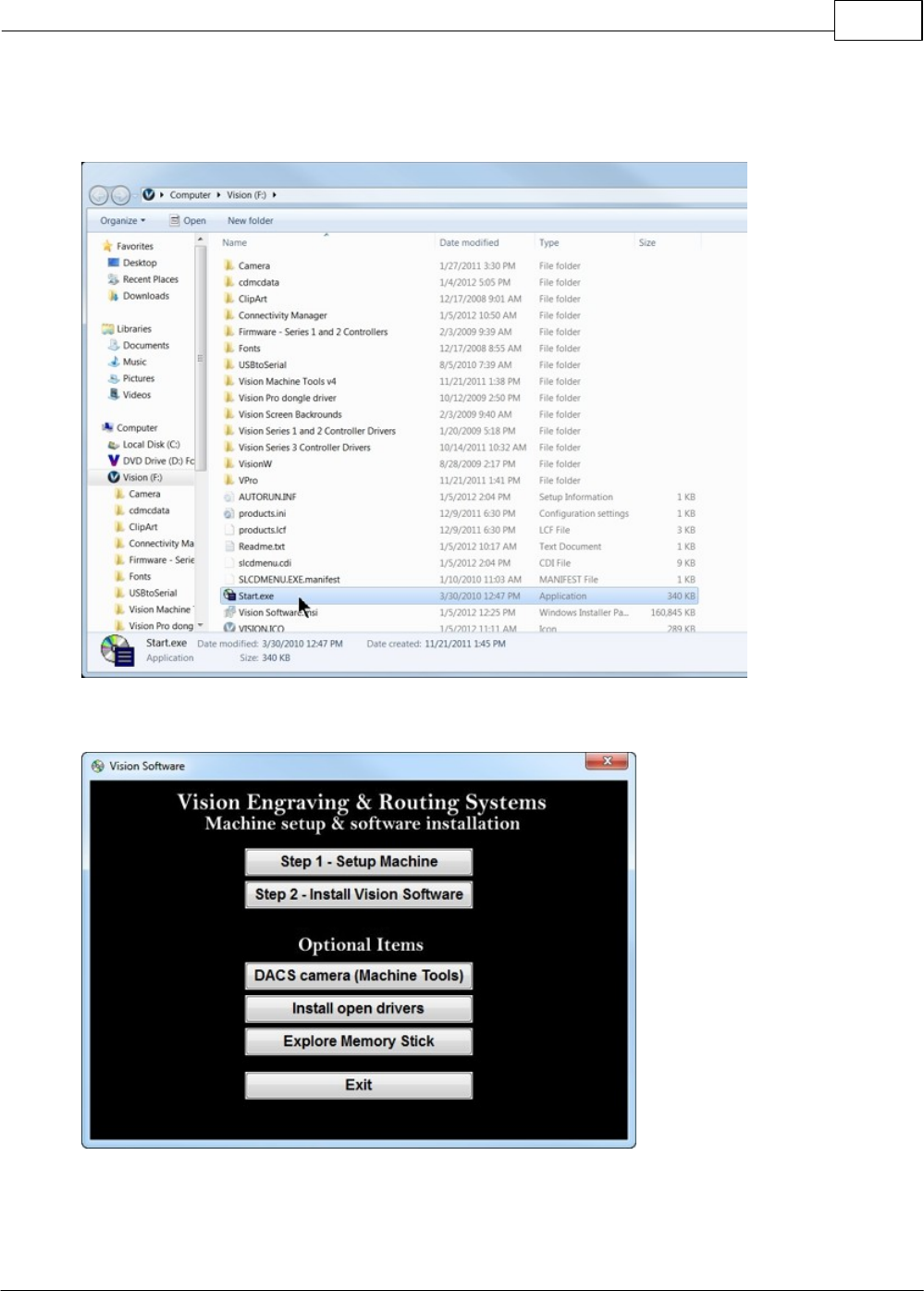
Locate the file named Start and double click on the file to start the installation. The screen below shows
Start.exe, but your computer might not show the .exe portion.
Select Step 1 - Setup Machine. This installs the Vision Connectivity Manager software.
Vision Max User Manual24
© 2014 Vision Engraving Systems
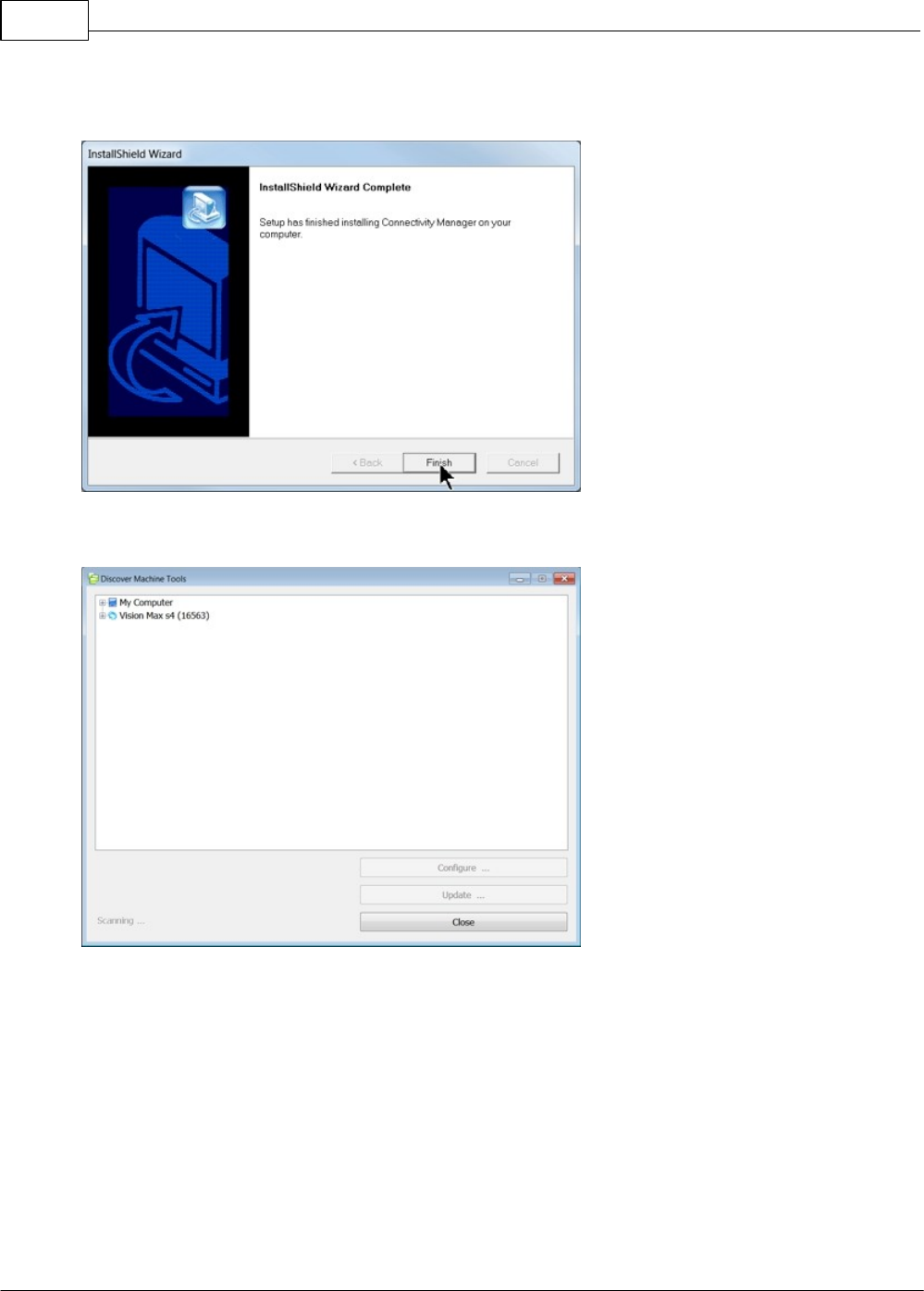
When the software is installed, select Finish.
The Connectivity Manager will search for available Vision devices.
Software Installation and Connections 25
© 2014 Vision Engraving Systems
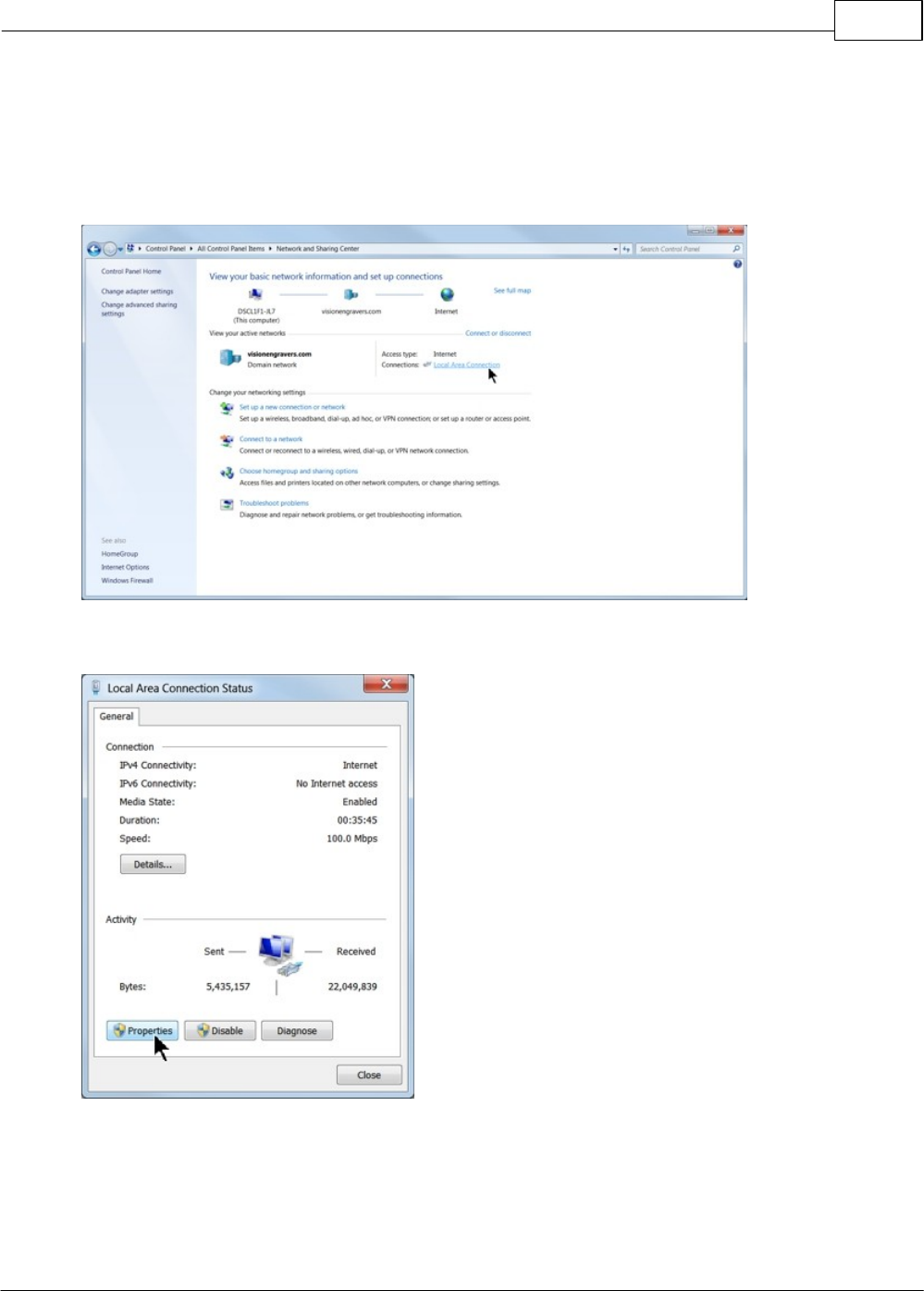
The computer's IP address will need to be set. To set the computer's IP address, open the Window's
Control Panel. Depending on how you have this folder set, you will either see Network and Internet, or
you will see the Network and Sharing Center immediately. If you see Network and Internet, select View
Network Status and Tasks (which opens the Network and Sharing Center). If you see the Network and
Sharing Center, open it. Then select Local Area Connection (as shown below).
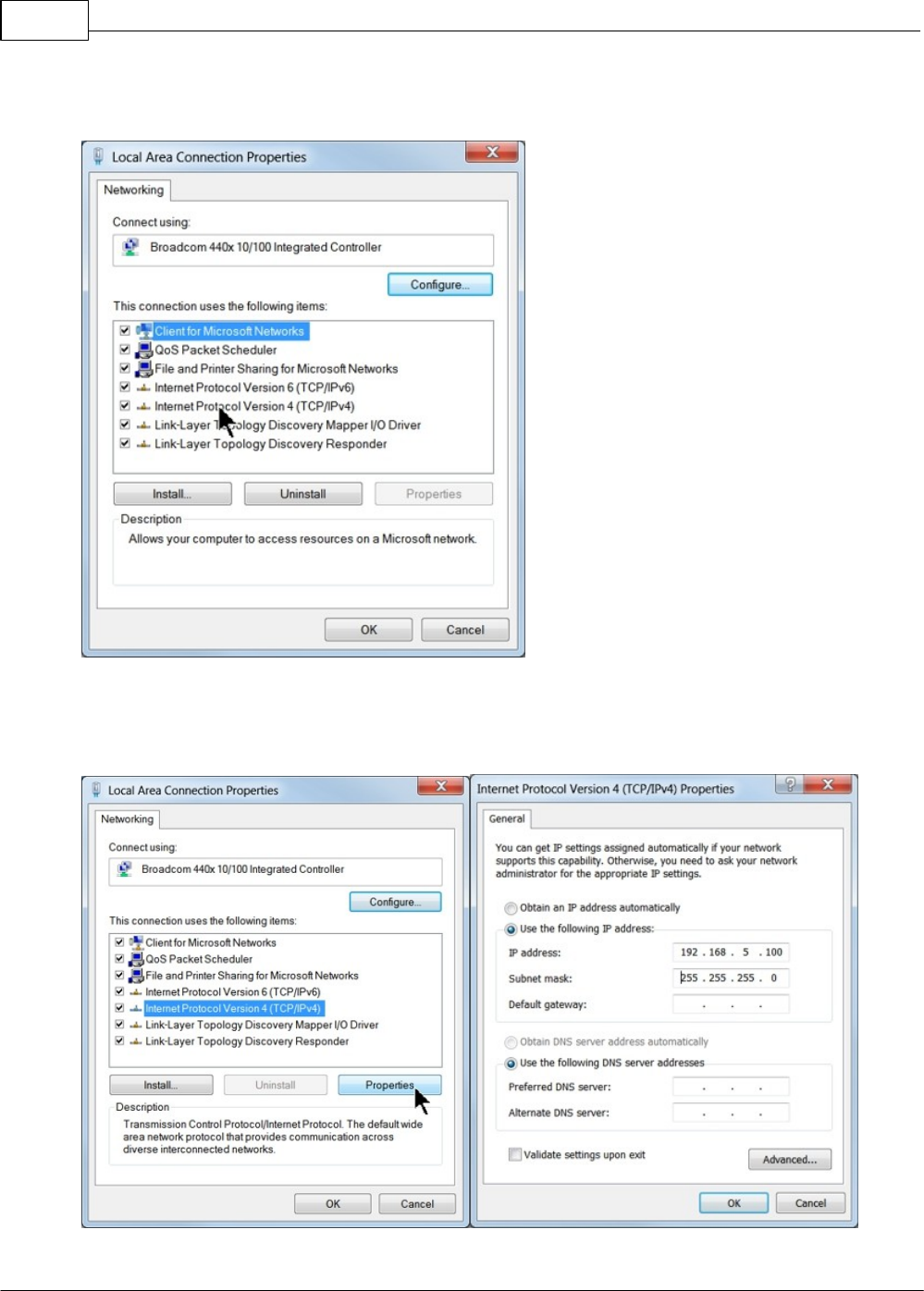
Select Properties.
Vision Max User Manual26
© 2014 Vision Engraving Systems
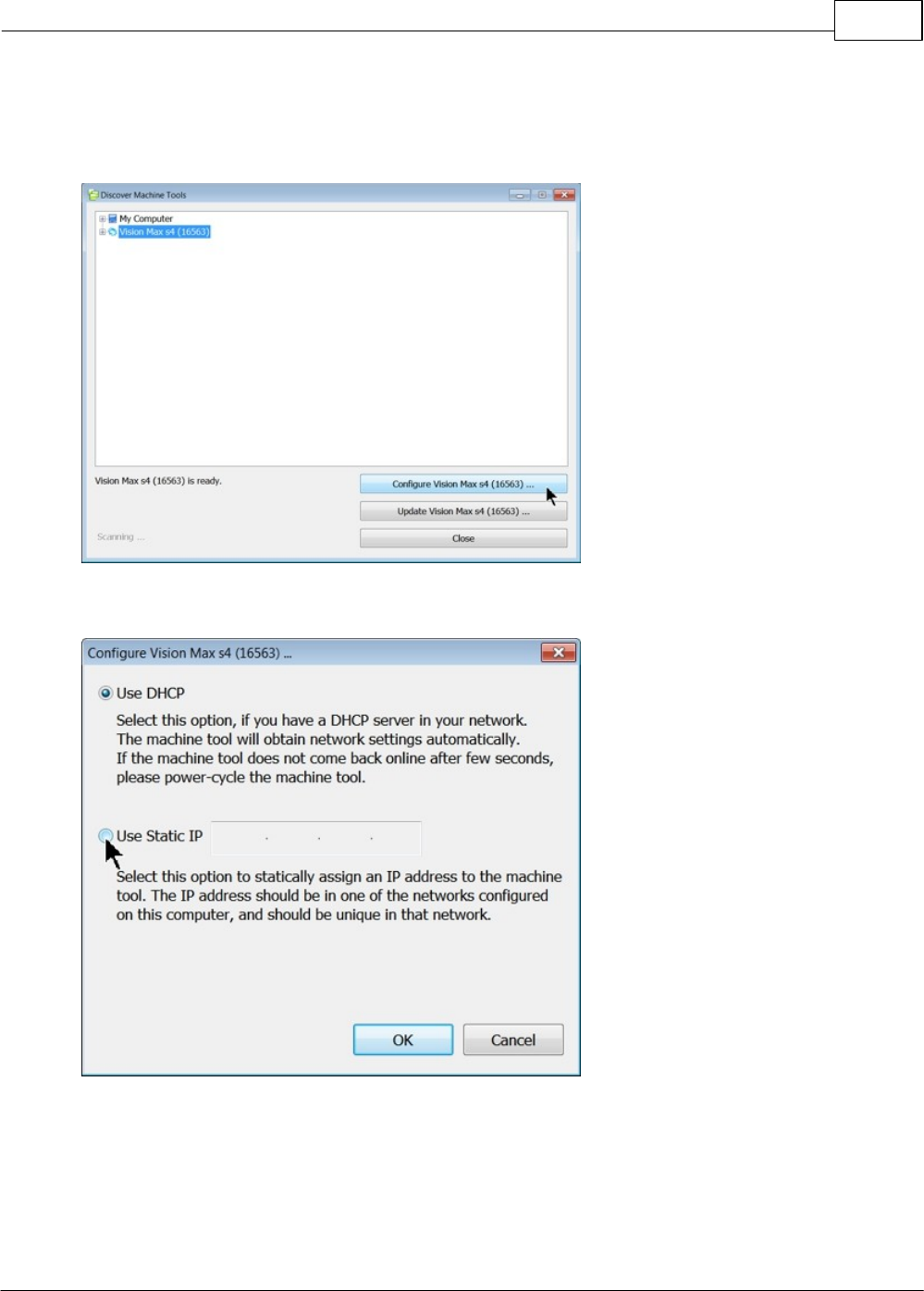
Then, select Internet Protocol Version 4 (TCP/IPv4).
Then select Properties. Select Use the following IP address: and enter 192.168.5.100 and set the
Subnet mask to 255.255.255.0 as shown. Then select OK and close any other network configuration
windows.
Software Installation and Connections 27
© 2014 Vision Engraving Systems
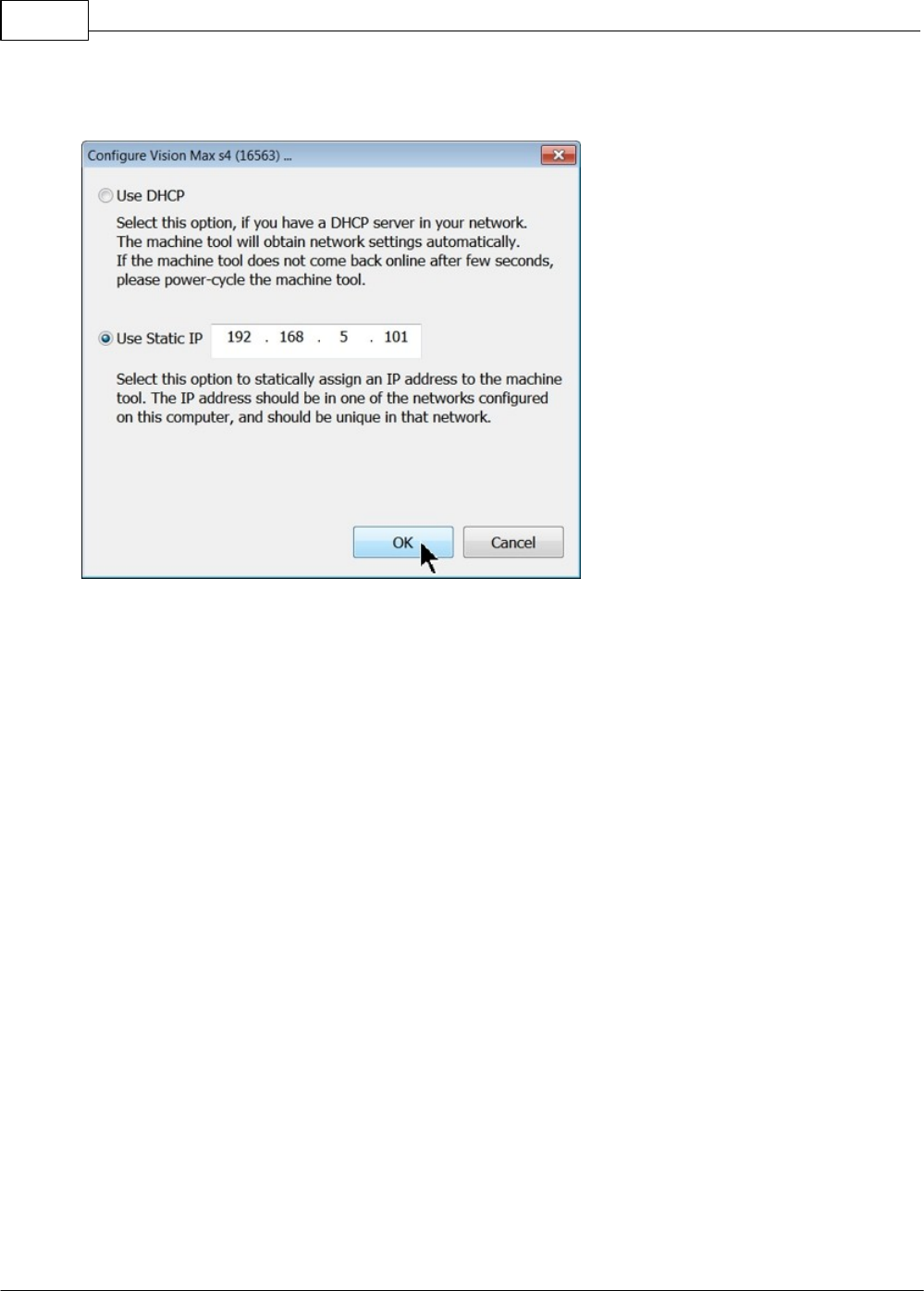
The IP address of the machine will need to be set to set up the connections properly. Select the + box
next to the machine now listed in the Discover Machine Tools window to expand the information. Then
select Configure (Your Machine) at the bottom of the screen.
Select Use Static IP.
Vision Max User Manual28
© 2014 Vision Engraving Systems
Set the IP address (as shown) to 192.168.5.101, then select OK. This sets the machine's IP address.
The configuration is complete at this point. The new IP address should appear in a few seconds in the
Discover Machine Tools window. Close the Discover Machine Tools window and return to the Main
Installation Screen to proceed with the Vision software installation in the next section.
Software Installation and Connections 29
© 2014 Vision Engraving Systems
2.3 Vision Software Installation
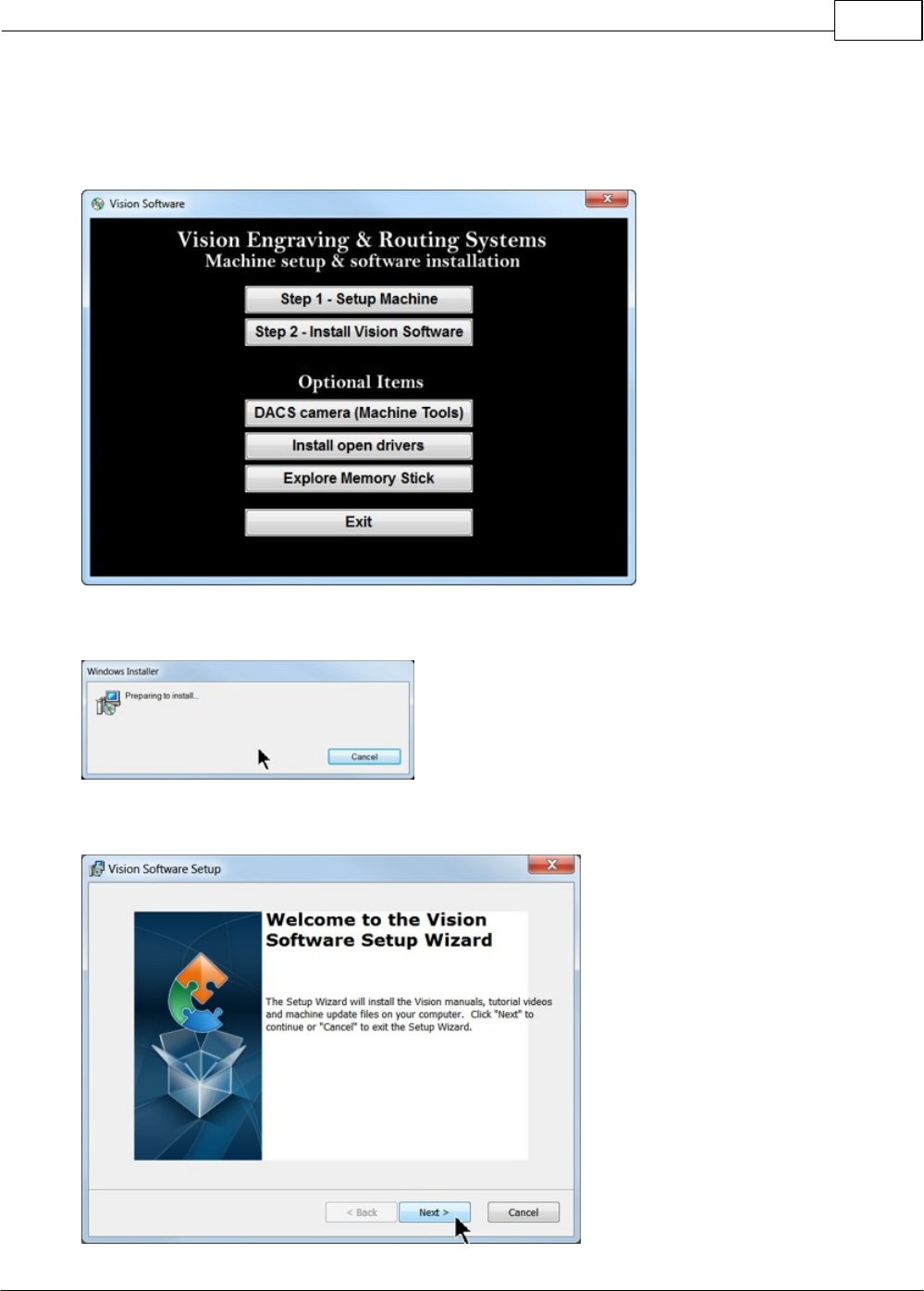
From the Main Installation Screen, Select Step 2 - Install Vision Software.
The Windows Installer will prepare the installation.
Select Next.
Vision Max User Manual30
© 2014 Vision Engraving Systems
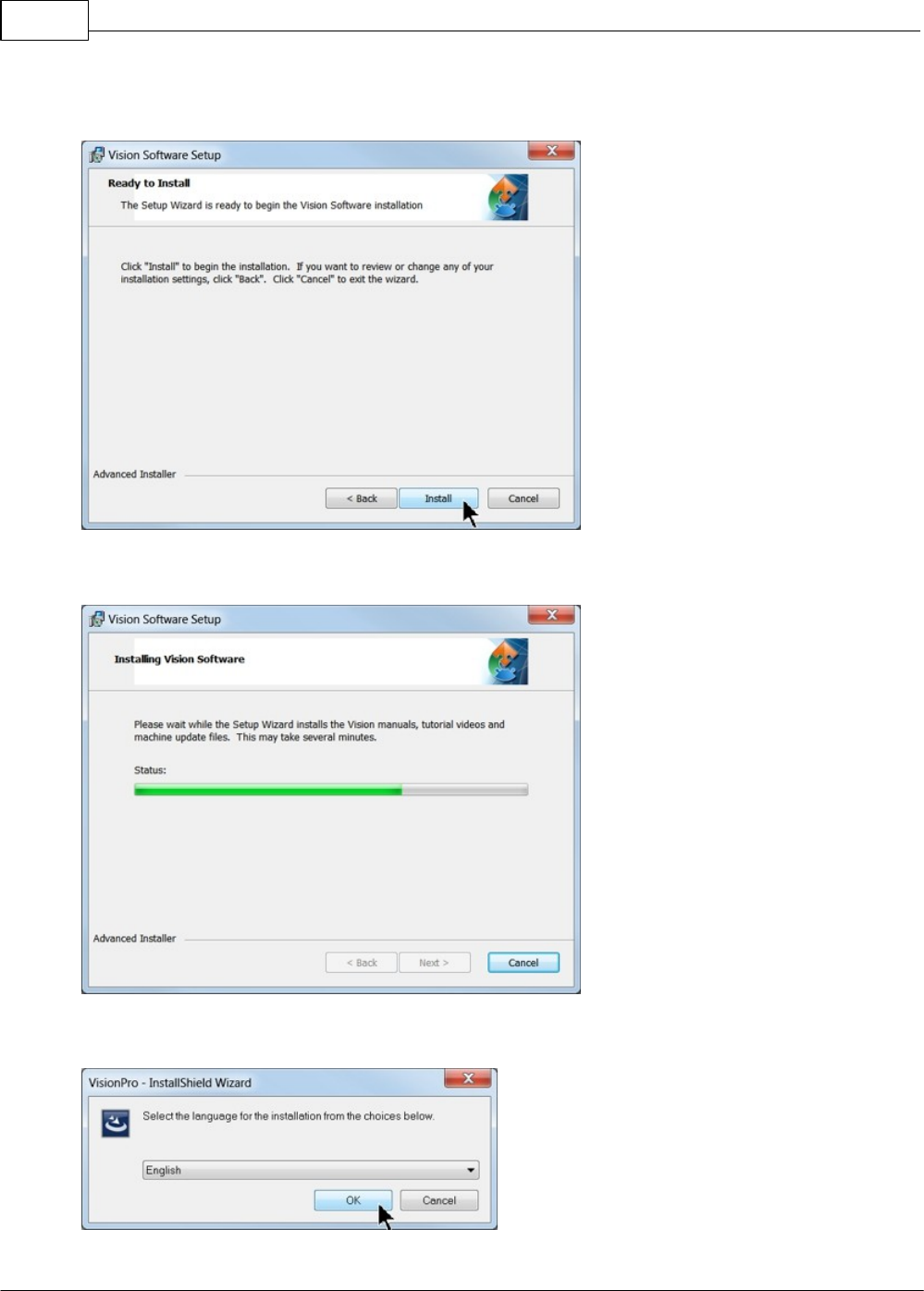
Select Install.
The installation will proceed.
Select the appropriate language and select OK.
Software Installation and Connections 31
© 2014 Vision Engraving Systems
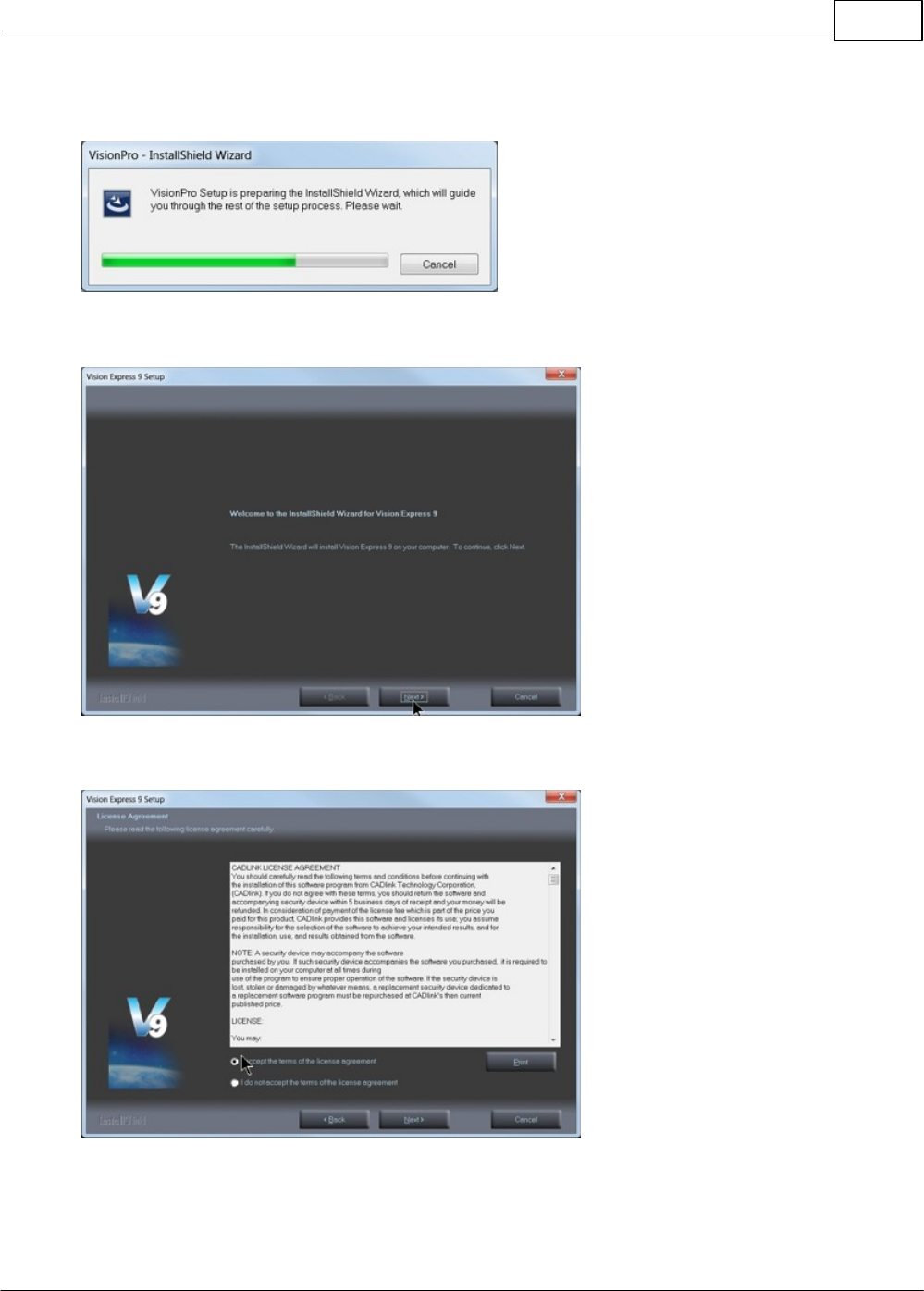
Installation will proceed.
Select Next to begin the installer.
Select Accept the license agreement, then select Next.
Vision Max User Manual32
© 2014 Vision Engraving Systems
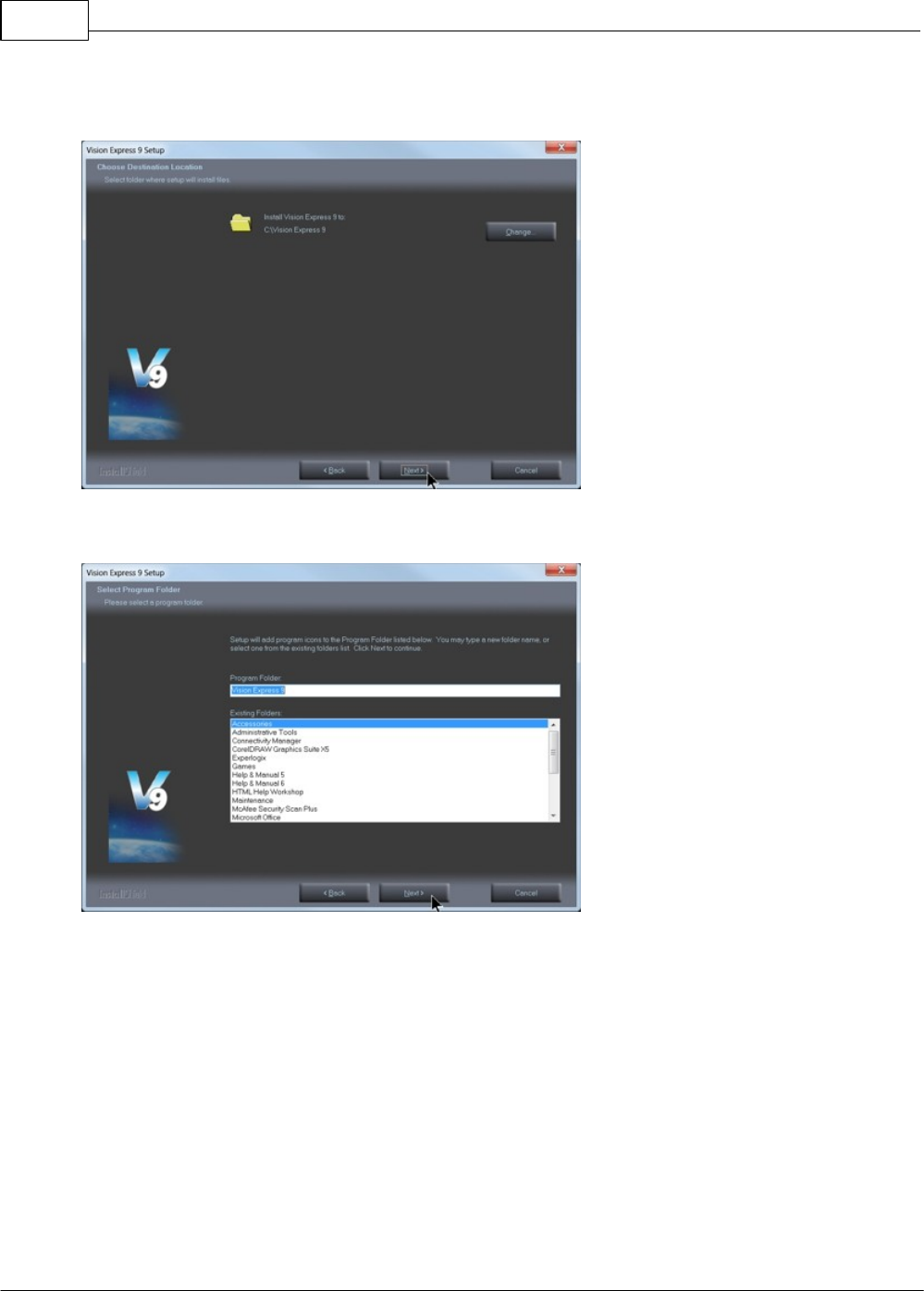
Select Next (or change the destination folder - not recommended).
Select Next to create the folder.
Software Installation and Connections 33
© 2014 Vision Engraving Systems
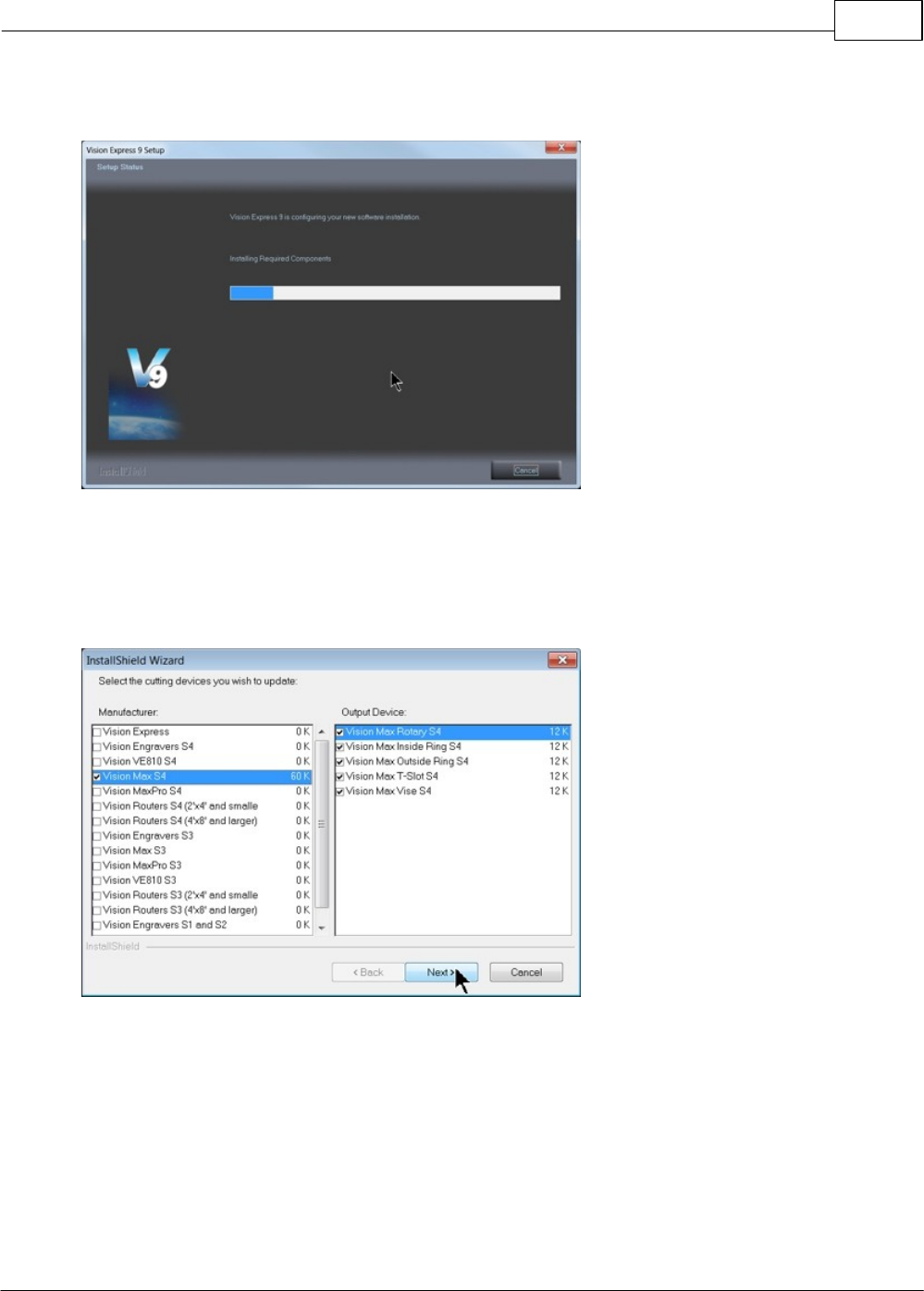
The installation will continue.
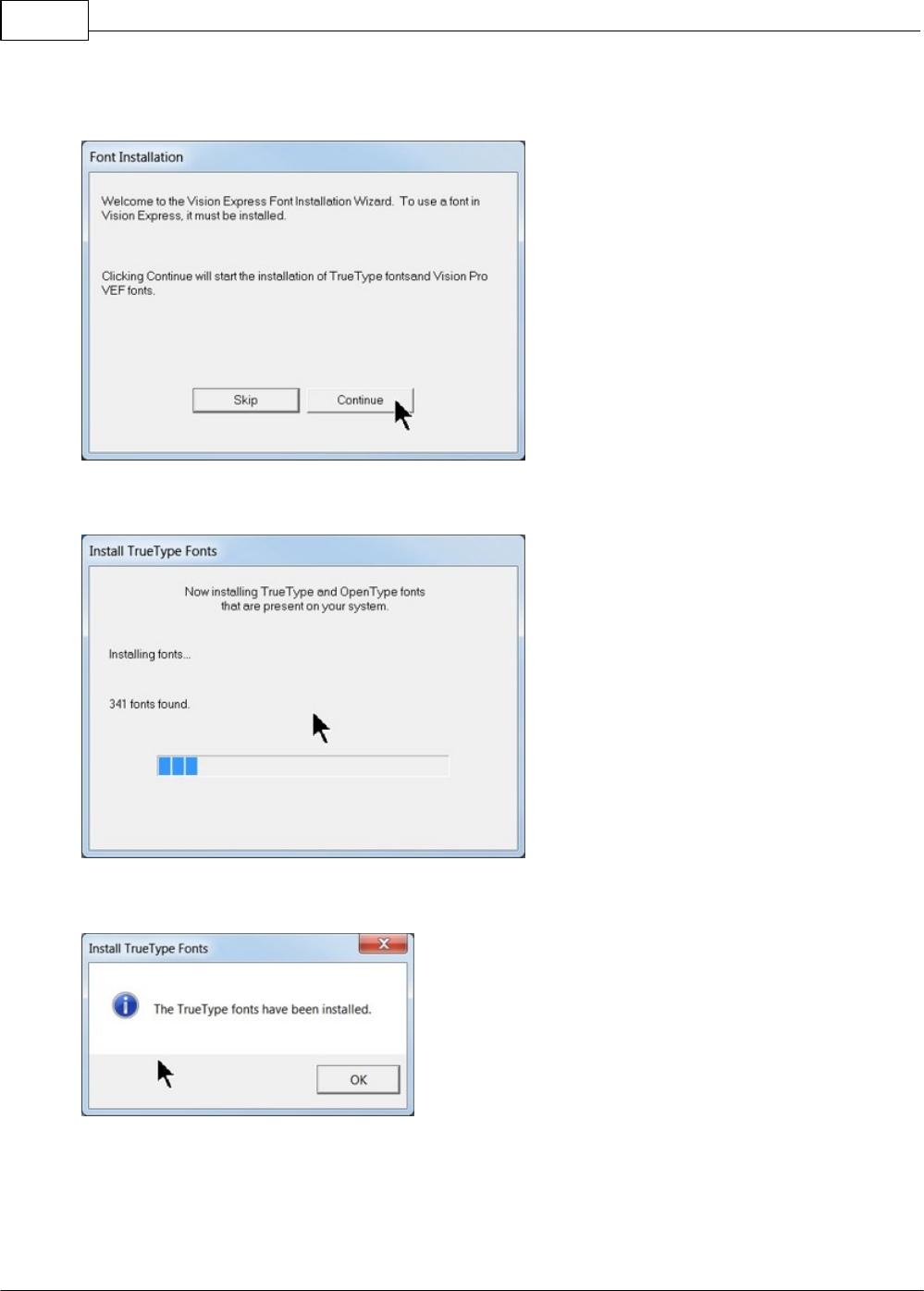
Select your machine from the Manufacturer list on the left side of this window by clicking in the box to
the left of the machine (or machine series) you own. The right side of the window will list a selection of
Output Devices. Only put a check mark in the box(es) to the left of the Output Device(s) you own. Then
select Next. If you purchase another engraving system from Vision, it can be added to the machine list
at a later date from within the Vision software.
Vision Max User Manual34
© 2014 Vision Engraving Systems
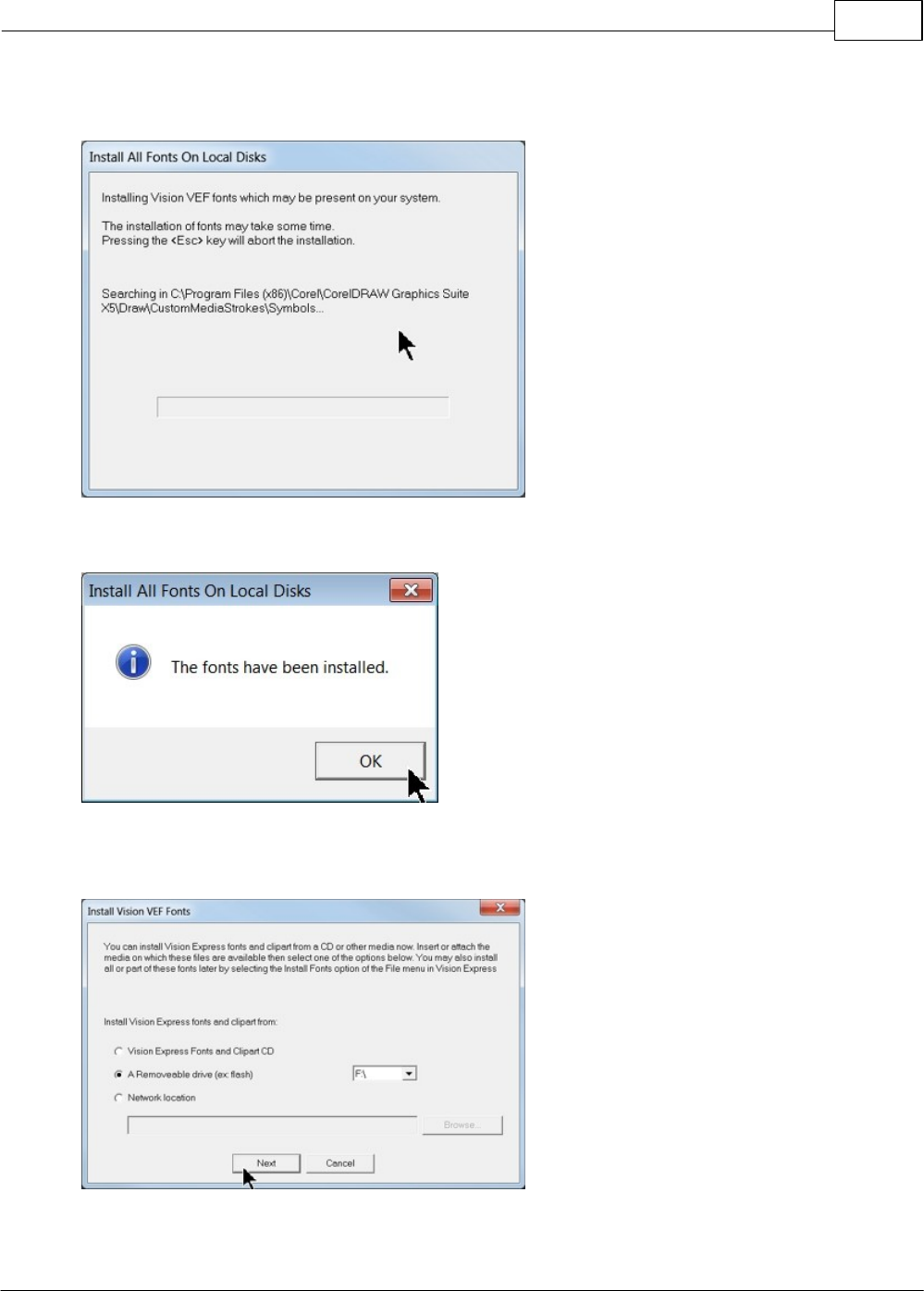
Select Continue to install True Type fonts and Vision Engraving Fonts on your computer.
The software will look for True Type fonts on your computer and allow the Vision software to use them.
Once the True Type fonts are installed, select OK.
Software Installation and Connections 35
© 2014 Vision Engraving Systems
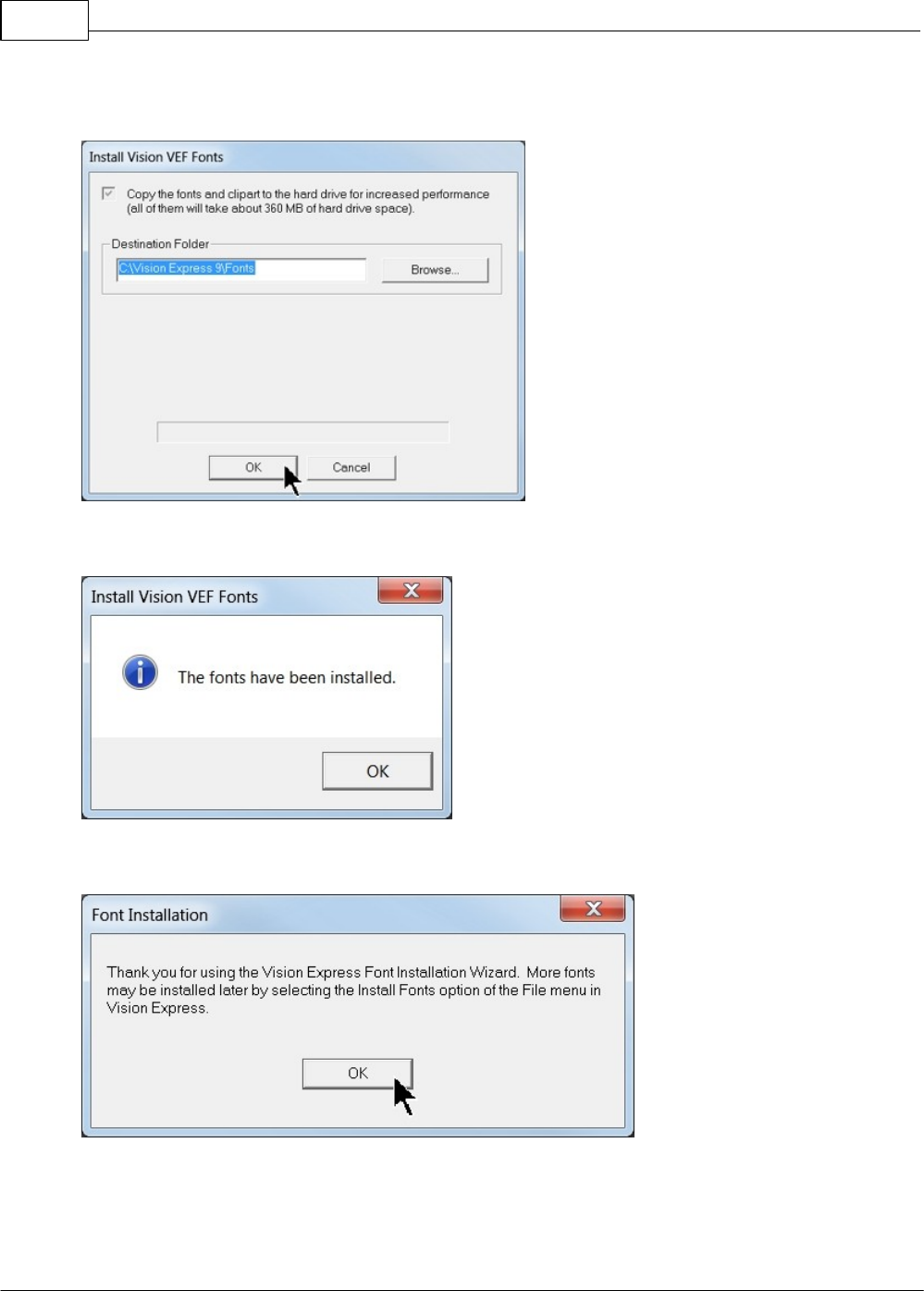
In this step, the software will install any Engraving fonts on your computer.
When complete, click on OK.
In order to install the fonts on the USB drive, select A Removable drive and from the drop down list,
select the drive letter for the Vision USB drive plugged into your computer.
Vision Max User Manual36
© 2014 Vision Engraving Systems
Select OK to install to the default folder.
Select OK. All fonts and clipart have been installed from the USB drive at this time.
Select OK to return to the main installation screen.
Software Installation and Connections 37
© 2014 Vision Engraving Systems
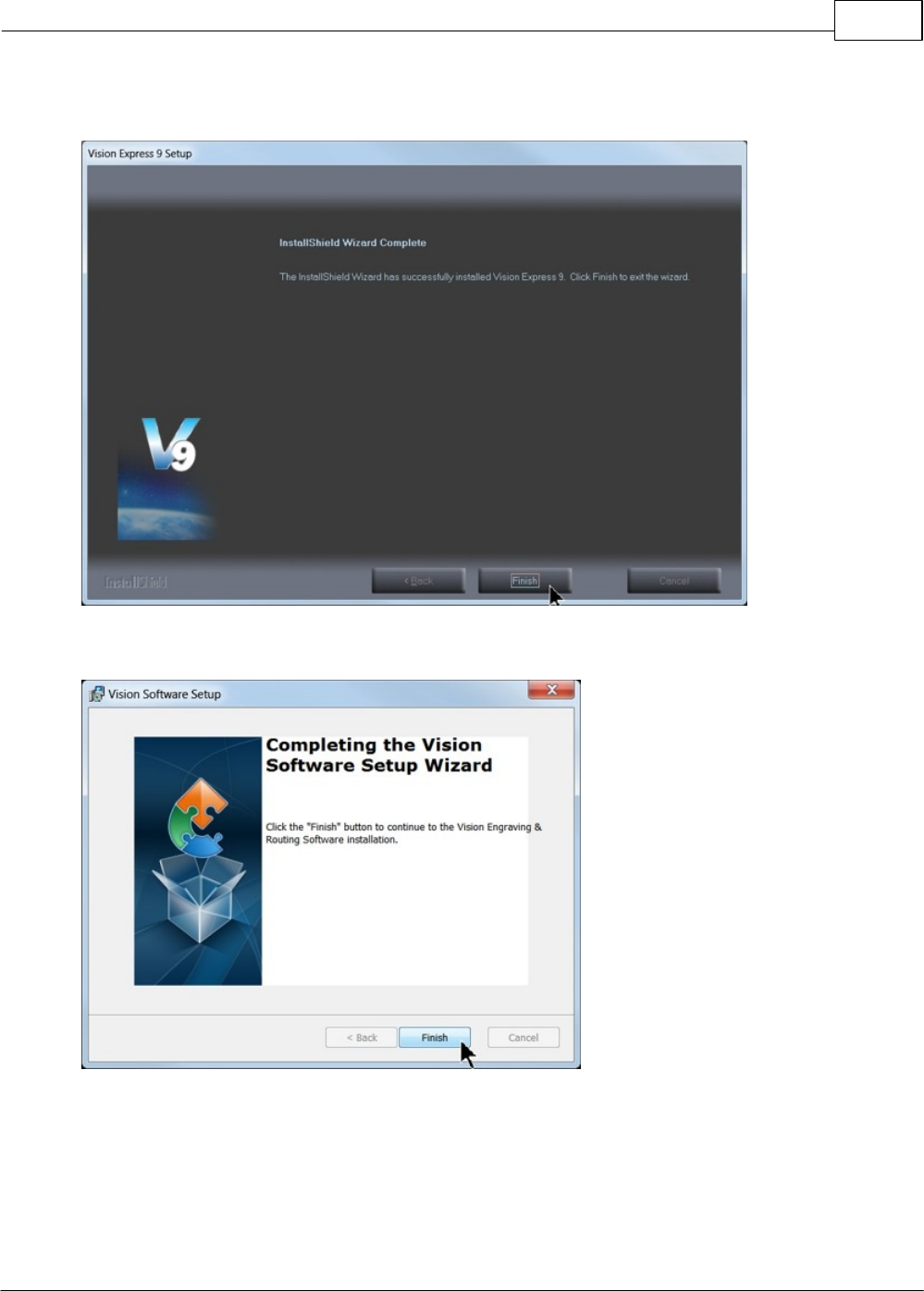
To complete the installation, select Finish.
To close the Software Setup window, select Finish.
Vision Max User Manual38
© 2014 Vision Engraving Systems
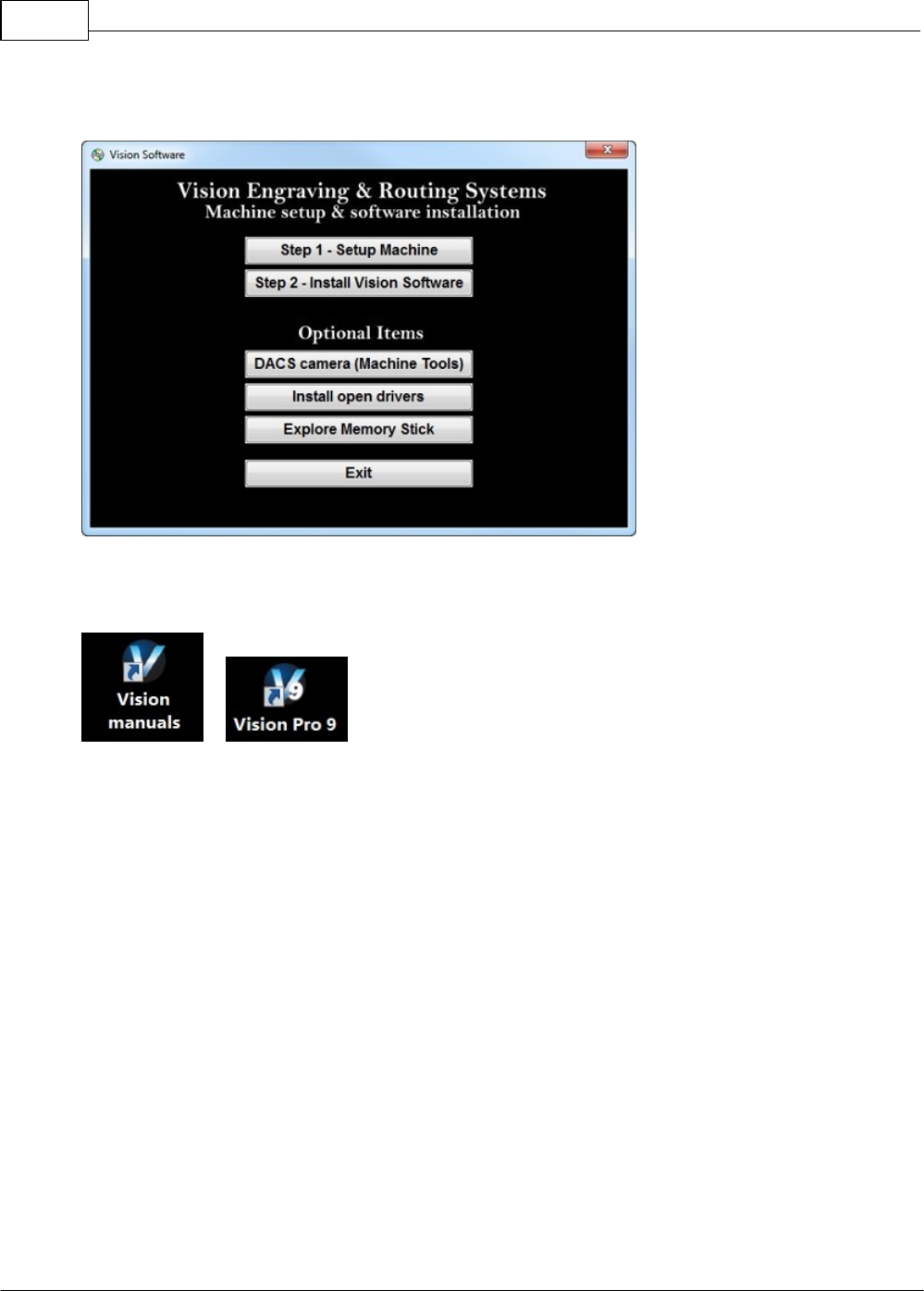
Select Exit to close the installer.
The Vision manuals icon should now appear on your computer's desktop along with an icon for your
version of Vision 9 software.
Clicking on the Vision manuals link will give the user access to User Manuals, Installation Guides,
Accessories and Training Videos.
If you were supplied with an Orange Dongle (orange USB stick), keep it installed in your computer's
USB port in order to use the Vision software. If you were supplied with another color USB stick with
your machine, it can be removed at this time from your computer. Installation is now complete.
Software Installation and Connections 39
© 2014 Vision Engraving Systems
3 Operation
3.1 General Description and Terminology
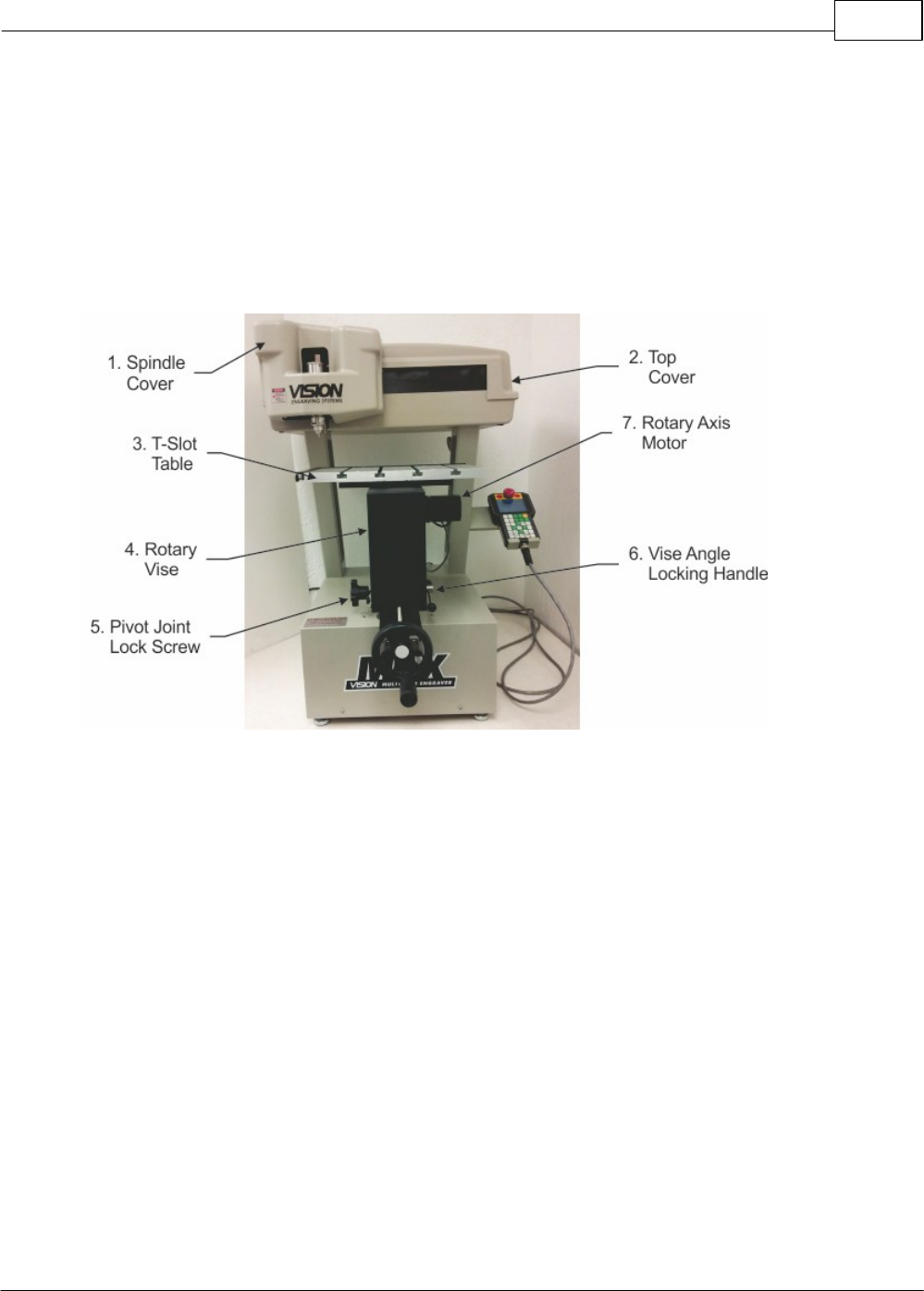
The following is a list of features and a description of the components for the Vision Max Engraver.
1. Spindle Cover - This cover has a magnetic latch and opens from the left side. Pull the cover to
access the spindle area.
2. Top Cover - This cover is secured by 4 screws and can be removed to access the X and Y axis
motors, bearings and leadscrews for maintenance.
3. T-Slot Table - The table is secured to the Rotary Vise via 4 screws. It is used to when engraving most
flat items.
4. Rotary Vise - The Rotary Vise can be used bot to rotate cylindrical items as well as hold, or clamp,
odd shaped items. The rear side of the vise is the drive side, powered by the rotary axis motor. The
front side is "free-wheeling". Adjustment of the vise can be performed by manually rotating the
adjustment wheel.
5. Pivot Joint Lock Screw - This lock screw secures the vise and T-Slot table in a flat position, relative to
the motion system. In order to angle the vise or table, this screw must be removed.
6. Vise Angle Locking Handle - The rotary vise can be tilted in its pivot joint to accommodate tapered
items. Turning the handle counter-clockwise unlocks the vise. Turning the handle clock-wise locks the
vise.
7. Rotary Axis Motor - This motor rotates the rotary axis.
Vision Max User Manual40
© 2014 Vision Engraving Systems
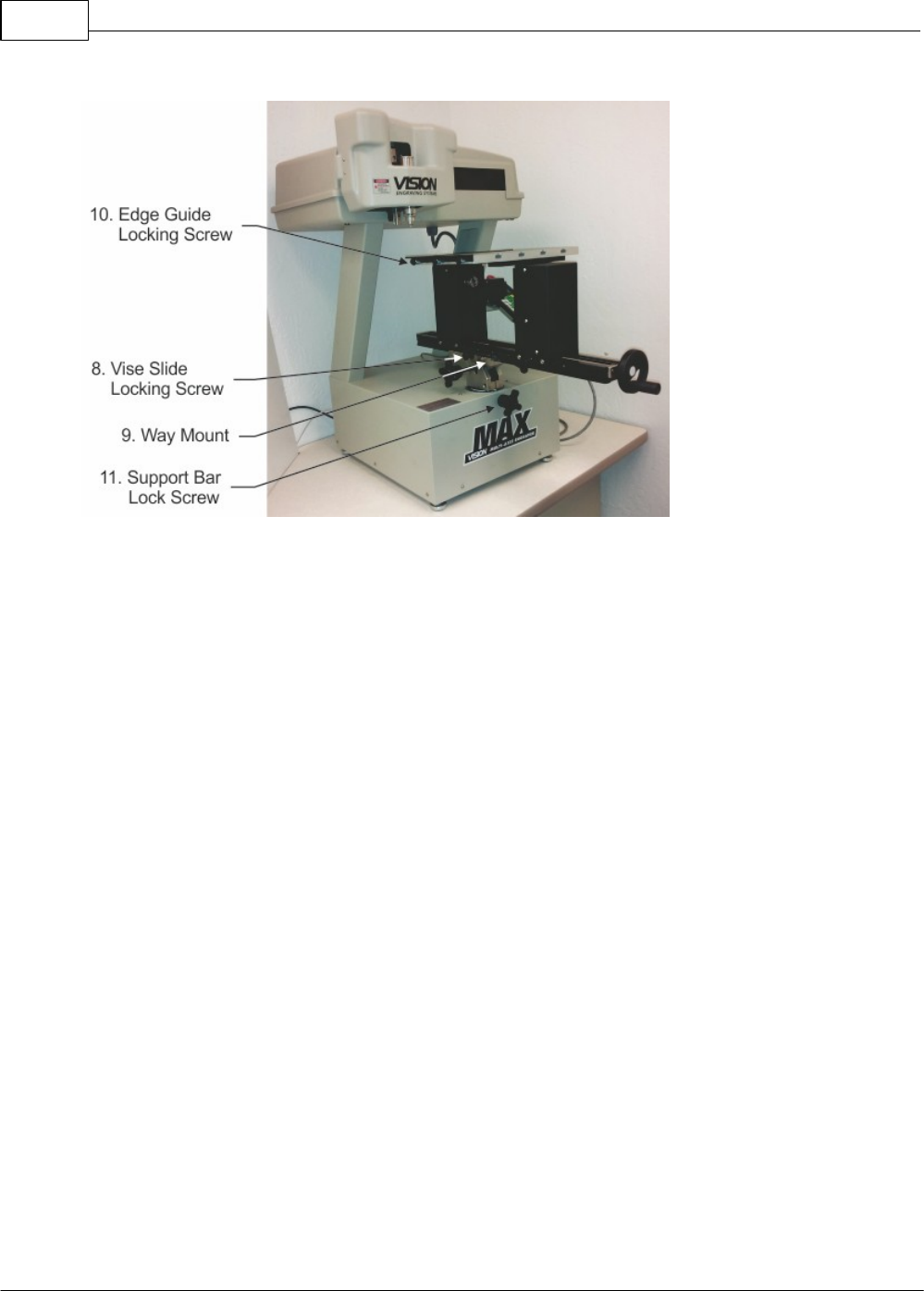
8. Vise Slide Locking Screw - This screw normally secures the position of the vise in the Way Mount.
After loosening this set screw, the entire vise assembly can be slid forward or backward depending on
the item to be engraved. Secure this screw before engraving by turning the screw clock-wise.
9. Way Mount - The Way Mount supports the vise and allows it to slide forward and backward when
positioning items.
10. Edge Guide Locking Screw - There are 3 locking screws on each edge guide to allow the guides to
be raised or lowered depending on the thickness of the material to be engraved on the T-Slot table.
11. Support Bar Lock Screw - This screw secures the support bar, which holds the entire vise assembly
in place. The vise can be rotated, raised or lowered after turning this screw counter-clockwise. Once
the vise has been positioned, secure this screw by turn it clock-wise tightly.
Operation 41
© 2014 Vision Engraving Systems
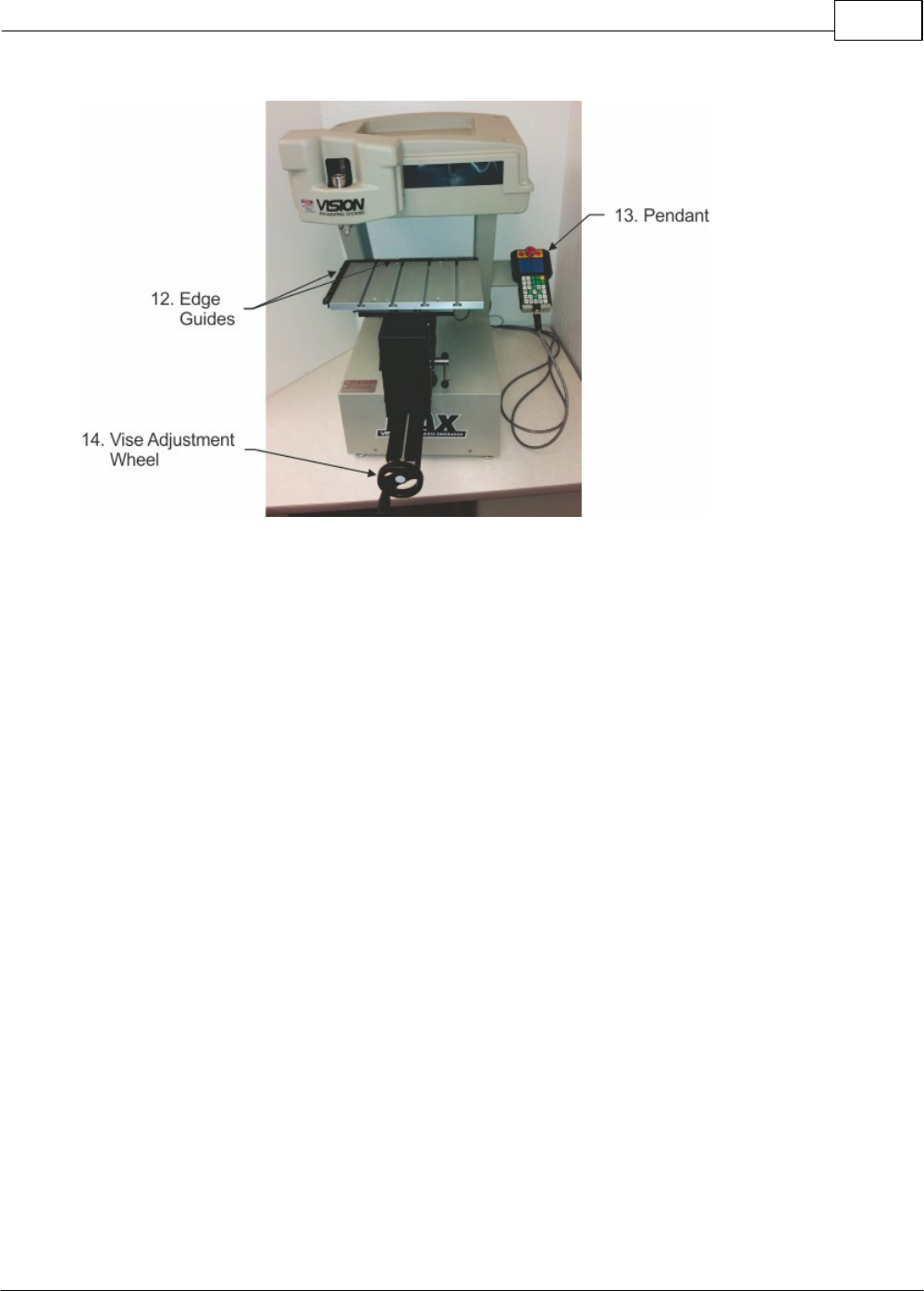
12. Edge Guides - These guides can be used to position items on the T-Slot table. They can be raised
or lowered depending on the thickness of the material being engraved.
13. Pendant - The Pendant is the main control key pad for the machine. It allows the user to change
machine parameters and run jobs sent to the machine.
14. Vise Adjustment Wheel - Turning this wheel opens or closes the rotary vise.
Vision Max User Manual42
© 2014 Vision Engraving Systems
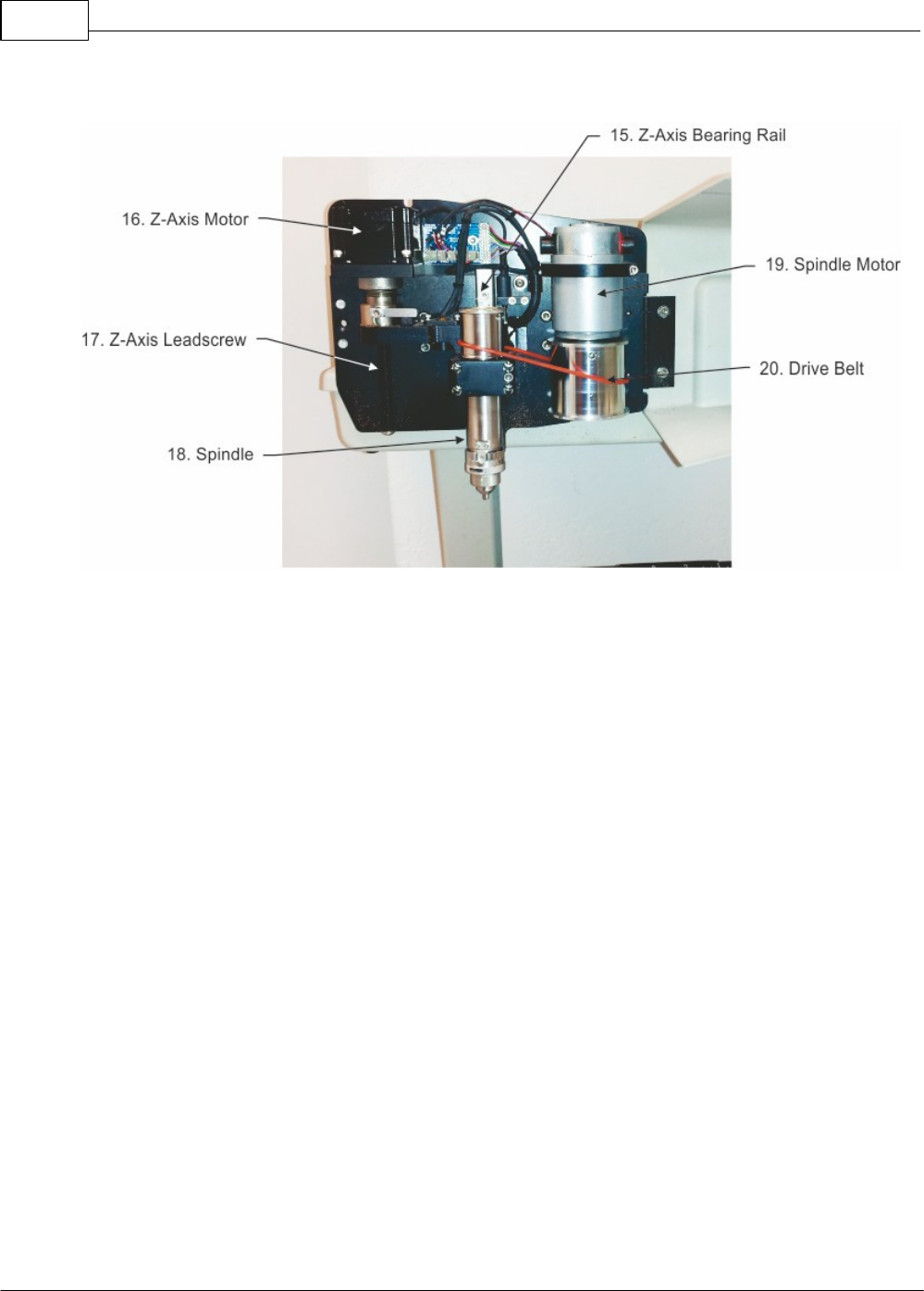
(Spindle Cover Shown Opened)
15. Z-Axis Bearing Rail - This rail locates the spindle in the Z-Axis.
16. Z-Axis Motor - This motor raises and lowers the spindle.
17. Z-Axis Leadscrew - The Z-Axis motor turns the Z-Axis Leadscrew in order to raise and lower the
spindle.
18. Spindle - The spindle holds the cutting tool and can rotate cutting tools when applicable.
19. Spindle Motor - This motor drives the drive belt, which in turn drives the spindle.
20. Drive Belt - This belt connects the spindle motor to the spindle.
Operation 43
© 2014 Vision Engraving Systems
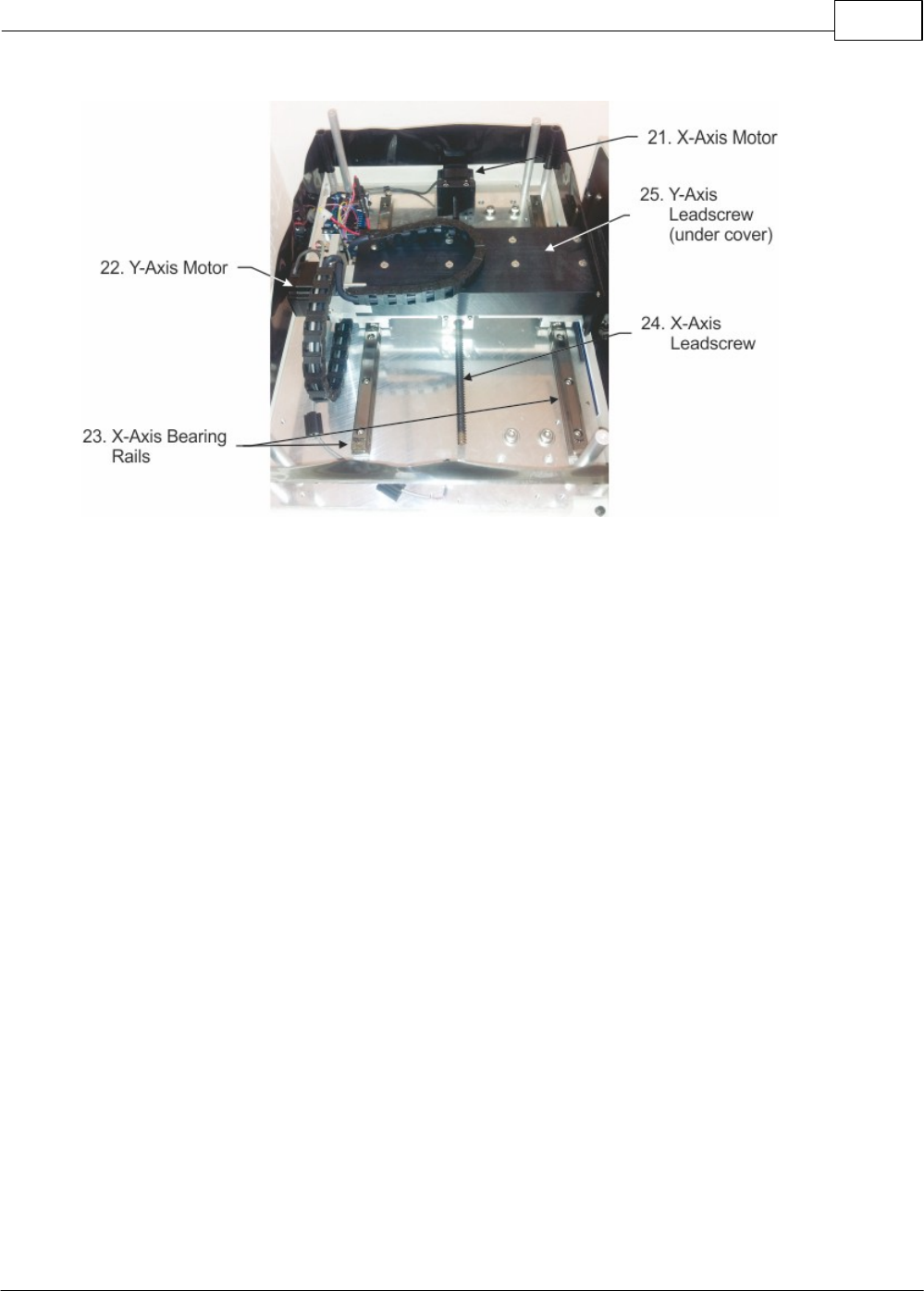
(Top Cover Removed)
21. X-Axis Motor - This motor turns the X-Axis Leadscrew which moves the motion system and spindle
in the X-Axis.
22. Y-Axis Motor - This motor turns the Y-Axis Leadscrew which moves the motion system and spindle
in the X-Axis.
23. X-Axis Bearing Rails - These bearings allow movement and rigidly hold the position of the motion
system in the X-Axis direction.
24. X-Axis Leadscrew - This leadscrew is rotated by the X-Axis motor and drives the motion system and
spindle in the X-Axis.
25. Y-Axis Leadscrew and Bearing Rail - These components provide identical function as the X-Axis
counterparts, except in the Y-Axis direction.
Vision Max User Manual44
© 2014 Vision Engraving Systems
3.2 The Pendant Controls
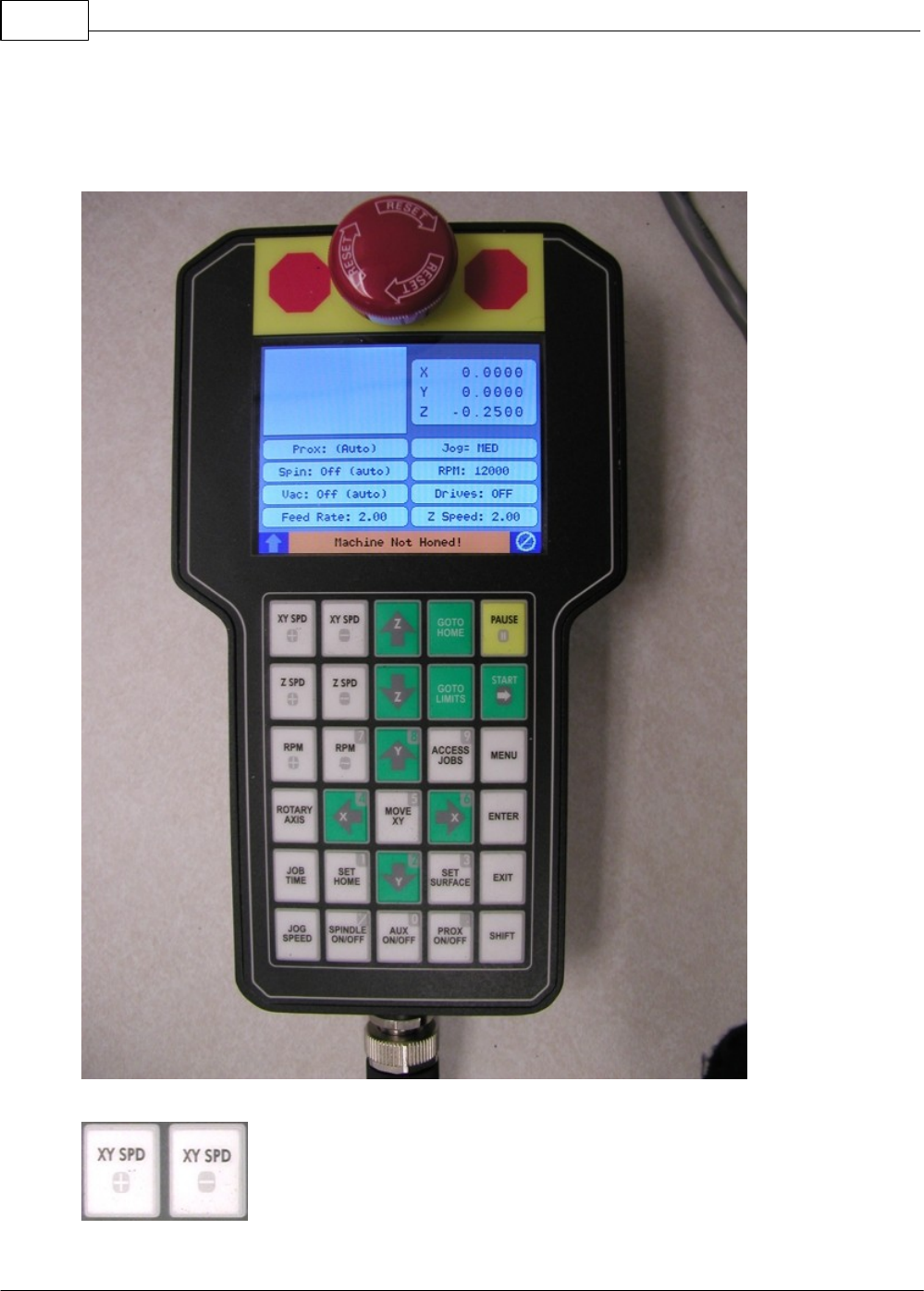
The Pendant controls all of the movement and speeds of your Vision engraver or router. Below is a
picture of the Pendant. The function of each button is explained below.
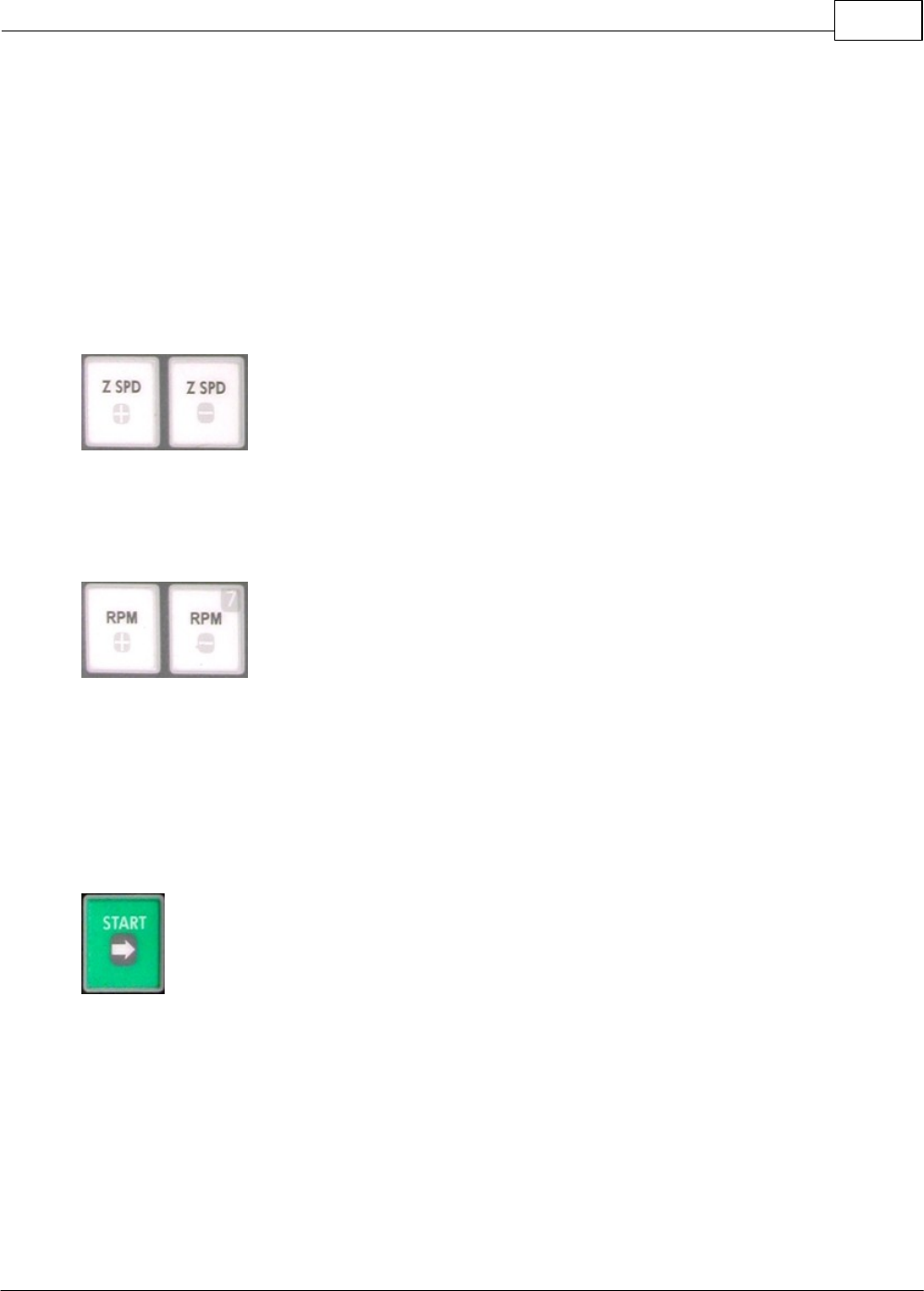
XY Speed + and - Buttons - These buttons control the engraving speed of the
machine. You can change the engraving speed depending on the type of material you are engraving
Operation 45
© 2014 Vision Engraving Systems
and the type of cutter you are using. If you are using a diamond drag cutter (non-rotating), you can
generally run the machine at higher speeds. If you are using a rotary cutter, you will need to adjust the
speed depending on what type of material you are cutting. Harder materials, such as acrylic and
engraver's brass, will need to be engraved at slower speeds. Softer materials such as engraver's plastic
can be engraved at higher speeds. A rule of thumb for setting the engraving speed is to start off
engraving at a slow speed, then gradually increase the engraving speed while the machine is engraving.
Increase the speed until you get to a speed where it sounds like the machine is working freely. If your
speed is too fast, the machine will sound like it is working very hard, or putting a heavy load on the
engraving spindle. If this happens, you can possibly dull the engraving cutter or the engraving quality
will not be very good. Fortunately, engraving speeds presets for most materials are sent to the engraver
with the job file. There is much less trial and error as a result.
Z Speed + and - Buttons - These buttons control how fast the spindle will move
down into the material. Typically, you can leave the speed at it's maximum setting, unless you are
engraving into hard materials such as acrylic or deep engraving into metals. In cases such as these,
slow the speed down using the Z SPD - button. Again, this is part of the presets sent to the engraver
after a material is selected in the Vision software.
RPM (Spindle Speed) + and - Buttons - These buttons control the rotational
speed (RPM) of the engraving spindle. You would change the RPM of the engraving spindle depending
on the type of material you are engraving or for different sizes of engraving cutters. The harder the
material you are using, the higher the RPM you would use. Also, the larger the cutter you are using, the
higher the RPM you would use. A rule of thumb for setting the spindle speed is to start out at a higher
RPM. You can gradually lower the RPM while the machine is working. Keep lowering the spindle speed
until the spindle sounds like there is a load (or drag) on the spindle. When you reach that point, you
should turn the spindle speed knob up a little bit. The spindle speed also has presets based on the
material selected in the Vision software.
Start Button- The Start button is used to start the engraving machine. When there is a
job in the machine, the Pendant Screen will display the message "Press START to Go; EXIT to Abort. Z-
up to Prox Restart, Shift/Start - Dryrun". Also, if you have pressed the Pause button to stop the
engraving, pressing the Start button will resume the job.
Vision Max User Manual46
© 2014 Vision Engraving Systems
If a job has been sent to the machine and has been run, the Start button has another feature. If you are
using the Connectivity Manager (not Machine Tools), pressing the Start button after the job has been
run, will recall the job. Pressing the Start button once more will run the same job.
, then Shift, then Start Button
When connected via Connectivity Manager - Pressing Shift, then Start with a job in the machine will
perform a dry run of the job with the red pointer on the machine. The red pointer will outline the job to
be engraved. If there is no job in the machine, this function will attempt to connect to your computer and
you will receive the messages "Connecting to host...", then, "Host not responding!" This is normal, as
this button combination is not meant to be used with the connectivity manager.
When connected to Vision Machine Tools - If there is no job in the machine, pressing Shift, then Start
will display a list of jobs that are stored on the computer's hard drive. Use the Y up and down jog buttons
to move the cursor on the Pendant screen to the job to be engraved and then press Enter to select the
job. Pressing Start will run the job. If a job is in the machine and ready to be engraved, pressing Shift,
then Start will perform a dry run of the job with the red pointer on the machine. The red pointer will
outline the job to be engraved.
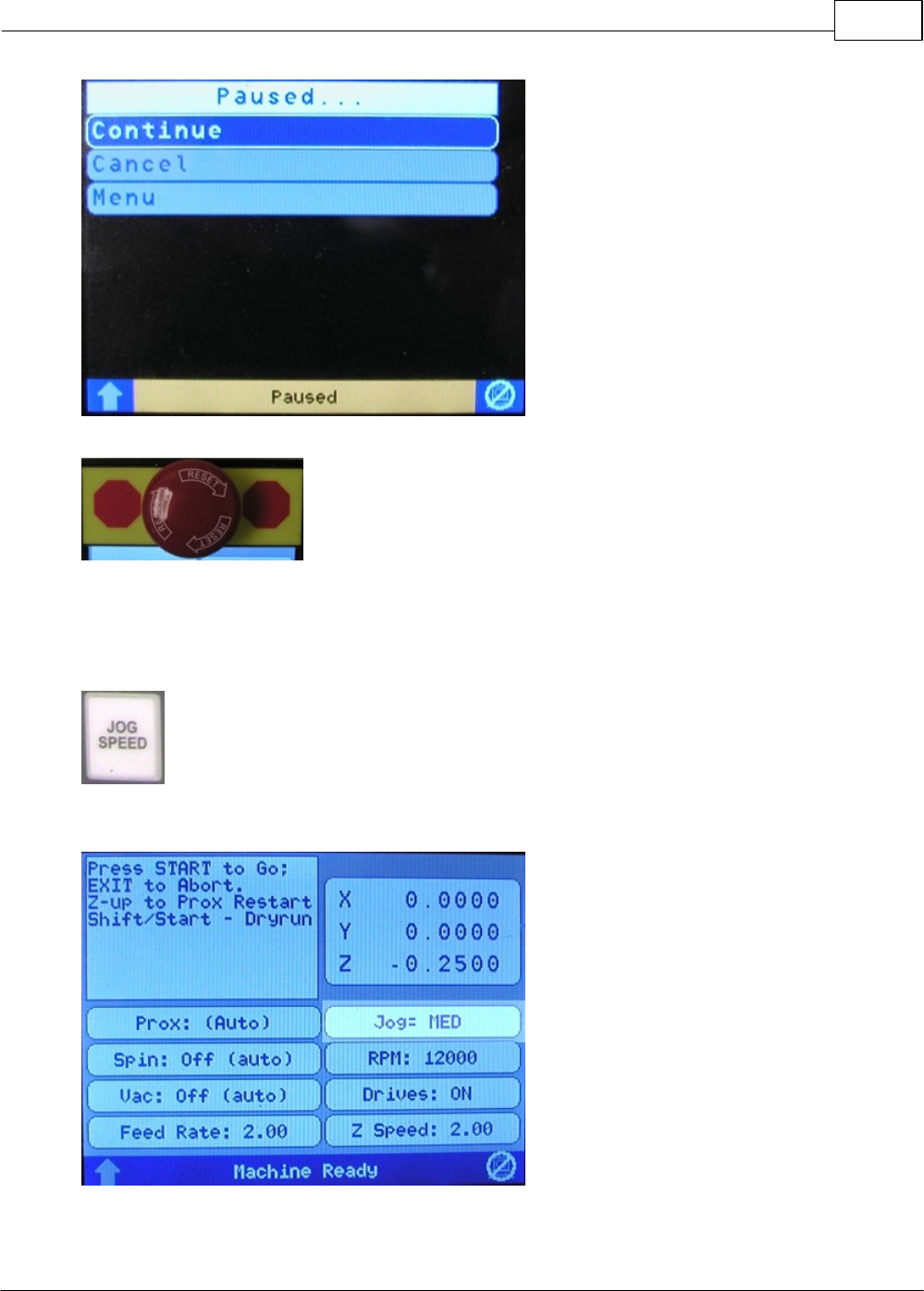
Pause Button - The Pause button is used to momentarily stop the machine from
engraving. If you press the Pause button while the machine is engraving, the machine will lift the cutter
up from the material and stop engraving. The spindle motor and vacuum will power off while in Pause
mode. Pressing the Start (or Enter) button will resume (Continue) the engraving where it left off. To
Cancel the job, use the Y Up or Down buttons to select Cancel, then press the Enter button. When in
Pause mode, the Pendant screen will display:
Operation 47
© 2014 Vision Engraving Systems
Emergency Stop Button - This button will stop engraving immediately, leaving
the cutter in the down position and will power off the X, Y and Z stepper motors and also shut off the spindle motor and
auxiliary. Once you have pushed the Emergency Stop Button, you must twist the knob clockwise to release it.
Press the Goto Home button to power up the machine and move the spindle back to the home position.
The job you were running will be canceled. To run a job, send it to the machine again.
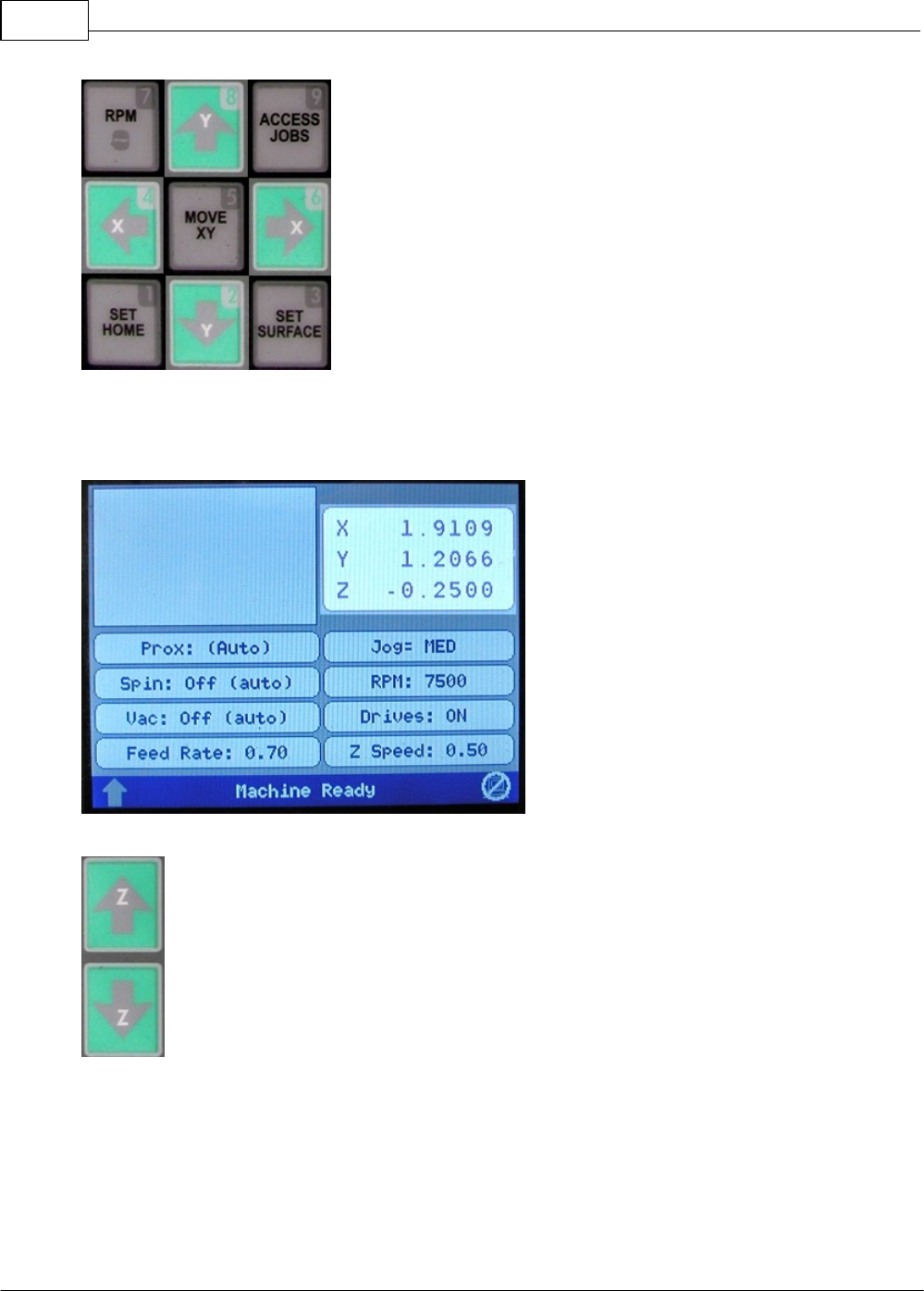
Jog Speed Button - The Jog Speed button will toggle the machine's jog speed between
Fast, Medium and Slow. The current jog speed can be seen on the Pendant screen as highlighted
below.
Vision Max User Manual48
© 2014 Vision Engraving Systems
X & Y Jog Buttons - The X & Y jog buttons are used to move the
position of the spindle on the T-Slot table work area. This is used to position graphics, or to locate an
area for engraving. The X jog buttons will move the spindle left and right. The Y jog buttons will move the
spindle front to back. As you use the X & Y jog buttons, the Jog speed will determine how fast the
spindle will move and the spindle position will be displayed on the Pendant screen as highlighted below.
Z Jog Buttons - These will move the spindle up and down. These buttons are commonly
used for setting the surface of your material when you are not using the proximity sensor. The spindle
will jog up and down at the Jog speed displayed on the Pendant screen (medium, slow or fast). As you
use the Z jog buttons, the spindle position will be displayed on the Pendant screen as shown above.
Operation 49
© 2014 Vision Engraving Systems
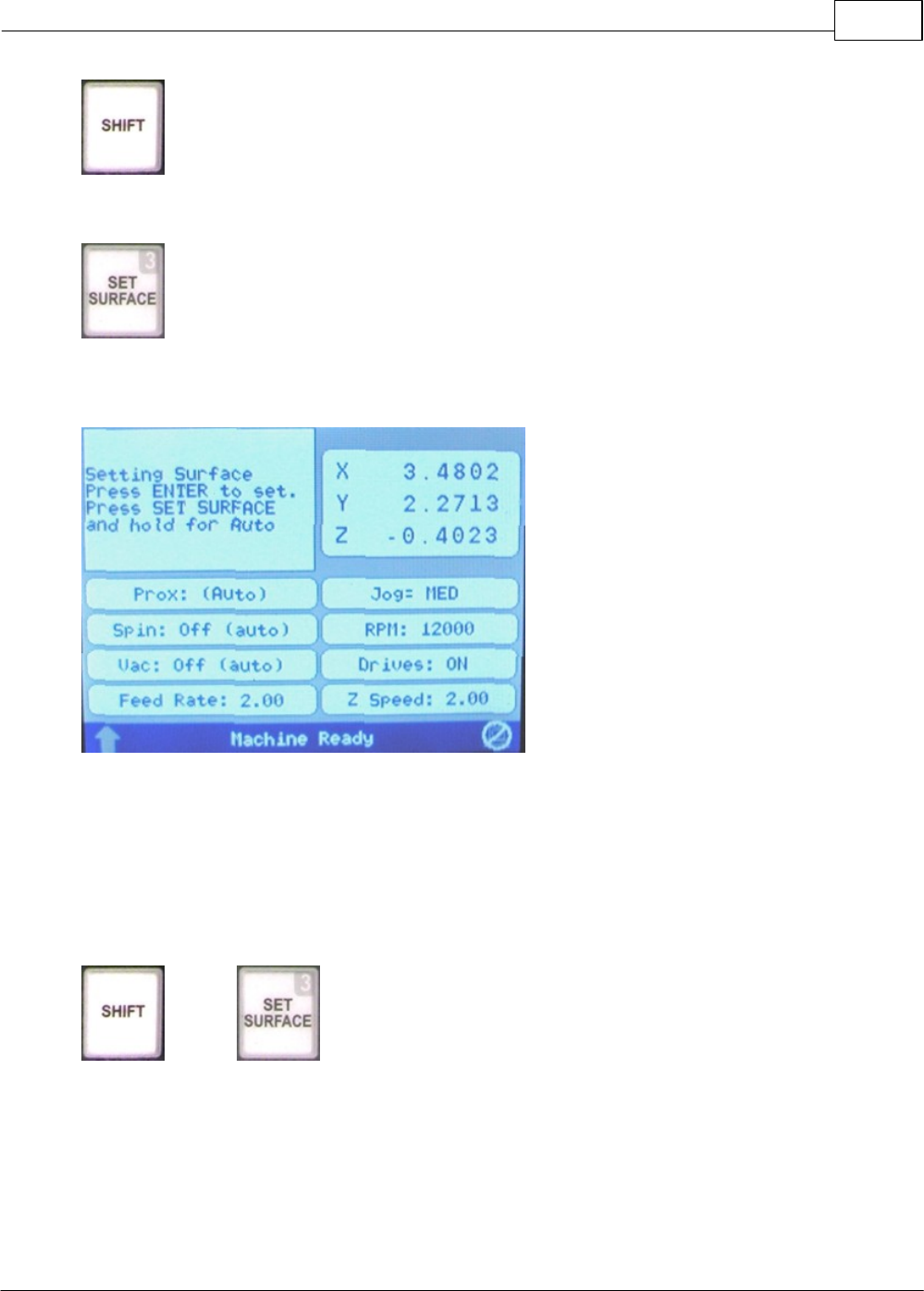
Shift button - The Shift button is used to access different functions. Pressing the Shift
button will highlight the up arrow in the bottom left corner of the Pendant screen.
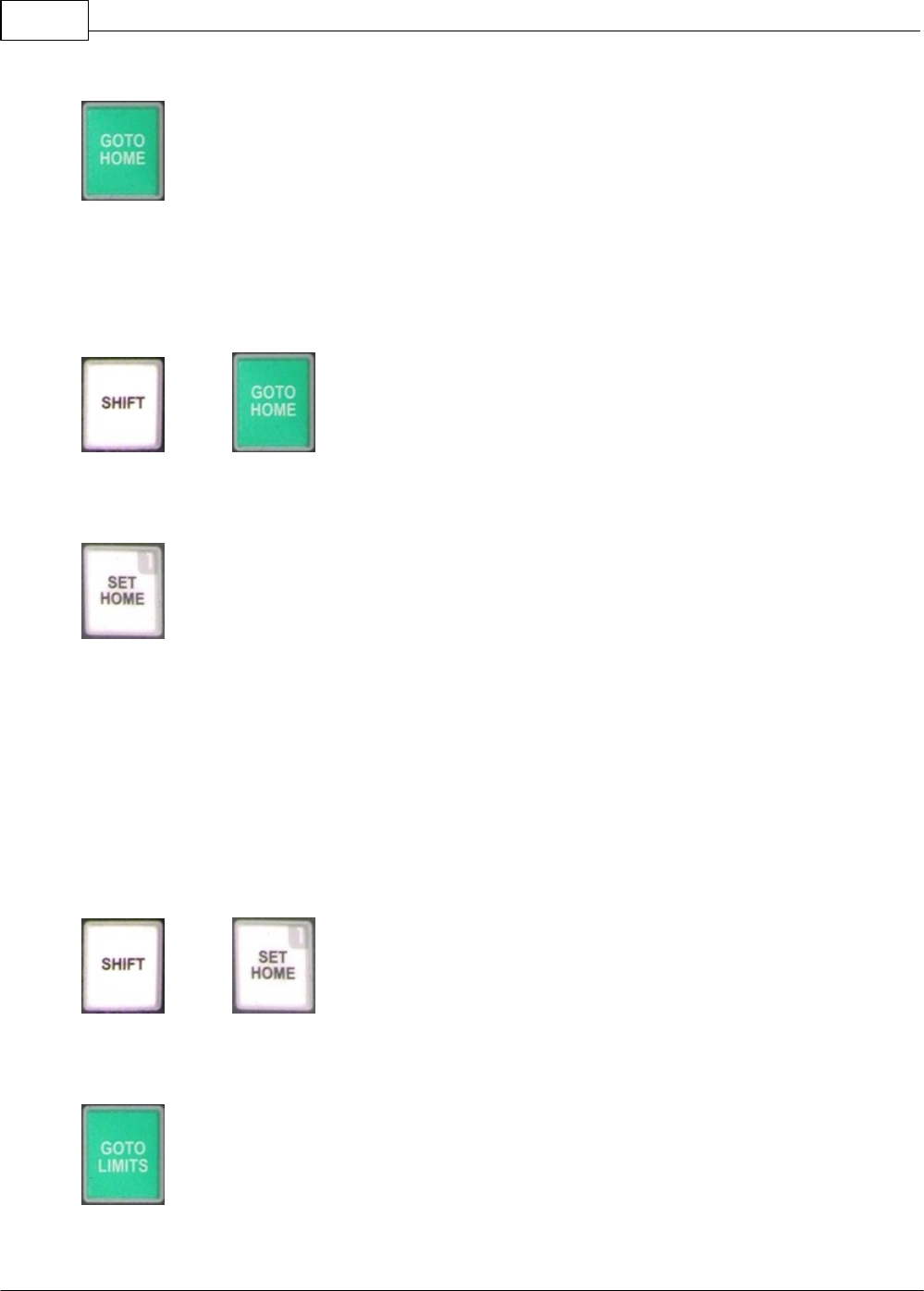
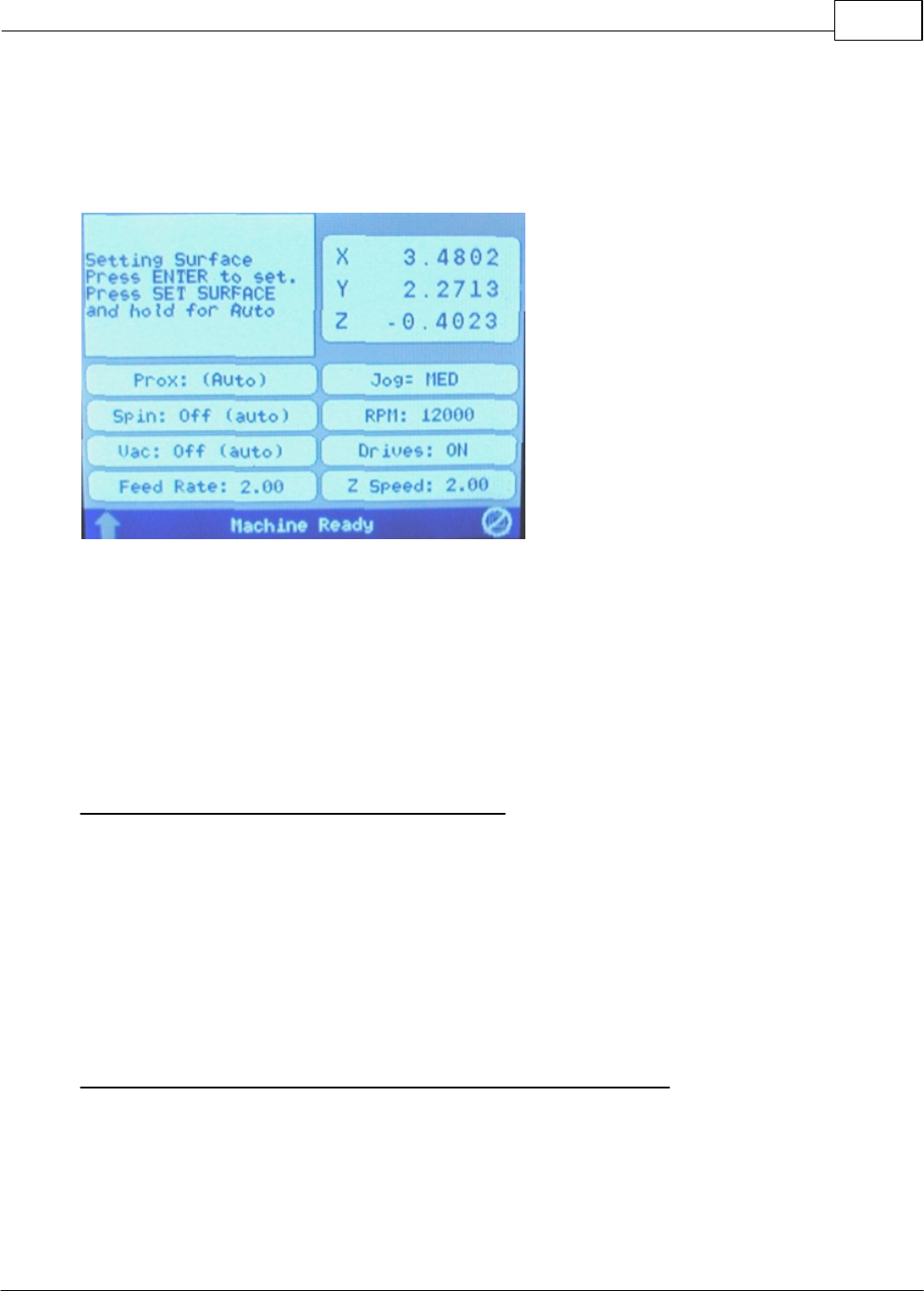
Set Surface Button - The set surface button is used to set the surface point of the
material you are engraving. The procedure for setting the surface is as follows:
a) Use the X & Y jog buttons to move the spindle over the material to be engraved.
b) Press the Set Surface button. The Pendant screen will display the message below
c) Lower the spindle with the Z down jog button until you reach the desired position.
d) Press the Enter button to set this as the surface position. The spindle will then move up to its lift
position.
HINT: It is sometimes easier to set the surface right before engraving the job. To do this, send a job to
the machine to be engraved. Press Pause. Press Start. The spindle will move to the first point to be
engraved and pause. You can then jog the Z down until you reach the desired Z position, then press Set
Surface, then press Enter to set the surface. Pressing Start will then begin the engraving process..
, then Shift, then Set Surface Button - When you first press the Shift
button, then press the Set Surface button, the red dot laser pointer will power on. Repeating Shift, then
Set Surface will turn the red dot laser point off.
Vision Max User Manual50
© 2014 Vision Engraving Systems
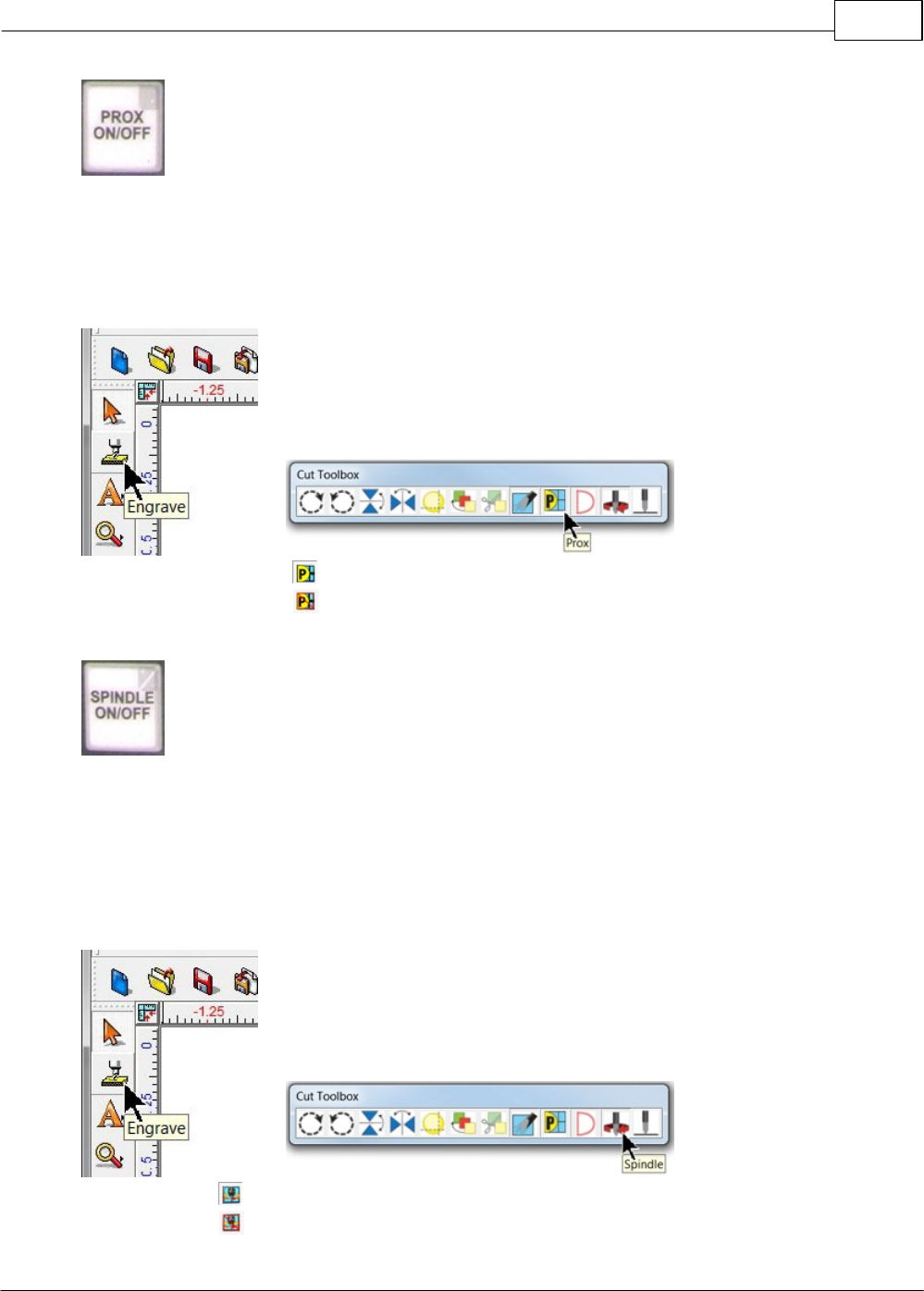
Goto Home Button - When you press the Goto Home button, the engraver will return to
its home position, which is either the default location in the upper left corner of the T-Slot table, or a
user defined home position. Pressing this while a job is running will lift the spindle up, move to the home
position and cancel the job from the machine.
IMPORTANT: When the machine is first powered on, the Goto Home button must be pressed in order to
set the home position of the machine before running any jobs.
, then Shift, then Goto Home Button - When you press the Shift button,
then press the Goto Home button, the engraver will return to the top left corner of the T-Slot table and
"re-home". This is used if the machine has lost position for some reason.
Set Home Button - The Set Home button is used to set a user defined home position. To
define a home position, use the X & Y jog buttons to move the spindle to a point you want to set as the
home position. Press the Set Home button. The message "Home Set." will briefly appear on the Pendant
screen. This position is now set as the home (0,0) position. To reset this home back to the machine's
home position at the upper left corner of the T-Slot table, press Shift, then press Goto Home, then press
the Set Home button.
Setting a Home Using the Red Dot Laser Pointer - The red dot laser pointer can be used to set the
machine's home position. Turn on the red dot laser pointer by pressing the Shift button, the pressing the
Set Surface button. Jog the motion system to the desired location using the X & Y jog buttons and the
red dot laser pointer for positioning. Press Set Home to save the home position in the machine. If you
want to save a new home position, move the spindle to the desired position and press Set Home as
described above.
, then - If the machine is turned off, the user defined home position will be
replaced with the factory home position. To reset the machine to the user defined home position, Press
Shift, then Set Home. The machine will now use the user defined home position.
Goto Limits Button - The Goto Limits button is used to send the motion system to its
upper left corner limits. This button is typically used for troubleshooting purposes only.
Operation 51
© 2014 Vision Engraving Systems
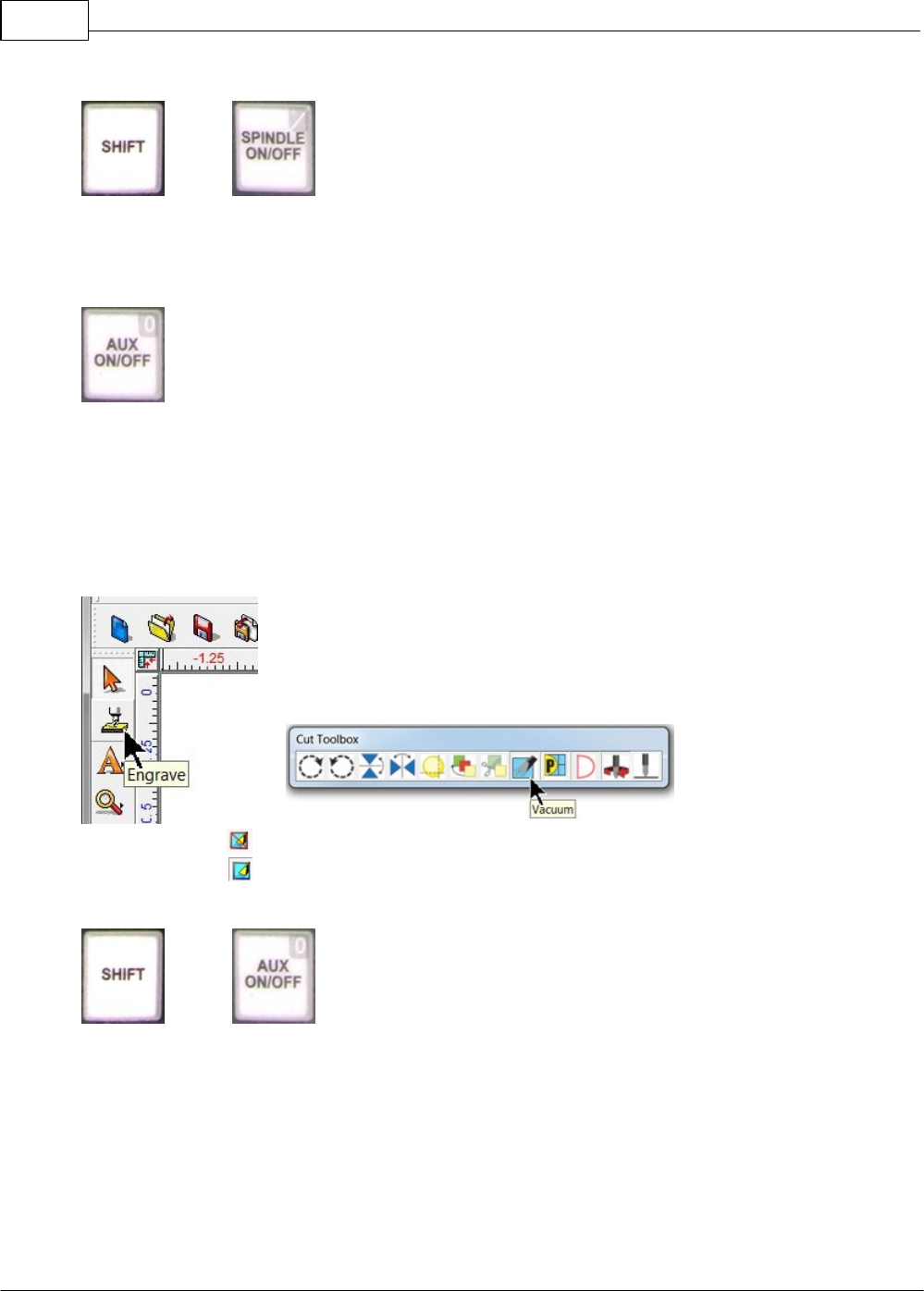
Prox On/Off Button - This button allows you to turn the Proximity Sensor on and off. The
Prox sensor enables the machine to determine the Z position of the material. This feature works when
engraving with a nose cone or diamond drag only; it is not designed for non-nose cone engraving or
burnishing. The Pendant screen displays the status of the proximity sensor as (Auto) or Off.
Note: The proximity sensor can be turned on or off from within the Vision Pro software. When the
Engrave icon is selected, the proximity icon can be selected or deselected to automatically turn the
proximity sensor on or off when the job is running.
Proximity sensor on icon:
Proximity sensor off icon:
Spindle On/Off Button - The spindle motor can be either in automatic mode or off. You
can toggle between these two modes by pressing the Spindle On/Off button. When set to (Auto), the
spindle will automatically turn on and off at the beginning and end of the engraving job. If you press the
PAUSE or STOP button, the spindle will turn off for safety reasons. Always make sure you have the
spindle turned on when appropriate, otherwise you may run the risk of breaking your cutter. When
pressing the Spindle On/Off button, the Pendant screen will display the status as (Auto), or Off.
Note: The spindle can be changed to on or off from within the Vision Pro software. When the Engrave
icon is selected, the spindle icon can be selected or deselected to automatically turn the spindle on or
off when the job is running.
Spindle on icon:
Spindle off icon:
Vision Max User Manual52
© 2014 Vision Engraving Systems
, then Shift, then Spindle On/Off Button - When you press the Shift button.
then press the Spindle On/Off button, the spindle motor will start. Pressing Shift, then the Spindle On/Off
button again will shut the spindle motor off. The Pendant screen will display On (Auto) when the spindle
is turned on.
Aux On/Off Button - The auxiliary for an optional vacuum system motor can be either in
automatic mode or off. You can toggle between these two modes by pressing the Aux On/Off button.
The Pendant screen with display either Vac: Off (Auto), or Vac: Off. When set to Auto, it will
automatically turn on and off at the beginning and end of the engraving job. If you press the PAUSE or
STOP button, the vacuum will turn off for safety reasons. Always make sure you have the vacuum
turned on when appropriate to remove chips that will be created during engraving.
Note: The auxiliary can be changed to on or off from within the Vision Pro software. When the Engrave
icon is selected, the auxiliary icon can be selected or deselected to automatically turn the vacuum on or
off when the job is running.
Auxiliary on icon:
Auxiliary off icon:
, then Shift, then Aux On/Off Button - When you press the Shift button and
then press the Aux On/Off button, the optional vacuum pump will start. Pressing the Aux On/Off button
again will shut the vacuum pump off.
Operation 53
© 2014 Vision Engraving Systems
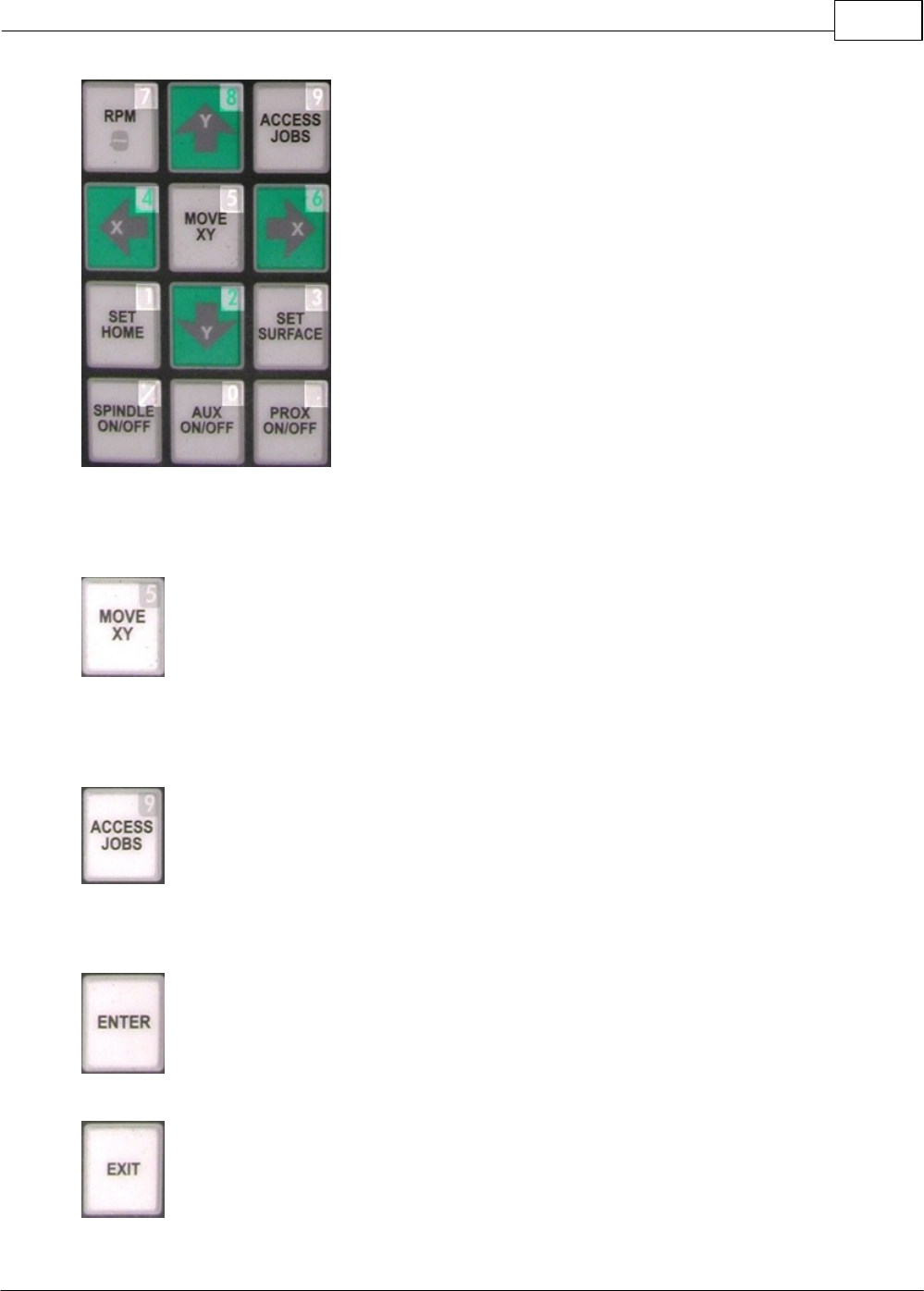
Numeric Buttons - The Numeric buttons are used when entering
numbers. The Pendant will automatically switch to numeric mode when accessing menu items that
require numerical input. The numbers 0 - 9, as well as the forward slash "/" and period "." are available.
Move XY Button - The Move XY button allows the user to move the spindle to an exact
location. Press the Move XY button, then using the Numeric buttons, enter the X coordinate and press
the Enter button. Enter the Y coordinate using the Numeric buttons, then press the Enter button. Press
the Enter button one more time to jog the spindle to these coordinates, or press Exit to cancel this
operation.
Access Jobs Button - When connected to Vision Machine Tools - If there is no job in
the machine, pressing Access Jobs will display a list of jobs that are stored on the computer's hard
drive. Use the Y up and down jog buttons to move the cursor on the Pendant screen to the job to be
engraved and then press Enter to select the job. Pressing Start will run the job.
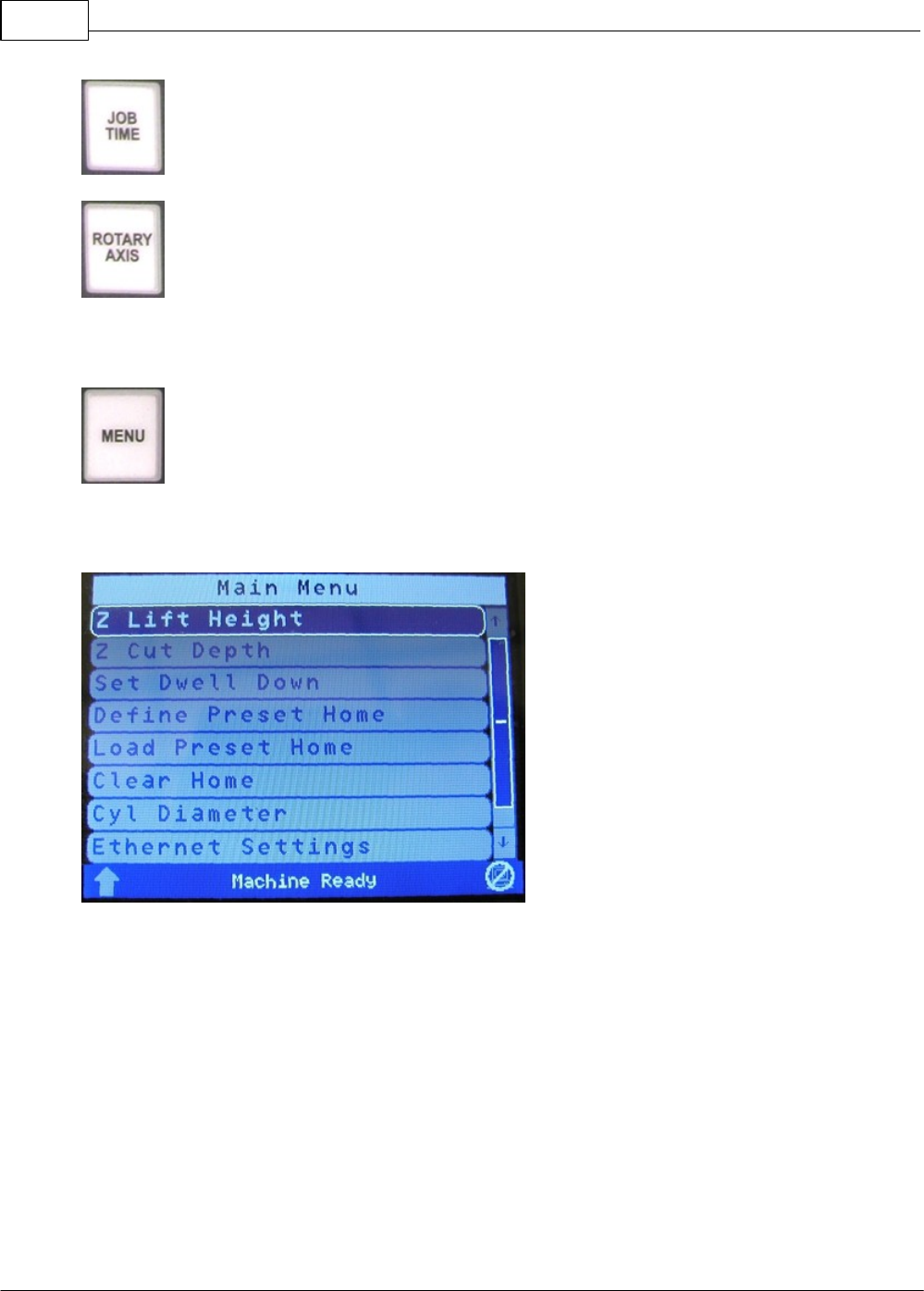
Enter Button - The Enter button is used to confirm an operation or to select a
highlighted item in the menu system.
Exit Button - The Exit button is used to either cancel an operation, or to exit a menu.
Vision Max User Manual54
© 2014 Vision Engraving Systems
Job Time Button - The Job Time button shows the time required to complete the last job.
Rotary Axis Button - The Rotary Axis button allows for the rotary axis to be used. When
this button is pressed, the Pendant screen will display a field to enter the diameter of your item to be engraved. Enter the
diameter of the item using the Numeric buttons and press ENTER. Note: This button only works when a rotary axis is
present on your machine.
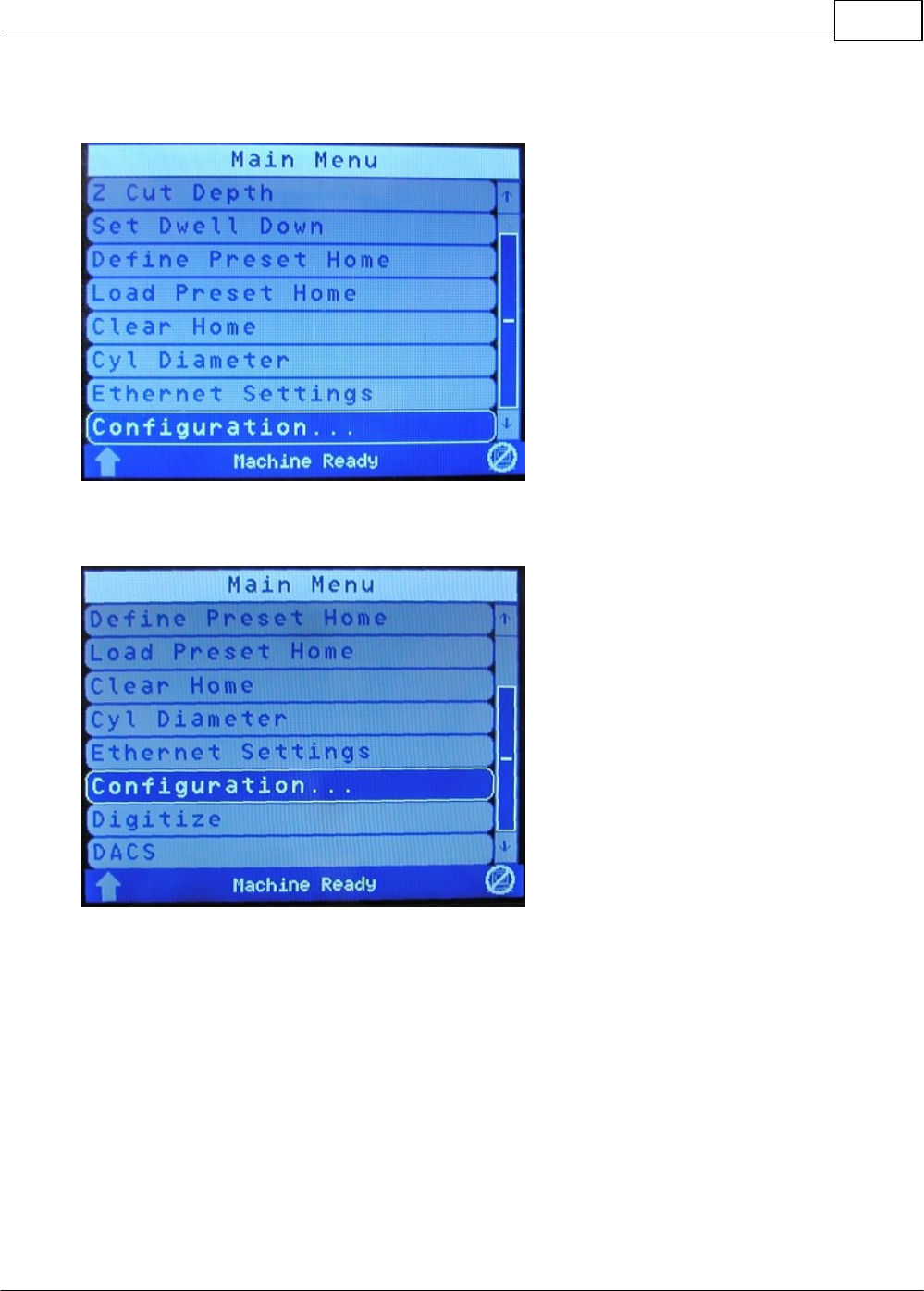
Menu Button - The Menu button allows access to various options within the Vision
Controller. Pressing the Menu button will display the following Pendant screen. There are controls for Z
Lift Height, Z Cut Depth, Defining a Preset Home Position, Loading a Preset Home Position, Clear
Preset Home, Cylinder Diameter (when using a rotary axis), and Ethernet Connection Settings.
Operation 55
© 2014 Vision Engraving Systems
Pressing the Y down button will access the last menu item: Configuration.
On certain Vision machines, the second menu page adds options for Digitize and DACS. Those
features are discussed in separate sections.
To access any of these menu items, use the Y up or down arrows to highlight the menu item, then press
the Enter button. Each of these menu items are described later in this section.
Hint - To quickly scroll to the next menu page, use the Z up or down buttons.
Vision Max User Manual56
© 2014 Vision Engraving Systems
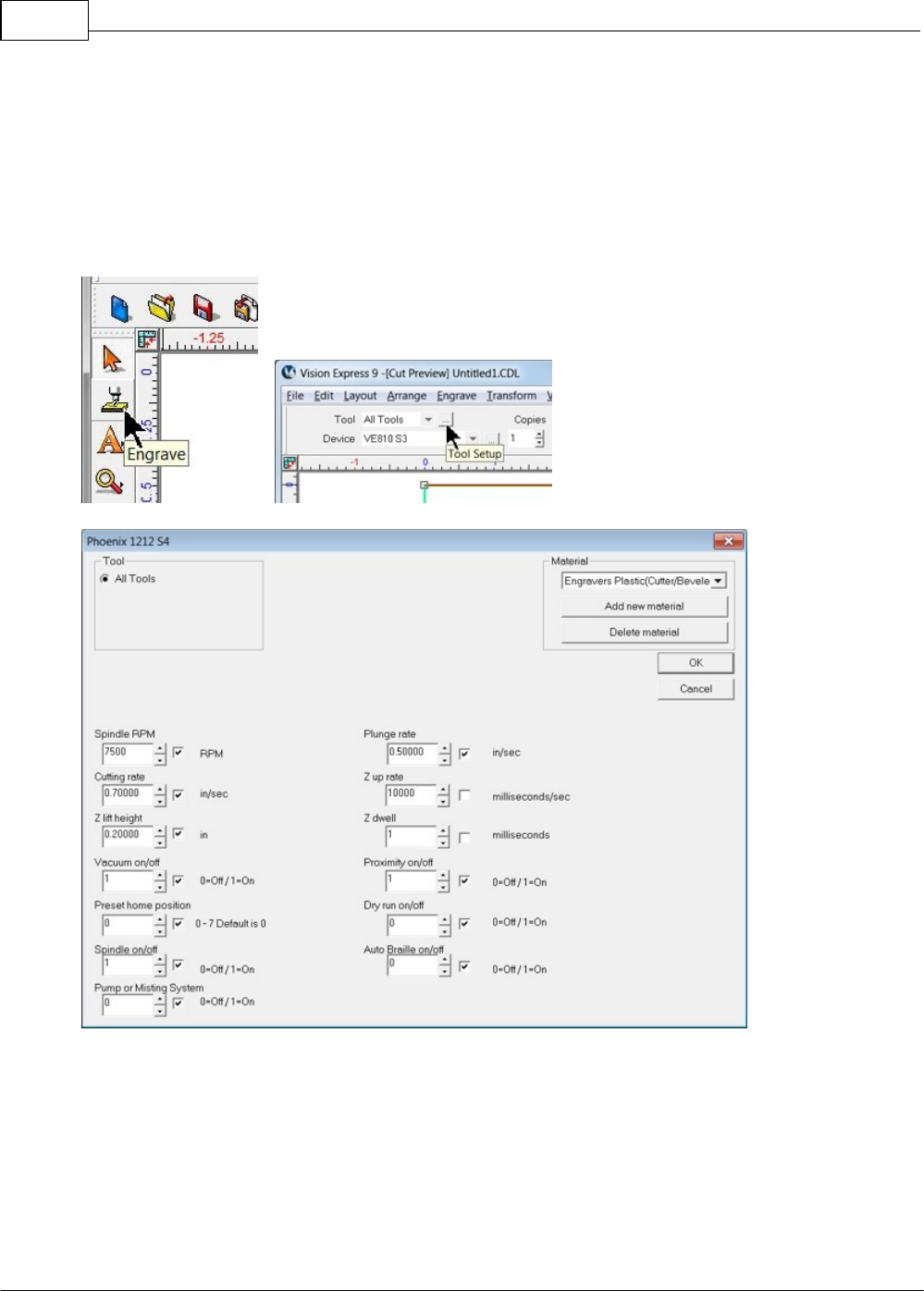
Note: Many of the following features can be set from the Vision Pro software. When the Engrave icon
is selected, select the icon with three dots to the right of All Tools as shown below. Settings can be
changed for the following items:
Spindle RPM, Cutting Rate, Z-Lift Height, Vacuum (or Aux) On/Off, Preset Home Position number,
Spindle On/Off, Pump (or Misting System) On/Off, Plunge Rate, Z Up Rate, Z Dwell, Proximity
Sensor On/Off, Dry Run On/Off, and Auto Braille On/Off.
Z Lift Height -
This will adjust the distance that the cutter lifts between characters while engraving. Move
the cursor to the Z Lift Height using the Y up and down jog buttons and press Enter. Using the numeric buttons, enter the
distance you would like the cutter to lift between characters. This number will be in inches or in millimeters, depending on
how the controller is configured. It will show the units that are being used on the Pendant screen. After the lift
distance is entered, press the Enter button to set this value. Press the Exit button to return to the main screen when
finished.
Z Cut Depth - This will adjust the depth of engraving or routing. It is the distance from the position that you set as the
surface, to the final depth you would like to cut. Move the cursor to the Z Cut Depth using the Y up and down jog buttons

Operation 57
© 2014 Vision Engraving Systems
and press Enter. Using the numeric buttons, enter the depth you would like to engrave or rout. This number will be in
inches or millimeters, depending on how the controller is configured. It will show the units that are being used on the
Pendant screen. After the Z Cut Depth is entered, press the Enter button on the controller to set this value. Press the Exit
button to return to the main screen when finished. Note: The Z Cut Depth is only used if you are not setting the depth of
cut in the Vision software.
Set Dwell Down - This controls how long the spindle will dwell, or wait after initially dropping the cutter down into the
material before moving in an X/Y direction. This is typically used when engraving into harder materials, allowing the
cutter to plunge to the correct depth before starting to engrave or rout. This number is in milliseconds, so entering a
number of 1000 will allow for a 1 second delay. After the dwell time is entered using the numeric buttons, press the Enter
button. Press the Exit button to return to the main screen when finished.
Define Preset Home - The user can store up to 9 preset home positions. Move the cursor to the Define
Preset Home menu using the Y up and down jog buttons and press Enter. The Pendant screen will show
the current number (#) as "Select Pre Home #". Numbers 1 through 9 can be user defined. Use the Z
speed + and Z speed - buttons to select the home position you would like to save. Next, use the X and Y
jog buttons to move the spindle to the position that you would like to use as the home position. Once the
spindle is at the desired location, press the Enter button to store the home position. Press Exit to return
to the main screen. Note: Preset home positions are stored even after the controller has been
powered off.
Load Preset Home - To load a preset home, move the cursor to the Load Preset Home menu using the
Y up and down jog buttons and press Enter. Use the Z speed + and Z speed - buttons to select the
home position you would like to load. Once the desired position is shown on the Pendant screen, press
the Enter button to load the home position. The machine will now use this position as the home position.
Press the Exit button to return to the main screen when finished.
Clear Home - To clear the home position that has been loaded, move the cursor to the Clear Home
menu using the Y up and down jog buttons and press Enter. The home position is now defaulted back to
the upper left corner of the table. Press the Exit button to return to the main screen when finished. Note:
This does not apply to Preset Home Positions, only to the user defined home position set with the
Set Home button.
Cyl Diameter - This menu item is only used when engraving round objects on a machine that supports
the rotary axis. Move the cursor to the Cyl Diameter using the Y up and down jog buttons and press
Enter. Using the numeric buttons, enter the diameter of the item to be engraved. This number will be in
inches or millimeters, depending on how the controller is configured. Once the diameter has been
entered, press the Enter button on the controller to set this value. Press the Exit button to return to the
main screen when finished.
Ethernet Settings - This menu is used to setup the network settings in the Vision controller.There are
two options in the Ethernet Settings menu available after pressing Enter, which are:
1. Specify IP - Pressing the Enter button from this screen will set the Vision controller to DHCP, which
automatically retrieves an IP address from the network server it is connected to. Pressing the Exit
button from this screen will allow you to enter an IP address manually. Pressing Exit again allows the
user to set the sub Net Mask. Please refer to the Machine Connections section for details on network
configuration settings
2. Display IP - This menu is used to show the IP address that the Vision controller is set to. It also
shows the IP address of the PC that is connected to the Vision controller.
Vision Max User Manual58
© 2014 Vision Engraving Systems
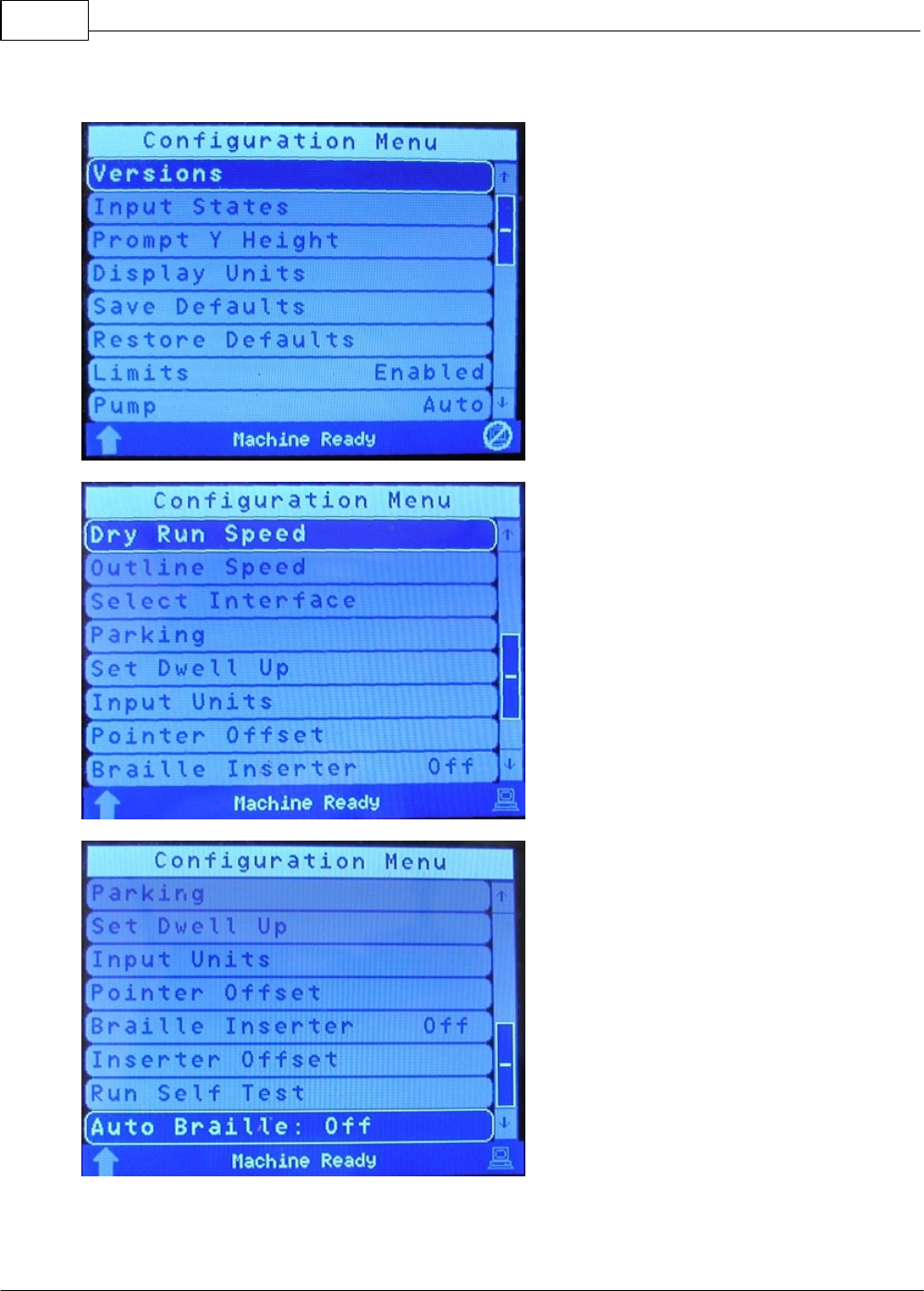
The Configuration Menu - There are three screens to the configuration menu as shown below.

Operation 59
© 2014 Vision Engraving Systems
Configuration - This menu accesses various additional settings, as well as information about the
machine in use. To change of view any of these settings, highlight the Configuration menu and press
Enter. Each of these sub menus are described below:
Versions - Pressing Enter with this item highlighted will display hardware and software versions of the
controller, as well as display the machine serial number.
Input States - Pressing Enter with this item highlighted will display information about the status of the
motors and sensors on the machine.
Prompt Y Height - Pressing Enter with this item highlighted will allow the user to specify whether to ask
the user for the Y height before running a job. When engraving jobs from programs such as
CorelDraw©, jobs may engrave upside down on an engraving machine. This is because the program
typically is referencing the home position from the lower left corner of the plate, and the engraver or
router is referencing the home position from the upper left corner of the plate. To correct this, the
Vision Job Server will flip the job automatically so that the engraving will be oriented properly. However,
when doing this, the Vision controller needs to know the page size that is set up in programs such as
CorelDraw©. To accomplish this, the Prompt Y Height configuration setting must be turned on. Move the
cursor to the Prompt Y Height menu item using the Y up and down jog buttons and press Enter. Press
the Y up or down jog buttons to select Yes or No. Press the Enter button on the controller. Press the Exit
button two times to return to the main screen when finished.
Display Units - Pressing Enter with this item highlighted will allow the user to set the display units to
either inches or millimeters. To change units, move the cursor to the Display Units menu item using the
Y up and down jog buttons and press Enter. Press the Y up or down jog buttons to select imperial or
metric units. Press the Enter button to save this setting. Press the Exit button two times to return to the
main screen when finished.
Save Defaults - Pressing Enter with this item highlighted will allow the user to save various settings,
even when the machine is turned off. The user can save settings such as the Spindle On/Off, Aux On/
Off, Prox On/Off, Z lift, Z depth, RPM and surface location. To save the controller defaults, change the
settings above to the way that you would like them. Move the cursor to the Save Defaults menu item
using the Y up and down jog buttons and press Enter. The Pendant screen will show “Save as
Defaults?”. Highlight Yes or No using the X left or right jog buttons, then press Enter. The settings are
now saved. Press the Exit button two times to return to the main screen when finished. The next time the
Vision controller is turned on, the defaults will be as you set them.
Restore Defaults - Pressing Enter with this item highlighted will restore the defaults in the controller to
the original factory set defaults. To restore the controller defaults, move the cursor to the Restore
Defaults menu item using the Y up and down jog buttons and press Enter. The Pendant screen will show
the main screen with “Restore to Factory Defaults?” shown in the upper left corner of the screen. Press
Enter to restore the defaults. The Pendant screen will display "Loading Defaults...", then display “Reboot
Now?”. Press Enter to reboot the controller. The factory settings will then be restored.
Limits - Pressing Enter with this item highlighted will prevent the controller from reading the limit
switches on the machine. This is typically used only in diagnosing problems that may occur with the
machine's limit switches. To disable the limit switches, move the cursor to the Limits Enabled menu item
using the Y up and down jog buttons and press Enter, which toggles the limit switches from Enabled to
Disabled. Pressing Enter again will Enable the limit switches. Press the Exit button two times to return to
the main screen when finished.
Pump - Pressing Enter with this item highlighted will activate the (optional) external misting system used
for lubrication during specific material cutting. It is also used for the Max-Pro machines. This is a
manual control and the Vision Pro software allows for automatic operation of the misting pump, so this
feature is not often used. To turn this feature to Off or Auto, highlight the item in the menu and press
Enter. To turn this feature to On or Auto, press the Shift button, then press Enter. Both Enter and Shift/

Vision Max User Manual60
© 2014 Vision Engraving Systems
Enter are toggles. To return to the main Pendant screen, press the Exit button two times.
Dry Run Speed - Pressing Enter with this item highlighted will allow the user to set the dry run XY
speed of the motion system. To set the speed, use the Y up or down buttons to highlight the menu item
and press Enter. Use the numeric buttons to enter the desired speed, then press Enter to save this
speed. To return to the main Pendant screen, press the Exit button two times.
Outline Speed - Pressing Enter with this item highlighted will allow the user to set the outline speed
which used by the measure feature in the Vision Pro software. To set the speed, use the Y up or down
buttons to highlight the menu item and press Enter. Use the numeric buttons to enter the desired speed,
then press Enter to save this speed. To return to the main Pendant screen, press the Exit button two
times.
Select Interface - Pressing Enter with this item highlighted will allow the user to select HPGL or GCode
interface language. The Vision controller can run from both HPGL and GCode machine language. By
default the controller uses the HPGL language which is what is used by Vision and Vision Pro software.
If you would like to run GCode, move the cursor to the Select Interface menu item using the Y up and
down jog buttons and press Enter. Use the Y up or down buttons to select the language you would like to
use, then press Enter. Press the Exit button two times to return to the main screen when finished.
Parking - Pressing Enter with this item highlighted will allow the user to set the position the spindle will
return to after a job has finished. To set this position, move the cursor to the Parking menu item using
the Y up and down jog buttons and press Enter. There are four positions that you can set the spindle to
move to at the end of the job. Datum: The spindle will move back to the limit switch position on the table.
None: The spindle will remain at its last location when the job is finished. Z-Up: The spindle will remain at
its last location at the end of the file and lift the spindle off the material. Home: The spindle will move to
the current home position that is set in the controller. Use the Y up and down job buttons to select which
parking position you would like to use, then press Enter to select it. Press the Exit button two times to
return to the main screen when finished.
Set Dwell Up - This is used only with tables that are using an air actuated Z axis. None of the
current Vision systems use an air actuated Z axis. This will allow the Z axis to release the air pressure
so that the spindle moves up before moving to the next item to be engraved. Move the cursor to the Set
Dwell Up menu item using the Y up and down jog buttons and press Enter. Enter the length of time
required for the Z dwell up and then press Enter. This number is in milliseconds so entering a number of
1000 will allow for a 1 second delay. Press the Exit button two times to return to the main screen when
finished.
Input Units - Pressing Enter with this item highlighted will allow the user to set the units used by the
machine to either Imperial or Metric units. This differs from the Display Units menu item in that the input
units are what the machine recognizes from the job sent to the machine, while the display units simply
show the file on the Pendant screen as Imperial or Metric. The input units MUST match the units used to
create the job, or improper scaling of the job will result. To select the input units, use the Y up or down
buttons to highlight the menu item and press Enter. Use the Y up or down buttons to select either
Imperial or Metric units, then press Enter to save this setting. To return to the main Pendant screen,
press the Exit button two times.
Pointer Offset - Pressing Enter with this item highlighted will allow the user to modify the factory
settings used in the machine to compensate for the offset between the spindle centerline and the red dot
laser pointer location. Modification of this setting may be necessary if the location of the red dot laser
pointer does not accurately represent the location of the spindle during engraving. To modify this
setting, use the Y up or down buttons to highlight the menu item and press Enter. Use the numeric
buttons to enter the X offset, then press Enter. Use the numeric buttons to enter the Y offset, then press
Enter. The settings are now saved. To return to the main Pendant screen, press the Exit button two
times.

Operation 61
© 2014 Vision Engraving Systems
Braille Inserter - Pressing Enter with this item highlighted will toggle the Braille Inserter function to On
or Off. The Vision Pro software automatically turns this function on or off with the job. This function is
used only when the machine is being run from software other than Vision Pro.
Inserter Offset - Pressing Enter with this item highlighted will allow the user to modify the factory set
offset used with the Braille Inserter tool. The offset is from the spindle centerline to the Braille Inserter
centerline. The X and Y offsets are set for each machine if the Braille Inserter option was ordered from
the factory. If the user restores factory defaults, the X and Y offsets will need to be reset. To modify the
offsets, highlight the menu item and press Enter. Using the numeric buttons, enter the desired X offset,
then press Enter. Enter the Y offset using the numeric buttons, then press Enter. Enter the Z-lift setting
with the numeric buttons, then press Enter to save these settings. To return to the main Pendant screen,
press the Exit button two times.
Run Self Test - Pressing Enter with this item highlighted will allow the user to engrave a self test job that
is programmed into the controller. Move the cursor to the Run Self Test menu item using the Y up and
down jog buttons and press Enter. The Pendant screen will display “Run Self-Test”. Use the Y up or
down buttons to select Yes or No, then press Enter. The Pendant screen will now show “Press Start to
Go”. Press the Start button to begin engraving the test job.
Auto Braille - Pressing Enter with this item highlighted will allow the controller to turn the automatic
braille detection On or Off. A reboot will be required to retain this setting. If using the Vision Pro
software, this setting is normally left as On. If the user sends files from another software program, turn
this feature off and using the Braille Insterer feature described above, turn On the Braille Inserter
feature.

Vision Max User Manual62
© 2014 Vision Engraving Systems
3.3 Set Home Procedure
To set a user defined home position, use the X & Y jog buttons to move the spindle to a point you want
to set as the home position. Press the Set Home button. The message "Home Set." will briefly appear on
the Pendant screen. This position is now set as the temporary home (0,0) position. To reset the
temporary origin back to the machine's home position at the upper left corner of the T-Slot table, press
Shift, then press Goto Home, then press the Set Home button.
The red dot laser pointer can be used to set the machine's home position. Turn on the red dot laser
pointer by pressing the Shift button, then pressing the Set Surface button. Jog the motion system to the
desired location using the X & Y jog buttons and the red dot laser pointer for positioning. Press Set
Home to save the home position in the machine. If you want to save a new home position, move the
spindle to the desired position and press Set Home as described above.
If the machine is turned off, the user defined home position will be replaced with the factory home
position. To reset the machine to the user defined home position, Press Shift, then Set Home. The
machine will now use the user defined home position.
Operation 63
© 2014 Vision Engraving Systems
3.4 Set Surface Procedures
The procedure for setting the surface is as follows:
1. Use the X & Y jog buttons to move the spindle over the material to be engraved.
2. Press the Set Surface button. The Pendant screen will display the message below
3. Lower the spindle with the Z down jog button until you reach the desired position.
4. Press the Enter button to set this as the surface position. The spindle will then move up to its lift
position.
HINT: It is sometimes easier to set the surface right before engraving the job. To do this, send a job to
the machine to be engraved. Press Pause. Press Start. The spindle will move to the first point to be
engraved and pause. You can then jog the Z down until it touches the surface and press Set Surface,
then Press Enter to set the surface. Pressing Start will then begin the engraving process.
NOTE: There are different procedures for different types of engraving - see below.
Diamond drag engraving with a proximity sensor
Make sure that the proximity sensor is turned on. When you run the job, the spindle will go down until it
touches the material and finds the surface automatically. If you want to change the lift amount of the
cutter between characters, you will need to do the following steps:
1. Press the menu button on the controller. Note: If you are in the middle of engraving a job, press
the pause button before pressing the menu button.
2. Use the Y jog up and down buttons to select Z Lift Height and press Enter.
3. Enter the lift height using the numeric buttons on the Vision controller and press Enter.
4. Press Exit to return to the main screen.
5. The Z lift height is now set. Press Start to run the job or resume engraving.
Diamond Drag and nose cone engraving without a proximity sensor
1. Send a job to the Vision controller.
2. With the prox off, press the Pause button and then press Start.
3. The machine will move to the start of the engraving and pause.
4. Use the Z jog down button to lower the spindle to material.
5. Press the Set Surface button.
6. Press the Enter button.
7. Press the Start button. The machine will start to engrave using the surface point that was just set.

Vision Max User Manual64
© 2014 Vision Engraving Systems
Non-nose cone engraving (depth control)
1. Send a job to the Vision controller.
2. Make sure that the spindle is locked by tightening the spring adjustment knob all the way down.
3. Make sure that you have entered a depth of cut in the Vision or Vision Pro software. If you are
using a different program then Vision or Vision Pro, use the Menu button on the controller to
select and enter the Z Cut Depth.
4. With the prox off, press the Pause button and then press Start.
5. The machine will move to the start of the engraving and pause.
6. Use the Z jog down button to lower the spindle to material. Make sure that the cutter is just barely
touching the surface.
7. Press the Set Surface button.
8. Press the Enter button.
9. Press the Start button. The machine will start to engrave using the depth that was entered in the
software or the controller.
Burnishing
1. Send a job to the Vision controller.
2. Make sure you are using a burnishing adapter on the burnishing cutter.
3. With the prox off, press the Pause button and then press Start.
4. The machine will move to the start of the engraving and pause.
5. Use the Z jog down button to lower the spindle to material. Once the cutter reaches the material,
press the Z jog down button a small amount more (typically about 0.03 - 0.05 inches.
6. Press the Set Surface button.
7. Press the Enter button.
8. Press the Start button. The machine will start to engrave using the depth that was entered in the
software or the controller.
Operation 65
© 2014 Vision Engraving Systems
3.5 Using the Measure Feature
The Measure Feature is a very useful tool that can be used to set up both the machine's home position
and the plate size in the Vision 9 software.
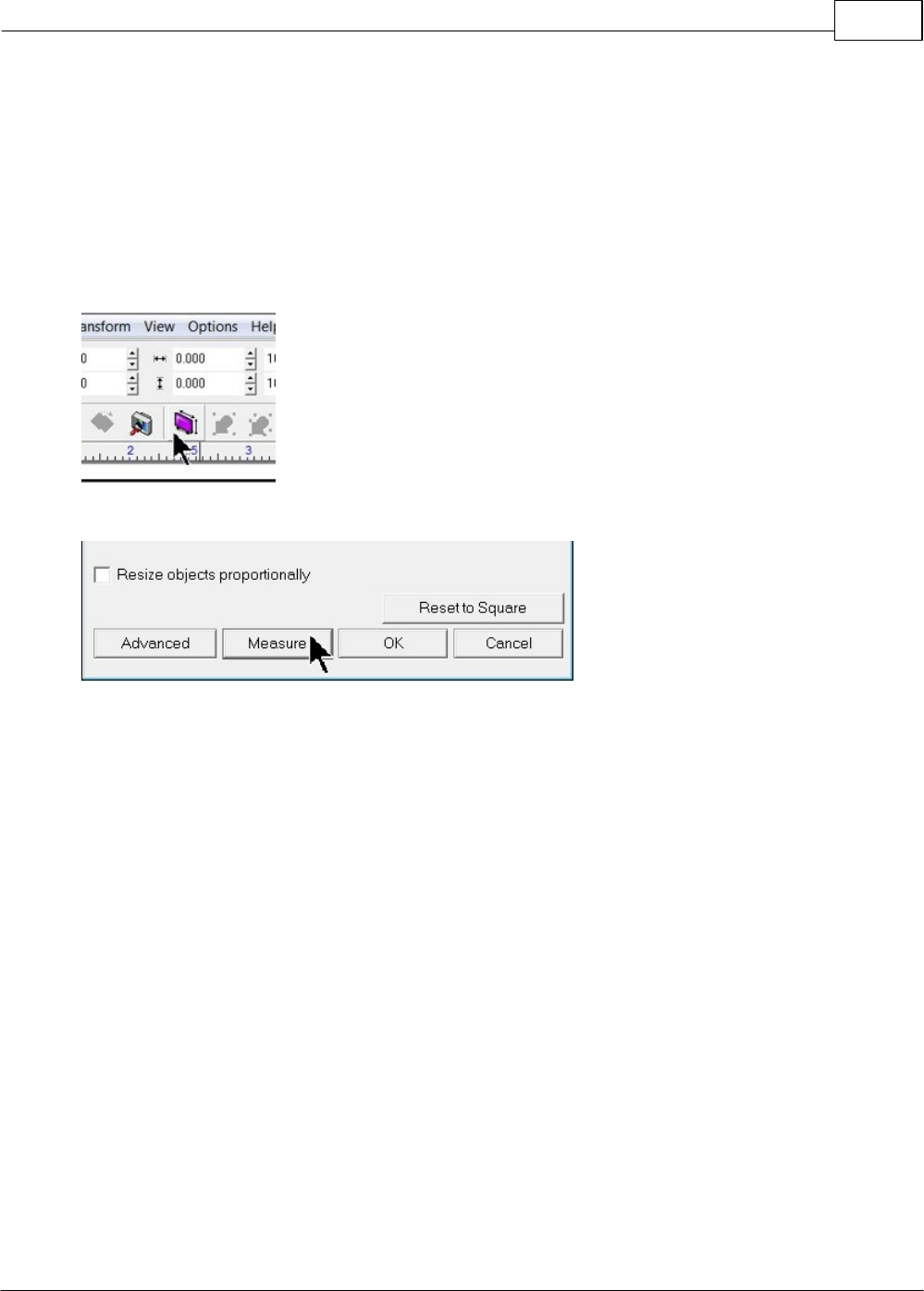
To use this feature, turn on the engraver and press the Go to Home button. Open the Vision 9 software
with a new drawing and select the Plate Size icon on the top toolbar.
At the bottom of the plate size window, click on the Measure icon.
Vision Max User Manual66
© 2014 Vision Engraving Systems
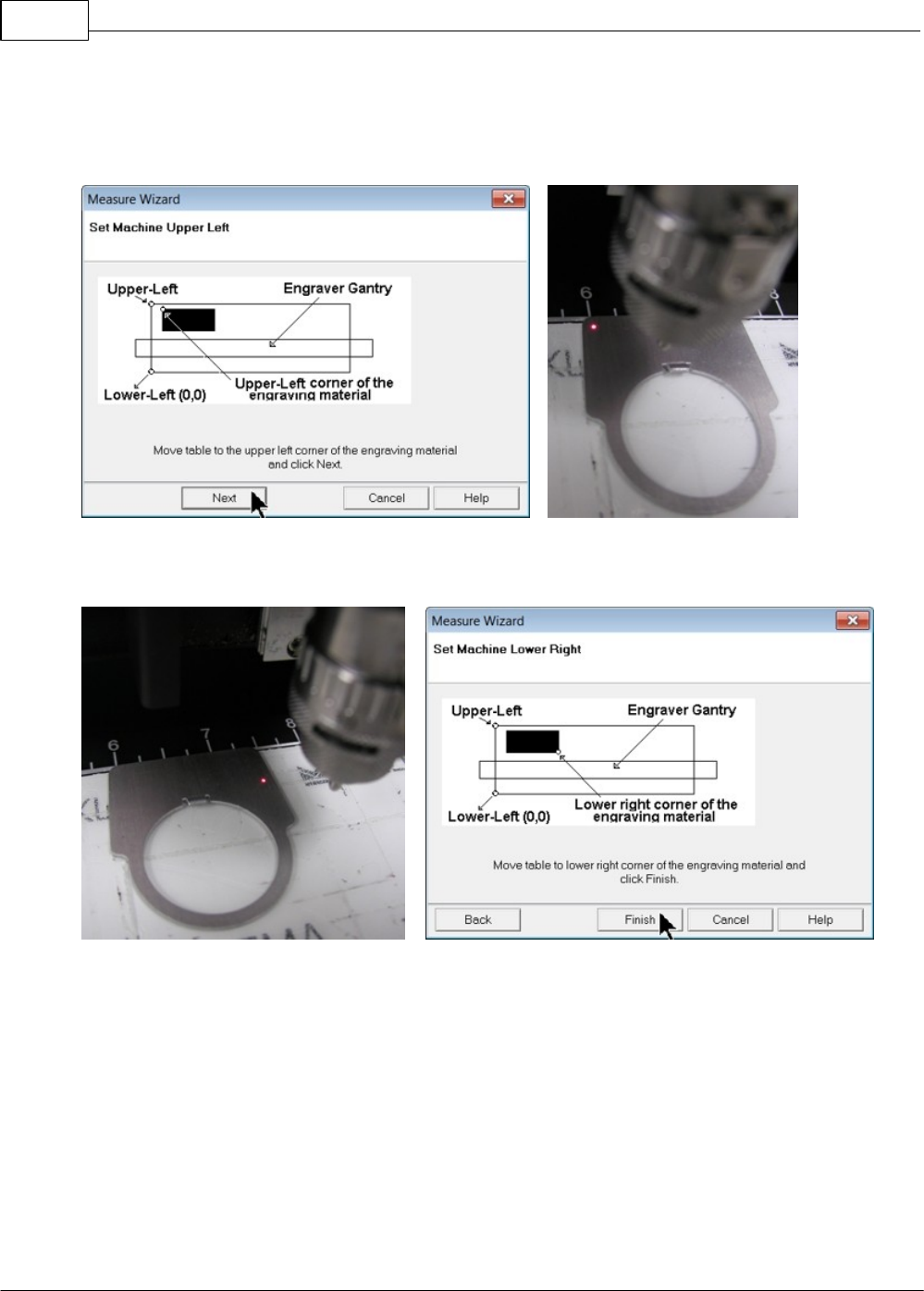
The Measure Wizard window will open. The engraver will turn on its red dot laser pointer. Move the
spindle over the material using the X and Y Move buttons on the Pendant and position the laser pointer
so that it is in the upper left hand corner of the engraving area you wish to define. Then, click on Next in
the Measure Wizard window.
Move the laser pointer to the lower right corner of the engraving are you wish to define, then click on
Finish in the Measure Wizard window.
Operation 67
© 2014 Vision Engraving Systems
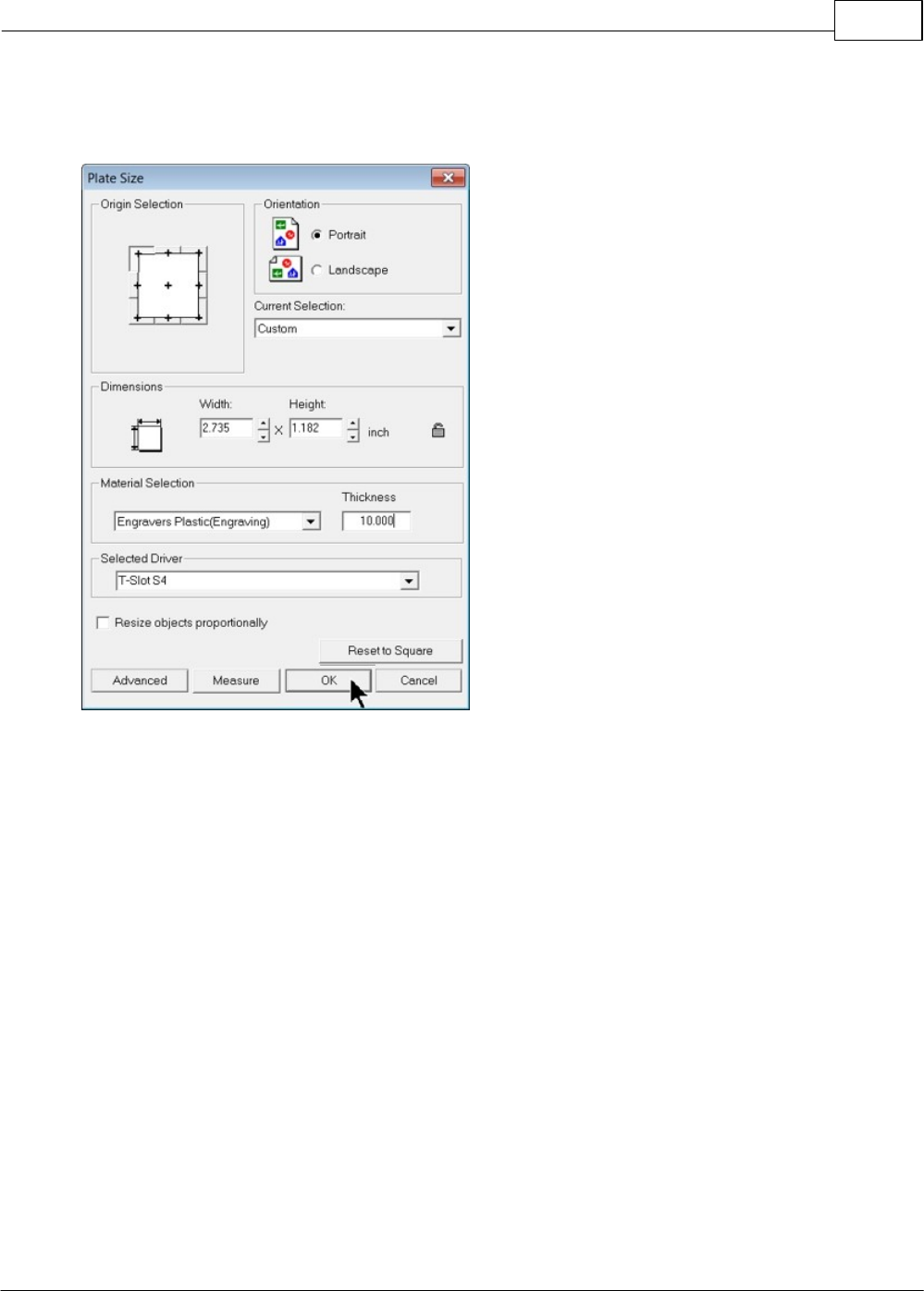
The dimensions of the plate size shown in the Plate Size window will now reflect the engraving area you
have defined on the machine. The Home Position of the machine has also been set to the upper left
corner of this area.
The machine will also allow you to outline the engraving area you just defined. Follow the instructions on
your machine or controller to have the machine outline this engraving area with the red dot laser
pointer. If the area appears to be correct. click on OK in the Plate Size window. The plate size in the
Vision 9 software now shows the area defined with the measure feature. Design your job and send the
job to the engraver.
Note that when using the measure feature, the machine will have its home position changed. You will
need to reset the home position to the upper left hand corner of the engraving table in order to use the
machine normally.

Vision Max User Manual68
© 2014 Vision Engraving Systems
3.6 Holding Down Material
There are many ways to hold material down on the T-Slot table. One of the major things to remember is
that the material must be placed in the upper left corner of the T-Slot table. This will ensure that the
engraving is in the correct position on your material.
You can use double-sided tape, Multi Mat hold down material, the quick lock vise, or optional clamps
and fixtures (see the Optional Accessories section of this manual for more details) to hold down
material to the T-Slot table. Double-sided tape or Multi Mat material are available from your Vision
Distributor or directly from Vision.
Hold Down Techniques
Holding material in place is critical for engraving and cutting applications. The Multi Mat material is
useful for both applications, but using double-sided tape or a spray adhesive can be a better choice
for some applications. For most materials and engraving applications, the Multi Mat material is the
easiest to use. Simply place it on the table and place the material to be engraved on top of it. When
cutting completely through, or kiss-cutting materials, care must be taken to not cut too far through the
material, or the Multi Mat will be slightly cut in the process. The most common approach to cutting when
using the Multi Mat is to set the cut depth using the machines micrometer or the "stacked material
method" as described below and in the section on Profile Cutting. When using the micrometer, the
material thickness should be measured with calipers. Keep in mind that some materials can vary in
thickness and there may be areas that remain uncut. For a detailed explanation on the use of the
micrometer for setting cutting depth, see Level 1 Example Job 4 in the Profile Cutting section.
Stacked Material Method
Many times, double sided tape can be a quick and very secure way to hold material down to the T-Slot
table. The downside to using tape is that it will remain on the table and can be a problem to remove. A
better solution is to place Multi Mat material on the T-Slot table, then place a piece of sacrificial material
(of the same type as being cut) on top of the Multi Mat. Then apply double-sided tape to the sacrificial
material and place the material to be cut on top of the sacrificial material. In this manner, while the
machine is engraving or cutting other jobs, the sacrificial material/cut material can be removed and
separated by the user, making better use of machine time and allowing for easier clean up. Note - if
double-sided tape is used, be careful to cover a sufficient area to keep the material in place and also
to hold smaller pieces in place so they to not move when the last section of the small piece is cut.
Spray Adhesives
Using a spray adhesive, in conjunction with "transfer tape" or "application tape" is yet another method
often used. As with the other methods, place Multi Mat on the T-Slot table, A piece of sacrificial
material is then covered with transfer tape on its top surface and a spray adhesive is applied on top of
the tape. Place the sacrificial material with the tape/adhesive side facing up on the Mutli Mat material.
Then, the material to be cut should have transfer tape applied to its back side and adhesive is sprayed
on to the transfer tape. Place the material to be cut, tape/adhesive side down, on to the sacrificial
material. This is a very secure way to cut through materials and once cutting is finished, the tape/
adhesive can be easily removed from the back sides of cut pieces.
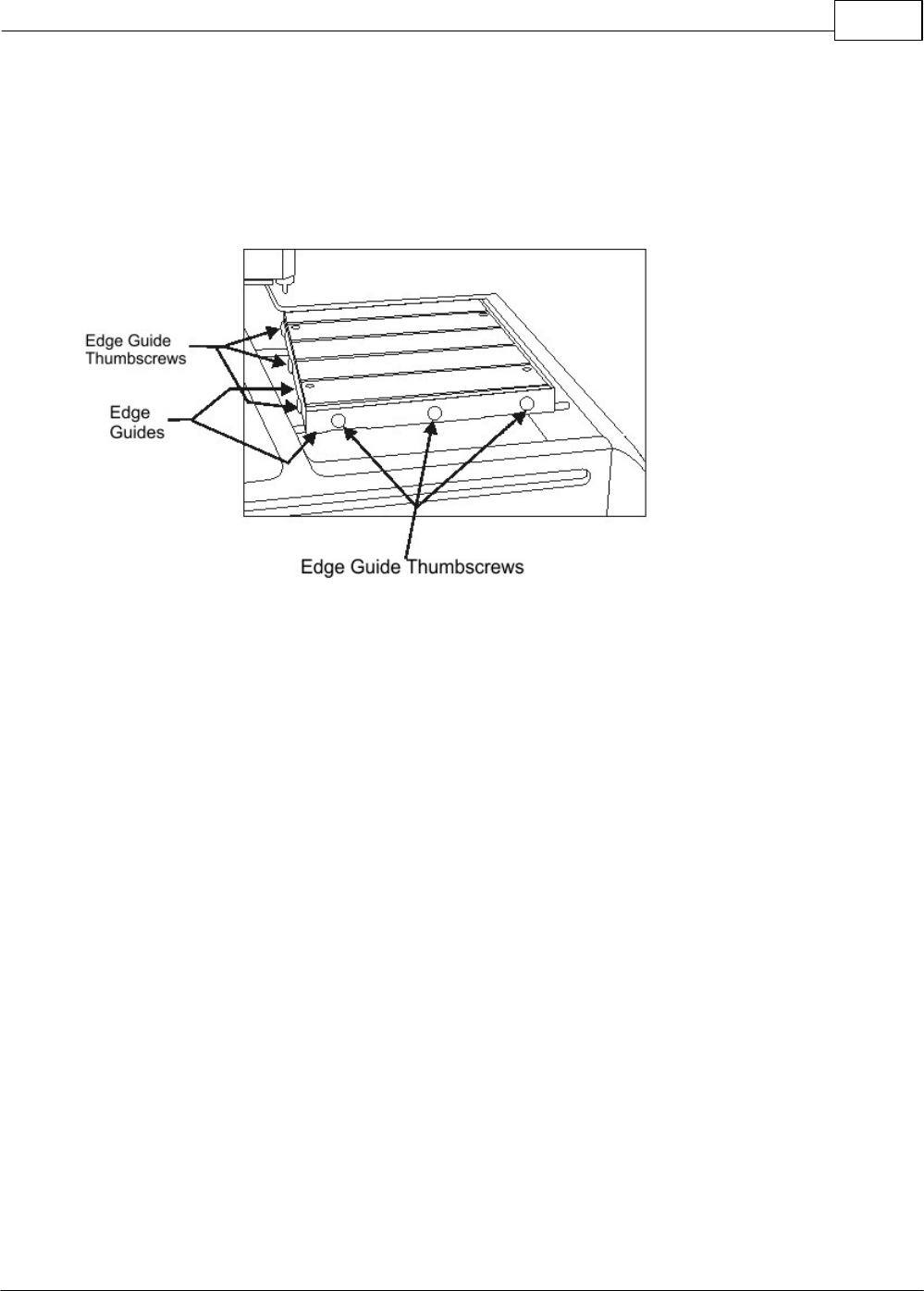
Operation 69
© 2014 Vision Engraving Systems
Edge Guides: The T-Slot table edge guides need to be adjusted to the thickness of material that you
are engraving. If they are higher than the material's surface, the nose cone may ride on top of the
edge guides and the machine may not engrave characters completely.
Edge Guides (Side View)
To adjust the edge guides, loosen the edge guide thumbscrews and raise the edge guides above the
surface of the T-Slot table, then tighten the thumbscrews. Place the material on the table, then loosen
the edge guide thumbscrews and lower the edge guides until they are even with (or just below) the
material surface. Tighten the edge guide thumbscrews. This process should be repeated any time
materials of different thicknesses are to be engraved.
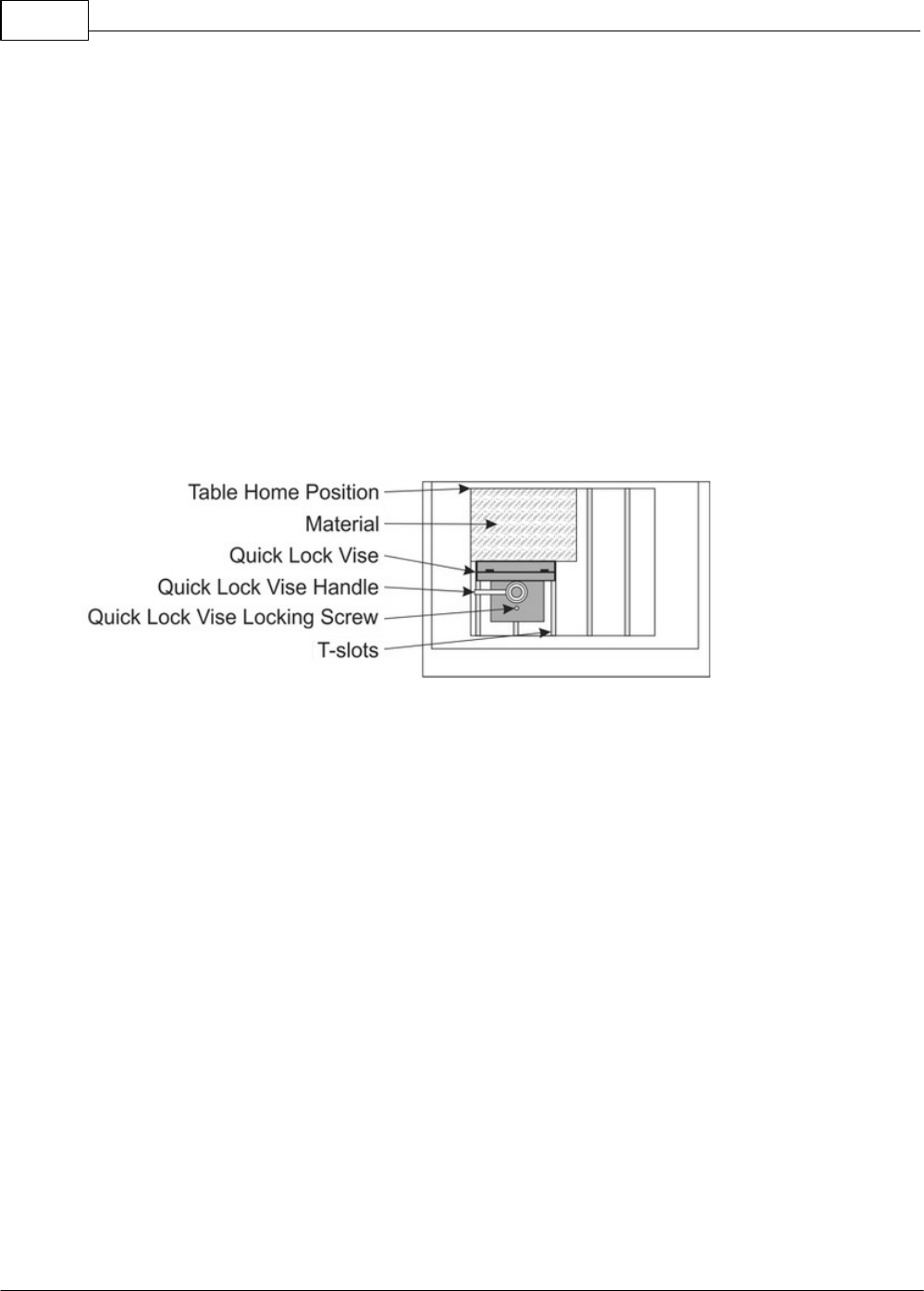
Vision Max User Manual70
© 2014 Vision Engraving Systems
Quick Lock Vise
The Quick Lock Vise is used to clamp rigid materials against the top Edge Guide in order to prevent
movement.
Put the material you would like to engrave on the T-Slot table and push it to the home position corner.
Next, loosen the quick lock vise locking screw and slide the quick lock vise so that there is about 1/16th
inch gap between the edge of the vise and the material. Tighten the quick lock vise locking screw.
Once this is done, the material can easily be secured by turning the quick lock vise handle. When
changing the engraving material, simply loosen the quick lock vise handle, remove the engraved
material, put the new material in and tighten up the quick lock handle.
Note: For larger pieces of material, you may need to put a small piece of double-sided tape on the T-
Slot table in the middle of the engraving material. This will keep the material from bowing in the center.
The quick lock vise will only work on square or rectangular materials. To hold down irregular shaped
objects, you must use some other method. Ask your Vision Distributor or Vision if you need more
information on this feature.
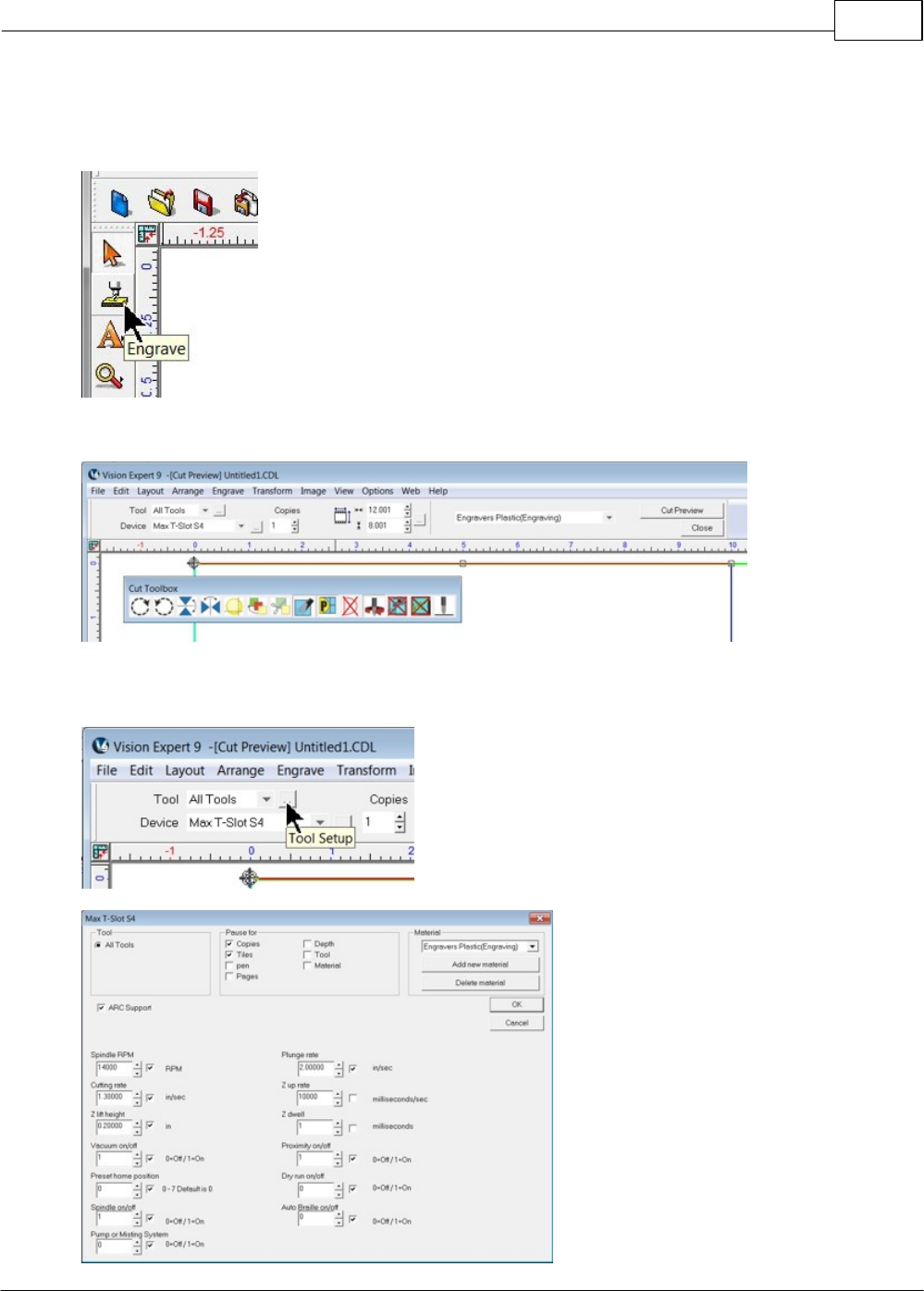
Operation 71
© 2014 Vision Engraving Systems
3.7 Sending Jobs to Your Machine
Once a job has been set up in the Vision 9 software, select the Engrave icon from the left toolbar.
The Cut Toolbox window will appear and the top toolbar will change to the Engrave toolbar.
Make sure the Device is set to the machine you wish to send the files to, then select the Tool Setup icon
to open the Tool Setup window.
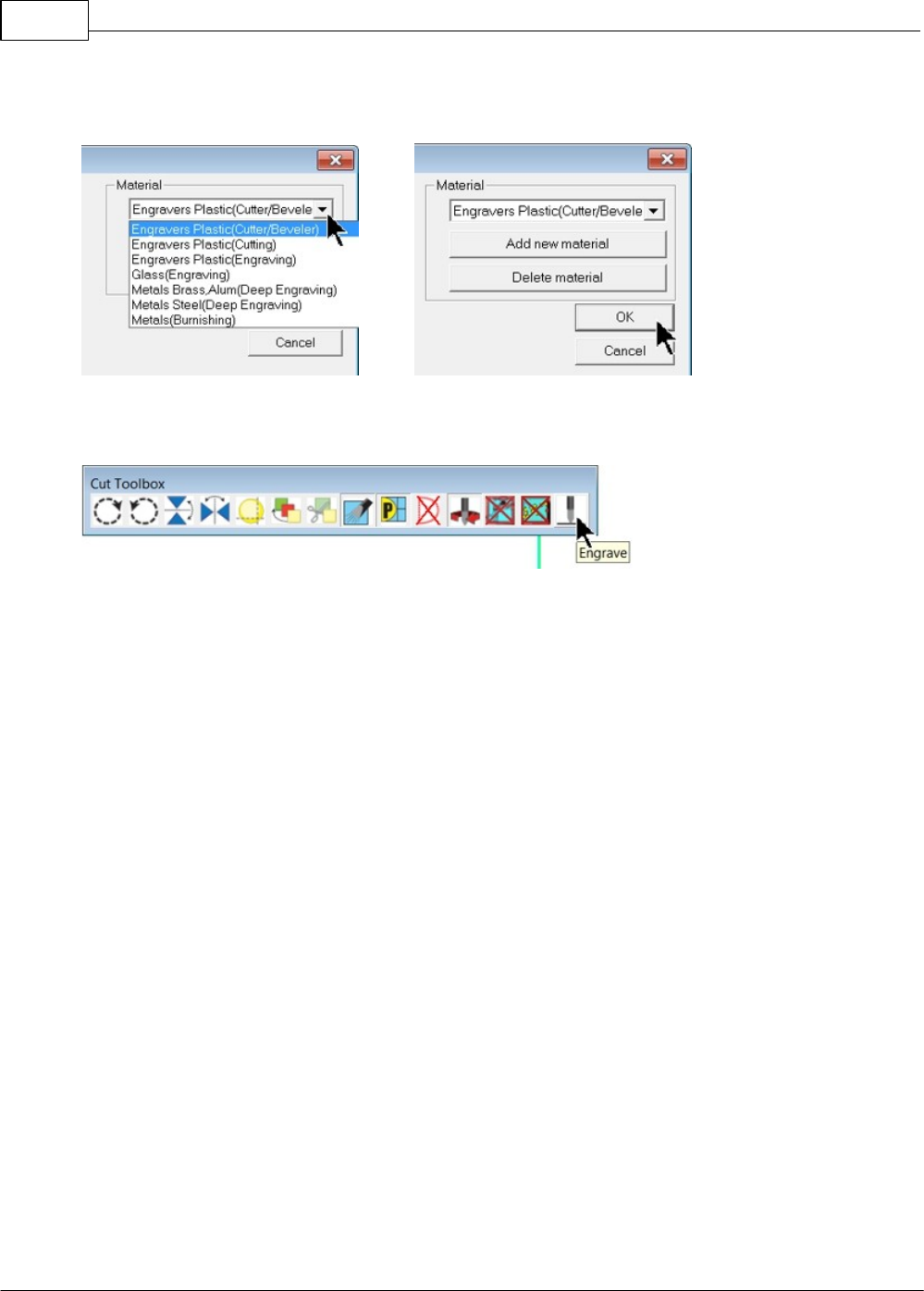
Vision Max User Manual72
© 2014 Vision Engraving Systems
Select the appropriate material from the Material Selection drop down list, then select OK.
Verify the Cut Toolbox settings (settings available will depend on device selected and version of Vision 9
software), and click on the Engrave icon.
The job will be sent to the machine.
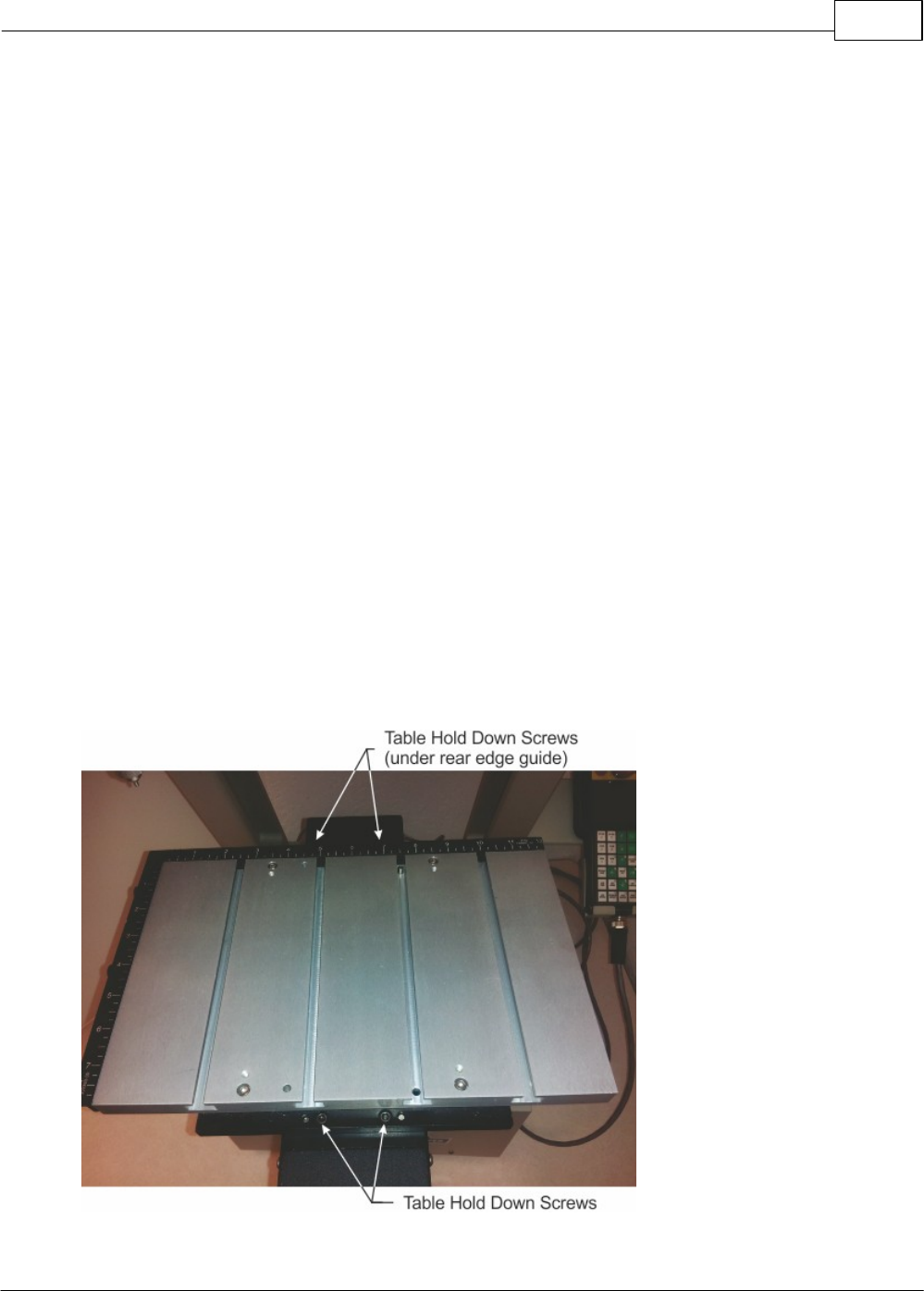
Operation 73
© 2014 Vision Engraving Systems
4 Example Jobs
In the following sections, there are 9 example jobs which can used to learn the different ways to operate
the Vision engraver or router. The jobs are separated into three levels; Level 1, Level 2 and Level 3.
Level 1 contains files that provide instructions on the most common uses of the engraver or router, and
utilizes Vision 9 Express software for job creation. Level 2 includes more advanced applications and
may require features only available in Vision 9 Expert or Pro software. Level 3 uses Vision 9 Expert or
Pro software and provides examples of advanced jobs.
The sections and example jobs are designed to incrementally teach the user how to operate their
machine, as well as utilize some of the common functions within the Vision software. It is recommended
that the first time user read through these sections and practice the techniques discussed in the order
they are presented.
4.1 Level 1 Jobs - Using the T-Slot Table
These first set of example jobs cover the basics of engraving and cutting. The basic machine functions
and software setup are discussed. By the last of these examples, the user should be well acquainted
with the machine and Vision software.
In these first set of jobs, the T-Slot Table is installed on the machine. Removal of the T-Slot Table is
shown. Reverse this procedure to install the T-Slot Table.
The table is held to the vise via 4 allen screws.
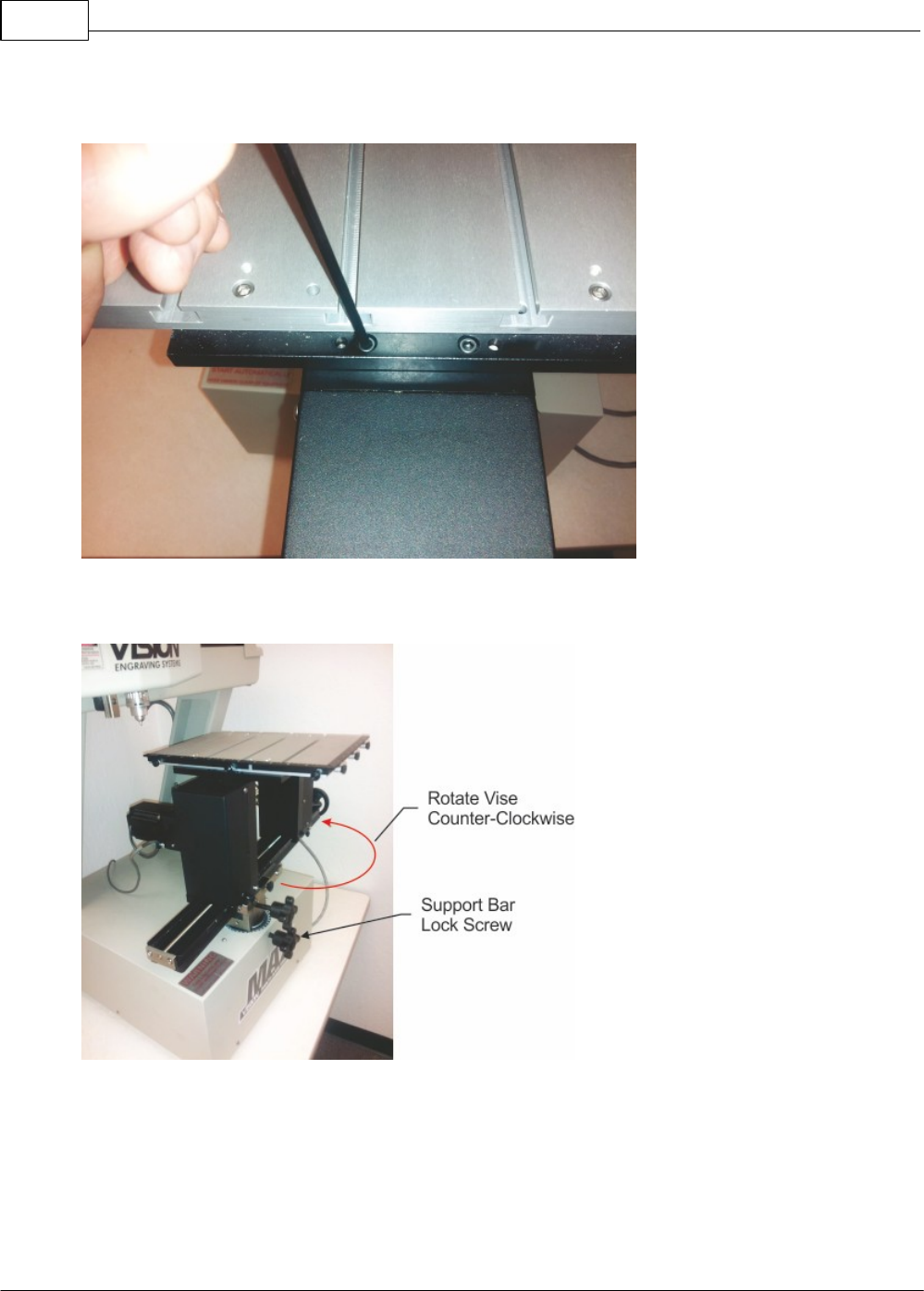
Vision Max User Manual74
© 2014 Vision Engraving Systems
Remove the two front screws.
Loosen the Support Bar Lock Screw by turning it counter-clockwise, the rotate the entire vise/table
assembly to the right in order to access the rear edge guise easily.
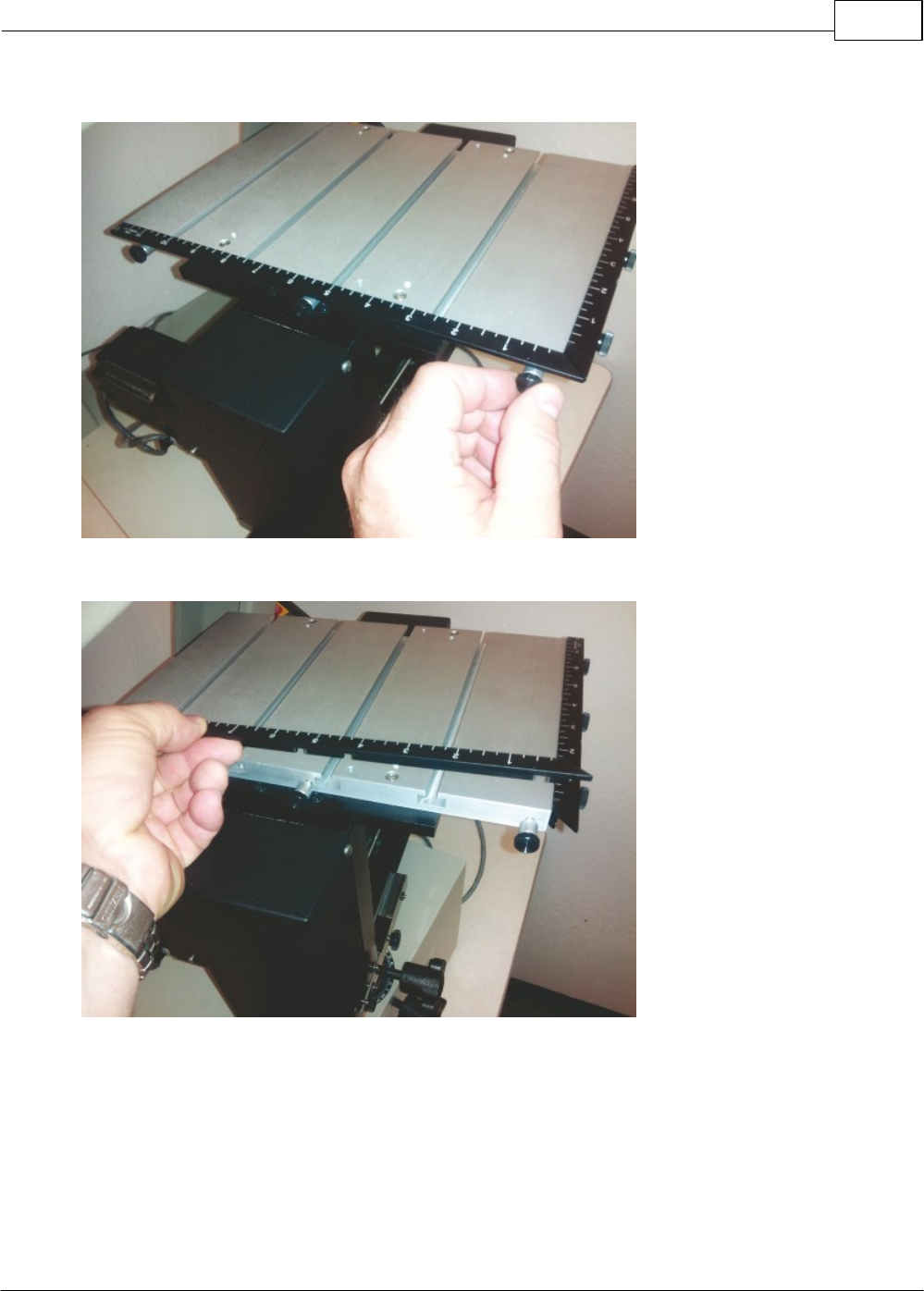
Example Jobs 75
© 2014 Vision Engraving Systems
Loosen the three rear edge guide screws.
Lift the edge guide up to remove.
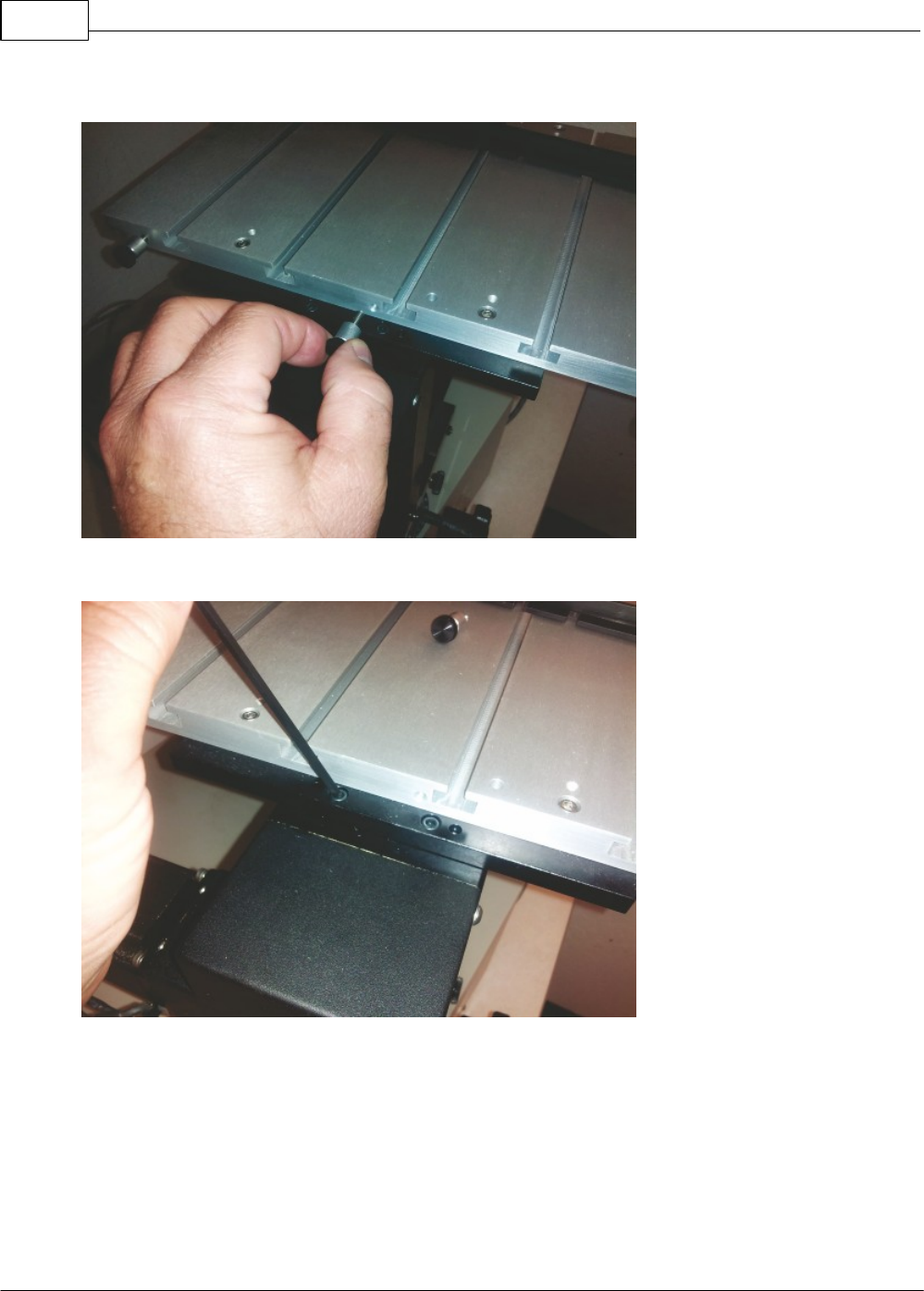
Vision Max User Manual76
© 2014 Vision Engraving Systems
Completely remove the center edge guide screw.
Remove the two rear screws.
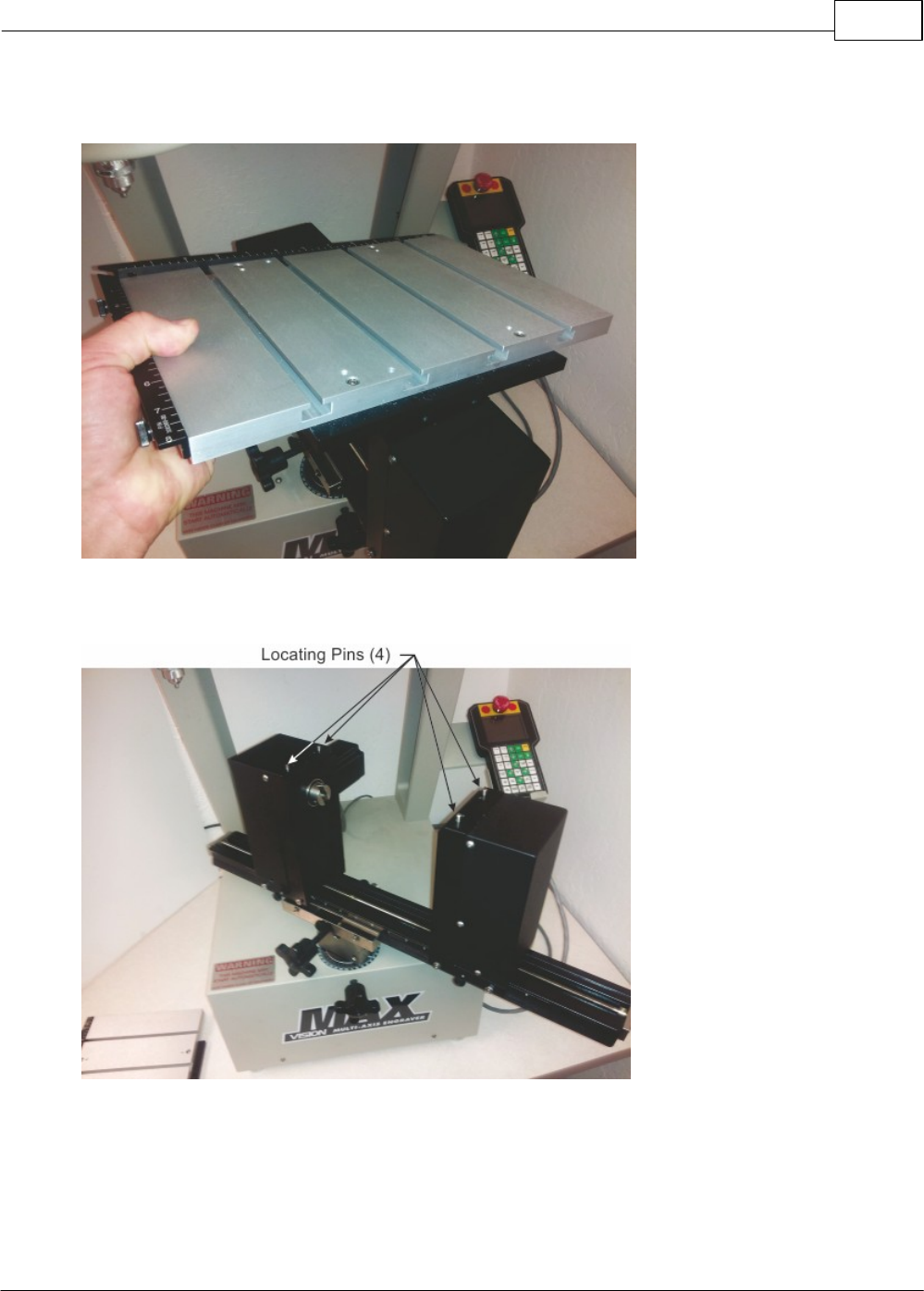
Example Jobs 77
© 2014 Vision Engraving Systems
Lift the T-Slot table off the vise. It may be necessary to turn the vise adjustment wheel in either direction
to unload the locating pins that fit into the bottom of the bracket holding the T-Slot table to the vise.
The 4 locating pins must be installed to position the T-Slot table or of using other attachments that fit the
vise.
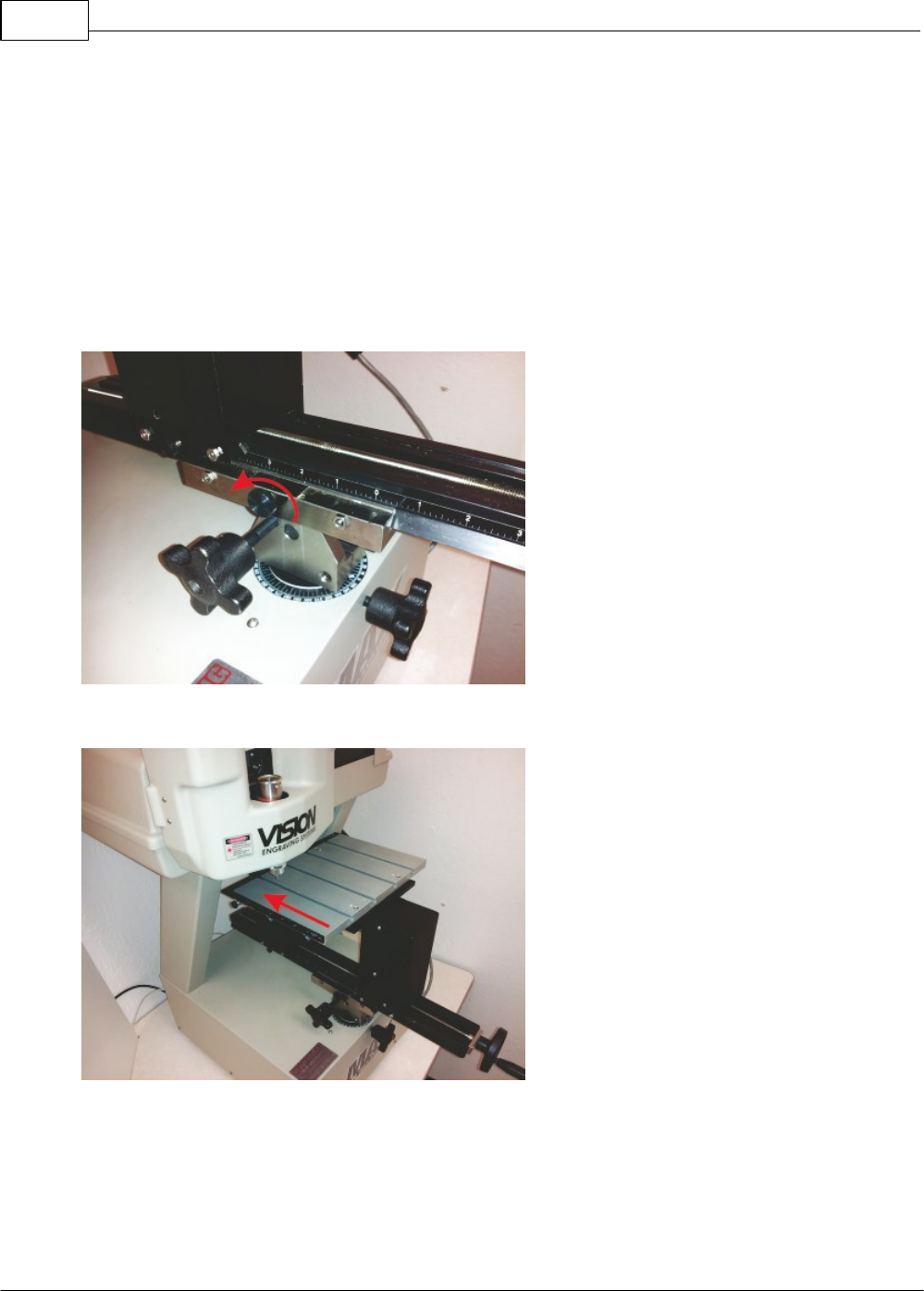
Vision Max User Manual78
© 2014 Vision Engraving Systems
4.1.1 Positioning the T-Slot Table
The Vision Max allows the user to change the position of the vise and/or T-Slot table relative to the
motion system. The vise/table can be rotated, raised, tilted and moved in the vise's way bracket.
Adjustments can change the position of the vise/table to the machine's home position. Since the vise/
table can be adjusted to accommodate many different objects and may have been adjusted so that the
upper left corner of the T-Slot table is not located in the same position as the machine's home position,
the user should properly position the vise/table before running a job.
Below are examples of how the vise/table can be adjusted.
To adjust the fore and aft position of the vise/table, loosed the Vise Slide Locking Screw.
The vise/table can be moved toward the rear,
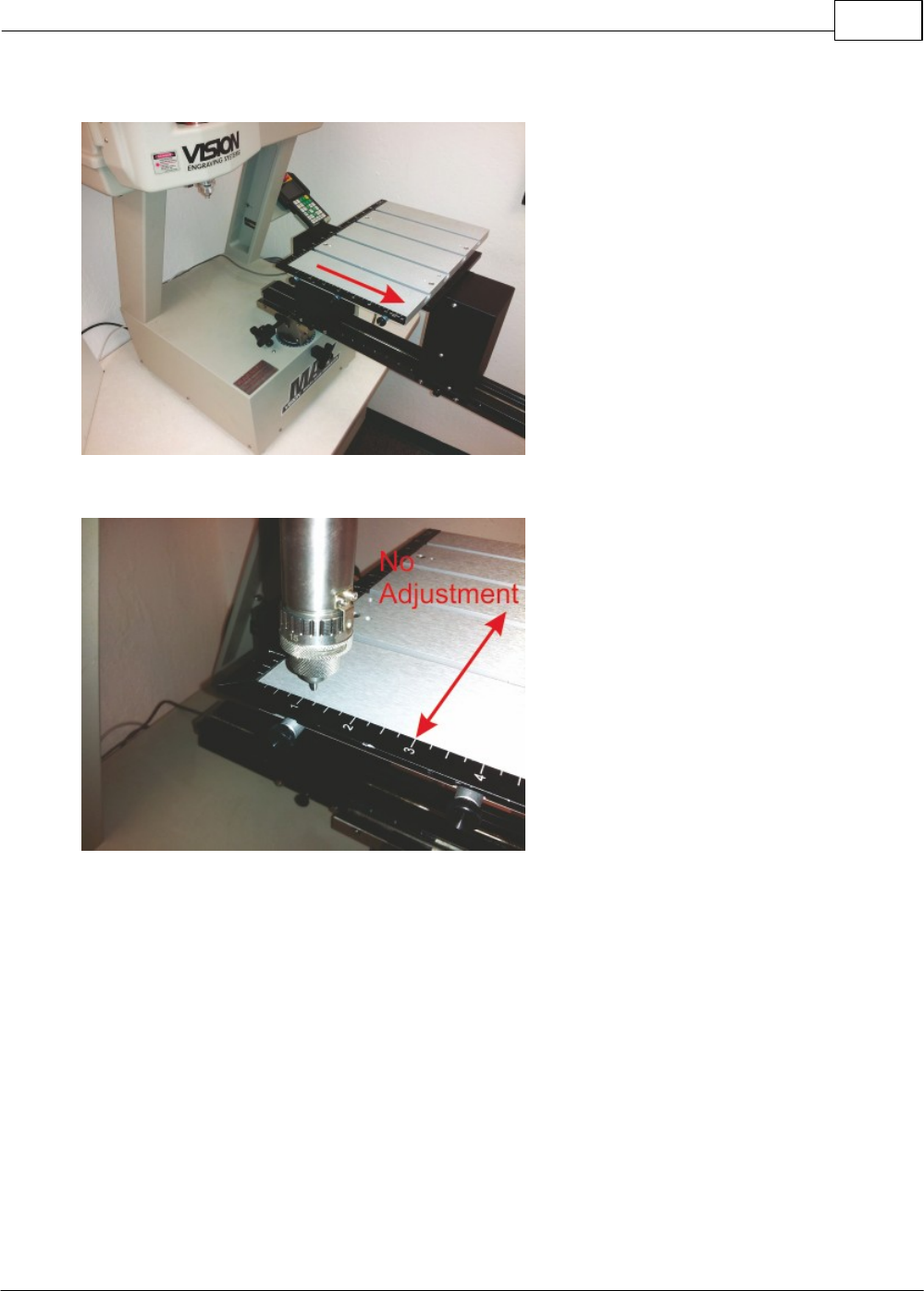
Example Jobs 79
© 2014 Vision Engraving Systems
or toward the front of the machine.
If the vise/table was moved, note that there is no side-to-side (X-Axis) adjustment.
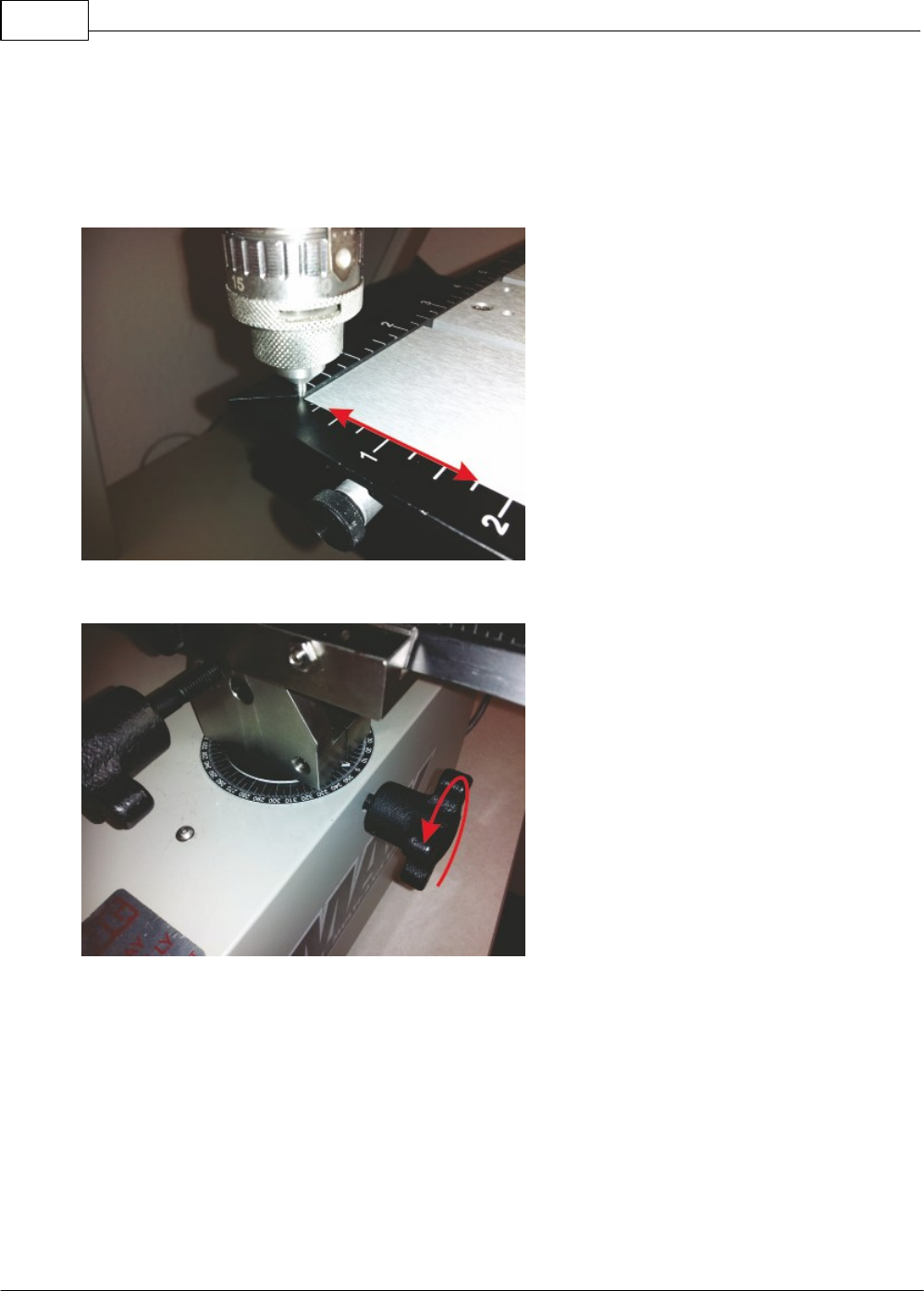
Vision Max User Manual80
© 2014 Vision Engraving Systems
If the table is to be returned to the machine's home position, with the machine turned on and after
pressing the Go to Limits key on the Pendant, lower the spindle with the Z Down button until the tip of a
tool almost touches the edge guides. Adjust (slide) the vise/table until the tool tip is in the upper left
corner of the table (where the edge guides meet). Note that if any other tilt or rotation has been applied
to the table, those adjustments must be returned to 0 degrees first (see below). Tighten the Vise Slide
Locking Screw after resetting the table position.
To adjust the vise/table rotation and height, loosen the Support Bar Lock Screw.
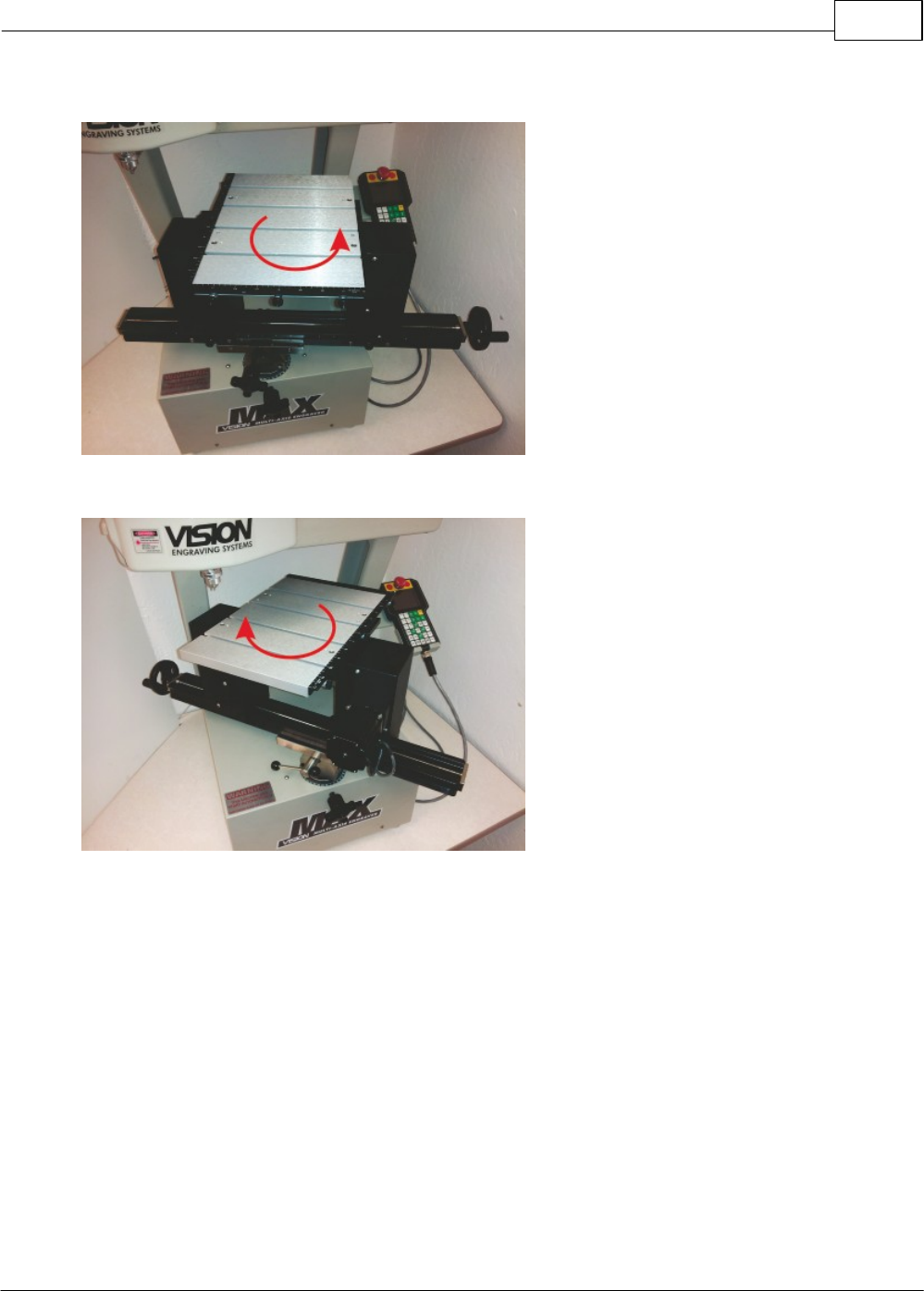
Example Jobs 81
© 2014 Vision Engraving Systems
The vise/table can be rotated to the right,
or to the left. After adjusting rotation, tighten the Support Bar Lock Screw.
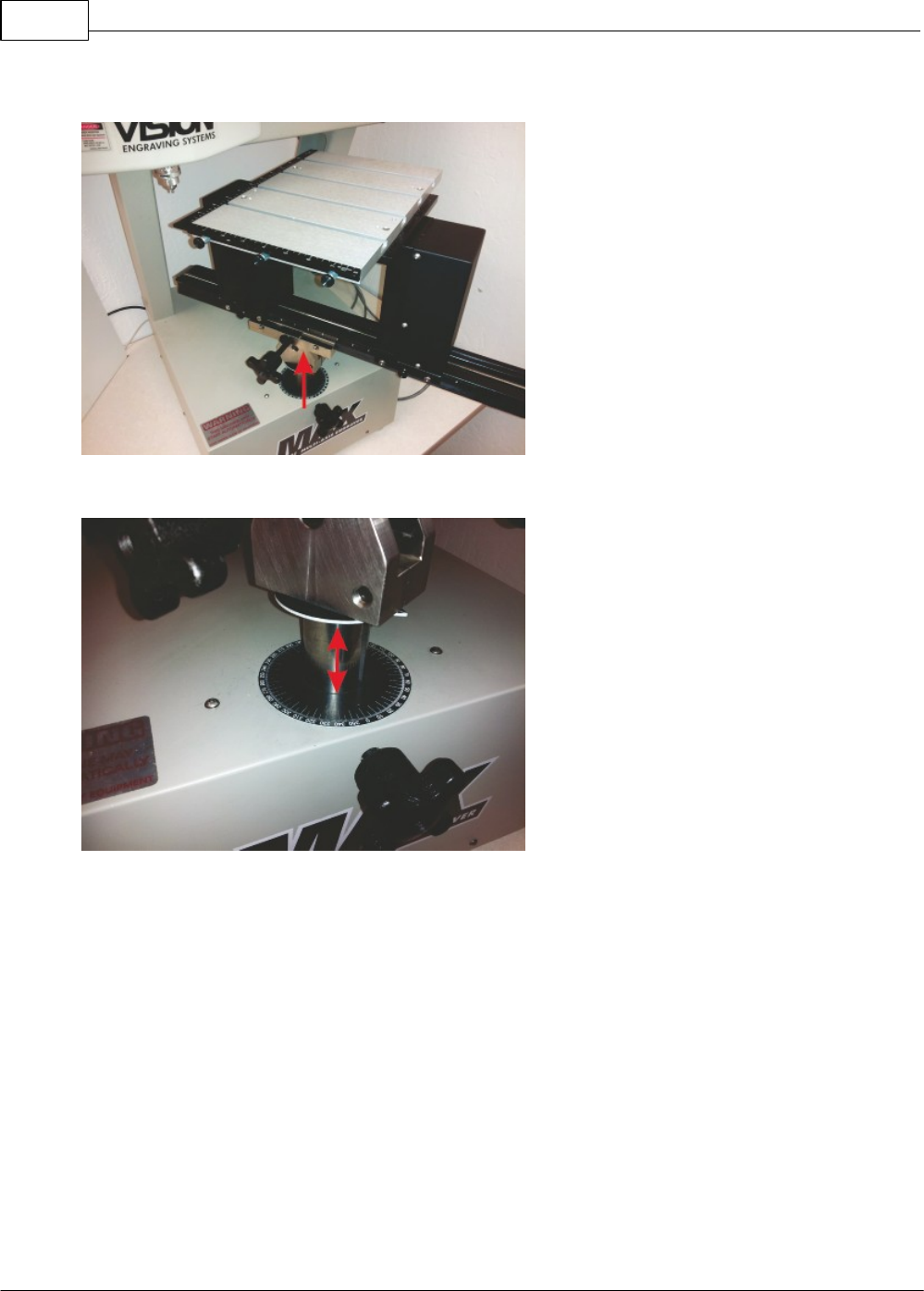
Vision Max User Manual82
© 2014 Vision Engraving Systems
The vise/table height can also be adjusted after loosening the Support Bar Lock Screw.
Lift or lower the vise table as needed, then tighten the Support Bar Lock Screw to secure its position.
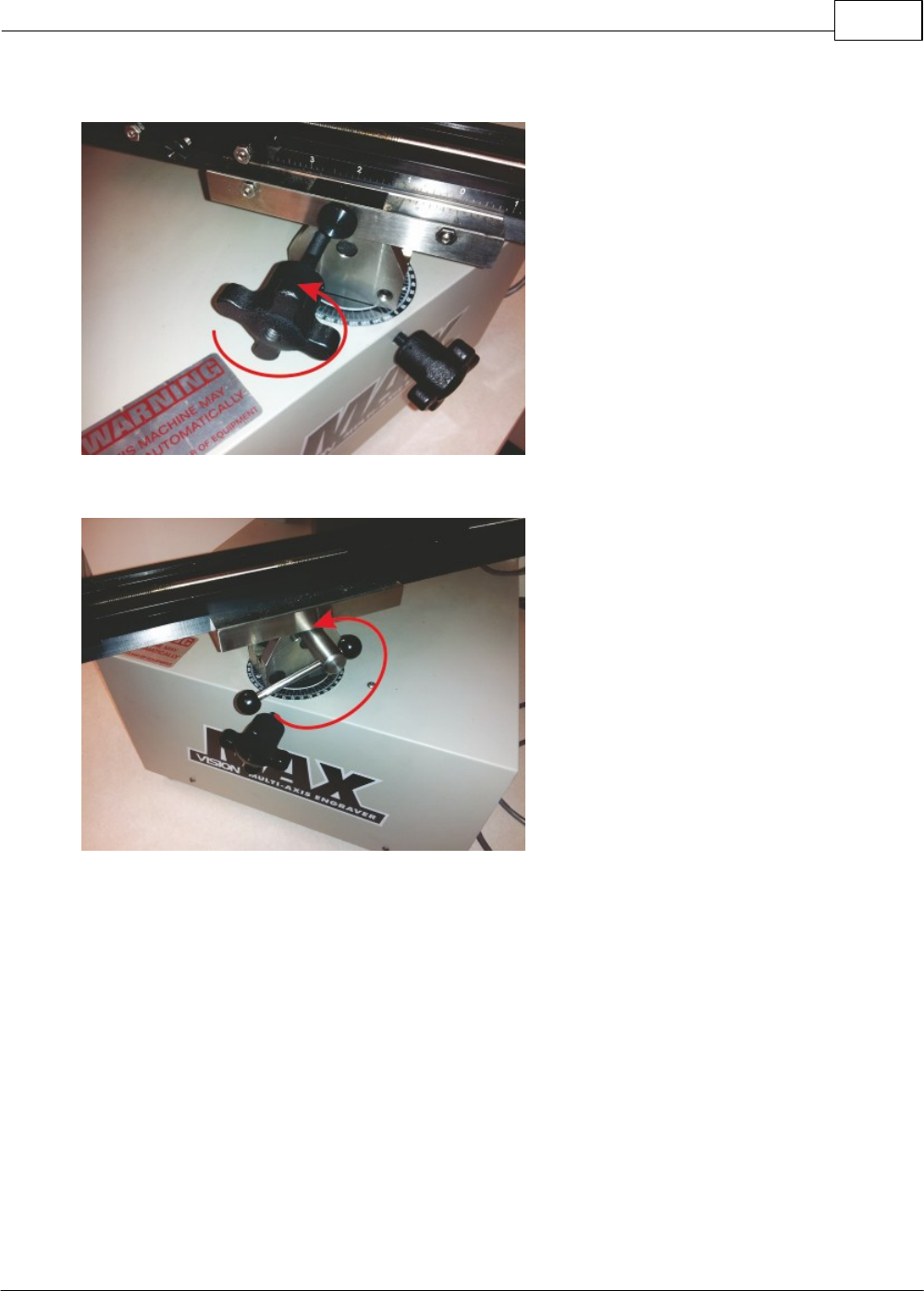
Example Jobs 83
© 2014 Vision Engraving Systems
To adjust the vise/table tilt, loosen the Pivot Joint Lock Screw and
the Vise Angle Locking Handle.
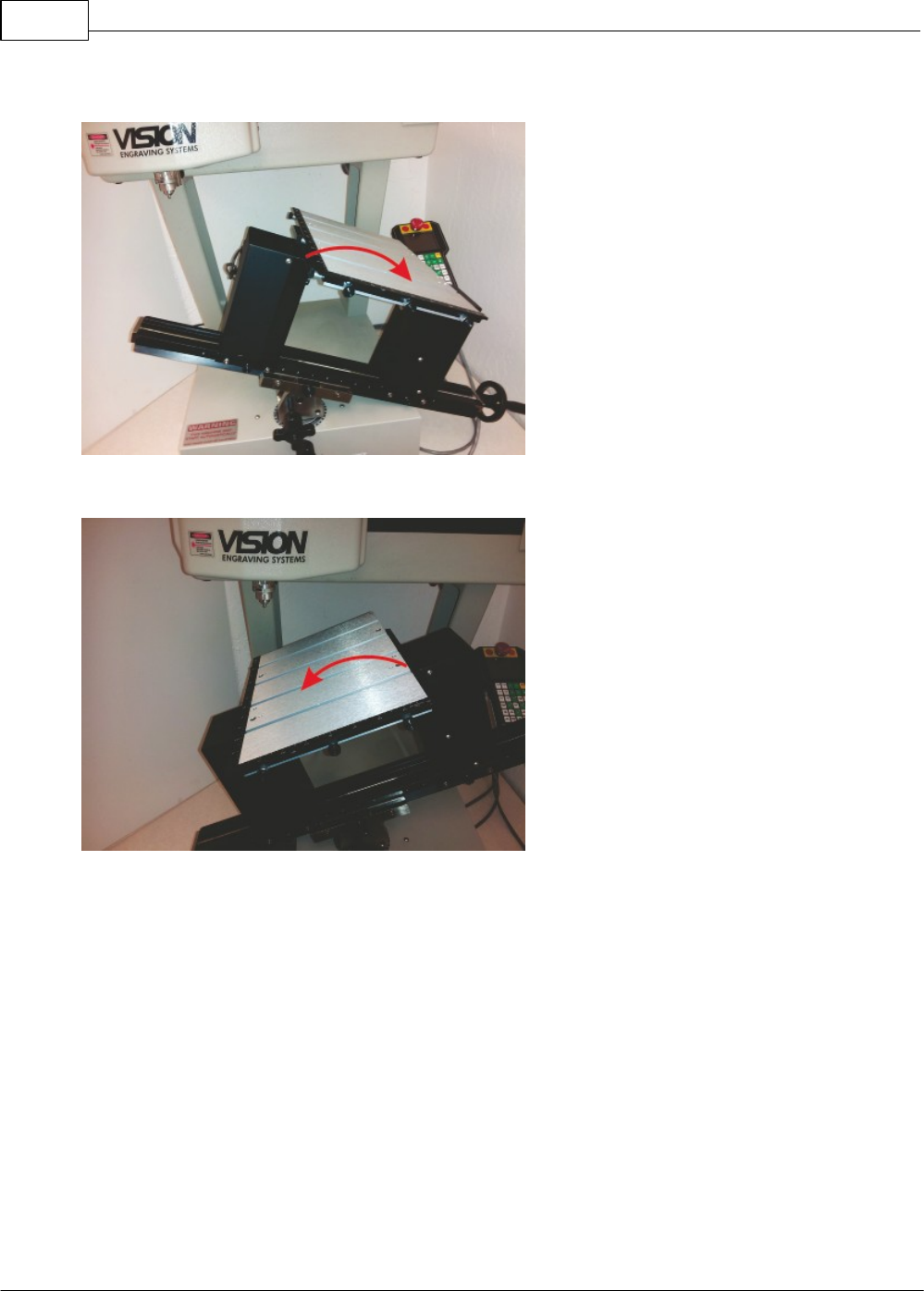
Vision Max User Manual84
© 2014 Vision Engraving Systems
Tilt the vise/table as needed, then tighten both the locking handle and lock screw firmly.
The limitation for tilt is usually when the bottom of the vise contacts the base of the machine.
Note that any combination of rotation, tilt and slide position can be utilized.
To return the machine to 0 degrees rotation, loosen the Support Bar Lock Screw, rotate the table until
the pointer at the bottom of the support bar is near 0 degrees and tighten the lock screw. The end of the
lock screw has a point that fits into a machined groove in the support bar for accurate and repeatable
positioning back to 0.
To return the vise/table to 0 degrees tilt, loosen the Vise Angle Locking Handle and Pivot Joint Lock
Screw, adjust the vise/table tilt, then FIRST, tighten the Pivot Joint Lock Screw. The end of this screw
fits into a hole machined into the pivot joint to accurately return the vise/table to 0 degrees tilt (flat
relative to the motion system X and Y axes). Tighten the Vise Angle Locking Handle to additionally
secure the vise/table position.
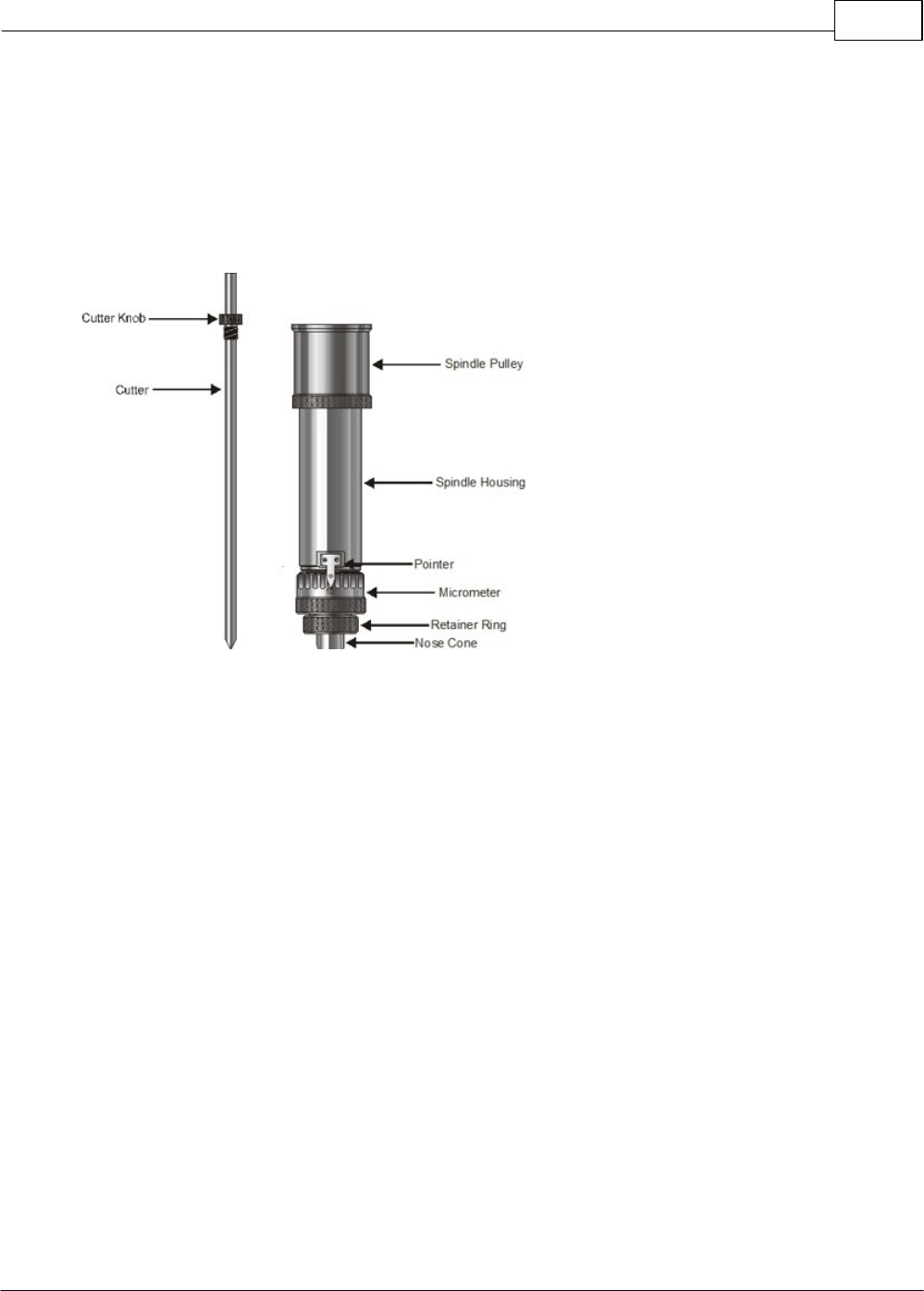
Example Jobs 85
© 2014 Vision Engraving Systems
4.1.2 Diamond Drag Engraving
Engraving - Non Rotating
In this section, we will set up to engrave with a non-rotating cutter, such as a diamond drag cutter. The
figure below shows a spindle with a diamond drag cutter.
Spindle with Diamond Drag Cutter
To install the diamond drag cutter, loosen the set screw on the cutter knob with the supplied cutter
wrench and move the cutter knob to about the mid-point of the cutter tool, then lightly tighten the set
screw. Note that the set screw on the cutter knob is NOT a standard Allen screw. It is a Spline Wrench.
DO NOT attempt to turn the set screw with any tool other than the cutter wrench. Insert the cutter into
the top of spindle and lower it until the cutter knob can be screwed into the spindle. The cutter knob is
REVERSE threaded, so in order to tighten the cutter knob, turn the knob COUNTER-CLOCKWISE
(when viewed from the top of the spindle) until it is hand tight.
With your finger at the bottom of the nose cone, loosen the cutter knob set screw and lower the cutter
so that the cutting tip extends below the bottom of the nose cone by approximately 1/4 inch (6 mm).
Then tighten the cutter knob set screw.
Turn the machine's power switch on. Set up the job you would like to engrave in the Vision Software
(for an example job, please refer to the following section). Place the material on the T-Slot table. In this
type of engraving, the Proximity Sensor is used and will sense when the cutter tip contacts the material
and automatically adjust the Z-Axis height and cutting pressure. Also, the spindle does not need to
rotate. The Vision software material selection (shown in the next section) will preset the engraver to turn
the spindle rotation off and turn the proximity sensor on.
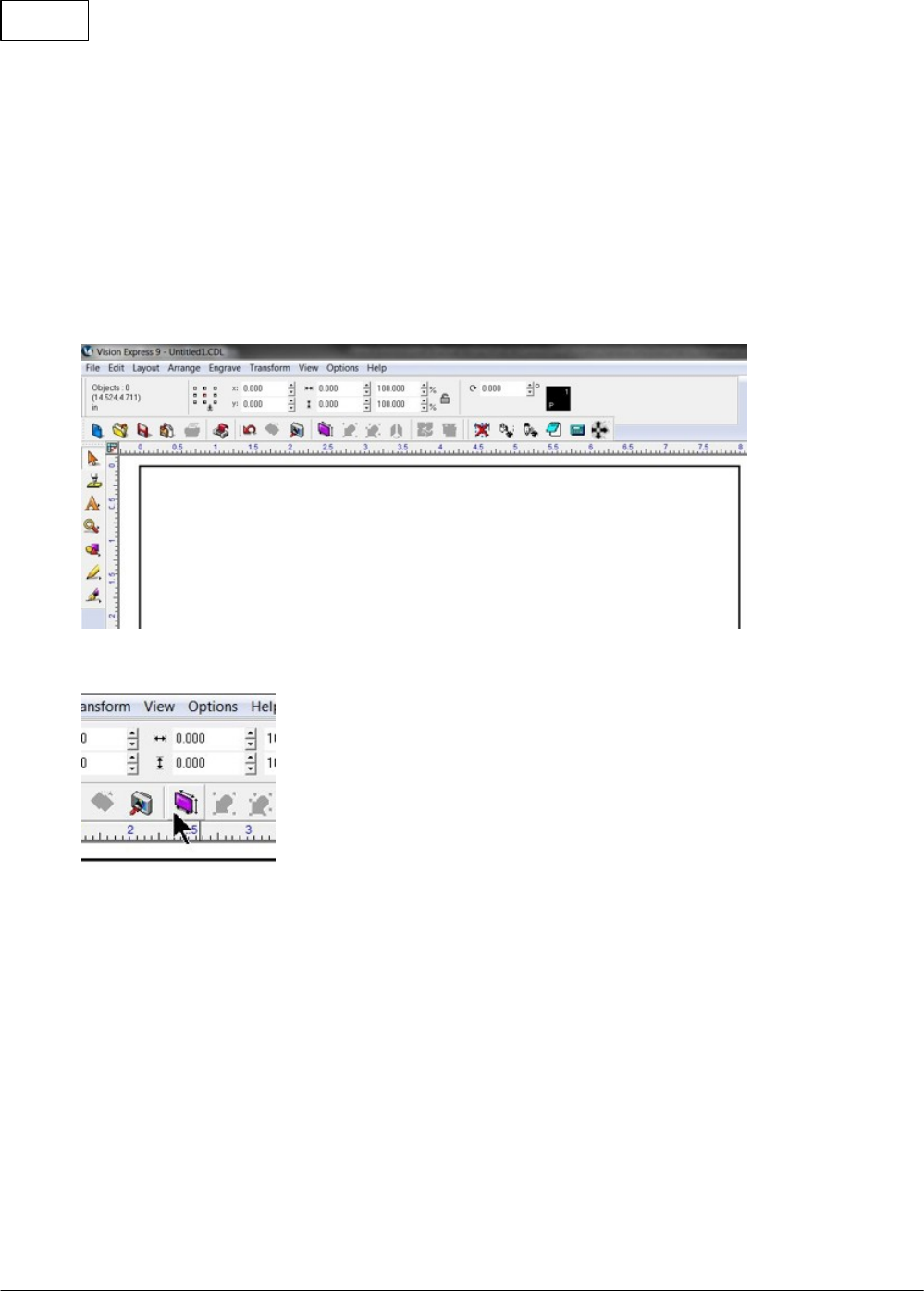
Vision Max User Manual86
© 2014 Vision Engraving Systems
4.1.2.1 Example Job 1 - Diamond Drag
In this first example, Diamond Drag engraving will be performed on a 3" x 2" plate. The material used for
this example application is black painted aluminum. Make sure the T-Slot table has been positioned so
that the machine's home position is in the upper-left corner of the T-Slot table, as described in the
section - Positioning the T-Slot Table.
Starting with a new file in Vision 9 software, the first step is to adjust the plate size to match the plate to
be engraved.
Click on the Plate Size icon.
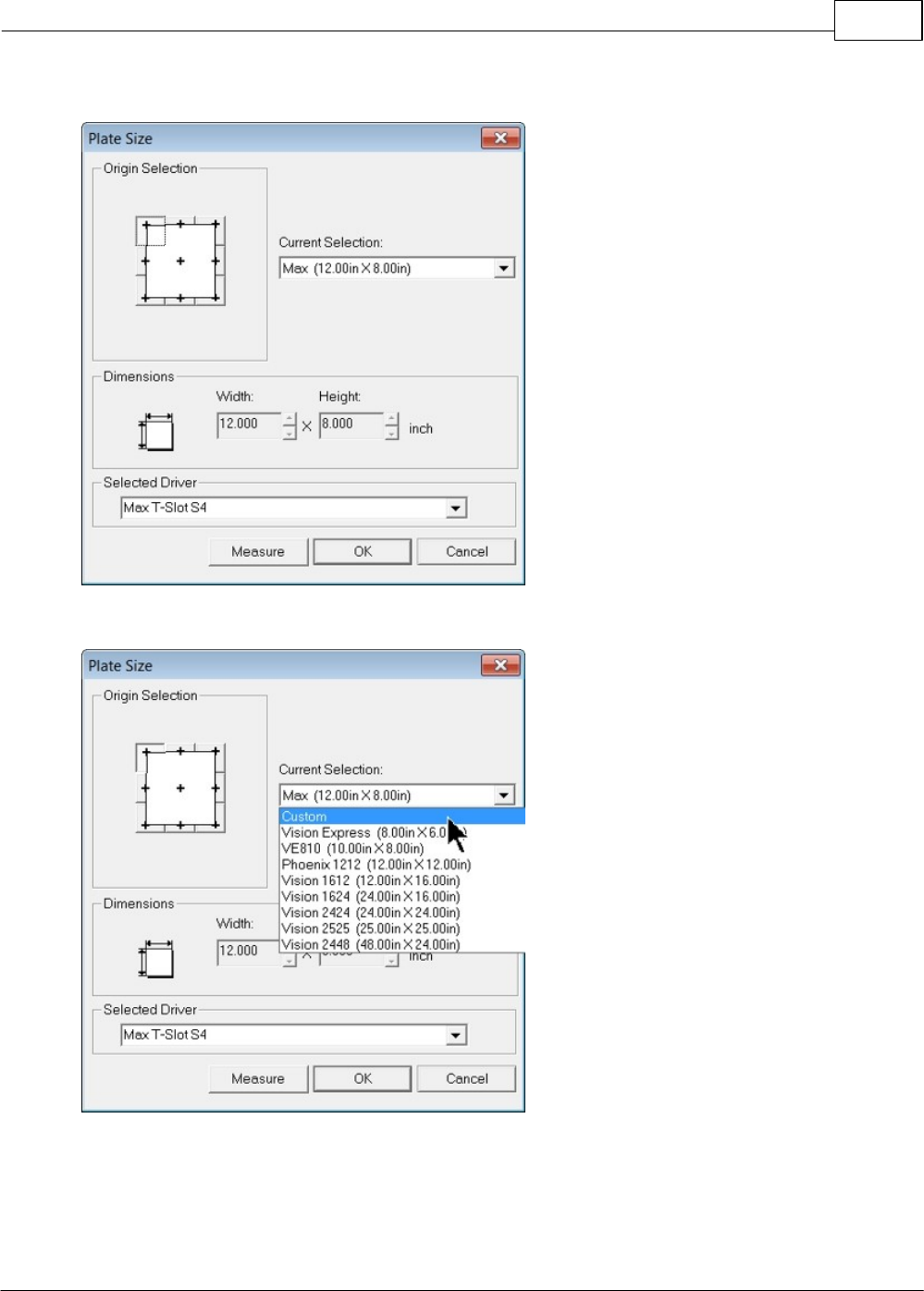
Example Jobs 87
© 2014 Vision Engraving Systems
The Plate Size window will appear.
Click on the Current Selection drop down list and select Custom.
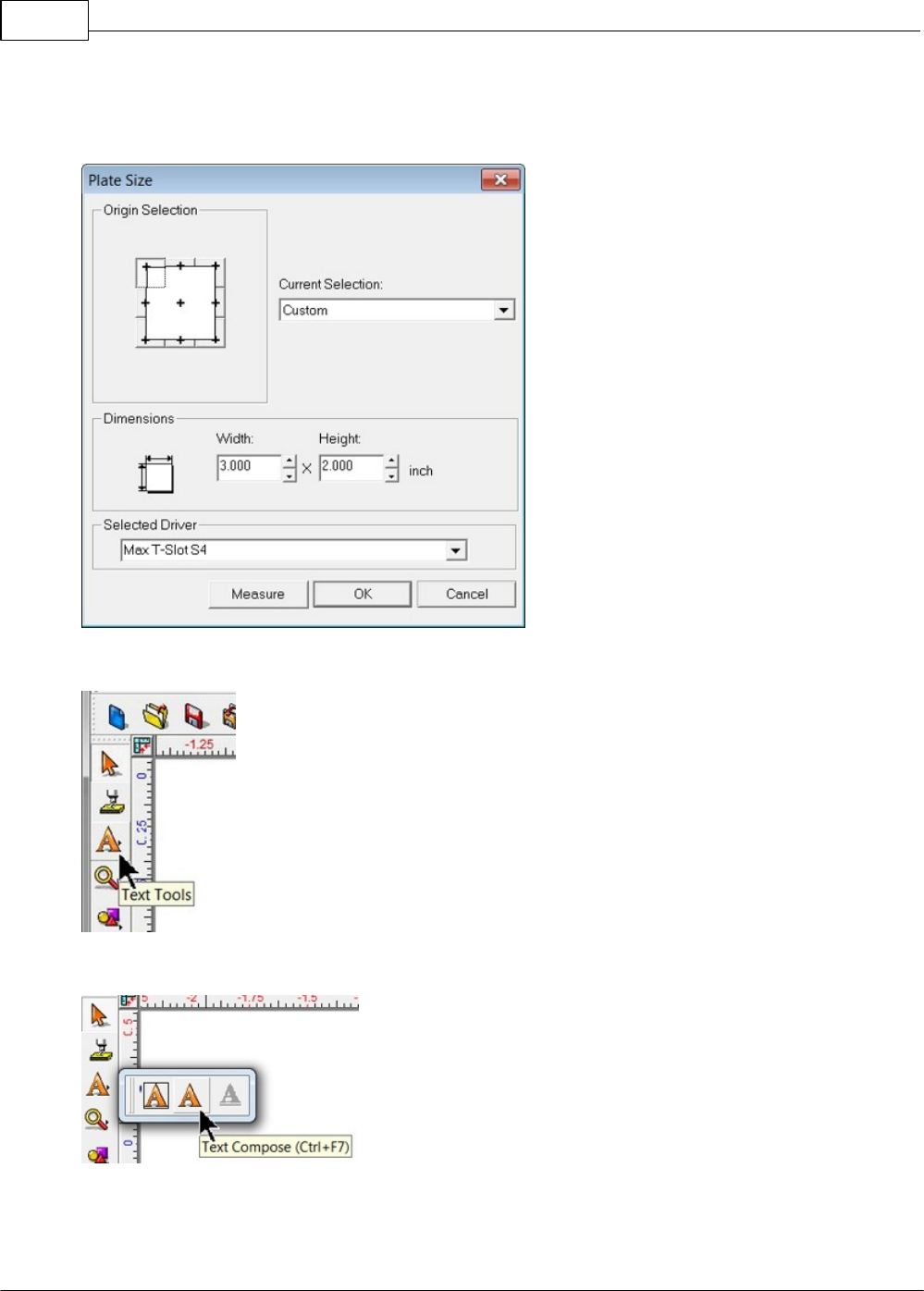
Vision Max User Manual88
© 2014 Vision Engraving Systems
Enter the plate size to be engraved - for this example 3" x 2", and select the appropriate driver for
your machine in the Selected Driver drop down list. (Max T-Slot S4 shown), then select OK..
To add text, click on the Text Tools icon.
The flyout icons will appear, then select the Text Compose icon.
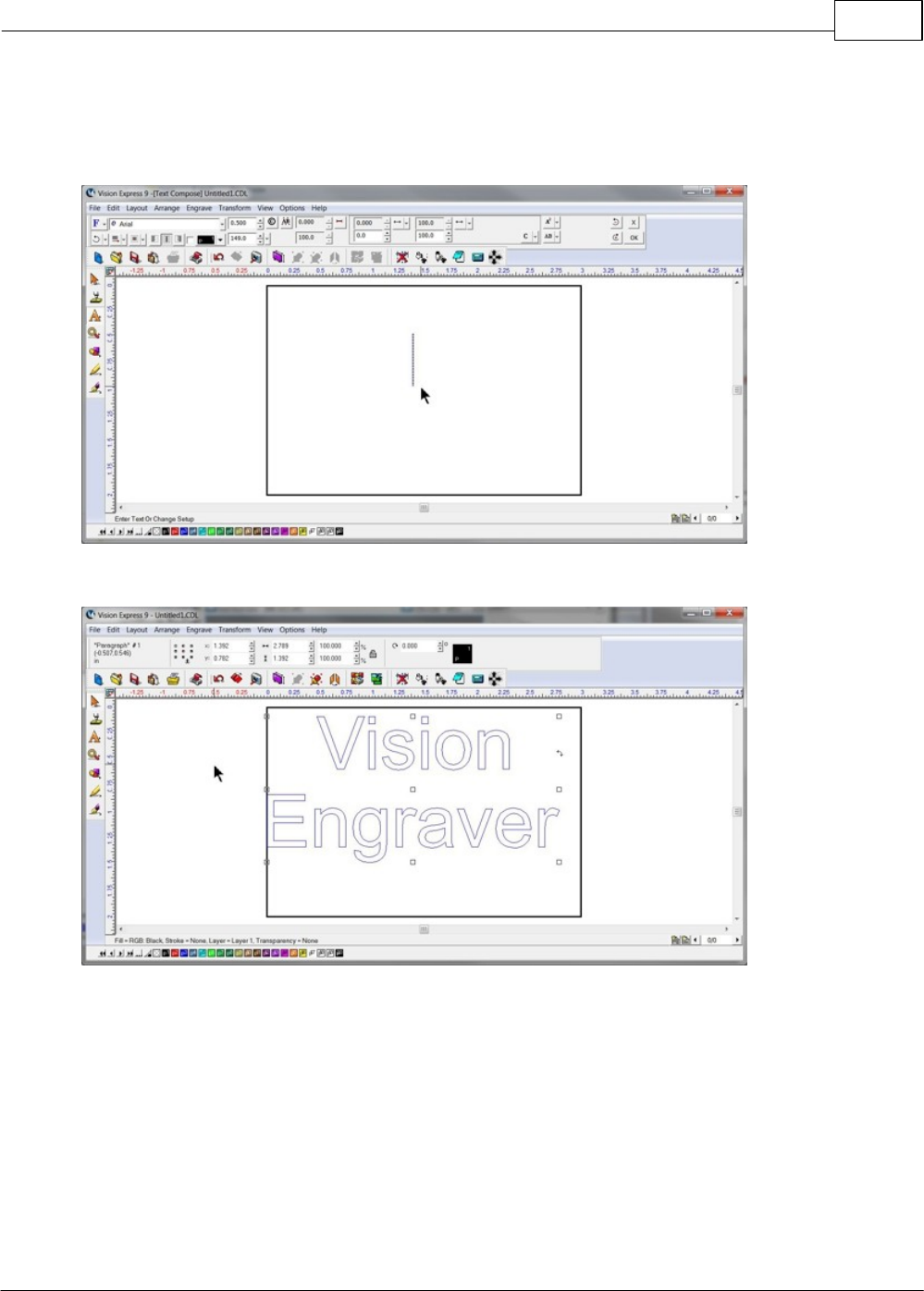
Example Jobs 89
© 2014 Vision Engraving Systems
Click somewhere in the drawing to begin typing text. Note that on the top toolbar, the various font editing
fields have appeared. The user should become familiar with the various ways fonts can be formatted
with the toolbar options. For this example, the font height was set to 0.500" and the Arial font was
selected.
Begin typing text to be engraved.
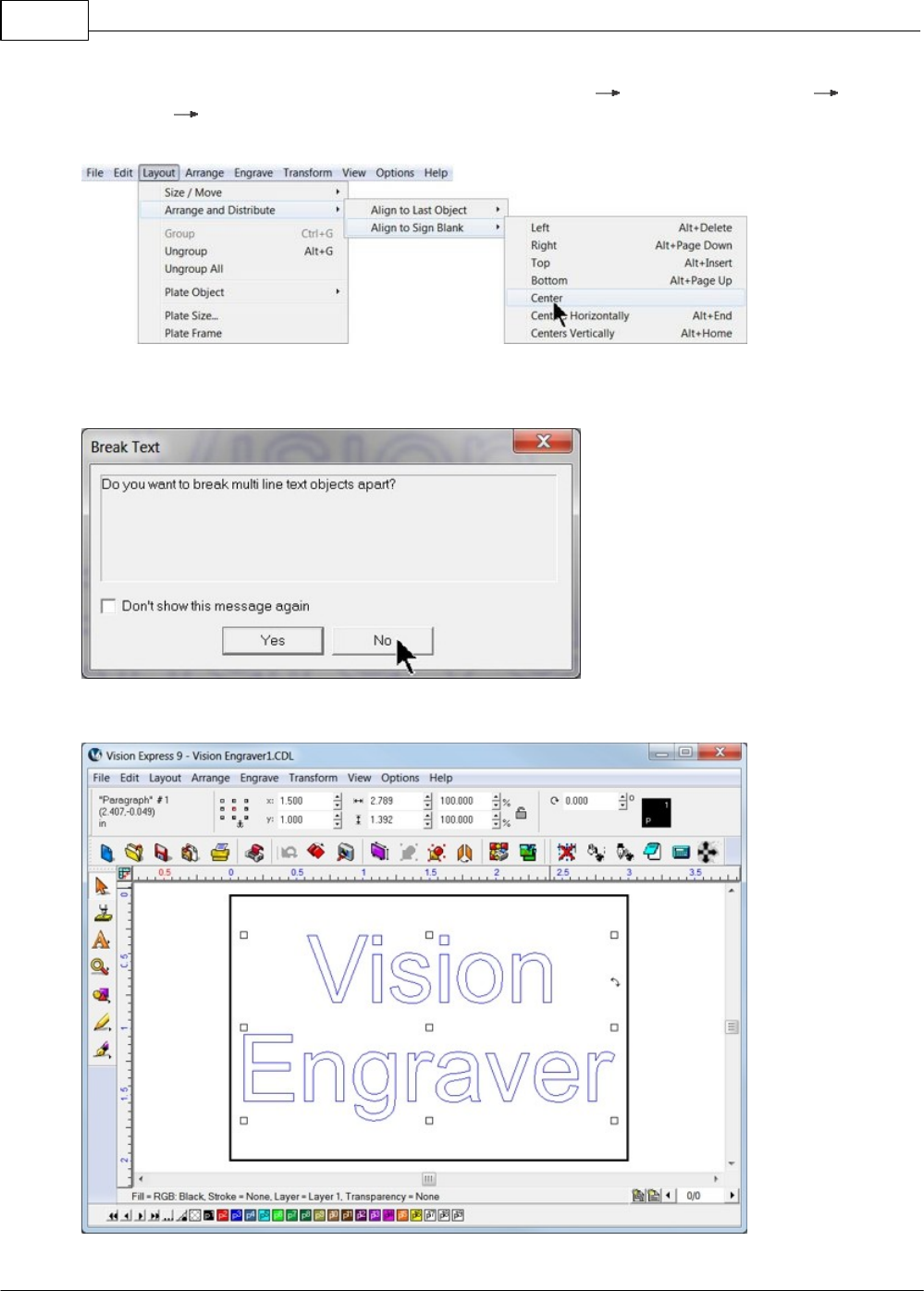
Vision Max User Manual90
© 2014 Vision Engraving Systems
In order to align the text to the center of the plate, select Layout Arrange and Distribute Align to
Sign Blank Center (as shown below) from the top toolbar. Note that there are several ways to align
objects within the Vision software.
The Break Text warning may appear. If so, select No. If Yes is chosen, and more than one line of text
has been entered, each line will align on top of one another in the center of the plate.
At this point, the screen should appear as below.
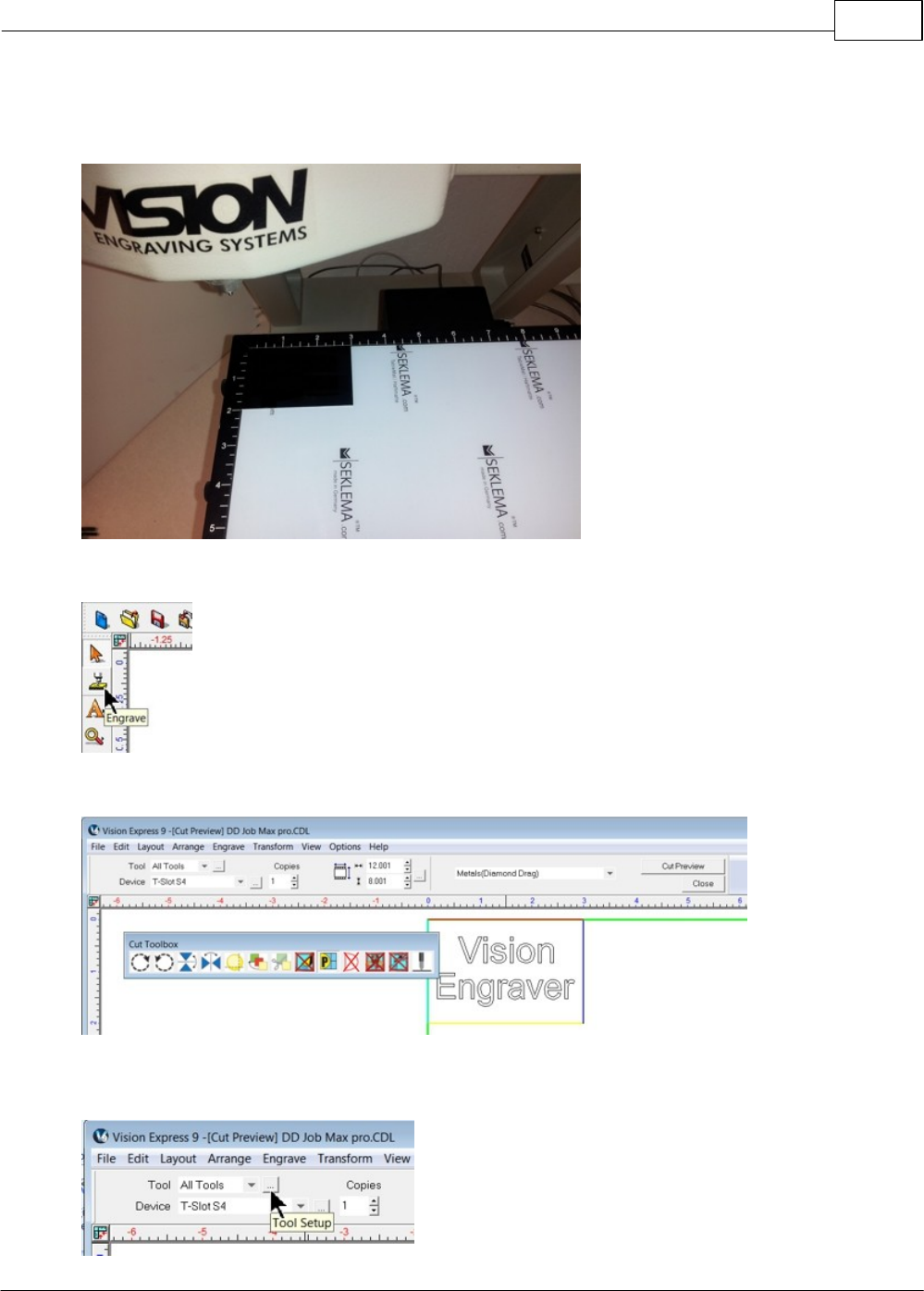
Example Jobs 91
© 2014 Vision Engraving Systems
Next, the material should be placed on the engraving table, with the upper left corner of the material
positioned in the home position (upper left corner of the engraving table). Note that the Multi Mat
material has been placed on the T-Slot table in order to hold the engraving material in place.
Select the Engrave icon from the left toolbar.
The Cut Toolbox will appear and the options for engraving will appear on the top toolbar.
Verify the Device chosen is for your machine, then open the Tool Setup window by clicking on the icon
shown below (which is to the right of the Tools drop down list).
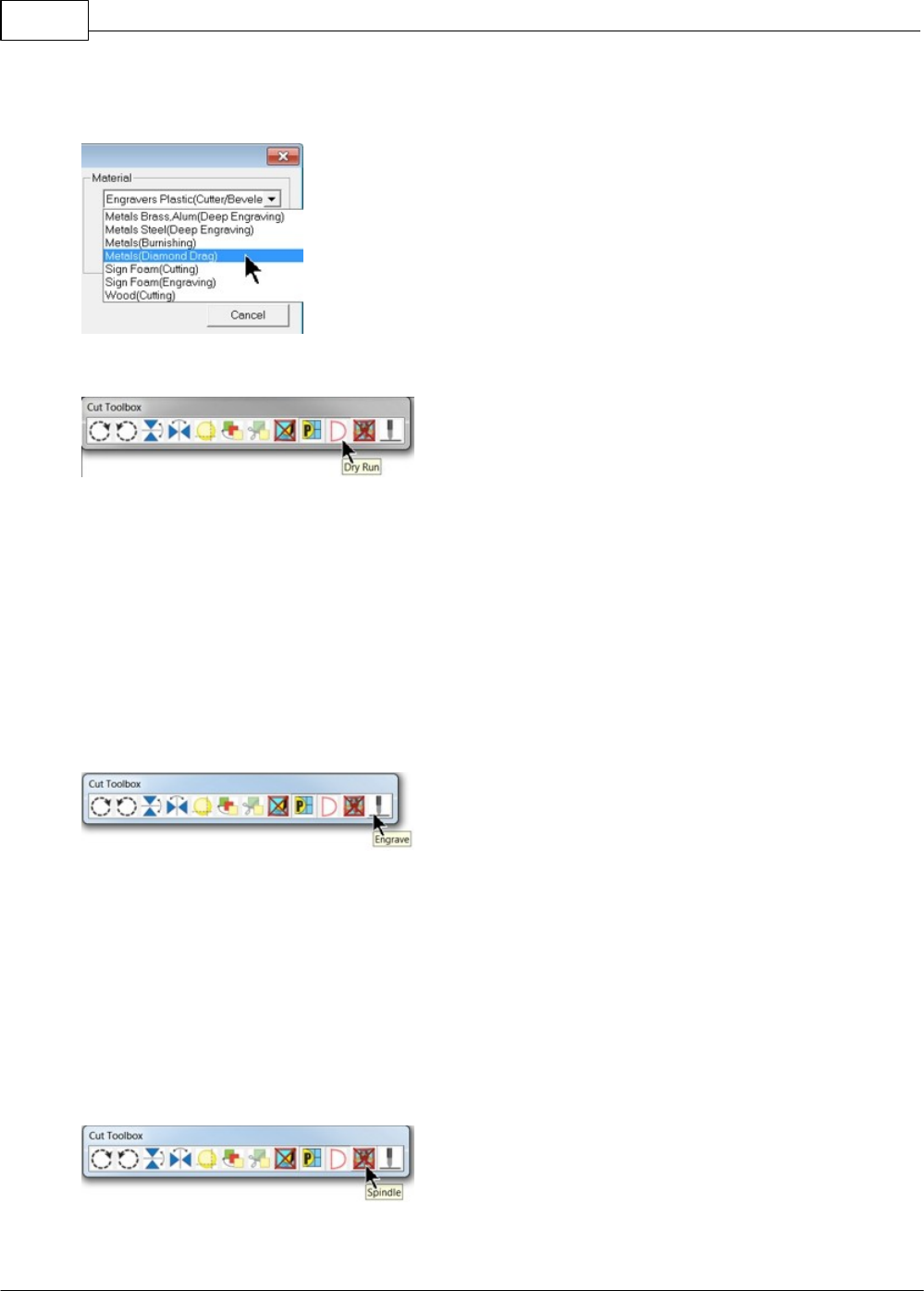
Vision Max User Manual92
© 2014 Vision Engraving Systems
Select the appropriate material from the Material Selection drop down list. In this example, the material -
Metals(Diamond Drag) is selected, then select OK.
Since we are running a file for the first time, we will select the Dry Run option from the Cut Toolbox.
Make sure the "D" appears by selecting it. The default is "Off" for the Dry Run, which will engrave the
plate. We want to make sure our file has been set up properly in this example and that the material is
positioned correctly.
NOTE - Dry Run Operation - There is an offset between the spindle and the red laser pointer of
approximately 1.25 inches (31.8 mm) in the X and 1.50 inches (38.1 mm) in the Y directions. If the
characters to be engraved extend beyond the machine's table size, the file will not run because the
motion system would have to move beyond its limits.
When ready to send the file to the engraver, make sure the power switch is turned on and the machine
has initialized (the Goto Home message has appeared on the Pendant and you've pressed Goto Home),
then select the Engrave icon from the Cut Toolbox.
Note - keeps hands and other loose objects away from the engraver during operation.
Press the Start Button on the Pendant to begin the Dry Run. The Dry Run feature will automatically
activate the red dot laser pointer and show the user where the machine will engrave.
Note - If the spindle turns, or begins to drop toward the material, either press the Pause Button
or the Stop Button on the Pendant. If either of these occur, make sure that Dry Run was
selected in the Cut Toolbox (shown as the letter "D") and that the spindle has not been turned
on. The Spindle icon on the Cut Toolbox is show below for reference.
Spindle icon (shown as disabled)
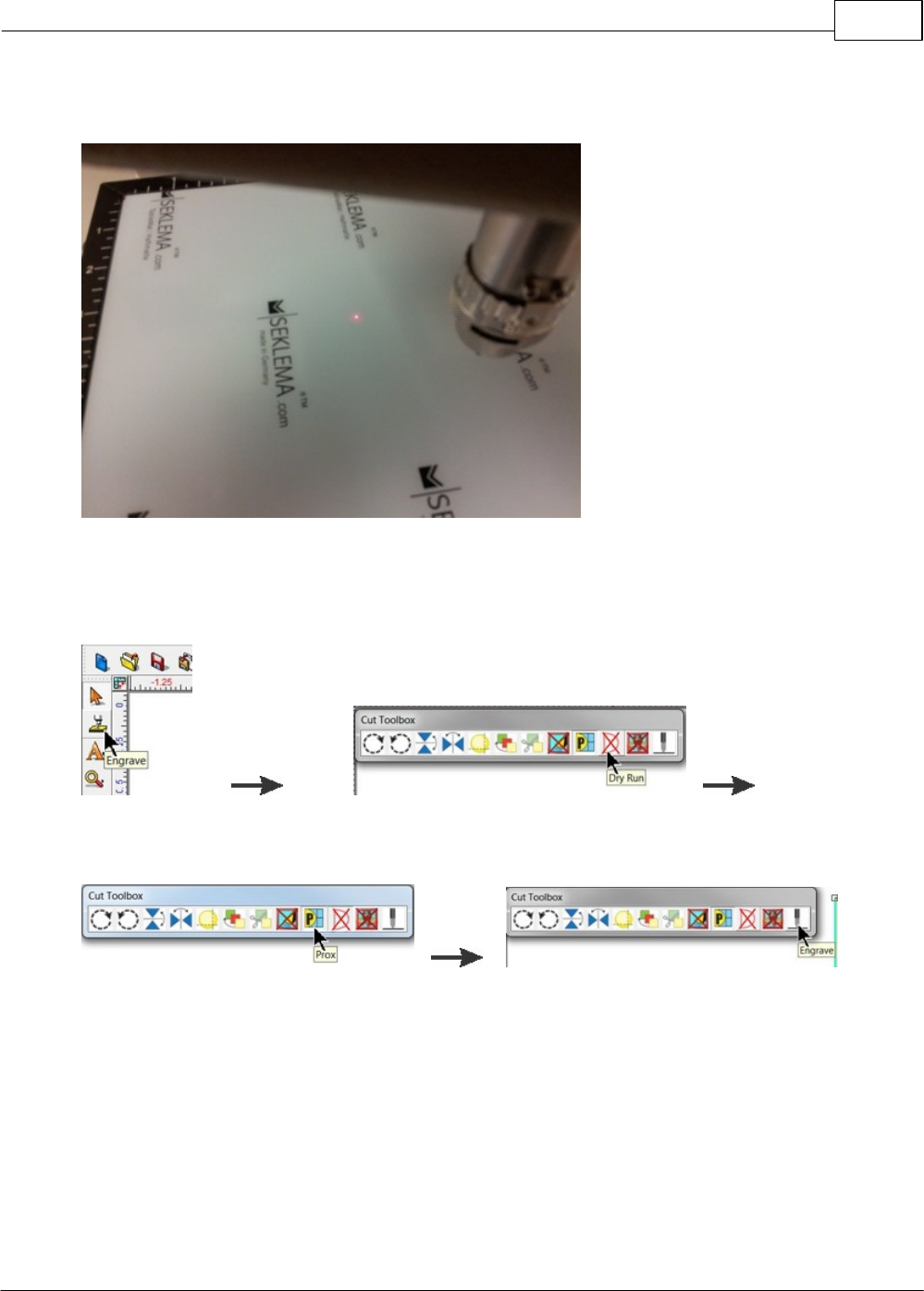
Example Jobs 93
© 2014 Vision Engraving Systems
Red Laser Pointer
If the file and material appear to be positioned properly and you are ready to engrave, select the
Engrave icon from the left toolbar, turn off the Dry Run option and check to make sure the Proximity
Sensor (see the Prox icon below) is enabled, then select the Engrave icon on the Cut Toolbox to send
the file to the engraver.
Engrave icon (from toolbar) Dry Run Off
Prox icon (shown as enabled) Engrave icon
Make sure the material is positioned properly and secured on the engraving table, then press the Start
Button on the Pendant to begin engraving.
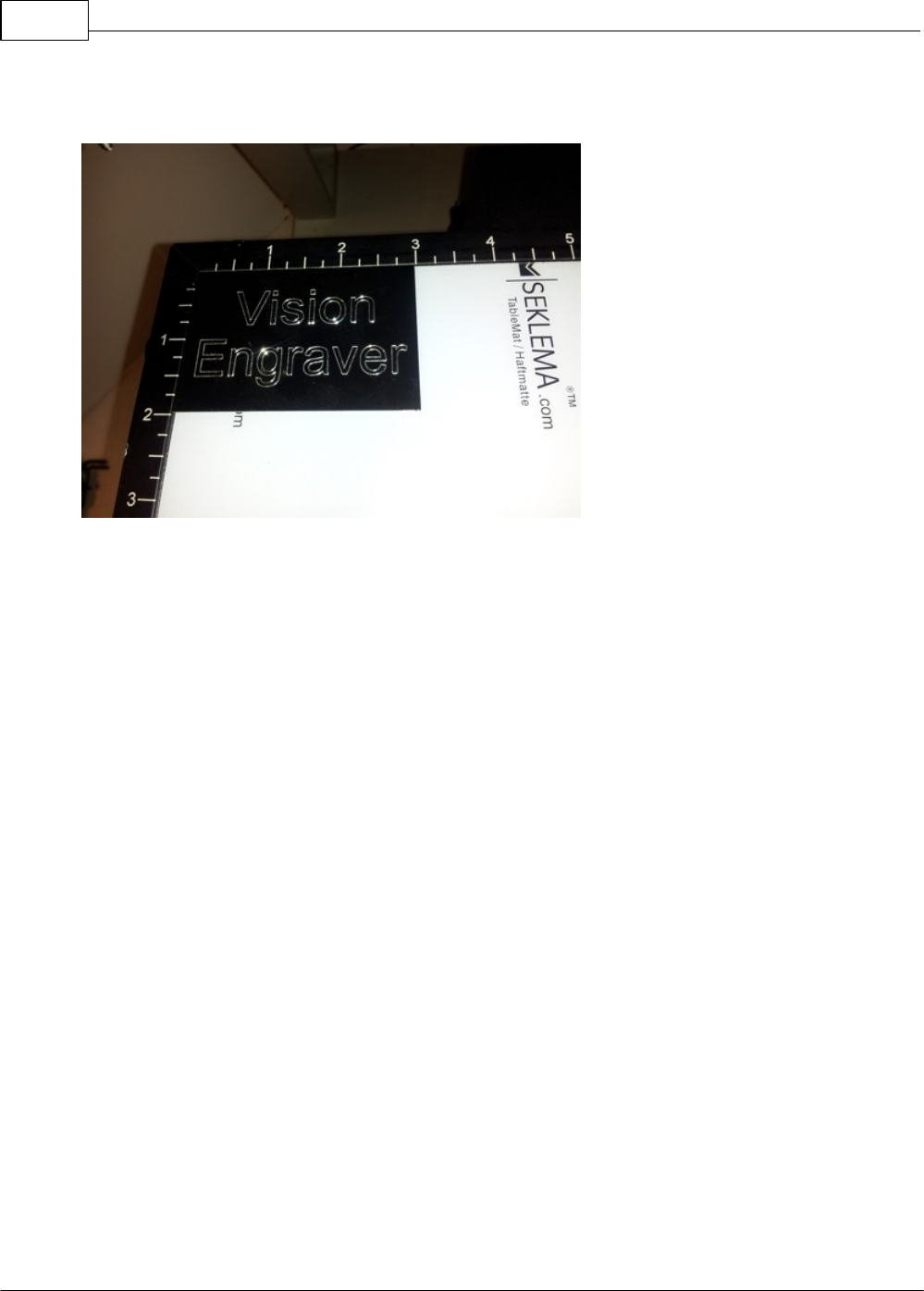
Vision Max User Manual94
© 2014 Vision Engraving Systems
The finished piece should appear as shown below.
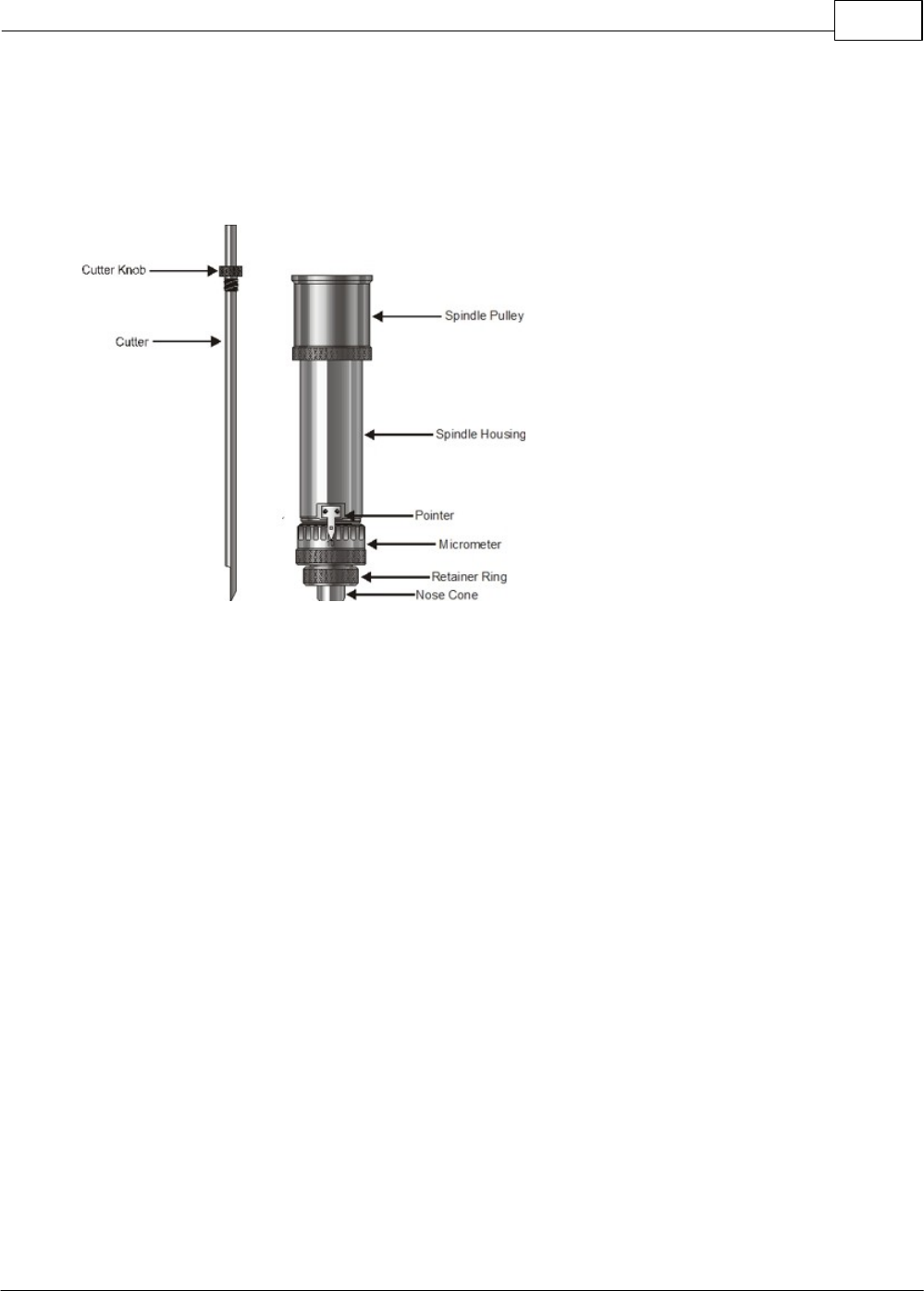
Example Jobs 95
© 2014 Vision Engraving Systems
4.1.3 Rotary Engraving
In this section, we will set up to engrave with a rotating cutter. The figure below shows a spindle with a
rotary cutter.
Spindle with Rotary Cutter
To install the rotating cutter, loosen the set screw on the cutter knob with the supplied cutter wrench
and move the cutter knob to about the mid-point of the cutter tool, then lightly tighten the set screw.
Note that the set screw on the cutter knob is NOT a standard Allen screw. It is a Spline Wrench. DO
NOT attempt to turn the set screw with any tool other than the cutter wrench. Insert the cutter into the
top of spindle and lower it until the cutter knob can be screwed into the spindle. The cutter knob is
REVERSE threaded, so in order to tighten the cutter knob, turn the knob COUNTER-CLOCKWISE
(when viewed from the top of the spindle) until it is hand tight. Then, you must zero the cutter. To do
this, you must first turn the micrometer so that the pointer points to 0. Note - it is helpful to first turn the
micrometer to the left (clockwise) until threads just start to appear on the spindle. This will be about 3 -
4 full turns of the micrometer from it's uppermost position. This allows for sufficient depth adjustment
when turning the micrometer to the right.
With the machine powered off, take a scrap piece of material and push it up underneath the nose
cone and hold it there. As an option to this method, jog the spindle over your material and lower the
spindle until the nose cone come in contact with your material by using the Z Down button. Loosen the
cutter knob set screw and push the cutter down until it just touches the material. Tighten the cutter knob
set screw. The cutter is now zeroed.
To run a job, turn the machine on, then set up the job in the Vision Software. (For more information on
this, see the example job file in the next section). Put the material on the T-Slot table as described in
the previous section.
Adjusting Depth of Cut
Cutting depth depends on the type of material being engraved. Generally, manufacturer's of engraving
plastic provide recommendations for cut depth. If a recommended depth is unavailable, trial and error
can be used to find the appropriate cut depth. Since the depth is set to zero at this time, in order to
increase cut depth, the micrometer at the bottom of the spindle should be rotated to the right (counter-
clockwise when viewing from the top of the spindle). To set a depth of 0.010 inches (0.25 mm) turn the
micrometer to the right 10 clicks. Each "click" of the micrometer is 0.001 inches (0.025 mm). Run a

Vision Max User Manual96
© 2014 Vision Engraving Systems
job with an initial setting of 0.005 - 0.010 inches (0.12 - 0.25 mm). After the job has run for a short
time, press the Pause Button on the front panel, then adjust the micrometer for more or less depth,
depending on the whether the engraving is acceptable. Note - be careful not to set the depth of cut
greater than the material thickness. This will cut completely through the material and potentially cut into
the T-Slot table. Press Start to resume engraving and to determine if the depth is appropriate.
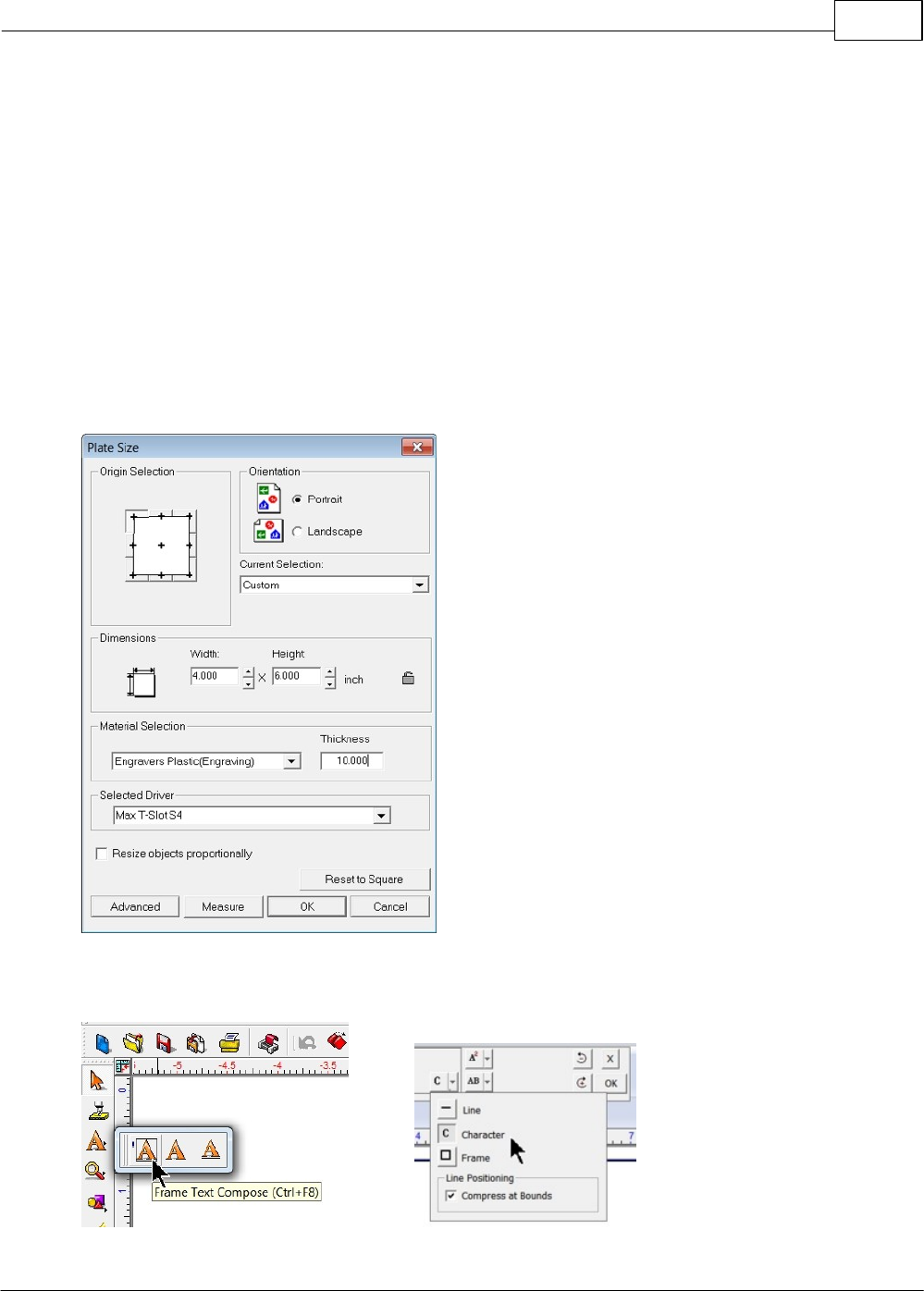
Example Jobs 97
© 2014 Vision Engraving Systems
4.1.3.1 Example Job 2 - Rotary Engraving
In this example, a sign will be made using engraver's plastic. The piece is pre-cut and measures 4
inches x 6 inches (100 x 150 mm). Make sure the T-Slot table has been positioned so that the machine's
home position is in the upper-left corner of the T-Slot table, as described in the section - Positioning the
T-Slot Table.
Note - In this application, it is highly recommended to use the Vacuum Chip Removal System as
described in the Optional Accessories section. The process of engraving or cutting plastics, acrylics,
sign foam and wood, produces a significant amount of debris that can clog the nose cone and/or get
trapped between the nose cone and the material, which will cause engraving/cutting depth
inconsistencies as well as potentially scratch the surface of the material. The Vacuum Chip Removal
System significantly reduces these problems and provides for a cleaner work area.
As with Example Job 1, the first step is to set the plate size in the Vision 9 software. Create a plate that
is 4 inches wide x 6 inches high and make sure that the driver selected is for your machine.
`
Enter text using the Frame Text Compose tool as shown below. Character Mode was selected from the
top toolbar.
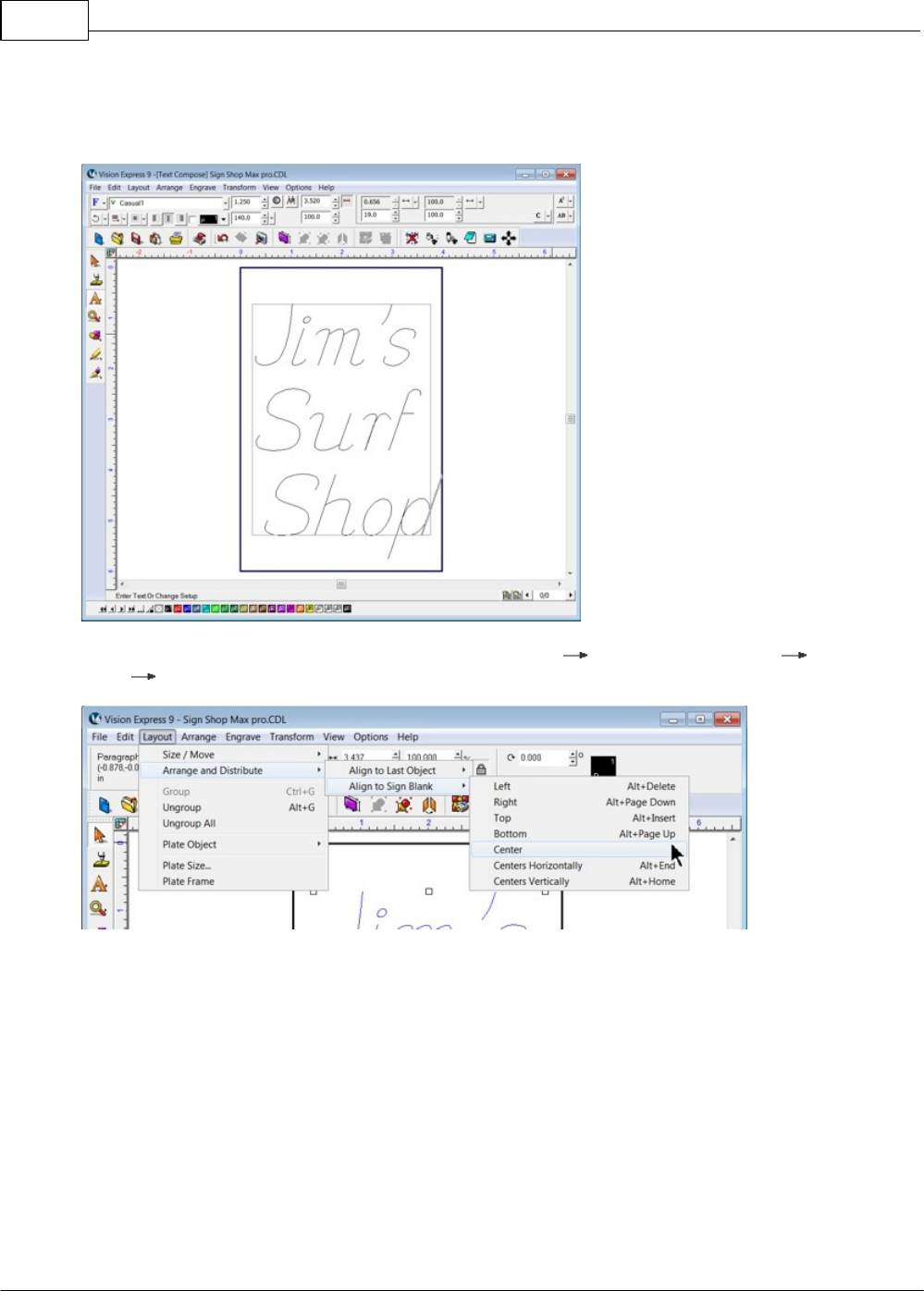
Vision Max User Manual98
© 2014 Vision Engraving Systems
The font was changed to Casual1, with a height of 1.250 inches and a slant of 19 degrees. The top and
center lines are left justified and the bottom is center justified in order to produce a sloping look to the
sign.
The text was then centered on the plate by selecting Layout Arrange and Distribute Align to Sign
Blank Center.
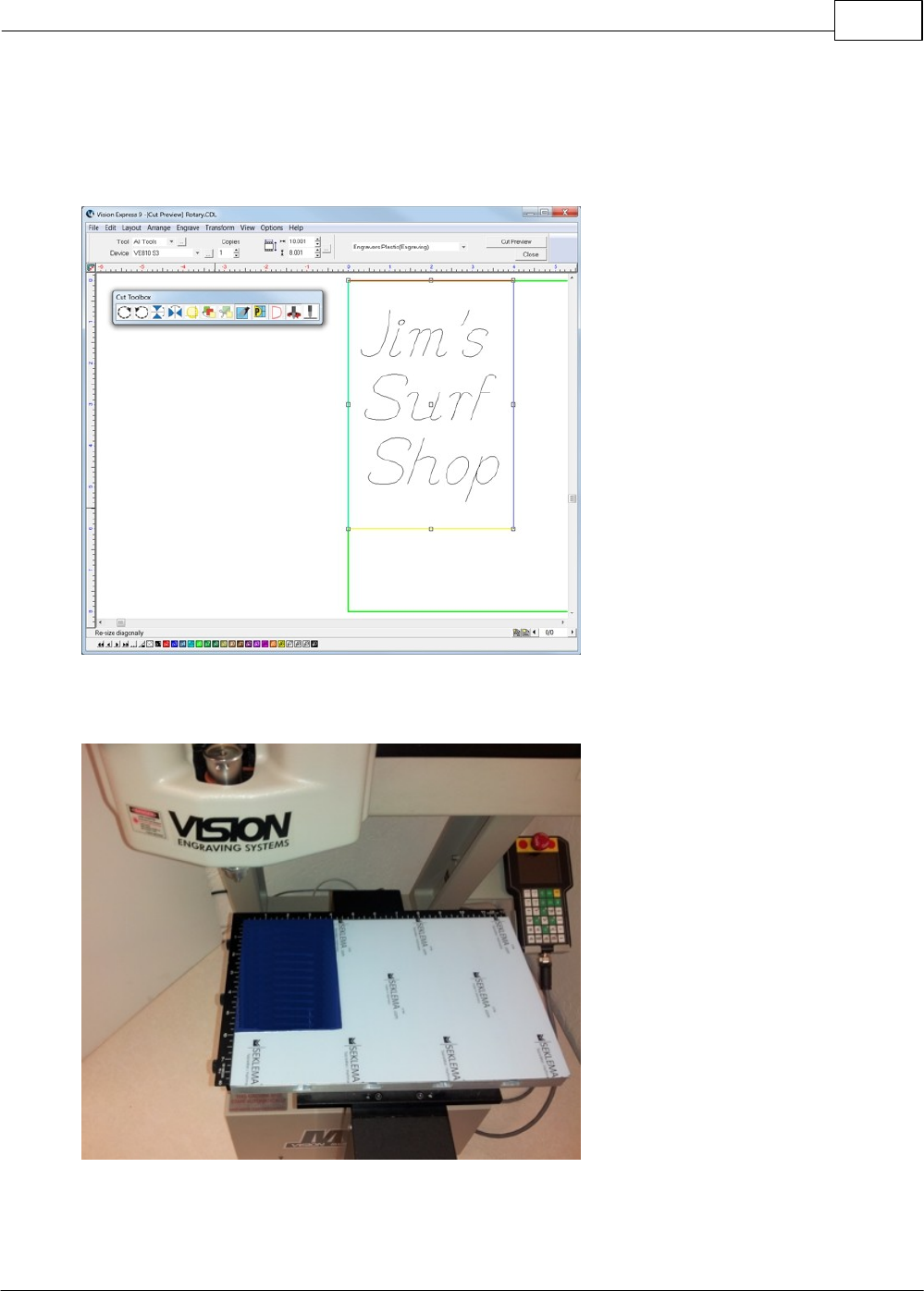
Example Jobs 99
© 2014 Vision Engraving Systems
Once the file has been set up, select the Engrave Icon, open the Tool Options window and select
Engravers Plastic(Engraving) from the Materials drop down menu. In the picture below, the Cut Toolbox
shows that the Vacuum, Prox, Dry Run, and Spindle are all enabled. Since this is the second example
job, sending a Dry Run job to the engraver is suggested. Select the Engrave Icon to send the file to the
engraver.
0
Place the material on the table (shown with Multi Mat on the T-Slot table to hold the engraving material in
place), and press the start button on the machine to begin engraving.
If the Dry Run showed no set up errors, the job can be re-sent to the engraver with the Dry Run
disabled.
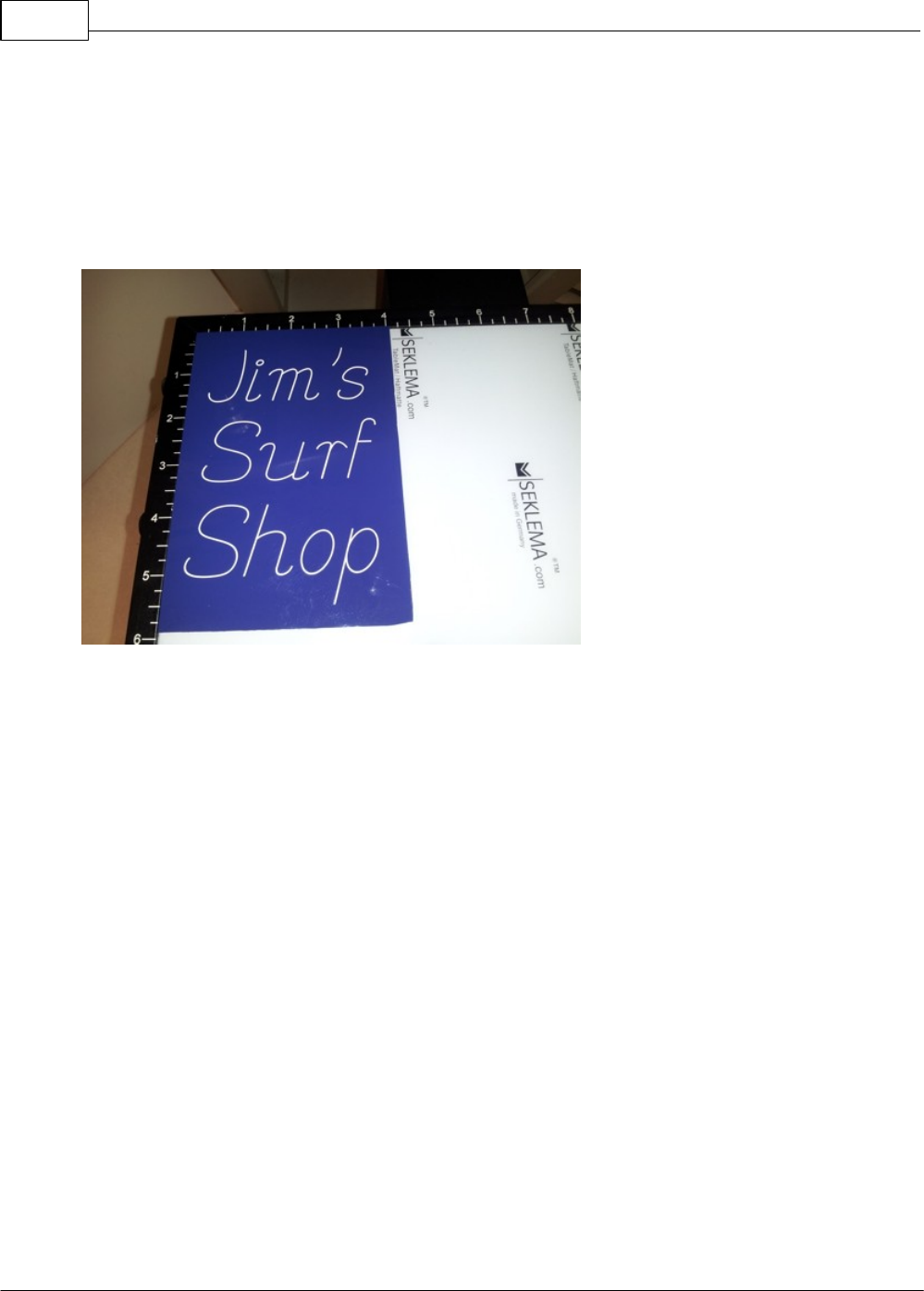
Vision Max User Manual100
© 2014 Vision Engraving Systems
NOTE - It is recommended to use the Vacuum Chip Removal System in this application. The design of
the Vacuum Chip Removal System is to clear the debris away from the engraved material and prevent
the chips from scratching the surface of the material during operation, and/or getting trapped between
the nose cone and the material (when using the proximity sensor function) and causing the engraver to
not engrave to the proper depth.
When the file is complete, remove the material from the table. HINT - Use a light bristle brush to clean
out any debris that may remain in the engraved characters.
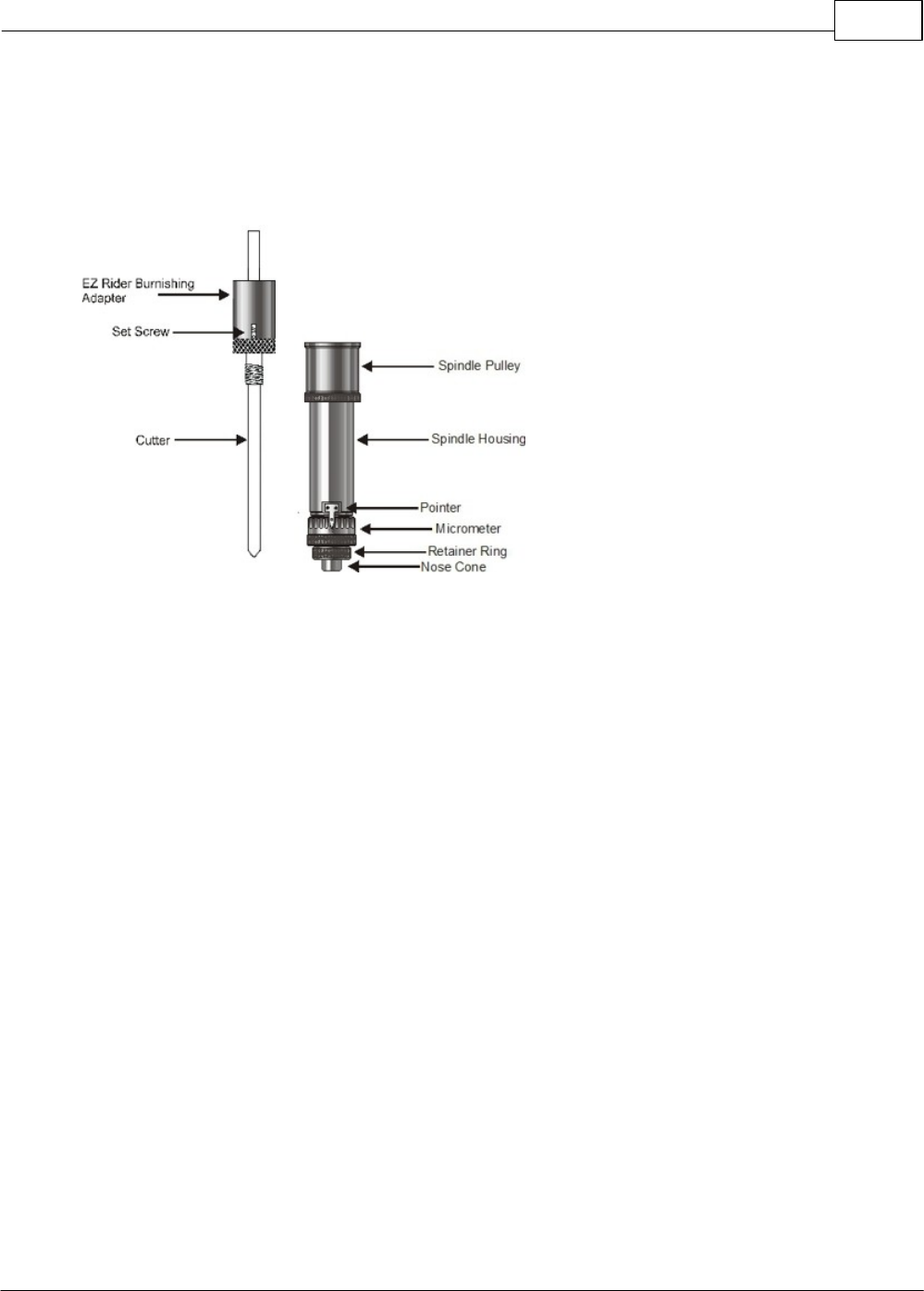
Example Jobs 101
© 2014 Vision Engraving Systems
4.1.4 Burnishing
In this section, we will set up to engrave with a burnishing cutter. The figure below shows a spindle with
a burnishing cutter and an optional EZ Rider burnishing adapter.
Spindle with Burnishing Cutter and EZ Rider Burnishing Adapter
Burnishing is different than standard rotary engraving mainly because the nose cone is not used to set
the depth of cut. Burnishing does not actually cut deep into metals, rather it cuts the painted surface
off of metals. To effectively burnish, it is recommended to use an optional EZ Rider burnishing adapter.
This helps to control the pressure of the cutter applied to the material. Burnishing requires less
pressure than other types of engraving and the EZ Rider attachment applies the proper amount of
pressure for burnishing.
Installing the EZ Rider is similar to using a cutter knob. First, screw the EZ Rider into the top of the
spindle hand tight. Next, insert the cutter through the EZ Rider and spindle so that the cutter sticks out
below the nose cone approximately 1/8 inch (3 mm). Tighten the set screw in the EZ Rider to hold the
cutter in place.
In order to set the engraver up for burnishing, we will need to perform a "Set Surface" function. Turn
the machine on and place the material on the table. Follow the steps below to perform the Set Surface
procedure.
a) Use the X & Y jog buttons to move the spindle over the material to be engraved.
b) Press the Set Surface button. The Pendant screen will display the message below
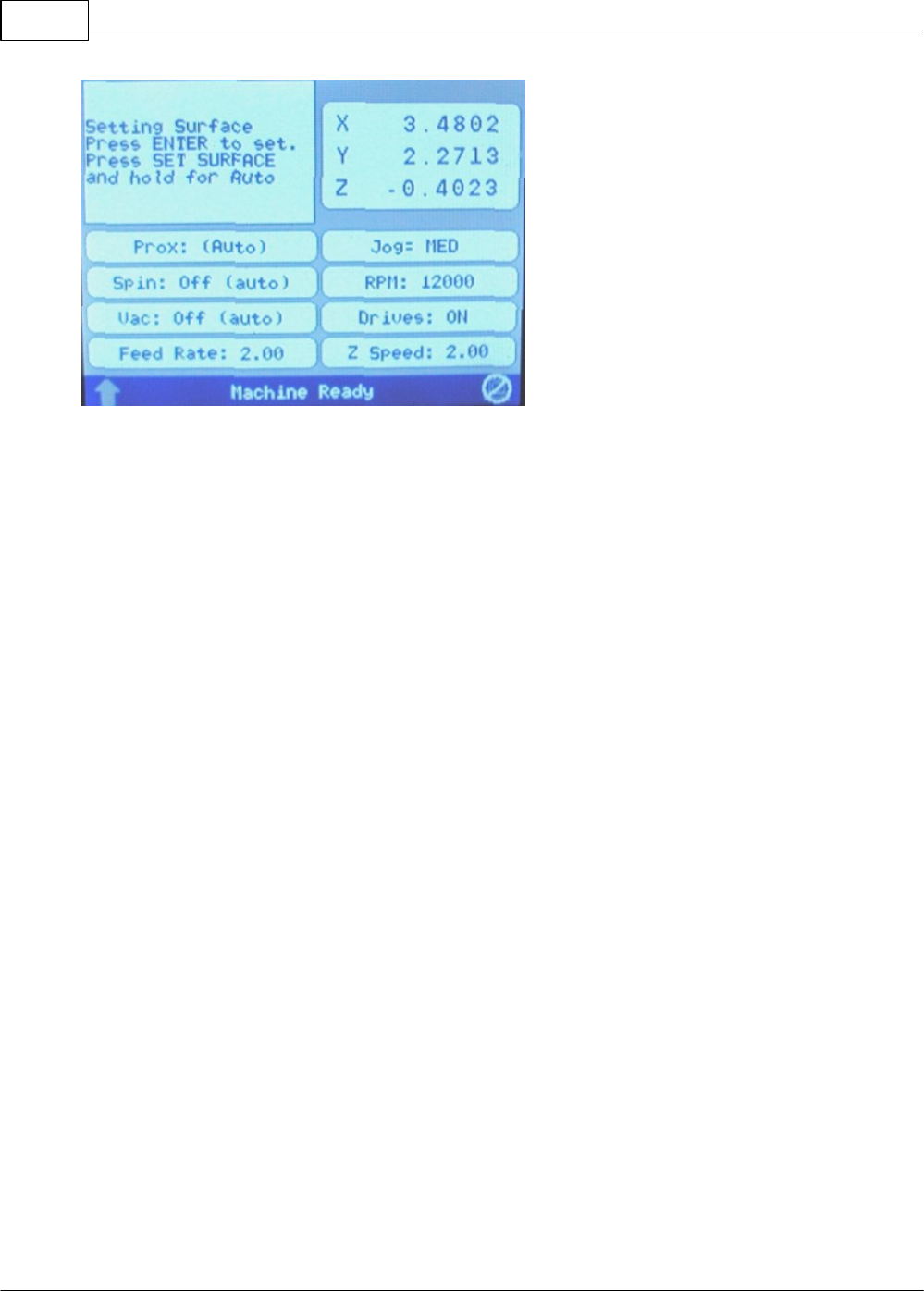
Vision Max User Manual102
© 2014 Vision Engraving Systems
c) Lower the spindle with the Z down jog button until the cutter tip touches the engraving material, then
continue moving the spindle down for another 0.030 - 0.050 inches (0.75 - 1.25 mm). This is called
"pre-loading" the adapter. Pre-loading the EZ Rider Burnishing Adapter sets the pressure applied by the
cutter on to the material. More or less pre-load can be used, depending on the material to be engraved.
The Z position shown on the Pendant screen can be used to view the Z position, and assist in the pre-
loading procedure.
d) Press the Enter button to set this as the surface position. The spindle will then move up to its lift
position.
HINT: It is sometimes easier to set the surface right before engraving the job. To do this, send a job to
the machine to be engraved. Press Pause. Press Start. The spindle will move to the first point to be
engraved and pause. You can then jog the Z down until it touches the surface and press Enter to set the
surface. Pressing Start will then begin the engraving process.
In the following example job, a burnishing file will be set up and run on coated brass material.
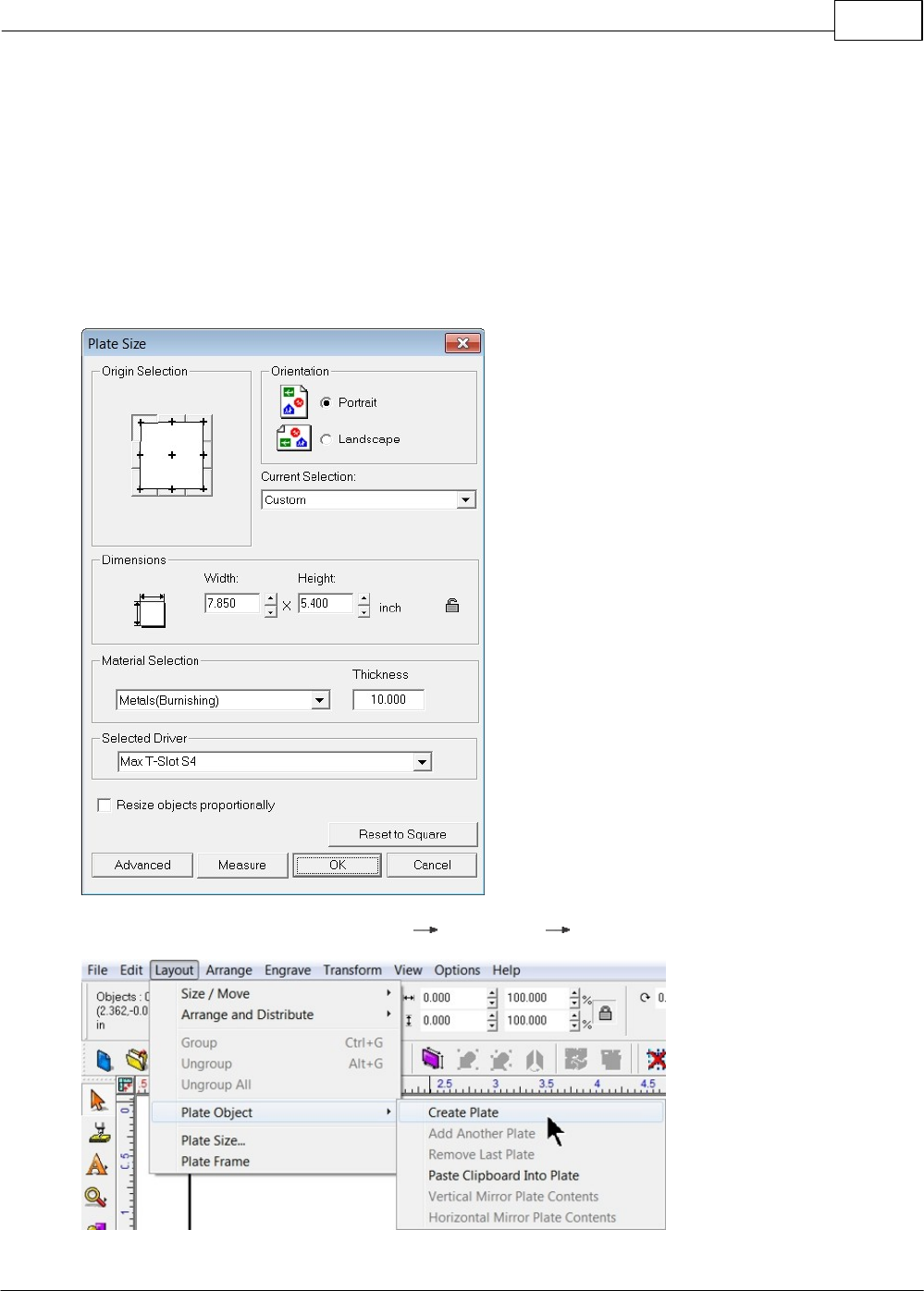
Example Jobs 103
© 2014 Vision Engraving Systems
4.1.4.1 Example Job 3 - Burnishing
In this example, another feature in the Vision Software will be introduced. We will create a Plate Object
in order to create multiple items with different text engraved on a single 7.85 x 5.4 inch (199.4 x 137.2
mm) piece of coated aluminum. The plate will use a text import function from an external text file that will
be copied into a plate template and the Vision software will automatically format the imported text. Make
sure the T-Slot table has been positioned so that the machine's home position is in the upper-left corner
of the T-Slot table, as described in the section - Positioning the T-Slot Table.
Begin by selecting the Plate Size Icon and setting the engraving area to a custom plate size with a 7.85
x 5.4 inch area.
To create the Plate Object, select Layout Plate Object Create Plate from the top toolbar menu.
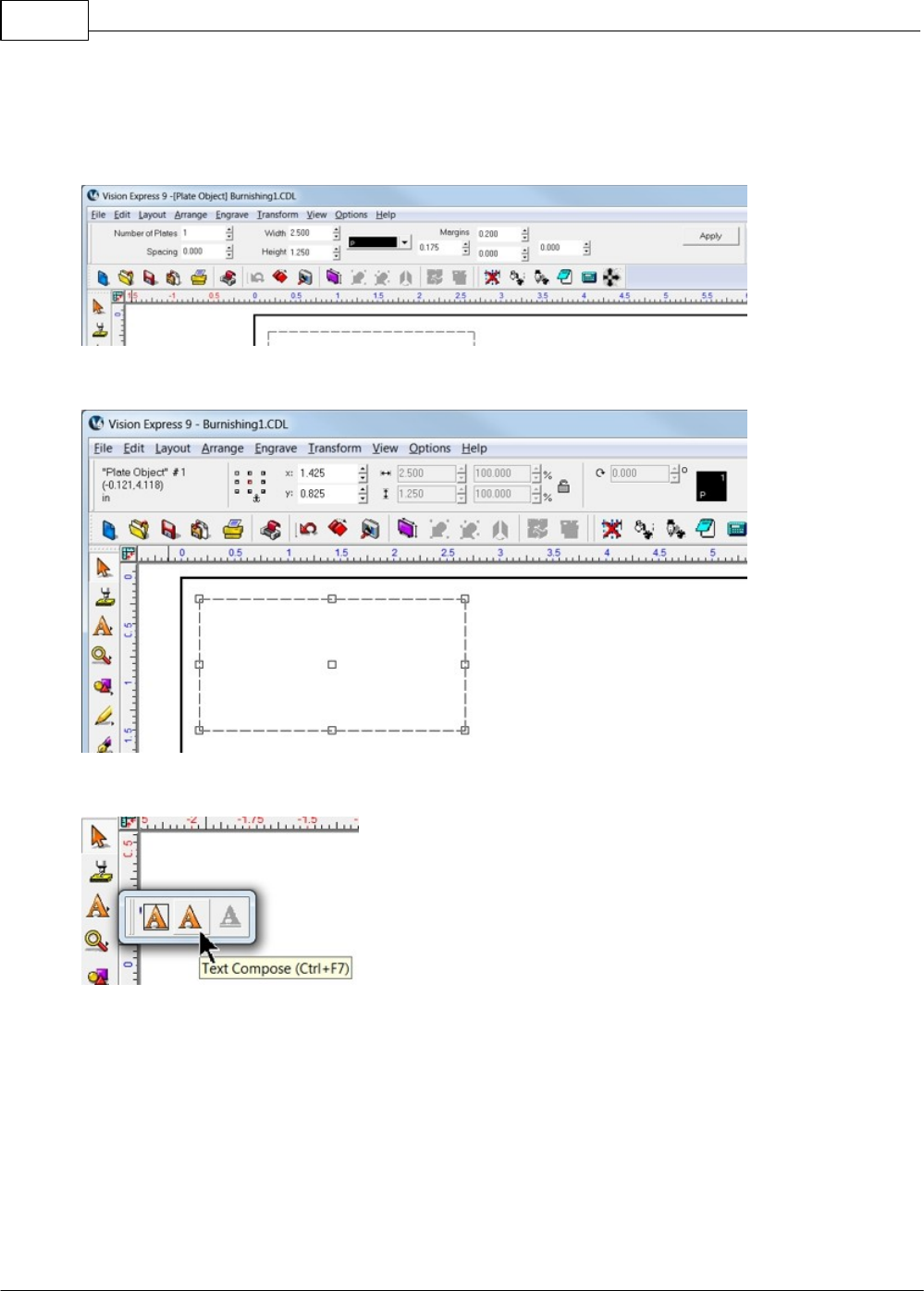
Vision Max User Manual104
© 2014 Vision Engraving Systems
Adjust the number of plates to 1, leave spacing at 0.000 inches, width and height to 2.500 and 1.25
inches, set the left margin to 0.175 inches and the top margin to 0.200 inches as shown, then click on
Apply. Note that the page margins on the toolbar are located such that the top field is for the top margin,
the left field is the left margin, etc.
The screen should then appear as below.
Select the Text Compose Icon.
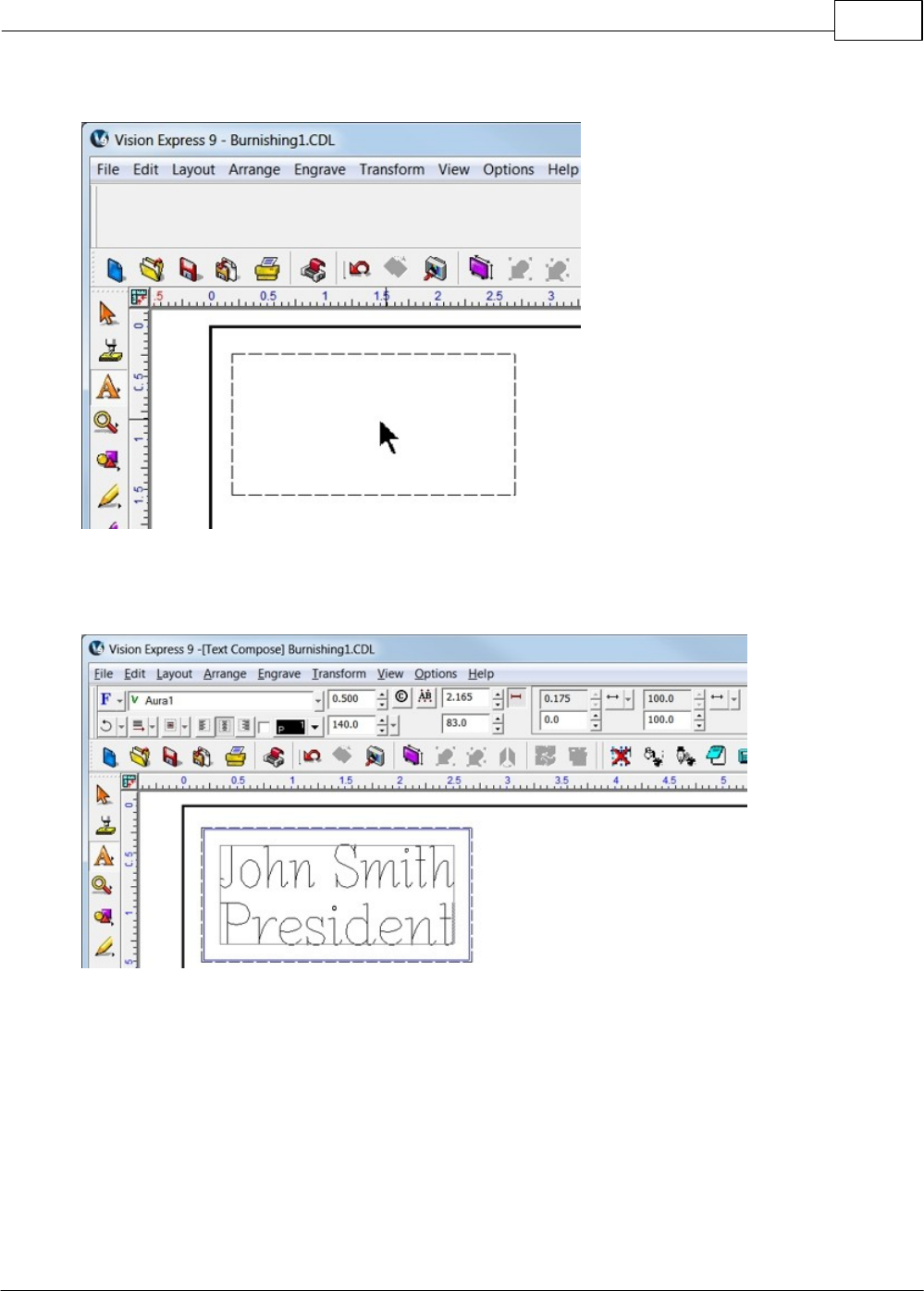
Example Jobs 105
© 2014 Vision Engraving Systems
Click in the middle of the Plate Object.
Enter any text in the format you wish to use. In this example, two lines of text are entered as variables (it
does not matter what you type. The text entered is only for formatting and will be replaced with the text
imported from the .txt file).
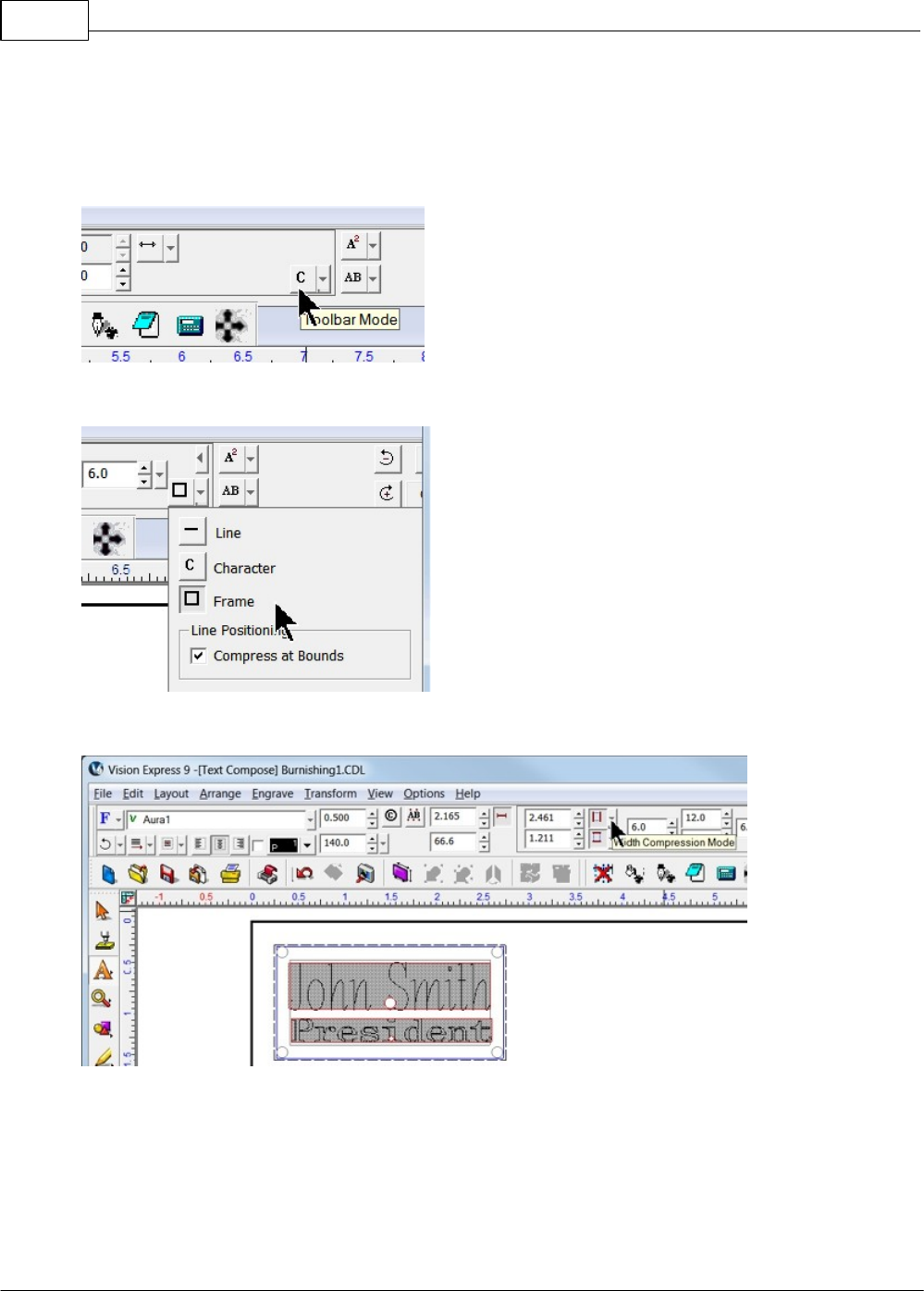
Vision Max User Manual106
© 2014 Vision Engraving Systems
Each line of text can be independently set for font and size. Highlight the text to be changed, then from
the font list on the top toolbar, choose the font to be used for the selected text and double click on the
font name. If the size or other parameters need to be revised, use the toolbar fields to modify the font
style. Please note that in this example, the Width Compression for the text was adjusted. In order to
adjust the Width Compression, select the text, then click on the Toolbar Mode icon (shown below).
Select Frame mode.
Select all text and select the Width Compression Mode by clicking on the drop down list (as shown).
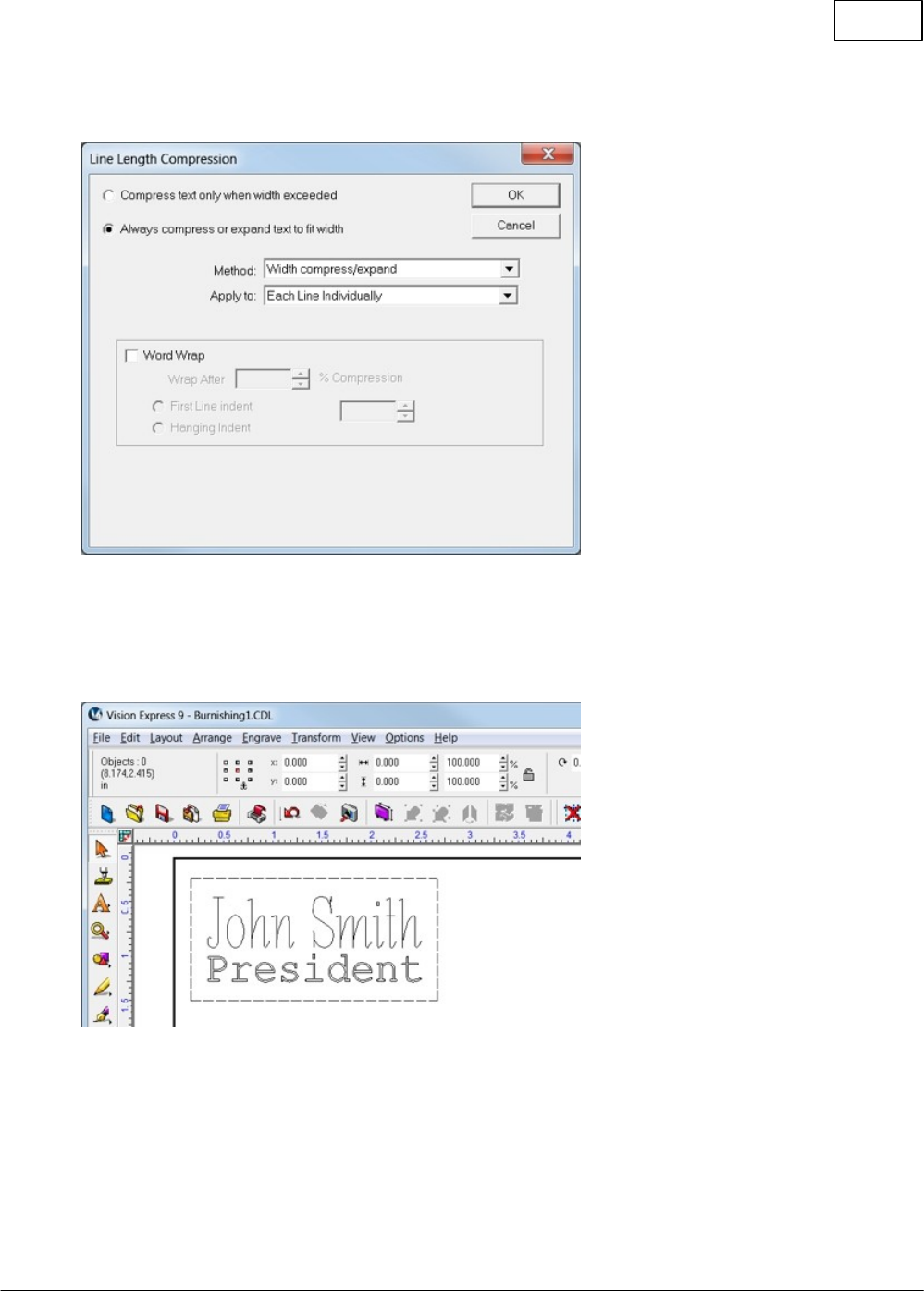
Example Jobs 107
© 2014 Vision Engraving Systems
Change the settings to Always compress or expand text to fit width, Method: Width compress/expand,
and Apply to: Each Line Individually. Deselect Word Wrap, then select OK.
For a detailed description of all the font modifications possible, refer to the Vision software help or user
manual.
Once changes have been made, deselect text mode by clicking in any open area of the screen, away
from the plate object.
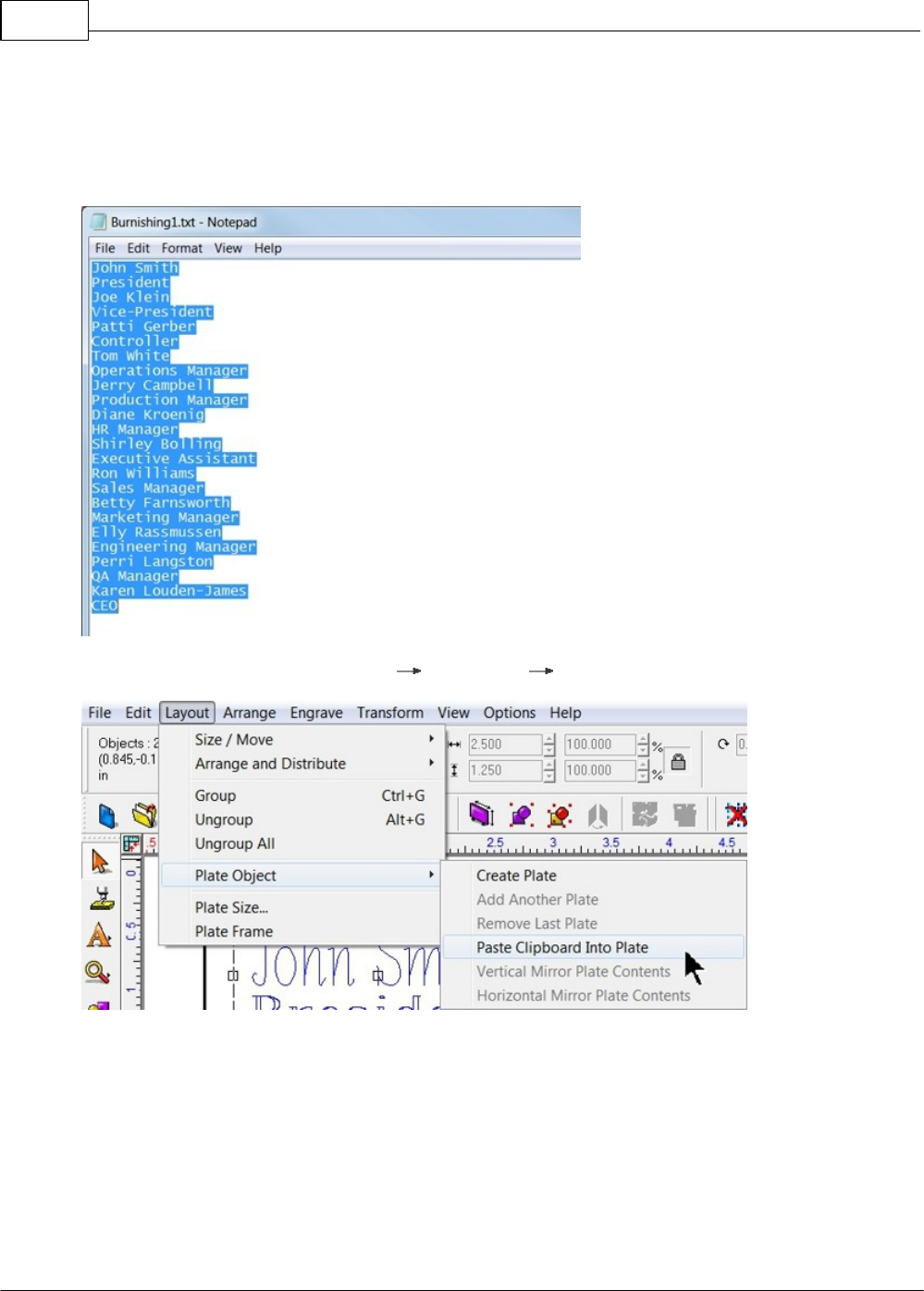
Vision Max User Manual108
© 2014 Vision Engraving Systems
In this example, a text file was created in order to copy and paste the variables into the Vision software.
Highlight the text and select copy from the edit menu (or right click and select copy). Note that in this
example, the two variables are entered as subsequent lines in the text file and that there may be
difficulties when importing from other file formats. A simple text file created in Windows Notepad is
suggested.
To insert the copied text, select Layout Plate Object Paste Clipboard Into Plate.
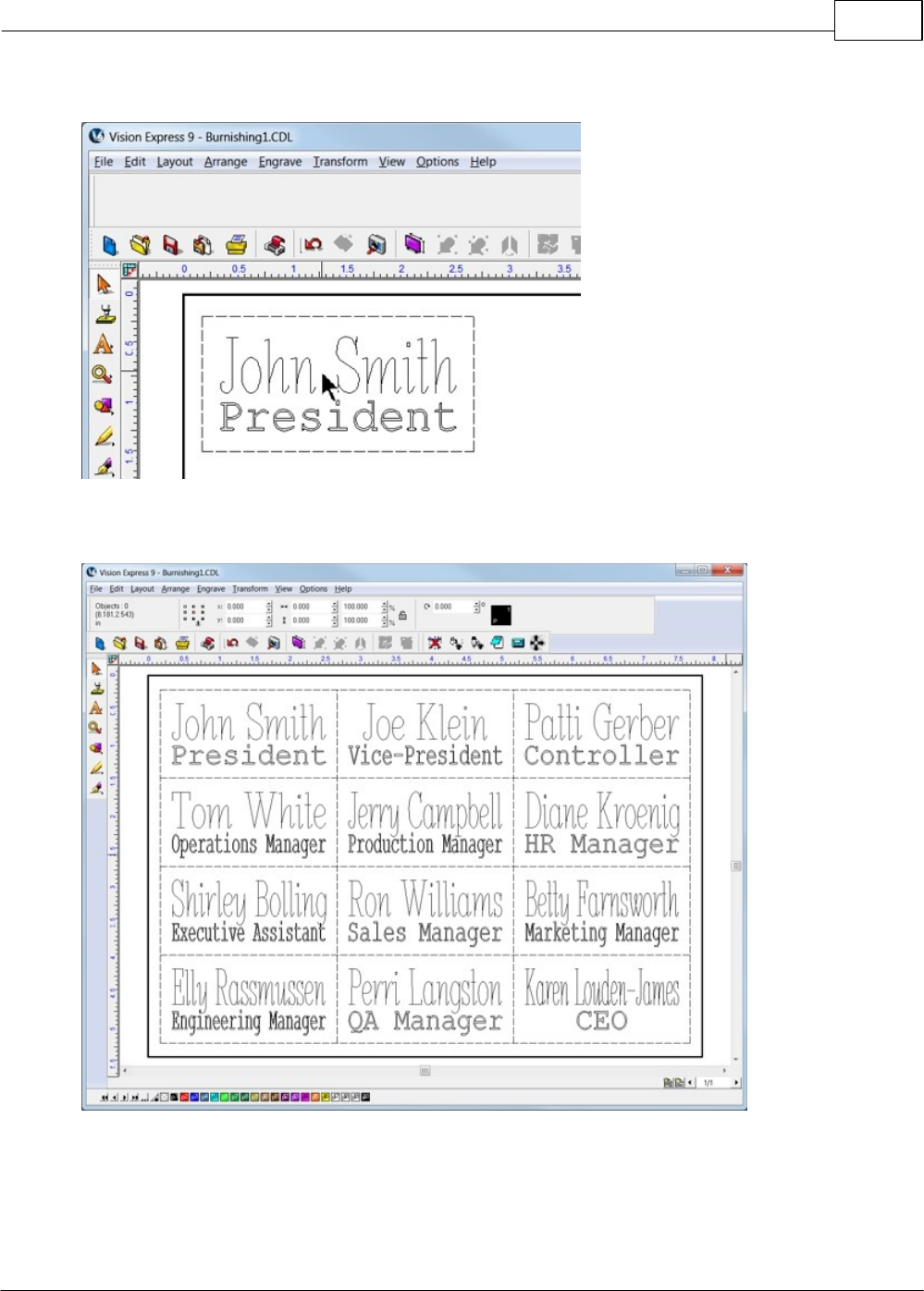
Example Jobs 109
© 2014 Vision Engraving Systems
Click in the center of the plate.
After clicking in the center of the plate, all fields are merged and multiple plate objects will be created
based on the number of text variables selected.
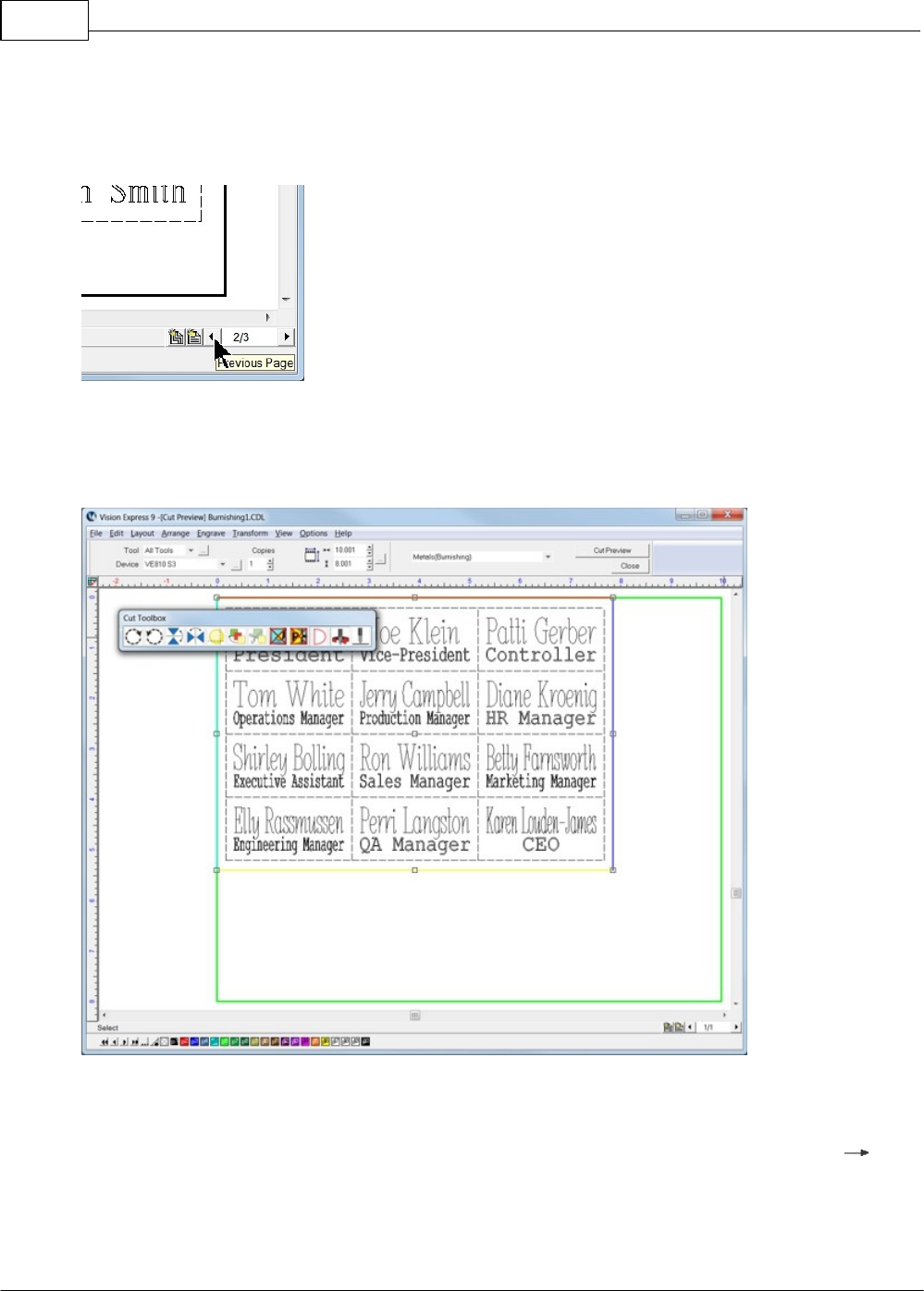
Vision Max User Manual110
© 2014 Vision Engraving Systems
Also, if there are more variables than can be fit into one plate in the Vision software, multiple plates (or
pages) are automatically generated for individual output to the engraver. The lower right corner of the
Vision software screen allows the user to view the individual pages. During the Engrave operation, the
user will select the page to be sent to the engraver.
To finish this example job, set up the engraver for a metal burnishing application as described in the
previous section and select the Engrave icon from the left toolbar. If you choose to run a Dry Run (as
shown) to make sure the setup is correct, proceed as in prior sections to send the file to the engraver.
Make sure you have performed the set surface procedure as well.
Note that if the plate objects are left as part of the file sent to the engraver, they will engrave as well. If
this is not desirable, simply select the plate object within the Vision software and delete it prior to
sending the file to the engraver. Alternatively, the plate object may be changed to a different color than
the text to be engraved, or you can print selected objects by changing a setting in the Engrave
Engraving Default screen from the top menu bar. The Engrave by Color option is discussed in the next
example job.
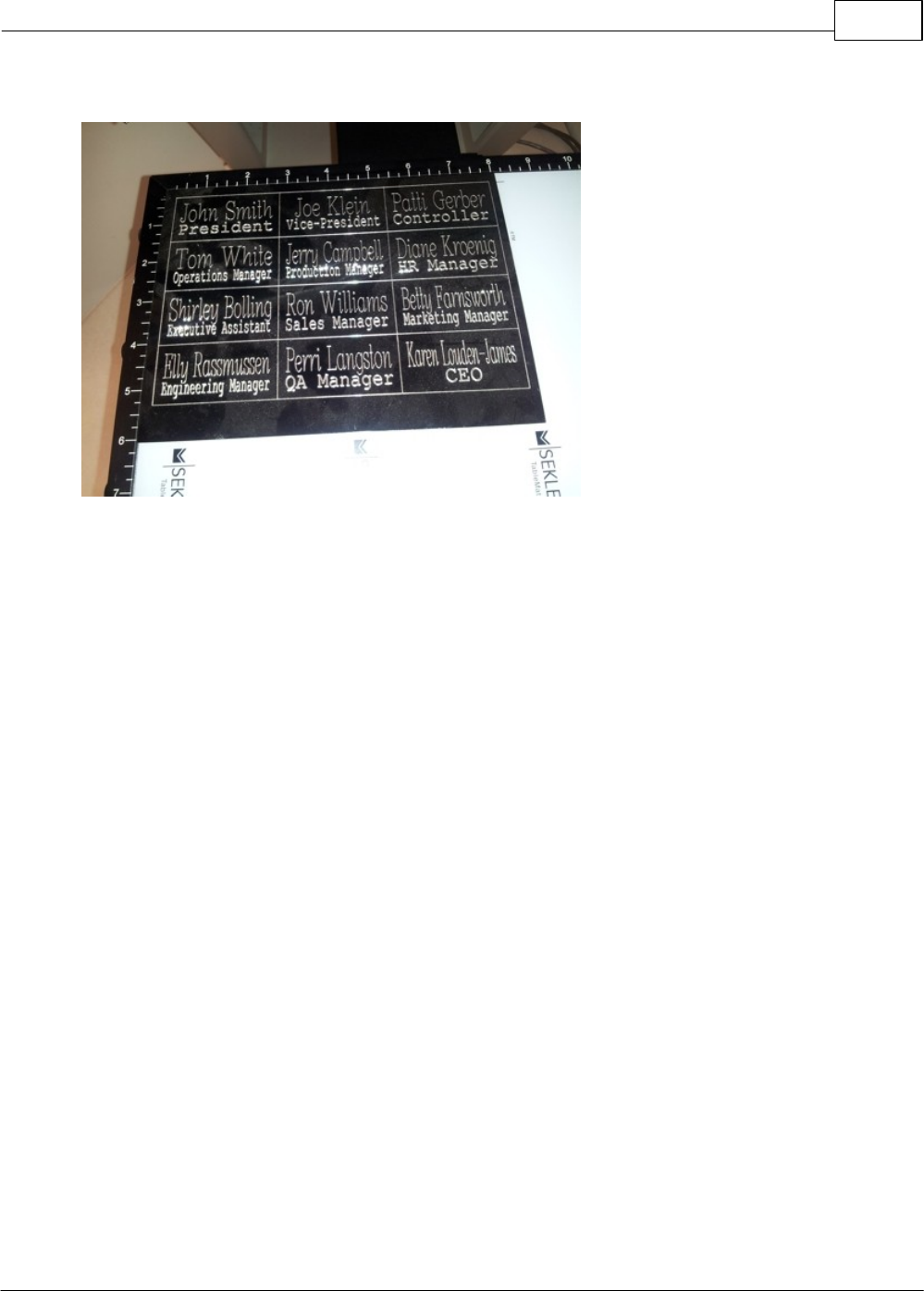
Example Jobs 111
© 2014 Vision Engraving Systems
In this example, the plate object lines were engraved.
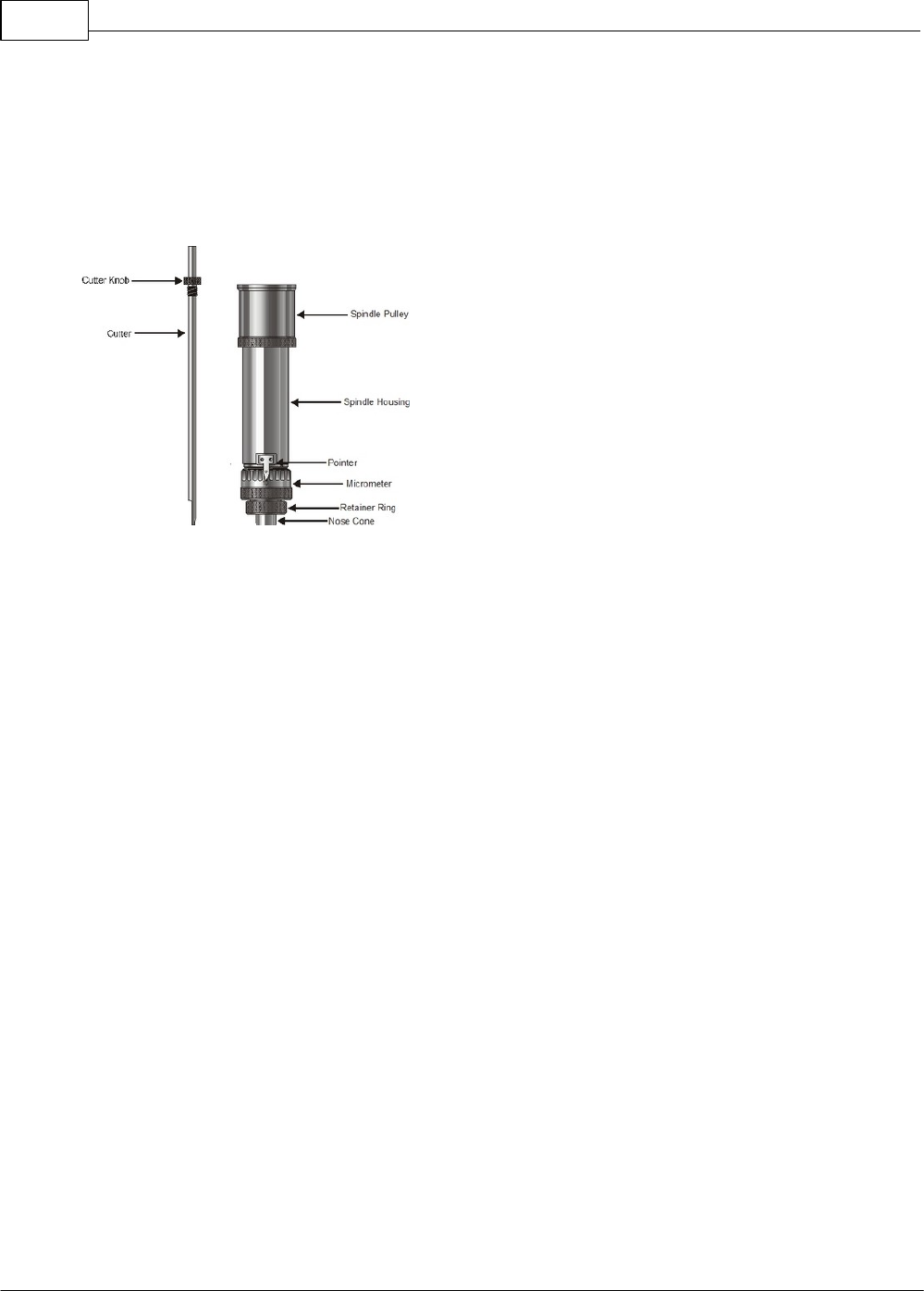
Vision Max User Manual112
© 2014 Vision Engraving Systems
4.1.5 Profile Cutting
In this section, we will set up to engrave with a standard engraving cutter and cut completely through
engraver's plastic with a cutter/beveler. The cutter/beveler is used to create a contrast on the edge of
the cut material. The figure below shows the spindle with a rotary cutter/beveler.
Spindle with Rotary Cutter/Beveler
To install the rotating cutter, loosen the set screw on the cutter knob with the supplied cutter wrench
and move the cutter knob to about the mid-point of the cutter tool, then lightly tighten the set screw.
Insert the cutter into the top of spindle and lower it until the cutter knob can be screwed into the
spindle. Tighten the knob COUNTER-CLOCKWISE (when viewed from the top of the spindle) until it is
hand tight. Then, you must zero the cutter. To do this, you must first turn the micrometer so that the
pointer points to 0. Note - it is helpful to first turn the micrometer to the left (clockwise) until threads just
start to appear on the spindle. This allows for sufficient depth adjustment when turning the micrometer
to the right. Zero the cutter, then set the engraving depth as described in the Rotary Engraving section.
You will then need to set the cutting depth of the cutter/beveler tool.
Setting Cut Depth for Cutter/Beveler Tool - Standard Method
If you have measured the thickness of the material to be cut, you can adjust the micrometer in two
ways - 1) adjust the cutter to cut through the material PLUS 0.001 - 0.003 inches (0.0250 - 0.075 mm).
This method will produce a clean cut of the parts and lightly cut into the sacrificial material underneath,
or 2) adjust the cutter depth to cut through the material MINUS 0.001 - 0.003 inches (0.0250 - 0.075
mm). This will create a "kiss cut" that will leave a very thin amount of material which holds all of the
parts together, then the parts can be snapped apart after removal from the engraver. This second
method is ideal in production environments where part handling is an issue.
Alternate Method For Setting Cut Depth for Cutter/Beveler Tool - "Stacked Material Method"
As an alternate to dialing the micrometer 50 or 60 clicks to set the cut depth on 1/16th inch plastics (or
up to 130 clicks for 1/8th inch material), this second method utilizes a second piece of the same kind
and thickness of material to be cut to set the cut depth. Refer to the below diagram - the material to be
cut is placed on top of the sacrificial material/Multi Mat materials. The material to be cut is held in place
either with double sided tape or by the spreay adhesive/transfer tape method detailed in the Holding
Down Materials section. Then a second piece of material is placed on top of the material to be cut. The
nose cone is lowered on top of the second piece of material (near its edge) and the cutter is adjusted
downward until it touches the top of the material to be cut. This, in effect, sets the cut depth to match
the material thickness. The cutter knob set screw is tightened, then the micrometer is adjusted, either
for a through cut (turning clockwise) or a kiss cut (turning counter-clockwise), 1 - 3 clicks.
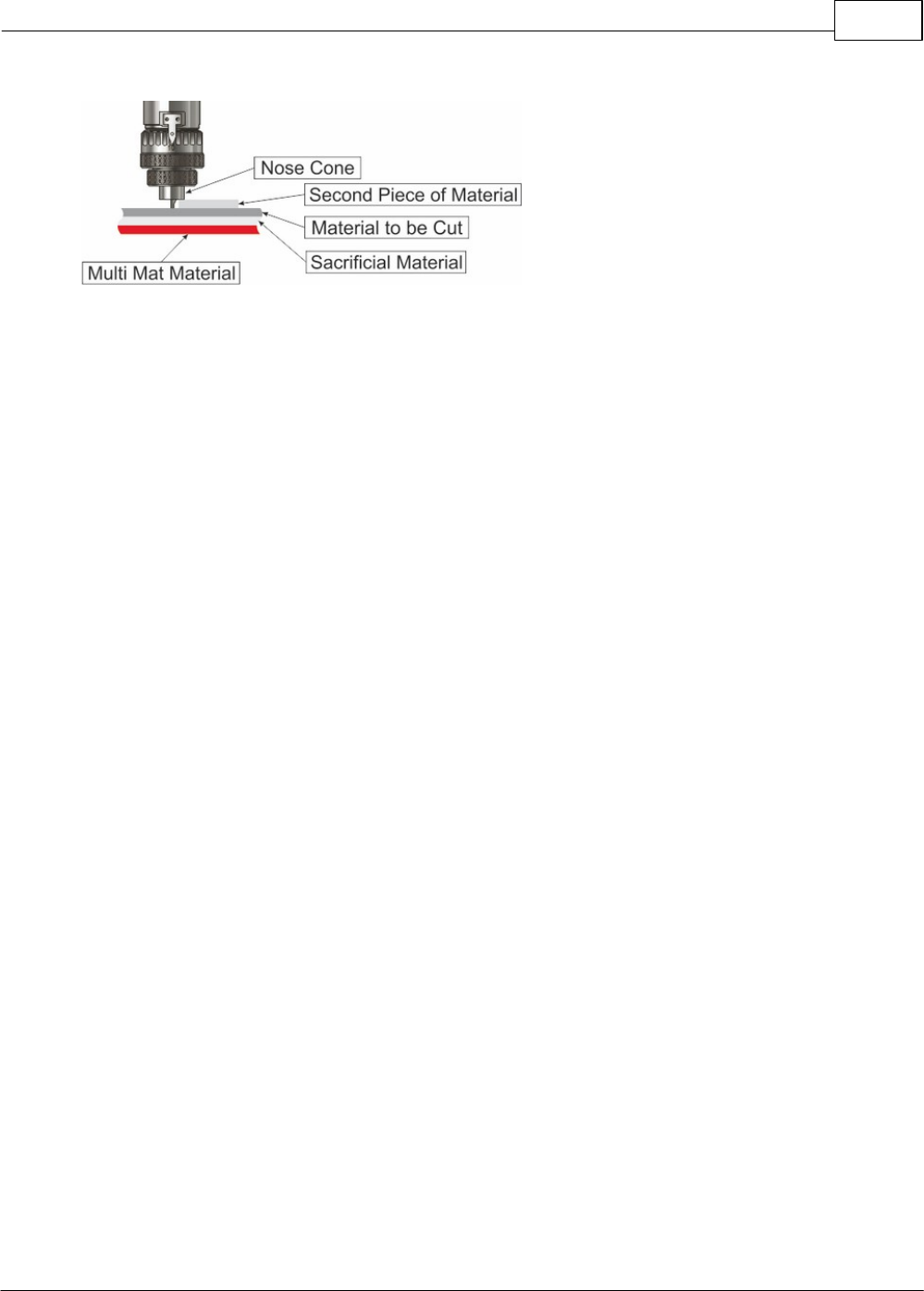
Example Jobs 113
© 2014 Vision Engraving Systems
Holding Down Material
Secure the material on the T-Slot table. It is best to use Multi Mat to hold the material in place, but keep
in mind that since we are cutting completely through, there will likely be cut marks into the Multi Mat
when the job is complete. A better procedure is to use a piece of sacrificial material on top of the Multi
Mat. DO NOT place the material to be cut directly on the T-Slot table. If you do, then the cutter will cut
into the T-Slot table and permanently damage the surface. Other methods for holding material down are
in the section Holding Down Material.
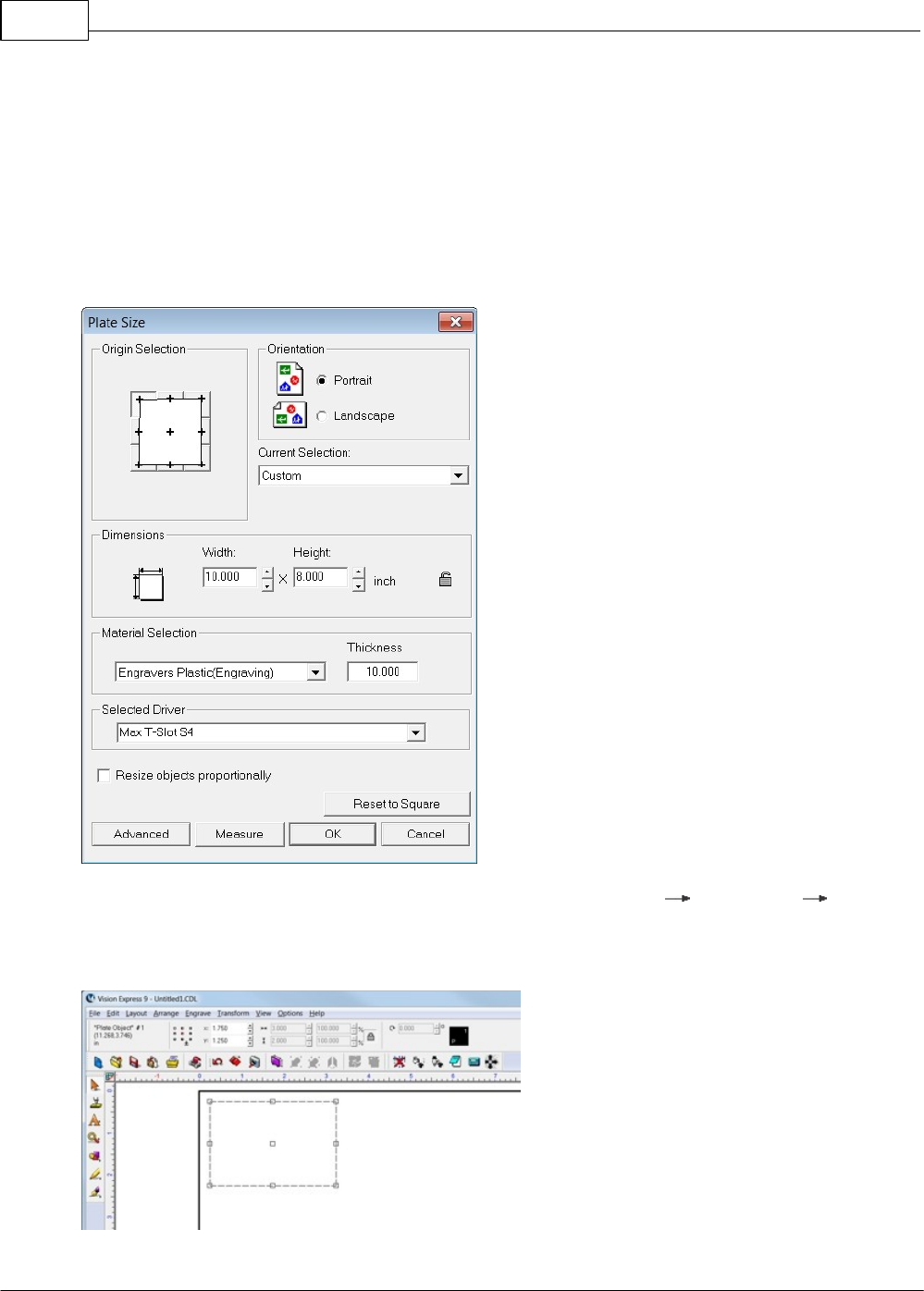
Vision Max User Manual114
© 2014 Vision Engraving Systems
4.1.5.1 Example Job 4 - Profile Cutting
In this example job, engravers plastic will be set up to engrave several name badges, then the badges
will be cut out. 1/16th inch standard engravers plastic is used. Two different tools will be used - one to
engrave, and one to cut/bevel the edges. Make sure the T-Slot table has been positioned so that the
machine's home position is in the upper-left corner of the T-Slot table, as described in the section -
Positioning the T-Slot Table. The Vacuum Chip Removal System is highly recommended for this
application and is shown in this example.
First, the plate size will be adjusted to a 10 x 8 inch size.
A single Plate Object will be created (from the top toolbar menu - Layout Plate Object Create
Plate) with a size of 3 x 2 inches (75 x 50 mm) and margins on the top and left side will be set to 0.25
inches (6.4 mm). The margins are necessary so that during the cutting operation, the cutter will not cut
right on the edge of the material, or on the edge guides.
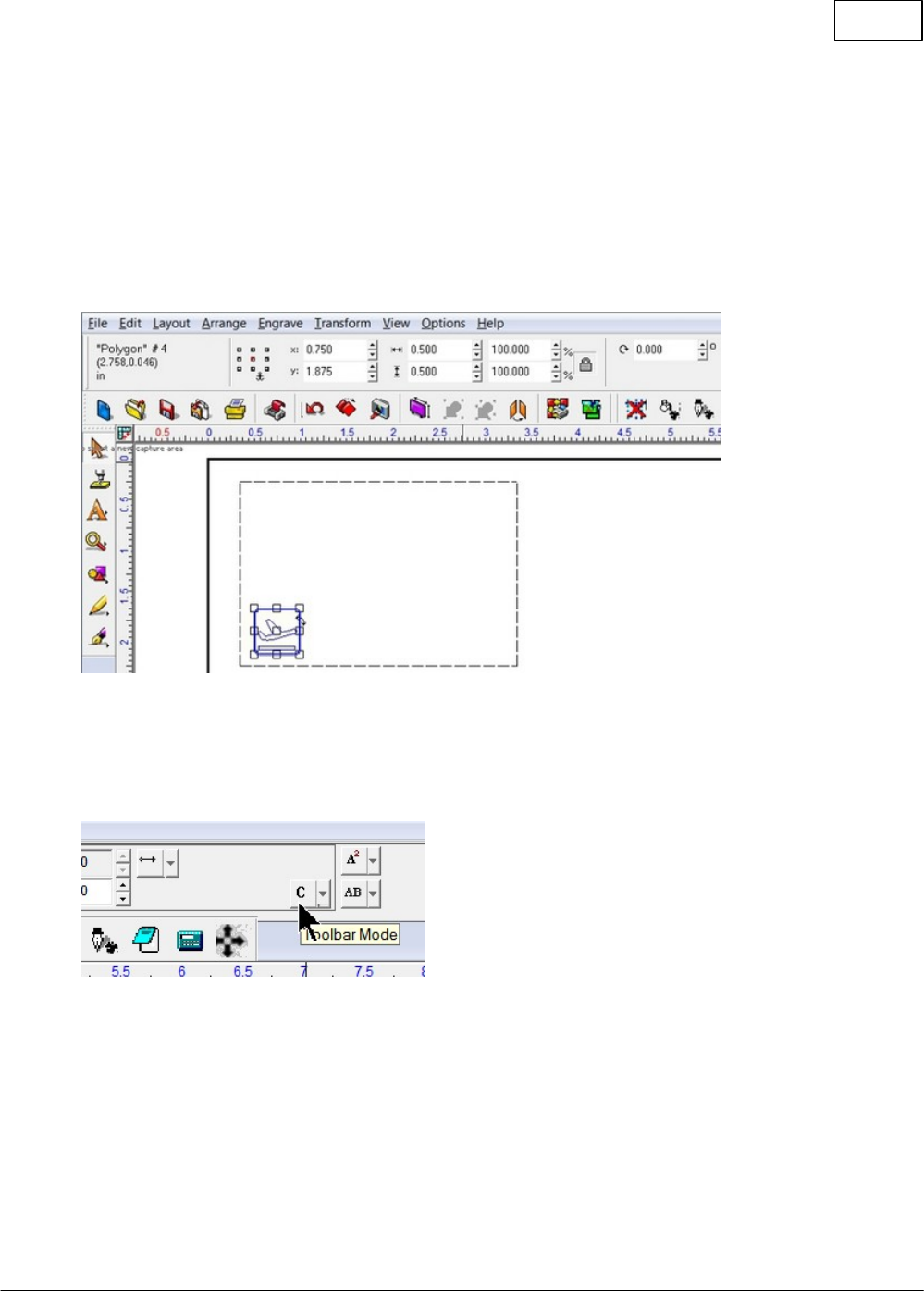
Example Jobs 115
© 2014 Vision Engraving Systems
A Clip Art image will be added to the badge. The image is GENE0038.CDL from the Vision software clip
art in the General folder (installed as C:\Vision Express 9\ClipArt\GENERAL. If you are using Vision
Expert or Vision Pro, the folder name will reflect your particular version). To import the clip art, simply
browse the folder in Windows Explorer and drag the file to the engraving area on the plate within the
Vision software. the image will be quite large, so it must be re-sized to fit, either by changing the size
manually on the toolbar, or by selecting the object and clicking on a corner node (holding down the left
mouse button) and dragging the corner to make the image smaller.
For this example, the image was re-sized to 0.5 x 0.5 inches (12.7 x 12.7 mm) and located at X 0.75, Y
1.875 as shown below.
Next, three text fields are entered with the Text Compose tool. At first, when clicking in the middle of the
Plate Object, the text field is set to centered within the plate and auto sized. We will adjust the text frame
size and location using text Frame mode. To enable, select the Toolbar Mode Icon on the toolbar (only
visible after selecting text, or after clicking on the Text Compose icon, then clicking within the plate
object), then select the Frame mode. This will allow sizing and placement of the text field.
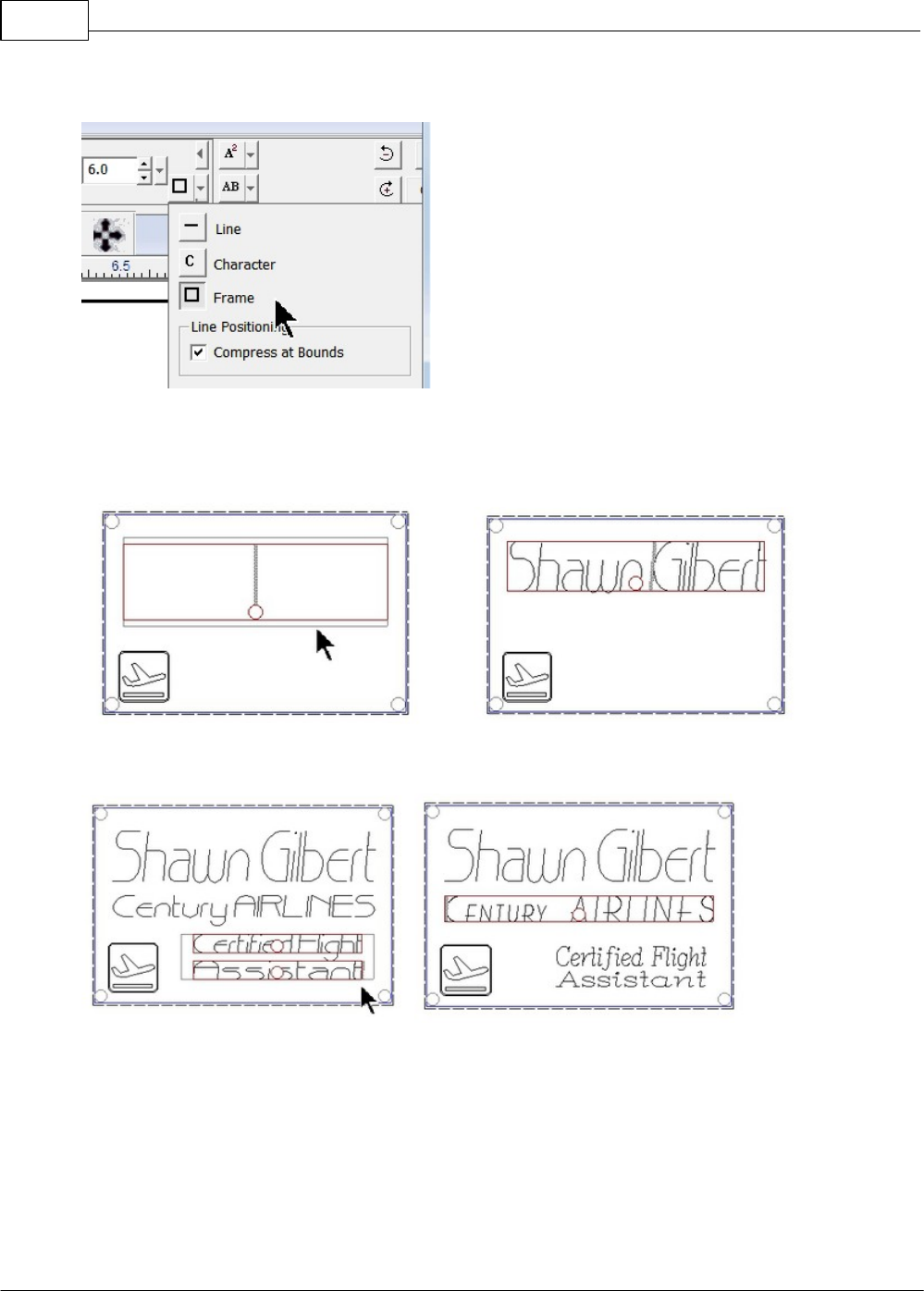
Vision Max User Manual116
© 2014 Vision Engraving Systems
Select Frame mode.
Next, we will re-size the text area and type in some text (it does not matter what text is entered here. It is
just entered to create the text object). To re-size the text frame, click and hold with the left mouse button
on the black edge of the text frame and drag the frame to the appropriate size.
then,
Two more text fields are entered in the same manner, re-sized, and fonts are changed.
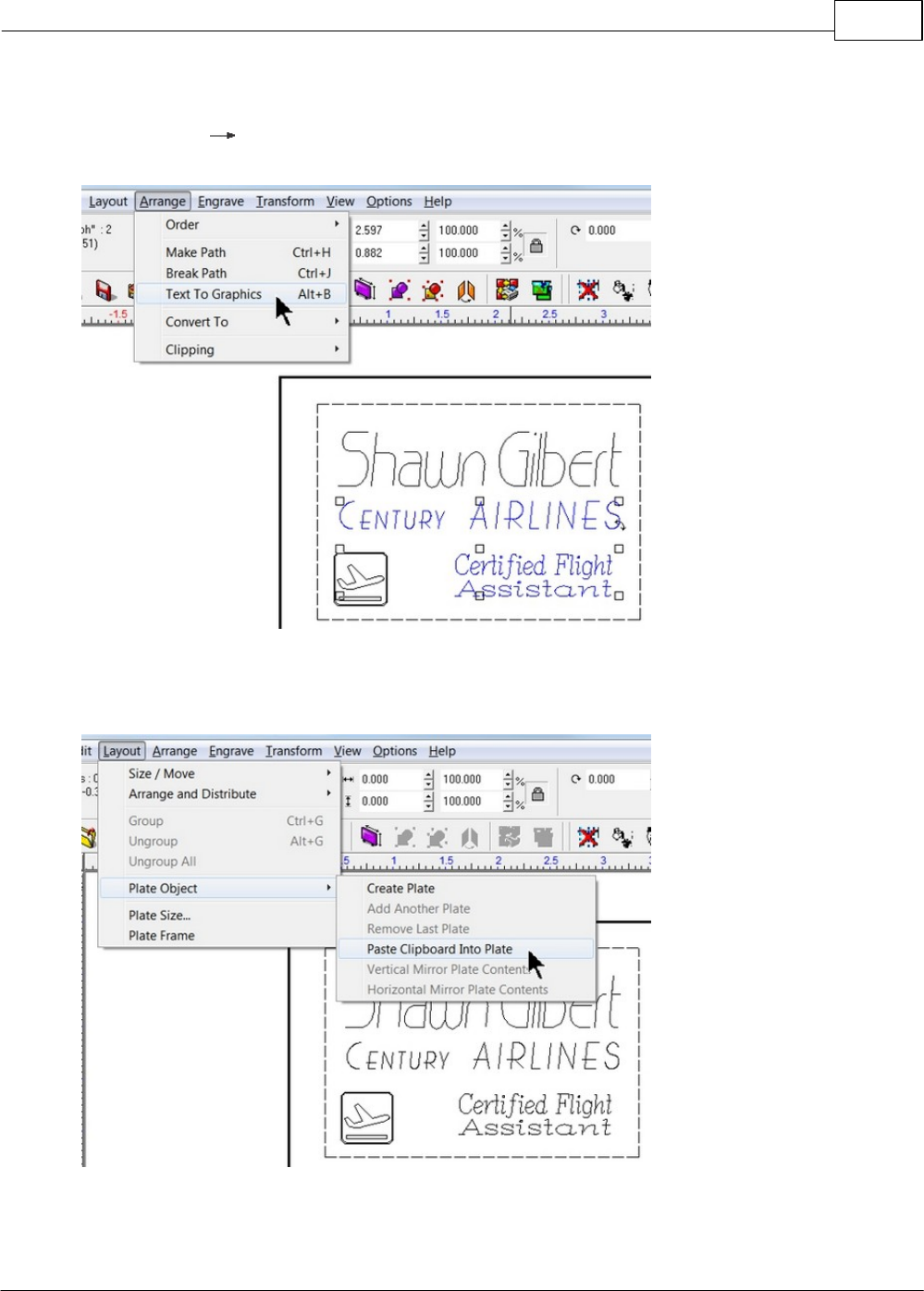
Example Jobs 117
© 2014 Vision Engraving Systems
At this point, we need to change the two fixed text fields to graphics, so that when we import the text file
for multiple badges, the correct text is replaced. Select the two text fields shown and from the toolbar,
select Arrange Text To Graphics. HINT - to select more than one object, click on the first object,
hold down the Shift Key, then click on additional objects.
The two text fields are now non-editable graphics and will not be replaced when importing a text file with
variable text. Next, copy the list of text variables from a Notepad text file and select Paste Clipboard Into
Plate, then click in the middle of the Plate Object.
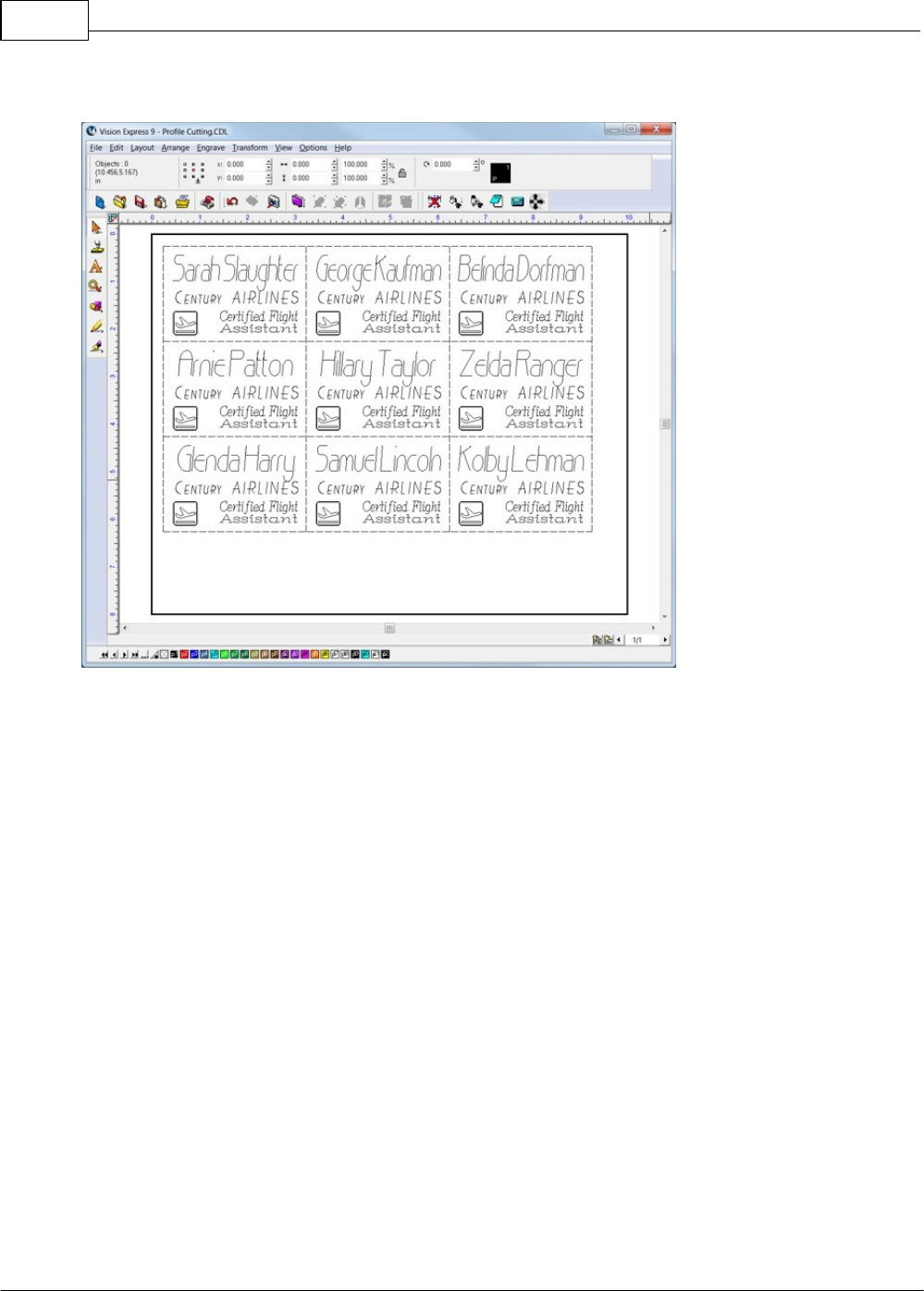
Vision Max User Manual118
© 2014 Vision Engraving Systems
The screen should appear as below after pasting the names into the plate.
Lastly, before we send the file to the engraver, we will separate the graphics into two different colors,
one for engraving and one for cutting. This is necessary so that two files can be sent to the engraver
independently and a cutting tool change can be performed after engraving. To change the Plate Object
frames to another color (red in this example), select the Plate Object frame, then click on the Red color
icon on the bottom toolbar of the Vision software. It is also a good idea to verify the color of the other
objects on the screen. If all other objects are to be Black, then select everything except for the Plate
Object frame and click on the Black color icon at the bottom of the screen. Many times, when importing
graphics, the color is unknown, so making sure the graphics are the correct color is good practice.
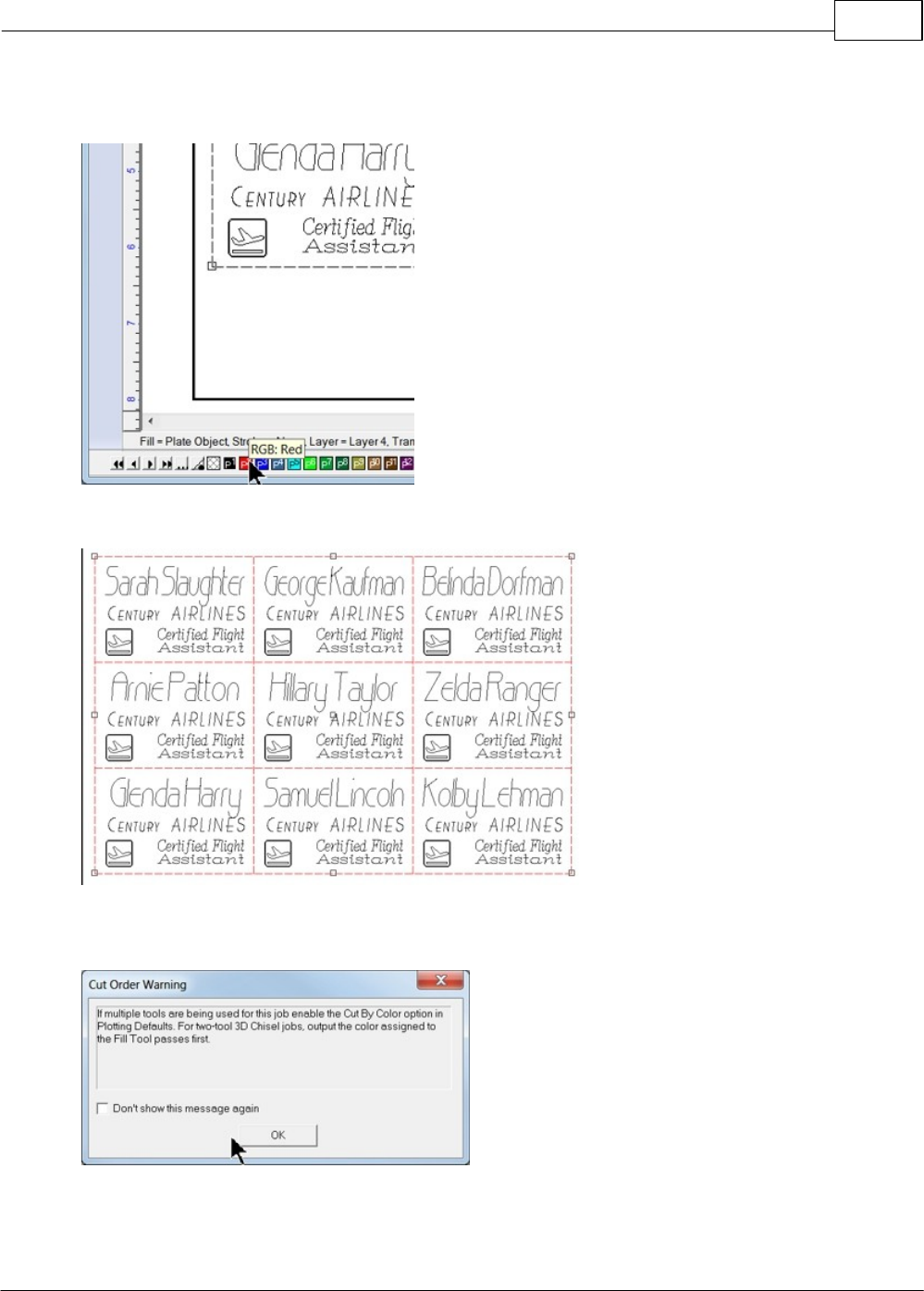
Example Jobs 119
© 2014 Vision Engraving Systems
Note that is there is more than one page of names, each page of the file will need to have the
plate frame color changed.
After changing the plate frame color.
If you try to send this file to the engraver at this point (by clicking on the Engrave icon), a warning
screen may appear as below.
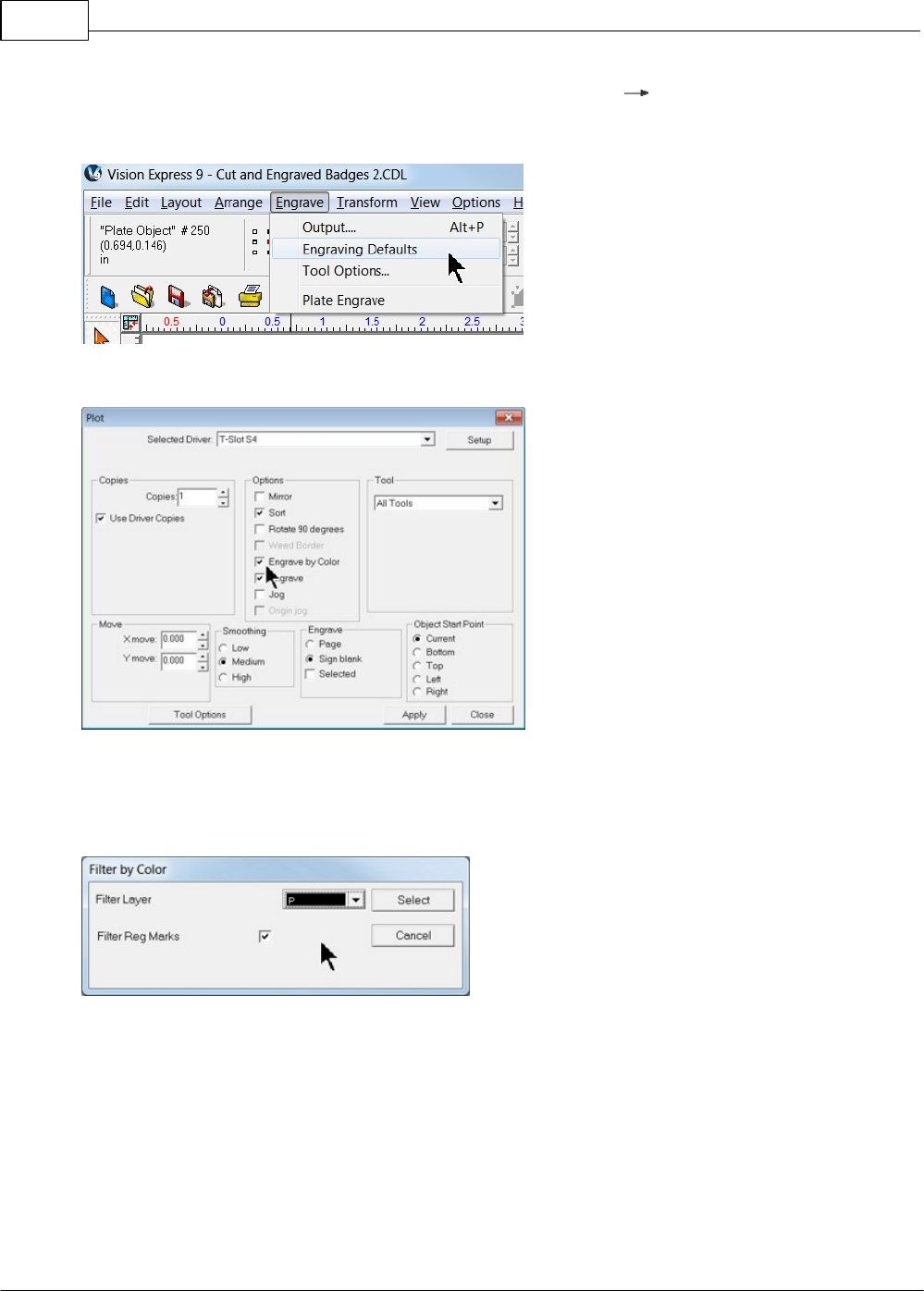
Vision Max User Manual120
© 2014 Vision Engraving Systems
In order to engrave by color, from the toolbar menu select Engrave Engraving Defaults (Note that
the Cut Order Warning screen refers to the "Plotting Defaults", but the menu item is "Engraving
Defaults"),
then make sure Engrave by Color checkbox is selected, then Apply and Close.
In order to send the engrave file to the engraver, select the Engrave icon from the left toolbar, at which
time the Filter by Color window will appear. Select the color to send to the engraver in the Filter Layer
drop down box. In this example, all text and graphics are Black, so the color Black (P1) was selected
from the drop down menu in the Filter by Color window.
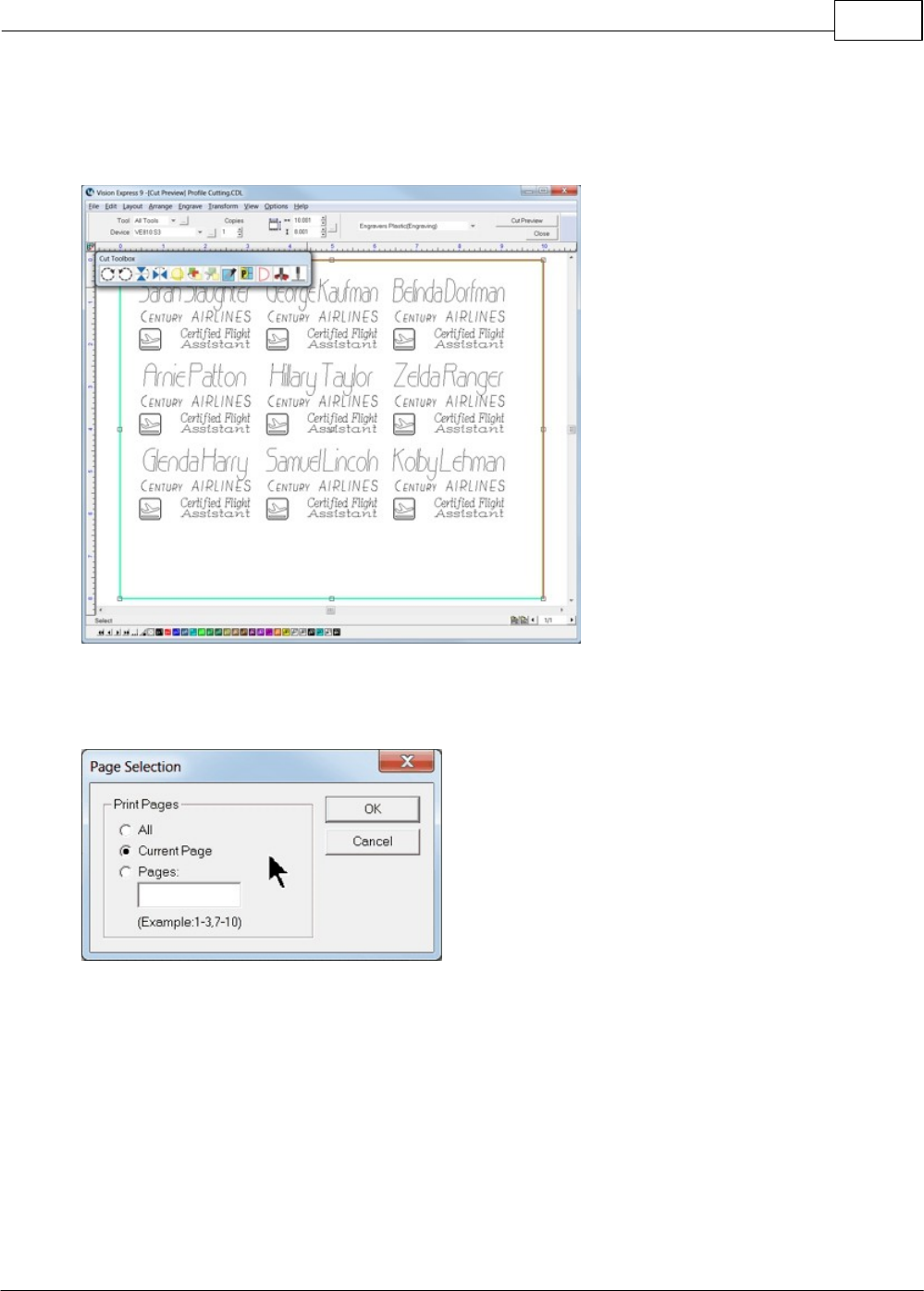
Example Jobs 121
© 2014 Vision Engraving Systems
After clicking on Select, the Vision software window will show only the color being sent to the engraver,
in this case, black. Make sure that Engravers Plastic(Engraving) is the material selected, and all options
are turned on in the Cut Toolbox, including Dry Run for this example file. Select the Engrave icon from
the Cut Toolbox to send the file to the engraver.
If there are multiple pages, the Page Selection screen will appear for you to choose which page(s) to
send to the engraver. In this example, the Current page will be sent by itself so that the cut file can be
sent afterward.
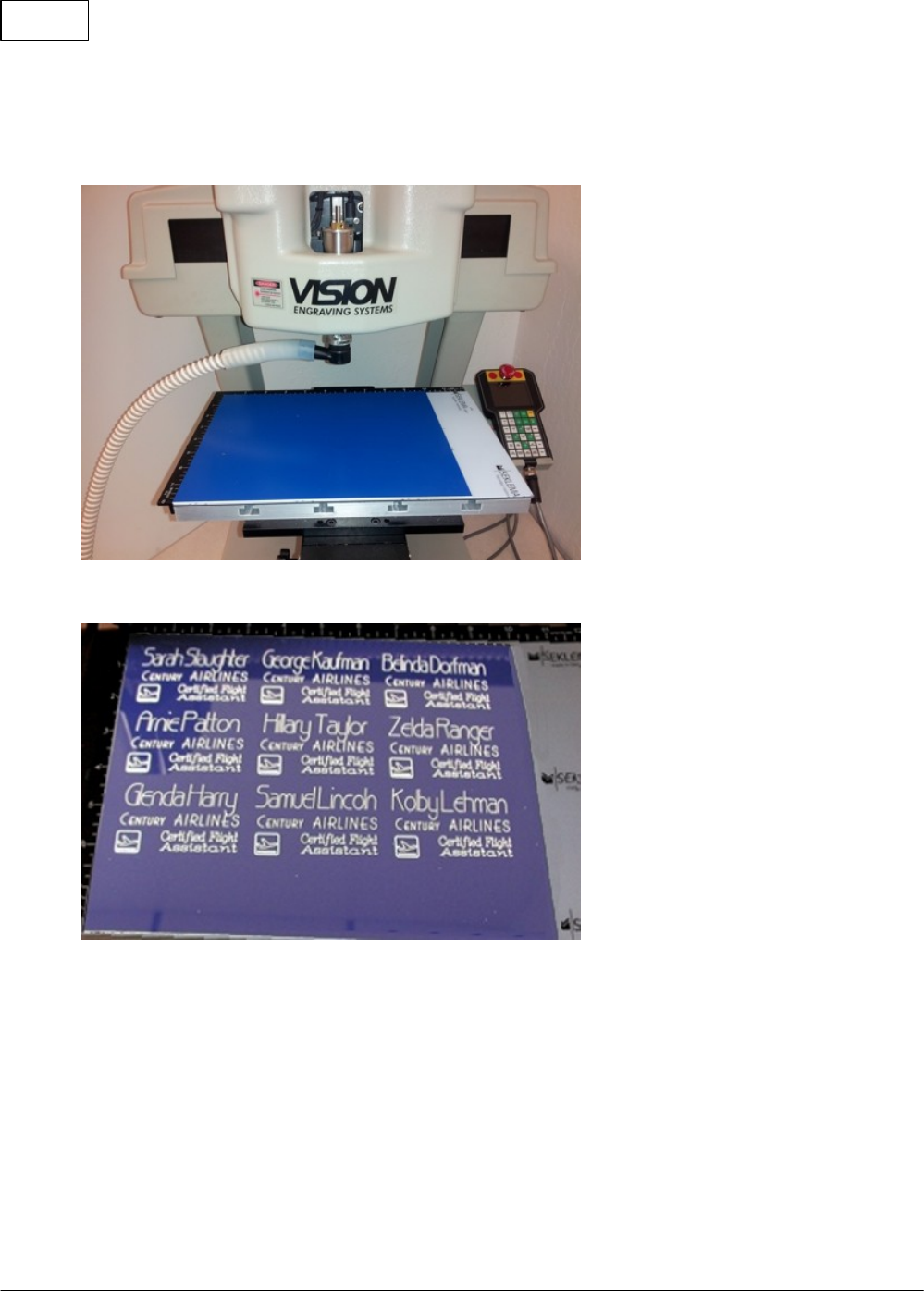
Vision Max User Manual122
© 2014 Vision Engraving Systems
After selecting OK, the engraving file is sent to the machine. Place the material on the table and make
sure the engraver is set up as in Rotary Engraving section before running the file. Use the proper
cutting tool for the engraving application. Note that the nose cone for the vacuum chip removal system
has been installed in this picture.
After pressing Start and finishing the job,the engraved portion of the file should appear as shown.
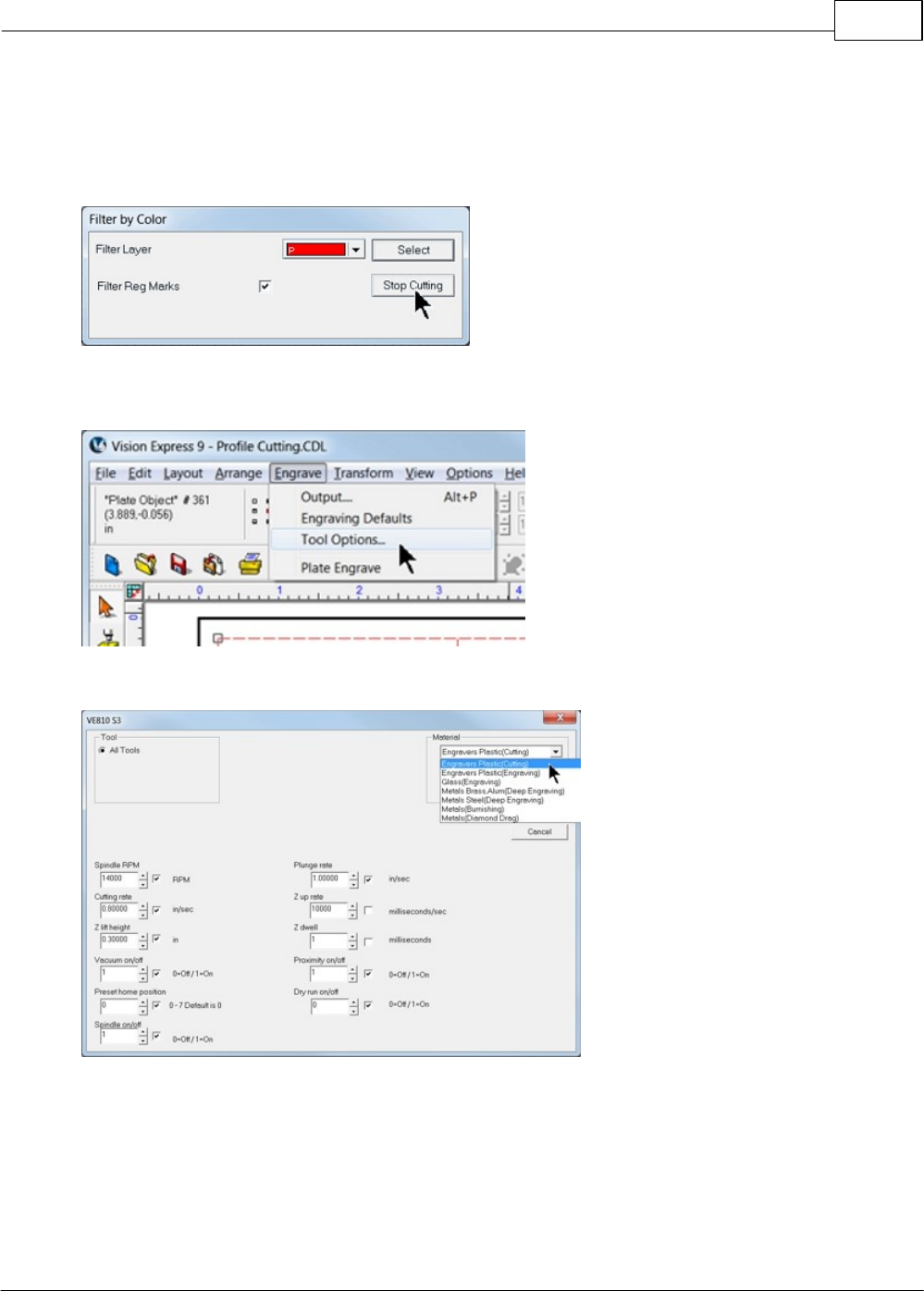
Example Jobs 123
© 2014 Vision Engraving Systems
Cutting
After sending the engrave file to the machine, the Filter by Color window will re-appear, signaling that
the software is ready for you to send another file to the engraver. Since we need to change the material
setting, select Stop Cutting.
To change to the material setting for cutting, select Engrave from the top toolbar menu, then Tool
Options.
Select Engravers Plastic(Cutting) from the Material drop down list, then select OK.
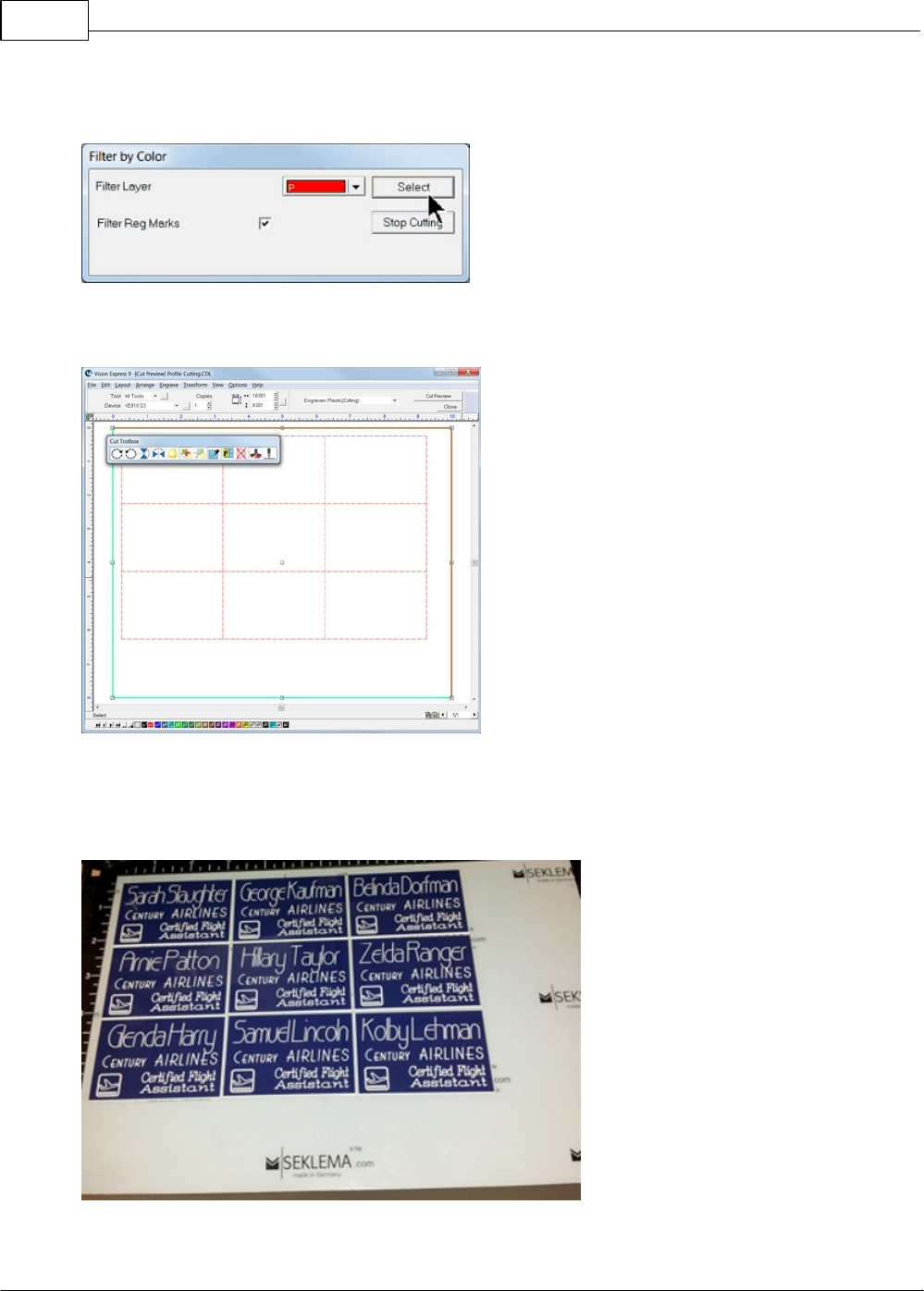
Vision Max User Manual124
© 2014 Vision Engraving Systems
Select the Engrave icon from the left side toolbar, then select the color for cutting in the Filter Layer
drop down box in the Filter by Color window (select Red for this example),
then select Engrave from the Cut Toolbox. The screen will show only objects in the color selected in the
Filter by Color window.
The page selection screen will re-appear, for this example, choose Current Page and select OK. The
file will be sent to the engraver. Make sure you have installed the cutter/beveler tool for this process and
set up the cutting depth as described in the previous section. When the file is complete, it should
appear as shown. (The outside/excess material was removed in the picture below for clarity)
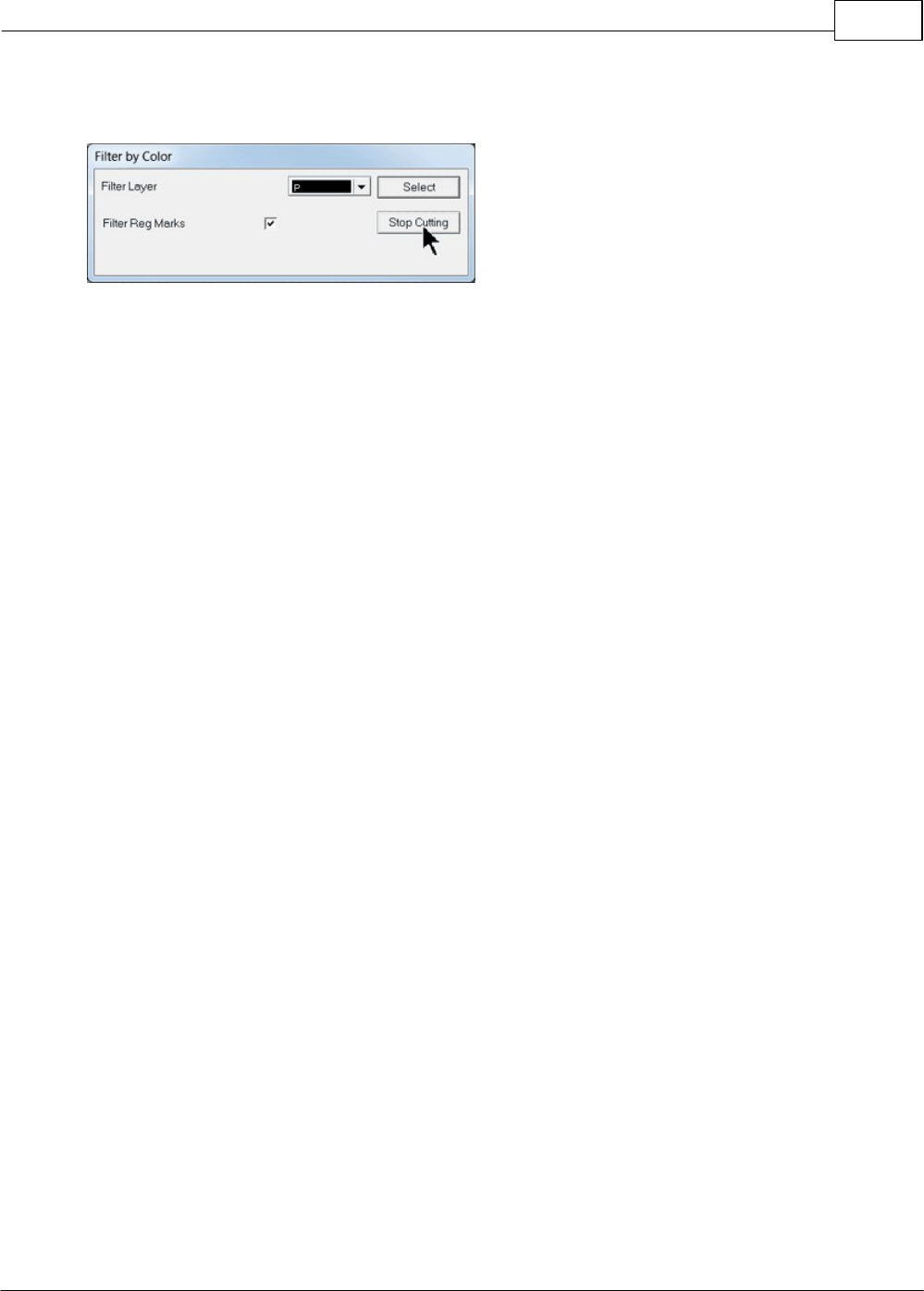
Example Jobs 125
© 2014 Vision Engraving Systems
Note - The Filter by Color screen will once again appear. Since we have no further colors to send to the
engraver, select Stop Cutting.
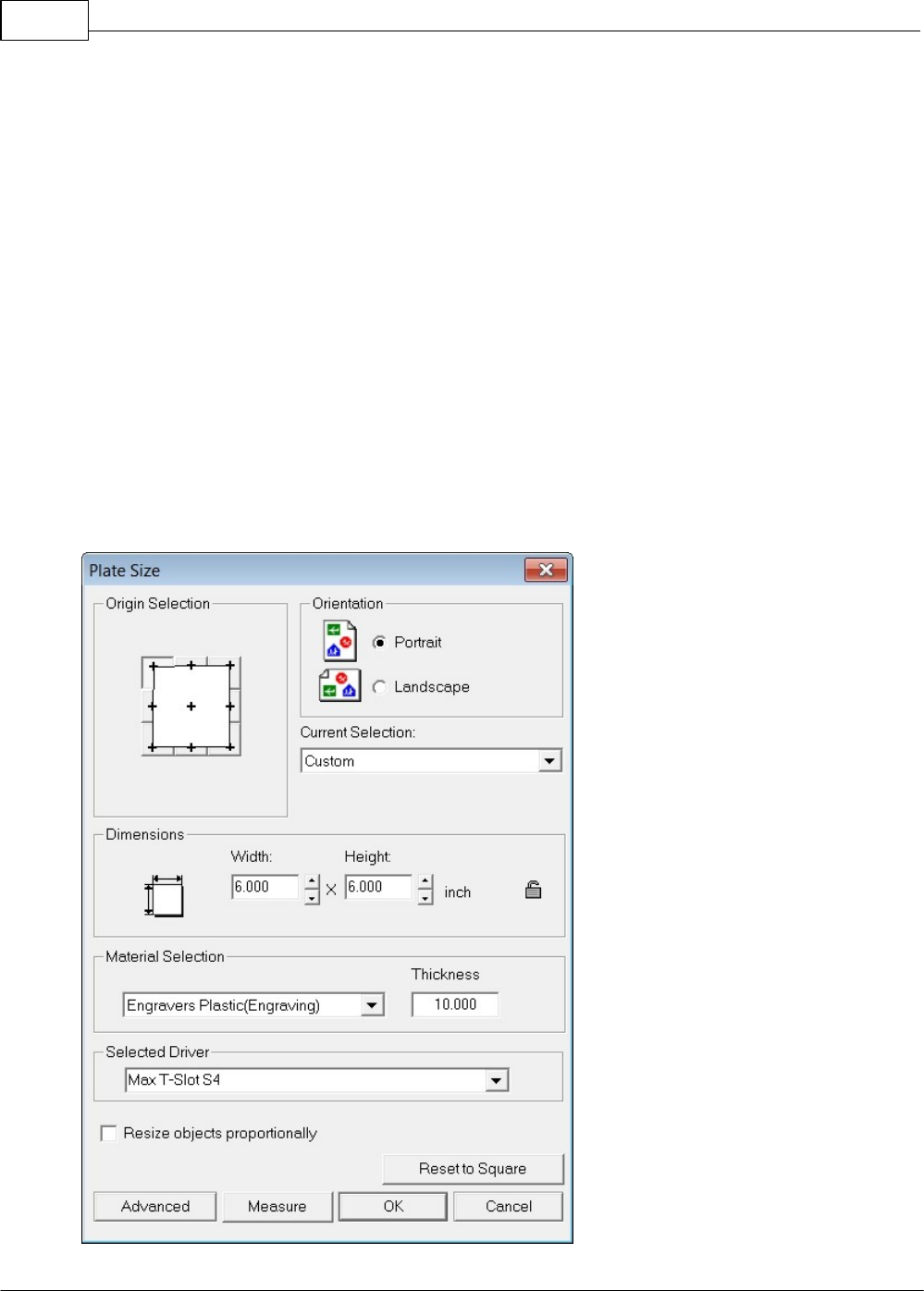
Vision Max User Manual126
© 2014 Vision Engraving Systems
4.1.6 Reverse Engraving/Color Filling
In this example, a reverse engraved sign will be created from reverse engraver's plastic. The techniques
used with this application are: text layout and positioning, importing clipart, drawing simple graphics,
adding fills, mirroring the graphics for reverse engraving and color filling. The basic setup is similar to
that performed in the Rotary Engraving section in Level 1 Job Examples.
4.1.6.1 Example Job 5 - Reverse Engraving
In this example, a sign will be made using reverse engraver's plastic. The piece is pre-cut and measures
6 inches x 6 inches (150 x 150 mm). Make sure the T-Slot table has been positioned so that the
machine's home position is in the upper-left corner of the T-Slot table, as described in the section -
Positioning the T-Slot Table.
Note - In this application, it is highly recommended to use the Vacuum Chip Removal System as
described in the Optional Accessories section. The process of engraving or cutting plastics, acrylics,
sign foam and wood, produces a significant amount of debris that can clog the nose cone and/or get
trapped between the nose cone and the material, which will cause engraving/cutting depth
inconsistencies as well as potentially scratch the surface of the material. The Vacuum Chip Removal
System significantly reduces these problems and provides for a cleaner work area.
Set the plate size to 6 x 6 inches and select the driver for your machine.
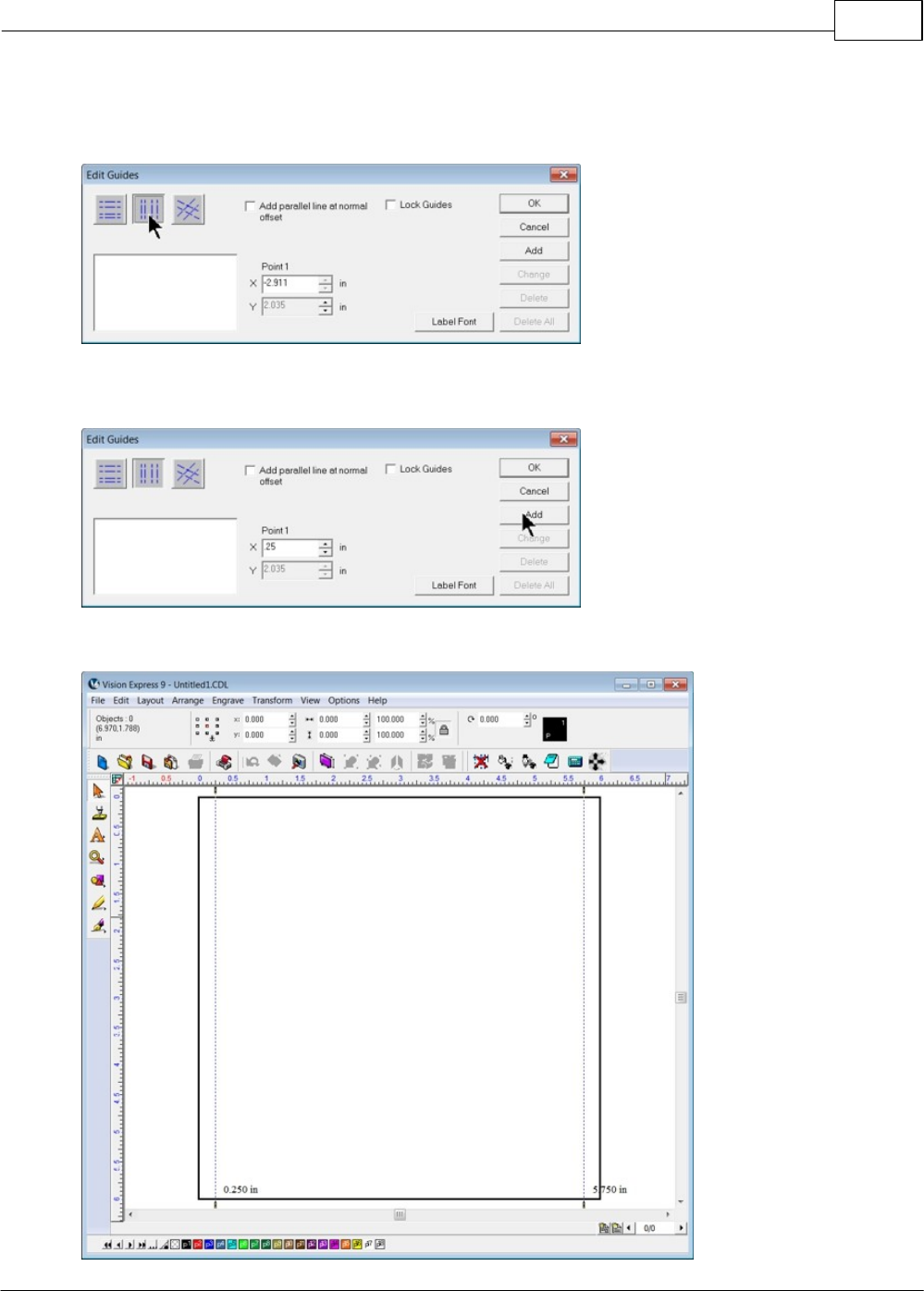
Example Jobs 127
© 2014 Vision Engraving Systems
To make this job setup a little easier, we will add guidelines to the plate. Right click outsize the plate area
to show the Edit Guides window. Then select the vertical guides as shown.
Enter 0.25 in the X entry field, then click on Add. Type in 5.75 in the X entry field, then click on Add,
then click on OK.
The plate are should now show the two guides you just added.
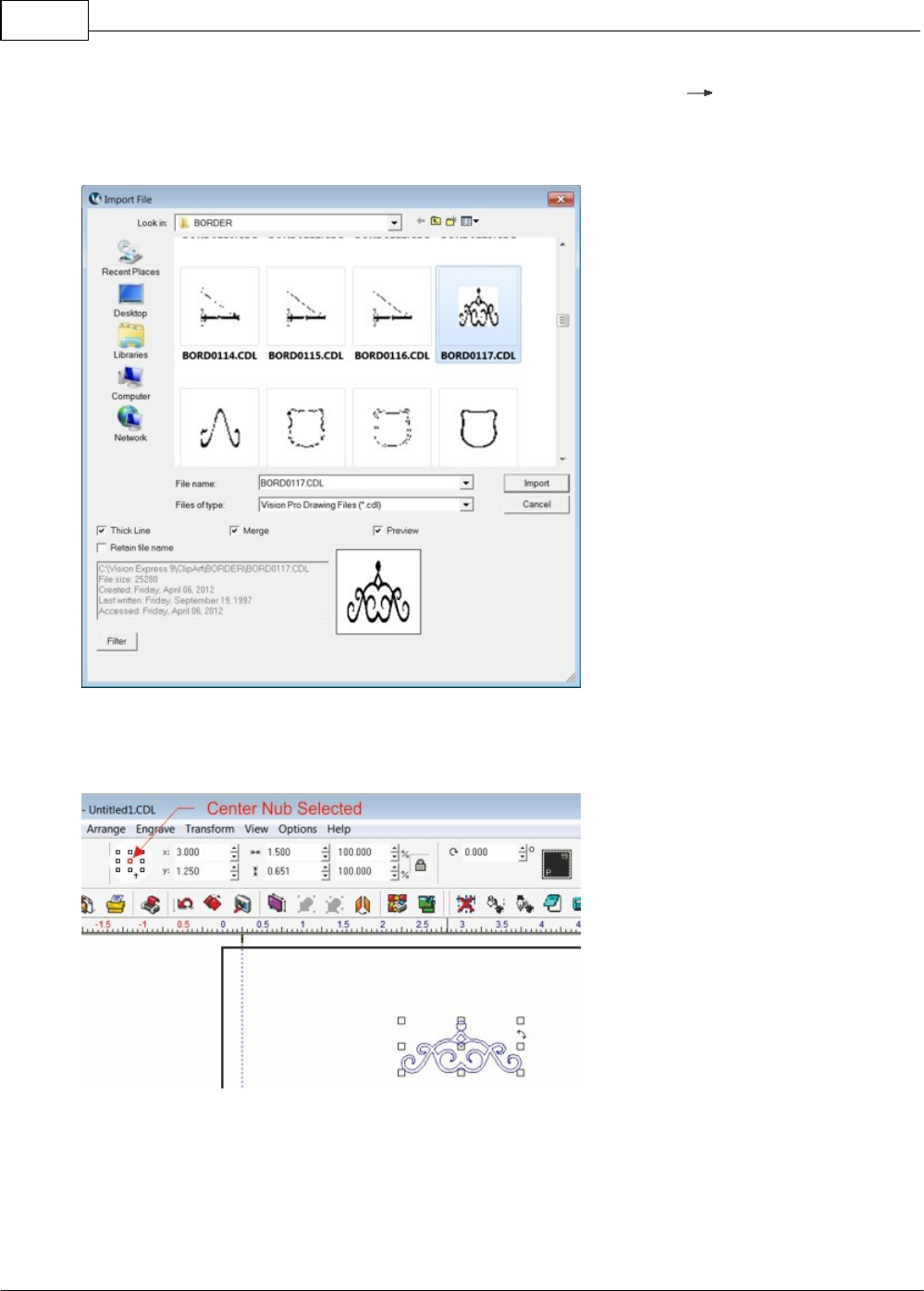
Vision Max User Manual128
© 2014 Vision Engraving Systems
We now import clipart to add style to the sign. To import the file, select File Import from the top
menu bar. This will open the Import File window. The file we are importing is BORD0117 and is located
in the C:\Vision Express 9\ClipArt\BORDER folder. Select the file, then click on Import. Click inside the
plate area to finish importing the file.
Change the size to 1.5 inches wide by 0.651 high and change the position to 3.00 inches X and 1.25
inches Y as shown, using the top toolbar fields. Make sure the center "Nub" is selected when
positioning graphics using center coordinates.
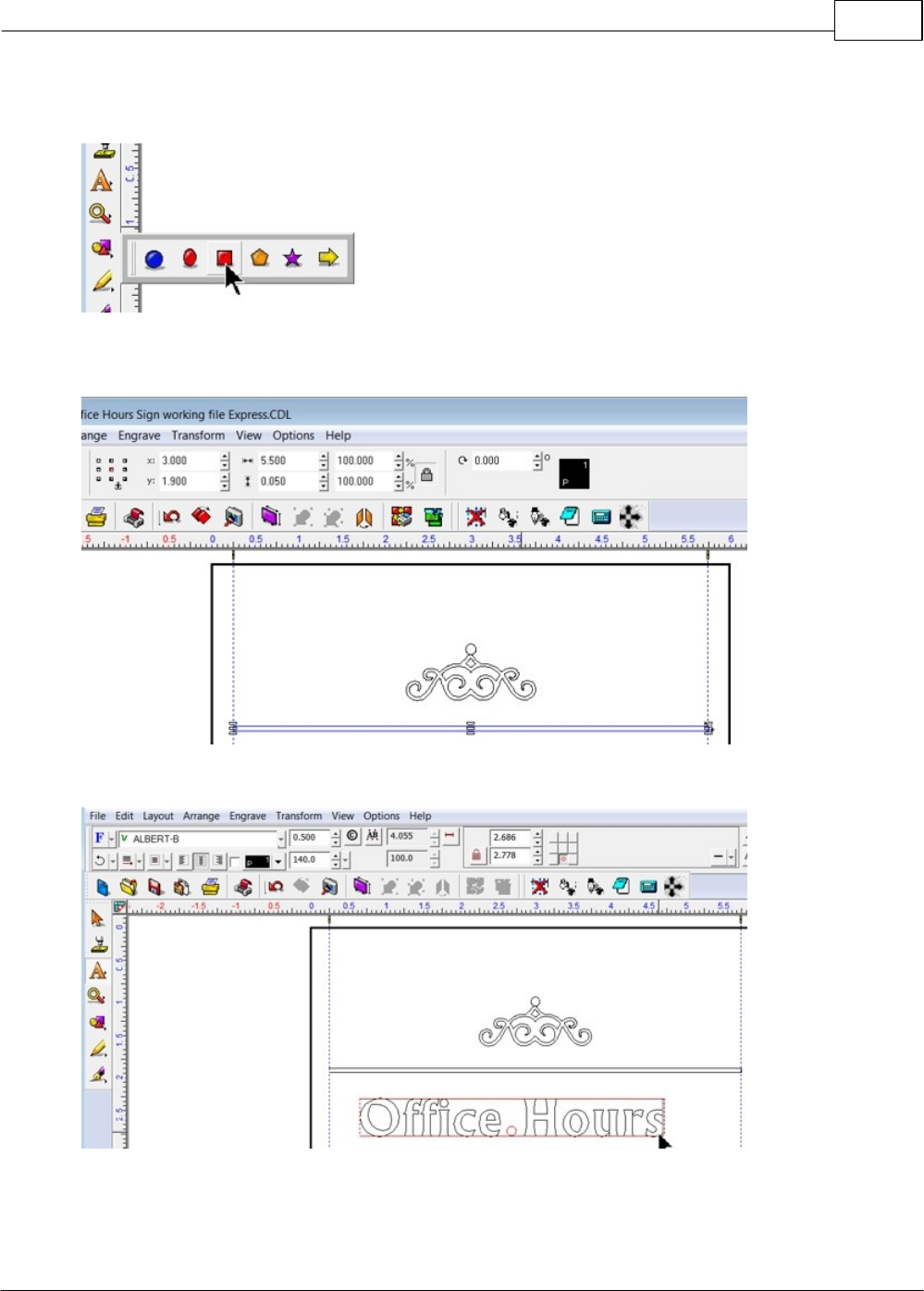
Example Jobs 129
© 2014 Vision Engraving Systems
To add a rectangle that will separate the sign, select the Shape Tools icon from the left toolbar, then
select the Rectangle tool.
Draw a rectangle 5.5 inches wide x 0.05 inches high and position it to 3.00 inches X and 1.90 inches Y,
as shown below.
Enter the text shown with the Frame Text tool. The font is Albert-B, 0.500 inches high.
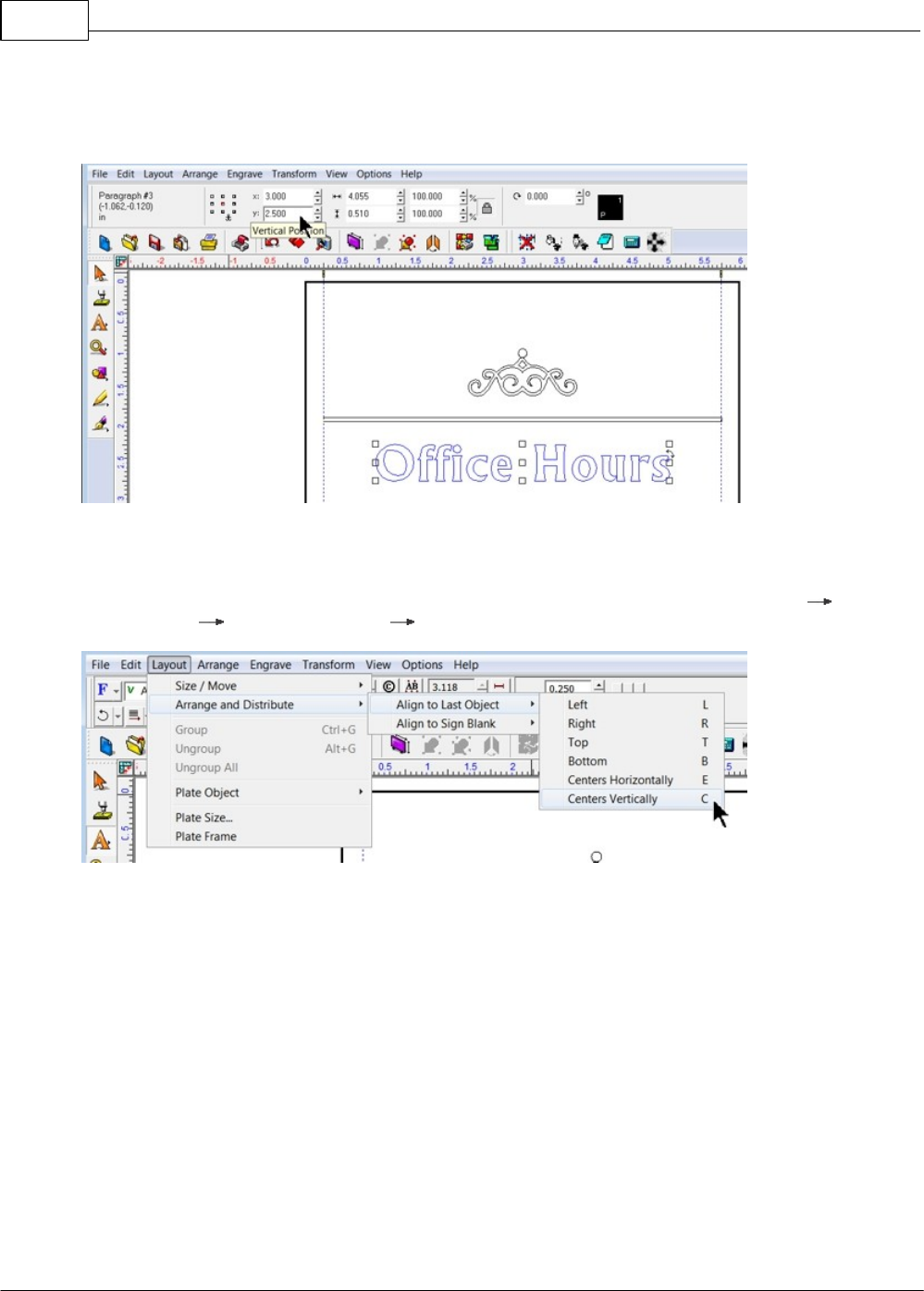
Vision Max User Manual130
© 2014 Vision Engraving Systems
Using the position entry fields on the top toolbar, which will only show if you exit text mode after entering
the text, then select the text as shown, change the position to 3.00 inches X and 2.5 inches Y. In a later
step, the Y position will be changed slightly once all the text has been entered.
Add the additional text as shown. Each text is entered separately. (Monday - Thursday is one line, 8:00
- 5:30 is another line, etc.) The guides we added can be used to "snap" the text into position and align
the left and right edges of these lines of text. To align each line of text, select the text along one line
(such as Monday - Thursday and 8:00 - 5:30), then use the Align tool by selecting Layout Arrange
and Distribute Align to Last Object Centers Vertically.
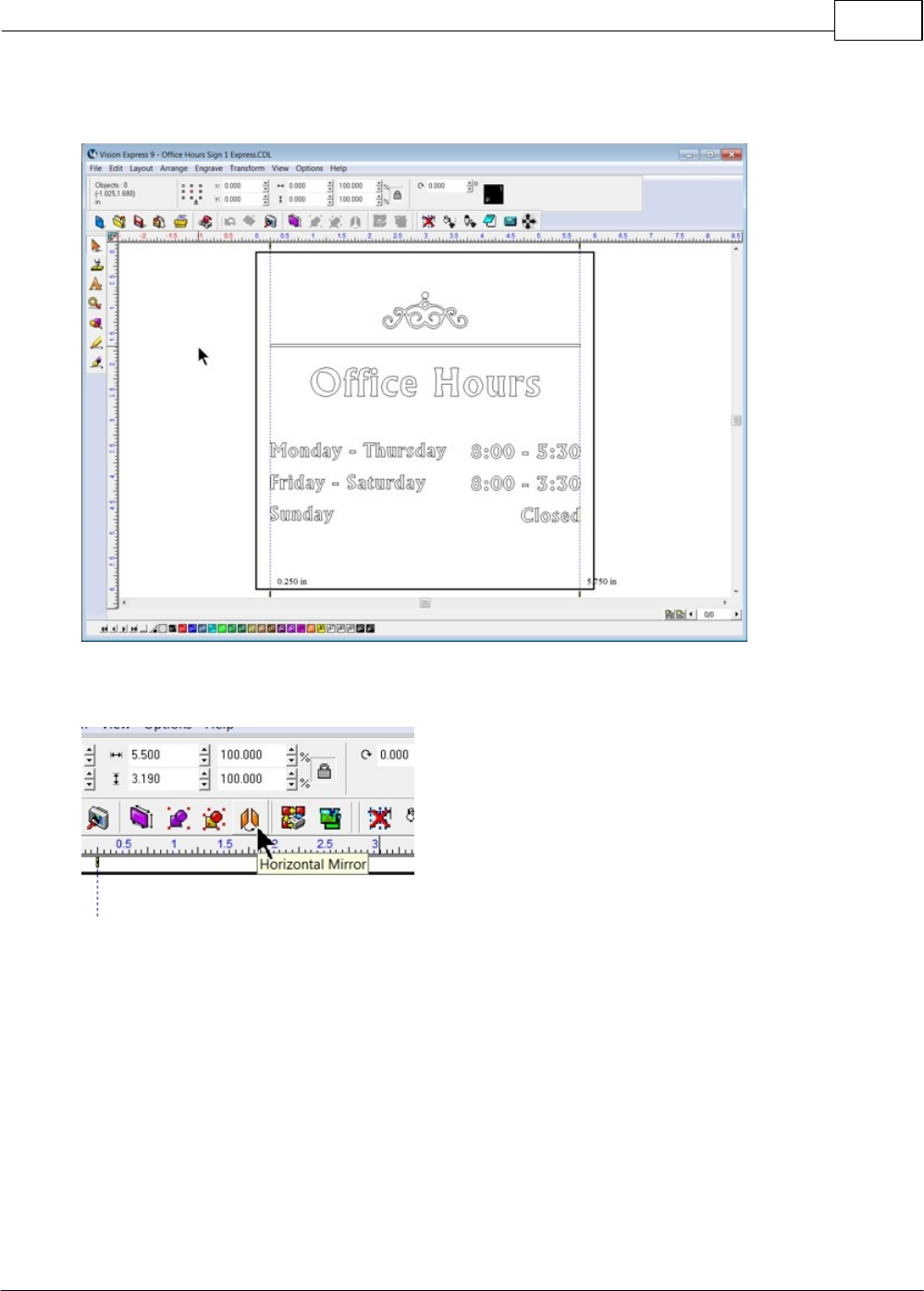
Example Jobs 131
© 2014 Vision Engraving Systems
Align each line of text. The spacing between text lines was equalized by moving each line of text with the
up or down arrow keys on the computer's keyboard.
Since we are engraving the back side of the plastic, we need to mirror all objects about the center of the
plate. Select all objects and click on the Horizontal Mirror icon on the top toolbar.
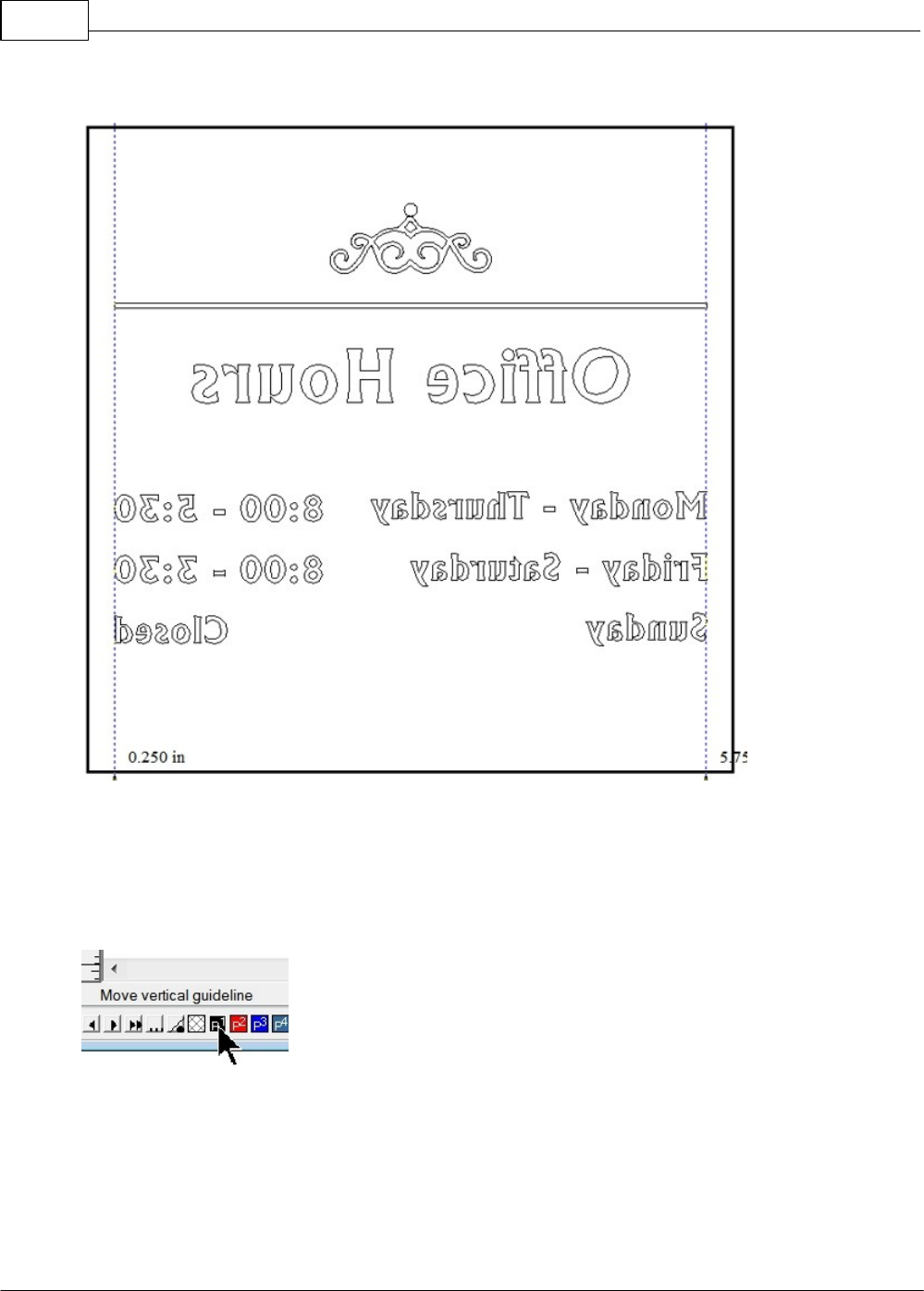
Vision Max User Manual132
© 2014 Vision Engraving Systems
The plate should now appear as below.
Next, since we are going to use a Hatch Fill to engrave the inside of all of the characters and clipart on
screen, we first make sure all objects have the same outline color. Select all objects, then click on the
Black color swatch on the bottom toolbar (shown below) with the left, then the right mouse buttons. This
should be done any time clipart is imported. Many times, clipart is drawn in colors that may look similar
to the color of other objects, but if they are different. The software will interpret them as different tools,
and they may be engraved out of sequence or with different parameters.
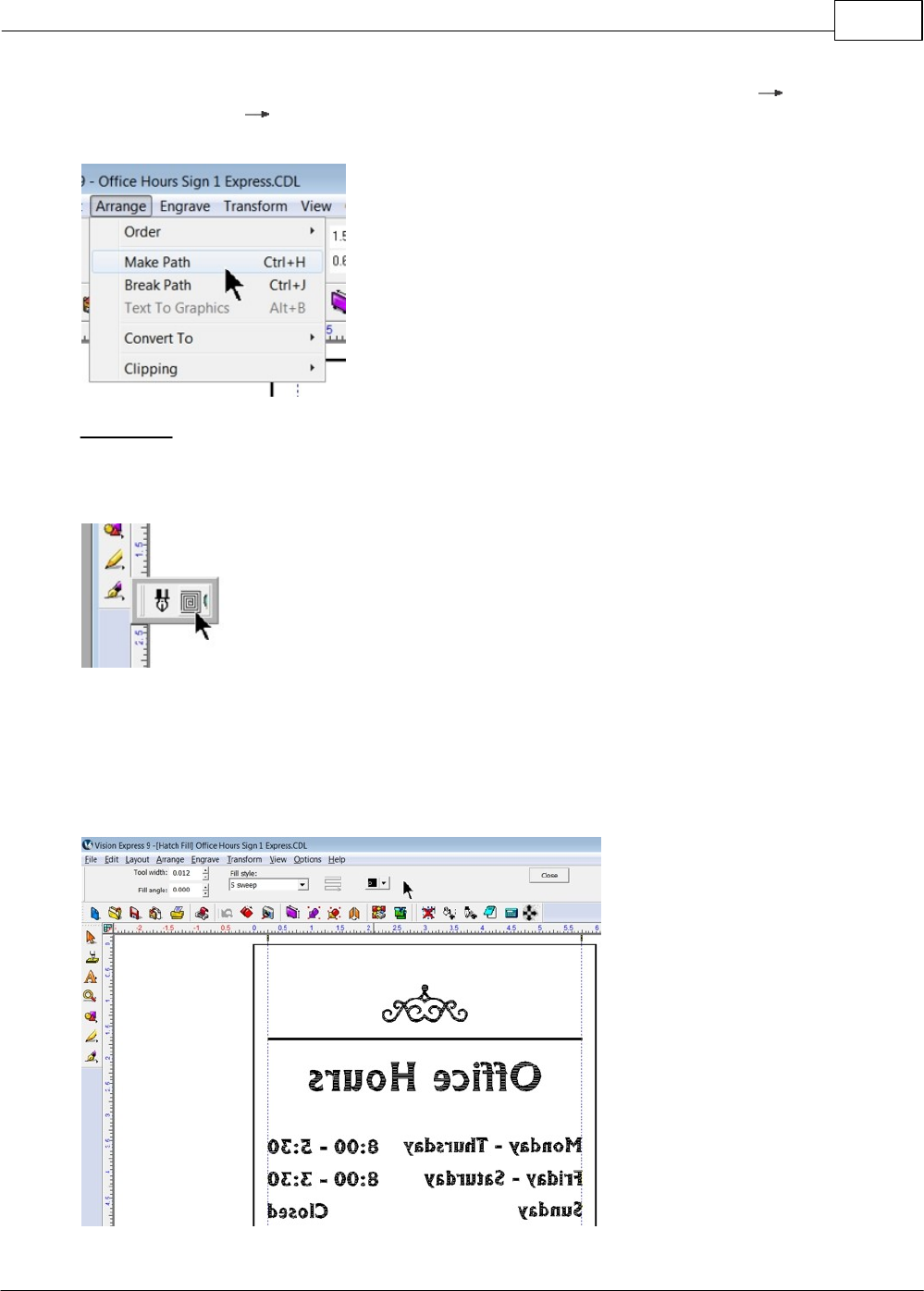
Example Jobs 133
© 2014 Vision Engraving Systems
Once the color of all objects is the same, select only the clipart, then select Arrange Break Path,
then select Arrange Make Path. This resets the fill path so that when we use the Hatch Fill tool, the
correct parts of our clipart object will be filled.
Hatch Fills
For Vision Express, select the Stroke and Fill Tools (or ) icon from the left toolbar, and click on the
Hatch Fill (or Fill tool) tool.
The top menu bar will change to the Hatch Fill toolbar in Vision Express only. (For Vision Expert or Pro,
see below). Since we are using a 0.015 Flex Cutter for this example, we need to change the Tool width
setting to about 25% less than the cutter tip width. In this case, the Tool Width was set to 0.012 inches,
the Fill angels was left as 0 degrees, the S sweep patter was used (it is faster than the line sweep
pattern) and the color was set to black. Once these settings have been changed, click on Close to exit
the Hatch Fill toolbar.
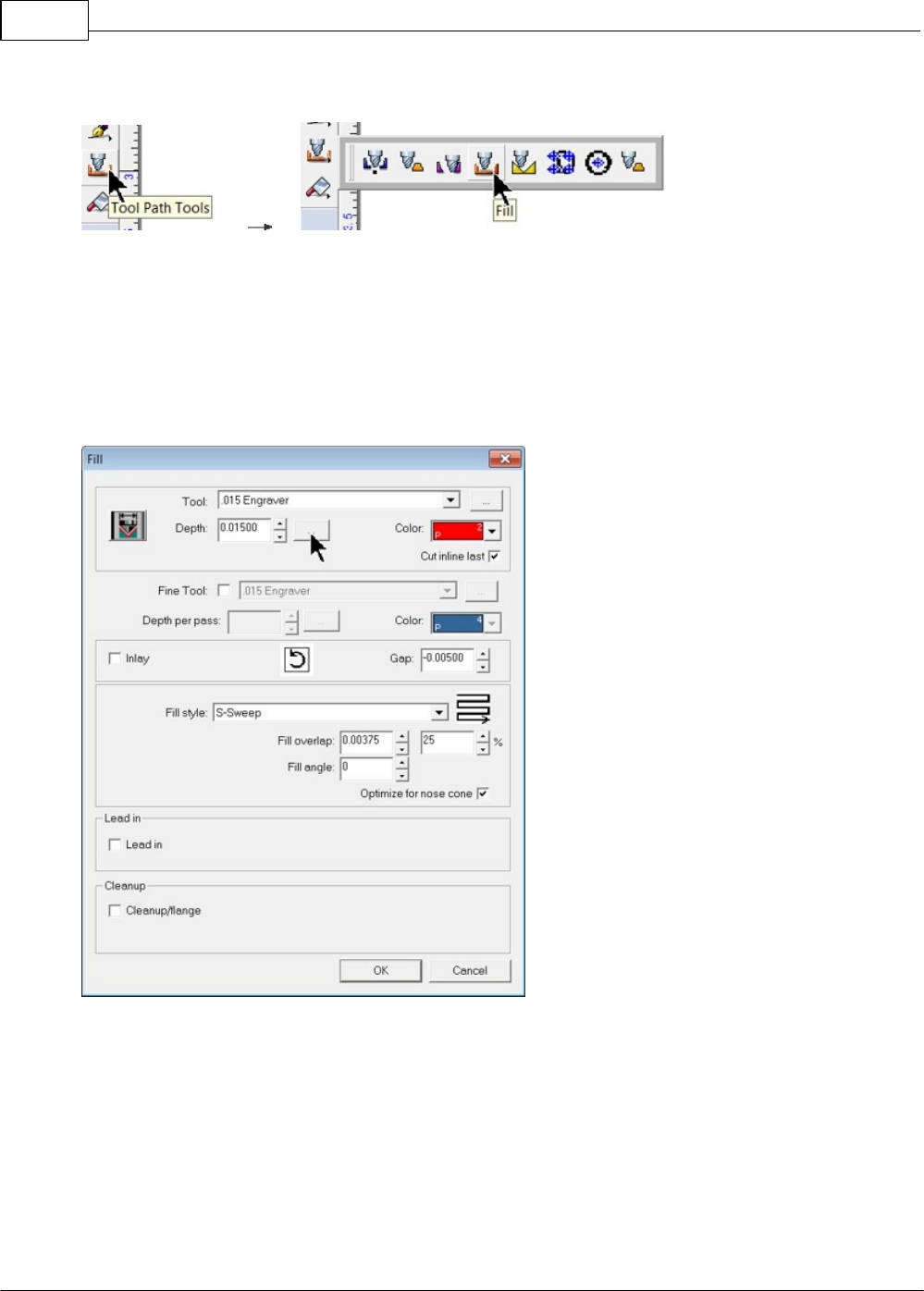
Vision Max User Manual134
© 2014 Vision Engraving Systems
For Vision Expert or Pro, select the Tool Path Tools, then select the Fill icon.
The Fill window will appear. Select the .015 Engraver as the Tool. Set the Depth to 0.015 inches (or
whatever the cap layer thickness is for the material you're using). The Color can be any one you
choose, in this case, Red was chosen. For this graphic, the Gap was set to -0.005 inches to increase
detail slightly. Choose the Fill style, such as S-Sweep and set the Fill overlap to about 25% for plastics.
More overlap will make for a cleaner engraving, but take more time. In this example, the Fill angle was
set to 0. There are many parameters to modify in this Fill dialogue. The user should get familiar with
these parameters and experiment to determine which setting are preferred for the job being performed.
Once these settings have been entered, select the icon to the right of the depth text entry field.
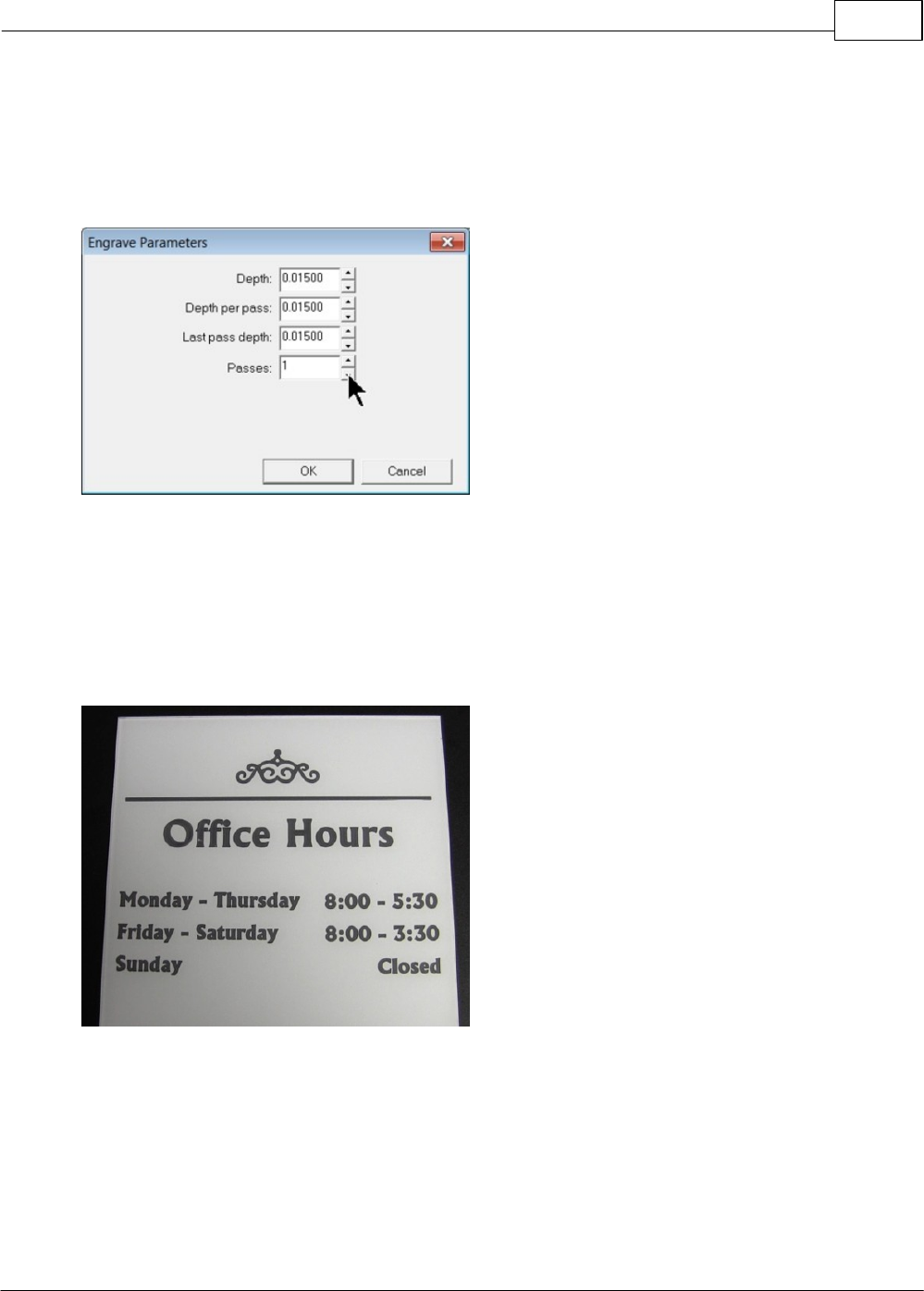
Example Jobs 135
© 2014 Vision Engraving Systems
The Engrave Parameters window will appear. Generally, the number of passes will depend on the
desired total depth, cutting tool used and material. In this example, a single pass will be used. A rule of
thumb is to not engrave any individual pass deeper than the cutting tool tip diameter - although this
varies with each tool type. To make sure only one pass is run, select the "down" arrow next to the
Passes field until the number of passes equals 1. Select OK to close this window.
Select OK to close the Fill window and create the fill pattern.
At this point, the file is ready to be sent to the engraver. Place the reverse engraver's plastic material
(clear side down) on the T-Slot table on top of Multi Mat. Set the engraving depth to slightly more than
the cap layer for your material. In this case, the engraving depth was set to 0.015 inches (15 clicks).
Send the job to the engraver using the Engravers Plastic material setting, hook up your vacuum chip
removal system and start the job. In the picture below, the material was flipped over to view from the
front side.
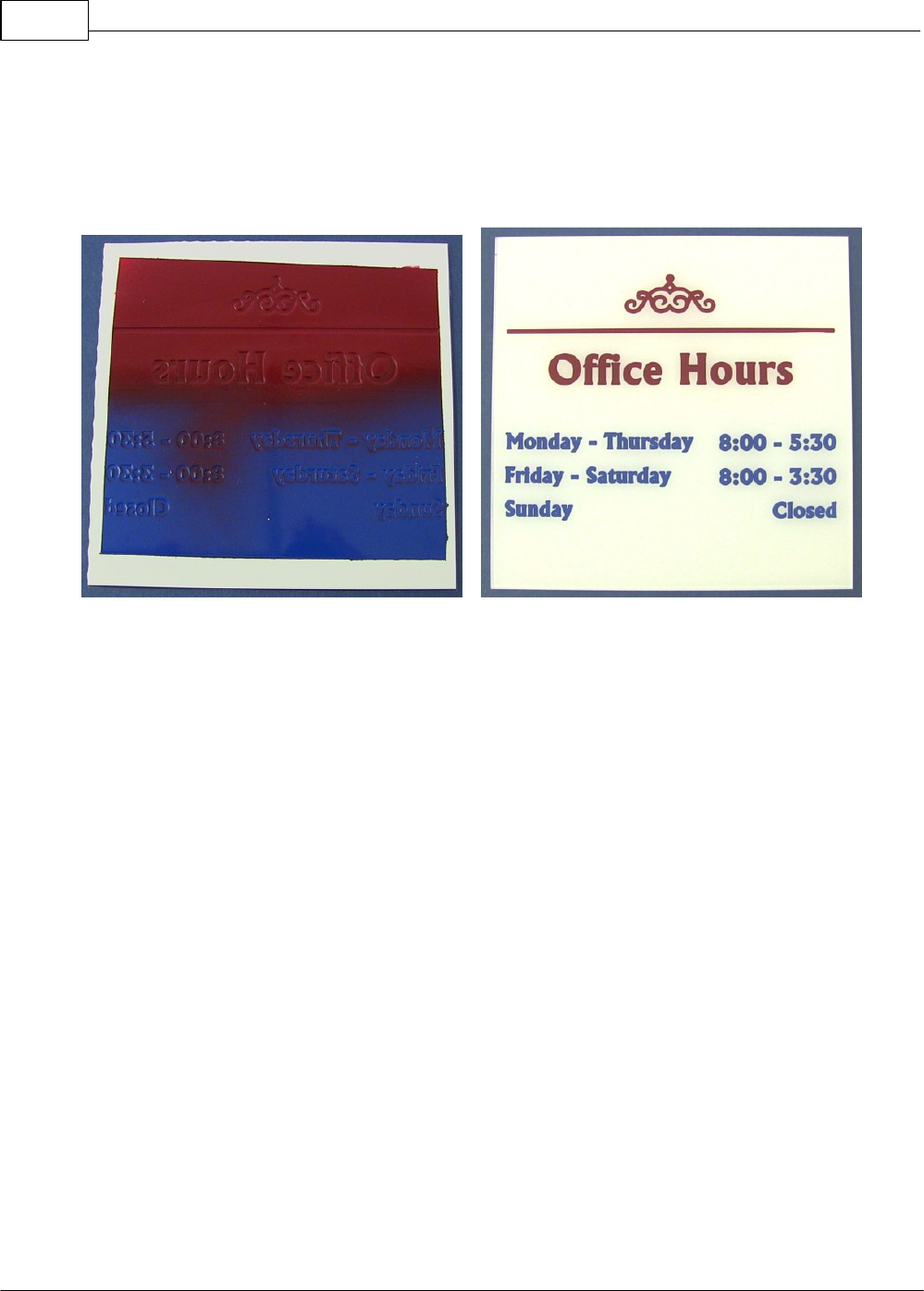
Vision Max User Manual136
© 2014 Vision Engraving Systems
When the engraving is complete. Brush of any excess plastic chips from the engraved areas and color
fill these areas with an acrylic based paint. It is recommended to mask the edges of the piece before
painting. In this example, two colors were used to fill the engraved areas.
(Back of plate shown for reference)
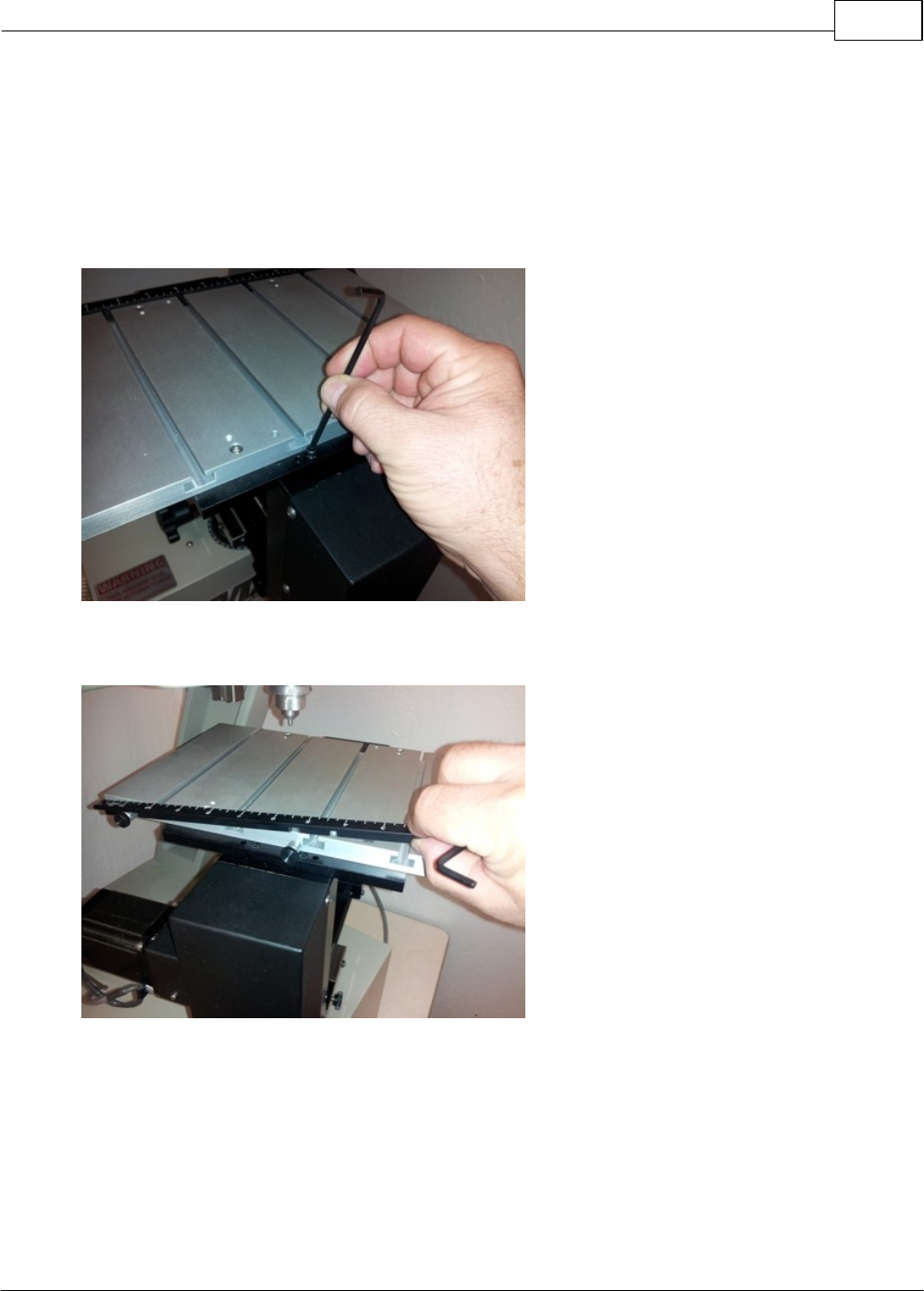
Example Jobs 137
© 2014 Vision Engraving Systems
4.2 Level 2 Job Example - Using the Vise
The Adjustable Pen Fixture is used in this example job. If you do not have this fixture, please contact
technical support at Vision - 602-439-0700.
4.2.1 Example Job 6 - Engraving Pens
In this example job, a pen will be engraved using the adjustable pen fixture. Remove the T-Slot table by
first removing the 2 screws in the front of the table as shown.
Rotate the table by loosening the Support Bar Lock Screw, then loosen the screws holding the rear
edge guide in place and remove the edge guide by lifting it up.
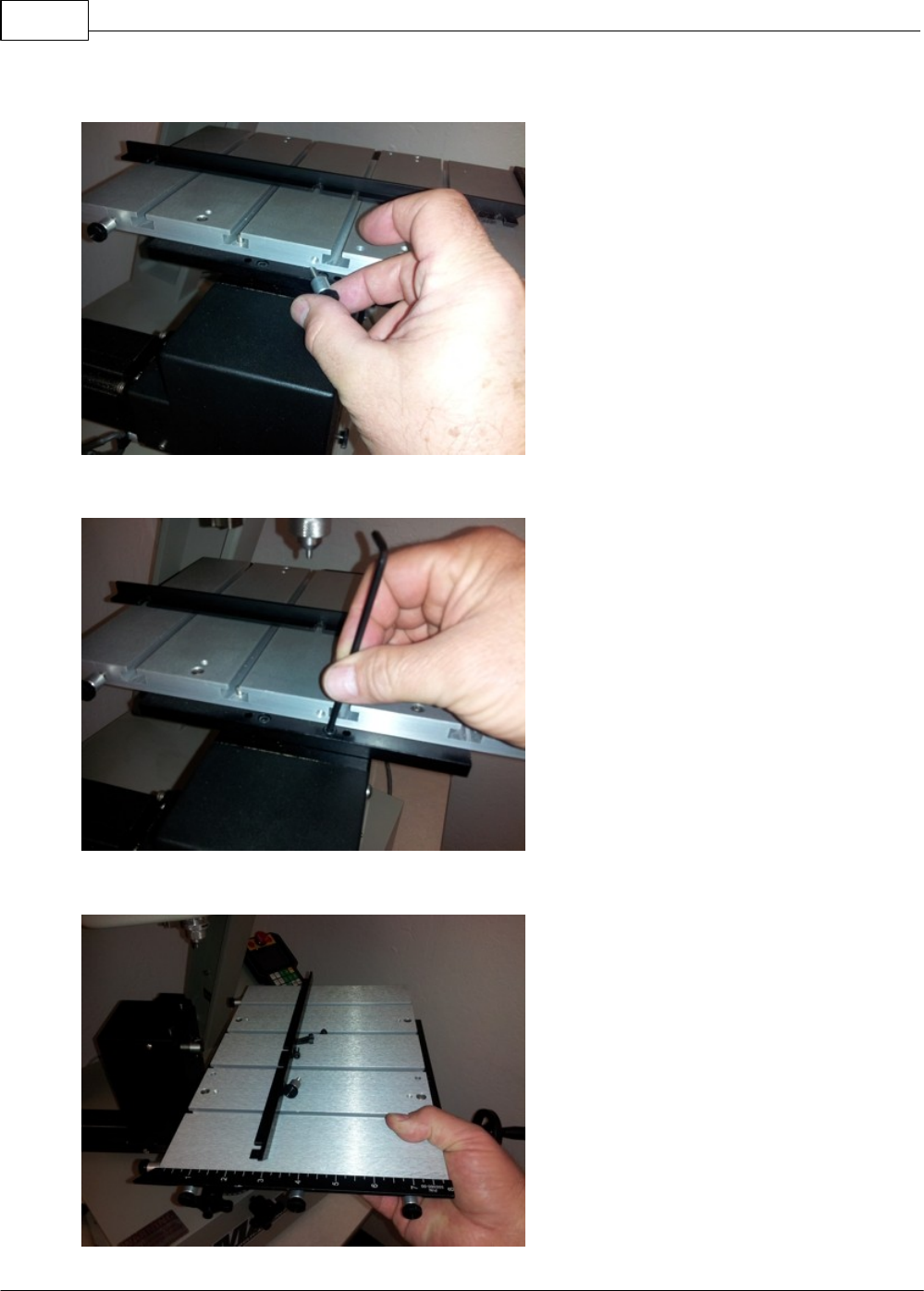
Vision Max User Manual138
© 2014 Vision Engraving Systems
Completely remove the center edge guide screw.
Remove the 2 screws on the rear of the table.
Lift the table off of the vise.
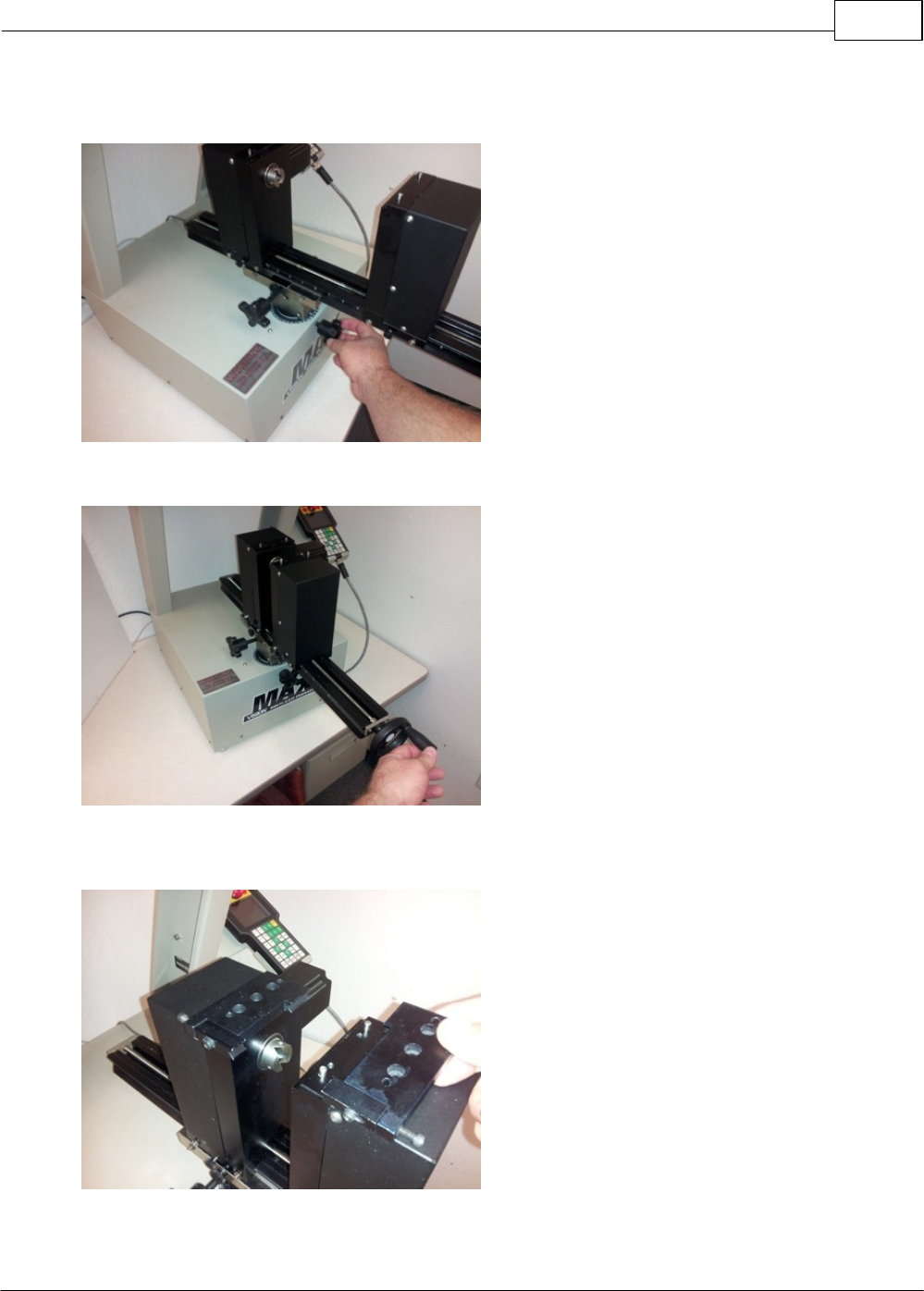
Example Jobs 139
© 2014 Vision Engraving Systems
Make sure the locating pins are installed into the holes on top of the rotary vise and rotate the vise back
to 0 degrees, then tighten the Support Bar Lock Screw.
Close the vise until there's a gap between the locating pins of about 3 inches.
Place the adjustable pen fixture on the locating pins, making note that the "adjustable" side (where the
adjustment screws are located) is on the left.
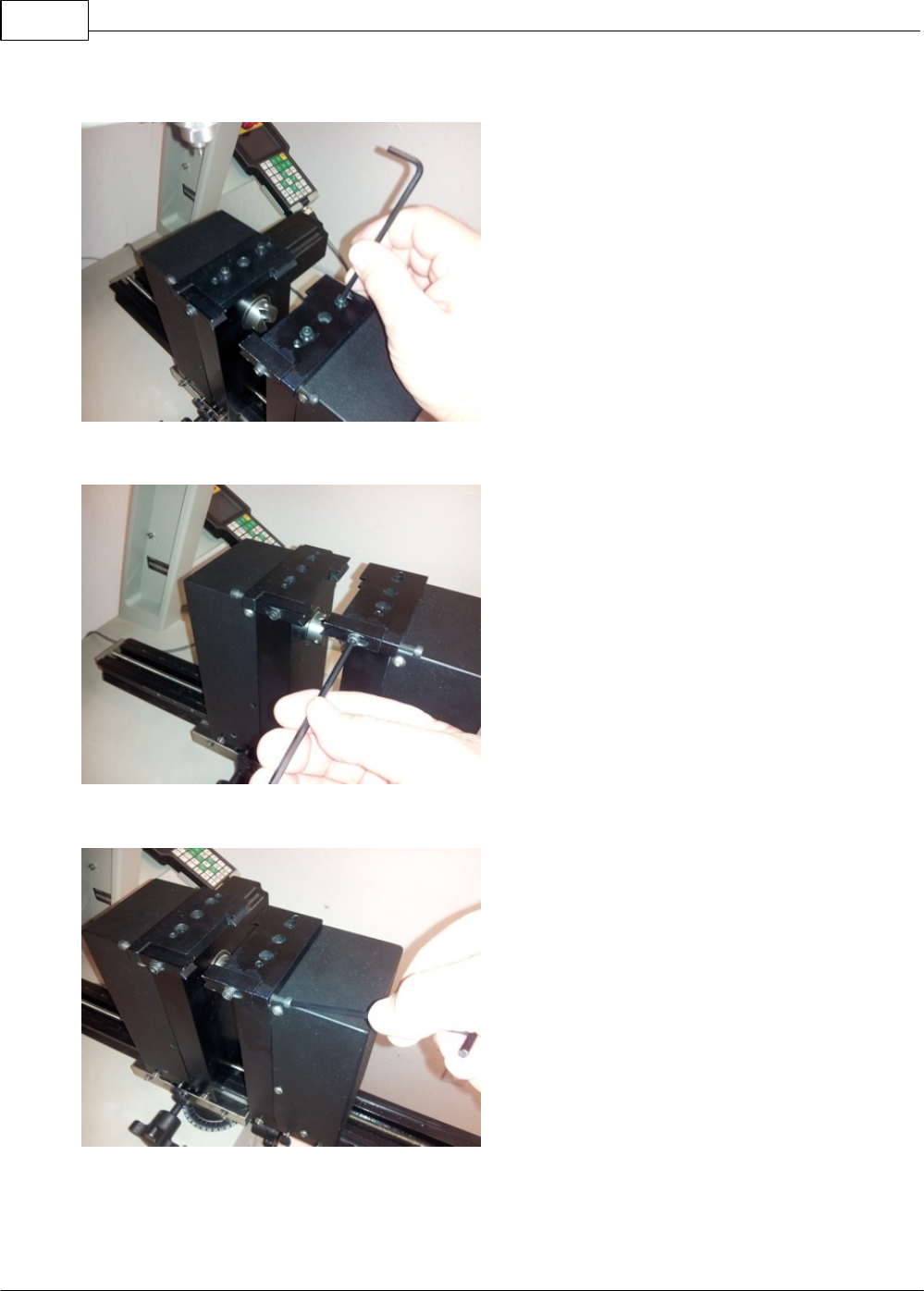
Vision Max User Manual140
© 2014 Vision Engraving Systems
Secure the fixture to the vise with 4 screws
Loosen the locking screws on the adjustment slides of the fixture.
Back out the adjustment screws to provide the widest gap between the adjustment slides.
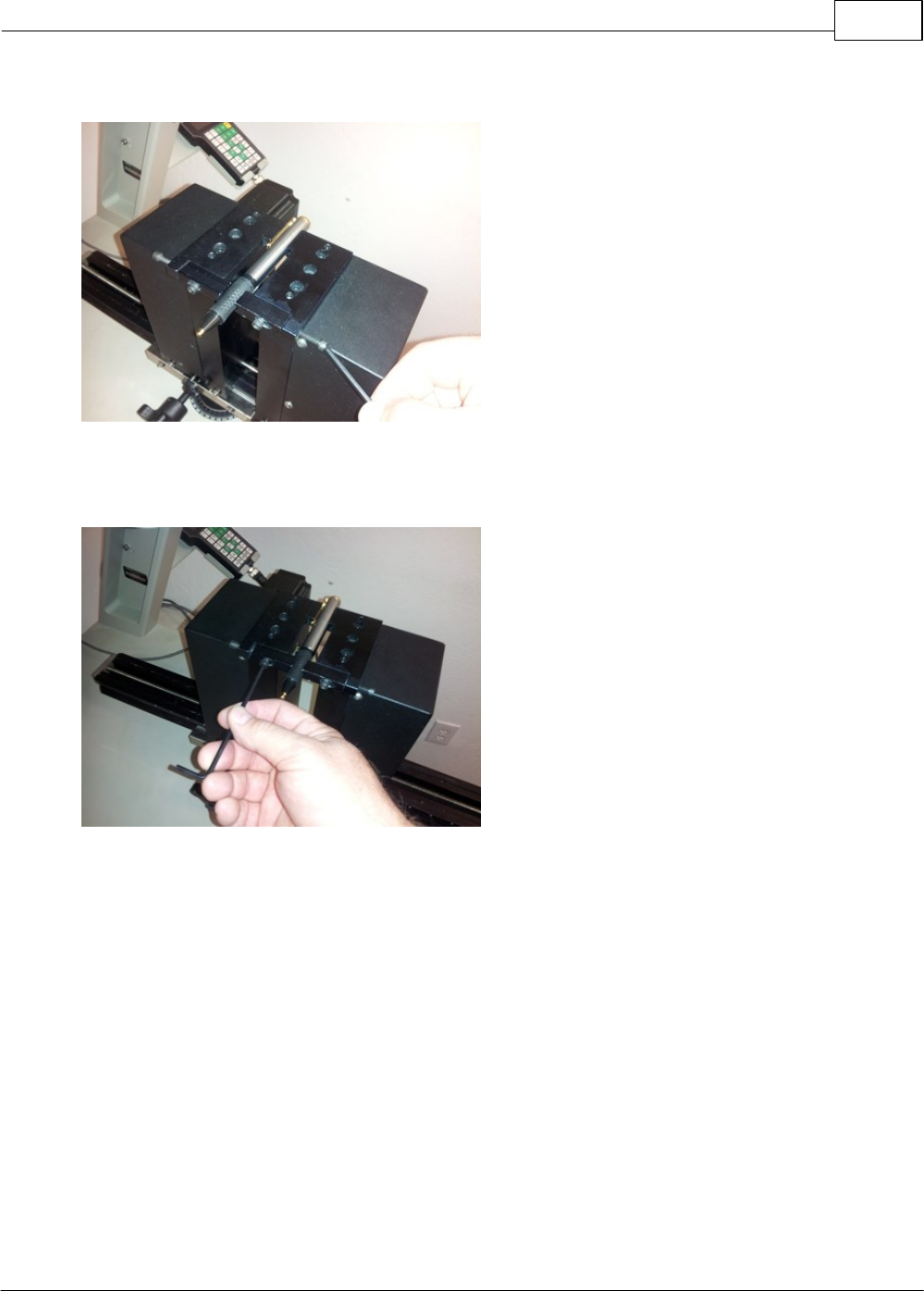
Example Jobs 141
© 2014 Vision Engraving Systems
Place the pen in the fixture as shown, then tighten the vise by using the vise wheel.
Once contact has been made on the fixed part of the pen fixture, adjust the adjustment slides to do two
things: center the barrel of the pen in the fixture and firmly clamp the barrel. Tighten the lock screws on
the adjustable portion of the fixture when finished.
NOTE: The pen fixture can be installed in two directions, with the adjustment slides either placed
towards the left or right of the vise..
Once the fixture has been adjusted for the style of pen being engraved, the vise wheel can be used to
open and close the vise when making pen changes. Make sure each pen is located at the same left-
right position so the engraving area is consistent.
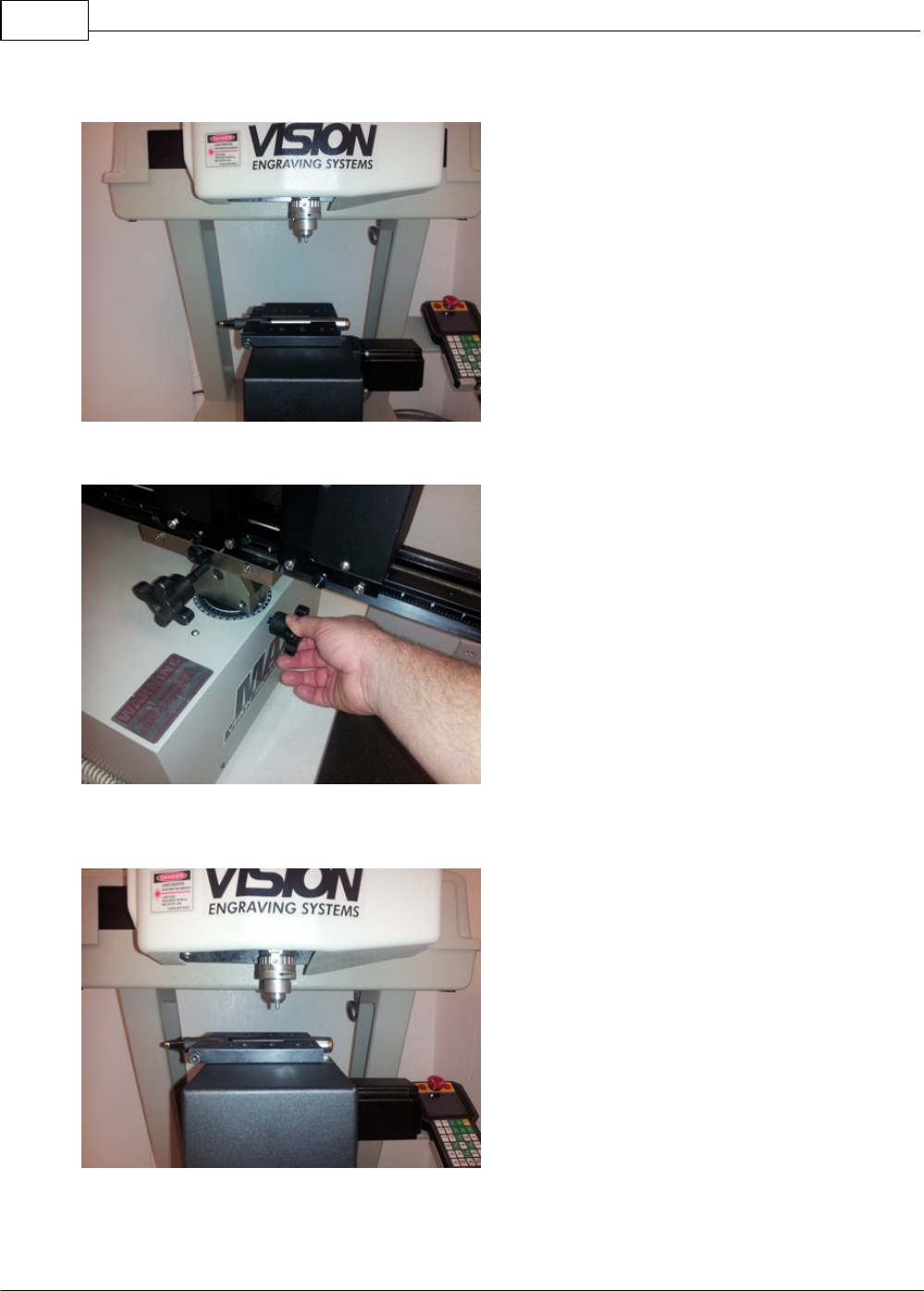
Vision Max User Manual142
© 2014 Vision Engraving Systems
With the vise at its lowest position, there will not be enough down travel in the spindle to reach the pen.
Loosen the Support Bar Lock Screw and raise the vise.
The spindle (Z-Axis) travel is approximately 3 inches. Raise the vise until the pen is roughly 1.5 - 2
inches below the spindle, then firmly tighten the Support Bar Lock Screw.
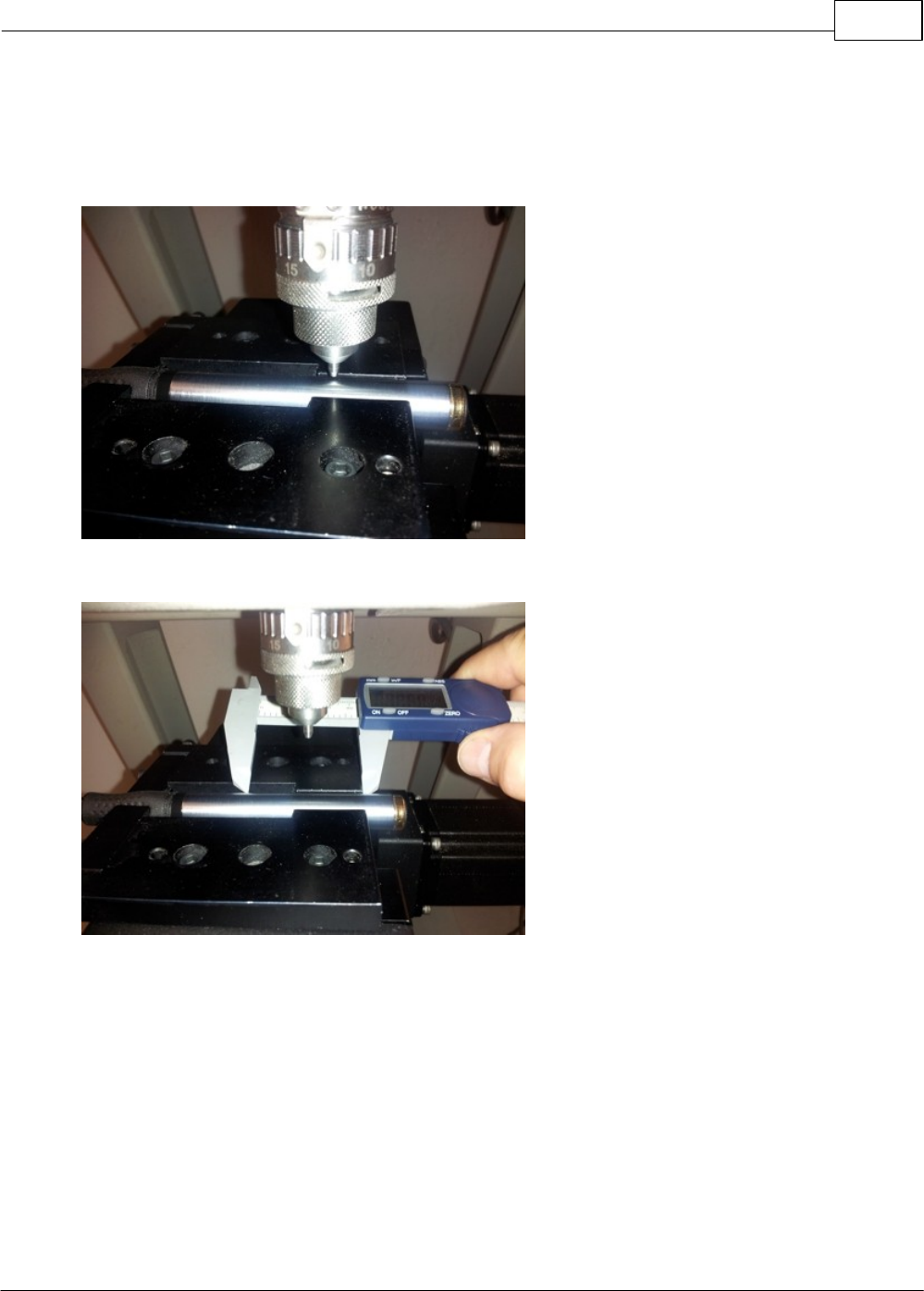
Example Jobs 143
© 2014 Vision Engraving Systems
Turn the machine on and after homing the machine, move the tip of the cutter (in this case, the diamond
drag adapter tool) so that it is positioned as close as possible to the center of the area to be engraved.
Press the Set Home button on the Pendant. (If using a standard non-rotating diamond drag tool, install it
into the machine's spindle and adjust the cutter so that the tip extends below the bottom of the spindle
approximately 1/4" before setting the machine's home).
Using calipers, measure the width of the engraving area,
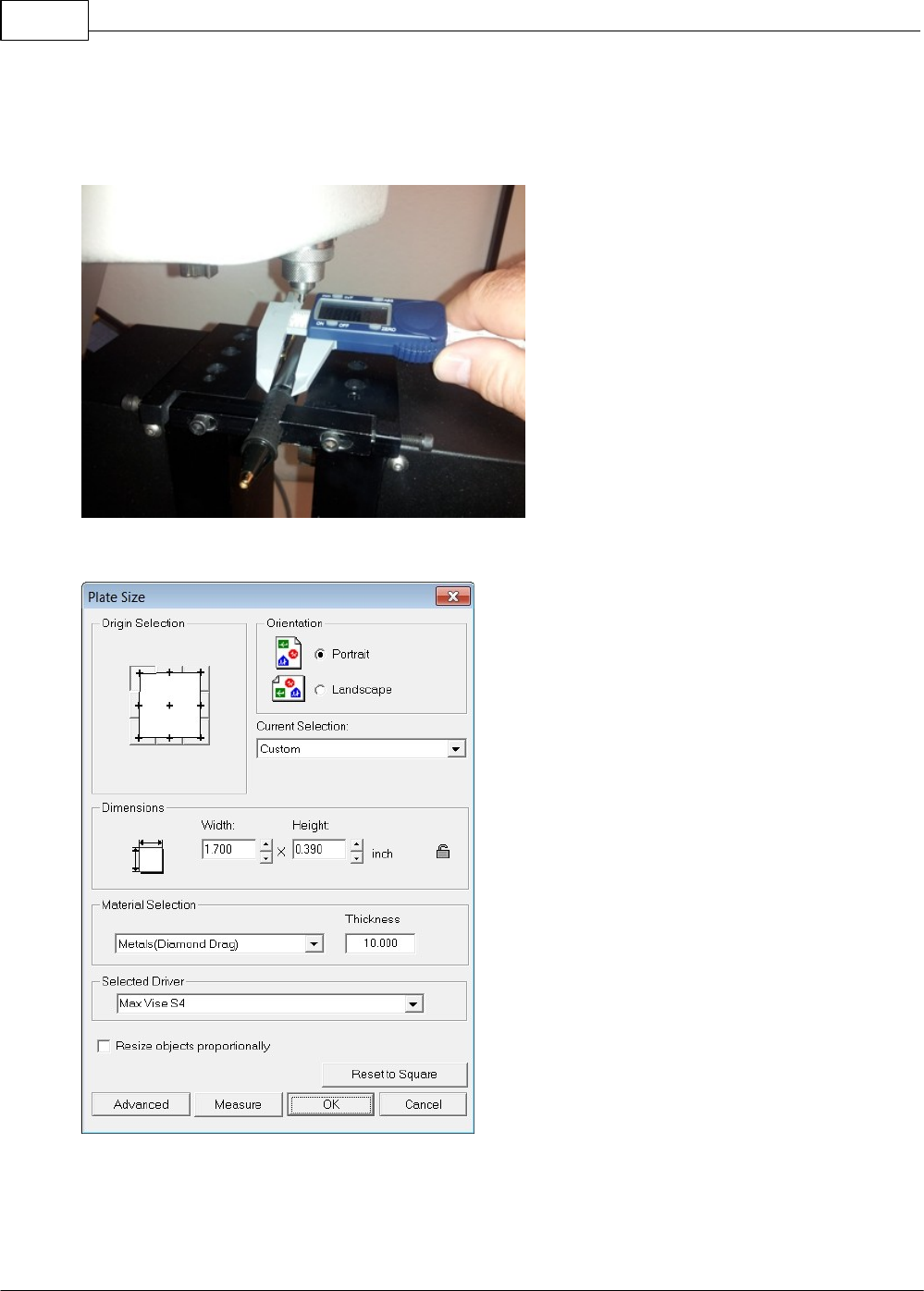
Vision Max User Manual144
© 2014 Vision Engraving Systems
and the height of the engraving area. As a general rule, the maximum engraving height on a round
object should be roughly 1/2 the object's diameter. Attempting to engrave beyond this limitation will
typically result in the cutter tip loosing contact with the pen, skewed graphics, or poor quality at the top
and bottom of the graphics being engraved.
In the Vision software, set the height and width you measured as the Plate Size.
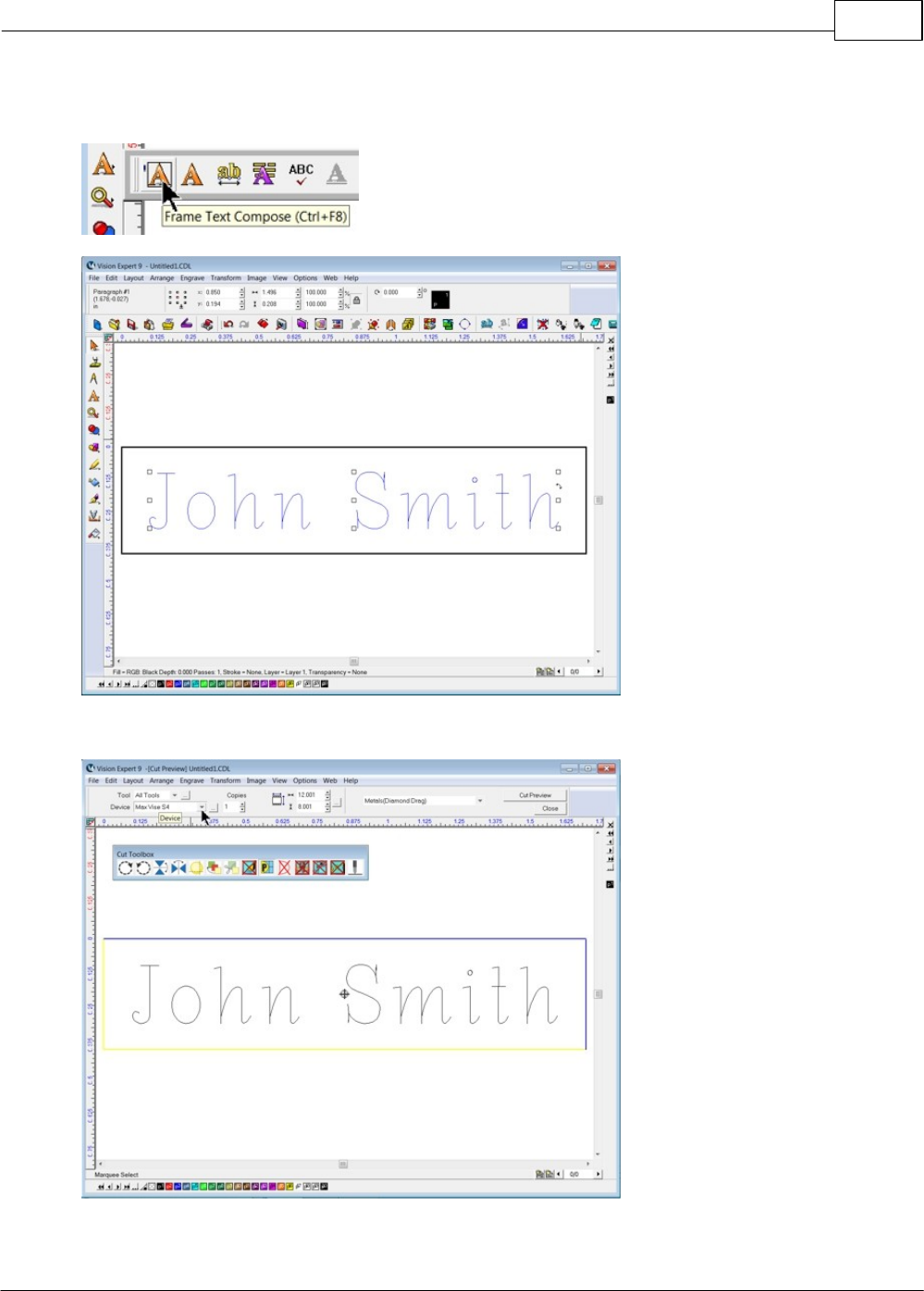
Example Jobs 145
© 2014 Vision Engraving Systems
Enter the text or graphics within the plate area. In this example, a name was entered using the Frame
Text Compose tool, in order to center the text within the plate area.
Select the Engrave icon from the left toolbar. Select the Device as Max Vise S4.
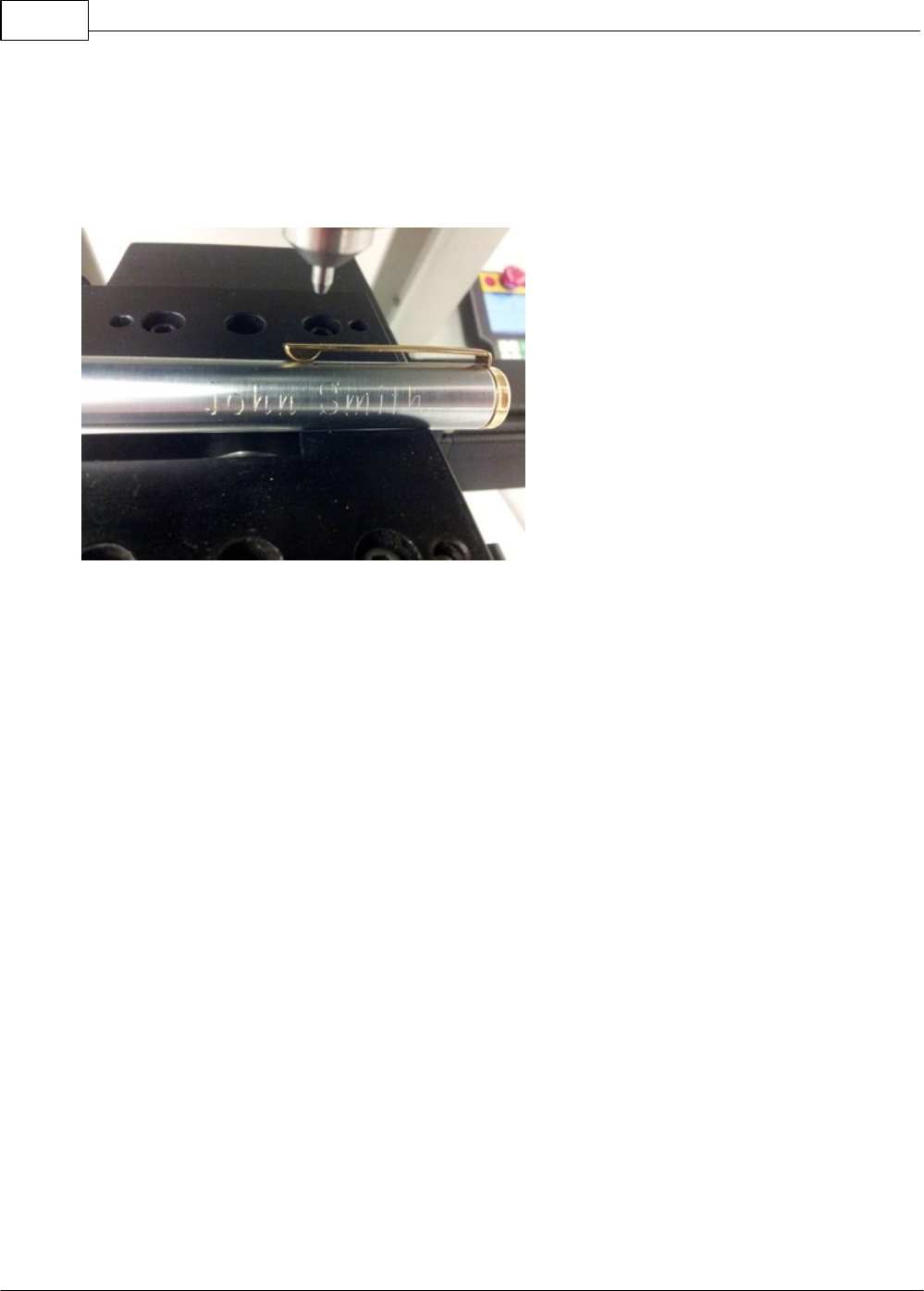
Vision Max User Manual146
© 2014 Vision Engraving Systems
Select Metals - Diamond Drag in the Tool Setup window. To verify that the graphics are located
properly, turn the Dry Run ON in the Cut Toolbox and send the job to the machine. Start the job and
check to make sure the graphics you are engraving are positioned properly with the Red Dot Laser
Pointer. Adjust either the machine's Home Position or the position of the graphics within the Plate Area
to correct the positioning. Resend the job to the engraver with the Dry Run turned OFF to engrave the
item.
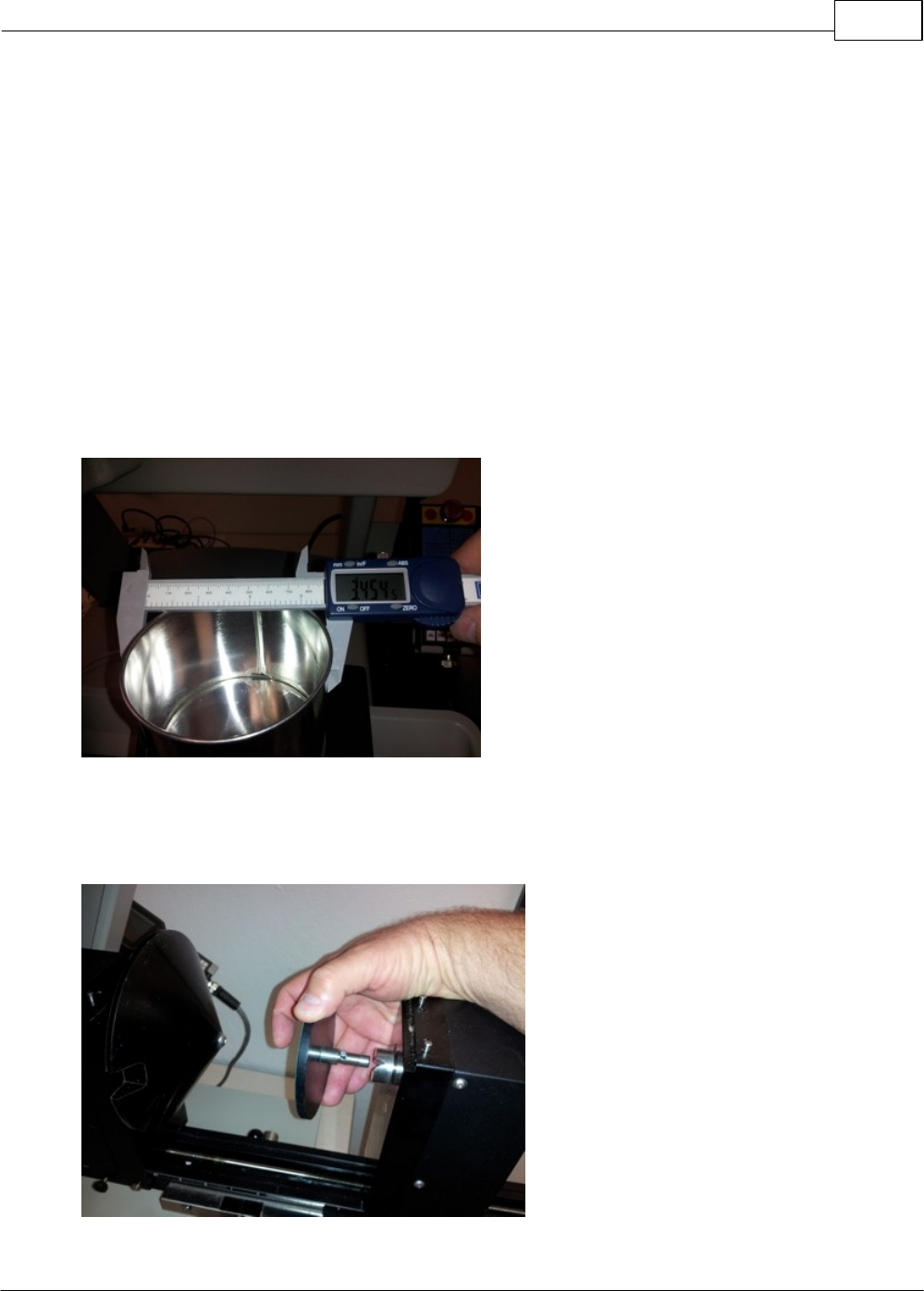
Example Jobs 147
© 2014 Vision Engraving Systems
4.3 Level 3 Job Examples - Using the Rotary Axis
These last 2 example jobs use the Rotary Axis on the Max Engraver. The T-Slot Table will need to be
removed. Refer to Level 1 Jobs - Using the T-Slot Table for removal instructions. Several different types
of tools are used to hold items in the rotary vise. These include; cones, flat surfaces, chucks and
related pins. If you do not have certain tools for the rotary fixture, contact technical support at Vision -
602-439-0700.
4.3.1 Example Job 7 - Diamond Drag Engraving Round Objects
In this example job, a metal mug will be engraved using the rotary axis.
To prepare the machine for use of the rotary axis, remove the T-Slot table as described in the Level 1
Jobs - Using the T-Slot Table section.
Measure the diameter of the item to be engraved with calipers in the area where the engraving will be
positioned. In this example, a mug was used and the diameter was 3.454 inches.
Install the appropriate cones or holding chucks for the item being engraved. The drive side of the rotary
axis is the rear of the rotary vise. This is where the cones or chucks are installed. A flat fixture is
commonly used for the base of flat items and is installed on the free floating (front) side of the rotary
fixture. Note that the cross pin slides into the V grooves as shown.
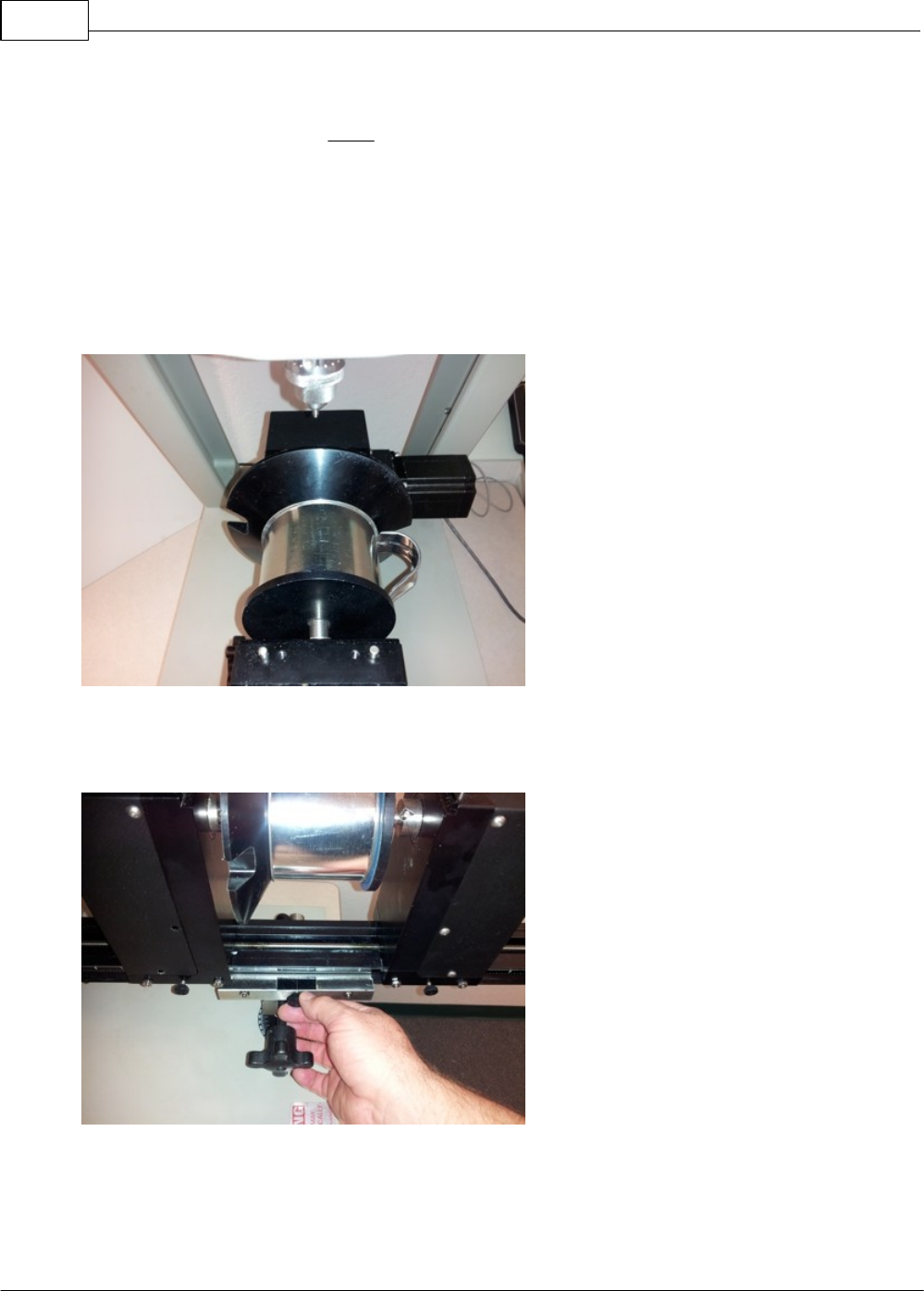
Vision Max User Manual148
© 2014 Vision Engraving Systems
Place the item between the flat and the cone on the rotary vise and use the wheel of the vise to tighten
the vise. Hold the item in-line with the cone and held flat against the front side of the rotary, then close
the vise. Once the item is held lightly between the cone and the flat fixture, rotate the item by hand to
see it is centered on the flat fixture side (the cone side will inherently be centered). If the item is not
centered, manually open the vise slightly by rotating the wheel, center the item, then close the vise using
the wheel. Items should be firmly secured by turning the wheel by hand, or they may slip during
engraving.
In this example, the item has a handle. Locate the handle so that the graphics face outward when
holding the mug in either your left or right hand. In the picture below, the mug is positioned so that the
graphics face outward when holding the mug in your left hand - the handle is 90 degrees to the right of
straight up.
To locate the item under the spindle properly, turn the machine on and Press Go to Home on the
Pendant, then loosen the Vise Slide Locking Screw and move the vise so that the centerline of the
spindle is at the top edge of the item held in the vise.
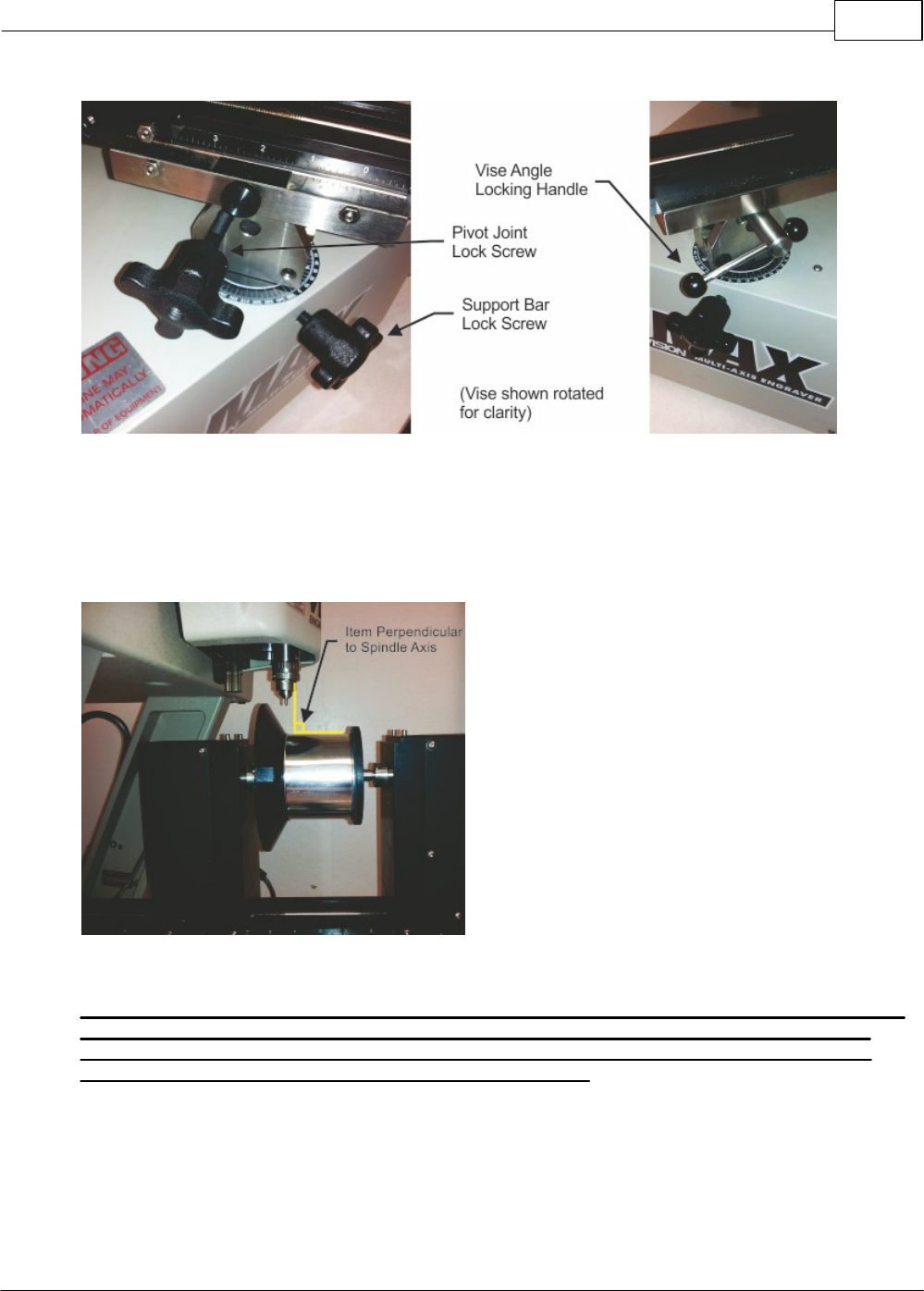
Example Jobs 149
© 2014 Vision Engraving Systems
Also, raise the vise so that the bottom of the engraving tool (the diamond drag adapter in this example)
is approximately 1 - 2 inches above the surface of the item. The vise height can be adjusted by
loosening the Support Bar Lock Screw, lifting the vise (or lowering it), then securely tightening the lock
screw. In addition, if the item is tapered, adjust the angle of the vise by loosening the Pivot Joint Lock
Screw and Vise Angle Locking Handle, then tilt the vise so that the area to be engraved is perpendicular
to the spindle axis as shown below. Tighten the lock screw and handle firmly after adjustment.
Using the Pendant, press the Rotary Axis button and select 1, which enables the rotary axis.
WARNING: In the next step, the spindle will move to the center point of the X and Y-Axis. Make
sure the vise, its attachments and the item to be engraved are not above the bottom of the
cutting tool, or damage to the machine may occur. Keep hands and clothing away from the
machine before pressing the Enter button on the Pendant.
Enter the diameter of the item using the numbers on the Pendant's key pad, then press Enter on the
Pendant.
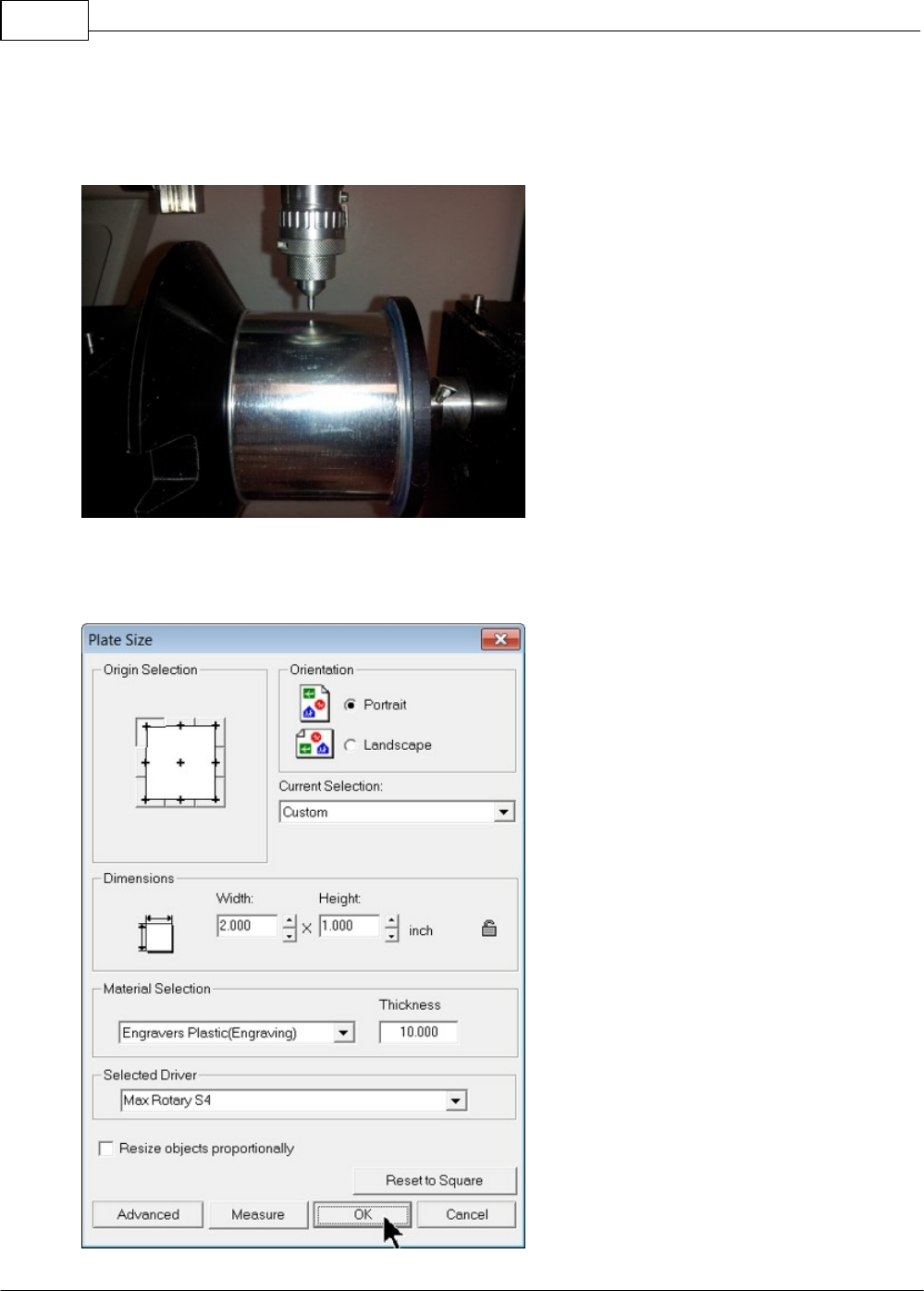
Vision Max User Manual150
© 2014 Vision Engraving Systems
Move the spindle over to the center of the area to be engraved using the Y Down button on the Pendant,
then lower the spindle using the Z Down button on the Pendant until the tool tip is slightly above the item.
Adjust the Y position as necessary to locate the tool tip in the center of the engraving area. Press the
Set Home button on the Pendant.
The Max Rotary S4 driver is a CENTER based driver. It will use the center of the plate size in the Vision
software as the home position on the machine. For this example a plate size was set in the Vision
software to be 2 inches wide and 1 inch high.
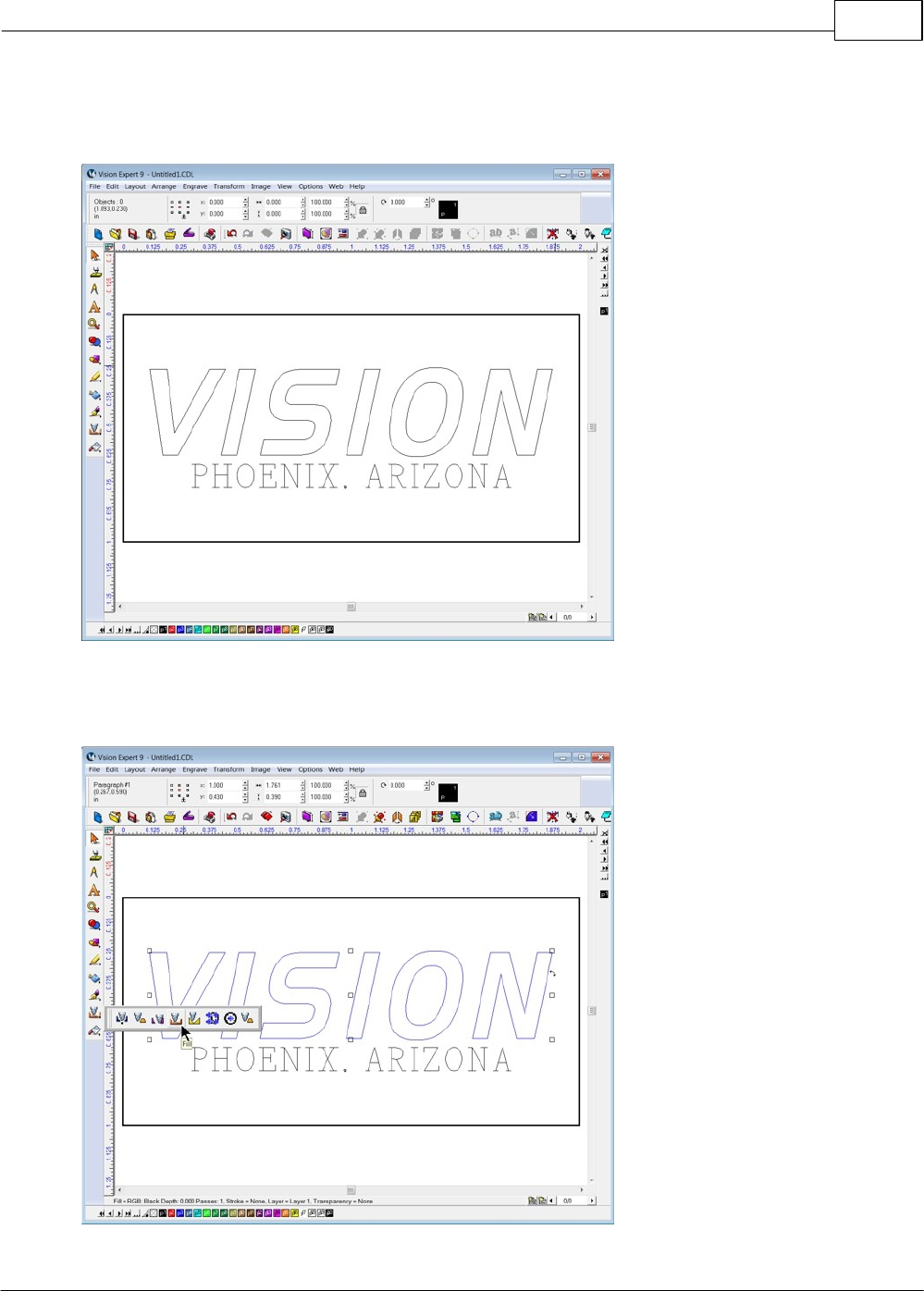
Example Jobs 151
© 2014 Vision Engraving Systems
The text was added by using the Frame Text Compose tool, using Handled as the font, set to 0.375
inches high and slanted 12 degrees. A second line of text was added using Aura1 as the font set to a
height of 0.1 inches.
Once the text was added, it was ungrouped (select Layout, then Ungroup from the top menu bar or the
Ungroup icon on the top toolbar). The top line of text was selected and the Fill Tool was selected to
create a fill.
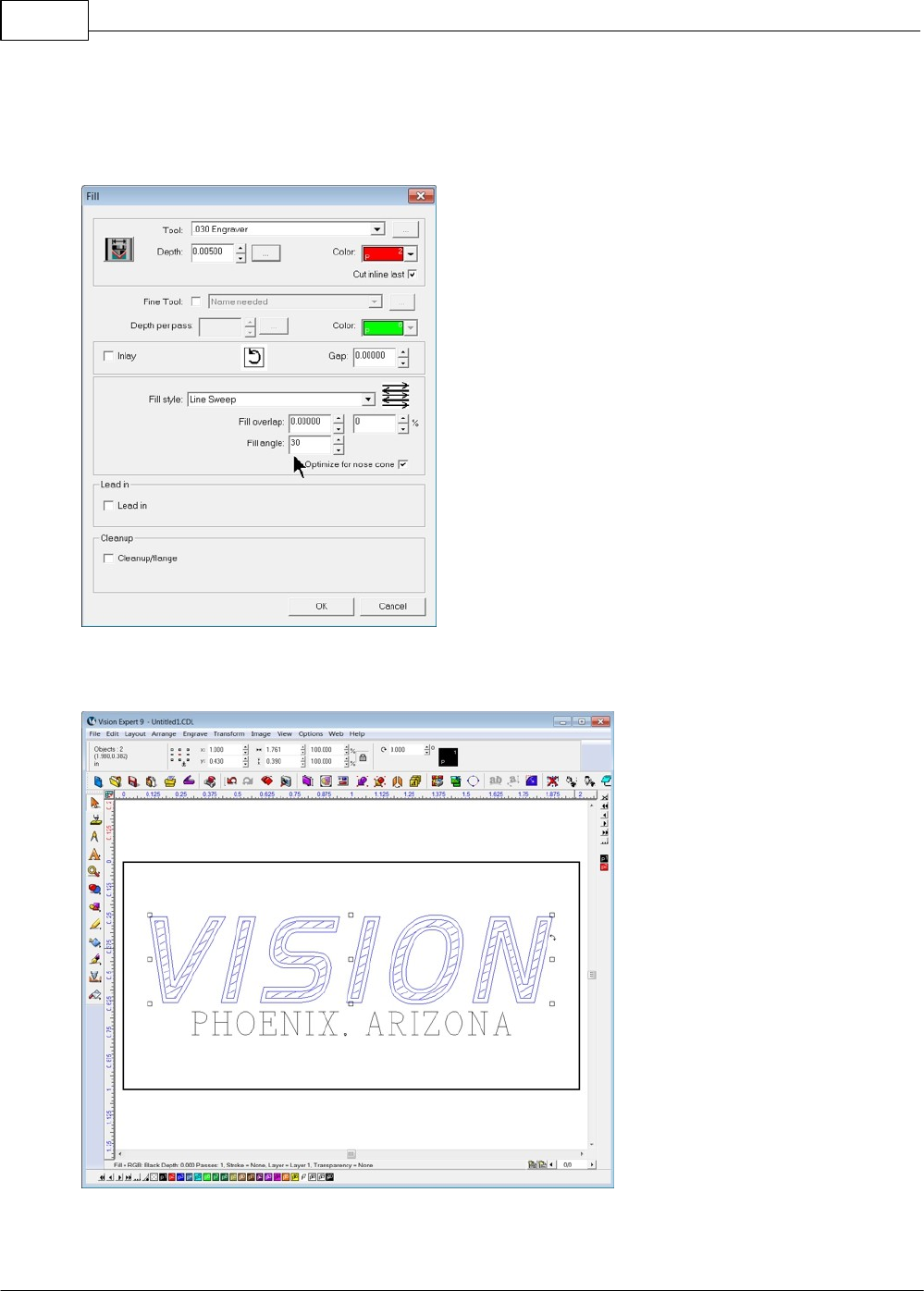
Vision Max User Manual152
© 2014 Vision Engraving Systems
In order to apply a wide cross-hatch to the text, the Fill path was set using the following parameters: Tool
- 0.030 Engraver, Depth - 0.005", Color - Red, Fill style - Line Sweep, Fill overlap - 0, Fill angle 30
degrees. Select OK to apply this tool path. HINT - experiment with different Tools, Overlap and Fill Angle
to create different fill patterns.
The path will be created as shown below. Select only the top line of text (do not select the tool path just
created) and again select the Fill Tool.
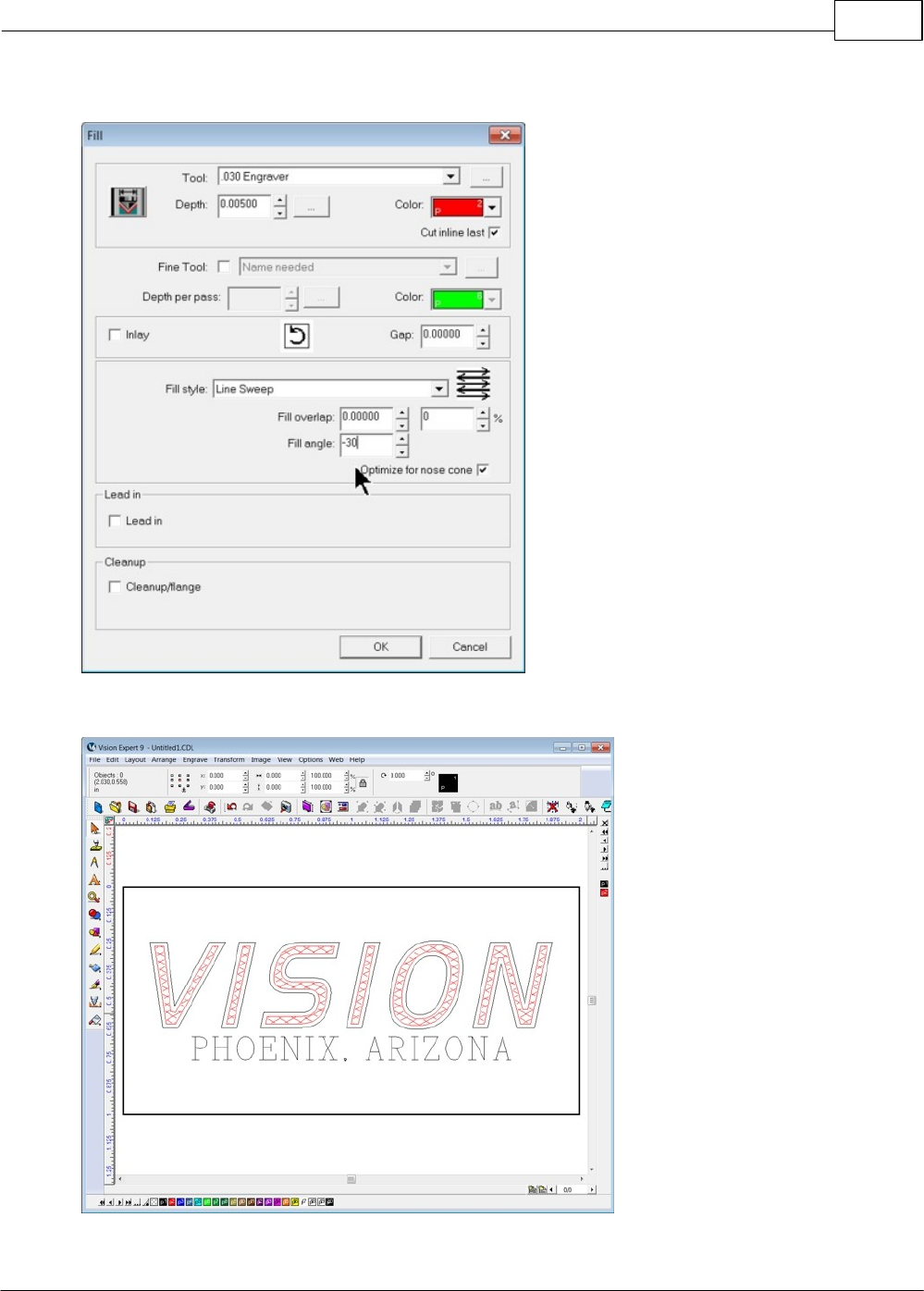
Example Jobs 153
© 2014 Vision Engraving Systems
Apply the same parameters, except change the Fill angle to -30 degrees, then select OK.
This will create a cross-hatch pattern inside the text as shown.
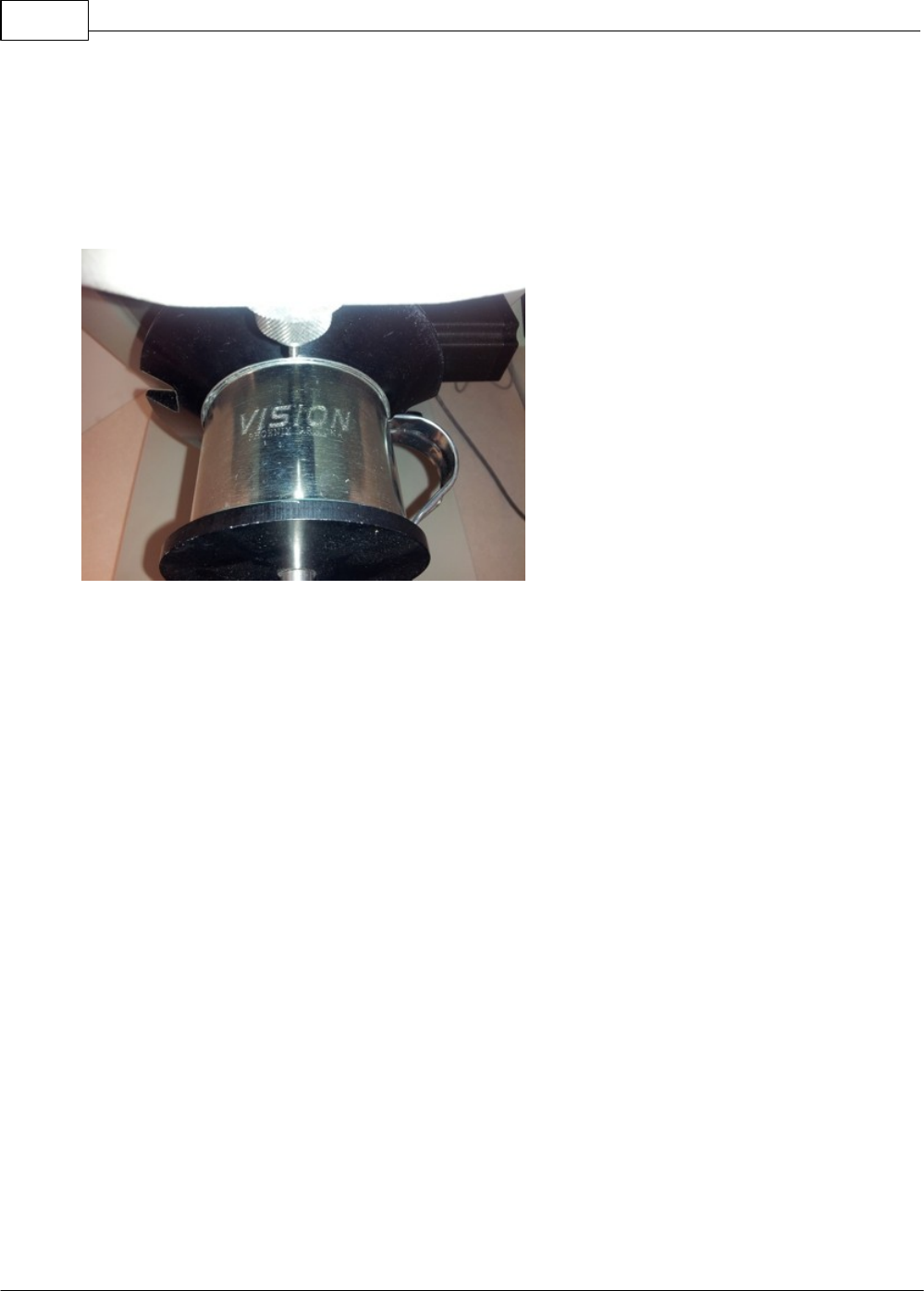
Vision Max User Manual154
© 2014 Vision Engraving Systems
Send the job to the engraver using the Max Rotary S4 as the device and using Metals(Diamond Drag)
for the material setting. The Proximity Sensor is used and should be turned on in the Cut Toolbox since
we are using Diamond Drag engraving.
The finished item should appear as shown below. If the opposite side of the mug will be engraved,
loosen the vise adjustment wheel, rotate the mug 180 degrees (so that the handle is on the left side) and
run the job again.
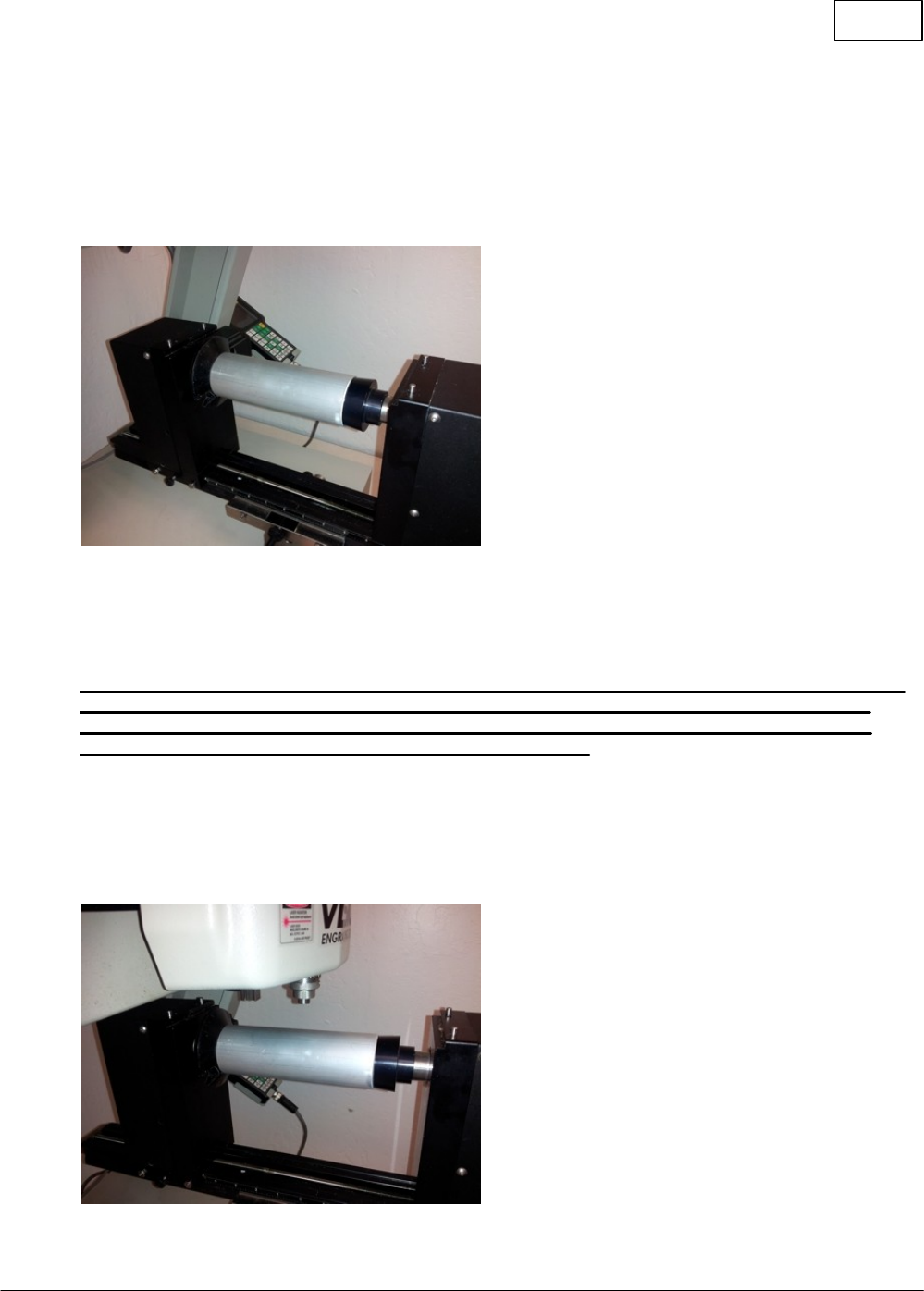
Example Jobs 155
© 2014 Vision Engraving Systems
4.3.2 Example Job 8 - Deep Engraving Round Objects
In this example job, a metal (Aluminum) tube will be engraved using the rotary axis. To prepare the
machine for use of the rotary axis, remove the T-Slot table as described in the Level 1 Jobs - Using the
T-Slot Table section. Measure the diameter and length of the item to be engraved. In this example, the
diameter of the tube was 2.003 inches and the length was 5.95 inches. Install the appropriate cones or
holding chucks for the item being engraved.
Install the tube in between the cones and use the vise wheel to tighten the vise. Items should be firmly
secured by turning the wheel by hand, or they may slip during engraving. To locate this item under the
spindle properly, turn the machine on and Press Go to Home on the Pendant. Press the Rotary Axis
button on the pendant and select 1 to enable the Rotary Axis.
WARNING: In the next step, the spindle will move to the center point of the X and Y-Axis. Make
sure the vise, its attachments and the item to be engraved are not above the bottom of the
cutting tool, or damage to the machine may occur. Keep hands and clothing away from the
machine before pressing the Enter button on the Pendant.
Enter the diameter of the item using the numbers on the Pendant's key pad, then press Enter on the
Pendant. In this example, 2.003 was entered using the numeric keys on the Pendant. After the machine
moves the spindle to the center of its engraving area, adjust the height of the vise so that the bottom of
the nose cone is roughly 1 - 2 inches above the item and slide the vise forward (or towards the rear) to
visually center the spindle over the center of the item.
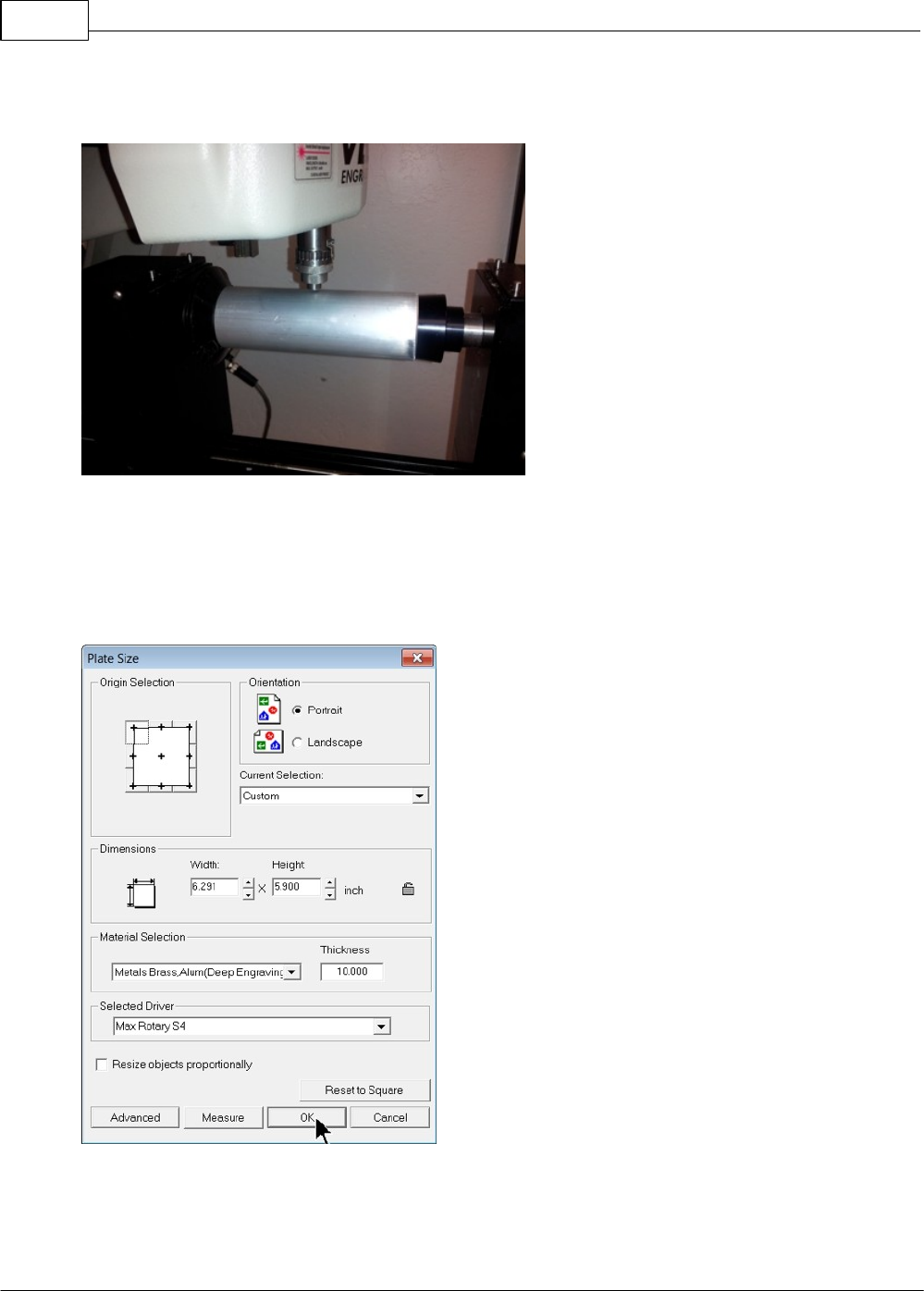
Vision Max User Manual156
© 2014 Vision Engraving Systems
Lower the spindle using the Z Down button on the Pendant and adjust the vise as needed to position the
spindle over the center of the item.
The Max Rotary S4 driver is a CENTER based driver. It will use the center of the plate size in the Vision
software as the home position on the machine. For this example, the plate height is the length of the
tube, which was previously measured to be 5.95 inches. The width of the plate is the circumference of
the tube. Multiply the diameter of the item by Pi (3.14) to calculate the circumference. The
circumference of the tube is 2.003 x 3.14 = 6.291 inches. Enter the height and width into the Plate Size
window and select Metals Brass_Alum(Deep Engraving) as the material setting, then select OK.
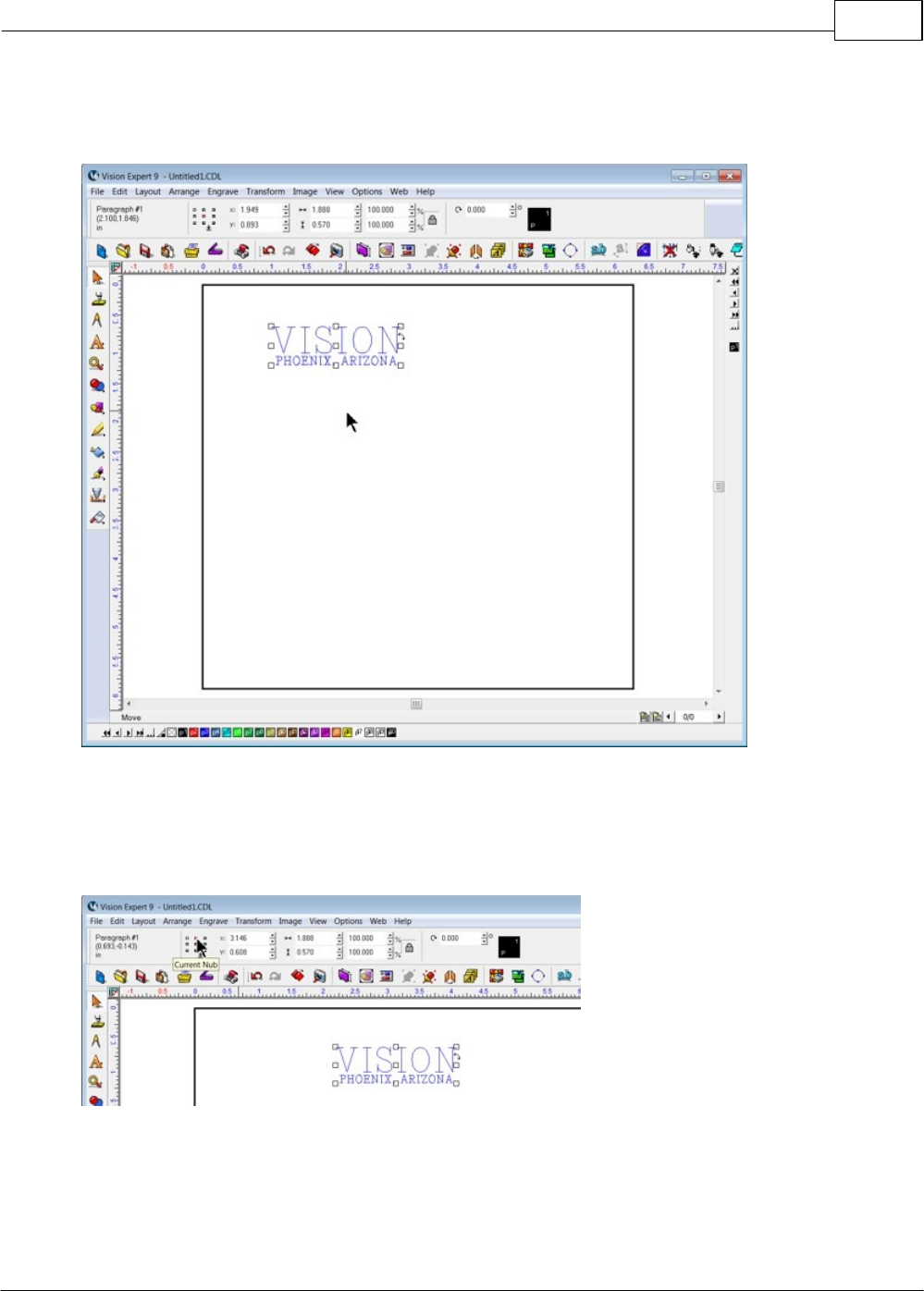
Example Jobs 157
© 2014 Vision Engraving Systems
Text was added with the Text Compose tool (not the Frame Text Compose tool) and two lines of text were
added in Aura1 font, with the top line being 0.375 inches high and the bottom line being 0.125 inches
high.
The text was centered horizontally on the plate using the short cut keys ALT+END. (This short cut is the
same as selecting Layout, Arrange and Distribute, Align to Sign Blank, Centers Horizontally). In order
to place the top of the text 1 inch from the top of the tube, the Current Nub was selected as the top
center nub on the top toolbar. (See mouse pointer in the picture below). The "Current Nub" is always
indicated by that nub being colored red.
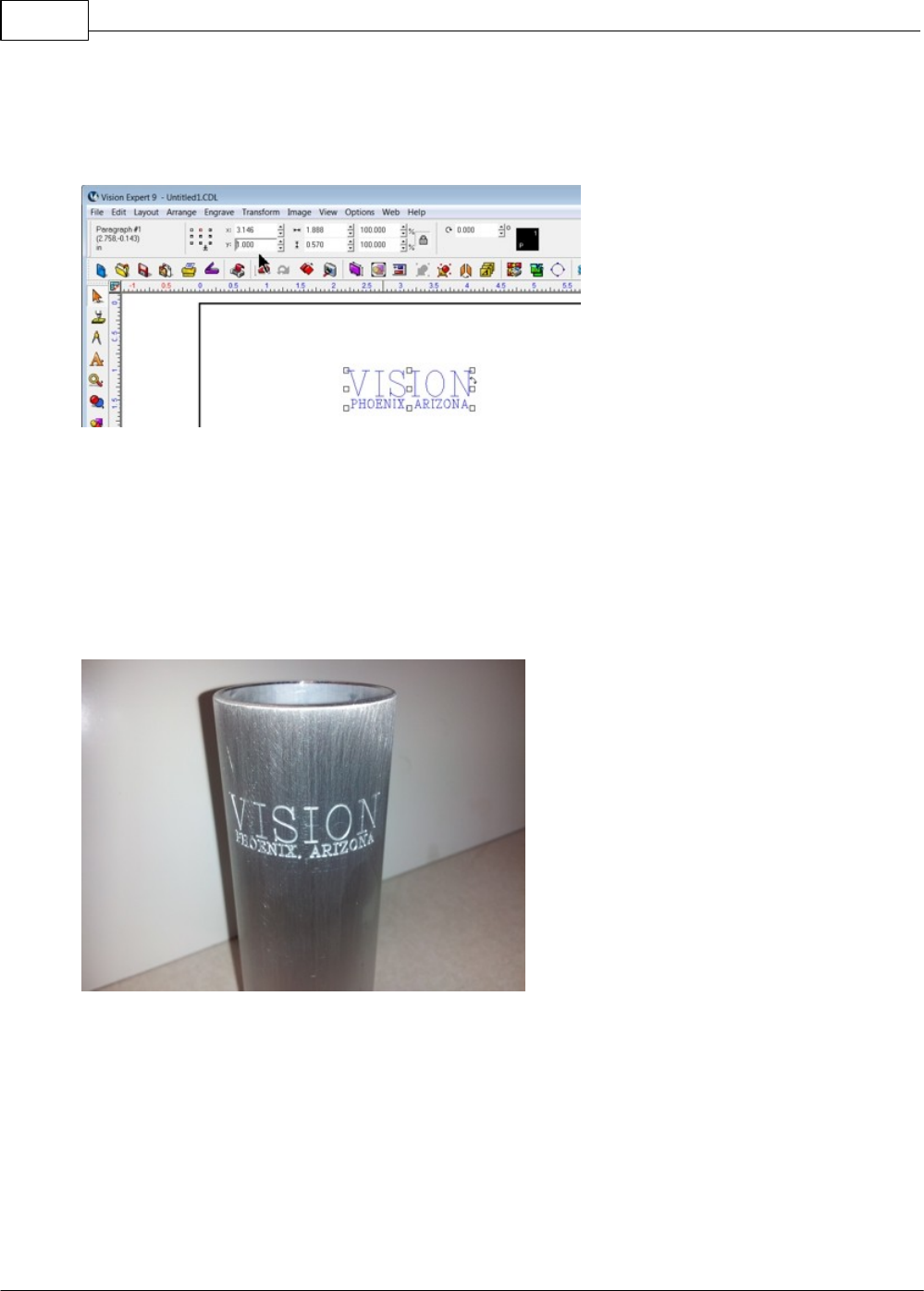
Vision Max User Manual158
© 2014 Vision Engraving Systems
The Y-Position of this nub (the top center of the text) was then set to 1.000 inches. Enter 1.000 into the
Y-Position text field (above pointer shown in the pic below), then press Enter on the computer keyboard.
The top edge of the text is now 1 inch below the top of the plate, which is also the top of the tube.
For this example, a 0.015 BAL cutter was used. The Micrometer was set to an engraving depth of 0.005
inches and the job was run using the factory material settings for Metals Brass_Alum(Deep Engraving)
with one change. The Cutting Rate was reduced to 0.40 inches per second due to the depth of
engraving and the fine tip size of the cutter. The job was then run. Once the job was finished, the
Micrometer was changed to 0.010 inches engraving depth and the job was run a second time to
increase engraving depth. NOTE - with smooth, metallic surfaces, the metal nose cone may leave
"ghost" images around the engraved graphics. This was expected in this application and when the
engraving was finished, the item was lightly sanded to remove the ghost images. The sanded product is
shown below.
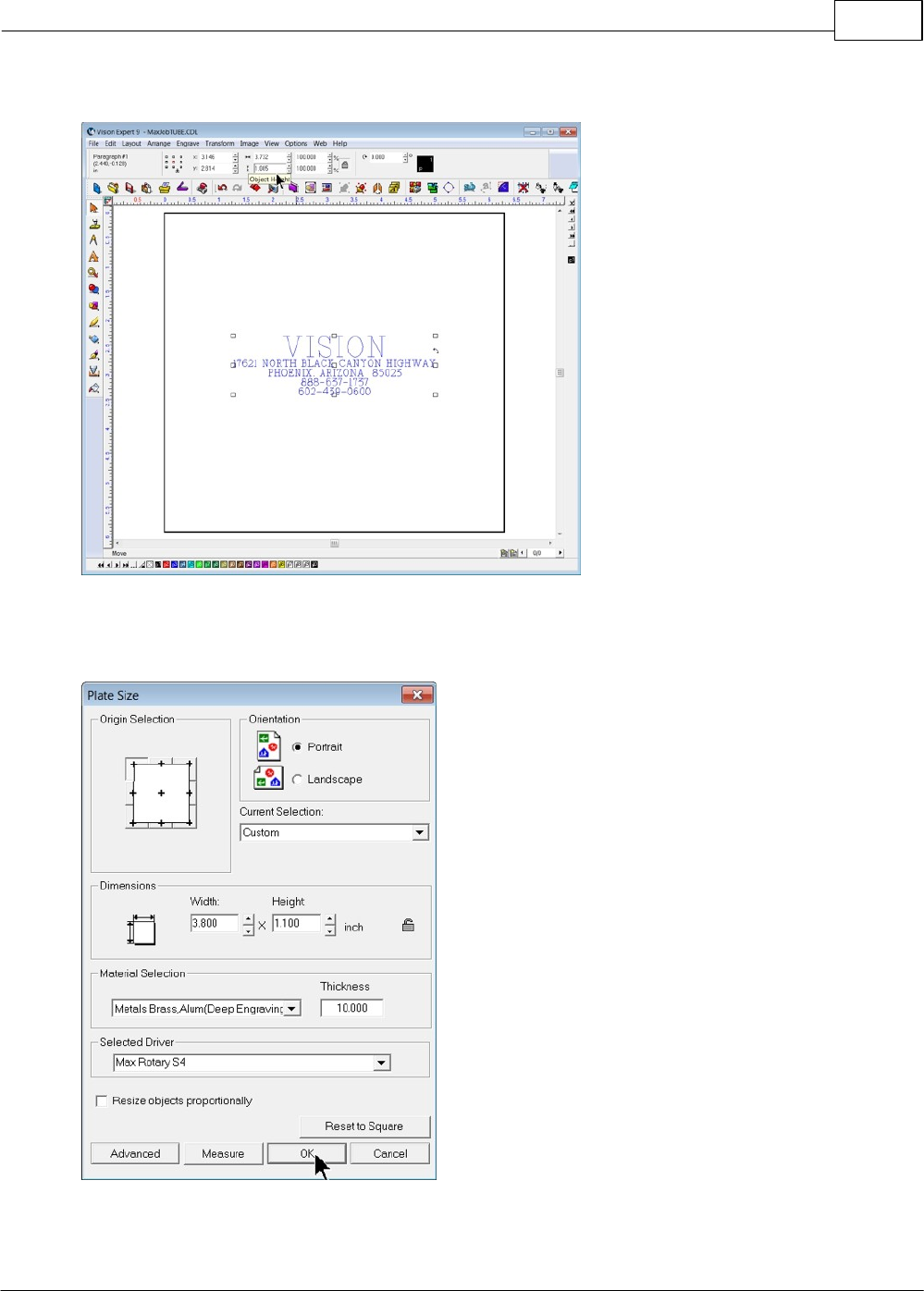
Example Jobs 159
© 2014 Vision Engraving Systems
As an alternate way of engraving this tube, the text was revised as per the below picture.
Then the plate size was reduced to just slightly more than the image size. Note that in the above picture,
the image size is displayed as 3.732 inches wide and 1.085 inches high. The plate size was adjusted to
3.8 inches wide and 1.1 inches high.
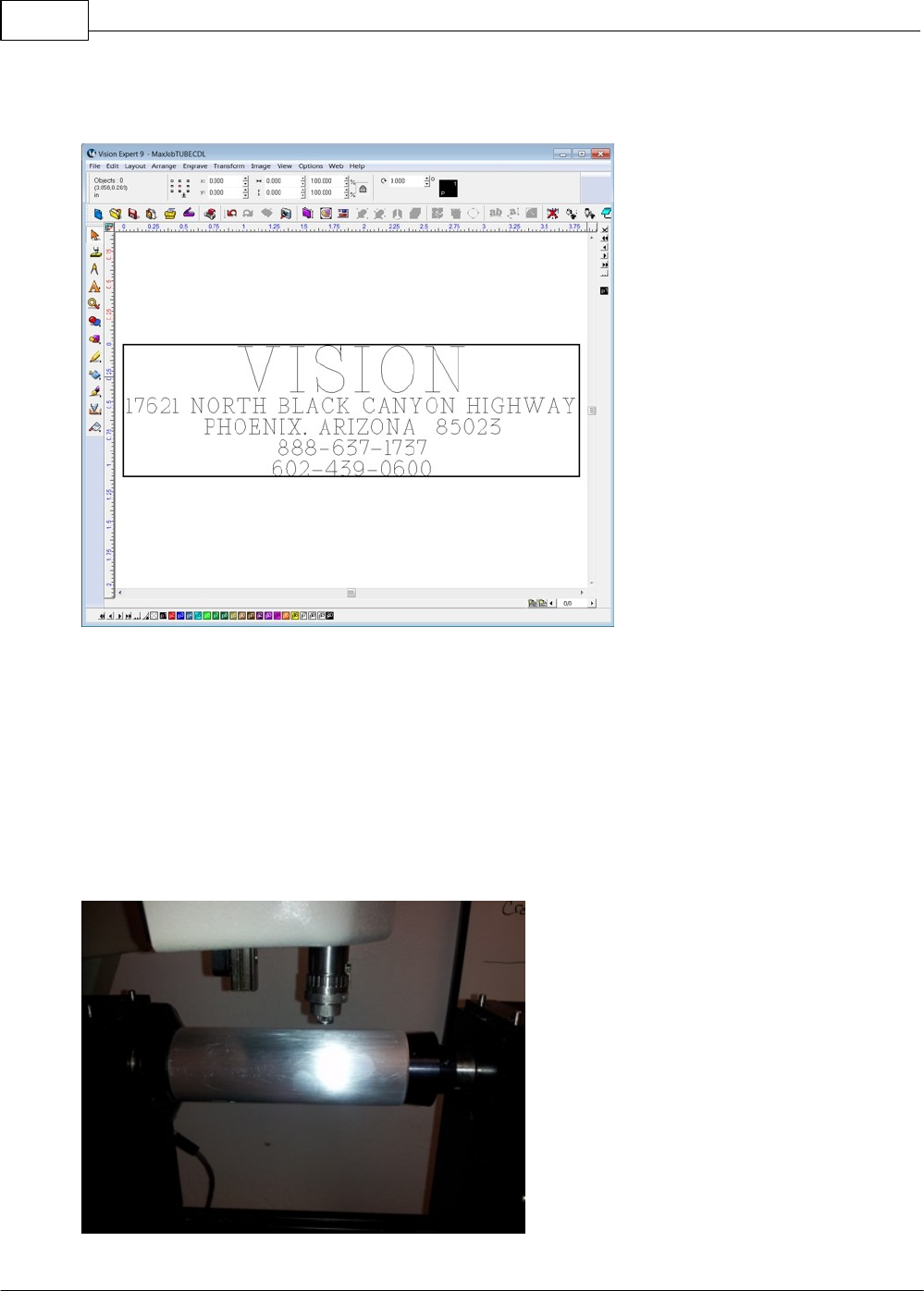
Vision Max User Manual160
© 2014 Vision Engraving Systems
This text will be rotated and engraved with the text in line with the tube's centerline. It will also be
positioned in a specific location.
The location of the center of this text was chosen to be 2 inches from the bottom of the tube. Move the
spindle using the Y Down button on the Pendant until the tip of the cutter is directly above the bottom
edge of the tube. HINT - Depending on the engraving depth set with the Micrometer, it may be difficult
to see the tool tip. Remove the cutting tool and install a pointed tool, such as a diamond drag cutter, and
extend it below the nose cone far enough to see it easily, then adjust the Y position of the spindle over
the bottom edge of the tube. Note the Y position indicated on the Pendant, then move the spindle using
the Y Up button on the Pendant until the Y position on the Pendant is 2.00 inches less than indicated
when the tool was positioned over the bottom edge of the tube. (Alternatively, the use could press the
Set Home button with the tool tip aligned to the bottom of the tube, then move the spindle using the Y Up
button until the Y position reads -2.000 inches). After moving the spindle, press the Set Home button on
the Pendant. This will be the center of the engraving area.
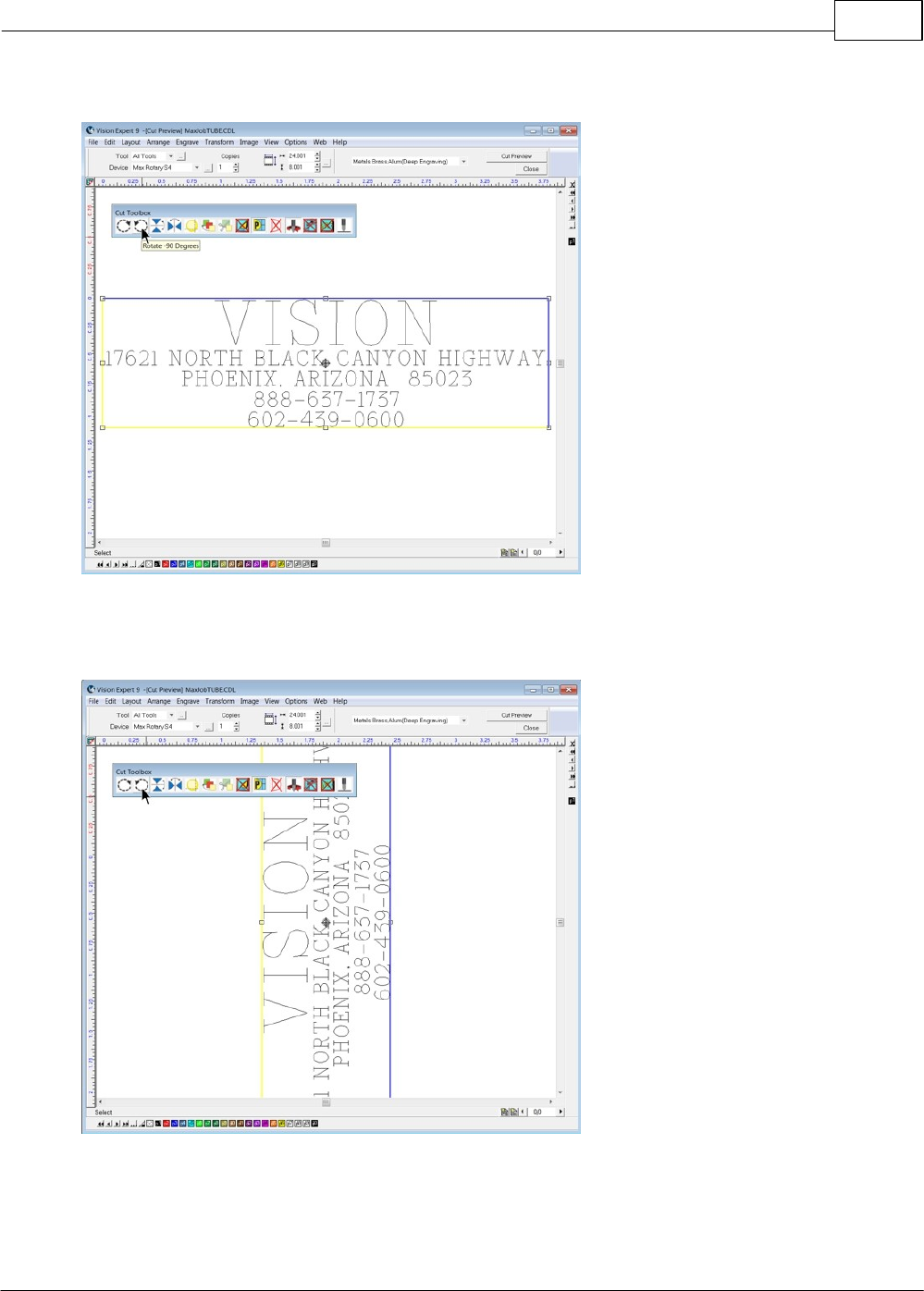
Example Jobs 161
© 2014 Vision Engraving Systems
After selecting Engrave from the left toolbar, the Rotate -90 Degrees icon was selected.
This simply rotates the plate -90 degrees and changes the orientation of the graphics. Alternatively, the
user could rotate the graphics in the Vision software and change the plate size, but Rotate feature
allows the user to "read" the text normally, rather that having to read it sideways in the Vision software.
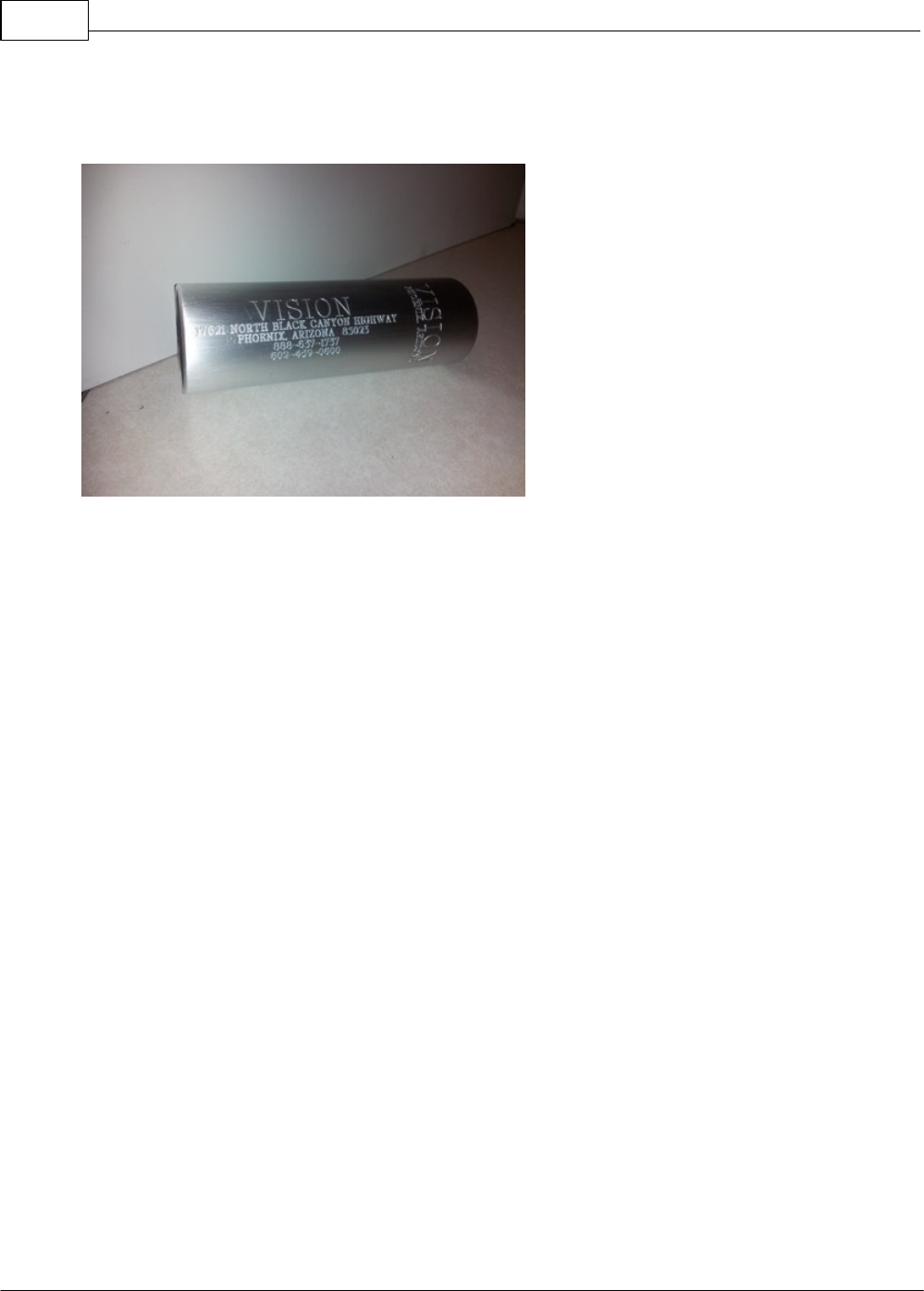
Vision Max User Manual162
© 2014 Vision Engraving Systems
The job was run in the same manner as the first two lines of text in this example job. Afterwards, the tube
was sanded to remove the ghost images created during the engraving process. The finished item is
shown below.
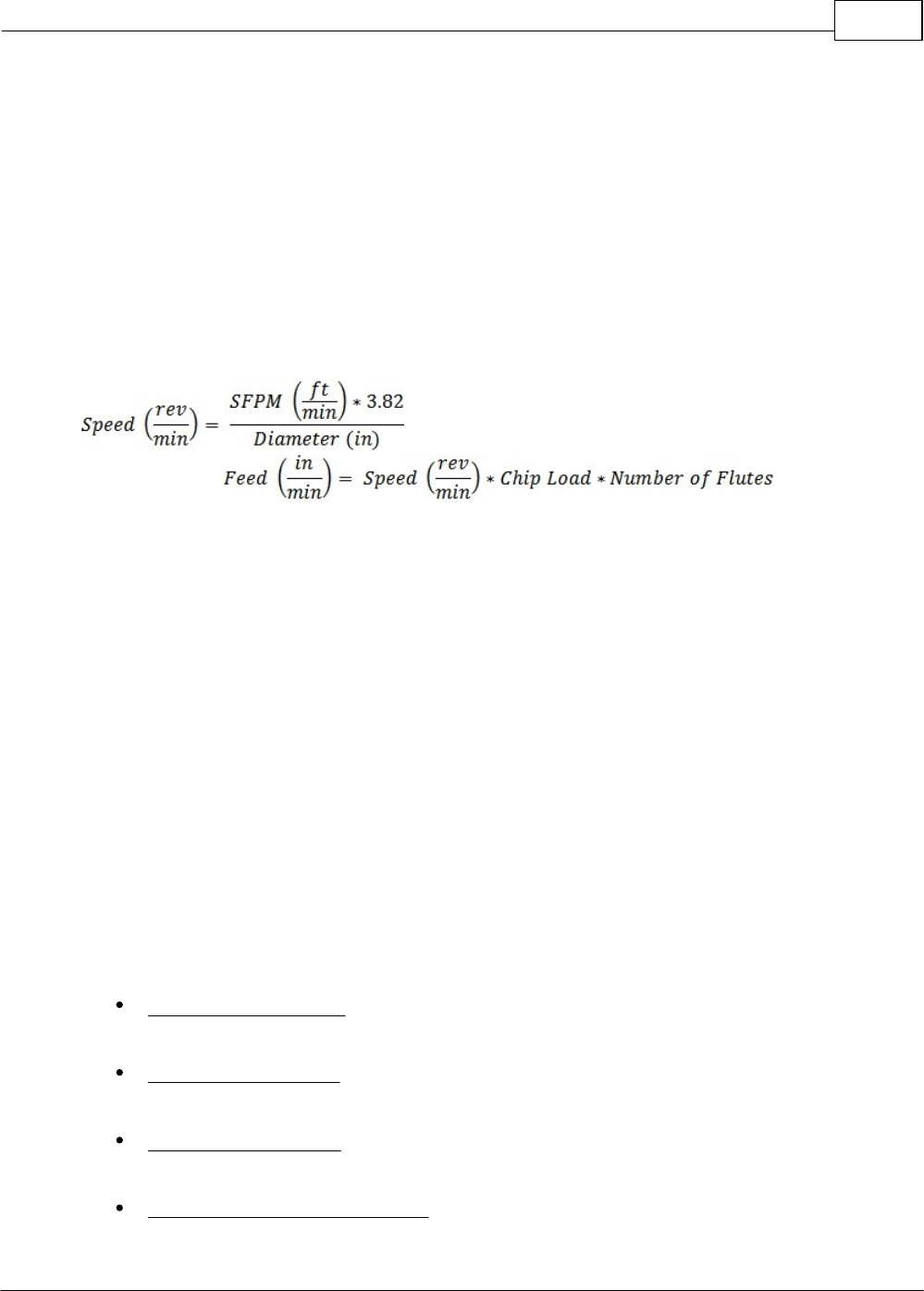
Example Jobs 163
© 2014 Vision Engraving Systems
5 Feeds and Speeds
The best way to obtain cutting speeds and feeds is by contacting the tool or material manufacturer.
Otherwise, determining the optimal cutting speed and feed rate for the project at hand requires some
research and experience. Researching your cutter or material will ultimately yield a chip load or a
SFPM (Surface Feet per Minute) value. These tool/material specific values can then be used in the
following calculations to determine the speed and feed rates for your job.
Speed equals the spindle speed in revolutions per minute (RPM).
SFPM equals the Surface Feet per Minute and is the speed at which the cutting edge of the tool moves
past the material. This value is tool and material dependent.
Diameter is the tool diameter.
Feed equals the linear feed of the tool through the material.
Chip Load equals the amount of material each cutting edge of the tool removes per revolution. This
value is tool dependent.
Speeds and feeds are often adjusted at the machine based on chip shape and size or the cutting
sound. For routing applications one should start off using the recommended chip load and RPM for the
material you are cutting. Increase the feed rate until the part finish starts to deteriorate or you risk
moving the part. From this point, decrease the feed rate by 10%. Next decrease your RPM until your
surface finish deteriorates, then increase your RPM until the finish is acceptable. These steps will yield
the optimal speed and feed rates and the largest chip possible. Take note of these values for future
reference.
Factors that will affect your feed and speed values include:
Hardness of the material - Wood is the perfect example of this variable. A hard wood such as
oak will require a slower feed rate than pine.
Chip removal efficiency – A large nose cone and high volume vacuum will remove chips more
efficiently thus allowing for faster feed rates.
Size and Type of Cutter – A fine tipped cutter is more fragile and will require conservative feed
and speed rates.
Required Accuracy and Job Detail – products requiring fine detail or accuracy will require

Vision Max User Manual164
© 2014 Vision Engraving Systems
slower feed rates to account for tool deformation.
Hold down method – The more securely a product is held down the more aggressive the feed
and speed rates can be.
Depth of cut - Shallow cuts can be made with faster feed rates.
Strength/Speed of Motor – The strength and speed of the motor will limit the materials that can
be cut and what feed rates you can cut at. The optional engraving and routing motors will cover
most all engraving/routing needs.
oThe NSK High-Frequency 50,000 RPM Engraving Spindle is perfect for deep engraving
into metals. The high RPM allows cutters to stay sharp much longer for increased
production and allows for much faster speed in engraving.
oThe 3.25 HP 18,000 RPM Router Motor is perfect for routing applications in all materials.
oThe Standard Engraving Head can work at speeds up to 18,000 RPM, is driven by the
Router Motor and can easily cut through plastics and woods.
oThe High Speed Engraving Head is capable of 30,000 RPM, is driven by the Router Motor
and can increase feed rates when engraving many materials.
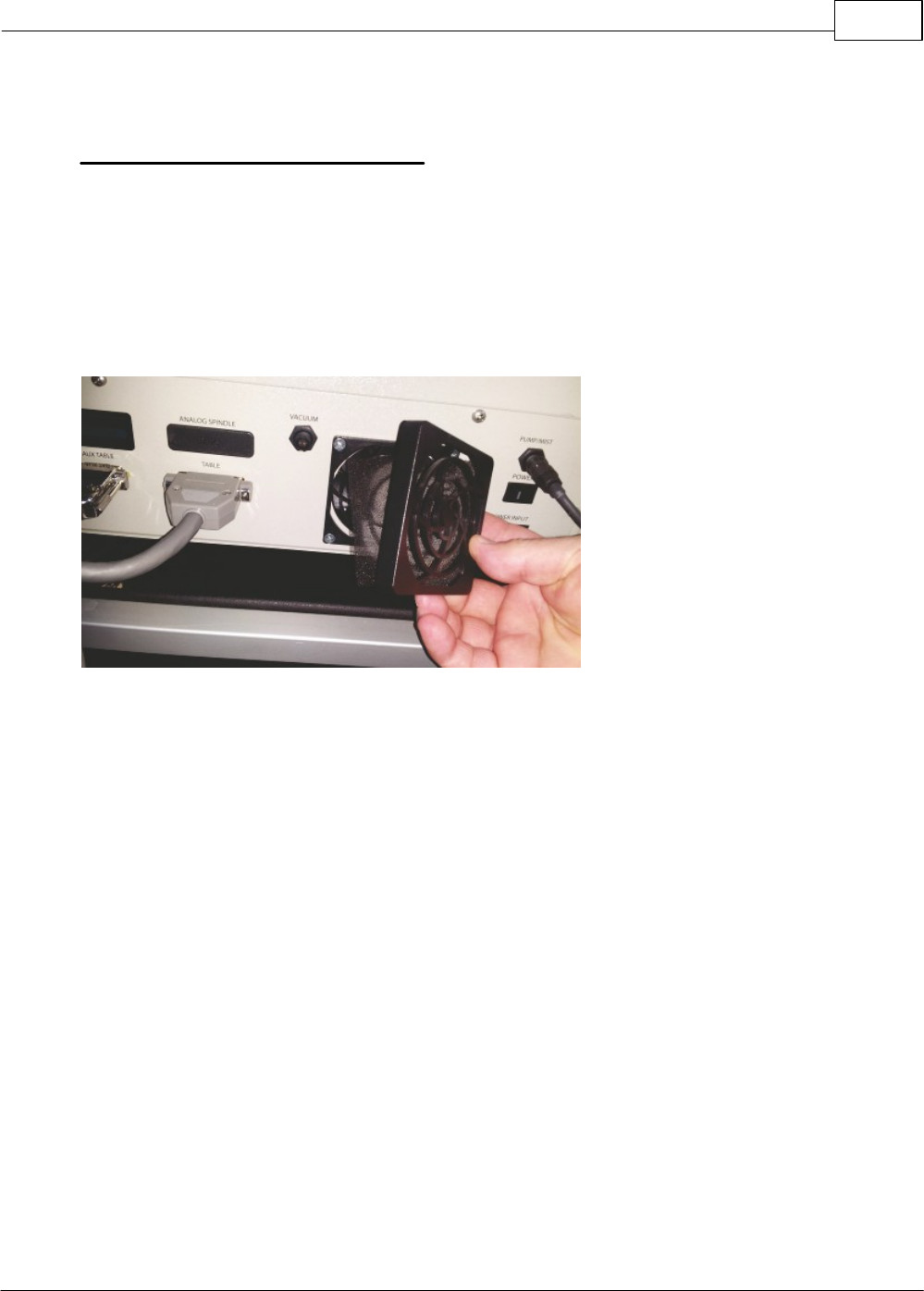
Feeds and Speeds 165
© 2014 Vision Engraving Systems
6 Maintenance
How to Remove and Clean the Air Filter
Weekly preventive maintenance should be performed to ensure reliable operation of the machine's
controller. It is recommended that the input fan filter be removed weekly and cleaned to ensure proper
cooling of the electronics. The filter is located on the back of the machine.
i. Remove the filter guard; this is easiest if you pull from a corner of the guard.
ii. Remove the filter and blow out the filter with low pressure compressed air, or rinse the filter with
water and dry before replacing.
iii.Replace the filter and replace the filter guard.
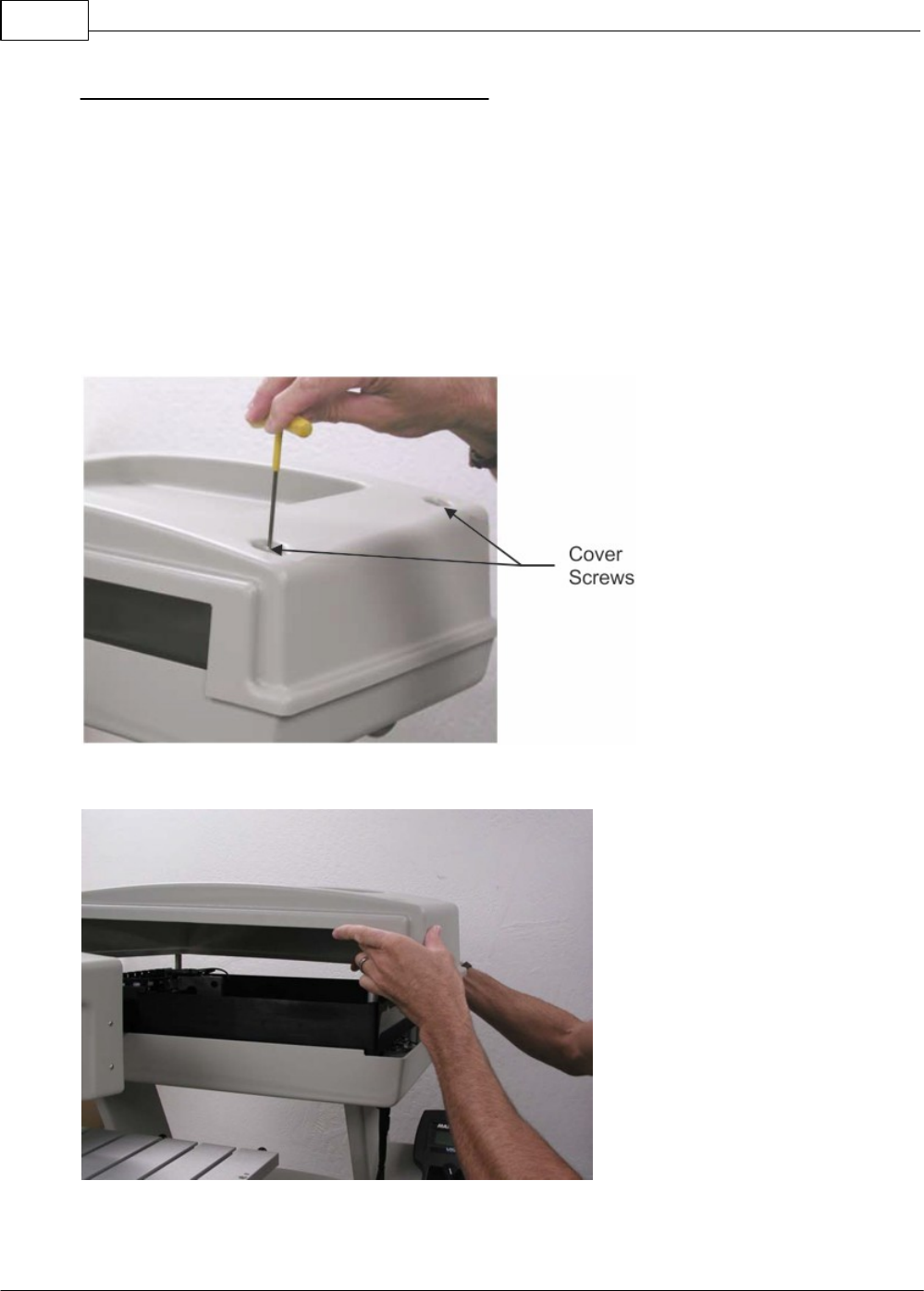
Vision Max User Manual166
© 2014 Vision Engraving Systems
Cleaning and Lubrication of the Motion System
The linear bearings and leadscrews should be cleaned and lubricated periodically. Time periods
between cleaning and lubrication will depend on the materials being processed and the amount of time
per day the machine is used. The Z-Axis is exposed to more debris than the X and Y-Axis. Clean the Z-
Axis at least once a month and lubricate the linear bearing every 3 - 6 months when the machine is
under moderate usage. The X and Y-Axis bearings and leadscrews should be cleaned and lubricated
once every year.
Procedure
The X and Y-Axis of the motion system are under the top cover. Remove the 4 screws securing the
cover.
Lift the cover off the machine.
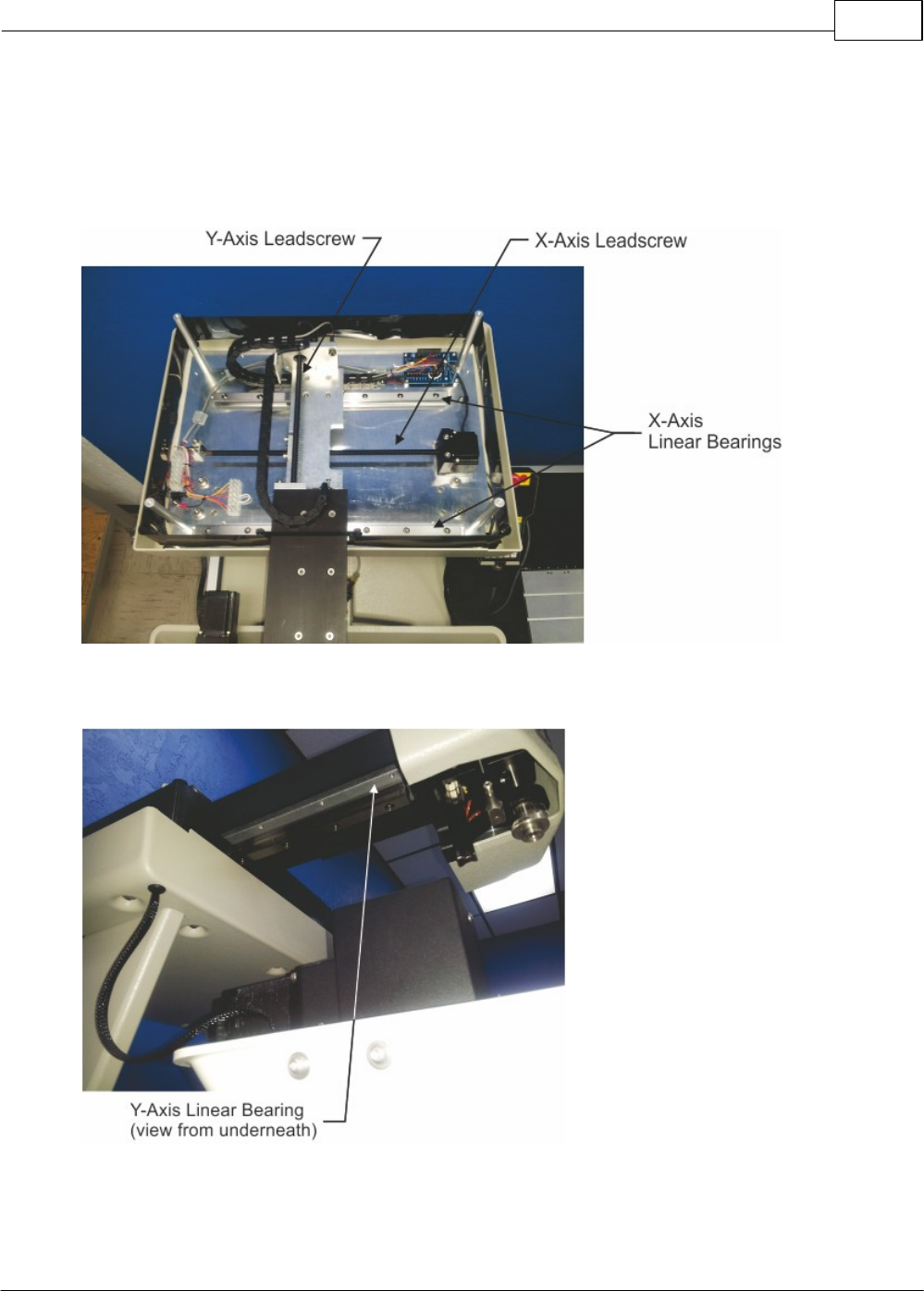
Maintenance 167
© 2014 Vision Engraving Systems
Inside the cover, the X and Y-axis Leadscrews and the X-Axis Linear Bearings are easily accessible.
Clean the Linear Bearings by wiping them down with a clean cloth. The Leadscrews will likely have
lubricant residue on them. Clean the Leadscrews by using a brush or a clean cloth to remove any large
debris.
The Y-Axis Linear Bearing can be accessed by moving the spindle forward (in the Y-Axis). The bearing
is under a cover, but accessible from underneath the cover. Clean this bearing with a cloth.
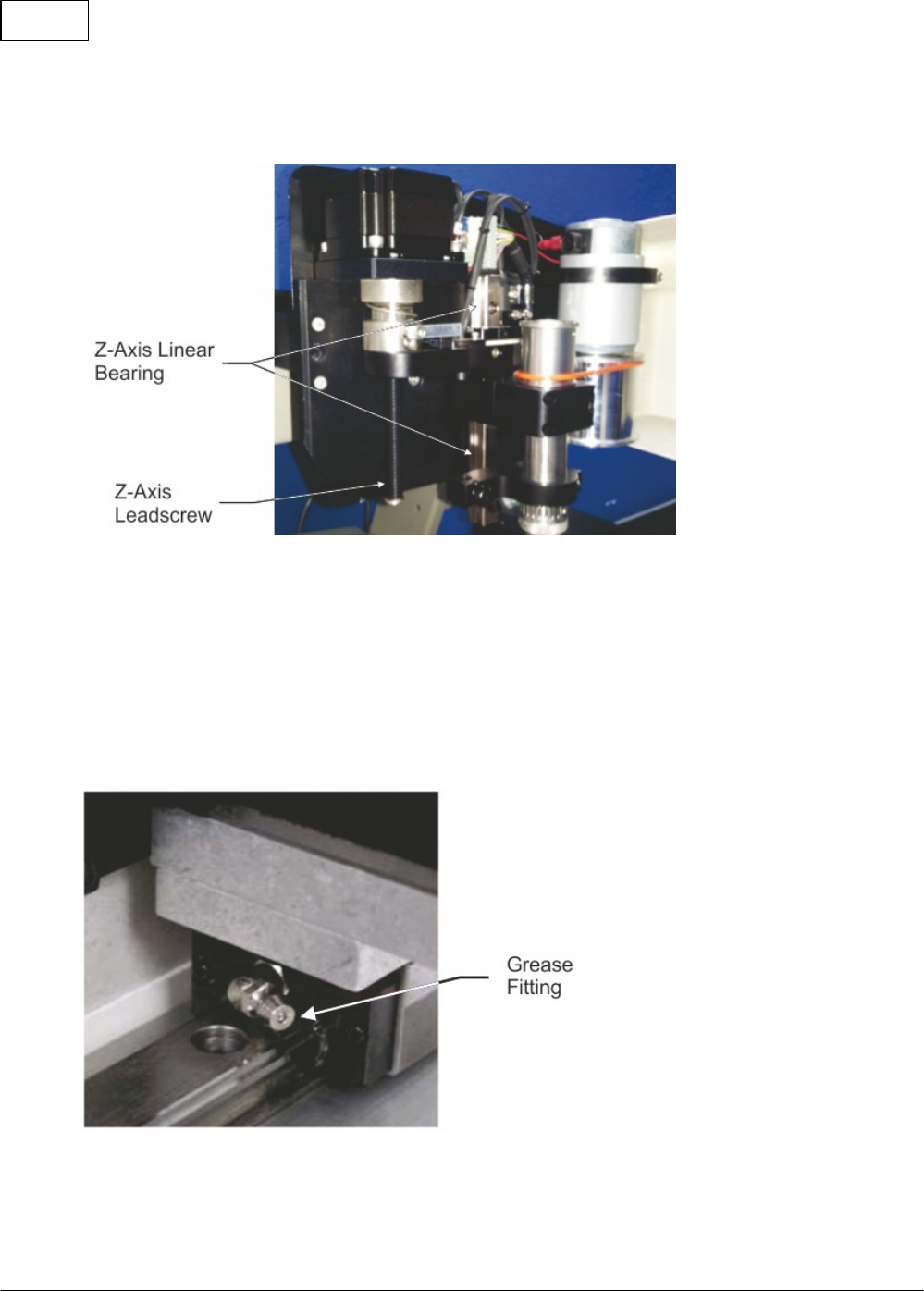
Vision Max User Manual168
© 2014 Vision Engraving Systems
The Z-Axis Linear Bearing and Leadscrew are accessible by opening the spindle cover and should be
cleaned with a clean cloth or a brush.
Lubricate the Leadscrews by using a Teflon-free Silicone Spray Lubricant. A light coating is all that is
necessary. Make sure components around the leadscrews are protected from over spray. HINT: Use a
paper towel and tuck it behind the leadscrew to protect surrounding areas from over spray.
All linear bearings have a grease fitting to lubricate the bearings and bearing rails. Use a hand pump
style grease gun with Lithium based grease. The grease fitting for the Y-Axis is shown below. Only use
on pump of grease in these bearings. Do not apply so much that the grease comes out of the bearings.
This can damage the bearing seals. A grease fitting "nozzle" is best to use to grease the bearings.
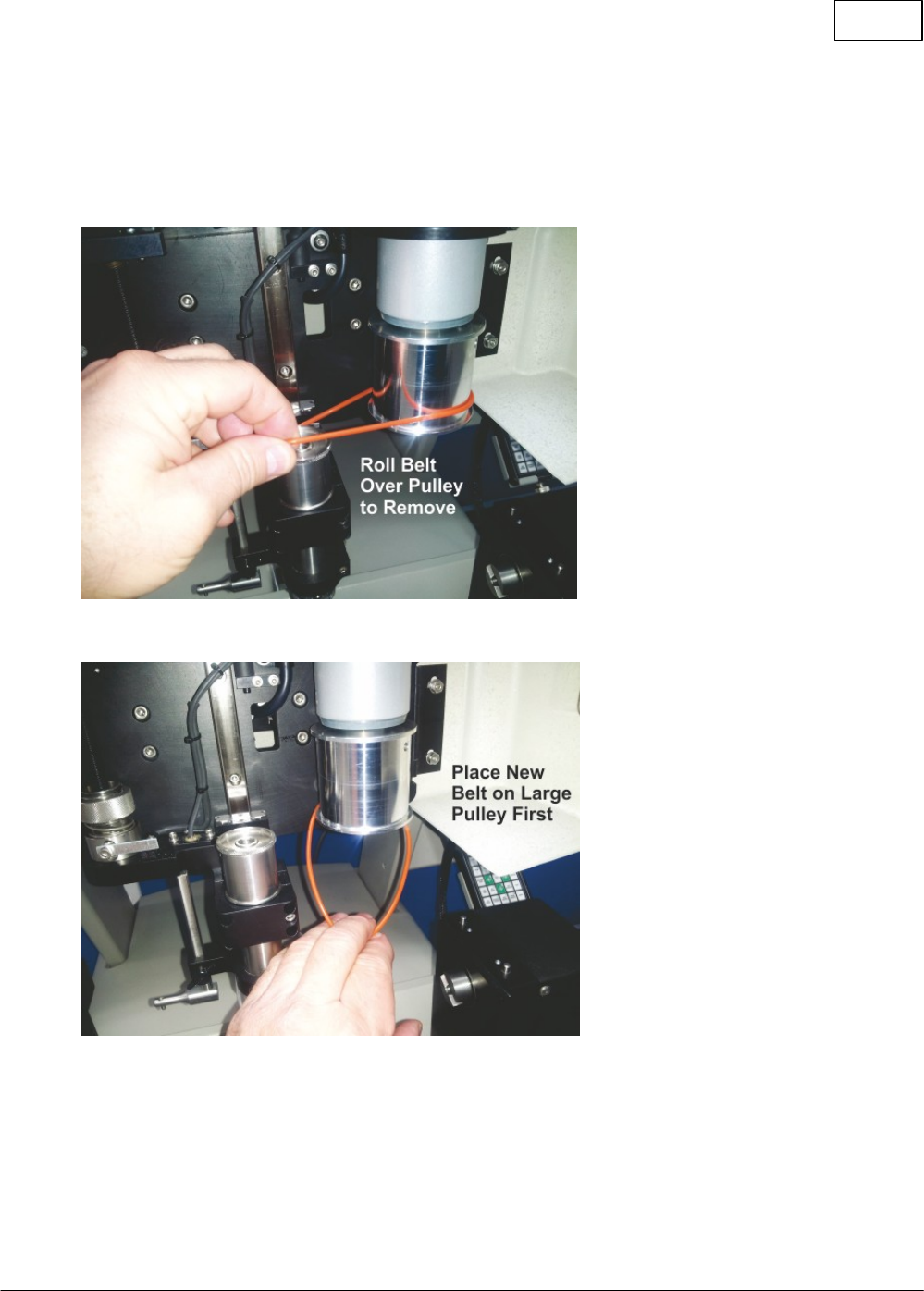
Maintenance 169
© 2014 Vision Engraving Systems
Replacing the Drive Belt
The drive belt will need replacement periodically, depending on usage. To remove the drive belt, lower
the spindle and roll the front edge of the drive belt over the lip of the spindle pulley.
Remove the old belt and place the new belt on the motor pulley as shown.
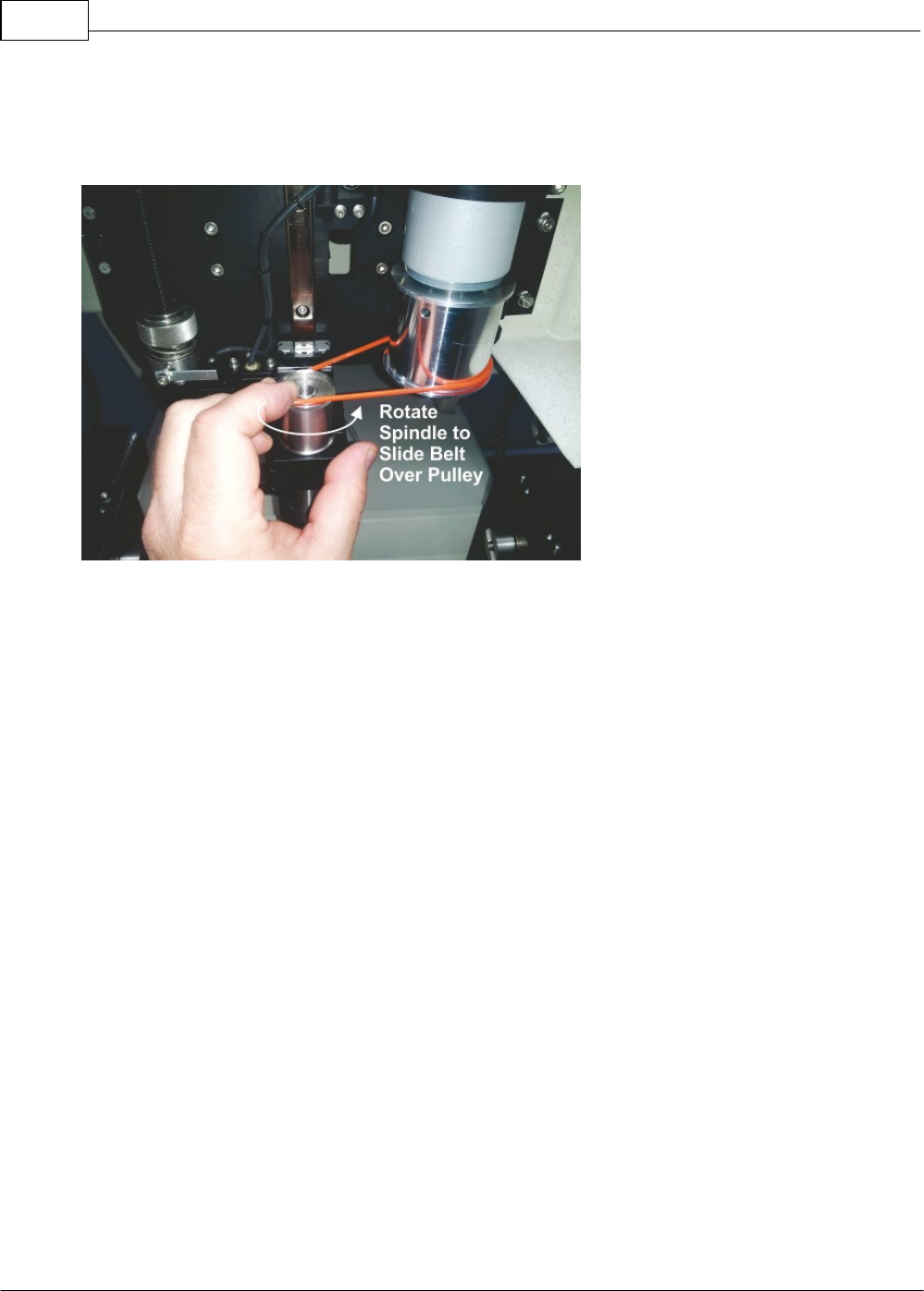
Vision Max User Manual170
© 2014 Vision Engraving Systems
Stretch the belt and rotate the spindle pulley as shown to allow it to roll over the pulley lip. Do not stretch
the belt completely over the pulley. Doing so may cause the belt to stretch beyond its limits and the belt
may not apply sufficient tension to drive the spindle.
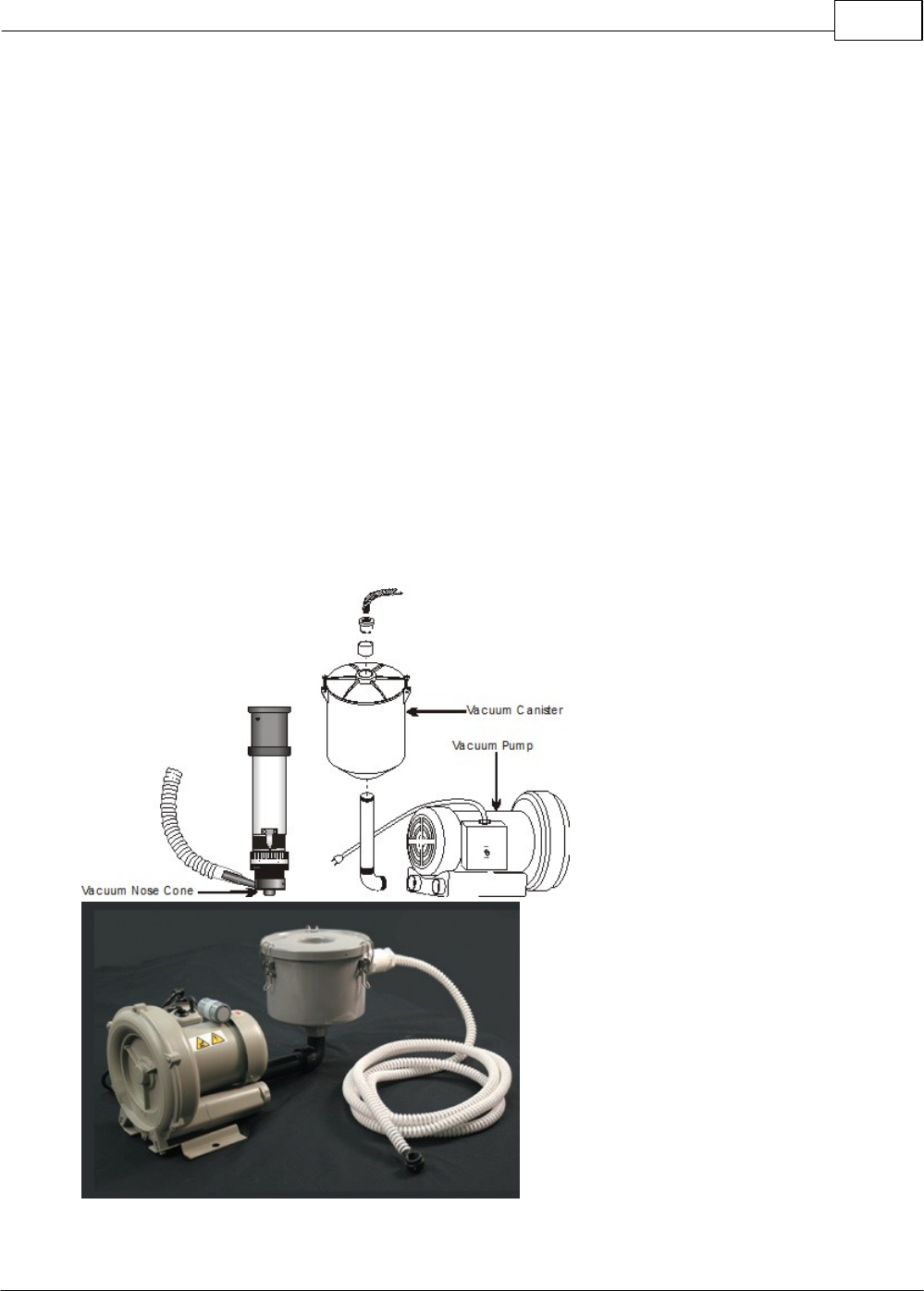
Maintenance 171
© 2014 Vision Engraving Systems
7 Optional Accessories
These accessories are available for purchase directly from Vision, or you local distributor, as well as
through www.visionengravers.com. If you have any questions about these accessories, please contact
Vision or your distributor for advice for choosing the best accessories for your applications. Vision can
also help if you have a need for special fixtures, or modifications to our standard accessories. Please
call us for details.
7.1 Vacuum Chip Removal System
Processing plastics, acrylics, sign foam and wood, produces a significant amount of debris that can
clog the nose cone and/or get trapped between the nose cone and the material, which will cause
engraving/cutting depth inconsistencies, potentially scratch the surface of the material and cause
overheating in the spindle area. The vacuum chip removal system is designed to simplify the engraving
process and minimize wear and tear on the engraver. It uses a vacuum nose cone to remove chips
created during the engraving process before they have the chance to create problems. The quiet pump,
coupled with the micro-fine layered filters, assures that your unwanted chips are whisked away
effortlessly. The vacuum pump canister uses replaceable/reusable filters to assure maximum efficiency
and cost-effectiveness. This vacuum chip removal system is available with or without a Vision vacuum
nose cone.
The Optional Vacuum Chip Removal System
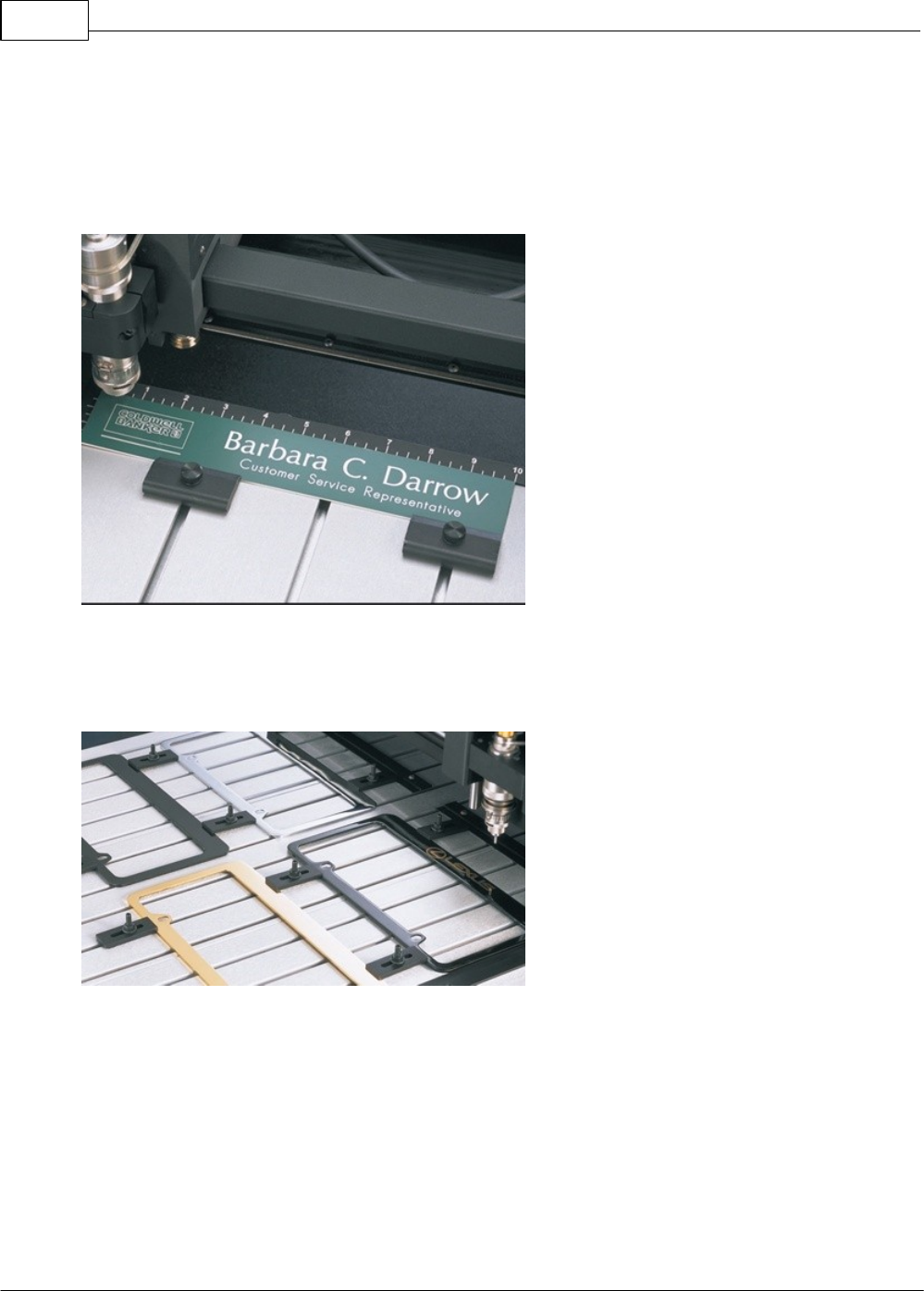
Vision Max User Manual172
© 2014 Vision Engraving Systems
7.2 Hold Down Clamps
Wedge Clamps
Simply slide the clamp onto the T-Slot table surface and position it over the edge of the engraving stock.
The downward clamping force eliminates bowing. This clamp can be used with material up to 1/4” thick.
Push Down Clamps
This double-sided clamp secures items from the edge. It is ideal for heavy-duty items that are being cut,
contoured or engraved.
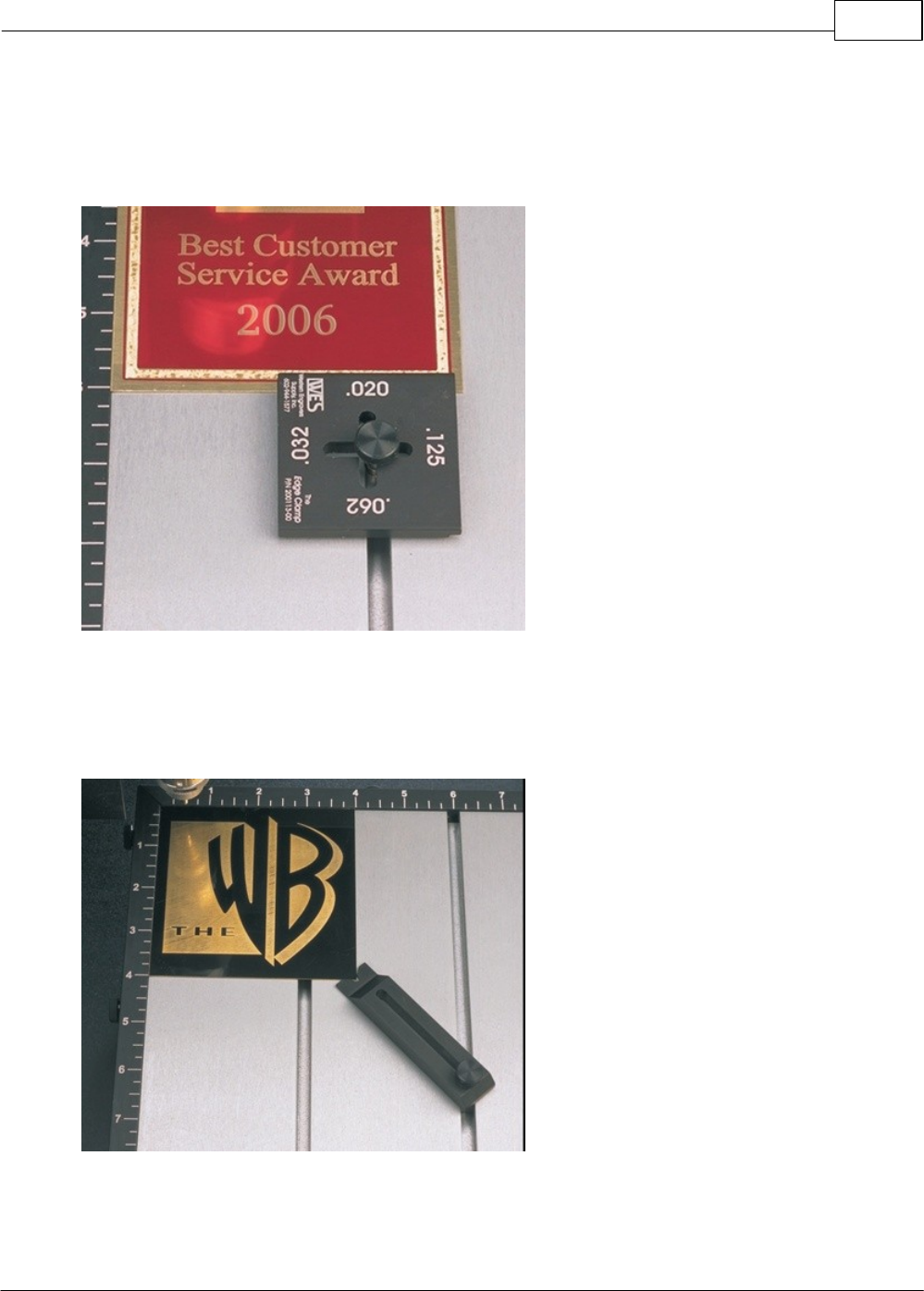
Optional Accessories 173
© 2014 Vision Engraving Systems
Edge Clamps
This clamp is designed to secure engraving materials from the top surface and avoids bowing in most
applications. This clamp will hold material thicknesses of .020, .032, .062, and .125 by rotating the
clamp and tightening a thumbscrew.
Corner Clamps
This clamp is designed to hold down square or rectangular plates. By lining up the “V” cut-out of the
clamp with the corner of the plate, the engraver is allowed maximum engraving space. It will hold
material as thin as 1/32”.
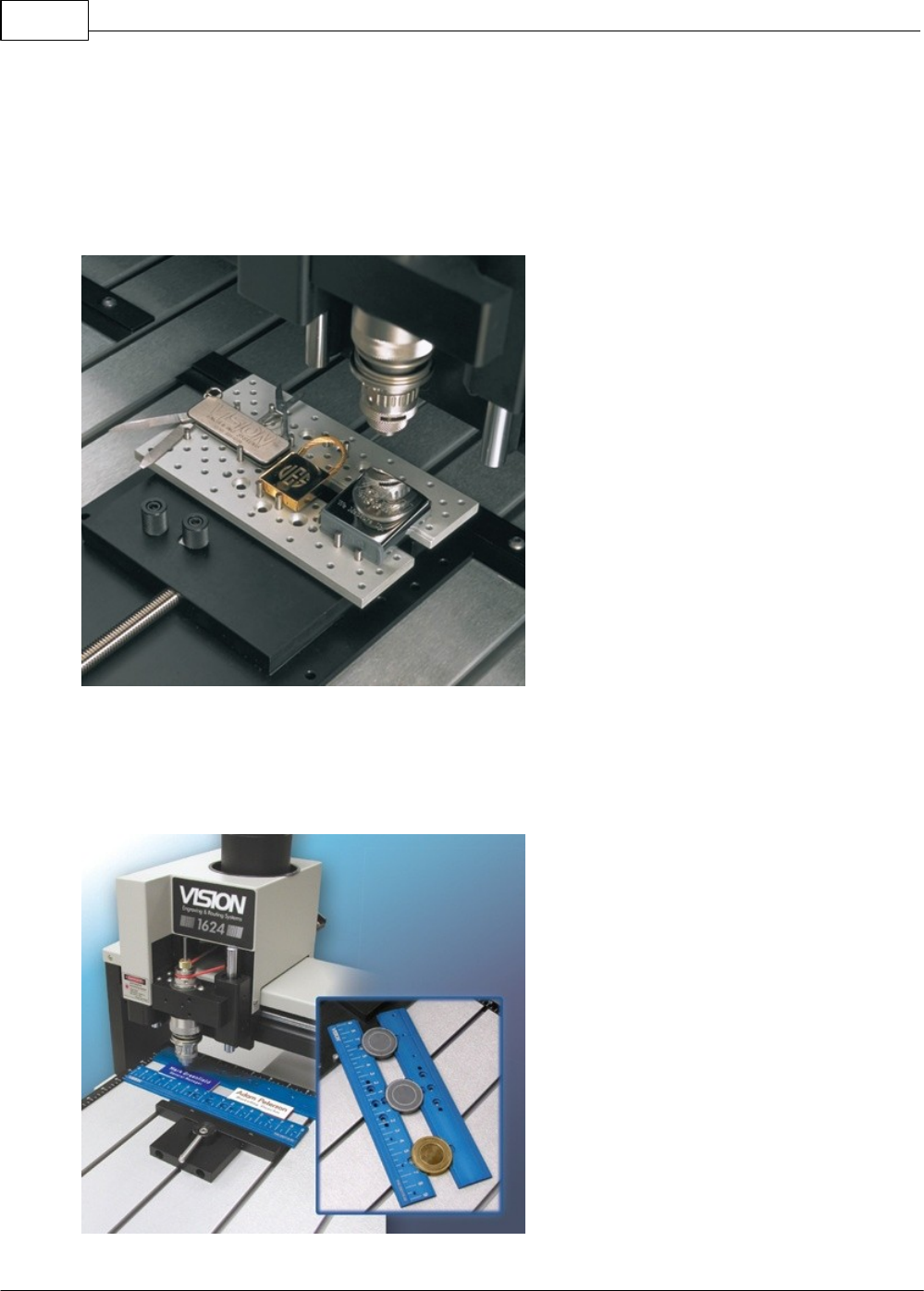
Vision Max User Manual174
© 2014 Vision Engraving Systems
7.3 Fixtures
Universal Pin Fixtures
Available for the Versa Vise, T-Slot table, and Self-Centering Vise. Also usable with other computerized
engravers and Pantographs. These fixtures enable engraving on uniquely shaped items such as pens,
lighters, knives, keychains, and more.
Universal Clamping Bars w/Medallion Holder
These clamping bars hold 1 to 3 round objects at a time. Engrave multiple notary seals, paperweights,
and a variety of other circular items. With a place for the “eye” of medallions, this clamp adapts to any
vise or table that has a T-Slot system.
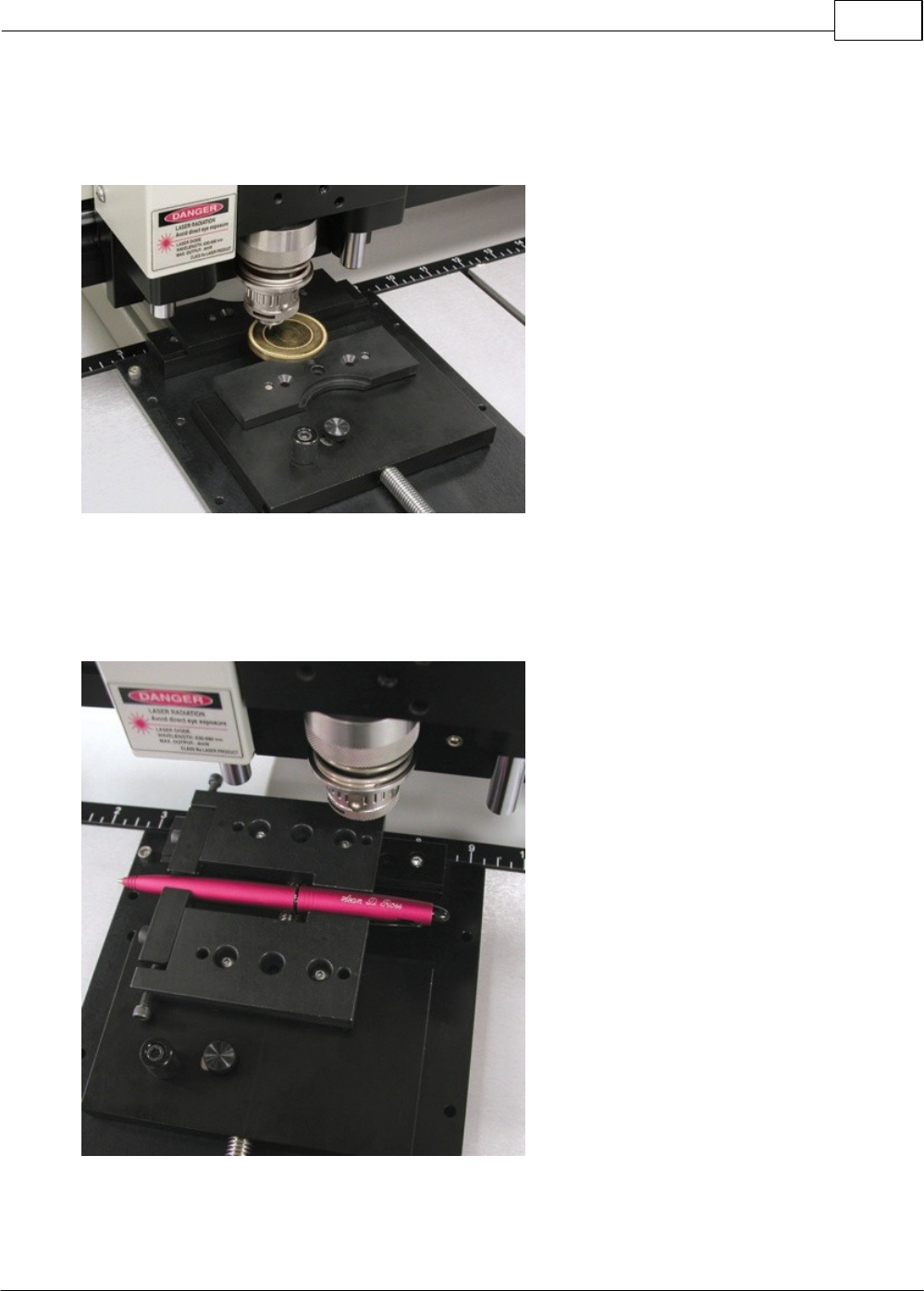
Optional Accessories 175
© 2014 Vision Engraving Systems
Seal Fixture
The Seal Fixture enables engraving on notary seals, medallions, coasters, paperweights, dog tags, and
other round objects. Usable with the Quick-Lock or Versa Vise.
Adjustable Pen Fixture
Enables engraving on most pens and cylindrical items that vary in diameter from end to end. Available
for most computerized engravers and Pantographs. It is also usable with the Versa Vise and Self-
Centering Vise.
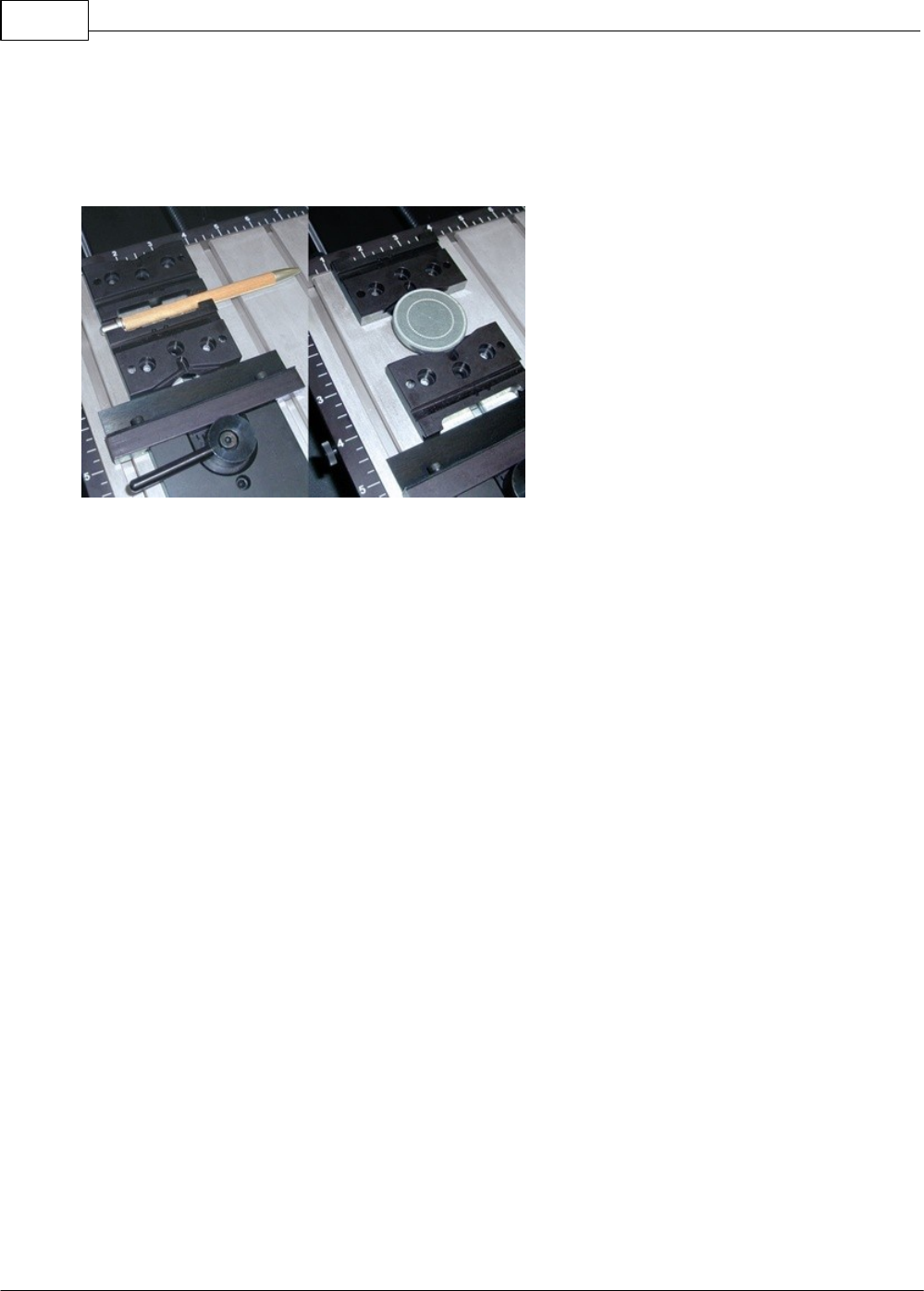
Vision Max User Manual176
© 2014 Vision Engraving Systems
Pen & Medallion Fixture
This is a double-sided fixture that, when turned in one direction, accommodates a pen, and when turned
in the other direction, accommodates a medallion, seal, or other circular item. With a space for the
“eye” of the medallion, this fixture is usable with the Versa Vise or Quick-Lock Vise.
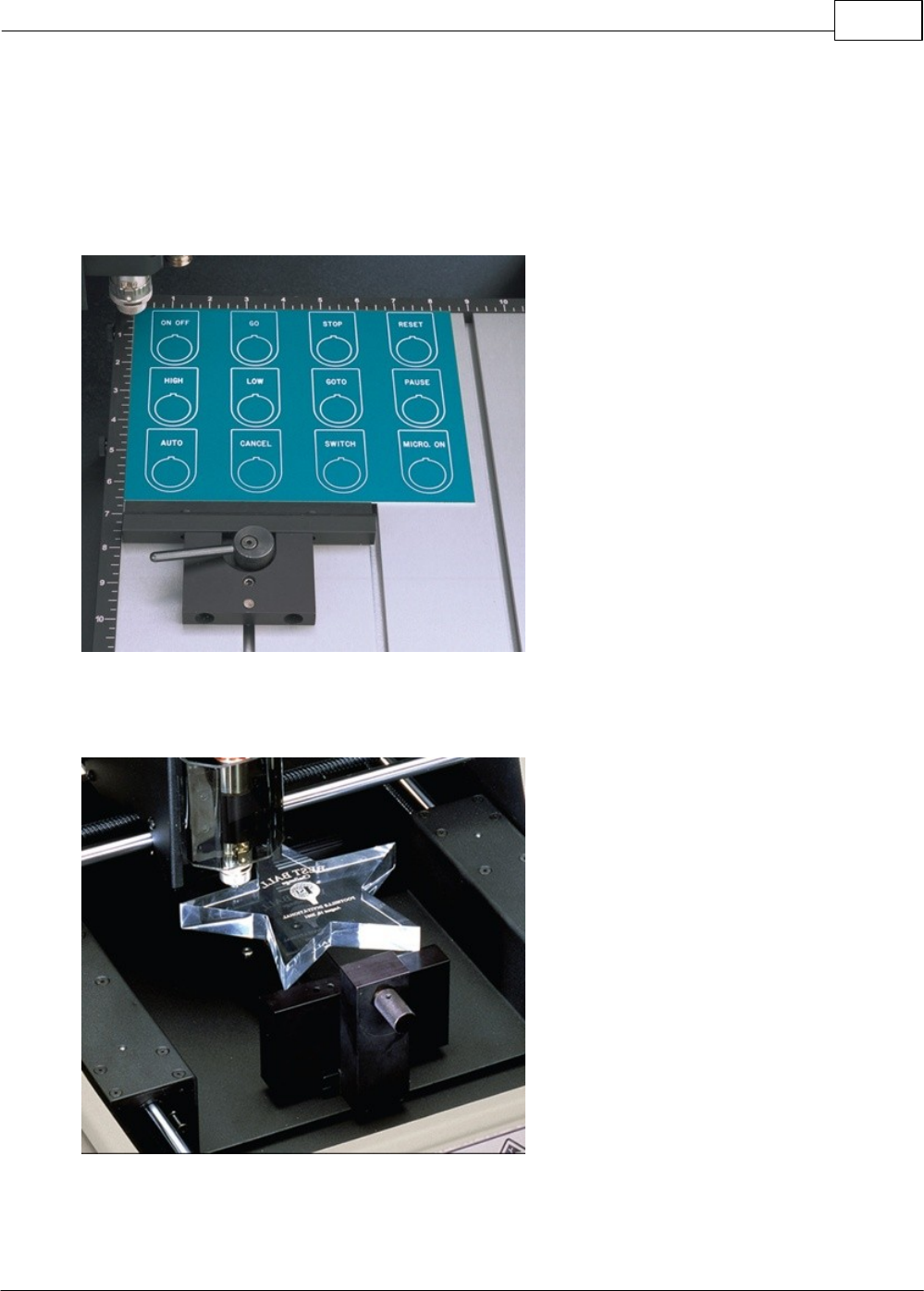
Optional Accessories 177
© 2014 Vision Engraving Systems
7.4 Clamping Vises
Quick Lock Vise
The Quick-Lock Vise is specifically designed for T-Slot table users. The “cam” type locking device
allows for quick changing of parts. This vise is supplied with a removable front clamping plate which
allows for the holding of thicker items.
Self-Centering Deep Vise
This self-centering vise allows for easy setup of odd-shaped items up to 3 1/4” deep.
