MAX Toolbar Revised4.04.11 2 User Guide
User Manual: Max
Open the PDF directly: View PDF  .
.
Page Count: 33

Balance Point Technologies, Inc.
www.maxtoolkit.com
User Guide
MAX Toolbar for
Microsoft Dynamics GP
For MAX (SQL Server)

MAX Toolbar for Microsoft Dynamics GP
www.maxtoolkit.com |Certified MAX Integrator 2 | P a g e
Copyright Manual copyright © 2010 Balance Point Technologies, Inc. All Rights reserved.
Your right to copy this documentation is limited by copyright law and the terms of the
software license agreement. As the software licensee, you may make a reasonable
number of copies or printouts for your own use. Making unauthorized copies,
adaptations, compilations, or derivative works for commercial distribution is prohibited
and constitutes a punishable violation of the law.
Trademarks Microsoft, Microsoft Dynamics GP, and SQL Server are registered trademarks of
Microsoft Corporation or their affiliates. MAX is a registered trademark of Exact
Software or their affiliates.
Unless otherwise noted, all names of companies, products, street addresses, and
persons contained herein are fictitious and are used solely to document the use of this
product.
Warranty
Balance Point Technologies, Inc. disclaims any warranty regarding the sample code
contained in this documentation, including the warranties of merchantability and fitness
for a particular purpose.
Limitation The content of this manual is furnished for informational use only, is subject to change
of Liability
without notice, and should not be construed as a commitment by Balance Point
Technologies, Inc. Balance Point Technologies, Inc. assumes no responsibility or liability
for any errors or inaccuracies that may appear in this manual. Neither Balance Point
Technologies, Inc. nor anyone else who has been involved in the creation, production or
delivery of this documentation shall be liable for any indirect, incidental, special,
exemplary or consequential damages, including but not limited to any loss of
anticipated profit or benefits, resulting from the use of this documentation or sample
code.
License Use of this product is covered by a license agreement provided by Balance Point
Agreement
Technologies, Inc. with the
software product. If you have any questions, please call
Balance Point Technologies, Inc. at (847)265-3797.
Publication
March 2011
Date

MAX Toolbar for Microsoft Dynamics GP Contents
www.maxtoolkit.com |Certified MAX Integrator 3 | P a g e
Contents
Purpose 4
System Requirements 4
Database Setup Steps (Microsoft SQL 2005 or 2008) 4
Removing MAX Drillbacks 10
Installing MAX Toolbar for GP Module 11
Configuring GP and MAX Toolbar Module 12
MAX Toolbar for GP 20
Select MAX Company 21
Show MAX General Ledger 22
Show MAX Invoice 23
Show MAX Voucher 24
Show MAX Purchase Order 25
Show MAX Sales History 26
Register MAX Toolbar 27
Customer Maintenance 28
Vendor Maintenance 29
Shipping Method Maintenance 30
Payment Terms Setup 31
Contact Information 32
Appendix 33
MAX Toolbar for Microsoft Dynamics GP Database Setup Steps
www.maxtoolkit.com |Certified MAX Integrator 4 | P a g e
Purpose
The MAX Toolbar for Microsoft Dynamics GP provides convenient access to MAX transaction
data from within GP, and the ability to update master records in multiple MAX companies from
GP.
System Requirements
• Microsoft Dynamics GP v10.x or GP 2010
• EXACT Software MAX v5
• SQL Server 2005 or 2008
Database Setup Steps
Microsoft SQL Server 2005 or 2008 – follow the steps below
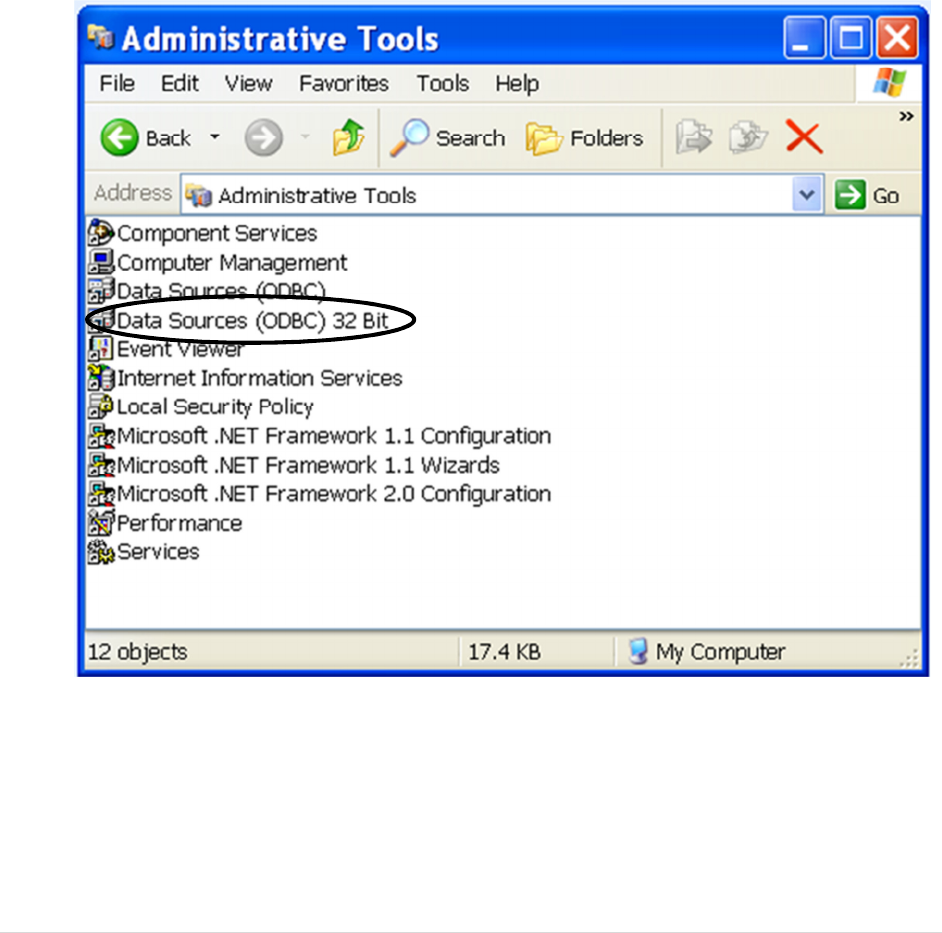
Create a DSN for MAX 5.0 for each MAX company you want to access from within GP.
This can be done by accessing the Control Panel > Administrative Tools > Data Sources
(ODBC).
MAX Toolbar for Microsoft Dynamics GP Database Setup Steps
www.maxtoolkit.com |Certified MAX Integrator 5 | P a g e
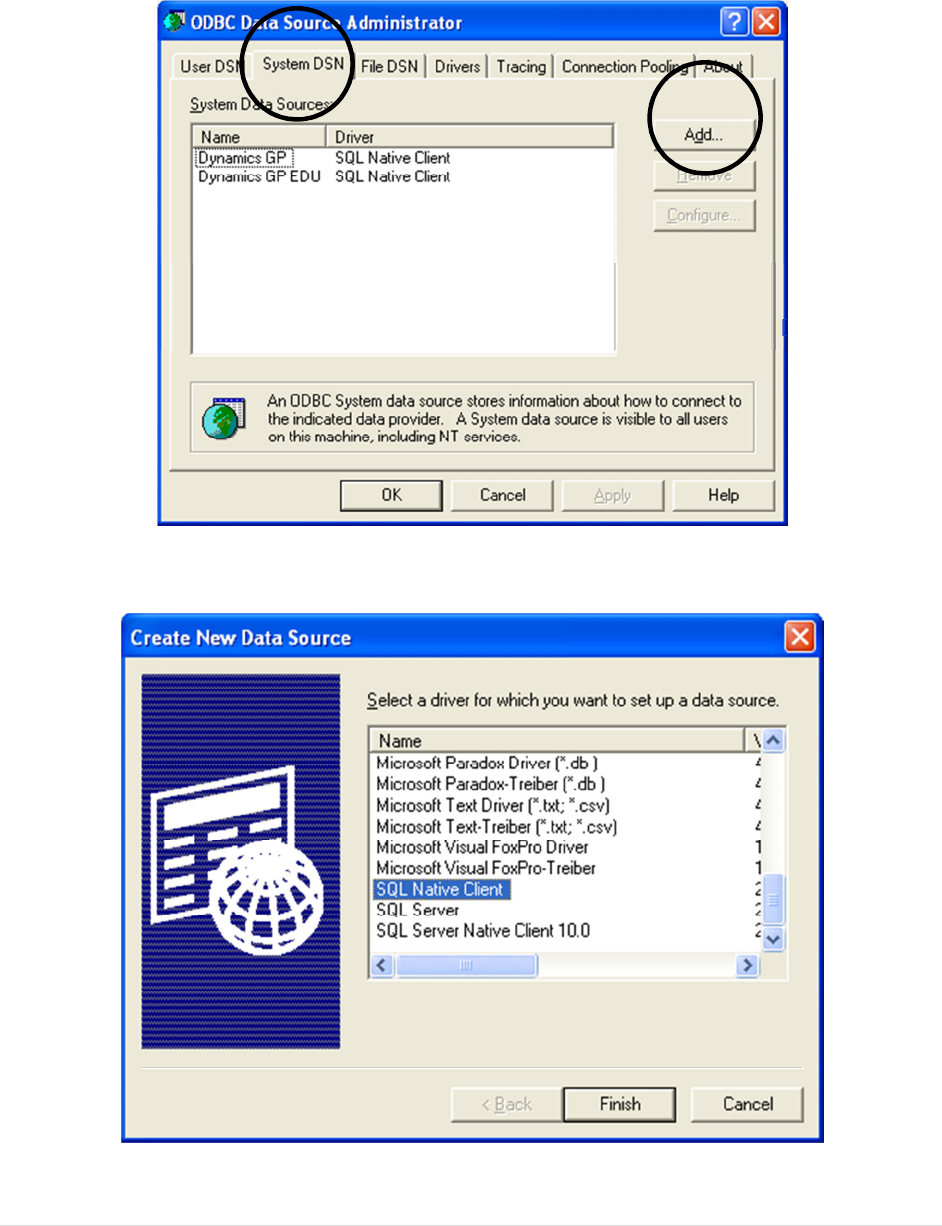
Note: Microsoft Dynamics GP requires a 32 bit DSN. If you are installing on a 64 bit
operating system, you must create a 32 bit DSN. To create a 32 bit DSN on a 64 bit
machine, follow these instructions.
1. Open the Windows folder and find the C:\Windows\SySWOW64\odbcad32.exe file.
2. Create a shortcut on your desktop to the file.
3. Rename the shortcut Data Sources (ODBC) 32 bit
4. Move the shortcut to Control Panel Administrative Tools
MAX Toolbar for Microsoft Dynamics GP Database Setup Steps
www.maxtoolkit.com |Certified MAX Integrator 6 | P a g e
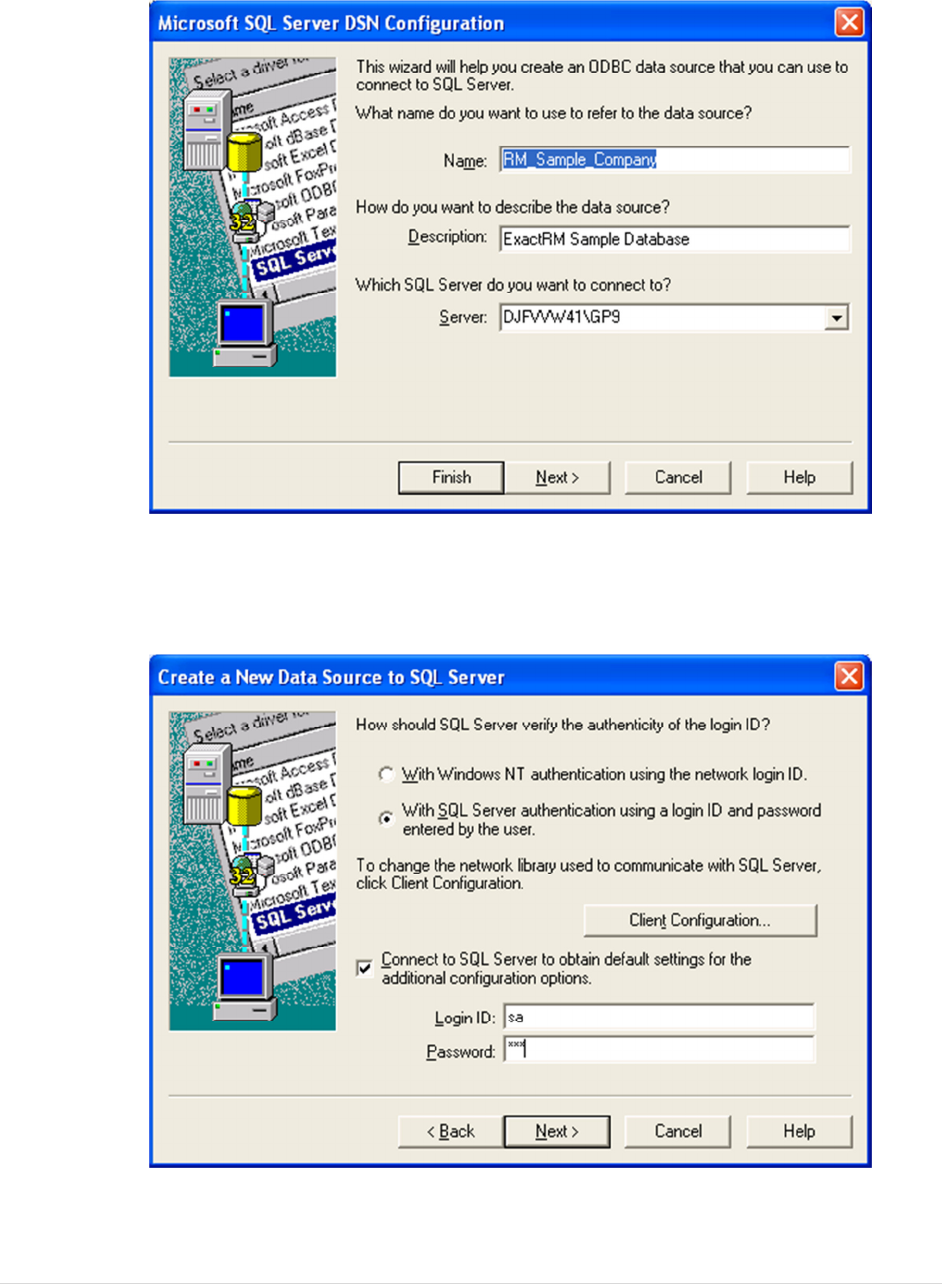
Double click Data Sources (ODBC) 32 bit to launch the ODBC Data Sources
Administrator. Choose System DSN > Add > SQL Native Client > Finish.
MAX Toolbar for Microsoft Dynamics GP Database Setup Steps
www.maxtoolkit.com |Certified MAX Integrator 7 | P a g e
The name you enter here will be used to identify the MAX database within GP. It is
helpful to use a name users will associate with the MAX company.
MAX Toolbar for Microsoft Dynamics GP Database Setup Steps
www.maxtoolkit.com |Certified MAX Integrator 8 | P a g e
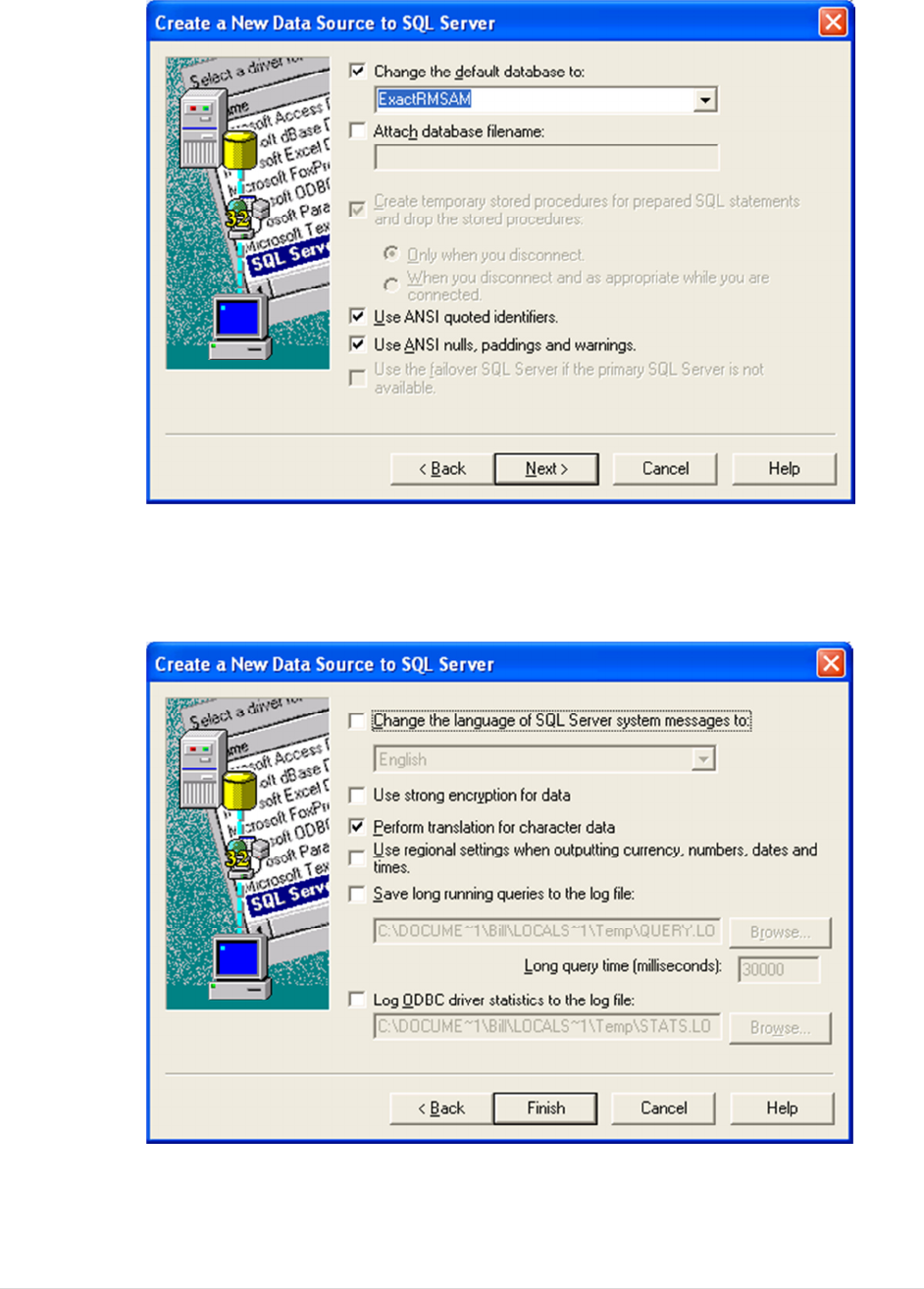
Select “Change the default database to:” and select the appropriate MAX company
database for your installation.
Choose Finish.
MAX Toolbar for Microsoft Dynamics GP Database Setup Steps
www.maxtoolkit.com |Certified MAX Integrator 9 | P a g e
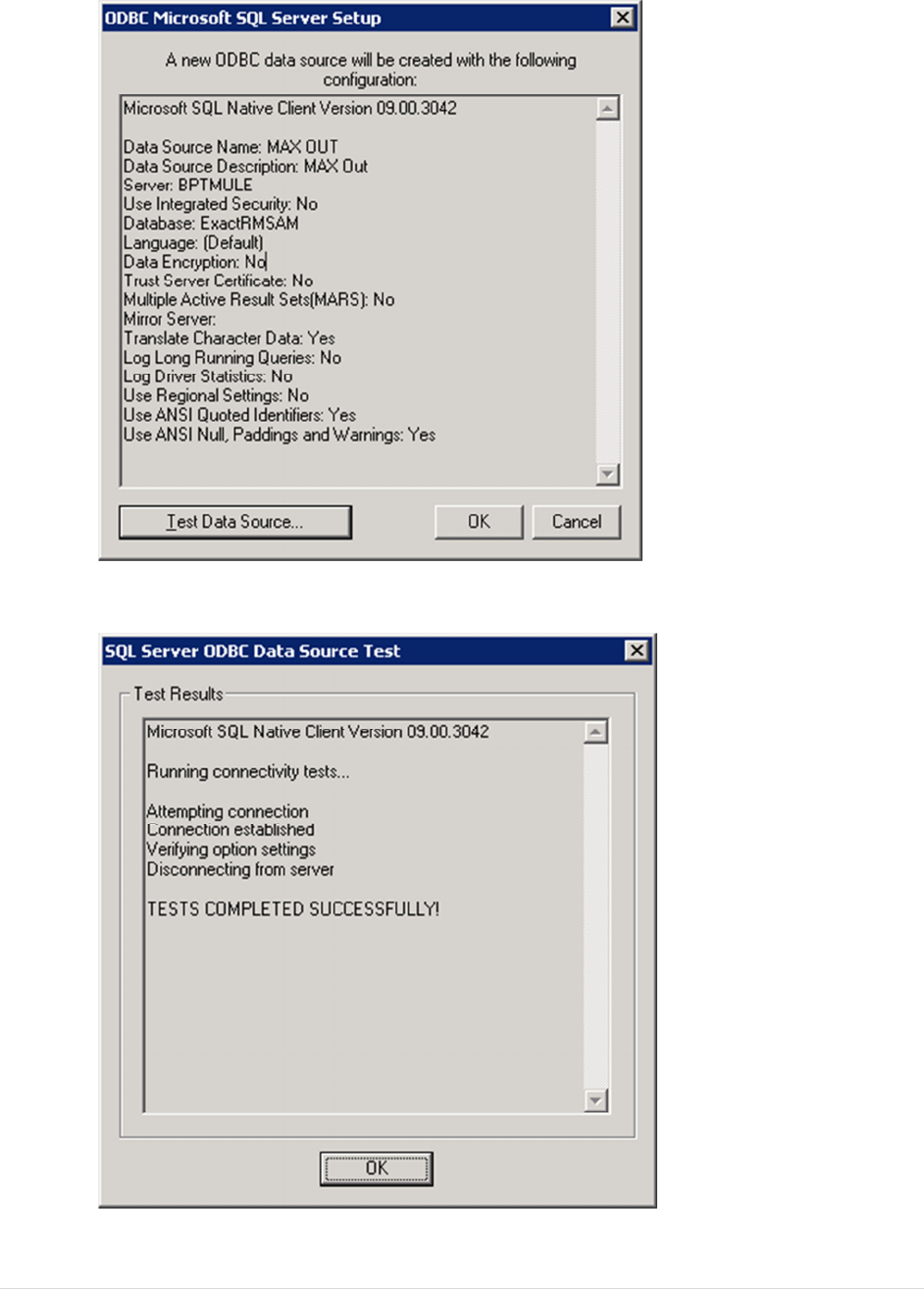
Choose the Test Data Source Option.
Click OK. Repeat the DSN setup process for each MAX database you will need to access in GP.

MAX Toolbar for Microsoft Dynamics GP Removing MAX Drillbacks
www.maxtoolkit.com |Certified MAX Integrator 10 | P a g e
Removing MAX Drillbacks
If you currently have MAX Drillbacks installed, follow these instructions to remove them prior to
installing MAX Toolbar for GP.
1. Remove GP security to the alternate windows. Launch GP. From the Administration list
page select Alternate/Modified Forms and Reports. Select the appropriate user id and
Exact MAX Lookups as the product. Select Windows as the Type. Remove access to all
Exact MAX Lookups alternate windows by selecting the Microsoft Dynamics GP window.
2. Remove Drillback options from the shortcut bar by right clicking on each option and choosing
Delete.
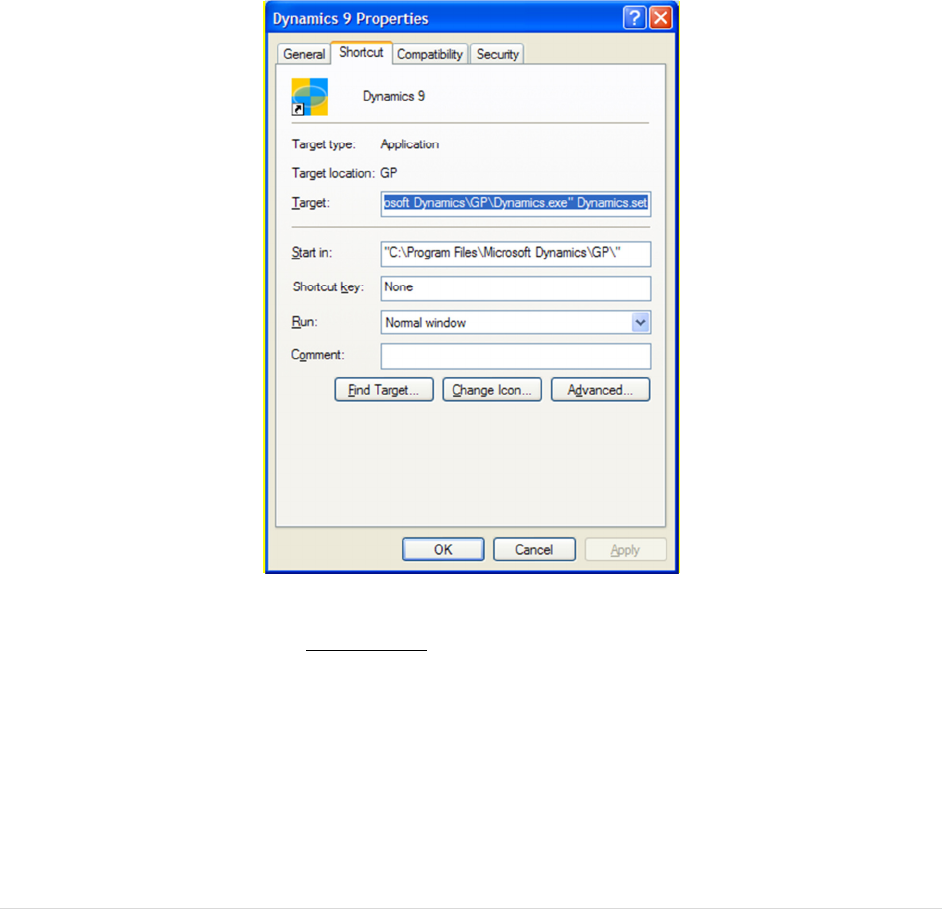
3. Remove MAX Drillbacks from the Dynamics launch file. Navigate to your Dynamics.set
file. The default location is c:\Program Files\Microsoft Dynamics\GP\Dynamics.set.
Make a copy of the file as a backup by right clicking on the file, clicking Copy and then
right clicking in the folder and clicking paste. After making your backup copy, right click
on the Dynamics.set file and choose Open With. Open with either Notepad or
WordPad. The first lines of the Dynamics.set file will look like this:
22
0
Microsoft Dynamics GP
Reduce the first number by 1. In this example, 22 would be replaced by 21. Scroll down
in the file to the lines
1299
EXACT MAX LOOKUP
Delete those lines and any blank lines created. Scroll down in the file to the lines
:C:Program Files/Microsoft Dynamics/GP9/EXACT.DIC
:C:Program Files/Microsoft Dynamics/GP9/1299-F.DIC
:C:Program Files/Microsoft Dynamics/GP9/1299-R.DIC
Delete the three lines that end with EXACT.DIC, 1299-F.DIC AND 1299-R.DIC. Save and
close the Dynamics.set file.
Perform steps 2 and 3 on each Dynamics GP workstation.
MAX Toolbar for Microsoft Dynamics GP Installing MAX Toolbar for GP Module
www.maxtoolkit.com |Certified MAX Integrator 11 | P a g e
Installing MAX Toolbar for GP Module
NOTE: Initial installation will require all Dynamics GP users to exit the system for a short
time. Please verify no users are using Great Plains before continuing.
Your installation method will depend on how you obtained the installation software. If the
software was e-mailed to you, you will have a chunk file with a name similar to Version
6.5.06.1986.12102010_TOOLBAR.CNK. If you downloaded the software you will have an
installation file with a name similar to InstallDyn10_MAX5Toobar_2010.exe.
• If you downloaded the installation file, run the installer and point to your local Dynamics
GP folder.
The installer copies the file Toolbar.cnk into the local GP folder.
• If a chunk file was e-mailed to you, rename the file Toolbar.cnk and copy into the local GP
folder.
MAX Toolbar for Microsoft Dynamics Configuring GP and MAX Toolbar Module
www.maxtoolkit.com |Certified MAX Integrator 12 | P a g e
Configuring GP and MAX Toolbar Module
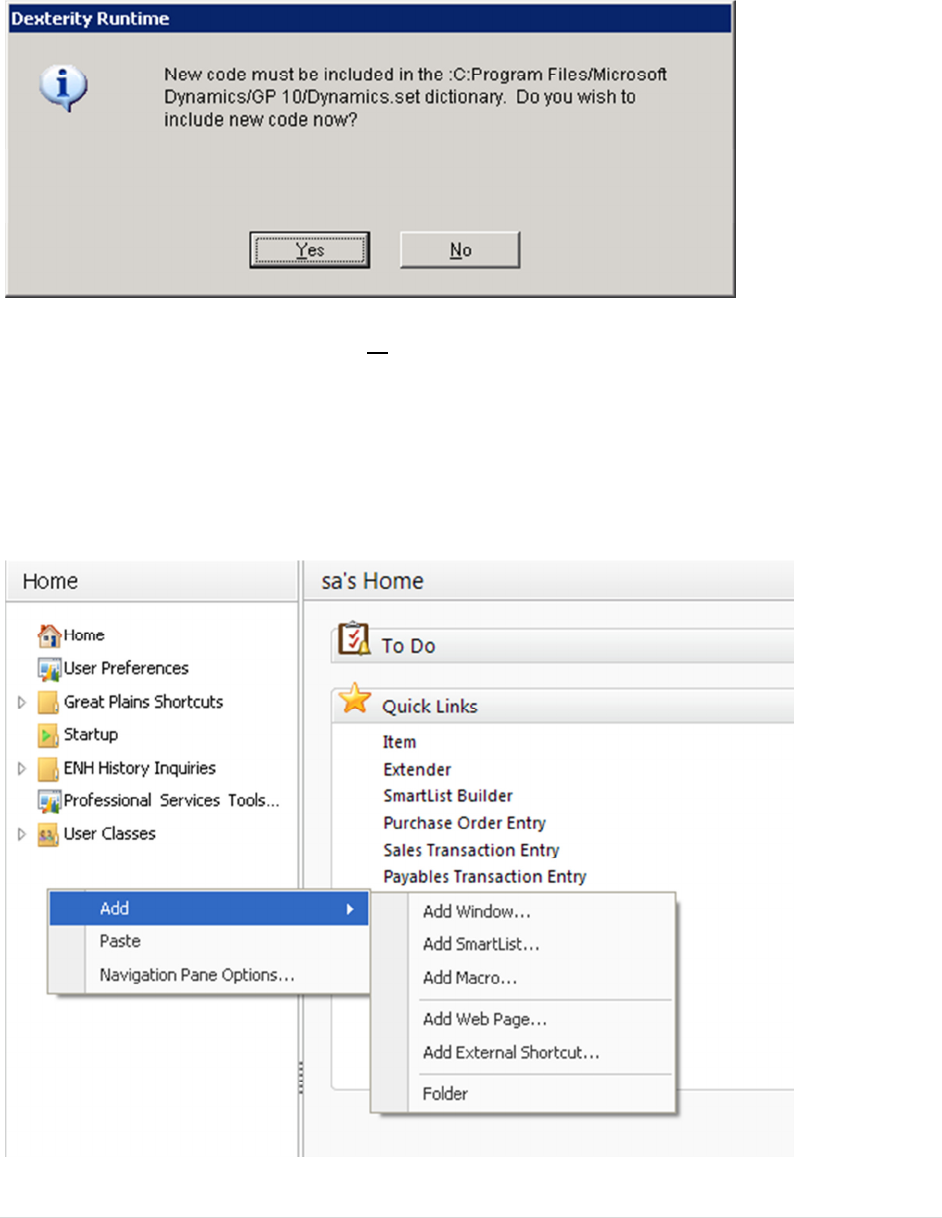
1. Log into GP as “sa” (or “DYNSA”) to Create Tables –
You will be prompted to include new code. Select yes and continue.
This application creates custom tables in your Dynamics and Company databases. The
administrator must log in as the user sa (or “DYNSA”) one time for the application to create
those tables.
Note: After the administrator has logged in once, users may use the system.
2. Add MAX Inquiries Folder to GP Shortcuts – Add the MAX Inquiries folder to the shortcut
bar by right clicking in the shortcut pane and choosing Add > Folder.
MAX Toolbar for Microsoft Dynamics Configuring GP and MAX Toolbar Module
www.maxtoolkit.com |Certified MAX Integrator 13 | P a g e
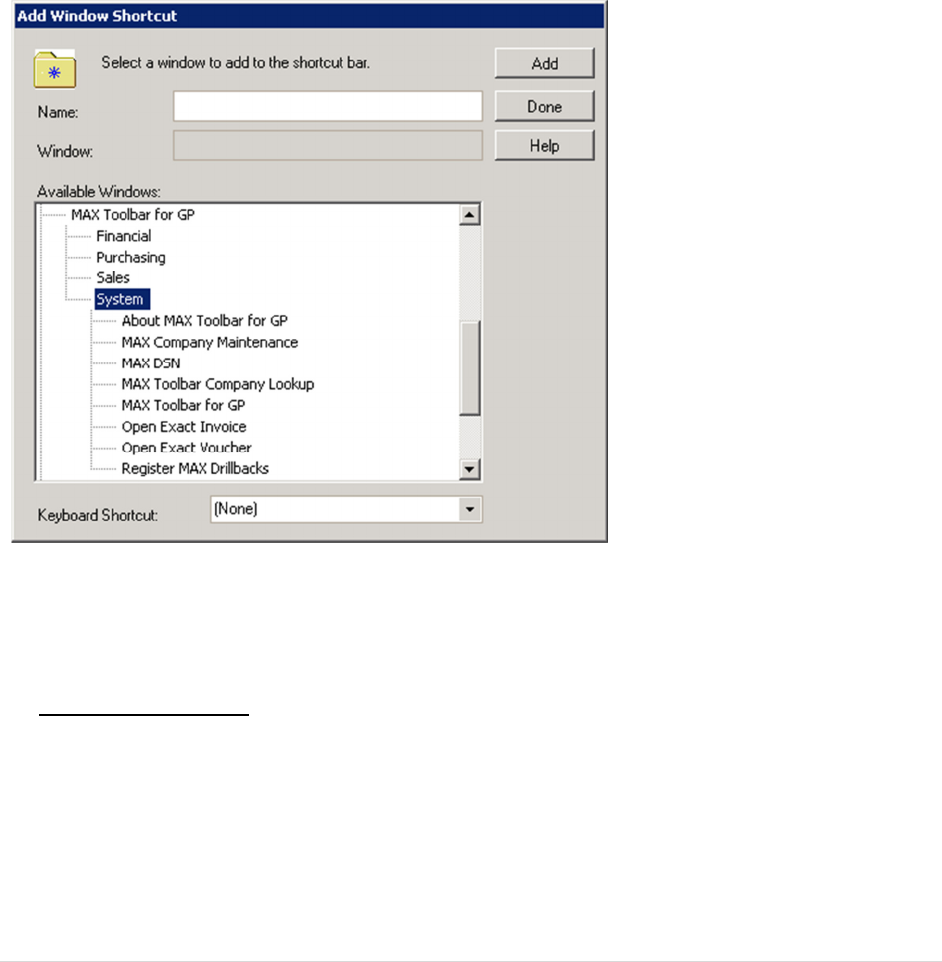
3. Add Windows to MAX Inquiries folder – Windows can be added to the shortcut bar by right
clicking on the MAX Inquiries folder and choosing Add > Add Window. From the scrolling
list of available windows, choose MAX Toolbar for GP. Select a window to be added and
then click Add. Add the following windows:
System/MAX Toolbar for GP
System/MAX Company Maintenance
System/Register MAX Toolbar
Sales/MAX Invoice
Purchasing/MAX Voucher
Purchasing/MAX Purchase Order
Financial /MAX GL
When all windows have been added, click Done. Adding the MAX Toolbar windows to the
shortcut bar must be performed for each user.
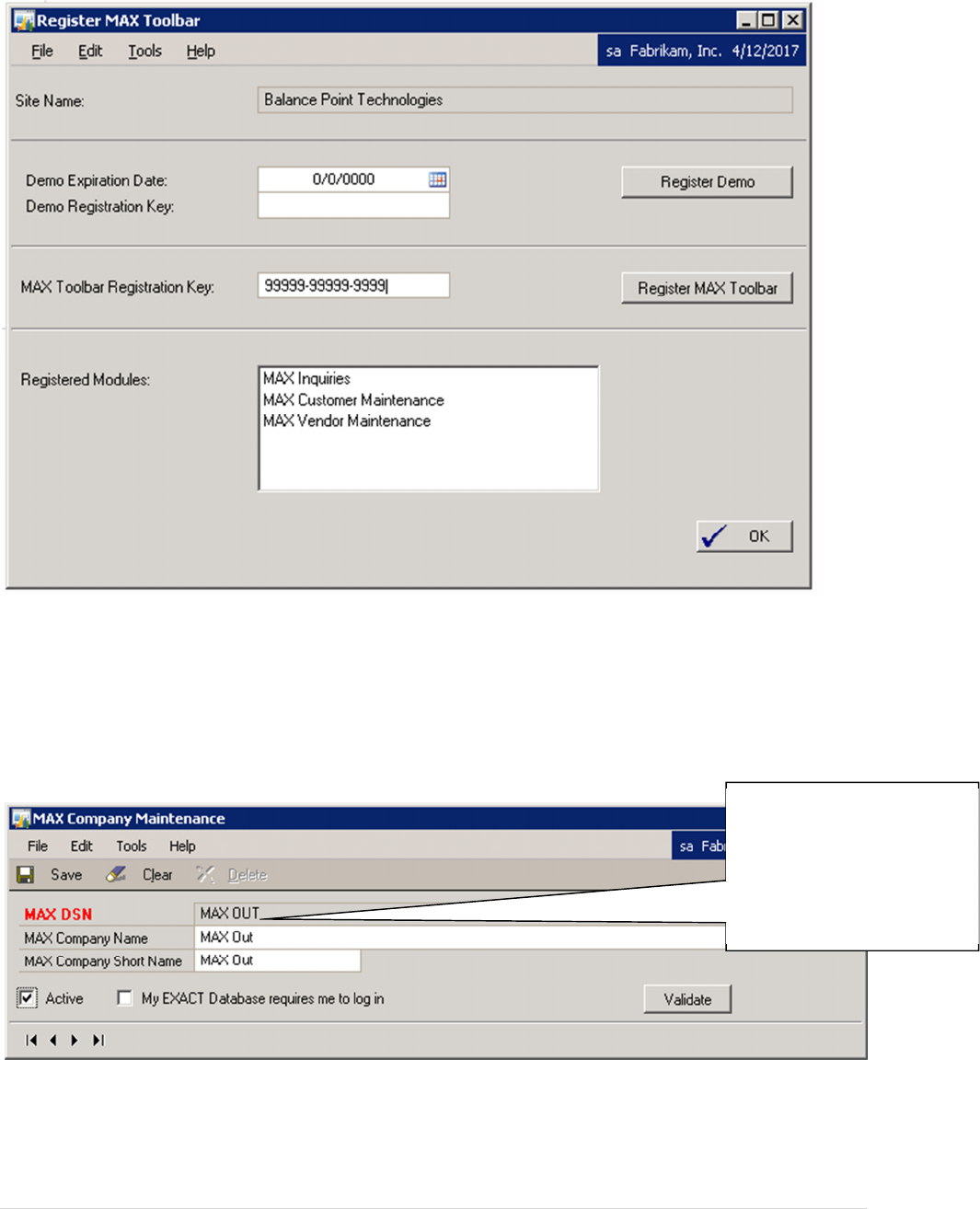
4. Obtain Registration Key – If you have not been provided with a registration key, go to
www.maxtoolkit.com to obtain a free 30-day evaluation key or to purchase a registration
key. Open the Register MAX Toolbar window from the shortcut menu. Enter the MAX
Toolbar Registration Key and click Register MAX Toolbar, then click OK.
MAX Toolbar for Microsoft Dynamics Configuring GP and MAX Toolbar Module
www.maxtoolkit.com |Certified MAX Integrator 14 | P a g e
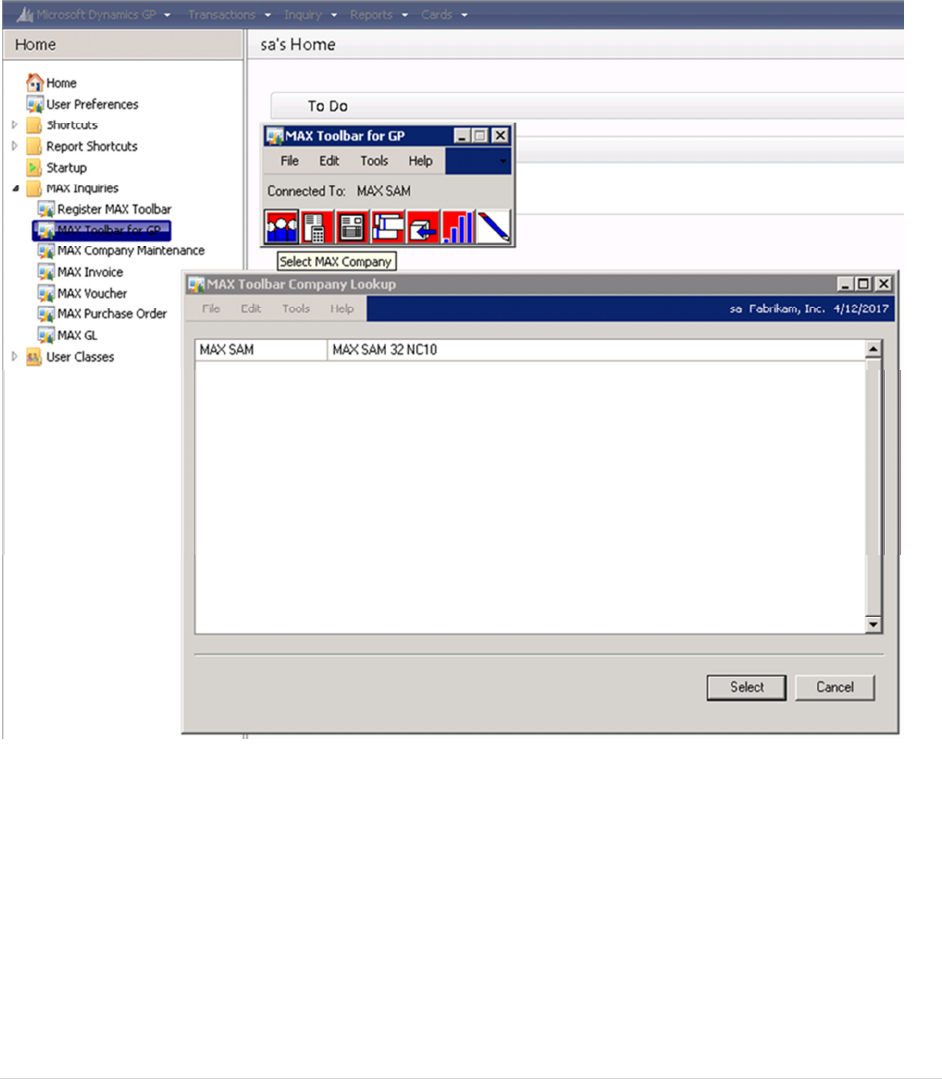
5. Link MAX Companies –Open the MAX Company Maintenance window from the shortcut
bar. Enter the Name of the DSN for the MAX company that should be accessible from this
Dynamics company. Enter the MAX Company Name and the Company Short Name. If this
is a company you want accessible, click Active. Click Validate. MAX Toolbar will validate it
can access the MAX company data. If validated, click Save. Repeat this process for each
MAX company that should be accessible from the Dynamics company.)
Do not check the “My EXACT Database requires me to log in” box unless your company security
policy prevents the standard toolbar user from being created. If the box is checked, a “SQL
Login” button will appear on the drillback windows. Each time GP is launched users must log
The MAX Company DSN
can be found in the
Windows Control Panel
under Data Sources
(ODBC).
MAX Toolbar for Microsoft Dynamics Configuring GP and MAX Toolbar Module
www.maxtoolkit.com |Certified MAX Integrator 15 | P a g e
into each MAX database using a user id and password supplied by the system administrator. If
the box is unchecked, and security policy allows the automatic creation of the standard toolbar
user, the “SQL Login” window will be hidden and users will not have to log into the MAX
databases.
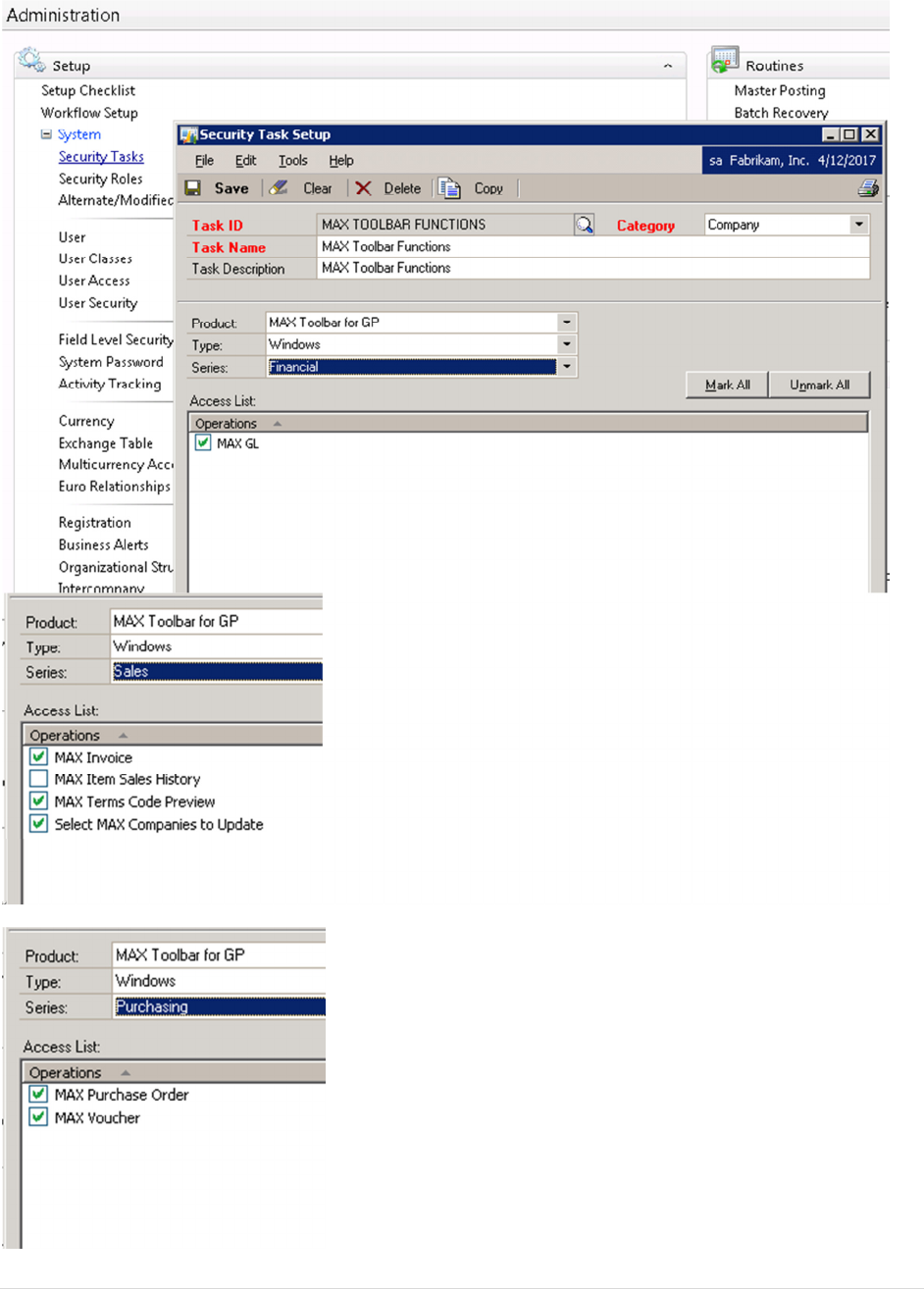
Open MAX Toolbar for GP and select a default company. Click on MAX Toolbar for GP. Click on
the Select MAX Company icon. Select a company and click on Select.
6. Set Security - Users are granted permission to access the Toolbar and Drillback windows by
using the standard Dynamics security.
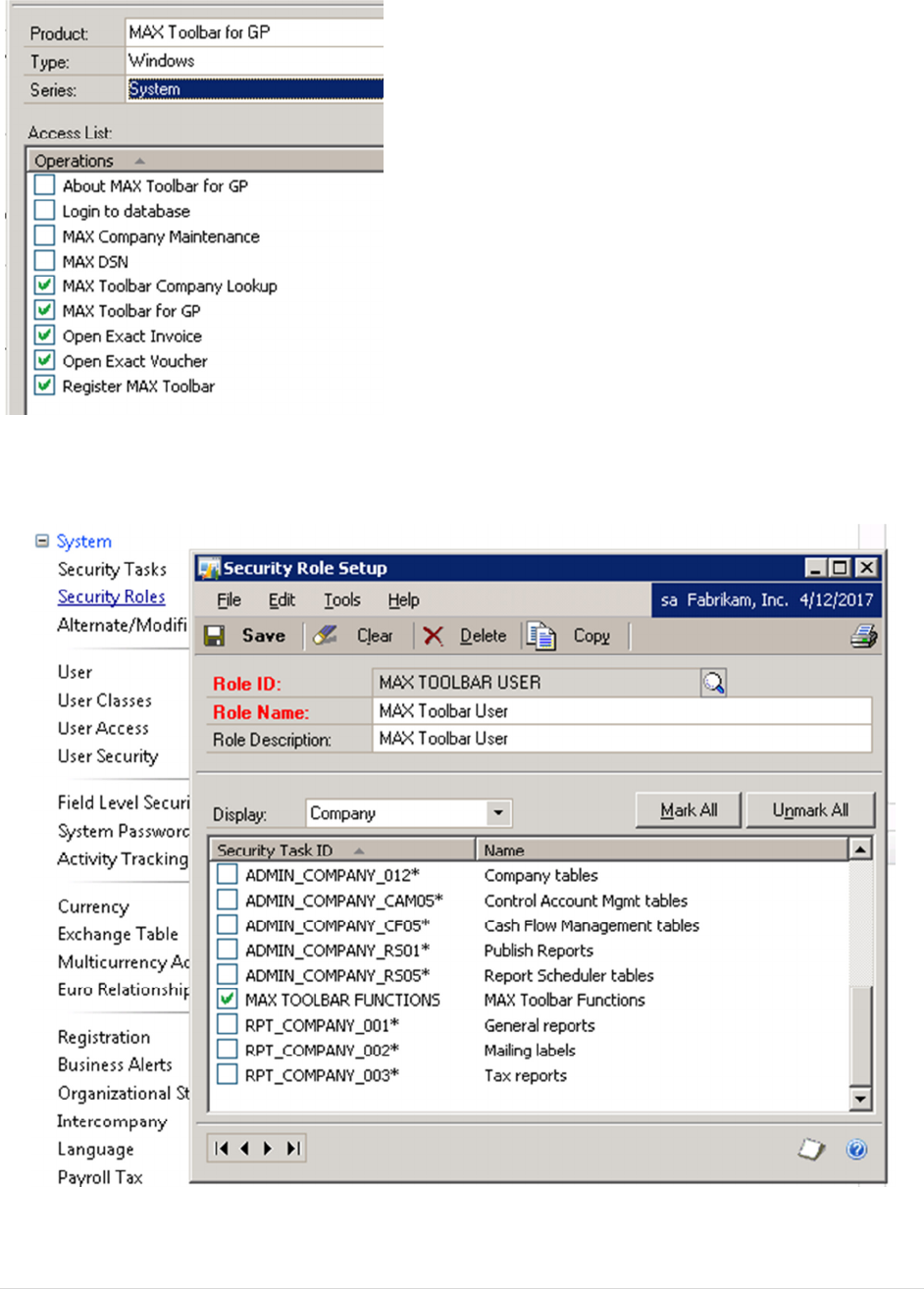
GP v10 and GP 2010: Create a Security Task. From the Administration list page select Security
Tasks. Create a Task ID and assign it to a Category. Select MAX Toolbar for GP as the Product
and Windows as the Type. Make the selections shown on the following pages for the Financial,
Sales, Purchasing and System Series.
MAX Toolbar for Microsoft Dynamics Configuring GP and MAX Toolbar Module
www.maxtoolkit.com |Certified MAX Integrator 16 | P a g e
MAX Toolbar for Microsoft Dynamics Configuring GP and MAX Toolbar Module
www.maxtoolkit.com |Certified MAX Integrator 17 | P a g e
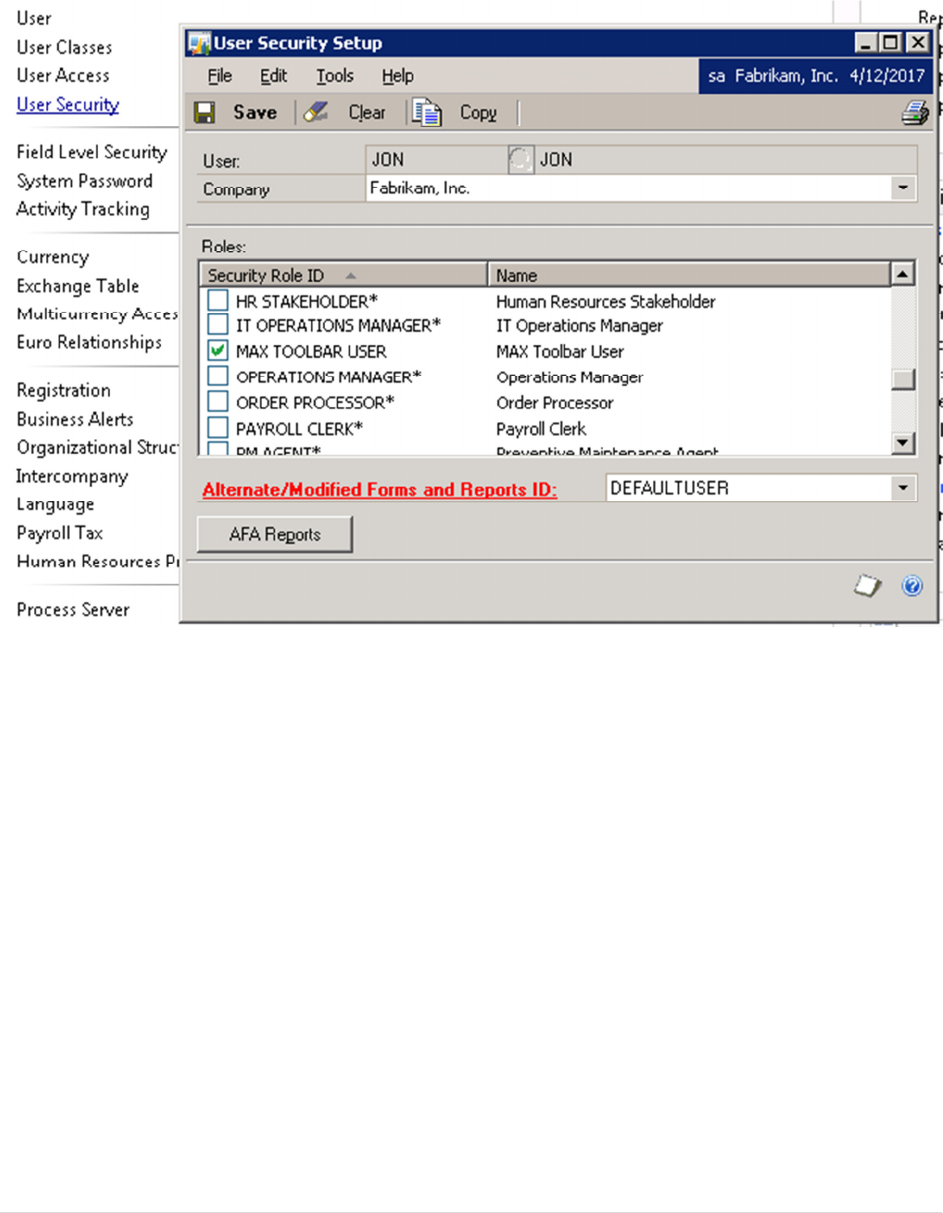
Create a Security Role. Assign a Role ID and Role Name. Select the MAX Toolbar Functions
Security Task ID that you created in the step above.
MAX Toolbar for Microsoft Dynamics Configuring GP and MAX Toolbar Module
www.maxtoolkit.com |Certified MAX Integrator 18 | P a g e
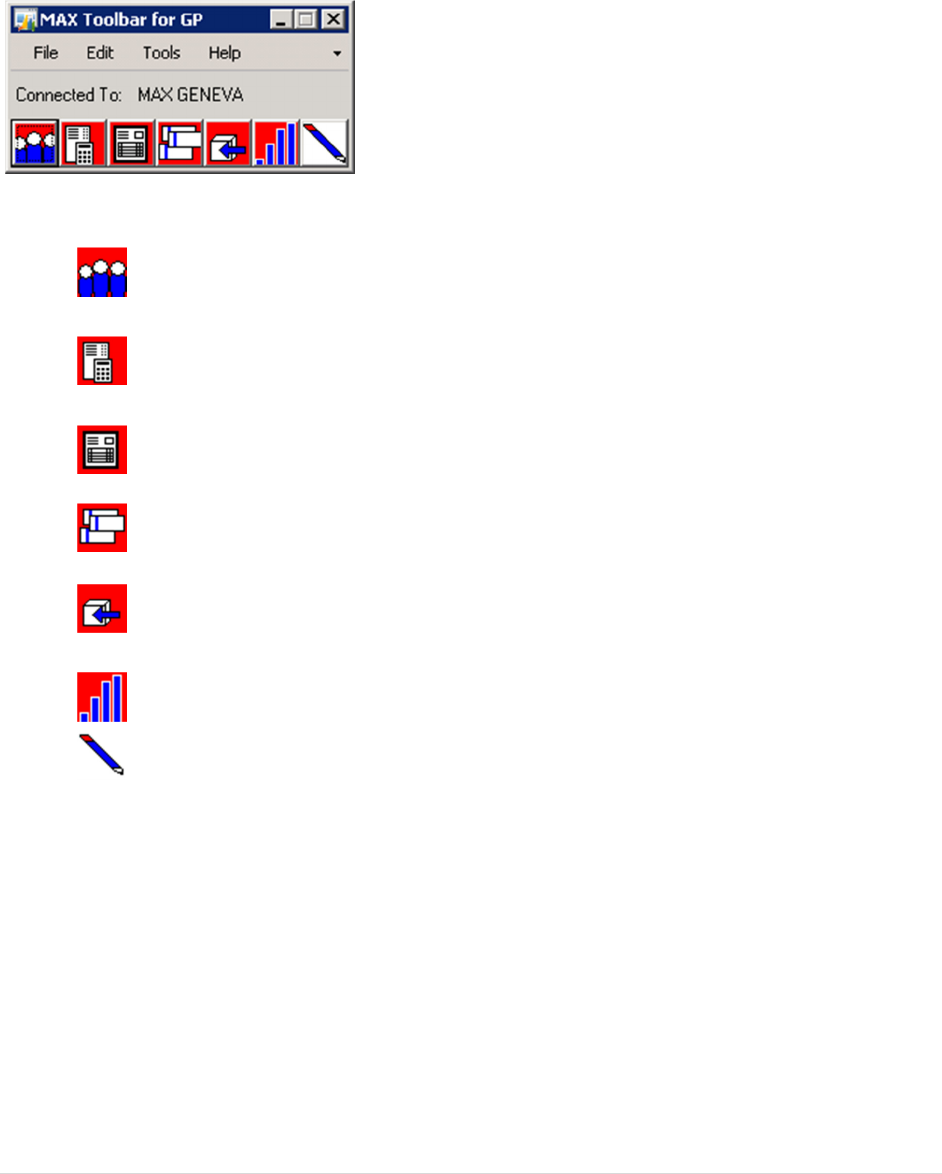
Assign the Security Role to Users. From the User Security Setup Window, select a user. Select
the MAX Toolbar User Role ID and save.
MAX Toolbar for Microsoft Dynamics GP MAX Toolbar for GP
www.maxtoolkit.com |Certified MAX Integrator 19 | P a g e
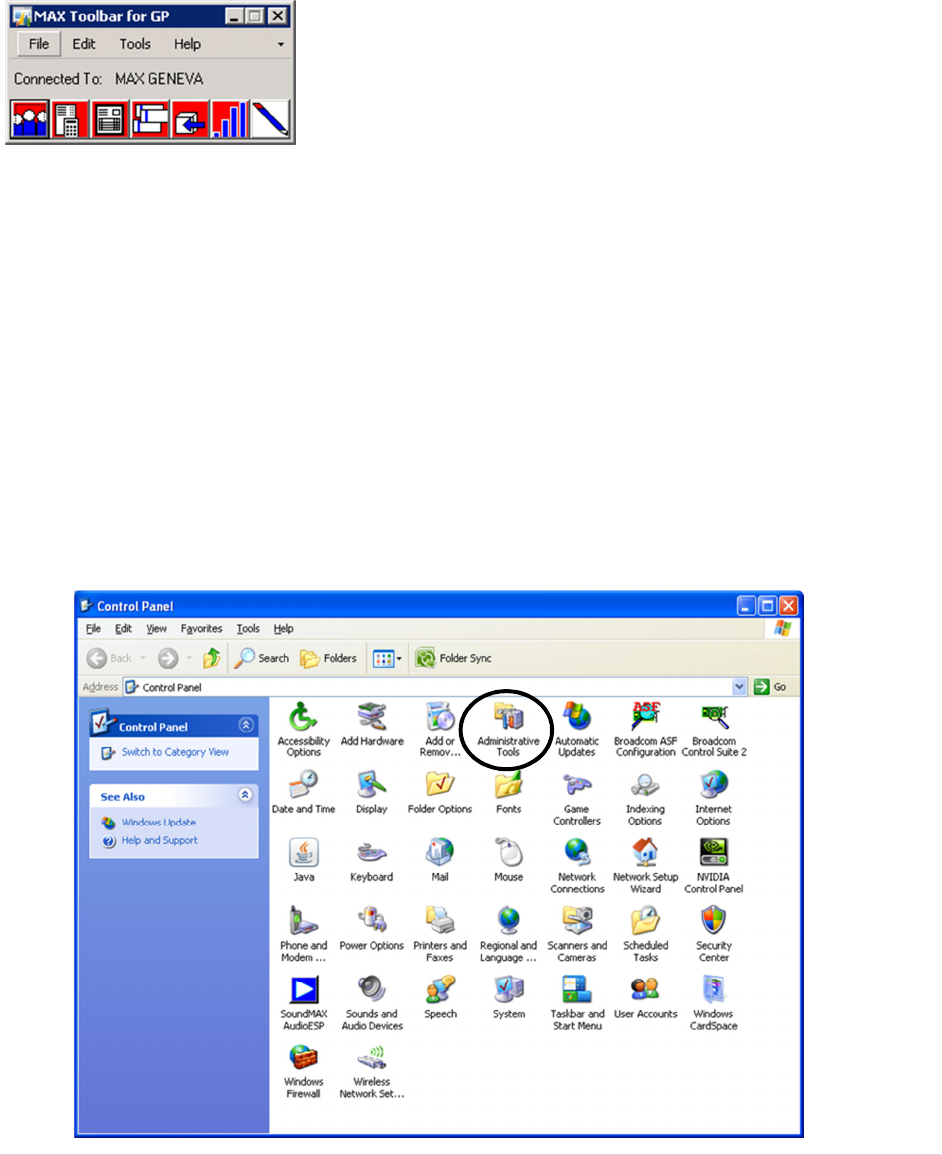
MAX Toolbar for GP
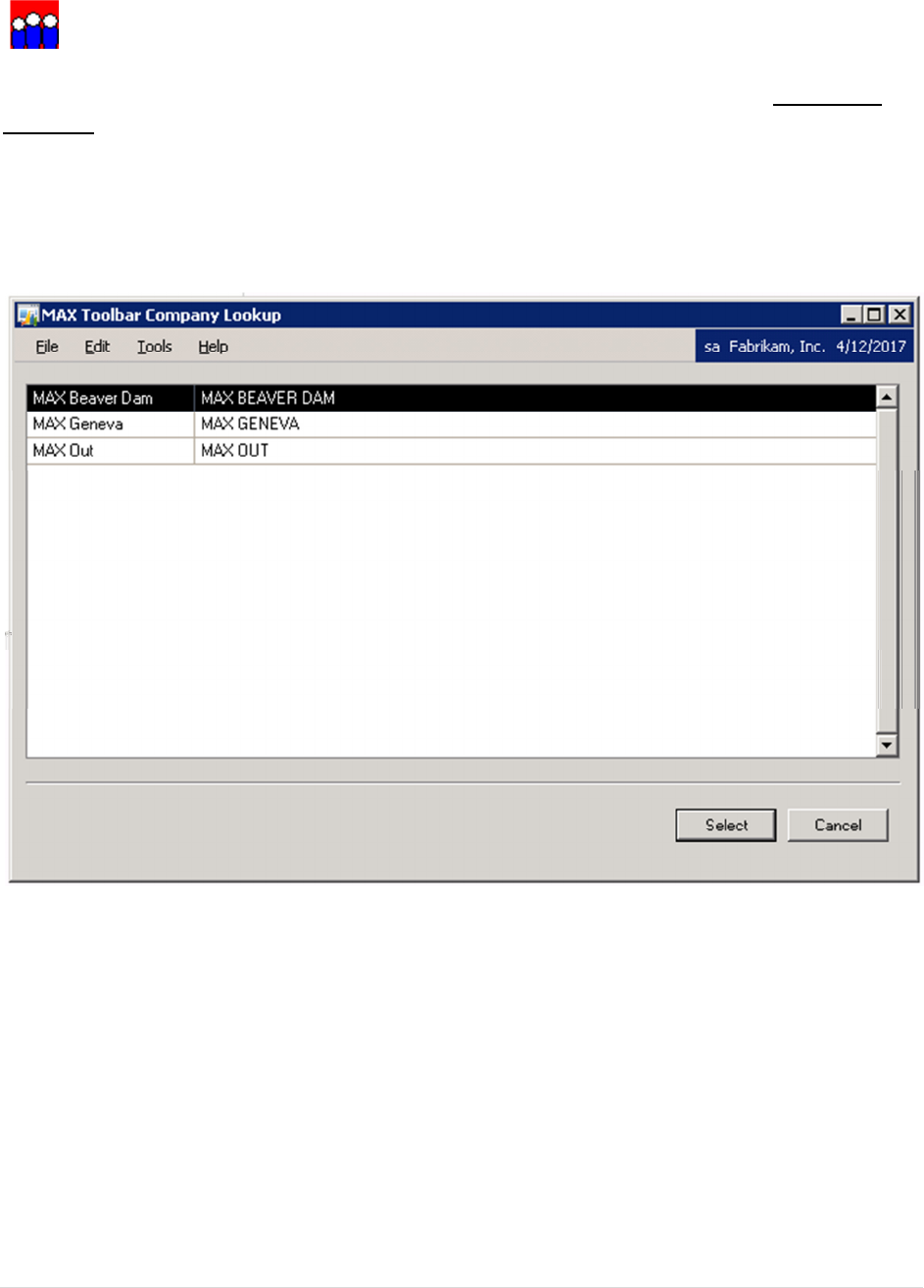
The MAX Toolbar for GP can be accessed from the shortcut bar and it will also automatically open when
integrated windows are opened. It allows you to access MAX data within GP.
• SELECT MAX COMPANY - Opens the MAX Company Lookup Window to control which
MAX Company Database Toolbar fetches data from.
• SHOW MAX GENERAL LEDGER - Opens the MAX GL window to allow queries into MAX
transaction data that posted to the General Ledger.
• SHOW MAX INVOICE - Opens the MAX Invoice window to display invoice data from MAX.
• SHOW MAX VOUCHER - Opens the MAX Voucher window to display Voucher data from
MAX.
• SHOW MAX PURCHASE ORDER - Opens the MAX Purchase Order window to display
purchase order data from MAX.
• SHOW MAX SALES HISTORY - Not available at this time.
• REGISTER MAX TOOLBAR - Opens the Register MAX Toolbar window to register the
Toolbar software.
MAX Toolbar for Microsoft Dynamics GP Select MAX Company
www.maxtoolkit.com |Certified MAX Integrator 20 | P a g e
SELECT MAX COMPANY
MAX Toolbar allows the option to select the MAX Company when you select the Select MAX
Company button from an available window. Inquiry windows access only a single MAX
company. Maintenance windows can access and update multiple MAX companies.
MAX Toolbar for Microsoft Dynamics GP Show MAX General Ledger
www.maxtoolkit.com |Certified MAX Integrator 21 | P a g e
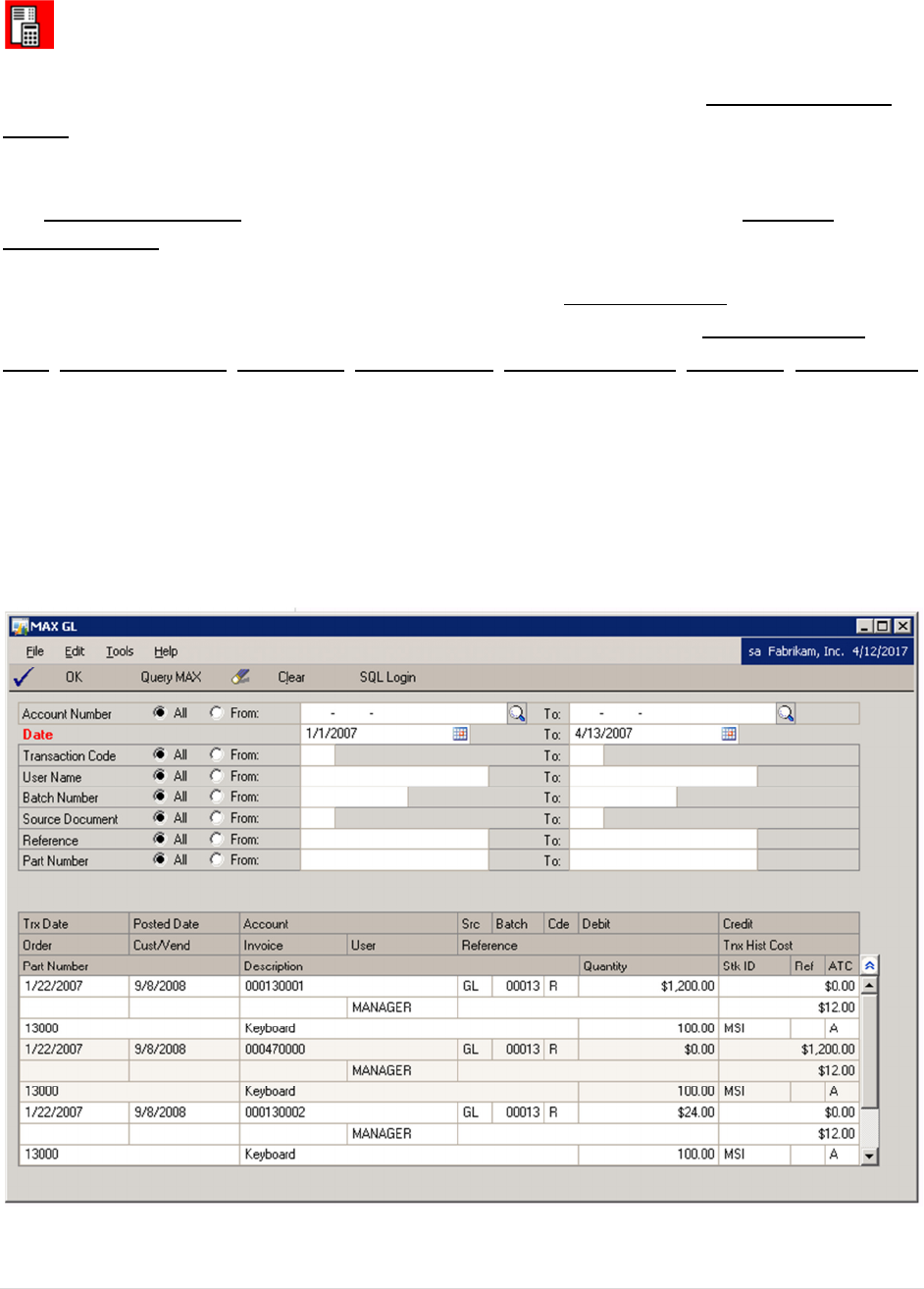
SHOW MAX GENERAL LEDGER
MAX Toolbar opens the MAX General Ledger inquiry when you select the Show MAX General
Ledger icon from an available window. The MAX General Ledger inquiry window is used to search
MAX transactions that posted to the General Ledger.
The MAX General Ledger window can also be added directly to the Dynamics Shortcuts
Navigation Pane.
The default search criteria is to display transactions with a Transaction Date within the last
month. MAX transactions can be searched by the following MAX fields: Account Number,
Date, Transaction Code, User Name, Batch Number, Source Document, Reference, Part Number
or by any combination of those values. The Show/Hide Button on the right side of the detail
display will either open additional lines of detail or collapse to a single line of detail.
Data for the MAX General Ledger inquiry is selected from the MAX Work GL and the MAX
Transaction History tables. Do not purge Work GL or Transaction History records for any period
that you will want to access with MAX General Ledger inquiry.
MAX Toolbar for Microsoft Dynamics GP Show MAX Invoice
www.maxtoolkit.com |Certified MAX Integrator 22 | P a g e
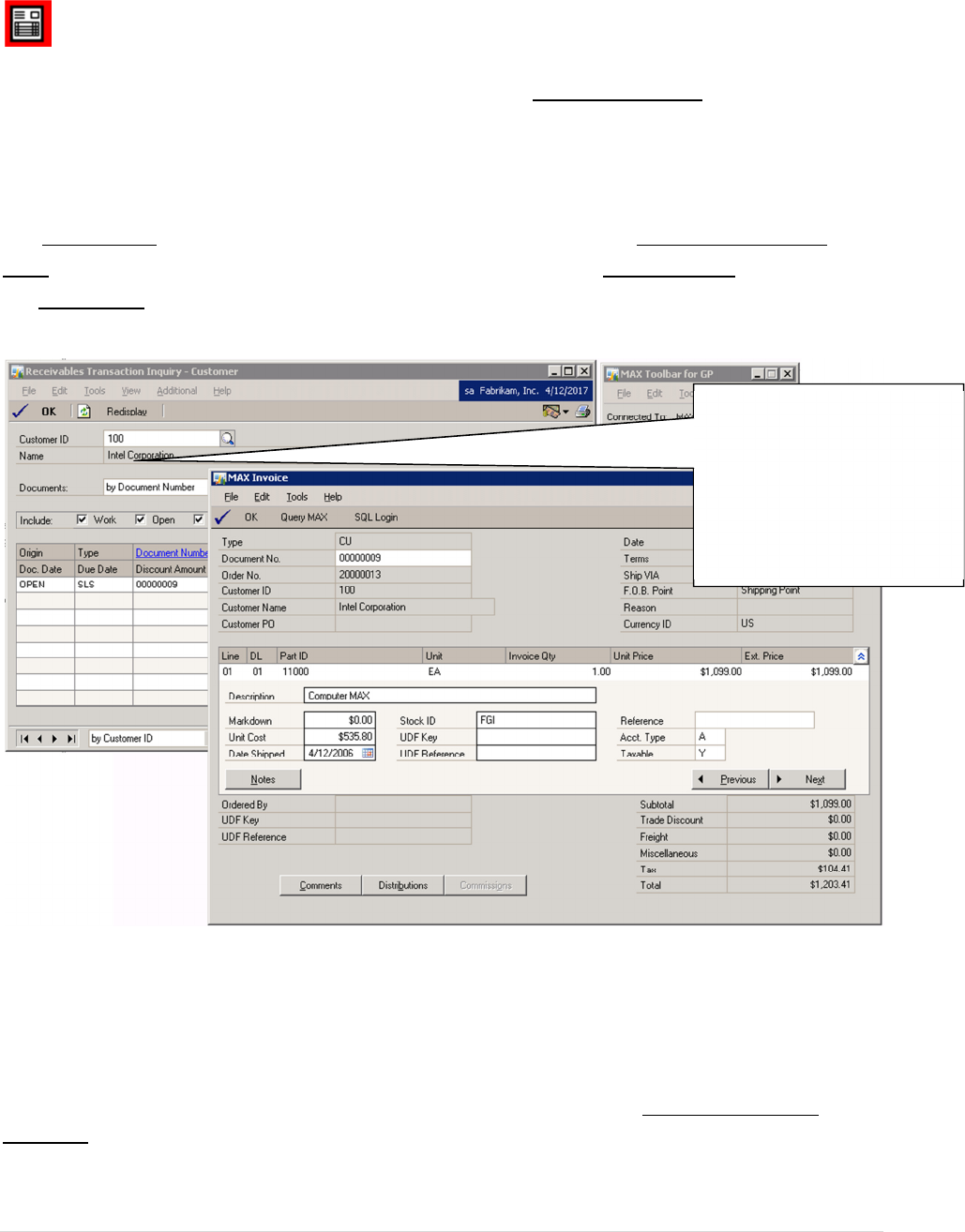
SHOW MAX INVOICE
MAX Toolbar opens the MAX Invoice when you select the Show MAX Invoice icon from an
available window. This button opens the MAX Invoice window to display invoice data from MAX. On
integrated windows, the appropriate Dynamics document number is automatically opened in
the MAX Invoice window.
The MAX Invoice window can also be added directly to the Dynamics Shortcuts Navigation
Pane. MAX Documents can be looked up directly by entering the Document No. and pressing
the Query MAX button.
The following windows are integrated to the MAX Invoice window:
Receivables Transaction Entry (Transactions->Sales->Transaction Entry)
Apply Sales Documents (Transactions->Sales->Apply Sales Documents)
Receivables Transaction Inquiry - Customer (Inquiry->Sales->Transaction by Customer)
Receivables Transaction Inquiry - Document (Inquiry->Sales->Transaction by Document)
Receivables Transaction Inquiry Zoom (Select a line item and click the Document Number
hyperlink from one of the Receivables Transaction Inquiry windows)
On integrated windows, the
appropriate Dynamics
document number is used to
automatically link to the
matching MAX Invoice.
MAX Toolbar for Microsoft Dynamics GP Show MAX Voucher
www.maxtoolkit.com |Certified MAX Integrator 23 | P a g e
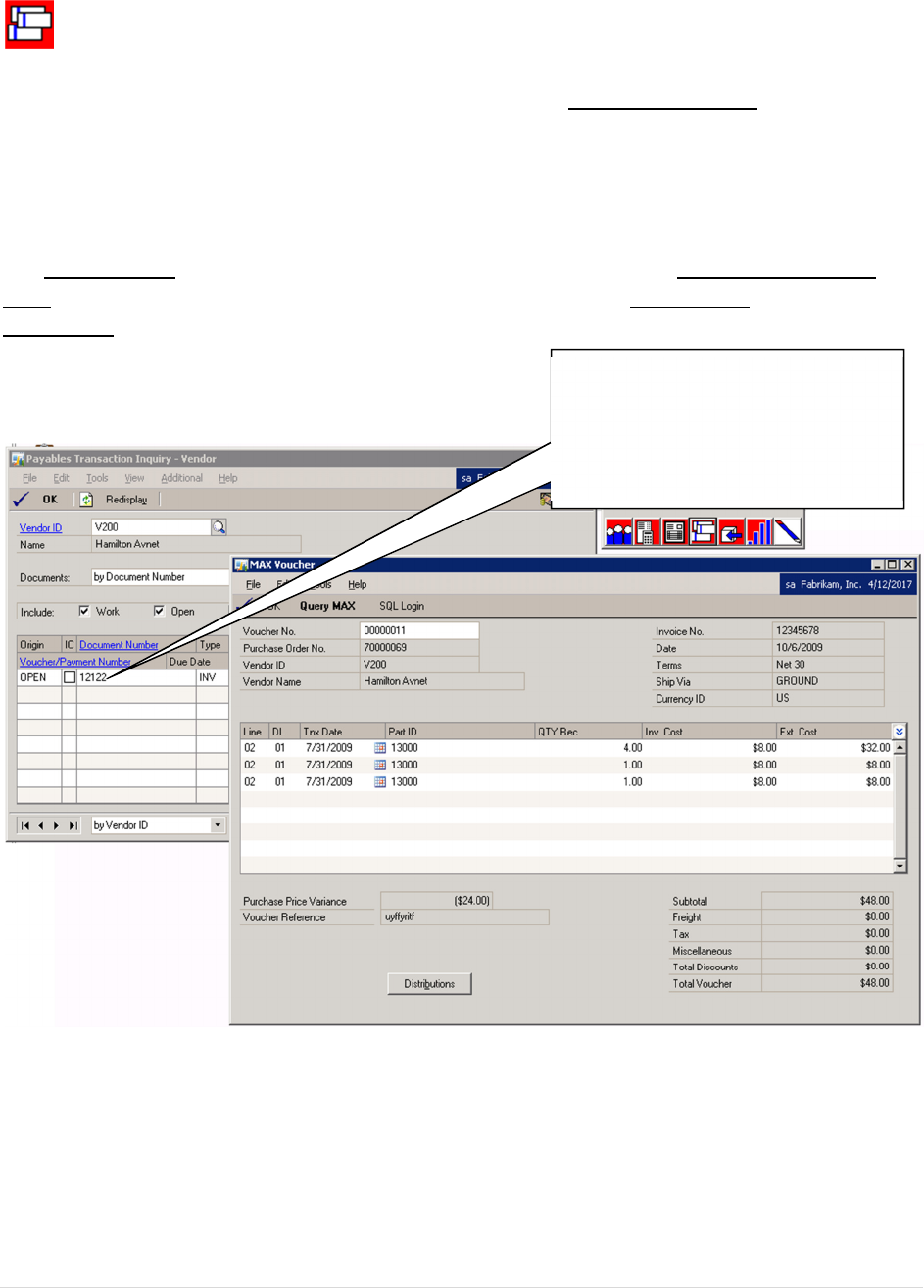
SHOW MAX VOUCHER
MAX Toolbar opens the MAX Voucher when you select the Show MAX Voucher icon from an
available window. This button opens the MAX Voucher window to display Voucher data from MAX.
On integrated windows, the appropriate Dynamics document number is automatically opened
in the MAX Voucher window.
The MAX Voucher window can also be added directly to the Dynamics Shortcuts Navigation
Pane. MAX Documents can be looked up directly by entering the Voucher No. and pressing the
Query MAX button.
The following windows are integrated to the MAX Voucher window: Apply Payables Documents
(Transactions->Purchasing->Apply Payables Documents)
Payables Transaction Entry (Transactions->Purchasing->Transaction Entry)
Payables Transaction Inquiry - Document (Inquiry->Purchasing->Transaction by Document)
Payables Transaction Inquiry - Vendor (Inquiry->Purchasing->Transaction by Vendor)
On integrated windows, the
appropriate Dynamics document
number is used to automatically link
to the matching MAX Voucher.
MAX Toolbar to Microsoft Dynamics GP Show MAX Purchase Order
www.maxtoolkit.com |Certified MAX Integrator 24 | P a g e
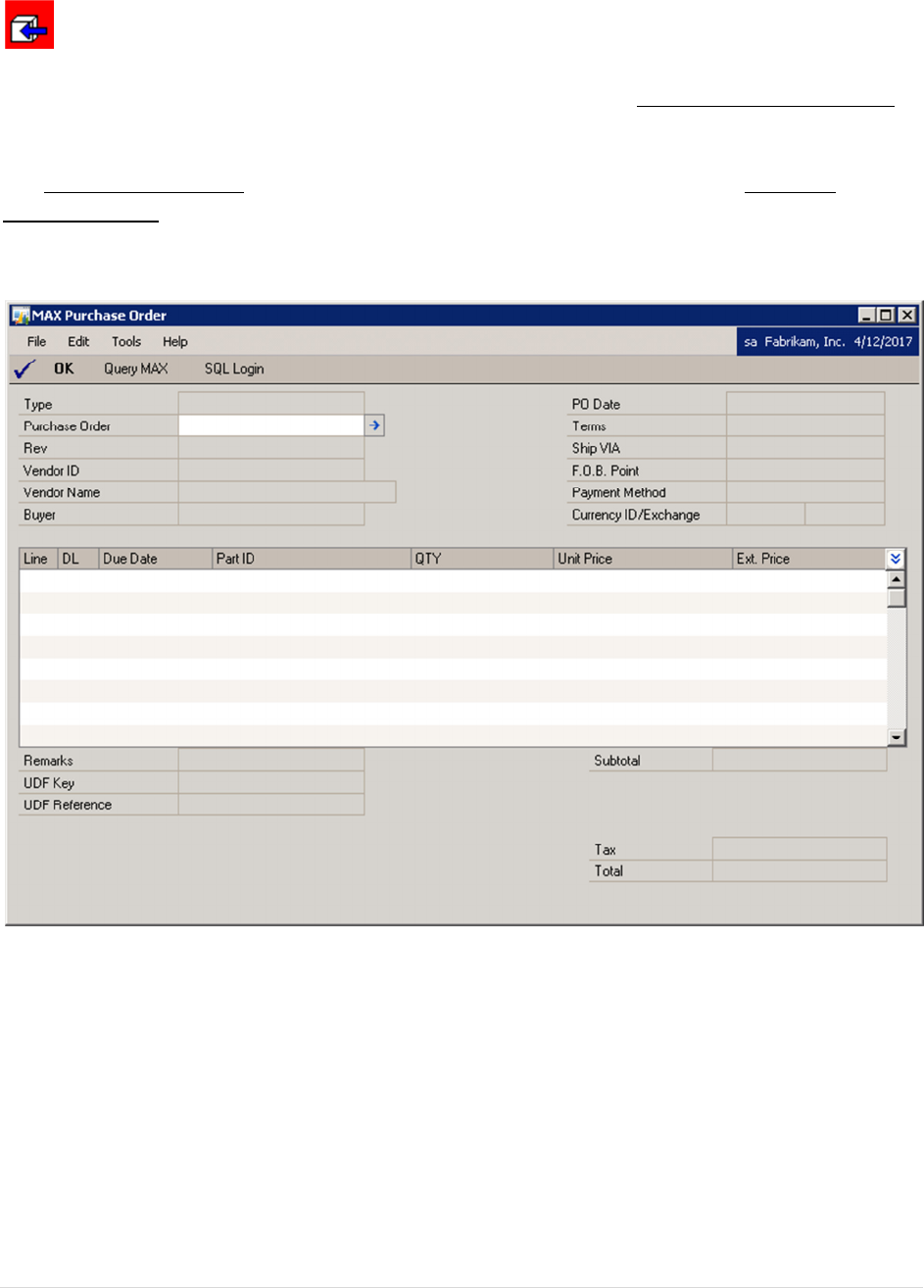
SHOW MAX PURCHASE ORDER
MAX Toolbar opens the MAX Purchase Order when you select the Show MAX Purchase Order
icon from an available window. This button opens the MAX Purchase Order window to display
purchase order data from MAX.
The MAX Purchase Order window can also be added directly to the Dynamics Shortcuts
Navigation Pane.

MAX Toolbar to Microsoft Dynamics GP Show MAX Sales History
www.maxtoolkit.com |Certified MAX Integrator 25 | P a g e
SHOW MAX SALES HISTORY
Future Application
MAX Toolbar to Microsoft Dynamics GP Register MAX Toolbar
www.maxtoolkit.com |Certified MAX Integrator 26 | P a g e
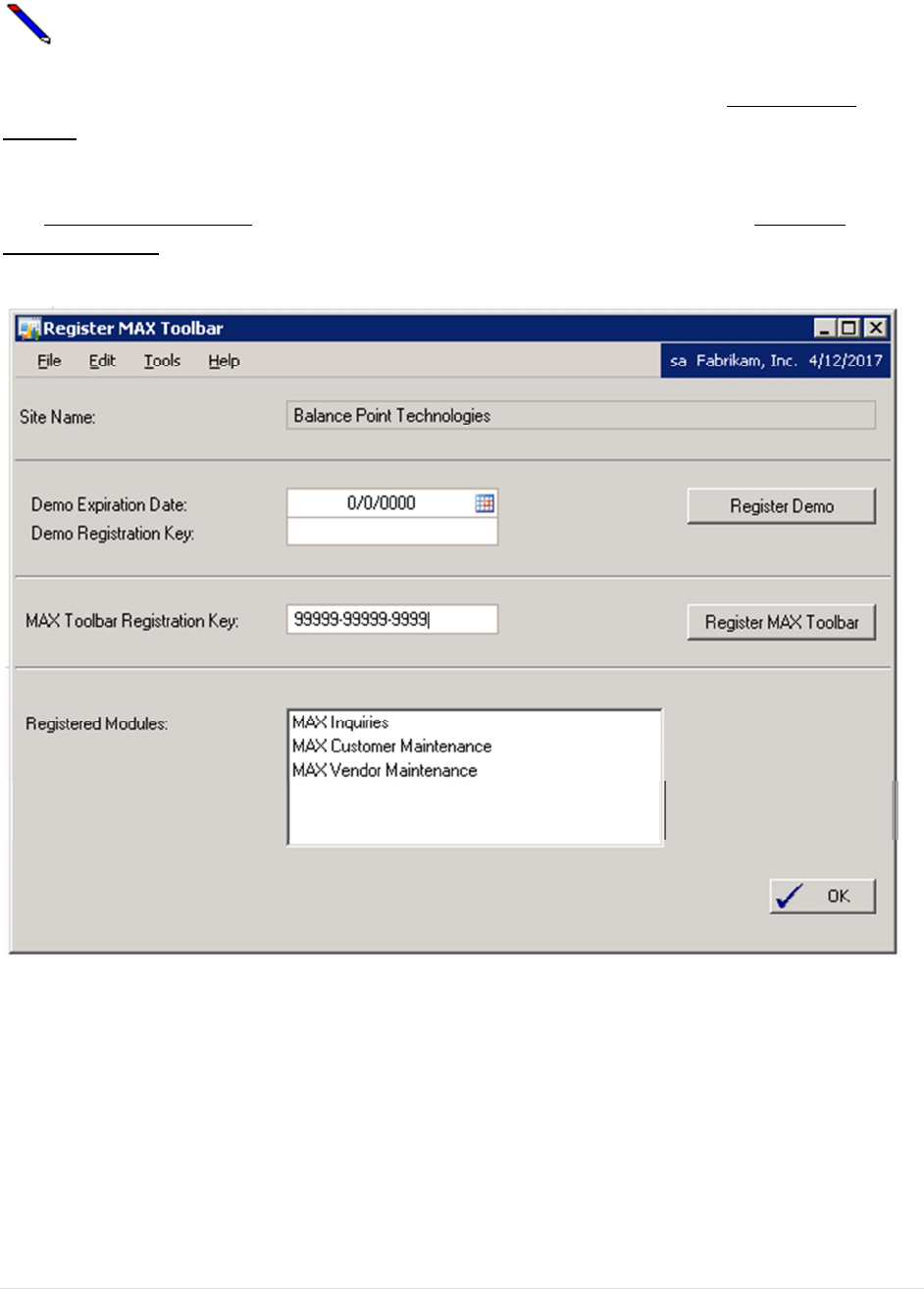
REGISTER MAX TOOLBAR
MAX Toolbar opens the Register MAX Toolbar window when you select the Register MAX
Toolbar icon from an available window. This button opens the Register MAX Toolbar window
to register the Toolbar software.
The Register MAX Toolbar window can also be added directly to the Dynamics Shortcuts
Navigation Pane.
MAX Toolbar to Microsoft Dynamics GP Customer Maintenance
www.maxtoolkit.com |Certified MAX Integrator 27 | P a g e
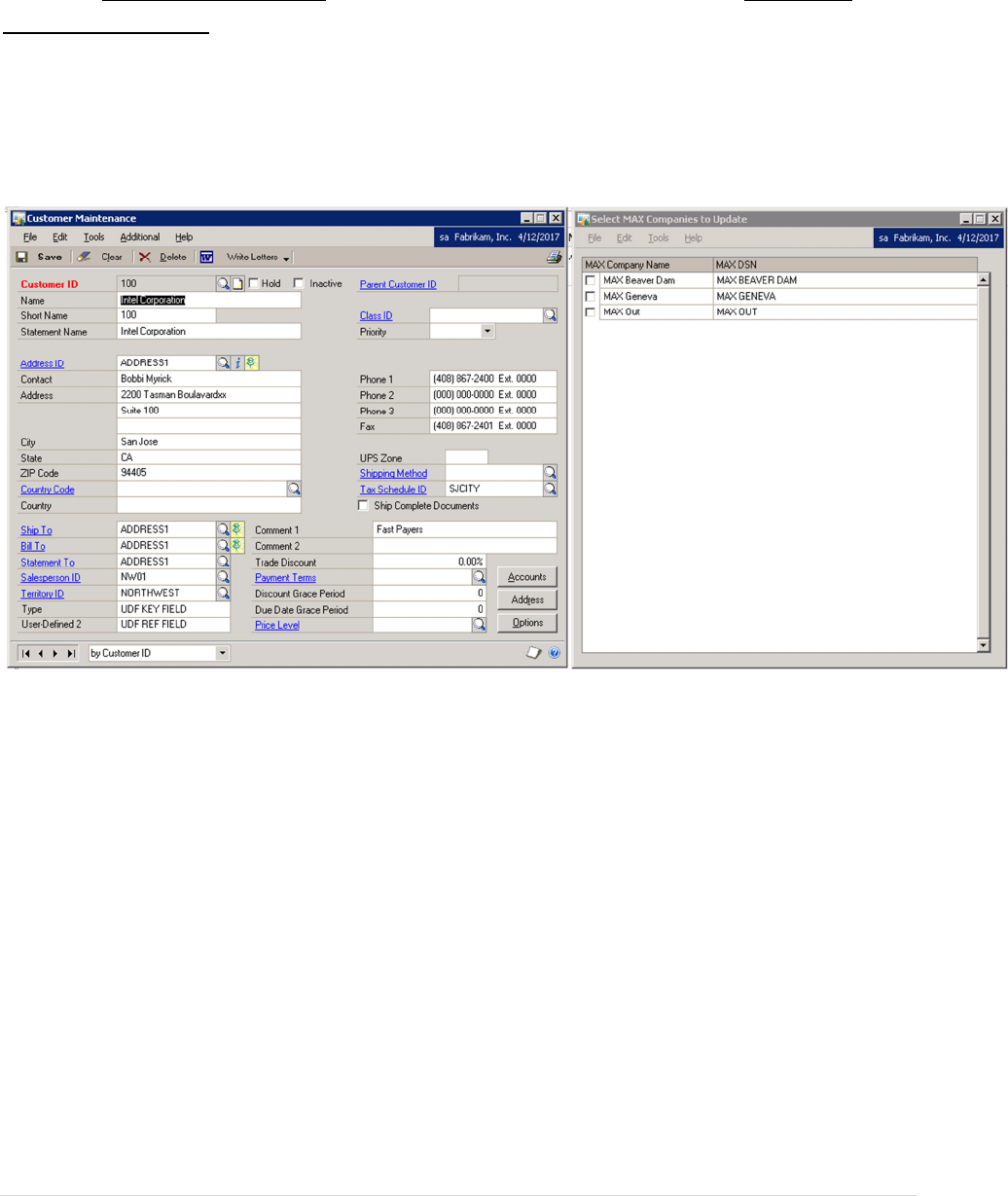
Customer Maintenance
When the Customer Maintenance window is opened, MAX Toolbar opens the Select MAX
Companies to Update window. To update the customer record in one or more MAX companies,
select the companies to be updated. When the record is edited in GP and saved, the GP
customer master record is written to MAX. Edits are performed to ensure MAX database
requirements are met.
The primary MAX address will be updated only if the Address ID is ‘Address1’.
MAX Toolbar to Microsoft Dynamics GP Vendor Maintenance
www.maxtoolkit.com |Certified MAX Integrator 28 | P a g e
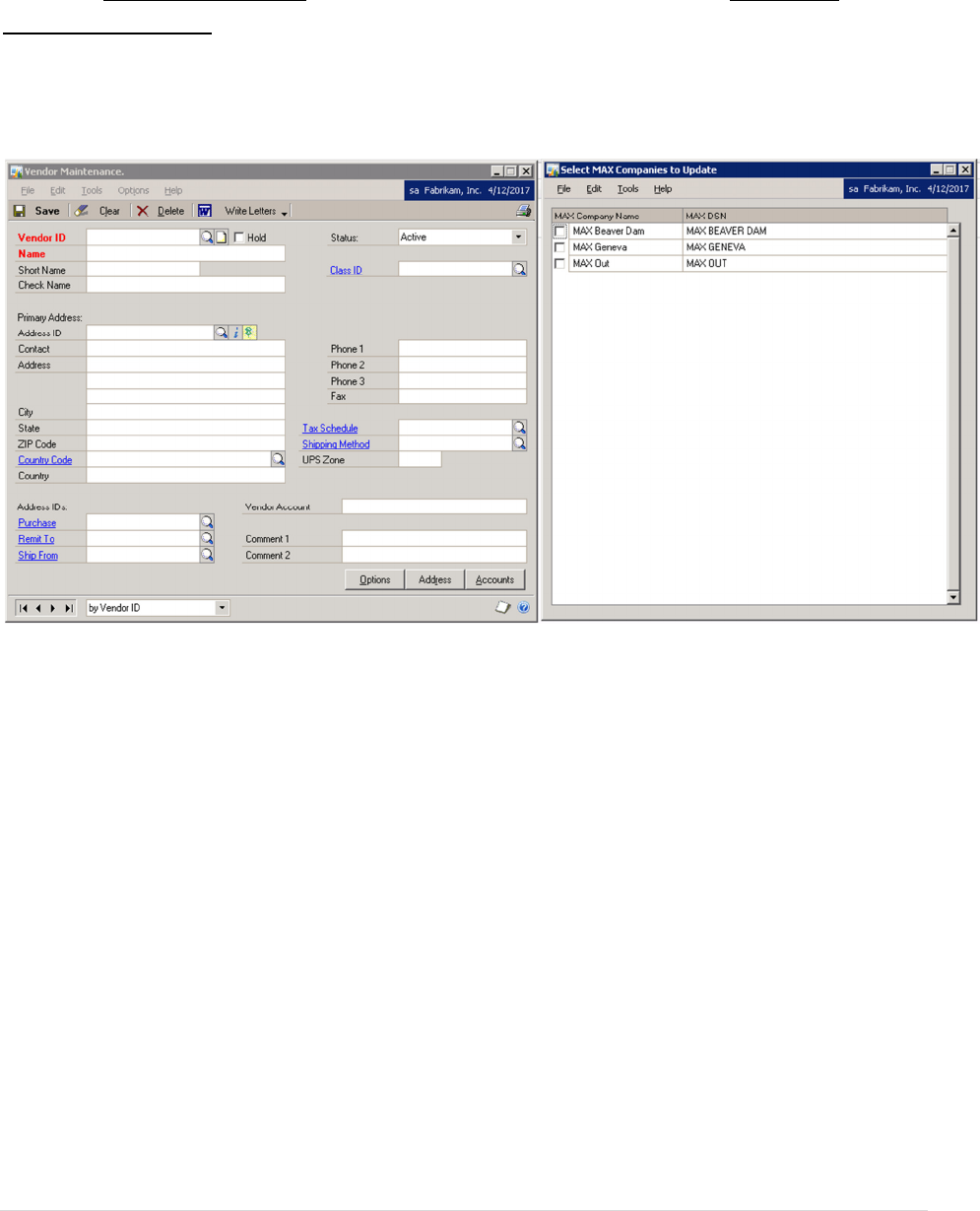
Vendor Maintenance
When the Vendor Maintenance window is opened, MAX Toolbar opens the Select MAX
Companies to Update window. To update the vendor record in one or more MAX companies,
select the companies to be updated. When the record is edited in GP and saved, the GP vendor
master record is written to MAX. Edits are performed to ensure MAX database requirements
are met.
MAX Toolbar to Microsoft Dynamics GP Shipping Method Maintenance
www.maxtoolkit.com |Certified MAX Integrator 29 | P a g e
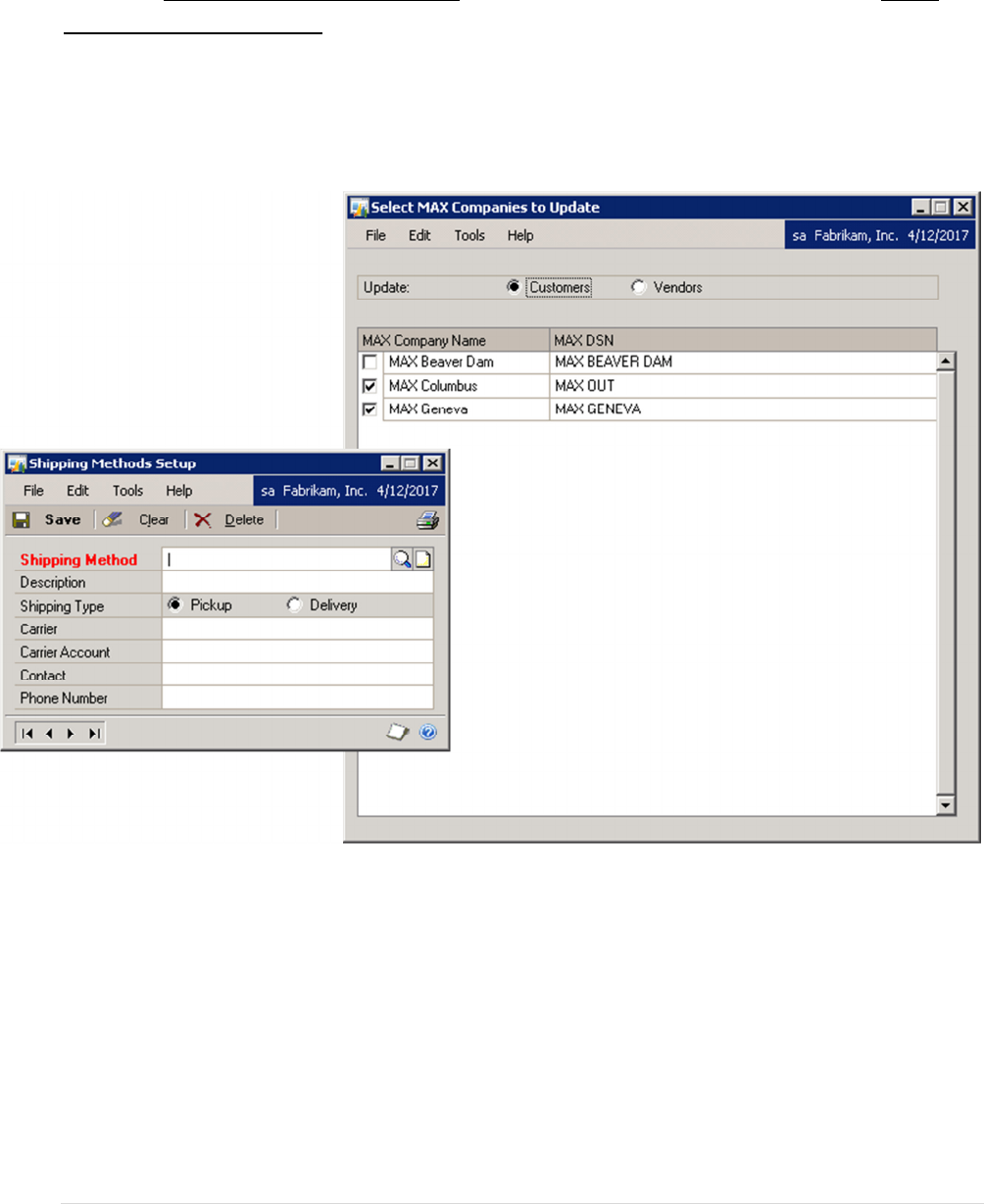
Shipping Method Maintenance
When the Shipping Method Maintenance window is opened, MAX Toolbar opens the Select
MAX Companies to Update window. To update the shipping methods in one or more MAX
companies, select the companies to be updated. Select whether to update MAX Purchasing
Shipping Methods or MAX Sales Shipping Methods. When the record is edited in GP and saved,
the MAX Shipping Method is updated. Edits are performed to ensure MAX database
requirements are met.
MAX Toolbar to Microsoft Dynamics GP Payment Terms Setup
www.maxtoolkit.com |Certified MAX Integrator 30 | P a g e
Payment Terms Setup
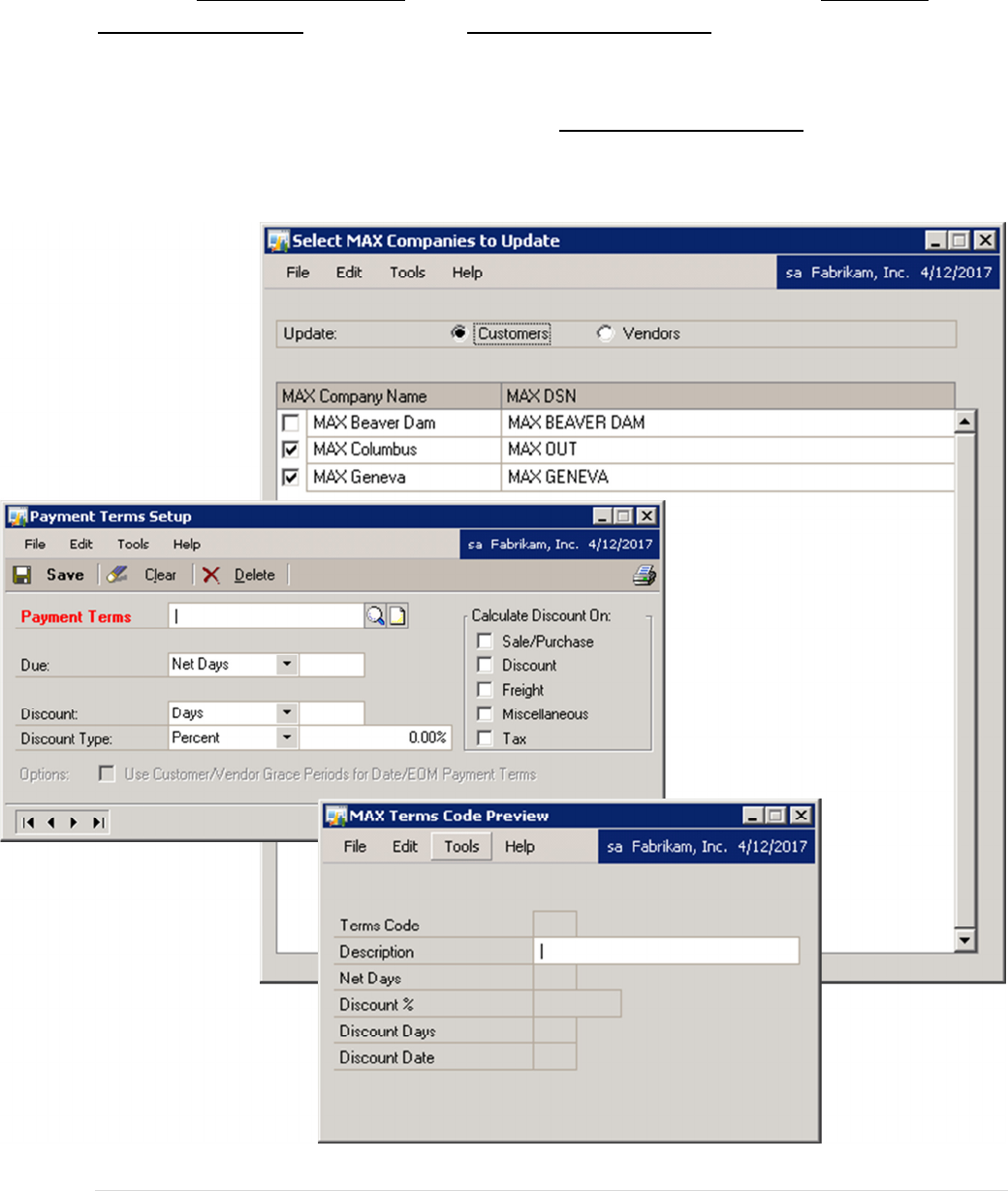
When the Payment Terms Setup window is opened, MAX Toolbar opens the Select MAX
Companies to Update window and the MAX Terms Code Preview window. To update the
payment terms in one or more MAX companies, select the companies to be updated. Select
whether to update MAX Purchasing Payment Terms or MAX Sales Payment Terms. The
payment terms description can be edited on the MAX Terms Code Preview window. When the
record is edited in GP and saved, the MAX Shipping Method is updated. Edits are performed to
ensure MAX database requirements are met.

MAX Toolbar to Microsoft Dynamics GP Contact Information
www.maxtoolkit.com |Certified MAX Integrator 31 | P a g e
Contact Information
Technical support is available for customers with a current Customer Support Plan. For
technical support, please contact us at
E-mail support@bptechnologies.com
Telephone (847) 784-8270 Ext 1006
We encourage your comments about our products. To submit comments or suggestions,
please e-mail support@bptechnologies.com.
For information about other applications for MAX, please visit www.MAXToolkit.com.
Balance Point Technologies, Inc. provides Training, Consulting, and Development Services for
MAX and Microsoft Dynamics GP.

MAX Toolbar to Microsoft Dynamics GP Appendix
www.maxtoolkit.com |Certified MAX Integrator 32 | P a g e
Appendix
Alternate Windows
MAX Toolbar for GP uses no alternate GP windows.
Tables
The following tables are added to the GP Company database by MAX Toolbar:
EX_CSTVN
EX_GLDET
EX_PODET
EX_SODET
EX_VCHDT
The following tables are added to the GP Dynamics database by MAX Toolbar:
EX_COMPA
EX_CONFI
EX_PVCON
EX_REGIS
EX_SCHEM
