McAfee Vulnerability Manager Non Appliance MVM750 Hardening Guide
User Manual:
Open the PDF directly: View PDF  .
.
Page Count: 17

McAfee Vulnerability Manager
Non-Appliance
Hardening Guide
COPYRIGHT
Copyright © 2012 McAfee, Inc. Do not copy without permission.
TRADEMARKS
McAfee, the McAfee logo, McAfee Active Protection, McAfee AppPrism, McAfee Artemis, McAfee CleanBoot, McAfee DeepSAFE, ePolicy Orchestrator,
McAfee ePO, McAfee EMM, McAfee Enterprise Mobility Management, Foundscore, Foundstone, McAfee NetPrism, McAfee Policy Enforcer, Policy Lab,
McAfee QuickClean, Safe Eyes, McAfee SECURE, SecureOS, McAfee Shredder, SiteAdvisor, SmartFilter, McAfee Stinger, McAfee Total Protection,
TrustedSource, VirusScan, WaveSecure, WormTraq are trademarks or registered trademarks of McAfee, Inc. or its subsidiaries in the United States
and other countries. Other names and brands may be claimed as the property of others.
LICENSE INFORMATION
License Agreement
NOTICE TO ALL USERS: CAREFULLY READ THE APPROPRIATE LEGAL AGREEMENT CORRESPONDING TO THE LICENSE YOU PURCHASED, WHICH SETS
FORTH THE GENERAL TERMS AND CONDITIONS FOR THE USE OF THE LICENSED SOFTWARE. IF YOU DO NOT KNOW WHICH TYPE OF LICENSE YOU
HAVE ACQUIRED, PLEASE CONSULT THE SALES AND OTHER RELATED LICENSE GRANT OR PURCHASE ORDER DOCUMENTS THAT ACCOMPANY YOUR
SOFTWARE PACKAGING OR THAT YOU HAVE RECEIVED SEPARATELY AS PART OF THE PURCHASE (AS A BOOKLET, A FILE ON THE PRODUCT CD, OR
A FILE AVAILABLE ON THE WEBSITE FROM WHICH YOU DOWNLOADED THE SOFTWARE PACKAGE). IF YOU DO NOT AGREE TO ALL OF THE TERMS
SET FORTH IN THE AGREEMENT, DO NOT INSTALL THE SOFTWARE. IF APPLICABLE, YOU MAY RETURN THE PRODUCT TO MCAFEE OR THE PLACE OF
PURCHASE FOR A FULL REFUND.
Issued 6/29/2012 12:50 / McAfee Vulnerability Manager Non-Appliance Hardening Guide

McAfee Vulnerability Manager Non-Appliance Hardening Guide
iii
Contents
Introduction ................................................................................................... 4
Network requirements .................................................................................... 4
Required services for Windows Server 2008 R2 ............................................. 8
Security configuration guideline ................................................................... 11
Change security policy settings ......................................................................................... 11
Security policy settings .................................................................................................... 11
Registry settings guideline ........................................................................... 15
Hardening Suggestions for the Database Server ........................................... 16
Setting the "sa" Password................................................................................................. 16
Removing Installation Files ............................................................................................... 16
About Firewalls, Intrusion Detection and Anti-Virus ..................................... 17
Do not install security products on scan engines .................................................................. 17

McAfee Vulnerability Manager Non-Appliance Hardening Guide
4
Introduction
This manual provides guidelines for hardening customer-owned servers running Microsoft Windows
Server 2008 R2 and McAfee Vulnerability Manager 7.5. It is not intended to be used with any McAfee
Vulnerability Manager appliances.
This manual assumes you are familiar with Microsoft Internet Information Services (IIS), Microsoft
SQL Server, and general network security administration. It explains minimum services and access
requirements that are necessary to run McAfee Vulnerability Manager, and provides information on
what should be secured along with suggested checks to perform. Additional reference information is
available at the end of this manual if needed.
Disclaimer: The settings and recommendations in this guide are suggestions, not requirements. This
guide provides information on the steps you can take to harden your systems, but many of these
steps reduce the functionality of the server and severely limit the services it can perform. Following
any of these steps is considered a voluntary action on your part; McAfee does not require that you
take any of these precautions to run its products. In all cases, you should follow your corporate
guidelines and network policy regarding hardening procedures.
Network requirements
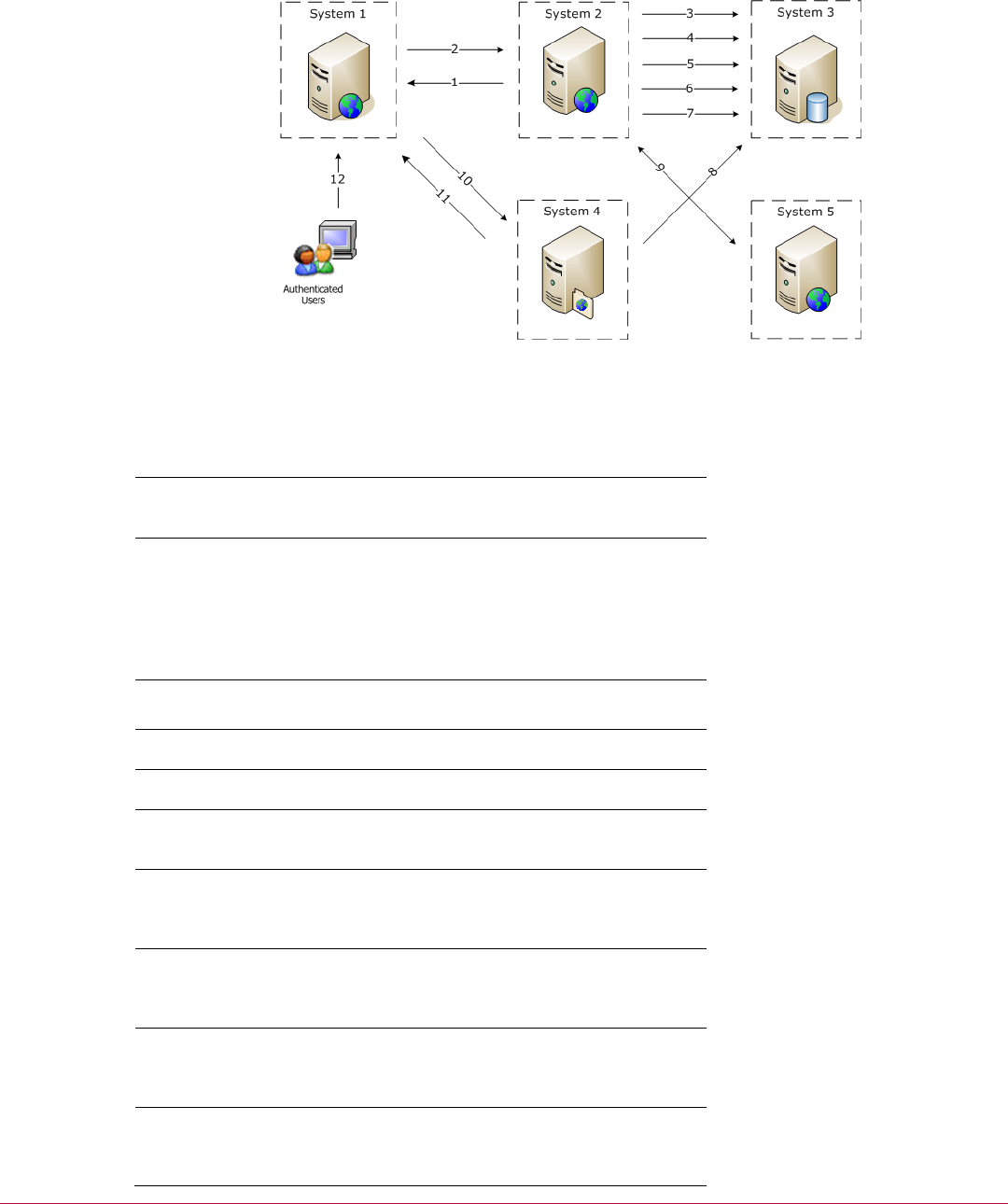
McAfee Vulnerability Manager components use the network ports and protocols listed in the following
tables. If a firewall separates components, these ports and protocols must be opened in your firewall
configuration before you install McAfee Vulnerability Manager 7.5.
The network requirements diagrams use a distributed deployment architecture to display
communication paths. If you use a different deployment architecture, be sure to note which system is
running a McAfee Vulnerability Manager component, and use the port number and communication
path specified in the communication path tables.
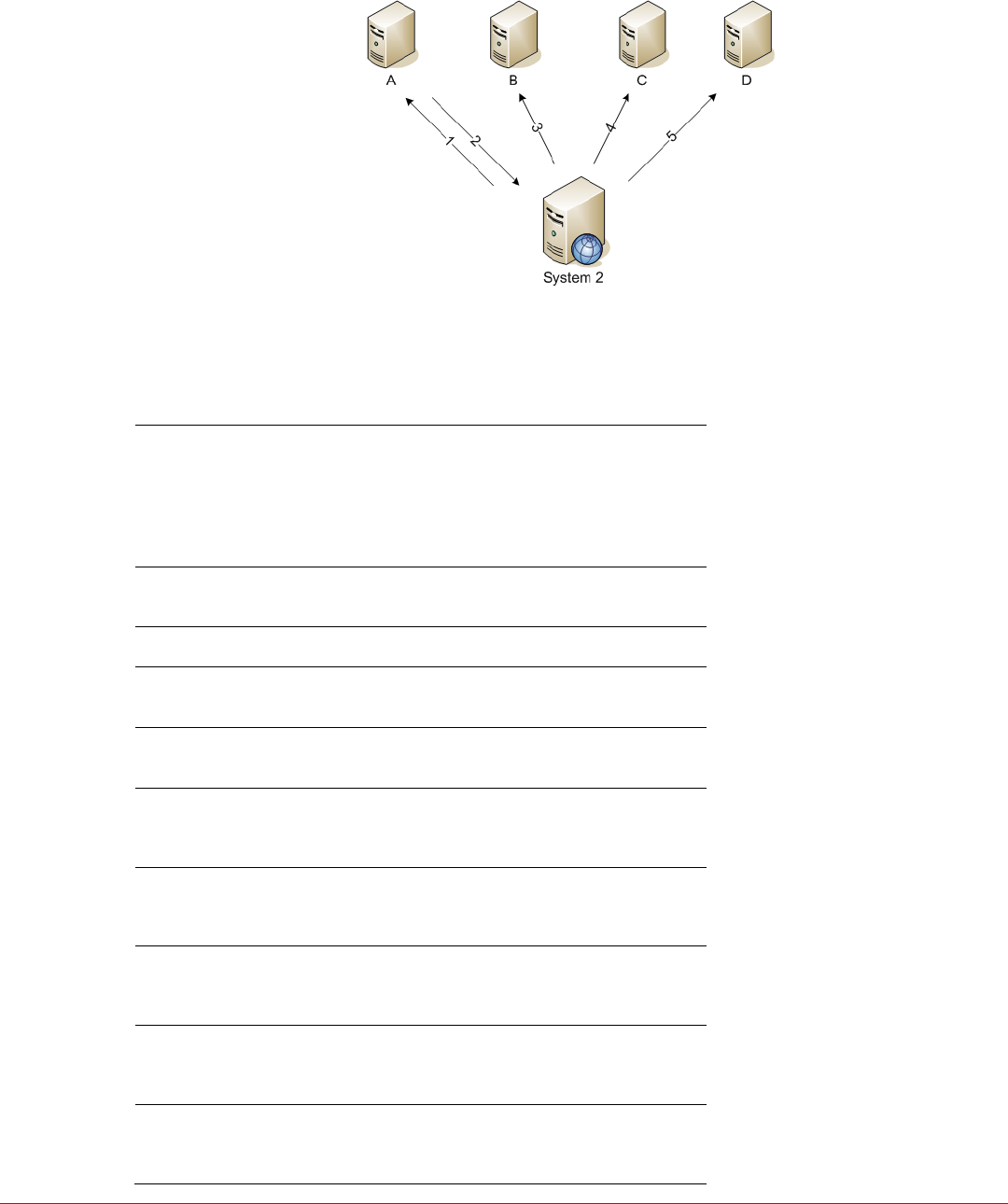
The network requirements diagrams are separated into two groups: connecting McAfee Vulnerability
Manager components and connecting to external components. External components include other
databases, McAfee ePO databases, LDAP or Active Directory servers, and external ticketing or issue
management systems.
Network requirements
Change security policy settings
McAfee Vulnerability Manager Non-Appliance Hardening Guide
5
Connecting McAfee Vulnerability Manager components
Figure 1: Network requirements
McAfee Vulnerability Manager component communication paths
# Title Description
System 1 – Enterprise
manager
Enterprise manager
System 2 – API service,
scan controller, and scan
engine
Scan controller
API server
Scan engine
Data synchronization
service
Notification service
System 3 – Database*
Database
Configuration manager
System 4 – Report server Report engine
System 5 – Scan Engine Scan engine
Authenticated User Users log on to the enterprise
manager.
1 Assessment management
search results Ports: 443 or 80
SOAP over HTTPS or HTTP
2 Command and control Port: 3800
SOAP over HTTPS or HTTP
3 API service Port: 1433
(SSL over) TCP/IP
4 Scan data Port: 1433
(SSL over) TCP/IP

Network requirements
Change security policy settings
McAfee Vulnerability Manager Non-Appliance Hardening Guide
6
5 Data synchronization
service** Port: 1433
(SSL over) TCP/IP
6 Notification service*** Port: 1433
(SSL over) TCP/IP
7 Scan data Port: 1433
(SSL over) TCP/IP
8 Report data Port: 1433
(SSL over) TCP/IP
9 Scan data (scan engine to
scan controller) Ports: 3803
REST over HTTPS or HTTP
10 Generating reports or
changing report templates Ports: 3802
REST over HTTPS or HTTP
11 Generated reports Ports: 443 or 80
REST over HTTPS or HTTP
12 Web browser traffic Ports: 443 or 80
HTTPS or HTTP
*Changing the location of the configuration manager requires a communication path between the
configuration manager and the database, using Port: 1433, (SSL over) TCP/IP.
**Changing the location of the data synchronization service changes the communication path(s)
displayed in this diagram.
***Changing the location of the notification service changes the communication path(s) displayed in
this diagram.
Note: All McAfee Vulnerability Manager components have an FCM Agent installed. The
communication between each FCM Agent and the configuration manager server is Port: 3801, (SSL
over) TCP/IP.
Network requirements
Change security policy settings
McAfee Vulnerability Manager Non-Appliance Hardening Guide
7
Connecting external components
Figure 2: External component communications
External component communication paths
# Title Description
System 2 – API service,
scan controller, and scan
engine
Scan controller
API server
Scan engine
Data synchronization
service
Notification service
A External ticketing or issue
management
B External SMTP server
C External LDAP / Active
Directory (AD)
D External McAfee ePO
Database
1 Notification service* Port: 162
SNMP
2 Notification service* Port: 161
SNMP
3 Notification service* Port: 25
SMTP
4 Data synchronization
service** Port: 389
LDAP
5 Data synchronization
service** Port: 1433
(SSL over) TCP/IP

Required services for Windows Server 2008 R2
Change security policy settings
McAfee Vulnerability Manager Non-Appliance Hardening Guide
8
*Changing the location of the notification service changes the communication path(s) displayed in this
diagram.
**Changing the location of the data synchronization service changes the communication path(s)
displayed in this diagram.
Required services for Windows Server
2008 R2
The following is a list of services and the recommended settings. Note that these settings may vary
depending on the role of the server. For example, non-database servers do not use the
MSSQLSERVER service.
Key to Footnotes in the Services List
1 – Not needed for enterprise manager-only servers
2 – Not needed for database-only servers
3 – Not needed for scan engine-only servers
4 – Disabled, unless there is a dependent service.
If there is a dependent service, then a registry key should be set to prevent Terminal Service logons (unless
Terminal Service logons are required in your environment). The registry key is
HKLM\SYSTEM\CurrentControlSet\Control\Terminal Server\fDenyTSConnections, DWORD.
Set the DWORD value to 1 to disable Terminal Services connections, 0 to enable them.
Services
Application Experience – Manual
Application Host Helper Service – Automatic
Application Identity – Manual
Application Information – Manual
Application Layer Gateway Service – Manual
Application Management – Manual
ASP .NET State Service - Manual
Background Intelligent Transfer Service – Automatic
Base Filtering Engine – Automatic
Certificate Propagation – Manual
CNG Key Isolation – Manual
COM+ Event System – Automatic
COM+ System Application – Manual
Computer Browser – Disabled
Credential Manager – Manual
Cryptographic Services – Automatic
DCOM Server Process Launcher – Automatic
Desktop Window Manager Session Manager – Disabled
DHCP Client – Automatic
Diagnostic Policy Service – Disabled
Diagnostic Service Host – Disabled
Diagnostic System Host – Disabled
Disk Defragmenter – Manual
Distributed Link Tracking Client – Disabled
Distributed Transaction Coordinator – Automatic

Required services for Windows Server 2008 R2
Change security policy settings
McAfee Vulnerability Manager Non-Appliance Hardening Guide
9
DNS Client – Automatic
Encrypting File System (EFS) – Disabled
Extensible Authentication Protocol – Disabled
Function Discovery Provider Host – Disabled
Function Discovery Resource Publication – Manual
Group Policy Client – Automatic
Health Key and Certificate Management – Manual
Human Interface Device Access – Disabled
IKE and AuthIP IPsec Keying Modules – Automatic
Interactive Services Detection – Disabled
Internet Connection Sharing (ICS) – Disabled
IP Helper – Automatic
IPsec Policy Agent – Manual
KtmRm for Distributed Transaction Coordinator – Disabled
Link-Layer Topology Discovery Mapper – Disabled
Microsoft .NET Framework NGEN v2.0.50727_X64 – Disabled
Microsoft .NET Framework NGEN v2.0.50727_X86 – Disabled
Microsoft .NET Framework NGEN v4.0.30319_X64 – Automatic
Microsoft .NET Framework NGEN v4.0.30319_X86 – Automatic
Microsoft Fibre Channel Platform Registration Service – Disabled
Microsoft iSCSI Initiator Service – Disabled
Microsoft Software Shadow Copy Provider – Disabled
Multimedia Class Scheduler – Disabled
Net.Msmq Listener Adapter – Disabled
Net.Pipe Listener Adapter – Disabled
Net.Tcp Listener Adapter – Disabled
Net.Tcp Port Sharing Service - Disabled
Netlogon – Disabled
Network Access Protection Agent – Disabled
Network Connections – Manual
Network List Service – Manual
Network Location Awareness – Automatic
Network Store Interface Service – Automatic
Performance Counter DLL Host – Disabled
Performance Log & Alerts – Disabled
Plug and Play – Automatic
PnP-X IP Bus Enumerator – Disabled
Portable Device Enumerator Service – Disabled
Power – Automatic
Print Spooler – Automatic1,2
Problem Reports and Solutions Control Panel Support – Disabled
Protected Storage – Disabled
Remote Access Auto Connection Manager – Disabled
Remote Access Connection Manager – Disabled
Remote Desktop Configuration – Disabled
Remote Desktop Services – Disabled
Remote Desktop Services UserMode Port Redirector – Disabled
Remote Procedure Call (RPC) – Automatic
Remote Procedure Call (RPC) Locator – Disabled
Remote Registry – Disabled
Resultant Set of Policy Provider – Disabled

Required services for Windows Server 2008 R2
Change security policy settings
McAfee Vulnerability Manager Non-Appliance Hardening Guide 10
Routing and Remote Access – Disabled
RPC Endpoint Mapper – Automatic
Secondary Logon – Disabled
Secure Socket Tunneling Protocol Service – Disabled
Security Accounts Manager – Automatic
Server – Disabled
Shell Hardware Detection – Automatic
Smart Card – Disabled
Smart Card Removal Policy – Disabled
SNMP Trap – Disabled
Software Protection – Automatic
Special Administration Console Helper – Disabled
SPP Notification Service – Disabled
SSDP Discovery – Disabled
System Event Notification Service – Automatic
Task Scheduler – Automatic
TCP/IP NetBIOS Helper - Automatic
Telephony – Disabled
Thread Ordering Server – Disabled
TPM Base Service – Disabled
UPnP Device Host – Disabled
User Profile Service – Automatic
Virtual Disk – Manual
Volume Shadow Copy – Disabled
Web Management Service - Disabled
Windows Audio – Disabled
Windows Audio Endpoint Builder – Disabled
Windows Cardspace - Disabled
Windows Color System – Disabled
Windows Driver Foundation – User-mode Driver Framework – Disabled
Windows Error Reporting Service – Disabled
Windows Event Collector – Disabled
Windows Event Log – Automatic
Windows Firewall – Automatic
Windows Font Cache Service – Disabled
Windows Installer – Manual
Windows Management Instrumentation – Automatic
Windows Modules Installer – Manual
Windows Presentation Foundation Font Cache 3.0.0.0 – Disabled
Windows Process Activation Service - Automatic
Windows Remote Management (WS-Management) – Disabled
Windows Time – Manual
Windows Update – Automatic (Delayed Start)
WinHTTP Web Proxy Auto-Discovery Service – Disabled
Wired AutoConfig – Disabled
WMI Performance Adapter – Disabled
Workstation – Automatic
World Wide Web Publishing Service - Automatic2,3

Security configuration guideline
Security policy settings
McAfee Vulnerability Manager Non-Appliance Hardening Guide 11
Security configuration guideline
Hardening a server with Microsoft Windows Server 2008 R2 follows the guidelines found in the Center
for Internet Security (CIS) Security Configuration Benchmark for Windows 2008, version 1.1.0, using
the Enterprise profile.
Change security policy settings
Use the Local Group Policy Editor to change the security settings on your McAfee Vulnerability
Manager server.
1 On the server running McAfee Vulnerability Manager, select Start | Run.
2 Type gpedit.msc, then click OK.
Security policy settings
The following settings are used to harden a McAfee Vulnerability Manager appliance. When configuring
your server, use the settings that work for your environment.
Local Computer Policy | Computer Configuration | Windows Settings | Security Settings | Account
Policies
• Password Policy
• Enforce Password History – 24 passwords remembered
• Maximum Password Age – 90 days
• Minimum Password Age – 1 day
• Minimum Password Length – 8 characters
• Password must meet complexity requirements – Enabled
• Store passwords using reversible encryption – Disabled
• Account Lockout Policy
• Account lockout duration – 15 minutes
• Account lockout threshold – 15 invalid logon attempts
• Reset account lockout counter after – 15 minutes
Local Computer Policy | Computer Configuration | Windows Settings | Security Settings | Local
Policies
• User Rights Assignment
• Access this computer from the network – Administrators, Authenticated Users
• Allow log on locally – Administrators
• Allow log on through Remote Desktop Services – Administrators
• Bypass traverse checking – Administrators, Authenticated Users1, Backup Operators, Local
Service, Network Service
• Deny access to this computer from the network – Guests
• Deny log on locally – Guests
• Deny log on through Remote Desktop Services – Guests
• Profile system performance – Administrators
• Shut down the system – Administrators
1 Not including Authenticated Users causes errors in IIS.

Security configuration guideline
Security policy settings
McAfee Vulnerability Manager Non-Appliance Hardening Guide 12
• Security Options
• Accounts: Administrator account status – Disabled2
• Accounts: Guest account status – Disabled
• Audit – Force audit policy subcategory settings (Windows Vista or later) to override audit
policy category settings – Enabled
• Devices: Allowed to format and eject removable media – Administrators
• Interactive logon: Do not display last user name – Enabled
• Interactive logon: Message text for users attempting to log on – This system is for the use of
authorized users only.
• Interactive logon: Message title for users attempting to log on – AUTHORIZED USERS ONLY
• Interactive logon: Number of previous logons to cache (in case domain controller is not
available) – 0
• Interactive logon: Prompt user to change password before expiration – 14 days
• Interactive logon: Require Domain Controller authentication to unlock workstation – Enabled
• Interactive logon: Smart card removal behavior – Lock workstation
• Microsoft network server: Digitally signed communications (if client agrees) – Enabled
• Network access: Do not allow anonymous enumeration of SAM accounts and shares – Enabled
• Network access: Do not allow storage of passwords and credentials for network authentication
– Enabled
• Network security: LAN Manager authentication level – Send LM & NTLM - use NTLMv2 session
security if negotiated
• Network security: Minimum session security for NTLM SSP based (including secure RPC)
clients – Require NTLMv2 session security, Require 128-bit encryption
• System cryptography: Force strong key protection for user keys stored on the computer –
User is prompted when the key is first used
• System settings: Optional subsystems – None
• User Account Control: Admin Approval Mode for the Built-in Administrator account – Enabled
• User Account Control: Behavior of the elevation prompt for administrators in Admin Approval
Mode – Prompt for Consent
• User Account Control: Behavior of the elevation prompt for standard users – Automatically
deny elevation requests
2 You must create a user account with administrator privileges.
Local Computer Policy | Computer Configuration | Windows Settings | Security Settings |
Advanced Audit Policy Configuration | System Audit Policies – Local Group Policy Object
• Account Logon
• Audit Credential Validation – Success
• Account Management
• Audit Computer Account Management – Success
• Audit Other Account Management Events – Success
• Audit Security Group Management – Success
• Audit User Account Management – Success
• Detailed Tracking
• Audit Process Creation – Success
• Logon/Logoff
• Audit Logoff – Success
• Audit Logon – Success
• Audit Special Logon – Success
• Policy Change
• Audit Policy Change – Success, Failure
• Audit Authentication Policy Change – Success

Security configuration guideline
Security policy settings
McAfee Vulnerability Manager Non-Appliance Hardening Guide 13
• System
• Audit IPSec Driver – Success, Failure
• Audit Security State Change – Success, Failure
• Audit Security System Extension – Success, Failure
• Audit System Integrity – Success, Failure
Local Computer Policy | Computer Configuration | Administrative Templates | System
• Group Policy
• Registry policy processing – Enabled, Process even if the Group Policy objects have not
changed
Local Computer Policy | Computer Configuration | Administrative Templates | System |
Internet Communication Management
• Internet Communication settings
• Turn off printing over HTTP – Enabled
• Turn off downloading of print drivers over HTTP – Enabled
• Turn off Search Companion content file updates – Enabled
• Turn off Internet download for Web publishing and online ordering wizards – Enabled
• Turn off the "Publish to Web" task for files and folders – Enabled
• Turn off the Windows Messenger Customer Experience Improvement Program – Enabled
Local Computer Policy | Computer Configuration | Administrative Templates | Windows
Components
• Credential User Interface
• Require trusted path for credential entry – Enabled
• NetMeeting
• Disable remote Desktop Sharing – Enabled
• Windows Update
• Do not display 'Install Updated and Shut Down' option in Shut Down Windows dialog box –
Disabled
• Configure Automatic Updates – Enabled; 3 - Auto download and notify to install
• Specify intranet Microsoft updates service location – Enabled; http://sus-
update.foundstone.com
• Reschedule Automatic Updates scheduled installations – Enabled
Local Computer Policy | Computer Configuration | Administrative Templates | Windows
Components | Event Log Service
• Application
• Maximum Log Size – 32768KB
• Retain old events – Disabled
• Security
• Maximum Log Size – 81920KB
• Retain old events – Disabled
• System
• Maximum Log Size – 32768KB
• Retain old events – Disabled

Security configuration guideline
Security policy settings
McAfee Vulnerability Manager Non-Appliance Hardening Guide 14
Local Computer Policy | Computer Configuration | Administrative Templates | Windows
Components | Remote Desktop Services
• Remote Desktop Connection Client
• Do not allow passwords to be saved – Enabled
Local Computer Policy | Computer Configuration | Administrative Templates | Windows
Components | Remote Desktop Services | Remote Desktop Session Host
• Security
• Set client connection encryption level – Enabled; High level
• Always prompt client for password upon connection – Enabled

Registry settings guideline
Security policy settings
McAfee Vulnerability Manager Non-Appliance Hardening Guide 15
Registry settings guideline
Hardening a server with Microsoft Windows Server 2008 R2 follows the guidelines found in the Center
for Internet Security (CIS) Security Configuration Benchmark for Windows 2008, version 1.2.0, using
the following registry settings.
• HKEY_LOCAL_MACHINE\Software\Microsoft\Windows
NT\CurrentVersion\Winlogon\ScreenSaverGracePeriod (REG_SZ, 0)
• HKLM\System\CurrentControlSet\Control\FileSystem\NtfsDisable8dot3NameCreation (DWORD, 1)
• HKLM\System\CurrentControlSet\Control\Session Manager\SafeDllSearchMode (DWORD 1)
• HKLM\System\CurrentControlSet\Services\Eventlog\Security\WarningLevel (DWORD, 90
(decimal))
• HKLM\System\CurrentControlSet\Services\Netbt\Parameters\NoNameReleaseOnDemand
(DWORD, 1)
• HKLM\System\CurrentControlSet\Services\Tcpip\Parameters\DisableIPSourceRouting (DWORD, 2)
• HKLM\System\CurrentControlSet\Services\Tcpip\Parameters\EnableICMPRedirect (DWORD, 0)
• HKLM\System\CurrentControlSet\Services\Tcpip\Parameters\PerformRouterDiscovery (DWORD,
0)
• HKLM\System\CurrentControlSet\Services\Tcpip\Parameters\TcpMaxDataRetransmissions
(DWORD,3)
• HKLM\System\CurrentControlSet\Services\Tcpip6\Parameters\DisableIPSourceRouting(DWORD,
2)
• HKLM\System\CurrentControlSet\Services\Tcpip6\Parameters\TcpMaxDataRetransmissions
(DWORD,3)

Hardening Suggestions for the Database Server
Removing Installation Files
McAfee Vulnerability Manager Non-Appliance Hardening Guide 16
Hardening Suggestions for the
Database Server
Experiment with the following suggestions for hardening your SQL Server.
Setting the "sa" Password
The “sa” (system administrator) password provides full control of the database. Weak SA passwords
are usually prone to brute force attacks and are the most common SQL Security vulnerability. Set this
to be a strong, complex password.
Note: For MSSQL 2005 SP2, if the operating system is configured to require strong passwords, the
SQL Server will require a strong password by default.
Removing Installation Files
• sqlstp.log, sqlsp.log, and setup.iss in the <systemdrive>:\Program Files\Microsoft SQL
Server\MSSQL\Install folder for a default installation
• <systemdrive>:\Program Files\Microsoft SQL Server\ MSSQL$<Instance Name>\Install
folder for named instances.
• Remove all sample databases and example files such as:
• Pubs
• Northwinds

About Firewalls, Intrusion Detection and Anti-Virus
Do not install security products on scan engines
McAfee Vulnerability Manager Non-Appliance Hardening Guide 17
About Firewalls, Intrusion Detection
and Anti-Virus
Use third-party firewalls, host intrusion detection systems and anti-virus software on the servers
hosting the enterprise manager software and database to increase the security of the system. Ensure
that traffic to and from the scan engines is allowed.
Do not install security products on scan engines
Do not install these products on any server running the scan engine, even if you are running a dual-
server architecture where the database and scan engine reside on the same server. The scan engine
is responsible for probing networks and systems, waiting for responses to return in order to analyze
potential weaknesses and vulnerabilities. These third-party security products generate significant
activity that can cause adverse conditions for receiving expected data.
Firewalls can block traffic coming back effectively reducing the accuracy of the scans. Host based IDS
systems can cause inaccuracies, and can prevent McAfee Vulnerability Manager from running
vulnerability checks. Vulnerability checks can trigger the IDS, setting off unintended alarms or
blocking legitimate traffic. Anti-virus products can also mistake McAfee Vulnerability Manager
vulnerability checks for viruses and quarantine them, rendering them ineffective and causing
inaccuracies in the scan results.
