CS 514 Project 1 Report And Manual
User Manual:
Open the PDF directly: View PDF  .
.
Page Count: 5
CS 514
Applied Artificial Intelligence
Project 1
STROKE RISK ESTIMATING
EXPERT SYSTEM
Abstract:
This is a rule based expert system built on JESS that is designed to take four measures of a patient test
results and estimate the degree of chances of a stroke. The system highlights the problems or the causes
due to which it arrived to a conclusion.
Features:
The system uses the measure of the patient’s blood pressure levels, BMI, sugar levels (both fasting and
after meal) and cholesterol (total i.e. LDL and HDL combined) levels. The system takes these measures as
input. It assesses these measures to classify the degree of the probability of a stroke into the following
classes:
Extremely Low Risk: The patient is perfectly fit and all the measures are in normal range.
Considerately Low: The important measures are in normal range, but some minor measures have
abnormality.
Low Risk: Most of the important measures are in normal range except for 1-2. Minor test results are in
normal range.
Considerate Risk: Some of the measures are not in normal range and can pose a risk if not heeded to.
Moderate Risk: Fair risk of a stroke since many of the measures aren’t in normal range.
High Risk: Most of the important measure are not in normal range.
Extremely High Risk: Almost all the measures are abnormal.

Rules and descriptions:
There are total 22 rules defined in the system:
#
Rule Name
Description
1
getDetails
Fetches the user and measure information
.
2
checkBP
Checks the
blood
pressure
level
entered is normal/abnormal
.
3
norBP
Checks the
cholesterol
level
after normal blood pressure is
confirmed.
4
norBPCH
Checks
sugar level after normal blood pressure and
cholesterol levels are found.
5
norBPCHS Checks the BMI after sugar, blood pressure
and cholesterol levels are found to be
normal.
6
norBPCHaS Checks the BMI after blood pressure and
cholesterol levels are found to be normal,
but sugar levels are abnormal.
7
norAllbS Displays the result when all measures are
normal but for sugar levels.
8
norAll Displays the result when all measures are
normal.
9
nBPCHaSaBMI Displays the result when all measures are
normal except sugar levels and BMI.
10
norAllbBMI Displays the result when all measures are
normal but for BMI.
11
norBPaCH Checks sugar level after normal blood
pressure and abnormal cholesterol levels are
found.
12
norBPaCHnS Checks the BMI after blood pressure and sugar
levels are found to be normal, but
cholesterol levels are abnormal.
13
norAllbCH Displays the result when all measures are
normal but for cholesterol levels.
14
nBPnSaCHaBMI Displays the result when all measures are
normal except cholesterol levels and BMI.
15
norBPaCHaS Displays the result when all measures are
normal except cholesterol and sugar levels.
16
abnBP Checks the sugar level after abnormal blood
pressure is confirmed.
17
abnBPaS Displays the result when abnormal sugar and
blood pressure levels are confirmed.
18
abnBPnS Checks cholesterol level after abnormal blood
pressure and normal sugar levels are found.
19
abnBPnSaCH Checks BMI after abnormal blood pressure and
cholesterol levels are found, but sugar
levels are normal.
20
abnBPnSnCH Checks BMI after normal sugar and cholesterol
levels are found, but blood pressure level is
normal.
21
abnBPnSnCHnBMI Displays the result when all measures are
normal but for blood pressure level.
22
abnBPnSnCHaBMI Displays the result when all measures are
normal but for blood pressure level and BMI.
Usage Manual:
Instructions:
Copy the file StrokeRiskEstimator.clp to the BIN folder under the JESS directory.
Open JESS and execute the below commands:
(batch StrokeRiskEstimator.clp)
Enter the details.
Note:
1. Kindly enter legitimate values for the details. Most of them (except first and last name) should
be positive numbers in appropriate range.
2. Normal blood pressure 90-120
3. Normal cholesterol <200
4. Normal BMI 18.5-24.9
5. Normal Sugar 70-99 (Fasting) and <140 (At least 2 hours after meal)
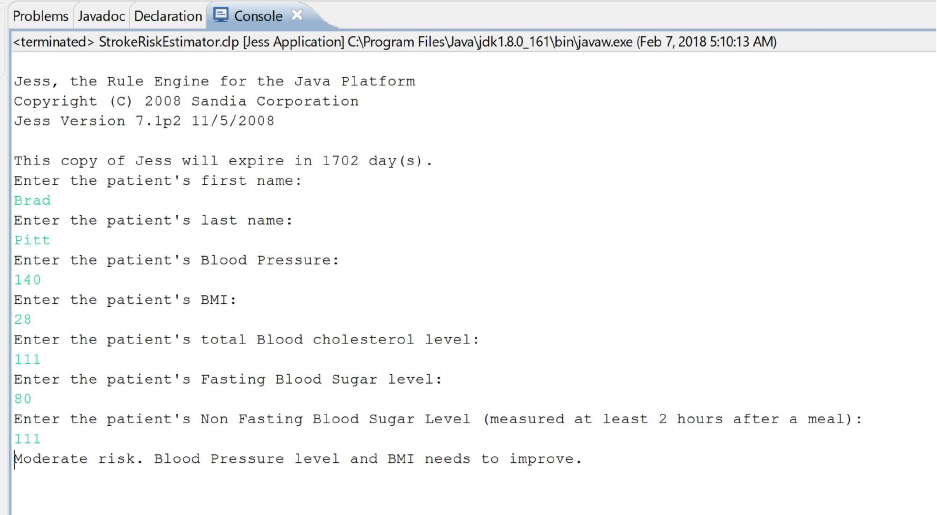
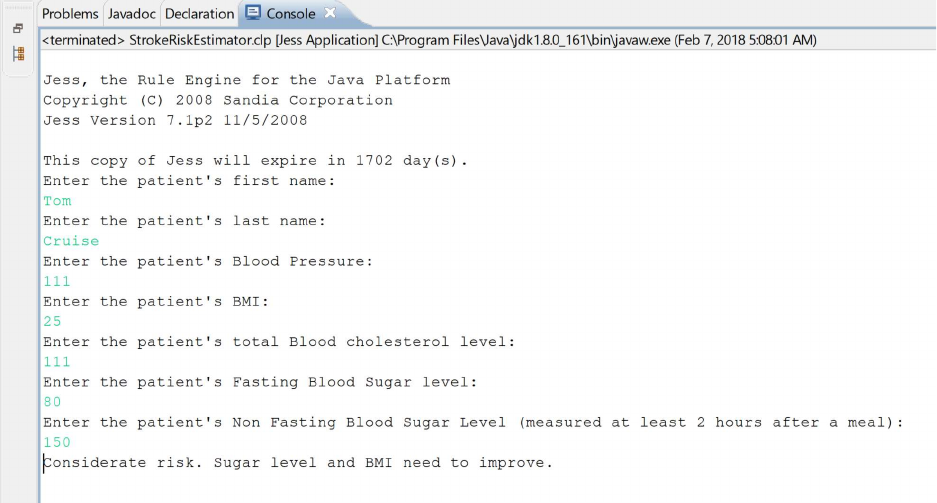
Sample Test Case:
Input values entered are shown in green in the below screenshots