Matrix User Guide
User Manual:
Open the PDF directly: View PDF  .
.
Page Count: 23
MatrixUser v2.2 User Guide
Fang Liu
(leoliuf@gmail.com)
August 30, 2014
Contents
1 What is MatrixUser 1
2 Installing and Running MatrixUser 2
3 Data Import 2
4 Window Layout 3
5 Function Library 6
1 What is MatrixUser
Most of the medical images (e.g. CT, MRI, PET, etc.) comprises multiple
frames which represent slices, phases, timing etc. from the same imaging ob-
ject. With the powerful support of multidimensional data representation, those
images can be saved as multidimensional matrices in Matlab. However, within
Matlab, most of image manipulation functions are limited or tailored for two-
dimensional matrix. The MatrixUser is a matrix analysis software package
which features functions designed and optimized specifically for manipulating
multidimensional real or complex data matrix. Within a nice graphical rep-
resentation, image analysis including multidimensional matrix display, matrix
(image stack) processing and rendering can be conveniently accomplished with
minimum efforts.
The current MatrixUser version (v2.2) is made available at SourceForge web-
site. MatrixUser is released as a free software. This means that you are free
to use and modify this software as your needs, as long as you acknowledge the
original author in any future work. If you find MatrixUser useful for the publi-
cation of any scientific results, including a line in your acknowledgments section
referencing to MatrixUser and this belowing address is requested.
MatrixUser downloading address:
1
https://sourceforge.net/projects/matrixuser/
2 Installing and Running MatrixUser
To run MatrixUser, a Matlab installment is required. The current MatrixUser
version has been tested under the following Matlab versions:
•Matlab R2011a 64-bit Windows
•Matlab R2013a 64-bit Windows
•Matlab R2012b 64-bit Unix
Installing and running MatrixUser is easy, you just need to download Ma-
trixUser source code which is distributed as a compressed file, then extract the
MatrixUser root folder, put the folder to any location in you computer. To
run MatrixUser, start Matlab, then simply run the ‘Main.m’ script under the
MatrixUser root folder.
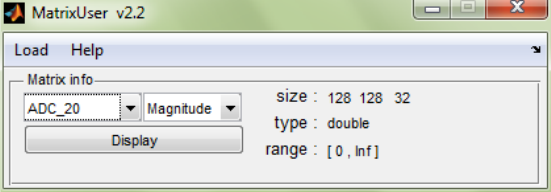
The MatrixUser main window (Figure 1) works as a matrix manager.
Figure 1: MatrixUser Main Window
3 Data Import
Current MatrixUser version supports displaying any valid Matlab multi-dimensional
matrix and Matlab structure variable. By default, MatrixUser reads Matlab
base workspace, scans existing matrices in the Matlab session, then creates a
matrix list for tracking matrix content. Once those matrices are updated by
the user, MatrixUser will also update the matrix list. Moreover, there are sev-
eral different approaches to import data from outside Matlab into MatrixUser.
The imported matrices will be saved into Matlab base workspace. The import
functions are located under ‘Load’ menu, including:
•Load MAT file
The default Matlab .mat file is natively supported by MatrixUser.
2

•Load System Clipboard
If image content exists in the system clipboard, it can be converted into a
RGB image which contains a three slice matrix with each slice corresponds
to the individual Red, Green and Blue channel.
•Load ScreenShot
MatrixUser takes a full screenshot for current monitor and saves it into a
RGB image as described above.
•Load from Binary file
Binary data file is supported by MatrixUser. The user needs to properly
configure loading parameters (Figure 2) according to the matrix size and
data type information.
Figure 2: MatrixUser Binary File Loading Interface
•Load DICOM file(s)
MatrixUser supports loading multiple DICOM files by using a file filter
interface (Figure 3). The user needs to load DICOM files into the loading
interface by selecting desired DICOM files (multiple selection supported).
The selected files are listed in the DICOM file list. The user can click any
single DICOM file to read associated DICOM header and image preview.
To manually create a matrix using DICOM files, choose files from the
DICOM file list, press ‘>>>>>>’ to push the files into selected DICOM
file list, provide a matrix name, press ‘Convert’ button to create a matrix
based on chosen DICOM files. The user can load those created matrices
into base workspace by pressing ‘Load matrix’ button.
3
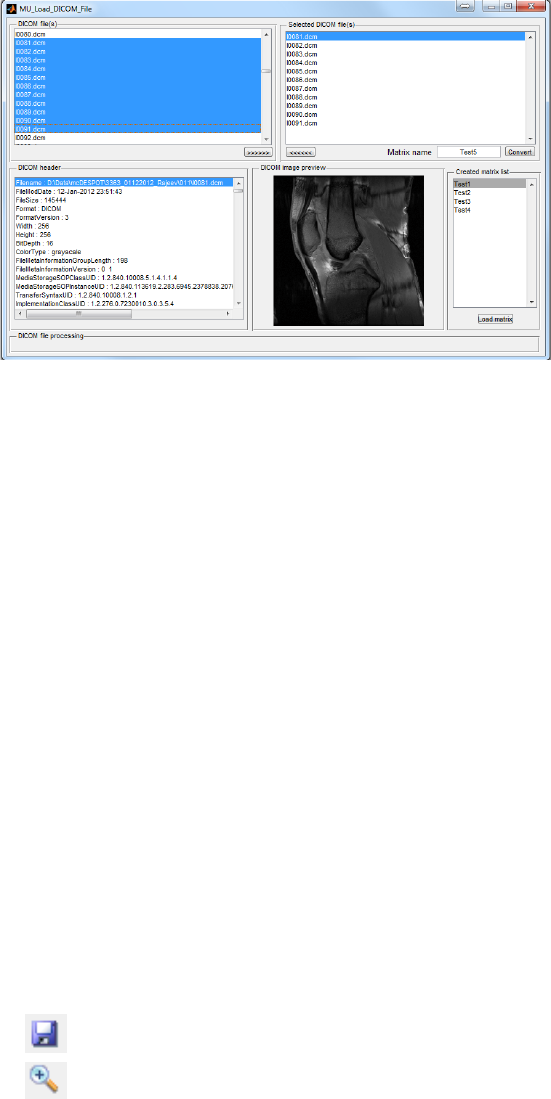
Figure 3: MatrixUser DICOM File Loading Interface
•Load DICOM file(s) in Batch
MatrixUser supports loading DICOM files in a batch mode. This function
requires the path of the folder containing DICOM files is provided. Ma-
trixUser will try to create separate matrices for DICOM files coming from
different image series. A matrix selection interface will provide converted
matrices with loading functions.
•Load from NIfTI file
NIfTI file with .nii suffix is supported by MatrixUser.
4 Window Layout
To activate MatrixUser display window, press ‘MatrixUser’ button. If the se-
lected matrix contains complex value, four options are available for displaying
magnitude, phase, real and imaginary of the matrix. Figure 4 demonstrates an
overview of the window layout of the MatrixUser display window. The window
consists of
1. Matlab Default Toolbar
Matlab toolbar provides basic interactive functions for displaying matrix.
These functions include:
•: Save current image axes into an image file
•: Zoom in matrix area
4
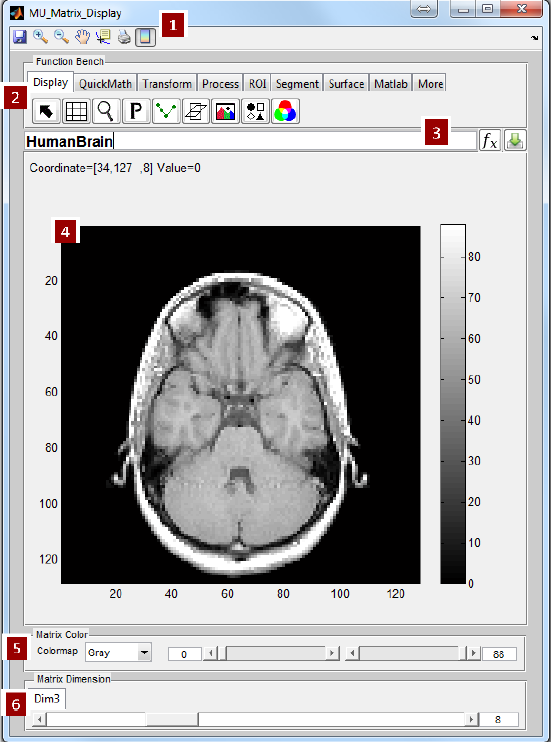
Figure 4: MatrixUser Display Window
5
•: Zoom out matrix area
•: Manually move matrix position
•: Check individual voxel value and index
•: Print current figure
•: Turn on/off color bar
2. MatrixUser Function Library
Most of the matrix analysis functions are represented on function bench
panel. MatrixUser groups these functions into categories and dynamically
loads them according to the dimension size and compatibility of current
display matrix. A multi-tab is used to contain individual function button
associated with each function. The tabs under the multi-tab are used to
switch between function categories, which include
•Display : Multi-dimensional matrix display functions
•QuickMath : Perform math calculation for current matrix
•Transform : Transform current matrix
•Process : Basic matrix processing functions
•ROI : Region-of-Interest functions
•Segment : Segmentation functions
•Surface : Generate surface or mesh plot for current image
•Matlab : Matlab default image tools
•More : Uncategorized functions
3. Matrix Calculator
The matrix calculator consists of three control items, including a matrix
expression editbox, an execution button ( ) and a matrix saving
button ( ). Valid matrix calculation expression can be executed in
the calculator and updated in the display window, serving as a conve-
nient way to analyze matrix calculation result. Matrix concatenation and
recombination can also be done in the calculator, for example, to side-
by-side compare multiple 3D matrices (Figure 5). Some valid calculation
examples are, but not limited to:
•A,B Combines A and B in one row
•A,B;C,D Combines A and B in the first row, C and D in the second
row
6
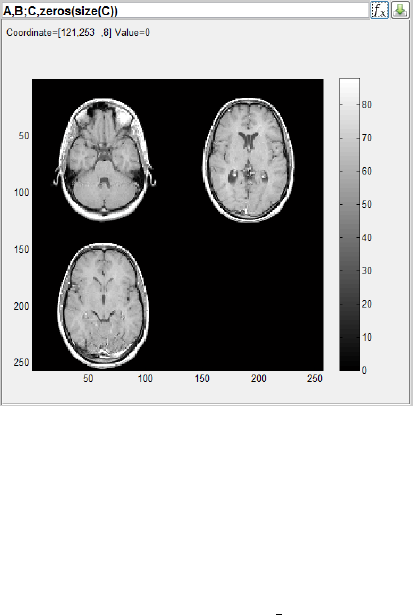
•A,B;C,zeros(size(C)) Combines A and B in the first row, C in the
second row, pad with zero value
•sin(A),cos(B) Calculates voxel-wise sin for A and cos for B, then
combine them in one row
•A(:,1:10,:) Extracts submatrix from A and display it
Figure 5: MatrixUser Concatenation Example
where A, B, C and D are multi-dimensional matrices with proper matrix
size. Also note that the source matrices have to stay in the base workspace
for being referenced. Pressing the execution button will perform the cal-
culation and save the result as a temporary matrix. The user can also save
the temporary matrix into workspace by pressing matrix saving button.
The saved temporary matrix will have a ‘ tmp’ suffix by default.
4. Matrix Display Axes
The display axes renders an image for one slice of current matrix. The
user can use mouse cursor to inspect the coordinate and value of any voxel.
Moving mouse wheel back and forth moves the slice location along current
dimension and updates the display axes.
5. Matrix Color Control Group
The matrix color control group provides a set of sliders, editboxes and
popup menu which help control image color scheme and contrast. This
group consists of
7

•Colormap Popup Menu: Choose different colormap scheme
•Upper Color Bound Slider (right slider): Slide to control the upper
bound of color limits
•Upper Color Bound EditText (right editbox): Edit to control the
upper bound of color limits
•Lower Color Bound Slider (left slider): Slide to control the lower
bound of color limits
•Lower Color Bound EditText (left editbox): Edit to control the lower
bound of color limits
6. Matrix Dimension Control Group
MatrixUser measures the dimension size of the display matrix and assigns
one slider and editbox for each dimension that is above 2 (i.e. no slider
and editbox for the first and second dimension). These control items are
located in individual dimension tab and can be used to switch among slices
in current active dimension.
5 Function Library
1. Display
Matrix display functions are listed under this tab.
•: Reset matrix display and erase additional display effect
•: Turn on and off black grid line on the image display axes
•: Configure axis mode
•: Open an instant magnifier which zooms in specific image area
•: Plot and update a profile curve along a resizable checking line
(Figure 6)
•: Plot and update a profile curve along a matrix dimension
(Figure 7)
•: Open a separate window with two matrix display axes (Figure
8) displaying another two orthogonal images. The operation buttons
on the second window consists of
–: Activate or deactivate localizer line on main display
–: Activate or deactivate localizer line on main display
8
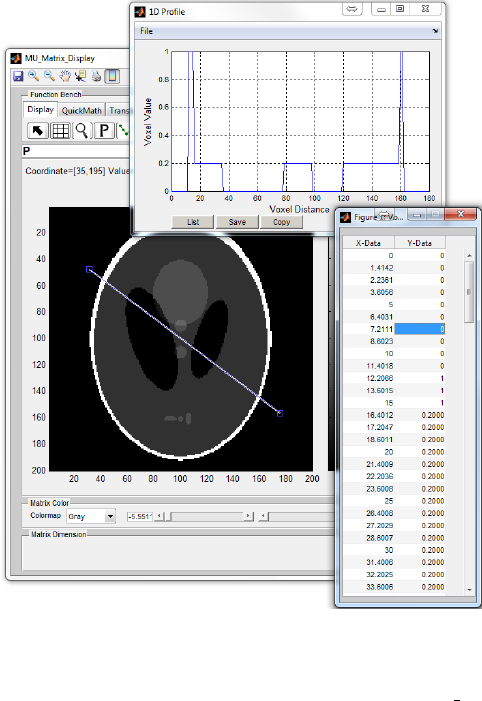
Figure 6: An Example of 1D Profile. The user can relocate and resize the
profile checking line on the image for inspecting live 1D profile. The buttons on
the profile window can list profile data, save the data as ‘data plt’ array into
workspace or copy the data into clipboard.
9

Figure 7: An Example of Plotting the First (Column) and Second (Row) Matrix
Dimension Profile. The user needs to specify which matrix dimension to plot.
The profile curve will update according to current mouse cursor position. The
user can pause or resume live updating by right click on main display window.
10

–: Switch matrices between main display and second display.
This operation simply permutes current matrix into its orthog-
onal version. The user can save the transformed matrix using (
).
Figure 8: 3D Slicer. To change view slice, the user needs to activate localizer
line and then click on desired coordinate on the main display window.
•: Create a RGB Image, assign current slice and following two
slices to Red, Green and Blue channel, respectively
•: Create a montage image using multiple slices (Figure 9)
•: Overlap two matrices with the same matrix size (Figure 10),
notice that the user can press to remove foreground matrix
from overlapping with background matrix.
2. QuickMath
This function category performs quick math calculation for current ma-
trix. A few commonly used math calculation are provided under this tab.
Instead, complex calculation can be performed using matrix calculator as
mentioned above.
•: Calculate absolute value
•: Calculate negative value
11
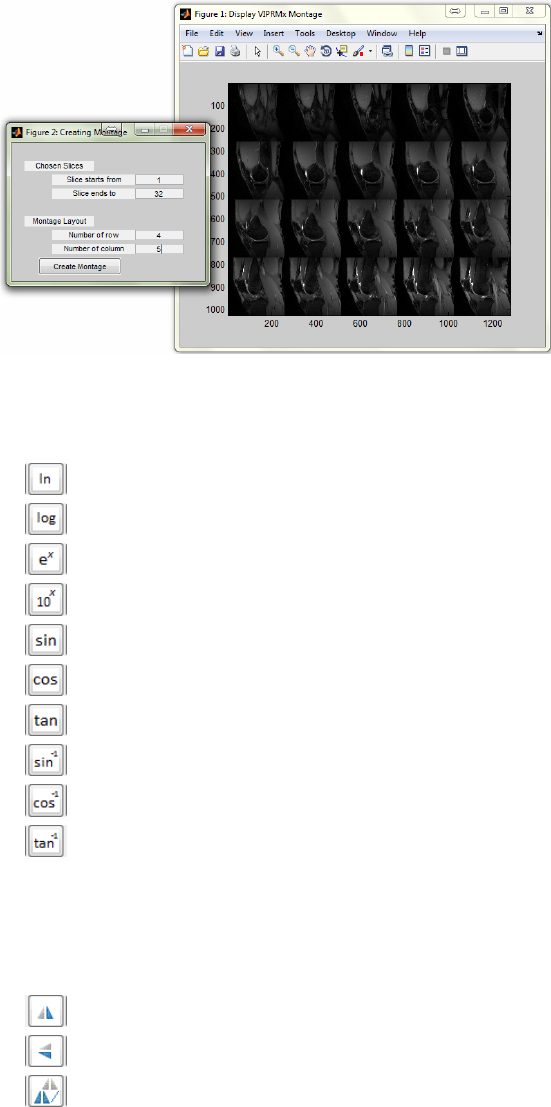
Figure 9: Montage Image. An example of creating a 4-by-5 montage image
using multiple matrix slices starting from the first slice.
•: Calculate natural logarithm
•: Calculate base 10 logarithm
•: Calculate exponential
•: Calculate the power of 10
•: Calculate sine
•: Calculate cosine
•: Calculate tangent
•: Calculate inverse sine
•: Calculate inverse cosine
•: Calculate inverse tangent
3. Transform
This function category performs spatial transformation or fast Fourier
transform (FFT) to current matrix.
•: Flip matrix horizontally (along the first dimension)
•: Flip matrix vertically (along the second dimension)
•: Flip matrix along slice direction (the third dimension)
12

Figure 10: An Example of Overlapping Two Matrices. A second window is
provided for adjusting overlapping effect. The user can choose to overlap any
size compatible matrices from the matrix list. There exist control items to
change foreground colormap scheme, to modify image intensity fraction, or to
change foreground color limits.
13

•: Rotate matrix 90 degree in the counter clockwise direction
•: Rotate matrix 90 degree in the clockwise direction
•: Rotate matrix certain degree along an axis specified using the
rotation axis origin and direction in the 3D space
•: Translate matrix along certain direction
•: Perform multi-dimensional FFT for current matrix, the user
needs to specify up to which dimension to perform FFT.
4. Process
This function category performs basic matrix processing functions.
•: Create binary mask according to given threshold
•: Perform smoothing operation to current matrix
•: Perform sharpening operation to current matrix
•: Perform edge detection to current matrix
•: Provides various image filters (Figure 11)
Figure 11: Image Filters. An example is shown for applying various image
filters.
•: Add noise to matrix (Figure 12)
•: Replace voxel value for the voxels within certain value range
and outside a polygon area. The user needs to draw a polygon first
(double click to confirm the polygon).
14

Figure 12: Image Noise. An example is shown for applying various image noise.
•: Replace voxel value for the voxels within certain value range
and inside a polygon area. The user needs to draw a polygon first
(double click to confirm the polygon).
•: Replace voxel value for the voxels inside a polygon area. The
user needs to draw a polygon first (double click to confirm the poly-
gon).
•: Replace matrix area with a selected matrix source region.
The user needs to draw a free-hand area (source region), drag the
free-hand region to target matrix area, then double click to confirm
the operation.
•: Crop current matrix using a rectangle box (double click to
confirm the cropping)
•: Extract parts of current matrix using irregular shape (double
click to confirm the extracting)
•: Resample current matrix by using chosen interpolation method
(Figure 13). The user can specify sampling factors in x, y and z di-
rection for 3D matrix.
Figure 13: Interpolation Window. An example is shown to double spatial reso-
lution in x and y direction by using a linear interpolation.
5. ROI
15
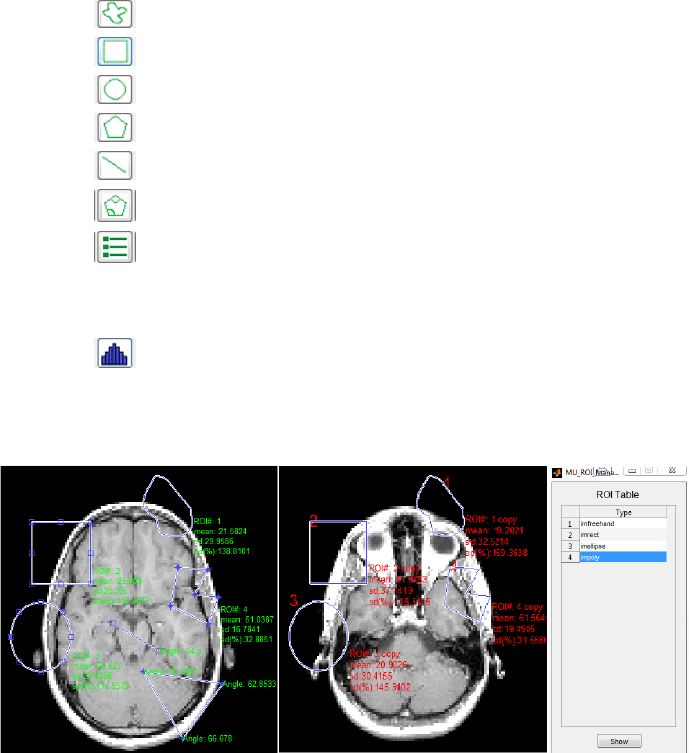
MatrixUser provides a set of function buttons for performing Region-of-
Interest (ROI) analysis (Figure 14). To create a ROI, the user needs to
click ROI button first, then draw a ROI on the image axes. The statistical
measures (i.e. mean, standard deviation and relative standard deviation)
for voxels in delineated ROI is calculated and updated with moving ROI
position or changing ROI shape. The ROI function buttons consists of
•: Draw a free hand ROI
•: Draw a rectangle or square ROI
•: Draw a circle or ellipse ROI
•: Draw a polygon ROI
•: Draw a straight line for measuring distance in units of pixels
•: Draw a polygon for measuring the interior angles in degrees
•: Record existing ROI shape and location into a ROI list, allow
to redraw selected ROI in multiple image axes. To redraw a existing
ROI, the user needs to select a ROI in the list, then press ‘Show’
button. Note that the copied ROI is no longer resizable and movable.
•: Plot histogram for current slice (Figure 15); if ROIs exist,
plot histogram for latest activated ROI. Histogram can be fitted by
using multiple distribution types. For more complex fitting, Matlab
built-in FitTool can be used.
Figure 14: Draw Multiple ROIs and Redraw on A Second Image. The source
ROIs are in green, copied ROIs are in red.
6. Segment
16

Figure 15: Histogram for One Image Slice
MatrixUser supports functions for performing multi-slice manual segmen-
tation. To create a segmentation, click segmentation button, then draw
a region on the image axes. The user can modify the region location and
shape prior to confirming segmentation with double click. The segmenta-
tion buttons consists of
•: Do a free-hand segmentation
•: Do a circle or ellipse segmentation
•: Do a polygon segmentation
•: Edit segmentation
•: Save segmentation into a MAT file
•: Load segmentation from a MAT file
To edit segmented region (Figure 16), press to open a segmentation
manager. The manager records the type and location for existing seg-
mented regions. The user can click any region item to inspect the location
of the region. To edit chosen region, click ‘Edit’ button to activate the
region outline. Both the shape and mask flag are editable for segmented
region. After editing, click ‘Update’ to conform modification. The user can
press to save current segmentation into a MAT file which contains
17
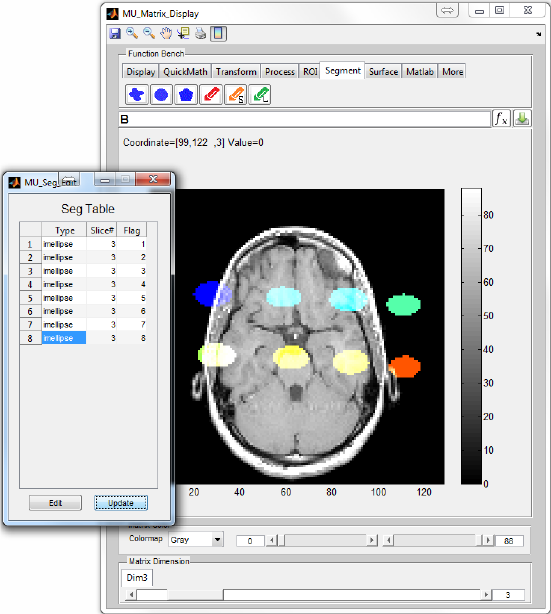
Figure 16: Editing Segmentation
18
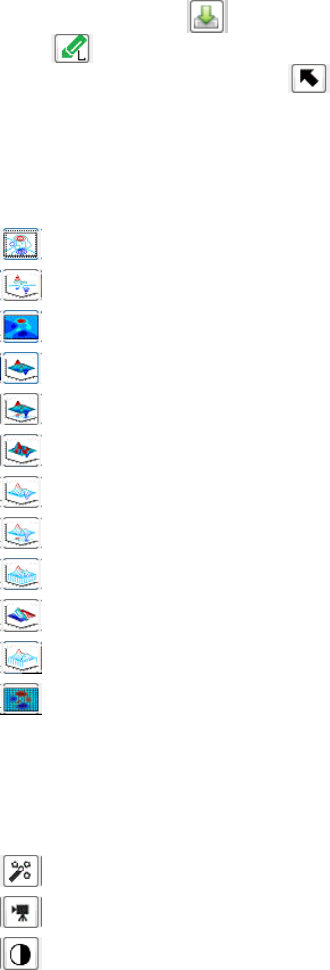
a mask matrix and a cell array storing segmentation location information.
The user can also press to save the mask matrix into workspace.
Pressing can load previous segmented regions from a saved MAT
file. Notice that the user can press to remove segmentation from
overlapping with background matrix.
7. Surface
This function category generates surface or mesh plot for current image.
•: Create contour plot of current matrix
•: Create 3D contour plot of current matrix
•: Create filled 2D contour plot
•: Create 3D shaded surface plot
•: Create surface plot and contour
•: Create surface plot with colormap based lighting
•: Create mesh plot
•: Create mesh plot and contour
•: Create a curtain around a mesh plot
•: Create a ribbon plot
•: Create a waterfall plot
•: Create pcolor (checkerboard) plot
8. Matlab
Matlab default image tools (Figure 17) are tailored for MatrixUser and
included in this category.
•: Perform imtool for current image
•: Perform immovie for playback current 3D matrix
•: Perform imcontrast for adjusting image contrast
9. More
Uncategorized functions are categorized under this tab.
19
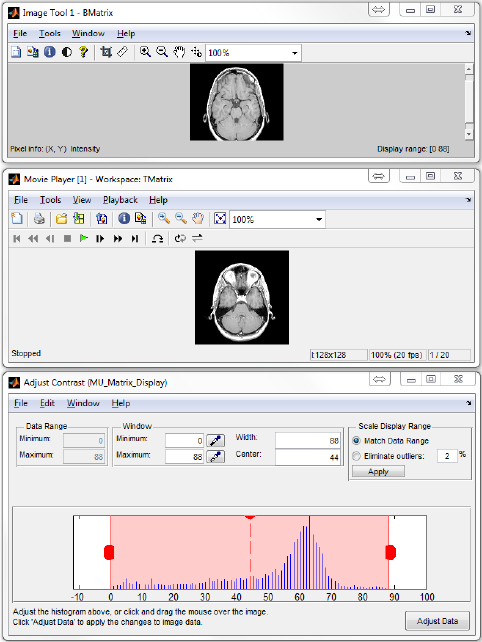
Figure 17: Matlab Tools
20
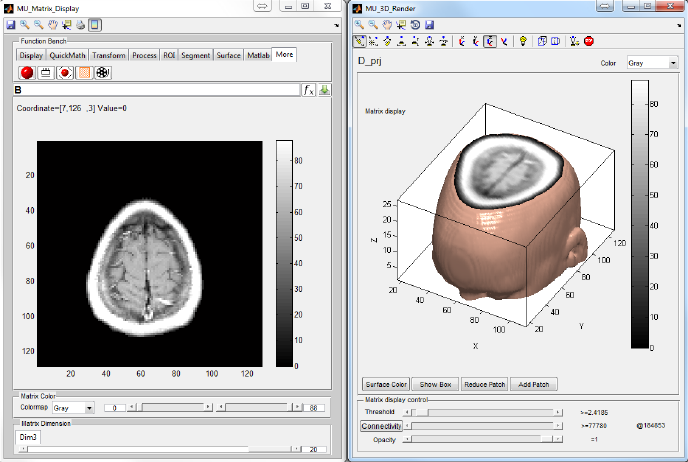
Figure 18: An Example of 3D Human Brain Rendering. Control units on the
rendering window are provided for fine tuning the renderer. The user can select
isosurface threshold, cutoff connectivity threshold (i.e. object with total voxels
less than the threshold will be removed from the rendering. ‘@’ is followed by the
voxel number of current largest object) and object opacity. A set of pushbuttons
are also available for changing surface color, display box and patches. The
default Matlab camera toolbar are provided for adjusting the lighting effect.
21
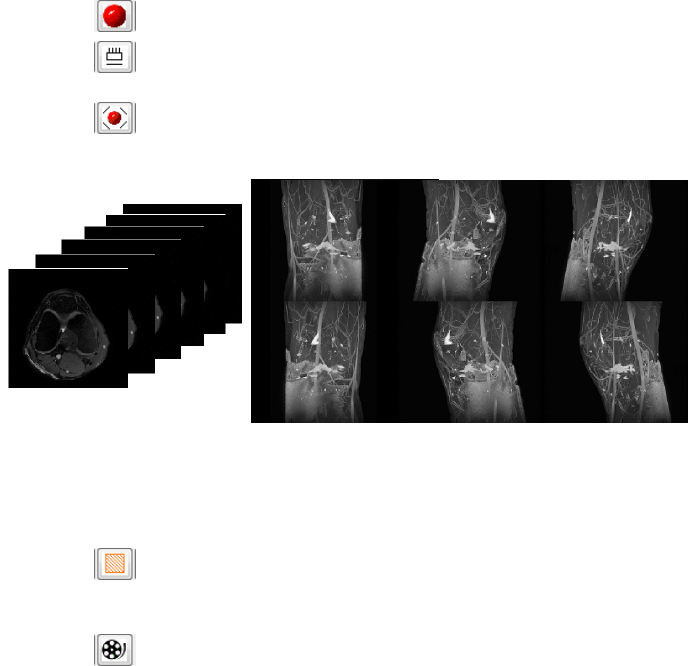
•: Create a 3D graph for rendering current matrix (Figure 18)
•: Perform projection along a given matrix dimension. Support
multi-dimensional matrix projection
•: Perform 3D projection along x, y or z axis with certain angle
increment (Figure 19)
Figure 19: 3D Maximum Intensity Projection (MIP). An example of 3D MIP
around axial axis of a human knee MRI image stack shows the vascular system
of the knee joint.
•: Reslice 3D matrix at given direction. The user needs to
draw a line for indicating the slicing direction with double click for
confirmation (Figure 20)
•: Create a movie using current matrix display. Support making
movie for overlapped matrices.
22

Figure 20: Reslice 3D Matrix. An example of 3D reslicing generates a new
stack of images in the oblique plane from an axial human knee MRI image
stack. Note that the resliced images are extracted from the plane perpendicular
to the indicating line on the left window.
23
