Msd4om01.pm6 Mc Intosh_MSD4 EN Intosh MSD4
User Manual: McIntosh_MSD4-EN
Open the PDF directly: View PDF  .
.
Page Count: 20
McIntosh Laboratory, Inc. 2 Chambers Street Binghamton, New York 13903-2699 Phone: 607-723-3512 FAX: 607-724-0549
OWNERS
MANUAL
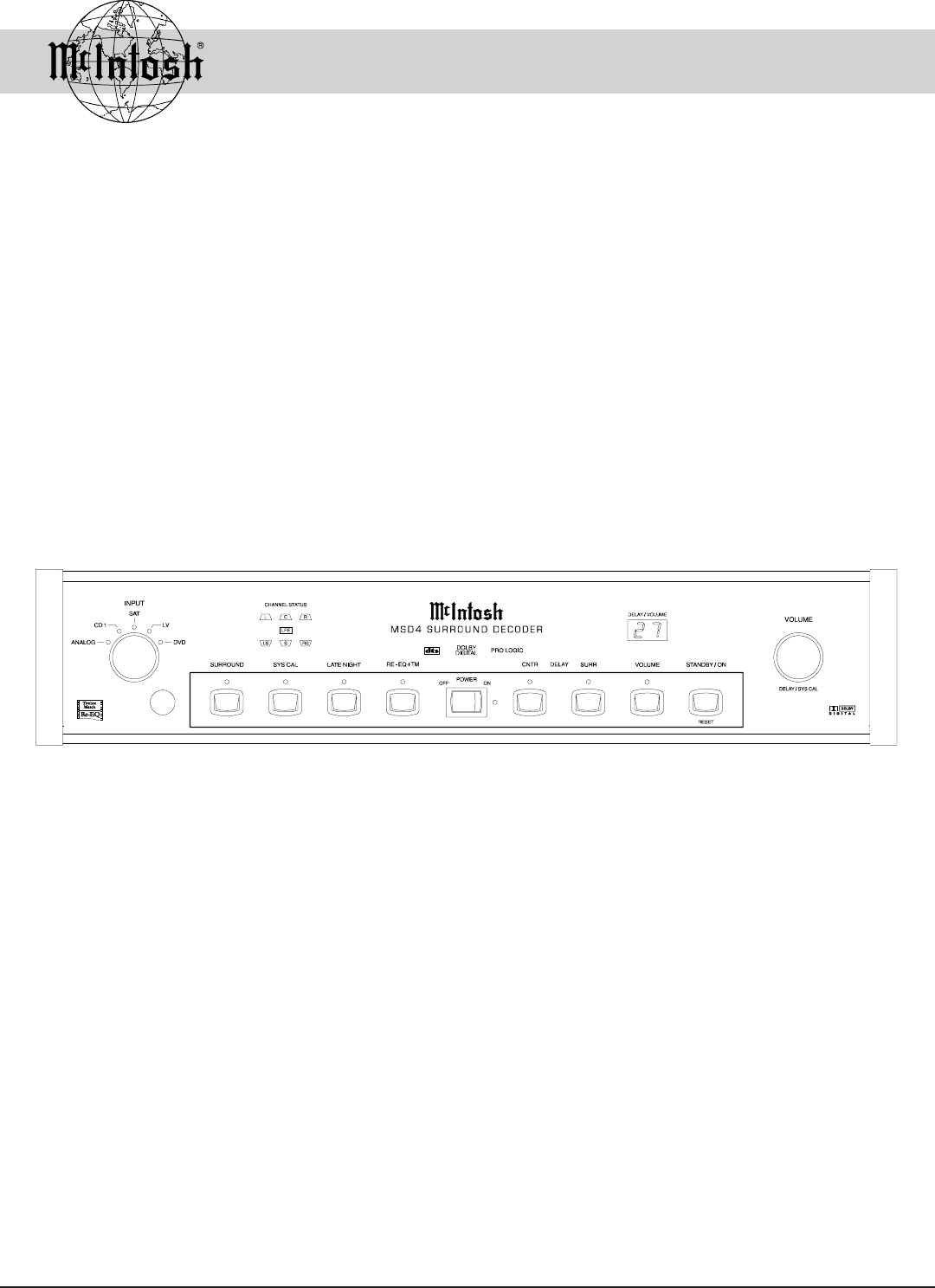
MSD4
Surround Decoder, Dolby Digital (AC-3), DTS and THX
Dolby, AC-3, Pro Logic and the Double D symbol are registered trademarks of Dolby
Laboratories and manufactured under license from Dolby Laboratories. DTS, digital sur-
round, and coherent acoustics are registered trademark of DTS Technology LLC. and manu-
factured under license from DTS Technology LLC. THX and Re-EQ + TM are registered
trademarks of Lucasfilm, Ltd and manufactured under license from Lucasfilm Ltd.
2
Thank You, Please Take A Moment,
Customer Service and Table of Contents
Thank You.......................................................................... 2
Please Take a Moment ....................................................... 2
Customer Service............................................................... 2
Table of Contents ............................................................... 2
Safety Instructions ............................................................. 3
Introduction ....................................................................... 4
Performance Features ........................................................ 4
Installation ......................................................................... 6
Rear Panel Switches and Connections .............................. 7
How to Connect with a C39/MX130 ................................. 8
How to Connect in a Stand Alone System......................... 9
Front Panel Controls, Push-Buttons,
Switches and Displays ..................................................... 10
Delay Calibration for Center and
Surround Channels .......................................................... 11
How to Operate with a C39/MX130 ............................... 12
System Level Calibration ................................................ 14
How to Operate in a Stand Alone System ....................... 16
Specifications .................................................................. 18
Packing Instruction .......................................................... 19
NOTES:
1. The MSD4 can be operated with a McIntosh C39 or MX130
Control Center. It may also be operated with a McIntosh
MVS-3 Audio/Video Selector and a MC7205 Power
Amplifier. There are instructions to cover both possibilities.
Please refer to the following listing as a guide:
For use with a McIntosh C39 or MX130
How to Connect with a C39/MX130 ................................. 8
Delay Calibration for Center and
Surround Channels .......................................................... 11
How to Operate with a C39/MX130 ............................... 12
For use with a McIntosh MVS-3 and MC7205
How to Connect in a Stand Alone System......................... 9
Delay Calibration for Center and
Surround Channels .......................................................... 11
System Level Calibration ................................................ 14
How to Operate in a Stand Alone System ....................... 15
2. Connecting Cables are available from the McIntosh Parts
Department:
Data and Power Control Cable Part No. 170-202
Six foot, shielded 2 conductor, with 1/8 inch stereo mini
phone plugs on each end.
3. For additional connection information, refer to the owners
manual(s) for any component(s) connected to the MSD4
Surround Decoder.
Please Take A Moment
The serial number, purchase date and McIntosh dealer
name are important to you for possible insurance claim or
future service. The serial number is located on the rear
panel of the equipment. The spaces below have been pro-
vided for you to record that information:
Serial Number:
Purchase Date:
Dealer Name:
If at any time you have questions about your McIntosh
MSD4 Surround Decoder, contact your McIntosh dealer.
Your dealer is familiar with your McIntosh equipment as
well as other brands that may be included in your system
and is best qualified to help you.
If it is determined that your MSD4 is in need of repair, you
can return it to your dealer or you can return it to McIntosh
Laboratory. Contact the McIntosh Repair Department for
assistance at,
McIntosh Laboratory, Inc.
2 Chambers Street
Binghamton, New York 13903
Phone: 607-723-3512
FAX: 607-724-0549
Copyright 1998 by McIntosh Laboratory, Inc.
Customer Service
Thank You
For your decision to own this McIntosh MSD4 Surround
Decoder ranks you at the very top among discriminating
music listeners. You now have The Best. The McIntosh
dedication to Quality, is assurance that you will receive
many years of musical enjoyment from this unit.
Please take a short time to read the information in this
manual. We want you to be as familiar as possible with all
the features and functions of your new McIntosh MSD4.
This will ensure that you receive all the performance ben-
efits this equipment can offer you, and that it will become a
highly valued part of your home entertainment system.
Table of Contents
3
Safety Instructions
General:
1. Read all the safety and operating instructions, con-
tained in this owners manual, before operating this
equipment.
2. Retain this owners manual for future reference about
safety and operating instructions.
3. Adhere to all warnings and operating instructions.
4. Follow all operating and use instructions.
5. Warning: To reduce risk of fire or electrical shock,
do not expose this equipment to rain or moisture.
This unit is capable of producing high sound pres-
sure levels. Continued exposure to high sound pres-
sure levels can cause permanent hearing impair-
ment or loss. User caution is advised and ear protec-
tion is recommended when playing at high volumes.
6. Caution: to prevent electrical shock do not use this
(polarized) plug with an extension cord, receptacle
or other outlet unless the blades can be fully in-
serted to prevent blade exposure.
IMPORTANT SAFETY
INSTRUCTIONS!
PLEASE READ THEM BEFORE
OPERATING THIS EQUIPMENT.
Attention: pour pevenir les chocs elecriques pas
utiliser cette fiche polarisee avec un prolongateur,
une prise de courant ou un autre sortie de courant,
sauf si les lames peuvent etre inserees afond ans en
laisser aucune partie a decouvert.
7. For added protection for this product during a lightning
storm, or when it is left unattended and unused for long
periods of time, unplug it from the wall outlet and dis-
connect the antenna or cable system. This will prevent
damage to the product due to lightning or power line
surges.
8. Do not use attachments not recommended in this
owners manual as they may cause hazards.
Installation:
9. Locate the equipment for proper ventilation. For ex-
ample, the equipment should not be placed on a bed,
sofa, rug, or similar surface that may block ventilation
openings; or, placed in a built-in installation, such as a
bookcase or cabinet, that may impede the flow of air
through the ventilation openings.
10. Locate the equipment away from heat sources such as
radiators, heat registers, stoves, or other appliance (in-
cluding amplifiers) that produce heat.
11. Mount the equipment in a wall or cabinet only as de-
scribed in this owners manual
12. Do not use this equipment near water; for example,
near a bathtub, washbowl, kitchen sink, laundry tub, in
a wet basement or near a swimming pool, etc.
13. Do not place this product on an unstable cart, stand,
tripod, bracket, or table. The equipment may fall, caus-
ing serious injury to a person, and serious damage to
the product.
Connection:
14. Connect this equipment only to the type of AC power
source as marked on the unit.
15. Route AC power cords so that they are not likely to be
walked on or pinched by items placed upon or against
them, paying particular attention to cords at plugs, con-
venience receptacles, and the point where they exit
from the instrument.
16. Do not defeat the inherent design features of the polar-
ized plug. Non-polarized line cord adapters will defeat
the safety provided by the polarized AC plug. If the
plug should fail to fit, contact your electrician to re-
place your obsolete outlet. Do not defeat the safety
purpose of the grounding-type plug.
WARNING SHOCK HAZARD -
DO NOT OPEN.
The lightning flash with arrowhead, within an equilateral
triangle, is intended to alert the user to the presence of
uninsulated dangerous voltage within the products
enclosure that may be of sufficient magnitude to consti-
tute a risk of electric shock to persons.
AVIS RISQUE DE CHOC -
NE PAS OUVRIR.
The exclamation point within an equilateral triangle is
intended to alert the user to the presence of important
operating and maintenance (servicing) instructions in
the literature accompanying the appliance.
NO USER-SERVICEABLE
PARTS INSIDE. REFER
SERVICING TO
QUALIFIED PERSONNEL
To prevent the risk of electric shock, do not remove
cover (or back). No user serviceable parts inside. Refer
servicing to qualified personnel.

4
·Remote Controlled by a C39 or MX130
When used with a C39 or MX130, the MSD4 inputs can be
selected by remote control.
·Assemble a Simplified Surround Sound System
Use an MSD4 as a stand alone decoder with a McIntosh
MVS-3 Audio/Video Selector, an MC7205 Five Channel
Power Amplifier and an SL-1 Powered Subwoofer for a
simplified Dolby Digital, Pro Logic or DTS Surround
Sound System.
·24 Bit DSP Processing
Three Motorola 24 Bit Digital Processors decode Dolby
Digital, Pro Logic and DTS signals. This combination is
one of the most powerful processing systems available.
·24 Bit Conversion
Three 24 bit stereo digital to analog, (D/A) converters are
used to reproduce the six decoded Dolby Digital or DTS
audio channels, and one 24 bit stereo analog to digital, (A/
D) converter is for signals fed into the analog inputs.
·Digital Input Switching
Four Digital Coaxial and matching Optical inputs are pro-
vided for four program sources:
1. Digital Versatile Disc (DVD)
2. Laser Video Disc Player (LV)
3. Satellite Tuner or Receiver (SAT)
4. CD Player (CD1)
The LV AC-3 RF INPUT receives RF signals from a Laser
Video Disc Player reproducing Dolby Digital sound tracks.
The ANALOG Stereo Input accept stereo signals from any
audio source.
Safety Instructions cont,
Introduction and Performance Features
Introduction
The McIntosh MSD4 is a precision Dolby Digital AC-3®,
DTS surround decoder which will reproduce the six dis-
crete channels of encoded sound tracks with ultimate fidel-
ity and sonic purity. The MSD4 also incorporates a Dolby
Pro Logic® surround decoder to reproduce Dolby Sur-
round® sound tracks with superior audio quality. The
MSD4 has many valuable and useful features that will en-
hance your listening experience.
Performance Features
17. Do not overload wall outlets, extension cords or inte-
gral convenience receptacles as this can result in a risk
of fire or electric shock.
Care of Equipment:
18. Clean the instrument by dusting with a dry cloth. Un-
plug this equipment from the wall outlet and clean the
panel with a cloth moistened with a window cleaner.
Do not use liquid cleaners or aerosol cleaners.
19. Do not permit objects of any kind to be pushed and/or
fall into the equipment through enclosure openings.
Never spill liquids into the equipment through enclo-
sure openings.
20. Unplug the power cord from the AC power outlet
when left unused for a long period of time.
Repair of Equipment:
21. Unplug this equipment from the wall outlet and refer
servicing to a qualified service personnel under the fol-
lowing conditions:
A. The AC power cord or the plug has been damaged.
B. Objects have fallen, or liquid has been spilled into
the equipment.
C. The equipment has been exposed to rain or water.
D. The equipment does not operate normally by fol-
lowing the operating instructions contained within
this owners manual. Adjust only those controls
that are covered by the operating instructions, as an
improper adjustment of other controls may result
in damage and will often require extensive work by
a qualified technician to restore the product to its
normal operation.
E. The equipment has been dropped or damaged in any
way.
F. The equipment exhibits a distinct change in perfor-
mance - this indicates a need for service.
22. Do not attempt to service beyond that described in the
operating instructions. All other service should be re-
ferred to qualified service personnel.
23. When replacement parts are required, be sure the ser-
vice technician has used replacement parts specified by
McIntosh or have the same characteristics as the origi-
nal part. Unauthorized substitutions may result in fire,
electric shock, or other hazards.
24. Upon completion of any service or repairs to this prod-
uct, ask the service technician to perform safety checks
to determine that the product is in proper operating
condition.

5
·Automatic Mode Switching
The MSD4 automatically switches operating modes be-
tween Dolby Digital, Pro Logic or DTS, according to the
input signals.
·LED Channel Status Indicators
The MSD4 includes seven LEDs on the front panel to in-
dicate what type of operating signals are being received.
·Front Panel Mode Nomenclature
Dolby Digital, Pro Logic or DTS nomenclature illuminates
to show which decoding mode is in use.
·Adjustable Channel Time Delays
Signals to the Center channel and Surround channels can
be time delayed. This feature can be used to correct for dif-
ferent listening distances from the center speaker and sur-
round speakers relative to the front speakers.
·Precision Tracking Volume Control
An electronic Volume Control adjusts all six channels with
tracking accuracy better than 0.5dB.
·LED Delay/Volume Indicator
The front panel two digit LED reads Volume in percent. It
also indicates time delay in milliseconds during time delay
calibration, and channel level in dB during surround level
calibration.
·Built-In System Level Calibration Generator
A built-in test signal generator can be switched manually or
automatically through all system channels for surround
level calibration. The levels can be adjusted plus or minus
12dB.
·Re-EQ + TM
Re-Equalization filter and Timbre Matching modify
the sound tracks created for a large theater so they are more
enjoyable in the smaller listening room of a home theater.
·Late Night Dynamic Audio Compression
With select encoded Dolby Digital sound tracks, a dynamic
volume level compressor can be switched in to reduce the
wide dynamic range of music and sound effects. This fea-
ture can be very useful for late night listening or when you
have close neighbors.
Performance Features cont
·Automatic Input Level Control
The Analog Input includes a special circuit which protects
against accidental input signal overdrive.
·IR Remote Control
When used in a simplified system with the MVS-3 and
MC7106, the MSD4 can be controlled directly with an op-
tional Remote Control (HR34/HR39/HR130) through its
front panel IR (Infra Red) sensor.
·Speaker Settings for Bass Management
The MSD4 processing circuits allow you to change the
bass cutoff frequency fed to the front, center and surround
channels to 80Hz, when using a subwoofer.
·Automatic Power On-Off
The MSD4 AC power can be turned on or off with a Power
Control signal from a McIntosh Control Center or other
McIntosh accessory component.
6
Installation
Installation
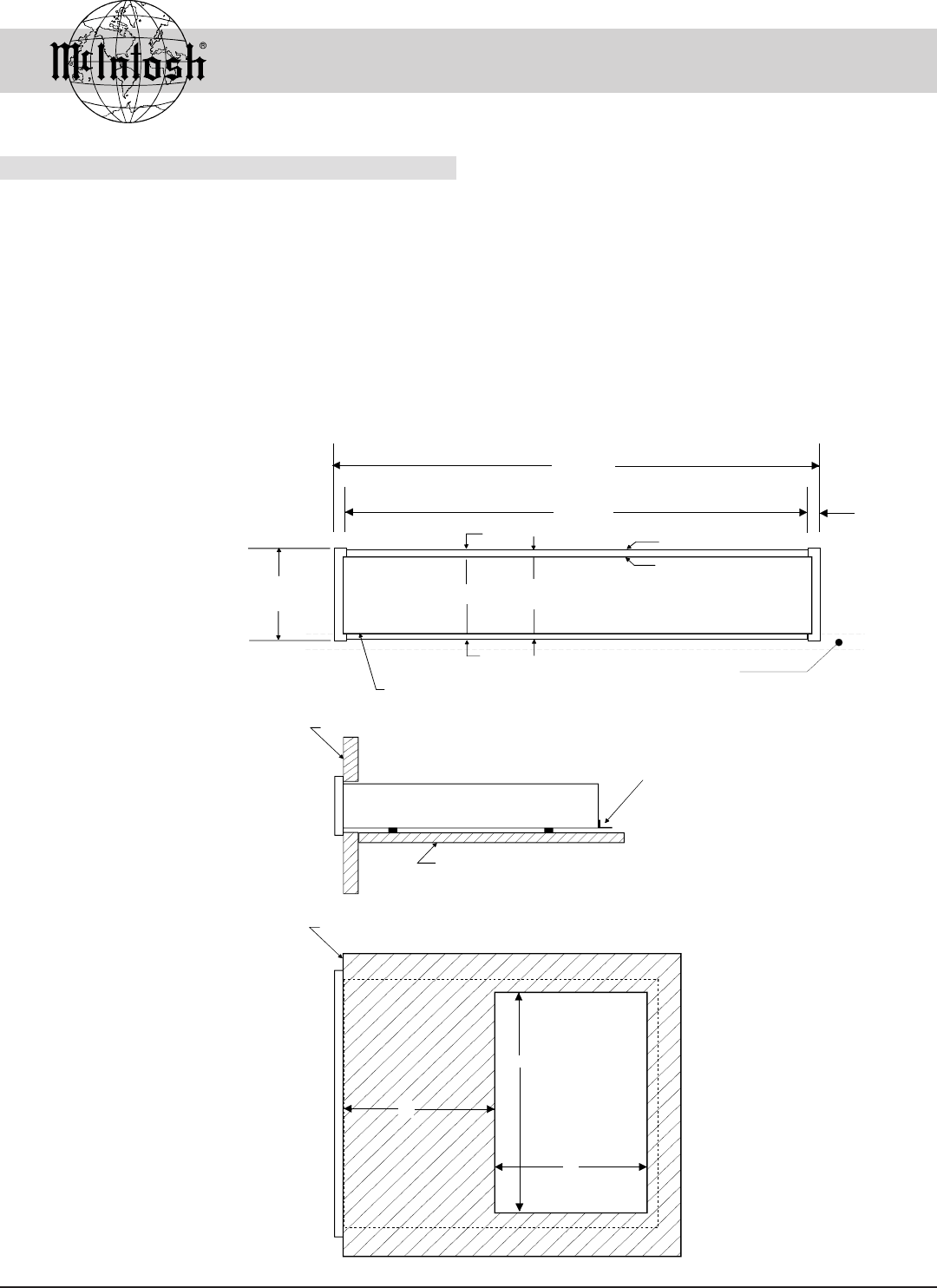
The MSD4 can be placed upright on a table or shelf, stand-
ing on its four feet. It also can be custom installed in a piece
of furniture or cabinet of your choice. The required panel
cutout, ventilation cutout and unit dimensions are shown.
Always provide adequate ventilation for your MSD4.
Cool operation ensures the longest possible operating life for
any electronic instrument. Do not install the MSD4 directly
above a heat generating component such as a high powered
amplifier. If all the components are installed in a single cabi-
net, a quiet running ventilation fan can be a definite asset in
maintaining all the system components at the coolest pos-
sible operating temperature.
A custom cabinet installation should provide the follow-
ing minimum spacing dimensions for cool operation. Allow
at least 1-1/2 inches (3.8cm) above the unit so airflow is
not obstructed. Allow 17-1/2 inches (44.5cm) depth behind
the mounting panel, which includes clearance for connec-
tors. Allow 1-1/8 inches (2.9cm) in front of the mounting
panel for knob clearance. Be sure to cut out a ventilation
hole in the mounting shelf according to the dimensions in
the drawing.
Front View of a MSD4
custom installed
Side View of a MSD4
custom installed
Bottom View of a MSD4 cus-
tom installed
17-1/2"
444mm
17-1/16"
433.4mm
7/32"
5.3mm
Support Shelf
Outline of Front Panel
Edge of Cutout
Panel Height
3 1/2"
88.9mm
3-1/16"
77.8mm
1/4"
6mm
3/16"
5.1mm
End Caps
3-9/16"
90.0mm
Bottom of Cutout and Top
of Support Shelf Must
Coincide
Mounting Surface
Outline of Unit
(Side View)
Support Shelf
Mounting Bracket at Both Sides of the Rear Panel.
Fasten with 6-32 x 3/8 Machine Screw and Washer to Chassis.
Fasten with 6 x 1/2 Wood Screw and Washer to Support Shelf
6"
15"
9"
Mounting Surface
Cut Out Center
for Ventilation
(Bottom View)
(Front View)
7
Rear Panel Switches and Connections
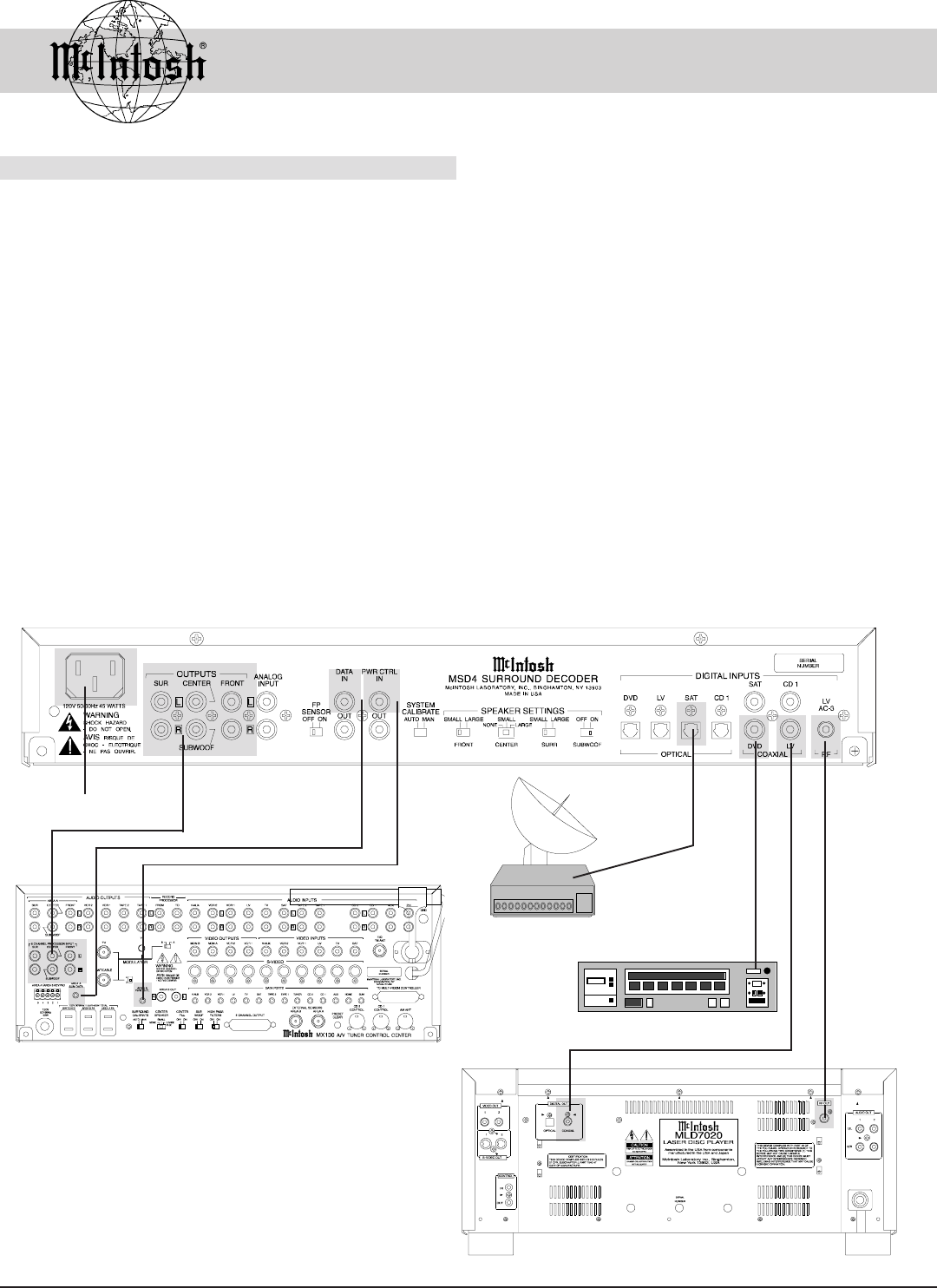
Rear Panel Switches and
Connections
Connect the MSD4 power
cord to a live AC outlet.
Refer to information on the
back panel of your MSD4
to determine the correct
voltage for your unit
The six outputs feed audio
signals to the matching in-
puts on a Control Center or
power amplifier.
L SUR (Left Surround)
R SUR (Right Surround)
CENTER (Center)
SUBWOOF (Subwoofer)
L FRONT (Left Front)
R FRONT (Right Front)
Receives signals from
a stereo analog signal
source
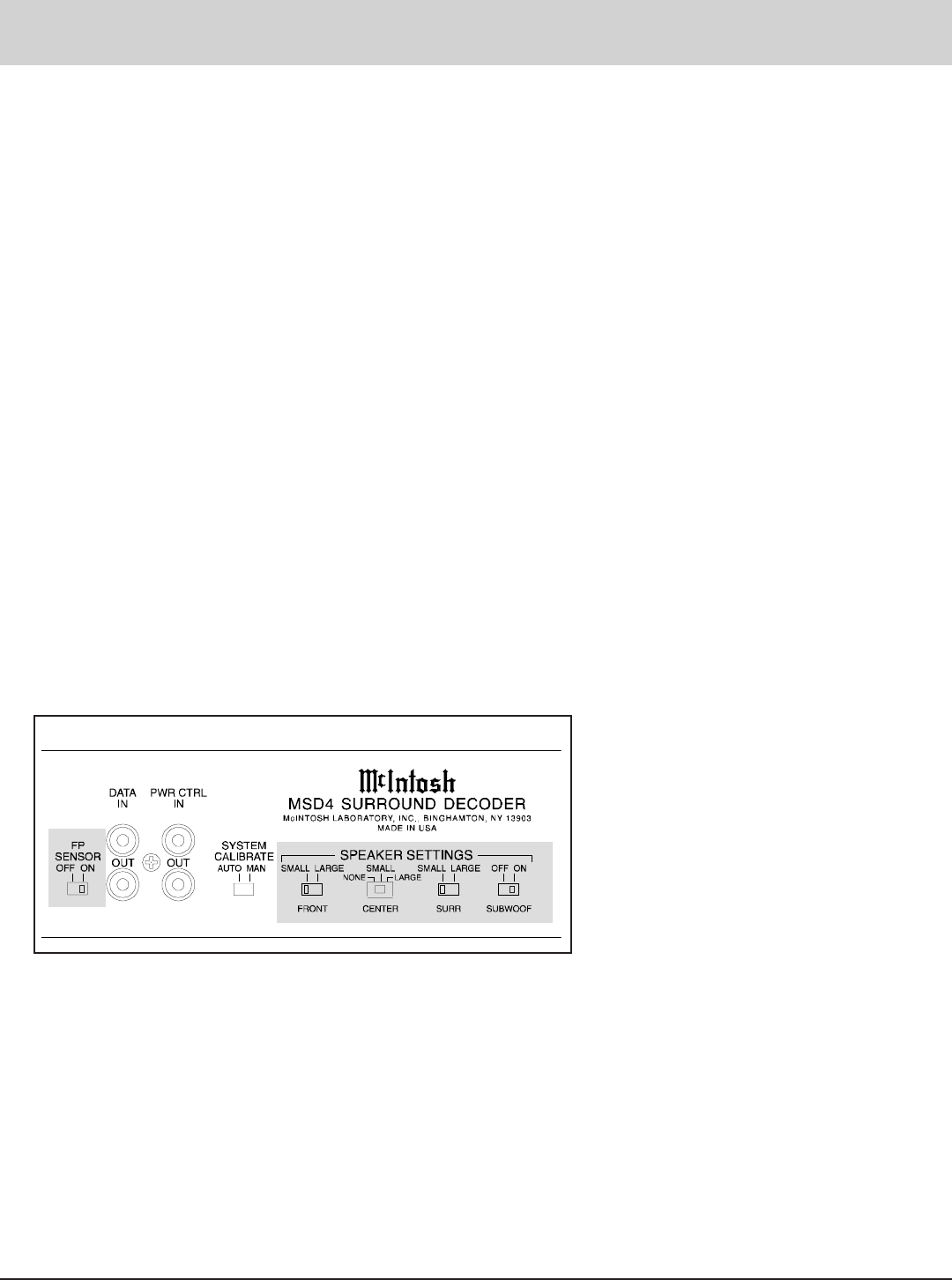
Set the FP SENSOR (Front Panel Sen-
sor) slide switch to the OFF position
when the MSD4 is being used in a
system with a C39 or MX130. Set the
FP SENSOR slide switch to the ON
position when the MSD4 is being used
as a stand alone decoder together with
an MVS-3, MC7205 and SL-1 in a
simplified surround system
The DATA IN jack re-
ceives operating signals
from the SUM DATA out
of a McIntosh C39 or
MX130. The DATA
OUT jack sends signals
on to another McIntosh
component
When the MSD4 is being used in a system with
a C39 or MX130 the POWER CONTROL IN
receives turn on and off signals from the McIn-
tosh Control Center.The POWER CONTROL
OUT jack sends a turn on and off signal out to a
McIntosh Power Amplifier
AUTO (Automatic) switches the built-
in calibration test signal generator to
each of the six channels in 2 second
intervals on a continuous basis. MAN
(Manual) system calibration requires
the manual selection of each channel
The SPEAKER SETTINGS switches adjust the
bass frequency response to the correct frequency
ranges to match the sizes of the front, center and
surround speakers. If any speaker in the system is
classed as small, frequencies from 80Hz and
lower can be switched to the subwoofer output.
Set the SUBWOOF switch to ON only when a
subwoofer is used in the system
Receives a signal from the
Optical Output of a com-
ponent with a digital au-
dio output
Receives RF signal
from a Laser Video
Disc Player reproduc-
ing a Dolby Digital
(AC-3) sound track
Receives a signal
from the Coaxial
Output of a compo-
nent with a digital
audio output
8
McIntosh MX130 Control Center
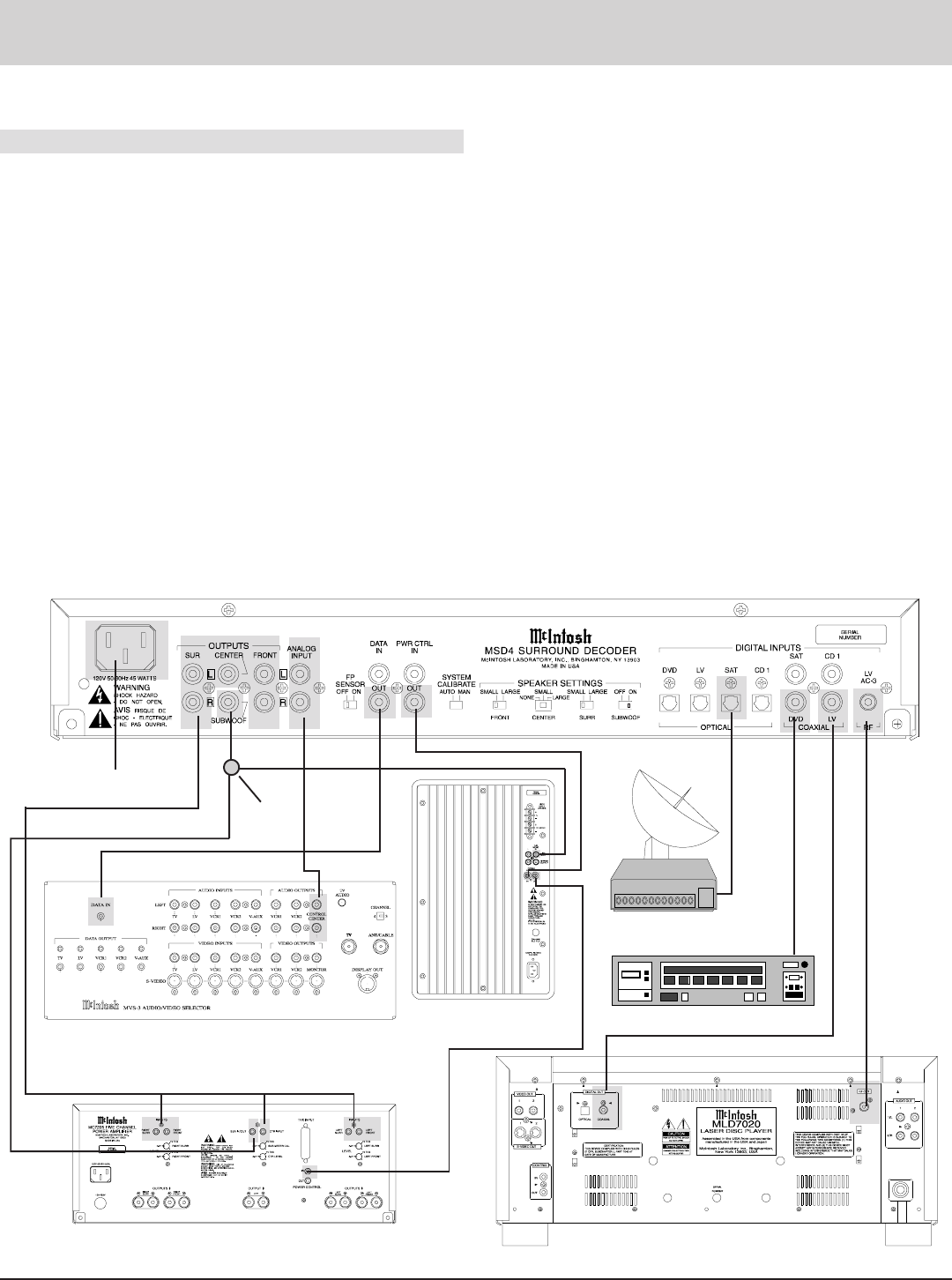
How to Connect with a C39/MX130
1. Connect the MSD4 power cord to a live AC outlet.
2. Connect the six MSD4 audio outputs to the six match-
ing audio inputs on a C39 or MX130.
3. Connect the MSD4 DATA IN jack to the C39 or
MX130 AREA A SUM DATA jack
NOTE: If your C39 or MX130 does not include an Area A Sum
Data jack, connect to the jack marked SUM DATA.
4. Connect the MSD4 PWR CTRL IN jack to the C39 or
MX130 POWER CONTROL jack.
Connect to a Digital Signal Source
1. McIntosh MLD7020 Laser Video Disc player.
a. Connect the MLD7020 RF OUT to the AC-3 RF
input on the MSD4.
b. Connect either the MLD7020 Optical or Coaxial
Digital Output to the matching MSD4
Digital Input.
2. DVD (Digital Versatile Disc Player)
a. Connect the DVD digital output, either op-
tical or coaxial, to the MSD4 DVD DIGI-
TAL INPUT.
3. SAT (Satellite Receiver)
a. Connect the Satellite Receiver digital out-
put, either optical or coaxial, to the MSD4
SAT input.
NOTE: For information on Video and Analog Audio
connections , refer to the owners manual(s) for
the component(s). Use either an OPTICAL or a
COAXIAL INPUT from a digital component,
but not both for the same component
How to Connect with a
C39/MX130
To AC Outlet
Satellite Receiver
DVD Player
McIntosh MLD7020 Laser Disc Player
9
McIntosh MC7205 Power Amplifier
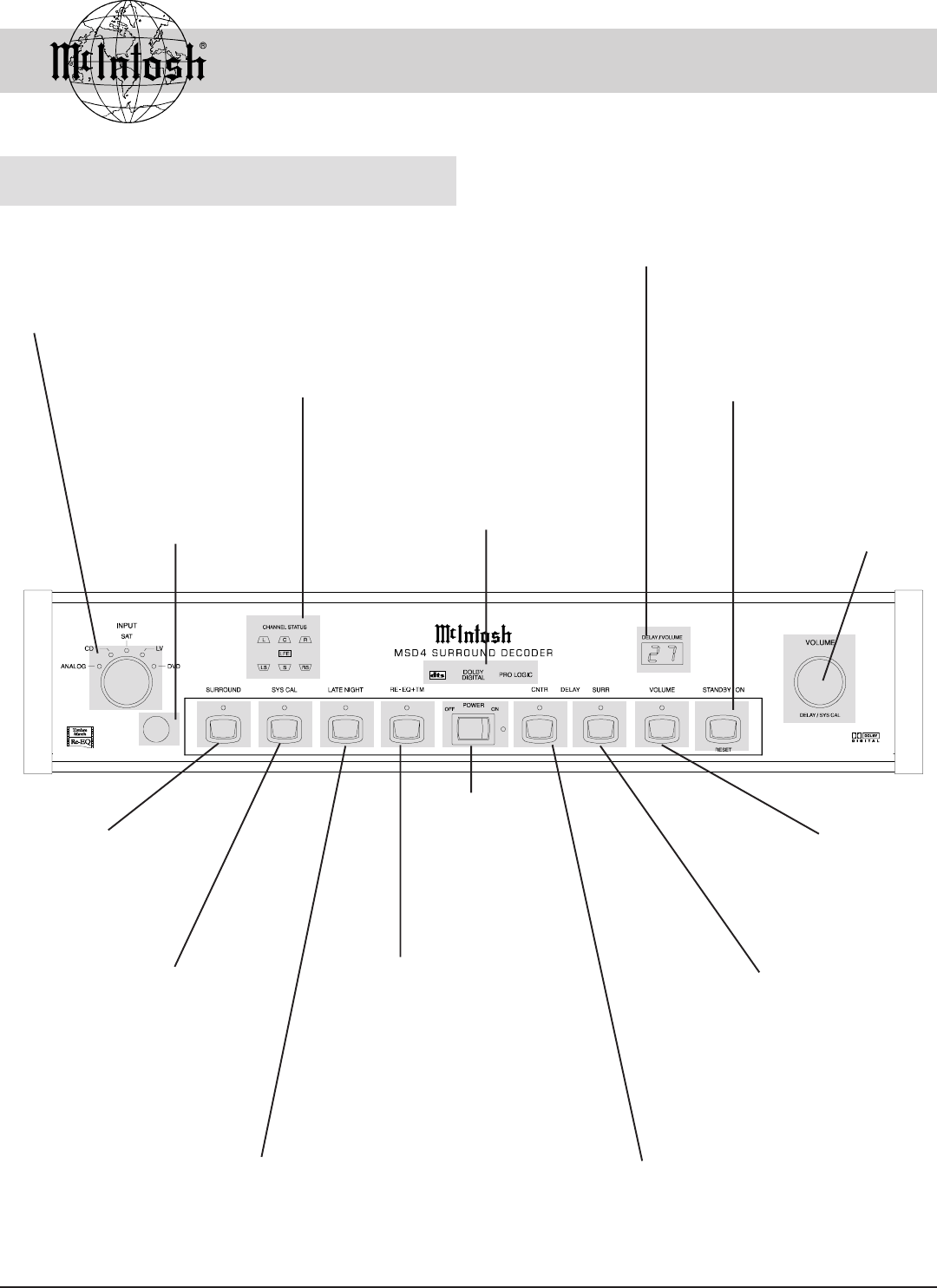
How to Connect in a Stand Alone System
How to Connect in a
Stand Alone System
1. Connect the MSD4 power cord to a live AC outlet.
2. Connect the MSD4 Left Front, Center, Right Front,
Left Surround and Right Surround Outputs to the
matching MC7205 Amplifier Channel Inputs.
3. Connect a Y adapter to the MSD4 Subwoof Output
jack, with one outlet of the Y on the MSD4 Subwoof
Output to the Mono R Line Input jack of an SL-1 Pow-
ered Subwoofer.
4. Connect a cable from the second outlet of the Y on
the MSD4 Subwoof Output to the MC7205 Sub In/Out
jack.
5. Connect the MSD4 PWR CTRL OUT to the SL-1
Power Control In jack and the SL-1 Power Control Out
jack to the MC7205 Power Control In jack.
6. Connect the MSD4 Data Out to the MVS-3 Data In
jack.
7. Connect the MVS-3 Control Center Audio Outputs to
the MSD4 Analog Input
Connect to a Digital Signal Source
1. McIntosh MLD7020 Laser Video Disc player.
a. Connect the MLD7020 RF OUT to the AC-3 RF input
on the MSD4.
b. Connect either the MLD7020 Optical or Coaxial Digi-
tal Output to the matching MSD4 Digital Input.
2. DVD (Digital Versatile Disc Player)
a. Connect the DVD digital output, either optical or co-
axial, to the MSD4 DVD DIGITAL INPUT.
3. SAT (Satellite Receiver)
a. Connect the Satellite Receiver digital output, either op-
tical or coaxial, to the MSD4 SAT input.
NOTE: For information on Video and Analog Audio
connections, refer to the owners manual(s) for the
component(s). Use either an OPTICAL or a COAXIAL
INPUT from a digital component, but not both for the
same component
To AC Outlet
DVD Player
McIntosh MLD7020 Laser Disc Player
McIntosh MVS-3 Audio/Video Selector
Satellite Receiver
McIntosh SL-1
Subwoofer
Y
Adapter
10
Front Panel Controls, Push-Buttons, Switches
and Displays
The INPUT switch
selects any one of the
four DIGITAL IN-
PUTS or the ANA-
LOG INPUT
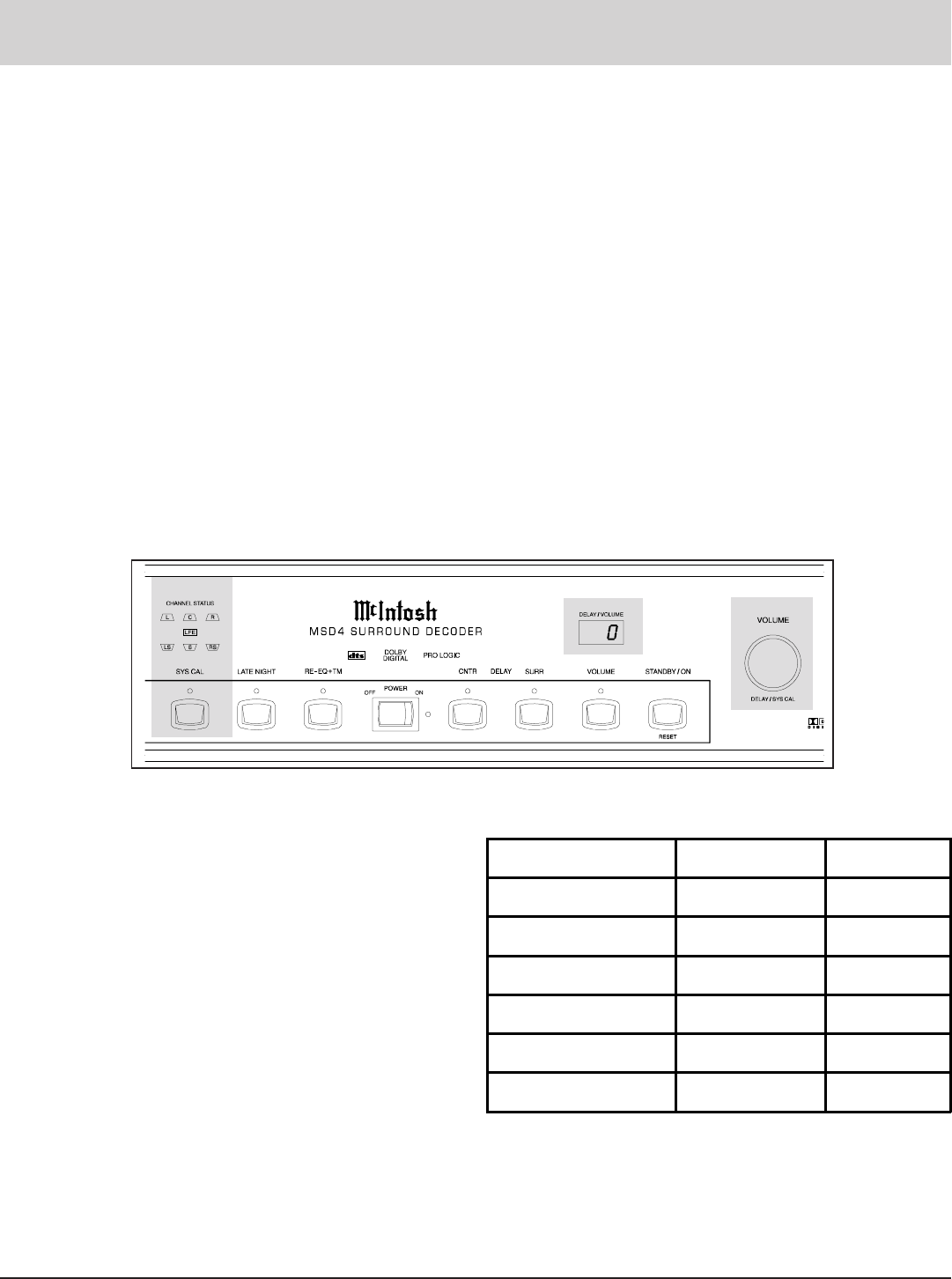
The CHANNEL STATUS LED display indi-
cates which channels are active, depending on
the incoming signal; L (Left Front), C (Cen-
ter), R (Right Front), LFE (Low Frequency
Effects), LS (Left Surround), S (Pro Logic
Surround), R (Right Surround)
The appropriate nomen-
clature turns on to indi-
cate which Dolby or
DTS mode is active
The DELAY/VOLUME dis-
play indicates three types of
information; Volume Level,
System Calibration, and Time
Delay
The VOLUME control
is used for four differ-
ent operations; level
match, volume level,
channel time delay and
system level calibration
The IR (Infra Red) sensor
accepts IR signals di-
rectly from an HR39/
HR130 Remote Control
The SURROUND push-
button switches between
internal Dolby Surround
Decoding and Stereo
Front Panel Controls, Push-Buttons,
Switches and Displays
Press the SYS CAL,
(System Calibration)
push-button to activate
the internal test signal
generator for surround
channel level calibration
The LATE NIGHT
push-button turns the
volume compression
circuit ON and OFF
The Re-EQ+TM push-
button activates the RE-
EQualization filter and
Timbre Match, which
compensates for the
differences in room
acoustics between the
movie theater and a
home theater room
The POWER
switch turns all
power completely
ON or OFF.
Press the CNTR (Center)
DELAY push-button to
temporarily activate the
center channel time delay
adjusting process
Press the SURR (SUR-
ROUND) push-button to
temporarily activate the
surround channel time
delay adjusting process
The VOLUME push-
button activates the
various volume control
functions
The STANDBY/ON
push-button turns the
MSD4 on and off, and
can reset all the MSD4
microprocessors
11
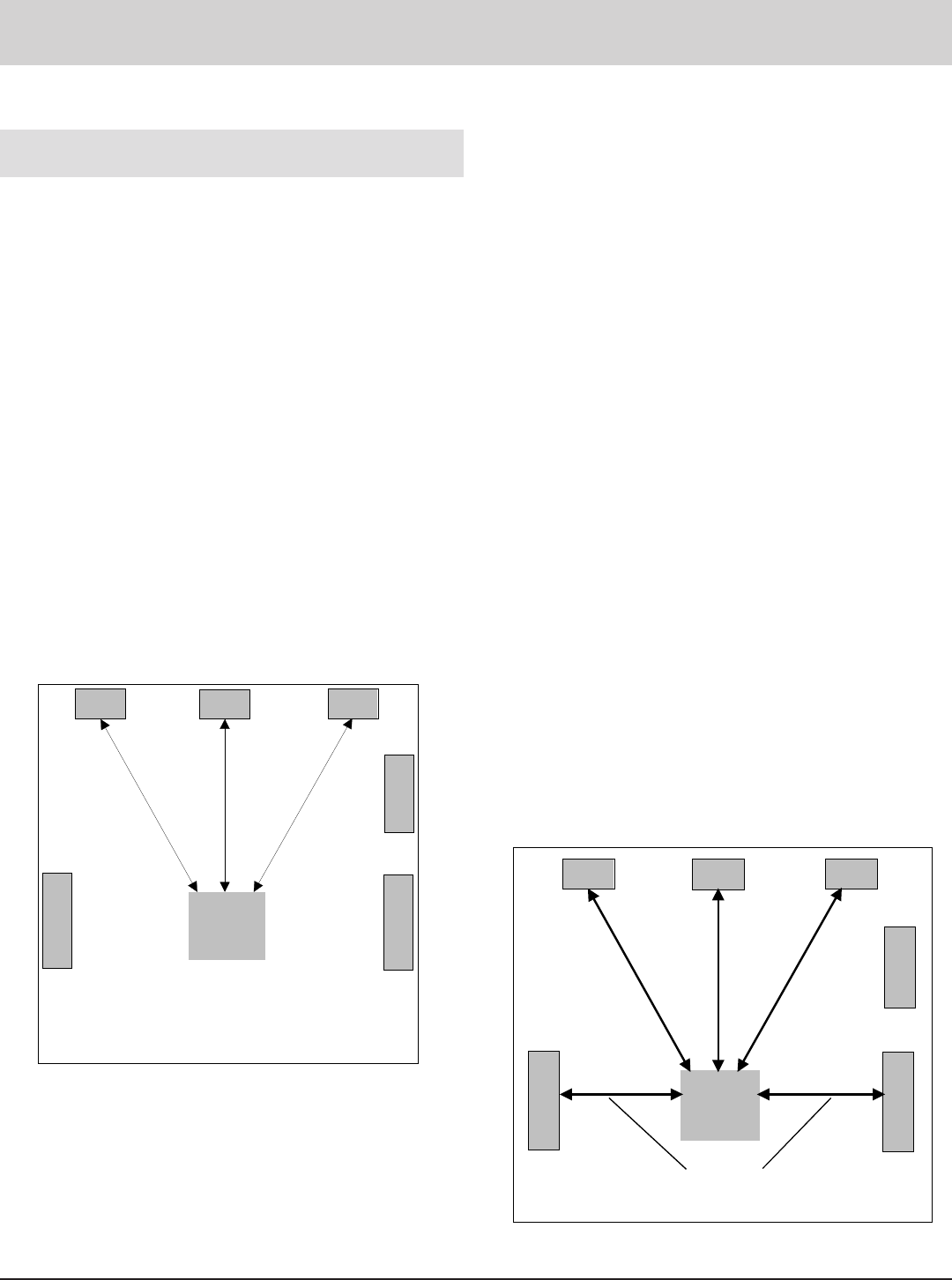
Delay and Level calibration procedures are made relative to
the listening area. The ideal listening area is defined as fac-
ing directly toward and centered between the front speak-
ers, and in line with the left and right surround speakers.
NOTE: Refer to the Front Panel Drawing on the opposite page
and Figures 1 & 2 on this page for the following steps.
Center Speaker Delay
If the center speaker is located closer to the listening area
than the left and right front speakers, its sound will reach
the listener before the sound from the left and right front
speakers. This difference in sound arrival times can degrade
the listening perception of some sound tracks. The MSD4
allows you to adjust the center speaker time delay to cor-
rect for this difference so the sound from the center speaker
reaches the listening area at the same time as sound from
the front left and right speakers.
NOTE: The MSD4 center delay can be adjusted from 0 to 5ms.
Each millisecond delay corresponds approximately to 1
foot in distance.
The first time you press the CNTR/DELAY push-button,
the DELAY/VOLUME display will indicate 0ms, which is
the factory default setting equivalent to no delay. This cor-
responds to a listening room where the center speaker is the
same distance from the listening area as the front left and
right speakers. If your center speaker is closer to the listen-
ing area than the front left and right speakers, adjust the de-
Figure 1
lay to correspond to the difference in feet.
1. Measure the distance from the listening area to the cen-
ter speaker and then the front left and right speakers. If
the center speaker is the same distance as the front
speakers, no calibration is necessary since the default
factory setting is 0ms. If the center speaker is closer
than the front speakers you should adjust the delay to
correspond to the difference in feet.
2. Press the CNTR/DELAY push-button to start delay
calibration procedure.
3. Adjust the VOLUME control until the DELAY/VOL-
UME display reads a number equivalent to how many
feet closer the center speaker is to the listening area.
4. Press the CNTR/DELAY push-button a second time to
exit the delay procedure.
Surround Speaker Delay
If the surround speakers are located closer to the listening
area than the front speakers, their sound will reach the lis-
tener before the sound from the front speakers. This differ-
ence in sound arrival times can degrade the listening per-
ception of some sound tracks. The MSD4 allows you to
adjust the surround speaker time delay to correct for this
difference so the sound from the surround speakers reaches
the listening area at the same time as sound from the front
left and right speakers.
NOTE: The MSD4 surround delay can be adjusted from 0 to
15ms. Each millisecond delay corresponds
approximately to 1 foot in distance.
Delay Calibration for Center and Surround
Channels
Delay Calibration for Center
and Surround Channels
LEFT
FRONT RIGHT
FRONT
CENTER
FRONT
S
U
B
W
O
O
F
E
R
L
E
F
T
S
U
R
R
O
U
N
D
R
I
G
H
T
S
U
R
R
O
U
N
D
IDEAL
LISTENING
AREA
Center
Speaker
Distance
Right
Speaker
Distance
Left
Speaker
Distance
Figure 2
CENTER
FRONT RIGHT
FRONT
S
U
B
W
O
O
F
E
R
L
E
F
T
R
I
G
H
T
S
U
R
R
O
U
N
D
IDEAL
LISTENING
AREA
Center
Speaker
Distance
Right
Speaker
Distance
Left
Speaker
Distance
LEFT
FRONT
S
U
R
R
O
U
N
D
Surround
Speakers
Distance
12
The first time you press the SURR/DELAY push-button the
DELAY/VOLUME display will indicate 5, which is
equivalent to a 5 millisecond delay which is the factory de-
fault setting. This would correspond to a typical listening
room where the surround speakers are 5 feet closer to the
listening area than the front speakers. If your surround
speakers are in a different location, adjust the delay to cor-
respond to their distances from the listening area relative to
the front speakers.
1. Measure the distance from the listening area to the sur-
round speakers, and then to the front left and right
speakers. If the surround speakers are the same distance
as the front speakers, the calibration delay should be set
to 0ms. If the surround speakers are closer than the
front speakers you should adjust the delay to correspond
to the difference in feet.
2. Press the SURR/DELAY push-button to start delay cali-
bration procedure.
3. Adjust the VOLUME control until the DELAY/VOL-
UME display reads a number that is the same as the
number of feet measured in Step 1.
4. Press the SURR/DELAY push-button a second time to
exit the delay procedure.
EXAMPLE: If your center speaker is 2 feet closer to the
listening area than the front speakers, set the
center delay to 2. If your surround speakers are
4 feet closer to the listening area than the front
speakers, set the surround delay to 4.
NOTE: The following table may be used to record your Delay
Calibration Settings.
The following information assumes the MSD4 is being
used in a system together with a digital signal source such
as a McIntosh MLD7020 Laser Video Disc player, a DVD
player or a Satellite Receiver. The MSD4 is operated by an
HR34/HR39/HR130 Remote Control sending IR signals to
the Control Center sensor.
How to Operate with a C39/MX130
How to Operate with a C39/MX130
Delay Calibration Default Setting New Setting
Center Channel 0
Surround Channels 5
Selecting inputs with the Remote Control results in the
MSD4 input selection automatically tracking with the Con-
trol Center input. If Inputs are selected manually by turning
the C39 or MX130 LISTEN switch, the matching MSD4
inputs must also be selected manually by the MSD4 IN-
PUT switch.
The DVD input on the MSD4 is the same as the V-AUX
input on the Control Center. If any input other than the four
MSD4 inputs are selected, the MSD4 will default to the
Analog input.
NOTE: If your C39 or MX130 has the THX-M module installed,
switch the Control Center back to internal processing
CINEMA 2 to take advantage of the THX
enhancements to the Dolby Pro Logic decoded sound
tracks.
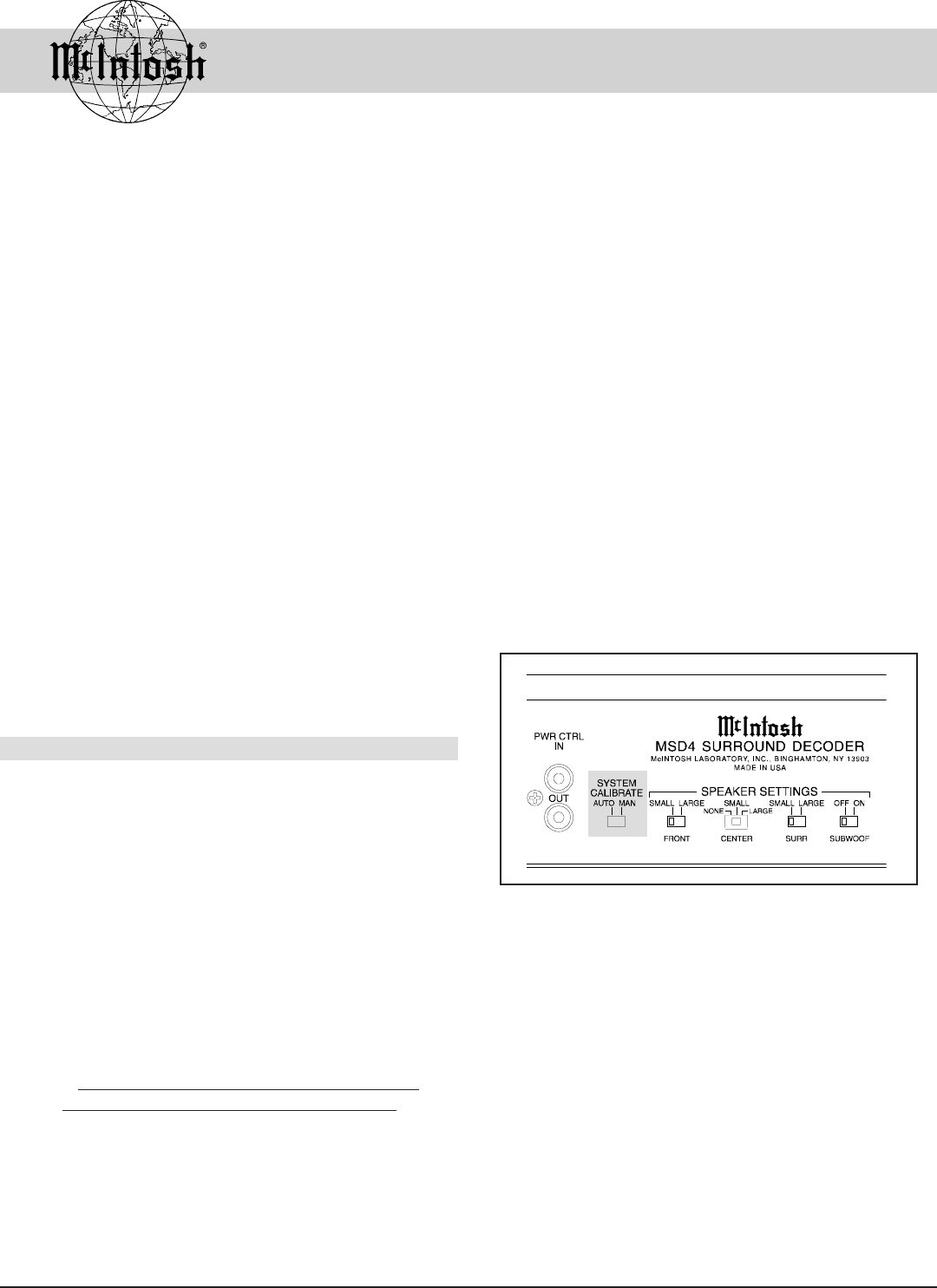
FP Sensor
Set the FP SENSOR switch to OFF.
NOTE: This prevents the MSD4s built-in sensor from receiving
the remote control commands that have been already
received directly from the C39 or MX130, thus causing
improper functioning. Refer to Figure 3.
Late Night
The LATE NIGHT push-button turns a volume compres-
sion circuit on and off. This feature suppresses loud sounds
or music that might disturb neighbors or others not in the
immediate area of the home theater. Soft levels are also
raised slightly so they are still listenable at reduced overall
volume levels. This works only on a Dolby Digital sound
tracks with encoded data that supports the compression
function.
Re-EQ + TM
Re-EQualizationTM compensates for the bright sound re-
quired in theaters that is not needed in a home theater sys-
tem. TM or Timbre MatchingTM makes the movement of
sounds around the listening room much more natural and
realistic by compensating for how the human ear hears
sounds from the sides compared to sounds heard from the
front.
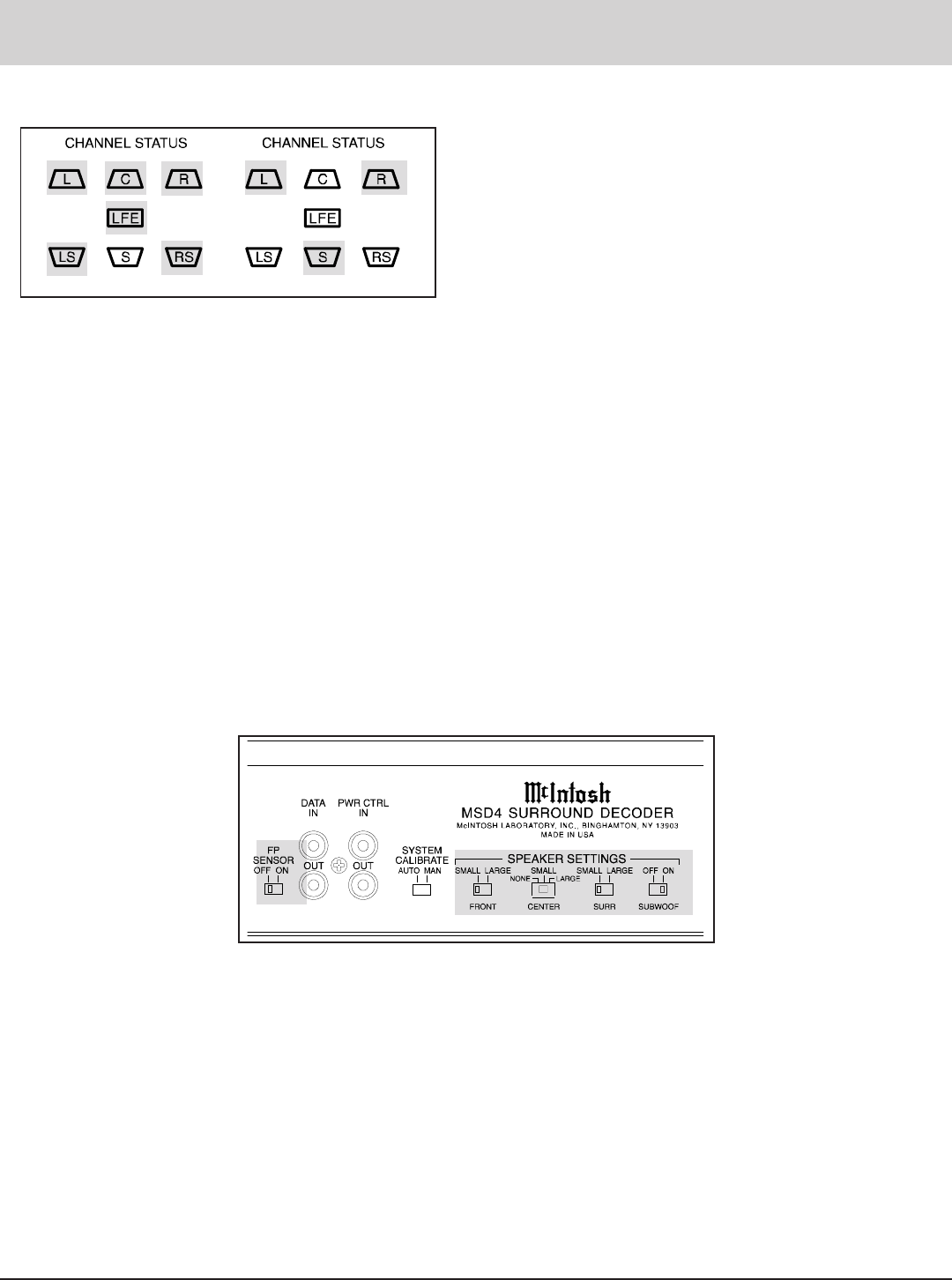
Channel Status LEDs
If the signal source contains a Dolby Digital sound track,
the MSD4 switches to Dolby Digital mode. The front panel
CHANNEL STATUS LEDs L, C, R, LFE, LS and RS will
turn on in accordance to the channels that are present on
the Dolby Digital sound track.
13
If the signal source contains DTS encoded signals,
theMSD4 switches to DTS mode. The front panel CHAN-
NEL STATUS LEDs L, C, R, LFE, LS and RS will turn on
in accordance to the channels that are present on the DTS
sound track.
If the signal source contains only a Dolby Pro Logic
sound track, the MSD4 switches to Pro Logic mode. The
front panel CHANNEL STATUS LEDs L, R, and S will
turn on.
Volume Control
The MSD4 VOLUME control is factory preset with the
volume display indicating 75. This is the recommended ini-
tial volume calibration when the MSD4 is used in a system
with a C39 or MX130. If you wish to change the audio vol-
ume level from signal sources connected to the MSD4 rela-
tive to other signal sources selected by the C39 or MX130,
press the VOLUME push-
button to activate the MSD4
volume control. Adjust the
control until the desired level
is reached. Press the VOL-
UME push-button again to
deactivate the volume con-
trol. This will prevent an ac-
cidental change of the cali-
brated level
NOTE: If the input selector is set to (CD 1, SAT, LV or DVD)
and no digital signal is present, the Volume push-button
LED will flash on/off to indicate the outputs are muted.
When the outputs are muted the volume control
calibrated level will not function as described above.
Front Speakers (Small-Large)
When the front left and right speakers cover the full fre-
quency range down to 20Hz, set the switch to LARGE.
When the front speakers cover the frequency range only
down to 80Hz, set the switch to SMALL. A built-in elec-
tronic crossover will remove frequencies of 80Hz and
Dolby Digital or DTS Signal Dolby Pro Logic Signal
How to Operate with a C39/MX130
cont
lower from the front left and right speakers and redirect
them to the Subwoofer speaker.
Center Speaker (None-Small-Large)
When the center speaker covers the full frequency range
down to 20Hz, set the switch to LARGE.
When the Center speaker covers the frequency range
only down to 80Hz, set the switch to SMALL. A built-in
electronic crossover will remove frequencies of 80Hz and
lower from the Center speaker and redirect them to the
Subwoofer speaker.
When there is no center speaker in the system, set the
switch to NONE. The Center channel signal is sent to the
left and right front speakers. This mode of operation results
in the listeners perceiving a Phantom center speaker.
Surround Speakers (Small-Large)
When the surround speakers cover the full frequency range
down to 20Hz, set the switch to LARGE.
When the surround speakers cover the frequency range
only down to 80Hz, set the switch to SMALL. The built-in
electronic crossover will remove frequencies of 80Hz and
lower from the surround speakers and redirect them to the
subwoofer speaker.
Note: For the best
reproduction of DTS
sound tracks, use full
frequency range
loudspeakers in front
and surround locations
in addition to a
subwoofer. Place Front,
Center and Surround
Speaker Settings
switches to the Large
position and the
Subwoofer switch to On.
Subwoofer Speaker (Off-On)
Set the SUBWOOF switch to ON whenever a subwoofer is
used in the system. In this mode, the LFE (Low Frequency
Effects) are always sent to the subwoofer. The subwoofer
also receives from any channel(s), that have their
SPEAKER switches set to SMALL, low frequencies of
80Hz and lower.
Set SUBWOOF switch to OFF when all SPEAKER
switches are set to LARGE and no subwoofer is being used
in the system. The LFE (Low Frequency Effects) signals
Figure 3
14
System Level Calibration
The MSD4 includes a built-in test signal generator to per-
form System Level Calibration. A properly calibrated sur-
round sound system should have all channel levels adjusted
initially for similar volume in the listening area. This en-
sures that multi channel sound tracks will be reproduced
with optimum realism. Individual channel levels from an
actual sound track usually change widely on a continuous
basis. Proper System Calibration sets all channels to the
correct starting reference level.
NOTE: When the MSD4 is used in a system with the C39 or
MX130, it is recommended that level calibration be done
at the A/V Control Center. Refer to the Control Center
Owners Manual for details.
The built-in calibration should be used primarily
when the MSD4 is used in a stand alone system. When in
the System Calibration mode, it is most convenient to
make level adjustments from the listening area with the
optional HR34/HR39/HR130 Remote Control. The
MSD4 VOLUME control can also be used to adjust
levels. A sound level pressure meter may be used to
obtain a more accurate calibration. Refer to Figures 4
and 5 for the followings steps.
System Level Calibration
Automatic System Calibration
1. Set the rear panel SYSTEM CALIBRATION switch to
AUTO.
2. Adjust the MSD4 volume control until the display reads
70. This is an initial reference setting to ensure that the
test signals will be adequately loud to perform the level
calibration.
3. Press the SYS CAL push-button once to start System
Calibration. You will hear the test signal from the left
front speaker for 2 seconds. The test signal will then
cycle through all six channels continuously in 2 second
intervals, clockwise starting with Left Front, Center,
Right Front, Right Surround, Left Surround and
Subwoofer. The MSD4 DELAY/VOLUME display will
read 0 for each channel before any adjustments are
performed.
NOTE: The front panel CHANNEL STATUS LEDs will light to
indicate which channel is reproducing the test signal.
4. While seated in the listening area, note the volume lev-
els of the test signal from each of the channels as the
test signal switches. If you determine that the test signal
volume is louder or softer in any of the channels, the
levels should be adjusted so you hear essentially the
same test signal volume from all of the channels. The
left front channel volume level can serve as a reference.
5. Make channel level calibration adjustments with the op-
tional HR34/HR39/HR130 Remote Control Surround
Up and Down push-buttons from the listening area. You
can also use the MSD4 volume control. If an adjust-
ment is made on a channel, there is an additional 2 sec-
ond time interval on that channel before the system
switches the test signal to the next channel. As a level is
changed, the DELAY/VOLUME display instantly
changes to indicate the calibration level change in dB.
If the level is increased, the display shows plus num-
are sent equally to each of the five remaining channels. If
the SUBWOOF switch is OFF and there are no large full
range speakers in the system, you will not hear the extreme
low frequencies. When no subwoofer is connected and
LARGE (Full Range) Loudspeakers are connected the
Front Left and Right Channels, the LFE (Low Frequency
Effects) are directed to them.
EXAMPLE: If you are using McIntosh speakers, HT-1 or SL-6,
HT-2 or SL-1, HT-3, HT-4, use the following settings.
Set FRONT to SMALL.
Set CENTER to SMALL.
Set SURR to SMALL
Set SUBWOOF to ON.
Reset of Microprocessors
In the event that the controls of the MSD4 stop functioning,
there is a user reset function built in. While the MSD4 is on
depress and hold in the STANDBY/ON/RESET push button
for five seconds, this will reset the MSD4s microproces-
sors.
NOTE: The above condition is usually caused by either
interruptions in AC power and/or major changes in
voltage.
Figure 4
15
Calibration Channel Default Setting New Setting
Left Front 0
Center Front 0
Right Front 0
Right Surround 0
Left Surround 0
Subwoofer 0
bers, and if decreased shows minus numbers. Calibra-
tion levels can be adjusted over a range of plus or mi-
nus 12dB.
6. When the test signal switches to succeeding channels,
repeat the level calibration process until the test signal
volume levels of all the channels are the same.
7. The calibration channel cycling mode can be repeated
as often as necessary until you are satisfied that the
volume levels of the test signal are the same from all
channels.
8. Exit the System Calibration mode by pressing the SYS
CAL push-button a second time.
NOTE: All System Level Calibrations are retained in
permanent memory and will change only if calibration
is performed again. The factory default setting for the
volume control is 75.
Manual
System
Calibration
1. Set the
rear panel
SYSTEM
CALI-
BRATE
switch to
MAN.
2. Adjust the
MSD4
volume
control until the display reads at least 70, an initial ref-
erence setting to ensure that the test signals will be ad-
equately loud to perform the level calibration.
3. Press the SYS CAL push-button once to start Manual
System Calibration. The first time the SYS CAL push-
button is pressed, the test signal will switch to the Left
Front channel and will stay in that channel until the
SYS CAL push-button is pressed again, followed by
the Center, Right Front, Right Surround, Left Surround
and
Subwoofer. The MSD4 DELAY/VOLUME display
will read 0 for each channel before any adjustments
are performed.
NOTE: The front panel CHANNEL STATUS LEDs will light to
indicate which channel is reproducing the test signal. A
more convenient method of manually switching the test
signal is to use the SP push-button on the optional
HR34/HR39/HR130 Remote Control which performs the
same functions as the SYS CAL push-button.
4. While seated in the listening area, note the volume
levels of the test signal from each of the channels. If
you determine that the test signal volume is louder or
softer in any of the channels, the levels should be
adjusted so you hear essentially the same test signal
volume from all of the channels. The left front channel
volume level can serve as a reference.
5. Exit the Manual System Calibration mode by pressing
the SYS CAL push-button after calibrating the
Subwoofer channel.
NOTE: All System Level Calibrations are retained in permanent
memory and will change only if calibration is
performed again. The following table may be used to
record your Delay Calibrations Settings.
System Level Calibration
cont
Figure 5

16
How to Operate in a Stand Alone System
The following information assumes the MSD4 is being
used with a McIntosh MC7205 amplifier, SL-1 Subwoofer,
MVS-3 Audio/Video Selector and a digital signal source
such as McIntosh MLD7020 Laser Video Disc Player, a
DVD Player or a Satellite Receiver. The MSD4 can be op-
erated manually or with an optional HR34/HR39/HR130
Remote Control.
FP Sensor
Set the FP SENSOR switch to ON.
NOTE: This will activate the MSD4s built in sensor for
receiving the remote control commands from the
optional HR34/HR39/HR130 remote control. Refer to
Figure 6 on the next page, for location of Rear Panel
Switches.
Late Night
The LATE NIGHT push-button turns a volume compres-
sion circuit on and off. This feature suppresses loud sounds
or music that might disturb neighbors or others not in the
immediate area of the home theater. Soft levels are also
raised slightly so they are still listenable at reduced overall
volume levels.This works only on an Dolby Digital sound
tracks with encoded data that supports the compression
function.
Re-EQ + TM
Re-EQualizationTM compensates for the bright sound re-
quired in theaters that is not needed in a home theater sys-
tem. TM or Timbre MatchingTM makes the movement of
sounds around the listening room much more natural and
realistic by compensating for how the human ear hears
sounds from the sides compared to sounds heard from the
front.
Channel Status LEDs
If the signal source contains a Dolby Digital sound track,
the MSD4 switches to Dolby Digital mode. The front panel
CHANNEL STATUS LEDs L, C, R, LFE, LS and RS will
turn on in accordance to the channels that are present on
the Dolby Digital sound track.
If the signal source contains DTS encoded signals,
theMSD4 switches to DTS mode. The front panel CHAN-
NEL STATUS LEDs L, C, R, LFE, LS and RS will turn on
in accordance to the channels that are present on the DTS
sound track.
If the signal source contains only a Dolby Pro Logic
sound track, the MSD4 switches to Pro Logic mode. The
front panel CHANNEL STATUS LEDs L, R, and S will
turn on.
Front Speakers (Small-Large)
When the front left and right speakers cover the full fre-
quency range down to 20Hz, set the switch to LARGE.
When the front speakers cover the frequency range only
down to 80Hz, set the switch to SMALL. A built-in elec-
tronic crossover will remove frequencies of 80Hz and
lower from the front left and right speakers and redirect
them to the Subwoofer speaker.
Center Speaker (None-Small-Large)
When the center speaker covers the full frequency range
down to 20Hz, set the switch to LARGE.
When the Center speaker covers the frequency range
only down to 80Hz, set the switch to SMALL. A built-in
electronic crossover will remove frequencies of 80Hz and
lower from the Center speaker and redirect them to the
Subwoofer speaker.
When there is no center speaker in the system, set the
switch to NONE. The Center channel signal is sent to the
left and right front speakers. This mode of operation results
in the listeners perceiving a Phantom center speaker.
Surround Speakers (Small-Large)
When the surround speakers cover the full frequency range
down to 20Hz, set the switch to LARGE.
When the surround speakers cover the frequency range
only down to 80Hz, set the switch to SMALL. The built-in
electronic crossover will remove frequencies of 80Hz and
lower from the surround speakers and redirect them to the
subwoofer speaker.
Note: For the best reproduction of DTS sound tracks, use full
frequency range loudspeakers in front and surround
locations in addition to a subwoofer. Place Front,
Center and Surround Speaker Settings switches to the
Large position and the Subwoofer switch to On.
Dolby Digital or DTS Signal Dolby Pro Logic Signal
How to Operate in a Stand
Alone System
17
How to Operate in a Stand
Alone System cont
Subwoofer Speaker (Off-On)
Set the SUBWOOF switch to ON whenever a subwoofer is
used in the system. In this mode, the LFE (Low Frequency
Effects) are always sent to the subwoofer. The subwoofer
also receives from any channel(s), that have their
SPEAKER switches set to SMALL, low frequencies of
80Hz and lower.
Set SUBWOOF switch to OFF when all SPEAKER
switches are set to LARGE and no subwoofer is being used
in the system. The LFE (Low Frequency Effects) signals
are sent equally to each of the five remaining channels. If
the SUBWOOF switch is OFF and there are no large full
range speakers in the system, you will not hear the extreme
low frequencies. When no subwoofer is connected and
LARGE (Full Range) Loudspeakers are connected the
Front Left and Right Channels, the LFE (Low Frequency
Effects) are directed to them.
EXAMPLE: If you are using McIntosh speakers, HT-1 or SL-6,
HT-2 or SL-1, HT-3, HT-4, use the following
settings.
Set FRONT to SMALL.
Set CENTER to SMALL.
Set SURR to SMALL
Set SUBWOOF to ON.
Set SUBWOOF to ON.
Volume Control
Set the VOLUME control to the desired level.
NOTE: If the input selector is set to (CD 1, SAT, LV or DVD)
and no digital signal is present, the Volume push-button
LED will flash on/off to indicate the outputs are muted.
Figure 6
Remote Adjustment of Surround Levels
You can adjust surround levels while listening by using the
Surround Up and Down push-buttons on the optional
HR34/HR39/HR130 Remote Control. These adjustments
will stay as long as the MSD4 is turned on, but will be
erased when the MSD4 is turned off.
Reset of Microprocessors
In the event that the controls of the MSD4 stop function-
ing, there is a user reset function built in. While the MSD4
is on depress and hold in the STANDBY/ON/RESET push
button for five seconds to reset the MSD4s microproces-
sors.
NOTE: The above condition is usually caused by either
interruptions in AC power and/or major changes in
voltage.

18
Specifications
Frequency Response
Stereo Left and Right Small speakers:
80Hz-20,000Hz
Subwoofer:
20Hz-80Hz
Left and Right Large speakers:
20Hz-20,000Hz
Subwoofer:
OFF
Pro Logic Left, Center, Right, Small speakers:
80Hz-20,000Hz
Surround Small speakers:
80Hz-7kHz.
Subwoofer:
20Hz-80Hz
Left, Center, Right, Large speakers:
20Hz-20,000Hz
Surround Large speakers:
20Hz-7kHz.
Subwoofer:
OFF
Dolby Digital Left, Center Right Small speakers:
and DTS 80Hz-20,000Hz.
Surround Small speakers:
80Hz-20,000Hz
Subwoofer:
20Hz-80Hz
Left, Center, Right Large speakers:
20Hz-20,000Hz
Surround Large speakers:
20Hz-20,000Hz.
Subwoofer:
20Hz-80Hz
Rated Output
All Modes: 2.0VRMS for full bit
Output Impedance
420 ohms at all outputs
Maximum Output Voltage
8VRMS
Total Harmonic Distortion
0.005% at all outputs
Sensitivity
Analog Input: 500mV for 2.0V output, (100mV IHF)
Signal To Noise Ratio - All Outputs
Greater than 90dB un-weighted
Greater than 100dB A weighted
Greater than 98dB CCIR
Maximum Input Signal
Analog Input: 2VRMS full BIT, 6VRMS with AILC
Voltage Gain
Analog Input to Output: 12dB
Power Requirements
100 Volts, 50/60Hz at 45 watts
110 Volts, 50/60Hz at 45 watts
120 Volts, 50/60Hz at 45 watts
220 Volts, 50/60Hz at 45 watts
230 Volts, 50/60Hz at 45 watts
240 Volts, 50/60Hz at 45 watts
NOTE: Refer to the rear panel of the MSD4 for the correct
voltage
Dimensions
Front Panel: 17-1/2 inches (44.5cm) Wide, 3-9/16 (9cm)
High
Depth required behind mounting panel, including connec-
tors: 17-1/2 (44.5cm)
Knob clearance required in front of mounting panel: 1-3/8
(3.5cm)
Specifications
19
Packing Instructions
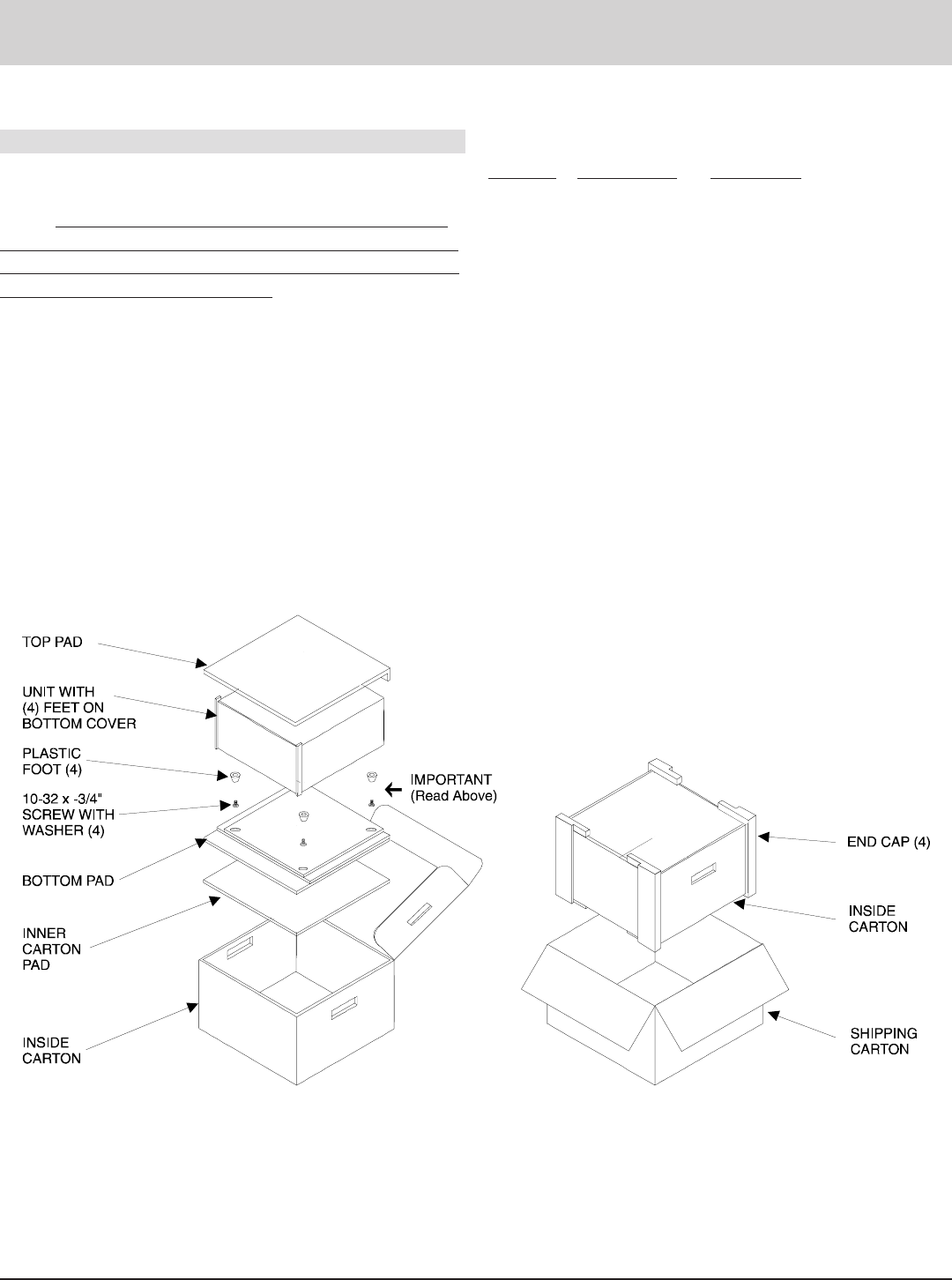
In the event it is necessary to repack the equipment for
shipment, the equipment must be packed exactly as shown
below. It is very important that the four plastic feet are at-
tached to the bottom of the equipment. This will ensure the
proper equipment location on the bottom pad. Failure to do
this will result in shipping damage.
Use the original shipping carton and interior parts only
if they are all in good serviceable condition. If a shipping
carton or any of the interior part(s) are needed, please call
or write Customer Service Department of McIntosh Labo-
ratory. Please see the Part List for the correct part numbers.
Quantity Part Number Description
1 034023 Shipping carton only
4 034022 Foam end cap
1 033606 Inside carton only
1 033726 Top pad
1 033729 Bottom pad
1 033622 Inner carton pad
4 017218 Plastic foot
4 100159 #10-32 x 3/4 screw
4 104083 #10 x 7/16 Flat washer
1 048095 Shipping carton complete with
all the above parts
Packing Instructions

McIntosh Part No. 040594
McIntosh Laboratory, Inc.
2 Chambers Street
Binghamton, NY 13903
